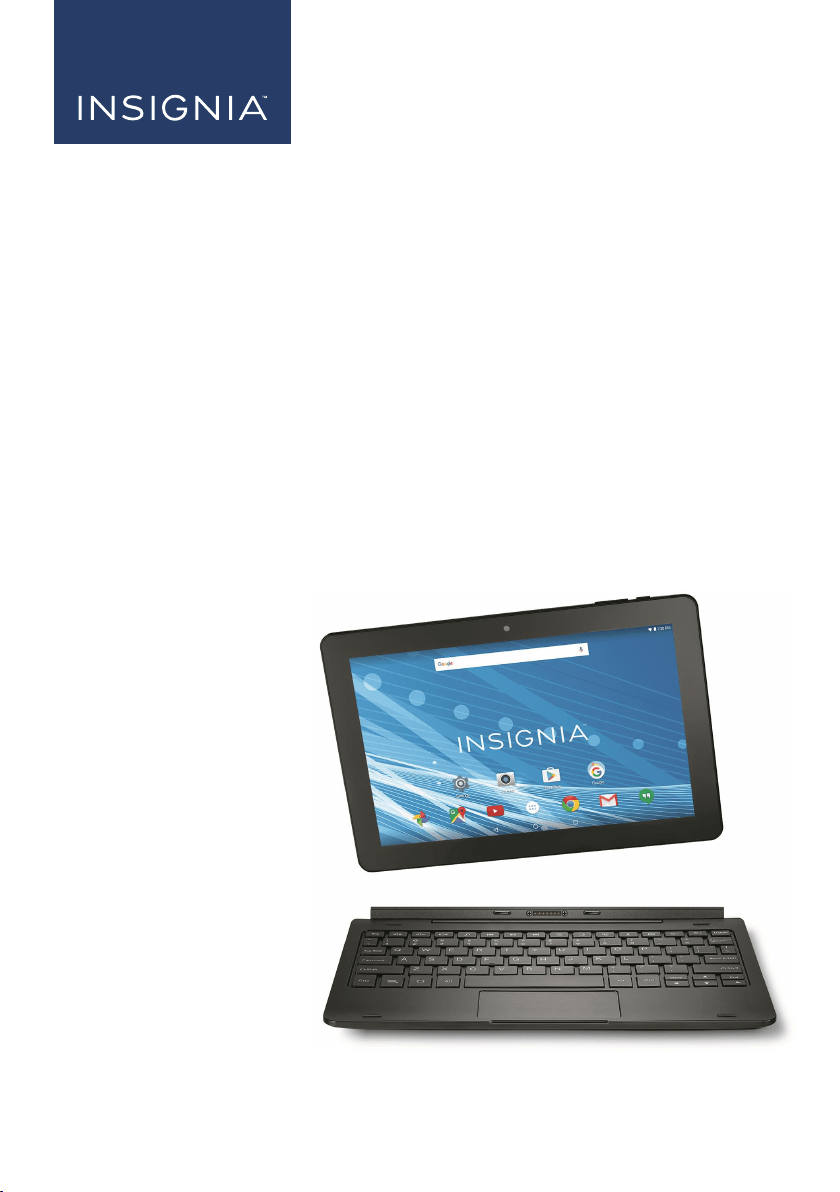
Before using your new product, please read these instructions to prevent any damage.
USER GUIDE
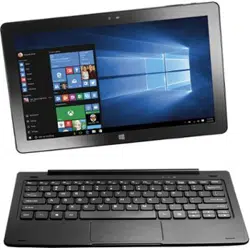
10.1" FLEX Tablet for Android™
With Detachable Keyboard
NS-P10A8100K

Contents
Welcome 5
Features 5
Package contents 5
Tablet overview 6
Home screen 10
Get started 11
Charge the battery 11
Turn on your tablet for the first time 12
Understand the basics 13
Turn your tablet on or off 13
Restart your tablet 14
Adjust the volume 14
Navigate with gestures 14
Navigate with on-screen function buttons 15
Use the Recents screen 16
Use the keyboard 17
Download apps 19
Capture and view a screenshot 20
View a status item or notification 21
Check for updates 23
Change basic settings 24
Customize the Home screen 24
Set and use the screen lock 26
Customize the lock screen 28
Set the date and time 30
Adjust the screen brightness 30
Adjust the power saving settings 31
Setting the screen font size 32
Adjust system sounds 32
www.insigniaproducts.com

Select your language 34
Connect to a computer 36
Windows 36
Transfer or download an e-book 37
Set up wireless connections 37
Connect to a Wi-Fi network 37
Add a Wi-Fi network 38
Check network status 40
Connect to a Bluetooth device 40
Use the Internet 41
View web pages 41
Search for text on a web page 42
Copy text on a web page 42
Check and clear history 43
Manage bookmarks 44
Manage downloads 45
Use Gmail™ 47
Set up a Gmail account 47
Manage Gmail accounts 47
View a Gmail 49
Create a Gmail 50
Create and manage contacts 50
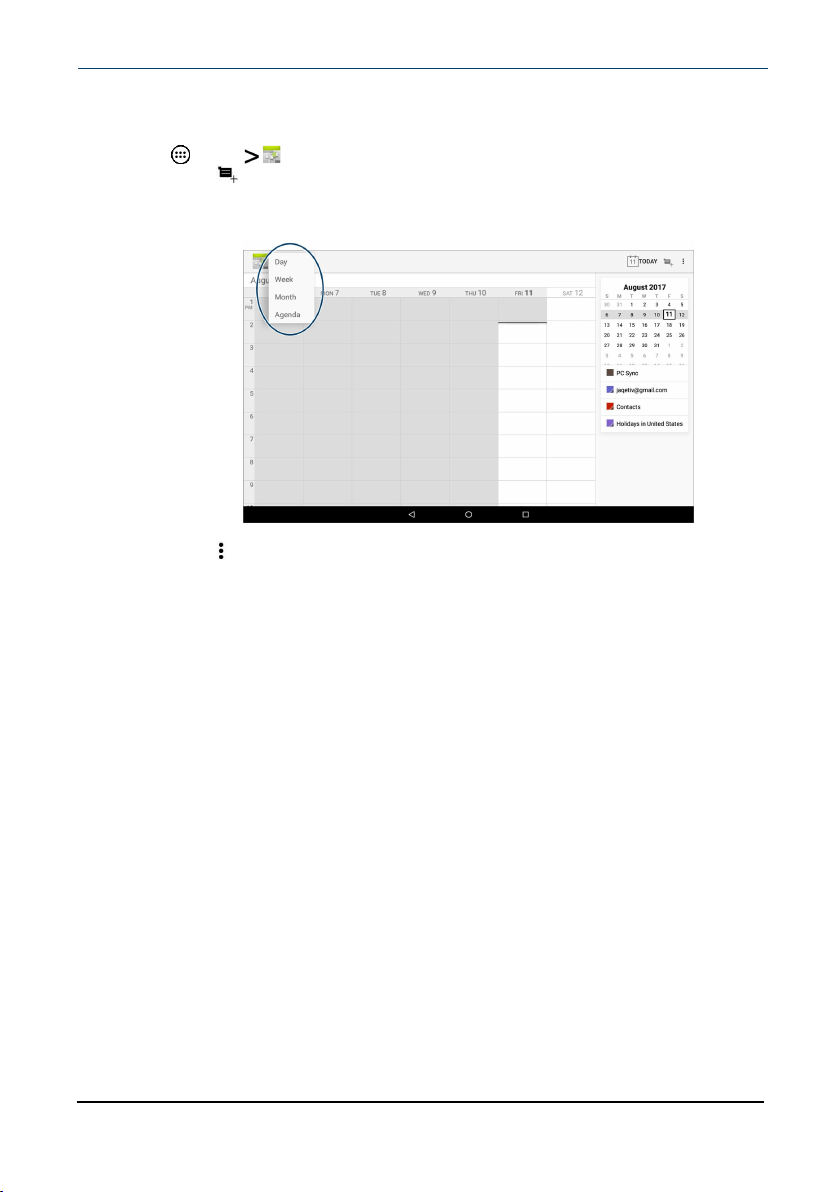
Use the calendar 51
Work with photos and video 52
Use the camera 52
View photos and video 52
Edit photos 53
Share photos or videos 53
Listen to music 54
Control playback 54
www.insigniaproducts.com
10.1" FLEX Tablet for Android™ With Detachable Keyboard
3
Using playlists 54
Manage storage space 55
Use a micro SD card 55
View storage space 56
Clear app cache and data 56
Uninstall apps 57
Free up storage space 57
Reset to default settings 58
Troubleshooting 58
Need additional help? 61
Maintenance 61
Specifications 62
Customer support 63
Safety information 63
Legal notices 64
One-Year Limited Warranty 65
www.insigniaproducts.com
NS-P10A8100K
4

Welcome
Thank you for purchasing an Insignia 10.1" FLEX Tablet for Android™ With
Detachable Keyboard (NS-P10A8100K). Your tablet is a state of the art Android
design that will give you reliable and trouble-free performance.
Features
Familiarize yourself with your tablet's features below.
Wi-Fi Connectivity
Connect to the Internet wherever you are with the latest Wi-Fi technology.
Touch Screen
The screen responds to your touch instantly.
Third-party Application Support
Install a large number of third-party applications on your tablet.
Built-in Cameras
Use the built-in front and rear cameras as a webcam or to record videos.
Built-in G-sensor
Rotate the tablet to automatically switch between landscape and portrait modes.
Entertainment
Enjoy music, movies, pictures, and e-books on a single device.
Package contents
l 10.1" FLEX Tablet for Android™
l Micro USB cable
l Wall charger
l
Quick Setup Guide
l
Important Information
www.insigniaproducts.com
10.1" FLEX Tablet for Android™ With Detachable Keyboard
5
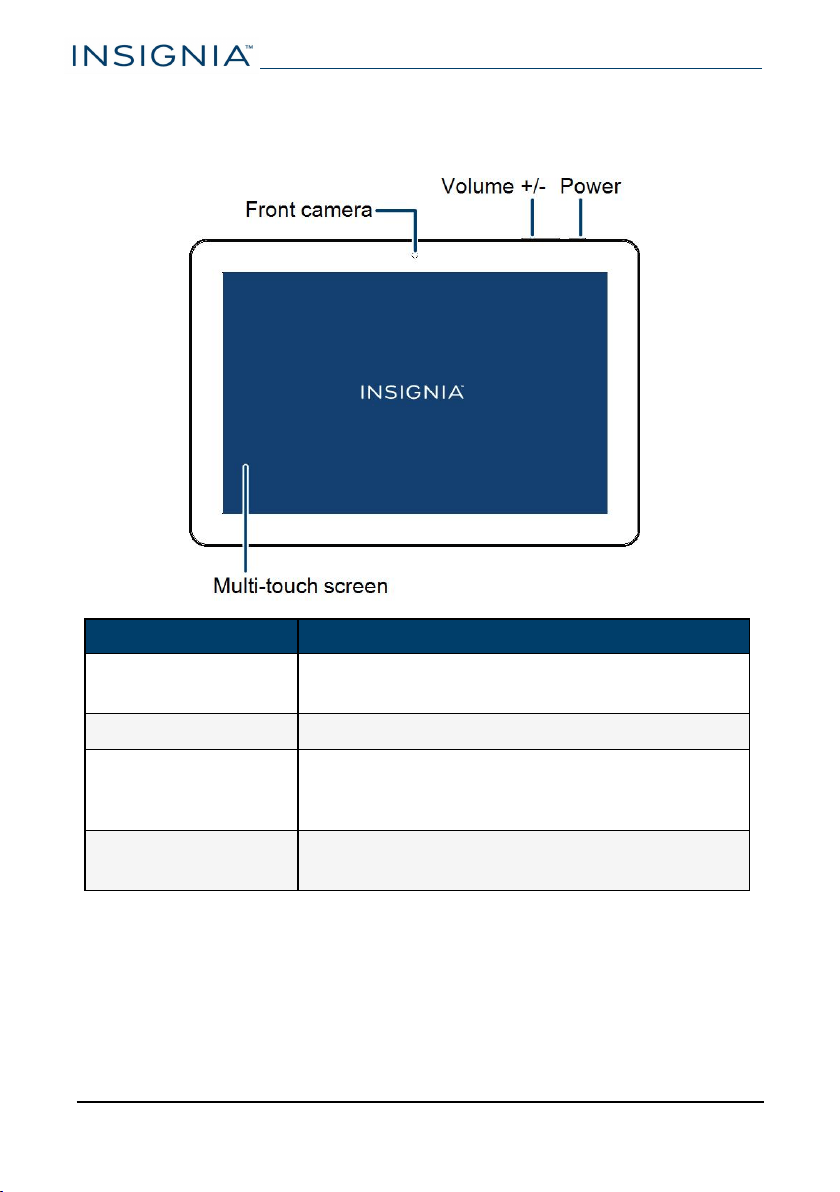
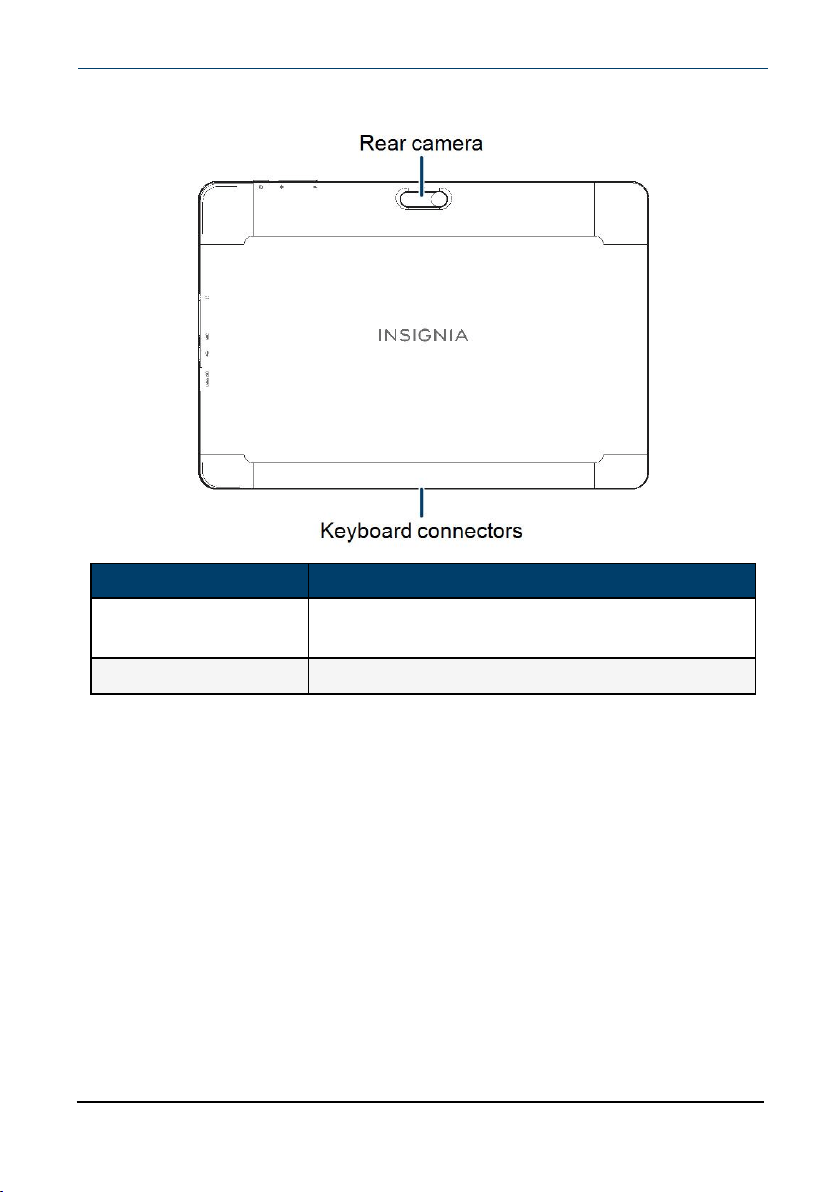
Tablet overview
Front
Item Description
Front camera
Take pictures or record video. See Use the camera
(on page52).
Volume +/- Press to increase or decrease the volume.
Power
Press briefly to lock or unlock the screen.
Press and hold to turn your tablet on/off.
Press and hold for eight seconds to restart.
Multi-touch screen
Use your fingers to control your tablet. See
Navigate with gestures (on page14).
www.insigniaproducts.com
NS-P10A8100K
6
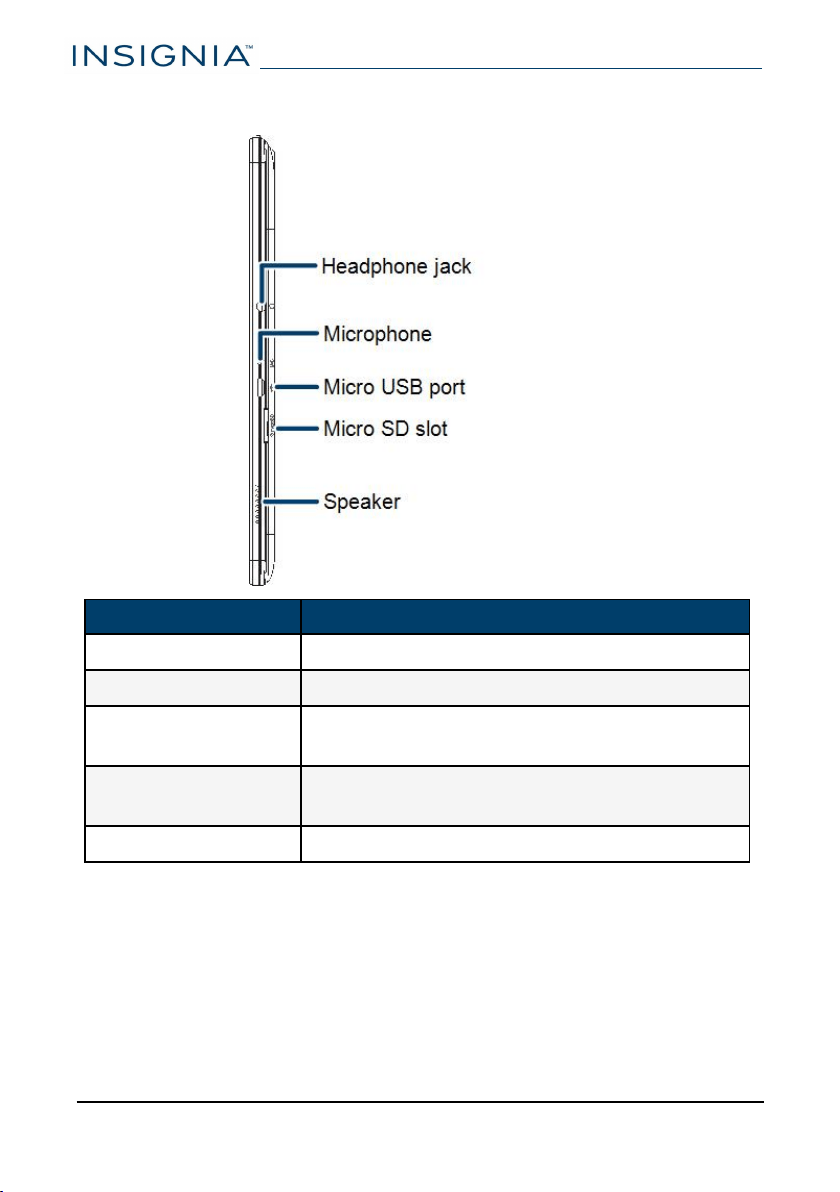
Side
Item Description
Headphone jack Connect 3.5 mm headphones to listen to audio.
Microphone Speak into the microphone to capture your voice.
Micro USB port
Connect the micro USB cable to charge your
tablet.
Micro SD slot
Insert a micro SDcard to increase your tablet's
memory.
Speaker Play audio from your tablet.
www.insigniaproducts.com
NS-P10A8100K
8
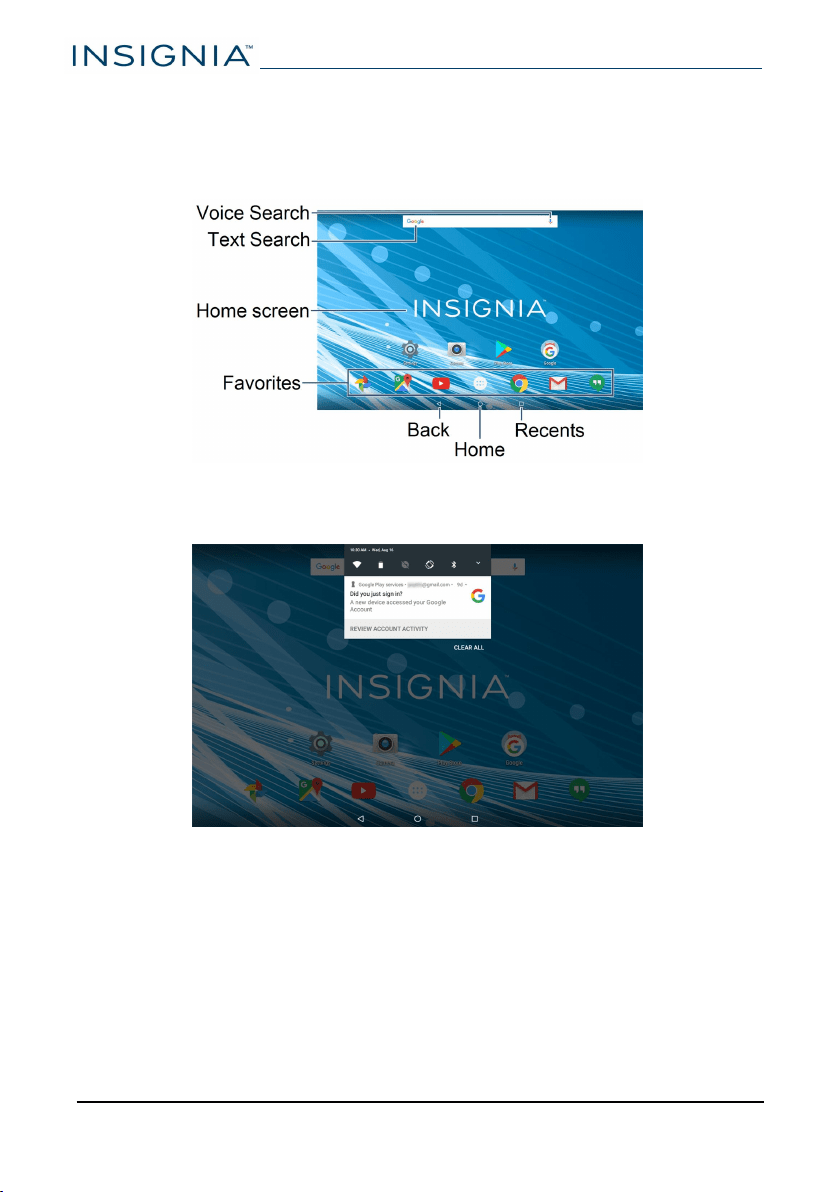
Home screen
See Navigate with gestures (on page14) for information on using the touch
screen. See Navigate with on-screen function buttons (on page15) for
information on navigating on your tablet.
Notifications
Swipe down from the top edge of the screen with one finger.
www.insigniaproducts.com
NS-P10A8100K
10
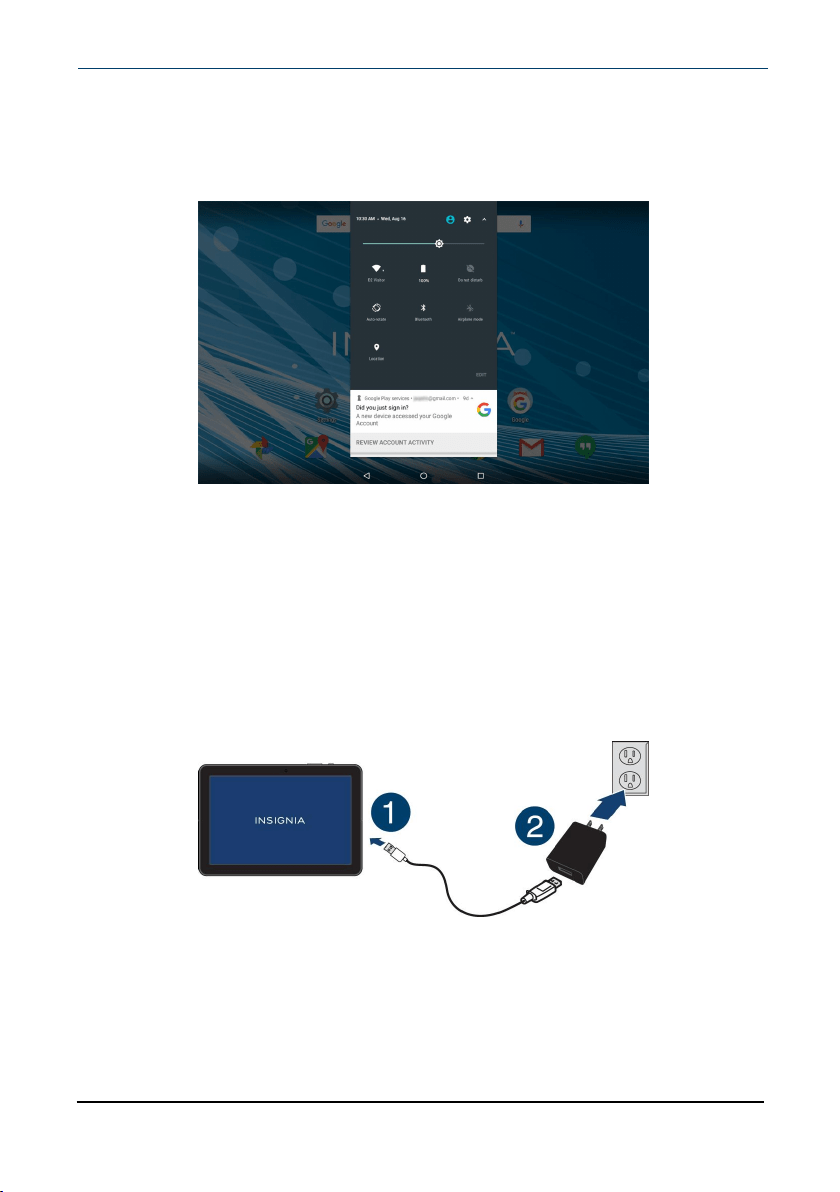
Status items
Swipe down from the top edge of the screen with two fingers.
OR
Open notifications, then swipe down again.
Get started
This section has resources to help you start using your tablet right away. You can
also check out Features (on page5) to familiarize yourself with your new tablet.
For more information about using and customizing your tablet, see Understand
the basics (on page13) and Change basic settings (on page24).
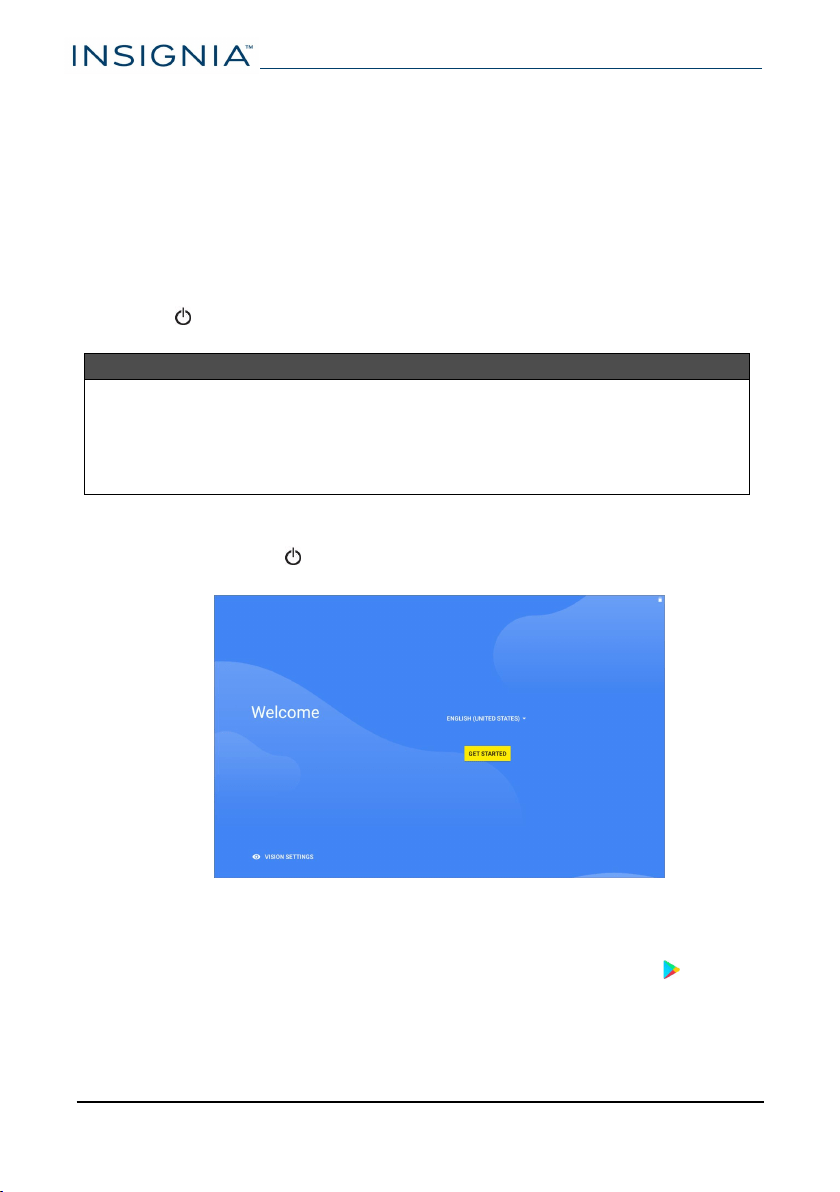
Charge the battery
Charge your tablet fully (4.5 hours) before using it the first time. After the first
time, charge your battery when it is less than 15% full.
1
Insert the micro USB cable into your tablet's micro USB port.
2
Insert the other end into the wall charger, then connect it to a power outlet.
Note:It takes about 4.5 hours to fully charge your tablet.
www.insigniaproducts.com
10.1" FLEX Tablet for Android™ With Detachable Keyboard
11
Conserve battery power
l Turn on battery saver mode. See Adjust the power saving settings (on
page31).
l Turn off Wi-Fi when you aren't using it.
l Lower the screen brightness. See Adjust the screen brightness (on
page30).
l Close apps that you aren't using. See Use the Recents screen (on page16).
l If your tablet is inactive, your tablet sleeps with the screen off (depending
on the screen timeout setting. See Customize the lock screen (on page28)).
Press to wake it up.
l If you are using an animated wallpaper, change it to a static wallpaper.
Helpful tips
l For the best battery performance, use your tablet often.
l Make sure that you charge it at least once a month.
l Use the wall charger that came with your tablet for charging.
l You can use your tablet while it is being charged. However, to conserve your
tablet's battery life, it isn't recommended.
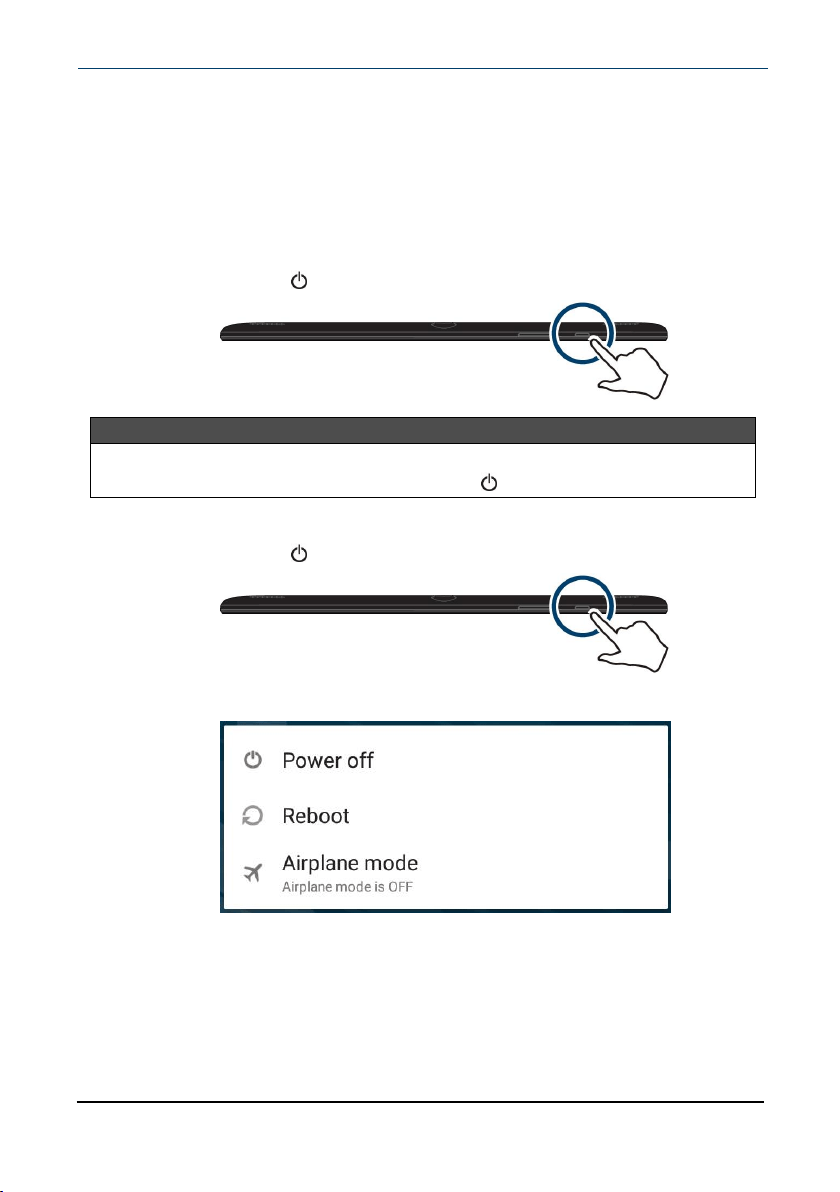
Turn on your tablet for the first time
1
Press and hold the button on the side of your tablet until you see the
Welcome screen.
2
Select your language, then follow the instructions on the screen to
complete setup.
Note:You can use your tablet without connecting to the Internet and
signing into a Google™ account, but you won't be able to use the Play
Store or receive software updates.
www.insigniaproducts.com
NS-P10A8100K
12
Understand the basics
Learn the basics about customizing and navigating your tablet, plus other helpful
features.
Turn your tablet on or off
Turn on your tablet
l Press and hold the button. Your tablet turns on.
Note
If you don't touch your tablet for a while (depending on the screen timeout
setting), it may sleep with the screen off. Press briefly to wake it up.
Turn off your tablet
1
Press and hold the button until the Power off screen opens.
2 Tap Power off. Your tablet turns off.
www.insigniaproducts.com
10.1" FLEX Tablet for Android™ With Detachable Keyboard
13
Restart your tablet
l Press and hold the power button for 10 seconds. Your stored data and
customized settings aren't affected.
Note
To reset your tablet back to factory settings, see Reset to default settings (on
page58).
Adjust the volume
Note
See Adjust system sounds (on page32) for more information.
l
Press the volume + or – button to raise or lower the volume.
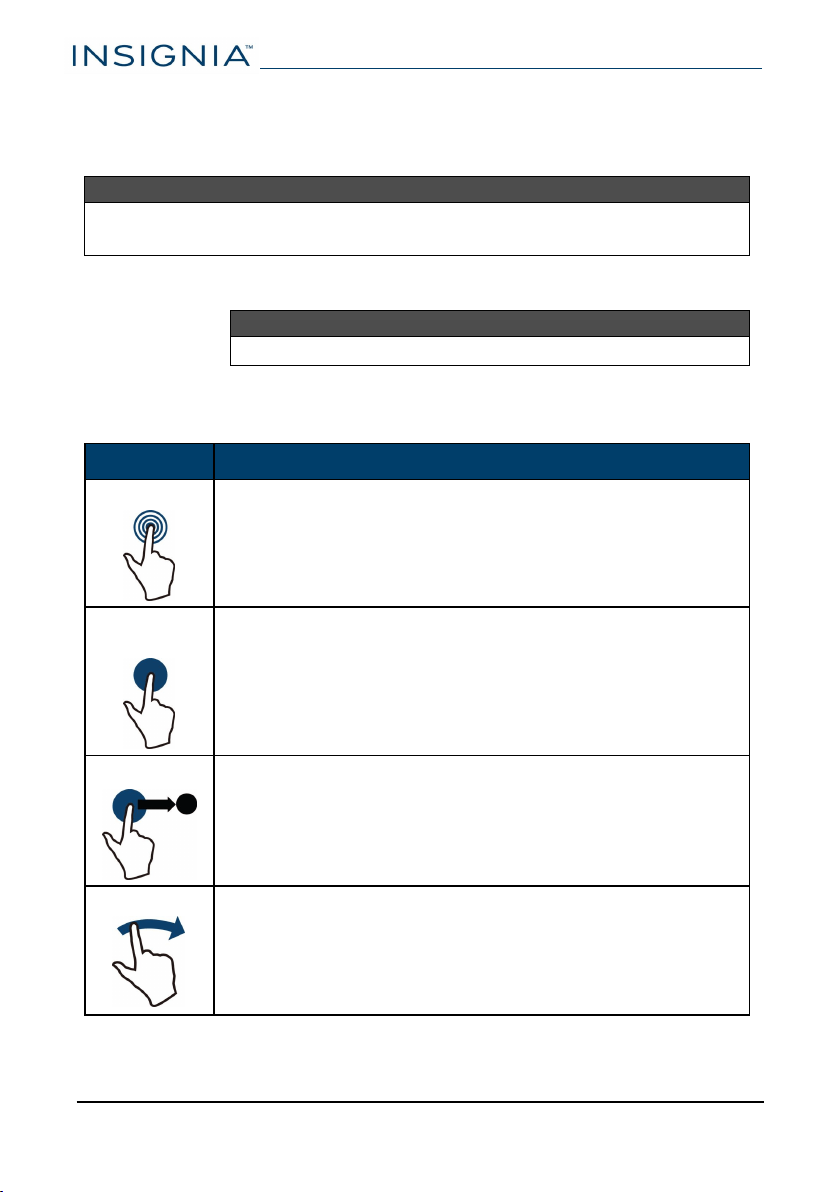
Navigate with gestures
Gesture Action
Tap
Tap an app or another item with your finger to open or select
it.
Touch &
hold
Touch an item with your finger and do not release it until
your tablet responds.
Drag
Touch and hold an item with your finger, then move your
finger to the position where you want the item.
Swipe
Quickly slide your finger either vertically or horizontally across
the screen to scroll up and down or right and left.
www.insigniaproducts.com
NS-P10A8100K
14
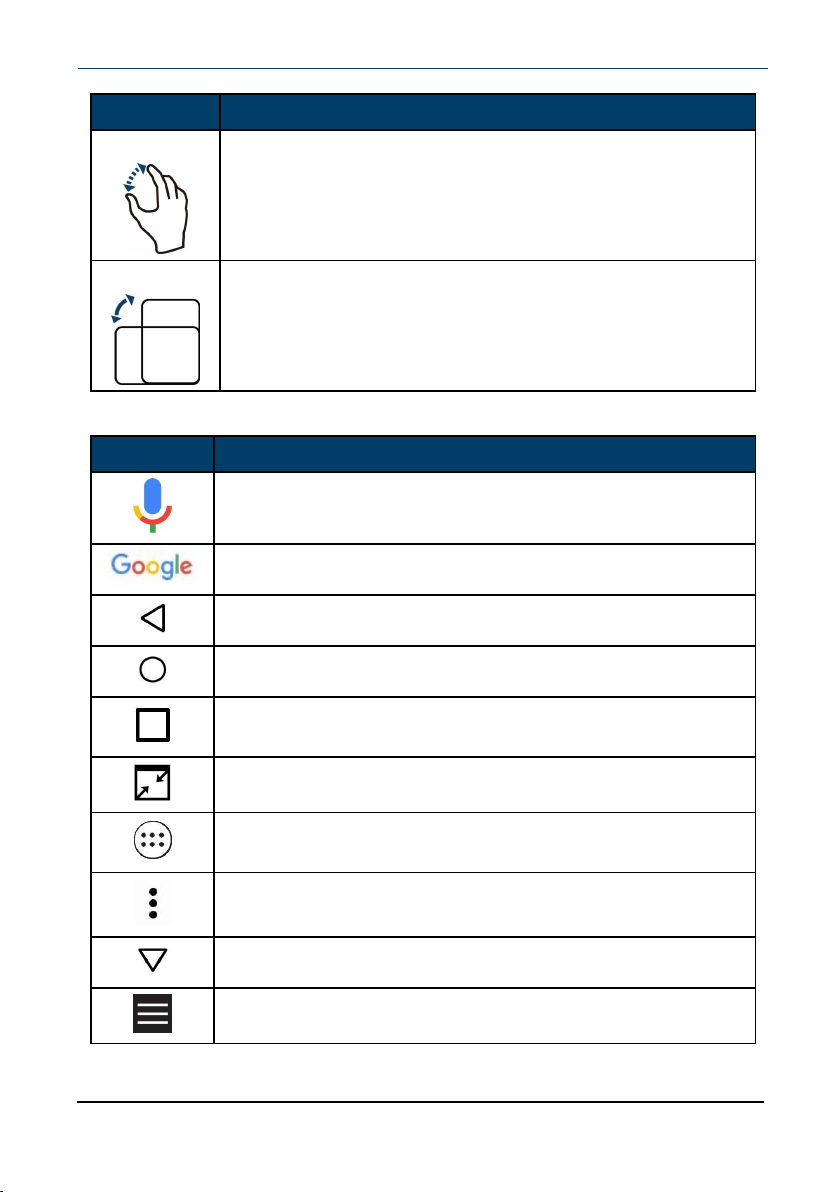
Gesture Action
Pinch
Pinch your fingers together or move them apart to zoom in
and out.
Rotate
Turn your tablet sideways to switch between landscape and
portrait.
Tip: If the orientation does not change, swipe down from the
top of your screen with two fingers, then tap Landscape or
Portrait to turn off the rotation lock.
Navigate with on-screen function buttons
Icon Tap to...
Use Google Voice Search™.
Use Google text search.
Return to the previous screen.
Return to the home screen.
Open the list of recently used and running applications. See
Use the Recents screen (on the next page).
Close full screen.
View all apps installed on your tablet. Swipe the screen to the
left to see more apps.
Open the options menu.
Close the keyboard.
Open the side menu.
www.insigniaproducts.com
10.1" FLEX Tablet for Android™ With Detachable Keyboard
15
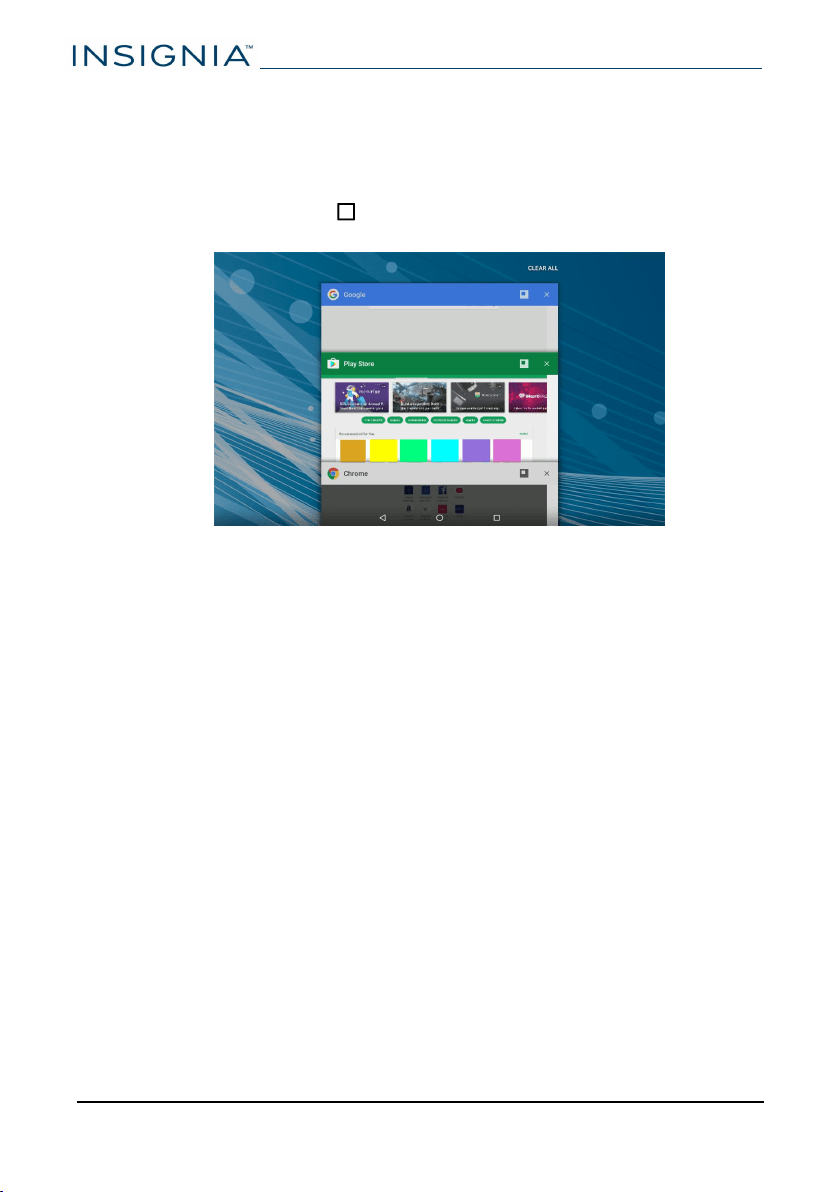
Use the Recents screen
The Recents screen lets you quickly switch to recently used and open apps. If you
have too many apps running, your tablet may run slower or shorten your battery
life. Close apps you are not using to improve your tablet's performance.
l
On the home screen, tap Recents. A list of the most recently used or
running apps appears.
l To see more apps, swipe up or down.
l To open an app, tap the app window.
l
To close an app, drag the app screen left, right, or tap x.
l
To close all apps, tap CLEAR ALL.
www.insigniaproducts.com
NS-P10A8100K
16
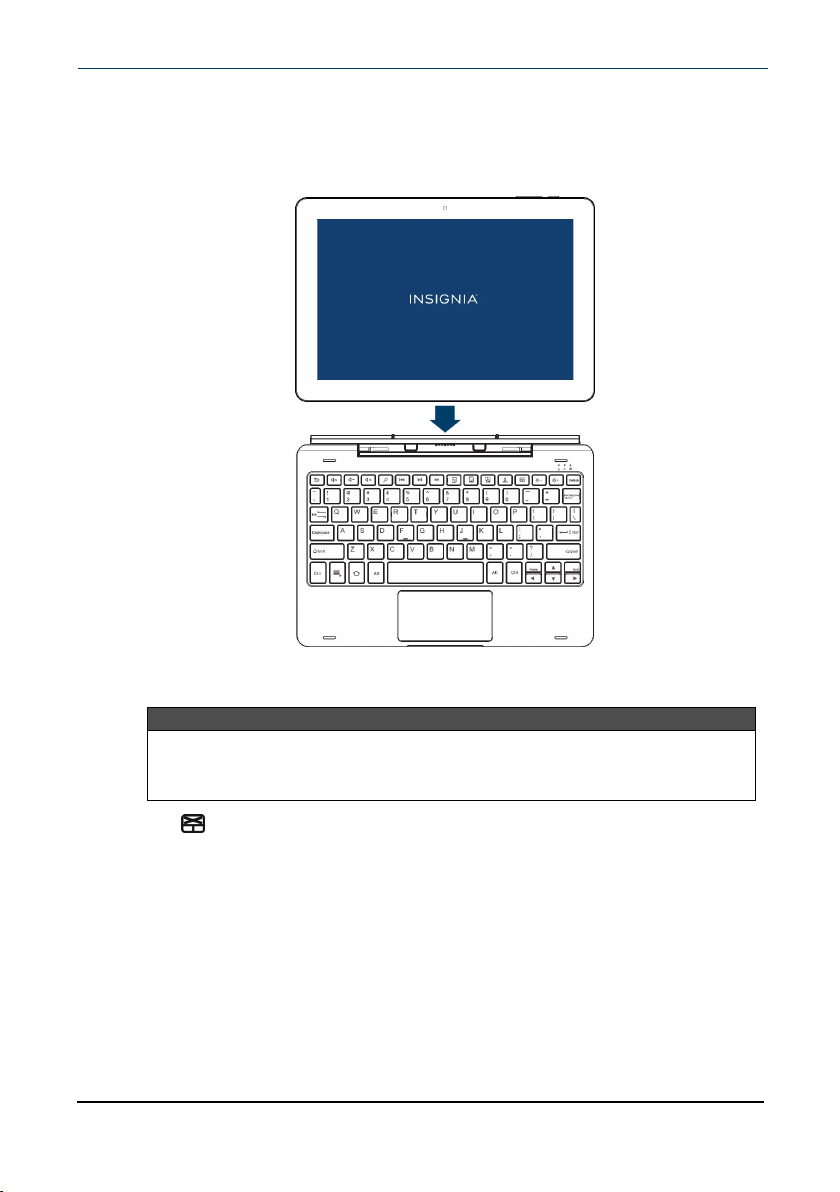
Use the keyboard
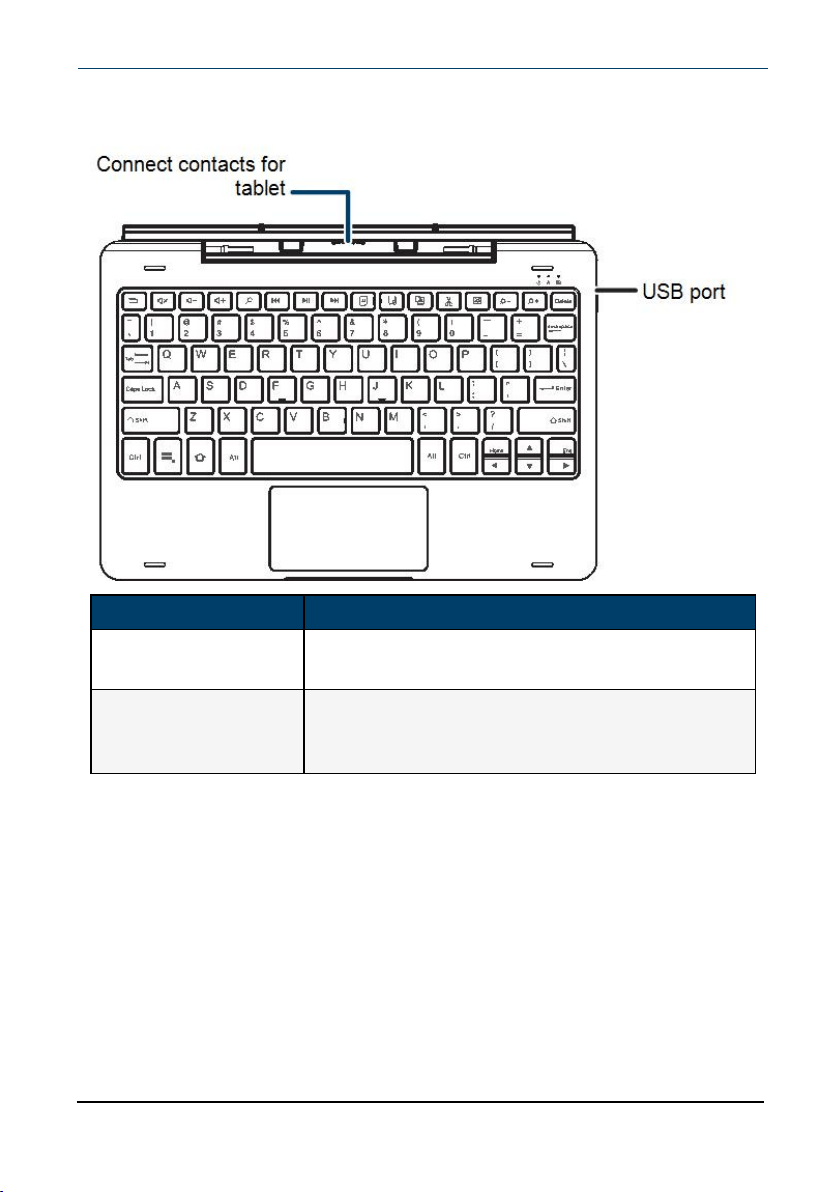
Use the detachable keyboard
l To attach your tablet, align the bottom with the guides on the keyboard.
l Use the USB ports on the right and left sides of the keyboard to connect a
flash drive, mouse, or other devices.
Note
l You cannot run high-power devices (such as a DVD drive) with the
USB port.
l You cannot charge your tablet through the USB port.
l Press to turn the keyboard's touchpad on or off. The touchpad LED turns
off when the touchpad is active.
l To remove your tablet, hold the keyboard in place, and then lift the tablet
straight up.
www.insigniaproducts.com
10.1" FLEX Tablet for Android™ With Detachable Keyboard
17
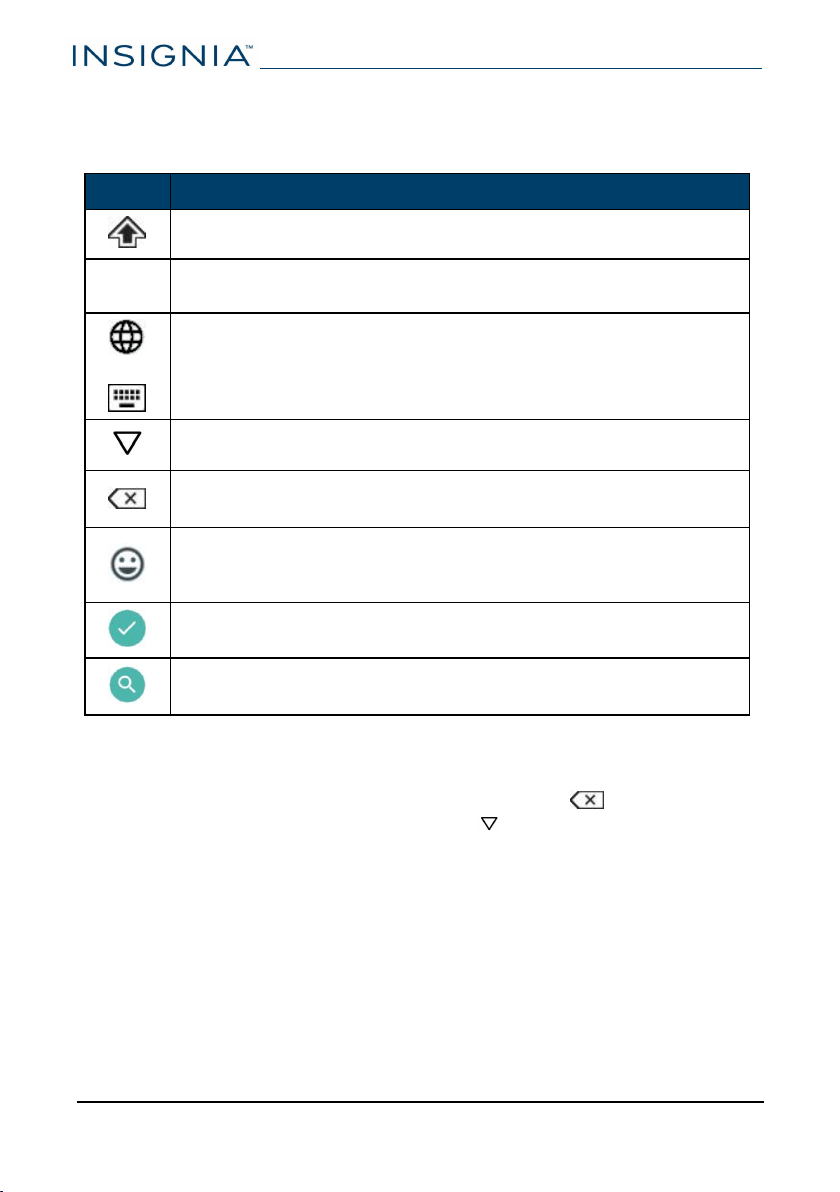
Use the on-screen keyboard
The keyboard automatically opens when you start a program or select an item
that needs text or numbers.
Icon Description
Switch between uppercase or lowercase letters.
?123
Switch between number/symbol or text mode.
Note:Tap ABC to open the standard keyboard.
OR
Change keyboard language. SeeSelect your language (on
page34) to enable languages.
Note:These icons are not always available.
Close the keyboard.
Tap to delete a character.
Tap and hold to delete all characters to the left of the cursor.
Open the emoji keyboard.
Note: This icon is not always available. Tap ABC to open the
standard keyboard.
Confirm that you are finished entering information.
Search for text you entered.
l To insert a character, tap the character to the left of where you want it, then
use the keyboard to type.
l To delete a character, touch to the right of it, then tap (delete).
l When you don’t need the keyboard, press at the bottom of the screen to
close it.
l To adjust keyboard sound settings, see Adjust system sounds (on page32).
www.insigniaproducts.com
NS-P10A8100K
18
Download apps
Caution
To protect your tablet and personal data, only download apps from trusted
sources.
You must connect to the Internet to download apps. See Connect to a Wi-Fi
network (on page37) for more information.
1 Tap Apps Play Store.
2
Search for an app or browse the categories to find apps, then follow the on-
screen instructions to install.
Notes
l If a third-party application does not work on your tablet, contact the app
developer for more information.
l See Uninstall apps (on page57) for information on permanently deleting an
app.
www.insigniaproducts.com
10.1" FLEX Tablet for Android™ With Detachable Keyboard
19
Capture and view a screenshot
l
To capture a screenshot, press and hold the and Vol – buttons at the
same time.
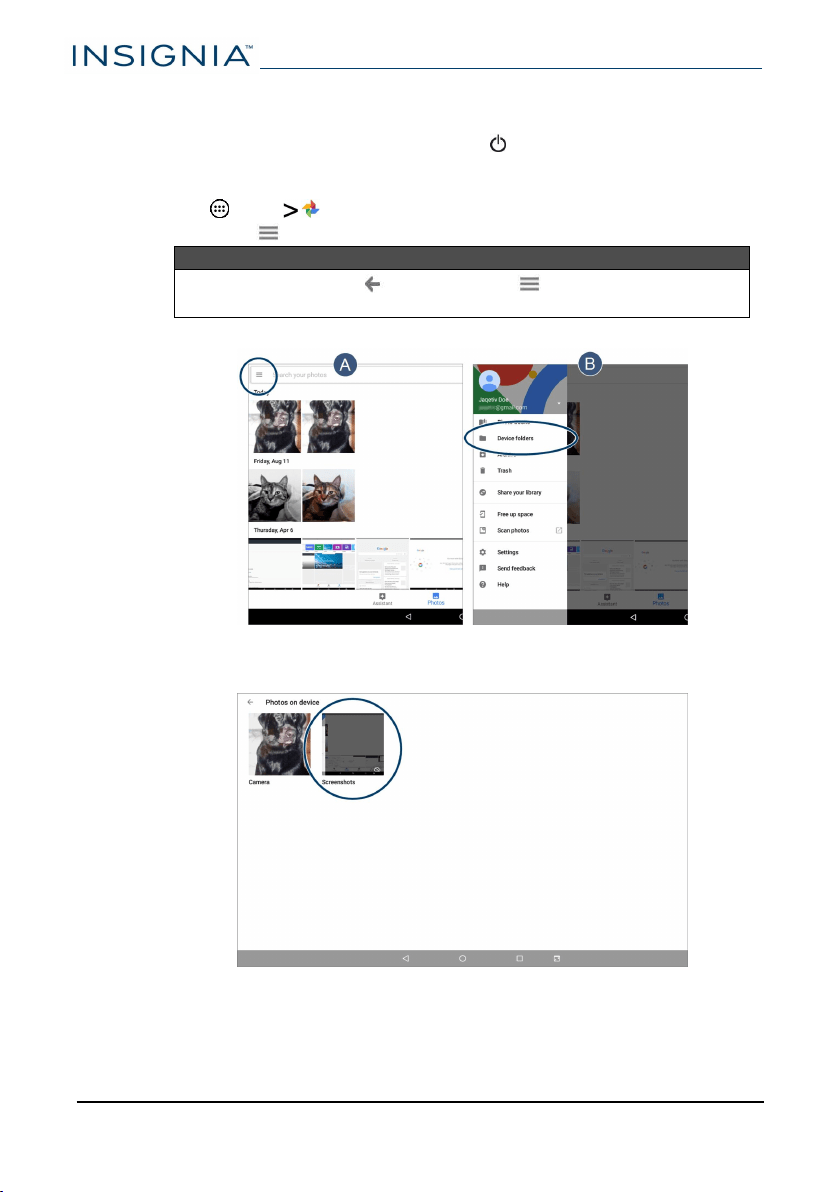
l To view the screenshot:
1 Tap Apps Photos.
2 Open the menu (in the search bar), then tap Device folders.
Note
You may need to tap (back) until the menu icon appears if
you were previously in another folder.
3 Tap Screenshots. See View photos and video (on page52) for more
information on navigating your photos.
www.insigniaproducts.com
NS-P10A8100K
20
View a status item or notification
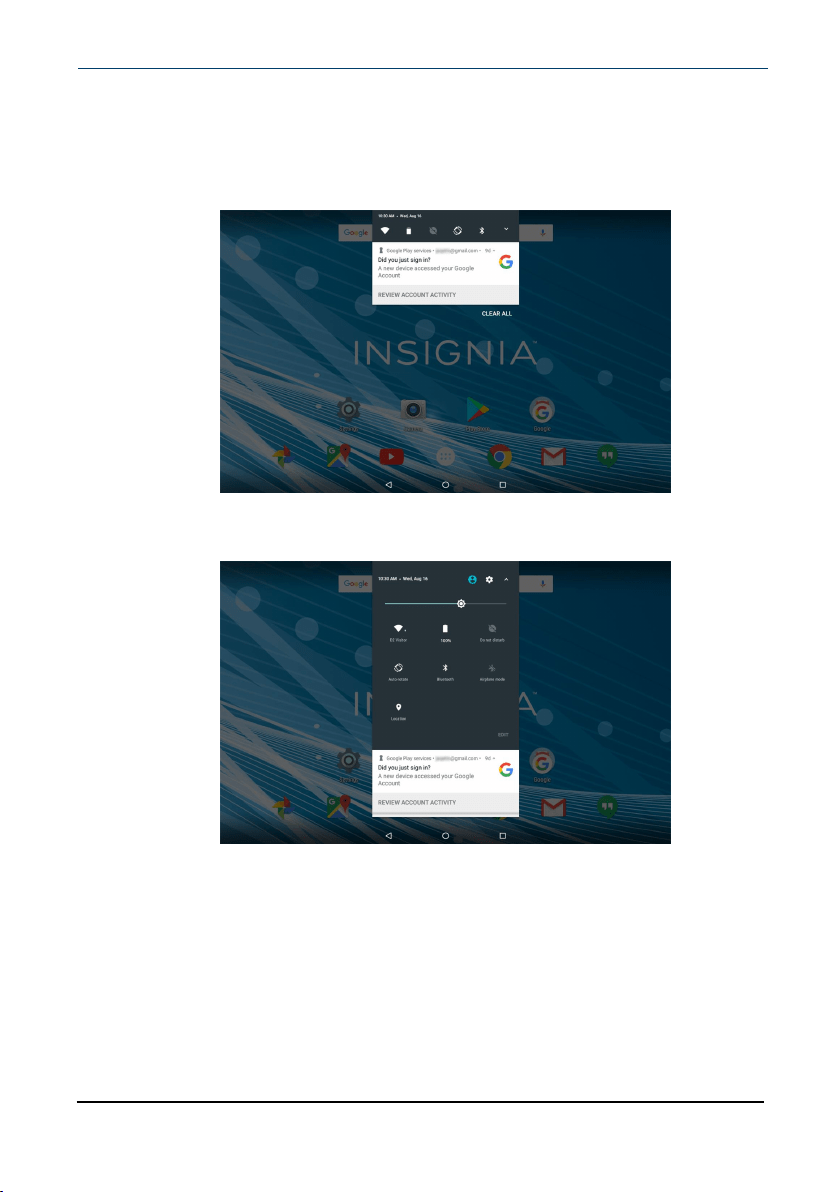
Status and notification information are located at the top of the screen.
l Drag your finger down from the top of the screen to view notifications (such
as email, calendar, and time).
l Drag two fingers down from the top of the screen to view status items (such
as Wi-Fi, Bluetooth, and battery information).
www.insigniaproducts.com
10.1" FLEX Tablet for Android™ With Detachable Keyboard
21
Change notification interruptions
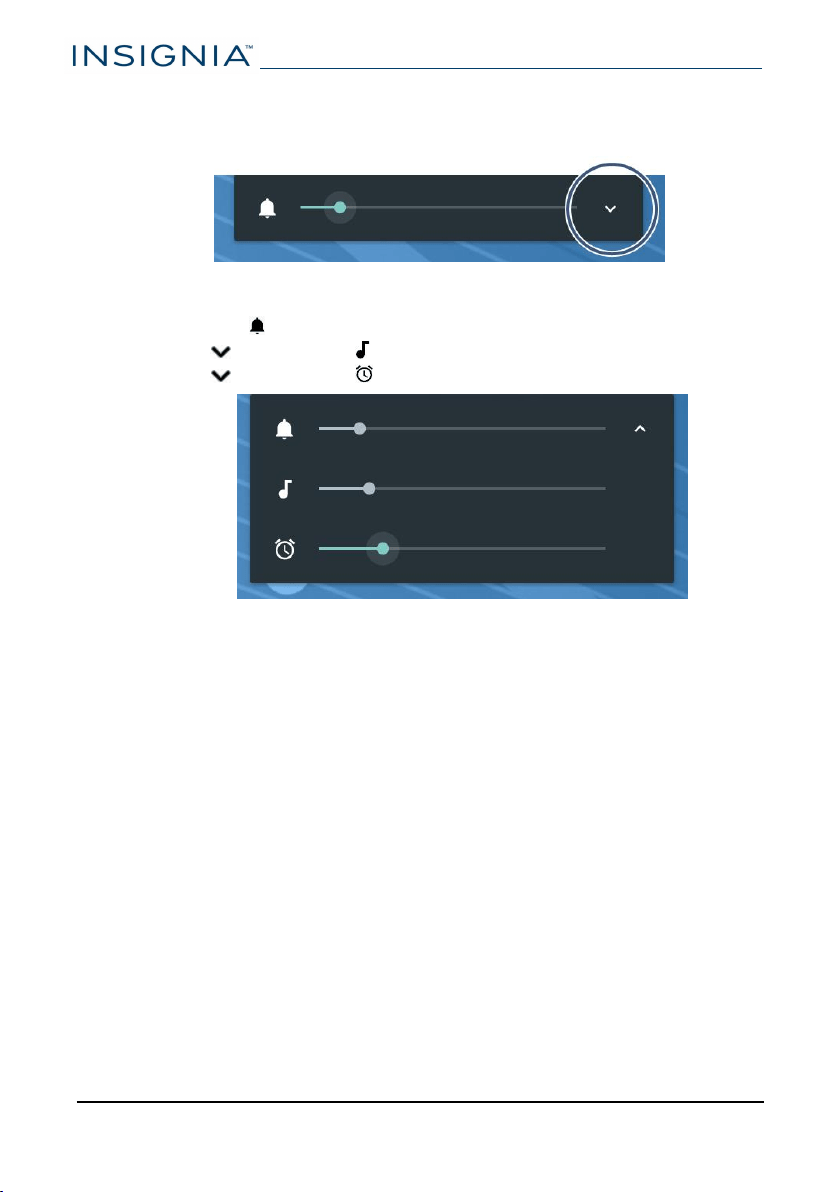
l Press a volume button on your tablet. A volume menu opens.
You can:
l Drag the slider to adjust the notification volume.
l Tap , then drag the slider to adjust the media volume.
l Tap , then drag the slider to adjust the alarm volume.
www.insigniaproducts.com
NS-P10A8100K
22
Check for updates
Make sure that you have the most up-to-date software.
Update your tablet
Warning
Back up your personal data before updating your tablet. Updates may delete
your data.
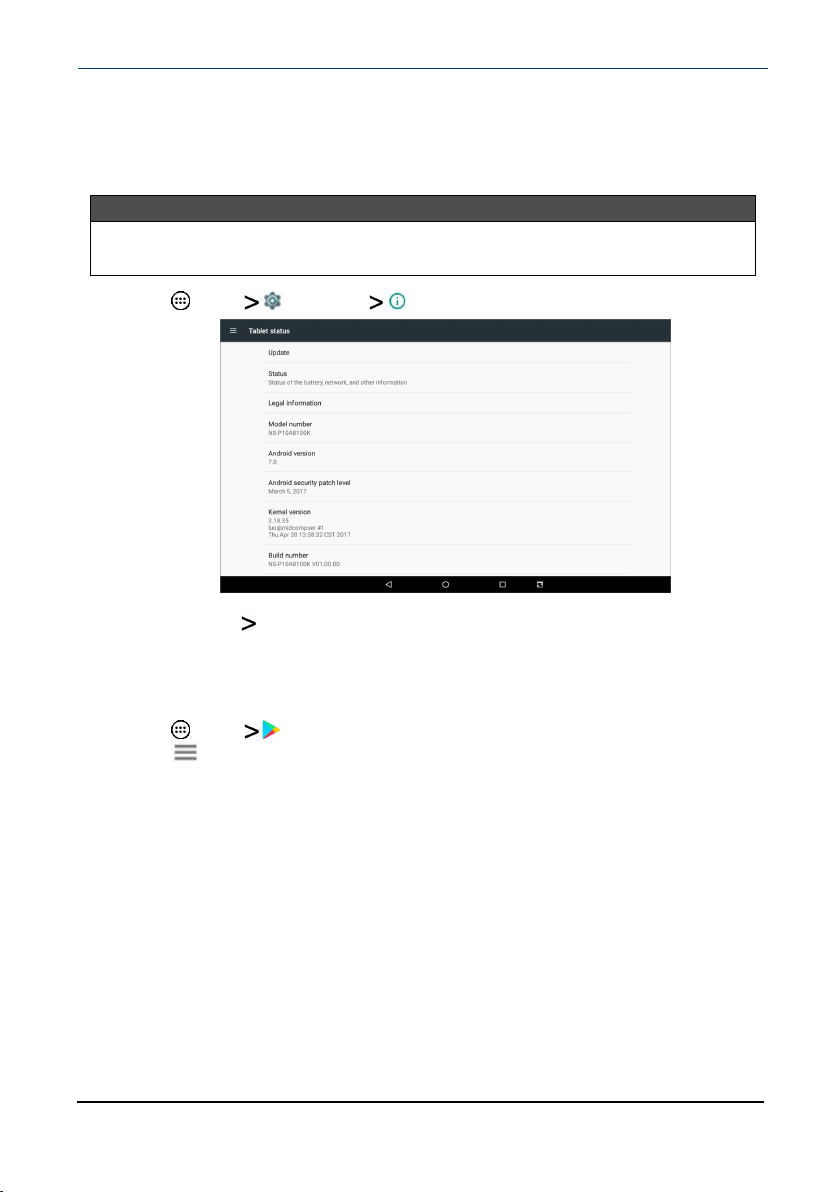
1 Tap Apps Settings About tablet.
2 Tap Update Check update. If an update is available, your tablet displays
the update version information.
3
Follow the on-screen instructions to install.
Update your apps
1 Tap Apps Play Store.
2
Tap (menu) in the upper-left corner of the search bar, then tap My
apps &games.
3
Locate the app you want to update from the UPDATES tab, then tap
UPDATE .
www.insigniaproducts.com
10.1" FLEX Tablet for Android™ With Detachable Keyboard
23
Change basic settings
Customize settings on your tablet to fit your personal taste.
Customize the Home screen
Change the wallpaper
1
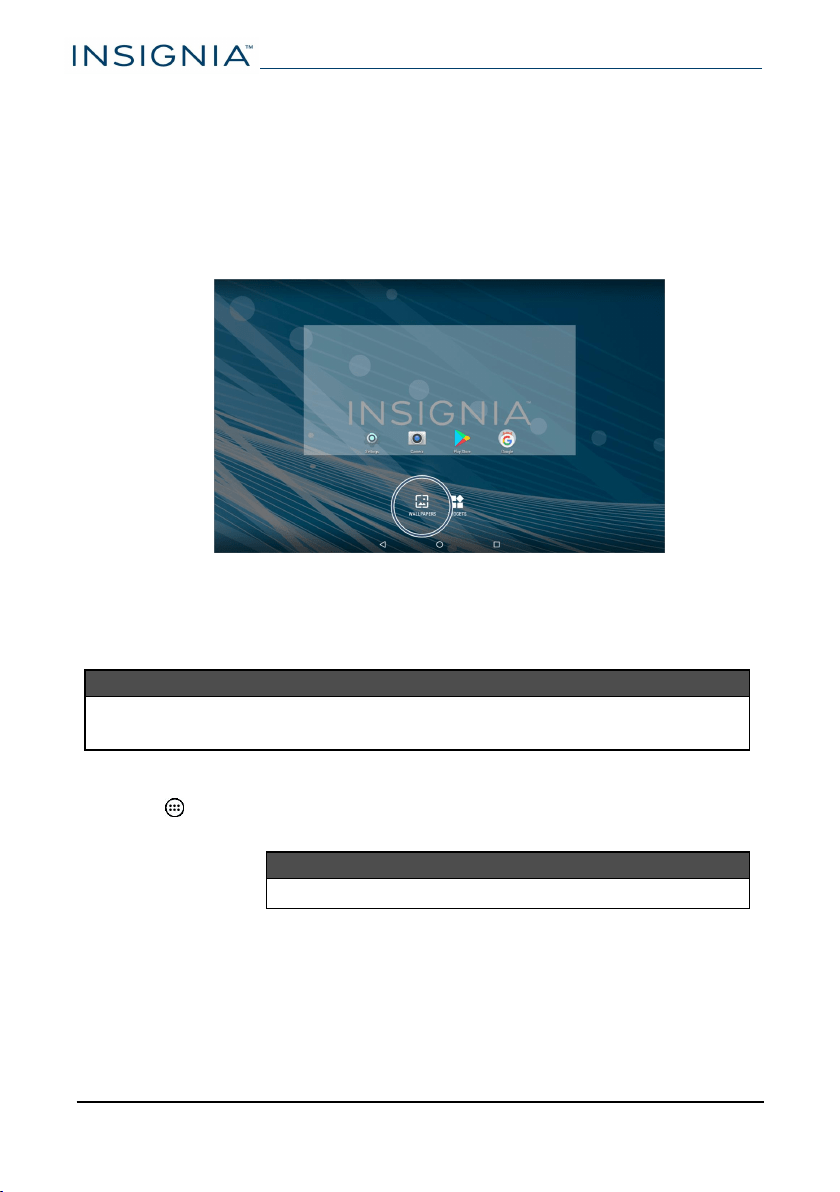
Touch and hold on the home screen until a menu appears.
2 Tap WALLPAPERS.
3 Tap the wallpaper you want to use. To select a photo you took, tap Pick
image.
4 Tap Set wallpaper.
Tip
Animated wallpapers use more battery. To conserve battery, use a static
wallpaper.
Add an item to the home screen
1 Tap Apps to show all apps.
2
Touch and hold the app you want to add until it moves to the home screen.
Tip
You can also add or remove items from the favorites tray.
Move a home screen item
1
Touch and hold the item you want to move until it's highlighted.
2
Drag the item to where you want it, then release your finger.
www.insigniaproducts.com
NS-P10A8100K
24
Remove a home screen item
Note
Removing an item from the home screen doesn't delete the app. See Uninstall
apps (on page57).
1
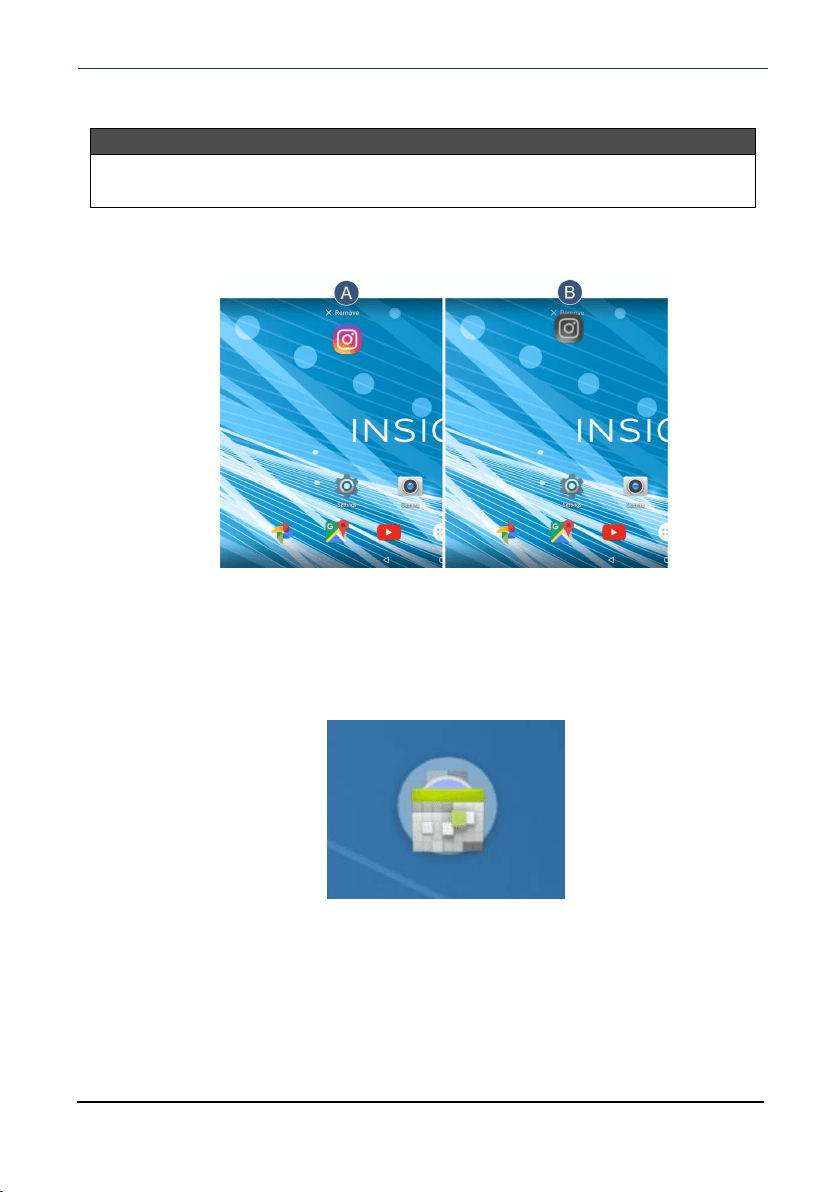
Touch and hold the item you want to remove until it is highlighted.
2 Drag the item over the X, then release your finger.
Create a folder
1
Touch and hold the app you want to move into a folder until it is
highlighted.
2
Drag the app on top of another app until a white circle appears, then
release your finger. A folder is created.
www.insigniaproducts.com
10.1" FLEX Tablet for Android™ With Detachable Keyboard
25
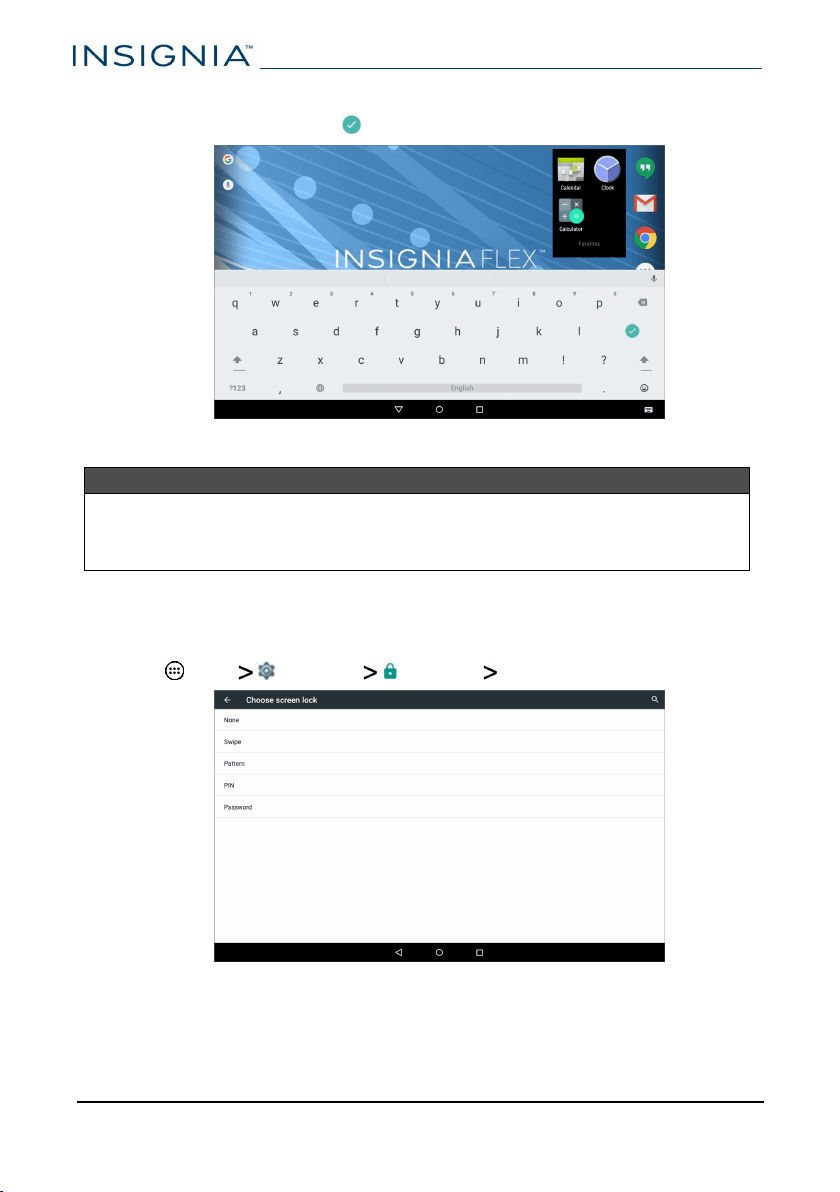
3 Tap the folder to open it, then tap Unnamed Folder to open the keyboard
and name the folder. Tap when finished.
4
To add more items, drag them into the folder.
Note
To remove apps from a folder, open the folder, touch and hold the app, then
drag it back to the home screen. The folder is deleted when only one app is
left inside.
Set and use the screen lock
Change your lock type
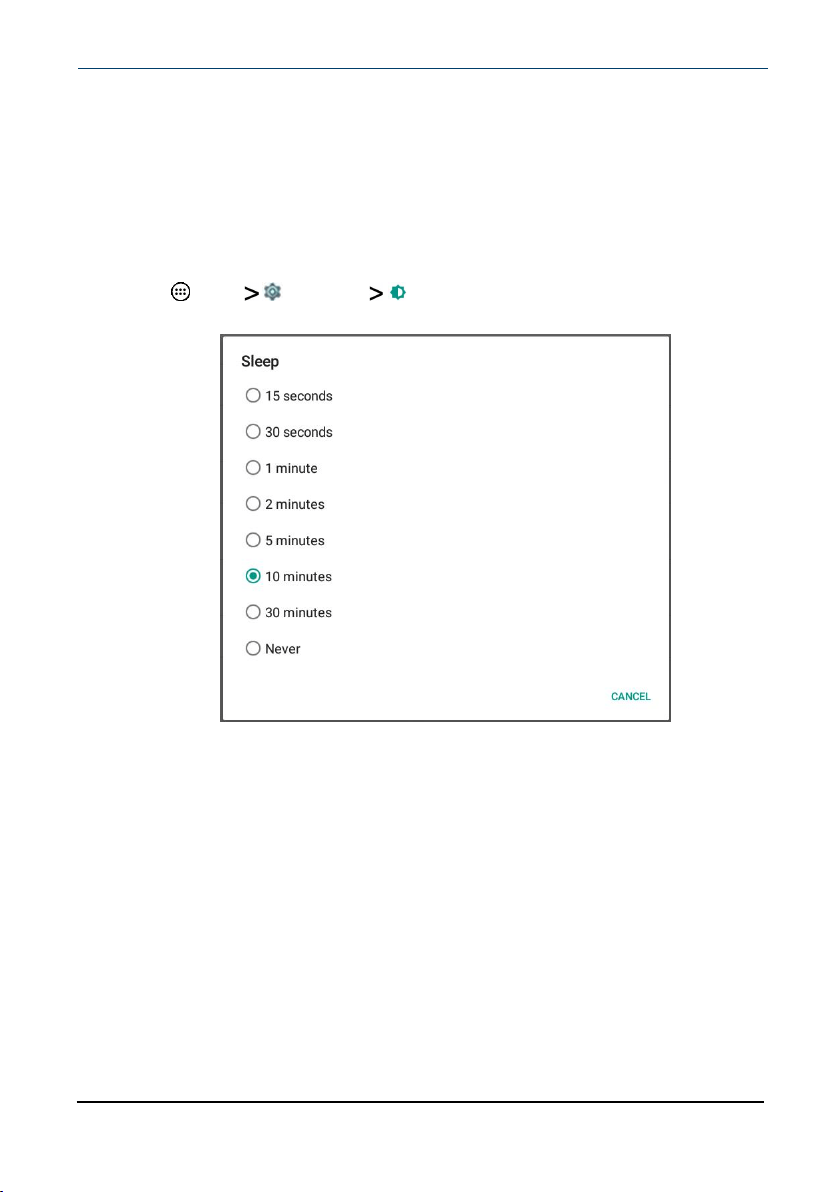
1 Tap Apps Settings Security Screen lock.
2
Tap the screen lock type you want to use, then follow the on-screen
instructions.
www.insigniaproducts.com
NS-P10A8100K
26
Unlock the screen
There are several ways to unlock your tablet, depending on which screen lock is
enabled. You may need to:
l Swipe up on the screen.
l Drag your finger to enter a pattern.
l Enter a PINor password.
Set the lock screen timeout
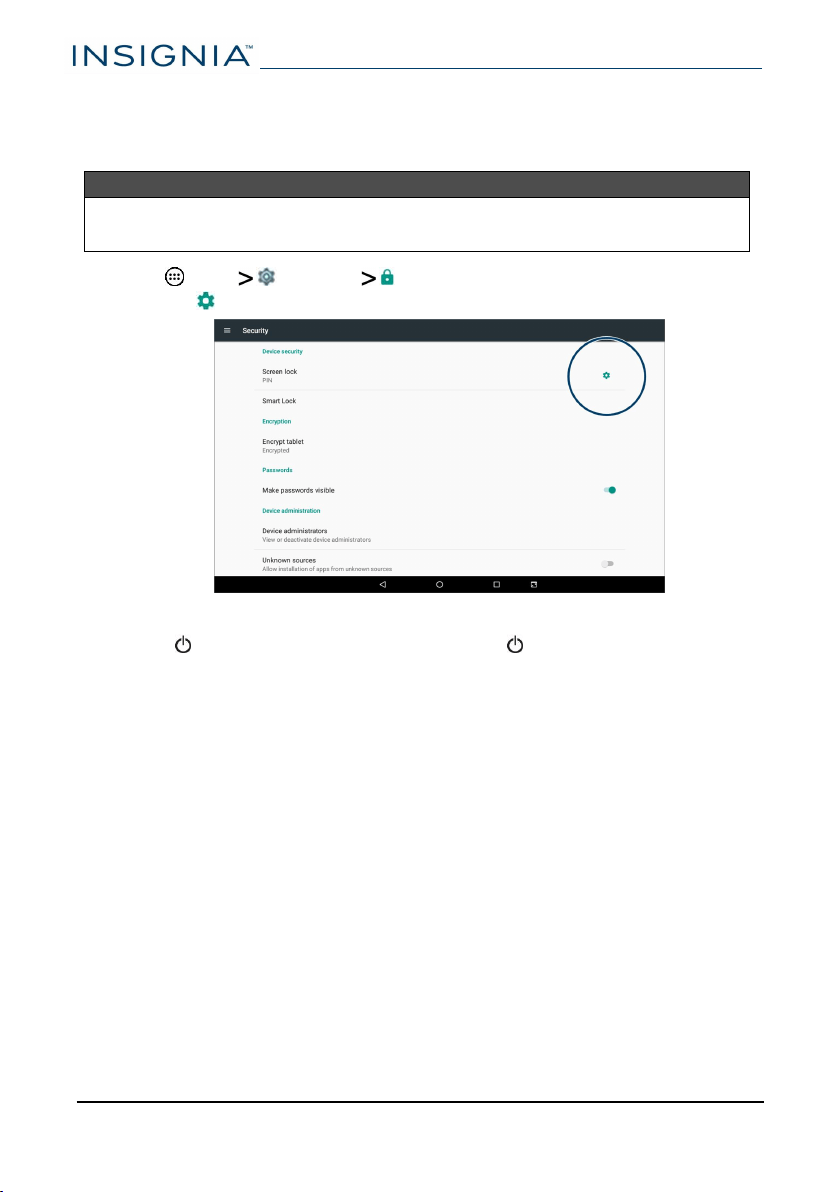
1 Tap Apps Settings Display.
2 Tap Sleep, then select how long before your inactive tablet sleeps.
www.insigniaproducts.com
10.1" FLEX Tablet for Android™ With Detachable Keyboard
27
Customize the lock screen
Add lock screen message
Tip
For information on changing your screen lock, see Set and use the screen lock
(on page26).
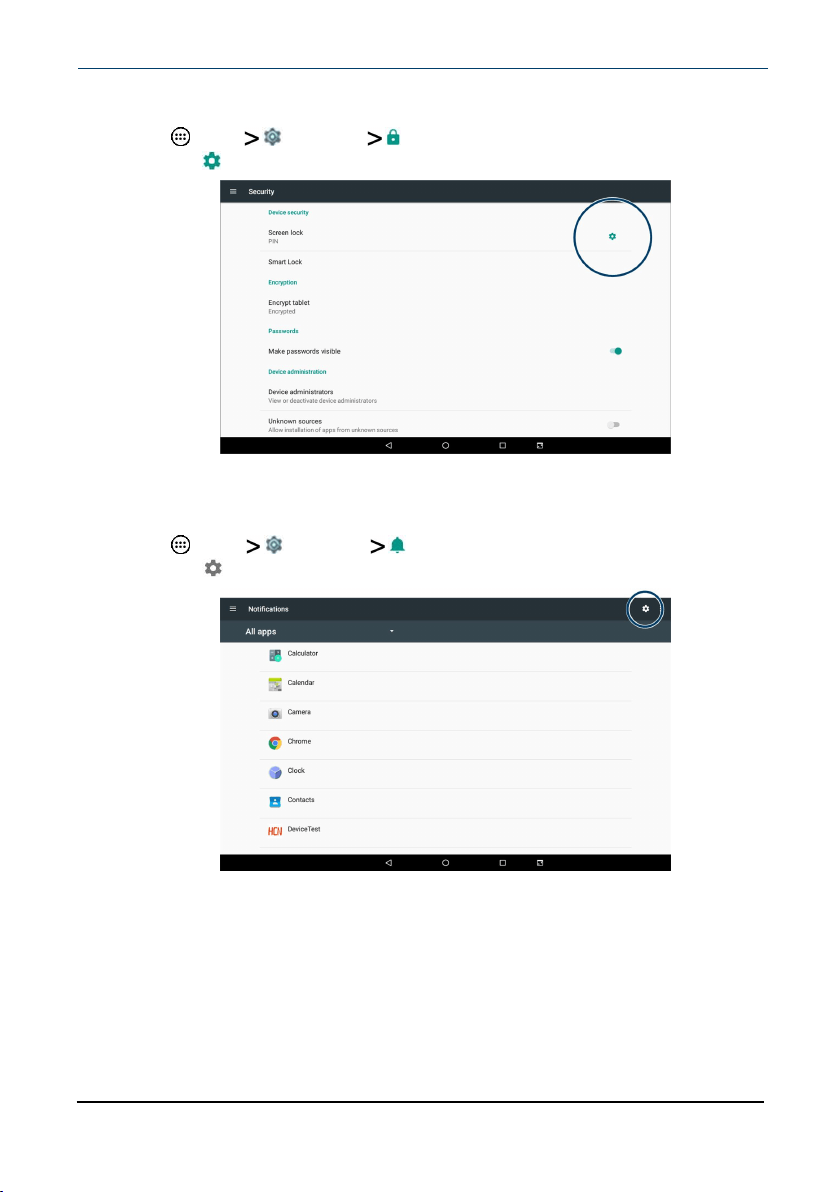
1 Tap Apps Settings Security.
2 Tap the settings icon next to Screen lock.
3 Type the text you want to display on the lock screen, then tap SAVE.
4
Press to put your tablet to sleep, then press again to wake it up. The
lock screen opens and your text is displayed.
www.insigniaproducts.com
NS-P10A8100K
28
Remove owner info
1 Tap Apps Settings Security.
2 Tap the settings icon next to Screen lock.
3 Delete all the text, then tap SAVE.
Turn on or off lock screen notifications
1 Tap Apps Settings Notifications.
2
Tap the settings icon in the upper-right corner of the screen.
3 Tap On the lock screen, then select a display option:
l Don't show notifications at all
l Show all notification content
l Hide sensitive notification content
www.insigniaproducts.com
10.1" FLEX Tablet for Android™ With Detachable Keyboard
29
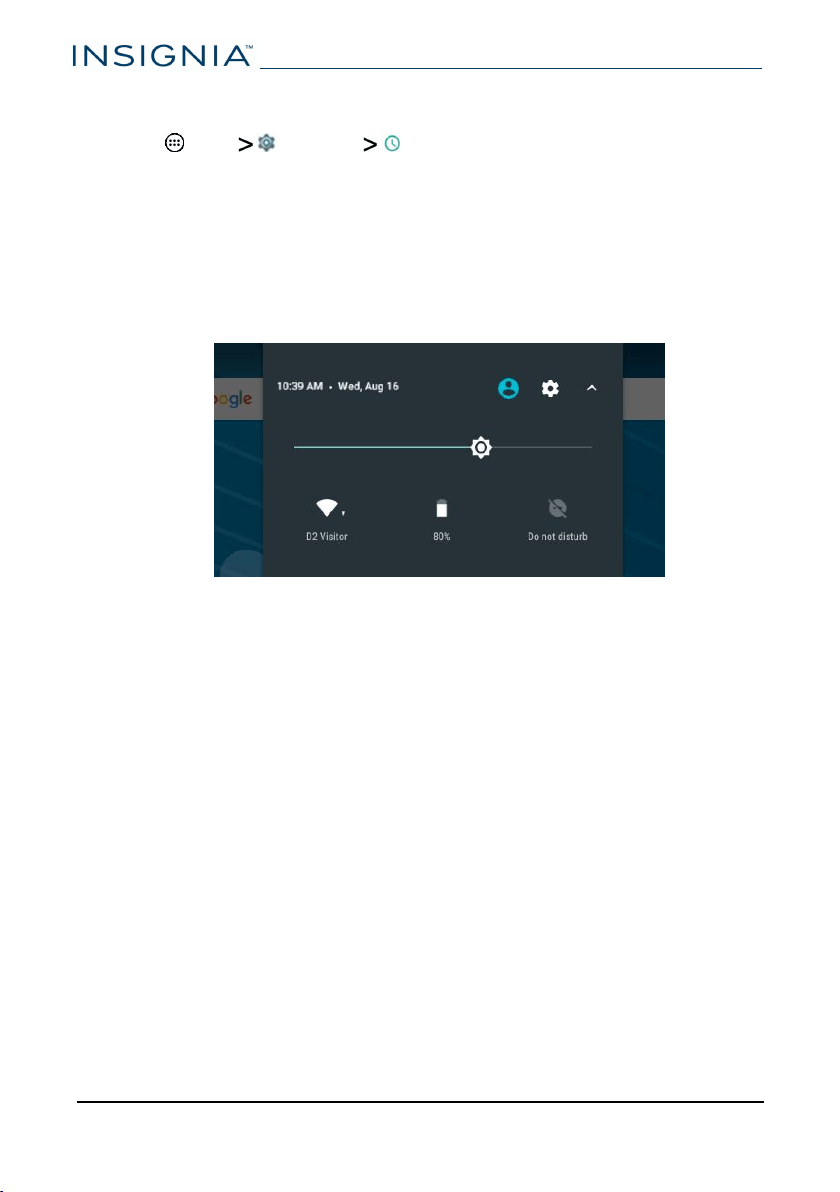
Set the date and time
l
Tap Apps Settings Date &time.
l Automatically or manually set your date and time.
l Select your time zone.
l Choose your hour format (12-hour or 24-hour).
l Choose your date format.
Adjust the screen brightness
l Drag your two fingers down from the top of the screen to view status items,
then drag the slider left or right.
www.insigniaproducts.com
NS-P10A8100K
30
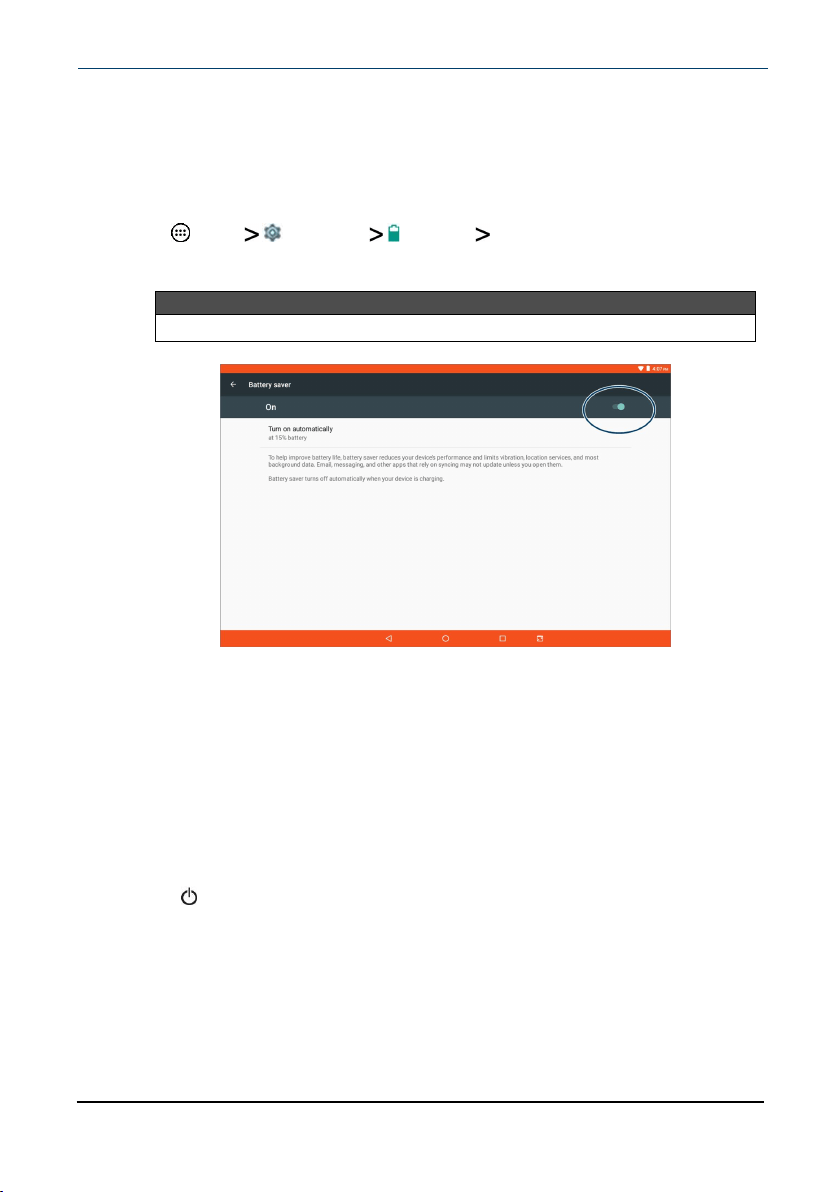
Adjust the power saving settings
To help improve battery life, battery saver reduces your device's performance
and limits vibration, location services, and most background data. Email,
messaging, and other apps that rely on syncing may not update unless you open
them. To turn on battery saver mode:
1 Tap Apps Settings Battery Battery Saver.
2
Tap the slider to turn on battery saver mode. The edges of your screen may
turn red while battery saver mode is turned on.
Tip
Battery saver mode automatically turns off when your tablet is charging.
3
Use the available options to change additional power settings, as needed.
Conserve battery power
l Turn on battery saver mode. See Adjust the power saving settings (above).
l Turn off Wi-Fi when you aren't using it.
l Lower the screen brightness. See Adjust the screen brightness (on the
previous page).
l Close apps that you aren't using. See Use the Recents screen (on page16).
l If your tablet is inactive, your tablet sleeps with the screen off (depending
on the screen timeout setting. See Customize the lock screen (on page28)).
Press to wake it up.
l If you are using an animated wallpaper, change it to a static wallpaper.
www.insigniaproducts.com
10.1" FLEX Tablet for Android™ With Detachable Keyboard
31

Setting the screen font size
1 Tap Apps Settings Display Font size.
2
Use the slider to select the font size you want.
Adjust system sounds
Change your notification tones, system volume, and other sound settings.
Adjust app notifications
1 Tap Apps Settings Notifications.
2
Select an app and use the available options to change your notification
settings.
Note
Options may vary depending on the app.
www.insigniaproducts.com
NS-P10A8100K
32
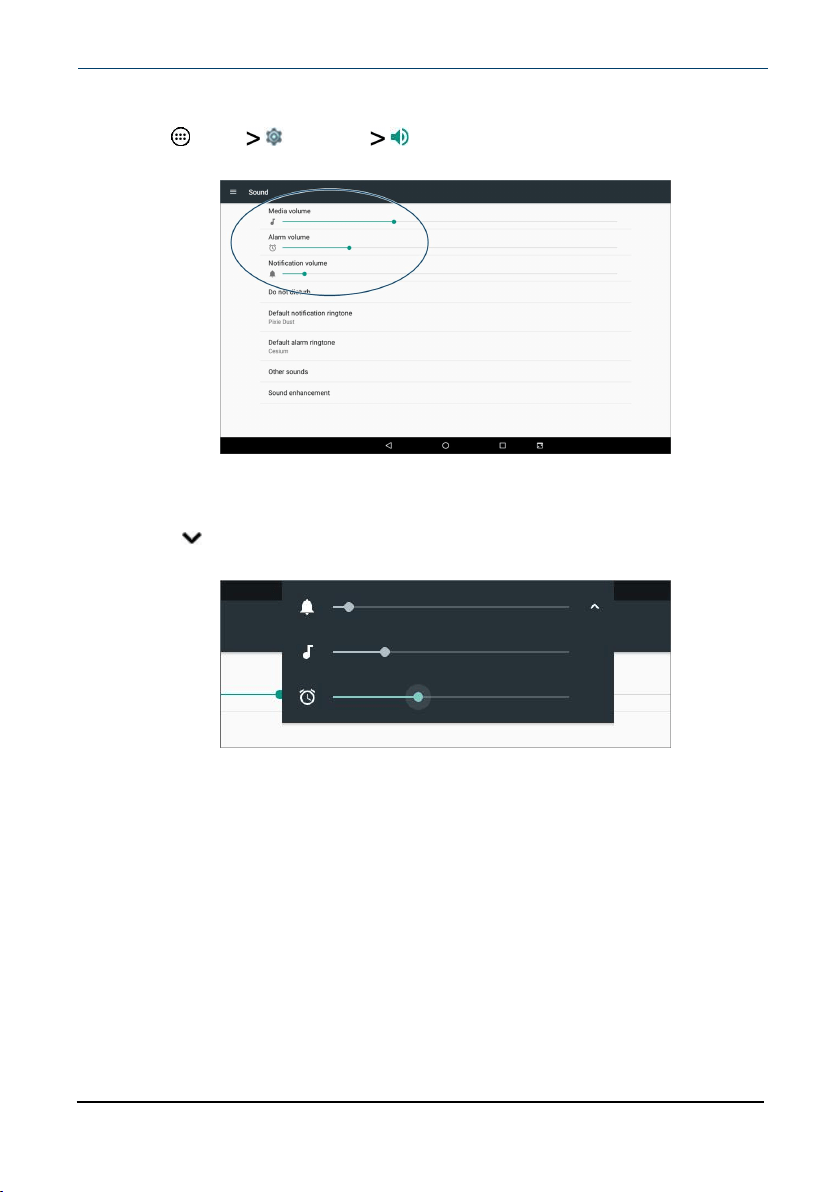
Adjust media, alarm, or notification volume
1 Tap Apps Settings Sound.
2
Use the sliders to adjust your tablet's volume.
OR
1
Press volume + or -. A volume menu appears at the top of your screen.
2
Press to view alarm and notification volume levels.
3
Use the sliders to adjust your tablet's volume.
www.insigniaproducts.com
10.1" FLEX Tablet for Android™ With Detachable Keyboard
33
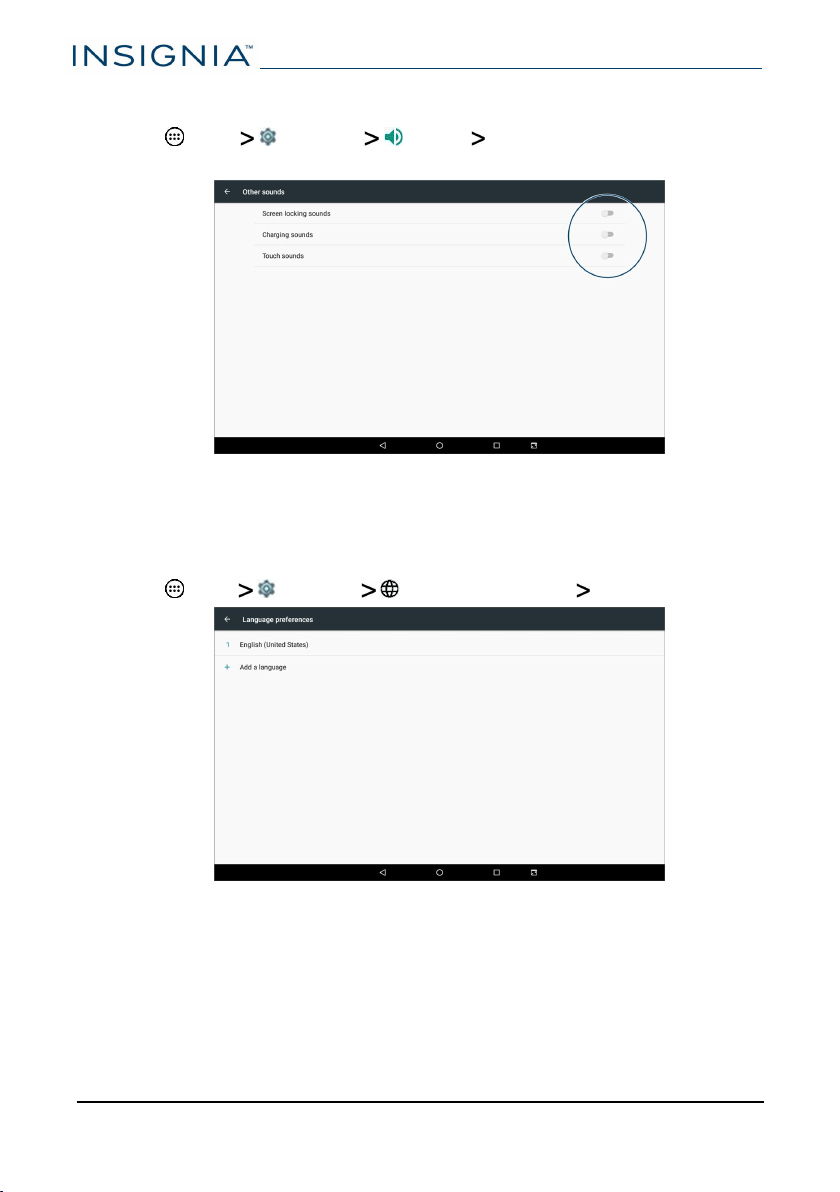
Turn on or off screen lock, charging, or touch sounds
1 Tap Apps Settings Sound Other sounds.
2
Tap the sliders to turn on or off your screen lock, charging, or touch sounds.
Select your language
Change your system language or add an additional language to your keyboard.
Change the system language
1 Tap Apps Settings Language &input Languages.
2 Tap Add a language.
3
Select the language you want from the list. You may be prompted to select
a location.
www.insigniaproducts.com
NS-P10A8100K
34
Add a keyboard language
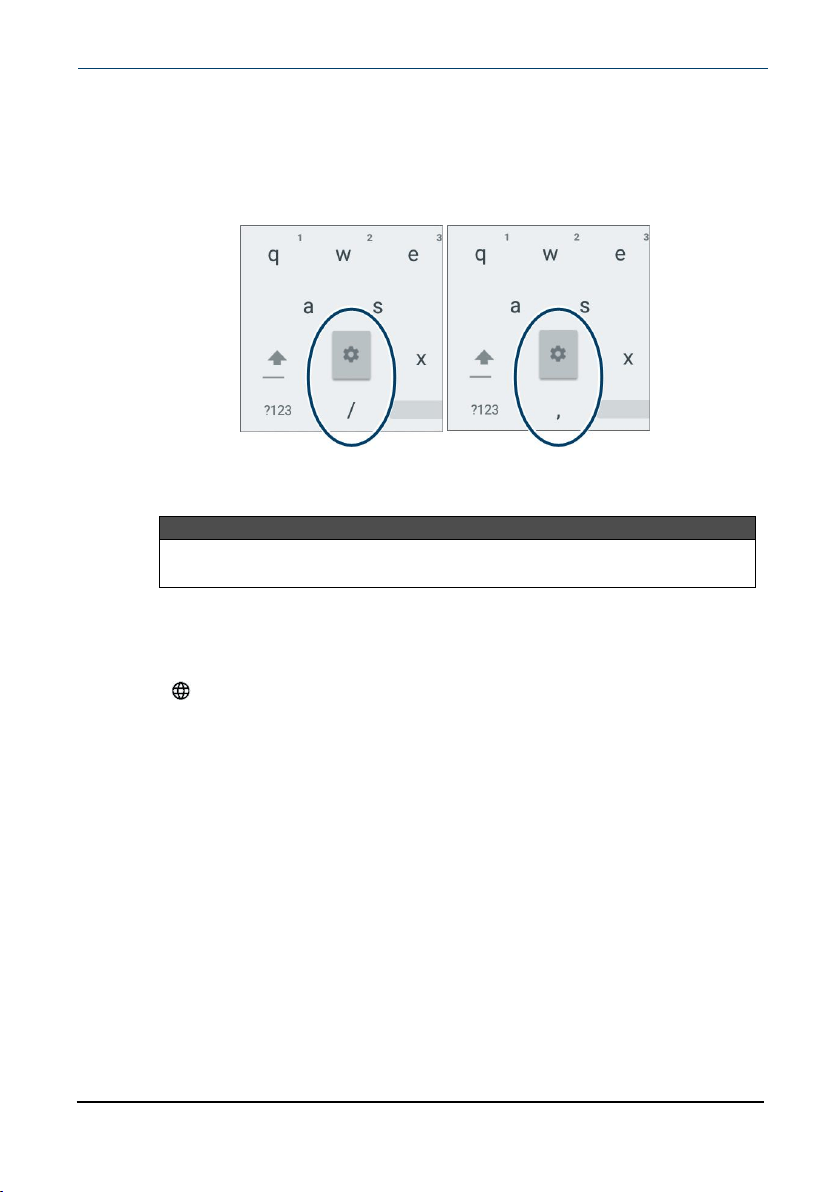
By default, your tablet uses the system language as its keyboard language. If you
want to add an additional language to your keyboard:
1 While the keyboard is open, touch and hold / (slash) or , (comma) until a
settings icon appears.
2 Tap Languages.
3
Tap the languages you want to use on your keyboard.
Note
If the languages are grayed out, tap
Use system language
to enable
them.
Switch keyboard language
Make sure that you have enabled additional languages on your keyboard (see
steps above).
l Tap to toggle between keyboard languages. The keyboard language
appears in the space bar.
www.insigniaproducts.com
10.1" FLEX Tablet for Android™ With Detachable Keyboard
35
Connect to a computer
For more information on viewing and transferring files, see your computer's
documentation.
Windows
1
Connect the Micro USB cable from your tablet to your computer.
2
Open This PC, Computer, or My Computer, then double-click your model
number (NS-P10A8100K) to view or transfer files.
3
Unplug the cable when you are finished.
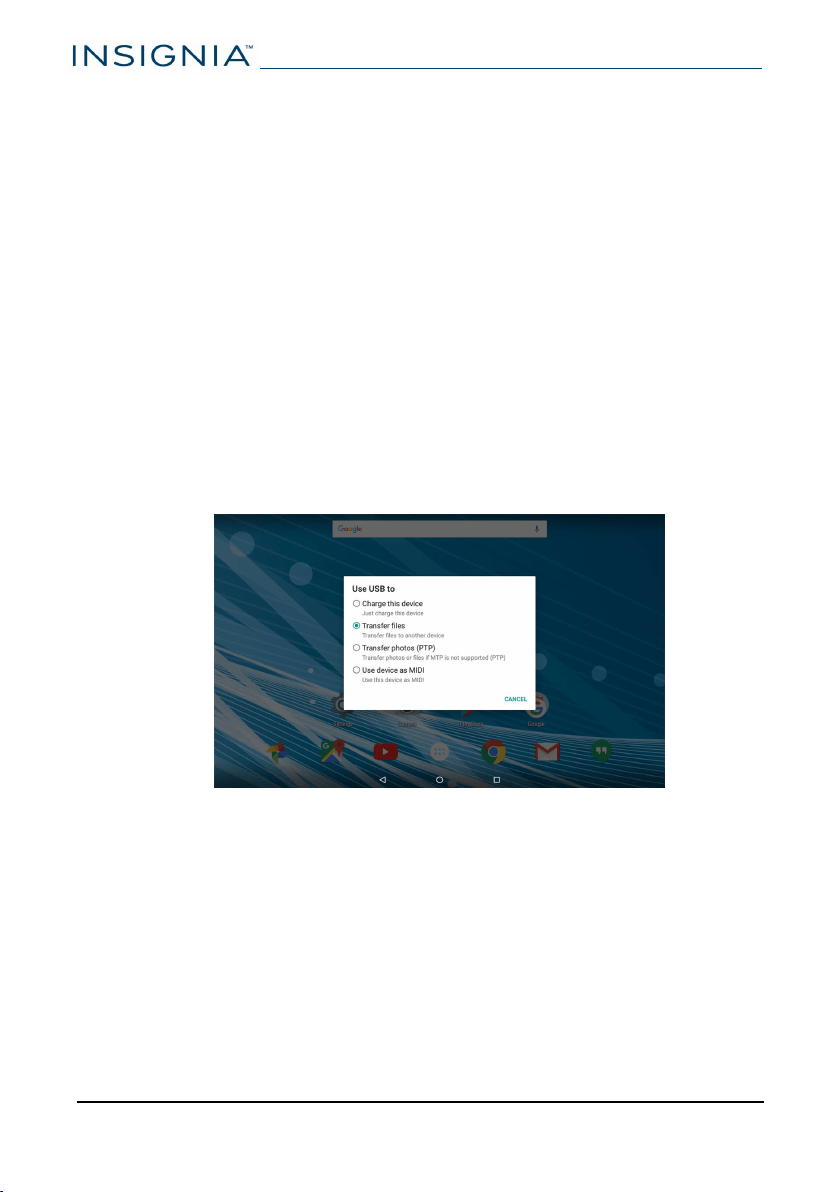
If you cannot access your files:
1
Swipe down from the top of your tablet's screen to open your notifications.
2
Tap the USB device entry. It may say:
l
USB charging this device,
l
USBfor file transfer, or
l
USB for photo transfer
3 Make sure that your tablet is set to Transfer files.
www.insigniaproducts.com
NS-P10A8100K
36
Transfer or download an e-book
Note
Make sure that your e-books are in the PDF, EPUB, TXT, RB2, RTF, or PDB
format.
Transfer an e-book from your computer
1
Connect your tablet to your computer. See Connect to a computer (on the
previous page).
2
Copy an e-book file from your computer to a folder on your tablet.
Download an e-book from the Play Store
1 Tap Apps Play Store.
2 Tap Books to browse for books or tap to search for a specific book.
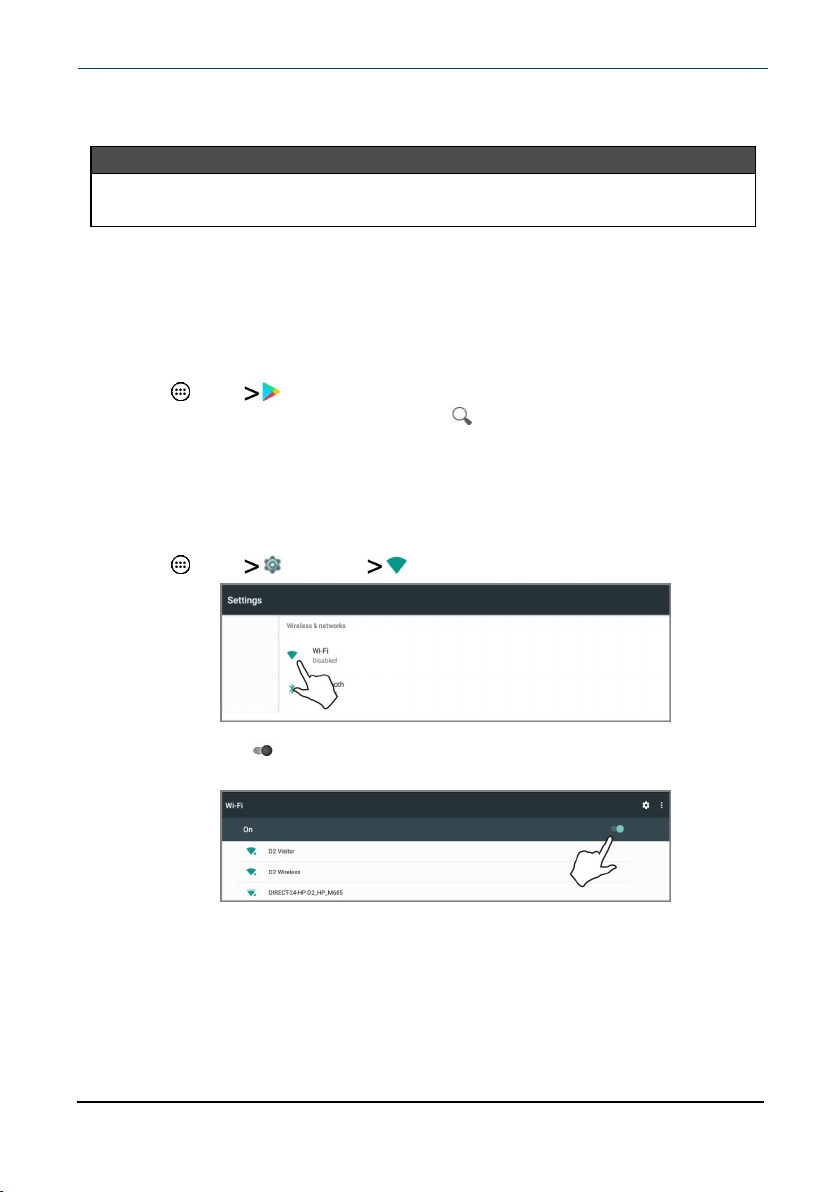
Set up wireless connections
Learn how to set up wireless connections such as Wi-Fi and Bluetooth.
Connect to a Wi-Fi network
1 Tap Apps Settings Wi-Fi.
2 Tap the slider to turn Wi-Fi On. Your tablet automatically searches for
available networks.
www.insigniaproducts.com
10.1" FLEX Tablet for Android™ With Detachable Keyboard
37
3
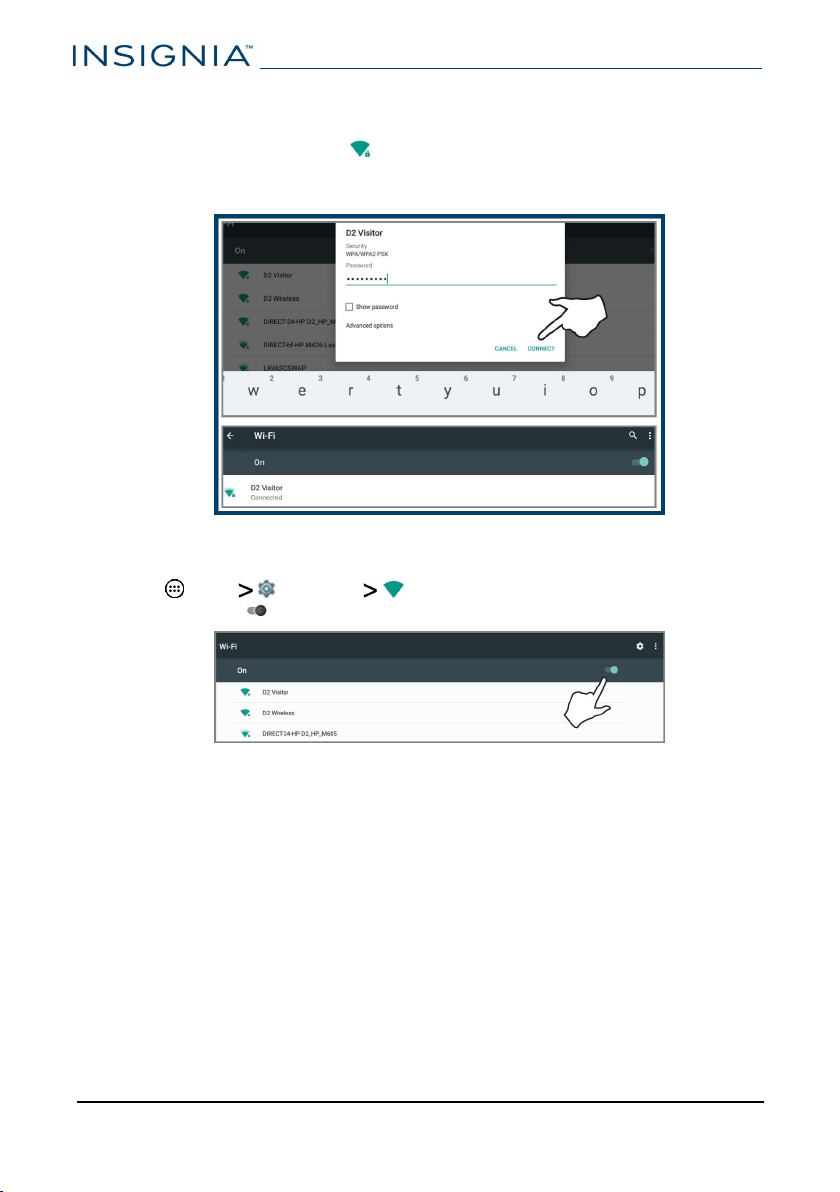
Tap a Wi-Fi network.
l If the network is open, your tablet connects automatically.
l If the Wi-Fi icon has a (lock), the network is secured. Enter the
password, then tap CONNECT.
"Connected"appears under the network name.
Add a Wi-Fi network
1 Tap Apps Settings Wi-Fi.
2
Tap the slider to turn on Wi-Fi .
3 Tap + Add network from the network list.
www.insigniaproducts.com
NS-P10A8100K
38
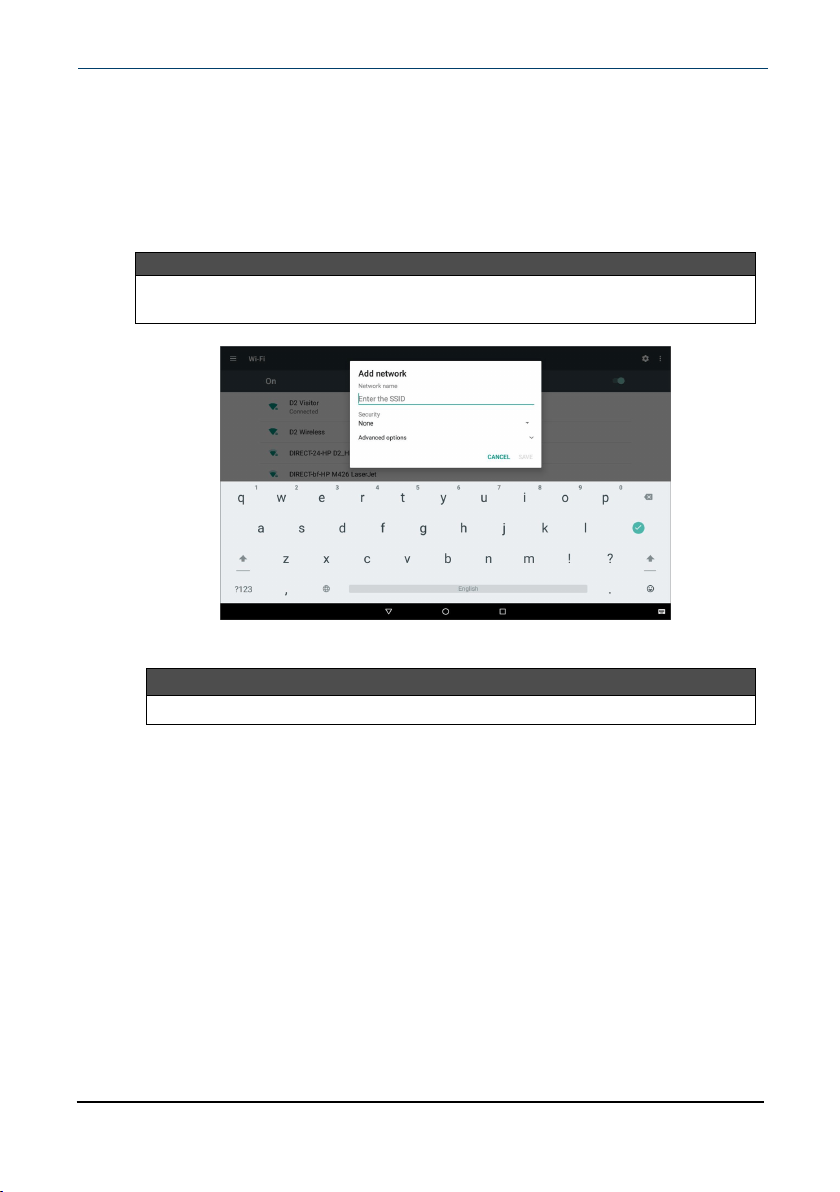
4
Enter the Network SSID(name), then select the type of security you want
from the drop-down menu. You can select:
A None—No security.
B WEP—Wired Equivalent Privacy. Note:A password is required.
C WPA/WPA2 PSK—Wi-Fi Protected Access. Note:A password is
required.
D 802.1x EAP—802.1x Extensible Authentication Protocol.
Note
If you aren't sure which security type to select, see your network setup
documentation.
5 Tap SAVE. Your new network appears in the list of available networks.
Note
See Connect to a Wi-Fi network (on page37) for connection instructions.
www.insigniaproducts.com
10.1" FLEX Tablet for Android™ With Detachable Keyboard
39
Check network status
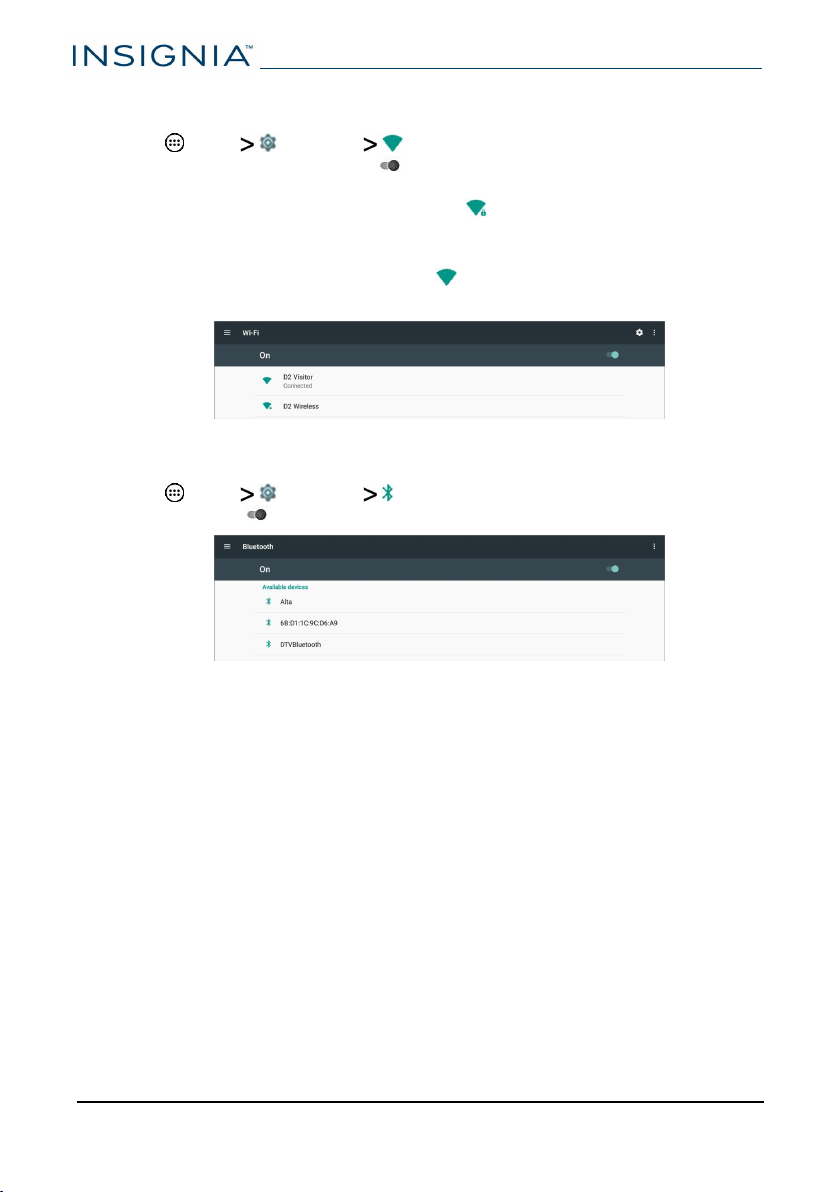
1 Tap Apps Settings Wi-Fi.
2
Make sure that the Wi-Fi slider is turned On. A list of available networks
appears.
l Secured networks are noted with a lock icon.
l If you are connected to a network, "Connected" appears below the
network name.
l Signal strength is noted with an icon to the left of the network
name.
Connect to a Bluetooth device
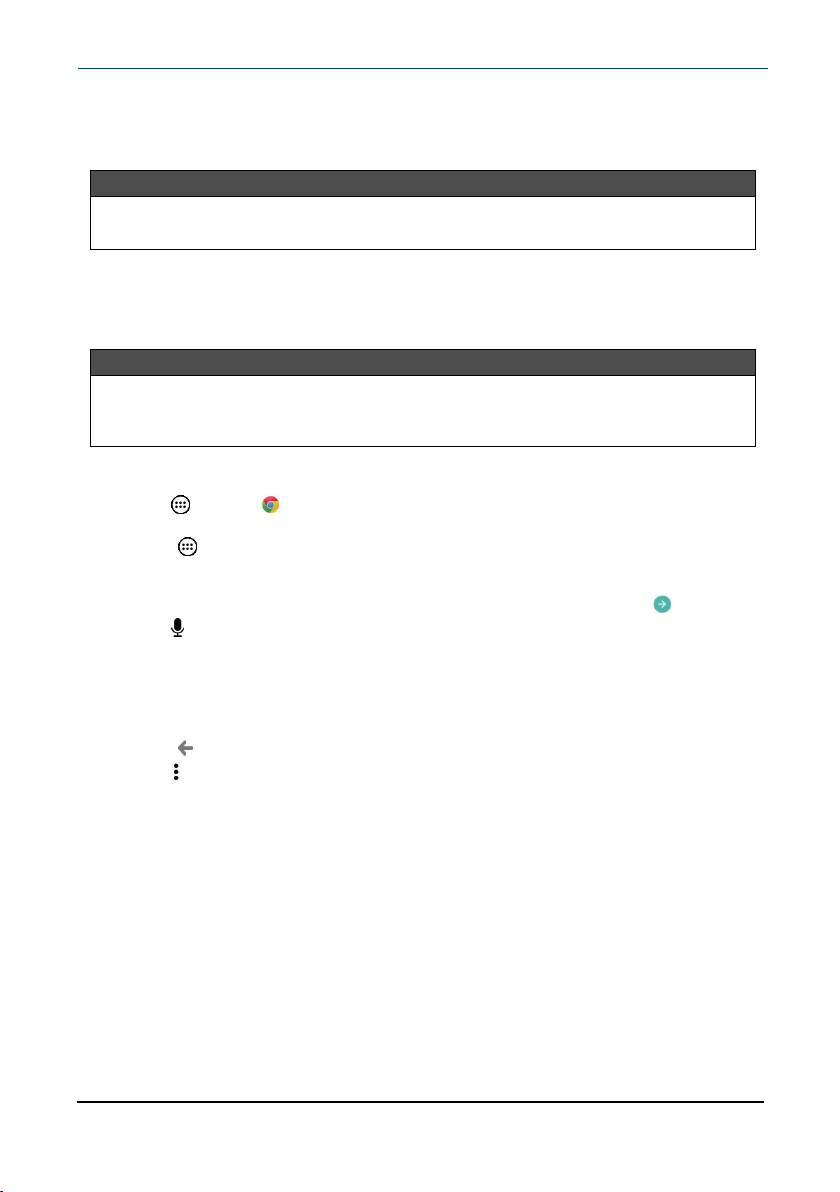
1 Tap Apps Settings Bluetooth.
2
Tap the slider to turn on Bluetooth. Your tablet searches for devices.
3
Turn on Bluetooth on the device you want to pair to your tablet and make
sure that your device is visible to other Bluetooth devices. See the
documentation that came with your Bluetooth device for instructions.
4
Tap an available device to pair with from the list. Follow the on-screen
prompts. Some devices connect automatically, while others may require a
PIN.
www.insigniaproducts.com
NS-P10A8100K
40
Use the Internet
Learn how to navigate the Internet and adjust browser settings with your tablet.
Note
These instructions are for Google Chrome™. If you are using a different
browser, see the browser's online help.
View web pages
Connect to a Wi-Fi network to browse the Internet. See Connect to a Wi-Fi
network (on page37).
Notes
l These instructions are for Google Chrome. If you are using a different
browser, see the browser's online help.
l Rotate your tablet to landscape view for the best viewing experience.
Open a web browser
l
Tap Apps > Chrome.
Note:If you have installed a different browser, tap the corresponding icon
from Apps to use it.
Navigate a web page
l Tap the address bar to enter a web address or search, then tap (enter).
l Tap , then speak to search.
l Drag your finger up, down, left, or right to scroll.
l Pinch your fingers together or spread them apart to zoom in and out.
l Tap a tab at the top to switch windows or open a new browser window.
l
Tap × on the tab to close a window.
l Tap , to return to the previous page.
l Tap , to view menu items.
www.insigniaproducts.com
10.1" FLEX Tablet for Android™ With Detachable Keyboard
41
Search for text on a web page
Note
These instructions are for Google Chrome. If you are using a different browser,
see the browser's online help.
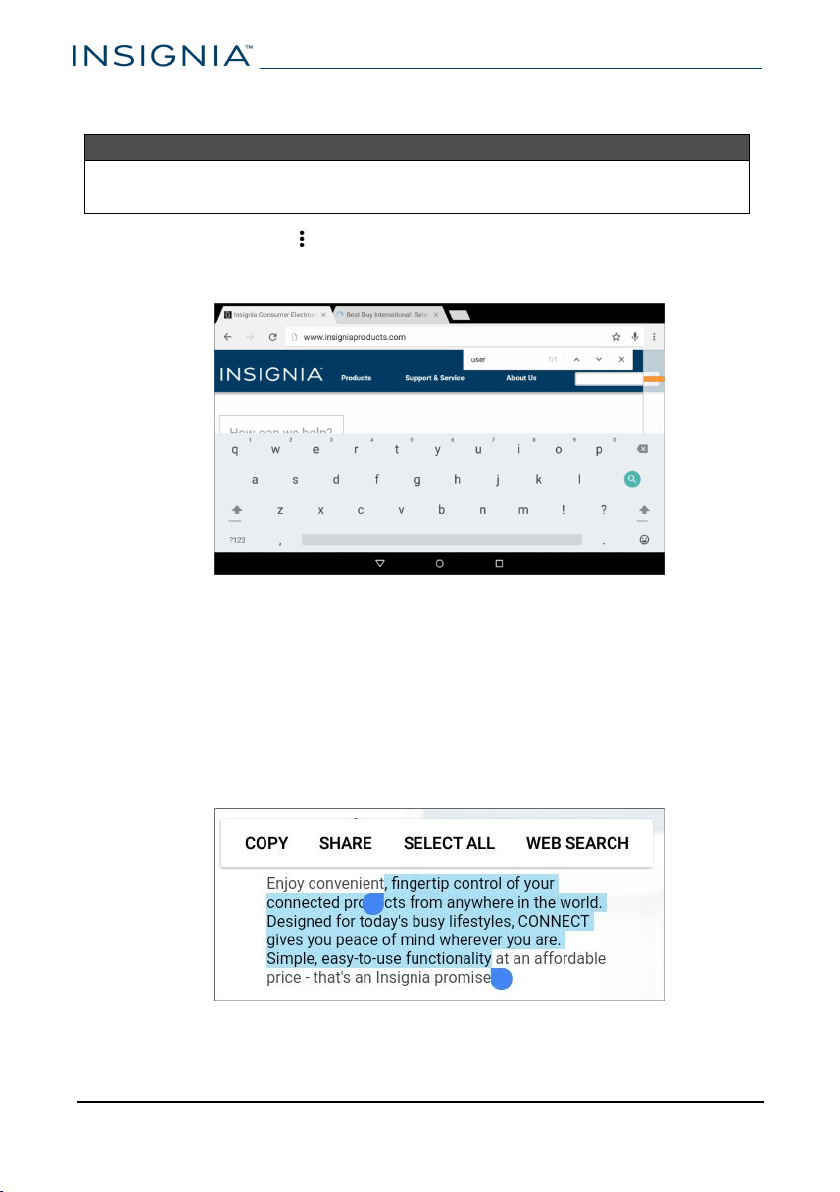
1 In your browser, tap (options), then tap Find in page.
2
Use the keyboard to type the text you want to find. As you type, matching
characters on the web page are highlighted.
3
Tap ▲or ▼to go to the previous or next matching item.
4 Tap × to close the search bar and keyboard.
Copy text on a web page
1
In your browser, touch and hold the text until a blue ribbon covers the text.
2
Drag the blue selectors to the left or right to select text.
3 Tap COPY in the menu that appears.
4
Go to where you want to paste the text (such as an email), touch and hold
the area, then tap PASTE.
www.insigniaproducts.com
NS-P10A8100K
42
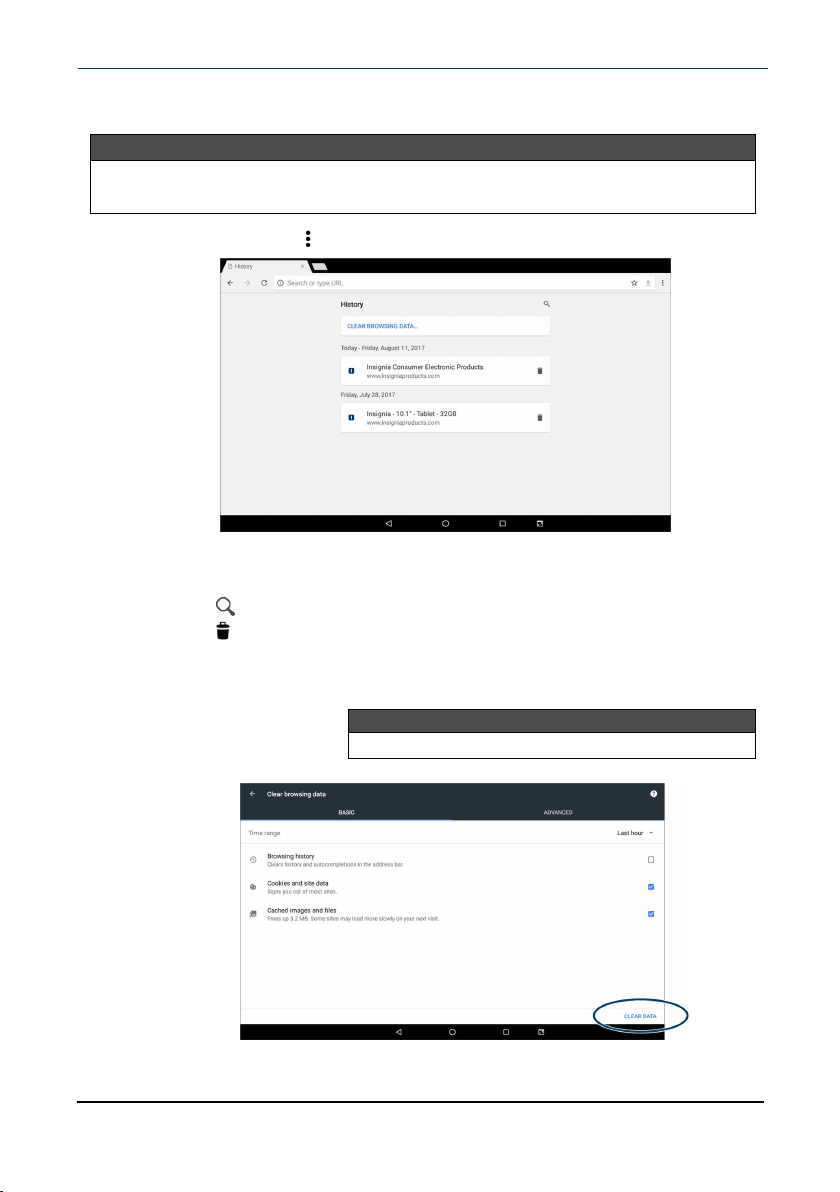
Check and clear history
Note
These instructions are for Google Chrome. If you are using a different browser,
see the browser's online help.
l
In your browser, tap (options), then tap History.
You can:
l Tap a website to open the page.
l Tap to search for a website.
l Tap to remove a single website from your browsing history.
OR
Tap CLEAR BROWSINGDATA... to clear all browsing history. Select
the kinds of data you want to delete, then tap CLEAR DATA.
Note
To view more options, tap the
ADVANCED
tab.
www.insigniaproducts.com
10.1" FLEX Tablet for Android™ With Detachable Keyboard
43
Manage bookmarks
You can store an unlimited number of bookmarks.
Note
These instructions are for Google Chrome. If you are using a different browser,
see the browser's online help.
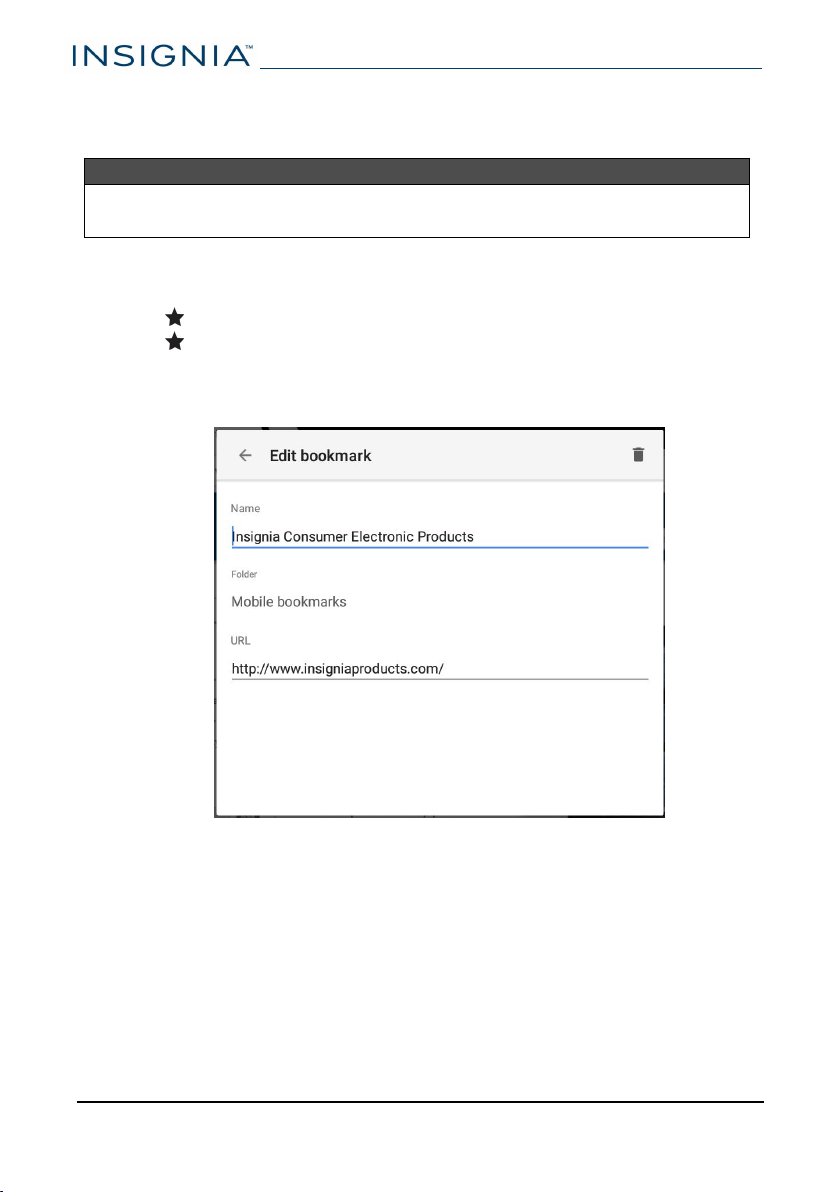
Save a bookmark
1
Go to the website that you want to bookmark.
2
Tap in the address bar.
3
Tap again to rename your bookmark or select a folder, then tap outside
the menu to save.
4
Name your bookmark, select the folder you want to save it in, then tap
outside the menu.
www.insigniaproducts.com
NS-P10A8100K
44
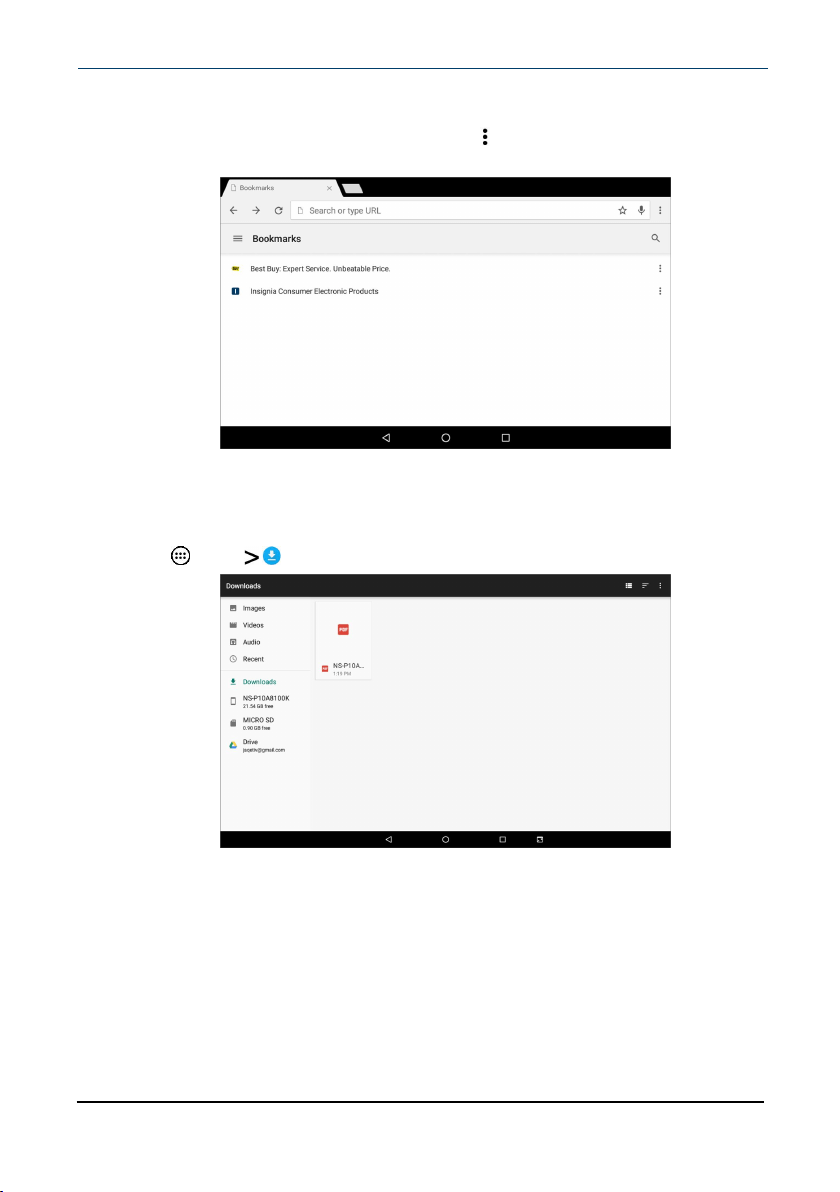
Open a bookmark
l
If you saved the bookmark to a folder, tap (options), Bookmarks, then
select the website from the list.
Manage downloads
View a download
1 Tap Apps Downloads.
2
To open a download, tap the file name. If needed, select the program you
want to use to open the file.
www.insigniaproducts.com
10.1" FLEX Tablet for Android™ With Detachable Keyboard
45
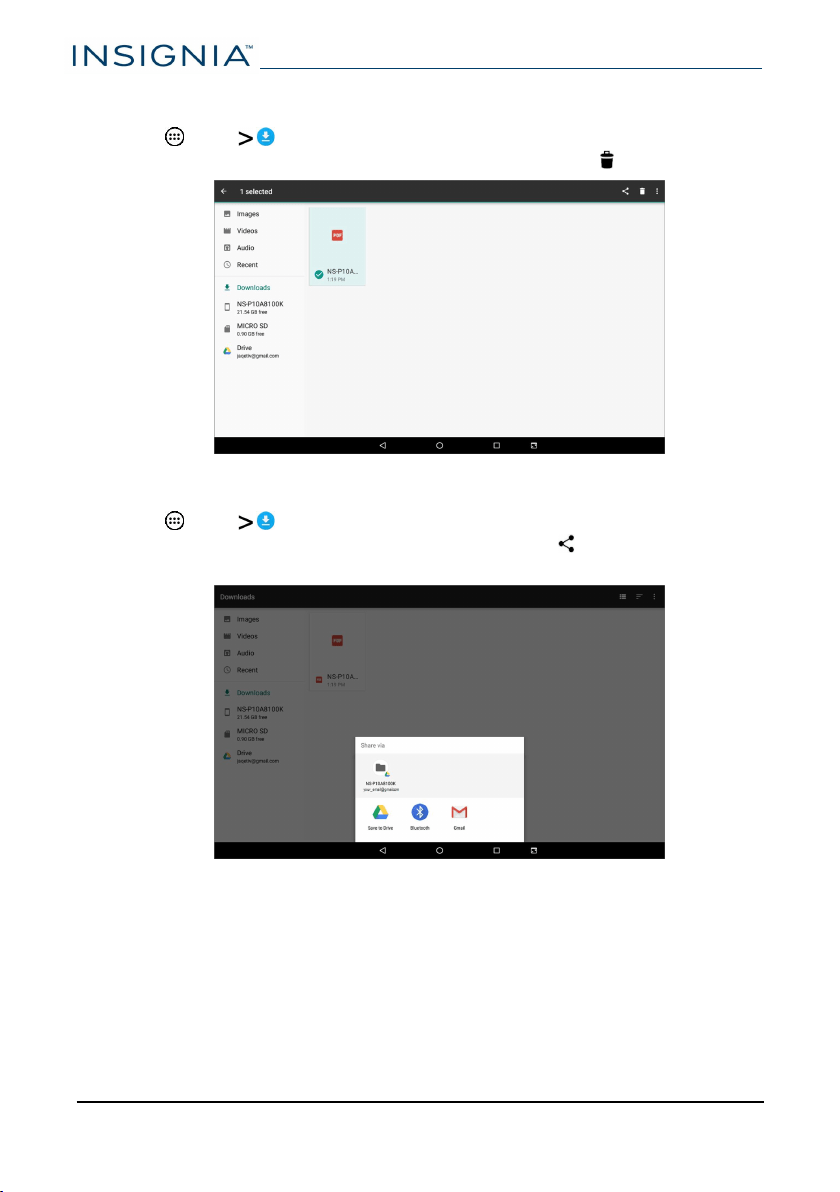
Delete a download
1 Tap Apps Downloads.
2
Touch and hold the file name until it is selected, then tap .
Share a download
1 Tap Apps Downloads.
2
Touch and hold the file name until it is selected, tap , then select how
you want to share the file.
3
Follow the on-screen prompts to share the file.
www.insigniaproducts.com
NS-P10A8100K
46
Use Gmail™
Use the Gmail app to add your email accounts from Google and other web-
based providers like Outlook and Yahoo
®
.
Set up a Gmail account
You may have set up a Gmail account when you set up your tablet.
1 Tap Apps > Gmail.
2
Follow the on-screen instructions to set up your account.
Note
To set up another Gmail account, see Manage Gmail accounts (below).
Manage Gmail accounts
Add an additional mail account
1 Tap Apps Gmail Menu Settings Add account.
2
Follow the on-screen instructions to set up your account.
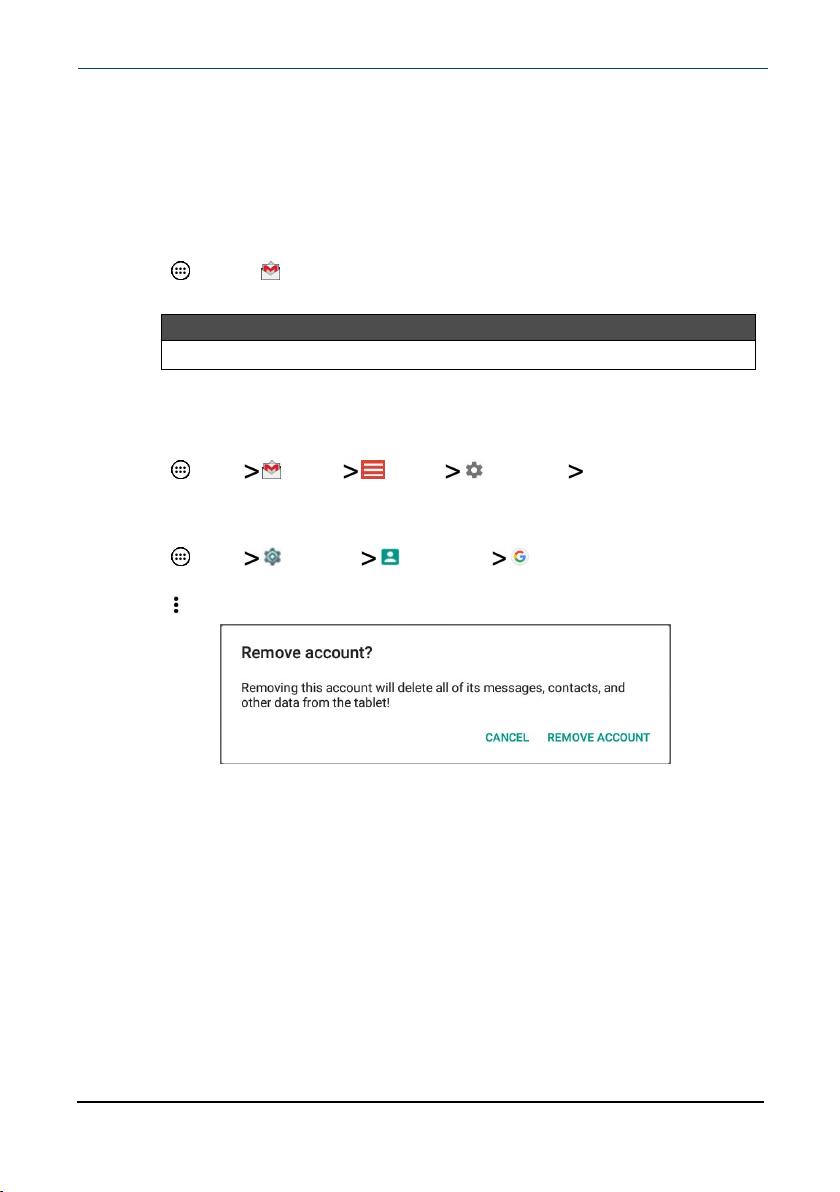
Delete a Gmail account
1 Tap Apps Settings Accounts Google.
2
Tap the account you want to delete, if needed.
3 Tap (options), then tap Remove account.
4 Tap Remove account again.
www.insigniaproducts.com
10.1" FLEX Tablet for Android™ With Detachable Keyboard
47
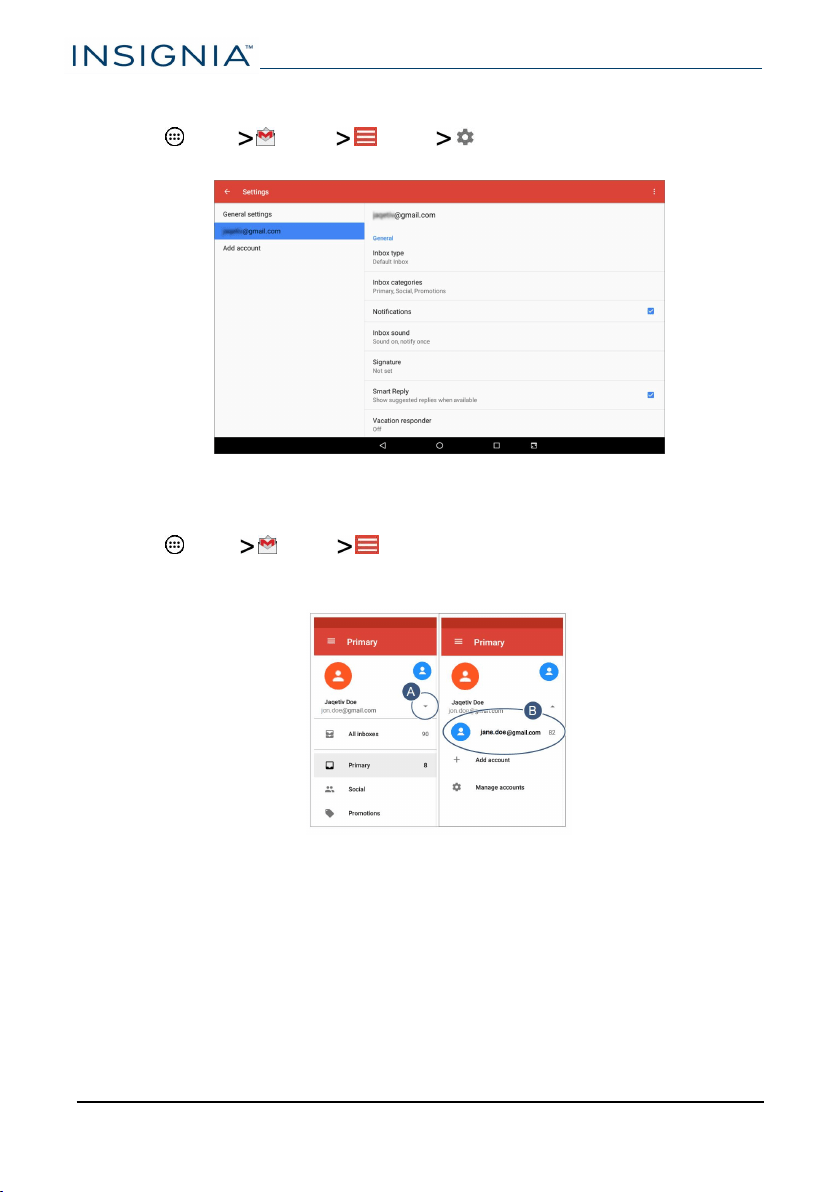
Change Gmail account settings
1 Tap Apps Gmail Menu Settings.
2
Tap your account name.
3
Change your account settings as needed.
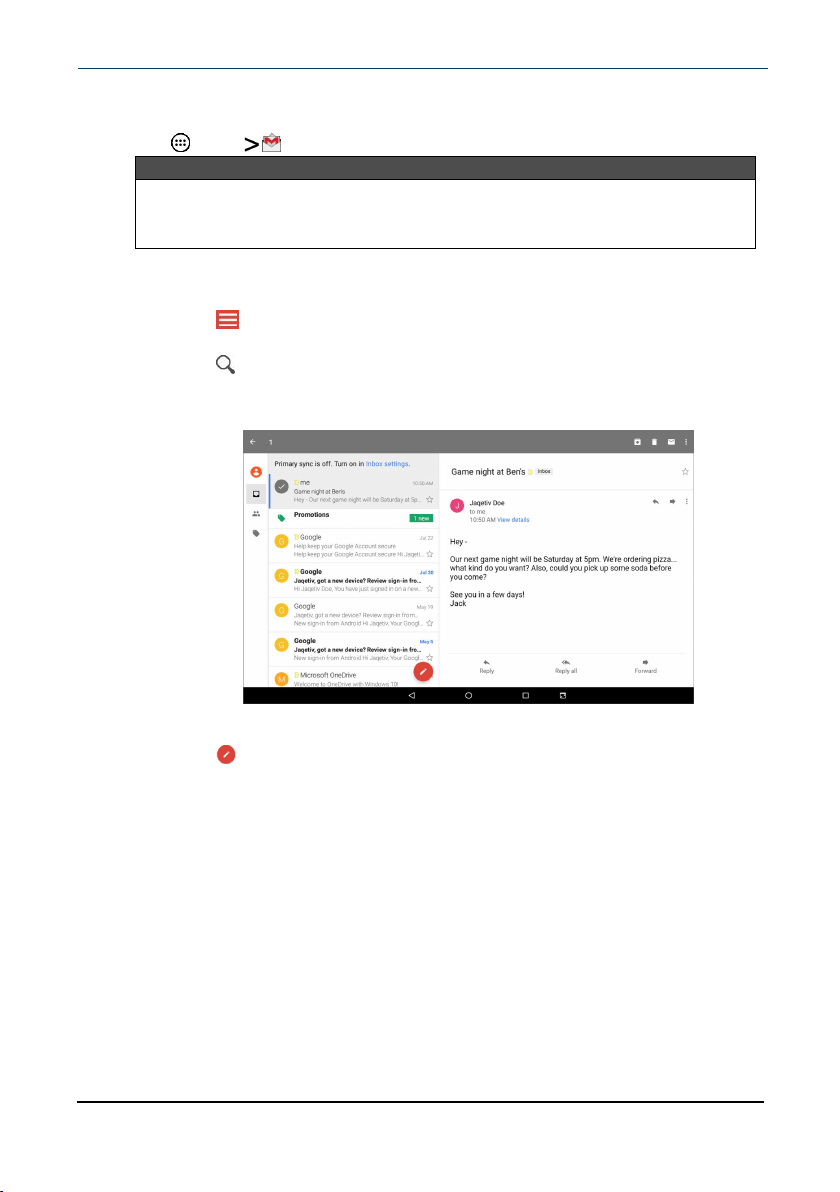
Switch Gmail accounts
1 Tap Apps Gmail Menu
2
Tap ▼(drop-down) next to your account name, then select a different
account from the list displayed.
www.insigniaproducts.com
NS-P10A8100K
48
View a Gmail
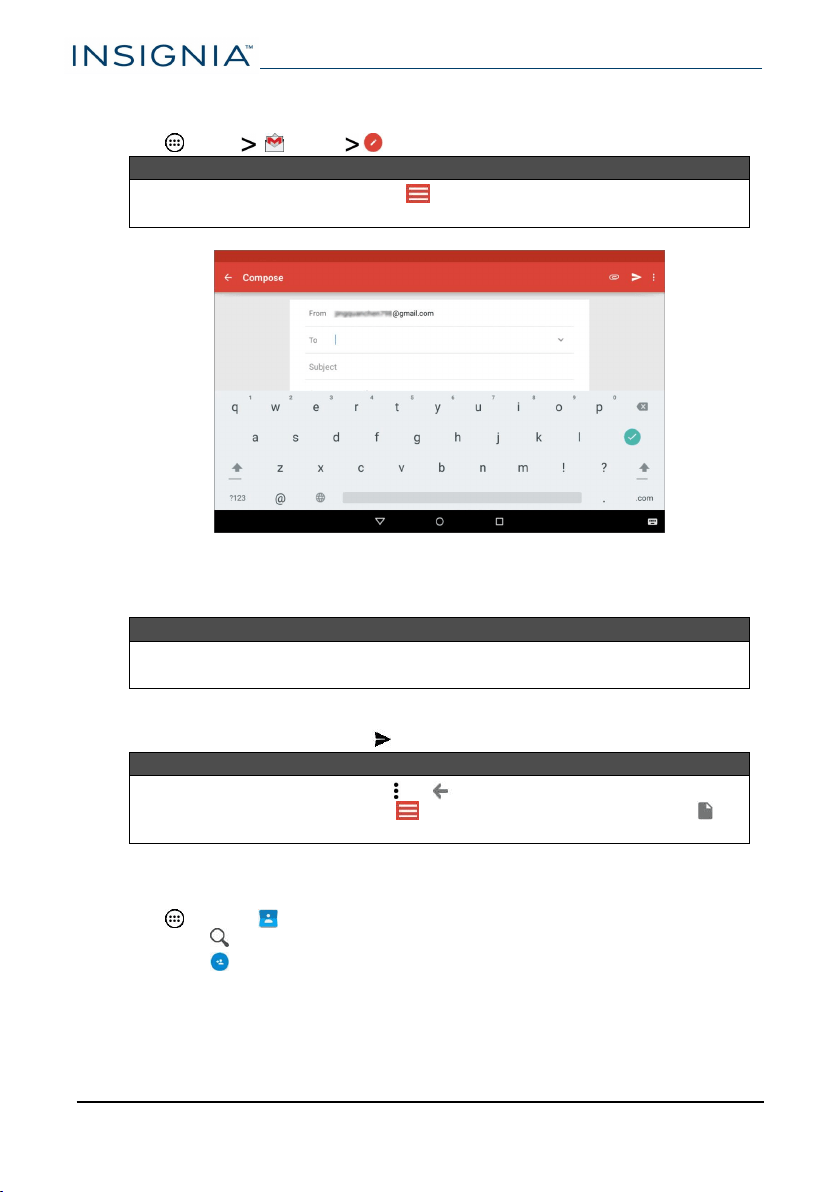
l
Tap Apps Gmail.
Note
If you have more than one email account, the last account you used
opens. See Manage Gmail accounts (on page47) for instructions on
switching between accounts.
l Drag your finger up and down to scroll through your Gmails.
l Tap a Gmail to open it.
l Tap (menu) in the upper-left corner to display folders or select a
different Gmail account.
l Tap to search.
l Touch and hold a Gmail to select it and display options such as
archive, delete, mark as read or unread, or move the email.
l Touch and hold a Gmail to deselect it.
l Tap to compose a new Gmail. See Create a Gmail (on the next
page) for more information.
www.insigniaproducts.com
10.1" FLEX Tablet for Android™ With Detachable Keyboard
49
Create a Gmail
1 Tap Apps Gmail (compose).
Note
To open a different account, tap in the upper-left corner, then select a
different account.
2
Enter the recipient's email address. As you enter the address, your tablet
displays your contacts that match the characters you've entered. You can
tap a contact or continue entering the address.
Note
To send the email to more than one person, separate the email addresses
with a comma.
3
Enter a subject in the subject field (optional).
4 Enter your message, then tap SEND when you are finished.
Note
Tap
Save draft
under options or (back) to save your email as a
draft. To access your drafts, tap in the upper-left corner, then tap
Drafts
.
Create and manage contacts
l
Tap Apps > Contacts. You can:
l Tap to search for a contact.
l Tap (in the lower-right corner) to add a new contact.
l Tap a contact to view or edit its information.
www.insigniaproducts.com
NS-P10A8100K
50
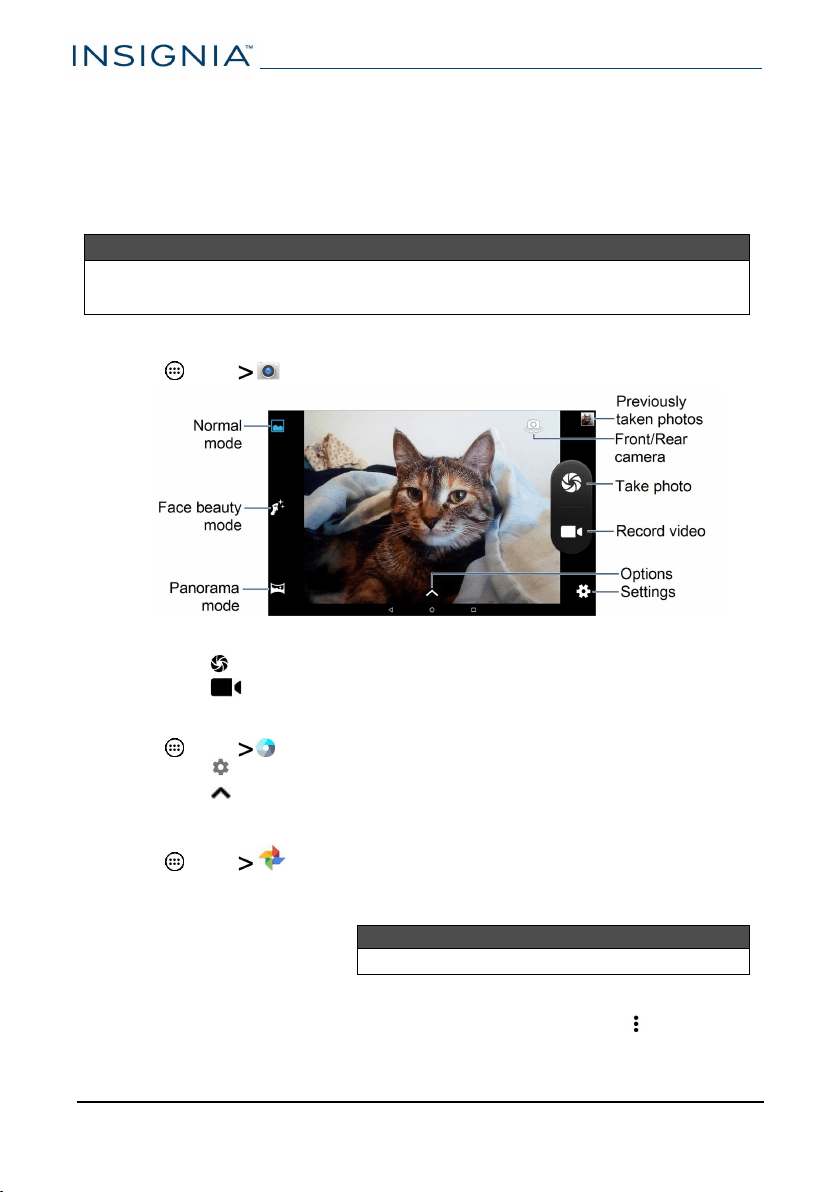
Work with photos and video
Learn how to take pictures and video with your tablet. Then, learn how to view
and edit them before sharing with your friends and family.
Use the camera
Note
See View photos and video (below) for information on how to view your
pictures.
Take a picture or video
l
Tap Apps Camera.
l Pinch your fingers to zoom in or out.
l Tap to take a photo.
l Tap to start and stop recording.
Change camera settings
l
Tap Apps Camera.
l Tap to open settings.
l Tap to open options.
View photos and video
l
Tap Apps Photos.
l Drag your finger up and down to browse your photos.
l Tap a thumbnail to view in full screen.
Note
Videos have a ► (play) icon and photos don't.
l To zoom in or out of photos, pinch your fingers together or apart.
l To view more options, select a photo or video, then tap .
www.insigniaproducts.com
NS-P10A8100K
52
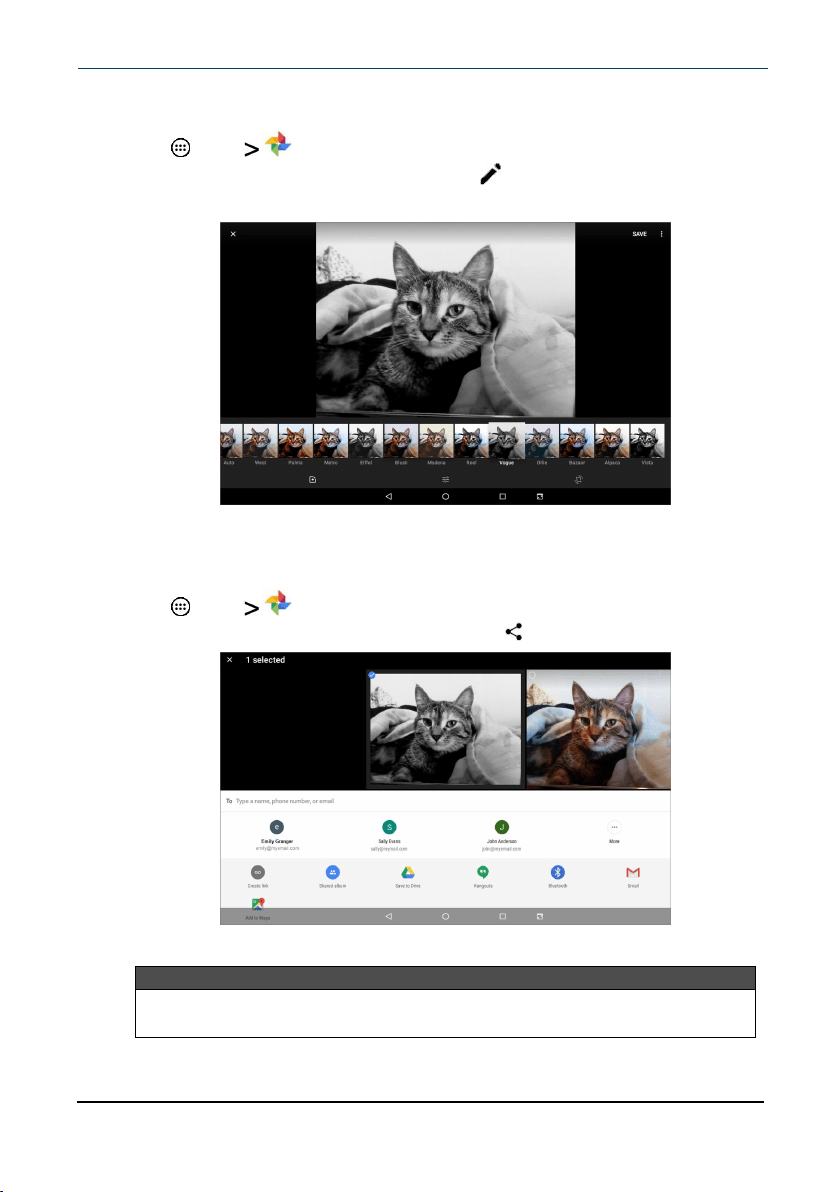
Edit photos
1
Tap Apps Photos.
2
Tap the photo you want to edit, then tap .
3
Use the available options to edit your photo.
4 When finished, tap SAVE.
Share photos or videos
1
Tap Apps Photos.
2
Select the photo or video you want, then tap (share).
3
Tap the program you want to use to share the photo or video.
Note
If you shared a photo or video before, the program you used has an easy-
access icon next to the share button.
www.insigniaproducts.com
10.1" FLEX Tablet for Android™ With Detachable Keyboard
53
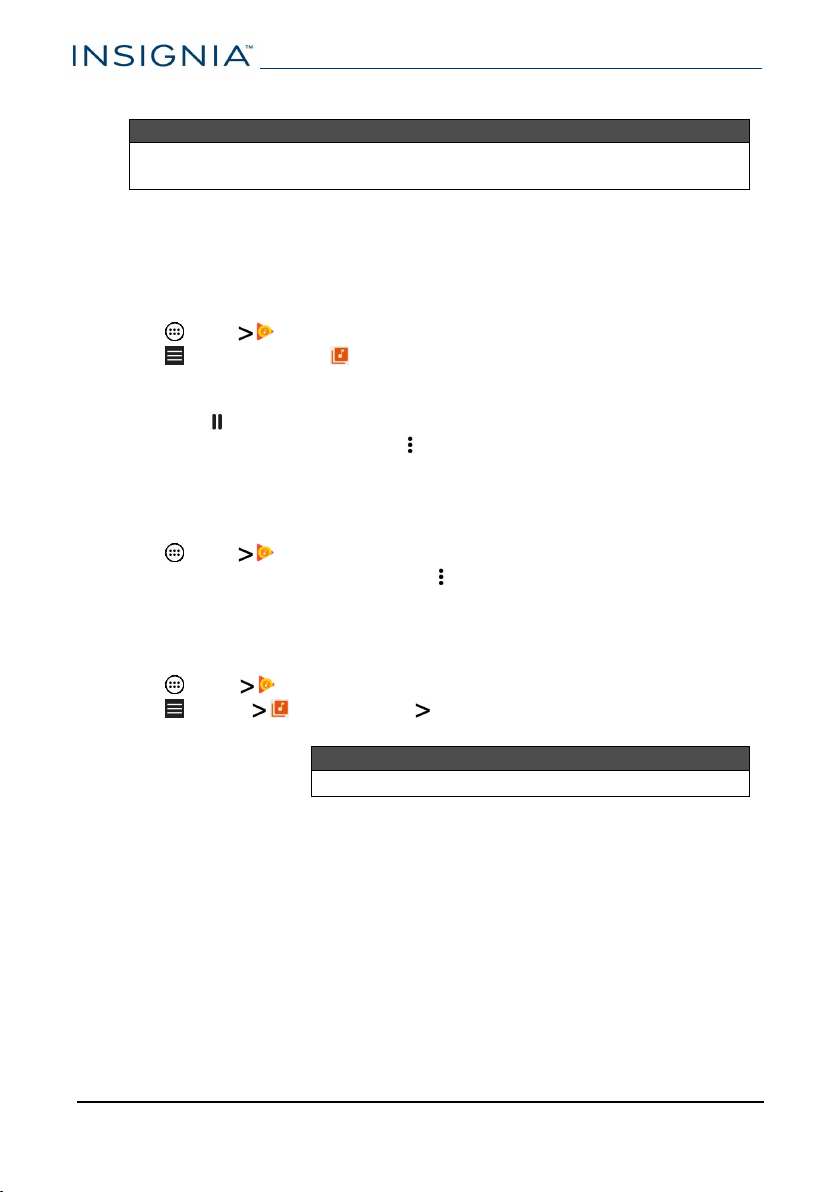
4
Follow the on-screen prompts to send your photo or video.
Note
You may need to install social media apps (such as Facebook and Twitter)
to share photos on those sites.
Listen to music
Learn how to control your audio playback and create a playlist.
Control playback
1 Tap Apps Play Music.
2 Tap (menu), then tap Music library to view your music.
3 Tap a category (PLAYLISTS, STATIONS, ARTISTS, ALBUMS, SONGS, or
GENRES), select a song, then tap ► (play) to start playback (if needed).
l Tap to pause and ► to resume playback.
l For more audio options, tap (options)next to a song title in the list.
Using playlists
Create a playlist
1 Tap Apps Play Music.
2 Find a song that you want to add, tap (options), then tap Add to playlist.
3
Follow the on-screen prompts to select an existing playlist or create new
playlist.
Play a playlist
1 Tap Apps Play Music.
2 Tap (menu) Music library PLAYLISTS.
3
Tap a playlist, then tap ► (play).
Note
See Control playback (above) for more information.
www.insigniaproducts.com
NS-P10A8100K
54
Manage storage space
Learn how to keep your tablet running at peak efficiency by managing your
storage space.
Use a micro SD card
Install a micro SD card
l Insert the micro SD card into the slot with the label facing the back of your
tablet. It should click into place.
Note
If prompted to change the default write disk:
l
Tap Cancel to make no changes.
l
Tap OK to go to Storage settings, and then select where you want your tablet
to write files.
Access files on a micro SD card
1 Tap Apps > File Manager > SD card.
Note
Your tablet may display your SDcard's name instead of "SDcard."
2
Navigate to the file you want to open, tap it, then select an app to open it (if
prompted).
Move files to or from a micro SD card
1 Tap Apps > File Manager.
2
Navigate to the file, then touch and hold the file name to select it.
3
Tap to copy the file.
4
Navigate to where you want to save the file, then tap (paste).
Remove a micro SD card
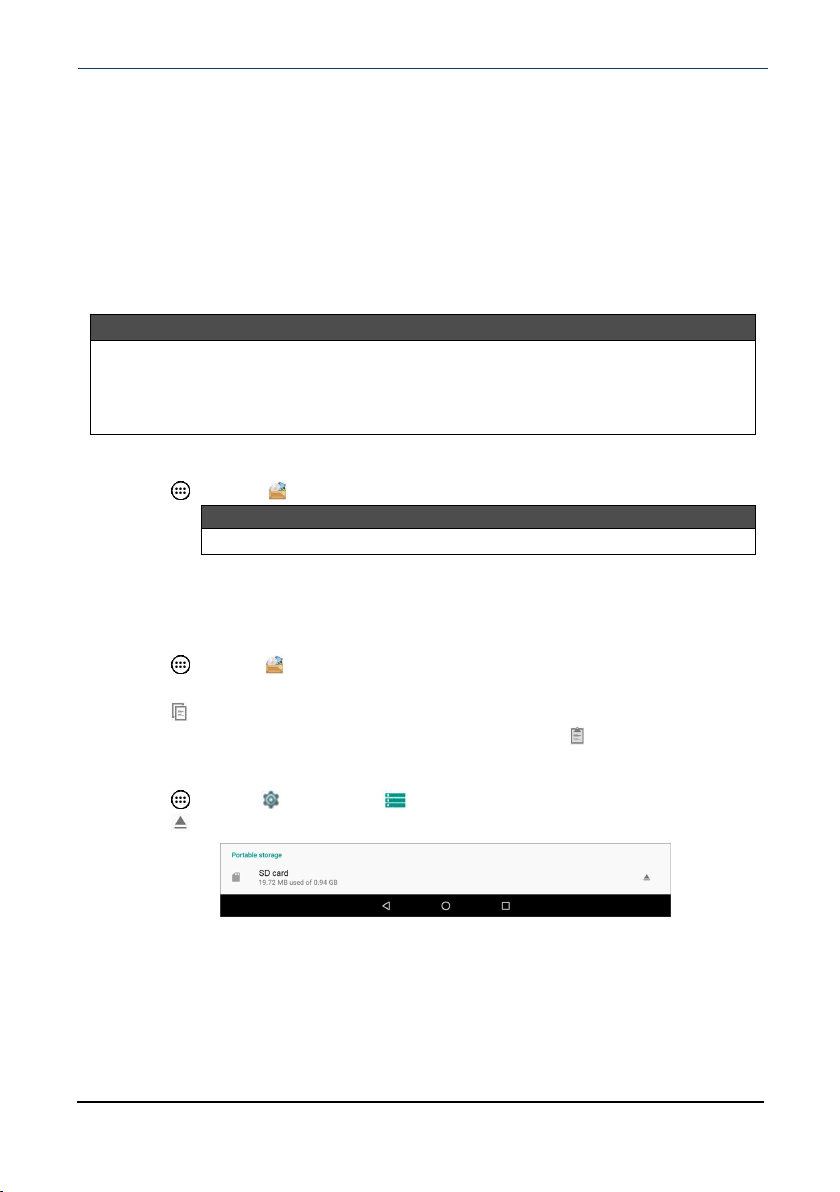
1 Tap Apps > Settings > Storage.
2
Tap (eject) next to your SD card's name.
3
Push the micro SD card in then release to remove it from the card slot.
www.insigniaproducts.com
10.1" FLEX Tablet for Android™ With Detachable Keyboard
55
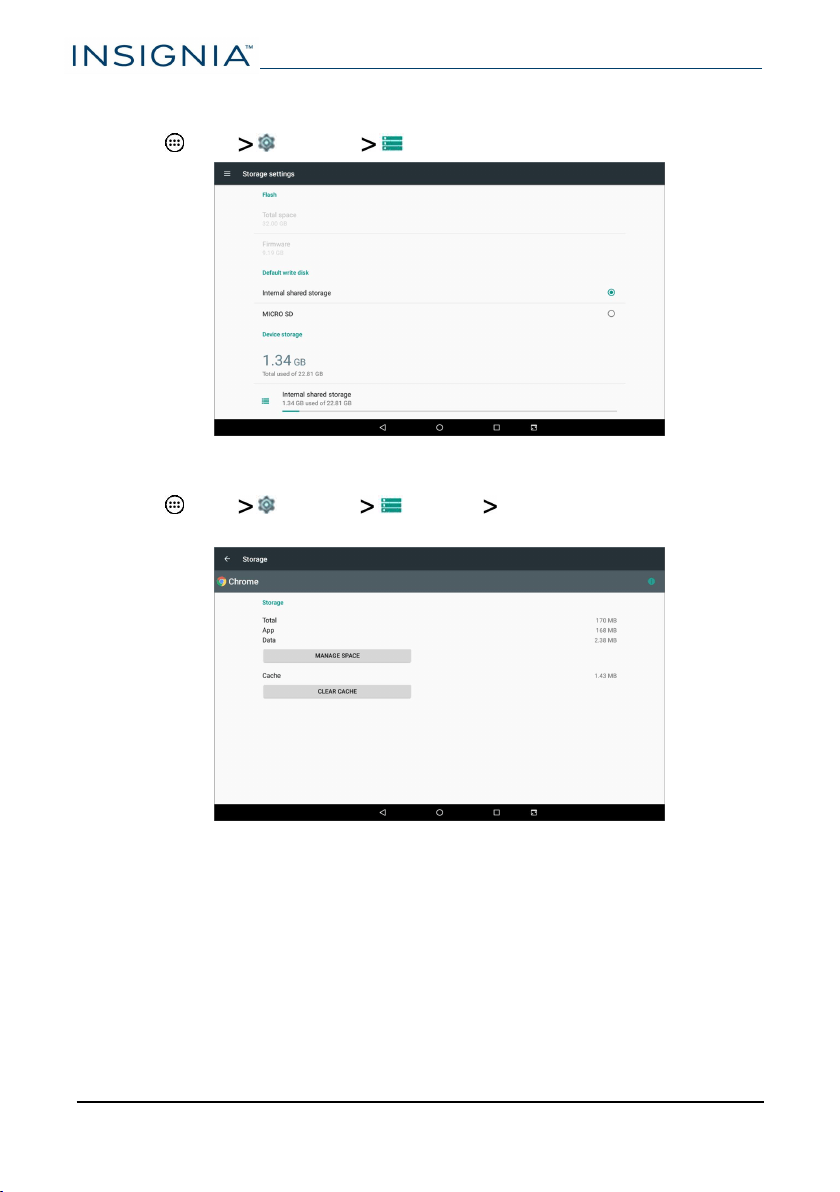
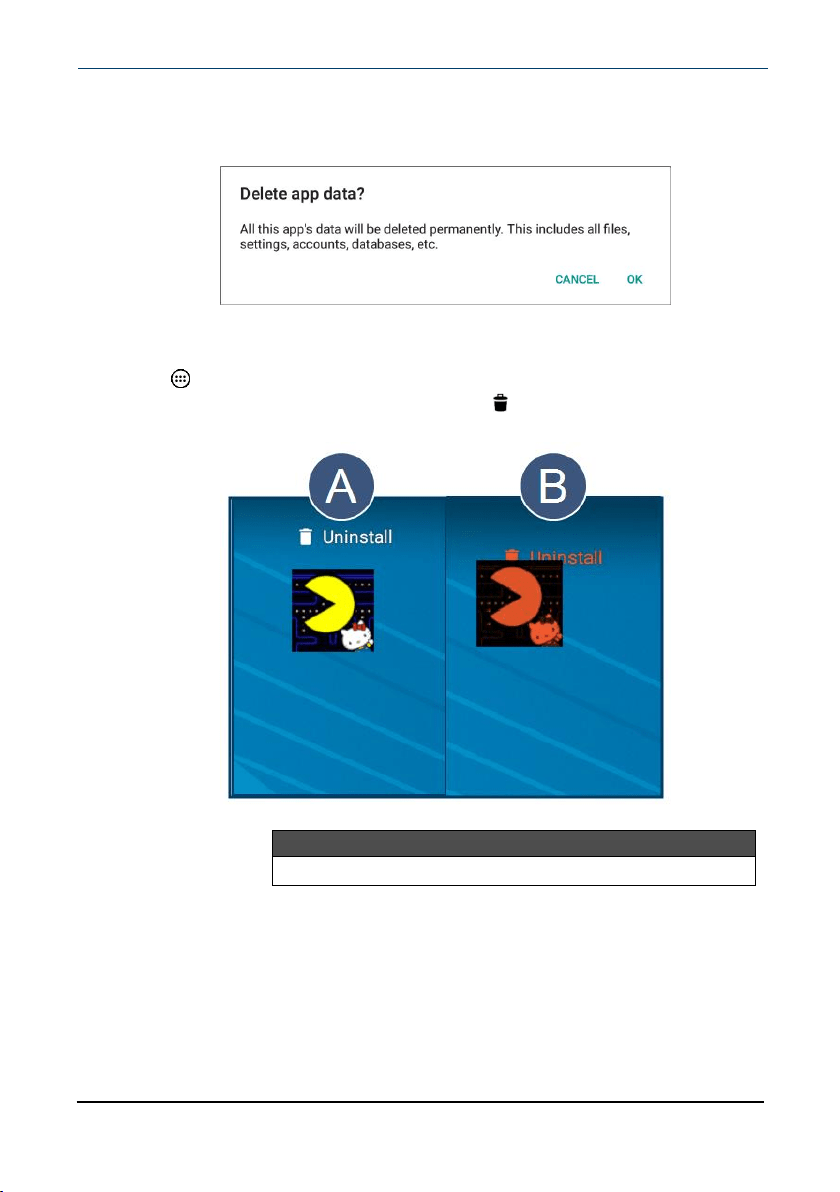
3 Tap CLEARCACHE.
OR
Tap MANAGESPACE, CLEAR ALL DATA, then tap OK.
Uninstall apps
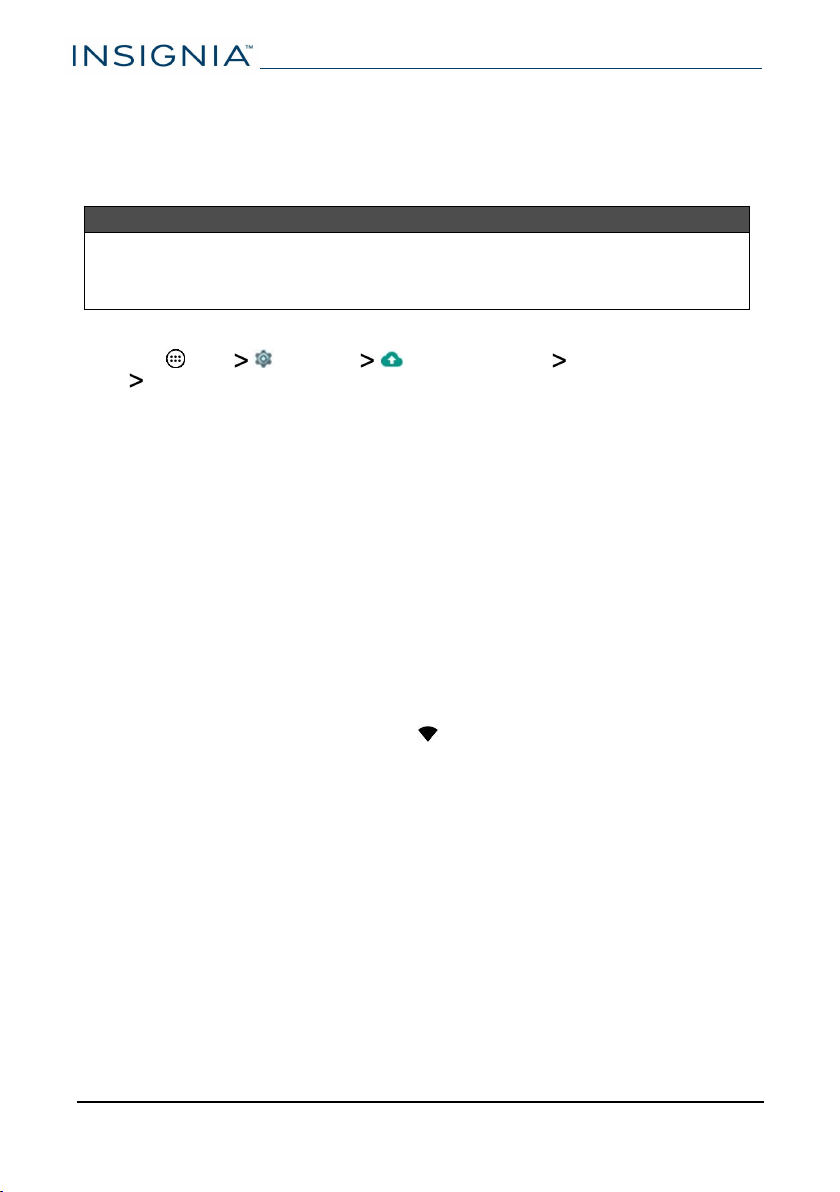
1 Tap Apps, then locate the app you want to uninstall.
2 Touch and hold the app, then drag it to the Uninstall icon at the top of
the screen until the app turns red.
Note
You may not be able to remove some pre-installed apps.
Free up storage space
If your tablet is low on storage space, try the following:
l Clear your Internet browser's temporary files and browser history. See your
browser's online help for more information.
Note:If you use Google Chrome™, see Clear app cache and data (on the
previous page).
www.insigniaproducts.com
10.1" FLEX Tablet for Android™ With Detachable Keyboard
57
l Move files such as pictures, videos, or music to a microSD™ memory card or
a computer. See Use a micro SD card (on page55).
l Move apps to a microSD memory card if they will run there.
Reset to default settings
Caution
Resetting to factory defaults deletes all personal data and settings. To restart
your tablet without removing your stored data or customized settings, see
Restart your tablet (on page14).
1
Connect your tablet to a power outlet.
2 Tap App Settings Backup &reset Factory data reset
RESETTABLET.
3
Wait for your tablet to reset, then go through the initial setup again. See
Turn on your tablet for the first time (on page12) for more information.
Troubleshooting
What should Ido if Icannot charge my tablet?
l Make sure that your USB cable is not damaged.
l Make sure that your power adapter is connected to a working power outlet
and that your surge protector (if used) is turned on.
l Make sure that your USB cable is connected to your tablet securely. Do not
force the connector in or you may damage the port.
l If your battery was drained completely, let your tablet charge for at least an
hour before trying to turn it on.
What should I do if I can’t connect to the Internet?
l Look for a wireless signal indicator ( ) in the status bar at the top of the
screen. If there is no icon or if the icon is not filled in, you are not connected.
l Make sure that Wi-Fi is turned on.
l Make sure that you select the right network and enter the correct password.
l Turn your tablet off, then back on.
l Reset your Wi-Fi router/modem.
What should I do if I forget my password?
l If you enabled the Smart Lock to automatically unlock your tablet, make
sure that your tablet is in the place/state you designated when you set it up
(for example, near a certain Wi-Fi network or Bluetooth device). See your
User Guide for more information about the smart lock feature.
www.insigniaproducts.com
NS-P10A8100K
58
Note
If you did not enable the Smart Lock before forgetting your password,
you cannot use it to access your data.
l Reset your tablet to factory defaults (see "How do Ireset my tablet to
factory defaults? (on the next page)"). Your personal apps and data will be
deleted from your tablet. However, some data (such as emails or
contacts)will sync to your device when you sign back in using the same
Google account.
Note
Some apps may require you to have enabled "Back up & sync" to retrieve
your data.
What should I do if I cannot turn on my tablet?
l Connect the charger to check the battery level on the screen. If the battery
is too low, your tablet will not turn on. Fully charge the battery.
Can I open Microsoft Office and PDF files on my tablet?
l You can purchase and download third-party applications to read these files.
What should I do if my tablet won’t recognize the microSD card?
l Make sure that you have inserted the memory card correctly (with the label
facing the screen). The memory card should click into place.
l With the microSD card inserted, turn off your tablet, then turn it back on.
l Make sure that you are attempting to view your files in the correct location
on your tablet.
l Make sure that your memory card is formatted correctly. See the card
manufacturer's instructions for more information.
What should I do if there is no sound coming from my tablet?
l If listening through headphones, unplug and reconnect your headphones.
Make sure that the connector is pushed in all the way.
l If listening through your tablet's speakers, unplug any devices connected to
the headphone jack.
l If you are connected to a Bluetooth device, turn off Bluetooth on your
tablet.
l The volume may be muted or set too low. Increase the volume setting.
l
Open Apps Settings Sound to check your tablet's sound
settings.
www.insigniaproducts.com
10.1" FLEX Tablet for Android™ With Detachable Keyboard
59
What should Ido if my keyboard doesn't work?
Note
These troubleshooting steps are for the Insignia tablet keyboard that
came with your tablet. If you are using a different keyboard, see the
documentation that came with it for help.
l Make sure that the keyboard connection contacts on your tablet align with
the contacts on your keyboard.
l Clean the connection contacts on your tablet and keyboard with a soft cloth.
l If your touchpad is not working, press to turn it back on. The touchpad
LED turns off when the touchpad is active.
Can Iturn my keyboard's touchpad off?
l Yes. Press to turn the touchpad on or off. The touchpad LED turns off
when the touchpad is active.
What can I connect to the keyboard's USB port?
l You can connect a mouse, flash drive, or other peripheral device. You
cannot run high-power devices (such as a DVD drive).
l You cannot charge your tablet through the USB port.
Why is the actual storage less than the storage listed in the
specification?
l Your tablet has the full amount of storage listed in the specification.
However, some of this space is used for system applications and data files.
How do Ireset my tablet to factory defaults?
Notes
l Resetting your tablet to factory defaults will delete all personal apps
and data from your tablet.
l If you cannot access your tablet's settings, press and hold the power
button for eight seconds to boot into recovery mode.
1 Tap Apps Settings Backup & reset.
2 Tap Factory data reset, then tap RESETTABLET.
How do Iset a screen lock?
1 Tap Apps Settings Security Screen lock.
2
Select a screen lock type, then follow the on-screen prompts to set it up.
What should I do if the display freezes or does not respond?
l Press and hold the (power) button for 10 seconds to turn off your tablet,
then turn your tablet back on.
www.insigniaproducts.com
NS-P10A8100K
60

Need additional help?
l Visit www.support.google.com/android for tips and tutorials on using
Android.
l Check the online FAQs for answers to common questions. Go to
www.insigniaproducts.com, then search for NS-P10A8100K. Next to
Features, select Support & Downloads, then select FAQs.
l Check out our online community forum for helpful information from other
Insignia tablet owners. Go to www.insigniaproducts.com, search for
NS-P10A8100K, then select FAQs & community discussions from the
Need help? box.
l
Find your User Guide online. Go to www.insigniaproducts.com and search
for NS-P10A8100K. Next to Features, select Support & Downloads, then
next to User Guide, select the language you want.
Maintenance
l Keep your tablet dry.
l Avoid exposing your tablet to extreme hot or cold temperatures.
l Avoid placing your tablet close to lit cigarettes, open flames, or any heat
source.
l Do not drop, knock, or shake your tablet. Rough handling may break internal
circuit boards.
l Keep your tablet in a clean and dust-free place.
Disclaimer:Best Buy does not recommend the use of any ammonia or alcohol-
based cleaners on the LCD screen or plastic casing. Some chemical cleaners have
been reported to damage the screen or display case. Best Buy will not be liable
for damage resulting from the use of any ammonia or alcohol-based cleaners.
www.insigniaproducts.com
10.1" FLEX Tablet for Android™ With Detachable Keyboard
61
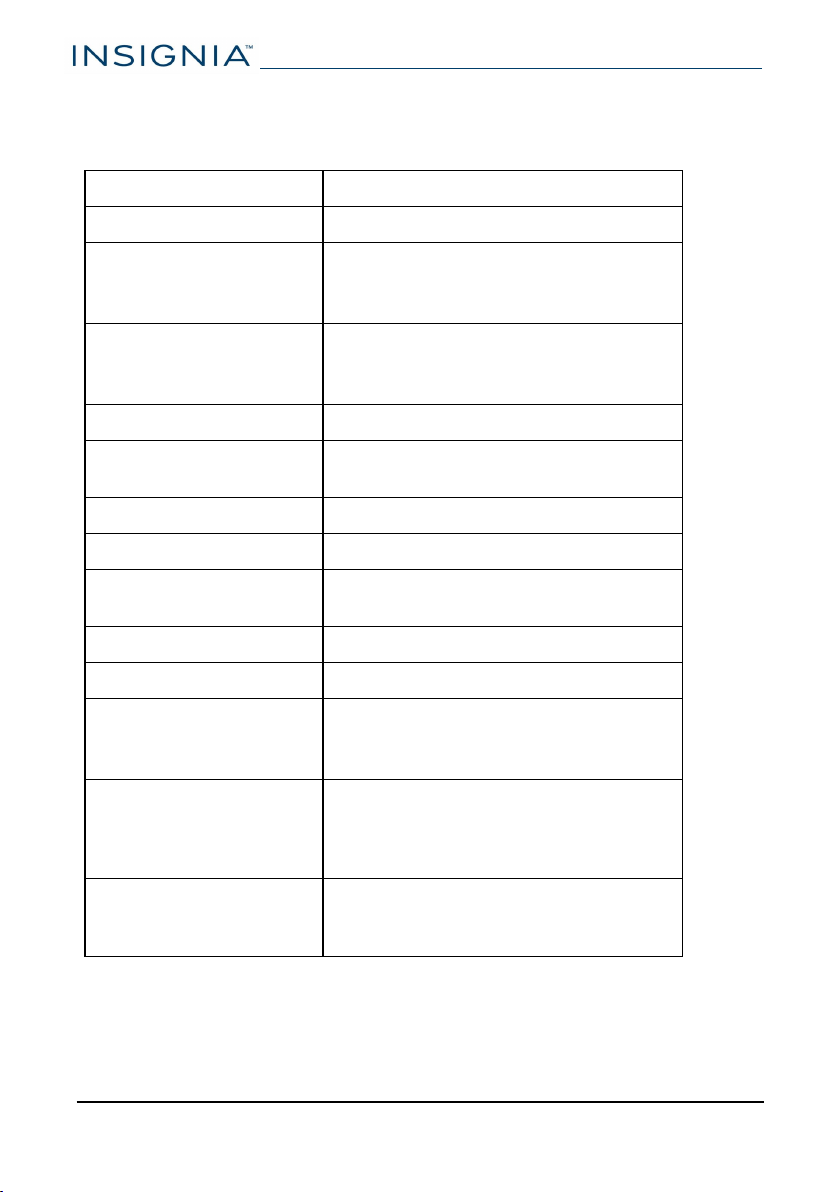
Specifications
Specifications are subject to change without notice.
Operating system Android 7.0 (Nougat)
CPU MTK Quad-Core
Display
10.1" diagonal panel (25.4 cm)
800 × 1280 IPS
Capacitive 5-Point Touch Panel
Wireless/Connectivity
802.11 a/b/g/n
Bluetooth 4.1
GPS
Storage 32GB internal memory
Camera
2MP front-facing (fixed focus)
2MP rear-facing (auto focus)
Sensors G-Sensor/Accelerometer
Audio Internal stereo speakers, MP3, AAC
Battery and power
6000mAh lithium ion
Up to six hours video playback
Power supply 5V/2A
Video H.264, MPEG4
Input and output
Micro SD Slot (up to 128GB)
3.5 mm stereo headphone jack
Micro USB port
Dimensions
Tablet:10.0 × 6.9 × .4 in. (25.44 ×
17.45 × .99 cm)
Keyboard:10.0 × 7.1 × .8 in. (25.4 ×
18.1 × 2.0 cm)
Weight
Tablet (without keyboard):1.2 lbs.
(.54 kg)
Tablet and keyboard: 2.2 lbs. (1.0 kg)
www.insigniaproducts.com
NS-P10A8100K
62

Customer support
For more help, see Troubleshooting (on page58). To contact customer service,
call 1-877-467-4289.
Your tablet model number is: NS-P10A8100K
Safety information
1. Read these instructions.
2. Keep these instructions.
3. Heed all warnings.
4. Follow all instructions.
5. Do not use this product near water. Do not touch your device with wet
hands.
6. Clean only with dry cloth.
7. Do not block any ventilation openings. Install in accordance with the
manufacturer's instructions.
8. Do not install near any heat sources such as radiators, heat registers, stoves,
or other apparatus (including amplifiers) that produce heat.
9. Do not expose the device to direct sunlight.
10. Protect the power cord from being walked on or pinched particularly at
plugs, convenience receptacles, and the point where they exit from the
product.
11. Only use attachments/accessories specified by the manufacturer.
12. Unplug this device during lightning storms or when unused for long periods
of time.
13. To reduce the risk of fire or electric shock, do not expose this device to rain,
moisture, dripping, or splashing.
14. Do not crush or puncture the product. Avoid exposing the device to high
external pressure. Do not operate the device in a very cold or very hot
temperature, such as in cold weather or in an un-air-conditioned motor
vehicle during intense heat.
15. Do not remove the cover or back to reduce the risk of electric shock. There
are no user-serviceable parts inside. Refer servicing to qualified personnel.
16. Do not place the device on an unstable cart, stand, tripod, bracket, or table.
The unit may fall, resulting in possible damage or injury.
17. To prevent hearing damage, do not use the headphones at a high volume.
18. Never place heavy or sharp objects on the LCD panel or device.
19. Only use the AC adapter included with the device. Using any other adapter
will void your warranty.
www.insigniaproducts.com
10.1" FLEX Tablet for Android™ With Detachable Keyboard
63

Legal notices
Android, Google, Google Play, Gmail, and other marks are trademarks of Google,
Inc.
FCC Warning
This device complies with Part 15 of the FCC Rules. Operation is subject to the
following two conditions:
1. this device may not cause harmful interference, and
2. this device must accept any interference received, including interference
that may cause undesired operation.
FCC Part 15
This equipment has been tested and found to comply with the limits for a Class B
digital device, pursuant to part 15 of the FCC Rules. These limits are designed to
provide reasonable protection against harmful interference in a residential
installation. This equipment generates, uses and can radiate radio frequency
energy and, if not installed and used in accordance with the instructions, may
cause harmful interference to radio communications. However, there is no
guarantee that interference will not occur in a particular installation. If this
equipment does cause harmful interference to radio or television reception,
which can be determined by turning the equipment off and on, the user is
encouraged to try to correct the interference by one or more of the following
measures:
l Reorient or relocate the receiving antenna.
l Increase the separation between the equipment and receiver.
l Connect the equipment into an outlet on a circuit different from that to
which the receiver is connected.
l Consult the dealer or an experienced radio/TV technician for help.
Warning:
Changes or modifications not expressly approved by the party responsible for
compliance with the FCC Rules could void the user’s authority to operate this
equipment.
Note:
The manufacturer is not responsible for any radio or TV interference caused by
unauthorized modifications to this equipment. Such modifications could void the
user's authority to operate the equipment.
RSS-Gen & RSS-210 Statement
This device complies with Industry Canada licence-exempt RSS standard(s).
Operation is subject to the following two conditions: (1) this device may not
cause interference, and (2) this device must accept any interference, including
interference that may cause undesired operation of the device.
www.insigniaproducts.com
NS-P10A8100K
64

Le présent appareil est conforme aux CNR d'Industrie Canada applicables aux
appareils radio exempts de licence. L'exploitation est autorisée aux deux
conditions suivantes: (1) l'appareil ne doit pas produire de brouillage, et (2)
l'utilisateur de l'appareil doit accepter tout brouillage radioélectrique subi,
même si le brouillage est susceptible d'en compromettre le fonctionnement.
RSS-102 Statement
This equipment complies with Industry Canada radiation exposure limits set forth
for an uncontrolled environment.
Cet équipement est conforme à l'exposition aux rayonnements Industry Canada
limites établies pour un environnement non contrôlé.
Within the 5.15 to 5.25 GHz band, UNII devices will be restricted to indoor
operations to reduce any potential for harmful interference to co-channel Mobile
Satellite System (MSS) operations.
This device complies with CAN ICES-3 (B)/NMB-3(B).
The device complies with RF specifications. Ensure that the device accessories,
such as a device case and device holster, are not composed of metal
components. Keep the device away from your body to meet the distance
requirement.
SAR certification information
This device is also designed to meet the requirements for exposure to radio
waves established by the Federal Communications Commission (USA). The SAR
limit adopted by the USA is 1.6 W/kg averaged over one gram of tissue. The
highest SAR value reported to the FCC for this device type complies with this
limit.
IFETEL Statement
La operación de este equipo está sujeta a las siguientes dos condiciones:
1. es posible que este equipo o dispositivo no cause interferencia perjudicial
y
2. este equipo debe aceptar cualquier interferencia, incluyendo la que pueda
causar su propia operación no deseada.
One-Year Limited Warranty
Definitions:
The Distributor* of Insignia branded products warrants to you, the original
purchaser of this new Insignia-branded product (“Product”), that the Product
shall be free of defects in the original manufacturer of the material or
workmanship for a period of one (1) year from the date of your purchase of the
Product (“Warranty Period”).
www.insigniaproducts.com
10.1" FLEX Tablet for Android™ With Detachable Keyboard
65
For this warranty to apply, your Product must be purchased in the United States
or Canada from a Best Buy branded retail store or online at www.bestbuy.com or
www.bestbuy.ca and is packaged with this warranty statement.
How long does the coverage last?
The Warranty Period lasts for 1 year (365 days) from the date you purchased the
Product. Your purchase date is printed on the receipt you received with the
Product.
What does this warranty cover?
During the Warranty Period, if the original manufacture of the material or
workmanship of the Product is determined to be defective by an authorized
Insignia repair center or store personnel, Insignia will (at its sole option): (1) repair
the Product with new or rebuilt parts; or (2) replace the Product at no charge with
new or rebuilt comparable products or parts. Products and parts replaced under
this warranty become the property of Insignia and are not returned to you. If
service of Products or parts are required after the Warranty Period expires, you
must pay all labor and parts charges. This warranty lasts as long as you own your
Insignia Product during the Warranty Period. Warranty coverage terminates if you
sell or otherwise transfer the Product.
How to obtain warranty service?
If you purchased the Product at a Best Buy retail store location, please take your
original receipt and the Product to any Best Buy store. Make sure that you place
the Product in its original packaging or packaging that provides the same amount
of protection as the original packaging. If you purchased the Product from a Best
Buy online web site (www.bestbuy.com or www.bestbuy.ca), mail your original
receipt and the Product to the address listed on the web site. Make sure that you
put the Product in its original packaging or packaging that provides the same
amount of protection as the original packaging.
To obtain warranty service, in the United States call 1-888-BESTBUY or Canada
call 1-866-BESTBUY. Call agents may diagnose and correct the issue over the
phone.
Where is the warranty valid?
This warranty is valid only in the United States and Canada at Best Buy branded
retail stores or websites to the original purchaser of the product in the county
where the original purchase was made.
What does the warranty not cover?
This warranty does not cover:
l Customer instruction/education
l Installation
l Set up adjustments
l Cosmetic damage
www.insigniaproducts.com
NS-P10A8100K
66

l Damage due to weather, lightning, and other acts of God, such as power
surges
l Accidental damage
l Misuse
l Abuse
l Negligence
l Commercial purposes/use, including but not limited to use in a place of
business or in communal areas of a multiple dwelling condominium or
apartment complex, or otherwise used in a place of other than a private
home.
l Modification of any part of the Product, including the antenna
l Display panel damaged by static (non-moving) images applied for lengthy
periods (burn-in).
l Damage due to incorrect operation or maintenance
l Connection to an incorrect voltage or power supply
l Attempted repair by any person not authorized by Insignia to service the
Product
l Products sold “as is” or “with all faults”
l Consumables, including but not limited to batteries (i.e. AA, AAA, C etc.)
l Products where the factory applied serial number has been altered or
removed
l Loss or Theft of this product or any part of the product
l Display panels containing up to three (3) pixel failures (dots that are dark or
incorrectly illuminated) grouped in an area smaller than one tenth (1/10) of
the display size or up to five (5) pixel failures throughout the display. (Pixel
based displays may contain a limited number of pixels that may not
function normally.)
l Failures or Damage caused by any contact including but not limited to
liquids, gels or pastes.
www.insigniaproducts.com
10.1" FLEX Tablet for Android™ With Detachable Keyboard
67

REPAIR REPLACEMENT AS PROVIDED UNDER THIS WARRANTY IS YOUR
EXCLUSIVE REMEDY FOR BREACH OF WARRANTY. INSIGNIA SHALL NOT BE
LIABLE FOR ANY INCIDENTAL OR CONSEQUENTIAL DAMAGES FOR THE BREACH
OF ANY EXPRESS OR IMPLIED WARRANTY ON THIS PRODUCT, INCLUDING, BUT
NOT LIMITED TO, LOST DATA, LOSS OF USE OF YOUR PRODUCT, LOST
BUSINESS OR LOST PROFITS. INSIGNIA PRODUCTS MAKES NO OTHER EXPRESS
WARRANTIES WITH RESPECT TO THE PRODUCT, ALL EXPRESS AND IMPLIED
WARRANTIES FOR THE PRODUCT, INCLUDING, BUT NOT LIMITED TO, ANY
IMPLIED WARRANTIES OF AND CONDITIONS OF MERCHANTABILITY AND
FITNESS FOR A PARTICULAR PURPOSE, ARE LIMITED IN DURATION TO THE
WARRANTY PERIOD SET FORTH ABOVE AND NO WARRANTIES, WHETHER
EXPRESS OR IMPLIED, WILL APPLY AFTER THE WARRANTY PERIOD. SOME
STATES, PROVINCES AND JURISDICTIONS DO NOT ALLOW LIMITATIONS ON
HOW LONG AN IMPLIED WARRANTY LASTS, SO THE ABOVE LIMITATION MAY
NOT APPLY TO YOU. THIS WARRANTY GIVES YOU SPECIFIC LEGAL RIGHTS, AND
YOU MAY ALSO HAVE OTHER RIGHTS, WHICH VARY FROM STATE TO STATE OR
PROVINCE TO PROVINCE.
Contact Insignia:
For customer service please call 1-877-467-4289
www.insigniaproducts.com
INSIGNIA is a trademark of Best Buy and its affiliated companies.
Distributed by Best Buy Purchasing, LLC
©2017 Best Buy. All rights reserved.
Made in China
www.insigniaproducts.com
NS-P10A8100K
68

www.insigniaproducts.com
1-877-467-4289 (U.S. and Canada)
INSIGNIA isa trademark of Best Buy and itsaffiliated companies.
Distributed by Best Buy Purchasing, LLC
7601 Penn Ave South, Richfield, MN 55423 U.S.A.
©2017 Best Buy. All rights reserved.
Made in China.
V1 ENG
17-0377