
USER GUIDE
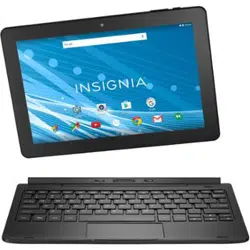
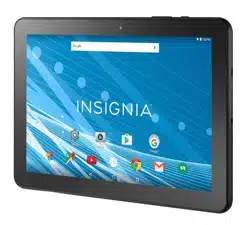
Insignia Flex™ Android Tablet
NS-13T001
Before using your new product, please read these instructions to prevent any damage.
NS-13T001_13-0918_MAN_V3_ENG.fm Page 1 Tuesday, October 22, 2013 10:33 AM

2
NS-13T001 Insignia Flex™ Android Tablet
www.insigniaproducts.com
NS-13T001
Insignia Flex™ Android Tablet
Contents
Important Safety Instructions. . . . . . . . . . . . . . . . . . . . . . . . . . . . . . . . . . . . .4
Welcome . . . . . . . . . . . . . . . . . . . . . . . . . . . . . . . . . . . . . . . . . . . . . . . . . . . . . . . .5
Features . . . . . . . . . . . . . . . . . . . . . . . . . . . . . . . . . . . . . . . . . . . . . . . . . . . . . . . . .6
Top. . . . . . . . . . . . . . . . . . . . . . . . . . . . . . . . . . . . . . . . . . . . . . . . . . . . . . . . .6
Front . . . . . . . . . . . . . . . . . . . . . . . . . . . . . . . . . . . . . . . . . . . . . . . . . . . . . . .7
Back . . . . . . . . . . . . . . . . . . . . . . . . . . . . . . . . . . . . . . . . . . . . . . . . . . . . . . . .8
Package contents . . . . . . . . . . . . . . . . . . . . . . . . . . . . . . . . . . . . . . . . . . .8
Setting up your tablet . . . . . . . . . . . . . . . . . . . . . . . . . . . . . . . . . . . . . . . . . . . .9
Charging the battery. . . . . . . . . . . . . . . . . . . . . . . . . . . . . . . . . . . . . . . .9
Installing the microSD memory card. . . . . . . . . . . . . . . . . . . . . . . .10
Removing a microSD memory card . . . . . . . . . . . . . . . . . . . . . . . . .11
Connecting headphones . . . . . . . . . . . . . . . . . . . . . . . . . . . . . . . . . . .11
Connecting to a computer . . . . . . . . . . . . . . . . . . . . . . . . . . . . . . . . .12
Turning on your tablet for the first time . . . . . . . . . . . . . . . . . . . . . . . . . .13
Understanding the basics . . . . . . . . . . . . . . . . . . . . . . . . . . . . . . . . . . . . . . .14
Turning your tablet on or off . . . . . . . . . . . . . . . . . . . . . . . . . . . . . . .14
Restarting your tablet . . . . . . . . . . . . . . . . . . . . . . . . . . . . . . . . . . . . . .15
Adjusting the volume . . . . . . . . . . . . . . . . . . . . . . . . . . . . . . . . . . . . . .15
Using gestures to navigate . . . . . . . . . . . . . . . . . . . . . . . . . . . . . . . . .16
Using on-screen function buttons to navigate . . . . . . . . . . . . . .17
Using the keyboard . . . . . . . . . . . . . . . . . . . . . . . . . . . . . . . . . . . . . . . .18
Status area and notifications . . . . . . . . . . . . . . . . . . . . . . . . . . . . . . .19
Checking for updates . . . . . . . . . . . . . . . . . . . . . . . . . . . . . . . . . . . . . .20
Customizing the Home screen. . . . . . . . . . . . . . . . . . . . . . . . . . . . . . . . . . .21
Home screen items . . . . . . . . . . . . . . . . . . . . . . . . . . . . . . . . . . . . . . . .22
Adding an icon to the Home screen . . . . . . . . . . . . . . . . . . . . . . . .22
Adding a widget to the Home screen . . . . . . . . . . . . . . . . . . . . . . .22
Repositioning an item on the Home screen . . . . . . . . . . . . . . . . .22
Deleting an item from the Home screen . . . . . . . . . . . . . . . . . . . .23
Changing the Home screen wallpaper . . . . . . . . . . . . . . . . . . . . . .23
Changing basic settings . . . . . . . . . . . . . . . . . . . . . . . . . . . . . . . . . . . . . . . . .24
Setting the date and time . . . . . . . . . . . . . . . . . . . . . . . . . . . . . . . . . .24
Manually adjusting the screen brightness. . . . . . . . . . . . . . . . . . .27
Adjusting the power saving setting. . . . . . . . . . . . . . . . . . . . . . . . .28
Setting the screen font size. . . . . . . . . . . . . . . . . . . . . . . . . . . . . . . . .30
Selecting the notification ringtone . . . . . . . . . . . . . . . . . . . . . . . . .31
Turning system tones on . . . . . . . . . . . . . . . . . . . . . . . . . . . . . . . . . . .33
Selecting the language your tablet uses to display text. . . . . .34
Selecting the keyboard language. . . . . . . . . . . . . . . . . . . . . . . . . . .36
NS-13T001_13-0918_MAN_V3_ENG.fm Page 2 Tuesday, October 22, 2013 10:33 AM

3
NS-13T001 Insignia Flex™ Android Tablet
www.insigniaproducts.com
Turning Wi-Fi on and connecting to a network . . . . . . . . . . . . . . . . . . .38
Adding a Wi-Fi network . . . . . . . . . . . . . . . . . . . . . . . . . . . . . . . . . . . .40
Checking network status . . . . . . . . . . . . . . . . . . . . . . . . . . . . . . . . . . .42
Creating and managing contacts . . . . . . . . . . . . . . . . . . . . . . . . . . . . . . . .43
Creating a contact . . . . . . . . . . . . . . . . . . . . . . . . . . . . . . . . . . . . . . . . .43
Viewing contacts . . . . . . . . . . . . . . . . . . . . . . . . . . . . . . . . . . . . . . . . . .44
Importing contacts . . . . . . . . . . . . . . . . . . . . . . . . . . . . . . . . . . . . . . . .45
Backing up or syncing contacts. . . . . . . . . . . . . . . . . . . . . . . . . . . . .46
Syncing your data with your Google account . . . . . . . . . . . . . . .48
Using e-mail . . . . . . . . . . . . . . . . . . . . . . . . . . . . . . . . . . . . . . . . . . . . . . . . . . . .50
Setting up an e-mail account . . . . . . . . . . . . . . . . . . . . . . . . . . . . . . .50
Adding another e-mail account . . . . . . . . . . . . . . . . . . . . . . . . . . . .52
Creating and sending an e-mail . . . . . . . . . . . . . . . . . . . . . . . . . . . .53
Viewing incoming e-mails. . . . . . . . . . . . . . . . . . . . . . . . . . . . . . . . . .55
Deleting an e-mail . . . . . . . . . . . . . . . . . . . . . . . . . . . . . . . . . . . . . . . . .56
Editing or deleting an e-mail account. . . . . . . . . . . . . . . . . . . . . . .56
Using Gmail. . . . . . . . . . . . . . . . . . . . . . . . . . . . . . . . . . . . . . . . . . . . . . . . . . . . .57
Setting up a Gmail account. . . . . . . . . . . . . . . . . . . . . . . . . . . . . . . . .57
Creating and sending a Gmail . . . . . . . . . . . . . . . . . . . . . . . . . . . . . .58
Viewing incoming e-mails. . . . . . . . . . . . . . . . . . . . . . . . . . . . . . . . . .60
Deleting a Gmail . . . . . . . . . . . . . . . . . . . . . . . . . . . . . . . . . . . . . . . . . . .60
Connecting to the Internet . . . . . . . . . . . . . . . . . . . . . . . . . . . . . . . . . . . . . .61
Viewing Web pages . . . . . . . . . . . . . . . . . . . . . . . . . . . . . . . . . . . . . . . .61
Searching for text on a Web page. . . . . . . . . . . . . . . . . . . . . . . . . . .63
Copying text on a Web page . . . . . . . . . . . . . . . . . . . . . . . . . . . . . . .63
Checking browser history . . . . . . . . . . . . . . . . . . . . . . . . . . . . . . . . . .64
Clearing browser cache and history. . . . . . . . . . . . . . . . . . . . . . . . .64
Setting the browser home page . . . . . . . . . . . . . . . . . . . . . . . . . . . .64
Downloading apps. . . . . . . . . . . . . . . . . . . . . . . . . . . . . . . . . . . . . . . . .65
Managing bookmarks. . . . . . . . . . . . . . . . . . . . . . . . . . . . . . . . . . . . . .66
Using Bluetooth. . . . . . . . . . . . . . . . . . . . . . . . . . . . . . . . . . . . . . . . . . . . . . . . .67
Using multimedia . . . . . . . . . . . . . . . . . . . . . . . . . . . . . . . . . . . . . . . . . . . . . . .68
Turning the camera on or off . . . . . . . . . . . . . . . . . . . . . . . . . . . . . . .68
Taking pictures . . . . . . . . . . . . . . . . . . . . . . . . . . . . . . . . . . . . . . . . . . . .68
Capturing an image of the current screen. . . . . . . . . . . . . . . . . . .69
Recording video . . . . . . . . . . . . . . . . . . . . . . . . . . . . . . . . . . . . . . . . . . .71
Recording sound. . . . . . . . . . . . . . . . . . . . . . . . . . . . . . . . . . . . . . . . . . .72
Opening the Gallery screen . . . . . . . . . . . . . . . . . . . . . . . . . . . . . . . .73
Viewing pictures . . . . . . . . . . . . . . . . . . . . . . . . . . . . . . . . . . . . . . . . . . .74
Cropping a picture . . . . . . . . . . . . . . . . . . . . . . . . . . . . . . . . . . . . . . . . .75
Sending a picture using e-mail or Gmail . . . . . . . . . . . . . . . . . . . .76
Watching video . . . . . . . . . . . . . . . . . . . . . . . . . . . . . . . . . . . . . . . . . . . .76
Sharing a video using e-mail or Gmail . . . . . . . . . . . . . . . . . . . . . .76
Listening to music . . . . . . . . . . . . . . . . . . . . . . . . . . . . . . . . . . . . . . . . .77
Playing songs in random order . . . . . . . . . . . . . . . . . . . . . . . . . . . . .78
Creating a playlist. . . . . . . . . . . . . . . . . . . . . . . . . . . . . . . . . . . . . . . . . .78
Managing playlists . . . . . . . . . . . . . . . . . . . . . . . . . . . . . . . . . . . . . . . . .79
NS-13T001_13-0918_MAN_V3_ENG.fm Page 3 Tuesday, October 22, 2013 10:33 AM

4
NS-13T001 Insignia Flex™ Android Tablet
www.insigniaproducts.com
Protecting your data and tablet. . . . . . . . . . . . . . . . . . . . . . . . . . . . . . . . . .80
Using the screen lock . . . . . . . . . . . . . . . . . . . . . . . . . . . . . . . . . . . . . .80
Creating a screen unlock pattern . . . . . . . . . . . . . . . . . . . . . . . . . . .81
Encrypting your tablet or microSD memory card . . . . . . . . . . . .83
Managing storage space . . . . . . . . . . . . . . . . . . . . . . . . . . . . . . . . . . . . . . . .86
Viewing available storage space . . . . . . . . . . . . . . . . . . . . . . . . . . . .86
Clearing application cache and data . . . . . . . . . . . . . . . . . . . . . . . .87
Uninstalling an application. . . . . . . . . . . . . . . . . . . . . . . . . . . . . . . . .88
Freeing up internal or microSD memory card storage space .90
Resetting your tablet to the default settings . . . . . . . . . . . . . . . .90
Troubleshooting . . . . . . . . . . . . . . . . . . . . . . . . . . . . . . . . . . . . . . . . . . . . . . . .92
Maintaining. . . . . . . . . . . . . . . . . . . . . . . . . . . . . . . . . . . . . . . . . . . . . . . . . . . . .94
Specifications . . . . . . . . . . . . . . . . . . . . . . . . . . . . . . . . . . . . . . . . . . . . . . . . . . .94
Legal notices. . . . . . . . . . . . . . . . . . . . . . . . . . . . . . . . . . . . . . . . . . . . . . . . . . . .95
Important Safety Instructions
1 Read these instructions.
2 Keep these instructions.
3 Heed all warnings.
4 Follow all instructions.
5 Do not use this apparatus near water.
6 Clean only with dry cloth.
7 Do not block any ventilation openings. Install in accordance with the
manufacturer's instructions.
8 Protect the power cord from being walked on or pinched particularly
at plugs, convenience receptacles, and the point where they exit from
the apparatus.
9 Only use attachments/accessories specified by the manufacturer.
10 Unplug this apparatus during lightning storms or when unused for
long periods of time.
11 Refer all servicing to qualified service personnel. Servicing is required
when the apparatus has been damaged in any way, such as
power-supply cord or plug is damaged, liquid has been spilled or
objects have fallen into the apparatus, the apparatus has been
exposed to rain or moisture, does not operate normally, or has been
dropped.
NS-13T001_13-0918_MAN_V3_ENG.fm Page 4 Tuesday, October 22, 2013 10:33 AM

5
NS-13T001 Insignia Flex™ Android Tablet
www.insigniaproducts.com
12 To reduce the risk of fire or electric shock, do not expose this device to
rain, moisture, dripping, or splashing, and no objects filled with liquids,
such as vases, shall be placed on it.
13 An apparatus with a three-prong, grounding-type plug is a Class I
apparatus, which needs to be grounded to prevent possible electric
shock. Make sure that you connect this Class I device to a
grounding-type, three-prong outlet.
14 Batteries should not be exposed to excessive heat such as sunshine,
fire, or the like.
Welcome
Congratulations on your purchase of a high-quality Insignia product. Your
Insignia Flex Tablet represents the state of the art in Android tablet
design, and is designed for reliable and trouble-free performance.
NS-13T001_13-0918_MAN_V3_ENG.fm Page 5 Tuesday, October 22, 2013 10:33 AM
6
NS-13T001 Insignia Flex™ Android Tablet
www.insigniaproducts.com
Features
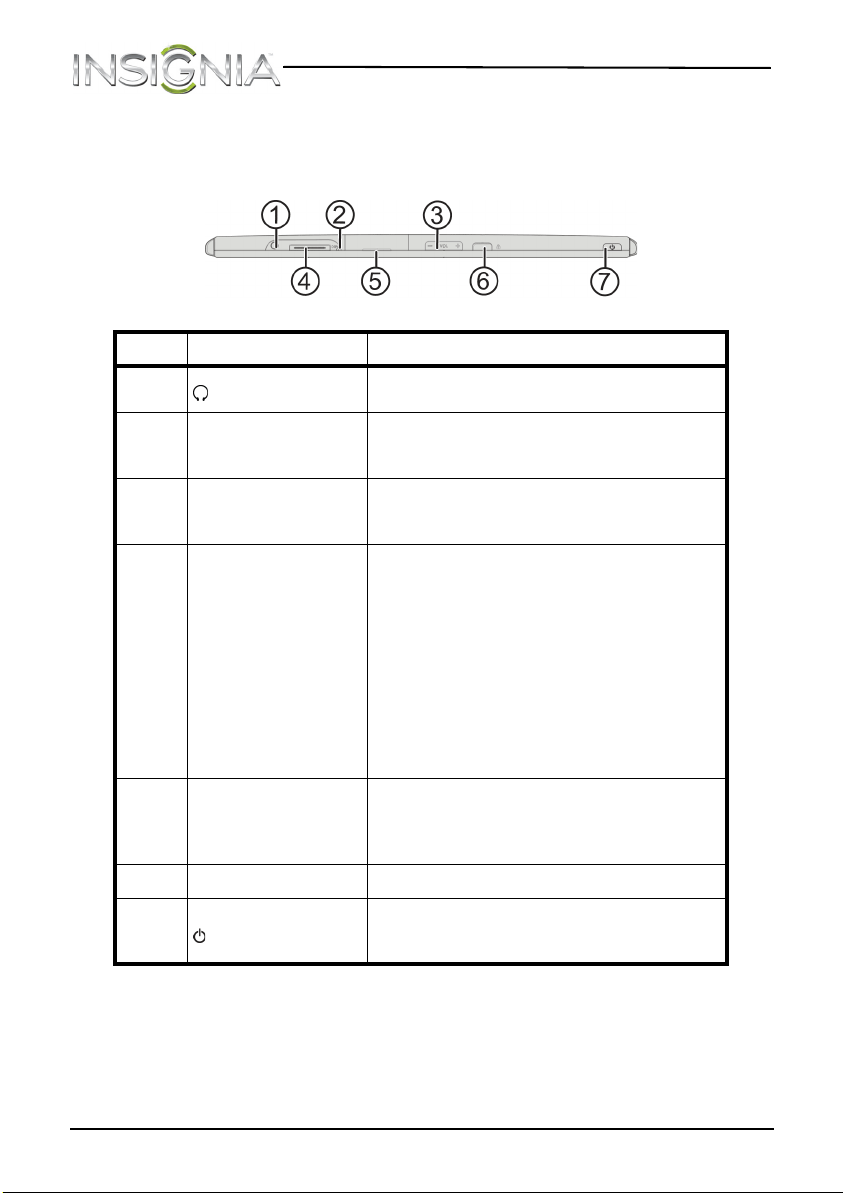
Top
#Item Description
1
(headphone jack)
Plug headphones into this jack. For more
information, see “
Connecting headphones
.”
2 Microphone
Speak into the microphone when you are
making a phone call or performing a voice
search on Google.
3 VOL+/–
Press to increase or decrease the speaker
volume. For more information, see
“Adjusting the volume.”
4 30-pin connector
Plug the 30-pin connector to USB cable
into this port.
To charge the battery, plug the other end
of the cable into the USB power adapter,
then plug the power adapter into a power
outlet. For more information, see
“Charging the battery.”
To connect your tablet to a computer, plug
the other end of the cable into a USB port
on the computer. For more information,
see “Connecting to a computer.”
5 microSD™ card slot
Insert a microSD™ memory card into this
slot to expand the storage capacity of your
tablet. For more information, see
“Installing the microSD memory card.”
6 Screen rotation lock
Enables or disables screen rotation.
7
(power button)
Press this button to turn your tablet on or
off or to turn the screen on or off. See
“Turning your tablet on or off.”
NS-13T001_13-0918_MAN_V3_ENG.fm Page 6 Tuesday, October 22, 2013 10:33 AM
7
NS-13T001 Insignia Flex™ Android Tablet
www.insigniaproducts.com
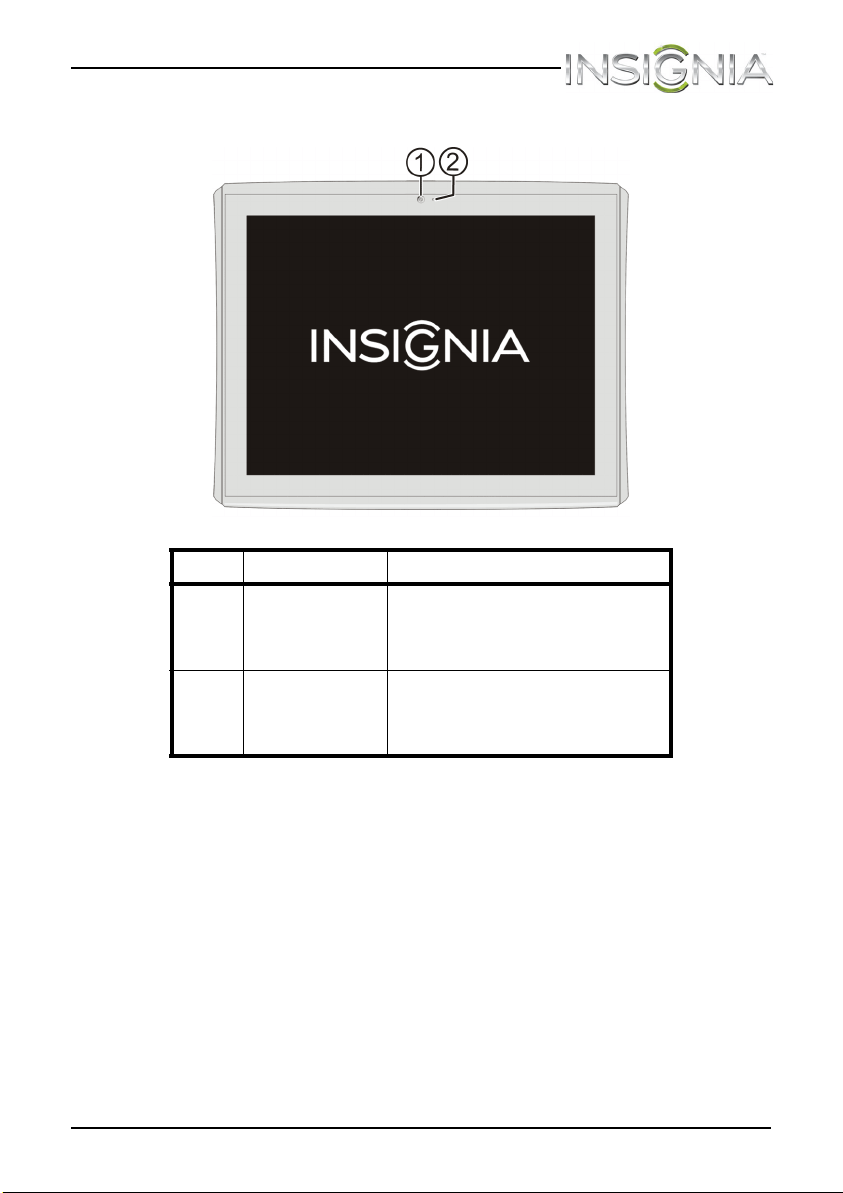
Front
#Item Description
1 Camera
Use the camera to take pictures
or record video. For more
information, see “Taking
pictures” or “Recording video.”
2
Ambient light
sensor
When turned on, the sensor
automatically adjusts the screen
brightness based on the
surrounding light level.
NS-13T001_13-0918_MAN_V3_ENG.fm Page 7 Tuesday, October 22, 2013 10:33 AM
8
NS-13T001 Insignia Flex™ Android Tablet
www.insigniaproducts.com
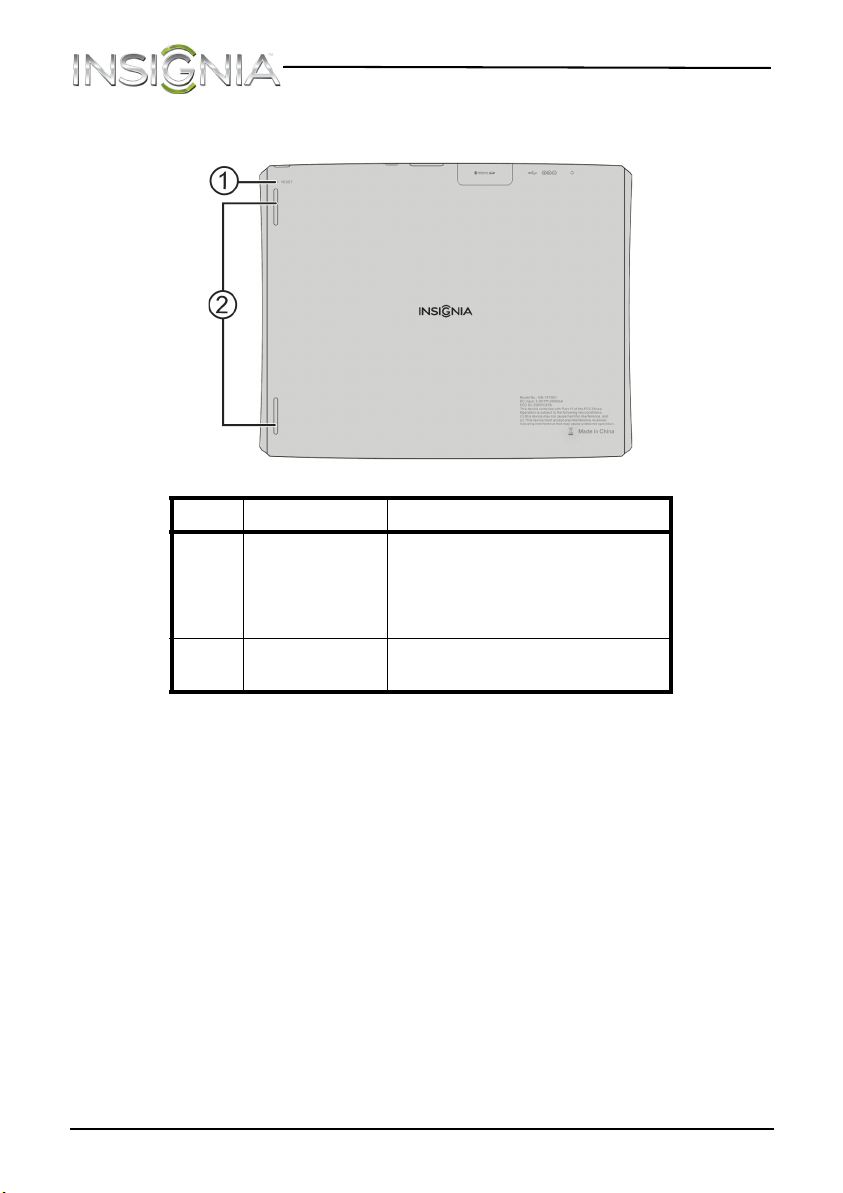
Back
Package contents
• Insignia Flex™ Android Tablet
• Wall charger
• USB data transfer cable
•Cleaning cloth
•QUICK SETUP GUIDE
• IMPORTANT INFORMATION
#Item Description
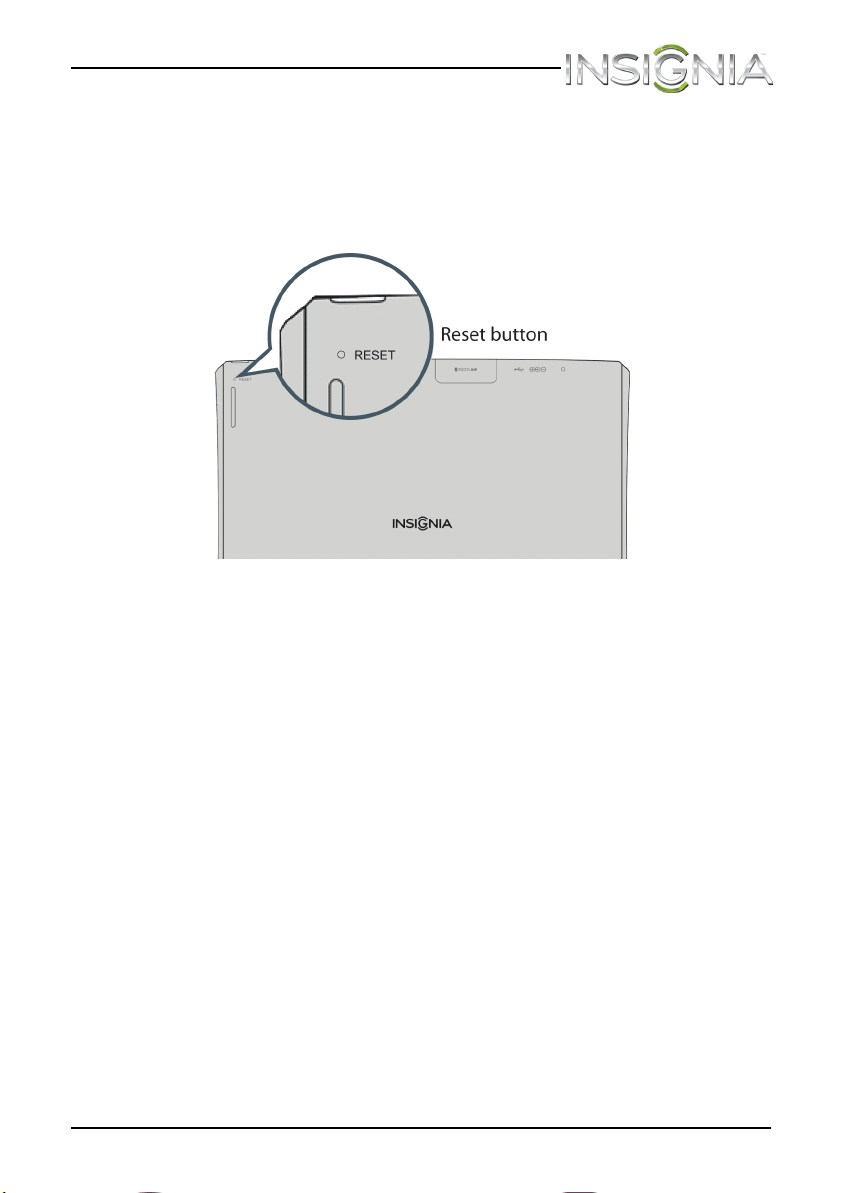
1 Reset button
Press this button if your tablet is
not responding. Your tablet
restarts automatically. For more
information, see “Restarting your
tablet.”
2 Speakers
Play sounds produced by your
tablet.
NS-13T001_13-0918_MAN_V3_ENG.fm Page 8 Tuesday, October 22, 2013 10:33 AM
9
NS-13T001 Insignia Flex™ Android Tablet
www.insigniaproducts.com
Setting up your tablet
Charging the battery
Your tablet has a built-in battery. The battery can only be replaced by the
original manufacturer.
Before using your tablet for the first time, you need to charge the battery
for a minimum of eight hours.
Warnings:
• Do not crush, puncture, short external contacts, or dispose of battery
in fire or water.
• Do not expose to temperatures above 60°C (140°F).
• Recycle or dispose of used battery as stipulated by local regulations.
To charge the battery:
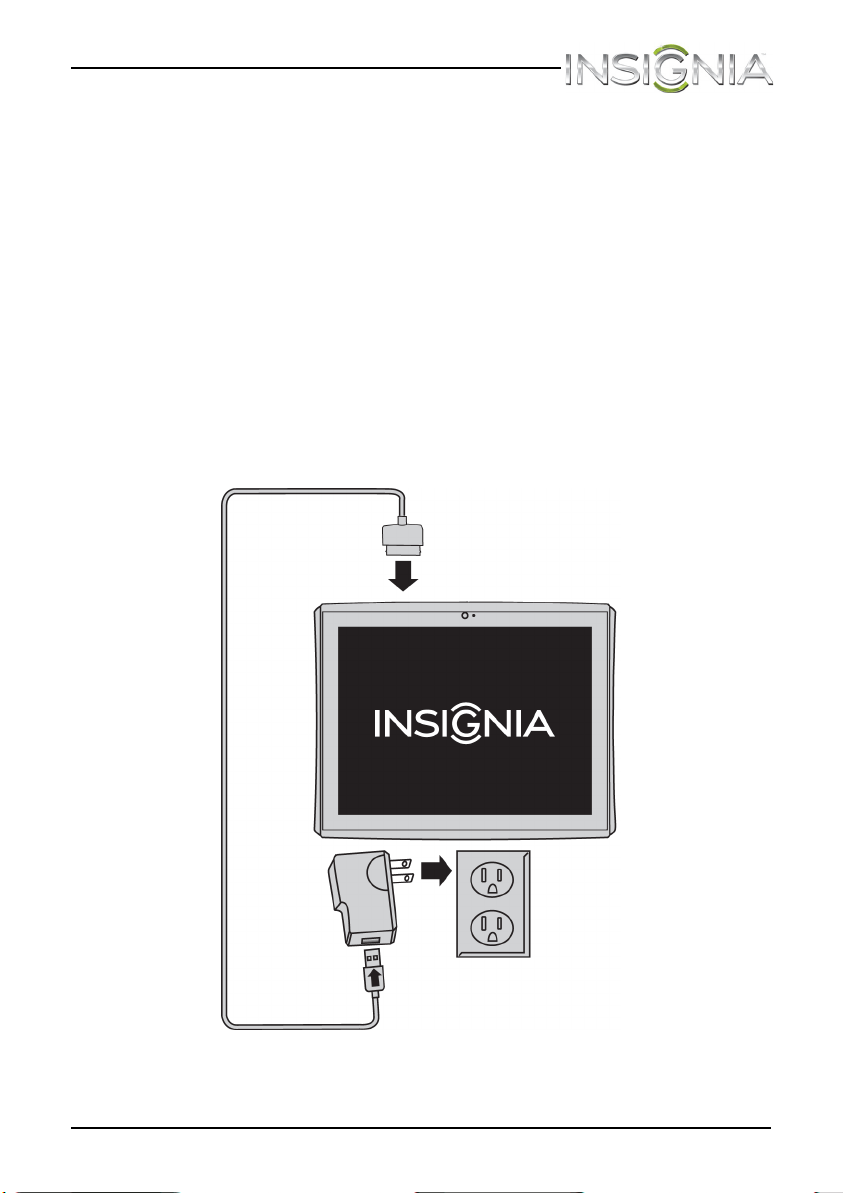
1 Insert the 30-pin connector into your tablet’s 30-pin connector port.
2 Insert the USB connector into the wall charger.
NS-13T001_13-0918_MAN_V3_ENG.fm Page 9 Tuesday, October 22, 2013 10:33 AM
10
NS-13T001 Insignia Flex™ Android Tablet
www.insigniaproducts.com
3 Plug the wall charger into a power outlet to start charging the battery.
When the battery is charging, the (battery charging) icon appears at
the bottom right corner of the screen if your tablet is turned on.
After the battery has been fully charged, the (full battery) icon
appears at the bottom right corner of the screen if your tablet is
turned on.
Caution: Use only the included power adapter to charge your tablet's
battery. Even if a different brand of power adapter has the same type
USB port, using it may damage your tablet.
Notes:
• If the battery does not charge using the included power adapter, use
a small tool (like a straightened paperclip) to press the RESET button
on the back of your tablet.
• Battery performance depends on many factors, including the
network configuration, signal strength, temperature, features or
settings, items attached to ports, and usage of programs or
functions.
• Your tablet's battery provides approximately six to eight hours of
video playback or several days of power depending on usage type.
Installing the microSD memory card
Your tablet’s internal storage capacity is 8 GB. You can install a microSD™
memory card with up to 32 GB to save more pictures, music, and
applications.
To install the microSD memory card:
1 Make sure that your tablet is turned off.
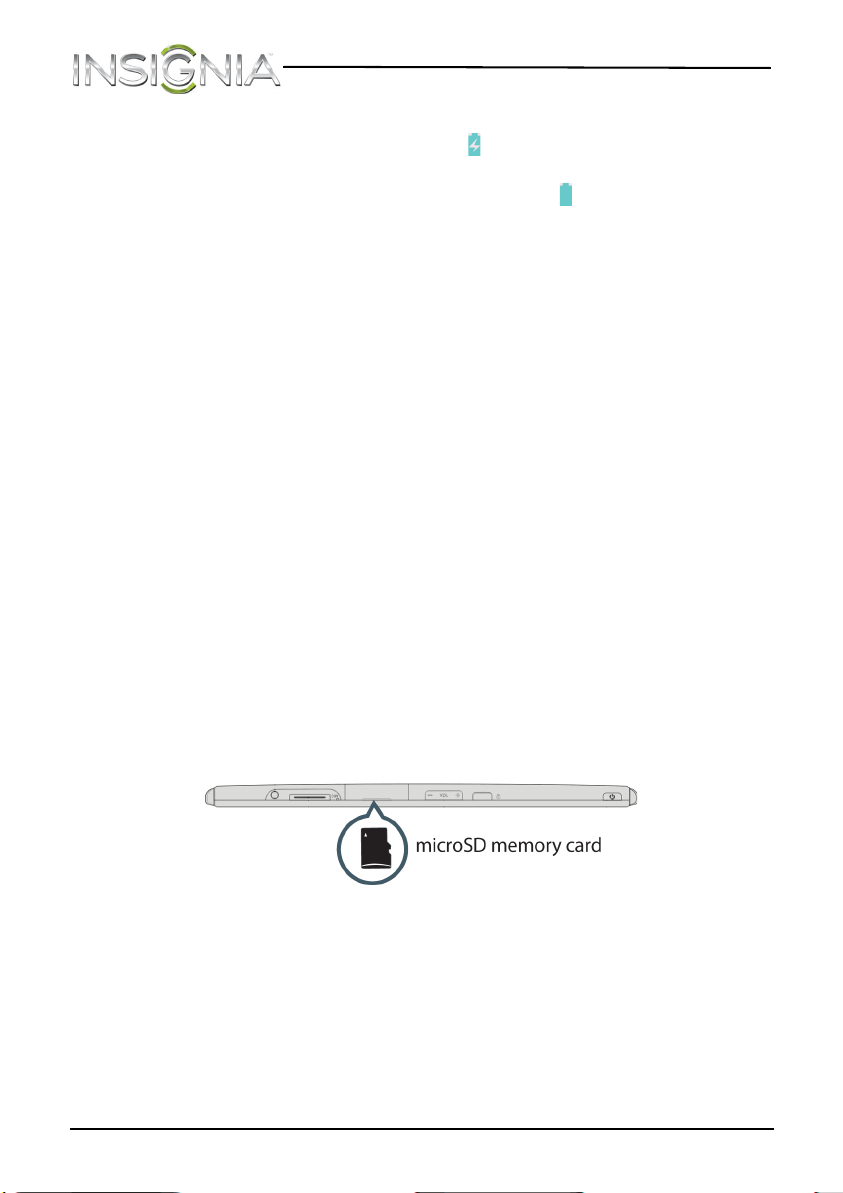
2 Locate the microSD memory card slot, then open the slot door.
3 Insert the microSD memory card into the slot with the narrow side of
the card pointing toward the slot and the label facing up.
4 Close the slot door.
For instructions on removing the microSD memory card, see “Removing a
microSD memory card.”
NS-13T001_13-0918_MAN_V3_ENG.fm Page 10 Tuesday, October 22, 2013 10:33 AM
11
NS-13T001 Insignia Flex™ Android Tablet
www.insigniaproducts.com
Removing a microSD memory card
To remove a microSD memory card:
1 On the Home screen, touch the (applications) icon.
2 Touch the (settings) icon, touch Storage, then touch Unmount
SD Card. A message asks you to confirm the card removal.
3 Touch OK.
Note: Some applications may stop and be unavailable until you insert
the SD card again.
4 Open the microSD memory slot door, push the microSD memory card
to eject it from the slot, then pull the card out of the slot and close the
slot door.
Connecting headphones
Note: When headphones are plugged in, the tablet speakers are muted.
To connect headphones:
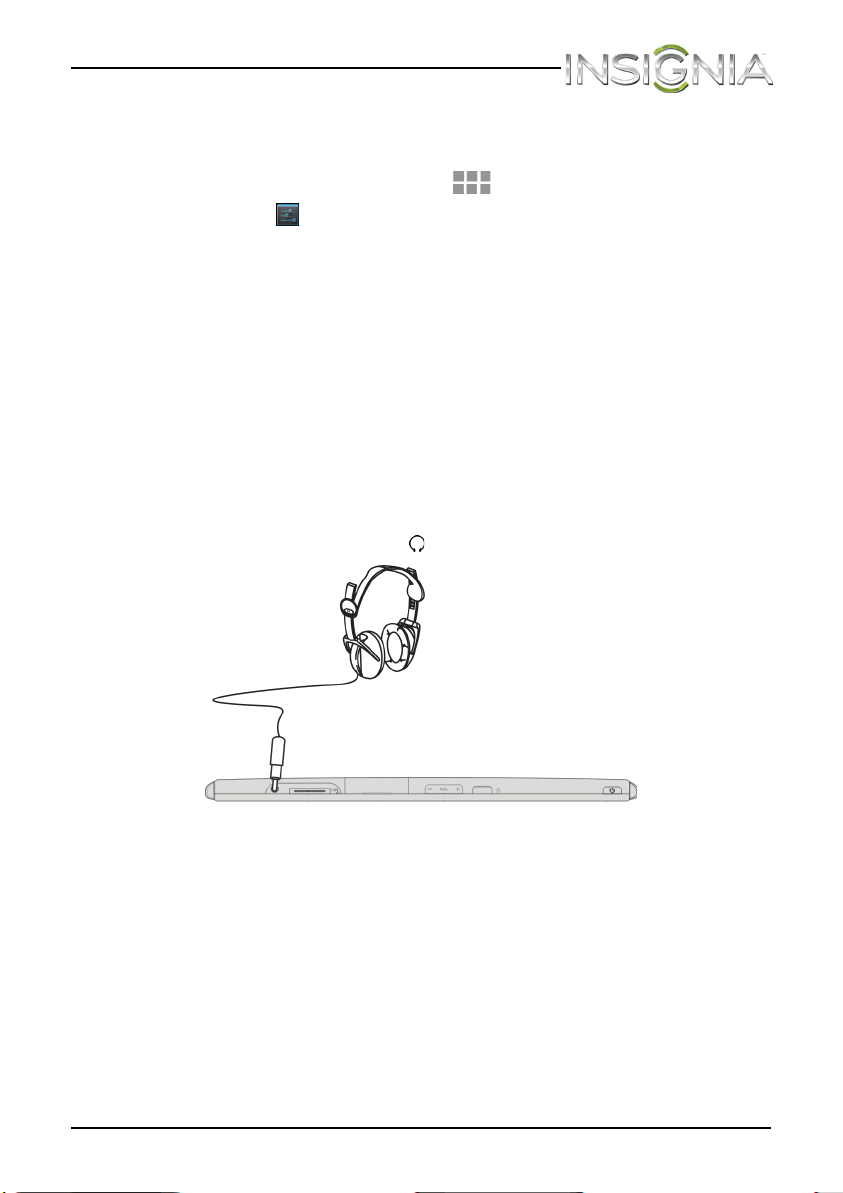
• Plug headphones into the (headphone) jack.
NS-13T001_13-0918_MAN_V3_ENG.fm Page 11 Tuesday, October 22, 2013 10:33 AM
12
NS-13T001 Insignia Flex™ Android Tablet
www.insigniaproducts.com
Connecting to a computer
Note: If the computer’s operating system is Windows XP or an older
version of Windows, you need to install Windows Media Player 11 on the
computer.
To connect to a computer:
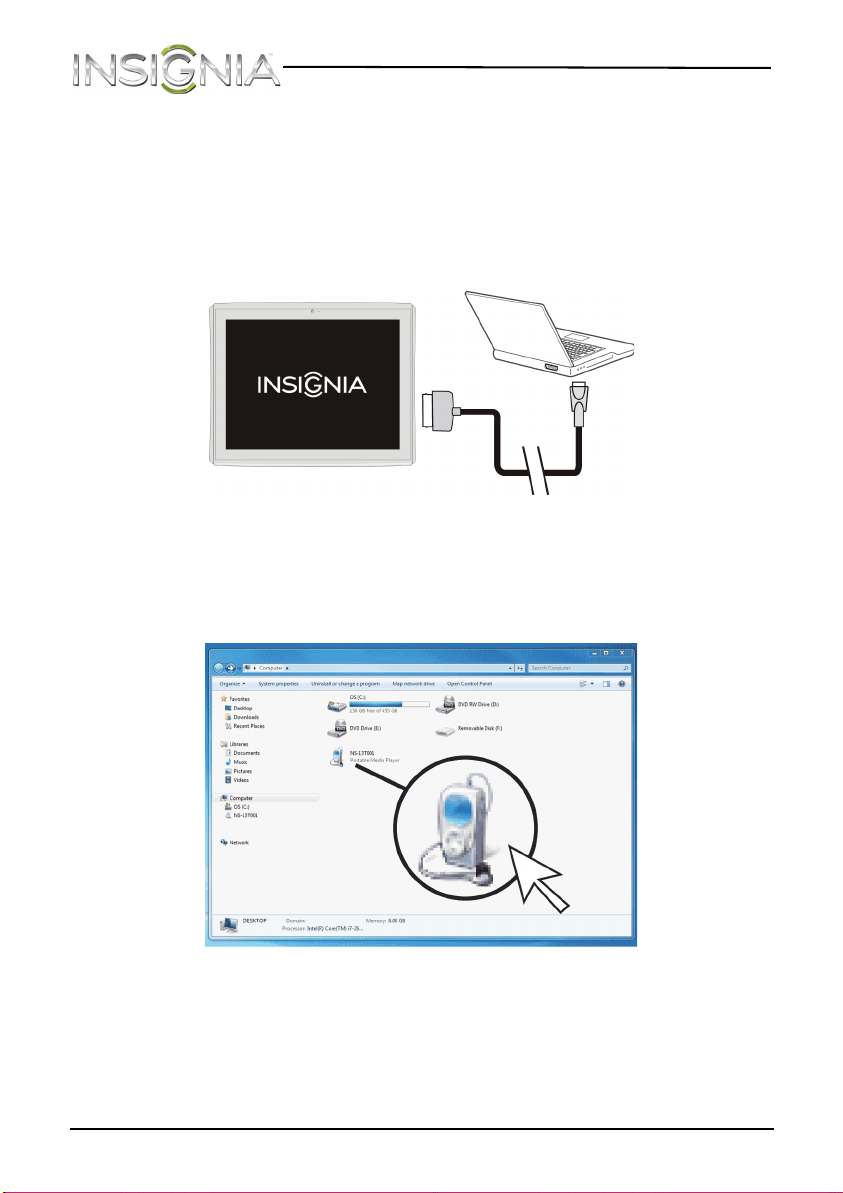
1 Insert the 30-pin connector into your tablet’s 30-pin connector port.
2 Plug the other end of the cable into a USB port on the computer.
3 On the computer, open Computer or My Computer, then select the
NS-13T001 icon to view files on your tablet or to transfer files
between your tablet and your computer.
4 When you are finished, unplug the cable from your tablet and the
computer.
NS-13T001_13-0918_MAN_V3_ENG.fm Page 12 Tuesday, October 22, 2013 10:33 AM
13
NS-13T001 Insignia Flex™ Android Tablet
www.insigniaproducts.com
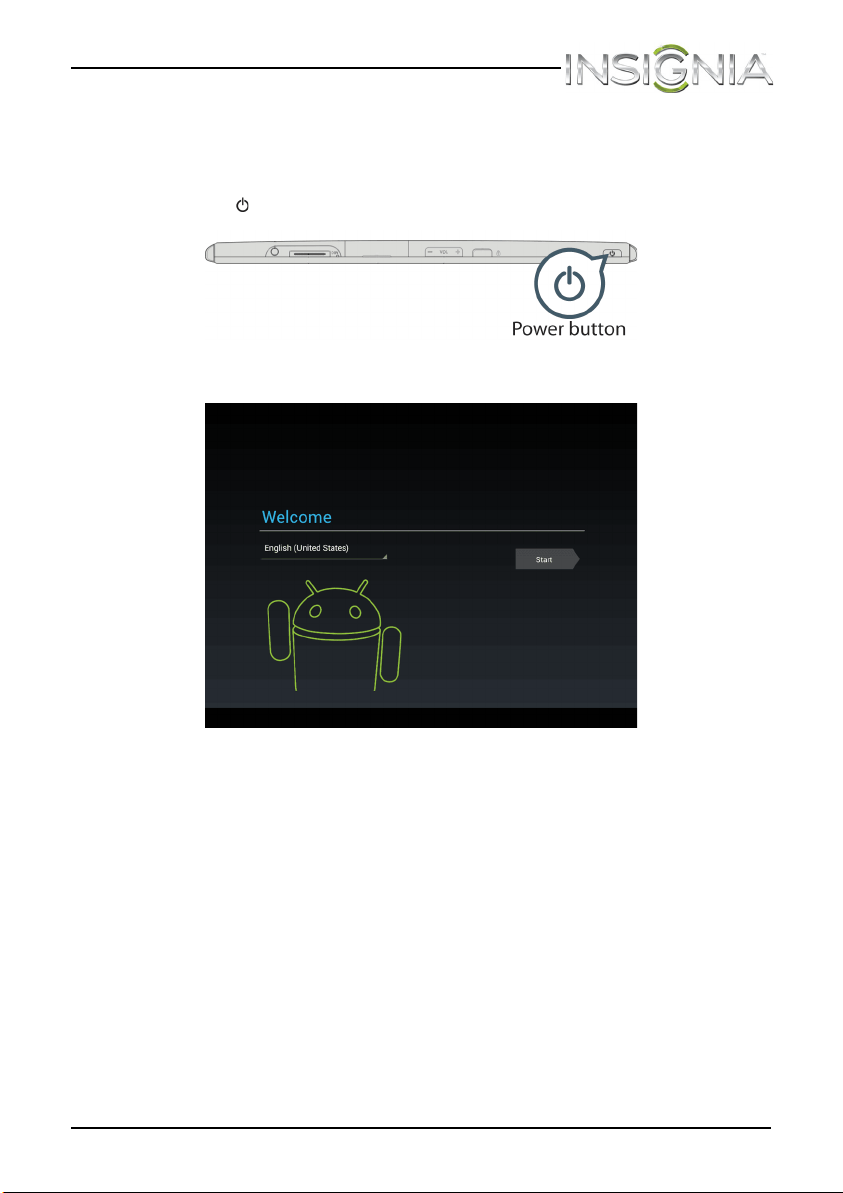
Turning on your tablet for the first time
To set up for the first time:
1 Press (power).
The Welcome screen opens.
2 Follow the on-screen instructions to select your language, connect to
the Internet, set the date and time, and sign in to your Google account.
Note: You can use your tablet without connecting to the Internet and
signing in to your Google account, but you will not be able to use the
Playstore and you will not receive software updates.
NS-13T001_13-0918_MAN_V3_ENG.fm Page 13 Tuesday, October 22, 2013 10:33 AM
14
NS-13T001 Insignia Flex™ Android Tablet
www.insigniaproducts.com
Understanding the basics
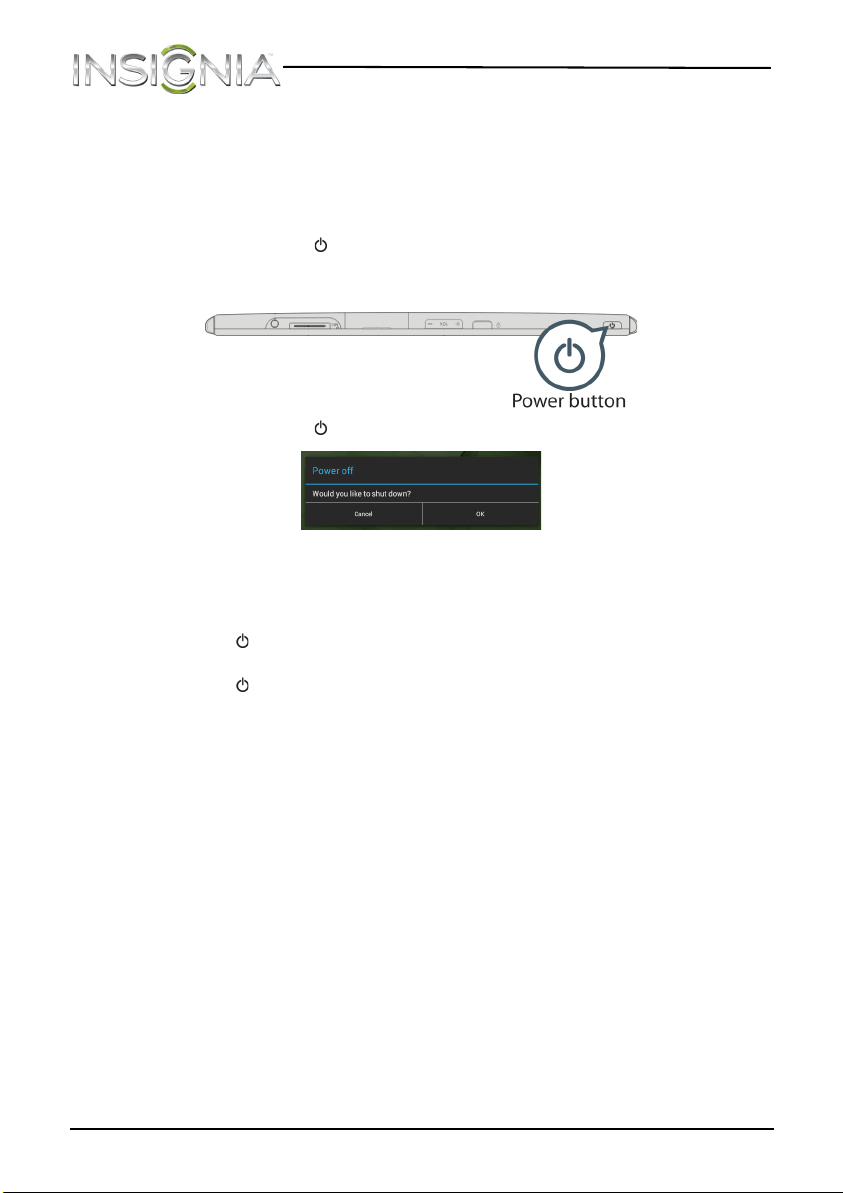
Turning your tablet on or off
To turn on your tablet:
• Press and hold (power) until your tablet turns on.
To turn off your tablet:
1 Press and hold (power) until the options menu opens.
2 On the options menu, touch OK to turn off your tablet.
To turn the screen on or off:
• Press (power). The screen turns off and your tablet enters standby
mode.
• Press (power) again to turn the screen back on.
NS-13T001_13-0918_MAN_V3_ENG.fm Page 14 Tuesday, October 22, 2013 10:33 AM
15
NS-13T001 Insignia Flex™ Android Tablet
www.insigniaproducts.com
Restarting your tablet
To restart your tablet:
• If your tablet is not responding, use a small tool (like a straightened
paperclip) to press the RESET button. Your tablet automatically
restarts.
Adjusting the volume
To adjust the volume:
• Press the VOL+ or VOL– button.
NS-13T001_13-0918_MAN_V3_ENG.fm Page 15 Tuesday, October 22, 2013 10:33 AM
16
NS-13T001 Insignia Flex™ Android Tablet
www.insigniaproducts.com
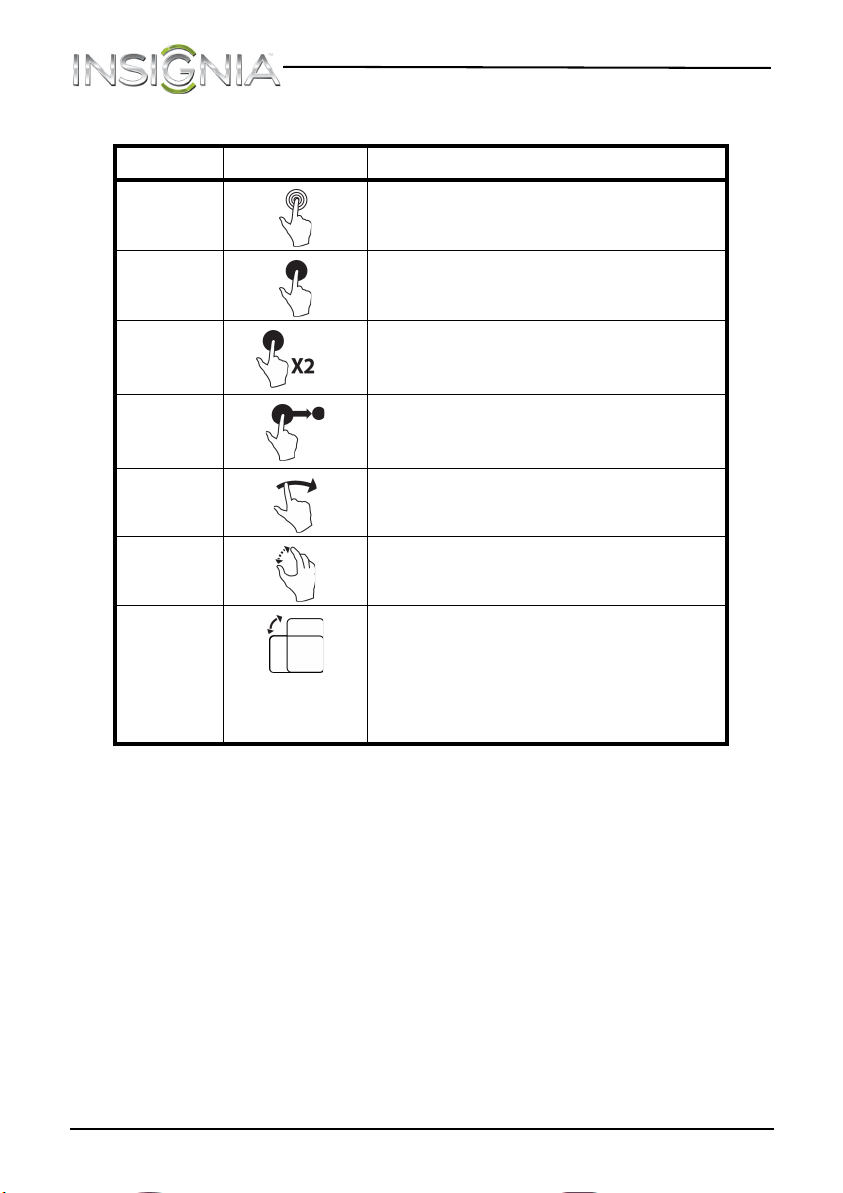
Using gestures to navigate
Action Description
Touch
Touch an application or other item with
your finger to open or select it.
Touch and
hold
Touch an item with your finger and hold it
until your tablet responds.
Double
touch
Quickly touch an item on the screen twice.
Drag
Touch and hold an item with your finger,
then move your finger to the position
where you want the item.
Flick
Quickly slide your finger either vertically
or horizontally across the screen.
Pinch
Pinch your fingers together or move them
apart.
Rotate
To change the screen orientation from
portrait to landscape (or from landscape
to portrait) turn your tablet sideways.
Tip: When entering text, you can turn the
tablet sideways to switch to landscape
mode and make the keyboard bigger.
NS-13T001_13-0918_MAN_V3_ENG.fm Page 16 Tuesday, October 22, 2013 10:33 AM
17
NS-13T001 Insignia Flex™ Android Tablet
www.insigniaproducts.com
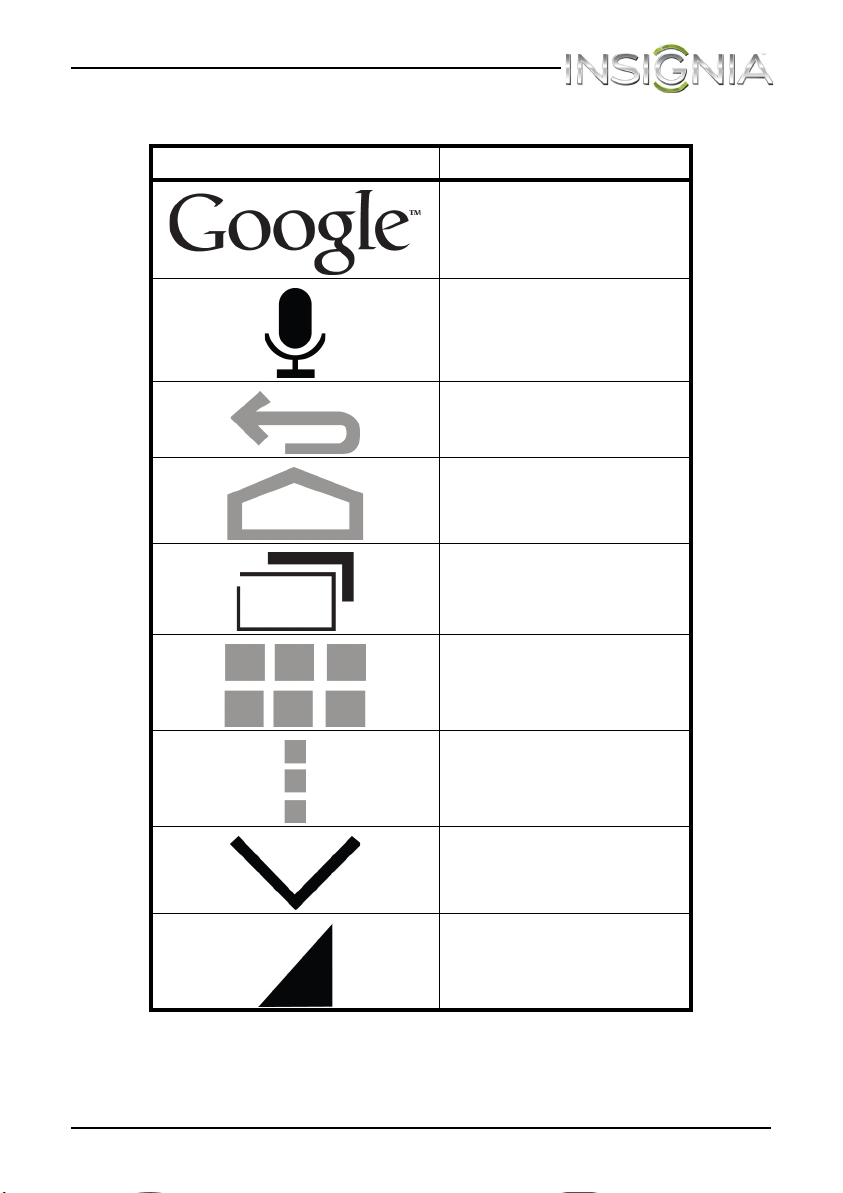
Using on-screen function buttons to navigate
Icon Touch to...
Start a text search on Google.
Start a voice search on
Google.
Return to the previous
screen.
Return to the Home screen.
Open the list of recently used
applications and running
applications.
View all applications installed
on your tablet.
Open the options menu.
Close the keyboard.
Open a drop-down menu.
NS-13T001_13-0918_MAN_V3_ENG.fm Page 17 Tuesday, October 22, 2013 10:33 AM
18
NS-13T001 Insignia Flex™ Android Tablet
www.insigniaproducts.com
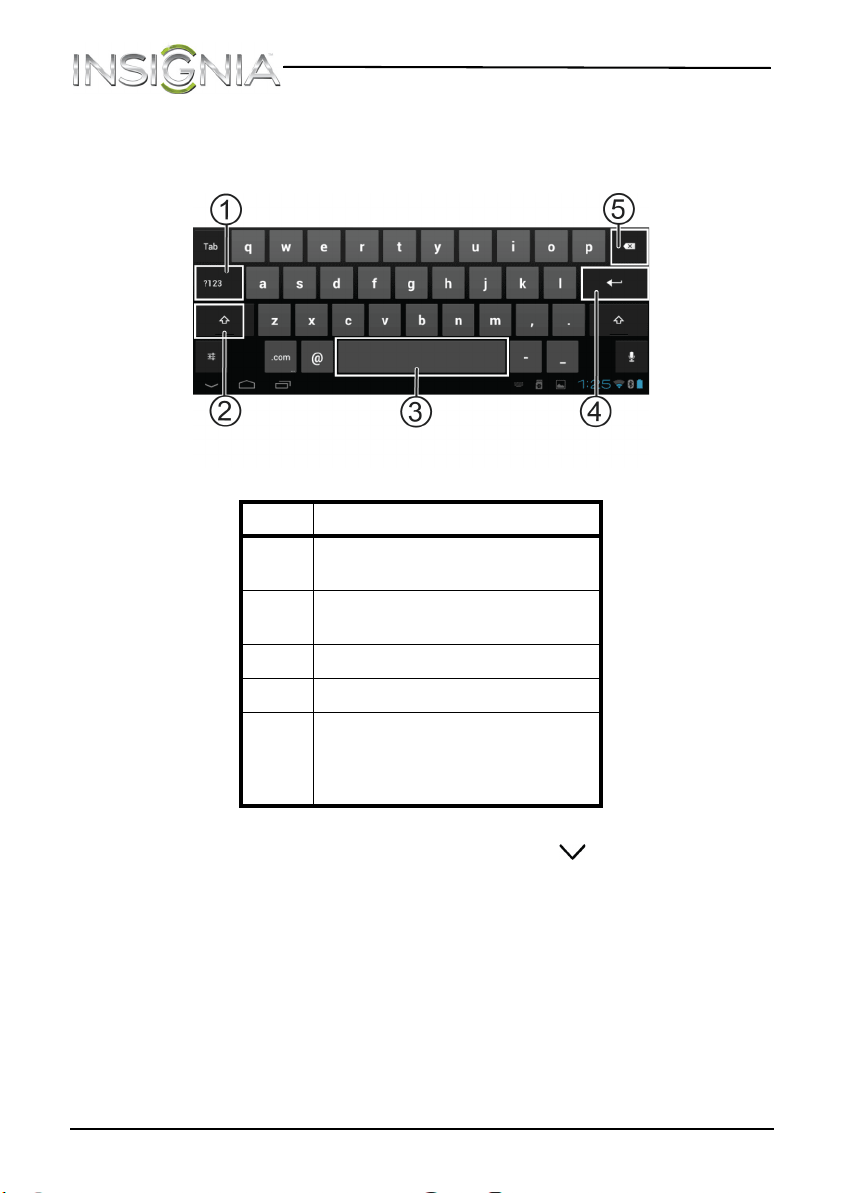
Using the keyboard
When you start a program or select an item that requires text or numbers,
the on-screen keyboard opens.
Keyboard tips:
• When you don’t need the keyboard, press in the lower left corner
of the screen to close the keyboard.
• To open the keyboard, touch an item that requires text or numbers.
• To delete a character, touch to the right of the character you want to
delete, then touch the delete key (5).
• To insert a character, touch the character to the left of where you
want to insert the character, then touch the character you want to
insert.
#Touch to...
1
Switch between number/symbol
mode and text mode.
2
Switch between uppercase and
lowercase letters.
3 Enter a space.
4 Start a new line.
5
Delete a character to the left of
the cursor. Touch and hold to
delete all the characters to the
left of the cursor.
NS-13T001_13-0918_MAN_V3_ENG.fm Page 18 Tuesday, October 22, 2013 10:33 AM
19
NS-13T001 Insignia Flex™ Android Tablet
www.insigniaproducts.com
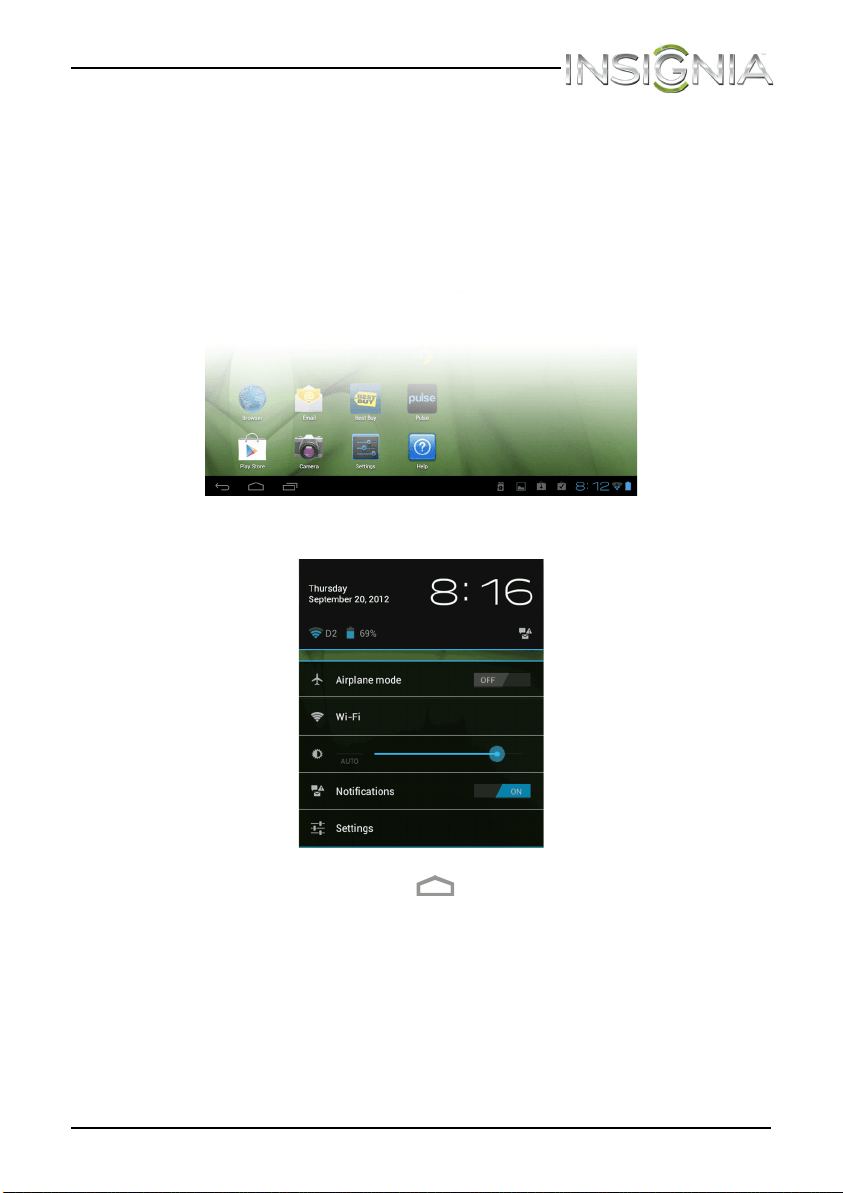
Status area and notifications
At the bottom, right corner of the screen is the status area. Notifications,
such as Wi-Fi connection, battery, and time, are displayed in this area.
To view a status item or notification:
1 Touch the status bar in the lower right corner of the screen to expand
the window.
2 Touch again to access the notification and setting options.
3 When you finish, touch the (home) icon to return to the Home
screen.
NS-13T001_13-0918_MAN_V3_ENG.fm Page 19 Tuesday, October 22, 2013 10:33 AM
20
NS-13T001 Insignia Flex™ Android Tablet
www.insigniaproducts.com
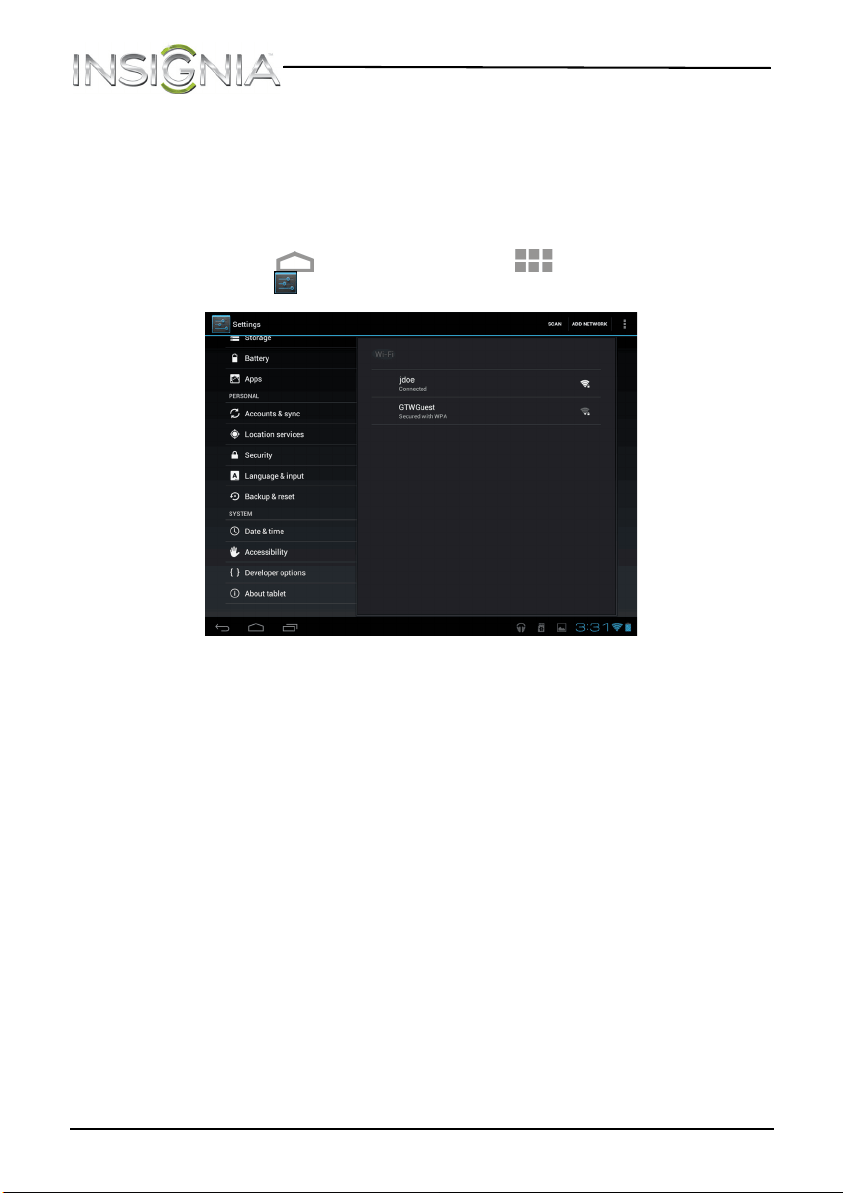
Checking for updates
You can check for available firmware updates on your tablet, then
download and install them. Installing updates makes sure that your tablet
has the most up-to-date software.
To check for updates:
1 Touch the (home) icon, touch the (applications) icon, then
touch the (settings) icon. The Settings screen opens.
2 Drag the screen up, touch About Tablet, then touch System updates.
The Update Center screen opens, and your tablet checks for updates.
3 If an update is available, follow the on-screen instructions to download
and install the update.
NS-13T001_13-0918_MAN_V3_ENG.fm Page 20 Tuesday, October 22, 2013 10:33 AM
21
NS-13T001 Insignia Flex™ Android Tablet
www.insigniaproducts.com
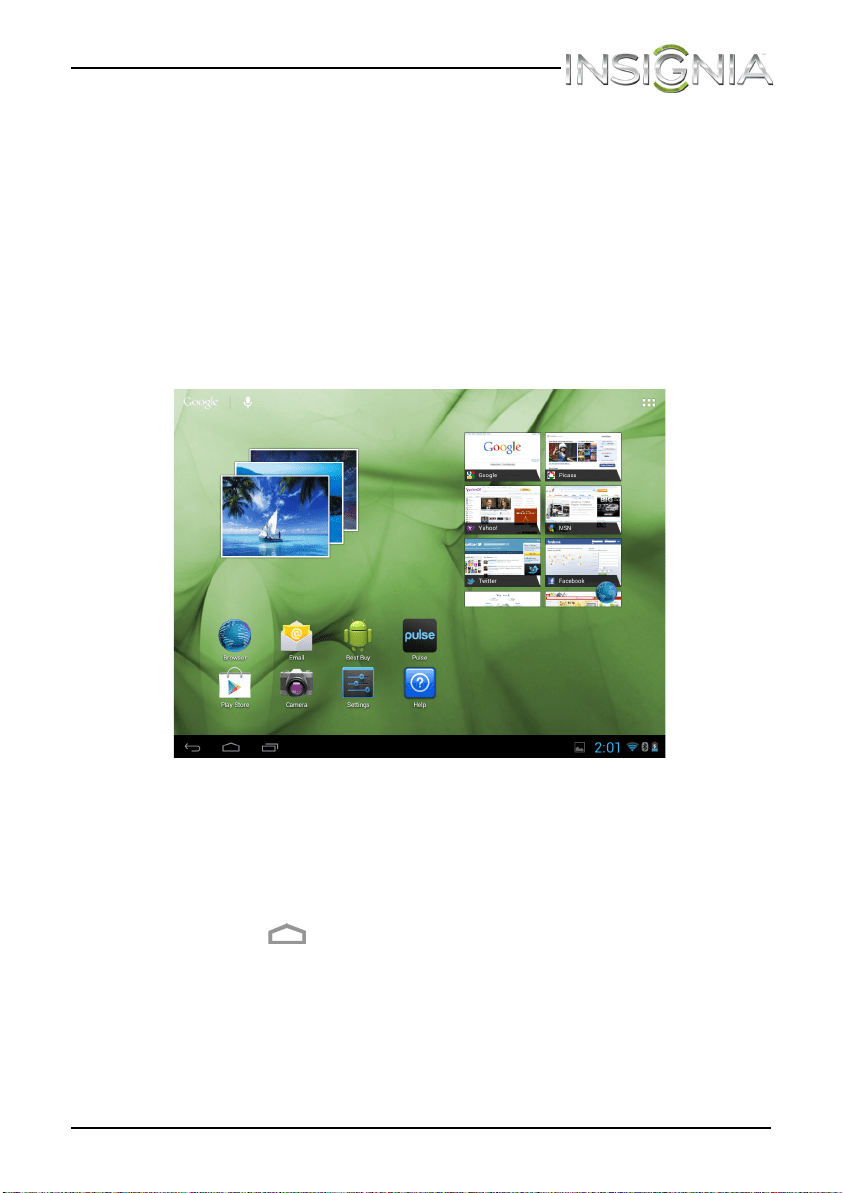
Customizing the Home screen
The Home screen is your starting point for using the applications on your
tablet. You can customize the Home screen to display application icons,
shortcuts, folders, and widgets.
A widget is a small, stand-alone application that you can place on the
Home screen to let you access a favorite feature. Your tablet comes with
several widgets already installed, either on the main Home screen or one
of the extended Home screens.
Like a widget, an app shortcut lets you quickly access a favorite feature like
the Gallery. An app shortcut can also quickly open a favorite application.
You can add an app shortcut to any Home screen.
The Home screen extends beyond the screen width to provide more
space for adding icons, widgets, and more.
To use the extended Home screen:
• Slide your finger horizontally across the screen (to the left or the right)
to access the extended screens to the left or right of the Home screen.
• Press the (home) icon to go back to the main screen.
Your tablet provides two extended screens to the left and right of the
Home screen, for a total of five screens.
NS-13T001_13-0918_MAN_V3_ENG.fm Page 21 Tuesday, October 22, 2013 10:33 AM
22
NS-13T001 Insignia Flex™ Android Tablet
www.insigniaproducts.com
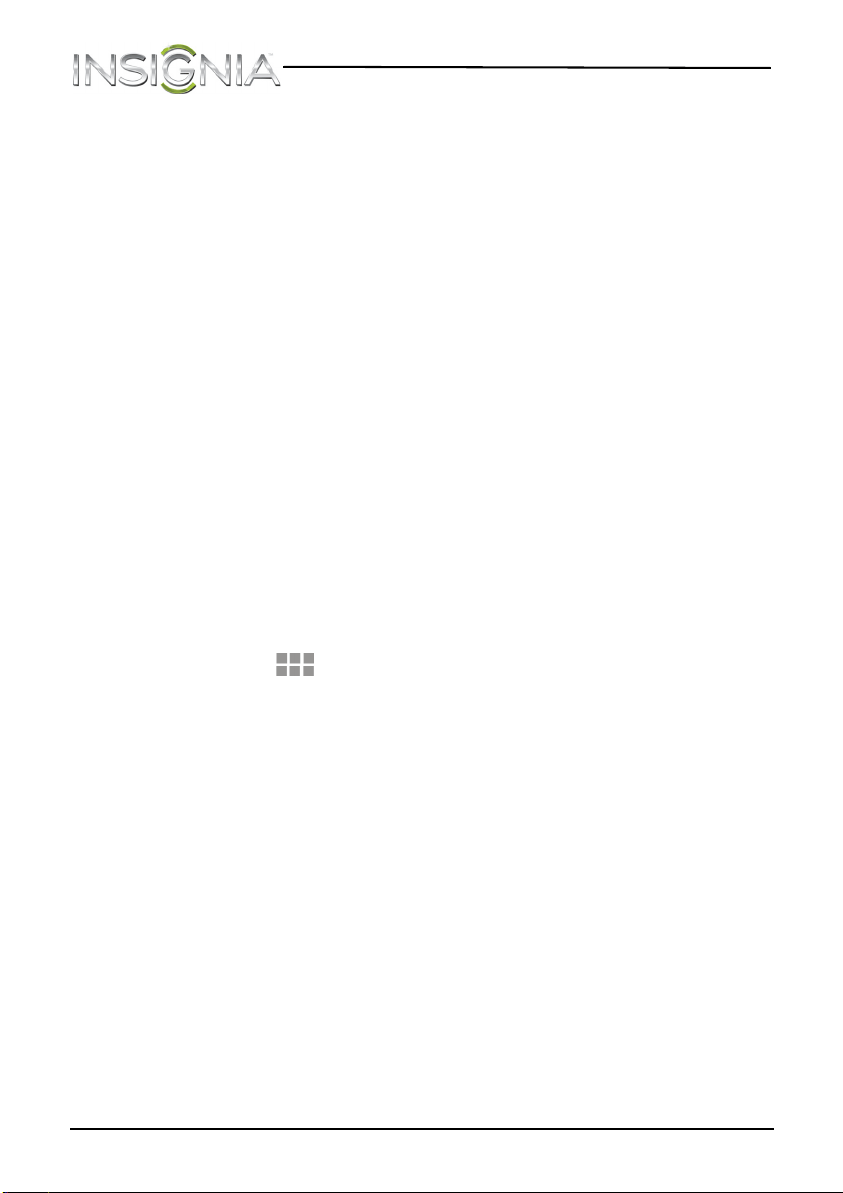
Home screen items
Items displayed on the Home screen include:
Apps—Add shortcuts such as an application, a bookmarked web page, a
favorite contact, an email label, or a music playlist.
Widgets—Add wireless manager, profile mode, clock, Facebook widget,
Weather widget, music player, FM player, picture frame, Google Search
bar, power control, or a calendar that shows upcoming appointments.
Wallpapers—Change the Home screen wallpaper.
Adding an icon to the Home screen
To add an icon to the Home screen:
1 Make sure that the home screen you want to add an icon to is
displayed.
2 On the Applications screen, touch and hold the icon you want to add.
The Applications screen closes.
3 Drag the icon to the location you want on any extended Home screen,
then release the icon.
Adding a widget to the Home screen
To add a widget to the Home screen:
1 Touch the (applications) icon, then touch WIDGETS.
2 Touch and hold the widget you want to add. The Widgets screen
closes.
3 Drag the widget to the location you want on any extended Home
screen, then release the widget.
Repositioning an item on the Home screen
To reposition an item on the Home screen:
1 Touch and hold the item on the screen to activate move mode.
2 Without lifting your finger, drag the item to the position where you
want it, then lift your finger.
Tip: To move an item from the Home screen to an extended Home
screen, touch and hold the item, then drag it to the left or right edge of
the screen until the display shifts to the extended Home screen. Position
the item on the screen, and then lift your finger.
NS-13T001_13-0918_MAN_V3_ENG.fm Page 22 Tuesday, October 22, 2013 10:33 AM
23
NS-13T001 Insignia Flex™ Android Tablet
www.insigniaproducts.com
Deleting an item from the Home screen
To delete an item from the Home screen:
1 Touch and hold the item on the screen to activate move mode.
2 Without lifting your finger, drag the item to at the top
center of the screen, then lift your finger.
Changing the Home screen wallpaper
To change the Home screen wallpaper:
1 On the Home screen, touch the (applications) icon, touch the
(settings) icon, touch Display, then touch Wallpaper. The Choose
wallpaper from screen opens.
OR
Touch and hold an empty area on the Home screen until the Choose
wallpaper from screen opens.
2 Touch:
Gallery—To select a picture you captured using the camera or copied
to your tablet as wallpaper.
Live Wallpapers—To select a preset animated wallpaper that came
installed on your tablet.
Wallpapers—To select a preset wallpaper that came installed on your
tablet.
3 Touch the wallpaper you want to use, then touch Set Wallpaper.
NS-13T001_13-0918_MAN_V3_ENG.fm Page 23 Tuesday, October 22, 2013 10:33 AM
24
NS-13T001 Insignia Flex™ Android Tablet
www.insigniaproducts.com
Changing basic settings
Setting the date and time
By default, your tablet automatically uses the network-provided date,
time zone, and time.
You can manually set the date and time.
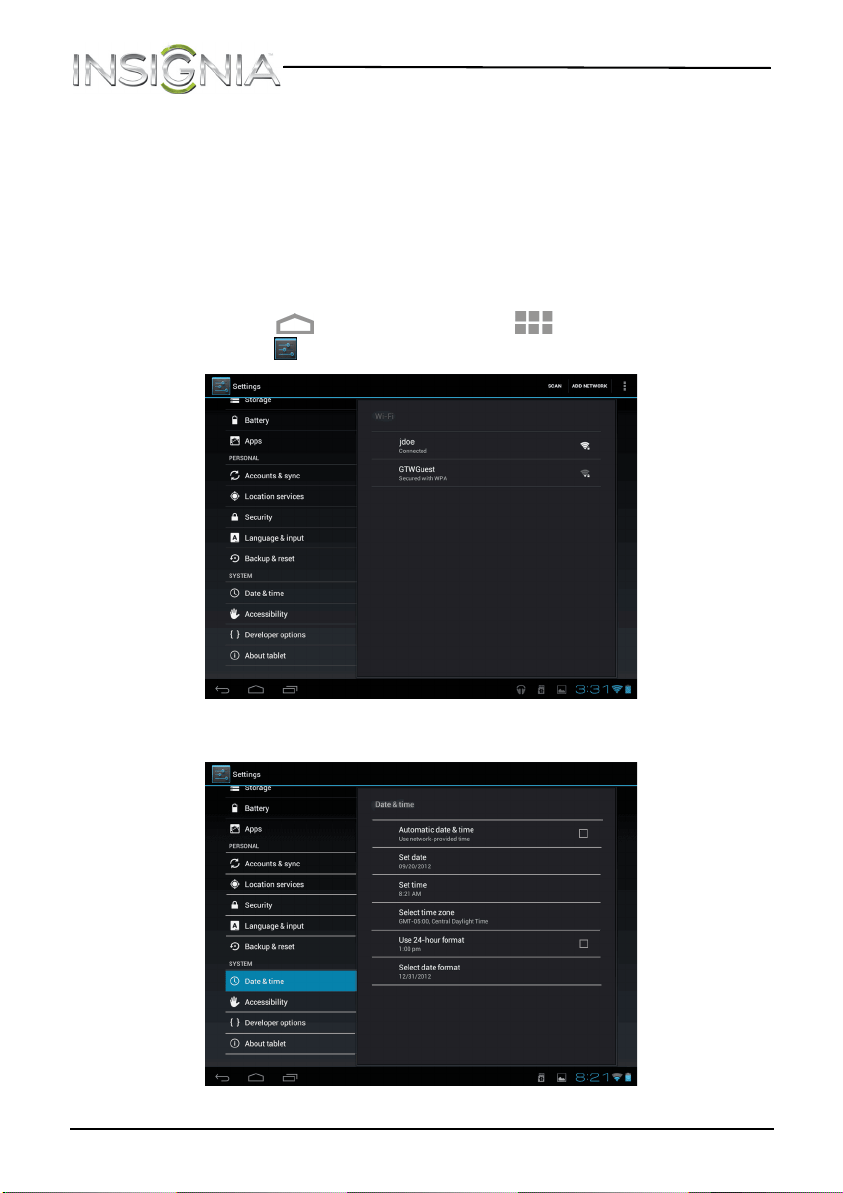
To manually set the date and time:
1 Touch the (home) icon, touch the (applications) icon, then
touch the (settings) icon. The Settings screen opens.
2 Drag the screen up, then touch Date & Time.
NS-13T001_13-0918_MAN_V3_ENG.fm Page 24 Tuesday, October 22, 2013 10:33 AM
25
NS-13T001 Insignia Flex™ Android Tablet
www.insigniaproducts.com
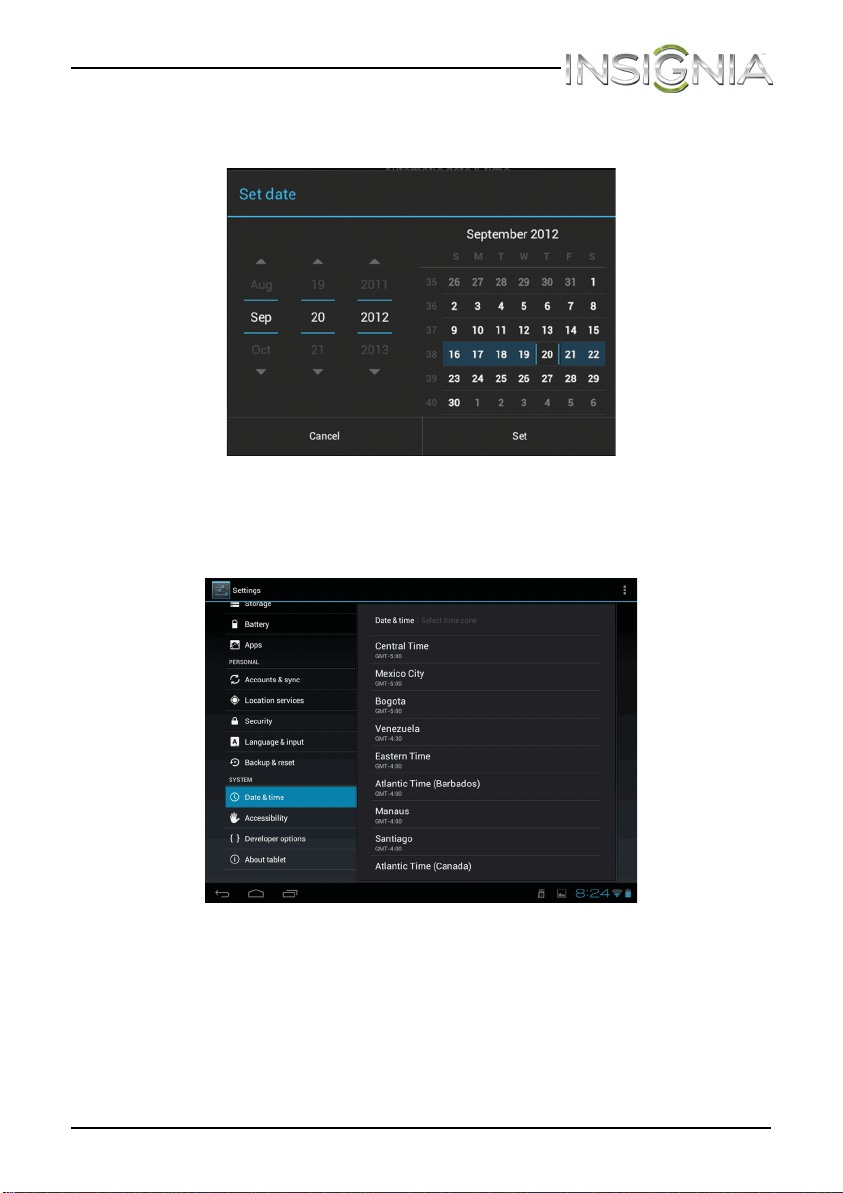
3 Touch to un-check the Automatic date & time check box, then
touch Set date. The Set date screen opens.
4 Touch
or to change the month, day, or year, then when you have
finished, touch Set.
5 Touch Select time zone.
6 Drag the screen up or down to scroll through the time zone list, then
touch the time zone you want.
NS-13T001_13-0918_MAN_V3_ENG.fm Page 25 Tuesday, October 22, 2013 10:33 AM
26
NS-13T001 Insignia Flex™ Android Tablet
www.insigniaproducts.com
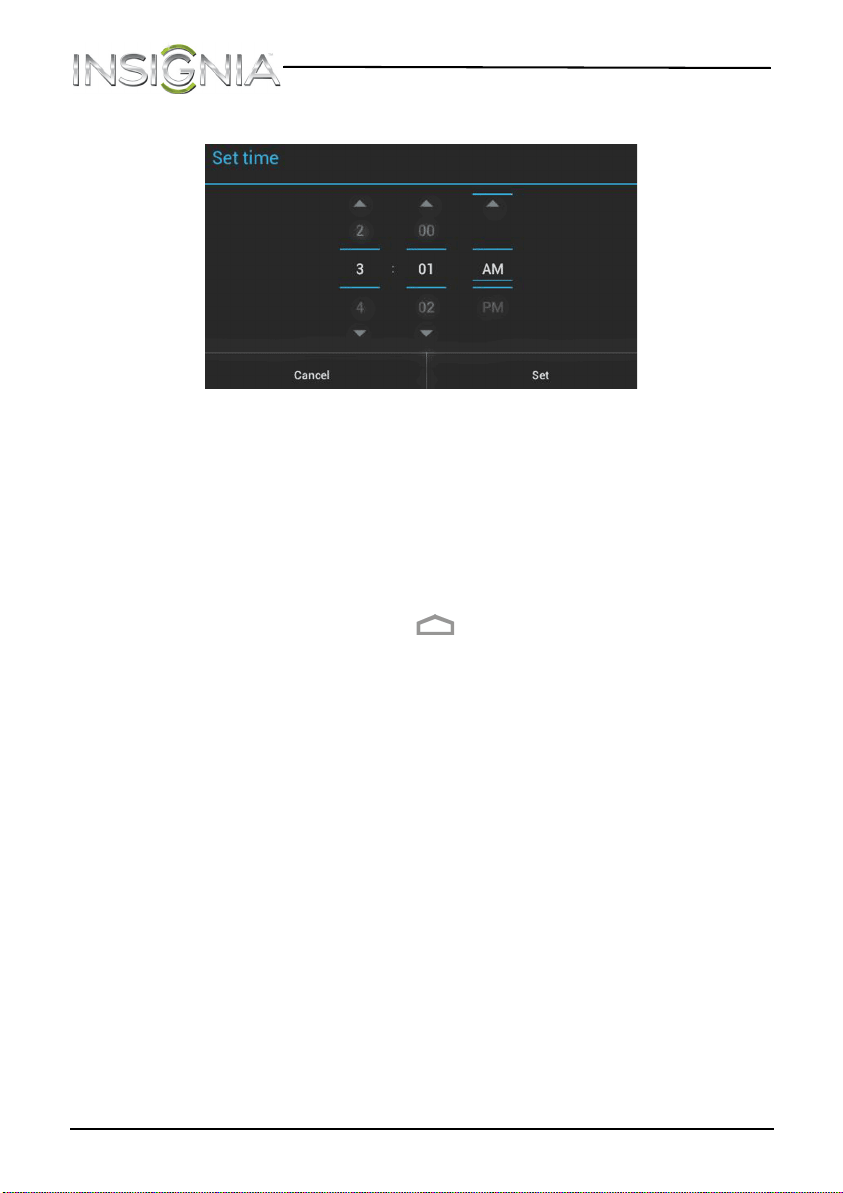
7 Touch Set time. The Set time screen opens.
8 Touch the
or to change the hour, minutes, or AM/PM, then when
you have finished, touch Set.
9 Touch the Use 24-hour format check box to toggle between using a
12-hour or 24-hour format.
10 Touch Select date format, then select how you want the date to
display on your tablet. The selected date format also applies to the
date displayed on the clock.
11 When you finish, touch the (home) icon to return to the Home
screen.
NS-13T001_13-0918_MAN_V3_ENG.fm Page 26 Tuesday, October 22, 2013 10:33 AM
27
NS-13T001 Insignia Flex™ Android Tablet
www.insigniaproducts.com
Manually adjusting the screen brightness
Note: When Automatic brightness is checked, your tablet
automatically adjusts the screen brightness based on the surrounding
light level.
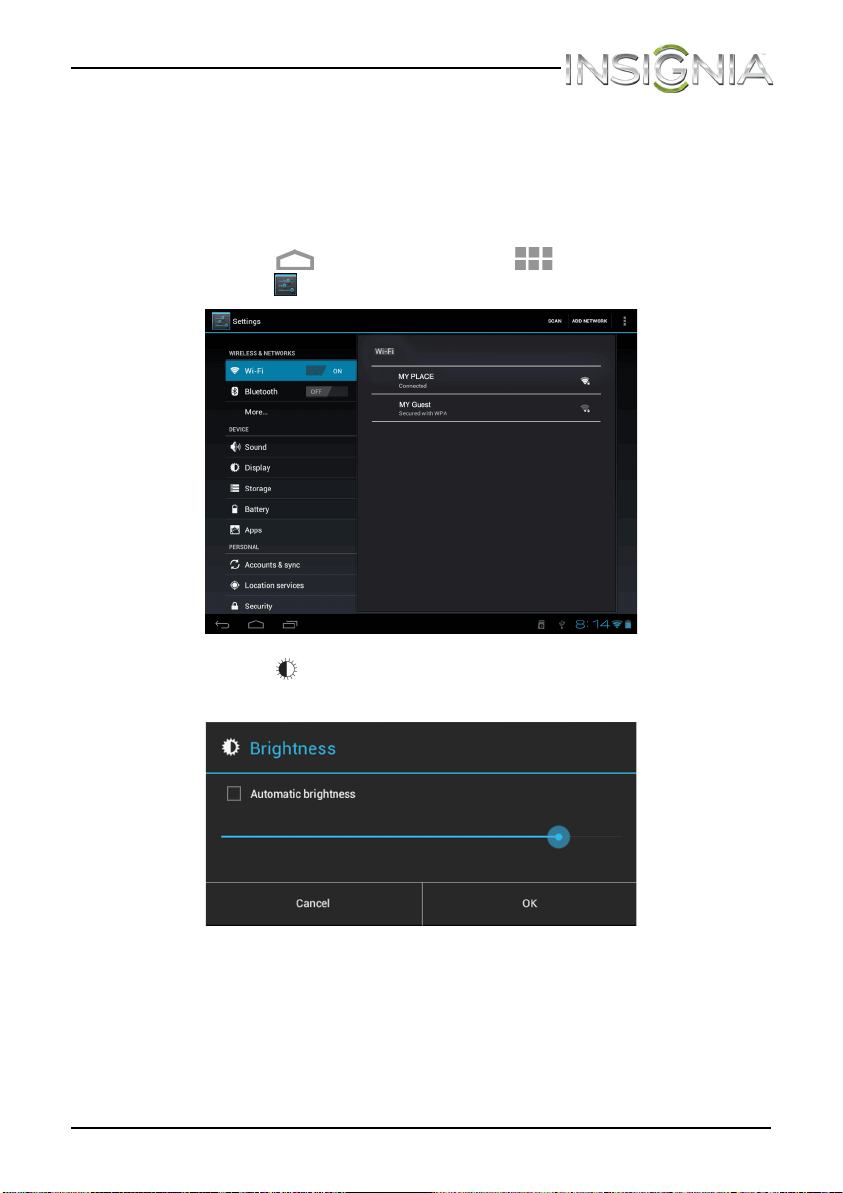
To manually adjust the screen brightness:
1 Touch the (home) icon, touch the (applications) icon, then
touch the (settings) icon. The Settings screen opens.
2 Touch the (display) icon, then touch Brightness. The Brightness
screen opens.
3 If Automatic brightness is checked, touch it to remove the check.
4 Drag the brightness slider to the left to decrease the brightness or to
the right to increase the brightness, then touch OK to save your
setting.
NS-13T001_13-0918_MAN_V3_ENG.fm Page 27 Tuesday, October 22, 2013 10:33 AM
28
NS-13T001 Insignia Flex™ Android Tablet
www.insigniaproducts.com
5 When you finish, touch the (home) icon to return to the Home
screen.
Tip: A high brightness level uses more battery power than a low
brightness level. To save battery power use the lowest brightness level
you are comfortable with.
Adjusting the power saving setting
After a period of inactivity, your tablet automatically turns off the screen
to save battery power. You can specify the amount of time your tablet
waits before turning off the screen.
To adjust the power saving setting:
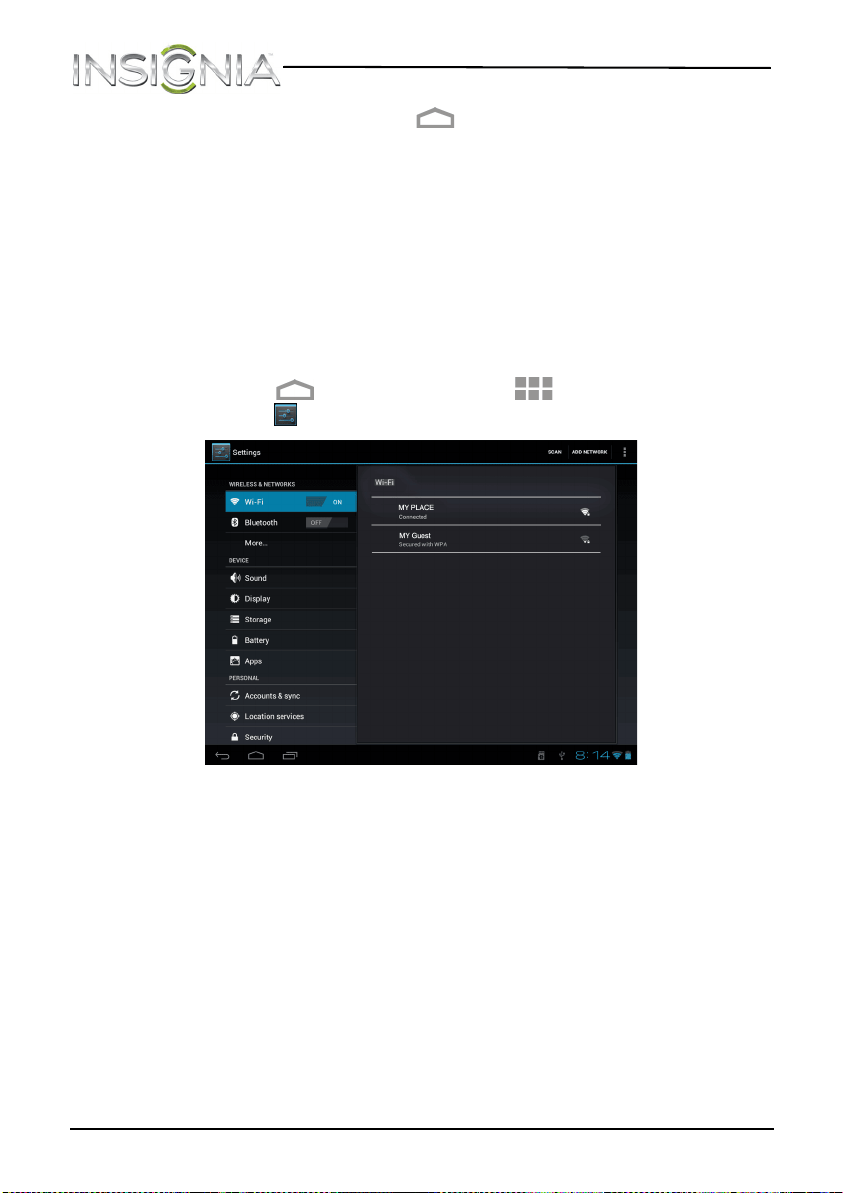
1 Touch the (home) icon, touch the (applications) icon, then
touch the (settings) icon. The Settings screen opens.
NS-13T001_13-0918_MAN_V3_ENG.fm Page 28 Tuesday, October 22, 2013 10:33 AM
29
NS-13T001 Insignia Flex™ Android Tablet
www.insigniaproducts.com
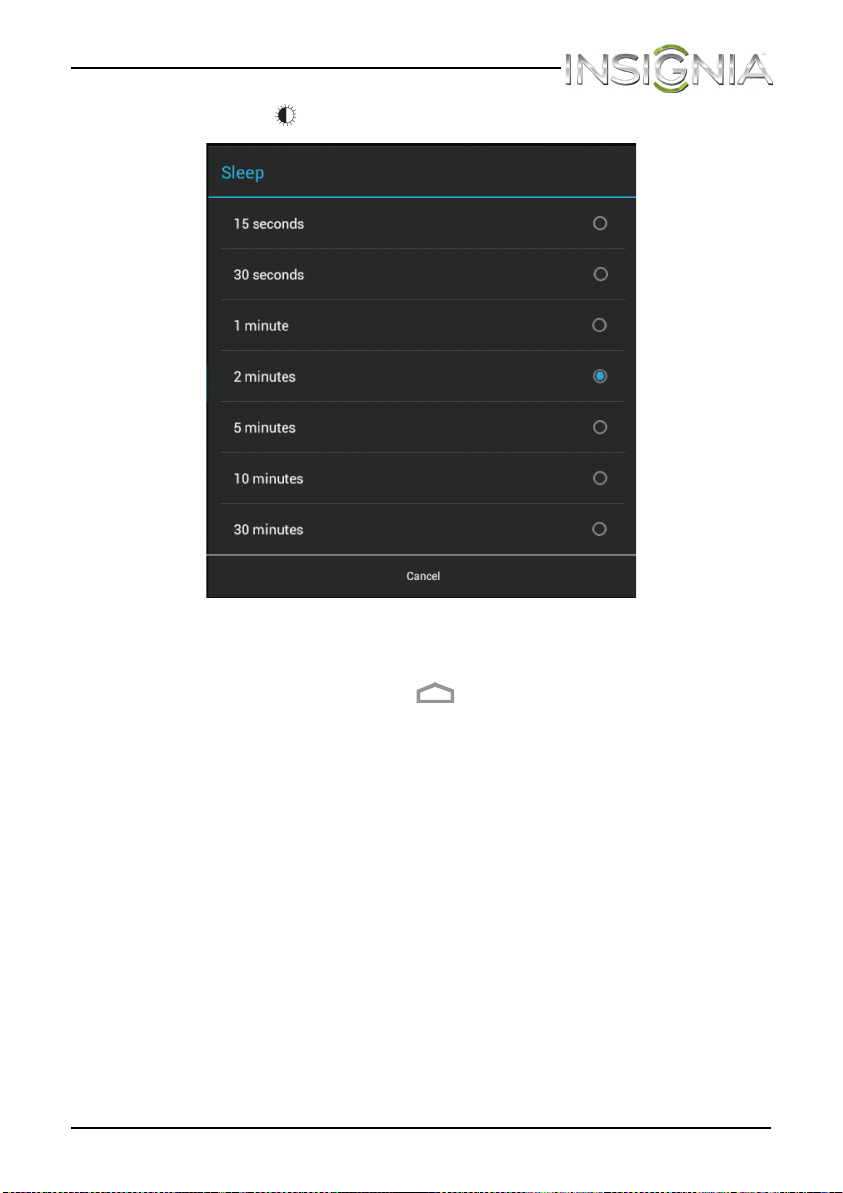
2 Touch the (display) icon, then touch Sleep. The Sleep screen opens.
3 Touch the amount of time you want your tablet to wait before it turns
off the screen.
4 When you finish, touch the (home) icon to return to the Home
screen.
NS-13T001_13-0918_MAN_V3_ENG.fm Page 29 Tuesday, October 22, 2013 10:33 AM
30
NS-13T001 Insignia Flex™ Android Tablet
www.insigniaproducts.com
Setting the screen font size
You can adjust the size of the text (font size) that appears on the screen.
To set the screen font size:
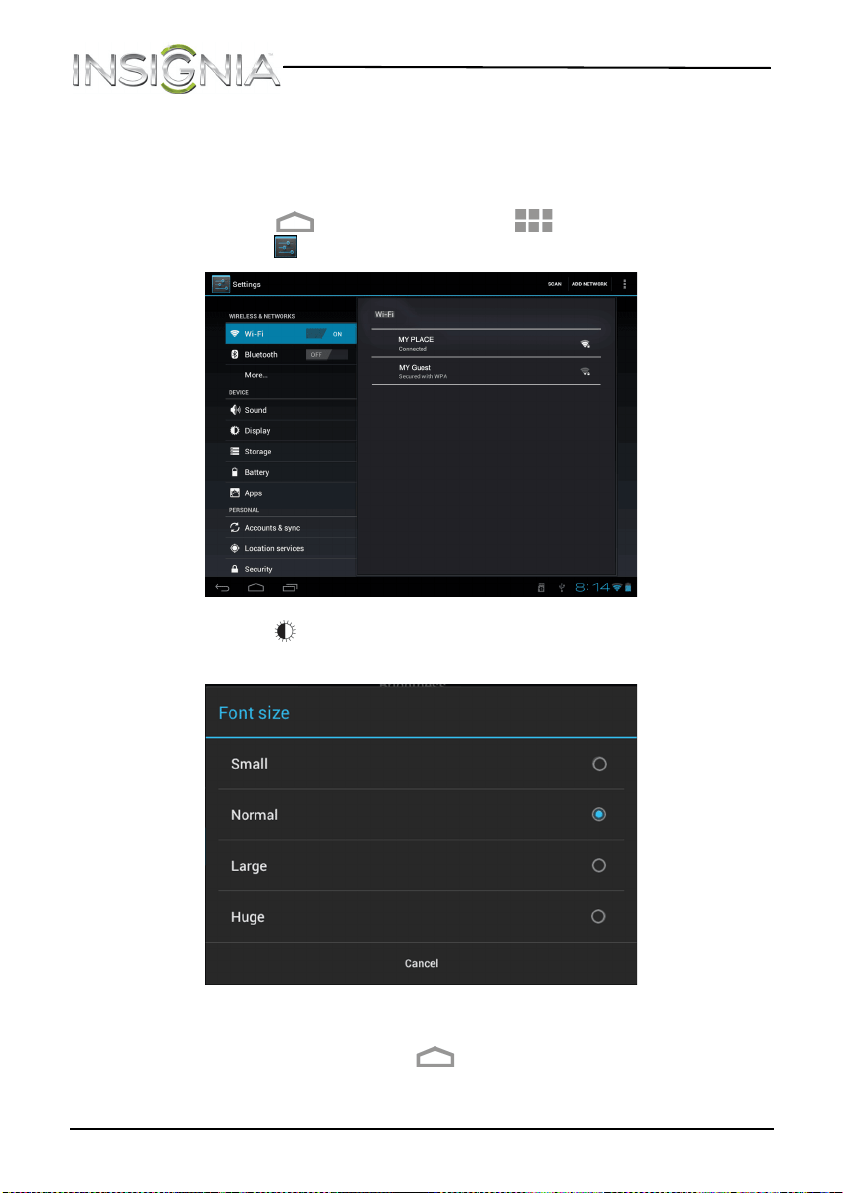
1 Touch the (home) icon, touch the (applications) icon, then
touch the (settings) icon. The Settings screen opens.
2 Touch the (display) icon, then touch Font size. The Font size screen
opens.
3 Touch the font size your want to use.
4 When you finish, touch the (home) icon to return to the Home
screen.
NS-13T001_13-0918_MAN_V3_ENG.fm Page 30 Tuesday, October 22, 2013 10:33 AM
31
NS-13T001 Insignia Flex™ Android Tablet
www.insigniaproducts.com
Selecting the notification ringtone
You can select the ringtone for incoming notifications.
To select the notification ringtone:
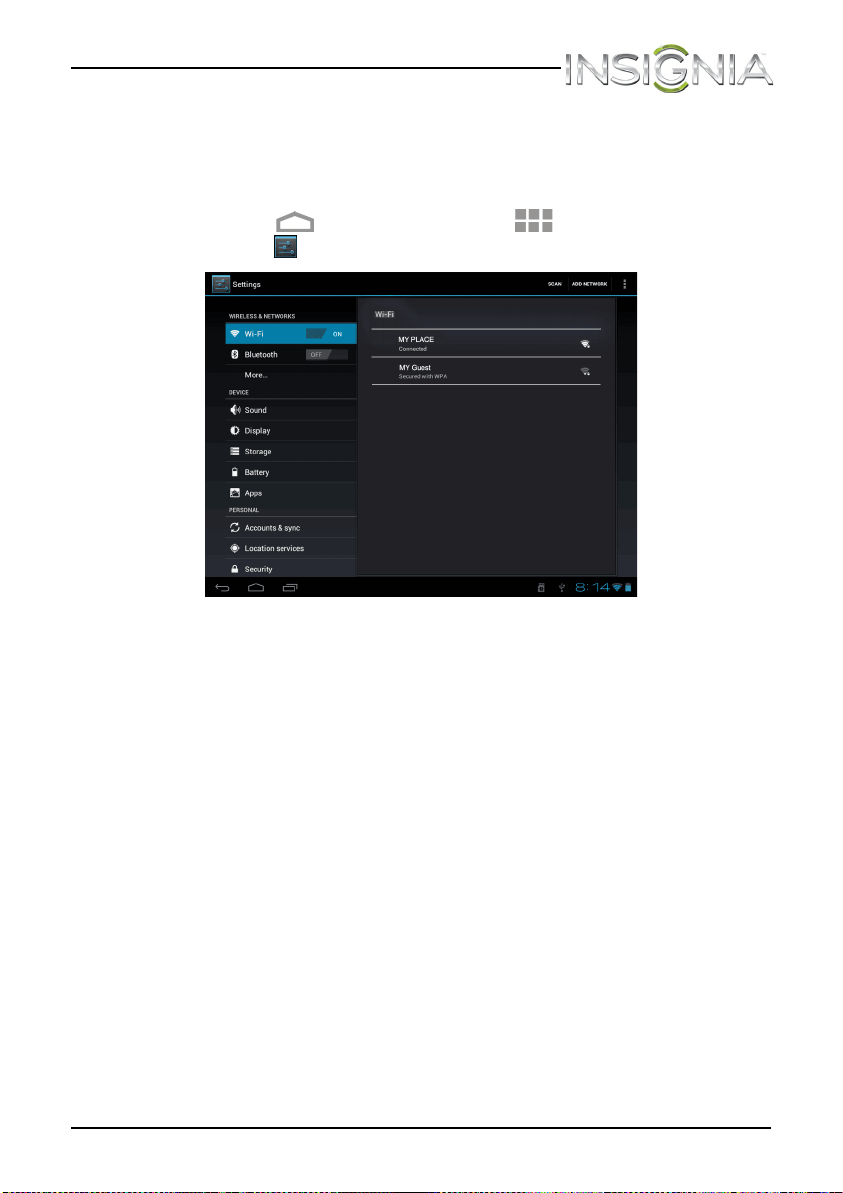
1 Touch the (home) icon, touch the (applications) icon, then
touch the (settings) icon. The Settings screen opens.
NS-13T001_13-0918_MAN_V3_ENG.fm Page 31 Tuesday, October 22, 2013 10:33 AM
32
NS-13T001 Insignia Flex™ Android Tablet
www.insigniaproducts.com
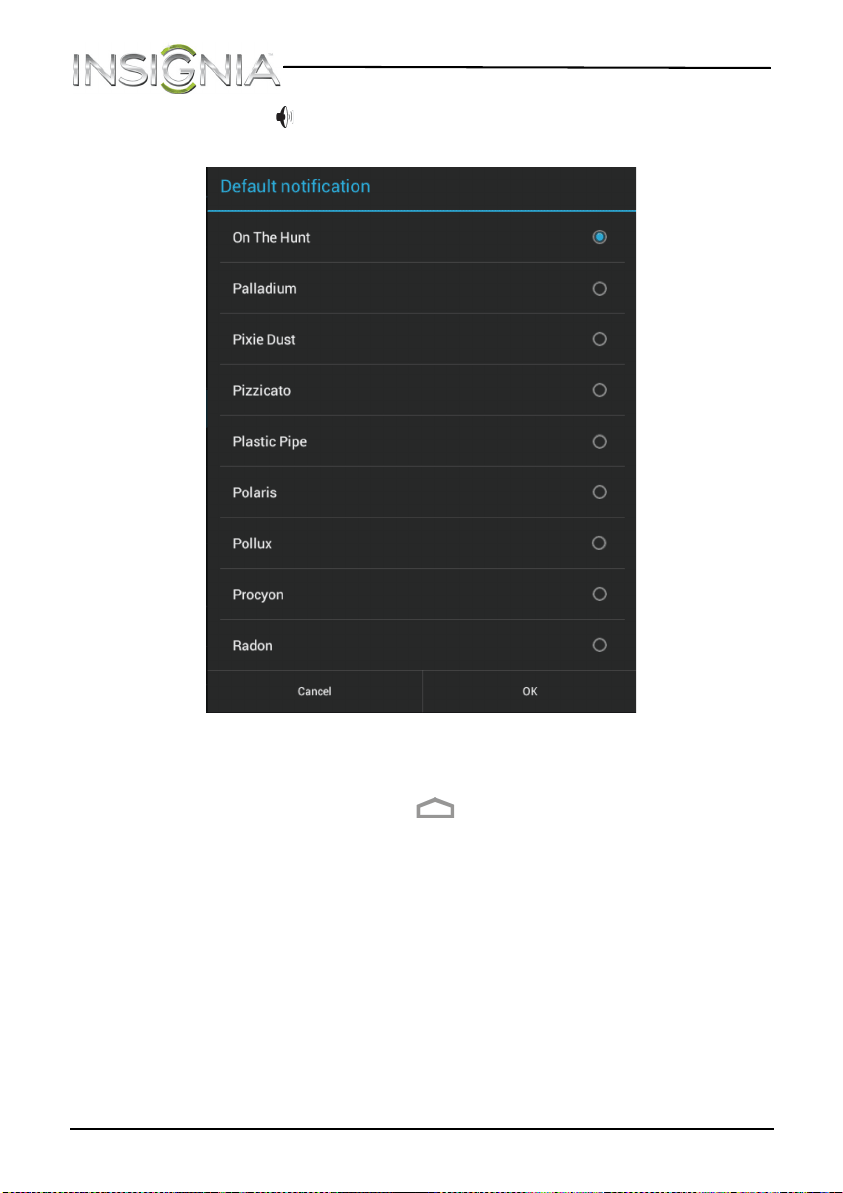
2 Touch the (sound) icon, then touch Default Notification. The
Default notification screen opens.
3 Touch a ringtone to play it. Touch the ringtone you want to use, then
touch OK to save your setting.
4 When you finish, touch the (home) icon to return to the Home
screen.
NS-13T001_13-0918_MAN_V3_ENG.fm Page 32 Tuesday, October 22, 2013 10:33 AM
33
NS-13T001 Insignia Flex™ Android Tablet
www.insigniaproducts.com
Turning system tones on
You can set your tablet to make an audio sound or to vibrate when you
touch the screen or lock your tablet.
To turn system tones on:
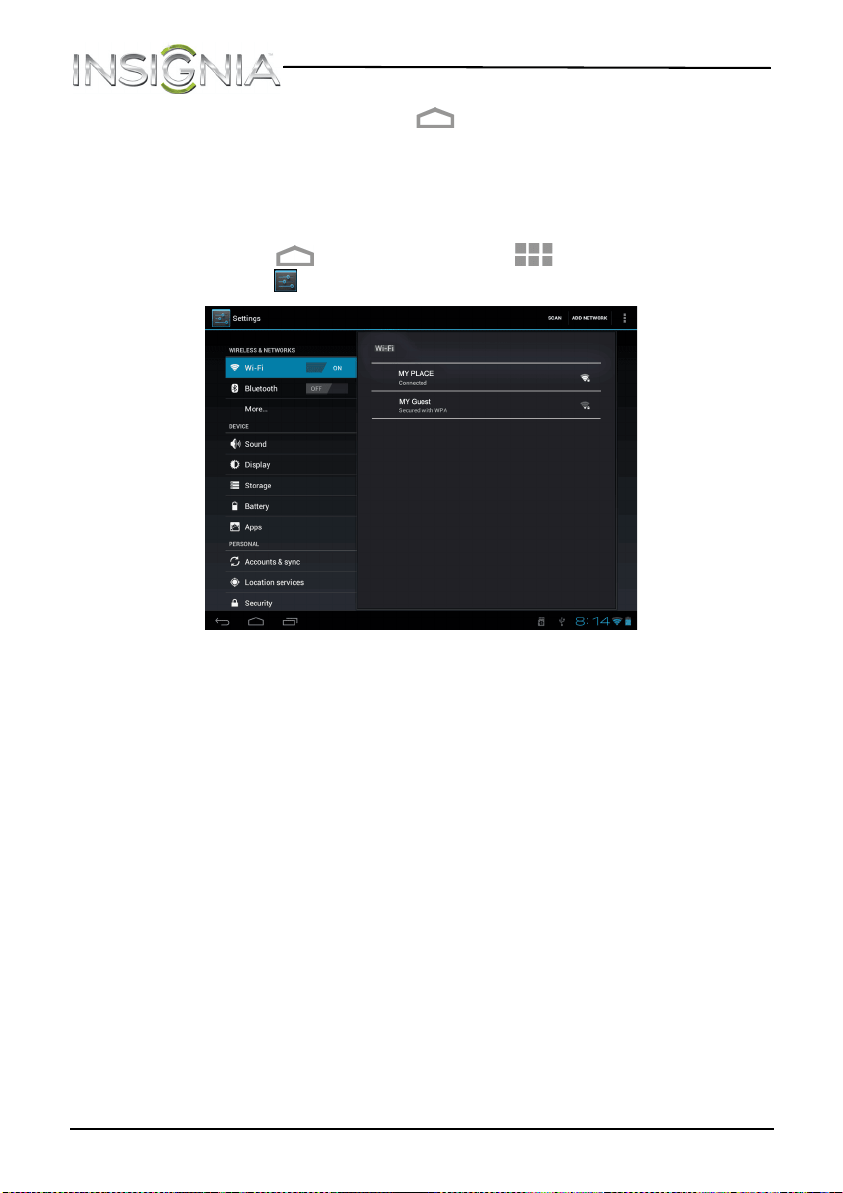
1 Touch the (home) icon, touch the (applications) icon, then
touch the (settings) icon. The Settings screen opens.
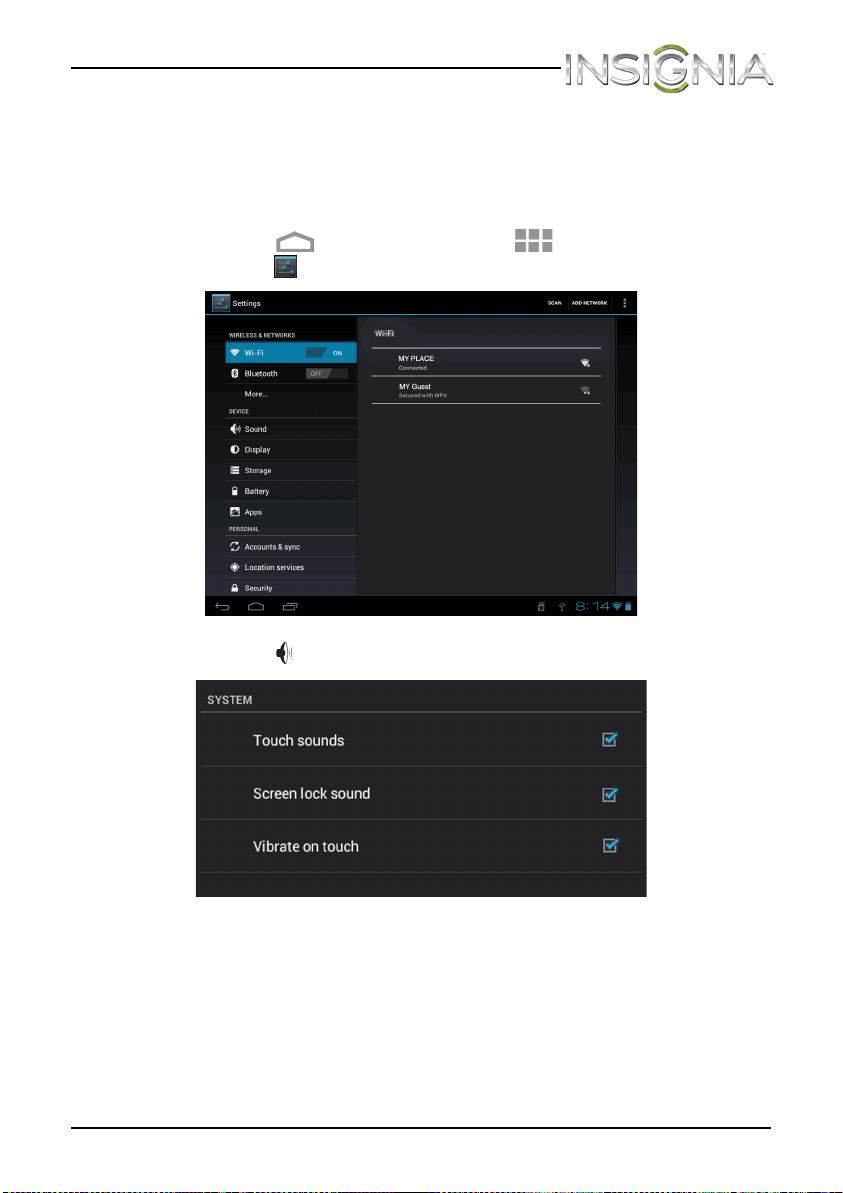
2 Touch the (sound) icon. The SYSTEM screen opens.
3 Under System, touch to select the check box for the system tones you
want. You can select:
• Touch sounds—Plays an audio tone when you touch your tablet
screen.
• System lock sound—Plays an audio tone when you lock your
tablet.
• Vibrate on touch—Vibrates the tablet when you touch the
screen.
NS-13T001_13-0918_MAN_V3_ENG.fm Page 33 Tuesday, October 22, 2013 10:33 AM
34
NS-13T001 Insignia Flex™ Android Tablet
www.insigniaproducts.com
4 When you finish, touch the (home) icon to return to the Home
screen.
Selecting the language your tablet uses to display text
To select the language your tablet uses to display text:
1 Touch the (home) icon, touch the (applications) icon, then
touch the (settings) icon. The Settings screen opens.
NS-13T001_13-0918_MAN_V3_ENG.fm Page 34 Tuesday, October 22, 2013 10:33 AM
35
NS-13T001 Insignia Flex™ Android Tablet
www.insigniaproducts.com
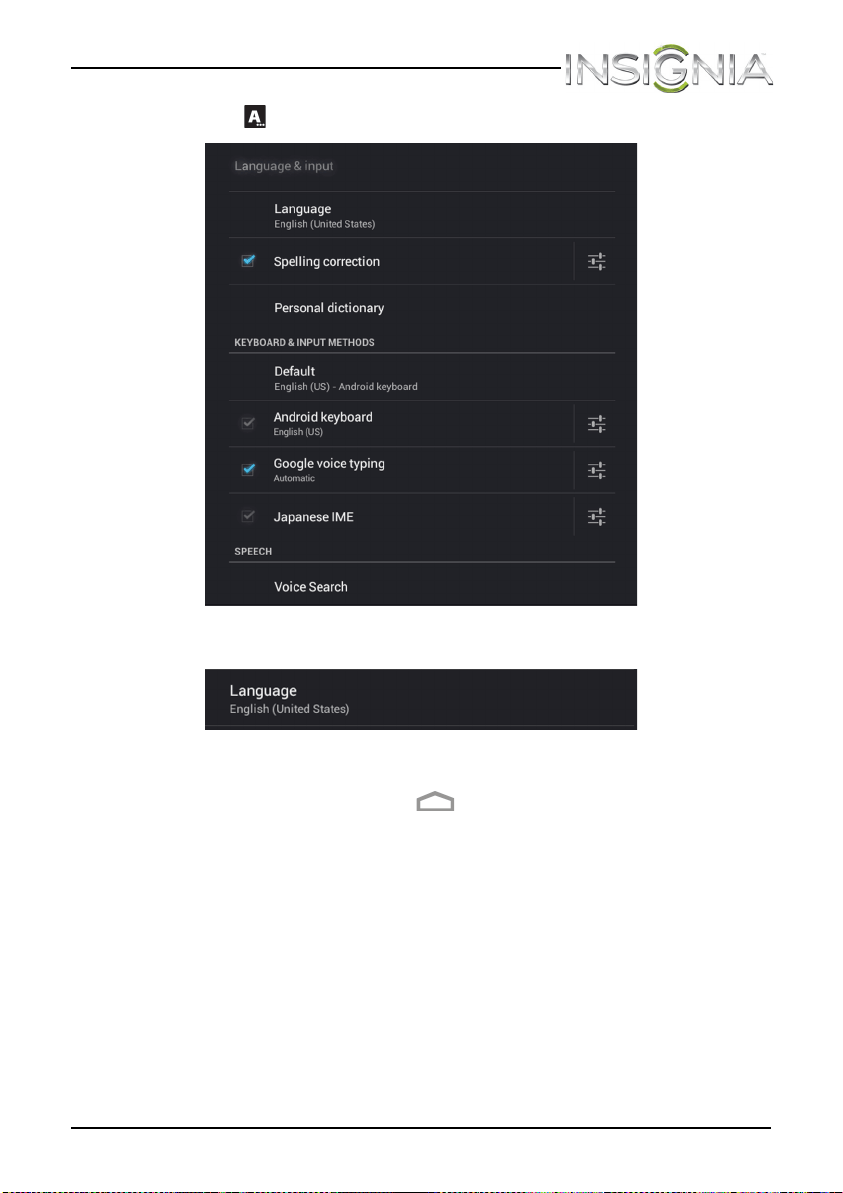
2 Touch Language & input. The Language & input screen opens.
3 Touch Language. The Language screen opens.
4 Touch the language you want to use.
5 When you finish, touch the (home) icon to return to the Home
screen.
NS-13T001_13-0918_MAN_V3_ENG.fm Page 35 Tuesday, October 22, 2013 10:33 AM
36
NS-13T001 Insignia Flex™ Android Tablet
www.insigniaproducts.com
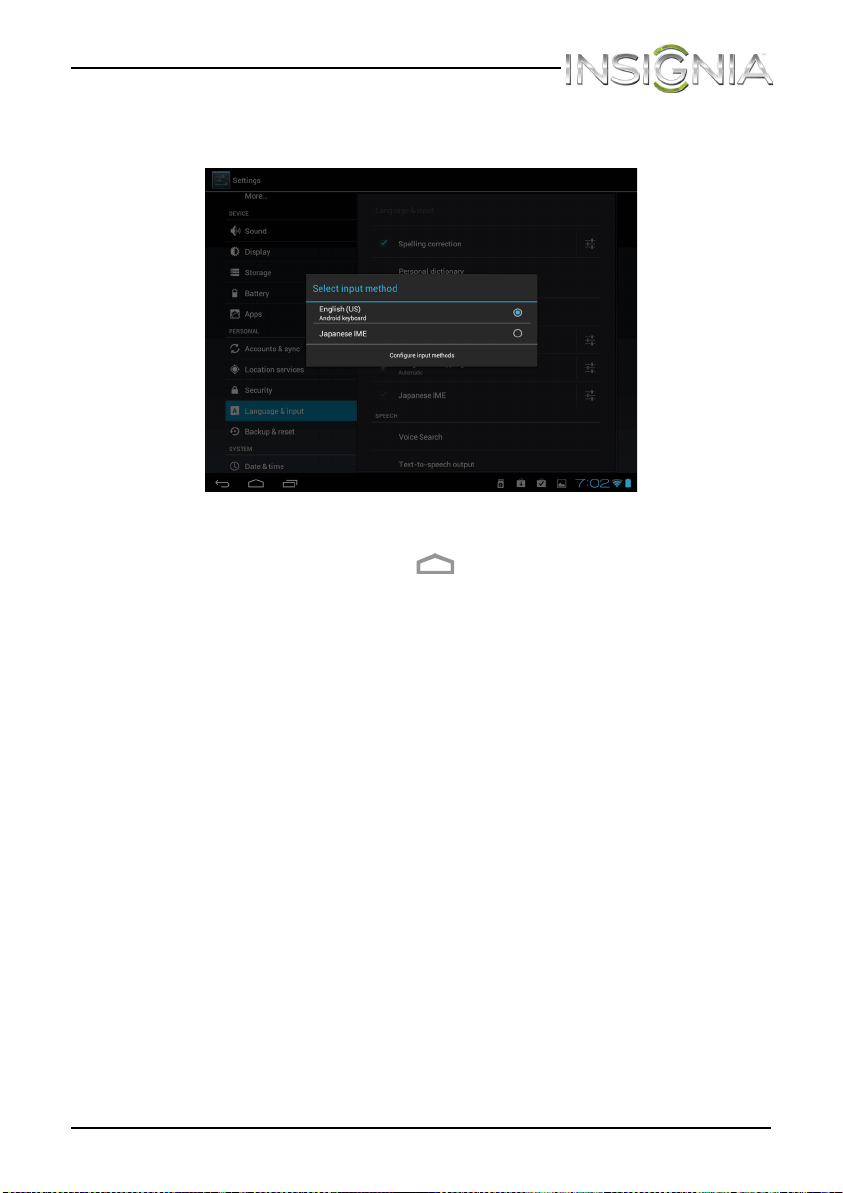
Selecting the keyboard language
To selec t the keyboard language:
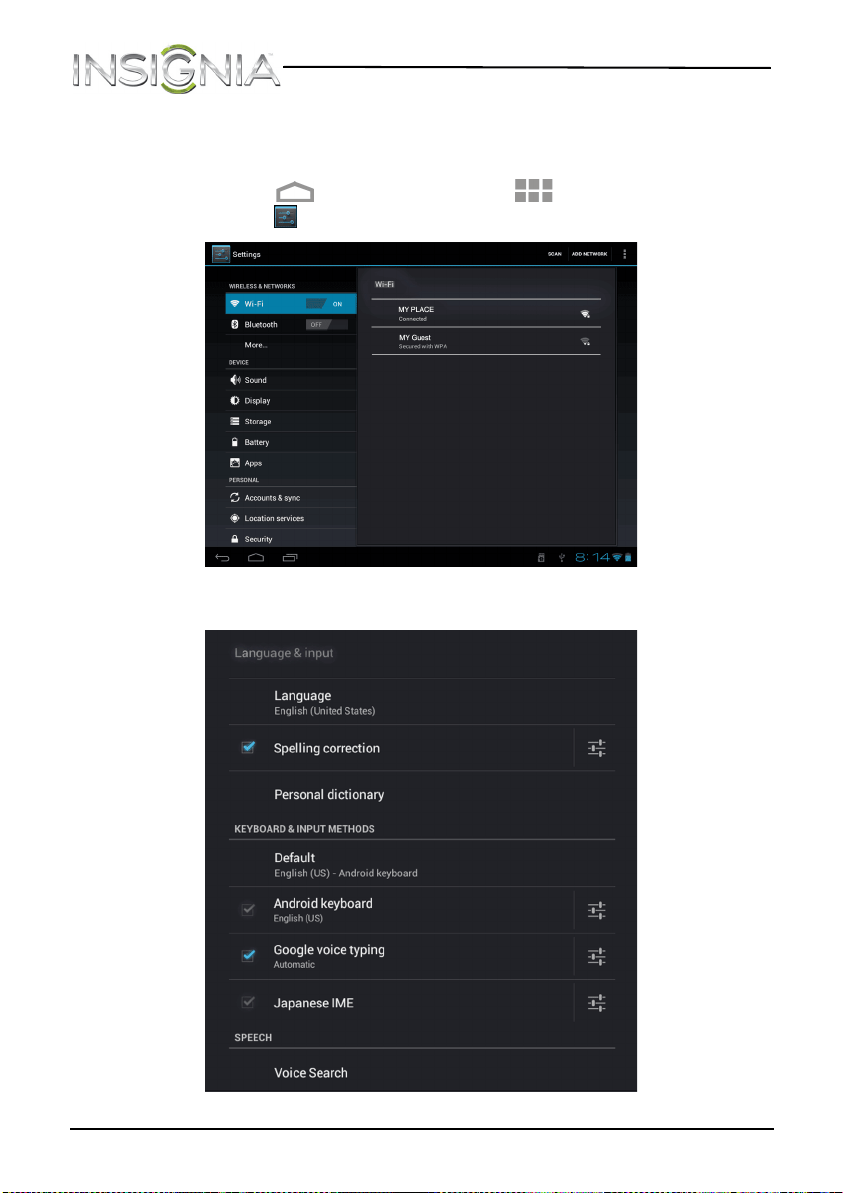
1 Touch the (home) icon, touch the (applications) icon, then
touch the (settings) icon. The Settings screen opens.
2 Touch Language & input. The Language & input screen opens.
NS-13T001_13-0918_MAN_V3_ENG.fm Page 36 Tuesday, October 22, 2013 10:33 AM
37
NS-13T001 Insignia Flex™ Android Tablet
www.insigniaproducts.com
3 Under Keyboard and input methods, touch Default. The Default
keyboard language screen opens.
4 Touch the language you want to use.
5 When you finish, touch the (home) icon to return to the Home
screen.
NS-13T001_13-0918_MAN_V3_ENG.fm Page 37 Tuesday, October 22, 2013 10:33 AM
38
NS-13T001 Insignia Flex™ Android Tablet
www.insigniaproducts.com
Turning Wi-Fi on and connecting to a
network
Your tablet connects to the Internet though a Wi-Fi network access point,
hotspot, or router.
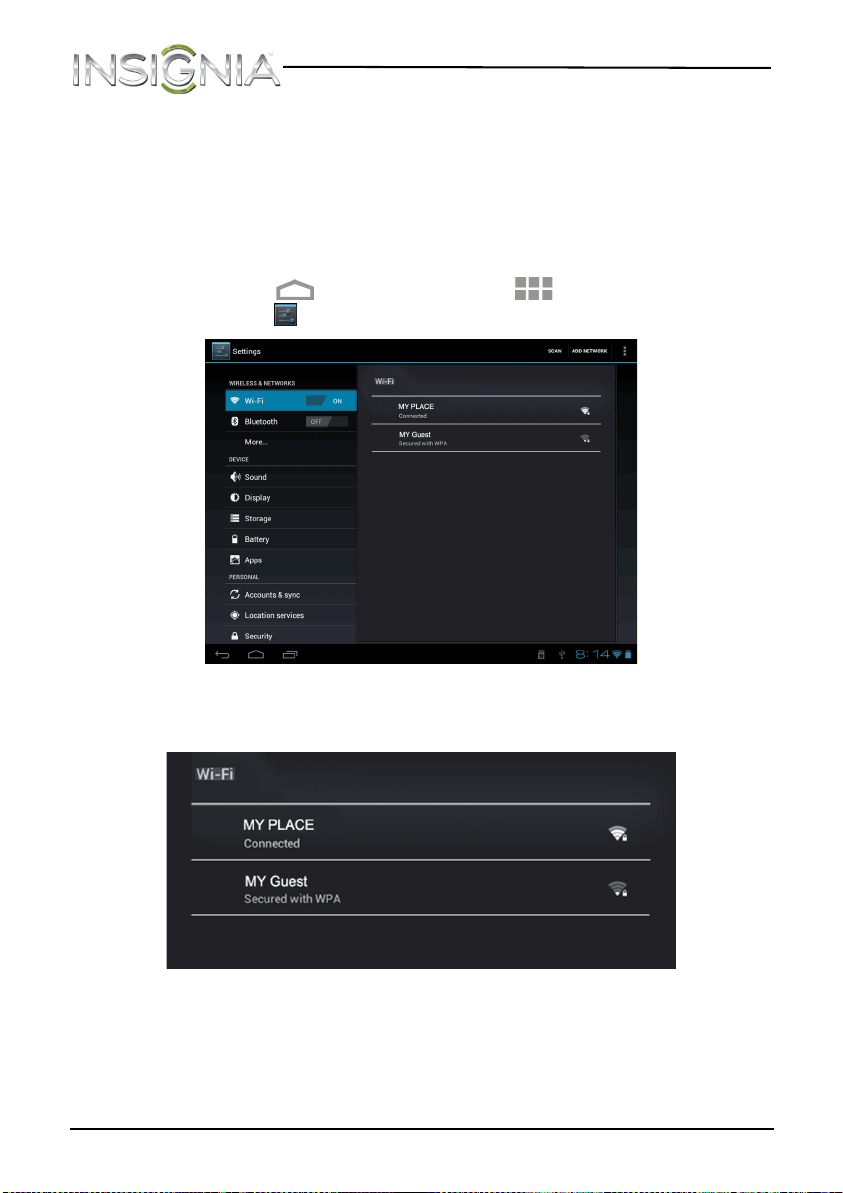
To turn Wi-Fi on and connect to a network:
1 Touch the (home) icon, touch the (applications) icon, then
touch the (settings) icon. The Settings screen opens.
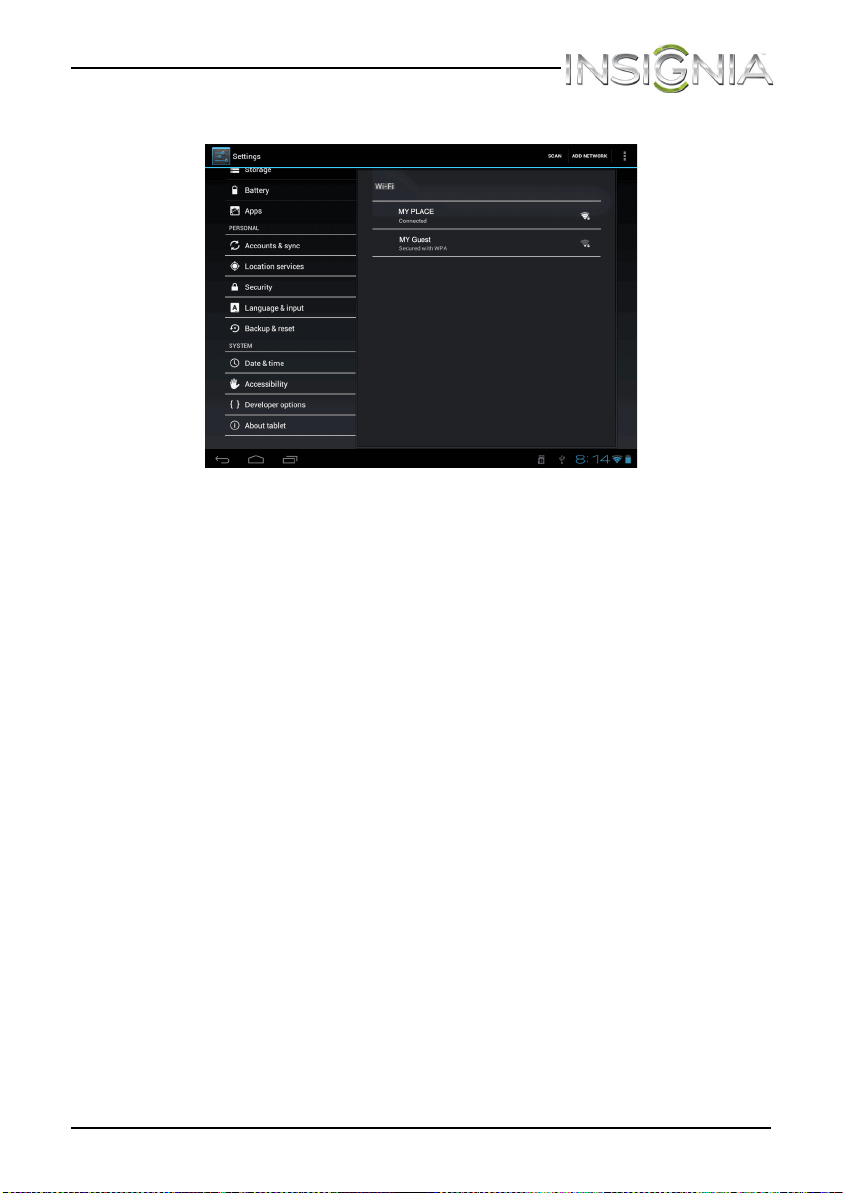
2 To turn on Wi-Fi, touch Wi-Fi or OFF. ON appears and a list of available
networks opens.
NS-13T001_13-0918_MAN_V3_ENG.fm Page 38 Tuesday, October 22, 2013 10:33 AM
39
NS-13T001 Insignia Flex™ Android Tablet
www.insigniaproducts.com
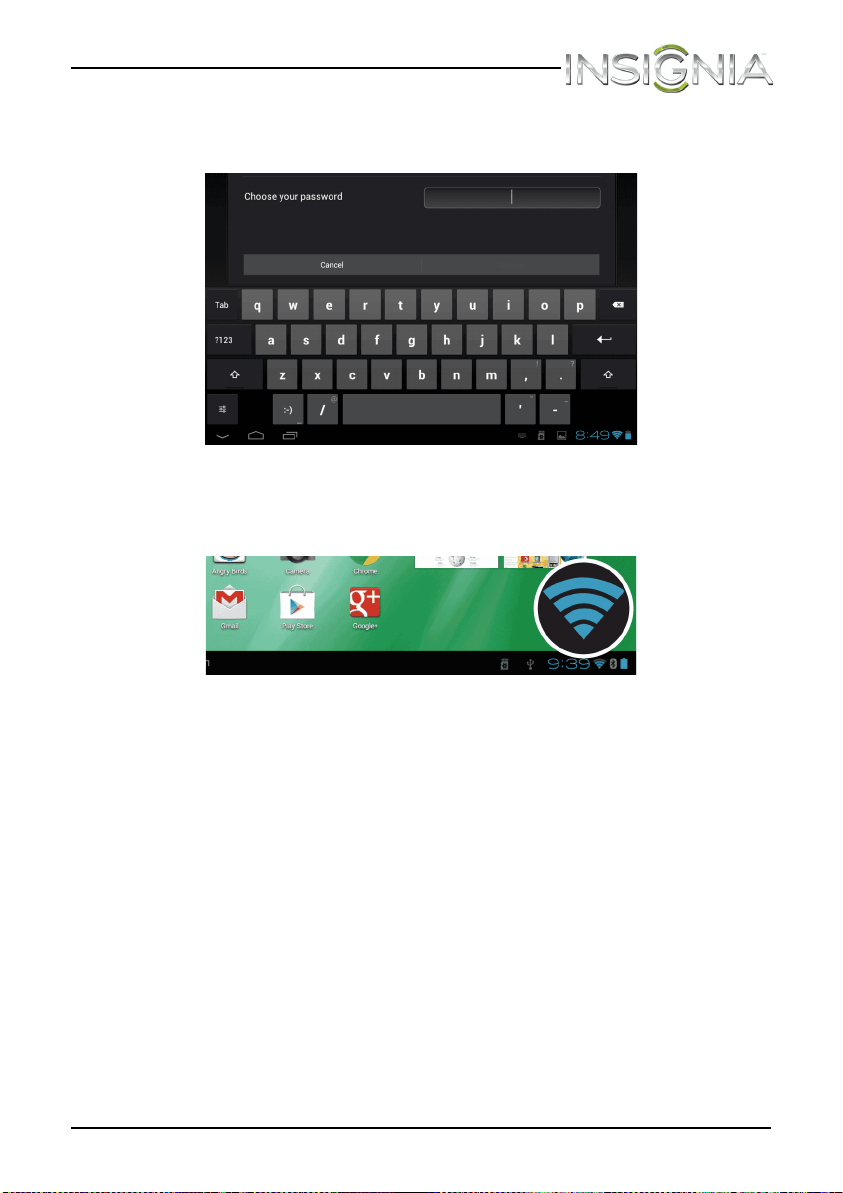
3 Touch the network you want to connect to.
You may be prompted to enter a password.
4 Touch the Password field, use the on-screen keyboard to enter the
password, then touch Connect. If the connection is successful, the
connection icon appears in the lower right corner of the screen.
NS-13T001_13-0918_MAN_V3_ENG.fm Page 39 Tuesday, October 22, 2013 10:33 AM
40
NS-13T001 Insignia Flex™ Android Tablet
www.insigniaproducts.com
Adding a Wi-Fi network
To add a Wi-Fi network:
1 Touch the (home) icon, touch the (applications) icon, then
touch the (settings) icon. The Settings screen opens.
2 To turn on Wi-Fi, touch Wi-Fi or OFF. ON appears and a list of available
networks opens.
NS-13T001_13-0918_MAN_V3_ENG.fm Page 40 Tuesday, October 22, 2013 10:33 AM
41
NS-13T001 Insignia Flex™ Android Tablet
www.insigniaproducts.com
3 Touch Add network at the top right corner of the screen.
4 Use the on-screen keyboard to enter the network SSID, then touch the
security type you want to use. You can select:
• Open—No security.
• WEP—Wired Equivalent Privacy. Note: A passphrase is required.
• WPA/WPA2 PSK—Wi-Fi Protected Access. Note: A password is
required.
• 802.1 x EAP—802.1x Extensible Authentication Protocol.
Note: If you are not sure which security type to select, refer to your
network setup documentation.
5 Touch Save.
The network you added appears in the list of available networks.
NS-13T001_13-0918_MAN_V3_ENG.fm Page 41 Tuesday, October 22, 2013 10:33 AM
42
NS-13T001 Insignia Flex™ Android Tablet
www.insigniaproducts.com
Checking network status
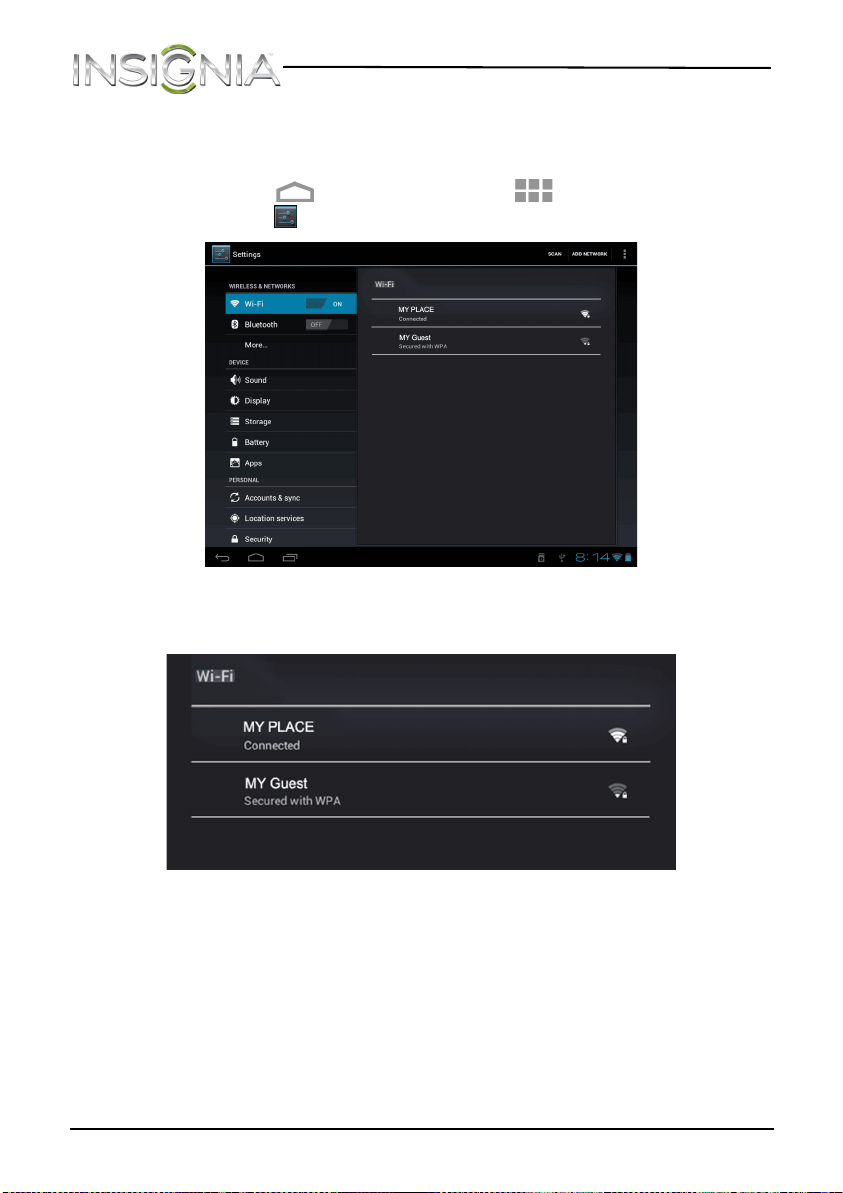
To check network status:
1 Touch the (home) icon, touch the (applications) icon, then
touch the (settings) icon. The Settings screen opens.
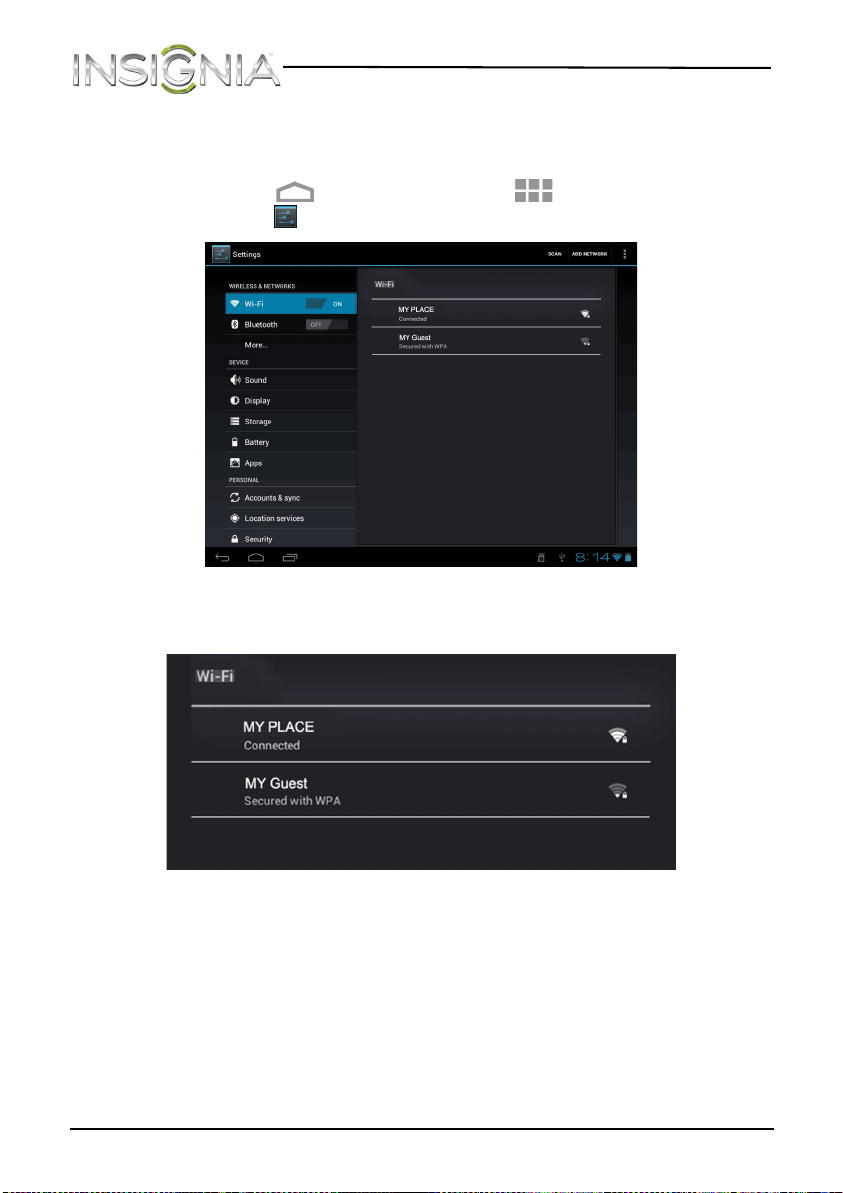
2 To turn on Wi-Fi, touch Wi-Fi or OFF. ON appears and a list of available
networks opens.
Networks (access points and hotspots) appears with that status of
each displayed. If you are connected to a network, “Connected”
appears below the network name. The network security type is
displayed below each network name.
The icon to the right of a network name shows the signal strength
information.
NS-13T001_13-0918_MAN_V3_ENG.fm Page 42 Tuesday, October 22, 2013 10:33 AM
43
NS-13T001 Insignia Flex™ Android Tablet
www.insigniaproducts.com
Creating and managing contacts
You can create a list of contacts and store information such as telephone
numbers, e-mail addresses, and home addresses.
Creating a contact
To create a contact:
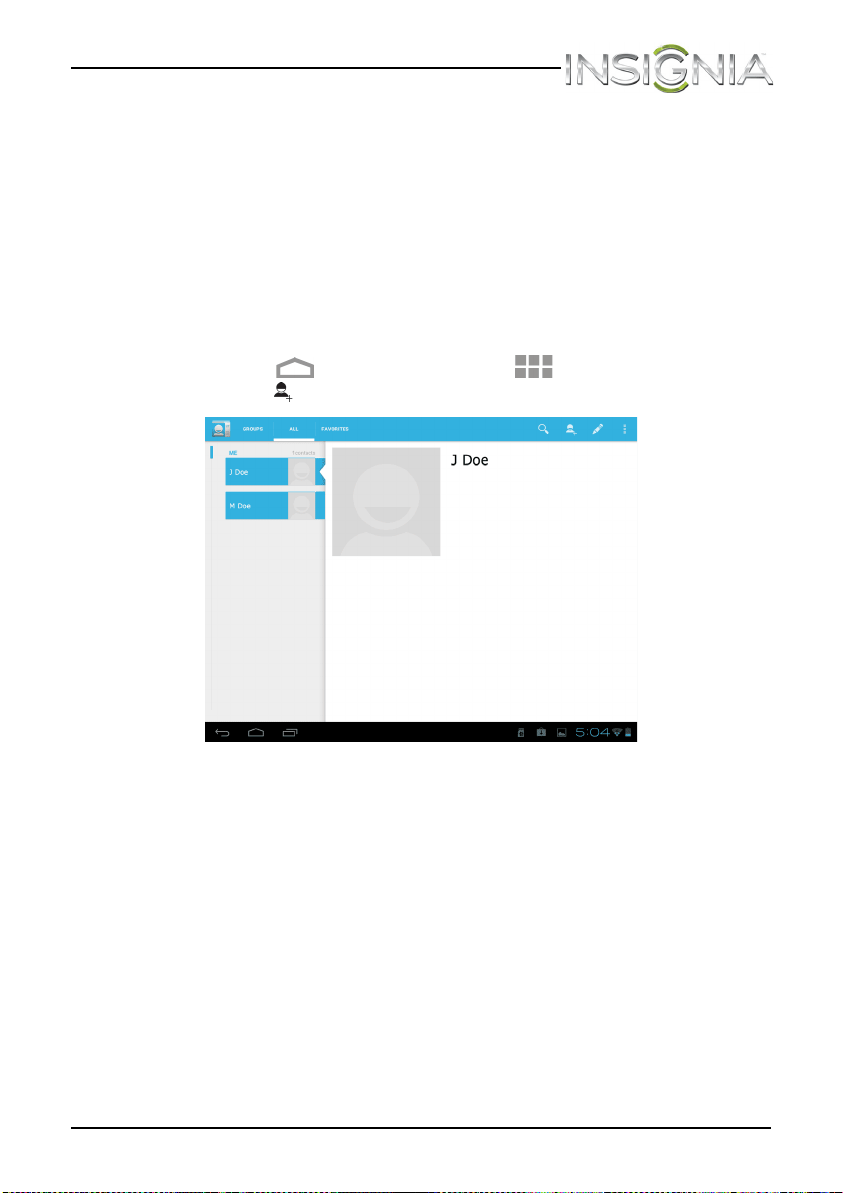
1 Touch the (home) icon, touch the (applications) icon, then
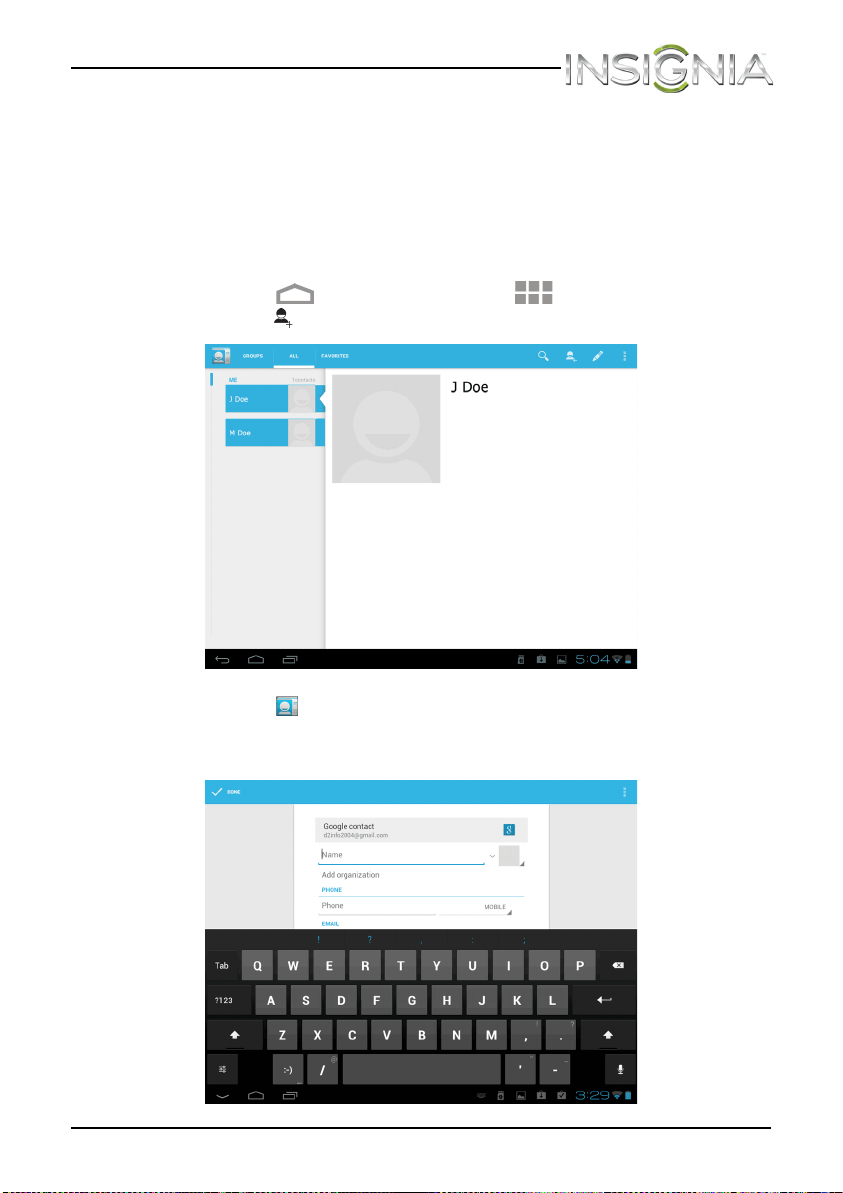
touch the (people) icon. The list of contacts opens.
2 Touch the (add new contact) icon, then use the on-screen
keyboard to enter information (such as telephone numbers, e-mail
addresses, and home addresses) for your new contact.
NS-13T001_13-0918_MAN_V3_ENG.fm Page 43 Tuesday, October 22, 2013 10:33 AM
44
NS-13T001 Insignia Flex™ Android Tablet
www.insigniaproducts.com
3 To add more information, touch Add another field, then enter the
information (such as a Web site or relationship).
4 When you have entered all information, touch Done in the upper left
corner of the screen to save your contact. A list of contacts opens.
5 When you finish, touch the (home) icon to return to the Home
screen.
Viewing contacts
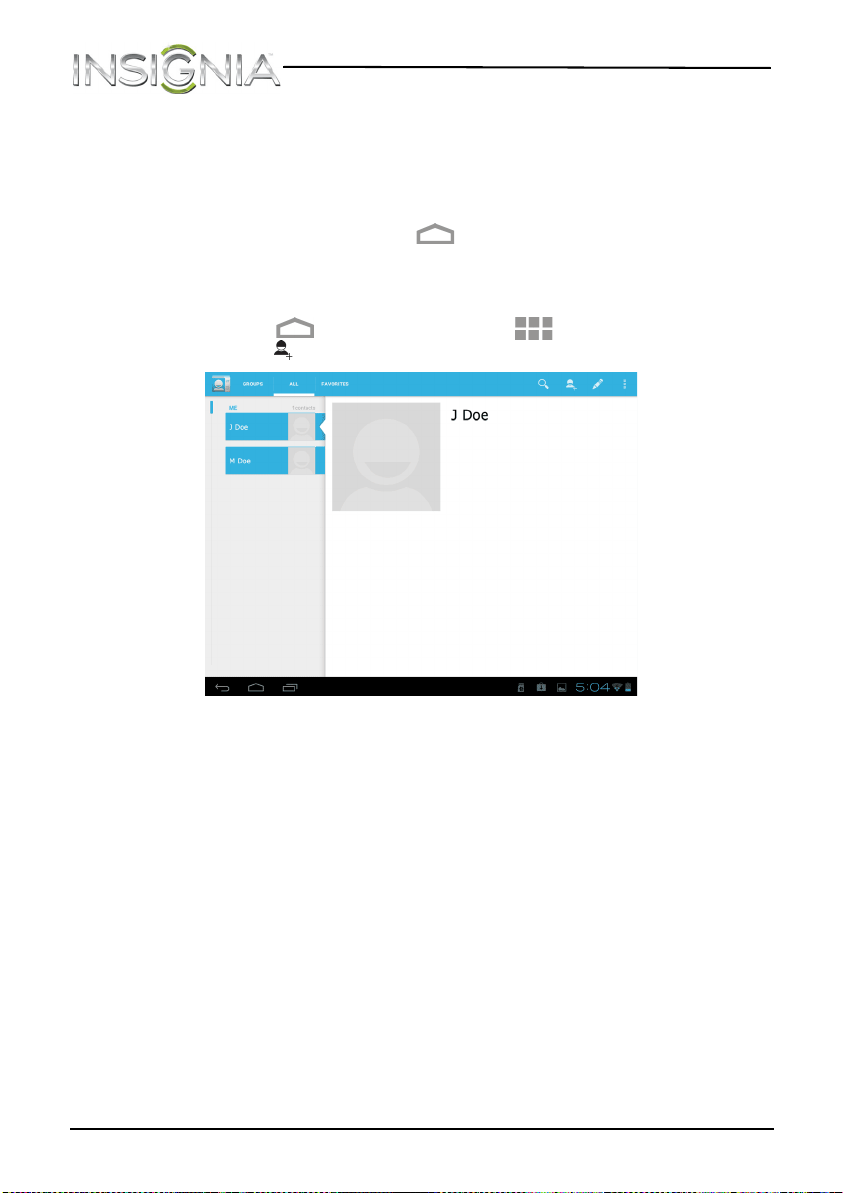
• Touch the (home) icon, touch the (applications) icon, then
touch the (people) icon. The list of contacts opens.
NS-13T001_13-0918_MAN_V3_ENG.fm Page 44 Tuesday, October 22, 2013 10:33 AM
45
NS-13T001 Insignia Flex™ Android Tablet
www.insigniaproducts.com
Importing contacts
You can import contact lists from a microSD memory card.
Note: Imported contract lists must be in “vcf” file format. For
information about creating a “vcf” file, see the documentation that
came with the program you are exporting contacts from.
To import contacts:
1 Make sure that you have inserted a microSD memory card with
contacts into the microSD memory card slot. See “Installing the
microSD memory card.”
2 Touch the (home) icon, touch the (applications) icon, then
touch the (people) icon. The list of contacts opens.
NS-13T001_13-0918_MAN_V3_ENG.fm Page 45 Tuesday, October 22, 2013 10:33 AM
46
NS-13T001 Insignia Flex™ Android Tablet
www.insigniaproducts.com
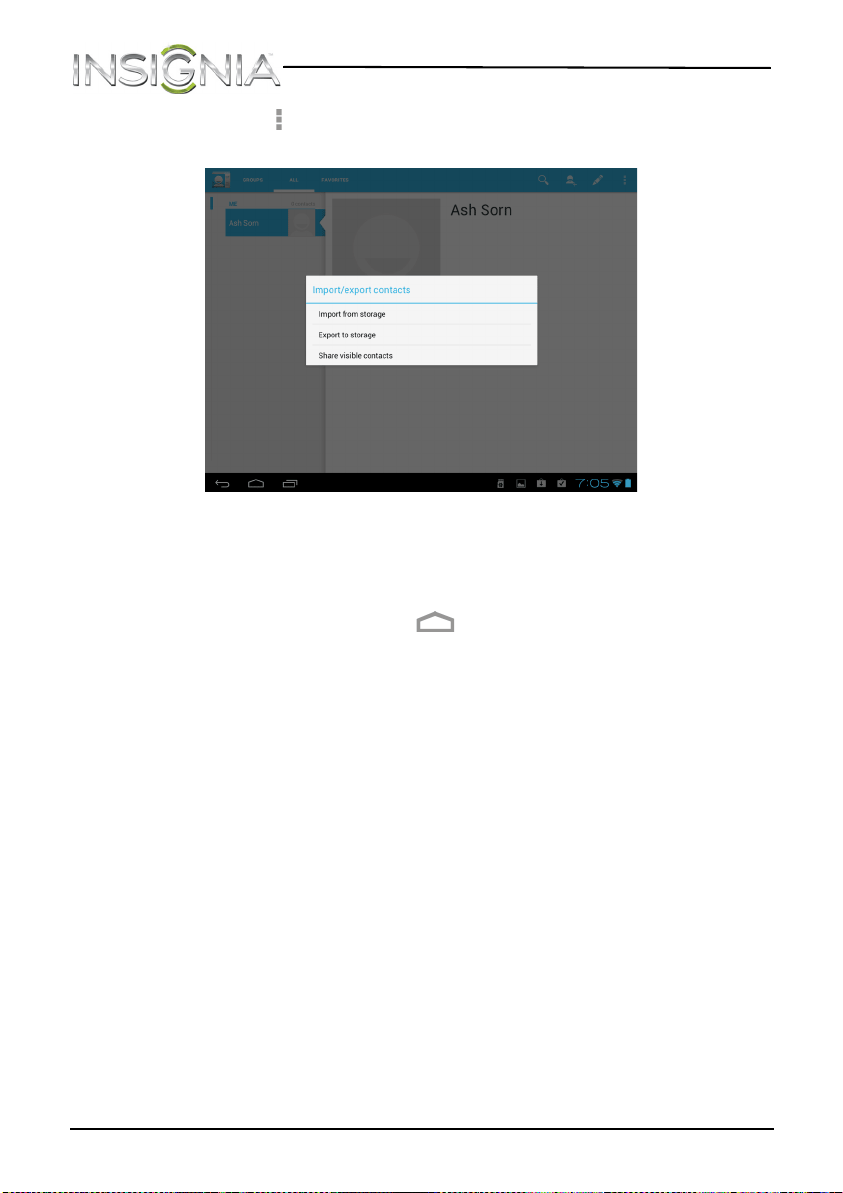
3 Touch the (options) icon, then touch Import/Export. The
Import/Export contacts screen opens.
4 Touch Import from storage.
5 Touch the option for importing a single contact file, multiple contact
files, or all contact files.
6 When you finish, touch the (home) icon to return to the Home
screen.
Backing up or syncing contacts
You can backup your contact list to a microSD memory card or sync your
contacts with the contacts in your Google account.
To back up your contact list to a microSD memory card:
1 Make sure that you have inserted a microSD memory card into the
microSD memory card slot. See “Installing the microSD memory card.”
NS-13T001_13-0918_MAN_V3_ENG.fm Page 46 Tuesday, October 22, 2013 10:33 AM
47
NS-13T001 Insignia Flex™ Android Tablet
www.insigniaproducts.com
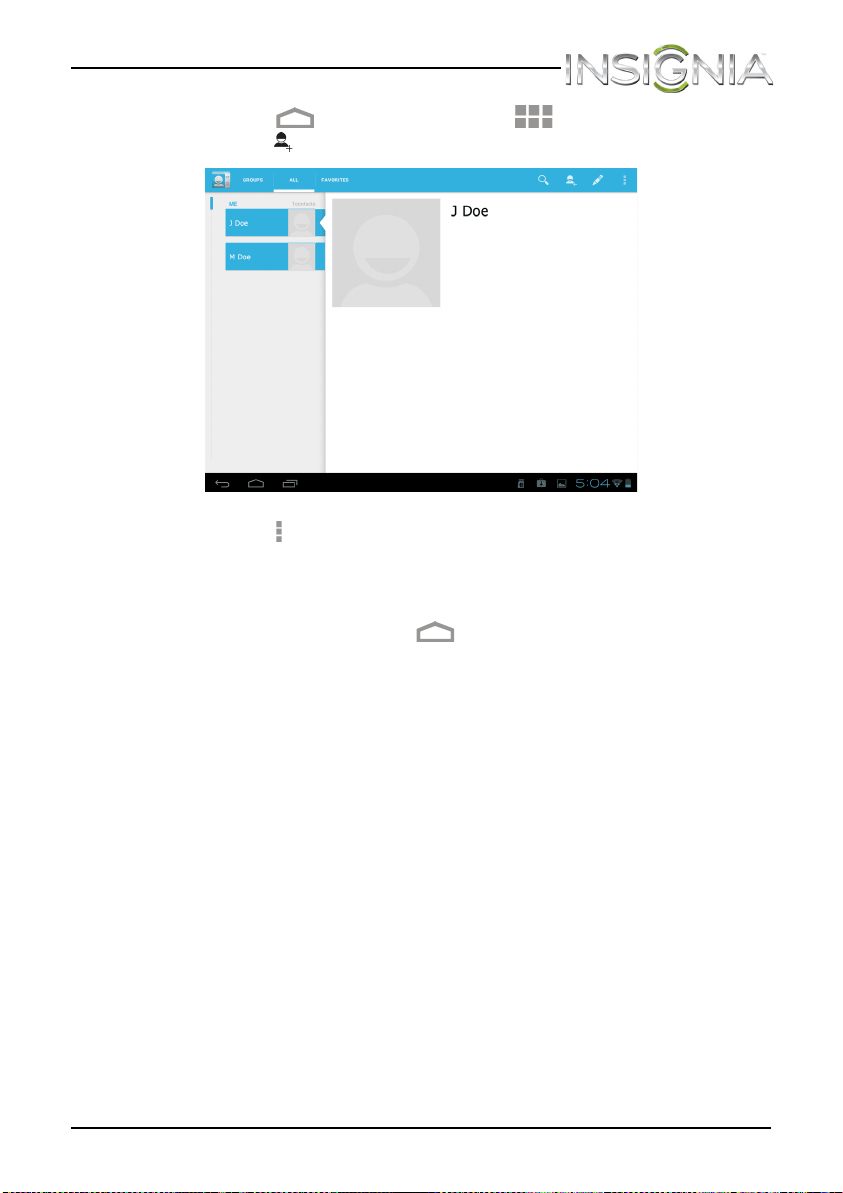
2 Touch the (home) icon, touch the (applications) icon, then
touch the (people) icon. The list of contacts opens.
3 Touch the (options) icon, then touch Import/Export.
4 Touch Export to storage.
5 Touch OK to export your contact list to your microSD memory card.
6 When you finish, touch the (home) icon to return to the Home
screen.
NS-13T001_13-0918_MAN_V3_ENG.fm Page 47 Tuesday, October 22, 2013 10:33 AM
48
NS-13T001 Insignia Flex™ Android Tablet
www.insigniaproducts.com
To sync the contacts on your tablet with the contacts in your Google
account:
1 Make sure that Wi-Fi is turned on. See “Turning Wi-Fi on and
connecting to a network.”
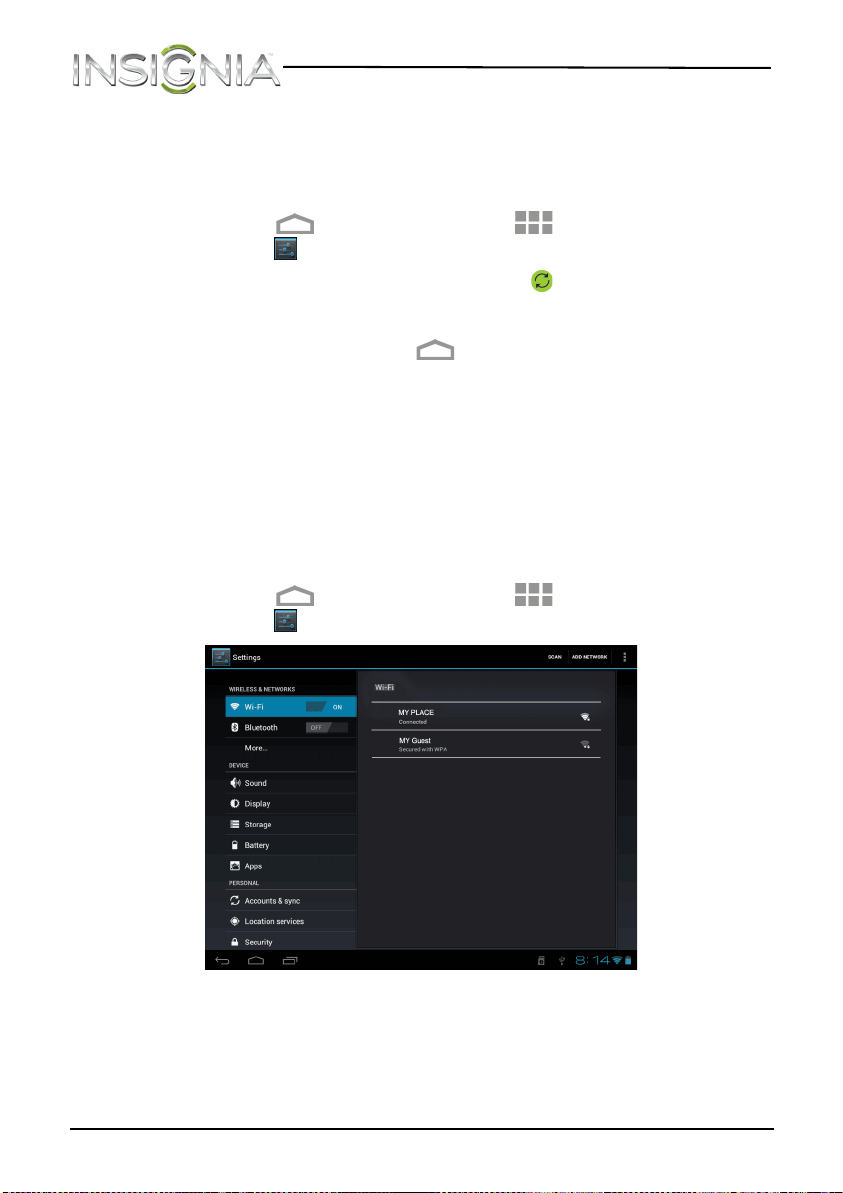
2 Touch the (home) icon, touch the (applications) icon, then
touch the (settings) icon.
3 Touch Account & sync, then touch the (auto-sync) icon.
4 Check the box for Sync Contacts.
5 When you finish, touch the (home) icon to return to the Home
screen.
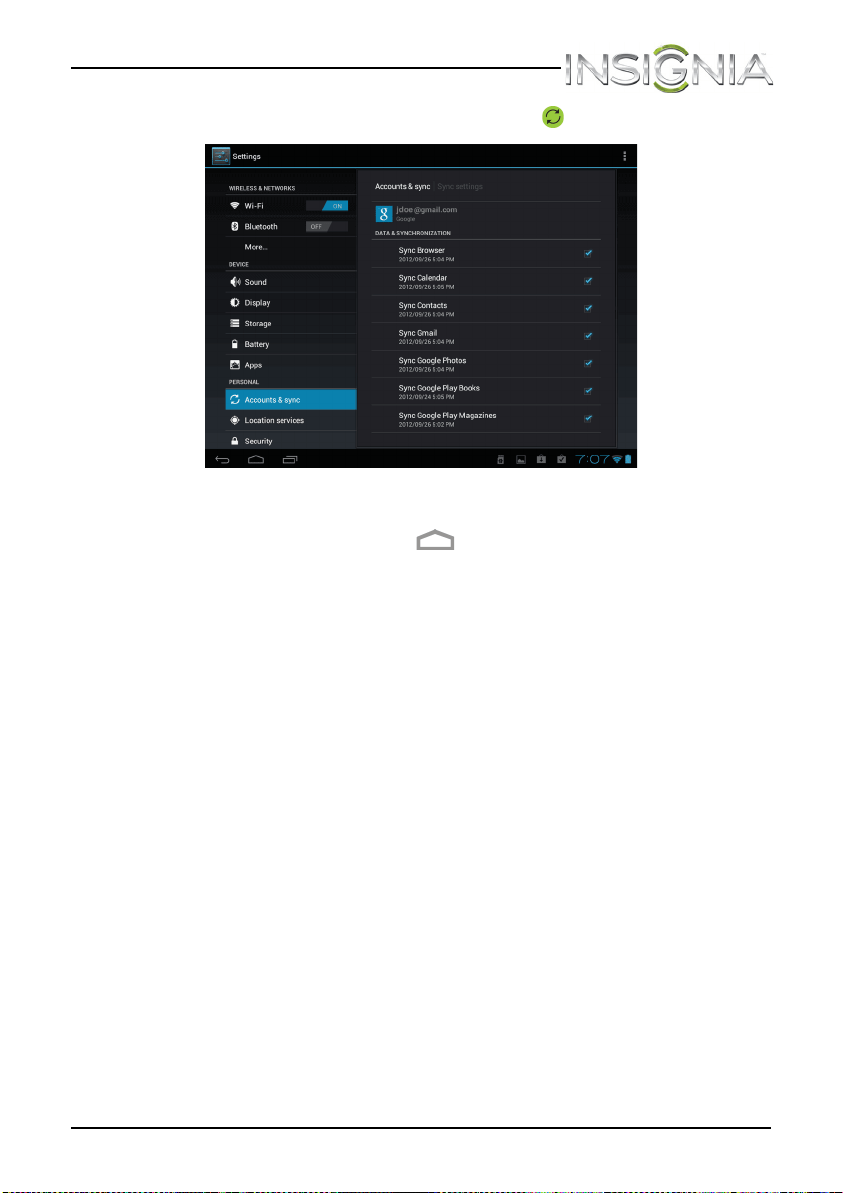
Syncing your data with your Google account
You can sync your data, such as calendars and e-mail, with your Google
account.
To sync your data with your Google account:
1 Make sure that Wi-Fi is turned on. See “Turning Wi-Fi on and
connecting to a network.”
2 Touch the (home) icon, touch the (applications) icon, then
touch the (settings) icon. The Settings screen opens.
NS-13T001_13-0918_MAN_V3_ENG.fm Page 48 Tuesday, October 22, 2013 10:33 AM
49
NS-13T001 Insignia Flex™ Android Tablet
www.insigniaproducts.com
3 Touch Accounts & sync, then touch the (auto-sync) icon.
4 Check the boxes for items you would like to sync.
5 When you finish, touch the (home) icon to return to the Home
screen.
NS-13T001_13-0918_MAN_V3_ENG.fm Page 49 Tuesday, October 22, 2013 10:33 AM
50
NS-13T001 Insignia Flex™ Android Tablet
www.insigniaproducts.com
Using e-mail
Your tablet comes with an e-mail wizard that lets you add external POP3
or IMAP e-mail accounts from popular Web-based e-mail service
providers such as Gmail, Hotmail, Yahoo!® Mail Plus, AOL, and more.
Setting up an e-mail account
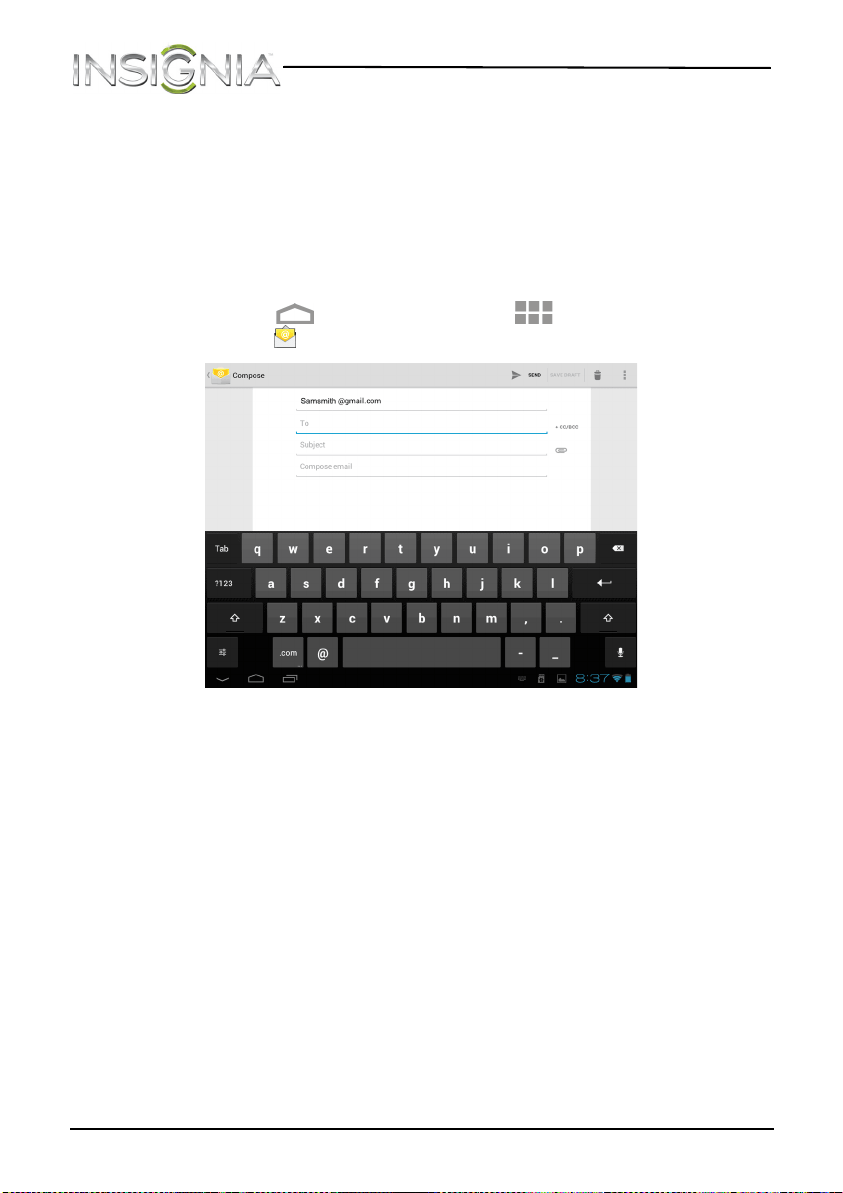
To set up an e-mail account:
1 Touch the (home) icon, touch the (applications) icon, then
touch the (e-mail) icon. The on-screen keyboard opens.
2 Use the keyboard to enter your e-mail address and password.
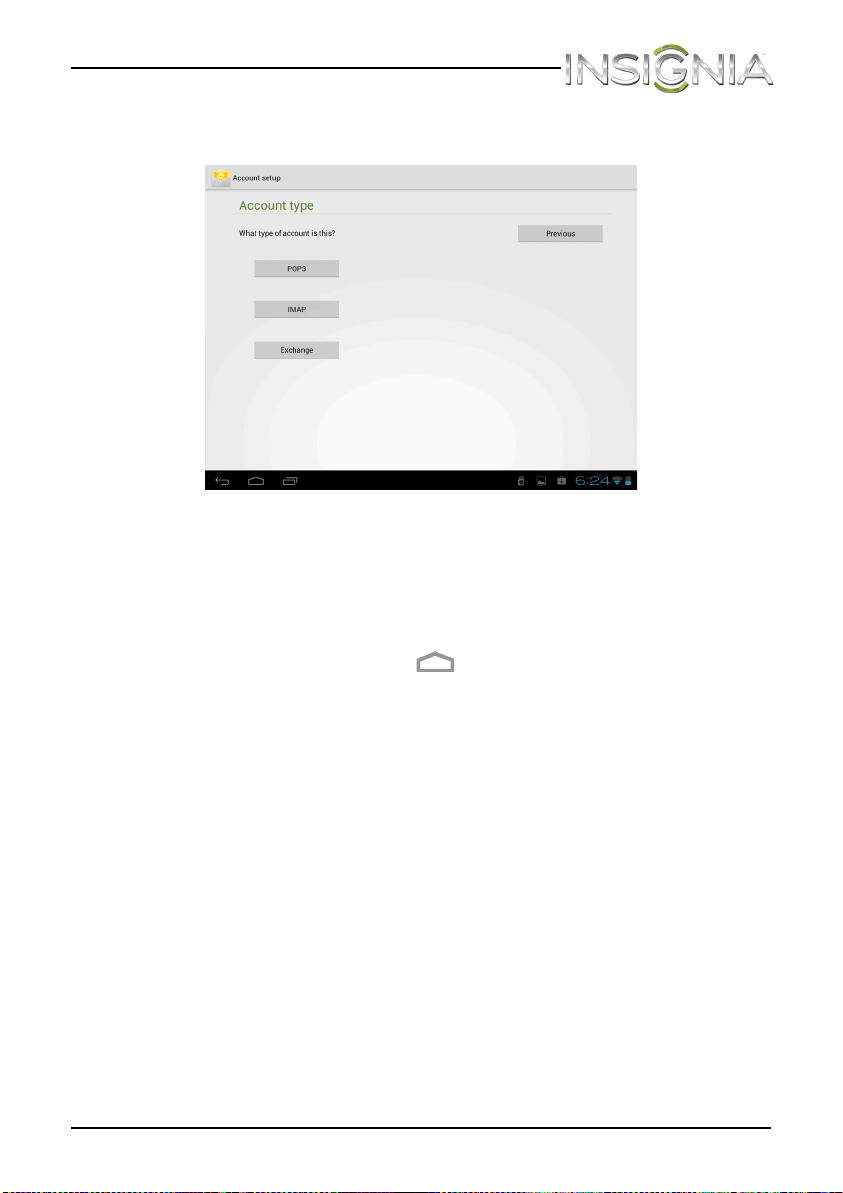
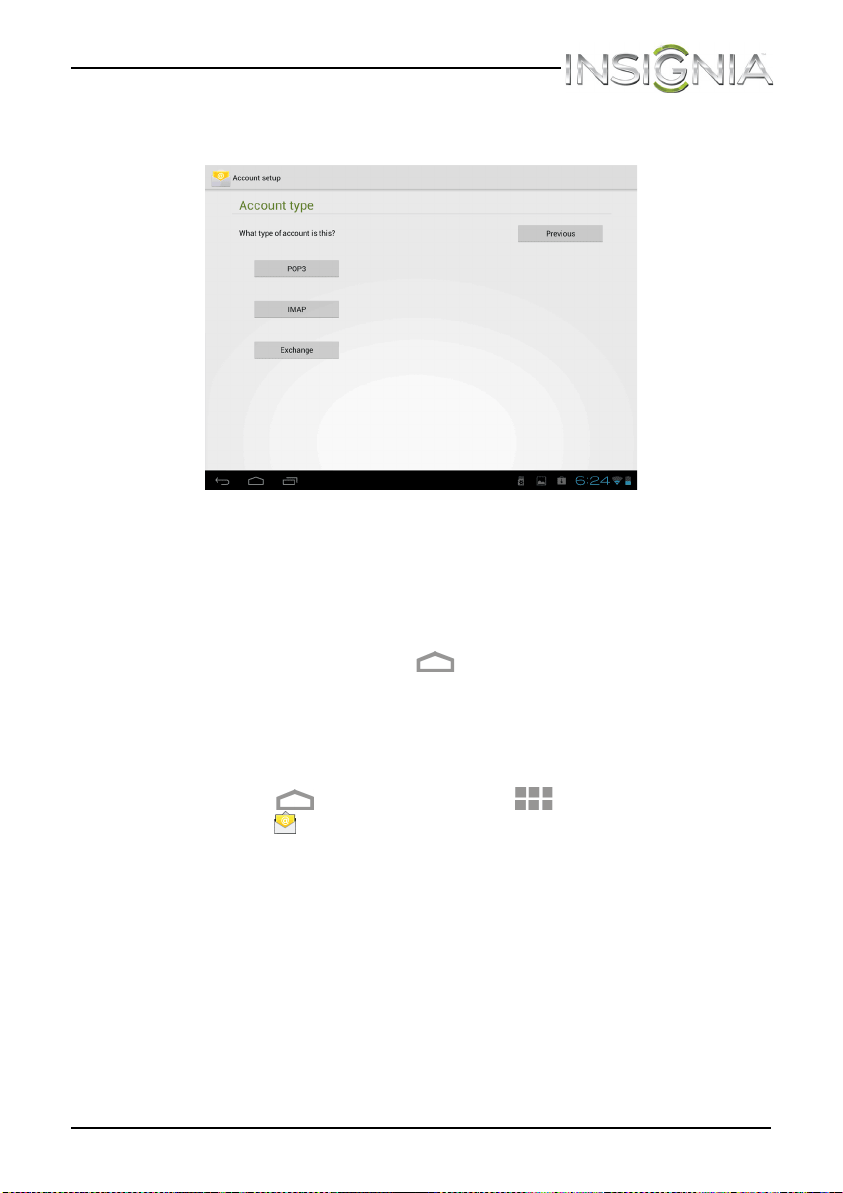
3 Touch Next. If the e-mail account you want to set up is not in the
tablet's e-mail database, you are prompted to manually enter the
email account settings, such as your account type, email server,
protocol, and more.
OR
NS-13T001_13-0918_MAN_V3_ENG.fm Page 50 Tuesday, October 22, 2013 10:33 AM
51
NS-13T001 Insignia Flex™ Android Tablet
www.insigniaproducts.com
Touch Manual to open the screen where you enter e-mail settings,
make your changes, then touch Done when you have finished.
The Account options screen opens where you can set options. such as
how often you want your inbox checked and whether you want to
sync from that account.
4 Touch Next. Give your account a name (optional) and enter a display
name. Your account syncs and your inbox opens.
5 When you finish, touch the (home) icon to return to the Home
screen.
NS-13T001_13-0918_MAN_V3_ENG.fm Page 51 Tuesday, October 22, 2013 10:33 AM
52
NS-13T001 Insignia Flex™ Android Tablet
www.insigniaproducts.com
Adding another e-mail account
To add another e-mail account:
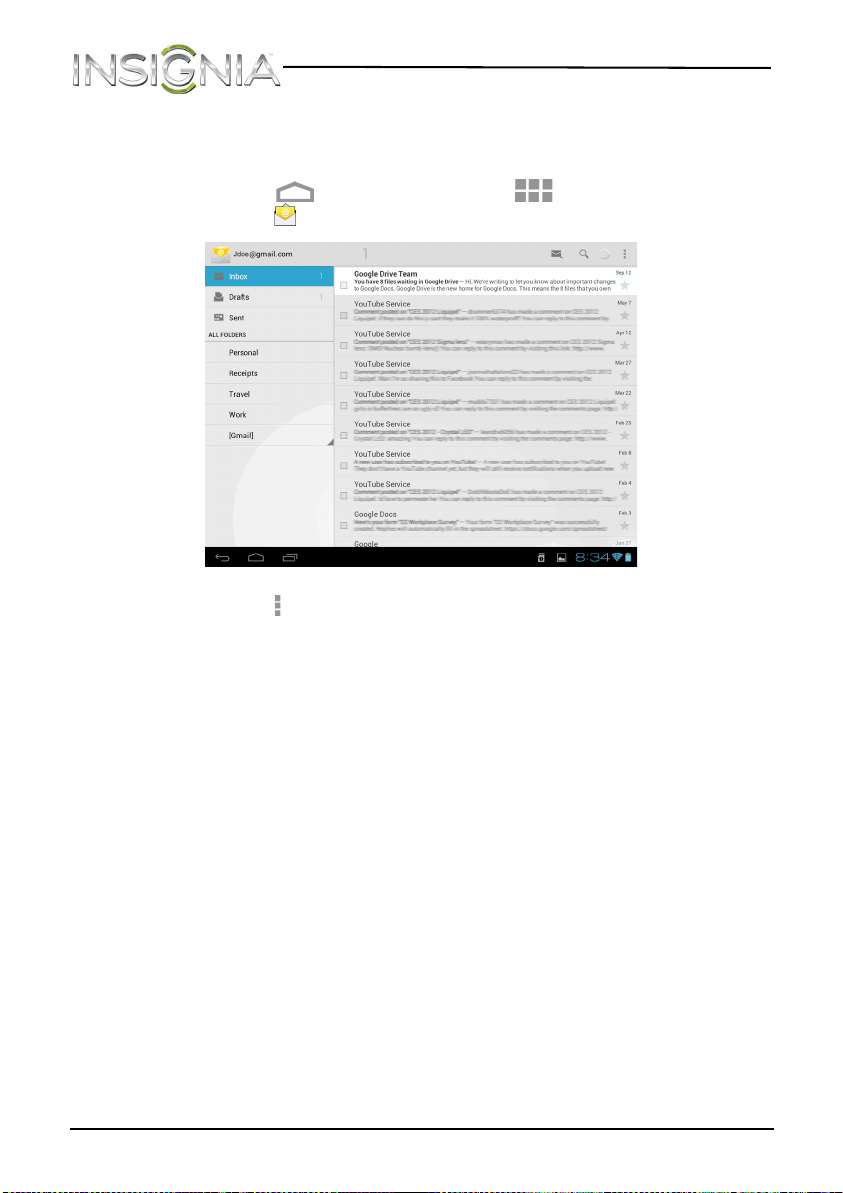
1 Touch the (home) icon, touch the (applications) icon, then
touch the (e-mail) icon.
2 Touch the (options) icon, touch Settings, then touch Add account in
the upper right corner of the screen. The on-screen keyboard opens.
3 Use the keyboard to enter your e-mail address and password.
4 Touch Next. If the e-mail account you want to set up is not in the
tablet's e-mail database, you are prompted to manually enter the
email account settings, such as the type of your account, email server,
protocol, and more.
OR
NS-13T001_13-0918_MAN_V3_ENG.fm Page 52 Tuesday, October 22, 2013 10:33 AM
53
NS-13T001 Insignia Flex™ Android Tablet
www.insigniaproducts.com
Touch Manual to open the screen where you can enter e-mail settings,
enter your settings, then touch Done when you have finished.
The Account options screen opens where you can set options. such as
how often you want your inbox checked and whether you want to
sync from that account.
5 Touch Next. Give your account a name (optional) and enter a display
name. Your account syncs and your Inbox appears.
6 When you finish, touch the (home) icon to return to the Home
screen.
Creating and sending an e-mail
To create and send an e-mail:
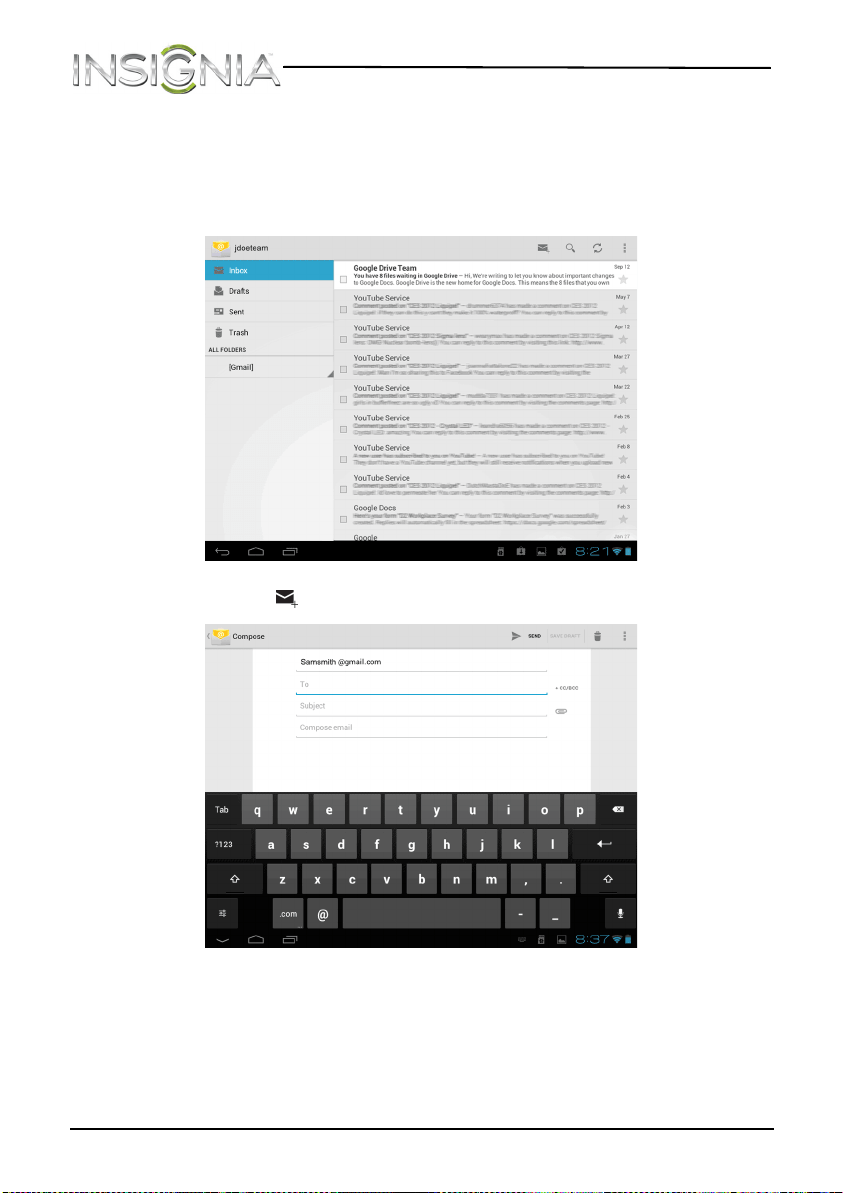
1 Touch the (home) icon, touch the (applications) icon, then
touch the (e-mail) icon. Your inbox opens.
NS-13T001_13-0918_MAN_V3_ENG.fm Page 53 Tuesday, October 22, 2013 10:33 AM
54
NS-13T001 Insignia Flex™ Android Tablet
www.insigniaproducts.com
Note: If you have more than one e-mail account set up, your tablet
displays the last account you used.
To access a different account, touch the left arrow in the upper left
corner of the screen. The Your Accounts screen opens where you can
select a different account.
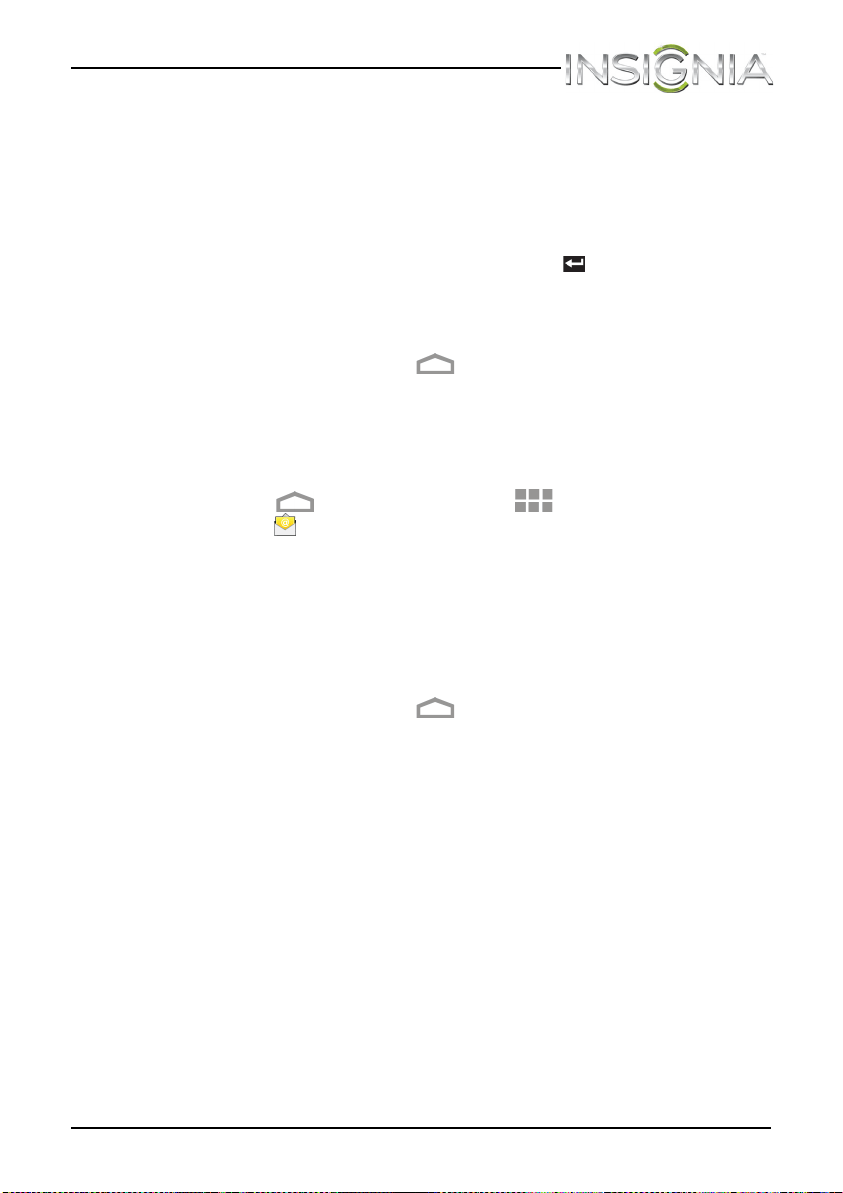
2 Touch the (compose) icon.
3 Enter the recipient's e-mail address. As you begin entering the address,
your tablet displays all your contacts that match the characters you
have entered. You can touch a contact or continue entering the
address.
NS-13T001_13-0918_MAN_V3_ENG.fm Page 54 Tuesday, October 22, 2013 10:33 AM
55
NS-13T001 Insignia Flex™ Android Tablet
www.insigniaproducts.com
Note: If you are sending the e-mail to more than one recipient, separate
the e-mail addresses with commas.
4 Enter a subject in the subject field.
5 Enter your message in the message area.
6 When you are finished, touch Send.
Note: You can touch Save draft or touch the (return) key to save
your e-mail as a draft instead of sending it.
To access a saved draft, touch Drafts on the left side of the screen to
view all saved drafts, then touch the draft you want to open.
7 When you finish, touch the (home) icon to return to the Home
screen.
Viewing incoming e-mails
To view incoming e-mails:
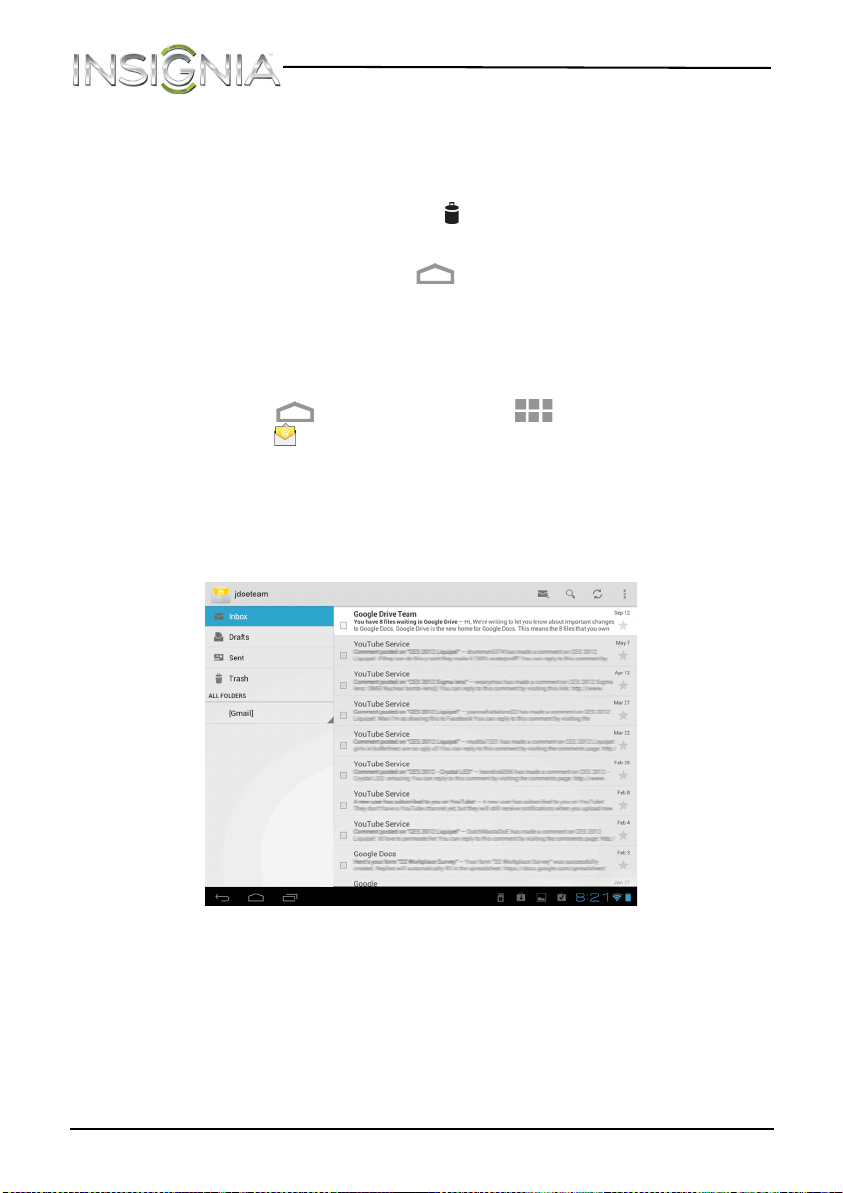
1 Touch the (home) icon, touch the (applications) icon, then
touch the (e-mail) icon. Your inbox opens.
Note: If you have more than one e-mail account set up, your tablet
displays the last account you used.
To access a different account, touch the left arrow in the upper left
corner of the screen. The Your Accounts screen opens where you can
select a different account.
2 Touch the e-mail you want to view.
3 When you finish, touch the (home) icon to return to the Home
screen.
NS-13T001_13-0918_MAN_V3_ENG.fm Page 55 Tuesday, October 22, 2013 10:33 AM
56
NS-13T001 Insignia Flex™ Android Tablet
www.insigniaproducts.com
Deleting an e-mail
To delete an e-mail:
1 In the e-mail inbox, touch the check box to the left of the e-mail you
want to delete, then touch the (trash icon) in the upper right corner
of the screen.
2 When you finish, touch the (home) icon to return to the Home
screen.
Editing or deleting an e-mail account
To edit or delete an e-mail account:
1 Touch the (home) icon, touch the (applications) icon, then
touch the (e-mail) icon. Your inbox opens.
Note: If you have more than one e-mail account set up, your tablet
displays the last account you used.
To access a different account, touch the left arrow in the upper left
corner of the screen. The Your Accounts screen opens where you can
select a different account.
NS-13T001_13-0918_MAN_V3_ENG.fm Page 56 Tuesday, October 22, 2013 10:33 AM
57
NS-13T001 Insignia Flex™ Android Tablet
www.insigniaproducts.com
2 To edit an e-mail account, touch the (options) icon, touch Settings,
then touch the account you want to edit or delete. Use the on-screen
keyboard to change the account information. When you are done,
touch OK.
OR
To delete an e-mail account, touch Settings. At the bottom of the list
of options, touch Remove account. When you are prompted to
confirm the deletion, touch OK.
3 When you finish, touch the (home) icon to return to the Home
screen.
Using Gmail
Google mail is a web-based e-mail service that lets you check e-mail
directly without logging into your mail account from the Web site.
Setting up a Gmail account
To set up a Gmail account:
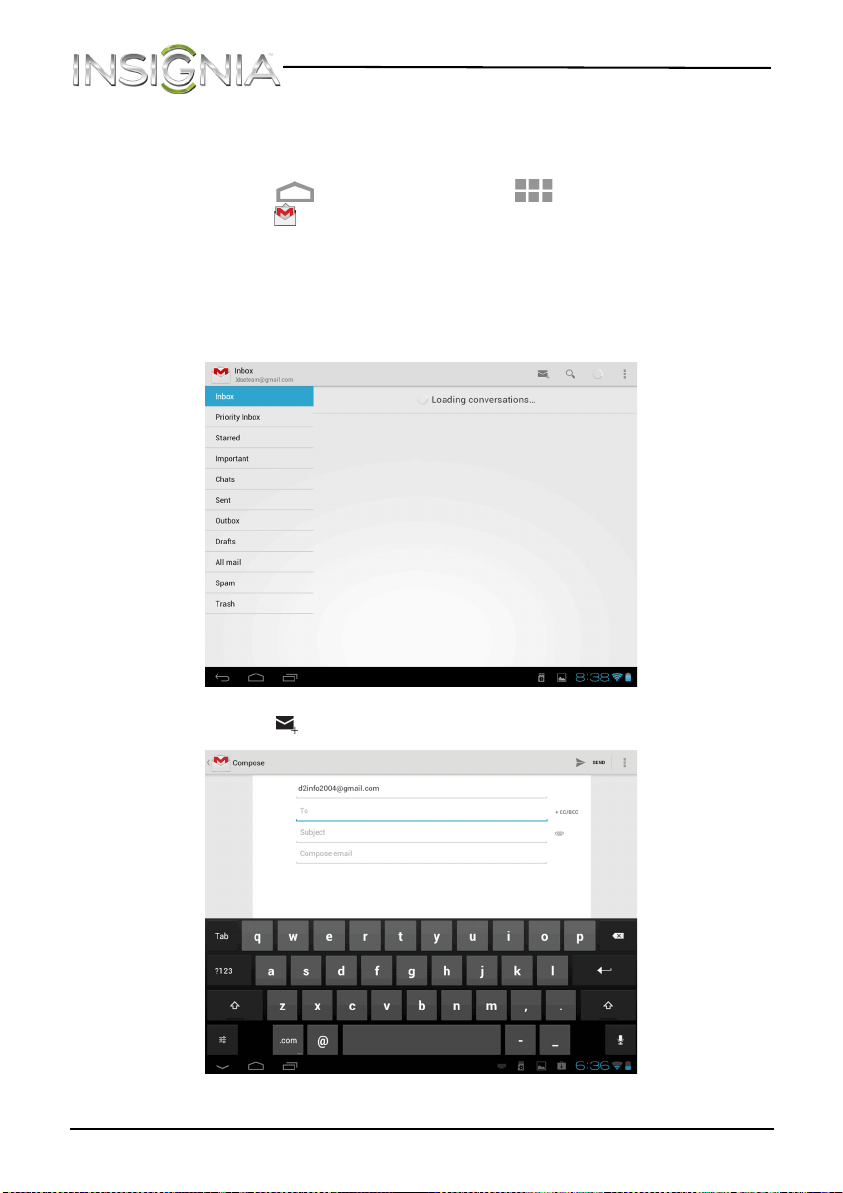
1 Touch the (home) icon, touch the (applications) icon, then
touch the (Gmail) icon. You are prompted to create a new Gmail
account.
2 Follow the on-screen instructions for setting up an account.
NS-13T001_13-0918_MAN_V3_ENG.fm Page 57 Tuesday, October 22, 2013 10:33 AM
58
NS-13T001 Insignia Flex™ Android Tablet
www.insigniaproducts.com
Creating and sending a Gmail
To create and send a Gmail:
1 Touch the (home) icon, touch the (applications) icon, then
touch the (Gmail) icon. Your inbox opens.
Note: If you have more than one e-mail account set up, your tablet
displays the last account you used.
To access a different account, touch the left arrow in the upper left
corner of the screen. The Your Accounts screen opens where you can
select a different account.
2 Touch the (compose) icon.
NS-13T001_13-0918_MAN_V3_ENG.fm Page 58 Tuesday, October 22, 2013 10:33 AM
59
NS-13T001 Insignia Flex™ Android Tablet
www.insigniaproducts.com
3 Enter the recipient's e-mail address. As you begin entering the address,
your tablet displays all your contacts that match the characters you
have entered. You can touch a contact or continue entering the
address.
Note: If you are sending the e-mail to more than one recipient, separate
the e-mail addresses with commas.
4 Enter a subject in the subject field.
5 Enter your message in the message area.
6 When you are finished, touch Send.
Note: You can touch Save draft or touch the (return) key to save
your e-mail as a draft instead of sending it.
7 To access a saved draft, touch Drafts on the left side of the screen to
view all saved drafts.
8 Touch the draft you want to open.
9 When you finish, touch the (home) icon to return to the Home
screen.
NS-13T001_13-0918_MAN_V3_ENG.fm Page 59 Tuesday, October 22, 2013 10:33 AM
60
NS-13T001 Insignia Flex™ Android Tablet
www.insigniaproducts.com
Viewing incoming e-mails
To view incoming e-mails:
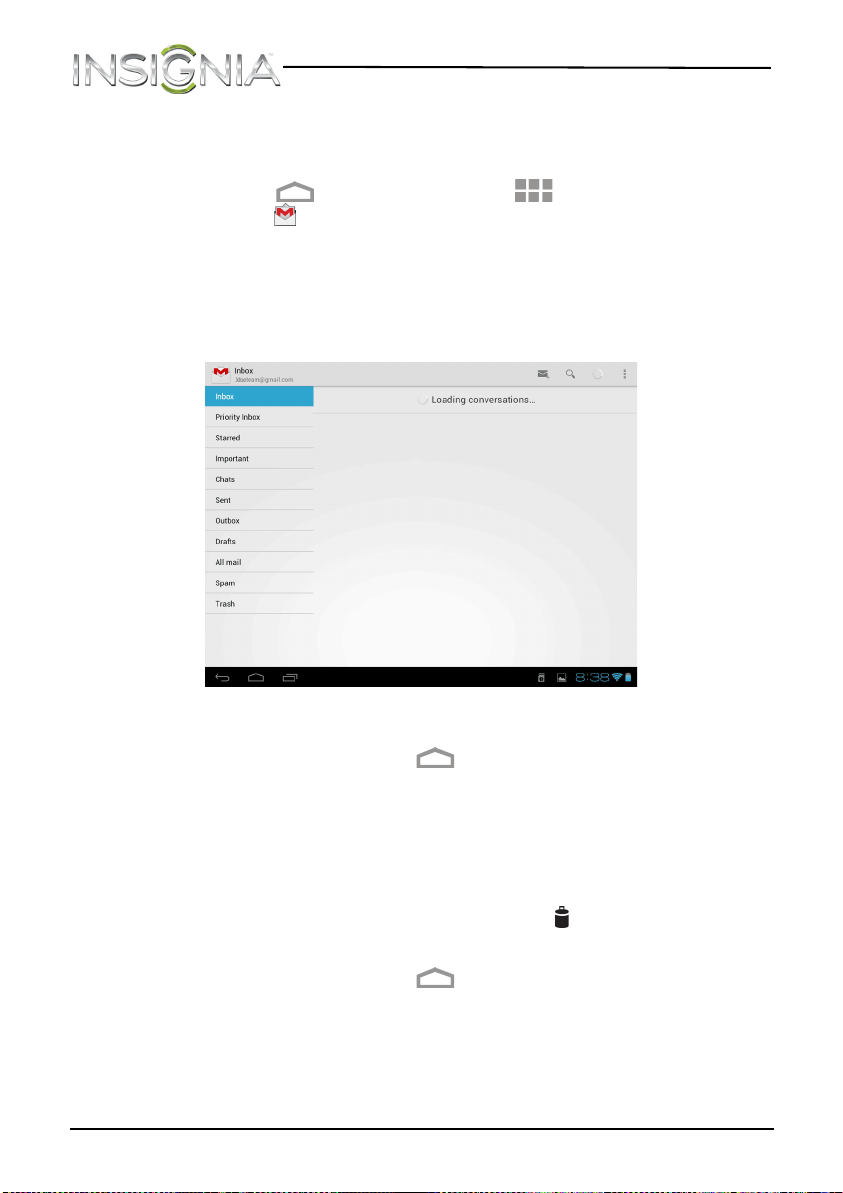
1 Touch the (home) icon, touch the (applications) icon, then
touch the (Gmail) icon. Your inbox opens.
Note: If you have more than one e-mail account set up, your tablet
displays the last account you used.
To access a different account, touch the left arrow in the upper left
corner of the screen. The Your Accounts screen opens where you can
select a different account.
2 Touch the e-mail you want to view.
3 When you finish, touch the (home) icon to return to the Home
screen.
Deleting a Gmail
To delete a Gmail:
1 In the Gmail account inbox, touch the check box to the left of the
e-mail you want to delete, then touch the (trash icon) in the
upper right corner of the screen.
2 When you finish, touch the (home) icon to return to the Home
screen.
NS-13T001_13-0918_MAN_V3_ENG.fm Page 60 Tuesday, October 22, 2013 10:33 AM
61
NS-13T001 Insignia Flex™ Android Tablet
www.insigniaproducts.com
Connecting to the Internet
Viewing Web pages
Your tablet's browser lets you view Web pages just like on a desktop
computer.
For optimal viewing, change the screen orientation to landscape view by
rotating your tablet 90°. The screen automatically adjusts according to
how you hold the tablet.
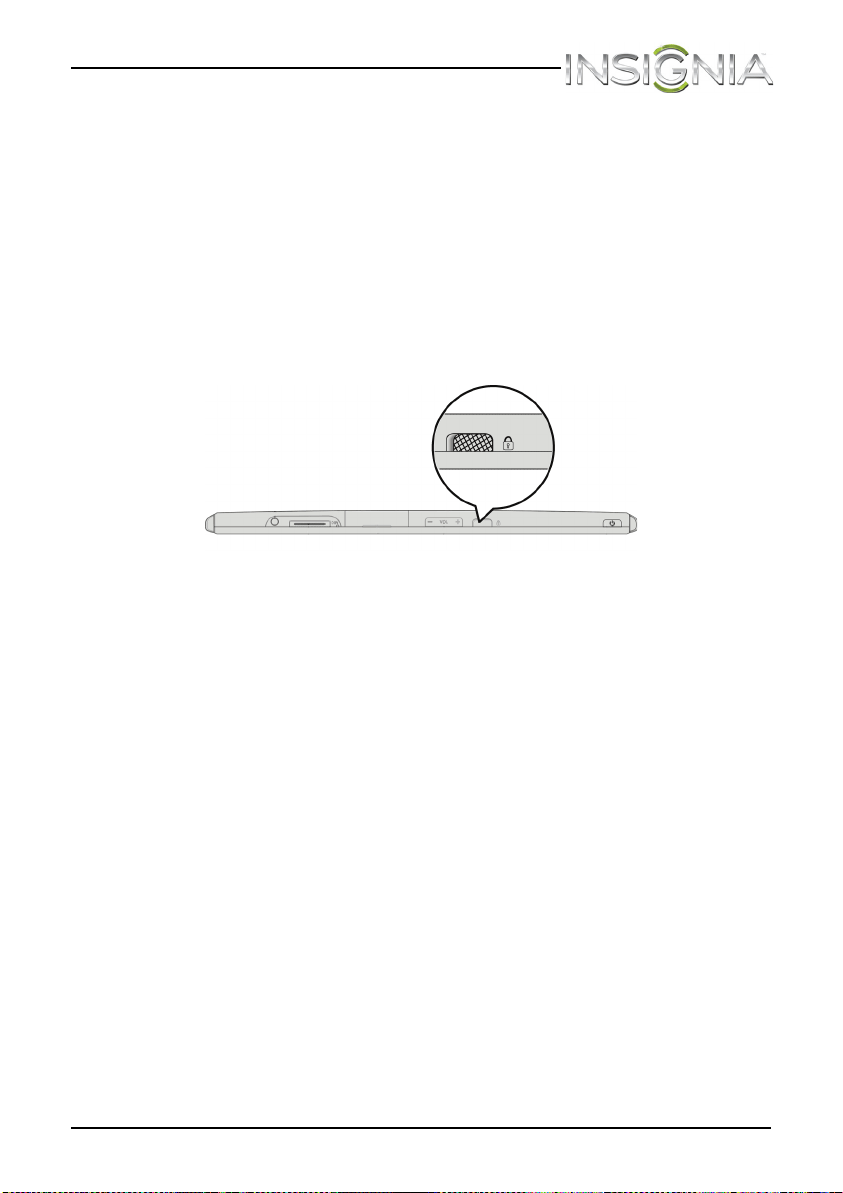
Note: To lock the screen in place slide the screen rotation button to the
lock position. Locking the screen rotation lets you turn your tablet
without changing the screen orientation.
NS-13T001_13-0918_MAN_V3_ENG.fm Page 61 Tuesday, October 22, 2013 10:33 AM
62
NS-13T001 Insignia Flex™ Android Tablet
www.insigniaproducts.com
To view a Web page:
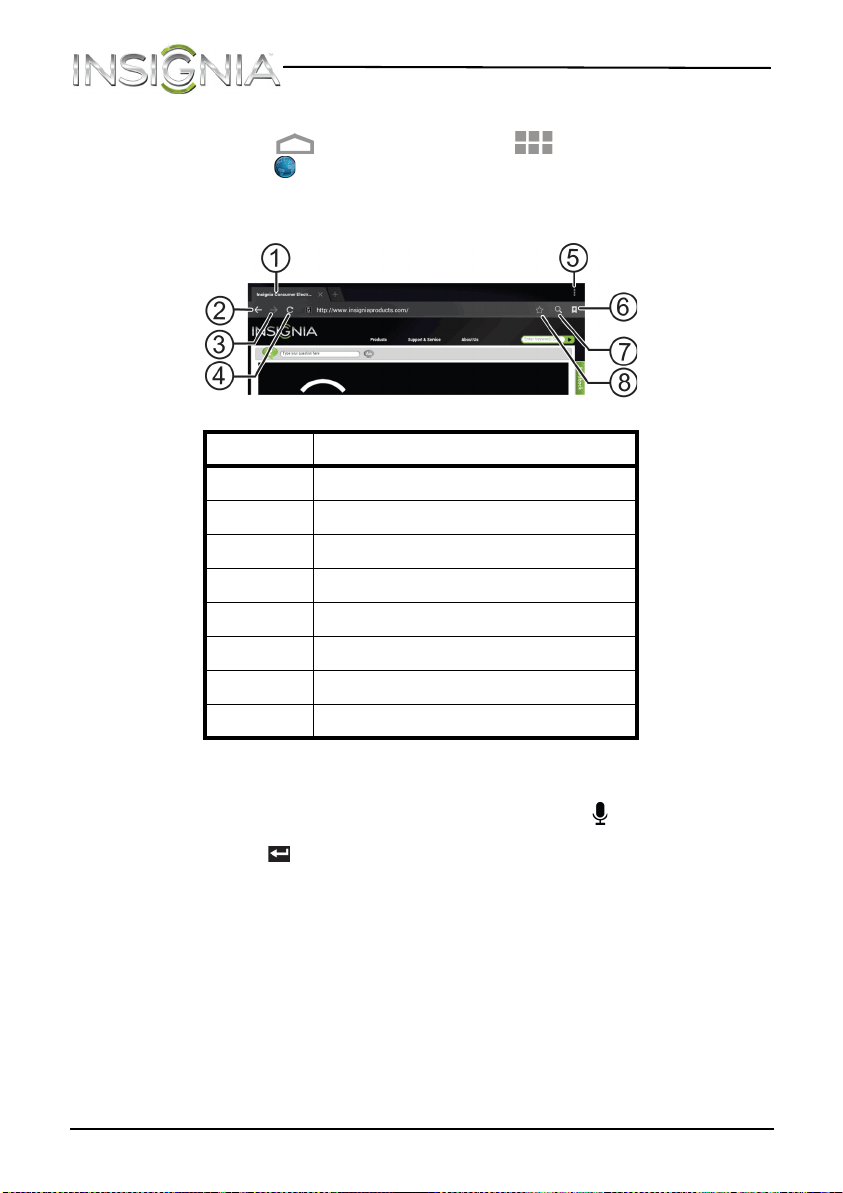
1 Touch the (home) icon, touch the (applications) icon, then
touch the (browser) icon. The browser screen opens.
Note: The browser screen opens automatically when you touch a Web
link in an e-mail.
To navigate on a Web page:
• To go to a Web page, touch the address field, then use the on-screen
keyboard to enter the Web address, or touch the (voice search icon)
in the lower right corner of the keyboard and speak the Web address.
Press the (return) key on the on-screen keyboard to go to the Web
page.
• To scroll the Web page, slide your finger left, right, up, or down.
• To zoom in on a part of the Web page, touch the Web page with your
fingers together, then spread your fingers apart.
• To zoom out on a Web page, touch the Web page with your fingers
apart, then pinch your fingers together.
• To open a new browser window, touch + at the top of the browser. A
new browser window opens with the home page displayed.
• To switch between open browser windows, touch the top of the
windows you want to view.
Touch.. . To...
1
Open a new Web page.
2
Go back.
3
Go forward.
4
Refresh.
5
Bookmark the current Web page.
6
Open the bookmark screen.
7
Display the search box.
8
View more menu options.
NS-13T001_13-0918_MAN_V3_ENG.fm Page 62 Tuesday, October 22, 2013 10:33 AM
63
NS-13T001 Insignia Flex™ Android Tablet
www.insigniaproducts.com
• To close a browser window, touch the
×
(close) icon.
• To search, touch the (search) icon or the (Google) icon,
then use the on-screen keyboard to type your search information.
Notes:
• You can search from the Applications screen by selecting Search.
• You can use the speech-to-text feature to search information using
voice input by touching the (voice search) icon.
Searching for text on a Web page
To search for text on a Web page:
1 With the Web page open, touch the (options) icon at the top right of
the screen, then touch Find on page.
2 Use the on-screen keyboard to enter the search text. As you enter
characters, matching characters on the Web page are highlighted in
green. Touch the up or down arrow to go to the previous or next
matching item.
3 Touch DONE to close the search bar at any time.
Copying text on a Web page
To copy text on a Web page:
1 Open the Web page where you want to copy text.
2 Zoom out on the Web page.
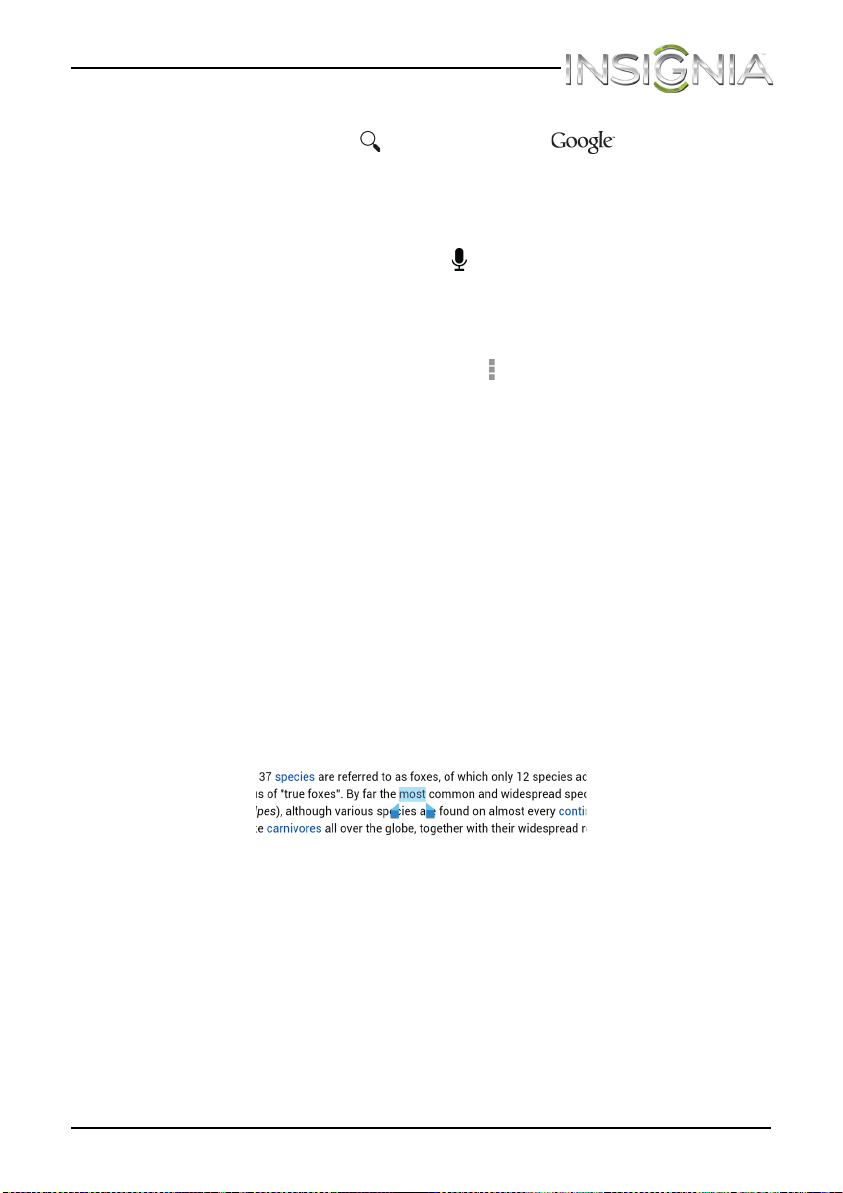
3 Touch and hold the text that you want to copy until a blue ribbon
covers the text.
4 To select additional text to the left or right of the highlighted text, drag
the left or right “ribbon handles.”
5 Release your finger from the text, then touch Copy on the top of the
screen.
6 To paste text into an e-mail or SMS/MMS message, touch and hold the
area you want to paste the text, then touch Paste.
NS-13T001_13-0918_MAN_V3_ENG.fm Page 63 Tuesday, October 22, 2013 10:33 AM
64
NS-13T001 Insignia Flex™ Android Tablet
www.insigniaproducts.com
Checking browser history
To check browser history:
1 On the browser screen, touch , then touch the History tab to view
history.
2 Touch a history item to open the Web page.
3 When you finish, touch the (home) icon to return to the Home
screen.
Clearing browser cache and history
To clear browser cache and history:
1 On the browser screen, touch the (options) icon.
2 On the options menu, touch Settings, touch Privacy & security,
touch Clear cache, then touch OK.
3 Touch Clear history, then touch OK.
4 When you finish, touch the (home) icon to return to the Home
screen.
Setting the browser home page
To set the browser home page:
1 Open the browser, then touch the (options) icon at the top of the
screen.
2 Touch Settings, touch General, then touch Set homepage.
3 Touch the check box for the home page you want to use. If you select
Other, use the on-screen keyboard to enter the Web address of the
page you want to use, then touch OK.
4 When you finish, touch the (home) icon to return to the Home
screen.
NS-13T001_13-0918_MAN_V3_ENG.fm Page 64 Tuesday, October 22, 2013 10:33 AM
65
NS-13T001 Insignia Flex™ Android Tablet
www.insigniaproducts.com
Downloading apps
Before you can download an application from the Web, you have to turn
on the Web application download feature.
Caution: Applications downloaded from the Web may be from
unknown sources. To protect your tablet and personal data, download
applications only from trusted sources.
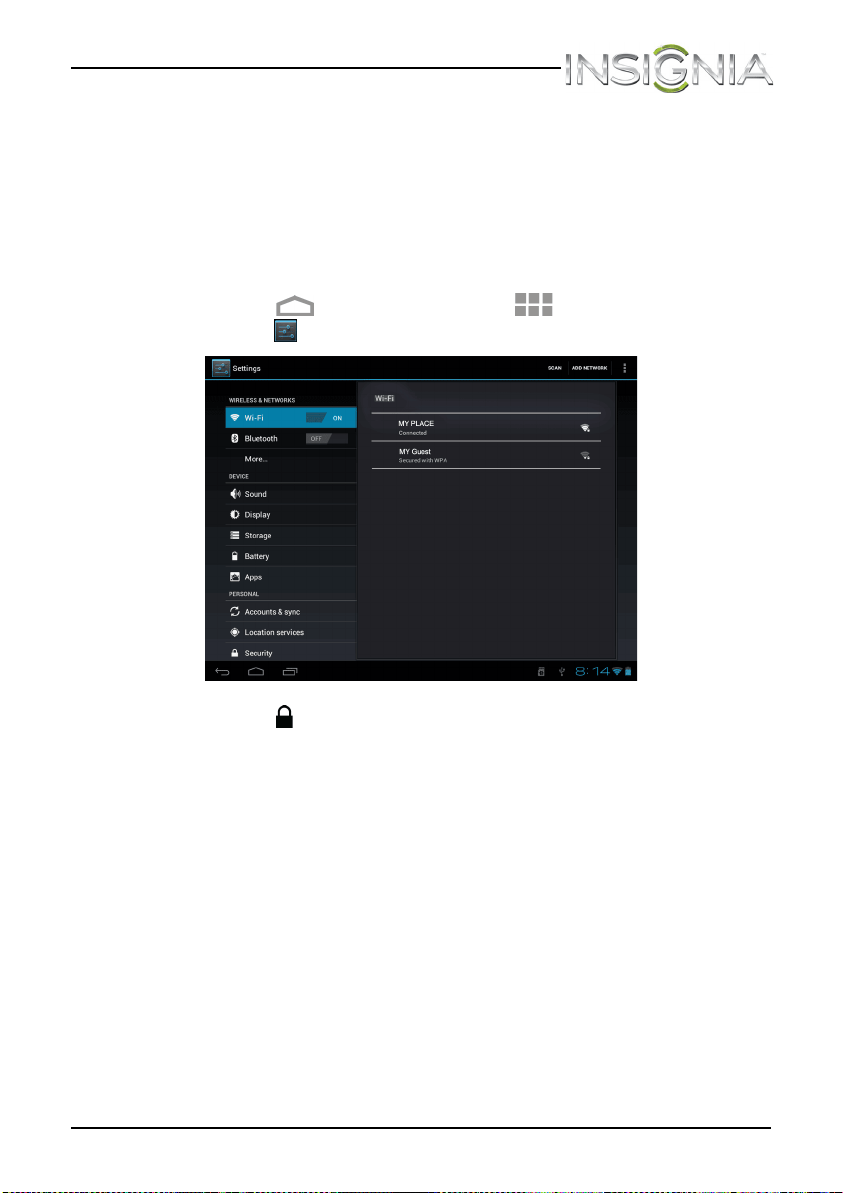
To turn on the Web application download feature:
1 Touch the (home) icon, touch the (applications) icon, then
touch the (settings) icon. The Settings screen opens.
2 Touch the (security) icon, then touch the Unknown sources check
box.
3 When the Attention dialog box opens, touch OK.
Note: All downloaded applications are saved to the microSD memory
card. Before downloading an application from the Web, make sure that
microSD memory card is installed in your tablet.
NS-13T001_13-0918_MAN_V3_ENG.fm Page 65 Tuesday, October 22, 2013 10:33 AM
66
NS-13T001 Insignia Flex™ Android Tablet
www.insigniaproducts.com
Managing bookmarks
Your tablet lets you store as many bookmarks as you want. Bookmarks can
also be copied from a Google Chrome™ browser on your computer to
your tablet. This add-on feature must be installed on the Google Chrome
browser on your computer.
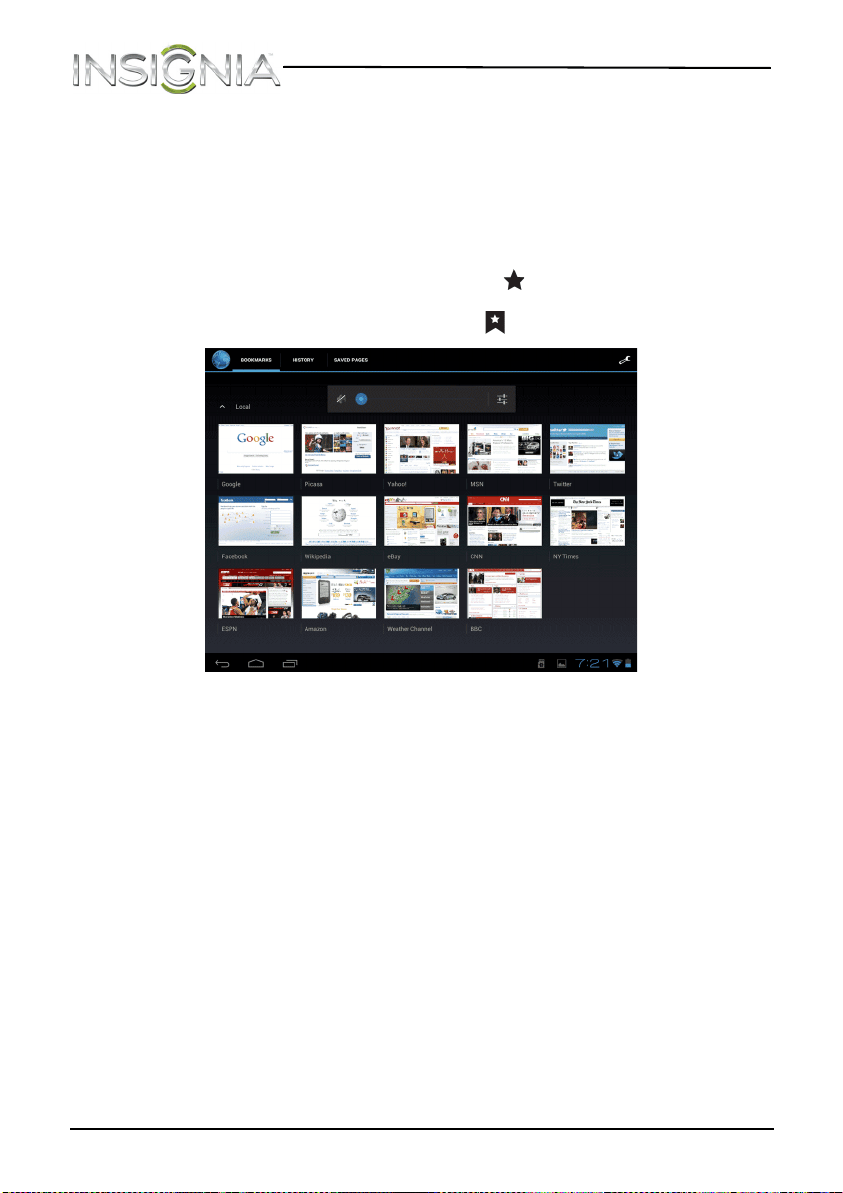
To manage bookmarks:
• When viewing a Web page, touch the (add bookmark) icon to add
the page to your bookmarks.
• To open the bookmark page, touch (open bookmark page).
• Touch and hold a bookmark to see a list of options.
NS-13T001_13-0918_MAN_V3_ENG.fm Page 66 Tuesday, October 22, 2013 10:33 AM
67
NS-13T001 Insignia Flex™ Android Tablet
www.insigniaproducts.com
Using Bluetooth
Your tablet supports wireless connections between devices using
Bluetooth. When using Bluetooth, keep the tablet within 33 feet
(10 meters) of the other Bluetooth devices that you want to connect to.
Bluetooth connectivity is affected by your surroundings. Obstacles like
walls or other electronic devices may interfere with your Bluetooth
connection.
When Bluetooth is turned on, your tablet detects other Bluetooth devices.
However, other devices cannot detect your tablet.
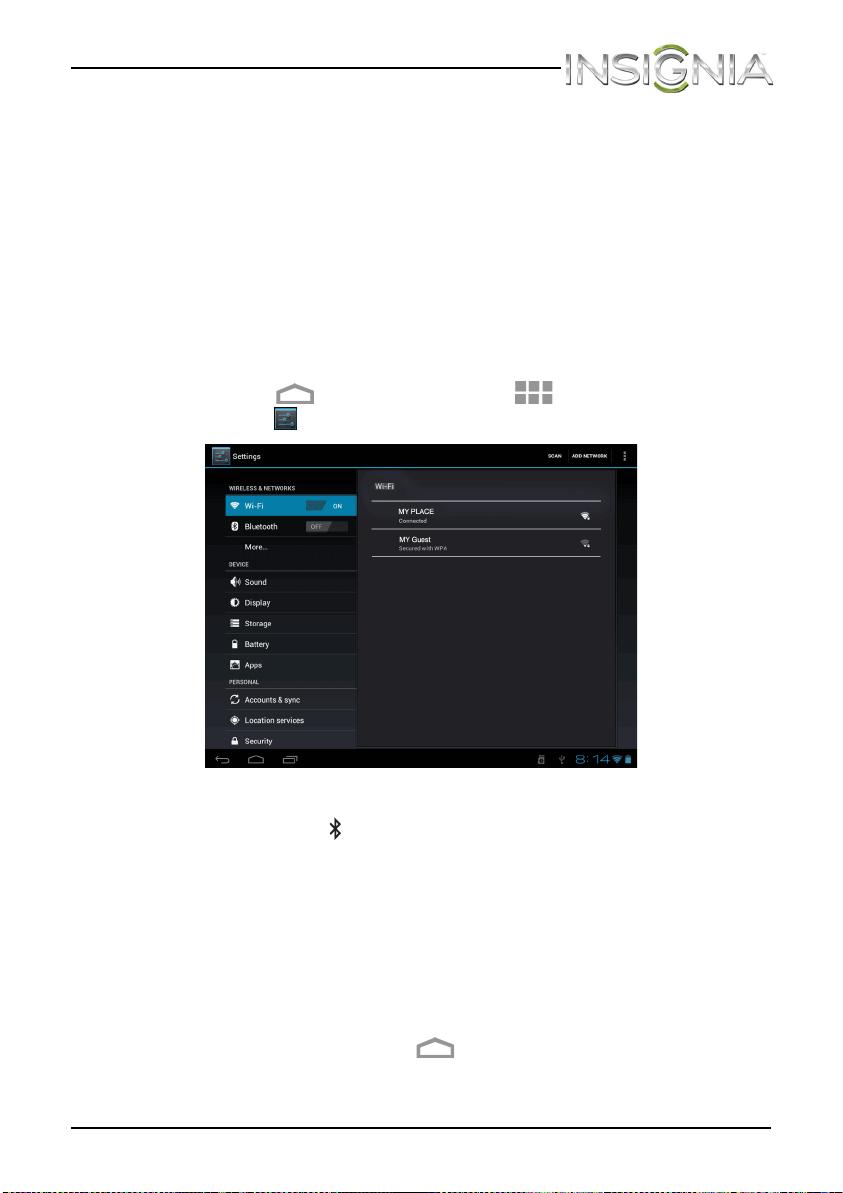
To turn on Bluetooth and let other devices detect your tablet:
1 Touch the (home) icon, touch the (applications) icon, then
touch the (settings) icon. The Settings screen opens.
2 Touch the Bluetooth check box to turn on Bluetooth. When Bluetooth
is turned on, the (Bluetooth) icon appears in your tablet’s status bar.
3 Touch your tablet’s name on the right to change the Bluetooth status
to Visible to all nearby Bluetooth devices. This setting lets other
Bluetooth devices detect your tablet.
4 To hide your tablet from other Bluetooth devices, touch your tablet’s
name to change the status to Not visible to other Bluetooth devices.
Note: See the documentation that came with your Bluetooth device for
more information on pairing your device and tablet.
5 When you finish, touch the (home) icon to return to the Home
screen.
NS-13T001_13-0918_MAN_V3_ENG.fm Page 67 Tuesday, October 22, 2013 10:33 AM
68
NS-13T001 Insignia Flex™ Android Tablet
www.insigniaproducts.com
Using multimedia
Turning the camera on or off
To turn on the camera:
1 Touch the (home) icon, then touch the (applications) icon.
The Applications screen opens.
2 Touch the (camera) icon. The camera turns on and your tablet
automatically changes to landscape mode.
To turn off the camera:
• On the camera screen, touch the “dot” to the far left on the bottom left
of the screen.
Taking pictures
To take pic tures:
1 Touch the (home) icon, then touch the (applications) icon.
The Applications screen opens.
2 Touch the (camera) icon. The camera turns on and your tablet
automatically changes to landscape mode.
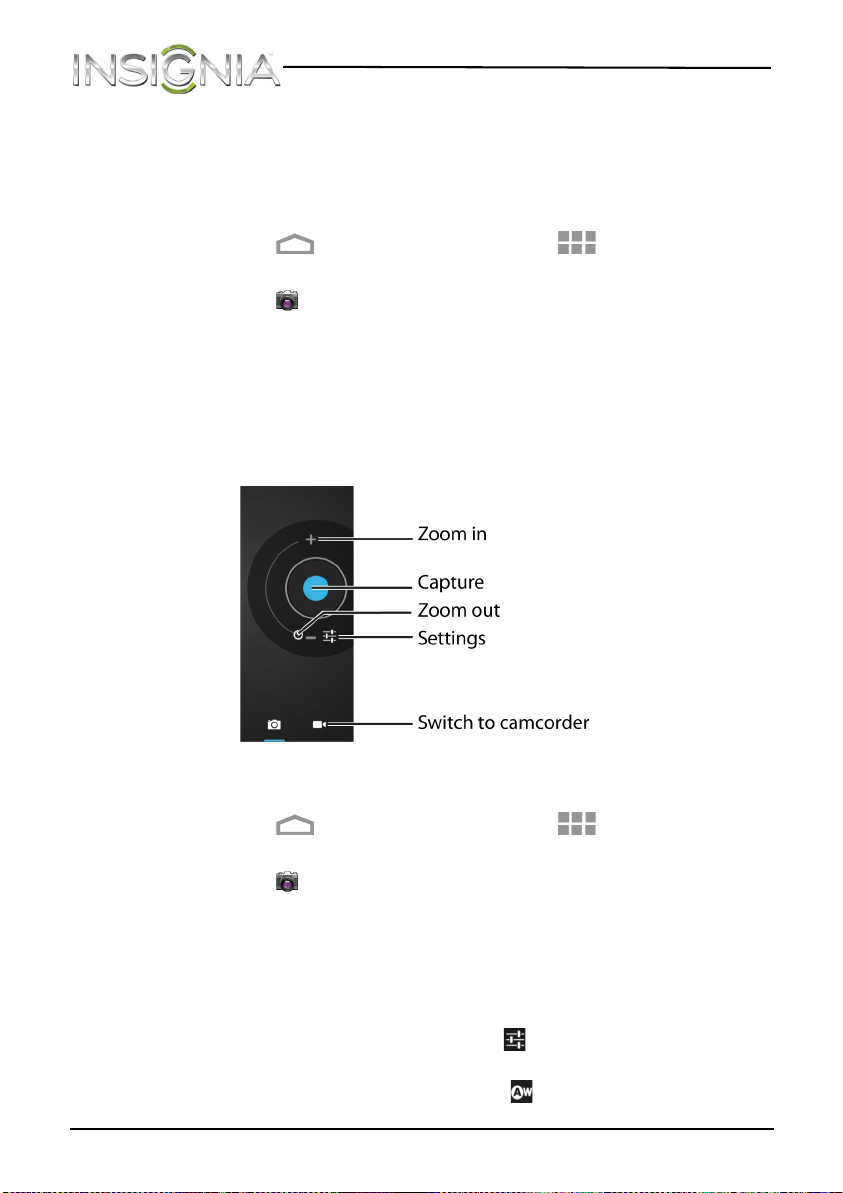
3 To use the camera:
• Touch the blue capture button to take a picture.
• Touch the circular dial toward the + to zoom in or toward the – to
zoom out.
4 To change camera settings, touch the (settings) icon. You can
adjust:
• The white balance by touching the (white balance) icon.
NS-13T001_13-0918_MAN_V3_ENG.fm Page 68 Tuesday, October 22, 2013 10:33 AM
69
NS-13T001 Insignia Flex™ Android Tablet
www.insigniaproducts.com
• The exposure by touching the (exposure) icon.
You can access and change additional camera settings by touching the
(options icon).
After you take a picture, the image appears in the Preview/Zoom screen at
the upper right corner. Touch the Preview/Zoom screen to go to the
Gallery to share the picture.
Capturing an image of the current screen
You can create a graphic of what you see on your tablet’s screen.
To capture an image of the current screen:
• Press and hold the VOL– and buttons until you see the image
captured on the screen.
To view a captured screen image:
1 Touch the (home) icon, then touch the (applications) icon.
The Applications screen opens.
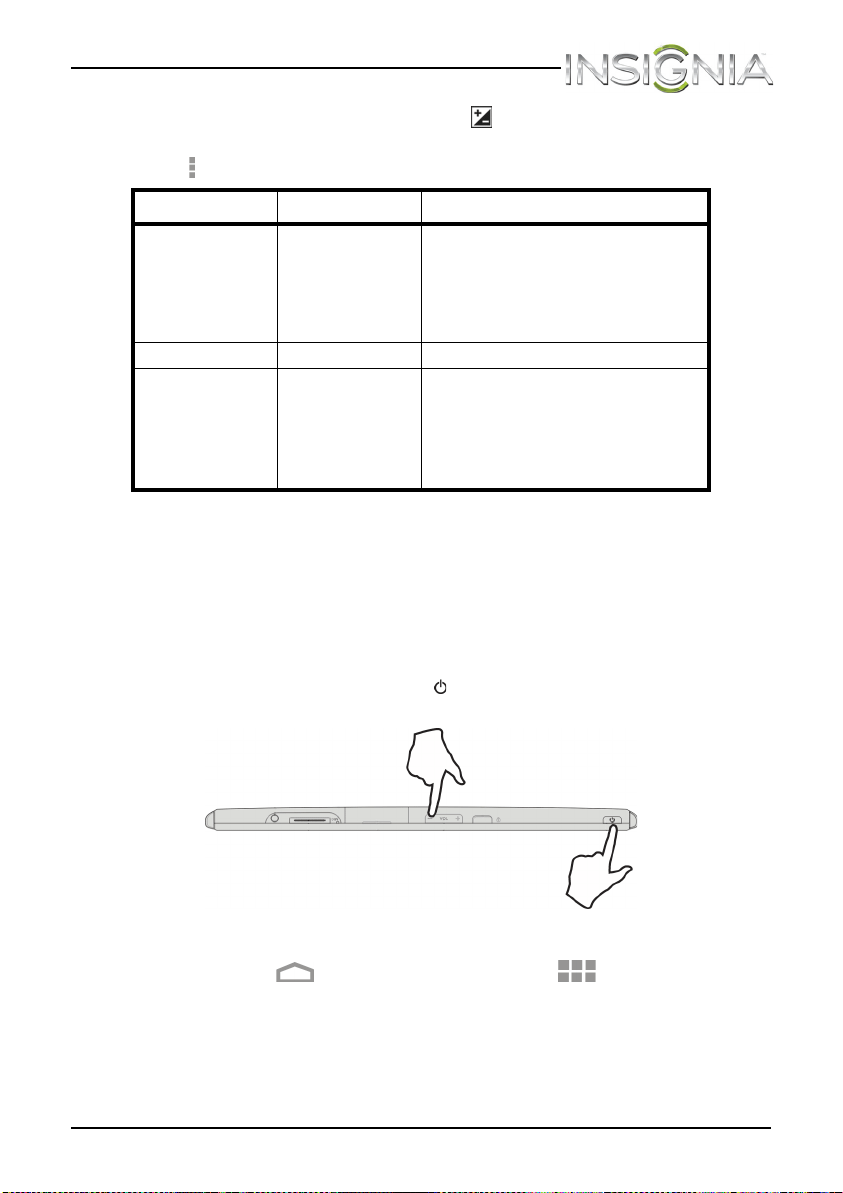
Menu Functions Options
Setting Store location
JPEG quality
Picture size
Camera setting
On, Off
Super fine, fine, normal
2M Pixels, 1.3M Pixels, 1M Pixels,
VGA, QVGA
Restore defaults
Exposure +2, +1, –1, –2
White balance Auto
Incandescent
Daylight
Fluorescent
Cloudy
NS-13T001_13-0918_MAN_V3_ENG.fm Page 69 Tuesday, October 22, 2013 10:33 AM
70
NS-13T001 Insignia Flex™ Android Tablet
www.insigniaproducts.com
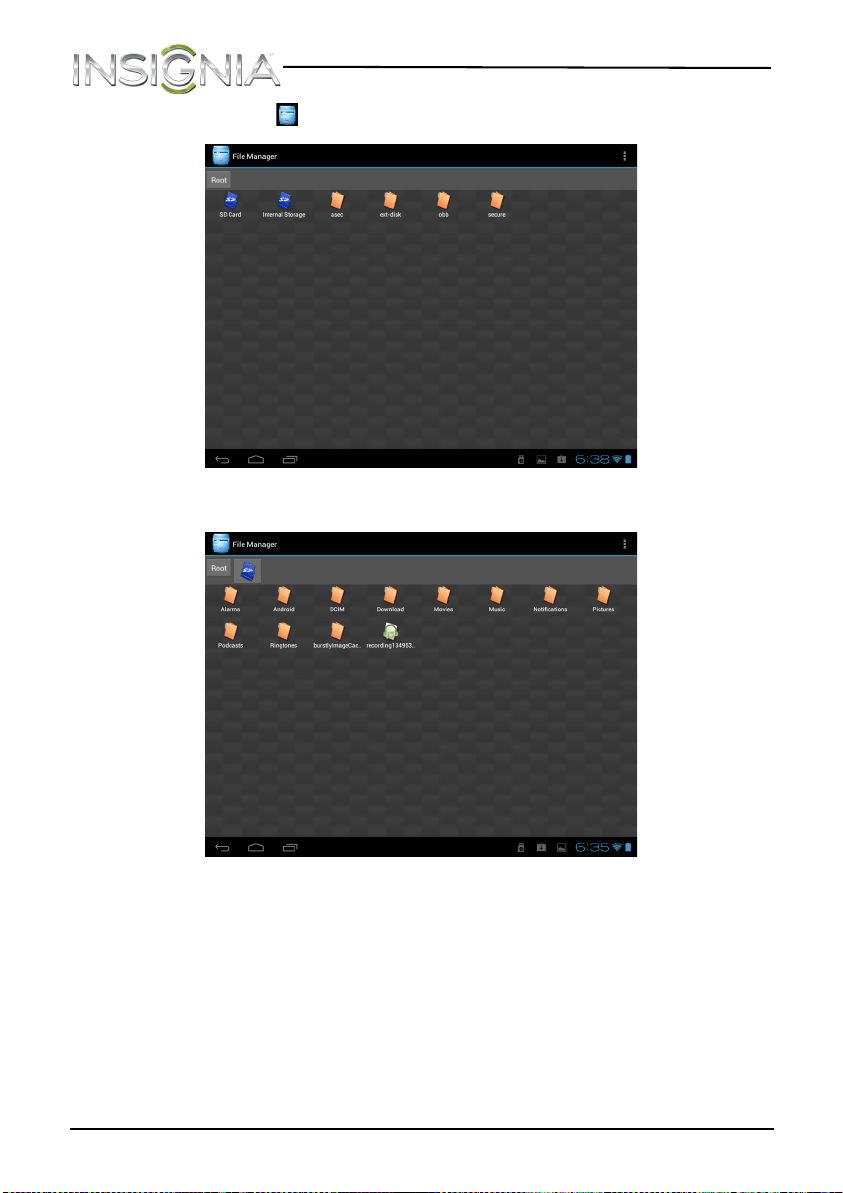
2 Touch the (File Manager) icon. The File Manager screen opens.
3 Touch Internal Storage.
NS-13T001_13-0918_MAN_V3_ENG.fm Page 70 Tuesday, October 22, 2013 10:33 AM
71
NS-13T001 Insignia Flex™ Android Tablet
www.insigniaproducts.com
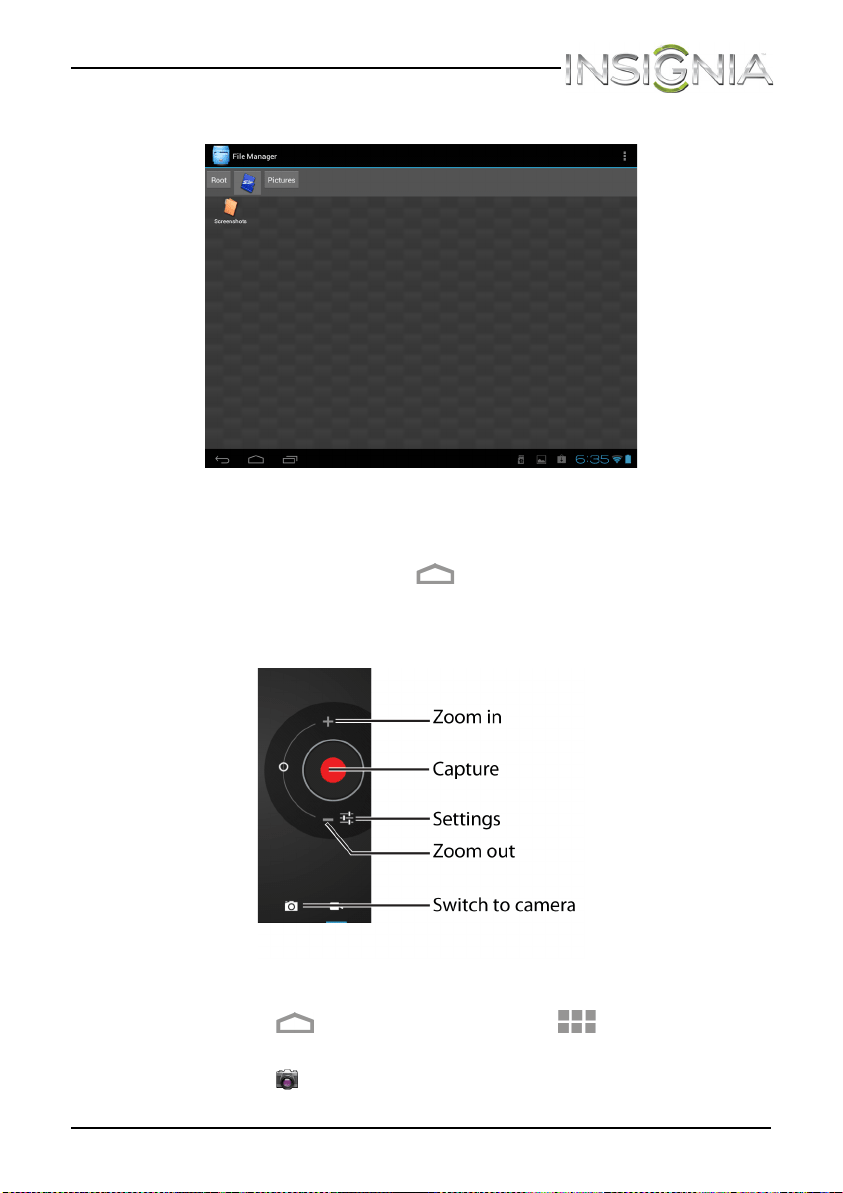
4 Touch Pictures.
5 Touch Screenshots. The Screenshots folder opens.
6 Touch the image you want to view.
7 When you finish, touch the (home) icon to return to the Home
screen.
Recording video
To record video:
1 Touch the (home) icon, then touch the (applications) icon.
The Applications screen opens.
2 Touch the (camera) icon. The camera turns on and your tablet
automatically changes to landscape mode.
NS-13T001_13-0918_MAN_V3_ENG.fm Page 71 Tuesday, October 22, 2013 10:33 AM
72
NS-13T001 Insignia Flex™ Android Tablet
www.insigniaproducts.com
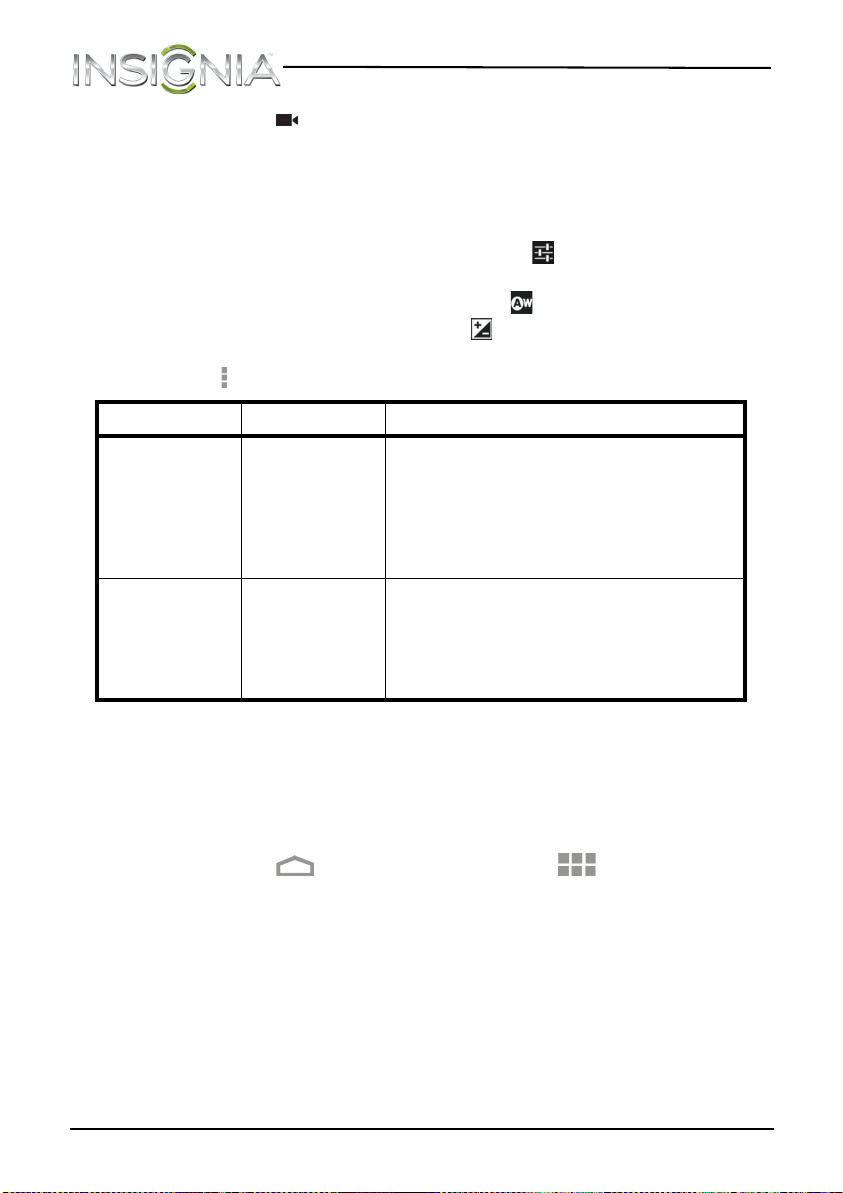
3 Touch the (camcorder) icon in the lower right corner of the screen.
4 To use the camcorder:
• Touch the red record button to start or stop recording.
• Touch the circular dial toward the + to zoom in or toward the – to
zoom out.
5 To change camcorder settings, touch the (settings) icon. You can
adjust:
• The white balance by touching the (white balance) icon.
• The exposure by touching the (exposure) icon.
You can access and change additional camcorder settings by touching
the (options icon).
After you capture a video, the image appears in the Preview/Zoom screen
at the upper right corner. Touch the Preview/Zoom screen to go to the
Gallery to share the video.
Recording sound
To record sound:
1 Touch the (home) icon, then touch the (applications) icon.
The Applications screen opens.
Menu Functions Options
Setting Video format
Audio encoder
Video encoder
Store location
Camera Setting
720P, WVGA, DVD-Video, VGA, QVGA, CIF,
QCIF, SQCIF
AAC, AMR-WB, AMR-NB
MPEG4, H264, H263
On, Off
Restore defaults
White balance Auto
Incandescent
Daylight
Fluorescent
Cloudy
NS-13T001_13-0918_MAN_V3_ENG.fm Page 72 Tuesday, October 22, 2013 10:33 AM
73
NS-13T001 Insignia Flex™ Android Tablet
www.insigniaproducts.com
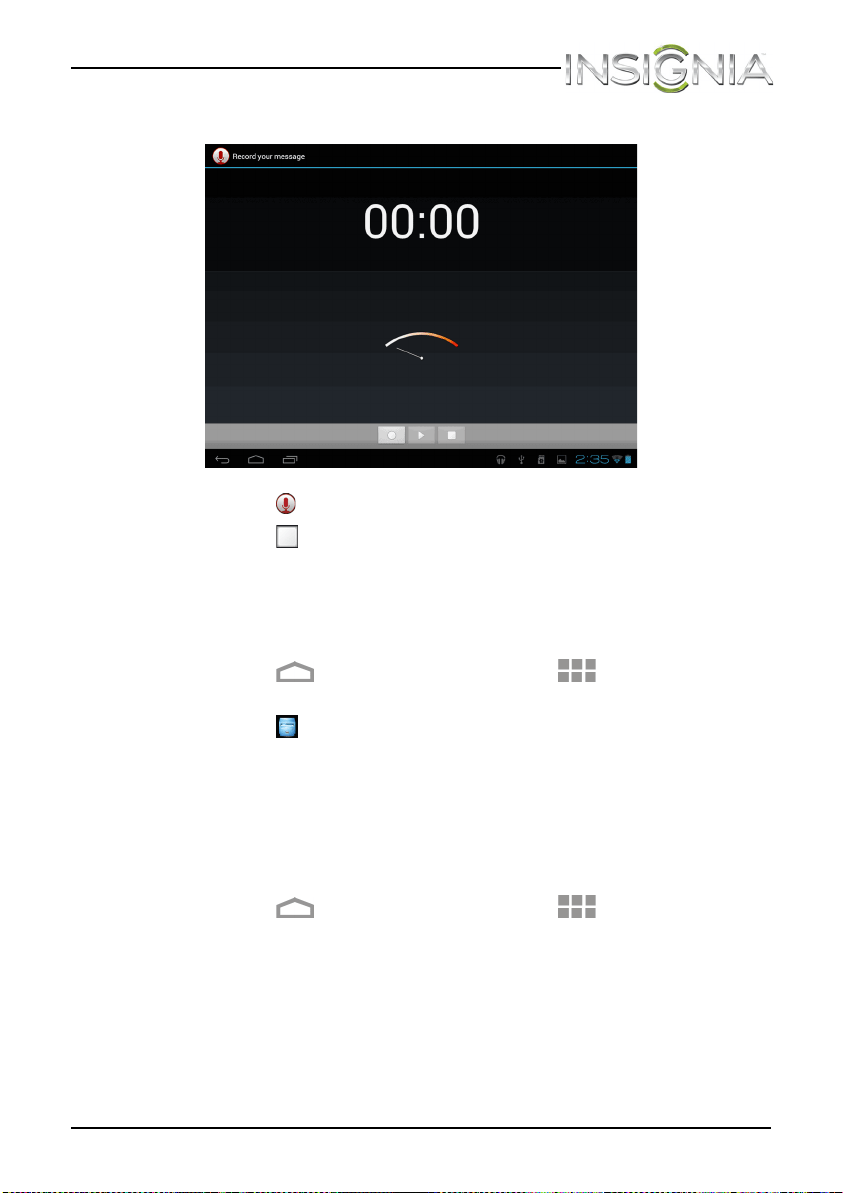
2 Touch Sound Recorder. The Record your message screen opens.
3 Touch the (record icon) to start recording.
4 Touch the (stop) icon to stop recording.
5 Touch Done to save your recording or Discard to delete the
recording.
To play back a recording:
1 Touch the (home) icon, then touch the (applications) icon.
The Applications screen opens.
2 Touch the File Manager icon.
3 Touch the recording you want to play. Your recording starts playing.
Opening the Gallery screen
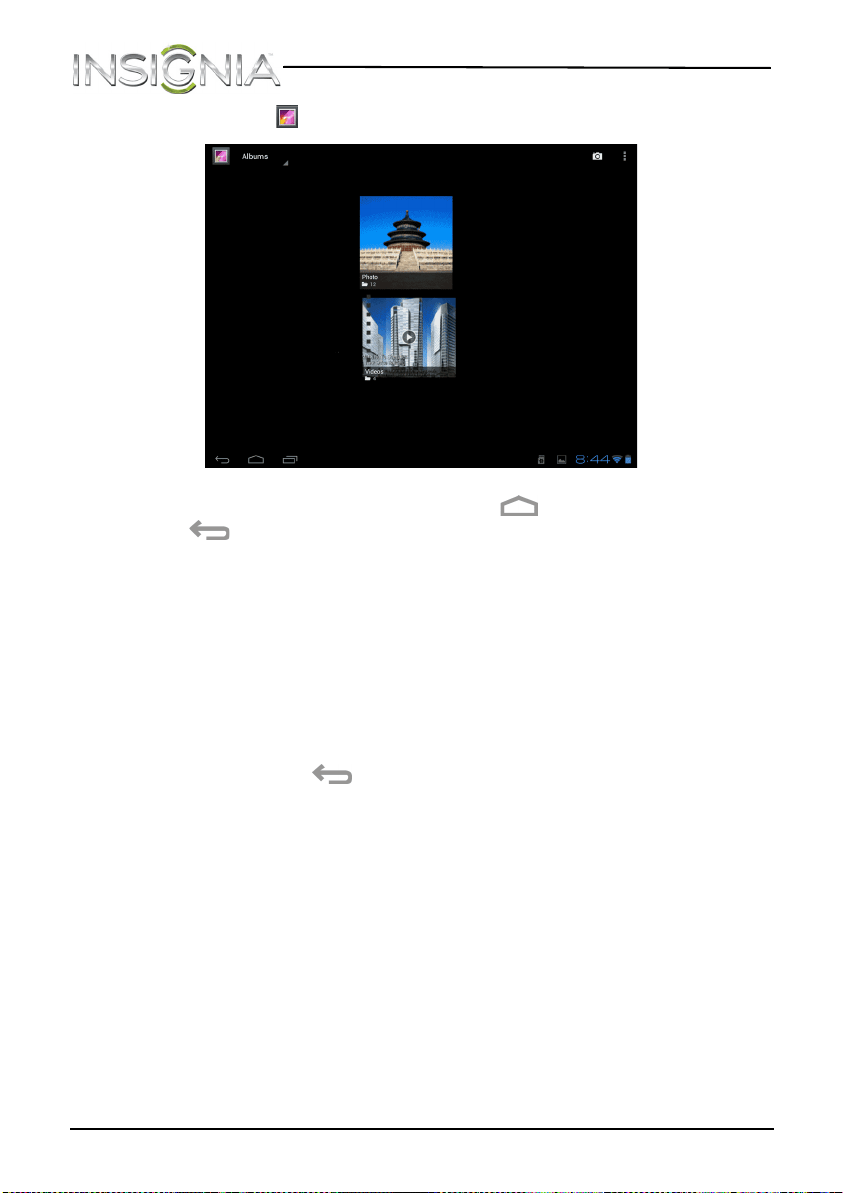
The Gallery screen is where your pictures and videos are stored.
To open the Gallery screen:
1 Touch the (home) icon, then touch the (applications) icon.
The Applications screen opens.
NS-13T001_13-0918_MAN_V3_ENG.fm Page 73 Tuesday, October 22, 2013 10:33 AM
74
NS-13T001 Insignia Flex™ Android Tablet
www.insigniaproducts.com
2 Touch the (Gallery) icon. The Gallery screen opens.
3 To close the Gallery screen, touch the (home) icon or the
(return) icon.
Notes:
• If you stored your files in folders (directories) on the microSD memory
card, the Gallery screen displays these folders as separate albums.
The top left album contains all the pictures on the microSD memory
card. Touch an album to view the pictures in an album. If there are
no picture albums, slide your finger upward or downward on the
screen to view pictures.
• Depending on the number of pictures stored on the storage card, it
may take some time to load all your photos on the tablet.
• If you open the Gallery screen from the Camera screen, when you
touch the (return) icon your tablet displays the Camera screen.
Viewing pictures
Note: Pictures are sorted by date.
To view a picture:
•On the Gallery screen:
• To open an album, touch it.
• To view pictures, slide your finger up and down to scroll through
the pictures.
• To zoom in on a picture, touch the picture with your fingers
together, then spread your fingers apart.
•To zoom out on a picture, touch the picture with your fingers
spread apart, then pinch your fingers together.
NS-13T001_13-0918_MAN_V3_ENG.fm Page 74 Tuesday, October 22, 2013 10:33 AM
75
NS-13T001 Insignia Flex™ Android Tablet
www.insigniaproducts.com
• To rotate a picture, touch the picture, touch the (options) icon in
the upper right corner, then touch Rotate left (to rotate the
picture 90 °counter-clockwise) or Rotate right (to rotate the
picture 90° clockwise). Each time you touch a rotation option, the
picture rotates 90°.
• When you finish, touch the (home) icon to return to the Home
screen.
Cropping a picture
To crop a picture:
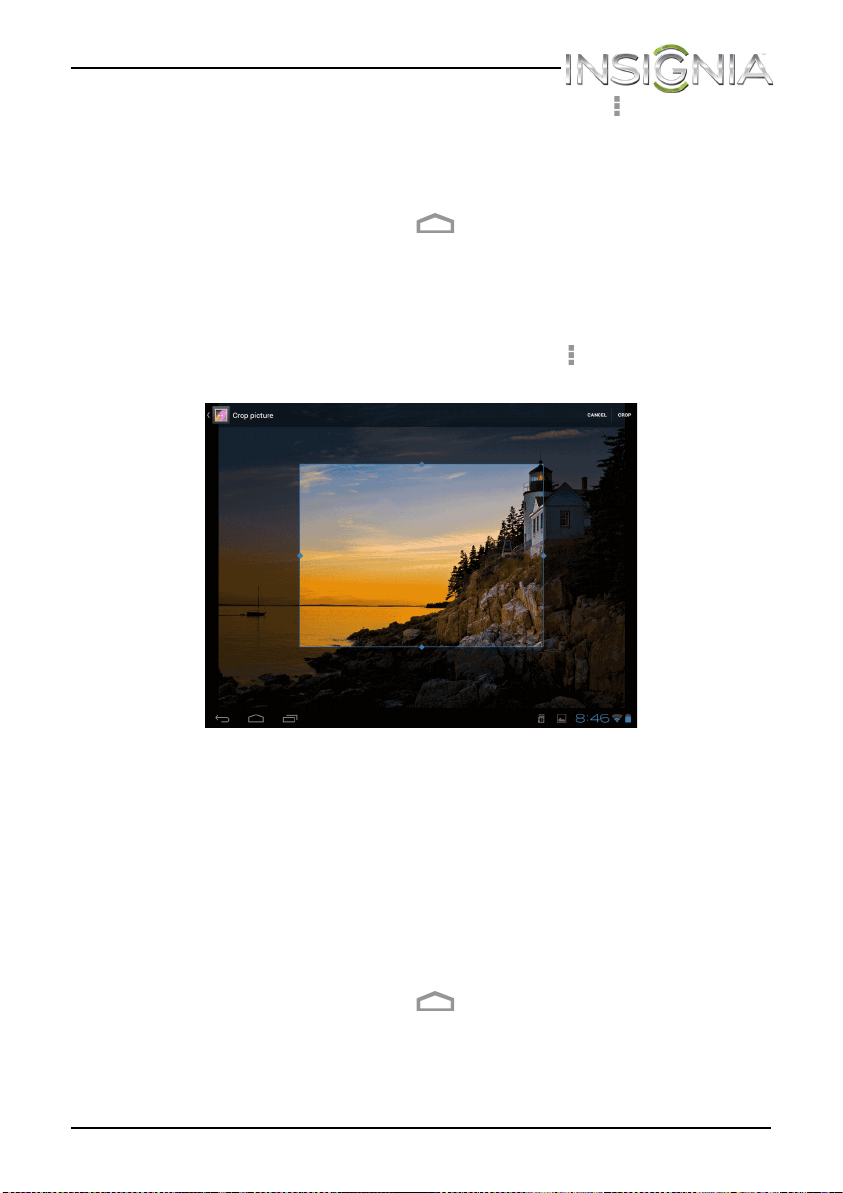
1 While viewing a picture full-screen, touch the (options) icon in the
upper right corner, then touch Crop. The crop tool appears
• To adjust the crop tool size, touch and hold the edge of the crop
tool. When the diamond-shaped “handles” appear, drag your
finger inward or outward from the center of the crop tool to
resize it.
• To move the crop tool to another area on the picture, touch and
hold inside the crop tool, then drag it with your finger to the
position you want.
2 Touch CROP in the upper right corner of the screen to apply the
changes to the picture. The cropped picture is saved on your tablet as
a copy. The original picture remains unedited.
3 When you finish, touch the (home) icon to return to the Home
screen.
NS-13T001_13-0918_MAN_V3_ENG.fm Page 75 Tuesday, October 22, 2013 10:33 AM
76
NS-13T001 Insignia Flex™ Android Tablet
www.insigniaproducts.com
Sending a picture using e-mail or Gmail
To send a picture using e-mail or Gmail:
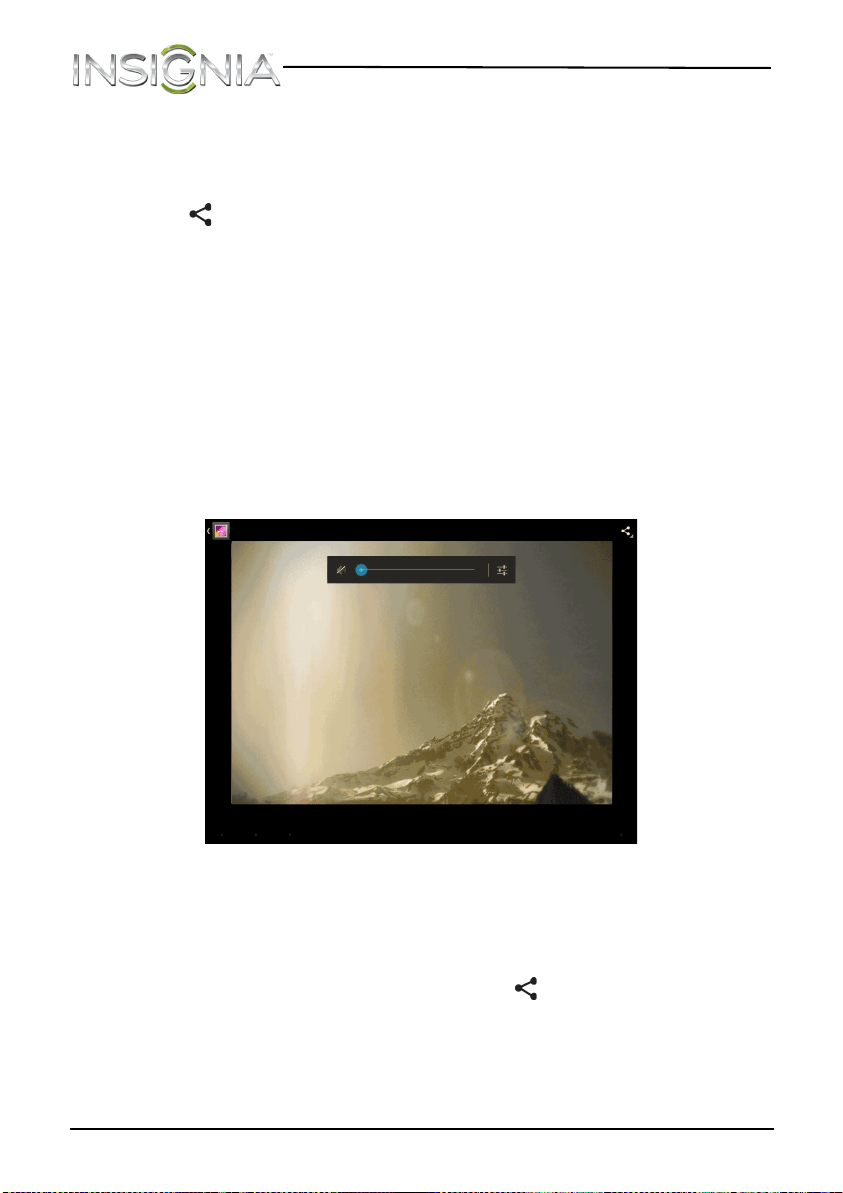
1 While viewing a picture in full-screen, touch the screen, then touch the
(share) icon.
2 When prompted, touch Email or Gmail. The picture is automatically
attached to your e-mail or Gmail. Compose your message, then touch
Send. For more information on how to create and send e-mails, see
“Creating and sending an e-mail” or “Creating and sending a Gmail.”
Watching video
To view video:
1 On the Gallery screen, touch an album to open it, then touch the video
you want to watch to start playback.
2 Touch the screen to open a playback control bar.
Sharing a video using e-mail or Gmail
To share a video using e-mail or Gmail:
1 On the Gallery screen, touch and hold the video you want to share.
2 When the options list opens, touch the (share) icon.
3 When prompted, touch Email or Gmail. The video is automatically
attached to your e-mail or Gmail. Compose your message, then touch
Send. For more information on how to create and send e-mails, see
“Creating and sending an e-mail” or “Creating and sending a Gmail.”
NS-13T001_13-0918_MAN_V3_ENG.fm Page 76 Tuesday, October 22, 2013 10:33 AM
77
NS-13T001 Insignia Flex™ Android Tablet
www.insigniaproducts.com
Listening to music
To listen to music:
1 Touch the (home) icon, then touch the (applications) icon.
The Applications screen opens.
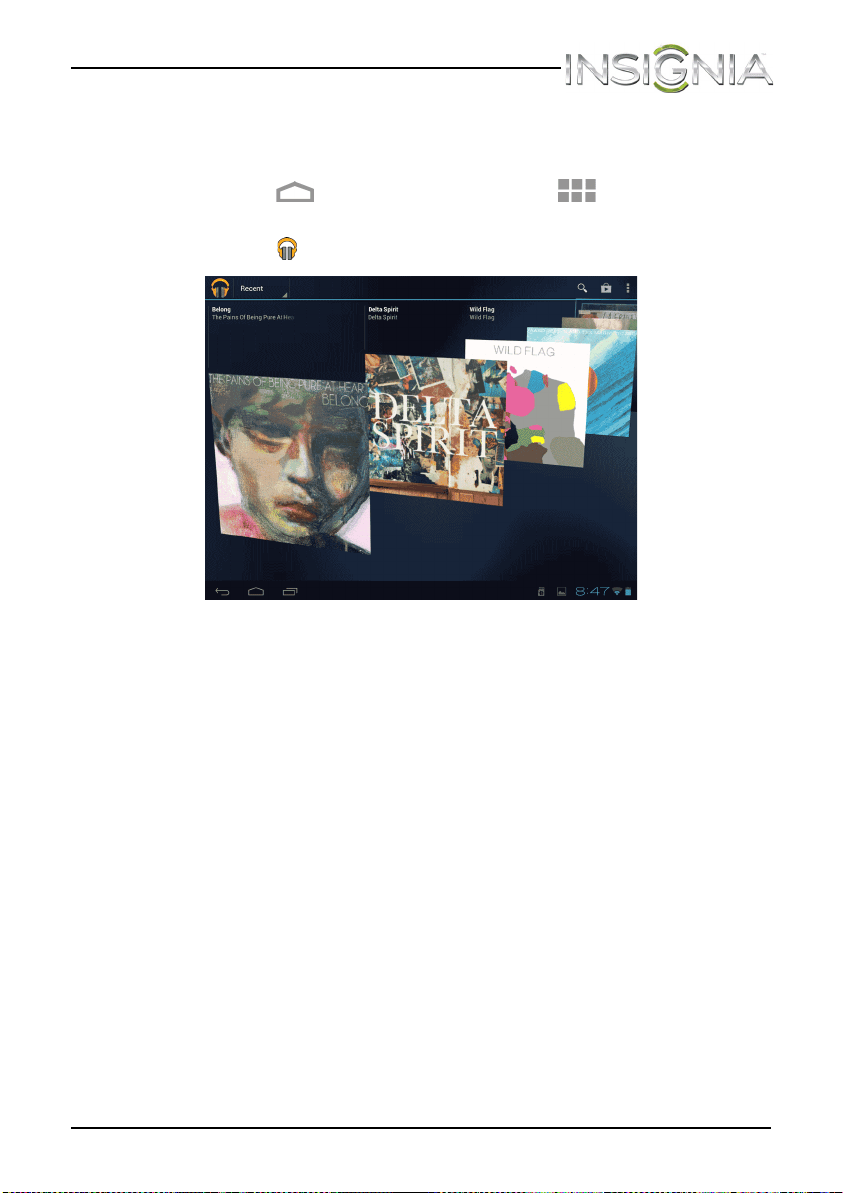
2 Touch the (play music) icon. The music library screen opens.
Your music is organized into categories: Recent, Albums, Artists,
Songs, Playlists, and Genres.
3 Touch the drop-down arrow in the upper left corner of the screen to
open the list of categories, then touch the category you want.
NS-13T001_13-0918_MAN_V3_ENG.fm Page 77 Tuesday, October 22, 2013 10:33 AM
78
NS-13T001 Insignia Flex™ Android Tablet
www.insigniaproducts.com
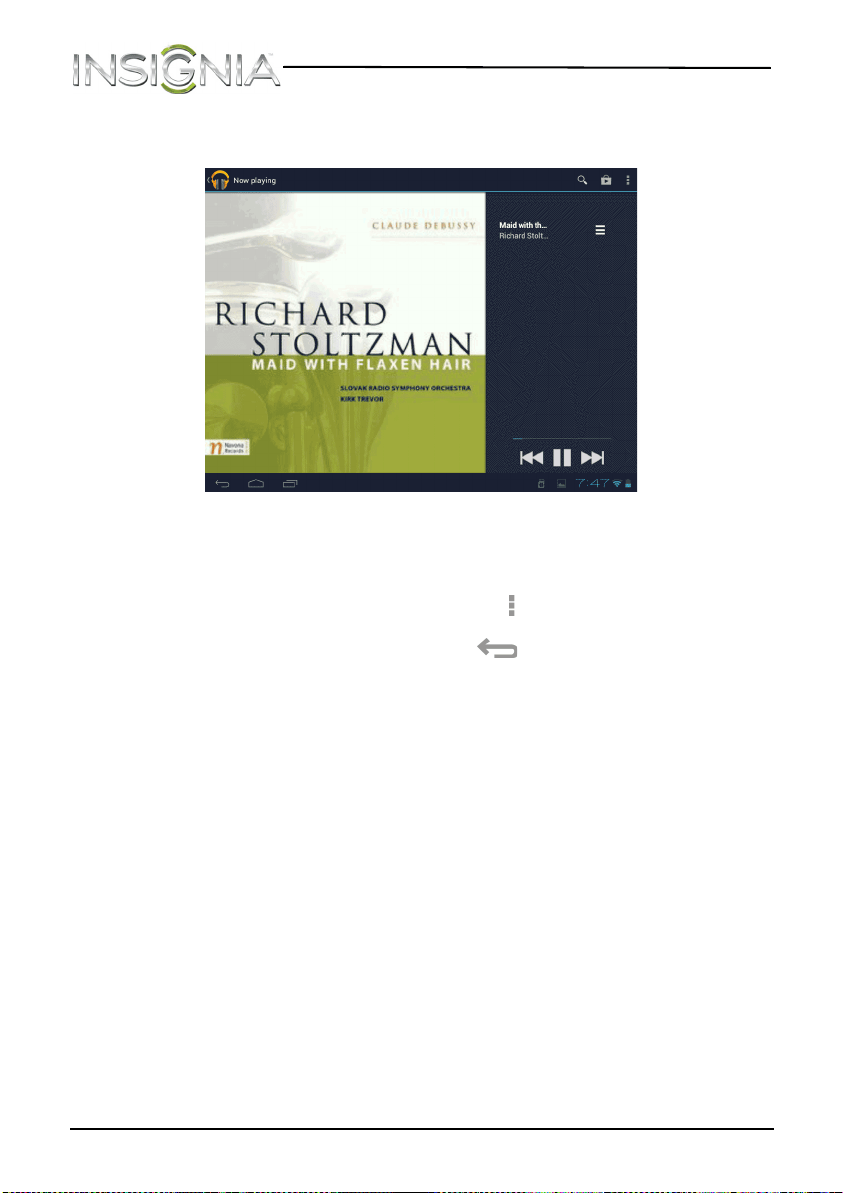
4 Slide your finger up and down to locate the song you want to play,
then touch the song to start playback.
Playing songs in random order
To play songs in random order:
• On the music library screen, touch the (options) icon, then touch
Shuffle all.
• To turn off random play, touch the (return) icon, then touch a
song you want to play.
Creating a playlist
You can create as many playlists as you want.
To create a playlist:
1 On the music library screen, touch a music category.
2 Find the song you want to add to the playlist, then touch and hold the
song until the options menu opens.
3 Touch Add to playlist. The Add to playlist screen opens.
4 Touch New Playlist, then use the on-screen keyboard to enter a
playlist name.
5 Touch OK to save your playlist.
6 To add another song to your playlist, touch and hold the song on the
music library screen until the options menu opens. Touch Add to
playlist, then touch the playlist name.
NS-13T001_13-0918_MAN_V3_ENG.fm Page 78 Tuesday, October 22, 2013 10:33 AM

79
NS-13T001 Insignia Flex™ Android Tablet
www.insigniaproducts.com
Managing playlists
To manage playlists:
• To play a playlist, open the music library screen, then touch the
drop-down arrow in the upper left corner of the screen to open the list
of music categories. Touch Playlists, then touch the playlist name.
• To delete a playlist, touch and hold the playlist name until the options
menu opens, then touch Delete. When a message asks you to confirm
the deletion, touch OK.
• To rearrange the order of the songs in the playlist, touch and hold the
icon to the left of the song you want to move, then drag the song to
the position you want. Release when finished moving.
• To delete a song from a playlist, touch and hold the icon to the right of
the song you want to delete, touch Delete. When a message asks you
to confirm the deletion, touch OK.
• To rename a playlist, touch and hold the playlist name until the
options menu opens, then touch Rename. Use the on-screen
keyboard to change the playlist name, then touch Rename.
Note: The playlist name “Recently added playlist” is a system playlist
and cannot be deleted or renamed.
NS-13T001_13-0918_MAN_V3_ENG.fm Page 79 Tuesday, October 22, 2013 10:33 AM
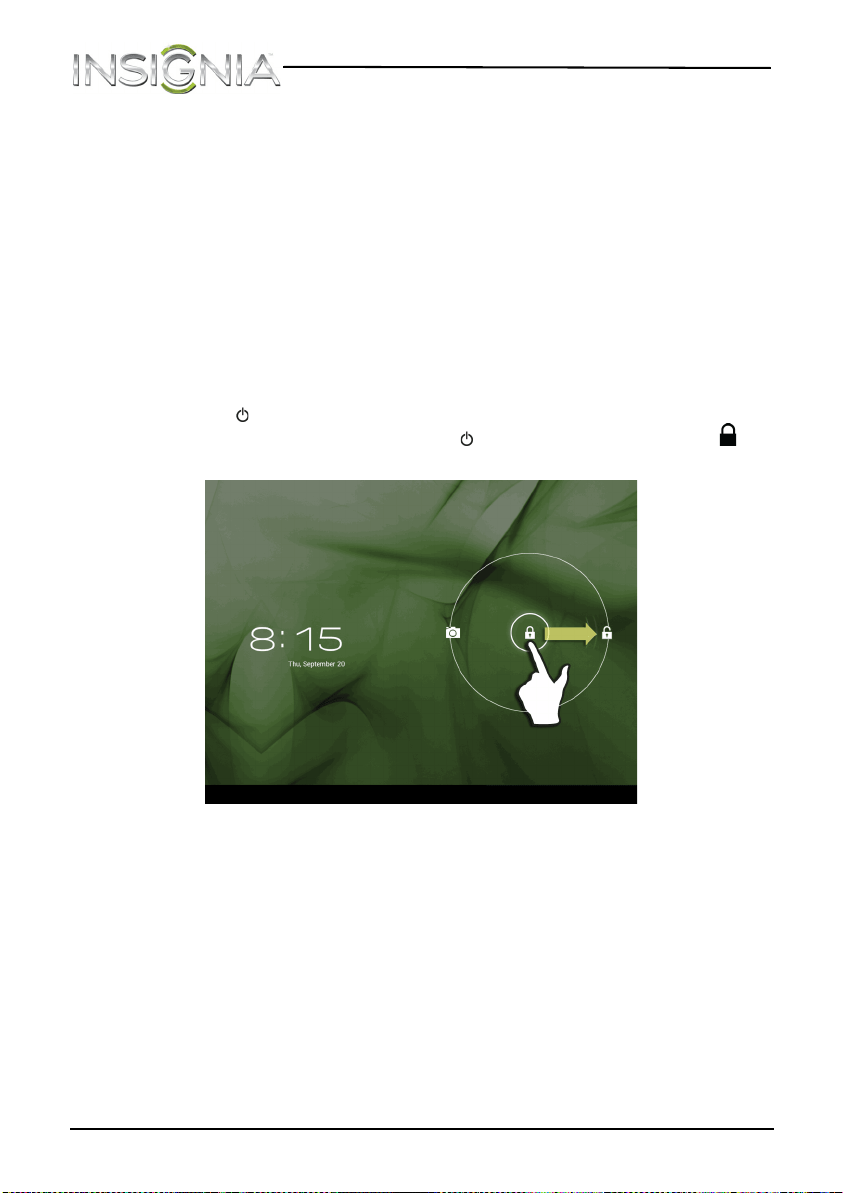
80
NS-13T001 Insignia Flex™ Android Tablet
www.insigniaproducts.com
Protecting your data and tablet
You can protect your tablet by locking the screen or creating a screen
unlock pattern.
You can protect your microSD memory card by setting a password or
installing an encrypted certificate onto the card.
Using the screen lock
When the tablet screen is turned off, the screen is automatically locked.
Locking the screen prevents accidental screen touches when the tablet is
in your bag, purse, or pocket.
To use the screen lock:
• Press (power) to turn off the screen. The screen lock is turned on.
• To turn off the screen lock, press (power), touch and hold the
(lock) icon, then drag it to the right.
NS-13T001_13-0918_MAN_V3_ENG.fm Page 80 Tuesday, October 22, 2013 10:33 AM
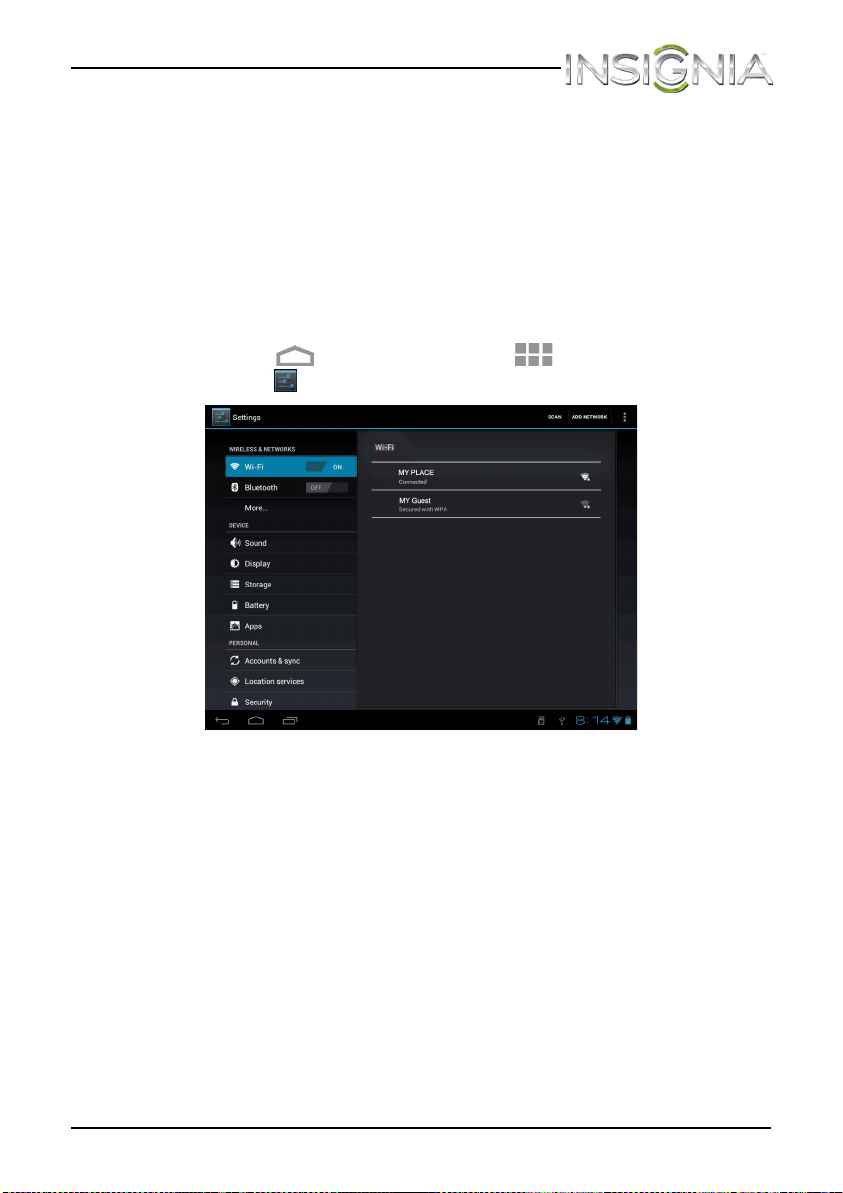
81
NS-13T001 Insignia Flex™ Android Tablet
www.insigniaproducts.com
Creating a screen unlock pattern
You can increase the security of your tablet by creating a screen unlock
pattern. Slide is the default unlock pattern.
Caution: If you fail to input the correct screen unlock pattern after five
tries, you have to wait more than 30 seconds before you can try again.
If you forget your screen unlock pattern, touch Forgot pattern. You
have to sign in to your Google account and create a new screen unlock
pattern before the Home screen will open.
To create a screen unlock pattern:
1 Touch the (home) icon, touch the (applications) icon, then
touch the (settings) icon. The Settings screen opens.
NS-13T001_13-0918_MAN_V3_ENG.fm Page 81 Tuesday, October 22, 2013 10:33 AM
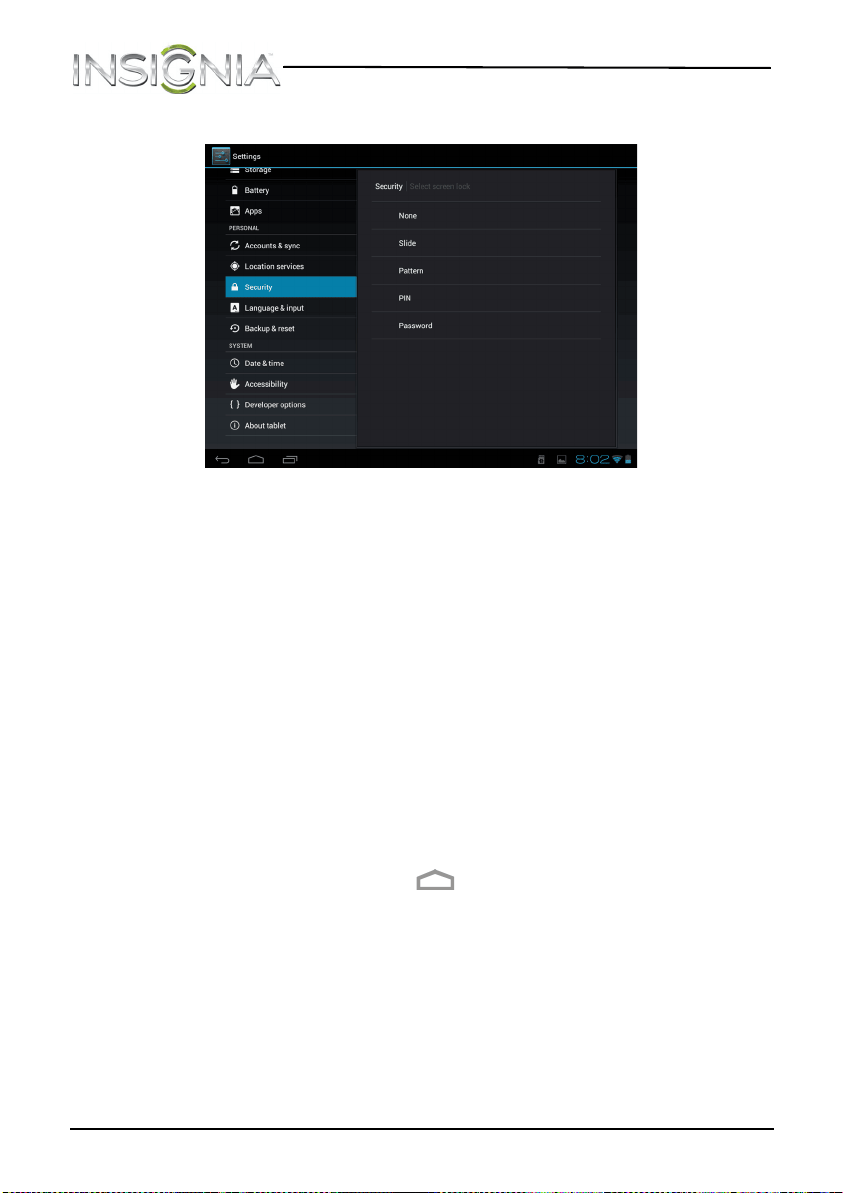
82
NS-13T001 Insignia Flex™ Android Tablet
www.insigniaproducts.com
2 Touch Security, then touch Screen lock.
3 Touch the screen unlock pattern you want to use. You can select:
• None—No screen lock pattern is used.
• Slide—(Default setting) Slide the lock icon to the right to unlock
the screen.
• Pattern—Create your own pattern. Touch this option, then read
the instructions for creating a pattern. Touch Next. Create your
own pattern by connecting four dots, then touch Continue.
Re-draw the pattern to confirm, then touch Confirm. The Security
screen opens.
• Pin—Enter a PIN (personal identification number) to unlock the
screen. Touch this option, use the on-screen number pad to enter a
PIN, then touch Continue. Re-enter the PIN to confirm, then touch
OK. The Security screen opens.
• Password—Enter a password to unlock the screen. Touch this
option, use the on-screen keyboard to enter a password, then
touch Continue. Re-enter the password to confirm, then touch OK.
The Security screen opens.
4 When you finish, touch the (home) icon to return to the Home
screen.
NS-13T001_13-0918_MAN_V3_ENG.fm Page 82 Tuesday, October 22, 2013 10:33 AM
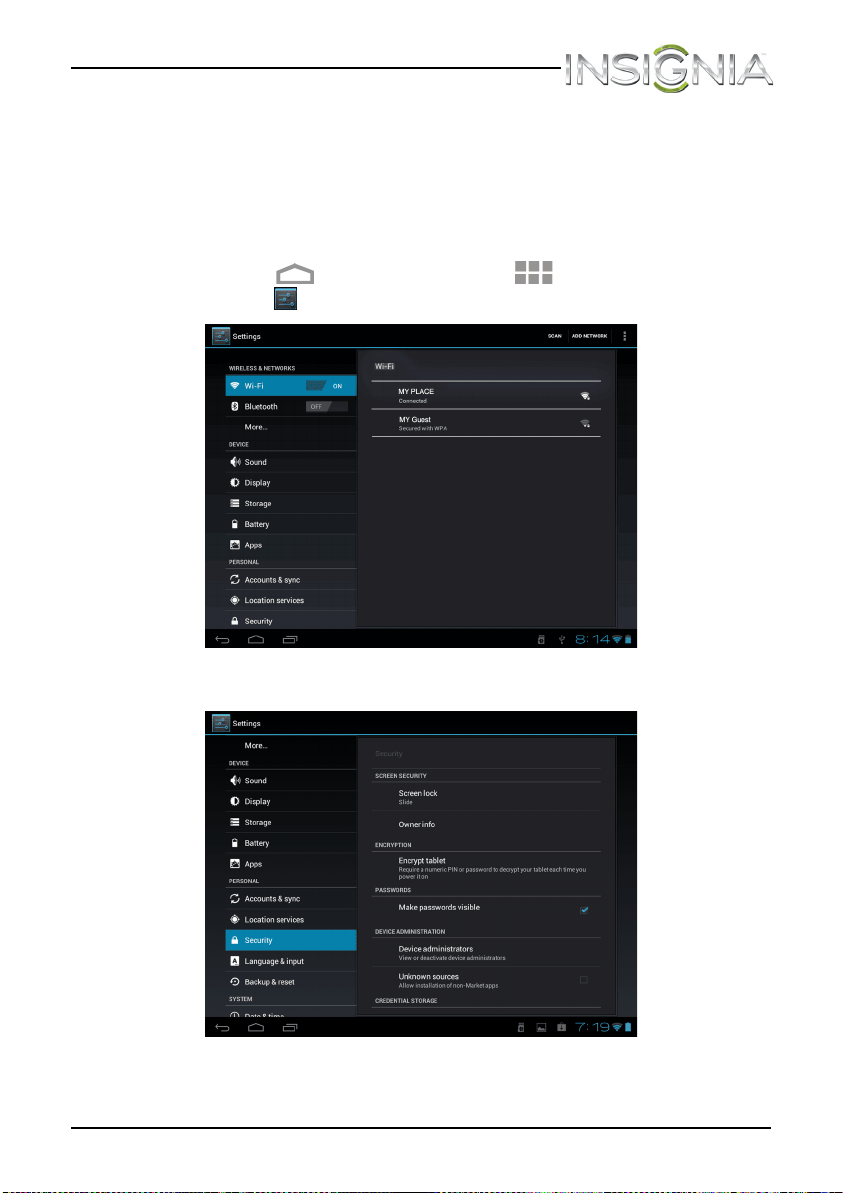
83
NS-13T001 Insignia Flex™ Android Tablet
www.insigniaproducts.com
Encrypting your tablet or microSD memory card
Important: Encryption take an hour or more. Make sure that your
battery is fully charged.
To encrypt your table or microSD memory card:
1 Make sure that your tablet’s battery is fully charged.
2 Touch the (home) icon, touch the (applications) icon, then
touch the (settings) icon. The Settings screen opens.
3 Touch Security. The Security screen opens.
NS-13T001_13-0918_MAN_V3_ENG.fm Page 83 Tuesday, October 22, 2013 10:33 AM
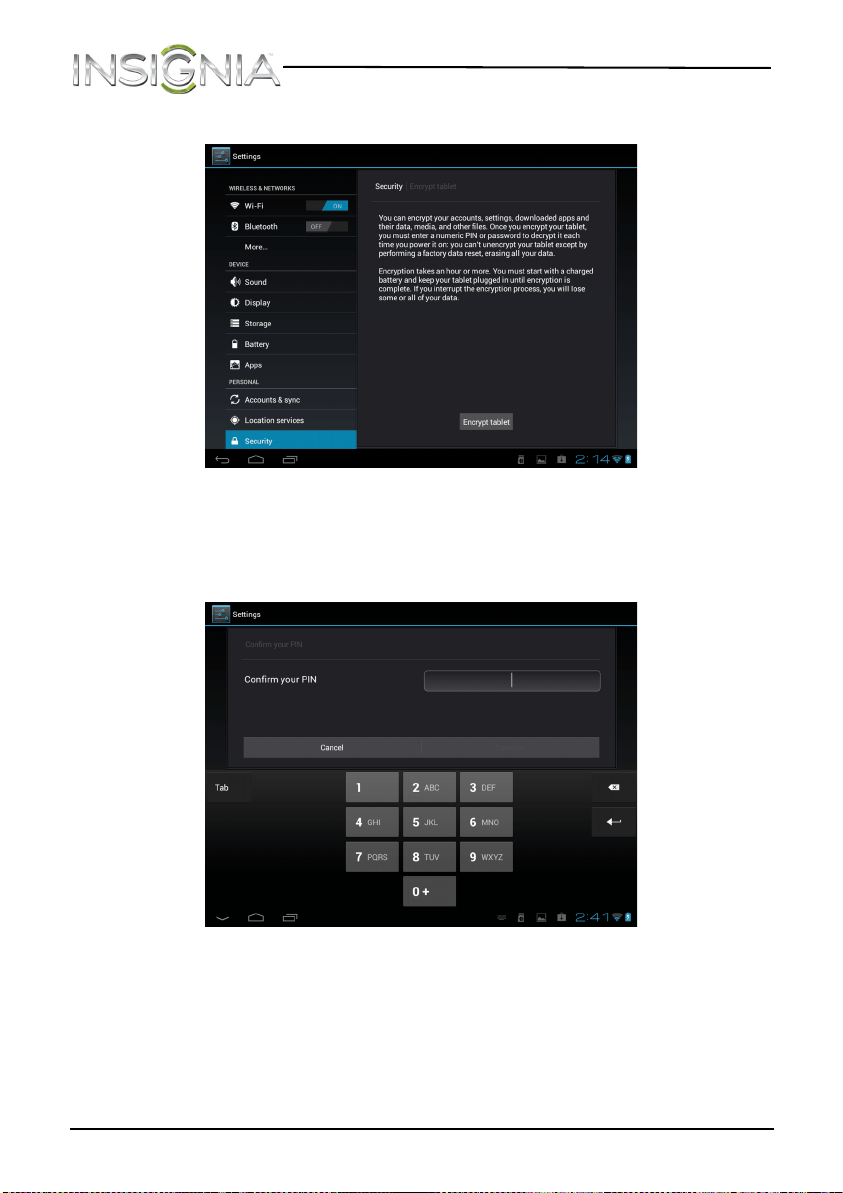
84
NS-13T001 Insignia Flex™ Android Tablet
www.insigniaproducts.com
4 Touch Encrypt tablet.
Note: You must set a screen lock PIN or Password before you can start
encryption. For more information, see “Encrypting your tablet or
microSD memory card” and select Pin or Password.
5 Touch Encrypt tablet. The Confirm your PIN screen opens.
NS-13T001_13-0918_MAN_V3_ENG.fm Page 84 Tuesday, October 22, 2013 10:33 AM
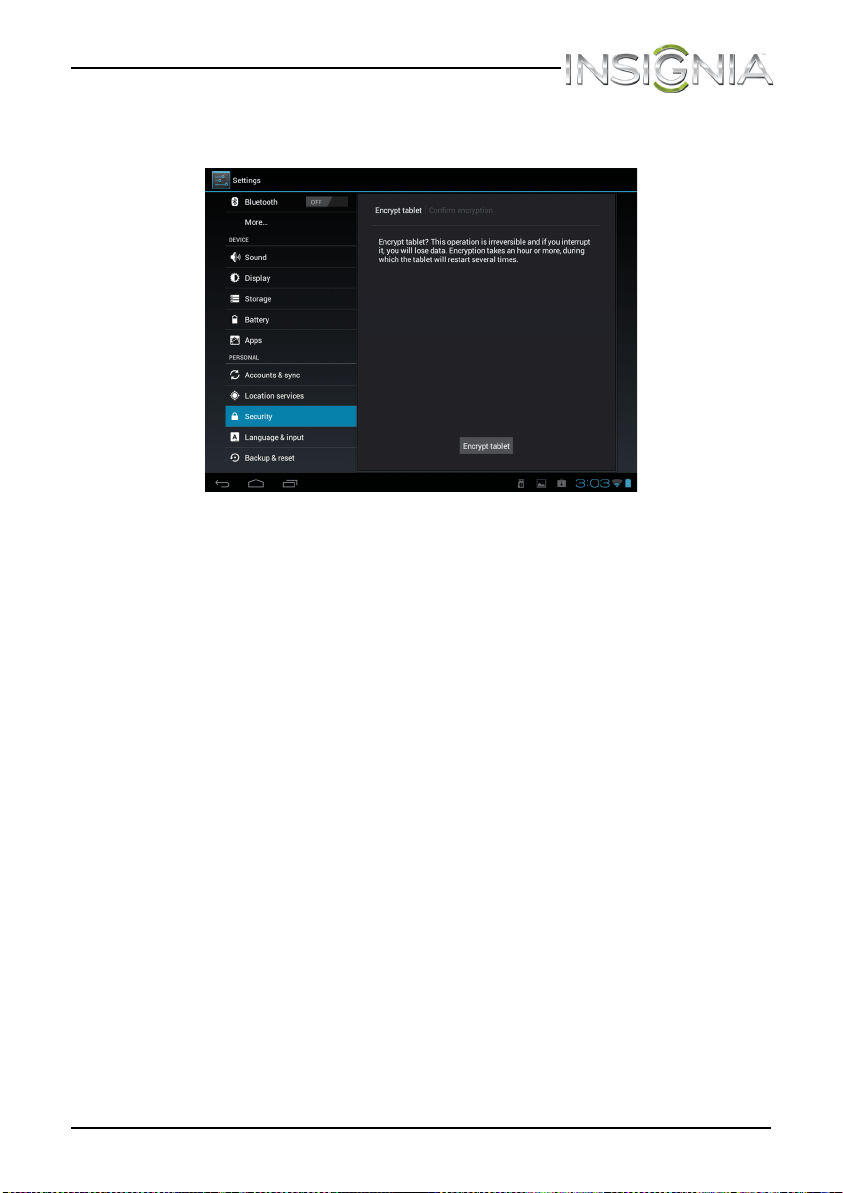
85
NS-13T001 Insignia Flex™ Android Tablet
www.insigniaproducts.com
6 Enter your screen lock PIN or password, then touch Continue. The
Confirm encryption screen opens.
7 Touch Encrypt tablet to confirm.
Note: You must enter your PIN or password to decrypt your tablet each
time you power it on.
NS-13T001_13-0918_MAN_V3_ENG.fm Page 85 Tuesday, October 22, 2013 10:33 AM
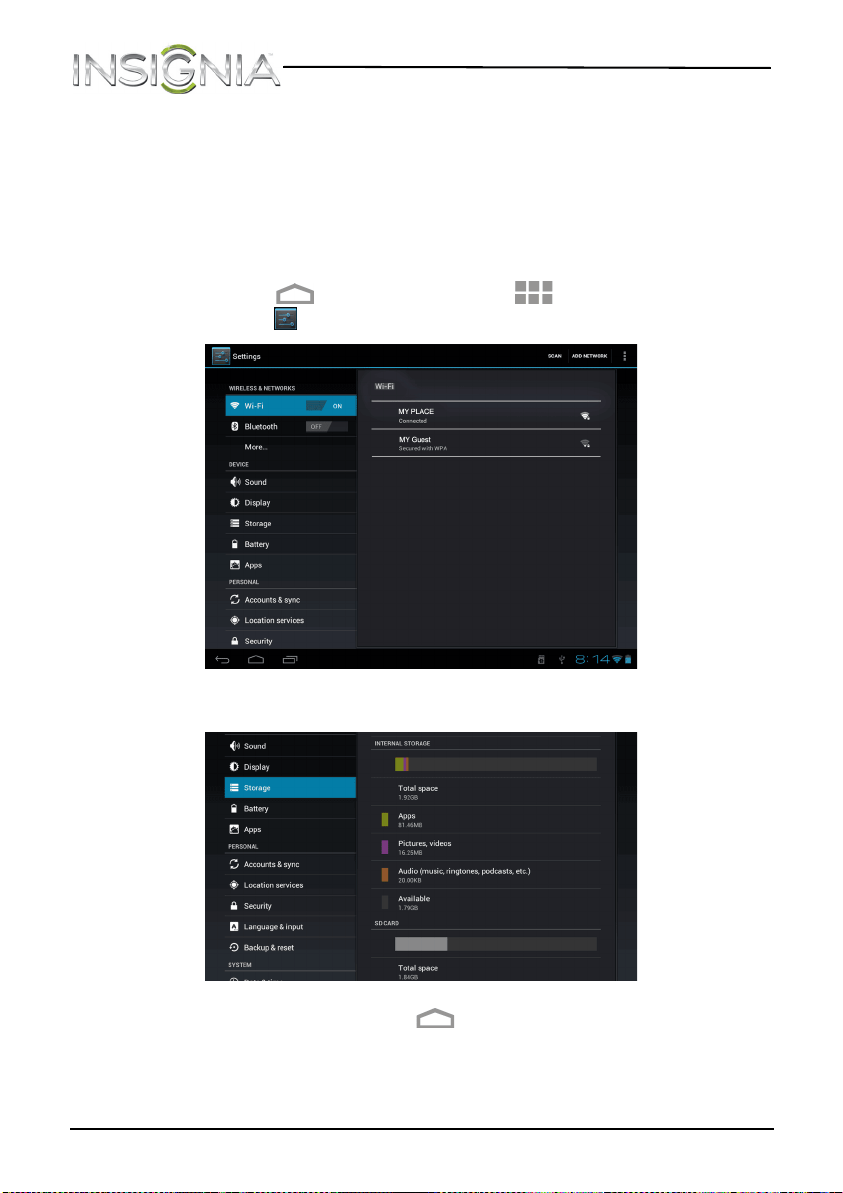
86
NS-13T001 Insignia Flex™ Android Tablet
www.insigniaproducts.com
Managing storage space
Viewing available storage space
You can view how much of your internal storage has been used and how
much it still available.
To view storage space:
1 Touch the (home) icon, touch the (applications) icon, then
touch the (settings) icon. The Settings screen opens.
2 Touch Storage. The STORAGE screen opens.
3 When you finish, touch the (home) icon to return to the Home
screen.
NS-13T001_13-0918_MAN_V3_ENG.fm Page 86 Tuesday, October 22, 2013 10:33 AM
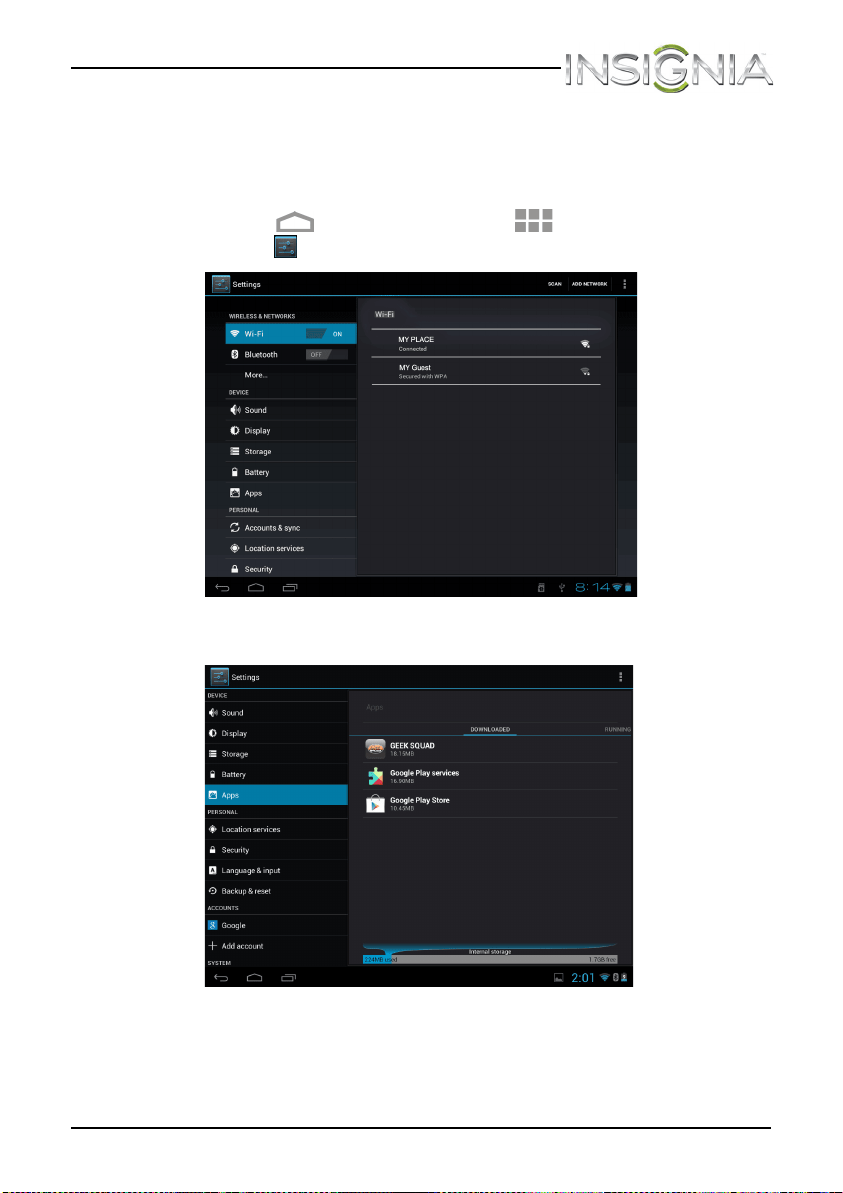
87
NS-13T001 Insignia Flex™ Android Tablet
www.insigniaproducts.com
Clearing application cache and data
You can free up storage by deleting application cache and data.
To clear application cache and data:
1 Touch the (home) icon, touch the (applications) icon, then
touch the (settings) icon. The Settings screen opens.
2 Touch Apps. The Apps screen opens.
3 Touch the application that has cache or data you want to clear. An
application information screen opens.
NS-13T001_13-0918_MAN_V3_ENG.fm Page 87 Tuesday, October 22, 2013 10:33 AM
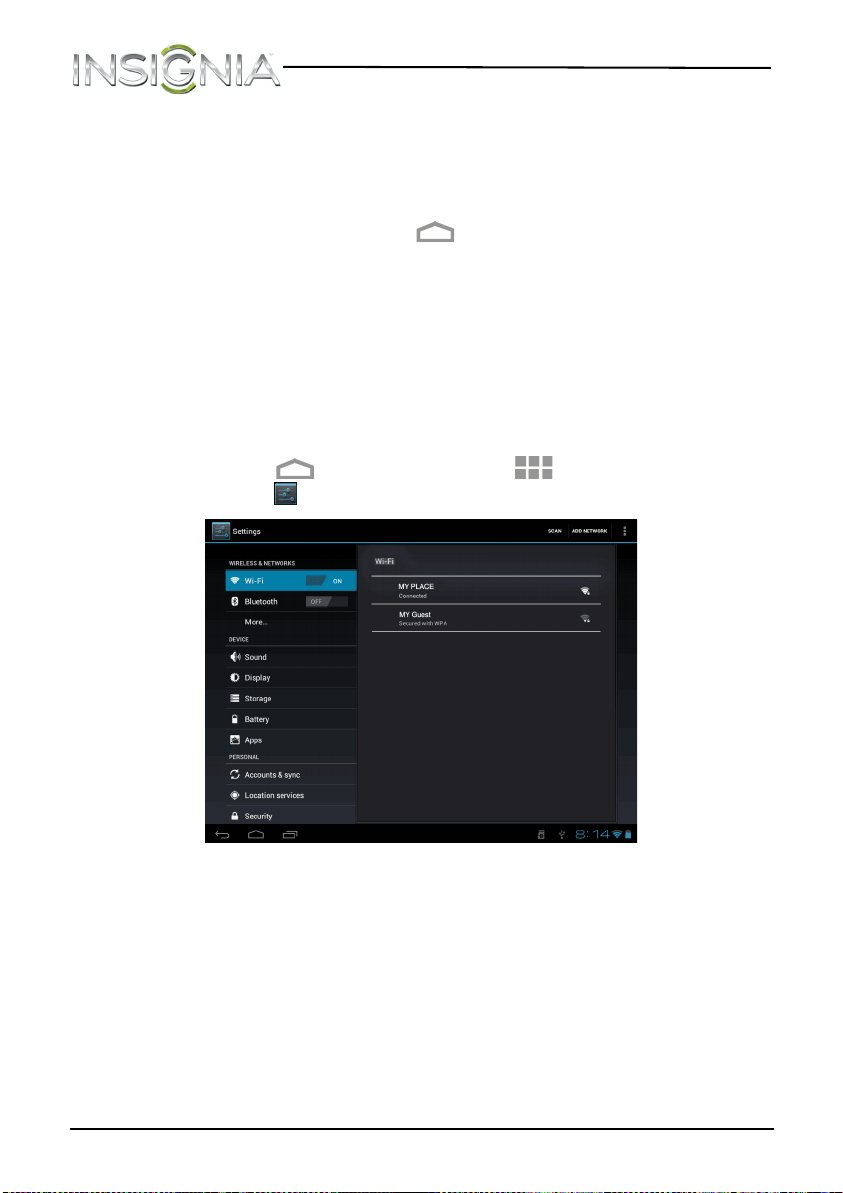
88
NS-13T001 Insignia Flex™ Android Tablet
www.insigniaproducts.com
4 Touch Clear data, then touch OK to clear data the application has
stored.
OR
Touch Clear cache to clear the application's cache.
5 When you finish, touch the (home) icon to return to the Home
screen.
Uninstalling an application
Caution: Back up any application data files before you uninstall an
application because these files will be deleted.
Note: You cannot uninstall applications that came pre-installed on your
tablet.
To uninstall an application:
1 Touch the (home) icon, touch the (applications) icon, then
touch the (settings) icon. The Settings screen opens.
NS-13T001_13-0918_MAN_V3_ENG.fm Page 88 Tuesday, October 22, 2013 10:33 AM
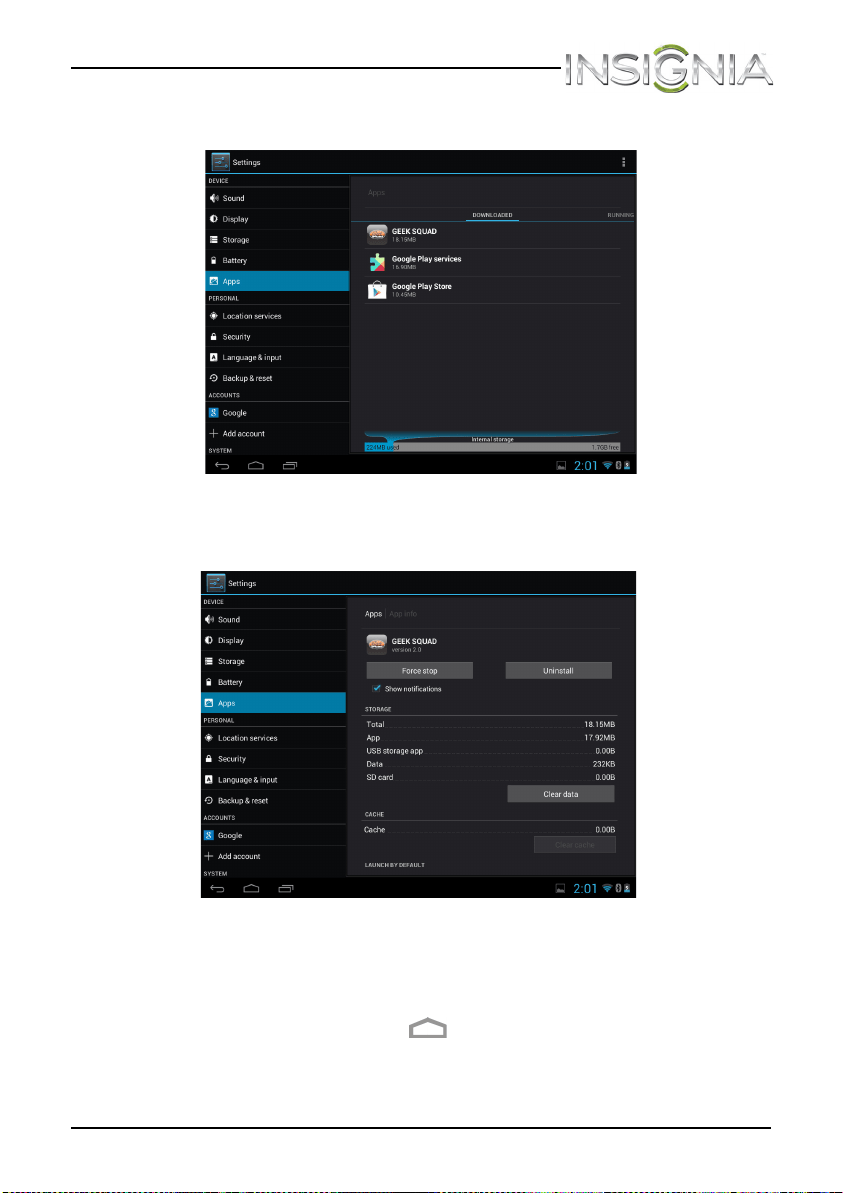
89
NS-13T001 Insignia Flex™ Android Tablet
www.insigniaproducts.com
2 Touch Apps. The Apps screen opens.
3 Touch the application you want to uninstall. An application
information screen opens.
4
Touch Uninstall, then touch OK to confirm. The uninstall finished screen
opens.
5
Touch OK to exit.
6
When you finish, touch the (home) icon to return to the Home
screen.
NS-13T001_13-0918_MAN_V3_ENG.fm Page 89 Tuesday, October 22, 2013 10:33 AM

90
NS-13T001 Insignia Flex™ Android Tablet
www.insigniaproducts.com
Freeing up internal or microSD memory card storage space
If your tablet is running low on storage space, try one of the following:
• Go to your Internet browser and clear all temporary Internet files and
browser history information. See the browser’s online help for
instructions.
• Move data files, such as pictures, videos, or music files, to the microSD
memory card or a computer.
• Move applications to the microSD memory card if the applications will
run from the memory card.
• Move data files from the microSD memory card to a computer.
Resetting your tablet to the default settings
Important: If your tablet is not responding, try using the RESET button
to restart your tablet. Using the RESET button does not delete data and
applications. For more information, see “Restarting your tablet.”
Resetting the tablet deletes all data, including downloaded applications,
and resets the tablet back to its initial state—the state before you turned
on the tablet for the first time.
Caution: Make sure you back up the data you have on your tablet before
you reset your tablet to the default settings.
Resetting your tablet to the default settings deletes all your files
including:
• Applications you installed
• Data files, such as pictures, videos, and music files
• All your contact information
• Your Google account information
• All changes to settings that you have made.
NS-13T001_13-0918_MAN_V3_ENG.fm Page 90 Tuesday, October 22, 2013 10:33 AM
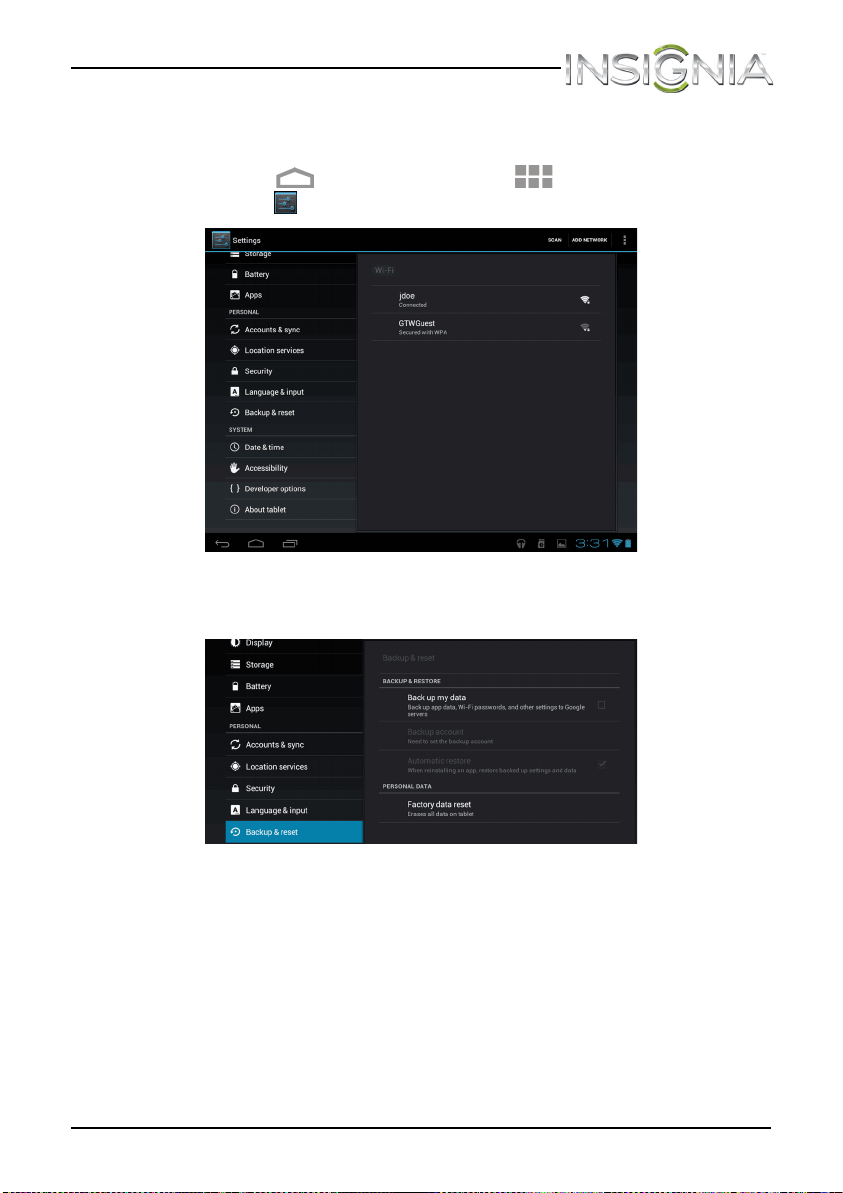
91
NS-13T001 Insignia Flex™ Android Tablet
www.insigniaproducts.com
To reset your tablet to the default settings:
1 Connect your tablet to a power outlet.
2 Touch the (home) icon, touch the (applications) icon, then
touch the (settings) icon. The Settings screen opens.
3 Drag the screen up, then touch Backup & reset. The BACKUP & RESET
screen opens
NS-13T001_13-0918_MAN_V3_ENG.fm Page 91 Tuesday, October 22, 2013 10:33 AM
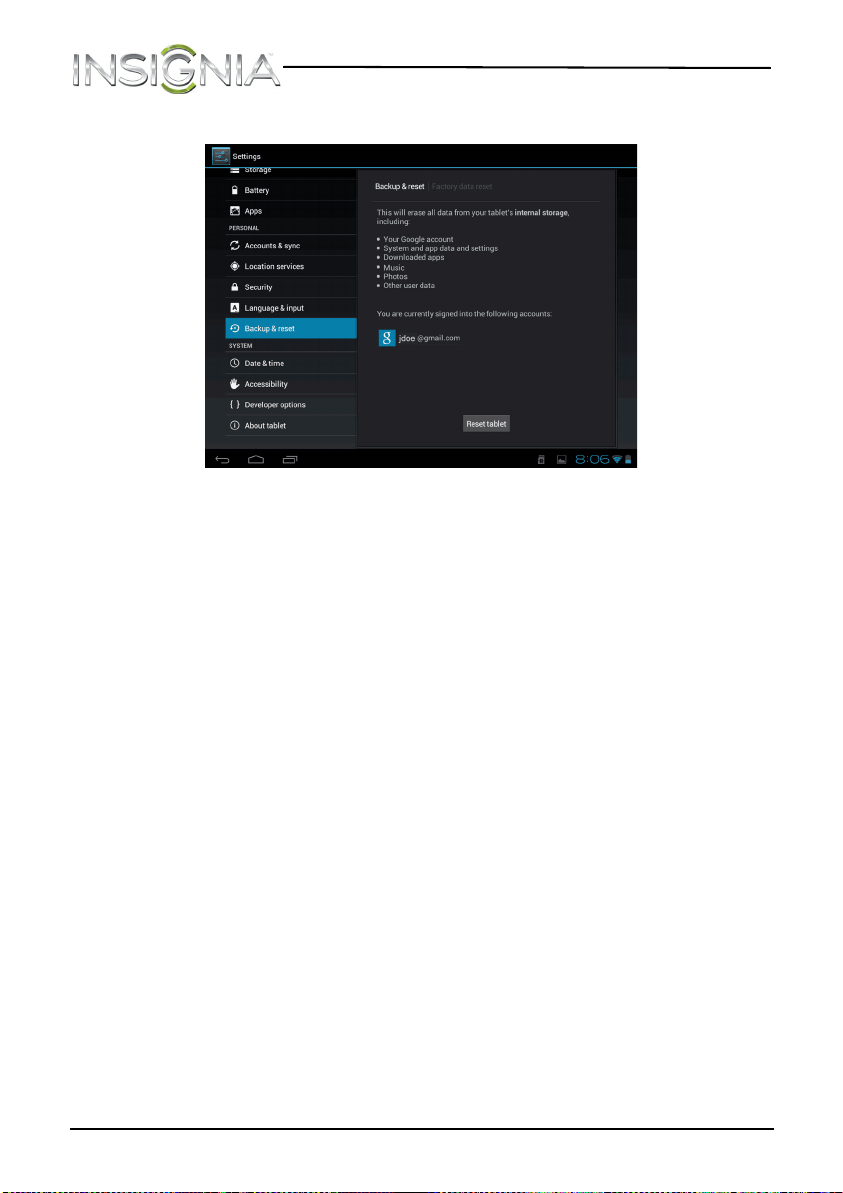
92
NS-13T001 Insignia Flex™ Android Tablet
www.insigniaproducts.com
4 Touch Factory data reset. The Factory data reset screen opens.
5 Touch Reset tablet. If you are prompted, enter your screen unlock
pattern.
6 Touch Erase everything. Your tablet turns off and resets all settings to
the defaults.
After you reset your tablet to the default settings, you will have to go
through the initial setup again. See “Turning on your tablet for the first
time.”
Troubleshooting
What should I do if my tablet screen freezes?
• Press and hold the power button for 3 to 5 seconds to turn off your
tablet, then turn your tablet back on.
• If your tablet is still not working after you turn it off and back on, use a
small tool (like a straightened paperclip) to press the RESET button
on the back of your tablet.
What should I do if I cannot turn on my tablet?
• Connect the charger and check the battery level on the screen. Make
sure the battery is fully charged.
• If your tablet’s battery is fully charged and your tablet is still not
working, use a small tool (like a straightened paperclip) to press the
RESET button on the back of your tablet.
NS-13T001_13-0918_MAN_V3_ENG.fm Page 92 Tuesday, October 22, 2013 10:33 AM
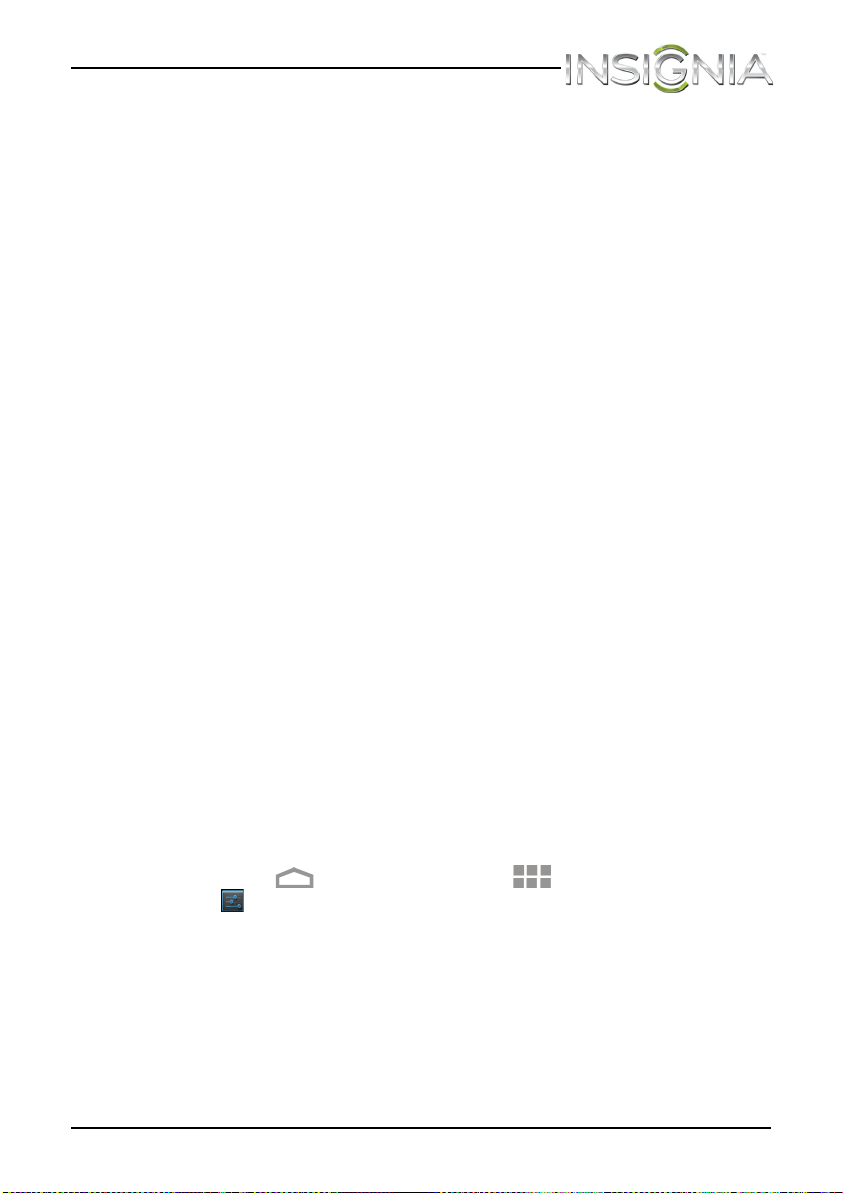
93
NS-13T001 Insignia Flex™ Android Tablet
www.insigniaproducts.com
Can I open Microsoft Office and PDF files on my tablet?
You can purchase and download third party applications to read these
types of files.
Why do I need to update the firmware?
Firmware updates may improve performance, provide new features, and
fix software problems. You should update your tablet whenever firmware
updates are available.
How do I back up data and apps before updating firmware?
To back up data and apps, download and install a “sync” tool, such as
ASTRO or Mybackup. Follow the instructions provided by the tool to
backup data and apps.
How do I update firmware?
Your tablet will receive a new firmware notification when a firmware
update is available. Follow the on-screen instructions to complete an
update. Wi-Fi connection is required.
Why is there no charge indicator on the tablet screen?
The charge indicator appears on your tablet’s screen when the battery is
charging except if the battery’s charge is at less than 10% of its capacity.
When the battery is charging and the battery charge reaches 10% of its
capacity, the charge indicator appears on the screen.
Why can’t I open Google Maps when my tablet is connected to
Wi-Fi?
If your tablet is connect to Wi-Fi and you can’t open Google Maps, try
opening Google Maps using the Web browser to refresh Internet data,
then open Google Maps again.
What can I do if my tablet is running too slowly?
• Access the Web browser’s settings menu and clear the browser's
cache.
• Touch the (home) icon, touch the (applications) icon, touch
the (settings) icon, then touch Apps. On the Apps screen, touch an
application to uninstall it or to clear the application’s cache.
NS-13T001_13-0918_MAN_V3_ENG.fm Page 93 Tuesday, October 22, 2013 10:33 AM
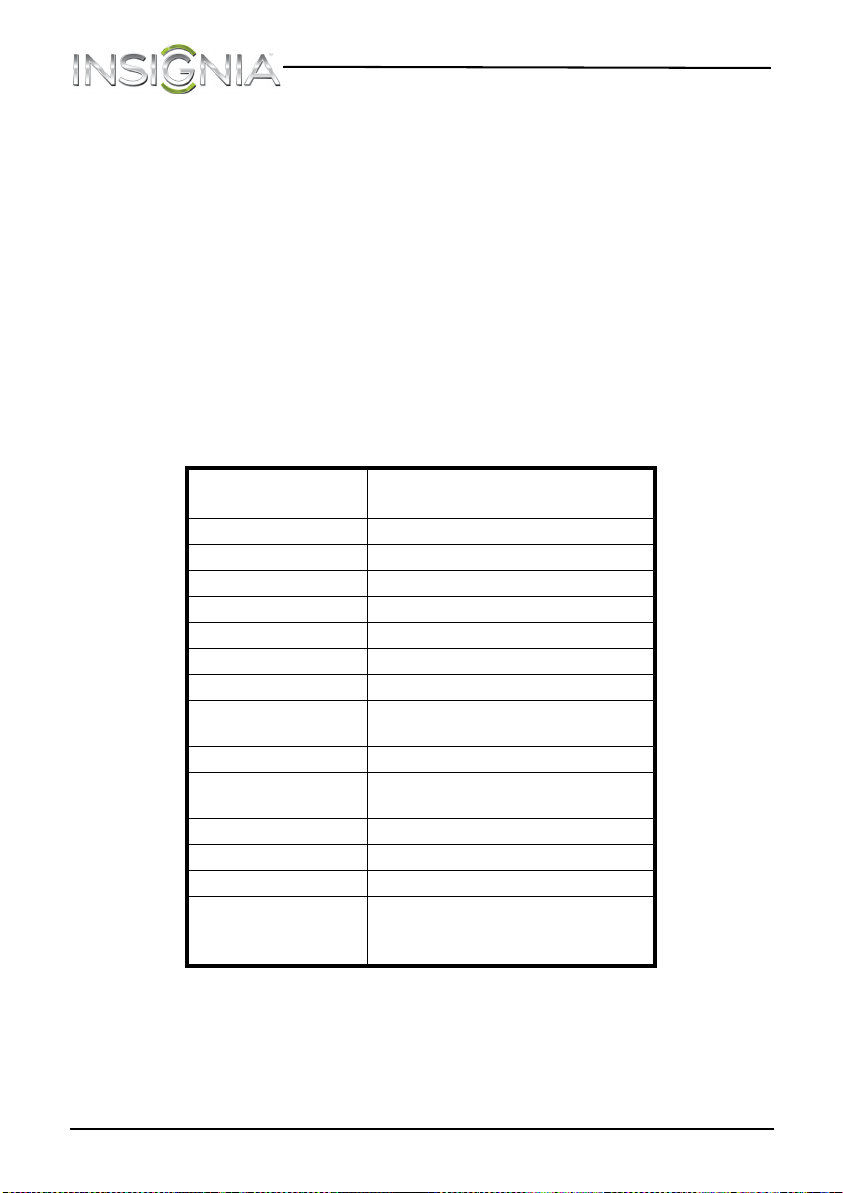
94
NS-13T001 Insignia Flex™ Android Tablet
www.insigniaproducts.com
Maintaining
• Keep your tablet dry.
• Avoid exposing your tablet to extreme hot or cold temperatures.
• Avoid placing your tablet close to lit cigarettes, open flames, or any heat
source.
• Do not drop, knock, or shake your tablet. Rough handling may break
internal circuit boards.
• Do not paint your tablet as the paint could obstruct the ports and prevent
normal use.
• Keep your tablet in a clean and dust free place.
Specifications
Specifications are subject to change without notice.
Dimensions
H×W×D
0.48 × 7.4 × 9.29 inches
(1.24 × 18.9 × 23.6 cm)
Weight 1.45 lbs. (0.66 kg)
Screen size 9.7-inch diagonal
Screen resolution 1024 × 768
Pixel-per-inch (PPI) 132
Power supply 5V/2A
Power consumption Maximum 10W
Internal memory 8 GB
microSD memory
card
Up to 32 GB
Camera Front, 2MP
Maximum video
capture resolution
720p
Operating system Android ICS 4.0
Wi-Fi 802.11 b/g/n
Bluetooth 4.0
Battery 6800 mAh rechargeable
lithium-ion
Up to 7.0 hours video playback
NS-13T001_13-0918_MAN_V3_ENG.fm Page 94 Tuesday, October 22, 2013 10:33 AM

95
NS-13T001 Insignia Flex™ Android Tablet
www.insigniaproducts.com
Legal notices
FCC Warning
This device complies with Part 15 of the FCC Rules. Operation is subject to the following two
conditions:
(1) this device may not cause harmful interference, and
(2) this device must accept any interference received, including interference that may cause
undesired operation.
FCC Part 15
This equipment has been tested and found to comply with the limits for a Class B digital
device, pursuant to part 15 of the FCC Rules. These limits are designed to provide reasonable
protection against harmful interference in a residential installation. This equipment
generates, uses and can radiate radio frequency energy and, if not installed and used in
accordance with the instructions, may cause harmful interference to radio communications.
However, there is no guarantee that interference will not occur in a particular installation. If
this equipment does cause harmful interference to radio or television reception, which can
be determined by turning the equipment off and on, the user is encouraged to try to correct
the interference by one or more of the following measures:
• Reorient or relocate the receiving antenna.
• Increase the separation between the equipment and receiver.
• Connect the equipment into an outlet on a circuit different from that to which the
receiver is connected.
• Consult the dealer or an experienced radio/TV technician for help.
NOTE:
The manufacturer is not responsible for any radio or TV interference caused by unauthorized
modifications to this equipment. Such modifications could void the user's authority to
operate the equipment.
OPEN SOURCE SOFTWARE NOTICE
If you require additional information, or you wish to receive the complete corresponding
GPL licensed source code, please call the Insignia support line at 1-877-467-4289 (U.S. and
Canada) or 01-800-926-3000 (Mexico). This source code is available for a period of three (3)
years from the date of the distribution of this product by Insignia.
The open source software licenses associated with the Insignia Flex Tablet can be viewed by
selecting: Settings > About Tablet > Legal Information > Open Source Licenses.
NS-13T001_13-0918_MAN_V3_ENG.fm Page 95 Tuesday, October 22, 2013 10:33 AM

96
NS-13T001 Insignia Flex™ Android Tablet
www.insigniaproducts.com
One-year warranty
Insignia Products (“Insignia”) warrants to you, the original purchaser of this new NS-13T001
(“Product”), that the Product shall be free of defects in the original manufacture of the
material or workmanship for a period of 1 year from the date of your purchase of the Product
(“Warranty Period”). This Product must be purchased from an authorized dealer of Insignia
brand products and packaged with this warranty statement. This warranty does not cover
refurbished Product. If you notify Insignia during the Warranty Period of a defect covered by
this warranty that requires service, terms of this warranty apply.
How long does the coverage last?
The Warranty Period lasts for 1 year (365 days) from the date you purchased the Product. The
purchase date is printed on the receipt you received with the Product.
What does this warranty cover?
During the Warranty Period, if the original manufacture of the material or workmanship of
the Product is determined to be defective by an authorized Insignia repair center or store
personnel, Insignia will (at its sole option): (1) repair the Product with new or rebuilt parts; or
(2) replace the Product at no charge with new or rebuilt comparable products or parts.
Products and parts replaced under this warranty become the property of Insignia and are
not returned to you. If service of Products or parts are required after the Warranty Period
expires, you must pay all labor and parts charges. This warranty lasts as long as you own your
Insignia Product during the Warranty Period. Warranty coverage terminates if you sell or
otherwise transfer the Product.
How to obtain warranty service?
If you purchased the Product at a retail store location, take your original receipt and the
Product to the store you purchased it from. Make sure that you place the Product in its
original packaging or packaging that provides the same amount of protection as the original
packaging. If you purchased the Product from an online web site, mail your original receipt
and the Product to the address listed on the web site. Make sure that you put the Product in
its original packaging or packaging that provides the same amount of protection as the
original packaging.
Where is the warranty valid?
This warranty is valid only in the United States and Canada at Best Buy or Future Shop
branded retail stores or websites to the original purchaser of the product in the county
where the original purchase was made.
What does the warranty not cover?
This warranty does not cover:
• Customer instruction
• Installation
•Set up adjustments
• Cosmetic damage
• Damage due to acts of God, such as lightning strikes
• Accident
•Misuse
• Abuse
•Negligence
• Commercial use
• Modification of any part of the Product, including the antenna
• Display panel damaged by static (non-moving) images applied for lengthy periods
(burn-in).
NS-13T001_13-0918_MAN_V3_ENG.fm Page 96 Tuesday, October 22, 2013 10:33 AM

97
NS-13T001 Insignia Flex™ Android Tablet
www.insigniaproducts.com
This warranty also does not cover:
• Damage due to incorrect operation or maintenance
• Connection to an incorrect voltage supply
• Attempted repair by anyone other than a facility authorized by Insignia to service the
Product
• Products sold as is or with all faults
• Consumables, such as fuses or batteries
• Products where the factory applied serial number has been altered or removed
REPAIR REPLACEMENT AS PROVIDED UNDER THIS WARRANTY IS YOUR EXCLUSIVE REMEDY.
INSIGNIA SHALL NOT BE LIABLE FOR ANY INCIDENTAL OR CONSEQUENTIAL DAMAGES FOR
THE BREACH OF ANY EXPRESS OR IMPLIED WARRANTY ON THIS PRODUCT, INCLUDING, BUT
NOT LIMITED TO, LOST DATA, LOSS OF USE OF YOUR PRODUCT, LOST BUSINESS OR LOST
PROFITS. INSIGNIA PRODUCTS MAKES NO OTHER EXPRESS WARRANTIES WITH RESPECT TO
THE PRODUCT, ALL EXPRESS AND IMPLIED WARRANTIES FOR THE PRODUCT, INCLUDING,
BUT NOT LIMITED TO, ANY IMPLIED WARRANTIES OF AND CONDITIONS OF
MERCHANTABILITY AND FITNESS FOR A PARTICULAR PURPOSE, ARE LIMITED IN DURATION
TO THE WARRANTY PERIOD SET FORTH ABOVE AND NO WARRANTIES, WHETHER EXPRESS
OR IMPLIED, WILL APPLY AFTER THE WARRANTY PERIOD. SOME STATES, PROVINCES AND
JURISDICTIONS DO NOT ALLOW LIMITATIONS ON HOW LONG AN IMPLIED WARRANTY
LASTS, SO THE ABOVE LIMITATION MAY NOT APPLY TO YOU. THIS WARRANTY GIVES YOU
SPECIFIC LEGAL RIGHTS, AND YOU MAY ALSO HAVE OTHER RIGHTS, WHICH VARY FROM
STATE TO STATE OR PROVINCE TO PROVINCE.
Contact Insignia:
For customer service please call 1-877-467-4289 (U.S. and Canada) or 01-800-926-3000
(Mexico)
www.insigniaproducts.com
Distributed by Best Buy Purchasing, LLC
7601 Penn Avenue South, Richfield, Minnesota, U.S.A. 55423-3645
© 2013 BBY Solutions, Inc.
All rights reserved. INSIGNIA is a trademark of BBY Solutions, Inc. Registered in some
countries. All other products and brand names are trademarks of their respective owners.
NS-13T001_13-0918_MAN_V3_ENG.fm Page 97 Tuesday, October 22, 2013 10:33 AM

INSIGNIA is a registered trademark of BBY Solutions, Inc.
Registered in some countries.
Distributed by Best Buy Purchasing, LLC, 7601 Penn Ave South, Richfield, MN 55423 U.S.A.
©2013 BBY Solutions, Inc.
All Rights Reserved
1-877-467-4289 (U.S. and Canada) or 01-800-926-3000 (Mexico)
www.insigniaproducts.com
V3 ENGLISH
13-0918
NS-13T001_13-0918_MAN_V3_ENG.fm Page 98 Tuesday, October 22, 2013 10:33 AM