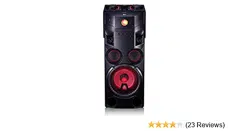
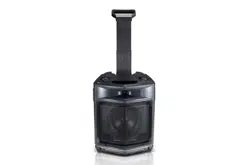
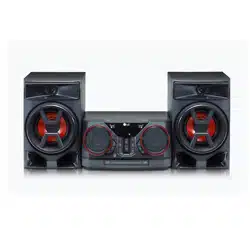
OWNER’S MANUAL Mini Hi-Fi System
Getting Started
Remote control
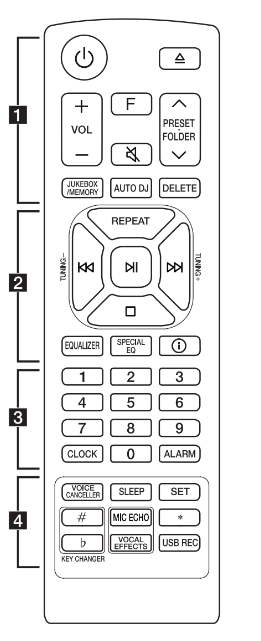

Replacement of battery
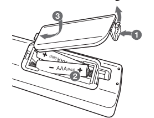
Remove the battery cover on the rear of the remote control, and insert the battery with  and
and  matched correctly.
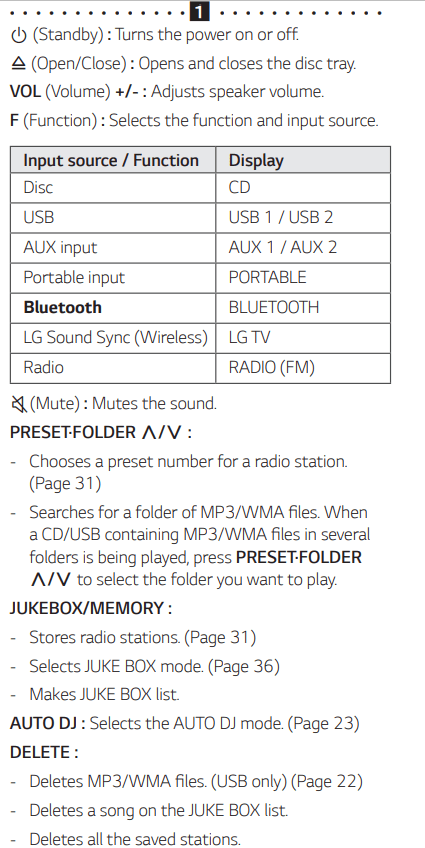
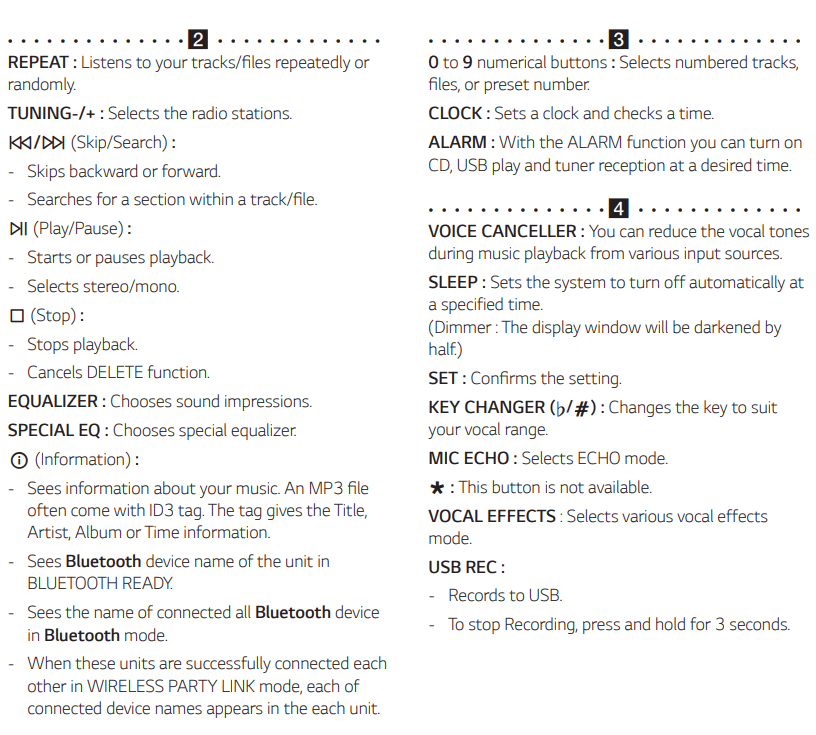

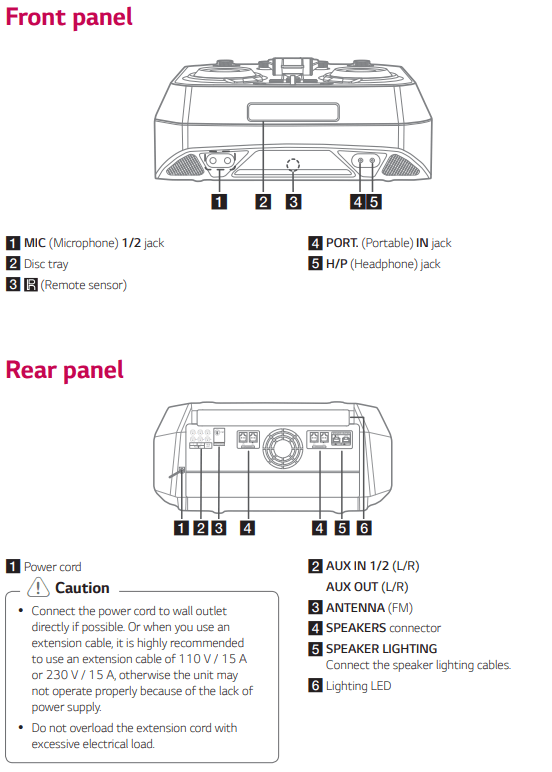
Front panel
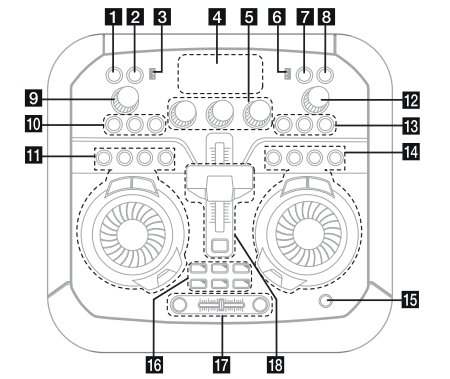

1  (Standby)
Turns the power on or off.
2 USB REC / DEMO
- Records to USB
- To stop Recording, press and hold for 3 seconds.
- In power off status, if you press USB REC / DEMO, show DEMO mode
3 USB 1 Port
You can play sound files by connecting the USB device.
4 Display window
5 TEMPO A -/+
Adjusts TEMPO in USB 1 function.
MASTER VOL. (Volume) -/+
Adjusts speaker volume.
TEMPO B -/+
Adjusts TEMPO in USB 2 function
6 USB 2 Port
You can play sound files by connecting the USB device.
VOICE CANCELLER: You can reduce the vocal tones during music playback from various input sources.
7 F (Function)
Selects the function and input source
8  WIRELESS LINK
- Selects MAIN or OTHER on WIRELESS PARTY LINK mode.
- Enable or disable WIRELESS PARTY LINK mode
9 MIC (Microphone) VOLUME -/+
Adjusts microphone volume.
10 VOCAL EFFECTS
Selects VOCAL EFFECTS mode.
MIC VOL (Microphone volume)
Selects microphone volume mode.
MIC ECHO
Selects ECHO mode.
11 Side 1 / Basic controls (CD / USB 1 / BLUETOOTH / RADIO only)
 (Stop)
- Stops playback or cancels DELETE function.
 (Play/Pause)
- Starts or pauses playback
- Selects stereo/mono.
 (Skip/Search)
- Skips forward.
- Searches for a section within a track/file.
- Selects the radio stations.
SEARCH: Moves to folder or file in selection mode.
OK: Selects a folder when searching a file.
DJ SCRATCH / SEARCH & LEVEL
- Turns clockwise or counterclockwise to make scratch sound.
- Turns clockwise or counterclockwise to control the USER EQ level.
- Searches a folder or a file.
- Adjusts DJ EFFECT level.
- Selects vocal effects.USER EQ
- Selects the equalizer created by your own.
DJ EFFECT: Selects a desired DJ EFFECT.
DJ LOOP: Selects DJ LOOP mode. (DJ LOOP mode can use during CD/USB playback.)
12 H/P (Headphone) VOLUME -/+
Adjusts headphone volume
13 KEY CHANGER (  )
)
Changes the key to suit your vocal range
H/P (Headphone) MODE
Press to select a headphone monitor mode
14 Side 2 / Basic controls (USB 2 only)
 (Skip/Search)
- Skips backward.
- Searches for a section within a track/file.
(Stop)
- Stops playback or cancels DELETE function.
(Play/Pause)
- Starts or pauses playback
SEARCH: Moves to folder or file in selection mode.
OK: Selects a folder when searching a file.
LIGHTING: Selects lighting mode.
SPECIAL EQ/ BASS BLAST (or BASS BLAST+)
- Chooses special equalizer.
- Press and hold to select BASS (or BASS+) effect directly.
15  (Open/Close)
Opens and closes the disc tray
16 CLUB, DRUM, USER (DJ PAD)
Selects CLUB, DRUM or USER sound effect to mix.
(If you want to use USER, you have to register a source with “Music Flow Bluetooth” app.)
1, 2, 3, 4, 5, 6 (DJ PAD)
Press a desired sound pad.
17 AUTO SYNC
When using MIX, you can synchronize the tempo of audio files being played in USB 1 and USB 2 by pressing AUTO SYNC.
MIX: Mixes audio sound.
Cross fader: Move the cross fader to adjust the sound volume of mixed sound when using MIXER ON.
18 PARTY ACCELERATOR lever
Slide the lever to create a party atmosphere.
PARTY ACCELERATOR MODE: Selects PARTY ACCELERATOR MODE.

Useful functions for using the unit
Operating
Basic Operations
CD/USB Operations
1. Insert the disc by pressing  Or connect the USB device to the USB port.
2. Select CD or USB function by pressing F.
Auto Play
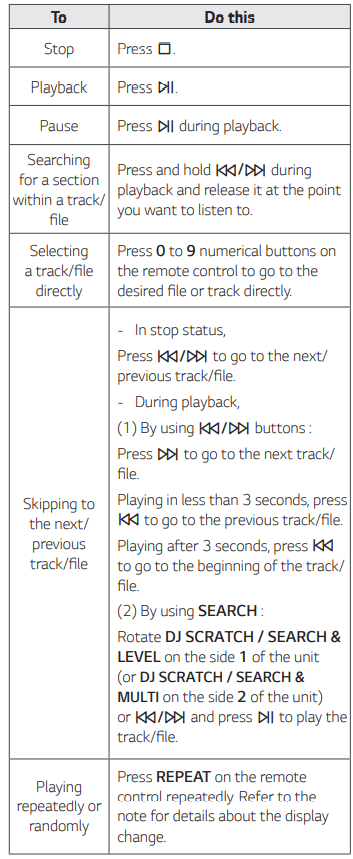
- AUDIO/MP3/WMA CD is played automatically after disc tray is opened and then closed.
- Automatically the unit switches to the CD function if disc tray is opened and then closed even when there is no disc in disc tray
- When CD or USB is inserted
- If you press
 on the side 1 of the unit, the function is changed to CD or USB 1 and playback starts. (Except BLUETOOTH, RADIO function)
- If you press on the side 2 of the unit, the function is changed to USB 2 and playback starts. (Except MIXER ON mode)
Selecting a folder and an MP3/WMA file
On the unit
1. Press SEARCH and rotate DJ SCRATCH / SEARCH & LEVEL on the side 1 (or rotate DJ SCRATCH / SEARCH & MULTI on the side 2) or  until a desired file appears. You can also search a folder if you press SEARCH again.
2. Press OK or to play the selected file. When you search a folder, press OK to select a file in the folder, then press OK oragain. The selected file is played.
On the remote control
1. Press PRESET·FOLDER  or repeatedly until a desired folder appears.
2. Press to play it. The first file of folder will be played
Note
- CD/USB Folders/Files are recognized as below.
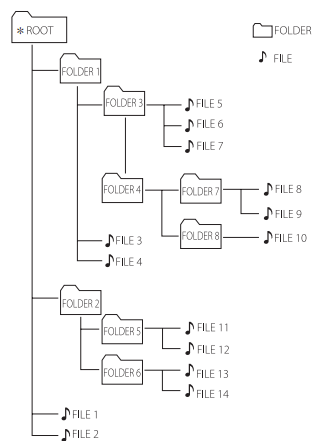
- If there is no file in a folder, the folder will not appear.
- Folders will be presented as the following order; ROOT -> FOLDER 1 -> FOLDER 3 -> FOLDER 7 -> FOLDER 8 -> FOLDER 5 -> FOLDER 6
- File will be played from
 file No.1 to
  file No.14 one by one.
- Files and folders will be presented in order recorded and may be presented differently according to the record circumstances.
*ROOT: The first screen you can see when a computer recognize the CD/USB is “ROOT”.
Deleting a file/folder or format
You can delete file, folder or format by pressing DELETE on the remote control. This function is supported only in stop status. (USB only)
1.Select USB function by pressing F.
2. Press DELETE on the remote control repeatedly, the display changes as followings.
DEL FILE -> DEL DIR -> FORMAT
- DEL FILE Select the file you want to delete.
- DEL DIR Select the folder you want to delete.
- FORMAT Select to format the USB device.
If you want to exit the current mode, press  .
.
3. To delete file/folder or format, press and hold DELETE on the remote control.
Caution
- Do not extract the USB device during operation. (play, delete, etc.)
- Regular back up is recommended to prevent data loss.
- The delete function may not be supported according to the USB status. (lock, etc.)
Playback Effect
The unit supports various sound and playback effects : DJ EFFECT, DJ SCRATCH, AUTO DJ, DJ PAD, DJ LOOP, PARTY ACCELERATOR, MIX, TEMPO, AUTO SYNC.
DJ EFFECT
It allows you to enjoy DJ EFFECT such as Flanger/Phaser/Wah/Delay sound effect.
- Press DJ EFFECT on the unit to select a desired DJ EFFECT (FLANGER, PHASER, WAH, DELAY, DJ EFFECT OFF).
- Turn DJ SCRATCH / SEARCH & LEVEL on the unit clockwise or counterclockwise to adjust the DJ EFFECT level between 0 to 15.
AUTO DJ
AUTO DJ blends the end of one song into the beginning of another for seamless playback. It equalizes volume across tracks/files for uninterrupted playback.
Press AUTO DJ repeatedly, the display changes as followings.
SHUFFLE -> SEQUENTIAL -> OFF
(On Display - Description)
- SHUFFLE - The music is played randomly on this mode.
- SEQUENTIAL - The music is played repeatedly on this mode
DJ SCRATCH
You can output and mix the sound effects of the DJ SCRATCH. Rotating DJ SCRATCH / SEARCH & LEVEL or DJ SCRATCH / SEARCH & MULTI on the unit to mix the scratch sound.
- You can hear effect of scratch sound depending on the direction in which you rotate DJ SCRATCH / SEARCH & LEVEL or DJ SCRATCH / SEARCH & MULTI on the unit.
DJ PAD
It allows you to mix CLUB, DRUM or USER sound effect. Each mode has up to 6 sounds effect.
1. Press and hold DJ PAD (CLUB, DRUM or USER) on the unit to select a desired DJ PAD sound effect.
2. Press a DJ PAD (1, 2, 3, 4, 5, 6) of desired sound on the unit
DJ LOOP
The certain section (about 1 sec) of sound is repeatedly played. (CD, USB Only) During playback, press and hold DJ LOOP on the unit at the point you want. And you can cancel DJ LOOP function by releasing it.
PARTY ACCELERATOR
It allows you to create a party atmosphere.
1. Select the mode by pressing PARTY ACCELERATOR MODE on the unit.
The sound effect will react differently according to the mode. PARTY ACCEL MODE 1 PARTY ACCEL MODE 2 PARTY ACCEL MODE 3
2. After selecting the mode, slide up the lever of PARTY ACCELERATOR on the unit to create a party atmosphere.
The sound effect will react according to moving the lever of PARTY ACCELERATOR on the unit. PARTY ACCEL OFF PARTY ACCEL 1 PARTY ACCEL 2 PARTY ACCEL CLIMAX
MIX
You can mix audio sounds.
1. Press MIX on the unit. ‘MIXER ON’ is displayed. Select a desired function for side 1 and play it. Mix is available in all functions except USB 2.
2. During playback, insert a USB device in USB 2 port and play it. Side 2 is fixed as USB 2 function.
3. Move the cross fader to adjust the sound volume of mixed sound. Move it to the left to lower the volume of side 2 and move it to the right to lower the volume of side 1.
TEMPO
You can adjust the Tempo for USB function from 50 (MIN) to 150 (MAX). Rotate TEMPO A on the unit to adjust the tempo for USB 1. Rotate TEMPO B on the unit to adjust the tempo for USB 2.
AUTO SYNC
When using Mixing, you can synchronize the tempo of audio files being played in USB 1 and USB 2 by pressing AUTO SYNC on the unit. To stop it, press AUTO SYNC on the unit twice.
Using BLUETOOTH® wireless technology
About Bluetooth
Bluetooth is wireless communication technology for short range connection.
The sound may be interrupted when the connection interfered by the other electronic wave or you connect the Bluetooth in the other rooms.
Connecting individual devices under Bluetooth wireless technology does not incur any charges. A mobile phone with Bluetooth wireless technology can be operated via the Cascade if the connection was made via Bluetooth wireless technology.
- Available Devices: Smart phone, MP3, Notebook, etc.
- Version: 4.0
- Codec: SBC
Bluetooth Profiles
In order to use Bluetooth wireless technology, devices must be able to interpret certain profiles.
This unit is compatible with following profile.
A2DP (Advanced Audio Distribution Profile)
Listening to music stored on the Bluetooth devices
Pairing your unit and Bluetooth device
Before you start the pairing procedure, make sure the Bluetooth feature is activated on your Bluetooth device. Refer to your Bluetooth device’s user guide. Once a pairing operation is performed, it does not need to be performed again.
- Turn on the unit.
- Operate the Bluetooth device and perform the pairing operation. When searching for this unit with the Bluetooth device, a list of the devices found may appear in the Bluetooth device display depending on the type of Bluetooth device. Your unit appears as “LG CK57 (XX)”
- When this unit has successfully connected with your Bluetooth device, “PAIRED” will be appear on the display window. After a short amount of time, the Bluetooth device name will be displayed.
- Listen to music. To play a music stored on your Bluetooth device, refer to your Bluetooth device’s user guide.
Note
- When using Bluetooth technology, you have to make a connection between the unit and the Bluetooth device as close as possible and keep the distance.
However, it may not work well in certain situations as described below:
- There is an obstacle between the unit and the Bluetooth device.
- There is a device using same frequency with Bluetooth technology such as a medical equipment, a microwave or a wireless LAN device.
- You should connect your Bluetooth device to this unit again when you restart it.
- Even if this unit is connected to up to 3 Bluetooth devices in the Bluetooth mode, you can play and control music by using only one of the connected devices.
- When this unit connected with multiple Bluetooth devices, only one device which you are playing keeps Bluetooth connection when you change the function to the others.
- The sound may be interrupted when the connection has interference from other electronic devices.
- You cannot control the Bluetooth device with this unit.
- Depending on the type of the device, you may not be able to use the Bluetooth function.
- You can enjoy wireless system using phone, MP3, Notebook, etc.
- The more distance between the unit and the Bluetooth device, the lower the sound quality becomes.
- Bluetooth connection will be disconnected when the unit is turned off or the Bluetooth device gets too far from the unit.
- When Bluetooth connection is disconnected, connect the Bluetooth device to the unit again.
- When a Bluetooth device is not connected, “BT READY” appears on the display window.
- When you use the Bluetooth function, adjust the volume to a proper level on the Bluetooth device.
- If it is not in Bluetooth function, only one device can be connected.
- If a Bluetooth device is connected when using LG TV, LG TV is disconnected and the Bluetooth device is connected.
- When you connect Bluetooth device (iOS device etc.) to this unit or operate the device, the volume level can be synchronized with each other
Radio Operations
Be sure that FM antenna is connected.
Listening to the radio
1. Press F until FM appears in the display window. The last received station is tuned in.
2. Auto tuning: Press and hold TUNING-/+ on the remote control or  on the unit until the frequency indication starts to change, then release. Scanning stops when the unit tunes in a station.
Or
Manual tuning: Press TUNING-/+ on the remote control or  on the unit repeatedly.
3. Adjust the volume by pressing VOL +/- on the remote control or rotating MASTER VOLUME knob on the unit repeatedly.
Improving poor FM reception
Press -200518.png) . This will change the tuner from stereo to mono and usually improve the reception.
. This will change the tuner from stereo to mono and usually improve the reception.
Presetting the Radio Stations
You can preset 50 stations for FM.
Before tuning, make sure to turn down the volume.
- Press F until FM appears in the display window.
- Select the desired frequency by pressing TUNING -/+ on the remote control or
 on the unit.
- Press JUKEBOX/MEMORY on the remote control. A preset number will blink in the display window.
- Press PRESET·FOLDER
 on the remote control to select the preset number you want.
- Press JUKEBOX/MEMORY on the remote control. The station is stored.
- Repeat steps 2 to 5 to store other stations.
- To listen a preset station, press PRESET·FOLDER
 or 0 to 9 numerical buttons on the remote control.
Deleting all the saved stations
- Press DELETE on the remote control. “DEL ALL” will flash up on the unit display.
- Press DELETE on the remote control to erase all the saved radio stations. “DELETED ALL” will flash up on the unit display.
Sound adjustment
Setting the sound mode
This system has a number of pre-set equalizers. The displayed items for the equalizer may be different depending on sound sources and effects. You can select a desired sound mode by using EQUALIZER on the remote control

You can select a desired sound mode by using SPECIAL EQ on the remote control or SPECIAL EQ / BASS BLAST (or BASS BLAST+) on the unit

Setting the USER EQ
You can adjust the sound level of Bass, Middle and Treble as your preference.
1. Press USER EQ on the unit. “USER EQ” is displayed.
2. Press USER EQ on the unit repeatedly until desired setting appears in the display window.
3. Rotate DJ SCRATCH / SEARCH & LEVEL on the unit to adjust the value.
Advanced Operations
Recording to USB
You can record a various sound source to USB. (CD, USB 1, AUX 1, AUX 2, FM)
1. Connect the USB device to the unit.
2. Select a function by pressing F.
3. Start the recording by pressing USB REC on the remote control or USB REC/ DEMO on the unit

- If you connect both USB1 and USB2, press USB REC on the remote control or USB REC / DEMO on the unit when USB1 or USB2 which you want to record blinks in the display window.
To stop recording
To stop recording, press and hold USB REC on the remote control or USB REC / DEMO on the unit for 3 seconds. Otherwise, the recording continues.
Pausing recording
During CD/USB playback or pause, or external sound source recording, press USB REC on the remote control or USB REC / DEMO on the unit to pause recording. Press it again to restart recording.
To select recording bit rate and speed
1. Press and hold USB REC on the remote control or USB REC / DEMO on the unit for 3 seconds.
2. Press  to select a bit rate.
3. Press USB REC on the remote control or USB REC/ DEMO on the unit again to select the recording speed.
Recording in MIXER ON mode
Recording is available in MIXER ON mode. If you record in MIXER ON mode, the unit records the mixed sound from that point when you press USB REC on the remote control or USB REC / DEMO on the unit.
1. Start mixing.
2. Start the recording by pressing USB REC on the remote control or USB REC / DEMO on the unit.
To stop recording, press and hold USB REC on the remote control or USB REC / DEMO on the unit to stop recording. Otherwise, the recording continues.
Note
- When you stop recording, the file that has been recorded at that time will be stored. (Except when recording MP3/ WMA files that are in stop status.)
- Do not remove the USB device or turn off the unit during USB recording. If does not, an incomplete file may be made and not deleted on PC.
- If USB recording does not work, the message like “NO USB”, “ERROR”, “USB FULL”, “NOT SUPPORT” or “FILE MAX” is displayed on the display window.
- Multi card reader device or external HDD can not be used for USB recording.
- A file is recorded by about 512 Mbyte when you record for a long term.
- You may not store more than 2,000 files.
- You can not record in AUTO DJ mode.
- In case of the unsupported MP3/WMA file, the file recording may be stopped.
- It’ll be stored as follows.
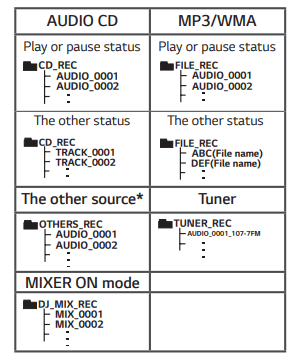
* AUX and the like.
Tuner: The current recording frequency is shown
JUKE BOX Playback
The program function enables you to store your favorite files from any disc or USB device.
A program can contain 20 tracks/files for each media (CD, USB 1,USB 2). Possible to save a total of 60 tracks/files.
Making JUKE BOX list
1. Press and hold JUKEBOX / MEMORY on the remote control to enter the edit mode. (Playing will be stopped when you press JUKEBOX / MEMORY on the remote control.)
2. Select a track/file by pressing  on the remote control.
3. Press and hold JUKEBOX / MEMORY on the remote control to save the track/file.
4. Repeat steps 2 - 3 to store other tracks/files. (You can modify the list by pressing PRESET·FOLDER on the remote control to select the JUKE BOX program number.)
5. Press JUKEBOX / MEMORY on the remote control once again.
To play the JUKE BOX list, press  on the remote control after you make the list.
Deleting JUKE BOX list
Deleting function works in the edit mode.
1. Press and hold JUKEBOX / MEMORY on the remote control to enter the edit mode.
Or
Press DELETE on the remote control while JUKE BOX is played to enter the edit mode.
2. Select a song by pressing PRESET·FOLDER on the remote control repeatedly.
3. Press DELETE on the remote control while a song is selected.
Other Operations
Turn off the sound temporarily
Press  on the remote control to mute your sound.
You can mute your unit, for example, to answer the telephone, the “  ” will appear in the display window.
To cancel it, press  on the remote control again or change the volume level.
CHILDSAFE Mode
This function helps to prevent you from being surprised when you turn on the unit in case that the volume of the unit is set at a high level.
To turn on CHILDSAFE mode, press and hold OK on the unit when the volume of the unit is “MIN”. In CHILDSAFE mode, the volume increase gradually.
To turn off CHILDSAFE mode, press and hold OK on the unit when the volume of the unit is “MIN” and this mode is turned on.
DEMO
In the power off state, press DEMO on the unit once. The unit will power on and display the each of functions in the display window.
To cancel the DEMO function, press DEMO on the unit once more.
Resume stop
The unit records the point where you pressed depending on the disc or USB. If you press twice, the unit will clear the stopped point
Using Microphone
1. Connect your microphone to the MIC jack.
2. Play the music you want.
3. Sing along with the accompaniment. Adjust the microphone volume by pressing MIC VOL and rotating MASTER VOL. / MULTI on the unit in a clockwise or counterclockwise.
VOICE CANCELLER Y
You can reduce the vocal tones during music playback from various input sources.
Press VOICE CANCELLER and “ON - VOICE CANCELLER” will appear in display window. To cancel it, press VOICE CANCELLER again. The quality of the VOICE CANCELLER may be different depending on the recording conditions of music files.
KEY CHANGER
You can adjust the key to 9 steps (4 steps higher, 4 steps lower and the original key).
- To sharp the key one by one, press KEY CHANGER( #) repeatedly during playback.
- To flatten the key one by one, press KEY CHANGER(
 ) repeatedly during playback.
VOCAL EFFECTS
When you connect your microphone to the MIC jack, you can enjoy karaoke function by changing voice in the various source.
To select various mode, pressing VOCAL EFFECTS repeatedly or pressing VOCAL EFFECTS and then turning MASTER VOL. / MULTI on the unit when vocal effects mode appears in the display window.
BASS -> SOPRANO -> HELIUM -> ROBOT -> DUET MAN -> DUET WOMAN-> BASS ECHO1 -> SOPRANO ECHO1 -> HELIUM ECHO1-> ROBOT ECHO1-> DUET MAN1-> DUET WOMAN1 -> BASS ECHO2 -> SOPRANO ECHO2 -> HELIUM ECHO2 -> ROBOT ECHO2 -> DUET MAN2 -> DUET WOMAN2 -> OFF
ECHO
When you connect your microphone to the MIC jack, you can give an echo effect to the sound from the microphones by pressing MIC ECHO.
ECHO 1 -> ECHO 2 -> ECHO OFF
Using H/P MODE
Headphone monitoring is available.
Press H/P MODE on the unit to listen to music using headphone. Rotate H/P VOLUME on the unit to adjust the volume. When mixing, press H/P MODE on the unit to select a monitoring mode. You can listen to the music being mixed or playing in Source A or Source B
LIGHTING
This function offers a party atmosphere by operating speaker lighting and beat of music.
To select mode, pressing LIGHTING on the unit repeatedly or pressing LIGHTING on the unit and then turning EQUALIZER / SEARCH on the unit.
OFF->PARTY ->PEACEFUL ->ROMANTIC-> COOL-> UPBEAT-> FIERY ->EXCITED ->DYNAMIC-> HEALING ->SUNNY-> OFF ...
Sleep Timer Setting
Press SLEEP on the remote control repeatedly to select delay time between 10 and 180 minutes. After the delay time, the unit will be turned off. To cancel the sleep function, press SLEEP on the remote control repeatedly until “OFF” appears.
Dimmer
Press SLEEP on the remote control once. The display window will be darkened by half. To cancel it, press SLEEP on the remote control repeatedly until dim off
Auto power down
This unit will turn itself off to save electricity in the case were the main unit is not connected to an external device and is not used for 15 minutes. The unit will also turns itself off after six hours if the main unit has been connected to another device using the analog inputs.
AUTO POWER On
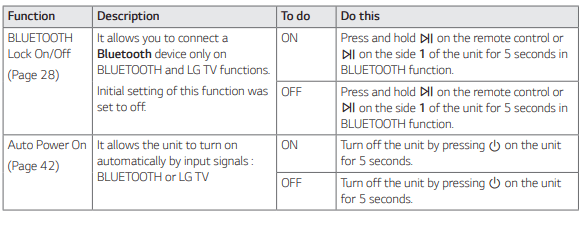
This unit automatically turns on by an input source: Bluetooth or LG TV.
When you turn on your TV connected to this unit, this unit recognizes the input signal and selects the suitable function. You can hear the sound from the unit.
If you try to connect your Bluetooth device, this unit turns on and connects your Bluetooth device. You can play your music
When you turn off this unit by pressing on the unit for 5 seconds each time, you can turn on or off the AUTO POWER function.
- ON-AUTO POWER AUTO POWER function is turned on.
- OFF-AUTO POWER AUTO POWER function is turned off
Auto function change
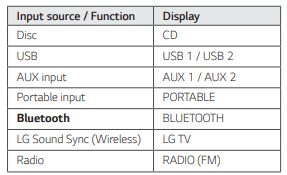
This unit recognizes input signals such as BT (Bluetooth) and LG TV and then automatically changes to the suitable function.
When you try to connect Bluetooth device
When you try to connect your Bluetooth device to this unit, Bluetooth function is selected. Play your music on the Bluetooth device.
When 3.5 mm stereo cable is connected
When you connect the portable device to the PORTABLE IN connector, PORTABLE function is selected. Play your music on the portable device.
When LG TV is connected
When you turn on your LG TV connected by LG Sound Sync, this unit changes the function to LG TV. You can hear the sound from your TV.
Setting the Clock
1. Turn the unit on.
2. Press and hold CLOCK on the remote control.
3. Select time mode by pressing  on the remote control.
- AM 12:00 (for an AM and PM display) or 0:00 (for a 24 hour display)
4. Press SET on the remote control to confirm your selection.
5. Select the hours by pressing  on the remote control.
6. Press SET on the remote control.
7. Select the minutes by pressing  on the remote control.
8. Press SET on the remote control.
Using your player as an alarm clock
1. Turn the unit on.
2. Press and hold ALARM on the remote control.
3. Press  on the remote control to change the hours and minutes and press SET on the remote control to save.
4. Press  on the remote control to select function and press SET on the remote control to save.
- Press
 on the remote control to select a preset number when you select tuner and then, press SET on the remote control. If there is no preset number, this step is skipped.
5. Press  on the remote control to change the volume and press SET on the remote control to save.
LG Sound Sync
You can control some functions of this unit by your TV’s remote control with LG Sound Sync. It is compatible with LG TV that supports LG Sound Sync. Make sure your TV has the LG Sound Sync logo. Controllable function by LG TV’s remote control: Volume up/down, mute.
Refer to the TV’s instruction manual for the details of LG Sound Sync.
1. Turn on the unit by pressing  .
.
2. Press F until LG TV function is selected.
3. Set up the sound output of TV to listen to the sound through this unit:
TV setting menu [Sound] -> [TV Sound output] -> [LG Sound Sync (Wireless)]
“PAIRED” appears on the display window for about 3 seconds and then you can see “LG TV” on the display window if the TV and this unit are connected normally.
Troubleshooting
General
The unit does not work properly
- Turn off the power of this unit and the connected external device (TV, Woofer, DVD-player, Amplifier, etc.) and turn them on again.
- Disconnect the power cord of this unit and the connected external device (TV, Woofer, DVD-player, Amplifier, etc.) and then try connecting again.
- Previous setting may not be saved when device power is shut off.
No Power
- The power cord is not plugged in. Plug in the power cord.
- Check whether electricity failed. Check the condition by operating other electronic devices using the same AC outlet.
No sound
- Check whether you select right function. Press function button and check if you have selected the right function.
- Check to see if the speakers are connected correctly. Speaker cables connected correctly.
The unit does not start playback
- An unplayable disc is inserted. Check the playable disc.
- No disc is inserted. Insert a disc.
- The disc is dirty. Clean the disc.
- The disc is inserted upside down. Place the disc with the label or printed side facing upwards.
Radio stations cannot be tuned in properly
- The antenna is positioned or connected poorly. Connect the antenna securely.
- The signal strength of the radio station is too weak. Tune to the station manually.
- No stations have been preset or preset stations have been cleared (when tuning by scanning preset channels). Preset some radio stations .
The remote control does not work properly
- The remote control is too far from the unit. Operate the remote control within about 7 m.
- There is an obstacle in the path of the remote control and the unit. Remove the obstacle.
- The batteries in the remote control are exhausted.Replace the batteries with new ones.
LG Sound Sync does not work
- Check whether your LG TV supports LG Sound Sync.
- Check connection of LG Sound Sync.
- Check sound setting of your TV and this unit.