For product support, visit
www.philips.com/support
Manuel d'utilisationUser manual
Manual del usuario
EN: For further assistance, call the customer support service in your country.
• To obtain assistance in the U.S.A., Canada, Puerto Rico, or the U.S. Virgin Islands, contact
Philips Customer Care Center at 1-866-309-0846
• To obtain assistance in Mexico, contact Philips Customer Care Center at 01 800 504 6200
ES: Para obtener mas informacion, llame al servicio de soporte al cliente de su pais.
• Para obtener asistencia en los Estados Unidos, en Canada, Puerto Rico o en las Islas Virgenes de los Estados
Unidos, comuniquese con Centro de atencion al cliente de Philips al 1-866-309-0846
• Solo para Mexico CENTRO DE ATENCION A CLIENTES LADA, 01 800 504 62 00 Solo Para Mexico.
FR: Pour obtenir de l’aide supplementaire, communiquez avec le centre de service a la clientele de votre pays.
• Pour obtenir de l’aide aux Etats-Unis, au Canada, a Puerto Rico ou aux lles Vierges americaines, communiquez
avec le centre de service a la clientele Philips au : 1-866-309-0846
• Pour obtenir l’aide au Mexique, entrez en contact avec le centre de soin de client de Philips a 01 800 504 62 00
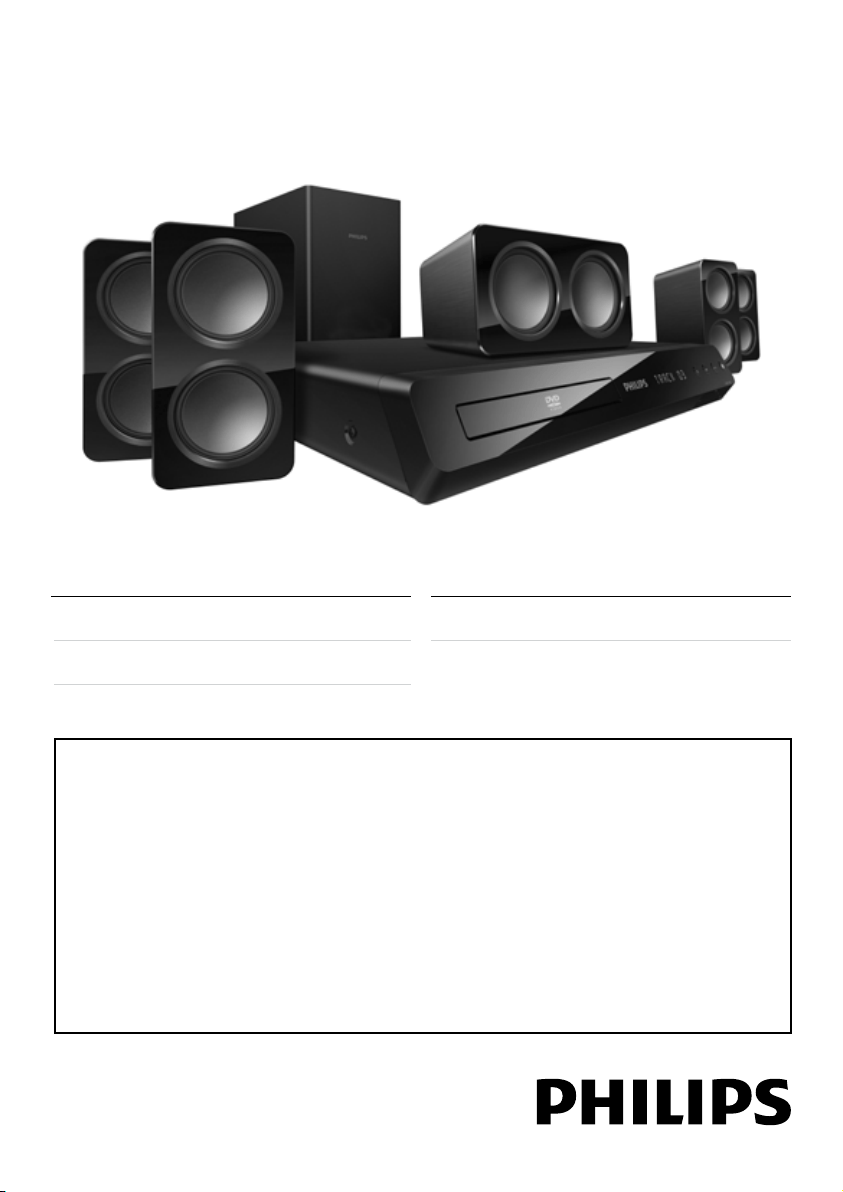
HTS3531

1
English
EN
Contents
1 Notice 2
Copyright 2
Compliance 2
Trademarks 2
2 Important 3
Safety 3
Care for your product 4
Care of the environment 4
3 Your home theater 5
Main unit 5
Remote control 5
4 Connect your home theater 7
Speakers 7
Connectors 8
Connect to TV 8
Connect audio from TV and other devices 9
5 Use your home theater 10
Choose sound 10
Discs 11
USB storage devices 12
DivX 12
Audio, video, and picture options 13
Radio 13
MP3 player 14
Create MP3 les 14
EasyLink 15
6 Change settings 16
Picture 16
Sound 16
Language 17
Parental control 17
Energy saving 18
Apply factory settings 18
7 Update software 19
Check software version 19
Update software through USB or CD-R 19
8 Productspecications 20
9 Troubleshooting 21
10 Index 23
2 EN
1 Notice
This section contains the legal and trademark
notices.
Copyright
This item incorporates copy protection technology
that is protected by U.S. patents and other
intellectual property rights of Rovi Corporation.
Reverse engineering and disassembly are
prohibited.
Compliance
Notice for USA
This equipment has been tested and found to
comply with the limits for a Class B digital device,
pursuant to part 15 of the FCC Rules. These limits
are designed to provide reasonable protection
against harmful interference in a residential
installation. This equipment generates, uses and can
radiate radio frequency energy and, if not installed
and used in accordance with the instruction
manual, may cause harmful interference to radio
communications.
However, there is no guarantee that interference
will not occur in a particular installation. Of this
equipment does cause harmful interference
to radio or television reception, which can be
determined by turning the equipment off and
on, the user is encouraged to try to correct the
interference by one or more of the following
measures:
• Relocate the receiving antenna.
• Increase the separation between equipment
and receiver.
• Connect the equipment into an outlet on
a circuit different from that to which the
receiver is connected.
• Consult the dealer or an experienced radio/
TV technician for help.
Notice for Canada
Class B Clause
This digital apparatus does not exceed the Class B
limits for radio noise emissions from digital apparatus
as set out in the Radio Interference Regulations of
the Canadian Department of Communications.
This Class B digital apparatus complies with
Canadian ICES-003.
Trademarks
Manufactured under license from Dolby
Laboratories. Dolby and the double-D symbol are
trademarks of Dolby Laboratories.
DivX
®
, DivX Ultra
®
, DivX Certied
®
and associated
logos are trademarks of Rovi Corporation or its
subsidiaries and are used under license.
DivX Ultra
Certied to play DivX video with
advanced features and premium content.
ABOUT DIVX VIDEO: DivX
®
is a digital video
format created by DivX, LLC, a subsidiary of Rovi
Corporation. This is an ofcial DivX Certied
®
device that plays DivX video. Visit divx.com for
more information and software tools to convert
your les into DivX videos.
ABOUT DIVX VIDEO-ON-DEMAND: This DivX
Certied
®
device must be registered in order to
play purchased DivX Video-on-Demand (VOD)
movies. To obtain your registration code, locate the
DivX VOD section in your device setup menu. Go
to vod.divx.com for more information on how to
complete your registration.
HDMI, and HDMI logo, and High-Denition
Multimedia Interface are trademarks or registered
trademarks of HDMI licensing LLC in the United
States and other countries.
CLASS 1
LASER PRODUCT
3
English
EN
2 Important
Read and understand all instructions before you
use your home theater. If damage is caused by
failure to follow instructions, the warranty does
not apply.
Safety
• Read these instructions.
• Keep these instructions.
• Heed all warnings.
• Follow all instructions.
• Do not use this apparatus near water.
• Clean only with dry cloth.
• Do not block any ventilation openings.
Install in accordance with the
manufacturer's instructions.
• Do not install near any heat sources such
as radiators, heat registers, stoves, or other
apparatus (including ampliers) that produce
heat.
• Do not defeat the safety purpose of the
polarized or grounding-type plug. A polarized
plug has two blades with one wider than
the other. A grounding type plug has two
blades and a third grounding prong. The wide
blade or the third prong are provided for
your safety. If the provided plug does not t
into your outlet, consult an electrician for
replacement of the obsolete outlet.
• Protect the power cord from being
walked on or pinched, particularly at plugs,
convenience receptacles, and the point where
they exit from the apparatus.
• Only use attachments/accessories specied
by the manufacturer.
• Use only with the cart, stand, tripod, bracket
or table specied by the manufacturer or
sold with the apparatus. When a cart is used,
use caution when moving the cart/apparatus
combination to avoid injury from tip-over.
• Unplug this apparatus during lightning storm
or when unused for long periods of time.
• Refer all servicing to qualied service
personnel. Servicing is required when the
apparatus has been damaged in any way, such
as power-supply cord or plug is damaged,
liquid has been spilled or objects have fallen
into the apparatus, the apparatus has been
exposed to rain or moisture, does not
operate normally, or has been dropped.
• Battery usage CAUTION - To prevent
battery leakage which may result in bodily
injury, property damage, or damage to the
unit:
• Install all batteries correctly, + and - as
marked on the unit.
• Do not mix batteries (old and new or
carbon and alkaline, etc.).
• Remove batteries when the unit is not
used for a long time.
• Apparatus shall not be exposed to dripping
or splashing.
• Do not place any sources of danger on the
apparatus (for example. liquid lled objects,
lighted candles).
• This apparatus may contain lead and mercury.
Dispose according to local, State or Federal
laws. For disposal or recycling information,
please contact your local authorities. For
additional assistance on recycling options,
please contact www.mygreenelectronics.com
or www.eiae.org or www.recycle.philips.com.
• Use of controls or adjustments or
performance of procedures other than herein
may result in hazardous radiation exposure
or other unsafe operation.
• Disconnect the mains plug to shut off when
nd trouble or not in use. The mains plug
shall be readily operable.
• Do not place this apparatus on the furniture
that is capable of being tilted by a child and
an adult leaning, pulling, standing or climbing
on it. A falling apparatus can cause serious
injury or even death.
• This apparatus should not be placed in a
built-in installation such as a bookcase or rack
unless proper ventilation is provided. Make
sure to leave a space of 7.8 inches (20cm) or
more around this apparatus.
4 EN
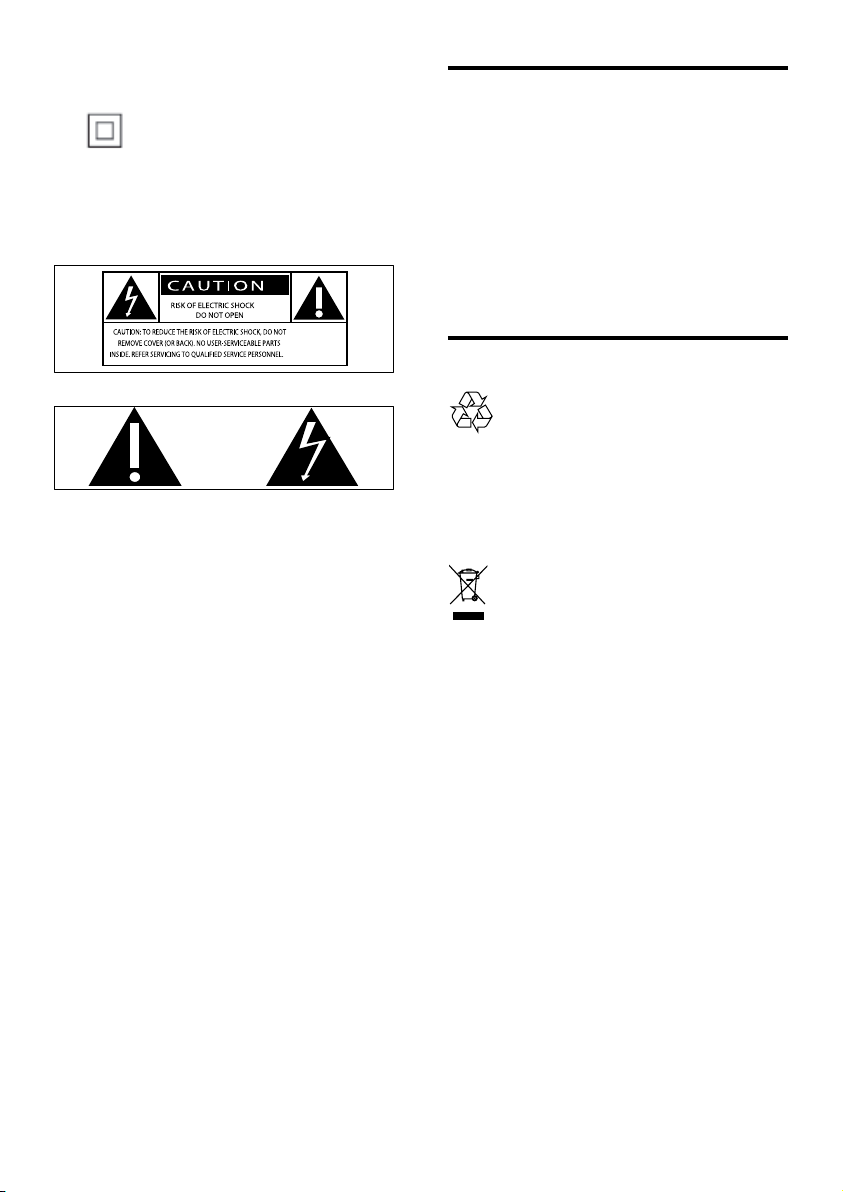
Class II equipment symbol
This symbol indicates that the unit has a double
insulation system.
Know these safety symbols
This 'bolt of lightning' indicates uninsulated
material within your unit may cause an electrical
shock. For the safety of everyone in your
household, please do not remove product
covering.
The 'exclamation point' calls attention to features
for which you should read the enclosed literature
closely to prevent operating and maintenance
problems.
WARNING: To reduce the risk of re or electric
shock, this apparatus should not be exposed to
rain or moisture and objects lled with liquids, such
as vases, should not be placed on this apparatus.
CAUTION: To prevent electric shock, match wide
blade of plug to wide slot, fully insert.
Care for your product
• Do not insert any objects other than discs
into the disc compartment.
• Do not insert warped or cracked discs into
the disc compartment.
• Remove discs from the disc compartment
if you are not using the product for an
extended period of time.
• Use only microber cloth to clean the
product.
Care of the environment
Your product is designed and manufactured with
high quality materials and components, which can
be recycled and reused.
Please visit www.recycle.philips.com for additional
information on a recycling center in your area.
Never dispose of your product with other
household waste. Please inform yourself about
the local rules on the separate collection of
electrical and electronic products and batteries.
The correct disposal of these products helps
prevent potentially negative consequences on the
environment and human health.
The batteries supplied do not contain the heavy
metals mercury and cadmium. Nevertheless, in
many areas batteries may not be disposed of with
your household waste. Please ensure you dispose
of batteries according to local regulations.
5
English
EN
3 Your home theater
Congratulations on your purchase, and welcome
to Philips! To fully benet from the support that
Philips offers, visit www.philips.com/support.
Main unit
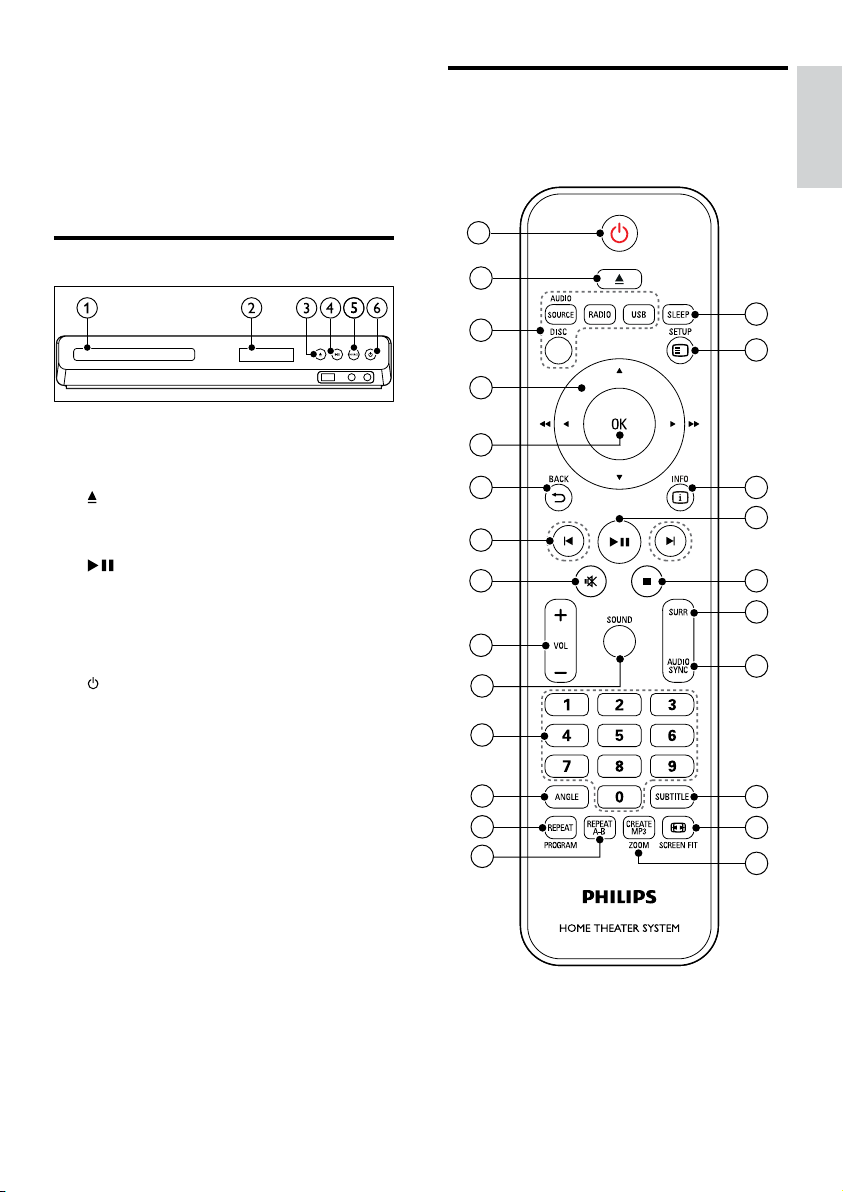
a Disc compartment
b Display panel
c (Open/Close)
Open or close the disc compartment, or
eject the disc.
d (Play/Pause)
Start, pause or resume play.
e SOURCE
Select an audio or video source for the home
theater.
f (Standby-On)
Switch the home theater on or to standby.
Remote control
This section includes an overview of the remote
control.
1
2
3
4
5
6
7
8
20
9
10
11
12
13
14
15
16
17
18
19
21
22
23
24

6 EN
a (Standby-On)
• Switch the home theater on or to
standby.
• When EasyLink is enabled, press and hold
for at least three seconds to switch all
connected HDMI CEC compliant devices
to standby.
b (Open/Close)
Open or close the disc compartment, or
eject the disc.
c Source buttons
• DISC: Switch to disc source.Access or
exit the disc menu when you play a disc.
• AUDIO SOURCE: Select an audio input
source.
• RADIO: Switch to FM radio.
• USB: Switch to USB storage device.
d Navigation buttons
• Navigate menus.
• In video mode, press left or right to fast
backward or fast forward; press up or
down to slow backward or slow forward.
• In radio mode, press left or right to
search a radio station; press up or down
to ne tune a radio frequency.
e OK
Conrm an entry or selection.
f BACK
Return to a previous menu screen.
g / (Previous/Next)
• Skip to the previous or next track,
chapter or le.
• In radio mode, select a preset radio
station.
h (Mute)
Mute or restore volume.
i VOL +/-
Increase or decrease volume.
j SOUND
Select a sound mode.
k Numeric buttons
Select an item to play.
l ANGLE
Select video scenes recorded in different
camera angels.
m REPEAT / PROGRAM
• Select or turn off repeat mode.
• In radio mode, set a radio station.
n REPEAT A-B
Mark two points within a chapter or track to
repeat play, or turn off the repeat mode.
o CREATE MP3/ZOOM
• Access the create MP3 menu.
• Zoom into a video scene or picture.
Press the Navigation buttons (left/right)
to select a zoom factor.
p SCREEN FIT
Fit the picture format to the TV screen.
q SUBTITLE
Select subtitle language for video.
r AUDIO SYNC
• Select an audio language or channel.
• Press and hold to access audio delay
setting, then press +/- to delay the audio
to match the video.
s SURR
Select surround sound or stereo sound.
t (Stop)
Stop play.
u (Play/Pause)
Start, pause or resume play.
v INFO
Access more play options while playing a disc
or a USB storage device.
w SETUP
Access or exit the setup menu.
x SLEEP
Switch the home theater to standby mode
after the elapsed time.
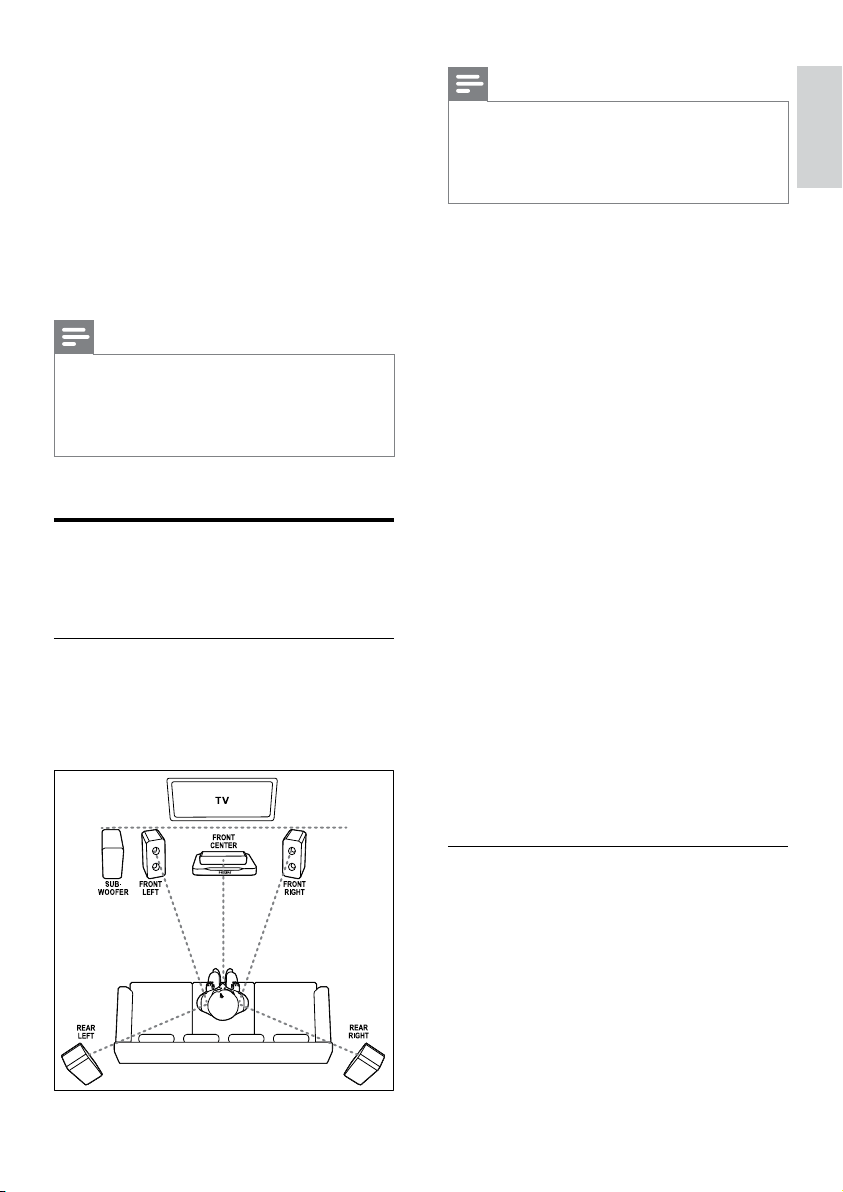
EasyLink controls
With Easylink, you can control your home theater
and the TV with the following buttons on your
home theater remote control (see 'EasyLink' on
page 15).
• (Standby-On): Press and hold to switch
your home theater, TV and the connected
devices to standby.
• (Play/Pause): When a video disc is in
the disc compartment, wake up the TV from
standby, and then play a disc.
7
English
EN
4 Connect your home
theater
This section helps you connect your home theater
to a TV and other devices.
For information about the basic connections of
your home theater and accessories, see the quick
start guide. For a comprehensive interactive guide,
see www.connectivityguide.philips.com.
Note
•
For identication and supply ratings, refer to the
type plate at the back or bottom of the product.
• Before you make or change any connections,
make sure that all devices are disconnected from
the power outlet.
Speakers
Position, connect, and set up your speakers for
best surround sound.
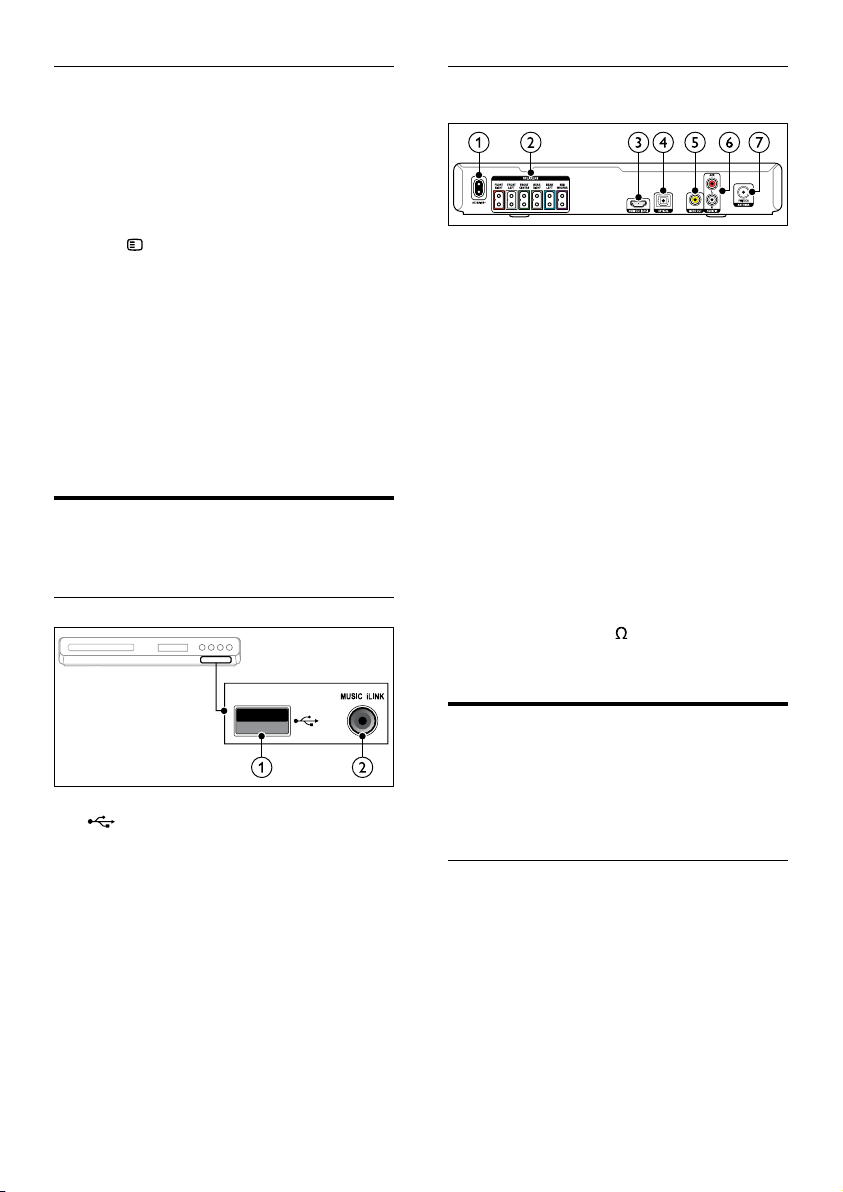
Position
Speaker position plays a critical role in setting up a
surround sound effect.
For best results, place your speakers and the
subwoofer as shown below.
Note
•
Surround sound depends on factors such as
room shape and size, type of wall and ceiling,
windows and reective surfaces, and speaker
acoustics. Experiment with the speaker positions
to nd the optimum setting for you.
Follow these general guidelines, and then set up
your speakers.
1 Seating position:
This is the center of your listening area.
2 FRONT CENTER (front center) speaker:
Place the center speaker directly in front of
the seating position, either above or below
your TV. Make sure that it is close to your ear
height when you are seated.
3 FRONT LEFT (front left) and FRONT
RIGHT (front right) speakers:
Place the left and right speakers in the front,
and equidistant from the center speaker in an
arc, so that all the three speakers are at same
distance from your seating position. For best
effect, point the speakers towards the seating
position and place the speakers close to the
ear level (when seated).
4 REAR LEFT (rear left) and REAR RIGHT
(rear right) speakers:
Place the rear surround speakers to the left
and right side of your seating position, either
in line with it or slightly behind it. For best
effect, point the speakers towards the seating
position and place the speakers just above
the ear level (when seated).
5 SUBWOOFER (subwoofer):
Place the subwoofer at least one meter to
the left or right of the TV. Leave about ten
centimeter clearance from the wall.
Connect
Connect your speakers and the subwoofer to your
home theater as described in the quick start guide.
8 EN
Setup
Set up your speakers through the speaker setup
menu.
1 Connect your speakers and subwoofer as
described in the Quick start guide.
2 Turn on your TV, and switch to the correct
source for the home theater.
3 Press SETUP on your home theater
remote control.
4 Select [Audio Setup], and then press OK.
5 Change the following settings, and then press
OK.
• [Speakers Volume]: Set the volume level
of each speaker.
• [Speakers Delay]: Set the delay time for
speakers which are placed closer to the
seating position in order to obtain equal
audio transmission from all the speakers.
Connectors
Connect other devices to your home theater.
Front
a (USB)
Audio, video or picture input from a USB
storage device.
b MUSIC iLINK
Audio input from an MP3 player.
Back connectors
a AC MAINS
Connect to the power supply.
b SPEAKERS
Connect to the supplied speakers and
subwoofer.
c HDMI OUT
Connect to the HDMI input on the TV.
d OPTICAL
Connect to an optical audio output on the
TV or a digital device.
e VIDEO OUT
Connect to the composite video input on
the TV.
f AUDIO IN-AUX
Connect to an analog audio output on the TV
or an analog device.
g ANTENNA FM 75
Signal input from an antenna, cable or satellite.
Connect to TV
Connect your home theater to a TV to watch videos.
You can listen to audio from TV programs through
your home theater speakers. Use the best quality
connection available on your home theater and TV.
Option 1: Connect to TV through HDMI
Best quality video
With a standard HDMI connection, you need an
additional audio cable to play the audio from the
TV through your home theater (see 'Connect
audio from TV and other devices' on page 9).
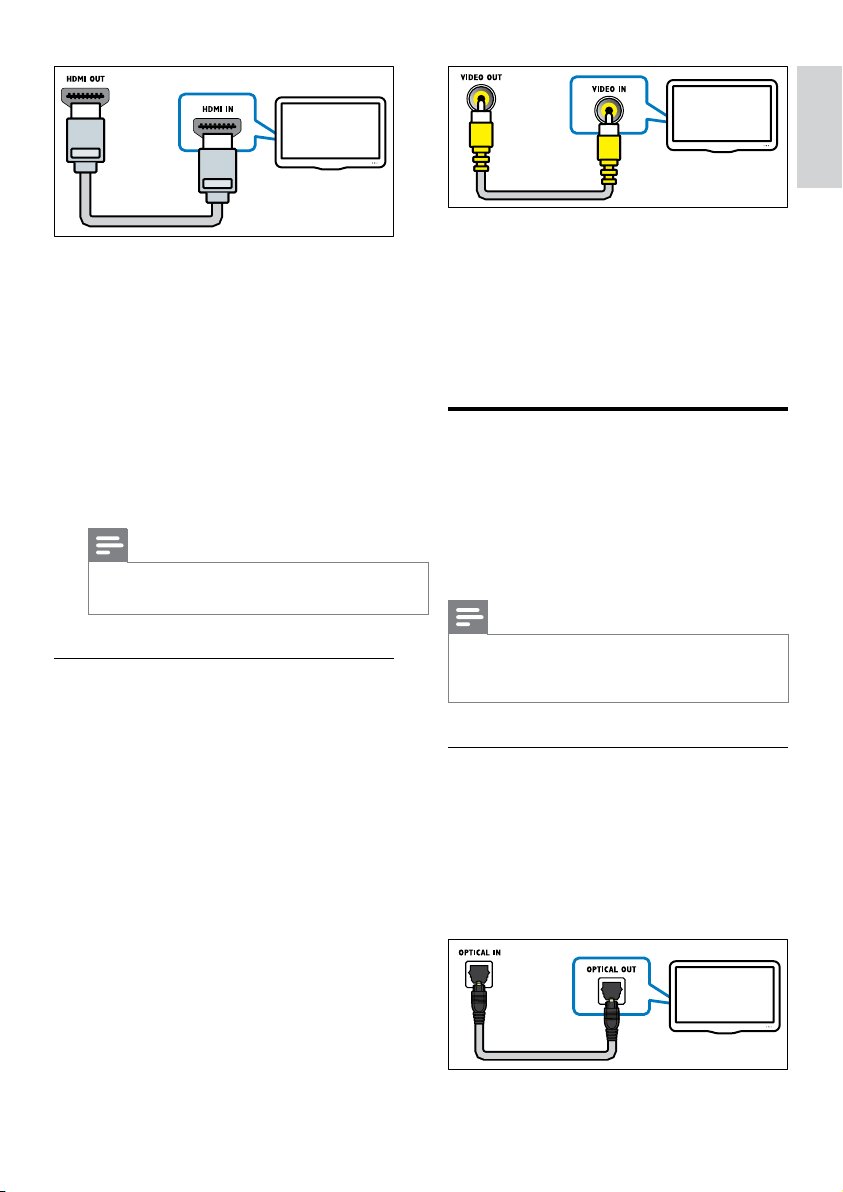
1 Using a High Speed HDMI cable, connect
the HDMI OUT connector on your home
theater to the HDMI connector on the TV.
The HDMI connector on the TV might be
labeled HDMI IN.
9
English
EN
2 On your TV, turn on HDMI-CEC. For details,
see the TV user manual.
» When you play a disc on your home
theater, the video is automatically
displayed on TV and the audio is
automatically played on the home theater.
3 To play audio from TV programs through
your home theater, connect an additional
audio cable (see 'Connect audio from TV and
other devices' on page 9).
On your home theater, press SOURCE
repeatedly to select the correct audio input.
Note
•
If your TV has a DVI connector, you can use an
HDMI/DVI adapter to connect to TV.
Option 2: Connect to the TV through
composite video
Basic quality video
If your TV does not have HDMI connectors,
connect your home theater to the TV through a
composite connection. A composite connection
does not support high-denition video.
With a composite connection, you need an
additional audio cable to play the audio from the
TV through your home theater (see 'Connect
audio from TV and other devices' on page 9).
1 Using a composite video cable, connect the
VIDEO connector on your home theater to
the composite video connector on the TV.
The composite video connector might be
labeled AV IN, VIDEO IN, COMPOSITE, or
BASEBAND.
TV
2 On your TV, switch to the correct video input.
3 To play audio from TV programs through
your home theater, connect an additional
audio cable (see 'Connect audio from TV and
other devices' on page 9).
On your home theater, press SOURCE
repeatedly to select the correct audio input.
Connect audio from TV and
other devices
Play audio from TV or other devices through your
home theater.
Use the best quality connection available on your
TV, home theater, and other devices.
Note
•
The audio connections in this user manual
are only recommendations. You can use other
connections too.
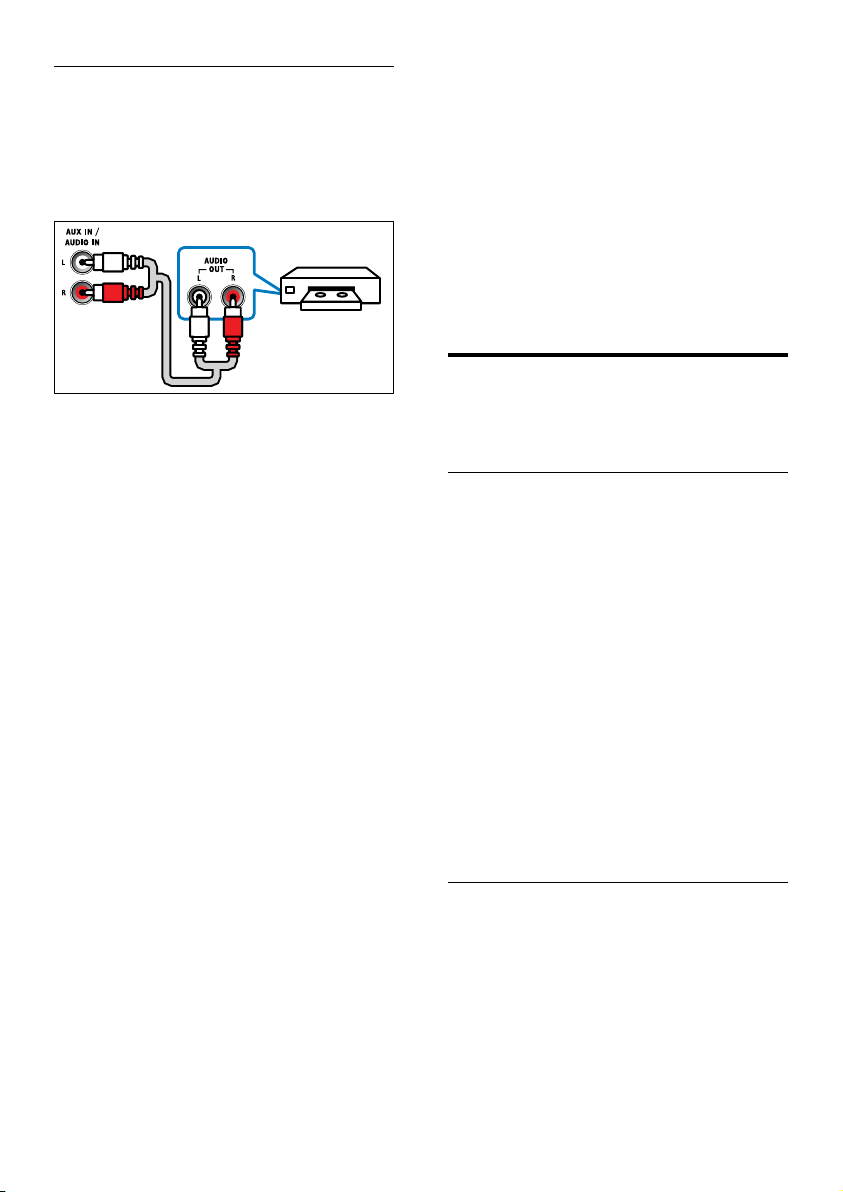
Option 1: Connect audio through a digital
optical cable
Best quality audio
Using an optical cable, connect the OPTICAL
connector on your home theater to the OPTICAL
OUT connector on the TV or other device.
The digital optical connector might be labeled
SPDIF, SPDIF OUT, or OPTICAL.
TV
TV
10 EN
Option 2: Connect audio through analog
audio cables
Basic quality audio
Using an analog cable, connect the AUX
connectors on your home theater to the AUDIO
OUT connectors on the TV or other device.
VCR
5 Use your home
theater
This section helps you use the home theater to
play media from a wide range of sources.
Before you start
• Make the necessary connections described in
the Quick start guide and the user manual.
• Switch the TV to the correct source for the
home theater.
Choose sound
This section helps you choose the ideal sound for
your video or music.
Sound mode
Select predened sound modes to suit your video
or music.
1 Press SOUND repeatedly to select a sound
mode.
• MOVIE: Enjoy a cinematic audio
experience, specially enhanced for
movies.
• MUSIC: Recreate the original recording
environment of your music, in the studio
or at a concert.
• ORIGINAL: Experience the original
sound of your movies and music, without
added sound effects.
• NEWS: Hear every word with optimized
speech and clear vocals.
• GAMING: Enjoy thrilling arcade sounds,
ideal for action-packed video games or
loud parties.
Surround sound mode
Experience an immersive audio experience with
surround sound modes.
1 Select SURR repeatedly to select a surround
mode.
• MULTI-CH: Traditional 5.1 channel for a
more relaxing cinematic experience.
• STEREO: Two-channel stereo sound. Ideal
for listening to music.
11
English
EN
Note
•
If the audio source is a 2.1 channel. multi-channel
mode will output 5-channel stereo sound.
Discs
Your home theater can play DVDs, VCDs, and
CDs. It can also play discs that you’ve made at
home, such as CD-R discs of photos and music.
What you need
• Audio and video connection between your
home theater and the TV.
• An audio or a video disc.
1 Insert a disc into the home theater.
» Your TV switches to the correct source
and the disc plays automatically. If it does
not, press DISC.
2 Press the play buttons to control play (see
'Play buttons' on page 11).
Play buttons
Button Action
Navigation
buttons
Navigate menus.
OK Conrm an entry or selection.
(Play/
Pause)
Start, pause or resume play.
Stop play.
/
Skip to the previous or next track,
chapter or le.
/
Fast backwards or fast forwards.
Press repeatedly to change the
search speed.
Navigation
buttons (left/
right)
Rotate the picture clockwise or
counter-clockwise.
Navigation
buttons (up/
down)
Flip the picture vertically or
horizontally.
SUBTITLE Select subtitle language for video.
DISC Access or exit the disc menu.
AUDIO
SYNC
Select an audio language or
channel.
SCREEN
FIT
Fit the picture format to the TV
screen.
ZOOM Zoom into a video scene or
picture.
REPEAT Select or turn off repeat mode.
REPEAT A-B Mark two points within a chapter
or track to repeat play, or turn off
the repeat mode.
ANGLE Select video scenes recorded in
different camera angels.
INFO
Access the advanced options
when you play your audio, video,
or media les (see 'Audio, video,
and picture options' on page 13).
Display menu for VCD and SVCD
Display the content menu on VCD and SVCD
discs.
1 Press SETUP.
2 Select [Preference Setup], and then press
OK.
3 Select [PBC] > [On], and then press OK.
Note
•
To skip the content menu, select [Off].
• While playing a VCD/SVCD, you can press DISC
to turn off or on the PBC (playback control).
Display menu for MP3/JPEG
You can choose how you want the MP3 contents
to display.
1 Press SETUP.
2 Select [Preference Setup], and then press
OK.
3 Select [MP3/JPEG Display], and then press
OK.
4 Select the following options, then press OK.
• [View Folders]: Display the MP3 folders.
• [View Files]: Display the MP3 les.
12 EN
Synchronize picture and sound
If the audio and video are not synchronized, delay
the audio to match the video.
1 Press SETUP.
2 Select [Audio Setup], and then press OK.
3 Select [Audio Sync], and then press OK.
4 Press the Navigation buttons (left/right) to
synchronize the audio with the video.
5 Press OK to conrm.
Note
•
Press and hold AUDIO SYNC on the remote
control for quick access to the audio sync setup
menu.
USB storage devices
Enjoy pictures, audio and video on a USB storage
device.
What you need
• A USB storage device that is formatted for
FAT, and complies with the Mass Storage
Class.
• A USB extension cable, if the USB storage
device does not t into the connector.
Note
•
You can use digital cameras connected by USB
if they can play the les without using a special
computer program.
Playles
1 Connect the USB storage device to the
home theater.
2 Press USB.
» A content browser is displayed.
3 Select a le, and then press OK.
4 Press the playback buttons to control play
(see 'Play buttons' on page 11).
DivX
Play DivX videos from :
• a disc (see 'Discs' on page 11),
• a USB storage device (see 'USB storage
devices' on page 12).
VOD code for DivX
Before you purchase DivX videos and play them
on your home theater, register the home theater
on www.divx.com using the DivX VOD code.
1 Press SETUP.
2 Select [General Setup], and then press OK.
3 Select [DivX(R) VOD Code], and then press
OK.
» The DivX VOD registration code for
your home theater is displayed.
Subtitles
If your video has subtitles in multiple languages,
select a subtitle language.
1 While playing video, press SUBTITLE to
select a language.
Note
•
Make sure that the subtitle le has the same
name as the video le. For example, if the video
le is named 'movie.avi', save the subtitle le as
'movie.srt' or 'movie.sub'.
• Your home theater can play subtitle les in the
following formats: .srt, .sub, .txt, .ssa, .ass, smi,
and .sami. These les do not appear in the le
navigation menu.
• If the subtitles do not appear correctly, change
the character set.
Subtitle character set
If the subtitles do not appear correctly, change the
character set that supports the DivX subtitle.
1 Press SETUP.
2 Select [Preference Setup], and then press
OK.
3 Select [DivX Subtitle], and then press OK.
4 Select a character set, and the press OK.
13
English
EN
Audio, video, and picture
options
Use advanced features when you play audio, video,
or media les from a disc or a USB storage device.
Audio options
1 Press INFO repeatedly to cycle through
the following options:
• Show the current track information and
time.
• [Off]: Press Navigation buttons (left/
right) to select a repeat mode.
• [Disc Go To]: Skip to a specic part of
the disc by entering the disc time.
• [Track Go]: Skip to a specic part of the
track by entering the track time.
• [Select Track]: Select a specic track.
Video options
1 Press INFO.
» The video options menu is displayed.
2 Press the Navigation buttons and OK to
select and change:
• [Title]: Select a specic title.
• [Chapter]: Select a specic chapter.
• [Track]: Select a specic track (for VCD/
SVCD only).
• [Audio]: Select audio language for video.
• [Subtitle]: Select subtitle language for video.
• [Angle]: Select video scenes recorded in
different camera angels.
• [TT Time]: Skip to a specic part of the
video by entering the title time.
• [Ch Time]: Skip to a specic part of the
video by entering the chapter time.
• [Disc Time]: Skip to a specic part of the
video by entering the disc time (for VCD/
SVCD only).
• [Track Time]: Skip to a specic part of
the video by entering the track time (for
VCD/SVCD only).
• [Preview]: Select a content preview for
disc.
• [Repeat]: Select a repeat mode.
• [Time Disp.]: Select the information of
time display.
Picture options
1 Press INFO to access picture preview
mode.
» 12 thumbnail pictures are displayed.
2 Press / to go to previous or next
preview page.
3 Press the Navigation buttons and OK to
select a picture.
Slideshows
While playing audio, access fun features such as
picture and musical slideshows.
Picture slideshows
View a slideshow of your pictures stored in your
disc or a USB storage device.
1 Select a picture from a disc or USB storage
device, and then press
.
2 Press to stop the slideshow.
Musical slideshows
Create a musical slideshow to play music and
pictures at the same time.
1 Select a music track, and then press OK.
2 Press BACK, and go to the picture folder.
3 Select a picture, and then press (Play) to
start the slideshow.
4 Press to stop slideshow.
5 Press again to stop music.
Radio
Listen to FM radio on your home theater, and
store up to 40 radio stations.
What you need
• FM antenna.
Note
•
AM and digital radio are not supported.
• If no stereo signal is detected, you are prompted
to install the radio stations again.
• For the best reception, place the antenna away
from the TV or other sources of radiation.
14 EN
Tune stations
1 Connect the FM antenna as described in the
Quick start guide.
2 Press RADIO.
» If you have already installed the radio
stations, the last channel that you listened
to is played.
» If you have not installed any radio
stations, the message AUTO
INSTALL...PRESS PLAY appears on
the display panel. Press
(Play).
3 Press the following buttons to listen or to
change radio stations:
Button Action
/
Select a preset radio station.
Navigation
buttons (left/
right)
Search for a radio station.
Navigation
buttons (up/
down)
Fine tune a radio frequency.
Press to stop the installation of
radio stations.
Press and hold to erase the
preset radio station.
PROGRAM Manual: Press once to access
program mode, and press again
to store the radio station.
Automatic: Press and hold for
three seconds to reinstall the
radio stations.
Listen to radio
1 Press RADIO.
• To listen to a preset station, press or
.
• To search for a radio station, and then
listen, press Navigation buttons (left/
right).
2 Press +/- (Volume) to change the volume.
MP3 player
Connect your MP3 player to play your audio les
or music.
What you need
• An MP3 player.
• A 3.5mm stereo audio cable.
Play music
1 Connect the MP3 player to the home theater
as described in the Quick start guide.
2 Press AUDIO SOURCE repeatedly until
'MUSIC I-LINK' appears on the display panel.
3 Press the buttons on the MP3 player to select
and play audio les or music.
CreateMP3les
Use your home theater to convert audio CDs into
MP3 les.
What you need
• An audio disc.
• A USB storage device
1 Connect a USB storage device to the home
theater.
2 Play your audio CD (CDDA/HDCD).
3 Press CREATE MP3.
» A conrmation message is displayed.
4 Select [Yes], and then press OK.
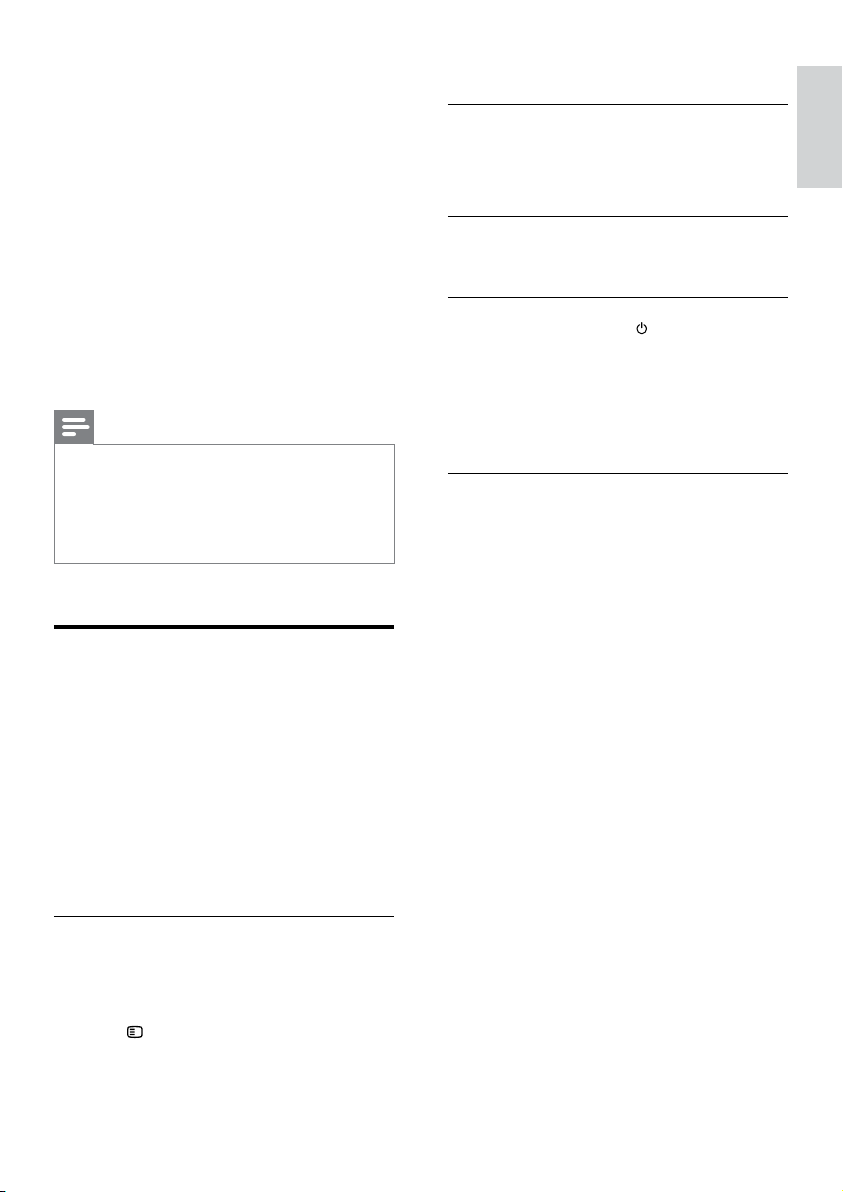
» The create MP3 screen is displayed. The
right panel contains MP3 settings and the
left panel shows the audio tracks.
CREATE MP3
OPTIONS
TRACK
Bitrate 128kbps
SUMMARY
Select Track 0
Start Exit
Select All
Deselect All
Time 00:00
Track01 04:14
Track02 04:17
Track03 03:58
Track04 04:51
Track05 03:53
Track06 04:09
Track07 04:38
Speed Normal
CRT ID3 Yes
Device USB1
15
English
EN
5 Press the Navigation buttons and OK to
select and change:
• [Speed]: Select the write-to-le speed.
• [Bitrate]: Select the conversion quality.
• [Device]: Select the USB storage device
which you use to store the MP3 les.
6 Navigate to the right panel, and then select
the audio tracks and press OK.
• To select all tracks, navigate to [Select
All], and then press OK.
7 Select [Start], and then press OK to start the
MP3 conversion.
» A new folder which contains the MP3
les is created in the USB storage device.
• To exit the menu, select [Exit], and then
press OK.
Note
•
When the conversion is in process, do not press
any buttons.
• DTS CDs and copy-protected CDs cannot be
converted.
• Write-protected or password-protected USB
storage device cannot be used to store MP3 les.
EasyLink
The home theater supports Philips EasyLink, which
uses the HDMI-CEC (Consumer Electronics
Control) protocol. EasyLink-compliant devices that
are connected through HDMI can be controlled
by a single remote control.
Philips does not guarantee 100% interoperability
with all HDMI-CEC devices.
What you need
• HDMI-CEC compliant devices.
• An HDMI connection between the
connected devices.
Switch on
1 On the TV and other connected devices, turn
on the HDMI-CEC operations. For details,
see the manual of the TV or other devices.
2 Press SETUP.
3 Select [General Setup], and then press OK.
4 Select [EasyLink Setup] > [EasyLink], and
then press OK.
5 Select [On], and then press OK.
Control devices
Control the home theater and the other
connected HDMI-CEC compliant devices with a
single remote control.
One-touch play
If you enable One-touch play, the TV
automatically switches to the correct channel
when you play a disc in your home theater.
One-touch standby
When you press and hold
(Standby) on the
remote control, the home theater and all the
connected HDMI-CEC devices (that support
one-touch standby) switch to the standby mode.
If one-touch standby is enabled on your home
theater, you can switch to standby with the
remote control of the TV or other HDMI-CEC
devices.
16 EN
6 Change settings
This section helps you to change the settings of
your home theater.
Caution
•
Most of the settings are already congured with
the best value for your home theater. Unless you
have a reason to change a setting, it is best to
leave it at the default value.
Note
•
You cannot change a setting that is grayed out.
• To return to the previous menu, press
BACK. To exit the menu, press
SETUP.
Picture
Change the picture settings to suit your
preferences.
Note
•
The best setting is automatically selected for the
TV. If you change the setting, make sure that the
TV supports the new settings.
Picture settings and format
1 Press SETUP.
2 Select [Video Setup], and then press OK.
3 Change the following settings, and then press
OK:
• [TV System]: For TV supported video
format.
• [TV Display]: For TV picture display
format.
• [Picture Settings]: Predened color
settings.
Picture resolution
To enjoy high denition HDMI video output, set
the HDMI video settings that best match up with
your TV capability.
1 Press SETUP.
2 Select [Video Setup], and then press OK.
3 Select [HDMI Setup], and then press OK.
4 Change the following settings, and then press
OK:
• [Wide Screen Format]: For 16:9 wide
screen TV display setting.
• [HDMI Video]: HDMI resolution.
Highdenitionpicture
Support high denition JPEG pictures.
1 Press SETUP.
2 Select [Video Setup], and then press OK.
3 Select [HD JPEG] > [On], and then press
OK.
Sound
Change the sound settings to suit your preference.
HDMI audio
HDMI audio is automatically down-mixed to two
channel for TV speakers. If you do not want to
output audio through your TV, disable the HDMI
audio.
1 Press SETUP.
2 Select [Audio Setup], and then press OK.
3 Select [HDMI Audio] > [Off], and then press
OK.

17
English
EN
Language
Select a language for the home menu, audio, and
subtitles.
Home menu
1 Press SETUP.
2 Select [General Setup], and then press OK.
3 Select [OSD Language], and then press OK.
4 Select a menu language for your home
theater, and then press OK.
Disc audio
1 Press SETUP.
2 Select [Preference Setup], and then press OK.
3 Select [Audio], and then press OK.
4 Select an audio language for discs, and then
press OK.
Note
•
If your preferred disc language is not available,
select [Others] from the list, and enter the
4-digit language code found at the end of this
user manual.
• If you select a language that is not available on a
disc, the home theater uses the default language
of the disc.
Disc subtitle
1 Press SETUP.
2 Select [Preference Setup], and then press OK.
3 Select [Subtitle], and then press OK.
4 Select a subtitle language for discs, and then
press OK.
Disc menu
1 Press SETUP.
2 Select [Preference Setup], and then press OK.
3 Select [Disc Menu], and then press OK.
4 Select a menu language for discs, and then
press OK.
Note
•
If your preferred disc language is not available,
select [Others] from the list, and enter the
4-digit language code found at the end of this
user manual.
• If you select a language that is not available on a
disc, the home theater uses the default language
of the disc.
Parental control
Restrict access to discs.
Password
You can set or change your password to play a
restricted disc.
1 Press SETUP.
2 Select [Preference Setup], and then press
OK.
3 Select [Password], and then press OK.
» A change password menu is displayed.
4 Follow the instructions on the TV to set or
change password.
• If you do not have a password or you
have forgotten, enter 0000.
5 Press OK.
Ratings
Some discs are recorded with ratings according to
age. You can set up your home theater to play only
discs with an age rating lower than your child’s age.
1 Press SETUP.
2 Select [Preference Setup], and then press
OK.

18 EN
3 Select [Parental], and then press OK.
» A message prompts you to enter the
password.
4 Enter the password with the Numeric
buttons.
5 Select an age rating, and then press OK.
• To play all discs irrespective of the rating,
select level 8.
Lock disc
To restrict access to discs that are not encoded
with ratings and parental control, lock the disc
manually. You can lock upto 20 discs on your
home theater.
1 While playing a disc, press SETUP.
2 Select [General Setup], and then press OK.
3 Select [Disc Lock] > [Lock], and then press
OK.
» A message prompts you to enter the
password.
4 Enter the password with the Numeric
buttons.
» The disc is locked.
• To play the locked disc, enter the password.
Energy saving
Save energy by changing the following settings.
Auto standby
When playing a disc or a USB storage device,
automatically switch your home theater to standby
if:
• it is in pause or stop mode, and
• no button is pressed for 30 minutes.
1 Press SETUP.
2 Select [General Setup], and then press OK.
3 Select [Auto Standby] > [On], and then
press OK.
Sleep timer
Set timers to switch the home theater to standby
after a specied time.
1 Press SETUP.
2 Select [General Setup], and then press OK.
3 Select [Sleep Timer], and then press OK.
4 Select the duration of the sleep timer.
» The sleep timer can be set up to 60
minutes. If the sleep timer is set to [Off],
it switches off.
5 Press OK to activate.
» The home theater switches to standby
after the specied time.
Screen saver
Automatically switch your home theater to screen
saver mode if:
• it is in pause or stop mode, and
• no button is pressed for 10 minutes.
1 Press SETUP.
2 Select [General Setup], and then press OK.
3 Select [Screen Saver] > [On], and then press
OK.
Display panel
Change the brightness of the home theater display
panel.
1 Press SETUP.
2 Select [General Setup], and then press OK.
3 Select [Display Dim], and then press OK.
4 Select the brightness, and then press OK.
Apply factory settings
Reset your home theater to the default settings.
You cannot reset the parental control settings.
1 Press SETUP.
2 Select [Preference Setup], and then press
OK.
3 Select [Default], and then press OK.
4 Select [Ok], and then press OK.
19
English
EN
7 Update software
To continue to get the best features and support
for your home theater, update the software
regularly. Compare the version of your current
software with the latest version on
www.philips.com/support.
Check software version
1 Press SETUP.
2 Select [Preference Setup], and then press
OK.
3 Select [Version Info.], and then press OK.
» The software version is displayed.
Update software through USB
or CD-R
What you need
• A CD-R or a USB ash drive with at least
75MB of memory. The USB ash drive must
be FAT formatted. Do not use a USB hard
drive.
• A computer with Internet access.
• An archive utility that supports the ZIP
le format (for example, WinZip® for
Microsoft® Windows® or Stuft® for
Macintosh®).
Step 1: Download the latest software
1 Connect a USB ash drive or insert a CD-R
to your computer.
2 In your web browser, go to www.philips.com/
support.
3 At the Philips Support website, nd your
product and locate the Software and drivers.
» The software update is available as a zip
le.
4 Save the zip le in the root directory of your
USB ash drive or CD-R.
5 Use the archive utility to extract the software
update le in the root directory.
6 Remove the USB ash drive or CD-R from
your computer.
Step 2: Update the software
Warning
•
If you use a USB ash drive, make sure that
there is no disc in the disc compartment, and
the disc compartment is closed.
1 Connect the USB ash drive or insert the
CD-R to your home theater.
2 Switch your TV to the correct source for
your home theater.
3 Follow the instructions on the TV to
complete the update.
» When the software update is complete,
the home theater automatically switches
off and restarts. If it does not, disconnect
the power cord for a few seconds, and
then reconnect it.
Note
•
When the software update is in progress, do
not turn off the power, or remove the USB ash
drive or CD-R.
20 EN
8 Product specifications
Note
•
Specications and design are subject to change
without notice.
Region codes
The type plate on the back or bottom of the
home theater shows which regions it supports.
Media formats
• DVD-Video, DVD+R/+RW, DVD-R/-RW,
DVD+R/-R DL, CD-R/CD-RW, Audio CD,
Video CD/SVCD, Picture les, MP3 media,
WMA media, DivX media, USB storage
device
File formats
• Audio: .mp3, .wma,
• Video: .avi, .divx, .mpg, .mpeg,
• Picture: .jpg, .jpeg
Amplier
• Total output power: 300W RMS (30% THD)
• FTC: 60W (1% THD)
• Frequency response: 20 Hz-20 kHz / ±3 dB
• Signal-to-noise ratio: > 65 dB (CCIR) /
(A-weighted)
• Input sensitivity:
• AUX: 2 V
• Music iLink: 1 V
Video
• Signal system: PAL / NTSC
• HDMI output: 480i/576i, 480p/576p, 720p,
1080i, 1080p
Country
DVD
USA, Canada
1
Audio
• S/PDIF Digital audio input:
• Optical: TOSLINK
• Sampling frequency:
• MP3: 32 kHz, 44.1 kHz, 48 kHz
• WMA: 44.1 kHz, 48 kHz
• Constant bit rate:
• MP3: 32 kbps - 320 kbps
• WMA: 64 kbps - 192 kbps
Radio
• Tuning range: FM 87.5-108 MHz (100 kHz)
• Signal-to-noise ratio: FM 50 dB
• Frequency response: FM 200 Hz-12.5 kHz /
±6 dB
USB
• Compatibility: Hi-Speed USB (2.0)
• Class support: USB Mass Storage Class
(MSC)
• File system: FAT16, FAT32
• Maximum memory support: < 160 GB
Main unit
• Power supply: 120V~; 60Hz
• Power consumption: 60 W
• Standby power consumption: ≤ 0.9 W
• Dimensions (WxHxD): 14.20 x 2.30 x 12.80
(inches)
• Weight: 2.3 kg
Subwoofer
• Output power: 50 W RMS (30% THD)
• Impedance: 4 ohm
• Speaker drivers: 133 mm (5.25") woofer
• Dimensions (WxHxD): 6.30 x 10.50 x 10.50
(inches)
• Weight: 2.50 kg
• Cable length: 9.80 ft
21
English
EN
Speakers
Center speaker:
• Output power: 50 W RMS (30% THD)
• System: 1 x 63.5 mm (2.5") full range
• Speaker impedance: 4 ohm
• Speaker drivers: 1 x 63.5 mm (2.5") woofer
• Dimensions (WxHxD): 6.30 x 3.30 x 3.20
(inches)
• Weight: 0.35 kg
• Cable length: 6.50 ft
Front/Rear speaker:
• Output power: 4 x 50 W RMS (30% THD)
• Speaker impedance: 4 ohm
• Speaker drivers: 1 x 63.5 mm (2.5") full range
• Dimensions (WxHxD): 3.30 x 6.30 x 3.20
(inches)
• Weight (front): 0.35 kg/each
• Weight (rear): 0.35 kg/each
• Cable length (front): 9.80 ft
• Cable length (rear): 23 ft
Remote control batteries
• 2 x AAA-R03-1.5 V
Laser
• Type: Semiconductor laser GaAIAs (CD)
• Wave length: 645 - 665 nm (DVD), 770 - 800
nm (CD)
• Output power: 6 mW (DVD), 7 mW (VCD/
CD)
• Beam divergence: 60 degrees.
9 Troubleshooting
Warning
•
Risk of electric shock. Never remove the casing
of the product.
To keep the warranty valid, never try to repair the
product yourself.
If you have problems using this product, check the
following points before you request service. If you
still have a problem, visit www.philips.com/support.
If you contact Customer Care Center, you will be
asked for the model and serial number of your
product. The model number and serial number are
on the back or bottom of your product. Write the
numbers here:
Model No. ________________________
Serial No. ________________________
Main unit
The buttons on the home theater do not work.
• Disconnect the home theater from the
power supply for a few minutes, then
reconnect.
Picture
No picture.
• Make sure that the TV is switched to the
correct source for the home theater.
No picture on a TV connected through HDMI.
• Make sure that the HDMI cable is not faulty. If
it is faulty, replace it with a new cable.
• If this happens when you change the HDMI
video resolution: 1) ) Press
to open the
disc compartment. 2) Press Navigation
buttons (left). 3) Press ZOOM.
• Wait for 10 seconds for auto recovery, or
change the HDMI video setting (see 'Picture
resolution' on page 16).
Discdoesnotplayhigh-denitionvideo.
• Make sure that the disc contains high-
denition video.
• Make sure that the TV supports high-
denition video.
• Use an HDMI cable to connect to the TV.

22 EN
Sound
No sound from home theater speakers.
• Connect the audio cable from your home
theater to your TV or other devices (see
'Connect audio from TV and other devices'
on page 9).
• Set up the audio for the connected device
(see 'Set up audio for connected devices' on
page 10).
• Reset your home theater to its factory
settings (see 'Apply factory settings' on page
18), then switch it off and switch on again.
• On your home theater, press SOURCE
repeatedly to select the correct audio input.
Distorted sound or echo.
• If you play audio from the TV through the
home theater, make sure that the TV is
muted.
Audio and video are not synchronized.
• 1) Press and hold AUDIO SYNC. 2) Press
+/- within ve seconds to synchronize the
audio with the video.
Play
Cannot play a disc.
• Clean the disc.
• Make sure that the home theater supports
the type of disc (see 'Media formats' on page
20).
• Make sure that the home theater supports
the region code of the disc (see 'Region
codes' on page 20).
• If the disc is a DVD±RW or DVD±R disc,
make sure that it is nalized.
CannotplayaDivXle.
• Make sure that the DivX le is encoded
according to the 'Home Theater Prole' with
the DivX encoder.
• Make sure that the DivX le is complete.
DivX subtitles do not display correctly.
• Make sure that the subtitle le name is the
same as the movie le name (see 'Subtitles'
on page 12).
• Select the correct character set: 1) Press
SETUP. 2) Select [Preference Setup] >
[DivX Subtitle]. 3) Select the supported
character set. 4) Press OK.
Cannot read the contents of a USB storage
device.
• Make sure that the format of the USB
storage device is compatible with the home
theater.
• Make sure that the le system on the USB
storage device is supported by the home
theater.
'No entry' or 'x' sign appears on the TV.
• The operation is not possible.
EasyLink does not work.
• Make sure that the home theater is
connected to a Philips brand EasyLink TV, and
the EasyLink option is on (see 'EasyLink' on
page 15).
When you switch on the TV, the home theater
automatically switches on.
• This behavior is normal when you are using
Philips EasyLink (HDMI-CEC). To make the
home theater work independently, switch off
EasyLink.

23
English
EN
10 Index
A
amplier 20
audio
HDMI audio 16
predened modes 10
quality 9
settings 16
speaker setup 8
specications 20
audio language 17
audio options 13
auto standby 18
B
brightness 18
C
care
product 4
connect
audio (analog cable) 10
audio (optical cable - digital) 9
audio from TV and other devices 9
speakers 7
TV (Composite) 9
TV (HDMI) 8
connectors
front connectors 8
control
disc play 11
Easylink (HDMI-CEC) 6
main unit 5
parental control 17
radio 14
copyright protection 2
create MP3 14
D
disable
HDMI-CEC 15
discs
audio language 17
audio options 13
control buttons 11
DivX 12
lock/unlock 18
menu language 17
options 13
picture 13
play 11
subtitle 17
synchronize picture and sound 12
time search 13
titles 13
display
MP3/JPEG menu 11
VCD/SVCD menu 11
display panel
5
DivX
character set 12
subtitles 12
VOD code 12
E
EasyLink (HDMI-CEC)
control buttons 6
one-touch play 15
one-touch standby 15
play audio 15
enable
auto standby 18
HDMI-CEC 15
screen saver 18
energy
auto standby 18
brightness 18
screen saver 18
sleep timer 18
F
factory settings 18
FM antenna
8

24 EN
H
HDMI
audio 16
video settings 16
HDMI-CEC 15
L
language
audio 17
disc menu 17
onscreen menu 17
subtitle 17
M
main unit
overview 5
specications 20
troubleshooting 21
manually setup speakers 8
media formats 20
MP3
connector 8
create MP3 14
display contents 11
play 14
N
night mode 10
O
one-touch play 15
one-touch standby 15
options
picture 13
overview
connectors 8
HDMI-CEC 15
main unit 5
remote control 5
settings 16
speaker setup 8
P
parental control
lock disc 18
password 17
ratings 17
password 17
Philips Easylink 15
picture
high resolution JPEG 16
options 13
rotate 13
settings 16
slideshows 13
troubleshooting 21
zoom 13
picture options 13
play
discs 11
MP3 14
radio 20
slideshows 13
troubleshooting 22
USB 12
position
connectors 8
position 7
preference
audio 16
auto standby 18
change password 17
disc menu 17
display panel 18
menu language 17
screen saver 18
sleep timer 18
subtitle 17
productspecications 20
R
radio
control buttons 14
FM antenna 8
listen to radio 14
specications 20
tune stations 14
ratings 17
region codes 20
remote control
batteries 21
overview 5
repeat 13

25
English
EN
S
screen saver 18
settings
audio 16
auto standby 18
default 18
disc language 17
HDMI audio 16
HDMI video 16
HDMI-CEC 15
menu language 17
parental rating 17
password 17
picture 16
power 18
restore 18
screen saver 18
sleep timer 18
subtitle language 17
video 16
setup speakers
manually 8
sleep timer 18
slideshows
musical 13
picture 13
software
check current version 19
update 19
sound
predened sound mode 10
surround sound 10
synchronize picture and sound 12
troubleshooting 22
speakers
connect 7
manual setup 8
position 7
setup 8
specications 21
surround sound 10
subtitle
character set 12
language 17
subwoofer
specications 20
synchronize picture and sound 12
T
time search 13
titles 13
trademarks
2
troubleshooting
connection 21
main unit 21
picture 21
play 22
sound 22
U
update software
check current version 19
update 19
USB
format 20
USB storage device
options 13
play 12
specications 20
V
video
picture settings 16
synchronize picture and sound 12
VOD code for DivX 12
video formats 20
video options 13
VOD code for DivX 12

26 EN
P&F USA Inc. PO Box 2248 Alpharetta, GA 30023-2248
ONE (1) YEAR LIMITED WARRANTY
WARRANTY COVERAGE:
This warranty obligation is limited to the terms set forth
below.
WHO IS COVERED:
This product is warranted to the original purchaser or the per-
son receiving the product as a gift against defects in materials and
workmanship as based on the date of original purchase
(“Warranty Period”) from an Authorized Dealer. The original
sales receipt showing the product name and the purchase date
from an authorized retailer is considered such proof.
WHAT IS COVERED:
This warranty covers new products if a defect in material
or workmanship occurs and a valid claim is received within
the Warranty Period. At its option, the company will either (1)
repair the product at no charge, using new or refurbished
replacement parts, or (2) exchange the product with a product
that is new or which has been manufactured from new, or ser-
viceable used parts and is at least functionally equivalent or most
comparable to the original product in current inventory,
or (3) refund the original purchase price of the product.
The company warrants replacement products or parts provided
under this warranty against defects in materials and workmanship
from the date of the replacement or repair for ninety (90) days
or for the remaining portion of the original product’s warranty,
whichever provides longer coverage for you. When a product or
part is exchanged, any replacement item becomes your property
and the replaced item becomes the company property. When a
refund is given, your product becomes the company property.
Note: Any product sold and identified as refurbished or
renewed carries a ninety (90) day limited warranty.
Replacement product can only be sent if all warranty
requirements are met. Failure to follow all requirements
can result in delay.
WHAT IS NOT COVERED - EXCLUSIONS AND LIMI-
TATIONS:
This Limited Warranty applies only to the new products that
can be identified by the trademark, trade name, or logo affixed
to it. This Limited Warranty does not apply to any non-Philips
hardware product or any software, even if packaged or sold
with the product. Non-Philips manufacturers, suppliers, or
publishers may provide a separate warranty for their own
products packaged with the bundled product.
The company is not liable for any damage to or loss of any ,
programs data, or other information stored on any media
contained within the product, or any non-Philips product or part
not covered by this warranty. Recovery or reinstallation of
programs, data or other information is not covered under this
Limited Warranty.
This warranty does not apply (a) to damage caused by accident,
abuse, misuse, neglect, misapplication, or non-Philips product, (b)
to damage caused by service performed by anyone other than
an Authorized Service Location, (c) to a product or
a part that has been modified without written permission,
or (d) if any serial number has been removed or defaced,
or (e) product, accessories or consumables sold “AS IS”
without warranty of any kind by including refurbished Philips
product sold “AS IS” by some retailers.
This Limited Warranty does not cover:
• Shipping charges to return defective product.
• Labor charges for installation or setup of the product, adjust-
ment of customer controls on the product, and installation or
repair of antenna/signal source systems outside of the product.
• Product repair and/or part replacement because of improper
installation or maintenance, connections to improper voltage
supply, power line surge, lightning damage, retained images or
screen markings resulting from viewing fixed stationary con-
tent for extended periods, product cosmetic appearance items
due to normal wear and tear, unauthorized repair or other
cause not within the control of the company.
• Damage or claims for products not being available for use, or
for lost data or lost software.
• Damage from mishandled shipments or transit accidents when
returning product.
•A product that requires modification or adaptation to enable
it to operate in any country other than the country for which
it was designed, manufactured, approved and/or authorized, or
repair of products damaged by these modifications.
•A product used for commercial or institutional purposes
(including but not limited to rental purposes).
• Product lost in shipment and no signature verification receipt
can be provided.
• Failure to operate per Owner’s Manual.
TO OBTAIN ASSISTANCE IN THE U.S.A., CANADA,
PUERTO RICO, OR U.S. VIRGIN ISLANDS…
Contact Customer Care Center at:
1-866-309-0846
REPAIR OR REPLACEMENT AS PROVIDED UNDER THIS
WARRANTY IS THE EXCLUSIVE REMEDY FOR THE CON-
SUMER. PHILIPS SHALL NOT BE LIABLE FOR ANY INCIDEN-
TAL OR CONSEQUENTIAL DAMAGES FOR BREACH OF
ANY EXPRESS OR IMPLIED WARRANTY ON THIS PROD-
UCT. EXCEPT TO THE EXTENT PROHIBITED BY APPLICABLE
LAW, ANY IMPLIED WARRANTY OF MERCHANTABILITY OR
FITNESS FOR A PARTICULAR PURPOSE ON THIS PRODUCT
IS LIMITED IN DURATION TO THE DURATION OF THIS
WARRANTY.
Some states do not allow the exclusions or limitation of inciden-
tal or consequential
damages, or allow limitations on how long an
implied warranty lasts, so the above limitations or exclusions may
not apply to you.
This warranty gives you specific legal rights. You may have other rights which vary from state/province to state/province.