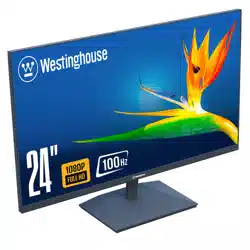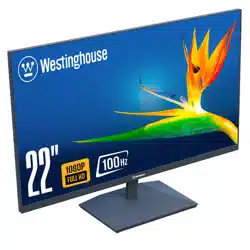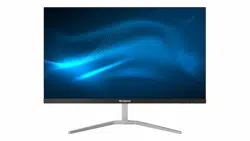
WH22FX9019
WH24FX9019
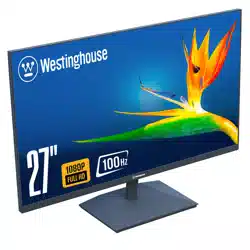
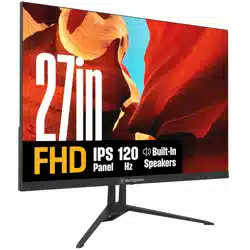
WH27FX9019
1
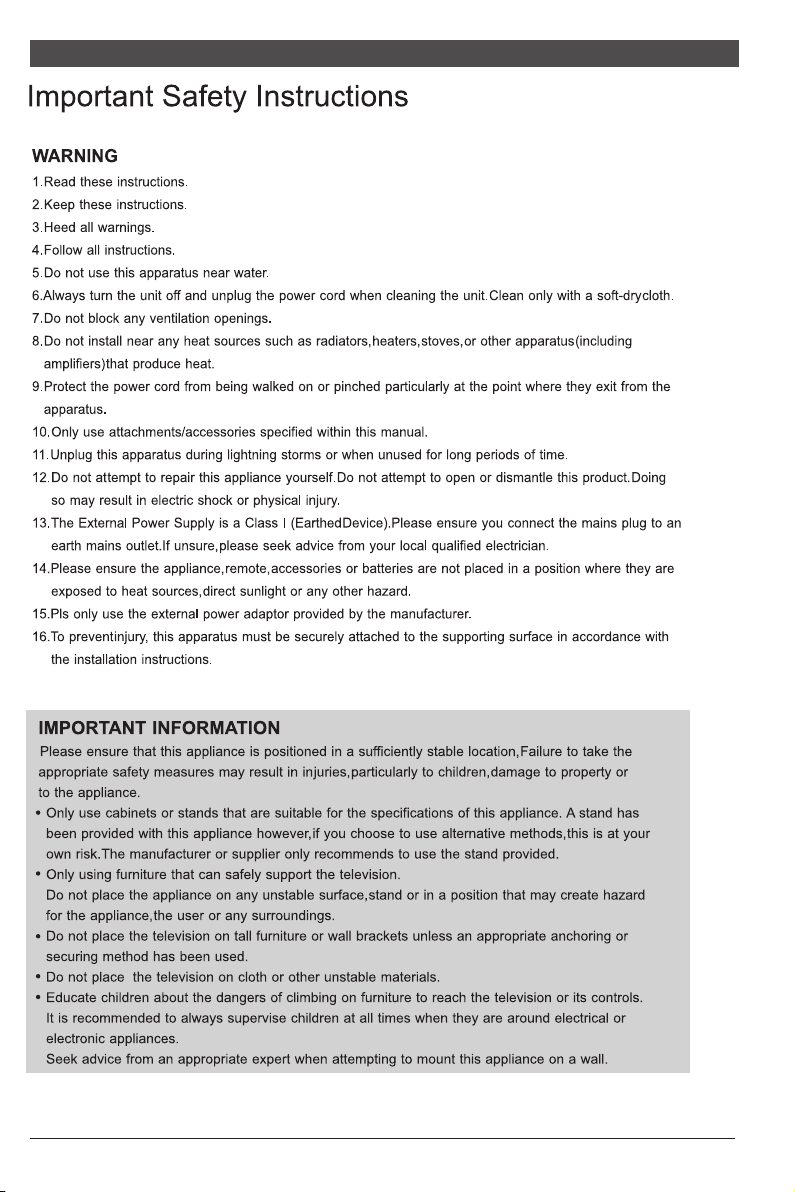
CAUTION: TO REDUCE THE RISK OF ELECTRIC SHOCK, DO NOT
REMOVE COVER(OR BACK). NO USER-SERVICEABLE PARTS
INSIDE.REFER SERVICING TO QUALIFIED SERVICE PERSONNEL.
This “bolt of lighting” indicates unin-
sulated material within your unit may
cause an electrical shock.For the safety of
everyone in your household, please do not
remove product covering.
The “exclamation point” calls atten-
tion to features for which you should
read the enclosed literature closely to pre-
vent operating and maintenance problems.
WARNING: To reduce the risk of fire or electric shock, this apparatus should not be exposed to
rain or moisture and objects filled with liquids, such as vases, should not be placed on this
apparatus.
2
1
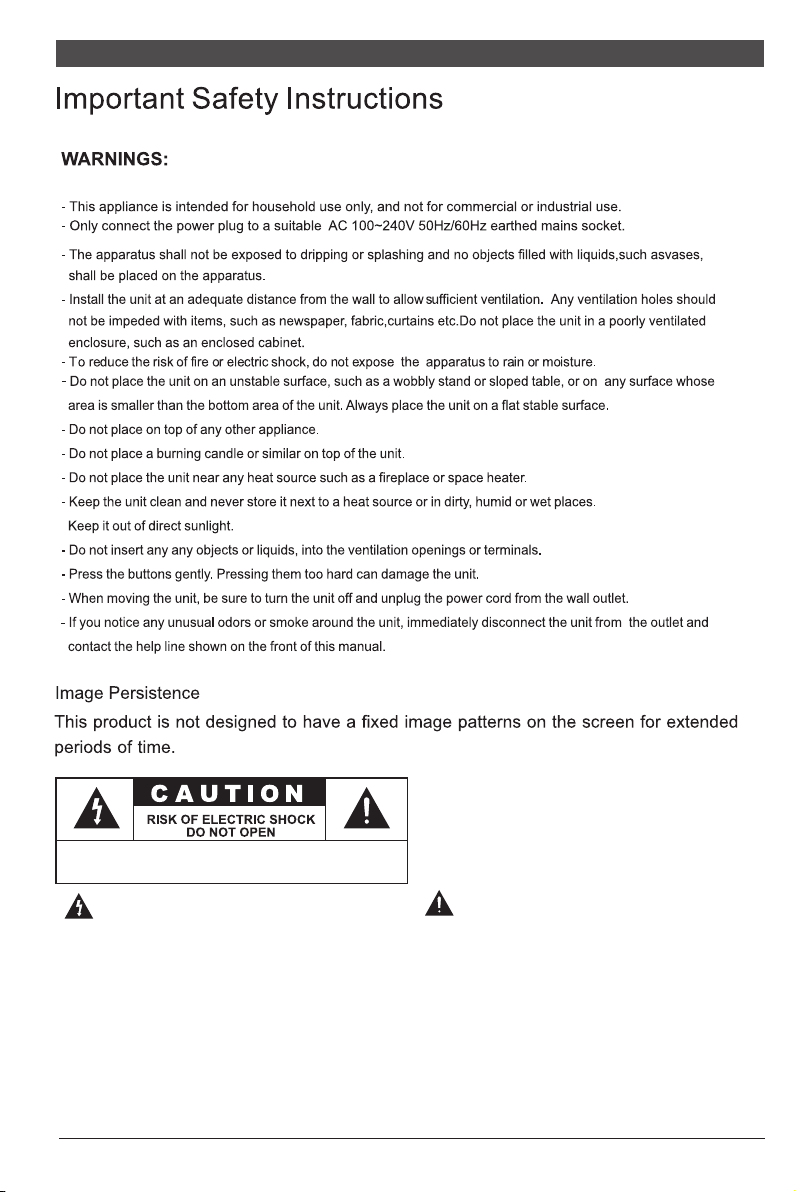
CAUTION: TO REDUCE THE RISK OF ELECTRIC SHOCK, DO NOT
REMOVE COVER(OR BACK). NO USER-SERVICEABLE PARTS
INSIDE.REFER SERVICING TO QUALIFIED SERVICE PERSONNEL.
This “bolt of lighting” indicates unin-
sulated material within your unit may
cause an electrical shock.For the safety of
everyone in your household, please do not
remove product covering.
The “exclamation point” calls atten-
tion to features for which you should
read the enclosed literature closely to pre-
vent operating and maintenance problems.
WARNING: To reduce the risk of fire or electric shock, this apparatus should not be exposed to
rain or moisture and objects filled with liquids, such as vases, should not be placed on this
apparatus.
2
3
All specifications and informations are subject to change without notice.
II.Installation Instructions
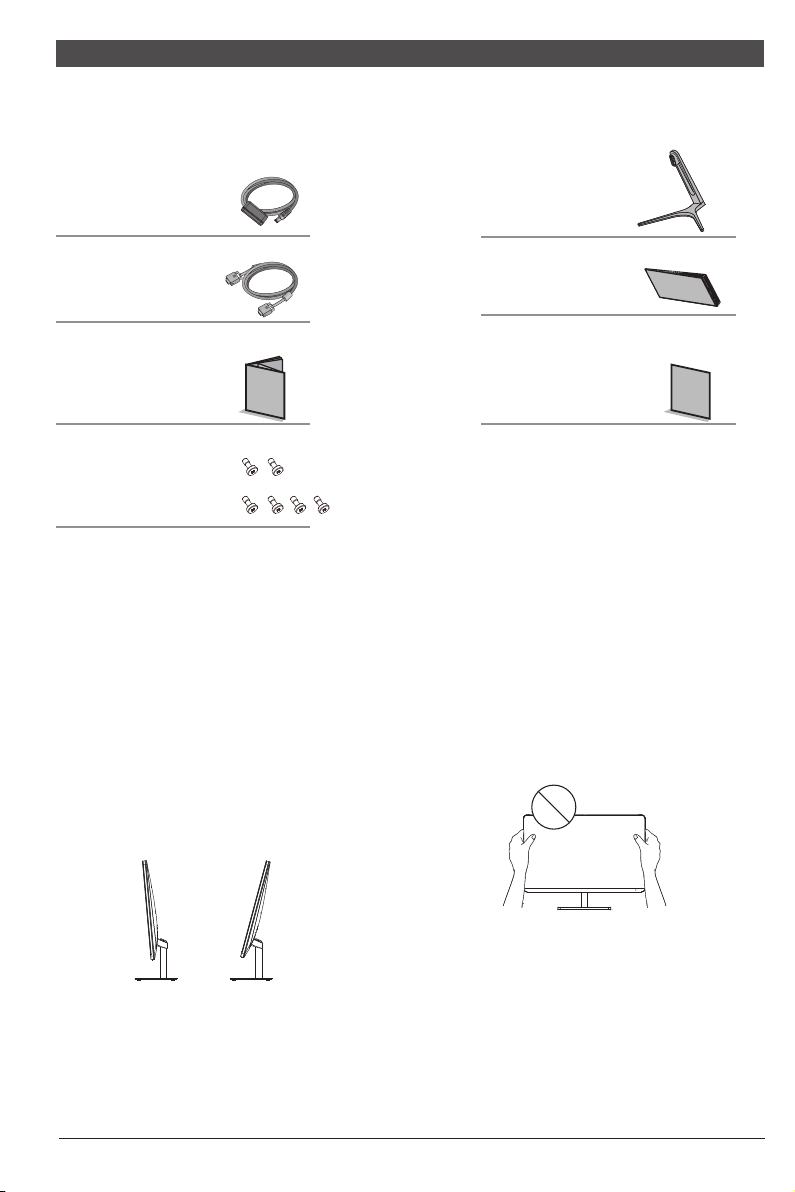
1.Accessories
Signal cable
User manual
Base/Stand
Warranty card
(The above pictures are for illustration only and the physical accessories shall govern.)
2. Angle Adjustment
2.1 The screen can be adjusted by
inclining forward and backward;
however, the specific adjustment
depends on the specific model of
the d evice. Generally, i t may be
inclined 5±2°for w a r d and 15±2°
backward.
2.2 When adjusting the angle of the
monitor, be sure not to touch or press
the area of the screen.
(The above pictures are for illustration only and the physical accessories shall govern.)
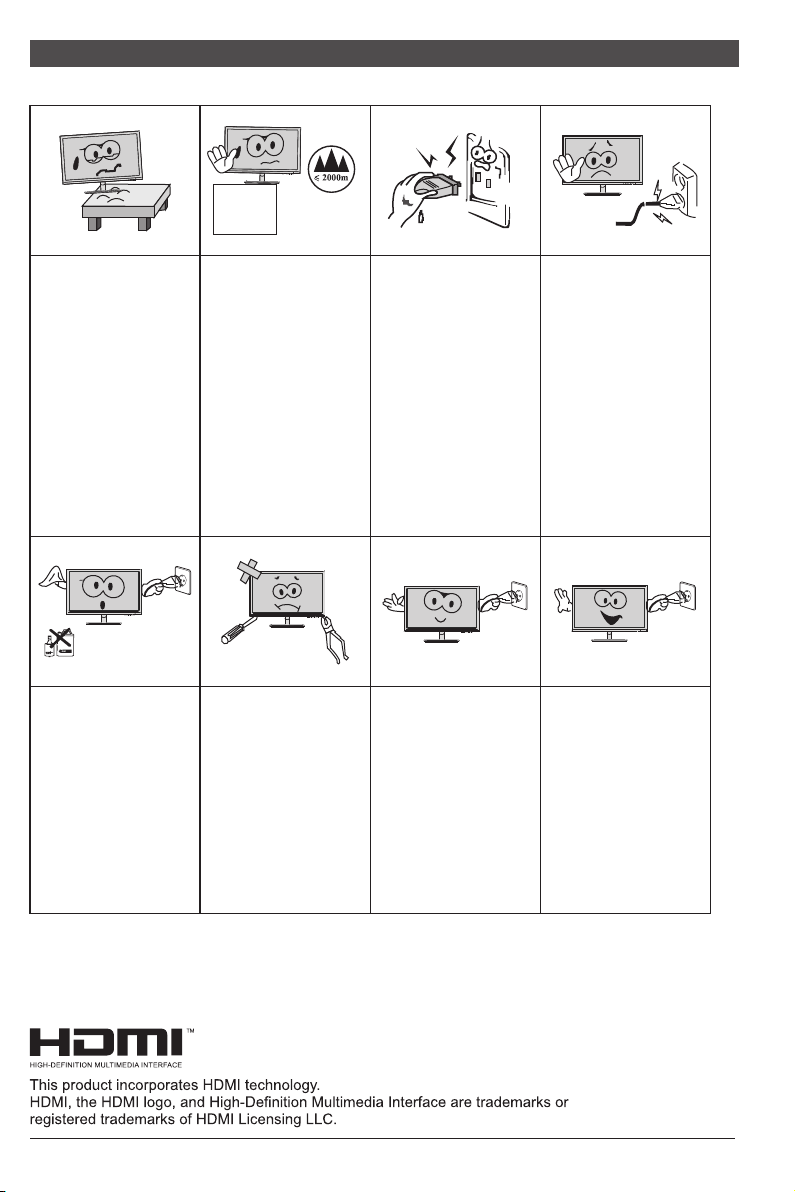
Please always place
this device on a stable
surface; otherwise,
it m a y f a l l a n d be
damaged.
The altitude and the
tropical environment
the adapter fits depend
on which adapter is
used for the device.
The rating plate on
the back of the device
with the above warning
sign indicates that
t h i s p r o d u c t i s
ap pli cab le for the
safe use of the region
w i t h a l t i t u d e o f
2,000m and below.
Do not hold the plug
w i t h w e t h a n d ;
otherwise, electric
shock m a y o c c u r.
Make sure the plug
has a g o o d t o u c h
because poor touch
may cause fire.
Do not use a broken
power plug nor keep
a power cord near heat
source; otherwise,
e l e c t r i c s h o c k o r
fire may occur.
When cleaning the
device, be sure to
remove the power
plug, u s e a p i e c e
of soft cloth rather
t h a n i n d u s t r i a l
ch emi cal to cle an
the device, be sure
not to let water enter
the device.
Do not disassemble
this device without
permission. In case
of failure, be sure to
contact a professional
servicing person to fix
it. The unauthorized
disassembly of this
device may result
in electric shock or
fire.
In case of rare smell
or noise out of this
device, be sure to
immediately cut off
the power supply and
ask a professional
servicing person to
fix the problem.
When t h i s d e v i c e
is idle for long time,
be sure to power it
off; otherwise, electric
shock o r f i r e m a y
occur.
I.Safety Prevention Measures
Note:
The device with AC switch may use such AC switch as cut-off component.
The device without AC switch may use power plug or coupler as cut-off component.
In case of the normal use of the equipment, make sure the cut-off component
can be accessed easily.
4
All specifications and informations are subject to change without notice.
Power adapter
Screws
Quick Start Guide
WH22F X9019
WH24F X9019
WH27F X9019
3
All specifications and informations are subject to change without notice.
II.Installation Instructions
1.Accessories
Signal cable
User manual
Base/Stand
Warranty card
(The above pictures are for illustration only and the physical accessories shall govern.)
2. Angle Adjustment
2.1 The screen can be adjusted by
inclining forward and backward;
however, the specific adjustment
depends on the specific model of
the d evice. Generally, i t may be
inclined 5±2°for w a r d and 15±2°
backward.
2.2 When adjusting the angle of the
monitor, be sure not to touch or press
the area of the screen.
(The above pictures are for illustration only and the physical accessories shall govern.)
Please always place
this device on a stable
surface; otherwise,
it m a y f a l l a n d be
damaged.
The altitude and the
tropical environment
the adapter fits depend
on which adapter is
used for the device.
The rating plate on
the back of the device
with the above warning
sign indicates that
t h i s p r o d u c t i s
ap pli cab le for the
safe use of the region
w i t h a l t i t u d e o f
2,000m and below.
Do not hold the plug
w i t h w e t h a n d ;
otherwise, electric
shock m a y o c c u r.
Make sure the plug
has a g o o d t o u c h
because poor touch
may cause fire.
Do not use a broken
power plug nor keep
a power cord near heat
source; otherwise,
e l e c t r i c s h o c k o r
fire may occur.
When cleaning the
device, be sure to
remove the power
plug, u s e a p i e c e
of soft cloth rather
t h a n i n d u s t r i a l
ch emi cal to cle an
the device, be sure
not to let water enter
the device.
Do not disassemble
this device without
permission. In case
of failure, be sure to
contact a professional
servicing person to fix
it. The unauthorized
disassembly of this
device may result
in electric shock or
fire.
In case of rare smell
or noise out of this
device, be sure to
immediately cut off
the power supply and
ask a professional
servicing person to
fix the problem.
When t h i s d e v i c e
is idle for long time,
be sure to power it
off; otherwise, electric
shock o r f i r e m a y
occur.
I.Safety Prevention Measures
Note:
The device with AC switch may use such AC switch as cut-off component.
The device without AC switch may use power plug or coupler as cut-off component.
In case of the normal use of the equipment, make sure the cut-off component
can be accessed easily.
4
All specifications and informations are subject to change without notice.
Power adapter
Screws
Quick Start Guide
WH22FX9019
WH24F X9019
WH27FX9019
5
All specifications and informations are subject to change without notice.
IV. User Setup
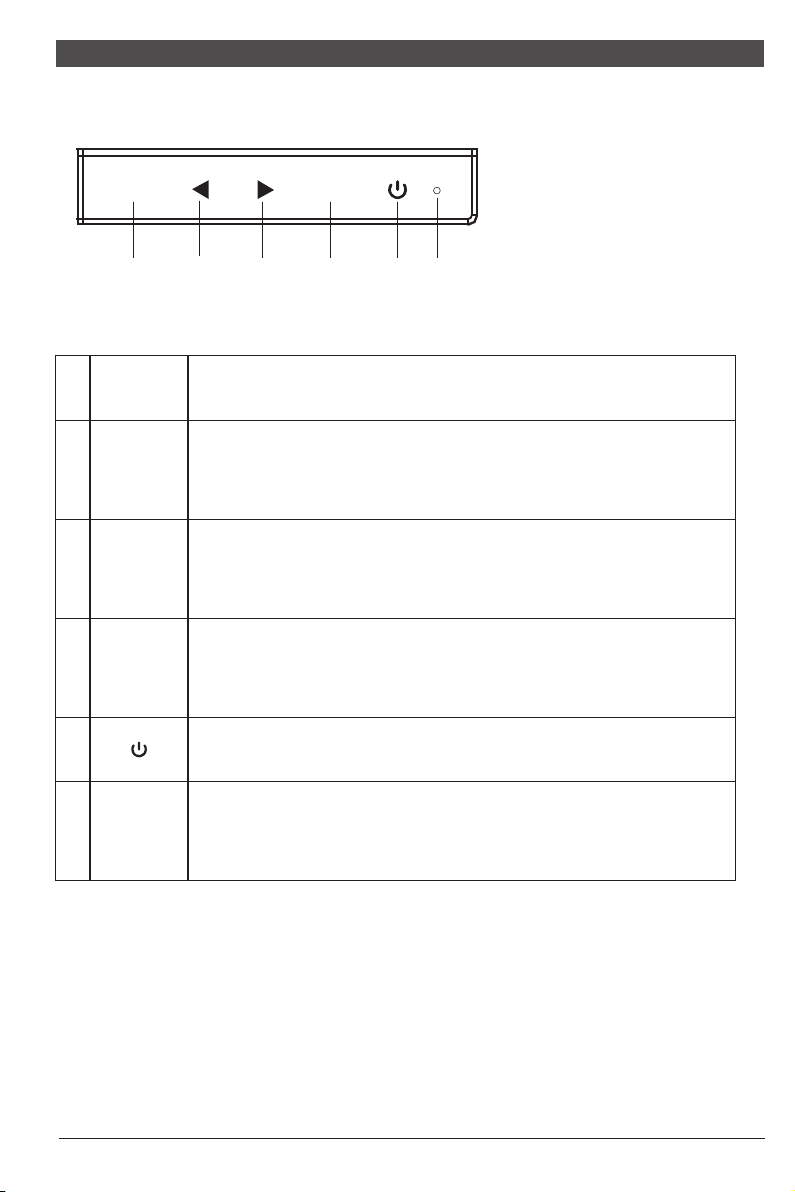
1. Schematic Diagram of Keys
M
E
1 2 3 4 5 6
2. Description of Keys' Functions
Note: The physical keys of the specific model shall govern.
LED
indicator
light
1.
2.
3.
4.
6.
5.
Pops up the menu/Backs to the previous menu (in case of main menu,
exits from the whole menu).
When the menu is activated, used as the left function selection key,
and decreases progressively the value of the progress bar; when the
menu is inactivated, used as the specified shortcut mode hot key.
When the menu is activated, used as the right function selection key,
and increases progressively the value of the progress bar; when the
menu is inactivated, used as the specified shortcut mode hot key .
If the menu is activated, chooses the corresponding function.
When the menu is inactivated, press this button to enter the automatic
adjustment function; the automatic adjustment function will automatically
set the horizontal vertical position, always and focus (only for VGA signal)
Power switch: Powers on/off the monitor.
lighting: Turn on; Flash: stand-by.
M
E
▲
▲
(The above pictures are for illustration only and the physical accessories shall govern.)
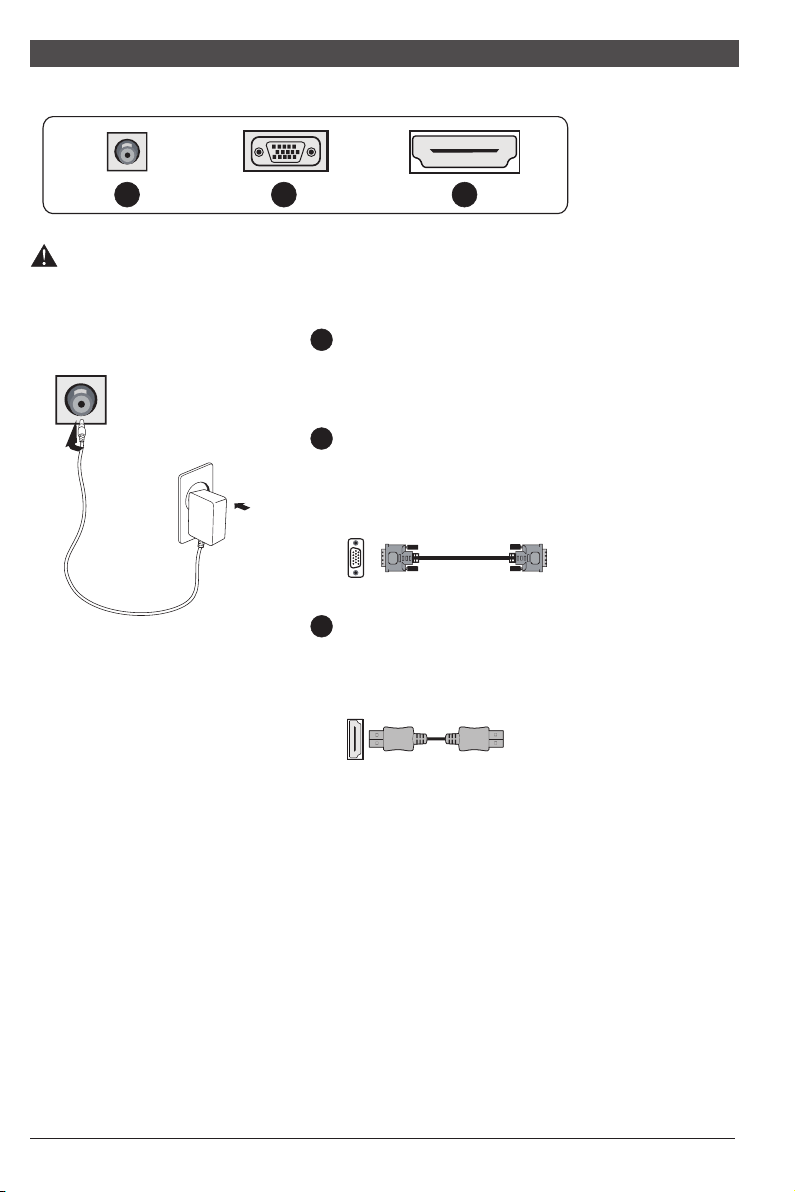
III. Connect the Monitor to PC
1
2
3
Before connecting the LCD monitor to the PC, please power down the PC and
the monitor.
2
3
Power Plug
Connect the power cord of the monitor into
the POWER port in the back of the monitor.
VGA Port
Connect the VGA cable into the VGA IN port
in the back of the monitor (this needs the
support of the monitor).
HDMI Port
Connect t h e HDMI cable into the HDMI IN
port into the back of the monitor (this needs
the support of the monitor).
1
* Warning: Always use the power
cord of standard configuration.
Power adapter
6
All specifications and informations are subject to change without notice.
5
All specifications and informations are subject to change without notice.
IV. User Setup
1. Schematic Diagram of Keys
M
E
1 2 3 4 5 6
2. Description of Keys' Functions
LED
indicator
light
1.
2.
3.
4.
6.
5.
Pops up the menu/Backs to the previous menu (in case of main menu,
exits from the whole menu).
When the menu is activated, used as the left function selection key,
and decreases progressively the value of the progress bar; when the
menu is inactivated, used as the specified shortcut mode hot key.
When the menu is activated, used as the right function selection key,
and increases progressively the value of the progress bar; when the
menu is inactivated, used as the specified shortcut mode hot key .
If the menu is activated, chooses the corresponding function.
When the menu is inactivated, press this button to enter the automatic
adjustment function; the automatic adjustment function will automatically
set the horizontal vertical position, always and focus (only for VGA signal)
Power switch: Powers on/off the monitor.
lighting: Turn on; Flash: stand-by.
M
E
▲
▲
(The above pictures are for illustration only and the physical accessories shall govern.)
III. Connect the Monitor to PC
1
2
3
Before connecting the LCD monitor to the PC, please power down the PC and
the monitor.
2
3
Power Plug
Connect the power cord of the monitor into
the POWER port in the back of the monitor.
VGA Port
Connect the VGA cable into the VGA IN port
in the back of the monitor (this needs the
support of the monitor).
HDMI Port
Connect t h e HDMI cable into the HDMI IN
port into the back of the monitor (this needs
the support of the monitor).
1
* Warning: Always use the power
cord of standard configuration.
Power adapter
6
All specifications and informations are subject to change without notice.
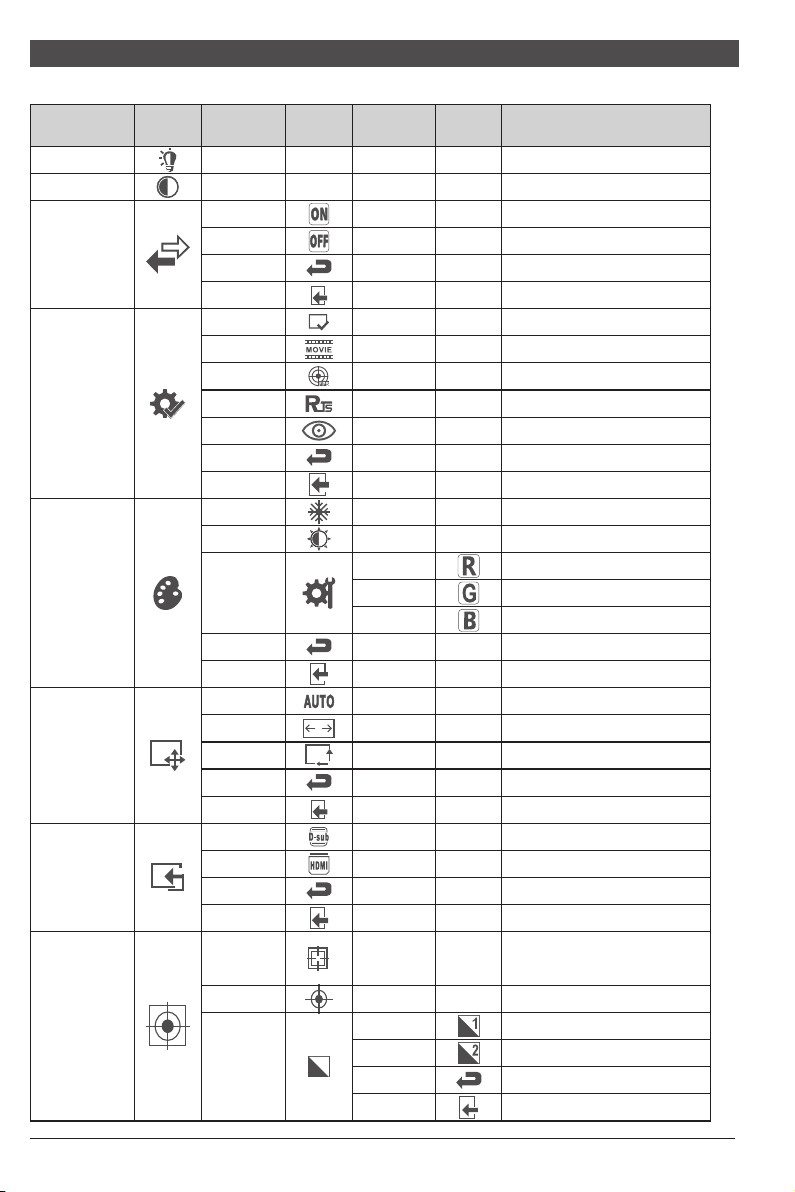
V. Operation Menu (OSD) Function Descriptions
Adjust
NONE
NONE
Adjust display contrast
DCR
On
Activate dynamic contrast
Off
Inactive dynamic contrast
Return
Return to the previous menu
Exit
Exit from the whole menu
Normal work mode
Adjust display brightness
NONE
NONE
NONE
NONE
NONE
NONE
Contrast
Brightness
NONENONE
NONENONE
NONE
NONE
NONE
NONE
Standard
Movie
FPS
NONE
NONE
NONE
NONE
NONE
NONE
NONE
NONE
NONE
NONE
NONE
NONE
NONE
NONE
NONE
NONE
NONE
NONE
RTS
EyeSaver
Return
Exit
Cool
Warm
Mode
Color Temp.
User
Return
Exit
Auto
16:9
4:3
Return
Exit
Return
Exit
Aspect
Input
Red
Green
Blue
NONE
NONE
NONE
NONE
NONE
NONE
NONE
NONE
NONE
NONE
NONE
NONE
NONE
NONE
NONE
NONE
NONE
NONE
Movie mode
FPS game mode
RTS game mode
Eye protection ray filter application mode
Fine tuning of red color temperature
Return to the previous menu
Exit from the whole menu
Set as cold color temperature
Set as warm color temperature
Fine tuning of green color temperature
Fine tuning of blue color temperature
Return to the previous menu
Exit from the whole menu
Automatically adjust picture aspect ratio
Picture in 16:9 mode
Picture in 4:3 mode
Return to the previous menu
Exit from the whole menu
Return to the previous menu
Exit from the whole menu
First level
menu icon
Third level
menu icon
Second
level
menu icon
First level
menu item
Second level
menu item
Third level
menu item
Description
Gamma1
Gamma2
Return
Exit
Gamma
Adjust color tone brightness grey 1
Adjust color tone brightness grey 2
Return to the previous menu
Exit from the whole menu
Automatically adjust the horizontal/vertical
location, focusing and clock of pictures
Adjust the white balance of pictures
NONE
NONE
NONE
NONE
Auto
adjust
Auto color
NONE
NONE
VGA
HDMI
NONE
NONE
VGA (analog) signal input
HDMI (digital) signal input
Note: The functions may be adjusted due to specific model or the upgrade of software version.
The physical model shall govern.
7
All specifications and informations are subject to change without notice.
8
All specifications and informations are subject to change without notice.
First level
menu icon
Third level
menu icon
Second
level
menu icon
First level
menu item
Second level
menu item
Third level
menu item
Description
ON
Exit
On
Off
Return
Exit
YES
NO
Return
Exit
Other
Language
Power
Off
Reset
Return to the previous menu
Exit from the whole menu
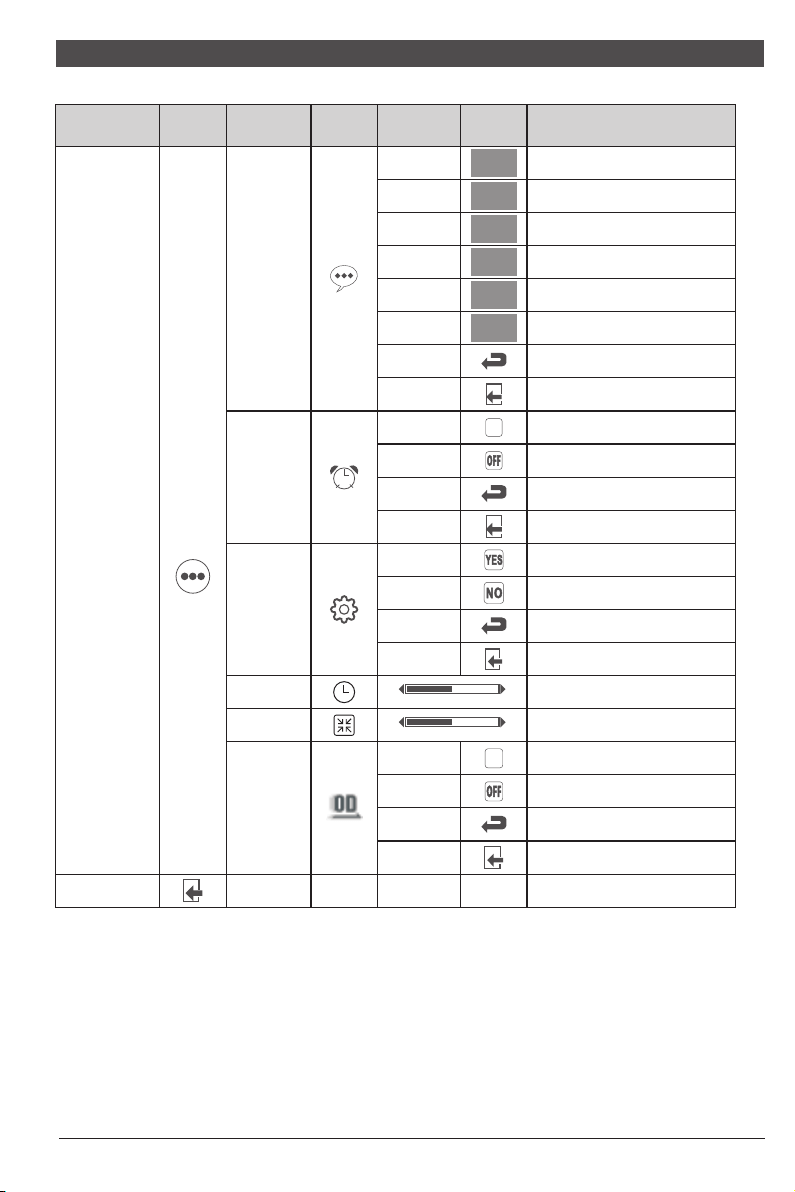
Automatically turn off after saving
power for 1minute
Inactivate the function of timed
switch-off
Return to the previous menu
Exit from the whole menu
Reset to factory setup
Exit from this function
Activate OD function
Return to the previous menu
Exit from the whole menu
Return
Exit
NONENONE
Exit
NONENONE
Over
driver
Inactivate OD function
Return to the previous menu
Exit from the whole menu
Exit from the whole menu
On
Off
ON
Return
Clock
Phase
Adjust the picture clock to reduce
vertical line noise (only for vga signals)
Adjust the picture phase to reduce
horizontal noise (only for vga signals)
0 50 100
0 50 100
English
English
English
Deutsch
Español
Deutsch
Español
Deutsch
Español
Русский
Русский
Русский
한국어
한국어
한국어
日本語
日本語
日本語
V. Operation Menu (OSD) Function Descriptions
Adjust
NONE
NONE
Adjust display contrast
DCR
On
Activate dynamic contrast
Off
Inactive dynamic contrast
Return
Return to the previous menu
Exit
Exit from the whole menu
Normal work mode
Adjust display brightness
NONE
NONE
NONE
NONE
NONE
NONE
Contrast
Brightness
NONENONE
NONENONE
NONE
NONE
NONE
NONE
Standard
Movie
FPS
NONE
NONE
NONE
NONE
NONE
NONE
NONE
NONE
NONE
NONE
NONE
NONE
NONE
NONE
NONE
NONE
NONE
NONE
RTS
EyeSaver
Return
Exit
Cool
Warm
Mode
Color Temp.
User
Return
Exit
Auto
16:9
4:3
Return
Exit
Return
Exit
Aspect
Input
Red
Green
Blue
NONE
NONE
NONE
NONE
NONE
NONE
NONE
NONE
NONE
NONE
NONE
NONE
NONE
NONE
NONE
NONE
NONE
NONE
Movie mode
FPS game mode
RTS game mode
Eye protection ray filter application mode
Fine tuning of red color temperature
Return to the previous menu
Exit from the whole menu
Set as cold color temperature
Set as warm color temperature
Fine tuning of green color temperature
Fine tuning of blue color temperature
Return to the previous menu
Exit from the whole menu
Automatically adjust picture aspect ratio
Picture in 16:9 mode
Picture in 4:3 mode
Return to the previous menu
Exit from the whole menu
Return to the previous menu
Exit from the whole menu
First level
menu icon
Third level
menu icon
Second
level
menu icon
First level
menu item
Second level
menu item
Third level
menu item
Description
Gamma1
Gamma2
Return
Exit
Gamma
Adjust color tone brightness grey 1
Adjust color tone brightness grey 2
Return to the previous menu
Exit from the whole menu
Automatically adjust the horizontal/vertical
location, focusing and clock of pictures
Adjust the white balance of pictures
NONE
NONE
NONE
NONE
Auto
adjust
Auto color
NONE
NONE
VGA
HDMI
NONE
NONE
VGA (analog) signal input
HDMI (digital) signal input
Note: The functions may be adjusted due to specific model or the upgrade of software version.
The physical model shall govern.
7
All specifications and informations are subject to change without notice.
8
All specifications and informations are subject to change without notice.
First level
menu icon
Third level
menu icon
Second
level
menu icon
First level
menu item
Second level
menu item
Third level
menu item
Description
ON
Exit
On
Off
Return
Exit
YES
NO
Return
Exit
Other
Language
Power
Off
Reset
Return to the previous menu
Exit from the whole menu
Automatically turn off after saving
power for 1minute
Inactivate the function of timed
switch-off
Return to the previous menu
Exit from the whole menu
Reset to factory setup
Exit from this function
Activate OD function
Return to the previous menu
Exit from the whole menu
Return
Exit
NONENONE
Exit
NONENONE
Over
driver
Inactivate OD function
Return to the previous menu
Exit from the whole menu
Exit from the whole menu
On
Off
ON
Return
Clock
Phase
Adjust the picture clock to reduce
vertical line noise (only for vga signals)
Adjust the picture phase to reduce
horizontal noise (only for vga signals)
0 50 100
0 50 100
English
English
English
Deutsch
Español
Deutsch
Español
Deutsch
Español
Русский
Русский
Русский
한국어
한국어
한국어
日本語
日本語
日本語
9
All specifications and informations are subject to change without notice.
10
All specifications and informations are subject to change without notice.
VI. FAQ
Faults occurring
The power indicator
light is not on
Possible solutions
Dimming picture
Flickering picture or
picture with ripples
Color shortage
(red, green and blue)
Picture with color difference
(white looks not white)
◆
Check if the power is on.
◆
Check if the power cord is connected.
◆
Adjust brightness and contrast.
◆
with electronic disturbance.
There may be electrical appliances or equipment
The power indicator
light is on (flickering),
but the monitor has no
pictures.
◆
◆
Check if the PC display card is inserted properly.
◆
Check if the signal cable of the monitor is correctly
connected with the PC.
◆
Check the signal cable plug of the monitor and make
sure every pin has no bending.
◆
Observe the indicator light by pressing the Caps
Lock key on the PC keyboard and check if the PC
is working.
Check if the PC power is on.
◆
sure every pin has no bending.
Check the signal cable of the monitor and make
◆
Adjust RGB color or reselect color temperature.
◆
is compatible with PC.
◆
Check if the display card is compatible with the
plug-and-play function.
Check if the function of plug-and-play of the device
Impossible plug-and-play
Screen font blur under
VGA signal
◆
Select the "E" to automatically adjust the image.
Screen color error under
VGA signal
◆
Select “Auto color" in OSD to correct under the
white output screen.
The picture is not in the
middle, or the size is not right
◆
Hot key(AUTO)
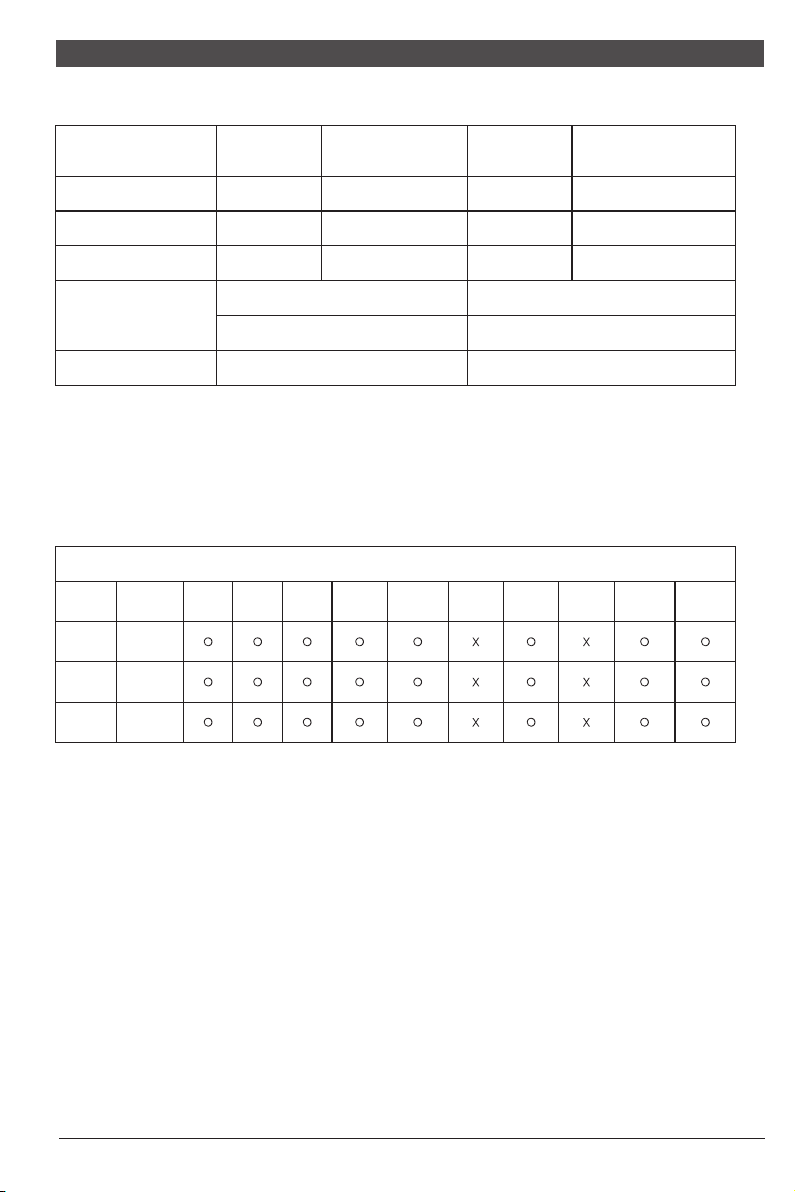
VII. Product Specifications
Note: The actual application of the above parameters shall be subject to the
specific model.
VIII. Table of Product Preset Modes
0.248
0.271
0.3114
Humidity
Picture
dimensions (mm)
476.1*267.8
521.3*293.2
597.9*336.3
Optimal
resolution
1920*1080@60Hz
1920*1080@60Hz
1920*1080@60Hz
Diagonal
dimensions
Picture
aspect ratio
Dot distance
(mm)
Ambient
temperature
Storage temperature
Working temperature
RH for operation
-20℃ to +50℃
0℃ to 40℃
20% 80% to
55cm(21.5"FHD)
60cm(23.6")
68.6cm(27"FHD)
16:9
16:9
16:9
Note: “O” indicates the corresponding resolution/refresh rate is supported.
“X” indicates the corresponding resolution/refresh rate is not supported.
Note: The actual application of the above parameters shall be subject to the
specific model.
16:9
16:9
21.5"
( )
60Hz
1600x900
( )
60Hz
1440x900
( )
60Hz
1360x768
( )
60/75Hz
1280x1024
(
60/70
)
/75Hz
1024x768
(
60/72
)
/75Hz
800x600
(
60/75/
)
72.8Hz
640x480
( )
70Hz
720x400
( )
60Hz
1680x1050
Aspect ratio
Display
dimensions
Preset resolution/Refresh rate
( )
60Hz
1920x1080
23.6"
16:9
27"
9
All specifications and informations are subject to change without notice.
10
All specifications and informations are subject to change without notice.
VI. FAQ
Faults occurring
The power indicator
light is not on
Possible solutions
Dimming picture
Flickering picture or
picture with ripples
Color shortage
(red, green and blue)
Picture with color difference
(white looks not white)
◆
Check if the power is on.
◆
Check if the power cord is connected.
◆
Adjust brightness and contrast.
◆
with electronic disturbance.
There may be electrical appliances or equipment
The power indicator
light is on (flickering),
but the monitor has no
pictures.
◆
◆
Check if the PC display card is inserted properly.
◆
Check if the signal cable of the monitor is correctly
connected with the PC.
◆
Check the signal cable plug of the monitor and make
sure every pin has no bending.
◆
Observe the indicator light by pressing the Caps
Lock key on the PC keyboard and check if the PC
is working.
Check if the PC power is on.
◆
sure every pin has no bending.
Check the signal cable of the monitor and make
◆
Adjust RGB color or reselect color temperature.
◆
is compatible with PC.
◆
Check if the display card is compatible with the
plug-and-play function.
Check if the function of plug-and-play of the device
Impossible plug-and-play
Screen font blur under
VGA signal
◆
Select the "E" to automatically adjust the image.
Screen color error under
VGA signal
◆
Select “Auto color" in OSD to correct under the
white output screen.
The picture is not in the
middle, or the size is not right
◆
Hot key(AUTO)
VII. Product Specifications
Note: The actual application of the above parameters shall be subject to the
specific model.
VIII. Table of Product Preset Modes
0.248
0.271
0.3114
Humidity
Picture
dimensions (mm)
476.1*267.8
521.3*293.2
597.9*336.3
Optimal
resolution
1920*1080@60Hz
1920*1080@60Hz
1920*1080@60Hz
Diagonal
dimensions
Picture
aspect ratio
Dot distance
(mm)
Ambient
temperature
Storage temperature
Working temperature
RH for operation
-20℃ to +50℃
0℃ to 40℃
20% 80% to
55cm(21.5"FHD)
60cm(23.6")
68.6cm(27"FHD)
16:9
16:9
16:9
Note: “O” indicates the corresponding resolution/refresh rate is supported.
“X” indicates the corresponding resolution/refresh rate is not supported.
Note: The actual application of the above parameters shall be subject to the
specific model.
16:9
16:9
21.5"
( )
60Hz
1600x900
( )
60Hz
1440x900
( )
60Hz
1360x768
( )
60/75Hz
1280x1024
(
60/70
)
/75Hz
1024x768
(
60/72
)
/75Hz
800x600
(
60/75/
)
72.8Hz
640x480
( )
70Hz
720x400
( )
60Hz
1680x1050
Aspect ratio
Display
dimensions
Preset resolution/Refresh rate
( )
60Hz
1920x1080
23.6"
16:9
27"
WH22FX9019
WH24FX9019
WH27FX9019