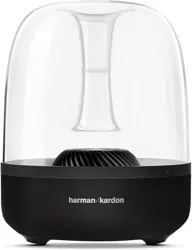
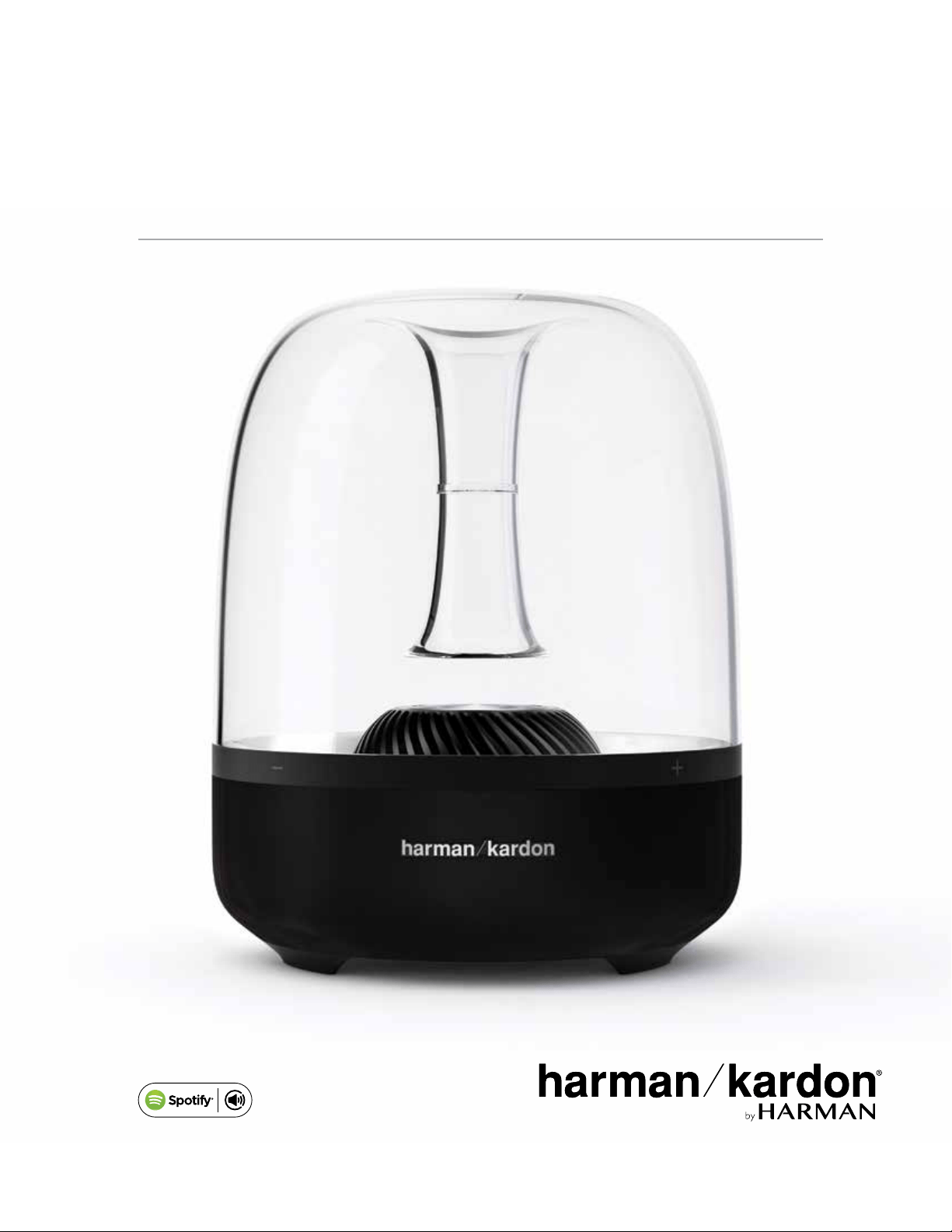
Aura Plus
Wireless Speaker System
Owner’s Manual

2
Table of Contents
Aura Plus
INTRODUCTION 3
INCLUDED ITEMS 3
CONTROLS AND CONNECTIONS 3
HARMAN KARDON AURA PLUS FRONT PANEL CONTROLS 3
HARMAN KARDON AURA PLUS REAR PANEL CONTROLS 4
CONNECTIONS 4
POWER CONNECTIONS 4
SOURCE CONNECTIONS 4
IOS WIRELESS WIFI SHARING 5
IOS WIFI SHARING WITH CABLE 5
ADHOC MODE 6
OPERATION 6
SWITCHING TO DIFFERENT POWER MODES 6
ADJUSTING VOLUME 7
PLAYING MUSIC THROUGH WIFI 7
PLAYING MUSIC THROUGH BLUETOOTH 7
PLAYING MUSIC THROUGH AIRPLAY® 7
HARMAN KARDON REMOTE 7
HARMAN KARDON AURA PLUS LED INDICATION TABLE 8
HARMAN KARDON AURA PLUS LED RING PATTERN INDICATION 9
TROUBLESHOOTING 10
SPECIFICATIONS 11
USING THIS DEVICE WITH SPOTIFY CONNECT 11
Introduction
3
Aura Plus
Introduction
Thank you for purchasing the Harman Kardon Aura Plus. Harman Kardon Aura Plus is
a premium, iconic design, wireless speaker that allows you to stream music from any
smart phone, tablet or other wireless devices through Bluetooth®, AUX, Wi-Fi, AirPlay®,
Spotify Connect®, and DLNA®.
We at Harman Kardon always aim to create new products with high level functionality,
beautiful design, and amazing sound quality.
Harman Kardon Aura Plus is a 7-speaker, advanced acoustic platform that delivers
a truly fantastic sound experience with a balanced soundstage and powerful bass
response. The Harman Kardon Remote app simplifies the setup and lets you stream all
your audio content. With its simple setup and quality sound, the Harman Kardon Aura
Plus is an essential audio component for every house.
CONTACT US: For queries and clarifications, please contact your service provider or
browse www.harmankardon.com for regional contact details.
Included Items
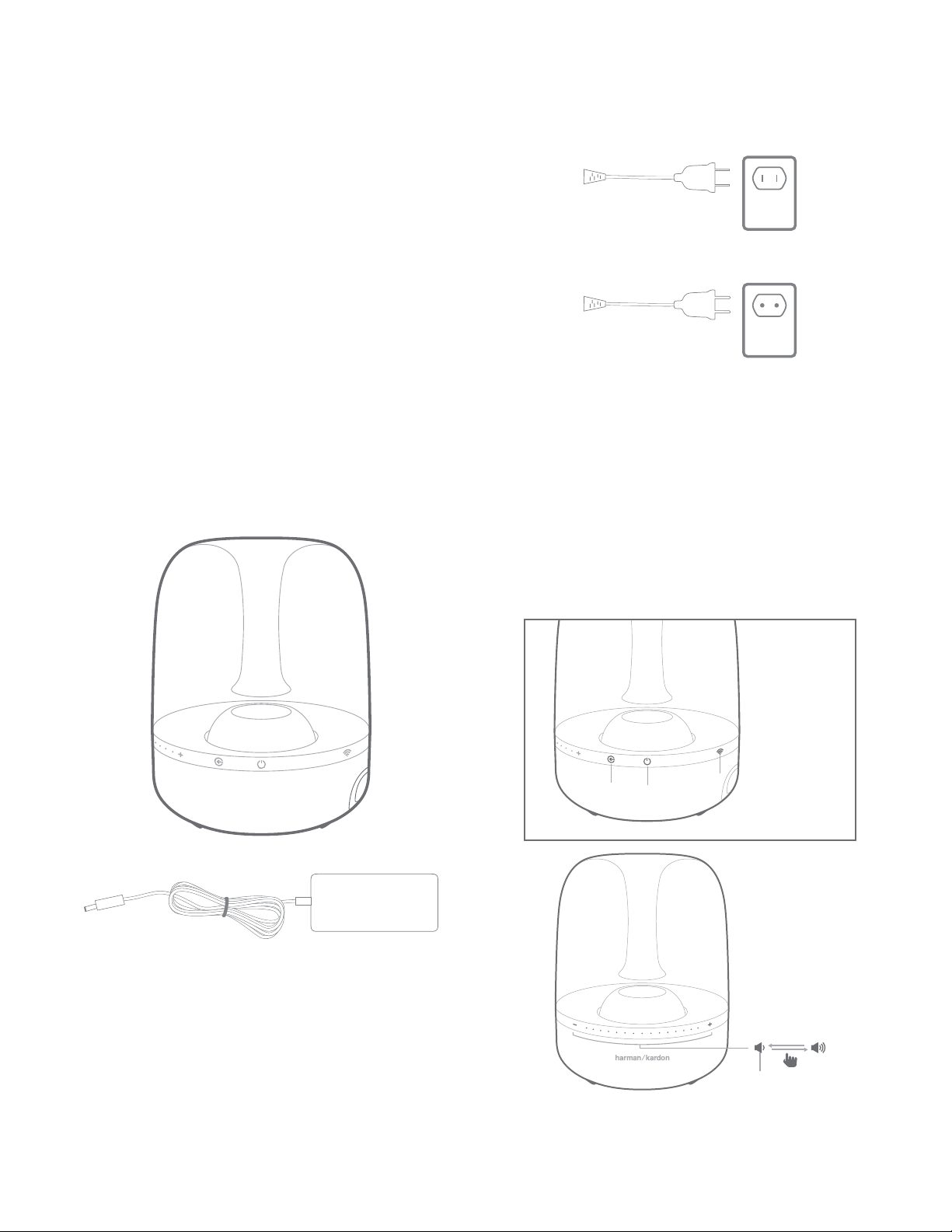
Harman Kardon Aura Plus speaker system consists of the following accessories:
• Harman Kardon Aura Plus speaker
• One AC power adapter
• Regional power cord (varies depending on countries)
IMPORTANT: If any included accessory is missing, or if any part of your HK
Aura Plus system fails to operate properly, contact your dealer immediately.
Controls and Connections
This section will help you identify the controls and connections that are provided on the
Aura Plus side and rear panels.
Harman Kardon Aura Plus Front Panel Controls
The following control buttons are available on the front panel of the HK Aura Plus:
1. Source
2. ON/OFF
3. Wi-Fi
4. Volume control
1
2
3
4
Aura Plus
Connections
4
Source: Use the Source button to switch between the sources as required.
• Press the source button for 0.5 seconds to change the source from
Bluetooth/Optical/Aux-in.
• Press the source button for more than 2.5 seconds to disconnect all the
Bluetooth connections and switch to Bluetooth source.
ON/OFF: This button turns the Harman Kardon Aura Plus ON and OFF. Press and hold
this button for more than 2.5 seconds to put the unit into Standby mode. Press the
button again to bring it back to Operational mode.
NOTE: Harman Kardon Aura Plus gives out a sound prompt when the system
wakes up from the Standby mode, and when the power is turned OFF.
Wi-Fi: This button helps you connect your Wi-Fi enabled device to the Harman Kardon
Aura Plus.
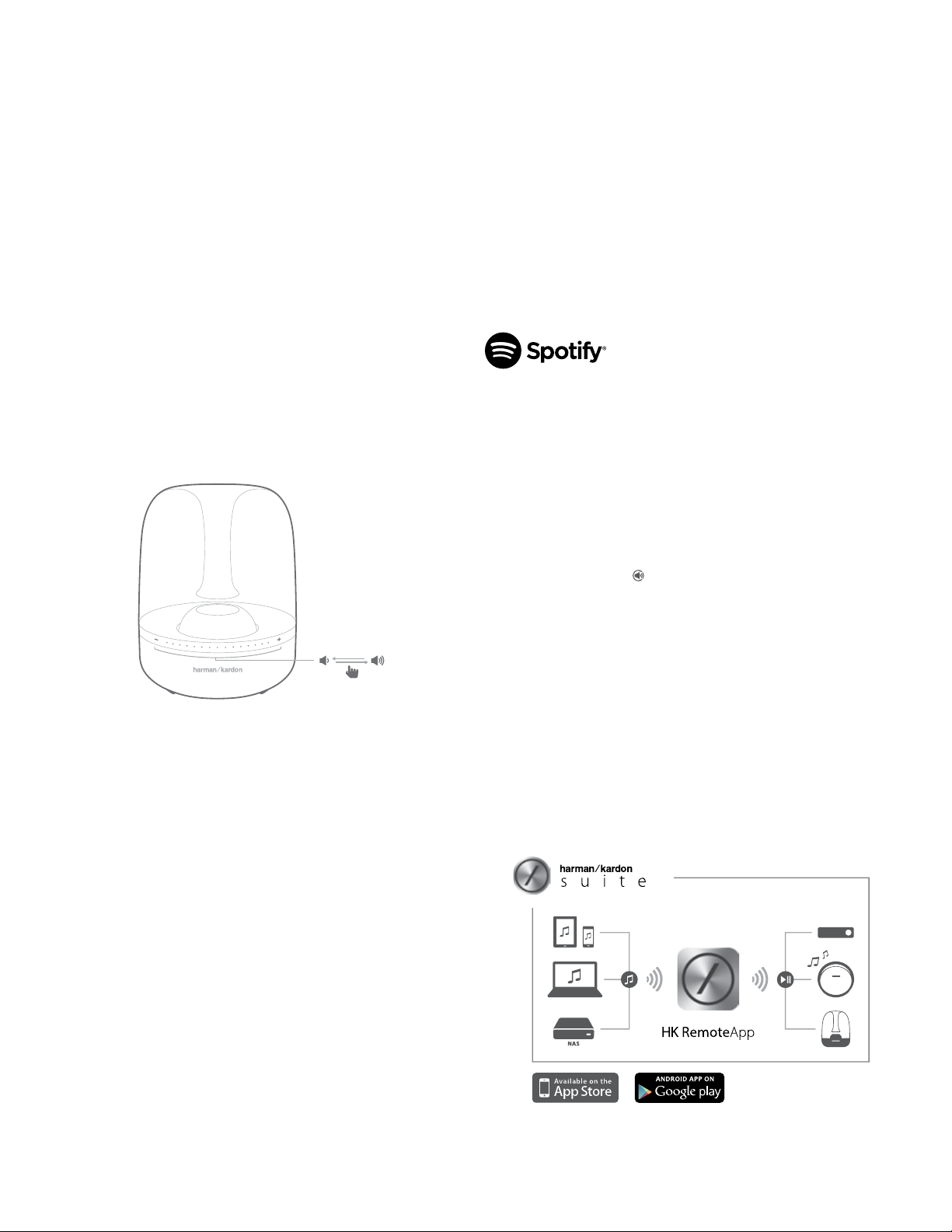
Volume control: These touch sensitive buttons control the volume of the unit. Roll
your finger on these buttons to increase or decrease the volume.
• Roll your finger in the direction of (+) to increase the volume.
• Roll your finger in the direction of (-) to decrease the volume.
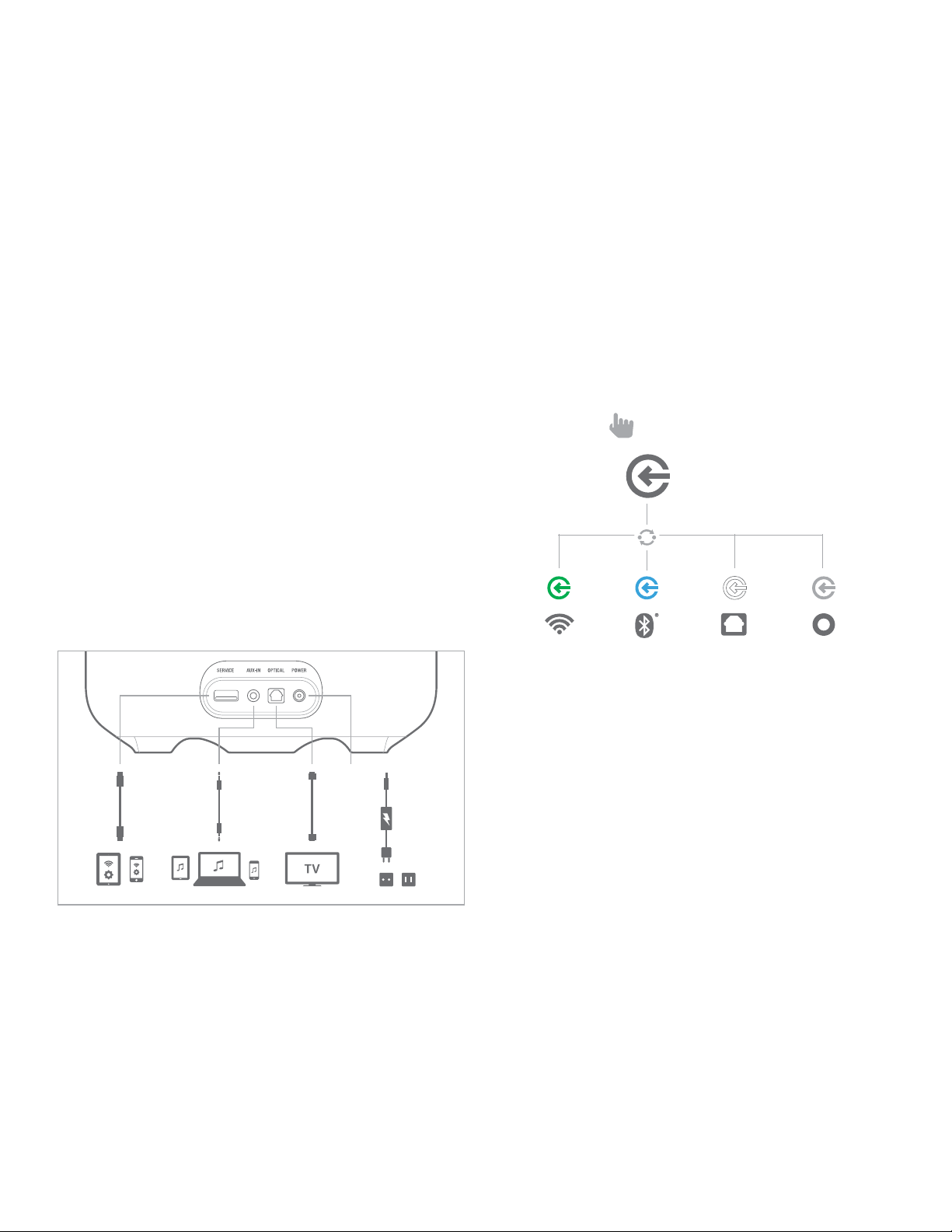
Harman Kardon Aura Plus Rear Panel Controls
The rear panel of the Harman Kardon Aura Plus allows you to work on the following:
• Service
• Aux in
• Optical
• Power
Service: The USB port is used for firmware upgrade or Wi-Fi set up only and will not
charge attached devices.
AUX-IN: The speaker includes a 3.5 mm stereo mini analog auxiliary input.
Optical: The speaker supports Digital Optical Input. Connect your optical input cable
here.
Power: Connect the AC power cord here.
Connections
This section helps you understand how to connect your device correctly to a power
source, and different input sources.
Power Connections
Connect the supplied AC power cord to the rear panel of Harman Kardon Aura Plus.
Source Connections
The speaker offers the following source connection options:
• Wi-Fi (Using AirPlay, DLNA, or Spotify Connect)
• Bluetooth
• Aux input
• Digital Optical Input
Wi-Fi: You can connect your speaker to your Wi-Fi by three different modes depending
on the device you are using.
• iOS Wireless Wi-Fi sharing – If you have an iPhone or iPad with Bluetooth
• iOS Wi-Fi sharing – If you have an iPhone or iPad and a USB to 30pin or USB
to Lightning cable
• Ad-hoc mode – If you want to set up the speaker from a computer or other
device
Bluetooth: To wirelessly stream audio to the Harman Kardon Aura Plus from a
Bluetooth-enabled device:
1. Confirm that the Harman Kardon Aura Plus is in the Bluetooth pairing mode
(the Bluetooth button LED will be flashing blue). If the LED is not flashing
blue, press and hold the source button until its LED begins to flash blue.
0.5 sec
Wi-Fi
BLUETOOTH
OPTICAL
AUX IN

Connections
5
Aura Plus
2. Use the device’s Bluetooth pairing menu to pair it with the Harman Kardon
Aura Plus. The unit will appear as HK Aura BT in the list of Bluetooth
available devices. When the Harman Kardon Aura Plus’s source button LED
illuminates blue constantly, it is paired with the device and you can stream
audio via Bluetooth from the device to the Harman Kardon Aura Plus.
NOTE: Harman Kardon Aura Plus gives out a sound prompt when the
Bluetooth is switched on and when you attempt to pair another Bluetooth
device.
Aux Input: Connect your source device to the Harman Kardon Aura Plus’s Aux In. Press
the source button until the LED turns off. This indicates that the source input is set to
Aux in.
Digital Optical Input: Connect your digital optical input here. Harman Kardon Aura
Plus supports PCM raw stream. Press the source button until the LED turns white. This
indicates that the source input is set to optical input.
Headphone Output: The Harman Kardon Aura Plus also has a 3.5 mm headphone
output jack to enable easy connection of headphones for pesonal listening. Connect
your headphones and use the capacitance touch control to adjust the volume to the
desired level.
iOS Wireless Wi-Fi Sharing
If you have an Apple device, use the following method to connect your Harman Kardon
Aura Plus to the Wi-Fi network:
1. Connect your iPhone, iPad or iPod touch to the
speaker’s Bluetooth connection.
2. Ensure your iPhone, iPad or iPod Touch is connected to your Wi-Fi network.
3. Press the Wi-Fi button on the Harman Kardon Aura Plus for less than a second.
A pop-up window will be displayed on your iPad, iPhone or iPod Touch with a
message Share Wi-Fi Settings?
4. Press Allow.
The iPhone, iPad or iPod Touch will then share Wi-Fi settings with the Harman Kardon
Aura Plus and it will be connected to your Wi-Fi network. This takes at least 40 seconds.
Once the Harman Kardon Aura Plus is connected to the network, the Wi-Fi LED will light
constantly and a sound prompt can be heard.
iOS Wi-Fi Sharing with Cable
If you have an Apple device without Bluetooth connection, use the following method to
connect your Harman Kardon Aura Plus to the Wi-Fi network:
1. Connect your iPhone, iPad or iPod touch to the speaker using the USB to 30-
pin or USB to Lightning cable provided with your iPhone, iPad or iPod touch.
2. Ensure your iPhone, iPad or iPod touch is connected to your Wi-Fi network.
3. Press the Wi-Fi button on the Harman Kardon Aura Plus for less than a second.
A pop-up window will be displayed on your iPad, iPhone or iPod Touch with a
message Share Wi-Fi Settings?
4. Press Allow.
The iPhone, iPad or iPod Touch will then share Wi-Fi settings with the Harman Kardon
Aura Plus and it will be connected to your Wi-Fi network. This takes at least 40 seconds.
Once the Harman Kardon Aura Plus is connected to the network, the Wi-Fi LED will light
constant white and a sound prompt will be heard.
0.5 sec
1
2
3
HK Aura Plus
Allow
Aura Plus
Operation
6
To connect using the Harman Kardon remote app:
1. Go to the Apple App store or Google Play store and down-
load the Harman Kardon Remote app.
2. Click + icon on the home screen to add a new device to your
network and choose Harman Kardon Aura from the list.
3. Follow the setup instructions in the app.
Ad-hoc Mode
If you have a Mac or PC computer, or other phone or tablet, use the following method
to connect to the system:
1. Put the Harman Kardon Aura Plus into Ad-hoc mode by touching the
Wi-Fi button for more than 5 seconds (ensure there are no USB de-
vices plugged into the USB port). The Wi-Fi LED will flash twice.
2. Go to the Wi-Fi Settings page on your Mac, PC or Phone and
connect to the network with the name HK_Aura*****.
This may take around 40 seconds depending on your device.
3. Open your web browser and enter the IP address as
192.168.1.1 in the address bar of your browser.
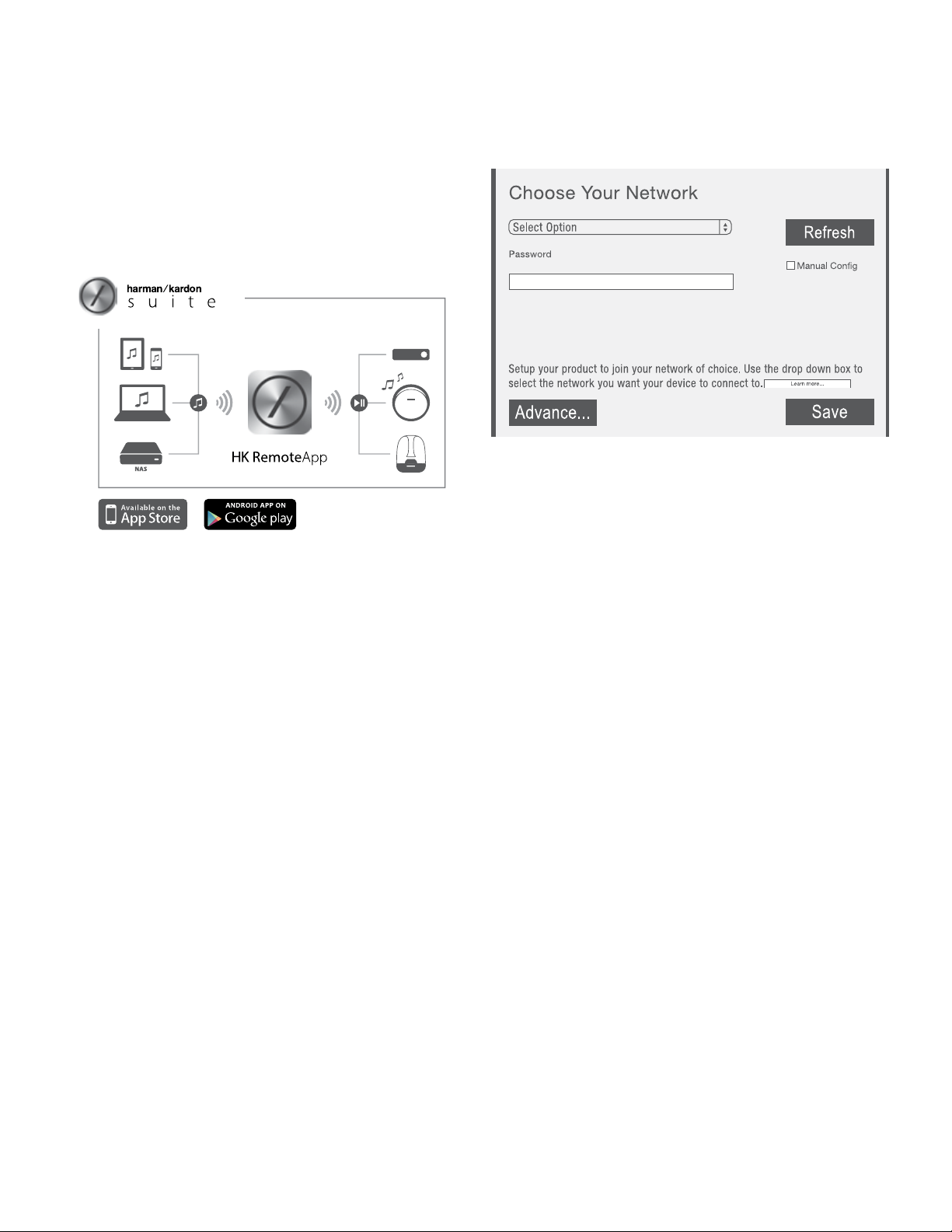
4. Select the name of the Wi-Fi network you want
to connect from the drop-down menu.
5. Enter the password for your network and click Save.
6. Ensure that you have entered the password correctly. If you are
not sure, enter the password again without any mistake.
The Harman Kardon Aura Plus will then attempt to connect to your Wi-Fi network.
This may take up to one minute depending on your Wi-Fi router. If the connection is
successful, the Wi-Fi LED will turn green and the connection successful tone can be
heard. If the connection is unsuccessful or your password incorrect, the Wi-Fi LED will
flash quickly. To try again, start from step 1.
NOTE: To restore the factory default settings, long press Source and Power
button in Operational mode.
Operation
Switching to Different Power Modes
The power button on the side panel of the Harman Kardon Aura Plus allows you to set
the wireless speaker to any of the following power modes:
• Operational mode
• Sleep mode
• Standby mode
• Off mode
To change the power modes:
• Press the power button to enter into Operational mode from Standby mode.
• Press the power button again if you want to make the system enter into
Standby mode from Operational mode.
Using This Device With Spotify Connect
7
Aura Plus
If the speaker remains inactive for more than 10 minutes, it automatically enters the
Sleep mode.
• Press the power button to enter into standby mode while the speaker is in
sleep mode. The speaker can also enter into standby mode from sleep mode
if it remains inactive for more than 30 minutes without Wi-Fi connection.
• Press the Volume and the Source buttons to enter into operational mode
from sleep mode. The speaker also enters into operational mode from sleep
mode if Bluetooth is active.
Adjusting Volume
The volume buttons on the side panel allows you to increase or decrease the volume.
These touch-sensitive buttons allow you to control volume with a gentle finger touch
on the buttons. Adjust volume using the Volume Up (+) and Volume Down (–) buttons
located on the system.
• Short press - Increase/decrease volume by 1 step
• Press and hold - Increase/ decrease volume continuously (1 step per 0.2
second)
Playing Music through Wi-Fi
To play music in your Harman Kardon Aura Plus through Wi-Fi:
1. Press the Power button.
2. Connect to your Wi-Fi network following the above procedures.
3. If Harman Kardon Aura Plus is on the Wi-Fi net-
work, the Wi-Fi LED becomes constant white.
4. Control playback from your Wi-Fi enabled device.
Playing Music through Bluetooth
Harman Kardon Aura Plus supports the audio played from Bluetooth enabled devices.
1. Connect the Harman Kardon Aura Plus to the Bluetooth-enabled device.
2. Control playback from your Bluetooth-capable device.
3. The Harman Kardon Aura Plus will appear as a
Bluetooth speaker called HK Aura BT.
4. Check your phone or tablet manual for more information.
Playing Music through AirPlay®
AirPlay® allows you to wirelessly stream audio content from your Mac or PC, iPhone,
iPad or iPod touch to Harman Kardon Aura Plus.
• iPhone, iPod touch, or iPad (running iOS version 4.2 or higher)
• MAC or PC running a compatible version of iTunes
The Harman Kardon Aura Plus will appear as a Wi-Fi speaker in the AirPlay menu named
HK Aura WF.
Check your iPod or iPhones manual for more information on how to stream music.
Using This Device With Spotify Connect
Spotify lets you listen to millions of songs – the artists you love, the latest hits and
discoveries just for you.
If you are a Spotify user, you can control this device using your Spotify app.
Step 1 Connect your device to the same wifi network as your phone, tablet or PC
running the Spotify app.
Step 2 Open the Spotify app, and play any song.
Step 3 Tap the song image in the bottom left of the screen.
Step 4 Tap the Connect icon
Step 5 Pick your speaker from the list.
For information on how to set up and use Spotify Connect please visit www.spotify.
com/connect
Licenses
The Spotify Software is subject to third party licenses found here : www.spotify.com/
connect/third--party- -licenses.
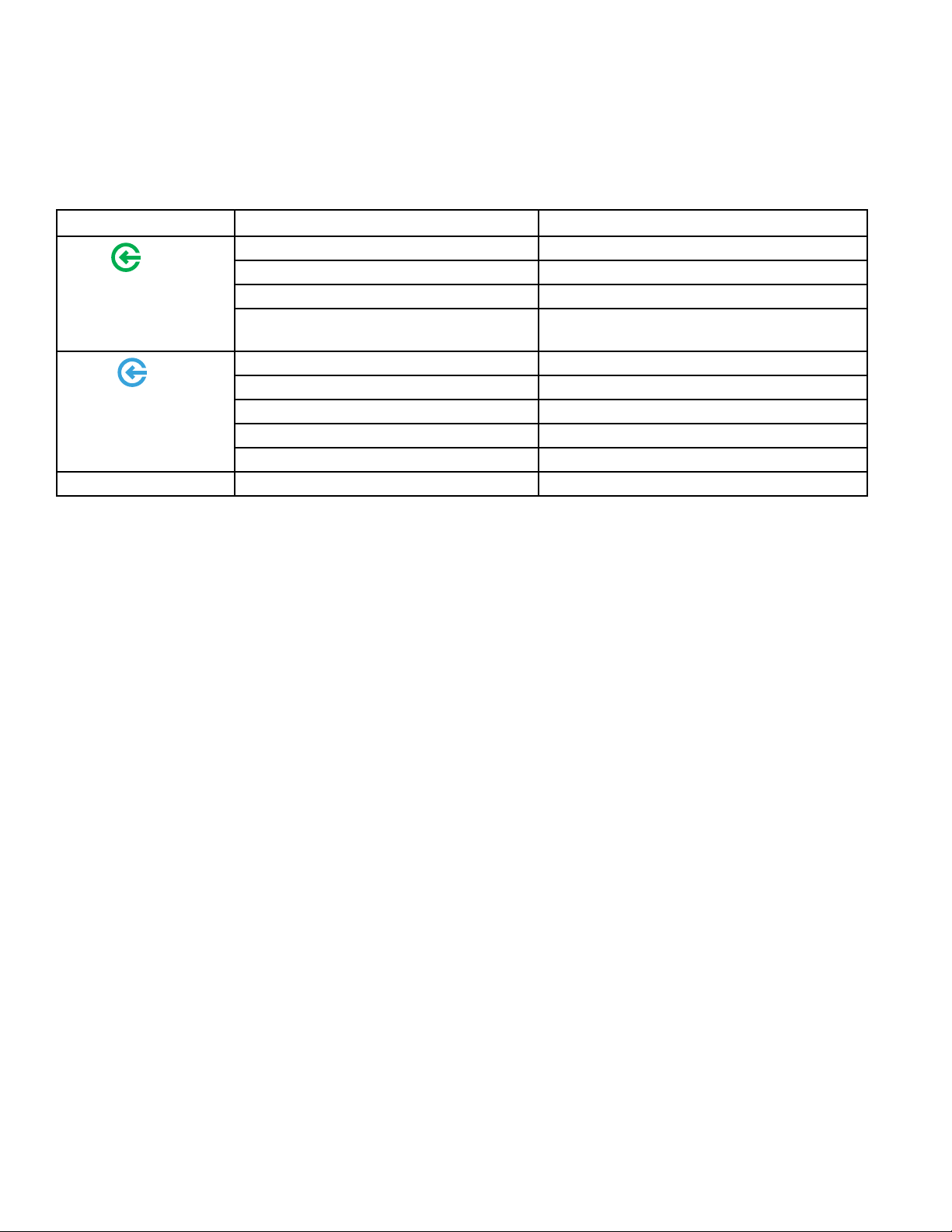
Harman Kardon Remote
Harman Kardon Aura Plus can be operated through the Harman Kardon Remote app
available in the App Store for Apple products or Google Play for Android products. You
can use the Harman Kardon Remote app to stream music to, and control the Harman
Kardon Aura Plus through your smart phone or tablet.
0.5 sec
Aura Plus
Harman Kardon Aura Plus LED Indication Table
8
Harman Kardon Aura Plus LED Indication Table
LED State Indication
Wi-Fi LED
White, Constant Wi-Fi connected
Off / Slow Flash Wi-Fi connection failed
White, Quick Flash Wi-Fi connecting to router
White, Quick Double Flash Waiting connection in JB Connect mode, or waiting iOS device reply
after triggering Wi-Fi info share
Source LED
Blue, Constant Bluetooth source is active with Bluetooth connected
Blue, Slow Flash Bluetooth source is active, but no Bluetooth device is connected
White, Constant Optical source is active
Green, Constant Wi-Fi source is active
Off Aux-in source is active
All LEDs White, Regular Flash Upgrade Failed
Harman Kardon Aura Plus LED Ring Pattern Indication
9
Aura Plus
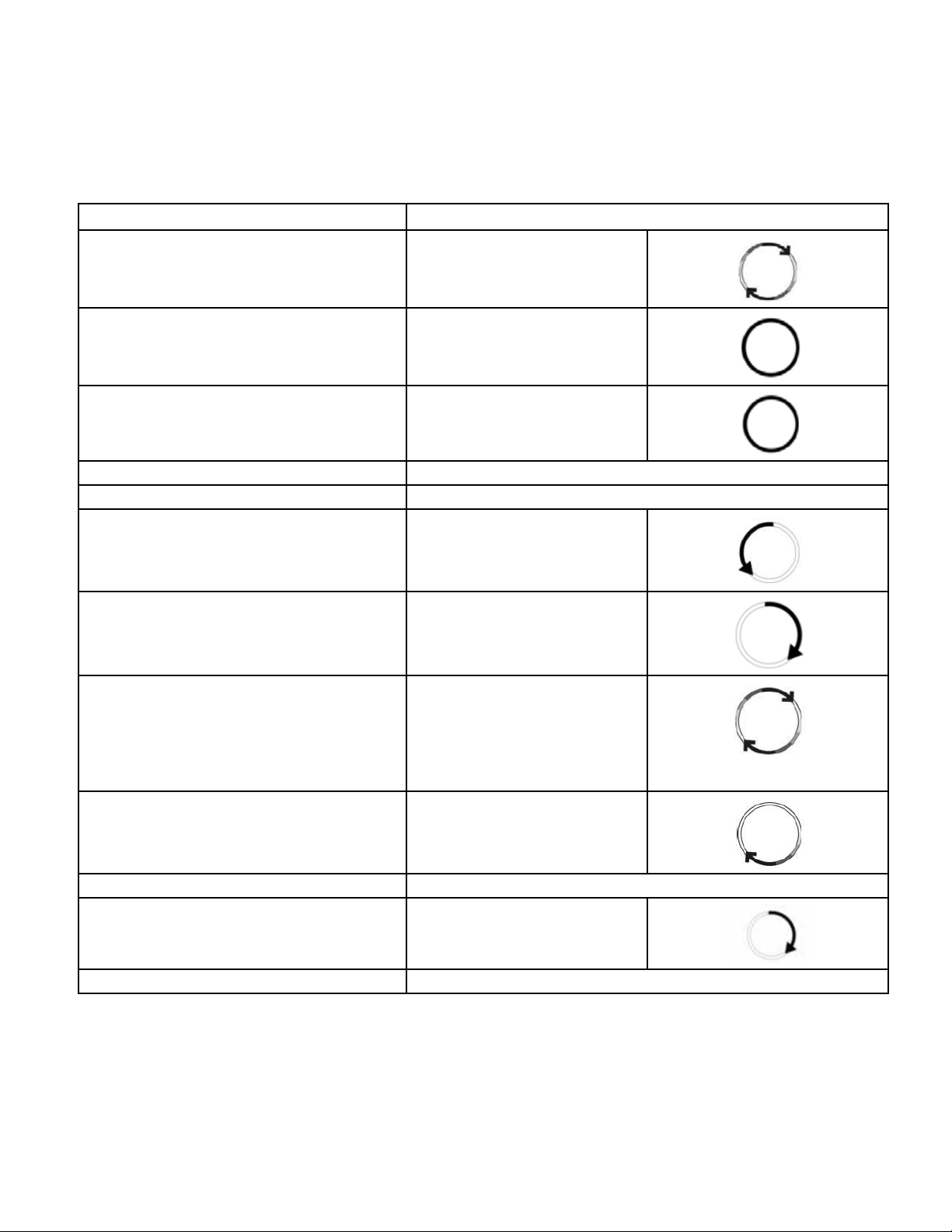
Harman Kardon Aura Plus LED Ring Pattern Indication
Status Pattern
Booting up from Standby Mode Two Spot Clockwise
Booting Complete Fully On
Operational Mode Fully On
Sleep Mode Fully On, but in lower brightness.
Off/ Standby Mode OFF
Volume Change When volume change is complete, the same
LED ring pattern stays for 5s, and then turns to
Fully On smoothly.
Bass Volume Change (by App) When volume change is complete, the same
LED ring pattern stays for 5s, and then turns to
Fully On smoothly.
Connecting to Wi-Fi Router If successful, the LED ring pattern changes to
Fully On smoothly.
If failed, the LED ring pattern flashes 4 times,
then changes to fully On smoothly.
Adhoc Connect Mode If any other device is connected, the LED ring
pattern changes to fully on smoothly.
Wi-Fi Info Sharing The LED pattern is One Spot Clockwise, when waiting for feedback from iOS device.
Firmware Upgrading Fully Quick Breathing until upgrading finished
Firmware Upgrading Failed Fully Regular Flash.

Aura Plus
Troubleshooting
10
Problems Solutions
There is no sound coming from the Harman Kardon Aura Plus • No power to unit. Make sure that the wall outlet or
power strip has power.
• Make sure that all switches for outlet/power strip are
ON and that all switches for the unit are ON.
Distortion (static, crackling or hissing sounds) • Audio source or source material may be the problem.
Test the Harman Kardon Aura Plus with another source.
• Volume level may be too high from auxiliary-device
output. Check the volume of the source and turn it
down if necessary.
Harman Kardon Aura Plus emits a loud hum or buzzing noise • Input cable is not plugged in properly. Check the input
cable connection.
• Cable may have problems. Replace the cable.
• It might happen due to ground loop (an unsuitable
con-nection). Turn the Harman Kardon Aura Plus OFF
and connect it to another wall outlet.
Troubleshooting
If your Harman Kardon Aura Plus is not performing the way you think it should, check if the problem is covered in this section before calling your dealer or contacting a Harman
Kardon representative.

Specifications
11
Aura Plus
Specifications
Power supply 19VDC, 3A
Power consumption 57W maximum, <0.5W eco-standby mode
Transducers 4.5”(112mm) for Woofer, 1.5”(40mm) for Tweeter
Amplifier power 1x30W + 2x15W
Frequency response 50Hz - 20KHz
Signal-to-noise ratio 80dB at 30W(woofer), 80dB @15W(tweeter)
Bluetooth transmitter frequency range 2.402 - 2.480GHz
Bluetooth transmitter power Max 4dBm
Bluetooth transmitter modulation GFSK, p/4 DQPSK, 8DPSK
AirPlay transmitter Frequency range 2412MHz~2472MHz (2.4GHz ISM
Band, USA 11 Channels, Europe 13 Channels)
AirPlay Transmitter power <20 dBm
AirPlay transmitter Modulation 802.11b:DSSS (DBPSK, DQPSK, CCK) ;
802.11g:OFDM (BPSK, QPSK, 16QAM, 64QAM);
AirPlay network compatibility 802.11b/g
© 2016 HARMAN International Industries, Incorporated. All rights reserved.
Harman Kardon is a trademark of HARMAN International Industries, Incorporated, registered in the United States and/or other countries. The “beautiful/sound” logo is a
trademark of HARMAN International Industries, Incorporated.
The Bluetooth® word mark and logos are registered trademarks owned by Bluetooth SIG, Inc. and any use of such marks by HARMAN International Industries, Incorporated is
under license. Other trademarks and trade names are those of their respective owners.
La marque verbale et le logotype Bluetooth® sont des marques commerciales déposées et la propriété de Bluetooth SIG, Inc. et toute utilisation de ces marques par HARMAN
International Industries, Incorporated, est sous licence. Les autres marques et noms commerciaux sont ceux de leurs propriétaires respectifs.
The Wi-Fi CERTIFIED Logo is a certification mark of the Wi-Fi Alliance.
Wi-Fi est une marque commerciale déposée de la Wi-Fi Alliance.
DLNA®, the DLNA Logo and DLNA CERTIFIED® are trademarks, service marks, or certification marks of the Digital Living Network Alliance.
DLNA® et le logo DLNA sont des marques commerciales déposées de Digital Living Network Alliance.
“Made for iPod,” “Made for iPhone” and “Made for iPad” mean that an electronic accessory has been designed to connect specifically to iPod, iPhone or iPad, respectively, and
has been certified by the developer to meet Apple performance standards. Apple is not responsible for the operation of this device or its compliance with safety and regulatory
standards. Please note that the use of this accessory with iPod, iPhone, or iPad may affect wireless performance.
« Made for iPod », « Made for iPhone » et « Made for iPad » signifie que l’accessoire électronique a été conçu spécialement pour fonctionner avec iPod, iPhone ou iPad,
respectivement, et a été certifié par le concepteur pour satisfaire les normes de performance Apple. Apple ne peut être tenu responsable de l’utilisation de cet accessoire et de sa
conformité aux normes de sécurité. S’il vous plaît la note que l’usage de cet accessoire avec iPod, iPhone ou iPad peut affecter l’exécution sans fil.
AirPlay, iPad, iPhone, iPod, and iPod touch are trademarks of Apple Inc., registered in the U.S. and other countries.
AirPlay, iPad, iPhone, iPod et iPod touch sont des marques commerciales d’Apple Inc., déposées aux États-Unis dans d’autres pays.
Made for iPhone 5, iPhone 4S, iPhone 4, iPhone 3GS, iPad (3rd and 4th generation), iPad 2, iPad, iPad mini, and iPod touch (3rd through 5th generation).
Fait pour iPhone 5, iPhone 4S, iPhone 4, iPhone 3GS, iPhone 3G, iPad, iPad 2, iPad, iPad mini, iPod touch (3ème et 4ème génération).
AirPlay works with iPhone, iPad, and iPod touch with iOS 4.3.3 or later, Mac with OS X Mountain Lion, and Mac and PC with iTunes 10.2.2 or later.
AirPlay fonctionne avec iPhone, iPad et iPod touch munis d’iOS 4.3.3 ou postérieur, Mac avec OS X Mountain Lion, et Mac et PC avec iTunes 10.2.2 ou postérieur.
This Mark Certifies that this product is compliant with the BLACKFIRE ALLIANCE Standard.
Please refer to WWW.BLACKFIREALLIANCE.COM for more information.
BLACKFIRE™ is a Registered Trademark (No. 85,900,599) of BLACKFIRE RESEARCH CORP.
All rights reserved.
Spotify Connect feature may not be used in countries where Spotify service is not available.
TR02424_A