DVQX1379ZA
M0118KZ0
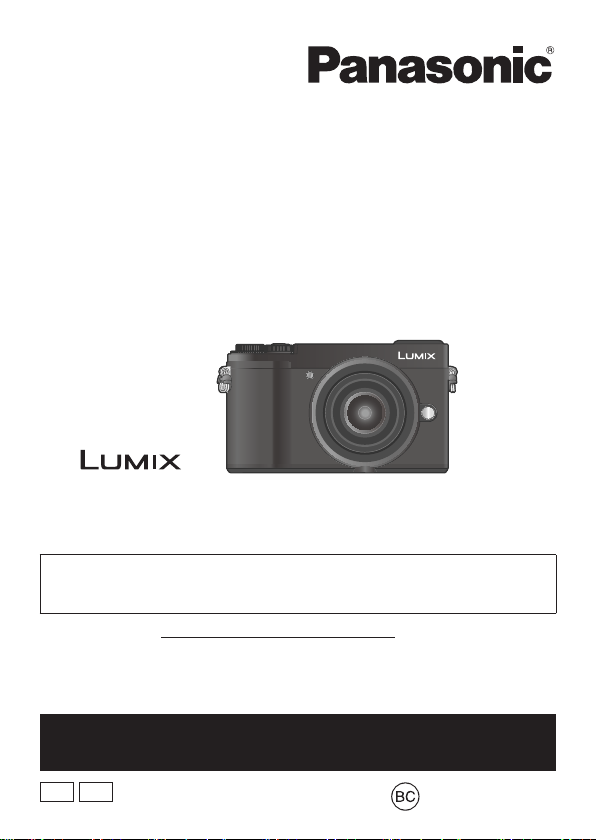
Basic Owner’s Manual
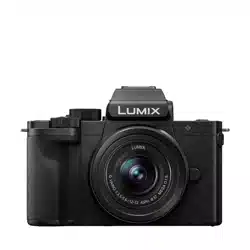
Digital Camera/
Lens Kit/Body
Model No.
DC-GX9K/DC-GX9M
DC-GX9
Please read these instructions carefully before using this product, and
save this manual for future use.
More detailed owner’s manual is available in “Owner’s Manual for
advanced features (PDF format)”. To read it, download it from the
website. (→93)
Register online at http://shop.panasonic.com/support (U.S. customers only)
P
If you have any questions, visit:
USA : http://shop.panasonic.com/support
Canada : www.panasonic.ca/english/support
PP

2
DVQX1379 (ENG)
Dear Customer,
Thank you for choosing Panasonic!
You have purchased one of the most sophisticated and reliable products on the
market today. Used properly, we’re sure it will bring you and your family years of
enjoyment. Please take time to fill in the information below. The serial number is on
the tag located on the underside of your camera. Be sure to retain this manual as
your convenient camera information source.
Date of Purchase Dealer Phone No.
Dealer Purchased From Model No.
Dealer Address Serial No.
Please note that the actual controls and components, menu items, etc. of your
Digital Camera may look somewhat different from those shown in the illustrations in
this Owner’s Manual.
Carefully observe copyright laws.
• Recording of pre-recorded tapes or discs or other published or broadcast
material for purposes other than your own private use may infringe copyright
laws. Even for the purpose of private use, recording of certain material may be
restricted.
For the U.S.A. and Canada only
A lithium ion battery that is recyclable powers the product
you have purchased. Please call 1-800-8-BATTERY for
information on how to recycle this battery.
3
DVQX1379 (ENG)
Information for Your Safety
WARNING:
To reduce the risk of fire, electric shock or product damage,
• Do not expose this unit to rain, moisture, dripping or splashing.
• Use the recommended accessories.
• Do not remove covers.
• Do not repair this unit by yourself. Refer servicing to qualified service
personnel.
The socket outlet shall be installed near the equipment and shall be easily
accessible.
■
Product identification marking
Product Location
Digital camera Bottom
THE FOLLOWING APPLIES ONLY IN THE U.S.A.
Certification and Compliance
See Camera for the certification and compliance mark specific to that device.
1 Select [Wi-Fi] in the [Setup] menu
2 Select [Wi-Fi Setup] in the [Wi-Fi]
3
Press
to select [Approved Regulations], and press [MENU/SET]
Contains FCC ID : VPYLB1JS955
This transmitter must not be co-located or operated in conjunction with any other
antenna or transmitter.
This equipment complies with FCC radiation exposure limits set forth for an
uncontrolled environment and meets the FCC radio frequency (RF) Exposure
Guidelines. This equipment has very low levels of RF energy that is deemed to
comply without testing of specific absorption rate (SAR).

4
DVQX1379 (ENG)
THE FOLLOWING APPLIES ONLY IN THE U.S.A.
FCC Note:
This equipment has been tested and found to comply with the limits for a Class
B digital device, pursuant to Part 15 of the FCC Rules. These limits are designed
to provide reasonable protection against harmful interference in a residential
installation. This equipment generates, uses, and can radiate radio frequency
energy and, if not installed and used in accordance with the instructions, may
cause harmful interference to radio communications. However, there is no
guarantee that interference will not occur in a particular installation. If this
equipment does cause harmful interference to radio or television reception, which
can be determined by turning the equipment off and on, the user is encouraged
to try to correct the interference by one or more of the following measures:
• Reorient or relocate the receiving antenna.
• Increase the separation between the equipment and receiver.
• Connect the equipment into an outlet on a circuit different from that to which
the receiver is connected.
• Consult the dealer or an experienced radio/TV technician for help.
FCC Caution: To assure continued compliance, follow the attached installation
instructions and use only shielded interface cables with ferrite core when
connecting to computer or peripheral devices.
Any changes or modifications not expressly approved by the party responsible for
compliance could void the user’s authority to operate this equipment.
This device complies with Part 15 of the FCC Rules. Operation is subject to the
following two conditions: (1) This device may not cause harmful interference, and
(2) this device must accept any interference received, including interference that
may cause undesired operation.
Declaration of Conformity
Trade Name: Panasonic
Model No.: DC-GX9
Responsible Party: Panasonic Corporation of North America
Two Riverfront Plaza, Newark, NJ 07102-5490
Support Contact: http://shop.panasonic.com/support
DC-GX9

5
DVQX1379 (ENG)
THE FOLLOWING APPLIES ONLY IN CANADA.
Certification and Compliance
See Camera for the certification and compliance mark specific to that device.
1 Select [Wi-Fi] in the [Setup] menu
2 Select [Wi-Fi Setup] in the [Wi-Fi]
3
Press
to select [Approved Regulations], and press [MENU/SET]
CAN ICES-3(B)/NMB-3(B)
Contains IC : 772C-LB1JS955
This device complies with Industry Canada’s licence-exempt RSSs. Operation is
subject to the following two conditions:
(1) this device may not cause interference, and
(2) this device must accept any interference, including interference that may
cause undesired operation of the device.
The available scientific evidence does not show that any health problems are
associated with using low power wireless devices. There is no proof, however,
that these low power wireless devices are absolutely safe. Low power Wireless
devices emit low levels of radio frequency energy (RF) in the microwave range
while being used. Whereas high levels of RF can produce health effects (by
heating tissue), exposure of low-level RF that does not produce heating effects
causes no known adverse health effects. Many studies of low-level RF exposures
have not found any biological effects. Some studies have suggested that some
biological effects might occur, but such findings have not been confirmed by
additional research. DC-GX9 has been tested and found to comply with IC
radiation exposure limits set forth for an uncontrolled environment and meets
RSS-102 of the IC radio frequency (RF) Exposure rules.

8
DVQX1379 (ENG)
• To clean your camera, remove the battery, the DC coupler (DMW-DCC11:
optional) or a card, or disconnect the power plug from the outlet, and wipe
with a soft, dry cloth.
• Do not press the monitor with excessive force.
• Do not press the lens with excessive force.
• Do not allow camera to come into contact with pesticides or volatile
substances (can cause surface damage or coating to peel).
• Do not keep rubber or plastic products in contact with the camera for a
long period of time.
• Do not use solvents such as benzine, thinner, alcohol, kitchen detergents,
etc., to clean the camera, since it may deteriorate the external case or the
coating may peel off.
• Do not leave the camera with the lens facing the sun, as rays of light from
the sun may cause it to malfunction.
• Always use the supplied cords and cables.
• Do not extend the supplied cord or cable.
• While the camera is accessing the card (for an operation such as picture
writing, reading, deletion, or formatting), do not turn off the camera or
remove the battery, card, AC adaptor (DMW-AC10PP: optional) or DC
coupler (DMW-DCC11: optional).
Furthermore, do not subject the camera to vibration, impact or static
electricity.
• The data on the card may be damaged or lost due to electromagnetic waves,
static electricity or breakdown of the camera or the card. We recommend storing
important data on a PC etc.
• Do not format the card on your PC or other equipment. Format it on the camera
only to ensure proper operation.
• The battery is not charged when the camera is shipped. Charge the battery
before use.
• The battery is a rechargeable lithium ion battery. If the temperature is too
high or too low, the operating time of the battery will become shorter.
• The battery becomes warm after using and during and after charging. The
camera also becomes warm during use. This is not a malfunction.
• Do not leave any metal items (such as clips) near the contact areas of the
power plug or near the batteries.
• Store the battery in a cool and dry place with a relatively stable temperature.
(Recommended temperature: 15 °C to 25 °C (59 °F to 77 °F), Recommended
humidity: 40%RH to 60%RH)
• Do not store the battery for a long time while fully charged. When storing the
battery for a long period of time, we recommend charging it once a year. Remove
the battery from the camera and store it again after it has completely discharged.
9
DVQX1379 (ENG)
How to use this manual
Recording mode:
• In Recording modes that show icons in black, you can select and execute
indicated menus and functions.
(Custom Mode) has different functions depending on the recording mode that
is registered.
■
About the symbols in the text
Indicates that the menu can be set by pressing [MENU/SET] button.
Steps for setting a menu item are described as follows:
→ [Rec] → [Quality] → [ ]
• This Owner’s Manual expresses the up, down, left, and right of the cursor button
as
.
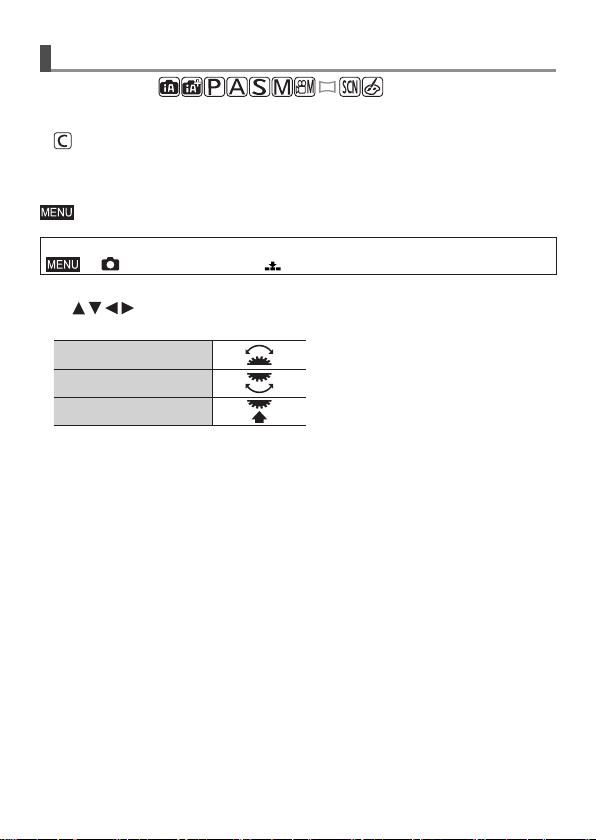
• Dial operations are illustrated as below.
Rotate the front dial
Rotate the rear dial
Press the rear dial
• Description in this Owner’s Manual is based on the interchangeable lens
(H-FS12032).

13
DVQX1379 (ENG)
Preparations/Basics
DC-GX9K DC-GX9M DC-GX9
1
H-FS12032
H-FS12060
2
SYF0059
VYF3514
3
VFC4605
4
SYA0066
5
VKF4971
VKF4971
6
DMW-BLG10PP
8
K1HY04YY0106
10
: VKF5259
: SKF0133H
7
SAE0012A
9
VFC5167
• Some digital camera kits may not be commercially available in some regions.

14
Preparations/Basics
DVQX1379 (ENG)
Names and Functions of Main Parts
1 2 3
4
5
7 6
14 13 12
8 9 10
15
3
16 17 18 19 20 21
29 27
26
28
30
31
32
36
37
22 23 24 25
33
34
38 39 40 41 42
11
■
Camera body
Function buttons [Fn4] to [Fn8] are touch icons.
They can be displayed by touching the [
] tab on the recording screen.
35

15
DVQX1379 (ENG)
Preparations/Basics
1 Shutter button (→27)
2
Front dial (→28)
3
Shoulder strap eyelet (→19)
4
Exposure compensation dial (→34, 38)
5
Mode dial (→29)
6
Camera [ON/OFF] switch (→23)
7
Motion picture button (→51)
8
Flash (→26)
9
Hot shoe (Hot shoe cover) (→16)
10
Focus distance reference mark
11
Eyecup
12
Viewfinder (→25)
13
Eye sensor (→25)
14
Diopter adjustment dial (→25)
15
Stereo microphone (→26)
16
Lens release button (→23)
17
Lens lock pin
18
Mount
19
Sensor
20
Lens fitting mark (→22)
21
Self-timer indicator /
AF Assist Lamp (→26)
22
[LVF] button (→25) / [Fn3] button (→32)
23
Focus mode lever (→35, 36)
24
[
] (Flash open) button
• The flash opens, and recording with the
flash becomes possible.
• When taking pictures with flash with the
lens hood attached, the lower portion of
the photo may turn dark and the control
of the flash may be disabled because
the photo flash may be obscured by the
lens hood. We recommend detaching
the lens hood.
25
[AF/AE LOCK] button
• You can take pictures by locking the
focus and/or exposure.
26
Charging lamp (→21, 22) /
WIRELESS connection lamp (→68)
27
[
] ([Post Focus]) button (→43) /
[Fn1] button (→32)
28
[
] (Delete) button (→56) /
[Q.MENU/
] (Cancel) button (→32) /
[Fn2] button (→32)
29
[
] (Playback) button (→55)
30
Cursor button (→28)
31
[MENU/SET] button
• Confirmation of setting contents, etc.,
is performed.
32
[DISP.] button
• Use this to change display.
33
Rear dial (→28)
34
Speaker (→26)
35
Socket cover (→21)
36
[HDMI] socket
• You can view pictures on a TV screen
by connecting your camera to your TV
with the HDMI micro cable.
37
[USB/CHARGE] socket (→21)
38
Card/Battery door (→20)
39
Release lever (→20)
40
DC coupler cover (→92)
41
Tripod mount
• Do not attach this unit to tripods that
have screws with a length of 5.5 mm
(0.22 inch) or more. Doing so may
damage this unit or the unit may not be
secured properly on the tripod.
42
Touch screen (→30) / monitor (→78)
●
Always use a genuine Panasonic AC
adaptor (DMW-AC10PP: optional).
(→92)
When using an AC adaptor, ensure
that the Panasonic DC coupler
(DMW-DCC11: optional) and AC
adaptor (DMW-AC10PP: optional)
are used.
●
Keep the hot shoe cover out of reach
of children to prevent swallowing.

16
Preparations/Basics
DVQX1379 (ENG)
■
Lens
H-FS12032
1 3
5 6
2 4
H-FS12060
1 3
5 6
2 4 7
8
1 Lens surface
2
Tele
3
Zoom ring
4
Wide
5
Contact point
6
Lens fitting mark (→22)
7
Focus ring (→36)
8
Lens mount rubber
■
Removing the Hot Shoe Cover
The camera comes with a hot shoe cover attached to
the hot shoe.
Remove the hot shoe cover by pulling it in the
direction indicated by arrow
while pressing it in
the direction indicated by arrow
.
17
DVQX1379 (ENG)
Preparations/Basics
About the Lens
This unit can use the dedicated lenses compatible
with the Micro Four Thirds™ System lens mount
specification (Micro Four Thirds mount).
You can also use a lens of any of the following
standards by attaching a mount adaptor.
Lens Mount adaptor
Four Thirds™ mount specification lens
Mount Adaptor (DMW-MA1: optional)
Leica M Mount interchangeable lens M Mount Adaptor (DMW-MA2M: optional)
Leica R Mount interchangeable lens R Mount Adaptor (DMW-MA3R: optional)
About the firmware of your interchangeable lens
For smoother recording, we recommend updating the firmware of the
interchangeable lens to the latest version.
• To view the latest information on the firmware or to download the firmware,
visit the support site below:
http://panasonic.jp/support/global/cs/dsc/
(This site is available in English only.)
• To check the firmware version of the interchangeable lens, attach it to the
camera body and select [Version Disp.] in the [Setup] menu.

18
Preparations/Basics
DVQX1379 (ENG)
About the Card
The following SD standard-based cards can be used.
Type of Card Capacity Notes
SD Memory Cards 512 MB – 2 GB • This unit is compatible with UHS-
UHS Speed
Class 3 standard SDHC/SDXC memory cards.
• Operation of the cards listed on the left has been
confirmed with Panasonic brand card.
SDHC Memory Cards 4 GB – 32 GB
SDXC Memory Cards 48 GB – 128 GB
■
About motion picture/4K photo recording and speed class ratings
Use a card that meets the following ratings of the SD Speed Class or UHS Speed
Class.
• SD Speed Class and UHS Speed Class are the speed standards regarding
continuous writing. Confirm the SD speed by checking the card label or other
card related materials.
[Rec Format] [Rec Quality] Speed class Label example
[AVCHD] All
Class 4 or higher
[MP4] [FHD]/[HD]
[MP4] [4K] UHS Speed Class 3
When recording in 4K Photo /
[Post Focus]
UHS Speed Class 3
• Latest information:
http://panasonic.jp/support/global/cs/dsc/
(This site is available in English only.)
●
Keep the memory card out of reach of children to prevent swallowing.
19
DVQX1379 (ENG)
Preparations/Basics
Quick Start Guide
Attaching the Shoulder Strap
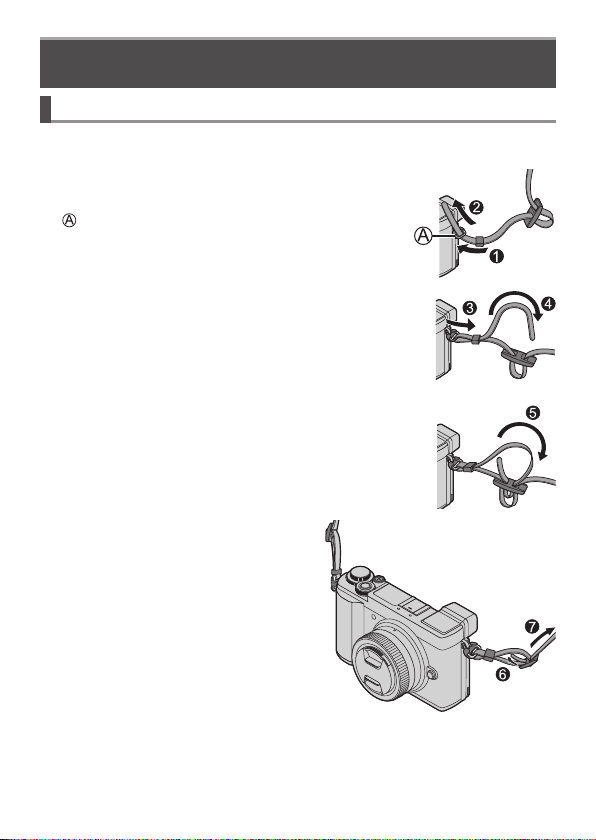
We recommend attaching the shoulder strap when using the camera to
prevent it from dropping.
1
Pass the shoulder strap through the hole at
the shoulder strap eyelet
Shoulder strap eyelet
2
Pass the end of the shoulder strap through
the stopper
3
Pass the end of the shoulder strap through
the hole on the other side of the stopper
4
Pull the shoulder strap and then
check that it will not come out
• Perform steps
1
to
4
and then attach
the other side of the shoulder strap.
• Use the shoulder strap around your
shoulder.
– Do not wrap the strap around your
neck. It may result in injury or
accident.
• Do not leave the shoulder strap where
an infant can reach it.
– It may result in an accident by
mistakenly wrapping around the
neck.
20
Preparations/Basics
DVQX1379 (ENG)
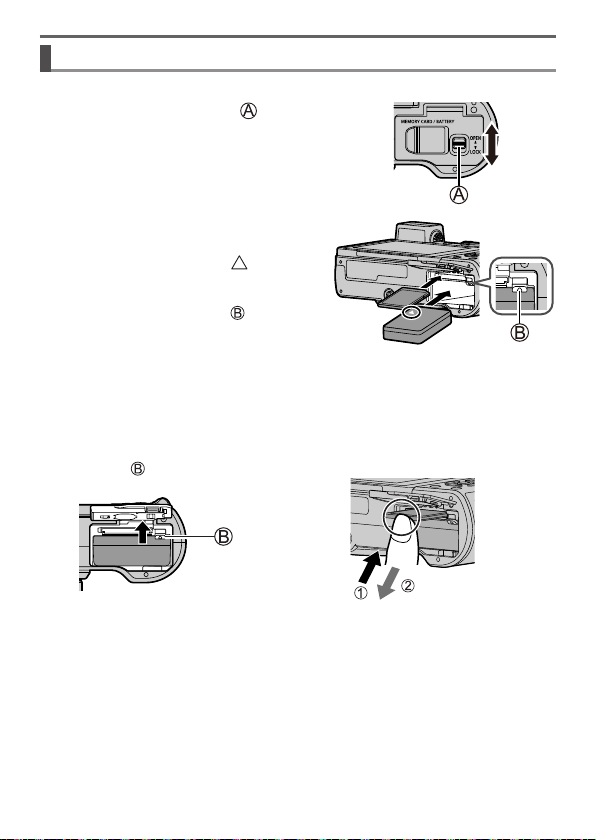
Inserting the battery and/or SD memory card (optional)
Make sure that the camera is turned off.
1
Slide the release lever ( ) to the [OPEN]
position and open the card/battery door
[OPEN]
[LOCK]
2
Insert the battery and card,
making sure that their
orientation is correct ( )
• Battery: Insert the battery all the way
firmly and check that it is
locked by lever (
).
• Card: Insert the card all the way firmly
until it clicks. Do not touch the
terminal.
3
Close the door
Slide the release lever to the [LOCK] position.
■
To remove
• To remove battery
Move lever (
) in direction of
arrow.
• To remove card
Press the center of the card.
Press
Pull out
●
Always use genuine Panasonic batteries (DMW-BLG10PP).
●
If you use other batteries, we cannot guarantee the quality of this product.
●
If you close the card/battery door with the battery not inserted all the way, the
battery may pop out.
23
DVQX1379 (ENG)
Preparations/Basics
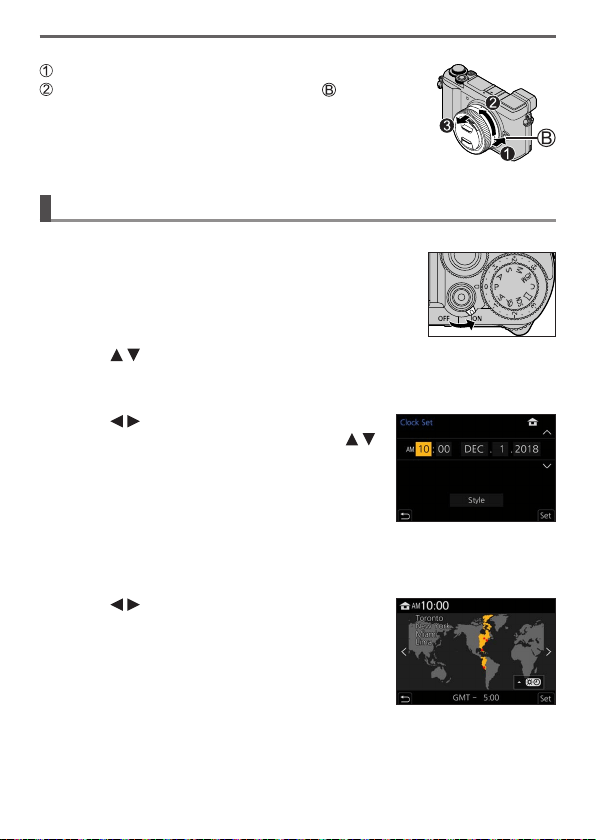
■
Detaching the lens
Attach the lens cap
While pressing on the lens release button ( ), rotate the
lens toward the arrow until it stops and then remove
• Hold the part around the base of the lens to rotate it.
Setting the clock
The clock is not set when the camera is shipped.
1
Turn the camera on
2
Press [MENU/SET]
3
Press to select the language and press [MENU/SET]
• The [Please set the clock] message appears.
4
Press [MENU/SET]
5
Press to select the items (year,
month, day, hour, minute), and press
to set
6
Press [MENU/SET]
7
When [The clock setting has been
completed.] is displayed, press
[MENU/SET]
8
When [Please set the home area] is displayed, press
[MENU/SET]
9
Press to set your home area and
press [MENU/SET]

24
Preparations/Basics
DVQX1379 (ENG)
Extending/retracting the lens [when the interchangeable
lens (H-FS12032) is attached]
■
How to Extend the Lens
Rotate the zoom ring in the direction of arrow from
position (
) (the lens is retracted) to position ( ) [12 mm
to 32 mm (H-FS12032)] to extend the lens.
• When the lens barrel is retracted, images cannot be
recorded.
The lens is retracted
Example: H-FS12032
■
How to Retract the Lens
Rotate the zoom ring in the direction of arrow from
position (
) [12 mm to 32 mm (H-FS12032)] to position
(
) to retract the lens.
• The zoom ring will seem to click into the 12 mm position
(H-FS12032), but continue to rotate the lens until it
reaches position (
).
• When you are not recording images, we recommend that
you retract the lens.
The lens is extended
Formatting the card (initialization)
Format the card before recording a picture with this unit.
Since data cannot be recovered after formatting, make sure to back up
necessary data in advance.
→ [Setup] → [Format]
25
DVQX1379 (ENG)
Preparations/Basics
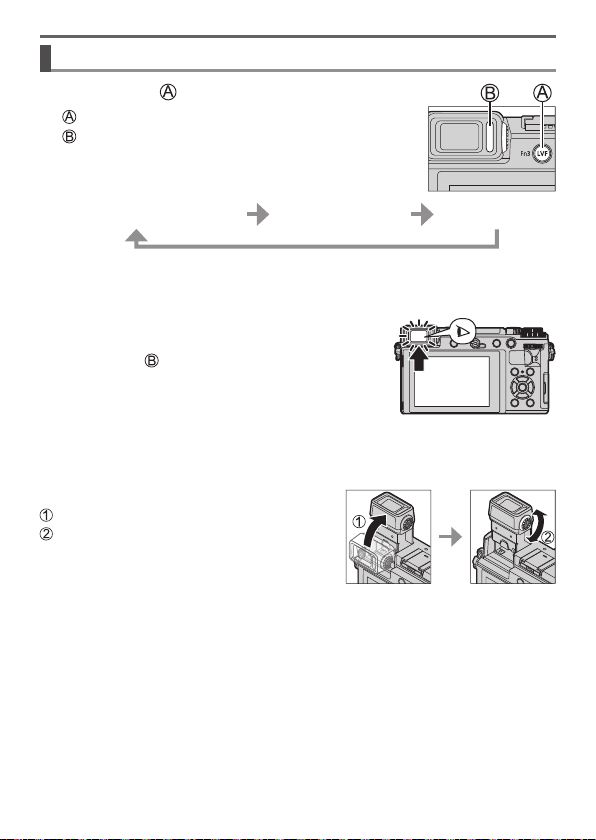
[LVF] button (Recording pictures using the viewfinder)
1
Press [LVF] ( ) button
[LVF] button
Eye Sensor
Automatic switching between
viewfinder and monitor
Viewfinder display
Monitor display
When [Eye Sensor AF] in the [Custom] ([Focus / Release Shutter]) menu is set to [ON], the
camera adjusts the focus automatically as the eye sensor is activated. Even when [Eye Sensor
AF] is set and the camera automatically adjusts the focus, a beep will not sound.
■
Automatic switching between viewfinder
and monitor
The eye sensor ( ) automatically switches the display
to viewfinder when your eye or an object moves close to
the viewfinder. When the eye or object moves away from
the viewfinder, the camera returns to monitor display.
●
Battery drainage can be suppressed by setting [Power Save LVF Shooting] in
[Economy].
●
The eye sensor does not work depending on the angle of the monitor.
■
About diopter adjustment
Open the viewfinder
Rotate the diopter adjustment dial
• Rotate it to adjust until you are able to
clearly see the characters displayed in the
viewfinder.
30
Preparations/Basics
DVQX1379 (ENG)
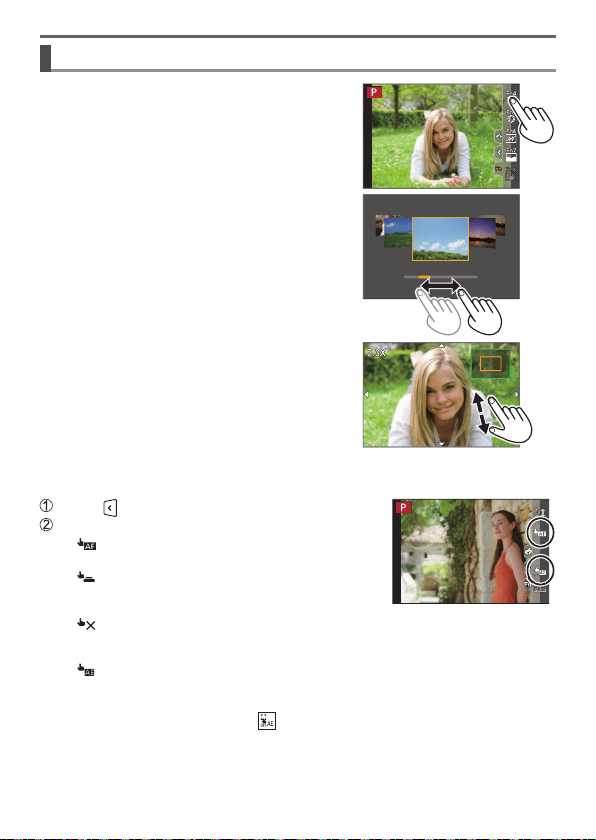
Touch screen (Touch operations)
Touch
To touch and release the touch screen.
Drag
To touch and slide your finger across the touch
screen.
Pinch (spread/pinch)
On the touch screen, spread (pinch out) your
2 fingers to zoom in, and pinch (pinch in) your
2 fingers to zoom out.
■
Taking Pictures Using the Touch Function (Touch AF, Touch
Shutter, [Touch AE])
Touch [ ]
Touch an icon
• [
] (Touch AF): Focuses on the position you
touch.
• [
] (Touch shutter): Focuses on the touched
position before recording
takes place.
• [
] (OFF): Disables the above operations.
The icon switches every time you touch it.
• [ ] ([Touch AE]): You can easily optimize the
brightness for a touched
position.
To cancel the function, touch [ ] .
35
DVQX1379 (ENG)
Recording
Taking pictures with Auto Focus
Recording mode:
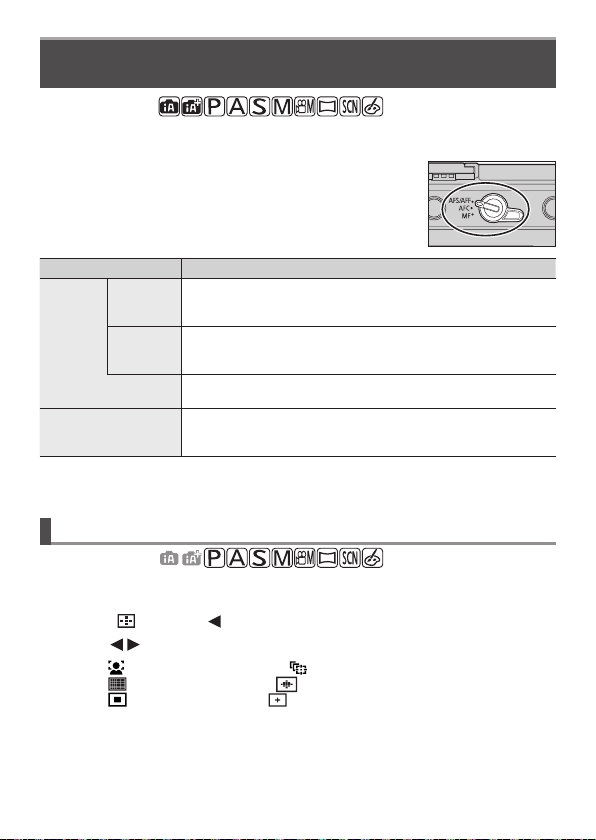
Set the focusing operation to be performed when the shutter button is pressed
halfway.
1
Set the focus mode lever to [AFS/AFF] or
[AFC]
• It is fixed to [AFS] when Panorama Shot Mode is set.
Settings The movement of the subject and the scene (recommended)
[AFS/AFF]
[AFS]
(Auto Focus
Single)
Subject is still (Scenery, anniversary photograph, etc.)
Focus is set automatically when the shutter button is pressed
halfway. Focus will be fixed while it is pressed halfway.
[AFF]
(Auto Focus
Flexible)
Movement cannot be predicted (Children, pets, etc.)
If the subject moves while the shutter button is pressed halfway, the
focus is corrected to match the movement automatically.
You can switch the setting with [AFS/AFF] in the [Rec]/[Motion
Picture] menu.
[AFC]
(Auto Focus Continuous)
Subject is moving (Sport, trains, etc.)
While the shutter button is pressed halfway, focusing is constantly
performed to match the movement of the subject.
When the subject is moving, the focusing is performed by predicting the subject position at the
time of recording. (Movement prediction)
Switching [AF Mode]
Recording mode:
This allows the focusing method that suits the positions and number of the subjects
to be selected.
1
Press [ ] button ( )
2
Press to select Auto Focus mode and press [MENU/SET]
Settings: [ ] (Face/Eye Detection) / [ ] (Tracking) /
[
] (49-area-focusing) / [ ] etc. (Custom Multi) /
[
] (1-area-focusing) / [ ] (Pinpoint-focusing)

36
Recording
DVQX1379 (ENG)
Taking pictures with Manual Focus
Recording mode:
Manual Focus is convenient when you want to lock the focus to take pictures or
when it is difficult to adjust focus using Auto Focus.
1
Set the focus mode lever to [MF]
2
Press [ ] button ( )
3
Press to adjust the focus
position, and press [MENU/SET]
• To return the focus position to the center, press
[DISP.] button.
4
Adjust the focus
The operations used to focus differ depending on the lens.
When using an interchangeable lens with no focus ring (H-FS12032)
Press : Focuses on nearby subject
Press
: Focuses on distant subject
• Pressing and holding
will increase the focus
speed.
• Focus can also be adjusted by dragging the slide bar.
When using an interchangeable lens (H-FS12060) with a focus ring
Rotate to side: Focuses on nearby subject
Rotate to side: Focuses on faraway subject

37
DVQX1379 (ENG)
Recording
• Color is added to the portions of the image that
are in focus. (Peaking)
• You can check whether the point of focus is to the
near side or to the far side. (MF Guide)
• MF Assist and MF Guide may not display
depending on the lens used. You can, however,
display MF Assist by directly operating the
camera using the touch screen or a button.
MF Assist (Enlarged screen)
Peaking
MF Guide
Operation Touch operation Description
1
Drag Moves the enlarged area.
Pinch out /
Pinch in
Enlarges/reduces the screen in small steps.
— Enlarges/reduces the screen in large steps.
2
2
Switches the enlarged display. (windowed/full screen)
[DISP.]
1
[Reset]
1
Resets the area to be enlarged back to the center.
1
When using an interchangeable lens with no focus ring, you can perform these operations
after pressing
to display the screen that lets you set the area to be enlarged.
2
This setting is not available in Intelligent Auto Mode.
5 Press the shutter button halfway
• The recording screen will be displayed.
39
DVQX1379 (ENG)
Recording
Recording with the 4K Photo function
Recording mode:
You can take burst pictures of approximately 8 million pixels with a burst rate of
30 fps. You can select and save a frame from the burst file.
• To record pictures, use a UHS Speed Class 3 card.
• When recording, the angle of view becomes narrower.
1
Press [ ] button ( )
2
Press to select the 4K photo icon and press
3
Press to select the recording method and press [MENU/SET]
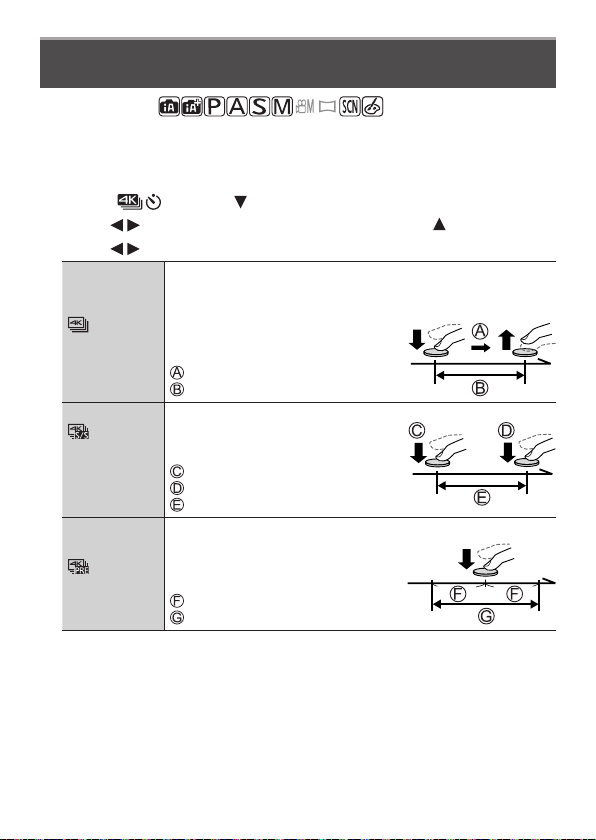
[4K Burst]
For capturing the best shot of a fast-moving subject
Burst recording is performed while the
shutter button is pressed and held.
• Recording will start approximately
0.5 seconds after you press the shutter
button fully. Therefore, press the button
fully slightly in advance.
Press and hold
Recording is performed
[4K Burst(S/S)]
“S/S” is an
abbreviation of
“Start/Stop”.
For capturing unpredictable photo opportunities
Burst recording starts when the shutter
button is pressed and stops when pressed
again.
Start (First)
Stop (Second)
Recording is performed
[4K Pre-Burst]
For recording as needed whenever a photo opportunity arises
Burst recording is performed for
approximately 1 second before and after
the moment that the shutter button is
pressed.
Approximately 1 second
Recording is performed
40
Recording
DVQX1379 (ENG)
4
Press the shutter button to perform recording
• When you press the [Fn1] button while recording, you can add a marker. (Up
to 40 markers for each recording.) When selecting and saving pictures from
a 4K burst file, you can skip to the positions where you added markers. ([4K
Burst(S/S)] only)
• Burst pictures are saved as a single 4K burst file in the MP4 format.
• When [Auto Review] is enabled, the picture selection screen will be displayed
automatically.
■
Setting Pre-Burst Recording ([4K Burst]/[4K Burst(S/S)])
The camera starts recording approximately 1 second before the shutter button is
pressed fully, so you will not miss a photo opportunity.
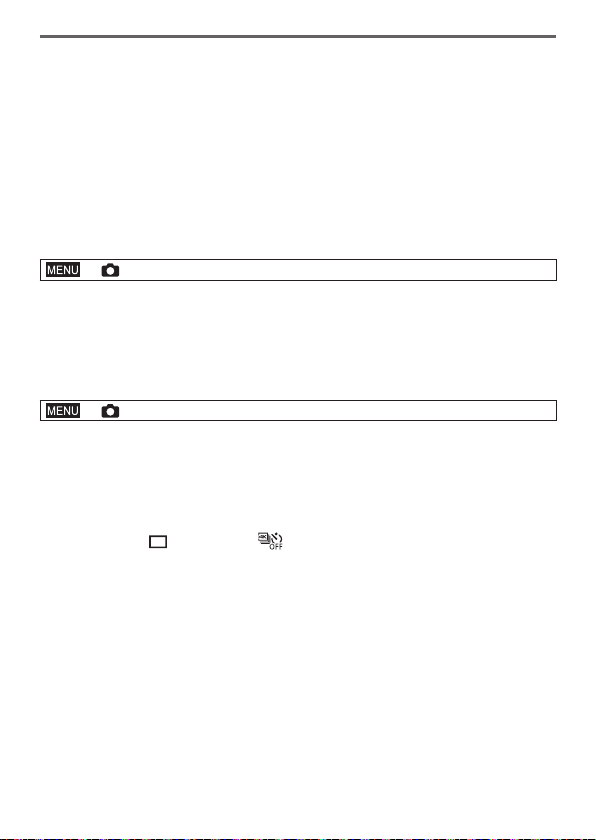
→ [Rec] → [4K PHOTO] → [Pre-Burst Recording] → [ON]
• Auto Focus operation settings and menus that cannot be set while this function
is in use are the same as those during [4K Pre-Burst] operation.
■
Setting Loop Recording ([4K Burst(S/S)])
You can perform recording while deleting the oldest recorded data, allowing you to
keep on recording while waiting for a photo opportunity without replacing the card.
→ [Rec] → [4K PHOTO] → [Loop Recording(4K PHOTO)] → [ON]
• Once you start recording, the 4K burst file will be recorded and divided
approximately every 2 minutes.
Approximately the last 10 minutes (up to approximately 12 minutes) will be
saved. The preceding part will be deleted.
■
To cancel the 4K Photo functions
In step
2
, select [ ] ([Single]) or [ ] .
●
When you perform [Light Composition] or [Sequence Composition], we
recommend using a tripod and taking pictures remotely by connecting the
camera to a smartphone to prevent camera shake. (→74)

42
Recording
DVQX1379 (ENG)
■
Marker
When selecting and saving pictures from a 4K burst file, you can select pictures
easily by skipping between marked positions.
■
Skips to the marked positions
When [ ] is touched, the marker operation screen appears. You can use
to skip to a marked position to select a picture.
Touch [
] to return to the original operation.
White marker: This is manually set during recording or
playback.
Green marker: This is automatically set by the camera
during recording.
(Auto Marking function
1
)
Marker operation screen
1
The camera automatically sets markers on scenes in which a face or the movement of a
subject is detected. (Up to 10 markers are displayed for each file.)
(Example: At the scene when a vehicle passes by, a balloon bursts, or a person turns around)
• In the following cases, markers may not be set by the Auto Marking function
depending on the recording conditions and the status of subjects.
– The camera is moving because of panning or jitter
– The movement of a subject is slow/small, or the subject is small
– A face is not facing front
■
Switches a marker to be displayed
Touch [ ]
• [Auto]
• [Face Priority]
• [Motion Priority]
• [Off]
2
2
Displays manually set markers only

43
DVQX1379 (ENG)
Recording
Adjusting the focus after recording
([Post Focus] / [Focus Stacking])
Recording mode:
You can record 4K burst pictures while changing the focus point and then select a
focus point after recording. This function is best for non-moving subjects.
• To record pictures, use a UHS Speed Class 3 card.
• We recommend using a tripod to perform [Focus Stacking].
1
Press [ ] button
2
Press to select [ON] and press [MENU/SET]
3
Determine the composition and press the
shutter button halfway
• Auto Focus activates and automatically detects the focus point on the screen.
• If there is no focus point on the screen, the Focus indicator (
) blinks and
you cannot record.
From halfway pressing the shutter button to completion of recording
• Do not change the distance to subject or the composition.
4
Press the shutter button fully to start
recording
• The focus point changes automatically while recording. When the recording
progress bar (
) disappears, recording automatically ends.
• The data will be saved as a single file in the MP4 format.
• If [Auto Review] is set, a screen will automatically appear that lets you select
the focus point. (→44)
■
Canceling [Post Focus]
Select [OFF] in step
2
.
●
If the surrounding temperature is high or [Post Focus] recording is performed
continuously, [
] may be displayed and recording may be stopped halfway
through. Wait until the camera cools down.
●
During recording, the angle of view will be narrower.
46
Recording
DVQX1379 (ENG)
Selecting a Drive Mode
([Burst] / [Self Timer])
Recording mode:
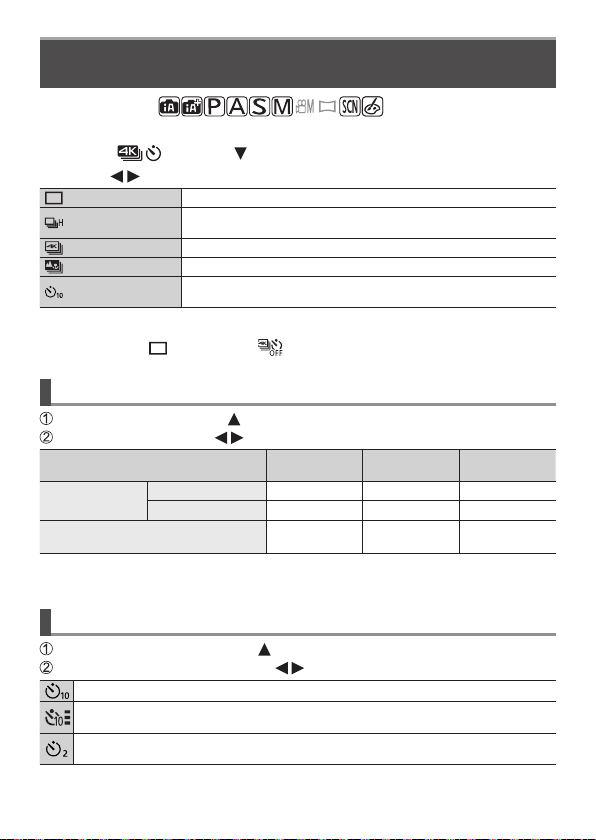
You can switch the operation to be performed when you press the shutter button.
1
Press [ ] button ( )
2
Press to select the drive mode and press [MENU/SET]
[Single] When the shutter button is pressed, only one picture is recorded.
[Burst]
The pictures are recorded in succession while the shutter button is
pressed.
[4K PHOTO] For details (→39)
[Post Focus] For details (→44)
[Self Timer]
When the shutter button is pressed, recording takes place after the
set time has elapsed.
■
To cancel the drive mode
In step
2
, select [ ] ([Single]) or [ ] .
Burst function
Select [Burst] and pressing in step
2
(above)
Select the burst rate with , and press [MENU/SET]
[H]
(High speed)
[M]
(Middle speed)
[L]
(Low speed)
Speed
(pictures/sec.)
Mechanical shutter
9
1
/6
2
6 2
Electronic shutter
9
1
/6
2
6 2
Live View during burst recording
None
1
/
Available
2
Available Available
1
When the focus mode is set to [AFS] or [MF]
2
When the focus mode is set to [AFF] or [AFC]
Taking pictures with self-timer
Select [Self Timer] and pressing in step
2
(above)
Select the self-timer operation with , and press [MENU/SET]
The shutter is activated after 10 seconds.
The shutter is activated after 10 seconds and three pictures are taken at intervals of
approximately 2 seconds.
The shutter is activated after 2 seconds.
• This is also effective for preventing jitter when pressing the shutter button.

47
DVQX1379 (ENG)
Recording
Taking Pictures While Adjusting a Setting
Automatically
(Bracket Recording)
Recording mode:
You can take multiple pictures while automatically adjusting a setting by pressing
the shutter button.
1
Set the menu
→ [Rec] → [Bracket] → [Bracket Type]
Press the shutter button to perform recording while adjusting
the exposure.
(Exposure Bracket)
Press the shutter button to perform recording while adjusting
the aperture.
• Available in Aperture-Priority AE Mode or when the ISO
sensitivity is set to [AUTO] in Manual Exposure Mode.
(Aperture Bracket)
Press the shutter button to perform recording while adjusting
the focus position.
(Focus Bracket)
Press the shutter button once to take three pictures with
different white balance settings automatically.
(White Balance Bracket)
2
Press to select [More Settings] and then press [MENU/SET]
• For information on [More Settings], refer to the page that describes each
function.
• If [
] is set, rotate the rear dial to set the adjustment range.
• Press the shutter button halfway to exit the menu.
3
Focus on the subject and take a picture
• When Exposure Bracket is selected, the bracket display flashes until all of
the pictures you have set are taken. If you change the bracket settings or turn
off the camera before all of the pictures you have set are taken, the camera
restarts recording from the first picture.
■
To cancel [Bracket]
Select [OFF] in step
1
.

48
Recording
DVQX1379 (ENG)
Exposure Bracket
■
About [More Settings] (step
2
in (→47))
[Step]
Sets the number of pictures to be taken and the exposure
compensation range.
[
] (Takes three pictures with an interval of 1/3 EV) to [ ]
(Takes seven pictures with an interval of 1 EV)
[Sequence] Sets the order in which pictures are taken.
[Single Shot Setting]
[ ] : Takes one picture each time you press the shutter button.
[
] : Takes all the pictures set to be taken when you press the
shutter button once.
Not available for burst recording. When using burst recording, if you press and hold the shutter
button, recording will be performed continuously until a specified number of pictures are taken.
Aperture Bracket
Recording mode:
■
About [More Settings] (step
2
in (→47))
[Image Count]
[3]/[5]: Takes a specified number of pictures with different aperture
values within the range based on the initial aperture value.
[ALL]: Takes pictures using all aperture values.
• When using burst recording, if you press and hold the shutter button, recording
will be performed until a specified number of pictures are taken.
●
The available aperture values vary depending on the lens.
Focus Bracket
■
About [More Settings] (step
2
in (→47))
[Step] Sets the interval between focus positions.
[Image Count]
Sets the number of pictures to be taken.
[Sequence]
[0/–/+]: Takes pictures with different focus positions within the range
based on the initial focus position.
[0/+]: Takes pictures with different focus positions toward the far
side based on the initial focus position.
Not available for burst recording. When using burst recording, if you press and hold the shutter
button, recording will be performed continuously until a specified number of pictures are taken.
●
Pictures taken with Focus Bracket are displayed as a set of group pictures.
50
Recording
DVQX1379 (ENG)
[Operation
Mode]
(Normal)
Camera shake is corrected for up/down, left/right, and
rotational movements.
(Panning)
Camera shake is corrected for up/down movements. This
setting is ideal for panning.
[OFF]
[Stabilizer] does not work. ([
] )
• When using a lens with an [O.I.S.] switch, set the switch
to [OFF].
[E-Stabilization
(Video)]
Jitter during motion picture recording is corrected along the vertical,
horizontal, roll, pitch, and yaw axes by making use of the In-Lens Image
Stabilizer, In-Body Image Stabilization, and Electronic Image Stabilizer.
(5-Axis Hybrid Image Stabilizer)
[ON] / [OFF]
• When [ON] is selected, the angle of view of recorded motion pictures may
become narrower.
[I.S. Lock
(Video)]
Allows you to enhance the image stabilization effect during motion picture
recording.
[ON] / [OFF]
• This effect works only during recording. [
] is displayed on the
recording screen.
• To change the composition during recording, set the effect to [OFF]
first, and then move the camera. Use the appropriate function button to
change the setting during recording. (→32)
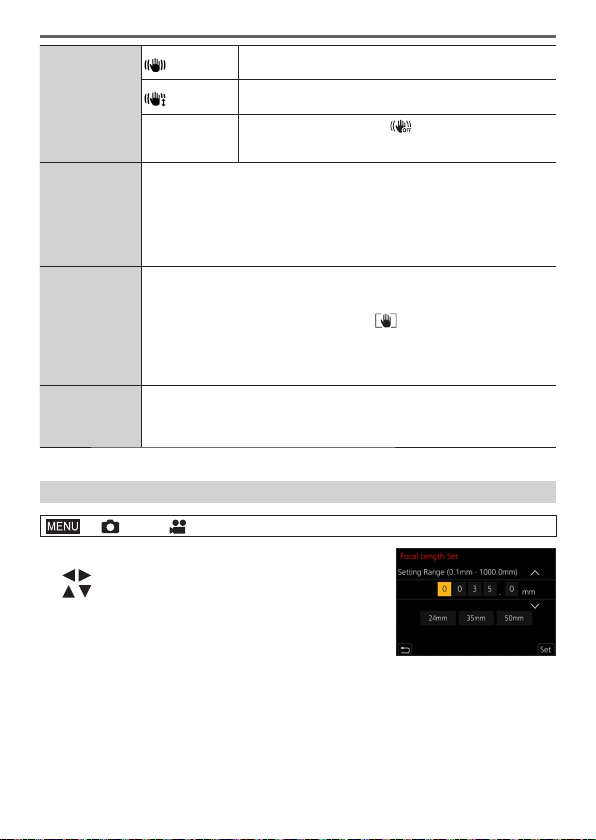
[Focal Length
Set]
If the focal length is not set automatically, you can set it manually.
• When a manually selected focal length is set, a confirmation screen
asking you to change the focal length setting is displayed after you turn
on the camera.
Setting the focal length of a lens
→ [Rec] / [Motion Picture] → [Stabilizer] → [Focal Length Set]
1
Enter a focal length
: Select the item (digit)
: Setting
2
Press [MENU/SET]
52
Recording
DVQX1379 (ENG)
■
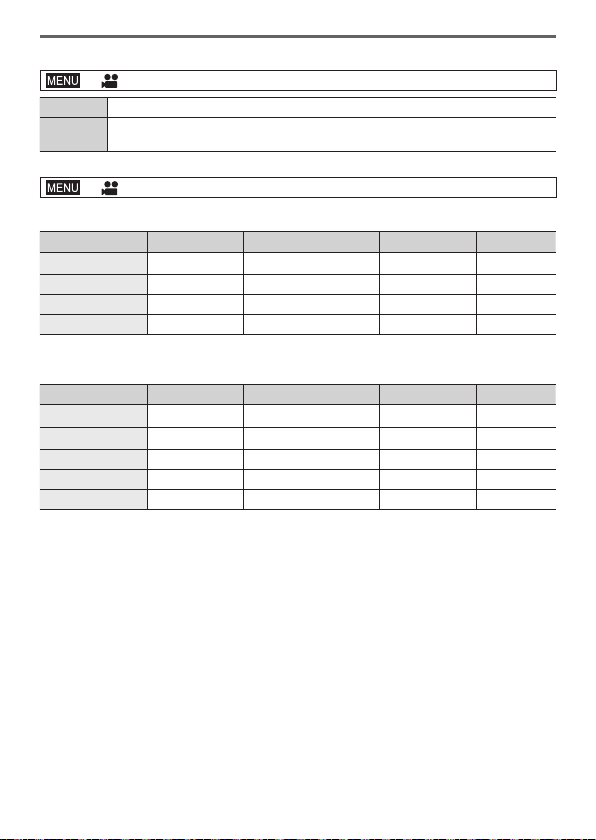
Setting the format, picture size and recording frame rate
→ [Motion Picture] → [Rec Format]
[AVCHD] This is a data format suitable for playback on high-definition TVs.
[MP4]
This data format is suited for playing back motion pictures on a computer and other
such devices.
→ [Motion Picture] → [Rec Quality]
When [AVCHD] is selected
[Rec Quality] Picture size Recording frame rate Sensor output Bit rate
[FHD/28M/60p]
1
1920×1080 60p 60 fps 28 Mbps
[FHD/17M/60i] 1920×1080 60i 60 fps 17 Mbps
[FHD/24M/30p] 1920×1080 60i 30 fps 24 Mbps
[FHD/24M/24p] 1920×1080 24p 24 fps 24 Mbps
When [MP4] is selected
[Rec Quality] Picture size Recording frame rate Sensor output Bit rate
[4K/100M/30p]
2
3840×2160 30p 30 fps 100 Mbps
[4K/100M/24p]
2
3840×2160 24p 24 fps 100 Mbps
[FHD/28M/60p] 1920×1080 60p 60 fps 28 Mbps
[FHD/20M/30p] 1920×1080 30p 30 fps 20 Mbps
[HD/10M/30p] 1280×720 30p 30 fps 10 Mbps
1
AVCHD Progressive
2
4K motion pictures

54
Recording
DVQX1379 (ENG)
1
Set mode dial to [ ]
2
Set the menu
→ [Creative Video] → [4K Live Cropping]
Settings: [40SEC] / [20SEC] / [OFF]
3
Set the crop start frame and press
[MENU/SET] to set
• Set the crop end frame as well.
• When making settings for the first time, a crop
start frame of size 1920×1080 is displayed.
• Move the frame by touching it or using the cursor
button. You can adjust the frame size by pinching
out/pinching in or rotating the rear dial.
SizeSize
StartStart
Reset
Reset
SetSet
4
Press the motion picture button (or the
shutter button) to start recording
Elapsed recording time
Set operating time
• Immediately release the motion picture button (or the shutter button) after
pressing it.
• When the set operating time has elapsed, recording automatically ends. To
end recording midway, press the motion picture button (or the shutter button)
again.
■
Changing the position and size of a crop frame
Press [Fn2] button while the recording screen is displayed, and perform step
3
.
■
To cancel [4K Live Cropping] recording
Set [OFF] in step
2
.
●
The angle of view narrows.
●
Brightness is measured and focus is adjusted in the crop start frame. When
recording a motion picture, brightness is measured and focus is adjusted in the
crop frame. To fix the focus position, set [Continuous AF] to [OFF], or set the
focus mode to [MF].
●
[Metering Mode] will be [ ] (Multi Metering).
57
DVQX1379 (ENG)
Menu
Menu list
●
You can display an explanation on the menu by pressing the [DISP.] button while
you select a menu item or setting. (→31)
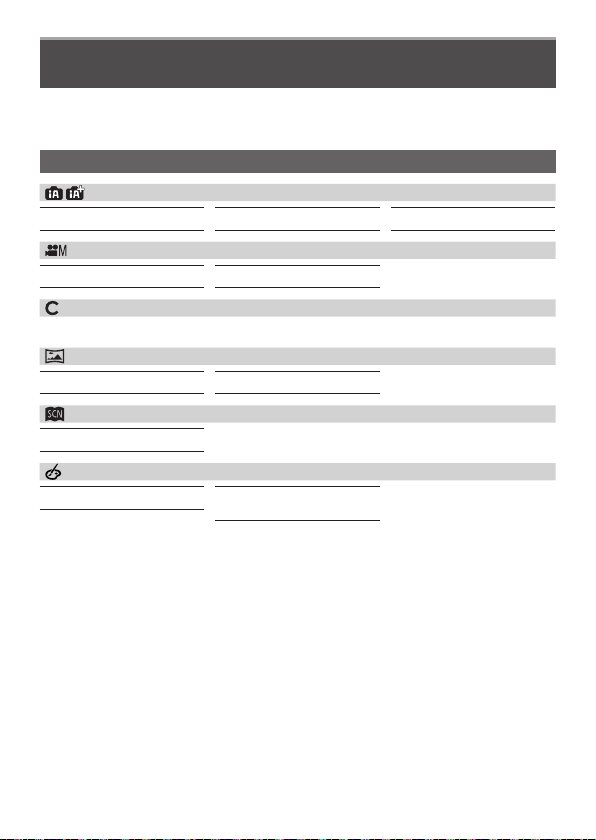
Menus to be displayed in each recording mode
[Intelligent Auto]
[Intelligent Auto Mode] [iHandheld Night Shot] [iHDR]
[Creative Video]
[Exposure Mode] [4K Live Cropping]
[Custom Mode]
You can select your preferred custom setting from [Set1], [Set2], and [Set3].
[Panorama Shot]
[Direction] [Picture Size]
[Scene Guide]
[Scene Switch]
[Creative Control]
[Filter Effect]
[Simultaneous Record w/o
Filter]

59
DVQX1379 (ENG)
Menu
[ISO Increments] [Extended ISO] [Exposure Comp. Reset]
[Custom]
[Exposure]
[Focus / Release Shutter]
[AF/AE Lock]
[AF/AE Lock Hold]
[Shutter AF]
[Half Press Release]
[Quick AF]
[Eye Sensor AF]
[Pinpoint AF Setting]
[AF Assist Lamp]
[Direct Focus Area]
[Focus/Release Priority]
[Focus Switching for Vert
/ Hor]
[Loop Movement Focus
Frame]
[AF Area Display]
[AF+MF]
[MF Assist]
[MF Assist Display]
[Operation]
[Fn Button Set]
[Q.MENU]
[Dial Set.]
[Operation Lock Setting]
[Video Button]
[Touch Settings]
[Dial Guide]
[Monitor / Display]
[Auto Review]
[Monochrome Live View]
[Constant Preview]
[Live View Boost]
[Peaking]
[Histogram]
[Guide Line]
[Center Marker]
[Highlight]
[Zebra Pattern]
[Expo.Meter]
[MF Guide]
[LVF/Monitor Disp. Set]
[Monitor Info. Disp.]
[Rec Area]
[Remaining Disp.]
[Menu Guide]
[Lens / Others]
[Lens Position Resume]
[Power Zoom Lens]
[Lens Fn Button Setting]
[Self Timer Auto Off]
[Face Recog.]
[Profile Setup]
61
DVQX1379 (ENG)
Menu
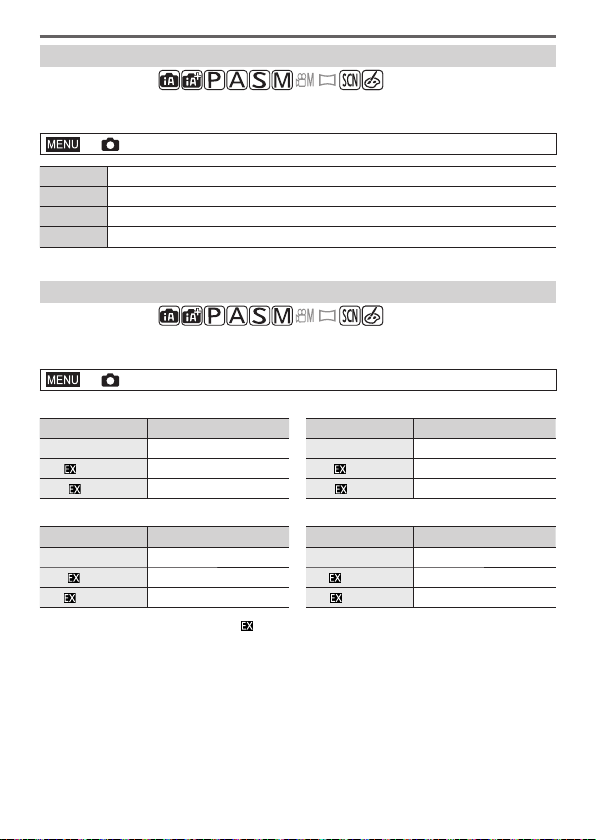
[Aspect Ratio]
Recording mode:
This allows you to select the aspect ratio of the pictures to suit printing or the
playback method.
→ [Rec] → [Aspect Ratio]
[4:3] Aspect ratio of a 4:3 TV
[3:2] Aspect ratio of standard film cameras
[16:9] Aspect ratio of high-definition TV, etc.
[1:1] Aspect ratio of a square image
[Picture Size]
Recording mode:
The higher the numbers of pixels, the finer the detail of the pictures will appear
even when they are printed onto large sheets.
→ [Rec] → [Picture Size]
When [4:3] is selected
Settings [Picture Size]
[L] (20M) 5184×3888
[ M] (10M)
3712×2784
[
S] (5M)
2624×1968
When [3:2] is selected
Settings [Picture Size]
[L] (17M) 5184×3456
[
M] (9M)
3712×2480
[
S] (4.5M)
2624×1752
When [16:9] is selected
Settings [Picture Size]
[L] (14.5M) 5184×2920
[ M] (8M)
3840×2160
[
S] (2M)
1920×1080
When [1:1] is selected
Settings [Picture Size]
[L] (14.5M) 3888×3888
[
M] (7.5M)
2784×2784
[
S] (3.5M)
1968×1968
●
When [Ex. Tele Conv.] is set, [ ] is displayed on the picture sizes of each aspect
ratio except for [L].

63
DVQX1379 (ENG)
Menu
[Standard] Standard setting.
[Vivid]
Setting with slightly high contrast and saturation.
[Natural]
Setting with slightly low contrast.
[Monochrome]
Setting that creates a picture using monochrome shades of gray
only, such as black and white.
[L.Monochrome]
Setting that creates a monochrome picture using rich shades of
gray with deep solid black tones.
[L.Monochrome D]
Setting that creates a dynamic monochrome picture with
emphasized highlights and shadows.
[Scenery]
Setting that creates a picture using vivid colors for the blue sky
and green.
[Portrait]
Setting that produces the look of a healthy complexion.
[Custom]
Setting for using colors and picture quality that were registered
in advance.
This setting is not available in Intelligent Auto Plus Mode.
■
Adjusting the picture quality
Press to select the type of Photo Style
Press to select an item and press to adjust
[Contrast] [+] / [–]
[Sharpness] [+] / [–]
[Noise Reduction] [+] / [–]
[Saturation]
1
[+] / [–]
[Color Tone]
1
[+] / [–]
[Filter Effect]
2
[Yellow] / [Orange] / [Red] / [Green] / [Off]
[Grain Effect]
2
[Low] / [Standard] / [High] / [Off]
Sets the graininess in a picture.
1
[Color Tone] is displayed only when [Monochrome], [L.Monochrome] or [L.Monochrome D]
is selected. Otherwise, [Saturation] is displayed.
2
Displayed only when [Monochrome], [L.Monochrome] or [L.Monochrome D] is selected.
Press [MENU/SET]

65
DVQX1379 (ENG)
Menu
■
Setting each item
When you select an item, the setting screen appears.
Operation
Touch
operation
Description
Drag Used to make adjustments
/
[WB K Set]
Used to display the color
temperature setting screen (Only
when [White Balance] is set to
[
] )
[Adjust.]
Used to display the White
Balance fine adjustment screen
(Only when [White Balance]
is set)
[DISP.] [DISP.]
Used to display the comparison
screen
[MENU/SET] [Set]
Used to finalize an adjustment
you just made and to return to
the item selection screen
-2 -1 0 +1 +2
SetSet
Adjust.Adjust.
SetSet
• If you have selected [Noise Reduction], [i.Resolution], or [Sharpness], the
comparison screen is not displayed.
• You can also zoom in by quickly touching the display twice. (If the display was
enlarged, it returns to the same magnification ratio.)
The following operating methods are available to make adjustments on the
comparison screen.
Current setting
Operation
Touch
operation
Description
Drag Used to make adjustments
/
[DISP.] [DISP.]
Used to return to the setting
screen
[MENU/SET] [Set]
Used to finalize an adjustment
you just made and to return to
the item selection screen
SetSet
• If you touch the picture at the center, it will be enlarged. If you touch [ ], the
picture will be reduced to the original size.

68
Wi-Fi/Bluetooth
DVQX1379 (ENG)
■
Lighting of the WIRELESS connection lamp (Blue)
Lit: When the Wi-Fi/Bluetooth function is ON or connected
Blinking: When sending picture data
• In [Wireless Connection Lamp] in the [Setup] menu, you
can set the lamp so that it will not light/flash.
■
[Wi-Fi] button
In this Owner’s manual, a function button to which [Wi-Fi] is assigned is referred to
as the [Wi-Fi] button. (At the time of purchase, [Wi-Fi] is assigned to [Fn4].)
• The [Wi-Fi] button can be set separately for recording and playback (→32).
To start up the Wi-Fi function (When in recording mode):
Touch [ ]
Touch [ ]
●
The camera cannot be used to connect to a public wireless LAN connection.

72
Wi-Fi/Bluetooth
DVQX1379 (ENG)
Connecting the camera to a smartphone that does not
support for Bluetooth Low Energy
You can easily establish a Wi-Fi connection on this unit without entering a
password on your smartphone.
(On the camera)
→ [Setup] → [Wi-Fi] → [Wi-Fi Function] → [New Connection]
→ [Remote Shooting & View]
• The information required for directly connecting your
smartphone to this unit (SSID (
)) is displayed.
• You can also display the information by pressing the
function button that [Wi-Fi] function is assigned.
(On your smartphone)
1
Turn on the Wi-Fi function in the setting menu
2
Select the SSID displayed on the screen of
the camera
3
Start “Image App”
• When the connection confirmation screen appears
on the camera, select [Yes] and press [MENU/SET].
(Only when making a connection for the first time.)
[Wi-Fi Password] is set to [OFF] at the time of purchase. When you start a
Wi-Fi connection, be sure to verify that the device displayed on the camera’s
connection confirmation screen is really the device you want to connect to. Even
if the wrong device is displayed, you will still be connected to it if you select “Yes”.
If there seem to be other Wi-Fi enabled devices in the vicinity, we recommend
that you set [Wi-Fi Password] to [ON]. For details, refer to “Owner’s manual for
advanced features (PDF format)”.

73
DVQX1379 (ENG)
Wi-Fi/Bluetooth
Closing the Wi-Fi connection
1
Set the camera to Recording Mode
• Press the shutter button halfway to return to recording mode.
2
Select the camera’s menu items to
terminate the Wi-Fi connection
→ [Setup] → [Wi-Fi]
→ [Wi-Fi Function] → [Yes]
3
On the smartphone, close “Image App”
Turning on/off the camera with a smartphone
Wireless connectivity required:
Bluetooth Wi-Fi
This function allows you to turn on the camera from a distant location and take
pictures or view images on the camera even when it is in your bag.
1
Make a Bluetooth connection to the smartphone (→70)
2
Select the camera’s menu
→ [Setup] → [Bluetooth] → [Remote Wakeup] → [ON]
3
Set the Camera [ON/OFF] switch to [OFF]
4
On the smartphone, start up the “Image App”, and set the
Bluetooth function to a state in which a connection can be made
(standby state)
5
Operate the smartphone
Select [ ]
Select [Remote operation]
• The camera automatically turns on, allowing it to make a Wi-Fi connection
automatically.
(iOS devices) Depending on the connection status of the smartphone,
you may need to change the connected device on the Wi-Fi setup screen.
Follow the on-screen message on the smartphone to change the setting.

75
DVQX1379 (ENG)
Wi-Fi/Bluetooth
Playing back or saving images stored on the camera, or
uploading them on social media sites
Wireless connectivity required:
Wi-Fi
1
Connect to a smartphone (→69)
2
Operate the smartphone
If the camera is already connected to the smartphone via Bluetooth, select
[
] → [Remote operation].
(iOS devices) When you need to change the connected device on the Wi-Fi
setup screen, follow the on-screen message to change the setting.
Select [ ]
• You can switch a device of pictures to be displayed
using the icon at the top left on the screen. Select
[LUMIX] to display a picture saved in the camera.
(Playing back a picture)
When the picture is touched, it is played back at a larger
size
(Saving and sending pictures to web services such as
SNS)
Press and hold the picture and drag it
Transferring recorded images to a smartphone
automatically
Wireless connectivity required:
Bluetooth Wi-Fi
The camera automatically transfers recorded images to a Bluetooth-connected
smartphone via Wi-Fi.
1
Make a Bluetooth connection to the smartphone (→70)
2
Select the camera’s menu
→ [Setup] → [Bluetooth] → [Auto Transfer] → [ON]
• If a confirmation screen is displayed on the camera asking you to terminate
the Wi-Fi connection, select [Yes] to terminate it.
3
On the smartphone, select [YES] (Android devices) or [Wi-Fi
Setup] (iOS devices)
• The camera automatically makes a Wi-Fi connection.
– (iOS devices) Follow the on-screen message on the smartphone to change
the connected device on the Wi-Fi setup screen.

77
DVQX1379 (ENG)
Others
Downloading software
Download and install software to edit and play back images with a PC.
●
To download the software, your PC must be connected to the Internet.
●
It may take time to download the software in some communication environments.
PHOTOfunSTUDIO 10.0 AE (Windows
®
10 / 8.1 / 7)
You can capture still pictures or motion pictures to your PC, or organize captured
pictures by categorizing by recording date, model name of the digital camera used
to record, etc. You can also correct still pictures, edit motion pictures, or write to
DVD.
The software is available for download until the end of March 2023.
http://panasonic.jp/support/global/cs/soft/download/d_pfs10ae.html
• For details about information such as the operating environment or operating
method, refer to the “Owner’s manual for advanced features (PDF format)” or the
operating instructions of “PHOTOfunSTUDIO” (PDF format).
SILKYPIX Developer Studio SE (Windows
®
10 / 8.1 / 8 / 7,
Mac OS X v10.6 - v10.11, macOS 10.12, macOS 10.13)
This software develops and edits RAW file pictures. Edited pictures can be saved
in a file format such as JPEG or TIFF that can be displayed on a PC, etc.
http://www.isl.co.jp/SILKYPIX/english/p/
• For details on the operating environment and how to use the SILKYPIX
Developer Studio, refer to the “Help” or the Ichikawa Soft Laboratory’s support
website.
LoiLoScope 30 day full trial version (Windows
®
10 / 8.1 / 8 / 7)
Motion pictures can be edited easily.
http://loilo.tv/product/20
• For more information on how to use LoiLoScope and its operating environment,
read the LoiLoScope manual available for download at the website.

79
DVQX1379 (ENG)
Others
[Quality] (→62)
AFS Focus Mode (→35)
Focus Bracket (→48)
[AF Mode] (→35)
[Pull Focus]
([Snap Movie])
[Face Recog.]
AFL AF Lock
Burst (→46)
[4K PHOTO] (→39)
[Post Focus] (→43)
[Self Timer] (→46)
Battery indicator
[Stabilizer] (→49)
Jitter alert
[4K Pre-Burst]/
[Pre-Burst Recording]
(→40)
Focus (Lights green.)
(→27)/
Recording state
(Flashes red.) (→51)
Focus (Under low
illumination)
Focus (Starlight AF)
Wi-Fi connection status
Bluetooth connection
status (→71)
Location Logging (→76)
Histogram
Name
2
Travel elapsed days
3
Age in years/months
2
Location
3
Current date/time
3
Travel destination setting
3
:
Exposure meter
Focal distance display
Step zoom
AF area
Spot metering target
[Center Marker]
[Self Timer] (→46)
[Sound Rec Level Disp.]
[Silent Mode]
AEL AE Lock
[Metering Mode]
Program Shift
3.5 Aperture value
Aperture Bracket (→48)
60 Shutter speed
Exposure compensation
Exposure Bracket (→48)
Brightness (exposure)
(→34)
Manual Exposure Assist
ISO sensitivity

80
Others
DVQX1379 (ENG)
[Dial Guide]
AWBc White Balance
White Balance Bracket
White Balance Fine
Adjustment
Coloring
98
Number of recordable
pictures
r20
Maximum number of
pictures that can be
taken continuously
RXXmXXs
Available recording
time
1
Touch tab
Touch zoom
Touch Shutter (→30)
Touch AF (→30)
[Touch AE] (→30)
[Peaking]
Function buttons (→32)
Coloring (→34)
Defocus control
function (→34)
Brightness (exposure)
(→34)
Type of defocus
([Miniature Effect])
[One Point Color]
[Sunshine]
Picture effect (Filter)
adjustment display
Picture effects ON or
OFF
Picture effects (Filter)
Aperture value
Shutter speed
ISO sensitivity
[Sound Rec Level Adj.]
1
[h], [m] and [s] indicate “hour”, “minute” and “second”.
2
This is displayed for about 5 seconds when the camera is turned on if the [Profile Setup]
setting is set.
3
This is displayed for about 5 seconds when the camera is turned on, after setting the clock
and after switching from Playback Mode to Recording mode.
• The information displayed, such as histograms, magnifications, and numeric
values, are only for the purpose of reference.

81
DVQX1379 (ENG)
Others
F3.5 1/60
Recording mode (→29)
F3.5 Aperture value
1/60 Shutter speed
Battery indicator
ISO sensitivity
Exposure compensation
(→38)
Exposure Bracket (→48)
Brightness (exposure)
(→34)
Manual Exposure Assist
Flash Mode
Single (→46)
Burst (→46)
[4K PHOTO] (→39)
[Self Timer] (→46)
AFS Focus Mode (→35)
AF Mode (→35)
[Quality] (→62)
[Aspect Ratio] (→61)/
[Picture Size] (→61)
Wi-Fi/Bluetooth (→67)
Function button setting
(→32)
[Photo Style] (→62)
AWB White Balance
White Balance Bracket
(→47)
White Balance Fine
Adjustment
[i.Dynamic]
[Metering Mode]
98
Number of recordable
pictures
r20
Maximum number of
pictures that can be
taken continuously
RXXmXXs
Available recording time
■
On-monitor recording information
[h], [m] and [s] indicate “hour”, “minute” and “second”.

82
Others
DVQX1379 (ENG)
Q&A
Troubleshooting
• Performing [Reset] in the [Setup] menu may resolve the issue.
• Further information is provided in the “Owner’s manual for advanced features
(PDF format)”. Check it together with the information in this section.
When I shake the camera, I hear a rattling sound.
• The sound is caused by the In-Body Image Stabilizer. This is not a malfunction.
The charging lamp blinks.
• Charging is being performed in a place with extremely high or low temperature.
→ Reconnect the USB connection cable (supplied) and retry charging in a place where
ambient temperature is 10 °C to 30 °C (50 °F to 86 °F) (temperature conditions also
apply to the battery itself).
• Charging is not possible if the power supply capacity of the computer is low.
Camera does not work even if the camera is turned on. Camera switches off
as soon as the camera is turned on.
• Battery needs recharging.
→ Charge the battery. (→21)
The battery runs down quickly.
• When [ ] ([4K Pre-Burst]) or [Pre-Burst Recording] is set, the battery drains faster and the
camera temperature rises.
→ Select [
] ([4K Pre-Burst]) or [Pre-Burst Recording] only when recording.
Some pictures are taken when I press the shutter button just once.
• Drive Mode is set to other than [Single]. (→46)
• Bracket recording is set. (→47)
Focus not aligned correctly.
• Subject outside of focus range.
• [Focus/Release Priority] is set to [RELEASE]. (→59)
• [Shutter AF] is set to [OFF]. (→59)
• AF Lock is set inappropriately.
Recorded pictures are blurred. The stabilizer function ineffective.
• Shutter speed is slower in dark locations and the stabilizer function is less effective.
→ Use a tripod and the self-timer (→46) when using a slower shutter speed.
83
DVQX1379 (ENG)
Others
Striping or flicker may appear under lighting such as fluorescent lighting
and LED lighting fixture.
• This is characteristic of MOS sensors which serve as the camera’s pickup sensors. This is
not a malfunction.
• If you are taking still pictures using the electronic shutter, the striping may be reduced by
setting a slower shutter speed.
• When noticeable flicker or striping is seen under lighting such as a fluorescent or LED lighting
fixture in the motion picture recording mode, you can reduce the flicker or striping by setting
up [Flkr Decrease] (→58) and fixing the shutter speed. It is possible to select a shutter speed
from [1/50], [1/60], [1/100], or [1/120]. You can set the shutter speed manually in the Creative
Video Mode. (→29)
Brightness or coloring of recorded picture different from real life.
• When recording under fluorescent or LED lighting fixture etc., increasing the shutter speed
may introduce slight changes to brightness and color. These are a result of the characteristics
of the light source and do not indicate a malfunction.
• When recording subjects in extremely bright locations or recording under fluorescent lighting,
LED lighting fixture, mercury lamp, sodium lighting etc., the colors and screen brightness may
change or horizontal striping may appear on the screen.
Subject appears skewed in pictures.
• If you take a picture of a moving subject in the electronic shutter mode, motion picture
recording mode, or 4K photo recording mode, the subject in the picture may be skewed
in some cases. This is characteristic of MOS sensors which serve as the camera’s pickup
sensors. This is not a malfunction.
4K photo recording stops before finishing.
• When the ambient temperature is high or recording of the 4K Photo function is performed
continuously, the camera may display [
] and stop the recording. Wait until the camera
cools down.
Cannot record motion pictures.
• When a large capacity card is used, you may not be able to take a picture for a while after
you turn on the camera.
Motion picture recording stops midway.
• When the ambient temperature is high or motion picture is recorded continuously, the camera
may display [
] and stop the recording. Wait until the camera cools down.
Sometimes focus adjustment with Auto Focus mode is difficult while
recording 4K motion pictures.
• This may occur when taking a picture by reducing the Auto Focus speed in order to adjust the
focus at high precision. This is not a malfunction.

85
DVQX1379 (ENG)
Others
I am having a problem connecting to my Windows 8 PC. The user name and
password are not recognized.
• Depending on the OS version, on Windows 8, for example, there are two types of user
account (local account/Microsoft account).
→ Be sure to set the local account and use the user name and password for the local
account.
The Wi-Fi connection is not recognizing my PC.
The camera cannot be connected to Mac computer/Windows PC via Wi-Fi
connection.
• By default, the Wi-Fi connection uses the default workgroup name of “WORKGROUP”. If the
name of the workgroup has been changed, it will not be recognized.
→ Select [PC Connection] in the [Wi-Fi Setup] to change the workgroup name to match that
of your PC.
• Please confirm login name and password are correctly typed.
• When the system time of a computer connected to a camera differs severely from that of the
camera, the camera cannot be connected to the computer in some OSs.
→ Please confirm clock set and world time of the camera matches with time, date and time
zone in the computer. When both settings do not match severely, please match them.
It takes time to transmit an image to the WEB service.
Transmission of the image fails midway. There is an image that could not be
transmitted.
• Is the size of the image too large?
→ Transmit after dividing the motion picture with [Video Divide] (→60).
→ Reduce the image size at [Size], and then send.
• It may take longer time to transmit when distance to the wireless access point is far.
→ Transmit closer to the wireless access point.
• File format of the picture that can be sent differs depending on the destination.
The lens makes a clicking noise.
• When the camera is turned on or off, the lens is moved, or an aperture operation is
performed, such a noise may be heard. This is not a malfunction.
• When the brightness changes after a zooming operation or moving the camera, the lens may
make a noise while adjusting the aperture. This is not a malfunction.
Camera is hot.
• Camera may become a little warm during use, but this does not affect performance or quality.
Clock is incorrect.
• If you do not use the camera for a long time, the clock may be reset.
→ Reset the clock (→23).

89
DVQX1379 (ENG)
Others
Recording file
format
Still picture RAW/JPEG (based on Design rule for Camera File
system, based on Exif 2.31 standard)
4K photo
(burst file)
MP4 (H.264/MPEG-4 AVC, AAC (2 ch))
Motion picture AVCHD Progressive/AVCHD/MP4
Audio compression
format
AVCHD: Dolby Audio™ (2 ch)
MP4: AAC (2 ch)
Interface
[HDMI] micro HDMI Type D
[USB/CHARGE] USB 2.0 (High Speed)/USB 2.0 Micro-B
Dimensions Approx. 124 mm (W) × 72.1 mm (H) × 46.8 mm (D)
[4.88″ (W) × 2.83″ (H) × 1.84″ (D)]
(excluding the projection part)
Mass (weight) Approx. 450
/0.99 lb
[with the card and battery]
Approx. 407
/0.90 lb (camera body)
Approx. 517
/1.14 lb
[with the Interchangeable lens (H-FS12032), card and
battery]
Approx. 660
/1.46 lb
[with the Interchangeable lens (H-FS12060), card and
battery]
Operating
temperature
0 °C to 40 °C (32 °F to 104 °F)
Operating humidity 10%RH to 80%RH
Language select [ENGLISH] / [DEUTSCH] / [FRANÇAIS] / [ESPAÑOL] /
[PORTUGUÊS] / [ITALIANO] / [繁體中文] / [日本語]

90
DVQX1379 (ENG)
Others
■
Wireless transmitter
Wireless LAN
Compliance standard
IEEE 802.11b/g/n (standard wireless LAN protocol)
Frequency range used
(central frequency)
2412 MHz to 2462 MHz (1 to 11 ch)
Encryption method Wi-Fi compliant WPA™/WPA2™
Access method Infrastructure mode
Bluetooth function
Compliance standard
Bluetooth Ver. 4.2 (Bluetooth low energy (BLE))
Frequency range used
(central frequency)
2402 MHz to 2480 MHz
■
AC adaptor
(Panasonic SAE0012A): Information for your safety
Input: 110 V – 240 V 50/60 Hz 0.2 A
Output: 5 V
1.0 A
■
Battery pack (lithium-ion)
(Panasonic DMW-BLG10PP): Information for your safety
Voltage/capacity: 7.2 V/1025 mAh
The symbols on this product (including the accessories) represent the following:
AC
DC
Class II equipment (The construction of the product is double-insulated.)
Specifications are subject to change without notice.
91
DVQX1379 (ENG)
Others
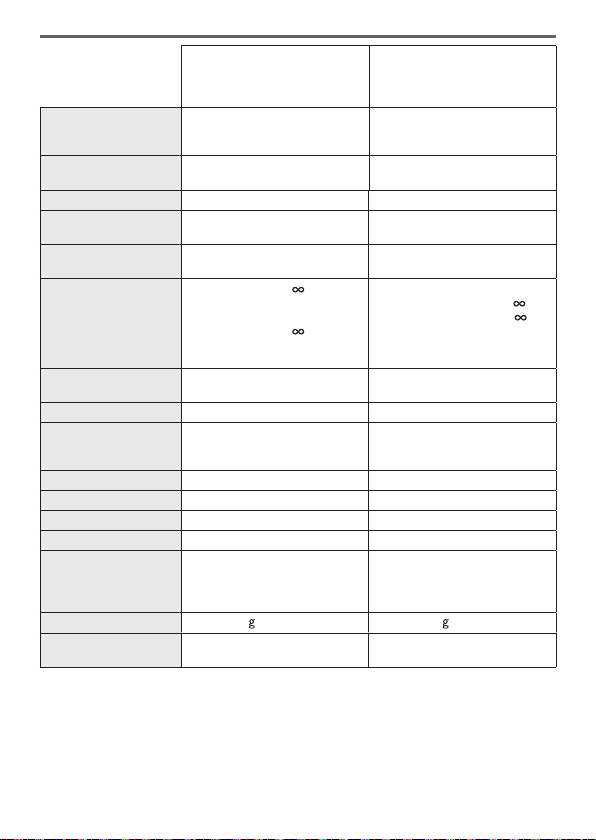
Interchangeable Lens H-FS12032
“LUMIX G VARIO
12–32 mm/F3.5–5.6 ASPH./
MEGA O.I.S.”
H-FS12060
“LUMIX G VARIO
12–60 mm/F3.5–5.6 ASPH./
POWER O.I.S.”
Focal length f=12 mm to 32 mm (35 mm film
camera equivalent: 24 mm to
64 mm)
f=12 mm to 60 mm (35 mm film
camera equivalent: 24 mm to
120 mm)
Aperture type 7 diaphragm blades/circular
aperture diaphragm
7 diaphragm blades/circular
aperture diaphragm
Maximum aperture F3.5 (Wide) to F5.6 (Tele) F3.5 (Wide) to F5.6 (Tele)
Minimum aperture
value
F22 F22
Lens construction 8 elements in 7 groups
(3 aspherical lenses, 1 ED lens)
11 elements in 9 groups
(3 aspherical lenses, 1 ED lens)
In focus distance 0.2 m (0.66 feet) to
(from the
focus distance reference line)
(focal length 12 mm to 20 mm),
0.3 m (0.98 feet) to
(from the
focus distance reference line)
(focal length 21 mm to 32 mm)
Wide: 0.2 m (0.66 feet) to
/
Tele: 0.25 m (0.82 feet) to
(from the focus distance
reference line)
Maximum image
magnification
0.13x (35 mm film camera
equivalent: 0.26x)
0.27x (35 mm film camera
equivalent: 0.54x)
Optical Image Stabilizer
Available Available
[O.I.S.] switch None
(Setting of the [Stabilizer] is
done in [Rec] menu.)
None
(Setting of the [Stabilizer] is
done in [Rec] menu.)
Mount “Micro Four Thirds Mount” “Micro Four Thirds Mount”
Angle of view 84° (Wide) to 37° (Tele) 84° (Wide) to 20° (Tele)
Filter diameter 37 mm 58 mm
Max. diameter Ø 55.5 mm (2.2 inch) Ø 66 mm (2.6 inch)
Overall length Approx. 24 mm (0.94 inch)
(from the tip of the lens to the
base side of the lens mount
when the lens barrel is recessed)
Approx. 71 mm (2.8 inch)
(from the tip of the lens to the
base side of the lens mount)
Mass Approx. 67
/0.15 lb Approx. 210 /0.46 lb
Dust-proof and splash-
proof
None Yes

95
DVQX1379 (ENG)
Others
IF REPAIR IS NEEDED DURING THE WARRANTY PERIOD, THE PURCHASER
WILL BE REQUIRED TO FURNISH A SALES RECEIPT/PROOF OF PURCHASE
INDICATING DATE OF PURCHASE, AMOUNT PAID AND PLACE OF
PURCHASE. CUSTOMER WILL BE CHARGED FOR THE REPAIR OF ANY UNIT
RECEIVED WITHOUT SUCH PROOF OF PURCHASE.
Limited Warranty Limits and Exclusions
This warranty ONLY COVERS failures due to defects in materials or workmanship,
and DOES NOT COVER normal wear and tear or cosmetic damage. The warranty
ALSO DOES NOT COVER damages which occurred in shipment, or failures which
are caused by products not supplied by the warrantor, or failures which result from
accidents, misuse, abuse, neglect, mishandling, misapplication, alteration, faulty
installation, set-up adjustments, misadjustment of consumer controls, improper
maintenance, power line surge, lightning damage, modification, introduction of
sand, humidity or liquids, commercial use such as hotel, office, restaurant, or other
business or rental use of the product, or service by anyone other than a Factory
Service Center or other Authorized Servicer, or damage that is attributable to acts
of God.
THERE ARE NO EXPRESS WARRANTIES EXCEPT AS LISTED UNDER
“LIMITED WARRANTY COVERAGE”.
THE WARRANTOR IS NOT LIABLE FOR INCIDENTAL OR CONSEQUENTIAL
DAMAGES RESULTING FROM THE USE OF THIS PRODUCT, OR ARISING
OUT OF ANY BREACH OF THIS WARRANTY.
(As examples, this excludes damages for lost time, travel to and from the servicer,
loss of or damage to media or images, data or other memory or recorded content.
The items listed are not exclusive, but for illustration only.)
ALL EXPRESS AND IMPLIED WARRANTIES, INCLUDING THE WARRANTY
OF MERCHANTABILITY, ARE LIMITED TO THE PERIOD OF THE LIMITED
WARRANTY.
Some states do not allow the exclusion or limitation of incidental or consequential
damages, or limitations on how long an implied warranty lasts, so the exclusions
may not apply to you.
This warranty gives you specific legal rights and you may also have other rights
which vary from state to state. If a problem with this product develops during or
after the warranty period, you may contact your dealer or Service Center. If the
problem is not handled to your satisfaction, then write to:
Consumer Affairs Department
Panasonic Corporation of North America
661 Independence Pkwy
Chesapeake, VA 23320

96
DVQX1379 (ENG)
Others
PARTS AND SERVICE, WHICH ARE NOT COVERED BY THIS LIMITED
WARRANTY, ARE YOUR RESPONSIBILITY.
for all your Panasonic gear
Go to
http://shop.panasonic.com/support
Get everything you need to get the most out of your Panasonic products
Accessories & Parts for your Camera, Phone, A/V products, TV,
Computers & Networking, Personal Care, Home Appliances, Headphones,
Batteries, Backup Chargers & more…
Customer Services Directory
For Product Information, Operating Assistance, Parts, Owner’s Manuals,
Dealer and Service info go to http://shop.panasonic.com/support
For the hearing or speech impaired TTY: 1- 877-833-8855
As of July 2015

97
DVQX1379 (ENG)
Others
Limited Warranty (ONLY FOR CANADA)
Panasonic Canada Inc.
5770 Ambler Drive, Mississauga, Ontario L4W 2T3
PANASONIC PRODUCT – LIMITED WARRANTY
Panasonic Canada Inc. warrants this product to be free from defects in material
and workmanship under normal use and for a period as stated below from the date
of original purchase agrees to, at its option either (a) repair your product with new
or refurbished parts, (b) replace it with a new or a refurbished equivalent value
product, or (c) refund your purchase price. The decision to repair, replace or refund
will be made by Panasonic Canada Inc.
Digital Camera One (1) year, parts and labour
Digital Camera Peripherals One (1) year, parts and labour
Digital Camera Accessories Ninety (90) days, parts and labour
This warranty is given only to the original purchaser, or the person for whom it
was purchased as a gift, of a Panasonic brand product mentioned above sold by
an authorized Panasonic dealer in Canada and purchased and used in Canada,
which product was not sold “as is”, and which product was delivered to you in new
condition in the original packaging.
IN ORDER TO BE ELIGIBLE TO RECEIVE WARRANTY SERVICE
HEREUNDER, A PURCHASE RECEIPT OR OTHER PROOF OF DATE
OF ORIGINAL PURCHASE, SHOWING AMOUNT PAID AND PLACE OF
PURCHASE IS REQUIRED