

2
Table of Contents
Read me first
Getting started
6 Package contents
7 Device layout
9 Charging the battery
11 Using a memory card
12 Turning the device on and off
13 Locking and unlocking the screen
Basics
14 Using the touch screen
17 Home screen layout
21 Notifications and quick setting panels
24 Opening apps
24 Installing or uninstalling apps
26 Entering text
28 Screen capture
28 My Files
29 Power saving feature
29 Viewing help information
Network connectivity
30 Wi-Fi
Motions & usability features
31 Multi window
Personalizing
34 Managing the Home and Apps screens
36 Setting wallpaper and ringtones
37 Changing the screen lock method
38 Multiple users
39 Transferring data from your previous
device
40 Setting up accounts
Contacts
41 Adding contacts
42 Importing and exporting contacts
42 Searching for contacts
Email
43 Email

Table of Contents
3
Device & data manager
63 Upgrading the device
64 Transferring files between the device
and a computer
65 Backing up and restoring data
66 Performing a data reset
Settings
67 About Settings
67 CONNECTIONS
69 DEVICE
71 PERSONAL
73 SYSTEM
Troubleshooting
Health and Safety
Camera
45 Basic shooting
46 Shooting modes
47 Camera settings
Gallery
49 Viewing content on the device
Useful apps and features
50 Calendar
51 Video
52 Clock
54 Calculator
54 Memo
55 Hancom Office Viewer
55 Google apps
Connecting with other
devices
58 Bluetooth
60 Wi-Fi Direct
62 Mobile printing

Getting started
8
•
Do not cover the antenna area with your hands or other objects. This may cause
connectivity problems or drain the battery.
•
Using a Samsung-approved screen protector is recommended. Unapproved screen
protectors may cause the sensors to malfunction.
Buttons
Button Function
Power
•
Press and hold to turn the device on or off.
•
Press to turn on or lock the screen.
Recent apps
•
Tap to open the list of recent apps.
•
Tap and hold to access additional options for the current
screen.
Home
•
Press to turn on the screen while the screen is locked.
•
Press to return to the Home screen.
•
Press and hold to launch
Google
.
Back
•
Tap to return to the previous screen.
Volume
•
Press to adjust the device volume.

Getting started
9
Charging the battery
Use the charger to charge the battery before using it for the first time. A computer can be also
used to charge the battery by connecting them using the USB cable.
Use only Samsung-approved chargers, batteries, and cables. Unapproved chargers or
cables can cause the battery to explode or damage the device.
•
When the battery power is low, the battery icon appears empty.
•
If the battery is completely discharged, the device cannot be turned on
immediately when the charger is connected. Allow a depleted battery to charge for
a few minutes before turning on the device.
•
If you use multiple apps at once, network apps, or apps that need a connection
to another device, the battery will drain quickly. To avoid disconnecting from the
network or losing power during a data transfer, always use these apps after fully
charging the battery.
Connect the USB cable to the USB power adapter and then plug the end of the USB cable into
the multipurpose jack.
Connecting the charger improperly may cause serious damage to the device. Any
damage caused by misuse is not covered by the warranty.

14
Basics
Using the touch screen
•
Do not allow the touch screen to come into contact with other electrical devices.
Electrostatic discharges can cause the touch screen to malfunction.
•
To avoid damaging the touch screen, do not tap it with anything sharp or apply
excessive pressure to it with your fingertips.
•
The device may not recognize touch inputs close to the edges of the screen, which
are outside of the touch input area.
•
Leaving the touch screen idle for extended periods may result in afterimages
(screen burn-in) or ghosting. Turn off the touch screen when you do not use the
device.
•
It is recommended to use fingers when you use the touch screen.
Tapping
To open an app, to select a menu item, to press an on-screen button, or to enter a character
using the keyboard on the screen, tap it with a finger.

Basics
15
Tapping and holding
Tap and hold an item or the screen for more than two seconds to access available options.
Dragging
To move an item, tap and hold it and drag it to the target position.
Double-tapping
Double-tap on a webpage or image to zoom in. Double-tap again to return.

Basics
16
Flicking
Flick left or right on the Home screen or the Apps screen to see another panel. Flick up or
down to scroll through a webpage or a list of items, such as contacts.
Spreading and pinching
Spread two fingers apart on a webpage, map, or image to zoom in a part. Pinch to zoom out.

Basics
18
Home screen options
On the Home screen, tap and hold an empty area, or pinch your fingers together to access
the available options.
Basics
19
Apps screen
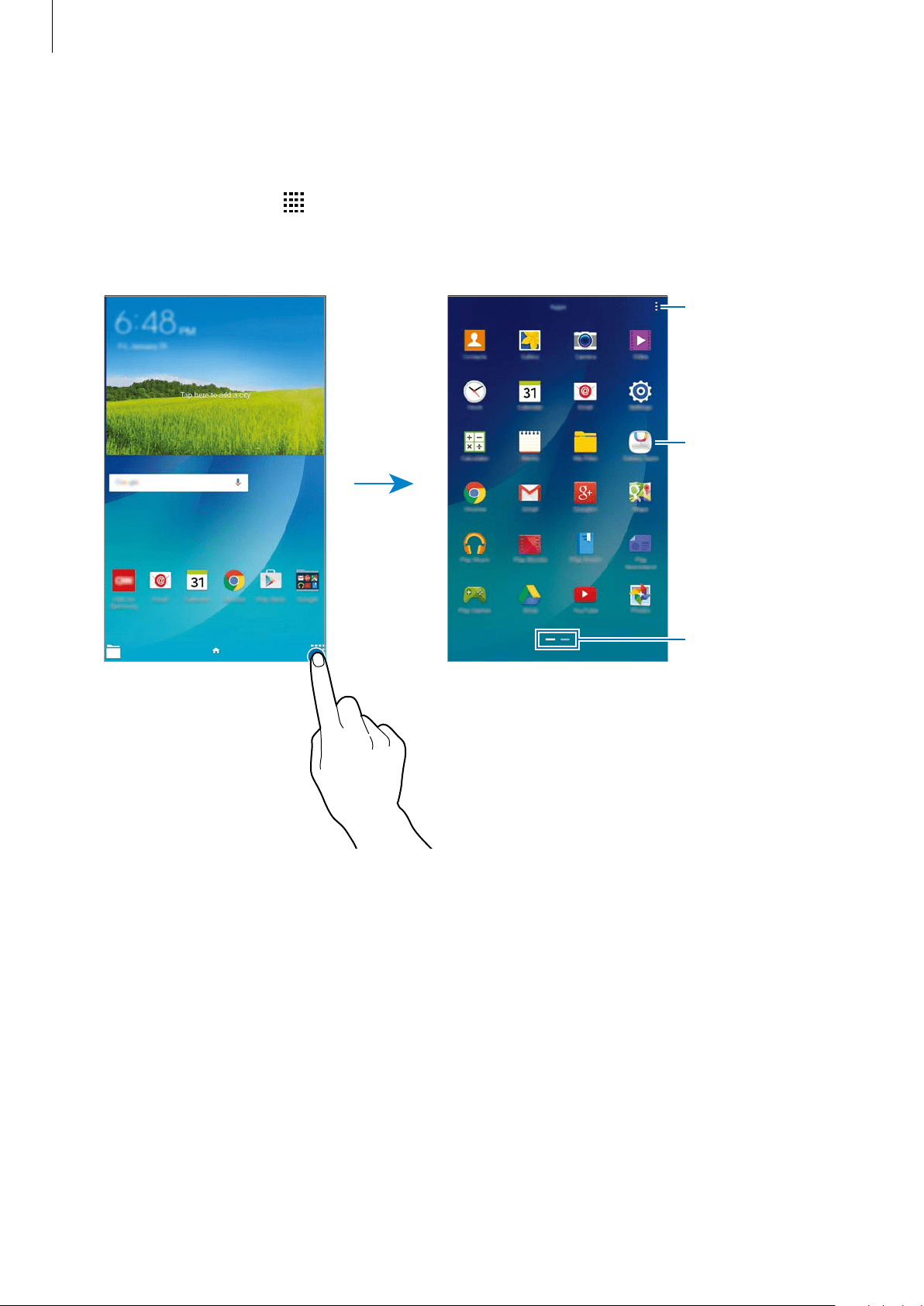
The Apps screen displays icons for all apps, including newly installed apps.
On the Home screen, tap
to open the Apps screen. To view other panels, scroll left or right,
or select a screen indicator at the bottom of the screen. To customize the Apps screen, refer to
Managing the Apps screen.
Access additional
options.
An app
Screen indicators
Basics
20
Indicator icons
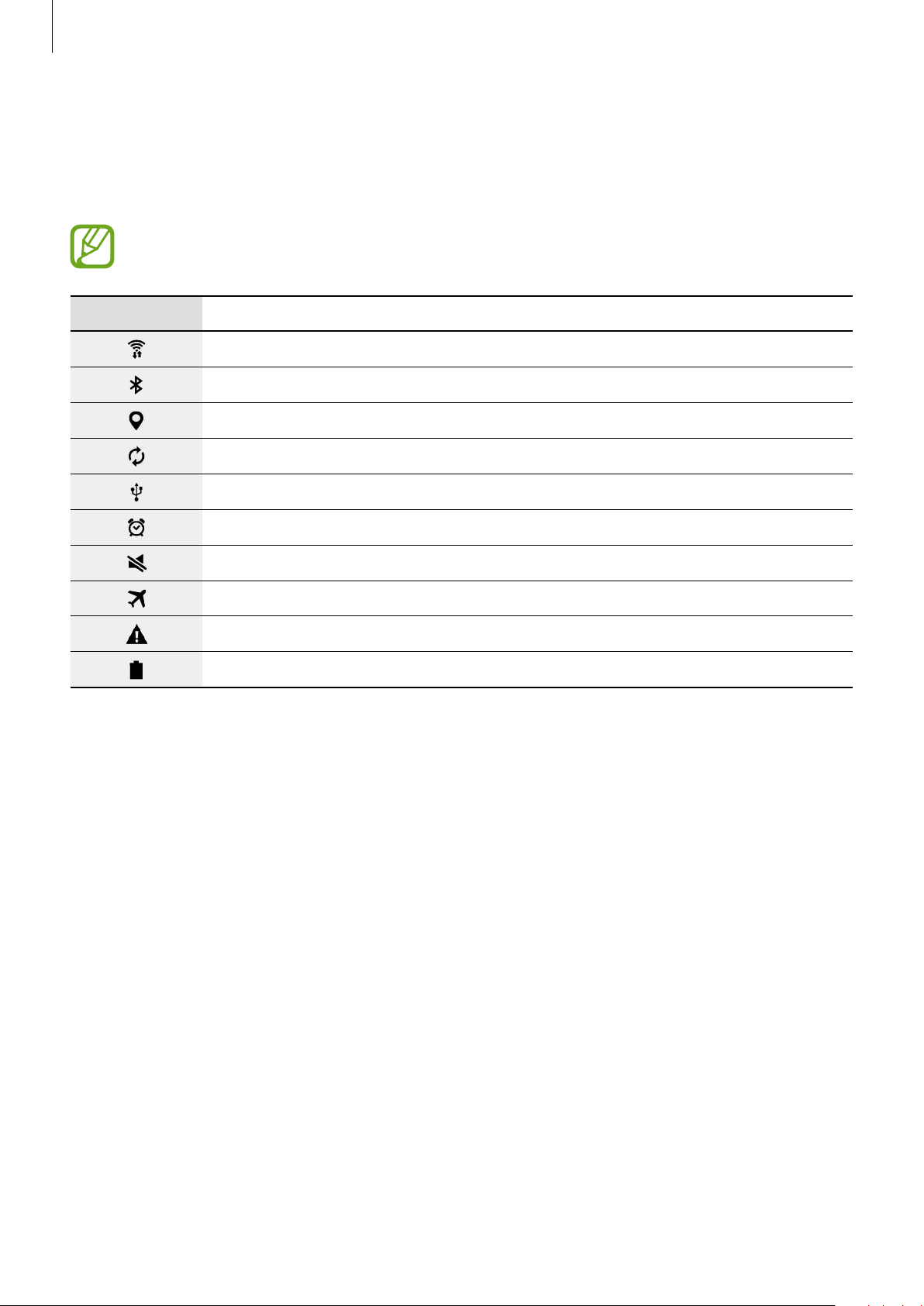
Indicator icons appear on the status bar at the top of the screen. The icons listed in the table
below are most common.
The status bar may not appear at the top of the screen in some apps. To display the
status bar, drag down from the top of the screen.
Icon Meaning
Wi-Fi connected
Bluetooth feature activated
GPS activated
Synced with the web
Connected to computer
Alarm activated
Mute mode activated
Flight mode activated
Error occurred or caution required
Battery power level
Basics
25
Play Store
Use this app to purchase and download apps.
Tap
Play Store
on the Apps screen.
Installing apps
Browse apps by category or tap to search for a keyword.
Select an app to view information about it. To download free apps, tap
INSTALL
. To purchase
and download apps where charges apply, tap the price and follow the on-screen instructions.
To change the auto update settings, tap
→
SETTINGS
→
Auto-update apps
, and
then select an option.
Managing apps
Uninstalling or disabling apps
To disable default apps, open the Apps screen and tap
→
Uninstall/disable apps
. The
disable icon
appears on the apps that you can disable. Select an app and tap
OK
.
To uninstall downloaded apps, open the Apps screen and tap
→
Downloaded apps
→
→
Uninstall
. Alternatively, on the Apps screen, tap
Settings
→
Application manager
, select an
app, and then tap
Uninstall
.
Enabling apps
On the Apps screen, tap
→
Show disabled apps
, select apps, and then tap
Done
.
Alternatively, on the Apps screen, tap
Settings
→
Application manager
, scroll to
DISABLED
,
select an app, and then tap
Enable
.
•
Hiding apps: Hide apps in the Apps screen only. You can continue to use hidden
apps.
•
Disabling apps: Disable selected default apps that cannot be uninstalled from the
device. You cannot use disabled apps.
•
Uninstalling apps: Uninstall downloaded apps.

30
Network connectivity
Wi-Fi
Connect the device to a Wi-Fi network to use the Internet or share media files with other
devices. Refer to Wi-Fi for additional options.
Turn off Wi-Fi to save the battery when not in use.
1
On the Apps screen, tap
Settings
→
Wi-Fi
, and then tap the
Wi-Fi
switch to activate it.
2
Select a network from the Wi-Fi networks list. Networks that require a password appear
with a lock icon.
3
Tap
Connect
.
Once the device connects to a Wi-Fi network, the device will reconnect to that
network each time it is available without requiring a password. To prevent the device
connecting to the network automatically, select it from the list of networks and tap
Forget
.

Personalizing
36
Setting wallpaper and ringtones
Setting wallpaper
Set an image or photo stored in the device as wallpaper for the Home screen or the locked
screen.
1
On the Home screen, tap and hold an empty area, and then tap
Wallpapers
. Alternatively,
on the Apps screen, tap
Settings
→
Display
→
Wallpaper
.
2
Select a screen to change the wallpaper.
3
Scroll left or right and select from images displayed at the bottom of the screen.
To select photos taken by the device’s camera or other images, tap
From Gallery
.
4
Tap
Set as wallpaper
or
Done
.
Changing ringtones
Change ringtones for notifications.
On the Apps screen, tap
Settings
→
Sound
.
To set a ringtone for notifications, tap
Notifications
, select a ringtone, and then tap
Done
.

Personalizing
37
Changing the screen lock method
You can change the way that you lock the screen to prevent others from accessing your
personal information.
On the Apps screen, tap
Settings
→
Lock screen
→
Screen lock
, and then select a screen
lock method. The device requires an unlock code whenever unlocking it.
If the unlock code is forgotten, take the device to a Samsung Service Centre to reset it.
Swipe
Swipe your finger across the screen to unlock it. This method provides no information
security.
Pattern
Draw a pattern by connecting four dots or more, and then draw the pattern again to verify it.
Set a backup PIN to unlock the screen when you forget the pattern.
PIN
A PIN consists of numbers only. Enter at least four numbers, and then enter the password
again to verify it.
Password
A password consists of characters and numbers. Enter at least four characters including
numbers and symbols, and then enter the password again to verify it.

Personalizing
39
Managing users
When using the owner account, you can delete accounts or change the account settings.
On the Apps screen, tap
Settings
→
Users
and select an account under
USERS & PROFILES
.
Then, select or deselect apps and content to allow or restrict the account’s access to them.
To delete the account, tap
.
Transferring data from your previous device
Using backup accounts
You can transfer backup data from your previous device to your new device using your
Google account. Refer to Backing up and restoring data for more information.
Using Samsung Smart Switch
You can transfer data of the previous device to a new device via Smart Switch. Visit
www.samsung.com/ca/smartswitch for more information.
Samsung Smart Switch is not supported on some devices or computers.
Using Smart Switch Mobile
Use this app to transfer data from your previous device to your new device. You can
download the app from
GALAXY Apps
or
Play Store
.
1
On your device, tap
Smart Switch Mobile
.
2
On your device, select an option depending on the previous device type and follow the
on-screen instructions.
If the previous device is an Android device, ensure that the Smart Switch Mobile app is
installed on the device. Refer to the help for more information.

Personalizing
40
Using Smart Switch with computers
Use this feature to import a backup of your data (from selected manufacturer’s
mobile devices) from a computer to your device. You can download the app from
www.samsung.com/ca/smartswitch.
1
Back up data from a previous device to the computer. For more information, contact the
device’s manufacturer.
2
On the computer, launch Smart Switch.
3
Connect your current device to the computer using the USB cable.
4
On the computer, click the manufacturer of the previous device and follow the on-screen
instructions to transfer data to your device.
Setting up accounts
Adding accounts
Some apps used on your device require a registered account. Create accounts to have the
best experience with your device.
On the Apps screen, tap
Settings
→
Accounts
→
Add account
and select an account service.
Then, follow the on-screen instructions to complete the account setup.
To sync content with your accounts, select an account and tick items to sync.
Removing accounts
On the Apps screen, tap
Settings
→
Accounts
, select an account name under
MY ACCOUNTS
, select the account to remove, and then tap
→
Remove account
.

Contacts
42
Importing and exporting contacts
Import contacts from storage services to your device or export contacts from the device to
storage services.
On the Apps screen, tap
Contacts
→
Contacts
.
Tap
→
Settings
→
Import/Export
, and then select an import or export option.
Searching for contacts
On the Apps screen, tap
Contacts
→
Contacts
.
Use one of the following search methods:
•
Scroll up or down the contacts list.
•
Tap the search field at the top of the contacts list and enter search criteria.
Once a contact is selected, take one of the following actions:
•
: Add to favourite contacts.
•
: Compose an email.
Adding shortcuts for contacts to the Home screen
Add shortcuts to contacts that you frequently communicate with on the Home screen.
1
On the Apps screen, tap
Contacts
→
Contacts
.
2
Select a contact.
3
Tap
→
Add shortcut to home
.

43
Email
Email
Setting up email accounts
Tap
Email
on the Apps screen.
Set up an email account when opening
Email
for the first time.
Enter the email address and password. Tap
Next
for a private email account or tap
Manual
setup
for a company email account. After that, follow the on-screen instructions to complete
the setup.
To set up another email account, tap
→
Settings
→
Add account
.
If you have more than one email account, you can set one as the default account. Tap
→
Settings
, select an account, and then tick
Default account
.
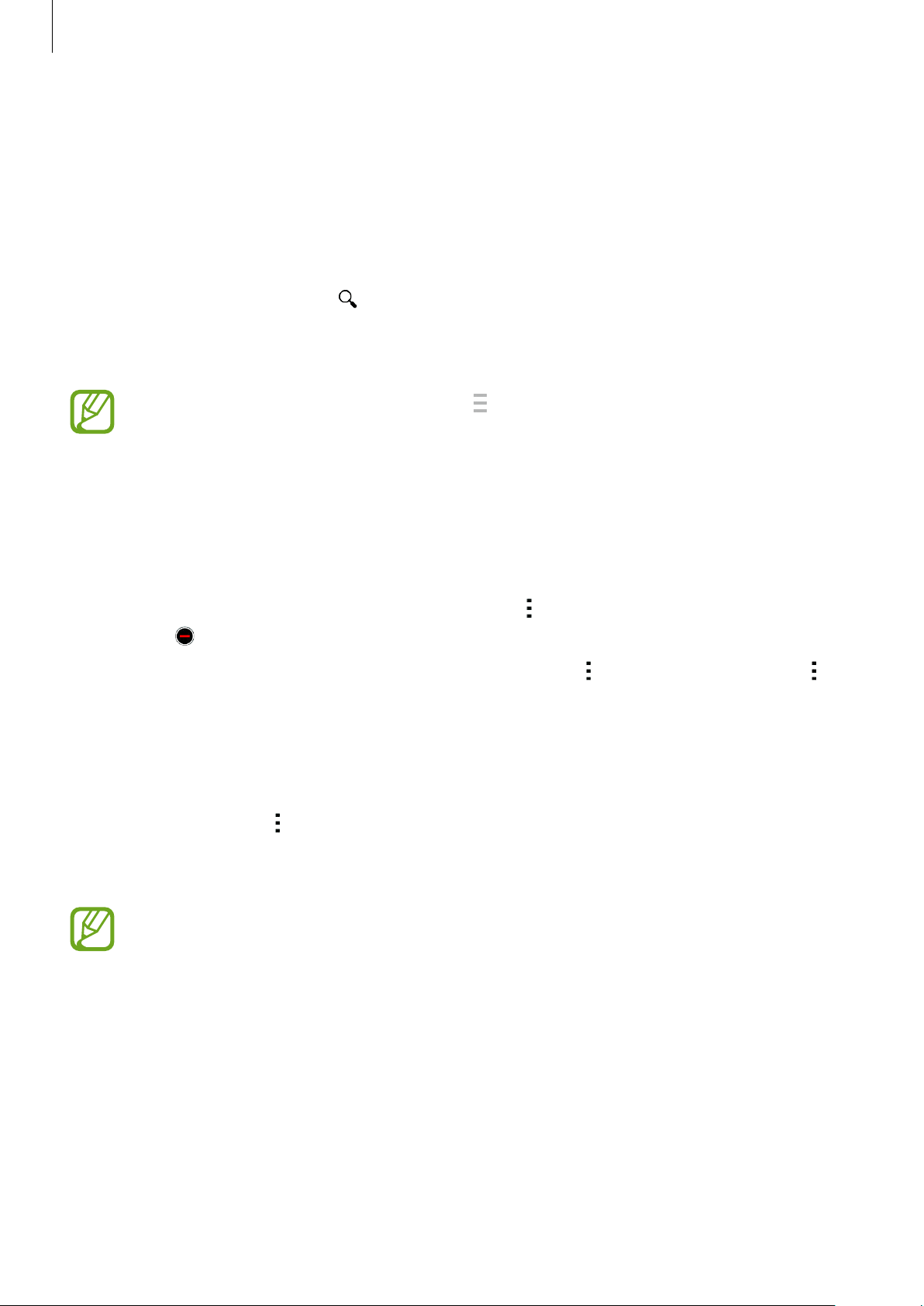
Sending emails
Tap
Email
on the Apps screen.
Tap
at the top of the screen to compose a message.
Add a CC or BCC.
Add yourself as a recipient.
Add recipients.
Add recipients from the
contacts list.
Enter a message.
Enter a subject.
Send the message.
Access additional options.
Attach images, videos and
others.
Save the message for later
delivery.
Discard the message.
Email
44
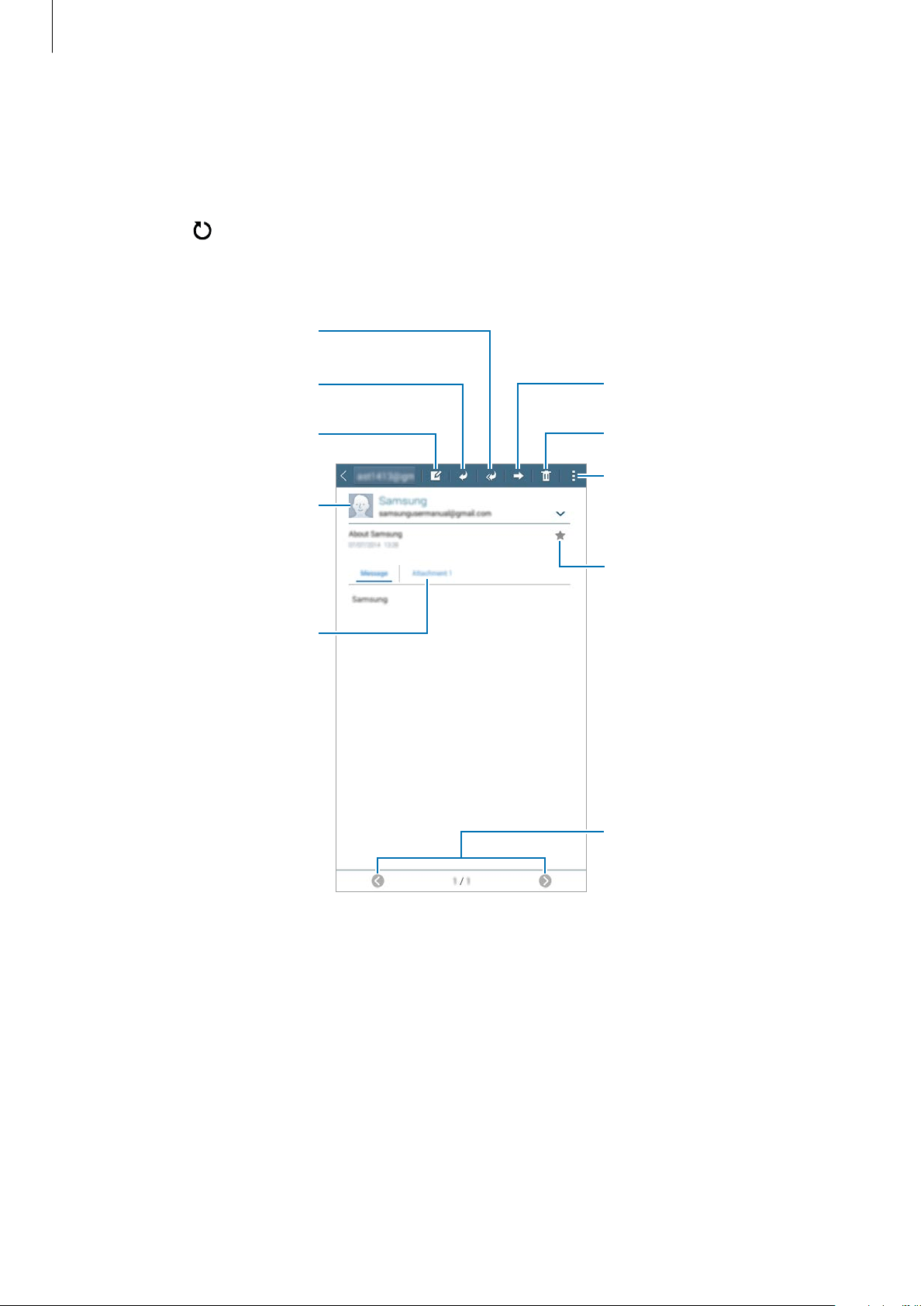
Reading emails
Tap
Email
on the Apps screen.
Select an email account to use, and new messages are retrieved. To manually retrieve new
messages, tap
.
Tap a message to read.
Open attachments.
Reply to the message.
Compose a message.
Add this email address to the
contacts list or view other
options.
Mark the message as a
reminder.
Reply to all recipients.
Go to the previous or next
message.
Delete the message.
Forward the message.
Access additional options.

Camera
47
Best photo
Use this mode to take a series of photos and save the best one. To view other photos in the
series, scroll left or right. The device recommends the best photo and identifies it with
.
On the Apps screen, tap
Camera
→
→
Best photo
.
Continuous shot
Use this mode to take a series of photos of moving subjects.
On the Apps screen, tap
Camera
→
→
Continuous shot
.
Tap and hold
to take several photos continuously.
Night
Use this mode to take a photo in low-light conditions without using the flash.
On the Apps screen, tap
Camera
→
→
Night
.
Camera settings
On the Apps screen, tap
Camera
→
. Not all of the following options are available in both
still camera and video camera modes.
•
: Select a resolution. Use higher resolution for higher quality. But it takes up more
memory.
•
: Select a filter effect to use when taking photos or recording videos.
•
: Use this for delayed-time shots.
•
: Change the brightness.
49
Gallery
Viewing content on the device
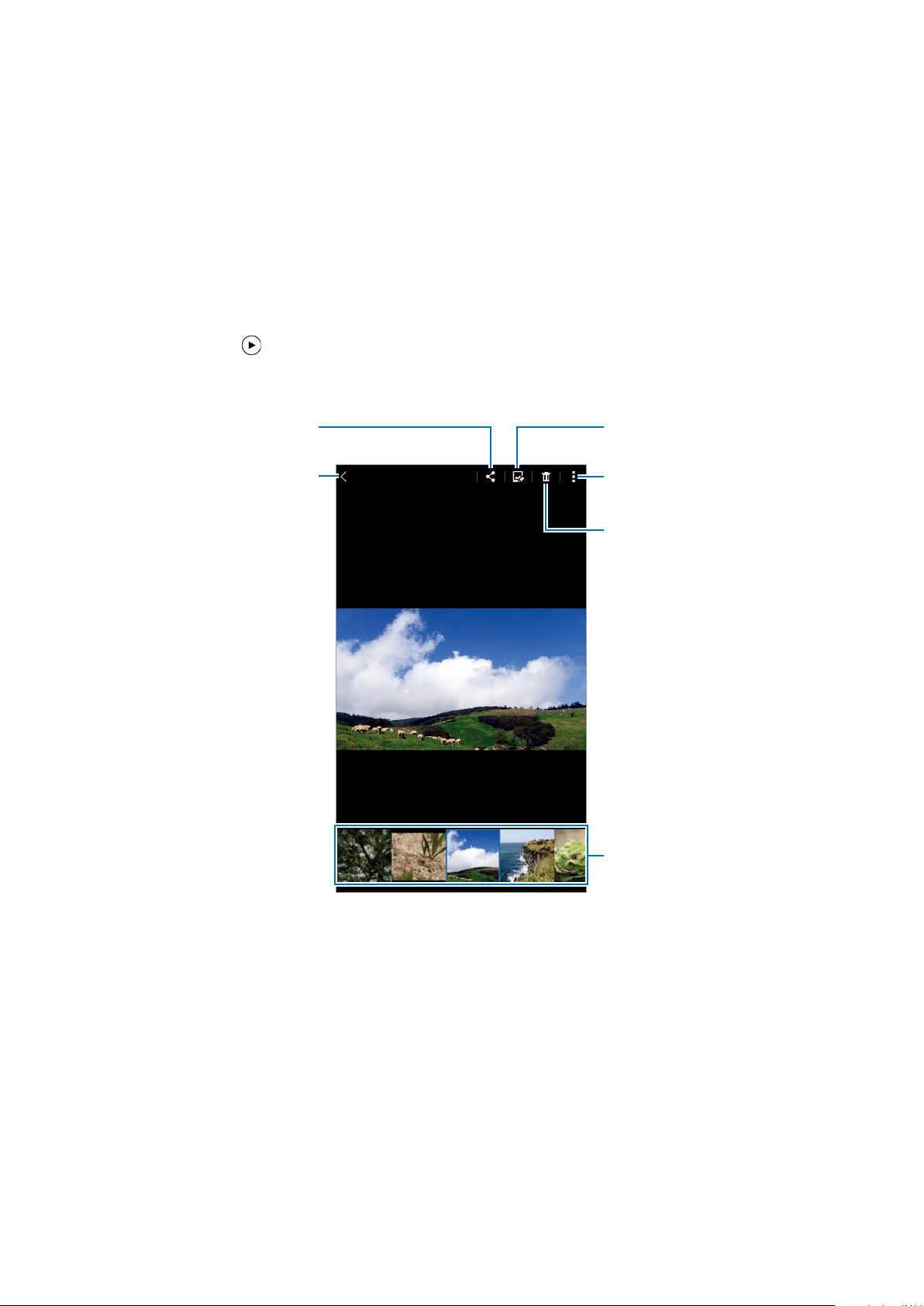
On the Apps screen, tap
Gallery
and select an image or a video.
Video files show the
icon on the preview thumbnail.
To hide or show the menu bar and the preview thumbnails, tap the screen.
Access additional options.
Delete the image.
Modify the image.
Move to the previous screen.
Send the image to others.
Image and video preview
thumbnails

Useful apps and features
54
Calculator
Use this app for simple or complex calculations.
Tap
Calculator
on the Apps screen.
Rotate the device to landscape orientation to display the scientific calculator. If
Screen
rotation
is disabled, tap
→
Scientific calculator
.
To see the calculation history, tap
to hide the keypad.
To clear the history, tap
→
→
Clear history
.
Memo
Use this app to create memos and organise them by category.
Tap
Memo
on the Apps screen.
Composing memos
Tap on the memos list and enter a memo. While composing a memo, use the following
options:
•
: Create or set a category.
•
: Insert images.
•
: Make a voice recording to insert.
To save the memo, tap
Save
.
To edit a memo, tap a memo, and then tap the content of the memo.
Searching for memos
Tap on the memos list and enter a keyword to search for memos that include the keyword.

Useful apps and features
57
Hangouts
Chat with your friends individually or in groups and use images, emoticons, and video calls
while you are chatting.
Google
Search quickly for items on the Internet or your device.
Voice Search
Search quickly for items by saying a keyword or phrase.
Google Settings
Configure settings for some features provided by Google.

63
Device & data manager
Upgrading the device
The device can be upgraded to the latest software.
Upgrading over the air
The device can be directly upgraded to the latest software by the firmware over-the-air
(FOTA) service.
On the Apps screen, tap
Settings
→
About device
→
Software update
→
Update
.
Upgrading with Samsung Kies
Download the latest version of Samsung Kies from the Samsung website. Launch Samsung
Kies and connect the device to the computer. Samsung Kies automatically recognizes the
device and shows available updates in a dialogue box, if any. Click the Update button in the
dialogue box to start upgrading. Refer to the Samsung Kies help for more information about
how to upgrade.
•
Do not turn off the computer or disconnect the USB cable while the device is
upgrading.
•
While upgrading the device, do not connect other media devices to the computer.
Doing so may interfere with the update process.

Device & data manager
65
Connecting with Samsung Kies
Samsung Kies is a computer app that manages media content and personal information with
Samsung devices. Download the latest Samsung Kies from the Samsung website.
1
Connect the device to the computer using the USB cable.
Samsung Kies launches on the computer automatically. If Samsung Kies does not launch,
double-click the Samsung Kies icon on the computer.
2
Transfer files between your device and the computer.
Refer to the Samsung Kies help for more information.
Backing up and restoring data
Keep your personal information, app data, and settings safe on your device. You can back up
your sensitive information to a backup account and access it later. You must sign in to your
Google or Samsung account to back up or restore data. Refer to Setting up accounts for more
information.
Using a Google account
1
Tap
Settings
on the Apps screen.
2
Tap
Backup and reset
and tick
Back up my data
.
3
Tap
Backup account
and select an account as the backup account.
To restore data, you must sign in to your Google account. If you do not sign in to your
Google account, you cannot restore the backup data.

Settings
72
Backup and reset
Change the settings for managing settings and data.
On the Settings screen, tap
Backup and reset
.
•
Back up my data
: Set the device to back up settings and app data to the Google server.
•
Backup account
: Set up or edit your Google backup account.
•
Automatic restore
: Set the device to restore settings and app data when the apps are
reinstalled on the device.
•
Factory data reset
: Reset settings to the factory default values and delete all data.
Accessibility
Use this feature to improve accessibility to the device.
On the Settings screen, tap
Accessibility
.
•
Auto rotate screen
: Set the content to rotate automatically when the device is turned.
•
Direct access
: Set the device to open selected accessibility menus when you press the
Home button three times quickly.
•
Single tap mode
: Set the device to control notifications by tapping the button instead of
dragging it.
•
SERVICES
: View accessibility services installed on the device.
•
TalkBack
: Activate TalkBack, which provides voice feedback. To view help information to
learn how to use this feature, tap
Settings
→
Launch “Explore by touch” tutorial
.
•
Speak passwords
: Set the device to read the password aloud when you enter the
password while TalkBack is activated.
•
Font size
: Change the font size.

Settings
73
•
Magnification gestures
: Set the device to magnify the screen and to zoom in on a
specific area.
•
Accessibility shortcut
: Set the device to activate TalkBack when you press and hold the
Power button, and then tap and hold the screen with two fingers.
•
Text-to-speech options
: Change settings for the text-to-speech feature.
•
Turn off all sounds
: Set the device to mute all device sounds, such as media sounds.
•
Google subtitles (CC)
: Set the device to display closed captions on content supported by
Google and to change the closed caption settings.
•
Samsung subtitles (CC)
: Set the device to display closed captions on content supported
by Samsung and to change the closed caption settings.
•
Mono audio
: Set the device to switch the sound output from stereo to mono when a
headset is connected.
•
Sound balance
: Set the device to adjust the sound balance when using a headset.
•
Tap and hold delay
: Set the recognition time for tapping and holding the screen.
•
Interaction control
: Activate interaction control mode to restrict the device’s reaction to
inputs while using apps.
SYSTEM
Language and input
Change the settings for text input. Some options may not be available depending on the
selected language.
On the Settings screen, tap
Language and input
.
Language
Select a display language for all menus and apps.
Default
Select a default keyboard type for text input.

Settings
75
Voice search
•
Languages
: Select languages for text input.
•
“Ok Google” Detection
: Set the device to begin voice recognition when you say the
wake-up command while using the search app.
This feature may not be available depending on the region or service provider.
•
Speech output
: Set the device to provide voice feedback to alert you to the current
action.
•
Offline speech recognition
: Download and install language data for offline voice input.
•
Block offensive words
: Set the device to prevent the device from recognising offensive
words in voice inputs.
•
Bluetooth headset
: Set the device to allow voice input of search keywords via the
Bluetooth headset microphone when a Bluetooth headset is connected.
Text-to-speech options
•
PREFERRED TTS ENGINE
: Select a speech synthesis engine. To change the settings for
speech synthesis engines, tap
.
•
Speech rate
: Select a speed for the text-to-speech feature.
•
Listen to an example
: Listen to the spoken text for an example.
•
Default language status
: View the status of the default language for the text-to-speech
feature.
Pointer speed
Adjust the pointer speed for the mouse or trackpad connected to your device.

Troubleshooting
80
Your device freezes or has fatal errors
If your device freezes or hangs, you may need to close apps or turn off the device and turn it
on again. If your device is frozen and unresponsive, press and hold the Power button and the
Volume button down simultaneously for more than 7 seconds to restart it.
If this does not solve the problem, perform a factory data reset. On the Apps screen, tap
Settings
→
Backup and reset
→
Factory data reset
→
Reset device
→
Erase everything
.
Before performing the factory data reset, remember to make backup copies of all important
data stored in the device.
If the problem is still not resolved, contact a Samsung Service Centre.
The Internet is often disconnected
•
Ensure that you are not blocking the device’s internal antenna.
•
When you are in areas with weak signals or poor reception, you may lose reception.
You may have connectivity problems due to issues with the Wi-Fi base station. Move to
another area and try again.
The battery icon is empty
Your battery is low. Charge the battery.
The battery does not charge properly (For Samsung-approved
chargers)
•
Ensure that the charger is connected properly.
•
Visit a Samsung Service Centre and have the battery replaced.
The battery depletes faster than when first purchased
•
When you expose the device or the battery to very cold or very hot temperatures, the
useful charge may be reduced.
•
Battery consumption increases when you use messaging features or some apps, such as
games or the Internet.
•
The battery is consumable and the useful charge will get shorter over time.

Troubleshooting
81
Your device is hot to the touch
When you use apps that require more power or use apps on your device for an extended
period of time, your device may feel hot to the touch. This is normal and should not affect
your device’s lifespan or performance.
Error messages appear when launching the camera
Your device must have sufficient available memory and battery power to operate the camera
app. If you receive error messages when launching the camera, try the following:
•
Charge the battery.
•
Free some memory by transferring files to a computer or deleting files from your device.
•
Restart the device. If you are still having trouble with the camera app after trying these
tips, contact a Samsung Service Centre.
Photo quality is poorer than the preview
•
The quality of your photos may vary, depending on the surroundings and the
photography techniques you use.
•
If you take photos in dark areas, at night, or indoors, image noise may occur or images
may be out of focus.
Error messages appear when opening multimedia files
If you receive error messages or multimedia files do not play when you open them on your
device, try the following:
•
Free some memory by transferring files to a computer or deleting files from your device.
•
Ensure that the music file is not Digital Rights Management (DRM)-protected. If the file is
DRM-protected, ensure that you have the appropriate licence or key to play the file.
•
Ensure that the file formats are supported by the device. If a file format is not supported,
such as DivX or AC3, install an app that supports it. To confirm the file formats that your
device supports, visit www.samsung.com.
•
Your device supports photos and videos captured with the device. Photos and videos
captured by other devices may not work properly.
•
Your device supports multimedia files that are authorised by your network service
provider or providers of additional services. Some content circulated on the Internet,
such as ringtones, videos, or wallpapers, may not work properly.

Troubleshooting
82
Another Bluetooth device is not located
•
Ensure that the Bluetooth wireless feature is activated on your device.
•
Ensure that the Bluetooth wireless feature is activated on the device you wish to connect
to.
•
Ensure that your device and the other Bluetooth device are within the maximum
Bluetooth range (10 m).
If the tips above do not solve the problem, contact a Samsung Service Centre.
A connection is not established when you connect the device to a
computer
•
Ensure that the USB cable you are using is compatible with your device.
•
Ensure that you have the proper driver installed and updated on your computer.
•
If you are a Windows XP user, ensure that you have Windows XP Service Pack 3 or higher
installed on your computer.
•
Ensure that you have Samsung Kies or Windows Media Player 10 or higher installed on
your computer.
Your device cannot find your current location
GPS signals may be obstructed in some locations, such as indoors. Set the device to use Wi-Fi
to find your current location in these situations.
Data stored in the device has been lost
Always make backup copies of all important data stored in the device. Otherwise, you cannot
restore data if it is corrupted or lost. Samsung is not responsible for the loss of data stored in
the device.
A small gap appears around the outside of the device case
•
This gap is a necessary manufacturing feature and some minor rocking or vibration of
parts may occur.
•
Over time, friction between parts may cause this gap to expand slightly.

83
Health and Safety
This safety information contains content for mobile devices. Some content may be not
applicable to your device. To prevent injury to yourself and others or damage to your device,
read the safety information about your device before using the device.
Warning: Failure to comply with safety warnings and
regulations can cause serious injury or death.
Do not use damaged power cords or plugs, or loose electrical sockets
•
Unsecured connections can cause electric shock or fire.
Do not touch the power cord with wet hands or disconnect the charger by pulling the
cord
•
Doing so may result in electrocution.
Do not bend or damage the power cord
•
Doing so may cause electric shock or fire.
Do not use your device while it is charging or touch your device with wet hands
•
Doing so may cause electric shock.
Do not short-circuit the charger or the device
•
Doing so may cause electric shock or fire, or the battery may malfunction or explode.
Do not use your device outdoor during a thunderstorm
•
Doing so may result in electric shock or device malfunction.
Use manufacturer-approved chargers, accessories, and supplies
•
Using generic chargers may shorten the life of your device or cause the device to
malfunction. They may also cause a fire or cause the battery to explode.
•
Use only Samsung-approved charger specifically designed for your device. Incompatible
battery and charger can cause serious injuries or damage to your device.
•
Samsung cannot be responsible for the user’s safety when using accessories or supplies
that are not approved by Samsung.
•
Do not drop or cause an impact to the charger or the device
Handle and dispose of the device and charger with care
•
Never dispose of the device in a fire. Never place the device on or in heating devices,
such as microwave ovens, stoves, or radiators. The device may explode when overheated.
Follow all local regulations when disposing of used battery or device.
•
Never crush or puncture the device.

Health and Safety
85
device to determine whether or not the equipment will be affected by radio frequencies
emitted by the device.
•
On an aircraft, using electronic devices can interfere with the aircraft’s electronic
navigational instruments. Make sure the device is turned off during takeoff and landing.
After takeoff, you can use the device in flight mode if allowed by aircraft personnel.
•
Electronic devices in your car may malfunction, due to radio interference from your
device. Contact the manufacturer for more information.
Do not expose the device to heavy smoke or fumes
•
Doing so may damage the outside of the device or cause it to malfunction.
If you use a hearing aid, contact the manufacturer for information about radio
interference
•
The radio frequency emitted by your device may interfere with some hearing aids. Before
using your device, contact the manufacturer to determine whether or not your hearing
aid will be affected by radio frequencies emitted by the device.
Do not use your device near devices or apparatuses that emit radio frequencies, such as
sound systems or radio towers
•
Radio frequencies may cause your device to malfunction.
•
Turn off the device in potentially explosive environments
•
Turn off your device in potentially explosive environments instead of removing the
battery.
•
Always comply with regulations, instructions and signs in potentially explosive environments.
•
Do not use your device at refuelling points (gas stations), near fuels or chemicals, or in
blasting areas.
•
Do not store or carry flammable liquids, gases, or explosive materials in the same
compartment as the device, its parts, or accessories.
If you notice strange smells or sounds coming from your device or the battery, or if
you see smoke or liquids leaking from the device or battery, stop using the device
immediately and take it to a Samsung Service Centre
•
Failure to do so may result in fire or explosion.
Comply with all safety warnings and regulations regarding mobile device usage while
operating a vehicle
•
While driving, safely operating the vehicle is your first responsibility. Never use your
mobile device while driving, if it is prohibited by law. For your safety and the safety of
others, use your common sense and remember the following tips:

Health and Safety
89
When using the device, mind the following
•
Do not cover the antenna area with your hands or other objects. This may cause
connectivity problems or drain the battery.
Do not disassemble, modify, or repair your device
•
Any changes or modifications to your device can void your manufacturer’s warranty. If
your device needs servicing, take your device to a Samsung Service Centre.
When cleaning your device, mind the following
•
Wipe your device or charger with a towel or an eraser.
•
Do not use chemicals or detergents. Doing so may discolour or corrode the outside the
device or may result in electric shock or fire.
Do not use the device for anything other than its intended use
•
Your device may malfunction.
Avoid disturbing others when using the device in public
Allow only qualified personnel to service your device
•
Allowing unqualified personnel to service your device may result in damage to your
device and will void your manufacturer’s warranty.
Handle memory cards and cables with care
•
When inserting a card or connecting a cable to your device, make sure that the card is
inserted or the cable is connected to the proper side.
•
Do not remove a card while the device is transferring or accessing information, as this
could result in loss of data and/or damage to the card or device.
•
Protect cards from strong shocks, static electricity, and electrical noise from other devices.
•
Do not touch gold-coloured contacts or terminals with your fingers or metal objects. If
dirty, wipe the card with a soft cloth.
•
Inserting a card or connecting a cable by force or improperly may result in damage to the
multipurpose jack or other parts of the device.
Protect your personal data and prevent leakage or misuse of sensitive information
•
While using your device, be sure to back up important data. Samsung is not responsible
for the loss of any data.
•
When disposing of your device, back up all data and then reset your device to prevent
misuse of your personal information.
•
Carefully read the permissions screen when downloading applications. Be particularly
cautious with applications that have access to many functions or to a significant amount
of your personal information.

Health and Safety
91
Correct disposal of batteries in this product
The battery incorporated in this product is not user replaceable. For information on its
replacement, please contact your service provider. Do not attempt to remove the battery or
dispose it in a fire. Do not disassemble, crush, or puncture the battery. If you intend to discard
the product, the waste collection site will take the appropriate measures for the recycling and
treatment of the product, including the battery.
Disclaimer
Some content and services accessible through this device belong to third parties and are
protected by copyright, patent, trademark and/or other intellectual property laws. Such
content and services are provided solely for your personal non-commercial use. You may
not use any content or services in a manner that has not been authorized by the content
owner or service provider. Without limiting the foregoing, unless expressly authorized by the
applicable content owner or service provider, you may not modify, copy, republish, upload,
post, transmit, translate, sell, create derivative works, exploit, or distribute in any manner or
medium any content or services displayed through this device.
“THIRD PARTY CONTENT AND SERVICES ARE PROVIDED “AS IS.” SAMSUNG DOES NOT
WARRANT CONTENT OR SERVICES SO PROVIDED, EITHER EXPRESSLY OR IMPLIED, FOR ANY
PURPOSE. SAMSUNG EXPRESSLY DISCLAIMS ANY IMPLIED WARRANTIES, INCLUDING BUT NOT
LIMITED TO, WARRANTIES OF MERCHANTABILITY OR FITNESS FOR A PARTICULAR PURPOSE.
SAMSUNG DOES NOT GUARANTEE THE ACCURACY, VALIDITY, TIMELINESS, LEGALITY, OR
COMPLETENESS OF ANY CONTENT OR SERVICE MADE AVAILABLE THROUGH THIS DEVICE
AND UNDER NO CIRCUMSTANCES, INCLUDING NEGLIGENCE, SHALL SAMSUNG BE LIABLE,
WHETHER IN CONTRACT OR TORT, FOR ANY DIRECT, INDIRECT, INCIDENTAL, SPECIAL OR
CONSEQUENTIAL DAMAGES, ATTORNEY FEES, EXPENSES, OR ANY OTHER DAMAGES ARISING
OUT OF, OR IN CONNECTION WITH, ANY INFORMATION CONTAINED IN, OR AS A RESULT OF
THE USE OF ANY CONTENT OR SERVICE BY YOU OR ANY THIRD PARTY, EVEN IF ADVISED OF
THE POSSIBILITY OF SUCH DAMAGES.”
Third party services may be terminated or interrupted at any time, and Samsung makes no
representation or warranty that any content or service will remain available for any period
of time. Content and services are transmitted by third parties by means of networks and
transmission facilities over which Samsung has no control. Without limiting the generality of
this disclaimer, Samsung expressly disclaims any responsibility or liability for any interruption
or suspension of any content or service made available through this device.
Samsung is neither responsible nor liable for customer service related to the content and
services. Any question or request for service relating to the content or services should be
made directly to the respective content and service providers.