E
English
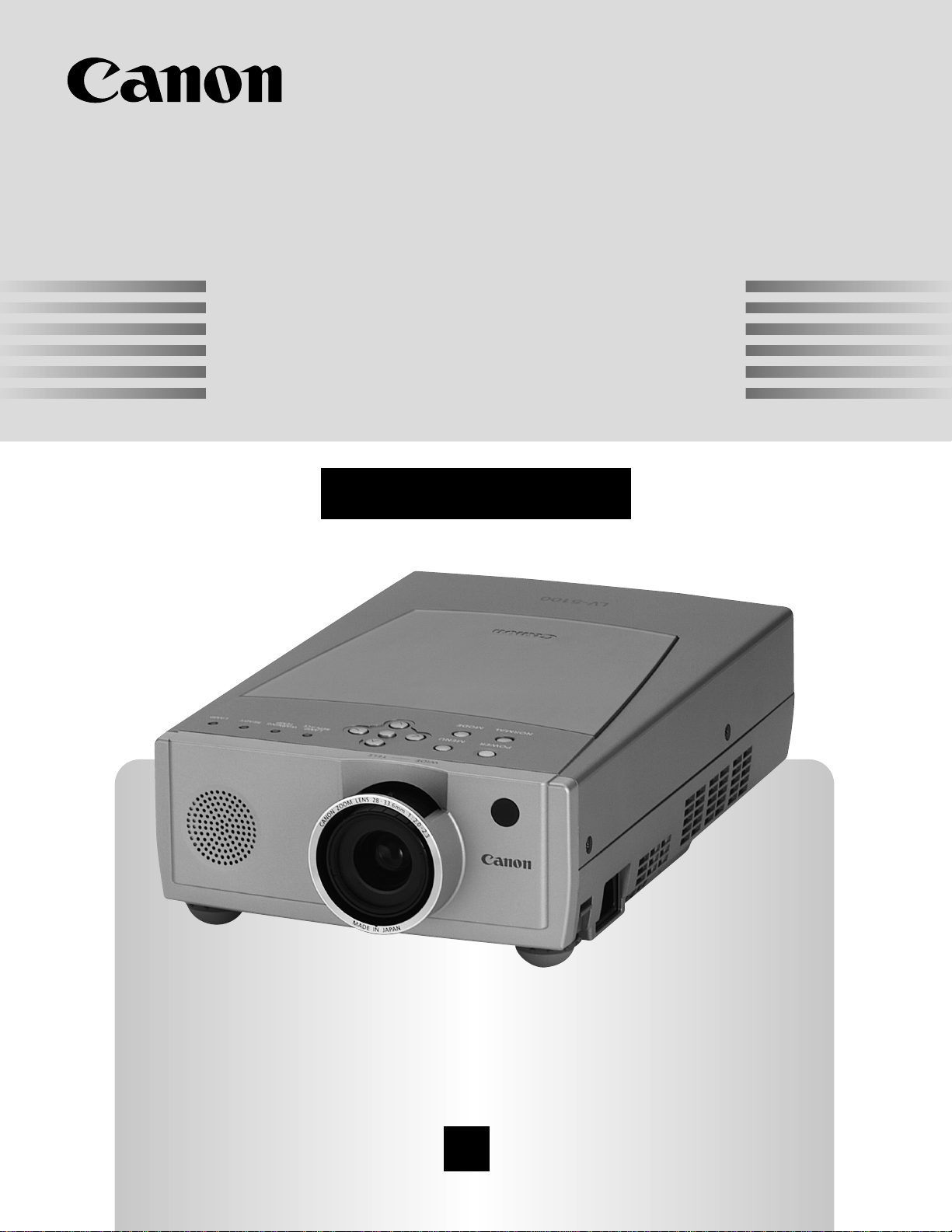
Multimedia Projector
Owner’s Manual
LV-5100
2
Before operating this projector, read this manual thoroughly and operate the projector properly.
This projector provides many convenient features and functions. Operating the projector properly enables you to
manage those features and maintains it in better condition for a considerable time.
Improper operation may result in not only shortening the product-life, but also malfunctions, fire hazard, or other
accidents.
If your projector seems to operate improperly, read this manual again, check operations and cable connections and try
the solutions in the “Trouble-shooting” section of the end of this booklet. If the problem still persists, contact the sales
dealer where you purchased the projector or the service center.
TO THE OWNER
SAFETY PRECAUTIONS
CAUTION : TO REDUCE THE RISK OF ELECTRIC SHOCK, DO NOT REMOVE COVER (OR BACK). NO USER-
SERVICEABLE PARTS INSIDE EXCEPT LAMP REPLACEMENT. REFER SERVICING TO QUALIFIED
SERVICE PERSONNEL.
THIS SYMBOL INDICATES THAT DANGEROUS
VOLTAGE CONSTITUTING A RISK OF ELECTRIC
SHOCK IS PRESENT WITHIN THIS UNIT.
THIS SYMBOL INDICATES THAT THERE ARE IMPORTANT
OPERATING AND MAINTENANCE INSTRUCTIONS IN THE
OWNER'S MANUAL WITH THIS UNIT.
CAUTION
RISK OF ELECTRIC SHOCK
DO NOT OPEN
WARNING : TO REDUCE THE RISK OF FIRE OR ELECTRIC SHOCK, DO NOT EXPOSE THIS APPLIANCE TO
RAIN OR MOISTURE.
● This projector produces intense light from the projection lens. Do not stare directly into the lens as possible.
Eye damage could result. Be especially careful that children do not stare directly into the beam.
● This projector should be set in the way indicated. If not, it may result in a fire hazard.
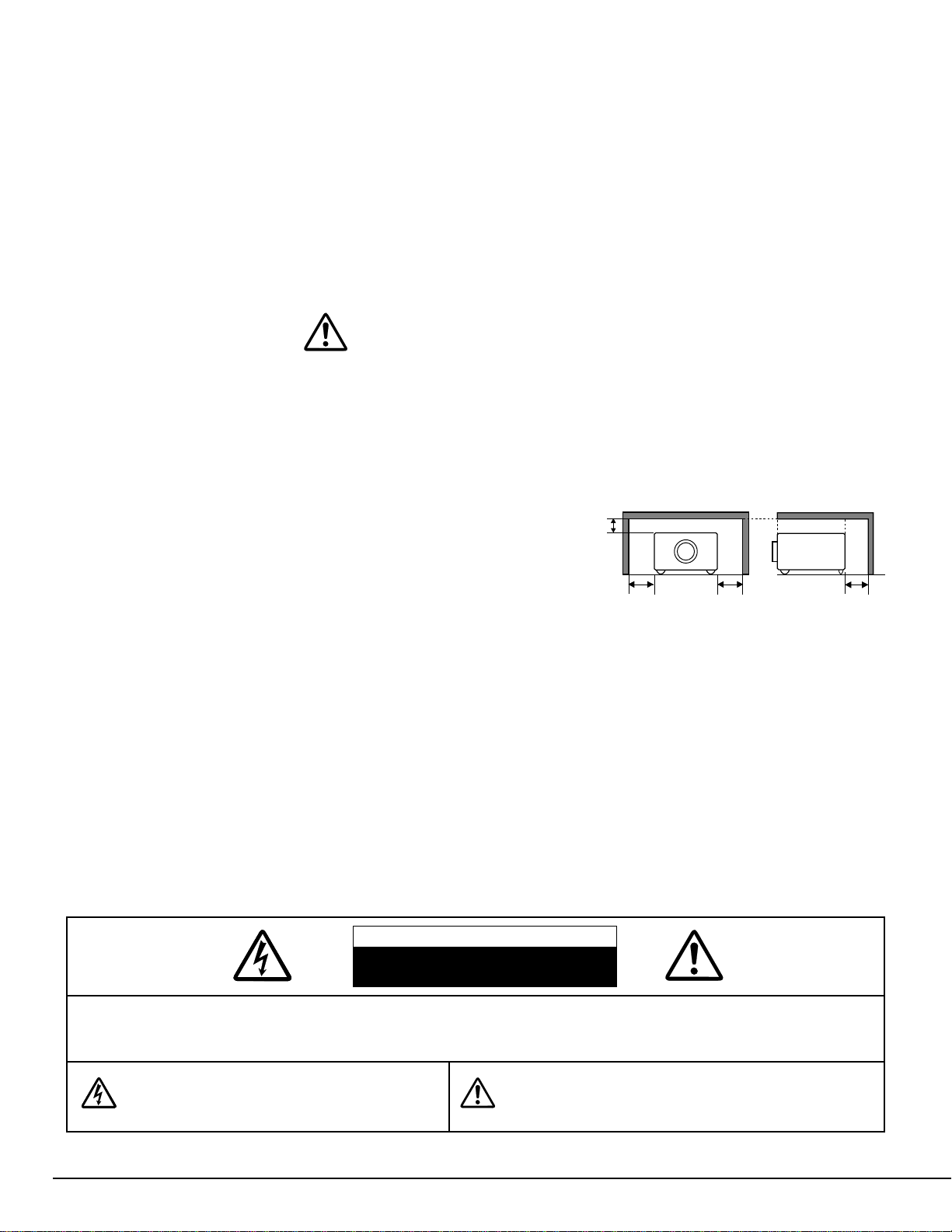
● Take appropriate space on the top, sides and rear of the projector
cabinet for allowing air circulation and cooling the projector.
Minimum distance should be taken. If the projector is to be built
into a compartment or similarly enclosed, the minimum distances
must be maintained. Do not cover the ventilation slot on the
projector. Heat build-up can reduce the service life of your
projector, and can also be dangerous.
● Do not put any flammable object or spray can near the projector, hot air is exhausted from the ventilation
holes.
● If the projector is not to be used for an extended time, unplug the projector from the power outlet.
READ AND KEEP THIS OWNER'S MANUAL FOR LATER USE.
20cm
50cm 50cm
50cm
SIDE and TOP
REAR
3
SAFETY INSTRUCTIONS
All the safety and operating instructions should be read before
the product is operated.
Read all of the instructions given here and retain them for later
use. Unplug this projector from AC power supply before
cleaning. Do not use liquid or aerosol cleaners. Use a damp
cloth for cleaning.
Follow all warnings and instructions marked on the projector.
For added protection to the projector during a lightning storm,
or when it is left unattended and unused for long periods of
time, unplug it from the wall outlet. This will prevent damage
due to lightning and power line surges.
Do not expose this unit to rain or use near water... for
example, in a wet basement, near a swimming pool, etc...
Do not use attachments not recommended by the
manufacturer as they may cause hazards.
Do not place this projector on an unstable cart, stand, or table.
The projector may fall, causing serious injury to a child or
adult, and serious damage to the projector. Use only with a
cart or stand recommended by the manufacturer, or sold with
the projector. Wall or shelf mounting should follow the
manufacturer's instructions, and should use a mounting kit
approved by the manufacturers.
An appliance and cart combination should
be moved with care. Quick stops,
excessive force, and uneven surfaces
may cause the appliance and cart
combination to overturn.
Slots and openings in the back and bottom of the cabinet are
provided for ventilation, to insure reliable operation of the
equipment and to protect it from overheating.
The openings should never be covered with cloth or other
materials, and the bottom opening should not be blocked by
placing the projector on a bed, sofa, rug, or other similar
surface. This projector should never be placed near or over a
radiator or heat register.
This projector should not be placed in a built-in installation
such as a book case unless proper ventilation is provided.
Never push objects of any kind into this projector through
cabinet slots as they may touch dangerous voltage points or
short out parts that could result in a fire or electric shock.
Never spill liquid of any kind on the projector.
This projector should be operated only from the type of power
source indicated on the marking label. If you are not sure of
the type of power supplied, consult your authorized dealer or
local power company.
Do not overload wall outlets and extension cords as this can
result in fire or electric shock. Do not allow anything to rest on
the power cord. Do not locate this projector where the cord
may be damaged by persons walking on it.
Do not attempt to service this projector yourself as opening or
removing covers may expose you to dangerous voltage or
other hazards. Refer all servicing to qualified service
personnel.
Unplug this projector from wall outlet and refer servicing to
qualified service personnel under the following conditions:
a. When the power cord or plug is damaged or frayed.
b. If liquid has been spilled into the projector.
c. If the projector has been exposed to rain or water.
d. If the projector does not operate normally by following the
operating instructions. Adjust only those controls that are
covered by the operating instructions as improper
adjustment of other controls may result in damage and will
often require extensive work by a qualified technician to
restore the projector to normal operation.
e. If the projector has been dropped or the cabinet has been
damaged.
f. When the projector exhibits a distinct change in
performance-this indicates a need for service.
When replacement parts are required, be sure the service
technician has used replacement parts specified by the
manufacturer that have the same characteristics as the
original part. Unauthorized substitutions may result in fire,
electric shock, or injury to persons.
Upon completion of any service or repairs to this projector, ask
the service technician to perform routine safety checks to
determine that the projector is in safe operating condition.
Voor de klanten in Nederland
Bij dit product zijn batterijen
geleverd.
Wanneer deze leeg zijn,
moet u ze niet weggooien
maar inleveren als KCA.
4
COMPLIANCES
Federal Communication Commission Notice
This equipment has been tested and found to comply with the limits for a Class A digital device, pursuant to Part
15 of FCC Rules. These limits are designed to provide reasonable protection against harmful interference when
the equipment is operated in a commercial environment. This equipment generates, uses, and can radiate radio
frequency energy and, if not installed and used in accordance with the instruction manual, may cause harmful
interference to radio communications. Operation of this equipment in a residential area is likely to cause harmful
interference in which case the user will be required to correct the interference at his own expense.
Do not make any changes or modifications to the equipment unless otherwise specified in the instructions. If such
changes or modifications should be made, you could be required to stop operation of the equipment.
The AC Power Cord supplied with this projector meets the requirement for use in the country you purchased it.
AC Power Cord for the United States and Canada :
AC Power Cord used in the United States and Canada is listed by the Underwriters
Laboratories (UL) and certified by the Canadian Standard Association (CSA).
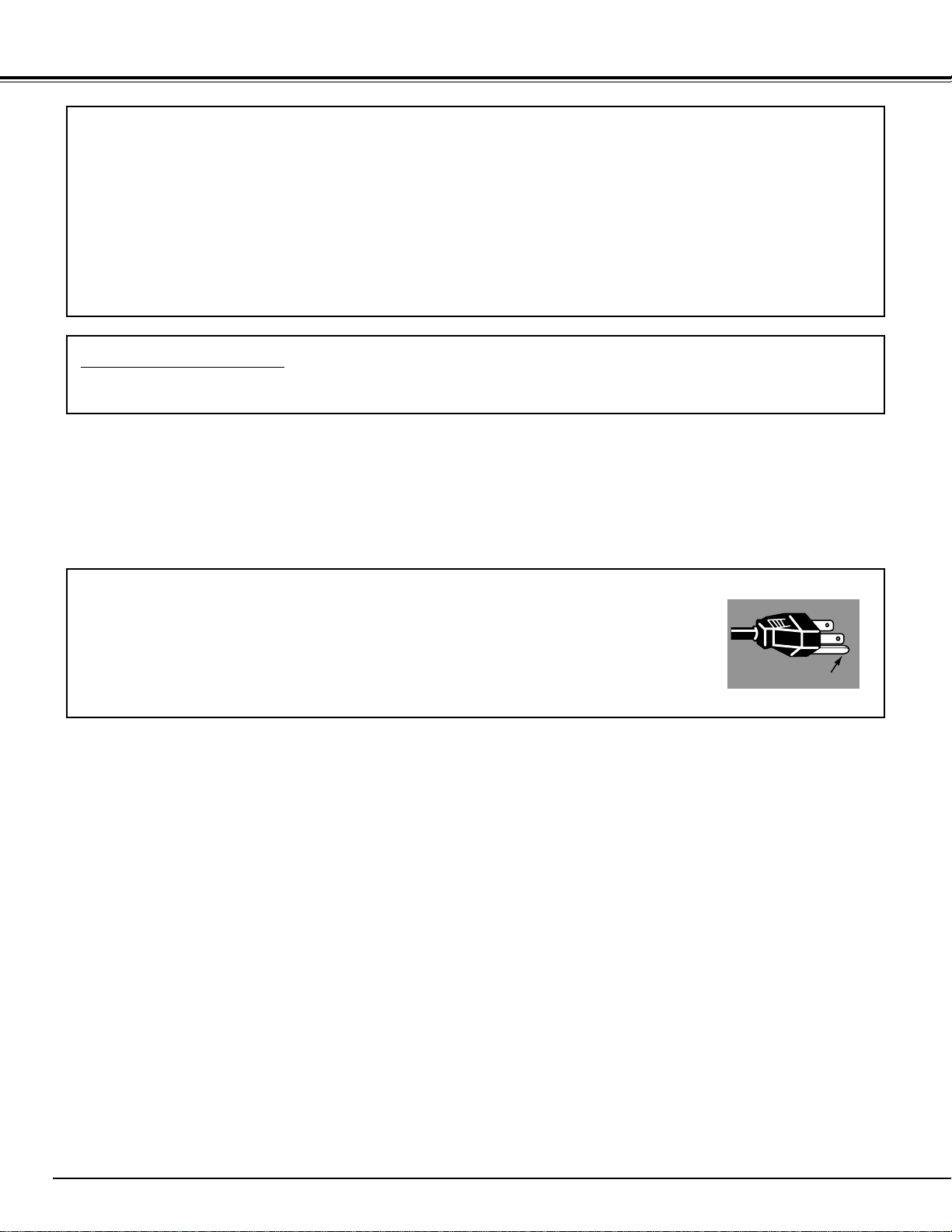
AC Power Cord has a grounding-type AC line plug. This is a safety feature to be sure
that the plug will fit into the power outlet. Do not try to defeat this safety feature.
Should you be unable to insert the plug into the outlet, contact your electrician.
GROUND
THE SOCKET-OUTLET SHOULD BE INSTALLED NEAR THE EQUIPMENT AND EASILY ACCESSIBLE.
AC POWER CORD REQUIREMENT
For use in Germany
This product is intended for use in residential, commercial and light industry environment.

5
TABLE OF CONTENTS
FEATURES AND DESIGN 6
BEFORE OPERATION 14
COMPUTER MODE 22
VIDEO MODE 29
SETTING 32
APPENDIX 34
PREPARATION 7
NAME OF EACH PART OF THE PROJECTOR 7
SETTING-UP THE PROJECTOR 8
CONNECTING THE AC POWER CORD 8
POSITIONING THE PROJECTOR 9
ADJUSTABLE FEET 9
MOVING THE PROJECTOR 10
CONNECTING THE PROJECTOR
11
TERMINALS OF THE PROJECTOR 11
CONNECTING TO THE VIDEO EQUIPMENT 12
CONNECTING TO THE COMPUTER 13
OPERATION OF THE REMOTE CONTROL 14
OPERATING RANGE 14
REMOTE CONTROL BATTERIES INSTALLATION 15
TOP CONTROLS AND INDICATORS 16
OPERATING ON-SCREEN MENU 17
HOW TO OPERATE THE ON-SCREEN MENU 17
FLOW OF ON-SCREEN MENU 17
MENU BAR 18
SELECTING COMPUTER MODE 22
SELECTING COMPUTER SYSTEM 22
COMPATIBLE COMPUTER SPECIFICATIONS 23
PC ADJUSTMENT 24
PICTURE IMAGE ADJUSTMENT 26
ADJUST PICTURE IMAGE MANUALLY 26
NORMAL FUNCTION 26
AUTO IMAGE FUNCTION 27
PICTURE POSITION ADJUSTMENT 27
PICTURE SCREEN ADJUSTMENT 28
SELECTING VIDEO MODE 29
SELECTING VIDEO SOURCE 29
SELECTING COLOR SYSTEM 30
PICTURE SCREEN ADJUSTMENT 30
PICTURE IMAGE ADJUSTMENT 31
ADJUSTING THE PICTURE IMAGE MANUALLY 31
NORMAL FUNCTION 31
SETTING MENU 32
SETTING LANGUAGE 33
OPERATING WIRELESS MOUSE 34
MAINTENANCE 35
WARNING TEMP. INDICATOR 35
AIR FILTER CARE AND CLEANING 35
CLEANING THE PROJECTION LENS 35
LAMP REPLACEMENT 36
LAMP REPLACEMENT MONITOR TIMER 36
TROUBLESHOOTING 37
TECHNICAL SPECIFICATIONS 39
BASIC OPERATION 19
TURNING ON / OFF THE PROJECTOR 19
ADJUSTING THE IMAGE 20
ZOOM ADJUSTMENT 20
FOCUS ADJUSTMENT 20
KEY STONE ADJUSTMENT 20
NO SHOW FUNCTION 21
PICTURE FREEZE FUNCTION 21
P-TIMER FUNCTION 21
SOUND ADJUSTMENT 21
SOUND VOLUME ADJUSTMENT 21
SOUND MUTE ADJUSTMENT 21
TRADEMARKS
● Apple, Macintosh, and PowerBook are trademarks or registered trademarks of Apple Computer,Inc.
● IBM and PS/2 are trademarks or registered trademarks of International Business Machines, Inc.
● Windows and PowerPoint are registered trademarks of Microsoft Corporation.
● Each name of corporations or products in the owner's manual is a trademark or a registered trademark of its
respective corporation.

6
FEATURES AND DESIGN
This Multimedia Projector is designed with the most advanced technology for portability, durability, and ease of
use. The projector utilizes built-in multimedia features, a palette of 16.77 million colors, and matrix liquid crystal
display (LCD) technology.
◆ Compatibility
This projector widely accepts various video and
computer input signals including;
● Computers
IBM-compatible and Macintosh computers up
to 1280 x 1024 resolution.
● 6 Color Systems
NTSC, PAL, SECAM, NTSC 4.43, PAL-M or
PAL-N color system can be connected.
● Component Video
Component video signals, such as a DVD
player output high definition TV signals
including 480i, 480p, 575i, 575p, 720p, 1035i
or 1080i, can be connected.
● S-Video
S-Video signals, such as a S-VHS VCR
output signals, can be connected.
◆ High Resolution Image
This projector provides 800 x 600 dots resolution
for computer input and 500 horizontal TV lines.
The resolution from the computer between SVGA
(800 x 600) and SXGA (1280 x 1024) is
compressed into 800 x 600 dots. This projector
cannot display image of over 1280 x 1024 dots.
When the resolution of your computer is over than
1280 x 1024, reset the computer output for lower
resolution.
◆ Multi-Scan System
This projector has Multi-Scan System to conform to
almost all computer output signals quickly. There
is no need for troublesome manual adjustment of
frequency and other settings.
◆ Keystone Correction
Positioning height of the projector may result in
distorted images being displayed in a trapezoid
shape. Keystone Correction solves this problem
by digitally altering the projection to produce
undistorted images.
◆ Multilanguage Menu Display
Operation menu is displayed in; English, Deutsch,
Français, Italiano, Español, or Japanese.
◆ One-Touch Auto Imaging
Incoming computer video signals are recognized
and the best setting is automatically selected by
the Auto Image function.
No complicated setup is necessary and projection
is always precise.
◆ Digital Zoom (Computer Mode only)
The Digital Zoom magnifies the image up to 16
times, allowing you to focus on crucial information
at a presentation.
◆ Compact Design
This projector is extremely compact in size and
weight. It is designed to carry and work anywhere
you wish to use.
◆ Power Management
Power Management function is provided to reduce
power consumption while the projector is not in
use.
This Power Management function operates to turn
the Projection Lamp off when the projector detects
signal interruption and any button is not pressed
over 5 minutes. The Projection Lamp is
automatically turned on again when the projector
detects the signal or any operation button is
pressed.
This projector is shipped with this function ON.
◆ Wireless Mouse
The Remote Control Unit supplied with this
projector has Wireless Mouse function for the
connected computer. This function enables you to
operate both projector and computer with this
Remote Control Unit only.
7
PREPARATION
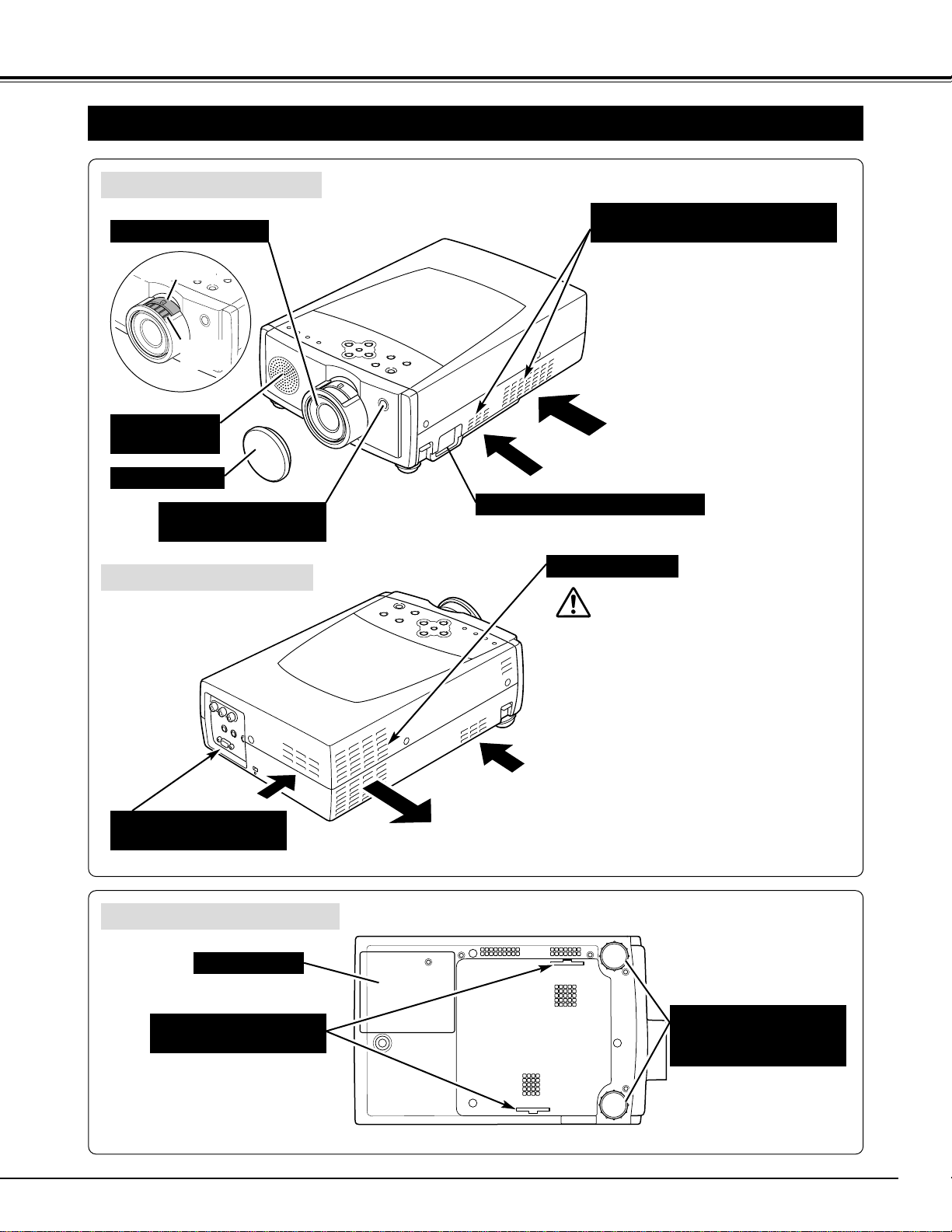
NAME OF EACH PART OF THE PROJECTOR
These Air Intake Vents
should not be blocked.
BOTTOM OF THE CABINET
BACK OF THE CABINET
POWER CORD CONNECTOR
FRONT OF THE CABINET
LAMP COVER
ADJUSTABLE FEET
AND
FEET LOCK LATCHES
PROJECTION LENS
SPEAKER
(Monaural)
INFRARED
REMOTE RECEIVER
LENS COVER
This projector is equipped with cooling
fans for protection from overheating.
Pay attention to the following to ensure
proper ventilation and avoid a possible
risk of fire and malfunction.
● Do not cover the vent slot.
● Keep sides and rear clear of any
obstructions. Obstructions may block
cooling air.
AIR INTAKE VENTS
(Both sides and Rear)
TERMINALS
AND CONNECTORS
AIR INTAKE VENTS
AND AIR FILTERS
ZOOM RING
FOCUS
RING
HOT AIR EXHAUSTED !
Air blown from the exhaust vent is hot.
When using or installing the projector, the
following precautions should be taken.
● Do not put a flammable object near this vent.
● Keep the side grills at least 3’ (1m) away
from any object, especially heat-sensitive
object.
● Do not touch this area, especially screws
and metallic parts. This area will become
hot while the projector is used.
This projector detects the internal
temperature and automatically controls the
operating power of the Cooling Fans.
EXHAUST VENT
SETTING-UP THE PROJECTOR
8
PREPARATION
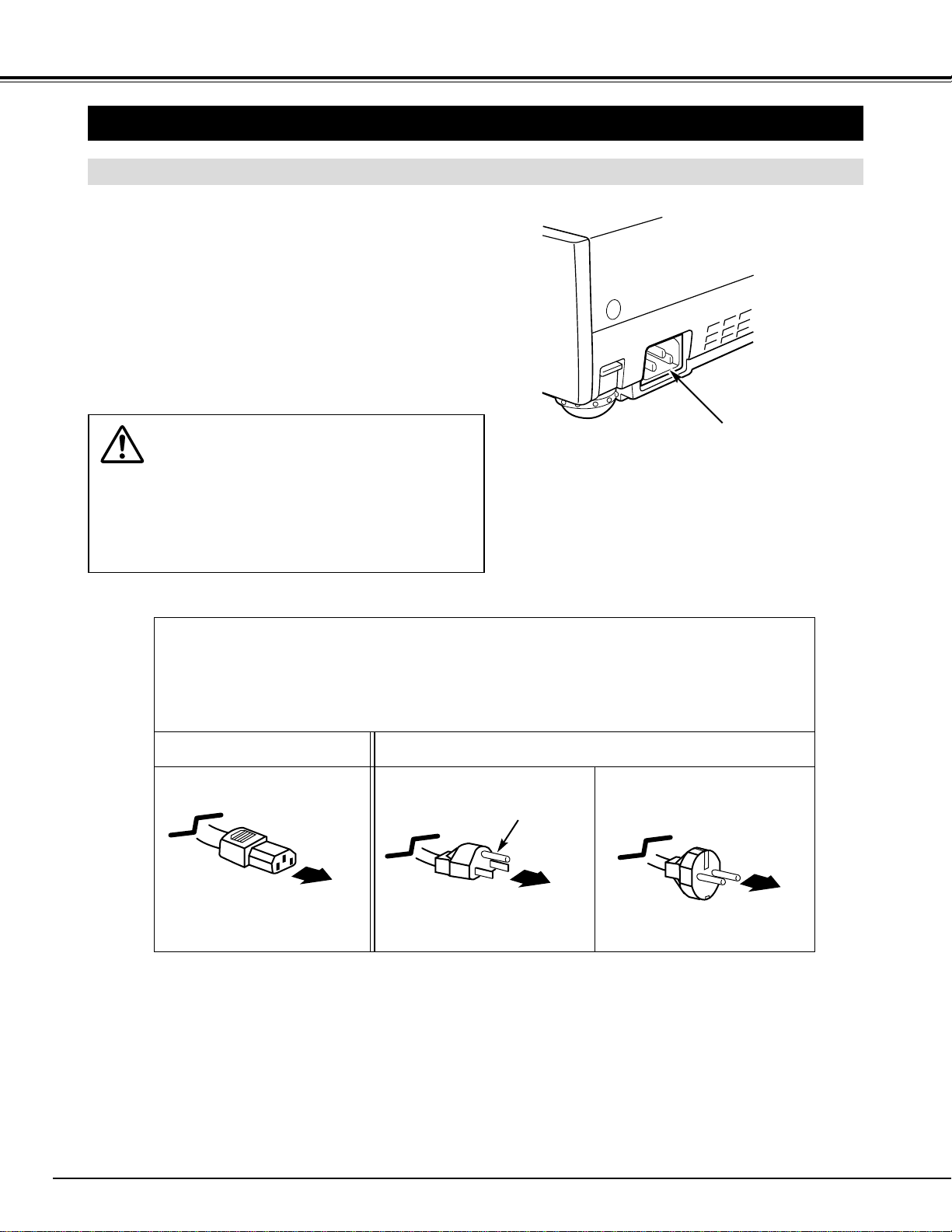
This projector uses nominal input voltages of 100-120 V
or 200-240 V AC. The projector automatically selects the
correct input voltage. It is designed to work with single-
phase power systems having a grounded neutral
conductor. To reduce the risk of electrical shock, do not
plug into any other type of power system.
Consult your authorized dealer or service station if you
are not sure of the type of power supply being in use.
Connect the projector with the peripheral equipment
before turning the projector on. (Refer to pages 11 ~ 13
for connection.)
CAUTION
For safety, unplug the AC Power Cord when the appli-
ance is not used.
When this projector is connected to the outlet with the
AC Power Cord, the appliance is in Stand-by Mode
and consumes a little electric power.
CONNECTING THE AC POWER CORD
Connect the AC Power Cord (supplied)
to the projector.
The AC outlet must be near this
equipment and must be easily
accessible.
To the POWER CORD
CONNECTOR on the
projector.
Projector side AC Outlet side
Ground
NOTE ON THE POWER CORD
The AC Power Cord must meet the requirement of the country where you use the projector.
Confirm the AC plug type with the chart below. The proper AC power cord must be used.
If the supplied AC Power Cord does not match the AC outlet, contact your sales dealer.
To the AC Outlet.
(120 V AC)
For Continental Europe
For the U.S.A. and Canada
To the AC Outlet.
(200 - 240 V AC)
9
PREPARATION
POSITIONING THE PROJECTOR
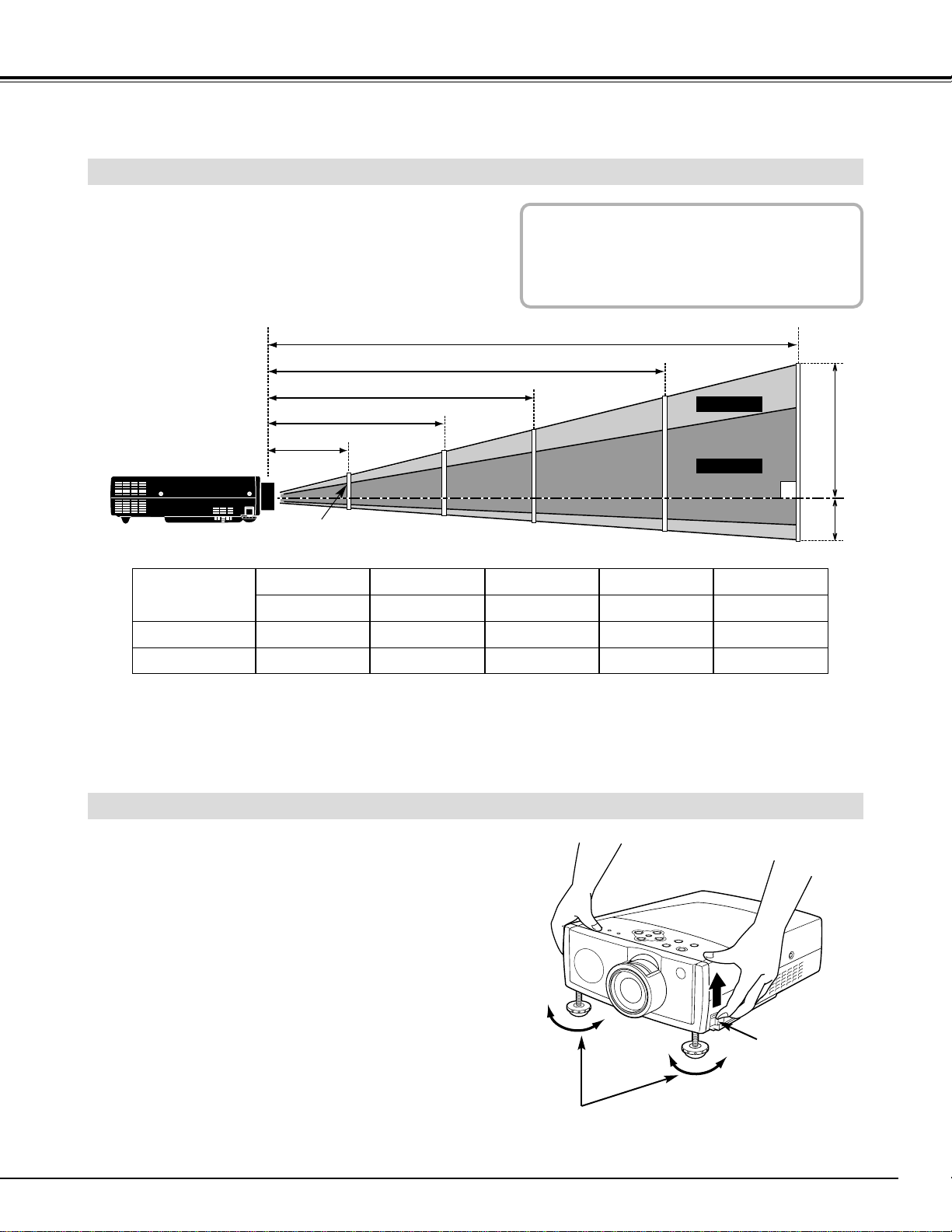
● This projector is designed to project on a flat
projection surface.
● The projector can be focused from 4.6’(1.4m) ~
26.3’(8.0m).
● Refer to the figure below to adjust the screen size.
ADJUSTABLE FEET
Picture tilt and projection angle can be adjusted by
rotating the ADJUSTABLE FEET. Projection angle can
be adjusted to 7.6 degrees.
Lift the front of the projector and pull the FEET LOCK
LATCHES on both sides of the projector.
1
ADJUSTABLE FEET
FEET LOCK
LATCHES
H1
H2
200”
167”
150”
125”
100”
83”
60”
50”
36”
26.3’ (8.0m)
19.7’ (6.0m)
13.1’ (4.0m)
7.8’ (2.4m)
4.6’ (1.4m)
30”
Release the FEET LOCK LATCHES to lock the
ADJUSTABLE FEET and rotate the ADJUSTABLE FEET
to fine tune the position and the tilt.
2
To shorten the ADJUSTABLE FEET, lift the front of the
projector and pull and undo the FEET LOCK LATCHES.
The position and the keystone distortion of the image can
be adjusted using the Menu Operation. (Refer to P 20,
28 and 30.)
3
ROOM LIGHT
The brightness in the room has a great
influence on the picture quality. It is
recommended to limit ambient lighting in
order to provide the best image.
Max. Zoom
Min. Zoom
Screen Size
(W x H) mm
Height (H1)
30”
Height (H2)
610 x 457
16.61”(422mm)
1.38”(35mm)
60”
1219 x 914
33.2”(844mm)
2.8”(70mm)
100”
2032 x 1524
55.4”(1407mm)
4.6”(117mm)
150”
3048 x 2286
83.1”(2110mm)
6.9”(176mm)
200”
4064 x 3048
110.8”(2814mm)
9.2”(234mm)
10
PREPARATION
When moving the projector, replace the lens cover and retract the feet to prevent damage to the lens and
cabinet. When this projector is not in use for an extended period, put it into the case (carrying bag) supplied
with this projector.
CAUTION IN CARRYING OR TRANSPORTING THE PROJECTOR
● Do not drop or bump the projector, otherwise damages or malfunctions may result.
● When carrying the projector, use a suitable carrying case.
● Do not transport the projector by using a courier or transport service in an unsuitable transport case. This
may cause damage to the projector. To transport the projector through a courier or transport service,
consult your dealer for best way.
MOVING THE PROJECTOR
CAUTION
The Carrying Bag (supplied) is intended for protection from dust and scratches on the surface of the cabinet, and
it is not designed to protect the LCD projector from external forces. Do not transport the projector through a
courier or transport services with this bag. The projector can be damaged. When handling the projector, do not
drop or bump the projector, subject it to strong forces or put other things on the cabinet.
11
CONNECTING THE PROJECTOR
TERMINALS OF THE PROJECTOR
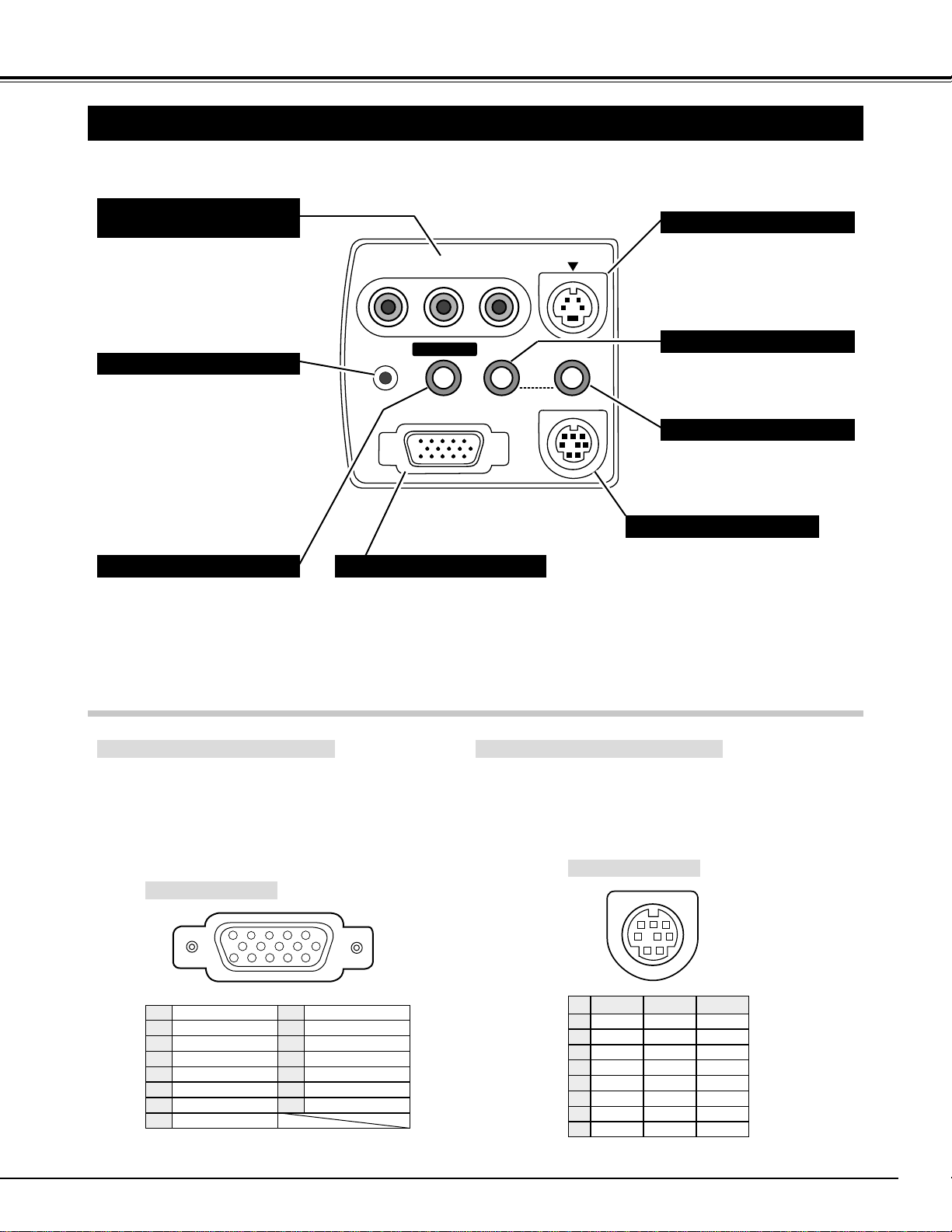
COMPUTER INPUT TERMINAL
Terminal : HDB15-PIN
Connect the display output terminal of the computer to
COMPUTER INPUT terminal of this projector with the
VGA Cable (supplied). When connecting the
Macintosh computer, the MAC Adapter (not supplied)
is required.
5
1
2
34
10
9 678
15
14
13
11
12
Red Input
Ground (Horiz.sync.)
Green Input
Sense 2
Blue Input
Ground (Red)
Ground (Green)
Ground (Blue)
1
5
2
4
3
6
7
8
No Connect
Horiz. sync.
Ground (Vert.sync.)
Sense 1
Sense 0
Vert. sync.
Reserved
9
13
10
12
11
14
15
Pin Configuration
Terminal : DIN 8-PIN
Connect control port (PS/2, Serial or ADB port) on your
computer to this terminal with the Control Cable (the Control
Cable for PS/2 port is supplied).
1
2
3
4
5
8 7 6
Pin Configuration
CONTROL PORT CONNECTOR
-----
CLK
DATA
GND
-----
-----
GND
-----
R X D
-----
-----
GND
RTS
T X D
GND
GND
-----
ADB
-----
GND
-----
-----
-----
GND
PS/2 Serial ADB
1
2
3
4
5
6
7
8
COMPUTER IN
S – VIDEO
COMPUTER
CONTROL PORT
RESET
AUDIO
IN
AV
Y – Pb/Cb – Pr/Cr
AUDIO OUT
VIDEO
Connect the computer output to
this terminal.
(Refer to P13.)
When controlling the computer with
the Remote Control of this projector,
connect the mouse port of your
personal computer to this terminal.
(Refer to P13.)
Connect an external audio
amplifier to this terminal.
(Refer to P12, 13.)
Connect the S-VIDEO output
from the video equipment to this
terminal. (Refer to P12.)
Connect the audio output from
the computer to this terminal.
(Refer to P13.)
Connect the audio output from
the video equipment to this
terminal. (Refer to P12.)
COMPUTER INPUT TERMINAL
CONTROL PORT CONNECTOR
COMPUTER AUDIO INPUT JACK
AUDIO INPUT JACK
VIDEO INPUT JACKS
(VIDEO/Y, Pb/Cb, Pr/Cr)
S-VIDEO INPUT JACK
AUDIO OUTPUT JACK (STEREO)
Connect the composite video
output from the video equipment
to the VIDEO/Y jack or connect
the component video outputs to
the Y/VIDEO, Pb/Cb and Pr/Cr
jacks. (Refer to P12.)
This projector uses a micro
processor to control the unit.
Occasionally, the micro
processor may malfunction and
need to be reset. This can be
done by pressing the RESET
button with a pen, which will
shut down and restart the unit.
Do not use the RESET function
excessively.
RESET BUTTON
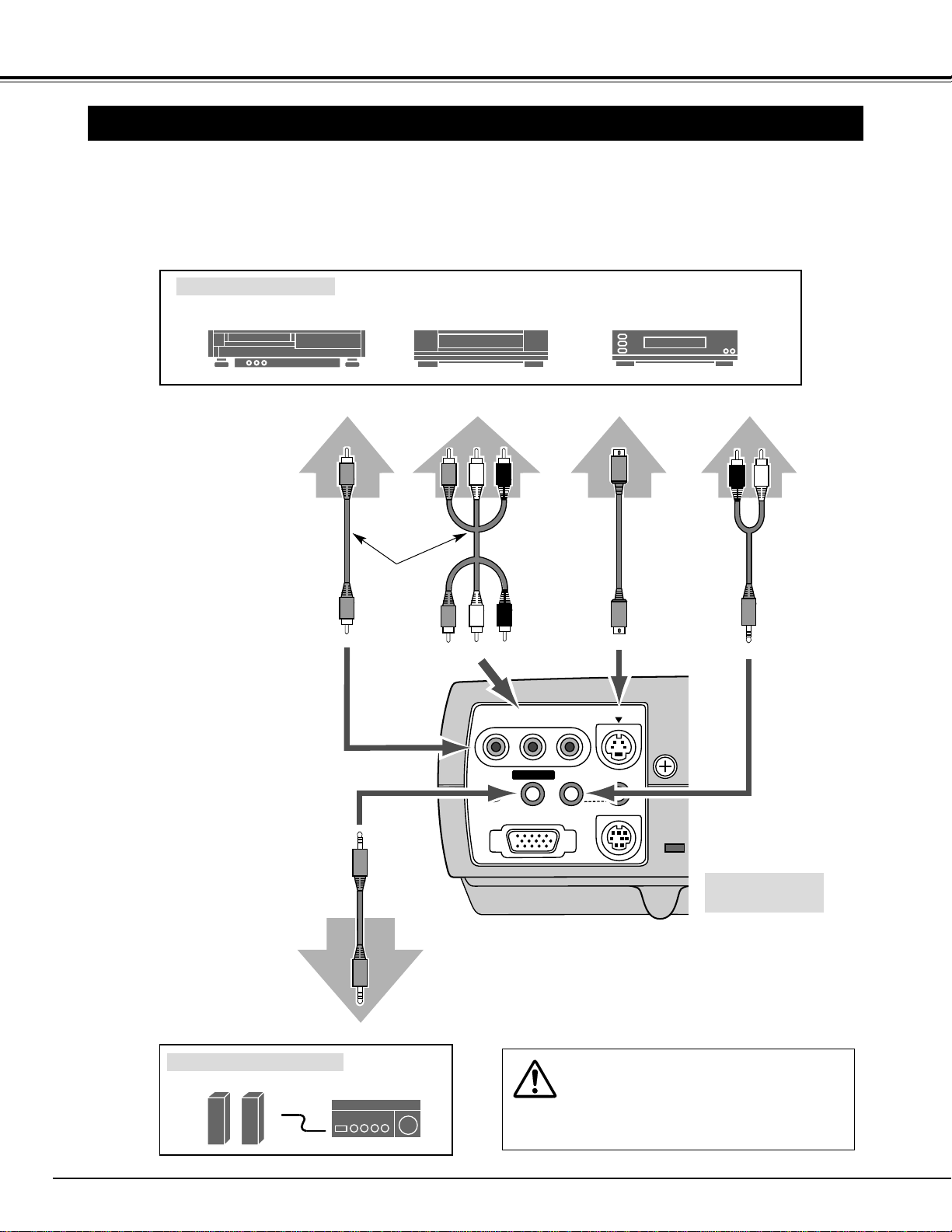
12
CONNECTING THE PROJECTOR
CONNECTING TO THE VIDEO EQUIPMENT
COMPUTER IN
S – VIDEO
COMPUTER
CONTROL PORT
RESET
AUDIO
IN
AV
Y – Pb/Cb – Pr/Cr
AUDIO OUT
VIDEO
Video Source (example)
Video Cassette Recorder Video Disc Player
Video Cables ✽
S-VIDEO
Cable ✽
Audio Amplifier
Audio Speaker (stereo)
Audio Cable
(Stereo)
✽
Terminals
of the Projector
Use any of VIDEO jack Y-Pb/Cb-Pr/Cr
jacks or S-VIDEO jack.
• When both VIDEO jack and S-
VIDEO jack are connected, the S-
VIDEO jack has priority over the
VIDEO jack.
• When both Y-Pb/Cb-Pr/Cr jacks and
S-VIDEO jack are connected, the Y-
Pb/Cb-Pr/Cr jacks has priority over
the S-VIDEO jack.
S-VIDEO Output
Audio Input
Cables used for connection (✽ = Cables are not supplied with this projector.)
• Video Cable (RCA x 1 or RCA x 3)
✽
• S-VIDEO Cable ✽
• Audio Cable (RCA x 2- Mini Plug x 1 (stereo) or Mini Plug (stereo)) ✽
NOTE :
When connecting the cable, the power cords of
both the projector and the external equipment
should be disconnected from AC outlet. Turn the
projector and peripheral equipment on before the
computer is switched on.
Audio Output
Audio
Cable ✽
Y Pb/Cb Pr/Cr R L
(stereo)
External Audio Equipment
AV AUDIO IN
S-VIDEO
Y-Pb/Cb-Pr/Cr
VIDEO
AUDIO OUT
Component video output equipment.
(such as DVD player or
high-definition TV source.)
Composite
Video Output
Component
Video Output
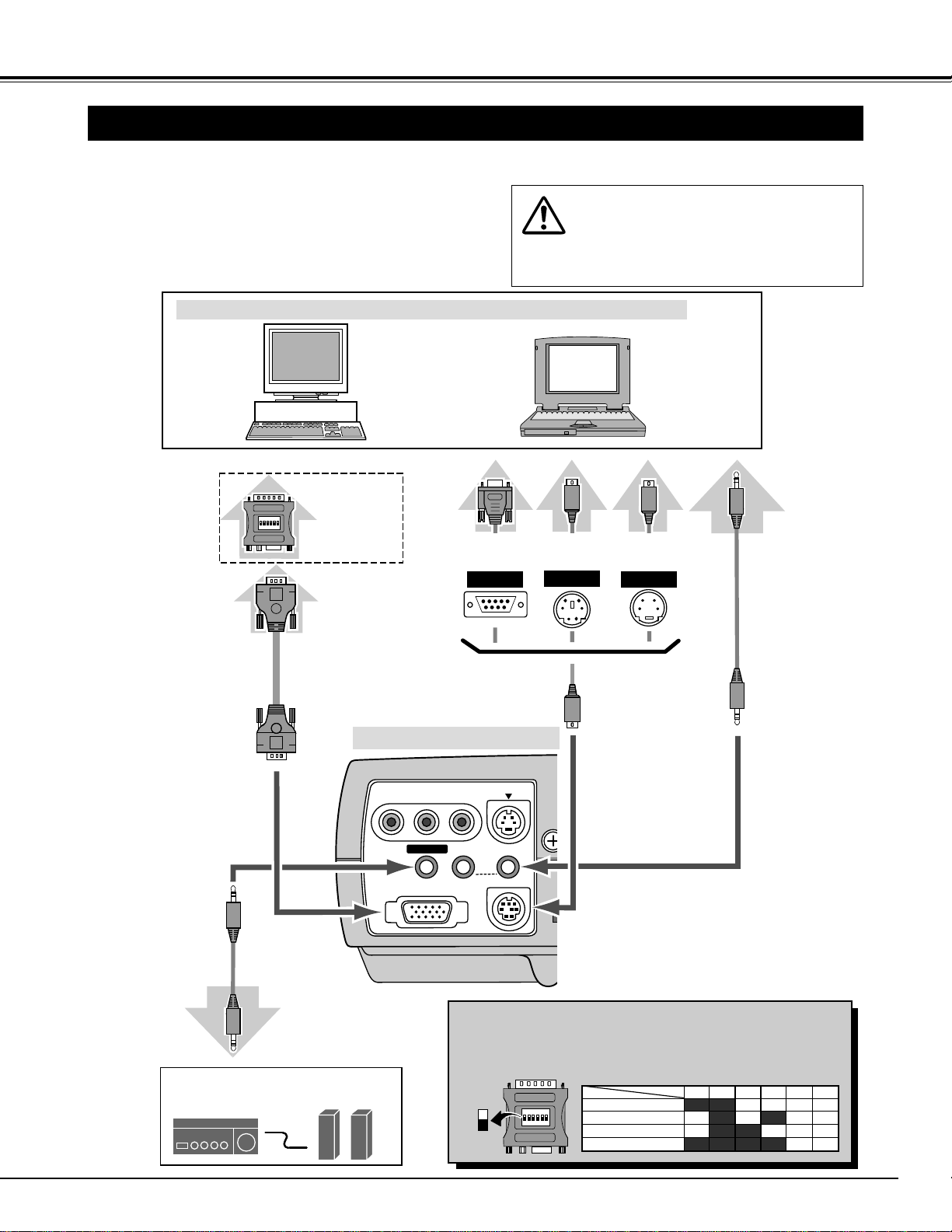
13
CONNECTING THE PROJECTOR
COMPUTER IN
S – VIDEO
COMPUTER
CONTROL PORT
RESET
AUDIO
IN
AV
Y – Pb/Cb – Pr/Cr
AUDIO OUT
VIDEO
13" MODE (640 x 480)
16" MODE (832 x 624)
19" MODE (1024 x 768)
OFFON ON
ON ON
ON ON
OFF OFF OFF
OFFOFF OFF OFF
OFF OFF OFF OFF
123456
OFF OFFON ONON ON21" MODE (1152 x 870)
ON
1
DIP
2 3 4 5 6
ON
OFF
CONNECTING TO THE COMPUTER
IBM-compatible computers or Macintosh computers (VGA / SVGA / XGA / SXGA)
VGA Cable
Monitor Output
Desktop type Laptop type
Audio Speaker
(stereo)
Audio Amplifier
Control Cable
for Serial Port
✽
Audio Cable
(stereo)
✽
Terminal
Serial port PS/2 port Audio Output
Audio Input
CONTROL PORT
AUDIO OUT
COMPUTER AUDIO IN
COMPUTER IN
Use one of these Control
Cables corresponding
with the terminal of your
computer.
MAC Adapter ✽
Set the slide
switches following
the chart below.
ADB port
Set the switches as shown in the table below depending on the
RESOLUTION MODE that you want to use before you turn-on the
projector and computer.
◆ MAC ADAPTER (Not supplied)
Cables used for connection (✽ = Cables are not supplied with this projector.)
• VGA CABLE (HDB 15 pin)
• CONTROL CABLE FOR PS/2 PORT
• CONTROL CABLE FOR SERIAL PORT, or ADB PORT
✽
• MAC ADAPTER (When connecting to Macintosh computer) ✽
• AUDIO CABLE (Mini Plug (stereo)) ✽
Control Cable
for PS/2 Port
Control Cable
for ADB Port
✽
Terminal Terminal
Audio Cable
(stereo)
✽
NOTE :
When connecting the cable, the power cords of
both the projector and the external equipment
should be disconnected from AC outlet. Turn the
projector and peripheral equipment on before the
computer is switched on.
Terminals of the Projector
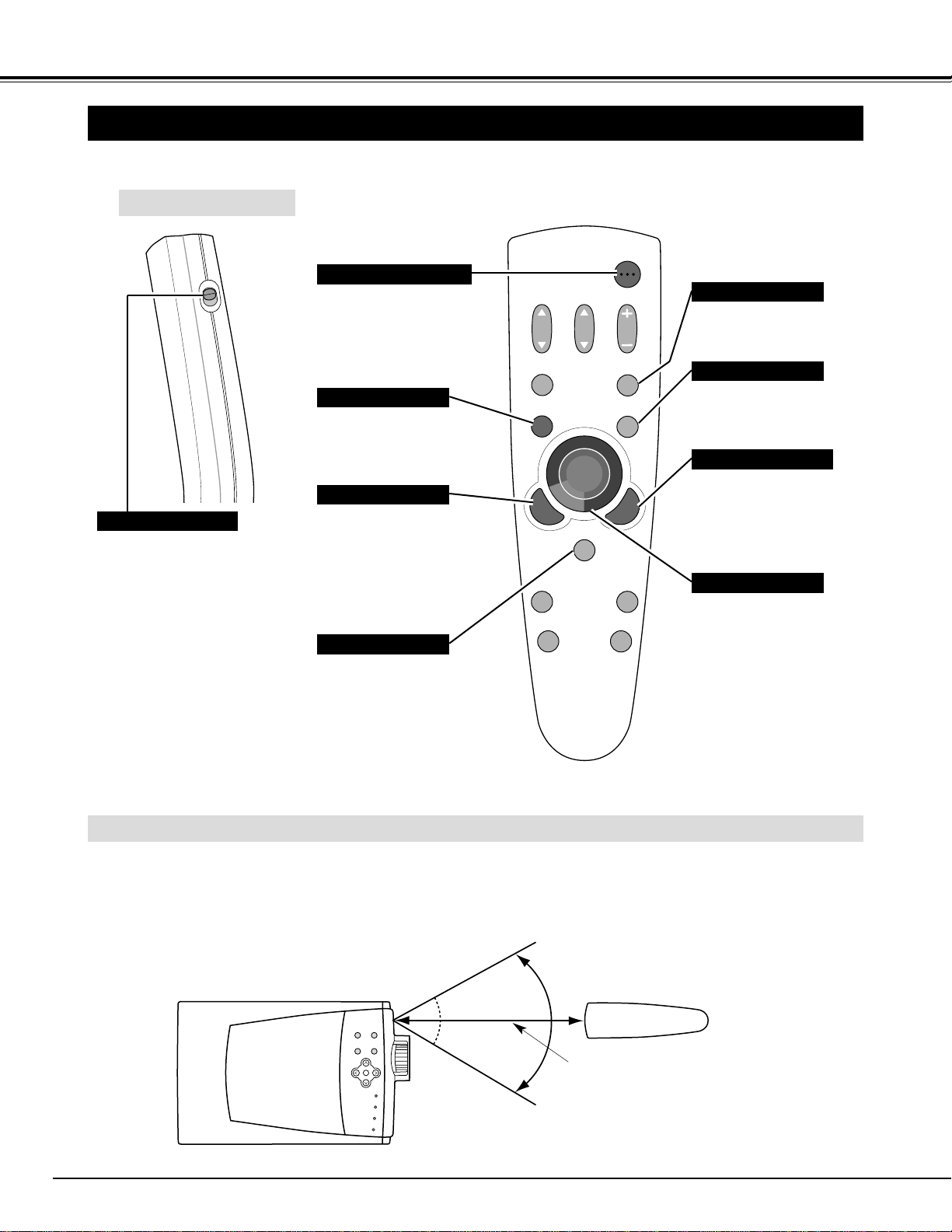
14
VOLUME
POWER
D.ZOOM
KEYSTONE
VIDEO
MENU
MUTE
P-TIMER
NO SHOW
FREEZE
AUTO IMAGE
NORMAL
COMPUTER
BEFORE OPERATION
OPERATION OF THE REMOTE CONTROL
Used to select COMPUTER
input source. (P22)
Used to select VIDEO
source. (P29)
Used to execute the item
selected or to expand the
image in DIGITAL ZOOM
mode. (P28)
It is also used as a PC
mouse in Wireless Mouse
Operation. (P34)
POWER ON-OFF BUTTON
Used to turn the projector on
or off. (P19)
MENU BUTTON
Used to select MENU
operation. (P17, 18)
SELECT BUTTON
ON
ALL OFF
ALL-OFF SWITCH
VIDEO BUTTON
COMPUTER BUTTON
P-TIMER BUTTON
Used to operate P-TIMER
function. (P21)
Point the remote control toward the projector (the Remote
Receiver) whenever pressing the buttons. Maximum operating
range for the remote control is about 16.4’ (5m) and 60° in front
of the projector.
16.4’
(5 m)
60°
Left Side
When using the Remote Control
Unit, turn this switch to “ON.” And
turn it to “ALL OFF” when it is not
used.
Used to move the pointer on
the MENU, to adjust the item,
or to pan the image in DIGITAL
ZOOM mode. (P28)
It is also used as a PC mouse
in Wireless Mouse Operation.
(P34)
✽ When pressing the center of this
button, it works as the SELECT
button.
POINT BUTTON
Used to compress the image
in DIGITAL ZOOM mode.
(P28)
It is also used as a PC mouse
in Wireless Mouse Operation.
(P34)
RIGHT CLICK BUTTON
Operating Range
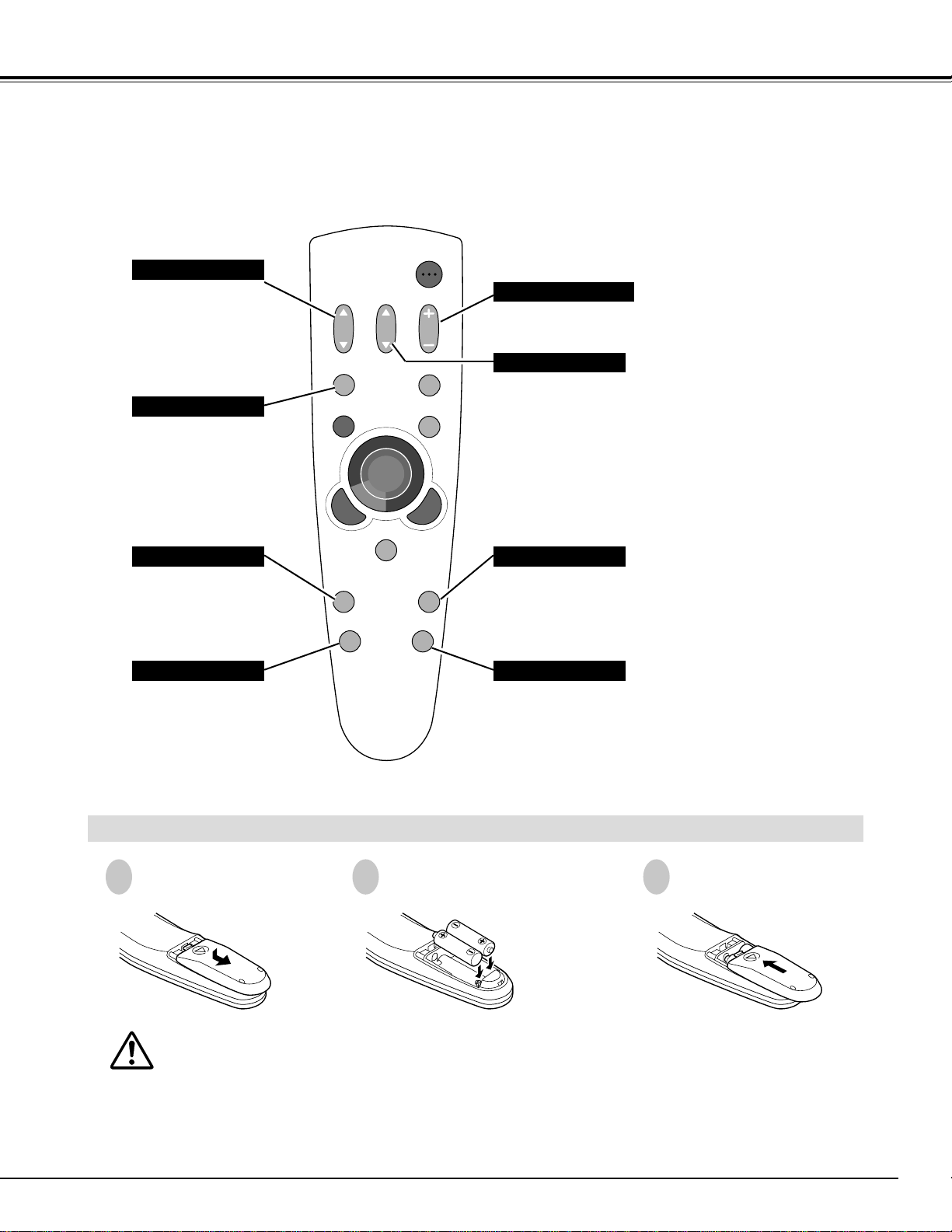
15
BEFORE OPERATION
VOLUME
POWER
D.ZOOM
KEYSTONE
VIDEO
MENU
MUTE
P-TIMER
NO SHOW
FREEZE
AUTO IMAGE
NORMAL
COMPUTER
MUTE BUTTON
Used to mute sound.(P21)
NO SHOW BUTTON
Used to turn the picture
into black image. (P21)
AUTO IMAGE BUTTON
Use to operate AUTO
IMAGE function. (P27)
VOLUME BUTTON
Used to adjust volume.
(P21)
D.ZOOM BUTTON
Used to select DIGITAL
ZOOM mode and resize
the image. (P28)
KEYSTONE BUTTON
Used to correct the
keystone distortion.
(P20, 28, 30)
FREEZE BUTTON
Used to freeze the picture.
(P21)
NORMAL BUTTON
Used to reset to normal
picture adjustments preset
by the factory. (P26, 31)
To insure safe operation, please observe the following precautions :
● Use (2) AA, UM3 or R06 type alkaline batteries.
● Replace two batteries at the same time.
● Do not use a new battery with a used battery.
● Avoid contact with water or liquid.
● Do not expose the Remote Control Unit to moisture, or heat.
● Do not drop the remote control unit.
● If batteries have leaked on the remote control, carefully wipe the case clean and load new batteries.
Press the lid down-
ward and slide it.
Remove the battery
compartment lid.
Slide the batteries into the
compartment.
Replace the compartment
lid.
Two AA size batteries
For correct polarity (+
and –), be sure the
battery terminals are in
contact with the pins in
the compartment.
Remote Control Batteries Installation
1
2
3
16
WIDE
TELE
POWER MENU
MODENORMAL
LAMP
REPLACE
WARNING
TEMP.
READY
LAMP
BEFORE OPERATION
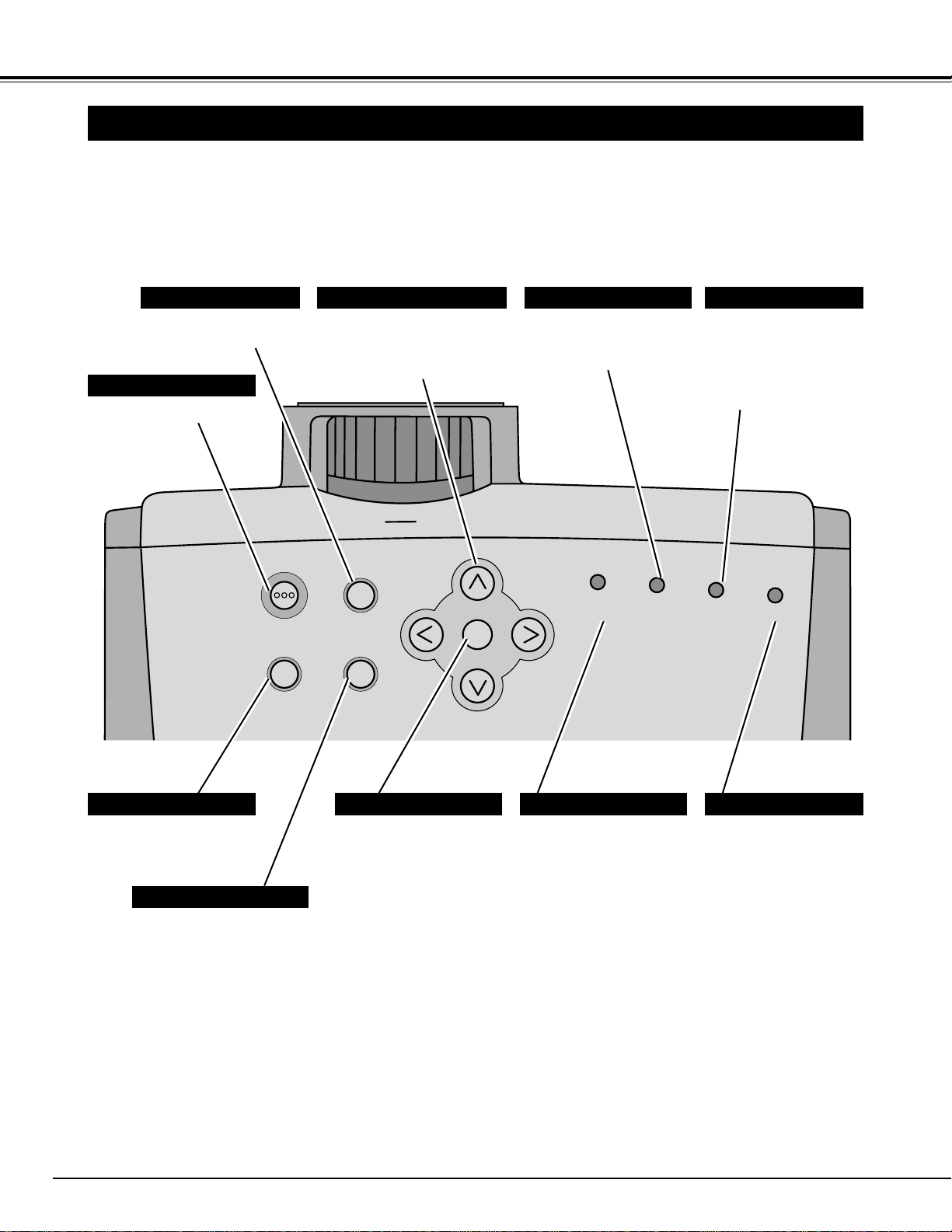
TOP CONTROLS AND INDICATORS
Used to open or close
the MENU operation.
(P17, 18)
MENU BUTTON
MODE BUTTON
READY INDICATOR
SELECT BUTTON
POWER ON–OFF BUTTON
NORMAL BUTTON
WARNING TEMP. INDICATOR
LAMP INDICATOR
POINT BUTTONS
LAMP REPLACE INDICATOR
Used to select input source
either Computer or Video.
(P22, 29)
This indicator lights
green when the projector
is ready to be turned on.
And it flashes green in
Power Management
mode. (P33)
This indicator is dim
when the projector is
turned on. And bright
when the projector is in
stand-by mode.
This indicator turns to
yellow when the life of the
projection lamp draws to
an end. (P36)
This indicator flashes red
when internal projector
temperature is too high.
(P35)
Used to reset to normal
picture adjustment preset
by factory. (P26, 31)
Used to select an item or
adjust the value in the MENU.
It is also used to pan the
image in DIGITAL ZOOM
mode. (P28)
Used to execute the item
selected. It is also used
to expand the image in
DIGITAL ZOOM mode.
(P28)
Used to turn the projector
on or off. (P19)
17
BEFORE OPERATION
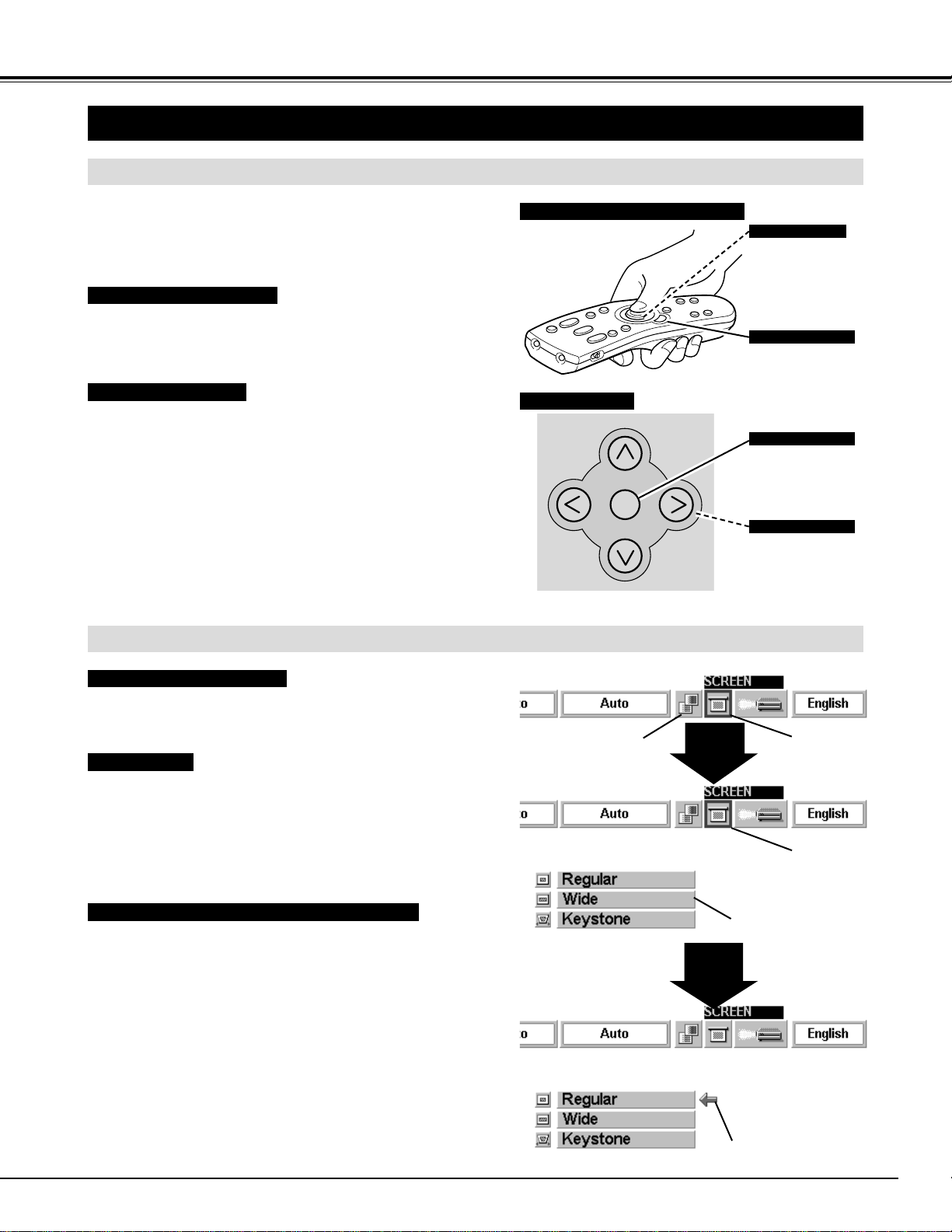
HOW TO OPERATE ON-SCREEN MENU
FLOW OF ON-SCREEN MENU
Display ON-SCREEN MENU
Press MENU button to display the ON-SCREEN MENU
(MENU BAR). The red frame is the POINTER.
Select the ITEM by pressing SELECT button. The dialog
box of the ITEM appears.
Move the POINTER (red frame) to the ITEM ICON that
you want to select by pressing POINT RIGHT/ LEFT
buttons.
Move the POINTER to the ITEM that you want to adjust
and adjust the ITEM by pressing SELECT button.
Refer to the following pages for details of respective
adjustments.
Move the POINTER downward by pressing POINT
DOWN button. (The shape of the POINTER becomes an
arrow.)
Select the Item
Control and adjust through ON-SCREEN MENU
1
2
3
5
4
You can control and adjust this projector through the ON-
SCREEN MENU. Refer to the following pages to
operate each adjustment in the ON-SCREEN MENU.
1 MOVING THE POINTER
2 SELECT THE ITEM
Move the pointer (see the NOTE below) by pressing POINT
button(s) on the TOP CONTROL or the REMOTE CONTROL.
Select the item by pressing SELECT button.
Used to select the item.
SELECT BUTTON
Used to move the
Pointer UP/ DOWN/
RIGHT/ LEFT.
POINT BUTTON
WIRELESS REMOTE CONTROL
OPERATING ON-SCREEN MENU
NOTE : Pointer is the icon on the ON-SCREEN MENU to
select the item. See the figures on the section "FLOW
OF ON-SCREEN MENU" below.
Used to select the item.
SELECT BUTTON
Used to move the
Pointer UP/ DOWN/
RIGHT/ LEFT.
POINT BUTTONS
TOP CONTROL
SELECT
BUTTON
POINT
DOWN
BUTTON
MENU BAR
POINTER
(red frame)
ITEM ICON
POINTER
(red frame)
MENU
POINTER
18
BEFORE OPERATION
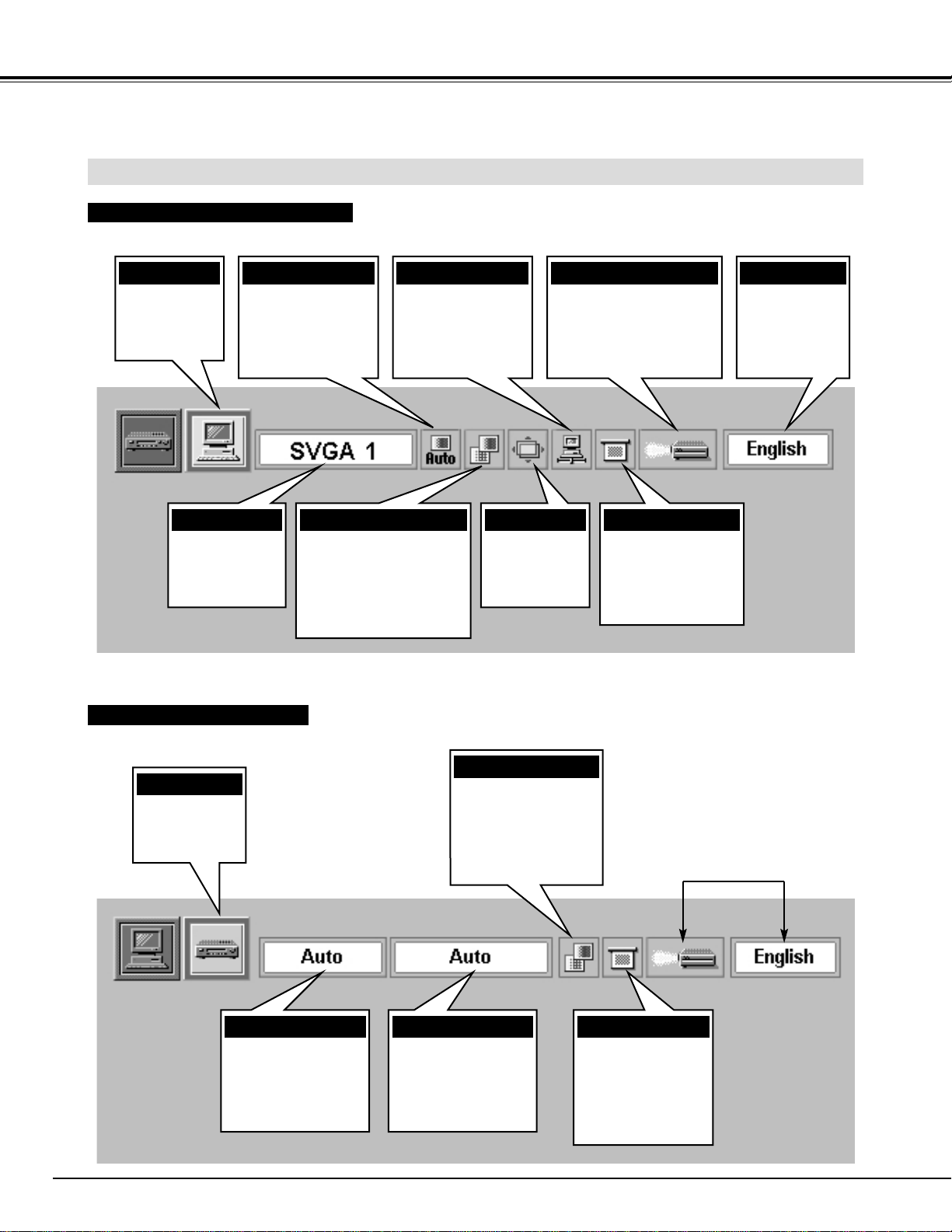
MENU BAR
SYSTEM MENU
Used to select a
computer
system.
(Refer to P22)
IMAGE MENU
Used to adjust the
computer image.
[Fine sync
/ Total dots / White Balance /
Contrast / Brightness /
Gamma]
(Refer to P26)
PC ADJUST MENU
Used to adjust the
parameters to
match with the input
signal format.
(Refer to P24, 25)
SETTING MENU
Used to adjust Volume,
set the Display Menu and
reset Lamp Replacement
Monitor Timer.
(Refer to P32, 33)
MODE MENU
Used to select
the Computer
input mode.
(Refer to P22)
POSITION MENU
Used to adjust
the position of
the image.
(Refer to P27)
SCREEN MENU
Used to adjust the
size of the image or
to correct the
Keystone distortion.
(Refer to P28)
AUTO IMAGE MENU
Used to adjust Fine
sync, Total dots,
and Picture Position
automatically.
(Refer to P27)
MENU BAR IN COMPUTER MODE
Press MENU BUTTON while in Computer mode.
SYSTEM MENU
Used to select a
color system of the
selected video
source.
(Refer to P30)
IMAGE MENU
Used to adjust the
picture image. [
Color /
Tint / White Balance /
Contrast / Brightness/
Sharpness / Gamma
]
(Refer to P31)
SCREEN MENU
Used to set the size
of the image either
Regular or Wide,
or to correct the
Keystone distortion.
(Refer to P30)
MENU BAR IN VIDEO MODE
Press MENU BUTTON while in Video mode.
Same function as the
Computer Mode.
MODE MENU
Used to select
the Video input.
(Refer to P29)
VIDEO SOURCE MENU
Used to select a
video source among
[
Video, S-Video, and Y,
Pb/Cb, Pr/Cr
].
(Refer to P29)
LANGUAGE MENU
Used to select
the language
used in the
MENU.
(Refer to P33)
19
BASIC OPERATION
TURNING ON THE PROJECTOR
Connect the projector's AC Power Cord into a wall outlet. The
LAMP indicator lights RED, and the READY indicator lights
GREEN.
Press the power ON-OFF button on the Remote Control Unit or
on the Top Control to ON. The LAMP indicator dims, and the
Cooling Fans start to operate. The Preparation Display appears
on the screen and the count-down starts. The signal from the
source appears after 30 seconds.
2
3
TURNING OFF THE PROJECTOR
Press the power ON-OFF button on the Remote Control Unit or
on the Top Control, and the message "Power off?" appears on
the screen.
Press the power ON-OFF button again to turn off the projector.
The LAMP indicator lights bright and the READY indicator turns
off. The Cooling Fans operate for 90 seconds after the projector
is turned off. (During this "Cooling Down" period, this appliance
cannot be turned on.)
1
2
TO MAINTAIN THE LIFE OF THE LAMP, ONCE YOU
TURN THE PROJECTOR ON, WAIT AT LEAST 5
MINUTES BEFORE TURNING IT OFF.
TURNING ON / OFF THE PROJECTOR
When WARNING TEMP. indicator flashes red, the projector is automatically turned off. Wait at least 5 minutes before
turning the projector on again.
When WARNING TEMP. indicator continues to flash, follow procedures below:
1. Press the power ON-OFF button to turn off the projector and disconnect the AC power cord from the AC outlet.
2. Check the air filters for dust accumulation.
3. Clean the Air Filter. (See "AIR FILTER CARE AND CLEANING" section on page 35.)
4. Press the power ON-OFF button to turn it on.
If WARNING TEMP. indicator should still continue to flash, contact the sales dealer where you purchased this projector or
service center.
1
Complete the peripheral connections (with Computer, VCR, etc.)
before turning on the projector. (Refer to "CONNECTING TO
THE PROJECTOR" on Pages 11~13 for connecting that
equipment.)
3
When the projector has cooled down, the READY indicator turns
to green again and you can turn the projector on. After cooling
down completely, disconnect the AC power cord.
30
The Preparation Display disappears after 30 seconds.
NOTE: The Cooling Fan may work for cooling while the projector is turned off. When the Cooling Fan
is working, WARNING TEMP. INDICATOR flashes red.
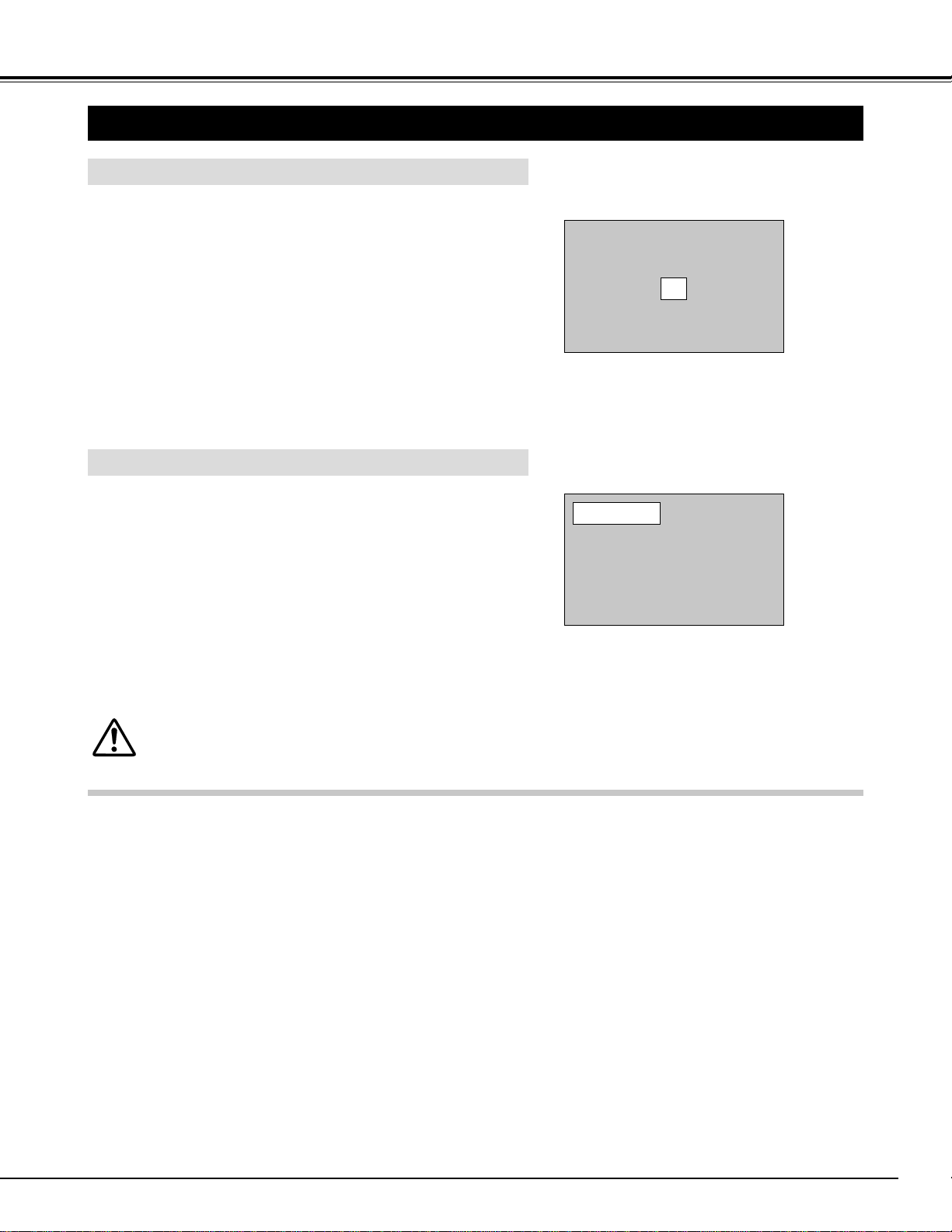
Power off?
The message disappears after 4 seconds.
When the Power Management function is ON, the Projector detects the signal interruption and turns the Projection Lamp
off automatically. Refer to “Power Management” on page 33.
20
BASIC OPERATION
ADJUSTING THE IMAGE
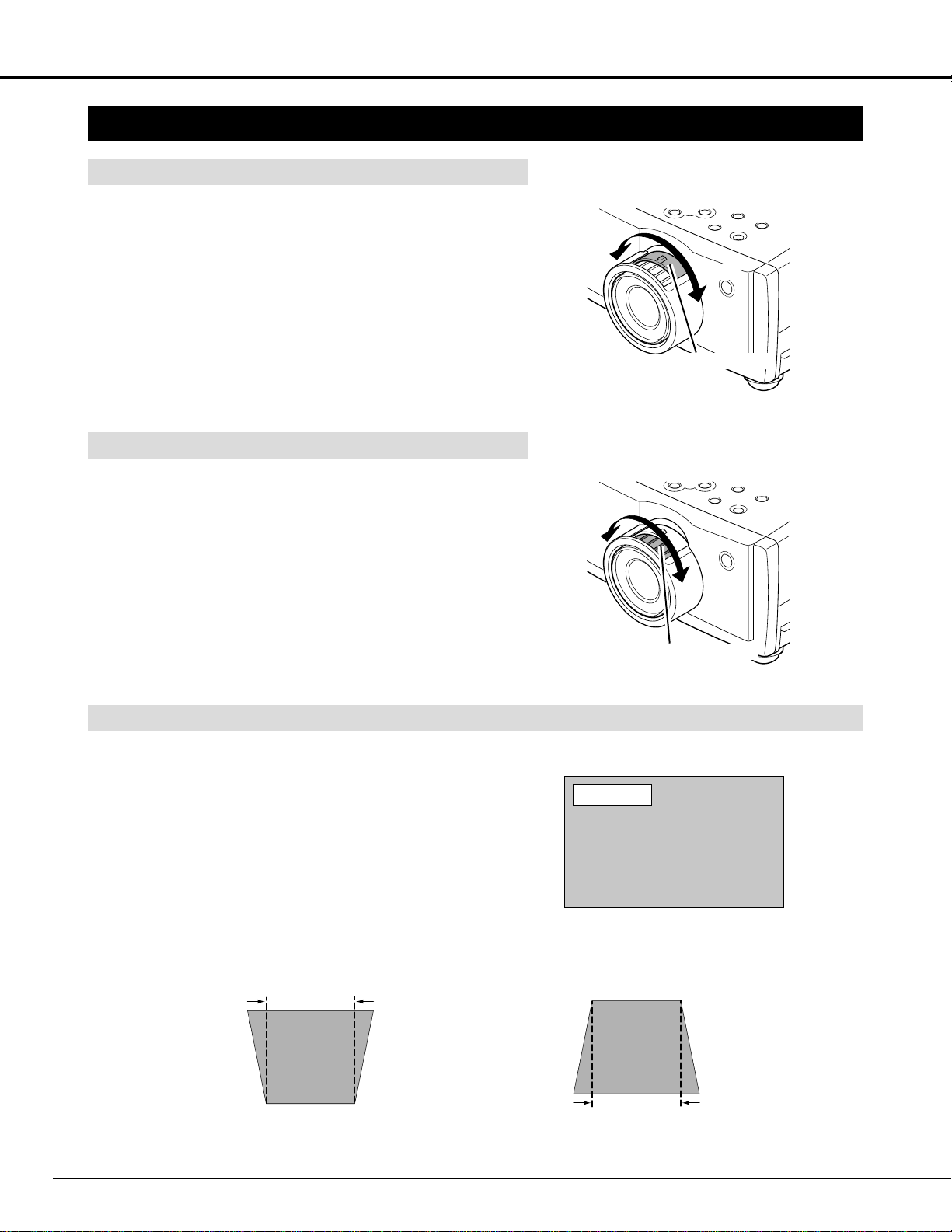
KEYSTONE ADJUSTMENT
1
Press the KEYSTONE ▲/▼ button on the Remote Control Unit
or select the Keystone on SCREEN MENU. (Refer to page 28,
30.) The message “Keystone” is displayed.
2
Correct the Keystone distortion by pressing the KEYSTONE
▲/▼ button or the POINT UP/DOWN button(s). Press the
KEYSTONE ▲ button or the POINT UP button to reduce the
upper part or the image, and press the KEYSTONE ▼ button or
the POINT DOWN button to reduce the lower part.
The message disappears after 4 seconds.
Reduce the upper width with the KEY STONE ▲
button or the POINT UP button.
Reduce the lower width with the KEY STONE ▼
button or the POINT DOWN button.
Keystone
If the picture has keystone distortion, correct image with KEYSTONE adjustment.
ZOOM ADJUSTMENT
Turn the ZOOM RING to adjust the projected picture size. Turn
the ring to “WIDE” direction to make the image larger, and turn
to “TELE” direction to make the image smaller.
Turn the FOCUS RING to adjust the projected picture focus.
MAX.
MIN.
FOCUS ADJUSTMENT
ZOOM RING
FOCUS RING
21
BASIC OPERATION
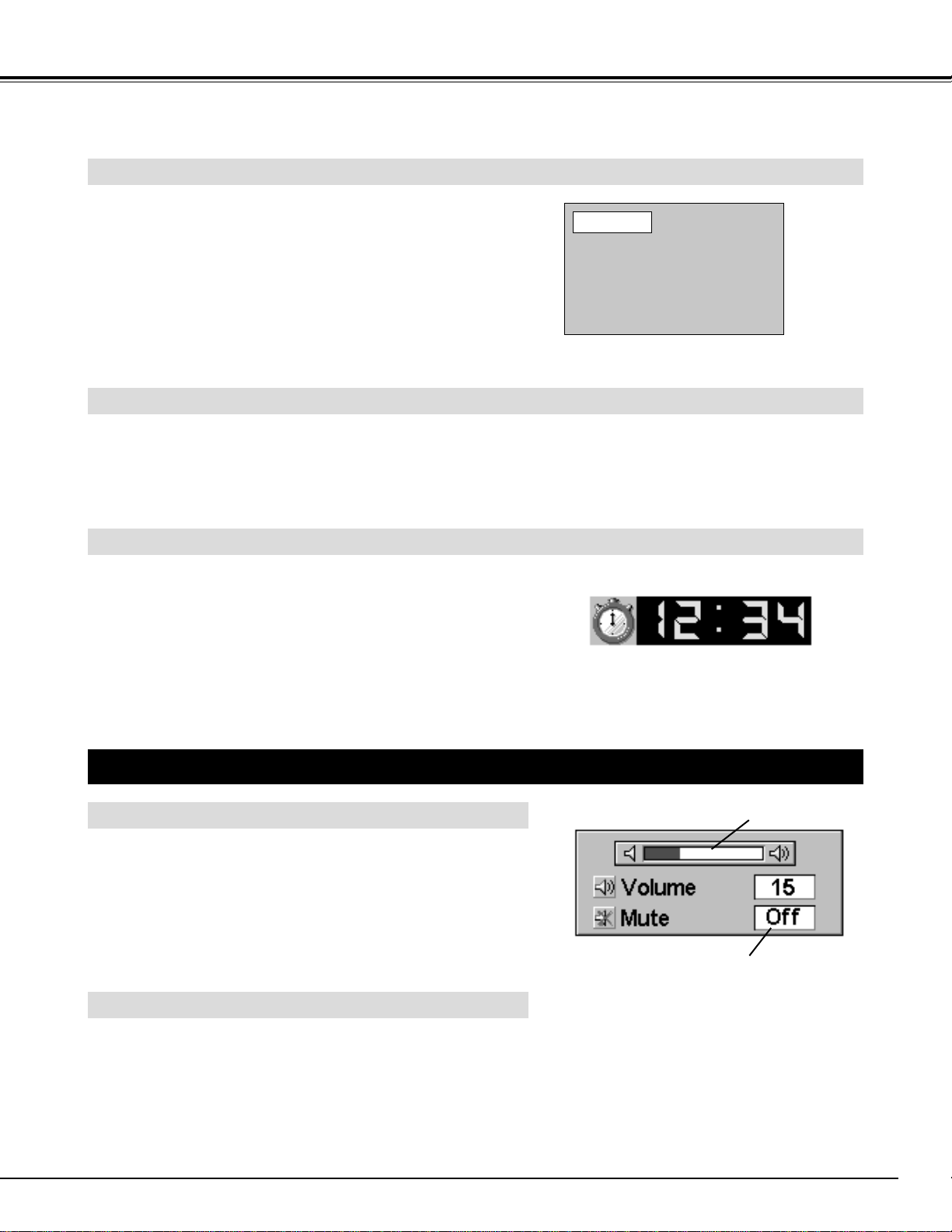
Press the VOLUME (+/–) button on the Remote Control Unit to
adjust the volume. The Volume dialog box appears on the
screen for a few seconds.The VOLUME (+) button increases
the volume, and the VOLUME (–) button decreases the
volume.
The sound volume can be adjusted through the ON-SCREEN
MENU. (Refer to page 32.)
Press the MUTE button on the Remote Control Unit to mute the
sound. To restore the sound to its previous level, press the
MUTE button again or press the VOLUME (+/–) button.
The sound mute can be set through the ON-SCREEN MENU.
(Refer to page 32.)
SOUND ADJUSTMENT
Press the FREEZE button on the Remote Control Unit to freeze the picture on-screen. This function is
cancelled when the FREEZE button is pressed again or any other function button is pressed.
Press the NO SHOW button on the Remote Control Unit to
black out the image. This function is cancelled when the NO
SHOW button is pressed again or any other function button is
pressed.
NO SHOW FUNCTION
PICTURE FREEZE FUNCTION
SOUND MUTE ADJUSTMENT
SOUND VOLUME ADJUSTMENT
Indicates the level of the volume.
Press the MUTE button to turn
the Mute function On or Off.
The display disappears after 4 seconds.
The message disappears after 4 seconds.
No show
Press the P-TIMER button on the Remote Control unit. The
timer display “00 : 00” appears on the screen and the timer
starts to count the time (00 : 00 ~ 59 : 59).
To stop the P-TIMER, press the P-TIMER button. And then,
press the P-TIMER button again to cancel the P-TIMER
function.
P-TIMER FUNCTION
22
MODE button
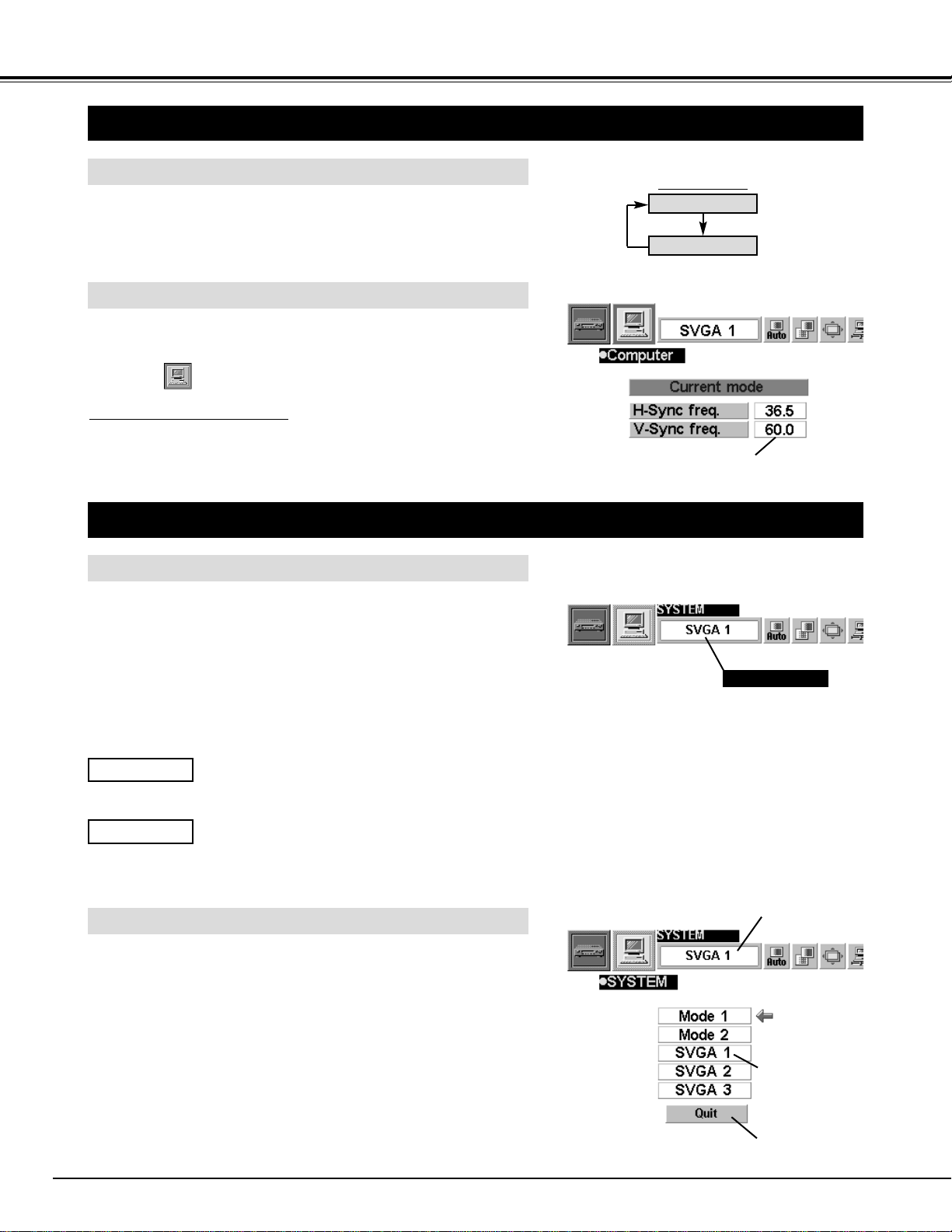
Press the MENU button and the ON-SCREEN MENU will
appear.
Press the POINT LEFT/RIGHT buttons to select
Computer and press the SELECT button.
COMPUTER MODE
SELECTING COMPUTER MODE
MENU OPERATION
When selecting the Computer Mode, the Current Mode display
appears. It shows the information of the computer of the mode
selected.
CURRENT MODE DISPLAY
COMPUTER
VIDEO
Providing the information of the computer detected
by the projector.
SELECTING COMPUTER SYSTEM
AUTOMATIC MULTI-SCAN SYSTEM
This projector automatically tunes to most different types of
computers based on VGA, SVGA, XGA or SXGA (refer to
“COMPATIBLE COMPUTER SPECIFICATION” on page 23).
When selecting Computer, this projector automatically tunes to
the incoming signal and projects the proper image without any
special settings. (Setting of the Computer System may be
required when connecting some computers.)
Note : The projector may display one of the following messages.
The projector cannot discriminate or detect the input
signal from the computer. Adjust and set the
computer system manually. (Refer to page 24.)
There is no signal input from the computer. Make
sure the connection of the computer and the
projector is set correctly.
(Refer to TROUBLESHOOTING on page 37.)
Go to PC adj.
No signal
SELECT COMPUTER SYSTEM MANUALLY
To set the Computer system manually, select the mode on the
ON-SCREEN MENU.
Displays the SYSTEM
being selected.
SYSTEM BOX
The system being selected.
The systems on
these dialog boxes
can be selected.
Closes SYSTEM
MENU.
Press the MENU button and the ON-SCREEN MENU will
appear. Press the POINT LEFT/RIGHT buttons to select
SYSTEM and press the SELECT button. Another dialog box
SYSTEM MENU will appear.
Press the POINT DOWN button and a red-arrow icon will
appear. Move the arrow to the system that you want to set, and
then press
SELECT button.
1
2
DIRECT OPERATION
Select COMPUTER mode by pressing the MODE button on the
Top Control or the COMPUTER button on the Remote Control
Unit.
23
COMPUTER MODE
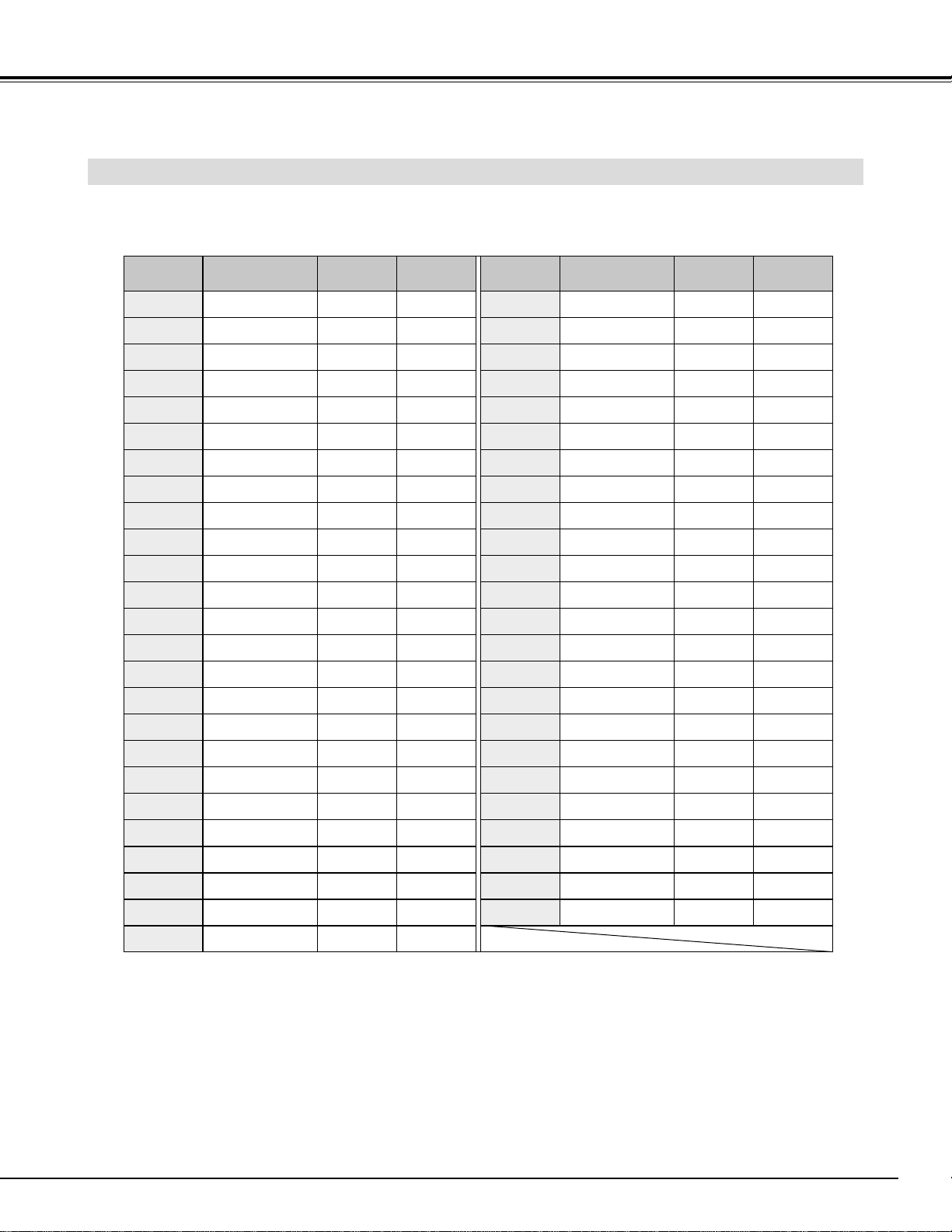
COMPATIBLE COMPUTER SPECIFICATIONS
Basically this projector can accept the signal from all computers with the V, H-Frequency below mentioned and
less than 100 MHz of Dot Clock.
NOTE : Specifications are subject to change without notice.
ON-SCREEN
DISPLAY
RESOLUTION
H-Freq.
(kHz)
V-Freq.
(Hz)
VGA 1 640 x 480 31.47 59.88
VGA 2 720 x 400 31.47 70.09
VGA 3 640 x 400 31.47 70.09
VGA 4 640 x 480 37.86 74.38
VGA 5 640 x 480 37.86 72.81
VGA 6 640 x 480 37.50 75.00
MAC LC13
640 x 480 34.97 66.60
MAC 13 640 x 480 35.00 66.67
MAC1 6 832 x 624 49.72 74.55
MAC 19 1024 x 768 60.24 75.08
MAC 21
1152 x 870
68.68 75.06
SVGA 1 800 x 600 35.156 56.25
SVGA 2 800 x 600 37.88 60.32
SVGA 3 800 x 600 46.875 75.00
SVGA 4 800 x 600 53.674 85.06
SVGA 5 800 x 600 48.08 72.19
SVGA 6 800 x 600 37.90 61.03
SVGA 7 800 x 600 34.50 55.38
SVGA 8 800 x 600 38.00 60.51
SVGA 9 800 x 600 38.60 60.31
SVGA 10 800 x 600 32.70 51.09
SVGA 11 800 x 600 38.00 60.51
ON-SCREEN
DISPLAY
RESOLUTION
H-Freq.
(kHz)
V-Freq.
(Hz)
XGA 10 1024 x 768
XGA 11 1024 x 768
XGA 12
1024 x 768
(Interlace)
XGA 13 1024 x 768
62.04 77.07
XGA 14 1024 x 768
61.00 75.70
XGA15 1024 x 768
35.522 43.48
46.90 58.20
XGA 8 1024 x 768
47.00 58.30
XGA 9
1024 x 768
(Interlace)
58.03 72.00
SXGA 1 1152 x 864
63.48 79.35
36.00 43.59
64.20 70.40
SXGA 11 1152 x 900
SXGA 13
1280 x 1024
(Interlace)
SXGA 14
1280 x 1024
(Interlace)
61.20 65.20
50.00
43.00
HDTV720p
–––––
50.00 47.00
45.00 60.00
XGA 1 1024 x 768
XGA 2 1024 x 768
XGA 3 1024 x 768
XGA 4 1024 x 768
48.36 60.00
68.677 84.997
XGA 6 1024 x 768
60.023 75.03
XGA 7 1024 x 768
56.476 70.07
48.50 60.02
44.00 54.58
SXGA 17 1152 x 900
SXGA 18
1280 x 1024
(Interlace)
61.85 66.00
46.43 43.35
XGA 5 1024 x 768 60.31 74.92
VGA 7 640 x 480 43.269 85.00
RGB
–––––
15.625 25
RGB
–––––
15.734 30
HDTV1080i
–––––
33.75 60.00
HDTV1035i
–––––
33.75 60.00
24
COMPUTER MODE
PC ADJUSTMENT
This Projector can automatically tune to the display signals from most personal computers currently distributed.
However, some computers employ special signal formats which are different from the standard ones and may
not be tuned by the Multi-Scan system of this projector. If this happens, the projector cannot reproduce a proper
image and the image may be recognized as a flickering picture, a non-synchronized picture, a non-centered
picture or a skewed picture.
This projector has a PC ADJUSTMENT function, to enable you to precisely adjust several parameters to match
with those special signal formats. This projector has five independent memory areas to memorize those
parameters manually adjusted. This enables you to recall the setting for a specific computer whenever you use
it.
Note : This PC ADJUSTMENT function cannot be operated when “RGB,” “HDTV1035i” or “HDTV1080i” is selected on the
SYSTEM MENU (P22 and 23).
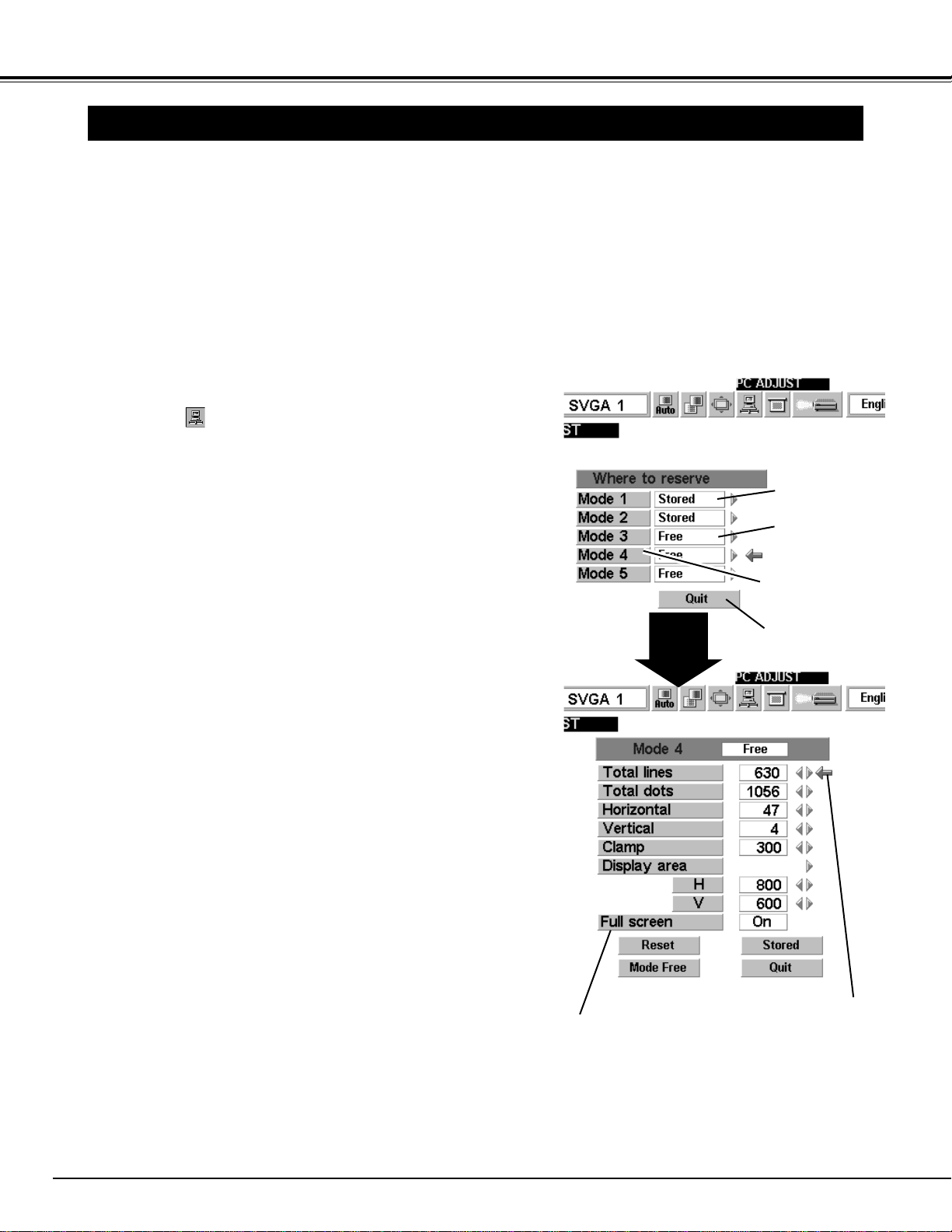
Press the MENU button and the ON-SCREEN MENU will
appear. Press the POINT RIGHT/LEFT buttons to select PC
ADJUST and press the SELECT button. Another dialog box
“Where to reserve” MENU will appear.
In this dialog box, you can store the parameter into the area from
“Mode 1” to “Mode 5.” When memorizing the new computer
parameter, select the Mode with the message “Free” by pressing
the POINT UP/DOWN buttons and the SELECT button. To
change the parameters of the Mode previously set, select the
Mode with “Stored.”
1
2
When the Mode is selected, Parameter adjustment dialog box
appears. Move the arrow to the item that you want to change by
pressing the POINT UP/DOWN buttons, and adjust each item to
match with your computer. To change the value, press either
the POINT RIGHT / LEFT button.
Refer to the next page for adjusting each item.
3
Move the arrow to “Stored” and press the SELECT button. The
parameter is memorized in the selected Mode.
4
This Mode has
parameters being
stored.
Closes the menu.
The Vacant Mode.
Manual set Computer
Mode (1 to 5).
Press the POINT
RIGHT/LEFT button(s)
to adjust the value.
Press the SELECT
button to set Full
screen function on/off.
To activate the Mode manually adjusted in this PC
ADJUSTMENT MENU, select the Mode at the SYSTEM
SELECT MENU. (Refer to page 22.)
5
25
COMPUTER MODE
The number of the total vertical lines. Adjust the number to match
the image of your personal computer.
Total lines
Recalls the parameter data that was previously
adjusted.
Reset
Stores the parameters in the memory.
Stored
Clears the parameter data previously set.
Mode free
Closes the PC ADJUST MENU.
Quit
The number of the total dots in one horizontal period. Adjust the
number to match the image of your personal computer.
Total dots
Adjustment of the horizontal or vertical picture position. When the
image is not centered on the screen, adjust each of those items.
Horizontal / Vertical
Adjustment of the clamp level. When the image has a dark bar(s),
try this adjustment.
Clamp
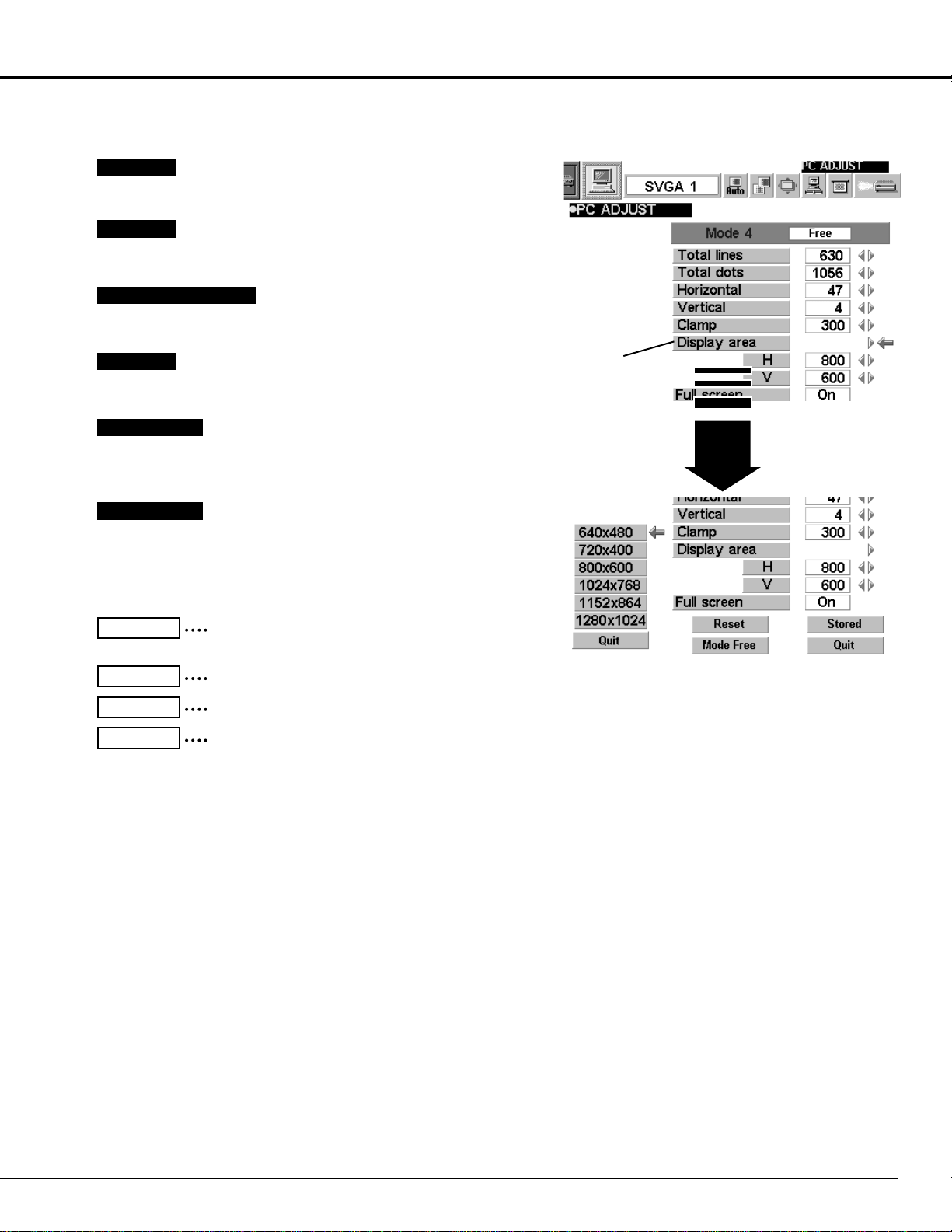
Adjustment of the area displayed with this projector. Select the
resolution at the Display area dialog box, or adjust the number at the
column of “H” or “V” to match the resolution of the image.
Display area
Set “On” to resize the image with 4 x 3 aspect ratio to fit the screen.
Full Screen
Each of the keys operates as follow.
Press the
SELECT button
to select the
typical resolution
of the image.
26
COMPUTER MODE
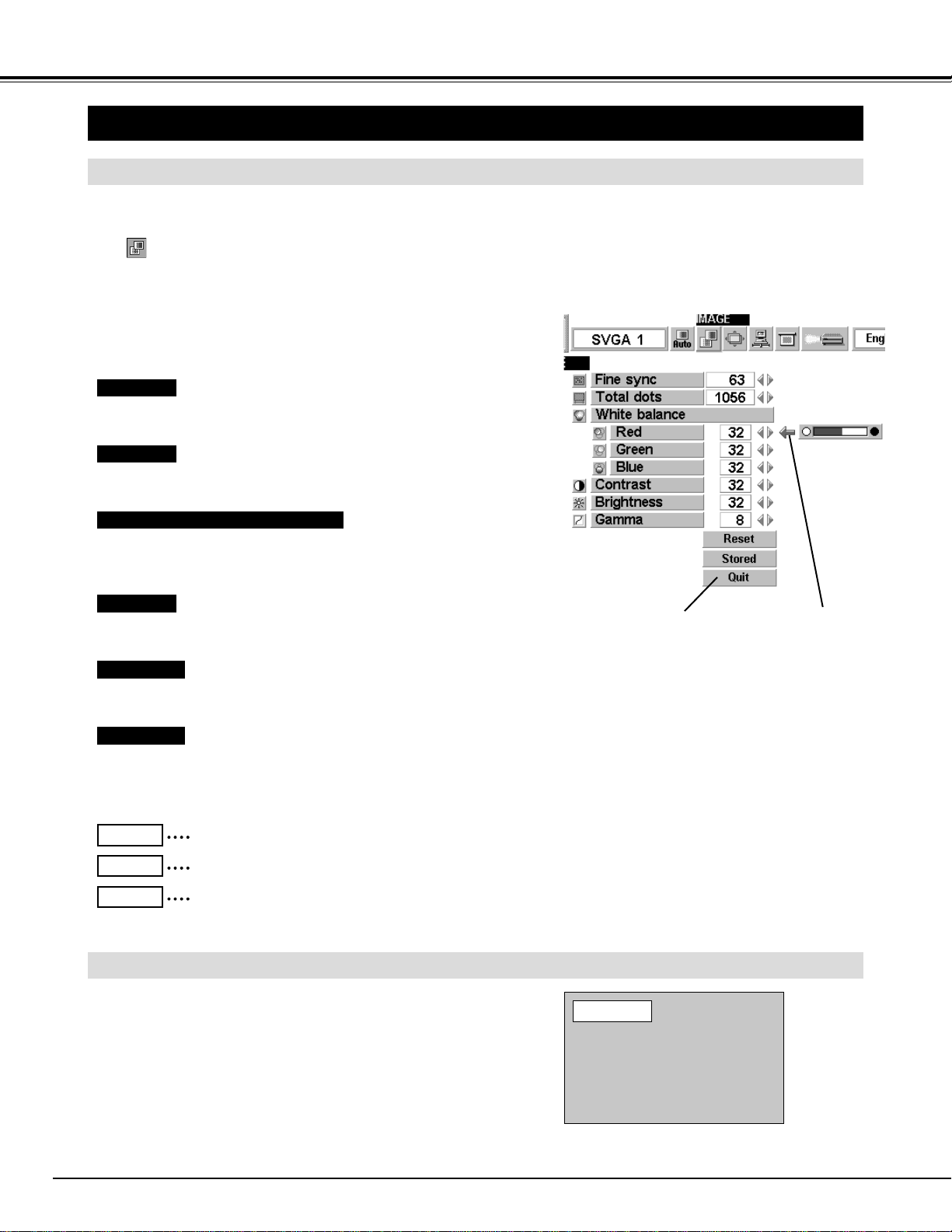
Press the MENU button and the ON-SCREEN MENU will
appear. Press the POINT LEFT/RIGHT buttons to select IMAGE
and press the SELECT button. Another dialog box IMAGE
MENU will appear.
Press the POINT DOWN button and a red-arrow icon will
appear. Move the arrow to the item that you want to change by
pressing the POINT UP/DOWN buttons. To change the value,
press either the POINT RIGHT button or the POINT LEFT
button.
1
2
ADJUST PICTURE IMAGE MANUALLY
Adjust the picture as necessary to eliminate flicker from the display.
(From 0 to 255.)
The number of the total dots in one horizontal period. Adjust the
number to match your PC image.
Press POINT LEFT button to decrease contrast, and press POINT
RIGHT button to increase contrast. (From 0 to 63.)
Press POINT LEFT button to adjust the image darker, and press
POINT RIGHT button to adjust brighter. (From 0 to 63.)
Closes IMAGE MENU.
Move the arrow to the item
and press POINT RIGHT /
LEFT button.
Recalls the data previously adjusted.
Reset
Stores the adjusted data in the memory.
Stored
Closes the PICTURE IMAGE ADJUSTMENT MENU.
Quit
Move the arrow to the color that you want to adjust. Press POINT
LEFT button to lighten the color and press POINT RIGHT button to
deepen the color. (From 0 to 63.)
Each of the keys operates as follow.
Fine sync
Total dots
White balance (Red / Green / Blue)
Contrast
Brightness
The normal picture level is preset on this projector at the
factory and can be restored anytime you press the NORMAL
button (located on the Top Control or on the Remote Control
Unit). The “Normal” display will be displayed on the screen for
a few seconds.
NORMAL FUNCTION
Normal
Press either POINT LEFT button or POINT RIGHT button to obtain
better balance of contrast. (From 0 to 16.)
Gamma
PICTURE IMAGE ADJUSTMENTS
NOTE : The Fine sync and the Total dots cannot
be fully adjusted when “RGB,”
“HDTV1035i” or “HDTV1080i” is selected
on the SYSTEM MENU (P22 and 23).
27
COMPUTER MODE
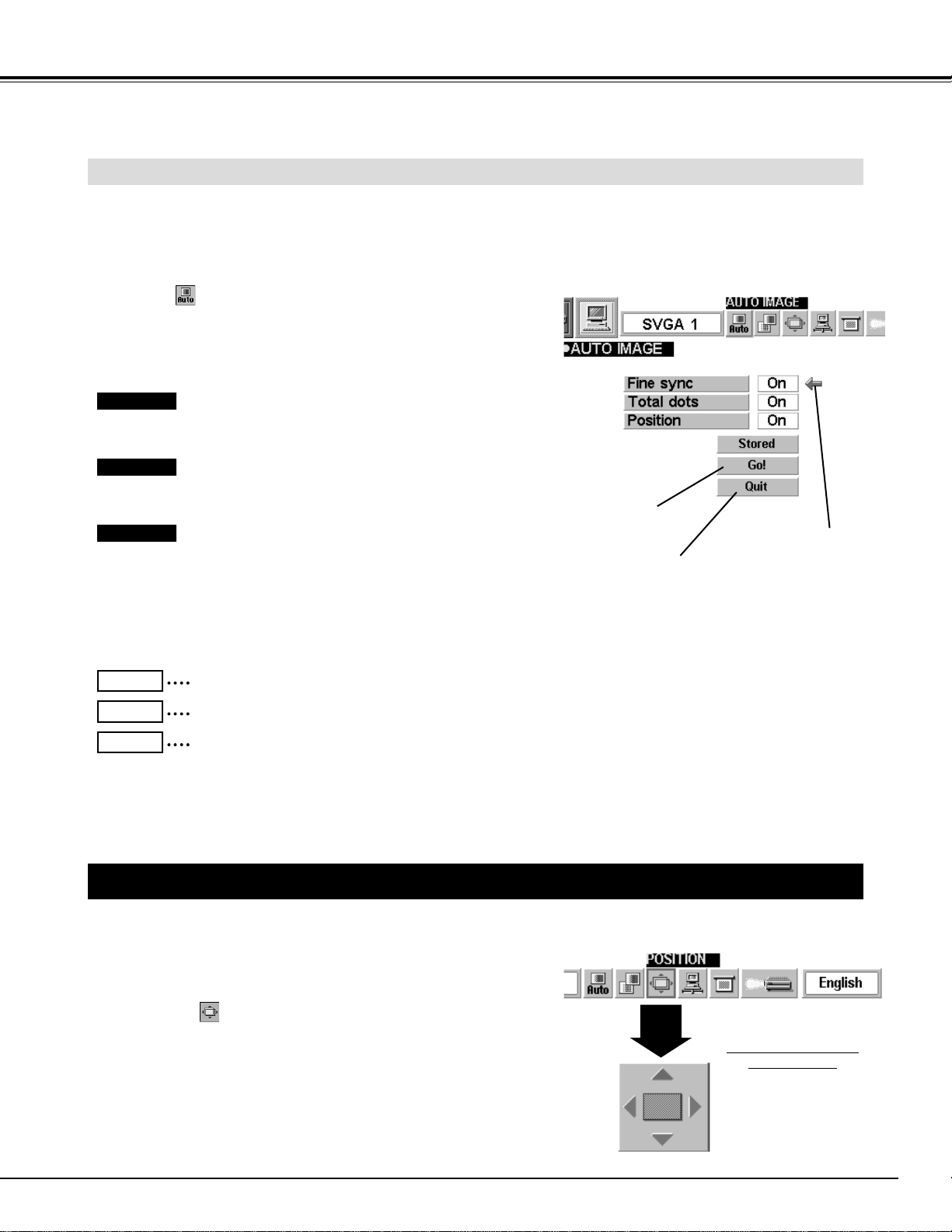
The Auto Image function is provided to automatically adjust
Fine sync, Total dots, and Picture Position for most computers.
Press the MENU button and the ON-SCREEN MENU will
appear. Press the POINT LEFT/RIGHT buttons to select AUTO
IMAGE and press the SELECT button.
Another dialog box AUTO IMAGE MENU will appear.
Move the arrow to an item that you want to adjust by pressing
the POINT UP/DOWN button. Change the setting On or Off by
pressing the SELECT button.
1
2
AUTO IMAGE FUNCTION
Move the arrow to “Go!” and press the SELECT button to start
the Auto Image function.
This adjustment can be executed by pressing AUTO IMAGE
button on the Remote Control Unit.
3
NOTE : The Fine sync and the Total dots cannot be fully adjusted when “RGB,” “HDTV1035i” or “HDTV1080i” is selected on
the SYSTEM MENU (P22 and 23).
The Fine sync, Total dots, and Picture Position of some computers may not be fully adjusted with the Auto Image
Function. In that case, manual adjustment is required to make fine image. (Refer to page 26 to adjust "Fine sync"
or "Total dots" and page 27 to adjust Picture Position.)
Closes AUTO IMAGE MENU.
Move the arrow to
the item and then
press the SELECT
button.
Starts the adjustment
on the item set to "On".
Adjust the picture as necessary to eliminate flicker from the display.
This item can be adjusted manually. (Refer to page 26.)
The number of the total dots in one horizontal period. This item can
be adjusted manually. (Refer to page 26.)
Adjustment of the position of the image. This item can be adjusted
manually. (Refer to page 27.)
Fine sync
Total dots
Position
Stores the On/Off setting of each item.
Stored
Starts the Auto Image Function.
Go!
Closes the AUTO IMAGE MENU.
Quit
PICTURE POSITION ADJUSTMENT
The position of the image can be adjusted vertically and horizontally through PICTURE POSITION
ADJUSTMENT.
Press the MENU button and the ON-SCREEN MENU will
appear. Press the POINT LEFT/RIGHT buttons to select
POSITION and press the SELECT button. The PICTURE
POSITION DIALOG BOX will appear.
Move the image by pressing the POINT UP / DOWN / RIGHT /
LEFT buttons.
1
2
PICTURE POSITION
DIALOG BOX
Press the POINT UP /
DOWN / RIGHT / LEFT
buttons to move the image
To cancel PICTURE POSITION ADJUSTMENT, press any
button except POINT buttons. To return to the position
previously set, press NORMAL button.
28
COMPUTER MODE
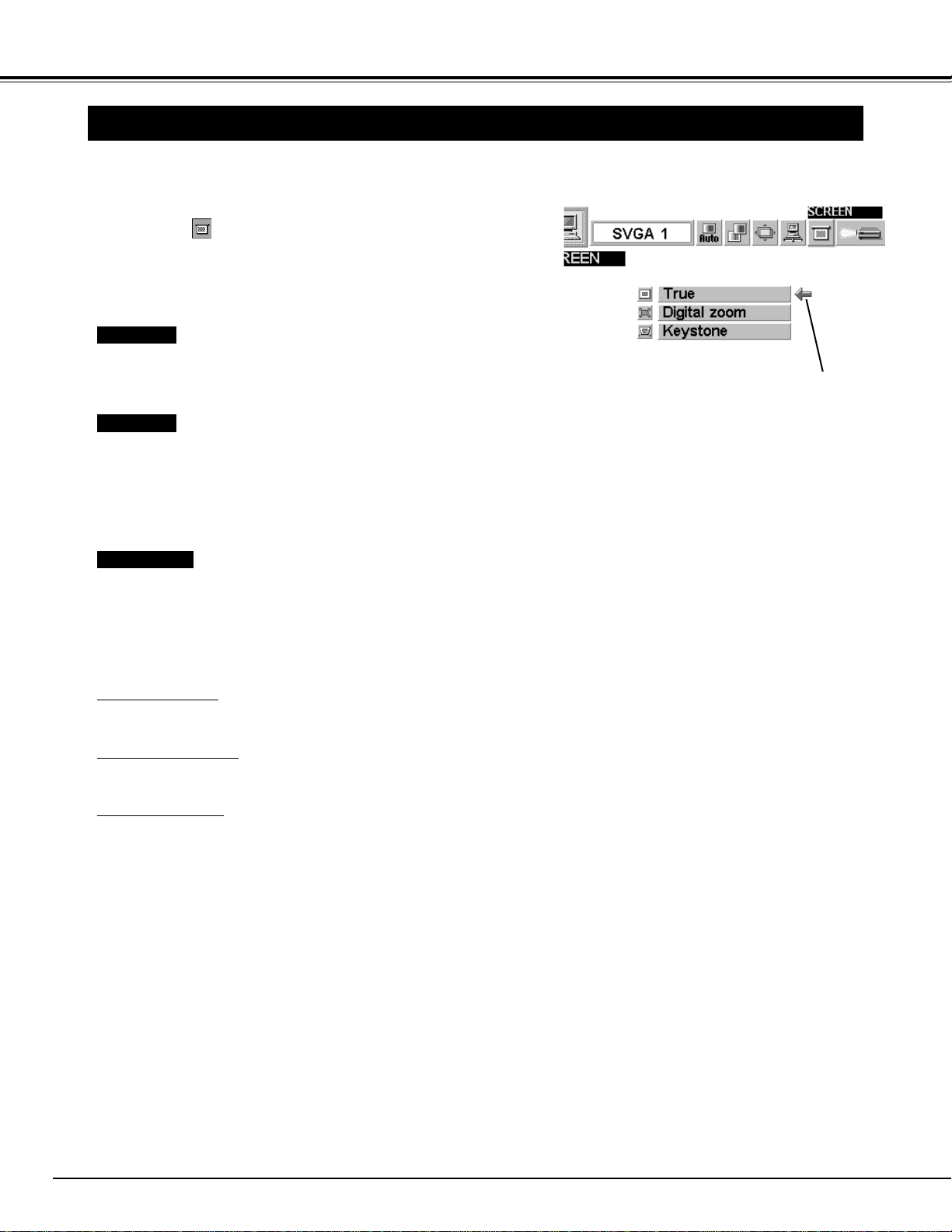
PICTURE SCREEN ADJUSTMENT
This projector has a picture screen resize function, which enables you to display the desirable image size.
Press the MENU button and the ON-SCREEN MENU will
appear. Press the POINT LEFT/RIGHT buttons to select
SCREEN and press the SELECT button. Another dialog
box SCREEN MENU will appear.
To adjust the image size or pan the image, select Digital zoom in the
dialog box. The ON-SCREEN MENU and SCREEN MENU
disappears and the message “D. Zoom” is displayed.
This projector also enters Digital Zoom mode by pressing the
D.ZOOM ▲/▼ button on the Remote Control Unit.
Refer to the following for operation.
1
● This projector cannot display any resolution higher than 1280 X
1024. If your computer’s screen resolution is higher than 1280 X
1024, reset the resolution to the lower before connecting the
projector.
● The image data in other than SVGA (800 x 600) is modified to fit
the screen size in the initial mode.
● The normal "Panning Operation" may not function properly if the
computer system prepared with the "PC Adjust" is used.
Expand function
To expand the image size, press the D.ZOOM ▲ button or the
SELECT button. The image is magnified by degrees.
Compress function
To compress the image size, press the D.ZOOM ▼ button or the
RIGHT CLICK button. The size of image is reduced by degrees.
Panning function
To pan the image, press the POINT UP/DOWN/LEFT/RIGHT buttons.
Panning function can work only when the image is larger than the
screen size.
To cancel Digital Zoom mode, press any button except D.ZOOM
▲/▼, SELECT, RIGHT CLICK, or POINT button. To adjust the image
to 800 x 600, press NORMAL button.
To make the image into its original size select True in the dialog box.
When the original image size is larger than the screen size (800 x
600), this projector enters Digital Zoom mode automatically.
Move the arrow to the
function and press the
SELECT button.
Press the POINT DOWN button and a red-arrow icon will
appear. Move the arrow to the function that you want to select
and then press SELECT button.
2
True
Digital Zoom
Keystone
When the image is distorted vertically, select Keystone in the dialog
box. The ON-SCREEN MENU and SCREEN MENU disappears and
the message “Keystone” is displayed. Correct the Keystone
distortion by pressing the KEYSTONE ▲/▼ button or the POINT
UP/DOWN button(s). Refer to KEYSTONE ADJUSTMENT on page
20.
NOTE : The True and the Digital Zoom cannot be
operated when “RGB,” “HDTV1035i” or
“HDTV1080i” is selected on the SYSTEM
MENU (P22 and 23).
29
MODE button
VIDEO MODE
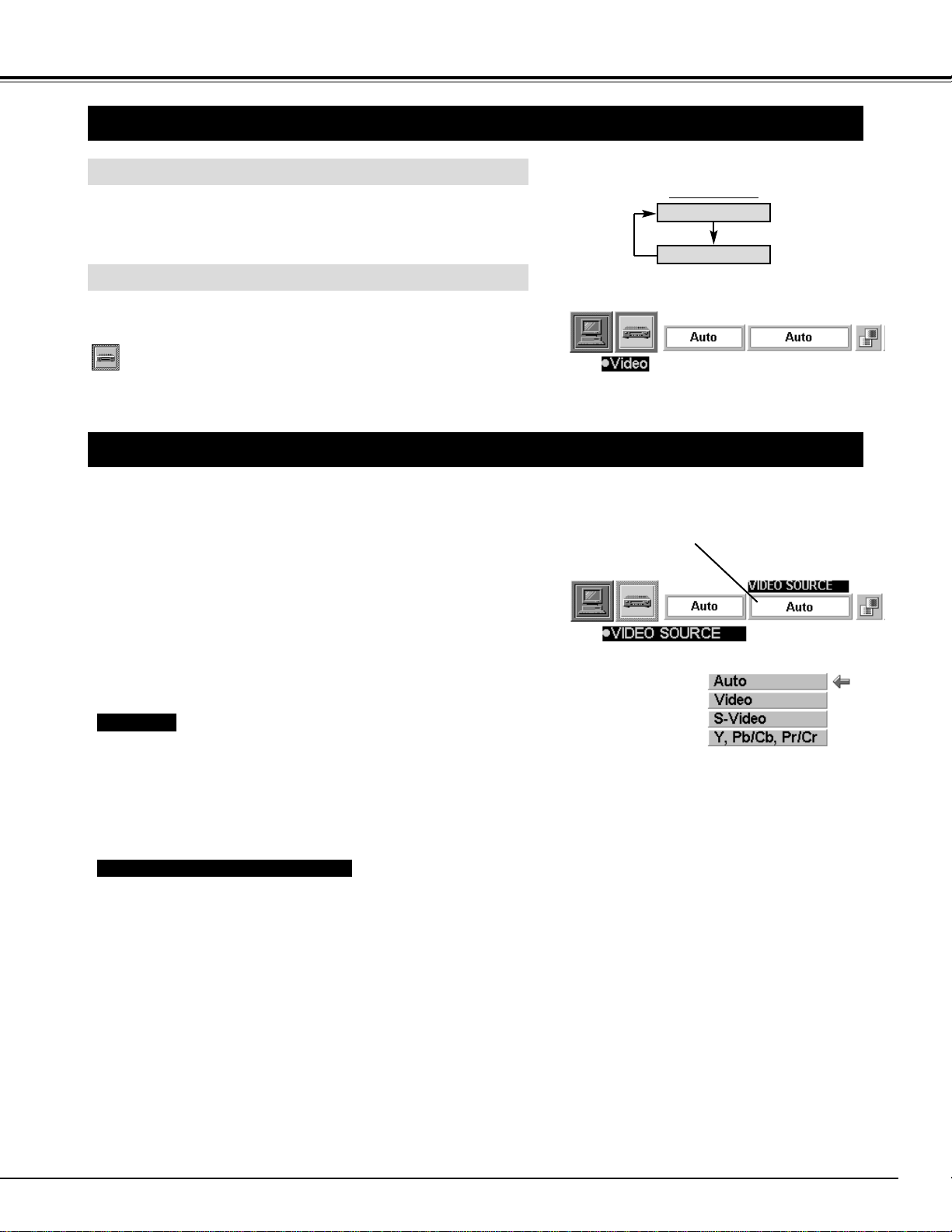
Press the MENU button and the ON-SCREEN MENU will
appear.
Press the POINT LEFT/RIGHT buttons to select Video
and press the SELECT button.
SELECTING VIDEO MODE
DIRECT OPERATION
Select VIDEO mode by pressing the MODE button on the Top
Control or the VIDEO button on the Remote Control Unit.
MENU OPERATION
COMPUTER
VIDEO
This projector automatically detects the signal from the VIDEO
INPUT JACK(s) or the S-VIDEO INPUT JACK. When those
jacks are connected at the same time, select the type of Video
source in VIDEO SOURCE MENU.
Press the MENU button and the ON-SCREEN MENU will
appear. Press the POINT LEFT/RIGHT buttons to select VIDEO
SOURCE and press the SELECT button. Another dialog box
VIDEO SOURCE MENU will appear.
Press the POINT DOWN button and a red-arrow icon will
appear. Move the arrow to the source that you want to select,
and then press the
SELECT button.
1
2
This box indicates the Video
source being selected.
SELECTING VIDEO SOURCE
Video / S-Video / Y, Pb/Cb, Pr/Cr
The projector automatically detects the incoming Video source, and
adjusts itself to optimize its performance.
• When both VIDEO jack and S-VIDEO jack are connected, the S-
VIDEO jack has priority over the VIDEO jack.
• When both Y-Pb/Cb-Pr/Cr jacks and S-VIDEO jack are connected,
the Y-Pb/Cb-Pr/Cr jacks have priority over the S-VIDEO jack.
Auto
When the VIDEO INPUT JACK(s) and the S-VIDEO INPUT JACK
are connected at the same time, or if the projector cannot chose the
proper video source, it is necessary to select a specific video source
among Video, S-Video and Y, Pb/Cb, Pr/Cr.
30
VIDEO MODE
SELECTING COLOR SYSTEM
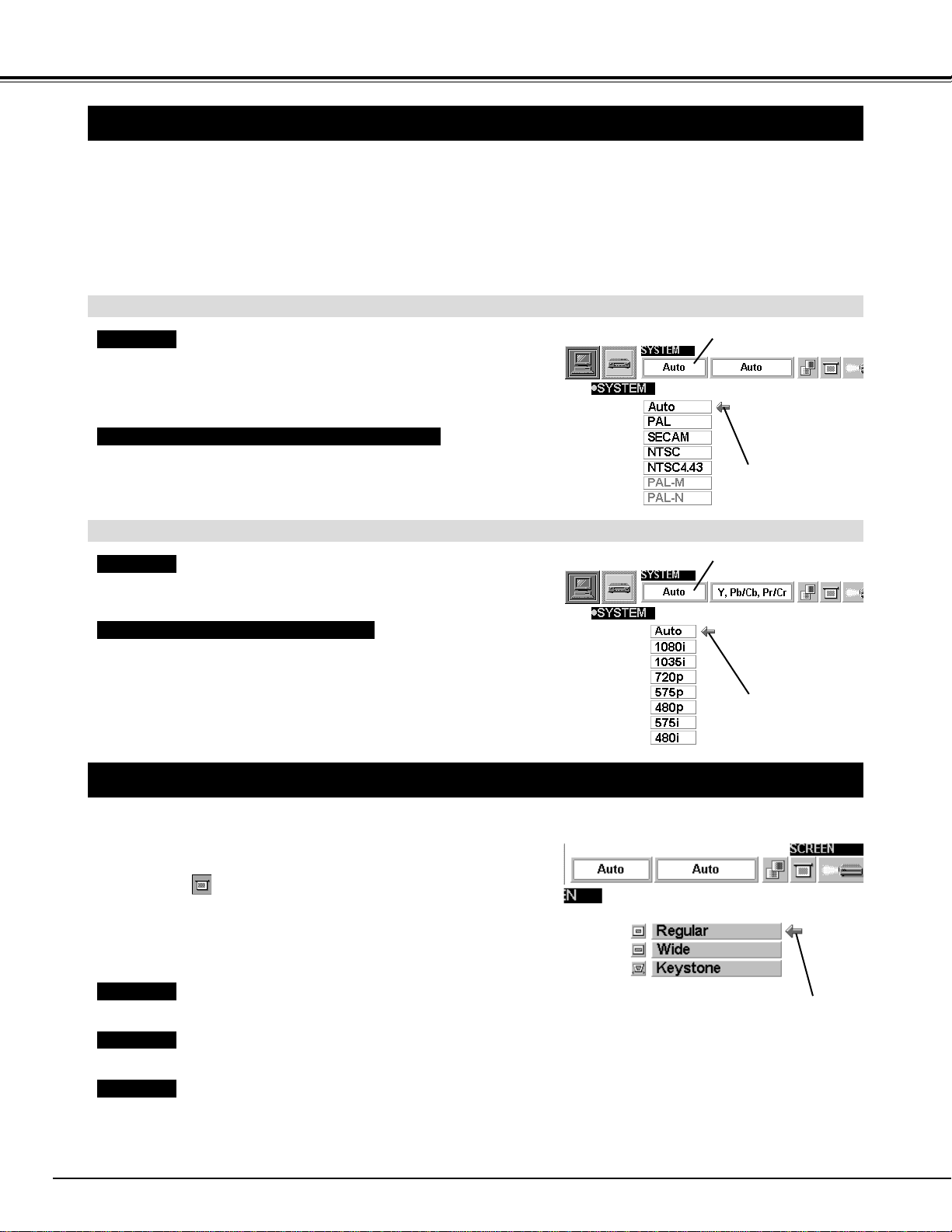
Press the MENU button and the ON-SCREEN MENU will
appear. Press the POINT LEFT/RIGHT buttons to select
SYSTEM and press the SELECT button. Another dialog box
SYSTEM MENU will appear.
Press the POINT DOWN button and a red-arrow icon will
appear. Move the arrow to "Auto", and then press the
SELECT
button.
1
2
The projector automatically detects the incoming Video system, and
adjusts itself to optimize its performance.
When the Video System is PAL-M or PAL-N, select the system
manually.
If the projector cannot reproduce the proper video image, it is
necessary to select a specific broadcast signal format among PAL,
SECAM, NTSC, NTSC 4.43, PAL-M, and PAL-N.
Move the arrow to
the Mode and press
the SELECT button.
PICTURE SCREEN ADJUSTMENT
This projector has a picture screen resize function, which enables you to display the desirable image size.
Press the MENU button and the ON-SCREEN MENU will
appear. Press the POINT LEFT/RIGHT buttons to select
SCREEN and press the SELECT button. Another dialog
box SCREEN MENU will appear.
Press the POINT DOWN button and a red-arrow icon will
appear. Move the arrow to the screen size that you want to set,
and then press the
SELECT button.
1
2
Normal Video Image size with 4 x 3 aspect ratio.
Resizes the image for wide screen size with 16 x 9 aspect ratio.
Move the pointer to the function and
press the SELECT button.
Regular
Wide
Keystone
When the image is distorted vertically, select Keystone in the dialog
box. Correct the Keystone distortion by pressing KEYSTONE ▲/▼
button or POINT UP/DOWN button(s). Refer to KEYSTONE
ADJUSTMENT on page 20.
This box indicates the
system being selected.
Move the arrow to
the Mode and press
the SELECT button.
This box indicates the
system being selected.
Auto
PAL / SECAM / NTSC / NTSC4.43 / PAL-M / PAL-N
The projector automatically detects the incoming Video signal, and
adjusts itself to optimize its performance.
If the projector cannot reproduce the proper video image, it is
necessary to select a specific component video signal format among
480i, 575i, 480p, 575p, 720p, 1035i and 1080i.
Auto
COMPONENT VIDEO SIGNAL FORMAT
When the Video signal is from the VIDEO or the S-VIDEO JACK
When the Video signal is from the Y, Pb/Cb, Pr/Cr JACKS
31
VIDEO MODE
PICTURE IMAGE ADJUSTMENT
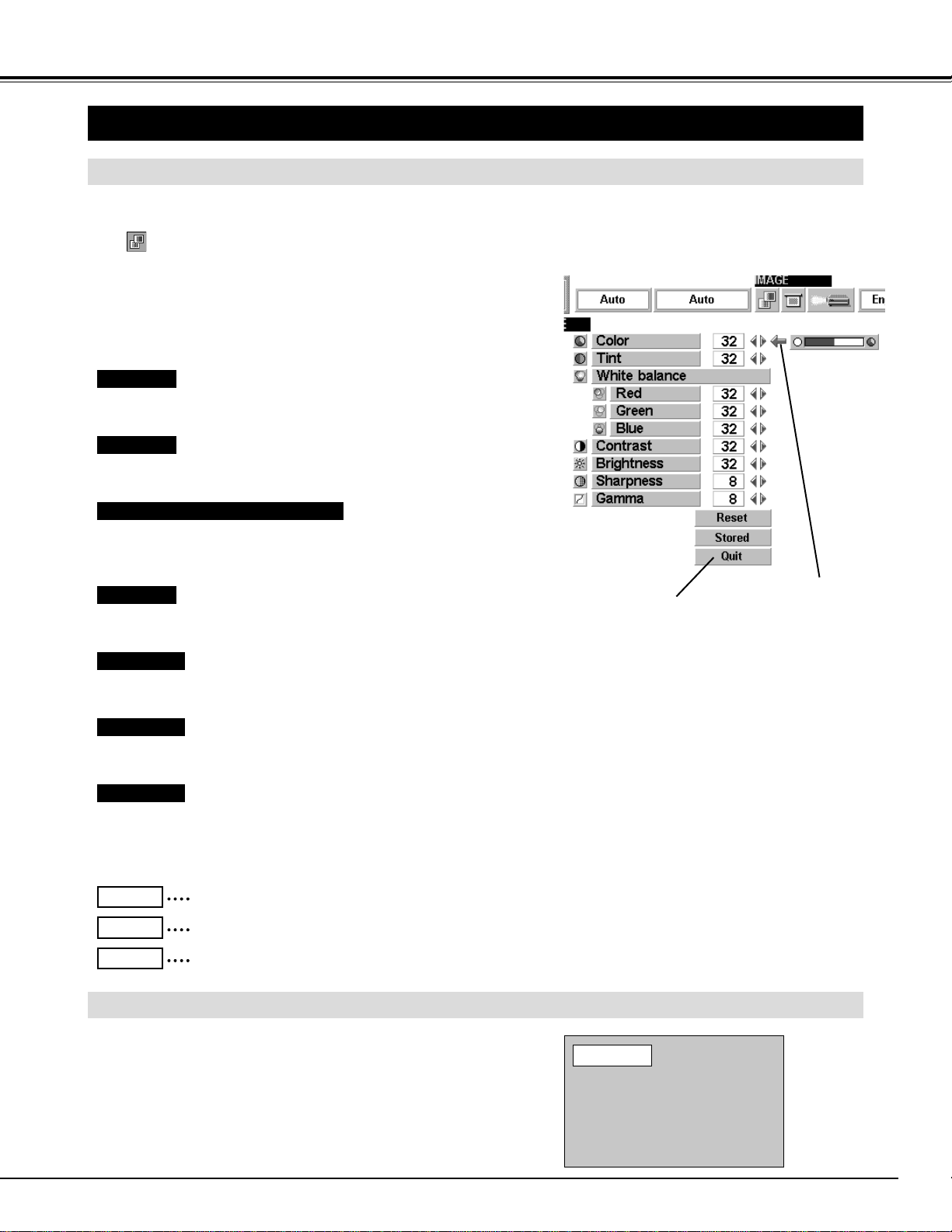
Each of the keys operates as follow.
Press the MENU button and the ON-SCREEN MENU will
appear. Press the POINT LEFT/RIGHT buttons to select IMAGE
and press the SELECT button. Another dialog box IMAGE
MENU will appear.
Press the POINT DOWN button and a red-arrow icon will
appear. Move the arrow to the item that you want to adjust by
pressing the POINT UP/DOWN buttons. To change the value,
press either the POINT RIGHT button or the POINT LEFT
button.
1
2
ADJUSTING THE PICTURE IMAGE
The normal picture level is preset on this projector at the
factory and can be restored anytime you press the NORMAL
button (located on the Top Control or on the Remote Control
Unit). The "Normal" display will be displayed on the screen for
a few seconds.
NORMAL FUNCTION
Closes IMAGE MENU.
Press POINT LEFT button to lighten the image, and press POINT
RIGHT button to deepen the image. (From 0 to 63.)
Press POINT LEFT button to increase purple, and press POINT
RIGHT button to increase green. (From 0 to 63.)
Press POINT LEFT button to decrease contrast, and press POINT
RIGHT button to increase contrast. (From 0 to 63.)
Press POINT LEFT button to darken the image, and press POINT
RIGHT button to brighten the image. (From 0 to 63.)
Recalls the data previously adjusted.
Reset
Stores the data in the memory.
Stored
Closes the PICTURE IMAGE ADJUSTMENT MENU.
Quit
Press POINT LEFT button to soften the image, and press POINT
RIGHT button to sharpen the image. (From 0 to 15.)
Color
Tint
Contrast
Brightness
Sharpness
Move the arrow to the color that you want to adjust. Press POINT
LEFT button to lighten the color, and press POINT RIGHT button to
deepen the color. (From 0 to 63.)
White balance (Red / Green / Blue)
Normal
Press either POINT LEFT button or POINT RIGHT button to obtain
better balance of contrast. (From 0 to 16.)
Gamma
Move the arrow to the item
and press POINT RIGHT /
LEFT button.
32
SETTING
SETTING MENU
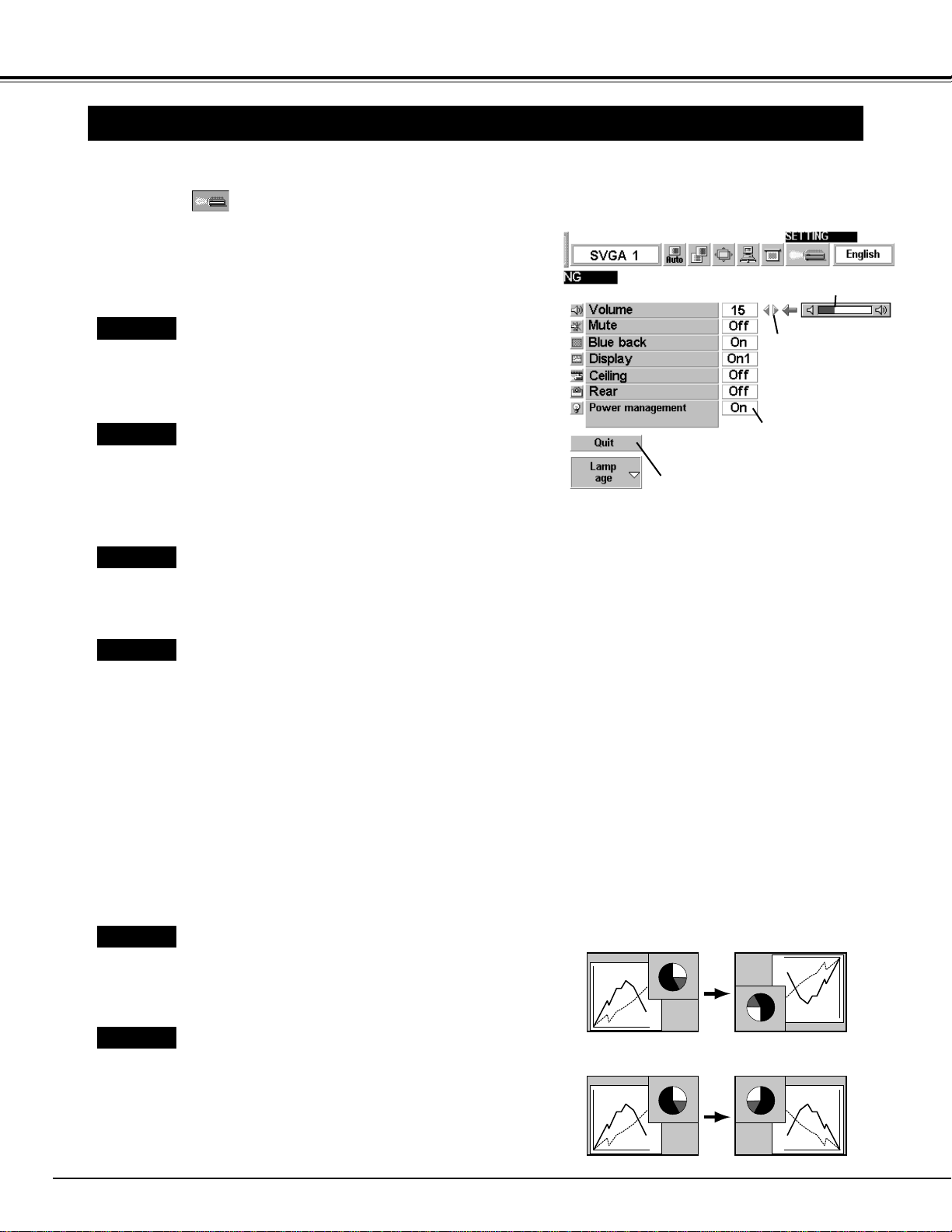
Press the MENU button and the ON-SCREEN MENU will
appear. Press the POINT LEFT/RIGHT buttons to select
SETTING and press the SELECT button. Another dialog
box SETTING MENU will appear.
Press the POINT DOWN button and a red-arrow icon will
appear. Move the arrow to the item that you want to set, and
then press the
SELECT button to set it "On" or "Off" or press the
POINT LEFT/RIGHT button to adjust the value.
1
2
Blue back
When this function is “On,” this projector will produce a blue image
instead of the video noise on the screen when the input source is
unplugged or turned off.
Display
This function decides whether to display the On-Screen Displays
(except ON-SCREEN MENU).
Set “On1” to show all the On-Screen Displays.
Set “On2” to show the On-Screen Displays except the Preparation
Display (Our Logo).
Set “Off” to set the On-Screen Displays below disappeared.
● Preparation Display (Our Logo and the Number-counting-
down Display)
● Mode Display (Computer / Video)
● Volume/Mute Displays
● Normal Display
● No show Display
● Keystone Display
● True Display
● D.Zoom Display
Press the POINT
RIGHT / LEFT button
to adjust the volume.
Ceiling
When this function is “On,” the top / bottom and the left / right
reversed picture is provided to project the image from a ceiling
mounted projector.
Rear
When this function is “On,” the left / right reversed picture is provided
to project the image to a rear projection screen.
Ceiling function
Rear function
Volume
Press POINT LEFT button to decrease volume, and press POINT
RIGHT button to increase the volume. (From 0 to 63.)
The sound volume can be also adjusted by pressing the VOLUME
(+/–) button on the remote control unit. (Refer to page 21)
Mute
Set “On” to mute the sound. To restore the sound, set “Off” or press
the MUTE button or the VOLUME (+/–) button on the remote control
unit.
The mute can be also set by pressing the MUTE button on the
remote control unit. (Refer to page 21)
Indicates the level
of the volume.
Move the arrow to the
item and then press
the SELECT button.
Closes Setting MENU.
The Lamp age function is designed to reset the lamp replacement
monitor timer. When replacing the lamp, reset the lamp replacement
monitor timer by using this function. (Refer to page 36.)
Lamp age
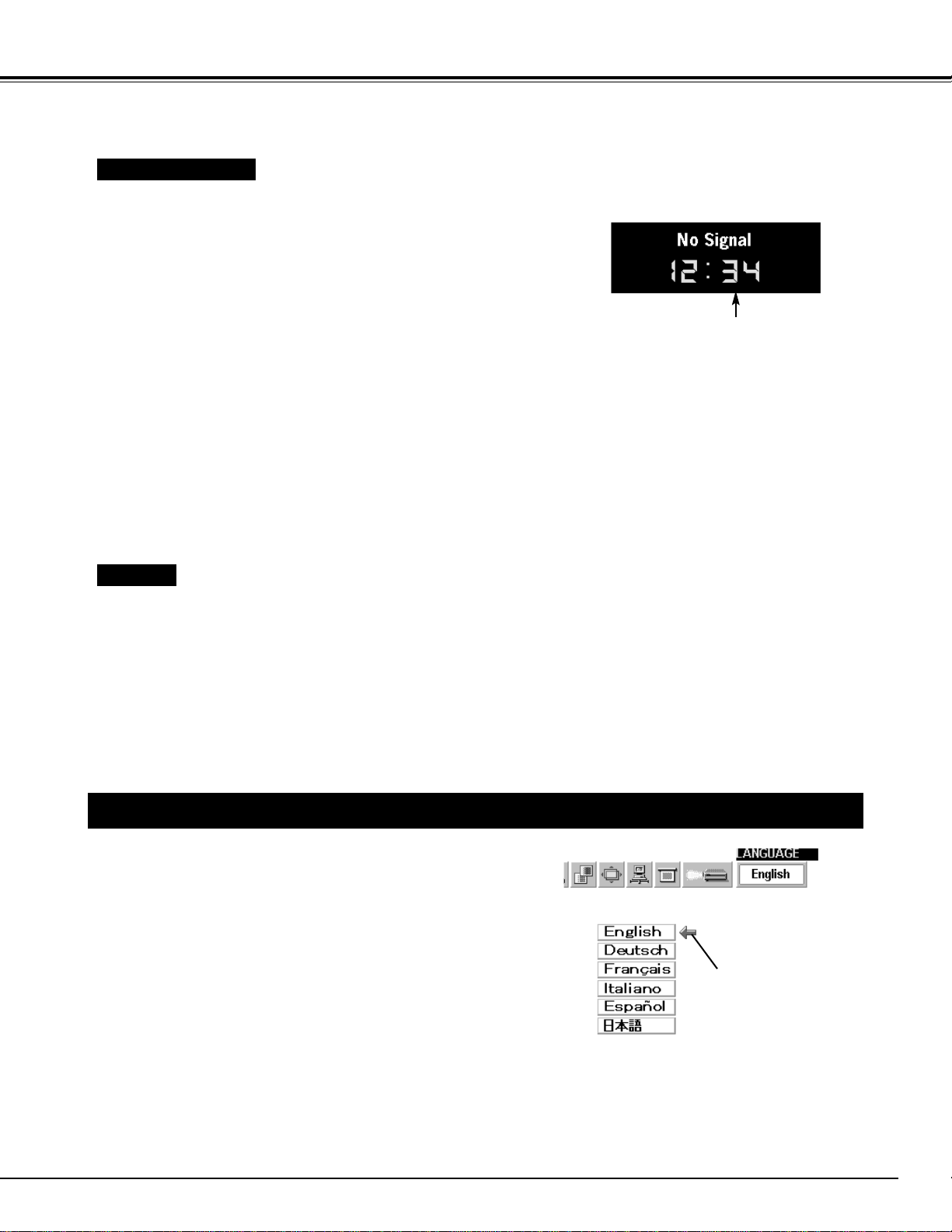
SELECTING LANGUAGE
Press the MENU button and the ON-SCREEN MENU will
appear. Press POINT LEFT/RIGHT buttons to select
LANGUAGE and press the SELECT button. Another dialog box
LANGUAGE MENU will appear.
Press the POINT DOWN button and a red-arrow icon will
appear. Move the arrow to the language that you want to set,
and then press the
SELECT button.
1
2
The language used in the ON-SCREEN MENU is selectable
from among English, German, French, Italian, Spanish and
Japanese.
Move the Pointer to the
language that you want to
set, and then press the
SELECT button.
33
SETTING
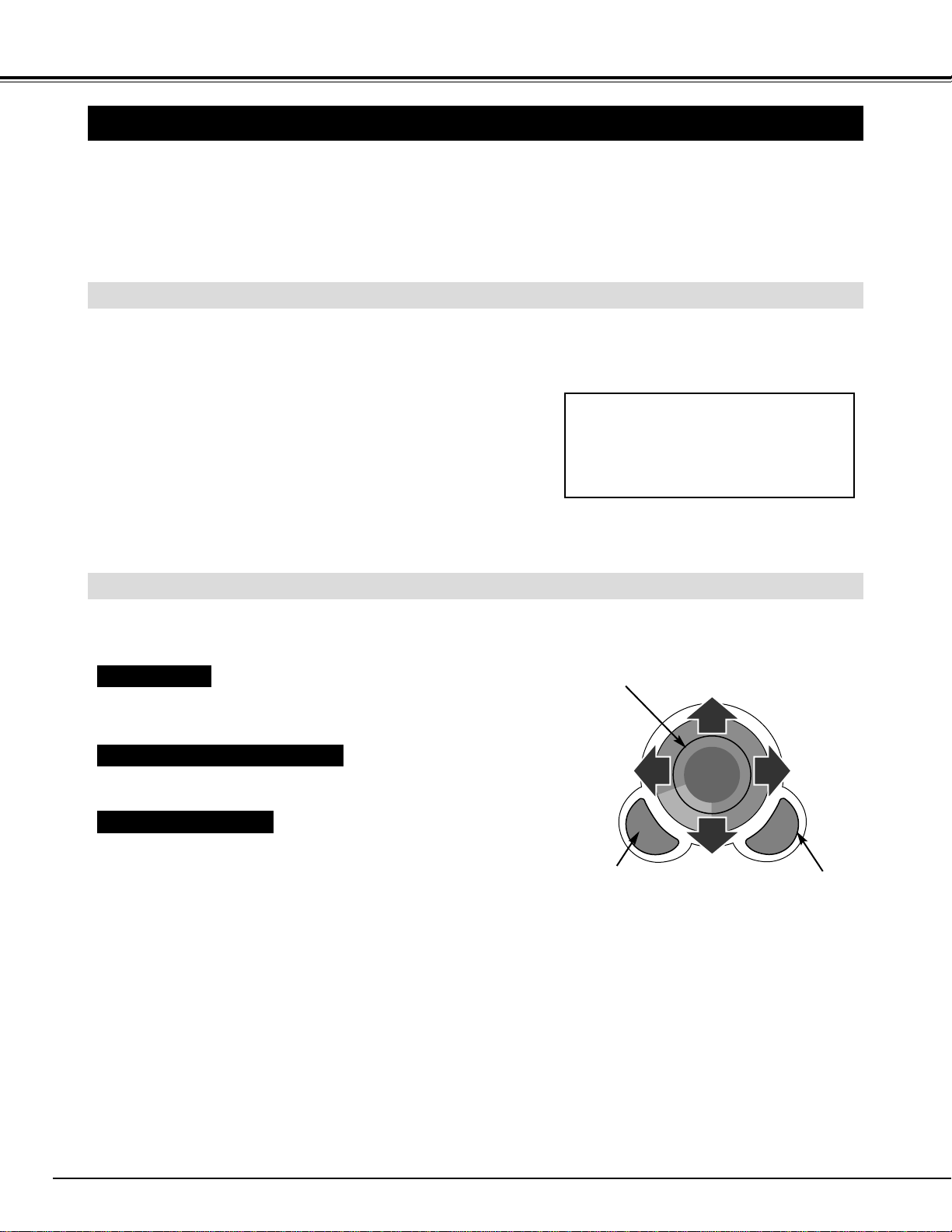
Power management
This function turns the Projection Lamp off when the projector
detects signal interruption and the projector is not used for a certain
period in order to reduce power consumption and maintain the Lamp-
life. (This projector is shipped with this function ON.)
Power Management function operates to turn the Projection Lamp off
when the input signal is interrupted and the projector is not operated
over 5 minutes. This function operates as follows;
1. When the signal is interrupted, “No signal” and the counting
down (5 minutes) display appears.
2. When the Projection Lamp turned off, the READY indicator
turns off. The Cooling Fans operate for 90 seconds after the
Projection Lamp is turned off. (During this "Cooling Down"
period, the Lamp cannot be turned on.)
3. When the Lamp has cooled down, the READY indicator flashes
and the Lamp can be turned on again (Power Management
mode).
In this Power Management mode, the Projection Lamp is
automatically turned on when the input signal connected or the
projector is operated with any button on the Top Control or the
Remote Control.
Time left until Lamp off.
34
APPENDIX
OPERATING WIRELESS MOUSE
INSTALLATION
The Wireless Remote Control Unit is not only able to operate the projector but also usable as a wireless mouse
for most Personal Computers. The POINT buttons and the two CLICK buttons are used for the wireless mouse
operation.
The wireless mouse is available only when PC mouse pointer is displayed on the screen. When the ON-
SCREEN MENU or the indicator of the projector is displayed on the screen instead of the PC mouse pointer, the
wireless mouse cannot be used.
Connect the mouse port of your computer to the Control Port of
the projector with the Control Cable. (Refer to page 11 to 13 for
connection.)
Turn the projector on first, and then turn on your computer.
When the computer is switched on first, the Wireless Mouse may
not work properly.
1
2
To use the Wireless Remote Control Unit as the Wireless Mouse for a Personal Computer, installation of the
mouse driver (not supplied) is required. Make sure that the mouse driver is properly installed in your computer.
And make sure that the mouse port of the computer connected to Control Port is activated.
OPERATING WIRELESS MOUSE
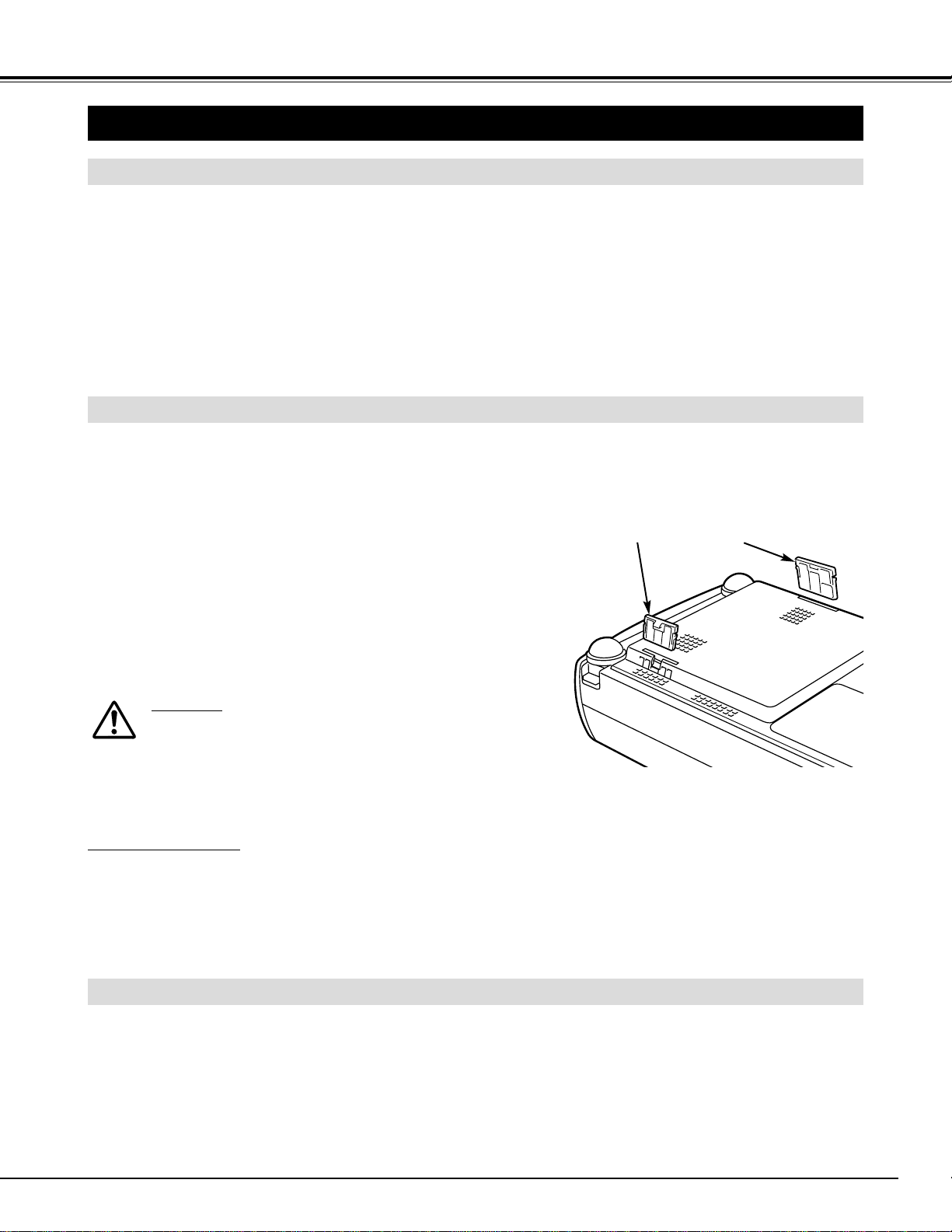
When controlling the pointer of the computer, operate the Wireless Mouse with POINT button, SELECT button,
and RIGHT CLICK button on the Wireless Remote Control Unit.
Used to move the pointer. The pointer is moved corresponding with
the direction you are pressing.
POINT button
This button has the same function as the left button in a PC mouse.
SELECT (LEFT CLICK) button
This button has the same function as the right button in a PC mouse.
RIGHT CLICK button
Note : When the computer has no
mouse port, connect the Serial
Port of the computer to Control
Port of the projector with the
Control Cable for Serial Port.
POINT button (Move the pointer)
SELECT button
(left button of the
mouse)
RIGHT CLICK button
(right button of the mouse)
35
APPENDIX
CLEANING THE PROJECTION LENS
Apply a non-abrasive camera lens cleaner to a soft, dry cleaning cloth. Avoid using an excessive amount of cleaner.
Abrasive cleaners, solvents or other harsh chemicals might scratch the lens.
When the projector is not in use, replace the lens cover.
1
3
Lightly wipe the cleaning cloth over the lens.
2
Follow these steps to clean the projection lens:
MAINTENANCE
WARNING TEMP. INDICATOR
WARNING TEMP. Indicator flashes red when the internal temperature of the projector exceeds the normal
temperature. The Indicator stops flashing when the temperature of the projector returns to normal.
When WARNING TEMP. Indicator continues to flash, check the items listed below.
The Ventilation slots of the projector may be blocked. In such an event, reposition the projector so that the ventilation
slots are not obstructed.
AIR FILTER CARE AND CLEANING
Air filters may be clogged with dust particles. Clean the air filters by following the section AIR FILTER CARE AND
CLEANING below.
1
2
If WARNING TEMP. Indicator remains on after performing the above checks, the Cooling Fans or the Internal
Circuits may be malfunctioning. Contact service personnel from an authorized dealer or service station.
3
AIR FILTER
(Small)
Turn the power off, and disconnect the AC power cord from the
AC outlet.
Turn the projector upside down and remove two Air Filters
(Large and Small) by pulling the latches upward.
1
2
The Removable Air Filters prevent dust from accumulating on the surface of the Projection Lens and the
Projection Mirror. Should the Air Filters become clogged with dust particles, it will reduce the Cooling Fans'
effectiveness and may result in internal heat build up and adversely affect the life of the projector.
Clean the Air Filters following the steps below:
Clean the Air Filters with brush or wash out the dust and
particles.
3
Replace each Air Filter properly. Make sure that the Air Filters
are fully inserted.
4
CAUTION
Do not operate the projector with the Air Filter removed.
Dust may accumulate on the LCD Panel and the Mirror
degrading picture quality.
Do not put small parts into the Air Intake Vents. It may
result in malfunction of the projector.
The Air Filter is a small part. Ensure that children don’t eat
or swallow it.
RECOMMENDATION
We recommend avoiding dusty/smoky environments when operating the projector. Usage in these
environments may cause poor image quality.
When using under dusty or smoky conditions, dust may accumulate on the liquid crystal panel, lens, or optical elements
inside it. This condition may degrade the quality of the projected image.
When the above symptoms are noticed, contact your authorized dealer or service station for proper cleaning.
AIR FILTER
(Large)
36
APPENDIX
LAMP REPLACEMENT
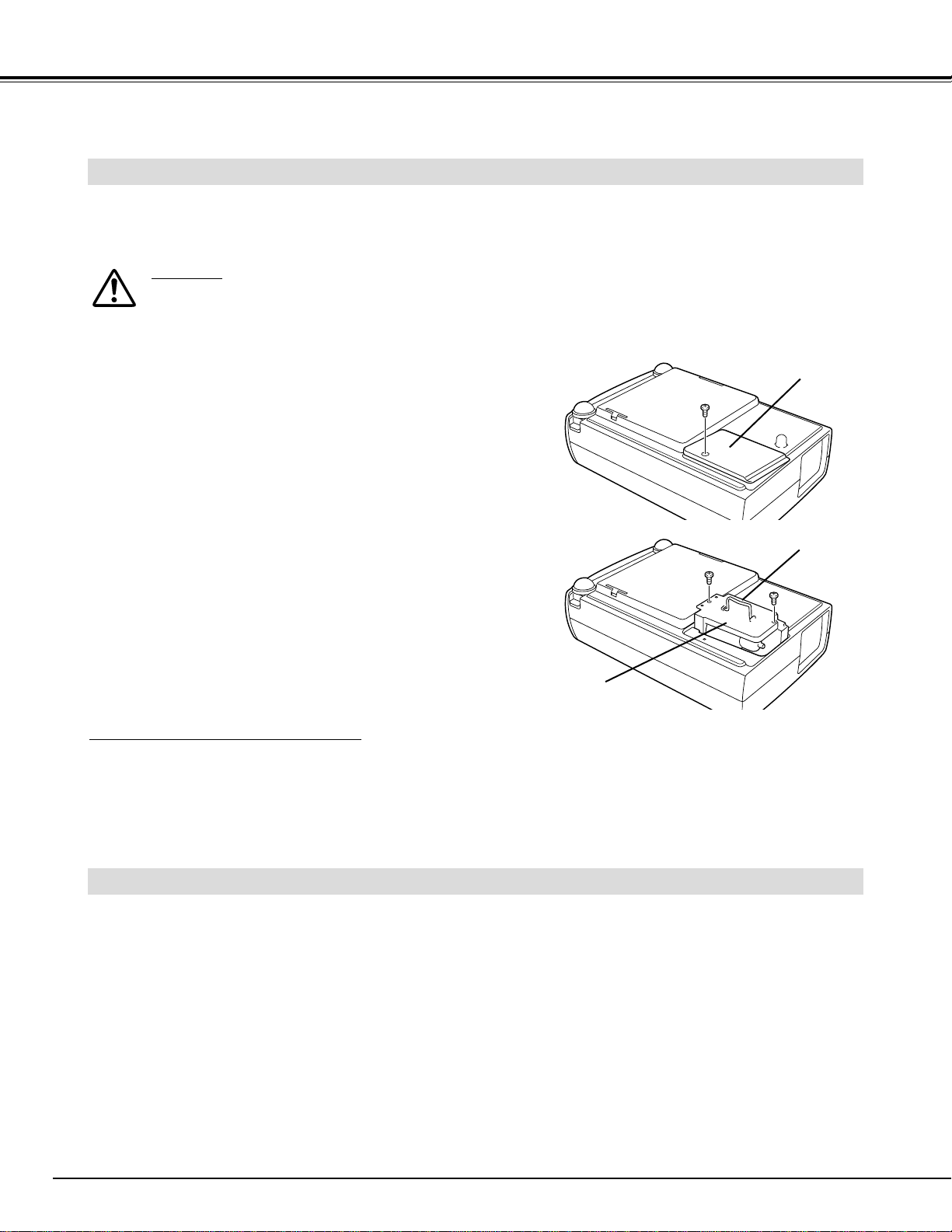
When the life of the Lamp of this projector draws to an end, the LAMP REPLACEMENT indicator lights yellow.
When the image becomes dark or the color of the image becomes unnatural, replacement of the Lamp is
required.
Turn off the projector and disconnect the AC plug. Allow the
projector to cool for at least 45 minutes.
Remove the two screws with a screwdriver and pull out the
Lamp Assembly by grasping the handle.
1
3
LAMP REPLACEMENT MONITOR TIMER
Replace the Lamp Assembly with a new one and tighten the two
screws. Make sure that the Lamp Assembly is set properly.
Replace the Lamp Cover and tighten the screw.
4
Remove the screw with a screwdriver and remove the Lamp
Cover.
2
CAUTION
●For continued safety, replace with a lamp assembly of the same type.
●Allow the projector to cool for at least 45 minutes before you open the lamp cover. The inside of the projector
can become very hot.
●Do not drop the lamp assembly or touch the glass bulb! The glass can shatter and may cause injury.
Be sure to reset the Lamp Replacement Monitor Timer when the Lamp Assembly is replaced. When the Lamp
Replacement Monitor Timer is reset, the LAMP REPLACEMENT indicator stops lighting.
Turn the projector on, and press the MENU button and the ON-SCREEN MENU will appear. Press the POINT
LEFT/RIGHT buttons to select SETTING and press the SELECT button (refer to the page 32, 33). Another dialog box
SETTING MENU will appear.
1
Press the POINT DOWN button and a red-arrow icon will appear. Move the arrow to “Lamp age,” and then press the
SELECT button. The message "Lamp replace monitor Reset?" is displayed.
2
Do not reset the Lamp Replacement Monitor Timer, except after the lamp is replaced.
Connect the AC Power Cord to the projector and turn the
projector on.
6
Follow these steps to replace the lamp assembly.
Reset the Lamp Replacement Monitor Timer (refer to the section
“Lamp Replacement Monitor Timer” below).
Select [Yes] to reset the Timer.
3
5
LAMP
ASSEMBLY
HANDLE
LAMP COVER
NOTE : Do not reset the LAMP REPLACEMENT MONITOR
TIMER when the lamp is not replaced.
ORDER REPLA
CEMENT LAMP
Replacement Lamp can be ordered through your dealer. When ordering the Lamp, give the following
information to the dealer.
● Model No. of your projector : LV-5100
● Replacement Lamp Type No. : LV-LP09
(610 285 2912)
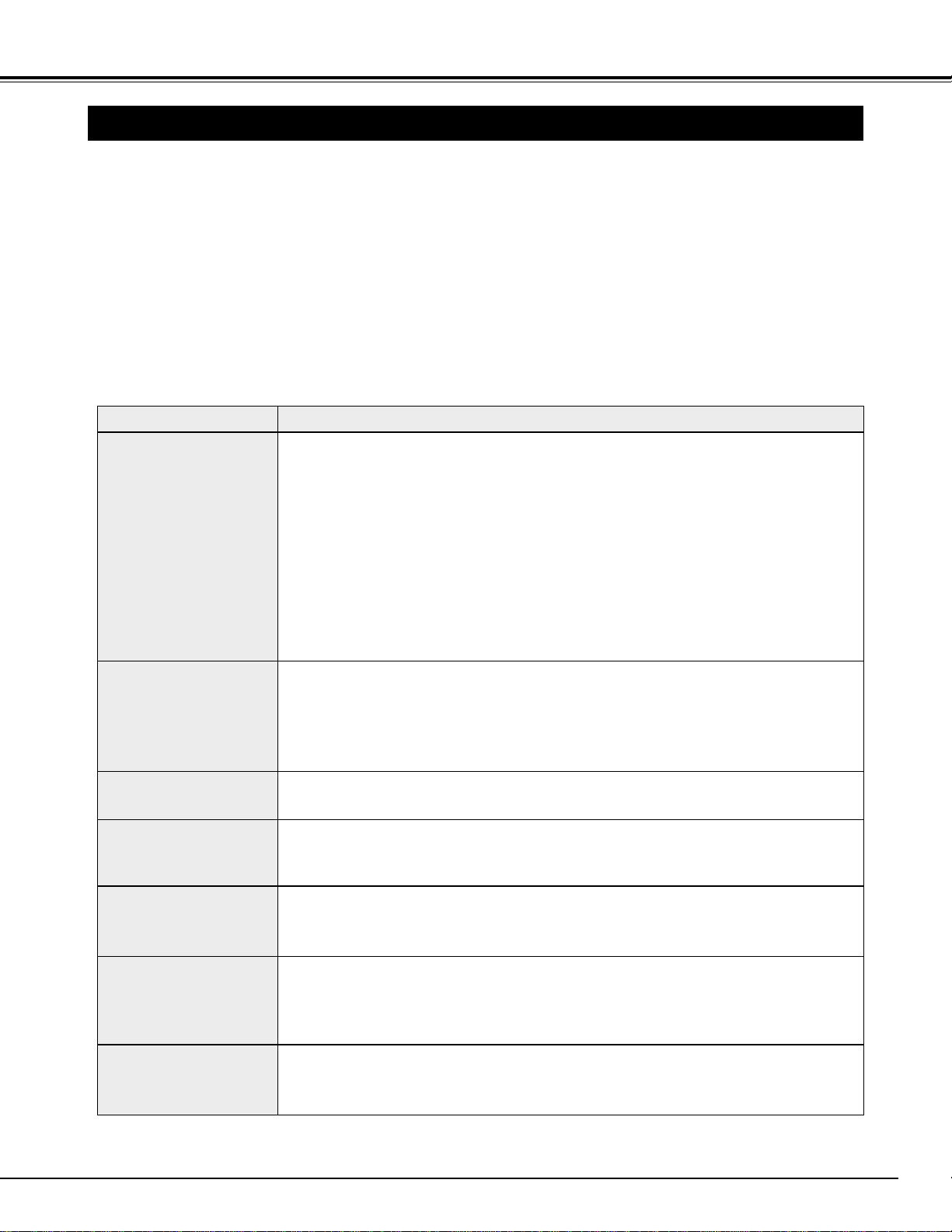
37
APPENDIX
TROUBLESHOOTING
Before calling your dealer or service center for assistance, check the matters below once again.
1. Make sure you have connected the projector to your equipment as described in the section "CONNECTING
THE PROJECTOR" on pages 11 ~ 13.
2. Check cable connection. Verify that all computer, video and power cords are properly connected.
3. Verify that all power is switched on.
4. If the projector still does not produce an image, re-start the computer.
5. If the image sill does not appear, unplug the projector from the computer and check the computer monitor's
display. The problem may be with your graphics controller rather than with the projector. (When you
reconnect the projector, remember to turn the computer and monitor off before you power up the projector.
Power the equipment back on in order of : Projector and computer.)
6. If the problem still exists, check the following chart.
No power.
● Plug the projector into the AC outlet.
● Be sure READY Indicator light is On.
● Wait 90 seconds after the projector is turned OFF before turning the projector back on.
NOTE : After pressing the power ON-OFF switch to OFF, make sure the projector works
as follows:
1. The LAMP indicator will light and the READY indicator will turn off.
2. After 90 seconds, the READY indicator will light green again and the projector
may be turned on by pressing the power ON-OFF button.
● Check WARNING TEMP. indicator. If the indicator flashes red, the projector cannot be
turned on.
(See "TURNING ON/OFF THE PROJECTOR" section on page 19.)
● Check the Projection Lamp. (Refer to page 36.)
Image is out of
focus.
● Adjust the focus
● Make sure the projection screen is at least 4.6’ (1.4m) from the projector.
● Check the projection lens to see if it needs cleaning.
NOTE : Moving the projector from a cool temperature location to a warm temperature
location may result in moisture condensation on the lens. In such an event, leave
the projector OFF and wait until condensation disappears.
Picture is Left/Right
reversed.
● Check Ceiling / Rear feature. (See “SETTING” section on page 32.)
Problem: Try these Solutions
Picture is
Top/Bottom
reversed.
● Check Ceiling feature. (See “SETTING” section on page 32.)
Some displays are
not seen during the
Operation.
● Check Display feature.(See “SETTING” section on page 32.)
No image.
● Check the connection between the computer or video equipment and the projector.
● When turning the projector on, it takes about 30 seconds to display the image.
● Check the system that you select is corresponding with the computer or the video
equipment.
● Make sure the temperature is not out of the Operating Temperature (5°C ~ 35°C).
No sound.
● Check audio cable connection from audio input source.
● Adjust the audio source.
● Press VOLUME (+) button.
● Press MUTE button.
38
This symbol on the nameplate means the product is Listed by Underwriters
Laboratories Inc. It is designed and manufactured to meet rigid U.L. safety
standards against risk of fire, casualty and electrical hazards.
APPENDIX
WARNING :
High voltages are used to operate this projector. Do not attempt to open the cabinet.
If the problem still persists
after following all operating instructions,
contact the sales dealer where you
purchased the projector or the service center.
Give the model number and explain the difficulty. We will advise
you how to obtain service.
Remote Control Unit
does not work.
● Check the batteries.
● Check the ALL-OFF switch on the Remote Control Unit is set to “ON.”.
● Make sure nothing is between the Remote Receiver and the Remote Control Unit.
● Make sure you are not too far from the projector when using the Remote Control Unit.
Maximum operating range is 16.4’ (5m).
Problem: Try these Solution
Wireless Mouse
function does not
work.
● Check the cable connection between the projector and the computer.
● Check the mouse setting on your computer.
● Turn the projector on before you turn on the computer.
The CE Mark is a Directive conformity mark of the European Community. (EC)
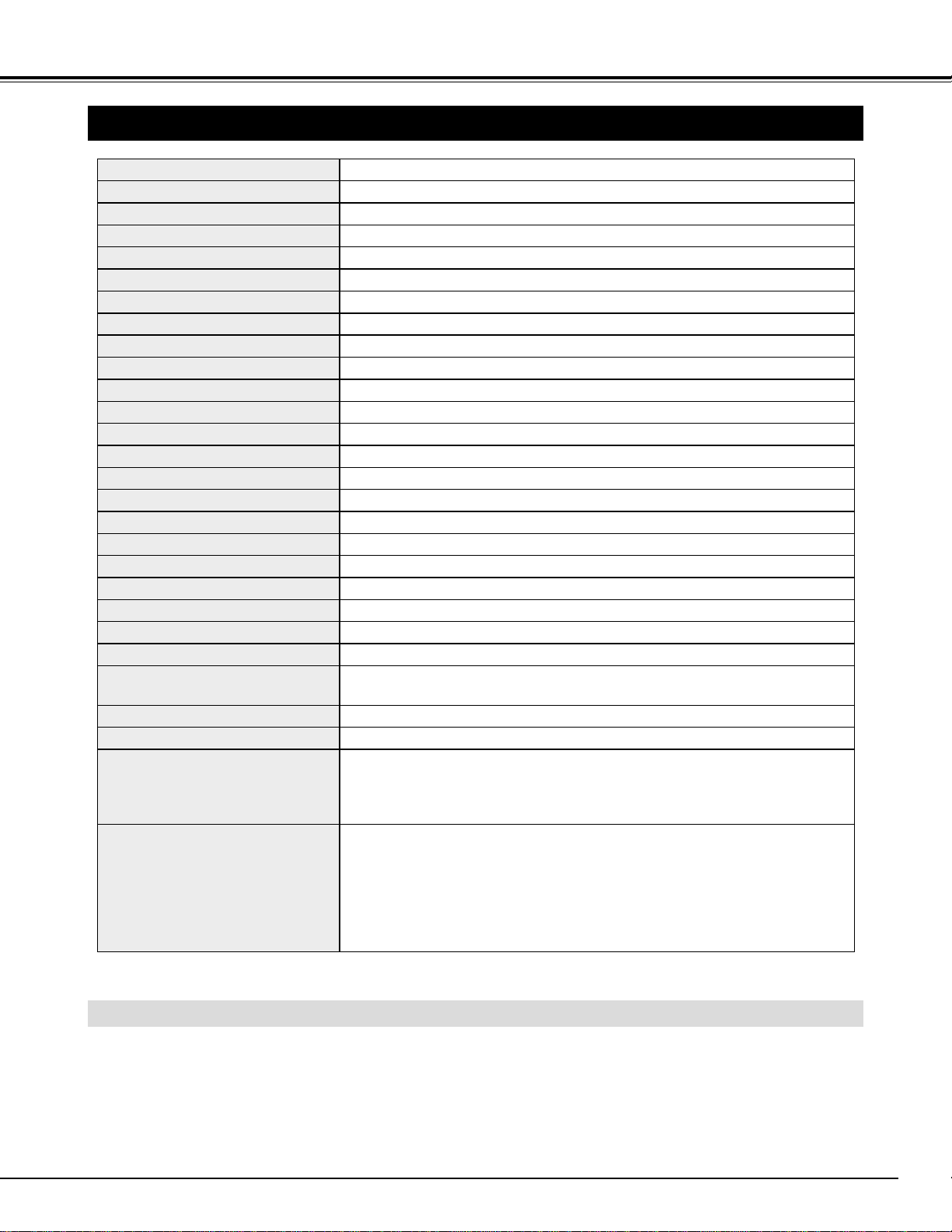
● The specifications are subject to change without notice.
39
APPENDIX
0.7” TFT Active Matrix type, 3 panels
TECHNICAL SPECIFICATIONS
Multi-media Projector
5.95 lbs (2.7 kg)
7.44” x 2.97” x 12.24” (189mm x 75.5mm x 310.8mm)
(not including Adjustable Feet)
800 x 600 dots
1,440,000 (800 x 600 x 3 panels)
PAL, SECAM, NTSC, NTSC4.43, PAL-M and PAL-N
H-sync. 15 ~ 80 KHz, V-sync. 50 ~ 100 Hz
Adjustable from 30” to 200”
500 TV lines
1 speaker, 1.57” x 1.18” (40mm x 30mm)
AC 100 ~ 120 V (2.2 A Max. Ampere), 50 / 60 Hz
(The U.S.A and Canada)
AC 200 ~ 240 V (1.1 A Max. Ampere), 50 / 60 Hz
(Continental Europe)
41 ˚F ~ 95 ˚F (5 ˚C ~ 35 ˚C)
14 ˚F ~ 140 ˚F (-10 ˚C ~ 60 ˚C)
Owner’s Manual
AC Power Cord
Remote Control Transmitter and Batteries
VGA Cable
Control Cable for PS/2 port
Carry Bag
Lens Cover
Projector Type
Net Weight
Dimensions
(W x H x D)
Panel Resolution
Number of Pixels
Color System
Scanning Frequency
Projection Image size
(Diagonal)
Horizontal Resolution
Built-in Speaker
Voltage and
Power Consumption
Operating Temperature
Storage Temperature
Accessories
LCD Panel System
F 2.0 ~ 2.3 lens with f 28 mm ~ 33.6 mm Manual zoom and focus
4.6’ ~ 26.3’ (1.4 m ~ 8.0 m)
120 W
RCA Type x 3 (Video/Y, Pb/Cb, Pr/Cr) and Mini DIN 4 pin x 1 (S-Video)
Projection Lens
Throw Distance
Projection Lamp
AV Input Jacks
Mini Jack (stereo)
AV Audio Input Jack
(VGA) HDB 15 Terminal x 1
Mini Jack (stereo)
Mini DIN 8 pin x 1
Mini Jack (stereo)
1W RMS (Monaural)
Computer Input Jack
Computer Audio Input Jack
Control Port Jack
Audio Output Jack
Internal Audio Amp
0˚ to 7.6˚
Feet Adjustment
Power Source : AA, UM3 or R06 Type x 2
Operating Range : 16.4’ (5m) / ±30˚
Dimensions (W x H x D) : 2.2” x 1.3” x 7.6” (55mm x 34mm x 192mm)
Net Weight : 0.35 lbs (160 g) (including batteries)
Remote Control Transmitter
OPTIONAL PARTS
The parts listed below are optionally supplied. When ordering those parts, give the name and the Type No. of it
to the sales dealer.
● Control Cable for Serial Port Type No. : LV-CA26
● Control Cable for ADB Port Type No. : LV-CA27
● MAC Adapter Type No. : LV-AD02
480i, 480p, 575i, 575p, 720p, 1035i and 1080i
High Definition TV Signals

1AA6P1P2308-- (MK6P)
©CANON INC. 2000
YT1-1322-000
PRINTED IN JAPAN
CANON INC. 30-2, Shimomaruko 3-chome, Ohta-ku, Tokyo 146-8501, Japan
CANON U.S.A., INC. NEW YORK OFFICE
One Canon Plaza, Lake Success, NY 11042-1198, U.S.A.
CANON U.S.A., INC. LOS ANGELES OFFICE
15955 Alton Parkway, irvine, CA 92718-3616, U.S.A.
CANON CANADA, INC.
6390 Dixie Road Mississauga, Ontario L5T 1P7 Canada
CANON EUROPA N.V.
P.O.Box 2262, 1180 EG Amstelveen, The Netherlands
CANON FRANCE S.A.
17, Quai du Président Paul Doumer, 92414 Courbevoie Cedex, France
CANON (UK) LTD.
Woodhatch, Reigate, Surrey RH2 8BF, United Kingdom
CANON DEUTSCHLAND GmbH
Europark Fichtenhain A 10, 47807 Krefeld, Germany
CANON ITALIA S.p.A.
Palazzo L, Strada 6, 20089 Milanofiori-Rozzano (MI), Italy
CANON (Schweiz) A.G.
Industriestrasse 12, 8305 Dietlikon, Switzerland
CANON BENELUX N.V.
Neptunusstraat 1, 2132 JA Hoofddorp, The Netherlands
CANON BENELUX N.V./S.A.
Bessenveldstraat 7, 1831 Diegem (Machelen), Belgium
CANON GmbH
Zetschegasse 11, A-1232 Wien, Austria
CANON ESPANA S.A.
C/Joaquin Costa 41, 28002 Madrid, Spain
CANON SVENSKA AB
Stensätravägen 13, S-127 88 Skarholmen 2, Sweden
CANON NORGE A/S
Hallagerbakken 110, P. O. Box 2-33, Holmlia 1201 Oslo 12, Norway
CANON OY
Kornetintie 3, 00381 Helsinki, Finland
CANON HONGKONG CO., LTD.
10F, Lippo Sun Plaza, 28 Canton Road, Tsimshatsui, Kowloon, Hongkong
CANON SINGPORE PTE. LTD.
79 Anson Road #09-01/06, Singapore 079906
CANON AUSTRALIA PTY. LTD.
1 Thomas Holt Drive, North Ryde, Sydney, N.S.W.2113, Australia
CANON NEW ZEALAND LTD.
Suite 4, 2nd Floor, Asda Plaza, Fred Thomas Drive, P.O.Box 33-336, Takapuna, Auckland, New Zealand
CANON LATIN AMERICA, INC.
6505 Blue Lagoon Drive Suite 325 Miami, Florida 33126 U.S.A.