User Manual
Package Contents and Technical Specifications
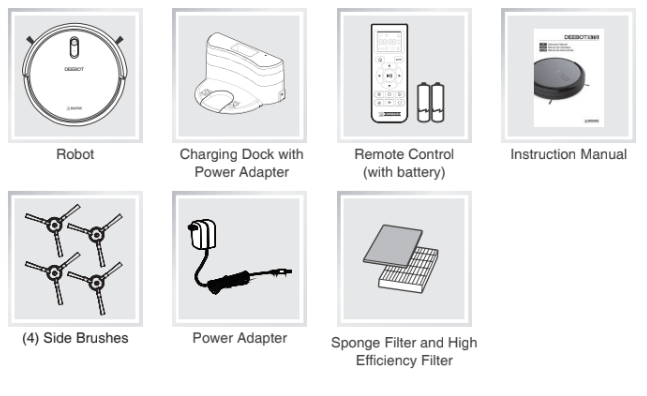
Package Contents
Product Diagram
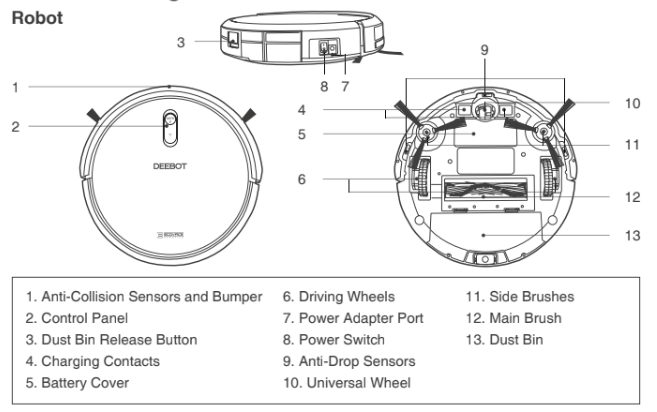
Robot
Control Panel
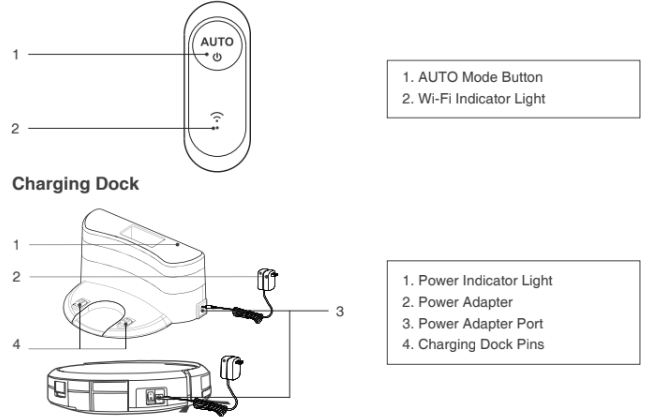
Remote Control
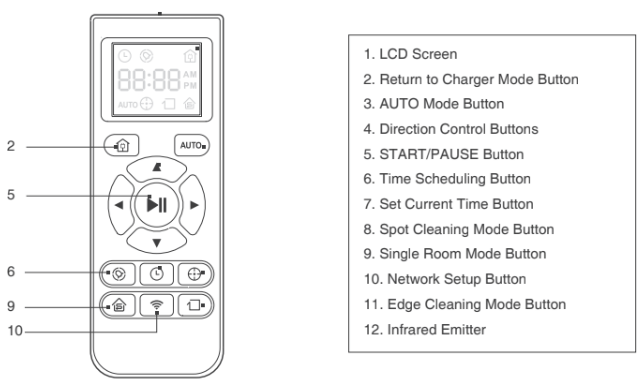
Dust Bin
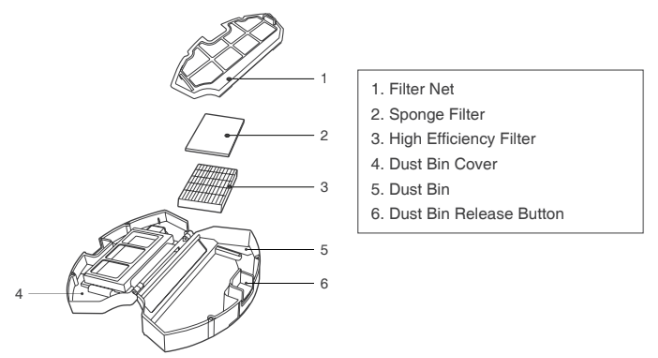
Operating and Programming
Notes Before Cleaning
Before operating DEEBOT, take a few moments to survey the area to be cleaned and remove any obstacles.
|

|
|
Remove power cords and small objects from the floor that could entangle the product.
|
 |
|
Please be aware that the robot needs at least an 8 cm (3”) clearance to clean under furniture without complications. |
|

|
|
The product is not suitable for use on long-pile carpet. Before using the product near an area rug or on a short-pile area rug with tasseled edges, please fold area rug edges under themselves.
|
 |
|
If there is a step or stairs in the cleaning area, please operate DEEBOT to ensure its Anti- Drop Sensors can detect the drop off. It may be necessary to place a physical barrier at the edge of the drop off to keep the unit from falling over the edge.
|
Quick Start
1. Charging Dock Placement
- Connect the Power Adapter to the Charging Dock.
- Place the Charging Dock on a level floor surface against the wall with the base perpendicular to the ground. Keep the immediate area 2m (6.6’) in front of the charger and 1 m (3.3’) on both sides of the charger clear of objects and reflective surfaces.
- Plug the Charging Dock in. The Power Indicator Light on the Charging Dock glows.
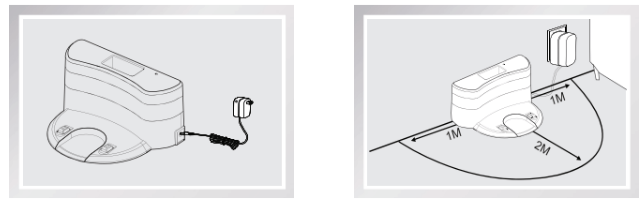
2. Install Side Brushes
- Attach Side Brushes to the bottom of DEEBOT by pressing a brush into each slot until it clicks.
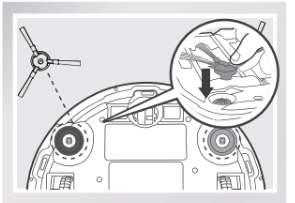
3. Power ON
- Turn the robot’s Side Power Switch to the ON position. “l” indicates ON and “O” indicates OFF. DEEBOT is powered ON when
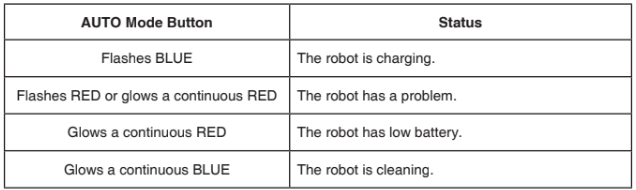
 button glows a continuous BLUE.
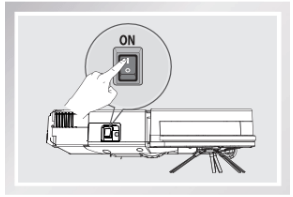
*When DEEBOT is not cleaning, it is suggested to keep it powered ON and charging instead of powered OFF.
4. Charge DEEBOT
- Place DEEBOT on the Charging Dock making sure the Charging Contacts on DEEBOT and the Charging Dock Pins make a connection.
- Charge DEEBOT for at least 4 hours before the first use.
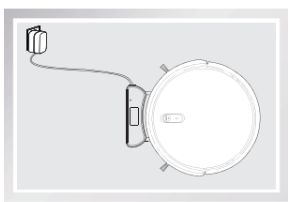
- Make sure to turn the robot’s Power Switch on before charging.
- button blinks when DEEBOT is charging. button stops glowing after DEEBOT is fully charged.
5. Start
- Press the button on DEEBOT or the AUTO Mode Button on the Remote Control. DEEBOT starts to work immediately in AUTO Cleaning Mode.
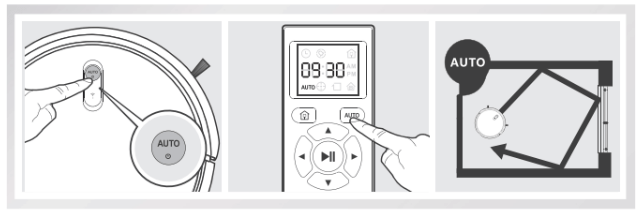
- To choose another Cleaning Mode, please refer to section 3.3 Cleaning Mode Selection for details.
- DEEBOT can be directed using the Direction Control Buttons on the Remote Control when it is paused.
6. Pause
- Pause DEEBOT by pressing the [IM] button on DEEBOT or the START/ PAUSE Button on the Remote Control.
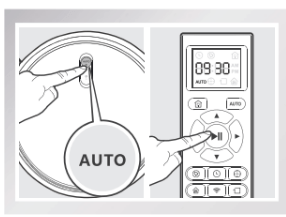
*The AUTO Mode Button on the robot's Control Panel stops glowing when the robot is paused for more than 10 minutes. Press AUTO Mode Button on the robot or press any button on the Remote Control to start the DEEBOT immediately.
7. Power OFF
- Turn the robot’s Side Power Switch to the ON position. “l” indicates ON and “O” indicates OFF.
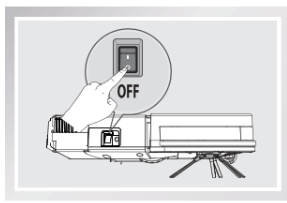
*When DEEBOT is not cleaning, it is suggested to keep it powered ON and charging instead of powered OFF.
*For models with app-connectivity, various functions can be performed using the ECOVACS App.
Cleaning Mode Selection
DEEBOT has several cleaning modes to choose from to effectively clean different floors. Cleaning modes are selected using the Remote Control.
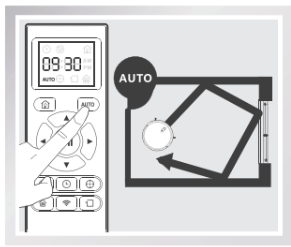
1. AUTO Cleaning Mode
- This is the most commonly used mode. In AUTO Cleaning Mode, DEEBOT cleans in a straight line and changes direction when it meets an obstacle.
- To start AUTO Cleaning Mode, Press the [IM] button on DEEBOT or the AUTO Mode Button on the Remote Control.
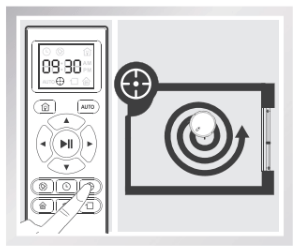
2. Spot Cleaning Mode ( Less than 3 minutes)
- This mode is applicable for an area of highly concentrated dirt or dust. In Spot Cleaning Mode, DEEBOT focuses on a specific area to clean. DEEBOT cleans the area in a spiral pattern and stops when it completes Spot Cleaning.
- To start Spot Cleaning Mode, press Spot Cleaning Mode Button on the Remote Control.
3. Edge Cleaning Mode
- This mode is good for cleaning the edges and corners of a room. In Edge Cleaning Mode, DEEBOT cleans along a border (e.g. wall).
- To start Edge Cleaning Mode, press the Edge Cleaning Mode Button on the Remote Control.
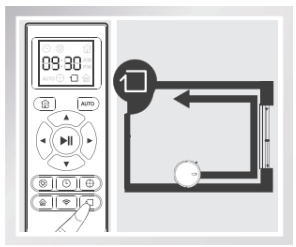
4. Single Room Mode
- This mode is used when DEEBOT only needs to clean a single room. To start Single Room Cleaning Mode, press the Single Room Mode Button on the Remote Control.
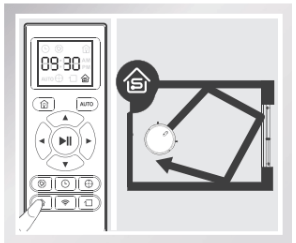
* The room must be contained for Single Room Mode to function properly. Close doors to the room entrance and exit to contain the room.
5. Return to Charger Mode
- When battery power gets low, DEEBOT automatically switches to Return to Charger Mode and returns to the Charging Dock to recharge itself.
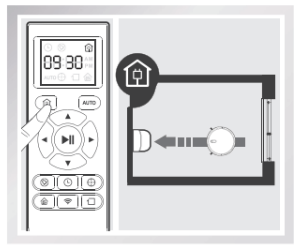
* DEEBOT can also be sent back to the Charging Dock at any time by pressing the Return to Charger Button on the Remote Control.
Programming the Robot
DEEBOT has a Time Scheduling function. DEEBOT can be programmed to automatically clean at a specific time using the Remote Control, even if nobody is at home. The current time of day and the cleaning times are scheduled using the Remote Control.
* All scheduled cleanings are performed in AUTO Cleaning Mode.
* The Remote Control uses a 12-hour clock with “AM” and “PM” indicators.
* DEEBOT loses the schedule once it is powered OFF. It is suggested to keep it powered ON and charging instead of powered OFF.
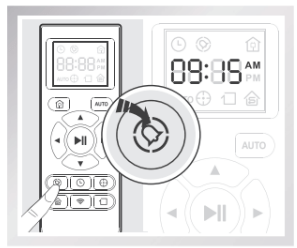
Set the Current Time of Day
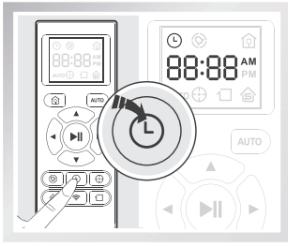
Press  button on the Remote Control and the “hour" (first two digits) flashes on the Remote Control LCD Screen.
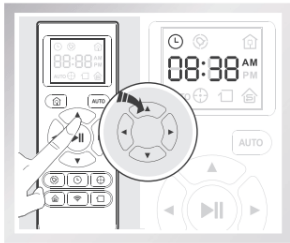
Press the up and down Direction Control Buttons  to adjust “hour” and “minute” number. Press the left and right Direction Control Buttons
  to switch between “hour” and “minute.”
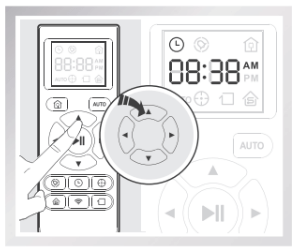
Press  button on the Remote Control to confirm and save the current time of day.
Schedule the Cleaning Time using Remote Control
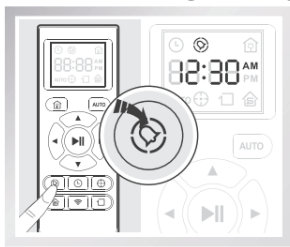
Press  button on the Remote Control and the “hour” (first two digits) flashes on the Remote Control Screen.
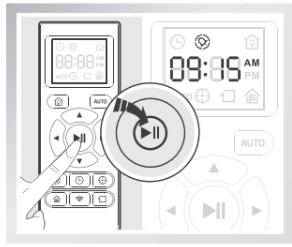
Press  button on the Remote Control to confirm and save the scheduled cleaning time. DEEBOT beeps. DEEBOT automatically cleans at the scheduled cleaning time every day.
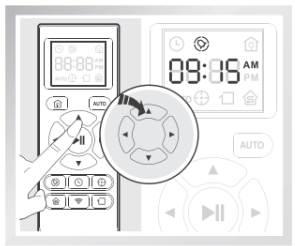
Press the up and down Direction Control Buttons to adjust “hour” and “minute” number. Press the left and right Direction Control Buttons to switch between “hour” and “minute.”
Cancel Scheduled Cleaning Time using Remote Control
To cancel the scheduled cleaning time, press and hold button for 3 seconds until disappears from the Remote Control LED Screen and the robot beeps. The scheduled cleaning time is cancelled.
Indicator Light and Alarm Sounds
Indicator Light
Alarm Sounds
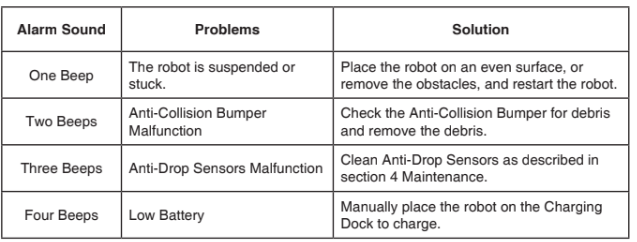
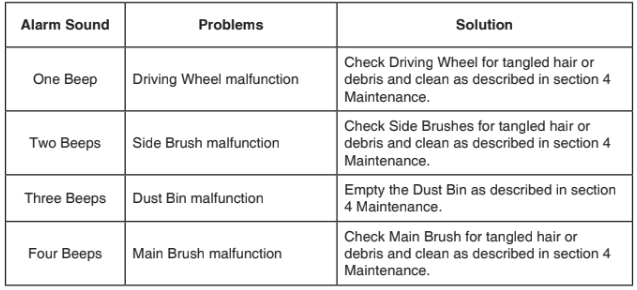
If DEEBOT detects a problem, it emits alarm beeps and the AUTO Mode Button flashes RED or glows RED
Flashing RED:
Glowing a continuous RED:
Maintenance
Before performing cleaning and maintenance, power OFF DEEBOT and unplug the Charging Dock.
Dust Bin and Filters
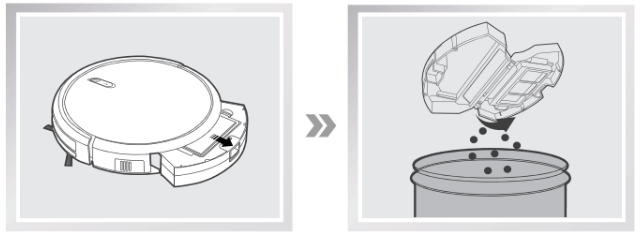
Remove the Dust Bin. Open the Dust Bin Cover and empty the Dust Bin.
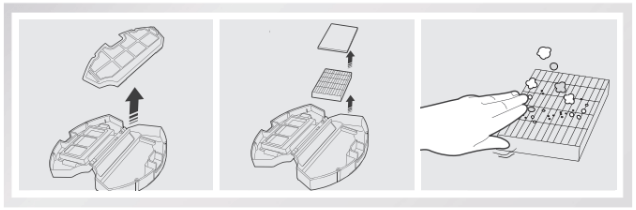
Remove the Sponge Filter and High Efficiency Filter. Pat the High Efficiency Filter clean. Do not rinse the High Efficiency Filter under water.
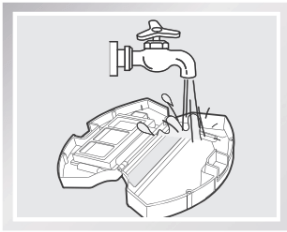
Rinse the Sponge Filter, Dust Bin and Filter Net under running water.
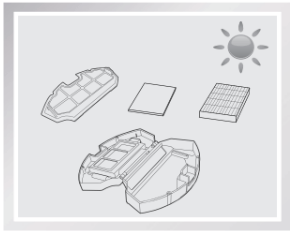
Dry the Sponge Filter, Dust Bin and Filter Net completely before reinstalling.
Main Brush and Side Brushes
* A Multi-Function Cleaning Tool is provided for easy maintenance. Handle with care, this cleaning tool has sharp edges.
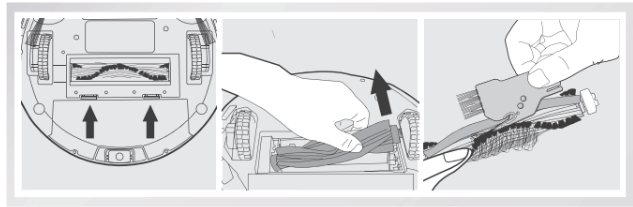
Cleaning the Main Brush
Turn the robot over. Push both buttons on the Main Brush Cover and remove it. Remove the Main Brush.
Use the Multi-Function Cleaning Tool to cut off and remove any hair tangled around the Main Brush.
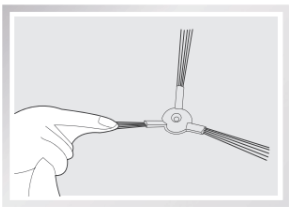
Cleaning the Side Brushes
Remove the Side Brushes. Wipe the Side Brushes and their slots with a dry cloth.
Other Components
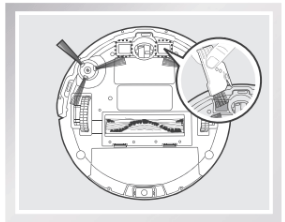
Use the Multi-Function Cleaning Tool to cut off and remove any hair tangled around the Universal Wheel.
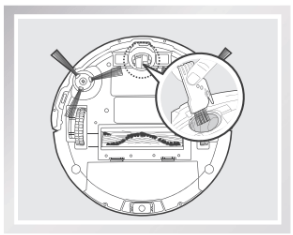
Wipe the Anti-Drop Sensors with the brush or the felt side of the Multi-Function Cleaning Tool to maintain their effectiveness.
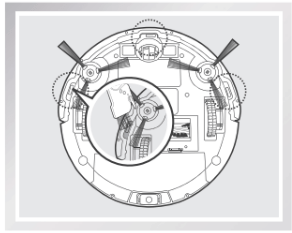
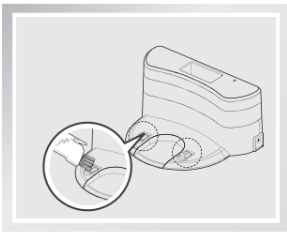
Wipe the Charging Contacts and Charging Dock Pins with the brush of the Multi-Function Cleaning Tool or a dry clean cloth to maintain their effectiveness.
Regular Maintenance
To keep DEEBOT running at peak performance, perform the maintenance and replacement according to the following frequency. A multi-Function Cleaning Tool is provided for easy maintenance. Handle with care, this cleaning tool has sharp edges.
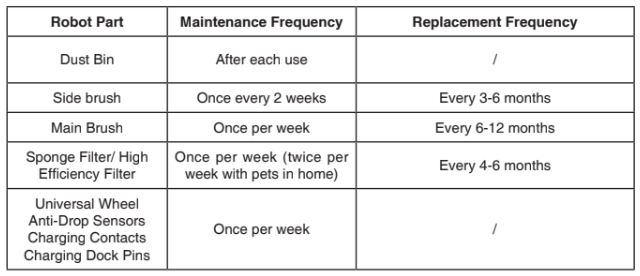
Note: ECOVACS manufactures various replacement parts and assemblies. Please contact Customer Service for more information on replacement parts.
Troubleshooting
DEEBOT will not charge.
DEEBOT is not powered ON.
- Press and hold AUTO Mode Button on DEEBOT to power ON.
DEEBOT has not made a connection with the Charging Dock.
- Be sure that DEEBOT’s Charging Contacts have made a connection with the Charging Dock Pins. You may move the robot manually to make the connection if necessary.
Charging Dock is unplugged while DEEBOT is powered ON, which causes battery consumption.
- Plug in the Charging Dock and ensure DEEBOT is powered ON. Keep DEEBOT on the Charging Dock to make sure it has a full battery to work at any time.
DEEBOT gets into trouble while working and stops.
DEEBOT is tangled with something on the floor electrical cords, drooping curtains, carpet fringe etc.).
- DEEBOT will try various ways to get itself out of trouble. If it is unsuccessful, manually remove the obstacles and restart.
Side Brush is stuck or the rotation speed of the Side Brush decreases.
- Remove the debris tangled around the Side Brush. If the Side Brush still rotates slowly, contact Customer Service.
Main Brush is stuck or the rotation speed of the Main Brush decreases.
- Remove the debris tangled around the Main Brush with the provided Multi- Function Cleaning Tool. If the Main Brush still rotates slowly, contact Customer Service.
DEEBOT returns to the Charging Dock before it finishes cleaning.
When battery power gets low, DEEBOT automatically switches to Return to Charger Mode and returns to the Charging Dock to recharge itself.
- This is normal. No solution necessary.
Working time varies according to floor surface, room complexity and the selected Cleaning Mode.
- This is normal. No solution necessary.
DEEBOT will not clean automatically at scheduled time.
Time Scheduling function is cancelled.
- Set Time Scheduling function as described in section 3.4.
DEEBOT is powered OFF.
The robot’s battery is low.
- Keep DEEBOT powered ON and on the Charging Dock to make sure it has a full battery to work at any time.
The robot’s components are tangled with debris.
- Power OFF DEEBOT, clean the Dust Bin, and invert the robot. Clean Side Brushes and the Main Brush as described in section 4.
Remote Control failure effective control range of Remote Control is 5m (16’).
The batteries in the Remote Control need to be replaced.
- Replace with new batteries making sure they are installed correctly.
DEEBOT is powered OFF or DEEBOT’s battery is low.
- Make sure DEEBOT is powered ON and fully charged.
The infrared signal cannot be transmitted because the Infrared Emitter on the Remote Control or DEEBOT’s Infrared Receiver on DEEBOT is dirty.
- Use a dry cloth or the Multi-Function Cleaning Tool to wipe the Infrared Emitter on Remote Control and the Infrared Receiver on DEEBOT.
There is other equipment interfering with the infrared signal to DEEBOT.
- Avoid using the Remote Control near other equipment using infrared signals.