
Preparations
Shooting
Playback/Erasing
Menus and Settings
Printing
The Components Guide
Downloading Images to
a Computer
CDI-E306-010 XX07XXX
Camera User Guide
Please Read This First
This guide explains how to prepare the camera and use its basic features.
© 2007 CANON INC. PRINTED IN JAPAN
ENGLISH
Basic
Cov-Basic-E.fm Page 1 Friday, February 23, 2007 4:50 PM
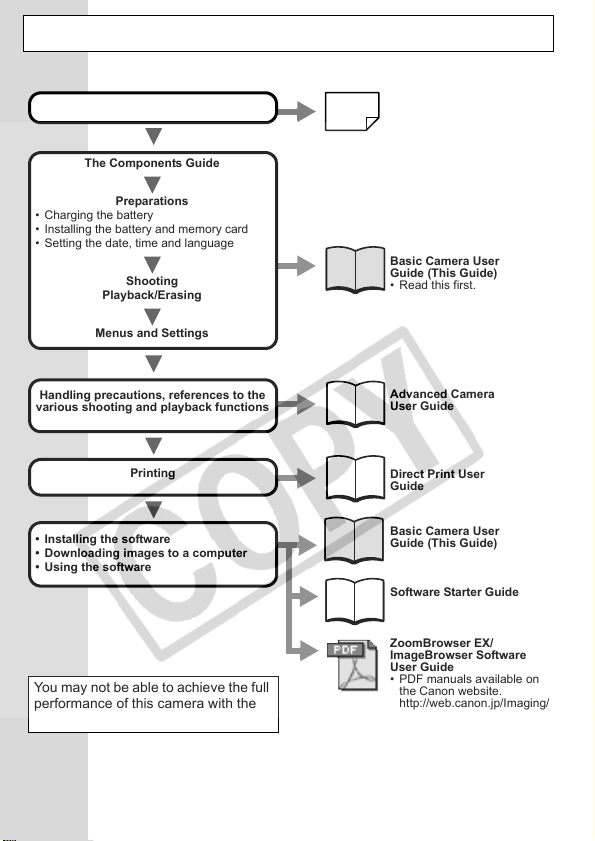
The following guides are available. Refer to them as necessary according to the
flowchart below.
Flowchart and Reference Guides
System Map
Basic Camera User
Guide (This Guide)
• Read this first.
Advanced Camera
User Guide
Direct Print User
Guide
Basic Camera User
Guide (This Guide)
Software Starter Guide
ZoomBrowser EX/
ImageBrowser Software
User Guide
• PDF manuals available on
the Canon website.
http://web.canon.jp/Imaging/
information-e.html
For information on included items and
items sold separately
The Components Guide
Preparations
• Charging the battery
• Installing the battery and memory card
• Setting the date, time and language
Shooting
Playback/Erasing
Menus and Settings
Handling precautions, references to the
various shooting and playback functions
Printing
• Installing the software
• Downloading images to a computer
• Using the software
In this guide, the Basic Camera User Guide is called the Basic Guide, and the Advanced
Camera User Guide is called the Advanced Guide. Also, "battery" refers to the battery pack.
You may not be able to achieve the full
performance of this camera with the
included memory card.
EC212-CUG-E.book Page 0 Friday, February 23, 2007 5:46 PM
1
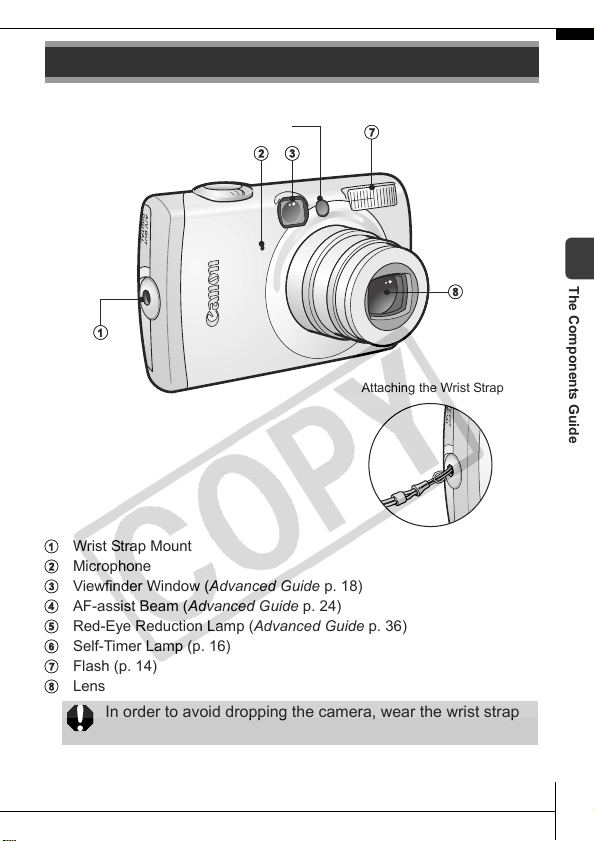
Front View
a Wrist Strap Mount
b Microphone
c Viewfinder Window (Advanced Guide p. 18)
d AF-assist Beam (Advanced Guide p. 24)
e Red-Eye Reduction Lamp (Advanced Guide p. 36)
f Self-Timer Lamp (p. 16)
g Flash (p. 14)
h Lens
The Components Guide
In order to avoid dropping the camera, wear the wrist strap
when using the camera.
def
c
g
h
a
b
Attaching the Wrist Strap
The Components Guide
EC212-CUG-E.book Page 1 Friday, February 23, 2007 5:46 PM
2
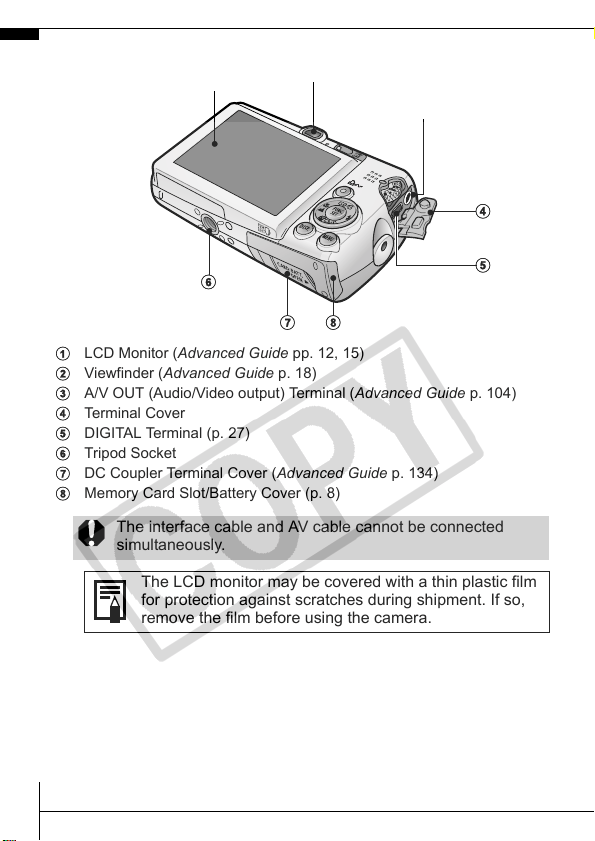
Back View
a LCD Monitor (Advanced Guide pp. 12, 15)
b Viewfinder (Advanced Guide p. 18)
c A/V OUT (Audio/Video output) Terminal (Advanced Guide p. 104)
d Terminal Cover
e DIGITAL Terminal (p. 27)
f Tripod Socket
g DC Coupler Terminal Cover (Advanced Guide p. 134)
h Memory Card Slot/Battery Cover (p. 8)
The interface cable and AV cable cannot be connected
simultaneously.
The LCD monitor may be covered with a thin plastic film
for protection against scratches during shipment. If so,
remove the film before using the camera.
a
b
f
h
c
d
e
g
EC212-CUG-E.book Page 2 Friday, February 23, 2007 5:46 PM
3
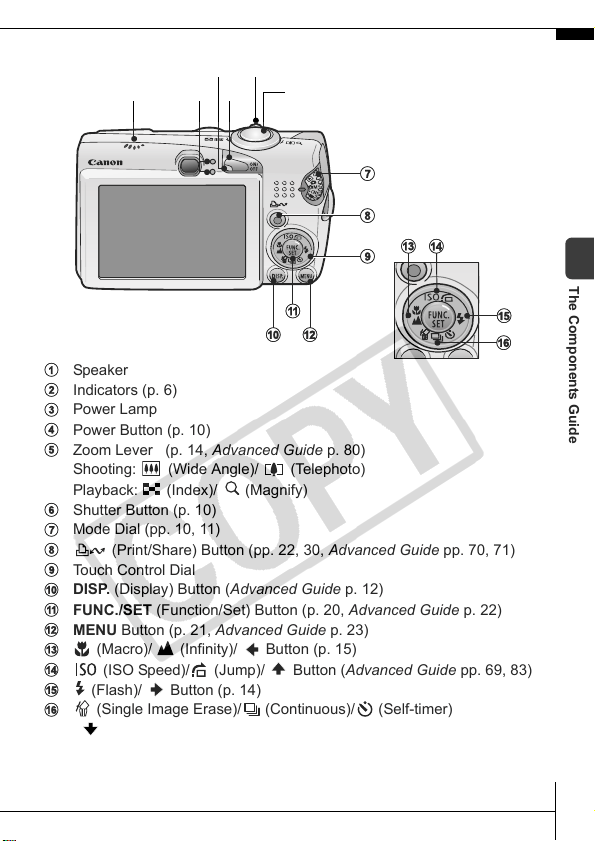
Controls
a Speaker
b Indicators (p. 6)
c Power Lamp
d Power Button (p. 10)
e Zoom Lever (p. 14, Advanced Guide p. 80)
Shooting: (Wide Angle)/ (Telephoto)
Playback: (Index)/ (Magnify)
f Shutter Button (p. 10)
g Mode Dial (pp. 10, 11)
h (Print/Share) Button (pp. 22, 30, Advanced Guide pp. 70, 71)
i Touch Control Dial
j DISP. (Display) Button (Advanced Guide p. 12)
k FUNC./SET (Function/Set) Button (p. 20, Advanced Guide p. 22)
l MENU Button (p. 21, Advanced Guide p. 23)
m (Macro)/ (Infinity)/ Button (p. 15)
n (ISO Speed)/ (Jump)/ Button (Advanced Guide pp. 69, 83)
o (Flash)/ Button (p. 14)
p (Single Image Erase)/ (Continuous)/ (Self-timer)
/ Button (pp. 16, 19, Advanced Guide p. 37)
bd
ec
g
h
j
k
mn
p
o
a
l
f
i
The Components Guide
EC212-CUG-E.book Page 3 Friday, February 23, 2007 5:46 PM
4
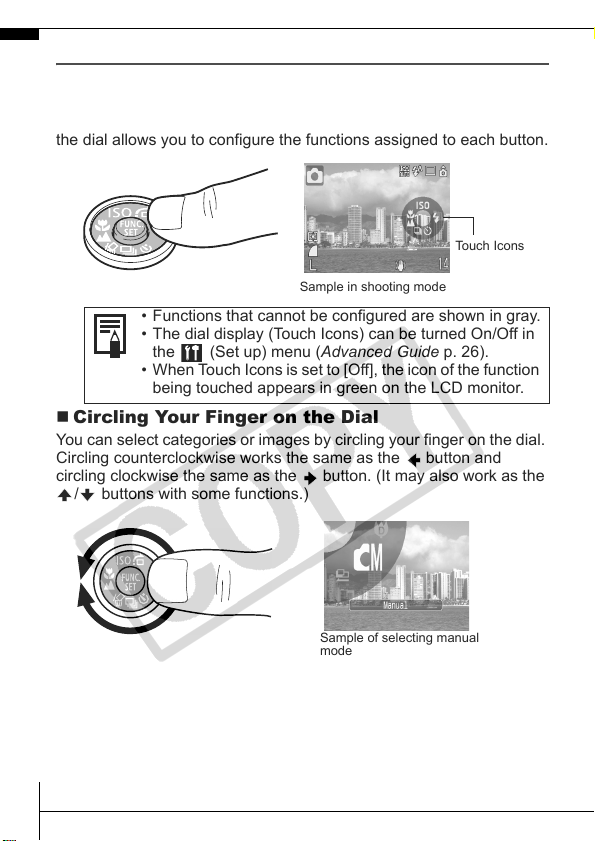
Using the Touch Control Dial
Touching the Dial
A magnified image of the touch control dial displays on the LCD
monitor when you place your finger on the dial. Circling your finger on
the dial allows you to configure the functions assigned to each button.
Circling Your Finger on the Dial
You can select categories or images by circling your finger on the dial.
Circling counterclockwise works the same as the button and
circling clockwise the same as the button. (It may also work as the
/ buttons with some functions.)
• Functions that cannot be configured are shown in gray.
• The dial display (Touch Icons) can be turned On/Off in
the (Set up) menu (Advanced Guide p. 26).
• When Touch Icons is set to [Off], the icon of the function
being touched appears in green on the LCD monitor.
Touch Icons
Sample in shooting mode
Sample of selecting manual
mode
EC212-CUG-E.book Page 4 Friday, February 23, 2007 5:46 PM
5
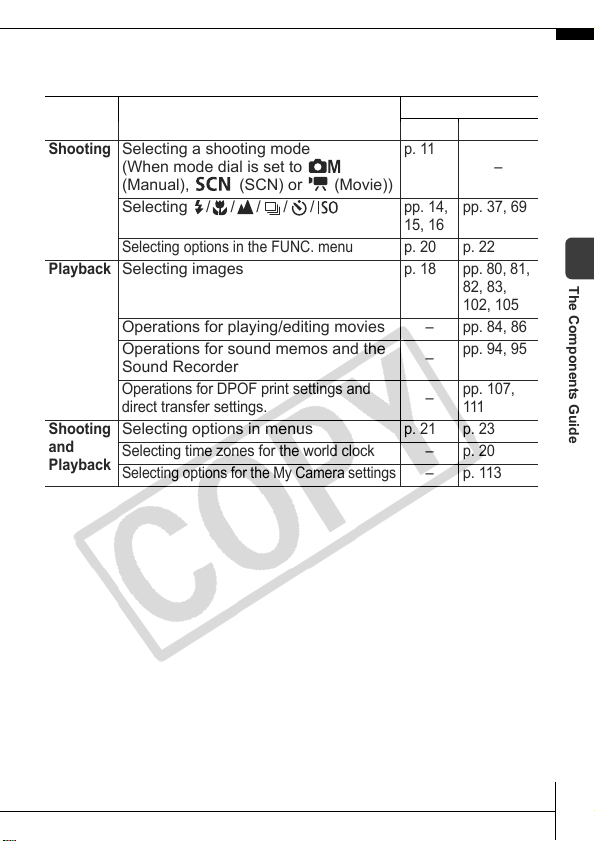
The following functions can be operated using the touch control dial.
Please note that some of the options for some functions cannot be
operated with it.
Operable Functions
Reference Page
Basic Advanced
Shooting
Selecting a shooting mode
(When mode dial is set to
(Manual), (SCN) or
(Movie))
p. 11
–
Selecting / / / / /
pp. 14,
15, 16
pp. 37, 69
Selecting options in the FUNC. menu
p. 20 p. 22
Playback
Selecting images
p. 18 pp. 80, 81,
82, 83,
102, 105
Operations for playing/editing movies
– pp. 84, 86
Operations for sound memos and the
Sound Recorder
–
pp. 94, 95
Operations for DPOF print settings and
direct transfer settings.
–
pp. 107,
111
Shooting
and
Playback
Selecting options in menus
p. 21 p. 23
Selecting time zones for the world clock – p. 20
Selecting options for the My Camera settings
–p. 113
The Components Guide
EC212-CUG-E.book Page 5 Friday, February 23, 2007 5:46 PM
6
Indicators
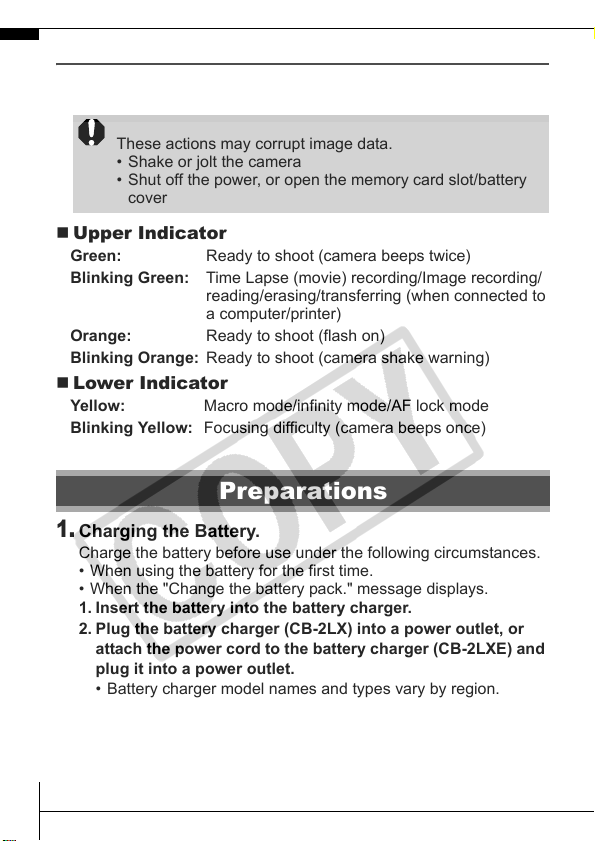
The camera indicators light or blink under the following
circumstances.
Upper Indicator
Lower Indicator
1.
Charging the Battery.
Charge the battery before use under the following circumstances.
• When using the battery for the first time.
• When the "Change the battery pack." message displays.
1. Insert the battery into the battery charger.
2. Plug the battery charger (CB-2LX) into a power outlet, or
attach the power cord to the battery charger (CB-2LXE) and
plug it into a power outlet.
• Battery charger model names and types vary by region.
Never do the following while an indicator is blinking green.
These actions may corrupt image data.
• Shake or jolt the camera
• Shut off the power, or open the memory card slot/battery
cover
Green: Ready to shoot (camera beeps twice)
Blinking Green: Time Lapse (movie) recording/Image recording/
reading/erasing/transferring (when connected to
a computer/printer)
Orange: Ready to shoot (flash on)
Blinking Orange: Ready to shoot (camera shake warning)
Yellow: Macro mode/infinity mode/AF lock mode
Blinking Yellow: Focusing difficulty (camera beeps once)
Preparations
EC212-CUG-E.book Page 6 Friday, February 23, 2007 5:46 PM
7
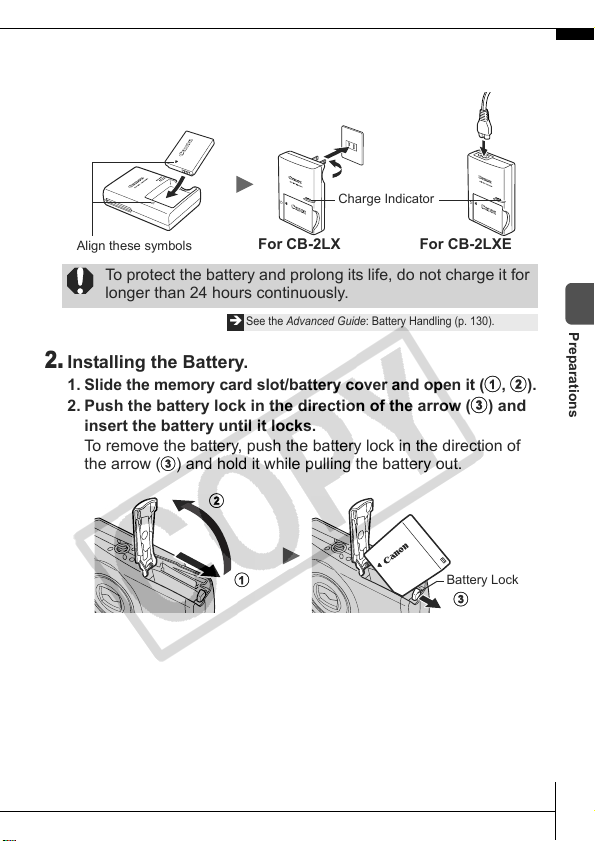
The charge indicator will light orange while the battery is
charging. It will change to green when the charge is complete.
Charging takes approximately 2 hours 5 minutes.
2.
Installing the Battery.
1.
Slide the memory card slot/battery cover and open it (
a
,
b
).
2. Push the battery lock in the direction of the arrow (c) and
insert the battery until it locks.
To remove the battery, push the battery lock in the direction of
the arrow (c) and hold it while pulling the battery out.
To protect the battery and prolong its life, do not charge it for
longer than 24 hours continuously.
Î
See the Advanced Guide: Battery Handling (p. 130).
Charge Indicator
Align these symbols
For CB-2LX For CB-2LXE
Battery Lock
b
c
a
Preparations
EC212-CUG-E.book Page 7 Friday, February 23, 2007 5:46 PM
8
3.
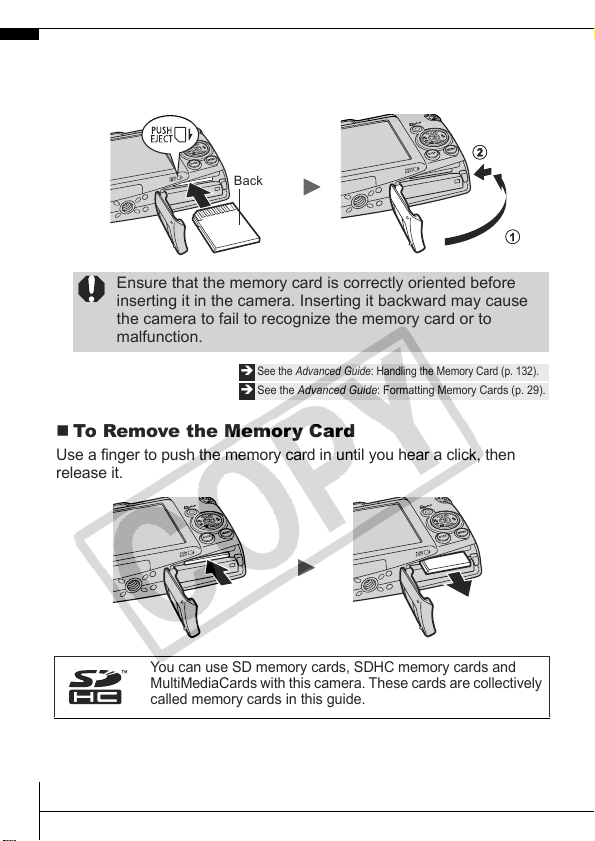
Inserting the Memory Card.
1. Insert the memory card until it clicks into place.
2. Close the memory card slot/battery cover (
a, b).
To Remove the Memory Card
Use a finger to push the memory card in until you hear a click, then
release it.
Ensure that the memory card is correctly oriented before
inserting it in the camera. Inserting it backward may cause
the camera to fail to recognize the memory card or to
malfunction.
Î
See the Advanced Guide: Handling the Memory Card (p. 132).
Î
See the Advanced Guide: Formatting Memory Cards (p. 29).
You can use SD memory cards, SDHC memory cards and
MultiMediaCards with this camera. These cards are collectively
called memory cards in this guide.
Back
b
a
EC212-CUG-E.book Page 8 Friday, February 23, 2007 5:46 PM
9
First Time Settings
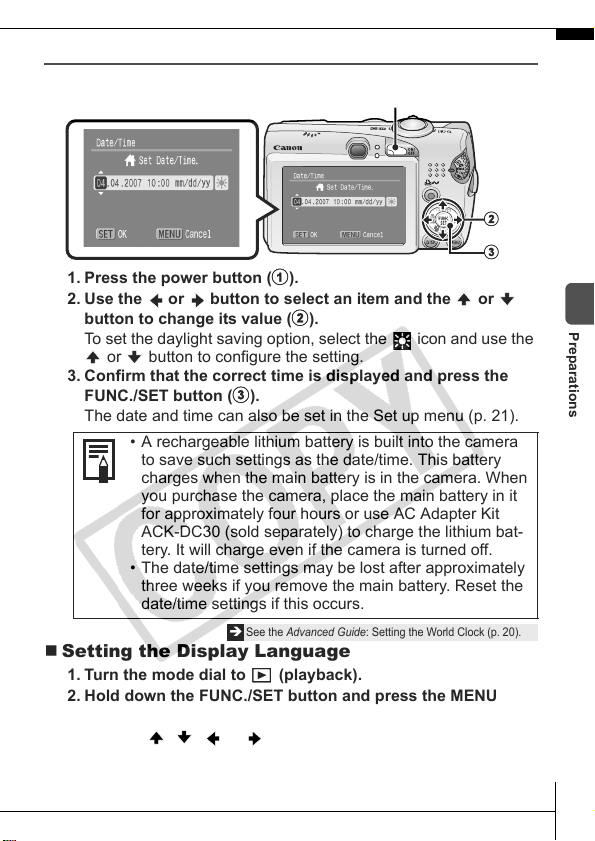
Setting the Date/Time
1. Press the power button (a).
2. Use the or button to select an item and the or
button to change its value (
b).
To set the daylight saving option, select the icon and use the
or button to configure the setting.
3. Confirm that the correct time is displayed and press the
FUNC./SET button (
c).
The date and time can also be set in the Set up menu (p. 21).
Setting the Display Language
1. Turn the mode dial to (playback).
2. Hold down the FUNC./SET button and press the MENU
button.
3. Use the ,
, or button to select a language and
press the FUNC./SET button.
The display language can also be set in the Set up menu (p. 21).
• A rechargeable lithium battery is built into the camera
to save such settings as the date/time. This battery
charges when the main battery is in the camera. When
you purchase the camera, place the main battery in it
for approximately four hours or use AC Adapter Kit
ACK-DC30 (sold separately) to charge the lithium bat-
tery. It will charge even if the camera is turned off.
• The date/time settings may be lost after approximately
three weeks if you remove the main battery. Reset the
date/time settings if this occurs.
Î
See the Advanced Guide: Setting the World Clock (p. 20).
b
c
a
Preparations
EC212-CUG-E.book Page 9 Friday, February 23, 2007 5:46 PM
10
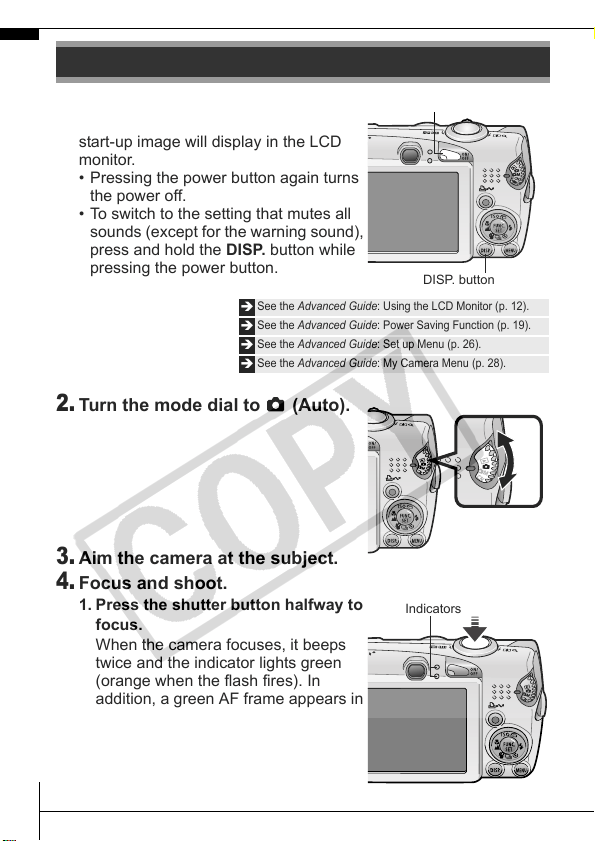
1.
Press the power button.
The start-up sound will play and the
start-up image will display in the LCD
monitor.
• Pressing the power button again turns
the power off.
• To switch to the setting that mutes all
sounds (except for the warning sound),
press and hold the DISP. button while
pressing the power button.
2.
Turn the mode dial to (Auto).
3.
Aim the camera at the subject.
4.
Focus and shoot.
1. Press the shutter button halfway to
focus.
When the camera focuses, it beeps
twice and the indicator lights green
(orange when the flash fires). In
addition, a green AF frame appears in
the LCD monitor on the portion of the
image used to set the focus.
Shooting
Î
See the Advanced Guide: Using the LCD Monitor (p. 12).
Î
See the Advanced Guide: Power Saving Function (p. 19).
Î
See the Advanced Guide: Set up Menu (p. 26).
Î
See the Advanced Guide: My Camera Menu (p. 28).
Power button
DISP. button
Indicators
EC212-CUG-E.book Page 10 Friday, February 23, 2007 5:46 PM
11
2. Press the shutter button fully to
shoot.
The shutter sound will play and the
image will record. The indicator will
blink green while the image is
recorded to the memory card.
Reviewing an Image Right After Shooting
After a shot is taken, the image appears in the LCD monitor for
approximately 2 seconds.
You can continue to display images regardless of the review duration
setting with the following procedures.
• Keeping the shutter button pressed after a shot.
• Pressing the FUNC./SET or DISP. button while the image is dis-
played in the LCD monitor.
To stop displaying the image, press the shutter button halfway.
Selecting a Shooting Mode
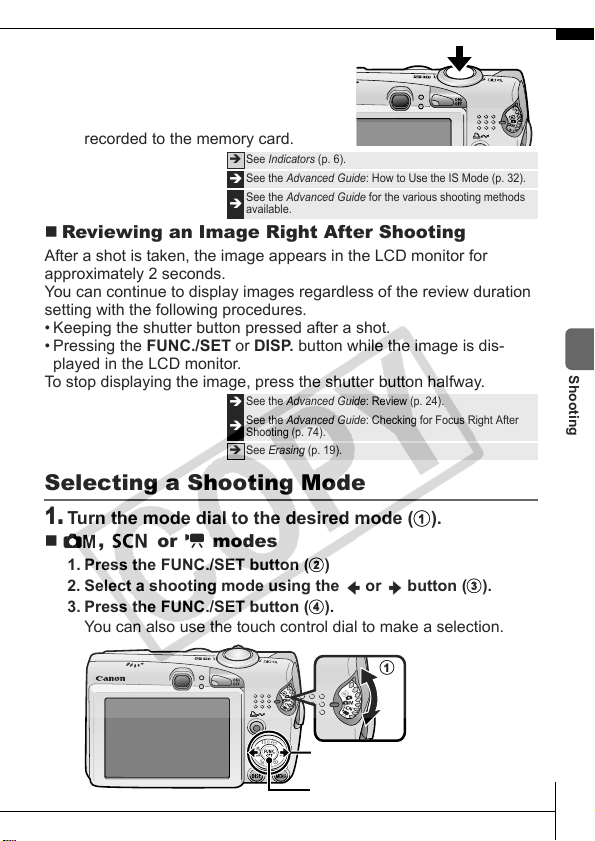
1.
Turn the mode dial to the desired mode (a).
, or modes
1. Press the FUNC./SET button (b)
2. Select a shooting mode using the or button (c).
3. Press the FUNC./SET button (d).
You can also use the touch control dial to make a selection.
Î
See Indicators (p. 6).
Î
See the Advanced Guide: How to Use the IS Mode (p. 32).
Î
See the Advanced Guide for the various shooting methods
available.
Î
See the Advanced Guide: Review (p. 24).
Î
See the Advanced Guide: Checking for Focus Right After
Shooting (p. 74).
Î
See Erasing (p. 19).
a
b d
c
Shooting
EC212-CUG-E.book Page 11 Friday, February 23, 2007 5:46 PM
12
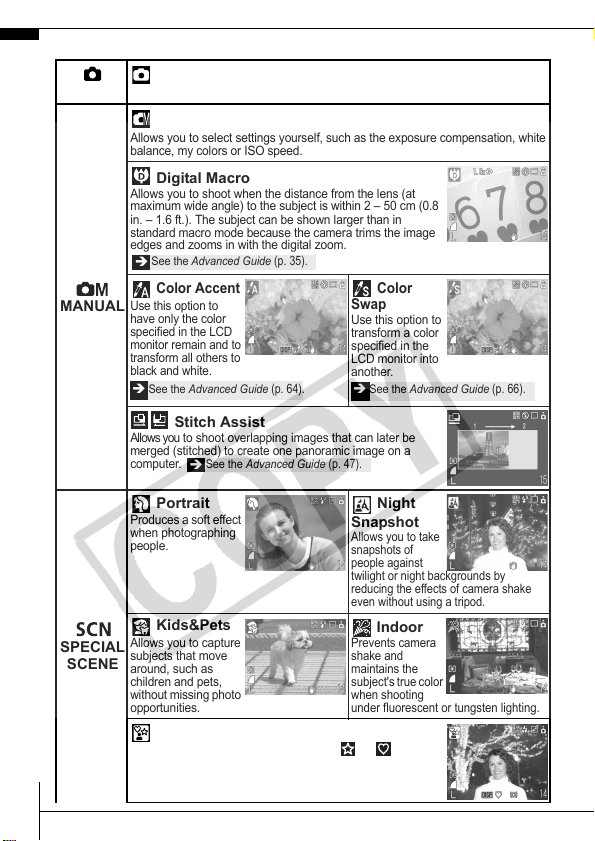
Shooting Modes
AUTO
Auto
The camera automatically selects settings.
MANUAL
Manual
Allows you to select settings yourself, such as the exposure compensation, white
balance, my colors or ISO speed.
Digital Macro
Allows you to shoot when the distance from the lens (at
maximum wide angle) to the subject is within 2 – 50 cm (0.8
in. – 1.6 ft.). The subject can be shown larger than in
standard macro mode because the camera trims the image
edges and zooms in with the digital zoom.
Color Accent
Use this option to
have only the color
specified in the LCD
monitor remain and to
transform all others to
black and white.
Color
Swap
Use this option to
transform a color
specified in the
LCD monitor into
another.
Stitch Assist
Allows you to shoot overlapping images that can later be
merged (stitched) to create one panoramic image on a
computer.
SPECIAL
SCENE
Portrait
Produces a soft effect
when photographing
people.
Night
Snapshot
Allows you to take
snapshots of
people against
twilight or night backgrounds by
reducing the effects of camera shake
even without using a tripod.
Kids&Pets
Allows you to capture
subjects that move
around, such as
children and pets,
without missing photo
opportunities.
Indoor
Prevents camera
shake and
maintains the
subject's true color
when shooting
under fluorescent or tungsten lighting.
Creative Light Effect
You can select specific shapes, such as or , to
produce fantastical images of people set against a
nightscape or illuminated by a light source
Î
See the Advanced Guide
(p. 35).
Î
See the Advanced Guide
(p. 64).
Î
See the Advanced Guide
(p. 66).
Î
See the Advanced Guide
(p. 47).
EC212-CUG-E.book Page 12 Friday, February 23, 2007 5:46 PM
13
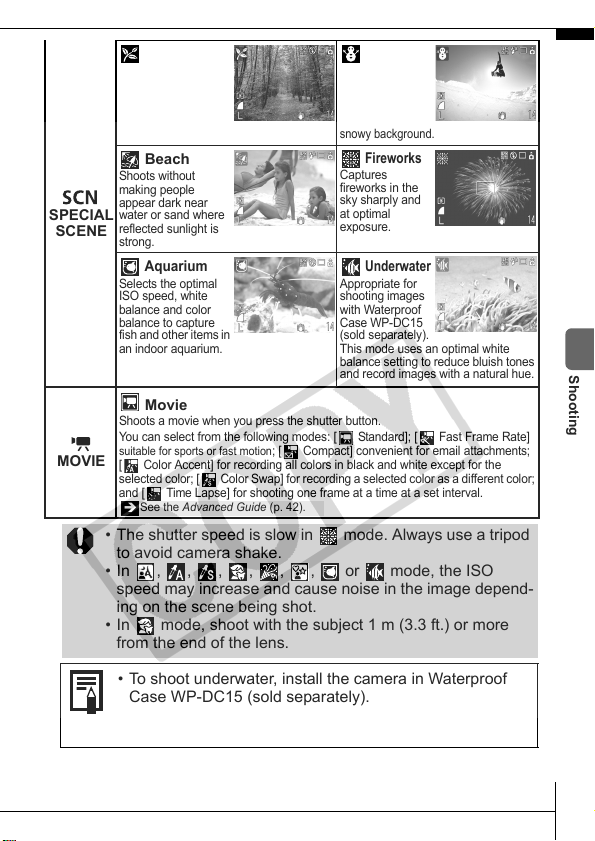
SPECIAL
SCENE
Foliage
Shoots trees and
leaves—such as new
growth, autumn
leaves or blossoms—
in vivid colors.
Snow
Shoots without a
blue tinge and
without making
people appear
dark against a
snowy background.
Beach
Shoots without
making people
appear dark near
water or sand where
reflected sunlight is
strong.
Fireworks
Captures
fireworks in the
sky sharply and
at optimal
exposure.
Aquarium
Selects the optimal
ISO speed, white
balance and color
balance to capture
fish and other items in
an indoor aquarium.
Underwater
Appropriate for
shooting images
with Waterproof
Case WP-DC15
(sold separately).
This mode uses an optimal white
balance setting to reduce bluish tones
and record images with a natural hue.
MOVIE
Movie
Shoots a movie when you press the shutter button.
You can select from the following modes: [ Standard]; [ Fast Frame Rate]
suitable for sports or fast motion
; [ Compact] convenient for email attachments;
[ Color Accent] for recording all colors in black and white except for the
selected color; [ Color Swap] for recording a selected color as a different color;
and [ Time Lapse] for shooting one frame at a time at a set interval.
• The shutter speed is slow in mode. Always use a tripod
to avoid camera shake.
• In , , , , , , or mode, the ISO
speed may increase and cause noise in the image depend-
ing on the scene being shot.
• In mode, shoot with the subject 1 m (3.3 ft.) or more
from the end of the lens.
• To shoot underwater, install the camera in Waterproof
Case WP-DC15 (sold separately).
• We recommend you use Waterproof Case WP-DC15 for
shooting at ski resorts or beaches.
Î
See the Advanced Guide (p. 42).
Shooting
EC212-CUG-E.book Page 13 Friday, February 23, 2007 5:46 PM
14
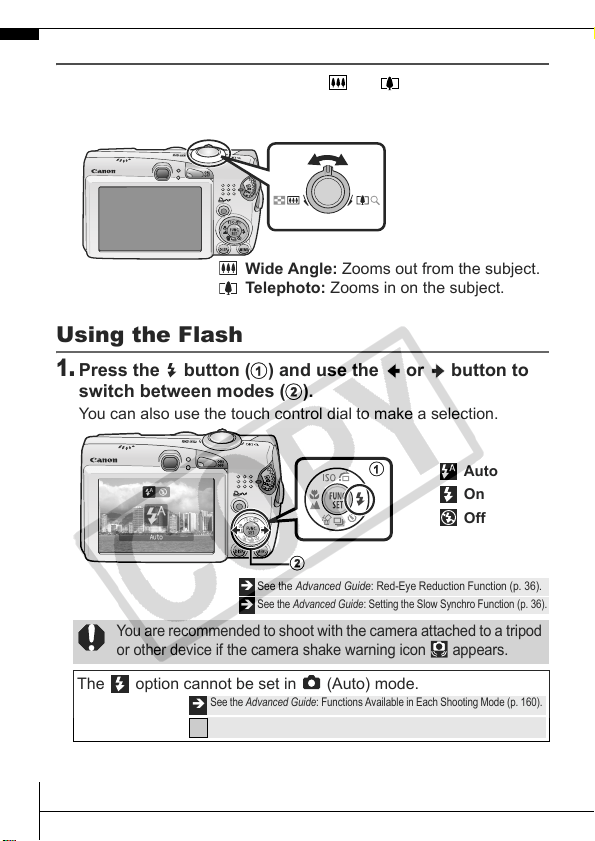
Using the Zoom
1.
Press the zoom lever toward or .
The zoom can be adjusted from 35 – 140 mm (focal length) in
35mm film equivalent terms.
Using the Flash
1.
Press the button (a) and use the or button to
switch between modes (b).
You can also use the touch control dial to make a selection.
Î
See the Advanced Guide: Red-Eye Reduction Function (p. 36).
Î
See the Advanced Guide: Setting the Slow Synchro Function (p. 36).
You are recommended to shoot with the camera attached to a tripod
or other device if the camera shake warning icon appears.
The option cannot be set in (Auto) mode.
Wide Angle: Zooms out from the subject.
Telephoto: Zooms in on the subject.
Auto
On
Off
a
b
Î
See the Advanced Guide: Functions Available in Each Shooting Mode (p. 160).
See Selecting a Shooting Mode (p. 11).
Î
EC212-CUG-E.book Page 14 Friday, February 23, 2007 5:46 PM
15
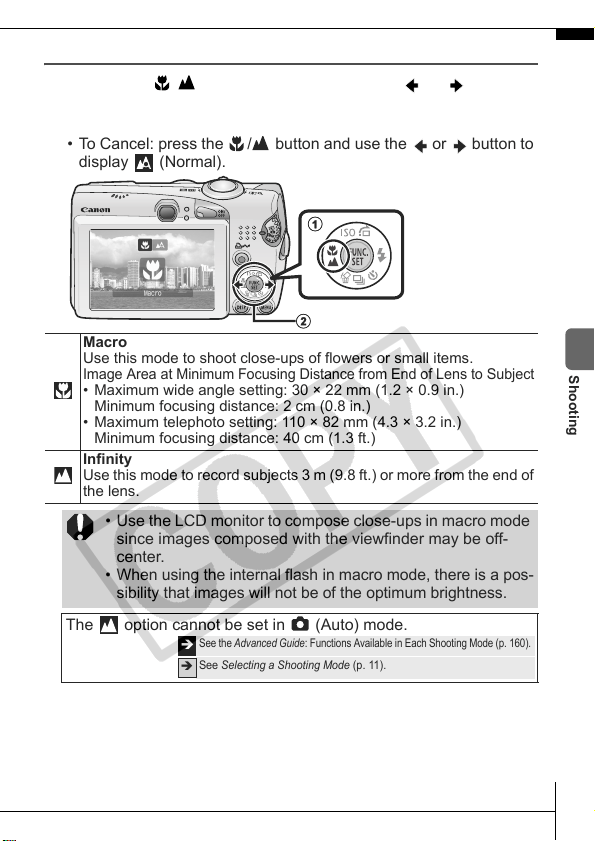
Shooting Close-Ups/Infinity Shots
1.
Press the / button (a) and use the or button
to switch between modes (b).
• You can also use the touch control dial to make a selection.
• To Cancel: press the / button and use the or button to
display (Normal).
Macro
Use this mode to shoot close-ups of flowers or small items.
Image Area at Minimum Focusing Distance from End of Lens to Subject
• Maximum wide angle setting: 30 × 22 mm (1.2 × 0.9 in.)
Minimum focusing distance: 2 cm (0.8 in.)
• Maximum telephoto setting: 110 × 82 mm (4.3 × 3.2 in.)
Minimum focusing distance: 40 cm (1.3 ft.)
Infinity
Use this mode to record subjects 3 m (9.8 ft.) or more from the end of
the lens.
• Use the LCD monitor to compose close-ups in macro mode
since images composed with the viewfinder may be off-
center.
• When using the internal flash in macro mode, there is a pos-
sibility that images will not be of the optimum brightness.
The option cannot be set in (Auto) mode.
a
b
Î
See the Advanced Guide: Functions Available in Each Shooting Mode (p. 160).
See Selecting a Shooting Mode (p. 11).
Î
Shooting
EC212-CUG-E.book Page 15 Friday, February 23, 2007 5:46 PM
16
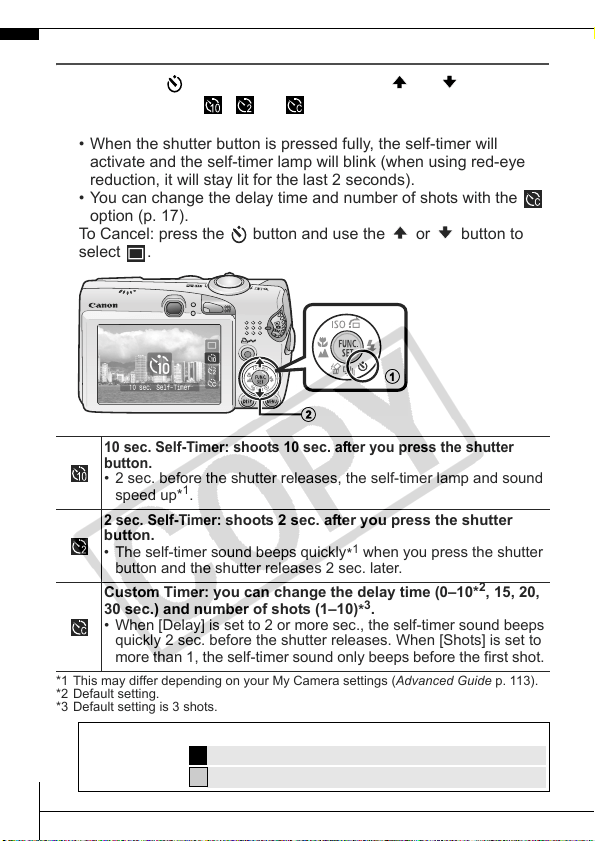
Using the Self-Timer
1.
Press the button (a) and use the or button
(b) to display , or .
• You can also use the touch control dial to make a selection.
• When the shutter button is pressed fully, the self-timer will
activate and the self-timer lamp will blink (when using red-eye
reduction, it will stay lit for the last 2 seconds).
• You can change the delay time and number of shots with the
option (p. 17).
To Cancel: press the button and use the or button to
select .
*1 This may differ depending on your My Camera settings (Advanced Guide p. 113).
*2 Default setting.
*3 Default setting is 3 shots.
10 sec. Self-Timer: shoots 10 sec. after you press the shutter
button.
• 2 sec. before the shutter releases, the self-timer lamp and sound
speed up*
1
.
2 sec. Self-Timer:
shoots 2 sec. after you press the shutter
button.
• The self-timer sound beeps quickly
*
1
when you press the shutter
button and the shutter releases 2 sec. later.
Custom Timer
:
you can change the delay time (0–10*
2
, 15, 20,
30 sec.) and number of shots (1–10)
*
3
.
• When [Delay] is set to 2 or more sec., the self-timer sound beeps
quickly 2 sec. before the shutter releases. When [Shots] is set to
more than 1, the self-timer sound only beeps before the first shot.
The self-timer cannot be used in some shooting modes.
a
b
Î
See the Advanced Guide: Functions Available in Each Shooting Mode (p. 160).
See Selecting a Shooting Mode (p. 11).
Î
EC212-CUG-E.book Page 16 Friday, February 23, 2007 5:46 PM
17
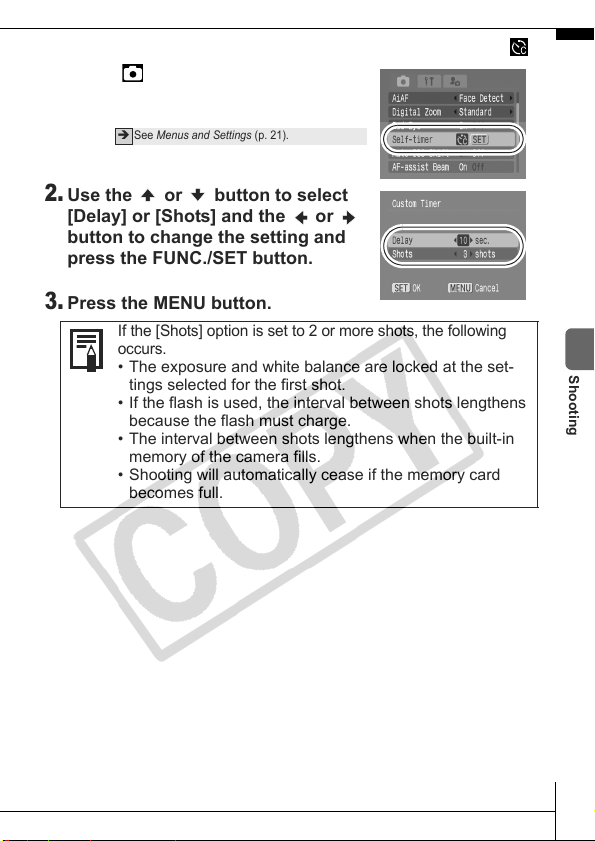
Changing the Delay Time and Number of Shots ( )
1.
In the (Rec) menu, select [Self-
timer] and press the FUNC./SET
button.
2.
Use the or button to select
[Delay] or [Shots] and the or
button to change the setting and
press the FUNC./SET button.
3.
Press the MENU button.
Î
See Menus and Settings (p. 21).
If the [Shots] option is set to 2 or more shots, the following
occurs.
• The exposure and white balance are locked at the set-
tings selected for the first shot.
• If the flash is used, the interval between shots lengthens
because the flash must charge.
• The interval between shots lengthens when the built-in
memory of the camera fills.
• Shooting will automatically cease if the memory card
becomes full.
Shooting
EC212-CUG-E.book Page 17 Friday, February 23, 2007 5:46 PM
18
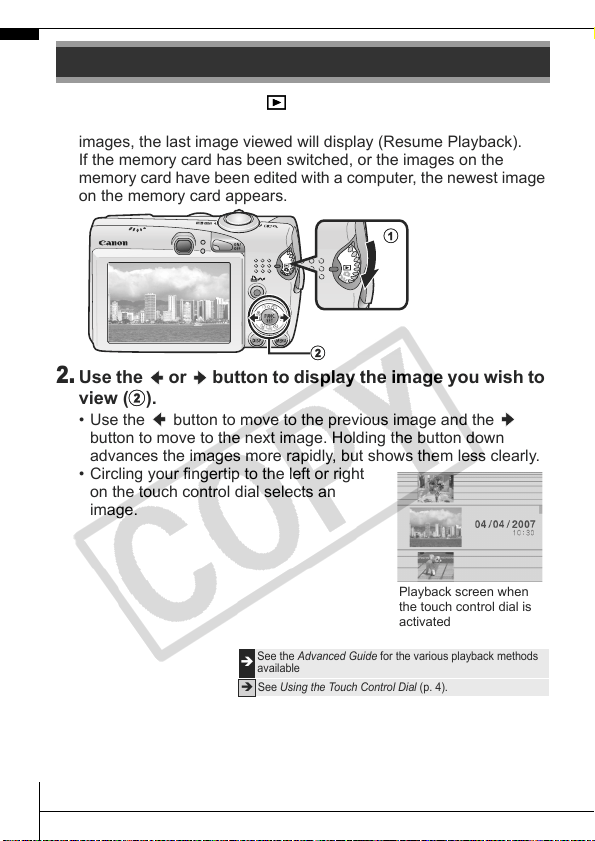
1.
Turn the mode dial to (playback) (a).
The last recorded image will display. Or if you have played back
images, the last image viewed will display (Resume Playback).
If the memory card has been switched, or the images on the
memory card have been edited with a computer, the newest image
on the memory card appears.
2.
Use the or button to display the image you wish to
view (b).
• Use the button to move to the previous image and the
button to move to the next image. Holding the button down
advances the images more rapidly, but shows them less clearly.
• Circling your fingertip to the left or right
on the touch control dial selects an
image.
Playback
Î
See the Advanced Guide for the various playback methods
available
Î
See Using the Touch Control Dial (p. 4).
a
b
Playback screen when
the touch control dial is
activated
EC212-CUG-E.book Page 18 Friday, February 23, 2007 5:46 PM
19
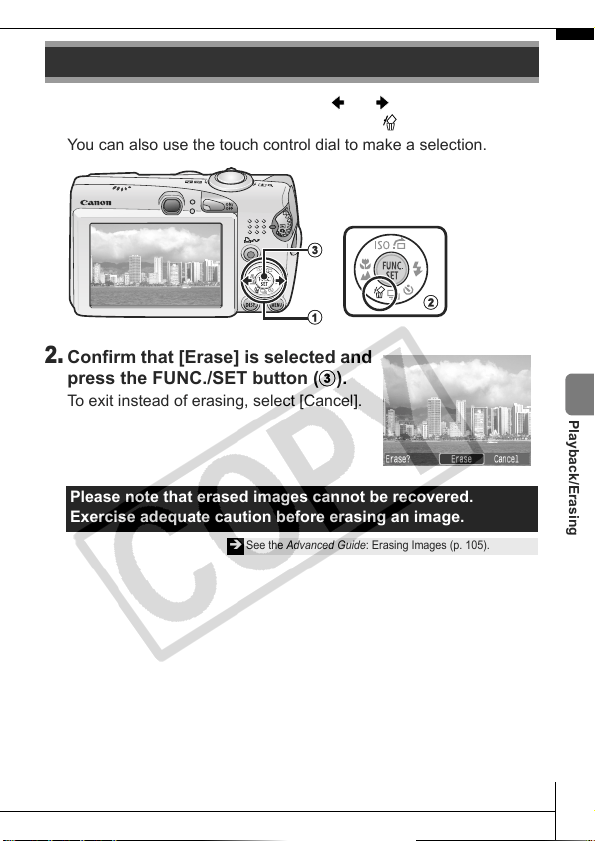
1.
In the playback mode, use the or button to select
an image to erase (a) and press the button (b).
You can also use the touch control dial to make a selection.
2.
Confirm that [Erase] is selected and
press the FUNC./SET button (c).
To exit instead of erasing, select [Cancel].
Erasing
Please note that erased images cannot be recovered.
Exercise adequate caution before erasing an image.
Î
See the Advanced Guide: Erasing Images (p. 105).
b
c
a
Playback/Erasing
EC212-CUG-E.book Page 19 Friday, February 23, 2007 5:46 PM
20
Settings for the shooting or playback modes or such camera settings
as the print settings, date/time and sounds are set using the FUNC.
menu or the Rec., Play, Print, Set up or My Camera menu.
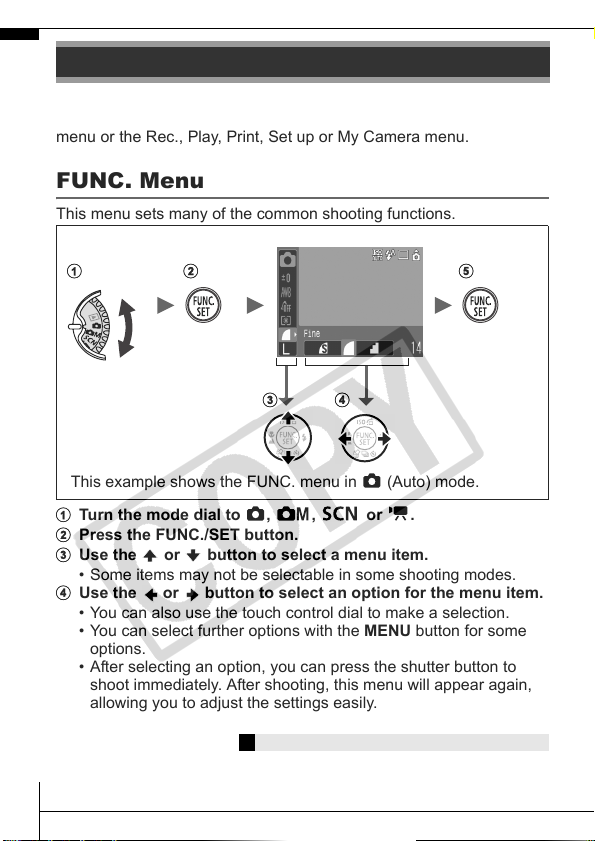
FUNC. Menu
This menu sets many of the common shooting functions.
a Turn the mode dial to , , or .
b Press the FUNC./SET button.
c Use the or button to select a menu item.
• Some items may not be selectable in some shooting modes.
d Use the or button to select an option for the menu item.
• You can also use the touch control dial to make a selection.
• You can select further options with the MENU button for some
options.
• After selecting an option, you can press the shutter button to
shoot immediately. After shooting, this menu will appear again,
allowing you to adjust the settings easily.
e Press the FUNC./SET button.
Menus and Settings
Î
See the Advanced Guide: Menu List (p. 24).
This example shows the FUNC. menu in (Auto) mode.
ab e
cd
EC212-CUG-E.book Page 20 Friday, February 23, 2007 5:46 PM
21
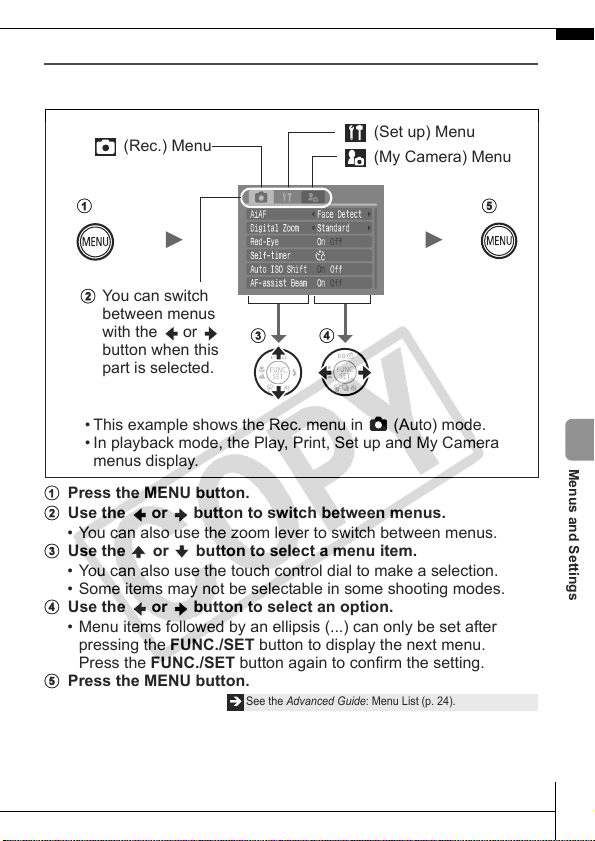
Rec., Play, Print, Set up and My Camera Menus
Convenient settings for shooting, playback or printing can be set with
these menus.
a Press the MENU button.
b Use the or button to switch between menus.
• You can also use the zoom lever to switch between menus.
c Use the or button to select a menu item.
• You can also use the touch control dial to make a selection.
• Some items may not be selectable in some shooting modes.
d Use the or button to select an option.
• Menu items followed by an ellipsis (...) can only be set after
pressing the FUNC./SET button to display the next menu.
Press the FUNC./SET button again to confirm the setting.
e Press the MENU button.
Î
See the Advanced Guide: Menu List (p. 24).
(My Camera) Menu
• This example shows the Rec. menu in (Auto) mode.
• In playback mode, the Play, Print, Set up and My Camera
menus display.
You can switch
between menus
with the
or
button when this
part is selected.
(Rec.) Menu
(Set up) Menu
a
b
e
cd
Menus and Settings
EC212-CUG-E.book Page 21 Friday, February 23, 2007 5:46 PM
22
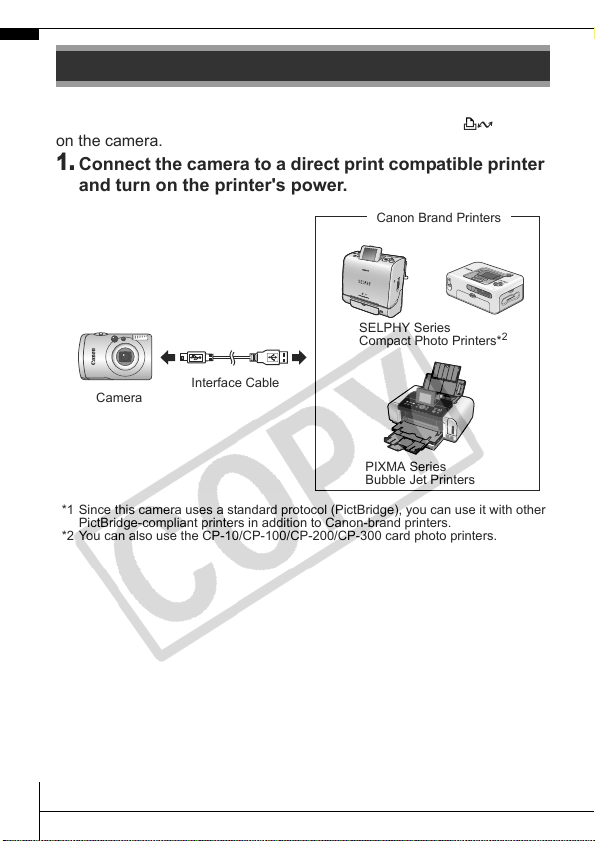
You can easily print by connecting the camera to a direct print
compatible printer
*1
with a cable and simply pressing the button
on the camera.
1.
Connect the camera to a direct print compatible printer
and turn on the printer's power.
*1 Since this camera uses a standard protocol (PictBridge), you can use it with other
PictBridge-compliant printers in addition to Canon-brand printers.
*2 You can also use the CP-10/CP-100/CP-200/CP-300 card photo printers.
Printing
Canon Brand Printers
SELPHY Series
Compact Photo Printers*
2
PIXMA Series
Bubble Jet Printers
Interface Cable
Camera
EC212-CUG-E.book Page 22 Friday, February 23, 2007 5:46 PM
23
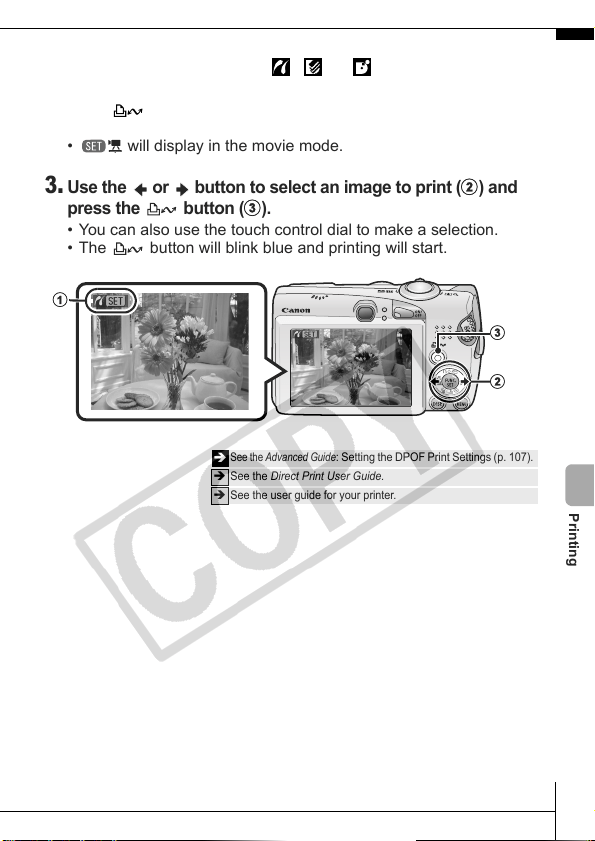
2.
Set the camera to the playback mode, turn on the
power and confirm that , or is displayed in the
upper left of the LCD monitor (a).
• The button will light blue.
• The displayed icon will vary according to the printer model.
• will display in the movie mode.
3.
Use the or button to select an image to print (
b
) and
press the button (
c
).
• You can also use the touch control dial to make a selection.
• The button will blink blue and printing will start.
Î
See the Advanced Guide
: Setting the DPOF Print Settings (p. 107).
Î
See the Direct Print User Guide.
Î
See the user guide for your printer.
a
c
b
Printing
EC212-CUG-E.book Page 23 Friday, February 23, 2007 5:46 PM
24
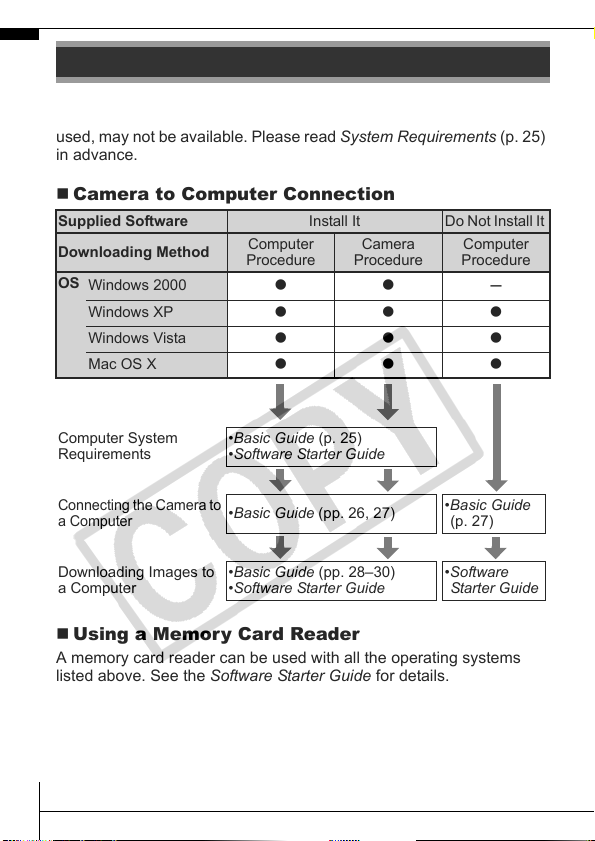
The following methods can be used to download images recorded by
the camera to a computer. Some methods, depending on the OS
used, may not be available. Please read System Requirements (p. 25)
in advance.
Camera to Computer Connection
Using a Memory Card Reader
A memory card reader can be used with all the operating systems
listed above. See the Software Starter Guide for details.
Downloading Images to a Computer
Supplied Software Install It Do Not Install It
Downloading Method
Computer
Procedure
Camera
Procedure
Computer
Procedure
OS
Windows 2000
zz
–
Windows XP
zzz
Windows Vista
zzz
Mac OS X
zzz
Computer System
Requirements
•Basic Guide (p. 25)
•Software Starter Guide
Connecting the Camera to
a Computer
•Basic Guide (pp. 26, 27)
•Basic Guide
(p. 27)
Downloading Images to
a Computer
•Basic Guide (pp. 28–30)
•Software Starter Guide
•Software
Starter Guide
EC212-CUG-E.book Page 24 Friday, February 23, 2007 5:46 PM
25
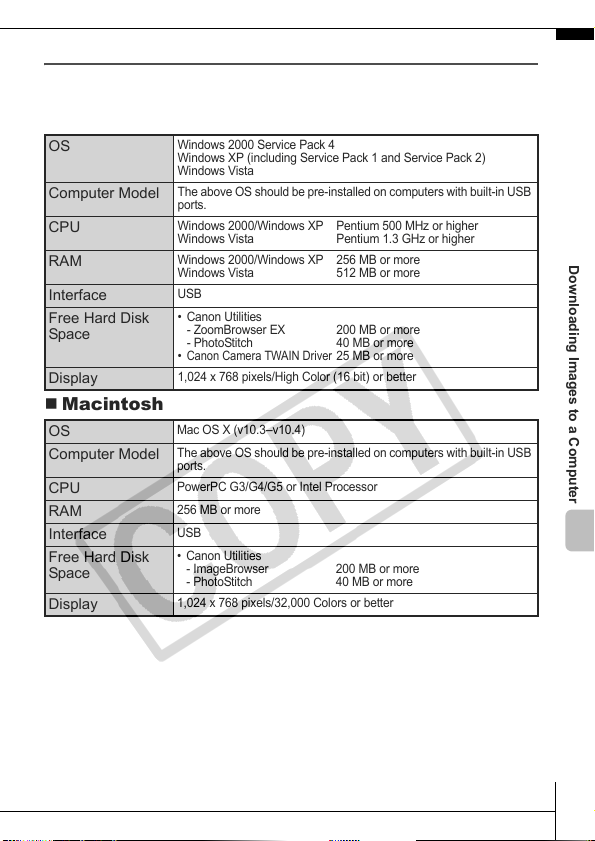
System Requirements
Please install the software on a computer meeting the following
minimum requirements.
Windows
Macintosh
OS
Windows 2000 Service Pack 4
Windows XP (including Service Pack 1 and Service Pack 2)
Windows Vista
Computer Model
The above OS should be pre-installed on computers with built-in USB
ports.
CPU
Windows 2000/Windows XP Pentium 500 MHz or higher
Windows Vista Pentium 1.3 GHz or higher
RAM
Windows 2000/Windows XP 256 MB or more
Windows Vista 512 MB or more
Interface
USB
Free Hard Disk
Space
• Canon Utilities
- ZoomBrowser EX 200 MB or more
- PhotoStitch 40 MB or more
•
Canon Camera TWAIN Driver
25 MB or more
Display
1,024 x 768 pixels/High Color (16 bit) or better
OS
Mac OS X (v10.3–v10.4)
Computer Model
The above OS should be pre-installed on computers with built-in USB
ports.
CPU
PowerPC G3/G4/G5 or Intel Processor
RAM
256 MB or more
Interface
USB
Free Hard Disk
Space
• Canon Utilities
- ImageBrowser 200 MB or more
- PhotoStitch 40 MB or more
Display
1,024 x 768 pixels/32,000 Colors or better
Downloading Images to a Computer
EC212-CUG-E.book Page 25 Friday, February 23, 2007 5:46 PM
26
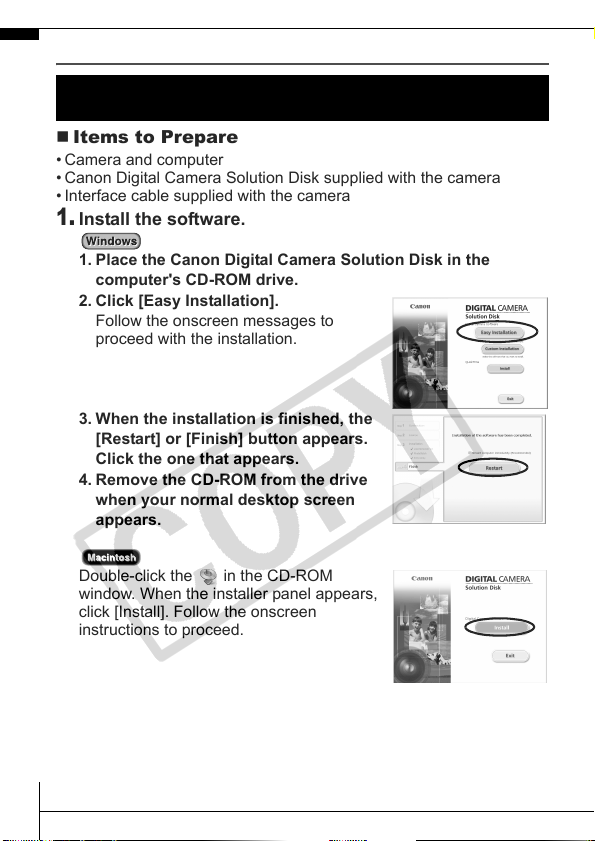
Preparing to Download Images
Items to Prepare
• Camera and computer
• Canon Digital Camera Solution Disk supplied with the camera
• Interface cable supplied with the camera
1.
Install the software.
1. Place the Canon Digital Camera Solution Disk in the
computer's CD-ROM drive.
2. Click [Easy Installation].
Follow the onscreen messages to
proceed with the installation.
3. When the installation is finished, the
[Restart] or [Finish] button appears.
Click the one that appears.
4. Remove the CD-ROM from the drive
when your normal desktop screen
appears.
Double-click the in the CD-ROM
window. When the installer panel appears,
click [Install]. Follow the onscreen
instructions to proceed.
Ensure that you install the software first before connecting the
camera to the computer.
EC212-CUG-E.book Page 26 Friday, February 23, 2007 5:46 PM
27
2.
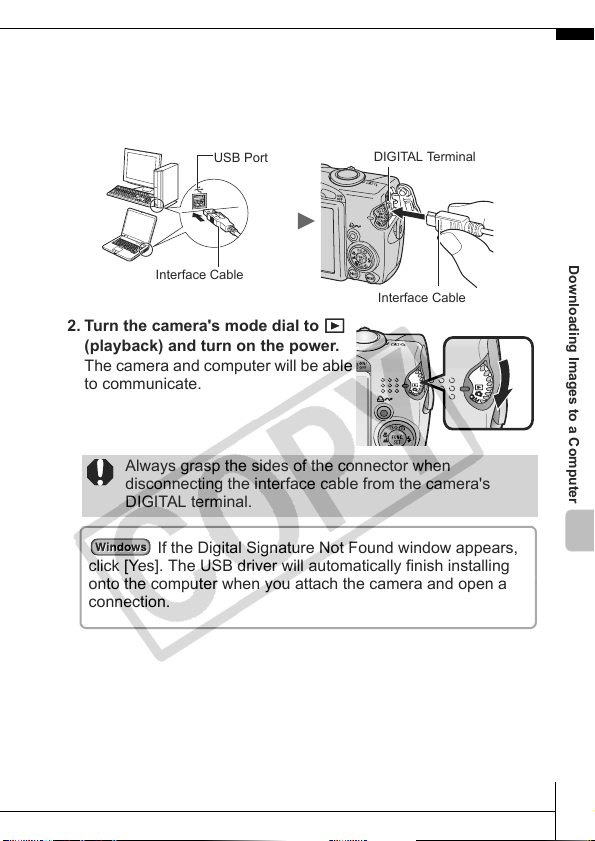
Connecting the camera to a computer.
1. Connect the supplied interface cable to the computer's USB
port and to the camera's DIGITAL terminal.
Lift up the left edge of the camera's DIGITAL terminal cover with
a fingernail and plug the interface cable in all the way.
2. Turn the camera's mode dial to
(playback) and turn on the power.
The camera and computer will be able
to communicate.
Always grasp the sides of the connector when
disconnecting the interface cable from the camera's
DIGITAL terminal.
Interface Cable
DIGITAL Terminal
USB Port
Interface Cable
If the Digital Signature Not Found window appears,
click [Yes]. The USB driver will automatically finish installing
onto the computer when you attach the camera and open a
connection.
Downloading Images to a Computer
EC212-CUG-E.book Page 27 Friday, February 23, 2007 5:46 PM
28
Downloading Images to a Computer
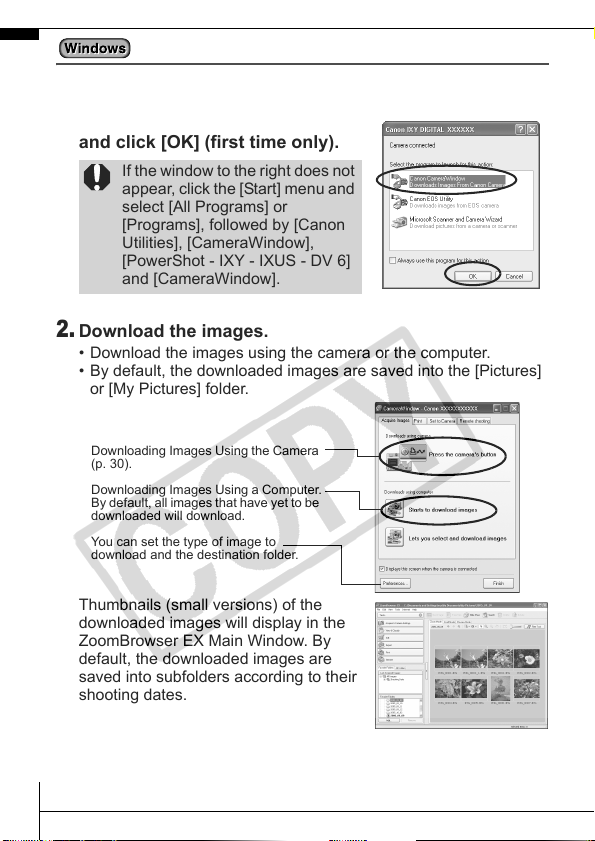
A window allowing you to set the preferences will appear when a
connection is established between the camera and computer.
1.
Select [Canon CameraWindow]
and click [OK] (first time only).
2.
Download the images.
• Download the images using the camera or the computer.
• By default, the downloaded images are saved into the [Pictures]
or [My Pictures] folder.
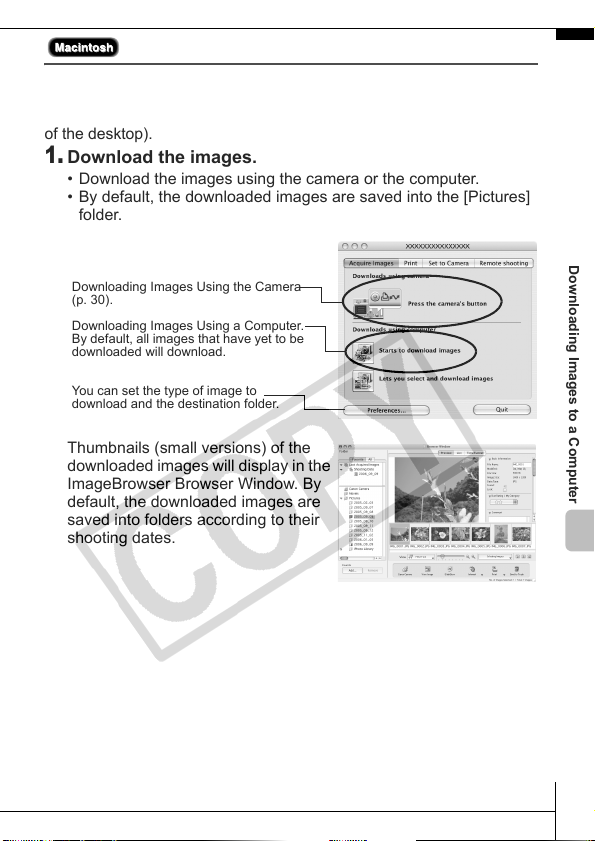
Thumbnails (small versions) of the
downloaded images will display in the
ZoomBrowser EX Main Window. By
default, the downloaded images are
saved into subfolders according to their
shooting dates.
If the window to the right does not
appear, click the [Start] menu and
select [All Programs] or
[Programs], followed by [Canon
Utilities], [CameraWindow],
[PowerShot - IXY - IXUS - DV 6]
and [CameraWindow].
Downloading Images Using the Camera
(p. 30).
Downloading Images Using a Computer.
By default, all images that have yet to be
downloaded will download.
You can set the type of image to
download and the destination folder.
EC212-CUG-E.book Page 28 Friday, February 23, 2007 5:46 PM
29
Downloading Images to a Computer
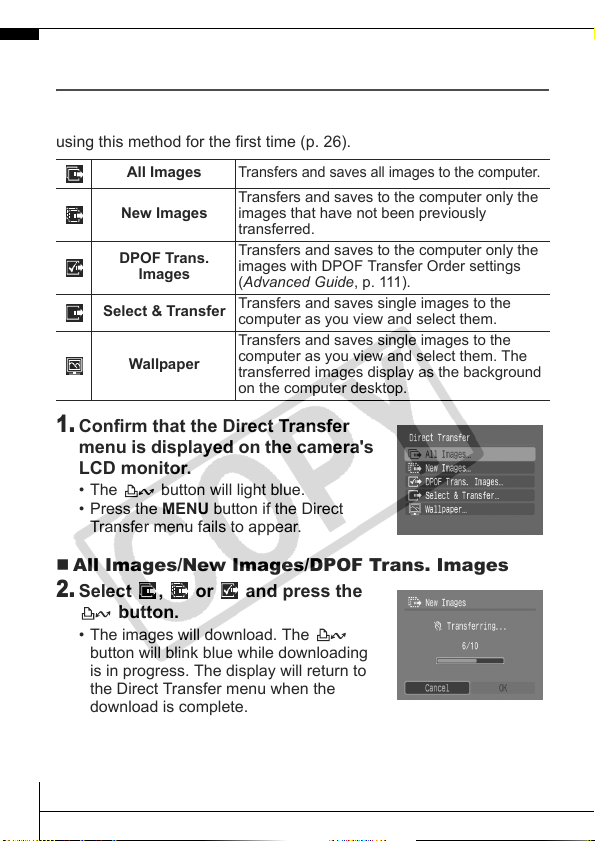
The following window will appear when you establish a connection
between the camera and computer.
If it fails to appear, click the [Canon
CameraWindow] icon on the Dock (the bar which appears at the bottom
of the desktop).
1.
Download the images.
• Download the images using the camera or the computer.
• By default, the downloaded images are saved into the [Pictures]
folder.
Thumbnails (small versions) of the
downloaded images will display in the
ImageBrowser Browser Window. By
default, the downloaded images are
saved into folders according to their
shooting dates.
Downloading Images Using the Camera
(p. 30).
Downloading Images Using a Computer.
By default, all images that have yet to be
downloaded will download.
You can set the type of image to
download and the destination folder.
Downloading Images to a Computer
EC212-CUG-E.book Page 29 Friday, February 23, 2007 5:46 PM
30
Downloading Images Using the Camera
(Direct Transfer)
Use this method to download images using camera operations.
Install the supplied software and adjust the computer settings before
using this method for the first time (p. 26).
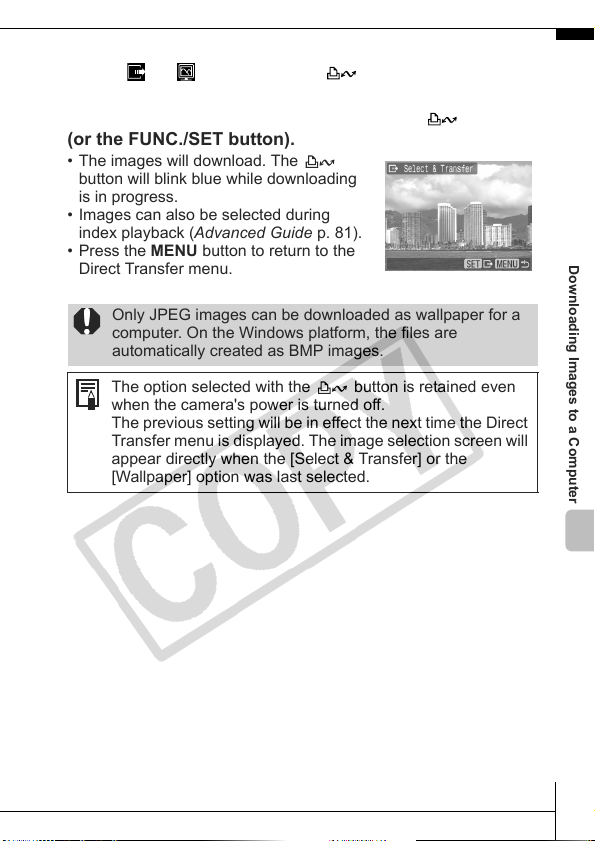
1.
Confirm that the Direct Transfer
menu is displayed on the camera's
LCD monitor.
• The button will light blue.
• Press the MENU button if the Direct
Transfer menu fails to appear.
All Images/New Images/DPOF Trans. Images
2.
Select , or and press the
button.
• The images will download. The
button will blink blue while downloading
is in progress. The display will return to
the Direct Transfer menu when the
download is complete.
• To cancel the download, press the FUNC./SET button.
All Images
Transfers and saves all images to the computer.
New Images
Transfers and saves to the computer only the
images that have not been previously
transferred.
DPOF Trans.
Images
Transfers and saves to the computer only the
images with DPOF Transfer Order settings
(Advanced Guide, p. 111).
Select & Transfer
Transfers and saves single images to the
computer as you view and select them.
Wallpaper
Transfers and saves single images to the
computer as you view and select them. The
transferred images display as the background
on the computer desktop.
EC212-CUG-E.book Page 30 Friday, February 23, 2007 5:46 PM
31
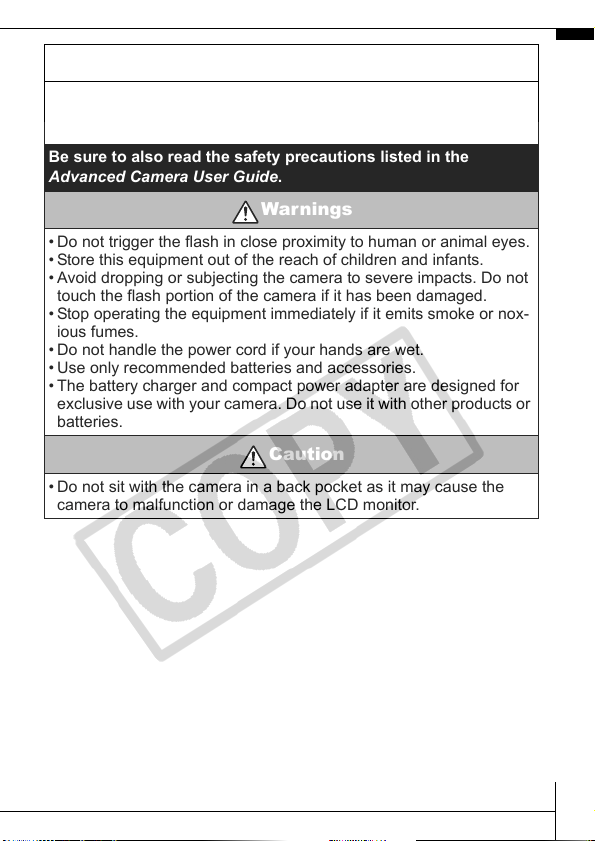
Select & Transfer/Wallpaper
2.
Select or and press the button (or the
FUNC./SET button).
3.
Select images to download and press the button
(or the FUNC./SET button).
• The images will download. The
button will blink blue while downloading
is in progress.
• Images can also be selected during
index playback (Advanced Guide p. 81).
• Press the MENU button to return to the
Direct Transfer menu.
Only JPEG images can be downloaded as wallpaper for a
computer. On the Windows platform, the files are
automatically created as BMP images.
The option selected with the button is retained even
when the camera's power is turned off.
The previous setting will be in effect the next time the Direct
Transfer menu is displayed. The image selection screen will
appear directly when the [Select & Transfer] or the
[Wallpaper] option was last selected.
Downloading Images to a Computer
EC212-CUG-E.book Page 31 Friday, February 23, 2007 5:46 PM

32
MEMO
EC212-CUG-E.book Page 32 Friday, February 23, 2007 5:46 PM
Safety Precautions
Be sure to read, understand and follow the safety precautions below
when using the camera, in order to prevent injury, burns or electrical
shock to yourself and others.
Be sure to also read the safety precautions listed in the
Advanced Camera User Guide.
Warnings
• Do not trigger the flash in close proximity to human or animal eyes.
• Store this equipment out of the reach of children and infants.
• Avoid dropping or subjecting the camera to severe impacts. Do not
touch the flash portion of the camera if it has been damaged.
• Stop operating the equipment immediately if it emits smoke or nox-
ious fumes.
• Do not handle the power cord if your hands are wet.
• Use only recommended batteries and accessories.
• The battery charger and compact power adapter are designed for
exclusive use with your camera. Do not use it with other products or
batteries.
Caution
• Do not sit with the camera in a back pocket as it may cause the
camera to malfunction or damage the LCD monitor.
EC212-CUG-E.book Page 33 Friday, February 23, 2007 5:46 PM