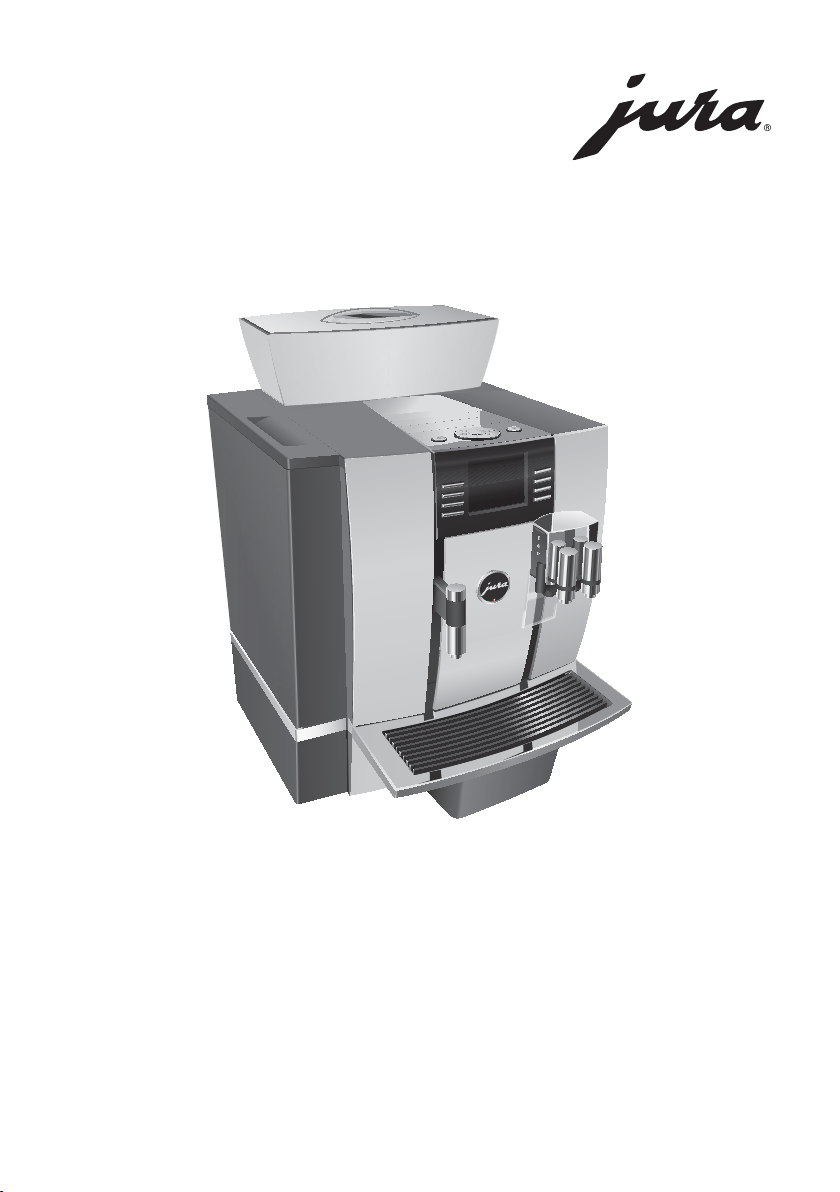
JURA Type 726
GIGA W3 Professional Instructions for Use
K
For your safety: read and understand manual before use.
E

2
Table of contents
Your GIGA W3 Professional
IMPORTANT SAFEGUARDS 4
Control elements 8
1 Preparing and using for the first time 10
JURA on the Internet ....................................................................................................................................10
Setting up the machine ..............................................................................................................................10
Filling the water tank ...................................................................................................................................10
Filling the bean container ............................................................................................................................11
First-time use .................................................................................................................................................11
Determining the water hardness ..............................................................................................................15
Connecting milk ...........................................................................................................................................15
2 Preparation 16
Coffee, latte macchiato etc.– options for preparation .........................................................................16
Preparation at the touch of a button ........................................................................................................17
Preparation using the product selector ...................................................................................................18
Ground coffee ...............................................................................................................................................19
Barista recipes at a glance .........................................................................................................................20
Preparing barista recipes ...........................................................................................................................20
Hot water .......................................................................................................................................................21
3 Daily operation 22
Switching on ................................................................................................................................................ 22
Daily maintenance ......................................................................................................................................22
Regular maintenance .................................................................................................................................23
Switching off ................................................................................................................................................23
4 Permanent settings in programming mode 24
Possible settings in programming mode ...............................................................................................24
Product settings ..........................................................................................................................................25
Adjusting the product settings .................................................................................................................26
Renaming a product ...................................................................................................................................28
Adding products to the start screen ........................................................................................................29
Setting the consistency of grind ..............................................................................................................30
Maintenance settings .................................................................................................................................30
Setting the water hardness ........................................................................................................................31
Energy-saving mode .................................................................................................................................. 32
Time and date ..............................................................................................................................................33
Timer .............................................................................................................................................................34
Automatic switch-off ..................................................................................................................................35
Units ..............................................................................................................................................................35
Restore factory settings .............................................................................................................................36
Language ...................................................................................................................................................... 37
Display settings ...........................................................................................................................................37
Background ..................................................................................................................................................38
Deactivating barista recipes ......................................................................................................................38
Querying information ................................................................................................................................39
3
Table of contents
5 Maintenance 40
Rinsing the coffee system ..........................................................................................................................41
Rinsing the milk system ..............................................................................................................................41
Cleaning the milk system ...........................................................................................................................41
Dismantling and rinsing the dual spout .................................................................................................43
Inserting and activating the filter .............................................................................................................45
Changing the filter ......................................................................................................................................46
Cleaning the machine ................................................................................................................................47
Descaling the machine ..............................................................................................................................48
Cleaning the bean container .....................................................................................................................50
Descaling the water tank ............................................................................................................................51
6 Display messages 52
7 Troubleshooting 54
8 Transport and environmentally friendly disposal 55
Transport/ Emptying the system .............................................................................................................55
Disposal .........................................................................................................................................................55
9 Technical data 56
10 Index 57
11 JURA contact details/ Legal information 60
Symbol description
Warnings
This is the safety alert symbol. lt is used to alert you to potential personal injury
hazards. Obey all safety messages that follow this symbol to avoid possible injury
or death.
DANGER indicates a hazardous situation which, if not avoided, will result in death
or serious injury.
WARNING indicates a hazardous situation which, if not avoided, could result in
death or serious injury.
J CAUTION
CAUTION, used with the safety alert symbol, indicates a hazardous situation
which, if not avoided, could result in minor or moderate injury.
NOTICE NOTICE is used to address practices not related to personal injury.
Symbols used
T
Prompt to take action. This symbol means that you are being prompted to
perform some action.
E
Information and tips to make it even easier to use your GIGA.
‘Coffee’ Display message
J
J DANGER
J WARNING
5
IMPORTANT SAFEGUARDS
This machine is intended for use by specialist or trained staff in
businesses, light industry and agricultural facilities or for
commercial use by non-professionals. It should only be used for
coffee preparation and to heat milk and water. Use for any other
purpose will be deemed improper. JURA Elektroapparate AG cannot
accept any responsibility for the consequences of improper use.
People, including children, who
Z do not have the physical, sensory or mental capabilities to use
the appliance safely or
Z are inexperienced or lack knowledge in how to use the
appliance safely
must be supervised by a responsible person when using it, or must
be instructed in how to use it correctly.
Z A short power-supply cord is to be provided to reduce risks
resulting from becoming entangled in or tripping over a
longer cord.
Z The cord shall be arranged so that it will not drape over the
counter top or table top where it can be pulled on by children
or tripped over.
Z This appliance has a 3-pin grounded plug.
Z Do not modify the plug in any way.
Extension cords are available an may be used if care is exercised in
their use.
If the user chooses to use an extension cord,
Z the marked electrical rating of the extension cord should be
at least as great as the electrical rating of the appliance, and
Z if the appliance is of the grounded type, the extension cord
should be a grounding type 3-wire cord, and
Z the longer cord should be arranged so that it will not drape
over the counter top or tabletop where it can be pulled on by
children or tripped over.
To reduce the risk of fire or electric shock, DO NOT remove any
service covers. DO NOT modify the appliance in any way that is not
described in these instructions. NO user serviceable parts included.
Repair MUST be done by authorized personnel only.
In the event of signs of damage, for example if there is a smell of
burning, unplug the machine immediately from outlet and contact
JURA customer service.
Intended use
Special power cord set
instructions
J WARNING
6
IMPORTANT SAFEGUARDS
Any servicing other than cleaning and user maintenance shall be
performed by an authorized service representative:
Z Do not immerse base in water or try to disassemble.
Z Do not put the appliance or any individual parts in the
dishwasher.
Z Check voltage to be sure that the voltage indicated on the
name plate complies with your voltage. The name plate is
located on the underside of the appliance.
Z Never use warm or hot water to fill the water container. Use
cold water only.
Z Keep your hands and the cord away from hot parts of the
appliance during operation.
There is a risk of scalds or burns on the spouts and the cappuccino
frother / nozzle.
Z Keep children away.
Z Do not touch any hot parts. Use the handles or knobs
provided.
Z Ensure that the cappuccino frother / nozzle is correctly fitted
and clean. If incorrectly fitted or if they become blocked, the
cappuccino frother or its parts might come off.
Z Never clean with scouring powders or hard implements.
Z Ensure that the ventilation slots are not covered.
Z Never pull out the drip tray during the brewing process. Only
pull the drip tray when the display instructs you or when the
appliance is ready for use.
J CAUTION
NOTICE

7
IMPORTANT SAFEGUARDS
Z Never fill instant coffee, chocolate mix etc. into the bean
container or ground coffee funnel (filler funnel for ground
coffee). It will damage the functioning of the brewing
chamber.
Z Never fill sugar coated coffee beans into the bean container.
In case of doubt, call your dealer.
Z Never fill anything other than coffee beans into the bean
container (no chocolate, no rice, no nuts, no spices, nothing
other than roasted coffee beans).
Z Never fill frozen beans into the bean container. If you store
beans in the freezer, let them thaw 3 to 4 hours before filling
them into the bean container.
Z Never fill anything but fresh, cold and clean water into the
water tank, except when decalcifying.
Z Never use mineral or carbonated water. You can use tap water,
bottled water, spring water and reverse osmosis water.
Z Never do anything with the machine which is not described in
these instructions. In case of doubt, call your dealer.
NEVER DO
(or you will void your
warranty protection):
8
Control elements
Control elements
4
5
2
7
6
9
14
13
12
8
10
11
3
1
J HOT
J HOT
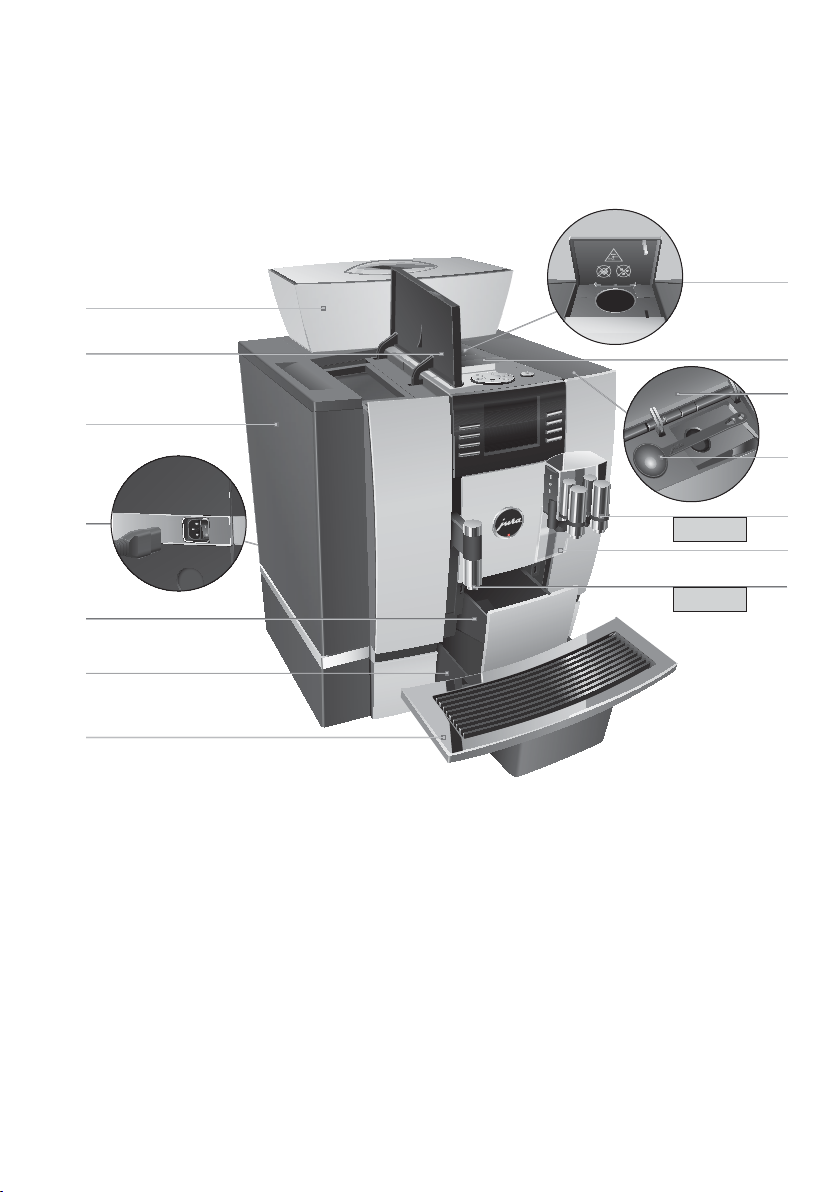
1 Bean container with aroma preservation
cover
2 Water tank cover
3 Water tank
4 Power switch and plug-in power cord
(back of the machine)
5 Coffee grounds container
6 Drip tray
7 Cup platform
8 Filler funnel for ground coffee
9 Ventilation slats
10 Storage compartment cover
11 Measuring spoon for ground coffee
12 Height- and width-adjustable dual spout
13 Splash guard
14 Height-adjustable hot-water spout

9
Control elements
Top of the machine
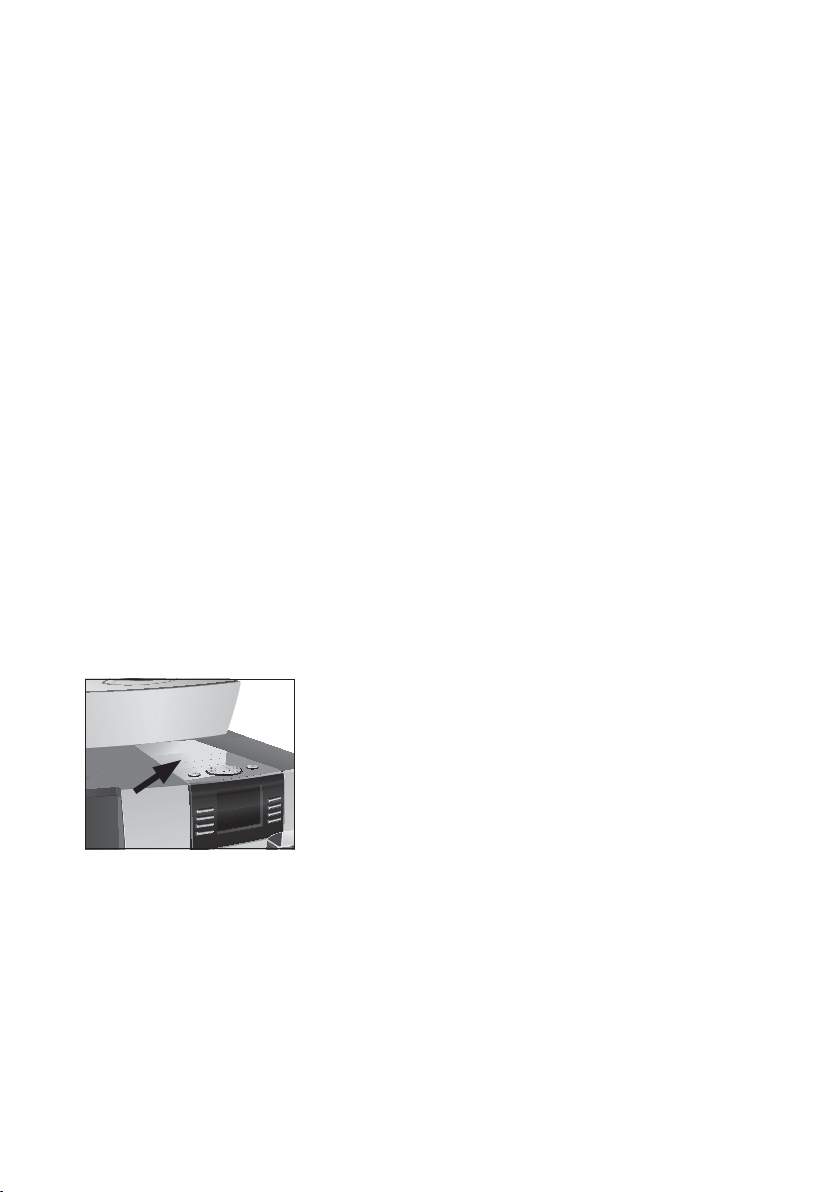
1 Q On/Off button
2 g Rotary Switch
3 O P button (programming)
Front
4 Display
5 Multi-function buttons (button function
depends on what is shown in the display)
1
2
3
4
Back of the machine
1 Service cover
(open by pressing with your finger)
2 Locking device
3 Sliding catch
4 Service socket (underneath cover)

11
1 Preparing and using for the first time
The bean container has an aroma preservation cover. This will ensure
that your coffee beans retain their aroma for longer.
Coffee beans which have been treated with additives (e.g. sugar),
ground coffee or freeze-dried coffee will damage the grinder.
T Only use roasted, untreated coffee beans to fill the bean
container.
T Remove the aroma preservation cover.
T Remove any dirt or foreign objects from inside the bean
container.
T Fill the bean container with coffee beans and close the
aroma preservation cover.
During first-time use, you can choose between the
‘Quick
installation’
and the ‘standard installation’ (‘Programming’):
U
‘Quick installation’: After setting the time and date, your GIGA
is ready for use.
U
‘Standard installation’ (‘Programming’): Here, you can
also decide whether you want to operate your GIGA with or
without the CLEARYL Pro filter cartridge. If the water hardness
is 10°dH or more, we recommend using the filter cartridge.
If you do not know the hardness of your water, you can find
this out first (see Chapter 1 ‘Preparing and using for the first
time – Determining the water hardness’).
U
‘Use filter’/ ‘Active’: Here, you can fit the CLEARYL Pro Blue
filter cartridge. Descaling will no longer be necessary.
U
‘Use filter’/ ‘Inactive’: Here, you can set the water hardness
of the water used. This setting influences when your GIGA
prompts you to perform descaling.
If the machine is operated with a defective power cord, there is a
danger of potentially fatal electric shock.
T Never use a machine which is damaged.
T Never use a machine which has a defective power cord.
E The water volume is given as standard in ‘oz’. You can change
this setting to ‘ml’ in programming mode (see Chapter 4
‘Permanent settings in programming mode – Unit for amount
of water’).
Filling the bean container
NOTICE
First-time use
J WARNING

12
1 Preparing and using for the first time
Precondition:The water tank and bean containers have been filled.
T Connect the power cord to the machine.
T Insert the power plug into a power socket.
3 T Switch on the GIGA using the power switch on the back of
the machine.
Q T Press the On/Off button to switch the GIGA on.
‘Welcome to JURA’ appears on the display. The display then
shows the languages you can choose from.
E To display more languages, press the
‘Next’ button (bottom
right).
T Press the button that corresponds to the language you want,
e.g.
‘English’.
‘Saved’ appears briefly on the display to confirm the setting.
‘First-time use’
E Now choose between ‘Quick installation’ and ‘standard instal-
lation’ (
‘Programming’).
T Press the
‘Quick installation’ button.
‘Time’
T Press the ‘+’ or ‘ –’ button to set the hours.
T Press the
‘Save’ button.
T Press the
‘+’ or ‘ –’ button to set the minutes.
T Press the
‘Save’ button.
‘Saved’ appears briefly on the display.
‘Date’
T Press the ‘+’ or ‘ –’ button to set the year.
T Press the
‘Save’ button.
T Press the
‘+’ or ‘ –’ button to set the month.
T Press the
‘Save’ button.
T Press the
‘+’ or ‘ –’ button to set the day.
T Press the
‘Save’ button.
‘Saved’ appears briefly on the display.
‘Machine is heating.’
‘Press the Rotary Switch.’
, the Rotary Switch lights up.
k T Press the Rotary Switch.
‘System is filling.’, the system fills up with water. The
operation stops automatically.
Quick installation

13
1 Preparing and using for the first time
‘Machine is rinsing.’, the machine rinses. Water flows out of
the dual spout. The operation stops automatically.
‘Please
select product:’
appears on the display. Your GIGA is ready
for use.
T Press the ‘Programming’ button.
‘Time’
T Press the ‘+’ or ‘ –’ button to set the hours.
T Press the
‘Save’ button.
T Press the
‘+’ or ‘ –’ button to set the minutes.
T Press the
‘Save’ button.
‘Saved’ appears briefly on the display.
‘Date’
T Press the ‘+’ or ‘ –’ button to set the year.
T Press the
‘Save’ button.
T Press the
‘+’ or ‘ –’ button to set the month.
T Press the
‘Save’ button.
T Press the
‘+’ or ‘ –’ button to set the day.
T Press the
‘Save’ button.
‘Saved’ appears briefly on the display.
‘Use filter’
E Now decide whether you want to operate your GIGA with or
without a CLEARYL Pro Blue filter cartridge.
T Press the
‘Active’ button.
T Press the
‘Save’ button.
‘Saved’ appears briefly on the display.
‘Press the Rotary Switch.’, the Rotary Switch lights up.
k T Press the Rotary Switch.
‘System is filling.’, the system fills up with water. The
operation stops automatically.
‘Insert filter.’ / ‘Press the Rotary Switch.’
T Remove and empty the water tank.
T Open the filter holder and insert the filter cartridge into the
water tank, exerting slight pressure.
T Close the filter holder. It will click into place audibly.
T Fill the water tank with fresh, cold water and reinsert the
tank.
Standard installation
Activating the filter

14
1 Preparing and using for the first time
k T Press the Rotary Switch.
‘Filter is being rinsed.’, the filter is rinsed. Rinsing of the
filter stops automatically.
‘Empty drip tray.’ appears on the
display.
T Empty the drip tray and coffee grounds container and put
them back into the machine.
‘Filter’/ ‘Filter rinsing complete.’
‘Machine is rinsing.’
, the machine rinses. Water flows out of
the dual spout. The operation stops automatically.
‘Please
select product:’
appears on the display. Your GIGA is ready
for use.
T Press the
‘Inactive’ button.
T Press the
‘Save’ button.
‘Water hardness’
E If you do not know the hardness of your water, you must find
this out first (see Chapter 1 ‘Preparing and using for the first
time – Determining the water hardness’).
T Press the
‘+’ or ‘ –’ button to adjust the water hardness.
T Press the
‘Save’ button.
‘Saved’ appears briefly on the display.
‘Press the Rotary Switch.’, the Rotary Switch lights up.
k T Press the Rotary Switch.
‘System is filling.’, the system fills up with water. The
operation stops automatically.
‘Machine is rinsing.’, the machine rinses. Water flows out of
the dual spout. The operation stops automatically.
‘Please
select product:’
appears on the display. Your GIGA is ready
for use.
Deactivating the filter
15
1 Preparing and using for the first time
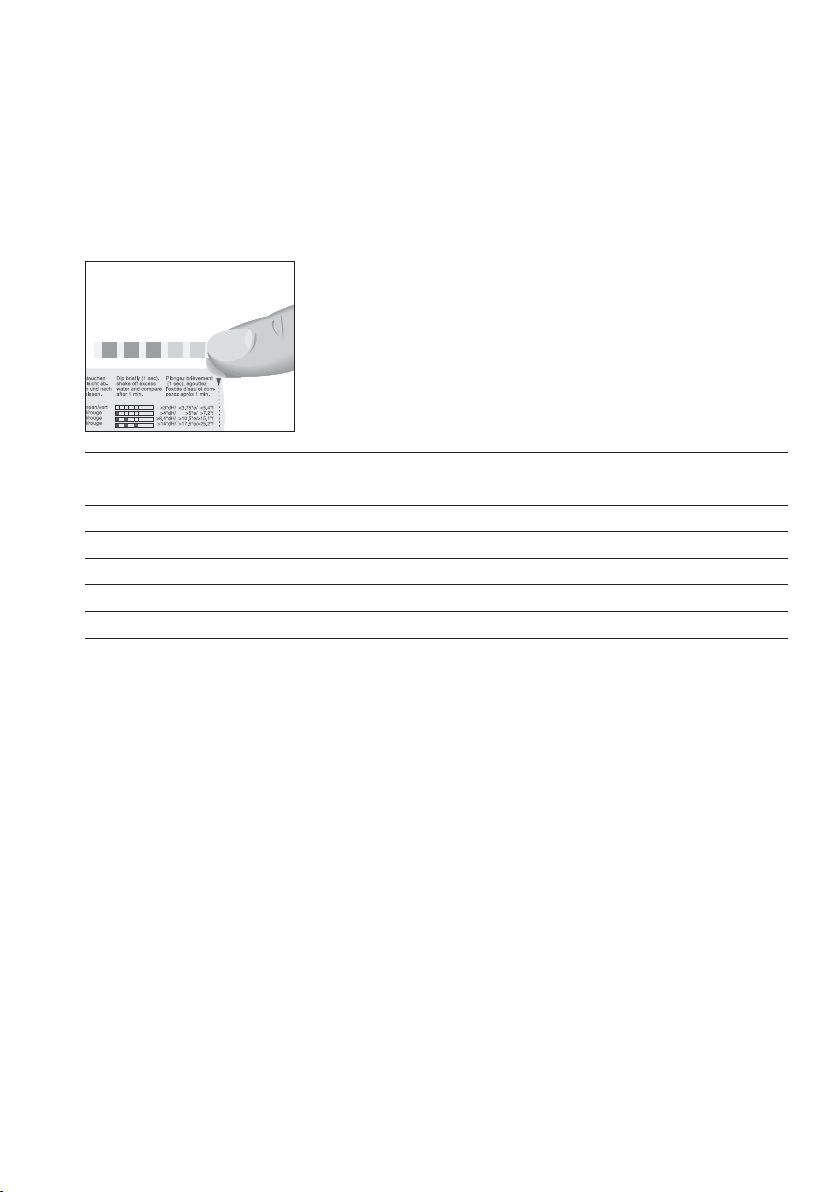
You can find out what the water hardness is by using the Aquadur®
test strip supplied as standard.
T Hold the test strip briefly (for 1second) under flowing water.
Shake off the water.
T Wait for about 1minute.
T You will then be able to read the degree of water hardness
from the discoloration of the Aquadur® test strip and the
description on the packaging.
Level Display German
Degree (°dH)
Degrees of general
hardness (°dGH)
Parts per
million (ppm)
Indicator Strip number
of ‘reddish’ fields
Not active – – – –
Very soft water <3 <3 < 53.4 None
Soft water > 4 > 4 > 71 1
Hard water > 8.4 > 8.4 > 150 2
Very hard water > 14 > 14 > 250 3
Your GIGA creates fine, creamy, feather-light milk foam with a
perfect consistency. The most important requirement for frothing
milk is a milk temperature of 39–46 °F (4–8 °C). We would therefore
recommend using a milk cooler.
T Connect the milk pipe to the dual spout.To do this, attach
the end of the milk pipe to the connector on the right-hand
side of the dual spout.
T Connect the other end of the milk pipe to a milk cooler.
Determining the water
hardness
Connecting milk

16
2 Preparation
2 Preparation
Hot coffee, hot steam and hot water can cause scalding. Scalding is
a serious burn.
T Use extreme care when handling hot liquid or steam.
T Allow liquid to cool down before drinking.
T In the event of scalding, rinse affected area with cold water
and seek medical attention.
T Keep children AWAY.
E While a product is being prepared, you can stop preparation
at any time. To do this, press the Rotary Switch k or the
‘’ button.
E During preparation, you can change the preset amounts
(e.g. amount of milk foam or water) by turning the Rotary
Switch g.
E You can follow the current status of preparation on the display.
E The water volume is given as standard in ‘oz’. You can change
this setting to ‘ml’ in programming mode (see Chapter 4
‘Permanent settings in programming mode – Unit for amount
of water’).
Coffee tastes best served hot. A cold porcelain cup cools the bever-
age – and impairs the taste. We therefore recommend prewarming
the cups. The full coffee aroma can develop only in prewarmed cups.
You can purchase a JURA cup warmer from your specialized dealer.
You can make permanent settings for all products in programming
mode (see Chapter 4 ‘Permanent settings in programming mode –
Adjusting the product settings’).
The GIGA provides you with two options for preparing a specialty
coffee, milk or hot water.
U
Preparation at the touch of a button: Simply press the
corresponding preparation button for the product shown on
the display (start screen) that you want.
U
Preparation using the product selector (Rotary Selection):
Only some of the products you can prepare are shown on the
J WARNING
Coffee, latte macchiato
etc.– options for
preparation
17
2 Preparation
start screen. As soon as you turn the Rotary Switch, more
products are displayed in a product selector.
U
Turn the Rotary Switch to bring the product you want into
focus. Start preparation by pressing the Rotary Switch or the
‘Prepare’ button.
U
The product selector view disappears automatically after
5seconds if no preparation is started.
The two preparation options will now be described in more detail in
the following sections.
On the display (start screen), you will see various products, which
you can prepare by simply pressing the corresponding button.
A specialty coffee displayed on the start screen is always prepared
following the same model.
Example:Proceed as follows to prepare one coffee.
Precondition:
‘Please select product:’ is displayed.
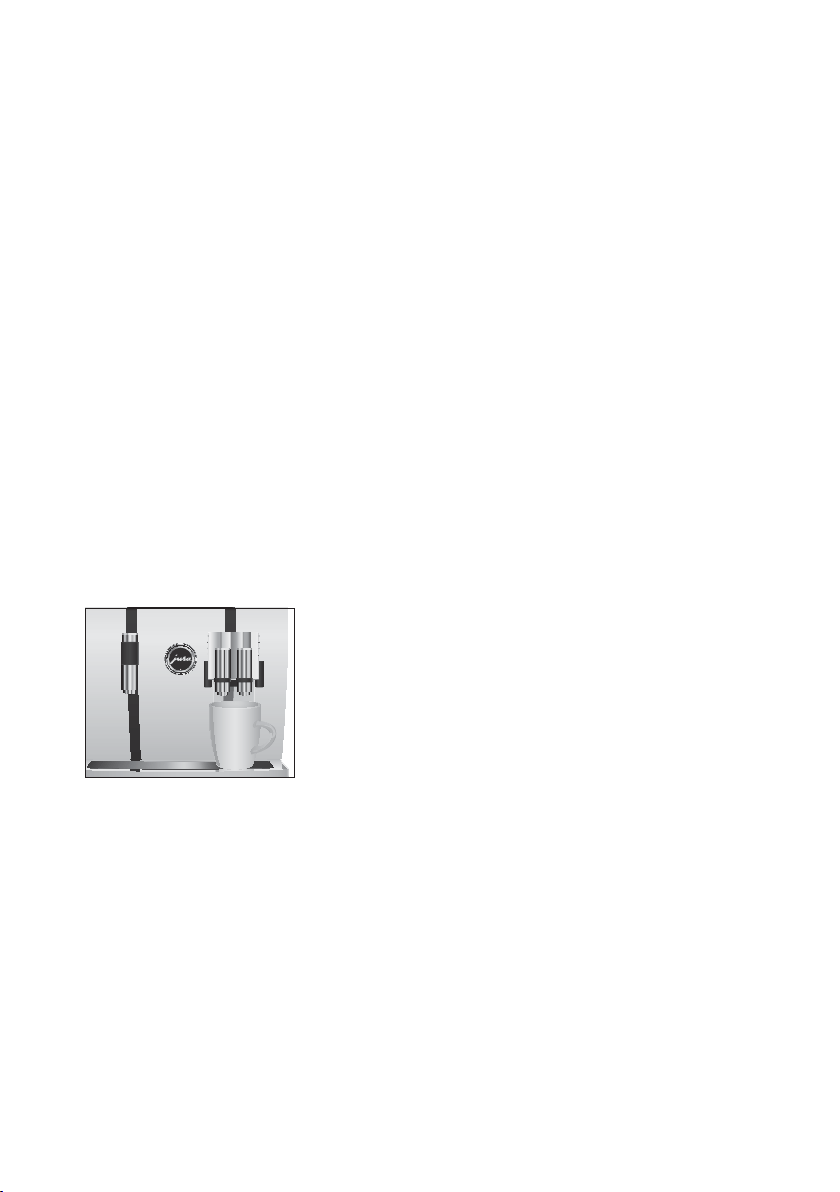
T Place a cup under the dual spout.
T Press the
‘Coffee’ button.
Preparation starts.
‘Coffee’ and the fill volume are displayed.
The preset amount of water for coffee flows into the cup.
Preparation stops automatically.
‘Please select product:’
appears on the display.
Two specialty coffees can always be prepared in the same way: Press
the preparation button you want twice within two seconds.
Your GIGA prepares latte macchiato, cappuccino and other specialty
coffees with milk at the touch of a button. There is no need to move
the glass or cup.
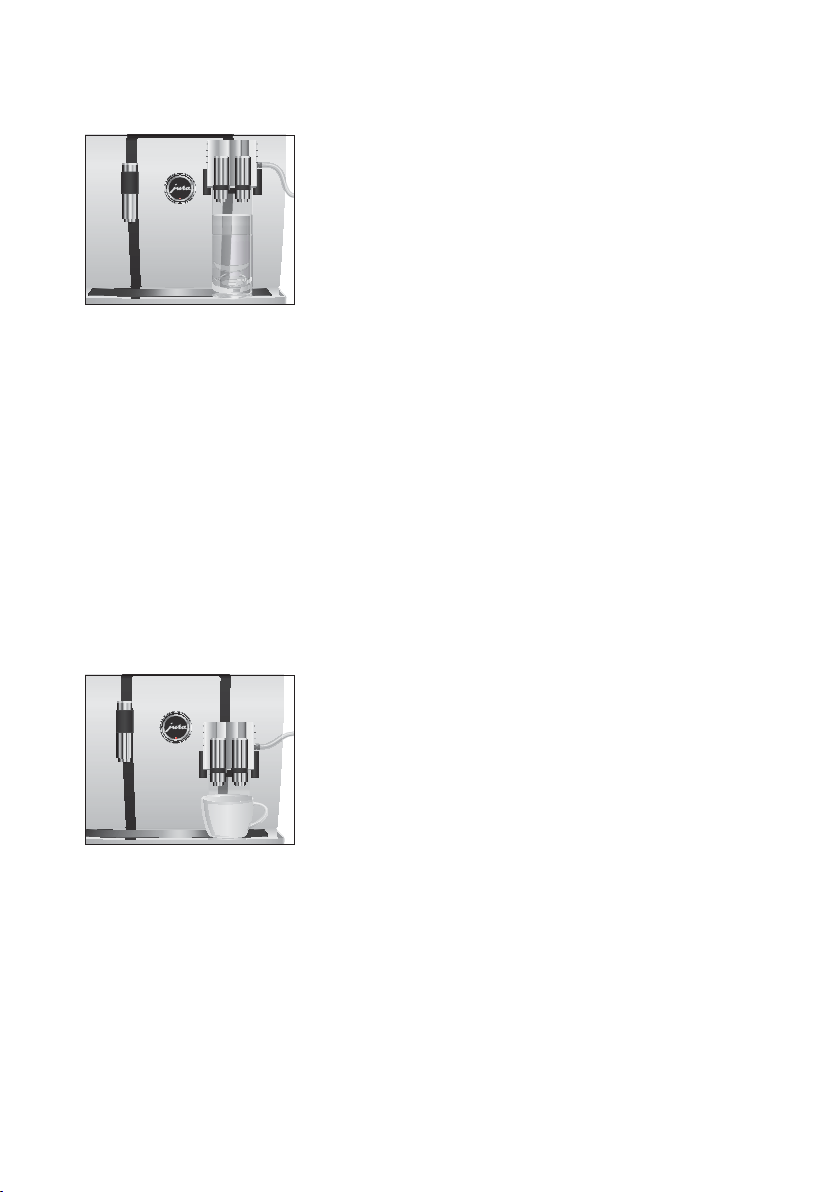
Example:Proceed as follows to prepare one latte macchiato.
Precondition:
‘Please select product:’ is displayed, milk is connected
to the dual spout.
Preparation at the touch
of a button
Speciality coffees at the
touch of a button
Two specialty coffees at the
touch of a button
Speciality coffees with milk
at the touch of a button
18
2 Preparation
T Place a glass under the dual spout.
T Press the
‘Latte macchiato’ button.
‘Latte macchiato’, the preset amounts of milk and milk foam
flow into the glass.
Coffee preparation starts. The preset amount of water
for espresso flows into the glass. Preparation stops
automatically.
‘Please select product:’ appears on the display.
To ensure that the milk system in the dual spout always works
properly, you must clean it daily (see Chapter 5 ‘Maintenance –
Cleaning the milk system’).
As soon as you turn the Rotary Switch, more products are displayed
in a product selector.
E The product selector view disappears automatically after
5seconds if no preparation is started.
Example: Proceed as follows to prepare a caffè latte using the
product selector.
Precondition:
‘Please select product:’ is displayed, milk is connected
to the dual spout.
T Place a cup under the dual spout.
g T Turn the Rotary Switch to view the product selector.
g T Turn the Rotary Switch until the
‘Caffè latte’ product is in
focus.
k T Press the Rotary Switch to start preparation.
The caffè latte is prepared.
Preparation stops automatically.
‘Please select product:’
appears on the display.
Preparation using the
product selector
Preparation of a specialty
coffee using the product
selector
19
2 Preparation
You can choose to use another coffee variety, for example
decaffeinated coffee, with the filter funnel for ground coffee.
E Never add more than two level measuring spoons of ground
coffee.
E Use ground coffee which is not ground too finely. Very fine
coffee can block up the system so that the coffee only comes
out in drips.
E If you did not fill the machine with a sufficient amount of
ground coffee,
‘Not enough ground coffee.’ is displayed and
the GIGA stops the operation.
E The desired specialty coffee must be prepared within
approximately one minute after filling with the ground
coffee. Otherwise the GIGA stops the operation and is once
more ready for use.
All specialty coffees with ground coffee are always prepared
following the same model.
Example:Proceed as follows to prepare one coffee using ground
coffee.
Precondition:
‘Please select product:’ is displayed.
T Place a cup under the dual spout.
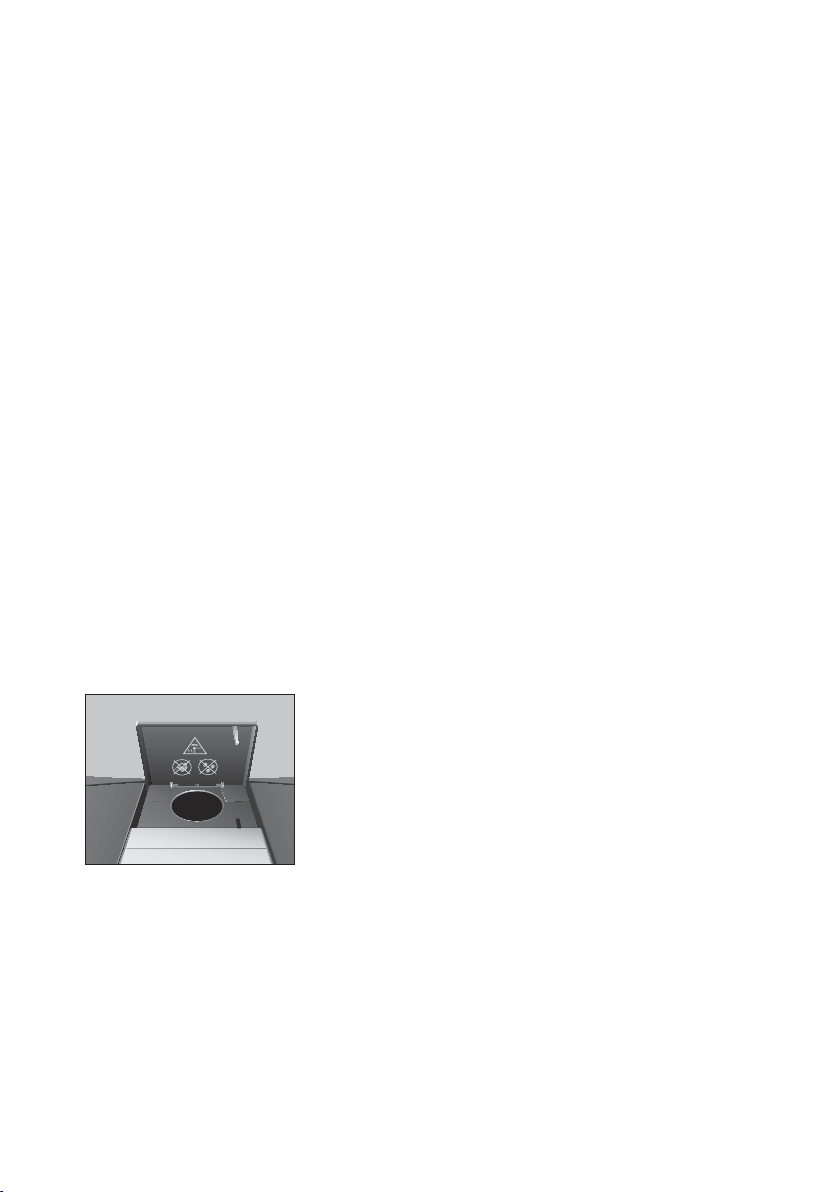
T Open the cover of the filler funnel for ground coffee.
‘Please add ground coffee.’
T Place one level measuring spoon of ground coffee into the
filler funnel.
T Close the cover of the filler funnel.
‘Please select product:’, the specialty coffees you can
prepare with ground coffee are displayed.
T Press the
‘Coffee’ button.
Preparation starts.
‘Coffee’ and the fill volume are displayed.
The preset amount of water for coffee flows into the cup.
Preparation stops automatically.
‘Please select product:’
appears on the display.
Ground coffee

20
2 Preparation
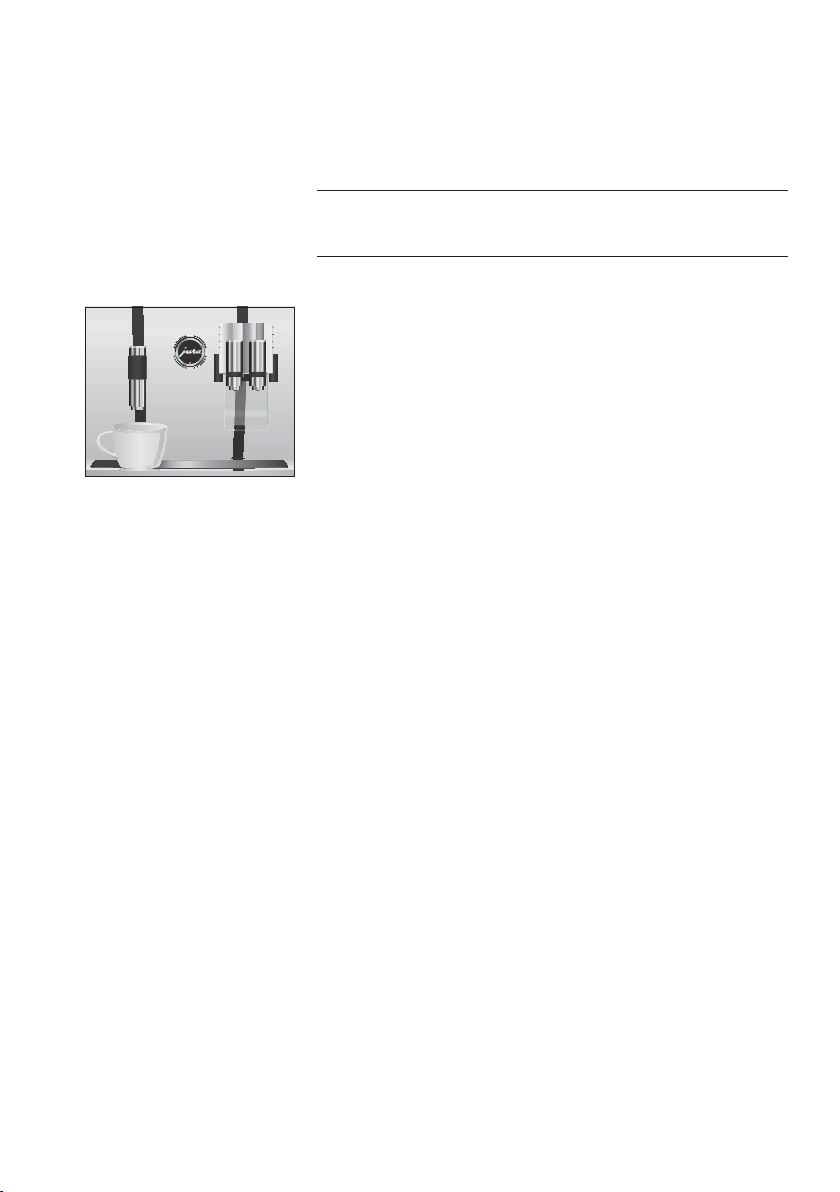
Now you too can be a professional barista! You can select the recipes
for 12 delicious coffee creations from the product selector using the
Rotary Switch. The GIGA will guide you through each step of the
preparation process with easy-to-follow text and pictures. Choose
from:
U
Marocchino
U
Pepresso
U
White Cool
U
Flavoured latte macchiato
U
Irish coffee*
U
Café mélange
U
Viennese coffee
U
Winter Magic
U
Shakerato
U
Mango Lassi
U
Red Cool*
U
Summer Fire
Designed to please the eye as well as the taste buds!
(Recipes marked * contain alcohol.)
All barista recipes are always prepared following the same model.
E The product selector view disappears automatically after
5seconds if no preparation is started.
Example:Proceed as follows to prepare a White Cool.
Precondition:
‘Please select product:’ is displayed.
g T Turn the Rotary Switch to view the product selector.
g T Turn the Rotary Switch until the
‘White Cool’ product is in
focus.
k T Press the Rotary Switch to start preparation.
T Follow the instructions on the display and confirm by
pressing the
‘Next’ button.
E You can stop preparation at any time by pressing the
‘’ button.
E You cannot make any permanent settings for barista recipes.
During preparation, you can however change the coffee
strength and quantities by turning the Rotary Switch f.
Barista recipes at a
glance
Preparing barista recipes
21
2 Preparation
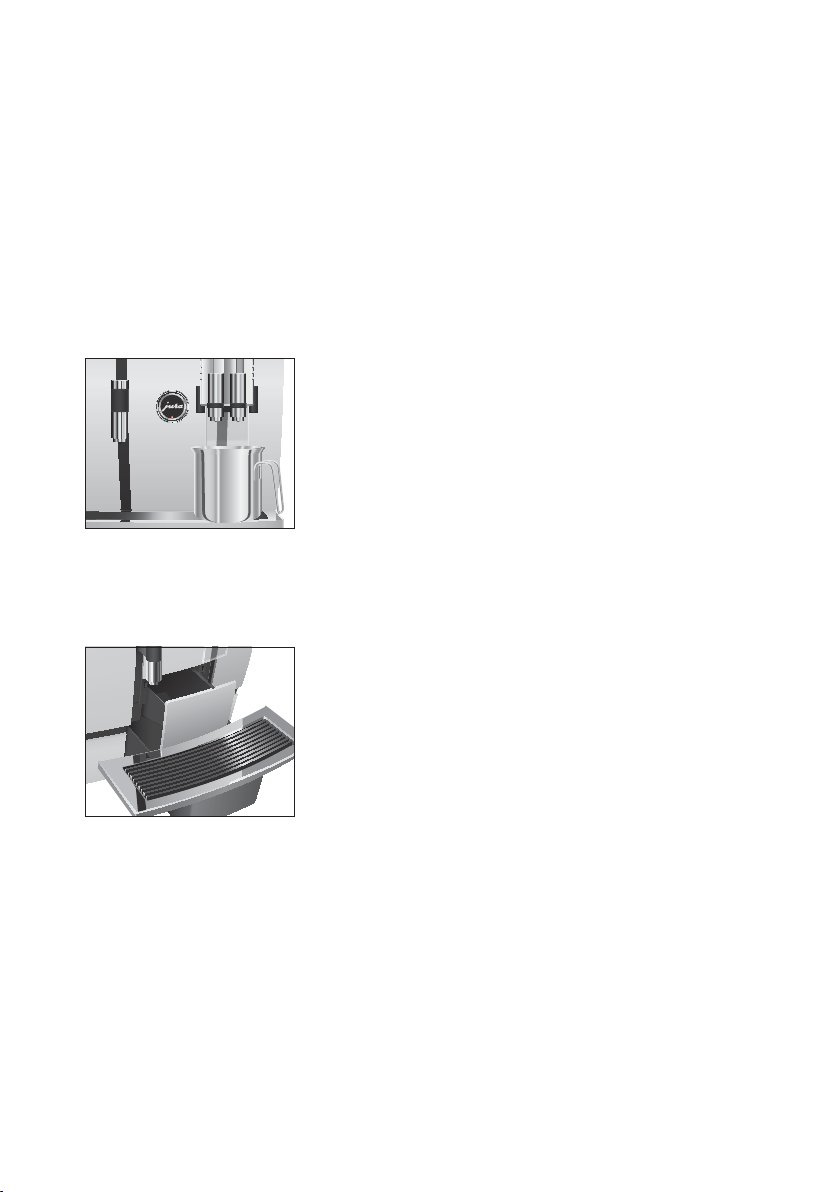
The following temperatures can be selected for preparing hot water:
‘Low’, ‘Normal’, ‘High’.
There is a danger of scalding from hot water splashes.
T Avoid direct contact with the skin.
Precondition:
‘Please select product:’ is displayed.
T Place a cup under the hot-water spout.
T Press the
‘Hot water’ button.
‘Hot water’ and the temperature are displayed.
E By pressing the ‘+’ or ‘ –’ button (within approximately
2 seconds) you can set the temperature to your individual
preference. This setting is not saved.
‘Hot water’, hot water flows into the cup. Preparation stops
automatically when the preset amount of water is reached.
‘Please select product:’ appears on the display.
Hot water
J
CAUTION
22
3 Daily operation
3 Daily operation
When the GIGA is switched on, a rinse operation is automatically
initiated. In programming mode you can change this setting so that
the machine prompts you to perform the switch-on rinse by
pressing the Rotary Switch k (see Chapter 4 ‘Permanent settings in
programming mode – Maintenance settings’).
Precondition:Your GIGA is switched on at the power switch.
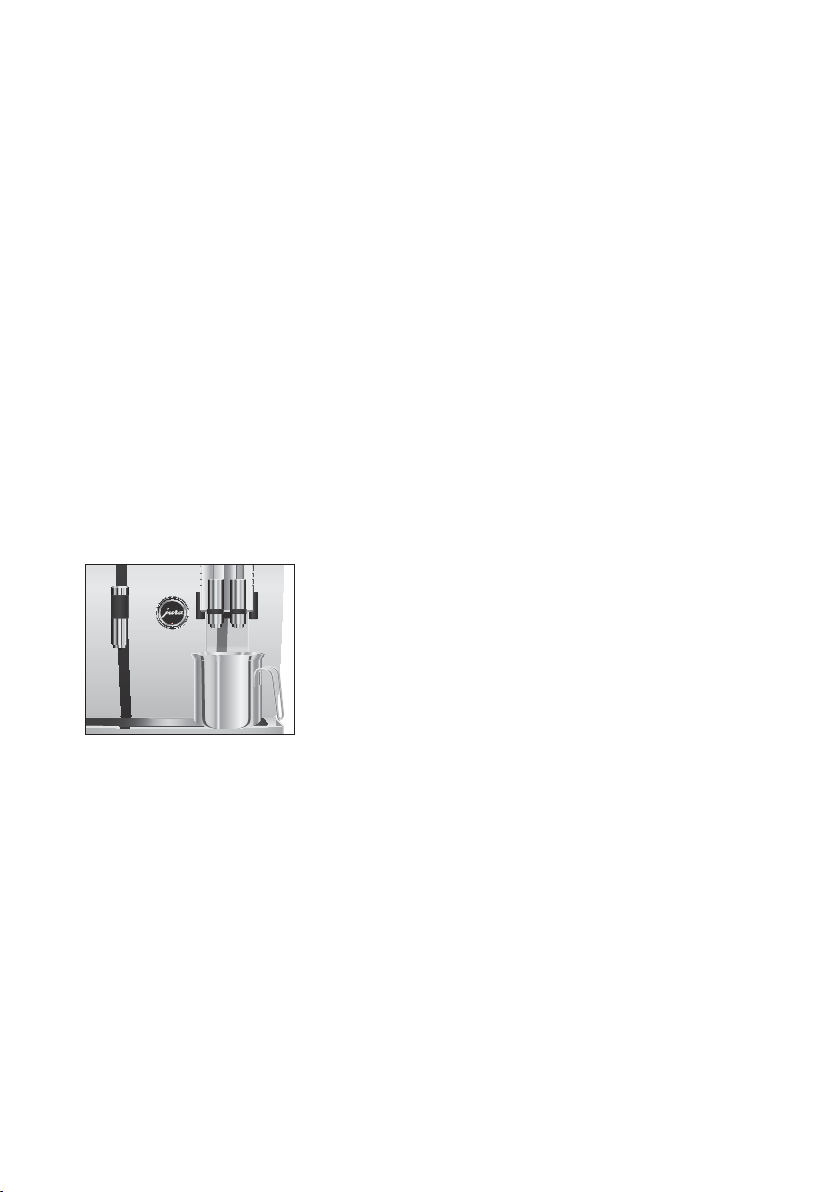
T Place a receptacle under the dual spout.
Q T Press the On/Off button to switch the GIGA on.
‘Welcome to JURA’ appears on the display. The machine
heats up.
‘Machine is rinsing.’, the machine rinses. Water flows out of
the dual spout. The operation stops automatically.
‘Please
select product:’
appears on the display.
To ensure that you get many years of reliable service out of your
GIGA and to guarantee the optimum coffee quality, the machine
requires daily maintenance.
T Pull out the drip tray.
T Empty the coffee grounds container and the drip tray. Rinse
them both with warm water.
E Always empty the coffee grounds container when the machine
is switched on. This is the only way of resetting the coffee
grounds counter.
T Refit the coffee grounds container and the drip tray.
T Rinse the water tank with clean water.
T Remove the milk pipe and rinse it thoroughly under running
water.
T Dismantle and rinse the dual spout (see Chapter 5
‘Maintenance – Dismantling and rinsing the dual spout’).
T Wipe the surface of the machine with a clean, soft, damp
cloth (e.g. microfiber cloth).
Switching on
Daily maintenance
23
3 Daily operation
Carry out the following maintenance actions regularly or as
required:
U
In the interests of hygiene, we recommend changing the milk
pipe on a regular basis (approximately every 3 months).
Replacement pipes are available from specialized dealers
(JURA original accessory set for frothers).
U
Clean the inside of the water tank, e.g. with a brush. Further
information about the water tank is provided in these
instructions for use (see Chapter 5 ‘Maintenance – Descaling
the water tank’).
U
Traces of milk and coffee may stick to the top and bottom of
the cup platform. If this happens, clean the cup platform.
When you switch off your GIGA, the dual spout is rinsed
automatically.
Precondition:
‘Please select product:’ is displayed.
T Place a receptacle under the dual spout.
Q T Press the On/Off button.
‘Machine is rinsing.’, ‘Milk system is being rinsed.’ (if you
have prepared a specialty coffee with milk). The system
rinses itself. The operation stops automatically. Your GIGA is
switched off.
E When the GIGA is switched off with the On/Off button, the
machine consumes less than 0.1 W of standby energy. The
machine can be completely disconnected from the power grid
using the power switch.
Regular maintenance
Switching off

24
4 Permanent settings in programming mode
4 Permanent settings in programming mode
Hot coffee, hot steam and hot water can cause scalding. Scalding is
a serious burn.
T Use extreme care when handling hot liquid or steam.
T Allow liquid to cool down before drinking.
T In the event of scalding, rinse affected area with cold water an
seek medical attention.
T Keep children AWAY.
Press the P button to enter programming mode. You can navigate
through the program items and permanently save the required
settings simply by turning the Rotary Switch and using the
multi-function buttons. The following settings can be made:
Program item Sub-item Explanation
‘Maintenance
status (1/5)’
‘Clean’, ‘Change the filter’
(only if filter is activated,
‘Descale’ (only if filter is
not activated),
‘Rinse the milk system’,
‘Rinse the coffee system’,
‘Clean the milk system’
T Start the required maintenance program here.
‘Product
settings (2/5)’
‘Expert mode’,
‘Classics’,
‘Set consistency of grind’
T Select your settings for specialty coffees, milk
and hot water.
T Replace the products on the start screen and in
the product selector with your favourites, or
prepare your chosen product directly.
T Adjust the consistency of grind to the coffee
beans used.
‘Machine
settings (3/5)’
‘Maintenance settings’
(filter, water hardness,
switch-on rinse, milk
system rinsing),
‘Time/ date’,
‘Timer’,
‘Save energy’,
‘Units’,
‘Factory setting’
T Set the water hardness or activate the filter.
T Change the settings for the switch-on rinse and
milk system rinse.
T Set the time after which the GIGA should switch
off automatically.
T Select an energy-saving mode.
T Select the unit for the amount of water.
T Reset the machine or the permanently set
values of all products to the factory settings.
J WARNING
Possible settings in
programming mode

25
4 Permanent settings in programming mode
Program item Sub-item Explanation
‘Machine
settings (4/5)’
‘Choose language’,
‘Display’,
‘Colour scheme’,
‘Barista’
T Select your language.
T Change the display settings.
T Activate or deactivate barista recipes.
‘Information
(5/5)’
‘Product counter’,
‘Day counter’,
‘Maintenance counter’,
‘Version’
T Keep track of all products prepared and
view the number of maintenance programs
performed.
Hot coffee, hot steam and hot water can cause scalding. Scalding is
a serious burn.
T Use extreme care when handling hot liquid or steam.
T Allow liquid to cool down before drinking.
T In the event of scalding, rinse affected area with cold water an
seek medical attention.
T Keep children AWAY.
In the program item
‘Product settings (2/5)’ you can make the
following settings:
U
‘Expert mode’
U
Set individual settings for all specialty coffees, milk and hot
water (see Chapter 4 ‘Permanent settings in programming
mode – Adjusting the product settings’).
U
Change the names of individual products (see Chapter 4
‘Permanent settings in programming mode – Renaming a
product’).
U
‘Classics’
U
Find all products stored as standard in your GIGA and
prepare these directly.
U
Replace the products on the start screen and in the product
selector with your favourites (see Chapter 4 ‘Permanent
settings in programming mode – Adding products to the
start screen’).
Product settings
J WARNING

26
4 Permanent settings in programming mode
The following settings can be made in ‘Product settings (2/5)’ /
‘Expert mode’:
Product Coffee strength Amount More settings
Ristretto,
Espresso,
Coffee*
; (extra-mild),
;; (mild),
;;; (normal),
;;;; (strong),
;;;;; (extra-strong)
Amount of coffee:
0.5 oz – 9.5 oz
(25ml–290ml)
Temperature
(low, normal, high),
Product name
2 ristretti,
2 espressi,
2 coffees
– Amount of coffee:
0.5 oz – 9.5 oz
(25ml–290ml)
(per cup)
Temperature
(low, normal, high),
Product name
Cappuccino*,
Espresso macchiato*,
Latte macchiato,
Flat white
; (extra-mild),
;; (mild),
;;; (normal),
;;;; (strong),
;;;;; (extra-strong)
Amount of coffee:
0.5 oz – 9.5 oz
(25ml–290ml)
Milk: 0sec.–120sec.
Milk foam: 0sec.–120sec.
Interval: 0sec.–120sec.
Temperature
(low, normal, high),
Product name
2 cappuccini,
2 caffè latte,
2 espressi macchiati,
2 latte macchiati,
2 flat whites
– Amount of coffee:
0.5 oz – 9.5 oz
(25ml–290ml)
Milk: 0sec.–120sec.
Milk foam: 0sec.–120sec.
(per cup)
Interval: 0sec.–120sec.
Temperature
(low, normal, high),
Product name
Caffè latte*
; (extra-mild),
;; (mild),
;;; (normal),
;;;; (strong),
;;;;; (extra-strong)
Amount of coffee:
0.5 oz – 9.5 oz
(25ml–290ml)
Milk: 0sec.–120sec.
Milk foam: 0sec.–120sec.
Temperature
(low, normal, high),
Product name
Portion of milk foam,
Portion of milk*
– Milk: 0sec.–120sec.
Milk foam: 0sec.–120sec.
Product name
2 portions of milk
foam,
2 portions of milk
– Milk: 0sec.–120sec.
Milk foam: 0sec.–120sec.
(per cup)
Product name
Adjusting the product
settings

27
4 Permanent settings in programming mode
Product Coffee strength Amount More settings
Pot,
Pot 2
; (extra-mild),
;; (mild),
;;; (normal),
;;;; (strong),
;;;;; (extra-strong)
Amount of coffee:
0.5 oz – 9.5 oz
(25ml–290ml)
(per stroke)
Temperature
(low, normal, high),
Number of strokes
(1–5; set number is
displayed during
preparation),
Product name
Hot water* – Water:
0.5 oz – 15.0 oz
(25ml–450ml)
Temperature
(low, normal, high),
Product name
(Products marked * are also available in ‘large’ size.)
E In addition to the settings listed, you can reset the values for
all products to the factory settings.
Example:Proceed as follows in the
‘Expert mode’ to change the
amount of milk for a latte macchiato from
‘4sec.’ to ‘6sec.’, the
amount of milk foam from
‘12sec.’ to ‘14sec.’ and the amount of
water from
‘1.5oz’ (45 ml) to ‘1.0oz’ (40 ml).
Precondition:
‘Please select product:’ is displayed.
O T Press the P button.
‘Maintenance status (1/5)’
g T Turn the Rotary Switch until the program item ‘Product
settings (2/5)’
is displayed.
T Press the
‘Expert mode’ button.
‘Expert mode’
E Next select the button of the product for which you would like
to make settings. No product is prepared at this point.
E You can also select the products in the product selector. To do
this, turn the Rotary Switch to view the product selector.
T Press the
‘Latte macchiato’ button.
T Press the
‘Amount of milk’ button.
T Press the
‘+’ or ‘ –’ button to change the setting for the
amount of milk to
‘6sec.’.
T Press the
‘Save’ button.

28
4 Permanent settings in programming mode
T Press the ‘Amount of milk foam’ button.
T Press the
‘+’ or ‘ –’ button to change the setting for the
amount of milk foam to
‘14sec.’.
T Press the
‘Save’ button.
T Press the
‘Volume’ button.
T Press the
‘+’ or ‘ –’ button to change the setting for the fill
volume to
‘1.0oz’ (40 ml).
T Press the
‘Save’ button.
O T Press the P button to exit programming mode.
‘Please select product:’
In the program item ‘Product settings (2/5)’ / ‘Expert mode’ you can
rename all of the products.
Example: Proceed as follows to change the product name from
‘Espresso’ to ‘My espresso’.
Precondition:
‘Please select product:’ is displayed.
O T Press the P button.
‘Maintenance status (1/5)’
g T Turn the Rotary Switch until the program item ‘Product
settings (2/5)’
is displayed.
T Press the
‘Expert mode’ button.
‘Expert mode’
T Press the ‘Espresso’ button.
T Press the
‘Product name’ button.
The available letters, numbers and special characters appear
on the display.
T Keep pressing the
‘ < ’ button until all letters have been
deleted.
E By pressing the
‘^’ button, you can switch between lower and
upper case letters.
g T Turn the Rotary Switch until the letter
‘M’ is highlighted.
k T Press the Rotary Switch to confirm the letter
‘M’.
T Press the
‘^’ button to change to lower case.
g T Turn the Rotary Switch until the letter
‘y’ is highlighted.
k T Press the Rotary Switch to confirm the letter
‘y’.
T Continue until
‘My espresso’ is displayed.
Renaming a product

29
4 Permanent settings in programming mode
T Press the ‘Save’ button.
‘Saved’ appears briefly on the display.
‘My espresso’
O T Press the P button to exit programming mode.
‘Please select product:’
In the program item ‘Product settings (2/5)’/ ‘Classics’ you will find
all the products stored as standard in your GIGA. You can move any
of these products to your preferred position on the start screen or
in the product selector and make it one of your favourites.
Example:Proceed as follows to display the product
‘2 espressi’ in the
bottom right-hand corner of the start screen.
Precondition:
‘Please select product:’ is displayed.
O T Press the P button.
‘Maintenance status (1/5)’
g T Turn the Rotary Switch until the program item ‘Product
settings (2/5)’
is displayed.
T Press the
‘Classics’ button.
‘Classics’
E Next select the button of the product you want to move to the
start screen. No product is prepared at this point.
T Press the
‘2 espressi’ button.
‘2 espressi’
T Press the ‘Save’ button.
T Press the
‘Add to favourites’ button.
‘Select position’
T Press the button at the bottom right (‘Milk’).
‘Do you want to replace the current product?’
T Press the ‘Yes’ button.
‘Saved’ appears briefly on the display.
‘Classics’
O T Press the P button to exit programming mode.
‘Please select product:’
Adding products to the
start screen

30
4 Permanent settings in programming mode
In the program item ‘Product settings (2/5)’/ ‘Set consistency
of grind’
you can adjust the grinder to the degree of roast of your
coffee.
The consistency of grind is correct if the coffee flows regularly from
the dual spout. In addition a fine, thick crema forms.
Precondition:
‘Please select product:’ is displayed.
O T Press the P button.
‘Maintenance status (1/5)’
g T Turn the Rotary Switch until the program item ‘Product
settings (2/5)’
is displayed.
T Press the
‘Set consistency of grind’ button.
‘Set consistency of grind’
T Press the ‘+’ or ‘ –’ button to change the setting for the
consistency of grind.
T Press the
‘Save’ button.
‘Saved’ appears briefly on the display.
‘Set consistency of grind’
O T Press the P button to exit programming mode.
‘Please select product:’
In the program item ‘Machine settings (3/5)’/ ‘Maintenance settings’
you can make the following settings:
U
‘Filter’
U
Activate the CLEARYL Pro Blue filter cartridge (see Chapter 5
‘Maintenance – Inserting and activating the filter’).
U
‘Water hardness’
U
If you do not have a filter cartridge, you will need to set the
water hardness (see Chapter 4 ‘Permanent settings in
programming mode – Setting the water hardness’).
U
‘Switch-on rinse’/ ‘Manual’
U
The switch-on rinse must be started manually.
U
‘Switch-on rinse’/ ‘Automatic’
U
The switch-on rinse is started automatically.
U
‘Rinse the milk system’/ ‘Manual after 10min.’
U
You are prompted to rinse the milk system 10minutes after
preparation of a specialty coffee with milk.
Setting the consistency
of grind
Maintenance settings

31
4 Permanent settings in programming mode
U
‘Rinse the milk system’/ ‘Manual immediate’
U
You are prompted to rinse the milk system immediately
after preparation of a specialty coffee with milk.
U
‘Rinse the milk system’/ ‘Automatic after 10min.’
U
Milk system rinsing is automatically initiated 10 minutes
after preparation of a specialty coffee with milk.
U
‘Rinse the milk system’/ ‘Automatic immediate’
U
Milk system rinsing is automatically initiated approx.
30 seconds after preparation of a specialty coffee with milk.
Example:Proceed as follows to make the machine prompt you to
rinse the milk system immediately after preparing a specialty coffee
with milk.
Precondition:
‘Please select product:’ is displayed.
O T Press the P button.
‘Maintenance status (1/5)’
g T Turn the Rotary Switch until the program item ‘Machine
settings (3/5)’
is displayed.
T Press the
‘Maintenance settings’ button.
‘Maintenance settings’
T Press the ‘Rinse the milk system’ button.
‘Rinse the milk system’
T Press the ‘Manual immediate’ button.
T Press the
‘Save’ button.
‘Saved’ appears briefly on the display.
‘Maintenance settings’
O T Press the P button to exit programming mode.
‘Please select product:’
The harder the water is, the more frequently the GIGA needs to
be descaled. It is therefore important to set the water hardness
accurately.
The water hardness can be adjusted on a continuous scale between
1 °dH and 30 °dH.
Precondition:
‘Please select product:’ is displayed.
O T Press the P button.
‘Maintenance status (1/5)’
Setting the water
hardness

32
4 Permanent settings in programming mode
g T Turn the Rotary Switch until the program item ‘Machine
settings (3/5)’
is displayed.
T Press the
‘Maintenance settings’ button.
‘Maintenance settings’
T Press the ‘Water hardness’ button.
‘Water hardness’
T Press the ‘+’ or ‘ –’ button to set the water hardness.
T Press the
‘Save’ button.
‘Saved’ appears briefly on the display.
‘Maintenance settings’
O T Press the P button to exit programming mode.
‘Please select product:’
In the program item ‘Machine settings (3/5)’/ ‘Save energy’ you can
permanently set an energy-saving mode (Energy Save Mode,
E.S.M.
©
):
U
‘Save No’
U
All specialty coffees, specialty coffees with milk and hot
water can be prepared without having to wait.
U
‘Save Level1’
U
After switching on, your GIGA is only ready for use for
specialty coffees and hot water. Before you can prepare a
specialty coffee with milk, the machine must heat up.
U
Soon after the last preparation, the GIGA stops heating up.
After about 5 minutes the message
‘Energy Save’ is
displayed.
U
‘Save Level2’
U
After switching on, your GIGA is ready for use for all specialty
coffees with and without milk, as well as hot water.
U
Soon after the last preparation, the GIGA stops heating
up. After about 5 minutes the message
‘Energy Save’ is
displayed.
Example: Proceed as follows to change the energy-saving mode
from
‘Save Level1’ to ‘Save Level2’.
Precondition:
‘Please select product:’ is displayed.
O T Press the P button.
‘Maintenance status (1/5)’
Energy-saving mode

33
4 Permanent settings in programming mode
g T Turn the Rotary Switch until the program item ‘Machine
settings (3/5)’
is displayed.
T Press the
‘Save energy’ button.
‘Save energy’
T Press the ‘Save Level2’ button.
T Press the
‘Save’ button.
‘Saved’ appears briefly on the display.
‘Machine settings (3/5)’
O T Press the P button to exit programming mode.
‘Please select product:’
You already set the time and date during first-time use. You can
change this setting.
E For the time format, you can choose between ‘24hrs’ and
‘AM/ PM’ (see Chapter 4 ‘Permanent settings in programming
mode – Units’).
Example:Proceed as follows to change the time.
Precondition:
‘Please select product:’ is displayed.
O T Press the P button.
‘Maintenance status (1/5)’
g T Turn the Rotary Switch until the program item ‘Machine
settings (3/5)’
is displayed.
T Press the
‘Time/ date’ button.
‘Time/ date’
T Press the ‘Time’ button.
‘Time’
T Press the ‘+’ or ‘ –’ button to set the hours.
T Press the
‘Save’ button.
T Press the
‘+’ or ‘ –’ button to set the minutes.
T Press the
‘Save’ button.
‘Saved’ appears briefly on the display.
‘Time/ date’
O T Press the P button to exit programming mode.
‘Please select product:’
Time and date

34
4 Permanent settings in programming mode
In the program item ‘Machine settings (3/5)’/ ‘Timer’ you can set an
individual switch-on and switch-off time for every day of the week.
E Automatic switch-on only works when the machine is switched
on at the power switch.
E For the time format, you can choose between ‘24hrs’ and
‘AM/ PM’ (see Chapter 4 ‘Permanent settings in programming
mode – Units’).
Example:Proceed as follows to set your GIGA to switch on and off
at a time defined by you every day of the week.
Precondition:
‘Please select product:’ is displayed.
O T Press the P button.
‘Maintenance status (1/5)’
g T Turn the Rotary Switch until the program item ‘Machine
settings (3/5)’
is displayed.
T Press the
‘Timer’ button.
‘Timer’
T Press the ‘Monday’ button (example).
‘Monday’
T Press the ‘+’ or ‘ –’ button to set the hours (for ‘Switch
machine on’
).
T Press the
‘’ button.
T Press the
‘+’ or ‘ –’ button to set the minutes (for ‘Switch
machine on’
).
T Press the
‘’ button.
T Press the
‘+’ or ‘ –’ button to set the hours (for ‘Switch
machine off’
).
T Press the
‘’ button.
T Press the
‘+’ or ‘ –’ button to set the minutes (for ‘Switch
machine off’
).
T Press the
‘Every weekday’ button.
‘Saved’ appears briefly on the display. The switch-on and
switch-off times you just set are adopted for every day of the
week.
‘Timer’
O T Press the P button to exit programming mode.
‘Please select product:’
Timer

35
4 Permanent settings in programming mode
By instructing your GIGA to automatically switch itself off, you can
cut down your energy consumption. If this function is activated,
your GIGA switches off automatically after the preset time following
the last action on the machine.
You can set the automatic switch-off time to 15 minutes or
0.5–15 hours.
Precondition:
‘Please select product:’ is displayed.
O T Press the P button.
‘Maintenance status (1/5)’
g T Turn the Rotary Switch until the program item ‘Machine
settings (3/5)’
is displayed.
T Press the
‘Timer’ button.
T Press the
‘Next’ button.
T Press the
‘Switch off after’ button.
‘Switch off after’
T Press the ‘+’ or ‘ –’ button to change the setting.
T Press the
‘Save’ button.
‘Saved’ appears briefly on the display.
‘Timer’
O T Press the P button to exit programming mode.
‘Please select product:’
In the program item ‘Machine settings (3/5)’/ ‘Units’ you can make
the following settings:
U
Unit for amount of water: ‘ml’ or ‘oz’
U
Time format: ‘24hrs.’ or ‘AM/ PM’
Example:Proceed as follows to change the unit for the amount of
water from
‘ml’ to ‘oz’.
Precondition:
‘Please select product:’ is displayed.
O T Press the P button.
‘Maintenance status (1/5)’
g T Turn the Rotary Switch until the program item ‘Machine
settings (3/5)’
is displayed.
T Press the
‘Units’ button.
‘Units’
T Press the ‘oz’ button.
Automatic switch-off
Units

36
4 Permanent settings in programming mode
T Press the ‘Save’ button.
‘Saved’ appears briefly on the display.
‘Machine settings (3/5)’
O T Press the P button to exit programming mode.
‘Please select product:’
In the program item ‘Machine settings (3/5)’/ ‘Factory setting’ you
can reset various settings to their factory settings:
U
‘All products’
U
The settings (amount of water, coffee strength, temperature
etc.) for all products are reset to the factory settings.
U
‘Machine’
U
All user settings (apart from the ‘filter’, ‘water hardness’ and
time and date settings) are reset to the factory settings. The
GIGA then switches off.
U
‘Empty system’
U
The system is emptied. Your GIGA then switches off.
Example:Proceed as follows to reset the values for all products to
the factory settings.
Precondition:
‘Please select product:’ is displayed.
O T Press the P button.
‘Maintenance status (1/5)’
g T Turn the Rotary Switch until the program item ‘Machine
settings (3/5)’
is displayed.
T Press the
‘Factory setting’ button.
‘Factory setting’
T Press the ‘All products’ button.
‘All products’/ ‘Reset all products to the factory settings?’
T Press the ‘Yes’ button.
‘Saved’ appears briefly on the display.
‘Factory setting’
O T Press the P button to exit programming mode.
‘Please select product:’
Restore factory settings

37
4 Permanent settings in programming mode
In this program item you can set the language used by your GIGA.
Example:Proceed as follows to change the language from
‘English’
to
‘Deutsch’.
Precondition:
‘Please select product:’ is displayed.
O T Press the P button.
‘Maintenance status (1/5)’
g T Turn the Rotary Switch until the program item ‘Machine
settings (4/5)’
is displayed.
T Press the
‘Choose language’ button.
‘Choose language’
E To display more languages, press the ‘Next’ button (bottom
right).
T Press the
‘Deutsch’ button.
‘Gespeichert’ appears briefly on the display.
‘Geräteeinstellungen (4/5)’
O T Press the P button to exit programming mode.
‘Bitte wählen Sie Ihr Produkt:’
In the program item ‘Machine settings (4/5)’/ ‘Display’ you can make
the following settings:
U
‘Brightness’ (as percentages)
U
‘Contrast’ (high, normal, low)
U
‘Backlight’ (backlighting; as percentages)
Example:Proceed as follows to change the brightness of the display.
Precondition:
‘Please select product:’ is displayed.
O T Press the P button.
‘Maintenance status (1/5)’
g T Turn the Rotary Switch until the program item ‘Machine
settings (4/5)’
is displayed.
T Press the
‘Display’ button.
‘Display’
T Press the ‘Brightness’ button.
T Press the
‘+’ or ‘ –’ button to change the setting.
T Press the
‘Save’ button.
‘Saved’ appears briefly on the display.
‘Display’
Language
Display settings

38
4 Permanent settings in programming mode
O T Press the P button to exit programming mode.
‘Please select product:’
In this program item you can set the background for the display of
your GIGA.
E The set background is only displayed on the start screen.
Precondition:
‘Please select product:’ is displayed.
O T Press the P button.
‘Maintenance status (1/5)’
g T Turn the Rotary Switch until the program item ‘Machine
settings (4/5)’
is displayed.
T Press the
‘Colour scheme’ button.
‘Colour scheme’
T Press the ‘+’ or ‘ –’ button to change the setting.
T Press the
‘Save’ button.
‘Saved’ appears briefly on the display.
‘Machine settings (4/5)’
O T Press the P button to exit programming mode.
‘Please select product:’
In the program item ‘Machine settings (4/5)’ you can activate
or deactivate the barista recipes. When the barista recipes are
deactivated they no longer appear in the product selector.
Example:Proceed as follows to deactivate barista recipes.
Precondition:
‘Please select product:’ is displayed.
O T Press the P button.
‘Maintenance status (1/5)’
g T Turn the Rotary Switch until the program item ‘Machine
settings (4/5)’
is displayed.
T Press the
‘Barista’ button.
‘Barista’
T Press the ‘Inactive’ button.
T Press the
‘Save’ button.
‘Saved’ appears briefly on the display.
‘Machine settings (4/5)’
O T Press the P button to exit programming mode.
‘Please select product:’
Background
Deactivating barista
recipes

39
4 Permanent settings in programming mode
In the program item ‘Information (5/5)’ you can view the
following information:
U
‘Product counter’: Number of prepared specialty coffees,
specialty coffees with milk and hot water
U
‘Day counter’: Number of prepared specialty coffees,
specialty coffees with milk and hot water. This counter can be
reset to zero.
U
‘Maintenance counter’: Number of maintenance programs
performed (cleaning, descaling etc.)
U
‘Version’: Software version
Precondition:
‘Please select product:’ is displayed.
O T Press the P button.
‘Maintenance status (1/5)’
g T Turn the Rotary Switch until the program item ‘Information
(5/5)’
is displayed.
T Press the
‘Product counter’ button.
‘Product counter’ and the number of products prepared is
displayed.
E You can also view the number of products prepared in the
product selector. To do this, turn the Rotary Switch. Press
the
‘’ button to exit the product selector view again.
T Press any button or the Rotary Switch to exit the program
item.
‘Information (5/5)’
O T Press the P button to exit programming mode.
‘Please select product:’
Querying information

40
5 Maintenance
5 Maintenance
Use of maintenance products that are harmful to health and
discharge of liquids during maintenance program. Harmful if
swallowed. Irritating to eyes and skin.
T Keep children AWAY.
T Keep children away from the machine while it is performing a
maintenance program.
T Avoid contact with skin and eyes.
T Avoid generation of dust. Do not inhale dust.
T When using do not eat or drink.
T Keep maintenance products away from food, drink and
animal food.
T Keep container tightly closed and dry. Keep in a cool place.
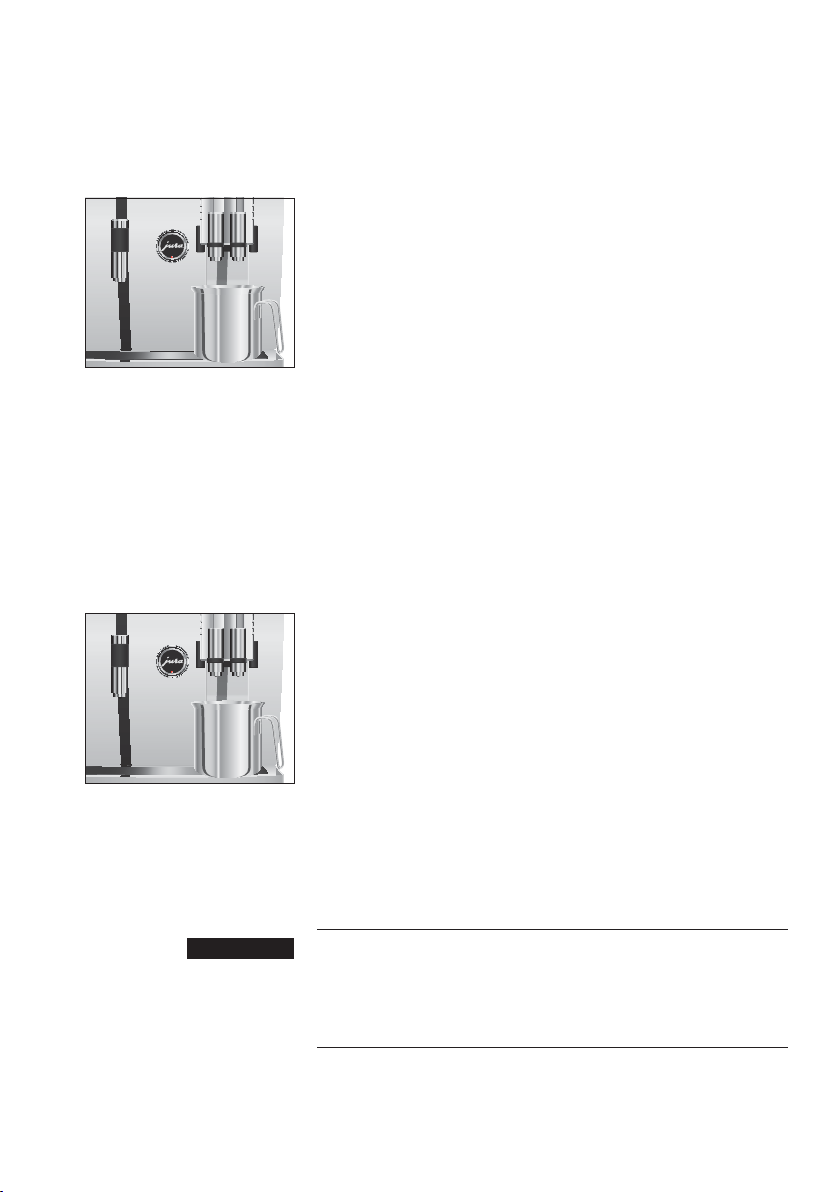
Your GIGA has the following integrated maintenance programs:
U
Rinsing the coffee system (‘Rinse the coffee system’)
U
Rinsing the milk system in the dual spout
(
‘Rinse the milk system’)
U
Cleaning the milk system in the dual spout
(
‘Clean the milk system’)
U
Changing the filter (‘Change the filter’)
U
Cleaning the machine (‘Clean’)
U
Descaling the machine (‘Descale’)
(only if filter is not activated)
E Clean or descale the machine, rinse the milk system or change
the filter when you are prompted to do so.
E Press the P button to view a list of the maintenance
programs (
‘Maintenance status (1/5)’). When the bar is
completely filled with red, your GIGA will prompt you to
perform the appropriate maintenance program.
E In the interests of hygiene, you should clean the milk system
daily when you have been preparing milk.
J WARNING
41
5 Maintenance
You can perform coffee system rinsing at any time.
Precondition:
‘Please select product:’ is displayed.
T Place a receptacle under the dual spout.
O T Press the P button.
‘Maintenance status (1/5)’
T Press the ‘Rinse the coffee system’ button.
‘Machine is rinsing.’, water flows out of the dual spout.
The rinse stops automatically.
‘Please select product:’
appears on the display.
Depending on the setting in programming mode, the GIGA
prompts you to rinse the milk system or automatically performs
rinsing following milk preparation.
Example: Proceed as follows to rinse the milk system when
prompted to do so.
Precondition:
‘Rinse the milk system.’ and the symbol c are
displayed.
T Place a receptacle under the dual spout.
O T Press the P button.
‘Maintenance status (1/5)’
T Press the ‘Rinse the milk system’ button.
‘Milk system is being rinsed.’, water flows out of the dual
spout.
The rinse stops automatically.
‘Please select product:’
appears on the display.
To ensure that the milk system in the dual spout always works
properly, you must clean it daily when you have been preparing
milk.
Non-recommended cleaning agents will not optimally remove milk
residues. This may cause the cappuccino frother to become blocked
and fly off the machine. Discharge of hot steam.
T Use only original JURA milk system cleaner.
Rinsing the coffee system
Rinsing the milk system
Cleaning the milk system
J WARNING
42
5 Maintenance
Harmful and irritating cleaning agent. Harmful if swallowed.
Irritating to eyes and skin.
T Keep children AWAY.
T Avoid contact with skin and eyes.
T After contact with skin, wash immediately with plenty of
water. In case of skin irritation, seek medical advice.
T After eye contact, immediately flush eyes with plenty of water
and seek medical advice.
T If swallowed, rinse mouth immediately and drink large
quantities of water. Do not induce vomiting. Seek medical
advice immediately and show label.
E JURA milk system cleaner is available from specialized dealers.
Precondition:
‘Please select product:’ is displayed.
O T Press the P button.
‘Maintenance status (1/5)’
T Press the ‘Clean the milk system’ button.
T Press the
‘Start’ button.
T Press the
‘Start’ button again.
‘Cleaning agent for milk system.’
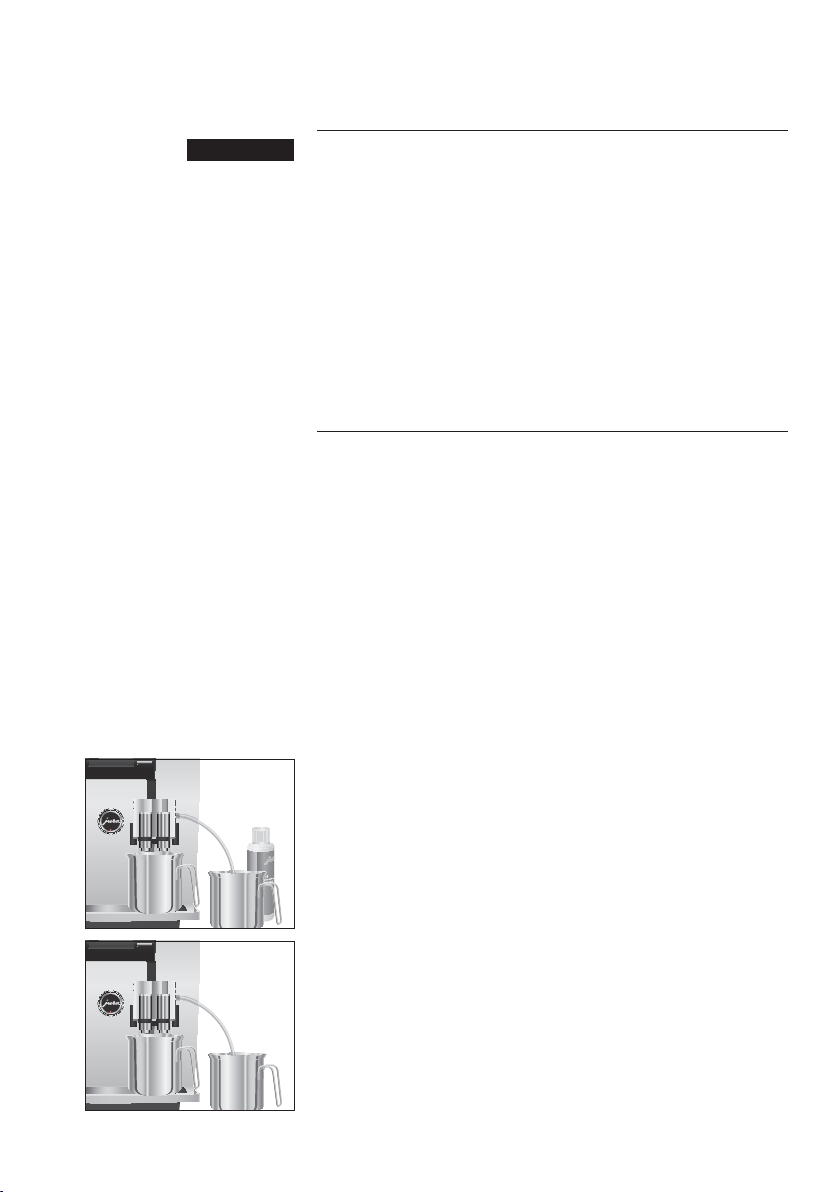
T Pour 8.5 oz (250ml) of fresh water into a receptacle and add
one capful of milk system cleaner.
T Immerse the milk pipe in the receptacle.
T Place another receptacle under the dual spout.
T Press the
‘Next’ button.
‘Milk system is being cleaned.’, water flows out of the dual
spout.
‘Water for cleaning milk system.’
T Rinse the receptacle thoroughly, fill it with 8.5 oz (250ml) of
fresh water and immerse the milk pipe in the water.
T Empty the other receptacle and place it under the dual spout
again.
T Press the
‘Next’ button.
‘Milk system is being cleaned.’, the dual spout and the pipe
are rinsed with fresh water.
The operation stops automatically.
‘Milk system cleaning
complete.’
appears briefly on the display.
‘Please select product:’
J WARNING
44
5 Maintenance
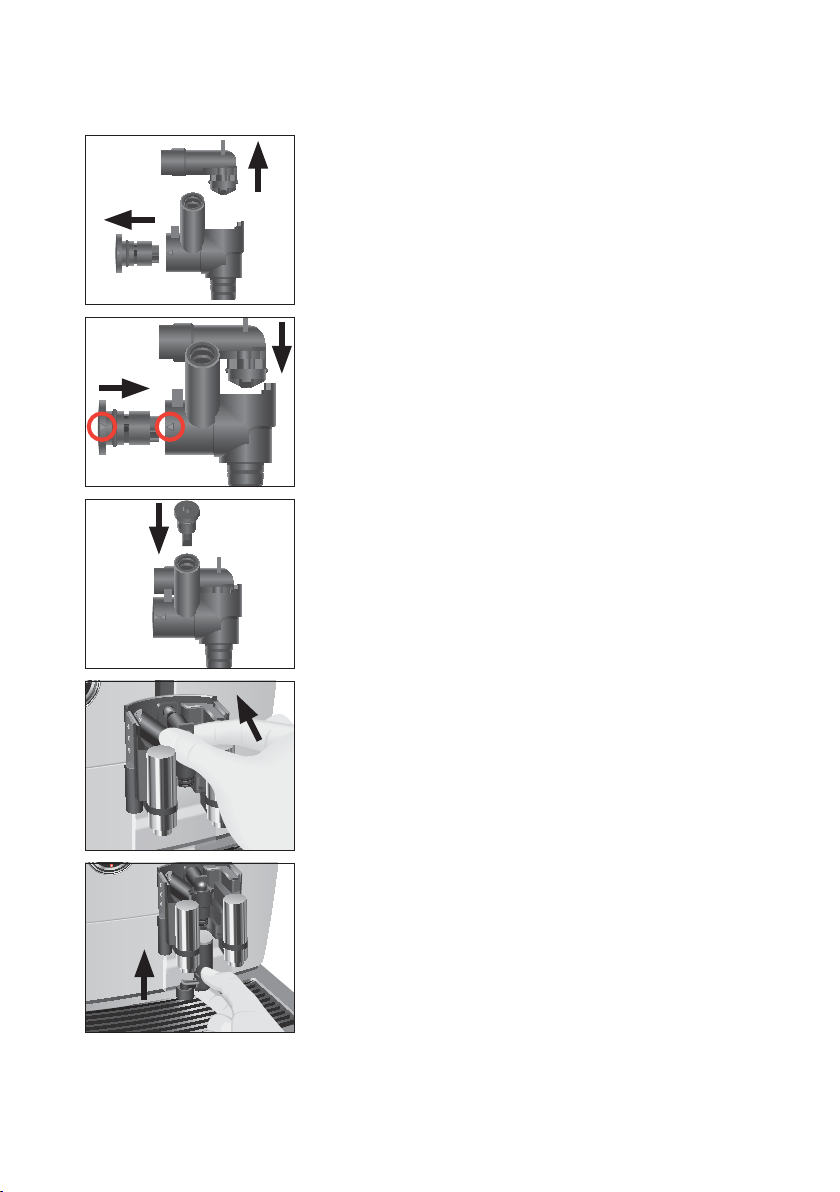
T Dismantle the milk system into its individual parts.
T Rinse all the parts under running water. If there are severely
dried-on milk residues, firstly immerse the individual parts
in a solution of 8.5 oz (250ml) cold water and one capful of
JURA milk system cleaner. Then rinse the parts thoroughly.
T Reassemble the milk system. When doing this, note the
arrows (circled in red in the picture) on the individual parts.
T Fit the air intake pipe.
T Fit the assembled individual parts back in the dual spout and
press it firmly.
T Attach the bottom part of the milk system to the part
already inserted from below.
45
5 Maintenance
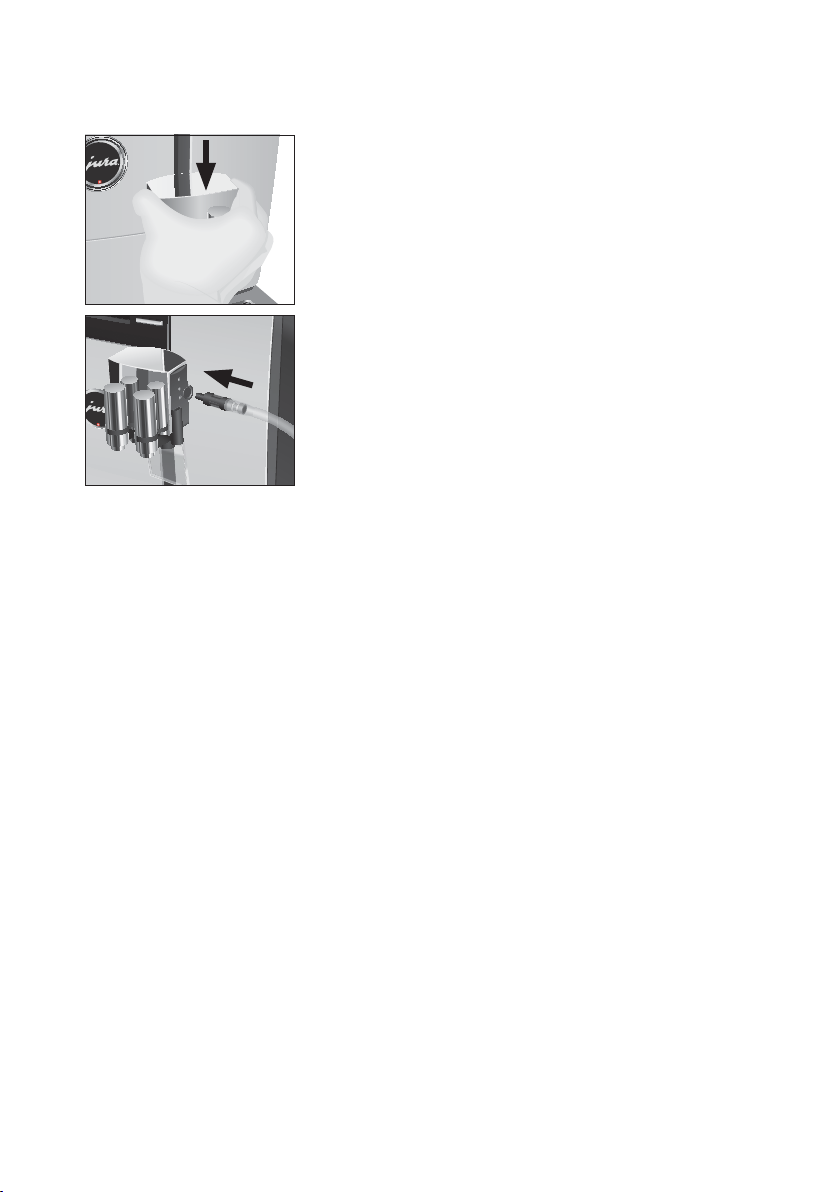
T Fit the cover of the dual spout. It will click into place audibly.
T Insert the milk pipe into the dual spout.
Your GIGA no longer has to be descaled if you are using the CLEARYL
Pro Blue filter cartridge. If the water hardness is 10°dH or more, we
recommend using the filter cartridge. If you do not know the
hardness of your water, you can find this out first (see Chapter 1
‘Preparing and using for the first time – Determining the water
hardness’).
If you did not activate the filter cartridge the first time you used the
machine, you can do this now as follows.
E Perform the ‘inserting the filter’ operation without any
interruptions. This will ensure that your GIGA always produces
its best.
Precondition:
‘Please select product:’ is displayed.
O T Press the P button.
‘Maintenance status (1/5)’
g T Turn the Rotary Switch until the program item ‘Machine
settings (3/5)’
is displayed.
T Press the
‘Maintenance settings’ button.
T Press the
‘Filter’ button.
‘Filter’
T Press the ‘Active’ button.
T Press the
‘Save’ button.
‘Saved’ appears briefly on the display.
‘Insert filter.’/ ‘Press the Rotary Switch.’
T Remove and empty the water tank.
Inserting and activating
the filter
46
5 Maintenance
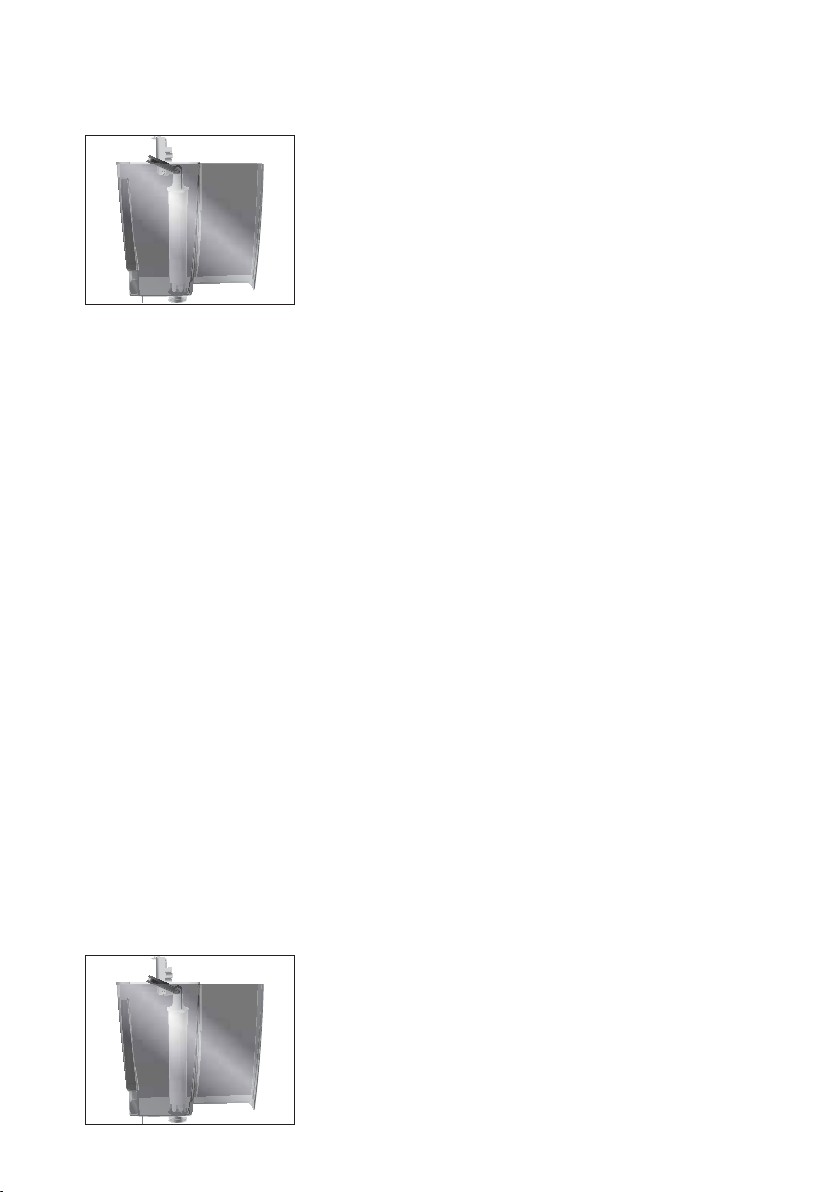
T Open the filter holder and insert the filter cartridge into the
water tank, exerting slight pressure.
T Close the filter holder. It will click into place audibly.
T Fill the water tank with fresh, cold water and reinsert the tank.
k T Press the Rotary Switch.
‘Filter is being rinsed.’, the filter is rinsed. Rinsing of the filter
stops automatically.
‘Empty drip tray.’ appears on the display.
T Empty the drip tray and coffee grounds container and put
them back into the machine.
‘Filter’/ ‘Filter rinsing complete.’
The machine heats up. ‘Please select product:’ appears on
the display. Your GIGA is once more ready for use.
E After 3500 oz (100liters) of water have flowed through or after
three months, the filter will cease to work. Your GIGA will auto-
matically prompt you to change the filter.
E If the CLEARYL Pro Blue filter cartridge is not activated in
programming mode, you will not be prompted to change the
filter.
Example:Proceed as follows to change the filter when prompted to
do so.
Precondition:
‘Change the filter’ and the c symbol are displayed.
O T Press the P button.
‘Maintenance status (1/5)’
T Press the ‘Change the filter’ button.
T Press the
‘Start’ button.
T Press the
‘Start’ button again.
‘Change filter.’/ ‘Press the Rotary Switch.’
T Remove and empty the water tank.
T Open the filter holder and remove the old CLEARYL Pro Blue
filter cartridge.
T Insert the new filter cartridge into the water tank, exerting
slight pressure.
T Close the filter holder. It will click into place audibly.
T Fill the water tank with fresh, cold water and reinsert the
tank.
Changing the filter

47
5 Maintenance
k T Press the Rotary Switch.
‘Filter is being rinsed.’, the filter is rinsed. Rinsing of the filter
stops automatically.
‘Empty drip tray.’ appears on the
display.
T Empty the drip tray and coffee grounds container and put
them back into the machine.
‘Change the filter’/ ‘Filter rinsing complete.’
The machine heats up. ‘Please select product:’ appears on
the display.
After 220preparations or 80switch-on rinses, the GIGA will prompt
you to clean it.
Non-recommended (e.g. liquid) cleaning agents may contain
substances that could damage the machine or leave residues.
T Use only original JURA cleaning tablets. These are specially
formulated for your machine.
Harmful and irritating cleaning agent. Harmful if swallowed.
Irritating to eyes and skin.
T Keep children AWAY.
T Avoid contact with skin and eyes.
T Avoid generation of dust. Do not inhale dust.
T After contact with skin, wash immediately with plenty of
water. In case of skin irritation, seek medical advice.
T After eye contact, immediately flush eyes with plenty of water
and seek medical advice.
T If swallowed, rinse mouth immediately and drink large
quantities of water. Do not induce vomiting. Seek medical
advice immediately and show label.
E The cleaning program lasts approximately 20 minutes.
E Do not interrupt the cleaning program. The quality of cleaning
will be impaired if you do so.
E JURA cleaning tablets are available from specialized dealers.
Example:Proceed as follows to clean when prompted to do so.
Precondition:
‘Clean machine.’ and the symbol c are displayed.
O T Press the P button.
‘Maintenance status (1/5)’
Cleaning the machine
J WARNING
J WARNING
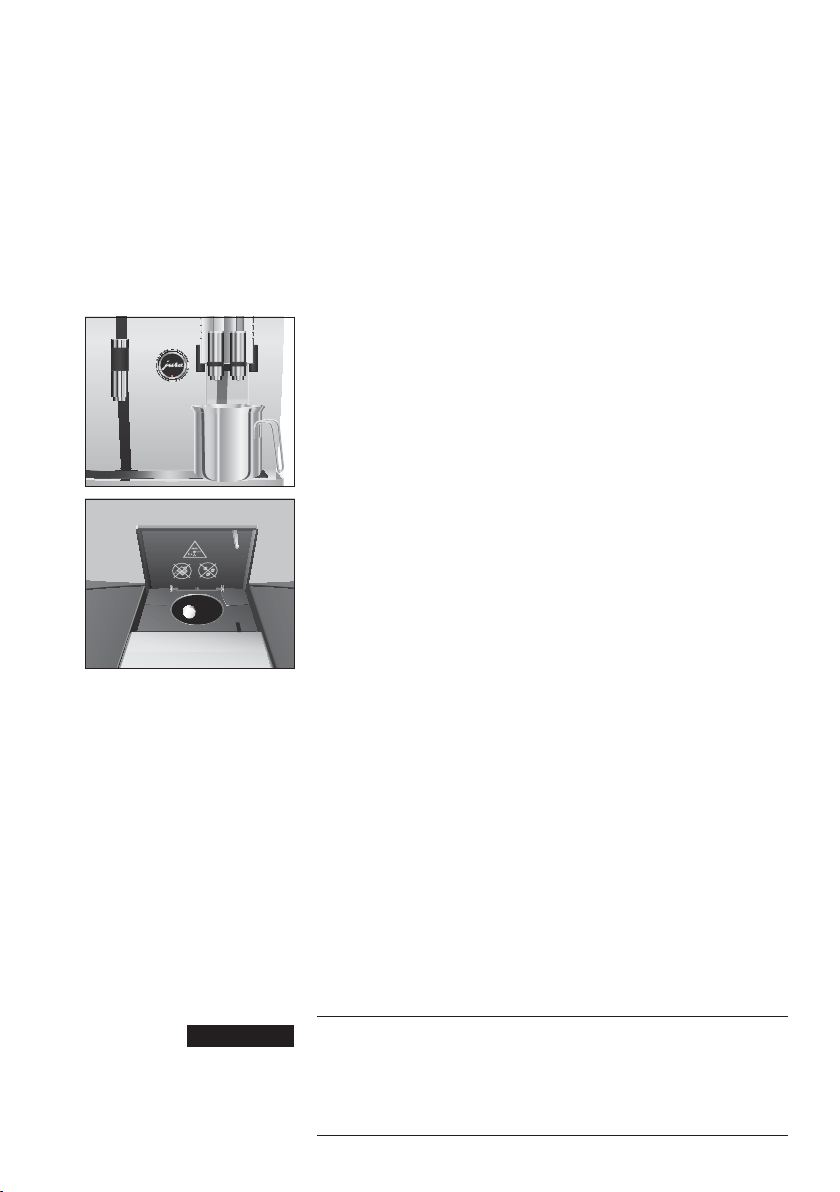
48
5 Maintenance
T Press the ‘Clean’ button.
T Press the
‘Start’ button.
T Press the
‘Start’ button again.
‘Empty coffee grounds container.’
T Empty the drip tray and coffee grounds container and put
them back into the machine.
‘Press the Rotary Switch.’
T Place a receptacle under the dual spout.
k T Press the Rotary Switch.
‘Machine is being cleaned.’, water flows out of the dual
spout.
The operation is interrupted,
‘Add cleaning tablet.’.
T Open the cover of the filler funnel for ground coffee.
T Insert a JURA cleaning tablet into the filler funnel.
T Close the cover of the filler funnel.
‘Press the Rotary Switch.’
k T Press the Rotary Switch.
‘Machine is being cleaned.’, water flows out of the dual spout
repeatedly.
The operation is interrupted,
‘Empty coffee grounds con-
tainer.’
.
T Empty the drip tray and coffee grounds container and put
them back into the machine.
‘Clean’/ ‘Cleaning complete.’
Cleaning is now complete. Your GIGA is once more ready for
use.
The GIGA builds up deposits of limescale over time and
automatically prompts you to descale it when necessary. The
degree of calcification depends on the hardness of your water.
E If you use a CLEARYL Pro Blue filter cartridge and this is
activated, you will not be prompted to descale.
Non-recommended descaling agents (e.g. vinegar) may contain
substances that could damage the machine or leave residues.
T Use only original JURA descaling tablets. These are specially
formulated for your machine.
Descaling the machine
J WARNING

49
5 Maintenance
Harmful and irritating descaling agent. Harmful if swallowed.
Irritating to eyes and skin.
T Keep children AWAY.
T Avoid contact with skin and eyes.
T Avoid generation of dust. Do not inhale dust.
T After contact with skin, wash immediately with plenty of
water. In case of skin irritation, seek medical advice.
T After eye contact, immediately flush eyes with plenty of water.
Remove contact lenses. Seek medical advice.
T If swallowed, rinse mouth immediately and drink large
quantities of water. Do not induce vomiting. Seek medical
advice immediately and show label.
If the descaling operation is interrupted, there may be damage to
the machine.
T Allow the descaling program to run to the end.
E The descaling program lasts approximately 50minutes.
E JURA descaling tablets are available from specialized dealers.
E If the descaling agent comes into contact with sensitive
surfaces (e.g. marble), damage cannot be ruled out. Clean up
any splashes immediately.
Example:Proceed as follows to perform descaling when prompted
to do so.
Precondition:
‘Decalcify machine.’ and the symbol c are displayed.
O T Press the P button.
‘Maintenance status (1/5)’
T Press the ‘Descale’ button.
T Press the
‘Start’ button.
T Press the
‘Start’ button again.
‘Empty drip tray.’
T Empty the drip tray and coffee grounds container and put
them back into the machine.
‘Pour descaling agent into water tank.’
T Remove and empty the water tank.
J WARNING J WARNING
NOTICE
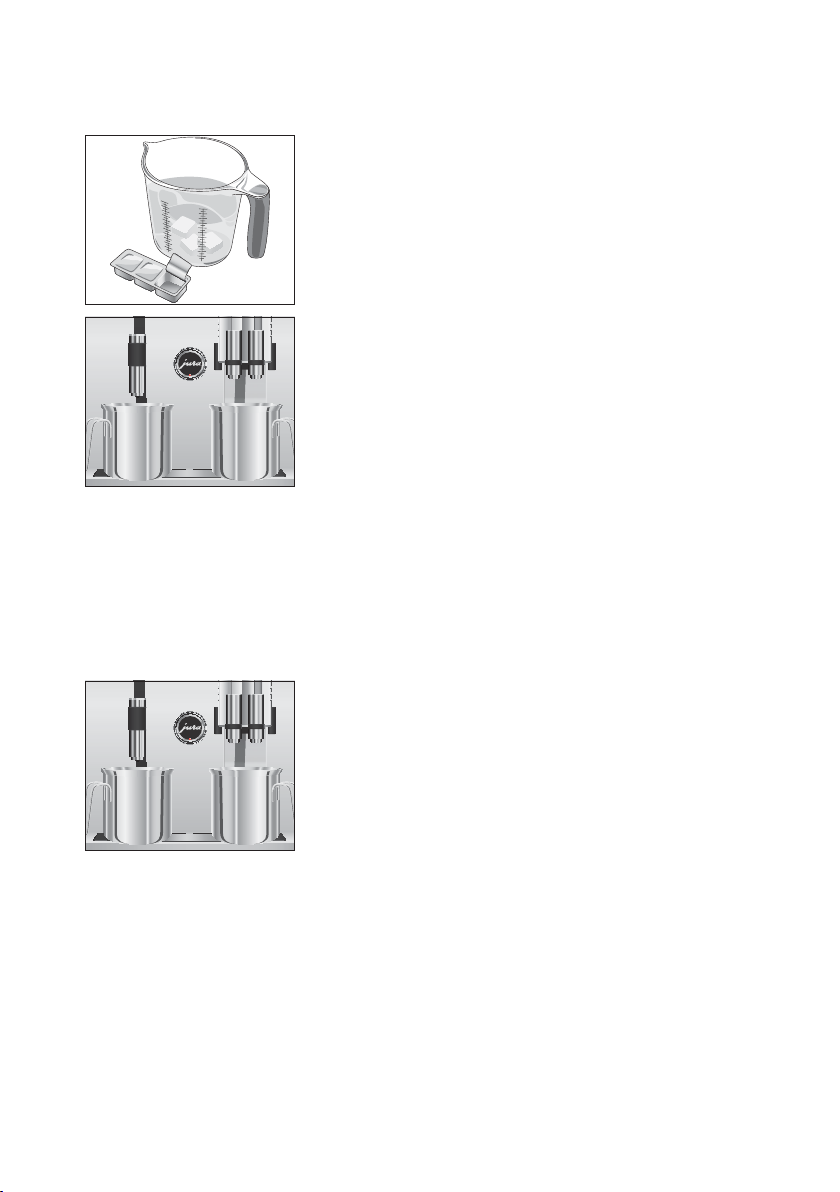
50
5 Maintenance
T Completely dissolve 4JURA descaling tablets in a receptacle
holding 27 oz (800 ml) of water. This may take several
minutes.
T Pour the solution into the empty water tank and insert it into
the machine.
‘Press the Rotary Switch.’
T Place one receptacle under the dual spout and another
under the hot-water spout.
k T Press the Rotary Switch.
‘Machine is being descaled.’, water flows repeatedly out of
the dual spout and the hot-water spout.
The operation stops automatically.
‘Empty drip tray.’ appears
on the display.
T Empty both receptacles.
T Empty the drip tray and coffee grounds container and put
them back into the machine.
‘Fill water tank.’
T Remove the water tank and rinse it thoroughly.
T Fill the water tank with fresh, cold water and reinsert the tank.
‘Press the Rotary Switch.’
T Place the receptacles back under the dual spout and the
hot-water spout.
k T Press the Rotary Switch.
‘Machine is being descaled.’, water flows out of the dual
spout and the hot-water spout.
The operation stops automatically.
‘Empty drip tray.’ appears
on the display.
T Empty the drip tray and coffee grounds container and put
them back into the machine.
‘Descale’/ ‘Descaling complete.’
Descaling is now complete. Your GIGA is once more ready
for use.
E If the descaling operation stops unexpectedly, rinse the water
tank thoroughly.
Coffee beans may be covered with a slight oil film which remains on
the walls of the bean container. These traces may negatively affect
Cleaning the bean
container
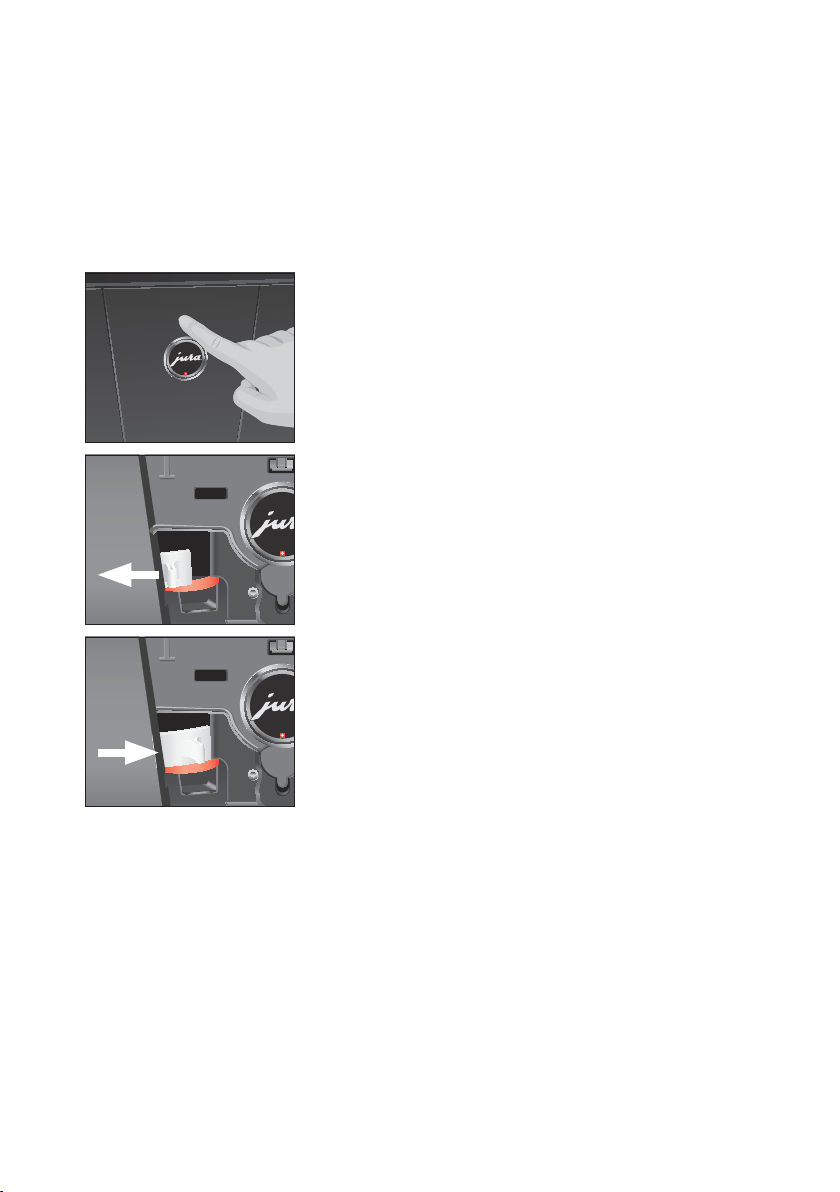
51
5 Maintenance
the coffee result. For this reason clean the bean container from time
to time.
Precondition:
‘Fill bean container.’ is displayed.
Q T Switch the machine off with the On/Off button.
3 T Switch the machine off at the power switch.
T Open the service cover on the back of the machine by
pressing above the JURA logo.
T Push the red sliding catch completely to the rear to close the
bean container.
T Turn the blue locking device outwards.
T Remove the bean container.
T Remove the aroma preservation cover.
T Empty the bean container.
T Clean the bean container with a soft, dry cloth.
T Fit the bean container.
T Turn the blue locking device inwards.
T Pull the red sliding catch completely forwards.
T Refit the service cover and fix it by pressing above the JURA
logo. It will click into place audibly.
T Fill the bean container with coffee beans and close the
aroma preservation cover.
Limescale deposits may form in the water tank. To ensure correct
function of the machine, descale the water tank from time to time.
T Remove the water tank.
T If you use a CLEARYL Pro Blue filter cartridge, remove this.
T Completely fill the water tank and dissolve 3 JURA descaling
tablets in it.
T Leave the water tank with the descaling solution for several
hours (e.g. overnight).
T Empty the water tank and rinse it thoroughly.
T If you use a CLEARYL Pro Blue filter cartridge, insert this
again.
T Fill the water tank with fresh, cold water and reinsert the tank.
Descaling the water tank
52
6 Display messages
6 Display messages
Message Cause/Result Action
‘Fill water tank.’ The water tank is empty. You
cannot prepare any products.
T Fill the water tank (see Chapter 1
‘Preparing and using for the first
time – Filling the water tank’).
‘Empty coffee
grounds
container.’
The coffee grounds container is full.
You cannot prepare any products.
T Empty the coffee grounds container
and the drip tray (see Chapter 3 ‘Daily
operation – Daily maintenance’).
‘Coffee grounds
container not
fitted.’
The coffee grounds container is not
fitted. You cannot prepare any
products.
T Fit the coffee grounds container.
‘Empty drip tray.’ The drip tray is full. You cannot
prepare any products.
T Empty the drip tray.
T Clean and dry the metal contacts on
the back of the drip tray.
‘Drip tray not
fitted.’
The drip tray is not inserted
correctly or is not inserted at all.
You cannot prepare any products.
T Fit the drip tray.
‘Press the
Rotary Switch.’
The system must be filled with
water or the GIGA prompts you to
continue a started maintenance
program.
T Turn the Rotary Switch to continue
with the maintenance program or to
fill the system.
‘Fill bean
container.’
The bean container is empty.
You cannot prepare any specialty
coffees, but you can prepare hot
water and milk.
T Fill the bean container (see Chapter 1
‘Preparing and using for the first
time – Filling the bean container’).
‘Rinse the milk
system.’
The GIGA is prompting you to rinse
the milk system.
T Press the P button and then the
‘Rinse the milk system’ button to
initiate milk system rinsing.
‘Clean machine.’ The GIGA is prompting you to
clean it.
T Perform cleaning (see Chapter 5
‘Maintenance – Cleaning the
machine’).
‘Decalcify
machine.’
The GIGA is prompting you to
descale it.
T Perform descaling (see Chapter 5
‘Maintenance – Descaling the
machine ’).

53
6 Display messages
Message Cause/Result Action
‘Change filter.’ After 3500 oz (100liters) of water
have flowed through the CLEARYL
Pro Blue filter cartridge or after two
months, it will cease to work. The
GIGA is prompting a filter change.
T Replace the CLEARYL Pro Blue filter
cartridge (see Chapter 5
‘Maintenance – Changing the filter’).
‘Spout is not
fitted.’
The dual spout or the cover of the
dual spout is not fitted correctly.
T Fit the cover of the dual spout or the
dual spout correctly.
‘Not enough
ground coffee.’
There is insufficient ground coffee
in the machine; the GIGA stops the
operation.
T The next time you prepare a
beverage, add more ground coffee
(see Chapter 2 ‘Preparation –
Ground coffee’).

54
7 Troubleshooting
7 Troubleshooting
Problem Cause/Result Action
Insufficient foam is
produced when the milk
is frothed, or milk sprays
from the dual spout.
The dual spout is dirty.
T Rinse and clean the dual spout (see
Chapter 5 ‘Maintenance – Cleaning the
milk system’).
Coffee only comes out
in drips when it is being
prepared.
Coffee or ground coffee has
been ground too finely
and is blocking the system.
The same filter cartridge
may have been used several
times or the water hardness
set incorrectly in the
programming mode.
T Put the grinder on a coarser setting
or use coarser ground coffee (see
Chapter 4 ‘Permanent settings in
programming mode – Setting the
consistency of grind’).
T Perform descaling (see Chapter 5
‘Maintenance – Descaling the
machine’).
‘Fill bean container.’ is
not displayed although
the bean container is
empty.
The bean monitor is dirty.
T Clean the bean container (see
Chapter 5 ‘Maintenance – Cleaning the
bean container’).
‘Empty drip tray.’ is
always displayed.
The metal contacts of the
drip tray are dirty or wet.
T Clean and dry the metal contacts on
the back of the drip tray.
‘Fill water tank.’ is
displayed although the
water tank is full.
The water tank float is
trapped.
T Descale the water tank (see Chapter 5
‘Maintenance – Descaling the water
tank’).
‘Error 2’ is displayed. If the machine was exposed
to the cold for a long period
of time, heating is disabled
for safety reasons.
T Warm the machine at room
temperature.
Other
‘Error’ messages
are displayed.
–
T Switch the GIGA off at the power
switch. Contact customer support in
your country (see Chapter 11 ‘JURA
contact details/ Legal information’).
E If you were unable to solve the problem, contact customer
support in your country (see Chapter 11 ‘JURA contact details/
Legal information’).
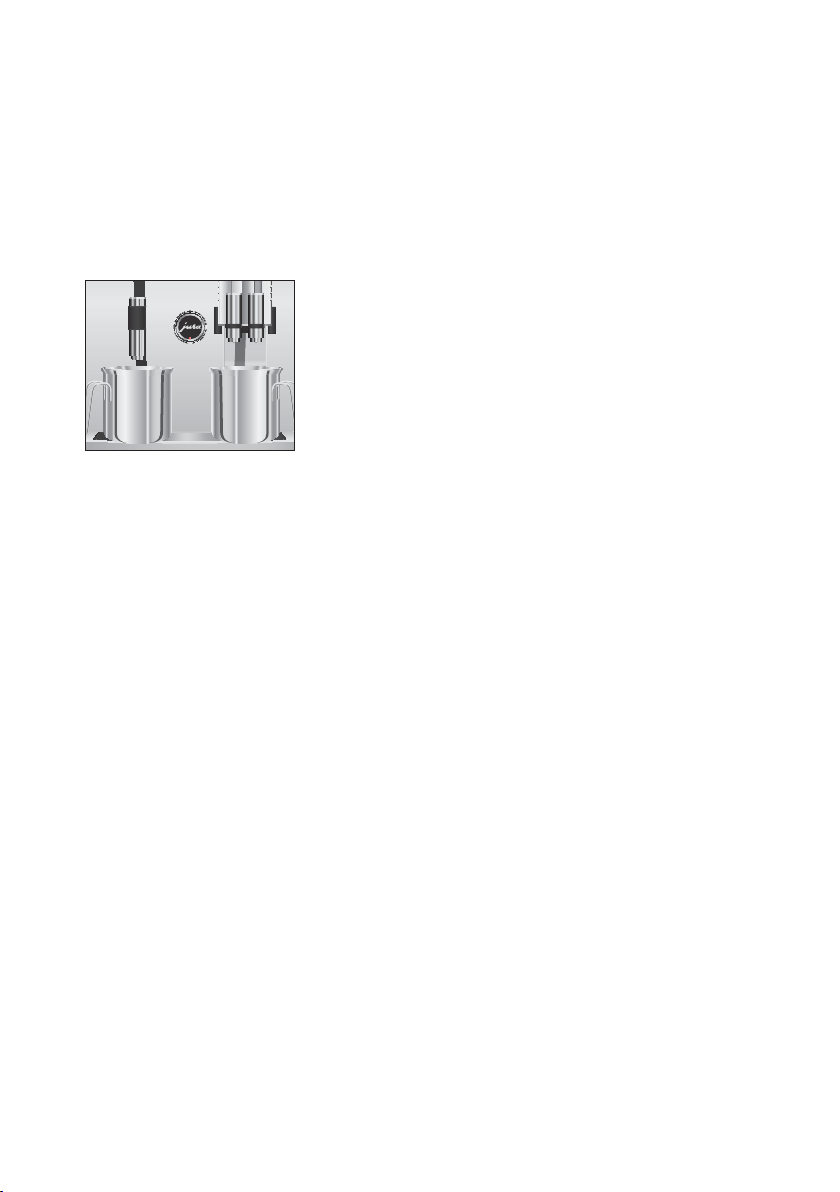
55
8 Transport and environmentally friendly disposal
8 Transport and environmentally friendly disposal
In order to protect the GIGA from frost during transport, the system
must be emptied.
Precondition:‘Please select product:’ is displayed.
T Place one receptacle under the dual spout and another
under the hot-water spout.
O T Press the P button.
‘Maintenance status (1/5)’
g T Turn the Rotary Switch until the program item ‘Machine
settings (3/5)’
is displayed.
T Press the
‘Factory setting’ button.
‘Factory setting’
T Press the ‘Empty system’ button.
‘Empty system’/ ‘Remove the water tank.’
T Remove and empty the water tank.
‘Press the Rotary Switch.’
k T Press the Rotary Switch.
‘System is emptying.’, water flows out of the dual spout and
the hot-water spout.
The operation stops automatically. Your GIGA is switched
off.
Please dispose of old machines in an environmentally neutral way.
H
Transport/ Emptying the
system
Disposal
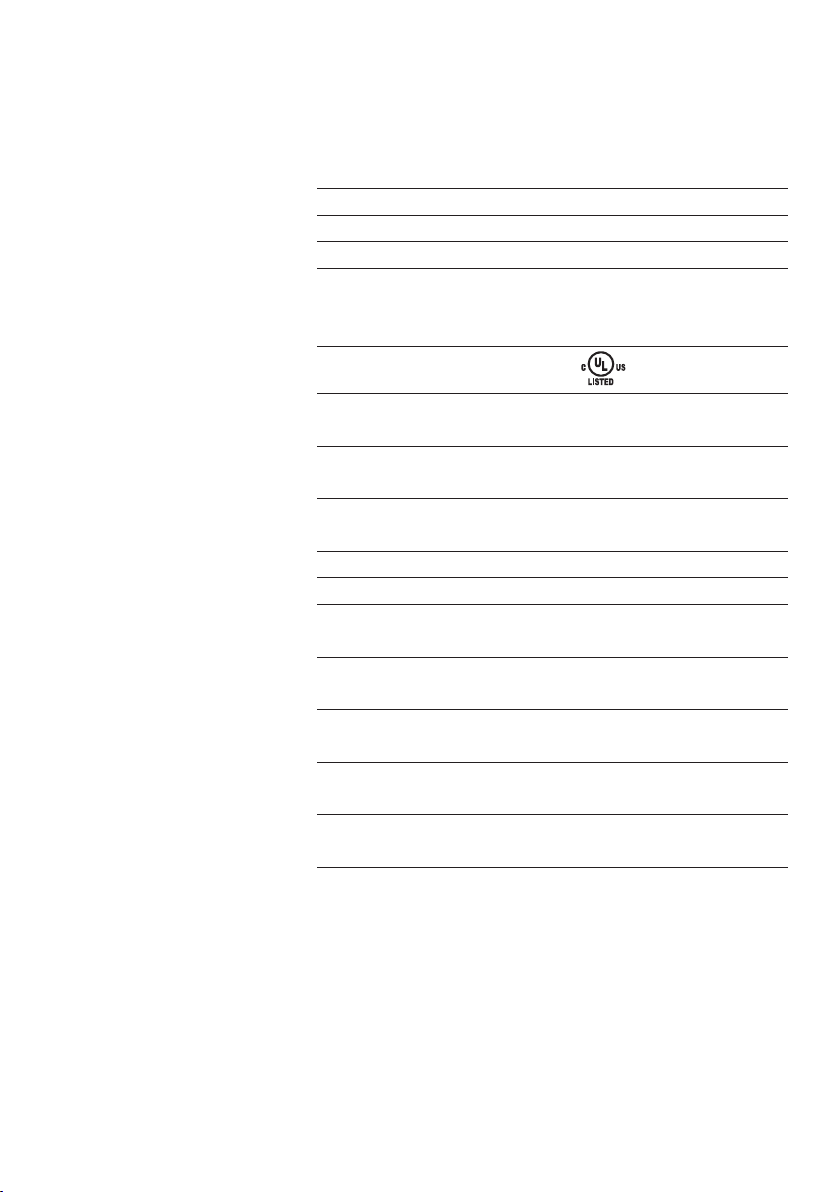
56
9 Technical data
9 Technical data
Voltage 120 V ~, 60 Hz
Power 1250W
Airborne noise emitted L
P<70dB (A)
Ambient conditions Humidity max. 80%
Ambient temperature
50–95 °F (10–35 °C)
Conformity mark
Energy consumption
‘Save energy’/ ‘Save No’
approx. 30Wh
Energy consumption
‘Save energy’/ ‘Save Level1’
approx. 12Wh
Energy consumption
‘Save energy’/ ‘Save Level2’
approx. 15Wh
Pump pressure static, max. 15bar
Holding capacity of water tank 176 oz (5l)
Holding capacity of bean
container
35 oz (1000g)
Holding capacity of coffee
grounds container
max. 40portions
Cable length approx. 47 in.
(approx. 1.2 m)
Weight approx. 40.3 lb
(approx. 18.3kg)
Dimensions (WHD) 14.6 21.7 19.5in.
(37 55 49.6cm)
Information for testers (repeat test in accordance with DIN VDE
0701-0702): The central grounding point (CGP) is located on the
front of the machine below the JURA logo (turn JURA logo anti-
clockwise).
The machine complies with the following directives:
U
Standard UL 1082
U
Canadian Standard CSA C22.2 No. 64
Directives

57
10 Index
10 Index
A
Adding products to the start screen 29
Addresses 60
Adjusting the product settings 26
Aroma preservation cover
Bean container with aroma preservation
cover 8
Automatic switch-off 34, 35
Automatic switch-on 34
B
Background 38
Barista recipes 20
Deactivating 38
Preparation 20
Programming mode 38
Bean container
Bean container with aroma preservation
cover 8
Cleaning 50
Filling 11
Bus bar
Technical data 56
Button
On/Off button 9
P button (programming) 9
C
Cappuccino 16
Cappuccino frother cleaning
Cleaning the milk system 41
Cappuccino frother rinsing
Rinsing the milk system 41
Changing a name 28
Changing the product assigned to a button
29
Classics 25
Cleaning
Bean container 50
Machine 47
CLEARYL Pro Blue filter cartridge
Changing 46
Inserting and activating the filter 45
Coffee 16
Coffee à la carte 16
Coffee grounds container 8
Consistency of grind
Setting the consistency of grind 30
Contact details 60
Cover
Service cover 9
Storage compartment 8
Water tank 8
Cup platform 8
Customer support 60
D
Date 33
Descaling
Machine 48
Water tank 51
Display 9
Display messages 52
Display settings 37, 38
Disposal 55
Double product 17
Drip tray 8
Dual spout
Dismantling and cleaning 43
Height- and width-adjustable dual spout
8
E
Emptying the system 55
Energy-saving mode 32
Errors
Troubleshooting 54
Espresso 16
Expert mode 25
F
Factory settings
Restore factory settings 36
Filler funnel
Filler funnel for ground coffee 8
Filling
Bean container 11
Water tank 10
Filter
Changing 46
Inserting and activating the filter 45
First-time use 11

58
10 Index
G
Grinder
Setting the consistency of grind 30
Ground coffee 19
Measuring spoon for ground coffee 8
H
Hotline 60
Hot water 21
Hot-water spout
Height-adjustable hot-water spout 8
I
Important safeguards
Safety 4
Instant coffee
Ground coffee 19
Internet 10
J
JURA
Contact details 60
Internet 10
L
Language 37
Latte macchiato 16
Locking device 9
M
Machine
Cleaning 47
Descaling 48
Regular maintenance 23
Rinsing the coffee system 41
Setting up 10
Switching off 23
Switching on 22
Maintenance 40
Daily maintenance 22
Regular maintenance 23
Maintenance settings 30
Measuring spoon for ground coffee 8
Messages, display 52
Milk
Connecting milk 15
Milk system
Cleaning 41
Rinsing 41
P
Permanent settings in programming mode
24
Power cord 8
Power switch 8
Preparation 16
At the touch of a button 17
Barista recipes 20
Cappuccino 16
Coffee 16
Espresso 16
Ground coffee 19
Hot water 21
Latte macchiato 16
Ristretto 16
Two specialty coffees 17
Using the product selector 18
Preparation options 16
At the touch of a button 17
Using the product selector 18
Problems
Troubleshooting 54
Product selector 16, 18
Product settings 25
Adjusting 26
Programming mode 24
Adding products to the start screen 29
Automatic switch-off 35
Background 38
Barista recipes 38
Display settings 37
Energy-saving mode 32
Language 37
Maintenance settings 30
Product settings 25
Querying information 39
Renaming a product 28
Restore factory settings 36
Setting the consistency of grind 30
Setting the water hardness 31
Time and date 33
Timer 34
Units 35
Q
Querying information 39
Quick installation 12

59
10 Index
R
Recipes
Barista recipes 20
Regular maintenance 23
Renaming a product 28
Rinsing the coffee system 41
Ristretto 16
Rotary Selection 16
Product selector 18
Rotary Switch 9
S
Safety
Important safeguards 4
Service cover 9
Service socket 9
Settings
Maintenance settings 30
Permanent settings in programming
mode 24
Setting up
Setting up the machine 10
Sliding catch 9
Splash guard 8
Spout
Height-adjustable hot-water spout 8
Height- and width-adjustable dual spout
8
Standard installation 13
Switching off
Machine 23
Switching on
Machine 22
Switch-off
Automatic switch-off 34, 35
Switch-off time 34
Switch-on
Automatic switch-on 34
Switch-on time 34
Symbol description 3
T
Technical data 56
Tel 60
Time 33
Time format
Programming mode 35
Timer 34
Transport 55
Troubleshooting 54
Two products 17
U
Units 35
Use, First-time 11
V
Ventilation slats 8
W
Water hardness
Determining the water hardness 15
Setting the water hardness 31
Water tank 8
Descaling 51
Filling 10
Website 10

60
11 JURA contact details/ Legal information
11 JURA contact details/ Legal information
JURA Elektroapparate AG
Kaffeeweltstrasse 10
CH-4626 Niederbuchsiten
Switzerland
USA: JURA Inc. Canada: FAEMA
Customer Service
Phone
E-Mail
1-800-220-5701
1-(855)-544-8600
info@juracanada.ca
Opening Hours (EST) Mon – Thu 9am – 9pm
Fri 9am – 8pm
Sat 9am – 5pm
Distributor Address
Phone
Fax
20 Craig Road
Montvale, NJ 07645
001 (201) 767-3999
001 (201) 767-9684
115 Matheson Boulevard East
Mississauga, Ontario, L4Z 1X8
1-(905)-501-8600
Internet www.us.jura.com www.ca.jura.com
@ You will find additional contact details for your country at
www.jura.com.
We reserve the right to make technical changes. The diagrams used
in these instructions for use are for illustration purposes only and do
not represent the original colors of the machine. Some details of
your GIGA may vary.
Your opinion is important to us! Use the contact details at
www.jura.com.
The instructions for use contain information which is protected by
copyright. It is not permitted to photocopy these instructions for use
or translate them into another language without the prior written
consent of JURA Elektroapparate AG.
Technical changes
Feedback
Copyright
J72350/GIGA W3/US-en/201509