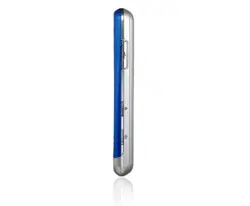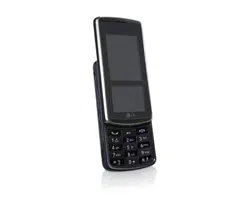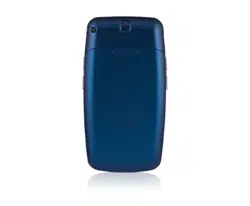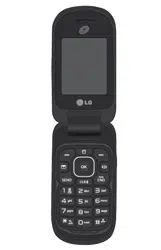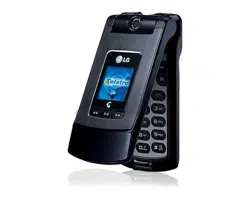
TU500
TU500
USER GUIDE
TU500
P/N : MMBB0222701
(
1.1
)
H
USER GUIDE
USER GUIDE
Some of contents in this manual may differ from your phone depending on the
software of the phone or your service provider.
ENGLISH
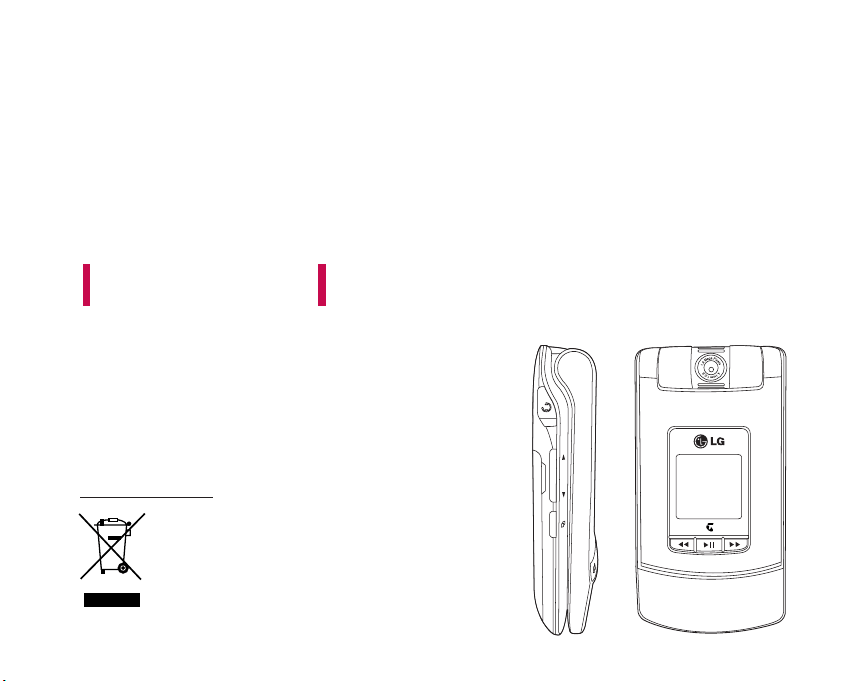
TU500 USER GUIDE
This document is the user guide for the LG TU500 3G Video
Mobile Phone. All rights for this document are reserved by
LG Electronics. Copying, modifying and distributing this
document without the consent of LG Electronics are
prohibited.
1. When this crossed-out wheeled bin symbol is attached to a product it means the
product is covered by the European Directive 2002/96/EC.
2. All electrical and electronic products should be disposed of separately from the
municipal waste stream via designated collection facilities appointed by the government
or the local authorities.
3. The correct disposal of your old appliance will help prevent potential negative
consequences for the environment and human health.
4. For more detailed information about disposal of your old appliance, please contact your
city office, waste disposal service or the shop where you purchased the product.
Disposal of your old appliance
ENGLISH

Table of Contents
2
Table of Contents
Guidelines for safe and
efficient use
6
Parts of the phone 12
Getting started 15
General functions 26
Making and answering calls
Main menu 32
Profiles 33
Alert type
Ringtones
Message Tone 34
Effect tones
Volume
My Media 35
Images
Videos
Sounds 36
Music Player 37
Games & Applications 38
Bluetooth Data 39
Other Files
Memory Card

3
Table of Contents
Recent Calls 40
Missed Calls
Received Calls
Dialled Calls
All Calls
Call Duration 41
Messages 42
New Message
Inbox 47
Email Inbox
Drafts 49
Outbox
Sent 50
Voice Mail
Video Mail
Templates
Settings 51
My Place 56
Address Book 57
New Contact
Contact List
Speed Dial List
Caller Groups
My Numbers
Settings 58

Table of Contents
4
Organiser & Tools 59
Alarm Clock
Calendar
Tasks 60
Notepad 61
Calculator
Unit Converter 62
World Clock
Stop Watch
Date Finder 63
D-Day Counter
Favourites
Camera 64
Ta ke Phot o
Record Video 65
Record Voice 66
Memory Status
Settings 67
Profiles (for SAT USIM)
Date & Time
Phone Settings 68
Call Settings 69
Connectivity 74
Security 80
Memory Status 82
Handset Information 83
Internet
Reset settings 87
Table of Contents

5
Troubleshooting 88
Accessories 90
Table of Contents

Guidelines for safe and efficient use
6
Please read these simple guidelines. Not following
these guidelines may be dangerous or illegal. Further
detailed information is given in this manual.
Certification information (SAR)
THIS DEVICE MEETS INTERNATIONAL
GUIDELINES FOR EXPOSURE TO RADIO WAVES
Your mobile device is a radio transmitter and receiver.
It is designed and manufactured not to exceed the
limits for exposure to radio frequency (RF)
recommended by international guidelines (ICNIRP).
These limits are part of comprehensive guidelines and
establish permitted levels of RF energy for the general
population. The guidelines were developed by
independent scientific organizations through periodic
and thorough evaluation of scientific studies.
The guidelines include a substantial safety margin
designed to assure the safety of all persons,
regardless of age and health. The exposure standard
for mobile devices employs a unit of measurement
known as the Specific Absorption Rate, or SAR.
The SAR limit stated in the international guidelines is
2.0 W/kg*. Tests for SAR are conducted using
standard operating positions with the device
transmitting at its highest certified power level in all
tested frequency bands. Although the SAR is
determined at the highest certified power level, the
actual SAR of the device while operating can be well
below the maximum value. This is because the device
is designed to operate at multiple power levels so as
to use only the power required to reach the network.
In general, the closer you are to a base station, the
lower the power output of the device.
Before a phone model is available for sale to the
public, compliance with the European R&TTE
directive must be shown. This directive includes as
one essential requirement the protection of the
health and the safety for the user and any other
person. The highest SAR value for this device when
tested for use at the ear is 0.805 W/kg.
This device meets RF exposure guidelines when used
either in the normal use position against the ear or
when positioned at least 1.5 cm away from the body.
When a carry case, belt clip or holder is used for
body-worn operation, it should not contain metal
and should position the product at least 1.5 cm
away from your body. In order to transmit data files
Guidelines for safe and efficient use

7
or messages, this device requires a quality connection
to the network. In some cases, transmission of data
files or messages may be delayed until such a
connection is available.
Ensure the above separation distance instructions are
followed until the transmission is completed. The
highest SAR value for this device when tested for use
at the body is 0.087 W/kg.
* The SAR limit for mobile devices used by the public
is 2.0 watts/kilogram (W/kg) averaged over ten
grams of body tissue. The guidelines incorporate a
substantial margin of safety to give additional
protection for the public and to account for any
variations in measurements. SAR values may vary
depending on national reporting requirements and
the network band. For SAR information in other
regions please look under product information at
www.lgmobile.com.
Product care and maintenance
WARNING! Only use batteries, chargers and
accessories approved for use with this particular phone
model. The use of any other types may invalidate any
approval or warranty applying to the phone, and may be
dangerous.
]
Do not disassemble this unit. Take it to a qualified
service technician when repair work is required.
]
Keep away from electrical appliances such as a
TV's, radios or personal computers.
]
The unit should be kept away from heat sources
such as radiators or cookers.
]
Never place your phone in a microwave oven as it
will cause the battery to explode.
]
Do not drop.
]
Do not subject this unit to mechanical vibration or
shock.
]
The coating of the phone may be damaged if
covered with wrap or vinyl wrapper.
]
Do not use harsh chemicals (such as alcohol,
benzene, thinners, etc.) or detergents to clean your
phone. There is a risk of this causing a fire.
Guidelines for safe and efficient use

Guidelines for safe and efficient use
8
]
Do not subject this unit to excessive smoke or
dust.
]
Do not keep the phone next to credit cards or
transport tickets; it can affect the information on
the magnetic strips.
]
Do not tap the screen with a sharp object as it
may damage the phone.
]
Do not expose the phone to liquid or moisture.
]
Use accessories, such as earphones and headsets,
with caution. Ensure that cables are tucked away
safely and do not touch the antenna unnecessarily.
]
Please remove the data cable before powering on
the handset.
Efficient phone operation
To enjoy optimum performance with minimum power
consumption please:
]
Do not hold the antenna when the phone is in use.
If you hold it, it can affect call quality, it may also
cause the phone to operate at a higher power level
than needed and shorten talk and standby times.
Electronic devices
All mobile phones may get interference, which
could affect performance.
]
Do not use your mobile phone near medical
equipment without requesting permission. Avoid
placing the phone over pacemakers (i.e. in your
breast pocket.)
]
Some hearing aids might be disturbed by mobile
phones.
]
Minor interference may affect TVs, radios, PCs, etc.
Road safety
Check the laws and regulations on the use of mobile
phones in the areas when you drive.
]
Do not use a hand-held phone while driving.
]
Give full attention to driving.
]
Use a hands-free kit, if available.
]
Pull off the road and park before making or
answering a call if driving conditions so require.
Guidelines for safe and efficient use

9
]
RF energy may affect some electronic systems in
your motor vehicle such as a car stereo or safety
equipment.
]
If your vehicle is equipped with an air bag, do not
obstruct it with installed or portable wireless
equipment. It can cause serious injury due to
improper performance.
If you are listening to music whilst out and about,
please ensure that the volume is at a reasonable
level so that you are aware of your surroundings.
This is particularly imperative when attempting to
cross the street.
Avoid damage to your hearing
Damage to your hearing can occur if you are exposed
to loud sound for long periods of time. We therefore
recommend that you do not turn on or off the
handset close to your ear. We also recommend that
music and call volumes are set to a reasonable level.
Blasting area
Do not use the phone where blasting is in progress.
Observe restrictions, and follow any regulations or
rules.
Potentially explosive atmospheres
]
Do not use the phone at a refueIling point. Don't
use near fuel or chemicals.
]
Do not transport or store flammable gas, liquid, or
explosives in the compartment of your vehicle,
which contains your mobile phone and accessories.
In aircraft
Wireless devices can cause interference in aircraft.
]
Turn off your mobile phone before boarding any
aircraft.
]
Do not use it on the ground without crew
permission.
Guidelines for safe and efficient use

Guidelines for safe and efficient use
10
Children
Keep the phone in a safe place out of small children's
reach. It includes small parts which if detached may
cause a choking hazard.
Emergency calls
Emergency calls may not be available under all mobile
networks. Therefore, you should never depend solely
on your mobile phone for emergency calls. Check
with your local service provider.
Battery information and care
]
You do not need to completely discharge the
battery before recharging. Unlike other battery
systems, there is no memory effect that could
compromise the battery's performance.
]
Use only LG batteries and chargers. LG chargers are
designed to maximize the battery life.
]
Do not disassemble or short-circuit the battery
pack.
]
Keep the metal contacts of the battery pack clean.
]
Replace the battery when it no longer provides
acceptable performance. The battery pack may be
recharged hundreds of times until it needs
replacing.
]
Recharge the battery if it has not been used for a
long time to maximize usability.
]
Do not expose the battery charger to direct
sunlight or use it in high humidity, such as the
bathroom.
]
Do not leave the battery in hot or cold places, this
may deteriorate the battery performance.
Driver Safety Tips
Your wireless telephone gives you the powerful
ability to communicate by voice - almost anywhere,
anytime. But an important responsibility
accompanies the benefits of wireless phones, one
that every user must uphold.
When driving a car, driving is your first
responsibility. When using your wireless phone
behind the wheel of a car, practice good common
sense and remember the following tips:
Guidelines for safe and efficient use

11
]
Use a hands free device. If possible, add an
additional layer of convenience and safety to your
wireless phone with one of the many hands free
accessories available today.
]
Let the person you are speaking with know you are
driving; if necessary, suspend the call in heavy
traffic or hazardous weather conditions. Rain, sleet,
snow, ice and even heavy traffic can be hazardous.
]
Do not take notes or look up phone numbers while
driving. Jotting down a “to do” list or flipping
through your address book takes attention away
from your primary responsibility, driving safely.
]
If possible, place calls when you are not moving or
before pulling into traffic. Try to plan calls when
you will not be driving.
]
Do not engage in stressful or emotional
conversations that may be distracting. Make
people you are talking with aware you are driving
and suspend conversations that have the potential
to divert your attention from the road.
]
Use your wireless phone to call emergency services
for yourself or others. Dial 0-0-0 local emergency
number in the case of fire, traffic accident or
medical emergencies. Remember, it is a free call on
your wireless phone!
]
Use your wireless phone to help others in
emergencies, if you see an auto accident crime in
progress or other serious emergency where lives
are in danger, call 0-0-0 to call emergency number,
as you would want others to do for you.
]
Call roadside assistance or a special non-emergency
wireless assistance number when necessary. If you
see a broken down vehicle posing no serious hazard,
a broken traffic signal, a minor traffic accident where
no one appears injured, or a vehicle you know to be
stolen, call roadside assistance or other special non-
emergency wireless number.
Guidelines for safe and efficient use
Parts of the phone
12
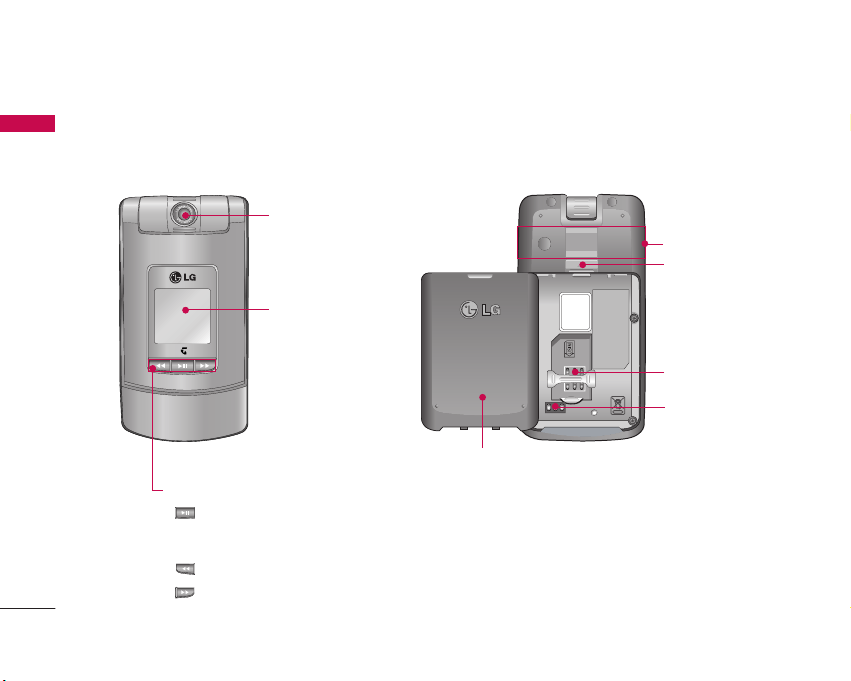
Parts of the phone
Camera lens
Front view
Rear view
Battery terminals
USIM card socket
Music player hot keys
: (Long press) Launches/Stops the music player.
(Short press) Plays/Pauses the music in the
music player.
: Previous track/ Rewind
: Next track/ Fast forward
Battery
release latch
Front screen
Battery
Antenna
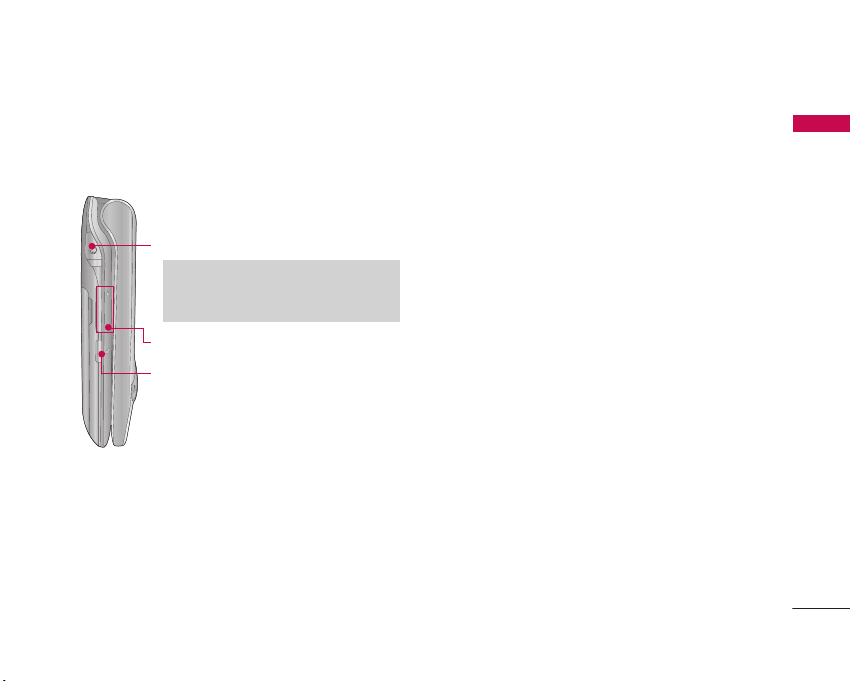
13
Parts of the phone
Task menu key
Multitask simultaneously with voice and data -
browse the web, make calls, play games, send and
receive messages, and listen to MP3s. All at once.
When you want to start a new task while a
task is running already
For example, to play a MP3 file while you write a
message:
1. Press and hold the Task menu key. You can also
press the Task key shortly and select the menu by
pressing the Left soft key to go to the same
screen.
2. Select MP3 Player. The Multitasking icon will
appear on the annunciator area.
3. Play a music file you want to listen to.
When you want to identify running tasks
and enter the menu for a task among them
For example, to move to Music Player while you write
a message:
1. Press the Task menu key.
2. The Task Menu will be displayed.
3. Identify the running tasks using the Right and Left
keys.
4. Select the Music Player task from the menu and
press OK. You will be moved to the selected task.
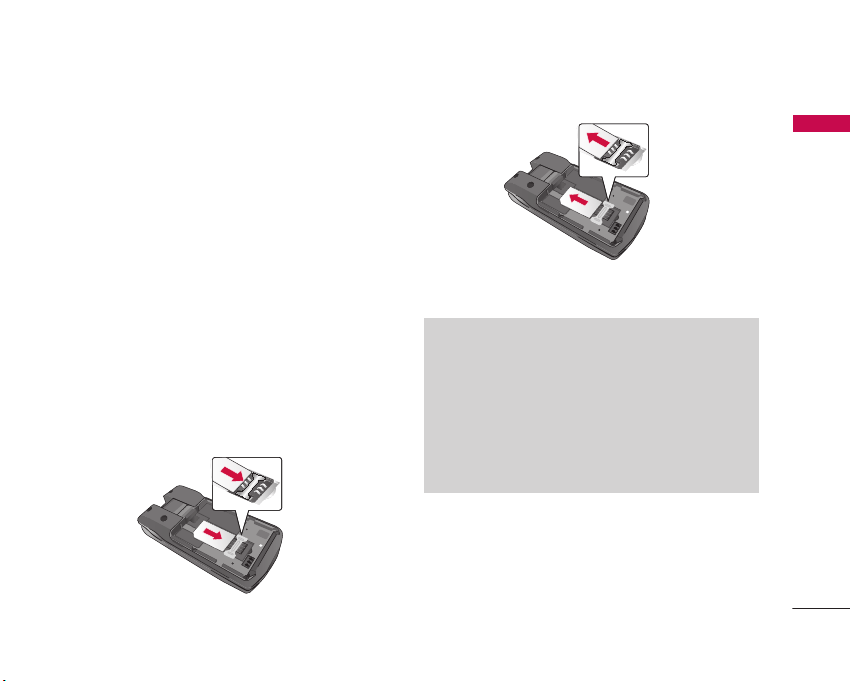
Left side view
Volume keys
Stereo headset connector
Note
]
Connect jack to fit the shape of terminal.
Otherwise, product can be damaged.
Task menu key

Parts of the phone
14
Parts of the phone
OK key+4-way navigation key
Camera key
Microphone
Video call/ Call list key
Send key
Right soft key
Activates the prompts displayed on
screen in the right soft box.
Clear key/ Handsfree key
Long press during a call activates
or deactivates handsfree.
Open view
End/ Power key
Speaker
Left soft key
Activates the prompts displayed
on screen in the left soft box.
Camera lens
Main screen
Getting started
15
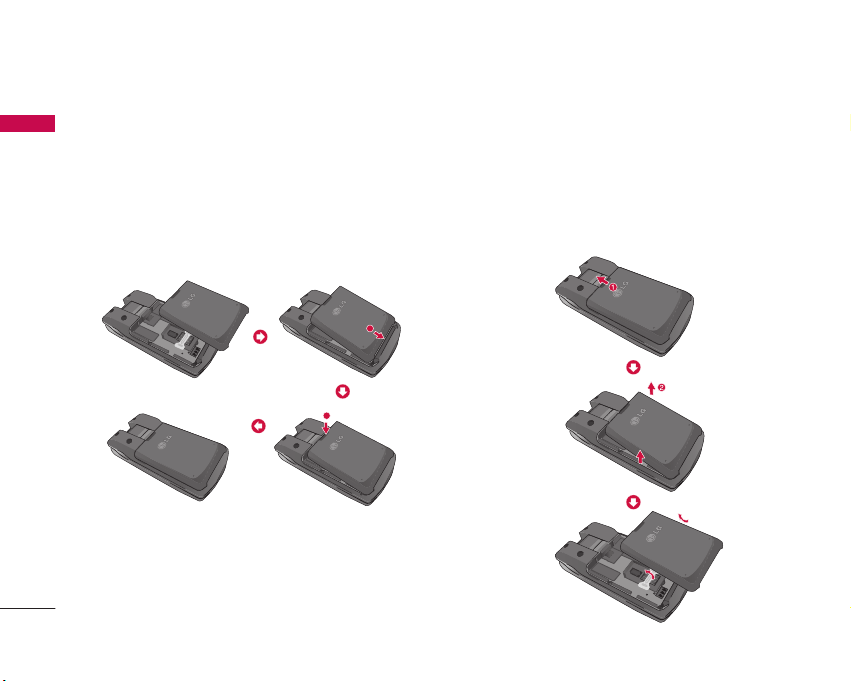
Installing the USIM card and battery
1. Install the USIM card.
Your USIM card contains your phone number,
service details and contacts and must be inserted
into your handset.
If your USIM card is removed then your handset
becomes unusable (except emergency calls) until a
valid USIM is inserted. Always disconnect the
charger and other accessories from your handset
before inserting and removing your USIM card.
Slide the USIM card into the USIM card holder.
Make sure that the USIM card is properly inserted
and the gold contact area on the card is facing
downwards. To remove the USIM card, press down
lightly and pull it in the reverse direction.
Getting started
To insert the USIM card
To remove the USIM card
Notice
]
Before installing always make sure that the
phone is switched off and remove the battery.
The metal contact of the USIM card can be
easily damaged by scratches. Pay special
attention to the USIM card while handling and
installing. Follow the instructions supplied with
the USIM card.
Getting started
16
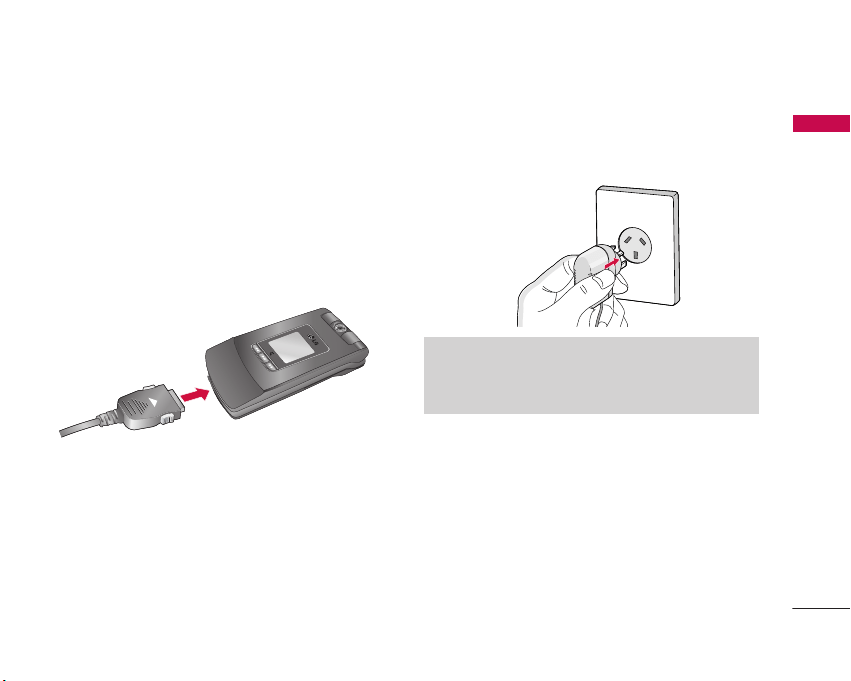
2. Install the battery.
Insert the battery aligning the gold contacts on
the battery with the battery terminals (gold
contacts) in the battery compartment. Then push
down the top of the battery until it snaps into
space.
To remove the battery
Turn the power off. (If power is left on, there is a
chance you could lose the stored telephone
numbers and messages.) Press the battery release
latches 1 and open the battery 2. Then remove
the battery.
Getting started
2
1
2
22
2
17
Charging the battery
To connect the travel adapter to the phone, you
must first install the battery.
1. With the arrow facing you as shown in the diagram
push the plug on the battery adapter into the
socket on the right side of the phone until it clicks
into place.
2. Connect the other end of the travel adapter to
the mains socket. Use only the charger included in
the box.
Please note that the handset can take up to 35
seconds to commence charging if the handset is off
when connected to the charger.
Getting started
Warning!
]
Do not force the connector as this may damage
the phone and/or the travel adapter.
Getting started
18
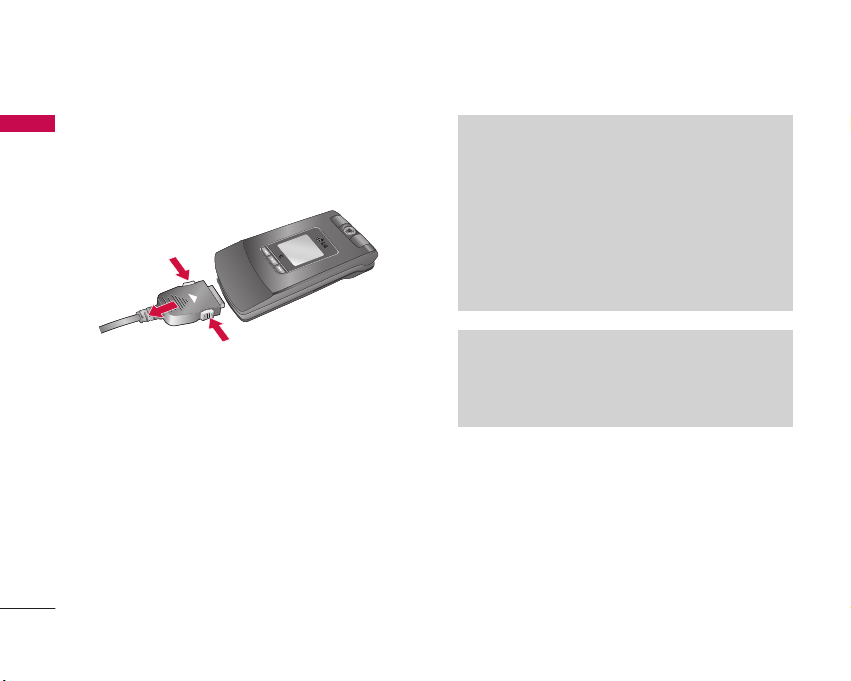
Disconnecting the charger
Disconnect the charger from the phone by pressing
the side buttons as shown in the diagram.
Getting started
Note
]
Ensure the battery is fully charged before using
the phone.
]
Do not remove your battery or the USIM card
while charging.
]
The moving bars of the battery icon will stop
after charging is complete.
]
If the battery is completely discharged, the
charge could take some minutes before starting.
Note
If the battery does not charge,
]
switch the phone off.
]
ensure the battery is fitted correctly.
19
How to use a microSD memory
card
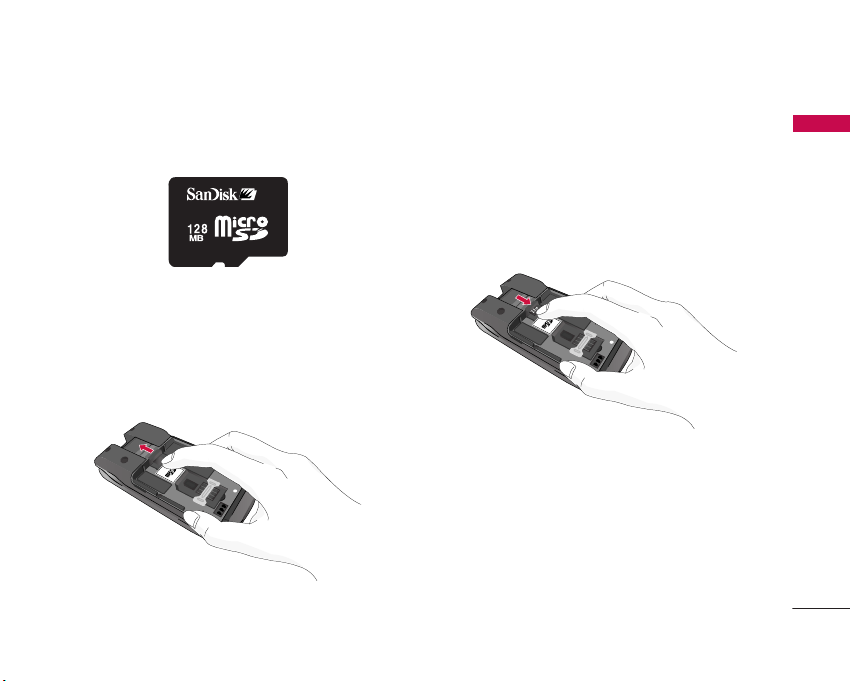
<How to insert a microSD memory card>
1. Power off the phone.
2. Lift the plastic cover which protects the microSD
slot.
3. Insert the memory card in the slot. The gold
contacts must be kept on the back of the
microSD. Don’t push the microSD too much. If it
cannot enter easily in the slot, you may be trying
to insert it in the wrong way or there could be a
foreign object in the slot.
Getting started
<MicroSD memory card>
Getting started
20
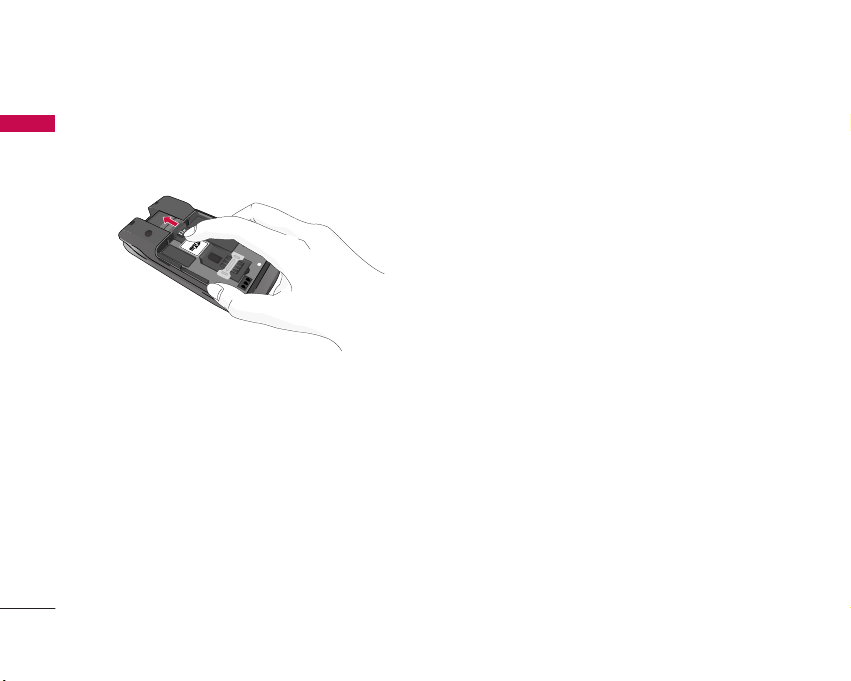
4. Once inserted, push the memory card until you
hear a “click”, meaning that the microSD has been
correctly locked.
5. Close the slot plastic protection.
6. To remove the memory card, power off the phone,
open the slot protection and push the microSD to
unlock it. Carefully extract the memory card.
Attention:
]
Avoid using the Flash Memory Card when the
battery is low.
]
When writing to the card, wait for the operation to
complete before removing the card.
]
The card is designed to fit easily into the system
one way only.
]
Do not bend the card or force it into the slot.
]
Do not insert any other kind of memory cards
different from microSD.
For more information on the microSD, please refer to
the instructions manual of the memory card.
Memory card formatting
Before start using memory card it's necessary to
format it. After you insert memory card, select Menu-
Settings - Reset settings - Clear memory - Memory
Card, then press OK. This operation should be done
only when you insert memory card for the first time.
During formatting various folders will be created for
different data types.
Getting started

21
Turning your handset on
Ensure that your USIM card is in your handset and
the battery is charged. Press and hold the key
until power is on. Enter the USIM PIN code that was
supplied with your USIM card if PIN code setting is
on. After a few seconds you will be registered on the
network.
Turning your handset off
Press and hold the key until power is off. There
may be a few seconds delay while the handset
powers down.
Do not re-power the handset during this time.
Access codes
You can use the access codes described in this
section to avoid unauthorized use of your phone.
The access codes (except PUK and PUK2 codes) can
be changed by using the Change codes feature
[Menu 9.6.3].
PIN code (4 to 8 digits)
The PIN (Personal Identification Number) code
protects your USIM card against unauthorized use.
The PIN code is usually supplied with the USIM card.
When the PIN Code Request is set to Enable, your
phone will request the PIN code every time it is
switched on. When the PIN Code Request is set to
Disable, your phone connects to the network directly
without the PIN code.
PIN2 code (4 to 8 digits)
The PIN2 code, supplied with some USIM cards, is
required to access functions such as Fixed Dial
Number. These functions are only available if
supported by your USIM card.
PUK code (4 to 8 digits)
The PUK (PIN Unblocking Key) code is required to
unlock a blocked PIN code. The PUK code may be
supplied with the USIM card. If not, contact your
network operator’s customer service for the code. If
you lose the code, contact your network operator’s
customer service.
Getting started

Getting started
22
PUK2 code (4 to 8 digits)
The PUK2 code, supplied with some USIM cards, is
required to unlock a blocked PIN2 code. If you lose
the code, contact your network operator’s customer
service.
Security code (4 to 8 digits)
The security code protects the unauthorized use of
your phone. The default security code is set to
‘0000’ and the security code is required to delete all
phone entries and to restore the handset to factory
setting.
Display information
No USIM idle screen
This is the initial screen of the phone that appears
when there is no USIM card installed in the phone, or
the installed USIM card is invalid. In this screen, users
can only make emergency calls, and turn the phone
off. To turn off the phone, press and hold the End
key for a few seconds.
Screen structure
If there is no USIM card installed, an animation telling
you to insert a USIM card appears. If the USIM card
inserted into the phone is invalid, an animation telling
you that the USIM card is locked appears.
Emergency call function
Emergency calls can be made with or without a SIM
in the handset. When in Australia, key 000 then
press the Send key. To access the local emergency
service when roaming, key 112 then press Send key.
Idle screen
The idle screen appears when you have installed a
proper USIM card and turned the phone on.
Screen structure
Idle screen consists of the operator’s name,
indicators, date and time on a background image. You
can change the wallpaper in the display settings
menu.
Getting started
23
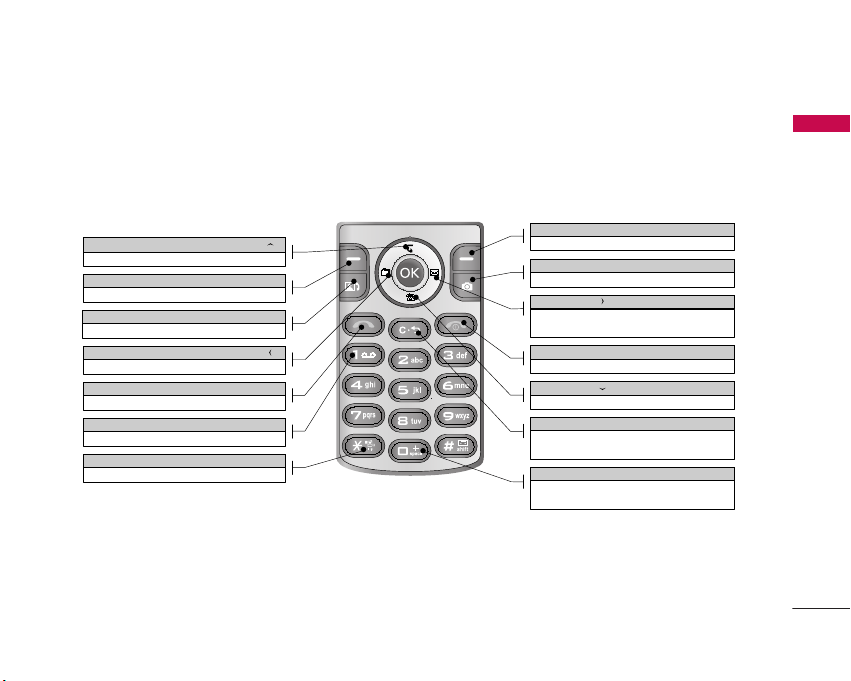
Key functions
The functions of the keys in the idle screen status are described below.
Getting started
Direction key ( )
Short-cut for "Telstra Services"
Left soft key
Opens the menu screen
Video call key (Call register: in idle mode)
Recent calls
Direction key ( )
Short-cut for "My Media"
Send key
Recent calls
1key
Long: Voice mail
*key
Long: Switches to Vibrating mode
Right soft key
Connects to Telstra BigPond
Camera key
Opens the camera module
Direction key
()
Short: Message writing field
Long: Short-cut for "Messages"
End key
Short : No Func. / Long : Poweroff
Direction key ( )
Short-cut for address book search
Clear key
Short: Deletes a character
Long: Deletes all characters
0 key
Short: 0
Long: International call character "+"

Getting started
24
Numbering screen
The numbering screen appears when a number key is
pressed in the idle screen.
Screen structure
The numbering screen consists of status indicators,
dialled number, and soft menu. Status indicators are
the same as that of the idle screen. You can change
the size and colour of the dialling font in the display
settings menu. You can make a call while dialling a
phone number by pressing the Send or Video Call
key.
Soft key
You can use the soft keys for several functions while
dialling a number. Using the left soft key, you can
save the current number to Contacts, you can send a
message to the number, you can search for the
number in Contacts and you can make a voice
call/video call.
Handset lock screen
When the Handset Lock function is selected, you can
only make an emergency call, release the lock, and
turn off the phone in this screen. As always, you can
turn the phone off by pressing and holding the End
key for a few seconds.
Screen structure
The screen structure of the Handset Lock screen is
the same as that of the idle screen, except that the
lock message appears instead of the idle screen.
Emergency call function
You can still make an emergency call when the
handset is locked. Simply dial 000 or 112 emergency
numbers as normal, then press Send. Only
Emergency calls are allowed to be dialled when the
handset is locked.
Getting started

25
Unlock function
If you press the OK key, a popup screen appears
asking you to input the Security code to unlock the
phone. The Security code is configured by selecting
Settings > Security > Change Codes. If you key in
an incorrect Security Code, the phone will remain in
Handset Lock status. If you key in the correct
Security Code, the phone will be unlocked, and the
idle screen will be displayed. If you have turned the
phone off in the Handset Lock status, you will find
the phone remains in Handset Lock status when you
turn it on.
Getting started

General functions
26
Making and answering calls
Ensure you tell the other party before recording a
voice call.
Making and answering a video call
You can make a video call in a 3G covered service
area. If the called user has a 3G video phone in a 3G
covered service area, the call will be established. You
can also answer a video call for video incoming call.
To make/answer a video call, do the following.
1. Input the phone number using the keypad, or
select the phone number from the calls
made/received lists.
]
To correct mistakes, press the key briefly to
delete the last number, or press and hold the
key to delete all numbers.
2. If you do not want to use the speakerphone,
ensure you have the headset plugged in.
3. To start the video function, press .
]
You will be notified that you will need to close
other applications to make the video call.
4. Adjust the camera position if necessary.
5. You can access the following options by pressing
the right soft key [Options].
]
End Call
]
Mute
]
Private mode
]
Hide My Picture
]
Hold
]
Capture
]
View sender number
]
Settings: You can set the camera related options.
- Zoom: x1 / x2
General functions
Note
]
The video call may take some time to connect.
Please be patient. The connection time will also
depend on how quickly the other party answers
the call. While the video call is connecting, you
will see your own images; after the other party
has answered, their image will be displayed on
screen.
27
- Night Mode: On / Off
- Quality: Super Fine / Fine
- Rev Cam: None / Water(Turns the image
upside down)
]
Others
- Contacts: You can save the number in the
Address Book.
- Messaging: You can send a text message or a
multimedia message.
- Email: You can send an email.
- Write Note: You can take notes.
6. Press the end key to finish the call, or close the
handset.
Making a voice call
1. Enter the number including the full area code.
]
To delete a digit press the key.
To delete all digits press and hold the key.
2. Press the key to make the call.
3. Press the key to finish the call, or close the
handset.
Making a voice/video call from Contacts
It is easy to call anyone whose number you have
stored in your Contacts.
Press the down navigation key to access the contacts
list. Scroll to your chosen contact. Press the key
to make a voice call, or key to make a video call.
Press the key to finish the call.
Making international calls
1. Press and hold the key for the international
General functions
Note
]
To activate the speakerphone during a call,
press and hold the key for at least 2 secs.
Note
]
When in a Video Call:
If the camera is rotated away from the user, the
image transmitted to the other person will
appear upside down. To reverse the image being
transmitted, simply press the Camera button on
the keypad. Pressing the Camera button again
will reverse the image again.

General functions
28
General functions
prefix. The ‘+’ character can be replaced with the
international access code.
2. Enter the country code, area code, and the phone
number.
3. Press the key.
Adjusting the volume
During a call, if you want to adjust the earpiece
volume, use the side keys of the handset. In idle
mode with the flip cover open, you can adjust the
key volume using the side keys.
Answering a call
When you receive a call, the phone rings and the
flashing phone icon appears on the screen. If the
caller can be identified, the caller’s phone number (or
name if stored in your Contacts) is displayed.
1. Open the flip and press the key to answer an
incoming call. If the answer mode is set to Press
any key, any key will answer a call except for the
key.
Note
]
To reject an incoming call, press the key or
the right soft key twice.
]
If you set “Answer mode” as “Open flip” (Menu
9.4.8), you can answer the call simply by
opening the flip.
2. End the call by closing the handset or pressing the
key.
Signal strength
If you are inside a building, being near a window may
give you better reception. You can see the strength
of your signal by the signal indicator see the strength
( ) on your handset's display screen.
Entering text
You can enter alphanumeric characters using the
keypad.
For example, storing names in the Contacts, writing a
message, creating a personal greeting or scheduling
events in the calendar all require entering text.
Following text input methods are available in the
handset.
Note
]
You can answer a call while using the Contacts
or other menu features.

29
General functions
T9 mode
This mode lets you enter words with only one
keystroke per letter. Each key on the keypad has
more than one letter. The T9 mode automatically
compares your keystrokes with an internal
dictionary to determine the correct word, thus
requiring far fewer keystrokes than the traditional
ABC mode. This is sometimes known as predictive
text.
ABC mode
This mode lets you enter letters by pressing the
key labeled with the required letter once, twice,
three times or more until the correct letter is
displayed. Press and hold down until Abc
mode is displayed.
123 mode (Number mode)
Type numbers using one keystroke per number. To
change to 123 mode in a text entry field, press
key until 123 mode is displayed.
Changing the text input mode
1. When you are in a field that allows characters to
be entered, you will notice the text input mode
indicator in the upper right corner of the display.
2. You can change the text input mode between T9
mode and ABC mode by a long press of .
And you can change upper and lower case of the
mode by a short press of .
Using the T9 Mode
The T9 predictive text input mode allows you to
enter words easily with a minimum number of key
presses. As you press each key, the handset begins to
display the characters that it thinks you are typing
based on a built-in dictionary. As new letters are
added, the word changes to reflect the most likely
candidate from the dictionary.
1. When you are in the T9 predictive text input
mode, start entering a word by pressing keys
to . Press one key per letter.
]
The word changes as letters are typed. Ignore
what’s on the screen until the word is typed
completely.
General functions
30
General functions
]
If the word is still incorrect after typing
completely, press the key once or more to
cycle through the other word options.
Example
Press to type Good.
Press the key to get Home.
]
If the desired word is missing from the word
choices list, add it by using the ABC mode.
2. Enter the whole word before editing or deleting
any keystrokes.
3. Complete each word with a space by pressing the
key.
To delete letters, press the key. Press and hold
down the key to erase entire words.
Using the ABC Mode
Use the to keys to enter your text.
1. Press the key labelled with the required letter:
]
Once for the first letter
]
Twice for the second letter
]
And so on
2. To insert a space, press the key once. To
delete letters, press the key. Press and hold
down the key to clear the display. Refor to
the following table for more information on the
characters available using the alphanumeric keys.
Key
Lower case Upper case
. , ` @ ? ! - : / 1 . , ` @ ? ! - : / 1
a b c 2 A B C 2
d e f 3 D E F 3
g h i 4 G H I 4
j k l 5 J K L 5
m n o 6 M N O 6
p q r s 7 P Q R S 7
t u v 8 T U V 8
w x y z 9 W X Y Z 9
Space, 0 Space, 0
Characters in the order display

31
Using the 123 (Number) mode
The 123 Mode enables you to enter numbers in a
text message (a telephone number, for example).
Press the keys corresponding to the required digits
before manually switching back to the appropriate
text entry mode.
Using the symbol mode
The symbol mode enables you to enter various
symbols or special characters. To enter a symbol,
select [Options] > [Insert] > [Symbol]. Use the
navigation and numeric keys to select the desired
symbol and press the key.
Using the hands-free
During a voice call the Centre Soft Key is labelled
Spk. On. Pressing the OK key activates the speaker
so that you can use the handset in handsfree mode.
The Centre Soft Key will change to Spk. Off when
the speaker is active, press the OK key again to
resume normal handset conversation mode.
General functions

32
Main menu
Main menu
You can launch a menu by pressing the OK key in the idle screen. Move to a desired item and press the OK key
to go into the sub menu.
From main menu you can also go into a submenu by directly pressing the corresponding numeric key as follows.
The main menu consists of the following top menus and sub menus.
1. SAT services
(with network operator
specific service name
stored on USIM card)/
Profiles
(If SAT not supported by
USIM)
2. My Media
2.1 Images
2.2 Videos
2.3 Sounds
2.4 Music Player
2.5 Games & Applications
2.6 Bluetooth Data
2.7 Other Files
2.8 Memory Card
3. Recent Calls
3.1 Missed Calls
3.2 Received Calls
3.3 Dialled Calls
3.4 All Calls
3.5 Call Duration
4. Messages
4.1 New Message
4.2 Inbox
4.3 Email Inbox
4.4 Drafts
4.5 Outbox
4.6 Sent
4.7 Voice Mail
4.8 Video Mail
4.9 Templates
4.0 Settings
5. My Place
This menu contains links
to useful Telstra services.
6. Address Book
6.1 New Contact
6.2 Contact List
6.3 Speed Dial List
6.4 Caller Groups
6.5 My Numbers
6.6 Settings
7. Organiser & Tools
7.1 Alarm Clock
7.2 Calendar
7.3 Tasks
7.4 Notepad
7.5 Calculator
7.6 Unit Converter
7.7 World Clock
7.8 Stop Watch
7.9 Date Finder
7.0 D-Day Counter
7.* Favourites
8. Camera
8.1 Take Photo
8.2 Record Video
8.3 Record Voice
8.4 Memory Status
9. Settings
9.1 Profiles (for SAT USIM)
9.2 Date & Time
9.3 Phone Settings
9.4 Call Settings
9.5 Connectivity
9.6 Security
9.7 Memory Status
9.8 Handset Information
9.9 Internet
9.0 Reset Settings

Profiles
33
Depending on the support or not of SAT (i.e. SIM
Application Toolkit) services on the USIM card, the
menu 1 may be different.
In case the USIM card supports SAT services, this
menu will be the operator specific service name
stored on the USIM card, for instance “Special”.
Please refer in that case to the information provided
with your USIM card for further information on how
to use the related options.
In case the USIM card does not support SAT
services, menu 1 will be “Profiles” and allows you to
select or customize some of the alert profiles. The
following describes this menu Profiles.
You can select ringtone or vibration for an incoming
call and configure the sound and volume of the
ringtone, button sound, and sound effect, according
to a profile. The profiles provided include [General],
[Silent], [Outdoor], [Vibrate], [Headset], [Car],
[User defined 1], and [User defined 2]. Select a
profile, and press the OK button to activate the
profile. The [Silent], [Vibrate], [Headset], and [Car]
profiles do not have an Option menu. Move the
cursor to the corresponding profile. Then menus
available are displayed on the softbar below the
screen. Select the Edit menu for [General],
[Outdoor], [Headset], [Car], [User defined 1] &
[User defined 2] profile to change the configuration.
The different list of options available when each
profile has been selected for editing.
1. Alert type
2. Ringtones
3. Message Tone
4. Effect tones
5. Volume
Alert type
This option determines the incoming call notification
mode. You can select from [Ringing], [Vibrate], [Light
Only], [Ring & vibration], [Vibration after ring], [Ring
after Vib.], [Max. ring & vibration].
Ringtones
Voice Call Tone: This option determines the
incoming Voice telephony call alert.
Video Call Tone: This option determines the
incoming Video telephony call alert.
Profiles

Profiles
34
Profiles
Message Tone
This option determines the alert tone to be played
by the phone upon receiving a message.
Effect tones
Key Tone: You can set whether to emit the key tone
when pressing the keys or not.
Feedback Tone: You can set whether to emit the
feedback tone or not.
Volume
You can set the volume of Ringtone, Key Tone, Call
and Multimedia from 7 available levels.

My Media
35
Images MENU 2.1
This menu consists of embedded links for
downloading images through the Internet, Ta k e
Photo menu, Make Animated GIF and Default
images. Photos taken using the camera are stored in
the Images folder and you can create new folders to
manage them. You can also save selected files as
animated GIFs using Make Animated GIF menu.
When a file is selected, the following options are
available using the right soft key [Options].
]
Set As: You can set the selected image file as
Wallpaper or Picture ID.
]
Send Via: You can send the selected image via
Multimedia message, Email or Bluetooth.
]
Delete (Not available for default images): Deletes
the selected image.
]
Rename (Not available for default images): You
can rename the image file.
]
Move (Not available for default images): You can
move the file to Handet Memory, Memory Card or
Bluetooth Data.
]
Copy: You can copy the file to Handet Memory,
Memory Card or Bluetooth Data.
]
Sort By: You can sort the files by name, date, or
file type.
]
Delete All: You can delete all the files. The default
images will not be deleted.
]
Multi Delete: You can delete multiple files at one
time. After selecting files by pressing the OK key
[Select], press the left soft key [Delete].
]
New Folder: You can create a new folder.
]
Icon View/ List View: You can view the images as
Icon view or List view.
]
Information: Shows information on the selected
image file.
Videos MENU 2.2
This menu consists of embedded links for
downloading videos through the Internet and Record
Video menu. Video clips recorded using the camera
are stored in Videos folder and you can create new
folders to manage them. Here, you can manage or
send downloaded or recorded video clips.
My Media

My Media
36
When a file is selected, the following options are
available using the right soft key [Options].
]
Send Via: You can send the selected video clip via
Multimedia message, Email or Bluetooth.
]
Delete (Not available for default videos): Deletes
the selected video clip.
]
Rename (Not available for default videos): You can
rename the video file.
]
Move (Not available for default videos): You can
move the file to Handet Memory, Memory Card or
Bluetooth Data.
]
Copy: You can copy the file to Handet Memory,
Memory Card or Bluetooth Data.
]
Sort By: You can sort the files by name, date, or file
type.
]
Delete All: You can delete all the files.
]
Multi Delete: You can delete multiple files at one
time. After selecting files by pressing the OK key
[Select], press the left soft key [Delete].
]
New Folder: You can create a new folder.
]
Icon View/ List View: You can view the files as Icon
view or List view.
]
Information: Shows information on the selected
video file.
You can play the video clip by pressing the OK key
[Play]. To pause the playback, press the OK key
[Pause] during the playback. To resume the paused
playback, press the OK key once again. You can
access the following option menus by pressing the
right soft key [Options].
]
Repeat: You can set the repeat option from One,
All and Off.
]
Send Via: You can send the selected video clip via
Multimedia message, Email or Bluetooth.
]
Capture: You can save what is on the paused
screen as an image file.
]
Rename: You can rename the video file.
]
Landscape View: You can view the video in
Landscape view.
]
Information: Shows information on the video file.
Sounds MENU 2.3
This menu consists of embedded links for
downloading sounds through the Internet and
Record Voice menu. Voice clips recorded using the
My Media

37
recorder are stored in Sounds folder and you can
create new folders to manage them. Here, you can
manage or send downloaded or recorded voice clips.
When a file is selected, the following options are
available using the right soft key [Options].
]
Set As: You can set the selected sound as
Ringtone or Ringtone ID.
]
Send Via: You can send the selected sound via
Multimedia message, Email or Bluetooth.
]
Delete (Not available for default sounds): Deletes
the selected sound file.
]
Rename (Not available for default sounds): You
can rename the sound file.
]
Move (Not available for default images): You can
move the file to Handset Memory or Bluetooth
Data.
]
Copy: You can copy the file to Handset Memory
or Bluetooth Data.
]
Sort By: You can sort the files by name, date, or
file type.
]
Delete All: You can delete all the files. The default
sounds will not be deleted.
]
Multi Delete: You can delete multiple files at one
time. After selecting files by pressing the OK key
[Select], press the left soft key [Delete].
]
New Folder: You can create a new folder.
]
Information: Shows information on the selected
sound file.
Music Player MENU 2.4
Now playing
This menu will be activated when there are some
tracks currently played.
All Songs
You can view the entire music files in the phone.
My Media
Note
If Music Player is minimised while playing music,
you can access the music player by pressing the
Task Menu key or by My Media > Music Player
> Now Playing.

My Media
38
Playlists
You can create your own playlists by choosing tracks
from the All Songs menu list.
Shuffle Songs
Plays music files in random order.
Settings
Set Shuffle: Select whether to set shuffle feature On
or Off.
Set Repeat: Allows you to set the play mode from
One, All and Off.
Visualization: Allows you to select the desired
equalizer on the main screen.
Equalizer: Allows you to select the desired sound
style.
Games & Applications MENU 2.5
You can easily download games and other
applications by selecting Download More. The
downloaded applications will be stored in the ‘Games
& Applications’ folder by default. Please note that
additional cost may occur when using online services.
You can access the following menus by pressing the
right soft key [Options].
]
Java Accounts
1. Adding a new Java account
Press the right soft key [Options] and select
New Account.
The following items need to be configured.
Press the left soft key [Save] to save the
configuration settings.
My Media
Account Name JAVA settings account name.
Proxy Choose from Enable and Disable.
Proxy Address WAP Gateway IP address provided by the
operator. (e.g. 195. 115. 025. 129)
Port Number Port details are provided by operator.
User Name Enter the user name of the Java account.
Password Enter the Java account password.
Access Points Access point setting for the corresponding
service. (More details for adding or editing
new Access point refer page 78)

39
2. Activating a Java account
Move the cursor to the account which you
would like to activate and press the left soft key
[Activate].
3. Editing a Java account
Press the right soft key [Options] and select
Edit. The default Java account cannot be
edited.
]
Information: You can check the memory status
and current Java version.
Bluetooth Data MENU 2.6
The files received using Bluetooth® are saved in this
folder. You cannot create a sub-folder within the
Bluetooth data folder.
You cannot copy or move files that are not managed
by My Media.
Other Files MENU 2.7
Other files except images, videos, sounds, games &
applications are stored in this folder.
Memory Card MENU 2.8
If you purchase an optional external microSD
memory card, you can manage more content. Refer
to the section “How to use a microSD memory card”
to learn how to insert and remove the memory card.
You can manage content as you do on your phone.
My Media

Recent Calls
40
You can view missed, received, dialled and entire call
records. Each call record menu provides the following
functions.
]
You can make a voice or video call to the number
in the call record.
]
You can save the number in the call record in the
Contacts.
]
You can send a message to the number in the call
record.
]
You can view detailed information of the call
records such as the date, time and call time.
]
You can clear call records.
Missed Calls MENU 3.1
Allows you to view missed call records, make a call,
send a message, and save the number in the Address
book.
Received Calls MENU 3.2
Allows you to view received call records, make a call,
send a message, and save the number in the Address
book.
Dialled Calls MENU 3.3
Allows you to view dialled call records, make a call,
send a message, and save the number in the Address
book.
All Calls MENU 3.4
Allows you to view all of the missed, received, and
dialled call records. You can make a call, or send a
message to the number you have selected from the
records. You can also save the number in the Address
book.
Recent Calls

41
Call Duration MENU 3.5
You can view call time by types. Press Options key to
choose whether partial initialisation or entire
initialisation. Also press Clear key for initialisation of
selected duration type. Initialisation will require your
Security code.
Last Call (Menu 3.5.1)
Shows the latest call time in units of hour/minute
/second.
Received Calls (Menu 3.5.2)
Shows incoming call time.
Dialled Calls (Menu 3.5.3)
Shows outgoing call time.
All Calls (Menu 3.5.4)
Shows total call time.
Recent Calls

Messages
42
New Message MENU 4.1
Text Message (Menu 4.1.1)
1. Press the OK key and select Messages > New
Message > Text Message. (You can directly access
Text Message menu by pressing the right
navigation key in idle mode.)
2. Enter your message in the Message field.
3. You can insert the followings in the message by
pressing the left soft key [Insert].
]
Symbol: You can insert diverse symbols.
]
Image: You can insert an image.
(One image per slide)
]
Audio: You can insert a sound file.
(One sound per slide)
]
Video: You can insert a video clip.
(One video clip per slide)
]
New Photo: The camera module opens and you
can take a picture. The picture can be inserted
in the message by pressing the OK key [Insert].
(One picture per slide)
]
New Audio: The voice recorder module opens
and you can record a sound. The recorded
sound can be inserted in the message by
pressing the OK key [Insert]. (One sound per
slide)
]
New Video: The video recorder module opens
and you can record a video. The recorded video
can be inserted in the message by pressing the
OK key [Insert]. (One video clip per slide)
]
Subject: Select this to insert a subject.
]
Others: Allows you to insert vCard, vCalendar,
vNote or vTask.
]
Template: You can insert a text template,
multimedia template or signature saved on the
phone. After selecting one, press the OK key.
The selected template is inserted into the
Message window.
]
Contact: You can add a name and/or a number
stored in the Contacts. Make your selection to
send either the Name, Number or Name &
Number and press the OK key. The Contacts list
opens and you can search the desired contact
to be inserted.
Messages

43
Messages
]
Slide: Select this to add a new slide.
]
Note: If you insert an image, a sound, or a video
clip in a test message, the screen is changed to
Multimedia Message screen.
4. You can access the following options by pressing
the right soft key [Options].
]
Save to Drafts: Select this to save the message
to drafts.
]
Settings: You can configure text message related
options.
1. Validity Period: This network service allows
you to set how long your text messages will
be stored at the message centre.
2. Delivery Receipt: By enabling this option, you
can verify whether your message has been
sent successfully.
3. Reply via Same Message Centre: Determine
whether to reply via same message centre or
not.
]
Text Entry Mode: Select the desired text entry
mode.
]
Text Entry Settings
1. Text Entry Language: Select the desired text
entry language.
2. T9 Next Word Prediction: Select whether to
enable T9 text entry mode to predict the
next word or not.
3. T9 Dictionary:
]
Cancel: Select this to cancel editing and go
back to idle mode.
5. Press the OK key [Send To] to send the message.
The message will automatically be saved in the
Sent folder. If the message has not been sent, it
will remain in the Oubox with a failed status.
Multimedia Message (Menu 4.1.2)
You can write and edit a message containing a
combination of text, image, video and audio.
1. Enter your message in the Message field.
2. You can insert the followings in the message by
pressing the left soft key [Insert].
]
Symbol: You can insert diverse symbols.
]
Image: You can insert an image.
(One image per slide)

Messages
44
]
Audio: You can insert a sound file.
(One sound per slide)
]
Video: You can insert a video clip.
(One video clip per slide)
]
New Photo: The camera module opens and you
can take a picture. The picture can be inserted
in the message by pressing the OK key [Insert].
(One picture per slide)
]
New Audio: The voice recorder module opens
and you can record a sound. The recorded
sound can be inserted in the message by
pressing the OK key [Insert]. (One sound per
slide)
]
New Video: The video recorder module opens
and you can record a video. The recorded video
can be inserted in the message by pressing the
OK key [Insert]. (One video clip per slide)
]
Subject: Select this to insert a subject.
]
Others: Allows you to insert vCard, vCalendar,
vNote or vTask.
]
Template: You can insert a text template,
multimedia template or signature saved on the
phone. After selecting one, press the OK key.
The selected template is inserted into the
Message window.
]
Contact: You can add a name and/or a number
stored in the Contacts. Make your selection to
send either the Name, Number or Name &
Number and press the OK key. The Contacts list
opens and you can search the desired contact
to be inserted.
]
Slide: Select this to add a new slide.
3. You can access the following options by pressing
the right soft key [Options].
]
Save to Drafts: Select this to save the message
to drafts.
]
Set Slide
1. Duration: You can configure the duration of
each page of the messages.
2. Colour: You can configure the text colour and
background colour.
]
Settings: You can configure text message related
options.
1. Priority: You can select the priority level of
the messages (Low, Normal and High).
2. Validity Period: This network service allows
you to configure the term of validity for a
message when transmitting a multimedia
Messages

45
message. The message would be saved in the
multimedia message server only for the
configure term.
3. Delivery Receipt: By enabling this option, you
can verify whether your message has been
sent successfully.
4. Request Read Receipt: Determines whether to
request a read confirmation mail for a
multimedia message.
]
Text Entry Mode: Select the desired text entry
mode.
]
Text Entry Settings
1. Text Entry Language: Select the desired text
entry language.
2. T9 Next Word Prediction: Select whether to
enable T9 text entry mode to predict the
next word or not.
3. T9 Dictionary:
]
Cancel: Select this to cancel editing and go
back to idle mode.
4. Press the OK key [Send To] to send the message.
The message will automatically be saved in the
Sent folder. If the message has not been sent, it
will remain in the Oubox with a failed status.
Email (Menu 4.1.3)
To send/receive an email, you should set up the
email account. (Refer to page 54 for how to set up
an Email account.)
1. Enter the email addresses of the recipients in the
To, Cc, Bcc fields. You can search the Contacts by
pressing the OK key.
Note
• Enter the reference email address to forward the
email in Cc(Carbon copy) field.
Messages
Note
You can send a multimedia message straight from
your camera, video recorder or voice recorder.
]
After taking a photo, recording a video or
recording a voice using the Camera [Menu 8],
press the left soft key [Send]. The capture
image, recorded video clip or voice is inserted
into the multimedia message window. You can
create a multimedia message using it.

Messages
46
Messages
• Enter a hidden reference email address to
forward the email without forwarding
information in Bcc(Blind Carbon Copy) field.
• Only valid email addresses are allowed for the
recipient (To), reference address (Cc) and
hidden reference address (BCC) fields. When an
email address has been specified, another field
where you can specify another address appears.
You can specify up to 20 recipients for the To
and Cc address fields and 10 recipients for the
BCC address field.
2. Move the cursor to the Subject field and key in
the subject.
3. You can enter the message contents by moving
the cursor to the Message field.
4. Use the following functions by using the right soft
key [Options].
]
Insert: Select this menu to insert symbols,
templates, emoticons and contacts. It is also
possible to attach existing multimedia files
(pictures videos and sounds) or create a new
multimedia file to send.
]
Preview: You can preview the created email
before sending it.
]
Send: Sends the created email.
]
Save to drafts: Select this menu to save the
message in Drafts.
]
View attachment: Shows the attached files.
(This item is only available when some files have
been attached.)
]
Settings: You can configure email related
options here.
1. Priority: You can select the priority level of
the messages, low, normal or high.
2. Request Read Receipt: Determines whether
to request a read confirmation email for the
email message.
]
Text Entry Mode: Select the desired text entry
mode.
]
Text Entry Settings
1. Text Entry Language: Select the desired text
entry language.
2. T9 Next Word Prediction: Select whether to
enable T9 text entry mode to predict the
next word.

47
Messages
3. T9 Dictionary: Allows you to add words to
the T9 dictionary.
]
Cancel: Exits the email composer.
5. When you have finished writing an email, press the
right soft key [Send] to send the email.
Inbox MENU 4.2
1. You can view saved messages. Select a message
and then press the OK key [View] to view the
message.
2. You can view the previous or next message by
using the left/right navigation keys.
3. To view an multimedia message (Notification),
select Retrieve in the message view screen. Then
the file is transmitted, and you can view the file
when the transmission is complete.
4. To create a reply message to the selected message
press the left soft key [Reply].
You can use the following functions by using
[Options] key.
]
Delete: Deletes the current message.
]
Forward: Forwards the selected message. (Not
supported for multimedia message (Notification)
and WAP push messages.)
]
Information: You can check information of the
selected message.
]
Multi Delete: You can use this for multiple
deletion.
]
Delete All Read Messages: Deletes all read
messages.
]
Delete All: Select this to delete all messages.
Email Inbox MENU 4.3
Viewing email message list
1. Select an email account and then press the OK
key to view the received email list.
2. Using the Retrieve key, you can retrieve a new
email list from the email server of the selected
account.
3. In email list, you can use the following functions
by using the [Options] key.
]
Reply: Creates a reply to the selected email.
- Sender: Creates a reply to the sender of the

Messages
48
email only.
- All: Creates a reply to all contacts of the email.
]
View: Opens selected email.
]
Retrieve: Retrieves new email messages.
]
Write New Message: You can create Text
Message, Multimedia Message or Email.
]
Mark/Unmark: Use mark/unmark option for
multiple deletion.
]
Save in Add. Book: Save sender's address to
Address Book.
]
Set as Read: You can set the selected email to
Read.
]
Delete: Deletes an email. Deleted emails are
temporarily saved in Trash.
Viewing an email message
1. Select one of the received emails and press the
OK key to receive the contents of the email.
2. The contents of the received email are
automatically displayed in the View screen.
3. You can view the contents of the previous or next
email by using the left/right navigation keys.
When in the email View screen, you can select the
following functions after pressing the [Options] key.
]
Reply: Creates a reply to the selected email.
- Sender: Creates a reply to the sender of the
email only.
- All: Creates a reply to all contacts of the email.
]
Forward: Forwards the selected email message to
another email address.
]
Save in Add. Book: Save sender's address to
Address Book.
]
Write New Message: You can create Text
Message, Multimedia Message or Email.
]
Use: You can extract the number, email address or
web address.
]
View Attachment: Shows the attached file.
]
View Addresses: Shows the email addresses.
]
Delete: Deletes the selected email message.
Trash
1. You can restore or permanently delete deleted
emails in Trash.
Messages

49
2. Select Trash in the mailbox and press the OK key
to view the deleted email list.
3. Press the Delete key to delete a deleted email
permanently.
4. Press the Restore key to restore a deleted email.
5. Using the Option key, you can select the following
functions.
]
Restore: Restores a deleted email.
]
Delete: Deletes an email permanently.
]
Mark/Unmark: Use mark/unmark option for
multiple deletion.
Drafts MENU 4.4
You can view saved messages. Select a message and
then press the OK key to view the message.
You can use the following functions by using the
[Options] key.
]
Information: You can check the message type,
subject, priority, size, and inserted file information.
]
Multi Delete: You can delete multiple files at one
time. After selecting files by pressing the OK key
[Select], press the left soft key [Delete].
]
Delete All: Deletes all the drafts.
Outbox MENU 4.5
The Outbox is a temporary storage place for
messages waiting to be sent. Failed messages are also
placed in Outbox. For example, Emails will be placed
in Outbox if the Email account is not correctly
configured.
1. Select a message and then press the OK key to
view the message.
2. You can use the following functions by using the
left soft key [Options].
[For sending / waiting messages]
]
Cancel Sending: You can stop sending/waiting
status.
]
Delete All: Deletes all the messages in the Outbox.
[For sending a failed message]
]
Delete: Deletes the current message.
]
Edit: You can edit the selected message.
Messages
Note
]
The emails in Trash will not be received again.

Messages
50
Messages
]
Information: You can check the message type,
subject, priority, size, and inserted file information.
]
Delete All: Select this to clear up the Outbox.
You can resend the selected message by pressing the
left soft key [Resend].
Sent MENU 4.6
Shows the messages you sent (Text message /
Multimedia message / Email).
Using the right soft key [Options], you can do the
followings:
]
Delete: Deletes the selected message.
]
Information: You can check the message type,
subject, priority, size, and inserted file information.
]
Delete All: Select this to clear up the the Sent
folder.
You can forward the selected message using the left
soft key [Forward].
Voice Mail MENU 4.7
You can connect to the voice mail centre. If there is
no selected voice mail centre address, you can insert
a new voice mail centre.
Video Mail MENU 4.8
This menu allows you to get the video mail if this
feature is supported by the network service provider.
Please check with your network service provider for
details of their service in order to configure the
handset accordingly.
Templates MENU 4.9
Text Templates (Menu 4.9.1)
The following useful phrases are saved a default.
• Please call me back.
• I'm late. I will be there at
• Where are you now?
• I'm on the way.
• Urgent! Please contact.
• I love you.
You can send a message using a template, delete or
edit it using the right soft key [Options].
You can also add frequently-used useful phrases
using the left soft key [New].

51
Messages
Multimedia Templates (Menu 4.9.2)
You can create, edit and view available templates
when creating multimedia messages.
Signature (Menu 4.9.3)
You can create your text signature and use the
signature when you send messages. You can insert
symbols, text templates, and contacts in the
signature using the left soft key [Insert].
Settings MENU 4.0
Text Message (Menu 4.0.1)
You can configure text message related options.
1. Message Centre Number: Input the address of
SMSC.
2. Message Subject: You can decide whether to
input the message subject or not.
3. Message Types: Select the desired message type
between Text and Email.
4. Validity Period: This network service allows you to
set how long your text messages will be stored at
the message centre. (1 Hour, 6 Hours, 12 Hours,
1 Day, 2 Days, 1 Week, Maximum)
5. Delivery Receipt: By enabling this option, you
can verify whether your message has been sent
successfully.
6. Reply via Same Message Centre: Determine
whether to reply via same message centre or not.
Multimedia Message (Menu 4.0.2)
You can configure multimedia message related
options.
1. Priority: You can configure the priority of a
message for multimedia message transmission.
2. Message Subject: You can decide whether to
input the message subject or not.
3. Validity Period: Allows you to configure the term
of validity for a message when transmitting an
multimedia message. The message would be saved
in the MMS server only for the configured term.
4. Request Delivery Receipt: Determine whether to
request a delivery confirmation mail for a
multimedia message.

Messages
52
5. Send Delivery Receipt: Determine whether to
request a delivery confirmation mail for a
multimedia message.
6. Request Read Receipt: Determine whether to
request a read confirmation mail for a multimedia
message.
7. Send Read Receipt: Determine whether to allow
sending a read confirmation mail for a read
confirmation mail request.
8. Automatic Download: There are three settings
for Automatic Download of Multimedia Messages.
- Never: Messages will never be downloaded
automatically.
- Home Network Only: Messages will only be
downloaded automatically when attached to
your carriers home network (not roaming).
- Always: Messages will be automatically download
regardless of whether you are roaming or in your
home network.
9. Message Centre: Allows you to configure network
information such as the MMSC and the WAP
gateway, to send a multimedia message.
0. Message Size: Sets the size limit of MMS
messages that can be sent by your handset.
When in Message Centre:
You can change the active Message Centre using the
right soft key [Activate] to activate a new profile you
have created.
You can also View the details of the active Message
Centre by pressing the centre soft key [View].
Pressing the right soft key [Options] will allow you
add, edit or delete a profile (you cannot delete the
default profile). A profile name is selected by a check
mark is the currently configured value.
Using the right soft key [Options] - New, you can
add a new profile. You need to fill out the followings.
]
Name: Profile name.
]
MMSC URL: Enter the multimedia message centre
URL.
]
MMSC Proxy: Enter the WAP gateway address and
port number.
]
MMSC Port: Enter the WAP gateway port number.
Messages

53
]
Connection Mode: Select one of the connection
mode. (UDP(CO), UDP(CL), TCP with Proxy, TCP
without Proxy)
]
Network profile: Specify the access point name.
(see WAP connection settings.)
Press the left soft key [Save] to save the changes and
complete Multimedia Message Centre setting.
Email (Menu 4.0.3)
You can configure settings for receiving and
transmitting emails.
1. Allow Reply Email: Determine whether to allow
sending a read confirmation mail for a read
confirmation mail request.
2. Request Reply Email: Determine whether to
request a read confirmation mail.
3. Auto Retrieve: You can configure Auto retrieve to
retrieve emails automatically from the incoming
mail server. When a new email arrives, an icon
appears at the top of the screen. You can select
the auto receiving time slot to Off, 15 Minutes, 30
Mins or 1 Hour. Please note that additional
charges may be incurred using the Auto retrieve
feature.
4. Include Message in Fwd. & Reply: Determine
whether to include the received message when you
forward the message or reply to it.
5. Insert Signature: You can configure a text
signature to be attached to the end of an email.
The configured signature text is automatically or
manually attached to the end of the email when it
is sent.
6. Email Account: You can create or configure an
email account including the email server and user
ID. You can edit a selected email account by
pressing the left soft key [Edit]. You can select an
email account to be used to send an email using
the OK key. You can select the following functions
using the left soft key [Options].
]
Add new: Create a new email account.
]
Edit: To edit the selected email account.
]
Activate: Activates the selected account for
outgoing mail.
]
Delete: Deletes a selected email account. All the
emails included in the account will be deleted.
Messages
Messages
54
Creating a new email account
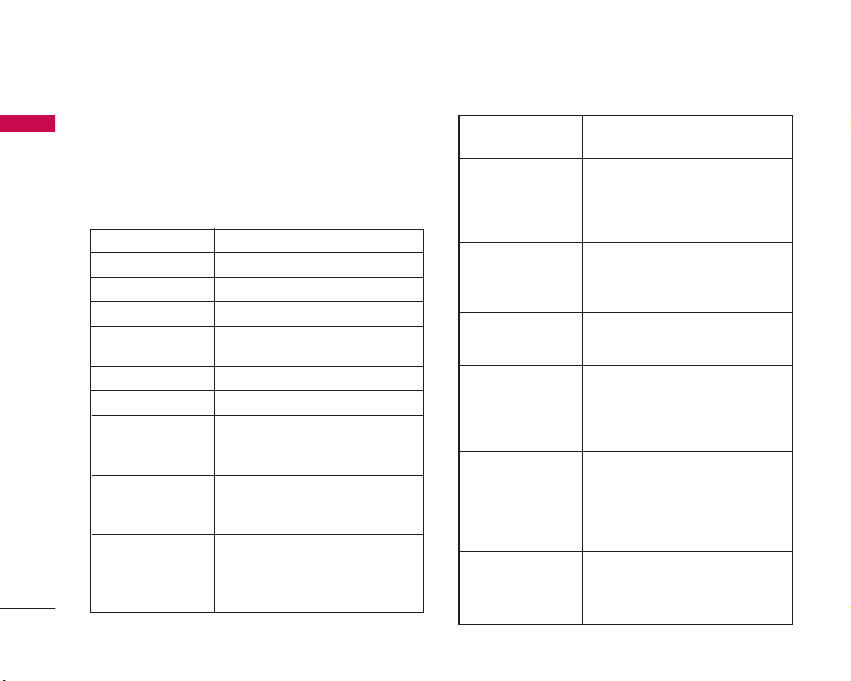
1. Select Add new from the Email account menu
options.
2. The following items need to be configured.
Messages
Title Enter a title.
User Name Enter the user name of the email account.
Password Enter the email account password.
Email Address Enter the email address for outgoing mail.
Reply Email Address Enter the email address to reply to your
email.
Outgoing Mail Server Enter the outgoing email server.
Incoming Mail Server Enter the incoming email server.
SMTP Port Number Enter the mail server port number. In
general, the SMTP (Outgoing mail server
port number) is 25.
Incoming Server Port Enter the mail server port number. In
general, the incoming mail server port
number is 110(POP3) or 143(IMAP4).
Maximum Receive Size Select the maximum email receive size using
the left/right navigation keys. The
permissible maximum receive size is no more
than 500KB.
Mailbox Type Select the email inbox type either POP3 or
IMAP4 using the left/right navigation keys.
Save to Server Determine whether to leave a copy of
messages on the incoming server or not
using the left/right navigation keys. When
the mailbox type is set to IMAP4, a copy of
messages are always saved to the server.
Save sent mail into Select where to save the sent mails (when
the mailbox type is set to IMAP4). When
the mailbox type is POP3, sent mails are
always saved into handset.
Access Points Select an access point to connect to the
Internet. You can select a configured access
point using the left/right navigation keys.
Auto Retrieve Decide whether to activate Auto retrieve or
not using the left/right navigation keys. You
can set the auto receiving time slot using
the Auto retrieve [Menu 4.0.3.3]. (See
page 53.)
SMTP Authentication Decide whether the outgoing mail server to
require authentication or not using the
left/right navigation keys. When the SMTP
authentication is set to On, you can enter
the SMTP Username and SMTP Password
for SMTP authentication.
APOP secure login Decide whether to activate APOP secure
login or not using the left/right navigation
keys. When the mailbox type is IMAP4,
APOP secure login is always set to OFF.

55
3. Press the left soft key [Done] to complete the
email account configuration.
Editing an email account
1. Select a desired email account from the email
account list and press the left soft key [Edit].
2. You can edit desired fields by moving the cursor
up and down.
3. When configuration is complete, press the left soft
key [Done] to complete the email account
configuration.
Voice Mail (Menu 4.0.4)
You can insert or modify voice mail centre.
Video Mail (Menu 4.0.5)
You can add or modify video mail centre.
Push Message (Menu 4.0.6)
You can configure the push message receipt option.
Cell Broadcast (Menu 4.0.7)
]
Reception: You can set the reception status.
]
Language: This option lets you select the
preferred languages. Cell broadcast messages will
be displayed in the selected languages.
]
Topics: To create a new topic, press the left soft
key [Options] then select Add Topic. If you
already have topics, you can edit, delete, or
mark/unmark them by pressing the left soft key
[Options].
Messages
Note
When you try to change the mailbox type, all
emails downloaded before would be deleted.

My Place
56
This menu contains WAP links to useful Telstra
services.
1 BigPond
2 FOXTEL
3 Search
4 Email
5 Music
6 Downloads
7 Photos
8 Maps
9 My Account
My Place
Note
Contact your service provider for further
information.

Address Book
57
New Contact MENU 6.1
You can register a new contact address. You can
enter the name, different phone numbers and email
addresses of a new contact. You can also assign the
contact to groups, include an image or avatar, assign
a specific ringtone and even enter a memo for the
contact. You can enter and manage contact
addresses depending on the memory usage.
Contact List MENU 6.2
Performs the contact address search function. The
search operation is performed based on a name as a
default. The current search method and results found
are displayed in the Search window. On the right side
of the screen, an image or avatar registered to the
selected contact address appears. You can make a
phone call or send a message to the selected phone
number. A Contacts search can be performed based
on the phone number, or group information.
Speed Dial List MENU 6.3
Using this menu you can manage speed dials. Speed
dials are configured between 2~9. You can register
speed dials for any number of 5 numbers for a
specific contact address, and a contact address may
have multiple speed dials.
Caller Groups MENU 6.4
Using this menu you can manage group information
(both stored in Handset and USIM). In the handset
memory, there are 4 default groups: Colleagues,
Family, Friends and School. You can add, edit and
delete groups. When a ringtone for a number is not
specified, a call from the number sounds the group
ringtone assigned to the number for the group.
My Numbers MENU 6.5
You can save up to 3 own numbers being used in the
USIM card.
Address Book
Note
The contact entry fields may differ when you
register a contact address in the USIM.

Address Book
58
Settings MENU 6.6
Display data (Menu 6.6.1)
Select which contact information shall be displayed
(from handset memory, from USIM card or both).
Handset & SIM is the default setting.
Copy All (Menu 6.6.2)
You can copy contacts from the phone memory to
the USIM or from the USIM to the phone memory.
Move All (Menu 6.6.3)
You can move contacts from the phone memory to
the USIM or from the USIM to the phone memory.
Delete All (Menu 6.6.4)
Clears all contact information. You can delete all
contacts saved in the mobile phone memory as well
as on the USIM card.
Address Book

Organiser & Tools
59
Alarm Clock MENU 7.1
If you set the alarm, [Alarm icon] appears on the
Indicator bar. The specified alarm sounds at the
scheduled time. Press the [OK] key to stop the alarm,
and the alarm is released. Press the the right soft key
[Snooze] to activate the snooze function. The alarm
sound stops and resumes after the Snooze duration.
You can configure up to 5 alarms.
1. Select your desired alarm to configure in the alarm
list. If there is no alarm, press the left soft key
[New] to add a new alarm.
2. Set/Cancel alarm: Set or cancel the alarm using
the options for specifying whether the alarm is on
or by choosing the alarm time.
3. Input alarm time: Input your desired alarm time
by specifying Hour and Minute. Choose either
‘AM’ or ‘PM’ visible if 12 hour format is specified
for the phone.
4. Repeat: Select desired repeat mode using the left
and right direction keys or select the desired one
from the list pressing the OK key.
5. Alarm Tone: Select the bell to ring at the alarm
time, using the left and right direction keys or
opening the list by pressing the OK key.
6. Memo: Input alarm name.
7. When you have completed alarm clock setting,
press the right soft key [Save].
Calendar MENU 7.2
Schedule inquiry and search
1. Reference by Months
You can refer to your schedule by months. The
cursor is on the current date, and the registered
date is underlined.
The schedule saved for the date where the cursor
is located is represented by an icon. Pressing the
shortcut key moves to the previous year and
pressing key move to the next year. Pressing
key
/
moves to the previous month, and
key
/
moves to the next month. You can
move the date using the up, down, left, and right
direction keys.
2. Reference by Days
Pressing the ‘View’ key in the reference by month
moves to reference by day where you can refer to
your schedule by days. You can refer to the
moving date tab using the left and right key.
Organiser & Tools

Organiser & Tools
60
As a search result, brief schedule contents,
repetition set up configuration, and alarm set up
configuration are displayed. You can send the
schedule to another phone or an Internet site
through Text Message, Multimedia Message, Email
or Bluetooth.
3. Detailed reference
You can refer to a detailed schedule, that is the
whole contents of the schedule configured by user.
You can send the schedule to another phone or an
Internet site through Text Message, Multimedia
Message, Email or Bluetooth.
After pressing the right soft key [Options], the
following options are available.
]
Search: You can search the schedule by keying in
some letters of the subject.
]
Set Holiday: You can set up or release user
holidays. The selected date will be displayed in red.
To release the holiday, press the right soft key
[Options] and select Clear Holiday.
]
View All: You can view all the schedules.
]
Weekly View: Select this to display the calendar in
weekly view.
]
Go to Date: Use this to jump to a specific date.
Enter the date using the numeric keys and the
left/right direction keys.
]
Delete Schedules: You can delete elapsed(old),
daily, weekly, monthly, or all schedules.
Tasks MENU 7.3
You can view, edit and add tasks to do. Tasks are
displayed in time order. Tasks that have been
completed or not completed are displayed in
different ways.
Add
To add a task, press the left soft key [New] in the
Tasks list management screen. Then input the date,
description and priority for the task.
When you have finished entering the data, press the
left soft key [Save] to save the new task.
Detailed view and Edit
To view detailed task contents, locate the cursor on
the desired item in the Tasks list, and then press the
OK key. You can edit and delete a task using the left
soft key [Options].
Organiser & Tools

61
Set job status
Tasks set as finished are displayed as crossed out
below the unfinished tasks in the Tasks list. You can
set Finished tasks to Not finished by pressing the left
soft key [Options] and selecting Status.
Notepad MENU 7.4
Using this function, you can view and manage saved
notes, and add new notes.
Add Note
To add a new note, press the left soft key [New].
Enter the contents of the note. You can save the
note to the list by pressing the OK key [Save].
Edit, Send, and Delete Note
You can access following options with the right soft
key [Options] on the notepad screen.
- Edit: You can edit the selected note.
- Delete: To delete the selected note.
- Send Via: You can send the note through Text
message, Multemedia message, or Email.
- Delete All: Use this to clear up the notepad.
- Information: You can check the date and time when
the note was made and the size.
Calculator MENU 7.5
The calculator module allows you to perform basic
arithmetic functions such as addition, subtraction,
multiplication, and division as well as some scientific
functions.
1. Press the right soft key [Function].
2. Select appropriate function.
You can input numbers using the number keys, and
operators using the up, down, left, and right direction
key. You can input a decimal point by pressing .
Whenever you press , characters are sequentially
deleted in reverse order. Whenever you hold
down, all the characters are deleted in one go.
When calculation is completed and the result is
displayed on the screen, pressing a number clears the
previous result and the calculator waits for new input,
even if you did not press AC key. When calculation is
completed and the result is displayed on the screen,
pressing a symbol saves the result into the symbol,
and continues calculation.
Organiser & Tools
Organiser & Tools
62
Unit Converter MENU 7.6
Using this menu, users can convert Area, Length,
Weight, Temperature, Volume and Velocity.
To convert any unit:
1. Select the desired unit from Area, Length, Weight,
Temperature, Volume, and Velocity and press the
OK key.
2. The unit converter screen opens. Move the cursor
to output unit.
3. Select the desired output unit using the left/right
direction keys.
4. After moving the cursor to input field, key in the
quantity. You can see how much it is in the output
field.
World Clock MENU 7.7
The World Clock function provides time information
on major cities worldwide. You can view the time of
the desired country or city by navigating using the
left/right direction keys. You can select a desired city
as a base using the left soft key [Homezone].
Stop Watch MENU 7.8
This menu allows you to record the elapsed time of
an event. The duration of an individual lap time (up
to 20 times) and the total time can be saved.
1. Select New Time and press the OK key [Start] to
start timing. The running time is displayed as
HH.MM.SS.hh (hours, minutes, seconds,
hundredths of a second).
2. During the timing, you can record an individual lap
time by pressing the right soft key [Lap]. Up to 20
lap times can be recorded.
3. You can stop or restart timing using the OK key.
Press the left soft key [Reset] to reset the stop
watch.
4. You can save individual lap times and the total
time by pressing the left soft key [Options] and
selecting Save. Key in the title. You can check the
saved times in Saved Times.
Organiser & Tools
Note
You can input a decimal point by pressing .

63
Date Finder MENU 7.9
The date finder shows the start date, the target date
and the number of remaining days.
D-Day Counter MENU 7.0
1. To add a new D-Day Counter item, select the left
soft key [New].
2. Input the Date and notes when you add an item.
3. Press the left soft key [Save] to save the item.
4. You can do the followings with the right soft key
[Options].
]
Edit: You can edit the selected item.
]
Delete: You can delete the selected item.
]
Show at Idle Screen: You can see the Remaining
days for this item (D-Day) on the Idle screen top
right corner.
]
Delete All: Deletes all saved items.
Favourites MENU 7.*
In this menu, you can construct your own menu with
the frequently used menus for easy access.
1. After selecting the desired location from the menu
number 1 to #, press the OK key [Assign].
2. Select the menu you wish to add by pressing the
left soft key [Assign]. The menu will be added in
the Favourite list.
After making up the Favourites menu, the following
options are available by pressing the right soft key
[Options].
- Change Menu: You can change the favourite menu
item with another one.
- Move To: You can move the menu item to another
location.
- Remove Menu: Select this to remove the menu item
from the list.
- Remove All: You can clear up the Favourite menu.
You can view the actual location of the favourite
menu by pressing the left soft key [Info].
Organiser & Tools

Camera
64
Take Photo MENU 8.1
Using the camera module built into your phone, you
can take pictures of people or events while on the
move. Additionally, you can send photos to other
people in a picture message. The right soft key
[Options] will bring up the following options.
]
Change to Video Mode: Go to the video
application, enables you to record a video clip.
]
Resolution: Sets the image size to 1280*960
(default), 640*480, 320*240 or 160*120. The
selected image size appears on the capture screen.
]
Quality: You can select the desired quality of
photo by selecting either Super Fine, Fine or
Normal mode by using the navigation keys.
]
Reverse View: Allows you to reverse the image by
using the Side Keys.
]
View Full Screen: Allows you to view the subject in
full screen.
]
Self Timer: Determines the camera timer.
]
Advanced Settings
- White Balance: This adjusts the Light Effect level
and you can select from the following options:
Auto / Daylight / Incandescent / Cloudy /
Fluorescent / Night Mode - Color
- Color Effect: Allows you to apply special effects
to the picture. Press the left or right navigation
key to find the tone you want to use from the
following options: Color, Sepia, Mono and
Negative.
- Shutter Tones: Allows you to select a sound when
you press the shutter. Tone 1 / Tone 2 / Tone 3
/Off ]
]
Default Settings: This restores the default camera
settings (Size, Brightness, Zoom, etc.).
Camera
Note
In Take Photo mode, you can adjust the zoom
scale by using the up/down navigation keys. The
maximum zoom scale depends on the resolution
as follows.
65
In Take Photo mode, you can adjust the brightness
by using the left/right navigation key.
Record Video MENU 8.2
You can record a video clip in this menu by pressing
the Camera key. Before starting to record, press the
right soft key [Options] to set the following values.
Select the desired value and press the OK key to
confirm.
]
Change to Photo Mode: Go to the camera
application which enables you to take a still
picture.
]
Video Record Mode: Sets the recording mode to
either MMS Video Mode or General Mode.
]
Quality: Determines the quality of a video clip.
]
Reverse View: Allows you to reverse the image.
]
White Balance: This adjusts the light effect level
and you can select from the following options:
Auto / Daylight / Incandescent / Cloudy /
Fluorescent/ Night mode.
]
Color Effects: Allows you to apply special effects
to the video clip. Press the Left/Right Navigation
Keys to find the tone you want to want to use from
the following options: Color, Sepia, Mono and
Negative.
]
Default Settings: This restores the default camera
settings (Size, Brightness, Zoom, etc.).
In Record Video mode, you can adjust the brightness
by using the left/right navigation keys.
Camera
Note
In Video Record mode, you can adjust the zoom
scale by using the up/down navigation keys. The
maximum zoom scale depends on the resolution
as follows.
Resolution Zoom scale
320*240 x1
176*144 x1~x10
Resolution Zoom scale
1280*960 x1
640*480 x1~x2
320*240 x1~x2
160*120 x1~x4

Camera
66
Record Voice MENU 8.3
You can record an audio clip in this menu. The
recorded audio file is saved automatically in the
Sounds menu (Menu 2.3).
The right soft key [Options] will bring up the
following options.
]
Record Mode: Sets the recording mode to either
MMS or General.
]
Quality: Determines the quality of an audio clip.
]
Primary Storage: You can set the primary storage
of the recorded audio to the Handset Memory or
the memory Card.
Memory Status MENU 8.4
Common (Menu 8.4.1)
This function shows the status of the user memory of
the mobile phone. Since this function scans the
overall file system for statistics, a few seconds are
required.
Memory Card (Menu 8.4.2)
This function shows the status of the External card
user memory. This function displays the In-use and
free memory usage statistics.
Camera

Settings
67
Profiles (for SAT USIM) MENU 9.1
In case an SAT capable USIM card is in use Profiles is
listed here and should provide the same features as
described in chapter Profiles on pages 33-34.
Date & Time MENU 9.2
Although the current time is automatically configured
when the phone is registered to the network, users
can configure time and date directly using this menu.
The time configured by user is valid only while the
phone is turned on.
Set Date (Menu 9.2.1)
This function allows you to set the date. After
entering 'Day', 'Month', 'Year' using the number keys,
press the Done key.
Date Format (Menu 9.2.2)
Allows you to select the date format. Use the
left/right navigation keys to change the format, and
press the Done key.
Set Time (Menu 9.2.3)
Allows you to set the time. Key in 'Hour', 'Minutes'
using the number keys. You can select am/pm when
you have selected '12 hour' as the Time Format.
Time Format (Menu 9.2.4)
Allows you to select the time format. Use the
left/right navigation keys to change the format, and
press the Done key.
Auto update (Menu 9.2.5)
When Auto Update is configured to On, the time and
date are automatically updated according to the
current time zone. If Confirm first is selected, time and
date update is confirmed before the automatic update.
Daylight saving (Menu 9.2.6)
Select whether to activate the daylight saving
function or not. If the home city does not support
daylight saving, Daylight saving can not be set to On.
Settings

Settings
68
Phone Settings MENU 9.3
Language (Menu 9.3.1)
You can select the display language. When the
language option is set to Automatic, the language is
automatically selected according to the language of
the USIM card used. English will be set if the
language on the USIM card is not supported by the
phone.
Display (Menu 9.3.2)
In this menu, you can configure screen display
options including LCD settings and theme.
Wallpaper
You can configure the Main LCD/ Front LCD
background by theme selection.
Internal Display
You can select an Main display background to display
in idle mode. You can also select the clock and
calendar type to appear in idle mode. You can also
configure the font size and colour of the clock
displayed on the Main LCD idle screen.
External Display
You can select an Front display background to
display in idle mode.
It allows the user to configure the backlight duration
settings for and Keypad. Default settings:10 secs, 10
secs.
Backlight Timer
It allows the user to configure the backlight duration
settings for Display and Keypad. Default settings:
Display 10 secs, Keypad 10 secs.
Dialing Fonts
When number keys are pressed for call connection in
idle state, the size and colour of displayed number
can be configured.
Clocks & Calendar
You can select the desired clock or calendar type
displayed on the internal/external screen in idle
mode.
Colour schemes
You can choose the themes from Orange, Metal and
Sky.
Settings

69
Call Settings MENU 9.4
Call divert (Menu 9.4.1)
Call divert menus for video, voice, data and fax calls
are provided.
However, available menus are determined by the
USIM supporting CPHS.
The menu consists of Video calls, Voice calls, Fax calls
and Data calls.
The Video menu provides menus to divert video calls
and the Voice menu provides menus to divert voice
calls. The Video and Voice menus have the following
submenus.
If you select Video calls, the All video calls, If busy, If
no answer and If unreachable list appears.
If you select Voice calls, the All voice calls, If busy, If
no answer and If unreachable list appears.
Video calls
All video calls
1. When the Deactivate menu is selected – Deletes
Call Divert Number registered to the network.
While waiting for the result from the network,
Requesting message and animation appears. When
the network answers, the result of the operation is
displayed.
2. When To a number is selected – A dialogue
window appears allowing you to enter a phone
number to divert to. Input a phone number to
divert calls to, and press OK button. While waiting
the result from the network, Requesting message
and animation appears. When the network
answers, the result of the operation is displayed.
3. When Input dial number (DN) is selected – A
menu appears, a user selects To other number, and
inputs a number. Divert registration is performed
with the selected number. Select the number, and
press the OK button. While waiting for the result
from the network, a Requesting message and
animation appears. When the network answers, the
result of the operation is displayed.
4. Options menu – After activating the All video calls
menu, selecting the Options menu at the bottom
of the menus displays the Activate, Deactivate,
Deactivate all, View status and clear list menus.
Activate: Move to Settings menu (above1~4) to
Settings

Settings
70
activate call divert. The View status menu shows
the settings on the network. If you select this
menu, Requesting. message and animation appear.
Then the network settings are displayed when the
information is received from the network. Selecting
Status in the right soft menu gives the same result.
If you select the Deactivate menu, the call divert
numbers registered in the network are deleted
after user confirmation. Selecting the Cancel all
menu will display the operation result after
showing the Requesting message and animation.
Clear list menu will delete all divert number list.
If busy
1. When the off menu is selected – It operates the
same as All voice calls menu.
2. To other number is selected – It operates the
same as All voice calls menu.
3. When input dial number (DN) is selected – It
operates the same as All voice calls menu.
4. When Options menu is selected – It activates and
operates If busy menu. It operates the same as All
voice calls menu.
If no answer
1. When the off menu is selected – It operates the
same as All voice calls menu.
2. When To other number is selected – It operates
the same as to All voice calls menu.
3. When input dial number (DN) is selected – It
operates the same as All voice calls menu.
4. When Options menu is selected – Activates and
operates If no reply menu. It operates the same as
All voice calls menu except that users can
configure delay time in the Set delay menu in the
menu list.
If Out of Reach
1. When off menu is selected – It operates the same
as All voice calls menu.
2. When To other number is selected – It operates
the same as All voice calls menu.
3. When input dial number (DN) is selected – It
operates the same as All voice calls menu.
4. When Options menu is selected – Activates and
operates If out of reach menu. It operates the
same as All voice calls menu.
Settings

71
Voice calls
All voice calls
1. When the Deactivate menu is selected – Deletes
Call Divert Number registered to the network.
While waiting for the result from the network,
Requesting message and animation appears. When
the network answers, the result of the operation is
displayed.
2. When the To voice mail centre is selected, it
activates a Voicemail centre number as a diverted
number. To register the VMS number, select
Messages > Settings > Voice mail centre from the
menu. If you select this menu when there is no
registered number, the “VMS not activated”
message appears. Selecting this menu when there
is a registered number displays Requesting
message and animation. When the network
answers, the result of the operation is displayed.
3. When To a number is selected – A dialogue
window appears allowing you to enter a phone
number to divert to. Input a phone number to
divert calls to, and press OK button. While waiting
the result from the network, Requesting message
and animation appears. When the network
answers, the result of the operation is displayed.
4. When Input dial number (DN) is selected – A
menu appears, a user selects To other number, and
inputs a number. Divert registration is performed
with the selected number. Select the number, and
press the OK button. While waiting for the result
from the network, a Requesting message and
animation appears. When the network answers, the
result of the operation is displayed.
5. After activating All voice calls menu, selecting the
Options menu at the bottom of the menus
displays the Activate, Deactivate, Deactivate all,
View status and clear list menus.
Activate: Move to Settings menu to activate call
divert.
The View status menu shows the settings on the
network. If you select this menu, Requesting.
message and animation appear. Then the network
settings are displayed when the information is
received from the network. Selecting Status in the
right soft menu gives the same result. If you select
the Deactivate menu, the call divert numbers
registered in the network are deleted after user
confirmation. Selecting the Cancel all menu will
display the operation result after showing the
Requesting message and animation.
Clear list menu will delete all divert number list.
Settings

Settings
72
Call Waiting (Menu 9.4.2)
This menu consists of All calls, Video calls and Voice
calls.
If you select one, activate/deactivate/view status
menu list appears.
1. Activate: Activates waiting service. Selecting this
item, displays requesting message and animation.
When the network answers, the result of the
operation is displayed.
2. Deactivate: Deactivates Call waiting service.
Selecting this item displays requesting message
and animation. When the network answers, the
result of the operation is displayed.
3. View status: Displays activated Call waiting service
group item of the network. Selecting this item
displays requesting message and animation. When
the network answers, the result of the operation is
displayed.
Fixed Dial number (Menu 9.4.3)
]
FDN On/Off: Select whether to activate FDN or
not. PIN authentication is required.
]
FDN List: Displays the current FDN list. You can
edit, add, or delete fixed dial numbers.
PIN2 authentication is required to edit the list.
And the configuration information is saved on the
USIM. The information saved on the USIM is used
when FDN restricts outgoing calls.
Call Reject (Menu 9.4.4)
]
Call Reject On/Off: You can set whether to reject
incoming calls.
- Off: Disables Automatic call reject.
- Reject on List: Only rejects target numbers in the
list you set. You can set the reject list using Call
Reject List menu.
- Reject All Calls: Rejects all incoming calls
unconditionally.
]
Call Reject List: You can add number to reject
using the left soft key [New]. You can search the
number from Contact List or input number directly.
Video Call (Menu 9.4.5)
]
My Picture Size: Select my image size to e
displayed.
Settings

73
]
My Picture Position: Select the position where
your image will be displayed.
]
Hide My Picture: Determine whether to display my
picture on a main screen in VT calling or not.
- On: Do not display my picture on a calling
screen.
- Off: Display my picture on a calling screen.
]
Reverse Camera: Select to activate the mirror
effect or not.
- On: Displays the image flipped side to side.
- Off: Displays the image as it is.
]
Substitute Picture: Select the still image to be
displayed.
Send My Number (Menu 9.4.6)
1. Set by network: Configures with the default
settings determined by the service provider.
2. On: Configures to send my phone number when
making an outgoing call.
3. Off: Configures not to send my phone number
when making an outgoing call.
Auto Redial (Menu 9.4.7)
Allows you to set the auto redial function when a call
attempt has failed.
Answer Mode (Menu 9.4.8)
Allows you to set the answering method. You can
choose between opening the folder, pressing the
Send key, and pressing any key.
Minute Minder (Menu 9.4.9)
Determines whether to sound a 1 minute tone every
1 minute when you are on the phone.
Closed User Group (Menu 9.4.0)
Allows you to save on calls made to closed user
groups and reduces your mobile expenses to a
minimum. Users of the closed group can make and
receive calls only within the group.
Settings

Settings
74
Connectivity MENU 9.5
Bluetooth (Menu 9.5.1)
Bluetooth connection
• Menu > 9. Settings > 5. Connectivity > 1. Bluetooth
Your phone has built-in Bluetooth wireless
technology which makes it possible for you to
connect your phone wirelessly to other Bluetooth
devices such as a handsfree, PC, PDA, a remote
screen, or other phones.
You can, for example, have a conversation via a
cordless Bluetooth handsfree or browse the Internet,
wirelessly connected via a mobile phone. You can
also exchange, for example, business cards, calendar
items and pictures.
1. Getting started
• Menu > 9. Settings > 5. Connectivity
> 1. Bluetooth > 1. Bluetooth On/Off
To use the Bluetooth function, you must first set
Bluetooth to "On". Complete the above procedures
to set Bluetooth to "On".
2. Configuring Bluetooth settings
• Menu > 9. Settings > 5. Connectivity
> 1. Bluetooth > 4. Bluetooth Settings
- Bluetooth: To use the Bluetooth function, set it to
[On]. Otherwise, set it to [Off].
- My handset’s visibility: Set [My handset’s visibility
status] to [Shown to all] so that other devices can
detect your phone when they are searching for a
Bluetooth device. If you select [Hidden], other
devices will not be able to detect your phone when
they are searching for a Bluetooth device.
- My handset’s name: You can name or rename your
phone as it will appear on other devices. Your
phone's name will be shown on other devices only
when [My handset’s visibility] is set to [Shown to
All].
Settings
Note
]
We recommend that your phone and the
Bluetooth device you are communicating with
be within a range of 10 meters. The connection
may be improved if there are no solid objects in
between your phone and the other Bluetooth
device.

75
- My Address: This is the Bluetooth address of your
device. This is set when you phone is sold. You
cannot change the Bluetooth address.
3. Paired device
Pairing Devices(Pairing with a device)
If a paired Bluetooth audio device already exists.
• Menu > 9. Settings > 5. Connectivity
> 1. Bluetooth > 2. Device List
> Connect
If there is no paired Bluetooth device,
• Menu > 9. Settings > 5. Connectivity
> 1. Bluetooth > 2. Device List > New
]
New: Using this menu, you can pair a new
Bluetooth device with your phone.
]
Connect: Using this menu, you can connect an
audio device.
1. This item is only enabled in the Option menu
when you have selected Audio device. If another
device has been selected, this item is disabled.
2. Move to [Connect] and select [OK]. Your
phone is immediately connected to the audio
device.
]
Delete: Using this menu, you can delete the
paired Bluetooth device.
]
Rename: You can rename a paired phone as
required.
]
Delete all: Using this menu, you can delete all of
the paired Bluetooth devices.
- To search for a Bluetooth device to connect,
press the New key.
- Screen shows “Searching for Device”. Bluetooth
devices within a range of 10m will be found.
- If Bluetooth devices are found, these devices are
listed on the screen. If no Bluetooth device is
found, you will be asked if you want to search
again.
- If you select a device from the listed devices,
the device information (name, address, service
class) will appear on the screen.
- Pairing procedure
• Select the device you wish to pair with from
the discovered items, then press OK.
A window will appear on the screen asking
you to enter your password.
Settings

Settings
76
• After creating a password (of 1 to 16 digits),
the user of the other device must enter the
password for pairing. The user of the other
device must know the password in advance for
authentication.
• If the other party authenticates the
connection, the Paired device list is displayed
on the screen and you can use your phone to
communicate with the other device.
<Disconnecting devices>
1. Select a device to disconnect from the Paired
devices screen.
2. You can disconnect a device by pressing the
Delete key or by selecting Options > Delete. To
disconnect all paired devices, select Options >
Delete All.
<Transmitting data using Bluetooth>
1. To transmit data from your phone to another
Bluetooth device, first select the application
where the target data is saved. For example, to
send data in the Media album to another device,
select
• Menu > 2. My Media > 1. Images > Select
data to transmit > Send via > 3. Bluetooth
2. Transmitting data
- If a paired Bluetooth device exists,
1) Select the desired device from the paired
devices listed on the screen.
2) If the other party selects [Yes] for [Bluetooth
Authorisation required], the data is transmitted.
- If there is no paired Bluetooth device,
1) Select Search to search for nearby Bluetooth
devices to connect.
2) Select the device to which you want to
transmit data from the devices on the screen
and press the Push key.
3) If the other party selects [Yes] for [Bluetooth
Authorisation required], the data is transmitted.
<Receiving data using Bluetooth>
Menu > 9. Settings > 5. Connectivity > 1.
Bluetooth > 2. Device List
1. If you enable Bluetooth function as described
above, you can connect your phone to other
Bluetooth devices.
2. If another party attempts to transmit data, the
[Bluetooth Authorisation required] question will
Settings

77
appear on the screen. If you select [Yes], the
data will be transmitted to your phone. During
data transmission, the Bluetooth icon flashes.
<Bluetooth data storage folder>
You can check the received data by selecting Menu >
2. My Media > 6. Bluetooth data.
4. Device
<Connecting a headset>
1. Select Menu > 9. Settings > 5. Connectivity
> 1. Bluetooth
2. Connect the headset according to the procedures
described in the Pairing Devices section.
3. To use the headset, select the headset from the
registered devices, press the OK key [Connect].
<Connecting a handsfree kit>
1. Menu > 9. Settings > 5. Connectivity > 1.
Bluetooth
2. Connect the handsfree kit according to the
procedures described in the Pairing Devices
section.
3. To use the handsfree kit, select the handsfree kit
from the registered devices, then press the OK
key [Connect].
The
Bluetooth®
word mark and logos are owned by the Bluetooth
SIG, Inc. and any use of such marks by LG Electronics is under
license. Other trademarks and trade names are those of their
respective owners.
USB Connection Mode (Menu 9.5.2)
Select the desired USB connection mode.
Network (Menu 9.5.3)
Network selection
1. You can select either Automatic or Manual
network selection.
2. If you select Automatic, connection continues
according to the Automatic network selection
procedures. This setting is recommended for
best service and quality.
3. If you select Manual, all the currently 2G (GSM)
and 3G (UMTS) available networks are shown,
and you can select one of them for registration. If
the registration of the network has failed, then all
the currently available networks are listed again,
and you can select any other one for registration.
Settings
Note
TU500 does not support IrDA port.
Settings
78
Preferred lists
1. Select Preferred lists to display the preferred list
saved in the current USIM card.
2. You can edit and save a preferred list in the
USIM card by selecting the menu when the
preferred list is displayed.
]
Add new: You can add a new network using the
followings.
- Search: You can select one from the network
list stored in the phone.
- Enter new network: You can enter the country
code (MCC) and the network code (MNC) to
add. After setting, press "Done" key.
]
Delete: Deletes the selected network.
]
Move up: Moves the selected network upward.
]
Move down: Moves the selected network
downward.
Access points (Menu 9.5.4)
Access points
This menu shows the access point list. You can
create new profiles, delete or edit them by using
the Option Menu. However, you cannot delete or
edit default configurations.
You can edit the following configuration items by
selecting the right soft key.
Settings
Connection title Access Point profile name.
Bearer Choose the bearer from the list. (Default is
“UMTS/GPRS”)
Authentication Choose the authentication from the list.
(Default is “No auth”)
User name Information provided by service provider.
Password Information provided by service provider.
APN APN name to access network. Information
provided by service provider.
Traffic class Traffic Class Choose the Traffic Class from
the list. (Default is "Subscribed")
Req. max UL bitrate Choose the Maximum Uplink Bitrate from
the list. (Default is "Subscribed")
Reliability class Choose the Reliability class from the list.
(Default is "Subscribed")
DNS server Choose the DNS server from the list.
(Default is "Automatic")
Req. max DL bitrate Choose the Maximum Downlink Bitrate from
the list. (Default is "Subscribed")
79
]
Press “Done” key to save any configuration
changes.
Streaming (Menu 9.5.5)
Here you can set the Streaming port range and the
APN used for accessing Streaming content.
Dial Up Networking (Menu 9.5.6)
You can use your phone with a variety of PC
connectivity and data communications applications.
Select USB or Bluetooth as the connection method.
PDP Settings (Menu 9.5.7)
These settings determine the Packet Data behaviour
of your handset. You should check with your Carrier
before changing from the default settings.
]
PDP Connection
- When Needed: Packet Data connection will
activate when needed (Example: when
accessing WAP, MMS or Email)
- Always ON: Packet Data connection will always
be active.
]
APN
- Determines the Account that is Always On.
This is the Active internet account.
]
Multiple PDP Support: This determines whether
the handset will allow simultaneous data
connections.
Settings
Dial-up number Required in case of Bearer is
"UMTS/GPRS/CSD" or "CSD" Information
provided by service provider.
Baud rate Required in case of Bearer is
"UMTS/GPRS/CSD" or "CSD" Choose the
value from select list. (Default is "9600")
Call type Required in case of Bearer is
"UMTS/GPRS/CSD" or "CSD" Choose Call
type from the list. (Default is "ISDN")
CSD username Required in case of Bearer is
"UMTS/GPRS/CSD" or "CSD" Information
provided by Service Provider.
CSD password Required in case of Bearer is
"UMTS/GPRS/CSD" or "CSD" Information
provided by Service Provider.
Settings
80
- 2G & 3G: Simultaneous Packet Data
connections are allowed in both 2G & 3G
networks.
- 2G Only: Simultaneous Packet Data
connections is only allowed in 2G networks.
- 3G Only: Simultaneous Packet Data
connections is only allowed in 3G networks.
- None: Simultaneous Packet Data connections is
not allowed in any network.
Security MENU 9.6
You can activate a PIN code. When it is activated, a
window asking you to enter the PIN code appears
when you turn on the phone so as to prevent
unauthorized use of the phone.
Lock Handset (Menu 9.6.1)
You can lock your mobile phone to prevent it being
used by other people. The following 4 lock functions
are provided.
- When Power On: Whenever the mobile phone is
turned on.
- If USIM Change: When the mobile phone’s USIM
card has been changed.
- Immediate: Locks the phone immediately.
- Off: Cancels lock function.
PIN code request (Menu 9.6.2)
You can activate a PIN (Personal Identification
Number). You can check the current status of
configuration from the status bar.
PIN request and release procedures
1. Select ‘PIN Code Request’ item from the list, and
press [Select]. Then a window allowing you to
select ‘On’ or ‘Off’ appears.
- Select ‘On’/‘Off’ from the list, press [Select], and
input the current PIN code to set the PIN
request. If ‘PIN Code Request’ is already
Settings
Item Description
Enable PIN Request You have to input the PIN code each time
the mobile phone is turned on.
Disable PIN Request You do not have to input the PIN code when
the mobile phone is turned on.

81
enabled/disabled, an “Already activated”/
“Already cancelled” message will be displayed.
2. 3 incorrect PIN code entries in the PIN code input
window would invalidate the PIN code. In this case,
you have to input the PUK (PIN Unblock Key)
code to configure the PIN code again.
3. The maximum allowed number of attempts of PUK
input is 10 times. ATTENTION: after having
entered 10 times an incorrect PUK code, the
USIM card will be blocked and must be replaced.
Press the C key in the PIN code input window to
return to the previous step.
Change Codes (Menu 9.6.3)
You can change the Security Code, PIN and PIN2
codes.
Security code
The security code is used to change the mobile
phone password. The maximum allowed number of
attempts of security code input is not limited like
PIN and PIN2.
PIN code
PIN is the abbreviation of Personal Identification
Number, and is used to restrict the use of an
unauthenticated user.
PIN code change procedure
1. Select ‘PIN code’ from the ‘Change password’ list
and then press [OK].
2. Input the current PIN code, and press [OK].
3. Input the new PIN code, and press [OK].
4. Input the new PIN code once again, and press
[OK].
- If the PIN code is different from that of step 3,
the procedure is restarted from step 3.
5. When the PIN code is properly changed, a “PIN
changed” message is displayed. With an incorrect
PIN code input in step 2, the procedure is
restarted from step 2, and the remaining allowed
number of input attempts is decreased by 1.
6. Press the C key in the PIN code input window to
return to the previous step.
Settings

Settings
82
PIN2 code
PIN2 is the abbreviation of Personal Identification
Number 2, and is used to restrict the use of
unauthenticated users like PIN. The PIN2 code
change procedure is the same as the one for the
PIN code. 3 incorrect PIN2 code entries would
invalidate the PIN2 code. In this case, you have to
input the PUK2 code in order to use the PIN2
code again. The maximum allowed number of
attempts of PUK2 code input is 10 times, like
PUK1. 10 incorrect PUK2 code entries would
invalidate the PIN2 code.
Memory Status MENU 9.7
This function shows the usage of the memory of
the mobile phone that can be used to save user
data. User data is saved in a FLASH memory, a type
of nonvolatile memory, keeping saved data
permanently unless the data are deleted by user.
Common memory (Menu 9.7.1)
This function shows the status of the common
memory. The function takes few seconds to load
the contents. The usual contents are related to
Photos, Pictures, Sounds, Music, Games & more,
Videos, Bluetooth data It gives the size in terms of
Kilobytes for each item in the common memory.
Reserved memory (Menu 9.7.2)
This functions shows the status of the reserved
memory. The usual contents are Text messages,
Contacts, Calendar, To Do, Memo and It give a
clear illustration of the actual number to the total
number of count of each item.
Settings
Note
Three incorrect PIN code entries in the PIN code
input window would invalidate the PIN code. In
this case, you have to input the PUK (PIN
Unblock Key) code to configure the PIN code
again. The maximum allowed number of attempts
of PUK code input is 10 times.
ATTENTION: after having entered 10 times an
incorrect PUK code, the USIM card will be
blocked and must be replaced.
83
SIM (Menu 9.7.3)
This function shows the status of the USIM card
user memory.
Memory Card (Menu 9.7.4)
This function shows the status of the External card
user memory. This function displays the In-use and
free memory usage statistics.
Handset Information MENU 9.8
This functions shows the USIM card telephone
number, model name and software version of the
mobile phone.
Internet MENU 9.9
BigPond (Menu 9.9.1)
You can launch the web browser and access the
homepage of the web service provided by Telstra.
]
You can also directly access BigPond by pressing
the right soft key in idle mode.
You can access any website page by entering its
URL address. To exit the browser at any time, press
the key. The phone will return to the standby
mode.
Navigating with the WAP browser
You can surf the Internet using either the phone keys
or the WAP browser menu.
Using the phone keys
When surfing the Internet, you can use the following
keys.
Settings
Note
Please note that this service is service provider
dependent.
Key Description
Up/Down navigation keys Scrolls each line of the content area.
Returns to the previous page.
Selects options and confirms actions.
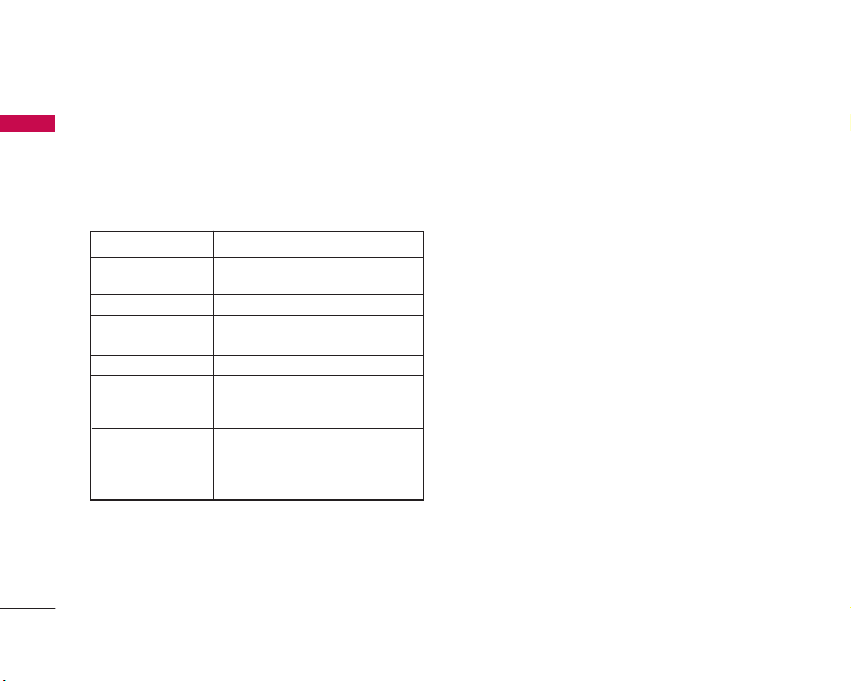
Settings
84
Using the WAP browser menu
Browser menu is seen once the WAP page is
displayed. On selecting “Menu” from the left soft
menu of browser, various options are provided and
these are as follows:
Bookmarks (Menu 9.9.2)
You can store frequently accessed or favourite
URLs/Pages. Several preconfigured URLs are stored
as bookmarks.
Adding a new bookmark
1. Press the right soft key [Options] and select
New.
2. Enter the title and associated URL information.
3. Press the left soft key [Done] to save.
Connecting to a desired bookmark
Press the OK key [Connect].
Sending the bookmark to others
Press the right soft key [Options] and select Send
URL. You can send it via Message.
Deleting a bookmark
Select Delete from Options menu. Preconfigured
URLs cannot be deleted.
Saved Pages (Menu 9.9.3)
The phone can save the page on display as an
offline file. Up to 20 pages can be saved.
Settings
Back Returns to the previous page.
Forward Goes to the next page, if you navigated to
previous pages.
Reload Reloads the current page.
Home Goes back to the homepage. (configured in
current default setting)
Go to URL A desired URL can be entered here to visit.
Bookmarks You can add or save the current page to the
Bookmark or view the list saved under
Bookmark.
Settings You can set the Browser related options such
as Character encoding, Scrolling control, Show
image, Cache, Cookie, Clear cache, Clear
cookie, Certificate, Session info and Page info.
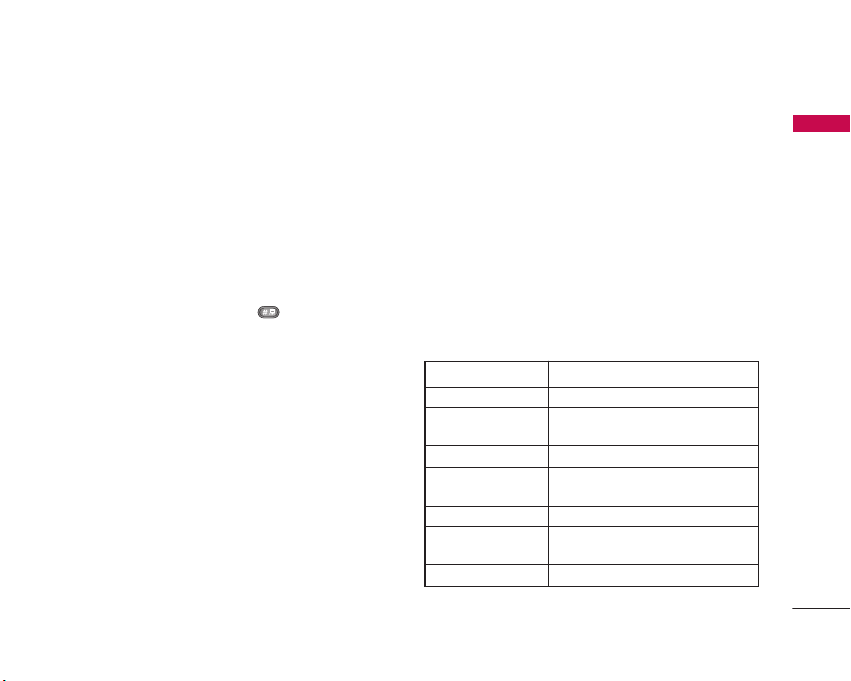
85
Go to URL (Menu 9.9.4)
Enter URL
You can manually enter a URL address and access
the associated web page.
]
To enter a symbol, press or the right soft key
[Options] and select Insert Symbols to display
the Symbol table.
]
To switch input mode, press .
Recent Pages
Shows the recently-browsed pages.
Security (Menu 9.9.5)
Certificates
If stored, a list of root/ca certificates required for
WTLS/TLS can be found here.
Certificates can be viewed from the list.
Clear Session
Secure (WTLS/TLS) session data can be cleared
using this option. Session data should be cleared to
establish a new secure session.
Settings (Menu 9.9.6)
Accounts
You can create or configure an Internet account.
Adding a new account
1. Select New from the Options menu.
The following items need to be configured.
Settings
Account Name Enter an account name.
Homepage Enter
Connection Mode Choose from the given list of connection
modes.
Proxy Address Enter the Proxy address.
Proxy Port Number Port details are provided by the operator,
depending upon the connection mode.
Security Select the desired security option.
Time Out(10-600s) Key in the number of appropriate time length
for the time-out from 10 to 600 seconds.
Network Profiles Select the network profile.

Settings
86
2. Press the left soft key [Done] to save any
configuration changes.
You can edit and delete a profile by selecting Edit
and Delete from the Options menu.
Activating an account
After selecting the profile you would like to activate,
press the left soft key [Activate].
Cache Settings
Clear Cache: Select this to clear all caches.
Allow Cache: Decide whether to allow the “Cache”
function [On] or not [Off].
Cookie Settings
Delete Cookies: Select this to clear all cookies.
Allow Cookies: Decide whether to allow the
“Cookie” function [On] or not [Off].
Character Encoding
Sets the browser default character set to one of the
following:
Automatic, English(ASCII), English(ISO),
English(LATIN), Unicode(UCS2 BE), Unicode(UCS2
LE), Unicode(UCS2 Auto), Unicode(UTF-16 BE),
Unicode(UTF-16 LE), Unicode(UTF-16 Auto),
Unicode(UTF-8).
Scrolling Control
Allows you to set the scroll speed by selecting the
number of lines to scroll. (1 line, 2 lines, 3 lines)
Show image
Allows you to enable or disable the image display
during browsing.
Settings
Note
Enabling this function will delay displaying
images until the completion of transmission.
Disabling this function will prevent the browser
from downloading images from the server, thus
allowing faster transmission.

87
Reset Settings MENU 9.0
It resets the handset memory and Default settings
brings all the phone settings to its default values.
In Clear memory “Handset Contents” will reset Java,
Bookmarks, Saved Internet pages, Recent Internet
pages, Videos and Audios. “Handset personal info”
will reset Contacts, Messages, Diary, Alarms, Calls.
No USIM memory option. “Memory Card” will reset
the external memory.
Settings

88
Troubleshooting
Troubleshooting
Q How do I view the list of outgoing calls, incoming
calls and missed calls?
A Press .
Q How do I clear all call history?
A Press the OK soft key and then - -
Options - Clear list.
Q does not disappear from the screen.
A Check whether you are in a service area. If you
continue to see , turn off the power and
wait for approximately 2 minutes before turning it
back on. If there is no change, relocate to another
area and check again.
Q Connection is poor or is not audible in certain
areas.
A In certain areas, signal strength can vary
dramatically.
Try moving to a different location. Heavy network
traffic may affect the ability to connect, or the
stability of the call.
Q Connection is poor even when established.
A In certain areas, signal strength can vary
dramatically.
Try moving to a different location. Heavy network
traffic my affect the ability to connect, or the
stability of the call.
Q LCD does not turn on.
A Remove and replace the battery and turn on the
power. If the phone still does not turn on, charge
the battery and try again.
Q An echo can be heard during connection with a
certain telephone in a certain area.
A It is called ‘Echo Phenomenon’. It occurs if the
volume is too high or caused by special properties
(semi electronic telephone exchange) of the
machine on the other end.
Please check to see if any problem which you may have with your phone is described here before taking
it for service or calling a service engineer.

89
Troubleshooting
Q The phone gets warm.
A During long calls, or if games/Internet are used for
a long time, the phone may become hot. This is
perfectly normal and has no effect upon the life of
the product or performance.
Q The bell does not ring, or lamp or LCD blinks
only.
A The phone is set to ‘Vibrate’ or ‘Silent’ in the
Profiles menu. Please select ‘General’ or ‘outdoor’
Q Standby duration of the phone gradually becomes
shorter.
A Batteries have a limited life. When the battery lasts
for half its original time, it requires replacement.
Only use authorised replacement parts.
Q Usage time of battery becomes shorter.
A If the battery time is short, it may be due to the
user environment, or large volume of calls, or weak
signals.
Q No number is dialled when you recall a
phonebook entry.
A Check that the numbers have been saved correctly,
by using the phonebook Search feature. Resave
them, if necessary.
Q You cannot be contacted.
A Is your phone switched on ( pressed for more
than three seconds)? Are you accessing the right
cellular network? Have you set an incoming call
barring option?
Q Cannot find Security, PIN or PUK codes?
A The default Security Code is '0000'. If you forget
or lose the Security code, contact your phone
dealer. If you forget or lose a PIN or PUK code, or
if you have not received such a code, contact your
network service provider.
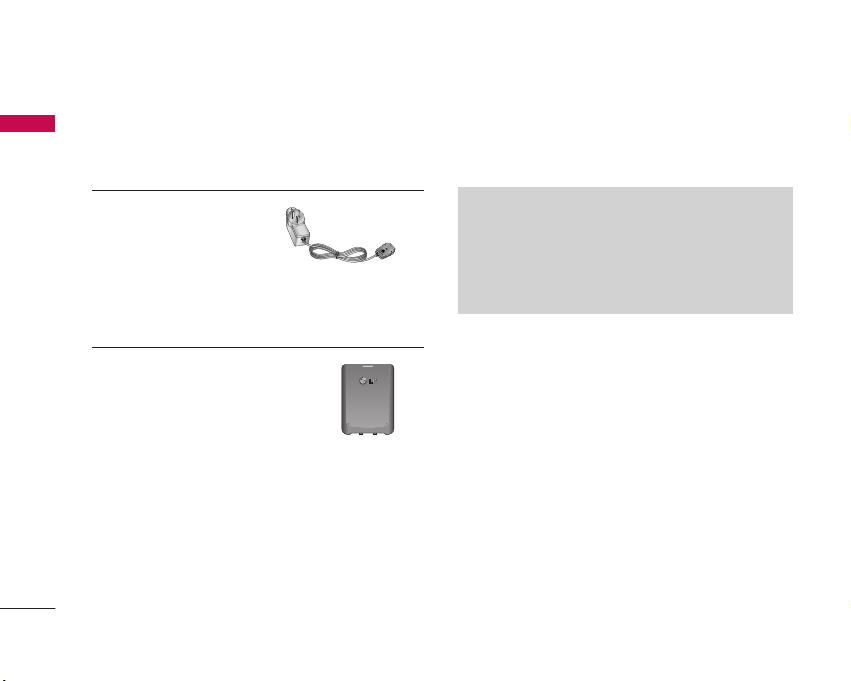
90
Accessories
Accessories
AC Adapter
(supplied in basic kit)
This adapter lets you charge
the mobile phone while at
home or in the office.
Battery
(supplied in basic kit)
Standard battery is available.
There are a variety of accessories available for your mobile phone. You can select these according to
your personal communication requirements. Consult your local dealer for availability.
Note
]
Always use genuine LG accessories. Failure to do
this may invalidate your warranty.
]
Accessories may be different in different regions;
please check with our regional service company or
agent for further enquiries.


MEMO

MEMO

MEMO

MEMO

Manufacturer’s Warranty
(
(
(
(
3
4
1. WHAT THIS WARRANTY COVERS:
LG offers you a warranty that the enclosed Product and its enclosed accessories will be free from defects in material and
workmanship according to the following terms and conditions:
(1) The warranty for the Product is for ONE (1) year beginning on the date of purchase of the Product.
(2) The warranty extends only to the original consumer purchaser of the Product ("Customer") and is not assignable or transferable to
any subsequent customer. LG offers a warranty for genuine LG battery packs, extending SIX (6) months from the date of purchase.
(3) This warranty is good only to the Customer during the warranty period as long as it is in AUSTRALIA.
(4) During the warranty period, any defective LG Product or part will be repaired or replaced by LG or its authorised service centre, at LG's
option, with new or factory rebuilt replacement items. LG or the authorised service centre will return the Product to the Customer in
working condition. No charge for either parts or labour in repair or replacement of the Product will be incurred by the Customer. If
parts, boards or equipment are replaced, they shall become the property of LG.
(5) Upon request from LG, the Customer must provide LG with proof of the date of purchase.
(6) The Customer will bear the cost of transporting, delivering and handling the Product to and from LG or its authorised service centre.
(7) The benefits available from this warranty are in addition to all applicable statutory rights.
2. WHAT THIS WARRANTY DOES NOT COVER:
(1) Defects or damage resulting from use of the Product in other than its normal and customary manner.
(2) Defects or damage from abnormal use, abnormal conditions, improper storage, exposure to moisture or dampness, unauthorised
modifications, unauthorised connections, unauthorised repair, misuse, neglect, abuse, accident, alteration, improper installation, or
other acts which are not the fault of LG, including damage caused by shipping, blown fuses, spills of food or liquid.
(3) Breakage or damage to antennas, unless caused directly by defects in material or workmanship.
(4) If the Customer does not notify LG of the alleged defect or malfunction of the Product during the applicable warranty period, the
Customer shall have no coverage or benefits under this warranty.
(5) Products which have had the serial number removed or made illegible.
(6) If the battery short circuits or the seals of the battery are broken or show evidence of tampering, or the battery was used in equipment
in a manner other than that which has been specified, the Customer shall have no coverage or benefits under this warranty.

(7) Damage resulting from use of non-LG approved accessories.
(8) All plastic surfaces and all other externally exposed parts that are scratched or damaged due to normal use.
(9) Products operated outside published maximum ratings.
(10) Products used or obtained in a rental program.
(11) Consumables (such as fuses.)
(12) Defects or damage resulting from breakage of or tampering with the LCD screen.
(13) Where applicable, Products that have been subject to an unauthorised removal or deactivation of the network operator lock function.
3. STATEMENT
Except for those terms that cannot by law be excluded, all terms other than those expressly contained in this warranty statement are
excluded. To the extent permitted by law, LG excludes all liability (whether in contract, tort or otherwise) for any consequential, special,
incidental or indirect loss or damage including loss of profit, loss or impairment of privacy of conversations, work stoppage or loss or
impairment of data arising out of the use or inability to use the Product.
4. HOW TO GET WARRANTY SERVICE:
To obtain information regarding warranty service, please call the following telephone number from anywhere in AUSTRALIA:
LG Electronics Australia Pty Ltd
2 Wonderland Drive
Eastern Creek NSW 2766
PO Box 212
HORSLEY PARK NSW 2175
Tel: 1800-638-080 Fax: 02-8805-4201
LG Electronics Australia Pty Ltd.
's
nt