1
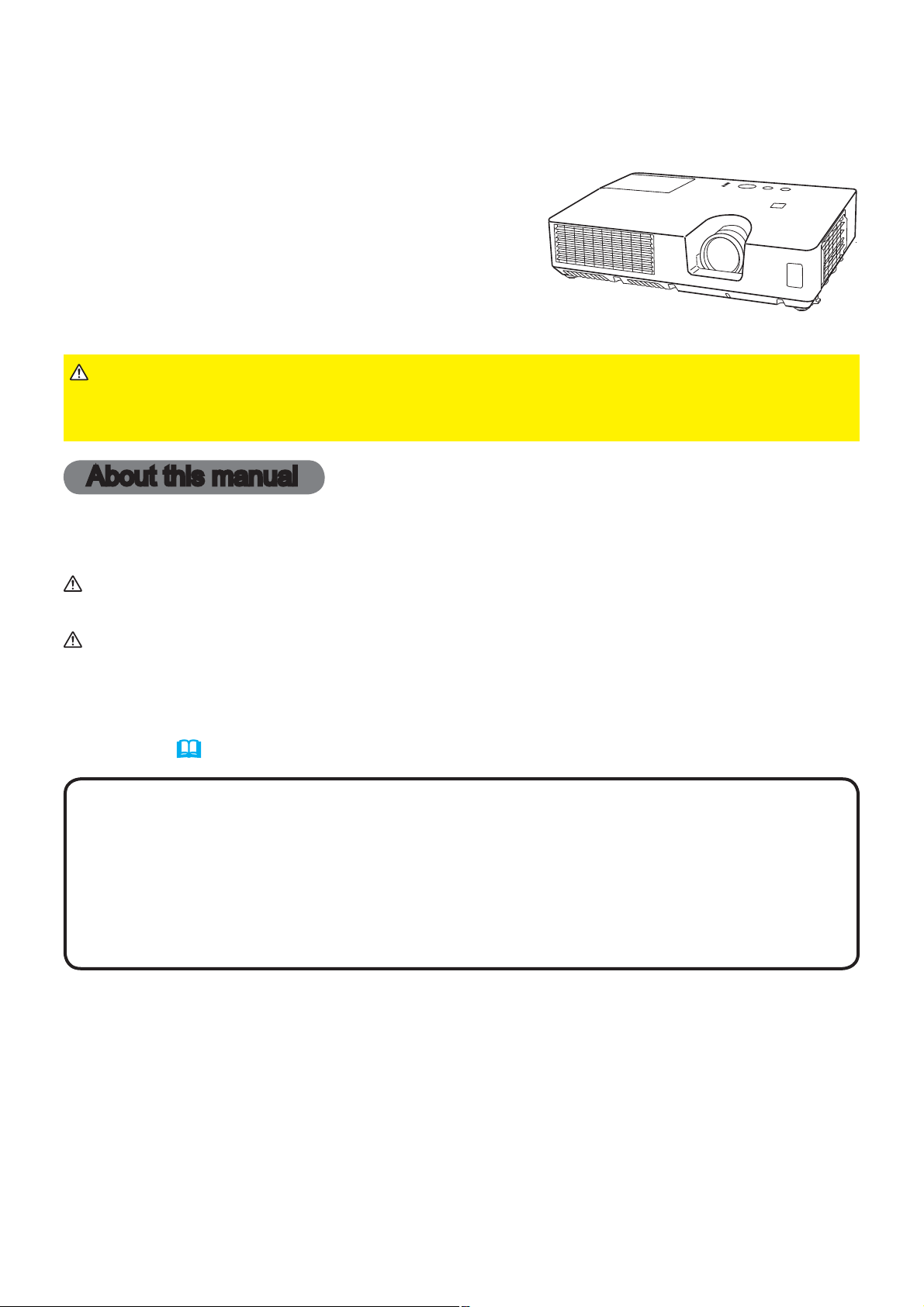
Projector
CP-RX93
User's Manual (detailed)
Operating Guide
Thank you for purchasing this projector.
►Before using this product, please read all manuals for this
product. Be sure to read Safety Guide first. After reading them, store them in a
safe place for future reference.
WARNING
• The information in this manual is subject to change without notice.
• The illustrations in this manual are for illustrative purposes. They may differ
slightly from your projector.
• The manufacturer assumes no responsibility for any errors that may appear in
this manual.
• The reproduction, transfer or copy of all or any part of this document is not
permitted without express written consent.
NOTE
Trademark acknowledgment
Various symbols are used in this manual. The meanings of these symbols are
described below.
About this manual
WARNING
CAUTION
This symbol indicates information that, if ignored, could possibly
result in personal injury or even death due to incorrect handling.
This symbol indicates information that, if ignored, could possibly
result in personal injury or physical damage due to incorrect
handling.
Please refer to the pages written following this symbol.
• Mac
®
is a registered trademark of Apple Inc.
• Windows
®
, DirectDraw
®
and Direct3D
®
are registered trademarks of Microsoft Corporation
in the U.S. and/or other countries.
• VESA and DDC are trademarks of the Video Electronics Standard Association.
• Blu-ray Disc
TM
and Blu-ray
TM
are trademarks of Blu-ray Disc
Association.
All other trademarks are the properties of their respective owners.
NOTICE This entry notices of fear of causing trouble.
1
About The Symbols
Various symbols are used in this manual, the user’s manual and on the product
itself to ensure correct usage, to prevent danger to the user and others, and to
prevent property damage. The meanings of these symbols are described below.
It is important that you read these descriptions thoroughly and fully understand
the contents.
Projector
User's Manual - Safety Guide
Typical Symbols
This symbol indicates an additional warning (including cautions). An
illustration is provided to clarify the contents.
This symbol indicates a prohibited action. The contents will be clearly
indicated in an illustration or nearby (the symbol to the left indicates that
disassembly is prohibited).
This symbol indicates a compulsory action. The contents will be clearly
indicated in an illustration or nearby (the symbol to the left indicates that
the power plug should be disconnected from the power outlet).
Thank you for purchasing this projector.
NOTE
• The information in this manual is subject to change without notice.
• The manufacturer assumes no responsibility for any errors that may appear in
this manual.
• The reproduction, transmission or use of this document or contents is not
permitted without express written authority.
WARNING •
Before using, read these user's manuals of this projector to ensure
correct usage through understanding. After reading, store them in a safe place for
future reference. Incorrect handling of this product could possibly result in personal injury
or physical damage. The manufacturer assumes no responsibility for any damage caused
by mishandling that is beyond normal usage defined in these manuals of this projector.
WARNING
This symbol indicates information that, if ignored, could
possibly result in personal injury or even death due to
incorrect handling.
CAUTION
This symbol indicates information that, if ignored, could
result possibly in personal injury or physical damage
due to incorrect handling.
Read this Safety Guide first.
2
Safety Precautions
WARNING
Never use the projector if a problem should occur.
Abnormal operations such as smoke, strange odor, no image, no sound,
excessive sound, damaged casing or elements or cables, penetration of
liquids or foreign matter, etc. can cause a fire or electrical shock.
In such case, immediately turn off the power switch and then disconnect the
power plug from the power outlet. After making sure that the smoke or odor
has stopped, contact your dealer. Never attempt to make repairs yourself
because this could be dangerous.
• The power outlet should be close to the projector and easily accessible.
Use special caution for children and pets.
Incorrect handling could result in fire, electrical shock, injury, burn or vision
problem.
Use special caution in households where children and pets are present.
Do not insert liquids or foreign object.
Penetration of liquids or foreign objects could result in fire or electrical shock.
Use special caution in households where children are present.
If liquids or foreign object should enter the projector, immediately turn off the
power switch, disconnect the power plug from the power outlet and contact
your dealer.
• Do not place the projector near water (ex. a bathroom, a beach, etc.).
• Do not expose the projector to rain or moisture. Do not place the projector
outdoors.
• Do not place flower vases, pots, cups, cosmetics, liquids such as water, etc
on or around the projector.
• Do not place metals, combustibles, etc on or around the projector.
• To avoid penetration of foreign objects, do not put the projector into a case
or bag together with any thing except the accessories of the projector,
signal cables and connectors.
Never disassemble and modify.
The projector contains high voltage components. Modification and/or disassembly of
the projector or accessories could result in fire or electrical shock.
• Never open the cabinet.
• Ask your dealer to repair and clean insider.
Do not give the projector any shock or impact.
If the projector should be shocked and/or broken, it could result in an injury,
and continued use could result in fire or electrical shock.
If the projector is shocked, immediately turn off the power switch, disconnect
the power plug from the power outlet and contact your dealer.
Do not place the projector on an unstable surface.
If the projector should be dropped and/or broken, it could result in an injury,
and continued use could result in fire or electrical shock.
• Do not place the projector on an unstable, slant or vibrant surface such as
a wobbly or inclined stand.
• Use the caster brakes placing the projector on a stand with casters.
• Do not place the projector in the side up position, the lens up position or
the lens down position.
• In the case of a ceiling installation or the like, contact your dealer before
installation.
Disconnect the
plug from the
power outlet.
Do not
disassemble.
3
WARNING
Be cautious of High temperatures of the projector.
High temperatures are generated when the lamp is lit. It could result in fire or
burn. Use special caution in households where children are present.
Do not touch about the lens, air fans and ventilation openings during use or
immediately after use, to prevent a burn. Take care of ventilation.
• Keep a space of 30 cm or more between the sides and other objects such
as walls.
• Do not place the projector on a metallic table or anything weak in heat.
• Do not place anything about the lens, air fans and ventilation openings of
the projector.
• Never block the air fan and ventilation openings.
• Do not cover the projector with a tablecloth, etc.
• Do not place the projector on a carpet or bedding.
Never look through the lens or openings when the lamp is on.
The powerful light could adversely affect vision.
Use special caution in households where children are present.
Use only the correct power cord and the correct power outlet.
Incorrect power supply could result in fire or electrical shock.
• Use only the correct power outlet depending on the indication on the
projector and the safety standard.
• The enclosed power cord must be used depending on the power outlet to
be used.
Be cautious of the power cord connection.
Incorrect connection of the power cord could result in fire or electrical shock.
• Do not touch the power cord with a wet hand.
• Check that the connecting portion of the power cord is clean (with no dust),
before using. Use a soft and dry cloth to clean the power plug.
• Insert the power plug into a power outlet firmly. Avoid using a loose,
unsound outlet or contact failure.
Be sure to connect with ground wire.
Connect the ground terminal of AC inlet of this unit with the ground terminal
provided at the building using the correct power cord; otherwise, fire or
electric shock can result.
• Don’t take the core of power cord away.
Safety Precautions (continued)
Surely connect
the ground wire.
4
WARNING
Be careful in handling the light source lamp.
The projector uses a high-pressure mercury glass lamp made of glass.
The lamp can break with a loud bang, or burn out. When the bulb bursts,
it is possible for shards of glass to fly into the lamp housing, and for gas
containing mercury to escape from the projector’s vent holes.
Please carefully read the section “Lamp”.
Be careful in handling the power cord and external connection
cables.
If you keep using a damaged the power cord or cables, it can cause a fire
or electrical shock. Do not apply too much heat, pressure or tension to the
power cord and cables.
If the power cord or cables is damaged (exposed or broken core wires, etc.),
contact your dealer.
• Do not place the projector or heavy objects on the power cord and cables.
Also, do not place a spread, cover, etc, over them because this could result
in the inadvertent placing of heavy objects on the concealed power cord or
cables.
• Do not pull the power cord and cables. When connecting and
disconnecting the power cord or cables, do it with your hand holding the plug
or connector.
• Do not place the cord near the heater.
• Avoid bending the power cord sharply.
• Do not attempt to work on the power cord.
Be careful in handling the battery of the remote control.
Incorrect handling of the battery could result in fire or personal injury. The
battery may explode if not handled properly.
• Keep the battery away from children and pets. If swallowed consult a
physician immediately for emergency treatment.
• Do not allow the battery in a fire or water.
• Avoid fire or high-temperature environment.
• Do not hold the battery with the metallic tweezers.
• Keep the battery in a dark, cool and dry play.
• Do not short circuit the battery.
• Do not recharge, disassemble or solder the battery.
• Do not give the battery a physical impact.
• Use only the battery specified in the other manual of this projector.
• Make sure the plus and minus terminals are correctly aligned when loading
the battery.
• If you observe a leakage of the battery, wipe out the flower and then
replace the battery. If the flower adheres your body or clothes, rinse well with
water.
• Obey the local laws on disposing the battery.
Safety Precautions (continued)
5
Safety Precautions (continued)
CAUTION
Be careful in moving the projector.
Neglect could result in an injury or damage.
• Do not move the projector during use. Before moving, disconnect the
power cord and all external connections, and close the slide lens door or
attach the lens cap.
• Avoid any impact or shock to the projector.
• Do not drag the projector.
• For moving the projector, use the enclosed case or bag if provided.
Do not put anything on top of the projector.
Placing anything on the projector could result in loss of balance or falling,
and cause an injury or damage. Use special caution in households where
children are present.
Do not attach anything other than specified things to the projector.
Neglect could result in an injury or damage.
• Some projector has a screw thread in a lens part. Do not attach anything
other than specified options (such as conversion lens) to the screw thread.
Avoid a smoky, humid or dusty place.
Placing the projector in a smoke, a highly humid, dusty place, oily soot or
corrosive gas could result in fire or electrical shock.
• Do not place the projector near a smoky, humid or dusty place (ex.
a smoking space, a kitchen, a beach, etc.). Do not place the projector
outdoors.
• Do not use a humidifier near the projector.
Take care of the air filter to normal ventilate.
The air filter should be cleaned periodically. If the air filter becomes clogged
by dust or the like, internal temperature rises and could cause malfunction.
The projector may display the message such as “CHECK THE AIR FLOW”
or turn off the projector, to prevent the internal heat level rising.
• When the indicators or a message prompts you to clean the air filter, clean
the air filter as soon as possible.
• If the soiling will not come off the air filter, or it becomes damaged, replace
the air filter.
• Use the air filter of the specified type only. Please order the air filter
specified in the other manual of this projector to your dealer.
• When you replace the lamp, replace also the air filter. The air filter may be
attached when you buy a replacement lamp for this projector.
• Do not turn on the projector without air filter.
Avoid a high temperature environment.
The heat could have adverse influence on the cabinet of the projector and
other parts. Do not place the projector, the remote control and other parts in
direct sunlight or near a hot object such as heater, etc.
Avoid Magnetism.
Manufacture strongly recommends to avoid any magnetic contact that is not
shielded or protected on or near the projector itself. (ie.,. Magnetic Security
Devices, or other projector accessory that contains magnetic material that has not
been provided by the manufacture etc.) Magnetic objects may cause interruption
of the projector's internal mechanical performance which may interfere with cooling
fans speed or stopping, and may cause the projector to completely shut down
.
6
Safety Precautions (continued)
NOTE
Do not give the remote control any physical impact.
A physical impact could cause damage or malfunction of the remote control.
• Take care not to drop the remote control.
• Do not place the projector or heavy objects on the remote control.
Take care of the lens.
• Close the slide lens door or attach the lens cap to prevent the lens surface being
scratched when the projector is not used.
• Do not touch the lens to prevent fog or dirt of the lens that cause deterioration of display
quality.
• Use commercially available lens tissue to clean the lens (used to clean cameras,
eyeglasses, etc.). Be careful not to scratch the lens with hard objects.
Take care of the cabinet and the remote control.
Incorrect care could have adverse influence such as discoloration, peeling paint, etc.
• Use a soft cloth to clean the cabinet and control panel of the projector and the remote
control. When excessively soiled dilute a neutral detergent in water, wet and wring out the
soft cloth and afterward wipe with a dry soft cloth. Do not use undiluted detergent directly.
• Do not use an aerosol sprays, solvents, volatile substances or abrasive cleaner.
• Before using chemical wipes, be sure to read and observe the instructions.
• Do not allow long-term close contact with rubber or vinyl.
About bright spots or dark spots.
Although bright spots or dark spots may appear on the screen, this is a unique characteristic of
liquid crystal displays, and such do not constitute or imply a machine defect.
Be careful of printing of the LCD panel.
If the projector continues projecting a still image, inactive images or 16:9 aspect images in
case of 4:3 panel, etc., for long time, the LCD panel might possibly be printed.
CAUTION
Remove the power cord for complete separation.
• For safety purposes, disconnect the power cord if the projector is not to be
used for prolonged periods of time.
• Before cleaning, turn off and unplug the projector. Neglect could result in
fire or electrical shock.
Ask your dealer to cleaning inside of the projector about every
year.
Accumulations of dust inside the projector cause result in fire or malfunction.
Cleaning inside is more effective if performed before every humid periods
such as rainy season.
• Do not clean inside yourself because it is dangerous.
Disconnect the
plug from the
power outlet.

7
Safety Precautions (continued)
NOTE
About consumables.
Lamp, LCD panels, polarizors and other optical components, and air filter and cooling fans
have a different lifetime in each. These parts may need to be replaced after a long usage
time.
• This product isn’t designed for continuous use of long time. In the case of continuous use
for 6 hours or more, or use for 6 hours or more every day (even if it isn’t continuous), or
repetitious use, the lifetime may be shortened, and these parts may need to be replaced
even if one year has not passed since the beginning of using.
• Any inclining use beyond the adjustment range explained in these user’s manuals may
shorten the lifetimes of the consumables.
Before turning on the power, make the projector cool down adequately.
After turning the projector off, pushing the restart switch or interrupting of the power supply,
make the projector cool down adequately. Operation in a high temperature state of the
projector causes a damage of the electrode and un-lighting of the lamp.
Avoid strong rays.
Any strong ray (such as direct rays of the sun or room lighting) onto the remote control
sensors could invalidate the remote control.
Avoid radio interference.
Any interfering radiation could cause disordered image or noises.
• Avoid radio generator such as a mobile telephone, transceiver, etc. around the projector.
About displaying characteristic.
The display condition of the projector (such as color, contrast, etc.) depends on
characteristic of the screen, because the projector uses a liquid crystal display panel. The
display condition can differ from the display of CRT.
• Do not use a polarized screen. It can cause red image.
Turn the power on/off in right order.
To prevent any trouble, turn on/off the projector in right order mentioned below unless
specifying.
• Power on the projector before the computer or video tape recorder.
• Power off the projector after the computer or video tape recorder.
Take care not to fatigue your eyes.
Rest the eyes periodically.
Set the sound volume at a suitable level to avoid bothering other people.
• It is better to keep the volume level low and close the windows at night to protect the
neighborhood environment.
Connecting with notebook computer
When connecting with notebook computer, set to valid the RGB external image output
(setting CRT display or simultaneous display of LCD and CRT).
Please read instruction manual of the notebook for more information.
8
• If the lamp should break (it will make a loud bang when it does), unplug
the power cord from the outlet, and make sure to request a replacement
lamp from your local dealer. Note that shards of glass could damage the
projector’s internals, or cause injury during handling, so please do not try to
clean the projector or replace the lamp yourself.
• If the lamp should break (it will make a loud bang when it does), ventilate
the room well, and make sure not to breathe the gas that comes out of the
projector vents, or get it in your eyes or mouth.
• Before replacing the lamp, make sure the power switch is off and the
power cable is not plugged in, then wait at least 45 minutes for the lamp to
cool sufficiently. Handling the lamp while hot can cause burns, as well as
damaging the lamp.
Lamp
The projector uses a high-pressure mercury glass lamp. The lamp can break with a
loud bang, or burn out, if jolted or scratched, handled while hot, or worn over time.
Note that each lamp has a different lifetime, and some may burst or burn out soon after
you start using them. In addition, when the bulb bursts, it is possible for shards of
glass to fly into the lamp housing, and for gas containing mercury to escape from the
projector’s vent holes.
About disposal of a lamp • This product contains a mercury lamp; do not put in trash.
Dispose of in accord with environmental laws.
For lamp recycling, go to www.lamprecycle.org. (in USA)
For product disposal, contact your local government agency or www.eiae.org (in the US)
or www.epsc.ca (in Canada).
For more information, call your dealer.
• Do not open the lamp cover while the projector is suspended from above.
This is dangerous, since if the lamp’s bulb has broken, the shards will
fall out when the cover is opened. In addition, working in high places is
dangerous, so ask your local dealer to have the lamp replaced even if the
bulb is not broken.
• Do not use the projector with the lamp cover removed. At the lamp
replacing, make sure that the screws are screwed in firmly. Loose screws
could result in damage or injury.
• Use the lamp of the specified type only.
• If the lamp breaks soon after the first time it is used, it is possible that
there are electrical problems elsewhere besides the lamp. If this happens,
contact your local dealer or a service representative.
• Handle with care: jolting or scratching could cause the lamp bulb to burst
during use.
• Using the lamp for long periods of time, could cause it dark, not to light up
or to burst. When the pictures appear dark, or when the color tone is poor,
please replace the lamp as soon as possible. Do not use old (used) lamps;
this is a cause of breakage.
WARNING
HIGH VOLTAGE HIGH TEMPERATURE HIGH PRESSURE
Disconnect
the plug from
the power
outlet

9
Regulatory Notices
FCC Statement Warning
This device complies with part 15 of the FCC Rules. Operation is subject to the following
two conditions: (1) This device may not cause harmful interference, and (2) this device
must accept any interference received, including interference that may cause undesired
operation.
WARNING: This equipment has been tested and found to comply with the limits for a
Class B digital device, pursuant to Part 15 of the FCC Rules. These limits are designed
to provide reasonable protection against harmful interference in a residential installation.
This equipment generates, uses, and can radiate radio frequency energy and, if not
installed and used in accordance with the instructions, may cause harmful interference
to radio communications. However, there is no guarantee that interference will not occur
in a particular installation. If this equipment does cause harmful interference to radio
or television reception, which can be determined by turning the equipment off and on,
the user is encouraged to try to correct the interference by one or more of the following
measures:
- Reorient or relocate the receiving antenna.
- Increase the separation between the equipment and receiver.
- Connect the equipment into an outlet on a circuit different from that to which the receiver
is connected.
- Consult the dealer or an experienced radio/TV technician for help.
INSTRUCTIONS TO USERS: This equipment complies with the requirements of FCC
(Federal Communication Commission) equipment provided that the following conditions
are met. Some cables have to be used with the core set. Use the accessory cable or a
designated-type cable for the connection. For cables that have a core only at one end,
connect the core to the projector.
CAUTION: Changes or modifications not expressly approved by the party responsible for
compliance could void the user’s authority to operate the equipment.
For the Customers in CANADA
NOTICE: This Class B digital apparatus complies with Canadian ICES-003.
Warranty And After-Service
Unless seen any abnormal operations (mentioned with the first paragraph of
WARNING in this manual), when a problem occurs with the equipment, first refer to the
“Troubleshooting” section of the “Operating Guide”, and run through the suggested checks.
If this does not resolve the problem contact your dealer or service company. They will tell
you what warranty condition is applied.

2
Contents
Introduction ...............3
Features . .....................3
Checking the contents of package
... 3
Part names . ...................4
Setting up . ................7
Arrangement ...................7
Connecting with your devices
.....10
Connecting to a power supply
.....13
Using the security bar and slot . . . . 14
Remote control ............15
Installing the batteries ...........15
About the remote control signal . . . 15
Power on/off . .............16
Turning on the power . ..........16
Turning off the power . ..........17
Operating . ...............18
Selecting an input signal .........18
Searching an input signal . .......19
Selecting an aspect ratio .........19
Adjusting the projector's elevator . . 20
Adjusting the zoom and focus .....20
Using the automatic adjustment feature
...21
Adjusting the position . ..........21
Correcting the keystone distortions
.. 22
Using the magnify feature ........23
Temporarily freezing the screen . . . 24
Temporarily blanking the screen . . 24
Using the menu function . .......25
EASY MENU. . . . . . . . . . . . . . . 27
A
SPECT
,
K
EYSTONE
,
PICTURE MODE,
E
CO
MODE
, I
NSTALLATION
, R
ESET
, F
ILTER
TIME
,
L
ANGUAGE
, A
DVANCED
MENU
, E
XIT
PICTURE menu . ...........29
B
RIGHTNESS
, C
ONTRAST
, G
AMMA
, C
OLOR
TEMP
,
COLOR, TINT, SHARPNESS, MY MEMORY
IMAGE menu . .............32
A
SPECT
, O
VER
SCAN
, V
POSITION
, H
POSITION
,
H
PHASE
, H
SIZE
, A
UTO
ADJUST
EXECUTE
INPUT menu . .............35
PROGRESSIVE, VIDEO NR, COLOR SPACE,
V
IDEO FORMAT, COMPUTER IN, FRAME LOCK,
R
ESOLUTION
SETUP menu ..............38
K
EYSTONE
, A
UTO
ECO
MODE
, E
CO
MODE
,
I
NSTALLATION
SCREEN menu .............39
L
ANGUAGE
, M
ENU
POSITION
, B
LANK
,
S
TART
UP
,
M
yScreen
, M
yScreen Lock
,
M
ESSAGE
, S
OURCE
NAME
, T
EMPLATE
, C.
C
.
OPTION menu . ............45
A
UTO
SEARCH
, D
IRECT
POWER
ON
,
A
UTO
POWER
OFF
, L
AMP
TIME
, F
ILTER
TIME
,
M
Y
BUTTON
, M
Y
SOURCE
, S
ERVICE
SECURITY menu ...........51
S
ECURITY
PASSWORD
CHANGE
,
M
YSCREEN
PASSWORD
, P
IN
LOCK
,
M
Y
TEXT
PASSWORD
, M
Y
TEXT
DISPLAY
,
M
Y
TEXT
WRITING
Maintenance ..............56
Replacing the lamp .............56
Cleaning and replacing the air filter . . 58
Other care ....................60
Troubleshooting . ..........61
Related messages . ............61
Regarding the indicator lamps . . . . 63
Resetting all settings ............65
Phenomena that may be easy
to be mistaken for machine defects
.. 65
Specifications .............68
3
Introduction
• Keep the original packing materials, for future reshipment. Be sure
to use the original packing materials when moving the projector. Use special
caution for the lens.
• The projector may make a rattling sound when tilted, moved or shaken, since
a flap to control the air flow inside of the projector has moved. Be aware that
this is not a failure or malfunction.
NOTE
Introduction
The projector provides you with the broad use by the following features.
Checking the contents of package
This projector has a variety of I/O ports that supposedly cover for any
business scene.
This compact, lightweight projector uses a front exhaust system that keeps the
user comfortable by directing hot air away from the user.
Please see the Contents of package section in the User’s Manual (concise)
which is a book. Your projector should come with the items shown there. Require
of your dealer immediately if any items are missing.
Features
►Keep small parts away from children and pets. Take care
not to put in the mouth. If swallowed, consult a physician immediately for
emergency treatment.
WARNING
4
Introduction
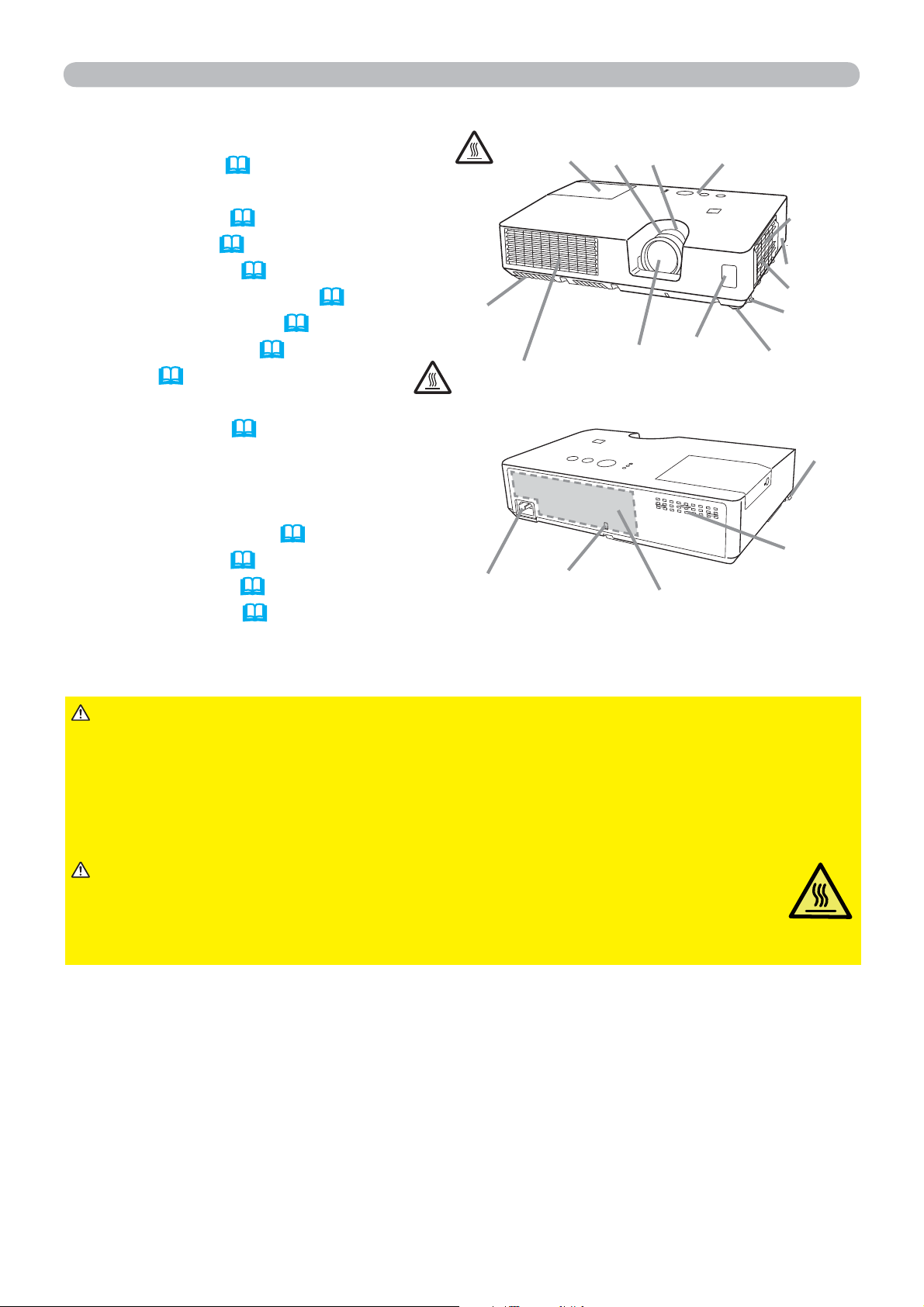
Part names
(1) Lamp cover (56)
The lamp unit is inside.
(2) FOCUS ring (20)
(3) ZOOM ring (
20)
(4) Control panel (
5)
(5) Elevator buttons (x 2) (
20)
(6) Elevator feet (x 2) (
20)
(7) Remote sensor (
15)
(8) Lens (
60)
(9) Intake vents
(10) Filter cover (
58)
The air filter and intake vent are
inside.
(11) Exhaust vent
(12) AC IN (AC inlet) (
13)
(13) Rear panel (
5)
(14) Security bar (
14)
(15) Security slot (
14)
HOT!
HOT!
(11)
(1)
(2) (3) (4)
(7)
(9)
(8)
(10)
(6)
(5)
(6)
(14)
(12)
(15)
(13)
(5)
(9)
►Do not open or remove any portion of the product, unless the
manuals direct it.
►Do not subject the projector to unstable conditions.
►Do not apply a shock or pressure to this product.
►Do not look into the lens and the openings on the projector while the lamp is
on.
WARNING
►Do not touch around the lamp cover and the exhaust
vents during use or just after use, since it is too hot.
►Do not attach anything onto the lens because it could damage the lens,
such as melting the lens.
CAUTION
(continued on next page)
5
Introduction
Part names (continued)
(continued on next page)
AC IN
COMPUTER IN
VIDEO
(2)(1)
(1) (3)(2)
(4)
(7)(6)
(5)
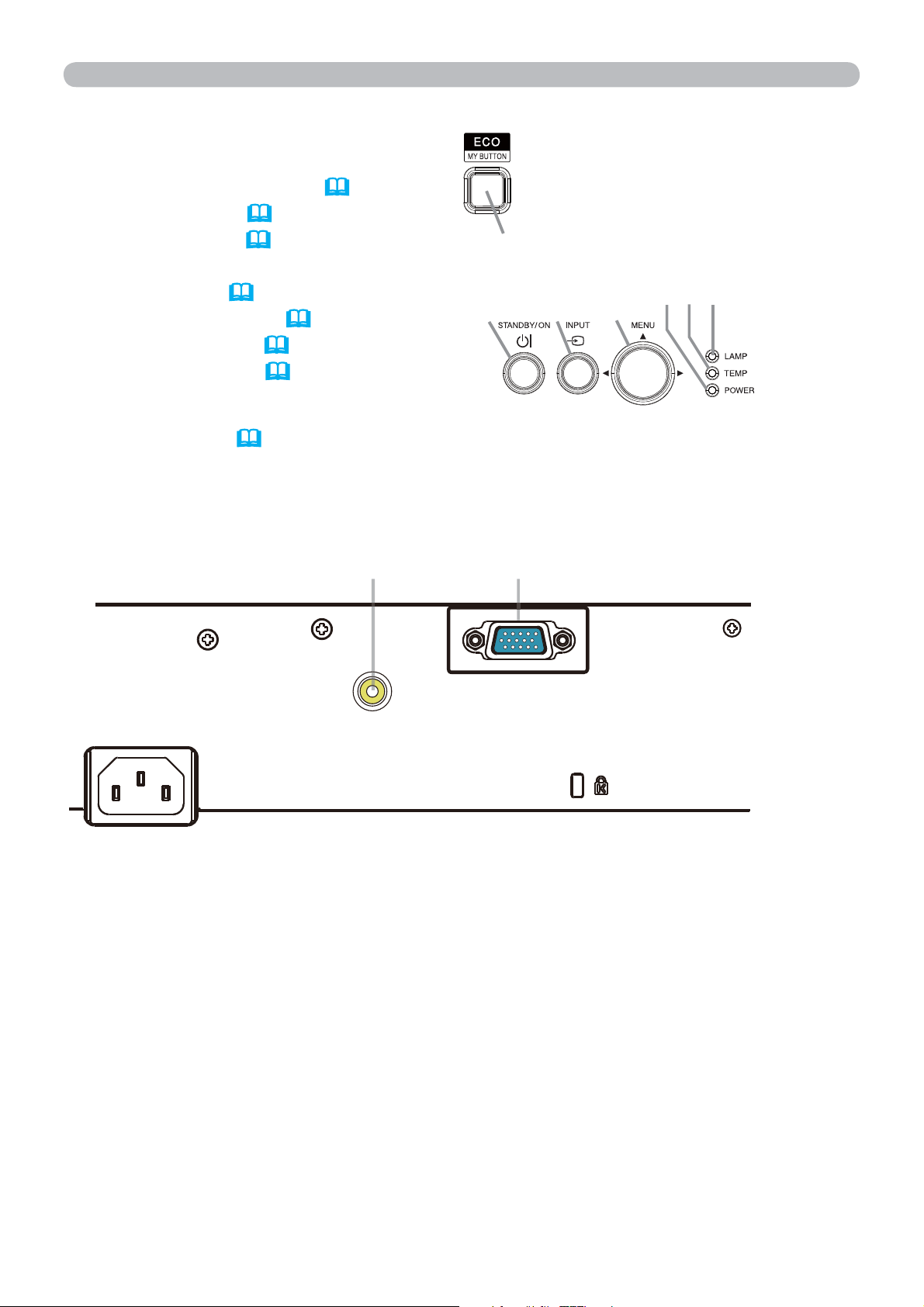
Rear panel
(
11, 12)
Control panel
(1) STANDBY/ON button (16)
(2) INPUT button (
18, 25)
(3) MENU button (
25)
It consists of four cursor buttons.
(4) ECO button (
47)
(5) POWER indicator (
16, 63)
(6) TEMP indicator (
63)
(7) LAMP indicator (
63)
(1) VIDEO port
(2) COMPUTER IN port
6
Introduction
Part names (continued)
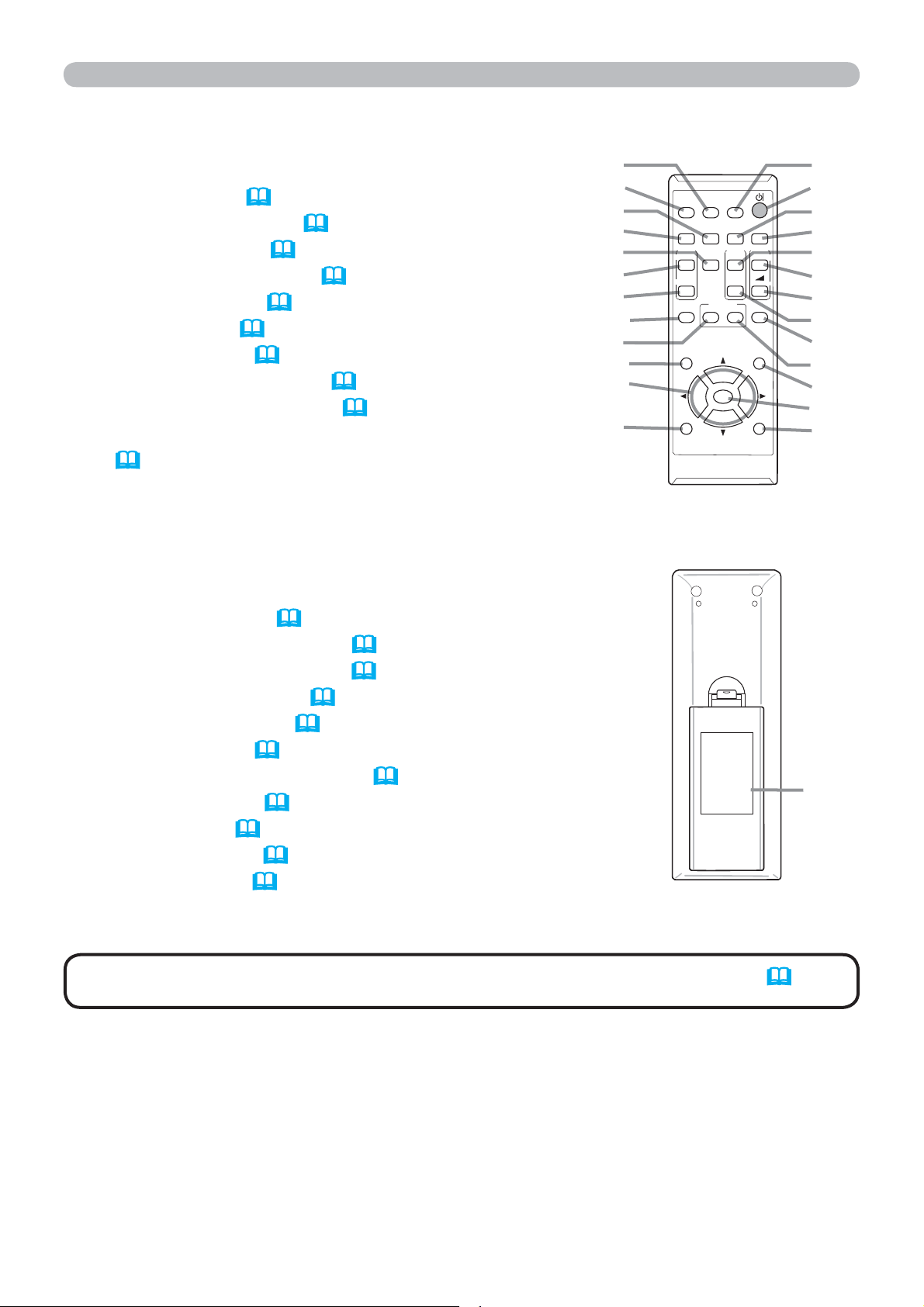
Remote control
(1) VIDEO button (
18)
(2) COMPUTER button (
18)
(3) SEARCH button (
19)
(4) STANDBY/ON button (
16)
(5) ASPECT button (
19)
(6) AUTO button (
21)
(7) BLANK button (
24)
(8) MAGNIFY - ON button (
23)
(9) MAGNIFY - OFF button (
23)
(10) MY SOURCE/DOC.CAMERA button
(
18, 48)
(11) VOLUME - button *
(12) PAGE UP button *
(13) PAGE DOWN button *
(14) VOLUME + button *
(15) MUTE button *
(16) FREEZE button (
24)
(17) MY BUTTON - 1 button (
47)
(18) MY BUTTON - 2 button (
47)
(19) KEYSTONE button (
22)
(20) POSITION button (
21, 25)
(21) MENU button (
25)
(22) ▲/▼/◄/► cursor buttons (
25)
(23) ENTER button (
25)
(24) ESC button (
25)
(25) RESET button (
25)
(26) Battery cover (
15)
Back of
the remote control
(2)
(1)
(6)
(5)
(16)
(8)
(9)
(19)
(17)
(20)
(22)
(24)
(10)
(4)
(3)
(7)
(12)
(14)
(11)
(13)
(15)
(18)
(21)
(23)
(25)
(26)
VIDEO
DOC.CAMERA
KEYSTONE
ASPECT
SEARCH
BLANK
MUTE
MY BUTTON
POSITION
ESC
MENU
RESET
COMPUTER
MY SOURCE/
AUTO
MAGNIFY
PAGE
DOWN
ON
OFF
FREEZE
UP
㧗
VOLUME
ENTER
• Any button marked with “*” is not supported on this projector (62).
NOTE
7
Setting up
Setting up
Install the projector according to the environment and manner the projector will be
used in.
For the case of installation in a special state such as ceiling mount, the specified
mounting accessories (
Specifications in the User’s Manual (concise)) and
service may be required. Before installing the projector, consult your dealer about
your installation.
Arrangement
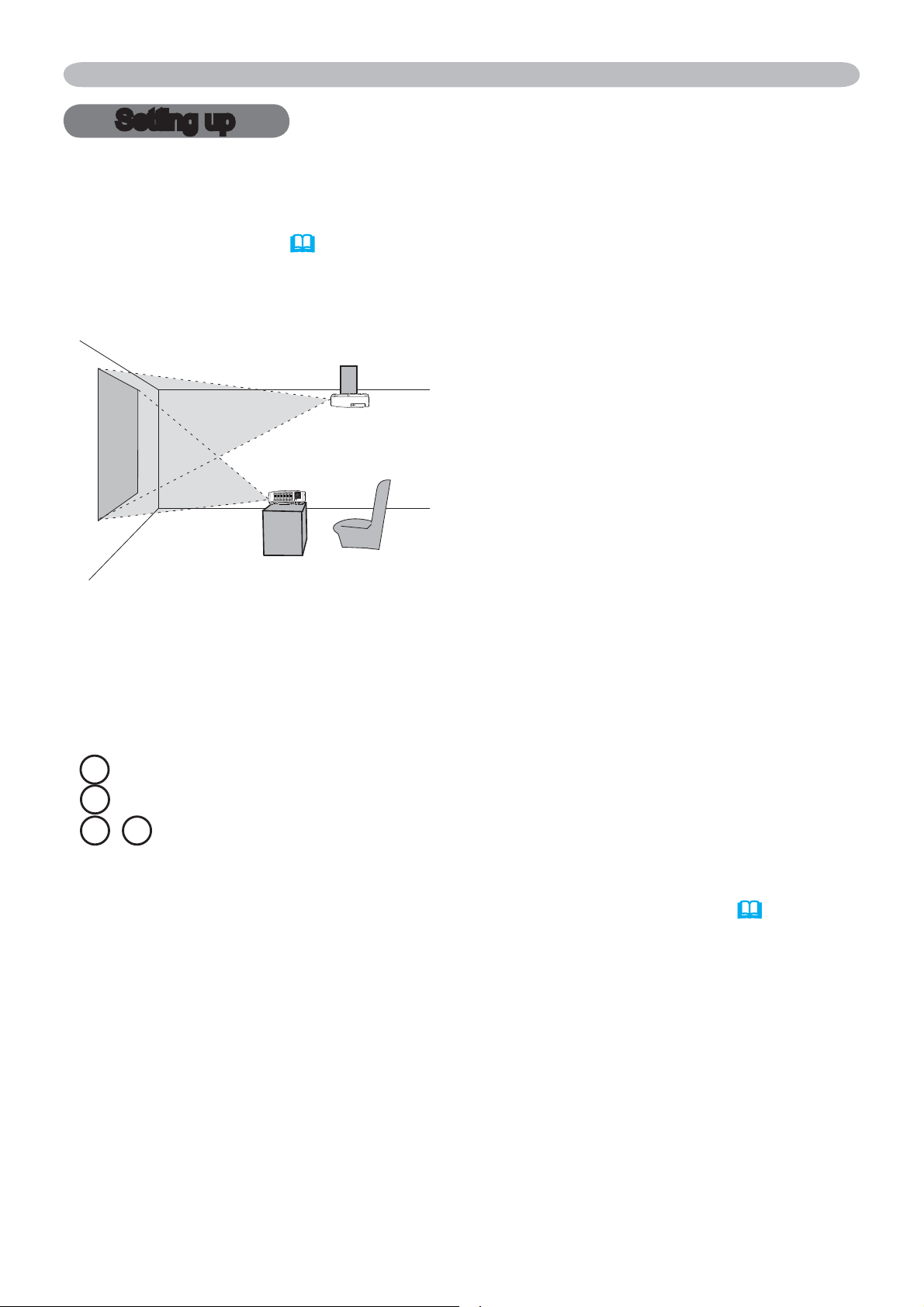
Refer to tables T-1 and T-2 at the back of User's Manual (concise) as well as the
following to determine the screen size and projection distance.
The values shown in the table are calculated for a full size screen.
(continued on next page)
• If the projector is used at an altitude of about 1600 m (5250 feet) or higher,
set ALTITUDE of the SERVICE item in the OPTION menu to HIGH (
48).
Otherwise, set it to NORMAL. If the projector is used with a wrong setting, it may
cause damage to the projector itself or the parts inside.
a Screen size (diagonal)
b Projection distance (±10%, from the projector’s end)
c1 , c2 Screen height (±10%)

8
Setting up
Arrangement (continued)
WARNING
(continued on next page)
►Install the projector where you can access the power
outlet easily. If an abnormality should occur, unplug the projector urgently.
Otherwise it could cause a fire or electric shock.
►Do not subject the projector to unstable conditions. If the projector falls
or topples over, it could result in injury or damage to the projector and the
surrounding things. Using a damaged projector could result in a fire and an
electric shock.
• Do not place the projector in unstable places, such as an inclined surface,
places subject to vibration, on top of a wobbly table or cart, or a surface that is
smaller than the projector.
• Do not put the projector on its side, front or rear position.
• Do not attach nor place anything on the projector unless otherwise specified in
the manual.
• Do not use any mounting accessories except the accessories specified by the
manufacturer. Read and keep the manuals of the accessories used.
• For special installation such as ceiling mounting, be sure to consult your dealer
beforehand.
►
Do not install the projector near thermally conductive or flammable
things. Such things when heated by the projector could result in a fire and burns.
• Do not place the projector on a metal stand.
►Do not place the projector where any oils, such as cooking or machine
oil, are used. Oil may harm the product, resulting in malfunction, or falling from
the mounted position.
►Do not place the projector in a place where it may get wet. Getting the
projector wet or inserting liquid into the projector could cause a fire and an
electric shock, and damage the projector.
• Do not place the projector near water, such as in a bathroom, kitchen, or
poolside.
• Do not place the projector outdoors or by the window.
• Do not place anything containing liquid near the projector.

9
Setting up
Arrangement (continued)
►Place the projector in a cool place with sufficient
ventilation. The projector may shutdown automatically or may malfunction if its
internal temperature is too high.
Using a damaged projector could result in a fire and an electric shock.
• Do not place the projector in direct sunlight or near hot objects such as heaters.
• Do not place the projector where the air from an air conditioner or similar unit
will blow on it directly.
• Keep a space of 30 cm or more between a side of the projector and other
objects such as walls.
• Do not place the projector on carpet, cushions or bedding.
• Do not stop up, block nor cover the projector's vent holes. Do not place
anything around the projector that could be sucked in or stuck to the projector's
intake vents.
• Do not place the projector at places that are exposed to magnetic fields, doing
so can cause the cooling fans inside the projector to malfunction.
►Avoid placing the projector in smoky, humid or dusty place. Placing the
projector in such places could cause a fire, an electric shock and malfunction of
the projector.
• Do not place the projector near humidifiers. Especially for an ultrasonic
humidifier, chlorine and minerals contained in tap water are atomized and could
be deposited in the projector causing image degradation or other problems.
• Do not place the projector in a smoking area, kitchen, passageway
or by the window.
• Position the projector to prevent light from directly hitting the projector's remote
sensor.
• Do not place the product in a place where radio interference may be caused.
• Check and correct the setting for ALTITUDE of SERVICE in the OPTION menu
according to the usage environment (
48). If the projector is used with a wrong
setting, it may cause damage to the projector itself or the parts inside.
• Keep heat-sensitive things away from the projector. Otherwise, they may be
damaged by the heat from the projector.
CAUTION
NOTICE
10
Setting up
Connecting with your devices
Before connecting the projector to a device, consult the manual of the device to
confirm that the device is suitable for connecting with this projector and prepare
the required accessories, such as a cable in accord with the signal of the device.
Consult your dealer when the required accessory did not come with the product or
the accessory is damaged.
After making sure that the projector and the devices are turned off, perform
the connection, according to the following instructions. Refer to the figures in
subsequent pages.
►Use only the appropriate accessories. Otherwise it could
cause a fire or damage the projector and devices.
• Use only the accessories specified or recommended by the projector’s
manufacturer. It may be regulated under some standard.
• Neither disassemble nor modify the projector and the accessories.
• Do not use the damaged accessory. Be careful not to damage the accessories.
Route a cable so that it is neither stepped on nor pinched out.
WARNING
►For a cable with a core at only one end, connect the end
with the core to the projector. That may be required by EMI regulations.
CAUTION
• Plug-and-Play is a system composed of a computer, its operating system
and peripheral equipment (i.e. display devices). This projector is VESA DDC
2B compatible. Plug-and-Play can be used by connecting this projector to a
computer that is VESA DDC (display data channel) compatible.
- Take advantage of this feature by connecting a computer cable to the
COMPUTER IN port (DDC 2B compatible). Plug-and-Play may not work
properly if any other type of connection is attempted.
- Please use the standard drivers in your computer as this projector is a Plug-
and-Play monitor
.
• Do not turn on or off the projector while connected to a device in
operation, unless that is directed in the manual of the device. Otherwise it may
cause malfunction in the device or projector.
• The function of some input ports can be selected according to your usage
requirements. Check the reference page indicated beside each port in the
following illustration.
• Be careful not to mistakenly connect a connector to a wrong port. Otherwise it
may cause malfunction in the device or projector.
- When connecting a connector to a port, make sure that the shape of the
connector fits the port.
- Tighten the screws to connect a connector equipped with screws to a port.
- Use the cables with straight plugs, not L-shaped ones, as the input ports of
the projector are recessed.
About Plug-and-Play ca
pability
NOTE
(continued on next page)
11
Setting up
Connecting with your devices (continued)
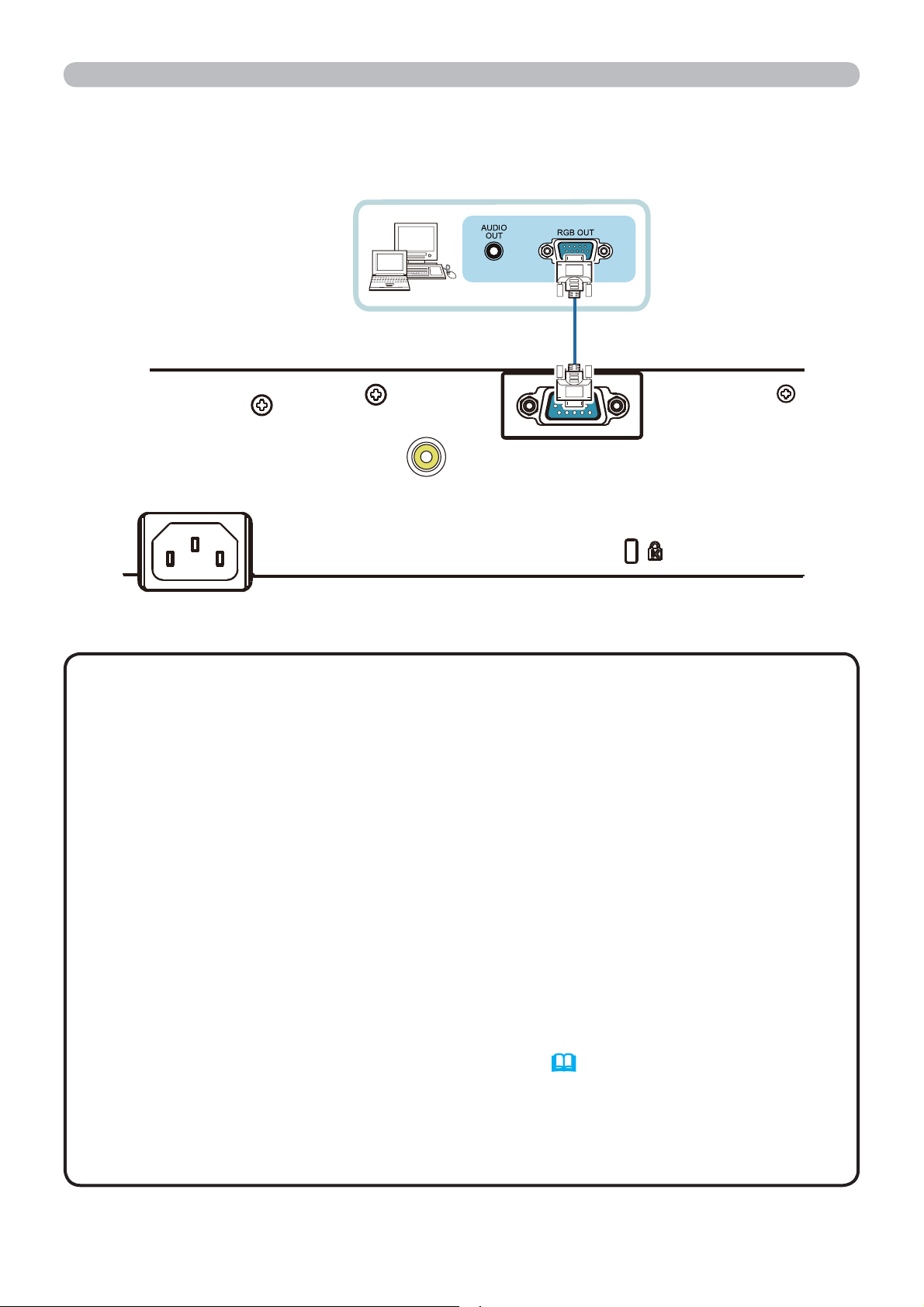
• Before connecting the projector to a computer, consult the computer’s
manual and check the compatibility of the signal level, the synchronization
methods and the display resolution output to the projector.
- Some signal may need an adapter to input this projector.
- Some computers have multiple screen display modes that may include some
signals which are not supported by this projector.
- Although the projector can display signals with resolution up to UXGA
(1600x1200), the signal will be converted to the projector’s panel resolution
before being displayed. The best display performance will be achieved if the
resolutions of the input signal and the projector panel are identical.
• If you connect this projector and a notebook computer, you need output the
display to an external monitor, or output simultaneously to the internal display
and an external monitor. Consult the computer's manual for the setting.
• Depending on the input signal, the automatic adjustment function of this
projector may take some time and not function correctly.
- Note that a composite sync signal or sync-on-green signal may confuse the
automatic adjustment function of this projector (
36).
- If the automatic adjustment function does not work correctly, you may not see
the dialog to set the display resolution. In such a case, use an external display
device. You may be able to see the dialog and set an appropriate display
resolution.
NOTE
(continued on next page)
Computer
AC IN
COMPUTER IN
VIDEO
12
Setting up
Connecting with your devices (continued)
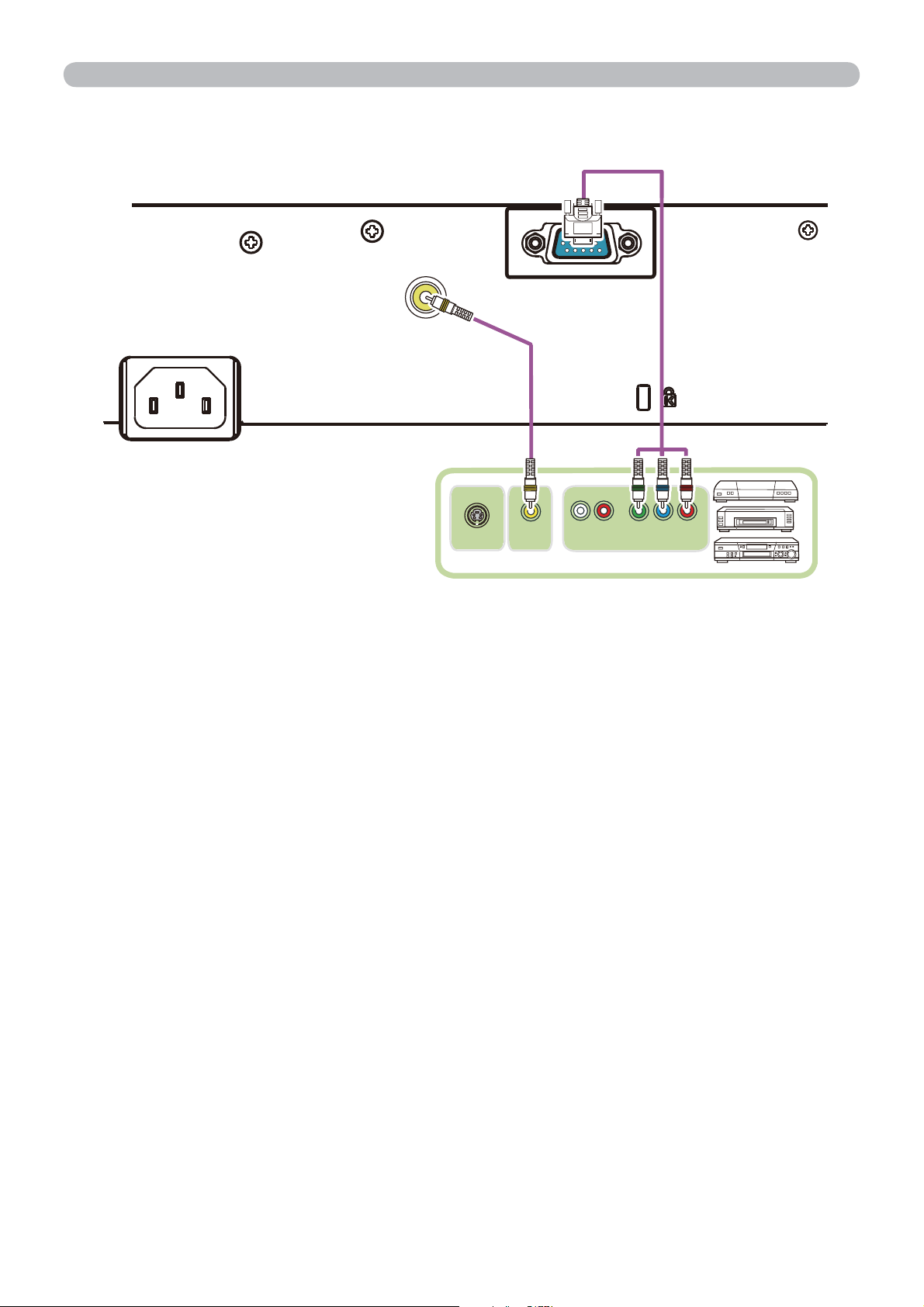
VCR/DVD/Blu-ray Disc
TM
player
AC IN
COMPUTER IN
VIDEO
Y CB/PB CR/PR
COMPONENT VIDEO OUT
L R
AUDIO OUT
VIDEO OUT
S-VIDEO OUT
13
Connecting to a power supply
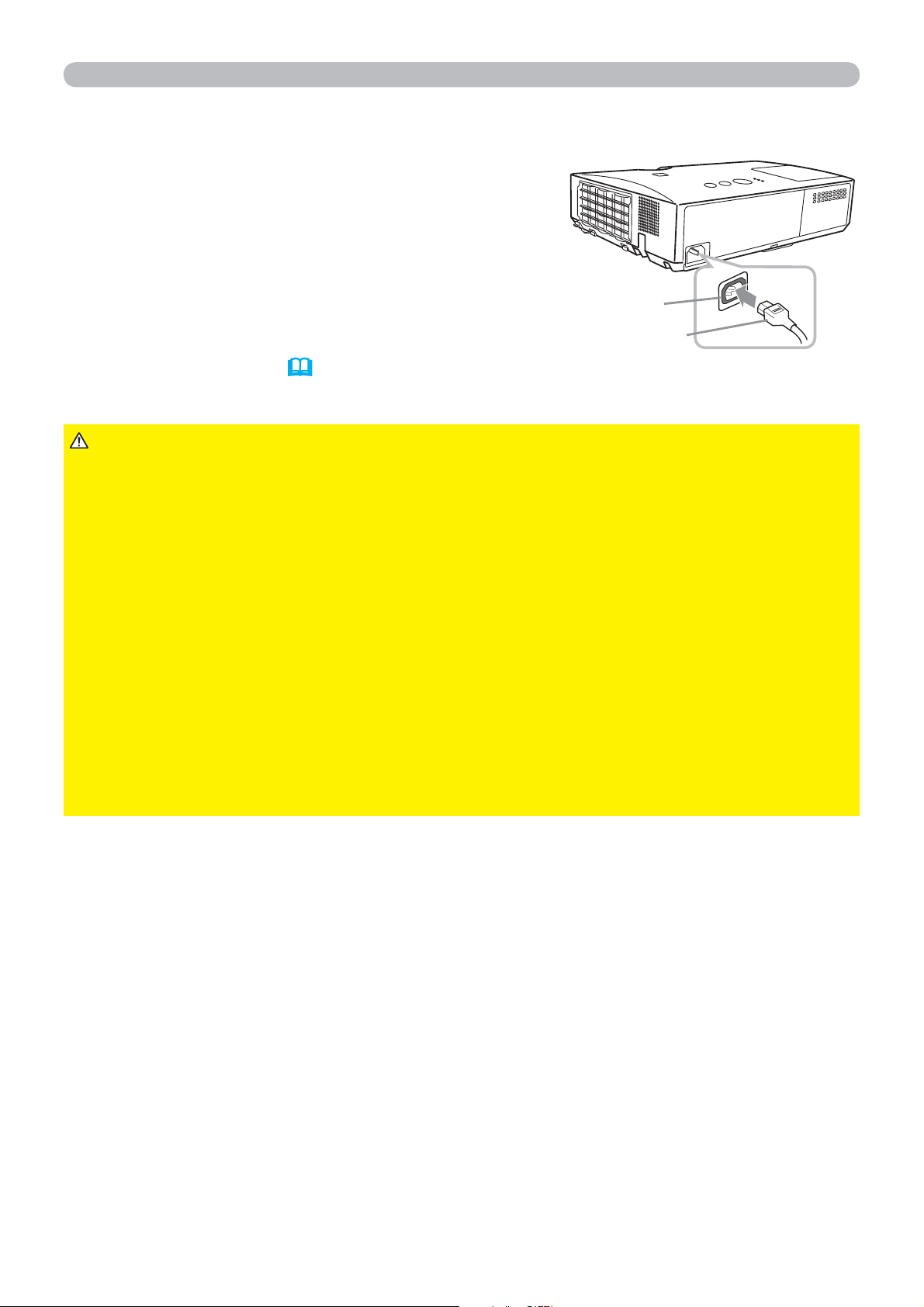
1.
Put the connector of the power cord into the
AC IN (AC inlet) of the projector.
2.
Firmly plug the power cord’s plug into the
outlet. In a couple of seconds after the
power supply connection, the POWER
indicator will light up in steady orange.
►Please use extra caution when connecting the power cord, as
incorrect or faulty connections may result in fire and/or electrical shock.
• Do not touch the power cord with a wet hand.
• Only use the power cord that came with the projector. If it is damaged, consult
your dealer to get a new one. Never modify the power cord.
• Only plug the power cord into an outlet whose voltage is matched to the power
cord. The power outlet should be close to the projector and easily accessible.
Remove the power cord for complete separation.
• Do not distribute the power supply to multiple devices. Doing so may overload
the outlet and connectors, loosen the connection, or result in fire, electric shock
or other accidents.
• Connect the ground terminal for the AC inlet of this unit to the ground terminal
of the building using an appropriate power cord (bundled).
WARNING
Please remember that when the DIRECT POWER
ON function activated (
45), the connection of the
power supply make the projector turn on.
Setting up
►This product is also designed for IT power systems with a phase-to-
phase voltage of 220 to 240 V.
NOTICE
AC IN
Power cord
14
Using the security bar and slot
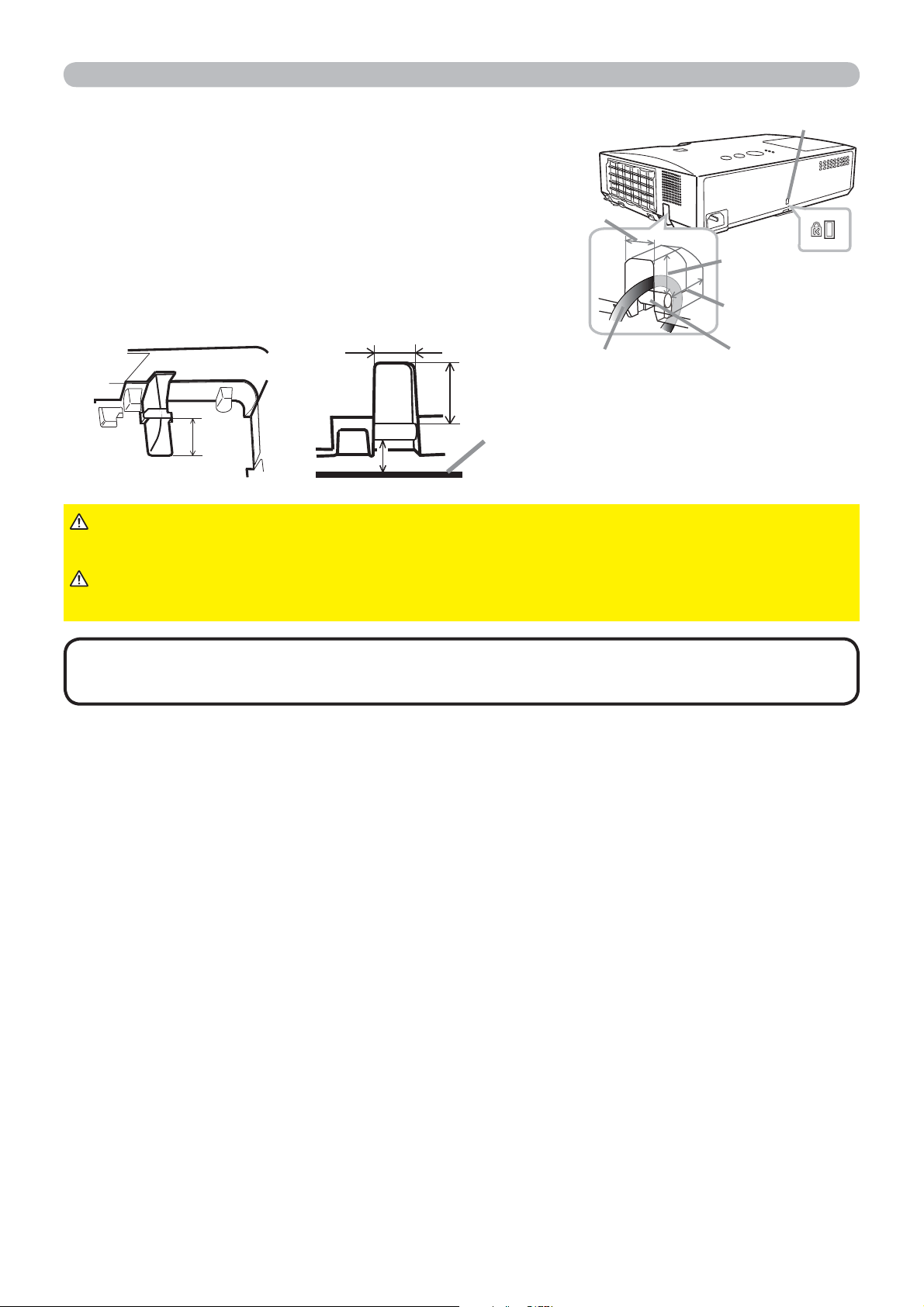
A commercially available anti-theft chain or
wire can be attached to the security bar on
the projector. Refer to the fi gure to choose
an anti-theft chain or wire.
Also this product has the security slot for
the Kensington lock.
For details, see the manual of the security
tool.
►Do not use the security bar and slot to prevent the projector
from falling down, since it is not designed for it.
WARNING
►Do not place anti-theft chain or wire near the exhaust vents.
It may become too hot.
CAUTION
• The security bar and slot is not comprehensive theft prevention
measures. It is intended to be used as supplemental theft prevention measure.
NOTE
Setting up
Security slot
Anti-theft
chain or wire
security bar
18mm
18mm
12mm
18 mm
12 mm
18 mm
10 mm
Installation surface
15
30º
3 m
30º
(approx.)
Remote control
About the remote control signal
The remote control works with the projector’s remote
sensor. This projector has a remote sensor on the front.
The sensor senses the signal within the following range
when the sensor is active:
60 degrees (30 degrees to the left and right of the sensor)
within 3 meters about.
Installing the batteries
Please insert the batteries into the remote control before using it. If the remote control
starts to malfunction, try to replace the batteries. If you will not use the remote control for
long period, remove the batteries from the remote control and store them in a safe place.
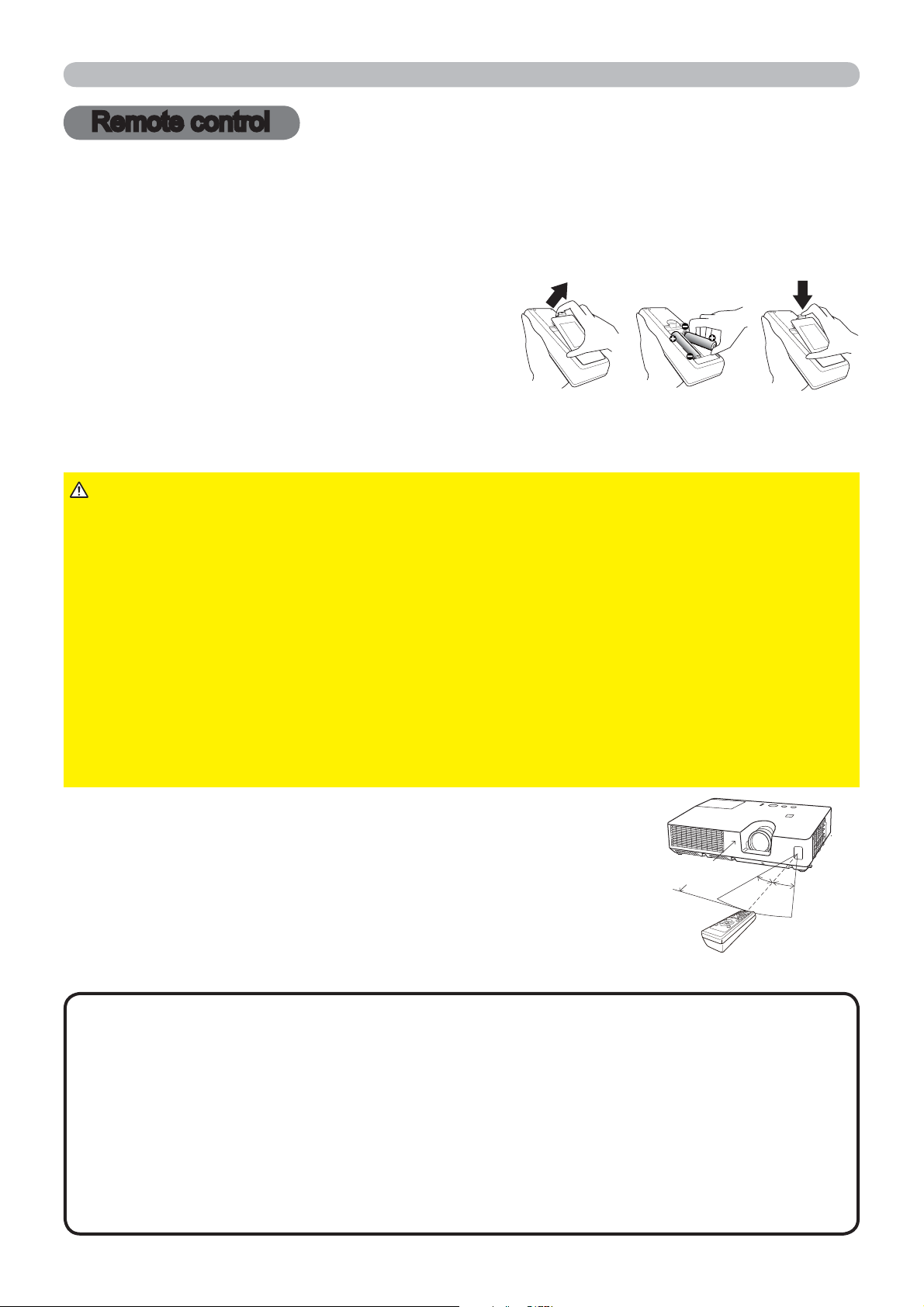
1.
Holding the hook part of the battery
cover, remove it.
2.
Align and insert the two AA batteries
(HITACHI MAXELL or HITACHI MAXELL
ENERGY, Part No.LR6 or R6P)
according
to their plus and minus terminals as indicated in the remote control.
3.
Replace the battery cover in the direction of the arrow and snap it back into place.
►Always handle the batteries with care and use them only as
directed. Improper use may result in battery explosion, cracking or leakage,
which could result in fire, injury and/or pollution of the surrounding environment.
• Be sure to use only the batteries specified. Do not use batteries of different
types at the same time. Do not mix a new battery with used one.
•
Make sure the plus and minus terminals are correctly aligned when loading a battery.
• Keep a battery away from children and pets.
• Do not recharge, short circuit, solder or disassemble a battery.
•
Do not place a battery in a fire or water. Keep batteries in a dark, cool and dry place.
•
If you observe battery leakage, wipe out the leakage and then replace a battery.
If the leakage adheres to your body or clothes, rinse well with water immediately.
• Obey the local laws on disposing the battery.
WARNING
•
The remote control signal reflected in the screen or the like may be available.
If it is difficult to send the signal to the sensor directly, attempt to make the signal reflect.
• The remote control uses infrared light to send signals to the projector (Class 1
LED), so be sure to use the remote control in an area free from obstacles that
could block the remote control’s signal to the projector.
•
The remote control may not work correctly if strong light (such as direct sun
light) or light from an extremely close range (such as from an inverter fluorescent
lamp) shines on the remote sensor of the projector. Adjust the position of
projector avoiding those lights.
NOTE
Remote control
213
16
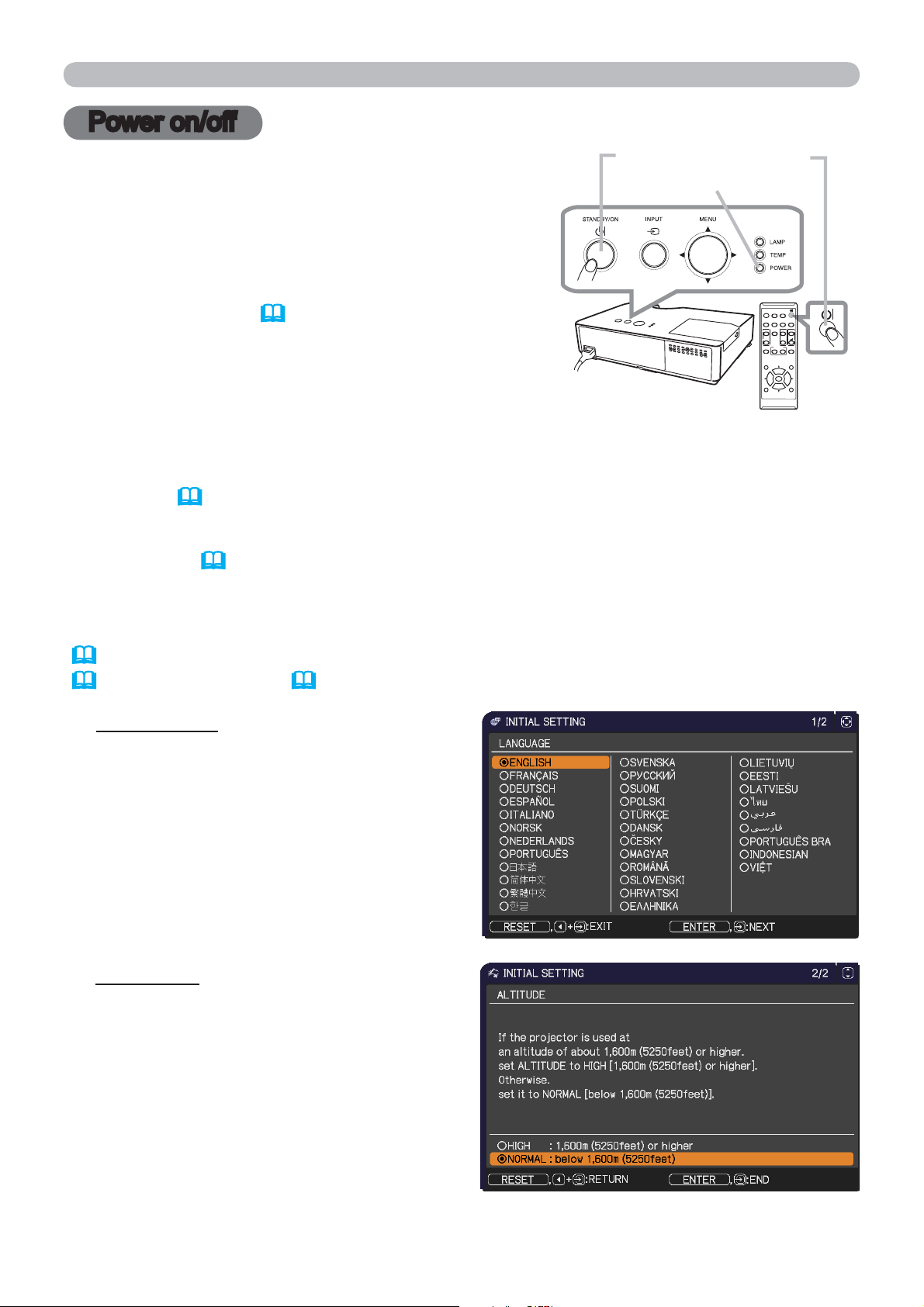
1.
Make sure that the power cord is fi rmly and
correctly connected to the projector and the
outlet.
Turning on the power
2.
Make sure that the POWER indicator is
steady orange (
63).
3.
Press STANDBY/ON button on the
projector or the remote control.
The projection lamp will light up and POWER
indicator will begin blinking in green. When the
power is completely on, the indicator will stop blinking and light in steady
green (
63).
Power on/off
To display the picture, select an input signal according to the section Selecting an
input signal (
18).
Power on/off
VIDEO
DOC.CAMERA
KEYSTONE
ASPECT
SEARCH
BLANK
MUTE
MY BUTTON
POSITION
ESC
MENU
RESET
COMPUTER
MY SOURCE/
AUTO
MAGNIFY
PAGE
DOWN
ON
OFF
FREEZE
UP
㧗
VOLUME
ENTER
STANDBY/ON button
POWER indicator
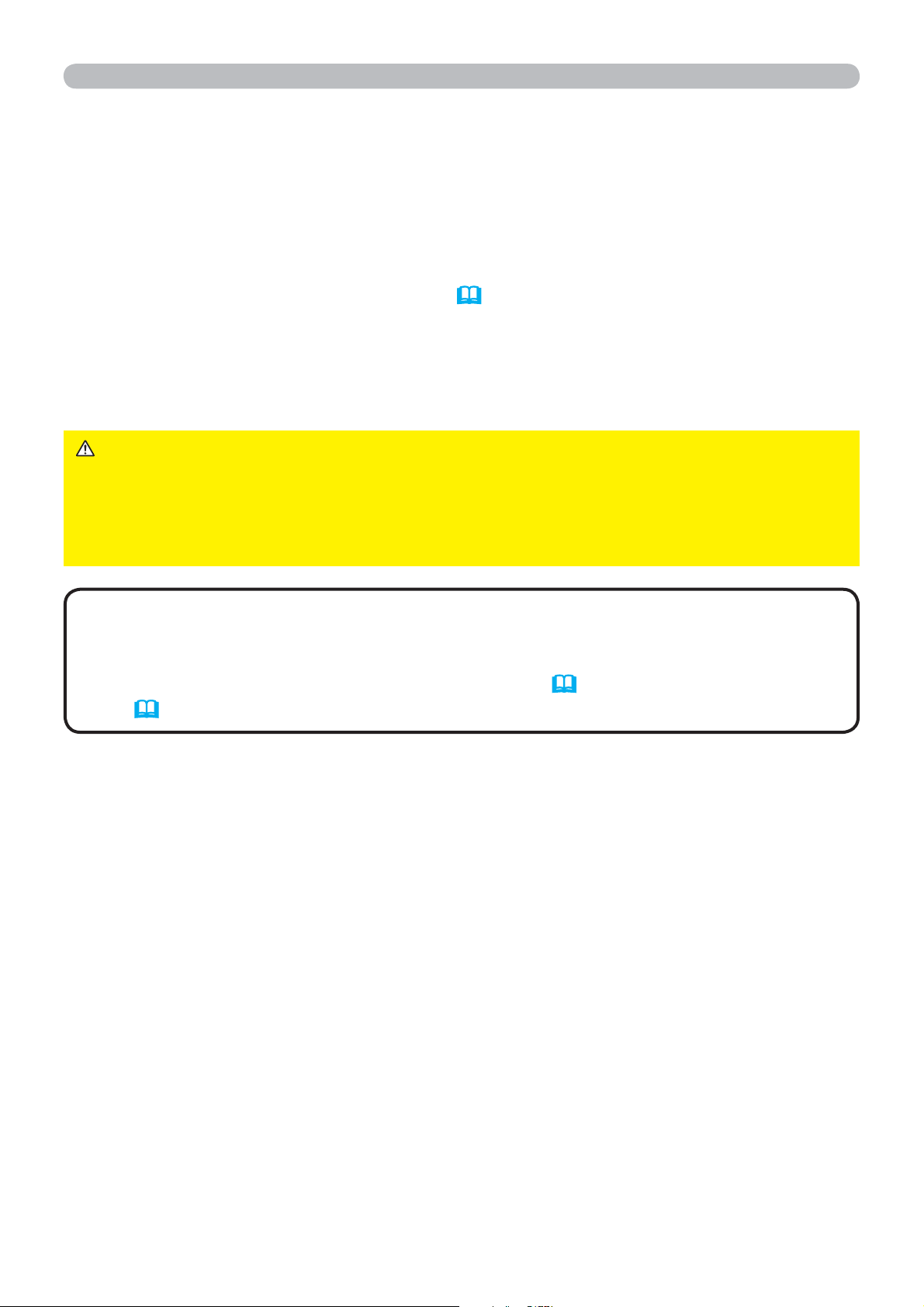
The INITIAL SETTING Menu will be displayed by factory default upon startup.
Once the INITIAL SETTING Menu is set, it will not appear until FACTORY RESET
(
50) is executed. If you wish to change the settings, refer to the LANGUAGE
(
39) and ALTITUDE (48) menu.
(1) LANGUAGE: Use the ▲/▼/◄/►
buttons to select the desired language
and press the ENTER button of the
remote control or the INPUT button of
the projector to execute.
(2) ALTITUDE: Use the ▲/▼ buttons to
select NORMAL for altitude below
1600 m (5250 feet), otherwise select
HIGH and press the ENTER button of
the remote control or the INPUT button
of the projector to execute.
17
Power on/off
►A strong light is emitted when the projector’s power is on.
Do not look into the lens of the projector or look inside of the projector through
any of the projector’s openings.
►Do not touch around the lamp cover and the exhaust vents during use or just
after use, since it is too hot.
WARNING
1.
Press the STANDBY/ON button on the projector or the remote control.
The message “Power off?” will appear on the screen for about 5 seconds.
Turning off the power
2.
Press the STANDBY/ON button again while the message appears.
The projector lamp will go off, and the POWER indicator will begin blinking in
orange. Then POWER indicator will stop blinking and light in steady orange
when the lamp cooling is complete (
63).
Do not turn the projector on for about 10 minutes or more after turning it off.
Also, do not turn the projector off shortly after turning it on. Such operations might
cause the lamp to malfunction or shorten the lifetime of some parts including the lamp.
• Turn the power on/off in right order. Please power on the projector
prior to the connected devices.
• This projector has the function that can make the projector automatically turn
on/off. Please refer to the DIRECT POWER ON (
45) and AUTO POWER
OFF (
45) items of the OPTION menu.
NOTE
18
Operating
Operating
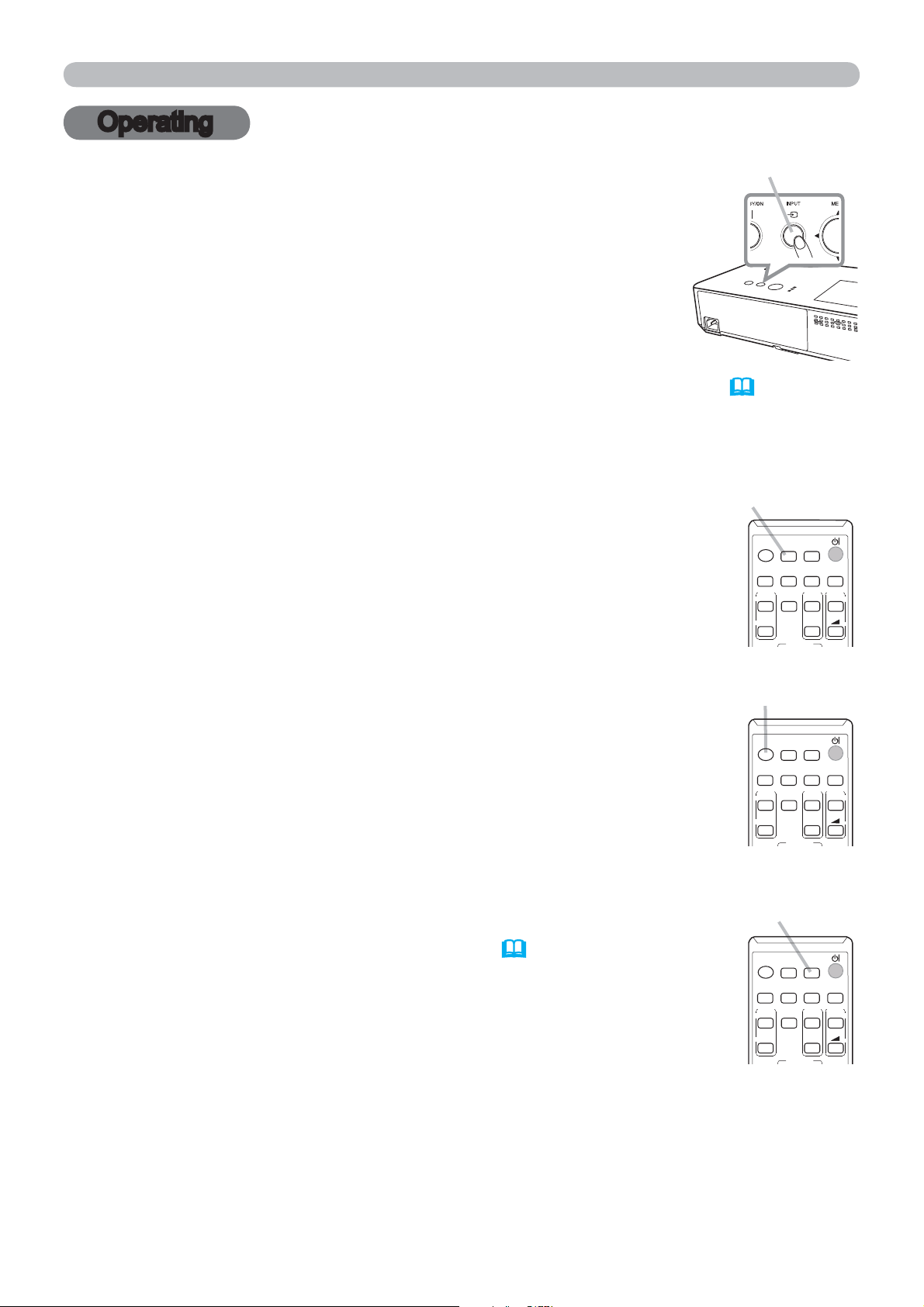
1.
Press INPUT button on the projector.
Each time you press the button, the projector switches its
input port from the current port as below.
Selecting an input signal
INPUT button
● While ON is selected for AUTO SEARCH item in OPTION menu (45), the
projector will keep checking the ports in above order repeatedly till an input
signal is detected.
COMPUTER IN VIDEO
VIDEO
DOC.CAMERA
KEYSTONE
ASPECT
SEARCH
BLANK
MUTE
MY BUTTON
COMPUTER
MY SOURCE/
AUTO
MAGNIFY
PAGE
DOWN
ON
OFF
FREEZE
UP
㧗
VOLUME
1.
Press VIDEO button on the remote control.
VIDEO button
VIDEO
DOC.CAMERA
KEYSTONE
ASPECT
SEARCH
BLANK
MUTE
MY BUTTON
COMPUTER
MY SOURCE/
AUTO
MAGNIFY
PAGE
DOWN
ON
OFF
FREEZE
UP
㧗
VOLUME
MY SOURCE /
DOC. CAMERA button
1.
Press COMPUTER button on the remote control to select
the COMPUTER IN port.
COMPUTER button
VIDEO
DOC.CAMERA
KEYSTONE
ASPECT
SEARCH
BLANK
MUTE
MY BUTTON
COMPUTER
MY SOURCE/
AUTO
MAGNIFY
PAGE
DOWN
ON
OFF
FREEZE
UP
㧗
VOLUME
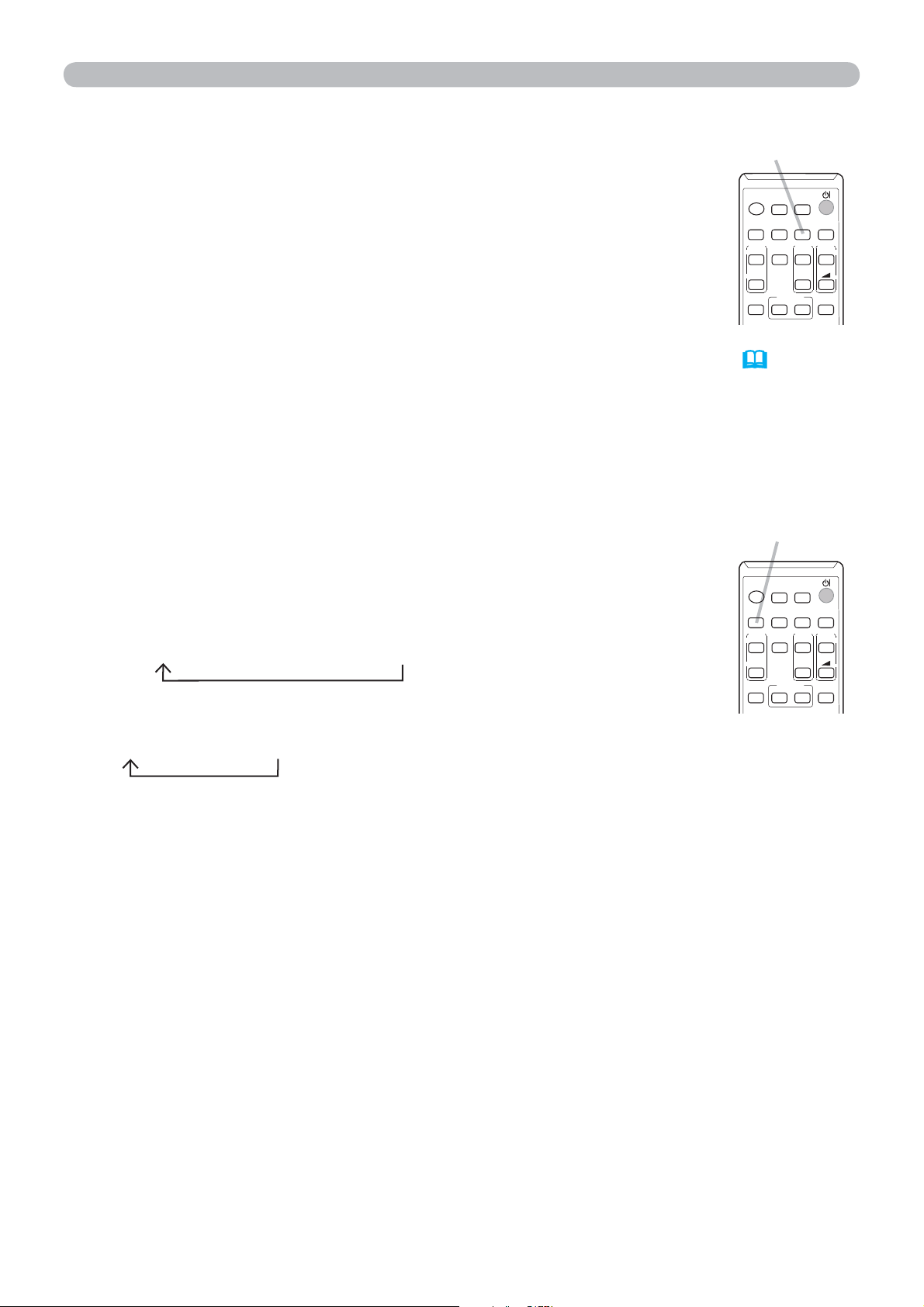
1.
Press the MY SOURCE / DOC. CAMERA button on
the remote control. The input signal will be changed
into the signal you set as MY SOURCE (
48).
● This function also can use for document camera. Select the
input port that connected the document camera.
19
COMPUTER IN VIDEO
Operating
Selecting an aspect ratio
● ASPECT button does not work when no proper signal is inputted.
● NORMAL mode keeps the original aspect ratio setting.
1.
Press SEARCH button on the remote control.
The projector will start to check its input ports as below in
order to fi nd any input signals.
When an input is found, the projector will stop searching
and display the image. If no signal is found, the projector will
return to the state selected before the operation.
Searching an input signal
● While ON is selected for AUTO SEARCH item in OPTION menu (45), the
projector will keep checking the ports in above order repeatedly till an input
signal is detected.
For a computer signal
NORMAL
4:3
16:9
16:10
For a video signal or component video signal
4:3
16:9
14:9
For no signal
4:3 (fi xed)
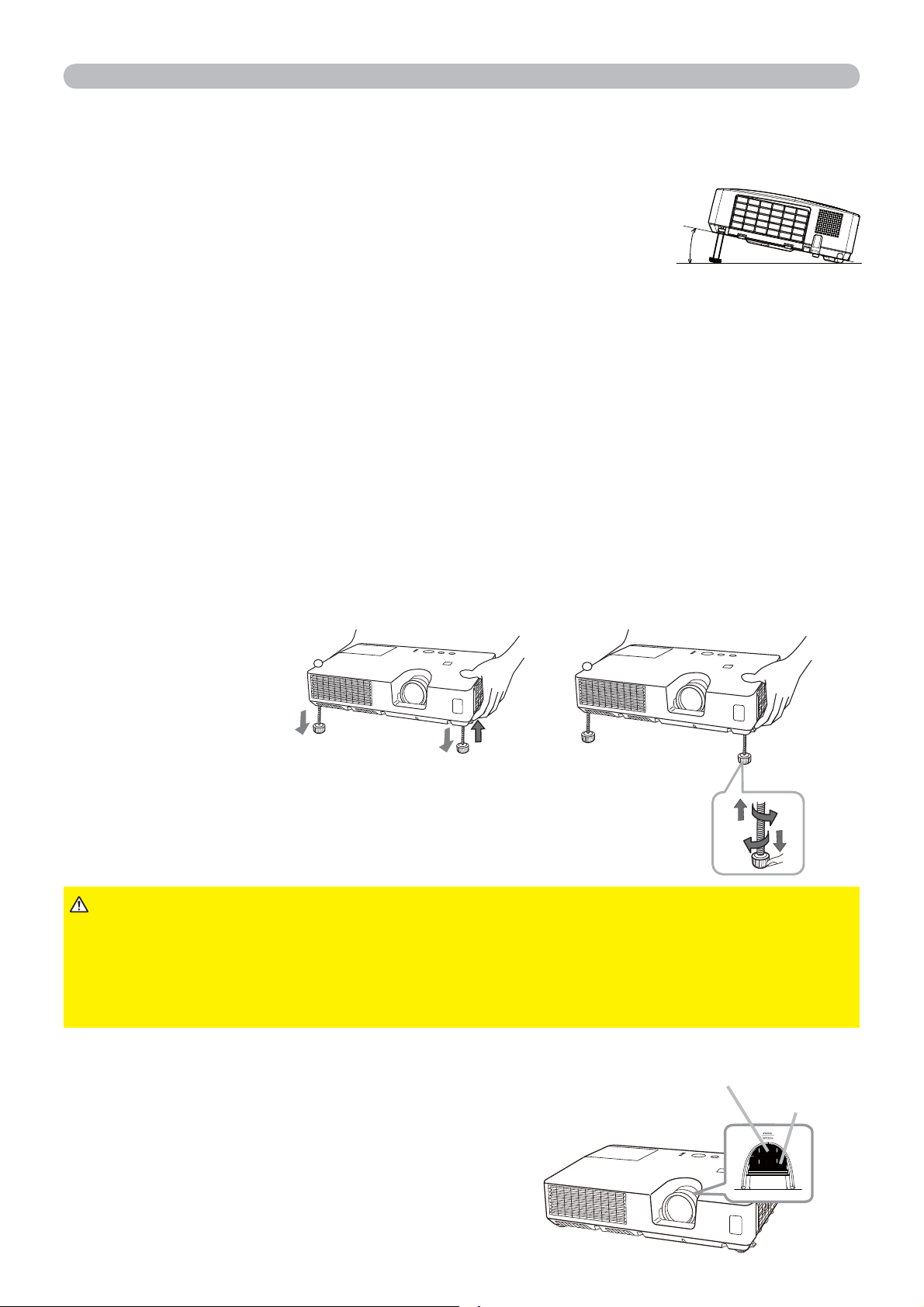
1.
Press ASPECT button on the remote control.
Each time you press the button, the projector switches the
mode for aspect ratio in turn.
ASPECT button
SEARCH button
VIDEO
DOC.CAMERA
KEYSTONE
ASPECT
SEARCH
BLANK
MUTE
MY BUTTON
COMPUTER
MY SOURCE/
AUTO
MAGNIFY
PAGE
DOWN
ON
OFF
FREEZE
UP
㧗
VOLUME
VIDEO
DOC.CAMERA
KEYSTONE
ASPECT
SEARCH
BLANK
MUTE
MY BUTTON
COMPUTER
MY SOURCE/
AUTO
MAGNIFY
PAGE
DOWN
ON
OFF
FREEZE
UP
㧗
VOLUME
20
Operating
Adjusting the projector's elevator
When the place to put the projector is slightly uneven to the left or right, use the
elevator feet to place the projector horizontally.
Using the feet can also tilt the projector in order to project at
a suitable angle to the screen, elevating the front side of the
projector within 12 degrees.
This projector has 2 elevator feet and 2 elevator knobs.
An elevator foot is
adjustable while pulling up the elevator knob on the same side as it.
1.
Holding the projector, pull the elevator knobs up to loose the elevator feet.
2.
Position the front side of the projector to the desired height.
3.
Release the elevator knobs in order to lock the elevator feet.
To loose an elevator foot,
pull up the elevator knob
on the same side as it.
To finely adjust, twist the foot.
4.
After making sure that the elevator feet are locked, put the projector down
gently.
5.
If necessary, the elevator feet can be manually twisted to make more precise
adjustments. Hold the projector when twisting the feet.
►Do not handle the elevator buttons without holding the
projector, since the projector may drop down.
►Do not tilt the projector other than elevating its front within 12 degrees using
the adjuster feet. A tilt of the projector exceeding the restriction could cause
malfunction or shortening the lifetime of consumables, or the projector itself.
CAUTION
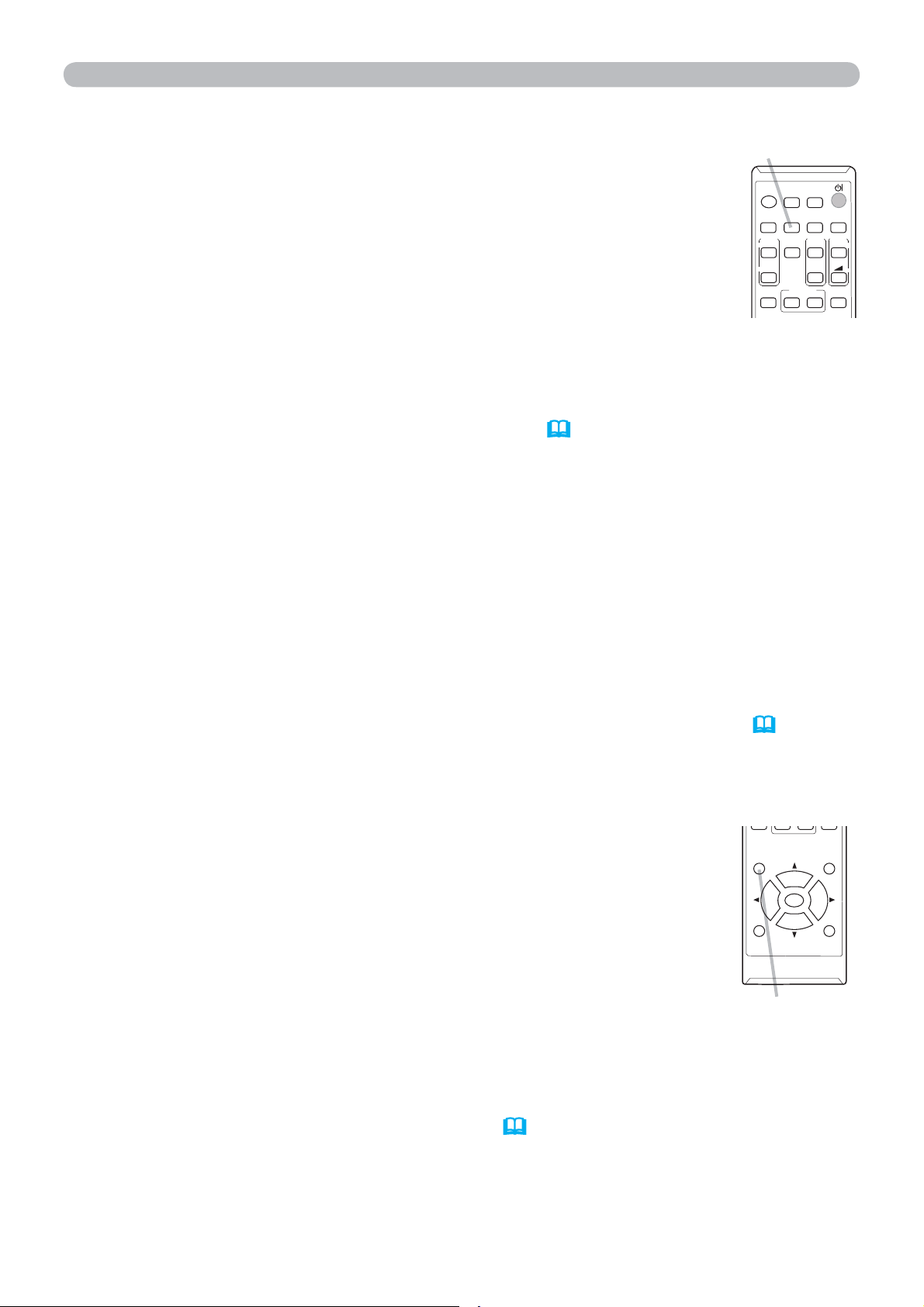
1.
Use the ZOOM ring to adjust the screen size.
2.
Use the FOCUS ring to focus the picture.
Adjusting the zoom and focus
12°
51
FOCUS ring
ZOOM ring
21
Operating
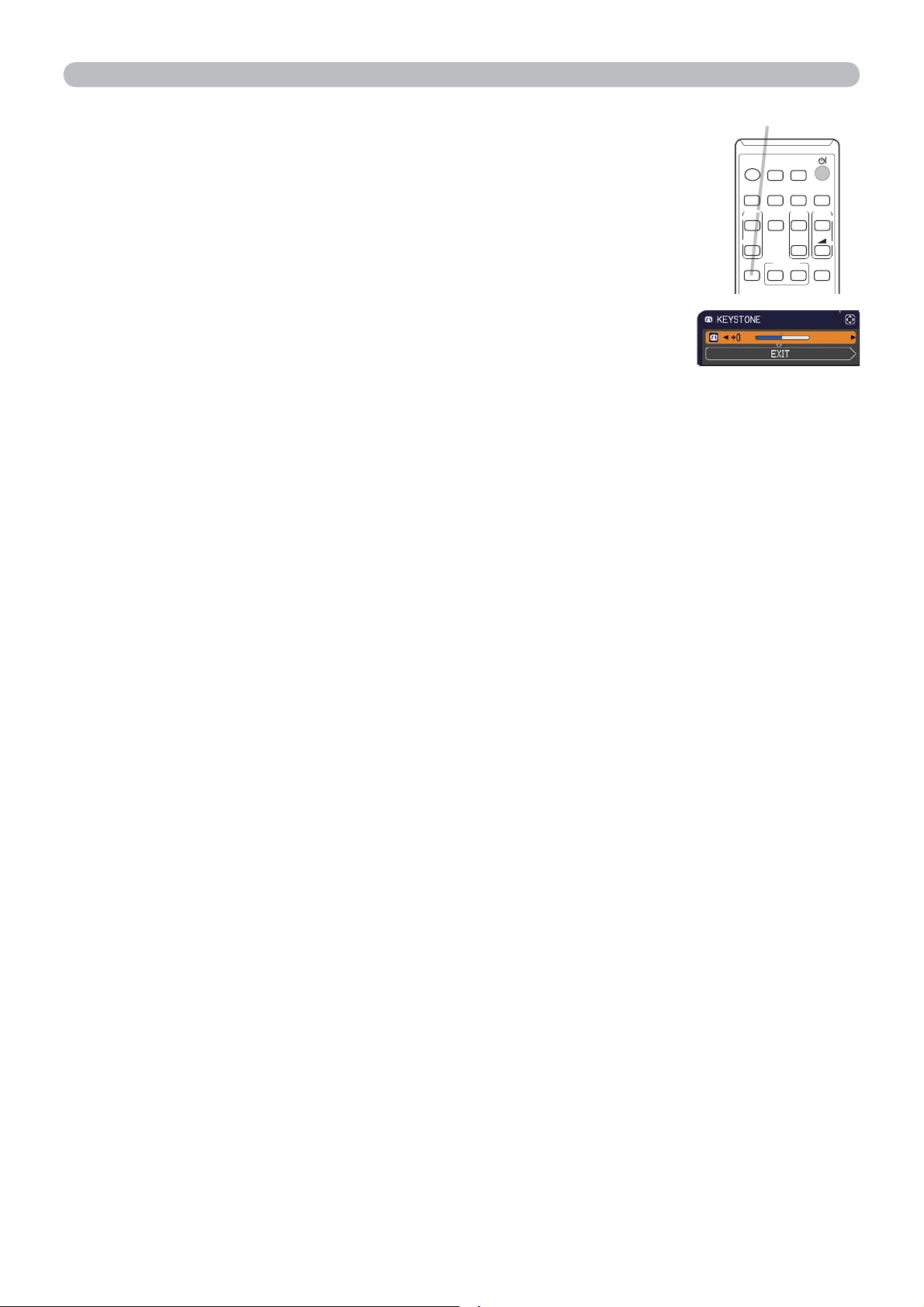
1.
Press POSITION button on the remote control when no menu is
indicated.
The “POSITION” indication will appear on the screen.
Adjusting the position
2.
Use the ▲/▼/◄/► cursor buttons to adjust the picture position.
When you want to reset the operation, press RESET button on
the remote control during the operation.
To complete this operation, press POSITION button again. Even if
you do not do anything, the dialog will automatically disappear
after a few seconds.
●
When this function is performed on a video signal or component video signal, some
image such as an extra-line may appear at outside of the picture.
●
When this function is performed on a video signal, the range of this adjustment
depends on OVER SCAN in IMAGE menu
(32)
setting.
It is not possible to
adjust when OVER SCAN is set to 10.
● If POSITION button is pressed when a menu is indicated on screen, the displayed
picture does not move its position but the menu does.
1.
Press AUTO button on the remote control.
Pressing this button performs the following.
Using the automatic adjustment feature
For a computer signal
The vertical position, the horizontal position and the horizontal
phase will be automatically adjusted.
Make sure that the application window is set to its maximum size
prior to attempting to use this feature. A dark picture may still be
incorrectly adjusted. Use a bright picture when adjusting.
For a video signal
The video format best suited for the respective input signal will be selected
automatically. This function is available only when the AUTO is selected for
the VIDEO FORMAT item in the INPUT menu (
36).
The vertical position and
horizontal position will be automatically set to the default.
● The automatic adjustment operation requires approx. 10 seconds. Also please
note that it may not function correctly with some input.
● When this function is performed for a video signal, a certain extra such as a line
may appear outside a picture.
● When this function is performed for a computer signal, a black frame may be
displayed on the edge of the screen, depending on the computer model.
●
The items adjusted by this function may vary when the FINE or DISABLE is selected
for the AUTO ADJUST item of the SERVICE item in the OPTION menu (
48).
POSITION button
POSITION
ESC
MENU
RESET
ENTER
AUTO button
For a component video signal
The vertical position and horizontal position will be automatically set to the default.
The horizontal phase will be automatically adjusted.
VIDEO
DOC.CAMERA
KEYSTONE
ASPECT
SEARCH
BLANK
MUTE
MY BUTTON
COMPUTER
MY SOURCE/
AUTO
MAGNIFY
PAGE
DOWN
ON
OFF
FREEZE
UP
㧗
VOLUME
22
Operating
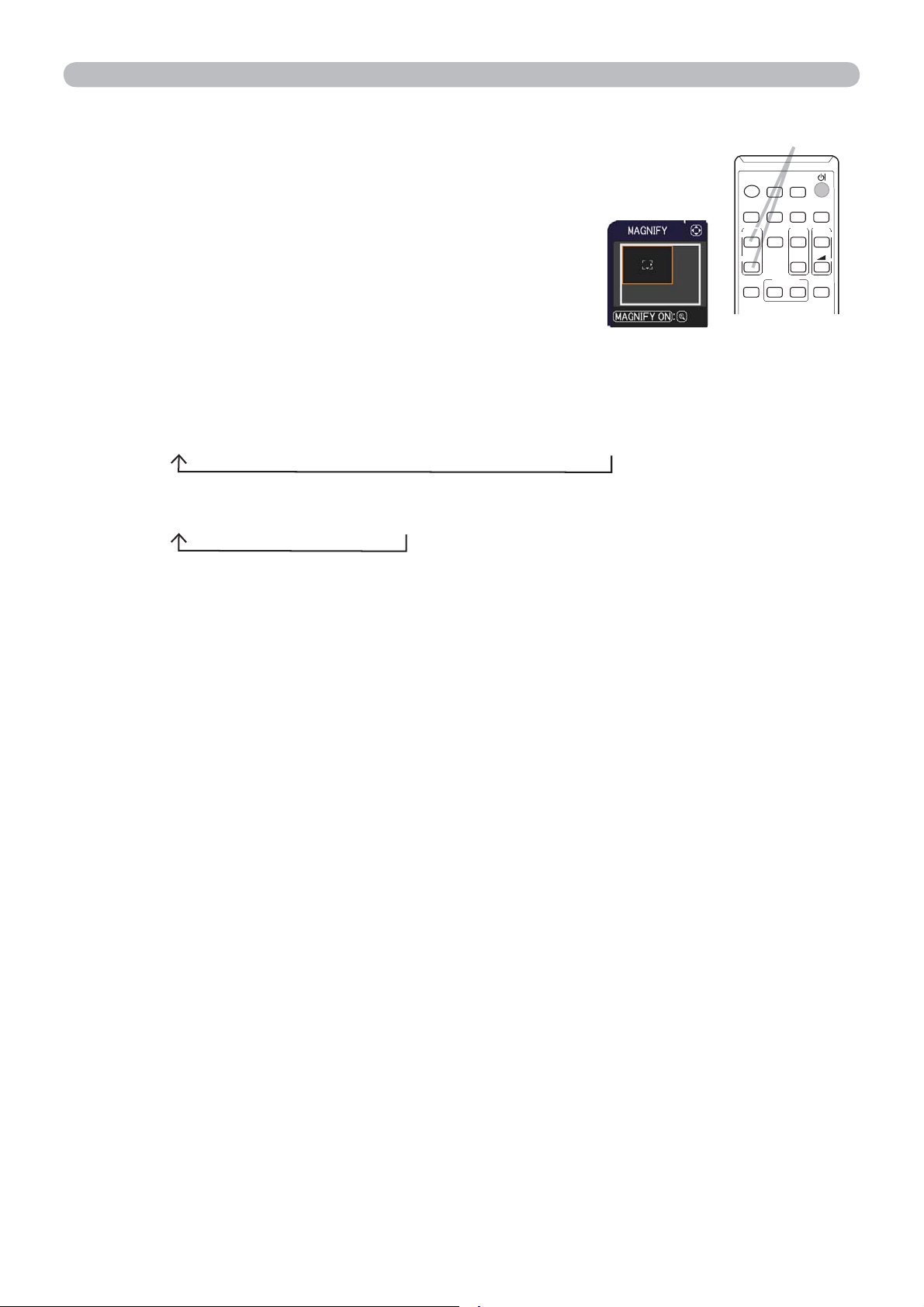
1.
Press KEYSTONE button on the remote
control. A dialog will appear on the screen
to aid you in correcting the distortion.
Correcting the keystone distortions
2.
Use the ◄/► buttons for adjustment.
To close the dialog and complete this operation, press
KEYSTONE button again. Even if you do not do anything, the
dialog will automatically disappear after a few seconds.
● The menu or dialog will automatically disappear after several seconds of
inactivity. Pressing the KEYSTONE button again fi nishes the operation and
closes the menu or dialog.
● The adjustable range of this function will vary among inputs. For some input,
this function may not work well.
● When the projector is placed on the level (about ±4°), the automatic keystone
distortion correction may not work.
● When the projector is inclined to near ±30 degree or over, this function may
not work well.
KEYSTONE button
VIDEO
DOC.CAMERA
KEYSTONE
ASPECT
SEARCH
BLANK
MUTE
MY BUTTON
COMPUTER
MY SOURCE/
AUTO
MAGNIFY
PAGE
DOWN
ON
OFF
FREEZE
UP
㧗
VOLUME
23
Operating
1.
Using the magnify feature
2.
MAGNIFY
ON/OFF button
VIDEO
DOC.CAMERA
KEYSTONE
ASPECT
SEARCH
BLANK
MUTE
MY BUTTON
COMPUTER
MY SOURCE/
AUTO
MAGNIFY
PAGE
DOWN
ON
OFF
FREEZE
UP
㧗
VOLUME
3.
4.
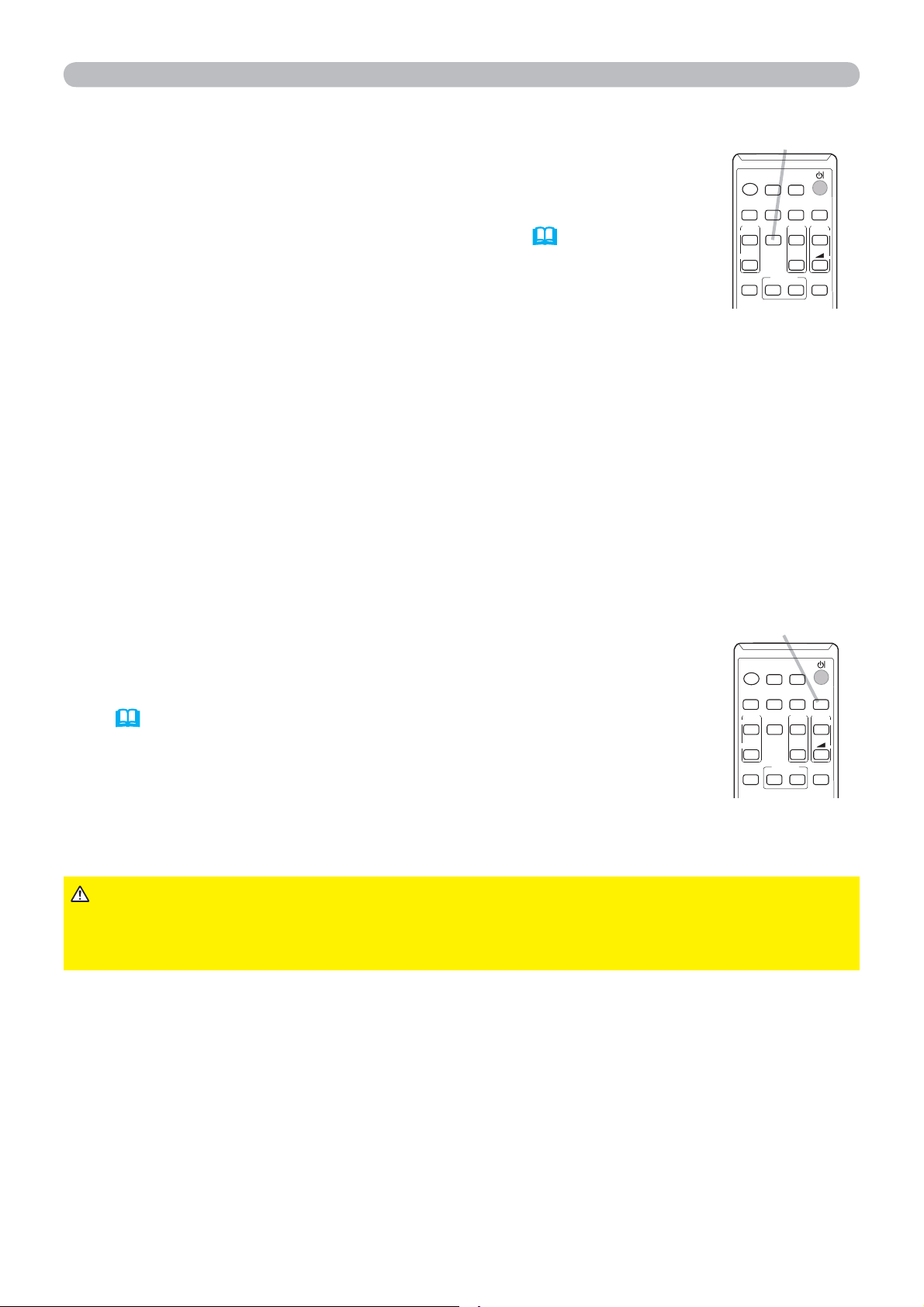
Press the MAGNIFY ON button on the remote control.
The picture will be magnifi ed, and the MAGNIFY dialog
will appear on the screen. When the MAGNIFY
ON button is pressed for the fi rst time after the
projector is turned on, the picture will be zoomed
by 1.5 times. On the dialog, triangle marks to show
each direction will be displayed.
The display magnifi cation of the projector switches in order with every press
of the MAGNIFY ON button.
For computer signals
1.5 times 2 times 3 times 4 times 1 time
For video signals or component video signals
1.5 times 2 times 1 time
While the triangles are displayed on the dialog, use the ▲/▼/◄/► cursor
buttons to shift the magnifying area.
Press the MAGNIFY OFF button on the remote control to exit magnifi cation.
● The MAGNIFY dialog will automatically disappear in several seconds with no
operation. The dialog will appear again if the MAGNIFY ON button is pressed
when the dialog has automatically disappeared.
● The magnifi cation is automatically disabled when the displaying signal or its
display condition is changed.
● While the magnifi cation is active, the keystone distortion condition may vary.
It will be restored when the magnifi cation is disabled.
● Some horizontal stripes might be visible on the image while magnifi cation is
active.
● This function is not available in the following cases:
- A sync signal in the range not supported is input.
- There is no input signal.
24
1.
Press BLANK button on the remote control.
The BLANK screen will be displayed instead of the screen of
input signal. Please refer to BLANK item in SCREEN menu
(
39).
To exit from the BLANK screen and return to the input signal
screen, press BLANK button again.
Temporarily blanking the screen
● The projector automatically exits from the
BLANK
mode when
some control buttons are pressed.
1.
Press the FREEZE button on the remote control.
The “FREEZE” indication will appear on the screen (however,
the indication will not appear when the OFF is selected for
the MESSAGE item in the SCREEN menu (
41)), and the
projector will go into the FREEZE mode, which the picture is
frozen.
To exit the FREEZE mode and restore the screen to normal,
press the FREEZE button again.
Temporarily freezing the screen
● The projector automatically exits from the FREEZE mode when some control
buttons are pressed.
● If the projector continues projecting a still image for a long time, the LCD
panel might possibly be burned in. Do not leave the projector in the FREEZE
mode for too long.
● Images might appear degraded when this function is operated, but it is not a
malfunction.
FREEZE button
VIDEO
DOC.CAMERA
KEYSTONE
ASPECT
SEARCH
BLANK
MUTE
MY BUTTON
COMPUTER
MY SOURCE/
AUTO
MAGNIFY
PAGE
DOWN
ON
OFF
FREEZE
UP
㧗
VOLUME
BLANK button
VIDEO
DOC.CAMERA
KEYSTONE
ASPECT
SEARCH
BLANK
MUTE
MY BUTTON
COMPUTER
MY SOURCE/
AUTO
MAGNIFY
PAGE
DOWN
ON
OFF
FREEZE
UP
㧗
VOLUME
►If you wish to have a blank screen while the projector's lamp
is on, use the BLANK function above.
Taking any other action may cause the damage on the projector.
CAUTION
Operating
25
Operating
1.
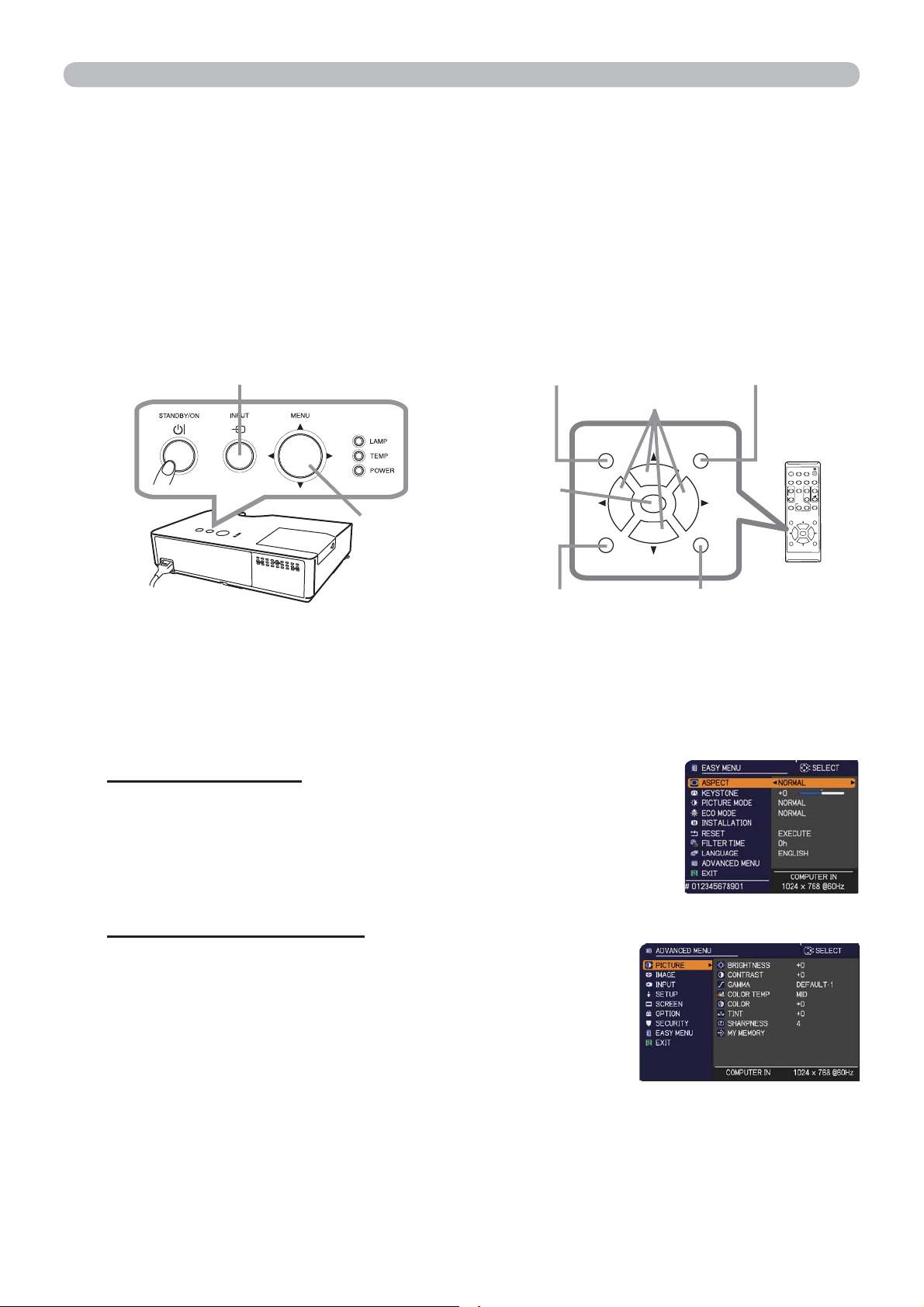
To start the MENU, press the MENU button. The MENU you last used (EASY
or ADVANCED) will appear. EASY MENU has priority to appear just after
powered on.
Using the menu function
2.
(1) Use the ▲/▼ cursor buttons to select an item to
operate. If you want to change it to the ADVANCED
MENU, select the ADVANCED MENU.
(2) Use the ◄/► cursor buttons to operate the item.
This projector has the following menus:
PICTURE, IMAGE, INPUT, SETUP, SCREEN, OPTION, SECURITY and EASY MENU.
EASY MENU consists of functions often used, and the other menus are classifi ed
into each purpose and brought together as the ADVANCED MENU.
Each of these menus is operated using the same methods. While the projector
is displaying any menu, the MENU button on the projector works as the cursor
buttons. The basic operations of these menus are as follows.
In the EASY MENU
(continued on next page)
(1) Use the ▲/▼ cursor buttons to select a menu.
If you want to change it to the EASY MENU,
select the EASY MENU.
The items in the menu appear on the right side.
(2) Press the ► cursor button or ENTER button to
move the cursor to the right side. Then use the
▲/▼ cursor buttons to select an item to operate and press the ► cursor
button or ENTER button to progress. The operation menu or dialog of the
selected item will appear.
(3) Use the buttons as instructed in the OSD to operate the item.
In the ADVANCED MENU
MENU button
(Cursor buttons)
INPUT button
VIDEO
DOC.CAMERA
KEYSTONE
ASPECT
SEARCH
BLANK
MUTE
MY BUTTON
POSI
TION
ESC
MENU
RESET
COMPUTER
MY SOURCE/
AUTO
MAGNIFY
PAGE
DOWN
ON
OFF
FREEZE
UP
㧗
VOLUME
ENTER
POSITION
ESC
MENU
RESET
ENTER
ENTER button
MENU button
Cursor buttons
ESC button
RESET button
POSITION button
26
Using the menu function (continued)
3.
To close the MENU, press the MENU button again or select EXIT and press
the ◄ cursor button or ENTER button. Even if you do not do anything, the
dialog will automatically disappear after about 30 seconds.
●
If you want to move the menu position, use the cursor buttons after pressing
the POSITION button.
● Some functions cannot be performed when a certain input port is selected,
or when a certain input signal is displayed.
● When you want to reset the operation, press RESET button on the remote
control during the operation. Note that some items (ex. LANGUAGE,
VOLUME) cannot be reset.
● In the ADVANCED MENU, when you want to return to the previous display,
press the ◄ cursor button or ESC button on the remote control.
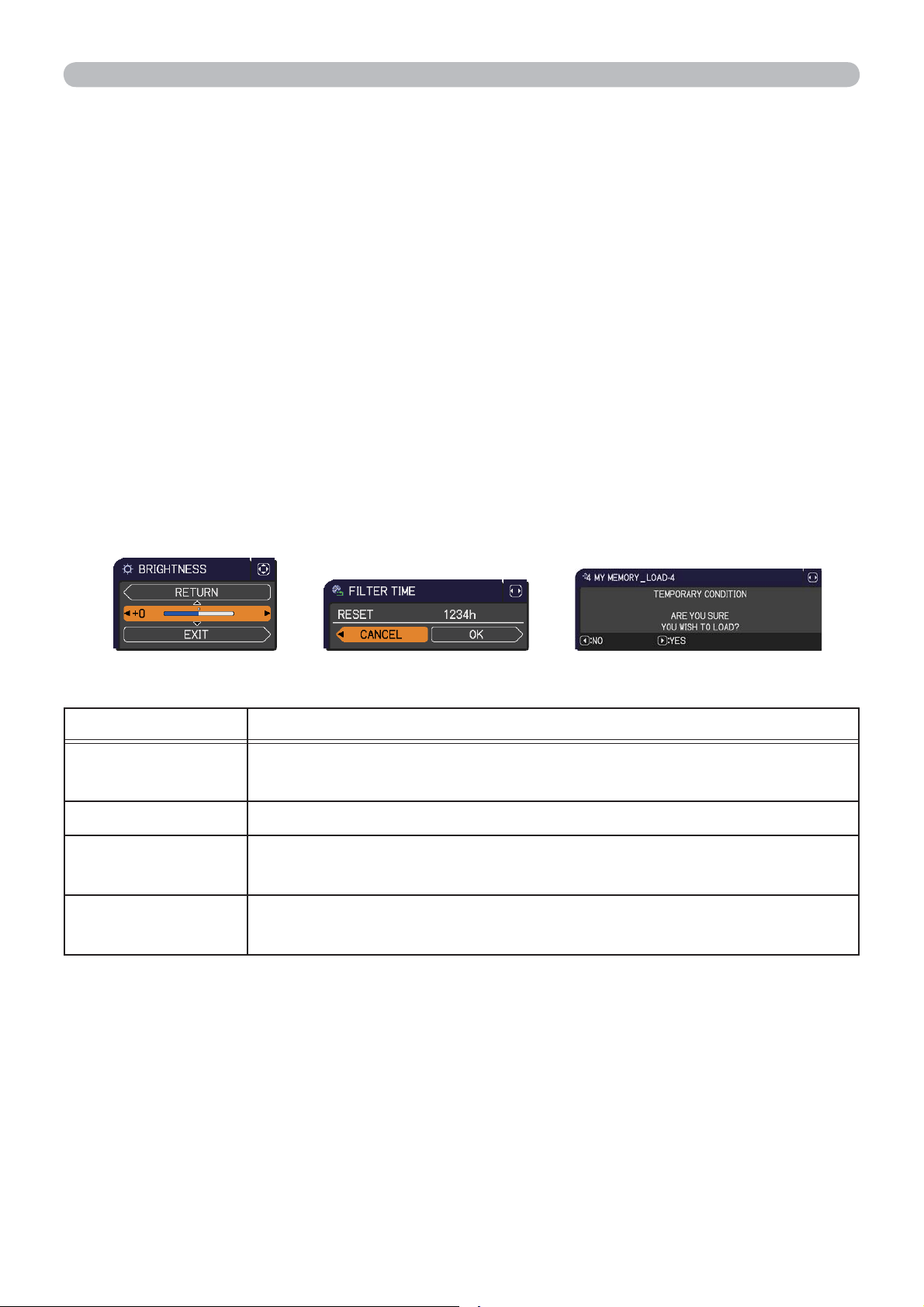
Indication in OSD (On Screen Display)
The meanings of the general words on the OSD are as follows.
Indication Meaning
EXIT
Selecting this word finishes the OSD menu. It's the same as
pressing the MENU button.
RETURN Selecting this word returns the menu to the previous menu.
CANCEL or NO
Selecting this word cancels the operation in the present
menu and returns to the previous menu.
OK or YES
Selecting this word executes the prepared function or shifts
the menu to the next menu.
Operating
27
EASY MENU
EASY MENU
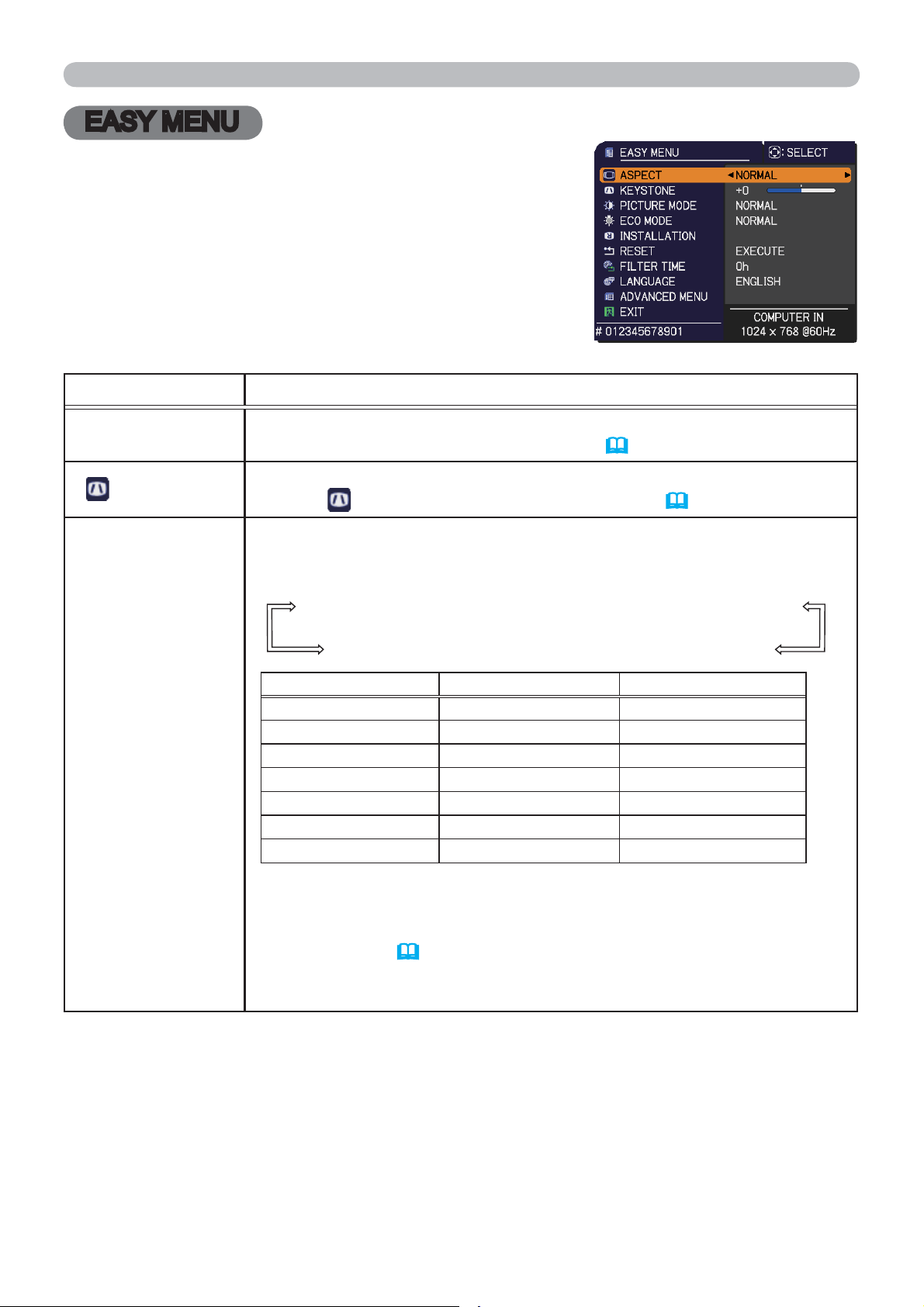
From the EASY MENU, items shown in the table
below can be performed.
Select an item using the ▲/▼ cursor buttons. Then
perform it according to the following table.
Item Description
ASPECT
Using the ◄/► buttons switches the mode for aspect ratio.
See the ASPECT item in IMAGE menu (
32).
KEYSTONE
Using the ◄/► buttons corrects the vertical keystone distortion.
See the
KEYSTONE item in SETUP menu (
38).
PICTURE MODE
Using the ◄/► buttons switches the picture mode.
The picture modes are combinations of GAMMA
and COLOR TEMP
settings. Choose a suitable mode according to the projected source.
NORMAL
CINEMA
DYNAMIC
BOARD(BLACK)
DAYTIME
WHITEBOARD
BOARD(GREEN)
GAMMA COLOR TEMP
NORMAL 1 DEFAULT 2 MID
CINEMA 2 DEFAULT 3 LOW
DYNAMIC 3 DEFAULT 1 HIGH
BOARD(BLACK) 4 DEFAULT 4 Hi-BRIGHT-1
BOARD(GREEN) 4 DEFAULT 5 Hi-BRIGHT-2
WHITEBOARD 5 DEFAULT 2 MID
DAYTIME 6 DEFAULT 6 Hi-BRIGHT-3
• When the combination of GAMMA and COLOR TEMP differs
from pre-assigned modes above, the display on the menu for the
PICTURE MODE is “CUSTOM”. Please refer to the GAMMA and
COLOR TEMP (
29, 30) items in PICTURE menu.
• Lines or other noise might appear on the screen when this function
is operated, but it is not a malfunction.
(continued on next page)
28
EASY MENU
Item Description
ECO MODE
Using the ◄/► buttons switches ECO MODE.
See the ECO MODE item in SETUP menu (
38).
INST
ALLATION
Pressing the ► button displays the INSTALLATION dialog.
See the
INSTALLATION
item in SETUP menu (
38).
RESET
Performing this item resets all of the EASY
MENU items except the
FILTER TIME and LANGUAGE.
A dialog is displayed for confirmation. Selecting the OK using the ►
button performs resetting.
FILTER TIME
The usage time of the air filter is shown in the menu.
Performing this item resets the filter time which counts usage time
of the air filter.
A dialog is displayed for confirmation. Selecting the OK using the ►
button performs resetting.
See the FILTER TIME item in OPTION menu (
46).
LANGUAGE
Using the ◄/► buttons changes the display language.
See the LANGUAGE item in SCREEN menu (
39).
ADVANCED MENU
Press the ► or ENTER button to use the menu of PICTURE,
IMAGE, INPUT, SETUP, SCREEN, OPTION or SECURITY.
EXIT Press the ◄ or ENTER button to finish the OSD menu.
29
PICTURE menu
PICTURE menu
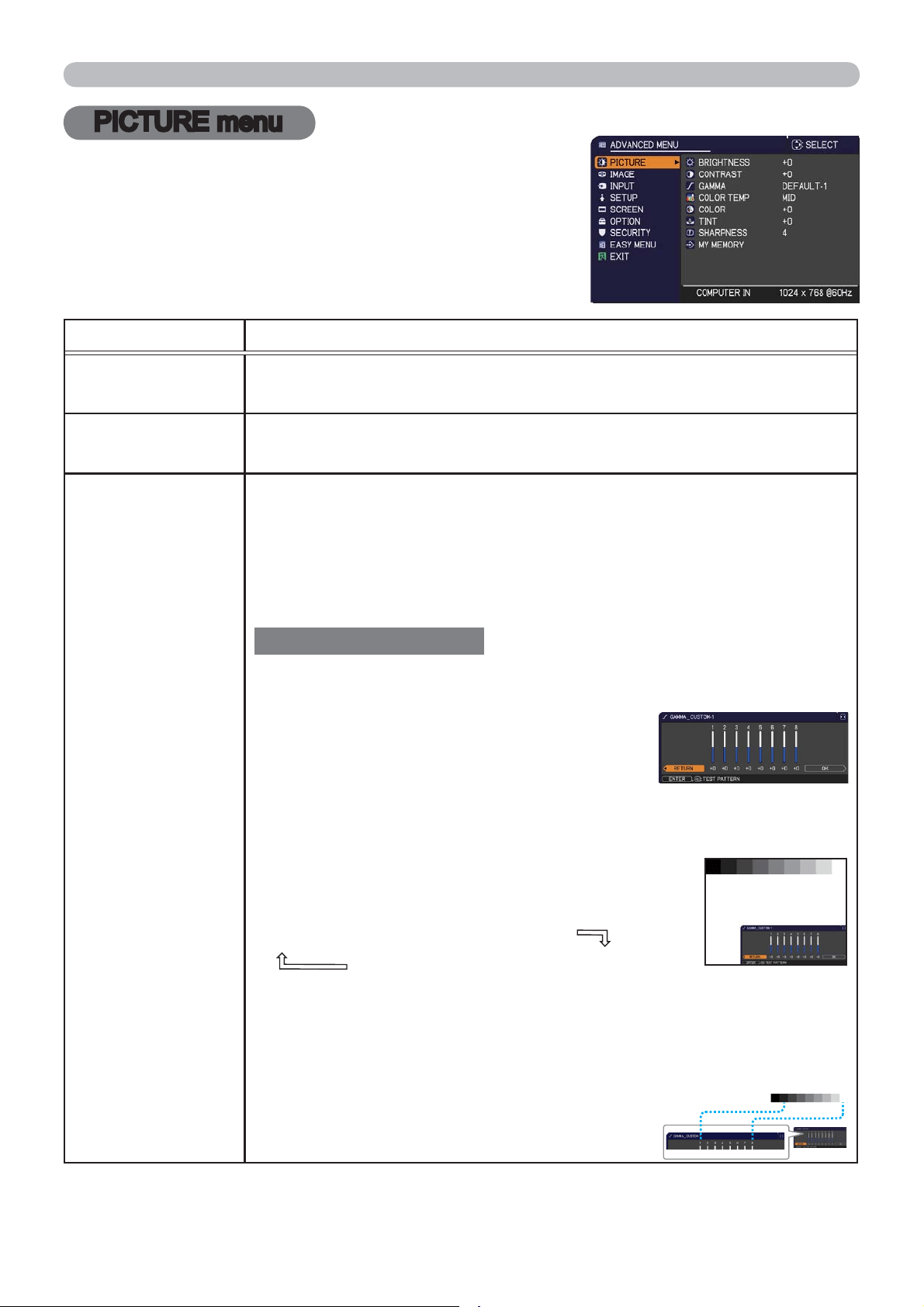
From the PICTURE menu, items shown in the table
below can be performed.
Select an item using the ▲/▼ cursor buttons, and
press the ► cursor button or ENTER button to
execute the item. Then perform it according to the
following table.
Item Description
BRIGHTNESS
Using the
◄/►
buttons adjusts the brightness.
Dark
Light
CONTRAST
Using the
◄/►
buttons adjusts the contrast.
Weak
Strong
GAMMA
Using the ▲/▼ buttons switches the gamma mode.
1 DEFAULT
1 CUSTOM
2 DEFAULT
2 CUSTOM
3 DEFAULT
6 CUSTOM 3 CUSTOM
6 DEFAULT
5 CUSTOM
5 DEFAULT
4 CUSTOM
4 DEFAULT
To adjust CUSTOM
Selecting a mode whose name includes CUSTOM and then
pressing the ► button or the ENTER button displays
a dialog to aid you in adjusting the mode.
This function is useful when you want to
change the brightness of particular tones.
Choose an item using the ◄/► buttons,
and adjust the level using the ▲/▼ buttons.
Y
ou can display a test pattern for checking the effect of your
adjustment by pressing the ENTER button.
Each time you press the ENTER button, the
pattern changes as below.
No pattern
Gray scale of 9 steps
Ramp
Gray scale of 15 steps
The eight equalizing bars correspond to eight tone levels of the test
pattern (Gray scale of 9 steps) except the darkest in the left end. If you
want to adjust the 2nd tone from left end on the test pattern, use the
equalizing adjustment bar “1”. The darkest tone at the left end of the
test pattern cannot be controlled with any of equalizing adjustment bar.
• Lines or other noise might appear on the
screen when this function is operated, but it
is not a malfunction.
(continued on next page)
30
PICTURE menu
(continued on next page)
Item Description
COLOR TEMP
Using the ▲/▼ buttons switches the color temperature mode.
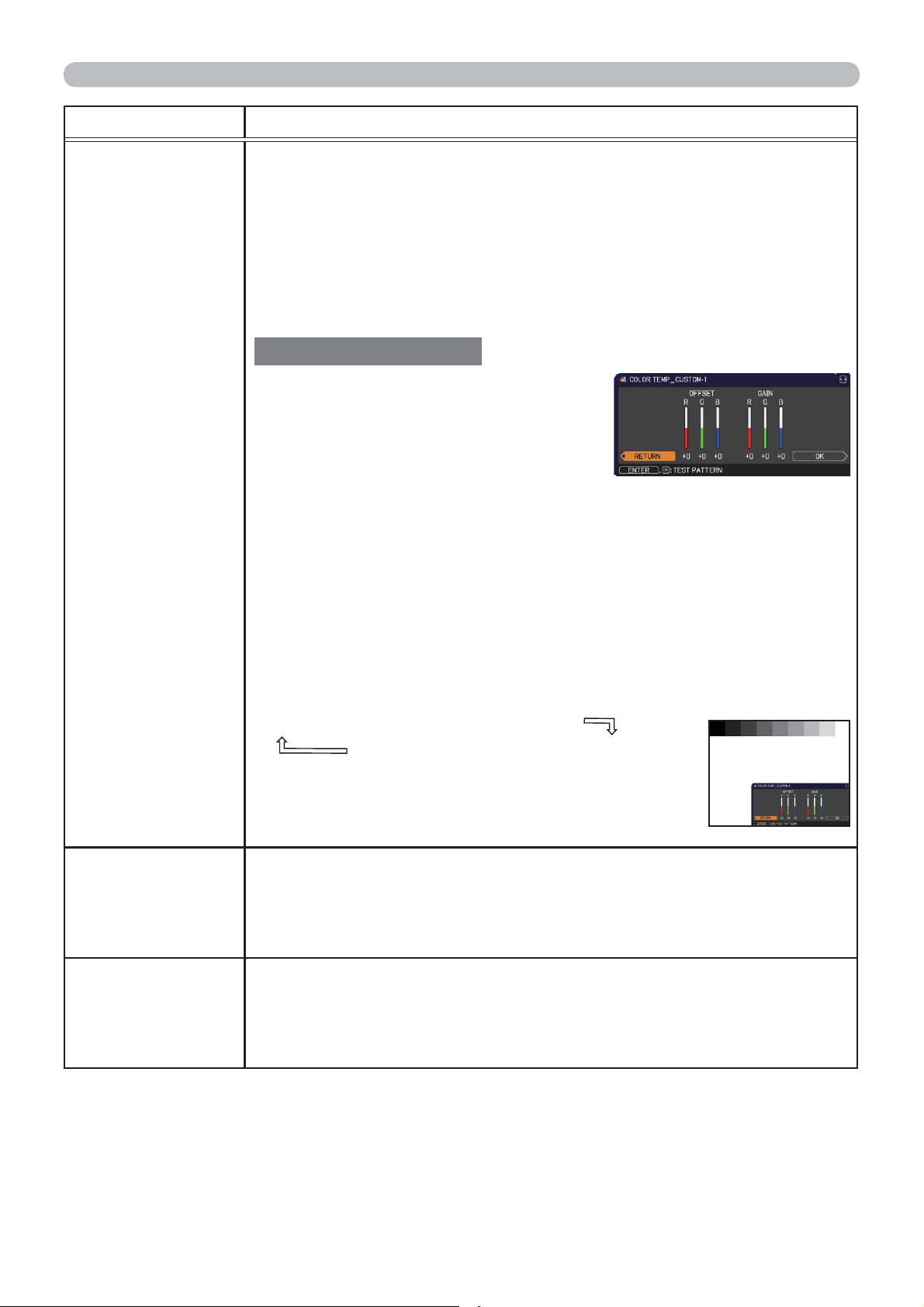
To adjust CUSTOM
Selecting a mode whose name includes
CUSTOM and then pressing the ► button
or the ENTER button displays a dialog
to aid you in adjusting the OFFSET and
GAIN of the selected mode.
OFFSET adjustments change the color intensity on the whole tones
of the test pattern.
GAIN adjustments mainly affect color intensity on the brighter tones
of the test pattern.
Choose an item using the ◄/► buttons, and adjust the level using
the ▲/▼ buttons.
You can display a test pattern for checking the effect of your
adjustment by pressing the ENTER button.
Each time you press the ENTER button, the pattern changes as below.
No pattern
Gray scale of 9 steps
Ramp
Gray scale of 15 steps
• Lines or other noise might appear on the screen
when this function is operated, but it is not a
malfunction.
COLOR
Using the ◄/► buttons adjusts the strength of whole color.
Weak
Strong
• This item can be selected only for a video and component video
signal.
TINT
Using the ◄/► buttons adjusts the tint.
Reddish
Greenish
• This item can be selected only for a video and component video
signal.
1 HIGH
1 CUSTOM
2 MID
2 CUSTOM
3 LOW
5 CUSTOM
5 Hi-BRIGHT-2
4 CUSTOM
4 Hi-BRIGHT-1
6 CUSTOM
6 Hi-BRIGHT-3
3 CUSTOM
31
PICTURE menu
Item Description
SHARPNESS
Using the ◄/► buttons adjusts the sharpness.
Weak
Strong
• There may be some noise and/or the screen may flicker for a
moment when an adjustment is made. This is not a malfunction.
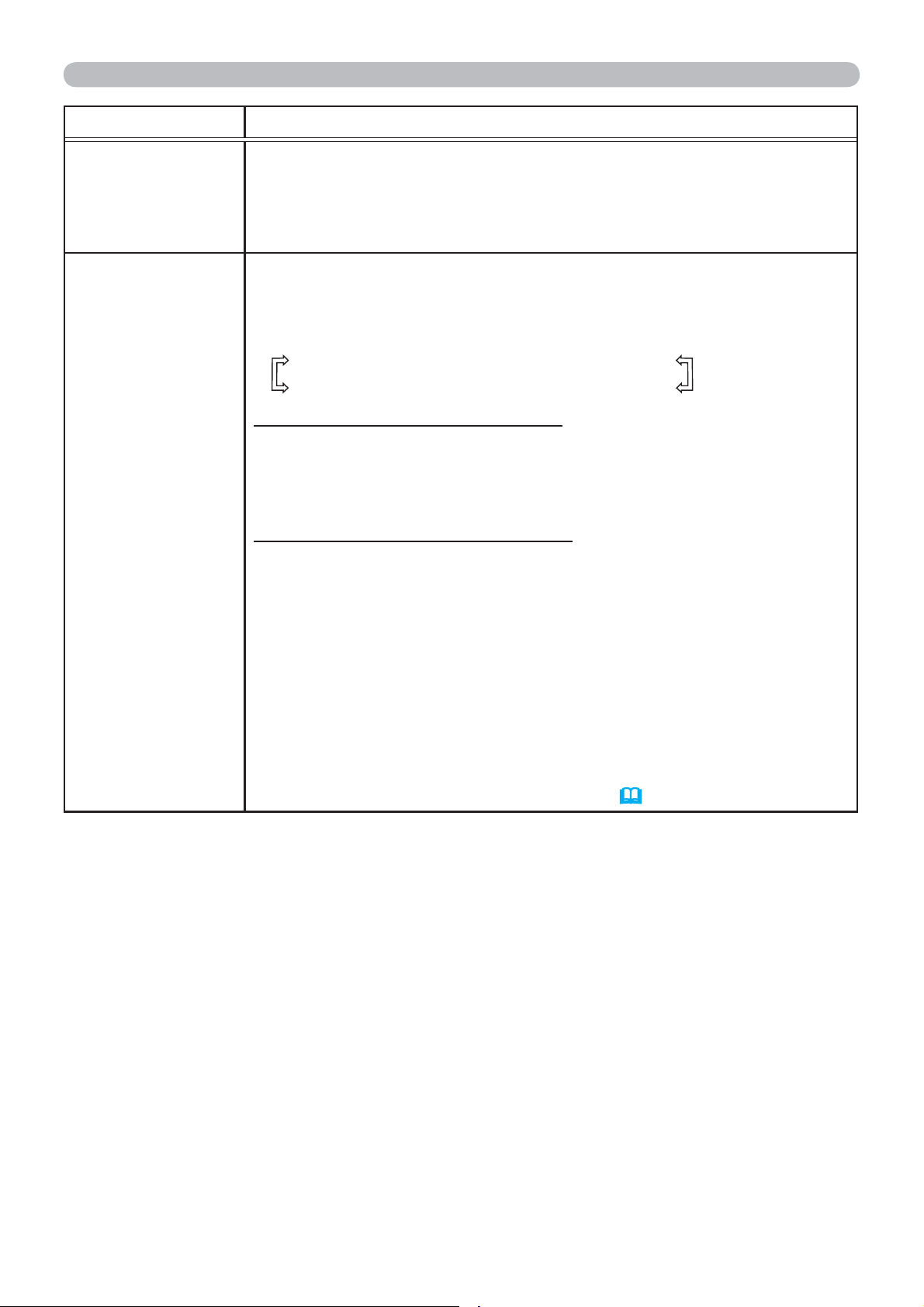
MY MEMORY
This projector has 4 memories for adjustment data (for all the items
of the PICTURE menu).
Selecting a function using the ▲/▼ buttons and pressing the ► or
ENTER button performs each function.
SAVE-1
SAVE-2
SAVE-3
SAVE-4
LOAD-4
LOAD-3
LOAD-2
LOAD-1
SAVE-1, SAVE-2, SAVE-3, SAVE-4
Performing a SAVE function saves the current adjustment data into
the memory linked in the number included in the function’s name.
• Remember that the current data being stored of a memory will be
lost by saving new data into the memory.
LOAD-1, LOAD-2, LOAD-3, LOAD-4
Performing a LOAD function loads the data from the memory linked
in the number included in the function’s name, and adjusts the
picture automatically depending on the data.
• The LOAD functions whose linked memory has no data are
skipped.
• Remember that the current adjusted condition will be lost by
loading data. If you want to keep the current adjustment, please
save it before performing a LOAD function.
• There may be some noise and the screen may flicker for a
moment when loading data. This is not malfunction.
• You can perform the LOAD function using MY BUTTON. Please
see MY BUTTON item in OPTION menu (
47).
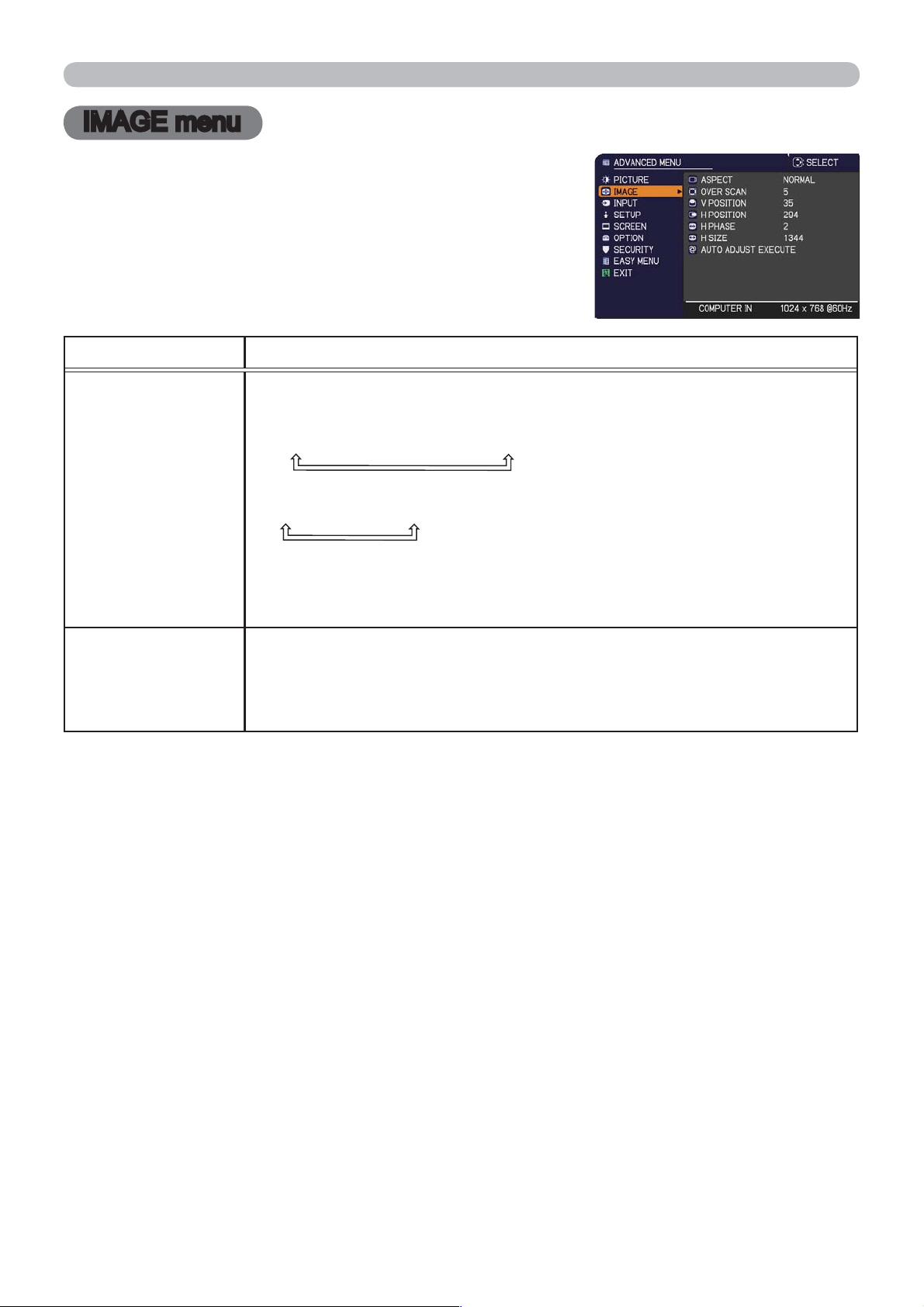
32
IMAGE menu
IMAGE menu
From the IMAGE menu, items shown in the table
below can be performed.
Select an item using the ▲/▼ cursor buttons, and
press the ► cursor button or ENTER button to
execute the item. Then perform it according to the
following table.
Item Description
ASPECT
Using the ▲/▼ buttons switches the mode for aspect ratio.
For a computer signal
NORMAL
4:3
16:9
16:10
For a video signal or component video signal
4:3
16:9
14:9
For no signal
4:3 (fixed)
• The NORMAL mode keeps the original aspect ratio of the signal.
OVER SCAN
Using the ◄/► buttons adjusts the over-scan ratio.
Small (It magnifies picture)
Large (It reduces picture)
• This item can be selected only for a video and component video
signal.
(continued on next page)
33
IMAGE menu
Item Description
V POSITION
Using the ◄/► buttons adjusts the vertical position.
Down
Up
• Over-adjusting the vertical position may cause noise to appear on
the screen. If this occurs, please reset the vertical position to the
default setting. Pressing the RESET button when the V POSITION
is selected will reset the V POSITION to the default setting.
• When this function is performed on a video signal or component
video signal, the range of this adjustment depends on the OVER
SCAN (
32) setting. It is not possible to adjust when OVER SCAN
is set to 10.
H POSITION
Using the ◄/► buttons adjusts the horizontal position.
Right
Left
•
Over-adjusting the horizontal position may cause noise to appear on
the screen. If this occurs, please reset the horizontal position to the
default setting. Pressing the RESET button when the H POSITION is
selected will reset the H POSITION to the default setting.
• When this function is performed on a video signal or component
video signal, the range of this adjustment depends on the OVER
SCAN (
32) setting. It is not possible to adjust when OVER SCAN
is set to 10.
(continued on next page)
34
IMAGE menu
Item Description
H PHASE
Using the
◄/►
buttons adjusts the horizontal phase to eliminate flicker.
Right
Left
• This item can be selected only for a computer signal or a
component video signal.
H SIZE
Using the ◄/► buttons adjusts the horizontal size.
Small
Large
• This item can be selected only for a computer signal.
• When this adjustment is excessive, the picture may not be
displayed correctly. In such a case, please reset the adjustment
by pressing the RESET button on the remote control during this
operation.
• Images might appear degraded when this function is operated, but
it is not a malfunction.
AUTO ADJUST
EXECUTE
Selecting this item performs the automatic adjustment feature.
For a computer signal
The vertical position, the horizontal position and the horizontal
phase will be automatically adjusted.
Make sure that the application window is set to its maximum size
prior to attempting to use this feature. A dark picture may still be
incorrectly adjusted. Use a bright picture when adjusting.
For a video signal
The video format best suited for the respective input signal will
be selected automatically. This function is available only when
the AUTO is selected for the VIDEO FORMAT item in the INPUT
menu (
36).
The vertical position and horizontal position will be
automatically set to the default.
For a component video signal
The vertical position and horizontal position will be automatically
set to the default. The horizontal phase will be automatically
adjusted.
• The automatic adjustment operation requires approx. 10 seconds.
Also please note that it may not function correctly with some input.
• When this function is performed for a video signal, a certain extra
such as a line may appear outside a picture.
• When this function is performed for a computer signal, a black
frame may be displayed on the edge of the screen, depending on
the computer model.
• The items adjusted by this function may vary when the FINE or
DISABLE is selected for the AUTO ADJUST item of the SERVICE
item in the OPTION menu (
48).
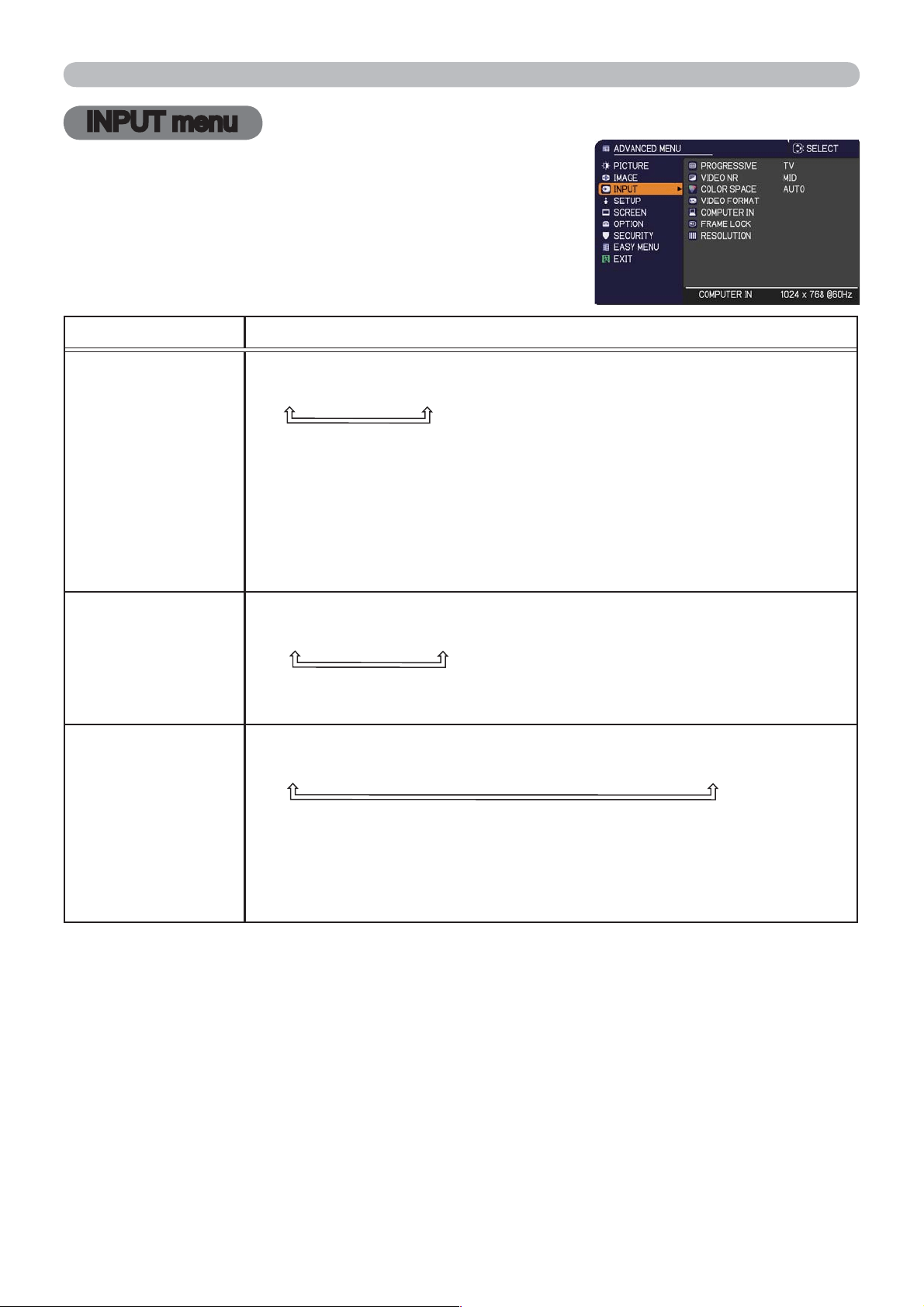
35
INPUT menu
INPUT menu
From the INPUT menu, items shown in the table
below can be performed.
Select an item using the ▲/▼ cursor buttons, and
press the ► cursor button or ENTER button to
execute the item. Then perform it according to the
following table.
Item Description
PROGRESSIVE
Using the ▲/▼ buttons switches the progress mode.
TV
FILM
OFF
•
This function works only for video signal and component video signal
(of 480i@60 or 576i@50 or 1080i@50/60).
• When TV or FILM is selected, the screen image will be sharp.
FILM adapts to the 2-3 Pull-Down conversion system. But these
may cause a certain defect (for example, jagged line) of the picture
for a quick moving object. In such a case, please select OFF, even
though the screen image may lose sharpness.
VIDEO NR
Using the ▲/▼ buttons switches the noise reduction mode.
HIGH
MID
LOW
•
This function works only for video signal and component video signal
(of 480i@60 or 576i@50 or 1080i@50/60).
COLOR SPACE
Using the ▲/▼ buttons switches the mode for color space.
AUTO
RGB
SMPTE240
REC709
REC601
• This item can be selected only for a computer signal or a
component video signal.
• The AUTO mode automatically selects the optimum mode.
• The AUTO operation may not work well at some signals. In such a
case, it might be good to select a suitable mode except AUTO.
(continued on next page)
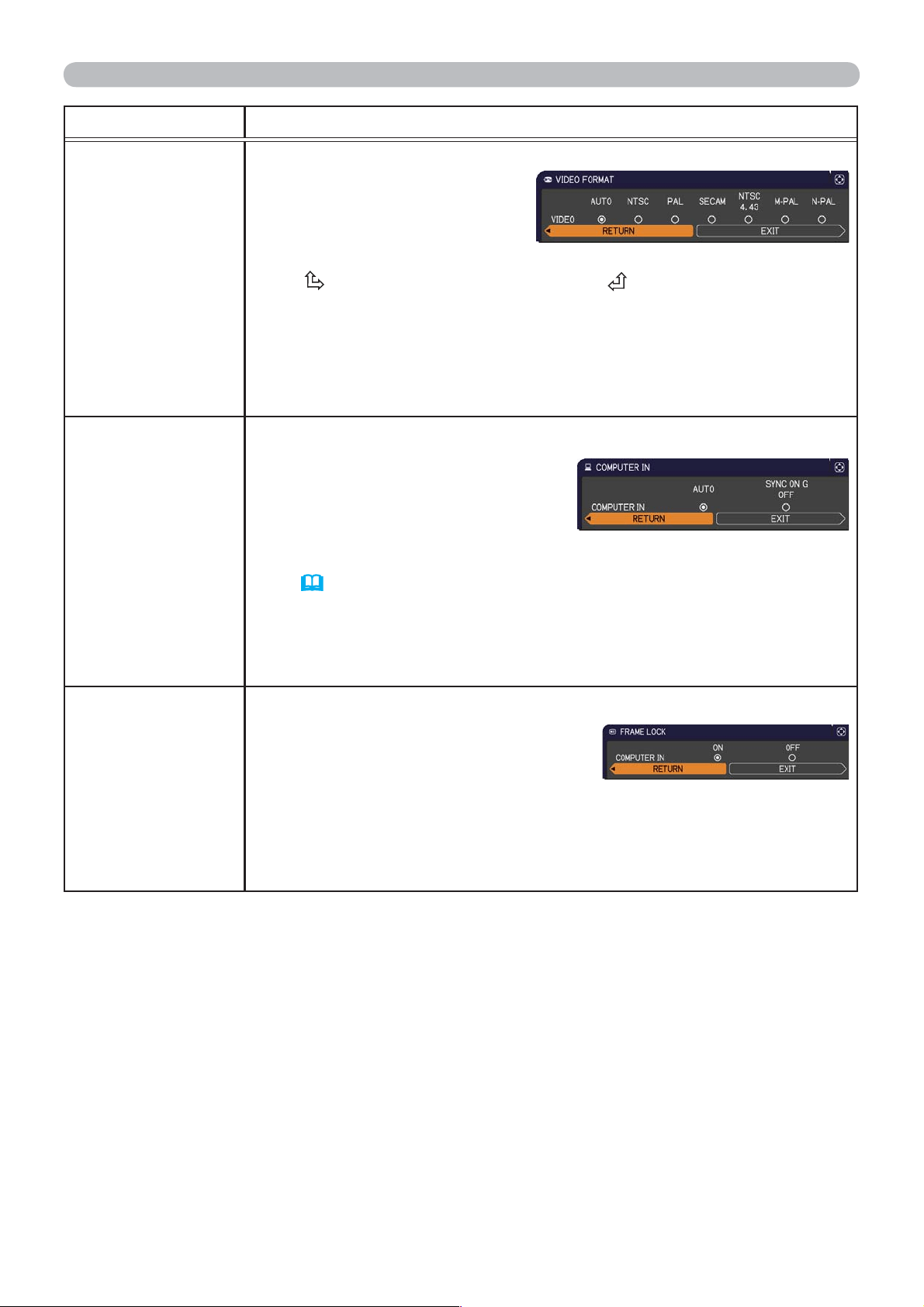
36
INPUT menu
Item Description
VIDEO FORMAT
The video format for VIDEO port can be set.
Using the ◄/► buttons
switches the mode for video
format.
AUTO
NTSC
PAL
SECAM
N-PAL
M-PAL
NTSC4.43
• This item is performed only for video signal from the VIDEO port.
• The AUTO mode automatically selects the optimum mode.
• The AUTO operation may not work well for some signals. If the
picture becomes unstable (e.g. an irregular picture, lack of color),
please select the mode according to the input signal.
COMPUTER IN
The computer input signal type for COMPUTER IN port can be set.
Use the ◄/► buttons to select the
computer input signal type.
AUTO
SYNC ON G OFF
• Selecting the AUTO mode allows
you to input a sync on G signal or component video signal from the
port (
11, 12).
• In the AUTO mode, the picture may be distorted with certain
input signals. In such a case, remove the signal connector so that
no signal is received and select the SYNC ON G OFF, and then
reconnect the signal.
FRAME LOCK
Set the frame lock function on/off for the COMPUTER IN port.
Use the ◄/► buttons to turn the
frame lock function on/off .
ON
OFF
• This item can be performed only on a signal with a vertical
frequency of 49 to 51Hz, 59 to 61 Hz.
• When ON is selected, moving pictures are displayed more
smoothly.
(continued on next page)
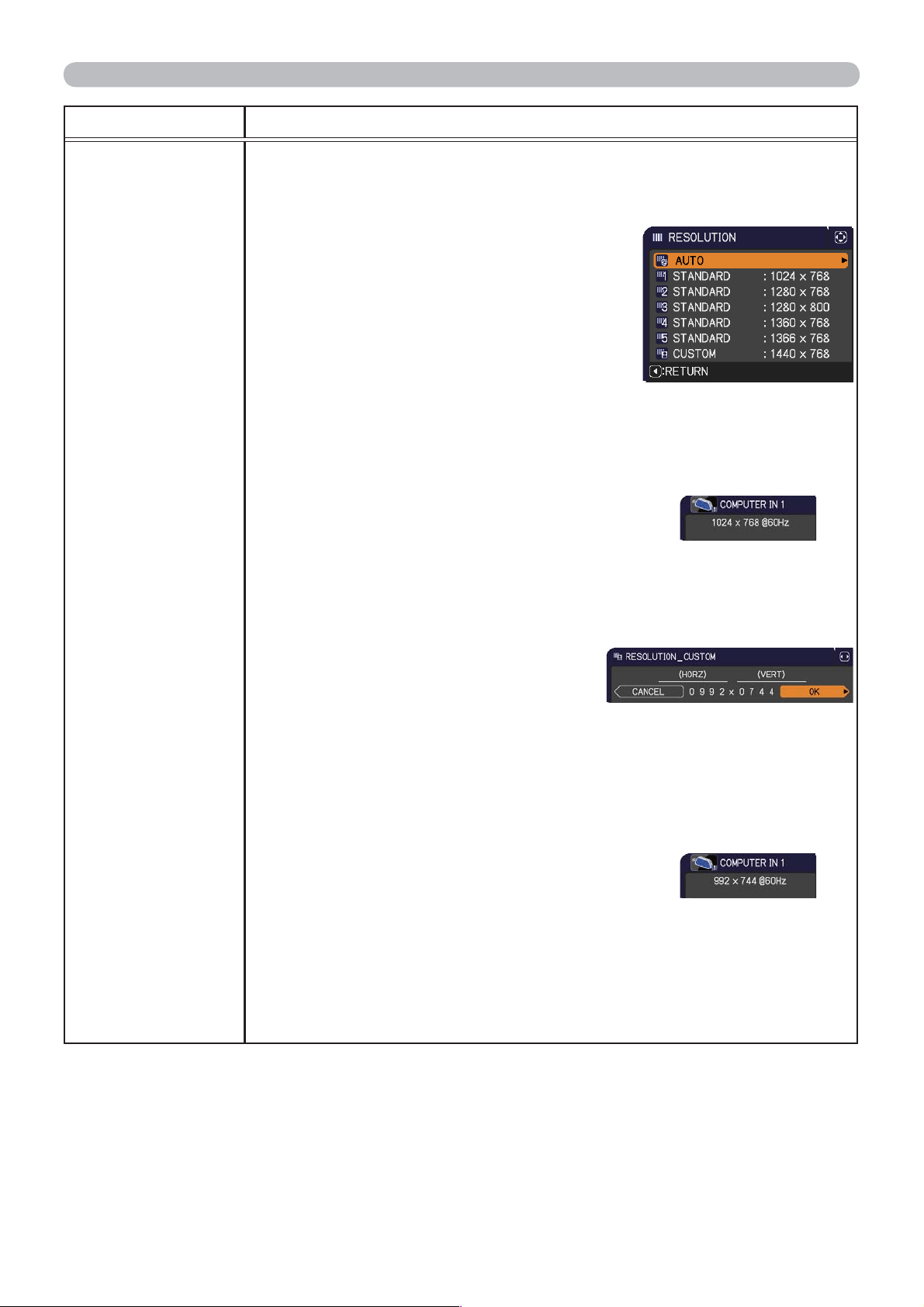
37
INPUT menu
Item Description
RESOLUTION
The resolution for the COMPUTER IN input signal can be set on
this projector.
(1) In the INPUT menu select the RESOLUTION using the ▲/▼
buttons and press the ► button.
The RESOLUTION menu will be
displayed.
(2) In the RESOLUTION menu select the
resolution you wish to display using
the ▲/▼ buttons.
Selecting AUTO will set a resolution
appropriate to the input signal.
(3) Pressing the ► or ENTER button when
selecting a STANDARD resolution will
automatically adjust the horizontal and
vertical positions, clock phase and
horizontal size.
The INPUT_INFORMATION dialog will be
displayed.
(4) To set a custom resolution use the ▲/▼ buttons to select
the CUSTOM and the RESOLUTION_CUSTOM box will be
displayed.
Set the horizontal (HORZ) and
vertical (VERT) resolutions using
the ▲/▼/◄/► buttons.
This function may not support all
resolutions.
(5) Move the cursor to OK on screen and press the ► or ENTER
button. The message "ARE YOU SURE YOU WISH TO
CHANGE RESOLUTION?" appears. To save the setting, press
the ► button.
The horizontal and vertical positions, clock phase and horizontal
size will be automatically adjusted.
The INPUT_INFORMATION dialog
will be displayed.
(6) To revert back to the previous resolution without saving changes,
move the cursor to CANCEL on screen and press the ◄ or
ENTER button.
The screen will then return to the RESOLUTION menu
displaying the previous resolution.
• For some pictures, this function may not work well.
STANDARD
↓
CUSTOM
↓
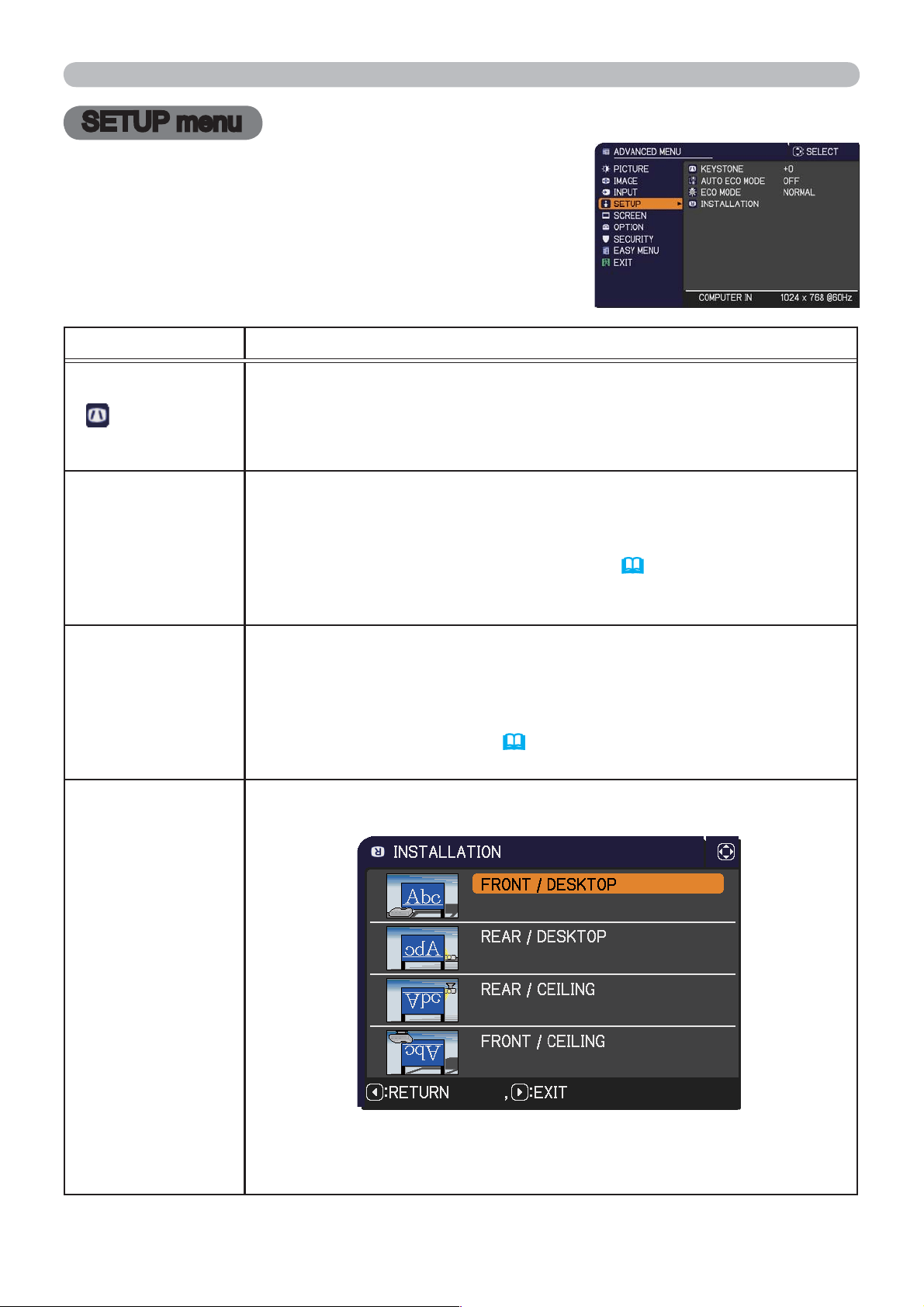
38
SETUP menu
SETUP menu
From the SETUP menu, items shown in the table
below can be performed.
Select an item using the ▲/▼ cursor buttons, and
press the ► cursor button or ENTER button to
execute the item. Then perform it according to the
following table.
Item Description
KEYSTONE
Using the ◄/► buttons corrects the vertical keystone distortion.
Shrink the bottom of the image
Shrink the top of the image
• The adjustable range of this function will vary among inputs. For
some input, this function may not work well.
AUTO ECO MODE
Using the ▲/▼ buttons turns on/off the AUTO ECO MODE.
ON
OFF
• When ON is selected, the projector will always be set to Eco mode
at start-up regardless of the ECO MODE (
below) setting. An OSD
message “AUTO ECO MODE” will be displayed for a while when
the projector starts with this function activated.
ECO MODE
Using the ◄/► buttons switches ECO MODE.
ECO
NORMAL
• When the ECO is selected, acoustic noise and screen brightness
are reduced.
• When AUTO ECO MODE (
above) is set to ON, the projector will
always be set to Eco mode at start-up regardless this setting.
INSTALLATION
Pressing the ►button displays the dialog for changing the
INSTALLATION setting.
Use the ▲/▼ buttons to select the desired setting on the
INSTALLATION dialog, and press the ENTER button of the remote
control or the INPUT button of the projector to execute.
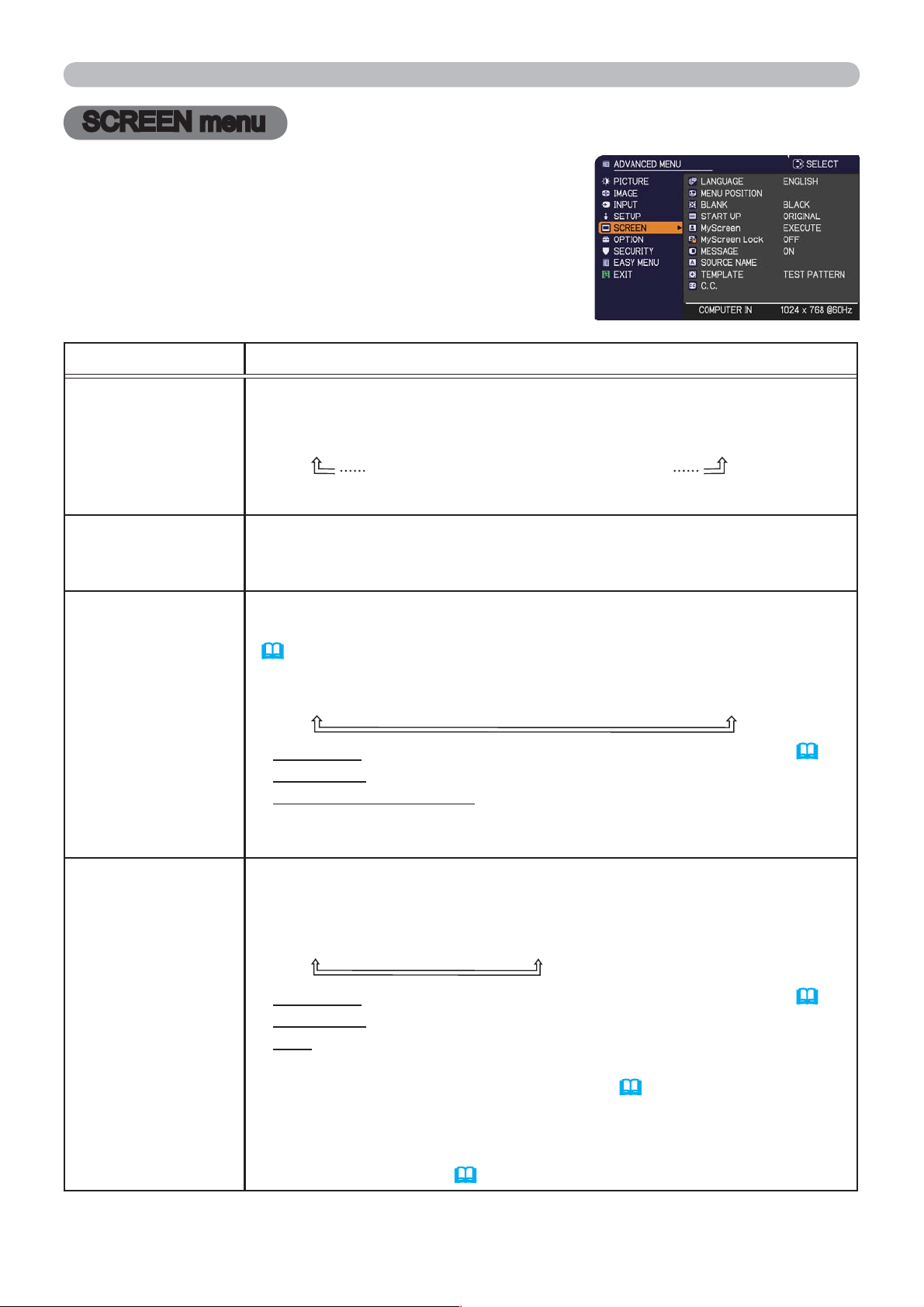
39
SCREEN menu
SCREEN menu
From the SCREEN menu, items shown in the table
below can be performed.
Select an item using the ▲/▼ cursor buttons, and
press the ► cursor button or ENTER button to
execute the item. Then perform it according to the
following table.
Item Description
LANGUAGE
Using the ▲/▼/◄/► buttons switches the OSD (On Screen
Display) language.
ENGLISH
FRANÇAIS
DEUTSCH
ESPAÑOL
(shown in the LANGUAGE dialog)
Press the ENTER or INPUT button to save the language setting.
MENU POSITION
Using the ▲/▼/◄/► buttons adjusts the menu position.
To quit the operation, press the MENU button on the remote control
or keep no operation for about 10 seconds.
BLANK
Using the ▲/▼ buttons switches the mode for the blank screen.
The blank screen is a screen for the temporarily blanking feature
(
24). It is displayed by pressing the BLANK button on the remote
control.
MyScreen
ORIGINAL
BLUE
WHITE
BLACK
MyScreen :
Screen can be registered by the MyScreen item (
40).
ORIGINAL : Screen preset as the standard screen.
BLUE, WHITE, BLACK : Plain screens in each color.
• To avoid remaining as an afterimage, the MyScreen or ORIGINAL
screen will change to the plain black screen after several minutes.
START UP
Using the ▲/▼ buttons switches the mode for the start-up screen.
The start-up screen is a screen displayed when no signal or an
unsuitable signal is detected.
MyScreen
ORIGINAL
OFF
MyScreen :
Screen can be registered by the MyScreen item (
40).
ORIGINAL : Screen preset as the standard screen.
OFF : Plain black screen.
• To avoid remaining as an afterimage, the MyScreen or ORIGINAL
screen will change to the BLANK screen (
above) after several
minutes. If also the BLANK screen is the MyScreen or ORIGINAL,
the plain black screen is instead used.
• When the ON is selected to the MyScreen PASSWORD item in
the SECURITY menu (
52), the START UP is fixed to MyScreen.
(continued on next page)
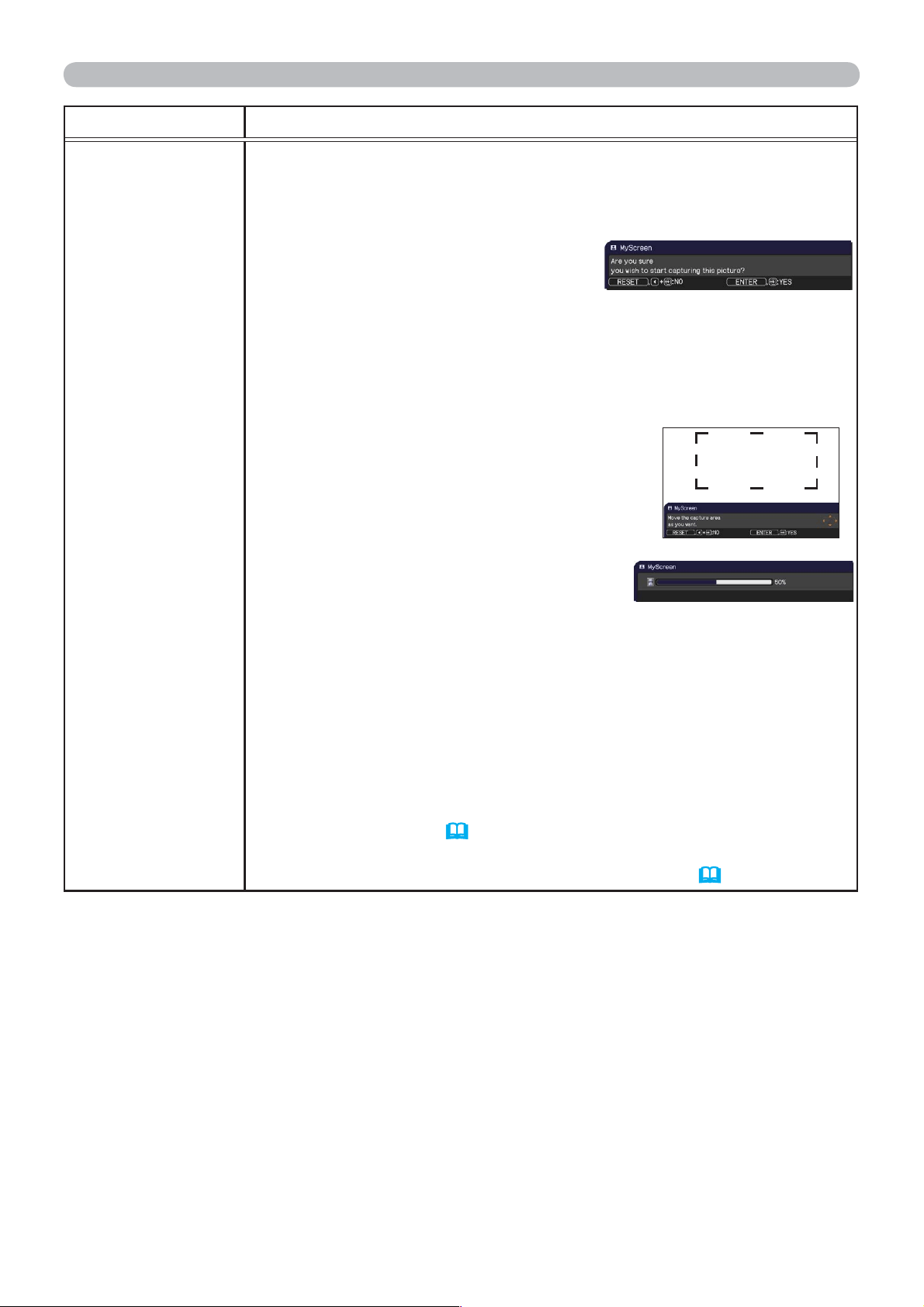
40
SCREEN menu
Item Description
MyScreen
This item allows you to capture an image for use as a MyScreen
image which can be used as the BLANK screen and START UP
screen. Display the image you want to capture before executing the
following procedure.
1. Selecting this item displays a dialog
titled “MyScreen”. It will ask you if
you start capturing an image from
the current screen.
Please wait for the target image to be displayed, and press the
ENTER or INPUT button when the image is displayed. The image
will freeze and the frame for capturing will appear.
To stop performing, press the RESET button on the remote
control.
2. Using the ▲/▼/◄/► buttons adjusts the
frame position.
Please move the frame to the position
of the image which you want to use. The
frame may not be able to be moved for
some input signals.
To start registration, press the ENTER
or INPUT button on the remote control.
To restore the screen and return to the previous dialog, press the
RESET button on the remote control.
Registration may take several minutes.
When the registration is completed, the registered screen and the
following message is displayed for several seconds:
“MyScreen registration is finished.”
If the registration failed, the following message is displayed:
“A capturing error has occurred. Please try again.”
• This function cannot be selected when the ON is selected to the
MyScreen Lock item (
41).
• This function cannot be selected when the ON is selected to the
MyScreen PASSWORD item in SECURITY menu (
52).
(continued on next page)
41
SCREEN menu
Item Description
MyScreen Lock
Using the ▲/▼ buttons turns on/off the MyScreen lock function.
ON
OFF
When the ON is selected, the item MyScreen is locked. Use this
function for protecting the current MyScreen.
• This function cannot be selected when the ON is selected to the
MyScreen PASSWORD item in SECURITY menu (
52).
MESSAGE
Using the ▲/▼ buttons turns on/off the message function.
ON
OFF
When the ON is selected, the following message function works.
“AUTO IN PROGRESS” while automatically adjusting
“NO INPUT IS DETECTED”
“SYNC IS OUT OF RANGE”
“INVALID SCAN FREQ.”
“Searching….” while searching for the input
“Detecting….” while an input signal is detected
“AUTO ECO MODE” while starting up with AUTO ECO MODE
The indication of the input signal displayed by changing
The indication of the aspect ratio displayed by changing
The indication of the PICTURE MODE displayed by changing
The indication of the MY MEMORY displayed by changing
The indication of “FREEZE” and “II” while freezing the screen by
pressing the FREEZE button.
The indication of the TEMPLATE displayed by changing.
The indication of the ECO MODE displayed by changing.
• When the OFF is selected, please remember if the picture is
frozen. Do not mistake freezing for a malfunction (
24).
(continued on next page)
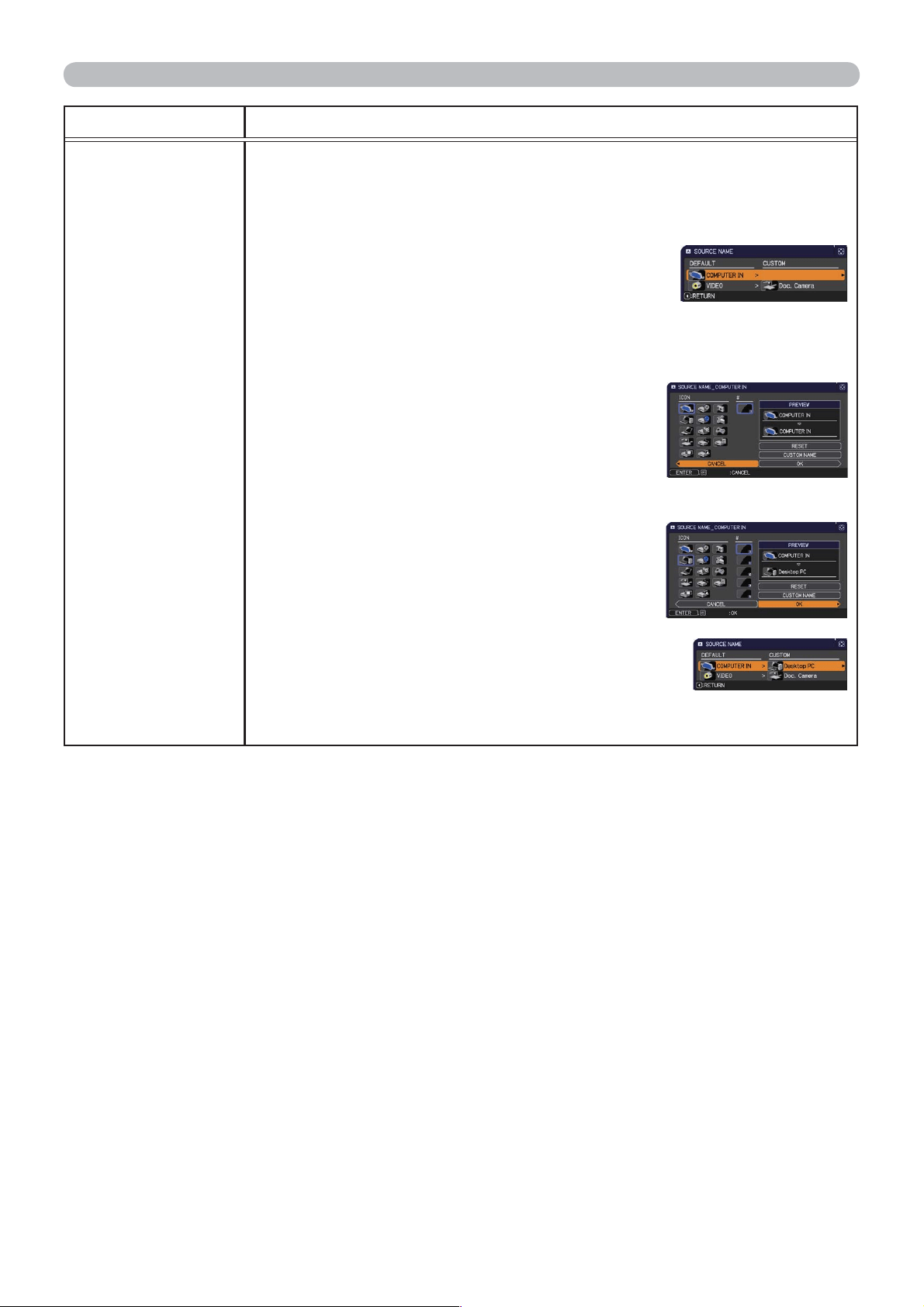
42
SCREEN menu
Item Description
SOURCE NAME
Each input port for this projector can have a name applied to it.
(1) Use the ▲/▼ buttons on the SCREEN menu to select SOURCE
NAME and press the ► or ENTER button.
The SOURCE NAME menu will be displayed.
(2) Use the ▲/▼ buttons on the SOURCE
NAME menu to select the port to be
named and press the ► button. The
SOURCE NAME dialog will be displayed.
Right side of the menu is blank until a
name is specified.
(3) Select an icon you would like to assign to
the port in the SOURCE NAME dialog.
The name assigned to the port will also
be automatically switched according to
your icon selection. Press the ENTER or
INPUT button to determine your icon selection.
(4) Select a number you would like to assign
to the port along with the icon. You can
select the number either from blank
(no number assigned), 1, 2, 3, or 4.
Then press the ENTER or INPUT button.
(5) If you would like to modify the name assigned
to the port, select CUSTOM NAME and
press the ENTER or INPUT button.
(continued on next page)
(continued on next page)
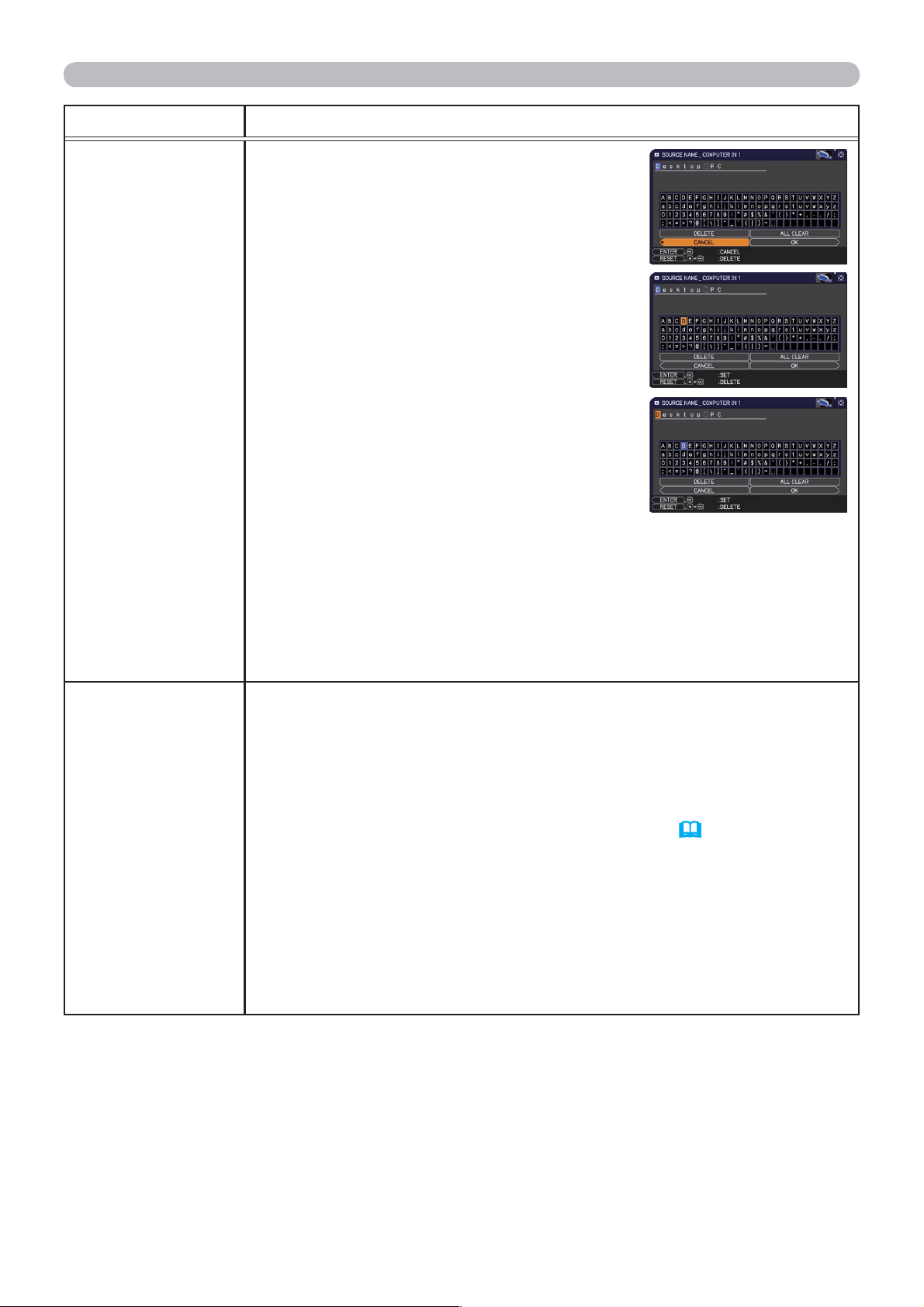
43
SCREEN menu
Item Description
SOURCE NAME
(continued)
(6) The current name will be displayed on
the first line. Use the ▲/▼/◄/► buttons
and the ENTER or INPUT button to
select and enter characters. To erase 1
character at one time, press the RESET
button or press the ◄ and INPUT button
at the same time. Also if you move the
cursor to DELETE or ALL CLEAR on
screen and press the ENTER or INPUT
button, 1 character or all characters will
be erased. The name can be a maximum
of 16 characters.
(7) To change an already inserted character,
press the ▲ button to move the cursor to
the first line, and use the ◄/► buttons to
move the cursor on the character to be
changed.
After pressing the ENTER or INPUT button, the character is
selected. Then, follow the same procedure as described at the
item (6) above.
(8) To finish entering text, move the cursor to the OK on screen and
press the ►, ENTER or INPUT button. To revert to the previous
name without saving changes, move the cursor to the CANCEL
on screen and press the ◄, ENTER or INPUT button.
TEMPLATE
Using the ▲/▼ cursor buttons switches the mode for the template
screen.
Press the ► cursor (or the ENTER) button to display the selected
template, and press the ◄ cursor button to close the displayed
screen.
The last selected template is displayed when the MY BUTTON
allocated to the TEMPLATE function is pressed (
47).
TEST PATTERN
DOT-LINE1
DOT-LINE2
DOT-LINE3
MAP2
MAP1
CIRCLE2
CIRCLE1
DOT-LINE4
You can turn a map upside down and scroll it horizontally when
MAP1 or MAP2 is selected. To invert or scroll the map, display
the guidance by pressing the RESET button on the remote three
seconds or more when MAP1 or MAP2 appears.
(continued on next page)
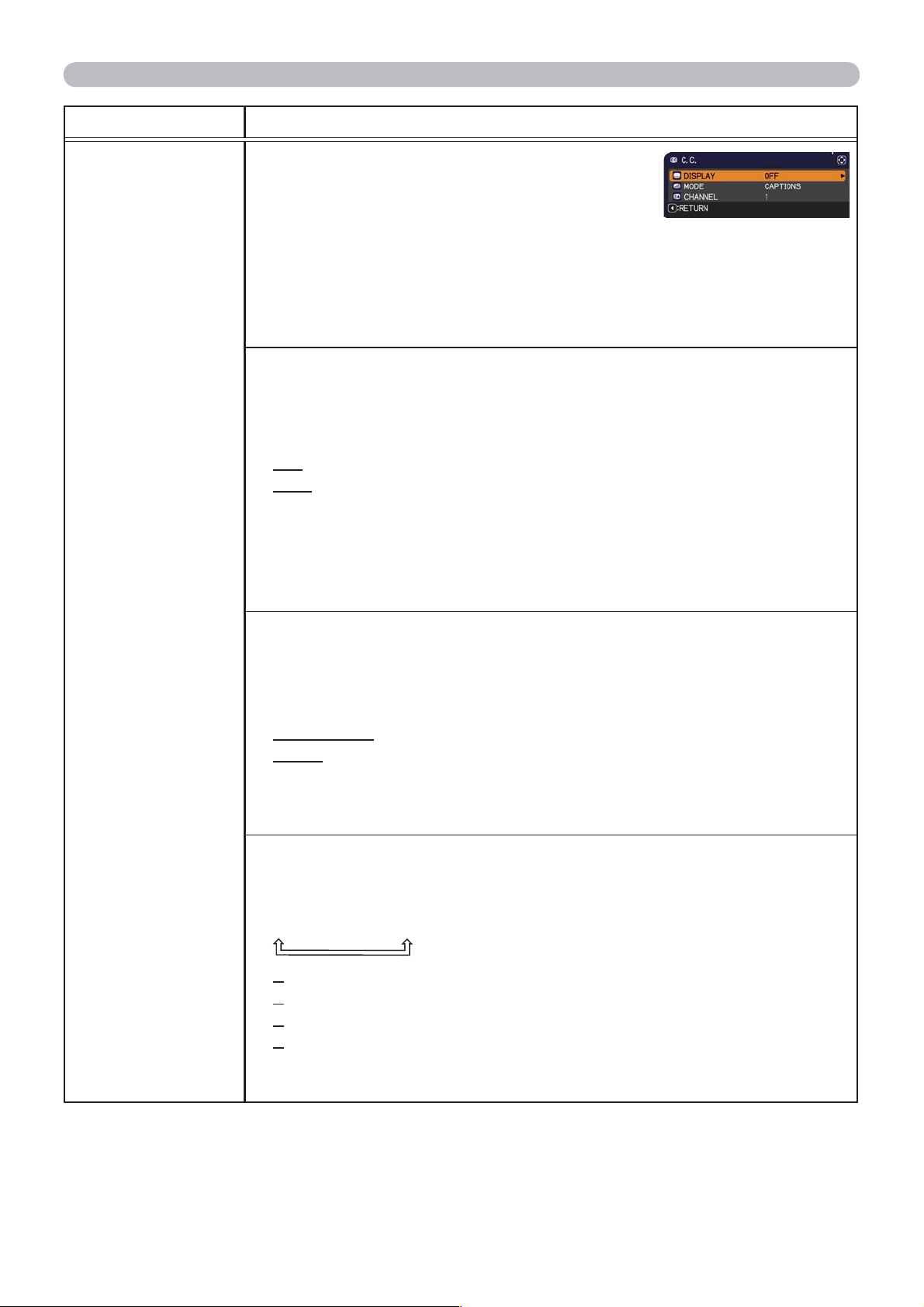
44
SCREEN menu
Item Description
C.C.
(Closed Caption)
The C.C. is the function that displays a
transcript or dialog of the audio portion of
a video, files or other presentation or other
relevant sounds. It is required to have NTSC
format video or 480i@60 format component
video source supporting C.C. feature to
utilize this function.
It may not work properly, depending on equipment or signal source.
In this case, please turn off the Closed Caption.
DISPLAY
Select Closed Caption DISPLAY setting from following options using
▲/▼ buttons.
ON
OFF
ON : Closed Caption is on.
OFF : Closed Caption is off.
• The caption is not displayed when the OSD menu is active.
• The Closed Caption is the function to display the dialogue,
narration, and / or sound effects of a television program or other
video sources. The Closed Caption availability is depending upon
broadcaster and/or content.
MODE
Select Closed Caption MODE setting from following options using
▲/▼ buttons.
CAPTIONS
TEXT
CAPTIONS : Display Closed Caption.
TEXT : Display Text data, which is for additional information such
as news reports or a TV program guide. The information
covers the entire screen. Not all of the C.C. program has
Text information.
CHANNEL
Select Closed Caption CHANNEL from following options using ▲/▼
buttons.
1
2
3
4
1: Channel 1, primary channel / language
2: Channel 2
3: Channel 3
4: Channel 4
The channel data may vary, depending on the content. Some
channel might be used for secondary language or empty.
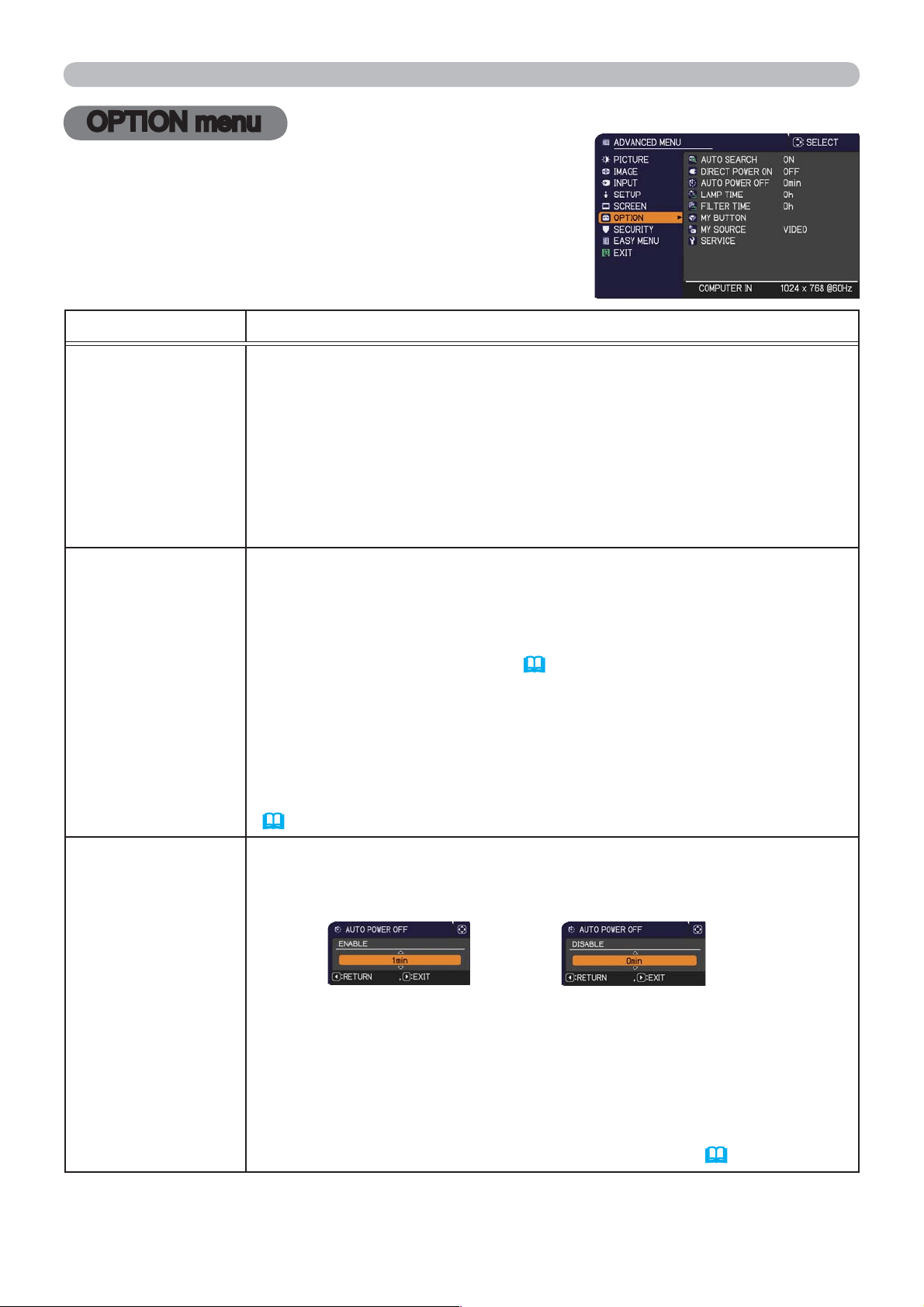
45
OPTION menu
OPTION menu
From the OPTION menu, items shown in the table
below can be performed.
Select an item using the ▲/▼ cursor buttons, and
press the ► cursor button or ENTER button to execute
the item, except for the items LAMP TIME and FILTER
TIME. Then perform it according to the following table.
Item Description
AUTO SEARCH
Using the ▲/▼ buttons turns on/off the automatic signal search
function.
ON
OFF
When the ON is selected, detecting no signal automatically cycles
through input ports in the following order
. The search is started from
the current port. Then when an input is found, the projector will stop
searching and display the image.
COMPUTER IN
VIDEO
DIRECT POWER
ON
Using the ▲/▼ buttons turns on/of
f the DIRECT POWER ON
function.
ON
OFF
When set to the ON, the lamp in projector will be automatically turned
on without the usual procedure (
16), only when the projector is
supplied with the power after the power was cut while the lamp was on.
• This function does not work as long as the power has been
supplied to the projector while the lamp is off.
•
After turning the lamp on by the DIRECT
POWER
ON function,
if neither input nor operation is detected for about 30 minutes, the
projector is turned off, even though the AUTO
POWER
OFF function
(
45) is disabled.
AUTO POWER
OFF
Using the ▲/▼ buttons adjusts the time to count down to
automatically turn the projector off.
Long (max. 99 minutes)
Short (min. 0 minute = DISABLE)
When the time is set to 0, the projector is not turned off automatically.
When the time is set to 1 to 99, and when the passed time with
no-signal or an unsuitable signal reaches at the set time, the
projector lamp will be turned off.
If one of the projector’s buttons or the remote control buttons is
pressed during the corresponding time, projector will not be turned
off.
Please refer to the section Turning off the power
(
17).
(continued on next page)
46
OPTION menu
Item Description
LAMP TIME
The lamp time is the usage time of the lamp, counted after the last
resetting. It is shown in the OPTION menu.
Pressing the RESET button on the remote control or the ► button
of the projector displays a dialog.
To reset the lamp time, select the OK using the ► button.
CANCEL
OK
• Please reset the lamp time only when you have replaced the lamp,
for a suitable indication about the lamp.
•
For the lamp replacement, see the section Replacing the lamp (
56).
FILTER TIME
The filter time is the usage time of the air filter, counted after the last
resetting. It is shown in the OPTION menu.
Pressing the RESET button on the remote control or the ► button
of the projector displays a dialog.
To reset the filter time, select the OK using the ► button.
CANCEL
OK
•
Please reset the filter time only when you have cleaned or replaced
the air filter, for a suitable indication about the air filter.
• For the air filter cleaning, see the section Cleaning and replacing
the air filter (
58).
(continued on next page)
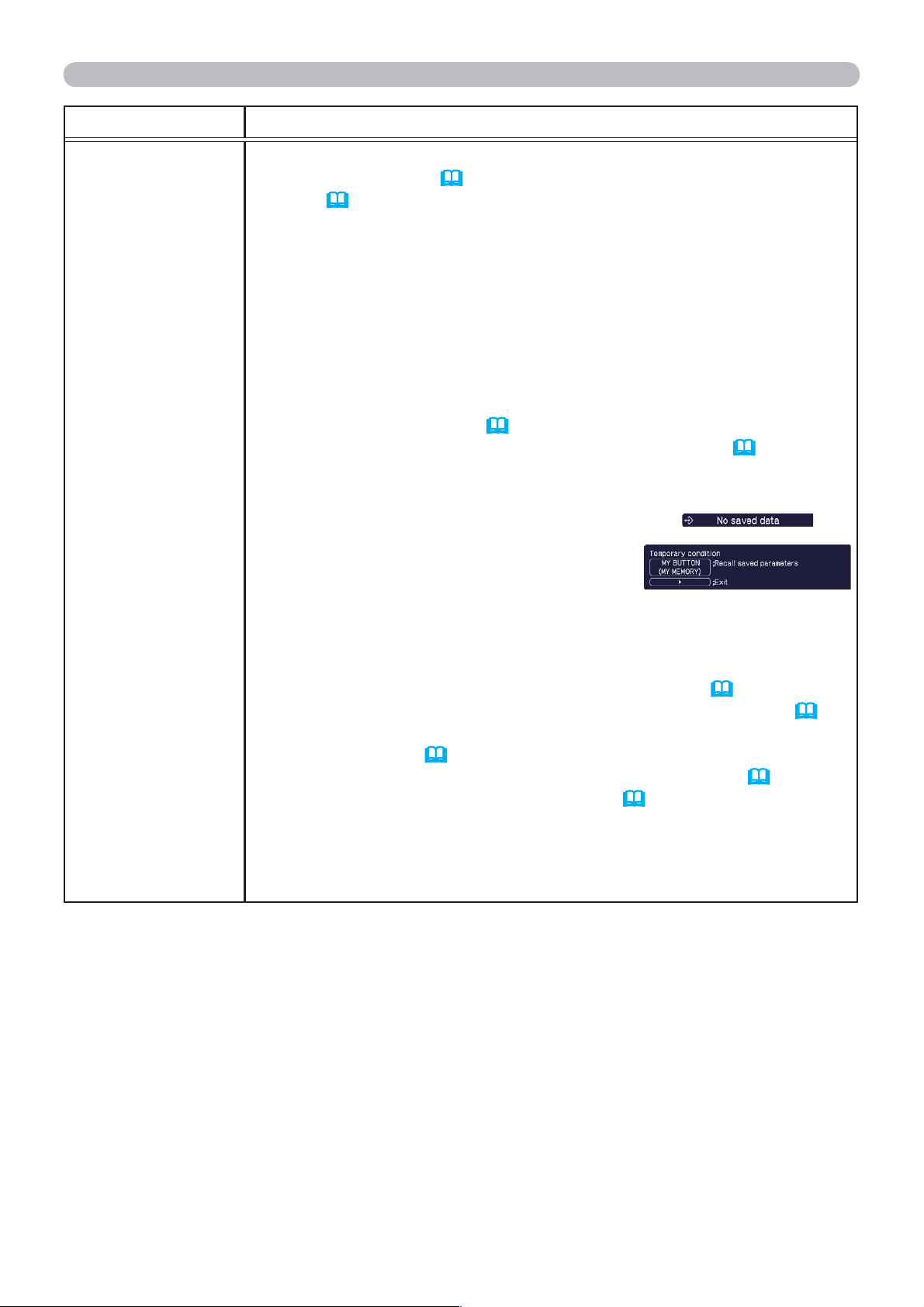
47
OPTION menu
Item Description
MY BUTTON
This item assigns one of the following functions to the ECO button
on the control panel (
5) and MY
BUTTON 1/2 on the remote
control (
6).
(1) Choose a button to assign a function from ECO, MY
BUTTON-1
and MY BUTTON-2. Use the ▲/▼ buttons to select the desired
function on the menu and press the ► button.
(2) Then using the ▲/▼/◄/► buttons sets one of the following
functions to the chosen button. Press the ENTER or INPUT
button to save the setting.
• COMPUTER IN: Selects the input from COMPUTER IN port.
• VIDEO: Selects the input from VIDEO port.
• INFORMATION: Displays SYSTEM_INFORMATION,
INPUT_INFORMATION (
50) or nothing.
• MY
MEMORY: Loads one of adjustment data stored (
31).
When more than one data are saved, the adjustment
changes every time the MY
BUTTON is pressed.
When no data is saved in memory, the
dialog "No saved data" appears.
When the current adjustment is not
saved to memory, the dialog as shown in
the right appears.
If you want to keep the current adjustment, please press
the ► button to exit. Otherwise loading a data will overwrite the
current adjusted condition.
• PICTURE MODE: Changes the PICTURE MODE (
27).
•
FILTER RESET: Displays the filter time reset confirmation dialogue
(
46).
• TEMPLATE: Makes the template pattern selected to the
TEMPLATE item (
43) appear or disappear.
• RESOLUTION: Turns on/off the RESOLUTION dialog (
37).
• ECO MODE: Changes the ECO MODE (
38).
• BLANK: Turns on/off the blank function. (ECO button only)
• FREEZE: Turns on/off the freeze function. (ECO button only)
• AUTO:
Performs the automatic adjustment function.
(
ECO button only
)
(continued on next page)
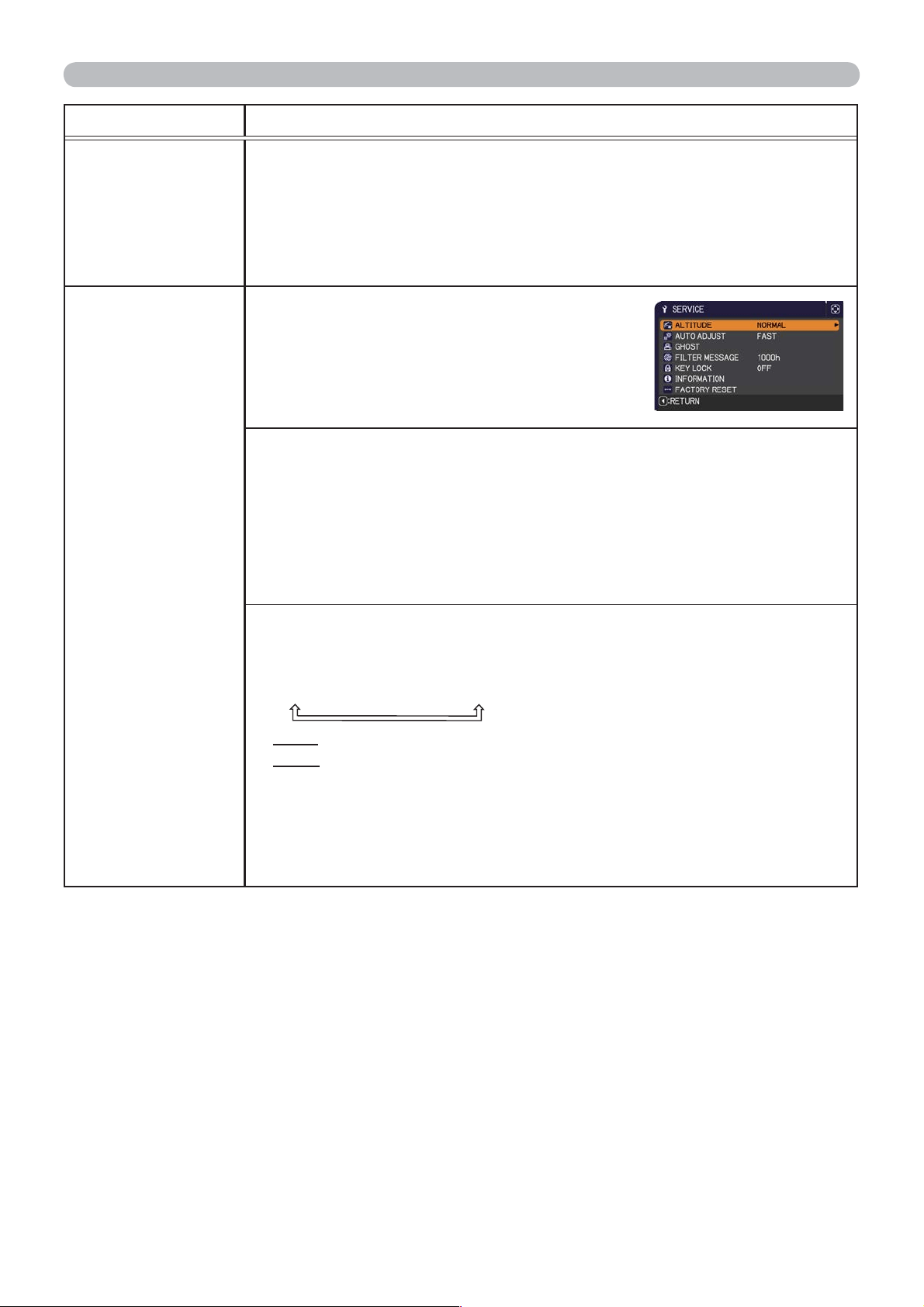
48
OPTION menu
Item Description
MY SOURCE
Using ▲/▼ buttons selects the picture input port to be selected with
pressing the MY SOURCE/DOC.CAMERA button on the remote
control.
You can use this function not only for document cameras but also
computers and other equipment.
VIDEO
COMPUTER IN
SER
VICE
Selecting this item displays the SERVICE
menu.
Select an item using the ▲/▼ buttons,
and press the ► button or the ENTER
button on the remote control to execute
the item.
ALTITUDE
Using the ▲/▼ buttons switches the rotation speed of the cooling fans.
The HIGH is the mode for use at highlands etc. If the projector is used
at an altitude of about 1600 m (5250 feet) or higher, select HIGH.
Otherwise, select NORMAL. Note that the projector is noisier when the
HIGH is selected.
HIGH
NORMAL
AUTO ADJUST
Using the ▲/▼ buttons to select one of the mode. When the
DISABLE is selected, the automatic adjustment feature is disabled.
FINE
FAST
DISABLE
FINE: Finer tuning including H.SIZE adjustment.
FAST: Faster tuning, setting H.SIZE to prearranged data for the
input signal.
•
Depending on conditions, such as input image, signal cable to the
projector, environment around the projector, etc., the automatic adjustment
may not work correctly. In such a case, please choose DISABLE to
disable the automatic adjustment, and make adjustment manually.
(continued on next page)
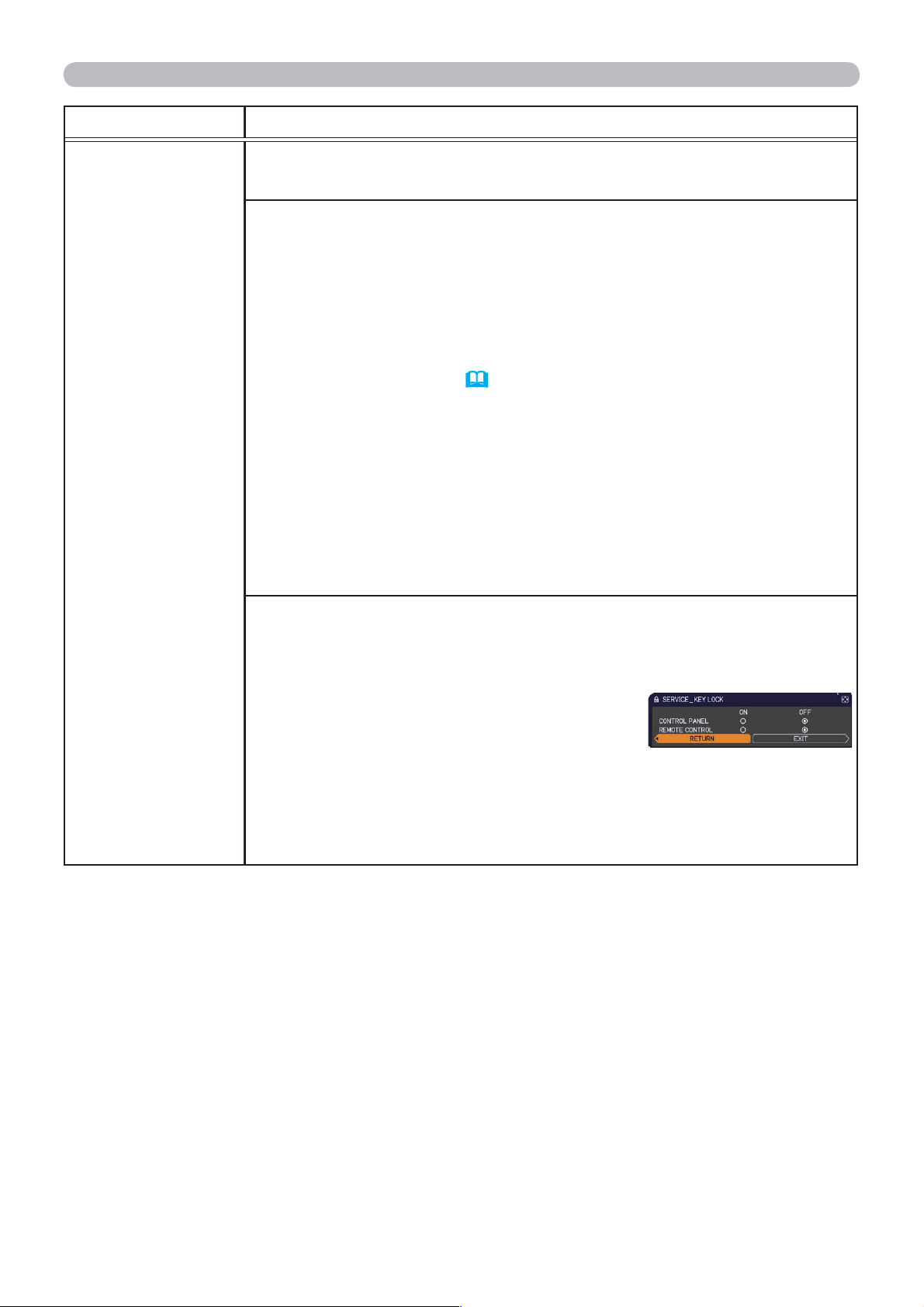
49
OPTION menu
Item Description
SERVICE
(continued)
GHOST
Adjust the settings using the ▲/▼ buttons to eliminate ghosting.
FILTER MESSAGE
Use the ▲/▼ button to set the timer for notifying by the message
when to replace the filter unit
100h
200h
500h
1000h
2000h
3000h
4000h
5000h
OFF
After choosing an item except OFF, the message “REMINDER ***
HRS PASSED ....” will appear after the timer reaches the interval
time set by this feature (
62).
When the OFF is chosen, the message will not appear
. Utilize this
feature to keep the air filter clean, setting the suitable time according
to your environment of this projector.
• Please take care of the filter unit periodically, even if there is
no message. If the air filter becomes to be blocked by dust or
other matter, the internal temperature will rise, which could cause
malfunction, or reduce the lifetime of the projector.
• Please be careful with the operating environment of the projector
and the condition of the filter unit.
KEY LOCK
(1) Use the ▲/▼ buttons to choose the operations control.
CONTROL PANEL
REMOTE CONTROL
(2)
Use the ◄/► buttons to select ON or OFF.
ON
OFF
Selecting ON in Step 2 locks the buttons except STANDBY/ON on
the operations control selected in Step 1. Selecting OFF releases
the locked buttons on the operations control selected in Step 1.
• Please use this function to prevent tampering or accidental
operation.
(continued on next page)
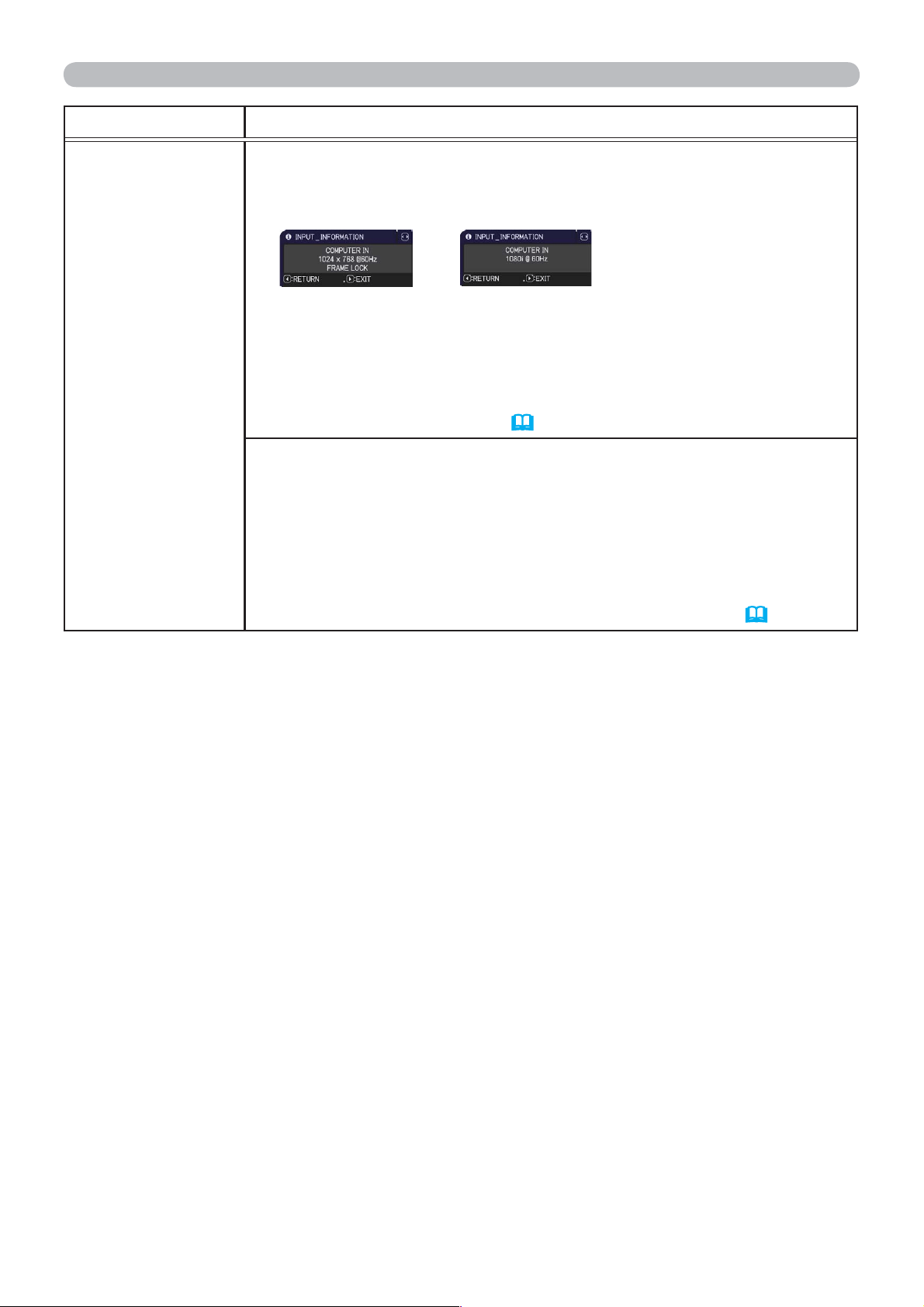
50
OPTION menu
Item Description
SERVICE
(continued)
INFORMATION
Selecting this item displays a dialog titled “INPUT_INFORMATION”.
It shows the information about the current input.
• The “FRAME LOCK” message on the dialog means the frame lock
function is working.
• This item can't be selected for no signal and sync out.
• When the MY TEXT DISPLAY is set to ON, the MY TEXT is
displayed together with the input information in the
INPUT_INFORMATION box (
55).
F
ACTORY RESET
Selecting OK using the ► button performs this function. By this
function, all the items in all of menus will collectively return to the
initial setting. Note that the items LAMP TIME, FILTER TIME,
LANGUAGE, FILTER MESSAGE and SECURITY settings are not
reset.
CANCEL
OK
Be sure to set ALTITUDE after resetting all the settings (
48).
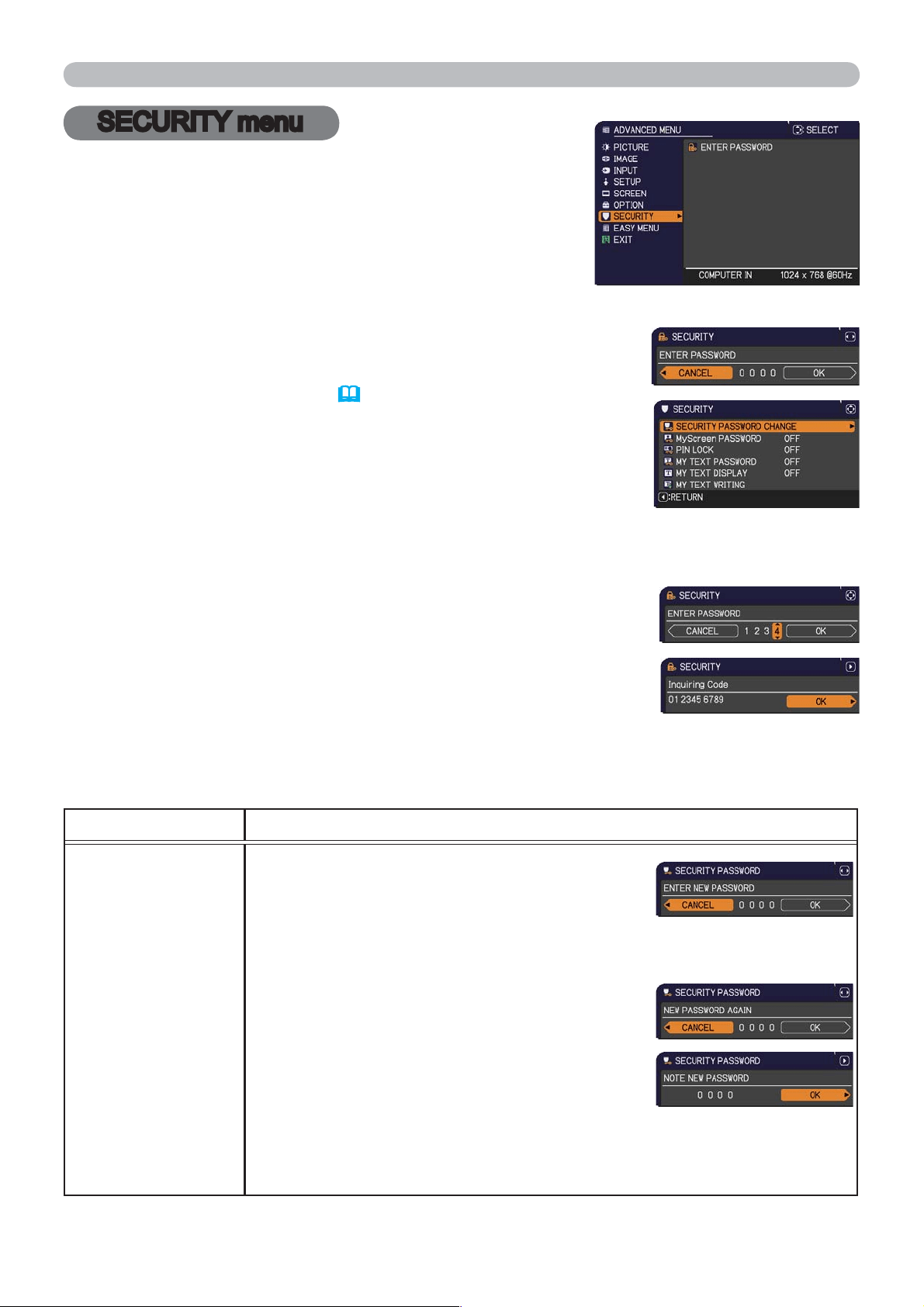
51
SECURITY menu
This projector is equipped with security functions.
From the SECURITY menu, items shown in the table
below can be performed.
To use SECURITY menu: User registration is required
before using the security functions.
Enter to the SECURITY menu
1. Press the ► button. The ENTER PASSWORD box will be displayed.
2. Use the ▲/▼/◄/► buttons to enter the registered password.
The factory default password is as follows.
3792
This password can be changed
(
below)
. Move the cursor to
the right side of the ENTER PASSWORD box and press
the ► button to display the SECURITY menu.
• It is strongly recommended the factory default password to be
changed as soon as possible.
• If an incorrect password is input, the ENTER PASSWORD box
will be displayed again. If incorrect password is input 3 times, the
projector will turn off. Afterwards the projector will turn off every time
an incorrect password is input.
3. Items shown in the table below can be performed.
If you have forgotten your password
(1) While the ENTER PASSWORD box is displayed, press and hold the
RESET button on the remote control for about 3 seconds or press
and hold the INPUT button for 3 seconds while pressing the ►
button on the projector.
(2) The 10 digit Inquiring Code will be displayed. Contact your dealer
with the 10 digit Inquiring Code. Your password will be sent after
your user registration information is confirmed.
• If there is no key input for about 55 seconds while the Inquiring Code is displayed, the menu will
close. If necessary, repeat the process from (1).
Item Description
SECURITY
PASSWORD
CHANGE
(1) Use the ▲/▼ buttons on the SECURITY menu
to select SECURITY PASSWORD CHANGE
and press the ► button to display the ENTER
NEW PASSWORD box.
(2) Use the ▲/▼/◄/► buttons to enter the new password.
(3) Move the cursor to the right side of the
ENTER NEW PASSWORD box and press the
► button to display the NEW PASSWORD
AGAIN box, enter the same password again.
(4)
Move the cursor to the right side of the NEW
PASSWORD AGAIN box and press the ►
button and the NOTE NEW PASSWORD box
will be displayed for about 30 seconds, please
make note of the password during this time.
Pressing the ENTER button on the remote control or
►
button on the
projector will close the NOTE NEW PASSWORD box.
• Please do not forget your password.
(continued on next page)
SECURITY menu
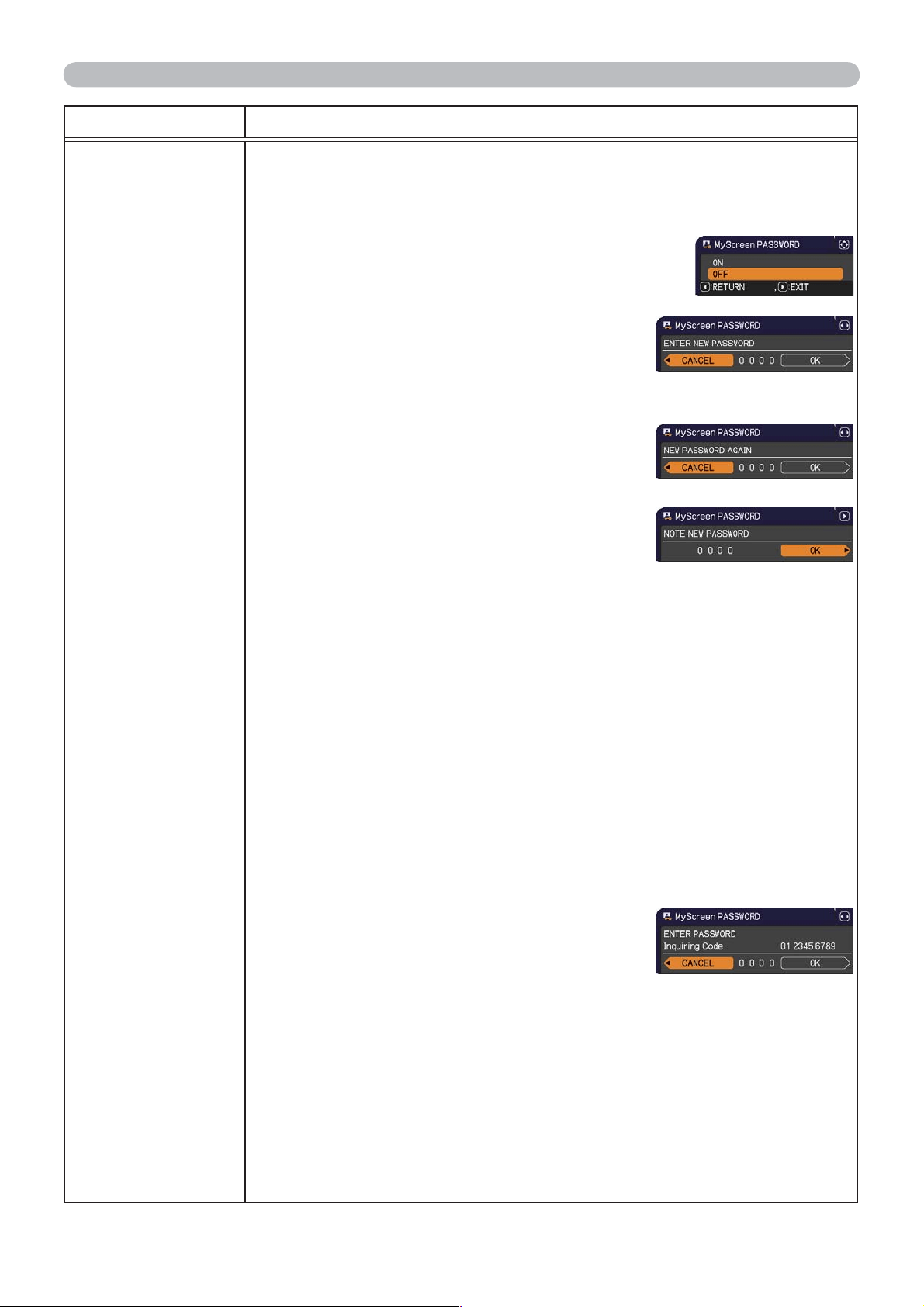
52
SECURITY menu
Item Description
MyScreen
PASSWORD
The MyScreen PASSWORD function can be used to prohibit access to the
MyScreen function and prevent the currently registered MyScreen image
from being overwritten.
1 Turning on the MyScreen PASSWORD
1-1 Use the ▲/▼ buttons on the SECURITY menu to
select MyScreen PASSWORD and press the ►
button to display the MyScreen PASSWORD on/
off menu.
1-2 Use the ▲/▼ buttons on the MyScreen
PASSWORD on/off menu to select ON.
The ENTER NEW PASSWORD box (small)
will be displayed.
1-3 Use the ▲/▼/◄/► buttons to enter the
password. Move the cursor to the right side
of the ENTER NEW PASSWORD box (small)
and press the ► button to display the NEW
PASSWORD AGAIN box, enter the same
PASSWORD again.
1-4 Move the cursor to the right side of the
NEW PASSWORD AGAIN box and press
the ► button to display the NOTE NEW
PASSWORD box for about 30 seconds,
please make note of the password during
this time.
Pressing the ENTER button on the remote control or ► button on the
projector will return to MyScreen PASSWORD on/off menu.
When a password is set for MyScreen:
•
The MyScreen registration function (and menu) will be unavailable.
•
The MyScreen Lock menu will be unavailable.
•
The START UP setting will be locked on MyScreen (and the menu will be
unavailable).
Turning the MyScreen PASSWORD off will allow normal operation of these
functions.
•
Please do not forget your MyScreen PASSWORD.
2 Turning off the MyScreen PASSWORD
2-1 Follow the procedure in 1-1 to display the MyScreen PASSWORD on/off
menu.
2-2
Select OFF to display the ENTER
PASSWORD box (large). Enter the registered
password and the screen will return to the
MyScreen PASSWORD on/off menu.
If an incorrect PASSWORD is input, the menu will
close. If necessary, repeat the process from 2-1.
3 If you have forgotten your password
3-1 Follow the procedure in 1-1 to display the MyScreen PASSWORD on/off
menu.
3-2 Select OFF to display the ENTER PASSWORD box (large). The 10 digit
Inquiring Code will be displayed inside the box.
3-3 Contact your dealer with the 10 digit Inquiring Code. Your password will
be sent after your user registration information is confirmed.
(continued on next page)
ENTER NEW PASSWORD
box (small)
ENTER PASSWORD box
(large)
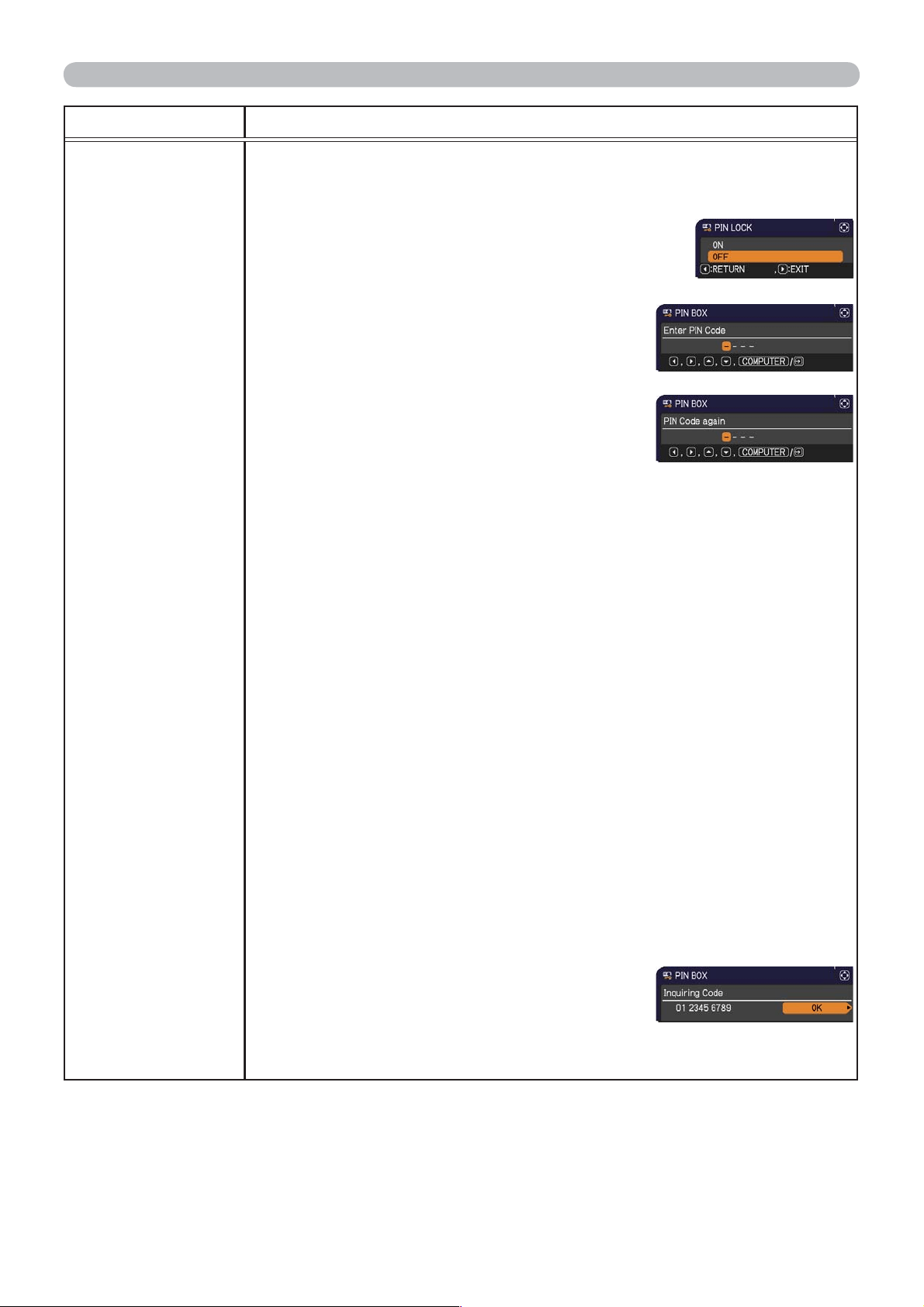
53
SECURITY menu
Item Description
PIN LOCK
PIN LOCK is a function which prevents the projector from being used unless
a registered Code is input.
1 Turning on the PIN LOCK
1-1 Use the ▲/▼ buttons on the SECURITY menu to
select PIN LOCK and press the ► button or the
ENTER button to display the PIN LOCK on/off
menu.
1-2 Use the ▲/▼ buttons on the PIN LOCK on/
off menu to select ON and the Enter PIN
Code box will be displayed.
1-3 Input a 4 part PIN code using the ▲/▼/◄/►,
COMPUTER or INPUT button.
The PIN Code again box will appear. Reenter
the same PIN code. This will complete the PIN
code registration.
•
If there is no key input for about 55 seconds
while the Enter PIN Code box or the PIN Code again box is displayed,
the menu will close. If necessary, repeat the process from 1-1.
Afterwards, anytime the projector is restarted after AC power is turned off
the Enter PIN Code box will be displayed. Enter the registered PIN code.
The projector can be used after entering the registered PIN code. If an
incorrect PIN code is input, the Enter PIN code box will be displayed again.
If an incorrect PIN code is input 3 times, the projector will turn off. Afterwards
the projector will turn off every time an incorrect PIN code is input. The
projector will also turn off if there is no key input for about 5 minutes while
the Enter PIN code box is displayed.
This function will activate only when the projector is started after AC power
is turned off.
•
Please do not forget your PIN code.
2 Turning off the PIN LOCK
2-1 Follow the procedure in 1-1 to display the PIN LOCK on/off menu.
2-2 Use the ▲/▼ buttons to select OFF and the Enter PIN Code box will be
displayed.
Enter the registered PIN code to turn the PIN LOCK function off.
If an incorrect PIN code is input 3 times, the projector will turn off.
3 If you have forgotten your PIN code
3-1 While the Enter PIN code box is displayed, press and hold the RESET
button for three seconds or press and hold the INPUT button for 3
seconds while pressing the ► button on the projector.
The 10 digit Inquiring Code will be displayed.
•
If there is no key input for about 5 minutes
while the Inquiring Code is displayed, the
projector will turn off.
3-2 Contact your dealer with the 10 digit Inquiring Code. Your PIN code will
be sent after your user registration information is confirmed.
(continued on next page)
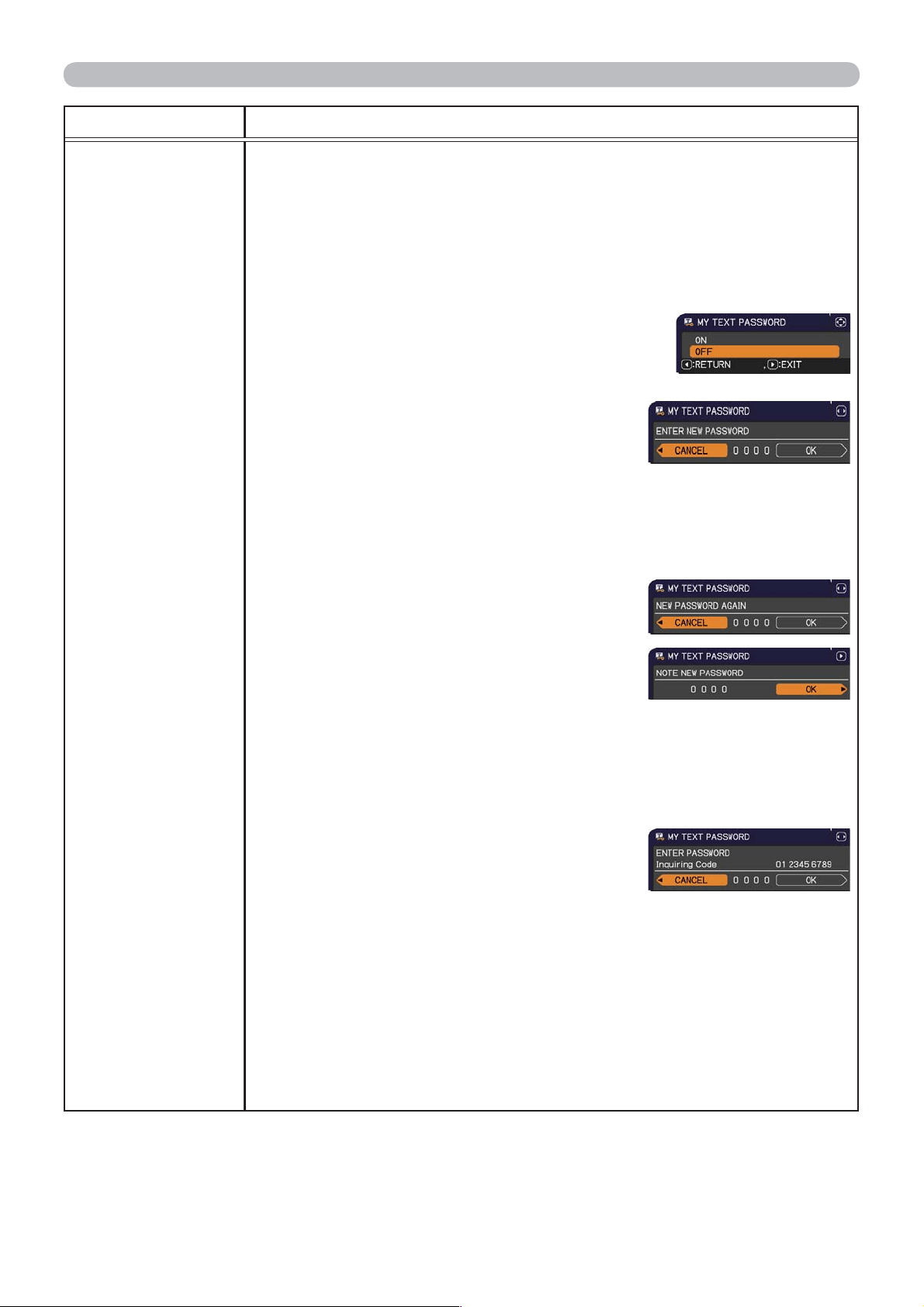
54
SECURITY menu
Item Description
MY TEXT
PASSWORD
The MY TEXT PASSWORD function can prevent the MY TEXT from being
overwritten. When the password is set for the MY TEXT;
• The MY TEXT DISPLAY menu will be unavailable, which can prohibit
changing the DISPLAY setting.
• The MY TEXT WRITING menu will be unavailable, which can prevent the
MY TEXT from being overwritten.
1 Turning on the MY TEXT PASSWORD
1-1 Use the ▲/▼ buttons on the SECURITY menu to
select the MY TEXT PASSWORD and press the
► button to display the MY TEXT PASSWORD
on/off menu.
1-2 Use the ▲/▼ buttons on the MY TEXT
PASSWORD on/off menu to select ON. The
ENTER NEW PASSWORD box (small) will
be displayed.
1-3 Use the ▲/▼/◄/► buttons to enter the
password. Move the cursor to the right side
of the ENTER NEW PASSWORD box (small)
and press the ► button to display the NEW
PASSWORD AGAIN box, and then enter the
same password again.
1-4 Move the cursor to the right side of the
NEW PASSWORD AGAIN box and press
► button to display the NOTE NEW
PASSWORD box for about 30 seconds, then
please make note of the password during
this time.
Pressing the ENTER button on the remote control or ► button on the
projector will return to the MY TEXT PASSWORD on/off menu.
2 Turning off the MY TEXT PASSWORD
2-1 Follow the procedure in 1-1 to display the MY TEXT PASSWORD on/off
menu.
2-2 Select OFF to display the ENTER
PASSWORD box (large). Enter the
registered password and the screen will
return to the MY TEXT PASSWORD on/off
menu.
If an incorrect password is input, the menu will close.
If necessary, repeat the process from 2-1
3 If you have forgotten your password
3-1 Follow the procedure in 1-1 to display the MY TEXT PASSWORD on/off
menu.
3-2 Select OFF to display the ENTER PASSWORD box (large). The 10 digit
inquiring code will be displayed inside the box.
3-3 Contact your dealer with the 10 digit inquiring code. Your password will
be sent after your user registration information is confirmed.
(continued on next page)
ENTER NEW PASSWORD
box (small)
ENTER PASSWORD box
(large)
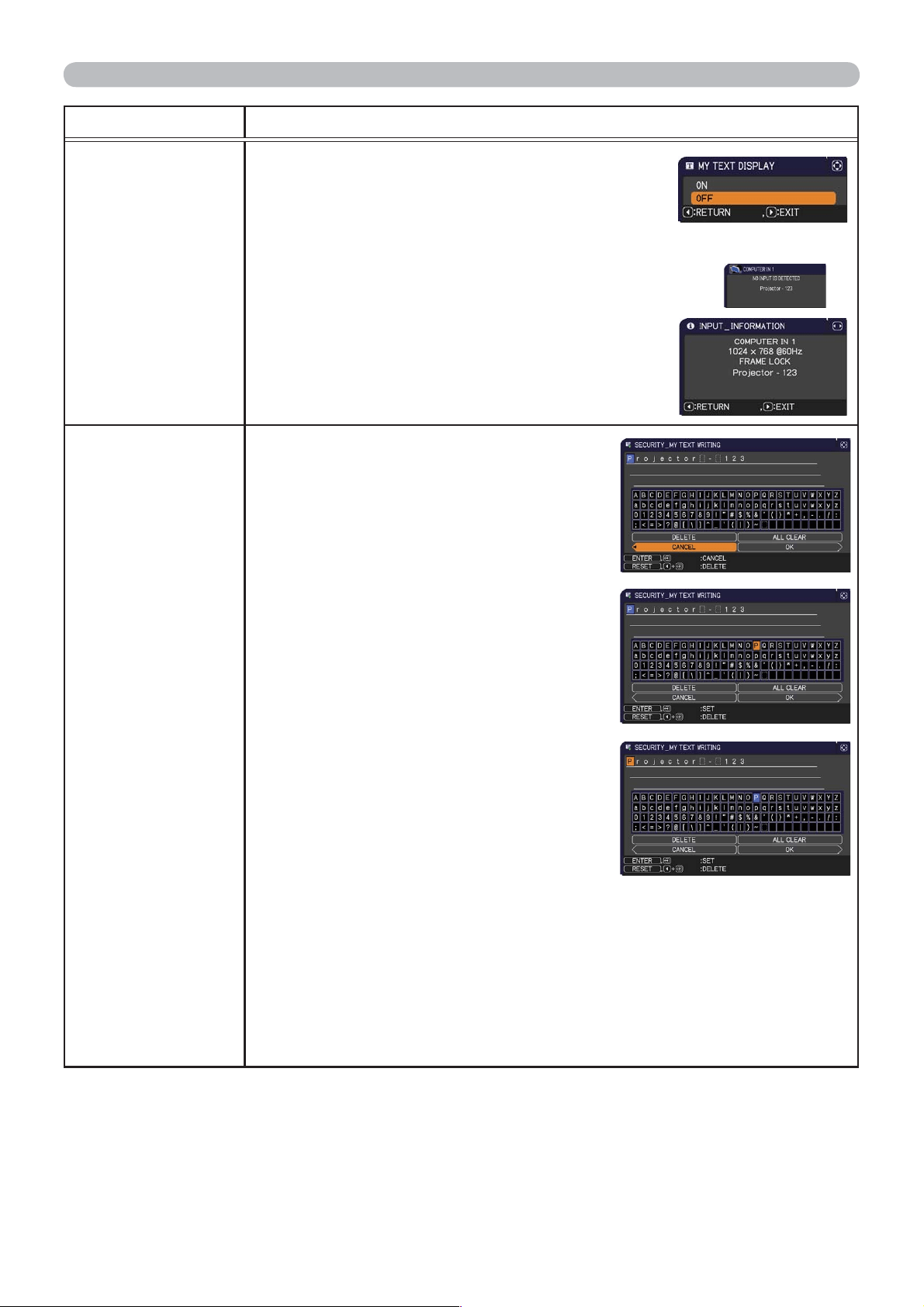
55
SECURITY menu
Item Description
MY TEXT
DISPLAY
(1) Use the ▲/▼ buttons on the SECURITY menu to
select the MY TEXT DISPLAY and press the ► or
ENTER button to display the MY TEXT DISPLAY
on/off menu.
(2) Use the ▲/▼ buttons on the MY TEXT DISPLAY on/off menu to select
on or off.
ON
OFF
When it is set ON, the MY TEXT will be displayed
on the START UP screen and the INPUT_
INFORMATION when the INFORMATION on the
SERVICE menu is chosen.
• This function is available only when the MY TEXT
PASSWORD function is set to the OFF.
MY TEXT
WRITING
(1) Use the ▲/▼ buttons on the
SECURITY menu to select the MY
TEXT WRITING and press the ►
button. The MY TEXT WRITING dialog
will be displayed.
(2) The current MY TEXT will be displayed
on the first 3 lines. If not yet written, the
lines will be blank.
Use the ▲/▼/◄/► buttons and the
ENTER or INPUT button to select and
enter characters. To erase 1 character
at one time, press the RESET button or
press the ◄ and INPUT button at the
same time. Also if you move the cursor
to DELETE or ALL CLEAR on screen
and press the ENTER or INPUT button,
1 character or all characters will be
erased. The MY TEXT can be input up
to 24 characters on each line.
(3)
To change an already inserted character,
press the ▲/▼ button to move the
cursor to one of the first 3 lines, and use
the ◄/► buttons to move the cursor on
the character to be changed.
After pressing the ENTER or INPUT button, the character is selected.
Then, follow the same procedure as described at the item (2) above.
(4) To finish entering text, move the cursor to the OK on screen and press
the ►, ENTER or INPUT button. To revert to the previous MY TEXT
without saving changes, move the cursor to the CANCEL on screen and
press the ◄, ENTER or INPUT button.
•
The MY TEXT WRITING function is available only when the MY TEXT
PASSWORD function is set to OFF.
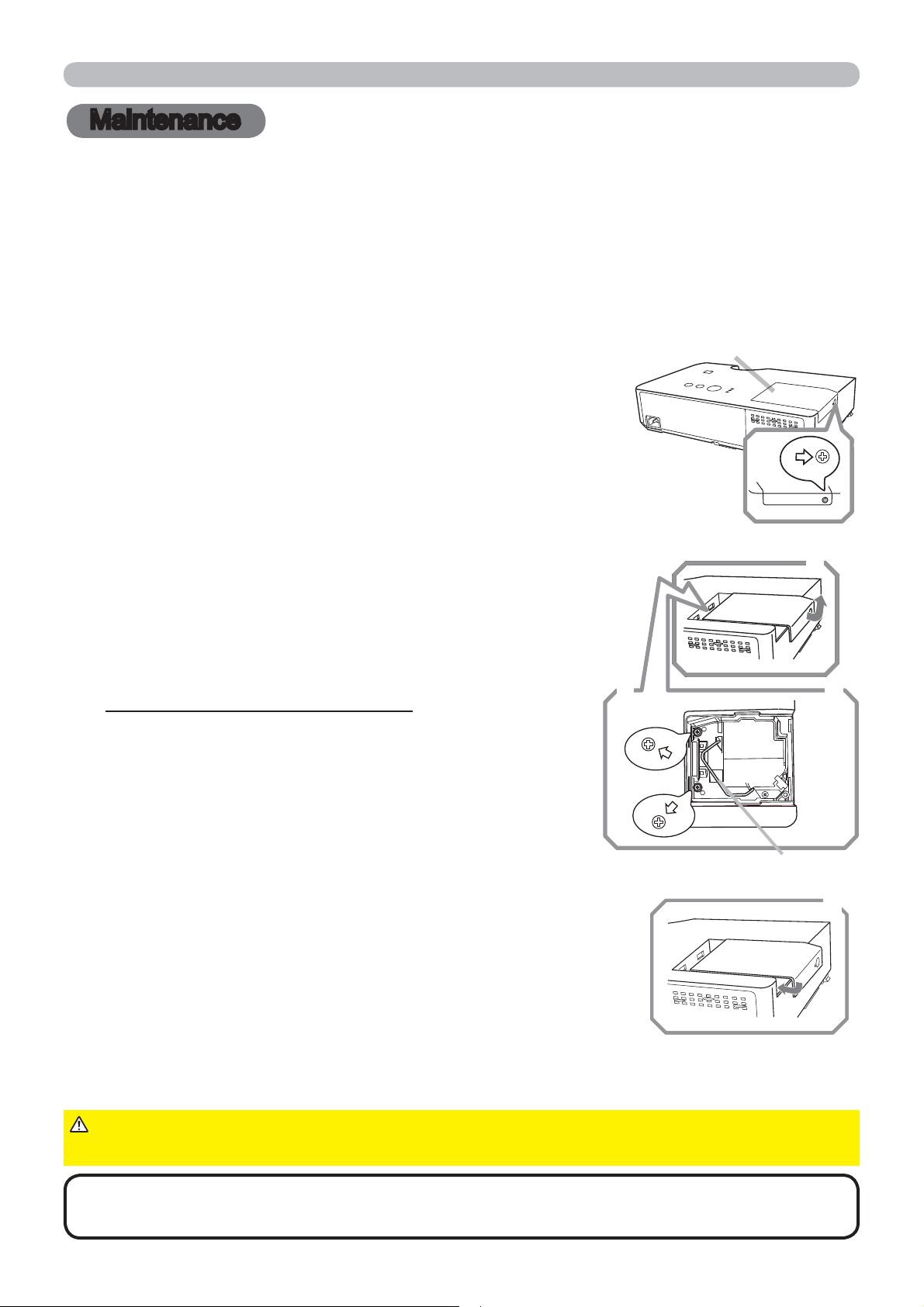
56
Maintenance
Maintenance
A lamp has finite product life. Using the lamp for long periods of time could cause
the pictures darker or the color tone poor. Note that each lamp has a different
lifetime, and some may burst or burn out soon after you start using them.
Preparation of a new lamp and early replacement are recommended. To prepare
a new lamp, make contact with your dealer and tell the lamp type number.
Replacing the lamp
Type number : DT01151
1.
Turn the projector off, and unplug the power cord.
Allow the projector to cool for at least 45 minutes.
2.
Prepare a new lamp. If the projector is mounted on a
ceiling, or if the lamp has broken, also ask the dealer to
replace the lamp.
3.
Loosen the screw (marked by arrow) of the lamp
cover and then slide and lift the lamp cover to the
side to remove it.
4.
Loosen the 2 screws (marked by arrow) of the
lamp, and slowly pick up the lamp by the handle.
Never loosen any other screws.
5.
Insert the new lamp, and retighten firmly the
2 screws of the lamp that are loosened in the
previous process to lock it in place.
6.
While putting the interlocking parts of the lamp cover
and the projector together, slide the lamp cover back in
place. Then firmly fasten the screw of the lamp cover.
7.
Turn the projector on and reset the lamp time using
the LAMP TIME item in the OPTION menu.
In case of replacement by yourself, follow the following procedure.
Replacing the lamp
(4)
Point at the LAMP TIME using the ▼/▲ button, then press the ► button. A dialog will appear.
(5)
Press the ► button to select “OK” on the dialog. It performs resetting the lamp time.
• Please reset the lamp time only when you have replaced the lamp,
for a suitable indication about the lamp.
NOTE
►Do not touch any inner space of the projector, while the lamp
is taken out.
CAUTION
Lamp cover
(1) Press the MENU button to display a menu.
(2)
Point at the ADVANCED MENU in the menu using
the ▼/▲ button, then press the ► button.
(3)
Point at the OPTION in the left column of the menu
using the ▼/▲ button, then press the ► button.
6
3
3
5
4
Handle
57
Maintenance
Lamp warning
Replacing the lamp (continued)
HIGH VOLTAGE
HIGH TEMPERATURE
HIGH PRESSURE
►
The projector uses a high-pressure mercury glass lamp. The lamp
can break with a loud bang, or burn out, if jolted or scratched, handled while hot, or
worn over time. Note that each lamp has a different lifetime, and some may burst or
burn out soon after you start using them. In addition, if the bulb bursts, it is possible
for shards of glass to fly into the lamp housing, and for gas containing mercury and
dust containing fine particles of glass to escape from the projector’s vent holes.
►About disposal of a lamp: This product contains a mercury lamp; do not put
it in a trash. Dispose of it in accordance with environmental laws.
• For lamp recycling, go to www.lamprecycle.org (in the US).
• For product disposal, consult your local government agency
or www.eiae.org (in the US) or www.epsc.ca (in Canada).
For more information, call your dealer.
WARNING
• If the lamp should break (it will make a loud bang when it does),
unplug the power cord from the outlet, and make sure to request a
replacement lamp from your local dealer. Note that shards of glass
could damage the projector’s internals, or cause injury during handling,
so please do not try to clean the projector or replace the lamp yourself.
•
If the lamp should break (it will make a loud bang when it does), ventilate the
room well, and make sure not to inhale the gas or fine particles that come out
from the projector's vent holes, and not to get them into your eyes or mouth.
• Before replacing the lamp, turn the projector off and unplug the power
cord, then wait at least 45 minutes for the lamp to cool sufficiently.
Handling the lamp while hot can cause burns, as well as damaging the lamp.
• Never unscrew except the appointed (marked by an arrow) screws.
• Do not open the lamp cover while the projector is suspended from
a ceiling. This is dangerous, since if the lamp’s bulb has broken, the
shards will fall out when the cover is opened. In addition, working in
high places is dangerous, so ask your local dealer to have the lamp
replaced even if the bulb is not broken.
• Do not use the projector with the lamp cover removed. At the lamp
replacing, make sure that the screws are screwed in firmly. Loose
screws could result in damage or injury.
• Use only the lamp of the specified type. Use of a lamp that does not
meet the lamp specifications for this model could cause a fire, damage or
shorten the life of this product.
• If the lamp breaks soon after the first time it is used, it is possible
that there are electrical problems elsewhere besides the lamp. If this
happens, consult your local dealer or a service representative.
•
Handle with care: jolting or scratching could cause the lamp bulb to burst during use.
•
Using the lamp for long periods of time, could cause it dark, not to light up or to burst.
When the pictures appear dark, or when the color tone is poor, please replace the
lamp as soon as possible. Do not use old (used) lamps; this is a cause of breakage.
Disconnect
the plug
from the
power
outlet
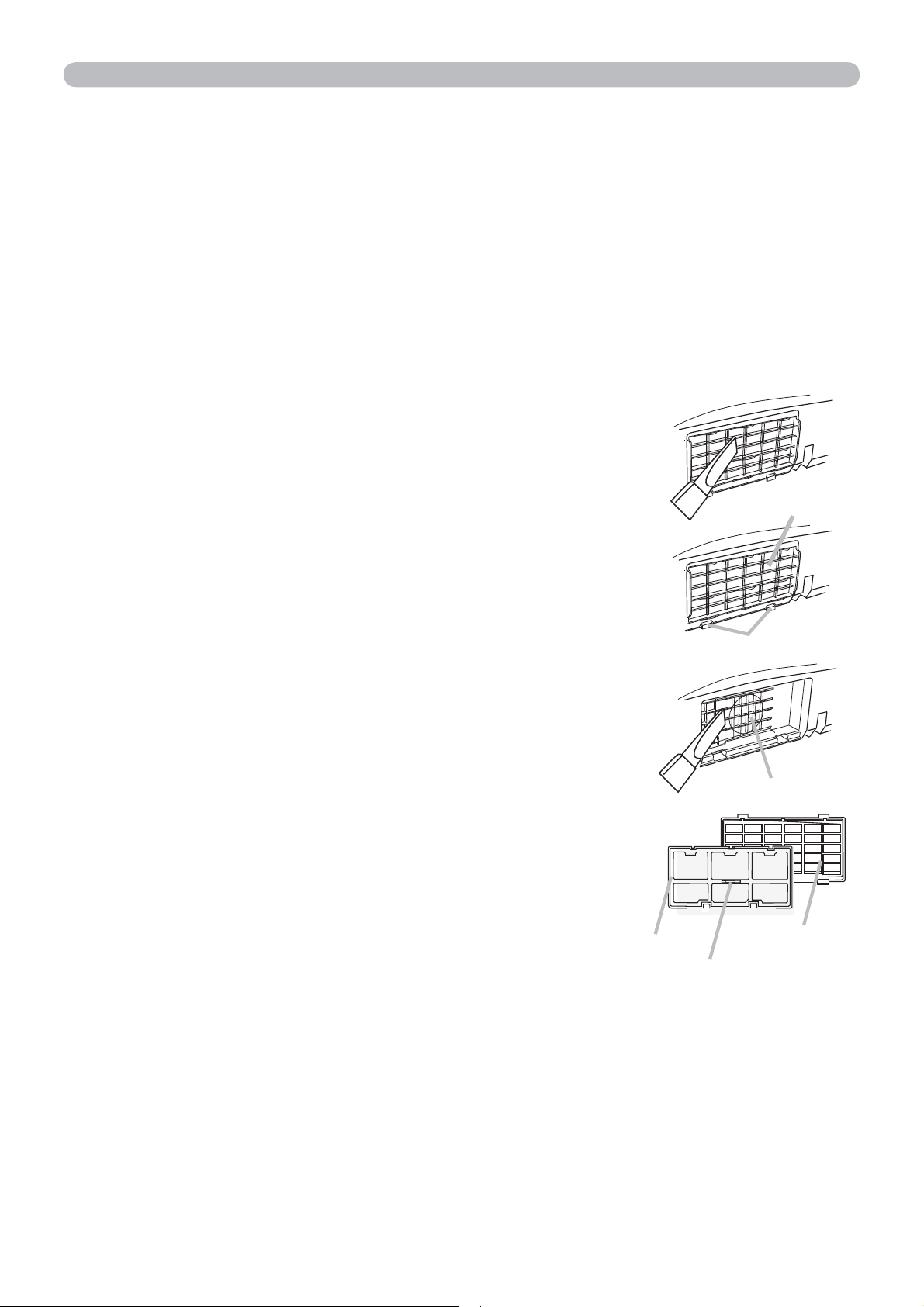
58
Maintenance
(continued on next page)
Please check and clean the air filter periodically. When the indicators or a
message prompts you to clean the air filter, comply with it as soon as possible.
Replace the filters when they are damaged or too soiled. To prepare the new
filters, make contact with your dealer and tell the following type number.
Cleaning and replacing the air filter
Type number : NJ27422
1.
Turn the projector off, and unplug the power cord.
Allow the projector to sufficiently cool down.
2.
Use a vacuum cleaner on and around the filter cover.
3.
Pick and pull up the filter cover knobs to take it off.
4.
Use a vacuum cleaner for the filter vent of the
projector.
5.
Take the filter out pulling the filter’s knob up while
holding the filter cover.
7.
Put the filter back into the filter cover.
8.
Put the filter unit back into the projector.
When you replace the lamp, please replace the air filter. An air filter of specified
type will come together with a replacement lamp for this projector.
6.
Use a vacuum cleaner on both sides of the filter.
If the filter is damaged or heavily soiled, replace it
with the new one.
Filter
Filter cover
Intake vent
Filter cover
Filter cover knobs
2
7
4
3
Knob
59
Maintenance
Cleaning and replacing the air filter (continued)
9.
Turn the projector on and reset the filter time using the FILTER TIME item in
the EASY MENU.
►Before taking care of the air filter, make sure the power cable
is not plugged in, then allow the projector to cool sufficiently. Taking care of the
air filter in a high temperature state of the projector could cause an electric shock,
a burn or malfunction to the projector.
►Use only the air filter of the specified type. Do not use the projector without the
air filter or the filter cover. It could result in a fire or malfunction to the projector.
►Clean the air filter periodically. If the air filter becomes clogged by dust or the
like, internal temperatures rise and could cause a fire, a burn or malfunction to
the projector.
WARNING
• Please replace the air filter when it is damaged or heavily soiled.
• When you replace the projection lamp, please replace the air filter. An air filter
of specified type will come together with a replacement lamp for this projector.
• Please reset the filter time only when you have cleaned or replaced the air
filter, for a suitable indication about the air filter.
• The projector may display the message such as “CHECK THE AIR FLOW” or
turn off the projector, to prevent the internal heat level rising.
NOTE
(1) Press the MENU button to display a menu.
(2) Point at the FILTER TIME using the ▼/▲ button, then press the ► button.
A dialog will appear.
(3) Press the ► button to select “OK” on the dialog. It performs resetting the
filter time.

60
Maintenance
Other care
In order to ensure the safe use of your projector, please have it cleaned and
inspected by your dealer about once every year.
1.
Turn the projector off, and unplug the power cord. Allow the projector to cool
sufficiently.
2.
After making sure that the projector is cool adequately, lightly wipe the lens
with a commercially available lens-cleaning wipe. Do not touch the lens
directly with your hand.
If the lens is flawed, soiled or fogged, it could cause deterioration of display
quality. Please take care of the lens, being cautious of handling.
►Before caring, make sure the power cord is not plugged in,
and then allow the projector to cool sufficiently. The care in a high temperature
state of the projector could cause a burn and/or malfunction to the projector.
►Never try to care for the inside of the projector personally. Doing is so
dangerous.
►Avoid wetting the projector or inserting liquids in the projector. It could result in
a fire, an electric shock, and/or malfunction to the projector.
• Do not put anything containing water, cleaners or chemicals near the projector.
• Do not use aerosols or sprays.
WARNING
►Please take right care of the projector according to the
following. Incorrect care could cause not only an injury but adverse influence
such as discoloration, peeling paint, etc.
►Do not use cleaners or chemicals other than those specified in this manual.
►Do not polish or wipe with hard objects.
NOTICE ►Do not directly touch the lens surface with hands.
CAUTION
Inside of the projector
Caring for the lens
1.
Turn the projector off, and unplug the power cord. Allow the projector to cool
sufficiently.
2.
After making sure that the projector is cool adequately, lightly wipe with gauze
or a soft cloth.
If the projector is extremely dirty, dip soft cloth in water or a neutral cleaner
diluted in water, and wipe lightly after wringing well. Then, wipe lightly with a
soft, dry cloth.
Incorrect care could have adverse influence such as discoloration, peeling paint,
etc.
Caring for the cabinet and remote control
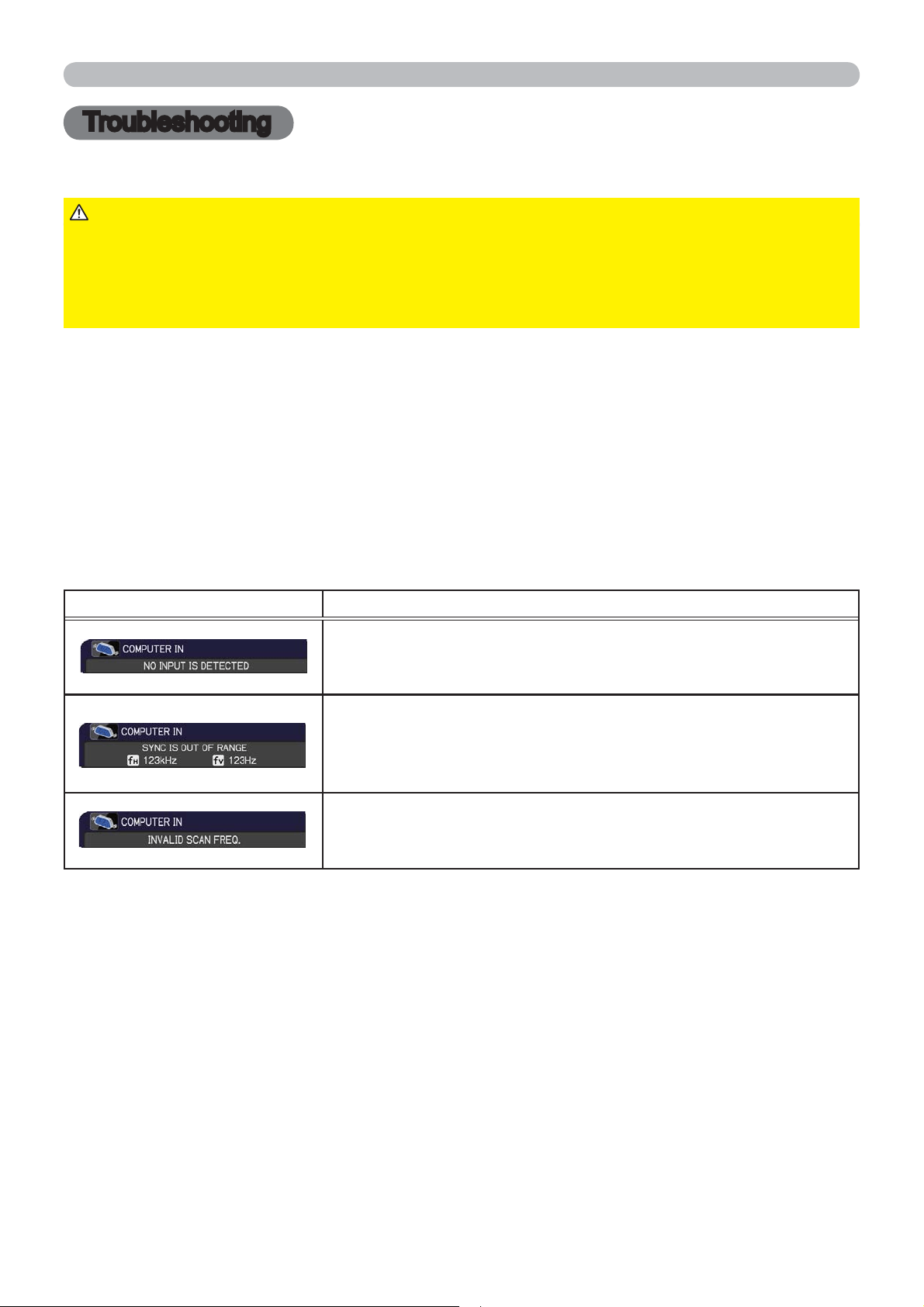
61
Troubleshooting
Troubleshooting
If an abnormal operation should occur, stop using the projector immediately.
Otherwise if a problem occurs with the projector, the following checks and measures are
recommended before requesting repair.
If this does not resolve the problem, please contact your dealer or service company. They
will tell you what warranty condition is applied.
►
Never use the projector if abnormal operations such as smoke,
strange odor, excessive sound, damaged casing or elements or cables, penetration
of liquids or foreign matter, etc. should occur. In such cases, immediately disconnect
the power plug from the power outlet. After making sure that the smoke or odor has
stopped, contact to your dealer or service company.
WARNING
Related messages
When some message appears, check and cope with it according to the following table.
Although these messages will be automatically disappeared around several minutes, it will
be reappeared every time the power is turned on.
Message Description
There is no input signal.
Please confirm the signal input connection, and the status
of the signal source.
The horizontal or vertical frequency of the input signal is
not within the specified range.
Please confirm the specs for your projector or the signal
source specs.
An improper signal is input.
Please confirm the specs for your projector or the signal
source specs.
(continued on next page)
Troubleshooting
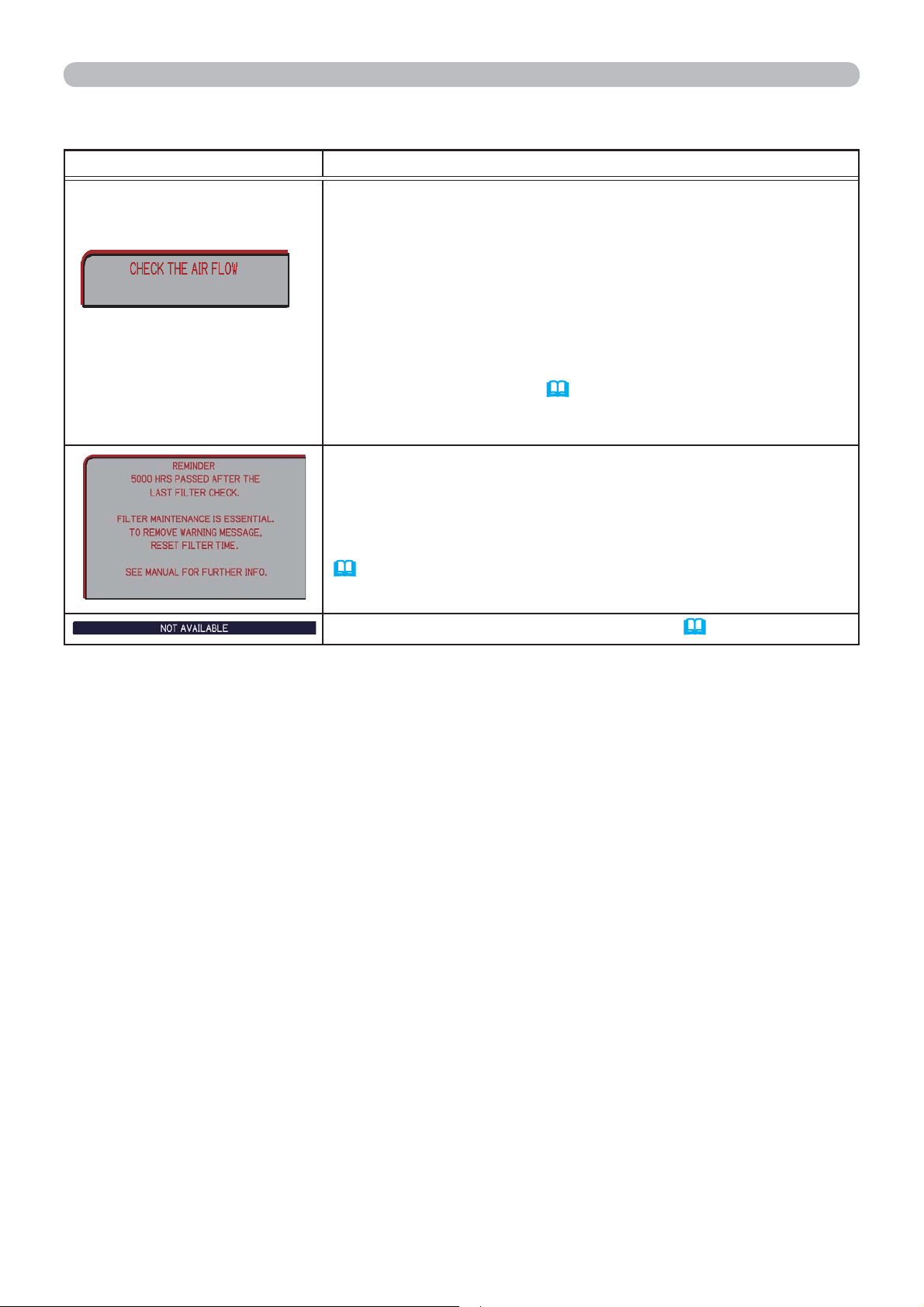
62
Message Description
The internal temperature is rising.
Please turn the power off, and allow the projector to cool
down at least 20 minutes. After having confirmed the
following items, please turn the power ON again.
• Is there blockage of the air passage aperture?
• Is the air filter dirty?
• Does the peripheral temperature exceed 35°C?
• If the projector is used at an altitude of about 1600 m (5250
feet) or higher
, set ALTITUDE of the SERVICE item in the
OPTION menu to HIGH
(
48)
.
If the projector is used with a wrong setting, it may cause
damage to the projector itself or the parts inside.
A
note of precaution when cleaning the air filter.
Please immediately turn the power off, and clean or change
the air filter referring to the Cleaning and replacing the
air filter section of this manual. After you have cleaned or
changed the air filter, please be sure to reset the filter timer
(
46, 59).
The button operation is not available
(
6).
Troubleshooting
Related messages (continued)
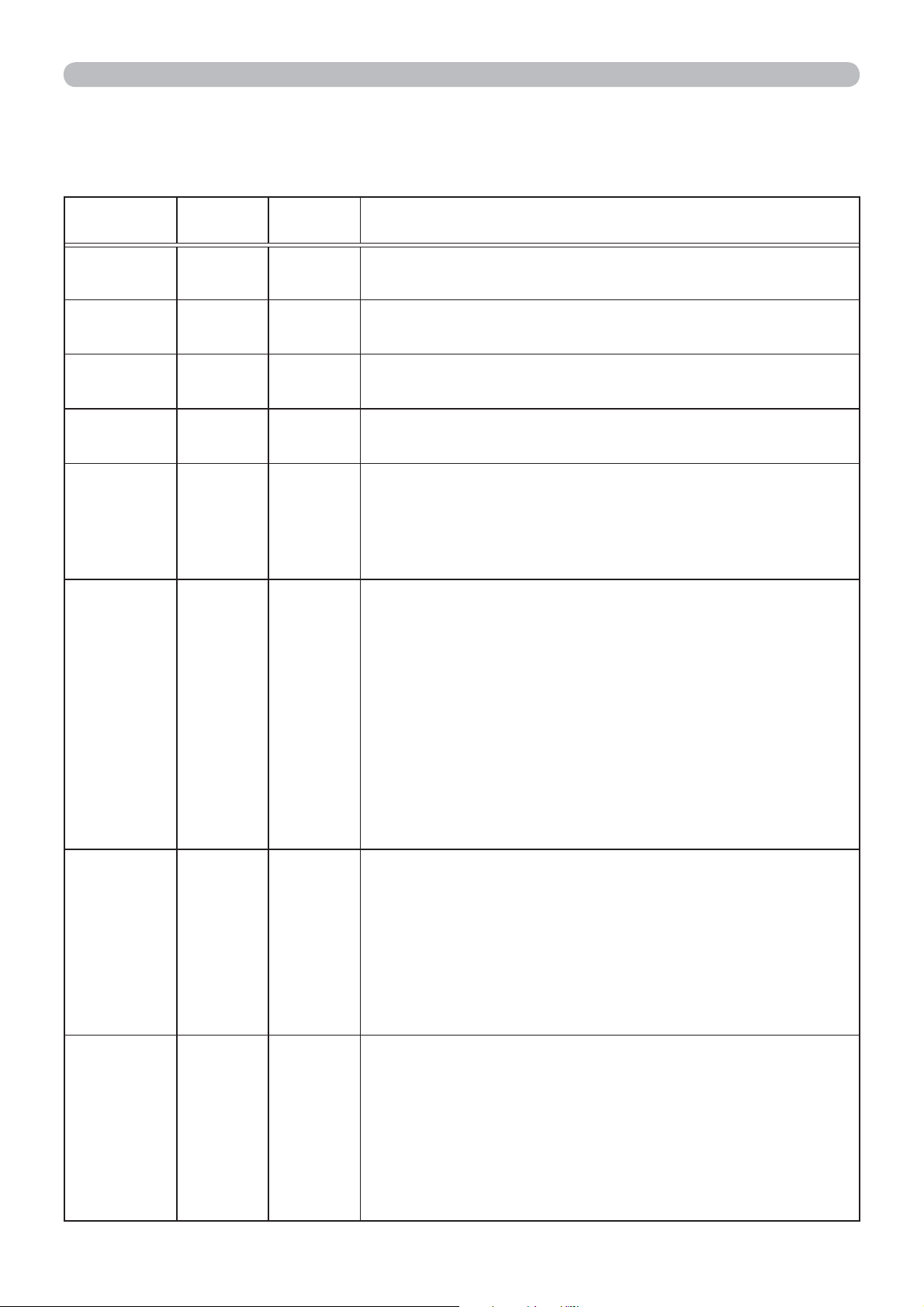
63
Troubleshooting
Regarding the indicator lamps
When operation of the LAMP, TEMP and POWER indicators differs from usual,
check and cope with it according to the following table.
POWER
indicator
LAMP
indicator
TEMP
indicator
Description
Lighting
In Orange
Turned
off
T
urned
off
The projector is in a standby state.
Please refer to the section “Power on/off”.
Blinking
In Green
Turned
off
Turned
off
The projector is warming up.
Please wait.
Lighting
In Green
Turned
off
Turned
off
The projector is in an on state.
Ordinary operations may be performed.
Blinking
In Orange
Turned
off
Turned
off
The projector is cooling down.
Please wait.
Blinking
In Red
(discre-
tionary)
(discre-
tionary)
The projector is cooling down. A certain error
has been detected.
Please wait until POWER indicator finishes blinking,
and then perform the proper measure using the item
descriptions below.
Blinking
In Red
or
Lighting
In Red
Lighting
In Red
Turned
off
The lamp does not light, and there is a possibility
that interior portion has become heated.
Please turn the power off, and allow the projector to
cool down at least 20 minutes. After the projector has
sufficiently cooled down, please make confirmation of
the following items, and then turn the power on again.
• Is there blockage of the air passage aperture?
• Is the air filter dirty?
• Does the peripheral temperature exceed 35°C?
If the same indication is displayed after the remedy,
please change the lamp referring to the section
Replacing the lamp.
Blinking
In Red
or
Lighting
In Red
Blinking
In Red
Turned
off
The lamp cover has not been properly fixed.
Please turn the power off, and allow the projector to
cool down at least 45 minutes. After the projector has
sufficiently cooled down, please make confirmation of
the attachment state of the lamp cover. After performing
any needed maintenance, turn the power on again.
If the same indication is displayed after the remedy,
please contact your dealer or service company.
Blinking
In Red
or
Lighting
In Red
Turned
off
Blinking
In Red
The cooling fan is not operating.
Please turn the power off, and allow the projector to
cool down at least 20 minutes. After the projector has
sufficiently cooled down, please make confirmation
that no foreign matter has become caught in the fan,
etc., and then turn the power on again.
If the same indication is displayed after the remedy,
please contact your dealer or service company.
(continued on next page)
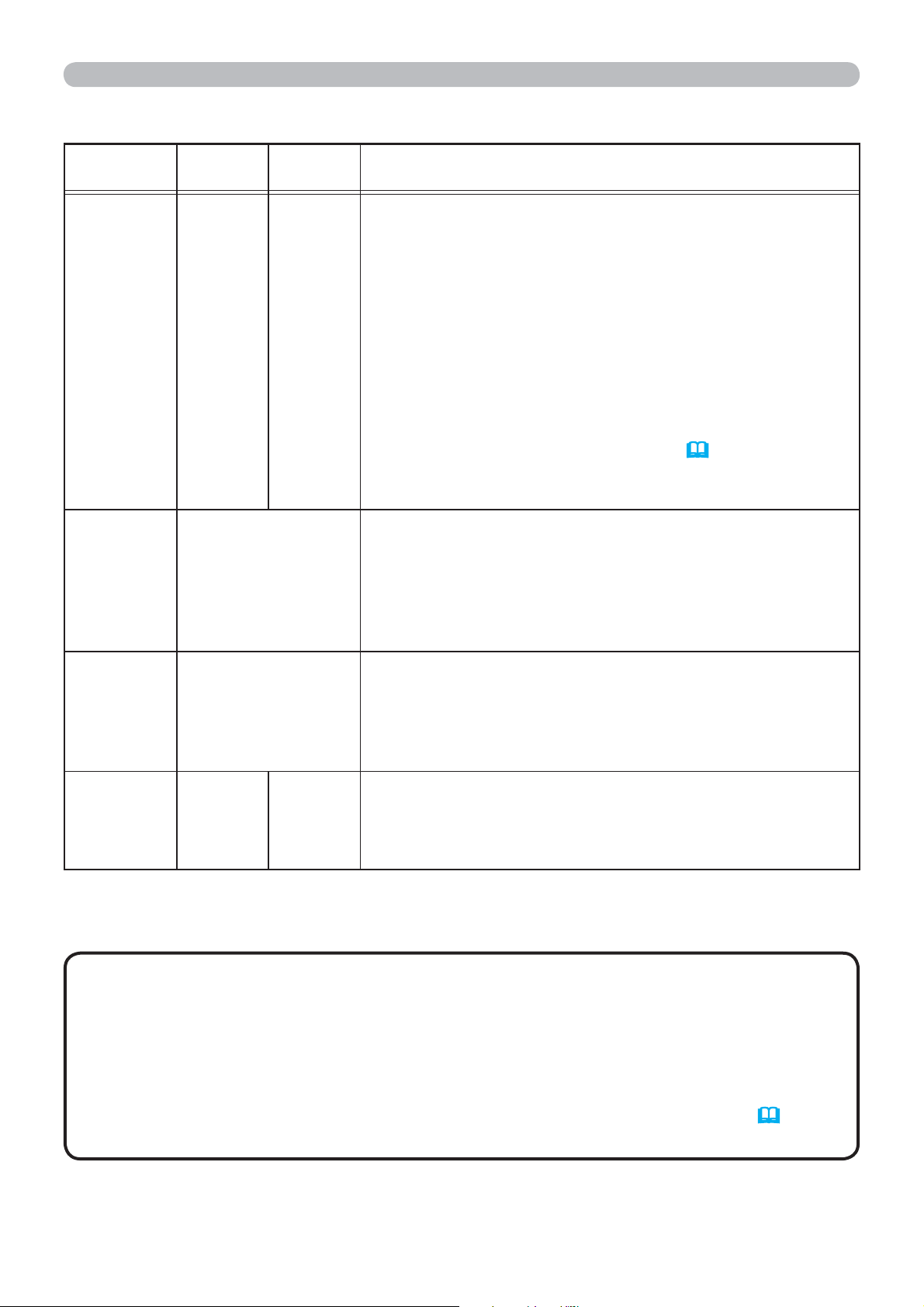
64
Troubleshooting
Regarding the indicator lamps (continued)
• When the interior portion has become overheated, for safety
purposes, the projector is automatically shut down, and the indicator lamps
may also be turned off. In such a case, disconnect the power cord, and wait at
least 45 minutes. After the projector has sufficiently cooled down, please make
confirmation of the attachment state of the lamp and lamp cover, and then turn
the power on again.
If the projector is used at an altitude of about 1600 m (5250 feet)
or higher, set ALTITUDE of the SERVICE item in the OPTION menu to HIGH
(
48).
Otherwise, set it to NORMAL.
NOTE
POWER
indicator
LAMP
indicator
TEMP
indicator
Description
Blinking
In Red
or
Lighting
In Red
Turned
off
Lighting
In Red
There is a possibility that the interior portion
has become heated.
Please turn the power off, and allow the projector to
cool down at least 20 minutes. After the projector has
sufficiently cooled down, please make confirmation of
the following items, and then turn the power on again.
• Is there blockage of the air passage aperture?
• Is the air filter dirty?
• Does the peripheral temperature exceed 35°C?
• If the projector is used at an altitude of about 1600 m
(5250 feet) or higher, set ALTITUDE of the SERVICE
item in the OPTION menu to HIGH (
48). If the
projector is used with a wrong setting, it may cause
damage to the projector itself or the parts inside.
Lighting
In Green
Simultaneous
blinking in Red
It is time to clean the air filter.
Please immediately turn the power off, and clean or
change the air filter referring to the section Cleaning
and replacing the air filter. After cleaning or changing
the air filter, please be sure to reset the filter timer.
After the remedy, reset the power to ON.
Lighting
In Green
Alternative
blinking in Red
There is a possibility that the interior portion
has become overcooled.
Please use the unit within the usage temperature
parameters (5°C to 35°C).
After the treatment, reset the power to ON.
Blinking In
Green for
approx. 3
seconds.
T
urned
off
Turned
off
At least 1 Power ON schedule is saved to the
projector.
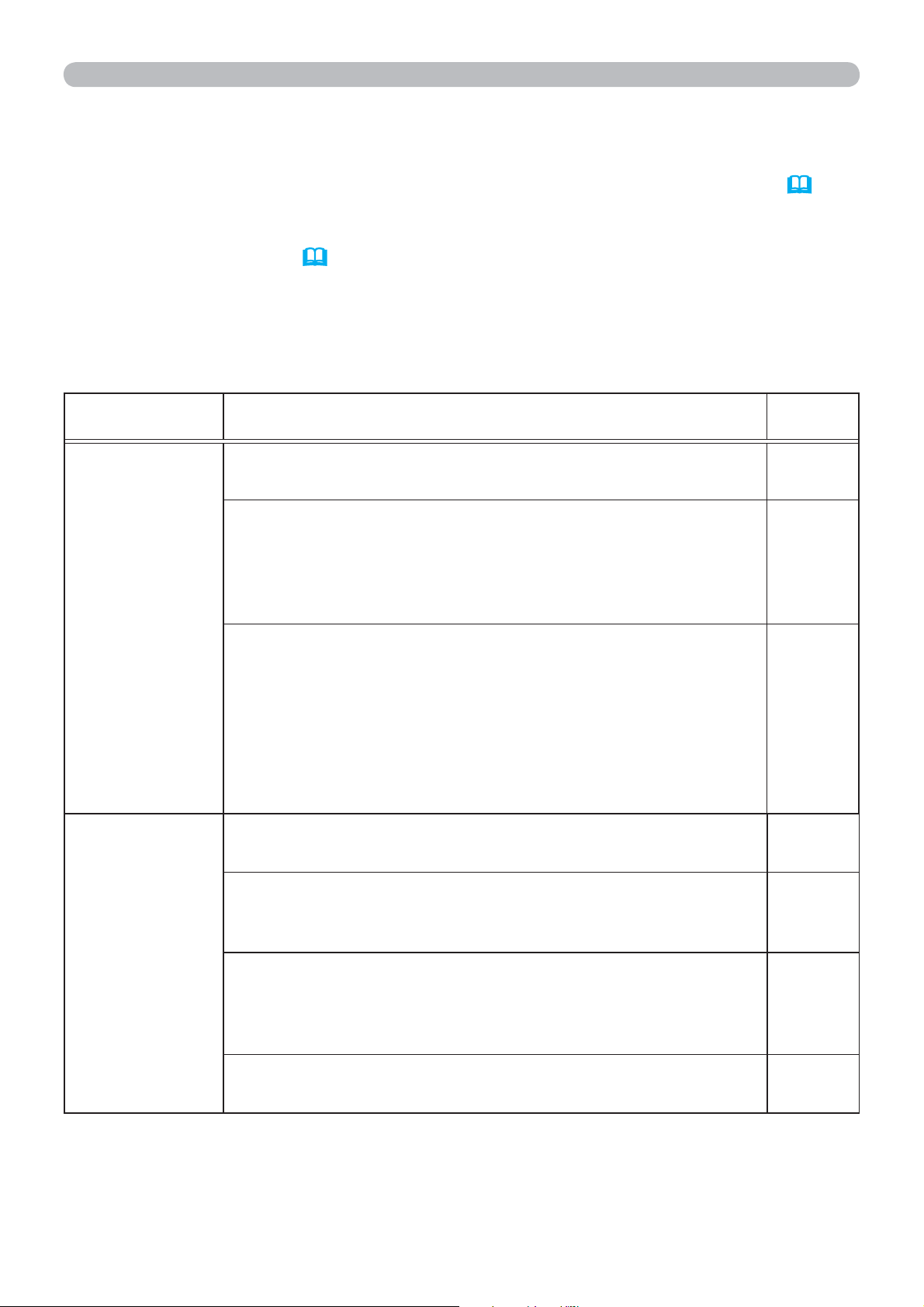
65
Resetting all settings
If you have any problem correcting some wrong settings, you can use the
FACTORY RESET function under the SERVICE item in the OPTION menu (
50)
to reset all settings (except LANGUAGE, LAMP TIME, FILTER TIME, FILTER
MESSAGE and SECURITY) to factory default. Be sure to set ALTITUDE after
resetting all the settings
(
48)
.
Troubleshooting
Phenomena that may be easy to be mistaken for machine defects
About the phenomenon confused with a machine defect, check and cope with it
according to the following table.
Phenomenon Cases not involving a machine defect
Reference
page
Power does
not come on.
The electrical power cord is not plugged in.
Correctly connect the power cord.
13
The main power source has been interrupted during
operation such as by a power outage (blackout), etc.
Please disconnect the power plug from the power outlet,
and allow the projector to cool down at least 10 minutes,
then turn the power on again.
13
Either there is no lamp and/or lamp cover, or either
of these has not been properly fixed.
Please turn the power off and disconnect the power
plug from the power outlet, and allow the projector to
cool down at least 45 minutes. After the projector has
sufficiently cooled down, please make confirmation of
the attachment state of the lamp and lamp cover, and
then turn the power on again.
56
No pictures are
displayed.
The signal cables are not correctly connected.
Correctly connect the connection cables.
10 ~ 12
The brightness is adjusted to an extremely low level.
Adjust BRIGHTNESS to a higher level using the menu
function.
29
The computer cannot detect the projector as a plug
and play monitor.
Make sure that the computer can detect a plug and play
monitor using another plug and play monitor.
10
The BLANK screen is displayed.
Press BLANK button on the remote control.
24
(continued on next page)
66
Phenomenon Cases not involving a machine defect
Reference
page
Video screen
display
freezes.
The FREEZE function is working.
Press FREEZE button to restore the screen to normal.
24
Colors have a
faded- out
appearance, or
Color tone is
poor.
Color settings are not correctly adjusted.
Perform picture adjustments by changing the COLOR
TEMP, COLOR, TINT and/or COLOR SPACE settings,
using the menu functions.
30, 35
COLOR SPACE setting is not suitable.
Change the COLOR SPACE setting to AUTO, RGB,
SMPTE240, REC709 or REC601.
35
Pictures
appear dark.
The brightness and/or contrast are adjusted to an
extremely low level.
Adjust BRIGHTNESS and/or CONTRAST settings to a
higher level using the menu function.
29
The projector is operating in Eco mode.
Set ECO MODE to NORMAL, and set AUTO ECO
MODE to OFF, in the SETUP menu.
38
The lamp is approaching the end of its product lifetime.
Replace the lamp.
56, 57
Pictures
appear blurry.
Either the focus and/or horizontal phase settings are
not properly adjusted.
Adjust the focus using the focus ring, and/or H PHASE
using the menu function.
20, 34
The lens is dirty or misty.
Clean the lens referring to the section Caring for the lens.
60
(continued on next page)
Troubleshooting
Phenomena that may be easy to be mistaken for machine defects (continued)
67
Phenomenon Cases not involving a machine defect
Reference
page
Some kind
of image
degradation
such as
flickering or
stripes appear
on screen.
When the projector is operating in Eco mode,
flickering may appear on screen.
Set ECO MODE to NORMAL, and set AUTO ECO
MODE to OFF, in the SETUP menu.
38
The OVER SCAN ratio is too big.
Adjust OVER SCAN in the IMAGE menu smaller.
32
Excessive VIDEO NR.
Change the setting of VIDEO NR in the INPUT menu.
35
The FRAME LOCK function cannot work on the
current input signal.
Set FRAME LOCK in the INPUT menu to OFF.
36
Troubleshooting
Phenomena that may be easy to be mistaken for machine defects (continued)
• Although bright spots or dark spots may appear on the screen, this
is a unique characteristic of liquid crystal displays, and it does not constitute or
imply a machine defect.
NOTE

68
Specifications
Specifications
Please see the Specifications in the User’s Manual (concise) which is a book.
1
Resolution (H x V) H. frequency (kHz) V. frequency (Hz) Rating Signal mode
720 x 400
37.9 85.0 VESA TEXT
640 x 480 31.5 59.9 VESA VGA (60Hz)
640 x 480 37.9 72.8 VESA VGA (72Hz)
640 x 480 37.5 75.0 VESA VGA (75Hz)
640 x 480 43.3 85.0 VESA VGA (85Hz)
800 x 600 35.2 56.3 VESA SVGA (56Hz)
800 x 600 37.9 60.3 VESA SVGA (60Hz)
800 x 600 48.1 72.2 VESA SVGA (72Hz)
800 x 600 46.9 75.0 VESA SVGA (75Hz)
800 x 600 53.7 85.1 VESA SVGA (85Hz)
832 x 624 49.7 74.5 Mac 16” mode
1024 x 768 48.4 60.0 VESA XGA (60Hz)
1024 x 768 56.5 70.1 VESA XGA (70Hz)
1024 x 768 60.0 75.0 VESA XGA (75Hz)
1024 x 768 68.7 85.0 VESA XGA (85Hz)
1152 x 864 67.5 75.0 VESA
1152 x 864 (75Hz)
1280 x 768 47.7 60.0 VESA W-XGA (60Hz)
1280 x 800 49.7 60.0 VESA
1280 x 800 (60Hz)
1280 x 960 60.0 60.0 VESA
1280 x 960 (60Hz)
1280 x 1024 64.0 60.0 VESA SXGA (60Hz)
1280 x 1024 80.0 75.0 VESA SXGA (75Hz)
*1280 x 1024 91.1 85.0 VESA SXGA (85Hz)
1400 x 1050
65.2 60.0 VESA SXGA+ (60Hz)
1440 x 900 55.9 59.9 VESA WXGA+ (60Hz)
*1600 x 1200 75.0 60.0 VESA UXGA (60Hz)
NO
TE • Be sure to check jack type, signal level, timing and resolution before
connecting this projector to a PC.
• Some PCs may have multiple display screen modes. Use of some of these modes
will not be possible with this projector.
• Depending on the input signal, full-size display may not be possible in some cases.
Refer to the number of display pixels above.
• Although the projector can display signals with resolution up to UXGA (1600x1200),
the signal will be converted to the projector’s panel resolution before being displayed.
The best display performance will be achieved if the resolutions of the input signal
and projector panel are identical.
• Automatic adjustment may not function correctly with some input signals.
• The image may not be displayed correctly when the input sync signal is a composite
sync or a sync on G.
Example of PC signal
Projector
CP-RX93
User's Manual (detailed)
Operating Guide – Technical
2
Initial set signals
Initial set signals
The following signals are used for the initial settings. The signal timing of some
PC models may be different. In such case, adjust the items V POSITION and H
POSITION in the IMAGE menu.
Resolution
(H x V)
Horizontal signal timing (μs) Vertical signal timing (lines)
Signal mode
(A) (B) (C) (D) (a) (b) (c) (d)
720 x 400
2.0 3.0 20.3 1.0 3 42 400 1 TEXT
640 x 480 3.8 1.9 25.4 0.6 2 33 480 10 VGA (60Hz)
640 x 480 1.3 4.1 20.3 0.8 3 28 480 9 VGA (72Hz)
640 x 480 2.0 3.8 20.3 0.5 3 16 480 1 VGA (75Hz)
640 x 480 1.6 2.2 17.8 1.6 3 25 480 1 VGA (85Hz)
800 x 600 2.0 3.6 22.2 0.7 2 22 600 1 SVGA (56Hz)
800 x 600 3.2 2.2 20.0 1.0 4 23 600 1 SVGA (60Hz)
800 x 600 2.4 1.3 16.0 1.1 6 23 600 37 SVGA (72Hz)
800 x 600 1.6 3.2 16.2 0.3 3 21 600 1 SVGA (75Hz)
800 x 600 1.1 2.7 14.2 0.6 3 27 600 1 SVGA (85Hz)
832 x 624 1.1 3.9 14.5 0.6 3 39 624 1 Mac 16" mode
1024 x 768 2.1 2.5 15.8 0.4 6 29 768 3 XGA (60Hz)
1024 x 768 1.8 1.9 13.7 0.3 6 29 768 3 XGA (70Hz)
1024 x 768 1.2 2.2 13.0 0.2 3 28 768 1 XGA (75Hz)
1024 x 768 1.0 2.2 10.8 0.5 3 36 768 1 XGA (85Hz)
1152 x 864 1.2 2.4 10.7 0.6 3 32 864 1 1152 x 864 (75Hz)
1280 x 768 1.7 2.5 16.0 0.8 3 23 768 1 W-XGA (60Hz)
1280 x 800 1.6 2.4 15.3 0.8 3 24 800 1 W-XGA (60Hz)
1280 x 960 1.0 2.9 11.9 0.9 3 36 960 1 W-XGA (60Hz)
1280 x 1024 1.0 2.3 11.9 0.4 3 38 1024 1 SXGA (60Hz)
1280 x 1024 1.1 1.8 9.5 0.1 3 38 1024 1 SXGA (75Hz)
1280 x 1024 1.0 1.4 8.1 0.4 3 44 1024 1 SXGA (85Hz)
1400 x 1050 1.2 2.0 11.4 0.7 3 33 1050 1 SXGA+ (60Hz)
1440 x 900 1.4 2.2 13.5 0.8 6 25 900 3 WXGA+ (60Hz)
1600 x 1200 1.2 1.9 9.9 0.4 3 46 1200 1 UXGA (60Hz)
Back porch (B) Front porch (D) Back porch (b) Front porch (d)
Active video (C)
Data Data
H. Sync. V. Sync.
Sync (A) Sync (a)
Active video (c)
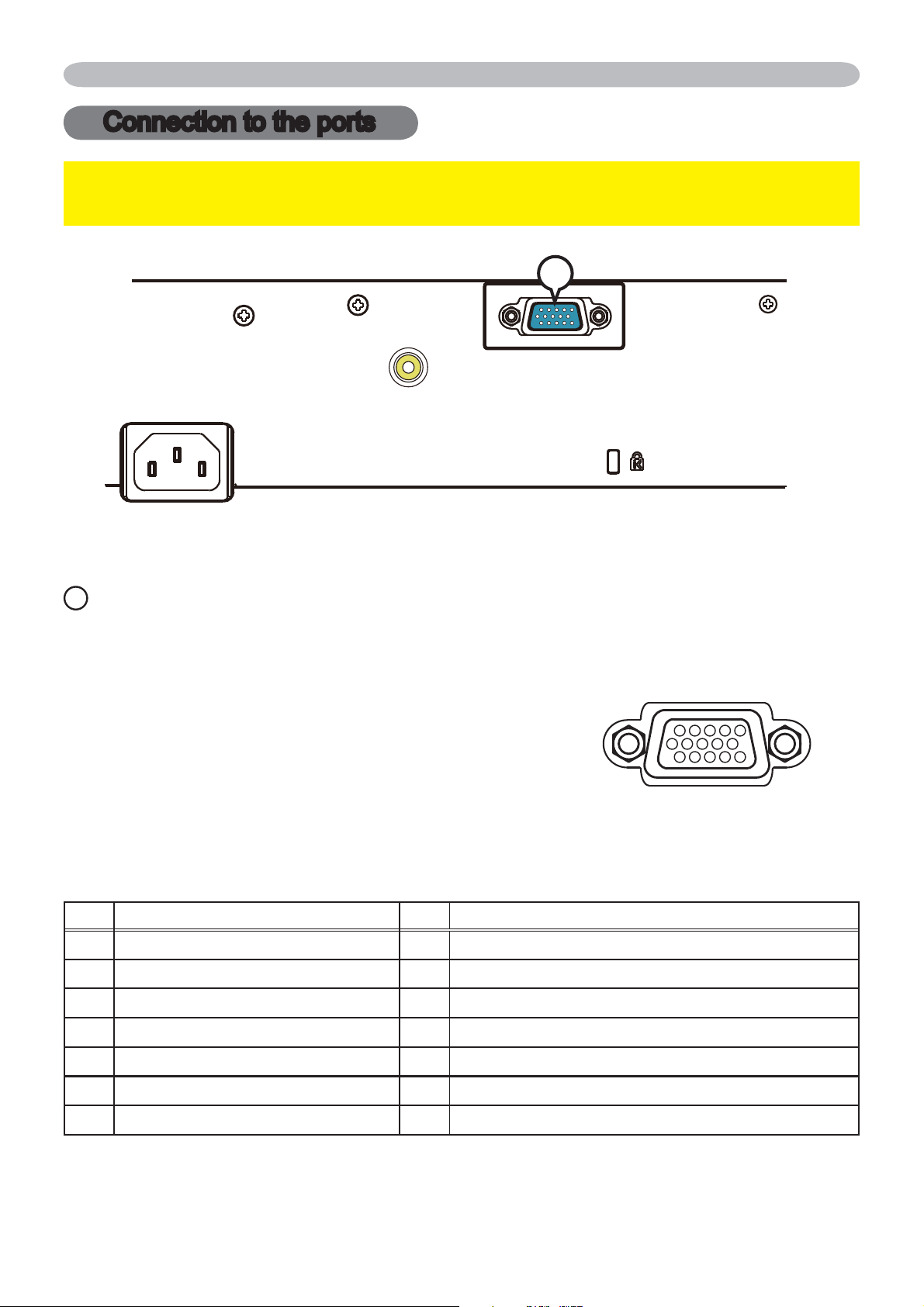
3
Connection to the ports
Connection to the ports
NOTICE
►Use the cables with straight plugs, not L-shaped ones, as the
input ports of the projector are recessed.
A
COMPUTER
D-sub 15pin mini shrink jack
<Computer signal>
• Video signal: RGB separate, Analog, 0.7Vp-p, 75Ω terminated (positive)
• H/V. sync. signal: TTL level (positive/negative)
• Composite sync. signal: TTL level
<Component video signal>
• Video signal:
-Y, Analog, 1.0±0.1Vp-p with composite sync, 75Ω terminated
-Cb/Pb, Analog, 0.7±0.1Vp-p, 75Ω terminated
-C
r
/P
r
, Analog, 0.7±0.1Vp-p 75Ω terminated
System: 480i@60, 480p@60, 576i@50, 576p@50, 720p@50/60, 1080i@50/60, 1080p@50/60
Pin Signal Pin Signal
1
Video Red, Cr/Pr
9
(No connection)
2 Video Green, Y 10 Ground
3 Video Blue, Cb/Pb 11 (No connection)
4 (No connection) 12 SDA (DDC data), (No connection)
6 Ground Red, Ground Cr/Pr 13 H. sync / Composite sync., (No connection)
7 Ground Green, Ground Y 14 V. sync., (No connection)
8 Ground Blue, Ground Cb/Pb 15 SCL (DDC clock), (No connection)
AC IN
COMPUTER IN
VIDEO
A
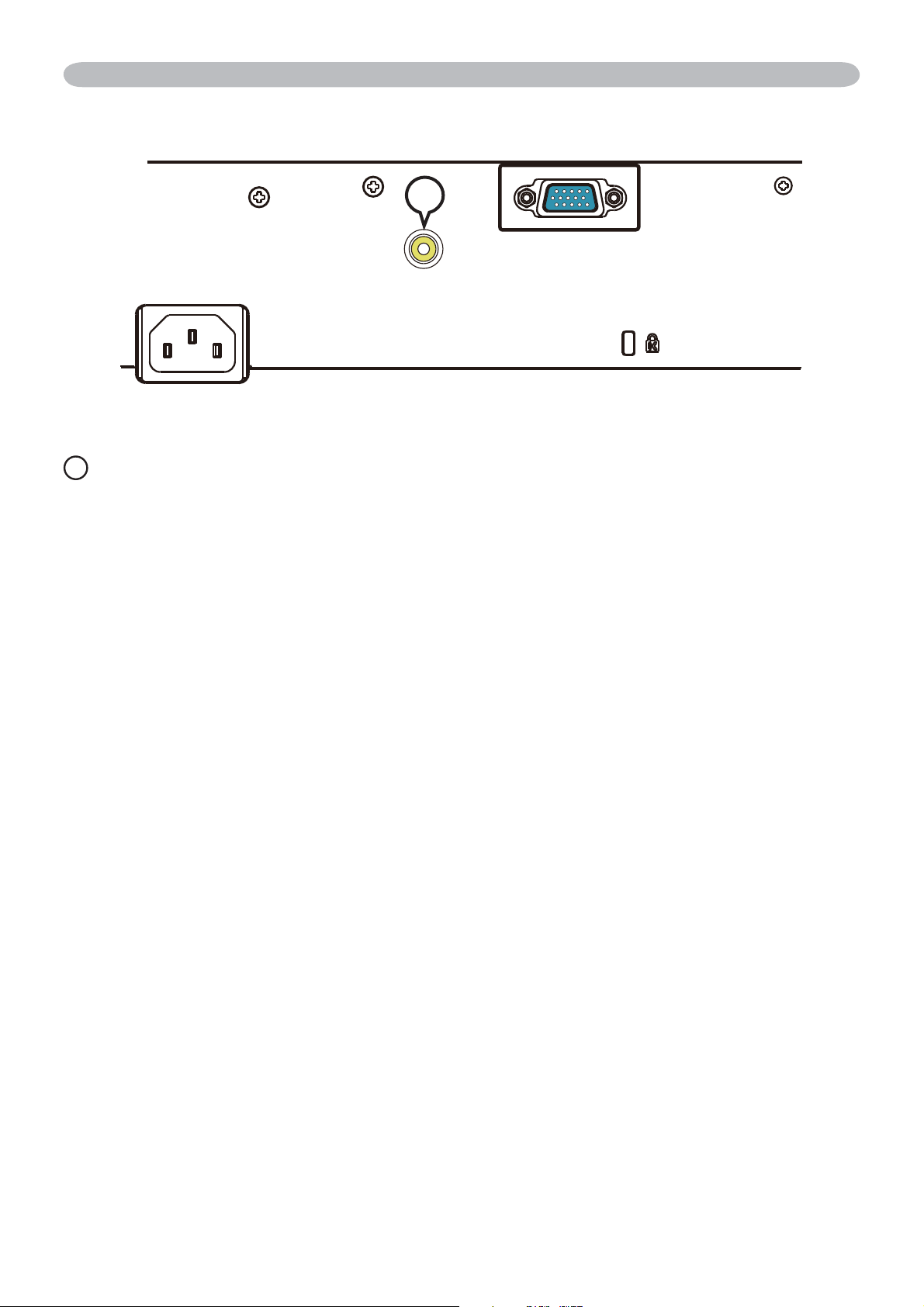
4
Connection to the ports (continued)
B
VIDEO
RCA jack
• System: NTSC, PAL, SECAM, PAL-M, PAL-N, NTSC4.43, PAL (60Hz)
• 1.0±0.1Vp-p, 75Ω terminator
AC IN
COMPUTER IN
VIDEO
B
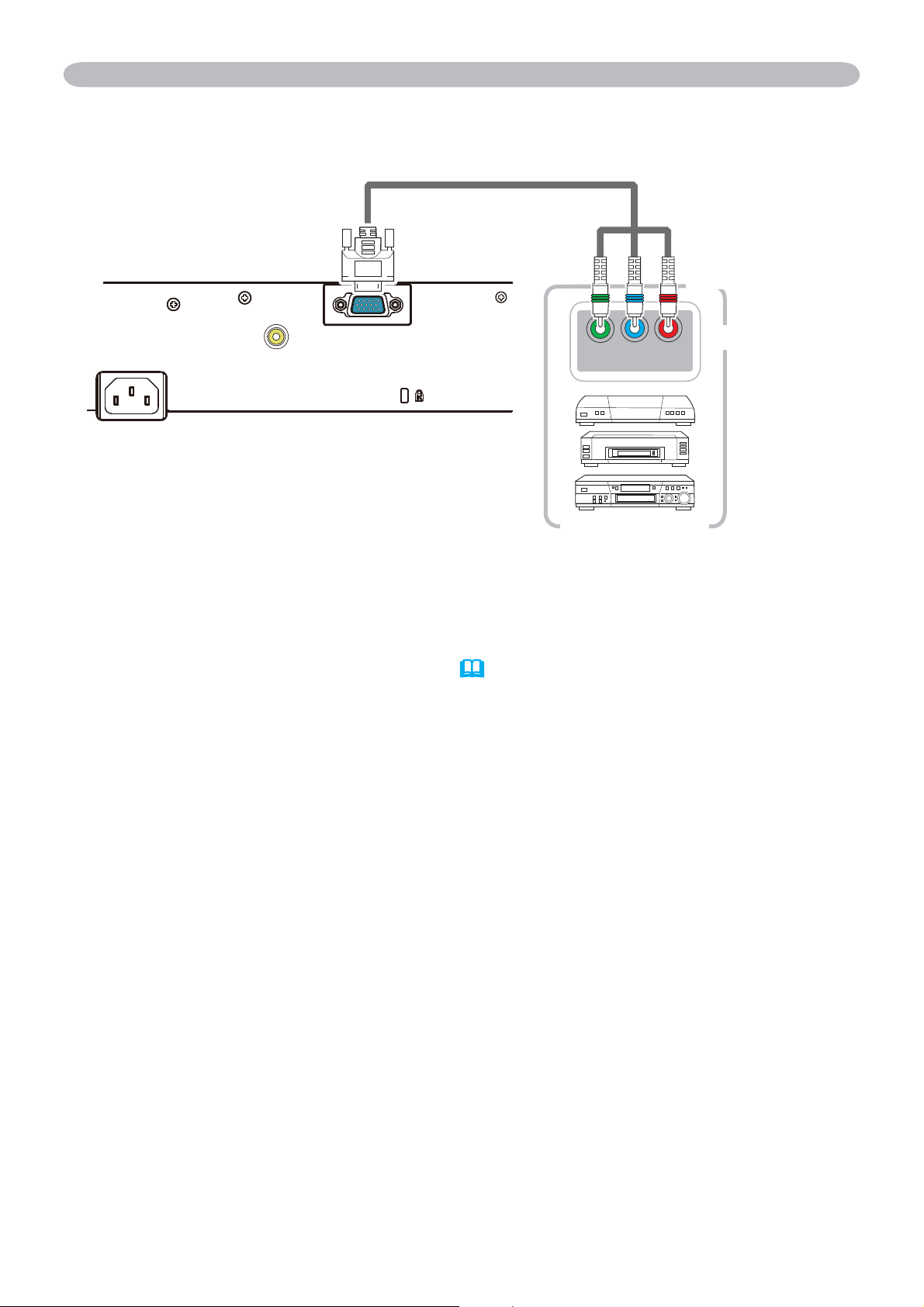
5
AC IN
COMPUTER IN
VIDEO
Y CB/PB CR/PR
COMPONENT VIDEO OUT
To input component video signal to COMPUTER IN ports
ex.
Connection to the ports (continued)
To input component video signal to the COMPUTER IN port of the projector, use a
RCA to D-sub cable or adapter.
For about the pin description of the required cable or adapter, refer to the
descriptions about COMPUTER IN port (
3
).
RCA plugs
D-sub plug
VCR/DVD/Blu-ray
Disc player
RCA connectors
1
ENGLISH
Projector
CP-RX93
User's Manual (concise)
Thank you for purchasing this projector.
Please read through this manual before using this product, in order to use safely
and utilize well the product.
WARNING ►Before using this product, be sure to read all manuals for this
product. After reading them, store them in a safe place for future reference.
►Heed all the warnings and cautions in the manuals or on the product.
►Follow all the instructions in the manuals or on the product.
First of all ............................................ 2
Entries and graphical symbols explanation ......2
Important safety instruction ..............................2
Regulatory notices .............................. 3
About Electro-Magnetic Interference ................
3
About Waste Electrical and Electronic Equipment
... 4
Contents of package........................... 4
Preparing for the remote control ......... 5
Arrangement ....................................... 6
Connecting with your devices ............. 7
Connecting power supply ................... 8
Turning on the power .......................... 9
Adjusting the projector's elevator ..... 10
Displaying the picture ....................... 11
Turning off the power ........................ 12
Replacing the lamp ........................... 13
Cleaning and replacing the air filter
.. 15
Using the CD manual ....................... 16
Specifications ................................... 17
Troubleshooting
- Warranty and after-service ........... 18
Contents
NOTE • In this manual, unless any comments are accompanied, “the
manuals” means all the documents provided with this product, and “the product”
means this projector and all the accessories came with the projector.

2
First of all
Entries and graphical symbols explanation
The following entries and graphical symbols are used for the manuals and the
product as follows, for safety purpose. Please know their meanings beforehand,
and heed them.
Important safety instruction
The followings are important instructions for safely using the product. Be sure to
follow them always when handling the product. The manufacturer assumes no
responsibility for any damage caused by mishandling that is beyond normal usage
defined in these manuals of this projector.
WARNING
This entry warns of a risk of serious personal injury or even death.
CAUTION This entry warns of a risk of personal injury or physical damage.
NOTICE This entry notices of fear of causing trouble.
WARNING ►Never use the product in or after an abnormality (ex. giving
off smoke, smelling strange, took a liquid or an object inside, broken, etc.) If an
abnormality should occur, unplug the projector urgently.
►Situate the product away from children and pets.
►Keep small parts away from children and pets. If swallowed, consult a
physician immediately for emergency treatment.
►Do not use the product when there is fear of a thunderbolt.
►Unplug the projector from the power outlet if the projector is not used for the
time being.
►Do not open or remove any portion of the product, unless the manuals direct
it. For internal maintenance, leave it to your dealer or their service personnel.
►Use only the accessories specified or recommended by the manufacturer.
►Do not modify the projector or accessories.
►Do not let any things or any liquids enter to the inside of the product.
►Do not wet the product.
►Do not place the projector where any oils, such as cooking or machine oil,
are used. Oil may harm the product, resulting in malfunction, or falling from the
mounted position.
►Do not apply a shock or pressure to this product.
- Do not place the product on an unstable place such as the uneven surface or
the leaned table.
- Do not place the product unstably. Place the projector so that it does not
protrude from the surface where the projector is placed on.
- Remove all the attachments including the power cord and cables, from the
projector when carrying the projector.
►
Do not look into the lens and the openings on the projector, while the lamp is on.
►
Do not approach the lamp cover and the exhaust vents, while the projection lamp
is on. Also after the lamp goes out, do not approach them for a while, since too hot.

3
ENGLISH
Regulatory notices
About Electro-Magnetic Interference
In CANADA
This Class B digital apparatus complies with Canadian ICES-003.
In the US, and other places where the FCC regulations are applicable
Declaration of Conformity
Trade name HITACHI
Model Number CP-RX93
Responsible Party Hitachi America, Ltd.
Address 900 Hitachi way, Chula Vista, CA 91914-3556 U.S.A.
Telephone Number +1 -800-225-1741
This device complies with part 15 of the FCC Rules. Operation is subject
to the following two conditions: (1) This device may not cause harmful
interference, and (2) this device must accept any interference received,
including interference that may cause undesired operation.This equipment has
been tested and found to comply with the limits for a Class B digital device,
pursuant to Part 15 of the FCC Rules.
These limits are designed to provide reasonable protection against harmful
interference in a residential installation. This equipment generates, uses, and can
radiate radio frequency energy and, if not installed and used in accordance with the
instructions, may cause harmful interference to radio communications. However,
there is no guarantee that interference will not occur in a particular installation. If this
equipment does cause harmful interference to radio or television reception, which
can be determined by turning the equipment off and on, the user is encouraged to
try to correct the interference by one or more of the following measures:
- Reorient or relocate the receiving antenna.
- Increase the separation between the equipment and receiver.
- Connect the equipment into an outlet on a circuit different from that to which the
receiver is connected.
- Consult the dealer or an experienced radio/TV technician for help.
INSTRUCTIONS TO USERS: This equipment complies with the requirements of
FCC (Federal Communication Commission) equipment provided that the following
conditions are met. Some cables have to be used with the core set. Use the
accessory cable or a designated-type cable for the connection. For cables that
have a core only at one end, connect the core to the projector.
CAUTION: Changes or modifications not expressly approved by the party
responsible for compliance could void the user’s authority to operate the
equipment.
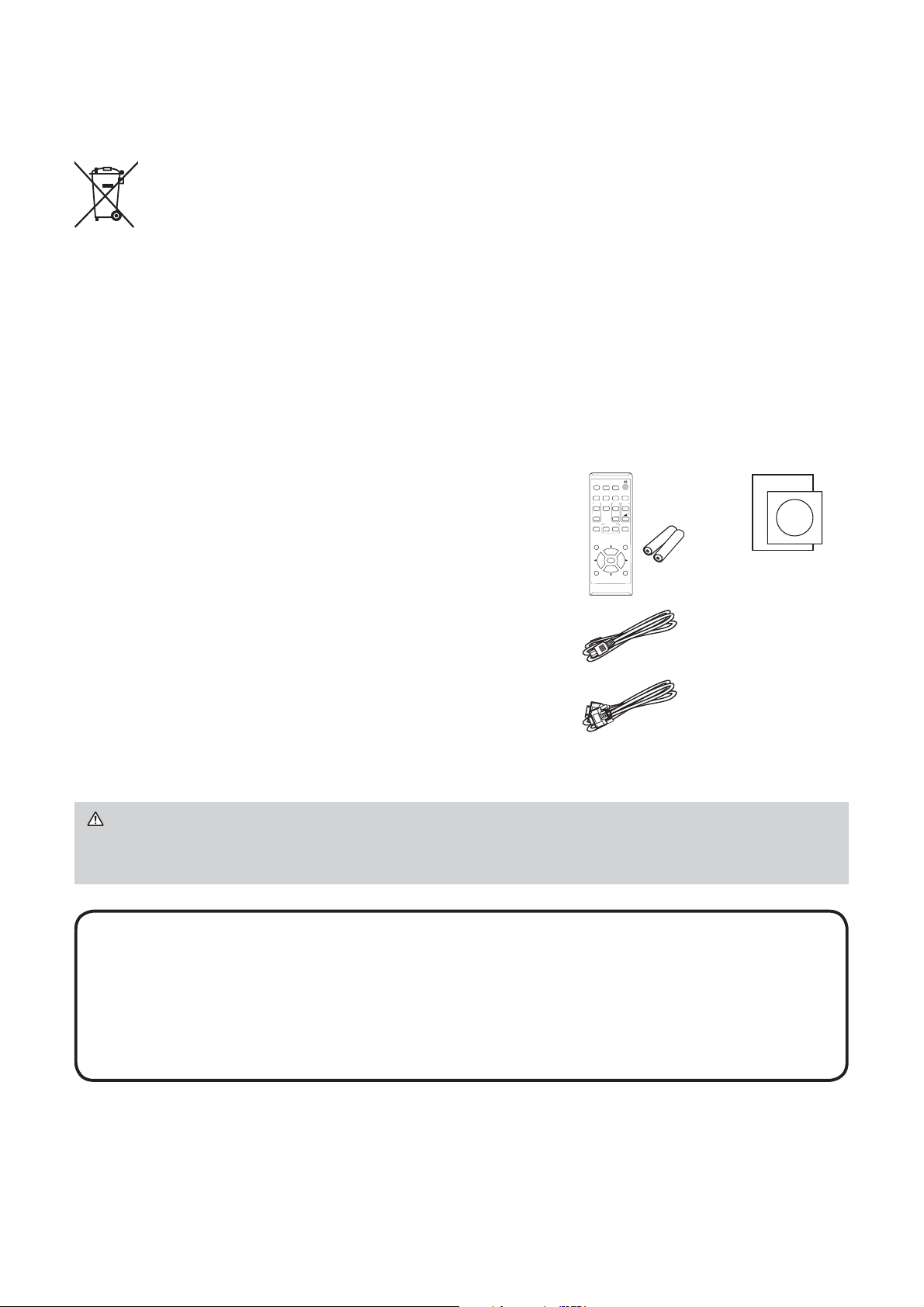
4
Contents of package
Your projector should come with the items
shown below. Check that all the items are
included. Require of your dealer immediately if
any items are missing.
(1) Remote control with two AA batteries
(2) Power cord
(3) Computer cable
(4) User’s manuals (Book x1, CD x1)
NOTE • Keep the original packing materials for future reshipment. Be sure
to use the original packing materials when moving the projector. Use special
caution for the lens.
• The projector may make a rattling sound when tilted, moved or shaken, since
a fl ap to control the air fl ow inside of the projector has moved. Be aware that
this is not a failure or malfunction.
(4)
(2)
(3)
(1)
VIDEO
DOC.CAMERA
KEYSTONE
ASPECT
SEARCH
BLANK
MUTE
MY BUTTON
POSITION
ESC
MENU
RESET
COMPUTER
MY SOURCE/
AUTO
MAGNIFY
PAGE
DOWN
ON
OFF
FREEZE
UP
㧗
VOLUME
ENTER
About Waste Electrical and Electronic Equipment
The mark is in compliance with the Waste Electrical and Electronic
Equipment Directive 2002/96/EC (WEEE).
The mark indicates the requirement NOT to dispose the equipment
including any spent or discarded batteries or accumulators as unsorted
municipal waste, but use the return and collection systems available.
If the batteries or accumulators included with this equipment, display
the chemical symbol Hg, Cd, or Pb, then it means that the battery has a
heavy metal content of more than 0.0005% Mercury or more than, 0.002%
Cadmium, or more than 0.004% Lead.
Regulatory notices (continued)
WARNING ►Keep small parts away from children and pets. Take care
not to put in the mouth. If swallowed, consult a physician immediately for
emergency treatment.
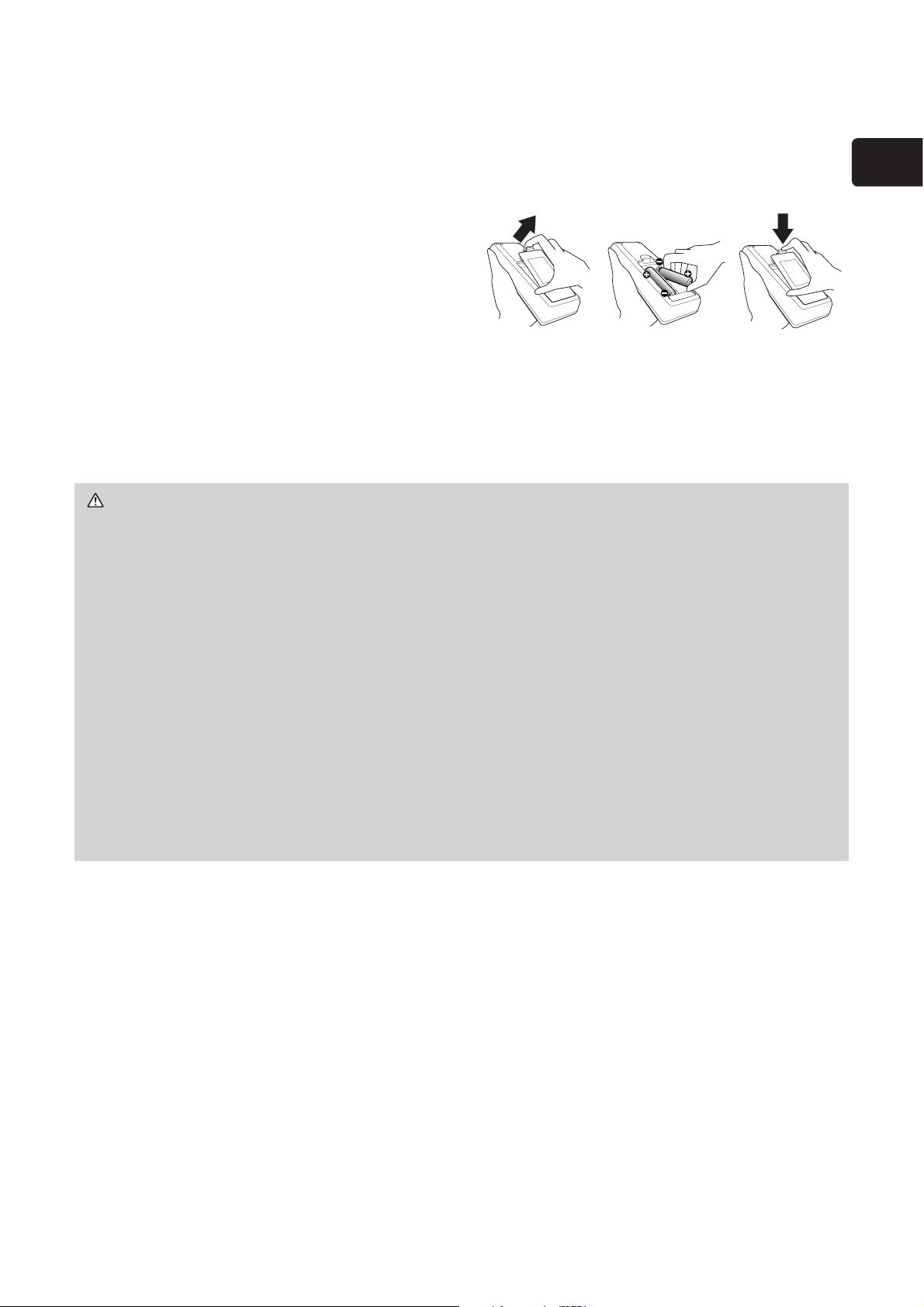
5
ENGLISH
Preparing for the remote control
Please insert the batteries into the remote control before using it. If the remote
control starts to malfunction, try to replace the batteries. If you will not use the
remote control for long period, remove the batteries from the remote control and
store them in a safe place.
1.
Holding the hook part of the battery
cover, remove it.
2.
Align and insert the two AA batteries
(
HITACHI MAXELL or HITACHI MAXELL
ENERGY, Part No.LR6 or R6P
) according
to their plus and minus terminals as
indicated in the remote control.
3.
Replace the battery cover in the direction of the arrow and snap it back into
place.
WARNING ►Always handle the batteries with care and use them only as
directed. Improper use may result in battery explosion, cracking or leakage,
which could result in fi re, injury and/or pollution of the surrounding environment.
• When replacing the batteries, replace both of the batteries with new batteries
of the same type. Do not use a new battery with a used battery.
• Be sure to use only the batteries specifi ed. Do not use batteries of different
types at the same time. Do not mix a new battery with used one.
•
Make sure the plus and minus terminals are correctly aligned when loading a battery.
• Keep a battery away from children and pets.
• Do not recharge, short circuit, solder or disassemble a battery.
•
Do not place a battery in a fi re or water. Keep batteries in a dark, cool and dry place.
•
If you observe battery leakage, wipe out the leakage and then replace a battery.
If the leakage adheres to your body or clothes, rinse well with water immediately.
•
Obey the local laws on disposing the battery.
213

6
WARNING ►Install the projector where you can access the power outlet
easily.
►Install the projector in a stable horizontal position.
• Do not use any mounting accessories except the accessories specified by the
manufacturer. Read and keep the manuals of the accessories used.
•
For special installation such as ceiling mounting, be sure to consult your dealer
beforehand. Specific mounting accessories and services may be required.
• Do not put the projector on its side, front or rear position.
• Do not attach nor place anything on the projector unless otherwise specified
in the manual.
►Do not install the projector near thermally conductive or flammable things.
►Do not place the projector where any oils, such as cooking or machine oil, are
used.
►Do not place the projector in a place where it may get wet.
CAUTION ►Place the projector in a cool place with sufficient ventilation.
• Keep a space of 30 cm or more between a side of the projector and other
objects such as walls.
• Do not stop up, block nor cover the projector's vent holes.
• Do not place the projector at places that are exposed to magnetic fields, doing
so can cause the cooling fans inside the projector to malfunction.
►Avoid placing the projector in smoky, humid or dusty place.
• Do not place the projector near humidifiers.
NOTICE ►Position the projector to prevent light from directly hitting the
projector’s remote sensor.
►Do not place the product in a place where radio interference may be caused.
►Check and correct the setting for
ALTITUDE
of SERVICE in the OPTION
menu according to the usage environment. For details, see User’s Manual -
Operating Guide.
Arrangement
Refer to table T-1 and figures F-1 and F-2 at the end of this manual to determine
the screen size and projection distance (from the projector’s end). The values
shown in the table are calculated for a full size screen.
b
Projection distance (±10%, from the projector's end)
c1
,
c2
Screen height (±10%)
a
Screen size (diagonal)
• If the projector is used at an altitude of about 1600 m (5250 feet) or higher, set ALTITUDE
of the SERVICE item in the OPTION menu to HIGH. Otherwise, set it to NORMAL.
If the projector is used with a wrong setting, it may cause damage to the projector itself or
the parts inside.
7
ENGLISH
Connecting with your devices
Before connecting the projector to a device, consult the manual of the device to
confirm that the device is suitable for connecting with this projector and prepare
the required accessories, such as a cable in accord with the signal of the device.
Consult your dealer when the required accessory did not come with the product or
the accessory is damaged.
After making sure that the projector and the devices are turned off, perform the
connection, according to the following instructions. Refer to figures F-3 and F-4 at
the end of this manual.
For details, see User’s Manual - Operating Guide.
WARNING ►Use only the appropriate accessories. Otherwise it could
cause a fire or damage the projector and devices.
• Use only the accessories specified or recommended by the projector’s
manufacturer. It may be regulated under some standard.
• Neither disassemble nor modify the projector and the accessories.
• Do not use the damaged accessory. Be careful not to damage the accesso-
ries. Route a cable so that it is neither stepped on nor pinched out.
CAUTION ►For a cable with a core at only one end, connect the end with
the core to the projector. That may be required by EMI regulations.
NOTE • Do not turn on or off the projector while connected to a device in
operation, unless that is directed in the manual of the device.
• Some input ports are selectable in the use. For details, see User’s Manual -
Operating Guide.
• Be careful not to mistakenly connect a connector to a wrong port.
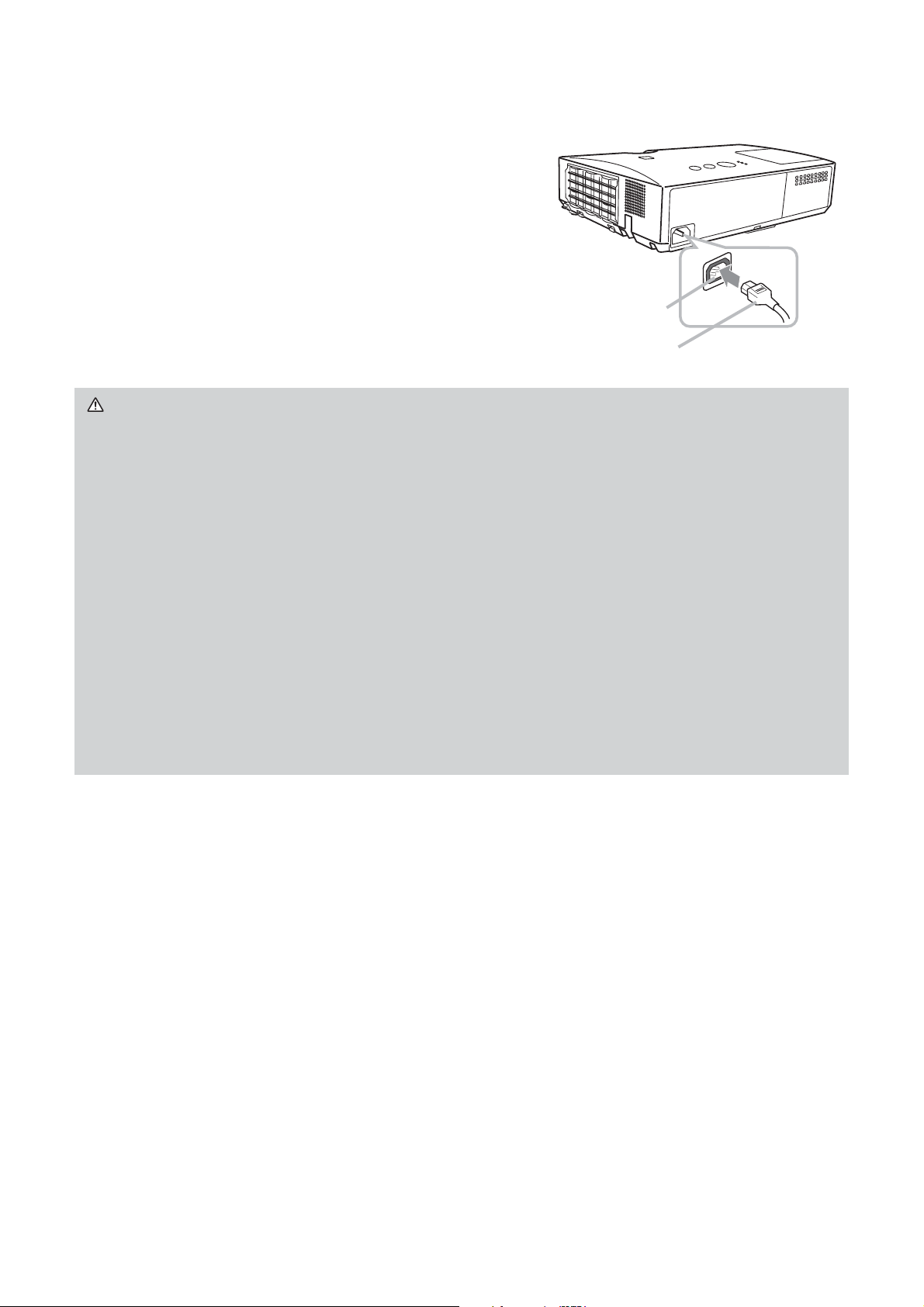
8
Connecting power supply
1.
Put the connector of the power cord into the
AC IN (AC inlet) of the projector.
2.
Firmly plug the power cord’s plug into the
outlet. In a couple of seconds after the power
supply connection, the POWER indicator will
light up in steady orange.
Please remember that when the DIRECT POWER
ON function activated, the connection of the power
supply make the projector turn on.
WARNING ►Please use extra caution when connecting the power cord, as
incorrect or faulty connections may result in fire and/or electrical shock.
• Do not touch the power cord with a wet hand.
• Only use the power cord that came with the projector. If it is damaged, consult
your dealer to get a new one. Never modify the power cord.
• Only plug the power cord into an outlet whose voltage is matched to the power
cord. The power outlet should be close to the projector and easily accessible.
Remove the power cord for complete separation.
• Do not distribute the power supply to multiple devices. Doing so may overload
the outlet and connectors, loosen the connection, or result in fire, electric
shock or other accidents.
• Connect the ground terminal for the AC inlet of this unit to the ground terminal
of the building using an appropriate power cord (bundled).
NOTICE ►This product is also designed for IT power systems with a phase-
to-phase voltage of 220 to 240 V.
AC IN
Power cord
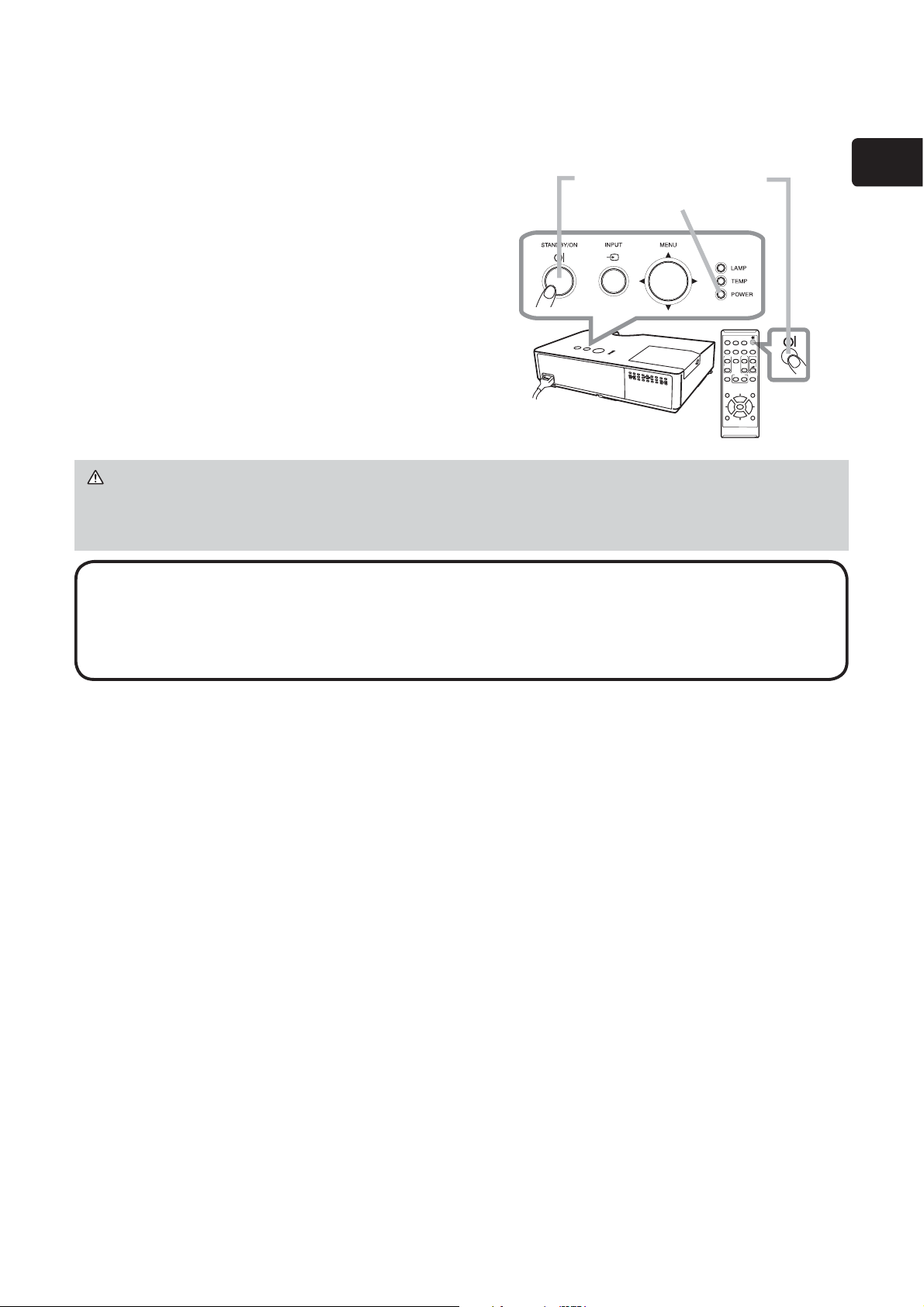
9
ENGLISH
Turning on the power
1.
Make sure that the power cord is fi rmly and correctly connected to the
projector and the outlet.
2.
Make sure that the POWER indicator is
steady orange.
3.
Press the STANDBY/ON button on the
projector or the remote control.
The projection lamp will light up and the
POWER indicator will begin blinking in
green. When the power is completely on, the
indicator will stop blinking and light in steady
green.
VIDEO
DOC.CAMERA
KEYSTONE
ASPECT
SEARCH
BLANK
MUTE
MY BUTTON
POSITION
ESC
MENU
RESET
COMPUTER
MY SOURCE/
AUTO
MAGNIFY
PAGE
DOWN
ON
OFF
FREEZE
UP
㧗
VOLUME
ENTER
WARNING ►A strong light is emitted when the projector’s power is on. Do
not look into the lens of the projector or look inside of the projector through any
of the projector’s openings.
NOTE • Please power on the projector prior to the connected devices.
• The projector has the DIRECT POWER ON function, which can make the
projector automatically turn on. For more information, please see User’s
Manual - Operating Guide.
STANDBY/ON button
POWER indicator
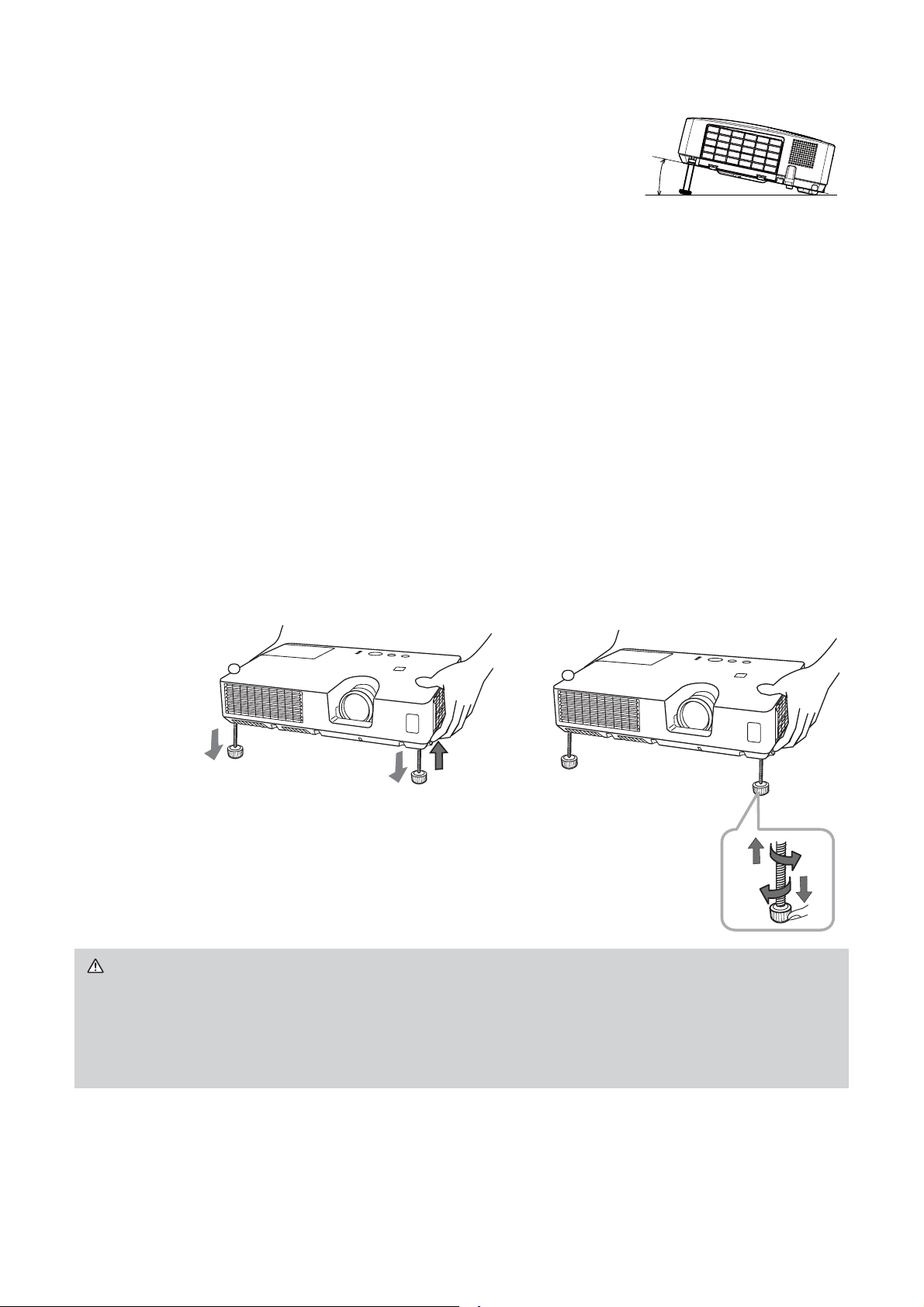
10
Adjusting the projector's elevator
When the place to put the projector is slightly uneven to
the left or right, use the elevator feet to place the projector
horizontally.
Using the feet can also tilt the projector in order to project
at a suitable angle to the screen, elevating the front side of the projector within 12
degrees.
This projector has 2 elevator feet and 2 elevator knobs. An elevator foot is
adjustable while pulling up the elevator knob on the same side as it.
1.
Holding the projector, pull the elevator knobs up to loose the elevator feet.
2.
Position the front side of the projector to the desired height.
3.
Release the elevator knobs in order to lock the elevator feet.
4.
After making sure that the elevator feet are locked, put the projector down
gently.
5.
If necessary, the elevator feet can be manually twisted to make more precise
adjustments. Hold the projector when twisting the feet.
To loose an elevator foot, pull up the
elevator knob on the same side as it.
CAUTION ►Do not handle the elevator buttons without holding the
projector, since the projector may drop down.
►Do not tilt the projector other than elevating its front within 12 degrees using
the adjuster feet. A tilt of the projector exceeding the restriction could cause
malfunction or shortening the lifetime of consumables, or the projector itself.
To finely adjust, twist the foot.
12°
51
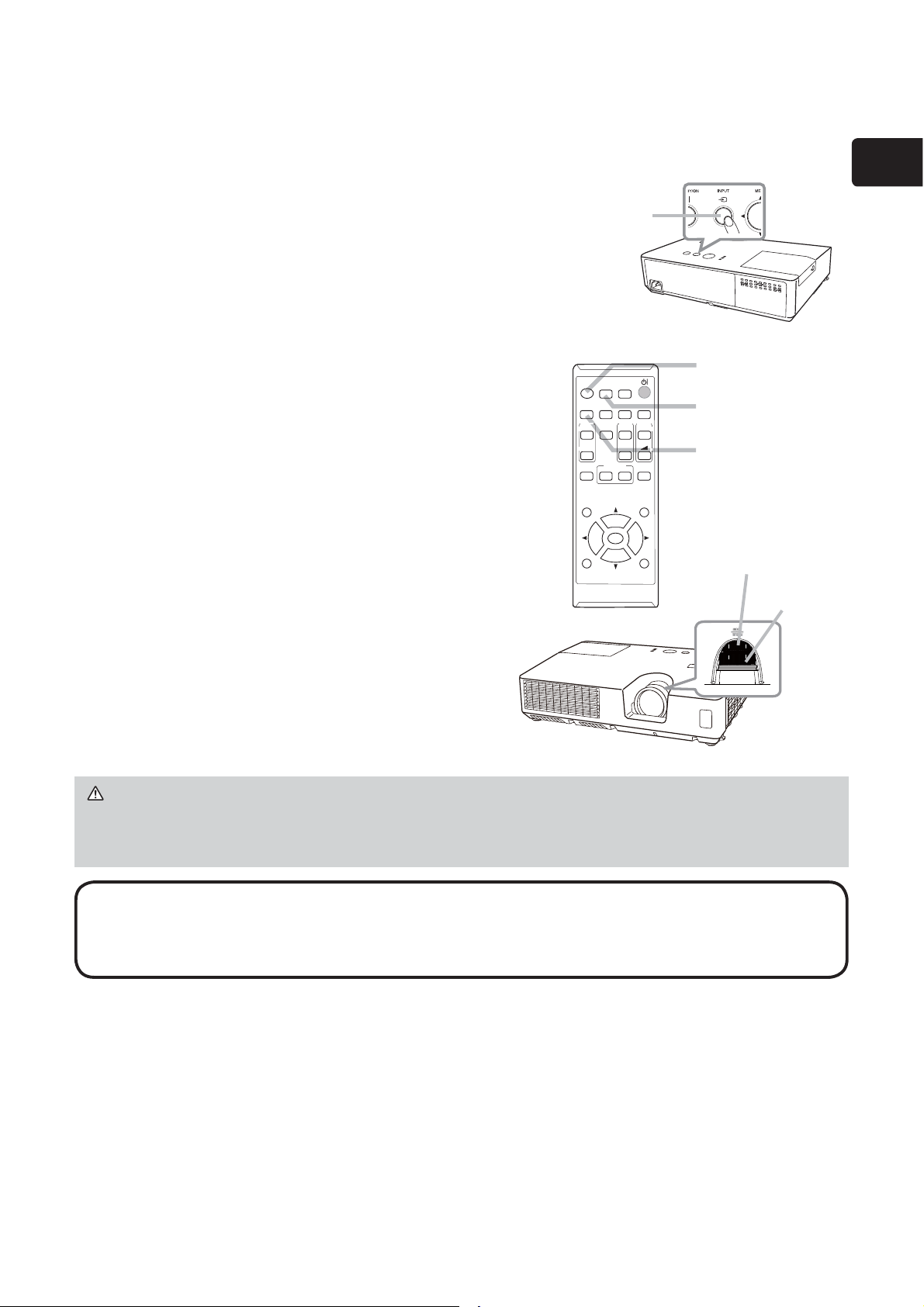
11
ENGLISH
Displaying the picture
1.
Activate your signal source. Turn the
signal source on, and make it send the
signal to the projector.
2.
Press the INPUT button on the projector.
Each time you press the button, the
projector switches its input port in turn.
You can also use the remote control to
select an input signal. Press the VIDEO
button for selecting an input signal from
the VIDEO port, or the COMPUTER
button for selecting an input signal from
the COMPUTER IN port.
3.
Press the ASPECT button on the remote
control. Each time you press the button,
the projector switches the mode for aspect
ratio in turn.
4.
Use the ZOOM ring to adjust the screen
size.
5.
Use the FOCUS ring to focus the picture.
INPUT button
VIDEO button
COMPUTER button
ASPECT button
VIDEO
DOC.CAMERA
KEYSTONE
ASPECT
SEARCH
BLANK
MUTE
MY BUTTON
POSITION
ESC
MENU
RESET
COMPUTER
MY SOURCE/
AUTO
MAGNIFY
PAGE
DOWN
ON
OFF
FREEZE
UP
㧗
VOLUME
ENTER
CAUTION ►If you wish to have a blank screen while the projector's lamp is
on, use the BLANK function. (see User’s Manual - Operating Guide)
Taking any other action may cause the damage on the projector.
NOTE • The ASPECT button does not work when no proper signal is inputted.
• For the details of how to adjust the picture, please see User’s Manual -
Operating Guide.
ZOOM ring
FOCUS ring
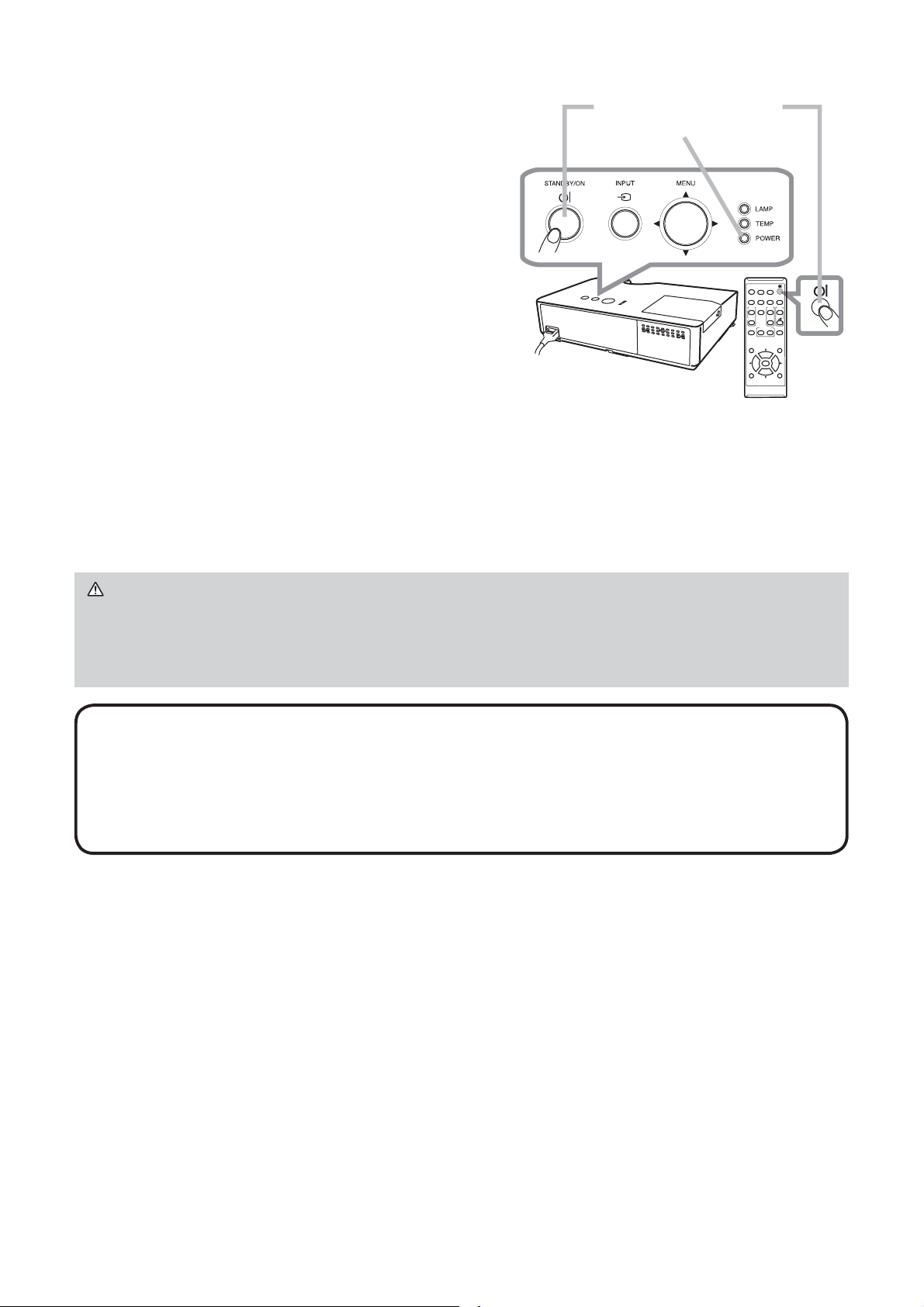
12
Turning off the power
1.
Press the STANDBY/ON button on the
projector or the remote control.
The message “Power off?” will appear on
the screen for about 5 seconds.
2.
Press the STANDBY/ON button again
while the message appears.
The projector lamp will go off, and the
POWER indicator will begin blinking in
orange. Then the POWER indicator will
stop blinking and light in steady orange
when the lamp cooling is complete.
Do not turn the projector on for about 10 minutes or more after turning it off. Also,
do not turn the projector off shortly after turning it on. Such operations might
cause the lamp to malfunction or shorten the lifetime of some parts including the
lamp.
WARNING ►Do not touch around the lamp cover and the exhaust vents
during use or just after use, since it is too hot.
►Remove the power cord for complete separation. The power outlet should be
close to the projector and easily accessible.
NOTE • Please power off the projector after any connected devices are
powered off.
• This projector has the AUTO POWER OFF function that can make the
projector turn off automatically. For more information, please see User’s
Manual - Operating Guide.
VIDEO
DOC.CAMERA
KEYSTONE
ASPECT
SEARCH
BLANK
MUTE
MY BUTTON
POSITION
ESC
MENU
RESET
COMPUTER
MY SOURCE/
AUTO
MAGNIFY
PAGE
DOWN
ON
OFF
FREEZE
UP
㧗
VOLUME
ENTER
STANDBY/ON button
POWER indicator
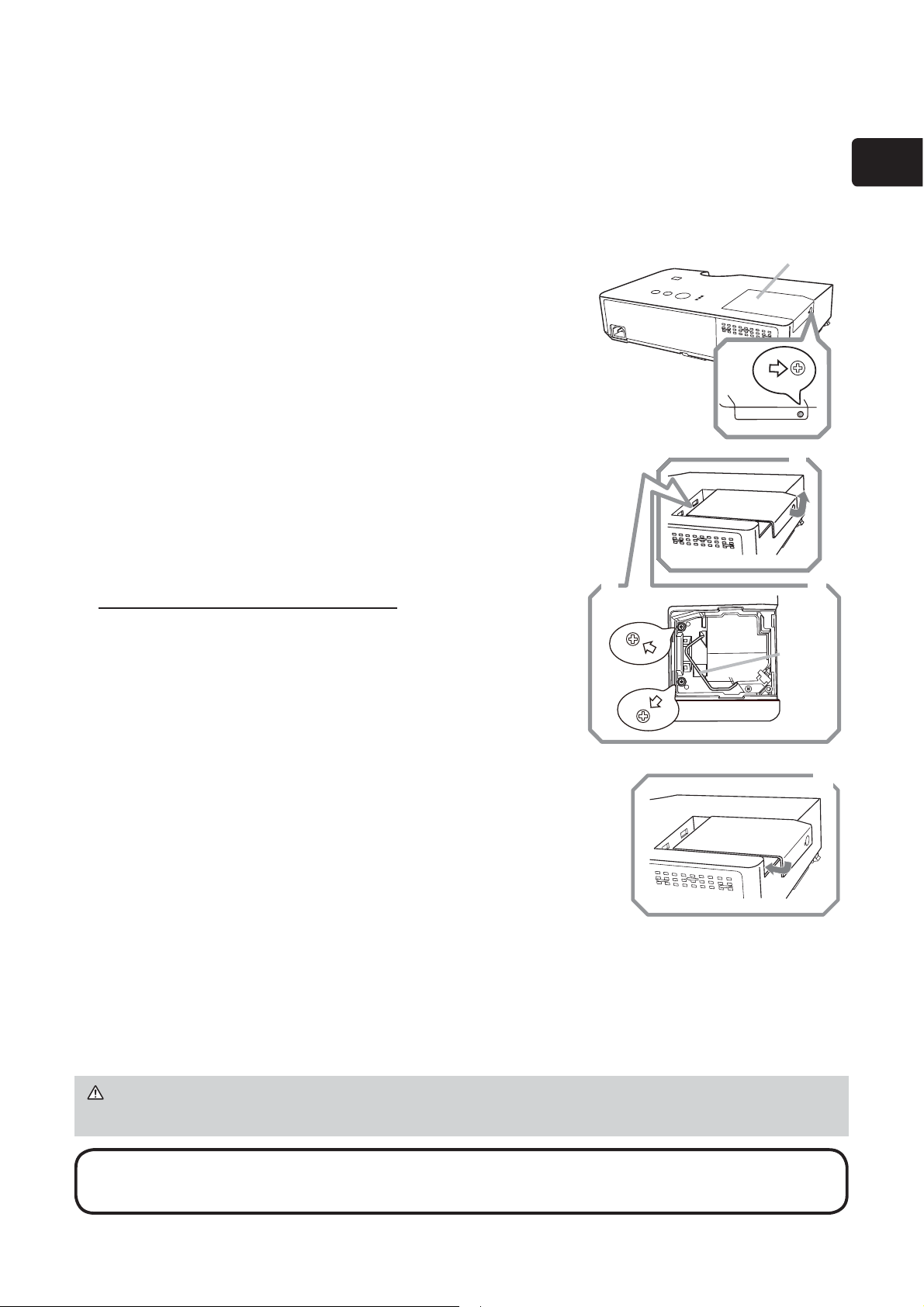
13
ENGLISH
Replacing the lamp
A lamp has finite product life. Using the lamp for long periods of time could cause
the pictures darker or the color tone poor. Note that each lamp has a different
lifetime, and some may burst or burn out soon after you start using them.
Preparation of a new lamp and early replacement are recommended. To prepare
a new lamp, make contact with your dealer and tell the lamp type number.
Type number : DT01151
1.
Turn the projector off, and unplug the power cord.
Allow the projector to cool for at least 45 minutes.
2.
Prepare a new lamp. If the projector is mounted on
a ceiling, or if the lamp has broken, also ask the
dealer to replace the lamp.
In case of replacement by yourself, follow the
following procedure.
3.
Loosen the screw (marked by arrow) of the lamp
cover and then slide and lift the lamp cover to the
side to remove it.
4.
Loosen the 2 screws (marked by arrow) of the
lamp, and slowly pick up the lamp by the handle.
Never loosen any other screws.
5.
Insert the new lamp, and retighten firmly the
2 screws of the lamp that are loosened in the
previous process to lock it in place.
6.
While putting the interlocking parts of the lamp
cover and the projector together, slide the lamp
cover back in place. Then firmly fasten the screw of
the lamp cover.
7.
Turn the projector on and reset the lamp time
using the LAMP TIME item in the OPTION menu.
(1) Press the MENU button to display a menu.
(2) Point at the ADVANCED MENU in the menu using the
▼/▲ button, then press the ► button.
(3) Point at the OPTION in the left column of the menu using
the ▼/▲button, then press the ► button.
(4) Point at the LAMP TIME using the ▼/▲ button, then
press the ► button. A dialog will appear.
(5)
Press the
►
button to select
“
OK
”
on the dialog. It performs resetting the lamp time.
NOTE • Please reset the lamp time only when you have replaced the lamp,
for a suitable indication about the lamp.
CAUTION ►Do not touch any inner space of the projector, while the lamp
is taken out.
Lamp cover
3
3
5
4
6
Handle
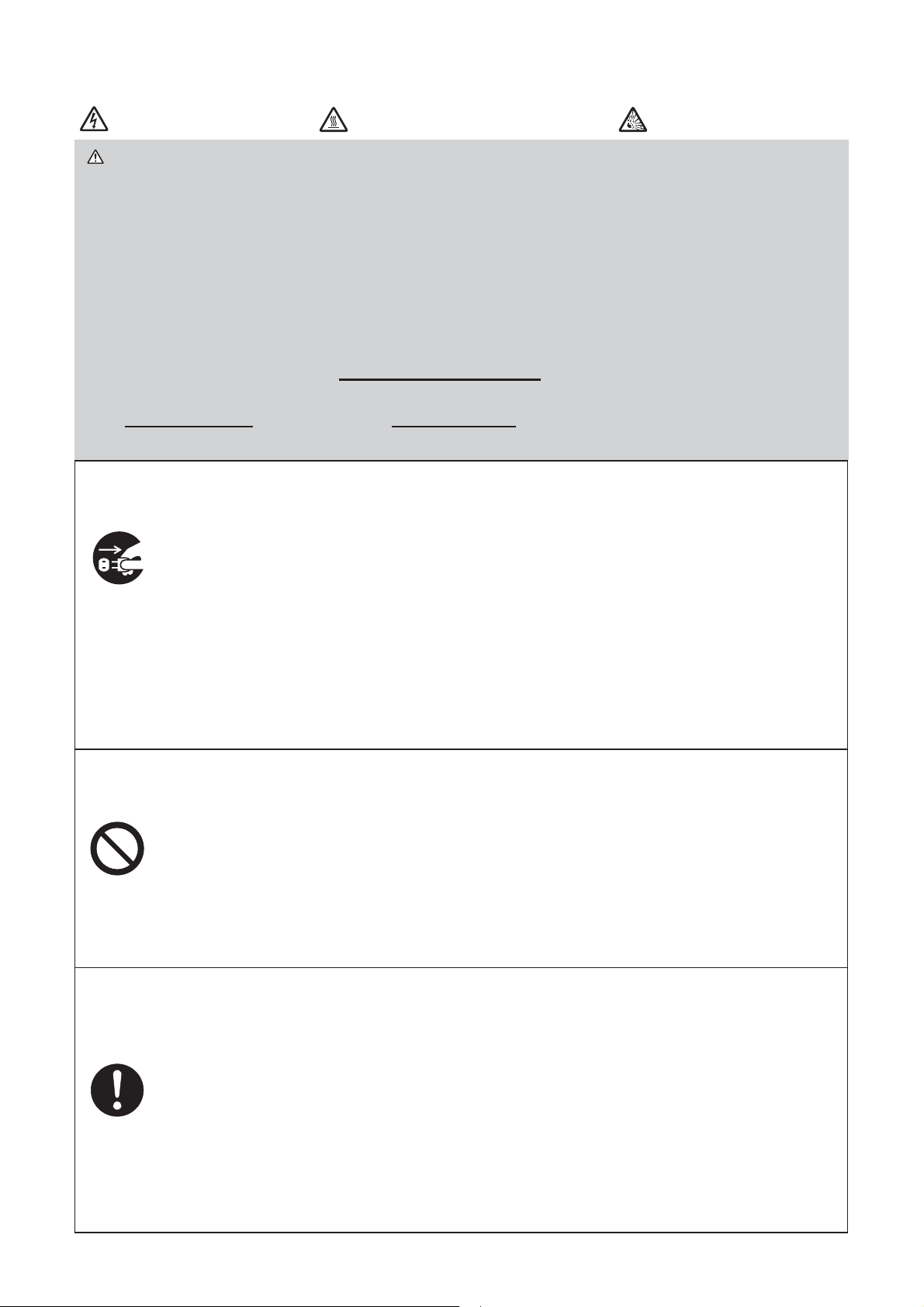
14
HIGH VOLTAGE
HIGH TEMPERATURE HIGH PRESSURE
WARNING ►The projector uses a high-pressure mercury glass lamp. The
lamp can break with a loud bang, or burn out, if jolted or scratched, handled
while hot, or worn over time. Note that each lamp has a different lifetime, and
some may burst or burn out soon after you start using them. In addition, if the
bulb bursts, it is possible for shards of glass to fly into the lamp housing, and
for gas containing mercury and dust containing fine particles of glass to escape
from the projector’s vent holes.
►About disposal of a lamp: This product contains a mercury lamp; do not put
it in a trash. Dispose of it in accordance with environmental laws.
• For lamp recycling, go to www.lamprecycle.org (in the US).
• For product disposal, consult your local government agency
or www.eiae.org (in the US) or www.epsc.ca (in Canada).
For more information, ask your dealer.
• If the lamp should break (it will make a loud bang when it does),
unplug the power cord from the outlet, and make sure to request a
replacement lamp from your local dealer. Note that shards of glass
could damage the projector’s internals, or cause injury during handling,
so please do not try to clean the projector or replace the lamp yourself.
• If the lamp should break (it will make a loud bang when it does),
ventilate the room well, and make sure not to inhale the gas or fine
particles that come out from the projector's vent holes, and not to get
them into your eyes or mouth.
• Before replacing the lamp, turn the projector off and unplug the power
cord, then wait at least 45 minutes for the lamp to cool sufficiently.
Handling the lamp while hot can cause burns, as well as damaging the lamp.
• Never unscrew except the appointed (marked by an arrow) screws.
• Do not open the lamp cover while the projector is suspended from
a ceiling. This is dangerous, since if the lamp’s bulb has broken, the
shards will fall out when the cover is opened. In addition, working in
high places is dangerous, so ask your local dealer to have the lamp
replaced even if the bulb is not broken.
• Do not use the projector with the lamp cover removed. At the lamp
replacing, make sure that the screws are screwed in firmly. Loose
screws could result in damage or injury.
• Use only the lamp of the specified type. Use of a lamp that does not
meet the lamp specifications for this model could cause a fire, damage or
shorten the life of this product.
• If the lamp breaks soon after the first time it is used, it is possible
that there are electrical problems elsewhere besides the lamp. If this
happens, consult your local dealer or a service representative.
•
Handle with care: jolting or scratching could cause the lamp bulb to burst during use.
• Using the lamp for long periods of time, could cause it dark, not to light
up or to burst. When the pictures appear dark, or when the color tone
is poor, please replace the lamp as soon as possible. Do not use old
(used) lamps; this is a cause of breakage.
Disconnect
the plug
from the
power
outlet
Replacing the lamp (continued)
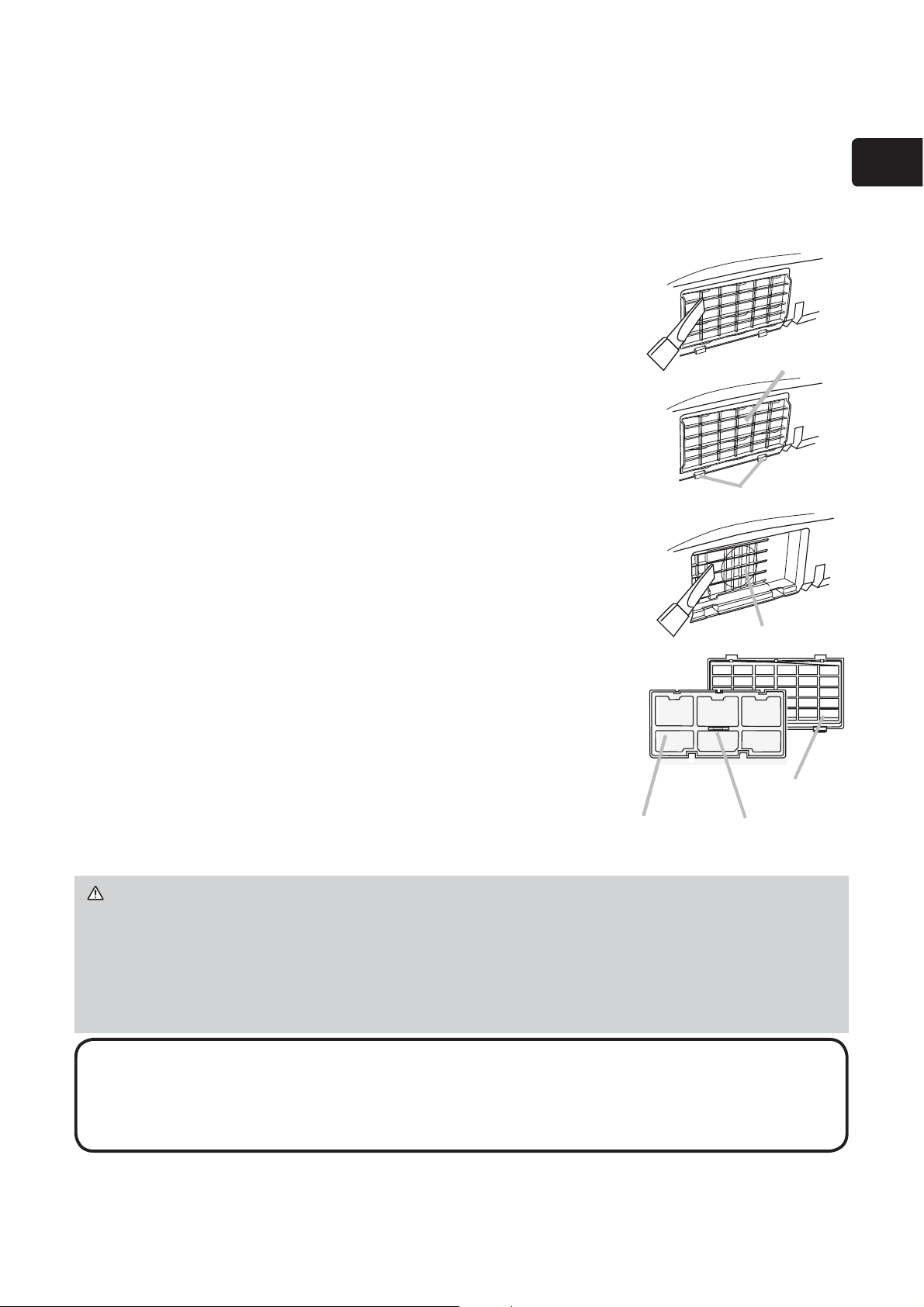
15
ENGLISH
Please check and clean the air filter periodically. When the indicators or a message
prompts you to clean the air filter, comply with it as soon as possible. Replace the filters
when they are damaged or too soiled. To prepare the new filters, make contact with your
dealer and tell the following type number.
Type number : NJ27422
When you replace the lamp, please replace the air filter. An air
filter of specified type will come together with a replacement
lamp for this projector.
1.
Turn the projector off, and unplug the power cord. Allow the
projector to sufficiently cool down.
2.
Use a vacuum cleaner on and around the filter cover.
3.
Pick and pull up the filter cover knobs to take it off.
4.
Use a vacuum cleaner for the filter vent of the projector.
5.
Take the filter out pulling the filter's knob up while holding
the filter cover.
6.
Use a vacuum cleaner on both sides of the filter. If the
filter is damaged or heavily soiled, replace it with the new
one.
7.
Put the filter back into the filter cover.
8.
Put the filter unit back into the projector.
9.
Turn the projector on and reset the filter time using the
FILTER TIME item in the EASY MENU.
(1) Press the MENU button to display a menu.
(2) Point at the FILTER TIME using the ▼/▲ button, then
press the ► button. A dialog will appear.
(3) Press the ► button to select “OK” on the dialog. It
performs resetting the filter time.
Cleaning and replacing the air filter
WARNING ►Before taking care of the air filter, make sure the power cable
is not plugged in, then allow the projector to cool sufficiently.
►
Use only the air filter of the specified type. Do not use the projector without the
air filter or the filter cover. It could result in a fire or malfunction to the projector
.
►
Clean the air filter periodically. If the air filter becomes clogged by dust or the like,
internal temperatures rise and could cause a fire, a burn or malfunction to the projector.
NOTE • Please reset the filter time only when you have cleaned or replaced
the air filter, for a suitable indication about the air filter.
• The projector may display the message such as “CHECK THE AIR FLOW” or
turn off the projector, to prevent the internal heat level rising.
2
Filter cover
7
4
Intake vent
Filter cover
Filter cover knobs
3
Filter Knob
16
NOTE • The information in the CD-ROM is subject to change without notice.
Please check our website where you may find the latest information for this
projector.
(
18)
• No responsibility is taken for any obstacle and defect to hardware and
software of your computer as a result of the use of the CD-ROM.
• All or Any part of the information in the CD-ROM must not be copied,
reproduced or republished without notice to our company.
Using the CD manual
The other manuals for this product are written into the included CD-ROM titled
“User’s Manual (detailed)”. Before using the CD-ROM, please read the following
to ensure the proper use.
System requirements
The system for using the CD-ROM requires the following.
Windows
®
: OS:Microsoft
®
Windows
®
XP, Windows Vista
®
Windows
®
7 or later
Macintosh
®
: OS:Mac OS
®
10.2 or later
CD-ROM/DVD-ROM drive:
Applications: Microsoft
®
Internet Explorer
®
6.0 or later
Adobe
®
Acrobat
®
Reader
®
8.0 or later
How to use the CD
1. Insert CD into computer’s CD-ROM/DVD-ROM drive.
Windows
®
: In a while, Web browser automatically starts. Start up
window comes up.
Macintosh
®
: (1) Double-click on the “Projectors” icon appeared on the
desktop screen.
(2) When “main.html” file is clicked, Web browser will start
and Initial window will appear.
2. Click the model name of your projector first, and then click language you want
from the displayed list. The User’s manual (detailed) will open.
CAUTION ►Only use the CD-ROM in a computer CD/DVD drive. The
CD-ROM is designed for computer use only. NEVER INSERT THE CD-ROM
INTO A NON-COMPUTER CD/DVD PLAYER! Inserting the CD-ROM into an
incompatible CD/DVD drive may produce a loud noise, which in turn MAY
RESULT IN EAR AND SPEAKER DAMAGE!
• After using CD-ROM, please put it into CD case and keep it. Please keep
the CD neither in direct sunlight nor in a high temperature and high humidity
environment.
17
ENGLISH
Item Specification
Product name Liquid crystal projector
Liquid Crystal
Panel
786,432 pixels (1024 horizontal x 768 vertical)
Lamp 200 W UHB
Power supply/
Rated current
AC 100-120 V: 2.9 A, AC 220-240 V: 1.4 A
Power
consumption
AC 100-120 V: 290 W, AC 220-240 V: 270 W
Temperature
range
5 ~ 35 °C (Operating)
Size
306 (W) x 77 (H) x 221 (D) mm
* Not including protruding parts.
Refer to figure F-5 at the back of this manual.
Weight (mass) approx. 2.2 kg
Ports
COMPUTER IN ............................ D-sub 15 pin mini jack x1
VIDEO ............................................................... RCA jack x1
Optional parts
Lamp: DT01151
Filter set: NJ27422
Mounting accessory: HAS-X1 (Bracket for ceiling mount)
HAS-204L (Fixing adaptor for low
ceilings)
HAS-304H (Fixing adaptor for high
ceilings)
Laser remote control: RC-R008
* For more information, please consult your dealer.
Specifications
18
Troubleshooting - Warranty and after-service
If an abnormal operation (such as smoke, strange odor or excessive sound)
should occur, stop using the projector immediately.
Otherwise if a problem occurs with the projector, first refer to “Troubleshooting” of
User’s Manual - Operating Guide and run through the suggested checks.
If this does not resolve the problem, please consult your dealer or service
company. They will tell you what warranty condition is applied.
Please check the following web address where you may find the latest information
for this projector.
Product
information and
Manuals :
http://www.hitachi-america.us/digitalmedia
Production
information :
http://www.hitachidigitalmedia.com
Direct link to
manual download :
http://www.hitachiserviceeu.com/support/guides/
userguides.htm
Trademark acknowledgment
• Mac
®
, Macintosh
®
and Mac OS
®
are registered trademarks of Apple Inc.
• Pentium
®
is a registered trademark of Intel Corp.
•
Adobe
®
and Acrobat
®
, Reader
®
are registered trademarks of Adobe Systems Incorporated.
• Microsoft
®
, Internet Explorer
®
, Windows
®
, Windows NT
®
and Windows Vista
®
are
registered trademarks of Microsoft Corporation in the U.S. and/or other countries.
•
Blu-ray Disc
TM
and Blu-ray
TM
are trademarks of Blu-ray Disc Association.
All other trademarks are the properties of their respective owners.
NOTE • The information in this manual is subject to change without notice.
• The illustrations in this manual are for illustrative purposes. They may differ
slightly from your projector.
• The manufacturer assumes no responsibility for any errors that may appear in
this manual.
• The reproduction, transfer or copy of all or any part of this document is not
permitted without express written consent.
End User License Agreement for the Projector Software
• Software in the projector consists of the plural number of independent
software modules and there exist our copyright or/and third party copyrights for
each of such software modules.
• Be sure to read “End User License Agreement for the Projector Software”
which is separated document. (in the CD)
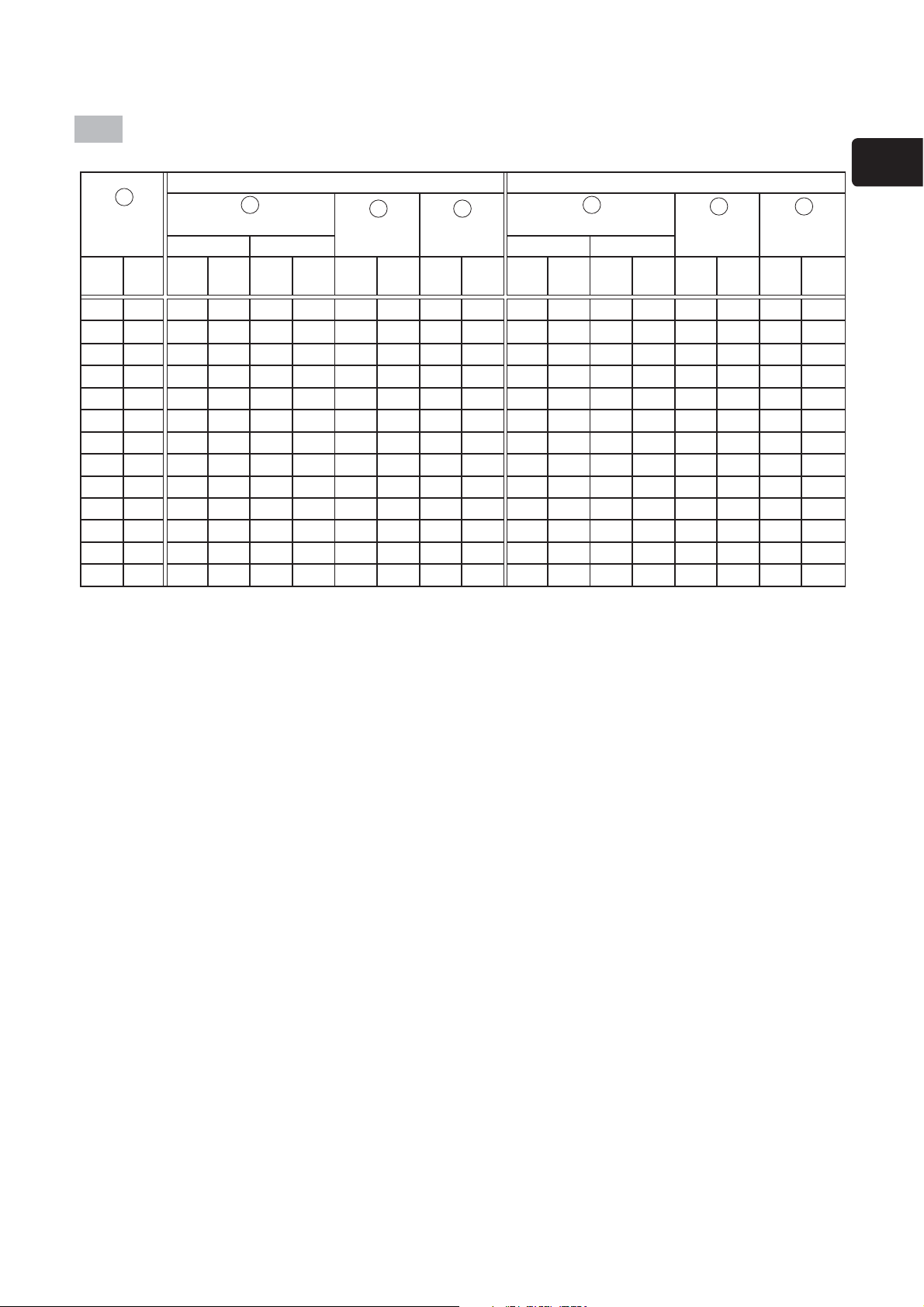
19
ENGLISH
Screen size
(diagonal)
4 : 3 screen 16 : 9 screen
Projection distance
Screen
height
Screen
height
Projection distance
Screen
height
Screen
height
min. max. min. max.
type
(inch)
m m inch m inch cm inch cm inch m inch m inch cm inch cm inch
30 0.8 0.9 34 1.0 40 39 15 7 3 0.9 37 1.1 44 36 14 1 0
40 1.0 1.2 46 1.4 54 52 21 9 3 1.3 50 1.5 59 49 19 1 0
50 1.3 1.5 58 1.7 68 65 26 11 4 1.6 64 1.9 75 61 24 1 1
60 1.5 1.8 70 2.1 83 78 31 13 5 2.0 77 2.3 90 73 29 2 1
70 1.8 2.1 82 2.5 97 91 36 15 6 2.3 90 2.7 106 85 34 2 1
80 2.0 2.4 95 2.8 111 105 41 17 7 2.6 103 3.1 121 97 38 2 1
90 2.3 2.7 107 3.2 125 118 46 20 8 3.0 116 3.5 136 109 43 3 1
100 2.5 3.0 119 3.5 139 131 51 22 9 3.3 130 3.9 152 122 48 3 1
120 3.0 3.6 143 4.3 167 157 62 26 10 4.0 156 4.6 183 146 57 4 1
150 3.8 4.6 179 5.3 210 196 77 33 13 5.0 196 5.8 229 182 72 4 2
200 5.1 6.1 240 7.1 280 261 103 44 17 6.6 262 7.8 306 243 96 6 2
250 6.4 7.6 300 8.9 351 327 129 54 21 8.3 328 9.7 383 304 120 7 3
300 7.6 9.2 361 10.7 422 392 154 65 26 10.0 393 11.7 460 365 144 9 4
b
a
b
c1
c1 c2
c2
T-1
CP-RX93
(1024 x 768) (±10%)
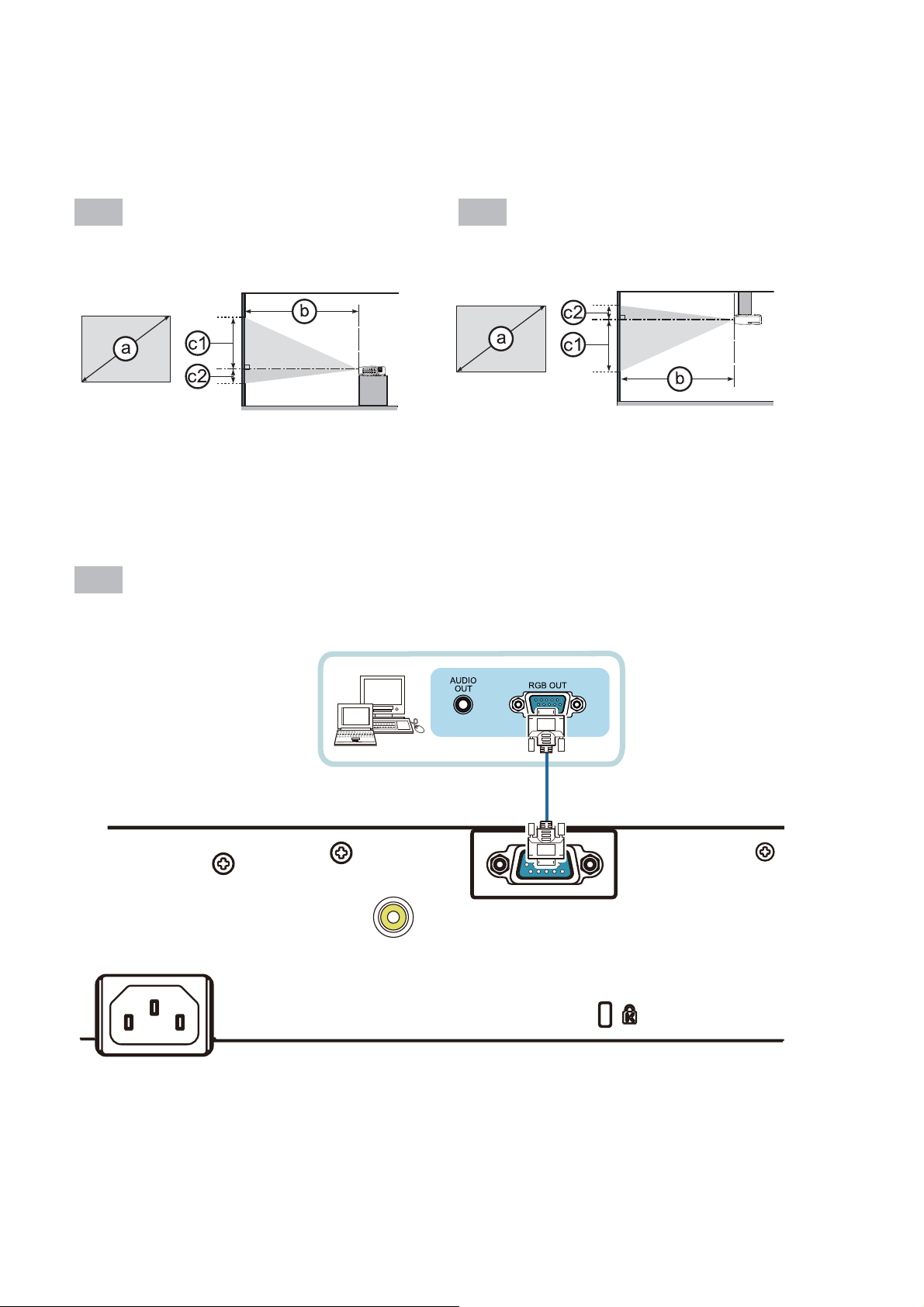
20
F-3
・
Suspended from the ceiling
・
On a horizontal surface
F-1 F-2
Computer
AC IN
COMPUTER IN
VIDEO
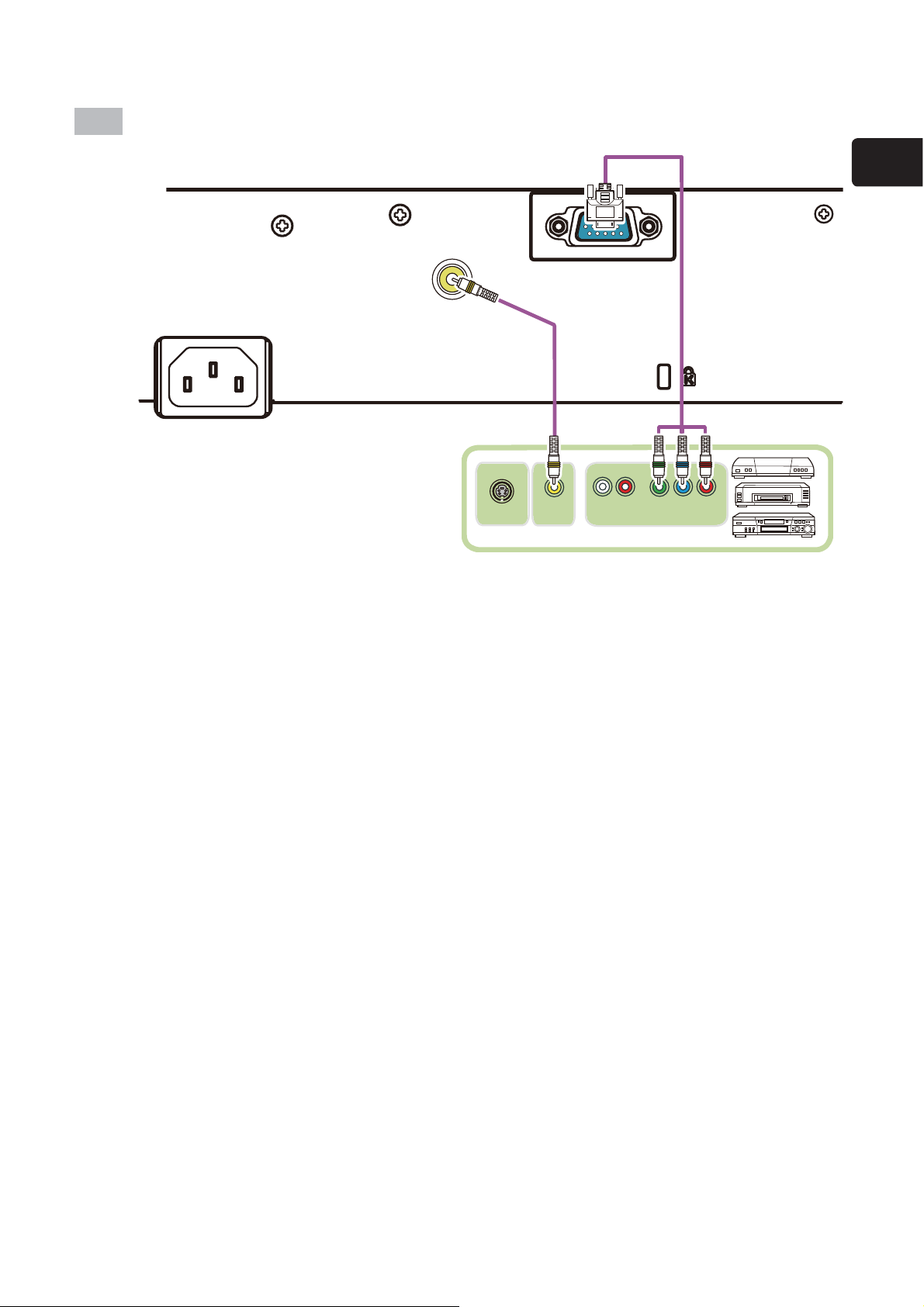
21
ENGLISH
F-4
VCR/DVD/Blu-ray Disc
TM
player
AC IN
COMPUTER IN
VIDEO
Y CB/PB CR/PR
COMPONENT VIDEO OUT
L R
AUDIO OUT
VIDEO OUT
S-VIDEO OUT
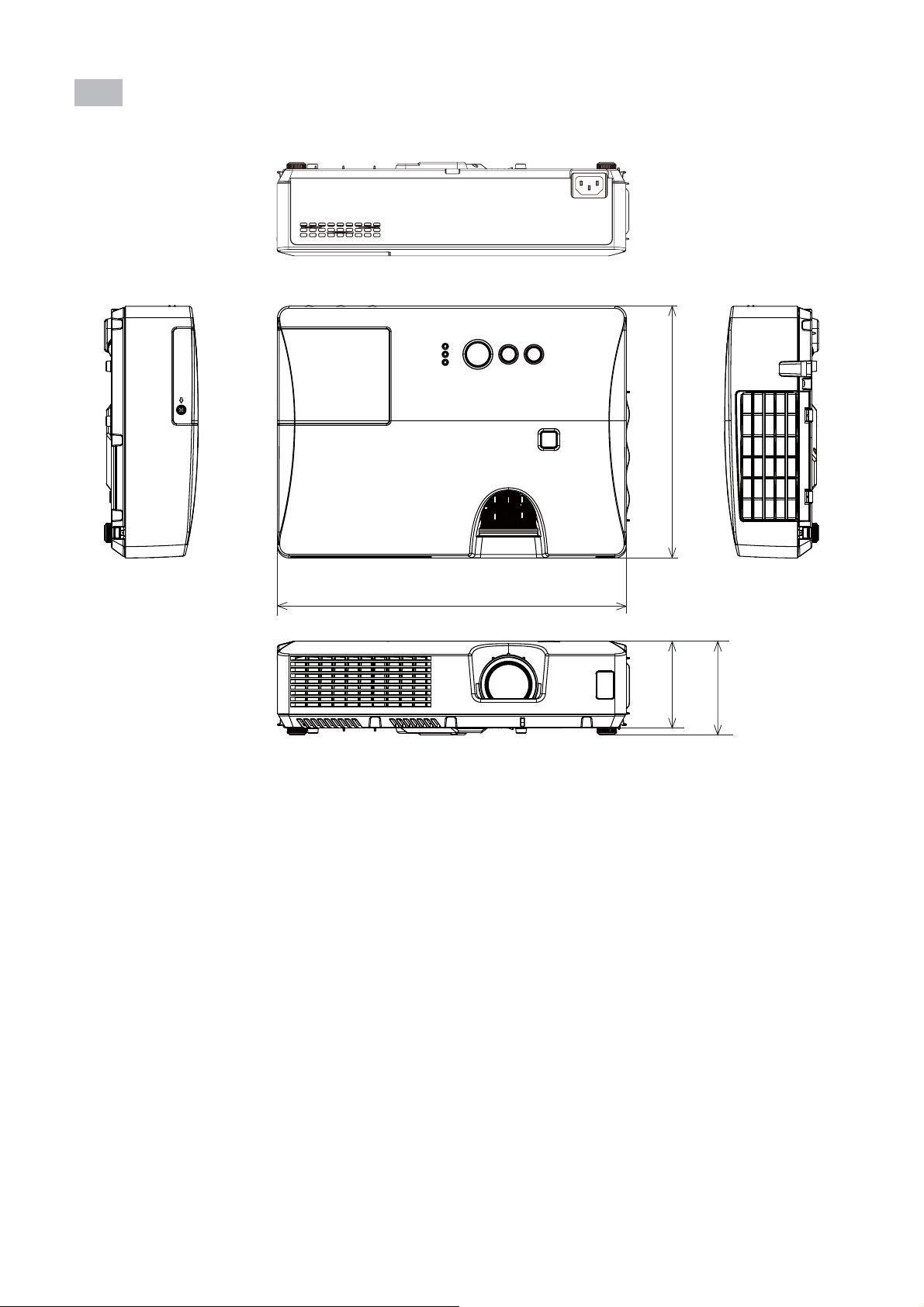
22
[unit: mm]
306
221
77
83
AC IN
F-5

NOTE • The information in this manual is subject to change without notice. • The manufacturer
assumes no responsibility for any errors that may appear in this manual. • The reproduction, transfer
or copy of all or any part of this document is not permitted without express written consent.
REMARQUE • Les informations contenues dans ce manuel peuvent faire l'objet dechangements sans
avertissement préalable. • Le fabricant ne prend aucune responsabilité pour les erreurs qui pourraient
se trouver dans ce manuel. • La reproduction, la transmission ou l'utilisation de ce document ou de
son contenu est interdite sauf autorisation spéciale écrite.
HINWEIS • Die Informationen in diesem Handbuch können ohne vorherige Ankündigung geändert
werden. • Der Hersteller übernimmt keine Verantwortung für etwaige in diesem Handbuch enthaltene
Fehler. • Die Vervielfältigung, Übertragung oder Verwendung dieses Dokuments oder dessen Inhalts
ist ohne ausdrückliche schriftliche Genehmigung nicht gestattet.
NOTA • La información de este manual puede sufrir modicaciones sin previo aviso. • El fabricante
no asume ninguna responsabilidad por los errores que puedan aparecer en este manual. • No
está permitida la reproducción, transmisión o utilización de este documento ni de su contenido sin
autorización expresa por escrito.
NOTA • Le informazioni riportate in questo manuale sono soggette a modica senza preavviso. • Il
produttore declina qualsiasi responsabilità per eventuali errori che potrebbero comparire nel presente
manuale. • E’ vietata la riproduzione, la trasmissione o l’utilizzo del presente documento o del suo
contenuto senza espressa autorizzazione scritta.
MERK • Informasjonen i denne håndboken kan endres uten varsel. • Produsenten påtar seg intet
ansvar for eventuelle feil som fremkommer i denne håndboken. • Reproduksjon, overføring eller bruk
av dette dokumentet eller deler av det, er ikke tillatt uten uttrykt skriftlig tillatelse.
OPMERKING • De informatie in deze handleiding kan zonder voorafgaande kennisgeving veranderd
worden. • De fabrikant neemt geen enkele verantwoordelijkheid voor de eventuele fouten in deze
handleiding. • Reproductie, overdracht of het gebruik van dit document is niet toegestaan, zonder
uitdrukkelijke toestemming van de betreffende partij.
NOTA • As informações contidas neste manual estão sujeitas a alterações sem aviso prévio.
• O fabricante não se responsabiliza por quaisquer erros que possam surgir neste manual.
• A reprodução, transmissão ou utilização deste documento ou do seu conteúdo não é permitida sem
autorização expressa por escrito.
ཚኪ๚ၜ!
•
Ԩກዐሜڦాඹᆶీփঢ়ᇨߢܸ݀ิՎ߸ă
•
ԨׂڦሰኁܔԨກዐڦሜٱဃփ
ඪࢆሴඪă
•
࿄ঢ়ሎႹ൩ကްĂገሜࢅ๑ᆩԨກڦևݴඇևాඹă
꼁ꍱ
• 본서에 기재되어 있는 내용은 예고 없이 변경하는 일이 있습니다 .• 본제품의 제조자는 , 본서
에 있어서의 기재 오류에 대해서 일절의 책임도 지지 않습니다 .• 본서 내용의 일부 혹은 전부를 무단
으로 복사하거나 전재하여 사용하는 것을 절대 금합니다 .
NOTERA • Informationen i denna bruksanvisning kan komma att ändras utan förvarning. • Tillverkaren
påtar sig inget ansvar för eventuella fel i denna bruksanvisning. • Återgivning, översändande eller
användning av detta dokument eller dess innehåll är inte tillåten utan uttrycklig skriftligt medgivande.
ɉɊɂɆȿɑȺɇɂȿ • Содержание данного руководства может изменяться без предварительного
уведомления. • Производитель не несет ответственности за ошибки в данном руководстве.
• Воспроизведение, передача и использование данного документа или его содержания
запрещено без письменног
о разрешения.
HUOM! • Tämän ohjekirjan tiedot voivat muuttua ilman eri ilmoitusta. • Valmistaja ei ota mitään
vastuuta ohjekirjassa mahdollisesti olevista virheistä. • Dokumentin tai sen sisällön jäljentäminen,
siirto tai käyttö ei ole sallittua ilmannimenomaista kirjallista valtuutusta.
UWAGA • Informacje podane w tym podręczniku mogą ulec zmianie bez uprzedzenia. • Producent
nie ponosi odpowiedzialności za ewentualne błędy w podręczniku. • Powielanie, przesyłanie lub inne
wykorzystanie tego dokumentu lub jego treści nie jest dozwolone bez wyraźnej pisemnej zgody.
Hitachi America, Ltd.
Digital Media Division
900 Hitachi way, Chula Vista
CA 91914-3556 USA CANADA
Tel: +1 -800-225-1741
► http://www.hitachi-america.us/digitalmedia
Hitachi Europe Ltd., Digital Media Group
Consumer Affairs Department
Whitebrook Park, Lower Cookham Road,
Maidenhead
Berkshire SL6 8YA UNITED KINGDOM
Tel: 0844 481 0297
Email: consumer[email protected]
Hitachi Europe S.A.S.,
Digital Media Group
31 bis rue du 35ème Régiment de l’aviation
ZAC DU CHENE, 69500 BRON FRANCE
Tel: 043 742 8430
Email: [email protected]
Hitachi Europe GmbH
Am Seestern 18
40547 Düsseldorf GERMANY
Tel: 0211-5283-801
Email: [email protected]
Hitachi Europe S.A.
364, Kifissias Ave. & 1, Delfon Str.
152 33 Chalandri
Athens GREECE
Tel: 210 6837200
Email: [email protected]
Hitachi Europe S.r.l.
Via T. Gulli, 39
20147 MILANO ITALY
Tel: +39 02 487861
Email: [email protected]
Hitachi Europe S.A.
Gran Via Carles III, 86 Planta 5ª
Edificios Trade - Torre Este
08028 Barcelona SPAIN
Tel: 0034 934 092 5 50
Email: [email protected]
Hitachi Europe AB
Frösundaviks Alle 15
169 29 Solna SWEDEN
Sweden Tel: +46 8 562 711 00
Finland Tel: +358 10 8503 085
Norway Tel: +47 9847 3898
Denmark Tel: +46 8 562 711 00
► http://www.hitachidigitalmedia.com
Hitachi Australia Pty Ltd.
Level 3, 82 Waterloo Road
North Ryde N.S.W 2113 AUSTRALIA
Tel: +61 -2-9888-4100
► http://www.hitachi.com.au
Hitachi (Hong Kong), Ltd.
18/F., Ever Gain Centre, 28 On Muk Street.,
Shatin, N.T. HONG KONG
Tel: +852 -2113-8883
► http://www.hitachi-hk.com.hk
Hitachi Sales (Malaysia) Sdn. Bhd.
Lot 12, Jalan Kamajuan, Bangi Industrial Estate,
43650 Bandar Baru Bangi, Selangor Darul Ehsan
MALAYSIA
Tel: +60 -3-8911-2670
► http://www
.hitachiconsumer.com.my
Hitachi Home Electronics Asia (S) Pte. Ltd.
438A Alexandra Road #01-01/02/03
Alexandra Technopark, 119967 SINGAPORE
Tel: +65 -6536-2520
► http://www.hitachiconsumer.com.sg
Hitachi Sales Corp. of Taiwan
2
nd
Floor, No.65, Nanking East Road, Section 3,
Taipei 104 TAIWAN
Tel: +886-2-2516-0500
► http://www.hsct.com.tw
Hitachi Sales (Thailand), Ltd.
994, 996 Soi Thonglor, Sukhumvit 55 Rd.,
Klongtonnua, Vadhana, Bangkok 10110
THAILAND
T
el: +66 -2381-8381-98
► http://www.hitachi-th.com
Hitachi Consumer Electronics Co.,Ltd.
292 Yoshida-cho, Totsuka-ku
Yokohama 244-0817 JAPAN
Tel: +81-45-415-2625
► http://www.hitachi.co.jp/proj/

