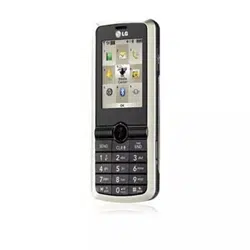

USER GUIDE
Guía del Usuario
User Guide
CAMERA PHONE
TELÉFONO con CÁMARA
MMBB0329801(1.0) HPrinted in Korea
VX7100_Cover_1.0_100304.qxd 3/4/10 3:43 PM Page 1

Copyright©2010 LG Electronics, Inc. All rights reserved.
LG and the LG logo are registered trademarks of LG Group
and its related entities. Glance
TM
is a trademark of Verizon
Wireless. All other trademarks are the property of their
respective owners.
VX7100_Cover_1.0_100304.qxd 3/4/10 3:43 PM Page 6
1
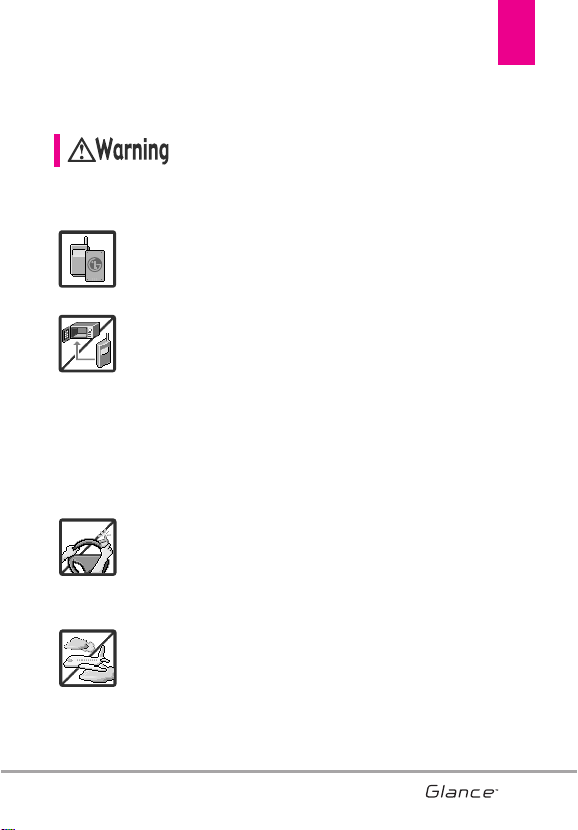
Read these simple guidelines. Breaking the rules may be dangerous
or illegal. Further detailed information is given in this user guide.
Violation of the instructions may cause serious injury or death.
●
Never use an unapproved battery since this could
damage the phone and/or battery and could cause
the battery to explode.
●
Never place your phone in a microwave oven as it will
cause the battery to explode.
●
Never store your phone in temperatures less than
-4°F or greater than 122°F.
●
Do not dispose of your battery near fire or with
hazardous or flammable materials.
●
When riding in a car, do not leave your phone or set
up the hands-free kit near the air bag. If wireless
equipment is improperly installed and the air bag is
deployed, you may be seriously injured.
●
Do not use a hand-held phone while driving.
●
Do not use the phone in areas where its use is
prohibited. (For example: aircraft)
Important Safety Precautions
1
VX7100_Eng_0410.qxd 3/4/10 3:20 PM Page 1
Important Safety Precautions
2
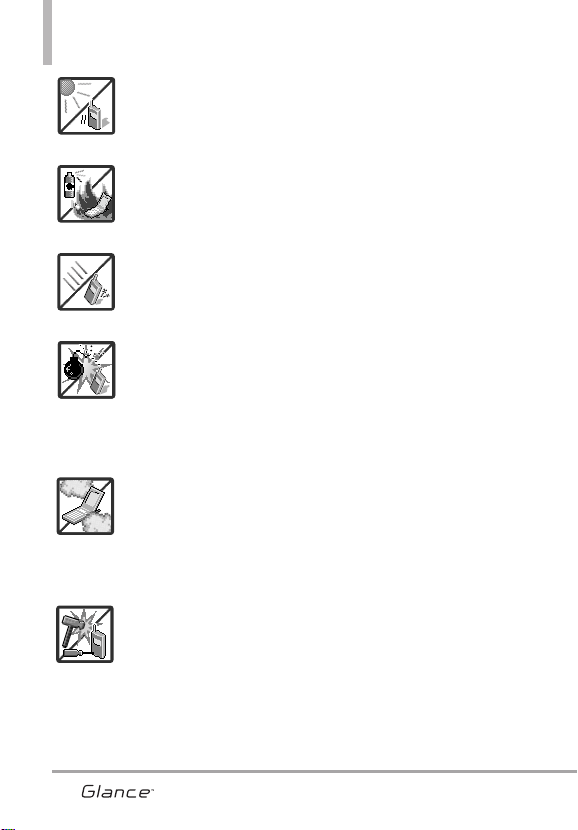
●
Do not expose the battery charger or adapter to direct
sunlight or use it in places with high humidity, such as
a bathroom.
●
Do not use harsh chemicals (such as alcohol,
benzene, thinners, etc.) or detergents to clean your
phone. This could cause a fire.
●
Do not drop, strike, or shake your phone severely. It
may harm the internal circuit boards of the phone.
●
Do not use your phone in high explosive areas as the
phone may generate sparks.
●
Do not damage the power cord by bending, twisting,
pulling, or heating. Do not use the plug if it is loose as
it may cause electric shock or fire.
●
Do not place any heavy items on the power cord. Do
not allow the power cord to be crimped as it may
cause electric shock or fire.
●
Do not handle the phone with wet hands while it is
being charged. It may cause an electric shock or
seriously damage your phone.
●
Do not disassemble the phone.
2
VX7100_Eng_0410.qxd 3/4/10 3:20 PM Page 2
3
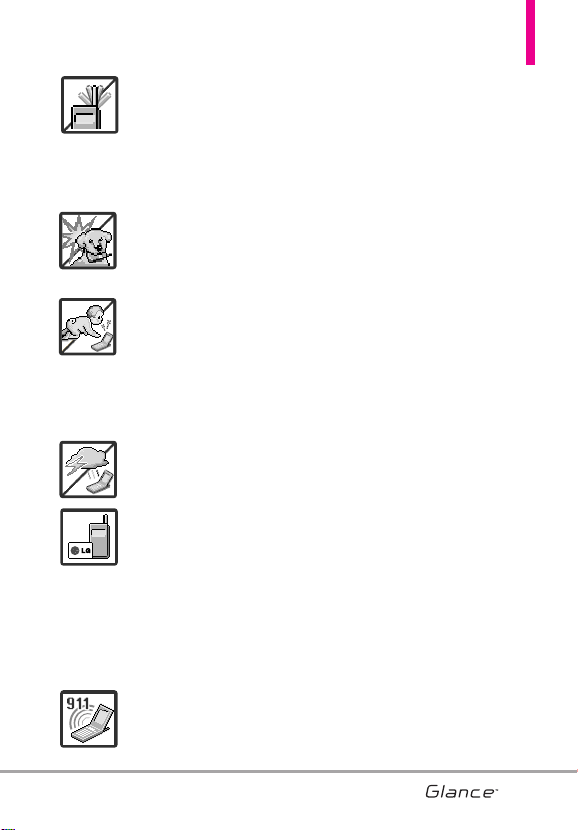
●
Do not place or answer calls while charging the
phone as it may short-circuit the phone and/or cause
electric shock or fire.
●
Do not hold or let the antenna come in contact with
your body during a call.
●
Make sure that no sharp-edged items, such as
animal’s teeth or nails, come into contact with the
battery. This could cause a fire.
●
Store the battery out of reach of children.
●
Be careful that children do not swallow any parts
(such as earphone, connection parts of the phone,
etc.) This could cause asphyxiation or suffocation
resulting in serious injury or death.
●
Unplug the power cord and charger during lightning
storms to avoid electric shock or fire.
●
Only use the batteries and chargers provided by LG.
The warranty will not be applied to products provided
by other suppliers.
●
Only authorized personnel should service the phone
and its accessories. Faulty installation or service may
result in accidents and consequently invalidate the
warranty.
●
Your service provider programs one or more
emergency phone numbers, such as 911, that you can
call under any circumstances, even when your phone
is locked. Your phone’s preprogrammed emergency
number(s) may not work in all locations, and
sometimes an emergency call cannot be placed due
to network, environmental, or interference issues.
3
VX7100_Eng_0410.qxd 3/4/10 3:20 PM Page 3

4
Table of Contents
4
Important Safety Precautions .1
Table of Contents . . . . . . . . . . . . .4
Welcome . . . . . . . . . . . . . . . . . . . .8
Technical Details . . . . . . . . . . . . .9
Important Information . . . . . . . . . . . .9
Phone Overview . . . . . . . . . . . .13
Installing the Battery . . . . . . . . . . . . .15
Removing the Battery . . . . . . . . . . .15
Menus Overview . . . . . . . . . . . .16
Getting Started with Your
Phone . . . . . . . . . . . . . . . . . . . . . .19
Charging the Battery . . . . . . . . . . . .19
Charging with USB . . . . . . . . . . . . . .20
Battery Temperature Protection . . .20
Battery Charge Level . . . . . . . . . . . .20
Signal Strength . . . . . . . . . . . . . . . . .20
Turning the Phone On and Off . . . .20
Turning the Phone On . . . . . . . . . .20
Turning the Phone Off . . . . . . . . . .21
Making Calls . . . . . . . . . . . . . . . . . . .21
Correcting Dialing Mistakes . . . . . .21
Redialing Calls . . . . . . . . . . . . . . . . . .21
Receiving Calls . . . . . . . . . . . . . . . . . .21
Screen Icons . . . . . . . . . . . . . . . . . . . .21
Quick Access to Convenient
Features . . . . . . . . . . . . . . . . . . . .22
Vibrate Mode . . . . . . . . . . . . . . . . . . .22
Sounds Off . . . . . . . . . . . . . . . . . . . . . .22
Mute Function . . . . . . . . . . . . . . . . . . .22
Volume Quick Adjustment . . . . . . . .22
Call Waiting . . . . . . . . . . . . . . . . . . . . .22
Caller ID . . . . . . . . . . . . . . . . . . . . . . . .22
Voice Commands . . . . . . . . . . . . . . . .22
Entering and Editing
Information . . . . . . . . . . . . . . . . .23
Text Input . . . . . . . . . . . . . . . . . . . . . . .23
Contacts in Your Phone’s
Memory . . . . . . . . . . . . . . . . . . . .24
Storing Basics . . . . . . . . . . . . . . . . . .24
Customizing Individual Entries . . . .24
Speed Dial . . . . . . . . . . . . . . . . . . . . . .24
Storing a Number with Pauses . . .25
Adding Another Phone Number . .25
Changing the Default Number . . . .26
Deleting . . . . . . . . . . . . . . . . . . . . . . . .27
Speed Dialing . . . . . . . . . . . . . . . . . . .27
CONTACTS . . . . . . . . . . . . . . . . . . . .29
1. New Contact . . . . . . . . . . . . . . . . . .29
2. Contact List . . . . . . . . . . . . . . . . . . .29
3. Backup Assistant . . . . . . . . . . . . . .30
4. Favorites . . . . . . . . . . . . . . . . . . . . . .30
5. Groups . . . . . . . . . . . . . . . . . . . . . . .30
6. Speed Dials . . . . . . . . . . . . . . . . . . .31
8. My Name Card . . . . . . . . . . . . . . . .32
MESSAGING . . . . . . . . . . . . . . . . . .33
1. New Message . . . . . . . . . . . . . . . .33
1.1 TXT Message . . . . . . . . . . . . . . .34
1.2 Picture Message . . . . . . . . . . . .36
1.3 Voice Message . . . . . . . . . . . . . .38
2. Inbox . . . . . . . . . . . . . . . . . . . . . . . .38
4
VX7100_Eng_0410.qxd 3/4/10 3:20 PM Page 4

5
3. Sent . . . . . . . . . . . . . . . . . . . . . . . . .40
4. Drafts . . . . . . . . . . . . . . . . . . . . . . . .41
5. Voicemail . . . . . . . . . . . . . . . . . . . .41
6. Mobile IM . . . . . . . . . . . . . . . . . . . .42
7. Email . . . . . . . . . . . . . . . . . . . . . . . . .42
8. Chat . . . . . . . . . . . . . . . . . . . . . . . . .42
Messaging Settings . . . . . . . . . . . . .42
1. Messages View (By Time/ By
Contact) . . . . . . . . . . . . . . . . . . .43
2. Entry Mode (T9 Word/ Abc/ ABC/
123) . . . . . . . . . . . . . . . . . . . . . . .43
3. Auto Save Sent (On/ Off/
Prompt) . . . . . . . . . . . . . . . . . . . .43
4. Auto Erase Inbox (On/ Off) . . . .43
5. Messaging Font Size . . . . . . . . .43
6. TXT Auto View (On/Off) . . . . . . .43
7. TXT Auto Scroll (On/Off) . . . . . .43
8. Multimedia Auto Receive
(On/Off) . . . . . . . . . . . . . . . . . . .43
9. Quick Text . . . . . . . . . . . . . . . . .43
0. Voicemail # . . . . . . . . . . . . . . . . .43
*. Callback # . . . . . . . . . . . . . . . . . .43
#. Signature (None/ Custom) . . . . .44
Erasing Messages . . . . . . . . . . . . . . .44
RECENT CALLS . . . . . . . . . . . . . . . .45
1. Missed . . . . . . . . . . . . . . . . . . . . . . .45
2. Received . . . . . . . . . . . . . . . . . . . . .45
3. Dialed . . . . . . . . . . . . . . . . . . . . . . . .46
4. All . . . . . . . . . . . . . . . . . . . . . . . . . . . .46
5. View Timers . . . . . . . . . . . . . . . . . . .47
MY RINGTONES . . . . . . . . . . . . . . .48
MEDIA CENTER . . . . . . . . . . . . . . . .49
1. Tunes & Tones . . . . . . . . . . . . . . . .49
1.1 Get New Ringtones . . . . . . . . . .49
1.2 My Ringtones . . . . . . . . . . . . . . .50
1.3 My Sounds . . . . . . . . . . . . . . . . .50
2. Pictures . . . . . . . . . . . . . . . . . . . . . .51
2.1 Get New Pictures . . . . . . . . . . . .51
2.2 My Pictures . . . . . . . . . . . . . . . .51
2.3 Take Picture . . . . . . . . . . . . . . . .52
2.4 Online Album . . . . . . . . . . . . . . .53
3. Games . . . . . . . . . . . . . . . . . . . . . . . .53
4. Mobile Web . . . . . . . . . . . . . . . . . .54
5. Browse & Download . . . . . . . . . .56
6. Extras . . . . . . . . . . . . . . . . . . . . . . . .56
MY PICTURES . . . . . . . . . . . . . . . . .57
VZ NAVIGATOR . . . . . . . . . . . . . . . .58
BLUETOOTH . . . . . . . . . . . . . . . . . . .59
SETTINGS & TOOLS . . . . . . . . . . . .60
1. My Verizon . . . . . . . . . . . . . . . . . . . .60
2. Tools . . . . . . . . . . . . . . . . . . . . . . . . .60
2.1 Voice Commands . . . . . . . . . . . .60
2.1.1 Call <Name or Number> . . .61
2.1.2 Send Msg to <Name or
Number> . . . . . . . . . . . . . . . .61
2.1.3 Go to <Menu> . . . . . . . . . . .61
2.1.4 Check <Item> . . . . . . . . . . . .61
2.1.5 Contacts <Name> . . . . . . . .62
2.1.6 Redial . . . . . . . . . . . . . . . . . . .62
2.1.7 My Verizon . . . . . . . . . . . . . . .62
2.1.8 Help . . . . . . . . . . . . . . . . . . . .62
2.2 Calculator . . . . . . . . . . . . . . . . . .62
2.3 Ez Tip Calculator . . . . . . . . . . . . .62
5
VX7100_Eng_0410.qxd 3/4/10 3:20 PM Page 5

66
Table of Contents
6
2.4 Calendar . . . . . . . . . . . . . . . . . . .63
2.5 To Do List . . . . . . . . . . . . . . . . . .64
2.6 Alarm Clock . . . . . . . . . . . . . . . .64
2.7 Info Search . . . . . . . . . . . . . . . . .64
2.8 Stopwatch . . . . . . . . . . . . . . . . . .65
2.9 World Clock . . . . . . . . . . . . . . . .65
2.0 Notepad . . . . . . . . . . . . . . . . . . .65
3. Bluetooth® Menu . . . . . . . . . . . .66
3.1 Add New Device . . . . . . . . . . . .66
Turn On . . . . . . . . . . . . . . . . . . . . . . .67
My Device Info . . . . . . . . . . . . . . . . .67
Discovery Mode . . . . . . . . . . . . . . . .68
3.2 Ez Use Handsfree . . . . . . . . . . .68
4. Keyguard Settings . . . . . . . . . . . . .69
5. Sounds Settings . . . . . . . . . . . . . . .69
5.1 Easy Set-up . . . . . . . . . . . . . . . . .69
5.2 Master Volume . . . . . . . . . . . . .69
5.3 Call Sounds . . . . . . . . . . . . . . . .69
Unlock Options . . . . . . . . . . . . . . . . .69
Auto Lock . . . . . . . . . . . . . . . . . . . . .69
5.3.2 Call Vibrate . . . . . . . . . . . . .70
5.3.3 Caller ID Announcement . .70
5.4 Alert Sounds . . . . . . . . . . . . . . . .70
5.5 Keypad Volume . . . . . . . . . . . . .71
5.6 Digit Dial Readout . . . . . . . . . . .71
5.7 Service Alerts . . . . . . . . . . . . . .71
5.8 Power On/Off . . . . . . . . . . . . . .72
5.9 Voice Clarity . . . . . . . . . . . . . . . .72
6. Display Settings . . . . . . . . . . . . . . .72
6.1 Easy Set-up . . . . . . . . . . . . . . . . .72
6.2 Banner . . . . . . . . . . . . . . . . . . .73
6.2.1 Personal Banner . . . . . . . . .73
6.2.2 ERI Banner . . . . . . . . . . . . .73
6.3 Backlight . . . . . . . . . . . . . . . . . .73
6.4 Brightness . . . . . . . . . . . . . . . . .74
6.5 Wallpaper . . . . . . . . . . . . . . . . . .74
6.6 Display Themes . . . . . . . . . . . . .74
6.7 Main Menu Settings . . . . . . . . .75
6.8 Menu Font Type . . . . . . . . . . . . .75
6.9 Font Size . . . . . . . . . . . . . . . . . . .75
6.0 Clock Format . . . . . . . . . . . . . . .76
7. Phone Settings . . . . . . . . . . . . . . .76
7.1 Airplane Mode . . . . . . . . . . . . . .76
7.2 Set Shortcuts . . . . . . . . . . . . . . .76
7.2.1 Set My Shortcuts . . . . . . . . .76
7.2.2 Set Directional Keys . . . . . . .77
7.3 Voice Commands . . . . . . . . . . . .77
7.4 Language . . . . . . . . . . . . . . . . . .78
7.5 Location . . . . . . . . . . . . . . . . . . .78
7.6 Current Country . . . . . . . . . . . . .79
7.7 Security . . . . . . . . . . . . . . . . . . .79
7.7.1 Edit Codes . . . . . . . . . . . . .79
7.7.2 Restrictions . . . . . . . . . . . .80
7.7.3 Phone Lock . . . . . . . . . . . .80
7.7.4 Lock Phone Now . . . . . . . .81
7.7.5 Reset Default . . . . . . . . . .81
7.7.6 Restore Phone . . . . . . . . . .81
7.8 System Select . . . . . . . . . . . . . .82
7.9 NAM Select . . . . . . . . . . . . . . . .82
8. Call Settings . . . . . . . . . . . . . . . . . .83
8.1 Answer Options . . . . . . . . . . . . .83
8.2 Auto Retry . . . . . . . . . . . . . . . . . .83
6
VX7100_Eng_0410.qxd 3/4/10 3:20 PM Page 6

7
8.3 TTY Mode . . . . . . . . . . . . . . . . .83
8.4 One Touch Dial . . . . . . . . . . . . .85
8.5 Voice Privacy . . . . . . . . . . . . . . . .85
8.6 DTMF Tones . . . . . . . . . . . . . . . .86
8.7 Assisted Dialing . . . . . . . . . . . . .86
8.8 Dial Search . . . . . . . . . . . . . . . . .86
9. Joystick Settings . . . . . . . . . . . . . .87
0. Memory . . . . . . . . . . . . . . . . . . . .87
*. Phone Info . . . . . . . . . . . . . . . . . .87
*.1 My Number . . . . . . . . . . . . . . . .88
*.2 SW/HW Version . . . . . . . . . . . . .88
*.3 Icon Glossary . . . . . . . . . . . . . . .88
*.4 Software Update . . . . . . . . . . . .88
#. Set-up Wizard . . . . . . . . . . . . . . . . .89
Safety . . . . . . . . . . . . . . . . . . . . . .90
Exposure to Radio Frequency
Signal . . . . . . . . . . . . . . . . . . . . . . . .90
Antenna Care . . . . . . . . . . . . . . . . .90
Phone Operation . . . . . . . . . . . . . . .90
Tips on Efficient Operation . . . . . . .91
Driving . . . . . . . . . . . . . . . . . . . . . . .91
Electronic Devices . . . . . . . . . . . . .91
Pacemakers . . . . . . . . . . . . . . . . . .91
Hearing Aids . . . . . . . . . . . . . . . . . .92
Other Medical Devices and Health
Care Facilities . . . . . . . . . . . . . . . . .92
Vehicles . . . . . . . . . . . . . . . . . . . . . .92
Aircraft . . . . . . . . . . . . . . . . . . . . . . .92
Blasting Areas . . . . . . . . . . . . . . . . .92
Potentially Explosive Atmosphere .92
For Vehicles Equipped with an
Air Bag . . . . . . . . . . . . . . . . . . . . . . .93
Safety Information . . . . . . . . . . . . .93
Charger and Adapter Safety . . . . . .94
Battery Information and Care . . . . .94
Explosion, Shock, and Fire Hazards97
General Notice . . . . . . . . . . . . . . . .97
Caution: Avoid potential hearing
loss. . . . . . . . . . . . . . . . . . . . . . . . . . . .98
FDA Consumer Update . . . . . . . .100
10 Driver Safety Tips . . . . . . . . . . .108
Consumer Information on SAR .110
FCC Hearing-Aid Compatibility
(HAC) Regulations for Wireless
Devices . . . . . . . . . . . . . . . . . . . . . .112
Accessories . . . . . . . . . . . . . . .115
LIMITED WARRANTY
STATEMENT . . . . . . . . . . . . . .116
Glossary . . . . . . . . . . . . . . . . . . .119
Terminology . . . . . . . . . . . . . . . . . .119
Acronyms and Abbreviations . .119
Index . . . . . . . . . . . . . . . . . . . . . .121
7
VX7100_Eng_0410.qxd 3/4/10 3:20 PM Page 7

8
Welcome
Thank you for choosing the
Glance
TM
cellular phone designed to
operate with the latest digital
mobile communication technology,
Code Division Multiple Access
(CDMA). Along with the many
advanced features of the CDMA
system, such as greatly enhanced
voice clarity, this compact phone
offers:
●
Built-in 1.3 Megapixel digital
camera
●
Mobile Web
●
Sleek and Compact Design
●
Large, easy-to-read, 8-line
backlit LCD with status icons
●
Media Center capable for
Games, Pictures and Tunes &
Tones downloads
●
17-key keypad and a directional
Joystick.
●
Long battery standby and talk
time
●
Easy operation using menu-
driven interface with prompts
●
Paging, messaging, Voicemail,
caller ID, IM and chat
●
Advanced Voice Command
●
Quick calling functions including,
auto answer, auto retry, 999
speed dials, and voice
commands
●
Flash Wallpaper with fun
animations
●
Bilingual (English and Spanish)
Capability
●
Bluetooth
®
wireless technology
(for certain profiles)
NOTE
The Bluetooth
®
word mark and
logos are owned by the
Bluetooth SIG, Inc. and any use
of such marks by LG Electronics
is under license. Other
trademarks and trade names are
those of their respective owners.
NOTE
Find the interactive user guide
on the web for your convenience
where you can freely surf and
interactively learn how to use
your phone step-by-step.
Go to
http://www.verizonwireless.com/
b2c/HowToControllerServlet?pat
h=phoneGuides&manufacturer=
LG&go=GO --> Browse
Equipment Guides -> then
choose your phone model
->
then select Equipment Guide.
8
VX7100_Eng_0410.qxd 3/4/10 3:20 PM Page 8

9
Important Information
This user’s guide provides important
information on the use and
operation of your phone. Please
read this guide carefully prior to
using the phone to be able to use
your phone to its greatest
advantage and to prevent any
accidental damage or misuse. Any
unapproved changes or
modifications will void your
warranty.
FCC Part 15 Class B Compliance
This device and its accessories
comply with part 15 of FCC rules.
Operation is subject to the following
two conditions: (1) This device and
its accessories may not cause
harmful interference, and (2) this
device and its accessories must
accept any interference received,
including interference that causes
undesired operation.
Information to User
This equipment has been tested
and found to comply with the limits
for a Class B digital device,
pursuant to part 15 of the FCC
Rules. These limits are designed to
provide reasonable protection
against harmful interference in a
residential installation.
This equipment generates, uses
and can radiate radio frequency
energy and, if not installed and
used in accordance with the
instructions, may cause harmful
interference to radio
communications.
However, there is no guarantee that
interference will not occur in a
particular installation. If this
equipment does cause harmful
interference to radio or television
reception, which can be
determined by turning the
equipment off and on, the user is
encouraged to try to correct the
interference by one or more of the
following measures:
- Reorient or relocate the receiving
antenna
- Increase the separation between
the equipment and receiver
- Connect the equipment into an
outlet on a circuit different from
that which the receiver is
connected.
- Consult the dealer or an
experienced radio/TV technician
for help.
Modifications not expressly
approved by the manufacturer
could void the user’s authority to
operate the equipment under FCC
rules.
Technical Details
9
VX7100_Eng_0410.qxd 3/4/10 3:20 PM Page 9
Technical Details
Technical Details
The
Glance
TM
is an all digital phone
that operates on both Code Division
Multiple Access (CDMA)
frequencies: Cellular services at 800
MHz and Personal Communication
Services (PCS) at 1.9 GHz.
CDMA technology uses a feature
called DSSS (Direct Sequence
Spread Spectrum) that enables the
phone to keep communication from
being crossed and to use one
frequency channel by multiple
users in the same specific area.
This results in a 10-fold capacity
increase when compared with
analog mode. In addition, features
such as soft / softer handoff, hard
handoff, and dynamic RF power
control technologies combine to
reduce call interruptions.
The Cellular and PCS CDMA
networks consist of MSO (Mobile
Switching Office), BSC (Base
Station Controller), BTS (Base
Station Transmission System), and
MS (Mobile Station).
* TSB -74: Protocol between an IS-
95A system and ANSI J-STD-008
1xRTT system receives twice as
many subscribers in the wireless
section as IS-95. Its battery life is
twice as long as IS-95.
The following table lists some major
CDMA standards.
10
CDMA Standard
Designator Description
Basic Air
Interface
TIA/EIA-95A
TSB-74
ANSI J-STD-008
TIA/EIA-IS2000
CDMA Dual-Mode Air Interface
14.4kbps radio link protocol and
inter-band operations
IS-95 adapted for PCS frequency band CDMA2000
1xRTT Air Interface
Network
TIA/EIA/IS-634
TIA/EIA/IS/651
TIA/EIA/IS-41-C
TIA/EIA/IS-124
MAS-BS
PCSC-RS
Intersystem operations
Non-signaling data comm.
Service
TIA/EIA/IS-96-B
TIA/EIA/IS-637
TIA/EIA/IS-657
IS-801
TIA/EIA/IS-707-A
Speech CODEC
Short Message Service
Packet Data
Position Determination Service (gpsOne)
High Speed Packet Data
VX7100_Eng_0410.qxd 3/4/10 3:20 PM Page 10

11
FCC RF Exposure Information
WARNING! Read this information
before operating the phone.
In August 1996, the Federal
Communications Commission (FCC)
of the United States, with its action
in Report and Order FCC 96-326,
adopted an updated safety
standard for human exposure to
Radio Frequency (RF)
electromagnetic energy emitted by
FCC regulated transmitters. Those
guidelines are consistent with the
safety standard previously set by
both U.S. and international
standards bodies. The design of this
phone complies with the FCC
guidelines and these international
standards.
Bodily Contact During Operation
This device was tested for typical
use with the back of the phone kept
0.79 inches (2 cm) from the body. To
comply with FCC RF exposure
requirements, a minimum
separation distance of 0.79 inches
(2 cm) must be maintained between
the user’s body and the back of the
phone, including the antenna,
whether extended or retracted.
Third-party belt-clips, holsters, and
similar accessories containing
metallic components should not be
used. Avoid the use of accessories
that cannot maintain 0.79 inches (2
cm) distance between the user’s
body and the back of the phone and
have not been tested for
compliance with FCC RF exposure
limits.
Vehicle-Mounted External Antenna
(Optional, if available.)
To satisfy FCC RF exposure
requirements, keep 8 inches (20 cm)
between the user / bystander and
vehicle-mounted external antenna.
For more information about RF
exposure, visit the FCC website at
www.fcc.gov.
FCC Notice and Cautions
This device and its accessories
comply with part 15 of FCC rules.
Operation is subject to the following
two conditions: (1) This device and
its accessories may not cause
harmful interference, and (2) this
device and its accessories must
accept any interference received,
including interference that causes
undesired operation.
Any changes or modifications not
expressly approved in this user
guide could void your warranty for
this equipment. Use only the
VX7100_Eng_0410.qxd 3/4/10 3:20 PM Page 11

Technical Details
supplied antenna. Use of
unauthorized antennas (or
modifications to the antenna) could
impair call quality, damage the
phone, void your warranty and/or
violate FCC regulations.
Don't use the phone with a
damaged antenna. A damaged
antenna could cause a minor skin
burn. Contact your local dealer for a
replacement antenna.
Part 15.105 statement
This equipment has been tested
and found to comply with the limits
for a class B digital device,
pursuant to Part 15 of the FCC
Rules. These limits are designed to
provide reasonable protection
against harmful interference in a
residential installation. This
equipment generates uses and can
radiate radio frequency energy and,
if not installed and used in
accordance with the instructions,
may cause harmful interference to
radio communications. However,
there is no guarantee that
interference will not occur in a
particular installation. if this
equipment does cause harmful
interference or television reception,
which can be determined by
turning the equipment off and on,
the user is encouraged to try to
correct the interference by one or
more of the following measures: -
Reorient or relocate the receiving
antenna.
- Increase the separation between
the equipment and receiver.
- Connect the equipment into an
outlet on a circuit different from
that to which the receiver is
connected.
- Consult the dealer or an
experienced radio/TV technician
for help.
12
VX7100_Eng_0410.qxd 3/4/10 3:20 PM Page 12
13
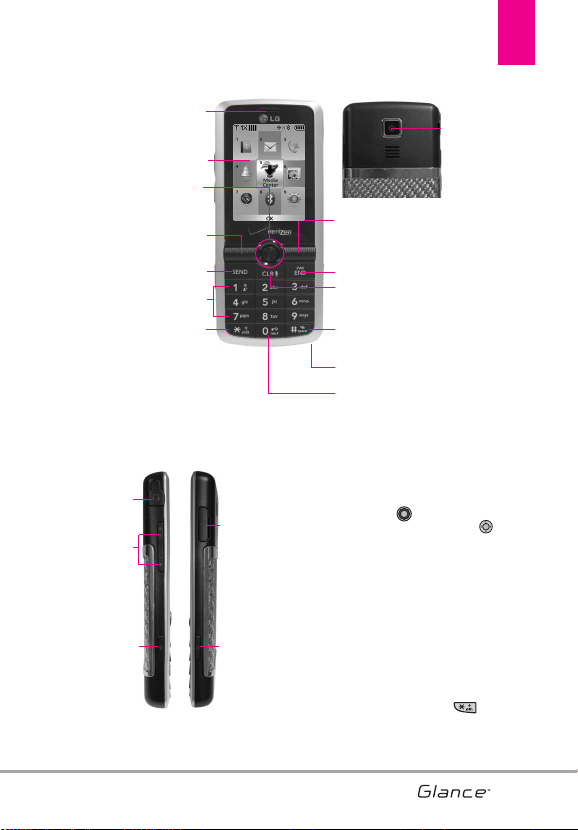
Phone Overview
1. Earpiece Lets you hear the caller and
automated prompts.
2. LCD Screen Displays messages and indicator
icons.
3. Center Select Key / Directional Key This key is
a multifunctional "joystick-like" key. Use the
Center Select Key to select a field or option,
by pushing in. Use the Directional Key to
scroll through the menu items and highlight a
specific field or object by moving up, down, left or
right.
4. Left Soft Key Use to access Messaging menu
while in Standby mode. It also performs the
functions indicated by the text on the display
immediately above it.
5. SEND Key Use to make and answer calls.
6. Alphanumeric Keypad Use to enter numbers
and characters and select menu items.
7. International Call Prefix Key To make an
international call, press and hold for
2 or 3 seconds. + is the international calling code.
8. Camera Lens Used to take a photo. Keep it
clean for optimal photo quality.
16. Volume Keys
Up/Down
9. Right Soft Key
2. LCD Screen
3. Center Select Key /
Directional Key
17. Speakerphone
Key
4. Left Soft Key
18. Accessory
Charger
Port
1. Earpiece
5. SEND Key
12. Vibrate Mode Key
11. CLR / Voice Commands Key
10. PWR/END Key
6. Alphanumeric Keypad
19. Camera
Key
15. 2.5 mm
Headset
Jack
7. International Call Prefix Key
13. Microphone
8. Camera Lens
14. Keyguard Lock Key
VX7100_Eng_0410.qxd 3/4/10 3:20 PM Page 13
Phone Overview
14
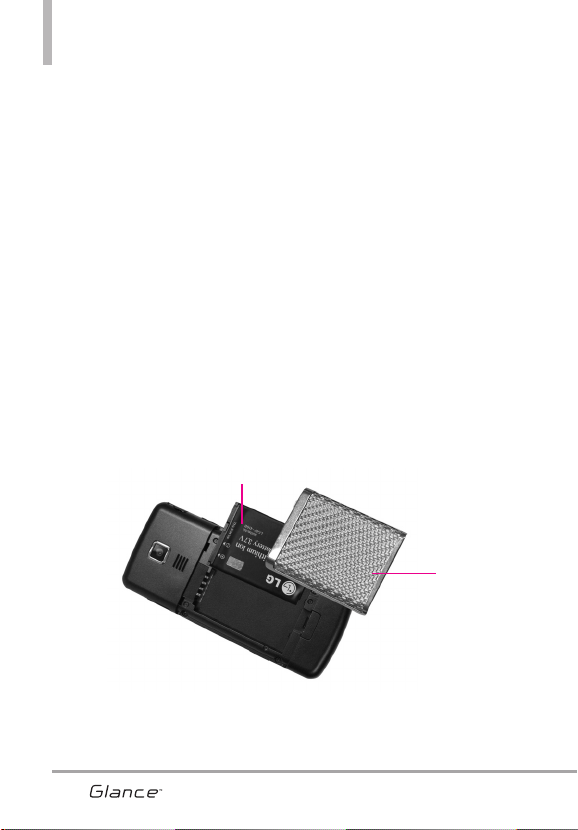
Battery
Battery Cover
NOTES •
It’s important to fully charge the battery before using the phone for the first
time.
•
Battery life and signal strength are significant factors (among others) that
affect your phone’s ability to send/receive calls.
Rear view
9. Right Soft Key Use to access Contact List
while in Standby mode. It also performs the
functions indicated by the text on the display
immediately above it.
10. PWR / END Key Use to turn the power on/off
and to end a call. Also returns to standby
mode.
11. CLR / Voice Commands Key Deletes single
spaces or characters with a quick press, but
press and hold to delete entire words. Also
backs out of menus, one level at a time.
When in Standby mode, use for quick access
to Voice Commands.
12. Vibrate Mode Key Use to set Vibrate mode
(from standby mode press and hold for about
3 seconds).
13. Microphone Allows other callers to hear you
clearly when you are speaking to them.
14. Keyguard Lock Key When pressed for 2
seconds, the keyguard lock is activated.
15. 2.5 mm Headset Jack Allows you to plug in an
optional headset for convenient, hands-free
conversations.
16. Side Keys / Volume Keys Up/Down Use to
adjust the Master Volume in standby mode*
and the Earpiece Volume during a call.
17. Speakerphone Key Use to change to
speakerphone mode.
18. Accessory Charger Port Connects the phone
to the battery charger, or other compatible
accessory.
19. Camera Key Use for quick access to Camera
function. Press the camera key to take
pictures.
* Standby mode is when the phone is waiting for input from you.
No menu is displayed and the phone isn’t performing any
action. It’s the starting point for all of the instruction steps.
This User Manual gives navigation instructions according to the
default "Grid" Main Menu Layout in the Display Settings menu.
If other themes or menus are set, navigating the phone's menus
may be different.
VX7100_Eng_0410.qxd 3/4/10 3:20 PM Page 14
15
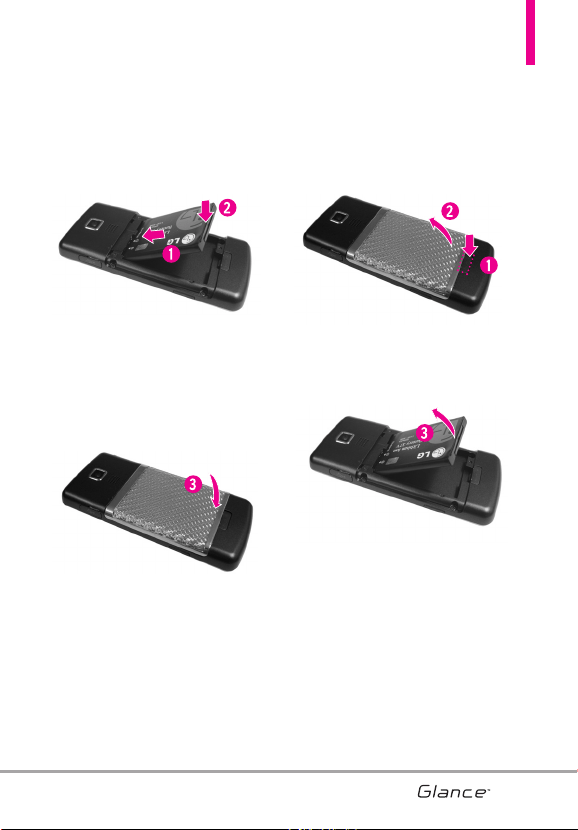
Installing the Battery
1. Insert the bottom of the battery into the
opening on the back of the phone.
2. Push the battery down until it clicks
into place.
3. Align the the top of the battery
cover with the two slots on the
phone, then press down on the
bottom part of the battery until it
clicks.
Removing the Battery
1. Turn the phone off. While pressing
down on the button below the
battery cover, lift the battery cover
from the bottom.
2. Remove the battery from the battery
compartment by lifting the top of the
battery.
VX7100_Eng_0410.qxd 3/4/10 3:20 PM Page 15
16
Menus Overview
Contacts
Contacts
1. New Contact
2. Contact List
3. Backup Assistant
4. Favorites
5. Groups
6. Speed Dials
7. In Case of Emergency
8. My Name Card
Messaging
Messaging
1. New Message
1. TXT Message
2. Picture Message
3. Voice Message
2. Inbox
3. Sent
4. Drafts
5. Voicemail
6. Mobile IM
7. Email
8. Chat
Recent Calls
Recent Calls
1. Missed
2. Received
3. Dialed
4. All
5. View Timers
My Ringtones
My Ringtones
Media Center
Media Center
1. Tunes & Tones
1. Get New Ringtones
2. My Ringtones
3. My Sounds
2. Pictures
1. Get New Pictures
2. My Pictures
3. Take Picture
4. Online Album
3. Games
4. Mobile Web
5. Browse & Download
6. Extras
My Pictur
My Pictur
es
es
VZ Navigator
VZ Navigator
Bluetooth
Bluetooth
16
VX7100_Eng_0410.qxd 3/4/10 3:20 PM Page 16
17
Settings & T
Settings & T
ools
ools
1. My Verizon
2. Tools
1. Voice Commands
2. Calculator
3. Ez Tip Calculator
4. Calendar
5. To Do List
6. Alarm Clock
7. Info Search
8. Stopwatch
9. World Clock
0. Notepad
3. Bluetooth Menu
1. Add New Device
2. Ez Use Handsfree
4. Keyguard Settings
1. Auto Lock
2. Unlock Options
5. Sounds Settings
1. Easy Set-up
2. Master Volume
3. Call Sounds
1. Call Ringtone
2. Call Vibrate
3. Caller ID
Announcement
4. Alert Sounds
1. TXT Message
2. Multimedia Message
3. Voicemail
4. Emergency Tone
5. Missed Call
5. Keypad Volume
6. Digit Dial Readout
7. Service Alerts
1. ERI
2. Minute Beep
3. Call Connect
4. Charge Complete
8. Power On/Off
1. Power On
2. Power Off
9. Voice Clarity
6. Display Settings
1. Easy Set-up
2. Banner
1. Personal Banner
2. ERI Banner
3. Backlight
1. Display
2. Keypad
4. Brightness
5. Wallpaper
1. My Pictures
2. Fun Animations
6. Display Themes
7. Main Menu Settings
8. Menu Font Type
9. Font Size
0. Clock Format
7. Phone Settings
1. Airplane Mode
2. Set Shortcuts
3. Voice Commands
4. Language
5. Location
6. Current Country
7. Security
1. Edit Codes
2. Restrictions
3. Phone Lock
VX7100_Eng_0410.qxd 3/4/10 3:20 PM Page 17

4. Lock Phone Now
5. Reset Default
6. Restore Phone
8. System Select
9. NAM Select
8. Call Settings
1. Answer Options
2. Auto Retry
3. TTY Mode
4. One Touch Dial
5. Voice Privacy
6. DTMF Tones
7. Assisted Dialing
8. Dial Search
9. Joystick Settings
0. Memory
*. Phone Info
1. My Number
2. SW/HW Version
3. Icon Glossary
4. Software Update
#. Set-up Wizard
Menus Overview
18
Some content in this user guide
may differ from your phone
depending on the phone
software. Features and
specifications are subject to
change without prior notice.
VX7100_Eng_0410.qxd 3/4/10 3:20 PM Page 18
19
Getting Started with Your Phone
19
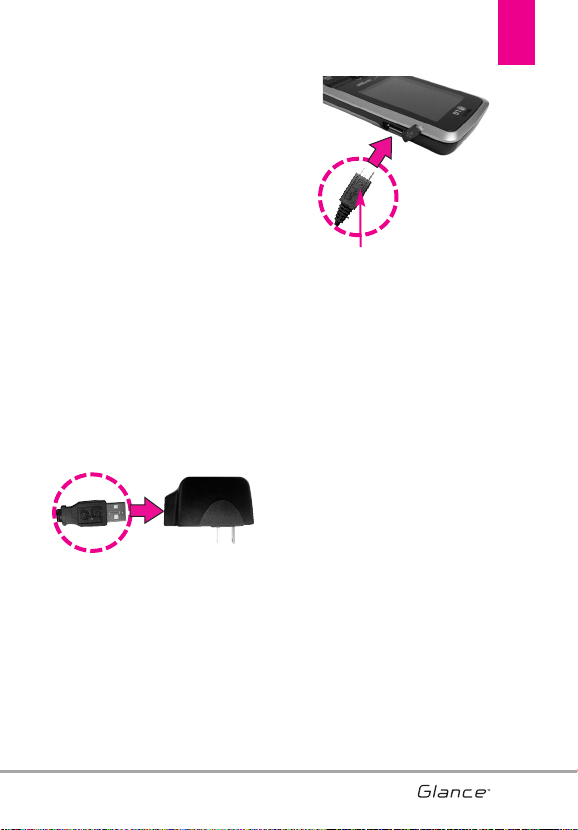
Charging the Battery
Your
Glance
TM
device comes with a
cableless travel adapter and a USB
data cable which are connected
together to charge your phone. To
charge your phone:
NOTICE
Please use only an approved
charging accessory to charge
your LG phone. Improper
handling of the charging port,
as well as the use of an
incompatible charger, may
cause damage to your phone
and void the warranty.
1. Connect the cableless wall
adapter and USB data cable.
When connecting as shown
below, the LG logo on the USB
cable should face toward you.
2. Gently uncover the accessory
charging port, then plug the end of
the AC adapter into the phone’s
charger port and the other end
into an electrical outlet.
3. The charge time varies depending
upon the battery level.
NOTICE
Please make sure that the LG logo
faces down before inserting a
charger or data cable into the
charger port of your phone.
VX7100_Eng_0410.qxd 3/4/10 3:20 PM Page 19

Charging with USB
You can use your computer to
charge your phone. Connect one
end of the USB cable to the
charging accessory port on your
phone and the other end to a high-
power USB port on your PC.
NOTE
Low power USB port is not
supported, such as the USB port
on your keyboard or bus-powered
USB hub. USB driver should be
installed before charging with
USB.
Battery Temperature Protection
Though extremely rare, should the
battery ever become overheated,
the phone will automatically turn
off. When you turn the phone back
on, a message pops up alerting you
that the phone was powered off for
your safety.
Battery Charge Level
You can find the battery charge
level at the top right of the
LCD screen. When the charge level
becomes low, the battery sensor
sounds a warning tone, blinks the
battery icon, and displays a
warning message. As the charge
level approaches empty, the phone
automatically switches off without
saving.
Signal Strength
Call quality depends on the signal
strength in your area. You can tell
how much signal strength you have
by the number of bars next to the
signal strength icon: the
more bars, the stronger the signal.
If you’re having problems with
signal quality, move to an open area
or, when inside a building, try
moving near a window.
Turning the Phone On and Off
Turning the Phone On
1. Install a charged battery or
connect the phone to an external
power source.
2. Press (located above the
key on the keypad) until
the LCD screen lights up.
Getting Started with Your Phone
20
VX7100_Eng_0410.qxd 3/4/10 3:20 PM Page 20
21
Turning the Phone Off
Unlock the screen, then press and
hold until the display turns off.
Making Calls
1. Make sure the phone is turned
on.
If not, press for about three
seconds.
If necessary, enter the lock code.
2. Enter the phone number.
3. Press .
4. Press to end the call.
NOTE
Your phone has a Voice
Commands feature that also lets
you make calls by saying a
phone number, name, or
location.
Correcting Dialing Mistakes
Press once to erase the last
digit entered, or hold it down for at
least two seconds to delete all the
digits.
Redialing Calls
Press twice to redial the last
number dialed.
Receiving Calls
1. When the phone rings or
vibrates, you can answer the call
by pressing .
NOTE
If the Answer Options setting is
set to Any Key, you can:
●
Press the Left Soft Key
[Quiet] to mute the ringing or
vibration for that call. I Press
the Center Select Key [TXT]
to end the call or send quick
text.
●
Press the Center Select Key
to end the call or send
quick text message.
●
Press the Right Soft Key
[Ignore] to end the call or
send it directly to Voicemail.
2. Press to end the call.
Screen Icons
When the phone is on, the top line
of the LCD screen displays phone
status icons.
To see the icon glossary, go to
MENU -> Settings & Tools ->
Phone Info -> Icon Glossary on
your phone.
VX7100_Eng_0410.qxd 3/4/10 3:20 PM Page 21
22
Vibrate Mode
Sets the phone to vibrate instead of
ring ( is displayed). To set
Vibrate Mode, Press and hold
. To return to Normal Mode,
press and hold .
Sounds Off
Quickly deactivate your phone's
sounds when you're in a place
where phone sounds would be
disruptive.
From standby mode Press and hold
the down side volume key for 3
seconds. To return to normal
sounds mode, press and hold the
up side volume key.
Mute Function
The Mute Function prevents the
transmission of your voice to the
caller. To quickly activate Mute
while in a call, press the Left Soft
Key [Mute], then to unmute
press the Left Soft Key
[Unmute].
Volume Quick Adjustment
Quickly adjust ringer and earpiece
volumes by pressing the up side
volume key on the left side of the
phone to increase and down side
volume key to decrease volume.
NOTE
The earpiece volume can only
be adjusted during a call and
keypad volume can only be
adjusted through the Sounds
Settings menu.
Call Waiting
During a call, one beep indicates
another incoming call.
Press to answer it and put
the first call on hold. Press
again to return to the first call.
Caller ID
Caller ID displays the number
and/or name and/or picture if
applicable of the person calling
when your phone rings.
Voice Commands
Voice Commands allow you to do
things by verbal command (e.g.,
make calls, check Voicemail, etc.).
Press the Voice Commands Key
(on the middle of the phone)
and follow the prompts.
NOTE
Voice Commands can also be
started with the designated key
on your Bluetooth
®
device.
Please check the manual of the
Bluetooth
®
device for further
instructions.
Quick Access to Convenient Features
22
VX7100_Eng_0410.qxd 3/4/10 3:20 PM Page 22

23
Entering and Editing Information
23
Text Input
The following key functions are
available to help with text entry:
Left Soft Key: Press to
change text input mode.
Shift: Press to change
capitalization (initial cap,
caps lock, lowercase).
Next: Press to change to
other matching words in
the database when in T9
mode. Also changes to
other punctuation
characters when inserting
punctuation.
Space: Press to complete a
word and insert a space.
Clear: Press to delete a
single space or character.
Hold to delete words.
Punctuation: Press to
insert punctuation.
Text Input Modes
In a text field, press the Left Soft
Key to display text input
modes.
T9 Word/ Abc/ ABC/ 123/ Symbols
VX7100_Eng_0410.qxd 3/4/10 3:20 PM Page 23
24
Storing Basics
1. With the Keyguard unlocked,
enter a number (max. 48 digits),
then press the Left Soft Key
[Save].
2. Use the Directional Key to
highlight Add New Contact/
Update Existing, then press .
3. Use the Directional Key to
highlight Mobile 1/ Home/ Work/
Mobile 2/ Fax, then press .
4. Enter a name (max. 32
characters), then press .
5. Press to exit, to call, or
the Right Soft Key [Options].
Customizing Individual
Entries
1. With the Keyguard unlocked,
press the Right Soft Key
[Contacts], then use the
Directional Key to highlight
an entry.
2. Press the Left Soft Key [Edit].
3. Use the Directional Key to
highlight the information to
customize.
4. Change the entry as you want,
then press to save your
changes.
Speed Dial
Allows you to set up your Speed
Dials.
1. With the Keyguard unlocked,
press the Center Select Key
[Menu].
2. Press Contacts.
3. Press Speed Dials.
4. Select the Speed Dial you wish to
set and press the Center Select
Key SET.
5. Use the Directional Key to
select a contact and press .
6. Confirm your selection.
Contacts in Your Phone’s Memory
24
VX7100_Eng_0410.qxd 3/4/10 3:20 PM Page 24
25
Storing a Number with
Pauses
Pauses allow you to enter
additional series of numbers to
access automated systems such as
Voicemail or credit billing numbers.
Pause types are: Wait (W) The
phone pauses dialing and resumes
dialing the next numbers when you
press the Left Soft Key
[Release]. 2-Sec Pause (P) The
phone pauses for two seconds
before sending the next numbers.
1. With the Keyguard unlocked,
enter the number, then press the
Right Soft Key [Options].
2. Use the Directional Key to
highlight Add 2-Sec Pause or
Add Wait then press .
3. Enter additional number(s) (e.g., pin
number, credit card number, etc.).
4. Press the Left Soft Key
[Save].
5. Choose Add New
Contact/Update Existing.
6. Choose Mobile
1/Home/Work/Mobile 2/Fax.
7. Continue entering information for
the Contact entry as necessary
and press to save.
Adding Another Phone
Number
From standby mode
1. With the Keyguard unlocked,
enter a phone number, then
press the Left Soft Key
[Save].
2. Use the Directional Key to
highlight Update Existing, then
press .
3. Use the Directional Key to
highlight an existing entry, then
press .
4. Use the Directional Key to
highlight Mobile 1/ Home/ Work/
Mobile 2/ Fax, then press to
save.
From the Contact List Screen
1. With the Keyguard unlocked,
press the Right Soft Key
[Contacts].
2. Use the Directional Key to
highlight an entry, then press the
Left Soft Key [Edit].
3. Use the Directional Key to
highlight the phone number field
to add, then enter the number
and press to save.
VX7100_Eng_0410.qxd 3/4/10 3:20 PM Page 25
Changing Saved Information
To edit any information you stored,
access the Edit Contacts screen:
1. With the Keyguard unlocked,
press the Right Soft Key
[Contacts].
2. Use the Directional Key to
highlight a Contact entry, then
press the Left Soft Key [Edit].
3. Use the Directional Key to
highlight the field you want to
change.
4. Enter the changes, then press
to save.
Adding a Pause to a Contact Entry
1. With the Keyguard unlocked,
press the Right Soft Key
[Contacts].
2. Use the Directional Key to
highlight a Contact entry, then
press the Left Soft Key [Edit].
3. Use the Directional Key to
highlight the number, then press
the Right Soft Key [Options].
4. Press Add 2-Sec Pause
or Add Wait
5. Enter additional number(s), then
press .
Changing the Default
Number
The Default Number is the first
phone number you entered when
you first created a the Contact.
However, any number can be saved
as the Default Number.
1. With the Keyguard unlocked,
press the Right Soft Key
[Contacts].
2. Use the Directional Key to
highlight an entry.
3.
Press the Left Soft Key [Edit].
4. Use the Directional Key to
highlight a phone number, then
press the Right Soft Key
[Options].
5. Use the Directional Key to
highlight Set As Default, then
press .
6. Press Yes to set the new
number as the default.
7. Press again to save.
Contacts in Your Phone’s Memory
26
VX7100_Eng_0410.qxd 3/4/10 3:20 PM Page 26
27
Deleting
Deleting a Contact Entry
1. With the Keyguard unlocked,
press the Right Soft Key
[Contacts].
2. Use the Directional Key to
highlight an entry.
3. Press the Right Soft Key
[Options].
4. Press Erase. You will be
able to mark additional entries to
delete, then press the Left Soft
Key [Done].
5. Press Yes to confirm.
Deleting a Speed Dial
1. With the Keyguard unlocked,
press the Right Soft Key
[Contacts].
2. Use the Directional Key to
highlight a Contact entry to edit
and press [VIEW].
3. Select the phone number with
the Speed Dial, then press
[EDIT].
4. Press the Right Soft Key
[Options].
5. Press Remove Speed
Dial.
6. Press Yes to confirm.
7. Press again to save.
Speed Dialing
Allows you to make phone calls
quickly and easily to numbers
stored in Contacts.
NOTE
Speed Dial 1 is for Voicemail.
Speed Dial 411 is for Directory
Assistance.
Single Digit Speed Dials
Press and hold the Speed Dial digit.
Your phone recalls the phone
number from your Contacts,
displays it, and dials it for you.
Multiple Digit Speed Dials
To dial Speed Dials with multiple
digits, press the first digit(s) as
necessary, then press and hold the
last digit. For example, to Speed
Dial 25, press , then press
and hold
.
NOTE
You can also enter the Speed
Dial digit(s), then press .
VX7100_Eng_0410.qxd 3/4/10 3:20 PM Page 27

Speed Dials 95, 96, 97, 98, and 99
Speed Dials 95, 96, 97, 98, and 99
are preset to access certain phone
account information: 95 (#Warranty
Center), 96(#Data), 97 (#BAL), 98
(#MIN), and 99 (#PMT). Unlike
Speed Dial 1, these can be changed
if you want.
NOTE Set
or
Remove
is not available for
Speed Dial 411.
Contacts in Your Phone’s Memory
28
VX7100_Eng_0410.qxd 3/4/10 3:20 PM Page 28
29
CONTACTS
CCOONNTTAACCTTSS
The Contacts Menu allows you to
store names, phone numbers and
other information in your phone’s
memory.
SHORTCUT
While in Standby mode,
pressing the Right Soft Key
is a shortcut to the
CONTACT LIST
1. New Contact
Allows you to add a new number to
your Contact List.
NOTE
Using this submenu, the number
is saved as a new Contact, not
into an existing Contact.
1. With the Keyguard unlocked,
press [MENU].
2. Press Contacts.
3. Press New Contact.
4. Enter the name and press the
Directional Key downward.
5. Use the Directional Key to
highlight the different fields.
6. Enter the information then press
to save.
NOTE
For more detailed information,
see page 23.
2. Contact List
Allows you to view your Contact
List.
1. With the Keyguard unlocked,
press [MENU].
2. Press Contacts.
3. Press Contact List.
4. Use the Directional Key to
highlight a contact, then:
●
Press the Right Soft Key
[Options] to select one of the
following:
New Contact/Erase/ New TXT
Message/ New Picture
Message/ New Voice
Message/ Set As ICE Contact/
Call/ Erase All/ Set As
Favorite/ Send Name Card
●
Press the Left Soft Key
[Edit] to edit.
●
Press to view the entry
details.
TIP
Use the Go To field, for quick
access to an entry without
scrolling, by entering text with
the keypad. For example, to go
to "Vet", enter the letter V
.
VX7100_Eng_0410.qxd 3/4/10 3:21 PM Page 29
3030
CONTACTS
3. Backup Assistant
Backup Assistant safeguards your
mobile phone's address book and
automatically saves a copy of the
names, phone numbers, and email
addresses stored in your phone.
You can also view, print, add,
delete, and edit your contacts
online.
If you lose, damage, or upgrade
your phone, Backup Assistant will
restore your contact list to a new or
replacement phone.
Additional fees may apply. See
brochure for details.
NOTE
To use the Backup Assistant
service, you are required to
activate the service from your
phone.
1. With the Keyguard released by
pressing the Left Soft Key ,
then press [MENU].
2. Press Contacts.
3. Press Backup Assistant.
4. Favorites
You can add up to 10 contacts as
Favorites to easily make calls and
send messages.
1. With the Keyguard unlocked,
press [MENU].
2. Press Contacts.
3. Press Favorites.
4. Press [ADD], then again to
mark a Contact entry to add.
5.Press the Left Soft Key Done.
Once you have added Contacts to
the Favorites list - the following
options will become available in
the Favorites menu:
Left Soft Key : Call
Center Select Key : MSG
Right Soft Key : Options
View/ Add/ Remove/ Send Name
Card/ Move Position/ Set As ICE
Contact/ Remove All
5. Groups
Allows you to view your grouped
Contacts, add a new group, change
the name of a group, delete a
group, or send a message to
everyone in the selected group.
1. With the Keyguard unlocked,
press [MENU].
2. Press Contacts.
3. Press Groups.
VX7100_Eng_0410.qxd 3/4/10 3:21 PM Page 30
3131
• View a Group
Use the Directional Key to
highlight a group, then press .
• Add a New Group
Press the Left Soft Key [New]
to add a new group to the list.
• View the Options Available for a
Group
Press the Right Soft Key
[Options] to select one of the
following:
New TXT Message/ New
Picture Message/ New Voice
Message/ Rename/ Erase Group/
Edit/ Send Name Card
6. Speed Dials
Allows you to view your list of
Speed Dials or designate Speed
Dials for numbers entered in your
Contacts.
1. With the Keyguard unlocked,
press [MENU].
2. Press Contacts.
3. Press Speed Dials.
4. Use the Directional Key , or
enter the Speed Dial digit, to
highlight the Speed Dial position,
then press [SET].
5. Use the Directional Key to
highlight the Contact then press
. (For Contacts with multiple
numbers, highlight the number
for the Speed Dial, then press
.)
6. Press Yes to confirm.
7. In Case of Emergency
(ICE)
This menu allows you to store
names, phone numbers and other
information, which may be very
helpful in case of emergency. It also
allows you to add, read, edit, or
erase Personal Info (in the form of
Notes) which may also be useful in
cases of emergencies.
Adding an ICE Contact
1. With the Keyguard unlocked,
press [MENU].
2. Press Contacts.
3. Press In Case of
Emergency.
4. Use the Directional Key to
highlight Contact 1, 2, or 3, then
press [ADD].
5. Press to add Contact
from your Contact List.
VX7100_Eng_0410.qxd 3/4/10 3:21 PM Page 31
CONTACTS
32
Highlight the Contact, then press
.
OR
Press to add Contact
from Favorites.
Highlight the Contact, then press
.
Press to enter information
not stored in your Contact List.
NOTE
The generic Contact label
changes to the specified name.
Entering Your ICE Personal Info
1. With the Keyguard unlocked,
press [MENU].
2. Press Contacts.
3. Press In Case of
Emergency.
4. Use the Directional Key to
highlight Personal Info, then
press .
5. Use the Directional Key to
highlight one of the Note entries,
then press .
6. Enter information that would be
helpful in an emergency (e.g.,
your medical record number),
then press .
TIP
When you've assigned ICE
Contacts and your phone is
locked, the Left Soft Key
appears as [ICE] allowing the
emergency information to be
viewed without unlocking the
phone.
8. My Name Card
Allows you to have all of your
personal Contact information
including name, phone numbers,
and email address in one entry.
1. With the Keyguard unlocked,
press [MENU].
2. Press Contacts.
3. Press My Name Card.
4. Press [EDIT] to enter your
personal Contact information.
5. Use the Directional Key to
scroll to the fields you wish to
edit.
6. Enter your information as
necessary, then press .
NOTE
Press the Right Soft Key
[Send]
to send your name card.
VX7100_Eng_0410.qxd 3/4/10 3:21 PM Page 32
33
MMEESSSSAAGGIINNGG
SHORTCUT
When in Standby mode, pressing the Left
Soft Key is a shortcut to
MESSAGING.
Text messages, Picture messages,
and Voicemails are available in this
menu.
Depending on the type, content
and size of your messages, the
phone can store up to 540
messages. The information stored
in the message is determined by
phone model and service capability.
Other limits may exist, please check
with your service provider for
system features and capabilities.
New Message Alert
Your phone will alert you when you
have new messages.
1. The phone displays a message
on the screen.
2. The message icon ( ) is
displayed on the display screen.
In the case of a high priority
message, the icon ( ) will be
displayed.
1. New Message
Allows you to send messages (Text,
Picture, and Voice).
Depending on the type you select to
create, you can attach files to your
messages including pictures,
sounds, and name cards.
MESSAGING
33
VX7100_Eng_0410.qxd 3/4/10 3:21 PM Page 33
MESSAGING
1.1 TXT Message
The Basics of Sending a Text
Message
1. With the Keyguard unlocked,
press the Left Soft Key
[Message].
2. Press New Message.
3. Press TXT Message.
4. Enter the phone number of the
recipient or the email address for
an email message. You can enter
up to 10 addresses for a single
message.
5. Press the Directional Key
downward.
6. Type your message in the text
field.
7. Press [SEND].
Customizing the Message Using
Options
●
Editing the To: field
1. With the To field highlighted,
press the Right Soft Key
[Add].
2. Select an option for this field:
From Contacts/ From Recent
Calls/ Favorites/ Groups/ To
Contacts
●
Editing Text
1. With the Text field highlighted,
press the Right Soft Key
[Options].
2. Select the option(s) to customize.
Insert Quick Text Allows you to
add Quick Text.
Save As Draft Saves the
message into the Drafts folder.
Add Allows you to add Graphic,
Animation, Sound, Signature,
Name Card, or Contact Number/
Email.
Copy Text Allows you to copy
text.
Paste Allows you to paste the
text you last copied into a text
field.
34
VX7100_Eng_0410.qxd 3/4/10 3:21 PM Page 34
Format Text Allows you to
change the look of the text.
Alignment/ Font Size/ Font Style/
Text Color/ Background
Priority Level Set the priority
level for the message.
High/ Normal
Callback # Inserts a pre-
programmed callback number
with your message.
On/ Off/ Edit
Save Quick Text Allows you to
save the entered text as a Quick
Text.
Cancel Message Cancels
message editing and goes to the
previous menu.
3. Complete and then send the
message.
Using Contacts to Send a Message
You can designate an entry saved
in your Contacts as the address
instead of manually entering the
destination.
1. With the Keyguard unlocked,
press the Left Soft Key
[Message].
2. Press New Message.
3. Press TXT Message.
4. Press the Right Soft Key
[Add].
5. Use the Directional Key to
highlight From Contacts and
press .
6. Use the Directional Key to
highlight the Contact entry
containing the destination and
press to mark the contact.
7. Press the Left Soft Key
[Done].
NOTE
The Address feature allows
multi-sending of up to 10 total
addresses.
8. Complete the message as
necessary and send.
35
VX7100_Eng_0410.qxd 3/4/10 3:21 PM Page 35
MESSAGING
1.2 Picture Message
The Basics of Sending a Picture
Message
1. With the Keyguard unlocked,
press the Left Soft Key
[Message].
2. Press New Message.
3. Press Picture Message.
4. Enter the cellular phone number
or email address of the recipient.
5. Press the Directional Key
downward to edit the other
fields.
6. Type your message in the text
field.
7. Use the Directional Key to
highlight Picture and press the
Left Soft Key [My Pics]. Use
the Directional Key to
select the image you want to
send, then press .
8. Use the Directional Key to
highlight Sound, then press the
Left Soft Key [Sounds]. Use
the Directional Key to
highlight the audio file you want
to send then press .
9. Use the Directional Key to
highlight Name Card, then press
the Left Soft Key
[Contacts]. Use the Directional
Key to choose My Name
Card/ From Contacts.
10. Use the Directional Key to
highlight Subject and enter the
subject.
11. Press [SEND].
●
Editing the To: field
1. With the To field highlighted,
press the Right Soft Key
[Add].
2. Select the option(s) to customize
and edit the text.
From Contacts/ From Recent
Calls/ Favorites/ Groups/ To
Online Album/ To Contacts
●
Editing Text
1. With the Text field highlighted,
press the Right Soft Key
[Options].
2. Select the option(s) to customize
and edit the text.
Preview Displays the Picture
message as it would be seen by
the recipient.
36
VX7100_Eng_0410.qxd 3/4/10 3:21 PM Page 36
Save As Draft Saves the
message into the Drafts folder.
Insert Quick Text Allows you to
add Quick Text.
Copy Text Allows you to copy
the input text.
Paste Allows you to paste the
text you last copied into a text
field.
Add Slide Insert multiple
pictures into a picture message.
Add Signature Allows you to
add Signature.
Priority Level Set the priority
level for the message.
High/ Normal
Cancel Message Cancels
message editing and goes to
Messaging menu.
●
Editing Picture
1. With the Picture field highlighted,
press the Right Soft Key
[Options].
2. Select the option(s) to customize.
Preview/ Save As Draft/ Add
Slide/ Priority Level/ Remove
Picture/ Cancel Message
●
Editing Sound
1. With the Sound field highlighted,
press the Right Soft Key
[Options].
2. Select the option(s) to customize.
Preview/ Save As Draft/ Add
Slide/ Priority Level/ Remove
Sound/ Cancel Message
●
Editing Name Card
1. With the Name Card field
highlighted, press the Right Soft
Key [Options].
2. Select the option(s) to customize.
Preview/ Save As Draft/ Add
Slide/ Priority Level/ Remove
Name Card/ Cancel Message
●
Editing a Subject
1. With the Subject field
highlighted, press the Right Soft
Key [Options].
2. Select the option(s) to customize.
Preview/ Save As Draft/ Insert
Quick Text/ Add Slide/ Add
Signature/ Priority Level/ Cancel
Message
37
VX7100_Eng_0410.qxd 3/4/10 3:21 PM Page 37
MESSAGING
1.3 Voice Message
The Basics of Sending a Voice
Message
1. With the Keyguard unlocked,
press the Left Soft Key
[Message].
2. Press New Message.
3. Press Voice Message.
4. Press to start recording.
5. Record your voice message.
6. Press to end recording.
7. Enter the cellular phone number
or email address of the recipient.
8. Press the Directional Key
downward to edit the other
fields.
9. Edit your message.
10. Press [SEND].
A confirmation message will
display as your message is
transmitted.
2. Inbox
The phone alerts you in 3 ways
when you receive a new message:
●
By displaying a notification
message on the screen.
●
By sounding a sound or
vibration, if set.
●
By displaying .
Viewing Your Inbox
1. With the Keyguard unlocked,
press the Left Soft Key
[Message].
2. Press Inbox.
3. Options from here with a
message highlighted:
●
Press [OPEN] to view the
message.
●
Press the Left Soft Key
[Erase] to erase the
highlighted message.
●
Press the Right Soft Key
[Options] to access the
options.
38
VX7100_Eng_0410.qxd 3/4/10 3:21 PM Page 38
Reply Replies to the origination
address of the received message.
Reply With Copy Replies to the
origination address with a copy of
the original message attached.
Forward Forwards a received
message to other destination
address(es).
Add To Contacts Stores the
callback number, email address,
and numbers from the address of
the received message into your
Contacts.
Extract Addresses Allows you to
extract addresses.
Sort By Sender/Time Allows you
to sort messages alphabetically
by sender's name or by time
received.
Messages View Allow you to
change view By Time/By Contact
Manage Inbox Allows you to
manage (lock or erase) message
list.
Message Info Allows you to
check the received message
information.
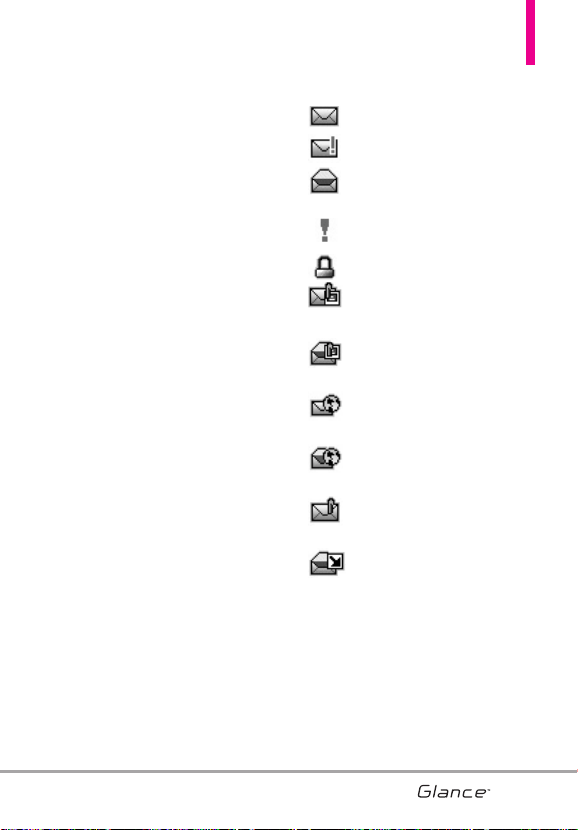
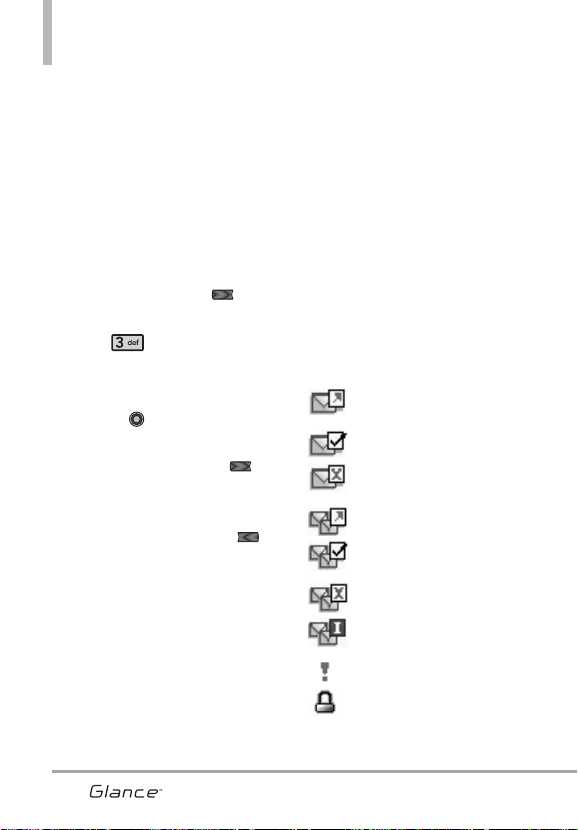
Message Icon Reference
New Message
Urgent Message
Opened/ Read TXT
Messages
Priority High
Locked
New/ Unread Multimedia
Message
Open/ Read Multimedia
Message
New/Unread Browser
Messages
Opened/Read Browser
Messages
New/Unread Notification
Messages
Open/Read Notification
Messages
* Multimedia Message indicates Picture/
Voice Message.
39
VX7100_Eng_0410.qxd 3/4/10 3:21 PM Page 39
MESSAGING
3. Sent
Depending on the content and size
of your messages, you can save up
to 100 (50 SMS and 50 MMS) Sent
messages. This menu lists your
Sent messages. Use it to verify
whether the transmission was
successful or not and view
message contents.
1. With the Keyguard unlocked,
press the Left Soft Key
[Message].
2. Press Sent.
3. Options from here with a
message highlighted:
●
Press [OPEN] to view the
message.
●
Press the Left Soft Key
[Erase] to erase highlighted
message.
●
Press the Right Soft Key
[Options].
Forward Forwards a sent
message to other destination
address(es).
Send/Resend
Allows you to
retransmit the selected message.
Add To Contacts Stores the
callback number, email address,
and numbers from the address of
the message into your Contacts.
Sort By Recipient/Time Allows
you to sort alphabetically by
recipient's name or by time sent.
Messages View Allow you to
change view By Time/By Contact
Manage Sent Allows you to
manage (erase or lock) message
list.
Message Info Allows you to
check the sent message
information.
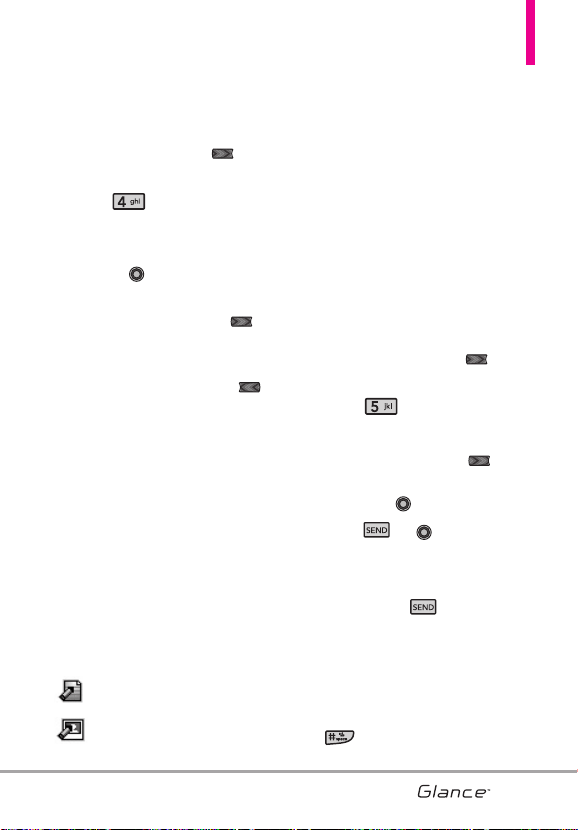
Message Icon Reference
Text/Picture/Voice
Messages sent
Message delivered
Text/Picture/Voice
Messages failed
Multiple Messages sent
Multiple Messages
delivered
Multiple Messages failed
Multiple Messages
incomplete
Priority High
Locked
40
VX7100_Eng_0410.qxd 3/4/10 3:21 PM Page 40
4. Drafts
Displays draft messages.
1. With the Keyguard unlocked,
press the Left Soft Key
[Message].
2. Press Drafts.
3. Options from here with a
message highlighted:
●
Press [EDIT] to continue
editing the message.
●
Press the Left Soft Key
[Erase] to delete the selected
Draft.
●
Press the Right Soft Key
[Options] to see additional
options available:
Send Sends the selected message.
Add To Contacts Stores the
callback number, email address,
and numbers from the address
included in the message into
your Contacts.
Manage Drafts Allows you to
manage (erase or lock)
messages.
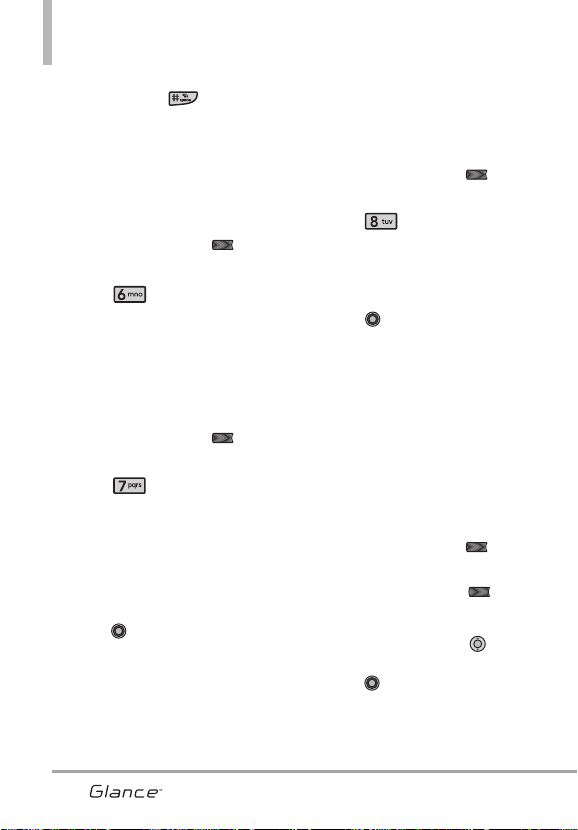
Message Icon Reference
Draft TXT
Draft Multimedia Message
5. Voicemail
Allows you to view the number of
new voice messages recorded in the
Voicemail box. From this menu you
can also call your Voicemail box to
retrieve messages. Please note that
once you exceed the storage limit, old
messages are overwritten. When you
receive a new voice message, your
phone will alert you.
Checking Your Voicemail Box
1. With the Keyguard unlocked,
press the Left Soft Key
[Message].
2. Press Voicemail.
3. Options from here :
●
Press the Left Soft Key
[Clear] to delete information, and
then press [Yes].
●
Press or [CALL] to
listen to the message(s).
OR
1. Dial *86 (VM) from your
phone or dial your wireless
phone number from any touch-
tone phone.
2. When the recorded
announcement begins, press
to interrupt (if applicable).
41
VX7100_Eng_0410.qxd 3/4/10 3:21 PM Page 41
MESSAGING
3. When prompted, enter your
password, then .
6. Mobile IM
Allows you to send and receive
Instant Messages at any time.
1. With the Keyguard unlocked,
press the Left Soft Key
[Message].
2. Press Mobile IM.
7. Email
Allows you to send an email via
Mobile Web.
1. With the Keyguard unlocked,
press the Left Soft Key
[Message].
2. Press Email.
3 Select
Mobile Email or Mobile
Web Email
.
4. A Mobile Web Browser session
starts.
5. Highlight an email provider and
press .
6. Login or enter your email
address and password.
8. Chat
Allows you to chat with Internet
Messenger users.
1. With the Keyguard unlocked,
press the Left Soft Key
[Message].
2. Press Chat.
3. A Mobile Web Browser session
starts.
4. Highlight a Chat provider and
press .
NOTE
This feature may require a
subscription to a Chat service
provider.
Messaging Settings
Allows you to configure settings for
your messages.
1. With the Keyguard unlocked,
press the Left Soft Key
[Message].
2. Press the Left Soft Key
[Settings].
3.
Use the Directional Key to
highlight one of the settings and
press to select it.
42
VX7100_Eng_0410.qxd 3/4/10 3:21 PM Page 42

Message Settings Sub-Menu
Descriptions
1. Messages View (By Time/ By
Contact)
Allows you to sort inbox and outbox
data alphabetically or by time sent.
2. Entry Mode (T9 Word/ Abc/ ABC/
123)
Allows you to select the default
input mode between T9 Word, Abc,
ABC, or 123.
3. Auto Save Sent (On/ Off/ Prompt)
With this feature on, messages are
automatically saved in the Sent
folder when transmitted.
4. Auto Erase Inbox (On/ Off)
With this feature on, read
messages are automatically
deleted when you exceed the
storage limit.
5. Messaging Font Size
Allows you to set the message font
size. Choose Normal or Large.
6. TXT Auto View (On/Off)
Allows the phone to automatically
display the content when receiving
a message.
7. TXT Auto Scroll (On/Off)
Allows the display to automatically
scroll while viewing messages.
8. Multimedia Auto Receive(On/Off)
Allows you to automatically download
the content when receiving a
Multimedia message.
9. Quick Text
Allows you to view edit, and add
text phrases. These text strings
allow you to more quickly enter text
into messages.
0. Voicemail #
Allows you to manually enter the
access number for Voicemail
Service. This feature should be only
used when a VMS (Voicemail
Service) access number is not
provided from the network.
*. Callback #
Allows you to automatically send a
designated callback number when
you send a message.
43
VX7100_Eng_0410.qxd 3/4/10 3:21 PM Page 43

MESSAGING
#. Signature (None/ Custom)
Allows you create/edit a signature
to automatically send with your
messages.
Erasing Messages
You are able to erase messages
stored in your Inbox, Sent, or Drafts
folders. You can also erase all
messages at the same time.
1. With the Keyguard unlocked,
press the Left Soft Key
[Message].
2. Press the Right Soft Key
[Options] then select one of the
following:
Erase Inbox/ Erase Sent/ Erase
Drafts/ Erase All
3. Press to erase the
messages selected.
4. Press to confirm the
deletion.
A confirmation message will
display.
44
VX7100_Eng_0410.qxd 3/4/10 3:21 PM Page 44
45
RECENT CALLS
RREECCEENNTT CCAALLLLSS
The Recent Calls Menu is a list of
the last phone numbers or Contact
entries for calls you placed,
accepted, or missed. It's continually
updated as new numbers are
added to the beginning of the list
and the oldest entries are removed
from the bottom of the list.
1. Missed
Allows you to view the list of
missed calls; up to 90 entries.
1. With the Keyguard unlocked,
press [MENU].
2. Press Recent Calls.
3. Press Missed.
4. Use the Directional Key to
highlight an entry, then
●
Press to open the entry.
●
Press to place a call to
the number.
●
Press the Right Soft Key
[Options] to select:
Save To Contacts (Details)/
Erase/ Lock(Unlock)/ Erase
All/ View Timers
●
Press the Left Soft Key
[Message] to select:
TXT Message/ Picture
Message/ Voice Message
2. Received
Allows you to view the list of
incoming calls; up to 90 entries.
1. With the Keyguard unlocked,
press [MENU].
2. Press Recent Calls.
3. Press Received.
4. Use the Directional Key to
highlight an entry, then
●
Press to open the entry.
●
Press to place a call to
the number.
●
Press the Right Soft Key
[Options] to select:
Save To Contacts (Details)/
Erase/ Lock(Unlock)/ Erase
All/ View Timers
●
Press the Left Soft Key
[Message] to select:
TXT Message/ Picture
Message/ Voice Message
VX7100_Eng_0410.qxd 3/4/10 3:21 PM Page 45
46
RECENT CALLS
4646
3. Dialed
Allows you to view the list of
outgoing calls; up to 90 entries.
1. With the Keyguard unlocked,
press [MENU].
2. Press Recent Calls.
3. Press Dialed.
4. Use the Directional Key to
highlight an entry, then
●
Press to open the entry.
●
Press to place a call to
the number.
●
Press the Right Soft Key
[Options] to select:
Save to Contacts(Details)/
Erase/ Lock(Unlock)/ Erase
All/ View Timers
●
Press the Left Soft Key
[Message] to select:
TXT Message/ Picture
Message/ Voice Message
4. All
Allows you to view the list of all
calls; up to 270 entries.
1. With the Keyguard unlocked,
press [MENU].
2. Press Recent Calls.
3. Press All.
4. Use the Directional Key to
highlight an entry, then
●
Press to open the entry.
●
Press to place a call to
the number.
●
Press the Right Soft Key
[Options] to select:
Save to Contacts(Details)/
Erase/ Lock(Unlock)/ Erase
All/ View Timers
●
Press the Left Soft Key
[Message] to select:
TXT Message/ Picture
Message/ Voice Message
SHORTCUT
To view a quick list of all
your recent calls, press
from standby
mode.
VX7100_Eng_0410.qxd 3/4/10 3:21 PM Page 46
4747
5. View Timers
Allows you to view the duration of
selected calls.
1. With the Keyguard unlocked,
press [MENU].
2. Press Recent Calls.
3. Press View Timers.
4. Use the Directional Key to
highlight a call list.
Last Call/ All Calls/ Received
Calls/ Dialed Calls/ Roaming
Calls/ Transmit Data/ Received
Data/ Total Data/ Last Reset/
Lifetime Calls/ Lifetime Data
Counter
5. Press the Left Soft Key
[Reset] to reset the highlighted
timer.
OR
Reset all the recorded timers by
pressing the Right Soft Key
[Reset All].
NOTE
Lifetime Calls and Lifetime Data
cannot be reset.
VX7100_Eng_0410.qxd 3/4/10 3:21 PM Page 47

48
MY RINGTONES
48
MMYY RRIINNGGTTOONNEESS
Allows you to view and listen to the
Ringtone files saved on your phone.
From this menu you are also able to
set a Ringtone as a Contact ID and/or
Alert Sounds. Please see the My
Ringtones section on page 50.
1. With the Keyguard unlocked,
press [MENU].
2. Press My Ringtones.
VX7100_Eng_0410.qxd 3/4/10 3:21 PM Page 48
MMEEDDIIAA CCEENNTTEERR
MEDIA CENTER allows you to do
more than just talk with your phone.
MEDIA CENTER is a technology
and service that allows you to
download and use applications on
your phone. With MEDIA CENTER,
it’s quick and easy to personalize
your phone to your lifestyle and
tastes. Just download the
applications that appeal to you.
With a wide range of software
available, you can be assured that
you can find something useful,
practical, and/or entertaining.
Anything Unclear?
From the MEDIA CENTER menu,
press the Right Soft Key [Info]
to see your memory status, activity
log, help text, and MEDIA CENTER
status. Use the Help option to view
information on how to use the
Media Center.
1. Tunes & Tones
Personalize your phone with Tunes
& Tones. A wide variety of choices
are available, such as current hits,
pop, hip-hop, and more.
Access and Options
1. With the Keyguard unlocked,
press [MENU].
2. Press MEDIA CENTER.
3. Press Tunes & Tones.
4. Select one of the submenus
(descriptions below).
1.1 Get New Ringtones
Allows you to connect to MEDIA
CENTER and download various
ringtones.
1. With the Keyguard unlocked,
press [MENU].
2. Press MEDIA CENTER.
3. Press Tunes & Tones.
4. Press Get New Ringtones.
4949
VX7100_Eng_0410.qxd 3/4/10 3:21 PM Page 49
MEDIA CENTER
1.2 My Ringtones
Allows you to view and listen to the
Ringtone files saved on your phone.
From this menu you are also able to
set a Ringtone as a Contact ID
and/or Alert Sounds.
1. With the Keyguard unlocked,
press [MENU].
2. Press MEDIA CENTER.
3. Press Tunes & Tones.
4. Press My Ringtones.
5. Use the Directional Key to
highlight a ringtone. Press
[PLAY] to play the ringtone.
OR
Press the Left Soft Key [Set
As] to set the Ringtione as:
●
Ringtone
●
Contact ID: Highlight and
select the Contact to be
identified by the ringtone you
selected.
●
Alert Sounds: Press the
corresponding number key to set
the ringtone for one of the
following:
All Messages/ TXT Message/
Multimedia Message/ Voicemail
1.3 My Sounds
Allows you to view, listen and
record My Sounds files on your
phone. From this menu you are also
able to set a file as a Ringtone,
Contact ID and/or Alert Sounds.
How to record a new sound
1. With the Keyguard unlocked,
press [MENU].
2. Press MEDIA CENTER.
3. Press Tunes & Tones.
4. Press My Sounds.
5. Press Record New and
press to start recording,
then press again to stop.
How to select a sound
1. With the Keyguard unlocked,
press [MENU].
2. Press MEDIA CENTER.
3. Press Tunes & Tones.
4. Press My Sounds.
5. Use the Directional Key to
scroll and highlight a preloaded
sound.
Options with a sound file
highlighted:
●
Press the Left Soft Key
[Set As] to set as: Ringtone/
Contact ID/ Alert Sounds
50
VX7100_Eng_0410.qxd 3/4/10 3:21 PM Page 50
●
Press [PLAY].
●
Press the Right Soft Key
[Options] to select:
Send/ To Online Album/
Rename/ Lock(Unlock)/ Erase/
Erase All/ File Info
2. Pictures
View, take, and trade digital pictures
right from your wireless phone.
Access and Options
1. With the Keyguard unlocked,
press [MENU].
2. Press MEDIA CENTER.
3. Press Pictures.
4. Select one of the submenus
(descriptions below):
2.1 Get New Pictures
Allows you to connect to MEDIA
CENTER and download a variety of
images.
1. With the Keyguard unlocked,
press [MENU].
2. Press MEDIA CENTER.
3. Press Pictures.
4. Press Get New Pictures.
5. Press Get New Applications.
2.2 My Pictures
Allows you to view and manage
photos stored in the phone.
1. With the Keyguard unlocked,
press [MENU].
2. Press MEDIA CENTER.
3. Press Pictures.
4. Press My Pictures.
5. Highlight a picture with the
Directional Key and press
the Right Soft Key [Options]
for options.
6. Select one of the following
options:
Send Picture Message/ To
Online Album
Set As Wallpaper/ Picture ID
Take Picture Turns on the
camera function.
Get New Pictures Download
various pictures.
Slide Show Starts a Slide Show.
Manage My Pics Allows you to
mark multiple pictures to be
erased, locked or unlocked.
Rename Allows you to change
the file name.
51
VX7100_Eng_0410.qxd 3/4/10 3:21 PM Page 51
MEDIA CENTER
Lock (Unlock) Allows you to lock
or unlock. Locked files can't be
erased.
File Info Name/ Date/ Time/
Resolution/ Size
Editing a Picture
Access My Pictures, then use the
Directional Key to highlight a
picture. Press [VIEW] then
press the Right Soft Key
[Options] to access the Edit menu:
Edit Allows you to zoom, rotate and
crop the photo.
2.3 Take Picture
Lets you to take digital pictures.
1. With the Keyguard unlocked,
press [MENU].
2. Press MEDIA CENTER.
3. Press Pictures.
4. Press Take Picture.
5. Adjust the brightness by
pressing the Directional Key up
and down , Zoom in and out
(when available) by pressing the
Directional Key left and right ,
and press the Right Soft Key
[Options] to change other
settings.
NOTE
Zoom is not available on the
highest resolution.
●
Select the option(s) to customize.
RESOLUTION 1280X960/ 640x480
/320x240
SELF TIMER Off/ 3 Seconds/
5 Seconds/ 10 Seconds
WHITE BALANCE Auto/ Sunny/
Cloudy/ Fluorescent/ Glow
SHUTTER SOUND Shutter/ No
Sound /Say “Cheese”/
Ready! 1 2 3
COLOR EFFECTS Normal/
Negative/ Aqua/ Sepia/
52
VX7100_Eng_0410.qxd 3/4/10 3:21 PM Page 52
Black&White
NIGHT MODE On/ Off
PHOTOMETRY Average/ Spot/
Spot Multiple
PREVIEW Actual view/ Full
screen
6. Take a picture by pressing
[TAKE].
7. Press the Left Soft Key
[Save] to save. The picture is
stored in My Pictures.
2.4 Online Album
Use to access the Online Album
(PIX Place).
1. With the Keyguard unlocked,
press [MENU].
2. Press MEDIA CENTER.
3. Press Pictures.
4. Press Online Album.
5. Login your mobile number and
password, as applicable.
3. Games
Allows you to download games and
applications from the MEDIA
CENTER server. Choose the
software you want from the list
displayed on the screen.
1. With the Keyguard unlocked,
press [MENU].
2. Press MEDIA CENTER.
3. Press Games.
4. Press Get New
Applications.
53
VX7100_Eng_0410.qxd 3/4/10 3:21 PM Page 53
MEDIA CENTER
4. Mobile Web
Mobile Web feature allows you to
access news, sports, weather and
email from your Verizon Wireless
device. Access and selections
within this feature are dependent
upon your service provider. For
specific information on Mobile Web
through your phone, contact your
service provider.
SHORTCUT
Pressing the Directional Key
Up
while in Standby mode is a Shortcut to
Mobile Web 2.0.
1. With the Keyguard unlocked,
press [MENU].
2. Press MEDIA CENTER.
3. Press Mobile Web.
Ending a Browser Session
End a Browser session by pressing
.
Navigating Through the Browser
On-screen items appear in one of
the following ways:
●
Numbered options
You can use your numeric keypad
or you can select the items by
moving the cursor and pressing
the appropriate Soft Keys.
●
Links embedded in content
You can act on the options or the
links using the Soft Keys just
below the display screen.
●
Text or numbers
You can select the items by
moving the cursor and pressing
the appropriate Soft Keys.
Scrolling
Use the Directional Key .
A cursor lets you know which item
is currently selected.
Fast Scrolling
Press and hold the Directional Key
to quickly move the cursor up
and down on the current screen.
Scrolling by Page
Press the Side Keys to move up and
down a page at a time.
54
VX7100_Eng_0410.qxd 3/4/10 3:21 PM Page 54
Home Page
Press Right Soft Key [Menu]
and select 1. VZW Home or press
and hold to go to the Home
Page.
View Browser Menu
Press Voice Commands key to
display the Browser menu.
Soft Keys
To navigate to different screens or
select special functions, use the
Soft Keys. The function associated
with the Soft Keys can change for
each page and depends on each
highlighted item.
Left Soft Key
Left Soft Key is used primarily
for options or selecting an item but
its function may change, depending
on the content displayed.
Right Soft Key
Right Soft Key is used primarily
for secondary options or a menu of
secondary options.
Entering Text, Numbers, or Symbols
When prompted to enter text, the
current text entry method appears
above the Right Soft Key as
Word, Abc, ABC, 123 or Symbols.
To change the input mode, press
the Right Soft Key . To create an
upper case character, press .
Deleting Text/Number Entered
When entering text or numbers,
press to clear the last
number, letter, or symbol. Press and
hold to clear the input field
completely.
Initiating a Phone Call From the
Browser
You can make a phone call from the
Browser if the site you are using
supports the feature (the phone
number may be highlighted and the
Left Soft Key appears as Call).
The browser connection is
terminated when you initiate the
call. After you end the call, your
phone returns to the screen from
which you initiated the call.
55
VX7100_Eng_0410.qxd 3/4/10 3:21 PM Page 55
MEDIA CENTER
5. Browse & Download
Everything you need to know while
you’re on the go.
1. With the Keyguard unlocked,
press [MENU].
2. Press MEDIA CENTER.
3. Press Browse &
Download.
4. Press Get New Applications
or highlight one of the pre-installed
applications and press .
6. Extras
1. With the Keyguard unlocked,
press [MENU].
2. Press MEDIA CENTER.
3. Press Extras.
4. Press Get New
Applications.
56
VX7100_Eng_0410.qxd 3/4/10 3:21 PM Page 56
57
MY PICTURES
MMYY PPIICCTTUURREESS
From the My Pictures gallery, you can
view, manage and edit the pictures
saved onto your phone. You can also
take and send pictures from your
friends and family or use them as
Picture ID or Wallpaper images.
Please see the My Pictures section
on page 51.
1. With the Keyguard released by
pressing the Left Soft Key ,
then press [MENU].
2. Press My Pictures.
VX7100_Eng_0410.qxd 3/4/10 3:21 PM Page 57

5858
VZ NAVIGATOR
VVZZ NNAAVVIIGGAATTOORR
The VZ Navigator Menu allows you
to get directions to locations when
you're out and about. Now you can
find the address of a
great restaurant or the nearest
ATM, Check movie times, Discover
the latest hot spots, and know
exactly how to get where you’re
going. VZ Navigator puts all the
advanced features of the latest GPS
devices and systems on your
wireless device — at a fraction of
the price. Some of the features
included are:
●
Voice-prompted turn-by-turn
directions with auto-rerouting if
you miss a turn
●
View detailed color maps that
can be panned and zoomed
●
Find points of interest
1. With the Keyguard unlocked,
press [MENU].
2. Press VZ Navigator.
NOTE
• To use VZ Navigator, you must turn
location on. (See page 80)
• Download, subscription and airtime
required for use; only in National
Enhanced Service Coverage Area:
accuracy and completeness of
information is not guaranteed;
information about location of device will
be used to deliver service.
VX7100_Eng_0410.qxd 3/4/10 3:21 PM Page 58
59
BLUETOOTH
59
BBLLUUEETTOOOOTTHH
The
Glance
TM
is compatible with
devices that support the Headset,
Handsfree, Phonebook Access and
Object Push for vCard & vCal.
You may create and store 20
pairings within the
Glance
TM
and
connect to one device.
The approximate communication
range for Bluetooth
®
wireless
technology is up to 30 feet (10
meters).
Bluetooth
®
QD ID B015119
NOTE
Read the user guide of each
Bluetooth
®
accessory that you
are trying to pair with your phone
because the instructions may be
different.
NOTE
Your phone is based on the
Bluetooth
®
specification, but it is
not guaranteed to work with all
devices enabled with Bluetooth
®
wireless technology.
Phone does not support ALL
Bluetooth
®
OBEX Profiles.
* For vehicle/accessory compatibility
go to
www.verizonwireless.com/bluetoothc
hart.
TIPS
●
HEADSET: Supports use of a
compatible bluetooth
®
headset
for mono voice.
●
HANDSFREE: Supports
Bluetooth
®
headsets, and may
also support other installed
compatible Bluetooth
®
devices
with speakerphone capabilities,
such as car kits or a conference
room device. For Handsfree Car
Kit Compatibility, refer to
www.verizonwireless.com/
bluetoothchart on the Verizon
Wireless website.
●
PHONEBOOK ACCESS: Allows
sharing of your name card,
phonebook entries, and call
history with a compatible
Bluetooth
®
device.
●
OBJECT PUSH: Allows sending
and receiving of contact name
cards, calendar events and to
do.
1. With the Keyguard unlocked,
press [MENU].
2. Press Bluetooth.
VX7100_Eng_0410.qxd 3/4/10 3:21 PM Page 59
60
SETTINGS & TOOLS
60
SSEETTTTIINNGGSS && TTOOOOLLSS
1. My Verizon
Check your subscription
information ranging from your
payment plan to your software
upgrade or other available service.
1. With the Keyguard unlocked,
press [MENU].
2. Press Settings & Tools.
3. Press My Verizon.
SHORTCUT
Pressing the Directional
Key upward from
standby mode is a hot key
to My Verizon by default.
2. Tools
Your phone tools include Voice
Commands, Calculator, Ez Tip
Calculator, Calendar,To Do List,
Alarm Clock, Info Search,
Stopwatch, World Clock, and
Notepad.
1. With the Keyguard unlocked,
press [MENU].
2. Press Settings & Tools.
3. Press Tools.
2.1 Voice Commands
This feature provides you with the
following options equipped with
AVC(Advanced Voice Commands
System) technology. Each option
has its detailed information on the
phone and you can check it out by
pressing the Left Soft Key
[Info].
1. With the Keyguard unlocked,
press [MENU].
2. Press Settings & Tools.
3. Press Tools.
4. Press Voice Commands.
Access and Options
The Voice Commands feature has
several settings which allow you to
customize how you want to use it.
1. Press the Voice Commands Key
(on the middle of the
phone).
2. Press the Right Soft Key
[Settings].
Confirm Choices Automatic/
Always Confirm/ Never Confirm
VX7100_Eng_0410.qxd 3/4/10 3:21 PM Page 60

61
Sensitivity Control the sensitivity as
More Sensitive/ Automatic/ Less
Sensitive.
Adapt Voice If the phone often
asks you to repeat voice command,
train the phone to recognize your
voice patterns. Train
Words/ Train
Digits
Prompts Mode/ Audio Playback/
Timeout
For Mode, set Prompts/ Readout +
Alerts/ Readout/ Tones Only. For
Audio Playback, set Speakerphone
or Earpiece.
For Timeout, set 5 seconds or
10 seconds.
CLR Key Activation If set to On, this
setting allows you to activate Voice
Command feature with CLR key
from Main Screen.
2.1.1 Call <Name or Number>
Say "Call" and then call someone
simply by saying the name or phone
number. Please speak clearly and
say the name or number exactly as
it is entered in your Contact List.
When you have more than one
contact number, you can state the
name and number type of the
contact (for example, 'Call John
Work').
2.1.2 Send Msg to <Name or
Number>
Say "Send Message" and the
command will prompt you for the
type of message. After choosing the
message type, you will be prompted
for the contact name, number or
group. It will automatically start a
message. If you say a full-sentence
command, such as 'Send Picture
Message to Bob', it will
automatically start a picture
message. When using 'Send
Message' command, speak clearly
and say the name, number or group
exactly as it is entered in your
Contact List.
2.1.3 Go to <Menu>
The 'Go to' command allows you to
access a menu within the phone
(for example, 'Go to Calendar').
If no menu option is stated, a list of
options will be provided.
2.1.4 Check <Item>
The ‘Check’ command allows you to
check out a wide range of items
such as Phone Status, Voicemail,
Messages, Missed Calls, Time,
Signal Strength, Battery Level,
Volume, Balance, Minutes,
Payment and My Number.
VX7100_Eng_0410.qxd 3/4/10 3:21 PM Page 61
SETTINGS & TOOLS
62
2.1.5 Contacts <Name>
You can look up names in your
Contacts (for example, 'Contacts
John') as well as manage your
Contact List including call, creating,
erasing or modifying. There are
more Contacts options available.
Say 'Contacts' and you will be
prompted for one of the following:
Call/ Read out/ Create New/
Modify/ Erase
2.1.6 Redial
To make a call to the last number
that you called, say, 'redial'.
2.1.7 My Verizon
The 'My Verizon' command provides
you with direct access to your Verizon
Wireless account information.
2.1.8 Help
Provides a general guideline to
using Voice Commands.
2.2 Calculator
Allows you to perform simple
mathematical calculations. You can
enter numbers up to eight digits and
the sixth decimal place.
1. With the Keyguard unlocked,
press [MENU].
2. Press Settings & Tools.
3. Press Tools.
4. Press Calculator.
5. Enter the numbers to get the
value you want. To clear the
values entered, press the Left
Soft Key [Clear].
6. Use the Right Soft Key
[Operators] to add parenthesis or
power among numbers for
calculation.
7. Use the Directional Key to
enter the operations as
displayed on the screen and
press [ = ] for the result.
NOTE
To insert a decimal, press
. To insert ±, press .
2.3 Ez Tip Calculator
Allows you to quickly and easily
calculate bill amounts using the bill
total, tip % and number of people as
variables.
1. With the Keyguard unlocked,
press [MENU].
2. Press Settings & Tools.
3. Press Tools.
4. Press Ez Tip Calculator.
VX7100_Eng_0410.qxd 3/4/10 3:21 PM Page 62
63
5. Enter the variable fields (Total
bill, Tip (%), Split) and the
corresponding calculation fields
(tip and total for each person)
appear automatically.
6. Press the Left Soft Key
[Reset] for another calculation.
2.4 Calendar
Allows you to keep your agenda
convenient and easy to access.
Simply store your appointments and
your phone will alert you with the
optional reminder.
To Create a New Calendar Event
1. With the Keyguard unlocked,
press [MENU].
2. Press Settings & Tools.
3. Press Tools.
4. Press Calendar.
5. Use the Directional Key to
highlight a scheduled day.
Left : Previous Day
Right : Next Day
Up : Previous Week
Down : Next Week
6. Press the Left Soft Key [Add].
7. Enter Subject, then scroll down
to set remaining settings.
8. Highlight a Calendar setting field,
then press the Left Soft Key
[Set]. For each Calendar event
you can set:
●
Start Date
●
Start Time
●
End Date
●
End Time
●
Repeat
●
Until
●
Alerts
●
Tones
●
Vibrate
9. Press [SAVE] when Calendar
information is complete.
VX7100_Eng_0410.qxd 3/4/10 3:21 PM Page 63
SETTINGS & TOOLS
64
2.5 To Do List
Allows you to create a To Do list.
1. With the Keyguard unlocked,
press [MENU].
2. Press Settings & Tools.
3. Press Tools.
4. Press To Do List.
5. Press the Left Soft Key
[Add].
6. Enter Subject.
7. Highlight the Due Date field, then
press the Left Soft Key
[Date]. Use the keypad to enter
the date (for example, press
to select June). The press
the Right Soft Key [More] for
the following options:
●
Start Date
●
Due Date
●
Priority
●
Alert
●
Alert Date
●
Alert Time
●
Tones
8. Press [SAVE].
2.6 Alarm Clock
Allows you to add up to ten alarms.
At the alarm time, your Alarm will
be displayed on the LCD screen and
the alarm will sound.
1. With the Keyguard unlocked,
press [MENU].
2. Press Settings & Tools.
3. Press Tools.
4. Press Alarm Clock.
5. Press the Left Soft Key [Add]
to create a new alarm or use the
Directional Key to highlight
an Alarm, then press .
6. Use the Directional Key to
highlight the information you
want to set, then press the Left
Soft Key [Set] to view your
setting choices. Enter the alarm
information including:
●
Turn On/Off
●
Set Time
●
Repeat
●
Ringtone
7. Press [SAVE] after setting all
of the Alarm fields as necessary.
NOTE
At the Alarm time, you can
choose to Snooze or Dismiss
the Alarm.
2.7 Info Search
Allows you to search information
stored on the phone.
1. With the Keyguard unlocked,
press [MENU].
2. Press Settings & Tools.
3. Press Tools.
4. Press Info Search.
VX7100_Eng_0410.qxd 3/4/10 3:21 PM Page 64
65
5. Press [SEARCH] or the Right
Soft Key [Options].
Last Search/ Cancel
2.8 Stopwatch
Allows you to use your phone as a
typical stopwatch. Pressing will
start and stop Stopwatch time.
While measuring time, press the
Left Soft Key [Lap] to save lap
times. After you've stopped the
Stopwatch, reset by pressing
the Right Soft Key [Reset].
1. With the Keyguard unlocked,
press [MENU].
2. Press Settings & Tools.
3. Press Tools.
4. Press Stopwatch.
2.9 World Clock
Allows you to determine the current
time in another time zone or country
by navigating with the Directional
Key to the right or left.
1. With the Keyguard unlocked,
press [MENU].
2. Press Settings & Tools.
3. Press Tools.
4. Press World Clock.
5. Press the Right Soft Key
[Cities] for a list of available
cities.
6. Select a city from the list, then
press .
The display shows the position of
the city on a global map.
7. Press again to zoom in on
the city and view its date and
time infomation.
NOTE
With the Left Soft Key
[Set
DST]
, set to Daylight Savings
Time.
2.0 Notepad
Allows you to add, read, edit, and
erase notes to yourself.
1. With the Keyguard unlocked,
press [MENU].
2. Press Settings & Tools.
3. Press Tools.
4. Press Notepad.
5. Press the Left Soft Key
[Add] to write a new note.
6. After entering the note, press
to save it.
VX7100_Eng_0410.qxd 3/4/10 3:21 PM Page 65
SETTINGS & TOOLS
66
3. Bluetooth
®
Menu
3.1 Add New Device
Pairing is the process that allows
the handset to locate, establish,
and register 1-to-1 connection with
the target device.
3.1.1 For pairing with a new
Bluetooth
®
device
1. Follow the Bluetooth
®
accessory
instructions to set the device to
pairing mode.
2. With the Keyguard unlocked,
press [MENU].
3. Press Settings & Tools.
4. Press Bluetooth Menu.
5. Press Add New Device.
Set the desired device to pairing.
6. If Bluetooth
®
power is set to off,
you will be prompted to turn
power on. Highlight Yes and
press .
7. The device will appear in Add
New Device menu once it has
been located. Highlight the
device and press [PAIR].
8. The handset will prompt you for
the passcode. Consult the
Bluetooth
®
accessory
instructions for the appropriate
passcode (typically “0000” - 4
zeroes). Enter the passcode and
press . When Auto Pair
Handsfree is set to On, the
device will try to autopair for
headset.
9. When pairing with the Computer,
PC or PDA is successful,
highlight either Always Ask or
Always Connect and press
to connect with the device.
10. Once connected, you will see
the device listed in the
Bluetooth
®
Menu and
Bluetooth
®
indicator will change
to the will show up on your
screen when connected to the
Bluetooth
®
device. You can also
check out the connection with a
blue icon on the list.
3.1.2 Icon Reference in Adding
New Device
When the Bluetooth
®
wireless
connection is built and paired
devices are found, the following
icons are displayed.
VX7100_Eng_0410.qxd 3/4/10 3:21 PM Page 66
●
Icon References When a
Bluetooth
®
Wireless Connection
is Searched (neither connected
nor paired).
●
Icon References When
Successfully Connected
Turn On
Allows you to set the phone's
Bluetooth
®
power On/Off.
1. With the Keyguard unlocked,
press [MENU].
2. Press Settings & Tools.
3. Press Bluetooth Menu.
4. Press the Left Soft Key
[Turn On].
NOTE
By default, your device’s
Bluetooth
®
functionality is
turned off.
My Device Info
Allows you to edit the name of the
Bluetooth
®
device when Add New
Device menu is highlighted.
1. With the Keyguard unlocked,
press [MENU].
2. Press Settings & Tools.
3. Press Bluetooth Menu.
4. Press the Right Soft Key
[Options].
5. Press My Device Info.
6. Press and hold to clear the
existing name.
7. Use the Alphanumeric Keypad to
enter a new custom name.
8. Press to save and exit.
67
When an audio device is
found by your
Glance
TM
device
When a PC is found by your
Glance
TM
device
When a PDA is found by your
Glance
TM
device
When another phone device
is found by your
Glance
TM
device
When a printer is found by
your
Glance
TM
device
When other undefined
devices are found by your
Glance
TM
device
When a carkit device is found
by your
Glance
TM
device
When an only mono headset
is connected with your
Glance
TM
device
VX7100_Eng_0410.qxd 3/4/10 3:21 PM Page 67
SETTINGS & TOOLS
68
Discovery Mode
Allows you to set whether your
device is able to be searched by
other
Bluetooth
devices in the area.
1. With the Keyguard unlocked,
press [MENU].
2. Press Settings & Tools.
3. Press Bluetooth Menu.
4. Press the Right Soft Key
[Options].
5. Press Discovery Mode.
6. Use the Directional Key to
highlight a setting, then press .
On / Off
NOTE
If you choose On for Discovery
Mode, your device is able to be
searched by other in-range
Bluetooth
®
devices.
Supported Profiles
Allows you to see profiles that your
Glance
TM
phone can support.
1. With the Keyguard unlocked,
press [MENU].
2. Press Settings & Tools.
3. Press Bluetooth Menu.
4. Press the Right Soft Key
[Options].
5. Press Supported Profiles.
3.2 Ez Use Handsfree
Allows you to connect a Bluetooth
headset with the phone directly
after searching it. During a call,
press down to access to Ez Use
Handsfree. And press to
transfer audio to device or audio to
phone.
1. With the Keyguard unlocked,
press [MENU].
2. Press Settings & Tools.
3. Press Bluetooth Menu.
4. Press Ez Use Handsfree.
5. Place Bluetooth Headset or
Handsfree in pairing mode.
SHORTCUT Pressing the
Directional Key downward
from standby mode is a hot key to
Ez Use Handsfree.
VX7100_Eng_0410.qxd 3/4/10 3:21 PM Page 68
69
4. Keyguard Settings
Allows you to customize Auto Lock
and Unlock Options.
1. With the Keyguard unlocked,
press [MENU].
2. Press Settings & Tools.
3. Press Keyguard Settings.
4. Highlight a Keyguard Settings
submenu and press .
Auto Lock/ Unlock Options
●
: This feature
locks the phone keypad as
soon as the display backlight
goes off to prevent pressing
button by accident.
On/ Off
●
:
Press Once: You can unlock
the phone keypad by pressing
the left soft key once.
Press Twice: You can unlock
the phone keypad by pressing
and sequentially.
5. Sounds Settings
Provides options to customize the
phone’s sounds.
5.1 Easy Set-up
Allows you to easily set the Sounds
Settings.
1. With the Keyguard unlocked,
press [MENU].
2. Press Settings & Tools.
3. Press Sounds Settings.
4. Press Easy Set-up.
5.2 Master Volume
Allows you to set Master Volume
settings.
1. With the Keyguard unlocked,
press [MENU].
2. Press Settings & Tools.
3. Press Sounds Settings.
4. Press Master Volume.
5. Adjust the volume with the
Directional Key then press
[SET] to save the setting.
5.3 Call Sounds
Allows you to set how the phone
alerts you for types of incoming
calls.
1. With the Keyguard unlocked,
press [MENU].
2. Press Settings & Tools.
3. Press Sounds Settings.
4. Press Call Sounds.
Unlock Options
Auto Lock
VX7100_Eng_0410.qxd 3/4/10 3:21 PM Page 69
SETTINGS & TOOLS
70
The following settings can be
customized:
5.3.1 Call Ringtone
1. With the Keyguard unlocked,
press [MENU].
2. Press Settings & Tools.
3. Press Sounds Settings.
4. Press Call Sounds.
5. Press Call Ringtone.
6. Use the Directional Key
to highlight a ringtone then
press [OK] to select the
sound.
TIP
To hear a ringtone before you set
it, press the Left Soft Key
[[PPllaayy]]
.
5.3.2 Call Vibrate
1. With the Keyguard unlocked,
press [MENU].
2. Press Settings & Tools.
3. Press Sounds Settings.
4. Press Call Sounds.
5. Press Call Vibrate.
6. Use the Directional Key
to highlight a setting, then
press [OK].
On/ Off
5.3.3 Caller ID Announcement
1. With the Keyguard unlocked,
press [MENU].
2. Press Settings & Tools.
3. Press Sounds Settings.
4. Press Call Sounds.
5. Press Caller ID
Announcement.
6. Use the Directional Key
to highlight a setting, then
press [OK].
Ring Only/ Caller ID + Ring/
Name Repeat
5.4 Alert Sounds
Allows you to select the alert type
for different notifications.
1. With the Keyguard unlocked,
press [MENU].
2. Press Settings & Tools.
3. Press Sounds Settings.
4. Press Alert Sounds.
5. Select TXT Message/
Multimedia Message/
Voicemail/Emergency Tone/
Missed Call
6. The Alert Sounds menu has
these options:
Tone/ Vibrate/ Reminder
VX7100_Eng_0410.qxd 3/4/10 3:21 PM Page 70
71
The exception for this is the
Emergency Tone menu. This
menu has these options:
Alert/ Vibrate/ Off
5.5 Keypad Volume
Allows you to set the keypad
volume.
1. With the Keyguard unlocked,
press [MENU].
2. Press Settings & Tools.
3. Press Sounds Settings.
4. Press Keypad Volume.
5. Adjust the volume with the
Directional Key then press
[SET] to save the setting.
5.6 Digit Dial Readout
1. With the Keyguard unlocked,
press [MENU].
2. Press Settings & Tools.
3. Press Sounds Settings.
4. Press Digit Dial Readout.
5. Use the Directional Key to
highlight a setting, then press
[OK].
5.7 Service Alerts
Allows you to set any of the four
Alert options to either On or Off.
1. With the Keyguard unlocked,
press [MENU].
2. Press Settings & Tools.
3. Press Sounds Settings.
4. Press Service Alerts.
5. Select an alert option.
ERI Alerts you to the status of
cellular service.
ERI: Enhanced Roaming
Indicator
Minute Beep Alerts you 10
seconds before the end of every
minute during a call.
Call Connect Alerts you when
the call is connected.
Charge Complete Alerts you
when the battery is completely
charged.
6. Use the Directional Key to
highlight a setting, then press
[OK].
On/ Off
VX7100_Eng_0410.qxd 3/4/10 3:21 PM Page 71
SETTINGS & TOOLS
72
5.8 Power On/Off
Allows you to set the phone to
sound a tone when the phone is
powered on/off.
1. With the Keyguard unlocked,
press [MENU].
2. Press Settings & Tools.
3. Press Sounds Settings.
4. Press Power On/Off.
5. Select Power On/ Power Off.
6. Use the Directional Key to
highlight a setting, then press
[OK].
5.9 Voice Clarity
Allows you to set the phone to
automatically adapt to noisy
environments by adjusting the
listening level and improving
speech intelligibility.
NOTE
The Voice Clarity feature is
automatically disabled when you
use the speakerphone or the
hands-free devices.
1. With the Keyguard unlocked,
press [MENU].
2. Press Settings & Tools.
3. Press Sounds Settings.
4. Press Voice Clarity.
5. Use the Directional Key to
scroll to a setting, then press
[OK].
6. Display Settings
Provides options to customize the
phone’s display screen.
1. With the Keyguard unlocked,
press [MENU].
2. Press Settings & Tools.
3. Press Display Settings.
6.1 Easy Set-up
Allows you to easily set the Display
Settings.
1. With the Keyguard unlocked,
press [MENU].
2. Press Settings & Tools.
3. Press Display Settings.
4. Press Easy Set-up.
VX7100_Eng_0410.qxd 3/4/10 3:21 PM Page 72
6.2 Banner
Allows you to enter a string of up to
23 characters which displays on the
LCD screen.
1. With the Keyguard unlocked,
press [MENU].
2. Press Settings & Tools.
3. Press Display Settings.
4. Press Banner.
6.2.1 Personal Banner
1. With the Keyguard unlocked,
press [MENU].
2. Press Settings & Tools.
3. Press Display Settings.
4. Press Banner.
5. Press Personal Banner.
6. Enter your own banner text.
NOTE
Press the Directional Key
to change the color of the text.
Use the to select the color
you want.
Black/ White/ Yellow/ Orange/
Red/ Brown/ Blue/ Green/ Sky
Blue
7. Press [OK] to save.
6.2.2 ERI Banner
If you use ERI Service, ERI Text is
shown on the sub banner.
1. With the Keyguard unlocked,
press [MENU].
2. Press Settings & Tools.
3. Press Display Settings.
4. Press Banner.
5. Press ERI Banner.
6. Use the Directional Key
to highlight a setting, then
press [OK].
6.3 Backlight
Allows you to set the duration for
illuminating the backlight. Display
and Keypad are set separately.
1. With the Keyguard unlocked,
press [MENU].
2. Press Settings & Tools.
3. Press Display Settings.
4. Press Backlight.
5. Highlight a Backlight submenu
and press [OK].
Display/ Keypad
1. Display Backlight: 7 Seconds/
15 Seconds/ 30 Seconds/
1 Minute
2. Keypad: 7 Seconds/ 15
Seconds/ 30 Seconds
73
VX7100_Eng_0410.qxd 3/4/10 3:21 PM Page 73
SETTINGS & TOOLS
6.4 Brightness
Allows you to set the brightness
levels.
1. With the Keyguard unlocked,
press [MENU].
2. Press Settings & Tools.
3. Press Display Settings.
4. Press Brightness.
5. With the , set the brightness
level and press [OK].
6.5 Wallpaper
Allows you to choose the kind of
background to be displayed on the
phone's LCD in standby mode.
1. With the Keyguard unlocked,
press [MENU].
2. Press Settings & Tools.
3. Press Display Settings.
4. Press Wallpaper.
5. Highlight a Wallpaper submenu
and press .
My Pictures/ Fun Animations
6. Use the Directional Key to
browse the pictures, then press
[OK] to select a picture.
7. Zoom in or out is available using
the Soft Keys, then press to
set.
6.6 Display Themes
Allows you to choose between the
different themes for the phone's
menus.
1. With the Keyguard unlocked,
press [MENU].
2. Press Settings & Tools.
3. Press Display Settings.
4. Press Display Themes.
5. Use the Directional Key to
highlight a setting, then press .
White/ Glance/ Gold Square
NOTE
Press the Left Soft Key
[Preview] to preview the
selected display theme.
74
VX7100_Eng_0410.qxd 3/4/10 3:21 PM Page 74
6.7 Main Menu Settings
Allows you to choose how the Main
Menu displays for menu selection.
1. With the Keyguard unlocked,
press [MENU].
2. Press Settings & Tools.
3. Press Display Settings.
4. Press Main Menu
Settings.
5. Use the Directional Key to
highlight a setting, then press
[OK].
Menu Layout/ Replace Menu
Items/ Position Menu Items/
Reset Menu Settings
1. Menu Layout
TAB/ LIST/ GRID
2. Replace Menu Items
Select the item you want to
replace then press "Edit". Select
in the list the item you want to
replace it with, then press "Set".
3. Position Menu Items
Select the item you want to
move, then press "MOVE".
Move highlight to desired
position by pressing Up, Down,
Right and Left Directional Keys,
then press "SWAP".
4. Reset Menu Settings
Menu Layout/ Menu Items/
Item Positions/ All
6.8 Menu Font Type
Allows you to set the font type.
1. With the Keyguard unlocked,
press [MENU].
2. Press Settings & Tools.
3. Press Display Settings.
4. Press Menu Font Type.
5. Use the Directional Key to
scroll to a setting, then press .
VZW Font/ LG Edge/ LG Script
NOTE
Press the Left Soft Key
[Preview] to preview the
selected menu font type.
6.9 Font Size
Allows you to set the Dial Digits font
size, Menu & Lists font size, and
Message font size. This setting is
helpful for those who need the text
to display a little bit larger.
1. With the Keyguard unlocked,
press [MENU].
2. Press Settings & Tools.
3. Press Display Settings.
4. Press Font Size.
5. Use the Directional Key to
select Dial Digits/ Menu & Lists/
Message.
75
VX7100_Eng_0410.qxd 3/4/10 3:21 PM Page 75
SETTINGS & TOOLS
6. Press the Left Soft Key [Set].
7. Use the Directional Key to
highlight a setting, then press .
Dial Digits:
Large/ Medium/
Small
Menu & Lists: Normal/ Large
Message: Normal/ Large
6.0 Clock Format
Allows you to choose the kind of
clock to be displayed on the LCD
Screen.
1. With the Keyguard unlocked,
press [MENU].
2. Press Settings & Tools.
3. Press Display Settings.
4. Press Clock Format.
5. Highlight a Clock Format
submenu and press .
Small Digital 12/ Small Analog/
Large Analog/ Large Digital 12/
Large Digital 24/ Dual City/ Off
6. Use the Directional Key to
highlight a setting, then press .
NOTE
Press the Left Soft Key
[Preview] to preview the selected
clock format.
7. Phone Settings
The Phone Settings Menu allows
you to designate specific settings to
customize how you use your phone.
7.1 Airplane Mode
Turning on Airplane Mode will
disable all wireless
communications.
1. With the Keyguard unlocked,
press [MENU].
2. Press Settings & Tools.
3. Press Phone Settings.
4. Press Airplane Mode.
5. Use the Directional Key to
highlight a setting, then press
[OK].
7.2 Set Shortcuts
Allows you to set shortcuts to
phone menus using the down, up,
left and right Directional Key.
7.2.1 Set My Shortcuts
To access these shortcuts, press
the Directional Key when in
Standby mode to display your four
shortcuts.
1. With the Keyguard unlocked,
press [MENU].
76
VX7100_Eng_0410.qxd 3/4/10 3:21 PM Page 76
2. Press Settings & Tools.
3. Press Phone Settings.
4. Press Set Shortcuts.
5. Press Set My Shortcuts.
6. Use the Directional Key to
highlight a shortcut key you want
to set.
Shortcut 1/ Shortcut 2/ Shortcut
3/ Shortcut 4
7. Press to display the
available shortcuts. Use the
Directional Key to select
one, then press [OK].
7.2.2 Set Directional Keys
To access these shortcuts, press
the Directional Key to access the
option that you configured for that
specific directional key.
1. With the Keyguard unlocked,
press [MENU].
2. Press Settings & Tools.
3. Press Phone Settings.
4. Press Set Shortcuts.
5. Press Set Directional
Keys.
6. Use the Directional Key to
highlight a shortcut key you want
to set.
Up Directional Key/ Left
Directional Key/ Down
Directional Key
7. Press to display the
available shortcuts. Use the
Directional Key to select
one, then press [OK].
7.3 Voice Commands
1. With the Keyguard unlocked,
press [MENU].
2. Press Settings & Tools.
3. Press Phone Settings.
4. Press Voice Commands.
Confirm Choices Automatic
/Always Confirm/Never Confirm
Sensitivity Control the sensitivity
as More Sensitive/ Automatic/
Less Sensitive
Adapt Voice If the phone often
asks you to repeat voice
command, train the phone to
recognize your voice patterns.
Train Words/ Train Digits
Prompts Mode/ Audio
Playback/Timeout
- For Mode: set Prompts/
Readout +Alerts/ Readout/
Tones Only.
- For Audio Playback: set
77
VX7100_Eng_0410.qxd 3/4/10 3:21 PM Page 77
SETTINGS & TOOLS
Speakerphone or Earpiece.
- For Timeout: set 5 seconds or 10
seconds.
CLR Key Activation If set to On,
this setting allows you to activate
the Voice Commands feature
with key from Main Screen.
7.4 Language
Allows you to use the bilingual
(English or Spanish) feature
according to your preference.
1. With the Keyguard unlocked,
press [MENU].
2. Press Settings & Tools.
3. Press Phone Settings.
4. Press Language.
5. Use the Directional Key to
highlight a setting, then press
[OK].
English/ Español
7.5 Location
Allows you to set the GPS (Global
Positioning System: Satellite
assisted location information
system) mode.
1. With the Keyguard unlocked,
press [MENU].
2. Press Settings & Tools.
3. Press Phone Settings.
4. Press Location.
5. Use the Directional Key to
highlight a setting, then press
[OK].
Location On/ E911 Only
NOTES
●
GPS satellite signals are not
always received by the
phone, especially under bad
atmospheric and
environmental conditions,
indoors, etc.
●
When a Location Setting
Restriction is activated in the
Security Menu, the lock code
is required when you enter
location menu. The lock code
is the same 4 digits you use
as your device lock code; the
default is the last 4 digits of
your phone number.
●
When in Airplane Mode,
services supporting Location
On functionality (such as
Chaperone) will be
suspended.
78
VX7100_Eng_0410.qxd 3/4/10 3:21 PM Page 78
7.6 Current Country
The Current Country menu allow to
select your current location.
1. With the Keyguard unlocked,
press [MENU].
2. Press Settings & Tools.
3. Press Phone Settings.
4. Press Current Country.
5. Use the Directional Key to
highlight a setting, then press
[OK].
NOTE
To assure that your phone
works properly while you travel,
please verify the country of your
current location, so the correct
Country Code can be applied.
7.7 Security
The Security menu allows you to
secure the phone electronically.
1. With the Keyguard unlocked,
press [MENU].
2. Press Settings & Tools.
3. Press Phone Settings.
4. Press Security.
5. Enter the four-digit lock code.
The lock code is the last 4 digits
of your mobile phone number if
the number is set.
The lock code is the last 4 digits
of your MEID if your mobile
phone number is not set.
7.7.1 Edit Codes
Allows you to enter a new four-
digit lock code.
1. With the Keyguard unlocked,
press [MENU].
2. Press Settings & Tools.
3. Press Phone Settings.
4. Press Security.
5. Enter the four-digit lock code.
6. Press Edit Codes.
7. Select Phone Only or Calls &
Services.
8. Enter your new four-digit lock
code.
9. For confirmation, it will ask
you to enter the new lock
code again.
79
VX7100_Eng_0410.qxd 3/4/10 3:21 PM Page 79
SETTINGS & TOOLS
7.7.2 Restrictions
Allows you to set separate
restrictions for Location Setting,
Calls and Messages.
1. With the Keyguard unlocked,
press [MENU].
2. Press Settings & Tools.
3. Press Phone Settings.
4. Press Security.
5. Enter the four-digit lock code.
6. Press
Restrictions.
7. Enter the four-digit lock code.
8. Browse the sub-menus in the
Restrictions menu then press
[OK].
Location Setting/ Calls/
Messages
9. Use the Directional Key
to highlight the option then
press [OK].
Location Setting Lock Setting/
Unlock Setting
Calls: Incoming Calls Allow
All / Contacts Only / Block All
Calls: Outgoing Calls Allow All
/ Contacts Only / Block All
Messages: Incoming
Messages Allow All / Block
All
Messages: Outgoing
Messages Allow All / Block
All
7.7.3 Phone Lock
Keeps your phone from
unauthorized use. Once the
phone is locked, it's in restricted
mode until the lock code is
entered. You can still receive
phone calls and make emergency
calls. You can modify the lock
code using Edit Codes submenu
within the Security menu.
1. With the Keyguard unlocked,
press [MENU].
2. Press Settings & Tools.
3. Press Phone Settings.
4. Press Security.
5. Enter the four-digit lock code.
6. Press
Phone Lock.
7. Highlight an option then press
[OK].
Unlocked The phone is never
locked (Lock mode can still
be used).
On Power Up The phone is
locked when it is turned on.
80
VX7100_Eng_0410.qxd 3/4/10 3:21 PM Page 80
7.7.4 Lock Phone Now
1. With the Keyguard unlocked,
press [MENU].
2. Press Settings & Tools.
3. Press Phone Settings.
4. Press Security.
5. Enter the four-digit lock code.
6. Press Lock Phone Now.
7.7.5 Reset Default
Allows you to reset your phone
to the factory default settings.
1. With the Keyguard unlocked,
press [MENU].
2. Press Settings & Tools.
3. Press Phone Settings.
4. Press Security.
5. Enter the four-digit lock code.
6. Press Reset Default.
7. Press after reading the
warning message.
8. Select Revert by pressing
[OK].
A confirmation message is
displayed briefly before the
phone resets itself.
7.7.6 Restore Phone
Allows you to erase all user data
and Contact information you've
entered in the phone's memory
so it's as if it just left the factory.
1. With the Keyguard unlocked,
press [MENU].
2. Press Settings & Tools.
3. Press Phone Settings.
4. Press Security.
5. Enter the four-digit lock code.
6. Press Restore Phone.
7. Press after reading the
warning message.
8. Enter the four-digit lock code.
A confirmation message is
displayed briefly before the
phone resets itself.
81
VX7100_Eng_0410.qxd 3/4/10 3:21 PM Page 81
SETTINGS & TOOLS
7.8 System Select
Allows you to set up the phone
management environment. Leave
this setting as the default unless
you want to alter system selection
as instructed by your service
provider.
1. With the Keyguard unlocked,
press [MENU].
2. Press Settings & Tools.
3. Press Phone Settings.
4. Press System Select.
5. Use the Directional Key to
highlight a setting, then press .
Home Only : You can
make/receive call in home
network only.
Automatic (Automatic A /
Automatic B) : You can
make/receive call in home or
roam network The roaming rate
applies when not in the home
service area.
(Depending on the available
network, the options may differ
between Automatic or Automatic
A/ Automatic B.)
7.9 NAM Select
Allows you to select the phone’s
NAM (Number Assignment
Module) if the phone is registered
with multiple service providers.
1. With the Keyguard unlocked,
press [MENU].
2. Press Settings & Tools.
3. Press Phone Settings.
4. Press NAM Select.
5. Use the Directional Key to
highlight a setting, then press
[OK].
NAM1/ NAM2
82
VX7100_Eng_0410.qxd 3/4/10 3:21 PM Page 82
8. Call Settings
The Call Settings Menu allows you
to designate how the phone
handles both incoming and
outgoing calls.
8.1 Answer Options
Allows you to determine how the
phone will answer an incoming call.
1. With the Keyguard unlocked,
press [MENU].
2. Press Settings & Tools.
3. Press Call Settings.
4. Press Answer Options.
5. Use the Directional Key to
to mark the setting(s) you want to
use, then press .
Any Key/ Auto with Handsfree
6. Press the Left Soft Key [Done]
when you have marked the
setting(s) you want.
NOTE
Auto with Handsfree is
available when any external
device is connected to your
phone or speaker is set to
on.
8.2 Auto Retry
Allows you to set the length of time
the phone waits before
automatically redialing a number
when the attempted call fails.
1. With the Keyguard unlocked,
press [MENU].
2. Press Settings & Tools.
3. Press Call Settings.
4. Press Auto Retry.
5. Use the Directional Key to
highlight a setting, then press
[OK].
Off/ Every 10 Seconds/ Every 30
Seconds/ Every 60 Seconds
8.3 TTY Mode
Allows you to attach a TTY device
enabling you to communicate with
parties also using a TTY device. A
phone with TTY support is able to
translate typed characters to voice.
Voice can also be translated into
characters and then displayed on
the TTY.
1. With the Keyguard unlocked,
press [MENU].
2. Press Settings & Tools.
3. Press Call Settings.
83
VX7100_Eng_0410.qxd 3/4/10 3:21 PM Page 83
SETTINGS & TOOLS
4. Press TTY Mode.
An explanation message is
displayed.
5. Press to continue.
6. Use the Directional Key to
highlight a setting, then press
[OK].
TTY Full/ TTY + Talk/ TTY + Hear/
TTY Off
TTY Full: Users who cannot talk or
hear send and receive a text
message through TTY equipment.
TTY + Talk: Users who can talk but
cannot hear receive a text message
and send voice through TTY
equipment.
TTY + Hear: Users who can hear
but cannot talk send a text
message and receive voice through
TTY equipment.
TTY Off: Users send and receive
without TTY equipment.
84
Menu User Feature
Transmission/
Receiving Mode
When making
communications with a
normal terminal
TTY Full
For hearing-/
verbally-
impaired
text message transmission,
text message receiving
Operator
required
TTY +
Talk
For hearing-
impaired
able to talk
voice transmission, text
message receiving
Operator
required
TTY +
Hear
For verbally-
impaired
audible
text message transmission,
voice receiving
Operator
required
TTY Off
voice transmission, voice
receiving
TTY Mode (Tele Type writer)
VX7100_Eng_0410.qxd 3/4/10 3:21 PM Page 84
Connecting TTY Equipment and a
Terminal
1. Connect a TTY cable to TTY
connection on the terminal (TTY
connection location is the same
as a headset jack).
2. Enter the phone menu and set
the desired TTY mode.
3. After setting a TTY mode, check
the LCD screen of the phone for
the TTY icon.
4. Connect the TTY equipment to
the power source and turn it on.
5. Make a phone connection to the
desired number.
6. When connection is made, use
the TTY equipment to type in and
send a text message or send
voice.
7. The voice or text message from
the receiver end displays on the
TTY equipment display.
8.4 One Touch Dial
Allows you to initiate a speed dial
call by pressing and holding the
speed dial digit. If set to Off, Speed
Dial numbers designated in your
Contacts will not function.
1. With the Keyguard unlocked,
press [MENU].
2. Press Settings & Tools.
3. Press Call Settings.
4. Press One Touch Dial.
5. Use the Directional Key to
highlight a setting, then press
[OK].
On/ Off
8.5 Voice Privacy
Allows you to set additional voice
privacy for CDMA calls. By default,
CDMA already offers inherent voice
privacy. Check with your service
provider for availability.
1. With the Keyguard unlocked,
press [MENU].
2. Press Settings & Tools.
3. Press Call Settings.
4. Press Voice Privacy.
5. Use the Directional Key to
highlight a setting, then press
[OK].
On/ Off
85
VX7100_Eng_0410.qxd 3/4/10 3:21 PM Page 85
SETTINGS & TOOLS
8.6 DTMF Tones
Allows you to set the DTMF tone
length.
1. With the Keyguard unlocked,
press [MENU].
2. Press Settings & Tools.
3. Press Call Settings.
4. Press DTMF Tones.
5. Use the Directional Key to
highlight a setting, then press
[OK].
Normal/ Long
8.7 Assisted Dialing
Allows easy dialing of international
calls while roaming in another
country. If Set to On, Assisted
Dialing is displayed in calling
screen.
1. With the Keyguard unlocked,
press [MENU].
2. Press Settings & Tools.
3. Press Call Settings.
4. Press Assisted Dialing.
5. Use the Left and Right Directional
Key to highlight a setting,
then press [OK].
On/ Off
6. Highlight the Reference Country
and press Left Soft Key Set
to select country.
7. Use the Directional Key to
scroll to the desired country.
8. Press Left Soft Key Details
to edit and save the country
code, IDD Prefix(International
Direct Dial), NDD Prefix(National
Direct Dial), Area/City Code and
Length(Length of Phone
Number), then press
[SAVE]
to set.
NOTE
Ex.> A device in a China is
trying to reach a U.S. number,
201-555-5555 (Reference
Country is U.S.A.)
replace '+' code with IDD prefix
for China.
User Enters: +1-201-555-5555 ,
Assisted Dialing enters: : 00-1-
201-555-5555
8.8 Dial Search
You can view contacts information
on dial screen by predictive text
entry method.
1. With the Keyguard unlocked,
press [MENU].
2. Press Settings & Tools.
3. Press Call Settings.
4. Press Dial Search.
86
VX7100_Eng_0410.qxd 3/4/10 3:21 PM Page 86
5. Use the Directional Key to
highlight a setting, then press
[OK].
On/ Off
9. Joystick Settings
Allows you to customize vibration
level or vibration type of Joystick.
1. With the Keyguard unlocked,
press [MENU].
2. Press Settings & Tools.
3. Press Joystick Settings.
4. Use the Directional Key to
select Vibration Level or
Vibration Type, then press Left
Soft Key Set.
Vibration Level: High/ Low/ Off
Vibration Type: Short/ Long/
Double
5. Press [OK] to select a setting
and then again to save the
Joystick Settings.
0. Memory
Allows you to check your
Glance
TM
internal phone memory.
Shows the memory information in
your phone.
1. With the Keyguard unlocked,
press [MENU].
2. Press Settings & Tools.
3. Press Memory.
4. Use the Directional Key to
select file storage type in the
Glance
TM
, then press [OK] to
view the memory used.
Memory Usage / My Pictures /
My Sounds
*. Phone Info
Allows you to view the information
specific to your phone and software.
1. With the Keyguard unlocked,
press [MENU].
2. Press Settings & Tools.
3. Press Phone Info.
87
VX7100_Eng_0410.qxd 3/4/10 3:21 PM Page 87
SETTINGS & TOOLS
*.1 My Number
Allows you to view your phone
number.
1. With the Keyguard unlocked,
press [MENU].
2. Press Settings & Tools.
3. Press Phone Info.
4. Press My Number.
*.2 SW/HW Version
Allows you to view the versions of
various applications such as SW,
PRL, ERI, Browser, Media Center,
AVR, MMS, Bluetooth
®
, OTADM,
MSUI, HW, ESN and Warranty Date
Code.
1. With the Keyguard unlocked,
press [MENU].
2. Press Settings & Tools.
3. Press Phone Info.
4. Press SW/HW Version.
*.3 Icon Glossary
Allows you to view all the icons and
their definitions.
1. With the Keyguard unlocked,
press [MENU].
2. Press Settings & Tools.
3. Press Phone Info.
4. Press Icon Glossary.
*.4 Software Update
This feature gives your phone the
ability to upgrade to the latest
software and keeps your phone
operating with the latest features
without visiting a Verizon Wireless
Communications Store for the
upgrade. You can either be notified
automatically that there is an
updated version of software
available for your phone, or you can
manually check to see if there are
any updates available for you to
download.
88
VX7100_Eng_0410.qxd 3/4/10 3:21 PM Page 88
Automatic Update
Your phone will receive a
notification that there is an updated
version of software available to be
downloaded. You can press
when notified that a download is
available or it can happen
automatically. Once the download
is complete you may, depending on
the nature of the update, have three
options available: Accept the
update, Defer the update, or Reject
the update.
NOTE
During the update you cannot
make or receive phone calls,
including 911 calls, or text
messages.
Manual Update
1. With the Keyguard unlocked,
press [MENU].
2. Press Settings & Tools.
3. Press Phone Info.
4. Press
Software Update
.
The two options shown will be
Status and Check New.
Press Status to see the
status of a download or update
and see information on the last
successful update. If updates have
not yet been performed, status
information will be unavailable.
Press Check New to check
if any new software updates are
available to download. If a newer
software version is available, it will
automatically begin downloading
after 30 seconds or you can begin
the download immediately by
pressing . To stop the software
download press the
,
or
Key.
#. Set-up Wizard
This Wizard will guide you through
the most commonly used
personalization options. This way
you can set your phone up quickly
and easily.
1. With the Keyguard unlocked,
press [MENU].
2. Press Settings & Tools.
3. Press Set-up Wizard.
89
VX7100_Eng_0410.qxd 3/4/10 3:21 PM Page 89

9090
Safety
TTIIAA SSaaffeettyy
IInnffoorrmmaattiioonn
The following is the complete TIA
Safety Information for wireless
handheld phones.
Exposure to Radio Frequency
Signal
Your wireless handheld portable
phone is a low power radio
transmitter and receiver. When ON,
it receives and sends out Radio
Frequency (RF) signals.
In August, 1996, the Federal
Communications Commissions
(FCC) adopted RF exposure
guidelines with safety levels for
handheld wireless phones. Those
guidelines are consistent with the
safety standards previously set by
both U.S. and international
standards bodies:
ANSI C95.1 (1992) *
NCRP Report 86 (1986)
ICNIRP (1996)
* American National Standards
Institute; National Council on
Radiation Protection and
Measurements; International
Commission on Non-Ionizing
Radiation Protection
Those standards were based on
comprehensive and periodic
evaluations of the relevant
scientific literature. For example,
over 120 scientists, engineers, and
physicians from universities,
government health agencies, and
industry reviewed the available
body of research to develop the
ANSI Standard (C95.1).
The design of your phone
complies with the FCC
guidelines (and those
standards).
Antenna Care
Use only the supplied or an
approved replacement antenna.
Unauthorized antennas,
modifications, or attachments could
damage the phone and may violate
FCC regulations.
Phone Operation
NORMAL POSITION: Hold the
phone as you would any other
telephone with the antenna pointed
up and over your shoulder.
90
VX7100_Eng_0410.qxd 3/4/10 3:21 PM Page 90

91
Tips on Efficient Operation
For your phone to operate most
efficiently:
Don’t touch the antenna
unnecessarily when the phone is in
use. Contact with the antenna
affects call quality and may cause
the phone to operate at a higher
power level than otherwise needed.
Driving
Check the laws and regulations on
the use of wireless phones in the
areas where you drive and always
obey them. Also, if using your
phone while driving, please observe
the following:
●
Give full attention to driving --
driving safely is your first
responsibility;
●
Use hands-free operation, if
available;
●
Pull off the road and park before
making or answering a call if
driving conditions or the law
require it.
Electronic Devices
Most modern electronic equipment
is shielded from RF signals.
However, certain electronic
equipment may not be shielded
against the RF signals from your
wireless phone.
Pacemakers
The Health Industry Manufacturers
Association recommends that a
minimum separation of six (6)
inches be maintained between a
handheld wireless phone and a
pacemaker to avoid potential
interference with the pacemaker.
These recommendations are
consistent with the independent
research by and recommendations
of Wireless Technology Research.
Persons with pacemakers:
●
Should ALWAYS keep the phone
more than six (6) inches from
their pacemaker when the phone
is turned ON;
●
Should not carry the phone in a
breast pocket;
●
Should use the ear opposite the
pacemaker to minimize the
potential for interference;
●
Should turn the phone OFF
immediately if there is any
reason to suspect that
interference is taking place.
91
VX7100_Eng_0410.qxd 3/4/10 3:21 PM Page 91

Safety
92
Hearing Aids
Some digital wireless phones may
interfere with some hearing aids. In
the event of such interference, you
may want to consult your service
provider (or call the customer
service line to discuss alternatives).
Other Medical Devices and Health
Care Facilities
If you use any other personal
medical device, consult the
manufacturer of your device to
determine if it is adequately
shielded from the external RF
energy. Your physician may be able
to assist you in obtaining this
information.
Turn your phone OFF in health care
facilities when any regulations
posted in these areas instruct you
to do so. Hospitals or health care
facilities may use equipment that
could be sensitive to the external
RF energy.
Vehicles
RF signals may affect improperly
installed or inadequately shielded
electronic systems in motor
vehicles. Check with the
manufacturer or its representative
regarding your vehicle. You should
also consult the manufacturer of
any equipment that has been added
to your vehicle.
Aircraft
FCC regulations prohibit using your
phone while in the air. Switch OFF
your phone before boarding an
aircraft.
Blasting Areas
To avoid interfering with blasting
operations, turn your phone OFF
when in a “blasting area” or in
areas posted: “Turn off two-way
radio”. Obey all signs and
instructions.
Potentially Explosive Atmosphere
Turn your phone OFF when in any
area with a potentially explosive
atmosphere and obey all signs and
instructions. Sparks in such areas
could cause an explosion or fire
resulting in bodily injury or even
death.
Areas with a potentially explosive
atmosphere are often, but not
always marked clearly. Potential
areas may include: fueling areas
(such as gasoline stations); below
deck on boats; fuel or chemical
transfer or storage facilities;
92
VX7100_Eng_0410.qxd 3/4/10 3:21 PM Page 92

93
vehicles using liquefied petroleum
gas (such as propane or butane);
areas where the air contains
chemicals or particles (such as
grain, dust, or metal powders); and
any other area where you would
normally be advised to turn off your
vehicle engine.
For Vehicles Equipped with an Air
Bag
An air bag inflates with great force.
DO NOT place objects, including
either installed or portable wireless
equipment, in the area over the air
bag or in the air bag deployment
area. If in-vehicle wireless
equipment is improperly installed
and the air bag inflates, serious
injury could result.
SSaaffeettyy IInnffoorrmmaattiioonn
Please read and observe the
following information for safe and
proper use of your phone and to
prevent damage. Also, keep the
user guide in an accessible place at
all times after reading it.
Violation of the
instructions may
cause minor or serious damage to
the product.
●
Do not disassemble or open
crush, bend or deform, puncture
or shred.
●
Do not modify or remanufacture,
attempt to insert foreign objects
into the battery, immerse or
expose to water or other liquids,
expose to fire, explosion or other
hazard.
●
Only use the battery for the
system for which it is specified.
●
Only use the battery with a
charging system that has been
qualified with the system per
IEEE-Std-1725-2006. Use of an
unqualified battery or charger
may present a risk of fire,
explosion, leakage, or other
hazard.
●
Do not short circuit a battery or
allow metallic conductive
objects to contact battery
terminals.
●
Replace the battery only with
another battery that has been
qualified with the system per this
standard, IEEE-Std-1725-2006.
Use of an unqualified battery
may present a risk of fire,
explosion, leakage or other
hazard.
Caution
93
VX7100_Eng_0410.qxd 3/4/10 3:21 PM Page 93

Safety
94
●
Promptly dispose of used
batteries in accordance with
local regulations.
●
Battery usage by children should
be supervised.
●
Avoid dropping the phone or
battery. If the phone or battery is
dropped, especially on a hard
surface, and the user suspects
damage, take it to a service
center for inspection.
●
Improper battery use may result
in a fire, explosion or other
hazard.
●
The phone shall only be
connected to USB products that
bear the USB-IF logo or have
completed the USB-IF
compliance program.
Charger and Adapter Safety
●
The charger and adapter are
intended for indoor use only.
●
Insert the battery pack charger
vertically into the wall power
socket.
●
Only use the approved battery
charger. Otherwise, you may
cause serious damage to your
phone.
●
Use the correct adapter for your
phone when using the battery
pack charger abroad.
Battery Information and Care
●
Please read the manual for
proper installation and removal
of the battery.
●
Please read the manual for
specified charger and charging
method.
●
Do not damage the power cord
by bending, twisting, or heating.
Do not use the plug if it is loose
as it may cause electric shock or
fire.
Do not place any heavy items on
the power cord. Do not allow the
power cord to be crimped as it
may cause electric shock or fire.
●
Unplug the power cord prior to
cleaning your phone, and clean
the power plug pin when it’s
dirty. When using the power
plug, ensure that it’s firmly
connected. If not, it may cause
excessive heat or fire. If you put
your phone in a pocket or bag
without covering the receptacle
of the phone (power plug pin),
metallic articles (such as a coin,
paperclip or pen) may short-
94
VX7100_Eng_0410.qxd 3/4/10 3:21 PM Page 94

95
circuit the phone. Always cover
the receptacle when not in use.
●
Recharge the battery after long
periods of non-use to maximize
battery life. Battery life will vary
due to usage pattern and
environmental conditions.
●
Please use only an approved
charging accessory to charge
your LG phone. Improper
handling of the charging port, as
well as the use of an
incompatible charger, may cause
damage to your phone and void
the warranty.
●
Never store your phone in
temperatures less than -4°F or
greater than 122°F.
●
Charging temperature range is
32°F and 113°F. Do not charge
the battery outside this range.
Doing so may generate
excessive heat causing serious
damage to the battery
deteriorating battery life and/or
other battery characteristics.
●
Do not use or leave the battery in
direct sunlight or inside a hot car.
The battery may generate heat,
smoke or flame, as well as
deteriorating battery life and/or
other battery characteristics.
●
The battery pack has a
protection circuit. Do not use
near places that can generate
more than 100V static electricity
which could damage the
protection circuit. Damaged
protection circuits may rupture,
smoke, or ignite.
●
When using the battery for the
first time, if it emits a bad smell,
you see rust on it, or anything
else abnormal, do not use the
equipment. Return it to the place
where it was bought.
●
If children are allowed to use the
device battery, an adult is
responsible for teaching about
the safe handling and use of
batteries, as well as supervising
their proper use and care.
●
Keep the battery away from
young children. Safeguard so
that small children do not
remove the battery from the
charger or device.
●
If liquid from the battery rubs
against skin or clothing, rinse
with clean water. The battery
liquid could cause skin irritation.
95
VX7100_Eng_0410.qxd 3/4/10 3:21 PM Page 95

Safety
96
●
Do not handle the phone with
wet hands while it is being
charged. It may cause an
electric shock or seriously
damage your phone.
●
Do not place or answer calls
while charging the phone as it
may short-circuit the phone
and/or cause electric shock or
fire.
●
The charger and adapter are
intended for indoor use only.
●
Insert the battery pack charger
vertically into the wall power
socket.
●
Do not use harsh chemicals
(such as alcohol, benzene,
thinners, etc.) or detergents to
clean your phone. This could
cause a fire. Do not place or
answer calls while charging the
phone as it may short-circuit the
phone and/or cause electric
shock or fire. Don’t short-circuit
the battery. Metallic articles
such as a coin, paperclip or pen
in your pocket or bag may short-
circuit the + and – terminals of
the battery (metal strips on the
battery) upon moving. Short-
circuit of the terminal may
damage the battery and cause
an explosion.
●
Never use and unapproved
battery since this could damage
the phone and/or battery and
could cause the battery to
explode. Only use the batteries
and chargers provided by LG.
The warranty will not be applied
to products provided by other
suppliers. Only authorized
personnel should service the
phone and its accessories.
Faulty installation or service may
result in accidents and
consequently invalidate the
warranty.
96
VX7100_Eng_0410.qxd 3/4/10 3:21 PM Page 96

97
Explosion, Shock, and Fire Hazards
●
Do not put your phone in a place
subject to excessive dust and
keep the minimum required
distance between the power
cord and heat sources.
●
Unplug the power cord prior to
cleaning your phone, and clean
the power plug pin when it’s
dirty.
●
When using the power plug,
ensure that it’s firmly connected.
If not, it may cause excessive
heat or fire.
●
If you put your phone in a pocket
or bag without covering the
receptacle of the phone (power
plug pin), metallic articles (such
as a coin, paperclip or pen) may
short-circuit the phone. Always
cover the receptacle when not in
use.
●
Don’t short-circuit the battery.
Metallic articles such as a coin,
paperclip or pen in your pocket
or bag may short-circuit the +
and – terminals of the battery
(metal strips on the battery) upon
moving. Short-circuit of the
terminal may damage the battery
and cause an explosion.
General Notice
●
Using a damaged battery or
placing a battery in your mouth
may cause serious injury.
●
Do not place items containing
magnetic components such as a
credit card, phone card, bank
book, or subway ticket near your
phone. The magnetism of the
phone may damage the data
stored in the magnetic strip.
●
Talking on your phone for a long
period of time may reduce call
quality due to heat generated
during use.
●
When the phone is not used for
a long period time, store it in a
safe place with the power cord
unplugged.
●
Using the phone in proximity to
receiving equipment (i.e., TV or
radio) may cause interference to
the phone.
●
Do not use the phone if the
antenna is damaged. If a
damaged antenna contacts skin,
it may cause a slight burn.
Please contact an LG Authorized
Service Center to replace the
damaged antenna.
●
Do not immerse your phone in
water. If this happens, turn it off
97
VX7100_Eng_0410.qxd 3/4/10 3:21 PM Page 97

Safety
98
immediately and remove the
battery. If the phone does not
work, take it to an LG Authorized
Service Center.
●
Do not paint your phone.
●
The data saved in your phone
might be deleted due to careless
use, repair of the phone, or
upgrade of the software. Please
backup your important phone
numbers. (Ringtones, text
messages, voice messages,
pictures, and videos could also
be deleted.) The manufacturer is
not liable for damage due to the
loss of data.
●
When you use the phone in
public places, set the ringtone to
vibration so you don't disturb
others.
●
Do not turn your phone on or off
when putting it to your ear.
●
Use accessories, such as
earphones and headsets, with
caution. Ensure that cables are
tucked away safely and do not
touch the antenna unnecessarily.
CCaauuttiioonn::
AAvvooiidd ppootteennttiiaall
hheeaarriinngg lloossss..
Prolonged exposure to loud sounds
(including music) is the most
common cause of preventable
hearing loss. Some scientific
research suggests that using
portable audio devices, such as
portable music players and cellular
telephones, at high volume settings
for long durations may lead to
permanent noise induced hearing
loss. This includes the use of
headphones (including headsets,
earbuds and Bluetooth
®
or other
wireless devices). Exposure to very
loud sound has also been
associated in some studies with
tinnitus (a ringing in the ear),
hypersensitivity to sound and
distorted hearing. Individual
susceptibility to noise-induced
hearing loss and other potential
hearing problems varies.
The amount of sound produced by
a portable audio device varies
depending on the nature of the
sound, the device, the device
settings and the headphones. You
should follow some commonsense
recommendations when using any
98
VX7100_Eng_0410.qxd 3/4/10 3:21 PM Page 98

99
portable audio device:
●
Set the volume in a quiet
environment and select the
lowest volume at which you can
hear adequately.
●
When using headphones, turn
the volume down if you cannot
hear the people speaking near
you or if the person sitting next
to you can hear what you are
listening to.
●
Do not turn the volume up to
block out noisy surroundings. If
you choose to listen to your
portable device in a noisy
environment, use noise-
cancelling headphones to block
out background environmental
noise.
●
Limit the amount of time you
listen. As the volume increases,
less time is required before your
hearing could be affected.
●
Avoid using headphones after
exposure to extremely loud
noises, such as rock concerts,
that might cause temporary
hearing loss. Temporary hearing
loss might cause unsafe volumes
to sound normal.
●
Do not listen at any volume that
causes you discomfort. If you
experience ringing in your ears,
hear muffled speech or
experience any temporary
hearing difficulty after listening
to your portable audio device,
discontinue use and consult your
doctor.
You can obtain additional
information on this subject from the
following sources:
American Academy of Audiology
11730 Plaza American Drive, Suite
300
Reston, VA 20190
Voice: (800) 222-2336
Email: info@audiology.org
Internet: www.audiology.org
National Institute on Deafness and
Other Communication Disorders
National Institutes of Health
31 Center Drive, MSC 2320
Bethesda, MD USA 20892-2320
Voice: (301) 496-7243
Email: [email protected]
Internet:
http://www.nidcd.nih.gov/health/he
aring
99
VX7100_Eng_0410.qxd 3/4/10 3:21 PM Page 99

Safety
100
National Institute for Occupational
Safety and Health
Hubert H. Humphrey Bldg.
200 Independence Ave., SW
Washington, DC 20201
Voice: 1-800-35-NIOSH (1-800-356-
4674)
Internet:
http://www.cdc.gov/niosh/topics/no
ise/default.html
FFDDAA CCoonnssuummeerr
UUppddaattee
The U.S. Food and Drug
Administration’s Center
for Devices and
Radiological Health Consumer
Update on Mobile Phones:
1. Do wireless phones pose a
health hazard?
The available scientific evidence
does not show that any health
problems are associated with using
wireless phones. There is no proof,
however, that wireless phones are
absolutely safe. Wireless phones
emit low levels of Radio Frequency
(RF) energy in the microwave range
while being used. They also emit
very low levels of RF when in
standby mode. Whereas high levels
of RF can produce health effects
(by heating tissue), exposure to low
level RF that does not produce
heating effects causes no known
adverse health effects. Many
studies of low level RF exposures
have not found any biological
effects. Some studies have
suggested that some biological
effects may occur, but such
findings have not been confirmed
by additional research. In some
100
VX7100_Eng_0410.qxd 3/4/10 3:21 PM Page 100

101
cases, other researchers have had
difficulty in reproducing those
studies, or in determining the
reasons for inconsistent results.
2. What is the FDA's role
concerning the safety of wireless
phones?
Under the law, the FDA does not
review the safety of radiation-
emitting consumer products such
as wireless phones before they can
be sold, as it does with new drugs
or medical devices. However, the
agency has authority to take action
if wireless phones are shown to
emit Radio Frequency (RF) energy
at a level that is hazardous to the
user. In such a case, the FDA could
require the manufacturers of
wireless phones to notify users of
the health hazard and to repair,
replace, or recall the phones so
that the hazard no longer exists.
Although the existing scientific data
does not justify FDA regulatory
actions, the FDA has urged the
wireless phone industry to take a
number of steps, including the
following:
●
Support needed research into
possible biological effects of RF
of the type emitted by wireless
phones;
●
Design wireless phones in a way
that minimizes any RF exposure
to the user that is not necessary
for device function; and
●
Cooperate in providing users of
wireless phones with the best
possible information on possible
effects of wireless phone use on
human health.
The FDA belongs to an interagency
working group of the federal
agencies that have responsibility
for different aspects of RF safety to
ensure coordinated efforts at the
federal level. The following
agencies belong to this working
group:
●
National Institute for
Occupational Safety and Health
●
Environmental Protection
Agency
●
Occupational Safety and Health
Administration
●
National Telecommunications
and Information Administration
The National Institutes of Health
participates in some interagency
working group activities, as well.
The FDA shares regulatory
responsibilities for wireless phones
with the Federal Communications
Commission (FCC). All phones that
101
VX7100_Eng_0410.qxd 3/4/10 3:21 PM Page 101

Safety
102
are sold in the United States must
comply with FCC safety guidelines
that limit RF exposure. The FCC
relies on the FDA and other health
agencies for safety questions about
wireless phones.
The FCC also regulates the base
stations that the wireless phone
networks rely upon. While these
base stations operate at higher
power than do the wireless phones
themselves, the RF exposures that
people get from these base stations
are typically thousands of times
lower than those they can get from
wireless phones. Base stations are
thus not the subject of the safety
questions discussed in this
document.
3. What kinds of phones are the
subject of this update?
The term “wireless phone” refers
here to handheld wireless phones
with built-in antennas, often called
“cell”, “mobile”, or “PCS” phones.
These types of wireless phones can
expose the user to measurable
Radio Frequency (RF) energy
because of the short distance
between the phone and the user’s
head.
These RF exposures are limited by
FCC safety guidelines that were
developed with the advice of the
FDA and other federal health and
safety agencies. When the phone is
located at greater distances from
the user, the exposure to RF is
drastically lower because a
person's RF exposure decreases
rapidly with increasing distance
from the source. The so-called
“cordless phones,” which have a
base unit connected to the
telephone wiring in a house,
typically operate at far lower power
levels, and thus produce RF
exposures far below the FCC safety
limits.
4. What are the results of the
research done already?
The research done thus far has
produced conflicting results, and
many studies have suffered from
flaws in their research methods.
Animal experiments investigating
the effects of Radio Frequency (RF)
energy exposures characteristic of
wireless phones have yielded
conflicting results that often cannot
be repeated in other laboratories. A
few animal studies, however, have
suggested that low levels of RF
could accelerate the development
of cancer in laboratory animals.
However, many of the studies that
102
VX7100_Eng_0410.qxd 3/4/10 3:21 PM Page 102

103
showed increased tumor
development used animals that had
been genetically engineered or
treated with cancer-causing
chemicals so as to be pre-disposed
to develop cancer in the absence of
RF exposure. Other studies exposed
the animals to RF for up to 22 hours
per day. These conditions are not
similar to the conditions under
which people use wireless phones,
so we do not know with certainty
what the results of such studies
mean for human health. Three large
epidemiology studies have been
published since December 2000.
Between them, the studies
investigated any possible
association between the use of
wireless phones and primary brain
cancer, glioma, meningioma, or
acoustic neuroma, tumors of the
brain or salivary gland, leukemia, or
other cancers. None of the studies
demonstrated the existence of any
harmful health effects from
wireless phone RF exposures.
However, none of the studies can
answer questions about long-term
exposures, since the average
period of phone use in these
studies was around three years.
5. What research is needed to
decide whether RF exposure from
wireless phones poses a health
risk?
A combination of laboratory studies
and epidemiological studies of
people actually using wireless
phones would provide some of the
data that are needed. Lifetime
animal exposure studies could be
completed in a few years. However,
very large numbers of animals
would be needed to provide reliable
proof of a cancer promoting effect,
if one exists. Epidemiological
studies can provide data that is
directly applicable to human
populations, but ten or more years
follow-up may be needed to provide
answers about some health effects,
such as cancer. This is because the
interval between the time of
exposure to a cancer-causing
agent and the time tumors develop
— if they do — may be many, many
years. The interpretation of
epidemiological studies is
hampered by difficulties in
measuring actual RF exposure
during day-to-day use of wireless
phones. Many factors affect this
measurement, such as the angle at
which the phone is held, or which
model of phone is used.
103
VX7100_Eng_0410.qxd 3/4/10 3:21 PM Page 103

Safety
104
6. What is the FDA doing to find out
more about the possible health
effects of wireless phone RF?
The FDA is working with the U.S.
National Toxicology Program and
with groups of investigators around
the world to ensure that high
priority animal studies are
conducted to address important
questions about the effects of
exposure to Radio Frequency (RF)
energy.
The FDA has been a leading
participant in the World Health
Organization International Electro
Magnetic Fields (EMF) Project
since its inception in 1996. An
influential result of this work has
been the development of a detailed
agenda of research needs that has
driven the establishment of new
research programs around the
world. The project has also helped
develop a series of public
information documents on EMF
issues.
The FDA and the Cellular
Telecommunications & Internet
Association (CTIA) have a formal
Cooperative Research And
Development Agreement (CRADA)
to do research on wireless phone
safety. The FDA provides the
scientific oversight, obtaining input
from experts in government,
industry, and academic
organizations. CTIA-funded
research is conducted through
contracts with independent
investigators. The initial research
will include both laboratory studies
and studies of wireless phone
users. The CRADA will also include
a broad assessment of additional
research needs in the context of
the latest research developments
around the world.
7. How can I find out how much
Radio Frequency energy exposure I
can get by using my wireless
phone?
All phones sold in the United States
must comply with Federal
Communications Commission (FCC)
guidelines that limit Radio
Frequency (RF) energy exposures.
The FCC established these
guidelines in consultation with the
FDA and the other federal health
and safety agencies. The FCC limit
for RF exposure from wireless
phones is set at a Specific
Absorption Rate (SAR) of 1.6 watts
per kilogram (1.6 W/kg). The FCC
limit is consistent with the safety
standards developed by the
Institute of Electrical and Electronic
104
VX7100_Eng_0410.qxd 3/4/10 3:21 PM Page 104

105
Engineering (IEEE) and the National
Council on Radiation Protection and
Measurement. The exposure limit
takes into consideration the body’s
ability to remove heat from the
tissues that absorb energy from the
wireless phone and is set well
below levels known to have effects.
Manufacturers of wireless phones
must report the RF exposure level
for each model of phone to the FCC.
The FCC website
(http://www.fcc.gov/oet/rfsafety)
gives directions for locating the FCC
identification number on your
phone so you can find your phone’s
RF exposure level in the online
listing.
8. What has the FDA done to
measure the Radio Frequency
energy coming from wireless
phones?
The Institute of Electrical and
Electronic Engineers (IEEE) is
developing a technical standard for
measuring the Radio Frequency
(RF) energy exposure from wireless
phones and other wireless
handsets with the participation and
leadership of FDA scientists and
engineers. The standard,
“Recommended Practice for
Determining the Spatial-Peak
Specific Absorption Rate (SAR) in
the Human Body Due to Wireless
Communications Devices:
Experimental Techniques”, sets
forth the first consistent test
methodology for measuring the rate
at which RF is deposited in the
heads of wireless phone users. The
test method uses a tissue-
simulating model of the human
head. Standardized SAR test
methodology is expected to greatly
improve the consistency of
measurements made at different
laboratories on the same phone.
SAR is the measurement of the
amount of energy absorbed in
tissue, either by the whole body or
a small part of the body. It is
measured in watts/kg (or
milliwatts/g) of matter. This
measurement is used to determine
whether a wireless phone complies
with safety guidelines.
9. What steps can I take to reduce
my exposure to Radio Frequency
energy from my wireless phone?
If there is a risk from these
products — and at this point we do
not know that there is — it is
probably very small. But if you are
concerned about avoiding even
potential risks, you can take a few
105
VX7100_Eng_0410.qxd 3/4/10 3:21 PM Page 105

Safety
106
simple steps to minimize your
exposure to Radio Frequency (RF)
energy. Since time is a key factor in
how much exposure a person
receives, reducing the amount of
time spent using a wireless phone
will reduce RF exposure. If you
must conduct extended
conversations by wireless phone
every day, you could place more
distance between your body and
the source of the RF, since the
exposure level drops off
dramatically with distance. For
example, you could use a headset
and carry the wireless phone away
from your body or use a wireless
phone connected to a remote
antenna. Again, the scientific data
does not demonstrate that wireless
phones are harmful. But if you are
concerned about the RF exposure
from these products, you can use
measures like those described
above to reduce your RF exposure
from wireless phone use.
10. What about children using
wireless phones?
The scientific evidence does not
show a danger to users of wireless
phones, including children and
teenagers. If you want to take steps
to lower exposure to Radio
Frequency (RF) energy, the
measures described above would
apply to children and teenagers
using wireless phones. Reducing
the time of wireless phone use and
increasing the distance between
the user and the RF source will
reduce RF exposure.
Some groups sponsored by other
national governments have advised
that children be discouraged from
using wireless phones at all. For
example, the government in the
United Kingdom distributed leaflets
containing such a recommendation
in December 2000. They noted that
no evidence exists that using a
wireless phone causes brain
tumors or other ill effects. Their
recommendation to limit wireless
phone use by children was strictly
precautionary; it was not based on
scientific evidence that any health
hazard exists.
11. What about wireless phone
interference with medical
equipment?
Radio Frequency (RF) energy from
wireless phones can interact with
some electronic devices. For this
reason, the FDA helped develop a
detailed test method to measure
Electro Magnetic Interference
106
VX7100_Eng_0410.qxd 3/4/10 3:21 PM Page 106

107
(EMI) of implanted cardiac
pacemakers and defibrillators from
wireless telephones. This test
method is now part of a standard
sponsored by the Association for
the Advancement of Medical
Instrumentation (AAMI). The final
draft, a joint effort by the FDA,
medical device manufacturers, and
many other groups, was completed
in late 2000. This standard will allow
manufacturers to ensure that
cardiac pacemakers and
defibrillators are safe from wireless
phone EMI.
The FDA has tested hearing aids for
interference from handheld
wireless phones and helped
develop a voluntary standard
sponsored by the Institute of
Electrical and Electronic Engineers
(IEEE). This standard specifies test
methods and performance
requirements for hearing aids and
wireless phones so that no
interference occurs when a person
uses a “compatible” phone and a
“compatible” hearing aid at the
same time. This standard was
approved by the IEEE in 2000.
The FDA continues to monitor the
use of wireless phones for possible
interactions with other medical
devices. Should harmful
interference be found to occur, the
FDA will conduct testing to assess
the interference and work to
resolve the problem.
12. Where can I find additional
information?
For additional information, please
refer to the following resources:
FDA web page on wireless phones
(http://www.fda.gov/cellphones/)
Federal Communications
Commission (FCC) RF Safety
Program
(http://www.fcc.gov/oet/rfsafety)
International Commission on Non-
lonizing Radiation Protection
(http://www.icnirp.de)
World Health Organization (WHO)
International EMF Project
(http://www.who.int/emf)
National Radiological Protection
Board (UK)
(http://www.nrpb.org.uk/)
107
VX7100_Eng_0410.qxd 3/4/10 3:21 PM Page 107

Safety
108
1100 DDrriivveerr SSaaffeettyy TTiippss
Your wireless phone gives you the
powerful ability to communicate by
voice almost anywhere, anytime.
An important responsibility
accompanies the benefits of
wireless phones, one that every
user must uphold.
When operating a car, driving is
your first responsibility. When using
your wireless phone behind the
wheel of a car, practice good
common sense and remember the
following tips:
1. Get to know your wireless phone
and its features such as speed
dial and redial. Carefully read
your instruction manual and
learn to take advantage of
valuable features most phones
offer, including automatic redial
and memory. Also, work to
memorize the phone keypad so
you can use the speed dial
function without taking your
attention off the road.
2. When available, use a hands-
free device. A number of hands-
free wireless phone accessories
are readily available today.
Whether you choose an installed
mounted device for your
wireless phone or a speaker
phone accessory, take
advantage of these devices if
available to you.
3. Make sure you place your
wireless phone within easy
reach and where you can reach
it without removing your eyes
from the road. If you get an
incoming call at an inconvenient
time, if possible, let your
Voicemail answer it for you.
4. Suspend conversations during
hazardous driving conditions or
situations. Let the person you are
speaking with know you are
driving; if necessary, suspend
the call in heavy traffic or
hazardous weather conditions.
Rain, sleet, snow, and ice can be
hazardous, but so is heavy
traffic. As a driver, your first
responsibility is to pay attention
to the road.
5. Don’t take notes or look up
phone numbers while driving. If
you are reading an address book
or business card, or writing a
“to-do” list while driving a car,
you are not watching where you
108
VX7100_Eng_0410.qxd 3/4/10 3:21 PM Page 108

109
are going. It is common sense.
Do not get caught in a
dangerous situation because you
are reading or writing and not
paying attention to the road or
nearby vehicles.
6. Dial sensibly and assess the
traffic; if possible, place calls
when you are not moving or
before pulling into traffic. Try to
plan your calls before you begin
your trip or attempt to coincide
your calls with times you may be
stopped at a stop sign, red light,
or otherwise stationary. But if
you need to dial while driving,
follow this simple tip -- dial only a
few numbers, check the road
and your mirrors, then continue.
7. Do not engage in stressful or
emotional conversations that
may be distracting. Stressful or
emotional conversations and
driving do not mix; they are
distracting and even dangerous
when you are behind the wheel
of a car. Make people you are
talking with aware you are
driving and if necessary,
suspend conversations which
have the potential to divert your
attention from the road.
8. Use your wireless phone to call
for help. Your wireless phone is
one of the greatest tools you can
own to protect yourself and your
family in dangerous situations --
with your phone at your side,
help is only three numbers away.
Dial 911 or other local
emergency number in the case
of fire, traffic accident, road
hazard, or medical emergency.
Remember, it’s a free call on your
wireless phone!
9. Use your wireless phone to help
others in emergencies. Your
wireless phone provides you a
perfect opportunity to be a
“Good Samaritan” in your
community. If you see an auto
accident, crime in progress or
other serious emergency where
lives are in danger, call 911 or
other local emergency number,
as you would want others to do
for you.
10. Call roadside assistance or a
special wireless non-emergency
assistance number when
necessary. Certain situations you
encounter while driving may
require attention, but are not
109
VX7100_Eng_0410.qxd 3/4/10 3:21 PM Page 109

Safety
110
urgent enough to merit a call for
emergency services. But you
can still use your wireless
phone to lend a hand. If you see
a broken-down vehicle posing
no serious hazard, a broken
traffic signal, a minor traffic
accident where no one appears
injured or a vehicle you know to
be stolen, call roadside
assistance or other special non-
emergency wireless number.
The above tips are meant as
general guidelines. Before
deciding to use your mobile
device while operating a vehicle,
it is recommended that you
consult your applicable
jurisdiction’s local laws or other
regulations regarding such use.
Such laws or other regulations
may prohibit or otherwise restrict
the manner in which a driver
may use his or her phone while
operating a vehicle.
CCoonnssuummeerr
IInnffoorrmmaattiioonn oonn SSAARR
(Specific Absorption Rate)
This Model Phone Meets the
Government’s Requirements for
Exposure to Radio Waves. Your
wireless phone is a radio
transmitter and receiver. It is
designed and manufactured not to
exceed the emission limits for
exposure to radiofrequency (RF)
energy set by the Federal
Communications Commission (FCC)
of the U.S. Government. These FCC
exposure limits are derived from the
recommendations of two expert
organizations, the National Counsel
on Radiation Protection and
Measurement (NCRP) and the
Institute of Electrical and
Electronics Engineers (IEEE). In
both cases, the recommendations
were developed by scientific and
engineering experts drawn from
industry, government, and
academia after extensive reviews
of the scientific literature related to
the biological effects of RF energy.
The exposure Limit for wireless
mobile phones employs a unit of
measurement known as the
Specific Absorption Rate, or SAR.
The SAR is a measure of the rate of
110
VX7100_Eng_0410.qxd 3/4/10 3:21 PM Page 110

111
absorption of RF energy by the
human body expressed in units of
watts per kilogram (W/kg). The FCC
requires wireless phones to comply
with a safety limit of 1.6 watts per
kilogram (1.6 W/kg). The FCC
exposure limit incorporates a
substantial margin of safety to give
additional protection to the public
and to account for any variations in
measurements.
Tests for SAR are conducted using
standard operating positions
specified by the FCC with the phone
transmitting at its highest certified
power level in all tested frequency
bands. Although SAR is determined
at the highest certified power level,
the actual SAR level of the phone
while operating can be well below
the maximum value. Because the
phone is designed to operate at
multiple power levels to use only
the power required to reach the
network, in general, the closer you
are to a wireless base station
antenna, the lower the power
output.
Before a phone model is available
for sale to the public, it must be
tested and certified to the FCC that
it does not exceed the limit
established by the government-
adopted requirement for safe
exposure. The tests are performed
in positions and locations (e.g., at
the ear and worn on the body) as
required by the FCC for each model.
This device was tested for typical
body-worn operations with the
back of the phone kept 0.79 inches
(2.0 cm) between the user’s body
and the back of the phone. To
comply with FCC RF exposure
requirements, a minimum
separation distance of 0.79 inches
(2.0 cm) must be maintained
between the user s body and the
back of the phone. Third-party belt-
clips, holsters, and similar
accessories containing metallic
components should not be used.
Body-worn accessories that cannot
maintain 0.79 inches (2.0 cm)
separation distance between the
user's body and the back of the
phone, and have not been tested
for typical body-worn operations
may not comply with FCC RF
exposure limits and should be
avoided.
The FCC has granted an Equipment
Authorization for this model phone
with all reported SAR levels
evaluated as in compliance with the
FCC RF emission guidelines.
The highest SAR value for this
model phone when tested for use at
111
VX7100_Eng_0410.qxd 3/4/10 3:21 PM Page 111

Safety
112
the ear is 1.26 W/kg and when worn
on the body, as described in this
user’s manual, is 0.511 W/kg. While
there may be differences between
SAR levels of various phones and at
various positions, they all meet the
government requirement for safe
exposure.
SAR information on this model
phone is on file with the FCC and
can be found under the Display
Grant section of
http://www.fcc.gov/oet/fccid after
searching on FCC ID.
To find information that pertains to a
particular model phone, this site
uses the phone FCC ID number
which is usually printed somewhere
on the case of the phone.
Sometimes it may be necessary to
remove the battery pack to find the
number. Once you have the FCC ID
number for a particular phone,
follow the instructions on the
website and it should provide
values for typical or maximum SAR
for a particular phone.
Additional information on Specific
Absorption Rates (SAR) can be
found on the Cellular
Telecommunications Industry
Association (CTIA) website at
http://www
.ctia.org/
*In the United States and Canada,
the SAR limit for mobile phones
used by the public is 1.6 watts/kg
(W/kg) averaged over one gram of
tissue. The standard incorporates a
substantial margin of safety to give
additional protection for the public
and to account for any variations in
measurements.
FFCCCC HHeeaarriinngg--AAiidd
CCoommppaattiibbiilliittyy ((HHAACC))
RReegguullaattiioonnss ffoorr
WWiirreelleessss DDeevviicceess
On July 10, 2003, the U.S. Federal
Communications Commission (FCC)
Report and Order in WT Docket 01-
309 modified the exception of
wireless phones under the Hearing
Aid Compatibility Act of 1988 (HAC
Act) to require digital wireless
phones be compatible with hearing-
aids. The intent of the HAC Act is to
ensure reasonable access to
telecommunications services for
persons with hearing disabilities.
While some wireless phones are
used near some hearing devices
(hearing aids and cochlear
implants), users may detect a
buzzing, humming, or whining noise.
Some hearing devices are more
112
VX7100_Eng_0410.qxd 3/4/10 3:21 PM Page 112
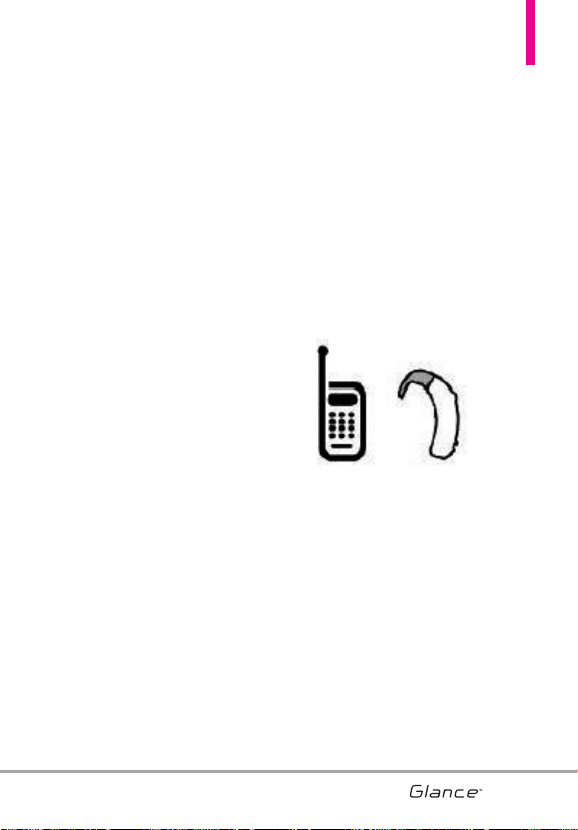
immune than others to this
interference noise, and phones also
vary in the amount of interference
they generate.
The wireless telephone industry
has developed a rating system for
wireless phones, to assist hearing
device users to find phones that
may be compatible with their
hearing devices. Not all phones
have been rated. Phones that are
rated have the rating on their box or
a label located on the box.
The ratings are not guarantees.
Results will vary depending on the
user's hearing device and hearing
loss. If your hearing device
happens to be vulnerable to
interference, you may not be able to
use a rated phone successfully.
Trying out the phone with your
hearing device is the best way to
evaluate it for your personal needs.
M-Ratings: Phones rated M3 or M4
meet FCC requirements and are
likely to generate less interference
to hearing devices than phones that
are not labeled. M4 is the
better/higher of the two ratings.
Hearing devices may also be rated.
Your hearing device manufacturer
or hearing health professional may
help you find this rating. Higher
ratings mean that the hearing
device is relatively immune to
interference noise. The hearing aid
and wireless phone rating values
are then added together. A sum of 5
is considered acceptable for
normal use. A sum of 6 is
considered for best use.
In the above example, if a hearing
aid meets the M2 level rating and
the wireless phone meets the M3
level rating, the sum of the two
values equal M5. This should
provide the hearing aid user with
“normal usage” while using their
hearing aid with the particular
wireless phone. “Normal usage” in
this context is defined as a signal
quality that’s acceptable for normal
operation.
The M mark is intended to be
synonymous with the U mark. The T
mark is intended to be synonymous
with the UT mark. The M and T
marks are recommended by the
Alliance for Telecommunications
Industries Solutions (ATIS). The U
113
M3 + M2 = 5
VX7100_Eng_0410.qxd 3/4/10 3:21 PM Page 113

Safety Safety
and UT marks are referenced in
Section 20.19 of the FCC Rules. The
HAC rating and measurement
procedure are described in the
American National Standards
Institute (ANSI) C63.19 standard.
114
For information about hearing aids
and digital wireless phones
FCC Hearing Aid Compatibility and
Volume Control
http://www.fcc.gov/cgb/dro/hearing.html
Gallaudet University, RERC
http://tap.gallaudet.edu/DigWireless.KS/
DigWireless.htm
HLAA (Hearing Loss Association of
America)
http://www.hearingloss.org/learn/cellph
onetech.asp
The Hearing Aid Compatibility FCC
Order
http://hraunfoss.fcc.gov/edocs_public/at
tachmatch/FCC-03-168A1.pdf
VX7100_Eng_0410.qxd 3/4/10 3:21 PM Page 114
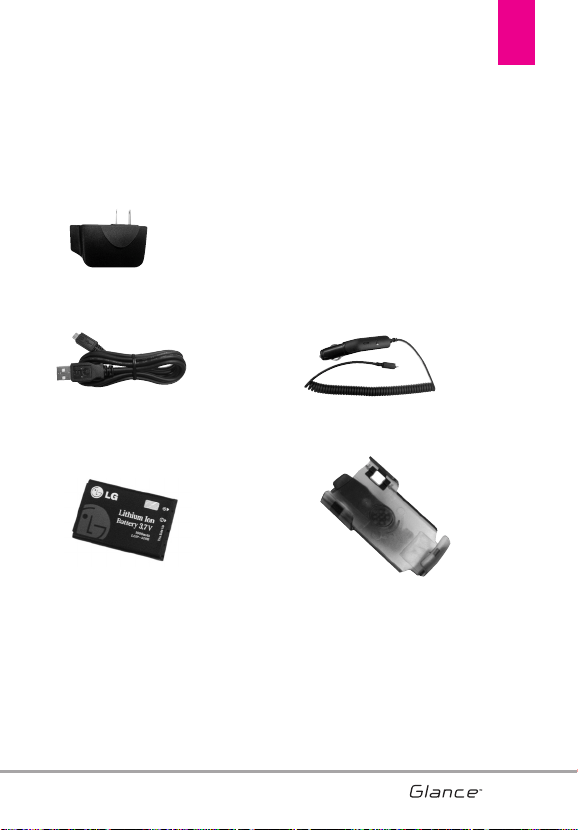
115
Accessories
115
There are a variety of accessories available for your phone and three easy
ways to purchase them: shop online anytime at www.verizonwireless.com,
call us at 1866 VZ GOT IT (894 6848) or visit one of our Verizon Wireless
Communication Stores.
Batteries
USB Cable
Holster
Cableless Wall Adapter
Car Charger
VX7100_Eng_0410.qxd 3/4/10 3:21 PM Page 115

116116
LIMITED WARRANTY STATEMENT
1. WHAT THIS WARRANTY
COVERS:
LG offers you a limited warranty
that the enclosed subscriber unit
and its enclosed accessories will
be free from defects in material and
workmanship, according to the
following terms and conditions:
(1)The limited warranty for the
product extends for TWELVE (12)
MONTHS beginning on the date
of purchase of the product with
valid proof of purchase, or
absent valid proof of purchase,
FIFTEEN (15) MONTHS from date
of manufacture as determined by
the unit's manufacture date
code.
(2)The limited warranty extends
only to the original purchaser of
the product and is not assignable
or transferable to any
subsequent purchaser/end user.
(3)This warranty is good only to the
original purchaser of the product
during the warranty period as
long as it is in the U.S., including
Alaska, Hawaii, U.S. Territories
and Canada.
(4)The external housing and
cosmetic parts shall be free of
defects at the time of shipment
and, therefore, shall not be
covered under these limited
warranty terms.
(5)Upon request from LG, the
consumer must provide
information to reasonably prove
the date of purchase.
(6)The customer shall bear the cost
of shipping the product to the
Customer Service Department of
LG. LG shall bear the cost of
shipping the product back to the
consumer after the completion of
service under this limited
warranty.
2. WHAT THIS WARRANTY DOES
NOT COVER:
(1)Defects or damages resulting
from use of the product in other
than its normal and customary
manner.
(2)Defects or damages from
abnormal use, abnormal
conditions, improper storage,
exposure to moisture or
dampness, unauthorized
modifications, unauthorized
connections, unauthorized
repair, misuse, neglect, abuse,
accident, alteration, improper
installation, or other acts which
116
VX7100_Eng_0410.qxd 3/4/10 3:21 PM Page 116

117
are not the fault of LG, including
damage caused by shipping,
blown fuses, spills of food or
liquid.
(3)Breakage or damage to
antennas unless caused directly
by defects in material or
workmanship.
(4)That the Customer Service
Department at LG was not
notified by consumer of the
alleged defect or malfunction of
the product during the applicable
limited warranty period.
(5)Products which have had the
serial number removed or made
illegible.
(6)This limited warranty is in lieu of
all other warranties, express or
implied either in fact or by
operations of law, statutory or
otherwise, including, but not
limited to any implied warranty of
marketability or fitness for a
particular use.
(7)Damage resulting from use of
non LG approved accessories.
(8)All plastic surfaces and all other
externally exposed parts that are
scratched or damaged due to
normal customer use.
(9) Products operated outside
published maximum ratings.
(10) Products used or obtained in a
rental program.
(11) Consumables (such as fuses).
3. WHAT LG WILL DO:
LG will, at its sole option, either
repair, replace or refund the
purchase price of any unit that does
not conform to this limited warranty.
LG may choose at its option to use
functionally equivalent re-
conditioned, refurbished or new
units or parts or any units. In
addition, LG will not re-install or
back-up any data, applications or
software that you have added to
your phone. It is therefore
recommended that you back-up
any such data or information prior
to sending the unit to LG to avoid
the permanent loss of such
information.
4. STATE LAW RIGHTS:
No other express warranty is
applicable to this product. THE
DURATION OF ANY IMPLIED
WARRANTIES, INCLUDING THE
IMPLIED WARRANTY OF
MARKETABILITY, IS LIMITED TO
117
VX7100_Eng_0410.qxd 3/4/10 3:21 PM Page 117

LIMITED WARRANTY STATEMENT
118
THE DURATION OF THE EXPRESS
WARRANTY HEREIN. LG SHALL
NOT BE LIABLE FOR THE LOSS OF
THE USE OF THE PRODUCT,
INCONVENIENCE, LOSS OR ANY
OTHER DAMAGES, DIRECT OR
CONSEQUENTIAL, ARISING OUT
OF THE USE OF, OR INABILITY TO
USE, THIS PRODUCT OR FOR ANY
BREACH OF ANY EXPRESS OR
IMPLIED WARRANTY, INCLUDING
THE IMPLIED WARRANTY OF
MARKETABILITY APPLICABLE TO
THIS PRODUCT.
Some states do not allow the
exclusive limitation of incidental or
consequential damages or
limitations on how long an implied
warranty lasts; so these limitations
or exclusions may not apply to you.
This warranty gives you specific
legal rights and you may also have
other rights which vary from state
to state.
5. HOW TO GET WARRANTY
SERVICE:
If you experience any problems
with either the Qwerty keypad or
the mobile handset, in each case as
may be covered by this limited
warranty, you need only return the
affected device. For example, if a
problem exists with the Qwerty
keypad, please DO NOT return your
mobile handset with the module.
Likewise, if a problem exists with
the mobile handset, please DO NOT
return the Qwerty keypad with the
handset.
To obtain warranty service, please
call or fax to the following
telephone numbers from anywhere
in the continental United States:
Tel. 1-800-793-8896 or Fax. 1-800-
448-4026
Or visit http://us.lgservice.com
.
Correspondence may also be
mailed to:
LG Electronics Service- Mobile
Handsets, P.O. Box 240007,
Huntsville, AL 35824
DO NOT RETURN YOUR PRODUCT
TO THE ABOVE ADDRESS. Please
call or write for the location of the
LG authorized service center
nearest you and for the procedures
for obtaining warranty claims.
118
VX7100_Eng_0410.qxd 3/4/10 3:21 PM Page 118

119
TTeerrmmiinnoollooggyy
EZ Tip Calculator
Feature for easy bill calculation using the
total cost, tip, and number of people as
variables.
Advanced Voice Commands
Feature that allows you to perform a
wide range of verbal commands by
training the phone to recognize your
individual speech patterns.
Bluetooth
®
wireless technology
Technology used to allow mobile phones,
computers, and other personal devices
to be easily coordinated and
interconnected using a short-range
wireless connection.
Media Center
Feature that accesses the Internet to
provide the ability to access and even
download a wide variety of software,
information, music, video, and more right
on your LG Verizon wireless phone.
V Cast Videos
Feature that is the next generation in
wireless technology which transforms
your wireless phone into a portable
music player and delivers an amazing
streaming mobile video experience.
V CAST uses technology that
significantly increases download
capabilities to deliver better graphics,
sound and depth and uses the power of
broadband so that you can download the
hottest entertainment, sports highlights,
news and breaking weather to your
Verizon Wireless V CAST phone. The
new V CAST phones provide better
imaging capabilities, mega pixel
cameras, improved audio and
expandable memory storage.
AAccrroonnyymmss aanndd
AAbbbbrreevviiaattiioonnss
DTMF
D
ual-Tone Multi Frequency (or “touch-
tone”) is a method used to communicate
keys pressed on the phone. Pressing a
key generates two simultaneous tones,
one for the row and one for the column
to determine which key was pressed.
Glossary
119
VX7100_Eng_0410.qxd 3/4/10 3:21 PM Page 119

Glossary
120
ERI
E
nhanced Roaming Indicator is a
feature to indicate whether a mobile
phone is on its home system, a partner
network, or a roaming network. Many
phones indicate home vs. roaming as an
icon, but ERI capable phones can clearly
indicate third “partner network” status.
GPS
G
lobal Positioning System is a system of
satellites, computers, and receivers able
to determine the latitude and longitude of
a specific receiver on Earth. Position is
calculated using time and distance.
IS 2000
Type of digital signaling. It's the second
generation of CDMA digital cellular, an
extension of IS-95. Differences between
signaling types have to do with pilot
signal and links to provide more traffic
channels, and control protocols.
NAM
N
umber Assignment Module is how the
phone stores the phone number and its
electronic serial number.
SSL
S
ecure Sockets Layer Protocol used to
encrypt data sent over the air.
TTY
T
eletypewriter. An electromechanical
typewriter that either transmits or
receives messages coded in electrical
signals. A phone with TTY support is able
to translate typed characters to voice or
translate voice into characters to display
on the TTY.
120
VX7100_Eng_0410.qxd 3/4/10 3:21 PM Page 120

1
10 Driver Safety Tips 108
A
Accessories 115
Add New Device 66
Airplane Mode 76
Alarm Clock 64
Alert Sounds 70
Answer Options 83
Assisted Dialing 86
Auto Retry 83
B
Backlight 73
Banner 73
Battery Charge Level 20
Battery Temperature
Protection 20
Bluetooth
®
Menu 66
Brightness 74
C
Calculator 62
Calendar 63
Call Settings 83
Call Sounds 69
Call Waiting 22
Caller ID 22
Caution: Avoid potential
hearing loss. 98
Charging the Battery 19
Charging with USB 20
Chat 42
Clock Format 76
Consumer Information on
SAR 110
Contact List 29
CONTACTS 29
Current Country 79
D
Dialed 46
Digit Dial Readout 71
Display Settings 72
Display Themes 74
Drafts 41
DTMF Tones 86
E
Easy Set-up 69, 72
Email 42
Erasing Messages 44
Ez Tip Calculator 62
F
Favorites 30
FCC Hearing-Aid
Compatibility (HAC)
Regulations for Wireless
Devices 112
FDA Consumer Update 100
Font Size 75
G
Games 53
Get New Ringtones 49
Glossary 119
Groups 30
I
Icon Glossary 88
Important Safety
Precautions 1
In Case of Emergency (ICE)
31
Inbox 38
Info Search 64
J
Joystick Settings 87
K
Keyguard Settings 69
Keypad Volume 71
L
Language 78
LIMITED WARRANTY
STATEMENT 116
Location 78
M
Main Menu Settings 75
Making Calls 21
Master Volume 69
MEDIA CENTER 49
Memory 87
Menu Font Type 75
MESSAGING 33
Messaging Settings 42
Missed 45
Mobile IM 42
Mobile Web 54
Mute Function 22
My Device Info 67
My Name Card 32
My Number 88
MY RINGTONES 48
N
NAM Select 82
New Contact 29
New Message 33
121
Index
121
VX7100_Eng_0410.qxd 3/4/10 3:21 PM Page 121

Notepad 65
O
One Touch Dial 85
Online Album 53
P
Phone Info 87
Phone Overview 14
Phone Settings 76
Picture Message 36
Pictures 51
Power On/Off 72
R
Received 45
Receiving Calls 21
S
Safety Information 93
Screen Icons 21
Security 79
Sent 40
Service Alerts 71
Set Shortcuts 76
Set-up Wizard 89
Signal Strength 20
Software Update 88
Sounds Settings 69
Speed Dials 31
Stopwatch 65
Supported Profiles 68
SW/HW Version 88
System Select 82
T
Take Picture 52
Technical Details 9
Text Input 23
TIA Safety Information 90
Tools 60
TTY Mode 83
Tunes & Tones 49
V
Vibrate Mode 22
View Timers 47
Voice Clarity 72
Voice Commands 22, 60
Voice Message 38
Voice Privacy 85
Voicemail 41
Volume Quick Adjustment
22
W
Wallpaper 74
World Clock 65
122
Index
VX7100_Eng_0410.qxd 3/4/10 3:21 PM Page 122

MEMO
VX7100_Eng_0410.qxd 3/4/10 3:21 PM Page 123

MEMO
VX7100_Eng_0410.qxd 3/4/10 3:21 PM Page 124

MEMO
VX7100_Eng_0410.qxd 3/4/10 3:21 PM Page 125
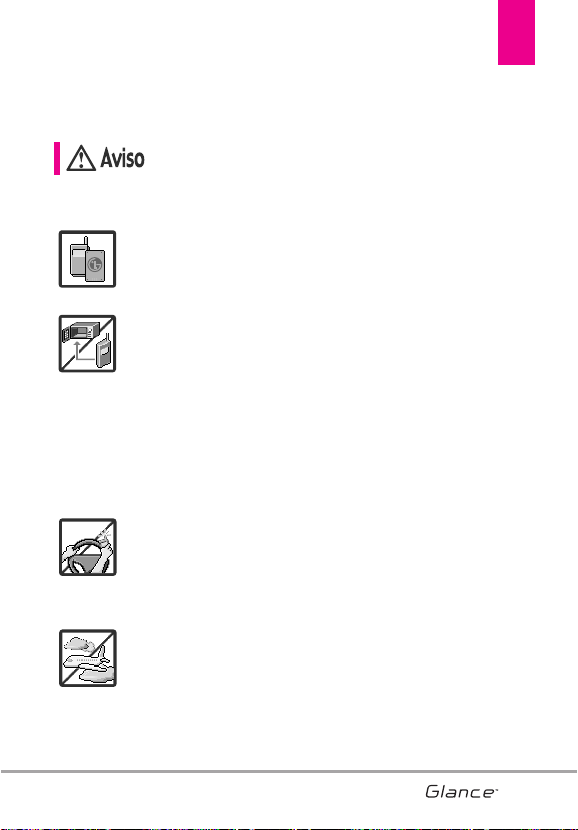
1
Lea estas sencillas instrucciones. Romper las reglas puede ser
peligroso o ilegal. Se ofrece más información detallada en esta guía
del usuario.
No seguir las instrucciones puede ocasionar lesiones graves
o la muerte.
●
No use nunca una batería no aprobada, ya que esto
podría dañar el teléfono o la batería, y podría
ocasionar que estalle la batería.
●
Nunca coloque el teléfono en un horno de
microondas ya que esto haría que estallara la batería.
●
Nunca almacene el teléfono a temperaturas menores
de -4°F ni mayores de 122°F.
●
No se deshaga de la batería mediante el fuego o con
materiales peligrosos o inflamables.
●
Al ir en automóvil, no deje el teléfono ni instale el kit
de manos libres cerca de la bolsa de aire. Si el equipo
inalámbrico está instalado incorrectamente y se
activa la bolsa de aire, usted puede resultar
gravemente lesionado.
●
No use un teléfono de mano cuando esté
conduciendo.
●
No use el teléfono en zonas donde esté prohibido
hacerlo. (Por ejemplo: en los aviones)
Precaución de Seguridad Importante
1
VX7100_Spa_0410.qxd 3/4/10 3:24 PM Page 1
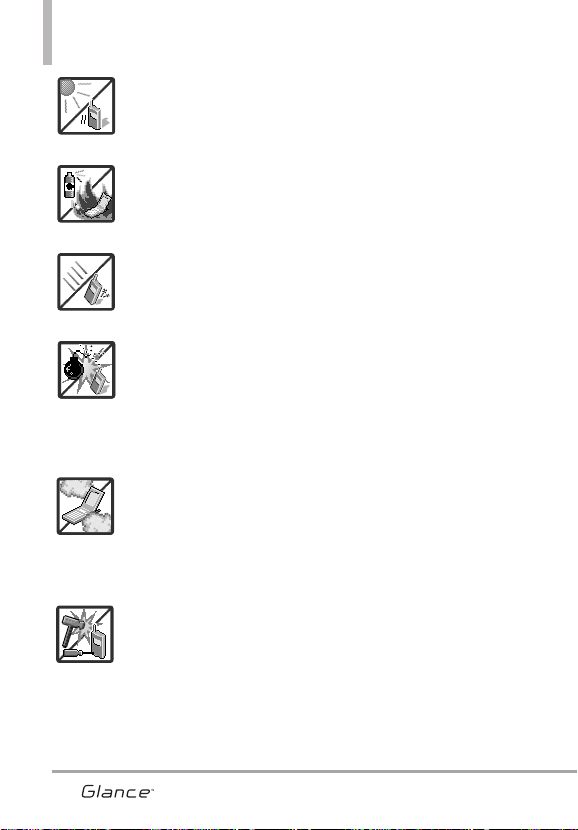
Precaución de Seguridad Importante
2
●
No exponga cargador de baterías o el adaptador a la
luz directa del sol, ni lo utilice en sitios con elevada
humedad, como por ejemplo el baño.
●
No use sustancias químicas corrosivas (como alcohol,
bencina, solventes, etc.) ni detergentes para limpiar el
teléfono. Existe riesgo de causar un incendio.
●
No deje caer el teléfono, ni lo golpee o agite
fuertemente. Tales acciones pueden dañar las tarjetas
de circuitos internas del teléfono.
●
No use el teléfono en áreas altamente explosivas, ya
que puede generar chispas.
●
No dañe el cable de corriente doblándolo,
retorciéndolo, tirando de él o calentándolo.
No use la clavija si está suelta, ya que esto puede
ocasionar incendios o descargas eléctricas.
●
No coloque objetos pesados sobre el cable de
corriente. No permita que el cable de corriente se
doble, ya que esto puede ocasionar incendios o
descargas eléctricas.
●
No manipule el teléfono con las manos húmedas
cuando se esté cargando. Puede causar un choque
eléctrico o dañar gravemente el teléfono.
●
No desarme el teléfono.
2
VX7100_Spa_0410.qxd 3/4/10 3:24 PM Page 2
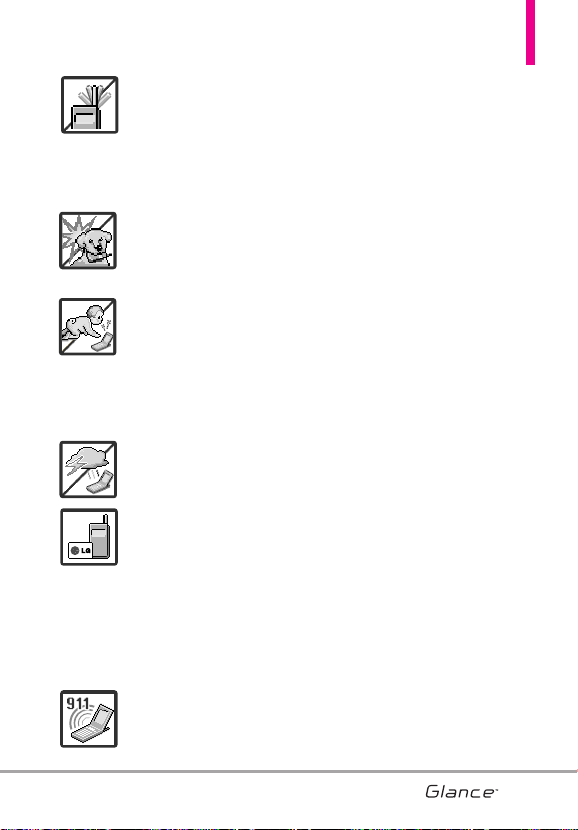
3
●
No haga ni conteste llamadas mientras esté cargando
el teléfono, ya que puede causar un corto circuito en
éste o provocar descargas eléctricas o incendios.
●
No sostenga la antena ni permita que entre en contacto
con su cuerpo durante las llamadas.
●
Asegúrese de que no entren en contacto con la batería
objetos con bordes cortante, como dientes de
animales o uñas. Hay riesgo de causar un incendio.
●
Almacene la batería en un sitio alejado del alcance de
los niños.
●
Cuide que los niños no se traguen partes del teléfono
(como los tapones de hule, del auricular, partes
conectoras del teléfono, etc.) Esto podría causar
asfixia o sofocación, dando como resultado lesiones
graves o la muerte.
●
Desconecte el enchufe de la toma de corriente y el
cargador cuando se ilumina porque puede provocar
unchoque electrico o peligro de incendio.
●
Sólo use baterías y cargadores proporcionados por LG.
La garantía no se aplicará a productos proporcionados
por otros proveedores.
●
Sólo personal autorizado debe darle servicio al
teléfono y a sus accesorios. La instalación o servicio
incorrectos pueden dar como resultado accidentes y
por tanto invalidar la garantía.
●
Las llamadas de emergencia sólo pueden hacerse
dentro de un área de servicio. Para hacer una llamada
de emergencia, asegúrese de estar dentro de un área
de servicio y que el teléfono esté encendido.
3
VX7100_Spa_0410.qxd 3/4/10 3:25 PM Page 3

4
Contenido
4
Precaución de Seguridad
Importante . . . . . . . . . . . . . . . . . .1
Contenido . . . . . . . . . . . . . . . . . . .4
Bienvenidos . . . . . . . . . . . . . . . . .8
Detalles Técnicos . . . . . . . . . . . .9
Información Importante . . . . . . . . . . .9
Descripción general del
Teléfono . . . . . . . . . . . . . . . . . . . .13
Instalación de la batería . . . . . . . . . .15
Extracción de la batería . . . . . . . . . .15
Descripción general de los
menús . . . . . . . . . . . . . . . . . . . . . .16
Para hacer funcionar su
teléfono por primera vez . . . . .19
Carga de la batería . . . . . . . . . . . . . .19
Protección de la temperatura de la
batería . . . . . . . . . . . . . . . . . . . . . . . .20
Potencia de la señal . . . . . . . . . . . . .20
Encender el teléfono . . . . . . . . . . .20
Apagar el teléfono . . . . . . . . . . . . .20
Para hacer llamadas . . . . . . . . . . . . .20
Corrección de errores en la marcación
. . . . . . . . . . . . . . . . . . . . . . . . . . .21
Remarcado de llamadas . . . . . . . . . .21
Para recibir llamadas . . . . . . . . . . . . .21
Iconos de pantalla . . . . . . . . . . . . . . .21
Acceso rápido a funciones de
conveniencia . . . . . . . . . . . . . . .22
Modo de vibración . . . . . . . . . . . . . .22
Sonidos desactivados . . . . . . . . . . .22
Función de silencio . . . . . . . . . . . . . .22
Ajuste rápido del volumen . . . . . . . .22
Llamada en espera . . . . . . . . . . . . . .22
Identificador de Llamada . . . . . . . . .22
Comandos de Voz . . . . . . . . . . . . . . .22
Entrada de texto . . . . . . . . . . . . . . . . .23
Introducir y editar información23
Contactos en la memoria de su
teléfono . . . . . . . . . . . . . . . . . . . .24
Aspectos Básicos . . . . . . . . . . . . . . .24
Personalización de entradas
individuales . . . . . . . . . . . . . . . . . . . . .24
Marcación Rápida . . . . . . . . . . . . . . .24
Almacenar un número con una
pausa . . . . . . . . . . . . . . . . . . . . . . . . . .25
Agregar otro número de teléfono .25
Cambiar el Número Predeterminado
. . . . . . . . . . . . . . . . . . . . . . . . . . . . . . . .26
Borrar . . . . . . . . . . . . . . . . . . . . . . . . . .27
Marcado Rápido . . . . . . . . . . . . . . . .28
Contactos . . . . . . . . . . . . . . . . . . . . .29
1. Nuevo Contacto . . . . . . . . . . . . . . .29
2. Lista de Contacto . . . . . . . . . . . . . .29
3. Asistente de copia de
seguridad . . . . . . . . . . . . . . . . . . . .30
4. Favoritos . . . . . . . . . . . . . . . . . . . . . .30
5. Grupos . . . . . . . . . . . . . . . . . . . . . . .31
6. Marcado Rápido . . . . . . . . . . . . . .31
8. Mi Tarjeta de Nombre . . . . . . . . .33
Mensajería . . . . . . . . . . . . . . . . . . .34
1. Nuevo Mensaje . . . . . . . . . . . . . . .34
1.1 Mensaje de TXT . . . . . . . . . . . . .35
1.2 Mensaje de Foto . . . . . . . . . . . .37
1.3 Mensaje de Voz . . . . . . . . . . . . .39
4
VX7100_Spa_0410.qxd 3/4/10 3:25 PM Page 4

5
2. Entrada . . . . . . . . . . . . . . . . . . . . . .39
3. Enviado . . . . . . . . . . . . . . . . . . . . . .41
4. Borradores . . . . . . . . . . . . . . . . . . .42
5. Mensajes de Voz . . . . . . . . . . . . . .42
6. IMMóvil . . . . . . . . . . . . . . . . . . . . . .43
7. Correo Elect . . . . . . . . . . . . . . . . . .43
8. Chatear . . . . . . . . . . . . . . . . . . . . . .43
Programación de Mensajes . . . . . .44
Borrar Mensajes . . . . . . . . . . . . . . . .45
Llamas. Recientes . . . . . . . . . . . . . .46
1. Perdidas . . . . . . . . . . . . . . . . . . . . .46
2. Recibidas . . . . . . . . . . . . . . . . . . . . .46
3. Marcadas . . . . . . . . . . . . . . . . . . . .47
4. Todas . . . . . . . . . . . . . . . . . . . . . . . . .47
5. Ver Cronómetro . . . . . . . . . . . . . . .48
Mis Timbres . . . . . . . . . . . . . . . . . . .49
Centro de Medios . . . . . . . . . . . . . .50
1. Melodías y Tonos . . . . . . . . . . . . . .50
1.1 Obtén Nuevos Timbres . . . . . . .50
1.2 Mis Timbres . . . . . . . . . . . . . . . .51
2. Fotos . . . . . . . . . . . . . . . . . . . . . . . . .52
2.1 Obtén Nuevas Fotos . . . . . . . . .52
2.2 Mis Fotos . . . . . . . . . . . . . . . . . .52
2.3 Tomar Foto . . . . . . . . . . . . . . . . .53
2.4 Álbum En Línea . . . . . . . . . . . . .54
3. Juegos . . . . . . . . . . . . . . . . . . . . . . .54
4. Internet Móvil . . . . . . . . . . . . . . . .55
5. Navegar y Descargar . . . . . . . . . .57
6. Extra . . . . . . . . . . . . . . . . . . . . . . . . .57
Mis Fotos . . . . . . . . . . . . . . . . . . . . . .58
VZ Navigator . . . . . . . . . . . . . . . . . . .59
Bluetooth . . . . . . . . . . . . . . . . . . . . . .60
Prog/Herr . . . . . . . . . . . . . . . . . . . . . .61
1. Mi Verizon . . . . . . . . . . . . . . . . . . . .61
2. Herramientas . . . . . . . . . . . . . . . . .61
2.1 Comandos de Voz . . . . . . . . . . .61
2.1.1 Llamar <Nombre o Número>
. . . . . . . . . . . . . . . . . . . . . . . .62
2.1.2 Enviar Msj a <Nombre o
Número> . . . . . . . . . . . . . . .62
2.1.3 Ir a <Menú> . . . . . . . . . . . . .62
2.1.4 Verificar <Elemento> . . . . . .62
2.1.5 Contactos <Nombre> . . . . . .63
2.1.6 Remarcar . . . . . . . . . . . . . . . .63
2.1.7 Mi Verizon . . . . . . . . . . . . . . .63
2.1.8 Ayuda . . . . . . . . . . . . . . . . . . .63
2.2 Calculadora . . . . . . . . . . . . . . . .63
2.3 Ez Sugerencia . . . . . . . . . . . . . . .64
2.4 Calendario . . . . . . . . . . . . . . . . . .64
2.5 Lista de Tareas . . . . . . . . . . . . . .65
2.6 Reloj Despertador . . . . . . . . . . .65
2.7 Búsqueda info . . . . . . . . . . . . . .66
2.8 Cronómetro . . . . . . . . . . . . . . . .66
2.9 Reloj Mundial . . . . . . . . . . . . . . .66
2.0 Cuaderno de Notas . . . . . . . . . .67
3. Menú de Bluetooth® . . . . . . . . .67
3.1 Anadir Nuevo Aparato . . . . . . . .67
Encendido . . . . . . . . . . . . . . . . . . . . .68
3.2 Manos Libres de Uso Fácil . . . .69
ACCESO DIRECTO . . . . . . . . . . . . .70
4. Programación de Guardia tecla70
Auto-Bloqueo . . . . . . . . . . . . . . . . . .70
5
VX7100_Spa_0410.qxd 3/4/10 3:25 PM Page 5

66
Contenido
6
Desbloquear opciones . . . . . . . . . . .70
5. Programación de Sonidos . . . . . .71
5.1 Disposición fácil . . . . . . . . . . . . .71
5.2 Volumen Maestro . . . . . . . . . . . .71
5.3 Sonidos de Llamada . . . . . . . . . .71
5.3.1 Timbre de Llamada . . . . . .71
5.3.2 Vibrador de Llamada . . . . .72
. . . . . . . . . . . . . . . . . . . . . . . . . . .72
5.3.3 Anuncio de ID de Llamador .72
5.4 Sonidos de Alerta . . . . . . . . . . . .72
5.6 Lectura de Dígito Marcado . . . .73
5.7 Alertas de Servicio . . . . . . . . . . .73
5.8 Al Apagar/Encender . . . . . . . . . .74
5.9 Claridad de Voz . . . . . . . . . . . . . .75
6. Programación de Pantalla . . . . .75
6.1 Disposición fácil . . . . . . . . . . . . .75
6.2 Aviso . . . . . . . . . . . . . . . . . . . . . .75
6.2.1 Personal Aviso . . . . . . . . . .76
6.2.2 Aviso IRO . . . . . . . . . . . . . .76
6.4 Brillo . . . . . . . . . . . . . . . . . . . . . .76
6.5 Fondo de Pantalla . . . . . . . . . . . .77
6.6 Mostrar Temas . . . . . . . . . . . . . .77
6.7 Menú Principal Fijado . . . . . . . .77
6.8 Tipo de Fuente de Menú . . . . . .78
6.9 Tamaño de Fuente . . . . . . . . . . .79
6.0 Formato de Reloj . . . . . . . . . . . .79
7. Programación de Teléfono . . . . .80
7.1 Modo Avion . . . . . . . . . . . . . . . .80
7.2 Establecer atajos . . . . . . . . . . . .80
7.2.1 Establecer mis atajos . . . . . .80
7.2.2 Establecer teclas direccionales
81
7.3 Comandos de Voz . . . . . . . . . . .81
7.4 Idioma . . . . . . . . . . . . . . . . . . . . .82
7.6 País Actual . . . . . . . . . . . . . . . . .83
7.7.1 Editar Códigos . . . . . . . . . .83
7.7.2 Restricciones . . . . . . . . . .84
7.7.3 Bloqueo de teléfono . . . . .84
7.7.4 Bloquear teléfono ahora . .85
7.7.5 Restablecer Implícito . . . . .85
7.7.6 Restaurar teléfono . . . . . . .86
7.8 Selección de Sistema . . . . . . . .86
7.9 Seleccionar NAM . . . . . . . . . . . .87
8.1 Opciones de Respuesta . . . . . .87
8.2 Reintentar Automáticamente . .88
8.4 Marcado oprimiendo un botón .90
8.5 Privacidad de Voz . . . . . . . . . . . .90
8.6 Tonos DTMF . . . . . . . . . . . . . . . .91
8.7 Marcación asistida . . . . . . . . . . .91
8.8 Búsqueda de marcación . . . . . .92
9. Configuración de joystick . . . . . .92
0. Memoria . . . . . . . . . . . . . . . . . . . .93
*. Información de Teléfono . . . . . . .93
*.1 Mi Número . . . . . . . . . . . . . . . . .93
*.2 Versión SW/HW . . . . . . . . . . . . .94
*.3 Glosario de Iconos . . . . . . . . . . .94
*.4 Actualización de Software . . . . .94
#. Asistente de Programación . . . .95
Seguridad . . . . . . . . . . . . . . . . . .96
Información de seguridad de la TIA
. . . . . . . . . . . . . . . . . . . . . . . . . . . . . . .96
Exposición a las señales de
radiofrecuencia . . . . . . . . . . . . . . . .96
Cuidado de la antena . . . . . . . . . . .96
6
VX7100_Spa_0410.qxd 3/4/10 3:25 PM Page 6

7
Funcionamiento del teléfono . . . . .96
Sugerencias para un funcionamiento
más eficiente . . . . . . . . . . . . . . . . .97
Manejo . . . . . . . . . . . . . . . . . . . . . .97
Dispositivos Electrónicos . . . . . . . .97
Marcapasos . . . . . . . . . . . . . . . . . . .97
Aparatos para la sordera . . . . . . . . .98
Otros Dispositivos Médicos . . . . . .98
Centros de atención médica . . . . .98
Vehículos . . . . . . . . . . . . . . . . . . . . .98
Instalaciones con letreros . . . . . . .98
Aeronaves . . . . . . . . . . . . . . . . . . . .98
Áreas de explosivos . . . . . . . . . . . .98
Atmósfera potencialmente explosiva
. . . . . . . . . . . . . . . . . . . . . . . . . . .98
Información de seguridad . . . . . . .99
Para vehículos equipados con bolsas
de aire . . . . . . . . . . . . . . . . . . . . . . .99
Seguridad del cargador y del
adaptador . . . . . . . . . . . . . . . . . . .100
Información y cuidado de la batería .
. . . . . . . . . . . . . . . . . . . . . . . . . .100
Peligros de explosión, descargas
eléctricas e incendio . . . . . . . . . . .101
Aviso General . . . . . . . . . . . . . . . .102
Cuidado: Evite una Probable
Pérdida del Oído. . . . . . . . . . . . . . .103
Actualización de la FDA para los
consumidores . . . . . . . . . . . . . . . .105
10 Consejos de Seguridad para
Conductores . . . . . . . . . . . . . . . . . .114
Información al consumidor sobre la
SAR . . . . . . . . . . . . . . . . . . . . . . . . .117
Reglas para la compatibilidad con
aparatos para la sordera (HAC) de
la FCC para los dispositivos
inalámbricos . . . . . . . . . . . . . . . . . .120
Accesorios . . . . . . . . . . . . . . . .123
DECLARACIÓN DE GARANTÍA
LIMITADA . . . . . . . . . . . . . . . . .124
Glosario . . . . . . . . . . . . . . . . . . .127
Terminología . . . . . . . . . . . . . . . . .127
Siglas y abreviaturas . . . . . . . . .128
Índice . . . . . . . . . . . . . . . . . . . . .130
7
VX7100_Spa_0410.qxd 3/4/10 3:25 PM Page 7

8
Bienvenidos
Felicidades por elegir el avanzado y
compacto teléfono celular
Glance
TM
,
diseñado para funcionar con la más
reciente tecnología de
comunicaciones móviles digitales:
Acceso múltiple de división de
código (Code Division Multiple
Access, CDMA). Junto con las
muchas funciones avanzadas del
sistema CDMA, como una claridad
de voz altamente mejorada, este
teléfono ofrece:
●
Cámara interconstruida de 1.3
megapíxeles
●
Mobile Web
●
Diseño delgado y elegante
●
LCD de 8 líneas, grande, de fácil
lectura, con luz de fondo e
iconos de estado
●
Capaz de usar CENTRO de
MEDIOS para descargas de
juegos, tapices de fondo y tonos
de timbre
●
Teclado de 17 teclas y teclas de
navegación
●
Tiempo prolongado de batería en
espera y en conversación
●
Interfaz accionada por menús,
con indicaciones para una fácil
operación
●
Localizador, mensajería, correo
de voz e identificador de
llamada, IM y chat
●
Comando de voz avanzada
●
Respuesta con cualquier tecla,
reintento automático, marcado
de una tecla y marcado rápido
con 999 ubicaciones de memoria
●
Tapiz de fondo Flash con
divertidas animaciones
●
Capacidades bilingües (Inglés y
Español)
●
La tecnología inalámbrica
Bluetooth
®
(cualquier perfil)
NOTA
Las palabras de la marca y los
logotipos de Bluetooth
®
son
propiedad de la Bluetooth SIG,
Inc. y cualquier uso de tales
marcas por parte de LG
Electronics se hace bajo
licencia. Otras marcas y
nombres comerciales son los de
sus respectivos propietarios.
NOTA
Para su comodidad, encontrará
la guía del usuario interactiva en
Internet, que podrá recorrer
libremente y así aprender de
manera interactiva cómo usar el
teléfono paso a paso. Diríjase a
http://www.verizonwireless.com/
b2c/HowToControllerServlet?pat
h=phoneGuides&manufacturer=
LG&go=GO -> seleccione el
modelo de su teléfono
-> luego seleccione Equipment
Guide.
8
VX7100_Spa_0410.qxd 3/4/10 3:25 PM Page 8

9
Información Importante
Esta guía del usuario ofrece
información importante sobre el uso
y funcionamiento de su teléfono. Lea
toda la información cuidadosamente
antes de usar el teléfono, para tener
el mejor desempeño y para evitar
cualquier daño al teléfono o su uso
incorrecto. Cualquier cambio o
modificación no aprobados anulará
la garantía.
Cumplimiento de Clase B con el
artículo 15 de la FCC
Este dispositivo y sus accesorios
cumplen con el artículo 15 de las
reglas de la FCC. El funcionamiento
está sujeto a las dos siguientes
condiciones: (1) Este dispositivo y
sus accesorios no pueden causar
interferencia dañina y (2) este
dispositivo y sus accesorios deben
aceptar cualquier interferencia que
reciban, incluida la interferencia
que cause un funcionamiento no
deseado.
Información para el usuario
Este equipo ha sido probado y se
ha hallado que cumple con los
límites para un dispositivo digital
Clase B, conforme al artículo 15 de
las reglas de la FCC. Estos límites
han sido diseñados para brindar
una protección razonable contra
interferencia dañina en una
instalación residencial.
Este equipo genera, utiliza y puede
irradiar energía de radiofrecuencia
y, si no se instala y utiliza de
acuerdo con las instrucciones,
podría causar interferencia dañina
para las comunicaciones radiales.
Sin embargo, no existe garantía de
que la interferencia no se producirá
en una instalación en particular. Si
este equipo ocasiona interferencia
dañina en la recepción de radio o
televisión (lo cual puede
determinarse encendiendo y
apagando el equipo), se
recomienda al usuario que intente
corregir la interferencia tomando
una o más de las siguientes
medidas:
- Reorientar o reubicar la antena
receptora
- Aumentar la separación entre el
equipo y el receptor
- Conectar el equipo en un toma de
un circuito diferente de aquél al
que está conectado el receptor.
- Consultar con el distribuidor o un
técnico de radio/TV
experimentado para obtener
ayuda.
Las modificaciones no aprobadas
expresamente por el fabricante
podrían invalidar la autoridad del
usuario para operar el equipo
según las reglas de la FCC.
Detalles Técnicos
El
Glance
TM
es un teléfono
totalmente digital que funciona en
las dos frecuencias de Acceso
múltiple de división de código
Detalles Técnicos
9
VX7100_Spa_0410.qxd 3/4/10 3:25 PM Page 9
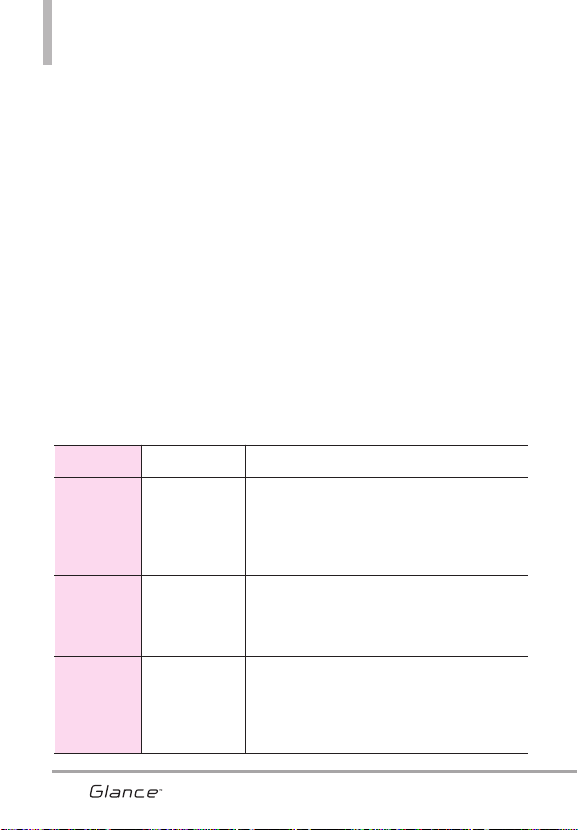
Detalles Técnicos
(CDMA): Servicios Celulares a 800
MHz y Servicios de Comunicación
Personal (PCS) a 1.9 GHz.
La tecnología CDMA usa una
función llamada DSSS (Espectro
ensanchado por secuencia directa)
que permite que el teléfono evite
que se cruce la comunicación y
que varios usuarios en la misma
área específica puedan usar un
canal de frecuencia. Esto da como
resultado un aumento de
capacidad de 10 veces comparado
con el modo analógico.
Adicionalmente, funciones como la
transferencia suave y más suave, la
transferencia dura y las tecnologías
de control de la potencia de RF
dinámica se combinan para reducir
las interrupciones de las llamadas.
Las redes celular y PCS CDMA
constan de MSO (Oficina de
conmutación móvil), BSC
(Controlador de estación de base),
BTS (Sistema de transmisión de
estación de base), y MS (Estación
móvil).
* TSB-74: Protocolo entre un
sistema IS-95A y ANSI J-STD-008
El sistema 1xRTT recibe dos veces
más suscriptores en la sección
inalámbrica que IS-95. La duración
de su batería es del doble de IS-95.
La tabla siguiente enumera algunos
de los principales estándares
CDMA.
10
Estándar
CDMA
Designador CDMA Designador Descripción
Interfaz aérea
básica
TIA/EIA-95A
TSB-74
ANSI J-STD-008
TIA/EIA-IS2000
Interfaz aérea CDMA de modo doble
Protocolo de enlace de radio a 14.4kbps y
operaciones interbanda
Interfaz aérea 1xRTT CDMA2000 IS-95 adaptada
para la banda de frecuencia PCS
Red
TIA/EIA/IS-634
TIA/EIA/IS/651
TIA/EIA/IS-41-C
TIA/EIA/IS-124
MAS-BS
PCSC-RS
Operaciones intersistema
Comunic. de datos con señales nom
Servicio
TIA/EIA/IS-96-B
TIA/EIA/IS-637
TIA/EIA/IS-657
IS-801
TIA/EIA/IS-707-A
CODEC de voz
Servicio de mensajes cortos
Datos de paquete
Servicio de determinación de posición (gpsOne)
Datos de paquete de alta velocidad
VX7100_Spa_0410.qxd 3/4/10 3:25 PM Page 10

11
Información de la FCC sobre
exposición a la RF
¡ADVERTENCIA! Lea esta
información antes de hacer
funcionar el teléfono.
En agosto de 1996, la Comisión
federal de comunicaciones (FCC)
de los Estados Unidos, con su
acción sobre el Informe y orden
FCC 96-326, adoptó un estándar de
seguridad actualizado para la
exposición humana a la energía
electromagnética de
radiofrecuencia (RF) emitida por
transmisores regulados por la FCC.
Esos lineamientos son consistentes
con el estándar de seguridad
establecido previamente por los
cuerpos de estándares tanto de los
EE.UU. como internacionales. El
diseño de este teléfono cumple con
las directrices de la FCC y estos
estándares internacionales.
Contacto corporal durante el
funcionamiento
Este dispositivo se probó para un
uso ordinario con la parte posterior
del teléfono a una distancia de 2 cm
(0.79 pulgadas) del cuerpo. Para
cumplir con los requisitos de
exposición a RF de la FCC, debe
mantenerse una distancia de
separación mínima de 2 cm (0.79
pulgadas) entre el cuerpo del
usuario y la parte posterior del
teléfono, incluida la antena, ya sea
extendida o retraída. No deben
usarse sujetadores de cinturón,
fundas y otros accesorios de
terceros que contengan
componentes metálicos. Evite el uso
de accesorios que no puedan
mantener una distancia de 2 cm
(0.79 pulgadas) entre el cuerpo del
usuario y la parte posterior del
teléfono y que no se hayan probado
para determinar que cumplen los
límites de exposición a RF de la FCC.
Antena externa instalada en un
vehículo
(Opcional, en caso de estar
disponible.)
Debe mantenerse una distancia
mínima de separación de 20 cm (8
pulgadas) entre el usuario o quien
esté cerca y la antena externa
instalada en un vehículo para
satisfacer los requisitos de
exposición a RF de la FCC. Para
Obtener más información sobre la
exposición a la RF, visite el sitio
Web de la FCC en www.fcc.gov.
FCC Notice y Precaución
Este dispositivo y sus accesorios
cumplen con el artículo 15 de las
reglas de la FCC. El funcionamiento
está sujeto a las dos siguientes
condiciones: (1) Este dispositivo y sus
accesorios no pueden causar
VX7100_Spa_0410.qxd 3/4/10 3:25 PM Page 11

Detalles Técnicos
interferencia dañina y (2) este
dispositivo y sus accesorios deben
aceptar cualquier interferencia que
reciban, incluida la interferencia que
cause un funcionamiento no
deseado.
Cualquier cambio o modificación no
aprobado expresamente en esta guía
del usuario podría anular su garantía
para este equipo. Use sólo la antena
incluida y aprobada. El uso de
antenas no autorizadas o
modificaciones no autorizadas
pueden afectar la calidad de la
llamada telefónica, dañar al teléfono,
anular su garantía o dar como
resultado una violación de las reglas
de la FCC.
No use el teléfono si la antena está
dañada. Si una antena dañada entra en
contacto con la piel, puede producirse
una ligera quemadura. Comuníquese
con su distribuidor local para obtener
una antena de reemplazo.
Declaración del artículo 15.105
Este equipo ha sido evaluado y se
ha comprobado que cumple con los
límites para un dispositivo digital
clase B, conforme el Artículo 15 de
las reglas de la FCC.
Estos límites han sido diseñados
para brindar una protección
razonable contra la interferencia
dañina en una instalación
residencial. Este equipo genera,
utiliza y puede irradiar energía de
radiofrecuencia y, si no se instala y
utiliza de acuerdo con las
instrucciones, podría causar
interferencia dañina para las
comunicaciones radiales. Sin
embargo, no existe garantía de que
la interferencia no se produzca en
una instalación en particular. Si
este equipo ocasiona interferencias
dañinas en la recepción de
televisión (lo cual puede
determinarse encendiendo y
apagando el equipoI) se
recomienda al usuario que intente
corregir la interferencia tomando
una o más de las siguientes
medidas:
- Aumentar la distancia entre el
equipo y el receptor.
- Conectar el equipo en una toma
de un circuito diferente de aquél
al que está conectado el receptor.
- Consultar con el distribuidor o un
técnico de radio/TV
experimentado para obtener
ayuda.
12
VX7100_Spa_0410.qxd 3/4/10 3:25 PM Page 12
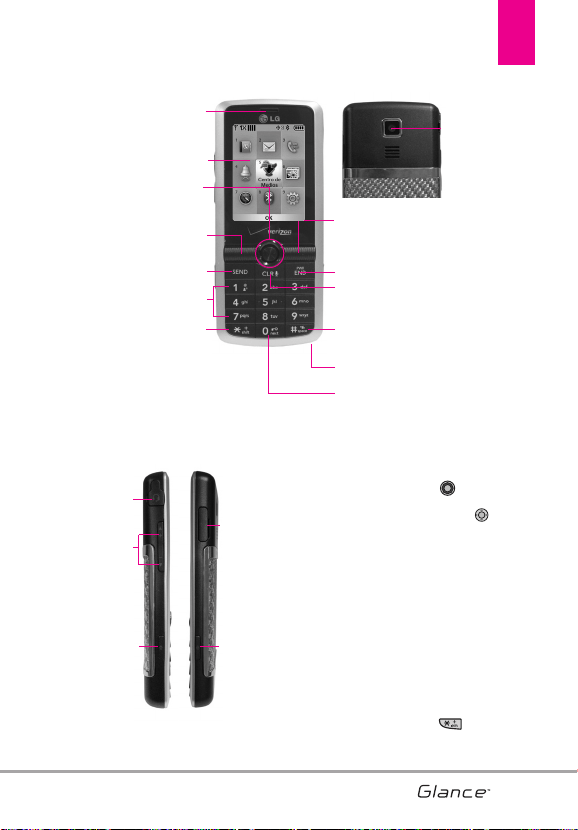
13
Descripción general del Teléfono
1.
Audífono Le permite escuchar la persona al otro
lado de la línea.
2.
Pantalla LCD principal Muestra los mensajes e
iconos indicadores.
3. Tecla OK /Navegación
Use para
seleccionar distintas opciones en los menús del
teléfono. Use la tecla de navegación para
desplazarse por el menú y seleccione un campo
específico o un objeto moviendo arriba, abajo,
izquierda o derecha.
4.
Tecla suave Izquierda Úselo para acceder al
menú de Mensaje mientras que en modo de
espera. También realiza las funciones indicadas
por el texto en la pantalla justo encima de él.
5.
Tecla SEND Úsela para hacer llamadas.
6.
Teclado Alfanumérico Úselo para introducir
números y caracteres y seleccionar elementos
de menú.
7. Tecla de prefijo de llamada internacional
Para hacer una llamada internacional,
mantenga oprimida la tecla durante 2 ó
3 segundos. + es el código de llamada
internacional.
16. Subir/Bajar
Volúmen
9. Tecla suave Derecha
2. Pantalla LCD principal
3. Tecla OK
/Navegación
17. Tecla de
Altavoz
4. Tecla suave Izquierda
18. Puerto
para
cargador y
accesorios
1. Audífono
5. Tecla SEND
13. Tecla de modo Vibrar
11. Tecla CLR (Borrar) /
Comandos de Voz
10. Tecla PWR / END
6. Teclado Alfanumérico
19. Tecla
Cámara
15. 2.5 mm
Enchufe de
audífonos
7. Tecla de prefijo de llamada
internacional
13. Micrófono
8. Lente de la
Cámara
14. Tecla de Bloqueo de Teclado
VX7100_Spa_0410.qxd 3/4/10 3:25 PM Page 13
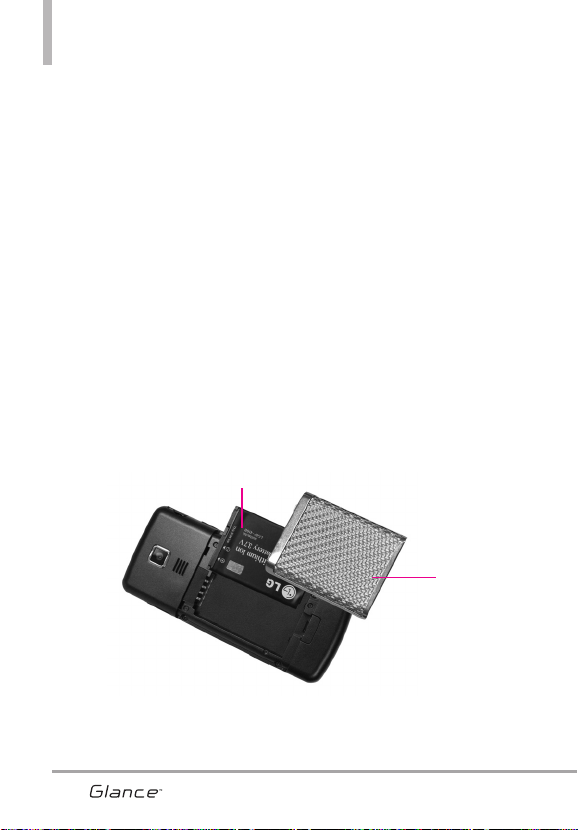
Descripción general del Teléfono
14
Batería
Cubierta de la
batería
NOTAS
●
Es importante cargar completamente la batería antes de usar el teléfono por
primera vez.
●
La vida de la batería y la potencia de la señal son factores significativos (entre
otros) que afectan la capacidad de su teléfono de hacer o recibir llamadas.
Vista posterior
8.
Lente de la Cámara
Se usa para tomar fotos.
Consérvela limpia para obtener una calidad
óptima de las fotografías.
9.
Tecla suave Derecha Úselas para acceder al
menú Contactos mientras que en modo de
espera. También realiza las funciones indicadas
por el texto en la pantalla justo encima de él.
10.
Tecla PWR / END Úsela para apagar o
encender el teléfono y para terminar una
llamada. Úsela también para volver a la pantalla
del menú principal.
11.
Tecla CLR (Borrar) Borra espacios sencillos o
caracteres oprimiéndola rápidamente, pero
manténgala oprimida para borrar una palabra.
También le permitirá retroceder en los menús,
un nivel a la vez.
12.
Tecla de modo Vibrar Úsela para configurar el
modo de vibración (desde el modo en espera,
manténgala oprimida durante unos 3 segundos).
13.
Micrófono
Permite a las personas que le
hablan escucharlo claramente cuando usted
está hablando con ellos.
14. Bloqueo de teclado Tecla Mantenga oprimida
durante 2 segundos, el bloqueo de teclado
será activado.
15. 2.5 mm
Enchufe de audífonos Le permite
conectar unos audífonos opcionales para tener
conversaciones cómodas de manos libres.
16.
Subir/Bajar Volúmen Úselas para ajustar el
Volumen maestro en modo de espera* y el
Volumen del Audífono durante una llamada.
17.
Tecla de Altavoz Se usa para cambiar al modo
de Altavoz.
18.
Puerto para cargador y accesorios Conecta el
teléfono al cargador de baterías u otros accesorios
compatibles.
19.
Tecla Cámara Úsela para acceder rápidamente
a la función de Cámara. Oprima la tecla de
cámara para tomar fotos.
* Modo de espera es cuando el teléfono aguarda una entrada del
usuario. No se muestra ningún menú, y el teléfono no está
realizando ninguna acción. Es el punto de partida para cualquier
instrucción. El esquema del menú del manual del usuario está
basado en el estilo predeterminado "Cuadrícula".
VX7100_Spa_0410.qxd 3/4/10 3:25 PM Page 14
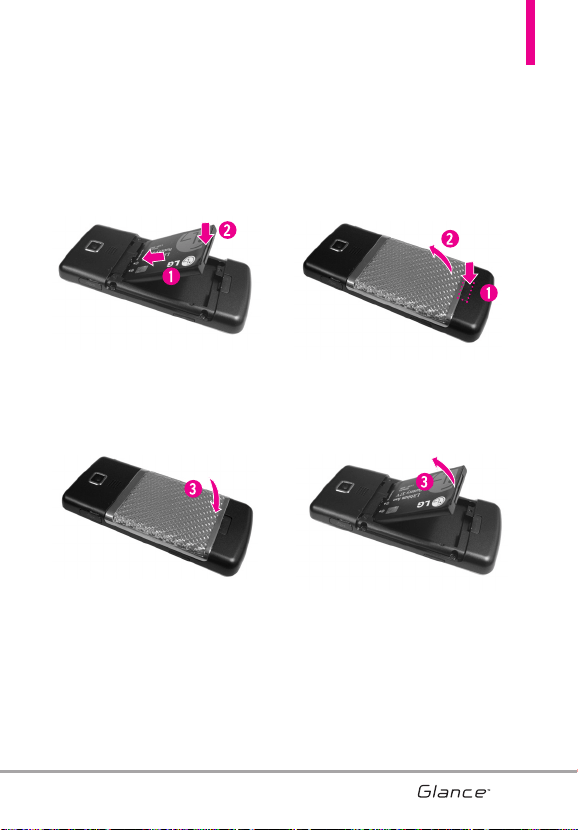
15
Instalación de la batería
1. Introduzca la parte inferior de la
batería en la abertura de la parte
posterior del teléfono.
2. Oprima la batería hacia abajo hasta
que quede ajustada en su sitio.
3. Alinee la parte superior de la cubierta
con las dos ranuras en el teléfono y
oprima la parte inferior de la cubierta
hasta que haga clic.
Extracción de la batería
1. Apague el teléfono. Mientras
presiona el botón abajo de la
cubierta, levante la parte inferior de
la cubierta.
2. Levante la parte superior de la
batería para extraerla de su
compartimiento.
VX7100_Spa_0410.qxd 3/4/10 3:25 PM Page 15
16
Descripción general de los menús
Contactos
Contactos
1. Nuevo Contacto
2. Lista de Contactos
3. Asistente de copia de seguridad
4. Favoritos
5. Grupos
6. Marcado Rápido
7. In Case of Emergency
8. Mi Tarjeta de Nombre
Mensajería
Mensajería
1. Nuevo Mensaje
1. Mensaje de TXT
2. Mensaje de Foto
3. Mensaje de Voz
2. Entrada
3. Enviado
4. Borradores
5. Mensajes de Voz
6. IMMóvil
7. Correo Elect
8. Chatear
Llamas. r
Llamas. r
ecientes
ecientes
1. Perdidas
2. Recibidas
3. Marcadas
4. Todas
5. Ver Cronómetro
Mis T
Mis T
imbr
imbr
es
es
Centr
Centr
o de Medios
o de Medios
1. Melodías y Tonos
1. Obtén Nuevas Timbres
2. Mis Timbres
3. Mis Sonidos
2. Fotos
1. Obtén Nuevas Fotos
2. Mis Fotos
3. Tomar Foto
4. Álbum En Línea
3. Juegos
4. Internet Móvil
5. Navegar y Descargar
6. Extra
Mis Fotos
Mis Fotos
VZ Navigator
VZ Navigator
Bluetooth
Bluetooth
16
VX7100_Spa_0410.qxd 3/4/10 3:25 PM Page 16
17
Pr
Pr
og/Her
og/Her
r
r
1. Mi Verizon
2. Herramientas
1. Comandos de Voz
2. Calculadora
3. Ez Sugerencia
4. Calendario
5. Lista de Tareas
6. Reloj Despertador
7. Búsqueda info
8. Cronómetro
9. Reloj Mundial
0. Cuaderno de Notas
3. Menú de Bluetooth
1. Añadir Nuevo Aparato
2. Manos Libres de Uso
Fácil
4. Programación de Guardia tecla
1. Auto-bloqueo
2. Desbloquear opciones
5. Programación de Sonidos
1. Disposición fácil
2. Volumen Maestro
3. Sonidos de Llamada
1. Timbre de Llamada
2. Vibrador de Llamada
3. Anuncio de ID de
Llamador
4. Sonidos de Alerta
1. Mensaje de TXT
2. Mensaje de Multimedia
3. Mensajes de Voz
4. Timbre de Emergencia
5. Llams. Perdidas
5. Volumen de Teclado
6. Lectura de Dígito
Marcado
7. Alertas de Servicio
1. IRO
2. Sonido de Minutos
3. Conexión de Llamada
4. Cargar Completado
8. Al Apagar/Encender
1. Al Apagar
2. Al Encender
9. Claridad de Voz
6. Programación de Pantalla
1. Disposición fácil
2. Aviso
1. Aviso Personal
2. Aviso IRO
3. Luz de Pantalla
1. Pantalla
2. Teclado
4. Brillo
5. Fondo de Pantalla
1. Mis Fotos
2. Animaciones
Divertidas
6. Mostrar Temas
7. Menú Principal Fijado
8. Tipo de fuente de Menú
9. Tamaño de Fuente
0. Formato de Reloj
7. Programación de Teléfono
1. Modo Avion
2. Establecer atajos
3. Comandos de Voz
4. Idioma
5. Ubicación
6. País Actual
7. Seguridad
VX7100_Spa_0410.qxd 3/4/10 3:25 PM Page 17

1. Editar Códigos
2. Restricciones
3. Bloqueo de teléfono
4. Bloquear teléfono
ahora
5. Restablecer a Implícito
6. Restaurar teléfono
8. Selección de Sistema
9. Seleccionar NAM
8. Programación de Llamada
1. Opciones de Resquesta
2. Reintentar
Automáticamente
3. Modo TTY
4. Marcado oprimiendo un
botón
5. Privacidad de Voz
6. Tonos DTMF
7. Marcación asistida
8. Búsqueda de marcación
9. Confiquración de joystick
0. Memoria
*. Información de Teléfono
1. Mi Número
2. Versión SW/HW
3. Glosario de Iconos
4. Actualzación de Software
#. Asistente de Programación
Descripción general de los menús
18
Algunos contenidos de esta
guía del usuario pueden ser
distintos de su teléfono en
función del software del
teléfono. Las funciones y
especificaciones están sujetas
a cambios sin previo aviso.
VX7100_Spa_0410.qxd 3/4/10 3:25 PM Page 18
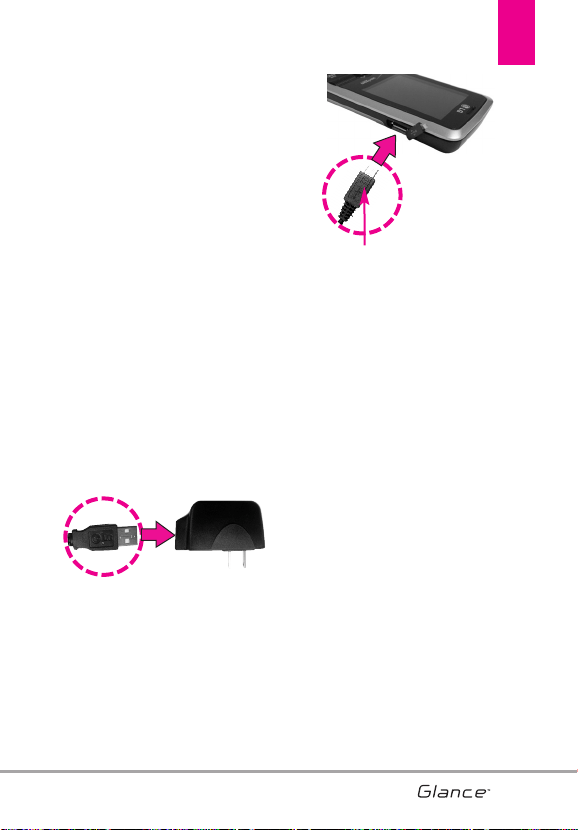
19
Para hacer funcionar su teléfono por primera vez
19
Carga de la batería
Su teléfono Glance
TM
viene con un
adaptador de viaje y un cable de
datos USB que se conectan para
poder cargar su teléfono. Para cargar
el teléfono:
AVISO
Use únicamente un accesorio
de carga aprobado para cargar
su teléfono LG.
La manipulación inadecuada del
puerto de carga, así como el
uso de un cargador no
compatible pueden ocasionarle
daños a su teléfono y anular la
garantía.
1. Conecte el adaptador de viaje y el
cable de datos USB. Al conectar
como se muestra a continuación,
el logotipo de LG y el cable USB
deben mirar hacia usted.
2. Suavemente descubra el puerto
para cargador y accesorios, luego
enchufe el extremo del adaptador
de CA en el puerto del cargador
del teléfono y el otro extremo en
una toma de corriente.
3. El tiempo de carga varía según el
nivel de la batería.
Carga con USB
Es posible usar una computadora
para cargar el teléfono. Conecte un
extremo del cable USB al puerto
para cargador y accesorios de su
teléfono y el otro extremo a un
puerto USB de alta energía de su
PC.
NOTA
No son compatibles los puertos
USB de baja energía, como el
que se encuentra en el teclado o
en el concentrador USB con
alimentación por bus.
Controlador USB debe estar
instalado antes de cargarla con
USB.
AVISO
Por favor asegurese de que el
logo de LG este mirando hacia
abajo antes de insertar el
cargador o cable USB en el
puerto para cargador de su
telefono.
VX7100_Spa_0410.qxd 3/4/10 3:25 PM Page 19
Protección de la temperatura
de la batería
En el extremamente raro caso que
se sobrecaliente el teléfono, se
apagará automáticamente. Al
volver a encender el teléfono, un
mensaje emerge avisándole que el
teléfono se apagó por su seguridad.
Nivel de carga de la batería
El nivel de carga de la batería
se muestra en la parte superior
derecha de la pantalla de LCD.
Cuando disminuya el nivel de carga
de la batería, el sensor de batería
baja le alerta haciendo sonar un
tono audible, haciendo destellar el
icono de batería y mostrando una
mensaje de alertas. Si el nivel de
carga de la batería se hace
demasiado bajo, el teléfono se
apaga automáticamente y no se
guarda ninguna función que esté
en curso.
Potencia de la señal
La calidad de las llamadas depende
de la potencia de la señal en la zona
donde se encuentra. La potencia de
la señal se indica en la pantalla
como el número de barras junto al
icono de potencia de la
señal. A más barras, mejor la
potencia de la señal. Si la calidad de
la señal es defectuosa, trasládese a
una zona abierta. Si está en un
edificio, la recepción puede ser
mejor cerca de una ventana.
Apagar y Encender el teléfono
Encender el teléfono
1. Instale una batería cargada o
conecte el teléfono a una fuente
de electricidad externa.
2. Oprima (ubicada arriba de
el número en el teclado)
hasta que la pantalla LCD se
encienda.
Apagar el teléfono
Desbloquear la pantalla, y luego
mantenga oprimida hasta
que se apague la pantalla.
Para hacer llamadas
1. Asegúrese de que el teléfono
esté encendido. Si no lo está,
oprima durante unos 3
segundos incluya el código de
bloqueo si fuera necesario.
2. Introduzca el número de
teléfono.
3. Oprima .
4. Oprima para terminar la
llamada.
Para hacer funcionar su teléfono por primera vez
20
VX7100_Spa_0410.qxd 3/4/10 3:25 PM Page 20
21
NOTA
Su teléfono tiene una función de
Comandos De Voz que también
le permite hacer llamadas
diciendo el número de teléfono,
nombre o ubicación.
Corrección de errores en la
marcación
Oprima una vez para borrar la
última cifra introducida, o
mantenga oprimida durante al
menos 2 segundos para borrar
todas las cifras.
Remarcado de llamadas
Oprima dos veces para volver
a marcar la última llamada.
Para recibir llamadas
1. Cuando el teléfono suena o vibra,
puede contestar la llamada, sólo
presione la tecla .
NOTE
Si el parámetro Opciones de
respuesta está establecido en
Cualquier Tecla, usted puede:
●
Abrir la tapa y presionar la
tecla suave izquierda
[Silenc.] para silenciar el
timbre o la vibración de esa
llamada.
●
Oprimir la tecla suave central
[TXT] para finalizar una
llamada o enviar un mensaje
de texto rápido.
●
Abrir la tapa y presionar la
tecla suave derecha
[Ignorar] para finalizar la
llamada o derivarla
directamente al correo de voz.
2. Oprima para finalizar la
llamada.
Iconos de pantalla
Cuando el teléfono está encendido,
la línea superior de la pantalla LCD
muestra iconos que indican el
estado del teléfono. Para ver el
glosario de iconos, vaya a MENÚ ->
Prog/Herr -> Información de
Teléfono -> Glosario de Iconos.
VX7100_Spa_0410.qxd 3/4/10 3:25 PM Page 21
22
Modo de vibración
Ajusta el teléfono para vibrar en
lugar de sonar (se muestra ).
Para ajustar el Modo de vibración,
mantenga oprimida . Para
volver al Modalidad Normal,
mantenga oprimida .
Sonidos desactivados
Desactive rápidamente los sonidos
del teléfono cuando usted se
encuentre en un lugar en el que los
sonidos perturbarían el ambiente.
En el modo de espera, mantenga
presionada la tecla lateral inferior
de volumen durante 3 segundos.
Para volver al modo normal de
sonidos, mantenga presionada la
tecla lateral superior de volumen.
Función de silencio
La Función de Silencio no transmite
su voz a la persona que llama. Para
activar Silencio rápidamente
durante una llamada, toque la Tecla
suave Izquierda [Mudo], y para
cancelarlo toque la Tecla suave
Izquierda [No Mudo].
Ajuste rápido del volumen
Ajuste rápidamente los volúmenes
del timbre y del audífono oprimiendo
la tecla lateral de arriba para
aumentarlo o la tecla lateral de
abajo para disminuirlo.
NOTA
El volumen del audífono puede
ajustarse durante una llamada y
el volumen de teclas sólo
pueden ajustarse mediante el
Menú.
Llamada en espera
Durante una llamada, un pitido
indica otra llamada entrante.
Oprima para responder y
poner la primera llamada en espera.
Oprima de nuevo para volver
a la primera llamada.
Identificador de Llamada
El Identificador de Llamada muestra
el número (foto ID si fué
configurada) de la persona que
llama cuando suena su teléfono.
Comandos de Voz
Comandos de Voz le permite hacer
cosas mediante órdenes verbales
(por ej., hacer llamadas, confirmar
Voicemail, etc.). Oprima la tecla de
Comandos de Voz y siga las
indicaciones.
NOTA
También se pueden iniciar los
Comandos de Voz con la tecla
designado de su aparato
Bluetooth
®
. Compruebe el
manual del dispositivo Bluetooth
®
para obtener más instrucciones.
Acceso rápido a funciones de conveniencia
22
VX7100_Spa_0410.qxd 3/4/10 3:25 PM Page 22
23
Introducir y editar información
23
Entrada de texto
Las siguientes funciones de tecla
están disponibles para ayudar a la
introducción de texto:
Tecla suave Izquierda:
Toque para desplazarse y
acceder a diferentes
modos de introducción de
texto.
Tecla Mayús: Oprima para
cambiar de mayúscula/
minúscula (mayúscula
inicial, todas mayúsculas
o minúsculas).
Siguiente: Oprima para
cambiar a otras palabras
coincidentes en la base
de datos cuando en el
modo T9. También a otros
cambios al insertar
caracteres puntuacion
puntuacion.
Espacio: Oprímalo para
aceptar una palabra e
introducir un espacio.
Borrar: Toque para borrar
un solo espacio o
carácter. Manténgala
oprimida para borrar
palabras.
Puntuación: Oprima para
introducir puntuación.
Modos de entrada de texto
En un campo de texto, toque la
Tecla suave Izquierda para
mostrar los modos de texto.
T9 Palabra/ Abc/ ABC/ 123/
Símbolos/ Text Rápido
VX7100_Spa_0410.qxd 3/4/10 3:25 PM Page 23
24
Aspectos Básicos
1. Con el teclado desbloqueado,
introduzca el número de teléfono
(de hasta 48 dígitos) y toque la
Tecla suave Izquierda [Grdr].
2. Use la tecla direccional
para desplazarse hasta Nuevo
Contacto/ Actualizar Existente.
3. Use la tecla direccional
para desplazarse hasta Móvil 1/
Casa/ Trabajo/ Móvil 2/ Fax.
4. Introduzca el nombre (hasta 32
caracteres) del número
telefónico y oprima .
5. Oprima para salir,
para llamar, o la Tecla suave
Derecha [Opciones].
Personalización de
entradas individuales
1. Con el teclado desbloqueado,
oprima la tecla suave derecha
[Contactos], y use la tecla de
dirección para resaltar una
entrada.
2. Toque la Tecla suave Izquierda
[Corregir].
3. Use la tecla direccional
para desplazarse hasta la
información que desea
personalizar.
4. Cambie la entrada como desee y
oprima para guardar los
cambios.
Marcación Rápida
Le permite configurar sus
Marcación Rápida.
1. Con el teclado desbloqueado,
oprima [MENÚ].
2. Oprima Contactos.
3. Oprima Marcado Rápido.
4. Seleccione la marcación rápida
que desea configurar y oprima la
tecla AJUST.
5. Use la tecla direccional para
seleccionar el contacto deseado
y oprima .
6. Confirmar su elección.
Contactos en la memoria de su teléfono
24
VX7100_Spa_0410.qxd 3/4/10 3:25 PM Page 24
25
Almacenar un número con
una pausa
Las pausas le permiten introducir
series de números adicionales para
acceder a sistemas automatizados,
como el Correo de voz o los
números de facturación de tarjeta
de crédito. Los tipos de pausa son:
Espera (W) El teléfono deja de
marcar hasta que usted toque la
Tecla suave Izquierda
[Release] para avanzar al siguiente
número. 2-Seg Pausa (P) El teléfono
espera 2 segundos antes de enviar
la siguiente cadena de cifras.
1. Con el teclado desbloqueado,
introduzca el número y luego
oprima la tecla suave derecha
[Opciones].
2. Use la tecla direccional para
desplazarse hasta Añadir 2-Seg
Pausa/ Añadir Espera y oprima .
3. Introduzca números adicionales
(por ejemplo, el nip o el número
de la tarjeta de crédito, etc.).
4. Toque la Tecla suave Izquierda
[Grdr].
5. Elija Nuevo Contacto/ Actualizar
Existente.
6. Elija un tipo de número teléfonico
Móvil 1/ Casa/ Trabajo/ Móvil 2/
Fax.
7. Continúe introduciendo la
información a la entrada de
contacto según sea necesario
y oprima para guardar.
Agregar otro número de
teléfono
En el modo de espera
1. Con el teclado desbloqueado,
introduzca el número y luego
oprima la tecla suave izquierda
[Grdr].
2. Use la tecla direccional
para desplazarse hasta una
Actualizar Existente.
3. Use la tecla direccional
para desplazarse hasta a una
entrada existente y oprima .
4. Use la tecla direccional
para desplazarse hasta Móvil 1/
Casa/ Trabajo/ Móvil 2 / Fax, y
oprima para guardar.
En la pantalla de Lista de contactos
1. Con el teclado desbloqueado,
oprima la tecla suave derecha
[Contactos].
2. Use la tecla de dirección
para resaltar una entrada, luego
oprima la tecla suave izquierda
[Corregir].
VX7100_Spa_0410.qxd 3/4/10 3:25 PM Page 25
3. Use la tecla de dirección
para resaltar el campo del
número de teléfono a agregar,
luego introduzca el número y
oprima a guardar
Cambiar Información Guardada
Para editar cualquier información
que haya guardado, acceda a la
pantalla Editar contactos:
1. Con el teclado desbloqueado,
oprima la tecla suave derecha
[Contactos].
2. Use la tecla direccional
para desplazarse hasta una
entrada y toque la Tecla suave
Izquierda [Corregir].
3. Use la tecla direccional
para desplazarse hasta el campo
que desea cambiar.
4. Haga los cambios y oprima
para guardar.
Agregar una pausa a una entrada
de contacto
1. Con el teclado desbloqueado,
oprima la tecla suave derecha
[Contactos].
2. Use la tecla direccional
para desplazarse hasta una
entrada de Contactos y toque la
Tecla suave Izquierda
[Corregir].
3. Use la tecla direccional
para desplazarse hasta el
número y toque la Tecla suave
Derecha [Opciones].
4. Oprima Añadir 2-Seg
Pausa o Añadir Espera.
5. Introduzca los número(s)
adicionales y oprima .
Cambiar el Número
Predeterminado
El Número predeterminado es el
número de teléfono que introdujo al
crear el contacto. Se puede
guardar otro número como Número
Predeterminado.
1. Con el teclado desbloqueado,
oprima la tecla suave derecha
[Contactos].
Contactos en la memoria de su teléfono
26
VX7100_Spa_0410.qxd 3/4/10 3:25 PM Page 26
27
2. Use la tecla direccional
para desplazarse hasta una
entrada.
3. Toque la Tecla suave Izquierda
[Corregir].
4. Use la tecla direccional
para desplazarse hasta el
número de teléfono y toque la
Tecla suave Derecha
[Opciones].
5. Use la tecla direccional
para desplazarse hasta Fijar
como Predet.
6. Oprima Sí para configurar el
nuevo número como
predeterminado.
7. Oprima de nuevo para
actualizar el contacto.
Borrar
Borrar una entrada de contacto
1. Con el teclado desbloqueado,
oprima la tecla suave derecha
[Contactos].
2. Use la tecla direccional
para desplazarse hasta una
entrada.
3. Toque la Tecla suave Derecha
[Opciones].
4. Oprima Borrar y marca la
entrada de contacto para
eliminar, a continuación,
presione la tecla suave izquierda
[Hecho].
5. Oprima Sí.
Borrar un Marcado Rápido
1. Con el teclado desbloqueado,
oprima la tecla suave derecha
[Contactos].
2. Use la tecla direccional
para desplazarse hasta la
entrada de Contacto para editar
y oprima [VER].
3. Seleccione el número con el
Marcado rápido, y oprima
[CRRGR].
4. Toque la Tecla suave Derecha
[Opciones].
5. Oprima Borrar Marcado
Rápido.
6. Oprima Sí.
7. Oprima para actualizar el
contacto.
VX7100_Spa_0410.qxd 3/4/10 3:25 PM Page 27

Marcado Rápido
Le permite hacer llamadas de
teléfono en sus contactos rápida y
fácilmente.
NOTA
El número 1 de Marcado Rápido
es para Mensajes de Voz.
El número 411 de Marcado
Rápido es para Asistencia de
Directorio.
Marcado rápido de una cifra
Oprima y mantenga presionado el
dígito de marcado rápido. El
teléfono recuerda el número
telefónico de sus Contactos, lo
muestra y lo marca.
Marcado rápido de más de una
cifra
Para realizar un marcado rápido de
más de una cifra, oprima el o los
primeros dígitos, según sea
necesario, y luego mantenga
presionado el último dígito. Por
ejemplo, para utilizar el marcado
rápido 25, presione y luego
mantenga oprimida la tecla
.
NOTA
También puede introducir las
cifras de Marcado Rápido y
oprimir .
Para los Marcados Rápidos de 95,
96, 97, 98 y 99
Marcación rápida 95, 96, 97, 98, y 99
están preprogramadas para
acceder a determinadas teléfono
información de la cuenta: 95 (#
Warranty Center), 96(#Data), 97 (#
BAL), 98 (# MIN), y 99 (# PMT). A
diferencia de marcación rápida 1,
éstas se pueden cambiar si así lo
desea.
NOTA
411 no esta disponible para
ajustar o quitar.
Contactos en la memoria de su teléfono
28
VX7100_Spa_0410.qxd 3/4/10 3:25 PM Page 28
29
Contactos
CCoonnttaaccttooss
El menú Contactos le permite
almacenar nombres, números de
teléfono y otros tipos de
información en la memoria de su
teléfono.
ACCESO DIRECTO
Cuando en modo de espera, la Tecla
suave Derecha es una tecla directa
a la Lista de contactos.
1. Nuevo Contacto
Le permite agregar un nuevo
entrada a su Lista de contactos.
NOTA
Este submenú crea una entrada
de contacto, si desea agregar un
número a un Contacto existente,
en vez de ello edite la entrada
del Contacto.
1. Con el teclado desbloqueado,
oprima [MENÚ].
2. Oprima Contactos.
3. Oprima Nuevo Contacto.
4. Introduzca el nombre y oprima la
tecla direccional abajo.
5. Use la tecla direccional
para desplazarse hasta el tipo de
distintos ámbitos.
6. Introduzca el número y oprima
para guardar.
2. Lista de Contacto
Allows you to view your Contact
List.
1. Con el teclado desbloqueado,
oprima [MENÚ].
2. Oprima Contactos.
3. Oprima Lista de
Contactos.
4. Use la tecla direccional
para resaltar a un contacto,
entonces:
●
Toque la Tecla suave Derecha
[Opciones] para
seleccionar uno de los
siguientes:
Nuevo Contacto/ Borrar/
Nuevo Mensaje de TXT/
Nuevo Mensaje de Foto/
Nuevo Mensaje de Voz/ Fijar
como Contacto ICE/ Llamada/
Borrar Todo/ Fijar como
favorito/ Enviar Tarjeta de
Nombre
VX7100_Spa_0410.qxd 3/4/10 3:25 PM Page 29
30
Contactos
30
●
Toque la Tecla suave
Izquierda [Corregir] para
editar.
●
Oprima para ver los
detalles de la entrada.
SUGERENCIA
Use el campo Ir A para
acceder rápidamente a
una entrada sin necesidad
de desplazarse. Por
ejemplo, para ir a la
entrada "Veterinario",
ingrese la letra V
.
3. Asistente de copia de
seguridad
Asistente de copia de seguridad de
tu teléfono protege la Lista de
Contactos y guarda
automáticamente una copia de los
nombres, números de teléfono y
direcciones de correo electrónico
almacenados en el teléfono.
También puede ver, imprimir, añadir,
eliminar y editar sus contactos en
línea. Si pierde, daña o actualiza su
teléfono, el Asistente de copia de
seguridad restablecerá su Lista de
Contactos.
Es posible que tarifas adicionales
aplicarán. Para más detalles,
consulte el folleto.
NOTA
Para usar el servicio de
Asistente de copia de seguridad,
debe activarlo desde el teléfono.
1. Con el teclado desbloqueado,
oprima [MENÚ].
2. Oprima Contactos.
3. Oprima Asistente de
copia de seguridad.
4. Favoritos
Puede añadir hasta 10 contactos
favoritos fácilmente realizar
llamadas y enviar mensajes.
1. Con el teclado desbloqueado,
oprima [MENÚ].
2. Oprima Contactos.
3. Oprima Favoritos.
4. Oprima [AÑADIR] y luego
marque la entrada de contacto
que desea agregar.
5. Oprima la tecla suave izquierda
[Hecho].
Una vez que haya añadido a los
contactos la lista de Favoritos -
las siguientes opciones estarán
disponibles en el menú Favoritos:
Tecla suave izquierda :
Llamada
Tecla suave central : MSJ
VX7100_Spa_0410.qxd 3/4/10 3:25 PM Page 30
3131
Tecla suave derecha :
Opciones
Ver/ Añadir/ Quitar/ Enviar
Tarjeta de Nombre/ Mover
Posición/ Fijar como Contacto
ICE/ Quitar Todo
5. Grupos
Le permite ver sus contactos
agrupados, agregar un grupo
nuevo, cambiar el nombre de un
grupo, borrar un grupo o enviar un
mensaje a todas las personas que
están dentro del grupo
seleccionado.
1. Con el teclado desbloqueado,
oprima [MENÚ].
2. Oprima Contactos.
3. Oprima Grupos.
●
Ver un grupo
Use la tecla direccional
para resaltar un grupo y luego
oprima .
●
Agregar un nuevo grupo
Presione la tecla suave
izquierda [Nuevo] para
agregar un nuevo grupo a la
lista.
●
Opciones disponibles para un
grupo
Oprima la tecla suave
derecha [Opciones]
para seleccionar uno de los
siguientes:
Nuevo Mensaje de TXT /
Nuevo mensaje de Foto /
Nuevo mensaje de Voz /
Renombrar / Borrar grupo/
Corregir
6. Marcado Rápido
Le permite ver su lista de Marcado
Rápido o designar Marcado Rápido
para números introducidos en sus
contactos.
1. Con el teclado desbloqueado,
oprima [MENÚ].
2. Oprima Contactos.
3. Oprima Marcado Rápido.
4. Use la tecla direccional , o
ingrese en el dígito de
marcación rápida, para resaltar
la posición de Marcado Rápido y
oprima [AJUST].
5. Use la tecla direccional
para resaltar el Contacto y
oprima .
6. Oprima [Sí].
VX7100_Spa_0410.qxd 3/4/10 3:25 PM Page 31
Contactos
32
7. In Case of Emergency
(ICE)
Le permite que usted almacene el
nombre, los números de teléfono y
la otra información, que serán muy
provechosos en cualquier caso de
emergencia. También le permite
leer, añadir, editar o borrar las
notas usted mismo según lo
necesite, en caso de que ocurra
una emergencia.
Añadiendo Contacto ICE (En Caso
de Emergencia)
1. Con el teclado desbloqueado,
oprima [MENÚ].
2. Oprima Contactos.
3. Oprima In Case of
Emergency.
4. Use la tecla direccional
para resaltar Contacto 1, 2, o 3, y
oprima [AÑADIR].’
5. Oprima para agregar
contacto de la lista de contactos.
Resalte el Contacto, y oprima
.
O
Oprima para ingresar la
información que no esté
guardada en la lista de
contactos.
NOTA
La etiqueta genérica Contacto
cambia al nombre especificado.
Ingreso de su información personal
ICE
1. Con el teclado desbloqueado,
oprima [MENÚ].
2. Oprima Contactos.
3. Oprima In Case of
Emergency.
4. Use la tecla direccional
para resaltar Info Personal, y
oprima .
5. Use la tecla direccional
para resaltar una de las entradas
Nota y luego y oprima .
6. Ingrese la información necesaria
para casos de emergencia (por
ejemplo, su número de historia
clínica) y luego oprima .
VX7100_Spa_0410.qxd 3/4/10 3:25 PM Page 32
33
SUGERENCIA
Cuando haya asignado
Contactos ICE y el
teléfono esté bloqueado,
la Tecla suave Izquierda
aparecerá como
[ICE], lo cual permitirá
que se visualice la
información de
emergencia sin
desbloquear el teléfono.
8. Mi Tarjeta de Nombre
Le permite ver toda su información
de contacto personal, lo que
incluye el nombre, números de
teléfono y dirección de correo
electrónico en una entrada.
1. Con el teclado desbloqueado,
oprima [MENÚ].
2. Oprima Contactos.
3. Oprima Mi Tarjeta de
Nombre.
4. Oprima [CRRGR] para
introducir su información de
contacto personal.
5. Use la tecla de dirección
para desplazarse hasta la los
campos que desea editar.
6. Introduzca su información según
lo necesite y luego oprima .
NOTA
Puede enviar su tarjeta de
nombre con la Tecla suave
Derecha
[Enviar].
VX7100_Spa_0410.qxd 3/4/10 3:25 PM Page 33

34
Mensajería
MMeennssaajjeerrííaa
ACCESO DIRECTO
Desde el modo de espera, al oprimir la
Tecla suave Izquierda es una tecla
directa a la Mensaje.
Los mensajes de texto, los de
imagen y el buzón de correo de voz
quedan disponibles en este menú.
Según el contenido y el tamaño de
los mensajes, el teléfono puede
almacenar 540 mensajes. Otros
límites pueden existir. Consulte con
su proveedor de servicio las
funciones y capacidades del
sistema.
Alerta de nuevo mensaje
Hay maneras su teléfono le avisa
de nuevos mensajes.
1. El teléfono muestra un mensaje
en la pantalla.
2. Aparece el icono de mensaje
( ) en la pantalla. En el caso
de un mensaje urgente, el icono
( ) en la pantalla.
1. Nuevo Mensaje
Le permite enviar mensajes (TXT,
Foto, y Voz). También puede
adjuntar archivos a los mensajes,
entre otros, imágenes, sonidos y
tarjetas de nombre.
VX7100_Spa_0410.qxd 3/4/10 3:25 PM Page 34
3535
1.1 Mensaje de TXT
Aspectos basicos de enviando
Mensajes
1. Con el teclado desbloqueado,
oprima la tecla suave izquierda
[Mensaje].
2. Oprima Nuevo Mensaje.
3. Oprima Mensaje de TXT.
4. Introduzca el número de teléfono
del destinatario o la dirección de
correo electrónico para un
mensaje de correo electrónico.
Usted puede incorporar hasta 10
direcciones para un solo
mensaje.
5. Oprima la Tecla direccional
abajo.
6. Escriba su mensaje (Texto o
correo elect.).
7. Oprima [ENV].
Personalización del mensaje con
Opciones
●
Edición del campo A (Destino):
1. Con el campo A resaltado, toque
la Tecla suave Derecha
[Añadir].
2. Seleccione las opciones para
este campo:
De Contactos/ De Llamas.
Recntes/ Favoritos/ Grupos
●
Editar Texto
1. Con el campo de texto resaltado,
toque la Tecla suave Derecha
[Opciones].
2. Seleccione las opciones que
desea personalizar.
Insertar Text Rápido Le permite
agregar texto rápidamente.
Guardar Como Borrador Guarda
el mensaje en la carpeta
Borradores.
Añadir Le permite agregar un
Gráfico, Animación, Sonido,
Firma, Tarjeta de Nombre o
Dirección de Contactos/Email.
Copiar Text Le permite copiar
texto.
Pegar Le permite pegar el texto
que copió por última vez en otro
campo.
VX7100_Spa_0410.qxd 3/4/10 3:25 PM Page 35
Mensajería
Formato al Text Le permite
cambiar el aspecto del texto.
Alineación/ Tamaño del Fuente/
Estilo de Fuente/ Color de Text/
Fondo
Prioridad Da prioridad al
mensaje. Alto/ Normal
Dev Llmda # Introduce un
número preprogramado de
devolución de llamada con su
mensaje.
Encendido/ Apagado/ Editar
Guardar Text Rápido Le permite
guardar el texto ingresado como
un Text Rápido.
Cancelar Mensaje Cancela la
edición del mensaje y va al menú
mensajes.
3. Finalice y envie el mensaje.
Uso de contactos para enviar un
mensaje
Puede designar una entrada
guardada en sus Contactos como
dirección en lugar de introducir
manualmente el destino.
1. Con el teclado desbloqueado,
oprima la tecla suave izquierda
[Mensaje].
2. Oprima Nuevo Mensaje.
3. Oprima Mensaje de TXT.
4. Toque la Tecla suave Derecha
[ Añadir].
5. Use la tecla direccional
para desplazarse hasta De
Contactos y oprima .
6. Use la tecla direccional
para resaltar la entrada de
contacto que contiene el destino
y oprima .
7. Toque la Tecla suave Izquierda
[Hecho].
NOTA
La función de Dirección permite
el envío múltiple de hasta 10
direcciones en total.
8. Finalice el mensaje según sea
necesario y envíelo.
36
VX7100_Spa_0410.qxd 3/4/10 3:25 PM Page 36
37
1.2 Mensaje de Foto
Aspectos básicos del envío de un
Mensaje de Foto
1. Con el teclado desbloqueado,
oprima la tecla suave izquierda
[Mensaje].
2. Oprima Nuevo Mensaje.
3. Oprima Mensaje de Foto.
4. Introduzca el número de teléfono
celular o la dirección de correo
electrónico del destinatario.
5. Oprima la Tecla direccional
abajo para editar los otros
campos.
6. Escriba su mensaje.
7. Use la tecla direccional
para resaltar Foto y toque la
Tecla suave Izquierda [Mis
Fotos]. Use la tecla direccional
para desplazarse hasta la
imagen que desea enviar y
oprima .
8. Use la tecla direccional to
para desplazarse hasta Sonido, y
toque la Tecla suave Izquierda
[Sonidos]. Use la tecla
direccional para
desplazarse hasta el archivo que
desea enviar y oprima .
9. Use la Tecla de direccional
para resaltar Nom Tarj y la Tecla
suave Izquierda [Cntctos].
Use para seleccionar Mi
Tarjeta de Nombre/ De
Contactos.
10. Use la tecla direccional
para desplazarse hasta Asunto
e introduzca el Asunto.
11. Oprima [ENV].
●
Edición del campo A (Destino):
1. Con el campo A resaltado, toque
la Tecla suave Derecha
[Añadir].
2. Seleccione las opciones que
desea personalizar.
De Contacto/ De Llamas.
Recntes/ Favorites/ Grupos/
Álbum En Línea
●
Editar Texto
1. Con el campo Texto resaltado,
toque la Tecla suave Derecha
[Opciones].
2. Seleccione las opciones para
personalizar y editar el texto.
Avance Muestra el mensaje
Foto como lo verá el destinatario.
VX7100_Spa_0410.qxd 3/4/10 3:25 PM Page 37

Mensajería
Guardar Como Borrador Guarda
el mensaje en la carpeta
Borradores.
Insertar Text Rápido Inserta
frases predefinidas.
Copiar Texto Le permite copiar
texto.
Pegar Le permite pegar el texto
que copió por última vez en otro
campo.
Añadir Dispositva Añade
múltiples fotos o imágenes en el
Mensaje de Foto.
Prioridad Da prioridad al
mensaje. Alto/ Normal
Cancelar Mensaje Cancela la
edición del mensaje y va al menú
anterior.
●
Editar Foto
1. Con el campo Foto resaltado,
toque la Tecla suave Derecha
[Opciones].
2. Seleccione las opciones que
desea personalizar.
Avance/ Guardar Como
Borrador/ Añadir Diapositiva/
Prioridad/ Cancelar Mensaje
●
Editar Sonido
1. Con el campo Sonido resaltado,
toque la Tecla suave Derecha
[Opciones].
2. Seleccione las opciones que
desea personalizar.
Avance/ Guardar Como
Borrador/ Añadir Diapositiva/
Prioridad/ Cancelar Mensaje
●
Editar Nom Tarj
1. Con el campo Nom Tarj
resaltado, toque la Tecla suave
Derecha [Opciones].
2. Seleccione las opciones que
desea personalizar.
Avance/ Guardar Como
Borrador/ Añadir Diapositiva/
Prioridad/ Cancelar Mensaje
●
Editar Asunto
1. Con el campo Asunto resaltado,
toque la Tecla suave Derecha
[Opciones].
2. Seleccione las opciones que
desea personalizar.
Avance/ Guardar Como
Borrador/ Insertar Texto Rápido/
Copiar Texto/ Pegar/ Añadir
Diapositiva/ Prioridad/ Cancelar
Mensaje
38
VX7100_Spa_0410.qxd 3/4/10 3:25 PM Page 38
39
1.3 Mensaje de Voz
Aspectos básicos del envío de un
mensaje
1. Con el teclado desbloqueado,
oprima la tecla suave izquierda
[Mensaje].
2. Oprima Nuevo Mensaje.
3. Oprima Mensaje de Voz.
4. Oprima para iniciar
grabacion.
5. Grabe el mensaje de voz.
6. Oprima para finalizar la
grabacion.
7. Introduzca el número del
teléfono celular o la dirección de
correo electrónico del
destinatario y oprima .
8. Oprima la Tecla de direccional
modificar a la baja para los
otros campos.
9. Editar su mensaje (texto o correo
elect).
10. Oprima [ENV].
Emergerá un mensaje de
confirmación en la pantalla
cuando el mensaje es
transmitido.
2. Entrada
El teléfono le alerta en 3 formas
cuando recibe un nuevo mensaje:
●
Mostrando una notificación de
mensaje en la pantalla.
●
Haciendo sonar una sonido o
vibrando, si está configurado así.
●
Mostrando .
Ver su bandeja de entrada
1. Con el teclado desbloqueado,
oprima la tecla suave izquierda
[Mensaje].
2. Oprima Entrada.
4. Opciones desde aquí:
●
Oprima [ABRIR] para abrir
el mensaje.
●
Toque la Tecla suave
Izquierda [Borrar].
●
Toque la Tecla suave Derecha
[Opciones].
VX7100_Spa_0410.qxd 3/4/10 3:25 PM Page 39
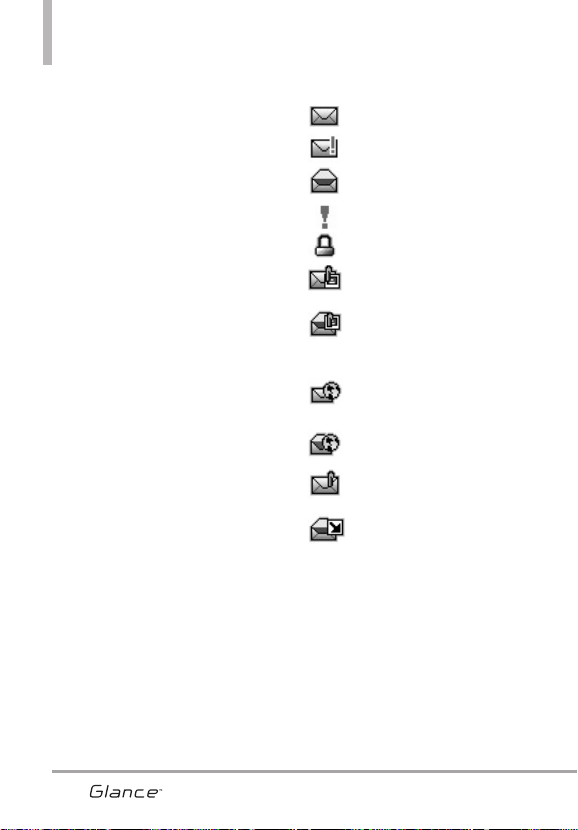
Mensajería
Contestar Responde a la
dirección del remitente del
mensaje recibido.
Responder con copia Responde
a la dirección de origen
incluyendo el mensaje original
con su respuesta.
Adelantar Reenvía un mensaje
recibido a otras direcciones de
destino.
Añadir A Contactos Guarda en
sus contactos el número de
devolución de llamada, la
dirección de correo electrónico
y los números de la dirección del
mensaje recibido.
Direcciones del extracto/ Extraer
direcciones Le permite extraer
direcciones.
Odernar por remitente/Ordenado
por Tiempo Le permite ordenar
los mensajes recibidos
alfabéticamente o por fecha.
Ver Mensajes Le permite
cambiar vista Tiempo/ Contacto.
Administrar Entrada Le permite
administrar sus mensajes.
Info. Mensaje Le permite revisar
la información de los mensajes
recibidos.
Referencia de iconos de mensaje
Mensajes de nuevos
Mensaje Urgente
Mensajes de TXT
abiertos/leídos
Prioridad Alta
Bloqueado
Mensajes de Multimedia
no leídos
Notificaciones de
Multimedia nuevos/no
leídos
Mensajes Del Browser
Nuevos/No leídos
Mensajes Del Browser
Abiertos/ Leídos
Mensajes de notificación
nuevos o no leídos
Mensajes de notificación
abiertos o leídos
* Mensajes Multimedia indícan Foto / Voz
mensaje.
40
VX7100_Spa_0410.qxd 3/4/10 3:25 PM Page 40
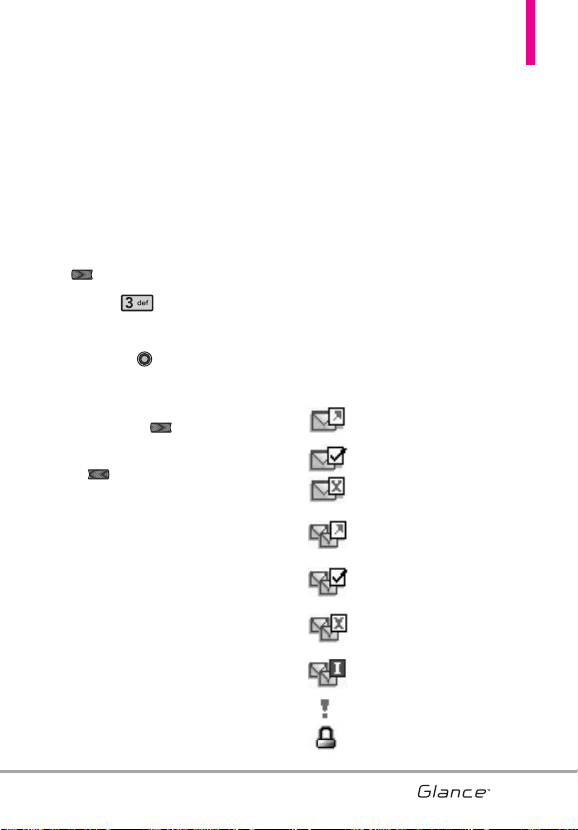
41
3. Enviado
Según el contenido y el tamaño de
los mensajes, el teléfono puede
guardar hasta 100 (50 SMS y 50
MMS) mensajes. Confirme la
transmisión correcta, vea el
contenido, administre la lista y más.
1. Con el teclado desbloqueado,
oprima la tecla suave izquierda
[Mensaje].
2. Oprima Enviado.
3. Opciones desde aquí:
●
Oprima [ABRIR] para abrir
el mensaje.
●
Toque la Tecla suave
Izquierda [Borrar].
●
Toque la Tecla suave Derecha
[Opciones].
Adelantar Reenvía un mensaje
enviado a otras direcciones de
destino.
Enviar/Reenviar Le permite
retransmitir el mensaje
seleccionado.
Añadir A Contactos Guarda en
sus contactos el número de
devolución de llamada, la
dirección de correo electrónico
y los números de la dirección del
mensaje.
Ordenado Por Destinatario/
Ordenado Por Recipient/
Ordenado Por Tiemp Le permite
ordenar los mensajes recibidos
alfabéticamente o por fecha.
Ver Mensajes Le permite
cambiar vista Tiempo/ Contacto.
Administrar Enviado Le permite
gestionar (borrar o bloquear) la
lista de mensajes.
Info. Mensaje Le permite
comprobar la información de
mensajes enviados.
Referencia de iconos de mensaje
Mensajes TXT/Foto/Voz
enviados
Mensaje entregados
Enviar mensajes TXT/
Foto/Voz fallidos
Mensajes múltiples
enviados
Mensajes múltiples
entregados
Mensajes múltiples con
error
Entrega incompleta/
Pendiente
Prioridad
Bloqueado
VX7100_Spa_0410.qxd 3/4/10 3:25 PM Page 41
Mensajería
4. Borradores
Muestra los mensajes borradores.
1. Con el teclado desbloqueado,
oprima la tecla suave izquierda
[Mensaje].
2. Oprima Borradores.
3. Opciones desde aquí:
●
Oprima [CRRGR] para
editar el mensaje.
●
Toque la Tecla suave
Izquierda [Borrar] para
borrar el proyecto
seleccionado.
●
Toque la Tecla suave Derecha
[Opciones] para ver otras
opciones disponibles:
Enviar Le permite enviar el
mensaje seleccionado.
Añadir A Contactos Almacena
en sus contactos el número de
devolución de llamada, la
dirección de correo electrónico
y los números de la dirección del
mensaje.
Administrar Borradores Permite
manejar (borrar o bloquear) los
borradores.
Referencia de iconos de mensaje
TXT de borrador
Preparar Foto/Video
5. Mensajes de Voz
Le permite ver el número de nuevos
mensajes de voz grabados en la
bandeja de entrada de correo de
voz. Desde este menú también
puede llamar a su buzón de correo
de voz para recuperar los
mensajes. Tóme en cuenta que una
vez que supere el límite de
almacenamiento, se sobrescriben
los mensajes antiguos. Cuando
tenga un nuevo mensaje de voz, el
teléfono lo alertará.
Revisión de su Buzón de Correo de
Voz
1. Con el teclado desbloqueado,
oprima la tecla suave izquierda
[Mensaje].
2. Oprima Mensajes de Voz.
3. Opciones desde aquí:
●
Toque la Tecla suave Izquierda
[Anular] para borrar
información, y oprima [Sí].
●
Oprima o [LLMD] para
escuchar los mensajes.
42
VX7100_Spa_0410.qxd 3/4/10 3:25 PM Page 42
43
O
1. Marque *86 (VM) desde
su teléfono o marque su número
de teléfono inalábrico desde
cualquier teléfono de tonos.
2. Cuando comience el anuncio
grabado, oprima para
interrumpirlo (si aplica).
3. Cuando lo solicite el sistema,
ingrese su contraseña y oprima
.
6. IMMóvil
Le permite enviar y recibir
Mensajes Intantáneos en cualquier
momento.
1. Con el teclado desbloqueado,
oprima la tecla suave izquierda
[Mensaje].
2. Oprima IMMóvil.
7. Correo Elect
Le permite enviar correo
electrónico.
1. Con el teclado desbloqueado,
oprima la tecla suave izquierda
[Mensaje].
2. Oprima Correo Elect.
3. Se iniciará una sesión del
navegador Web móvil.
4. Seleccione un proveedor de
correo electrónico y oprima .
5. Inicie sesión o ingrese su
dirección de correo electrónico
y contraseña.
8. Chatear
Le permite chatear con usuarios de
Internet Messenger.
1. Con el teclado desbloqueado,
oprima la tecla suave izquierda
[Mensaje].
2. Oprima Chatear.
3. Se iniciará una sesión del
navegador Web móvil.
4. Seleccione un proveedor de chat
y oprima .
NOTA
Esta función puede requerir una
suscripción a un proveedor de
servicios de chat.
VX7100_Spa_0410.qxd 3/4/10 3:25 PM Page 43

Mensajería
Programación de Mensajes
Le permite configurar
configuracións para sus mensajes.
1. Con el teclado desbloqueado,
oprima la tecla suave izquierda
[Mensaje].
2. Toque la Tecla suave Izquierda
[Prog].
3. Use la tecla direccional
para desplazarse hasta uno de
los ajustes y oprima .
Descripciones del submenú de
programación de mensajes
1. Ver Mensajes (Tiempo/ Contacto)
Permite ordenar los mensajes
Enviados o de Entrada por nombre
o por fecha/tiempo.
2. Mod Ingrs (T9 Palabra/ Abc/
ABC/ 123)
Le permite seleccionar el método
de introducción predeterminado, ya
sea T9 Palabra, Abc, ABC, o 123.
3. Grdr Autmtc Envdo (Encendido/
Apagado/ Preguntar)
Con esta función activada, los
mensajes se guardan
automáticamente en Enviados
cuando se transmiten.
4. Bor Autmtc Entrada (Encendido/
Apagado)
Con esta función activada, los
mensajes leídos se borran
automáticamente al superarse el
límite de almacenamiento.
5. Tamaño de Fuente de Mensajeria
Permite configurar el tamaño de la
letra. Elija Normal o Grande.
6. Ver TXT Autmtc (Encendido/
Apagado)
Le permite mostrar
automáticamente el contenido al
recibir un mensaje.
7. Auto-dsplz TXT (Encendido/
Apagado)
Le permite que el teléfono
automáticamente desplace
mensajes de Entrada.
8. Rec Aut Multimedias
(Encendido/ Apagado)
Le permite descargar el mensaje
automáticamente cuando es un
mensaje de Multimedia.
44
VX7100_Spa_0410.qxd 3/4/10 3:25 PM Page 44
45
9. Text Rápido
Le permite mostrar, editar y agregar
frases de texto. Estas frases cortas le
ayudan a disminuir la entrada de
texto manual en los mensajes.
0. Mensajes de Voz #
Le permite introducir manualmente
el número de acceso del servicio
de correo de voz. Este número sólo
debería usarse cuando la red no
proporciona un número de acceso
de servicio de correo de voz
(Servicio de Correo Voz).
*. Dev Llmda #
Con esta función activada, puede
introducir el número de devolución
de llamada que se incluirá
automáticamente cuando envíe un
mensaje.
#. Firma (Ninguno/ Personal)
Le permite crear o editar una firma
para enviarla automáticamente con
sus mensajes.
Borrar Mensajes
Puede borrar todos los mensajes
de texto almacenados en su
bandeja de entrada, o en las
carpetas Entrada, Enviado y
Borradores. También puede borrar
todos los mensajes de una vez.
1. Con el teclado desbloqueado,
oprima la tecla suave izquierda
[Mensaje].
2. Toque la Tecla suave Derecha
[Opciones] y selecciona una
de la siguientes opciones:
Borrar Entrada/ Borrar Enviado/
Borrar Borradores/ Borrar Todo
3. Oprima para borrar los
mensajes seleccionados.
4. Oprima para confirmar la
operación de borrado.
Aparecerá un mensaje de
confirmación.
VX7100_Spa_0410.qxd 3/4/10 3:25 PM Page 45
46
Llamas. Recientes
LLllaammaass.. RReecciieenntteess
El menú Llamas. Recientes es una
lista de los últimos números o
Contactos de llamadas hechas,
contestadas o perdidas. Se actualiza
continuamente y se agregan nuevos
números al principio de la lista y las
entradas más antiguas se eliminan
de la parte inferior de la lista.
1. Perdidas
Le permite ver la lista de llamadas
perdidas, hasta 90 entradas.
1. Con el teclado desbloqueado,
oprima [MENÚ].
2. Oprima Llamas.
Recientes.
3. Oprima Perdidas.
4. Use la tecla direccional
para resaltar una entrada, y
●
Oprima para abrir la
entrada.
●
Oprima para llamar al
número.
●
Toque la Tecla suave Derecha
[Opciones] para
seleccionar:
Guardar en contactos
(Detalles)/ Borrar/
Asegurar(Abrir)/ Borrar Todo/
Ver Cronómetro
●
Toque la Tecla suave
Izquierda [Mensaje] para
seleccionar:
Mensaje de TXT/ Mensaje de
Foto/ Mensaje de Voz
2. Recibidas
Le permite ver la lista de llamadas
Recibidas, hasta 90 entradas.
1. Con el teclado desbloqueado,
oprima [MENÚ].
2. Oprima Llamas.
Recientes.
3. Oprima Recibidas.
4. Use la tecla direccional
para resaltar una entrada, y
●
Oprima para abrir la
entrada.
●
Oprima para llamar al
número.
●
Toque la Tecla suave Derecha
[Opciones] para
seleccionar:
Guardar Contactos (Detalles)/
Borrar/ Asegurar(Abrir)/
Borrar Todo/ Ver Cronómetro
●
Toque la Tecla suave
Izquierda [Mensaje] para
seleccionar:
VX7100_Spa_0410.qxd 3/4/10 3:25 PM Page 46
4747
Mensaje de TXT/ Mensaje de
Foto/ Mensaje de Voz
3. Marcadas
Le permite ver la lista de llamadas
marcadas, puede tener hasta 90
entradas.
1. Con el teclado desbloqueado,
oprima [MENÚ].
2. Oprima Llamas.
Recientes.
3. Oprima Marcadas.
4. Use la tecla direccional
para resaltar una entrada, y
●
Oprima para abrir la
entrada.
●
Oprima para llamar al
número.
●
Toque la Tecla suave Derecha
[Opciones] para
seleccionar:
Guardar en contactos
(Detalles)/ Borrar/
Asegurar(Abrir)/ Borrar Todo/
Ver Cronómetro
●
Toque la Tecla suave
Izquierda [Mensaje] para
seleccionar:
Mensaje de TXT/ Mensaje de
Foto/ Mensaje de Voz
4. Todas
Le permite ver la lista de todas las
llamadas; hasta 270 entradas.
1. Con el teclado desbloqueado,
oprima [MENÚ].
2. Oprima Llamas.
Recientes.
3. Oprima Todas.
4. Use la tecla direccional
para resaltar una entrada, y
●
Oprima para abrir la
entrada.
●
Oprima para llamar al
número.
●
Toque la Tecla suave Derecha
[Opciones] para
seleccionar:
Guardar en contactos
(Detalles)/ Borrar/
Asegurar(Abrir)/ Borrar Todo/
Ver Cronómetro
●
Toque la Tecla suave
Izquierda [Mensaje] para
seleccionar:
Mensaje de TXT/ Mensaje de
Foto/ Mensaje de Voz
ACCESO DIRECTO
Para ver una lista rápida de todas sus
llamadas recientes, oprima desde
el modo de espera.
VX7100_Spa_0410.qxd 3/4/10 3:25 PM Page 47
Llamas. recientes
48
5. Ver Cronómetro
Le permite ver la duración de las
llamadas seleccionadas.
1. Con el teclado desbloqueado,
oprima [MENÚ].
2. Oprima Llamas.
Recientes.
3. Oprima Ver Cronómetro.
4. Use la tecla direccional
para resaltar una lista de
llamadas.
Última Llamada/ Todas las
Llamadas/ Llamadas Recibidas/
Llamadas Marcadas/ Llamadas
Roamimg/ Datos Transmitido/
Datos Recibidas/ Datos Total/
Último Reajuste/ Ttal de Llmdas/
Contr Datos Vda
5. Oprima le tecla suave izquierda
[Reaj] para reajustar el reloj
escogido.
O
Restaure todos los relojes
registrados tocando la Tecla
suave Derecha [Rest Tod].
NOTA
Ttal de Llmdas y Contr Datos
Vda no pueden ser reajustados.
VX7100_Spa_0410.qxd 3/4/10 3:25 PM Page 48
49
Mis Timbres
49
MMiiss TTiimmbbrreess
Le permite ver y escuchar los
archivos de Timbres guardados en el
teléfono. Desde este menú también
se puede establecer un Timbre como
un Identificador de Contacto y / o
sonidos de alerta. Consulte la sección
Mis Timbres en la página 51.
1. Con el teclado desbloqueado,
oprima [MENÚ].
2. Oprima Mis Timbres.
VX7100_Spa_0410.qxd 3/4/10 3:25 PM Page 49
505050
Centro de Medios
50
CCeennttrroo ddee MMeeddiiooss
Centro de Medios le permite usar
su teléfono para más que sólo
hablar. Centro de Medios es una
tecnología y un servicio que le
permite descargar y usar
aplicaciones en su teléfono. Con
Centro de Medios, es rápido y fácil
adaptar su teléfono a su estilo de
vida y sus gustos. Simplemente
descargue las aplicaciones que le
atraigan. Con una amplia selección
de software disponible, puede estar
seguro de que encontrará algo útil,
práctico o entretenido.
¿Hay algo que no sea claro?
Del menú Centro de Medios, toque
la Tecla suave Derecha [Info]
para ver el estado de su memoria,
registro de actividades, texto de
ayuda y estado de Centro de
Medios. Utilice la opción de la
Ayuda para vista la información
sobre cómo utilizar el Centro de
Medios.
1. Melodías y Tonos
Personalice su teléfono con
melodías y tonos. Hay una gran
variedad de opciones disponibles
para elegir de éxitos actuales, pop,
hiphop y mucho más.
Acceso y Opciones
1. Con el teclado desbloqueado,
oprima [MENÚ].
2. Oprima Centro de Medios.
3. Oprima Melodías y Tonos.
4. Seleccione uno de los submenús
(descripciones más abajo).
1.1 Obtén Nuevos Timbres
Le permite conectarse a Centro de
Medios y descargar diversos tonos
de timbre.
1. Con el teclado desbloqueado,
oprima [MENÚ].
2. Oprima Centro de Medios.
3. Oprima Melodías y Tonos.
4. Oprima Obtén Nuevos
Timbres.
VX7100_Spa_0410.qxd 3/4/10 3:25 PM Page 50
5151
1.2 Mis Timbres
Le permite ver y escuchar el tono
de llamada archivos guardados en
el teléfono. Desde este menú
también se puede establecer un
Ringtone como un contacto ID y / o
sonidos de alerta.
1. Con el teclado desbloqueado,
oprima [MENÚ].
2. Oprima Centro de Medios.
3. Oprima Melodías y Tonos.
4. Oprima Mis Timbres.
5. Use la tecla direccional
para resaltar el tono de timbre.
Presione [ESCU] para
escuchar el Timbre.
O
Presione la tecla suave izquierda
[Fij como] para fijar el
Timbre como:
●
Timbre
●
Contacto ID: Desplácese
y seleccione el contacto que se
identificará con el tono de timbre
que seleccionó.
●
Sonidos de Alerta:
Oprima la tecla del número
correspondiente para uno de los
siguientes:
Todo Mensaje/ Mensaje de TXT/
Mensaje de Multimedias/
Mensajes de Voz
1.3 Mis Sonidos
Le permite ver, escuchar y grabar
archivos de Mis sonidos en el
teléfono. Desde este menú también
están facultadas para establecer
un archivo como un Ringtone,
Contact ID y / o sonidos de alerta.
Cómo grabar un nuevo sonido
1. Con el teclado desbloqueado,
oprima [MENÚ].
2. Oprima Centro de Medios.
3. Oprima Melodías y Tonos.
4. Oprima Mis Sonidos.
5. Oprima Grabar Nuevo y
oprima para empezar a
grabar, y oprimalo de nuevo para
terminar la grabación.
Cómo seleccionar el sonido
1. Con el teclado desbloqueado,
oprima [MENÚ].
2. Oprima Centro de Medios.
3. Oprima Melodías y Tonos.
4. Oprima Mis Sonidos.
5. Use la tecla Navegación
para desplazarse y resaltar un
sonido.
VX7100_Spa_0410.qxd 3/4/10 3:25 PM Page 51
Centro de Medios
Con un archivo de sonido
resaltado, las opciones son:
●
Toque la Tecla suave
Izquierda [Fij como]
para fijar como: Timbre/
Contacto ID/ Sonidos de
Alerta.
●
Oprima [ESCU].
●
Toque la Tecla suave Derecha
[Opciones] :
Enviar/ Álbum En Línea/
Renombrar/ Bloq (Desbloq)/
Borrar/ Borrar Todo/ Info de
Arch
2. Fotos
Vea, tome, e intercambie sus
imágenes digitales desde su
teléfono inalámbrico.
Access and Options
1. Con el teclado desbloqueado,
oprima [MENÚ].
2. Oprima Centro de Medios.
3. Oprima Fotos.
4. Seleccione uno de los submenús
(descripciones a continuación):
2.1 Obtén Nuevas Fotos
Le permite conectarse a Centro de
Medios y descargar diversas
imágenes para Mis Fotos.
1. Con el teclado desbloqueado,
oprima [MENÚ].
2. Oprima Centro de Medios.
3. Oprima Fotos.
4. Oprima Obtén Nuevas
Fotos.
5. Oprima Obtén Nuevas
Aplicaciones.
2.2 Mis Fotos
Le permite ver fotografías
almacenadas en el teléfono.
1. Con el teclado desbloqueado,
oprima [MENÚ].
2. Oprima Centro de Medios.
3. Oprima Fotos.
4. Oprima Mis Fotos.
5. Seleccione la imagen que desea
con la Tecla direccional y
toque la Tecla suave Derecha
[Opciones].
6. Seleccione una de las opciones
siguientes:
Enviar Envía el foto mensaje.
52
VX7100_Spa_0410.qxd 3/4/10 3:25 PM Page 52
53
Fijar Como Fondo de Pantalla/
Foto ID
Tomar Foto Activa la función de
cámara.
Obtener Nuevo Fotos Descarga
varios fotos.
Presentación de diapositivas Ver
Presentación de diapositivas.
Administrar Mis Fotos Le
permite seleccionar multiples
fotos para borrar, bloquear o
desbloquearlas.
Renombrar Cambie el nombre
de las FOTOs seleccionadas.
Bloq (Desbloq) Le permite
bloquear o desbloquear. Los
archivos bloqueados no pueden
ser borrados.
Info de Arch Nombre/ Fecha/
Hora/ Resolución/ Tamaño
Edición de una Foto
Use la tecla de dirección para
resaltar una imagen, luego oprima
[VER] luego oprima la tecla
suave derecha [Opciones] para
acceder a opciones extras de
edición como:
Editar le permite realizar zoom,
girar y recortar la fotografía.
2.3 Tomar Foto
Le permite tomar fotografías
digitales.
1. Con el teclado desbloqueado,
oprima [MENÚ].
2. Oprima Centro de Medios.
3. Oprima Fotos.
4. Oprima Tomar Foto.
5. Configure el brillo con la Tecla de
direccional (Arriba/Abajo) , y
el Zoom con Tecla direccional
(Izquierda/Derecha) , y toque
la Tecla suave Derecha
[Opciones] para cambiar otras
configuraciones.
NOTA
Zoom no está disponible en la
resolución más alta.
●
Seleccione las opcione(s) que
desea personalizar.
RESOLUCIÓN 1280X960/ 640x480
/320x240
DISPARO AUTO Apagado/ 3
Segundos/ 5 Segundos/ 10
Segundos
EQUIL BLANCO Automático/
Soleado/ Nublado/ Fluorescente/
Brillo
SONIDO DISPA Obturador/ Sin
Sonido/ Say "Cheese"/ Ready! 1 2 3
VX7100_Spa_0410.qxd 3/4/10 3:25 PM Page 53
Centro de Medios
EFECTOS COLOR Normal/
Negativo/ Aqua/ Sepia/ Blanco y
Negro
MODO DE NOCHE Encendido/
Apagado
FOTOMETRÍA Promedio/
Mancha/ Mancha Multiple
AVANCE Vista real/ Pantalla
llena
6. Tome la foto tocando [FOTO].
7. Toque la Tecla suave Izquierda
[Grdr] para guardar. La
imagen se almacena en Mis
Fotos.
2.4 Álbum En Línea
Accede al albúm en línea (Lugar de
Fotos).
1. Con el teclado desbloqueado,
oprima [MENÚ].
2. Oprima Centro de Medios.
3. Oprima Fotos.
4. Oprima Álbum En Línea.
5. Introduzca su número de
teléfono y contraseña, según sea
el caso.
3. Juegos
Allows you to download games and
applications from the MEDIA
CENTER server. Choose the
software you want from the list
displayed on the screen.
1. Con el teclado desbloqueado,
oprima [MENÚ].
2. Oprima Centro de Medios.
3. Oprima Juegos.
4. Oprima Obtén Nuevas
Aplicaciones.
54
VX7100_Spa_0410.qxd 3/4/10 3:25 PM Page 54
55
4. Internet Móvil
El Internet Móvil le permite acceder
a noticias, deportes, información
del clima y correo electrónico
desde su dispositivo inalámbrico
Verizon. El acceso y las selecciones
dentro de esta función dependen
de su proveedor de servicios. Para
obtener información específica
sobre el Internet Móvil a través de
su teléfono, comuníquese con su
proveedor de servicios.
ATAJO
Si oprime la tecla de dirección
Arriba
accederá directamente a Mobile
Web 2.0 de manera predeterminada.
1. Con el teclado desbloqueado,
oprima [MENÚ].
2. Oprima Centro de Medios.
3. Oprima Internet Móvil.
Terminar una sesión de Navegador
Termine la sesión de Navegador
oprimiendo .
Uso del navegador
Los elementos en pantalla pueden
presentarse de una de las
siguientes formas:
●
Opciones numeradas
Puede usar su teclado numérico
o puede seleccionar los
elementos moviendo el cursor y
oprimiendo las teclas suaves
correspondientes.
●
Enlaces incrustados en el
contenido
Puede actuar sobre las opciones
o sobre los enlaces con las
teclas suaves que están justo
debajo de la pantalla.
●
Texto o números
Puede seleccionar los elementos
moviendo el cursor y oprimiendo
las teclas suaves
correspondientes.
Desplazamiento
Use la tecla direccional para
desplazarse por el contenido si la
página actual no cabe en la
pantalla. Un cursos en la pantalla
indica el elemento seleccionado.
Desplazamiento rápido
Oprima y mantenga oprimida la
Tecla direccional para mover
rápidamente el cursor hacia arriba
y hacia abajo en la pantalla actual.
Desplazamiento por página
Oprima las teclas laterales para
moverse una página hacia adelante
o hacia atrás.
VX7100_Spa_0410.qxd 3/4/10 3:25 PM Page 55

Centro de Medios
Página de inicio
Presione la tecla suave derecha
[Menú] y seleccione 1. VZW
Inicio o mantenga oprimida
para ir a la Página de inicio.
Abrir el menú del navegador
Oprima la tecla de Comandos de
Voz para usar el menú del
navegador.
Teclas suaves
Para navegar a distintas pantallas o
seleccionar funciones especiales,
use las teclas suaves. La función
asociada con las teclas suaves
puede cambiar en cada página y
depende de cada elemento
resaltado.
Tecla suave Izquierda
La Tecla suave Izquierda se
usa principalmente para las
opciones o para seleccionar un
elemento, pero su función puede
cambiar según el contenido que se
muestre.
Tecla suave Derecha
La Tecla suave Derecha se usa
principalmente para las opciones
secundarias o para un menú de
opciones secundarias.
Introducción de Texto, Números o
Símbolos
Cuando se le pida que introduzca
texto, el método actual de entrada
de texto aparece sobre la Tecla
suave Derecha como abc, Sim,
123, Emoticons ó Palabra.
Para cambiar el modo de
introducción, toque la Tecla suave
Derecha . Para crear un
carácter en mayúsculas, oprima
.
Borrado del Texto/Número
Introducido
Al introducir texto o números,
oprima para borrar el último
número, letra o símbolo. Oprima y
mantenga oprimida para
borrar completamente el campo de
entrada.
Iniciar una llamada de teléfono
desde el Navegador
Puede hacer una llamada de
teléfono desde el Navegador si el
sitio que está usando admite la
función (el número de teléfono
puede resaltarse y la Tecla suave
Izquierda aparece como
Llamar). La conexión con el
navegador se da por terminada
cuando inicia la llamada. Después
de terminar la llamada, su teléfono
56
VX7100_Spa_0410.qxd 3/4/10 3:25 PM Page 56
57
vuelve a la pantalla desde la cual
inició dicha llamada.
5. Navegar y Descargar
Todo lo que necesita saber
mientras está en movimiento.
1. Con el teclado desbloqueado,
oprima [MENÚ].
2. Oprima Centro de Medios.
3. Oprima Navegar y
Descargar
4. Oprima Obtén Nuevas
Aplicacións o resaltar una de las
aplicaciones preinstaladas l y
oprima .
6. Extra
1. Con el teclado desbloqueado,
oprima [MENÚ].
2. Oprima Centro de Medios.
3. Oprima Extra.
4. Oprima Obtén Nuevas
Aplicacións.
VX7100_Spa_0410.qxd 3/4/10 3:25 PM Page 57

58
Mis Fotos
58
MMiiss FFoottooss
Mis imágenes de la galería, se puede
ver, administrar y editar las fotos
guardadas en su teléfono. También
puede tomar y enviar fotos de tus
amigos y familiares o utilizarlas como
imagen o el Fondo de pantalla de
imágenes.
Consulte la sección Mis Fotos en la
página 52.
1. Con el teclado desbloqueado,
oprima [MENÚ].
2. Oprima Mis Fotos.
VX7100_Spa_0410.qxd 3/4/10 3:25 PM Page 58

59
VZ Navigator
VVZZ NNaavviiggaattoorr
El Menú Navegador le permite
obtener indicaciones a ubicaciones
cuando está en movimiento.
Ahora puedes encontrar la
dirección de un gran restaurante o
el cajero automático más cercano.
Ve los horarios de películas.
Descubre los sitios más populares.
Y conoce exactamente cómo llegar
a donde vas. El Sistema de
direccional VZ Navigator te ofrece
todas las funciones avanzadas de
los últimos aparatos y sistemas de
posicionamiento global (GPS), a
una fracción del precio de otros
aparatos y sistemas GPS.
●
Indicaciones de voz, vuelta por
vuelta con reenrutamiento si se
le pasa una vuelta
●
Vea mapas detallados a color en
los que puede hacer zoom y
recorrer
●
Puntos del hallazgo del interés
1. Con el teclado desbloqueado,
oprima [MENÚ].
2. Oprima VZ Navigator.
NOTAS
• Para utilizar el navegador VZ,
debe activar la ubicación.
(Consulte la página 82)
• Para utilizarlo se requiere
descarga, suscripción y
tiempo de uso; sólo dentro de
una Área nacional de tarifa de
servicios optimizados; no se
garantiza que la información
sea exacta ni completa; para
la prestación del servicio, se
utilizará la información acerca
de la ubicación del dispositivo.
VX7100_Spa_0410.qxd 3/4/10 3:25 PM Page 59

60
Bluetooth
60
BBlluueettooootthh
El
Glance
TM
es compatible con
aparatos que admiten los perfiles
de Auricular, Manos Libres, Acceso
a agenda telefónica y Push de
Objeto para vCard y vCal.
Puede crear y almacenar 20
emparejamientos dentro del
Glance
TM
y conectarse a un
aparatos a la vez. El alcance de
comunicación aproximado para la
tecnología inalámbrica Bluetooth
®
es de hasta 10 metros (30 pies).
Bluetooth
®
QD ID B015119
NOTA
Lea la guía del usuario de cada
accesorio del Bluetooth
®
que
usted está intentando aparear
con su teléfono porque las
instrucciones pueden ser
diferentes.
NOTA
Su teléfono está basado en la
especificación Bluetooth
®
, pero
no se garantiza que funcione
con todos los aparatos
habilitados con la tecnología
inalámbrica Bluetooth
®
.
El teléfono no admite TODOS
OBEX de Bluetooth
®
.
* Para ver la compatibilidad de
vehículos y accesorios, vaya a
www.verizonwireless.com/
bluetoothchart.
SUGERENCIAS
●
AURICULAR: Soporta la
utilizaci
ó
n de un auricular
bluetooth
®
compatible para
monovoz.
●
MANOS LIBRES: Soporta
auriculares Bluetooth
®
, y
puede que también soporte
otros aparatos Bluetooth
®
compatibles instalados con
capacidades de teléfono de
altavoz, tales como kits de
coche o un aparato de sala de
conferencias. Para la
compatibilidad de kit de coche
manos libres, consulte
www.verizonwireless.com/
bluetoothchart en el sitio Web
inalámbrico Verizon.
●
ACCESSO A AGENDA
TELEFÓN...: Permite la
compartición de su tarjeta de
nombre, entradas de agenda
telefónica, y archivos de
calendario con un aparato
compatible de Bluetooth
®
.
●
PUSH de OBJECTO: Permite
el envío y la recepción del
nombre de contacto y las
tarjetas de citas del calendario.
1. Con el teclado desbloqueado,
oprima [MENÚ].
2. Oprima Bluetooth.
VX7100_Spa_0410.qxd 3/4/10 3:25 PM Page 60
61
Prog/Herr
PPrroogg//HHeerrrr
1. Mi Verizon
Revise su información del
subscripción que se extiende desde
su plan del pago hasta la su mejora
del aparato o otro servicio
disponible.
1. Con el teclado desbloqueado,
oprima [MENÚ].
2. Oprima Herr.
3. Oprima Mi Verizon.
ACCESO DIRECTO
Desde el modo de espera, si oprime la
tecla de dirección hacia arriba,
funcionará como tecla rápida para
acceder a Mi Verizon de manera
predeterminada.
2. Herramientas
Las herramientas de su teléfono
incluyen un Comandos de Voz,
Calculadora, Ez Sugerencia,
Calendario, Lista de Tareas, Reloj
Despertador, Búsqueda info,
Cronómetro, Reloj Mundial,
Cuaderno de Notas.
1. Con el teclado desbloqueado,
oprima [MENÚ].
2. Oprima Prog/Herr.
3. Oprima Herramientas.
2.1 Comandos de Voz
Esta función le proporciona
opciones equipada con tecnología
AVR (Reconocimiento de voz
avanzado). Cada opción tiene su
información detallada en el teléfono
y puede revisarla tocando la Tecla
suave Izquierda [Info].
1. Con el teclado desbloqueado,
oprima [MENÚ].
2. Oprima Prog/Herr.
3. Oprima Herramientas.
4. Oprima Comandos de Voz.
Acceso y Opciones
La función Comandos de voz tiene
varios ajustes que le permiten
personalizar la forma en que desea
utilizarlo.
1. Oprima la tecla de comandos de
voz ubicada en el lado
izquierdo del teléfono.
2. Oprima la tecla suave derecha
[Prog].
Confimar Selecciones
Automático/
Siempre Confirmar/ Nunca Confirmar
Sensibilidad Controle la
VX7100_Spa_0410.qxd 3/4/10 3:25 PM Page 61

626262
sensibilidad como Más Sensible/
Automático/ Menos Sensible.
Adaptación de voz Si el teléfono
pide a menudo que usted repita el
comando de voz, entrene al
teléfono para reconocer sus
patrones de la voz.
Entrenar
Palabras/ Entrenar Dígitos
Avisos Modo/ Reproducción de
Audio/ Tiempo de Espera
Para Modo, elija Avisos/ Lectura +
Alertas/ Lectura/ Sólo Tonos.
Para Reproducción de Audio, elija
Altavoz o Auricular.
Para Tiempo de Espera, elija
5 segundos o 10 segundos.
Activación de tecla CLR Si está
activada, esta configuración
permite activar la función Comando
de voz mediante la tecla CLR desde
la pantalla principal.
2.1.1 Llamar <Nombre o Número>
Diga "Llamar" y luego llame a
alguien simplemente diciendo el
número de teléfono y el nombre.
Hable claramente y exactamente
como están en su lista de
Contactos. Cuando la entrada de
Contacto tiene varios números,
puede establecer el tipo de nombre
y número (por ejemplo, 'Llamar
Juan Trabajo').
2.1.2 Enviar Msj a <Nombre o
Número>
Diga 'Enviar Mensaje' y el comando
le incitará para el tipo de mensaje.
Después de elegir el tipo de
mensaje, se le solicitará el nombre
del contacto, el número o el grupo
del contacto. Comenzará
automáticamente un mensaje. Si
usted dice un comando completo,
por ejemplo 'Enviar Mensaje a
Bob', él comenzaría
automáticamente un mensaje del
texto sin pedir el tipo de mensaje.
Cuando use el comando de Enviar
Msj a, hable claramente y diga el
número, el nombre de grupo, o el
nombre exactamente como se
incorpora en su lista del Contacto.
2.1.3 Ir a <Menú>
El comando "Ir a" accede
rápidamente a cualquiera de los
menús del teléfono directamente
(por ejemplo, ‘Ir a Calendario’) y
ofrece indicaciones u opciones
adicionales.
2.1.4 Verificar <Elemento>
El comando de Verficar permite que
usted compruebe una gran gama de
artículos que van desde el nivel de
la batería, modo del servicio, fuerza
VX7100_Spa_0410.qxd 3/4/10 3:25 PM Page 62
63
de la señal, volumen, número de
llamadas perdidas, Buzón de Voz,
mensajes, a la hora y a la fecha.
2.1.5 Contactos <Nombre>
Puede buscar nombres entre sus
contactos con opciones como (por
ejemplo, 'Contactos Juan'):
Hay más opciones disponibles
Contactos. Decir 'Contactos' y se le
pedirá a uno de los siguientes:
Lectura/ Crear Nuevo/ Borrar/
Modificar
2.1.6 Remarcar
Para realizar una llamada al último
número al que llamó, diga
"remarcar".
2.1.7 Mi Verizon
El comando "Mi Verizon" le
proporciona acceso directo a la
información de su cuenta Verizon
Wireless.
2.1.8 Ayuda
Proporciona lineamientos
generales para el uso de los
Comandos de Voz.
2.2 Calculadora
Le permite realizar cálculos
matemáticos simples. Puede
introducir números hasta ocho
dígitos.
1.Con el teclado desbloqueado,
oprima [MENÚ].
2. Oprima Prog/Herr.
3. Oprima Herramientas.
4. Oprima Calculadora.
5. Introduzca los números para
obtener el valor que desea. Para
iniciar de nuevo, toque la Tecla
suave Izquierda [Despejar].
6. Use la Tecla suave Derecha
[Operadores] para agregar un
paréntesis o potencia entre los
números para su cálculo.
7. Use la tecla de dirección
para para entrar en las
operaciones que aparecen en la
pantalla y oprima [ = ] para el
resultado.
NOTA
Para insertar un decimal, oprima
. Para insertar ±, oprima
.
VX7100_Spa_0410.qxd 3/4/10 3:25 PM Page 63
Prog/Herr
64
2.3 Ez Sugerencia
Le permite calcular rápida y
fácilmente las cantidades de las
propinas usando como variables el
total de la factura, la propina % y el
número de personas.
1. Con el teclado desbloqueado,
oprima [MENÚ].
2. Oprima Prog/Herr.
3. Oprima Herramientas.
4. Oprima Ez Sugerencia.
5. Introduzca valores en los
campos de variables (Cuenta,
Propina(%), Dividir) y los campos
de cálculo correspondientes
(propina y total por persona)
aparecerán automáticamente.
6. Toque la Tecla suave Izquierda
[Reaj] para otro cálculo.
2.4 Calendario
Le permite mantener su agenda de
manera conveniente y de fácil
acceso. Sencillamente almacene
sus citas y su teléfono le alertará
de ellas con un recordatorio.
1. Con el teclado desbloqueado,
oprima [MENÚ].
2. Oprima Prog/Herr.
3. Oprima Herramientas.
4. Oprima Calendario.
5. Use la tecla direccional
para resaltar el día agendado.
A izquierda : día anterior
A derecha : día siguiente
A arriba : semana anterior
A abajo : semana siguiente
6. Toque la Tecla suave Izquierda
[Añadir].
7. Introduzca un asunto, luego
desplácese hacia abajo.
8. Desplazarse a un campo del
calendario, y toque la Tecla
suave Izquierda [Ajustar].
Para cada evento del Calendario,
usted puede ajustar:
●
Fecha de inicio
●
Fecha de Término
●
Hora de Comienzo
●
Hora de Término
●
Repetir
●
Hasta
●
Alerta
●
Tonos
●
Vibrar
9. Oprima [GRDR] después de
configurar todos los campos del
calendario según lo necesite.
VX7100_Spa_0410.qxd 3/4/10 3:25 PM Page 64
65
2.5 Lista de Tareas
Le permite crear una lista de tareas
pendientes.
1. Con el teclado desbloqueado,
oprima [MENÚ].
2. Oprima Prog/Herr.
3. Oprima Herramientas.
4. Oprima Lista de Tareas.
5. Oprima la tecla suave izquierda
[Añadir].
6. Introduzca un asunto.
7. Desplazarse a un campo del
fecha vencmnt, y toque la Tecla
suave Izquierda [Fecha]. Use
el teclado para ingresar la fecha
(por ejemplo, oprima para
seleccionar Junio) y presione la
tecla suave derecha [Más]
para ver las siguientes opciones:
●
Prioridad
●
Alertas
●
Fecha de Alerta
●
Hora de Alerta
●
Tonos
8. Oprima [GRDR].
2.6 Reloj Despertador
Le permite configurar diez alarmas.
A la hora de la alarma, Alarma 1 (o
2 o 3) se mostrará en la pantalla
LCD y sonará la alarma.
1. Con el teclado desbloqueado,
oprima [MENÚ].
2. Oprima Prog/Herr.
3. Oprima Herramientas.
4. Oprima Reloj
Despertador.
5. Presione la tecla suave izquierda
[Añadir] para crear una
nueva Alarma o use la tecla
direccional para resaltar
una Alarma, después presione
.
6. Use la tecla direccional
para resaltar la información que
desea configurar y toque la
Tecla suave Izquierda
[Ajustar] para ver sus opciones.
Introduzca la información de su
compromiso, con:
●
Encender/ Apagar
●
Fijar Tiemp
●
Periodicidad
●
Timbre
7. Oprima [GRDR] después de
configurar todos los campos de
Alarma.
NOTA
Cuando la Alarma se actíve,
podrá Posponer o Descartar el
Aviso.
VX7100_Spa_0410.qxd 3/4/10 3:25 PM Page 65
Prog/Herr
66
2.7 Búsqueda info
Puede buscar información
almacenada en el teléfono.
1. Con el teclado desbloqueado,
oprima [MENÚ].
2. Oprima Prog/Herr.
3. Oprima Herramientas.
4. Oprima Búsqueda info.
5. Oprima [BUSCAR] o la tecla
suave derecha [Opciones].
Última búsqueda/Cancelar
2.8 Cronómetro
Le permite utilizar el teléfono como
un típico cronómetro. Si oprime
, se iniciará o detendrá el
cronómetro. Durante la medición
del tiempo, presione la tecla suave
izquierda [Vuelta] para medir
el tiempo de las vueltas. Una vez
detenida la medición, oprima la
tecla suave derecha [Reaj].
1. Con el teclado desbloqueado,
oprima [MENÚ].
2. Oprima Prog/Herr.
3. Oprima Herramientas.
4. Oprima Cronómetro.
2.9 Reloj Mundial
Le permite determinar la hora
actual en otra zona horaria o país
navegando con las teclas de
direccional izquierda o derecha.
1. Oprima la tecla suave izquierda
para liberar la guardia de
teclas y luego oprima
[MENÚ].
2. Oprima Prog/Herr.
3. Oprima Herramientas.
4. Oprima Reloj Mundial.
5. Toque la Tecla suave Derecha
[Ciudads] para ver la lista de
ciudades.
6. Seleccione una ciudad de la lista
y luego oprima .
En la pantalla se verá la
ubicación de la ciudad en un
mapa mundial.
7. Oprima otra vez para
ampliar la ciudad y ver los datos
de fecha y hora.
NOTA
Con la Tecla suave Izquierda
[Fije DST], establezca el
horario de verano.
VX7100_Spa_0410.qxd 3/4/10 3:25 PM Page 66
67
2.0 Cuaderno de Notas
Le permite leer, agregar, editar y
borrar notas para usted mismo.
1. Con el teclado desbloqueado,
oprima [MENÚ].
2. Oprima Prog/Herr.
3. Oprima Herramientas.
4. Oprima Cuaderno de
Notas.
5. Toque la Tecla suave Izquierda
[Añadir] para escribir una
nueva nota.
6. Después de escribir la nota,
oprima para guardarla.
3. Menú de Bluetooth
®
3.1 Anadir Nuevo Aparato
El emparejamiento es el proceso
que permite que el terminal ubique,
establezca y registre una conexión
1-a-1 con el aparato objetivo.
3.1.1 Para emparejar con un nuevo
dispositivo Bluetooth
®
1. Siga las instrucciones del
accesorio de Bluetooth
®
para
ajustar el aparato en modo de
emparejamiento.
2. Con el teclado desbloqueado,
oprima [MENÚ].
3. Oprima Prog/Herr.
4. Oprima Menú de
Bluetooth.
5. Oprima Añadir Nuevo
Aparato.
Configure el aparato deseado
para el emparejamiento.
6. Si Bluetooth
®
está desactivado, se
le pedirá que lo encienda. Resalte
Sí y oprima .
7. El aparato aparecerá en el menú
Anadir Nuevo Aparato que haya
sido localizado. Resalte el
dispositivo y oprima [PAR].
8. El terminal le pedirá la clave de
paso. Consulte las instrucciones
del accesorio Bluetooth
®
para
ver la clave de paso adecuada
(usualmente es “0000”- 4 ceros).
Introduzca la clave de paso y
oprima . Cuando Auto
Emparejamiento está Activada,
el aparato se autoemparejará
con los auriculares.
9. Una vez que el emparejamiento
se haya realizado, resalte
Siempre Preguntar o Siempre
Conectar y oprima para
conectarse con el dispositivo.
10. Una vez conectado, verá el
dispositivo en el menú
Bluetooth
®
y aparecerá en
su enunciador cuando esté
VX7100_Spa_0410.qxd 3/4/10 3:25 PM Page 67
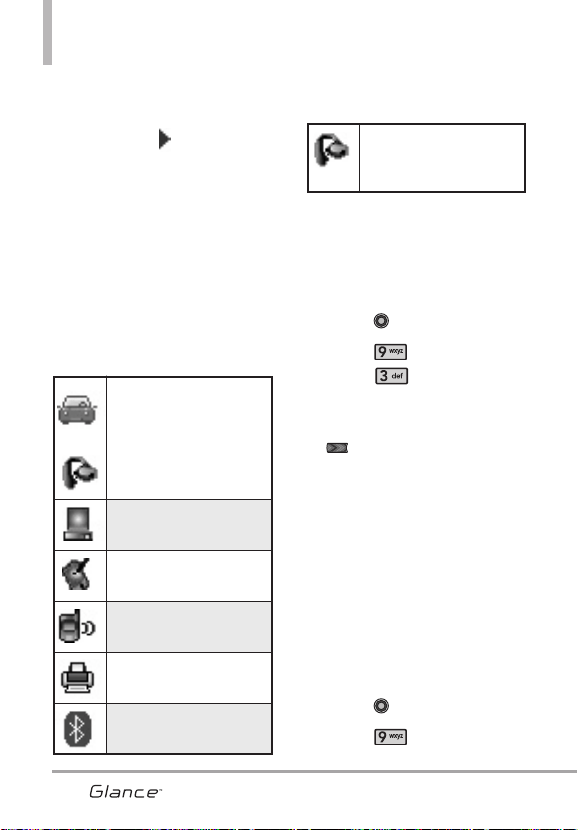
Prog/Herr
68
conectado con el dispositivo
Bluetooth
®
. También puede
comprobar la conexión que tiene
un icono azul en la lista.
3.1.2 Referencia de iconos para
agregar nuevo dispositivo
Cuando se crea la conexión
inalámbrica Bluetooth
®
y se
encuentran dispositivos emparejados,
se muestran los iconos siguientes.
●
Referencias de iconos cuando
se encuentra una conexión
inalámbrica Bluetooth
®
(ni
conectado ni emparejado).
●
Referencias de iconos al estar
conectado correctamente
Encendido
Le permite activar o desactivar la
alimentación de Bluetooth
®
.
1. Con el teclado desbloqueado,
oprima [MENÚ].
2. Oprima Prog/Herr.
3. Oprima Menú de
Bluetooth.
4. Toque la Tecla suave Izquierda
[Encender].
NOTA
De manera predeterminada, la
funcionalidad del Bluetooth
®
de
su dispositivo está desactivada.
Mi info de Dispositivo
Le permite editar el nombre de
Bluetooth
®
de su teléfono cuando
se resalta el menú Agregar nuevo
dispositivo.
1. Con el teclado desbloqueado,
oprima [MENÚ].
2. Oprima Prog/Herr.
Cuando unos audífonos
sólo monoaurales están
conectados con su
dispositivo
Glance
TM
Cuando su dispositivo
Glance
TM
busca un dispositivo
de audio
Cuando su dispositivo
Glance
TM
busca una PC
Cuando su dispositivo
Glance
TM
busca un PDA
Cuando su dispositivo
Glance
TM
busca otro
dispositivo de teléfono
Cuando su dispositivo
Glance
TM
encuentra una
impresora
Cuando su dispositivo
Glance
TM
encuentra otros
dispositivos no definidos
Cuando el teléfono
Glance
TM
está buscando un dispositivo
de manos libres o un kit para
automóvil
VX7100_Spa_0410.qxd 3/4/10 3:25 PM Page 68
69
3. Oprima Menú de
Bluetooth.
4. Toque la Tecla suave Derecha
[Opciones].
5. Oprima Mi Info de
Dispositivo.
6. Mantenga pulsada la tecla
para borrar el nombre existente.
7. Use el teclado numérico para
introducir un nuevo nombre
personalizado.
8. Oprima para guardar y salir.
Modo de Descubrimiento
Le permite configurar si su
dispositivo puede ser buscado por
otros dispositivos
Bluetooth
®
en la
zona.
1. Con el teclado desbloqueado,
oprima [MENÚ].
2. Oprima Prog/Herr.
3. Oprima Menú de
Bluetooth.
4. Toque la Tecla suave Derecha
[Opciones].
5. Oprima Modo de
Descubrimiento.
6. Use la tecla direccional
para desplazarse hasta un valor,
y oprima .
Encendida/ Apagado
NOTA
Si el modo de descubrimiento
está en Encendida, otros
dispositivos Bluetooth
®
en el
rango de alcance pueden
buscar su dispositivo.
Perfiles Soportados
Le permite ver perfiles que su
teléfono
Glance
TM
puede admitir.
1. Con el teclado desbloqueado,
oprima [MENÚ].
2. Oprima Prog/Herr.
3. Oprima Menú de
Bluetooth.
4. Toque la Tecla suave Derecha
[Opciones].
5. Oprima Perfiles
Soportados.
3.2 Manos Libres de Uso Fácil
Le permite conectar el auricular
Bluetooth al teléfono directamente,
después de buscarlo. Durante una
llamada, oprima para el acceso
a Ez Uso Manos libres. Oprima
para que el dispositivo de audio o
de audio al teléfono.
VX7100_Spa_0410.qxd 3/4/10 3:25 PM Page 69
Prog/Herr
70
1. Con el teclado desbloqueado,
oprima [MENÚ].
2. Oprima Prog/Herr.
3. Oprima Menú de
Bluetooth.
4. Oprima Manos Libres de
Uso Fácil.
5. Coloque el manos libre o el
auricular Bluetooth en modo de
emparejamiento.
ACCESO DIRECTO
Al presionar el direccional tecla
la baja desde el modo es una
tecla de acceso rápido a Manos
Libres de Uso Fácil.
4. Programación de Guardia
tecla
Le permite personalizar las
opciones de auto bloqueo y
desbloqueo.
1. Con el teclado desbloqueado,
oprima [MENÚ].
2. Oprima Prog/Herr.
3. Oprima Programación de
Guardia tecla.
4. Resalte un submenú de la
configuración de guardia de
teclas y presione .
Auto-Bloqueo/ Desbloquear
opciones
●
: Función de
Auto-bloqueo bloquea el
teclado de teléfono cuando se
apaga la luz de fondo para
evitar la presión de teclas
accidentalmente.
Encendido/ Apagado
●
:
Presione una vez: Puede
desbloquear el teclado del
teléfono presionando la tecla
suave izquierda una vez.
Presione dos veces: Puede
desbloquear el teclado del
teléfono presionando la y
la secuencialmente.
Desbloquear opciones
Auto-Bloqueo
VX7100_Spa_0410.qxd 3/4/10 3:25 PM Page 70
71
5. Programación de Sonidos
Ofrece opciones para personalizar
los sonidos del teléfono.
5.1 Disposición fácil
Le permite configurar los sonidos
fácilmente.
1. Con el teclado desbloqueado,
oprima [MENÚ].
2. Oprima Prog/Herr.
3. Oprima Programación de
Sonidos.
4. Oprima Disposición fácil.
5.2 Volumen Maestro
Le permite configurar los valores de
volumen.
1. Con el teclado desbloqueado,
oprima [MENÚ].
2. Oprima Prog/Herr.
3. Oprima Programación de
Sonidos.
4. Oprima Volumen Maestro.
5. Ajuste el volumen con la tecla
direccional y oprima
[FIJADO] para guardar la
configuración.
5.3 Sonidos de Llamada
Le permite configurar cómo el
teléfono lo alertará según los tipos
de llamadas entrantes.
1. Con el teclado desbloqueado,
oprima [MENÚ].
2. Oprima Prog/Herr.
3. Oprima Programación de
Sonidos.
4. Oprima Sonidos de
Llamada.
Los siguientes ajustes se pueden
personalizar:
5.3.1 Timbre de Llamada
1. Con el teclado desbloqueado,
oprima [MENÚ].
2. Oprima Prog/Herr.
3. Oprima Programación
de Sonidos.
4. Oprima Sonidos de
Llamada.
5. Oprima Timbre de
Llamada.
6. Use la tecla direccional
para desplazarse hasta un
tono de timbre y oprima
[OK] para guardar el cambio.
VX7100_Spa_0410.qxd 3/4/10 3:25 PM Page 71
Prog/Herr
72
SUGERENCIA
Para oír un tono de timbre antes de
establecerlo, oprima la tecla suave
izquierda
[[EEssccuu]]
.
5.3.2 Vibrador de Llamada
1. Con el teclado desbloqueado,
oprima [MENÚ].
2. Oprima Prog/Herr.
3. Oprima Programación
de Sonidos.
4. Oprima Sonidos de
Llamada.
5. Oprima Vibrador de
Llamada.
6. Use la tecla direccional
para desplazarse hasta un
valor y oprima [OK].
Encendido/ Apagado
5.3.3 Anuncio de ID de Llamador
1. Con el teclado desbloqueado,
oprima [MENÚ].
2. Oprima Prog/Herr.
3. Oprima Programación
de Sonidos.
4. Oprima Sonidos de
Llamada.
5. Oprima Anuncio de ID
de Llamador.
6. Use la tecla direccional
para desplazarse hasta un
valor y oprima [OK].
Sólo Timbre/ ID de llamador +
Timbre/ Repetir Nombre
5.4 Sonidos de Alerta
Le permite seleccionar el tipo de
alerta de un nuevo mensaje.
1. Con el teclado desbloqueado,
oprima [MENÚ].
2. Oprima Prog/Herr.
3. Oprima Programación de
Sonidos.
4. Oprima Sonidos de
Alerta.
5. Seleccione Mensaje de TXT/
Mensaje de Multimedias/
Mensajes de Voz/ Timbre de
Emergencia/ Llams. Perdidas.
VX7100_Spa_0410.qxd 3/4/10 3:25 PM Page 72
73
6. Cada menú del sonido de la
alarma tiene las opciones
siguientes.
Tono/ Vibrar/ Recordatorio
Para Timbre de Emergencia las
opciones son: Alertas/ Vibrar/
Desactivado
5.5 Volumen de Teclado
Le permite configurar el volumen
del teclado.
1. Con el teclado desbloqueado,
oprima [MENÚ].
2. Oprima Prog/Herr.
3. Oprima Programación de
Sonidos.
4. Oprima Volumen de
Teclado.
5. Ajuste el volumen con la Tecla
direccional y oprima
[FIJADO] para guardar la
configuración.
5.6 Lectura de Dígito Marcado
1. Con el teclado desbloqueado,
oprima [MENÚ].
2. Oprima Prog/Herr.
3. Oprima Programación de
Sonidos.
4. Oprima Lectura de Dígito
Marcado.
5. Use la tecla direccional
para desplazarse hasta un valor,
y oprima [OK].
5.7 Alertas de Servicio
Le permite configurar como
Encendido o Apagado cualquiera
de las cuatro opciones de Aviso.
1. Con el teclado desbloqueado,
oprima [MENÚ].
2. Oprima Prog/Herr.
3. Oprima Programación de
Sonidos.
4. Oprima Alertas de
Servicio.
VX7100_Spa_0410.qxd 3/4/10 3:25 PM Page 73
5. Seleccione una opción de alerta.
IRO Le avisa de las condiciones
del servicio celular.
IRO: Indicador de Roaming
Mejorado
Sonido de Minutos Le avisa 10
segundos antes del final de cada
minuto durante una llamada.
Conexión de Llamada Le avisa
cuando la llamada se ha
conectado.
Cargar Completado Le avisa
cuando la batería está
completamente cargada.
6. Use la tecla direccional
para desplazarse hasta un valor,
y oprima [OK].
5.8 Al Apagar/Encender
Allows you to set the phone to
sound a tone when the phone is
powered on/off.
1. Con el teclado desbloqueado,
oprima [MENÚ].
2. Oprima Prog/Herr.
3. Oprima Programación de
Sonidos.
4. Oprima Al Apagar/ Al
Encender.
5. Seleccione Al Apagar/ Al
Encender.
6. Use la tecla direccional
para desplazarse hasta un valor,
y oprima [OK].
Prog/Herr
74
VX7100_Spa_0410.qxd 3/4/10 3:25 PM Page 74
75
5.9 Claridad de Voz
Le permite ajustar el teléfono para
que ajuste automaticamente el
micrófono en ambientes de mucho
ruido.
NOTA
La característica de Claridad de
Voz es desactivada
automáticamente cuando se
utiliza el altavoz o el dispositivo
de manos libres.
1. Con el teclado desbloqueado,
oprima [MENÚ].
2. Oprima Prog/Herr.
3. Oprima Programación de
Sonidos.
4. Oprima Claridad de Voz.
5. Use la tecla direccional
para desplazarse hasta un valor,
y oprima [OK].
6. Programación de Pantalla
Le permite configurar la apariencia
de la pantalla según sus
especificaciones.
1. Con el teclado desbloqueado,
oprima [MENÚ].
2. Oprima Prog/Herr.
3. Oprima Programación de
Pantalla.
6.1 Disposición fácil
Guía que le permite configurar la
apariencia fácilmente.
1. Con el teclado desbloqueado,
oprima [MENÚ].
2. Oprima Prog/Herr.
3. Oprima Programación de
Pantalla.
4. Oprima Disposición fácil.
6.2 Aviso
Le permite introducir una frase de
hasta 23 caracteres que se muestra
en la pantalla LCD.
1. Con el teclado desbloqueado,
oprima [MENÚ].
2. Oprima Prog/Herr.
3. Oprima Programación de
Pantalla.
VX7100_Spa_0410.qxd 3/4/10 3:25 PM Page 75
Prog/Herr
4. Oprima Aviso.
6.2.1 Personal Aviso
1. Con el teclado desbloqueado,
oprima [MENÚ].
2. Oprima Prog/Herr.
3. Oprima Programación
de Pantalla.
4. Oprima Aviso.
5. Oprima Personal
Aviso.
6. Ingrese el texto que desee
para el titular.
NOTA
Presione la tecla direccional
para cambiar el color del
texto. Use la tecla para
seleccionar el color que desee.
Negro/Blanco/Amarillo/Naranja/
Rojo/Marrón/Azul/Verde/Celeste
7. Oprima [OK] para guardar.
6.2.2 Aviso IRO
Si usa el Servicio IRO, el texto
IRO se muestra en el banderín.
1. Con el teclado desbloqueado,
oprima [MENÚ].
2. Oprima Prog/Herr.
3. Oprima Programación
de Pantalla.
4. Oprima Aviso.
5. Oprima Aviso IRO.
6. Use la tecla direccional
para desplazarse hasta un
valor, y oprima [OK].
6.3 Luz de Pantalla
Le permite establecer la duración
de la iluminación de la luz de fondo.
Pantalla y Teclado se configuran
independientemente.
1. Con el teclado desbloqueado,
oprima [MENÚ].
2. Oprima Prog/Herr.
3. Oprima Programación de
Pantalla.
4. Oprima Luz de Pantalla .
5. Elija un submenú de Luz trasera
y oprima [OK].
Pantalla/ Teclado
1. Pantalla: 7 Segundos/ 15
Segundos/ 30 Segundos/
1 Minuto
2. Teclado: 7 Segundos/ 15
Segundos/ 30 Segundos
6.4 Brillo
Le permite ajustar el nivel de brillo.
1. Con el teclado desbloqueado,
76
VX7100_Spa_0410.qxd 3/4/10 3:25 PM Page 76
77
oprima [MENÚ].
2. Oprima Prog/Herr.
3. Oprima Programación de
Pantalla.
4. Oprima Brillo.
5. Con la establezca el nivel de
brillo y oprima [OK].
6.5 Fondo de Pantalla
Permite que usted elija la clase de
fondo que se exhibirá en el
teléfono.
1. Con el teclado desbloqueado,
oprima [MENÚ].
2. Oprima Prog/Herr.
3. Oprima Programación de
Pantalla.
4. Oprima Fondo de
Pantalla.
5. Elija un submenú y oprima .
Mis Fotos/ Animaciones
Divertidas
6. Utilice la dirección Tecla
para navegar por las imágenes,
a continuación, oprima [OK]
para seleccionar una imagen.
7. Con unas Fotos, puede Ampliar o
Alejar el zoom a través de las
teclas suaves. Oprima para
finalizar.
6.6 Mostrar Temas
Le permite elegir el entre los
diferentes temas de los menús del
teléfono.
1. Con el teclado desbloqueado,
oprima [MENÚ].
2. Oprima Prog/Herr.
3. Oprima Programación de
Pantalla.
4. Oprima Mostrar Temas.
5. Use la tecla direccional
para desplazarse hasta un valor,
y oprima .
Blanco/ Vistazo/ Gold Square
NOTA
Oprima la tecla izquierda
[Avance] para una vista previa
del tema seleccionado de pantalla.
6.7 Menú Principal Fijado
Le permite establecer que se
muestre el portapapeles en el modo
de espera.
1. Con el teclado desbloqueado,
oprima [MENÚ].
2. Oprima Prog/Herr.
3. Oprima Programación de
Pantalla.
4. Oprima Menú Principal
Fijado.
VX7100_Spa_0410.qxd 3/4/10 3:25 PM Page 77
5. Use la tecla direccional
para desplazarse hasta un valor,
y oprima [OK].
Diseno de menú/ Reemplazar
elementos de menú/ Posicionar
elementos de menú/
Restablecer diseno de menú
1. Diseno de menú
Tab/ Lista/ Cuadrícula
2. Reemplazar elementos de
menú
Seleccione el elemento que
quiere reemplazar y luego
presione ‘CRRGR’. Seleccion en
la lista el elemento con el que
quiere reemplazar y luego
presione ‘Fijado’.
3. Posicionar elementos de menú
Seleccione el elemento que
quiere mover, y luego presione
‘MOVER’. Mueva el resalte a la
posición deseada presionando
las teclas direccionales Arriba,
Abajo, Derecha e lzquierda, y a
continuación, presione CMBR.
4. Restablecer diseno de menú
Diseño de menú/ Elementos de
menú/ Posiciones de elemento/
Todo
6.8 Tipo de Fuente de Menú
Le permite configurar la fuente que
se usa en el teléfono.
1. Con el teclado desbloqueado,
oprima [MENÚ].
2. Oprima Prog/Herr.
3. Oprima Programación de
Pantalla.
4. Oprima Tipo de Fuente de
Menú.
5. Use la tecla direccional
para desplazarse hasta un valor,
y oprima .
Fuente de VZW/ LG Edge/ LG
Script
NOTA
Presione la tecla suave
izquierda
[Avance]
para
ver la fuente antes de
seleccionarla.
Prog/Herr
78
VX7100_Spa_0410.qxd 3/4/10 3:25 PM Page 78
79
6.9 Tamaño de Fuente
Le permite ajustar el tamaño de la
fuente. Esta configuración es útil
para quienes necesitan que el texto
se muestre un poco más grande.
1. Con el teclado desbloqueado,
oprima [MENÚ].
2. Oprima Prog/Herr.
3. Oprima Programación de
Pantalla.
4. Oprima Tamaño de Fuente.
5. Use la tecla direccional
para seleccionar Llamar a
números/ Menú & Listas /
Mensaje.
6. Toque la Tecla suave Izquierda
[Ajustar].
7. Use la tecla direccional
para desplazarse hasta un valor,
y oprima .
Llamar a números: Grande/
Medio/ Pequeña
Menú & Listas: Normal/ Grande
Mensaje: Normal/ Grande
6.0 Formato de Reloj
Le permite elegir el tipo de reloj que
se mostrará en la pantalla LCD.
1. Con el teclado desbloqueado,
oprima [MENÚ].
2. Oprima Prog/Herr.
3. Oprima Programación de
Pantalla.
4. Oprima Formato de Reloj.
5. Resalte un formato de reloj y
oprima .
Digital 12 Pequeño/ Análogo
Pequeño/ Análogo Grande/
Digital 12 Grande/ Digital 24
Grande/ Doble Ciudad/ Apagado
6. Use la tecla direccional
para desplazarse hasta un valor,
y oprima .
NOTA
Presione la tecla suave
izquierda [Avance] para
tener una vista previa del
formato de reloj seleccionado.
VX7100_Spa_0410.qxd 3/4/10 3:25 PM Page 79
7. Programación de
Teléfono
El menú Programación de Teléfono
le permite designar ajustes
específicos de la configuración de
red.
7.1 Modo Avion
Si activa el modo de avión, se
desactivarán todas las
comunicaciones inalambricas.
1. Con el teclado desbloqueado,
oprima [MENÚ].
2. Oprima Prog/Herr.
3. Oprima Programación de
Teléfono.
4. Oprima Modo Avion.
5. Use la tecla direccional
para desplazarse hasta un valor,
y oprima [OK].
Encendido/ Apagado
7.2 Establecer atajos
Le permite establecer un acceso
directo a los menús del teléfono
con las teclas de direccional arriba,
abajo, izquierda y derecha.
7.2.1 Establecer mis atajos
Acceda a estos atajos oprimiendo
la tecla direccional derecha en el
modo de espera para mostrar sus
cuatro atajos.
1. Con el teclado desbloqueado,
oprima [MENÚ].
2. Oprima Prog/Herr.
3. Oprima Programación de
Teléfono.
4. Oprima Establecer atajos.
5. Oprima Establecer mis
atajos.
6. Use la Tecla de direccional
para desplazarse a la tecla de
acceso directo que desea
configurar.
Atajo 1/ Atajo 2/ Atajo 3/ Atajo 4
7. Oprima para mostrar los
accesos directos existentes. Use
la tecla direccional para
seleccionar uno y luego presione
[OK].
Prog/Herr
80
VX7100_Spa_0410.qxd 3/4/10 3:25 PM Page 80
81
7.2.2 Establecer teclas
direccionales
Para acceder a estos atajos,
oprima la tecla direccional cuando
en modo de espera para acceder a
la opción que usted configuró para
esa especifica tecla direccional.
1. Con el teclado desbloqueado,
oprima [MENÚ].
2. Oprima Prog/Herr.
3. Oprima Programación de
Teléfono.
4. Oprima Establecer atajos.
5. Oprima Establecer teclas
direccionales.
6. Use la Tecla de direccional
para desplazarse a la tecla de
acceso directo que desea
configurar.
Tecla Direccional Arr/ Tecla
Direccional Izq/ Tecla
Direccional Abj
7. Oprima para mostrar los
accesos directos existentes. Use
la tecla direccional para
seleccionar uno y luego presione
[OK].
7.3 Comandos de Voz
1. Con el teclado desbloqueado,
oprima [MENÚ].
2. Oprima Prog/Herr.
3. Oprima Programación de
Teléfono.
4. Oprima Comandos de Voz.
Confimar Selecciones
Automático/ Siempre Confirmar/
Nunca Confirmar
Sendibillidad Más Sensible/
Automático/ Menos Sensible
Adaptación de voz Si el teléfono
le solicita que repita el comando
de voz con frecuencia,
prográmelo para que reconozca
su patrón de voz.
Entrenar Palabras/ Entrenar
Dígitos
Avisos Modo/ Reproducción de
Audio/ Tiempo de Espera
- Para Modo, elija Avisos/
Lectura + Alertas/ Lectura/
Sólo Tonos.
- Para Reproducción de Audio,
elija Altavoz/ Auricular.
- Para Tiempo Agotado, elija
5 segundos/ 10 segundos.
VX7100_Spa_0410.qxd 3/4/10 3:25 PM Page 81
Activación de tecla CLR Si está
activada, esta configuración
permite activar la función
Comando de voz mediante la
tecla desde la pantalla
principal.
7.4 Idioma
Le permite configurar la función
bilingüe según su preferencia. Elija
entre English y Español.
1. Con el teclado desbloqueado,
oprima [MENÚ].
2. Oprima Prog/Herr.
3. Oprima Programación de
Teléfono.
4. Oprima Idioma.
5. Use la tecla direccional
para desplazarse hasta un valor,
y oprima [OK].
English/ Español
7.5 Ubicación
Le permite configurar el modo GPS
(Sistema de posicionamiento
global: sistema de información de la
ubicación asistido por satélite).
1. Con el teclado desbloqueado,
oprima [MENÚ].
2. Oprima Prog/Herr.
3. Oprima Programación de
Teléfono.
4. Oprima Ubicación.
5. Use la tecla direccional
para desplazarse hasta un valor,
y oprima [OK].
Ubicación Encendido/ Sólo E911
NOTAS
●
Las señales de satélite GPS
no siempre se reciben a
través del teléfono,
especialmente bajo
condiciones atmosféricas o
medioambientales
adversas, en recintos
cerrados, etc.
●
Cuando la opción de
Programación de Ubicación
que se encuentra en el
menú de Seguridad está
activada, se requiere el
código de
bloqueo/desbloqueo para
que usted abra el menú de
la ubicación. El código de la
cerradura es también los 4
dígitos de código de su
número de teléfono, el
mismo que usted utiliza
como su código de bloqueo
del dispositivo.
●
Cuando está en Modo de
avión, se suspenderán los
servicios que admiten la
función Ubicación activada
(como Chaperone).
Prog/Herr
82
VX7100_Spa_0410.qxd 3/4/10 3:25 PM Page 82
83
7.6 País Actual
El menú País actual le permite
seleccionar su ubicación actual.
1. Con el teclado desbloqueado,
oprima [MENÚ].
2. Oprima Prog/Herr.
3. Oprima Programación de
Teléfono.
4. Oprima País Actual.
5. Use la tecla direccional
para desplazarse hasta un valor,
y oprima [OK].
NOTA
Para garantizar que su teléfono
funcione adecuadamente
mientras viaja, verifique el país
de su ubicación actual, de modo
que pueda aplicarse el código
de país correcto.
7.7 Seguridad
El menú Seguridad le permite
asegurar el teléfono
electrónicamente.
1. Con el teclado desbloqueado,
oprima [MENÚ].
2. Oprima Prog/Herr.
3. Oprima Programación de
Teléfono.
4. Oprima Seguridad .
5. Introduzca el código de
bloqueo de cuatro cifras.
El código de bloqueo es: las
últimas 4 cifras de su número
de teléfono.
Las últimas 4 cifras de su MEID
si su número de teléfono móvil
no está configurado.
7.7.1 Editar Códigos
Le permite introducir un nuevo
código de bloqueo de cuatro
cifras.
1. Oprima la tecla suave
izquierda para liberar la
guardia de teclas y luego
oprima [MENÚ].
2. Oprima Prog/Herr.
3. Oprima Programación
de Teléfono.
VX7100_Spa_0410.qxd 3/4/10 3:25 PM Page 83
4. Oprima Seguridad.
5. Introduzca el código de
bloqueo de cuatro cifras.
6. Oprima Editar Códigos.
7. Seleccione Sólo teléfono o
Llamadas & Servicios.
8. Introduzca el código de
bloqueo de cuatro cifras.
9. Para confirmar, se le pedirá
que introduzca otra vez el
nuevo código de bloqueo.
7.7.2 Restricciones
Le permite restringir la
Configuración de ubicación,
Llamadas, y Mensajes.
1. Con el teclado desbloqueado,
oprima [MENÚ].
2. Oprima Prog/Herr.
3. Oprima Programación
de Teléfono.
4. Oprima Seguridad.
5. Introduzca el código de
bloqueo de cuatro cifras.
6. Oprima Restricciones.
7. Introduzca el código de
bloqueo de cuatro cifras.
8. Seleccione un menú de
restricciones y oprima .
Configuración de ubicación/
Llamadas/ Mensajes
9. Use la tecla direccional
para ajustar un nivel de
restricciones y oprima .
Configuración de ubicación
Prog de Bloq./ Prog de Abrir
Llamadas
Llamadas Entrantes Permitir
Todas / Solo de Contactos /
Bloquear Todas
Llamadas Salientes Permitir
Todas / Sólo de Contactos /
Bloquear Todas
Mensajes
Mensajes Entrante Permitir
Todas/ Bloquear Todas
Mensajes Saliente Permitir
Todas/ Bloquear Todas
7.7.3 Bloqueo de teléfono
Evita el uso no autorizado de su
teléfono. Una vez que el teléfono
está bloqueado, estará en modo
restringido hasta que se introduzca
el código de bloqueo. Puede recibir
llamadas de teléfono y seguir
haciendo llamadas de emergencia.
Puede modificar el código de
bloqueo con Submenú editar
código en el menú Seguridad.
Prog/Herr
84
VX7100_Spa_0410.qxd 3/4/10 3:25 PM Page 84
85
1. Con el teclado desbloqueado,
oprima [MENÚ].
2. Oprima Prog/Herr.
3. Oprima Programación
de Teléfono.
4. Oprima Seguridad.
5. Introduzca el código de
bloqueo de cuatro cifras.
6. Oprima Bloqueo de
teléfono
.
7. Seleccione una opción y
oprima .
Desbloqueado El teléfono
nunca está bloqueado (se
puede usar el modo de
Bloqueo).
Al Encender El Teléfono
El teléfono está bloqueado
cuando se enciende.
7.7.4 Bloquear teléfono ahora
1. Con el teclado desbloqueado,
oprima [MENÚ].
2. Oprima Prog/Herr.
3. Oprima Programación
de Teléfono.
4. Oprima Seguridad.
5. Introduzca el código de
bloqueo de cuatro cifras.
6. Oprima Bloquear
teléfono ahora.
7.7.5 Restablecer Implícito
Le permite restaurar su teléfono
a la configuración
predeterminada de fábrica.
1. Con el teclado desbloqueado,
oprima [MENÚ].
2. Oprima Prog/Herr.
3. Oprima Programación
de Teléfono.
4. Oprima Seguridad.
5. Introduzca el código de
bloqueo de cuatro cifras.
6. Oprima Reset Default.
7. Oprima después de leer
el mensaje de advertencia.
8. Seleccione Revertir
presionando .
Aparece brevemente un
mensaje de confirmación
antes de que el teléfono se
restaure.
VX7100_Spa_0410.qxd 3/4/10 3:25 PM Page 85
7.7.6 Restaurar teléfono
Le permite eliminar todos los
datos de usuario e información
de contactos que haya
ingresado en la memoria del
teléfono, de modo que quede
como recién salido de fábrica.
1. Con el teclado desbloqueado,
oprima [MENÚ].
2. Oprima Prog/Herr.
3. Oprima Programación
de Teléfono.
4. Oprima Seguridad.
5. Introduzca el código de
bloqueo de cuatro cifras.
6. Oprima Restaurar
teléfono.
7. Oprima después de leer el
mensaje de advertencia
8. Introduzca el código de
bloqueo de cuatro cifras.
Un mensaje de confirmación
aparece brevemente antes de
la teléfono se reinicia.
7.8 Selección de Sistema
Le permite configurar el entorno de
administración teléfono. Deje esta
configuración como la
predeterminada a menos que
desee alterar la selección del
sistema por instrucciones de su
proveedor de servicio.
1. Con el teclado desbloqueado,
oprima [MENÚ].
2. Oprima Prog/Herr.
3. Oprima Programación de
Teléfono.
4. Oprima Selección de
Sistema.
5. Use la tecla direccional
para desplazarse hasta un valor,
y oprima .
Sólo Base : Puede hacer/recibir
llamadas sólo en la red principal.
Automático (Automático A /
Automático B) : Puede
hacer/recibir llamadas en la red
principal o en la red Roaming
cuando no esté en la área de
cobertura principal.
(Dependiendo en la red
disponible, las opciones serán
entre Automático o Automático
A/Automático B).
Prog/Herr
86
VX7100_Spa_0410.qxd 3/4/10 3:25 PM Page 86
87
7.9 Seleccionar NAM
Le permite seleccionar el NAM
(módulo de asignación de número)
del teléfono si está registrado con
varios proveedores de servicio.
1. Con el teclado desbloqueado,
oprima [MENÚ].
2. Oprima Prog/Herr.
3. Oprima Programación de
Teléfono.
4. Oprima Seleccionar
NAM.
5. Use la tecla direccional
para desplazarse hasta un valor,
y oprima [OK].
NAM1/ NAM2
8. Programación de
Llamada
El menú Programación de Llamada
le permite designar cómo manejará
el teléfono las llamadas entrantes y
salientes.
8.1 Opciones de Respuesta
Le permite determinar cómo
manejar una llamada contestada.
1. Con el teclado desbloqueado,
oprima [MENÚ].
2. Oprima Prog/Herr.
3. Oprima Programación de
Llamada.
4. Oprima Opciones de
Respuesta.
5. Use la tecla direccional
para desplazarse hasta un valor,
y oprima .
Cualquier Tecla/ Auto con
Manos libres
6. Oprima la tecla suave
izquierda [Hecho] cuando
haya marcado los parámetros
deseados.
NOTA
La Auto con Manos libres está
disponible sólamente cuando un
aparato externo está conectado
con su teléfono o el altavoz está
encendido.
VX7100_Spa_0410.qxd 3/4/10 3:25 PM Page 87
8.2 Reintentar
Automáticamente
Le permite fijar cuánto tiempo
espera el teléfono antes de
remarcar automáticamente un
número cuando falla una llamada.
1. Con el teclado desbloqueado,
oprima [MENÚ].
2. Oprima Prog/Herr.
3. Oprima Programación de
Llamada.
4. Oprima Reintentar
Automáticamente.
5. Use la tecla direccional
para desplazarse hasta un valor,
y oprima [OK].
Desactivado/ Cada 10 Segundos/
Cada 30 Segundos/ Cada 60
Segundos
8.3 Modo TTY
Le permite conectar un dispositivo
TTY (teclado para personas con
problemas de audición) para
comunicarse con personas que
también lo usen. Un teléfono con
compatibilidad TTY puede traducir
caracteres escritos a voz. La voz
también puede traducirse en
caracteres y mostrarse en el TTY.
1. Con el teclado desbloqueado,
oprima [MENÚ].
2. Oprima Prog/Herr.
3. Oprima Programación de
Llamada.
4. Oprima Modo TTY.
Aparece un mensaje de
explicación.
5. Oprima para continuar.
6. Use la tecla direccional
para desplazarse hasta un valor,
y oprima [OK].
TTY Llena/ TTY + Charla/ TTY +
Oír/ TTY Apagada
TTY Completo: Los usuarios que no
pueden hablar ni oír envían y
reciben mensajes de texto por
medio de un equipo de TTY.
TTY + Charla: Los usuarios que
pueden hablar pero no oír reciben
un mensaje de texto y envían voz
por medio de un equipo de TTY.
TTY + Oír: Los usuarios que pueden
oír pero no hablar envían un
mensaje de texto y reciben voz por
medio de un equipo de TTY.
TTY Apagado: Los usuarios envían
y reciben sin tener equipo TTY.
Prog/Herr
88
VX7100_Spa_0410.qxd 3/4/10 3:25 PM Page 88
89
Conexión de un equipo TTY y un
terminal
1. Conecte un cable de TTY a la
conexión TTY del terminal
(Conexión TTY situada en el
mismo sito que el conector para
audífonos de manos libres).
2. Entre al menú del teléfono y
ajuste el modo de TTY deseado.
3. Después de establecer un modo
de TTY, compruebe la pantalla de
LCD del teléfono para confirmar
que esté presente el icono de
TTY.
4. Conecte el equipo de TTY a la
fuente de alimentación y
enciéndalo.
5. Haga una conexión de teléfono
al número deseado.
6. Al establecerse la conexión, use
el equipo TTY para escribir y
enviar un mensaje de texto o
enviar voz.
7. El mensaje de voz o de texto del
lado del destinatario se muestra
en la pantalla del equipo TTY.
Modo TTY (máquina de escribir a distancia)
Menú Usuario Función
Modo de Transmisión
y recepción
Al establecer comunicación
con un terminal normal
TTY
Completo
Para la transmisión a
personas con problemas
de audición o habla
transmisión de mensajes
de texto, recepción de
mensajes de texto
Se requiere de un operador
TTY+
Charla
Para las personas con
problemas de audición
con voz
transmisión de voz,
recepción de mensajes de
texto
Se requiere de un operador
TTY+Oír
Para las personas con
problemas del habla.
audible
transmisión de mensajes
de texto, recepción de voz
Se requiere de un operador
TTY
Apagado
transmisión de voz,
recepción de voz
VX7100_Spa_0410.qxd 3/4/10 3:25 PM Page 89
8.4 Marcado oprimiendo un
botón
Le permite iniciar una llamada de
marcado rápido manteniendo
oprimida la cifra de marcado
rápido. Si se configura como
Apagado, los números de Marcado
Rápido designados en sus
Contactos no funcionarán.
1. Con el teclado desbloqueado,
oprima [MENÚ].
2. Oprima Prog/Herr.
3. Oprima Programación de
Llamada.
4. Oprima Marcado
oprimiendo un botón.
5. Use la tecla direccional izquierda
y derecha para desplazarse
hasta un valor, y oprima [OK].
Encendido/ Apagado
8.5 Privacidad de Voz
Le permite configurar la función de
privacidad de voz en Mejorada o
Estándar para las llamadas CDMA.
CDMA ofrece privacidad de voz
inherente. Compruebe la
disponibilidad con su proveedor de
servicio.
1. Con el teclado desbloqueado,
oprima [MENÚ].
2. Oprima Prog/Herr.
3. Oprima Programación de
Llamada.
4. Oprima Privacidad de
Voz.
5. Use la tecla direccional
para desplazarse hasta un valor,
y oprima [OK].
Encendido/ Apagado
Prog/Herr
90
VX7100_Spa_0410.qxd 3/4/10 3:25 PM Page 90
91
8.6 Tonos DTMF
Le permite configurar los tonos
DTMF.
1. Con el teclado desbloqueado,
oprima [MENÚ].
2. Oprima Prog/Herr.
3. Oprima Programación de
Llamada.
4. Oprima Tonos DTMF.
5. Use la tecla direccional
para desplazarse hasta un valor,
y oprima [OK].
Normal/ Largo
8.7 Marcación asistida
Marcado asistido le permite marcar
fácilmente llamadas
internacionales mientras está
haciendo roaming en otro país.
Cuando está activado, Marcado
asistido aparece en la pantalla de
llamadas.
1. Con el teclado desbloqueado,
oprima [MENÚ].
2. Oprima Prog/Herr.
3. Oprima Programación de
Llamada.
4. Oprima Marcación
asistida.
5. Use la tecla direccional izquierda
y derecha para desplazarse
hasta un valor, y oprima .
Apagado/ Encendido
6. Resalte el País de referencia y
oprima la tecla suave izquierda
Ajustar para seleccionar el
país.
7. Use la tecla de direccional
izquierda y derecha para
desplazarse al país deseado.
8. Oprima la tecla suave izquierda
Detalles para editar y
guardar el código de país, el
prefijo IDD (Marcado directo
internacional), el prefijo NDD
(Marcado directo nacional),
Código de área/ciudad y
Longitud (Longitud del número
de teléfono), y luego oprima
para establecer.
NOTA
Ej.> Un dispositivo en China
está intentando comunicarse
con un número de EE.UU.,
201-555-5555 (El país de
referencia es EE.UU.). Se
reemplaza el código '+' por el
prefijo IDD para China.
El usuario introduce: +1-201-
555-5555, Marcado asistido lo
cambia por: 00-1-201-555-5555
VX7100_Spa_0410.qxd 3/4/10 3:25 PM Page 91
8.8 Búsqueda de marcación
Puede ver información de
contactos en la pantalla de
marcación a través del metodo de
entrada de texto predictivo.
1. Con el teclado desbloqueado,
oprima [MENÚ].
2. Oprima Prog/Herr.
3. Oprima Programación de
Llamada.
4. Oprima Búsqueda de
marcación.
5. Use la tecla de dirección
para resaltar una opción, y luego
presione [OK].
Encendido/ Apagado
9. Configuración de joystick
Le permite configurar el nivel y/o el
tipo de vibración de el Joystick.
1. Con el teclado desbloqueado,
oprima [MENÚ].
2. Oprima Prog/Herr.
3. Oprima Configuración de
joystick.
4. Use la Tecla de Navegación
para desplazarse hasta Nivel de
vibración o Tipo de vibración, y
oprima la tecla suave izquierda
JGDE
Nivel de vibración: Alto/ Bajo/
Desactivado
Tipo de vibración: Corto/ Largo/
Doble
5. Presione [OK] para
seleccionar un ajuste y, a
continuación, de nuevo para
guardar la configuración
Joystick.
Prog/Herr
92
VX7100_Spa_0410.qxd 3/4/10 3:25 PM Page 92
93
0. Memoria
Le permite revisar la memoria
interna de su teléfono
Glance
TM
así
como.
Muestra la información de memoria
almacenada en su teléfono.
1. Con el teclado desbloqueado,
oprima [MENÚ].
2. Oprima Prog/Herr.
3. Oprima Memoria.
4. Use la tecla direccional
para seleccionar el tipo de
almacenamiento de archivos en
el teléfono
Glance
TM
y luego
presione [OK] para ver la
memoria utilizada.
Uso de la memoria/ Mis Fotos/
Mis sonidos
*. Información de Teléfono
Le da información específica
respecto al modelo del teléfono.
1. Con el teclado desbloqueado,
oprima [MENÚ].
2. Oprima Prog/Herr.
3. Oprima Información de
Teléfono.
*.1 Mi Número
Le permite ver su número de
teléfono.
1. Con el teclado desbloqueado,
oprima [MENÚ].
2. Oprima Prog/Herr.
3. Oprima Información de
Teléfono.
4. Oprima Mi Número.
VX7100_Spa_0410.qxd 3/4/10 3:25 PM Page 93
*.2 Versión SW/HW
Le permite ver las versiones de
appliciónes cómo SW, PRL, IRO,
Browser, CENTRO de MEDIOS,
AVR, MMS, Bluetooth
®
, OTADM,
MSUI, HW, ESN, y fecha garantía.
1. Con el teclado desbloqueado,
oprima [MENÚ].
2. Oprima Prog/Herr.
3. Oprima Información de
Teléfono.
4. Oprima Versión SW/HW.
*.3 Glosario de Iconos
Le permite ver todos los iconos y
sus definiciones.
1. Con el teclado desbloqueado,
oprima [MENÚ].
2. Oprima Prog/Herr.
3. Oprima Información de
Teléfono.
4. Oprima Glosario de
Iconos.
*.4 Actualización de Software
Esta función le permite que el
teléfono tenga siempre la última
versión de software y las funciones
más actualizadas, sin necesidad de
dirigirse una tienda de
comunicaciones Verizon Wireless
para hacer las actualizaciones.
Usted puede recibir
automáticamente una notificación
de que hay una versión de software
actualizada a su disposición o
también constatar manualmente si
existe alguna actualización para
descargar.
Actualización automática
El teléfono recibirá una notificación
de que tiene su disposición una
versión de software actualizada
para descargar. Cuando recibe la
notificación, puede presionar o
bien la descarga puede ser
automática. Una vez finalizada la
descarga, según el tipo de
actualización, podrá tener tres
opciones: aceptar, posponer o
rechazar la actualización.
NOTA
Durante el proceso de
actualización, no podrá hacer ni
recibir llamadas, ni siquiera al
número de emergencia, ni
mensajes de texto.
Prog/Herr
94
VX7100_Spa_0410.qxd 3/4/10 3:25 PM Page 94
95
Actualización manual
1. Con el teclado desbloqueado,
oprima [MENÚ].
2. Oprima Prog/Herr.
3.
Oprima Información de
Teléfono
.
4.
Oprima Actualización de
Software
.
Las dos opciones que verá en
pantalla serán: Estado y
VVeerriiffiiccaarr
nuevo.
Presione para ver el Estado
de una descarga o una
actualización y obtener
información sobre la última
actualización satisfactoria.
Por otra parte, puede presionar
Verificar nuevo para
averiguar si hay alguna nueva
actualización de software para
descargar. Si hay una versión de
software más reciente, comenzará
a descargarse automáticamente
tras 30 segundos o usted puede
indicar que la descarga comience
de inmediato presionando .
Para detener la descarga de
software, presione la tecla o
.
#. Asistente de Programación
Este asistente le guiará a través de
las más utilizadas las opciones de
personalización. De esta manera
usted puede configurar el teléfono
rápidamente y fácilmente.
1. Con el teclado desbloqueado,
oprima [MENÚ].
2. Oprima Prog/Herr.
3. Oprima Asistente de
Programación.
VX7100_Spa_0410.qxd 3/4/10 3:25 PM Page 95

9696
Seguridad
IInnffoorrmmaacciióónn ddee
sseegguurriiddaadd ddee llaa TTIIAA
Lo que sigue es la Información
completa de seguridad de la TIA
(Asociación de la industria de las
telecomunicaciones) sobre teléfonos
inalámbricos de mano.
Exposición a las señales de
radiofrecuencia
Su teléfono celular de mano
inalámbrico es un transmisor y
receptor de radio de baja potencia.
Cuando está encendido, recibe y
también envía señales de
radiofrecuencia (RF).
En agosto de 1996, la Comisión
Federal de Comunicaciones (FCC) de
EE.UU. adoptó lineamientos de
exposición a RF con niveles de
seguridad para teléfonos
inalámbricos de mano. Esos
lineamientos corresponden a la
norma de seguridad establecida
previamente por organismos de
estándares tanto de EE.UU. como
internacionales:
ANSI C95.1 (1992) *
NCRP Report 86 (1986)
ICNIRP (1996)
* Instituto de estándares nacional
estadounidense; Consejo nacional de
protección contra la radiación y
mediciones, Comisión internacional
de protección de radiación no
ionizante.
Estos estándares se basaron en
evaluaciones amplias y periódicas de
la literatura científica relevante. Por
ejemplo, más de 120 científicos,
ingenieros y médicos de
universidades, dependencias
gubernamentales de salud y de la
industria revisaron las
investigaciones realizadas para
desarrollar el estándar ANSI (C95.1).
El diseño de su teléfono cumple los
lineamientos de la FCC (y esas
normas internacionales).
Cuidado de la antena
Utilice solamente la antena incluida
o una antena de reemplazo
aprobada. Las antenas,
modificaciones o accesorios no
autorizados pueden dañar el
teléfono y violar los reglamentos de
la FCC.
Funcionamiento del teléfono
POSICIÓN NORMAL: Sostenga el
teléfono como cualquier otro
teléfono con la antena apuntando
hacia arriba por sobre su hombro.
96
VX7100_Spa_0410.qxd 3/4/10 3:25 PM Page 96

97
Sugerencias para un
funcionamiento más eficiente
Para que su teléfono funcione con la
máxima eficiencia:
No toque la antena innecesariamente
cuando esté usando el teléfono. El
contacto con la antena afecta la
calidad de la llamada y puede
ocasionar que el teléfono funcione a
un nivel de potencia mayor que el
que necesitaría de otro modo.
Manejo
Compruebe las leyes y reglamentos
referidos al uso de teléfonos
inalámbricos en las áreas donde
usted maneja y cúmplalas siempre.
Igualmente, si va a usar el teléfono
mientras maneja, por favor tenga
presente lo siguiente:
●
Preste toda su atención a
conducir -- manejar con seguridad
es su primera responsabilidad;
●
Use la operación a manos libres, si
la tiene;
●
Salga del camino y estaciónese
antes de hacer o recibir una
llamada si las condiciones de
manejo o la ley así lo demandan.
Dispositivos Electrónicos
La mayoría del equipo electrónico
moderno está blindado contra las
señales de RF. Sin embargo, algunos
equipos electrónicos pueden no estar
blindados contra las señales de RF de
su teléfono inalámbrico.
Marcapasos
La Asociación de fabricantes de la
industria médica recomienda una
separación mínima de quince (15)
centímetros o seis (6) pulgadas entre
el teléfono inalámbrico de mano y un
marcapasos para evitar la posible
interferencia con éste. Estas
recomendaciones son coherentes
con las investigaciones
independientes y las
recomendaciones de Investigación
en tecnología inalámbrica.
Las personas con marcapasos:
●
Deben SIEMPRE mantener el
teléfono a más de quince
centímetros (seis pulgadas) del
marcapasos cuando el teléfono
esté encendido;
●
No deben llevar el teléfono en un
bolsillo del pecho.
●
Deben usar la oreja opuesta al
marcapasos para reducir al
mínimo la posibilidad de
interferencia.
97
VX7100_Spa_0410.qxd 3/4/10 3:25 PM Page 97

Seguridad
98
●
Deben apagar el teléfono de
inmediato si tienen motivo para
sospechar que está ocurriendo
una interferencia.
Aparatos para la sordera
Algunos teléfonos inalámbricos
digitales pueden interferir con
algunos aparatos para la sordera. En
caso de presentarse tal interferencia,
es recomendable que consulte con
su proveedor de servicio (o llame a la
línea de servicio al cliente para
comentar las opciones a su alcance).
Opcional para cada fabricante de
teléfonos.
Otros Dispositivos Médicos
Si usa cualquier otro dispositivo
médico personal, consulte al
fabricante de dicho dispositivo para
saber si está adecuadamente
blindado contra la energía de RF
externa. Su médico puede ayudarle a
obtener esta información.
Centros de atención médica
Apague el teléfono cuando esté en
instalaciones de atención médica en
las que haya letreros que así lo
indiquen. Los hospitales o las
instalaciones de atención médica
pueden emplear equipos que podrían
ser sensible a la energía de RF
externa.
Vehículos
Las señales de RF pueden afectar a
los sistemas electrónicos mal
instalados o blindados de manera
inadecuada en los vehículos
automotores. Pregunte al fabricante o
a su representante respecto de su
vehículo. También debe consultar al
fabricante de cualquier equipo que
haya añadido a su vehículo.
Instalaciones con letreros
Apague el teléfono en cualquier
instalación donde así lo exijan los
letreros de aviso.
Aeronaves
Los reglamentos de la FCC prohíben
el uso del teléfono en el aire. Apague
el teléfono antes de abordar una
aeronave.
Áreas de explosivos
Para evitar la interferencia en zonas
donde se realicen explosiones,
apague el teléfono cuando esté en
estos sitios o en áreas con letreros
que indiquen: “Apague los radios de
dos vías”. Obedezca todos los
letreros e instrucciones.
Atmósfera potencialmente explosiva
Apague el teléfono cuando esté en un
área con una atmósfera
potencialmente explosiva y obedezca
98
VX7100_Spa_0410.qxd 3/4/10 3:25 PM Page 98
99
todos los letreros e instrucciones. Las
chispas en dichas áreas pueden
causar una explosión o un incendio
que den como resultado lesiones
personales o incluso la muerte.
Las áreas con una atmósfera
potencialmente explosiva están
claramente marcadas con
frecuencia, pero no siempre. Entre
las áreas potenciales tenemos: las
áreas de abastecimiento de
combustible (como las gasolineras),
bajo cubierta en barcos,
instalaciones de almacenamiento o
transferencia de combustible o
sustancias químicas, vehículos que
usen gas de petróleo licuado (como
propano o butano), áreas en las que
el aire contenga sustancias químicas
o partículas (como granos, polvo o
polvo metálico) y cualquier otra área
en la que normalmente sería
recomendable que apagara el motor
de su vehículo.
Para vehículos equipados con
bolsas de aire
Una bolsa de aire se infla con gran
fuerza. NO coloque objetos, incluido
el equipo inalámbrico, ya sea
instalado o portátil, en el área que
está sobre la bolsa de aire o en el
área donde se despliega. Si el equipo
inalámbrico del interior del vehículo
está mal instalado y se infla la bolsa
de aire, pueden producirse graves
lesiones.
IInnffoorrmmaacciióónn ddee
sseegguurriiddaadd
Lea y atienda la información siguiente
para el uso seguro y adecuado de su
teléfono y para evitar cualquier daño.
Igualmente, mantenga la guía del
usuario en un sitio accesible en todo
momento después de leerla.
No seguir las
instrucciones
puede ocasionar
daños leves o
graves al
producto.
●
No desarme ni abra, aplaste,
doble, deforme, perfore ni haga
tiras.
●
No modifique ni remanufacture, ni
intente introducir objetos extraños
en el interior de la batería, ni la
sumerja ni exponga a agua u otros
líquidos, ni la exponga al fuego,
explosiones u otros riesgos.
●
Sólo use la batería para el sistema
para el cual está indicada.
●
Sólo use la batería con un sistema
de carga que haya sido certificado
con IEEE-Std-1725-2006 según este
99
VX7100_Spa_0410.qxd 3/4/10 3:25 PM Page 99

Seguridad
100
estándar. El uso de una batería o
cargador no certificados puede
presentar riesgo de incendo,
explosión, derrames o de otro tipo.
●
No cortocircuite las baterías ni
permita que objetos conductorse
metálicos toquen los terminales de
las baterías.
●
Sólo reemplace la batería con otra
que haya sido certificada con el
sistema según este estándar,
IEEE-Std-1725-2006. El uso de una
batería no certificada puede
presentar riesgo de incendo,
explosión, derrames o de otro tipo.
●
Deshágase rápidamente de las
baterías usadas de acuerdo con
las regulaciones locales.
●
El uso de las baterías por parte de
niños debe hacerse bajo
supervisión.
●
Evite dejar caer el teléfono o la
batería. Ei el teléfono o la batería
caen, especialmente en una
superficie dura, y el usuario
sospecha que hay daños, llévela a
un centro de servicio para que la
inspeccionen.
●
Debe implementarse, al meno, uno
de los métodos de autenticación.
(por ej. H/W, S/W, Mecánico,
Holograma, etc.)
●
El uso incorrecto de las baterías
puede dar como resultado un
incendio, explosión u otros
riesgos.
Seguridad del cargador y del
adaptador
●
El cargador y el adaptador stán
diseñados sólo para ser usados
bajo techo.
●
Intro duzca el cargador de
baterías verticalmente en el
enchufe eléctrico de pared.
●
Únicamente use el cargador de
baterías aprobado. En caso
contrario, esto podría dar como
resultado graves daños al
teléfono.
●
Use el adaptador correcto para su
teléfono al usar el cargador de
baterías en el extranjero.
Información y cuidado de la batería
●
Deshágase de la batería
correctamente o llévela con su
proveedor de servicios inalábricos
para que sea reciclada.
●
La batería no necesita estar
totalmente descargada para
cargarse.
●
Use únicamente cargadores
aprobados por LG que sean
100
VX7100_Spa_0410.qxd 3/4/10 3:25 PM Page 100

101
específicamente para el modelo
de su teléfono, ya que están
diseñados para maximizar la vida
útil de la batería.
●
No desarme la batería ni le
provoque un corto circuito.
●
Mantenga limpios los contactos
de metal de la batería.
●
Reemplace la batería cuando ya
no tenga un desempeño
aceptable. La batería puede
recargarse varios cientos de
veces antes de necesitar ser
reemplazada.
●
Cargue la batería después de
períodos prolongados sin usar el
teléfono para maximizar la vida útil
de la misma.
●
La vida útil de la batería será
distinta en función de los patrones
de uso y las condiciones
medioambientales.
●
El uso extendido de la luz de
fondo, del mininavegador y de los
kits de conectividad de datos
afectan la vida útil de la batería y
los tiempos de conversación y
espera.
●
La función de autoprotección de la
interrumpe la alimentación del
teléfono cuando su operación esté
en un estado anormal. En este
caso, extraiga la batería del
teléfono, vuelva a instalarla y
encienda el teléfono.
Peligros de explosión, descargas
eléctricas e incendio
●
No coloque el teléfono en sitios
espuestos a exceso de polvo y
mantenga la distancia mínima
requerida entre el cable de
alimentación y las fuentes de
calor.
●
Desconecte el cable de
alimentación antes de limpiar el
teléfono, y limpie la clavija de
alimentación cuando esté sucia.
●
Al usar la clavija de alimentación,
asegúrese de que esté conectada
firmemente. En caso contrario,
puede provocar calor excesivo o
incendio.
●
Si coloca el teléfono en un bolsillo
o bolso sin cubrir el receptáculo
(clavija de alimentación), los
artículos metálicos (tales como
una moneda, clip o pluma) pueden
provocarle un corto circuito al
teléfono. Siembre cubra el
receptáculo cuando no se esté
usando.
●
No le provoque un corto circuito a la
batería. Los artículos metálicos como
monedas, clips o plumas en el
101
VX7100_Spa_0410.qxd 3/4/10 3:25 PM Page 101

Seguridad
102
bolsillo o bolso pueden provocar al
moverse un cortocircuito en los
terminales + y – de la batería (las
tiras de metal de la batería). El
cortocircuito de los terminales puede
dañar la batería y ocasionar una
explosión.
Aviso General
●
El uso de una batería dañada o el
introducir la batería en la boca
pueden causar gravs lesiones.
●
No coloque cerca del teléfono
artículos que contengan
componentes magnéticos como
serían tarjetas de crédito, tarjetas
telefónicas, libretas de banco o
boletos del metro. El magnetismo
del teléfono puede dañar los datos
almacenados en la tira magnética.
●
Hablar por el teléfono durante un
período de tiempo prolongado
puede reducir la calidad de la
llamada debido al calor generado
durante la utilización.
●
Cuando el teléfono no se use
durante mucho tiempo,
almacénelo en un lugar seguro
con el cable de alimentación
desconectado.
●
El uso del teléfono cerca de
equipo receptor (como un televisor
o radio) puede causar
interferencia el teléfono.
●
No use el teléfono si la antena
está dañada. Si una antena
dañada toca la piel, puede causar
una ligera quemadura.
Comuníquese con un Centro de
servicio autorizado LG para que
reemplacen la antena dañada.
●
No sumerja el teléfono en agua. Si
esto ocurre, apáguelo de
inmediato y extraiga la batería. Si
el teléfono no funciona, llévelo a
un Centro de servicio autorizado
LG.
●
No pinte el teléfono.
●
Los datos guardados en el
teléfono se pueden borrar debido
a un uso descuidado, reparación
del teléfono o actualización del
software. Por favor respalde sus
números de teléfono importantes.
(También podrían borrarse los
tonos de timbre, mensajes de
texto, mensajes de voz, imágenes
y videos.) El fabricante no es
responsable de daños debidos a la
pérdida de datos.
●
Al usar el teléfono en lugares
públicos, fije el tono de timbre en
102
VX7100_Spa_0410.qxd 3/4/10 3:25 PM Page 102

103
vibración para no molestar a otras
personas.
●
No apague o encienda el teléfono
cuando se lo ponga al oído.
●
Use los accesorios (especialmente
los micrófonos) con cuidado y
asegúrese de que los cables están
protegidos y no están en contacto
con la antena innecesariamente.
CCuuiiddaaddoo::
EEvviittee uunnaa PPrroobbaabbllee
PPéérrddiiddaa ddeell OOííddoo..
La exposición prologada a sonidos
altos (incluida la música) es la causa
más común de la pérdida del oído
que puede prevenirse. Ciertos
estudios científicos sugieren que el
uso a alto volumen de aparatos
portátiles de audio, como son los
reproductores portátiles de música y
teléfonos celulares durante mucho
tiempo puede conllevar la pérdida
permanente del oído. Esto incluye el
uso de audífonos (incluye todo tipo
de audífonos y Bluetooth
®
u otros
aparatos móviles). En algunos
estudios, la exposición a sonidos muy
altos también ha sido relacionada
con tinitus (un zumbido en el oído),
hipersensibilidad al sonido y un oído
distorsionado. Varían la
susceptibilidad individual a la pérdida
del oído inducida por ruido y otros
problemas potenciales del oído.
La cantidad de sonido producida por
un aparato portátil de audio varía
dependiendo de la naturaleza del
sonido, del aparato, de la
programación del aparato y los
audífonos. Deberá seguir algunas
recomendaciones de sentido común
cuando use cualquier aparato portátil
de audio:
●
Fije el volumen en un entorno
silencioso y seleccione el
volumen más bajo al cual pueda
escuchar adecuadamente.
●
Cuando use audífonos, baje el
volumen si no puede escuchar a
las personas hablar cerca de
usted o si la persona sentada junto
a usted puede oír lo que está
escuchando.
●
No suba el volumen para bloquear
los alrededores ruidosos. Si usted
elige escuchar su aparato portátil
en un entorno ruidoso, use
audífonos atenuantes de ruidos
externos para bloquear el ruido
ambiental.
●
Limite la cantidad de tiempo que
escucha.
Mientras el volumen aumenta, se
requiere menos tiempo para que
103
VX7100_Spa_0410.qxd 3/4/10 3:25 PM Page 103

Seguridad
104
su oído pueda ser afectado.
●
Evite el uso de audífonos después
de la exposición a ruidos
extremadamente altos, como
conciertos de rock, que puedan
causar pérdida temporal del oído.
La pérdida temporal del oído
puede causar que los volúmenes
peligrosos suenen normales.
●
No escuche a un volumen que le
cause molestias. Si experimenta
un zumbido en sus oídos, escucha
las voces apagadas o experimenta
cualquier dificultad temporal del
oído después de escuchar su
aparato portátil de audio, deje de
usarlo y consulte con su médico.
Puede obtener información
adicional sobre este tema de
las siguientes fuentes:
Academia Americana de
Audiología
11730 Plaza American Drive, Suite
300
Reston, VA 20190
Voz: (800) 222-2336*
Correo electrónico:
info@audiology.org
Internet: www.audiology.org*
Instituto Nacional de la Sordera y
Otros Trastornos de Comunicación
National Institutes of Health
31 Center Drive, MSC 2320
Bethesda, MD USA 20892-2320
Voz: (301) 496-7243*
Correo electrónico:
Internet:
http://www.nidcd.nih.gov/health/heari
ng*
Instituto Nacional para la
Seguridad y Salud Ocupacional
Hubert H. Humphrey Bldg.
200 Independence Ave., SW
Washington, DC 20201
Voz: 1-800-35-NIOSH (1-800-356-
4674)*
Internet:
http://www.cdc.gov/niosh/topics/nois
e/default.html*
104
VX7100_Spa_0410.qxd 3/4/10 3:25 PM Page 104

105
AAccttuuaalliizzaacciióónn ddee llaa
FFDDAA ppaarraa llooss
ccoonnssuummiiddoorreess
Actualización para
consumidores sobre
teléfonos móviles del
Centro de dispositivos y salud
radiológica de la Administración de
alimentos y medicamentos de EE.UU.:
1. ¿Representan un riesgo para la
salud los teléfonos inalámbricos?
La evidencia científica disponible no
muestra que haya ningún problema
de salud asociado con el uso de
teléfonos inalámbricos. Sin embargo,
no hay pruebas de que los teléfonos
inalámbricos sean totalmente
seguros. Los teléfonos inalámbricos
emiten bajos niveles de energía de
radiofrecuencia (RF) en el rango de
microondas cuando se usan. También
emiten muy bajos niveles de RF
cuando están en modo de espera.
Mientras que altos niveles de RF
pueden producir efectos en la salud
(calentando los tejidos), la exposición
a RF de bajo nivel no produce efectos
de calentamiento y no causa efectos
conocidos adversos para la salud.
Muchos estudios sobre la exposición
a RF de bajo nivel no han encontrado
ningún efecto biológico. Algunos
estudios han sugerido que puede
haber algunos efectos biológicos,
pero tales conclusiones no se han
visto confirmadas por investigaciones
adicionales. En algunos casos, los
investigadores han tenido dificultades
en reproducir tales estudios o en
determinar el motivo de las
inconsistencias en los resultados.
2. ¿Cuál es el papel de la FDA en
cuanto a que los teléfonos
inalámbricos sean seguros?
Según las leyes, la FDA no
comprueba la seguridad de los
productos para el consumidor que
emitan radiación antes de que
puedan venderse, como sí lo hace
con los nuevos medicamentos o
dispositivos médicos. No obstante, la
agencia tiene autoridad para
emprender acciones si se demuestra
que los teléfonos inalámbricos emiten
energía de radiofrecuencia (RF) a un
nivel que sea peligroso para el
usuario. En tal caso, la FDA podría
exigir a los fabricantes de teléfonos
inalámbricos que informaran a los
usuarios del riesgo para la salud y
reparar, reemplazar o sacar del
mercado los teléfonos de modo que
deje de existir el riesgo.
105
VX7100_Spa_0410.qxd 3/4/10 3:25 PM Page 105

Seguridad
106
Aunque los datos científicos
existentes no justifican que la FDA
emprenda acciones reglamentarias,
la agencia ha instado a la industria
de los teléfonos inalámbricos para
que dé determinados pasos, entre
ellos los siguientes:
●
Apoyar la investigación necesaria
sobre los posibles efectos
biológicos de las radiofrecuencias
del tipo que emiten los teléfonos
inalámbricos,
●
Diseñar teléfonos inalámbricos de
tal modo que se minimice la
exposición del usuario a RF que no
sea necesaria para la función del
dispositivo y
●
Cooperar para dar a los usuarios
de teléfonos inalámbricos la mejor
información sobre los posibles
efectos del uso de los teléfonos
inalámbricos sobre la salud
humana.
La FDA pertenece a un grupo de
trabajo interinstitucional de
dependencias federales que tienen
responsabilidad en distintos
aspectos de la seguridad de la RF
para garantizar la coordinación de
esfuerzos a nivel federal. Las
siguientes instituciones
pertenecen a este grupo de
trabajo:
●
National Institute for Occupational
Safety and Health (Instituto
nacional para la seguridad y salud
laborales)
●
Environmental Protection Agency
(Agencia de protección
medioambiental)
●
Occupational Safety and Health
Administration (Administración de
la seguridad y salud laborales)
●
National Telecommunications and
Information Administration
(Administración nacional de
telecomunicaciones e
información)
El National Institutes of Health
también participa en algunas
actividades del grupo de trabajo
interinstitucional.
La FDA comparte las
responsabilidades reglamentarias
sobre los teléfonos inalámbricos con
la Comisión federal de
comunicaciones (FCC). Todos los
teléfonos que se venden en EE.UU.
deben cumplir con los lineamientos
de seguridad de la FCC que limitan la
exposición a radiofrecuencias. La
FCC depende de la FDA y de otras
instituciones de salud para las
cuestiones de seguridad de los
106
VX7100_Spa_0410.qxd 3/4/10 3:25 PM Page 106

107
teléfonos inalámbricos.
La FCC también regula las estaciones
de base de las cuales dependen los
teléfonos inalámbricos. Mientras que
estas estaciones de base funcionan a
una potencia mayor que los teléfonos
inalámbricos mismos, la exposición a
RF que recibe la gente de estas
estaciones de base es habitualmente
miles de veces menor de la que
pueden tener procedente de los
teléfonos inalámbricos. Las
estaciones de base, por tanto no
están sujetas a las cuestiones de
seguridad que se analizan en este
documento.
3. ¿Qué tipos de teléfonos son el
tema de esta actualización?
El término “teléfonos inalámbricos”
se refiere a los teléfonos
inalámbricos de mano con antenas
interconstruidas, con frecuencia
llamados teléfonos “celulares”,
“móviles” o “PCS”. Estos tipos de
teléfonos inalámbricos pueden
exponer al usuario a una energía de
radiofrecuencia (RF) mensurable
debido a la corta distancia entre el
teléfono y la cabeza del usuario.
Estas exposiciones a RF están
limitadas por los lineamientos de
seguridad de la FCC que se
desarrollaron con indicaciones de la
FDA y otras dependencias federales
de salud y seguridad. Cuando el
teléfono se encuentra a distancias
mayores del usuario, la exposición a
RF es drásticamente menor, porque la
exposición a RF de una persona
disminuye rápidamente al
incrementarse la distancia de la
fuente. Los así llamados "teléfonos
inalámbricos" que tienen una unidad
de base conectada al cableado
telefónico de una casa habitualmente
funcionan a niveles de potencia
mucho menores y por tanto producen
exposiciones a RF que están muy por
debajo de los límites de seguridad de
la FCC.
4. ¿Cuáles son los resultados de la
investigación que ya se ha
realizado?
La investigación realizada hasta la
fecha ha producido resultados
contradictorios y muchos estudios
han sufrido de fallas en sus métodos
de investigación. Los experimentos
con animales que investigan los
efectos de la exposición a las
energías de radiofrecuencia (RF)
características de los teléfonos
inalámbricos han producido
resultados contradictorios que con
frecuencia no pueden repetirse en
107
VX7100_Spa_0410.qxd 3/4/10 3:25 PM Page 107

Seguridad
108
otros laboratorios. Algunos estudios
con animales, sin embargo, sugieren
que bajos niveles de RF podrían
acelerar el desarrollo del cáncer en
animales de laboratorio. Sin embargo,
muchos de los estudios que
mostraron un desarrollo de tumores
aumentado usaron animales que
habían sido alterados genéticamente
o tratados con sustancias químicas
causantes de cáncer de modo que
estuvieran predispuestos a
desarrollar cáncer aún sin la
presencia de una exposición a RF.
Otros estudios expusieron a los
animales a RF durante períodos de
hasta 22 horas al día. Estas
condiciones no se asemejan a las
condiciones bajo las cuales la gente
usa los teléfonos inalámbricos, de
modo que no sabemos con certeza
qué significan los resultados de
dichos estudios para la salud
humana. Tres grandes estudios
epidemiológicos se han publicado
desde diciembre de 2000. Entre ellos,
los estudios investigaron cualquier
posible asociación entre el uso de
teléfonos inalámbricos y el cáncer
primario del cerebro, glioma,
meningioma, o neuroma acústico,
tumores del cerebro o de la glándula
salival, leucemia u otros tipos de
cáncer. Ninguno de los estudios
demostró la existencia de ningún
efecto dañino para la salud originado
en la exposición a RF de los teléfonos
inalámbricos. No obstante, ninguno
de los estudios puede responder a
preguntas sobre la exposición a largo
plazo, ya que el período promedio de
uso del teléfono en estos estudios fue
de alrededor de tres años.
5. ¿Qué investigaciones se
necesitan para decidir si la
exposición a RF de los teléfonos
inalámbricos representa un riesgo
para la salud?
Una combinación de estudios de
laboratorio y estudios
epidemiológicos de gente que utiliza
teléfonos inalámbricos efectivamente
proporcionaría algunos de los datos
necesarios. Dentro de algunos años
se podrán realizar estudios de
exposición animal durante toda la
vida. Sin embargo, se necesitarían
grandes cantidades de animales para
proporcionar pruebas confiables de
un efecto promotor del cáncer, si
existiera. Los estudios
epidemiológicos pueden proporcionar
datos directamente aplicables a
poblaciones humanas, pero puede ser
necesario un seguimiento de 10 años
o más para proporcionar respuestas
108
VX7100_Spa_0410.qxd 3/4/10 3:25 PM Page 108

109
acerca de algunos efectos sobre la
salud, como lo sería el cáncer. Esto se
debe a que al intervalo entre el
momento de la exposición a un
agente cancerígeno y el momento en
que se desarrollan los tumores, en
caso de hacerlo, puede ser de
muchos, muchos años. La
interpretación de los estudios
epidemiológicos se ve entorpecida
por la dificultad de medir la
exposición real a RF durante el uso
cotidiano de los teléfonos
inalámbricos. Muchos factores
afectan esta medición, como el
ángulo al que se sostiene el teléfono,
o el modelo de teléfono que se usa.
6. ¿Qué está haciendo la FDA para
averiguar más acerca de los
posibles efectos en la salud de la
RF de los teléfonos inalámbricos?
La FDA está trabajando con el U.S.
National Toxicology Program
(Programa nacional de toxicología de
EE.UU.) y con grupos de
investigadores en todo el mundo para
asegurarse de que se lleven a cabo
estudios de alta prioridad con
animales para ocuparse de
importantes preguntas referentes a
los efectos de la exposición a la
energía de radiofrecuencia (RF).
La FDA ha sido un participante líder
en el Proyecto de campos
electromagnéticos (EMF)
internacional de la Organización
Mundial de la Salud desde su origen
en 1996. Un importante resultado de
este trabajo ha sido el desarrollo de
una agenda detallada de
necesidades de investigación que ha
impulsado el establecimiento de
nuevos programas de investigación
por todo el mundo. El proyecto
también ha ayudado a desarrollar
una serie de documentos de
información pública sobre temas de
EMF. La FDA y la Asociación de
Telecomunicaciones e Internet
Celular (CTIA) tienen un Acuerdo de
109
VX7100_Spa_0410.qxd 3/4/10 3:25 PM Page 109

Seguridad
110
investigación y desarrollo en
colaboración (CRADA) formal para
realizar investigaciones sobre la
seguridad de los teléfonos
inalámbricos. La FDA proporciona la
supervisión científica, recibiendo
informes de expertos de
organizaciones gubernamentales, de
la industria y académicas. La
investigación patrocinada por la CTIA
se realiza por medio de contratos con
investigadores independientes. La
investigación inicial incluirá tanto
estudios de laboratorio como
estudios de los usuarios de teléfonos
inalámbricos. El CRADA también
incluirá una amplia evaluación de las
necesidades de investigación
adicionales en el contexto de los más
recientes desarrollos de
investigación del mundo.
7. ¿Cómo puedo averiguar cuánta
exposición a energía de
radiofrecuencia puedo recibir al
usar mi teléfono inalámbrico?
Todos los teléfonos que se venden en
Estados Unidos deben cumplir con los
lineamientos de la Comisión Federal
de Comunicaciones (FCC) que limitan
las exposiciones a la energía de
radiofrecuencia (RF). La FCC
estableció esos lineamientos
asesorada por la FDA y otras
dependencias federales de salud y
seguridad. El límite de la FCC para
exposición a RF de teléfonos
inalámbricos se ha fijado a una Tasa
de absorción específica (Specific
Absorption Rate, SAR) de 1.6 watts por
kilogramo (1.6 W/kg). El límite de la
FCC es consistente con los estándares
de seguridad desarrollados por el
Instituto de ingeniería eléctrica y
electrónica (Institute of Electrical and
Electronic Engineering, IEEE) y el
Consejo nacional para la protección y
medición de la radiación (National
Council on Radiation Protection and
Measurement). El límite de exposición
toma en consideración la capacidad
del cuerpo de eliminar el calor de los
tejidos que absorben energía de los
teléfonos inalámbricos y se ha fijado
muy por debajo de los niveles que se
110
VX7100_Spa_0410.qxd 3/4/10 3:25 PM Page 110

111
sabe que tienen algún efecto. Los
fabricantes de teléfonos inalámbricos
deben informar a la FCC del nivel de
exposición a RF de cada modelo de
teléfono. El sitio Web de la FCC
(http://www. fcc.gov/oet/rfsafety)
ofrece direcciones para ubicar el
número de certificación de la FCC en
su teléfono de modo que puede
encontrar el nivel de exposición de RF
de su teléfono en la lista que aparece
en línea.
8. ¿Qué ha hecho la FDA para
medir la energía de
radiofrecuencia que proviene de
los teléfonos inalámbricos?
El Instituto de Ingenieros en
Electrónica y Electricidad (IEEE) está
desarrollando un estándar técnico
para la medición de la exposición a
energía de radiofrecuencia (RF)
proveniente de los teléfonos
inalámbricos y otros dispositivos
inalámbricos con la participación y el
liderazgo de científicos e ingenieros
de la FDA. El estándar denominado
“Práctica recomendada para
determinar la Tasa de absorción
específica (SAR) pico espacial en el
cuerpo humano debida a los
dispositivos de comunicación
inalámbrica: técnicas
experimentales” establece la primera
metodología consistente de pruebas
para medir la tasa a la cual se
deposita la RF en la cabeza de los
usuarios de teléfonos inalámbricos. El
método de prueba utiliza un modelo
de la cabeza humana que simula sus
tejidos. Se espera que la metodología
de pruebas de SAR estandarizada
mejore notablemente la consistencia
de las mediciones realizadas en
distintos laboratorios con el mismo
teléfono. La SAR es la medición de la
cantidad de energía que absorben los
tejidos, ya sea de todo el cuerpo o de
una pequeña parte de él. Se mide en
watts/kg (o miliwatts/g) de materia.
Esta medición se emplea para
determinar si un teléfono inalámbrico
cumple con los lineamientos de
seguridad.
111
VX7100_Spa_0410.qxd 3/4/10 3:25 PM Page 111

Seguridad
112
9. ¿Qué pasos puedo dar para
reducir mi exposición a la energía
de radiofrecuencia de mi teléfono
inalámbrico?
Si estos productos presentan un
riesgo, cosa que en este momento no
sabemos que ocurra, es
probablemente muy pequeño. Pero si
le preocupa evitar incluso los riesgos
potenciales, puede tomar en cuenta
estos consejos sencillos para reducir
al mínimo su exposición a la energía
de radiofrecuencia (RF). Dado que el
tiempo es un factor clave en la
cantidad de exposición que una
persona puede recibir, la reducción
del tiempo dedicado al uso de
teléfonos inalámbricos reducirá la
exposición a RF. Si debe mantener
conversaciones prolongadas con
teléfonos inalámbricos todos los días,
puede aumentar la distancia entre su
cuerpo y la fuente de la RF, dado que
el nivel de exposición cae
drásticamente con la distancia. Por
ejemplo, podría usar un auricular y
llevar el teléfono inalámbrico lejos del
cuerpo o usar teléfonos inalámbricos
conectados a una antena remota.
Reiteramos que los datos científicos
no demuestran que los teléfonos
inalámbricos sean dañinos. Pero si le
preocupa la exposición a RF de estos
productos, puede usar medidas como
las descritas arriba para reducir su
exposición a RF producto del uso de
teléfonos inalámbricos.
10. ¿Qué hay del uso de teléfonos
inalámbricos por parte de los
niños?
La evidencia científica no muestra
ningún peligro para los usuarios de
teléfonos inalámbricos, incluidos los
niños y adolescentes. Si desea
reducir la exposición a la energía de
radiofrecuencia (RF), las medidas
arriba indicadas se aplicarían a niños
y adolescentes que usen teléfonos
inalámbricos. La reducción del
tiempo de uso de teléfonos
inalámbricos y aumentar la distancia
entre el usuario y la fuente de RF
disminuirá la exposición a RF.
Algunos grupos patrocinados por
otros gobiernos han aconsejado
que se desaliente el uso de
teléfonos inalámbricos del todo
para los niños. Por ejemplo, el
gobierno del Reino Unido distribuyó
volantes con una recomendación
similar en diciembre de 2000.
Señalaron que no hay pruebas de
que el uso de teléfonos
inalámbricos cause tumores
cerebrales u otros efectos dañinos.
112
VX7100_Spa_0410.qxd 3/4/10 3:25 PM Page 112

113
Su recomendación para que se
limitara el uso de teléfonos
inalámbricos por parte de los niños
era estrictamente precautoria, no
estaba basada en ninguna
evidencia científica de que exista
ningún riesgo para la salud.
11. ¿Qué hay de la interferencia de
los teléfonos inalámbricos con el
equipo médico?
La energía de radiofrecuencia (RF) de
los teléfonos inalámbricos puede
interactuar con algunos dispositivos
electrónicos. Por este motivo, la FDA
ayudó al desarrollo de un método de
prueba detallado para medir la
interferencia electromagnética (EMI)
de los teléfonos inalámbricos en los
marcapasos implantados y los
desfibriladores. El método de prueba
ahora es parte de un estándar
patrocinado por la Asociación para el
avance de la instrumentación médica
(Association for the Advancement of
Medical Instrumentation, AAMI). El
borrador final, un esfuerzo conjunto
de la FDA, los fabricantes de
dispositivos médicos y otros grupos,
se concluyó a fines de 2000. Este
estándar permitirá a los fabricantes
asegurarse de que los marcapasos
cardiacos y los desfibriladores estén
a salvo de EMI de teléfonos
inalámbricos.
La FDA ha probado aparatos para
la sordera para determinar si
reciben interferencia de los
teléfonos inalámbricos de mano y
ayudó a desarrollar un estándar
voluntario patrocinado por el
Instituto de Ingenieros en
Electrónica y Electricidad (IEEE).
Este estándar especifica los
métodos de prueba y los requisitos
de desempeño de los aparatos para
la sordera y los teléfonos
inalámbricos de modo que no
ocurra ninguna interferencia
cuando una persona use al mismo
tiempo un teléfono y un aparato
para la sordera que sean
“compatibles”. Este estándar fue
aprobado por la IEEE en 2000.
La FDA sigue supervisando el uso
de los teléfonos inalámbricos para
detectar posibles interacciones con
otros dispositivos médicos. Si se
determinara que se presenta una
interferencia dañina, la FDA
realizará las pruebas necesarias
para evaluar la interferencia y
trabajará para resolver el problema.
113
VX7100_Spa_0410.qxd 3/4/10 3:25 PM Page 113

Seguridad
114
12. ¿Dónde puedo hallar
información adicional?
Para obtener información adicional,
por favor consulte los recursos
siguientes:
Página Web de la FDA sobre
teléfonos inalámbricos
(http://www.fda.gov/cellphones/)
Programa de seguridad de RF de la
Comisión Federal de Comunicaciones
(FCC)
(http://www.fcc.gov/oet/rfsafety)
Comisión Internacional para la
Protección contra Radiación no
Ionizante
(http://www.icnirp.de)
Proyecto de EMF internacional de la
Organización Mundial de la Salud
(OMS)
(http://www.who.int/emf)
Junta Nacional de Protección
Radiológica (R.U.)
(http://www.nrpb.org.uk/)
1100 CCoonnsseejjooss ddee
SSeegguurriiddaadd ppaarraa
CCoonndduuccttoorreess
Un teléfono inalámbrico le ofrece la
extraordinaria capacidad de
comunicarse por voz prácticamente
en cualquier lugar y a cualquier hora.
Las ventajas de los teléfonos
inalámbricos van acompañadas de
una gran responsabilidad por parte
de los conductores.
Cuando conduzca un coche, la
conducción es su primera
responsabilidad. Cuando utilice un
teléfono inalámbrico y esté al volante,
sea sensato y tenga presente los
siguientes consejos:
1. Conozca su teléfono inalámbrico y
sus funciones, como la marcación
rápida y la rellamada. Lea el
manual de instrucciones con
atención y aprenda a sacar
partido de las valiosas funciones
que ofrecen la mayoría de
teléfonos, entre las que se
incluyen la rellamada automática y
la memoria. Asimismo, memorice
el teclado del teléfono para que
pueda utilizar la función de
marcación rápida sin dejar de
prestar atención a la carretera.
2. Cuando esté disponible, utilice un
114
VX7100_Spa_0410.qxd 3/4/10 3:25 PM Page 114

115
dispositivo de manos libres. Varios
accesorios para teléfonos
inalámbricos con manos libres
están a su disposición
actualmente. Tanto si elige un
dispositivo montado e instalado
para su teléfono inalámbrico como
si utiliza un accesorio para
teléfono con altavoz, saque partido
de estos dispositivos si están a su
disposición.
3. Asegúrese de que coloca el
teléfono inalámbrico en un lugar
de fácil alcance y donde pueda
utilizarlo sin perder de vista la
carretera. Si recibe una llamada
en un momento inoportuno, si es
posible, dejeque el buzón de voz
conteste en su lugar.
4. Termine las conversaciones que
se produzcan en condiciones o
situaciones de conducción
peligrosa. Comunique a la
persona con la que está hablando
que está conduciendo; si fuera
necesario, termine la llamada en
situaciones de tráfico denso o en
las que las condiciones
climatológicas comporten un
peligro para la conducción. La
lluvia, el aguanieve, la nieve y el
hielo pueden ser peligrosos, así
como un tráfico denso. Como
conductor, su principal
responsabilidad es prestar
atención a la carretera.
5. No tome notas ni busque números
de teléfono mientras conduce. Si
está leyendo una agenda o una
tarjeta de visita, así como si está
escribiendo una lista de “tareas
por hacer” mientras conduce, no
está viendo lo que está haciendo.
Es de sentido común:no se ponga
en una situación peligrosa porque
esté leyendo o escribiendo y no
esté prestando atención a la
carretera o a los vehículos
cercanos.
6. Marque con cuidado y observe el
tráfico; si es posible, realice las
llamadas cuando no esté
circulando o antes de ponerse en
circulación. Intente planificar sus
llamadas antes de iniciar el viaje o
intente que éstas coincidan con
los momentos en los que esté
parado en una señal de Stop, en
un semáforo en rojo o en cualquier
otra situación en la que deba
detenerse. Si necesita marcar
mientras conduce, siga este
sencillo consejo: marque unos
cuantos números, compruebe la
carretera y los espejos y, a
continuación, siga marcando.
115
VX7100_Spa_0410.qxd 3/4/10 3:25 PM Page 115

Seguridad
116
7. No mantenga conversaciones
conflictivas o de gran carga
emocional que puedan distraerle.
Este tipo de conversaciones debe
evitarse a toda costa, ya que le
distraen e incluso le pueden poner
en peligro cuando está al volante.
Asegúrese de que la gente con la
que está hablando sabe que está
conduciendo y, si fuera necesario,
termine aquellas conversaciones
que puedan distraer su atención
de la carretera.
8. Utilice el teléfono inalámbrico para
pedir ayuda. Un teléfono
inalámbrico es una de las mejores
herramientas que posee para
protegerse a usted y proteger a su
familia en situaciones peligrosas;
con el teléfono a su lado, sólo tres
números le separarán de la ayuda
necesaria. Marque el 911 u otro
número de emergencia local en
caso de incendio, accidente de
tráfico, peligro en la carretera o
emergencia médica. ¡Recuerde
que es una llamada gratuita para
su teléfono inalámbrico!.
9. Utilice el teléfono inalámbrico para
ayudar a otras personas en
situaciones de emergencia. Un
teléfono inalámbrico le ofrece la
oportunidad perfecta para ser un
“buen samaritano” en su
comunidad. Si presencia un
accidente de circulación, un delito
o cualquier otra emergencia grave
en la que haya vidas en peligro,
llame al 911 o a otro número de
emergencia local, ya que también
le gustaría que otros lo hicieran
por usted.
10. Llame al servicio de asistencia en
carretera o a un número de
asistencia especial para
situaciones que no sean de
emergencia si fuera necesario.
Durante la conducción encontrará
situaciones que precisen de
atención, pero no serán lo
bastante urgentes como para
llamar a los servicios de
emergencia. Sin embargo, puede
utilizar el teléfono inalámbrico
para echar una mano.
Si ve un vehículo averiado que no
supone un peligro, una señal de
tráfico rota, un accidente de
tráfico de poca importancia en la
que no parece haber heridos o un
vehículo robado, llame al servicio
de asistencia en carretera o a
otro número de asistencia
especial para situaciones que no
sean de emergencia.
116
VX7100_Spa_0410.qxd 3/4/10 3:25 PM Page 116

117
Las sugerencias que aparecen
arriba se ofrecen como
lineamientos generales. Antes de
decidir si usar su dispositivo móvil
mientras opera un vehículo, se
recomienda que consulte con las
leyes locales aplicables de su
jurisdicción u otras normativas
respecto de dicho uso. Tales leyes
u otras normativas pueden prohibir
o restringir de otra forma la
manera en la cual un conductor
pued eusar su teléfono al estar
operando un vehículo.
IInnffoorrmmaacciióónn aall
ccoonnssuummiiddoorr ssoobbrree llaa
SSAARR
(Tasa de absorción específica, Specific
Absorption Rate)
Este modelo de teléfono cumple los
requisitos del gobierno sobre
exposición a las ondas radiales. Su
teléfono inalámbrico es esencialmente
un transmisor y receptor de radio. Ha
sido diseñado y fabricado para no
sobrepasar los límites de emisión en
cuanto a exposición a energía de
radiofrecuencia (RF) establecidos por la
Comisión Federal de Comunicaciones
(FCC) del gobierno de EE.UU. Estos
límites de exposición de la FCC derivan
de las recomendaciones de dos
organizaciones expertas, el Consejo
Nacional para las Mediciones y la
Protección contra Radiación (NCRP) y
el Instituto de Ingenieros Eléctricos y
Electrónicos (IEEE). En ambos casos,
las recomendaciones fueron
desarrolladas por científicos y expertos
en ingeniería provenientes de la
industria, el gobierno y academias
después de revisiones extensivas de la
literatura científica relacionada con los
efectos biológicos de la energía de RF.
El límite de exposición para los
teléfonos móviles inalámbricos emplea
117
VX7100_Spa_0410.qxd 3/4/10 3:25 PM Page 117

Seguridad
118
una unidad de medida conocida como
la Tasa de Absorción Específica o SAR.
La SAR es una medida de la tasa de
absorción de energía de RF por el
cuerpo humano expresada en unidades
de watts por kilogramo (W/kg). La FCC
requiere que los teléfonos inalámbricos
cumplan con un límite de seguridad de
1,6 watts por kilogramo (1,6 W/kg). El
límite de exposición de la FCC incorpora
un margen sustancial de seguridad
para dar protección adicional al público
y para dar cuenta de las variaciones en
las mediciones.
Las pruebas de SAR se llevan a cabo
usando posiciones de operación
estándar especificadas por la FCC con
el teléfono transmitiendo a su nivel de
potencia certificado más elevado en
todas las bandas de frecuencia
probadas. Aunque la SAR se determina
al máximo nivel de potencia certificado,
el nivel de SAR real del teléfono
mientras está en funcionamiento puede
ser bien por debajo del valor máximo.
Debido a que el teléfono ha sido
diseñado para funcionar en múltiples
niveles de potencia para usar sólo la
potencia requerida para llegar a la red,
en general cuanto más cerca se
encuentre de una antena de estación
base inalámbrica, más baja será la
salida de potencia.
Antes de que un modelo de teléfono
esté disponible para la venta al público,
debe ser probado y certificado ante la
FCC de que no excede el límite
establecido por el requisito adoptado
por el gobierno para una exposición
segura. Las pruebas se realizan en
posiciones y ubicaciones (por ejemplo,
en el oído y usado en el cuerpo), según
lo requerido por la FCC para cada
modelo. Este dispositivo fue probado
para operaciones típicas usado en el
cuerpo con la parte posterior del
teléfono a 0,6 pulgadas entre el cuerpo
del usuario y la parte posterior del
teléfono. Para cumplir con los
requisitos de exposición de RF de la
FCC, debe mantenerse una distancia de
separación mínima de 0,79 pulgadas
(2,0 cm) entre el cuerpo del usuario y la
parte posterior del teléfono. No deben
usarse sujetadores de cinturón, fundas
y otros accesorios de terceros que
contengan componentes metálicos. Los
accesorios usados sobre le cuerpo que
no pueden mantener una distancia de
separación de 0,79 pulgadas (2,0 cm)
entre el cuerpo del usuario y la parte
posterior del teléfono, y que no han sido
probados para operaciones típicas de
uso en el cuerpo pueden no cumplir
con los límites de exposición de RF de
la FCC y deben evitarse.
La FCC ha otorgado una Autorización
de Equipos para este modelo de
118
VX7100_Spa_0410.qxd 3/4/10 3:25 PM Page 118

teléfono con todos los niveles de SAR
informados evaluados en cumplimiento
con las pautas de emisión de RF de la
FCC. El valor más elevado de la SAR
para este modelo de teléfono cuando
se probó para ser usado en el oído es
de 1.26 W/kg y cuando se lo usa sobre
el cuerpo, según lo descrito en este
manual del usuario es de 0.511 W/kg. Si
bien pueden existir diferencias entre
niveles de SAR de diversos teléfonos y
en varias posiciones, todos cumplen
con el requisito del gobierno para una
exposición segura.
La información de la SAR sobre este
modelo de teléfono está archivada en
la FCC y puede encontrarse en la
sección Display Grant de
http://www.fcc.gov/oet/fccid después
de buscar en FCC ID.
Para buscar información
correspondiente a un modelo de
teléfono en particular, el sitio usa el
número de ID de FCC del teléfono que
generalmente está impreso en algún
lugar en la cubierta del teléfono. A
veces puede ser necesario quitar las
baterías para encontrar el número. Una
vez que tiene el número de ID de la FCC
para un teléfono en particular, siga las
instrucciones en el sitio Web, el cual
deberá proveer valores para una SAR
máxima o típica para un teléfono en
particular.
Puede encontrar información adicional
sobre Tasas de Absorción Específicas
en el sitio Web de la Asociación de
Industrias de Telecomunicaciones
Celulares (CTIA) en
http://www.ctia.org/
*En Estados Unidos y Canadá, el límite
de SAR de los teléfonos celulares
usados por el público es de 1.6 watts/kg
(W/kg) promediados sobre un gramo de
tejido. El estándar incluye un margen
sustancial de seguridad para dar una
protección adicional al público y para
tomar en cuenta cualquier variación en
las mediciones.
119
VX7100_Spa_0410.qxd 3/4/10 3:25 PM Page 119

Seguridad
RReeggllaass ppaarraa llaa
ccoommppaattiibbiilliiddaadd ccoonn
aappaarraattooss ppaarraa llaa
ssoorrddeerraa ((HHAACC)) ddee llaa
FFCCCC ppaarraa llooss
ddiissppoossiittiivvooss
iinnaalláámmbbrriiccooss
El 10 de julio de 2003, el Informe y orden
de la minuta WT 01-309 de la Comisión
federal de comunicaciones (FCC) de los
EE.UU. modificó la excepción a los
teléfonos inalámbricos en los términos
de la Ley de compatibilidad con
aparatos para la sordera de 1988 (Ley
HAC) para exigir que los teléfonos
inalámbricos digitales sean compatibles
con los aparatos para la sordera. El
objetivo de la Ley HAC es asegurar un
acceso razonable a los servicios de
telecomunicaciones por parte de las
personas con discapacidades
auditivas.
Aunque algunos teléfonos inalámbricos
se usan cerca de algunos dispositivos
para la audición (aparatos para la
sordera e implantes cocleares), los
usuarios pueden detectar un ruido de
zumbido, murmullo o chirrido. Algunos
dispositivos auditivos son más inmunes
a este ruido de interferencia que otros,
y los teléfonos también varían en la
cantidad de interferencia que generan.
La industria de los teléfonos
inalámbricos ha desarrollado un
sistema de clasificación para los
teléfonos inalámbricos, para ayudar a
los usuarios de dispositivos auditivos a
encontrar teléfonos que puedan ser
compatibles con sus dispositivos. No se
han clasificado todos los teléfonos. Los
teléfonos clasificados tienen la
clasificación en su caja o llevan una
etiqueta situada en la caja.
Las clasificaciones no son garantías.
Los resultados variarán en función del
dispositivo auditivo del usuario y su
pérdida de audición. Si su dispositivo
auditivo resultara ser vulnerable a la
interferencia, es posible que no pueda
usar satisfactoriamente un teléfono
clasificado. Probar el teléfono con su
dispositivo auditivo es la mejor forma
de evaluarlo para sus necesidades
personales.
Clasificaciones M: Los teléfonos con
clasificación M3 o M4 cumplen los
requisitos de la FCC y probablemente
generen menos interferencia para los
dispositivos auditivos que los teléfonos
no etiquetados. M4 es la mejor o más
alta de las dos clasificaciones.
Los dispositivos auditivos también
pueden estar clasificados. El fabricante
de su dispositivo auditivo o su
profesional de la salud auditiva puede
120
VX7100_Spa_0410.qxd 3/4/10 3:25 PM Page 120
ayudarle a encontrar esta clasificación.
Las clasificaciones más altas indican
que el dispositivo auditivo es
relativamente inmune al ruido de
interferencia. Los valores de la
clasificación del aparato para sordera y
el teléfono inalámbrico se suman. Una
suma de 5 se considera aceptable para
el uso normal. Una suma de 6 se
considera como la de mejor uso.
En el ejemplo antes señalado, si un
aparato para sordera cumple con la
clasificación de nivel M2 y el teléfono
inalámbrico cumple la clasificación
de nivel M3, la suma de los dos
valores es igual a M5. Esto debería
proporcionar al usuario del aparato
para sordera un "uno normal” al usar
su dispositivo auditivo con ese
teléfono inalámbrico en particular.
“Uso normal” en este contexto se
define como una calidad de señal
que es aceptable para el
funcionamiento normal.
La marca M tiene tiene por objeto ser
sinónimo de la marca U. La marca T
tiene tiene por objeto ser sinónimo de
la marca UT. Las marcas M y T son
recomendadas por la Alianza para las
soluciones de las industrias de
telecomunicaciones (ATIS). Las
marcas U y UT se referencian en la
Sección 20.19 de las reglas de la FCC.
El procedimiento de clasificación y
medición HAC se describe en el
estándar C63.19 del Instituto de
estándares nacional estadounidense
(ANSI).
121
M3 + M2 = 5
VX7100_Spa_0410.qxd 3/4/10 3:25 PM Page 121

Seguridad
122
For information about hearing aids
and digital wireless phones
FCC Hearing Aid Compatibility and
Volume Control
http://www.fcc.gov/cgb/dro/hearing.html
Gallaudet University, RERC
http://tap.gallaudet.edu/DigWireless.KS/
DigWireless.htm
HLAA (Hearing Loss Association of
America)
http://www.hearingloss.org/learn/cellph
onetech.asp
The Hearing Aid Compatibility FCC
Order
http://hraunfoss.fcc.gov/edocs_public/at
tachmatch/FCC-03-168A1.pdf
VX7100_Spa_0410.qxd 3/4/10 3:25 PM Page 122
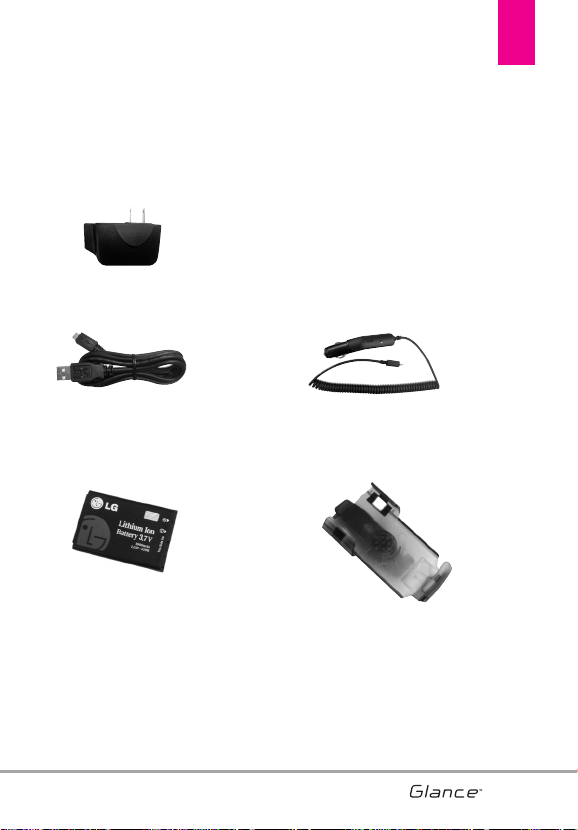
123
Accesorios
123
Baterías
Cable del USB
Hay una variedad de accesorios disponibles para su teléfono y tres sencillas
formas de adquirirlos: comprar en línea en cualquier momento en
www.verizonwireless.com, llamarnos al 1866 VZ GOT IT (894 6848) o visitar
una de nuestras Tiendas Verizon Wireless Communication.
Adaptador de USB/Pared
Cargador de
coche
Funda
VX7100_Spa_0410.qxd 3/4/10 3:25 PM Page 123

124124
DECLARACIÓN DE GARANTÍA LIMITADA
1. LO QUE CUBRE ESTA GARANTÍA:
LG le ofrece una garantía limitada de
que la unidad de suscriptor adjunta y
sus accesorios incluidos estaran
libres de defectos de materiales y
mano de obra segun los terminos y
condiciones siguientes:
(1) La garantía limitada del producto
se prolonga durante DOCE (12)
MESES contado a partir de la
fecha de adquisicion del producto.
El periodo de garantía restante
QUINCE (15) MESES de la unidad
que se esta reparando o
sustituyendo se determinara
mediante la presentacion del
recibo de ventas original por la
compra de la unidad.
(2) La garantía limitada se extiende
solo al comprador original del
producto y no es asignable ni
transferible a ningun otro
comprador o usuario final
subsecuentes.
(3) Esta garantía solo es buena para
el comprador original del producto
durante el periodo de garantía
siempre que sea en los EE.UU.,
incluidos Alaska, Hawaii, los
territorios de los EE.UU. y todas las
provincias canadienses.
(4) La carcasa externa y las partes
cosmeticas estaran libres de
defectos al momento de la
distribucion, y por tanto no estaran
cubiertas por los terminos de esta
garantía limitada.
(5) A solicitud de LG, el consumidor
debera aportar informacion
aceptable para probar la fecha de
compra.
(6) El cliente se hara cargo del costo
de envio del producto al
Departamento de servicio al
cliente de LG. LG se hara cargo del
costo de envio del producto de
vuelta al consumidor despues de
realizar el servicio segun esta
garantía limitada.
2. LO QUE NO CUBRE ESTA
GARANTÍA:
(1) Defectos o danos producto del uso
del producto de una forma distinta
de la normal y acostumbrada.
(2) Defectos o danos producto de un
uso anormal, condiciones
anormales, almacenamiento
inadecuado, exposicion a
humedad o agua, modificaciones
no autorizadas, conexiones no
autorizadas, reparacion no
autorizada, mal uso, negligencia,
124
VX7100_Spa_0410.qxd 3/4/10 3:25 PM Page 124

125
abuso, accidentes, alteraciones,
instalacion incorrecta o cualquier
otro acto que no sea
responsabilidad de LG, incluido el
dano causado por la
transportacion, fusibles fundidos y
derrames de alimentos o liquidos.
(3) Rotura o danos a las antenas a
menos que hayan sido
ocasionadas directamente por
defectos en los materiales o mano
de obra.
(4) El consumidor debe notificar al
Departamento de servicio al
cliente de LG el supuesto defecto
o desperfecto del producto
durante el periodo de garantía
limitada aplicable para hacer
efectiva la garantía.
(5) Productos a los que se haya
eliminado el numero de serie, o en
los que este sea ilegible.
(6) Esta garantía limitada se otorga en
lugar de cualquier otra garantía,
explícita o implícita, de hecho o
por lo dispuesto en las leyes,
establecido por ellas o implicado,
incluso, aunque de manera
enunciativa y no limitativa,
cualquier garantía implícita de
comerciabilidad o adecuacion
para un uso en particular.
(7) Danos resultantes del uso de
accesorios no aprobados por LG.
(8) Todas las superficies de plastico y
todas las demas piezas externas
expuestas que se rayen o danen
debido al uso normal por parte del
cliente.
(9) Productos que hayan sido puestos
en funcionamiento por encima de
las limitaciones maximas
indicadas.
(10) Productos utilizados u obtenidos
en un programa de
arrendamiento.
(11) Consumibles (como seria el caso
de los fusibles).
3. LO QUE HARÁ LG:
LG, a su exclusivo criterio, reparará,
reemplazará o rembolsará el precio
de compra de cualquier unidad que
no cumpla con la presente garantía
limitada. LG puede, a su elección,
optar por usar partes o unidades
nuevas, restauradas o
reacondicionadas equivalentes en
cuanto a funcionalidad. Además, LG
no reinstalará o realizará copias de
seguridad de ningún dato, aplicación
o software que el usuario haya
agregado al teléfono. Por lo tanto, se
recomienda que usted realice una
125
VX7100_Spa_0410.qxd 3/4/10 3:25 PM Page 125

DECLARACIÓN DE GARANTÍA LIMITADA
126
copia de seguridad de todo dato o
información de ese tipo antes de
enviar la unidad a LG, de modo de
evitar una pérdida permanente de
esa información.
4. DERECHOS DE LA LEY ESTATAL:
No se aplica a este producto ninguna
otra garantía explícita. LA DURACION
DE CUALQUIER GARANTÍA
IMPLÍCITA, INCLUIDA LA GARANTÍA
IMPLÍCITA DE COMERCIABILIDAD,
SE LIMITA A LA DURACION DE LA
GARANTÍA EXPLÍCITA AQUI
INDICADA. LG NO TENDRA
RESPONSABILIDAD LEGAL POR LA
PERDIDA DEL USO DE ESTE
PRODUCTO, LAS INCOMODIDADES,
PERDIDAS O CUALQUIER OTRO
DANO, DIRECTO O CONSECUENCIAL,
QUE SE PRODUZCA POR EL USO O
LA INCAPACIDAD DE USAR ESTE
PRODUCTO, NO POR LA VIOLACION
DE CUALQUIER GARANTÍA
EXPLÍCITA O IMPLÍCITA, INCLUIDA
LA GARANTÍA IMPLÍCITA DE
COMERCIABILIDAD APLICABLE A
ESTE PRODUCTO.
Algunos paises no permiten la
excluyente de limitación de daños
incidentales o consecuenciales, o las
limitaciones sobre la duración de la
garantía implícita, de modo que es
posible que estas limitaciones o
exclusiones no se le apliquen a
usted. Esta garantía le concede
derechos legales concretos y es
posible que tambien tenga otros
derechos, que varian de estado a
estado.
5. CÓMO OBTENER SERVICIO POR
LA GARANTÍA:
Para obtener servicio de esta
garantía llame al siguiente teléfono
desde cualquier ubicacion
continental de los Estados Unidos:
Tel. 1-800-793-8896 o
Fax. 1-800-448-4026
O visite http://us.lgservice.com.
También puede enviar
correspondencia a:
LG Electronics Service- Mobile
Handsets,
P.O. Box 240007, Huntsville, AL 35824
NO DEVUELVA SU PRODUCTO A LA
DIRECCIÓN ARRIBA INDICADA.
Llame o escriba para conocer la
ubicación del centro de servicio
autorizado LG más cercano a usted y
los procedimientos necesarios para
presentar una reclamación por
garantía.
126
VX7100_Spa_0410.qxd 3/4/10 3:25 PM Page 126

127
TTeerrmmiinnoollooggííaa
Calculadora EZ Tip
Función para un fácil cálculo de las
cuentas de restaurante usando como
variables el costo total, la propina y el
número de personas.
Reconocimiento de voz avanzado
Función que le permite efectuar una
amplia variedad de comandos
verbales entrenando al teléfono para
que reconozca sus patrones de habla
individuales.
La tecnología inalámbrica
Bluetooth
®
Tecnología empleada para permitir
que los teléfonos celulares,
computadoras y otros dispositivos
personales se coordinen e
interconecten fácilmente por medio
de una conexión inalámbrica de corto
alcance.
Get It Now
®
Función que accede a Internet para
dar la posibilidad de acceder a una
gran variedad de software,
información, música, vídeos y más, e
incluso descargarlos, en su propio
teléfono inalámbrico LG Verizon.
V CAST
SM
Función que es la siguiente
generación en tecnología inalámbrica
y que transforma su teléfono
inalámbrico en un reproductor
portátil de música y ofrece una
asombrosa experiencia de vídeo
móvil en flujo continuo. V CAST
emplea tecnología que aumenta de
modo significativo las capacidades
de descarga para ofrecer mejores
gráficos, sonido y profundidad, y usa
la potencia de la banda ancha de
modo que pueda descargar el
entretenimiento más actual,
momentos destacados de los
deportes, noticias y actualizaciones
sobre el tiempo en su teléfono
Verizon Wireless V. Los nuevos
teléfonos V CAST ofrecen mejores
capacidades de generación de
imágenes, cámaras de más de 1
megapixel y cámaras de vídeo, audio
mejorado y almacenamiento de
memoria expandible.
Glosario
127
VX7100_Spa_0410.qxd 3/4/10 3:25 PM Page 127

Glosario
128
SSiiggllaass yy aabbrreevviiaattuurraass
DTMF D
ual-
T
one
M
ulti
F
requency
(multifrecuencia de tono
doble o “tono de tecla”) es
un método usado para
comunicar las teclas que se
oprimen en el teléfono. Al
oprimir una tecla se generan
dos tonos simultáneos, uno
para la fila y otro para la
columna, para determinar
qué tecla se oprimió.
ERI E
nhanced
R
oaming
I
ndicator
(indicador de roaming
optimizado) es una
característica para indicar si
un teléfono celular está en
su sistema de origen, una
red asociada o una red de
roaming. Muchos teléfonos
indican origen o roaming
como un icono, pero los
teléfonos con ERI pueden
indicar el estado de "red
asociada" de otro proveedor.
EVDO Ev
olution
D
ata
O
nly (sólo
datos de evolución) o
Evolution Data Optimized
(optimizado para datos de
evolución) (abreviado como
EVDO, EV-DO, EvDO, 1xEV-
DO o 1xEvDO) ofrecer
acceso inalmábrico rápido
de banda ancha (3G) en
cualquier lugar, sin
necesidad de tener un punto
de acceso de WiFi.
GPS G
lobal
P
ositioning
S
ystem
(sistema de posicionamiento
globao) es un sistema de
satélites, computadoras y
receptores capaces de
determinar la latitud y
longitud de un receptor
determinado en la Tierra. La
posición se calcula usando
el tiempo y la distancia.
IS 2000
Tipo de señal digital. Es la
segunda generación de
celular digital CDMA, una
extensión del IS-95. Las
diferencias entre los tipos de
señal se refieren a las
señales piloto y a los
enlaces para porporcionar
más canales de tráfico y
protocolos de control.
NAM N
umber
A
ssignment
M
odule
(módulo de asignación de
número) es la forma en que
el teléfono almacena el
número de teléfono y su
número de serie electrónico.
128
VX7100_Spa_0410.qxd 3/4/10 3:25 PM Page 128

SSL S
ecure
S
ockets
L
ayer
Protocol (Protocolo de
capas de sockets seguros)
empleada para cifrar datos
que se envían por el aire.
TTY T
ele
ty
pewriter (máquina de
escribir a distancia). Una
máquina de escribir
electromecánica que
transmite o recibe mensajes
codificados en las señales
eléctricas. Un teléfono con
compatibilidad TTY puede
traducir caracteres escritos
como voz o traducir la voz
en caracteres y mostrarlos
en la TTY.
129
VX7100_Spa_0410.qxd 3/4/10 3:25 PM Page 129

1
10 Consejos de Seguridad
para Conductores 114
A
Accesorios 123
Actualización de la FDA
para los consumidores
105
Actualización de Software
94
Ajuste rápido del volumen
22
Álbum En Línea 54
Alertas de Servicio 73
Anadir Nuevo Aparato 67
Apagar/Encender 74
Asistente de Programación
95
Aviso 75
B
Borradores 42
Brillo 76
Búsqueda info 66
C
Calculadora 63
Calendario 64
Carga con USB 19
Carga de la batería 19
Centro de Medios 50
Chatear 43
Claridad de Voz 75
Comandos de Voz 22, 61,
81
Configuración de joystick 92
Configuración del Menú
Principal 77
Contactos 29
Correo Elect 43
Cronómetro 66
Cuaderno de Notas 67
Cuidado: Evite una
Probable Pérdida del
Oído. 103
D
Descripción general del
Teléfono 13
Detalles Técnicos 9
E
Encendido 68
Entrada 39
Entrada de texto 23
Enviado 41
Establecer atajos 80
Ez Sugerencia 64
F
Favoritos 30
Fondo de Pantalla 77
Formato de Reloj 79
Fotos 52
Función de silencio 22
G
Glosario de Iconos 94
Grupos 31
H
Herramientas 61
I
Iconos de pantalla 21
Idioma 82
IMMóvil 43
In Case of Emergency (ICE)
32
Información al consumidor
sobre la SAR 117
Información de seguridad
99
Información de seguridad
de la TIA 96
Información de Teléfono 93
Internet Móvil 55
J
Juegos 54
L
Lectura de Dígito Marcado
73
Lista de Contacto 29
Llamada en espera 22
Llamas. recentes 46
Luz de Pantalla 76
M
Marcación asistida 91
Marcadas 47
Marcado oprimiendo un
botón 90
Marcado Rápido 31
Melodías y Tonos 50
Memoria 93
Mensaje de Foto 37
Mensaje de TXT 35
Mensaje de Voz 39
Mensajería 34
Menú de Bluetooth® 67
Mi info de Dispositivo 68
130
Índice
VX7100_Spa_0410.qxd 3/4/10 3:25 PM Page 130

Mi Número 93
Mi Tarjeta de Nombre 33
Mi Verizon 61
Mis Fotos 52
Mis Sonidos 51
Mis Timbres 51
Modo Avion 80
Modo de Descubrimiento
69
Modo de vibración 22
Modo TTY 88
Mostrar Temas 77
N
Navegar y Descargar 57
Nivel de carga de la batería
20
Nuevo Contacto 29
Nuevo Mensaje 34
O
Obtén Nuevos Timbres 50
Opciones de Respuesta 87
P
País Actual 83
Para hacer llamadas 20
Para recibir llamadas 21
Perdidas 46
Perfiles Soportados 69
Potencia de la señal 20
Precaución de Seguridad
Importante 1
Privacidad de Voz 90
Prog/Herr 61
Programación de Guardia
tecla 70
Programación de Llamada
87
Programación de Mensajes
44
Programación de Pantalla
75
Programación de Sonidos
71
Programación de Teléfono
80
Protección de la
temperatura de la
batería 20
R
Recibidas 46
Reintentar
Automáticamente 88
Reloj Despertador 65
Reloj Mundial 66
Remarcado de llamadas 21
S
Seguridad 83, 96
Selección de Sistema 86
Seleccionar NAM 87
Sonidos de Alerta 72
Sonidos de Llamada 71
T
Tamaño de Fuente 79
Tipo de Fuente de Menú 78
Todas 47
Tomar Foto 53
Tonos DTMF 91
U
Ubicación 82
V
Ver Cronómetro 48
Versión SW/HW 94
Volumen de Teclado 73
Volumen Maestro 71
131
Índice
VX7100_Spa_0410.qxd 3/4/10 3:25 PM Page 131

MEMO
VX7100_Spa_0410.qxd 3/4/10 3:25 PM Page 132

MEMO
VX7100_Spa_0410.qxd 3/4/10 3:25 PM Page 133
