This booklet is made from 60% post-consumer recycled paper.
This booklet is printed with soy ink. Printed in Mexico
User Guide
MFL67738701 (1.0)
User Guide
User Guide
Guía del
Usuario
User Guide

Copyright©2013 LG Electronics, Inc. All rights reserved.
LG and the LG logo are registered trademarks of LG Group
and its related entities. Spectrum is a trademark of LG
Electronics, Inc. All other trademarks are the property of
their respective owners.

1
Important Customer Information
Before you read
Before getting started, please review the separate Product Safety and
Warranty Information guide for important product safety and warranty
information about your device.

2
Important Customer Information...........................................................1
Table of Contents ................................................................................... 2
Technical Details .....................................................................................5
The Basics .............................................................................................. 11
Phone Overview ...................................................................................................................11
Help ......................................................................................................................................13
Removing Back Cover ........................................................................................................14
Installing the Battery, SIM Card and microSD Card........................................................14
Charging the Phone ...........................................................................................................18
Optimizing Battery Life ......................................................................................................19
Turning the Phone On and Off ........................................................................................20
Phone’s Status Icons .........................................................................................................25
Getting to Know the Home Screen ..................................................................................27
Touchscreen....................................................................................................................... 30
Applications: How to View, Open and Switch .................................................................34
Working With Menus .........................................................................................................39
Managing Notifications .................................................................................................... 40
Searching Your Phone and the Web ................................................................................42
Locking the Screen ............................................................................................................44
Customizing the Home Screen ....................................................................................... 48
Connecting Quickly With Your Contacts ........................................................................ 50
QuickMemo .........................................................................................................................51
Connecting to Networks and Devices ................................................52
Connecting to Wi-Fi Networks .........................................................................................52
Make Your Device a Mobile Hotspot ................................................................................59
NFC .................................................................................................................................... 60
LG Tag+ .............................................................................................................................. 60
Using Tag+ writing ............................................................................................................ 60
Using Tag+ reading ........................................................................................................... 60
microSD Card ........................................................................................61
Table of Contents

3
Table of Contents
Calls .......................................................................................................63
Placing and Ending Calls ..................................................................................................63
Answering or Rejecting Calls ............................................................................................66
Working With the Call logs ...............................................................................................68
Calling Your Contacts ........................................................................................................69
Voice Dialer .........................................................................................................................70
Options During a Call ........................................................................................................70
Managing Multiple Calls ...................................................................................................72
Listening to Your Voicemail ...............................................................................................73
Web ........................................................................................................74
Browser ............................................................................................................................... 74
Maps .....................................................................................................................................81
Checking the Weather .......................................................................................................84
Changing Weather Settings ..............................................................................................85
Backup Assistant Plus .......................................................................................................86
Communication ................................................................................... 88
Contacts ..............................................................................................................................88
Email ...................................................................................................................................95
Voicemail ............................................................................................................................98
Gmail ...................................................................................................................................99
Messaging ........................................................................................................................106
Talk ..................................................................................................................................... 113
The Phone Application ..................................................................................................... 119
Voice Dialer ........................................................................................................................ 121
Entertainment .....................................................................................122
Camera ............................................................................................................................. 122
Video Camera................................................................................................................... 126
Gallery ............................................................................................................................... 129
Video Wiz .......................................................................................................................... 134
Play Store™....................................................................................................................... 136
Music ................................................................................................................................. 139
Video Player ..................................................................................................................... 145
YouTube™.......................................................................................................................... 147
Voice Recorder .................................................................................................................149

4
Table of Contents
Tools ......................................................................................................151
Calendar ............................................................................................................................ 151
Calculator ......................................................................................................................... 157
Alarm/Clock .....................................................................................................................158
Polaris Office 4 ................................................................................................................. 161
Using SmartShare ........................................................................................................... 162
Settings ............................................................................................... 165
Specifications .....................................................................................186
FAQ ...................................................................................................... 187
Index .................................................................................................... 194

5
Technical Details
Technical Details
HAC
This phone has been tested and rated for use with hearing aids for some of
the wireless technologies that it uses.
However, there may be some newer wireless technologies used in
this phone that have not been tested yet for use with hearing aids. It is
important to try the different features of this phone thoroughly and in
different locations, using your hearing aid or cochlear implant, to determine
if you hear any interfering noise. Consult your service provider or the
manufacturer of this phone for information on hearing aid compatibility. If
you have questions about return or exchange policies, consult your service
provider or phone retailer.
FCC RF Exposure Information
WARNING!
Read this information before operating the phone.
In August 1996, the Federal Communications Commission (FCC) of the
United States, with its action in Report and Order FCC 96-326, adopted
an updated safety standard for human exposure to Radio Frequency (RF)
electromagnetic energy emitted by FCC regulated transmitters. Those
guidelines are consistent with the safety standard previously set by both U.S.
and international standards bodies. The design of this phone complies with
the FCC guidelines and those international standards.
Bodily Contact During Operation
This device was tested for typical use with the back of the phone kept
0.39 inches (1.0 cm) from the body. To comply with FCC RF exposure
requirements, a minimum separation distance of 0.39 inches (1.0 cm)
must be maintained between the user’s body and the back of the
phone, including the antenna. Third-party belt-clips, holsters, and similar
accessories containing metallic components should not be used. Avoid
the use of accessories that cannot maintain 0.39 inches (1.0 cm) distance
between the user’s body and the back of the phone and have not been
tested for compliance with FCC RF exposure limits.

6
Technical Details
Vehicle-Mounted External Antenna
(Optional, if available.)
To satisfy FCC RF exposure requirements, keep 8 inches (20 cm) between
the user / bystander and vehicle-mounted external antenna. For more
information about RF exposure, visit the FCC website at www.fcc.gov.
FCC Notice and Cautions
This device and its accessories comply with part 15 of FCC rules.
Operation is subject to the following two conditions: (1) This device and its
accessories may not cause harmful interference, and (2) this device and its
accessories must accept any interference received, including interference
that causes undesired operation.
Any changes or modifications not expressly approved in this user guide
could void your warranty for this equipment. Use only the supplied antenna.
Use of unauthorized antennas (or modifications to the antenna) could
impair call quality, damage the phone, void your warranty and/or violate FCC
regulations.
Don’t use the phone with a damaged antenna. A damaged antenna could
cause a minor skin burn. Contact your local dealer for a replacement
antenna.
Part 15.19 statement
This device complies with part15 of FCC rules. Operation is subject to the
following two conditions:
(1) This device may not cause harmful interference.
(2) This device must accept any interference received, including interference
that may cause undesired operation.
Part 15.21 statement
Changes or modifications that are not expressly approved by the
manufacturer could void the user’s authority to operate the equipment.
Part 15.105 statement
This equipment has been tested and found to comply with the limits for a
class B digital device, pursuant to Part 15 of the FCC rules. These limits are

7
Technical Details
designed to provide reasonable protection against harmful interference in
a residential installation. This equipment generates, uses, and can radiate
radio frequency energy and, if not installed and used in accordance with
the instructions, may cause harmful interference to radio communications.
However, there is no guarantee that interference will not occur in a
particular installation. If you experience interference with reception (e.g.,
television), determine if this equipment is causing the harmful interference
by turning the equipment off and then back on to see if the interference is
affected. If necessary, try correcting the interference by one or more of the
following measures:
- Reorient or relocate the receiving antenna.
- Increase the separation between the equipment and receiver.
- Connect the equipment into an outlet on a circuit different from that to
which the receiver is connected.
- Consult the dealer or an experienced radio/TV technician for help.
The phone operates on Verizon’s 4G network, based on Long Term
Evolution (LTE) technology and Mobile Broadband 4G networks in the
United States*.
Now you can connect easily at high speeds to the Internet, your corporate
Intranet, and your email while you’re away from the office.
* Service not available everywhere. Visit website (verizonwireless.com/4G) for a
complete list of available areas.
* Information subject to change.
Consumer Information on SAR
The highest SAR value for this model phone when tested for use at the ear
is 0.85 W/kg and when worn on the body, as described in this user guide, is
1.04 W/kg (body-worn measurements differ among phone models,
depending upon available accessories and FCC requirements). While there
may be differences between SAR levels of various phones and at various
positions, they all meet the government requirement for safe exposure.
The FCC has granted an Equipment Authorization for this model phone

8
Technical Details
with all reported SAR levels evaluated as in compliance with the FCC RF
emission guidelines. SAR information on this model phone is on file with
the FCC and can be found under the Display Grant section of http://www.
fcc.gov/oet/fccid after searching on FCC ID ZNFVS930.
Wi-Fi Caution
This device is capable of operating in 802.11a/n mode. For 802.11a/
n devices operating in the frequency range of 5.15 - 5.25 GHz, they are
restricted for indoor operations to reduce any potential harmful interference
for Mobiles Satellite Services (MSS) in the US.
WIFI Access Points that are capable of allowing your device to operate in
802.11a/n mode(5.15 - 5.25 GHz band) are optimized for indoor use only.
If your WIFI network is capable of operating in this mode, please restrict
your WIFI use indoors to not violate federal regulations to protect Mobile
Satellite Services.
FCC Hearing-Aid Compatibility (HAC) Regulations for Wireless
Devices
On July 10, 2003, the U.S. Federal Communications Commission (FCC)
Report and Order in WT Docket 01-309 modified the exception of wireless
phones under the Hearing Aid Compatibility Act of 1988 (HAC Act) to
require digital wireless phones be compatible with hearing-aids. The intent
of the HAC Act is to ensure reasonable access to telecommunications
services for persons with hearing disabilities.
While some wireless phones are used near some hearing devices (hearing
aids and cochlear implants), users may detect a buzzing, humming, or
whining noise. Some hearing devices are more immune than others to this
interference noise, and phones also vary in the amount of interference they
generate.
The wireless telephone industry has developed a rating system for
wireless phones, to assist hearing device users to find phones that may
be compatible with their hearing devices. Not all phones have been rated.
Phones that are rated have the rating on their box or a label located on the
box.
9
Technical Details
The ratings are not guarantees. Results will vary depending on the user's
hearing device and hearing loss. If your hearing device happens to be
vulnerable to interference, you may not be able to use a rated phone
successfully. Trying out the phone with your hearing device is the best way
to evaluate it for your personal needs.
M-Ratings: Phones rated M3 or M4 meet FCC requirements and are likely
to generate less interference to hearing devices than phones that are not
labeled. M4 is the better/higher of the two ratings.
T-Ratings: Phones rated T3 or T4 meet FCC requirements and are likely
to generate less interference to hearing devices than phones that are not
labeled. T4 is the better/ higher of the two ratings.
Hearing devices may also be rated. Your hearing device manufacturer or
hearing health professional may help you find this rating. Higher ratings
mean that the hearing device is relatively immune to interference noise.
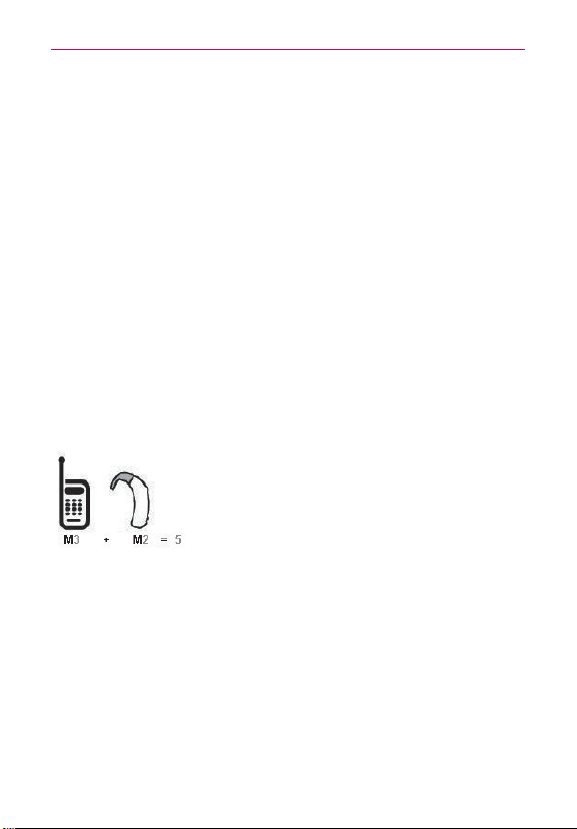
The hearing aid and wireless phone rating values are then added together. A
sum of 5 is considered acceptable for normal use. A sum of 6 is considered
for best use.
In the above example, if a hearing aid meets the M2 level rating and the
wireless phone meets the M3 level rating, the sum of the two values equal
M5. This should provide the hearing aid user with “normal usage” while
using their hearing aid with the particular wireless phone. “Normal usage”
in this context is defined as a signal quality that’s acceptable for normal
operation.
The M mark is intended to be synonymous with the U mark. The T mark
is intended to be synonymous with the UT mark. The M and T marks are
recommended by the Alliance for Telecommunications Industries Solutions
(ATIS). The U and UT marks are referenced in Section 20.19 of the FCC
Rules. The HAC rating and measurement procedure are described in the
10
Technical Details
American National Standards Institute (ANSI) C63.19 standard.
When you're talking over the cell phone, it's recommended you'd turn the
BT (Bluetooth) mode off for HAC.
This phone has been tested and rated for use with hearing aids for some
of the wireless technologies that it uses. However, there may be some
newer wireless technologies used in this phone that have not been tested
yet for use with hearing aids. It is important to try the different features of
this phone thoroughly and in different locations, using your hearing aid or
cochlear implant, to determine if you hear any interfering noise. Consult
your service provider or the manufacturer of this phone for information on
hearing aid compatibility. If you have questions about return or exchange
policies, consult your service provider or phone retailer.
For information about hearing aids and digital wireless phones
Wireless Phones and Hearing Aid Accessibility
http://www.accesswireless.org/hearingaid/
FCC Hearing Aid Compatibility and Volume Control
http://www.fcc.gov/cgb/consumerfacts/hac_wireless.html
Cautions
㻌
The user interface of Google applications (Google Search, Google
Maps, Navigation, etc.) can vary depending on its software version.
㻌
Locations are inaccurate when GPS and Wi-Fi are not set.
㻌
With the Android operating system, some available Play Store
applications only operate correctly with phones that have a specific
screen resolution.
Please be advised that some of the applications on the Play Store may
not be available for your phone due to LCD resolution requirement
that does not match your phone. In addition, please be aware that 3rd
party applications with programming defects may cause issues with
your phone, including lock ups and resets.
㻌
All the contents, including the contents which you take or download,
will be deleted after the factory reset.
11
The Basics
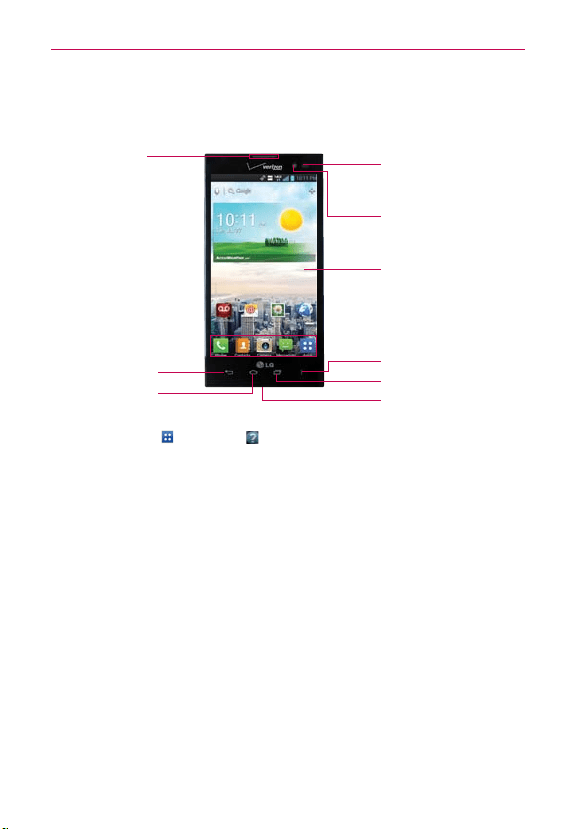
Phone Overview
Front View
❾
Proximity
Sensor
❷
Back Key
❸
Home Key
❺
Recent Apps Key
❶
Earpiece
❼
Home Screen
❻
Menu Key
❽
Front Camera
Lens
❹
Microphone
NOTES
ţ
All screen shots in this guide are simulated. Actual displays may vary.
ţ
Tap Apps , then tap Help to access the quick start guide, full user guide, icon
glossary, and video tutorials. You can get information in detail right from your phone.
1. Earpiece Lets you hear callers and automated prompts.
2. Back Key Returns to the previous screen. Also closes pop-up display
items, such as menus, dialog boxes, and the on-screen keyboard.
3. Home Key Returns to the Home screen. If you’re already viewing one
of the Home screen extension canvases, it navigates you to the central
Home screen canvas.
TIP
Press and hold to access Google Now.
4. Microphone Transmits your voice to the other caller and is used for
voice-activated functions.
5. Recent Apps Key Opens the list of recently used applications.
6. Menu Key Opens an options menu with options that affect the current
screen of app. This only applies when available, depending on the screen
or app.
7. Home Screen Displays all of the information needed to operate your
phone, such as applications, call status, date, time, signal status, and
battery strength.
12
The Basics
8. Front Camera Lens Use for taking pictures and recording videos of
yourself. You can also use this for video chatting. Keep it clean for
optimal performance.
9. Proximity Sensor Senses proximity toward other objects (such as your
head) so that tap commands are not accidentally activated during a call.
It also employs an ambient sensor which measures the surrounding light
and adjusts the LCD brightness to provide a vivid screen.
NOTES
ţ
Do not block the sensor or near the sensor to avoid problems with the tap operations.
ţ
The use of a film cover produced by manufacturers other than LG can cause a
disturbance in tap operations, the display, etc.
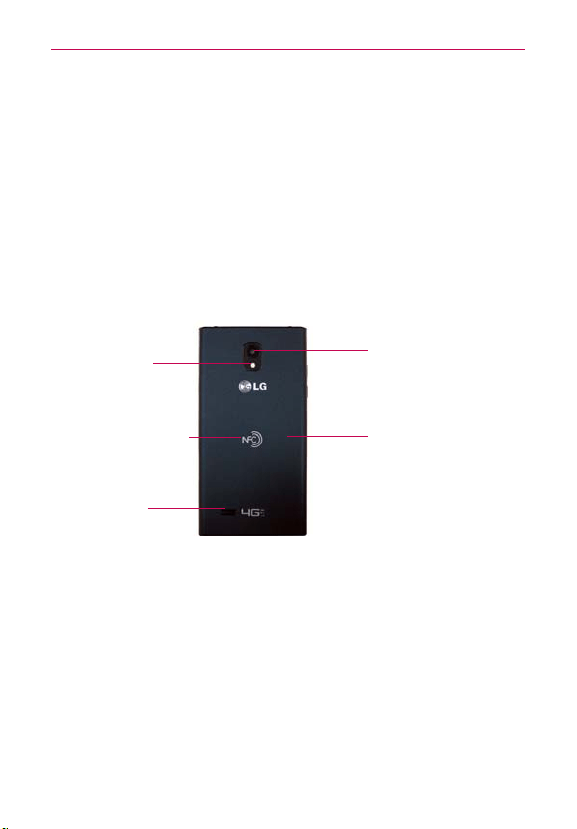
Rear View
Rear Camera Lens
Wireless Charging
Battery Cover
Speaker
NFC touchpoint
❿
LED Flash
10. LED Flash Brightens up the captured image or recorded video when you
turn on the flash.
11. NFC touchpoint Tap the back of your phone to an NFC tag or another
NFC compatible device in this location.
12. Speaker Sound comes from the rear speaker instead of the earpiece
(e.g., the speakerphone function, music player function, etc.).
13. Wireless Charging Battery Cover Encloses the battery compartment.
Also, the antenna is located inside the back of the phone.
14. Rear Camera Lens Use for taking pictures and recording videos. Keep
it clean for optimal performance.
13
The Basics
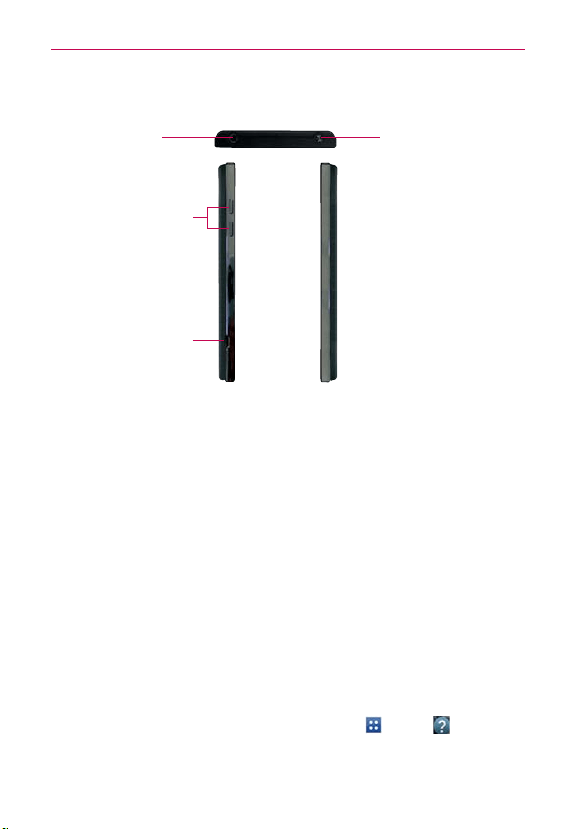
Top View and Side View
USB/Charger
Port
Volume Keys
3.5mm
Headset Jack
Power/
Lock Key
15. 3.5mm Headset Jack Allows you to plug in an optional headset for
convenient, hands-free conversations. You can also plug in headphones
to listen to music.
16. Volume Keys Allow you to adjust the ringer, media volumes, or the in-
call volume during a call.
TIP
Press both simultaneously to take a screen capture for the QuickMemo feature.
17. USB/Charger Port Allows you to connect the phone charger, USB
Cable, or other compatible accessories.
18. Power/Lock Key Press to lock/unlock the screen. Press and hold to
turn the phone on/off, restart it, activate/deactivate airplane mode, and
change the sound settings.
Help
The Help application allows you to quickly and conveniently view
information about your phone, including the user guide and video tutorials.
To access Help, from the Home screen, tap Apps
> Help .
14
The Basics
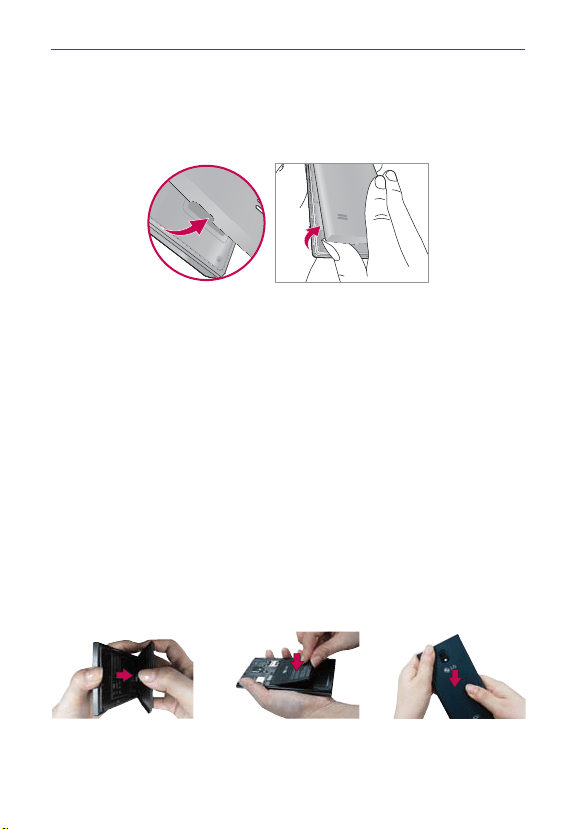
Removing Back Cover
Insert your fingertip under the ledge at the bottom of the phone and gently
lift back the cover to remove it.
The back cover is compatible with a wireless charging pad (sold separately)
which allows you to charge your device wirelessly.
* To purchase a wireless charging pad, please visit vzw.com/chargewithoutwires or a Verizon
Wireless retail store.
Installing the Battery, SIM Card and microSD Card
NOTE
It is important to fully charge the battery before initial use of the phone.
WARNING!
Your device includes a heat sensor activated by the battery temperature. A pop-up
message will be displayed if the device turned itself off or stopped charging as in the
following cases:
ţ
Your phone may turn itself off when the battery temperature becomes too high (above
60°C) during use.
ţ
Charging may stop temporarily when the battery temperature becomes too high
(above 55°C) or too low (-10°C).
Installing the battery
The phone comes with a rechargeable battery. Keep the battery charged
while not in use in order to maximize talk, use, and standby time. The
battery charge level is shown at the top right corner of the screen.
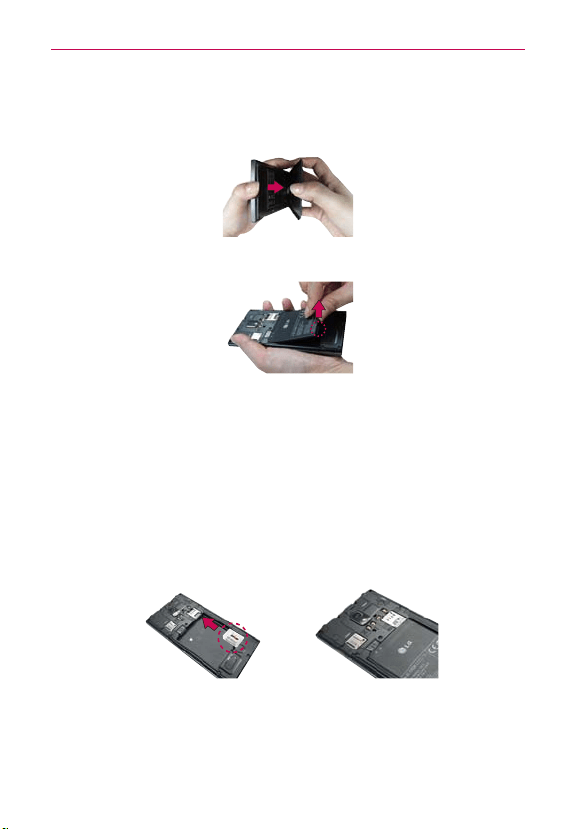
1
Insert your fingertip
under the ledge at the
bottom of the phone
and gently lift back the
cover to remove it.
2
Align the battery contacts
with the terminals in the
battery compartment and
push the battery down
until it clicks into place.
3
Place the back cover
over the battery
compartment, then
press downward until it
clicks into place.
15
The Basics
Removing the battery
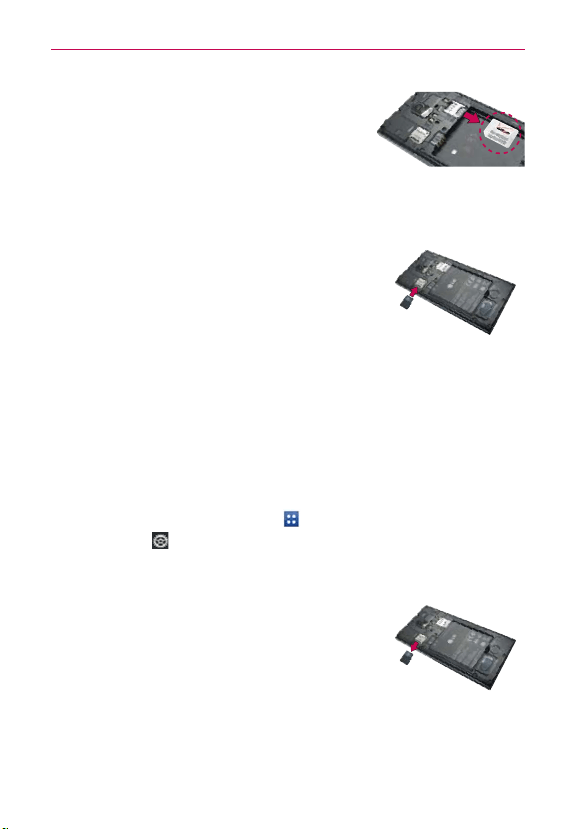
1.
Turn the phone off and insert your fingertip under the ledge at the bottom of
the phone and gently lift back the cover to remove it.
2. Use the fingertip cutout at the bottom of the battery compartment to lift the
battery out.
NOTE
Be careful not to scratch or damage the inside of the back cover as this is where the antenna
is located.
Installing a SIM card
NOTE
If not already inserted, follow the instructions below to install your SIM Card.
1. Turn the power off and remove the back cover and the battery (as
demonstrated in the previous instructions).
2. Locate the SIM card slot (a SIM card graphic is inscribed on the left side
of the slot).
3. Position the SIM card with the Verizon logo facing up and slide it into
place until it is fully inserted in the slot.
16
The Basics
Removing the SIM card
1. Remove the back cover and locate the SIM
card slot.
2. Gently slide the SIM card out to remove it.
CAUTION
If you switch to a new SIM card, the device will display a message advising you that
all email accounts will be deleted. You will not have the option to enter your password
to keep all of your existing device accounts when you change SIM cards.
Inserting a microSD card
NOTE
The microSD card is sold separately.
1. Remove the back cover (as demonstrated in the
previous instructions) and locate the microSD card
slot (microSD is inscribed near the slot opening).
2. Position the microSD card with the label side facing up and slide it into
place until it is fully inserted in the slot.
NOTE
The microSD card can be easily damaged by improper operation. Please be careful when
inserting, removing, or handling it.
To unmount the microSD card
It is important to unmount the microSD card before removing it from the
slot to avoid damage to the card or data saved on the card.
1. From the Home screen, tap Apps
.
2. Tap Settings > Storage.
3. Tap Unmount SD card.
To remove the microSD card
1. Remove the back cover and locate the microSD
card slot.
2. Gently pull the microSD card out of the slot to
remove it.

17
The Basics
Memory encryption
You can encrypt all of the data in the phone and the microSD card.
1. From the Home screen, tap Apps
> Settings > Security.
2. Tap Encrypt phone (or Encrypt SD card to encrypt the data on your
microSD card).
3. Read the encryption message, then tap Encrypt phone (or Enable
encryption).
㻌
You can encrypt all data in the phone’s internal memory and the
microSD card.
㻌
Data cannot be encrypted when the battery level is less than 80%.
㻌
While encrypting, you cannot access other functions.
㻌
Do not connect the USB Cable while encrypting.
㻌
Do not take out the microSD card while encrypting.
㻌
Do not take out the battery while encrypting.
㻌
Do not press the Power/Lock Key
while encrypting.
㻌
While encrypting the phone, your phone will reboot several times.
㻌
Do not unplug your charger while encrypting the phone.
㻌
After encrypting the phone or the microSD card, the screen lock settings
None, Swipe, Face Unlock, or Pattern are not available to secure your
device.
18
The Basics
Charging the Phone
Your phone comes with an adapter and a USB Cable which connect
together to charge your phone. To charge your phone:
NOTICE
Please use only an approved charging accessory to charge your phone.
Improper handling of the USB/Charger Port, as well as the use of an incompatible
charger, may cause damage to your phone and void the warranty.
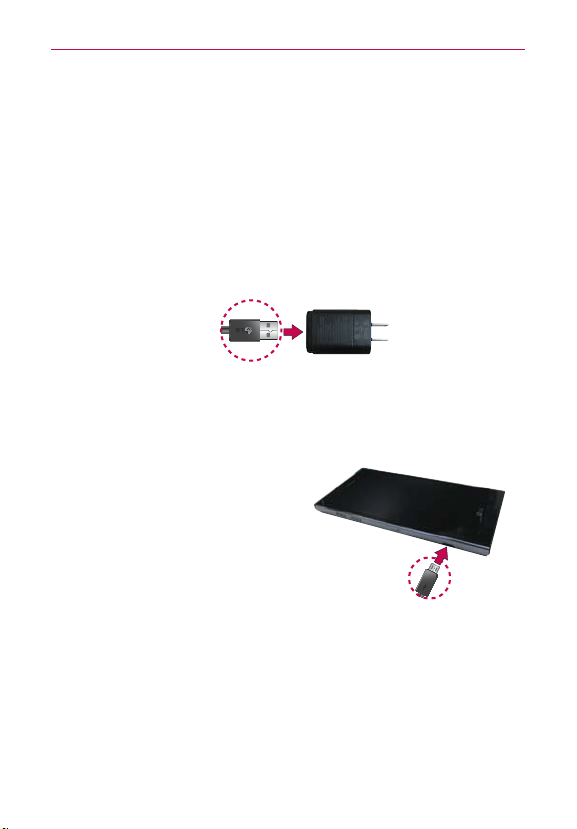
1. Connect the USB Cable into the adapter.
Correctly orient the USB Cable with the adapter. As shown below, the
LG logo on the USB Cable will face toward you and the LG logo on the
adapter will face away from you.
USB Cable
Adapter
2. Plug the USB Cable (as shown below) into the phone’s USB/Charger
Port, then plug it in to an electrical outlet to begin charging.
NOTE
Correctly orient the USB Cable with the phone's port. The USB logo on the USB Cable
should face upward.
Charging with the USB Cable
You can use your computer to charge
your phone. To be able to charge with
the USB Cable, you need to have the
necessary USB drivers installed on your
PC first. Connect one end of the USB
Cable to the USB/Charger Port on your
phone and connect the other end to a USB port on your PC. It is best to use
the rear USB port when connecting to a desktop PC. The USB hub should
be powered by an external power source.
NOTE
If there is not enough charge in the battery to turn on the phone, the LED lights at the
bottom of the phone flash to indicate that the battery is charging. Once the battery has
enough charge to turn the phone on, the flashing stops and the battery charge animation
appears on the touchscreen.
USB Cable

19
The Basics
Optimizing Battery Life
You can extend your battery’s life between charges by turning off features
that run in the background. You can also monitor how applications and
system resources consume battery power.
Tips to extend the life of your battery
㻌
Turn off radio communications that you aren’t using. If you aren’t
using Wi-Fi, Bluetooth, or GPS, use the Settings menu to turn them
off (Note that the GPS receiver is only turned on when you’re using an
application that makes use of it).
㻌
Turn down screen brightness and set a shorter screen timeout.
㻌
Turn off automatic syncing for Gmail, Calendar, Contacts, and other
applications if you don’t need it.
㻌
Use the Power saver feature in the Settings menu or the Quick settings
in the Notifications Panel to control data activity, syncing activity, Wi-Fi
connection, Bluetooth connection, GPS connection, and power used for
the device such as screen brightness.
To check the battery charge level
From the Home screen, tap Apps > Settings > Power saver.
The battery level (as a percentage of fully charged) and the battery
status (Charging or Discharging) is displayed under the Battery
Information section at the bottom of the screen.
NOTE
Checkmark the Battery percentage checkbox to display the percentage of remaining
battery charge on the Status Bar next to the battery icon.
To monitor and control what uses the battery
The Battery use screen allows you to see which applications are consuming
the most battery power. Information on this screen allows you to identify
downloaded applications you may want to turn off when not being used, so
you can get the most out of your battery power.
㻌
From the Home screen, tap Apps
>
Settings
> Power saver
> Battery use
. This screen displays battery usage times. It lists all

20
The Basics
of the applications or services using battery power from the greatest
amount of energy used to the least amount.
㻌
Tap an application or service in the Battery use screen to see the
details about its power consumption, including either how long since
last connected to a power source or how long you were last running
on battery power. Different applications or services offer different
kinds of information, and they may even include options to modify the
settings so you can reduce power consumption by that application.
Power saver mode
If the battery charge level drops to low levels, the phone automatically
activates Power saver mode to conserve battery power until you can
recharge it. To activate this feature, from the Home screen, tap Apps
>
Settings
> Power saver > Turn Power saver on. You can set the phone
to activate Power saver mode immediately, when the charge drops to 10%,
20%, 30%, or 50%. If you turn off Power saver mode, when the battery
charge becomes low, a notification prompts you to turn it on.
Turning the Phone On and Off
Turning the phone on
㻌
Press and hold the Power/Lock Key
for a couple of seconds until
the screen turns on.
Turning the phone off
1. Press and hold the Power/Lock Key until the Phone options menu
appears.
2. Tap Power off.
3. Tap OK to confirm that you want to turn off the phone.
Restarting the phone
1. Press and hold the Power/Lock Key until the Phone options menu
appears.
21
The Basics
2. Tap Power off and restart.
3. Tap OK to confirm that you want to restart the phone.
To unlock the phone
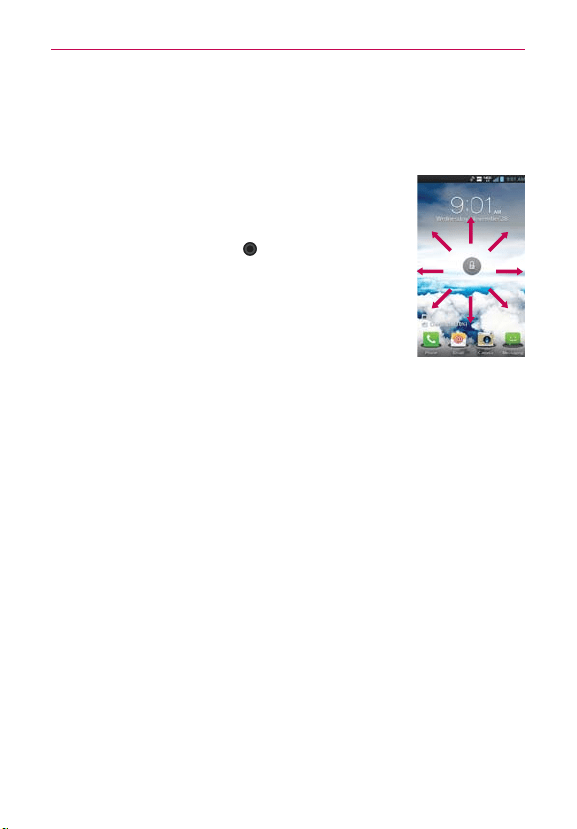
If you don’t use the phone for a while, the screen and
backlight will turn off to conserve battery power. To
unlock the phone:
1. Press the Power/Lock Key
. Your Lock screen will
appear.
2. Swipe the screen in any direction to unlock the
default Lock screen. To use a shortcut, swipe the
icon in any direction. The screen will unlock and the
application will launch.
NOTES
ţ
The default Lock screen simply locks the screen to prevent unintentional actions.
For more security to guard against unauthorized use, you can an unlock requirement
(such as a pattern, PIN, password, or face recognition) that will need to be entered
to unlock it.
ţ
Different clock themes can be applied to the lock screen.
About Lock Screen Improvement
Notification Viewing from Lock Screen
From the lock screen simply slide the Notification Bar down to see the
latest notifications, all in one step. See page 40 for the reference.
$VTUPNJ[BCMF-PDL4DSFFOţ-(&9$-64*7&
Customize by selecting any app on the phone and adding a hot key for
direct access from the lock screen. See page 47 for the reference.
'BDF6OMPDL
Using the front-facing camera, you can use your face to unlock your phone
thanks to the facial recognition technology supported by your phone's
operating system. See page 44 for the reference.
Selectively Clear Notifications by Swiping
After receiving several download, app upgrade, notification texts, and
emails, the Notification Bar can get really full. There are times when users
want to keep some of the notifications in the bar while dismissing others,

22
The Basics
just like a “to do” list. Now, with a swipe left or right, users can clear
the notification they want to remove from the list. See page 40 for the
reference.
To turn the phone sounds off
If you’re in a place where your phone sounds may disturb others, you can
quickly silence your phone from the Home screen.
1. Press and hold the Power/Lock Key
until the Phone options menu appears.
2. Tap the Silent mode icon
.
NOTE
Only one mode can be selected at a time. The currently activated mode (Silent, Vibration,
or Sounds) is underlined in blue. T
ap any of the sounds mode icons to switch to that
mode.
OR
Press the down V
olume Key on the left side of the phone until all sounds
are turned off.
NOTE
You can also use these keys to quickly turn the phone sounds back on. Press and hold
the Power/Lock Key
, then tap either the Vibrate mode icon or the Sounds
mode icon
. While in Silent mode, press the up Volume Key once to activate
Vibration mode and twice to turn on phone sounds (continue pressing to increase
volume).
4FUUJOH6Q:PVS%FWJDF
Follow the onscreen instructions to quickly set up your phone and email
accounts.
To set up your device, follow the steps below:
1. Select your language and tap Next.
2. If you've already inserted the SIM card, the device will automatically be
activated. Tap Start the Setup Wizard to continue.
3. On the Welcome screen, tap Next to set up your device.
4. If you want to sync contacts from the cloud, make sure Sync contacts
is checkmarked, then tap Next. Otherwise, uncheck the option, then tap
Next.
5. Choose the type of email account you want to set up and configure it.
Otherwise, tap Skip to continue to the next step.

23
The Basics
6. Read the Privacy caution and data use information. If you want to share
your location, tap the I agree to share my location checkbox and tap
Next.
7. The Verizon setup is complete. Touch Next to continue.
NOTE
After successfully setting up your device, you can choose to view options that teach you
about your new phone. These options include a quick reference guide, the user guide, a
watch and learn video tutorial, and an icon glossary. View these options later by tapping
Help on the Applications screen.
8. If you have a Google Account, tap Yes, then enter your login information
and tap .
Otherwise, tap No and select Get an account to create an account or
Not now to skip this step. With a Google Account, Google applications
are automatically synced between your phone and computer regardless
of where you make an update.
9. Confirm your Google and location settings and tap
.
10. Setup is complete. Tap Done with setup to begin using your device.
Setting up your Google Account
1. At the Setup screen, tap Existing or New.
2. Enter your username and password or any other necessary information (if
creating an account), then tap
.
NOTE
Tap the Back Key
to close the keyboard.
3. If you have not joined Google+, you will be prompted to join. Google+
makes sharing on the web more like real-life sharing. You can choose
Circles, Instant Upload, and Messenger. Tap Join Google+ or Not Now.
4. Complete the Backup and restore screen to allow your Google Account
to back up your apps, settings, and other data, then tap
.
5. Now your Gmail, Google Contacts, and Google Calendar events will all
be loaded to your phone automatically.
NOTE
This is automatic for the first Google account you add. When adding additional Google
accounts, you have to select which options to synchronize.

24
The Basics
You can use the area below to record your Google Account information for
future reference.
Username:[email protected]
Password:____________________________________________
Your Google Account
You must sign into a Google Account to use Gmail, Google Talk, Google
Calendar, and other Google Applications; to download applications from
the Play Store; to back up your settings to Google servers; and to take
advantage of other Google services on your phone.
IMPORTANT
ţ
If you don’t have a Google Account, you’re prompted to create one.
ţ
If you have an enterprise account through your company or other organization, your IT
department may have special instructions on how to sign into that account.
ţ
When you sign in, you’re prompted to enter your username and password using the on-
screen keyboard.
ţ
When you sign in, your contacts, Gmail messages, Calendar events, and other
information from these applications and services on the web are synchronized with
your phone.
ţ
If you don’t sign into a Google Account during setup, you are prompted to sign in or to
create a Google Account the first time you start an application that requires one, such
as Gmail or Play Store.
25
The Basics
Phone’s Status Icons
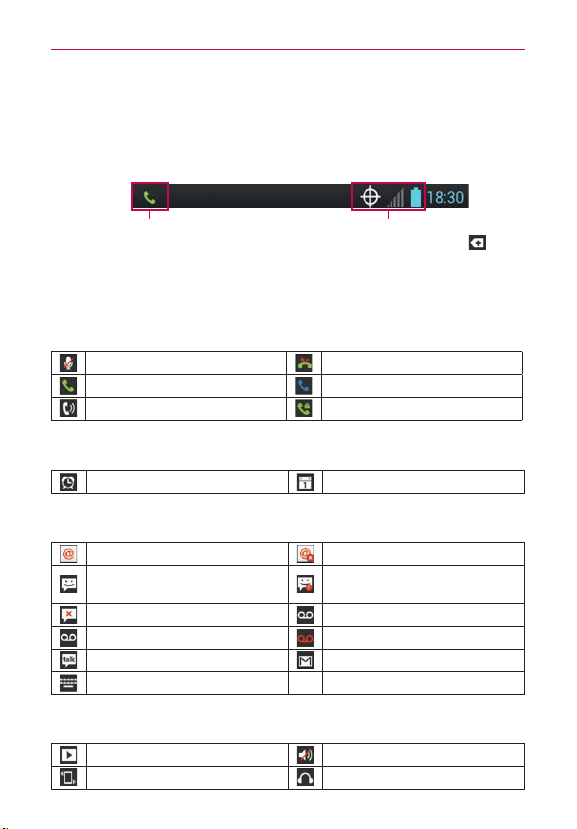
The Status Bar appears at the top of every screen. It displays icons
indicating that you’ve received notifications (on the left) and icons indicating
the phone’s status (on the right), along with the current time.
Notification icons
Status icons
If you have more notifications than can fit in the Status Bar, a plus icon
prompts you to open the Notifications panel to view them all. To open the
Notifications panel, tap and drag the Status Bar down.
The following icons indicate the status of your phone.
Call icons
Muted microphone during a call
Missed call
In call In call using Bluetooth device
Speaker on Privacy call
Calendar and Alarm icons
Alarm set Calendar event
Email and Messaging icons
New email received Failed to send email
New text or multimedia
message received
High priority message
received
Failed to send message New voicemail received
New visual voicemail received New voicemail playing
Google Talk message received Gmail received
Choose input method
Sound icons
Music playing Silent mode
Vibrate mode Phone jack connected
26
The Basics
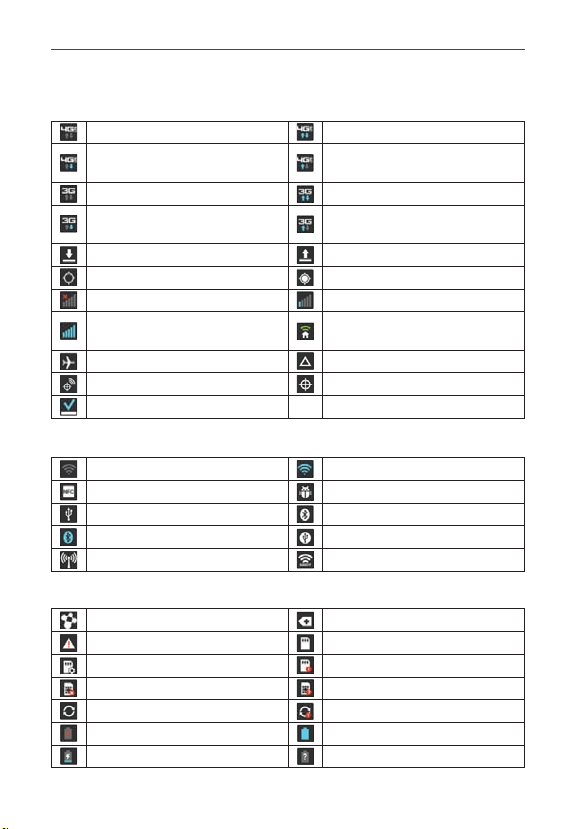
Network icons
4G LTE network connected 4G LTE
network in use
Downloading data through 4G
LTE
network
Upload
ing data through 4G
LTE
network
3G network connected
3G data network in use
Download
ing data through 3G
network
Upload
ing data through 3G
network
Downloading data Uploading data
Acquiring GPS data GPS on
No service Weak network signal
Strong network signal
Connected to network
extender service
Airplane mode Roaming
Location service on Location service off
Download complete
Connectivity icons
Weak Wi-Fi signal Strong Wi-Fi signal
NFC on USB debugging connected
USB connected Bluetooth on
Bluetooth device connected USB tethering on
Mobile Hotspot on Wi-Fi Direct on
System icons
SmartShare on More notifications available
System error SD card inserted
Preparing SD card SD card error
No SIM card Unknown SIM card
Sync in process Sync error
Battery empty Battery full
Battery charging Battery status unknown
27
The Basics
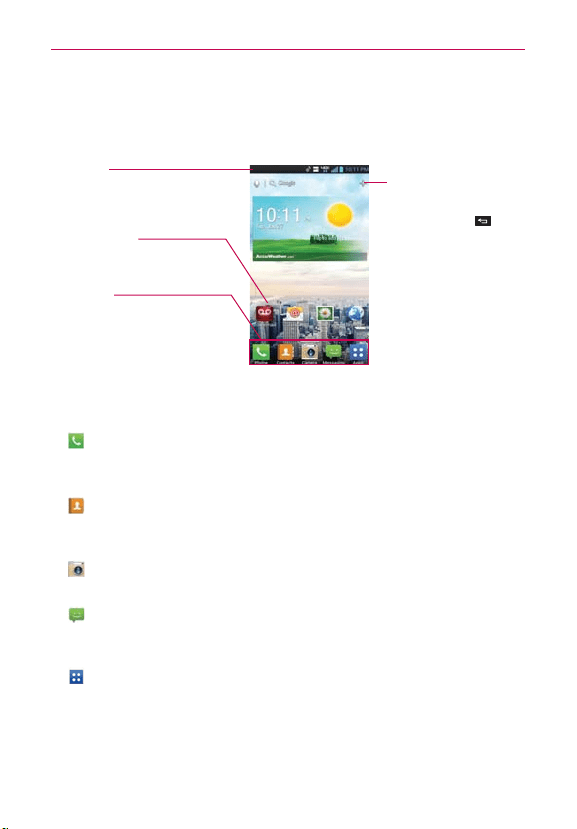
(FUUJOHUP,OPXUIF)PNF4DSFFO
The Home screen is your starting point to access all of the features on your
phone. It displays application shortcuts, icons, widgets, and other features.
Status Bar
Shows device status information,
including the time, signal strength,
battery status, and notification icons.
Add shortcuts & widgets
Tap to add icons and widgets
to the Home screen.
Tap the Back Key
to
return to the normal Home
screen view.
Application Icon
Tap an icon (application, widget,
folder, etc.) to open the application
and use it.
Quick Keys
Provide easy, one-tap access to the
phone functions used most often.
2VJDL,FZT
The Quick Keys are located at the bottom of the Home screen.
: Opens the Phone application which displays a dialpad so you can dial an
unsaved number. You can also make calls using your Call logs, Contacts,
and Favorites by tapping the tabs across the top of the screen.
:
Opens the Contacts application and displays your Contacts list. You
can also access the dialpad, Call logs, and Favorites by tapping the
tabs across the top of the screen.
:
Opens the Camera application which allows you to take pictures and
record videos.
: Opens the Messaging application. You can send text messages or
multimedia messages, which can contain pictures, videos, audio,
maps of your location, slideshows, and vCard files.
:
Opens the Applications screen which displays phone options and
applications. You can also access your list of downloaded files and
a list of available widgets by tapping the tabs across the top of the
screen.
NOTE
To add an icon, touch and hold the desired icon and drag it to the Quick Keys bar.
Release it at the desired location. T
o remove an icon, touch and hold it, then drag it out
of the Quick Keys bar.
28
The Basics
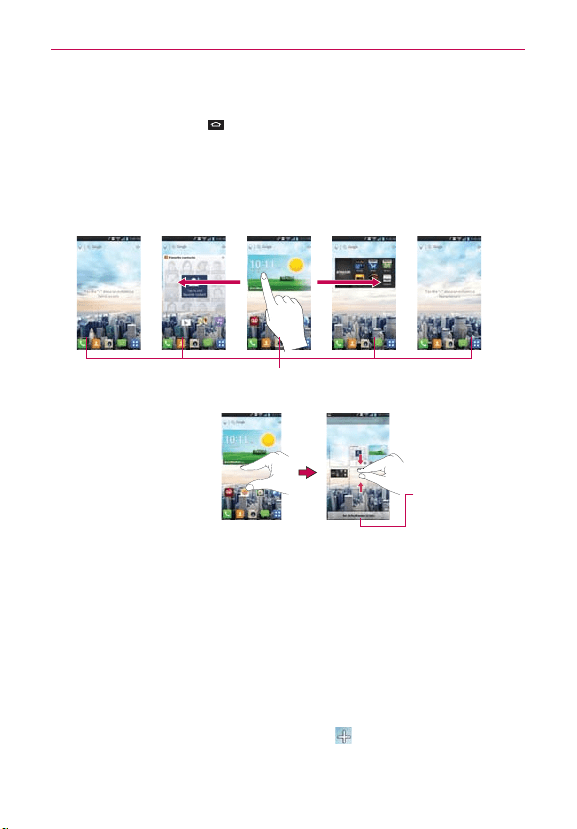
To return to the Home screen
㻌
Tap the Home Key
at any time, from any application.
To view other Home screen canvases
㻌
Swipe (or flick) your finger left or right across the Home screen. The
Home screen spans up to seven screen widths, allowing more space
for icons, widgets, shortcuts, and other items.
TIP Pinch in on the Home
screen to display the
mini canvas view, then
tap the Home screen
canvas you want to
view. Touch and hold
the panel you want to
edit. Drag the panel to
Remove icon on the top
to delete.
Home Screen Canvas Indicator
The white bar at the bottom of the screen indicates
which Home screen canvas you are viewing.
Tap here to set
the default Home
screen canvas.
Mini Canvas View
Mini canvas view allows direct access to any of the Home screen canvases
and also allows you to manage the canvases. You can delete canvases and
even rearrange the canvas order to suit your needs.
Pinch in on any of the Home screen canvases to change from full screen view
to mini canvas view. From mini canvas view you have the following options:
㻌
To go directly to any Home screen canvas, simply tap the one you want.
㻌
To add a new Home screen canvas, tap
.
㻌
To delete a Home screen canvas, tap and hold the canvas to delete,

29
The Basics
then drag it to at the top of the screen. When the Remove
icon changes to
, lift your finger.
㻌
To rearrange your canvases, tap and hold the canvas to move, drag it
on top of the canvas position where you want it, then lift your finger.
The moved canvas takes that position and the remaining canvases
shift to the right.
㻌
To set another canvas as the default Home screen, tap Set default
home screen at the bottom of the screen, then tap the screen you
want to set as the default screen.
Clean View
Wallpapers can now be seen without intrusion, simply by using the “pinch”
technique that will temporarily hide the icons on the home screen. You can
now really show off the picture of your loved ones or the awesome concert
you saved as wallpaper.
:PVS)PNFTDSFFO
Customizing an application icon from the Home screen
NOTE
This feature allows you to make and use an icon with the pictures in your Gallery.
You can now edit the icons on Quick Launch Bar, Home screen or
Applications screen by creating your own icons with the camera or
Gallery images. This gives you the ability to replace the generic icons and
have images of loved ones—or with any other image you capture. With

30
The Basics
customization, it’s easy to access what is most important, like a special
contact or a frequently used app.
1. Tap and hold an icon until the canvas grid is displayed, then release the
icon. An editing icon
appears at the upper right side of the application
icon.
2. Tap the icon and select the desired icon design.
OR
Tap Create photo icon and select T
ake photo to open the Camera
application and take a picture or Select from Gallery to choose one of
the available pictures.
Touchscreen
Your touchscreen provides an excellent way to interact with and use your
Android phone. With the tap of your finger, you can download and use
available applications, make menu selections, and access data saved to
your phone.
The following terms are used for describing the different available actions
using the touchscreen:
Touch or tap
A single finger tap selects an item. For example, tap an icon
(e.g., an application, widget, or folder), tap words (e.g., menu selection or
to answer an on-screen question), or tap letters and numbers to type.
Tap and hold
Tap and hold an item on the screen by tapping it and not
lifting your finger until an action occurs. For example, to open a Context
menu for editing a contact, tap and hold a contact entry until the Context
menu appears.
Drag
Tap and hold an item for a moment and then, without lifting your
finger
, move your finger on the screen until you reach the target position.
You can drag items on the Home screen to reposition them and drag the
Status Bar downward to open the Notifications panel.
Swipe, slide, or flick
Move your finger quickly across the surface of the
screen, without pausing when you first tap it (so you don’
t drag an item
instead). For example, you can slide the screen up or down to scroll a list
or browse through the different Home screen canvases by swiping from
left to right (and vice versa), or remove an application from the Recent
apps screen by flicking its graphic off the screen.
31
The Basics
Double-tap
Double-tap to zoom in or out on a screen. For example,
quickly double-tap a section of a web page to zoom in or out on that
section to fit the width of the screen. You can also double-tap to control
the zoom in Maps and in other applications.
Pinch-to-Zoom
Use your index finger and thumb in a pinch or spread
motion to zoom in or out when using the Browser, a map, or pictures.
This motion also changes the Home screen to mini canvas view.
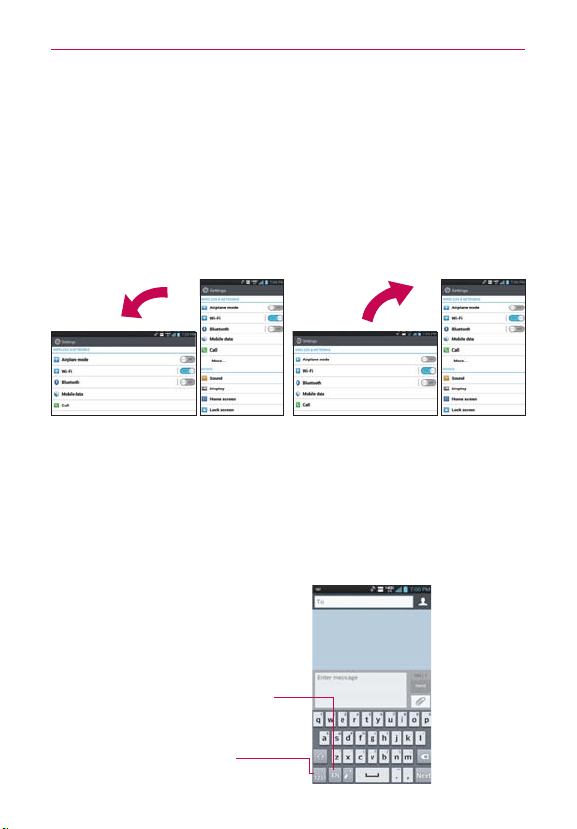
Rotate the screen
From many applications, the orientation of the screen
rotates with the phone as you turn it from upright to sideways and back again.
Rotate the phone sideways for
landscape orientation.
Rotate the phone upright for portrait
orientation.
Text Input Methods
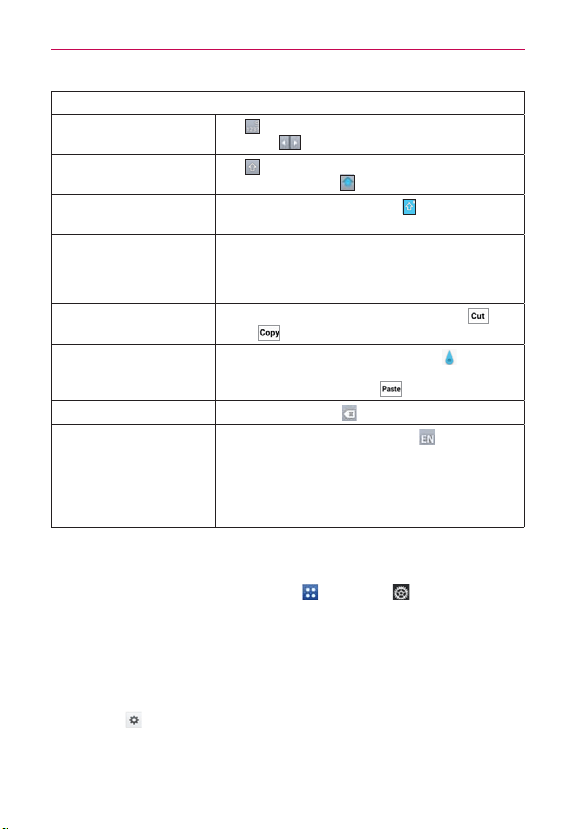
On-screen Keyboard
You can easily enter text using the on-screen keyboard. The on-screen
keyboard displays automatically when you need to enter text. To manually
display the keyboard, simply tap a text field where you want to enter text.
Toggles between different
languages (only available
when multiple languages are
selected).
Toggles between
123/SYM mode and
ABC mode.
32
The Basics
Typing tips
Enter other characters
Tap
to view the Numbers/Symbols Keyboard.
Then tap
to view additional symbols.
Enter one capital letter
Tap
to capitalize the next letter. The Shift
Key will change to
.
Enter all capital letters
Tap the Shift Key twice until
is displayed.
Tap again to revert to lowercase.
Highlight text
Double-tap a word to highlight it. To highlight a
range of text, double-tap a word, then drag the
blue highlight markers to highlight the text you
want.
Cut or copy selected
text
Highlight the desired text, then tap Cut
or
Copy
.
Paste cut or copied text
Tap the location to place the cursor
where
you want to paste the text. Then tap the
location and select Paste
.
Delete a character Tap the Delete Key
Language toggle
Tap and hold the Language Key
to open
a dialog box to set the languages to toggle
between.
NOTE
This key is only available when multiple languages have
been enabled for text entry
.
Text input settings
To change your text entry settings and see the dictionary of terms you’ve
used, from the Home screen, tap Apps
>
Settings > Language
& input. The following options are available in the KEYBOARD & INPUT
METHODS section.
Default - Allows you to choose the default keyboard to use when
entering text.
Google voice typing - Checkmark to select Google voice typing to enter
text. Tap
to change the Google voice typing settings.
Choose input languages: Allows you to select the languages to support
with Google voice typing.

33
The Basics
Block offensive words: Checkmark to hide recognized offensive text.
Download offline speech recognition: Enables voice input while offline.
LG Keyboard - Checkmark to select the LG Keyboard to enter text. Tap
to change the following settings.
Input language & type: Allows you to select the keyboard language and
type.
Word suggestion: Allows you to set word prediction and auto word
correction.
Auto capitalize: Checkmark so capitalize the first letter of the word
automatically.
Auto punctuation: Checkmark to insert a period when double tapping
the space key.
Voice typing key: Checkmark to display the Voice typing key on the
keyboard.
Touch feedback: Allows you to set key preview, sound feedback, and
vibrate feedback when typing.
Handwriting: Allows you to set the pen width, color, and delay time.
Path keyboard: Checkmark to enter a word by drawing a path through
all the letters.
Hide keyboard: Checkmark to allow the keyboard to hide by swiping
down.
Fuzzy pinyin: Checkmark to automatically correct common pinyin
mistakes.
Software version: Displays the LG Keyboard software version.
34
The Basics
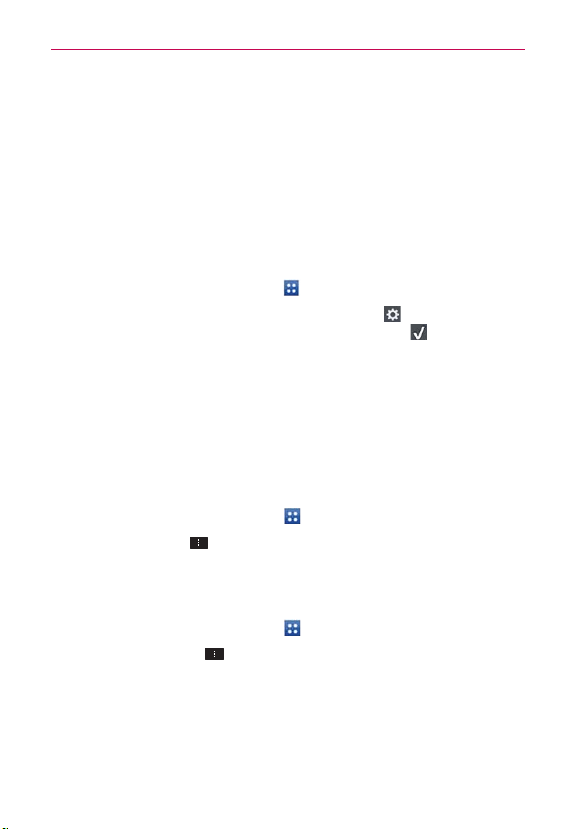
Applications: How to View, Open and Switch
Home screen
Applications screen
Tap to open the Applications screen.
Tap an application icon
to open the application.
Slide the screen right or left
to bring more icons into view.
Tap a tab to select Apps,
Downloads or Widgets.
NOTE
ţ
Y
ou can tap the Menu Key
, then Show small/large icons to get better viewing
experience for those who want to have smaller or larger icons.
ţ
Folders can be created in menu as well as on the Home screen for organizing purpose.
T
ap
and drag an icon over another to create folders.
Opening and Closing the Applications screen
Opening the Applications screen
It’s easy to access the Applications screen no matter what feature you’re
currently using. Simply tap the Home Key
, then tap Apps .
Closing the Applications screen
To manually close the Applications screen, tap the Home Key .
NOTE
The Applications screen closes automatically when you tap an icon to open its application.
Dragging an icon onto your Home screen also closes the Applications screen automatically
.
35
The Basics
Customizing the Applications screen
The phone includes a wide variety of applications and you can download
even more applications to your device. You can customize these items on
the Applications screen for faster access (less scrolling) to the applications
you use most often.
Rearranging the Applications screen icons
You can rearrange the order of the icons on the Applications screen to
provide more convenient access to the applications you use the most.
1. From the Home screen, tap Apps
.
2. Tap the Apps tab (if necessary), then tap Settings
at the top right of
the tab bar. The Settings icon changes to a checkmark .
3. Tap and hold the application icon you want to move, drag it to its new
position, then lift your finger. The remaining icons shift to the right.
NOTE
If you drag the application icon onto another application icon, it creates a folder with both
of the applications in it.
Sorting applications
You can revert all of your application icons on the Applications screen back
to the initial order.
1. From the Home screen, tap Apps
to open the Applications screen.
2. Tap the Menu Key
> Sort by > Alphabetical/Installation date > OK.
Changing the icon size
You can change the size of the icons on the Applications screen.
1. From the Home screen, tap Apps
to open the Applications screen.
2. Touch the Menu Key
> Show small icons (Show large icons) >
OK.

36
The Basics
Checking application information
To check on an application’s detail information from the Applications screen:
1. From the Home screen, tap Apps
.
2. Tap the Apps tab, then tap Settings
at the top right of the tab bar.
The Settings icon changes to a checkmark .
3. Tap any of the application icons to display an information dialog box.
4. Tap OK to exit.
Opening and Switching Applications
Multi-tasking is easy with Android™ because open applications keep running
even when you open another application. There’s no need to quit an application
before opening another. You can use and switch among several open
applications. Android manages each application, stopping and starting them as
needed, to ensure that idle applications don’t consume resources unnecessarily.
Opening an application
Open an application simply by tapping its icon on the screen.
TIP
You can customize your Home screen with the application icons you use most often.
Applications are located on the Applications screen, but you can copy any application icon
to your Home screen for faster access. No matter where the icon is, on the Applications
screen or your Home screen, just tap it to open and use it.
Opening multiple applications
1. Tap an application icon to open it.
2. Tap the Home Key
.
NOTE
If the application icon you want is on your Home screen, simply tap the icon to open and
use it.
3. From the Home screen, tap Apps .
4. Tap the icon for the other application you want to open.
37
The Basics
Switching between multiple applications
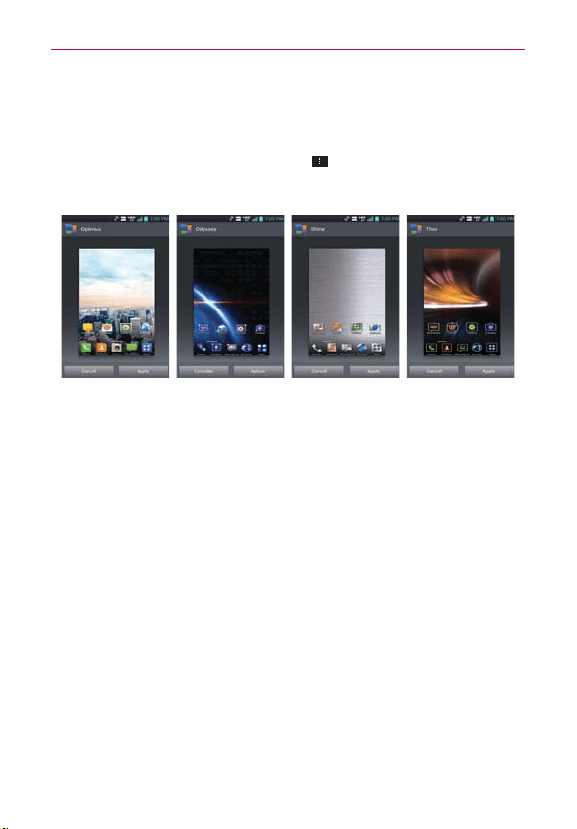
1. Tap the Recent Apps Key . A screen with the icons of the applications
that you’ve used recently will appear.
2. Tap the application preview of the application you want to use or tap the
Back Key
to return to the current screen.
Tap an app preview to open an
application you’ve used recently (tapping
the background redisplays the Home
screen).
If you flick the application preview to
the right or left, it disappears from the
recent app list.
Adding application icons to the Home screen
Customize your Home screen with the applications you use most often.
1. Open the Applications screen.
2. Tap and hold the application icon you want to add to your Home screen.
The Applications screen will close so that you can place the icon on the
Home screen.
3. Lift your finger to place it or drag the icon to where you want it on the
screen, then lift your finger.
Moving applications to other Home screens
You can place application icons on any of the Home screen canvases.
Drag Tap and hold, then drag the icon to the left or right edge of the
screen to advance to the other screen canvases before lifting your finger.
Tilt Tap and hold an item, then tilt the device to move it to one of the
Home screen canvases in that direction, then lift your finger.
NOTE
To be able to use the Tilt method, the Move home screen items checkbox needs to be
checkmarked. From the Home screen, tap the Menu Key
> Settings > Gestures >
Move home screen items.
38
The Basics
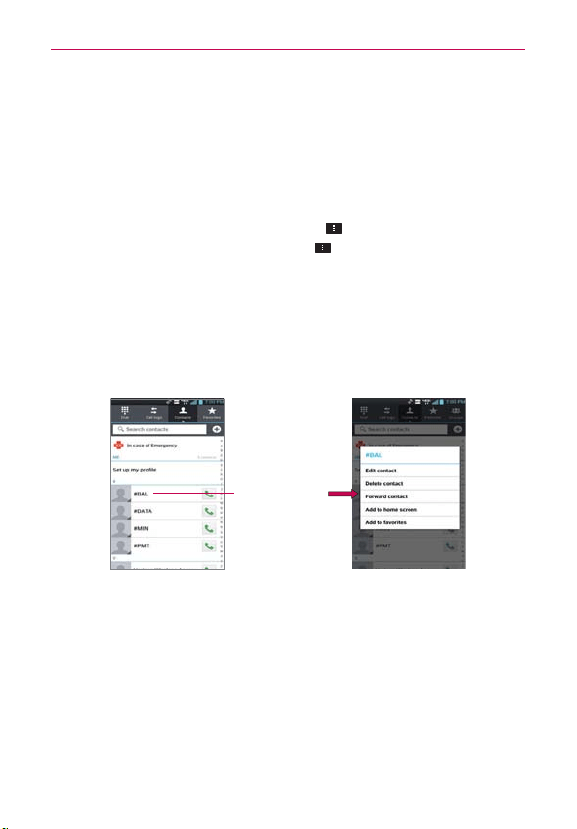
Setting the Theme
Four different themes are provided, each with a stylized Home screen
wallpaper and unique application icons per theme. To change your theme,
from the Home screen, tap the Menu Key
> Theme. The current theme is
indicated by a checkmark in the top corner. Tap the theme you want, then tap
Apply at the bottom of the screen.
Optimus Odyssey Shine Thor
39
The Basics
Working With Menus
There are two kinds of Android menus: Options menus and Context menus.
Options menus
Options menus contain tools that apply to the activities of the current
screen or application, not to any specific item on the screen. To open the
available Options menu, tap the Menu Key
. Not all applications have
Options menus; if you tap the Menu Key
on a screen that has no
Options menu, nothing will happen.
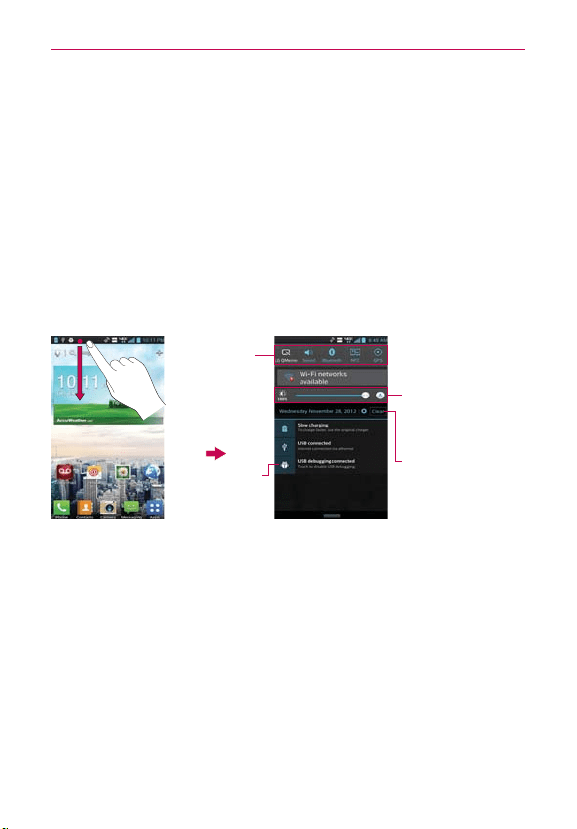
Context menus
Context menus contain options that apply to a specific item on the screen.
To open a Context menu, tap and hold an item on the screen. Not all items
have Context menus. If you tap and hold an item that has no Context menu,
nothing will happen.
When you tap and
hold certain items on
a screen, a Context
menu opens.
40
The Basics
Managing Notifications
Notification icons report the arrival of new messages, calendar events,
alarms, as well as ongoing events, such as when you are on a call.
When you receive a notification, the notification icon will be displayed in the
Status Bar. You can open the Notifications panel to view a list of all recent
notifications. Depending on your settings, you may hear a notification sound
and/or the phone may vibrate.
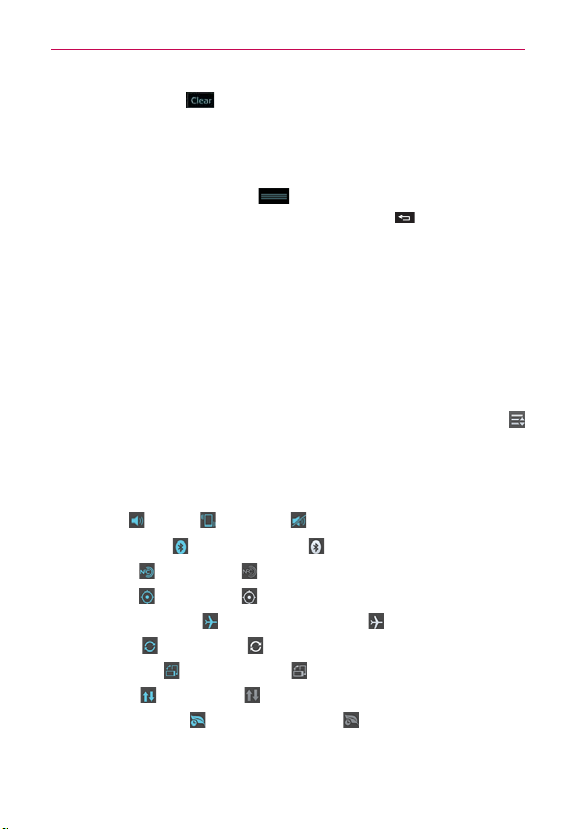
To open the Notifications panel
Tap and drag the Status Bar to the bottom of the screen.
NOTE
The Status Bar is sensitive to the drag motion so just beginning the downward drag will
open the Notifications panel.
Tap a notification
to open it.
Clear icon
Tap here to clear your
list of event-based
notifications.
Brightness control bar
Tap and drag the
brightness control bar to
the left or right to adjust
brightness.
Quick settings
Displays up to
10 Quick settings
icons.
Flick right or left
to scroll through
the list.
To respond to a notification
1. Open the Notifications panel. Your current notifications are listed in the
panel, each with a brief description.
2. Tap a notification to view it.
The Notifications panel will close and the application that corresponds to
your response will open. For example, new voicemail notifications dial
your voicemail box and Gmail notifications open the Gmail application so
you can read your new messages.
To clear all notifications
1. Open the Notifications panel.
41
The Basics
2. Tap the Clear icon . All event-based notifications will be cleared;
ongoing notifications will remain in the list.
NOTE
You can also swipe a notification to the left or right to delete that specific notification.
To close the Notifications panel
Tap and drag the Notification Bar at the bottom of the Notifications
panel to the top of the screen or just tap the Back Key
.
The panel will also close when you tap a notification.
NOTE
The Notifications panel handle at the bottom of screen is sensitive to the drag motion so
just beginning the upward drag will close the panel.
Quick settings on the Notifications panel
The top of the Notifications panel includes a Quick settings bar. The
icons in this bar provide a quick, convenient way to change settings
without accessing any applications. The Quick settings bar icons include
QuickMemo, Sound, Bluetooth, NFC, GPS, Airplane, Accounts & sync,
Auto-rotate screen, Data, and Power saver. If you set more than four icons
on the bar, swipe left and right to scroll through the list. Tap the Edit icon
to select additional items you want displayed in the Quick settings bar.
Tap any of the Quick settings icons to toggle through the available settings:
QuickMemo activates the ability to write on the current screen.
Sound
, Vibrate
, and Silent .
Bluetooth On
and Bluetooth Off .
NFC On
and NFC Off .
GPS On
and GPS Off .
Airplane mode On
and Airplane mode Off .
Sync On
and Sync Off .
Rotation On
and Rotation Off .
Data On
and Data Off .
Power saver On
and Power saver Off .
NOTE
If necessary, scroll horizontally to see all of the available icons.
42
The Basics
4FBSDIJOH:PVS1IPOFBOEUIF8FC
You can search for information on your phone and on the web using the
Search application. Some applications, such as Gmail, Contacts, and Browser
have the ability to search for contents within those specific applications.
You can conduct the search by typing in the search terms or saying what you’re
looking for. Typing can be useful because the search application can provide
suggestions so you don’t necessarily have to type out your full request.
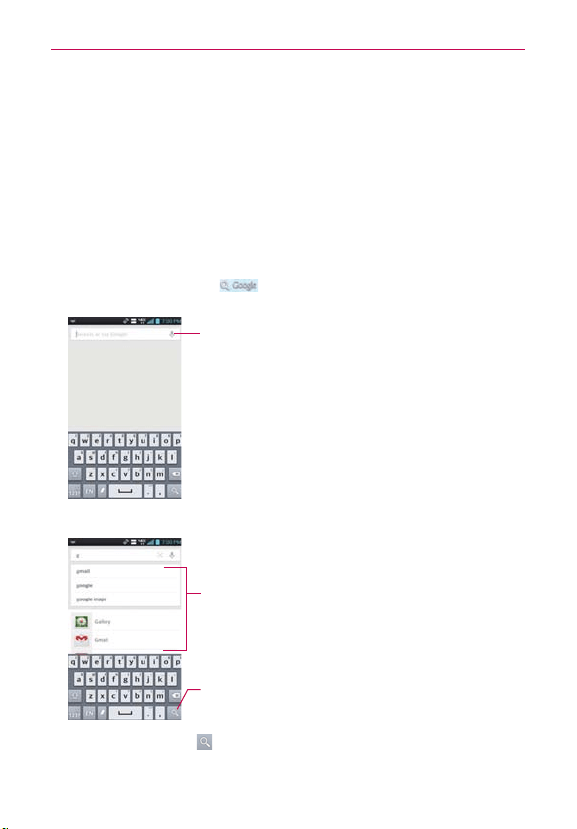
Phone and Web search using text entry
1. Tap the Search Widget at the top of the Home screen. The Quick
Search Box will open automatically.
Voice Search
Tap here to search by voice.
2. Enter the text you’re searching for in the Quick Search Box.
As you type, search results from your phone,
previous search terms, and web search
suggestions appear. Tap an item to activate
that search result.
Search Key
Tap here to search for the entered text using
the Google application.
3. Tap the Search Key on the keyboard to use the Google application to
search for the text you entered in the Search Box.

43
The Basics
Search preference settings
You can use the Search preference settings to configure some aspects of
web search (for example, whether it makes suggestions below the Quick
Search Box as you type) and what phone features you want to include in
searches. To access these settings:
1. From the Search application, tap the Menu Key
> Settings.
2. Tap Google Now, Voice, Phone search or Privacy and accounts.
Google Now: Google Now settings let you turn Google Now on or
off. If you turn it on, you’re taken through a brief introduction and given
the chance to opt in. While Google Now is on, you can also set your
preferences for individual Google Now cards and related notifications
from the Google Now settings screen.
Voice: Voice settings control different aspects of speech input and output
when you search by voice or use voice actions.
Language: Select the language to use with voice search.
Speech output: To turn on speech output only when you’ve got a
headset attached to your phone, select Hands-free only.
Block offensive words: Check to ensure that search results with
offensive language are blocked.
Hotword detection: When this is checked, you can say “Google”
when viewing the Google Now screen rather than touching the
Microphone icon to initiate a voice search or action.
Download offline speech recognition: Check to select one or more
additional languages for speech recognition when you don’t have a
network connection.
NOTE
To detect when you say “Google” to launch Voice Search or Voice Actions, Google
analyzes sound picked up by your phone’
s microphone in intervals of a few seconds or
less. The sound is immediately discarded after analysis and is not stored on the device or
sent to Google.
Personalized recognition: Check to improve speech recognition
accuracy.
Google Account dashboard: Manage your collected data.

44
The Basics
Phone search: Phone search settings let you select which apps on your
phone are included in Google searches.
Privacy and accounts: These settings control the account for use with
Google Search and search-related privacy options for that account.
Locking the Screen
Your phone automatically uses a default Lock Screen to simply prevent
unintentional function activation. You can choose to secure your phone so
that only you can unlock it to make calls, access your data, buy applications,
and so on. For added security to guard against unauthorized use, you can
set a requirement (such as face unlock, pattern, PIN, or password) that will
need to be entered to unlock it. You can also set no lock screen at all.
Setting Swipe, Face Unlock, Pattern, PIN, or Password
Follow these steps to set an unlock sequence for the first time or after you
disable a previously set unlock sequence.
1. From the Home screen, tap Apps
>
Settings
> Lock screen.
2. Tap Select screen lock.
3. Tap None, Swipe, Face Unlock, Pattern, PIN or Password.
None: No lock screen is enabled so the screen will never be locked from
use.
Swipe: A swipe motion in any direction on the touchscreen will unlock
the screen.
Face Unlock: Unlocks the screen using face recognition. Keep in mind
that Face unlock is less secure than a pattern, PIN or password because
it uses generalized shape and dimension to verify your face.
Pattern: Unlocks the screen using a pattern you draw with your finger.
The first time you set an unlock pattern, you will see a tutorial with
instructions on how to create it. Read the tutorial and tap Next. Draw
your pattern (connect at least 4 dots) and tap Continue. Then redraw
your pattern and tap Confirm.
NOTE
Follow the on-screen instructions to create a backup PIN number in case you forget your
pattern.

45
The Basics
PIN: Unlocks the screen with a number sequence. Enter a PIN (at least 4
digits) and tap Continue. Reenter your PIN and tap OK to confirm it.
Password: Unlocks the screen with an alphanumeric sequence. Enter
a password (at least 4 characters) and tap Continue. Reenter your
password and tap OK to confirm it.
From then on, any time you want to turn the phone on or unlock the
screen, you will need to perform the unlock action you set (swipe, face
recognition, pattern, PIN, or password) to gain access to it.
Disabling the lock sequence
If you change your mind about using a lock sequence to secure your phone,
you can disable it.
1. From the Home screen, tap Apps
>
Settings > Lock screen.
2. Tap Select screen lock.
3. Enter your current unlock sequence.
4. Tap None.
Changing Your Unlock Pattern
1. From the Home screen, tap Apps
>
Settings
> Lock screen.
2. Tap Select screen lock.
3. Draw your current unlock pattern.
4. Tap Pattern to change it.
5. You’re prompted to draw and redraw your new pattern.
6. Enter a Backup PIN and tap Continue. Then confirm your Backup PIN
and tap OK.
Changing your Lock Screen PIN or Password
1. From the Home screen, tap Apps
>
Settings
> Lock screen.
2. Tap Select screen lock.
3. Enter your current unlock sequence, then tap Next.

46
The Basics
4. Tap PIN to change your number lock sequence or tap Password to
change your alphanumeric lock sequence.
5. You’re prompted to enter and reenter your new lock sequence.
From then on, you will need to enter that sequence and tap OK to unlock
the screen.
NOTES
ţ
You have 5 opportunities to enter your unlock pattern, PIN or password. If you used
all of the opportunities, you can try again after 30 seconds.
ţ
If you have set up a Microsoft Exchange account, you are only allowed to set up a
password to unlock the screen.
ţ
When you can’t recall your unlock pattern:
- If you’ve created a Google Account on the phone, tap Forgot pattern?. Then you
are required to sign in with your Google Account to unlock your phone.
- If you forgot the unlock pattern, you can tap Forgot Pattern?, enter your backup
PIN sequence, then tap OK to unlock your phone.
Security lock timer
If a security lock is enabled, tap Security lock timer to set the delay time
after the screen darkens due to inactivity before the screen automatically
locks and requires you to enter your unlock sequence.
Power icon lock
If a security lock is enabled, checkmark the Power button instantly locks
box so that pressing the Power/Lock Key
will instantly lock the screen.
Remove the checkmark to disable it.
The default Lock screen
Press the Power/Lock Key to illuminate the touchscreen if it has timed-
out. If the unlock sequence is set to Swipe, a default Lock screen is
displayed, but you can still conveniently check the date, time, and Status
Bar icons. You can drag the Status Bar down to open the Notifications Panel
without unlocking the screen. In addition, you can also quickly access four
applications (the Phone application, the Email application, the Camera
application, and the Messaging application) without fully unlocking the
screen. Simply swipe the icon upward to open and use it.

47
The Basics
Changing the items on the default Lock Screen
1. From the Home screen, tap the Menu Key > Lock screen settings.
2. Tap Clocks & shortcuts.
To change the Quick access icons, tap one of the icons at the bottom
of the screen, then tap the application you want to replace it with.
To change the date and time format, swipe left or right until the one
you want is displayed.
3. Tap Save to save these settings.
NOTE
To add or remove an icon to the Quick access bar, tap and hold the desired icon and drag
it to or from the bar
.
Hard Reset (Factory Reset)
If you forget your lock sequence and backup PIN, you will have to perform a
hard reset to gain access to your phone.
WARNING
Performing a hard reset deletes all of your user data, which includes pictures,
videos, and music saved to your internal memory
. Please make sure to back up your
information prior to performing a hard reset.
1. Turn the power off.
2. Press and hold the following keys at the same time: Power/Lock Key
+ Volume Down Key
.
3. Release the keys when the FACTORY HARD RESET screen is displayed.
4. Press the Power/Lock Key
to continue or the Volume Keys to
cancel.
5. Press the Power/Lock Key
once more to confirm or the Volume
Keys
to cancel.
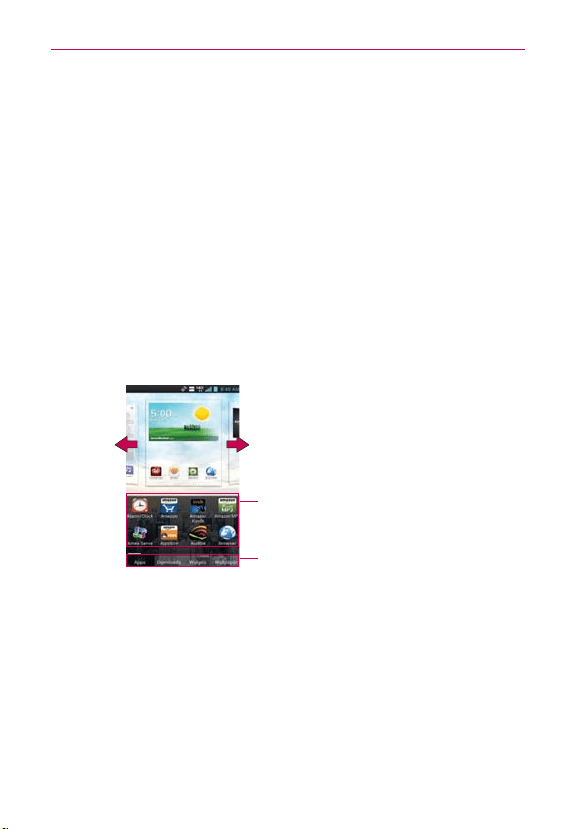
48
The Basics
Customizing the Home Screen
You can personalize your Home screen by adding application icons,
shortcuts, widgets, and other items to any Home screen canvas. You can
also change the wallpaper.
To add an item to the Home screen
1. From the Home screen, tap and hold an empty space on a Home screen
canvas.
2. The following four category tabs appear at the bottom of the screen:
Apps, Downloads, Widgets, and Wallpapers. Tap the one that
corresponds to the item you want to add.
3. Swipe left and right to scroll through the available choices in the category
tab you selected. Tap and hold the item you want, then drag it onto the
Home screen canvas.
Item List
Tap and hold an icon, then drag it onto the
canvas where you want it.
Category Tabs
Tap one of the item categories you want to
add to a Home screen canvas.
Slide the screen right or left to view
different Home screen canvases.
You can add shortcut items to any of the Home screen canvases.
NOTE
This is dependent upon available space on the Home screen.
Add shortcuts to applications, a bookmarked web page, a favorite contact, a
destination in Maps, a Gmail label, a music playlist, and more. The shortcuts
available depend on the applications you have installed.

49
The Basics
To move an item on the Home screen
1. Tap and hold the item.
2. Drag the item to a new location on the screen.
Pause at the left or right edge of the screen to drag the item onto the
next available Home screen canvas.
3. When the item is where you want it, lift your finger.
NOTE
If Move home screen items is enabled in the Gestures settings, simply tap and hold
the item you want to move and tilt the device in the direction you want to move the item
and it will slide to the canvases in that direction. Lift your finger when it arrives at the
canvas you want.
To remove an item from the Home screen
1.
Tap and hold the item.
2.
Drag the item to at
the top of the screen.
3. When the Remove icon changes to , lift your finger.
To change the look of your Home screen
From the Home screen, tap the Menu Key > Home screen settings to
access the following settings to personalize your Home screen.
Theme: Sets the overall ambiance of the Home screen. Choose from
Optimus, Odyssey, Shine, and Thor.
Animation: Set whether you want to enjoy animated transitions for all
supported effects (including when navigating from screen to screen)
or to use the phone without any optional animation effects (this
setting does not control animation in all applications).
Screen swipe effect: Sets how the items on the Home screen
canvases slide from one to the next. Choose from Basic, Breeze,
Accordion, Panorama, Carousel, Layer, and Domino.
Wallpaper: Allows you to set the wallpaper. Choose from Charging
wallpapers, Gallery, Live Wallpapers, and Wallpaper gallery.
Portrait view only: Checkmark this setting so that the Home screen
is always displayed in portrait view.
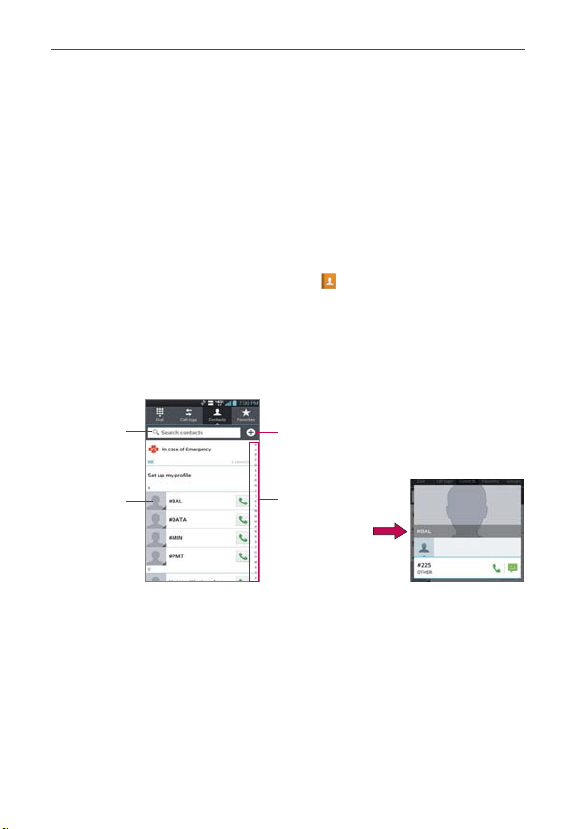
50
The Basics
Scroll screens circularly: Checkmark this setting so that the Home
screen canvases continuously rotate (does not stop at the far left or
far right canvas).
$POOFDUJOH2VJDLMZ8JUI:PVS$POUBDUT
As you build up your list of contacts on your phone, you can use the Quick
Contact for Android feature to quickly chat, email, text message, place a
call, or locate your contacts. Quick Contact for Android is a special set of
icons that you can use to quickly and easily connect with a contact.
From the Home screen, tap
Contacts
, scroll to a contact and tap
the contact's picture.
Tapping the contact’s picture opens a Quick Contact dialog box. It
displays icons for all of the ways you can communicate with that
contact. The available icons depend on the information you have
saved for that contact.
Quick Contact for
Android
Contact list
Alphabetical
Listing
Slide your finger
vertically along the
letters to view the
entries under a
specific letter.
New Contact
Tap here to add a
new contact.
Contact picture
Tap here to
open Quick
Contact for
Android for this
contact.
Type in the
name you want
to search.
Tap a Quick Contact icon to communicate with the contact. Depending
on the icon you’ve tapped, a different application will open.
TIP
Adding a shortcut for a contact to your Home screen allows you to open Quick Contact
for that contact without opening the Contacts application.
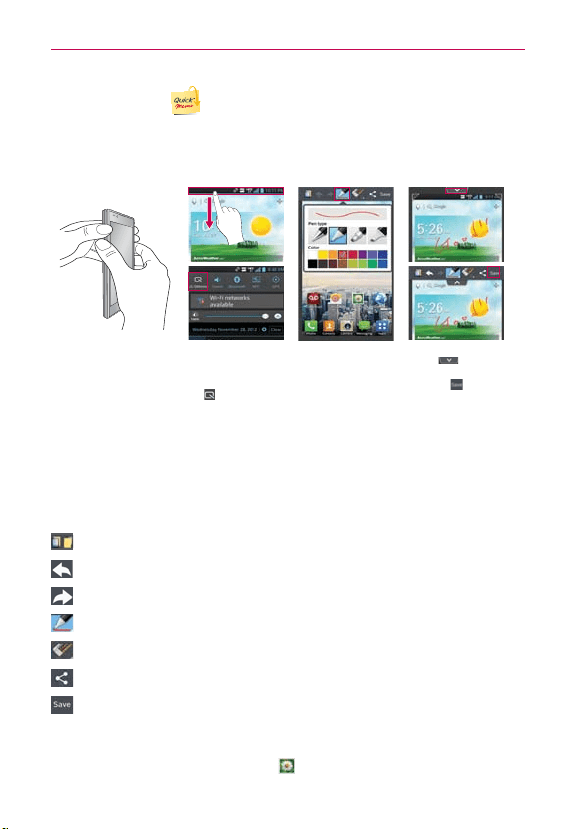
51
The Basics
QuickMemo
The QuickMemo feature allows you to create memos and capture screen
shots. You can use QuickMemo to easily and efficiently create memos
during a call, with a saved picture or on the current phone screen.
1. Access the
QuickMemo feature
by pressing both the
Volume Up and Volume
Down Keys for one
second while viewing
the screen you want to
capture.
Or tap and slide
the Status Bar
downwards and
tap
.
2. Select the
desired menu
option from Pen
type, Color,
Eraser. Then
create a memo.
3. Tap
from the
Edit menu and
select
to save
the memo to your
Gallery.
NOTE
Please use a fingertip while using the QuickMemo function. Do not use your fingernail.
Using the QuickMemo options
While using the QuickMemo function, the following options are available:
- Select to use the captured image or a note as the background.
- Select to undo the previous action.
- Select to redo the previously deleted action.
- Select the pen type and the color.
- Erase the memo that you created.
- Share the current memo.
- Save the memo.
Viewing the saved QuickMemo
From the Home screen, tap Gallery and select the QuickMemo album.
52
Connecting to Networks and Devices
Connecting to Wi-Fi Networks
Wi-Fi is a wireless networking technology that can provide Internet access
at distances of up to 100 meters, depending on the Wi-Fi router and your
surroundings.
To use Wi-Fi on your phone, you must connect to a wireless access point,
or “hotspot.” Some access points are open and you can simply connect to
them. Others are hidden or implement other security features, so you must
configure your phone so it can connect to them.
NOTE
Turn off Wi-Fi when you’re not using it, to extend the life of your battery.
The following Status Bar icon indicates your Wi-Fi status.
Connected to a Wi-Fi network (waves indicate connection strength)
An open network is available
When you connect to a Wi-Fi network, the phone obtains a network
address and other information it needs from the network, using the DHCP
protocol. To configure the phone with advanced settings, from the Wi-Fi
settings screen tap the Menu Key
> Advanced.
To automatically connect to a Wi-Fi network when launching
applications
1. From the Home screen, tap the Menu Key > Settings> Wi-Fi to
access the Wi-Fi menu. Or you can just tap the Wi-Fi icon from the
Notifications panel to turn on Wi-Fi.
2. From the Wi-Fi settings screen, tap Optimize Wi-Fi usage for the
following settings:
When launching apps, connect to known Wi-Fi networks when
Wi-Fi is off Checkmark the box to enable this setting to automatically
connect when launching an application that uses it. Remove the
checkmark and your device will display a notification dialog box for
you to select the connection action.
Download/Upload large files over Wi-Fi Checkmark the box

53
Connecting to Networks and Devices
to enable this setting to automatically connect when uploading/
downloading large files. Remove the checkmark to disable it and not
automatically connect.
3. Tap OK to set the above options.
To configure the phone with a static IP address.
1. Turn on Wi-Fi, if it's not already on.
2. Tap and hold the name of an added network then tap Modify network.
Type in the password and tap Save to save the new information.
3. Tap Show advanced options to mark the checkbox, then complete the
fields as necessary.
To turn Wi-Fi on and connect to a Wi-Fi network
1. From the Home screen, tap Apps
>
Settings .
2. Tap Wi-Fi. If Wi-Fi is off, tap
to turn it on. Your device scans for
available Wi-Fi networks.
3. Tap a network to connect to it.
O
If the network is secured, you will be prompted to enter a password
(Ask your network administrator for details).
O
When you’re connected to a network, you can tap the network name
in the Wi-Fi settings screen for details about the speed, security,
address, and related settings.
New network detection and notification
Checkmark the Notify Me checkbox in the Wi-Fi settings screen to be
notified when new networks are detected.
When Wi-Fi is on and the user launches an application that uses Wi-Fi,
a dialog box will appear when new networks are detected.
If the Notify Me checkbox is not marked and Wi-Fi is off, the device
will not display a dialog box when new networks are detected.

54
Connecting to Networks and Devices
To add a Wi-Fi network
You can add a Wi-Fi network so the phone will remember it, along with any
security credentials, and connect to it automatically when it is in range. You
can also add a Wi-Fi network manually if it does not broadcast its name
(SSID) or if you want to add a Wi-Fi network when you are out of its range.
To add a secured network, you need to contact the network’s administrator
to obtain the password or other required security credentials.
1. Turn on Wi-Fi, if it’s not already on.
2. From the Wi-Fi settings screen, tap ADD NETWORK at the bottom right
corner of the screen.
3. Enter the Network SSID (name) of the network.
If the network is secured, tap the Security menu
and tap the type of
security deployed on the network.
4. Enter the required passwords and security credentials.
5. Tap Save.
The phone will connect to the wireless network. Any credentials that you
entered are saved, so you’re connected automatically the next time you
come within range of this network.
To forget a Wi-Fi network
You can make the phone forget about the details of a Wi-Fi network that
you added. For example, if you don’t want the phone to connect to it
automatically or if it’s a network that you no longer use.
1. Turn on Wi-Fi, if it’s not already on.
2. In the Wi-Fi settings screen, tap and hold the name of the network that
you want to forget.
3. Tap Forget network in the Context menu that appears.

55
Connecting to Networks and Devices
Wi-Fi Direct connection
You can make a connection directly with Wi-Fi devices without any access
point. Your device can create a group connection or an individual connection.
1. From the Home screen, tap Apps
>
Settings > Wi-Fi > Menu
Key .
2. Tap Wi-Fi Direct to set up your Wi-Fi Direct connection settings.
Tap CREATE GROUP at the bottom right corner of the screen to turn
it on. Tap the Menu Key to select Advanced and Help.
Connecting Your Device to Your Computer
Before using your device’s Media sync (MTP) or Camera (PTP) capabilities,
you need to prepare your device’s data services to synchronize with your
desktop or laptop computer. Once you have connected the device to the
computer, you can transfer your data to or from the device memory.
5PDPOOFDUZPVSEFWJDFUPBDPNQVUFSWJB64#
1. Use the USB Cable that came with your phone to connect the phone to
a USB port on your computer.
2. Open the Notifications panel and tap USB connected.
3. Tap the connection mode you want to use to connect to the PC. Choose
from the following options: Charge only, Media sync (MTP), Internet
connection, or Camera (PTP).

56
Connecting to Networks and Devices
64#"VUPSVO
USB Autorun is a feature that allows your phone to connect to a PC using a
USB Cable and set it up on that PC without using a physical CD-ROM.
Automatically installs the LG USB Modem driver.
Allows a phone with an installed microSD card to be used as an MTP
device.
To select USB mode for Autorun
1. From the Home screen, tap Apps
>
Settings > PC connection >
USB connection type and select the desired mode.
2. Connect USB cable to the PC.
3. Autorun automatically installs the USB device driver for any USB mode if
it is not installed.
4. If the driver for Media sync(MTP) is not installed, it also will be installed
automatically.
NOTES
ţ
USB Autorun only works with Windows
®
XP, Windows
®
Vista, and Windows
®
7 operating
systems.
ţ
Log on to the PC as Administrator. Non-Administrator accounts have insufficient
privilege to install the USB Modem driver and don’t run the Autorun feature.
ţ
Do not unplug the USB Cable during Autorun.
ţ
If Autorun doesn’t function properly, the USB mode is changed to Media sync (MTP)
mode by default.
Charge only mode
Tap to use only the charging function and not the USB function
Media sync(MTP) and Camera(PTP)
Tap to transfer files between the phone and the PC.
Internet connection mode
You can share your phone’s internet connection with your PC using a USB
Cable. After connecting with a USB Cable, set the USB connection mode to
Internet connection. Then select either Ethernet or Modem.
Ethernet This mode changes the phone to USB tethering mode from the

57
Connecting to Networks and Devices
PC. From the Home screen, tap Apps
>
Settings >
PC connection > USB connection type > Internet connection
> Ethernet. Return to the Settings screen and tap More... (under
the WIRELESS & NETWORKS section) > USB tethering > Mobile
Broadband Connect checkbox.
NOTE
This mode can only be used by a user registered to a tethering plan.
Modem This mode changes the phone to Modem mode from the PC.
Ask on connection
You can choose to be asked to confirm the USB connection when
connecting to a computer.
When Ask on connection is checkmarked, the USB selection dialog box is
displayed when the USB Cable is connected to the phone and computer.
Autorun is not available when:
The phone is booting (powering up).
The PC operating system is not set to Autorun (automatic execute command).
To change the connection mode settings while Autorun is running:
You can change the settings while Autorun is running. From the Home
screen, tap Apps
>
Settings
> PC connection > USB connection
type. Then tap any USB mode.
NOTE
Be sure to checkmark the box Ask on connection if you want to be asked to confirm
the USB connection mode when the phone is connected to a computer
.
Using the Status Bar to change the settings
The Status Bar displays the current USB connection mode so you can easily
open the Status Bar and change the settings as needed.
When connected via USB, the current USB connection mode also appears
on the Notifications panel. Tap the connection setting to display a screen
where you can change the USB connection mode.
NOTE
If the Ask on connection checkbox is marked, the screen is only provided during USB
connection. If Autorun fails to run, the device automatically switches to Media sync (MTP)
mode.
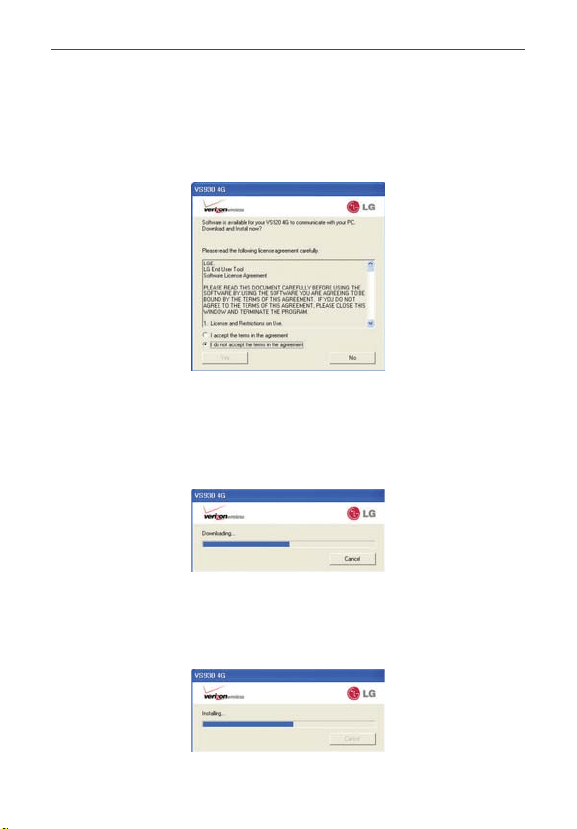
58
Connecting to Networks and Devices
Step 1. Connecting the phone to a PC
Connect your phone to your PC with a compatible USB Cable
(supplied). LG Autorun starts automatically.
Click ‘I accept the terms in the agreement’ then ‘Yes’.
NOTES
ţ
USB Autorun is only supported for Windows
®
XP, Windows
®
Vista, and Windows
®
7.
ţ
The USB Autorun feature works only under an Administrator account. The installer has
insufficient privileges under a Non-Administrator account. Log on as Administrator. The
device is switched back to the Media sync (MTP) mode within 30 seconds. If Autorun
fails to run, the device automatically switches to Media sync (MTP) mode.
Step 2. Downloading the LG USB Modem Driver.
NOTES
ţ
If a previous version of the LG USB Modem driver is installed in the computer, it will
automatically be updated to the recent version.
ţ
If a recent version of the LG USB Modem driver is installed in the computer, LG Autorun
skips ‘Step 2.’
Step 3. Installing the LG USB Modem Driver.
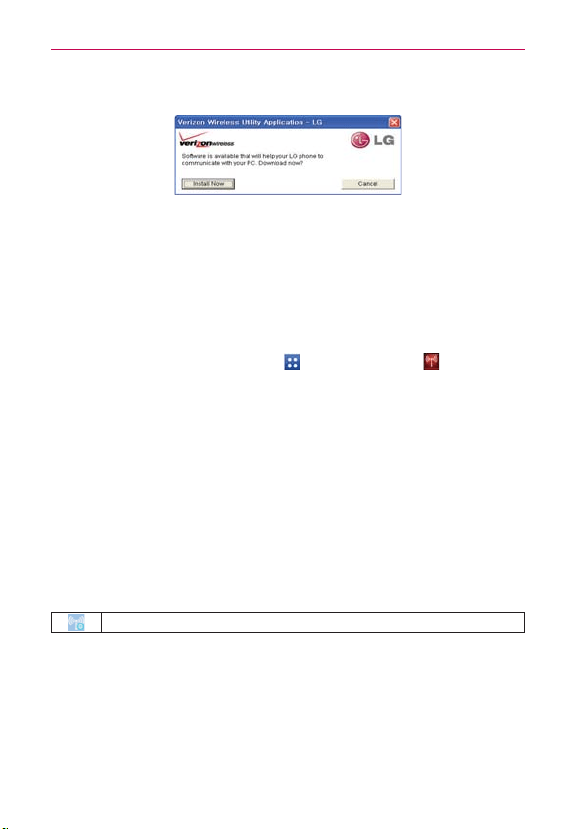
59
Connecting to Networks and Devices
Step 4. Installing the Utility Application.
.BLF:PVS%FWJDFB.PCJMF)PUTQPU
The Mobile Hotspot application can share the phone’s 4G data connection
with any Wi-Fi capable devices.
WARNING!
There are security risks associated with creating a Wi-Fi network open to the public. It is
highly recommended that you take steps to protect your Wi-Fi network from unauthorized
access.
1. From the Home screen, tap Apps > Mobile Hotspot .
2. Tap the Mobile Hotspot checkbox to enable this feature.
3. Read the disclaimers and Help information, then tap OK.
4. Your portable Wi-Fi Hotspot is now created.
You can use this menu to enable and disable the connection. Once the
connection is active, go to the device you want to connect and configure
its wireless connection to the Network SSID for your Android device
and input the password (if you are using WPA2 PSK). You will now have
wireless access on your device.
NOTE
WEP is highly vulnerable to hacking. WPA2 is recommended by the IEEE.
The following Status Bar icon indicates your Wi-Fi Hotspot status.
Portable Wi-Fi Hotspot is active. The number indicates how many devices are connected

60
Connecting to Networks and Devices
NFC
Near field communication (NFC) lets you get things done just by tapping
your phone on NFC touchpoints – quickly change your phone settings,
for example, or open a website featured on an advertising poster without
typing the Web address, and lots more.
To turn the NFC feature on, from the Home screen tap Apps
> Settings
> More... > and tap the NFC switch .
-(5BH
LG Tag+ lets you set up tags as NFC touchpoints that apply your own
custom settings to your phone by just tapping the phone to the tag. For
example, you could have one tag with the settings you want at work and
one for settings when you’re at home.
NOTE
Two tags come in the box.
6TJOH5BHXSJUJOH
1. From the Home screen, tap Apps > LG Tag+ .
2. Select the desired mode (Car/Office/Sleep/User mode) and modify the
settings as desired.
3. Tap Write on NFC tag and tap the back of your device to a tag or a
device to share.
NOTE
Tap Help
in the lower right corner to learn more about setting up your own tags.
6TJOH5BHSFBEJOH
Make sure the display screen is on and unlocked, then tap the NFC tag or
NFC-enabled device with the back of your phone. When tapping the set tag
or a device, the preconfigured mode will be activated right away.
NOTE
For best results tap between the LG and 4G LTE logos on the back of your phone.

61
microSD Card
microSD Card
NOTE
The microSD card is sold separately. See page 13 for installation instructions.
6ONPVOUJOHBOESFNPWJOHUIFNJDSP4%$BSE
To safely remove the microSD card from your device, you must first
unmount it before removing it from the phone.
1. From the Home screen, tap Apps
>
Settings
> Storage > Unmount
SD card. Now you can safely remove the microSD card.
2. Remove the back cover from the phone.
3. Gently pull the microSD card out of the slot.
NOTE
You can easily damage the microSD card and its adapter by improper operation. Please
be careful when inserting, removing, or handling them.
Viewing Memory in the microSD Card
1. From the Home screen, tap Apps
>
Settings > Storage.
2. Review the available information.
The storage page is divided into two sections: Internal Storage and SD
Card.
Formatting the microSD Card
Formatting a microSD card permanently removes all of the files stored on
the card.
1. From the Home screen, tap Apps
>
Settings > Storage.
2. Tap Unmount SD card to release the microSD card from device use.
An icon appears within the Notifications panel to indicate an unmounted
microSD card.
3. Once released, tap Erase SD card > Erase SD card > Erase everything.
Once completely formatted, the card is automatically re-mounted
(reconnected for use by the device).
NOTE
The formatting procedure erases all of the data on the microSD card, after which the files
CANNOT be retrieved. T
o prevent the loss of important data, please check (and backup,
if necessary) the contents before you format the card.

62
microSD Card
6TJOH.FEJBTZOD.51PS$BNFSB151NPEF
When you connect the phone and PC using a USB Cable and set your
device’s USB connection mode to media sync or camera mode, you will
see portable device for MTP or imaging device for PTP on the PC. You can
copy files to/from the microSD card.
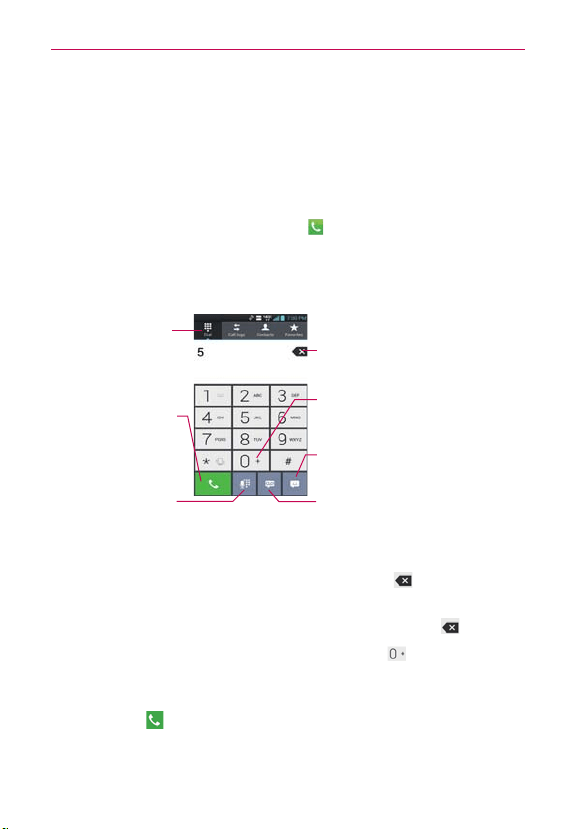
63
Calls
Placing and Ending Calls
You place calls using the Phone application. Calls can be manually dialed
using the Dial tab. You can also dial from your phone’s memory using the
Call logs tab, the Contacts tab, or the Favorites tab.
To open the Phone application
From the Home screen, tap Phone .
To place a call by dialing
1. Open the Phone application.
To dial an international number, tap and hold
the 0 Key to enter the plus ( + ) symbol.
Then, enter the international prefix for the
country, followed by the full phone number.
Message Key
Tap here to send a message to the number
that you entered manually.
Call
Tap here to dial the
number that you entered
manually.
Delete Key
Tap here to erase a digit.
Tap and hold to erase the entire number.
Voice Dialer Key
Tap here to dial using your
voice
Voicemail Key
Tap to quickly access your voicemail.
Dial tab
Displays the dialpad.
2. Tap the keys on the dialpad to manually enter a phone number.
If you enter a wrong number, tap the Delete Key
to erase digits
one by one.
To erase the entire number, tap and hold the Delete Key
.
To dial an international number, tap and hold the
Key to enter the
plus ( + ) symbol. Then, enter the international prefix for the country,
followed by the full phone number.
3. Tap the Call
to dial the number that you entered.
You can use other phone features while the call is underway. If you

64
Calls
open another application, the Call icon appears in the Status Bar for
the duration of the call.
Press the Volume Keys to adjust the call volume.
Use the on-screen icons to enter additional numbers, place the
call on hold and take an incoming call, add another call, use the
speakerphone, end the call, and other options.
NOTE
If you opened other applications while on a call, you'll need to return to the Call screen
and tap the End call icon
to end the call. You can tap Home , then Phone or tap
the Contact’s name or number at the top right corner of the Home screen. You can also
drag the Notifications panel down and tap End call
.
Instant List
Instant list is displayed on the Dial tab to help you to use the information
stored in your Contacts list and Call logs without needing to open and
search those applications first. Once you enter three or more numbers you
want to dial, Instant list displays entries from your Contacts list or Call logs
that match the sequence that you entered.
Sequence matches
The device searches for the entered sequence anywhere in the number,
beginning, end, or anywhere in-between. The matching number sequence
is displayed within the number in blue text. The name and type of number
(i.e., Mobile, Work, etc.) associated with the number you enter is displayed
above the dialpad. When there are multiple matches, the Instant list
displays the number of matches in your Contacts list. Tap the dropdown
icon
to view the entire list of matching entries.
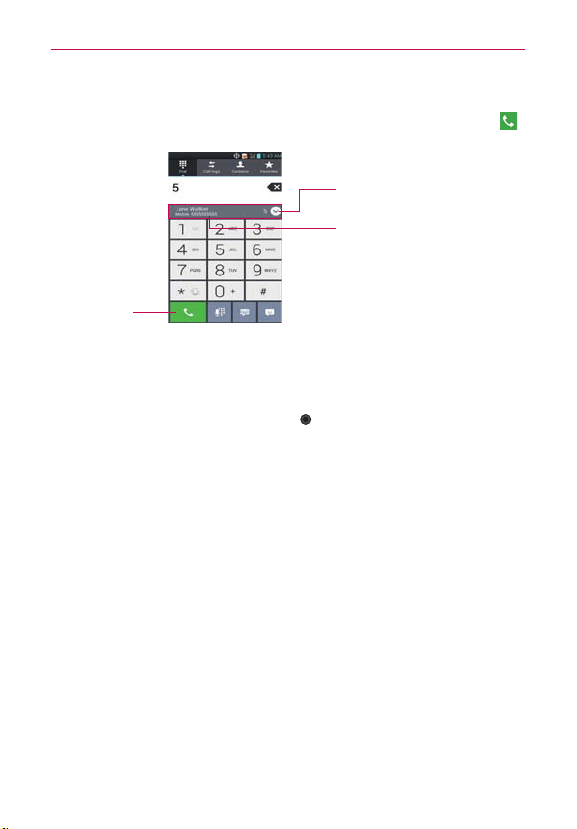
65
Calls
Selecting an Instant list entry
Tap an entry in the Instant list to insert it on the dialpad and tap the Call
to dial it.
Instant list Icon
Tap to view the entire Instant list.
Instant List
Call
Airplane mode
Some locations may require you to turn off your phone’s wireless
connections by placing your phone in Airplane mode.
1. Press and hold the Power/Lock Key
.
2. Tap Turn on Airplane mode.
NOTE
The Wireless & networks settings screen also has a checkbox to enable or disable
Airplane mode and the Notifications panel has an Airplane mode icon which toggles it on
or off.
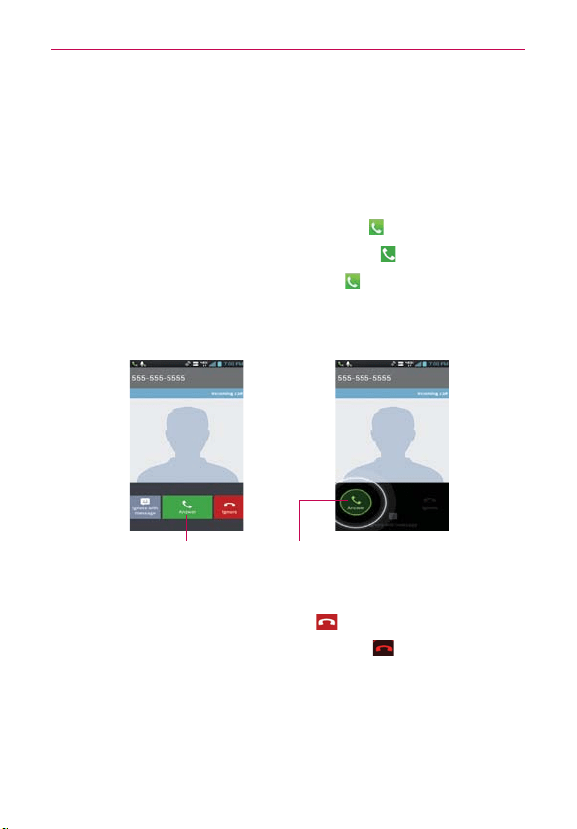
66
Calls
Answering or Rejecting Calls
When you receive a phone call, the Incoming call screen opens with the
caller ID and any additional information about the caller that you have saved
in the Contacts list. All incoming calls are recorded in the Call logs.
To answer a call
If the screen is unlocked, simply tap Answer .
If the screen is locked, swipe the Answer icon
in any direction.
If you were already on a call, tap Answer
to place the first call on
hold while you answer the new call.
NOTE
To silence the incoming call ringer, press either of the V
olume Keys.
Swipe the Answer
icon in any direction to
answer the call.
Unlocked Screen Locked Screen
Tap the Answer icon
to answer the call.
To ignore a call and divert it to voicemail
If the screen is unlocked, tap Ignore .
If the screen is locked, swipe the Ignore icon
in any direction.
The caller is sent directly to your voicemail box to leave a message.
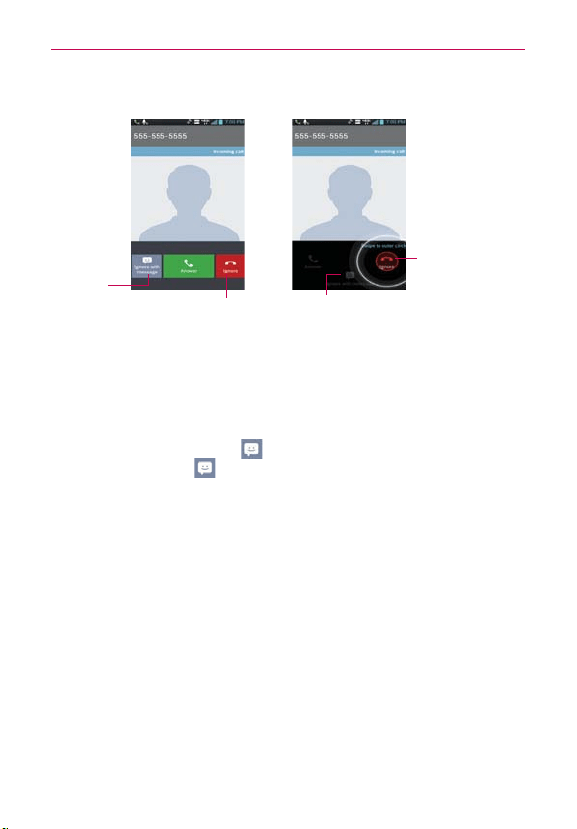
67
Calls
Tap the Ignore
with message
icon to send a
quick message
to the caller
and forward
them to your
voicemail.
Unlocked Screen Locked Screen
Tap the Ignore icon to decline the
call and send the caller directly
to your voicemail box to leave a
message.
Swipe the Ignore
icon in any direction
to decline the call
and send the caller
directly to your
voicemail box to
leave a message.
Swipe the Ignore with message
icon in any direction to send a quick
message to the caller and forward
them to your voicemail.
NOTE
To silence the ringer, press either of the V
olume Keys.
To ignore a call and send a text message
1. When you receive an incoming call and the screen is unlocked, tap the
Ignore with message icon . If the screen is locked, swipe the Ignore
with message icon
in any direction.
2. Tap the text message you want to send in place of answering the call.
NOTE
This feature can only be used to send a message to another mobile phone. It is not
applicable to incoming landline calls.
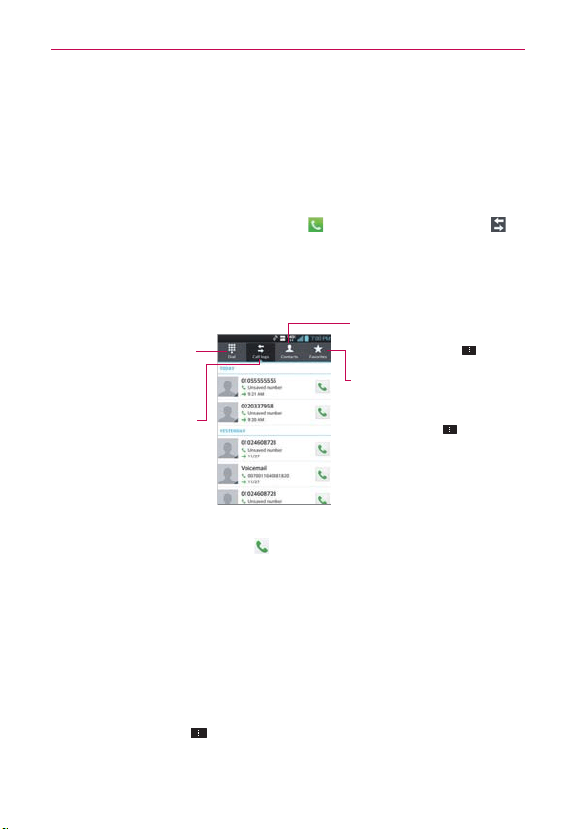
68
Calls
Working With the Call logs
The Call logs is a list of all of the calls you’ve dialed, received, or missed. It
offers a convenient way to redial a number, return a call, or add a number to
your Contacts list.
To open the Call logs
From the Home screen, tap Phone then tap the Call logs tab at
the top of the screen.
All calls (sent, received, and missed) are listed in the Call logs tab.
The most recent calls are located at the top of the list. Scroll down to
see older entries.
Dial Tab
Tap here to dial a phone
number manually. You can
also call voicemail using this
keypad.
Call Logs Tab
Tap here to display the history
of all of your calls.
Contacts Tab
Tap here to display your Contacts
list. Tap the Menu Key
for
additional options.
Favorites Tab
Tap here to access your contact
Favorites and a list of frequently
called numbers.
Tap the Menu Key
for additional
options.
To dial a number in the Call logs
From the Call logs, tap Call at the right of the call entry.
You can also tap and hold the entry to open a Context menu to edit
the number before dialing it.
To add an entry’s number to your Contacts
1. Tap and hold the call entry.
2. Tap Edit number before call in the Context menu that appears. The
Dial screen is displayed so you can edit the number, if necessary, before
adding it to your Contacts list.
3. Tap the Menu Key
then tap Add to Contacts.
4. Tap an existing contact entry to add the new number to it or tap the
Create new contact icon to save it as a new entry.

69
Calls
Clearing the Call logs
You can empty the entire Call logs at once or selectively delete entries.
1. Access the Call logs.
2. Tap the Menu Key
.
Tap Clear to select entries to remove from the list.
Tap Clear all to remove all of the entries from the list.
$BMMJOH:PVS$POUBDUT
Instead of manually dialing phone numbers using the dialpad, you can use
your Contacts list to dial quickly and easily.
You can also quickly call a contact using Quick Contact.
If you have contacts on the web, you can choose whether to synchronize
with your phone when you first set up your Google™ Account.
To call a contact
1. From the Home screen, tap Contacts .
2. Tap the contact you want to call.
3. Tap the contact’s phone number you want to call.
To call a favorite contact
1. From the Home screen, tap Contacts , then tap the Favorites tab
at the top of the screen.
2. Tap the contact you want to call.
3. Tap the contact’s phone number you want to call.
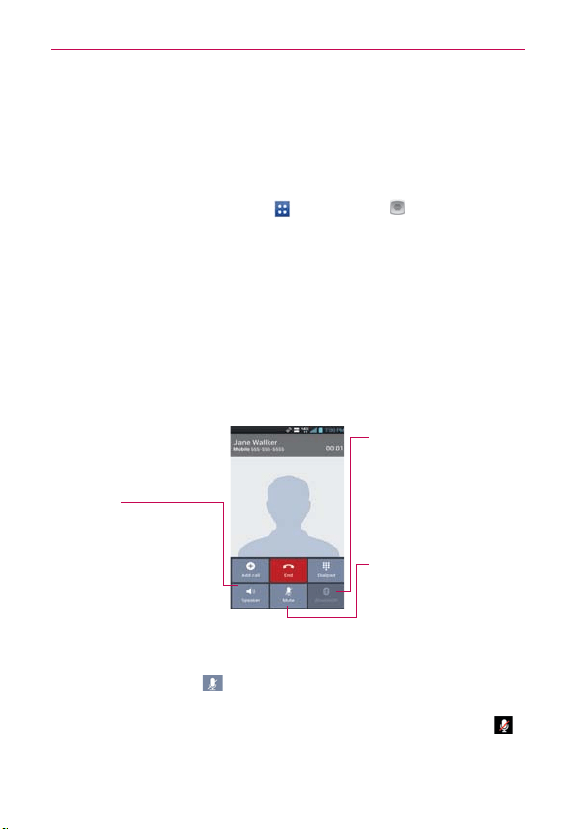
70
Calls
Voice Dialer
You can use the Voice Dialer application to place a phone call by speaking
the name of a contact or a phone number.
To place a call by speaking
1.
From the Home screen, tap Apps
> Voice Dialer .
If you have a Bluetooth device that supports "voice-recognition" or "voice
dialing" you may be able to open Voice Dialer by pressing your headset’s
main icon or in some other way, and dial by voice using your headset.
For details, see the documentation that came with your headset.
2. Say "Call" followed by the name of the contact or say "Dial" followed by a
phone number.
NOTE
If a dialog box with possible request matches is displayed, tap the one you intended to
voice dial.
Options During a Call
Bluetooth Icon
Tap here to switch between a
Bluetooth device and the phone.
The light bar on the Bluetooth
icon illuminates blue to indicate
that the call is using a Bluetooth
device. The icon is greyed out
when there is no Bluetooth
device available.
Mute Icon
Tap here to mute the
microphone during a call.
The light bar on the Mute icon
illuminates blue to indicate that
the microphone is muted.
Speaker Icon
Tap here to turn the speakerphone
on or off.
The light bar on the Speaker icon
illuminates blue to indicate that the
speakerphone is on.
WARNING!
To avoid damage to your hearing,
do not hold the phone against your
ear when the speakerphone is
turned on.
To mute the microphone during a call
Tap the Mute icon .
The light bar on the Mute icon illuminates blue to indicate that the
microphone is muted. If you close the Call screen, the Mute icon
will appear in the Status Bar to remind you that the microphone is
turned off.

71
Calls
While viewing the in-call screen, you can unmute the microphone by
tapping the Mute icon again.
The microphone is unmuted automatically when the call ends.
To turn the speakerphone on or off
Tap the Speaker icon .
The light bar on the Speaker icon illuminates blue to indicate that the
speakerphone is on. If you close the Call screen, the Speaker icon
will appear in the Status Bar and the sound from your call is played
through the phone’s speaker on the back of the device.
While viewing the in-call screen, you can turn the speakerphone off by
tapping the Speaker icon again.
The speaker is turned off automatically when the call ends.
WARNING!
To avoid damage to your hearing, do not hold the phone against your ear when the
speakerphone is turned on.
To switch between a Bluetooth device and the phone
When a Bluetooth device is paired and connected to your phone, you can
conduct calls on it for hands-free conversations. During a call, you can easily
switch between using the Bluetooth device and your phone.
When using the Bluetooth device during a call, the Ongoing Call notification
icon is blue in the Status Bar (the icon is green when using the phone).
Tap the Bluetooth icon
to switch the call from the Bluetooth
device to the phone, or vice versa.
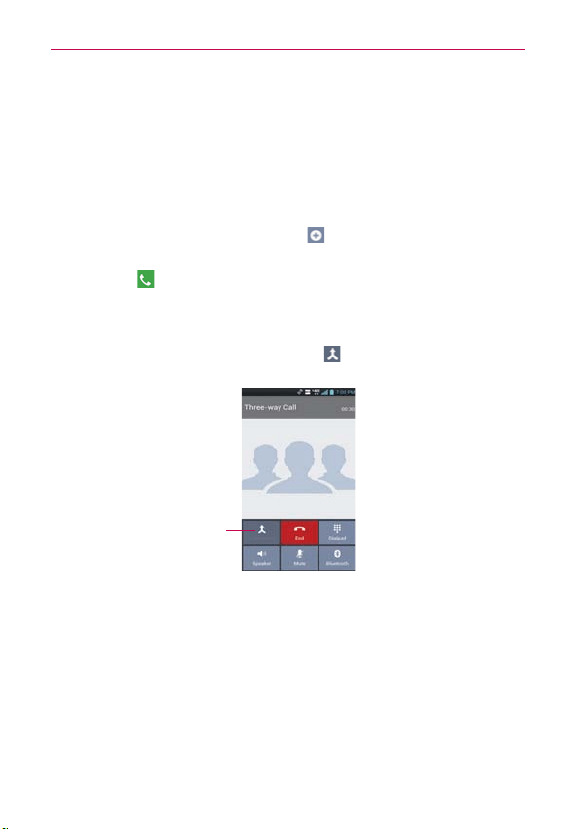
72
Calls
Managing Multiple Calls
Contact your wireless service provider to learn whether they support
conference calls and how many participants you can include.
To set up a conference call
1. Place a call to the first participant.
2. When you’re connected, tap Add call
.
Manually enter the phone number you want using the dialpad, then
tap Call
.
Tap the Contacts tab, Favorites tab, or Call Logs tab to select a phone
number saved in your phone's memory.
3. After you’re connected, tap Merge calls
. The participant is added to
the conference call.
Merge calls Icon
Tap here to merge the
separate calls into a
conference call.
73
Calls
-JTUFOJOHUP:PVS7PJDFNBJM
When you have a new voicemail message, the Voicemail notification icon
appears in the Status Bar. If you have not set up your voicemail number,
or if you need to change it, you can do that in the Call settings.
To listen to your Voicemail
Open the Notifications panel and tap New voicemail.
OR
T
ap the Voicemail icon
on the Home screen.
OR
From the Home screen, tap Phone
, then tap the Voicemail Key
. Typically, your carrier’s voicemail system guides you through the
process of listening to and managing your voicemail. The first time
you call your voicemail, it also guides you through the process of
recording greetings, setting a password, etc.
To set up your Voicemail
1. From the Home screen, tap Phone . (The Phone application can also
be accessed from the Applications screen.)
2. Tap the Voicemail Key
to dial your voice mailbox.
3. If you hear a system greeting, tap the Pound Key
to interrupt it, if
applicable.
4. Follow the setup tutorial.
5. Select a password.
6. Record a voice signature and greetings for your voice mailbox.

74
Browser
The Browser application allows you to access the internet from your
Verizon Wireless device. Access and selections within this feature are
dependent upon your service provider. For specific information on Browser
access through your phone, contact your service provider.
NOTE
You may incur additional charges for accessing the web and downloading media. For
details, contact your service provider
.
Browse web pages
1. From the Home screen, tap Browser .
2. To navigate directly to a specific web page, enter the address (URL) of a
web page, then tap Go in the lower right corner of the keypad.
NOTE
If you don't see the URL input field, drag the top of the current web page down to reveal it.
Toolbar
Toolbar handle
Drag the toolbar handle upward to display
the toolbar or drag it downward to hide it.
You can also set whether the toolbar is
displayed or not by tapping
the Menu Key
> Settings > General
> Toolbar checkbox.
URL Input Field
Tap here to enter a web
address for the web page
you want to access.
Windows
Tap here to access other open
web pages, if you opened
multiple window tabs.
3. While browsing the web page, use the following options:
To go to the previous page, tap the Back icon
in the toolbar or tap
the Back Key .
To go to a next page in history, tap the Forward icon
in the toolbar.
Web

75
Web
To zoom in or out, double-tap the screen. You can also use the
pinch-to-zoom method. Place your two fingers on the screen and
slowly pinch or spread them apart. Or, tap and hold the tilt Zoom icon
in the toolbar, then tilt the phone down to zoom out and tilt it up to
zoom in.
To open a new window tab, tap the New tab icon
in the toolbar.
To view your list of bookmarks, tap the Bookmarks icon
in the
toolbar. You can also edit or delete a bookmark from the Bookmark
tab.
To stop loading a web page, tap the Stop icon . The Stop icon
appears to the left of the URL while a web page is loading. You can also
tap the Menu Key > Stop.
To reload the current web page, tap
the Menu Key
> Refresh.
To bookmark the current web page, tap the
Menu Key
> Save to
bookmarks.
To open your Homepage, tap the
Menu Key
> Homepage.
To send the web address (URL) of the web page to others, tap the
Menu Key
> Share page.
To search for text on the web page, tap the
Menu Key
> Find on
page.
To change the current mobile web page to the desktop formatted
page, tap the
Menu Key
and checkmark the box for Desktop
view.
To save a web page to read later when you are offline, tap the
Menu Key
> Save for offline reading. To access it later, tap the
Bookmarks icon
in the toolbar, then tap the Saved pages tab at
the top of the screen.
To access your list of downloaded files, tap the Menu Key
>
Downloads.
To customize the Browser settings, tap the Menu Key
> Settings.
To close the Browser application, tap the Menu Key
> Exit. If you
close the Browser by tapping Exit, your Homepage is displayed the
next time you connect.
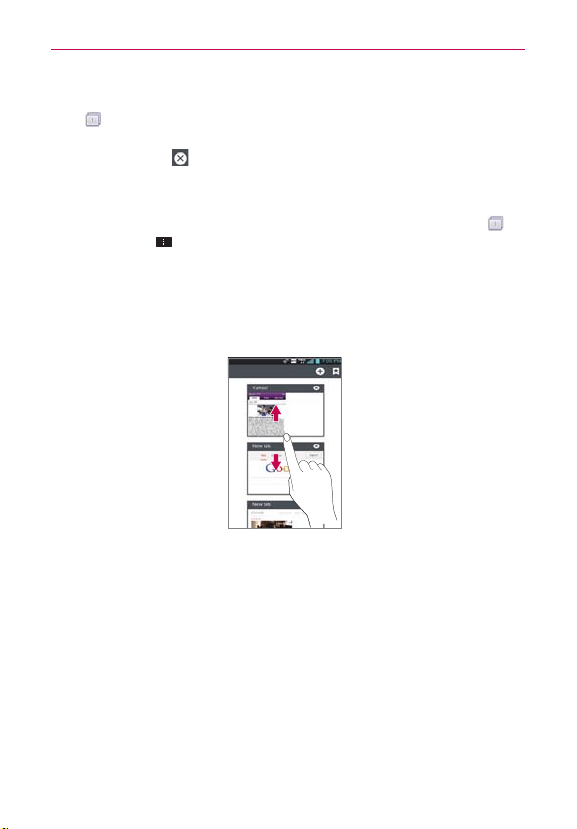
76
Web
To view the currently active window tabs, tap the Windows tab icon
to the right of the URL input field. Flick the screen up and down to
scroll through the open windows. To close the window, tap the Close
window icon
in the upper-right corner of the window, or flick the
window off the screen to the right or left. The window closes and
disappears from the screen.
To open a new incognito window tab, tap the Windows tab icon
>
Menu Key
> New incognito tab. Information about using incognito
window tabs is displayed to help you understand this feature.
To view the web page details, tap the web page’s icon to the left of
the URL bar.
NOTE
When you are in a secure page, tap the V
iew certificate icon on the Page info. screen to
see the certificate for the current page.
Tap and hold text on a web page. The text is highlighted in blue with
cursor markers at each end. A dialog box appears with Select all,
Copy, Share, Find, and Web Search. To adjust the range of your
selected text, drag the cursor markers to move them as needed.

77
Web
Bookmark your favorite web pages
If you know the web address of the web page, you can manually add a
bookmark. To add a bookmark:
1. Tap the Menu Key
> Save to bookmarks.
2. You can edit the Label and Address (URL). You can also set where it is
saved, as well as select or create a new bookmark folder.
3. Tap OK.
From the Bookmarks list, tap and hold a bookmark and use the following
options in the Context menu:
To open the web page in the current window, tap Open.
To open the web page in a new window, tap Open in new tab.
To edit the bookmark details, tap Edit bookmark.
To add the bookmark as a shortcut to one of the Home screen
canvases, tap Add shortcut to home.
To send the web address (URL) of the web page to others, tap Share
link.
To copy the web address (URL) of the web page, tap Copy link URL.
To delete the bookmark, tap Delete bookmark.
To use the web page as your Browser Homepage, tap Set as
homepage.
To delete a group of bookmarks from the list all at once, tap the Menu
Key
> Delete. Tap each bookmark to be deleted to checkmark it,
tap Delete, then tap Yes.
To move a group of bookmarks in the list all together at once, tap
the Menu Key
> Move. Tap each bookmark to be moved to
checkmark it, tap Move, select the subfolder, then tap OK.
To add a folder, tap the Menu Key
> Add folder. Then enter the
name and tap OK.

78
Web
To view the list of recently visited web pages, tap the Bookmarks
icon in the toolbar, then tap the History tab at the top-center of
the screen. You can select to view today’s list, yesterday’s list, the list
from the last 7 days, and the most visited list. Tap the Menu Key
> Clear all history to delete all entries from all of the lists.
To view the list of pages that you’ve saved, tap the Bookmarks icon
in the toolbar, then tap the Saved pages tab at the top-right of the
screen.
Changing the Browser settings
You can configure a number of the Browser settings, including how you
view and use pages as well as allowing you to manage your privacy.
To open the Browser settings screen, tap the Menu Key
from the
Browser and tap Settings.
General
Set homepage: Allows you to set the homepage to any of the following
choices: Current page, Blank page, Default page, Most visited sites,
Custom page.
Toolbar: Checkmark to display the toolbar at the bottom of the screen.
AUTO-FILL
Form auto-fill: Checkmark to enable the device to fill out web forms with
a single tap.
Auto-fill
text
:
Allows you to set up text to auto-fill in web forms.
LARGE FILE TRANSFER
Large File Transfer
:
Checkmark to transfer large file (greater then 5MB) over
Wi-Fi.
Privacy & Security
Clear cache: Clears locally cached content and databases.
Clear history: Clears the navigation history.
Show security warnings: Checkmark to show a warning if there is a
problem with a site’s security.

79
Web
COOKIES
Accept cookies: Checkmark to allow sites to save and read cookie data.
Clear all cookie data: Clears all of the Browser cookie data.
FORM DATA
Remember form data: Checkmark to allow the Browser to remember
data that has been typed in forms for later use.
Clear form data: Clears all of your saved form data.
LOCATION
Enable location
:
Checkmark to allow sites to request access to your location.
Clear location access: Clears the location access for all websites.
PASSWORDS
Remember passwords: Checkmark to allow the Browser to save
usernames and passwords for websites.
Clear passwords: Allows you to clear all saved passwords.
Accessibility
Force-enable zoom: Checkmark to override a website’s request to control
the zoom behavior.
TEXT SIZE
Preview: Allows you to see how the text size choices are affected as you
move the slider on the Text scaling bar and the Minimum font size bar.
Text scaling: Sets the text magnification when you access a web page.
Move the slider along the bar to set it.
Zoom on double-tap: Sets the zoom magnification when you double-tap
the screen. Move the slider along the bar to set it.
Minimum font size: Sets the minimum font size to display. Move the
slider along the bar to set it.
INVERTED SCREEN RENDERING
Preview: Displays what the screen will look like if the Inverted rendering
box is checkmarked.

80
Web
Inverted rendering
: Checkmark for inverted rendering. Black becomes
white and vice versa.
Contrast
: Allows you to adjust the contrast level. This option is only
available when the Inverted rending option is selected.
Advanced
Set search engine: Allows you to select which search engine to use.
Open in background: Checkmark to open new window tabs behind the
current window tab.
Enable JavaScript: Checkmark to enable javascript.
Allow multiple tabs per app: Checkmark to allow multiple tabs per
application.
Enable plug-ins: Allows you to set when to enable plug-ins.
Website settings: Allows you to manage advanced settings for individual
websites.
Storage: Allows you to set where to store your downloaded data.
PAGE CONTENT
Default zoom: Allows you to set the default zoom to far, medium, or
close.
Open pages in overview: Checkmark to show newly-opened pages in an
overview format.
Auto-fit pages: Checkmark to format web pages to fit the screen.
Block pop-ups: Checkmark to block websites from displaying pop-ups.
Text encoding: Allows you to set text encoding.
RESET DEFAULTS
Reset to default: Restores all of the Browser settings back to the default
values.
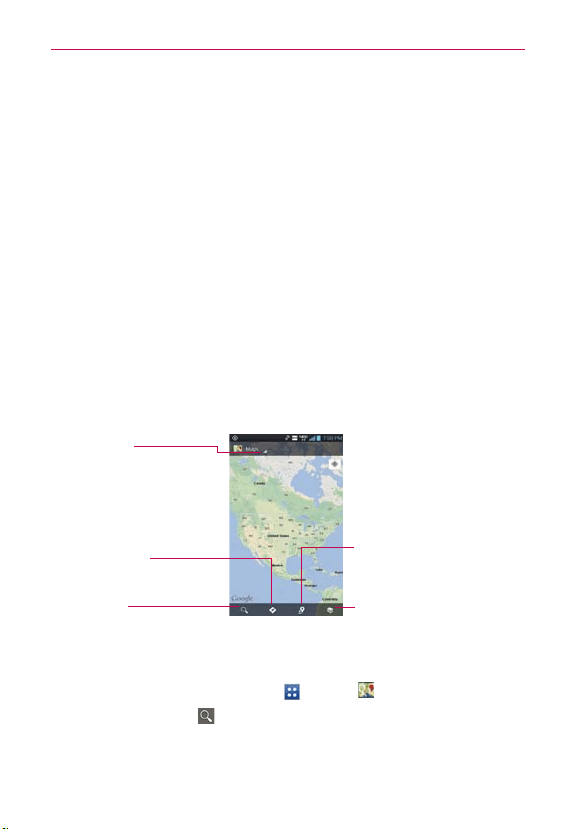
81
Web
Bandwidth management
Pre-load search results: Allows you to set when the Browser will preload
high confidence search results in the background.
Pre-load web page: Allows you to set when the Browser will preload
linked web pages in the background.
Load images: Checkmark to set whether or not to display images on web
pages.
Labs
Quick controls: Checkmark to hide the toolbar and URL bar and instead
allow you to open a quick controls wheel when you slide your thumb
along the left or right edge of the touchscreen.
Full screen: Checkmark to display the web pages in full screen mode and
hide the Status Bar.
Maps
Layers Icon
Tap here to select the type of
map you want to view.
Local Icon
Tap here to find types of places
near your location.
Maps Menu
Tap here to access Map, Local,
Navigation, Offers, My Places,
Latitude, and Location history.
Directions Icon
Tap here to get directions to a
destination.
Search Icon
Tap here to open the keyboard to
enter your search.
To search for a location
1. From the Home screen, tap Apps > Maps .
2. Tap the Search icon
at the bottom left corner of the screen.
3. In the search box, enter the place you’re looking for. You can enter an
address, a city, or a type of business or establishment. For example,
“theater in New York”.

82
Web
4. Tap the Search Key on the keyboard.
Red markers indicate search matches on the map.
You can tap a marker to open a balloon that contains a label. Tap the
balloon to open a screen with more information about the location, as
well as options for obtaining directions.
To get directions
1. From the Home screen, tap Apps > Maps .
2. Tap Directions
.
3. Enter a starting point in the first box and your destination in the second
box.
The starting point and destination can be entered manually using the
keyboard or you can select places using their drop-down menus.
The starting point dropdown menu
includes My current location,
Contacts, Point on map, and My Places.
The destination dropdown menu
includes Contacts, Point on
map, and My Places.
NOTE
When you search for a location in the Maps application, your current location is
automatically entered as the starting point and a dialog box displays your recent searches
allowing you to tap one to select it as the destination.
4. Tap the Car icon for driving directions, the Transit icon for transit
directions, the Biking icon for biking directions, or the Walking icon
for walking directions.
5. Tap GET DIRECTIONS at the bottom of the screen.
6. Your route is displayed on a map.
Tap a white circle marker on the map to see direction change
indicators.
Tap
to display each direction instruction sequentially in a bubble at
each juncture. You can tap
to step backward through the direction
instructions.
To view the directions in text format, tap
DIRECTIONS LIST
at the
bottom left corner of the screen.

83
Web
Tap the Back Key to return to map view.
NOTE
To reverse the directions, from the Directions list, tap the Menu Key
> Reverse.
Switching between common features
The Maps application has icons for easy access to many common features
used when searching for the places you want to go.
Tap the Maps menu
at the top left corner of the screen to access
Map, Local, Navigation, Offers, My Places, Latitude, and Location
history.
Tap the Layers icon
in the Maps toolbar at the bottom right of the
screen to access Traffic, Satellite, Terrain, Transit Lines, Latitude,
My Maps, Bicycling, Wikipedia, and your search history.
Tap the Local icon
in the Maps toolbar at the bottom of the screen
to search for places near your location or your destination.
Tap the Directions icon
in the Maps toolbar at the bottom of the
screen to get directions.
Tap the Search icon
in the Maps toolbar at the bottom left of the
screen to conduct a new search.
Tap the My Location icon
in the top right corner of the screen to
display your current location on the map.
Maps settings
Open the Maps application, then tap the Menu Key > Settings.
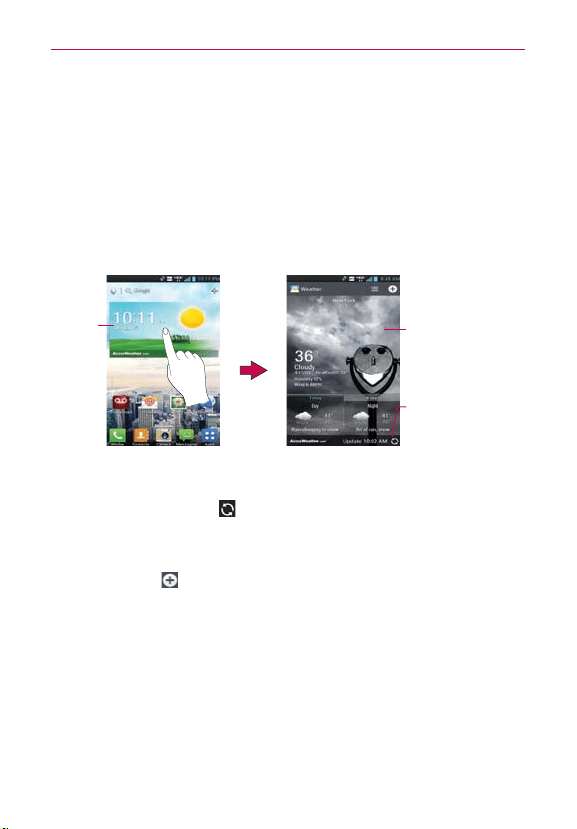
84
Web
Checking the Weather
The Weather application provides weather forecasts and other weather
information. You can place a Weather widget on your Home screen for a
summary of your local weather. Access the Weather application for more
detailed weather information.
To get details about the weather
Tap the Weather widget on the Home screen to open the Weather
application to view summarized and detailed weather information.
Weather
Widget
Weather
Information
Refresh Icon
Tap here to update the
current weather in the
currently displayed city.
Swipe right or left to scroll through the weather information for each
of the cities in your list.
Tap the Refresh icon
in the lower right corner of the Weather
application screen to update the current weather of the city displayed.
To add a city or update current location
Tap the Add icon to add a new city or update your current location.
Enter a location in the Search city box.
Tap the Current location icon at the top of the screen to update your
current location.
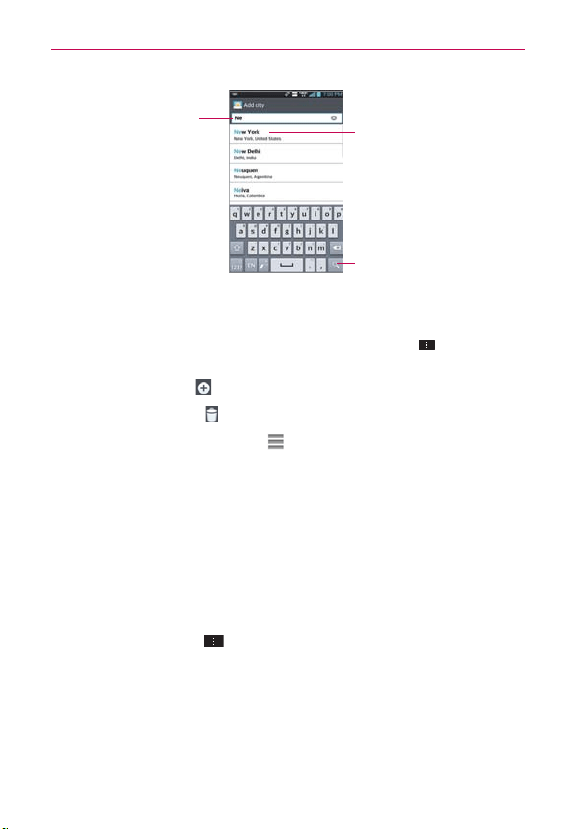
85
Web
Tap here to add the city to your
City list.
Tap to search.
Type in the city, state or ZIP
code to search for that location.
Managing your City list
The City list screen allows you to manage a list of cities that you want to
monitor. From the Weather application, tap the Menu Key > Settings >
Edit city list.
Tap the Add icon
to add another location.
Tap the Delete icon
to delete a city from your list.
Tap and drag the handle icon
(to the right of the city name) to move
a city to a new position in your city list. This affects the order viewed
when you swipe across the Weather application screen.
Changing Weather Settings
You can configure a number of settings for the Weather application.
The location and related settings also affect the display of the Weather
widget application.
To open the Weather settings screen, from the Weather application,
tap the Menu Key
> Settings.
The Weather settings includes List Settings, Data and Synchronization,
and General Settings.

86
Web
Backup Assistant Plus
How to access and register Contacts backup settings from Backup
Assistant Plus
If you didn’t set up Backup Assistant Plus when you turned on your phone
for the first time, you can enable it in the Settings application, the Contacts
application, or from the Applications screen.
1. From the Home screen, tap Apps
> Settings > Backup Assistant
Plus
.
2. Read the information provided on the screen and tap Start.
3. The Registration complete screen appears and your first backup process
begins. Tap Done.
Backup Assistant Plus can be accessed directly from the Contacts
application
1. Open the Contacts application.
2. Tap the Menu Key
> Backup now.
If you’ve already registered your Backup Assistant Plus account, a
background backup will be performed. If not, the Backup Assistant Plus
registration screen will be displayed for you to complete registration then
backup your files.
6TJOH#BDLVQ"TTJTUBOU1MVT
On the schedule you selected, the Backup Assistant Plus application
checks the phone’s address book to see if any changes have occurred since
the last backup. If changes are detected, the application will launch and the
backup. process will start. If no changes are detected, Backup Assistant
Plus sleeps until the next daily automatic backup is triggered.
Manually backing up your contacts
1. From the Home screen, tap Apps > Settings > Backup Assistant
Plus
.
2. Tap the Backup now icon to begin the backup process.

87
Web
Changing the backup schedule
1. From the Home screen, tap Apps > Settings > Backup Assistant
Plus
.
2. Tap Daily backup schedule then tap the time frame you want. For
example, Every late night (12am-6am).

88
Communication
Contacts
The Contacts application allows you to store names, phone numbers, and
other information in your phone’s memory.
6TJOH:PVS$POUBDUT
Use the Contacts application to add, view, and communicate with your
friends and acquaintances.
To open your Contacts application
From the Home screen, tap Apps > Contacts .
OR
From the Home screen, tap
Contacts .
All of your contacts are displayed alphabetically in a list in the Contacts
tab. If you have a new phone and haven’t added any contacts yet, the
Contacts application will display hints on how to start adding contacts to
your phone.
To open a list of your favorite contacts
The Favorites tab lists the contacts you’ve added to the list, followed by a
list of your most frequently called contacts.
Open your Contacts application and tap the Favorites tab
at the
top of the screen.
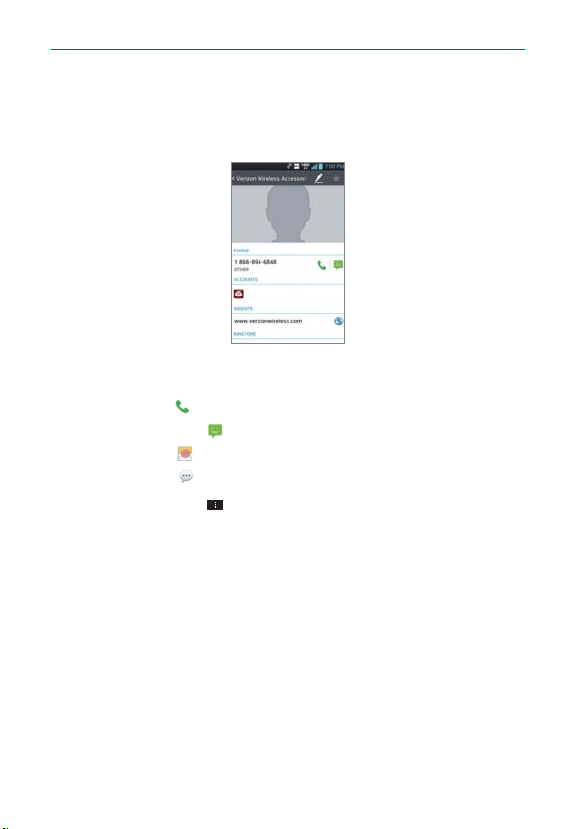
89
Communication
To view details about a contact
1. Open your Contacts application.
2. Tap the contact whose details you want to view.
3. The Contact information displays by default. Tap an icon to call, message,
or open other applications.
The Dial icon
places a call to the number.
The Message icon
starts a message.
The Mail icon
starts an email.
The Chat icon
starts a chat.
Tap the
Menu Key
for the following menu options: Delete, Share,
Join, Separate, Export, Add to home screen, and All calls to
voicemail.
Adding Contacts
You can add contacts on your phone and synchronize them with the
contacts in your Google™ Account, Microsoft Exchange account, or other
accounts that support syncing contacts.
Since your contacts can come from a variety of sources, the Contacts
application attempts to join new information with existing similar contact
entries, to create a single entry. You can also manage that process manually
by joining or splitting entries.
90
Communication
To add a new contact
1. Open the Contacts application.
2. Tap the New contact icon
to the right of the Search box.
3. If you have more than one account with contacts, tap
at the top of the
screen and choose the account to which you want to add the contact.
4. Enter the contact’s name.
5. Tap a category of contact information, such as phone number or email
address, to enter that kind of information about your contact.
6. Tap a category’s Add icon
to add more than one entry for that
category. For example, in the phone number category, enter a work
number and add a home number. Tap the label field to the right of the
entered information to open a drop-down menu of preset labels. For
example, WORK or HOME for a phone number.
7. Tap the Picture frame icon
to select a picture to display next to the
name in your list of contacts and in other applications.
8. When you’re finished, tap the Save icon.
Editing Contacts
1. Open the Contacts application.
2. Tap the Contact entry you want to edit.
3. Tap the Edit icon
at the top of the screen.
4. Make the changes to the entry as needed.
5. Tap Save.
Importing, Exporting, and Sharing Contacts
If you have contacts stored in vCard format on a microSD card you can
import them into your Contacts application on your phone. You can also
export contacts in vCard format onto a microSD card. Exporting your
contacts to a microSD card allows you to back them up to a computer or
other device. It also allows you to send the contact via email.

91
Communication
To import contacts from your microSD card
You can copy contacts, in vCard format, onto your microSD card then
import them into your phone.
1. Insert the microSD card (that contains the vCard files) into your phone.
2. Open the Contacts application.
3. Tap the Menu Key
> Import/Export.
4. Tap Import from SD card.
5. When the dialog box appears, select the storage type.
6. If you have more than one account on your phone, tap the account into
which you want to import the contacts.
7. Tap the contacts you want to import from the microSD card. Then tap
Import > Yes.
To export contacts to your microSD card
You can export all of the contacts on your phone to your microSD card, as
vCard files. You can then copy this file to a computer or another device that
is compatible with this format, such as an address book application.
1. Open the Contacts application.
2. Tap the Menu Key
> Import/Export.
3. Tap Export to SD card.
4. Tap the contacts you want to export to the microSD card. To export all
of the contacts, tap the Select all checkbox in the top left corner of the
screen.
5. Tap Export > Ye s .
To share a contact
You can share a contact with someone by sending it to them as a vCard file.
1. Open the Contacts application and touch the desired contact.
2. Tap the Menu Key
> Share.
3. Choose the method for sending.
4. Enter the necessary information and share it.

92
Communication
"EEJOHB$POUBDUUP:PVS'BWPSJUFT
The Favorites tab
contains the list of people you choose as favorites and
a short list of the contacts you communicate with most often.
To add a contact to your Favorites list
1. Open the Contacts application.
2. Tap a contact to view its details.
3. Tap the star to the right of the contact’s name.
When the contact is added to your Favorites list, the star will be yellow-
colored.
To remove a contact from your Favorites list
1. Open the Contacts application.
2. Tap the contact to view its details.
TIP
If you have a long list of contacts, it may be faster to tap the Favorites tab
, then tap
the contact entry to view its details.
3. Tap the yellow-colored star to the right of the contact’s name.
The grey-colored star indicates that the contact was removed from your
Favorites list.
Communicating with Your Contacts
From the Contacts tab, or Favorites tab, you can quickly call or send a text
(SMS) or multimedia (MMS) message to a contact’s default phone number.
You can also open a list of all of the ways you can communicate with that
contact.
This section describes ways to initiate communication when viewing your
list of contacts. The Contacts application shares your contacts with many
other applications, such as Gmail™ and Messaging.
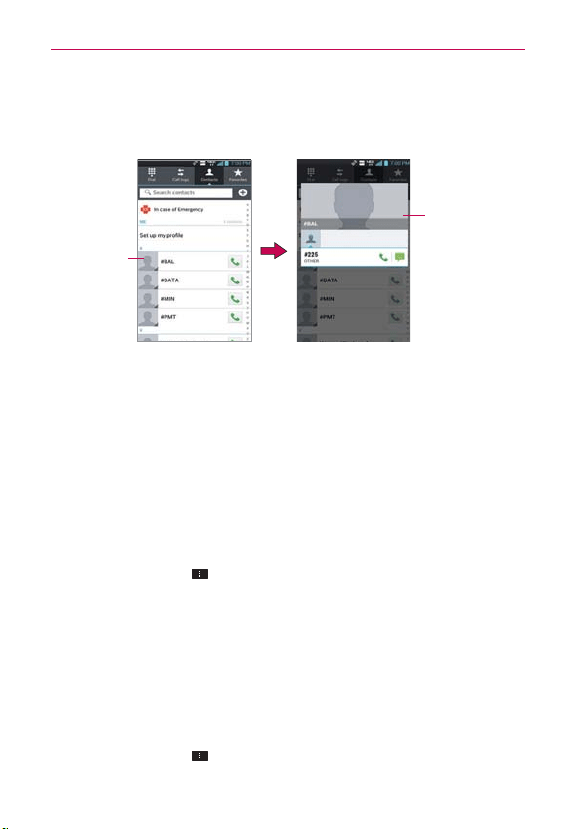
93
Communication
To connect using Quick Contact for Android™
1. Tap a contact’s picture to open Quick Contact for Android.
Quick Contact
Quick Contact panel
Contact list screen
Tap a contact's
picture.
2. Tap the icon corresponding to the type of communication you want to
start.
The communication icons displayed in Quick Contact depend on the
types of information you saved in the contact's file.
Selecting Which Contacts are Displayed
You can configure which groups of contacts you want to display in the
Contacts list.
1. Open the Contacts application.
2. Tap the Menu Key
> Settings > Display options.
3. Tap All contacts to display contacts from all of your sync'd accounts, tap
a single account, or tap Customize to select more than one (but not all)
account types to display their contacts.
NOTE
If you wish to only display contacts with phone numbers, tap the Only contacts with
phones checkbox.
To change which groups are displayed
1. Open the Contacts application.
2. Tap the Menu Key
> Settings > Display options > Customize.
3. Tap an account to display its list of available groups.

94
Communication
4. Tap each group whose contacts you want to view in your Contacts
application. Contact types with a checkmark will appear in your Contacts
list. This action affects only which contacts are displayed. Your sync
settings will not be affected.
5. Tap Apply to save your settings.
Joining Contacts
When you add an account or add contacts in other ways, such as by
exchanging emails, the Contacts application attempts to avoid duplication by
joining contact information automatically. You can also join contacts manually.
To join contacts
1. Open the Contacts application.
2. Tap the contact entry to which you want to add information. The contact
name for this entry will remain unchanged after you join it with another
contact.
3. Tap the Menu Key
> Join.
4. Tap the contact whose information you want to join with the first contact.
The information from the two contacts will be merged and displayed
under the name from the first contact.
Separating Contact Information
Each contact entry on your phone may contain ‘joined’ information from a
variety of sources.
If contact information from different sources was joined in error, you can
separate the information back into individual contact entries on your phone.
To separate contact information
1. Open the Contacts application.
2. Tap the contact entry whose information you want to separate.
3. Tap the Menu Key
> Separate.
4. Tap Ye s to confirm that you want to separate the entries. The contact
information will separated into individual contact entries in your Contacts
list.
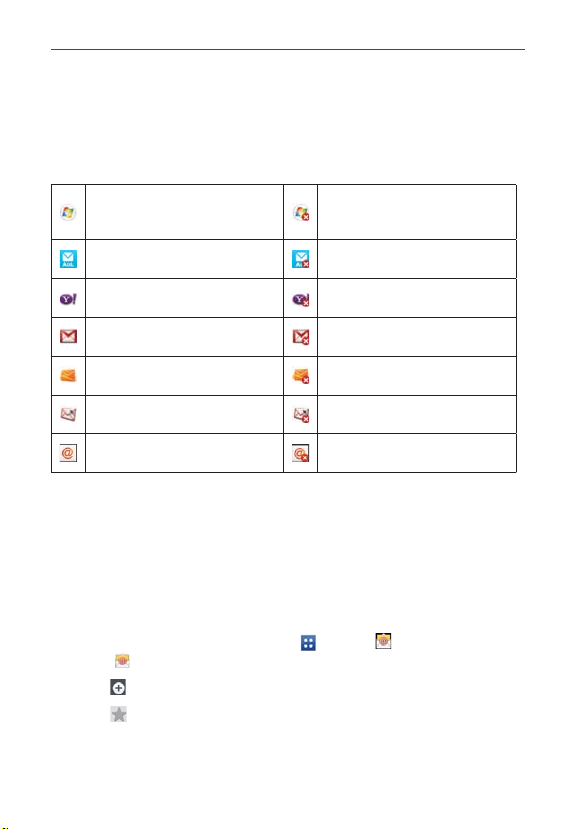
95
Communication
Email
NOTE
AOL, Yahoo! and Hotmail icons only appear when the SIM card is inserted.
Email icons
New Exchange mail
message received or sending
succeeded
Exchange mail message
sending or receiving failed
AOL mail message received
or sending succeeded
AOL mail message sending or
receiving failed
Yahoo! mail message received
or sending succeeded
Yahoo! mail message sending
or receiving failed
Gmail message received or
sending succeeded
Gmail message sending or
receiving failed
Hotmail received or sending
succeeded
Hotmail message sending or
receiving failed
Verizon.net mail received or
sending succeeded
Verizon.net mail message
sending or receiving failed
Other mail received or sending
succeeded
Other mail message sending
or receiving failed
Opening Email and the Accounts Screen
You can use the Email application to read email from services other than
Gmail™. The Email application supports the following account types:
Microsoft Exchange, Windows Live Hotmail, Yahoo! Mail, Gmail, AOL Mail,
Verizon and other accounts.
To open the Email application
From the Home screen, tap Apps > Email or tap the Email
icon
directly from Home screen.
Tap
to compose the new message.
Tap
to add favorite messages from the inbox.
The first time you open the Email application, a setup wizard opens to
help you add an email account. After the initial setup, the Email application
displays the contents of your Inbox.

96
Communication
The Accounts screen
The Accounts screen lists all of your accounts.
Open the Email application. If you’re not on the Accounts screen, tap
the Menu Key
> Accounts.
Each account on the Accounts screen displays the number of unread
mail.
You can tap an account to view its Inbox.
The account from which you send email by default is indicated with a
checkmark.
3FBEJOH:PVS&NBJM
You can read your email from the Inbox, or from other folders within each
individual account.
To read an email
From the Accounts screen, simply tap any account to display that account’s
folders and contents.
You can also go to the folder list of the account by tapping the Menu Key
> Folders from the Inbox.
NOTE
When new email arrives, a notification appears in the Status Bar. Drag the Notifications
panel downward and tap the email notification.
Email settings
To access the Email settings, from the Accounts screen, tap the Menu Key
> Settings.
Accounts
Tap an account to access settings specific to that email account.
(FOFSBMTFUUJOHT
Tap Set default account to select which email account to designate
as your default account.

97
Communication
Tap Roaming to checkmark this setting to automatically retrieve email
while roaming outside your home network. Data fees will be charged.
Notification settings
Tap Notifications to checkmark this setting so that you are notified of
new email notifications.
Tap Notification sound to set the sound when you receive a new
email notification.
Tap Vibrate to set a vibration when you receive a new email
notification. This setting can only be set when the phone is in Vibrate
Only mode.
Wi-Fi Settings
Tap Download over Wi-Fi to checkmark this setting so that email
attachments are queued until Wi-Fi is connected.
Tap Download file size to select the file size that requires a Wi-Fi
connection to download email attachments. This setting is greyed out
unless Download over Wi-Fi is checkmarked.
(FPUBHHFE.FEJB4FUUJOHT
Tap Geotagging notification to checkmark this setting to display a
notification pop-up when sharing pictures with location information.
Tap Share pictures to set whether location information is included in
the picture file.
App Settings
Tap Screen after deleting to select which screen to display after
deleting an email.
Tap Ask before deleting to checkmark this setting if you want to be
asked before deleting mail.
Tap Show image to set when to show images.
Tap Storage to select where attachments are saved.
Tap Conversational view to checkmark this setting if you want your
email Inbox to display your email messages by conversation threads.

98
Communication
Tap Email preview to set how many lines of email text to download
on your device for preview.
Microsoft Exchange Settings
Tap Corporate directory to checkmark this setting to search the
online directory for the entered recipient.
Voicemail
The Voicemail application allows the management of voicemail directly from
the device rather than accessing voicemail via traditional methods.
Voicemail displays a list of your messages and allows you to choose which
message(s) to listen to or delete, without having to dial into your mailbox
and listen to voice instructions or prior messages.
To be able to use Voicemail
1. From the Home screen, tap Apps > Voicemail or from the Home
screen, tap Voicemail .
NOTE
Listening to voicemail and setting up your voicemail service depends on subscription to
the visual mail service. When you tap the V
oicemail Key
and you have subscribed to
the visual mail service, the Visual Voicemail application will be launched. If you are not
subscribed, you will be dialed into your traditional voicemail box.
2. The first time you access the Voicemail application, you will have to
subscribe to the Visual Voicemail service to be able to use it.
3. After subscription to the Visual Voicemail service, you will be prompted
to enter the password. To change the password call voicemail (dial *86).
4. After entering the password, your voicemail entries will be displayed in
your Inbox.
While viewing the voicemail list, you can select an entry (see step 5).
For additional options, tap the Menu Key
> New, Delete, Save as,
Mark as Heard, Sort by, Saved voicemails, Refresh, Settings, Search,
Logout.
5. Tap a voicemail entry to listen to it. Then you can tap Call back, Save,
Erase, or Speaker. To forward or reply to a message, tap the Menu Key
> Forward
or Reply.

99
Communication
6. If you decide to reply with a voicemail or forward it, record a message.
The keys at the bottom of the screen allow you to record, stop,
re-record, or cancel the message.
(NBJM
0QFOJOH(NBJMBOE:PVS*OCPY
When you open the Gmail application, the most recent conversations are
displayed in your Inbox.
To open the Gmail application
From the Home screen, tap Apps > Gmail .
All of your conversations are displayed in your Inbox unless you delete,
archive, or filter them.
The current Google Account is displayed at the top of the Inbox. If you
have more than one account, you can switch accounts to view the
messages in each Inbox. Simply tap the Accounts icon
to the right of
the current account to select another account to display.
Conversations with new messages are displayed with bold subject lines.
To read a message in a conversation, tap its subject line text.
indicates that you were CC'd on this message.
indicates that this message was sent directly to you.
Adding another Google Account
1. From your Gmail Inbox, tap the Menu Key > Settings.
2. Tap ADD ACCOUNT at the top right corner of the screen.
3. Tap Existing or New, then enter the necessary information.
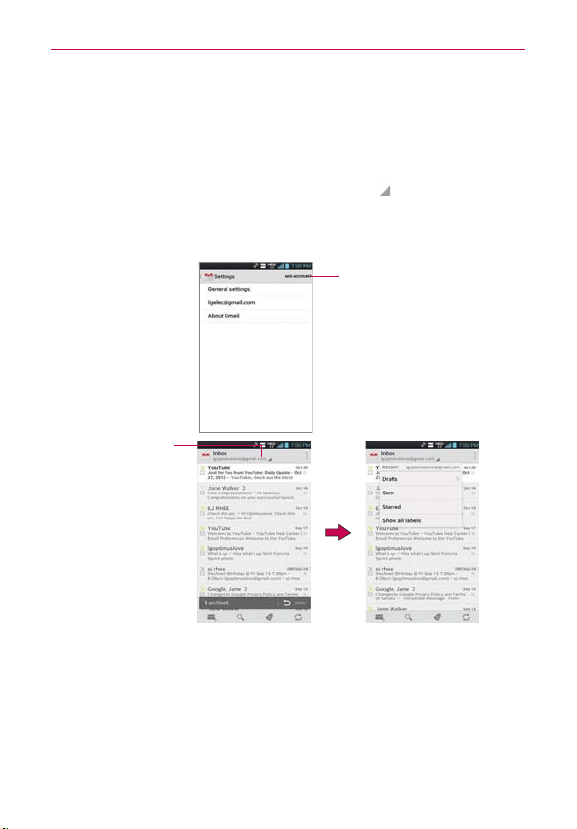
100
Communication
To switch accounts
Gmail displays conversations and messages from one Google Account at a
time. If you have set up more than one Google Account on your device, you
can easily switch between them.
From your Gmail Inbox, tap the Accounts icon
on the Inbox header,
then tap the account that contains the email you want to read.
NOTE
The number to the right of the selected Google Account indicates the number of unread
messages you have in that account.
Tap here to add an account.
Gmail Inbox
Accounts &
Labels
Tap here to open a
drop-down menu
of account choices
and account labels.

101
Communication
Navigating in the Gmail application
If you are viewing a message or another label, tap the Back Key until
you return to your Inbox.
The icons at the bottom of the screen allow you to navigate within the
Gmail Application.
While viewing your Inbox, swipe the screen up and down to scroll through
the list and use the following icons:
Compose
: Tap this icon to start a new Gmail message.
Search
: Tap this icon to search within the Gmail application.
Labels
: Tap this icon to view your messages by label.
Sync
: Tap this icon to sync your Google Account(s) on your device.
While viewing a message, swipe the screen left and right to scroll through
all of your messages and use the following icons:
Archive
: Tap this icon to send the message to your archive folder.
Delete
: Tap this icon to delete the message.
Labels
: Tap this icon to set labels for the message to help organize
your messages.
Unread
: Tap this icon to return the message to an unread state.
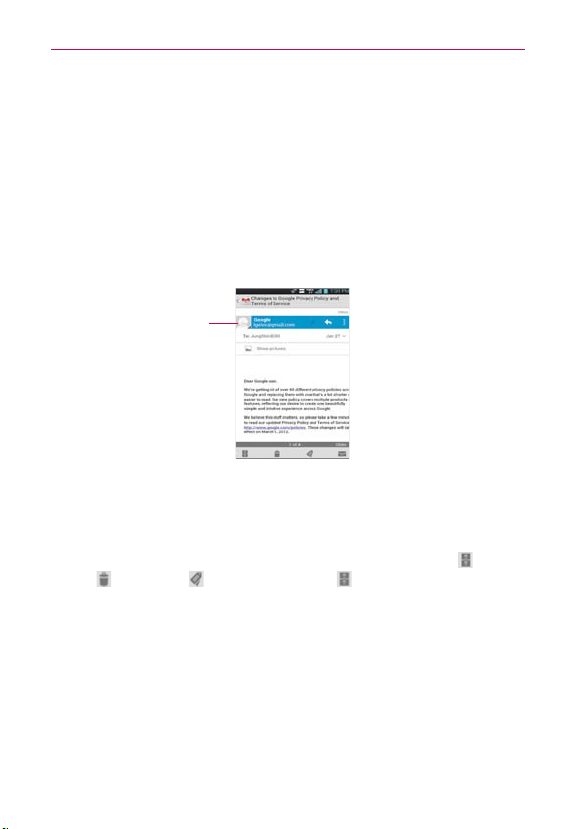
102
Communication
3FBEJOH:PVS.FTTBHFT
While viewing a list of conversations in your Inbox or in any list of labeled
conversations, you can open a conversation to read its messages.
To read a message
Tap a conversation that contains the message you want to read.
The conversation opens to the first new (unread) message, or to the
first starred message, if you’ve previously starred a message in the
conversation.
Tap the Contact's
picture to open Quick
Contact.
The Google Talk online status will appear next to the name of the
sender of each message if the sender has a Google Account. Tap the
contact’s picture to open Quick Contact.
While reading messages in a conversation, you can use the icons at
the bottom of the screen to archive the entire conversation
, delete
it
, add a label , or label it as unread . After you archive or delete
a conversation, you can tap Undo in the dialog box that appears at the
bottom of the screen to undo the last action and restore the message
to its previous location.
You can also swipe left and right across the screen to scroll though
and read the messages in your Inbox (or the conversation list you’re
working in).
103
Communication
While viewing a message, tap the message action icons on the
message header to access options which include
to mark it as
important,
to reply to the sender, and to access Reply all to
reply to all address and Forward to forward the message to someone
else.
To reread a message
When you open a conversation, messages that you’ve already read are
minimized into a tab that indicates the number of hidden messages.
1. From the Home screen, tap Apps
> Gmail
.
Then tap the
conversation you want to view.
2. Tap the contact name to open that message.
While reading a message you can tap
to return a read message to the
unread state. For example, to remind yourself to read it again later.
Composing and Sending a Message
You can compose and send a message to people or groups with Gmail
addresses or other email addresses.
To compose and send a message
1. From the Home screen, tap Apps
> Gmail > Compose at the
bottom left corner of the screen.
NOTE
If you want to send the message from a different Google Account, tap the Accounts icon
to the right of the current Google Account, then tap the account you want to use.
2. Enter a recipient’s address.
As you enter text, matching addresses are offered from your Contacts
list. You can tap a suggested address or continue entering text to enter a
new one.
3. Tap the Menu Key
> Add Cc/Bcc to copy (normal or blind status)
recipients, if necessary.
4. Enter a subject for the message in the Subject field.
5. Enter your message in the text field.
104
Communication
6. Tap the Menu Key > Attach picture or Attach video if you want to
add an attachment to the email.
7. Tap Send
at the top right corner of the screen to send your message.
NOTE
If you aren't ready to send the message, tap the Menu Key
, then tap Save draft.
Replying to or Forwarding a Message
You can continue an email conversation by replying to a message or by
forwarding it.
To reply to or forward a message
1. Open the message you want to reply to or forward.
2. On the message header, tap
or tap , then tap Reply all or Forward.
Replying to or forwarding messages without changing the subject adds
your reply to the current conversation.
Changing the subject starts a new conversation.
The message will open in a new screen where you can add or remove
addresses, edit the subject, and add or remove text or attachments.
You can add one or more people to an ongoing conversation by replying
to all and then adding the new person’s address(es) to the reply.
Note that the conversation text and previous messages are also included
in your reply (or forwarded message).
3. Tap Send
at the top right corner of the screen to send your message.
NOTE
You can change the message action after you've started the message. Simply tap
in
the message header next to the current message action and tap the one you want. For
example, if you chose Reply but decide you want to Reply all.

105
Communication
Google Account settings
1. From the Home screen, tap Apps > Gmail .
2. Tap the Menu Key
> Settings > General settings.
Confirm before deleting: Mark the checkbox to ask to confirm before
deleting a message.
Confirm before archiving: Mark the checkbox to ask to confirm before
archiving a message.
Confirm before sending: Mark the checkbox to ask to confirm before
sending a message.
Swiping conversation list: Allows you to choose an action to perform
when you swipe a conversation.
Reply all: Mark the checkbox to make Reply all the default message action.
Auto-fit messages: Allows you to shrink messages to fit the screen and
allow zooming.
Auto-advance: Allows you to set which conversation list is viewed next.
Hide checkboxes: Mark the checkbox to hide checkboxes and allow tap
and hold to select an item.
Message actions: Allows you to set when to show message actions.
Clear search history: Tap to clear your search history.
Hide pictures in messages: Pictures will not be displayed automatically
until you allow by sender.
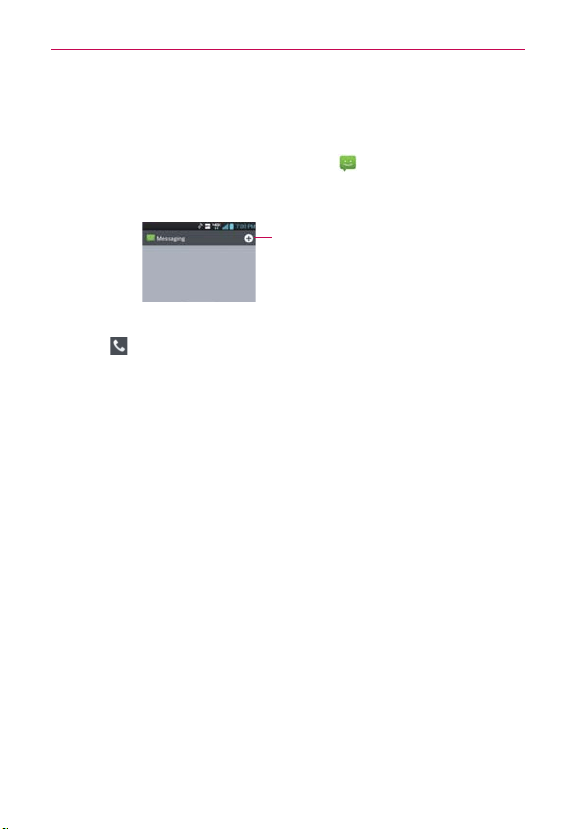
106
Communication
Messaging
To open Messaging
From the Home screen, tap Messaging .
The Messaging screen will open, where you can create a new
message or open an ongoing message thread.
New Message
Tap here to create new message.
Tap an existing message thread to open it.
Tap
to make a call in the message screen.
TIP
QUICK REPLY
When a New Message notification pops up, choose to reply quickly without accessing
the Messaging application by tapping the T
ext field in the notification to respond with a
text message, or tap Call to dial the contact or Delete to delete the message.
To delete a message thread from the Messaging window
1. Tap and hold the message thread.
2. Tap Delete thread in the Context menu that opens.
3. Tap Delete to confirm you want to delete the message thread.
Exchanging Messages
You can send a text message (SMS) with up to 160 characters to another
mobile phone. If you type more than the allotted text amount (up to 7 pages
of 153 characters), the message is delivered as a series of messages (EMS).
If you keep typing after the limit, your message is delivered as Multimedia
messages (MMS).
Multimedia messages (MMS) can contain text and a picture, location, a
recorded voice, an audio file, a video, or a picture slideshow.
The Messaging application automatically converts a message into a
multimedia message if you add a subject or attach a media file.
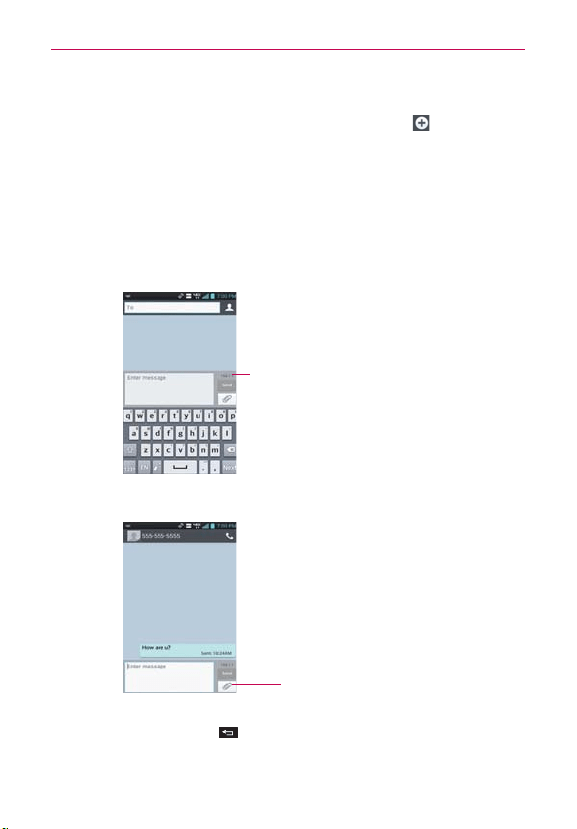
107
Communication
To send a text message
1. On the Messaging screen, tap the New message icon at the top right
corner of the screen.
2. Enter a mobile phone number in the To field.
As you enter the mobile phone number, matching contacts appear. You
can tap a suggested recipient or continue entering the phone number.
NOTE
Instead of a phone number, you can enter a name. As you enter characters, matching
Contact entries are displayed for you to select.
3. Tap the text field to start entering your message.
Character counter
Displays number of characters
entered and amount remaining.
A counter is displayed in the top right corner of the text field to tell you
how many characters are left and the number of pages.
Attachment Icon
Tap here to attach files.
If you tap the Back Key while composing a message, it’s saved as a
draft . Tap the message to resume composing it.

108
Communication
4. Tap Send to send the message.
Your message is displayed and responses appear in the same window,
creating a message thread with that contact.
To create and send a multimedia message
1. On the Messaging screen, tap the New message icon at the top
right corner of the screen.
2. Enter a mobile phone number, email address, or Contact name in the To
field. As you type, matching contacts appear. You can tap a suggested
contact or continue typing.
3. Tap the text field to start entering your message.
4. Tap the Menu Key
> Add subject to add a message subject.
5. Tap the Attachment icon
to open a dialog box where you can choose
the type of media file to attach to the message.
Tap Picture to select a picture from your Gallery.
Tap Capture picture so you can take a picture and attach it.
Tap Video to select a video from your Gallery.
Tap Capture video so you can record a video and attach it.
Tap Audio to select an audio file from your microSD card.
Tap Record voice to record an audio message and attach it.
Tap Location and select from My current location, Places of
Interests, Enter address, Contact and From geotagged media.
Tap Slideshow to create a slideshow presentation with up to 10
slides.
Tap Contact (vCard) to select the contact(s) you want to send as
vCard file(s).
6. Tap Send MMS to send the message.
To attach a location in a message
1. Create a new message and add a recipient.

109
Communication
2. Tap the Attachment icon and tap Location.
3. Select a location type from the available choices, then complete the
location information as necessary.
4. Tap Attach.
5. Type your message, then tap Send MMS.
To send a group message.
1. On the Messaging screen, tap the New message icon at the top
right corner of the screen.
2. Add the recipient(s).
3. If more than one recipient is entered, you will be asked to choose
between a group conversation and an individual message.
Tap Group Conversation to allow all of the recipients to be viewed by
each other so they can respond to you and the group. The message is
sent as a multimedia message (MMS).
Tap Individual Message so that none of the recipients can see the other
recipients (similar to BCC). Each individual can only respond to you.
4. Complete the message as necessary, then tap Send to all.
To respond to messages you receive
If you receive a new message while you’re working in a message window,
the new message is displayed. If not, you’ll receive a new message
notification and the new message icon
appears in the Status Bar. When
you tap the new message notification, the Message screen opens where
you can reply to the message. The new message notification also appears
on the screen, where you can quickly reply to the message, call the person,
or delete the message.
If the Auto-retrieve setting is not checkmarkeds, you must tap Download
to view the message.
If the message contains a media file, tap the Play icon
to view, watch,
or listen to it. Tap and hold the media file to open a Context menu with
additional options.

110
Communication
To view details about a message
1. Tap and hold a message in the message window.
2. Tap View message details in the Context menu that opens.
Changing Messaging Settings
To change your Messaging settings, open the Messaging application,
tap the Menu Key
> Settings.
Storage settings
Delete old messages: Checkmark this setting to allow the phone to delete
older messages in a thread when the Text message limit or Multimedia
message limit is reached. Remove the checkmark to keep all of your
messages.
Text message limit: Allows you to set the number of text messages to
save per thread.
Multimedia message limit: Allows you to set the number of multimedia
messages to save per thread.
Signature: Allows you to enter a signature to automatically send with your
messages. Checkmark appears after a signature is entered.
Callback number: Checkmark to automatically add the callback number to
your messages.
Text message (SMS) settings
Delivery reports: Checkmark this setting to allow your phone to receive
delivery reports for the text messages you send.
Manage SIM card messages: Allows you to manage messages stored on
your SIM card.
Set priority: Allows you to set the default priority for your text messages.

111
Communication
Multimedia message (MMS) settings
Delivery reports: Checkmark this setting to allow your phone to receive
delivery reports for the multimedia messages you send.
Delivery report allow: Checkmark this setting to send a delivery report
when it is requested.
Auto-retrieve: Remove the checkmark to download only the heading
of multimedia messages, allowing you to manually download the whole
message when you’re ready. This is useful for controlling how much data
you download.
Roaming auto-retrieve: Checkmark this setting to allow messages to be
received even if you are roaming outside of the network.
Set priority: Allows you to set the default priority for your multimedia
messages.
Group conversation settings
Group Conversation: Checkmark this setting so that message recipients
can see who received the message and reply to them.
Help: Displays information describing the Group Messaging feature.
Notification settings
Notifications: Checkmark this setting to allow your phone to receive a
notification in the Status Bar whenever you receive a new message.
Notification sound: Allows you to select the sound when you receive a
new message notification. This setting is greyed-out, when the phone is
set to Vibration mode or Silent mode.
Vibrate: Allows you to set the phone vibration setting when you receive a
new message notification. This setting is greyed-out when the phone is set
to Silent mode.
New message popup: Checkmark this setting to enable a dialog box to
alert you to new message arrival(s).
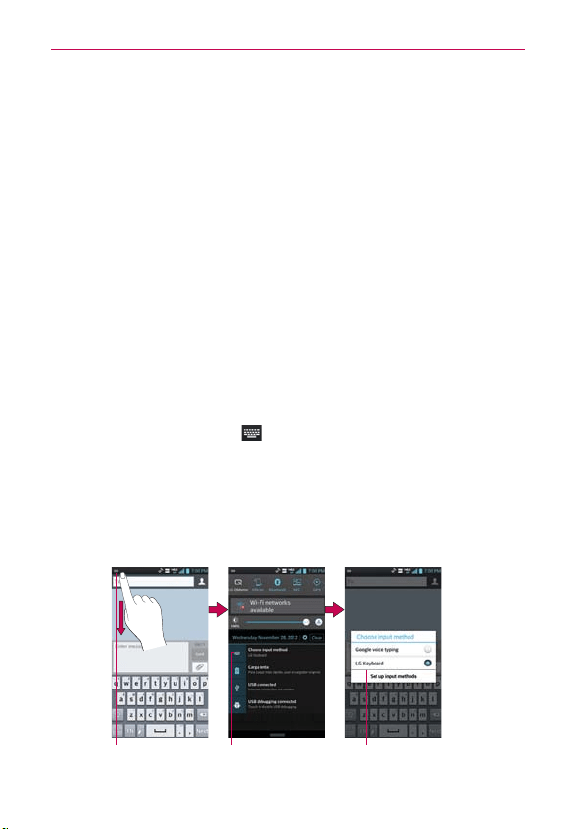
112
Communication
Emergency alerts settings
Presidential alert: This setting allows presidential alerts to be always
presented. This setting is greyed-out because it cannot be changed.
Extreme alert: Checkmark this setting so that Extreme alerts are always
presented.
Severe alert: Checkmark this setting so that Severe alerts are always
presented.
AMBER alert: Checkmark this setting so that AMBER alerts are always
presented.
Alert reminder: Allows you to set when to be reminded of the alerts you
set.
To change the text input method
1. When you are using the device to enter text, drag the Status Bar
downward to open the Notifications Panel.
2. Tap Choose input method
at the top of the notifications list, then
choose an input method from the dialog box.
Google voice typing
LG Keyboard
3. If you selected the LG keyboard, type the text you want to enter.
Or, if you selected Google voice typing, say the text you want to enter.
Tap Choose input
method.
Tap and drag. Choose the input method
you want to use.
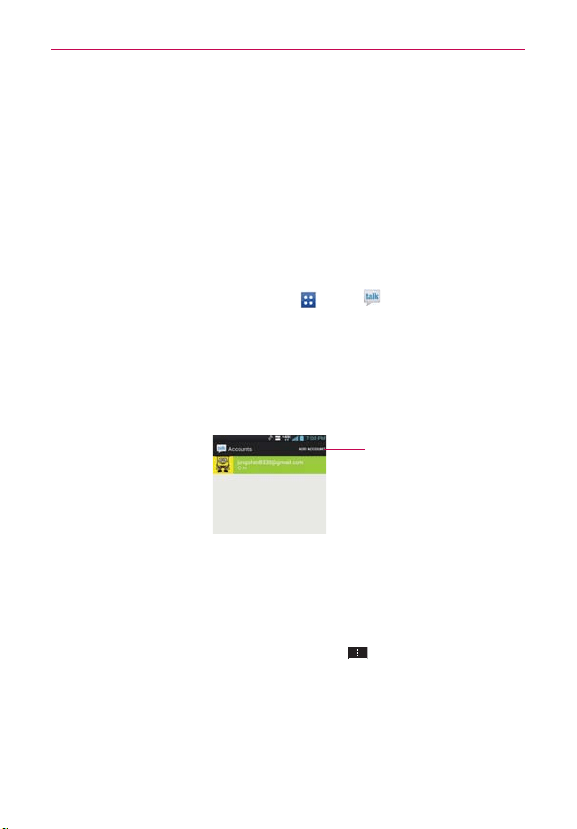
113
Communication
Powerful Voice Input Engine
Voice to text has always been a cool feature. Now it is even better because
users can dictate an entire message instead of just a few words at a time.
While they are talking, the words appear a split second later on the screen,
so they can actually see if it is dictating the right words.
Talk
5PPQFO(PPHMF5BMLBOETJHOJO
From the Home screen, tap Apps > Talk .
When you first open Google Talk, the Google Talk accounts screen is
displayed. Tap your Google Account to sign in to it and display your
Friends list.
Your Friends list includes all of the friends you’ve added by using
Google Talk on the web or on the phone.
Tap here to add an account.
To sign out of Google Talk
You can sign out of Google Talk. For example, if you want to limit Google Talk
conversations to your computer. Also, signing out can extend your battery
life.
From your Friends list, tap the Menu Key
> Sign out.
You will no longer receive chat notifications or see others’ Google Talk
status in other applications, such as Gmail™.

114
Communication
Chatting with Friends
To chat with a friend
1. Sign in to your Google Talk account.
2. Tap the friend you want to chat with.
3. Enter your message then tap Send
.
To accept an invitation to chat
When a friend sends you a Google Talk message, you will receive a notification.
The friend’s name in the Friends list turns white and displays the message.
Tap the name of the person in your Friends list.
OR
Open the Notifications panel then tap the chat notification.
A chat window will open where you can exchange messages with
your friend.
Options from your Friends list
From your Friends list, tap
the Menu Key to select
Display options, End
all chats, Sign out, Settings, Help, and Send feedback.
Options while chatting
While chatting, tap the Menu Key to select End chat, Go off the
record, Friend info, Add to chat, Clear chat history, Settings, Help, and
Send feedback.
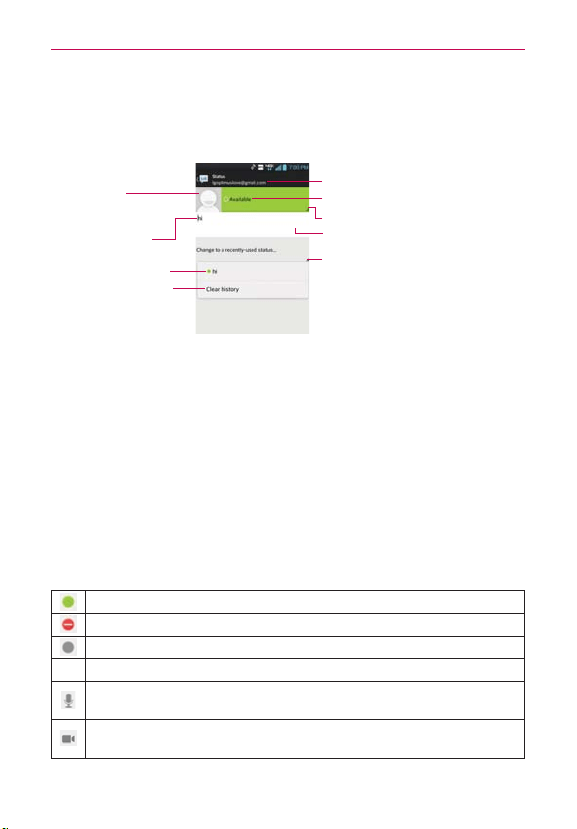
115
Communication
Changing and Monitoring Online Status
Tap your account name from the Friends list to change and monitor online
status.
Tap here to change your status.
Displays your current account.
Your current status.
Tap here to change the status message.
Tap here to access previously used
status text.
Tap here to delete all
previously used status.
Previously used status.
Your current status
message.
Your picture
Tap to change it.
To change your online status
1. Sign in to your Google Talk account.
2. Tap your account name at the top of your Friends list.
3. In the Status screen that opens, tap your current status, then tap the
new status you want to set.
Your status, including any message you’ve entered, appear in your
Friends' lists and in other locations where your status or status message
are displayed.
Status Icons
Icons in Google Talk, Gmail, and other applications indicate the Google Talk
status for you and your friends.
Available: Signed into Google Talk and available to chat
Busy: Signed into Google Talk but too busy to chat
Invisible: Signed into Google Talk but appear signed out to others
Signed out of Google Talk
Voice Chat Available: Signed into Google Talk and available for voice
chat.
Video Chat Available: Signed into Google Talk and available for video
chat.

116
Communication
To change your status message
In addition to the standard status icons described in the table above, you
can also enter a status description to go with your status.
1. Sign in to your Google Talk account.
2. Tap your account name at the top of your Friends list.
3. In the Status screen that opens, tap your current status description, then
enter the text you want displayed with your status.
NOTE
Any status descriptions that you've entered previously are added to your status message
list at the bottom of the screen, so you can easily tap one of them to use it in the future
without retyping. T
o clear your list and start over, tap the Recently used status list, then
tap Clear history.
To change your picture
1. Tap your account name at the top of your Friends list.
2. Tap your picture at the top left of the screen.
3. Tap Select from Gallery to change to an existing photo, tap Take with
Camera to take a photo to change to, or tap Remove to simply remove
it.
Choose an image from your Gallery, crop it as necessary, then tap OK.
After taking the picture select it as your Google Talk photo.
Managing Your Friends List
Your Google Talk Friends list contains the friends you’ve invited to become
friends or whose invitations you’ve accepted in Google Talk. Friends can
invite each other to chat in Google Talk and see each others’ online status
in Google Talk and other applications, such as in Gmail.
The Google Talk Friends list is sorted by your friends’ online status: active
chats, online, busy, away, and offline. Within each grouping, friends are
listed alphabetically.

117
Communication
To add a friend to your Friends list
You can invite anyone with a Google Account to become your friend in
Google Talk, so you can chat with each other and stay up-to-date with each
others’ online status.
1. From your Friends list, tap Add Friend
in the top right corner of the
screen.
2. Enter your friend’s Gmail address then tap Done
at the top right of the
screen.
To view and accept an invitation to become a friend
When a contact invites you to become a friend in Google Talk, you receive a
notification in the Status Bar and the invitation appears in your Friends list.
1. Tap the invitation from either the Status Bar or the Friends list.
2. Tap Accept to chat with the contact, or Cancel if you don’t want to chat
with and share your Google Talk status with the sender.
To view all friends or only those most popular with you
By default, only the friends that you frequently chat with (the most popular)
are shown in the Friends list. But you can change which friends are listed.
In the Friends list, tap the Menu Key
> Display options.
Availability to list only your most popular friends who are available to
chat.
Name to list all of your friends.
Recency to list only your friends you’ve recently chatted with.

118
Communication
To block a friend
You can block a friend from sending you messages. When blocked, your
friend will be removed from your Friends list.
1. From the Friends list, tap the friend’s name.
If you don’t see the friend, tap the Menu Key
> Display options >
Name.
2. Tap the Menu Key
> Friend info, then tap Block at the bottom of
the screen.
You can view a list of your blocked friends by opening your Friends list
and tapping the Menu Key
> Settings > tap the Google Account that
friend is in > Blocked friends. You can unblock a friend by tapping the
friend’s name in the blocked list then tapping OK in the dialog box that
opens.
$IBOHJOH(PPHMF5BML4FUUJOHT
You can configure Google Talk to send you a notification with the contents
of each message that you receive in a chat, and also to sound a ringtone or
vibrate the phone.
You can also configure Google Talk to sign you in automatically when
you turn on your phone, and you can set whether the mobile indicator is
displayed next to your name in other people’s Friends lists.
To configure notifications for new Google Talk messages
From the Friends list, tap the Menu Key > Settings.
NOTE
Each Google Account uses its own settings. If you use more than one Google Account
on your device, tap the account you want to modify
.
Checkmark Invitation notifications to receive a notification in the
Status Bar when friend invitation(s) are received.
Tap the IM notifications (Video chat notifications) setting to set how
to be notified when a new chat message arrives.
Tap the Notification ringtone (Video chat ringtone) setting to set the
ringtone when a new chat message arrives.
Tap the Vibrate setting in the Chat notifications and Voice & video chat
sections to set when to vibrate as a notification for new chat messages.

119
Communication
To show or hide the mobile indicator to friends
1. From the Friends list, tap the Menu Key > Settings.
NOTE
Each Google Account uses its own settings. If you use more than one Google Account
on your device, tap the account you want to modify.
2. Checkmark Mobile indicator (or remove the checkmark).
If Mobile indicator is checkmarked, your friends see an outline of an
Android™ next to your name in their Friends list when you’re signed into
Google Talk on an Android™ phone.
To set Google Talk to change your status
1. From the Friends list, tap the Menu Key > Settings.
NOTE
Each Google Account uses its own settings. If you use more than one Google Account
on your device, tap the account you want to modify
.
2. Checkmark Away when screen off (or remove the checkmark).
When Away when screen off is checkmarked, your status will
automatically be changed to Away
when the screen is turned off.
The Phone application
The phone features of your device include many ways to make calls.
From the Home screen, tap Phone
.
The Phone application has four tabs across the top of the screen: Dial,
Call logs, Contacts, and Favorites. Using these tabs, you can dial
manually or make calls automatically from information you’ve stored
in your phone. Swipe horizontally across the screen to conveniently
scroll through the Phone applications tabs.
Dial tab
This tab allows you to dial a phone number manually using the dial keypad.
You can also call voicemail or call with the Voice dial feature using this keypad.

120
Communication
Call logs tab
This tab displays the history of all of your calls. From here you can call or
contact any of the entries. To delete all of the Call logs entries at once, tap
the Menu Key
, select Clear all, then tap Yes to confirm you want to
delete them.
NOTE
You can also selectively delete entries from the Call log. Tap the Menu Key
> Clear >
tap the checkboxes to the left of the entries to delete > Clear > Yes.
Contacts tab
This tab displays your Contacts list. From here you can call or contact any of
the entries based on the information you saved. You can also manage your
Contacts list. Tap the Menu Key
to view additional options.
Favorites tab
This tab displays your contacts you set as your favorites, followed by a
list of recent frequent contact. From here you can call or contact any of
the entries based on the information you saved. You can also manage your
Favorites list. Tap the Menu Key
view additional options.
To add a Contact to your list of favorites
1. Tap the Contacts tab then the Contact entry you want to add to your
Favorites.
2. Tap the grey star next to the Contact’s name. The star turns gold and the
entry is added to your Favorites.
To remove a Favorite, tap the gold star next to the Contact's name in either
the Contacts list or Favorites list. The star turns grey and the entry is removed
from your Favorites.

121
Communication
Voice Dialer
Call a Contact by Voice Dialing
You can call numbers directly by saying the contact’s name or number.
1. From the Home screen, tap Apps
> Voice Dialer .
2. Say "Call" or "Dial" then a name or a phone number.
Or, you can say "Redial" to redial the last number dialed.
3. If a list of results is displayed, tap the one you want to use.
NOTE
You can also access this feature by tapping the V
oice Dialer Key
on the Phone
application dialpad.
Open an Application using Voice Dialer
1. From the Home screen, tap Apps > Voice Dialer .
2. Say "Open"
then an application name.
3. If a list of results is displayed, tap the one you want to use.
The device o
pens the corresponding application.
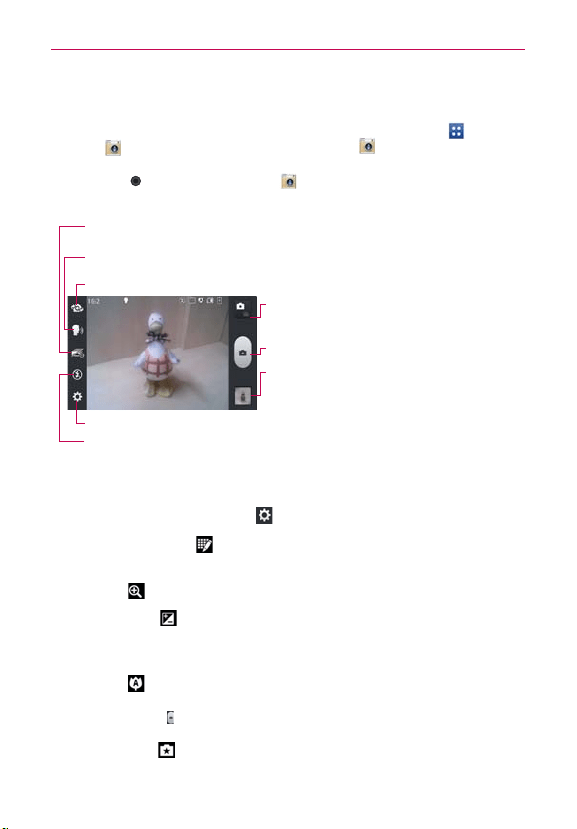
122
Entertainment
Camera
To open the Camera application, from the Home screen, tap Apps >
Camera
or from the Home screen, tap Camera
.
TIP
From the Lock screen (the Swipe unlock method), you can simply press the Power/Lock
Key
, then drag the Camera icon upward.
Getting to know the viewfinder
Time Catch Shot – Time catch shot allows you to capture the missing moments by taking
five sequential pictures at once before the shutter key is tapped.
Mode Switch
–
Tap this icon to switch between
Camera mode and Video mode.
Capture
–
Tap to take a photo.
Gallery – Accesses your saved photos from within
Camera mode. Simply tap this icon and your Gallery
will appear on the screen.
Voice Shot – To take photo, say one of the following words:
Cheese, Smile, Whisky, Kimchi, or LG.
Settings – Opens the Camera settings menu. See Photo options below.
Flash Mode – Allows you to set the flash to On, Off, or Auto.
Swap Lens – Allows you to swap between the rear camera lens and the front camera lens.
Photo options
You can make adjustments to optimize your shot. The following options are
available when you tap Settings
on the viewfinder screen:
Edit quick menu
: Tap if you want to change the viewfinder quick
menu.
Zoom
: Zoom in or out.
Brightness
: Defines and controls of the amount of light entering
the lens. Slide the brightness indicator along the bar toward “-” for a
lower brightness image or toward “+” for a higher brightness image.
Focus
: Defines the focus of the shot.
s Auto - Sets the camera to focus automatically on the object you tap on the screen before tapping
the Capture icon
.
s Face tracking - Sets the camera to automatically detect and focus on human faces.
Shot mode : Defines how the shot will be taken.

123
Entertainment
s Normal - Takes a normal photo.
s HDR - Combines photos taken at different exposures into one optimal photo by enhancing multiple
exposure control and compensating for backlight.
s Panorama - Assembles continuous photos into one single panoramic image. Tap the shutter to
start, then slowly pan the camera lens across the scene from one end to the other.
s Continuous - Takes multiple continuous pictures.
Image size : Defines resolution for the photo. Choose from
8M(3264x2448), W6M(3264x1836), 5M(2560x1920), 3M(2048x1536),
W3M(2304x1296), 1M(1280x960) or W1M(1536x864).
NOTE
The default resolution is 8M (3264x2448).
Scene mode : Adjusts for better image capture in different
environments. Choose from Normal, Portrait, Landscape, Sports,
Sunset, Night, and Smart shutter.
ISO
: Defines and controls the camera’s sensitivity to light. Choose
from Auto, 400, 200, and 100.
White balance
:
Defines the ambient lighting to improve the color
qualities of the photo under different lighting conditions. Choose from
Auto, Incandescent, Sunny, Fluorescent, and Cloudy.
Color effect : Applies artistic effects to pictures. Choose from
None, Mono, Sepia, and Negative.
Timer
: Sets a delay timer for the camera. This is ideal if you want to
be in the picture. Choose from Off, 3 sec, 5 sec, or 10 sec.
Geotagging
: Sets the camera to add location information to the
picture. This is ideal for geotagging purposes. Choose Off or On.
Shutter sound
: Sets the Shutter sound for the Camera. Choose
from Tone 1, Tone 2, Tone 3, Tone 4, or Off.
Auto review
: Sets the amount of time the shot remains on screen
after taking it. Choose from Off, On, 2 sec, or 5 sec.
Storage
: Sets where your pictures are saved. Choose Internal
storage or SD card.
Reset
: Resets all of the settings back to the default values.
Camera help guide
: Displays information about the Camera
application.
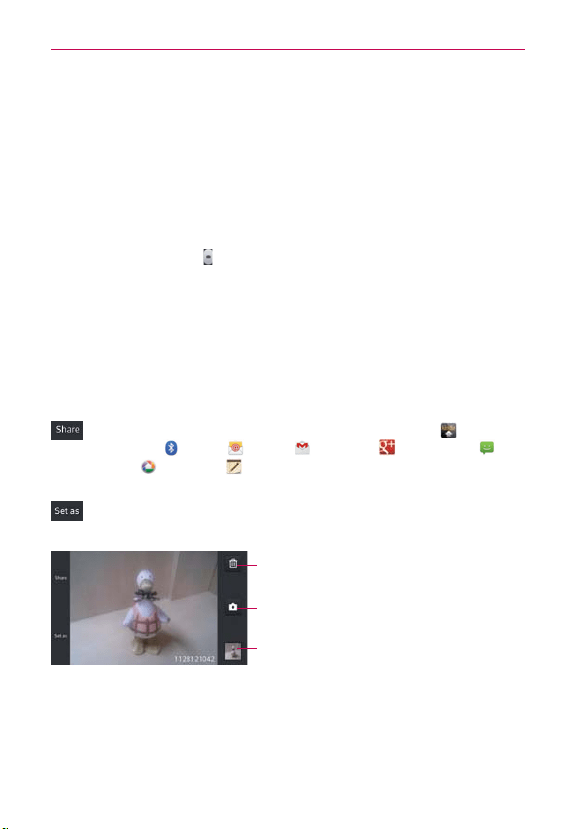
124
Entertainment
Taking a quick photo
1. Open the Camera application.
2. Hold the phone horizontally and point the lens toward the subject you
want to photograph.
3. Tap the subject on the screen and a focus box will appear in the
viewfinder.
4. When the focus box turns green, the camera has focused on your subject.
5. Tap the Capture icon to take the picture.
Once you’ve taken the photo
If Auto review is set to On, your captured photo will appear on the screen
until you tap an option or icon to proceed.
The following options are available after taking a photo if Auto review is set to
On.
NOTE
If Auto review is set to Off, these options can be accessed while viewing the photo in
the Gallery application.
Tap to share your photo using Amazon Send to Kindle ,
Bluetooth
, Email , Gmail , Google+ , Messaging ,
Picasa
, Richnote , or any other application you’ve downloaded
that supports this feature.
Tap to use the image as a Contact photo, Home screen wallpaper,
or Lock screen wallpaper.
Tap here to delete the image, then tap Ye s to confirm.
Tap here to take another photo immediately. Your current
photo will be saved to your Gallery.
Tap here to view the Gallery of your saved photos.
Viewing your saved photos
You can access your saved photos from Camera mode. Just tap the image
thumbnail at the bottom right corner of the Camera screen.
TIP
Slide or flick your finger left or right to view other photos or videos.

125
Entertainment
While viewing a photo, tap the screen to access the following options:
SmartShare
:
Tap
to share the photo using SmartShare (turn on Wi-Fi if
it’s not already on).
Camera
:
Tap
to take a photo, or record a video.
Share
: Tap to select which application to use to share the photo.
Delete
: Tap to delete the photo.
Menu Key
: Tap to access the following additional options.
Add location: Tap to set a location tag for where the photo was taken.
Set image as: Tap to set the photo as the icon identifying a contact or
set it as your Lock screen wallpaper or Home screen wallpaper.
Move: Tap to move the picture to another album or folder.
Copy: Tap to copy the selected photo and save it to other album.
Rename: Tap to rename the photo for easy identification.
Rotate left: Tap to rotate the photo counter-clockwise.
Rotate right: Tap to rotate the photo clockwise.
Crop: Tap to open a cropping box tool that allows you to manually
crop the photo. Use your finger to move or resize the cropping box to
encompass only the part of the photo you want to see, then the OK.
Edit: Tap to edit the photo.
Slideshow: Tap to see your photos played in a slideshow.
Details: Tap to display information about the photo (e.g., file type, file
size, etc.).
TIP
You can use the pinch-to-zoom gesture to easily zoom in and out of the displayed picture.
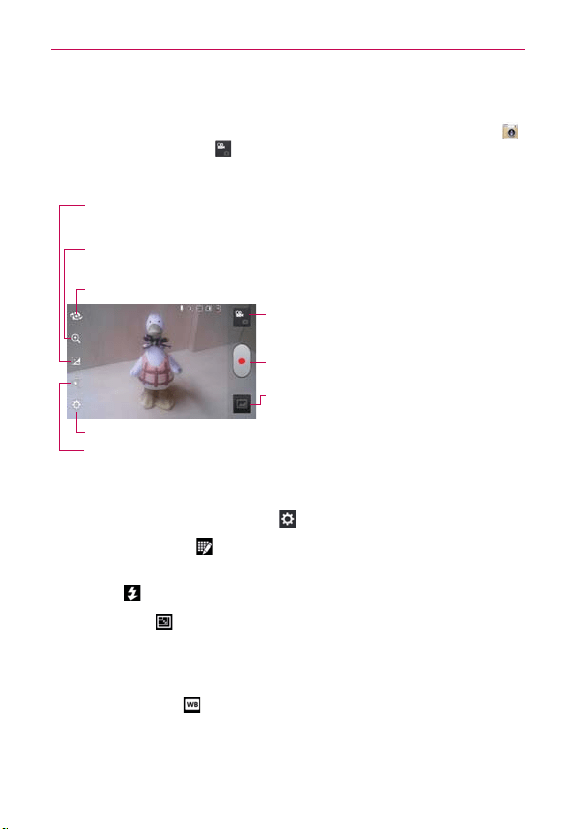
126
Entertainment
Video Camera
To open the Video Camera application, from the Home screen tap Camera .
Tap the Mode Switch icon
to toggle from Camera mode to Video mode.
Getting to know the viewfinder
Brightness – Defines and controls of the amount of light entering the lens. Slide the
brightness indicator along the bar toward “-” for a lower brightness video or toward “+” for
a higher brightness video.
Mode Switch – Tap here to switch to Video mode from
Camera mode and vice versa.
Record – Tap to start recording video.
Gallery – Accesses your saved photos and videos from
Video camera mode.
Zoom – Zoom in or zoom out. The Volume Keys will also set the zoom. You can set the
zoom before starting a video using either method, but after recording has started, the zoom
can only be changed using the Volume Keys or the pinch-to-zoom method.
Settings – Opens the Video settings menu. See Video options below.
Live Effect
–
Allows you to select Silly faces and Backgrounds.
Swap Lens – Allows you to swap between the rear camera lens and the front camera lens.
Video options
You can make adjustments to optimize your video. The following options
are available when you tap Settings
on the viewfinder screen:
Edit quick menu
: Tap if you want to change the viewfinder quick
menu.
Flash
: Sets the flash mode On or Off.
Video size
: Defines the resolution for the video which affects
the final file size for the video. Choose from Full HD (1920x1080),
HD (1280x720), TV (720x480), VGA (640x480), MMS(320x240),
MMS(176x144).
White balance
: Defines the ambient lighting to improve the color
qualities of the video under different lighting conditions. Choose from
Auto, Incandescent, Sunny, Florescent, and Cloudy.

127
Entertainment
Color effect
: Applies artistic effects to videos. Choose from None,
Mono, Sepia, and Negative.
Geotagging
: Sets the camera to add location information to the
video. This is ideal for geotagging purposes. Choose Off or On.
Audio recording
: Sets the camcorder to record audio for the
video. Choose On or Off.
Auto review
: Sets the amount of time the shot remains on screen
after taking it. Choose from Off, On, 2 sec, or 5 sec.
Storage
: Sets where your pictures are saved. Choose Internal
storage or SD card.
Reset
: Resets all of the settings back to the default values.
Video help guide
: Displays information about the Camcorder
application.
Recording a video
1. Open the Camera application.
2. Tap the Mode Switch icon
to change to Video mode. The camera
Mode Switch icon changes to and the Capture icon changes to .
3. The Video camera’s viewfinder will appear on the screen.
4. Hold the phone horizontally and point the lens toward the subject of the
video.
5. Tap the Record icon once to start recording.
6. A red light appears at the top left of the viewfinder with a timer showing
the length of the video.
7. Tap the Stop icon
on the screen to stop recording.
NOTE
To capture pictures while recording video, tap
.
After recording a video
If Auto review is set to On, a still image representing your video will appear
on the screen until you tap an option or icon to proceed.
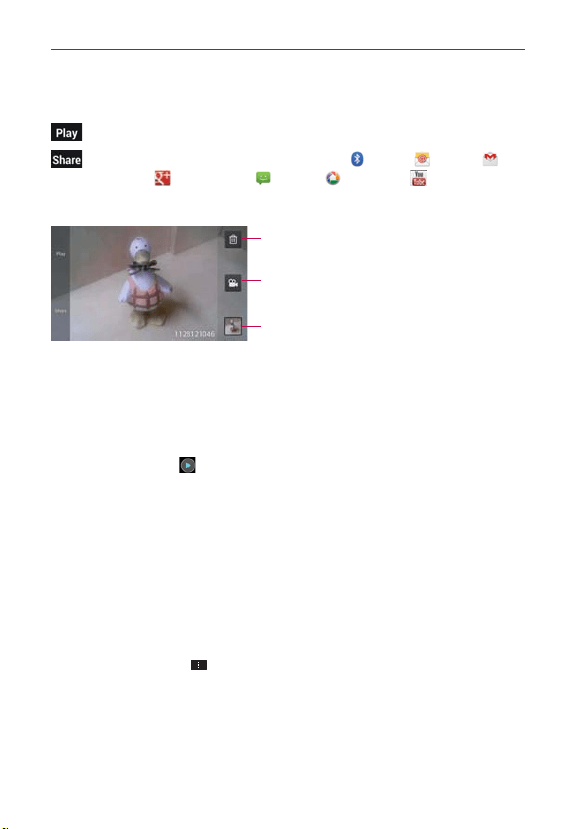
128
Entertainment
NOTE
If Auto review is set to Off, these options can be accessed while viewing the video in
the Gallery application.
Tap to play the video you just recorded.
Tap to share your video using Bluetooth , Email , Gmail ,
Google+
, Messaging , Picasa , YouTube , or any other
application you’ve downloaded that supports this feature.
Tap here to delete the video you just recorded and
confirm by tapping Yes. The viewfinder will reappear.
Tap here to record another video right away. Your
current video will be saved in your Gallery.
Tap here to view the Gallery of your saved videos.
Watching your saved videos
1. In the viewfinder, tap the image thumbnail at the bottom right corner of
the Camera screen.
2. Your video will appear on the screen.
3. Tap the Play icon
to play it automatically.
:PVS1IPUPTBOE7JEFPT
Adjusting the volume when viewing a video
To adjust the volume of a video while it is playing, use the Volume Keys on
the left side of the phone.
Setting a photo as wallpaper
1. Tap the photo you want to set as wallpaper to open it.
2. Tap the Menu Key
> Set image as > Home screen wallpaper.
3. Crop the photo, if necessary, then tap OK.
129
Entertainment
(BMMFSZ
0QFOJOH(BMMFSZBOE7JFXJOH:PVS"MCVNT
Open the Gallery application to view albums of your pictures and videos.
To open Gallery and view your albums
From the Home screen, tap Apps > Gallery or from the Home
screen, tap Gallery
.
OR
Open Gallery from the Camera application by tapping the thumbnail
image at the bottom right corner of the screen.
The Gallery application presents the pictures and videos saved in your
phone, including those you’ve taken with the Camera application and
those you downloaded from the web or other locations.
If you have a Picasa™ account synchronized with one of your phone’s
Google™ Accounts, you’ll also see your Picasa web albums in your Gallery.
Working with Albums
Albums are groups of images and videos in folders on your microSD card,
internal memory, and in Picasa web albums.
Tap to sort and display the files by Albums, By locations, or By
dates.
Tap the Menu Key
to manage your albums. Tap Delete to select the
files to be deleted. Tap Settings to access the Gallery album settings.
You can add an account for your Picasa web album in the Gallery
settings, then set it to sync with your phone. You can also tap New
album to create a new album or Hide/Show album to select which
albums to show and which to hide.
To open an album and view its contents
From the Home screen, tap Gallery and tap the album whose
contents you want to view.
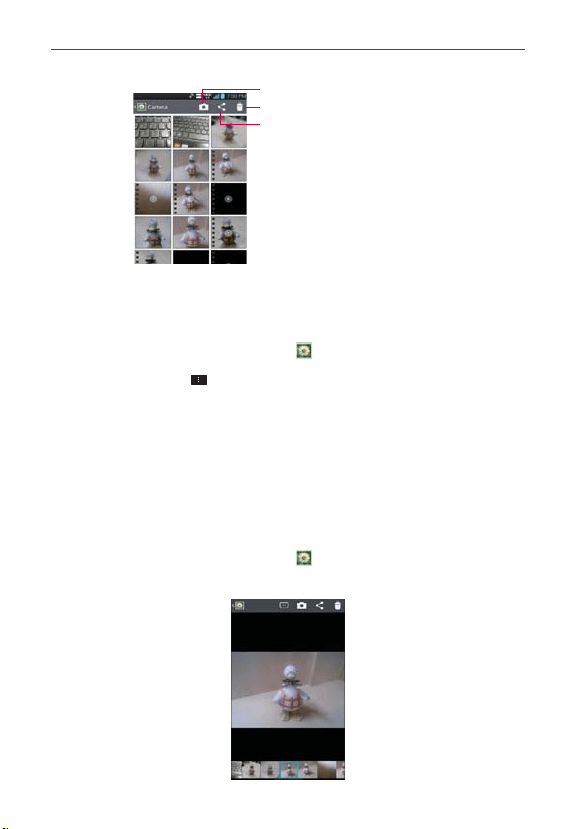
130
Entertainment
Tap here to go to Camera mode.
Tap here to share picture files.
Tap here to delete pictures.
To delete an album
You can delete an album and its contents from your phone’s internal
memory or microSD card.
1. From the Home screen, tap Gallery
.
2. Tap the Menu Key
> Delete > checkmark the album to delete >
Delete > Yes.
Working with Pictures
Use the Gallery application to view pictures that you’ve taken with the
Camera application, downloaded, copied onto your microSD card, or that
are stored in Picasa web albums.
To view and browse pictures
1. From the Home screen, tap Gallery .
2. Open an album, then tap a picture.
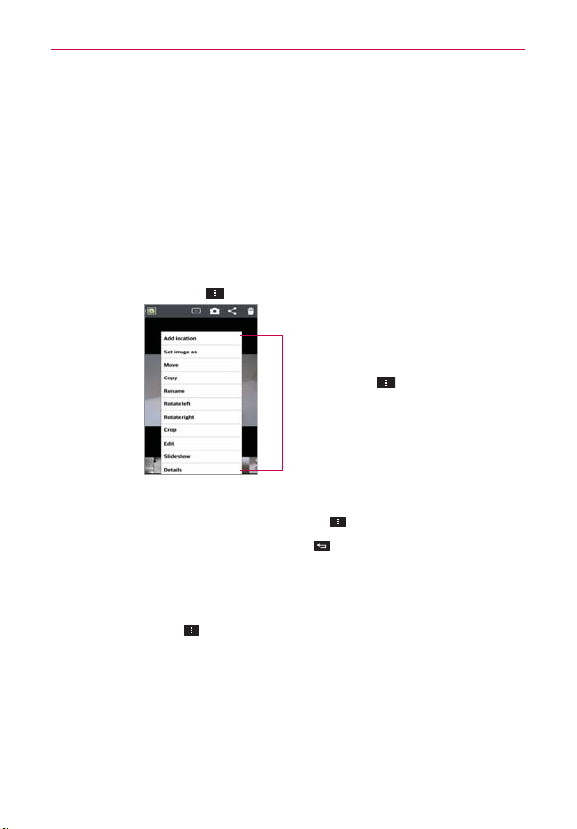
131
Entertainment
Turn the phone to view the picture in vertical (portrait) or horizontal
(landscape) orientation. The picture is displayed (but not saved) in the
new orientation.
Tap the picture to view navigation and other control icons.
To zoom, use the pinch-to-zoom method or just double-tap the screen.
When the picture is zoomed in, you can drag the picture to view parts
that are not in view.
When the picture is zoomed to fit in the window, swipe left or right to
view the next or previous picture in the album.
Tap the Menu Key
to access additional options.
Tap the Menu Key to
access Add location, Set
image as, Move, Copy,
Rename, Rotate left, Rotate
right, Crop, Edit, Slideshow,
or Details.
To watch a slideshow of your pictures
While viewing a picture, tap
Menu Key
> Slideshow
.
Tap the screen, or tap the Back Key
, to end the slideshow.
To rotate a picture
1. Open the picture you want to rotate.
2. Tap
the Menu Key
. A dialog box opens with tools for working with the
picture.
3. Tap Rotate left or Rotate right.
The picture is saved with the new orientation.
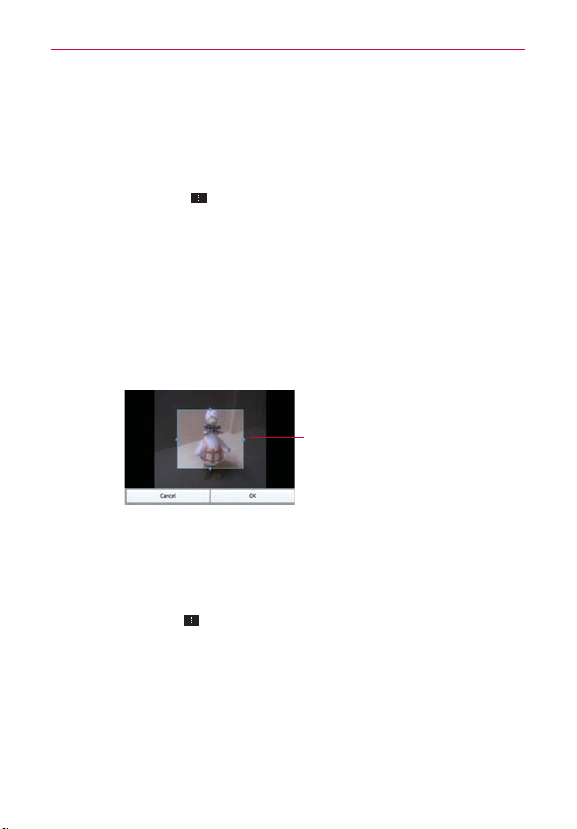
132
Entertainment
To crop a picture
You can crop and save pictures that are stored in your phone’s internal
memory or microSD card.
1. Open the picture you want to crop.
2. Tap the Menu Key
.
3. Tap Crop.
The cropping box appears on top of the picture.
4. Use the cropping box to select the portion of the picture to keep; the
rest of the photo will be discarded.
Drag from the inside of the cropping box to move it.
Drag an edge of the cropping box to resize it to any proportion.
Drag a corner of the cropping box to resize it with fixed proportions.
Adjust the size of the edit box
by dragging the side of the box
or the corner of the box.
5. Tap OK to save a copy of the picture as you cropped it. The original
uncropped version remains in your phone’s memory.
To get details about a picture
1. Open the picture you want to view the details of.
2. Tap
the Menu Key
.
3. Tap Details.
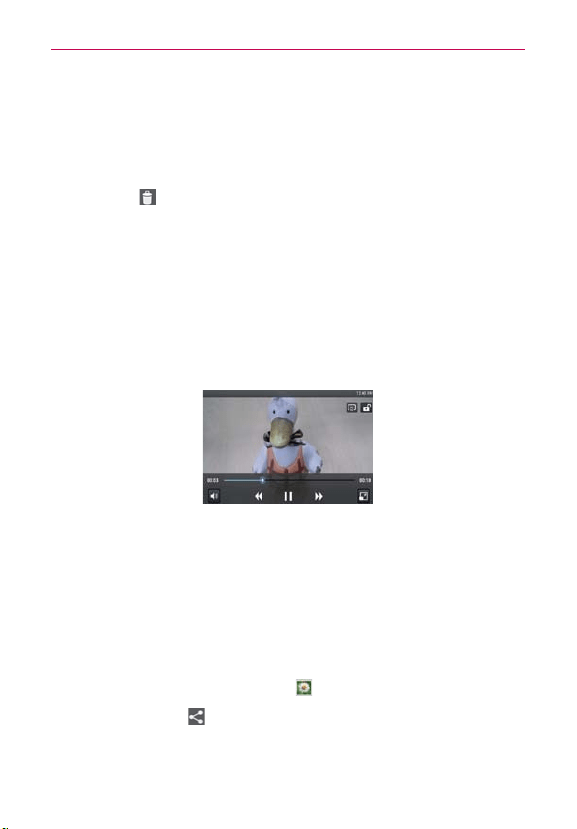
133
Entertainment
To delete a picture
You can delete a picture from your phone’s internal memory or microSD
card.
1. Open the picture you want to delete.
2. Tap Delete
at the top right corner of the screen, then tap Yes in the
dialog box that opens.
Working with Videos
Use the Gallery application to play videos that you’ve taken with the
Camera application and to share them with friends.
To play videos
Open a Gallery album then tap a video.
The video plays in the orientation you recorded it in.
Tap the screen while the video is playing to view the playback
controls.
To share a video
You can share your videos in a variety of ways, including sending it by email
or multimedia message (MMS), or via a Bluetooth device. You even have
the option to share your videos publicly by uploading it to the YouTube™
website.
1. From the Home screen, tap Gallery
, then tap an album.
2. Tap the Share icon
at the top right corner of the screen.
3. Tap to checkmark the video you want to share, then tap Share.
NOTE
You can select multiple video files to share all at once.
134
Entertainment
4. In the dialog box that opens, tap the application you want to use to share
the selected video, then enter the necessary information and share it.
NOTE
Tap and hold a video file to share a single video. Tap Share, then select your method for
sharing the file in the Context menu that appears.
To delete a video
1. From the Home screen, tap Gallery , then tap an album.
2. While viewing an album, tap Delete
at the top right corner of the
screen.
3. Tap to checkmark the video(s) you want to delete.
4. Tap Delete at the bottom of the screen.
5. Tap Ye s .
NOTE
Tap and hold a video file to delete a single video. Tap Delete, then tap Ye
s to confirm.
Video Wiz
You can make your own movie using your images, video, and music.
1. From the Home screen, tap Apps
> Video Wiz .
2. Tap
to add the image and video files to make your music video.
NOTE
You can add up to 20 images and 5 videos. Video files should be between 3sec. -
10mins.
3. Tap the Select style icon to select the style of video you want to
create.
4. Tap the Select music icon
to select the background music.
5. Tap the Play icon
to preview your music video.
NOTE
The length of the final version will vary depending on the size and number of the images,
the size and length of the video footage, as well as the music added and the style
selected.
6. Tap the Save icon to save the video.
NOTE
Your saved music video is saved in the 'VideoWiz' folder of your microSD card.
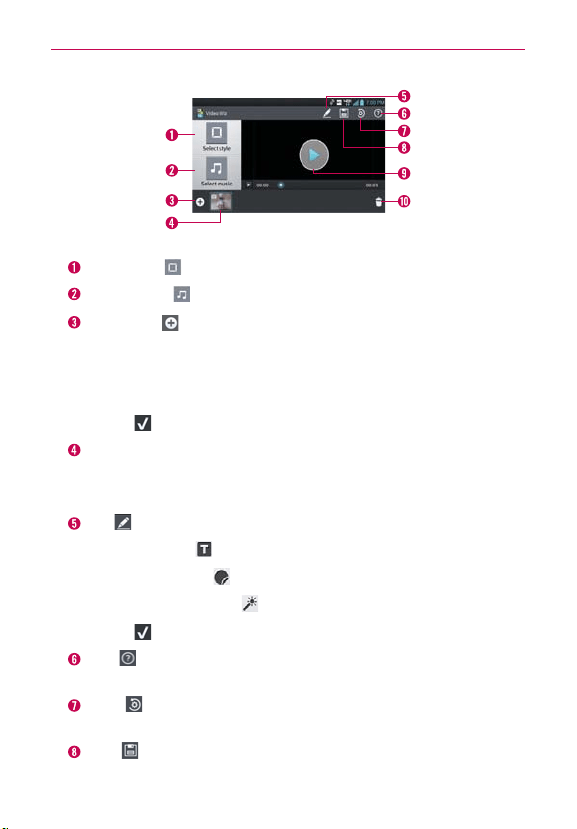
135
Entertainment
Video Wiz Options
Select style
Tap this icon to select the desired movie style.
Select music
Tap this icon to set the background music.
Add Media
Tap this icon to add additional images and/or video to
your movie.
Tap Image to add images, then tap the image(s) you want to add.
Tap Video to add video footage, then tap the video(s) you want to add.
Tap OK
to exit after all of the media files have been added.
Added Contents window Displays all of the selected image(s) and/or
video(s) for your movie.
Swipe left and right to scroll through all of the files you’ve added.
Edit
Tap this icon to edit the movie file.
Tap the Text icon
to insert text.
Tap the Sticker icon
to insert a sticker.
Tap the Magic spot icon
to activate/deactivate this feature.
Tap OK
to exit when you’re finished editing.
Help
Tap this icon to view information on how to use the Video
Wiz application.
Reset Tap this icon to revert to the default and remove all of your
edits.
Save
Tap this icon to save the movie file.
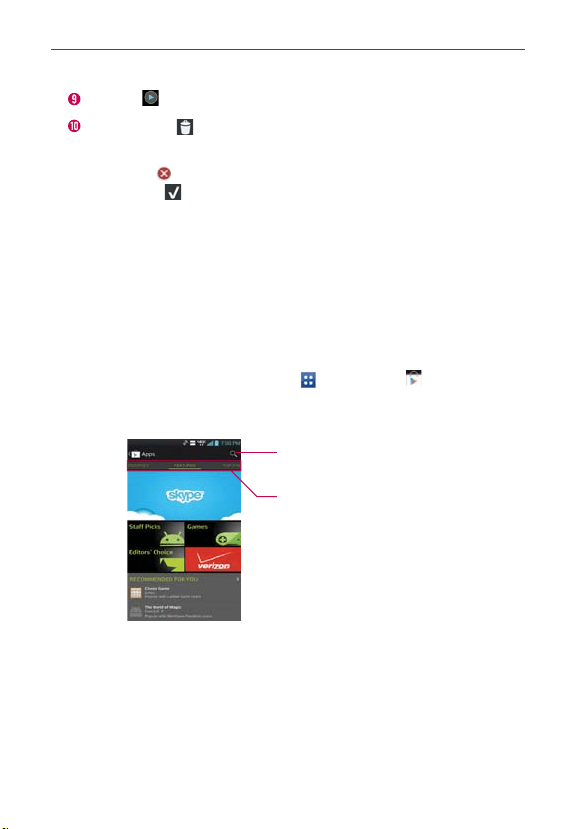
136
Entertainment
Preview Tap this icon to play your movie.
Delete Media
Tap this icon to remove the selected image(s) and/or
video(s).
Tap Delete
at the upper right side of the image or video,
then tap OK
.
Play Store
Opening Play Store and Finding Applications
Open the Play Store application to browse and search for free and paid
applications.
To open the Play Store application
From the Home screen, tap Apps > Play Store .
When you open the Play Store application for the first time, you must
read and accept the terms of service to continue.
Tap here to search for the Play
Store applications.
Scroll to the left and right to view
and explore sub-categories.

137
Entertainment
To get help with Play Store
Play Store Help web pages are available from all of the Play Store screens.
Tap the Menu Key
> Help.
The Browser application opens to the Play Store Help page, with links
to many help topics.
To open a screen with details about an application
At any time while browsing through the Play Store, tap an application
to open its details screen.
The Application details screens include a description, ratings, comments,
and related information about the application. From this screen, you can
download, install, uninstall, rate the application, and more.
To return to the Play Store homepage
You can return directly to the Play Store homepage from most other Play
Store screens.
Tap the Play Store
at the top left corner of the screen.
Downloading and Installing Applications
When you find an application you want, you can install it on your phone.
To download and install an application
NOTE
Before you can download a paid application, you must set up a billing arrangement.
1. Find an application you want and open its details screen.
In the application’s details screen, you can read more about the
application, including its cost, overall rating, and comments by users.
Scroll down to the Developer Info section to view more applications by
this developer, visit the developer’s website, or send the developer an
email message.
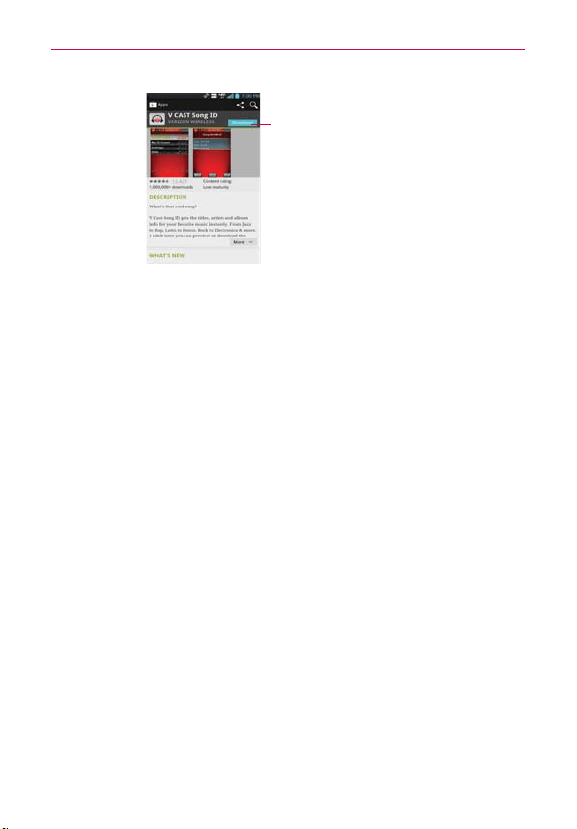
138
Entertainment
The price is indicated here.
2. Tap Install (free apps) or the Price button (paid apps). The screen will
display if the application requires access to your data or control of any
functions on your phone. The Play Store application tells you what it can
access if you continue with the download.
WARNING!
Read this screen carefully. Be especially cautious with applications that have access to many
functions or to a significant amount of your data. Once you accept on this screen, you are
responsible for the results of using this item on your phone.
3. If you agree to the application’s access requirements, tap Accept &
download (for free applications) or Accept & buy (for paid applications.)
If you selected a paid application, you’re redirected to the Google™
Checkout screen to pay for the application before it’s downloaded to
your phone.
After accepting the application's access requirements, you receive
a series of notifications as the application is downloaded and then
installed on your phone.
When the application is installed, you can tap the notification to open
the application or open it by tapping its icon in the Applications screen.
If you have another Android™ phone, you can download a paid
application to that phone using the same Play Store account, at no
additional charge.

139
Entertainment
To create a Google Checkout account
You must have a Google Checkout account associated with your Google
Account to purchase items from the Play Store.
On your computer, go to http://checkout.google.com to establish a
Google Checkout account.
OR
The first time you use your phone to buy an item from the Play Store,
you’re prompted to enter your billing information to set up a Google
Checkout account.
WARNING!
After you’ve used Google Checkout once to purchase an application from the Play Store,
the phone remembers your password, so you don’
t need to enter it the next time. For
this reason, you should secure your phone to prevent others from using it without your
permission.
Music
5SBOTGFSSJOH.VTJD'JMFTUP:PVS1IPOF
The Music application plays audio files that are stored on your phone’s
microSD card. Copy audio files from your computer onto the microSD card
before you open the Music application.
NOTE
The LG USB driver needs to be installed on your PC before connecting your phone to
transfer music.
To copy music files onto the phone’s microSD card
1. From the Home screen, tap the Menu Key > Settings >
PC connection > USB connection type > Media sync (MTP)/Camera
(PTP). Connect the phone to your computer with a USB Cable. If the
default connection mode is not set to Media sync (MTP)/Camera (PTP)
mode, open the Notifications panel and tap USB connected > Media
sync (MTP)/Camera (PTP) mode. Your computer will prompt you with
different actions to take. Choose to open the folder to view files.
Use the computer to organize your audio files then create a music
folder at the top level of the microSD card.
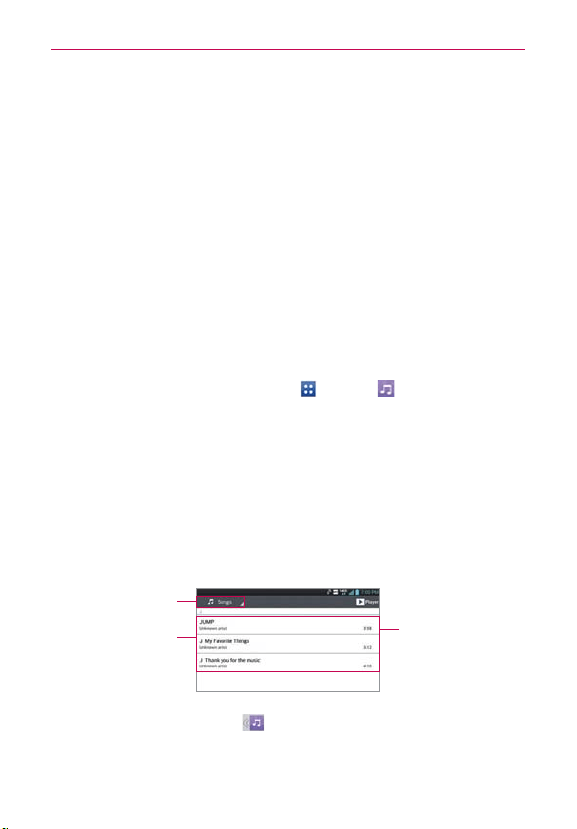
140
Entertainment
2. Use the computer to copy music and other audio files into the folder that
you created on the microSD card.
You can use subfolders on the microSD card to organize your music
files or you can simply copy the audio files to the top level of the
microSD card.
3. Open the Notifications panel and tap USB connected > Charge only.
Then disconnect the USB Cable from the phone.
0QFOJOH.VTJDBOE8PSLJOHXJUI:PVS-JCSBSZ
After you’ve copied some music onto your microSD card you can open the
Music application and view your library of music files, sorted in one of four
ways.
To open Music and view your music library
From the Home screen, tap Apps > Music .
The Music application searches the microSD card for music files you
copied to your card, then builds a catalog of your music based on the
information contained in each music file. This can take from a few
seconds to several minutes, depending on how many files you have
copied onto the microSD card.
When the catalog is complete, the Music library screen opens with
tabs at the top of the screen that you can tap to view your music
library organized by Songs, Albums, Artists, Genres, Playlists, or
Folders.
Tap one of the entries
to play it.
Music is listed in
alphabetical order.
Tap here to select a
different tab.
You can return to the main Library screen from the Playback screen in the
Music application by tapping
.

141
Entertainment
To search for music in your library
1. Open the main Library screen, then tap the Menu Key > Search.
2. Start typing the name of the artist, album, or track you’re looking for.
Matching songs are displayed in the list below the search box.
3. Tap a matching song to play it or tap a matching album or artist to view a
list of associated songs.
To delete a song from the microSD card
You can delete music from the microSD card.
Tap and hold a song in a Library list. In the Context menu that opens,
tap Delete, then tap Yes.
OR
On the Playback screen, tap the Menu Key
> Delete > Yes.
You can also delete music files from the microSD card when your
phone is connected to the computer. To do this, browse for the music
files you want to delete then delete them from the folder.
Playing Music
You can listen to music using the phone’s built-in speaker, through a wired
headset, or through a wireless Bluetooth stereo headset that supports the
A2DP profile.
To play music
Tap a song in your library to listen to it.
OR
While viewing a list of tracks in an album, tap the Menu Key
>
Select to play > tap the desired songs or the Select all checkbox >
Play.
The Playback screen opens and the song you tapped or the first song
in the album or other playlist starts to play. Your music continues to play
even when you switch applications or receive a phone call. The tracks
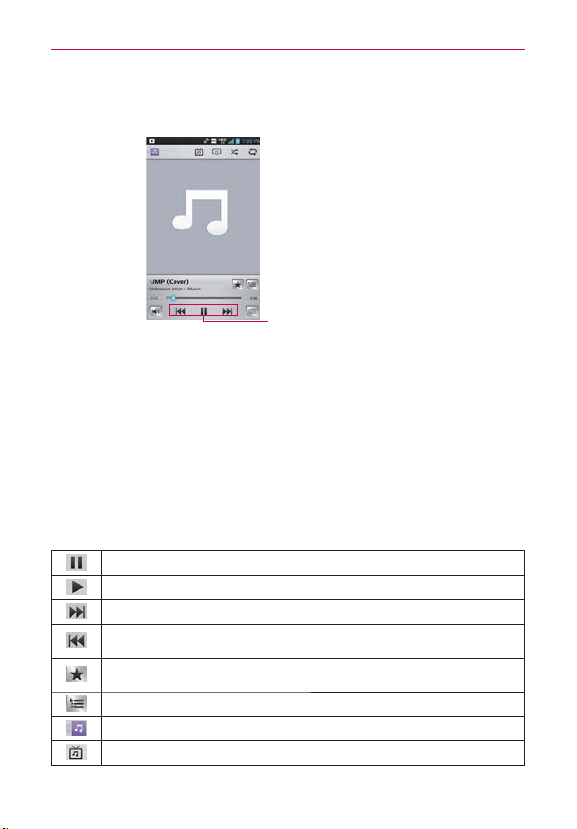
142
Entertainment
in the current playlist play in order until it reaches the end, then stops. If
you choose a repeat option, playback only stops when you stop it.
Tap here to restart, play or skip.
You can return to the Playback screen from most other screens in the
Music application by tapping the currently playing song at the bottom
of the screen.
You can return to the Playback screen from any other application
by opening the Notifications panel and tapping the ongoing music
notification.
To control playback
The Playback screen contains several icons that you can tap to control the
playback of songs, albums, and playlists:
Tap to pause playback.
Tap to resume playback.
Tap to skip to the next track in the album, playlist, or shuffle. Tap and hold to rewind.
Tap to restart the current track or skip to the previous track in the album, playlist, or
shuffle. Tap and hold to fast forward.
Tap to add to the favorites playlist.
Tap to open the current playlist.
Tap to return to the main Library screen.
Tap to search music video in YouTube.
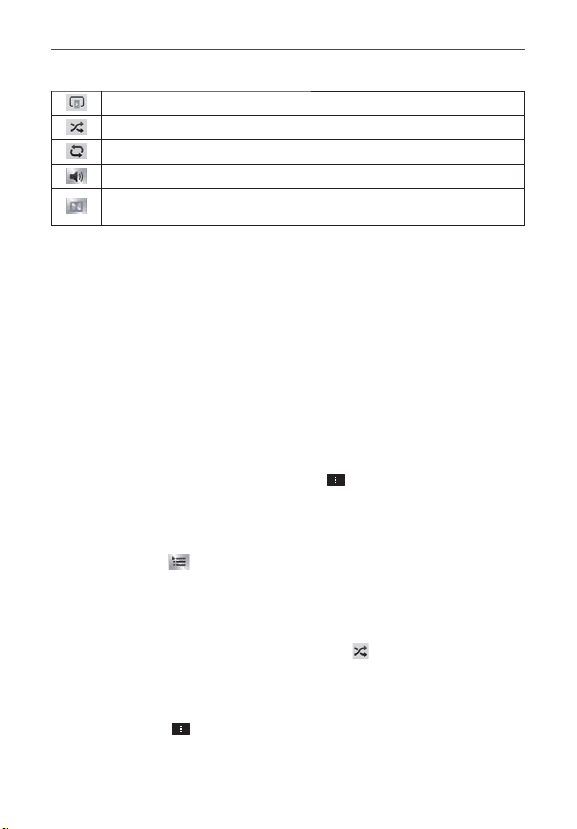
143
Entertainment
Tap to share the music using SmartShare (turn on Wi-Fi if it’s not already on).
Tap to play the current playlist in shuffle mode (tracks are played in random order).
Tap to set repeat mode to repeating all songs, repeating current song, or repeat is off.
Tap to manage the music volume.
Tap to set the Dolby Mobile setting, which enhances your music listening experience
when listening with a connected headset.
To control playback volume
In addition to the techniques for setting media volume, you can control the
volume of music in the Music application.
Press the phone’s up/down Volume Keys.
A panel opens to show the current media volume.
Some headsets include their own volume controls or ways to pause
and resume playback or to skip tracks.
To play your tracks in a shuffle all
When you turn on Shuffle all, the Music application plays tracks from your
microSD card in random order until Shuffle all is turned off.
In a Library screen, tap the Menu Key
> Shuffle all.
The Music application creates a playlist of tracks selected randomly
from your microSD card and starts playing them.
View the current playlist that Shuffle all is playing by tapping the
Playlist icon
on the Playback screen.
Add a track to the end of the Shuffle all playlist by tapping and holding
the name of a track in your library. In the Context menu that opens,
tap Add to playlist > Now playing list.
To stop Shuffle all, tap the Shuffle all icon
on the Playback screen
until the icon greys-out to indicate Shuffle all is off.
To customize settings in the Playback or a Library screen
Tap the Menu Key > Settings in a Library or Playback screen.
Show notification: Shows the controller on the Notifications panel.

144
Entertainment
Sleep timer: Turns off the player automatically. Tap the following
options to apply sleep timer: Off, After 10 min, After 20 min, After
30 min, After 1 h, After 2 h.
Dolby Mobile: Applies the following sound effect (Dolby) options:
Off, Neutral, Expansive, Bass Boost, Treble Boost, Vocal Boost.
NOTE
Dolby Mobile is only available when an audio jack is plugged in.
To use a song as a ringtone
You can set a song to be used as your phone ringtone in place of one of the
ringtones that come with the phone.
Tap and hold a song in a Library list. In the Context menu that opens,
tap Set as ringtone.
OR
On the Playback screen, tap the Menu Key
> Set as ringtone.
NOTE
This adds the song to your ringtone list. Access the Contacts application to set it for a
specific Contact entry
.
Working with Playlists
You can create playlists to organize your music files into sets of songs,
which you can play in the order you set or in a shuffle.
To create a playlist
1. From the Music Player Library, tap the Playlists tab.
2. Tap the Menu Key
> New playlist.
3. Enter a name for the playlist and tap OK. The new playlist is added to the
Playlist tab
To add a song to a playlist
1. From the Music Player Library, tap the Songs tab.
2. Tap and hold the name of the song to add.
3. Tap Add to playlist and choose the desired playlist.
You can also add the song that is playing in the Playback screen to a
playlist by tapping the Menu Key
> Add to playlist.
145
Entertainment
To remove a song from a playlist
1. Open a playlist.
2. Tap and hold the song you want to remove then tap Remove from playlist
in the Context menu.
To delete a playlist
1. Open the Playlist library.
2. Tap and hold the playlist to display the Context menu, then tap Delete.
To rename a playlist
1. Open the Playlist library.
2. Tap and hold the playlist to display the Context menu, then tap Rename.
3. Enter a name and tap OK.
Video Player
You can play a wide variety of videos using the Video Player.
Supported file formats are dependent on the software version of the
phone.
To open the Video Player application
1. From the Home screen, tap Apps > Video Player .
2. Tap the video you want to play.
Playback controls
Tap the screen to display the playback controls. The following options allow
you to control the video playback:
Pause playback.
Play a video file.
Tap to fast-forward the playback about 10 seconds. Tap and hold to fast-forward the
playback slowly.
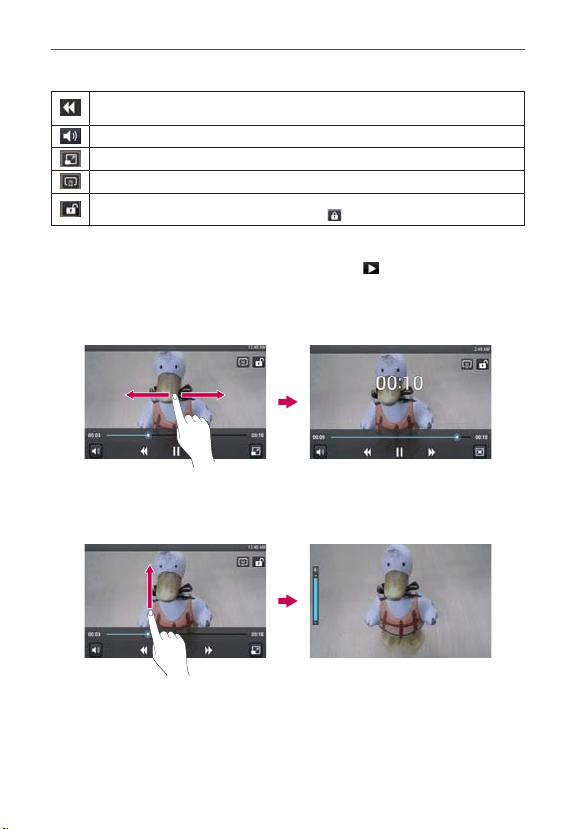
146
Entertainment
Tap to rewind the playback about 10 seconds. Tap and hold to rewind the playback slowly.
Tap to display a slider bar to increase or decrease the media volume.
Tap to choose from full screen, original size, or best fit.
Tap to share the video using SmartShare (turn on Wi-Fi if it’s not already on)
Tap to lock the Video Player screen so that the video playback controls are not displayed when
the screen is tapped. To unlock it, tap the Lock icon
.
NOTE
You can also flip the device over to pause the video playing. This is only available when
the Pause video option is checkmarked in the Gesture settings. T
ap the screen to
redisplay the playback controls, then tap the Play icon
to resume playback.
To control videos with gestures
Dragging horizontally will seek the video clip (in seconds).
Drag to left to rewind.
Drag to right to fast-forward.
Dragging vertically will control the brightness.
Drag up to increase brightness.
Drag down to decrease brightness.
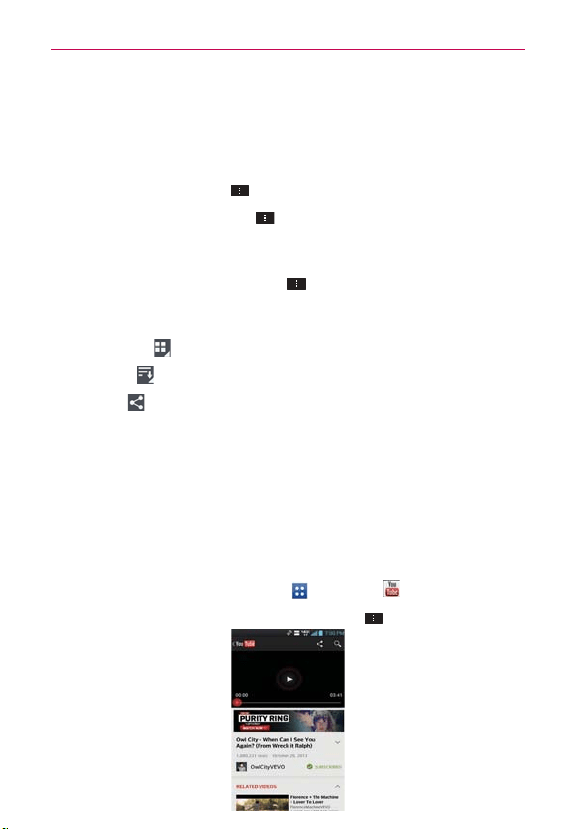
147
Entertainment
Video Player list options
The following options are available from the Video Player list screen:
Details: Tap and hold a Video Player entry in the list to display a
Context menu and tap Details. You can also access the Detail option
tapping the Menu Key
during playback.
Delete: Tap the Menu Key
> Delete. Then checkmark each video
to delete. When all files to be deleted have been checkmarked, tap
Delete > Yes to confirm.
DivX
®
VOD: Tap the Menu Key > DivX
®
VOD to view the DivX
®
registration code. Register DivX before using this video on demand
feature.
View type
: Tap to view videos by list, grid or folder.
Sort by
: Tap to sort videos by title, date, size, or type.
Share
: Tap to share videos.
:PV5VCFŬ
0QFOJOH:PV5VCFBOE8BUDIJOH7JEFPT
You can browse, search for, view, upload, and rank YouTube videos on your
phone with the YouTube application.
To open the YouTube application
From the Home screen, tap Apps > YouTube .
Tap a video to watch it or tap the Menu Key
for other YouTube
options.

148
Entertainment
To watch and interact with YouTube videos
Tap a video to play it.
Tap the screen to view the Playback controls. You can pause and
play the video or drag the slider to the point in the video you want to
watch.
Tap the Back Key
to stop playback and return to the videos list.
For details about these features, visit the YouTube website.
To search for videos
1. Tap the Search icon at the top right corner of the screen.
2. Enter the text to search for or tap the Microphone icon
to search by
voice.
3. Tap a suggestion below the search box or tap the Search icon
.
4. Scroll through the search results and tap a video to watch it.
To share your videos on YouTube
You can share a video using the YouTube application. First, you must create
a YouTube account and sign into it on your phone.
You can also share the videos you record with the Camera application by
uploading them to YouTube.
1. From the Home screen, tap Apps
> YouTube .
2. Tap
and tap your account.
3. Tap the Upload icon
and select the video.
4. Enter a title, description, and tags for your video.
149
Entertainment
5. If you want to share the video with everyone, tap the Privacy field and
then tap Public. If not, tap Private or Unlisted.
6. Tap the Upload icon
to upload the video.
Voice Recorder
The Voice Recorder application records audible files for you to use in a
variety of ways. Use your recordings to simply remind you about something
you don’t want to forget (like a grocery list) or record sound effects that you
can attach to a message or set as a ringtone for calls.
Record a Voice Memo
1. From the Home screen, tap Apps > Voice Recorder .
2. Tap the Record icon
at the bottom left of the screen to start
recording.
3. Speak into the microphone.
4. When you’re finished, tap the Stop icon
at the bottom right of the
screen.
The recording is automatically saved to your recordings list.
Tap the Play icon
at the bottom center of the screen to listen to
your recording.
Tap the List icon
at the bottom right of the screen to view your
list of recordings.
Tap the Back Key
to return the Voice Record screen.
NOTES
ţ
Tap the Storage icon at the top of the Voice Record screen to set where the audio
file will be stored. Tap Internal storage or SD card.
ţ
Tap the Mode setting icon at the top right corner of the Voice Record screen to set
the audio file size mode. Tapping the icon toggles between Message mode and
General mode.
Play a Voice Memo
1. From the Home screen, tap Apps > Voice Recorder .
2. Tap the List icon
at the bottom right of the screen.
3. Tap the voice memo you want to play.
NOTE
You can send the voice memo to others by tapping and holding a voice memo and
tapping Share in the Context menu.

150
Entertainment
Managing your Voice Memos
1. From the Home screen, tap Apps > Voice Recorder .
2. Tap the List icon
at the bottom right of the screen.
3. Tap the following options from the quick action bar at the top of the
screen.
Tap the Share icon
to send via Bluetooth, Email, Gmail, Messaging,
Richnote, or other compatible applications you have downloaded.
Tap the Delete icon
to delete voice memo(s). Tap the voice
memo(s) to delete then tap Delete > Yes.
Tap the New record icon
to return to the Voice Record screen to
record a new audio file.
NOTE
You can also tap and hold an audio file in the list to select Share, Delete, Rename, or
Details in the Context menu that appears.

151
Calendar
7JFXJOH:PVS$BMFOEBSBOE&WFOUT
Open the Calendar application to view events you’ve created or that others
have invited you to.
When you first set up your phone, you configured it to use an existing
Google Account or you created a new account. The first time you open the
Calendar application on your phone, it displays any existing calendar events
from your Google Account on the web.
To open the Calendar application
From the Home screen, tap Apps > Calendar .
Events from each account you’ve added to your phone and configured
to synchronize calendars is displayed in your Calendar.
Events from each calendar account are displayed in a different color.
To change your calendar view
No matter where you are in the Calendar application, you can easily switch
calendar views. Simply tap the date in the upper left corner of the screen
to display a drop-down menu of calendar views. Tap Day, Week, Month, or
Agenda. You can also use the Calendar tabs to change the calendar view.
Tap the Week tab, the Day tab, or the Agenda tab below the calendar.
Each view displays the events in your calendar for the period of time
specified.
To view more information about an event in the Agenda, Day, or Week
view, tap the event.
To view the events of a day in Month view, tap a day. The event will
be displayed below the calendar. Tap the event to view its details.
NOTE
You can drag the month calendar handle at the top of the screen downward to open the
month calendar above the currently selected calendar type. Drag it back up to close it.
Tools
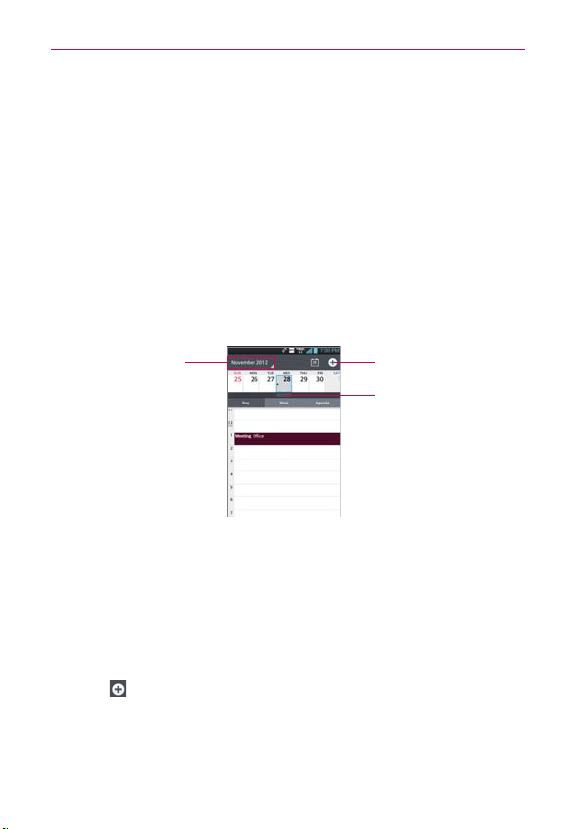
152
Tools
Working in Day View
Day view displays a list of the events of one day, in a table of one-hour
rows. The current time will be designated as a thick horizontal black line.
If it’s a day of commemoration (e.g., a holiday) it is listed at the top of the
screen. All-day and multi-day events are displayed at the top. Part of the title
of each event is displayed in the row that corresponds to when it occurs.
To view other days, simply swipe left to see future days and right to see
past days.
To switch to Day view
Tap the date in the top left corner above the calendar, then tap Day in
the drop-down menu.
Tap here to create a
new event.
Drag downward here
to display the entire
month calendar above
the Day view.
Tap here to switch
to Week, Month, or
Agenda view.
To learn more about events in Day view
Tap an event to view its details.
To add an event in Day view
Tap and hold an empty spot or an event in the day to create a new
event at that time.
OR
T
ap
and select the calendar you want to use (if applicable).
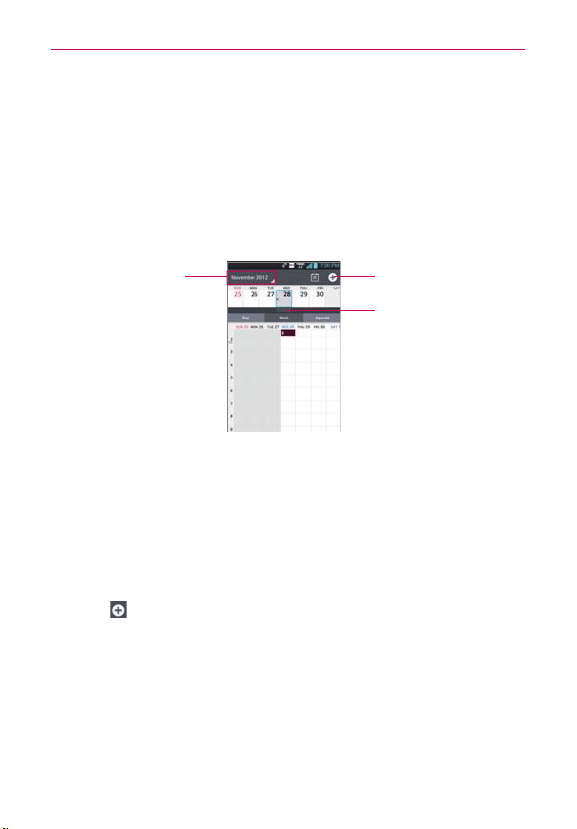
153
Tools
Working in Week View
Week view displays a chart of the events of one week. All-day and
multi-day events are displayed at the top. To view other weeks, simply
swipe left to see future weeks and right to see past weeks.
To switch to Week view
Tap the date in the top left corner above the calendar, then tap Week
in the drop-down menu.
Tap here to create a
new event.
Drag downward here
to display the entire
month calendar above
the Week view.
Tap here to switch
to Day, Month, or
Agenda view.
To learn more about events in Week view
Tap an event to view its details.
To add an event in Week view
Tap and hold an empty spot or an event in the week to open a Context
menu then tap New event to create a new event at that time.
OR
T
ap
and select the calendar you want to use (if applicable).
Working in Month View
Month view displays a chart of the events of the month. Segments of each
day with scheduled events are blue in the day’s vertical bar. To view other
months, simply swipe upward to see future months and downward to see
past months.
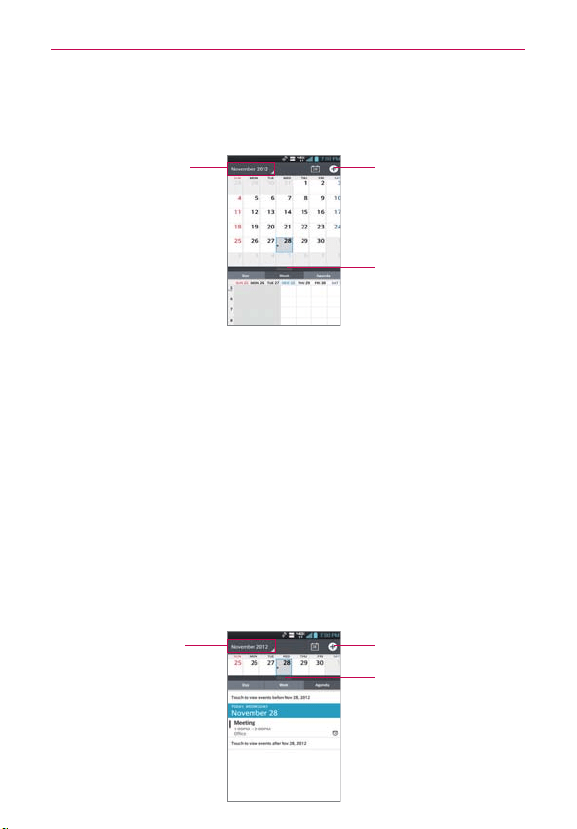
154
Tools
To switch to Month view
Tap the date in the top left corner above the calendar, then tap Month
in the drop-down menu.
Tap here to create a
new event.
Drag upward here
to hide the month
calendar.
Tap here to switch
to Day, Week, or
Agenda view.
To view more information about events in Month view
Tap a day to display the events below the calendar. You can then tap
the event to view more information about it.
Working in Agenda View
Agenda view is a list of your events in chronological order by day. A month’s
worth of events is displayed. To show earlier Agenda events, tap Touch to
view events before at the top of your Agenda list. To show later Agenda
events tap Touch to view events after at the bottom of your Agenda list.
All-day and multi-day events are listed at the start of each day.
To switch to Agenda view
Tap the date in the top left corner above the calendar, then tap
Agenda in the drop-down menu.
Tap here to create a
new event.
Drag downward here
to display the entire
month calendar above
the Agenda view.
Tap here to switch to
Day, Week, or Month
view.
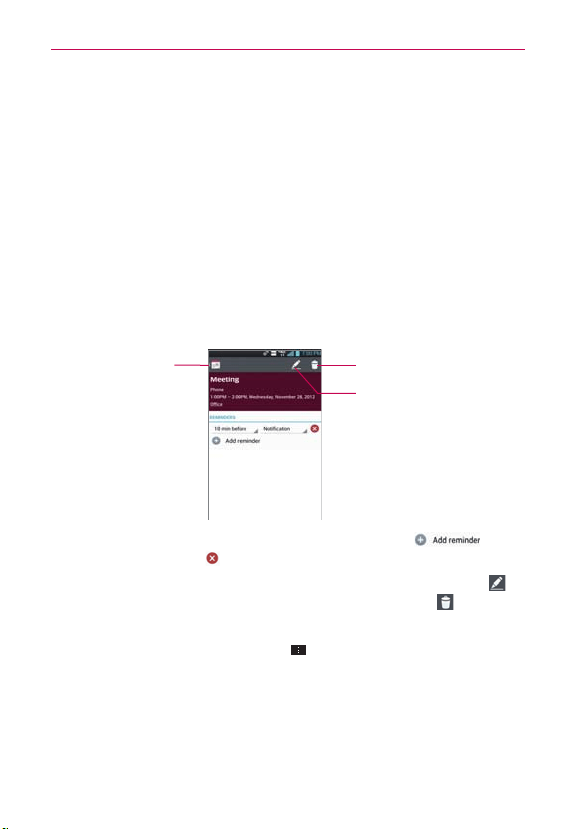
155
Tools
To learn more about events in Agenda view
Tap an event.
A screen with details about the event opens.
Viewing Event Details
You can view more information about an event in a number of ways,
depending on the current view.
To view information about an event
In Agenda, Day, or Week view, tap an event to view its details.
In Month view, tap a day to display the events below the calendar.
Then tap an event to view its details.
Tap here to delete the event.
Tap here to edit the event.
Tap here to go back
to Calendar view.
Tap the Reminders field to change reminder settings, tap to add
another reminder, or tap
to remove the reminder.
If you have permission to change the event, you can tap the Edit icon
(at
the top of the screen) to edit the event or tap the Delete icon
(at the top
right corner of the screen) to delete the event.
To share an event, tap the Menu Key
, then tap Share in the Options
menu. Choose the method for sharing and complete as necessary.

156
Tools
Setting an Event Reminder
You can set one or more reminders for an event, whether or not you
created the event or have permission to edit its other details.
To set an event reminder
1. Tap an event to view its details.
2. If no reminder is set, tap
to automatically add a reminder for
10 minutes before the event.
3. Tap the Time field to set the length of time before the event that you
want to be reminded of it. Tap the Notification field to set how you want
to be reminded (by Notification or by email).
When the time comes, you receive a notification about the event.
You can use Google Calendar on the web to configure additional
reminder settings.
To delete an event reminder
1. Tap an event to view its details.
2. Tap
next to the reminder field.
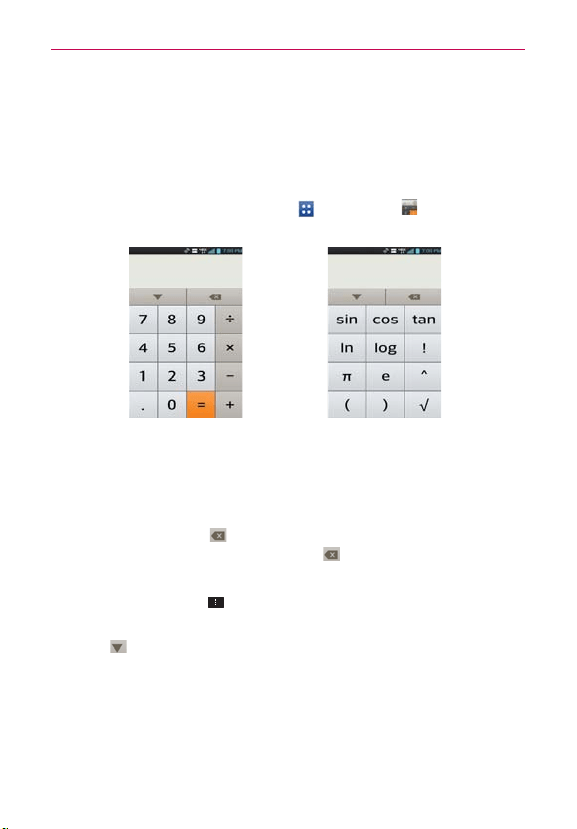
157
Tools
Calculator
Opens the Calculator application to perform simple mathematical
calculations.
To open and use the Calculator
From the Home screen, tap Apps > Calculator .
Basic Panel Advanced Panel
Enter numbers and arithmetic operators on the Basic panel.
Drag the Basic panel to the left to open the Advanced panel.
Tap and hold the Calculator’s display to open a Context menu where
you can copy what you’ve entered and access other tools.
Tap the Delete Key
to delete the last number or operator you
entered. Tap and hold the Delete Key
to delete all of the entered
information.
Tap the Menu Key
to open an Options menu to clear your
calculation(s) history or change panels between Advanced and Basic.
Tap
to view your calculator history. You can tap an entry to calculate
it again or edit it.
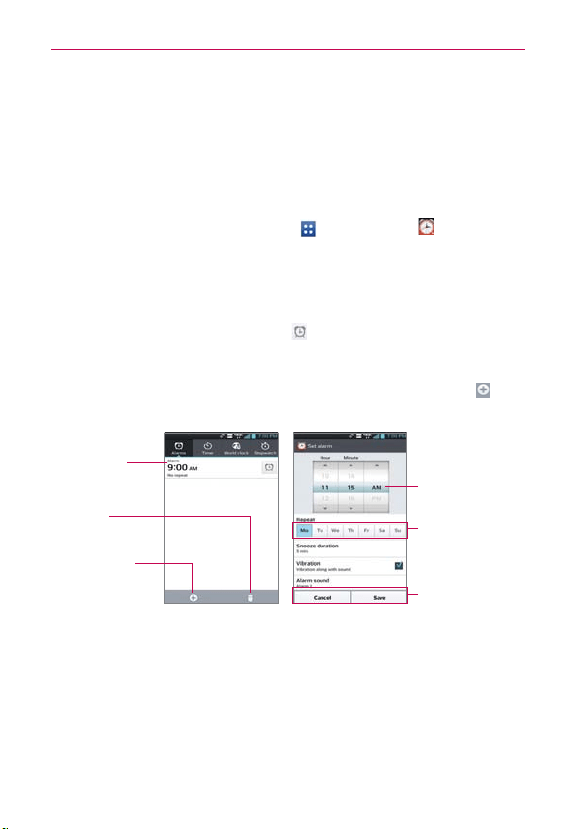
158
Tools
Alarm/Clock
You use the Alarm/Clock application to access the Alarms, Timer, World
clock, and Stopwatch functions. These functions are accessed by tapping
the tabs across the top of the screen.
To open the Clock application
From the Home screen, tap Apps > Alarm/Clock .
Setting Alarms
You can set an alarm by modifying an existing alarm or by adding a new
one. After you’ve created one or more alarms, you can easily activate or
deactivate them using the On/Off icon
.
To set an alarm
1. Open the Alarm/Clock application, then tap the New alarm icon or
tap an existing alarm to modify it.
Delete Icon
Tap here to delete an
alarm.
Repeat Field
Tap here to set which
days to activate the
alarm.
Existing Alarm
Tap here to modify
this alarm's settings.
Time Wheel
Scroll here to change
the alarm time.
New Alarm Icon
Tap here to create a
new alarm.
Set Alarm Screen
2. Scroll the time wheel to set the alarm time.
Enter the alarm time manually by scrolling the hour (or minutes) field.
Scroll to AM or PM to set for morning or afternoon.
3. Tap the day(s) when you want the alarm to sound in the Repeat field. If
you don’t tap the Repeat setting, the alarm sounds only the one day you
set it.

159
Tools
4. Tap Snooze duration to set the amount of time to wait before sounding
the alarm again if it is not dismissed. You can set the alarm to ring
repeatedly from 5 minutes up to 1 hour.
5. Tap Vibration to checkmark the setting and have the phone vibrate, in
addition to playing the ringtone.
6. Tap Alarm sound to select a ringtone for the alarm. You can set a music
file as an alarm sound. The ringtone plays briefly when you select it.
7. Tap and drag the Alarm volume bar to manage the alarm volume.
8. Tap Auto App Starter to select an application to auto-launch when you
stop alarm. For example, if weather is selected, you will be presented
with Weather application screen when stops the alarm.
9. Tap Puzzle lock to checkmark the setting, which requires you to wake up
enough to solve a simple puzzle to dismiss the alarm.
10. Tap Memo to enter a name for the alarm.
11. When you’re finished, tap
Save.
When the alarm sounds
Tap Stop or, if set, use the Gestures feature of simply flipping the
device over to stop the alarm.
Tap Snooze to stop the alarm for the snooze duration you set.
NOTE
If Puzzle lock is set to On, using the Gestures feature of flipping the device over will
snooze the alarm instead of turning it off.
Setting the Timer
The Timer application can be used to alert you with an audible signal when
a set amount of time has passed.
1. Open the Alarm/Clock application and tap the Timer tab
.
2. Set the time by scrolling the Hour, Minute and/or Second on the time
wheel.
3. Tap Vibration to checkmark the setting and have the phone vibrate
when the set time expires.
4. Tap Alert sound to select an alert tone for the timer, then tap OK. You
can also set a music file as an alert tone.
5. Tap and drag the Alert volume bar to manage the alert volume.

160
Tools
6. Tap
Start at the bottom of the screen to
begin the time countdown.
7. Once the alarm sounds, tap Stop to stop the timer.
Setting the World Clock
This feature allows you to set up a list of cities to easily check current times
in other time zones with a quick glance.
1. Open the Alarm/Clock application and tap the World clock tab
.
2. Tap the New City icon
at the bottom of the screen then search
through the available cities for the one you want.
Managing the World Clock Cities
Tap the New City icon at the bottom of the screen to select
another city for your list.
Tap the Delete icon
at the bottom right corner of the screen to
select one or more cities select a city to delete from your list.
Tap the Menu Key
to delete all of the cities in your World Clock
list.
Tap and hold an entry in the list to open a Context menu to select Set
daylight saving or Delete.
6TJOHUIF4UPQXBUDI
This feature allows you to use your phone as a Stopwatch.
1. Open the Alarm/Clock application and tap the Stopwatch tab
.
2. Tap
Start at the bottom of the screen
to start timing and tap Stop to stop
the time.
You can use the Lap function by tapping Lap to record lap times.
3. Tap Reset to reset the Stopwatch or
Resume to resume it.

161
Tools
Polaris Office 4
Polaris Office 4 is a professional Mobile Office Solution which enables
users to conveniently view or edit various types of office documents
including Word, Excel, and PowerPoint file extensions anywhere, anytime,
using their mobile device.
To access this application, from the Home Screen, tap Apps
, then tap
Polaris Office 4
.
Managing Files
Polaris Office 4 provides mobile users with the convenience of managing
files including copying, moving, and deleting files and folders right on the
device. Local folders are displayed on the main screen for easy access and
file selection.
Viewing Files
Mobile users now have the convenience of being able to view a wide
variety of file types including Microsoft Office documents, Adobe PDF, and
images right on their mobile device. When viewing these documents using
Polaris Office 4, the objects and layout remain unchanged from their original
documents. Also, files are viewed in thumbnail images so that you can
easily find the list of recently used documents and so you can work on the
document faster and easier than anybody else.
Editing Microsoft Office Files
Mobile users also have the convenience of being able to create, edit, and
save Word, Excel and PowerPoint documents on their mobile device. Saved
Documents generated or modified using Polaris Office 4, are not distorted
from the originals.

162
Tools
6TJOH4NBSU4IBSF
SmartShare uses DLNA (Digital Living Network Alliance) technology to
share digital content through a wireless network. Both devices must be
DLNA certified to support this feature.
To turn SmartShare on and allow sharing contents
1. To access this application, from the Home screen, tap Apps >
SmartShare .
2. Tap the Menu Key
> Settings.
3. Tap Discoverable to checkmark it to allow your device to be detected by
other devices.
Checkmark Always accept requests if you would like to automatically
accept sharing requests from other devices.
Checkmark Receive files if you would like to allow other devices to
upload media files to your phone.
4. Under the Shared contents section, tap to checkmark the types of content
you would like to share. Choose from Photos, Videos, and Music.
5. SmartShare is now activated and ready to share the available content
type(s) you selected for sharing.
To control your renderer devices
Let your renderer device (e.g., TV) play multimedia contents from your
remote content library (e.g., PC).
NOTE
Make sure that the DLNA functionality of your devices are properly configured (e.g., TV
and PC).
1. From the Home screen, tap Apps > SmartShare .
2. Tap the To icon at the top right of the screen, then tap the device you
want to use from the renderer device list.
3. Tap the From icon
at the top left of the screen, then tap the device that
has your
remote content library.
4. You can browse through the content library to find the content(s) you
want.
163
Tools
5. Tap and hold a content thumbnail and tap Play or tap the Menu Key
> Play.
To share contents from your phone to your renderer device (e.g., TV)
NOTE
Make sure that your renderer device is properly configured.
1. While playing your music using the Music application, tap
/
/
on
the Title area.
: Neet to be connected network.
: Select the device on network.
: Currently, the content is being shared through SmartShare.
2. Select the device from renderer lists to play the files.
NOTE
Follow the similar steps to use the Gallery, V
ideo Player, or Polaris Office to share
contents.
NOTICE
Check that your device is connected with your home network using a Wi-Fi connection
to use this application. Some DLNA enabled devices (e.g., TV) support only the DMP
feature of DLNA and will not appear in the renderer device list. Y
our device might not be
able to play some contents.
NOTE
The accessory to connect DNLA is sold separately.

164
Tools
To download contents from the remote content library
1. From the Home screen, tap Apps > SmartShare .
2. Tap the From icon
at the top left of the screen, then tap the device that
has your remote content library.
3. You can browse through the content library to find the content(s) you want.
4. Tap and hold a content thumbnail, then tap Download in the Context menu.
NOTICE
Some content types are not supported.
To upload contents from the remote content library
NOTE
Make sure that the microSD card is correctly mounted and the Receive files option in
the Settings menu is checkmarked.
1. From the Home screen, tap Apps > SmartShare .
2. Tap the From icon
at the top left of the screen, then select My phone.
3. You can browse through the local content library to find the content(s) you
want.
4. Tap and hold a content thumbnail, then tap Upload in the Context menu.
5. Select the device of the remote content library to be uploaded.
NOTICE
ţ
Some DLNA enabled devices do not support the DMS upload functionality and will not
upload files.
ţ
Some content types are not supported.

165
Settings
Settings
The Settings application contains most of the tools for customizing and
configuring your phone. All of the settings in the Settings application are
described in this section. For settings specific to the Browser application,
see the Browser section and for settings specific to the Google Account,
see the Gmail section.
To open the Settings application
From the Home screen, tap the Menu Key > Settings.
OR
From the Home screen, tap Apps
> Settings .
8*3&-&44/&5803,4
The Wireless and Networks section allows you to configure and manage
your device’s wireless radio communications.
Airplane mode
Tap the Airplane mode switch to turn on Airplane mode and disable all
wireless connections.
Wi-Fi
Tap the Wi-Fi switch to turn on Wi-Fi functionality to connect to
available Wi-Fi networks. Tap it again to turn it off.
Notify Me: Checkmark to be notified when a Wi-Fi network is in range
when you launch an application.
Optimize Wi-Fi usage: Opens a dialog box to optimize Wi-Fi usage
when launching applications or uploading/downloading large files.
WPS Push Button: Tap the Menu Key
> WPS Push Button to
connect to a secured Wi-Fi network with a WPS button.
WPS Pin Entry: Tap the Menu Key
> WPS PIN Entry to connect to
a secured Wi-Fi network with a WPS PIN.
Wi-Fi Direct: Tap the Menu Key
> Wi-Fi Direct to directly connect
with Wi-Fi devices without any access point.

166
Settings
Advanced: Tap the Menu Key > Advanced to set the advanced
Wi-Fi settings.
Keep Wi-Fi on during sleep: Allows you to keep Wi-Fi on during
sleep.
Avoid poor connections: Don't use a Wi-Fi network unless it has a
good Internet connection.
MAC address: Allows you to view the MAC address.
IP address: Allows you to view the IP address.
Manage networks: Drag a network to specify the order in which it will
be detected.
WI-FI NETWORKS
The list of all of the Wi-Fi networks that are within access range. Tap one
to access it.
NOTE
Tap SEARCH at the bottom of the screen to scan for available Wi-Fi networks. T
ap ADD
NETWORK at the bottom of the screen to add a new network.
Bluetooth
Tap the Bluetooth switch
to turn on Bluetooth functionality to connect
to Bluetooth devices. Tap it again to turn it off.
VS930 4G: Allows you to rename your phone as it is seen by other
Bluetooth compatible devices.
Make phone visible: Tap to allow other Bluetooth devices to see your
phone for pairing and connection.
Device type to be searched: Allows you to select the type of device(s)
you want your Bluetooth device to search for. The default setting is All
devices.
AVAILABLE DEVICES
The list of all of the available in-range Bluetooth devices.

167
Settings
Visibility timeout: Tap the Menu Key > Visibility timeout to set
the visibility timeout when other Bluetooth devices see your phone for
pairing and connection.
Show received files: : Tap the Menu Key
> Show received files to
view your Bluetooth received files.
Advanced: : Tap the Menu Key
> Advanced to access Help and
turn on FTP server/Phonebook access.
NOTE
Tap Search for devices at the bottom of the screen to search for in-range Bluetooth
devices.
Mobile data
This menu allows you to manage your mobile data usage.
Mobile data: Tap the Mobile data switch
to enable mobile data.
Limit mobile data usage: Checkmark to limit your mobile data. Your
mobile data connection will be disabled when you reach the limit you
set.
Alert me about data usage: Checkmark to allow your phone to alert you
when your mobile data usage reaches the warning amount you have set.
Data usage cycle: Displays your current data usage cycle. Tap the drop-
down menu icon
to change the cycle date.
Data usage graphic: Displays your data usage on a graph.
Data usage applications: Applications are displayed with their data
usage on a bar graph. Tap one to see more detailed information.
To access advanced options, tap the Menu Key
.
Data roaming: Allows you to use data connections when you are
roaming.
Restrict background data: Allows you to disable sync in the background
while using a mobile network.
Auto-sync data: Allows you to set the device to sync contact, calendar,
email, bookmark, and social network image data automatically.
Show Wi-Fi usage: Allows you to view your data usage via Wi-Fi.

168
Settings
Mobile hotspots: Allows you to search for and use another device's
mobile network.
Call
The Call menu allows you to manage various call settings.
Voicemail: Allows you to set your voicemail details.
Service: Allows you to change your voicemail service. The default is My
carrier.
Setup: Allows you to alter your voicemail settings (e.g., the number that
dials your voicemail service).
Notification sound: Allows you to set the sound for notifications.
Vibrate: Allows you to set the vibrate mode.
Ignore with message: Checkmark to enable the Quick text message
feature. It allows you to use the Ignore with message option to ignore
an incoming call and respond to the caller with a specified text message
instead. Tap
to manage your Quick messages. Tap the New icon
to create a new quick message, tap a message to edit it, or tap the
Delete icon
to delete the message.
Power button ends call: When enabled, you can end voice calls by
pressing the Power/Lock Key
.
Show dialpad: Allows you to set which types of calls will automatically
display the dialpad.
Auto retry: Allows you to set the amount of time to wait before
automatically redialing a call that failed to connect.
Hearing aids: Checkmark to turn on hearing aid compatibility.
TTY mode: Allows you to set the TTY mode to communicate with other
TTY devices.
DTMF tones: Allows you to set the length of the DaF tones.
Assisted dialing: Allows you to configure the Assisted dialing options
when you are traveling outside of your home country.

169
Settings
CDMA call settings: Allows you to set CDMA Call forwarding, Voice
privacy, or Auto answer.
GSM call settings: Allows you to set GSM Call forwarding, Call barring,
Call duration, and Additional settings.
More...
This menu allows you to manage other network and wireless settings.
USB tethering: Allows you to set up the ability to share your phone’s
mobile data connection using a USB connection.
NFC: Tap the NFC switch
to allow data exchange when the phone
touches another data-compatible device (typically within 20 mm). NFC
(Near Field Communication) establishes radio communication between
smartphones and similar devices. NFC will be turned off when airplane
mode activated. But you can turn NFC on when you need.
Read/Peer to Peer: Checkmark to display confirmation when receiving
information via NFC.
Connection handover: Checkmark to display confirmation when
pairing devices via NFC.
Android Beam: Opens an information screen and provides a switch to
enable transmission of application content using NFC. Tap the Android
Beam switch
(in the upper right corner of the screen) to turn it on.
VPN: Allows you to set up and manage Virtual Private Networks (VPNs).
Mobile networks: Allows you to set up options for roaming, networks,
and APNs (Access Point Names).

170
Settings
DEVICE
The Device section allow you to configure and manage the general device
functions such as sound and display options.
Sound
This menu allows you to manage your device’s sound settings.
SOUND PROFILE
Silent mode: Allows you to set the Silent mode. Choose between Off,
Vibrate, and On.
Volumes: Allows you to individually set the volumes for Phone ringtone,
Notification sound, Touch feedback & system, and Music, video, games,
and other media. Move the slider icon on each volume bar to set the
volume.
Quiet time: Tap the Quiet time switch
to enable this function. Tap
Quiet time to open a screen to set the days and times to automatically
turn off all sounds except for alarms and media.
RINGTONE & NOTIFICATIONS
Ringtone with vibration: Checkmark to set the phone to also vibrate
when you receive calls.
Phone ringtone: Allows you to set the ringtone for calls. You can also
add a ringtone by tapping the New icon
at the top right corner of the
screen.
Notification sound: Allows you to set the sound for notifications. You
can also add a sound by tapping the New icon
at the top right corner
of the screen.
TOUCH FEEDBACK & SYSTEM
Dial pad touch tones: Checkmark to set the phone to make a sound
when you tap the dialpad.
Touch sounds: Checkmark to set the phone to make a sound when you
tap an item to activate it (e.g., tapping a checkbox).

171
Settings
Screen lock sound: Checkmark to set the phone to make a sound
when the screen is locked using the Power/Lock Key and also when it is
unlocked.
Sound when roaming: Checkmark to enable Enhanced Roaming
Indication.
Emergency tone: Allows you to set the device's behavior when an
emergency call is placed.
Vibrate on touch: Checkmark to set the phone to vibrate when you tap
the front keys.
Display
The Display menu allows you to manage your phone’s display settings.
SCREEN
Brightness: Allows you to adjust the brightness of the screen. For best
battery performance, use the dimmest comfortable brightness.
Screen timeout: Allows you to set the amount of time before the screen
times-out.
Auto-rotate screen: Checkmark to set the phone to automatically rotate
the screen based on the phone orientation (portrait or landscape).
Pouch clock screen: Allows you to select the desired type of pouch
clock.
FONT
Font type: Allows you to set the type of font used for the phone and
menus.
Font size: Allows you to set the size of the font displayed in the phone
and menus.
LIGHT & SENSOR
Front touch key light: Allows you to set whether the front keys are
illuminated and how long they will stay lit.
Notification flash: Allows you to set which notifications will flash the
LED light.

172
Settings
Motion sensor calibration: Allows you to calibrate the device to
improve the tilt accuracy and the sensor’s speed.
Home screen
This menu allows you to manage your Home screen settings.
Theme: Allows you to set the screen theme for your device.
Animation: Allows you to set the device to use the available animations.
Screen swipe effect: Allows you to select the effect to use when you
swipe to change screens.
Wallpaper: Allows you to set the wallpaper to use on your Home
screen.
Portrait view only: Checkmark this setting so that the Home screen is
always displayed in portrait view.
Scroll screens circularly: Checkmark to set the Home screens to scroll
continuously, eliminating the need to scroll back in the opposite direction
when you reach one end.
Lock screen
This menu allows you to manage your Lock screen settings.
SCREEN
Select screen lock: Allows you to set how to secure your phone from
unauthorized use.
Wallpaper: Allows you to set your Lock screen wallpaper.
Clocks & shortcuts: Allows you to set the clock widget displayed on the
Lock screen. Also allows you to change the shortcuts on the Lock screen
when it is set to the Swipe unlock method. To display the shortcuts
using the Pattern lock screen, hold your position at the final dot in the
pattern when unlocking the screen and the shortcuts will appear.
Screen effect: You can select the screen effect when unlocking the device.
Owner info: Checkmark to set the device owner’s name to be displayed
on the Lock screen. Tap Settings
to enter the text to be displayed as
the Owner info.

173
Settings
LOCK TIME
Security lock timer: Allows you to set the amount of time before the
screen automatically locks after the screen has timed-out.
Power button instantly locks: Checkmark to instantly lock the screen
when the Power/Lock Key is pressed.
FEEDBACK
Vibrate on touch: Checkmark to turn on touch feedback.
Gestures
The Gestures menu allows you to manage various gesture settings.
Move home screen items: Checkmark to be able to move items within
the Home screen or applications by tapping and holding an item, then
tilting the device in the direction you want to move it.
Tilt sensitivity: Allows you to test and adjust the sensitivity of the tilt
sensors used for the Home screens and applications. To adjust the
sensitivity, tap the Default sensitivity checkbox, then move the slider
along the bar toward slow or fast to suit your preference.
Silence incoming calls: Checkmark to enable you to simply flip the
device to mute an incoming call ringtone.
Snooze or stop alarm: Checkmark to enable you to simply flip the
device to snooze or stop the alarm.
Pause video: Checkmark to enable you to simply flip the device to pause
the currently playing video.
Help: Opens a help guide on how to use the Gestures features of your
device.

174
Settings
Storage
Use the Storage menu to monitor the used and available space in your
phone and on your microSD card. You can also manage your microSD card
and, if necessary, reset the phone to erase all of your personal information.
INTERNAL STORAGE
Total space: Displays the total amount of space in the phone’s memory.
It’s listed in Gigabytes and also on a colored bar graph with a color-
coordinated list of the applications as well as the amount of space they
use. Remaining memory space is grey-colored.
SD CARD
Total space: Displays the total amount of memory space on the microSD
card. It’s listed on a colored bar graph and in Gigabytes.
Mount/Unmount SD card: Mounts and unmounts the microSD card
from your phone so that you can format the card or safely remove it. This
setting is dimmed if there’s no microSD card installed, if you’ve already
unmounted it, or if you’ve mounted the microSD card on your computer.
Erase SD card: Permanently erases everything on the microSD card and
prepares it for use with your phone.
Power Saver
Tap the Power saver switch to turn it on. Tap it again to turn it off.
Turn Power saver on: Allows you to set the battery charge percent level
to automatically turn on Power saver.
Power saver Tips: Displays tips for using the Power saver function.
POWER SAVING ITEMS
Auto-sync: Checkmark to turn off Auto-sync when Power saver is
activated.
Wi-Fi: Checkmark to turn Wi-Fi off when data is not being used when
Power saver is activated.
Bluetooth: Checkmark to turn Bluetooth off when not connected when
Power saver is activated.

175
Settings
Vibrate on touch: Checkmark to turn off touch feedback when Power
saver is activated.
Brightness: Checkmark to turn off the screen brightness you set in
Power saver. Tap Settings
to change the setting.
Screen timeout: Checkmark to turn off the screen timeout you set in
Power saver. Tap Settings
to change the setting.
Front key light: Checkmark to turn off the front key light settings in
Power saver. Tap Settings
to change the settings.
BATTERY INFORMATION
The Battery charge information is displayed on a battery graphic along
with the percentage of the remaining charge and its status.
Battery percentage: Checkmark to display the battery level percentage
on the Status Bar next to the battery icon.
Battery use: Displays which components and applications are using
the most battery power. Tap one of the entries to see more detailed
information.
Application manager
Use the Application manager menu to view details about the applications
installed on your phone, manage their data, and force them to stop.
Select one of the three tabs across the top of the screen to view detailed
information for Downloaded, Running, and All applications.
PERSONAL
The Personal section allow you to configure and manage your accounts.
Accounts & sync
Use the Accounts & sync settings to manage your Google™ and other
supported accounts. You also use these settings to control data synchronization.
You can set how and whether each application sends, receives, and syncs data
on their own schedules or whether user data is synchronized automatically.
Gmail
™
, Calendar, and other applications may also have their own settings to
control how they synchronize data; see the sections on those applications for
details.

176
Settings
Tap Accounts & sync to access the settings below. You can also use this
menu to turn on the sync function (checkmark the Auto-sync data checkbox)
or add a new account (tap ADD ACCOUNT at the bottom of the screen).
ACCOUNTS
Displays a list of all of your accounts, including your Google Account. Tap
one of the entries to access their settings.
Backup Assistant Plus
This menu allows you to manage the Backup Assistant Plus application.
Last backup status: Allows you to view the status of the last backup
attempt.
Daily backup schedule: Allows you to change the daily backup
schedule.
About: Displays information about the Backup Assistant Plus application.
Backup now: Allows you to backup your contacts now.
Location access
Use the Location access menu to set your preferences for using and
sharing your location when you search for information and use location-
based applications, such as Maps.
Access to my location: Let applications that have asked your permission
use your location information.
LOCATION SOURCES
E911: E911 Location cannot be turned off on any mobile phone. Intended
for personal safety in urgent situations, this setting cannot be altered by
the user.
Verizon Location Services: Checkmark to enable Verizon Wireless and
third party authenticated and validated location services to access certain
location information available through this service and/or the network.
Standalone GPS Services
:
Checkmark to enable your phone’s
standalone global positioning system (GPS) satellite receiver to pinpoint
your location to within an accuracy as close as several meters (“street

177
Settings
level”). Actual GPS accuracy depends on a clear view of the sky and other
factors.
Wi-Fi & mobile network location: Checkmark to use information from
Wi-Fi and mobile networks to determine your approximate location that
is used while searching in Google Maps and other applications. When
you checkmark this option, you’re asked whether you consent to sharing
your location anonymously with Google’s location service.
Security
Use the Security menu to configure how to help secure your phone and its
data.
ENCRYPTION
Encrypt phone: Allows you to encrypt the phone to keep it secure. After
encryption, a PIN or password needs to be entered each time you power
the phone on.
STORAGE ENCRYPTION
Encrypt SD card: Enables SD card encryption and synchronization
with previously encrypted data. You can encrypt the data stored on the
microSD card.
SIM CARD LOCK
Set up SIM card lock: Allows you to set if you want to require a PIN to
be able to access the SIM card. And, if set, allows you to change the
PIN.
PASSWORDS
Password typing visible: Checkmark to briefly show each character of
the password as you type so that you can see what you enter.
PHONE ADMINISTRATION
Phone administrators: Allows you to view and/or deactivate device
administrators.
Unknown sources: Checkmark to allow installation of non-Play Store
applications.

178
Settings
CREDENTIAL STORAGE
Trusted credentials: Allows applications to access your phone’s
encrypted store of secure certificates, related passwords and other
credentials. The screen has a System tab and a User tab. Credential
storage is used to establish some kinds of VPN and Wi-Fi connections.
This setting is dimmed if you have not set a password to secure your
credential storage.
Install from storage
:
Allows you to install a secure certificate from a
microSD card.
Clear credentials: Allows you to delete all secure certificates and related
credentials and erase the secure storage’s own password. You are
prompted to confirm you want to clear this data.
Language & input
Use the Language & input menu to select the language for the text on your
phone and for configuring the on-screen keyboard. You can also manage
your language dictionary for personal words that you’ve added.
Language: Allows you to set the language to use on your device.
Personal dictionaries: Displays a list of the personal words that you’ve
added that are not in the standard dictionaries.
KEYBOARD & INPUT METHODS
Default: Allows you to choose the default keyboard to use when
entering text.
Google voice typing: Checkmark to select Google voice typing to enter
data. Tap Settings
to change the Google voice settings.
Choose input languages: Allows you to select the languages to
support with Google voice typing.
Block offensive words: Checkmark to hide recognized offensive text.
Download offline speech recognition: Enables voice input while
offline.
LG Keyboard: Checkmark to select the LG Keyboard to enter data. Tap
Settings
to change the following settings:
Input language and type: Allows you to select the keyboard language
and type.

179
Settings
Word suggestion: Allows you to set word prediction and auto word
correction.
Auto capitalize: Checkmark so capitalize the first letter of the word
automatically.
Auto punctuation: Checkmark to insert a period when double tapping
the space key.
Voice typing key: Checkmark to display the Voice typing key on the
keyboard.
Touch feedback: Allows you to set key preview, sound feedback, and
vibrate feedback when typing.
Handwriting: Checkmark to set handwriting style. Tap Settings
to
set the pen thickness, color, and delay time.
Path keyboard: Checkmark to enter a word by drawing a path through
all the letters.
Hide keyboard: Checkmark to allow the keyboard to hide by swiping
down.
Fuzzy pinyin: Checkmark to automatically correct common pinyin
mistakes.
Software version: Displays the LG Keyboard software version.
SPEECH
Voice Search: Allows you to set voice search options.
Language: Allows you to select the Google search by voice language.
Speech output: To turn on speech output only when you’ve got a
headset attached to your phone, select Hands-free only.
Block offensive words: Checkmark to hide offensive voice results.
Hotword detection: When this is checked, you can say “Google”
when viewing the Google Now screen rather than touching the
Microphone icon to initiate a voice search or action.
Download offline speech recognition: Check to select one or more
additional languages for speech recognition when you don’t have a
network connection
Personalized recognition: Checkmark to improve speech recognition
accuracy.

180
Settings
Google Account dashboard: Allows you to manage your collected
data.
Text-to-speech output: Allows you to set the preferred speech engine
and other general settings.
Google Text-to-speech Engine: Select your preferred text-to-speech
engine. Touch to set the language and other settings.
Speech rate: Allows you to set the speed at which the text is spoken.
Listen to an example: Plays a short demonstration of speech synthesis.
MOUSE/TRACKPAD
Pointer speed: Allows you to set the pointer speed.
Backup & reset
This menu allows you to back up and erase your data.
BACKUP & RESTORE
Backup my data: Checkmark to backup application data, Wi-Fi
passwords, and other settings to Google servers.
Backup account: Allows you to select the account to backup. You can
also add an account for backup.
Automatic restore: Checkmark to allow the device to automatically
restore backed up settings and data when an application is reinstalled on
the device.
PERSONAL DATA
Factory data reset: Allows you to erase all of the data on the phone.
Read the warning, then tap Reset phone at the bottom of the screen
and Erase everything to confirm.
4:45&.
The System section allows you to manage various system settings.
Date & time
This menu allows you to manage your date and time formats.
Automatic date & time: Checkmark to use the network provided values.

181
Settings
Automatic time zone: Checkmark to use the network provided time
zone information.
Set date
:
Allows you to set your own date (if your don’t checkmark the
automatic setting).
Set time
:
Allows you to set your own time (if you don’t checkmark the
automatic setting).
Select
time zone
:
Allows you to set your own time zone (if you don’t
checkmark the automatic setting).
Use 24-hour format: Checkmark to display the time using the 24-hour
time format (for example, 13:00 instead of 1:00 pm).
Select date format: Allows you to set the format for displaying dates.
Accessibility
Use the Accessibility menu to configure any accessibility plug-ins you have
installed on your phone.
SERVICES
TalkBack: Allows you to set up the Talkback function. Tap the TalkBack
switch
to turn on TalkBack functionality. Tap Settings at the
bottom of the screen to adjust the TalkBack settings.
SYSTEM
Large Text: Checkmark to set the size of the text.
Power button ends call: When enabled, you can end voice calls by
pressing the Power/Lock Key
. When this option is enabled, pressing
the Power/Lock Key during a call does not lock the screen.
Auto-rotate screen: Checkmark to allow the device to rotate the screen
depending on the device orientation (portrait or landscape).
Speck passwords: When enabled, you can speck passwords for log-ins.
Checkmark to turn the feature on.
Text-to-speech output: Text-to-speech output provides audible readout
of text, for example, the contents of text messages, and the Caller ID for
incoming calls.

182
Settings
Touch & hold delay: Allows you to set the tap and hold delay.
Install web scripts: Allows you to enable (or disable) installation of web
scripts.
PC connection
The PC connection menu allows you to manage the default USB connection
type and other functions.
USB CONNECTION
USB connection type: Allows you to choose the default mode when
connecting your phone to a PC using a USB Cable.
Ask on connection: Checkmark to confirm the USB connection type
when you connect to a PC.
Help: Displays connection settings information.
AUTO-LAUNCH
Car Home: Checkmark to automatically set the phone to the Car Home
mode when it’s mounted in the car cradle.
Media Home: Checkmark to set the phone to Media Home mode when
it’s mounted in the desk cradle or connected to the MHL cable.
Pouch mode: Checkmark to automatically set the phone to the Pouch
mode when the phone is put into pouch.
Auto-launch apps: Automatically launches applications when the phone
is pulled out from the pouch.
Developer options
Keep in mind that turning on these developer settings may result in irregular
device behavior.
Take bug report: This will collect information about your current device
state, to send as an e-mail message.
Desktop backup password: Checkmark to set a password to back up
the desktop.

183
Settings
Stay awake: Checkmark to set the screen to never timeout while
charging.
Protect SD card: Checkmark to protect the SD card. When the SD card
is protected, applications must request permission to read data from
external storage.
DEBUGGING
USB debugging: Checkmark to turn on debug mode when USB is
connected.
Allow mock locations: Checkmark to set the device to a mock location.
Select debug app: Allows you to select the debugging application.
Wait for debugger: Checkmark to wait for debugger. Debugged
application waits for debugger to attach before executing.
INPUT
Show touches: Checkmark to show visual feedback when the screen is
tapped.
Show touch data: Checkmark to make tap data visible on the screen.
DRAWING
Show layout bounds: Checkmark to show clip bounds, margins, etc.
Show GPU view updates: Checkmark to flash views inside windows
when drawn with the GPU.
Show screen updates: Checkmark to flash areas of the screen when
they are updated.
Window animation scale: Allows you to set the window animation
scale.
Transition animation scale: Allows you to set the transition animation
scale.
Animator duration scale: Allows you to set the animator duration scale.
Disable HW overlays: Checkmark to use the GPU for screen
compositing.

184
Settings
Force GPU rendering: Checkmark to use the 2D hardware acceleration
in applications.
MONITORING
Enable strict mode: Checkmark to flash the screen when applications
operate for a long period of time on the main thread.
Show CPU usage: Checkmark to overlay the current CPU usage on the
screen.
Profile GPU rendering: Checkmark to measure rendering time in adb
shell dumpsys gfxinfo.
Enable traces: Allows you to select enabled traces.
APPS
Don't keep activities: Checkmark to force stop every activity as soon as
the user leaves it.
Background process limit: Allows you to set the background process
limit.
Show all ANRs: Checkmark to show a dialog box when applications
running in the background are not responding.
About phone
The About phone menu allows you to manage your software updates and
view various information relating to your device.
Software update: Allows you to check for Android system software
updates and other current information.
Network: Allows you to view your network, network type and strength,
service state, roaming status, mobile network state, IMS registration
status, and IP address.
Phone identity: Allows you to view the model number, phone number,
PRL version, ERI version, IMEI, IMEI SVN, ICCID, up time, lifetime calls,
and warranty date code.
Battery: Allows you to view battery status, battery level, and battery use.

185
Settings
Hardware information: Allows you to view Wi-Fi MAC address and
Bluetooth address.
Software information: Allows you to view Android version, baseband
version, kernel version, build number, and software version.
Legal information: Allows you to view open source licenses and Google
legal information.
Patent information: Displays LG patent information.

186
Specifications
%JW9.PCJMF
ABOUT DIVX VIDEO: DivX
®
is a digital video format created by DivX, LLC, a
subsidiary of Rovi Corporation. This is an official DivX Certified
®
device that
plays DivX video. Visit divx.com for more information and software tools to
convert your files into DivX videos.
ABOUT DIVX VIDEO-ON-DEMAND: This DivX Certified
®
device must be
registered in order to play purchased DivX Video-on-Demand (VOD) movies.
To obtain your registration code, locate the DivX VOD section in your device
setup menu. Go to vod.divx. com for more information on how to complete
your registration.
DivX Certified
®
to play DivX
®
video up to HD 720p, including premium
content.
DivX
®
, DivX Certified
®
and associated logos are trademarks of Rovi
Corporation or its subsidiaries and are used under license.
Dolby Mobile License notice
Manufactured under license from Dolby Laboratories. Dolby
and the double-D symbol are trademarks of Dolby Laboratories.
DTS License notice
Manufactured under license from DTS Licensing Limited. DTS,
the Symbol, & DTS and the Symbol together are registered
trademarks & DTS 2.0+Digital Out is a trademark of DTS, Inc.
Product includes software. © DTS, Inc. All Rights Reserved.
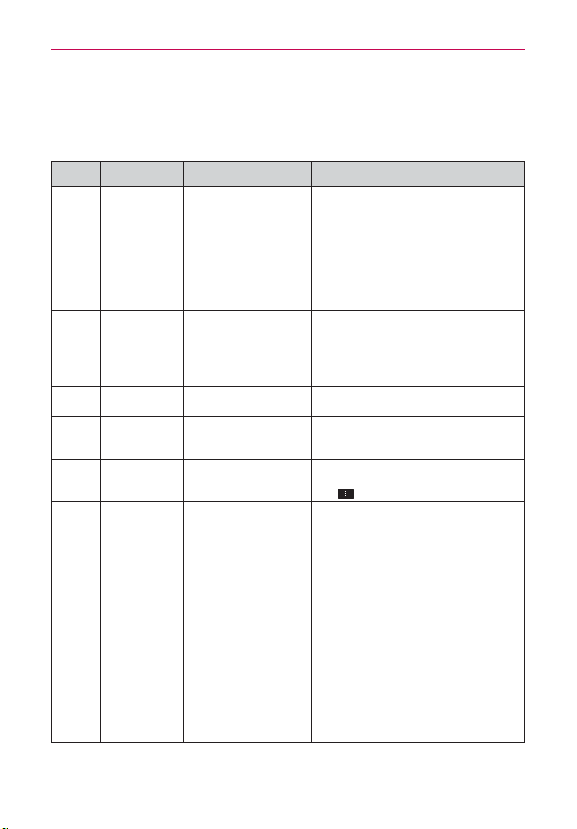
187
FAQ
Please check to see if any problems you have encountered with your phone
are described in this section before taking the phone in for service or calling
a service representative.
Category Sub-Category Question Answer
Bluetooth
Bluetooth
Devices
What are the functions
available via Bluetooth?
You can connect a Bluetooth audio device
such as a Stereo/Mono headset or Car Kit.
When it’s connected to another phone via
Bluetooth, you can share photos, contacts
and other content.
Also, when the FTP server is connected to
a compatible device, you can share content
stored in the storage media(internal memory
or SD card).
Bluetooth
Bluetooth
device
If my Bluetooth device
is connected, can I listen
to my music through
my 3.5mm wired
headphones?
Yes, you can listen to your music through
the last connected device.
Data
Contacts
Backup
How can I back up
Contacts?
The Contacts data can be synchronized
between your phone and Gmail™.
Data Synchronization
Is it possible to set
up one-way-sync with
Gmail?
Only two-way synchronization is available.
Data Synchronization
Is it possible to
synchronize all the Email
folders?
The Inbox is automatically synchronized. You
can view other folders by tapping the Menu
Key
and selecting Folders.
Data Synchronization
Is it possible to transfer
Contacts data from a
feature phone to an
Android™ phone?
Yes, if your contacts can be extracted into a
.CSV file.
How to transfer:
1. Create “.CSV” file with the contacts on
your current phone (you may be able to
use the PC suite software provided by
LGE).
2. Log into Gmail with your PC.
3. Click Contacts.
4. Click Import.
5. Attach the “.CSV” file.
6. Your contacts will then be synchronized
between your Android phone and Gmail.
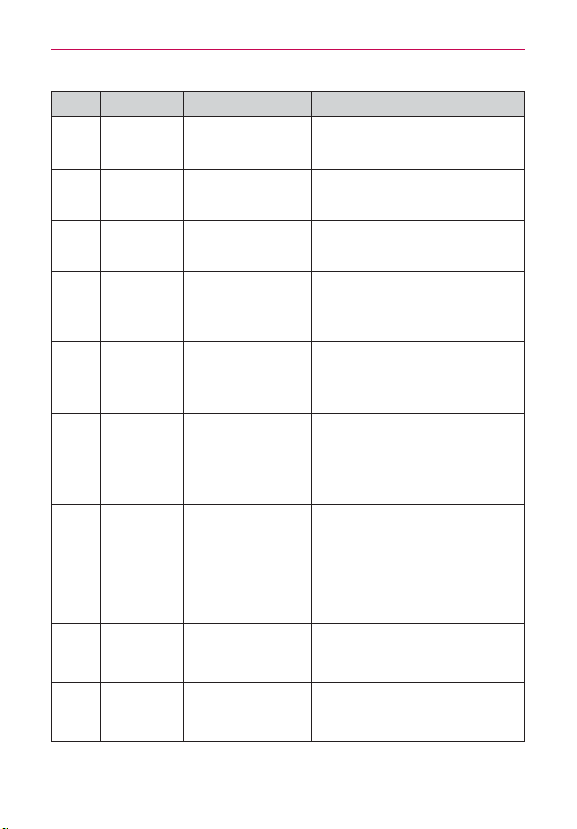
188
FAQ
Category Sub-Category Question Answer
Google™
Service
Gmail Log-In
Should I have to log into
Gmail whenever I want to
access Gmail?
Once you log into Gmail, you don’t need to
log in Gmail again.
Google
Service
Google Account
Is it possible to filter
emails?
No, email filtering is not supported via the
phone.
Phone
Function
YouTube™
Is it possible to play
YouTube videos?
Yes, YouTube videos are supported but may
have to be viewed through the YouTube
application (and not the Browser).
Phone
Function
Email
What happens when
I execute another
application while writing
an email?
Your email will automatically be saved as a
draft.
Phone
Function
Ringtone
Is there a file size
limitation for when I want
to use an .MP3 file as a
ringtone?
There is no file size limitation.
Phone
Function
Message Time
My phone does not
display the time of receipt
for messages older than
24 hours. How can I
change this?
You will only be able to see the times for
messages received the same day.
Phone
Function
microSD Card
Is it possible to save
applications to the
microSD card?
No, memory which applications are installed
on the phone is enough, so it doesn't need
to move applications from phone to the
miscroSD card.
In addition, if memory is lower than 500 MB,
it is not possible to install any applications.
In this case, please secure enough memory.
Phone
Function
microSD Card
What is the maximum
supported size for a
memory card?
32GB memory cards are compatible.
Phone
Function
Navigation
Is it possible to install
another navigation
application on my phone?
Any application that is available on Play
Store™ and is compatible with the hardware
can be installed and used.
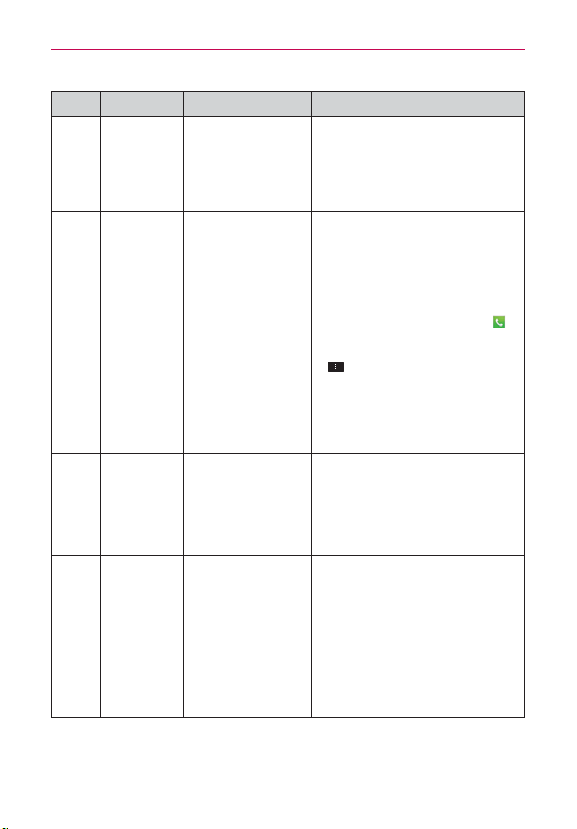
189
FAQ
Category Sub-Category Question Answer
Phone
Function
Synchronization
Is it possible to
synchronize my contacts
from all my email
accounts?
Only Gmail and MS Exchange server
(Company Email Server) contacts can be
synchronized.
Phone
Function
Wait and Pause
Is it possible to save a
contact with Wait and
Pause in the numbers?
If you transferred a contact with the Wait
& Pause functions saved into the number,
those functions will not be recognized. You
will need to re-save each number.
How to re-save numbers with Wait and Pause:
1. From the Home screen, tap Phone (in
the Quick Keys bar).
2. Dial the number, then tap the Menu Key
.
3. Tap Add 2-sec pause or Add wait.
4. Enter the remaining number(s) and
continue saving the number as necessary.
Phone
Function
Security
What are the phone’s
security functions?
You are able to set the phone to require
the entry of an unlock sequence (pattern,
PIN, or password) before the phone can be
accessed or used.
Phone
Function
Unlock Pattern
What should I do if I
forget my Unlock Pattern?
After attempting the Unlock Pattern 5 times,
you can tap the Forget Pattern? option and
use your Google Account information to
unlock your phone.
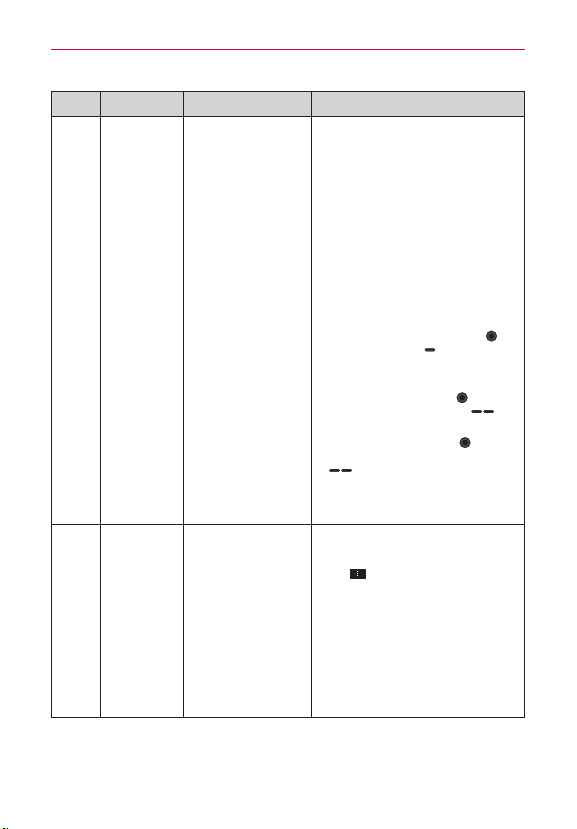
190
FAQ
Category Sub-Category Question Answer
Phone
Function
Unlock Pattern
What should I do if I
forgot the Unlock Pattern
and I didn’t create a
Google Account on the
phone?
Without entering the Unlock Pattern, you
will not be able to access your phone.
Caution: If you perform a factory reset,
all user applications and user data will be
deleted. Please remember to back up any
important data before performing a factory
reset.
How to perform a factory reset:
1. Turn the power off.
2. Press and hold the following keys at
the same time: Power/Lock Key
+
Volume Down Key
.
3. Release the keys when the FACTORY
HARD RESET screen is displayed.
4. Press thePower/Lock Key
to
continue or the Volume Keys
to
cancel.
5. Press the Power/Lock Key
once
more to confirm or the Volume Keys
to cancel.
Phone
Function
Unlock Pattern
How do I create the
Unlock Pattern?
1. From the Home screen, tap the Menu
Key
.
2. Tap Lock screen settings.
3. Tap Select screen lock.
4. Tap Pattern. The first time you do this,
a short tutorial about creating an unlock
pattern appears.
5. Set up by drawing your pattern once >
Continue, draw again > Confirm.
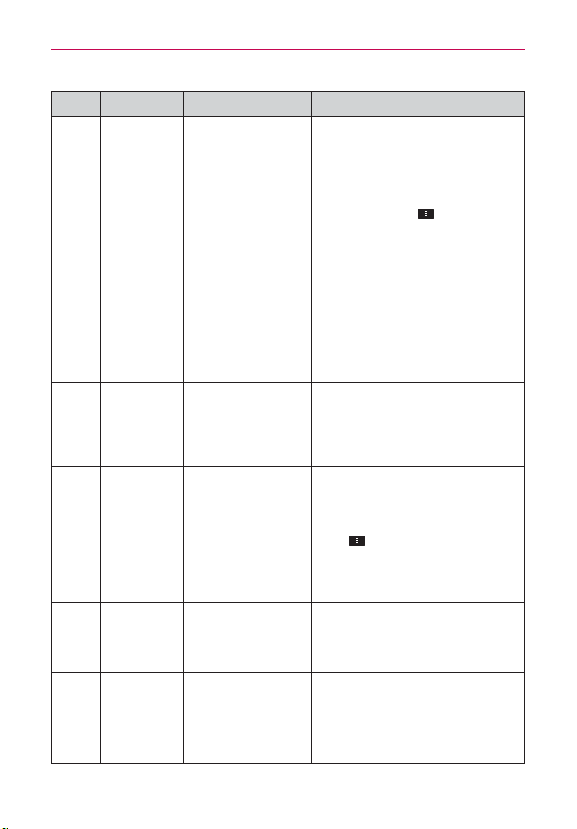
191
FAQ
Category Sub-Category Question Answer
Phone
Function
Speed Dial
Is Speed Dialing
supported?
Yes. You can set Speed Dials as well as save
a contact directly on your Home screen.
To set a Speed Dial:
1. Open the Contacts application.
2. Tap the Menu Key
> Speed dial.
3. Tap the speed dial location and select the
desired contact.
To set a Direct Dial shortcut to your Home
screen:
1. Tap and hold an empty area on your
Home screen.
2. Tap Widgets > Direct Dial.
3. Select a contact from your Contacts List.
Phone
Function
Memory
Will I know when my
memory is full?
First, if memory is lower than 500 MB, you
will see low memory notification.
Second, if memory is lower than 10 MB,
some applications will not work normally.
Phone
Function
Language
Support
Is it possible to change
the language?
The phone has multi-lingual capabilities.
To change the language:
1. From the Home screen, tap the Menu
Key
> Settings.
2. Tap Language & input > Language.
3. Tap the desired language.
Phone
Function
Language
Support
Which languages are
supported when using
Play Store?
The Play Store application supports English
and Spanish. Third party applications may
not support all languages.
Phone
Function
VPN How do I set up a VPN?
VPN access configuration is different
according to each company. To configure
VPN access from your phone, you must
obtain the details from your company’s
network administrator.
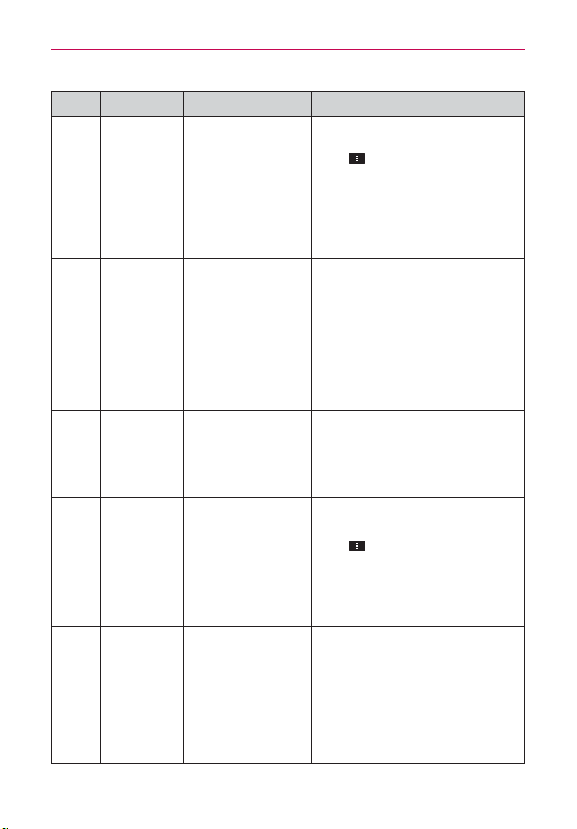
192
FAQ
Category Sub-Category Question Answer
Phone
Function
Screen time out
My screen turns off after
only 15 seconds. How
can I change the amount
of time for the backlight
to turn off?
1. From the Home screen, tap the Menu
Key
.
2. Tap Settings > Display > Screen
timeout.
3. Tap the preferred screen backlight
timeout time.
Phone
Function
Wi-Fi & 4G
When Wi-Fi and 4G are
both available, which
service will my phone
use?
When using data, your phone may default
to the Wi-Fi connection (if Wi-Fi connectivity
on your phone is set to On). However, there
will be no notification when your phone
switches from one to the other.
To know which data connection is being
used, use the 4G or Wi-Fi icon at the top of
your screen.
Phone
Function
Home screen
Is it possible to remove
an application from the
Home screen?
Yes. Just tap and hold the icon until the
Remove bar appears at the top-center of
the screen. Then, without lifting your finger,
drag the icon to the Remove bar.
Phone
Function
Application
I downloaded an
application and it causes
a lot of errors. How do I
remove it?
1. From the Home screen, tap the Menu
Key
.
2. Tap Settings > Application manager.
3. Tap the application > Uninstall.
Phone
Function
Ringtones
Can I use music files for
my ringtones?
Yes. After saving a music file, you can set it
as a ringtone.
Tap and hold a song in a library list. In
the Context menu that opens, tap Set as
ringtone.
193
FAQ
Category Sub-Category Question Answer
Phone
Function
Alarm
Will my alarm be audible
or will it go off if the
phone is turned off?
No, this is not supported.
Phone
Function
Alarm
If my Ringer Volume is
set to Off or Vibrate, will
I hear my alarm?
Your alarm is programmed to be audible
even in these scenarios.
Phone
Spec
Battery Time
What is the maximum
amount of time my
phone’s battery will last
before I need to recharge
it?
Talk time : Approx. 600 mins
Standby : Approx. 17 days
Phone
Spec
Band
Which wireless bands are
supported by the phone?
Your phone is able to operate on the
800Mhz and 1900MHz bands.
Recovery
Solution
Factory Reset
How do I perform a
factory reset?
1. From the Home screen, tap the Menu
Key
.
2. Tap Settings > Backup & reset > Factory
data reset.
NOTE Tap the checkbox to also erase all
contents from your microSD card
when the phone is reset.
3. Read the warning and tap Reset phone.
4. Tap Erase everything.
Attention:
If a factory reset is performed, all installed
application and user data will be erased.
Please remember to back up any important
data before performing a factory reset.

194
Index
A
Adding a Contact to Your
Favorites 92
Adding application icons to
the Home screen 37
Adding Contacts 89
Advanced settings 80
Airplane mode 65
Alarm/Clock 158
Answering or Rejecting
Calls 66
Applications: How to View,
Open and Switch 34
B
Backup Assistant Plus 86
Bookmark your favorite
web pages 77
Browser 74
Browse web pages 74
C
Calculator 157
Calendar 151
Calendar & Alarm icons 25
Call a Contact by Voice
Dialing 121
Call icons 25
Calling Your Contacts 69
Call logs tab 120
Camera 122
Changing and Monitoring
Online Status 115
Changing Google Talk
Settings 118
Changing Messaging
Settings 110
Changing the Browser
settings 78
Changing Weather Settings
85
Charging the Phone 18
Charging with the USB
Cable 18
Chatting with Friends 114
Checking the Weather 84
Clean View 29
Composing and Sending a
Message 103
Connecting Quickly With
Your Contacts 50
Connecting to Wi-Fi
Networks 52
Connectivity icons 26
Contacts 88
Contacts tab 120
Context menus 39
Customizing the
Applications screen 35
Customizing the Home
Screen 48
D
Dial tab 119
DivX Mobile 186
Dolby Mobile License
notice 186
Downloading and Installing
Applications 137
DTS License notice 186
E
Email 95
Email and Messaging icons
25
Exchanging Messages 106
F
Favorites tab 120
Front View 11
(
Gallery 129
Getting to Know the Home
Screen 27
Gmail 99
H
Help 13
I
Important Customer
Information 1
Importing, Exporting, and
Sharing Contacts 90
Installing the Battery, SIM
card, and microSD Card 14
Instant List 64
J
Joining Contacts 94

195
Index
L
LG Tag+ 60
Listening to Your Voicemail
73
Locking the Screen 44
M
Make Your Device a Mobile
Hotspot 59
Managing Multiple Calls
72
Managing Notifications 40
Managing the World Clock
Cities 160
Maps 81
Messaging 106
microSD Card 61
Mini Canvas View 28
Music 139
N
Network icons 26
NFC 60
O
Open an Application using
Voice Dialer 121
Opening and Closing the
Applications screen 34
Opening and Switching
Applications 36
Opening Email and the
Accounts Screen 95
Opening Gallery and
Viewing Your Albums 129
Opening Gmail and Your
Inbox 99
Opening Music and
Working with Your Library
140
Opening Play Store and
Finding Applications 136
Optimizing Battery Life 19
Options During a Call 70
Options menus 39
P
Phone Overview 11
Phone’s Status Icons 25
Photo options 122
Placing and Ending Calls
63
Playing Music 141
Play Store 136
Polaris Office 4 161
Privacy & Security 78
Q
Quick Keys 27
QuickMemo 51
R
Reading Your Email 96
Rear View 12
Replying to or Forwarding a
Message 104
S
Searching Your Phone and
the Web 42
Selecting an Instant list
entry 65
Selecting Which Contacts
are Displayed 93
Separating Contact
Information 94
Sequence matches 64
Setting Alarms 158
Setting an Event Reminder
156
Settings 165
Setting the Timer 159
Setting the World Clock
160
Setting Up Your Device 22
Setting up your Google
Account 23
Sound icons 25
System icons 26
T
Table of Contents 2
Talk 113
Technical Details 5
Text Input Methods 31
The Basics 11
The Phone application 119
To open Google Talk and
sign in 113
Top View and Side View
13
Touchscreen 30
To view other Home screen
canvases 28

196
Index
Transferring Music Files to
Your Phone 139
Turning the phone off 20
Turning the phone on 20
Turning the Phone On and
Off 20
6
USB Autorun 56
Using SmartShare 162
Using Tag+ reading 60
Using Tag+ writing 60
Using the Stopwatch 160
Using Your Contacts 88
V
Video Camera 126
Video options 126
Video Player 145
Video Wiz 134
Viewing Event Details 155
Voice Dialer 70, 121
Voicemail 98
Voice Recorder 149
W
Wi-Fi Direct connection 55
Working in Agenda View
154
Working in Day View 152
Working in Month View
153
Working in Week View
153
Working with Albums 129
Working with Menus 39
Working with Pictures 130
Working with Playlists 144
Working With the Call logs
68
Working with Videos 133
:
Your Home screen 29
Your Photos and Videos
128
YouTube™ 147