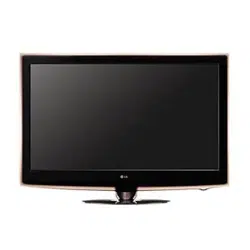
Wireless
LCD
TV
User's
Guide
(15LW1R/15LW1RA)
Please
read
the
"Safety
Precautions"
section
carefully
to
use
this
product
properly

2
Major
Functions
of
Wireless
LCD
TV
Wireless
TV
Function
*
Wireless
transmission
unit
enables
you
to
watch
TV
in
a
place
where
there
is
no
antenna/cable
connection
available
in
a
convenient
location.
Media
Player
Function
*
When
connected
to
your
PC,
you
can
play
back
pictures,
music
files
or
video.
Thank
you
purchasing
LG
product.
Please
check
whether
the
following
accessories
are
included
in
the
wireless
TV
package.
*
Actual
wireless
TV
and
its
accessories
may
look
differently.
*
The
maximum
usage
distance
is
35m;
limited
by
obstacles
or
other
interference
to
the
wireless
network.
*
A
mosaic
screen
may
appear
if
network
connection
is
poor,
since
broadcasting
is
converted
to
the
MPEG
format
before
transmitted
wirelessly.
*
Connection
quality
can
be
affected
by
other
devices
that
transmit
radio
waves.
*
There
is
approximately
a
1.5
second
delay
between
the
signal
source
and
the
display.
O
WE
R
PO
W
E
R
Wireless
TV
Max.
35m
PC
Wireless
transmission
unit
Wireless
transmission
unit
Wireless
TV
Max.
35m
PC
Wireless
TV
Accessories
Remote
Control
and
Batteries
(AAA
x2)
User's
Guide,
Software,
and
other
cards.
2
Power
cords
RCA
cable
S-video
cable
2
Antenna
cables
Distributor
(cable
splitter)
2
DC
adaptors
TV
battery
pack
Mounting
stand
(only
use
with
15LW1R
)
Wireless
transmission
unit

/
Contents
04
22
28
Before
you
Use
Warning
Safety
Information
SAR(Specific
Absorption
Rates)
Information
Safety
instructions
Safety
Precautions
Name
and
Functions
of
Wireless
TV
Parts
Front/Upper
view
of
the
wireless
TV:
Adjustment
buttons
Rear
view
of
the
wireless
TV/
wireless
transmission
unit
Watching
the
wireless
TV
using
the
mounting
tstand
(Only
use
with
15LW1R)
Wireless
TV
Battery
pack
Installing
a
battery
pack
Remote
Control
Connection
and
Usage
Power
Connection
Connecting
the
Antenna
Connecting
more
than
2
TV
Sets
Connecting
VCR/DVD
Connecting
Cable
TV
Converter
Connecting
External
Devices
like
a
Camcorder
Adjustment
when
Using
the
Wireless
TV
Watching
the
Wireless
TV
Language
Selection
On-screen
Menus
Language
Selection
Programming
the
Channels
Memorizing
all
broadcasting
channels
Memorizing
or
clearing
the
specific
channels
Setting
Favorite
Channels
Watching
the
selected
channel
only
Adjusting
the
Picture
Adjusting
the
picture
automatically
Adjusting
contrast
Adjusting
brightness
Adjusting
depth
of
color
Adjusting
sharpness
Adjusting
tint
04
05
06
07
09
16
16
17
18
19
19
20
22
23
24
25
26
27
28
29
29
30
30
30
31
31
32
32
32
33
33
34
34
43
62
Adfusting
Sound
Adjusting
best
sound
automatically
Using
the
SAP
(Secondary
Audio
Program)
function
AVL
(Auto
Volume
Leveler)
Adjusting
sound
balance
Special
Menu
Options
Selecting
the
Input
Signal
Watching
the
Program
with
Caption
Text
Settings
the
Captions
Closed
Captions
Setting
the
Sleep
Timer
Setting
the
key
lock
Parental
Lock
Options
Setting
the
lock
function
Changing
the
password
setting
Using
Media
Browser
Using
Media
Browser
Setting
the
wireless
network
(Setting
method
1)
Setting
the
wireless
network
in
the
Computer
Installing
the
"Media
Library"
Server
in
you
computer
Setting
Wireless
Network
(Setting
method
2)
Using
Media
Library
Manager
Viewing
Pictures
Playing
Musics
Playing
Movies
Changing
Settings
Note
Check
before
reporting
malfunction
Product
Specification
35
35
35
36
36
37
37
37
38
39
40
40
41
41
41
43
43
45
47
50
53
54
56
59
61
62
66
Contents

4
Warning
NOTE
TO
CABLE/TV
INSTALLER:
This
reminder
is
provided
to
call
the
CATV
system
installer's
attention
to
Article
820-40
of
the
National
Electric
Code
(U.S.A.).
The
code
provides
guidelines
for
proper
grounding
and,
in
particular,
specifies
that
the
cable
ground
shall
be
connected
to
the
grounding
system
of
the
building,
as
close
to
the
point
of
the
cable
entry
as
practical.
REGULATORY
INFORMATION
This
equipment
has
been
tested
and
found
to
comply
with
the
limits
for
a
Class
B
digital
device,
pursuant
to
Part
15
of
the
FCC
Rules.
These
limits
are
designed
to
provide
reasonable
protection
against
harmful
interference
in
a
residential
installation.
This
equipment
generates,
uses
and
can
radiate
radio
frequency
energy
and,
if
not
installed
and
used
in
accordance
with
the
instructions,
may
cause
harmful
interference
to
radio
communications.
However,
there
is
no
guarantee
that
interference
will
not
occur
in
a
particular
installation.
If
this
equipment
does
cause
harmful
interference
to
radio
or
television
reception,
which
can
be
determined
by
turning
the
equipment
off
and
on,
the
user
is
encouraged
to
try
to
correct
the
interference
by
one
or
more
of
the
following
measures:
-
Reorient
or
relocate
the
receiving
antenna.
-
Increase
the
separation
between
the
equipment
and
receiver.
-
Connect
the
equipment
into
an
outlet
on a
circuit
different
from
that
to
which
the
receiver
is
connected.
-
Consult
the
dealer
or
an
experienced
radio/TV
technician
for
help.
Any
changes
or
modifications
not
expressly
approved
by
the
party
responsible
for
compliance
could
void
the
user
's
authority
to
operate
the
equipment.
CAUTION:
Do
not
attempt
to
modify
this
product
in
any
way
without
written
authorization
from
LG
Electronics
Corporation.
Unauthorized
modification
could
void the
user's
authority
to
operate
this
product.
U.S.A.
only
------------------------------------------------
COMPLIANCE:
The
responsible
party
for
this
product's
compliance
is:
LG
Electronics
U.S.A.,
Inc.
1000
Sylvan
Avenue,
Englewood
Cliffs,
NJ
07632
Phone:
1-201-816-2000
http://www.lgusa.com
-----------------------------------------------------------------

5
Safety
Information
SAFETY
INFORMATION
FOR
FIXED
WIRELESS
TERMINALS
POTENTIALLY
EXPLOSIVE
ATMOSPHERES
Turn
your
TV
OFF
when
in
any
area
with
a
potentially
explosive
atmosphere
and
obey
all
signs
and
instructions.
Sparks
in
such
areas
could
cause
an
explosion
or
fire
resulting
in
bodily
injury
or
even
death.
INTERFERENCE
TO
MEDICAL
DIVICES
Certain
electronic
equipment
may
be
shielded
against
RF
signal
from
you
wireless
TV.
(Pacemakers,
Hearing
Aids,
and
so
on)
Turn
your
TV
OFF
in
health
care
facilities
when
any
regulations
posted
in
these
areas
instruct
you
to
do
so.
RF
signals
may
affect
improperly
installed
or
inadequately
shielded
electronic
system
in
motor
vehicles.
EXPOSURE
TO
RF
ENERGY
Use
only
the
supplied
or
an
approved
replacement
antenna.
Do
not
touch
the
antenna
unnecessarily
when
the
TV
is
in
use.
SAFETY
INFORMATION
FOR
RF
EXPOSURE
BODY
WORN
OPERATION
This
device
was
tested
for
typical
body-worn
operations
with
the
back
of
the
TV
kept
15
mm.
from
the
body.
To
maintain
compliance
with
FCC
RF
exposure
requirements,
use
only
belt-clips,
holsters
or
similar
accessories
that
maintain
a
15
mm.
Separation
distance
between
the
user
's
body
and
the
back
of
the
TV,
including
the
antenna.
The
use
of
belt-clips,
holsters
and
similar
accessories
should not
contain
metallic
components
in
its
assembly.
The
use
of
accessories
that
do
not
satisfy
these
requirements
may
not
comply
with
FCC
RF
exposure
requirements,
and
should
be
avoided.

6
Before
you
Use
SAR
(Specific
Absorption
Rates)
Information
THIS
MODEL
TV
MEETS
THE
GOVERNMENT'S
REQUIREMENTS
FOR
EXPOSURE
TO
RADIO
WAVES.
Your
wireless
TV
is
a
radio
transmitter
and
receiver.
It
is
designed
and
manufactured
not
to
exceed
the
emission
limits
for
exposure
to
radiofrequency
(RF)
energy
set
by
the
Federal
Communications
Commission
of
the
U.S.
Government.
These
limits
are
part
of
comprehensive
guidelines
and
establish
permitted
levels
of
RF
energy
for
the
general
population.
The
guidelines
are
based
on
standards
that
were
developed
by
independent
scientific
organizations
through
periodic
and
thorough
evaluation
of
scientific
studies.
The
standards
include
a
substantial
safety
margin
designed
to
assure
the
safety
of
all
persons,
regardless
of
age
and
health.
The
exposure
standard
for
wireless
TV
employs
a
unit
of
measurement
known
as
the
Specific
Absorption
Rate,
or
SAR.
The
SAR
limit
set
by
the
FCC
is
1.6
W/kg.
*Tests
for
SAR
are
conducted
with
the
TV
transmitting
at
its
highest
certified
power
level
in
all
tested
frequency
bands.
Although
the
SAR
is
determined
at
the
highest
certified
power
level,
the
actual
SAR
level
of
the
TV
while
operating
can
be
well
below
the
maximum
value.
This
is
because
the
TV
is
designed
to
operate
at
multiple
power
levels
so
as
to
use
only
the
power
required
to
reach
the
network.
In
general,
the
closer
you
are
to
a
wireless
base
station
antenna,
the
lower
the
power
output.
Before
a
TV
model
is
available
for
sale
to
the
public,
it
must
be
tested
and
certified
to
the
FCC
that
it
does
not
exceed
the
limit
established
by
the
government
adopted
requirement
for
safe
exposure.
The
tests
are
performed
in
positions
and
locations
(e.g.,
at
the
ear
and
worn
on
the
body)
as
required
by
the
FCC
for
each
model.
The
highest
SAR
value
for this
model
when
tested
for
use
when
worn
on
the
body,
as
described
in
this
user
guide,
is
0.094
W/Kg
(Wireless
Transmission
Unit),
0.200
W/Kg(Wireless
TV).
(Body-worn
measurements
differ
among
models,
depending
upon
available
accessories
and
FCC
requirements).
While
there
may
be
differences
between
the
SAR
levels
of
various
and
at
various
positions,
they
all
meet
the
government
requirement
for
safe
exposure.
The
FCC
has
granted
an
Equipment
Authorization
for
this
model
with
all
reported
SAR
levels
evaluated
as
in
complince
with
the
FCC
RF
exposure
guidelines.
SAR
information
on
this
model
is
on
file
with
the
FCC
and
can
be
found
under
the
Display
Grant
section
of
http://www.fcc.gov/
oet/fccid
after
searching
on
FCC
ID:
BEJ15LW1T(Wireless
Transmission
Unit),
BEJ15LW1R(Wireless
TV).
Additional
information
on
Specific
Absorption
Rates
(SAR)
can
be
found
on
the
Cellular
Telecommunications
Industry
Association
(CTIA)
web-site
at
http://www.wow-com.com.
*
In
the
United States
and
Canada,
the
SAR
limit
for
mobile
TV
used
by
the
public
is
1.6
watts/kg
(W/kg)
averaged
over
one
gram
of
tissue.
The
standard
incorporates
a
sub-stantial
margin
of
safety
to
give
additional
protection
for
the
public
and
to
account
for
any
variations
in
measurements.

7
Safety
instructions
WARNING:
To
reduce
the
risk
of
fire
or
electric
shock,
DO
NOT
expose
this
apparatus
to
rain
or
moisture.
Apparatus
shall
not
be
exposed
to
dripping
or
splashing
and
no
objects
filled
with
liquids,
such
as
vases,
shall
be
placed
on
the
apparatus.
IMPORTANT
SAFETY
INSTRUCTIONS
1.
Read
these
instructions.
2.
Keep
these
instructions.
3.
Heed
all
warnings.
4.
Follow
all
instructions.
5.
Do
not
use
this
apparatus
near
water.
6.
Clean
only
with
a
dry
cloth.
7.
Do
not
block
any
of
the
ventilation
openings.
Install
in
accordance
with
the
manufacturer
's
instructions.
8.
Do
not
install
near
any
heat
sources
such
as
radiators,
heat
registers,
stoves,
or
other
apparatus
(including
amplifiers)
that
produce
heat.
9.
Do
not
defeat
the
safety
purpose
of
the
polarized
or
grounding
type
plug.
A
polarized
plug
has
two
blades
with
one
wider
than
the
other.
A
grounding
type
plug
has
two
blades
and
a
third
grounding
prong.
The
wide
blade
or
the
third
prong
is
provided
for
your
safety.
When
the
provided
plug
does
not
fit
into
your
outlet,
consult
an
electrician
for
replacement
of
the
obsolete
outlet.
10.
Protect
the
power
cord
from
being
walked
on
or
pinched
particularly
at
plugs,
convenience
receptacles,
and
the
point
where
they
exit
from
the
apparatus.
11.
Only
use
the
attachments
/
accessories
specified
by
the
manufacturer.
12.
Use
only
with
a
cart,
stand,
tripod,
bracket,
or
table
specified
by
the
manufacturer,
or
sold
with
the
apparatus.
When
a
cart
is
used,
use
caution
when
moving
the
cart
/
apparatus
combination
to
avoid
injury
from
tip-over.

8
Before
you
Use
Safety
instructions
continued
13.
Unplug
this
apparatus
during
lightning
storms
or
when
unused
for
long
periods
of
time.
14.
Refer
all
servicing
to
qualified
service
personnel.
Servicing
is
required
when
the
apparatus
has
been
damaged
in
anyway,
such
as
power
supply
cord
or
plug
is
damaged,
liquid
has
been
spilled
or
objects
have
fallen
into
the
apparatus,
the
apparatus
has
been
exposed
to
rain
or
moisture,
does
not
operate
normally,
or
has
been
dropped.
On
Disposal
a.
The
fluorescent
lamp
used
in
this
product
contains
a
small
amount
of
mercury.
b.
Do
not
dispose
of
this
product
with
general
household
waste.
Disposal
of
this
product
must
be
carried
out
in
accordance
to
the
regulations
of
your
local
authority.
FCC
Compliance
Information
This
device
complies
with
Part
15
of
FCC
Rules.
Operation
is
subject
to
the
following
two
conditions:
(1)
This
device
may
not
cause
harmful
interference,
and
(2)
This
device
must
accept
any
interference received.
Including
interference
that
may
cause
undesired
operation.

9
Safety
Precautions
The
following
safety
precautions
are
provided
to
prevent
an
unexpected
accident
or
damage,
through
safe
and
accurate
usage
of
the
product.
Safety
precautions
can
be
grouped
into
"Warning"
and
"Caution"
and
have
the
following
meaning.
Warning:
if
instruction
is
ignored
or
violated,
you
can
be
seriously
injured
or
even
killed.
Caution:
If
instruction
is
ignored
or
violated,
you
can
be
slightly
injured
or
the
product
can
be
damaged.
Prohibited:
You
must
not
do
the
thing
described
after
this
symbol.
If
smoke,
strange
sounds,
or
a
bad
smell
emanates
from
the
product,
unplug
and
contact
a
service
center.
You
can
receive
an
electric
shock
or
a
fire
can
break
out.
if
instruction
is
ignored
or
violated,
you
can
be
seriously
injured
or
even
killed.
?
Please
keep
this
User's
Guide
at
the
place
where
everybody
can
easily
access,
after
reading
this
User's
Guide.
Installation
Take
care
in
placements
of
cables;
do
not
cross
walking
paths.
If
somebody
is
caught
by
the
cord
and
collapses,
he
can
receive
an
electric
shock
or
be
injured,
or
the
product
can
be
damaged
Do
not
put
heavy
objects
on
the
TV
or
let
children
or
pets
crawl
on
the
TV.
Warn
the
children
against
injury
by
collapsing
or
falling
down.
Do
not
insert
any
metallic
object
such
as
coin,
hairpin,
etc.
or
combustible
object.
Also
warn
children
not
to
do
so.
You
could
receive
an
electric
shock
or
it
could
cause
a
fire.
If
any
foreign
object
is
inserted,
unplug
the
power
cord
and
con-
tact
a
service
center.
Keep
anti-moisture
packages,
bags,
and
other
packing
materi-
als
out
of
reach
of
children.
If
swallowed
by
mistake,
induce
vomiting
and
consult
a
doctor
immediately.

10
Before
you
Use
Safety
Precautions
Only
a
qualified
technician
should
disassemble,
repair
or
modify
the
product.
You
could
receive
an
electric
shock
or
it
could
cause
a
fire.
Usage
Keep
the
remote
batteries
out
of
reach
of
children.
If
a
child
swallows
the
battery,
consult
a
doctor
immediately.
Do
not
put
a
fluid
container
such
as
flower
vase,
flowerpot,
cup,
cosmetics
or
medical
supplies
as
well
as
decorations
or
candles
on
the
wireless
TV
or
wireless
trans-
mission
unit.
You
could
receive
an
electric
shock
or
it
could
cause
a
fire.
Do
not
use
the
product
while
it
has
defects
like
no
video
or
no
sound.
Turn
the
product
off,
unplug
it,
and
contact
a
service
center.
You
could
receive
an
electric
shock
or
it
could
cause
a
fire.
If
you
detect
a
gas
leakage,
do
not touch
the
TV
or
turn
it.
It
could
cause
a
fire.

11
Safety
Precautions
Ensure
the
power
cable
is
connect-
ed
properly
to
the
grounded
power
outlet.
You
could
receive
an
electric
shock.
Power Related Precautions
Do
not
use
several
devices
at
the
same
time
when
using
a
power
strip.
Use
a
grounded
power
strip
designed
for
computers.
A
fire
may
break
out
due
to
overheating.
Use
the
specified
rated
voltage.
The
wireless
TV
can
be
damaged,
or
you
can
be
injured.
Do
not touch
the
power
plug
with
wet
hands.
If
the
power
connector
is
wet
or
covered
with
dust,
dry
it
completely
or
scrub
it
off
before
use.
You
could
receive
an
electric
shock.
Firmly
plug
in
the
power
plug
so
that
it
does
not
shake.
A
plug
not
connected
firmly
is
a
fire
hazard.
Hold
the
plug
with
your
hand
when
pulling
out
the
power
cable.
Do
not
bend
the
cord
with
excessive
force,
or
put
a
heavy
object
on
it.
An
electric
wire
can
be
damaged,
which
can
cause
an
electric
shock
or
a
fire.
Unplug
the
product
when
not
in
use
for
a
long
time.
The
product
can
be
covered
with
dust,
which
can
cause
electric
leakage,
electric
shock
or
fire
due
to
heating,
ignition
or
worn-out
insulation.
Do
not
insert
any
conductive
material
into
the
opening
of
the
power
cable.
You
could
receive
an
electric
shock.
CAUTION
concerning
the
Power
Cord
Most
appliances
recommend
they
be
placed
upon
a
dedicated
circuit;
that
is,
a
single
outlet
circuit
which
powers
only
that
appliance
and
has
no
additional
outlets
or
ranch
circuits.
Check
the
specification
page
of
this
owner's
manual
to
be
certain.
Do
not
overload
wall
outlets.
Overloaded
wall
outlets,
loose
or
damaged
Wall
outlets,extension
cords,frayed
power
cords,
or
damaged
or
cracked
wire
insulation
are
dan-
gerous.
Any
of
these
conditions
could
result
in
electric
shock
or
fire.
Periodically
examine
the
cord
of
your
appliance,and
if
its
appearance
indicates
damage
or
deterioration,
unplug
it,
discontinue
use
of
the
appliance,
and
have
the
cord
replaced
with
an
exact
replacement
part
by
an
authorized
servicer.
Protect
the
power
cord
from
physical
or
mechanical
abuse,
such
as
being
twisted,
kinked,
pinched,
closed
in
a
door,
or
walked
upon.
Pay
particular
attention
to
plugs,
wall
outlets,and
the
point
where
the
cord
exits
the
appliance.

12
Before
you
Use
Safety
Precautions
Ensure
that
ventilation
open-
ings
are
not
blocked
by
a
table-
cloth,
curtain
or
similar
material.
The
product
could
be
damaged
due
to
the
internal
temperature
rising
or
it
could
cause
a
fire.
Installation
Do
not
install
the
product
in
direct
sunlight.
The
product
could
be
damaged
or
a
fire
can
break
out.
Install
the
product
on
a
flat
and
stable
surface
that
has
no
risk
of
moving
or
collapsing.
If
the
product
falls
you
can
be
injured
or
the
product
could
be
broken.
Do
not
install
the
product
on an
unstable
and
vibrating
surface.
The
product
could
fall
or
be
turned
over,
which
could
cause
injury.
When
installing
in
an
entertainment
center
or
on
a
shelf,
ensure
that
the
front
of
the
product
is
not
projecting
out
beyond
the
front of
the
cabinet
or
shelf.
The
centre
of
gravity
can
be
unbalanced,
which
could
cause
an
injury
or
breakdown
of
the
product.
Install
the
product
in
a
place
free
of
electromagnetic
interference.
Do
not
install
the
product
where
it
may
have
direct
contact
with
oil
or
moisture
--
such
as
beside
a
kitchen table
or
a
humidifier.
You
could
receive
an
electric
shock
or
it
could
cause
a
fire.
If
instruction
is
ignored
or
violated,
you
can
be
slightly
injured
or
the
product
can
be
damaged.

13
Do
not
throw
away
the
original
packing
and
box.
Use
the
package
box
when
moving
the
product.
Movement
Power Related
Precautions
Cleaning
Do
not
unplug
the
power
cord
while
the
device
is
on
and
the
battery
is
not
mounted.
The
product
could
be
damaged
by
electric
shock.
Do
not
drop
or
bang
the
device
when
carrying
or
transporting.
You
could
be
injured
or
the
product
could
be
damaged.
If
the
power
plug
or
the
outlet
is
covered
with
dust,
clean
it.
It
could
cause
a
fire.
Unplug
the
power
cable,
the
signal
cable,
and
the
battery
before
cleaning
the
product.
You
could
receive
an
electric
shock
or
it
could
cause
a
fire.
Consult
with
customer
service
or
a
service
center about
cleaning
once
a
year.
A
fire
can
break
out
or
the
product
is
bro-
ken
or
if
you
don't
clean
the
product.
Safety
precautions

14
Before
you
Use
Safety
Precautions
Do
not
use
or
store
flammable
materials
close
to
the
product.
It
could
cause
a
fire.
Usage
Always keep
the
product
clean.
Do
not
press
or
scratch
the
panel
with
sharp
objects
(nail,
pencil,
or
pen).
A
panel
can
be
easily
damaged
or
broken.
Use
a
mild
lens
cleaner
to
clean
the
screen.
(Do
not
use
benzene,
thinner,
or
alcohol.)
The
product
can
be
deformed.
Unplug
the
power
cord
and
wipe
with
a
soft
cloth
instead
of
a
wet
cloth.
If
water
infiltrates
through
a
crevice
it
could
cause
an
electric
shock
accident
or
product
breakdown.
Viewing
distance
from
the
prod-
uct
should
be
about
5
~
7
times
of
the
diagonal
distance
of
the
screen.
Your
vision
can
be
impaired
if
you
watch
the
TV
too
closely
for
a
long
time.
Others
Do
not
use a
battery
that
is
not
designated
by
the
manufacturer.
Do
not
mix
new
and
old
batteries.
It
could
cause
the
batteries
to
leak.

15
Safety
Precautions
Do
not
charge
the
battery
pack
using
another
power
supply
device
or
circuit.
The
battery
pack
can
be
damaged.
Battery pack
Only
use a
battery
pack
approved
and
certified
by
LG
Electronics.
There
is
a
risk
of
an
explosion
or
a
fire.
Be
careful
the
battery
pack
terminals
do
not
short
circuit.
There
is
a
risk
of
an
explosion.
Ensure
that
the
battery
pack
is
firmly
inserted.
There
is
a
risk
of
an
explosion
or
a
fire.
Do
not
throw
away
the
used
battery
pack
carelessly.
There
is
a
risk
of
an
explosion
or
a
fire.
Disposal
method
can
be
different
for
each
country
or
region.
Use
the
proper
disposal
method.
Do
not
keep
the
battery
pack
close
to
a
metallic
object
like
a
key
or
a
clip.
The
battery
pack
could
be
dam-
aged,
it
could
cause
a
fire,
or
you
could
be
burned
due
to
rapid
temperature
rising
by
over-current.
Do
not
store
high
temperature
(over
60
degrees)
or
humidity
area.
There
is
a
risk
of
an
explosion
or
a
fire.
Handle
the
battery
pack
with
care
since
it
contains
lithium.
There
is
a
risk
of
an
explosion
or
a
fire.
Do
not
throw
or
disassemble
the
battery
pack.
Thereisariskofafireoran
explosion
due
to
a
damaged
battery
pack.
Do
not store
the
product
near
a
heat-generating
item
like
a
heater.
It
could
cause
a
fire
or
the
product
could
be
damaged.
Keep
out
of
reach
of
the
children.
Children
could
be
injured
or
the
product
could
be
broken.
Use
the
same
type
of
battery
pack
when
replacing
with
a
new
one.

16
Before
you
Use
Name
and
Functions
of
Wireless
TV
Parts
Front
view
of
wireless
TV:
Adjustment
buttons
Upper
view
of
the
wireless
TV:
Adjustment
buttons
4
98
765
3
2
1
10
1
5
6
7
8
9
10
2
3
4
Network
status
LED
Battery
status
LED
Power/Standby
indicator
Remote
controller
sensor
Power
button
TV/AV
button
Menu
button
ENTER
button
Volume
button
Channel
button
Shows
the
status
of
the
wireless
transmission
unit
in
the
system
or
connection
to
the
computer.
Shows
the
battery
status
of
the
system.
For
more
details,
see
page
19.
Shows
blue
color
under
normal
operation.
Brightness
becomes
dimmer
as
time
goes
by.
Press
the
button
to
turn
on
and
press
again
to
turn
off.
Each
time
you
press
this
button,
the
signal
will
be
switched
in
the
following
order.
Shows/Hides
the
OSD
(On
Screen
Display)
menu
screen
while
the
wireless
TV
is
on.
Displays
the
channel/battery
information while the
wireless
TV
is
on.
Or,
you
will
save
the
wireless
TV
adjustment
settings.
Adjusts
the
volume.
Adjusts
the
channel.
TV
->
Video
->
S-Video

Name
and
Functions
of
Wireless
TV
Parts
17
Rear view
of
the
wireless
TV
Wireless
transmission
unit
1
4
2
4
3
1
2
4
3
5
8
9
6
7
Rear
view
of
the
transmission
unit
Handle
Stand
You
can
insert
a
battery
by
separating
a
stand.
Or
you
can
connect
to
the
VESA
standard
counterparty
object
by
separating
a
stand.
(See
the
below
figure)
Theft
prevention
locking
device
This
device
is
used
to
prevent
theft
by
connecting
the
locking
cable
(optional).
See
the
below
figure.
Headphone/Earphone
DC
adaptor
port
Connect
to
the
power
VESA
standard
counterparty
object
Stand
and
wall
mounting
type
(Not
included)
Theft
prevention
locking
device
(Not
included)
Rear
view
of
the
wireless
TV
Wireless
Transmission
Unit
1
2
3
4
5
6
Power
Button
Press
the
button
to
turn
on
and
press
again
to
turn
off.
Power/
Standby
indicator
Network
status
indicator
Shows
the
power
status
of
the
wireless
transmission
unit.
Red
during
normal
oper-
ation
and
yellow
while
in
standby
mode.
Wireless
TV
connection
indicator.
Blue
when
a
network
connection
has
been
established
with
wireless
TV.
S-video
output
port
2
3
1
RS-232C
(Bottom
of
the
wireless
TV,
bottom
of
the
wireless
transmission
unit)
S-video
input
port
AV
output
port
AV
input
port
DC
adaptor
port
Connect
to
the
adaptor.
Antenna
input
port
Connect
ot
an
antenna
or
cable
TV
connection.
7
8
9
Theft
prevention
locking
device
-
This
TV
is
equipped
with
a
Kensington
Security
System
connector
on
the
back
panel.
The
Kensington
Security
System
is
an
optional
accessory.
For
further
information,
visit
http://www.kensington.com.
Kensington
sells
security
systems
for
expensive
electronic
equipment
such
as
notebook
PCs
and
LCD
projectors.
-
The
Kensington
Security
System
is
an
optional
accessory.
Service
port.
Only
to
be
used
by
a
qualified
servicer.

18
Before
you
Use
Wireless
TV
stand
Watching
the
wireless
TV
using
the
mounting
stand
(Only
use
with
15LW1R)
1
2
Front
view
Side
View
Wireless
TV
Mounting
stand
(Applicable
for
15LW1R
model
only)
Lift
up
the
wireless
TV
while
holding
down
the
"Push"
button
to
separate.
You
can
watch
the
wireless
TV
at
any
angle
using
the
mounting
type
stand.
Unfold
the
wireless
TV
stand
and
put
it
on
the
mounting
stand.
If
the
stand
is
not
fixed
properly,
the
stand
can
be
separated
and
broken
down.
Press
the
TV
until
you
hear
a
"click"
sound
to
fix
it
in
place
firmly.
10°~35°
TV
stand.
Adjust
the
angle
of
the
stand
as
shown
below.
Be
careful
because
the
stand
can
be
broken
if
you
apply
excessive
force
while
the
stand
is
unfolded.
When
watching
the
wireless
TV
using
the
wireless
TV
stand.
When
watching
the
wireless
TV
using
the
mounting
stand
155°
-5°

19
Installing
a
battery
pack
12
34
Cover
the
floor
with
soft
cloth
or
a
cushion.
Place
the
wireless
TV
face
down
and
unfold
the
TV's
stand.
Unscrew
the
screws
at
both
sides
as
shown
in
the
figure.
You
can use
a
coin
or
a
screwdriver
to
loosen
the
screws.
1.
Connect
the
DC
adaptor
to
the wireless
TV.
2.
Connect
the
power
cord
to
the
DC
adaptor
and
then,
connect
to
the
power
supply.
Front
of
the
wireless
TV
DC
adaptor
Power
cord
Side
of
the
wireless
TV
Separate
the
wireless
TV
stand.
Insert
the
battery
pack
down
into
the
battery
pack
holder
(1),
then
slide
it
left
(2).
Replace
the
cover
and
screws
after
installing
the
battery
pack.
*
The
maximum
battery
pack
usage
time
can
differ
according
to
the
usage
temperature
or
usage
duration.
*
If
the
battery
pack
is
not
used
for
a
long
time,
it
can
be
dis-
charged.
In
this
case,
charge
the
battery
pack
first
before
use.
Wireless
TV
Battery
pack
1
2
To
charge
the
battery
Battery
pack
Status
LED
Battery
pack
Charging
and
Maximum
Usage
time
When
using
the
battery
pack
(DC
adaptor
is
not
connected)
Remaining
Amount
(%)
30~100
10~30
Under
10
0
Green
Yellow
Yellow
(blinking)
off
Status
LED
Color
When
charging
the
battery
pack
(DC
adaptor
is
connected)
Charging
Amount
(%)
Under
97
Over
98
Yellow
Green
Status
LED
Color
When
charging
the
battery
pack
(DC
adaptor
is
connected)
IfTVisoff
IfTVison
Max.
4
hours
Max.
6
hours
Maximum
battery
pack
usage
time
IfTVison
Max.3hours

20
Before
you
Use
Remote
Control
How
to
change
the
batteries
Slide
the
battery
cover
downward
to
open
it.
Then,
insert
the
batteries
(1.5V,
2
AAA
type
alkaline
batteries)
to
the
(+)
and
(-)
direction
as
marked
inside
the
remote
control
battery
holder.
Then,close
the
cover.
?
Put
used
batteries
into
a
recycling
bin.
POWER
TV/AV
Each
time
you
press
the
button,
TV
->
Video
->
S-Video
will
be
displayed
sequentially.
SLEEP
TV
will
be
automatically
turned
off
after
a
certain
amount
of
time.
Set
the
time
duration
you
want
by
pressing
this
button
repeatedly.
CC
See
page
37.
NUMBER
buttons
*
No
function
TV/MEDIA
Use
this
button
to
use
the
Media
Browser
in
the
TV,
or
vice
versa.
FLASHBK
Use
this
button
to
select
the
previous
channel.
SURF
See
page
31.
CH/PAGE
TV:
Changes
the
channel.
Media
Browser:
Moves
the
list
page
by
page.
VOL
Use
this
button
to
adjust
the
volume.
MUTE
Use
this
button
to
suppress
the
sound
from
the
speaker.
Media
handling
buttons
Used
in
the
Media
Browser.
MENU
TV:
Adjusts
the
TV
functions.
Media
Browser:
Moves
to
the
setting
screen.
Moves
to
the
previous
menu
in
the
Menu
screen.
MOVE/SELECT
buttons
TV:
Changes
TV/AV
settings.
Media
Browser:
Moves
the
list.
HOME
Media
Browser:
Moves
to
the
home
screen.
EXIT
TV:
Hides
the
Menu
screen.
Media
Browser:
Stops
the
slide
show.
MARK
Media
Browser:
Selects
the
list
or
cancels
list
selection.
1
8
14
15
16
17
18
9
10
11
12
13
2
3
4
5
6
7
1
2
3
4
5
6
7
8
9
10
13
14
17
18
15
16
11
12

21
19
20
21
22
Remote
Control
TV/AV
TV/MEDIA
SLEEP CC
FLASHBK
SURF
Point
the
remote
towards
the
remote
control
sensor
of
the wireless
TV
and
use
it
within
about
7
meters.
EZ
VIDEO
TV:
Adjusts
the
screen
status
to
your
preference.
(See
page
32)
Media
Browser:
Arranges
the
list.
EZ
AUDIO
TV:
Adjust
the
audio
status
to
your
preference.
(See
page
35)
Media
Browser:
Selects
multiple
files.
Media
Browser:
Starts
the
slide
show,
Plays
back
the
music
file
randomly,
Shows/Hides
the
movie
caption.
AUDIO
Each
time
you
press
the
button,
Mono
->
Stereo
->
SAP
will
be
displayed
sequentially.
(See
page
35)
Media
Browser:
Plays
back
the
music
file
repetitively.
19
20
22
21

22
Connection
and
Usage
Power
Connection
Connecting
the
electric
power
to
the
wireless
TV
Connecting
the
electric
power
to
the
wireless
transmission
unit
Connect
the
power
as
shown
in
the
following
figure
to
use
the
wireless
TV.
Wireless
TV
DC
adaptor
Power
cord
Wireless
transmission
unit
DC
adaptor
P
O
W
E
R
Power
cord
Antenna
cable

23
Connecting
the
Antenna
-
For
optimum
picture
quality,
adjust
antenna
direction.
Connecting
to
an
Inside
Antenna
Setup
-
Typical
wall
antenna
jack
used
in
apartment
buildings,
connect
the
antenna
cable
as
shown
below.
(Use
the
correct
type
of
antenna
cable
for
the
type
of
wall
antenna
jack.)
-
If
you
have
a
75Ω
round
cable,
insert
the
bronze
wire
and
then
tighten
the
connection
nut.
If
you
have
a
300Ω
flat
wire,
connect
the
twisted
wire
to
the
antenna
converter
and
then
connect
the
converter
to
the
antenna
jack
on
the
TV.
-
If
using
75Ω
round
cable,
do
not
bend
the
bronze
wire.
It
may
cause
poor
picture
quality.
Apartment
Buildings
-
You
can
enjoy
a
better
quality
screen
in
a
weak
radio
reception
area
if
you
install
a
radio
amplifier
(booster).
-
If
you
have
difficulty
in
installing
the
antenna,
consult
a
specialized
antenna
dealer
or
the
sales
shop
you
purchased
the
antenna
from.
-
Do
not
attach
the
wireless
transmission
unit
to
the
wall.
-
If
you
find
a
mosaic
pattern
on
the
screen
or
the
screen
is
not
displayed
properly
due
to
poor
network
connection,
set
the
front
side
of
the
wireless
transmission
unit
to
face
towards
the
wireless
TV.
Wall
Connection
Jack
Turn
clockwise
to
tighten.
Bronze
Wire
75Ω
Round
Cable
300Ω
Flat
Wire
Antenna
Jack
Antenna
Converter
Connecting
to
an
Outdoor
Antenna
Setup
-
This
type
of
antenna
is
commonly
used
in
single
family
dwellings.
Single
Family
Home
VHF
Antenna
Turn
clockwise
to
tighten.
75Ω
Round
Cable
300Ω
Flat
Wire
Antenna
Jack
Antenna
Converter
Wireless
transmission
unit
Front
(Commercial
product)
Antenna
input
port
Radio
amplifier
Antenna
cable
(Not
included)
Necessary
Connection
Cable

24
Connection
and
Usage
Connecting
more
than
2
TV
Sets
-
Connect
the
connection
port
with
the
same
color.
-
Use
the
S-Video
connection
instead
of
Composite
Video
(RCA
Cables)
when
available
for
better
quality.
-
If
the
input
only
supports
mono,
only
the
left
(white)
channel
needs
to
connected.
Connecting
antenna
cables
using
the
distributor.
Rear
view
of
other
external
device
Other
TV
Wireless
transmission
unit
Other
TV
Rear
view
of
other
external
device
Wireless
transmission
unit
Other
TV
1
Connecting
with
RCA
cables.
2
Connecting
with
S-Video
cables
3
-
If
you
connect
more
than
2
TV
sets,
the
image
quality
may
deteriorate.
-
Do
not
attach
the
wireless
transmission
unit
to
the
wall.
-
If
you
find
a
mosaic
pattern
on
the
screen
or
the
screen
is
not
displayed
properly
due
to
poor
network
connection,
set
the
front
side
of
the
wireless
transmission
unit
to
face
towards
the
wireless
TV.
Wireless
transmission
unit
Front
Necessary
Connection
Cables
RCA
cable
S-Video
cable
Antenna
cable
(Not
included)
Antenna
cable
Wireless
transmission
unit
Antenna
cable
(Output) (Output)
(Input)
Distributor
Antenna
cable

25
Connecting
VCR/DVD
-
Connect
the
connection
port
with
the
same
color
when
connecting
the
wireless
transmission
unit
to
the
external
device.
-
Use
the
S-Video
connection
instead
of
Composite
Video
(RCA
Cables)
when
available
for
better
quality.
-
If
the
input
only
supports
mono,
only
the
left
(white)
channel
needs
to
connected.
-
An
after
image
can
occur
when
stantionary
objects
(text,
logo,
etc)
remain
on
the
screen
for
a
long
period.
Turn
on
the
wireless
TV
and
select
channel
#3
or
#4
using
the
TV
remote
control.
Watching
TV
through
S-Video
connection
Watching
TV
through
Composite
Video
connection
Watching
TV
through
antenna
connection
Wireless
transmission
unit
VCR/DVD
Connection
port
on
the
wall
Antenna
cable
Direct
connection
1
Press
the
TV/AV
button
on
the
remote
control
and
select
the
Video
Input.
Insert
a
tape
into
the
video
player
and
press
the
PLAY
button.
2
-
Do
not
attach
the
wireless
transmission
unit
to
the
wall.
-
If
you
find
a
mosaic
pattern
on
the
screen
or
the
screen
is
not
displayed
properly
due
to
poor
network
connection,
set
the
front
side
of
the
wireless
transmission
unit
to
face
towards
the
wireless
TV.
-
You
can
also
play
back
the
video
in
TV
channel
#3
or
#4.
However,
the
selected
channel
number
should
be
identical
to
channel
switch
selection
at
the
rear
side
of
the
video.
-
While
in
Video
input
mode,
press
the
CH
(+,
-)
button,
SURF
or
FLASHBK
button
to
return
to
TV
mode.
Wireless
transmission
unit
Front
Necessary
Connection
Cables
RCA
cable
S-Video
cable
Antenna
cable
(Not
included)
Connecting
with
antenna
cables
Connecting
with
Composite
Video
or
S-Video

26
Connection
and
Usage
Connecting
a
Cable
TV
Converter
-
Do
not
attach
the
wireless
transmission
unit
to
the
wall.
-
If
you
find
a
mosaic
pattern
on
the
screen
or
the
screen
is
not
displayed
properly
due
to
poor
network
connection,
set
the
front
side
of
the
wireless
transmission
unit
to
face
towards
the
wireless
TV.
-
Follow
the
instructions
from
the
local
CATV
service
provider
for
more
details
on
the
CATV
connection
usage.
Wireless
transmission
unit
Front
Necessary
Connection
Cables
RCA
cable
S-Video
cable
Antenna
cable
(Not
included)
-
Connect
the
connection
port
with
the
same
color
when
connecting
the
wireless
transmission
unit
to
the
external
device.
-
To
watch
the
cable
TV,
you
should
subscribe
to
the
local
CATV
broadcasting
service
provider
and
install
the
converter
separately.
When
connection
with
Composite
Video
When
connecting
with
the
antenna
Press
the
TV/AV
button
on
the
remote
control
and
select
Video
Input.
1
Select the
channel
you
want
using
the
converter
remote
control.
2
How
to
use
Set
the
exclusive
channel
selection
switch
of
the
converter
to
channel
#3
or
#4.
1
Set
the
TV
channel
number
to
the
same
as
converters
channels
selection
switch.
2
Select the
channel
you
want
using
the
converter
remote
control.
3
How
to
use
Watching
TV
through
Composite
Video
connection
Watching
TV
through
antenna
connection
CATV
port
Converter
Wireless
transmission
unit
Converter

27
-
Do
not
attach
the
wireless
transmission
unit
to
the
wall.
-
If
you
find
a
mosaic
pattern
on
the
screen
or
the
screen
is
not
displayed
properly
due
to
poor
network
connection,
set
the
front
side
of
the
wireless
transmission
unit
to
face
towards
the
wireless
TV.
-
Screen
display
delay
can
occur,
depending
on
the
network
connections
status.
Wireless
transmission
unit
Front
Necessary
Connection
Cables
RCA
cable
-
Connect
the
connection
port
with
the
same
color
when
connecting
the
wireless
transmission
unit
to
the
external
device.
Press
the
TV/AV
button
on
the
remote
control
and
select
Video
Input.
1
Start
the
Video
input
device.
2
How
to
use
Rear
view
of
other
external
device
Camcorder
Wireless
transmission
unit
RCA
cable
Connecting
External
Devices
like
a
Camcorder

28
Adjustment
when
Using
the
Wireless
TV
Watching
the
Wireless
TV
Watching
the
wireless
TV
Watching
the
wireless
TV
in
the
Media
Browser
Press
the
POWER
button
on
the
remote
control
to
watch
the
wireless
TV.
1)
Move
to
the
Watching
TV
menu
to
watch
TV
in
the
Media
Browser.
2)
Press
the
TV/MEDIA
button
on
the
remote
control
to
watch
TV.
Channel
display
Remaining
battery
amount
display
Press
the button
on
the
remote
control
to
display
the
remaining
battery
amount.
Remaining
battery
display
Media
Browser
Home
screenshot.
1
2
Move
to
the
Watching
TV
menu
using
and
buttons
and
press
the
button.
TV
screenshot
N/A
Image
Description
Battery
is
not
inserted.
Very
low
Approx.
20%
left.
Approx.
50%
left.
Approx.
80%
left.
Approx.
100%
2

Language
Selection
Move
to
[Special].
Select
your
desired
language.
Press
the
button.
Select
[Special].
Move
to
[Language].
3
12
Press
the
EXIT
button
to
hide
the
menu
screen.
Press
the
MENU
button
to
move
to
the
previous
menu
screen.
On-screen
Menus
Language
Selection
The
menus
can
be
shown
on
the
screen
in
the
selected
language.
29
EXIT
Input
Caption/Text
Captions
Sleep
Timer
Key
Lock
Language
G
English
FranCais
MENU
Special

Adjustment
when
Using
the
Wireless
TV
Programming
the
Channels
Move
to
[Channel].
Run
[Ez
Scan].
Select
[Ez
Scan].
Select
[Channel].
Move
to
[Channel].
Change
the
channel.
Press
the
EXIT
button
to
hide
the
menu
screen.
Press
the
MENU
button
to
move
to
the
previous
menu
screen.
Memorize
or
clear
the
selected
channel.
Press
the
button.
Select
[Channel].
Move
to
[Manual
Prog.].
Move
to
[Ez
Scan].
1
3
2
Memorizing
all
broadcasting
channels
Memorizing
or
clearing
the
specific
channels
3
12
30
?
If
the
CATV
channel
is
duplicated
with
the
public
TV,
the
CATV
channel
will
be
selected.
Each
time
you
press
the
number
button
(0
~
9)
for
channel
selection,
CATV-public
channel
selection
will
be
toggled.
?
Press
the
or
Exit
button
while
running
[Ez
Scan]
to
stop
channel
setting.
Then,
the
channel(s)
scanned
at
that
time
point
will
be
memorized.
EXIT
Ez
Scan
G
Manual
Prog.
Favorite
Ch.
To
Start
MENU
Channel
EXIT
Ez
Scan
Manual
Prog.
G
Favorite
Ch.
TV8
Memory
MENU
Channel

Watching
the
selected
channel
only
Move
to
[Channel].
Set
the
channel.
Press
the
button.
Select
the
channel
you
want.
*
Set
other
channels
using
the
same
method.
Select
[Channel].
Move
to
[Favorite
Ch.]
Press
the
button.
Use
the
Favorite
Ch.
function
to
create
your
favorite
channel
list.
?
You
can
set
up
to
6
channels
that
you
prefer.
1
3
2
Press
the
EXIT
button
to
hide
the
menu
screen.
Press
the
MENU
button
to
move
to
the
previous
menu
screen.
Setting
Favorite
Channels
If
you
want
to
watch
your
favorite
channels
only,
press
the
SURF
button.
?
Each
time
you
press
the
button,
the
selected
favorite
channel
will
be
displayed
sequentially.
31
EXIT
Ez
Scan
Manual
Prog.
Favorite
Ch.
G
To
Start
MENU
Channel
MENU
EXIT
Favorite
Ch.
------
------
------
------
------
------

Adjustment
when
Using
the
Wireless
TV
Adjusting
the
Picture
Adjusting
the
picture
automatically
Adjusting
contrast
This
function
automatically
adjusts
the
picture
so
that
you
can
enjoy
the
optimal
picture
quality
depending
on
the
TV
usage
environment.
Move
to
[Picture].
Press
the
button.
Select
the
state
you
want.
Select
[Picture].
Move
to
[Picture].
Adjust
contrast
you
want.
Press
the
EXIT
button
to
hide
the
menu
screen.
Press
the
MENU
button
to
move
to
the
previous
menu
screen.
Press
the
button.
Select
[Picture].
Move
to
[Contrast].
Move
to
[Ez
Video].
1
3
2
3
12
Press
the
EZ
VIDEO
button.
?
Press
the
EZ
VIDEO
button
to
adjust
the
screen
to
your
preference.
32
EXIT
Ez
Video
G
Contrast
Brightness
Color
Sharpness
Tint
User
Night
Optimum
Clear
Soft
MENU
Picture
EXIT
Ez
Video
Contrast
G
Brightness
Color
Sharpness
Tint
MENU
Picture
Contrast
70
70
?
User:
Select
this
option
to
watch
the
TV
with
the
picture
setting
that
you
or
others
have
adjusted.
?
Night:
Suitable
for
dark
area.
?
Optimum:
Most
natural
picture
setting.
?
Clear:
Provides
clear
picture.
?
Soft:
Provides
soft
picture.

Adjusting
the
Picture
Adjusting
brightness
Adjusting
depth
of
color
Move
to
[Picture].
Press
the
button.
Adjust
brightness
you
want.
Select
[Picture].
Move
to
[Picture].
Adjust
color
you
want.
Press
the
EXITbutton
to
hide
the
menu
screen.
Press
the
MENU
button
to
move
to
the
previous
menu
screen.
Press
the
button.
Select
[Picture].
Move
to
[Color].
Move
to
[Brightness].
1
3
2
3
12
33
EXIT
Ez
Video
Contrast
Brightness
G
Color
Sharpness
Tint
MENU
Picture
Brightness
50
50
EXIT
Ez
Video
Contrast
Brightness
Color
G
Sharpness
Tint
MENU
Picture
Color
50
50

Adjusting
the
Picture
Adjustment
when
Using
the
Wireless
TV
Adjusting
sharpness
Adjusting
tint
Move
to
[Picture].
Press
the
button.
Adjust
shapness
you
want.
Select
[Picture].
Move
to
[Picture].
Adjust
tint
you
want.
Press
the
EXIT
button
to
hide
the
menu
screen.
Press
the
MENU
button
to
move
to
the
previous
menu
screen.
Press
the
button.
Select
[Picture].
Move
to
[Tint].
Move
to
[Sharpness].
1
3
2
3
12
34
EXIT
Ez
Video
Contrast
Brightness
Color
Sharpness
G
Tint
MENU
Picture
Sarpness
50
50
EXIT
Ez
Video
Contrast
Brightness
Color
Sharpness
Tint
G
MENU
Picture
Tint
0
0

Adjustment
when
Using
the
Wireless
TV
35
Adjusting
Sound
Adjusting
best
sound
automatically
Using
the
SAP
(Secondary
Audio
Program)
function
This
function
automatically
adjusts
sound
according
to
the
type
of
the
picture
you're
watching
so
that
you
can
enjoy
the
best
sound
quality.
Move
to
[Sound].
Press
the
button.
Select
the
sound
state
you
want.
?
User:
Select
this
option
to
use
the
user-defined
sound
settings.
?
Flat:
Most
natural
sound
settings.
?
Movie:
You
can
enjoy
the
magnificent
sound.
?
Music:
You
can
enjoy
the
live
original
sound
without
change.
?
Sports:
Select
this
option
when
watching
a
sports
program.
?
The
TV
can
receive
MTS
stereo
programs
and
any
SAP
(Secondary
Audio
Program)
that
accompanies
the
stereo
program,
if
the
broadcaster
transmits
an
additional
sound
signal
as
well
as
the
original
one.
?
Mono:
The
primary
language
is
heard
from
left
and
right
speakers.
Signal
mode
is
mono.
?
Stereo:
The
primary
language
is
heard
from
left
and
right
speakers.
Signal
mode
is
stereo.
?
SAP:
The
secondary
audio
program
is
heard
from
left
and
right
speakers.
Select
[Sound].
Move
to
[Sound].
Select the
sound
state
you
want
Press
the
button.
Select
[Sound].
Move
to
[Stereo
Mode].
Move
to
[Ez
Audio].
1
3
2
3
12
Press
the
EZ
AUDIO
button.
?
Press
the
EZ
AUDIO
button
to
select
the
sound
state
to
your
preference.
Press
the
AUDIO
button.
?
Each
time
you
press
the
AUDIO
button,
Mono->
Stereo->
SAP
will
be
dis-
played
sequentially.
EXIT
Ez
Audio
G
Stereo
Mode
AVL
Balance
MENU
Sound
User
G
Flat
Movie
Music
Sports
EXIT
Ez
Audio
Stereo
Mode
G
AVL
Balance
MENU
Sound
Mono
Stereo
SAP
MENU
EXIT
Equalizer

36
Adjustment
when
Using
the
Wireless
TV
Adjusting
Sound
AVL
(Auto
Volume
Leveler)
Adjusting
sound
balance
AVL
maintains
an
equal
volume
level
automatically
even
if
the
channel
is
changed.
Adjust
the
sound
balance
you
want.
Move
to
[Sound].
Press
the
button.
Select
[On]
or
[Off].
Select
[Sound].
Move
to
[Sound].
Adjust
the
sound
balance
you
want.
Press
the
button.
Select
[Sound].
Move
to
[Balance].
Move
to
[AVL].
1
3
2
3
12
Press
the
EXIT
button
to
hide the
menu
screen.
Press
the
MENU
button
to
move
to
the
previous
menu
screen.
EXIT
Ez
Audio
Stereo
Mode
AVL
G
Balance
MENU
Sound
EXIT
Ez
Audio
Stereo
Mode
AVL
Balance
G
MENU
Sound
On
Off
R23

37
Special
Menu
Options
Selecting
the
Input
Signal
Watching
the
Program
with
Caption
Text
Move
to
[Special].
Press
the
button.
Select
the
input
signal
you
want.
Select
[Special].
Move
to
[Special].
Select
the
function
you
want.
Press
the
button.
Select
[Special].
Move
to
[Caption/Text].
Move
to
[Input].
1
3
2
3
12
?
CAPTION
The
term
for
the
words
that
scroll
across
the
bottom
of
the
TV
screen;
usually
the
audio
portion
of
the
program
provided
for
the
hearing
impaired.
?
TEXT
The
term
for
the
words
that
appear
in
a
large
black
frame
and
almost
cover
the
entire
screen;
usually
messages
provided
by
the
broadcaster.
Press
the
EXIT
button
to
hide
the
menu
screen.
Press
the
MENU
button
to
move
to
the
previous
menu
screen.
Press
the
TV/AV
button.
?
Each
time
you
press
the
TV/AV
button,
the
input
sig-
nal
will
be
changed
sequen-
tially.
EXIT
Input
G
Caption/Text
Captions
Sleep
Timer
Key
Lock
Language
MENU
Special
TV
Video
S-Video
EXIT
Input
Caption/Text
G
Captions
Sleep
Timer
Key
Lock
Language
MENU
Special
CC1
CC2
CC3
CC4
TEXT1
TEXT2
TEXT3
TEXT4

Adjustment
when
Using
the
Wireless
TV
Special
Menu
Options
Setting
the
Captions
Move
to
[Special].
Select
the
option
you
want.
Press
the
button.
Select
[Special].
Move
to
[Captions].
1
3
2
Press
the
EXIT
button
to
hide
the
menu
screen.
Press
the
MENU
button
to
move
to
the
previous
menu
screen.
Press
the
CC
button
?
Use
the
CC
button
repeatedly
to
select
Caption
Off,
Mute
or
On.
?
Mute
shows
the
selected
captions
option
(if
available
on
program)
when
the
TV
sound
is
muted.
38
EXIT
Input
Caption/Text
Captions
G
Sleep
Timer
Key
Lock
Language
MENU
Special
On
Mute
Off

39
Special
Menu
Options
Closed
captioning
is
a
process
which
converts
the
audio
portion
of
a
television
program
into
written
words
which
then
appear
as
sub-titles
on
the
television
screen.
Closed
captions
allow
viewers
to
read
the
dialogue
and
narration
of
television
programs.
Captions
are
the
subtitles
of
the
dialogue
and
narration
of
television
programs.
For
prerecorded
programs,
program
dialogue
can
be
arranged
into
captions
in
advance.
Its
possible
to
caption
a
live
program
by
using
a
process
called
real-time
captioning,
which
creates
captions
instantly.
Real-time
captioning
is
normally
done
by
professional
reporters
using
a
machine
shorthand
system
and
computer
for
translation
into
English.
Captioning
is
an
effective
system
for
the
hearing-impaired,
and
it
can
also
aid
in
teaching
language
skills.
?
The
picture
above
shows
a
typical
caption.
?
Not
all
TV
broadcasts
include
closed
caption
signals.
?
Sometimes
TV
stations
broadcast
four
different
caption
signals
on
the
same
channel.
By
selecting
From
CC
1
to
CC
4
,
you
can
choose
which
signal
you
view.
CC
1
is
usually
the
signal
with
the
captions,
while
Another
mode
might
show
demonstration
or
programming
information.
?
Your
TV
might
not
receive
caption
signals
normally
in
the
following
situations.
1.
Poor
reception
conditions
are
encountered:
?
IGNITION:
Picture
may
flutter,
drift,
suffer
from
black
spots,
or
horizontal
streaking.
Usually
caused
by
interference
from
automobile
ignition
systems,
neon
lamps,
electrical
drills,
and
other
electrical
appli-ances.
?
GHOSTS:
Ghosts
are
caused
when
the
TV
signal
splits
and
follows
two
paths.
One
is
the
direct
path
and
the other
is
reflected
off
tall
buildings,
hills
or
other
objects.
Changing
the
direction
or
position
of
the
antenna
may
improve
reception.
?
SNOW:
If
your
receiver
is
located
at
the
weak,
fringe
area
of
a
TV
signal,
your
picture
may
be marred
by
small
dots.
It
may
be
necessary
to
install
a
special
antenna
to
improve
the
picture.
2.
An
old,
bad,
or
illegally
recorded
tape
is
being
played.
3.
Strong,
random
signals
from
a
car
or
airplane
interfere
with
the
TV
signal.
4.
The
signal
from
the
antenna
is
weak.
5.
The
program
wasn't
captioned
when
it
was
produced,
transmitted,
or
taped.
Closed
Captions
FOLLOW
ME
Using
Closed
Captions
Caption
Tips

Adjustment
when
Using
the
Wireless
TV
Special
Menu
Options
Setting
the
sleep
timer
Move
to
[Special].
Press
the
button.
Set
the
sleep
reservation
time
you
want.
Select
[Special].
Move
to
[Special].
Select
[On]
or
[Off].
Press
the
button.
Select
[Special].
Move
to
[Key
Lock].
Move
to
[Sleep
Timer].
1
3
2
3
12
Press
the
EXIT
button
to
hide the
menu
screen.
Press
the
MENU
button
to
move
to
the
previous
menu
screen.
Press
the
SLEEP
button.
?
Each
time
you
press
the
SLEEP
button,
the
setting
time
will
be
changed.
Menu
can
be
different
according
to
the
selected
input
signal.
The
TV
will
be
automatically
turned
off
after
the
setting
period
of
time.
Setting
the
key
lock
Disables
the
keypad
on
the
TV.
40
?
If
you
don't
press
the
SLEEP
button
and
wait
for
a
while
when
the
Sleep
Timer
is
displayed
on
the
screen,
the
Sleep
Timer
display
will
disappear
and
the
sleep
reservation
time
will
be
set.
?
To
check
the
remaining
sleep
reservation
time
after
setting
the
Sleep
Timer,
press
the
SLEEP
button
once
only.
?
If
you
turn
off
the
TV
after
setting
the
Sleep
Timer,
it
will
be
cleared.
?
This
function
will
be
disabled
in
the
Media
Browser.
EXIT
Input
Caption/Text
Captions
Sleep
Timer
G
Key
Lock
Language
MENU
Special
Off
10
min.
20
min.
30
min.
60
min.
90
min.
120
min.
180
min.
240
min.
EXIT
Input
Caption/Text
Captions
Sleep
Timer
Key
Lock
G
Language
MENU
Special
On
Off

41
Parental
Lock
Options
Setting
the lock
function
Changing
the
password
setting
Move
to
[Lock].
Select
[On]
or
[Off].
Press
the
button.
Move
to
[Lock].
Select
[Lock].
Move
to
[Lock].
Move
to
[Set
Password].
Input
new
password.
Input
the
password
again
for
confirmation.
Select
[Lock].
Input
the
password.
Input
the
password.
1
34
2
3
12
?
If
Lock
is
already
set,
enter
the
password
requested.
?
The
TV
is
set
with
the
initial
password
"0-0-0-0".
?
MPAA:
Select the
ratings
defined
by
the
Motion
Picture
Association
of
America.
?
TV
Rating
-
Age
Block:
Select the
age
rating.
-
Content
Block:
Select the
content
rating
?
Aux.
Block:
Set
locking
on
the
input
source
of
the
external
devices
connected
to
the
TV
set.
?
Canadian:
Select the
ratings
defined
by
the
Canadian
rating
regulation.
You
can
set
the
locking
status
for
the
program
audience
ratings
received
from
the
broadcasting
service
provider.
EXIT
Lock
G
Set
Password
MPAA
TV
Rating
Aux.
Block
Canadian
MENU
Lock
EXIT
Lock
Set
Password
G
MPAA
TV
Rating
Aux.
Block
Canadian
MENU
Lock
On
Off
MENU
EXIT
Lock
Code
New
Confirm

42
Adjustment
when
Using
the
Wireless
TV
Parental
Lock
Options
Parental
Control
can
be
used
to
block
specific
channels,
ratings
and
other
viewing
sources.
The
Parental
Control
Function
(V-Chip)
is
used
to
block
program
viewing
based
on
the
ratings
sent
by
the
broadcast
station.
The
default
setting
is
to
allow
all
programs
to
be
viewed.
Viewing
can
be
blocked
by
the
type
of
program
and
by
the
categories
chosen
to
be
blocked.
It
is
also
possible
to
block
all
program
viewing
for
a
time
period.
To
use
this
function,
the
following
must
be
set
:
1.
Ratings
and
categories
to
be
blocked.
2.
Set
a
password
3.
Enable
the
lock
V-Chip
rating
and
categories
Rating
guidelines
are
provided
by
broadcast
stations.
Most
television
programs
and
television
movies
can
be
blocked
by
TV
Rating
and/or
Individual
Categories.
Movies
that
have
been
shown
at
the
theaters
or
direct-to-video
movies
use
the
Movie
Rating
System
(MPAA)
only.
For
Movies
previously
shown
in
theaters
:
Movie
Ratings
:
?
Unblocked
?
G
and
Above
(general
audience)
?
PG
and
Above
(parental
guidance
suggested)
?
PG-13
and
Above
(13
years
and
older)
?
R
and
above
(restricted)
?
NC-17
and
Above
(18
years
and
older)
?
X
(adult)
If
you
set
PG-13
and
Above:
G
and
PG
movies
will
be
available
,
PG-13,
R,
NC-17
and
X
will
be
blocked.
For
Television
programs
including
made-for-TV
movies:
General
TV
Ratings:
?
Unblocked
?
TV-G
and
Above
(general
audience)
(individual
categories
do
not
apply)
?
TV-PG
and
Above
(parental
guidance
suggested)
?
TV-14
and
Above
(14
years
and
older)
?
TV-MA
(mature
audience)
Children
TV
Ratings:
?
Unblocked
?
TV-Y
and
Above
(youth)
(individual
content
categories
do
not
apply)
?
TV-Y7
(youth,
7
years
and
up)
Content
Categories:
?
Dialog
-
sexual
dialogue
(applies
to
TV-PG
and
Above,
TV-14)
?
Language
-
adult
language
(applies
to
TV-PG
and
Above)
?
Sex
scenes
-
sexual
situations
(applies
to
TV-PG
and
Above,
TV-14
and
Above,
TV-MA)
?
Violence
(applies
to
TV-PG
and
Above,
TV-14
and
Above,
TV-MA)
?
F
Violence
-
fantasy
violence
(applies
only
to
TV-Y7)
?
No
Rating
(blocks
all
viewing)
For
Canadian
English/French
language
rating
system:
Canadian
English
language
rating
system:
?
C
&
Above
(Children)
?
C8+
(8
years
and
older)
?
G
&
Above
(General
programming.
Suitable
for
all
audiences.)
?
PG
&
Above
(Parental
guidance
suggested)
?
14+
(Viewer
14
years
and
older)
?
18+
(Adult
programming)
Canadian
French
language
rating
system:
?
G
&
Above
(General)
?
8
ans+
(8
years
and
older)
?
13
ans+
(13
years
and
older)
?
16
ans+
(16
years
and
older)
?
18
ans+
(Adults
only)

Using
Media
Browser
43
Using
Media
Browser
Setting
the
wireless
network
To
use
the
Media
Browser
on
your
wireless
TV,
you
will
first
need
to
configure
your
computer
network
and
install
the
Media
Library
software.
If
your
computer
does
not
have
a
wireless
LAN
card,
one
will
need
to
be
purchased
and
installed.
You
should
purchase
the
wireless
LAN
card
(or
Access
Point(AP))
separately
802.11g
adaptor
(or
802.11g
Access
Point(AP))
that
complies
with
Wi-Fi.
You
cannot
use
the
802.11a
wireless
LAN
card
(or,
802.11a
Access
Point(AP))
for
this
wireless
TV.
We
recommend
that
you
use
the
USB
type
adaptor
that
is
easy
to
configure,
or
the
wireless
LAN
card
that
runs
in
802.11g
only.
Setting
method
1
1
Connect
the
power
to
the
wireless
TV.
Wireless
TV
DC
power
adaptor
2
Turn
on
the
wireless
TV.
Switch
to
the
'Media
Browser'
by
pressing
TV/MEDIA
button.
'SERVER
FINDING'
or
'SEARCH
FAILURE'
window
will
appear
on
the
TV
screen
as
shown
in
the
figure.
Do
not
click
the
[OK]
on
the
screen
but
take
the
following
steps.
Upper
side
of
the
wireless
TV
Remote
control
Remote
control
or
or
Power
cord
Setting
method
1
Setting
method
2
There
are
two
methods
for
setting
the
wireless
network.
If
you
use
the
wireless
LAN
card
for
the
first
time,
take
the
steps
described
in
the
'Setting
method
1'.
If
you're
familiar
with
wireless
LAN
card
use,
take
the
steps
described
in
the
'Setting
method
2'.
(See
page
50)

44
Using
Media
Browser
Using
Media
Browser
If
the
computer
to
install
the
Media
Library
is
not
equipped
with
the
wireless
LAN
card
(or,
Access
Point(AP)),
install
it
first.
*
Ensure
to
read
the
User's
Manual
provided
by
the
vendor
of
the
wireless
LAN
card
(or,
Access
Point(AP))
to
learn
about
how
to
install
the
wireless
LAN
card.
*
For
the
wireless
LAN
card
(or,
Access
Point(AP))
that
supports
both
802.11b
and
802.11g,
set
the
adaptor
to
run
in
802.11g
only.
<See
the
User's
Manual
of
the
wireless
LAN
card
(or,
Access
Point(AP))>
If
you
mix
11g
and
11b
when
using
the
adaptor,
link
speed
will
drop.
3
When
using
the
wireless
LAN
card
Wireless
LAN
card-
Not
included
Computer
?
Install
the
wireless
LAN
card
driver
files
after
installing
it.
Once
the
driver
is
successfully
installed,
go
to
step
'Setting
the
wireless
network
in
the
computer'.
Computer
When
using
the
Access
Point(AP)
Network
cable
DC
adaptor
Computer
?
Install
the
Access
Point(AP)
driver
files
after
installing
it.
Once
the
driver
is
successfully
installed,
go
to
step
'Setting
the
wireless
network
in
the
computer'.
Computer
Access
Point(AP)
-
Not
included
4.
4.
Power
cord

45
Using
Media
Browser
*
Set
the
computer
SSID
(Network
name),
WEP
key,
and
connection
mode
as
follows
by
referring
to
the
User's
Manual
for
the
wireless
LAN
card
(or,
Access
Point(AP))
that
you
purchased.
4
When
using
the
wireless
LAN
card
When
setting
is
complete,
do
not
turn
off
the
wireless
TV
but
install
the
Media
Library
as
described
in
step
5.
SSID
(network
name)
*
Set
to
"LGMB"
(Case-sensitive)
Set
WEP
key
as
'Not
in
Use'.
Set
the
Connection
Mode
as
'Networking
between
computers
(Ad-hoc
or
peer-to-peer)'
Setting
Internet
protocol
TCP/IP
Choose
one
of
the
following
two
setting
methods.
u
'Obtain
an
IP
address
automatically'
Performance
can
drop
when
connecting
the
computer
to
the
wireless
TV
through
wireless
connection
--
up
to
2
minutes
delay.
u
'Use
the
following
IP
address
(manual)'
(recommended)
IP
address:
169.254.XXX.XXX
(Input
any
number
between
1
and
254
for
XXX.)
e.g.,
169.254.45.200
Subnet
mask:
255.255.0.0
Gateway:
Do
not
input
any
IP.
1
2
3
4
When
using
the
Access
Point(AP)
1)
Setting
the
Access
Point(AP)
SSID
(Network
name)
?
Use
the
existing
SSID(network
name)
without
change,
or
input
new
SSID(nerwork
name)
(case-sensitive)
to
use.
e.g.,
LGMEDIA
Set
WEP
key
as
'Not
in
Use'.
Setting
Internet
protocol
TCP/IP
?
Set
the
Access
Point(AP)
IP
address
as
192.168.0.1
and
subnet
mask
as
255.255.255.0.
?
If
Access
Point(AP)
provides
the
DHCP
Server
function,
activate
it.
(recommended)
?
Connect
the
Access
Point(AP)
to
the
computer
using
the
Ethernet
cable.
Setting
Internet
protocol
TCP/IP
Choose
one
of
the
following
two
setting
methods.
?
'Obtain
an
IP
address
automatically'
If
you
have
activated
the
DHCP
Server
function
when
setting
the
Access
Point(AP),
select
the
'Obtain
an
IP
address
automatically'
option.
?
'Use
the
following
IP
address
(manual)'
(recommended)
Set
as
follows
if
you
have
not
activated
the
DHCP
Server
function
when
setting
the
Access
Point(AP)
or
the
Access
Point(AP)
does
not
provide
it.
IP
address:
192.168.XXX.XXX
(Input
any
number
between
2
and
254
for
XXX.)
e.g.,
192.168.0.200
Subnet
mask:
255.255.255.0
Gateway:
192.168.0.1.
To be
continued
on
the
next
page.
1
2
3
1
*Make
sure
to
read
the User's
Manual
of
the
Access
Point(AP)
provided
by
the
vendor
before
setting
the
Access
Point(AP).
2)
Setting
the
computer
Setting
the
wireless
network
in
the
computer

46
Using
Media
Browser
Using
Media
Browser
Set
only
when
you
use
the
Access
Point(AP)
Take
the
following
setting
steps
when
Access
Point(AP)
setting
is
complete.
or
The
setting
screen
will
appear.
*
Your
wireless
TV
IP
Address
may
be
different
from
the
one
described
in
this
manual.
Press
the
[OK]
in
the
'SERVER
FINDING'
or
'SEARCH
FAILURE'
window
on
the
TV
screen,
using
the
remote
control button.
Move
to
'Select
Network'
field
using
the
and
button
on
the
remote
control.
Find
the
SSID(network
name)
you
have
set
in
the
computer
using
the
and
button
on
the
remote
control,
and
press
the
button.
e.g.,
LGMEDIA
uIf
you
select
the
'Obtain
an
IP
address
automatically'
option,
select
'Automatic'.
If
you
select
automatic
network
setting,
the
IP
Address,
Subnet
mask
and
Gateway
will
not
appear
in
the wireless
TV.
(No
setting
is
required.)
uIf
you
select
the
'Use
the
following
IP
address'
option,
select
'Manual'
and
set
the
fourth
column
of
the
IP
Address
different
from
the
Access
Point(AP)
and
the
computer.
If
you
set
the
same
address,
it
will
not
run.
e.g.,
Wireless
TV:
192.198.0.11
0,
Access
Point:
192.168.0.1,
Computer:
192.168.0.200
Subnet
Mask:
Set
the
same
value
with
the
Access
Point(AP).
e.g.,
255. 255. 255.
0
Gateway:
Input
the
IP
address
set
in
the
Access
Point(AP).
e.g.,
192.168.0.1
Press
the button
on
the
remote
control.
When
the
Network
Setting
Confirmation
window
appears,
press
the button
on
the
remote
control.
When
the
Find
Media
Server
window
appears
as
shown
left,
insert
the
Media
Library
Installation
CD
into
the
computer.

47
Using
Media
Browser
Once
the
'Media
Library'
program
is
installed
in
your
computer,
you
can
view
the
picture
or
play
back
music
or
movie
by
connecting
the
wireless
TV
to
the
Media
Browser.
You
should
install
the
program
first
to
use
the
Media
Browser
in
the
wireless
TV.
567
Computer
?
Insert
the
installation
CD
into
the
CD-ROM
drive.
Wait
until
the
installation
message
appears.
?
When
the
Install
Media
Library
window
appears,
select
the
language
(English/Korean)
and
click
the
[OK].
?
If
the
installation
window
does
not
appear
automatically,
double
click
the
'setup.exe'
file
in
the
CD
manually.
?
When
installation
is
ready
to
proceed,
click
the
[Next]
button.
Windows
98
Windows
98SE
Windows
ME
Windows
2000
Windows
XP
*
Wireless
LAN
card
should
have
the
Access
Point(AP)
or
NIC
(Network
Interface
Card)
that
supports
802.11g.
*
Wireless
LAN
card
should
comply
with
Wi-Fi.
OS
CPU
RAM
Hard
Disk
USB
Pentium
III
600MHz
or
faster
128Mb
or
more
1Gb
or
more
USB
2.0
support
*
Wireless
LAN
card
should
have
the
Access
Point(AP)
or
NIC
(Network
Interface
Card)
that
supports
802.11g.
*
Wireless
LAN
card
should
comply
with
Wi-Fi.
Windows
XP
OS
CPU
RAM
Hard
Disk
USB
Pentium
IV
1.5GHz
or
faster
128Mb
or
more
40Gb or
more
USB
2.0
support
At
your
computer
:
Installing
the
'Media
Library'
Server
in
you
computer
Minimum
PC
requirement
for
installation
Recommended
PC
specification

Using
Media
Browser
Using
Media
Browser
?
Create
a
folder
to
install
the
Media
Library.
?
Click
the
[Next]
to
create
the
'LG
Media
Library'
folder
under
the
'C:\Program
Files'
folder
automatically.
?
When
the
question
window
appears,
click
the
[Yes]
to
run
the
Media
Library.
?
When
you
run
the
Media
Library,
the
Select
Network
Interface
window
will
appear.
Select
the
wireless
network
adaptor
you
have
installed
and
click
the
[Select].
When
the
'Media
Library
Manager'
window
appears,
share
the
folder
you
want.
(See
page
53)
When
the
program
is
successfully
installed,
the
initial
screen
of
'Home
Media'
will
appear
on
the
wireless
TV.
?
The
program
icon
will
appear
on
the
Windows
Task
Bar.
?
If
you
want
to
install
the
program
at
other
folder,
click
the
[Browse]
and
specify
the
folder.
?
Installation
of
the
Media
Library
is
complete.
?
Click
the
[Finish]
to
complete
installation.
Deleting
the
Media
Library
program
8
10
9
Select
Click
1.
Select
Start
>
All
Programs
>
LG
Media
Library
>
Uninstall
to
uninstall
the
Media
Library.
*
When
system
rebooting
selection
message
appears,
select
the
option
you
want
and
click
the
[Finish].
2.
You
can
also delete the
Media
Library
program
by
selecting
My
Computer
>
Control
Panel
>
All
or
Remove
Programs.
48

49
Using
Media
Browser
11
When
using
the
Wireless
LAN
card
When
using
the
Access
Point
(AP)
?
When
the
program
is
successfully
installed,
the
initial
screen
of
'Home
Media'
will
appear
on
the
wireless
TV.
Press
the
button
on
the
remote
control
when
the
'SEARCH
SERVER
LIST'
window
appears
on
the
TV
screen.
?
When
the
program
is
successfully
installed
as
described
above,
the
initial
screen
of
'Home
Media'
will
appear
on
the
wireless
TV.
The
IP
address
of
the
computer
installed
with
the
Media
Browser
will
be
displayed
on
the Select
Media
Server
window.
If
it
matches
with
the
computer's
IP
Address,
press
the
button.
If
not,
find
the
matching
IP
Address
using
the
and
button
on
the
remote
control
and,
press
the
button.

50
Using
Media
Browser
Using
Media
Browser
1
2
3
If
you're
familiar
with
wireless
LAN
card
setting,
configure
the
wireless
network
of
the
computer
and
the
wireless
TV
by
referring
to
the
following
section.
Connect
the
power
of
the
wireless
TV.
Wireless
TV
DC
adaptor
Power
cord
Turn
on
the
wireless
TV.
Upper
side
of
the
wireless
TV
Remote
control
Switch
to
the
'Media
Browser'
pressing
TV/MEDIA
button.
Remote
control
or
The
'SERVER
FINDING'
or
'SEARCH
FAILURE'
window
will
appear
on
the
TV
screen
as
shown
in
the
figure.
Press
the
[OK]
using
the
remote
control button.
The
Setting
window
will
appear.
The
setting
details
are
as
follows.
1.
SSID
(network
name):
LGMEDIA
2.
WEP
key:
Not
In
Use
3.
Operation
mode:
ad-hoc
4.
Internet
Protocol
TCP/IP:
Obtain
an
IP
address
automatically
To
change
the
settings,
take
the
following
steps.
(For
your
reference,
the
computer
should
have
been
turned
on,
and
the
wireless
LAN
card(or,
the
Access
Point(AP))
also
should
have
been
configured
in
advance
in
the
computer.)
Move
to
'Select
Network'
using
the
and
button
on
the
remote
control.
Select the
SSID
(network
name)
set
in
the
computer
or
the
Access
Point(AP)
using
the
and
button
on
the
remote
control.
Press
the
button
on
the
remote
control
when
setting
is
complete.
or
Setting
method
2

51
3
4
5
Move
to
WEP
key
using
the
and
key
on
the
remote
control.
If
you
have
set
the
WEP
key
in
the
computer
(or,
the
Access
Point(AP)),
you
should set
the
same
WEP
key
in
the
wireless
TV.
(If
not,
you
don't
have
to
set
the
WEP
key
in
the
wireless
TV.)
Select
'64
bits'
if
the
WEP
key
is
5
or
10
digit
long.
Or,
select
'128
bits'
if it
is
13
or
26
digits.
Then,
press
the
button
on
the
remote
control.
Input
the
WEP
key
when
the
virtual
keyboard
appears.
Press
the
[OK]
on
the
virtual
keyboard
using
the
remote
control
button
when
setting
is
completed.
For
your
reference,
WEP
key
setting
can
slow
down
performance.
Move
to
the
Network
section
using
the
and
button
on
the
remote
control.
Select
whether
you
want
to
set
the
IP
Address
automatically
or
manually.
Select
'Automatic'
if
you
select
the
'Obtain
an
IP
address
automatically'
option
for
IP
Address
setting
in
the
computer.
Otherwise
(manual
setting),
input
IP
Address,
Subnet
Mask
and
Gateway
using
the
number
buttons
on
the
remote
control.
Set
the
fourth
column
of
the
IP
Address
different
from
the
computer.
If
you
set
the
same
address,
it
will
not
run
e.g.,
Computer:
192.168.0.200,
wireless
TV:
192.168.0.110
Press
the
button
on
the
remote
control.
Press
the
button
on
the
remote
control
when
the
Network
Setting
Confirmation
Window
appears.
Virtual
keyboard
Input
the
number
or
the
character
you
want
by
pressing
the
buttons
on
the
remote
control.
Using
Media
Browser

52
Using
Media
Browser
Using
Media
Browser
6
7
8
When
network
setting
is
complete,
the
'SEARCH
SERVER'
window
will
appear
as
shown
left.
Press
the
button
on
the
remote
control
to
cancel.
Do
not
then
configure
other
items
but
install
the
Media
Library
in
the
computer.
(See
page
47.)
The
'SEARCH
SERVER
LIST'
window
will
appear
if
the
Media
Browser
is
successfully
installed.
Press
the
button.
Then,
the
IP
address
of
the
computer
installed
with
the
Media
Browser
will
be
displayed.
If it
matches
with
the
computer
's
IP
address,
press
the
button.
If
not,
find
the
matching
IP
address
using
the
and
button
on
the
remote
control
and,
press
the
button.
The
Home
screen
of
the
Media
Browser
will
appear
and
setting
will
be
completed.
When
Media
Library
installation
is
complete,
run
'LG
Media
Library
Agent'.
Then,
the
'Select
Network
Interface'
window
will
appear.
Specify
the
wireless
LAN
card
adaptor
you
have
installed.
?
Run
LG
Media
Library
Agent.
?
Specify
the
wireless
LAN
card
(or,
Access
Point(AP))
and
click
the
[Select].
?
Share
the
folder
to
share
when
the
'Media
Library
Manager'
window
appear.
(See
next
page)
If
the
IP
Address
of
the
computer
does
not
appear
in
the
Select
Media
Server
window,
the
wireless
LAN
card
(or,
Access
Point(AP))
setting
must
be
incorrect
or
the
Media
Library
is
not
installed
properly.
In
this
case,
check
whether
the
wireless
(or,
Access
Point(AP))
setting
of
the
computer
matches
with
that
of
the
wireless
TV,
or
the
Media
Library
is
properly
installed.
Select
Click

Using
Media
Browser
Using
Media
Library
Manager
Once
the
Media
Library
program
is
installed
in
your
computer,
you
can
view
the
picture
or
play
back
music
or
movie
by
connecting
the
wireless
TV
to
the
Media
Browser.
Pictures,
music
files
and
movie
files
should
have
been
shared
using
the
Media
Library
Manager
to
view
the
picture
or
play
back
music
or
movie
stored
in
the
computer.
1
?
Double
click
the
Media
Library
icon
on
the
Desktop
window
to
start
the
program.
To
start
with
a
different
method,
1.
Select
Start
>
All
Programs
>
LG
Media
Library
>
LG
Media
Library
Manager
to
use
the
Media
Library
Manager
program.
2.
Click
the
right
mouse
button
to
use
the
Media
Library
Manager.
?
Once
the
program
is
started,
the
Media
Library
icon
will
be
activated
in
the
Windows
Task
Bar.
Click
with
the
right
mouse
button
to
start
the
Media
Library
Manager.
2
2
5
3
1
4
Menu
selection
button
Picture:
Manages
picture
file
share
folder.
Music:
Manages
music
file
share
folder.
Movie:
Manages
movie
file
share
folder.
Playlist:
Manages
the
playlist.
(See
page
57)
Windows
Explorer
You
can
find
the
folder
to
add
to
the
Shared
folder
(4).
You
cannot
move
the
local
disc
drive
to
the
Shared
folder.
e.g.,
C
or
D
drive.
Select/Delete/Information
button
Select:
Adds
the
selected
folder
to
the
Shared
folder.
Delete:
Deletes
the
selected
folder
from
the
Shared
folder.
Information:
Shows
the
property
information
on
the
selected
folder
or
file.
Shared
folder
You
can
check
and
use
the
folder
added
in
the
Shared
folder
in
the
wireless
TV.
File
view
You
can
check
the
file(s)
in
the
selected
folder.
1
2
3
4
5
At
your
computer
53

Using
Media
Browser
Viewing
Pictures
You
can
view
the
images
or
the
pictures
in
the
folder
shared
by
the
Media
Server.
(See
page
53
--
Sharing
files
in
the
Media
Server)
1
2
Moving
up
Select
the
icon
using
the
movement
buttons
on
the
remote
control
to
move
to
the
upper
folder.
Preview
You
can
preview
the
pictures
in
the
folder.
The
image
will
appear
if
the
picture
does
not
contain
the
preview
information.
Page
Up
You
can
move
up/down
the
list
by
page
using
the
CH/PAGE
/Down
button
on
the
remote
control.
Arrange
List
You
can
arrange
the
name
of
the
folder
or
picture
files
by
ascending/descending
order
using
the
EZ
VIDEO
button
on
the
remote
control.
Back
to
You
can
move
to
the
home
screen
using
the
HOME
'Home
Media'
button
on
the
remote
control.
1
2
3
4
5
Home
Media
screen
Viewings
the
images
in
the
folder
The
wireless
TV
supports
the
following
picture
file
formats.
Supported
format
:
*.jpeg,
*.jpg
Select
the
image
to
view
using
the
movement
buttons
on
the
remote
control.
Selection
button:
Press
the
STOP
button
or
EXIT
button
to
move
back
to
the
picture
list.
Movement
buttons
Play
back
the
music
file.
(See
page
56.)
Move
to
the
'Picture'
menu
and
view
the
picture
after
returning
to
the
'Home
Media'
screen.
(You
can
adjust
the
sound
volume
at
any
menu
--
'Music'
menu,
'Home
Media'
or
'Picture'
menu,
using
the
VOL
button.)
To
stop
music
playback,
return
to
the
'Home
Media'
and
move
to
the
'Music'
menu.
Press
the
STOP
button
to
stop
music
playback.
Viewing
pictures
Viewing
pictures
while
listening
to
the
music
1
2
1
2
3
At
the
wireless
TV
:
Viewing
Pictures
File
arrangement
will
be
disabled
during
music
playback.
54

55
Viewing
Pictures
Viewing
the
slide
show
1
View
page
You
can
display
current
page
as
well
as
all
pages.
(Current
page/All
pages)
View
file
name
You
can
check
the
file
name
of
the
picture.
Rotate
You
can
rotate
the
selected
picture
for
viewing.
button
on
the
remote
control:
Rotate
the
left
picture.
button
on
the
remote
control:
Rotate
the
right
picture.
View
previous
/
You
can
display
the
picture
previous/next
to
the
current
picture.
next
picture
Remote
Control
button:
Displays
the
picture
previous
to
the
currently
selected
picture.
Remote
Control
button:
Displays
the
picture
next
to
the
currently
selected
picture.
Stop
Use
STOP
or
EXIT
button
to
return
to
the
View
Picture
List
screen.
Hide
Hides
the
status
bar
at
the
bottom.
Select
the
button
repetitively
to
show
the
status
bar
again.
Select
the
image
to
view
using
the
MARK
button.
*
To
select
consecutive
files
at
a
time.
Click
at
the
beginning
of
the
selected
pictures!
Click
at
the
end
of
the
selected
pictures!
Press
the
Start
Slide
Show
button.
*
If
you
press
this
button
when
no
picture
is
selected,
all
files
will
be
included
in
a
slide
show.
Selection
button:
Selection
cancel
button:
The
selected
files
will
be
displayed
as
a
slide
show
with
the
preset
speed.
(Use
the
Setting
menu
to
change
slide
show
speed!
See
page
61.)
Press
the
STOP
or
EXIT
button
to
stop
playing
a
slide
show.
*
If
you
don't
press
the
STOP
button,
the
slide
show
will
continue
repeatedly.
1
2
3
4
5
6
Picture
list
2 53
4 6
13
4
2

Using
Media
Browser
Playing
Musics
Select
the
music
file
to
play
back
and
press
the
button
or
PLAY
button.
*
Use
the
MARK
button
to
select
multiple
files.
*
Selecting
several
consecutive
files
at
a
time:
Selection
button:
Selection
cancel
button:
Press
the
button
to
play
back
the
previous
music
file,
or
the button
to
play
back
the
next
one.
*
The
title
color
will
be
changed
to
light
blue.
Click!
Click!
Playing
musics
Playing
back
previous/next
music
file
You
can
play
back
the
music
files
in
the
folder
shared
by
the
Media
Server.
(See
page
53
--
Sharing
files
in
the
Media
Server)
Moving
up
Select
the
icon
using
the
movement
buttons
on
the
remote
control
to
move
to
the
upper
folder.
Page
Up
You
can
move
up/down
the
list
by
page
using
the
CH/PAGE
/Down
button
on
the
remote
control.
Arrange
List
You
can
arrange
the
name
of
the
folder
or
picture
files
by
ascending/descending
order
using
the
EZ
VIDEO
button
on
the
remote
control.
Back
to
You
can
move
to
the
home
screen
using
the
HOME
'Home
Media'
button
on
the
remote
control.
1
2
3
4
Playing
back
the
music
files
in
the
folder
The
wireless
TV
supports
the
following
music
file
formats.
Supported
format
:
MPEG1
Layer
I,
II,
III
(*.mpa,
*.mp3)
Home
Media
screen
File
arrangement
and
MARK
button
will
be
disabled
during
music
playback.
If
you
press
the
HOME
button
during
playback,
the
selected
music
file
will
be
played
back
instead.
You
cannot
move
from
the
Home
screen
to
the
Setting
screen
during
music
playback.
At
the
wireless
TV
:
Playing
musics
56

Playing
Music
Playing
music
using
a
playlist
You
can
create
a
playlist
that
contains
your
favorite
music
and
use
it
on
the
wireless
TV.
(See
next
page)
Stop/Pause
STOP:
Press
the
STOP
button
to
stop
playback
of
the
current
music
file.
PAUSE:
Press
the
PAUSE
button
to
temporarily
stop
music
playback.
To
resume
playback,
press
the
PLAY
button.
Repeat/Clear
Press
the
AUDIO
button
to
play
back
several
music
files
in
the
playlist
or
selected
file
repetitively.
For
repeated
playback
Random/Clear
Press
the
button
to
play
back
the
music
files
randomly.
For
random
playback
At
the
wireless
TV
At
your
computer
57

Using
Media
Library
Playing
music
1
You
can
create
a
playlist
that
contains
your
favorite
music
and
use
it
on
the
wireless
TV.
(See
next
page)
Select
the
[Playlist]
icon.
Click
the
[New]
button
in
the
Playlist
window.
A
new
playlist
will
be
created.
1.
Select
a
[PLAYLIST].
2.
Select
the
music
file
to
play
back.
3.
Click
the
[Select]
button.
The
music
file
is
added
to
the
playlist.
Click
the
[Save]
button
to
save
it.
(The
file
will
be
saved
in
My
Computer
->
C:
->
Program
Files
->
LG
Media
Library
->
Playlist
by
default.)
You
can
add
the
contents
of
the
selected
playlist
to
the
currently
edited
playlist.
Select
a
folder
in
the
Shared
folder.
Then,
the
music
file
list
will
be
displayed
at
the
bottom
section.
(No
folder
will
appear
if
no
folder
is
shared
in
the
Music
menu.)
If
the
folder
is
not
shared,
click
the
[File
Search]
button
and
select
the
folder
to
share.
*
You
can
add
the
music
files
in
the
Shared
folder
only
to
the
playlist.
2
3
4
5
You
can
save
the
selected
list
in
a
playlist
as a
different
file
name.
At
computer
:
Creating
a
playlist
-
You
must
not
omit
the
file
extension
(*.pls)
when
naming
a
playlist
file.
-
File
extensions
other
than
the
specified
one
(*.pls)
are
not
supported.
58
1
2
3

59
Playing
Movies
Select the
movie
file
to
play
back
and
press
the
button
or
PLAY
button.
*
Use
the
MARK
button
to
select
multiple
files.
*
Selecting
several
consecutive
files
at
a
time:
Selection
button:
Selection
cancel
button
:
Press
the
STOP
button
to
move
to
the
View
Movie
List
window
during
playback.
*
When
playback
is
finished,
the
View
Movie
List
window
will
be
automatically
displayed.
*
If
you
exit
to
the
Home
screen
and
return
while
playing
back
the
movie
file
or
playback
is
stopped.
If
you
select
the
movie
file
that
was
being
played,
the
'WHERE
TO
PLAY'
window
will
appear.
(Some
format
does
not
display
this
window.)
Previous
Position:
Resumes
playback
from
the
interrupted
position.
Initial
Position:
Starts
from
the
beginning.
Click!
Click!
Playing
back
the
movie
You
can
play
back
the
video
files
in
the
folder
shared
by
the
Media
Server.
(See
page
53
--
Sharing
files
in
the
Media
Server)
Moving
up
Select
the
icon
using
the
movement
buttons
on
the
remote
control
to
move
to
the
upper
folder.
Page
Up/Down
You
can
move
up/down
the
list
by
page
using
the
CH/PAGE
button
on
the
remote
control.
Arrange
List
You
can
arrange
the
name
of
the
folder
or
movie
files
by
ascending/descending
order
using
the
EZ
VIDEO
button
on
the
remote
control.
Back
to
'Home
Media'
You
can
move
to
the
home
screen
using
the
HOME
button
on
the
remote
control.
Caption
setting
You
can
change
the
caption/text
setting
in
the
movie
list
screen
using
the
button
on
the
remote
control.
Press
the button
on
the
remote
control
to
hide/show
(toggle)
the
caption/text
while
playing
back
the
movie
file.
1
2
3
4
5
View
movie
list
Supported
format:
MPEG-1
VCD,
MPEG-2
(SD
class),
WMV9
(SD
class),
AVI.
*
For
more
details,
see
the
next
page.
1
2
Home
Media
screen
Video
may
be
lost
when
playing
the
movie
or
executing
FF/REW,
depending
on
the
network
condition.
At
the
wireless
TV
:
Playing
Movies

Using
Media
Library
Playing
movies
Playing
previous/next
movie
file
Stop/Pause
FF/REWIND
1
4
2
3
View
file
name
You
can
check
the
name
of
the
movie
file.
View
file
property
You
can
check
the
movie
file
format.
Sound
amplification
You
can
amplify
the
sound
by
properly
adjusting
the
default
value.
(Press
the
AUDIO
button
on
the
remote
control.)
X1:
Default
volume,
X2:
2
times,
X3:
3
times
View
file
playback
time
You
can
check
the
file
playback
time
and
all
playback
time.
Press
the
button
to
play
back
the
previous
movie
file,
or
press
the
button
to
play
back
the
next
one.
STOP:
Press
the
STOP
button
to
stop
playback
of
the
current
file.
PAUSE:
Press
the
PAUSE
button
to
temporarily
stop
playback.
To
resume
playback,
press
the
PLAY
button.
Moves
the
playback
position
of
the
current
movie
file
forward
or
backward
by
certain
interval.
FF
:
Moves
forward
as
much
as
2%
of
the
entire
file
playback
length
(based
on
1
hour).
REWIND
:
Moves
backward
as
much
as
2%
of
the
entire
file
playback
length
(based
on
1
hour).
*
Movement
position
can
differ
according
to
the
file
size.
(Not
available
for
some
formats)
1
2
3
4
The
wireless
TV
supports
the
following
movie
file
formats.
?
MPEG-1
VCD
(*.mpg,
*.mpe,
*.mpeg,
*.dat,
*.m1v)
?
MPEG-2
(SD
class)
(*.mpg,
*.mpe,
*.mpeg,
*.vob,
*.m2v)
?
WMV9
(SD
class)
(*.wmv)
?
AV
I
(*.avi)
Audio
codec
-
MPEG1
Layer
I,
II,
III
-
Dolby
Digital
(AC3)
-
DTS
-
Windows
Media
Audio
(WMA9)
Video
codec
-
MPEG-4
(1/2/3)
-
Divx
3.11/4/5
-
XVID
-
WMV9
Supported
sub-title
file
format
?
Sami
(*.smi)
*
The
sub-title
name
must
be
same
as
that
of
the
movie
file
to
be
displayed
the
sub-title
on
the
TV.
60

61
Changing
Settings
Brightness
SlideShow
Browse
From
Select
Network
WEP
key
Network
Select
Media
Server
Adjusts
brightness
of
the
screen.
Larger
values
make
the
screen
brighter.
Adjusts
the
slide
show
interval.
Slow
(15
seconds)
->
Normal
(10
seconds)
->
Fast
(5
seconds)
Press
the
button
after
setting.
Selects
the
screen
when
the
TV/MEDIA
button
is
pressed
on
the
remote
control.
Home:
Home
screen
appears
when
switching
from
TV
to
Media
Browser.
Last
mode:
Starts
from
the
last
screen
used.
Press
the
button
after
setting.
Changes
or
selects
the
SSID(network
name)
of
the
wireless
LAN
card
(or
Access
Point(AP)).
Select
the
wireless
network
ID
to
change
using
the
left/right
button
on
the
remote
control.
Encryption
for
security.
Assigns
the
WEP
key
(password)
for
wireless
LAN
card
(or
Access
Point(AP))
setting.
Not
in
Use:
WEP
key
will
not
be
used.
64bit/128bit:
If
you
apply
64
bits
or
128
bits
and
press
the
button,
the
virtual
keyboard
screen
(5-1)
will
appear
and
lets
you
enter
the
password.
Sets
the
IP
Address,
Subnet
Mask,
and
Gateway.
Manual:
You
should
manually
input
IP
Address,
Subnet
mask
and
Gateway
value.
Automatic:
IP
Address,
Subnet
mask
and
Gateway
value
will
be
automatically
filled in
by
the
DHCP
server.
(Nothing
will
appear
on
the
Setting
window.)
Specify
the
computer
that
contains
the
media
files
to
use.
When
the
Setting
Confirmation
window
appear
after
setting,
press
the
button.
*
If
you
press
the
HOME
button
on
the
remote
control
when
changing
the
Select
Network,
WEP
key
and
Network,
the
'SEARCH
FAILURE'
windows
appear
if
you
select
Exit
from
the
Setting
menu.
Press
the
button
again
to
enter
into
the
Setting
menu
again.
1
2
3
4
5
6
7
1
2
3
4
7
5-1
Virtual
keyboard
Input
the
number
or
the
character
you
want,
using
the
movement
buttons
on
the
remote
control.
5
6
Changing
Settings

Note
Check
before
reporting
malfunction
62
When
suspecting
a
malfunction,
check
again
if
the
following
occur.
It
may
not
necessarily
be
a
malfunction.
Abnormal Adjustment
Symptoms
Screen
appears
a
little
late
after
turn-
ing
the
wireless
TV
on.
Screen
appears
but
no
sound
is
heard.
Remote
control
does
not
work.
Vertical
and
horizontal
lines
as
well
as
net
pattern
appear
on
the
screen
instantly,
and
the
screen
shakes.
Sreen
of
all
channels
or
the
specific
channel
is
overlapped
or
the
line
Color
is
not
displaying
properly.
A
strange
sound
is
heard
from
the
wireless
TV.
This
phenomenon
occurs
because
of
image
elimination
processing
to
hide the
image
noise
on
the
screen
when
the
power
is
turned
on.
It
is
not
a
malfunction.
The
screen
may
appear
a
little
late
depending
on
the
network
status.
Check
the
program
of
other
broadcasting
service
provider.
Press
the
Volume
Up
button
among
Volume
Up/Down
button.
Check
whether
there
is
any
obstacle
between
remote
control
and
wireless
TV.
Check
whether
the
battery
is
inserted
with
correct
polarity.
The
battery
can
be
used
up.
Replace
two
batteries
with
new
one.
(Page
20)
Caused
by
strong
electromagnetic
interference
from
a
high-frequency
electric
device
or
other
TV.
Possibly
caused
by
a
cordless
phone,
hair
dryer,
electric
drill,
etc.
Adjust
the
direction.
i.e.,
Re-orient the
antenna
to
the
broadcasting
station.
Check
the
program
of
other
broadcasting
service
provider.
Select
the
color
and
adjust
it
using
the
Volume
Up
button.
(Page
33)
"Snapping
sound"
before
and
after
watching
TV
originates
from
surrounding
environment
change
because
of
the
characteristics
of
the
plastic
products.
It
is
not
a
malfunction.
Take
the
following
measures
Q
A
A
A
A
A
A
A
A
A
A
A
A
Q
Q
Q
Q
Q
Q

When
suspecting
a
malfunction,
check
again
if
the
following
occur.
It
may
not
necessarily
be
a
malfunction.
Check
before
reporting
malfunction
Symptoms
Nothing
appears
on
the
screen.
No
sound
is
heard.
The
screen
becomes
darker
when
I
separate
a
DC
adapter
while
the
bat-
tery
is
mounted.
The
screen
blinks
when
setting
the
screen
automatically.
Check
whether
the
battery
or
the
DC
adaptor
is
connected.
If
you
find
that
the
battery
power
LED
flashes
in
yellow
color
when
you
press
the
power
button,
the
remaining
battery
amount
is
insufficient.
Connect
the
DC
adaptor
in
this
case.
Screen
brightness
is
automatically
adjusted
for
power
saving.
If
the
DC
adaptor
is
connected,
the
previous
set-
ting
will
be
restored.
Take
the
following
measures
Q
A
A
A
A
A
A
A
A
Screen
brightness
is
adjusted
twice
at
the
time
of
automatic
screen
adjustment.
It
is
not
a
malfunction.
A
Adjust
the
volume.
Check
whether
the
'Mute'
function
is
set
in
the
Volume
setting
menu.
If
no
sound
is
heard
from
the
headset,
check
whether
the
headset
jack
is
properly
connected
to
the wireless
TV.
If
the
headset
is
equipped
with
the
volume
control
function,
sound
balance
setting
in
the wireless
TV
may
not
work
properly.
When
listening
to
the
music
from
the
wireless
TV
through
the
computer,
music
playback
can
be
interrupted
from
time
to
time
depending
on
the
wireless
network
environment.
Q
Q
Q
Abnormal Adjustment
63

64
Note
Check
before
reporting
malfunction
When
suspecting
a
malfunction,
check
again
if
the
following
occur.
It
may
not
necessarily
be
a
malfunction.
Symptoms
Take
the
following
measures
When
I
use
the
Media
Browser,
the
"Check
the
PC
status
first.
If
you
want
to
change
the
settings,
press
the
button."
message
appears.
Check
whether
the
network
setting
(SSID(network
name),
WEP
key
and
so
on)
is
correct
in
the wireless
TV.
Check
whether
the
computer
is
turned
on.
Check
whether
the
program
(Media
Library)
is
properly
installed
in
the
computer.
Check
whether
the
wireless
LAN
card
(or,
Access
Point
(AP))
is
installed
properly
and
it
can
be
used.
Check
whether
the
distance
from
wireless
TV
and
computer
is
too
far
away.
Check
whether
the
Media
Library
is
allocated
to
the
wireless
LAN
card
(or,
Access
Point(AP)).
Check
whether
the
'Turn
off
HDD'
option
is
set
on
in
the
power
saving
mode
of
the
computer.
Check
the
wireless
Access
Point(AP)
setting.
If
the
SSID(network
name)
is
in
the
hiding
mode,
it
cannot
be
used.
Q
A
A
A
A
A
A
A
A
Check
whether
the
SSID(network
name)
in
'Select
Network'
of
the
wireless
TV
setting
is
identical
to
that
of
the
computer
wireless
network.
If
it
is
different,
set
the
SSID(network
name)
of
the
wireless
TV
as
that
of
the
computer.
(See
page
46)
The
SSID(network
name)
in
'Select
Network'
of
the
wireless
TV
set-
ting
is
set
to
LGMEDIA
by
default.
But,
it
can
be
changed
using
the
wireless
network
SSID(network
name)
set
in
the
computer.
At
this
time,
the
wireless
LAN
card
(or,
Access
Point(AP))
setting
in
the
computer
should
be
'Network
between
Computers'
(Ad-hoc
or
peer-to-peer).
See
the
wireless
LAN
card
(or,
Access
Point(AP))
user's
manual.
If
the
wireless
LAN
card
(or,
Access
Point(AP)
is
not
allocated,
run
"Re-start
the
service
with
a
different
IP"
and
select
the
network
installed
with
the
wireless
LAN
card
(or,
Access
Point(AP))
and
then
activate
the
service.
Abnormal Adjustment

65
Check
again
if
the
following
phenomenon
occurs,
which
you
presume
that
it
is
malfunction.
It
may
not
be
malfunction
indeed.
Symptoms
Take
the
following
measures
TV
screen
display
is
interrupted
from
time
to
time,
or
not
displayed
properly.
Check
whether
the
power
of
the
transmission
unit
is
turned
on.
First,
check
whether
the
power
LED
in
the
transmission
unit
flashes
in
red
color.
Then,
move
the
location
of
the
transmission
unit
to
the
center
of
the
house
or
the
position
where
you
watch
the
TV
most
frequently.
Check
whether
the
distance
from
wireless
TV
and
computer
is
too
far
away.
Reception
sensitivity
differs
according
to
the
direction of
the
wireless
TV
and
wireless
transmission
unit.
Turn
the
front
side
of
the
wireless
transmission
unit
towards
the
wireless
TV.
Reception
sensitivity
of
the
wireless
TV
also
depends
on
the
direction.
Find
the
optimal
direction
and
location
inside
the
house
and
install
the
wireless
TV.
Do
not
attach
the
wireless
transmission
unit
on
the
bookshelf
or
the
wall
to
extend
the
wireless
network
coverage.
If
the
TV
is
turned
on
properly
but
not
the
TV
broadcasting,
check
TV
antenna
connection
and
set
the
channel
using
the
[Ez
Scan]
function.
(See
page
30.)
Q
A
A
A
A
A
A
A
Wireless
transmission
unit
Front
Check
before
reporting
malfunction
Abnormal Adjustment

66
Product
Specification
The
product
specification
is
subject
to
change
without
notice
for
product
improvement.
Display
Device
Television
Standard
Receiving
Channel
Input
Connector
Power
Power
Consumption
External
Antenna
Impedance
Sound
Output
External
Port
Dimension
Size
(Width
x
Length
x
Height)
Weight
(excluding
package)
Wireless
TV
(4.0
Kg)
Wireless
Transmission
Unit
(1.6
Kg)
15
LCD
Panel
NTSC
VHF
2~13
channels,
UHF
14~69
channels,
CATV
01~125
channels
S-Video,
Video,
TV
Wireless
TV:
DC
16V
3.0A
Wireless
Transmission
Unit:
DC
16V
1.0A
Wireless
TV:
40W
Wireless
Transmission
Unit:
15W
75Ω
1.5W+1.5W
See
pages
23~27.
Battery:
0.4
Kg
Wireless
TV
(4.0
Kg)
+
Mounting
type
stand
(1.0
Kg)
454
mm
454
mm
380
mm
201
mm
57
mm
303
mm
245
mm
56
mm
110
mm
228
mm
243
mm

67
MEMO