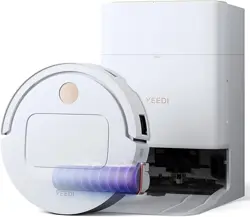
Model: YEEDI S16 PLUS (BLAST) | Brand: Yeedi
Overview
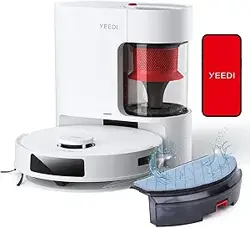
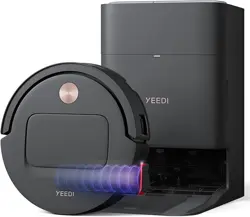
The Yeedi S16 Plus is a robotic vacuum and mop designed for hard floors and carpets. It features an Automatic Omni Station that handles self-emptying, hot water mop washing, and hot air drying. The robot uses AI-powered LiDAR navigation for mapping and obstacle avoidance.

Key components:
- Robot Vacuum & Mop: Cleans floors using suction, a roller brush, side brushes, and a rotating OZMO Roller mop.
- OMNI Station: Automatically empties the dustbin, washes the mop with hot water (167°F), dries the mop with hot air, and refills the clean water tank.
- Clean Water Tank & Waste Water Tank: Located inside the station for mopping fluid management.
What's in the Box
- Robot Vacuum × 1
- OMNI Station × 1
- Power Cord × 1
- User Manual × 1
- Quick Guide × 1
- Roller (main brush) × 1
- Side Brush × 1
- Main Brush & Cover × 1
- Clean Water Tank × 1
- Waste Water Tank × 1

Features
1. OZMO Roller Self-Washing Mopping
The OZMO Roller mop continuously rinses itself with clean water while mopping, preventing dirty water from being spread across floors. The OMNI Station washes the mop with 167°F hot water and dries it with hot air, reducing odors and manual maintenance.

2. BLAST Airflow Suction (16,600 Pa)
The vacuum generates up to 16,600 Pa of suction using BLAST airflow technology. This captures dust, pet hair, and debris from both carpets and hard floors.

3. Triple Lift System
The robot automatically lifts the mop and brushes when transitioning to carpet, protecting rugs and preventing wet carpet. It also lifts the mop when returning to the station for cleaning.

4. ZeroTangle 3.0
A V-shaped main roller and smart side brushes are designed to prevent hair from wrapping around the brush. This reduces the need for manual detangling, especially in homes with pets or long hair.

5. Edge-to-Edge Cleaning
Extended rollers and adaptive side brushes sweep debris from walls and corners. The mop extends to reach edges for thorough cleaning.

6. AI-Powered LiDAR Navigation & Mapping
The robot uses LiDAR to scan and map your home. It avoids obstacles, saves multiple floor plans, and allows you to set no-go zones, adjust suction power, and schedule cleaning by room via the app.

7. All-in-One OMNI Station
- Self-emptying: Dustbin is automatically emptied into a 3L dust bag inside the station.
- Hot water mop washing: Mop is washed with 167°F water.
- Hot air drying: Mop is dried with hot air to prevent odors.
- Auto refill: Clean water tank refills the robot's water tank automatically.

Specifications
| Attribute | Detail |
|---|---|
| Model Name | YEEDI S16 PLUS |
| Surface Recommendation | Hard Floors & Carpets |
| Suction Power | 16,600 Pa (BLAST) |
| Battery Life | 252 minutes |
| Battery Type | Lithium Ion (included) |
| Cleaning Path Width | 6.89 inches |
| Dustbin Capacity (robot) | 3 Liters (station bag) |
| Noise Level | 64.5 dB |
| Controller Type | App Control, Touchpad Control, Voice Control |
| Voice Control | Alexa, Google Assistant |
| Wi-Fi | 2.4 GHz only (5 GHz not supported) |
| Voltage | 110 Volts |
| Item Dimensions (L×W×H) | 22.05 × 14.96 × 16.06 inches |
| Item Weight | 36.07 pounds |
| Color | Black |
Setup Guide
Step 1: Unpack and Position the OMNI Station
- Remove all packaging materials from the robot and station.
- Place the OMNI Station on a hard, level surface against a wall. Ensure at least 1.5 ft (0.5 m) of clearance on each side and in front.
- Connect the power cord to the station and plug it into a 110V outlet.
Step 2: Install the Water Tanks
- Open the top lid of the OMNI Station.
- Insert the clean water tank (fill with clean water, optionally add Yeedi floor cleaning solution).
- Insert the waste water tank (empty before first use).
Step 3: Prepare the Robot
- Remove the protective film from the robot's top and sensors.
- Install the side brush by pressing it onto the designated peg on the bottom.
- Install the main brush and cover (if not pre-installed).
- Place the robot on the station charging contacts. It will power on automatically.
Step 4: Connect to the App
- Download the Yeedi app from the App Store or Google Play.
- Create an account or log in.
- Press and hold the robot's power button for 3 seconds until the Wi-Fi indicator blinks.
- In the app, select "Add Device" and follow the in-app instructions to connect to your 2.4 GHz Wi-Fi network.
- Once connected, the robot will perform an initial mapping run.
Use Guide
Starting a Cleaning Cycle
- Ensure the clean water tank is filled and the waste water tank is empty.
- Press the Power/Start button on the robot, or start a cleaning cycle from the Yeedi app.
- The robot will exit the station, map the area (if first run), and begin cleaning.
Cleaning Modes
- Vacuum Only: The mop is lifted; only suction and brushes are used.
- Mop Only: The OZMO Roller mops without vacuuming.
- Vacuum & Mop: Both vacuum and mop operate simultaneously.
- Custom Mode: Set suction level, water flow, and cleaning schedule per room via the app.

Using the App
- Map Management: View and edit saved maps. Name rooms, set no-go zones, and adjust cleaning order.
- Scheduling: Set specific times for the robot to clean automatically.
- Suction & Water Adjustment: Choose from quiet, standard, turbo, or max suction; adjust water flow for mopping.
- Voice Control: Link with Alexa or Google Assistant for voice commands (e.g., "Alexa, ask Yeedi to clean the kitchen").

Returning to Station
The robot automatically returns to the OMNI Station when the battery is low or when cleaning is complete. It will empty its dustbin, wash and dry the mop, and recharge.
Maintenance
Emptying the Dust Bag
- Open the top lid of the OMNI Station.
- Pull the dust bag out by the handle. The bag seals automatically.
- Dispose of the bag and insert a new one.
Cleaning the Water Tanks
- Empty and rinse the waste water tank after each use to prevent odors.
- Refill the clean water tank as needed. Use only clean water or Yeedi-approved cleaning solution.
Cleaning the Roller and Brushes
- Remove the main brush cover and take out the roller.
- Remove any hair or debris wrapped around the roller or side brush.
- Rinse the roller under water and let it dry completely before reinstalling.
Cleaning the Sensors and Charging Contacts
Wipe the LiDAR sensor, bumper sensors, and charging contacts with a dry, soft cloth to ensure proper navigation and charging.
Filter Maintenance
Remove and tap out the filter (located under the top cover of the robot) every 2 weeks. Replace the filter every 3–6 months.
Troubleshooting
| Issue | Possible Cause | Solution |
|---|---|---|
| Robot not starting | Battery low or not connected to station | Place robot on station and ensure charging contacts are clean. |
| Wi-Fi connection fails | 5 GHz network selected | Ensure your phone is connected to a 2.4 GHz network during setup. |
| Mop not wet enough | Water tank empty or water flow set too low | Refill clean water tank and increase water flow in app. |
| Robot not returning to station | Obstruction near station or map error | Clear area around station and remap the home via app. |
| Hair wrapped around brush | Heavy shedding | Clean the main roller and side brush manually. ZeroTangle reduces but does not eliminate tangles. |
| Station not washing mop | Waste water tank full | Empty the waste water tank. |
Warranty & Support
For warranty information and customer support, contact Yeedi directly:
- Brand: Yeedi
- Manufacturer: YEEDI
- UPC: 850066464199
- Support: Visit the Yeedi Store on Amazon or the official Yeedi website for contact details and warranty registration.
Manual version 1.0 – For model YEEDI S16 PLUS (BLAST). Always refer to the included Quick Guide for initial setup.