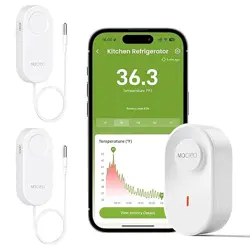
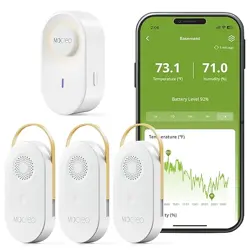
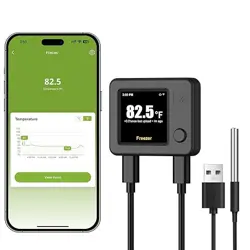
MOCREO LS2 Long Range Thermometer Freezer Alarm, with Waterproof Probe, App Email Alert

Product's Documents

Below are documents related to this product, you can read online or download:
LS2 photo

1. Overview

The MOCREO LS2 is a long-range wireless temperature sensor designed for remote monitoring. It must be used with the H5Pro LoRa Hub (sold separately, ASIN: B0DRHQT24P) to form a complete system. The sensor features a waterproof probe for use in humid environments and communicates temperature data to the hub, which can then be accessed via a smartphone app.

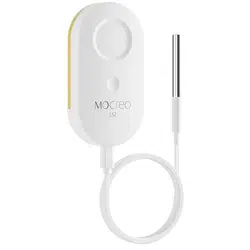
MOCREO LS2 Long Range Thermometer product image showing a white sensor unit.

2. Features and Specifications

2.1 Core System

  • Required Hub: Must be paired with the H5Pro LoRa Hub. It is not compatible with H5Lite, H1B, or H2 hubs.
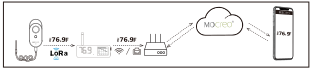
  • Communication Range: Up to 1,640 feet (1/3 mile) open-air range between the sensor and the hub.
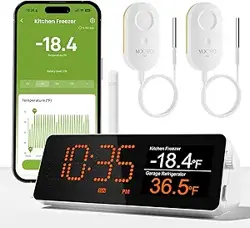
  • Data Access: Real-time temperature data is accessed through the MOCREO Smart App via the hub's network.

2.2 Sensor Specifications

  • Temperature Range: -40°F to 221°F (-40°C to 105°C).
  • Accuracy: ±0.9°F (±0.5°C).
  • Waterproofing: The probe cable is rated IP67. The main sensor body is not waterproof.
  • Power: Powered by 3 AAA alkaline batteries (included).
  • Battery Life: Up to 2 years under normal use.
  • Alert Methods: App push notifications, email alerts, and an 80dB audible alarm from the H5Pro Hub.
  • Data Logging: Stores and allows export of 2 years of historical data in CSV format. No subscription required.

3. What's in the Box

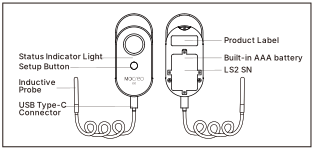
  • 1 x LS2 Wireless Temperature Sensor
  • 3 x AAA Batteries (pre-installed)

Note: The H5Pro LoRa Hub is not included and must be purchased separately.

4. Use Guide

4.1 Initial Setup

  1. Acquire the H5Pro Hub: Ensure you have the H5Pro LoRa Hub (ASIN: B0DRHQT24P).
  2. Install Batteries: Confirm three AAA batteries are installed in the LS2 sensor.
  3. Power On the Hub: Connect the H5Pro Hub to power and complete its initial setup as per its manual.
  4. Download the App: Install the "MOCREO Smart" app on your iOS or Android smartphone or tablet.
  5. Add the Sensor: Follow the in-app instructions to add the LS2 sensor to your hub's network. This typically involves putting the hub into pairing mode and ensuring the sensor is within range.

4.2 Placement and Installation

  • Place the H5Pro Hub in a central location within the intended 1640 ft range of your monitoring areas.
  • The LS2 sensor's waterproof probe can be placed in humid or wet environments such as:
    • Refrigerators and Freezers
    • Swimming Pools and Hot Tubs
    • Greenhouses and Animal Houses
  • The main sensor body should be kept in a dry location. It is suitable for garages, kitchens, warehouses, laboratories, and offices.
  • Ensure there are no major metal obstructions between the sensor and the hub for optimal signal strength.
Illustration showing the LS2 sensor with its probe placed in a refrigerator, communicating with the H5Pro Hub.

4.3 Using the App and Alerts

  1. Open the MOCREO Smart app to view real-time temperature readings from your LS2 sensor.
  2. Navigate to the sensor settings to configure alert thresholds (high and low temperature limits).
  3. Enable your preferred alert methods:
    • App Notification: Ensure app notifications are enabled on your phone.
    • Email Alert: Enter and verify your email address in the app settings.
    • Hub Audible Alarm: The H5Pro Hub will sound an 80dB beep when an alert is triggered.
  4. Utilize smart settings like "Low Battery Alert" to receive warnings and "Anti-False Alarm" to adjust sensitivity.
Diagram showing the three alert methods: a phone with a notification, an email icon, and a hub with a sound wave.

4.4 Data Export

  1. Within the MOCREO Smart app, navigate to the data history or charts section for your LS2 sensor.
  2. Select the date range for the data you wish to export (up to 2 years).
  3. Use the export function to generate a CSV file, which can be saved to your device or sent via email for analysis.
Screen representation showing a temperature chart and an export button in the MOCREO app.

5. Maintenance

5.1 Battery Replacement

  • The app will provide a "Low Battery Alert" when the batteries are nearly depleted.
  • To replace, open the battery compartment on the LS2 sensor and install three new AAA alkaline batteries.
  • The sensor should automatically reconnect to the hub after battery replacement.

5.2 Sensor Care

  • Wipe the main sensor body with a dry cloth. Do not submerge it in water.
  • The IP67 probe cable can be cleaned with a damp cloth. Ensure the connection point between the probe and the sensor body remains dry.
  • Periodically check the app to ensure the sensor is online and reporting data correctly.

6. Troubleshooting

  • Sensor Not Connecting to Hub:
    • Ensure the H5Pro Hub is powered on and online.
    • Check that the sensor has fresh batteries.
    • Move the sensor closer to the hub to rule out range issues.
    • Re-initiate the pairing process in the MOCREO Smart app.
  • No Alerts Received:
    • Verify alert thresholds are set correctly in the app.
    • Check your phone's notification settings for the MOCREO app.
    • Confirm your email address is correct and verified in the app settings.
    • Ensure the hub's volume is not muted if relying on the audible alarm.
  • Inaccurate Readings:
    • Allow the sensor probe to acclimate to a new environment for at least 15 minutes.
    • Ensure the probe is not in direct contact with a heating/cooling element or a solid ice block.
    • Check for physical damage to the probe cable.

Reference file: MOCREO LS2 Long Range Thermometer Freezer Alarm, with Waterproof Probe, App Email Alert

Specifications

MOCREO LS2 Questions and Answers

See other models: LS1