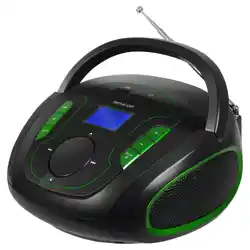
Overview
This manual provides instructions for the Yewrich Portable AM/FM Shortwave Radio, model YR-RU8. This is a multi-band radio that receives AM, FM, and two shortwave (SW) bands. It features a built-in 5W speaker, Bluetooth connectivity, and multiple audio input options including USB, TF card, and AUX. It can be powered by AC wall outlet or batteries.

Features and Specifications
Radio Features
- 4 Reception Bands: AM, FM, Shortwave 1 (SW1: 3.0-13.0 MHz), Shortwave 2 (SW2: 13.0-23.0 MHz).
- Long Antenna: A 39.4-inch (1-meter) telescopic antenna for improved signal reception.
- Large Controls: Big tuning and volume knobs for easy operation.
- Carrying Handle: Integrated handle for portability.
Audio Playback & Connectivity
- Built-in Speaker: 5W speaker for room-filling sound.
- Bluetooth: Stream audio wirelessly from compatible devices like smartphones or tablets.
- USB Port: Play audio files from a USB flash drive.
- TF Card Slot: Play audio files from a microSD (TF) card.
- AUX Input (3.5mm): Connect external audio devices via a cable.
- Headphone Jack (3.5mm): For private listening (earphones not included).
Power Options
- AC Power: Use the included power adapter (AC 120V, 60Hz).
- Battery Power: Operates on 4 x D-cell batteries (1.5V each, batteries not included).
Physical Specifications
- Dimensions: 10.94" L x 2.87" W x 7.99" H (27.8 x 7.3 x 20.3 cm).
- Weight: 2.5 lbs (1.13 kg).
- Color: Gray.
- Material: Plastic enclosure.

What's in the Box
- Yewrich Portable AM/FM Shortwave Radio
- Power Adapter
- User Manual (this guide)
Use Guide
Powering the Radio
Using AC Power
- Ensure the radio's power switch is in the OFF position.
- If batteries are installed, remove them before connecting to AC power.
- Plug the included power adapter into a standard 120V AC wall outlet.
- Connect the other end of the adapter to the DC input jack on the back or side of the radio.
- Turn the radio ON.
Warning: Do not use the radio with AC power during a thunderstorm. Unplug the adapter from the wall.
Using Battery Power
- Open the battery compartment cover on the back of the radio.
- Insert 4 new D-cell batteries, observing the correct polarity (+/-) markings inside the compartment.
- Close the battery compartment cover.
- Turn the radio ON.
Note: For long-term storage or when using AC power, remove the batteries to prevent leakage and corrosion.
Listening to the Radio
- Turn the radio ON using the power switch.
- Extend the telescopic antenna fully for best reception.
- Select your desired band using the BAND selector switch (AM, FM, SW1, SW2).
- Turn the large TUNING knob to find a station. The frequency will be indicated on the dial.
- Adjust the VOLUME knob to your preferred listening level.
Using Bluetooth
- Turn the radio ON and press the MODE or FUNCTION button until the Bluetooth indicator lights up or you hear an audio prompt.
- On your smartphone, tablet, or computer, enable Bluetooth and search for available devices.
- Select "Yewrich Radio" or a similar name from the list of discovered devices to pair.
- Once connected, play audio on your device. The sound will stream through the radio's speaker.
- Use your device or the radio's volume knob to control the audio level.
Playing from USB or TF Card
- Load a USB flash drive or microSD (TF) card with supported audio files (e.g., MP3).
- Insert the USB drive or TF card into the corresponding slot on the radio.
- Press the MODE or FUNCTION button to select USB or TF Card mode.
- Playback should start automatically. Use the radio's controls (often the Tuning knob or dedicated buttons) to play/pause, skip tracks, or select folders.
Using the AUX Input
- Use a standard 3.5mm audio cable (not included).
- Connect one end to the headphone/audio output jack of your external device (e.g., MP3 player, laptop).
- Connect the other end to the AUX IN jack on the radio.
- Press the MODE or FUNCTION button to select AUX mode.
- Start playback on your external device and adjust volume using the radio's knob.
Using Headphones
Plug a pair of standard 3.5mm headphones into the EARPHONE jack. This will mute the internal speaker.
Care and Maintenance
- Cleaning: Wipe the exterior with a soft, dry cloth. Do not use liquid or aerosol cleaners.
- Water Resistance: This radio is not water-resistant. Keep it dry and away from moisture.
- Batteries: Remove batteries if the radio will not be used for an extended period. Do not mix old and new batteries or different battery types.
- Antenna: Handle the telescopic antenna with care. Do not bend it forcefully.
- Storage: Store in a cool, dry place away from direct sunlight and extreme temperatures.
Troubleshooting
- No Power:
- Check that the power switch is ON.
- If using AC power, ensure the adapter is firmly plugged into both the wall and the radio.
- If using batteries, check that they are correctly installed and not depleted. Replace with new batteries.
- Poor Radio Reception:
- Fully extend the telescopic antenna.
- Move the radio to a different location, preferably near a window.
- Rotate the radio to adjust the antenna's orientation.
- Ensure you have selected the correct band (AM/FM/SW).
- Bluetooth Won't Connect:
- Ensure the radio is in Bluetooth mode.
- On your device, turn Bluetooth off and on again, then search for devices.
- Move your device closer to the radio (within 33 feet/10 meters).
- Delete "Yewrich Radio" from your device's paired devices list and try pairing again.
- No Sound from USB/TF Card:
- Ensure the radio is in the correct mode (USB or TF).
- Verify the USB drive or TF card is properly inserted.
- Check that the audio files on the storage device are in a supported format (e.g., MP3).
- Distorted Sound:
- Reduce the volume level on the radio and/or the connected source device.
- If using Bluetooth, ensure the source device is within range and not experiencing interference.
Compliance and Safety
- This product is designed for use with 120V AC, 60Hz outlets. Using it with other voltages may require a converter and could damage the unit.
- The power adapter is the designated power source for connecting to AC mains.
- To reduce the risk of fire or electric shock, do not expose this apparatus to rain or moisture.
- Refer to the markings on the bottom or back of the product for specific compliance information.