1. Overview
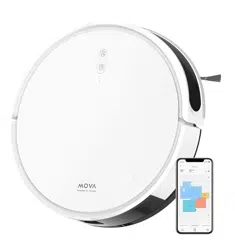
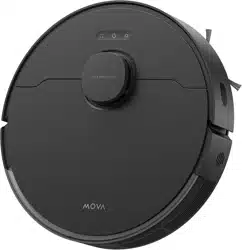
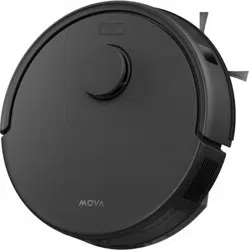
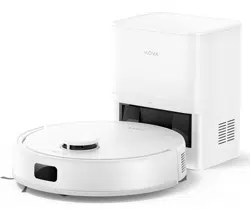
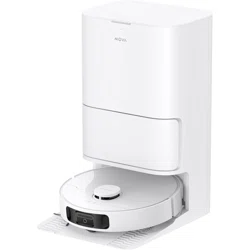
The MOVA Z500 is a robotic vacuum cleaner with an integrated mopping function. It uses visual navigation for mapping and path planning and can be controlled via a smartphone app or Amazon Alexa voice commands.

Key components visible on the device include control buttons on the top surface, a camera for navigation, and the main brush and side brush housing on the underside.
2. Features and Specifications
2.1 Core Features
- 2-in-1 Function: Simultaneous vacuuming and mopping.
- Visual Navigation: Uses a wide-angle camera for real-time positioning and room mapping.
- High Suction Power: 3000 Pa suction with 4 adjustable levels.
- Smart Control: Compatible with the dedicated smartphone app (via Wi-Fi) and Amazon Alexa for voice control.
- Room Detection: Identifies and can map different rooms.
- Tangle-Free System: Designed to pick up pet hair without tangling the brushes.
- Automatic Recharging: Returns to the charging station when the battery is low.

2.2 Physical Specifications
- Dimensions: 35.3 cm (Diameter) x 8.2 cm (Height)
- Weight: 4.4 kg
- Dust Bin Capacity: 570 ml
- Water Tank Capacity: 270 ml
- Battery: 5200 mAh Lithium-ion
- Run Time: Up to 150 minutes of vacuuming or 110 minutes of mopping on a single charge.
- Noise Level: Approximately 65 dB.
- Climbing Ability: Can overcome obstacles up to 2 cm high.

3. What's in the Box
- MOVA Z500 Robot Vacuum Cleaner (main unit)
- Charging Station
- AC Power Adapter
- Side Brush
- Water Tank
- Cleaning Cloth (Mop)
- User Manual (Note: Availability of an English version is not guaranteed)
4. Use Guide
4.1 Initial Setup
- Charge the Robot: Place the robot on the charging station and connect the power adapter. Allow it to charge fully before first use. An indicator light on the robot will show the charging status.
- Install the Side Brush: Attach the side brush to the mounting point on the underside of the robot by pressing it down until it clicks into place.
- Prepare the Area: Remove loose cables, small objects, and potential obstacles from the floor. For initial mapping, ensure rooms are well-lit.
- Install the App: Download the "MOVA" app from your smartphone's app store (iOS or Android). Create an account and follow the in-app instructions to connect the robot to your Wi-Fi network.

4.2 Basic Operation
Using the Physical Buttons
The top of the robot has buttons for basic control:
- Power/Clean: Press to start or pause a cleaning session.
- Home: Press to send the robot back to the charging station.
- Spot Clean: Press to initiate intensive cleaning of a localized area.
Using the Smartphone App
The app provides advanced control:
- Start/Stop Cleaning: Initiate or halt cleaning sessions remotely.
- Suction Power Control: Select from 4 power levels (Quiet, Standard, Strong, Max).
- Water Flow Control: When the mopping module is attached, select from 3 water levels (Low, Medium, High).
- Scheduling: Set daily or weekly cleaning schedules.
- Map Management: View cleaning history, saved maps, and set virtual boundaries or no-mop zones.
- Continue Cleaning: Activate this function so the robot automatically resumes cleaning after recharging.

Using Voice Control (Alexa)
After linking the MOVA skill to your Amazon Alexa device, you can use commands such as:
- "Alexa, ask MOVA to start cleaning."
- "Alexa, tell MOVA to go home."
- "Alexa, ask MOVA to clean the living room."
4.3 Vacuuming and Mopping
- For Vacuuming Only: Ensure the water tank is not installed. Empty the dust bin before starting a session.
- For Mopping (or Vacuum & Mop):
- Attach the cleaning cloth to the bottom of the water tank module.
- Fill the 270 ml water tank with clean water. Do not use chemical cleaners unless specified as safe by the manufacturer.
- Insert the water tank into the rear compartment of the robot until it clicks.
- Select the desired water flow level in the app (Low for laminate, High for tiles).
- Start the cleaning cycle via the app, button, or voice command.

5. Maintenance
5.1 Regular Cleaning
- Dust Bin: Empty after every cleaning session. Remove and rinse periodically. Allow to dry completely before reinserting.
- Main Brush and Side Brush: Remove hair and debris regularly. The main V-brush is designed to be tangle-free.
- Filters: The washable HEPA filter should be tapped clean regularly and rinsed with water as needed. Ensure it is completely dry before reuse.
- Sensors and Camera: Wipe the lens of the navigation camera and cliff sensors with a soft, dry cloth.
- Wheels: Check for and remove wrapped hair or debris.
- Charging Contacts: Clean the metal contacts on the robot and charging station with a dry cloth to ensure proper charging.
5.2 Water Tank and Mop Maintenance
- Empty any remaining water from the tank after each use.
- Remove and rinse the tank and mop cloth. Allow both to air dry completely to prevent mold or odors.
- Do not store the robot with a wet mop cloth attached.

6. Troubleshooting
- Robot does not start: Ensure the battery is charged. Check that the power switch (if present) is on.
- Robot is stuck or reports an error: Move the robot to a new location, clear any obstacles, and restart it. Check the app for specific error codes.
- Poor cleaning performance: Empty the dust bin, clean the filters and brushes. Check for blockages in the air path.
- Robot cannot find the charging station: Ensure the charging station is plugged in, placed against a wall with at least 0.5 meters of clear space on either side and 1.5 meters in front. Keep the area well-lit.
- App connection failure: Ensure your smartphone is connected to the correct 2.4 GHz Wi-Fi network. Restart the robot and your router.
- Water not dispensing during mopping: Ensure the water tank is correctly inserted and filled. Check that the water control setting in the app is not set to "Off".
7. Safety Information
- This appliance is not intended for use by persons (including children) with reduced physical, sensory or mental capabilities, unless they have been given supervision or instruction.
- Children should be supervised to ensure they do not play with the appliance.
- Only use the charger provided by the manufacturer.
- Do not use the robot to pick up flammable or combustible liquids, sharp objects, or large debris.
- Do not use the mopping function on loose carpets or rugs.
- Do not place the charging station in a damp location or where it can become a tripping hazard.
- Before performing any maintenance, turn off the robot and disconnect it from the charger.
For recycling information, please visit your local waste management authority's website or the retailer's recycling program page.
8. Product Documents
The latest user manual and safety documents can be found via the product page on the retailer's website or by contacting support. A direct link to a PDF manual (in German) is sometimes provided: Benutzerhandbuch (PDF).