2
ENGLISH
TABLE OF CONTENTS
3 LICENSES
3 OPEN SOURCE SOFTWARE
NOTICE
4 ASSEMBLING AND
PREPARING
4 Unpacking
6 Parts and buttons
6 - Using the Joystick button
8 Lifting and moving the TV
10 Setting up the TV
10 - Attaching the Stand
11 - Detaching the Stand
13 - Mounting on a table
14 - Tidying cables
15 Mounting on a wall
17 WATCHING TV
17 Turning the TV on for the first time
19 TV display (5:9 OSD)
19 - Programme Guide
20 PIP function
22 MAKING CONNECTIONS
22 Connecting an antenna
23 Satellite connection
24 External Device Connections
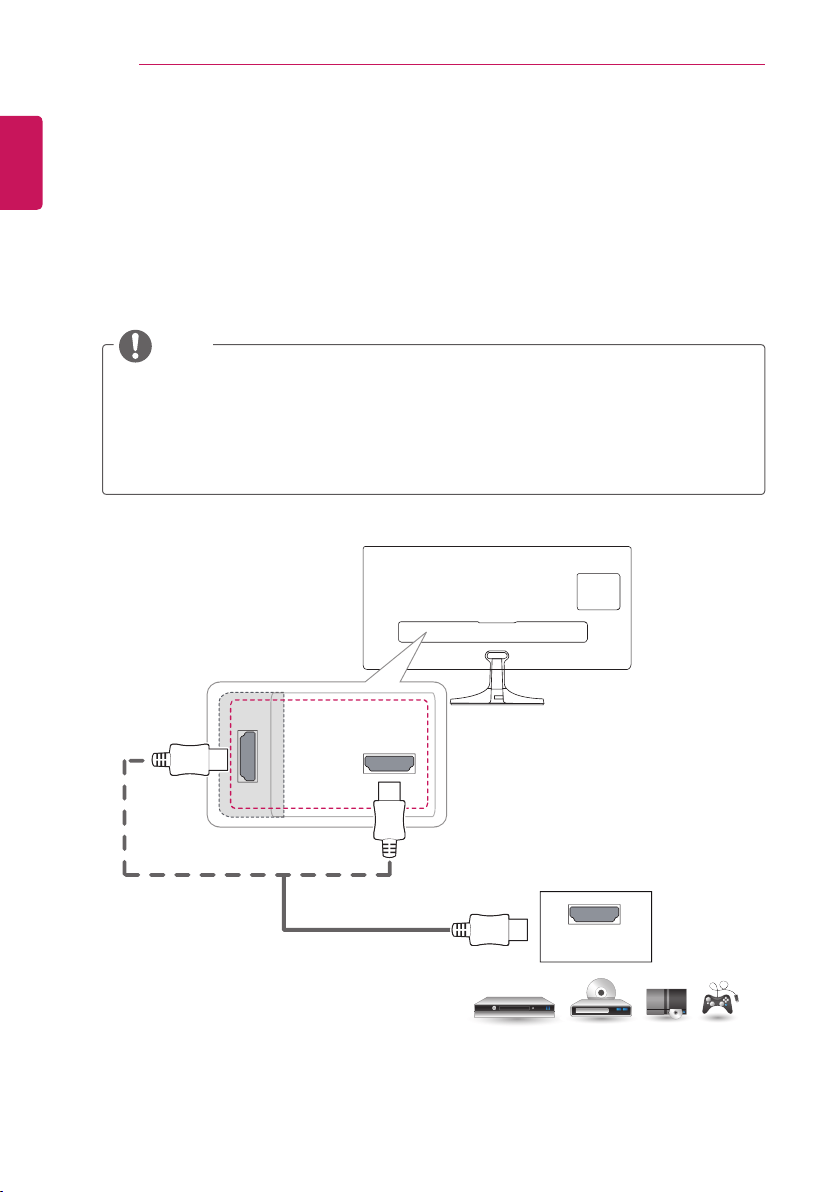
24 - HDMI connection
25 - Component connection
26 - Composite connection
27 - Euro Scart connection
28 Headphone connection
29 Connecting a USB Device
30 CI module connection
31 Connecting to a wired network
32 Connecting to a PC
33 - HDMI connection
34 - Display Port connection
35 REMOTE CONTROL
36 INSTALLING LG MONITOR
SOFTWARE
38 CUSTOMIZING SETTINGS
38 Accessing the Main Menus
38 - TV, Component, AV
55 - HDMI1, HDMI2, DisplayPort
63 MAINTENANCE
63 Cleaning Your TV
63 Screen and frame
63 Cabinet and stand
63 Power cord
64 Preventing “Image burn” or “Burn-in” on
your TV screen
65 TROUBLESHOOTING
67 SPECIFICATIONS
WARNING
y
If you ignore the warning message, you
may be seriously injured or there is a
possibility of accident or death.
CAUTION
y
If you ignore the caution message, you may
be slightly injured or the product may be
damaged.
NOTE
y
The note helps you understand and use
the product safely. Please read the note
carefully before using the product.
TABLE OF CONTENTS

ENGLISH
LICENSES / OPEN SOURCE SOFTWARE NOTICE
3
LICENSES
Supported licenses may differ by model. For more information of the licenses, visit www.lg.com.
Manufactured under license from Dolby Laboratories. Dolby and the double-D
symbol are trademarks of Dolby Laboratories.
The terms HDMI and HDMI High-Denition Multimedia Interface, and the HDMI
logo are trademarks or registered trademarks of HDMI Licensing LLC in the
United States and other countries.
ABOUT DIVX VIDEO: DivX
®
is a digital video format created by DivX, LLC, a
subsidiary of Rovi Corporation. This is an ofcial DivX Certied
®
device that has
passed rigorous testing to verify that it plays DivX video. Visit divx.com for more
information and software tools to convert your les into DivX videos.
ABOUT DIVX VIDEO-ON-DEMAND: This DivX Certied
®
device must be
registered in order to play purchased DivX Video-on-Demand (VOD) movies.
To obtain your registration code, locate the DivX VOD section in your device
setup menu. Go to vod.divx.com for more information on how to complete your
registration.
“DivX Certied
®
to play DivX
®
video up to HD 1080p, including premium content.”
“DivX
®
, DivX Certied
®
and associated logos are trademarks of Rovi Corporation
or its subsidiaries and are used under license.”
“Covered by one or more of the following U.S. patents :
7,295,673; 7,460,668; 7,515,710; 7,519,274”
VESA, VESA logo, Display Port Compliance Logo and Display Port Compliance
Logo for dual-mode source are all registered trademarks of the Video
Electronics Standards Association.
MaxxAudio and additional MAXX trademarks are trademarks and/or registered
trademarks of Waves Audio Ltd.
OPEN SOURCE SOFTWARE NOTICE
To obtain the source code under GPL, LGPL, MPL and other open source licenses, that is contained in this
product, please visit http://opensource.lge.com.
In addition to the source code, all referred license terms, warranty disclaimers and copyright notices are
available for download.
LG Electronics will also provide open source code to you on CD-ROM for a charge covering the cost of
performing such distribution (such as the cost of media, shipping and handling) upon email request to
[email protected]. This offer is valid for three (3) years from the date on which you purchased the
product.
4
ENGLISH
ASSEMBLING AND PREPARING
NOTE
y
Image shown may differ from your TV.
y
Your TV’s OSD (On Screen Display) may differ slightly from that shown in this manual.
y
The available menus and options may differ from the input source or product model that you are
using.
y
New features may be added to this TV in the future.
y
The TV can be placed in standby mode in order to reduce the power consumption. And the TV should
be turned off if it will not be watched for some time, as this will reduce energy consumption.
y
The energy consumed during use can be signicantly reduced if the level of brightness of the picture
is reduced, and this will reduce the overall running cost.
ASSEMBLING AND PREPARING
Unpacking
Check your product box for the following items. If there are any missing accessories, contact the local
dealer where you purchased your product. The illustrations in this manual may differ from the actual
product and item.
CAUTION
y
Do not use any pirated items to ensure the safety and product life span.
y
Any damages or injuries by using pirated items are not covered by the warranty.
NOTE
y
The items supplied with your product may vary depending on the model.
y
Product specications or contents of this manual may be changed without prior notice due to upgrade
of product functions.
y
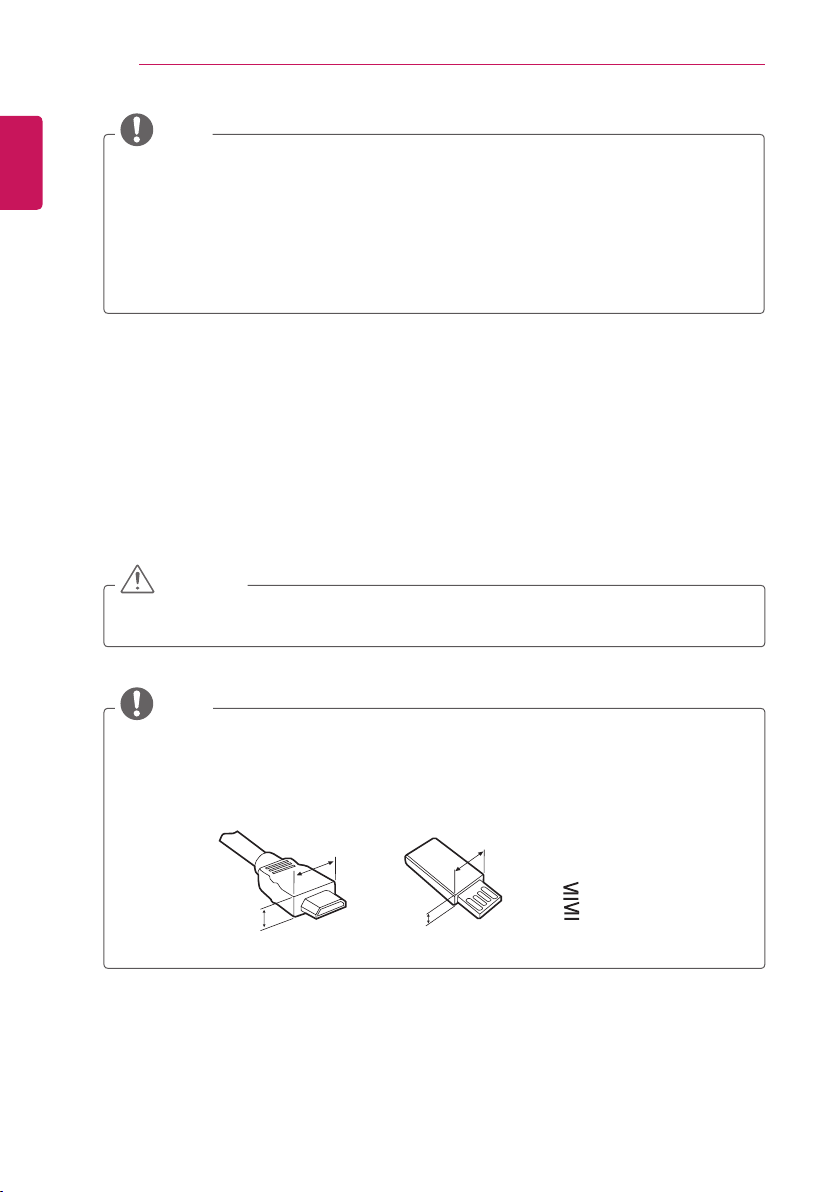
For an optimal connection, HDMI cables and USB devices should have bezels less than 10 mm thick
and 18 mm width. Use an extension cable that supports USB 2.0 if the USB cable or USB memory
stick does not t into your TV’s USB port.
*A 10 mm
*B
18 mm
A
B
A
B

ENGLISH
ASSEMBLING AND PREPARING
5
Remote control,
Batteries (AAA)
(See p. 35)
CD (Owner's Manual /
Software) / Guides /
Cards
Stand Body
(See p.10,11)
Stand Base
(See p.11)
Stand Screws
2 EA, M4 x L10
(See p.10,12)
Stand Screw cover
(See p.10,12)
Power Cord
(See p. 13)
AC-DC Adapter
(See p. 13)
Cable Holder
(See p. 14)
HDMI Cable
(See p. 24, 33)
6
ENGLISH
ASSEMBLING AND PREPARING
Parts and buttons
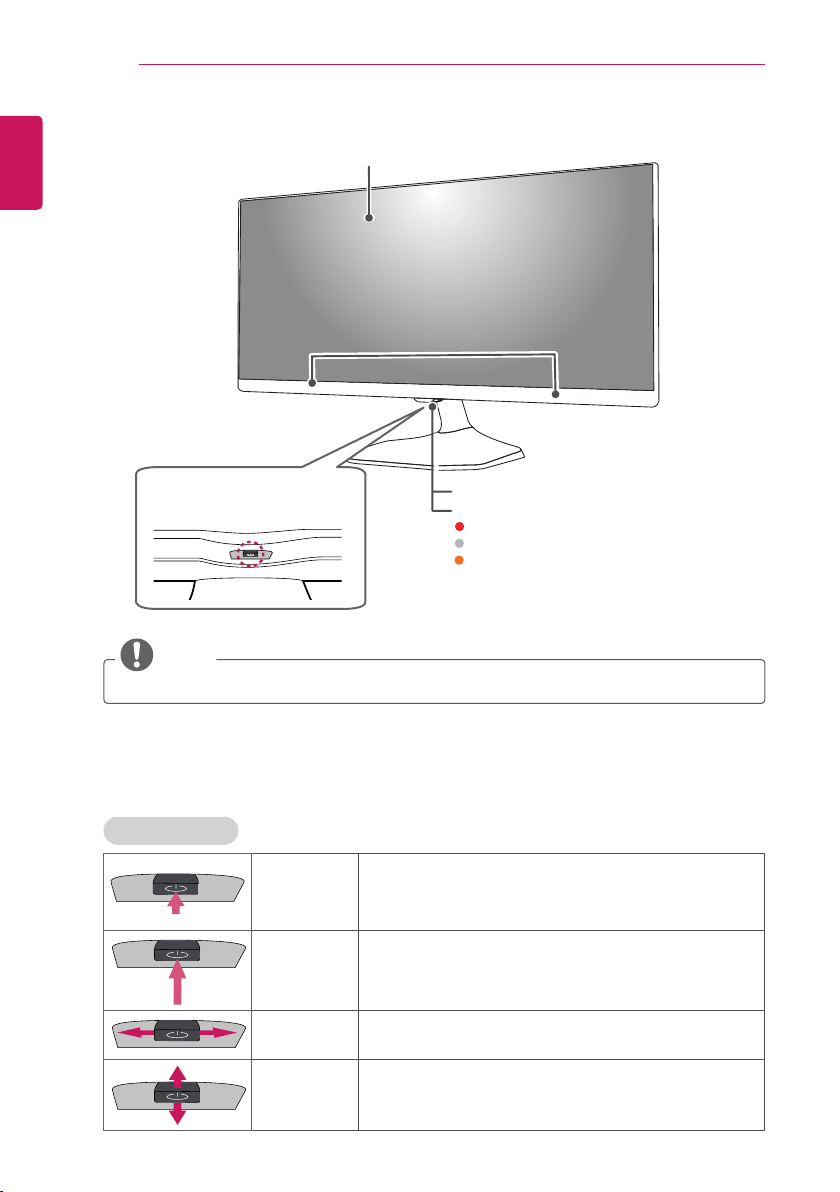
Screen
Speakers
Joystick button
(*This button is located below the
TV screen.)
Remote control sensor
Power Indicator
Red : When the power is turned off
Off : When the power is turned on
Amber : When the power is in power saving mode
NOTE
y
You can set the power indicator light to on or off by selecting
OPTION
in the main menus.
Using the Joystick button
You can simply operate the TV functions, pressing or moving the joystick button up, down, left or right.
Basic Functions
Power On
When the TV is turned off, place your nger on the joystick
button and press it once and release it.
(However, if the Menu button is on the screen, pressing the
joystick button will let you exit the Menu.)
Power Off
When the TV is turned on, place your nger on the joystick
button and press it once for a few seconds and release it.
Volume Control
If you place your nger over the joystick button and move it left
or right, you can adjust the volume level you want.
Programmes
Control
If you place your nger over the joystick button and move it up
or down, you can scroll through the saved programmes what
you want.
ENGLISH
ASSEMBLING AND PREPARING
7
NOTE
y
When your nger over the joystick button push it to the up, down, left or right, be careful not to press
the joystick button. If you press the joystick button rst, you can not adjust the volume level and saved
programmes.
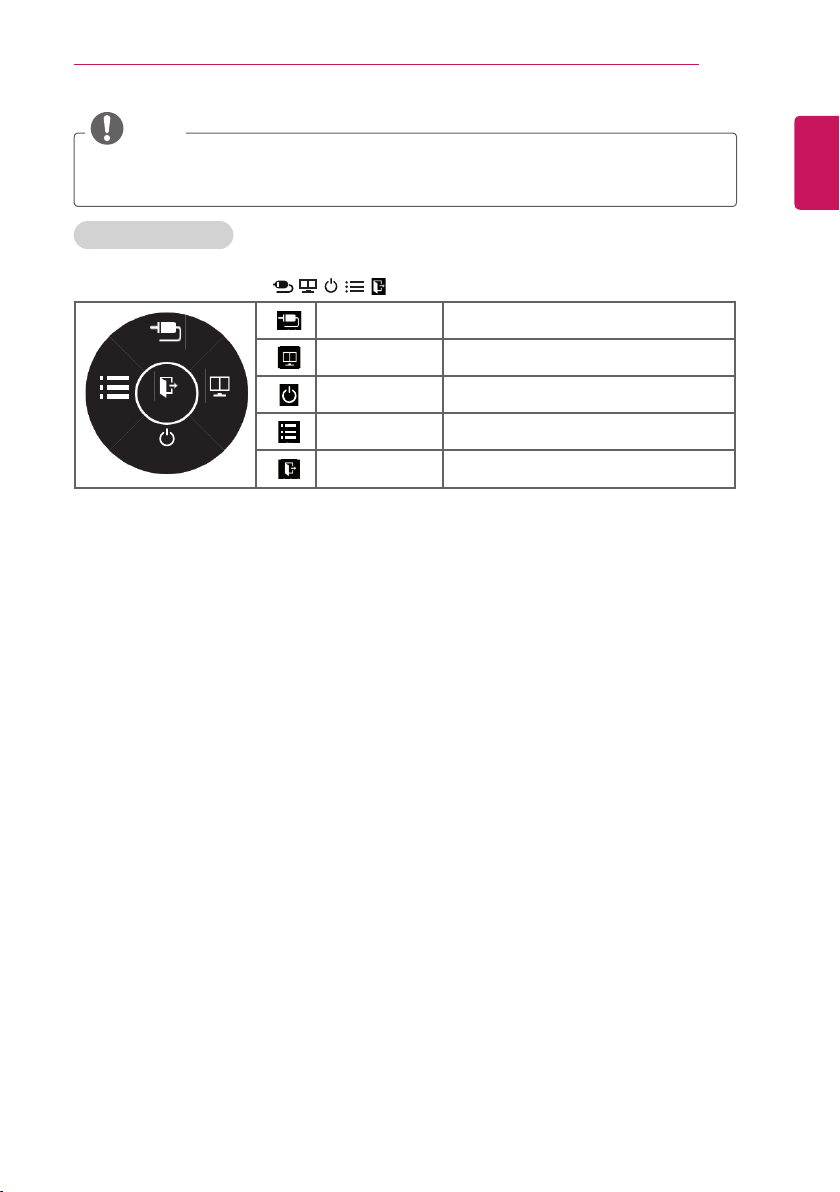
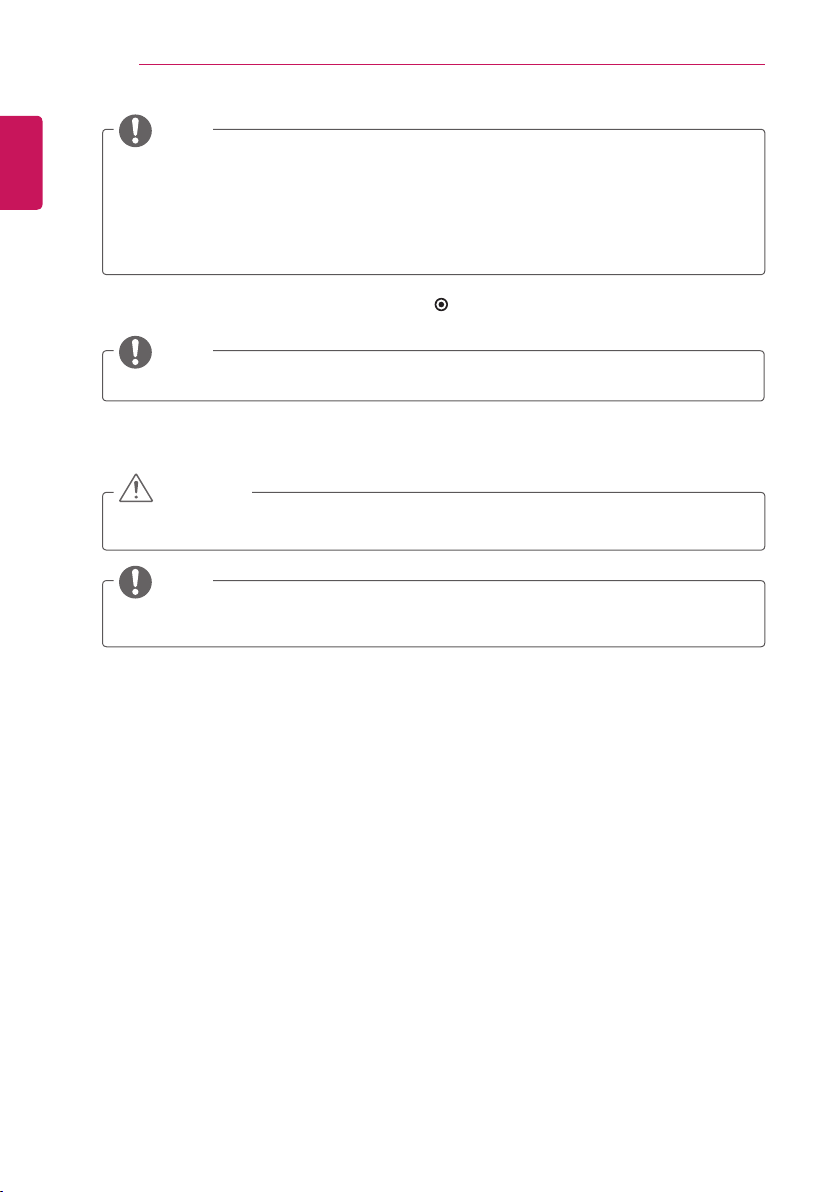
Adjusting the Menu
When the TV is turned on, press the joystick button one time.
You can adjust the Menu items (
,
,
, ,
) moving the joystick button up, down, left or right.
Input
Exit
PIP
Monitor off
Menu
입력
나가기
PIP
화면 꺼짐
메뉴
Input Changes the input source.
입력
나가기
PIP
화면 꺼짐
메뉴
PIP Turns the PIP mode on or off.
입력
나가기
PIP
화면 꺼짐
메뉴
Monitor Off Turns the power off.
입력
나가기
PIP
화면 꺼짐
메뉴
Menu Congures the settings.
입력
나가기
PIP
화면 꺼짐
메뉴
Exit Exits the OSD menu.
8
ENGLISH
ASSEMBLING AND PREPARING
Lifting and moving the TV
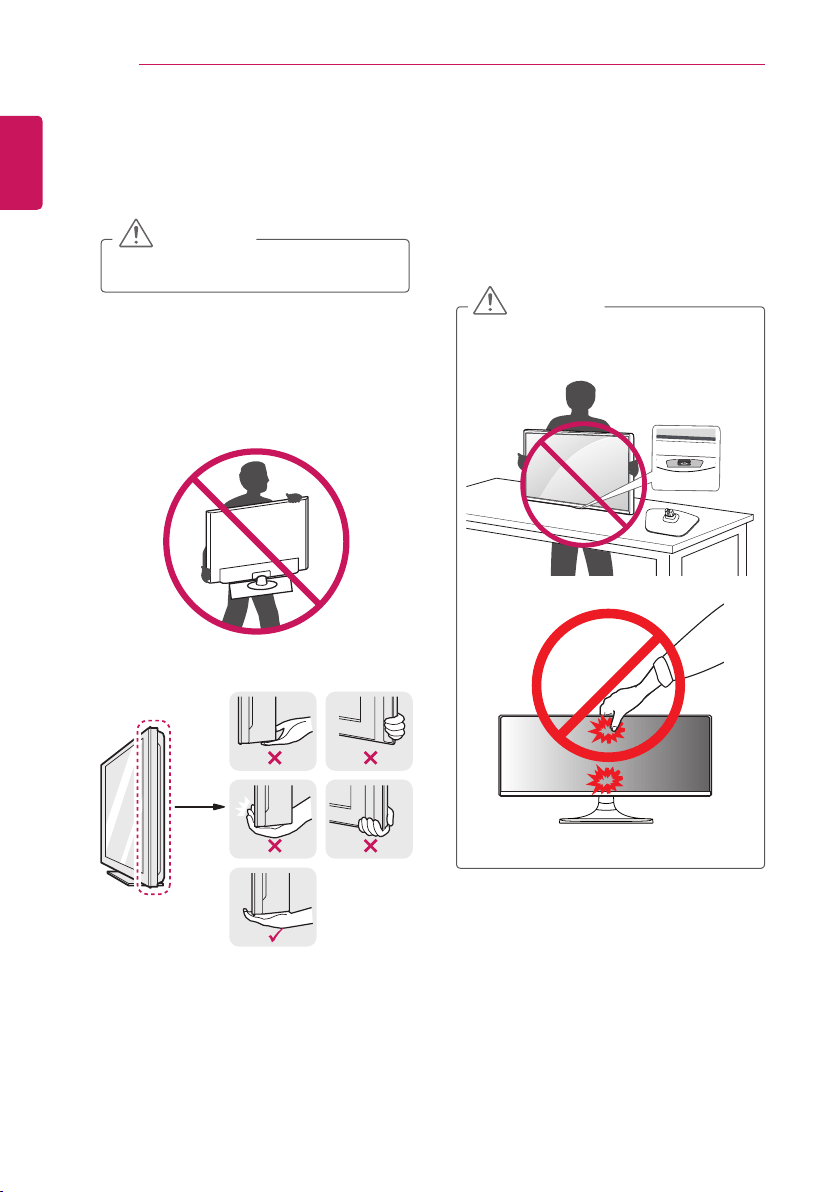
Please note the following advice to prevent the
TV from being scratched or damaged and for safe
transportation regardless of its type and size.
CAUTION
y
Avoid touching the screen at all times, as
this may result in damage to the screen.
y
It is recommended to move the TV in the
box or packing material that the TV originally
came in.
y
Before moving or lifting the TV, disconnect the
power cord and all cables.
y
When holding the TV, the screen should face
away from you to prevent the screen from
scratches.
y
Hold the top and bottom of the TV frame rmly.
Make sure not to hold the transparent part.
y
When transporting the TV, do not expose the
TV to jolts or excessive vibration.
y
When transporting the TV, keep the TV
upright, never turn the TV on its side or tilt
towards the left or right.
y
Do not apply excessive pressure to cause
exing / bending of frame chassis as it may
damage screen.
CAUTION
y
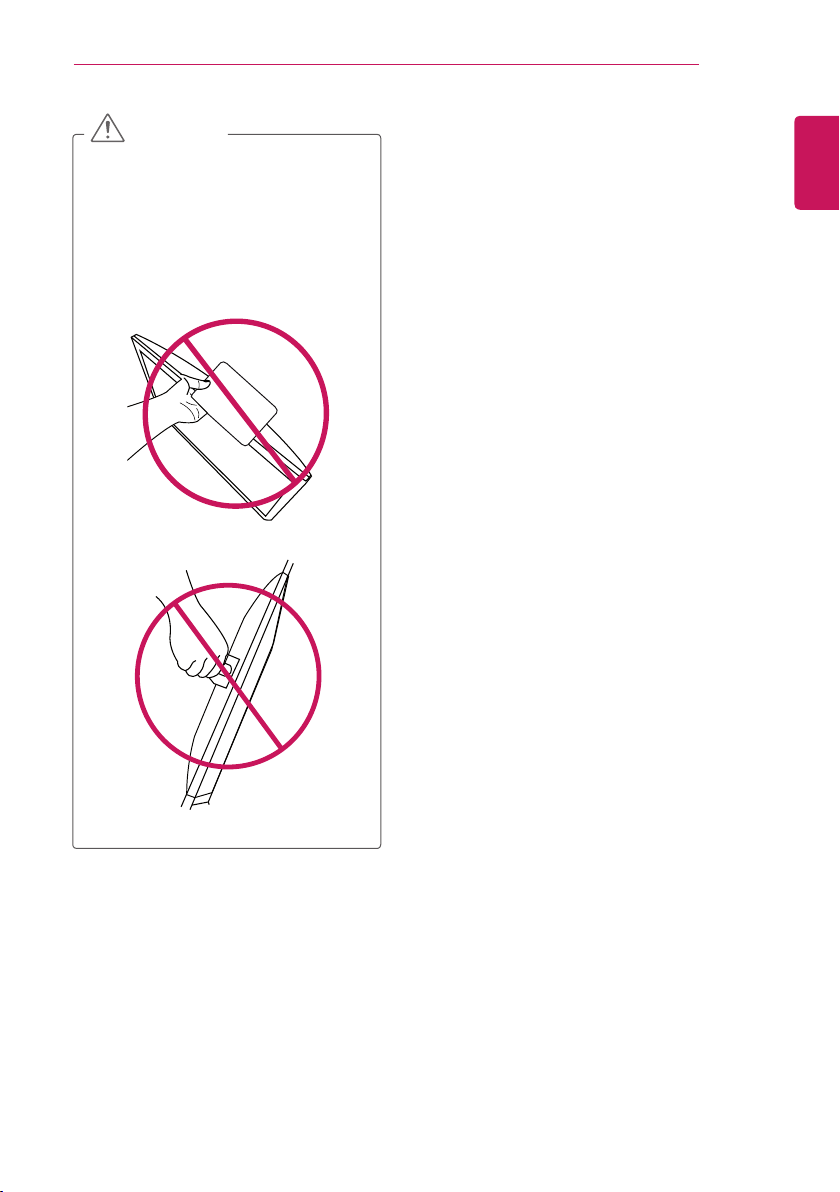
When handling the TV, be careful not to
damage the protruding joystick button.
ENGLISH
ASSEMBLING AND PREPARING
9
CAUTION
y
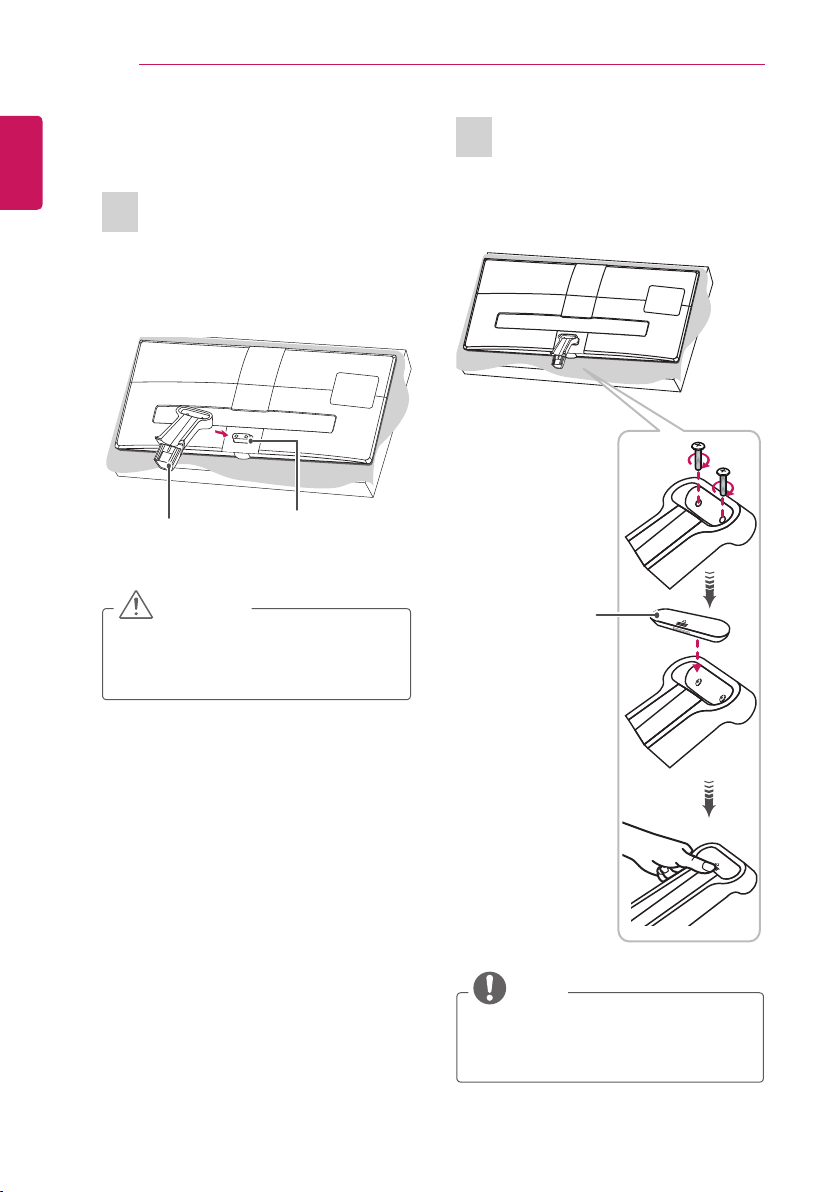
Do not carry the TV upside-down as this
may cause it to fall off its stand, resulting in
damage or injury.
y
Do not carry the TV upside-down by
holding the stand body as this may cause
it to fall off, resulting in damage or injury.
y
The illustration shows a general example of
installation and may look different from the
actual product.
10
ENGLISH
ASSEMBLING AND PREPARING
Setting up the TV
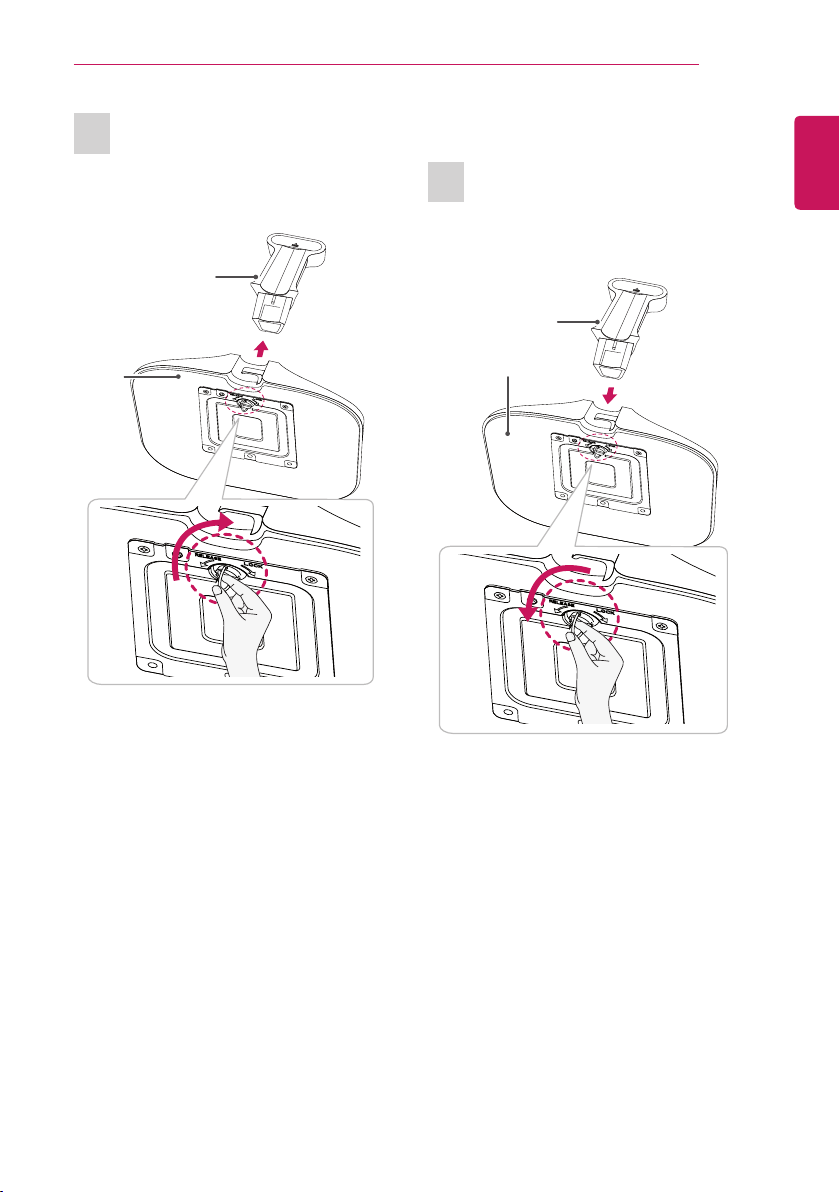
Attaching the Stand
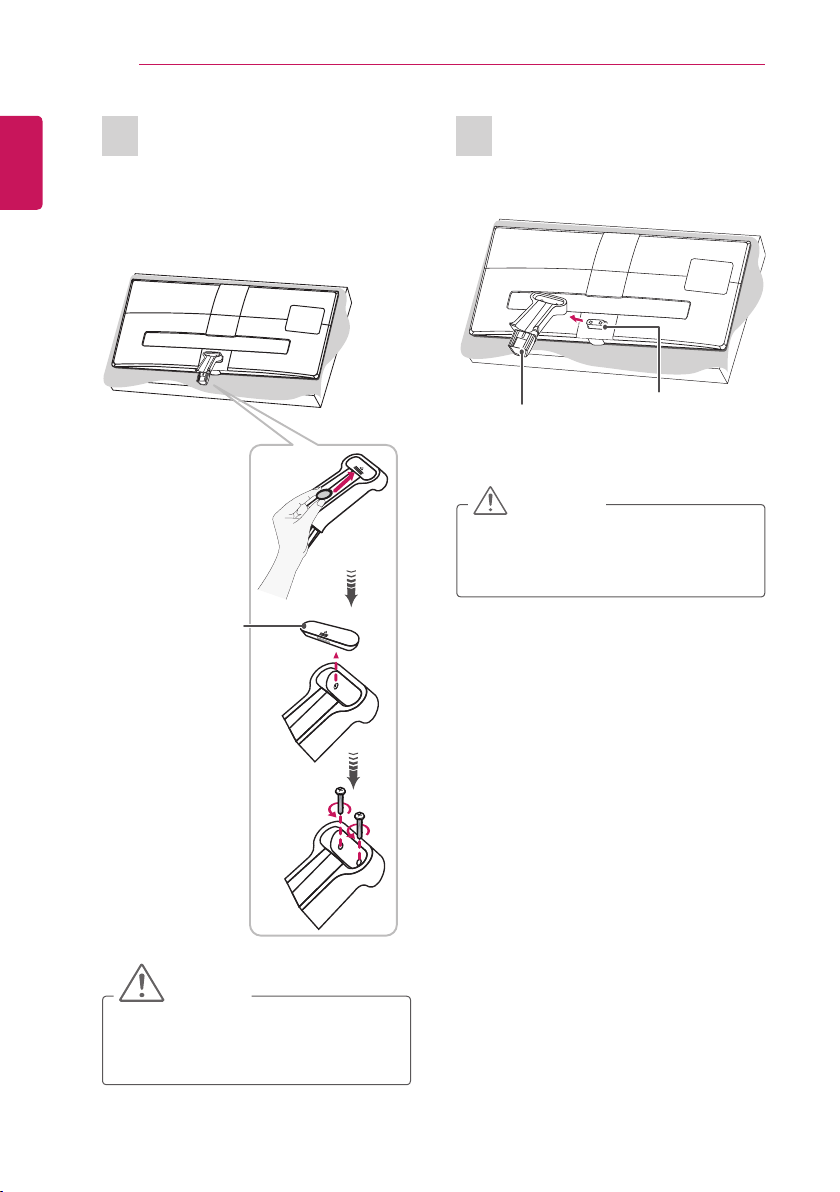
1
Check the orientation (front and rear) of the stand
base and mount the Stand Body to the Stand
Hinge as shown in the gure.
Stand Body
Stand Hinge
CAUTION
y
When attaching the stand to the TV set,
place the screen facing down on a cushioned
table or at surface to protect the screen
from scratches.
2
Turn the screw to the right into the back of the
stand body and close the Stand Screw Cover.
Stand Screw
Cover
NOTE
y
If you don`t fasten the screw tightly, TV will
fall down and get damaged.
y
Tighten the screws rmly to prevent the TV
from tilting forward. Do not over tighten.
ENGLISH
ASSEMBLING AND PREPARING
11
Detaching the Stand
1
Turn the screw to the left, and then pull out the
Stand Base from the Stand Body.
3
Fix the Stand Base to the Stand Body and turn
the screws on the Stand Base to the right.
Stand Base
Stand Body
Stand Body
Stand
Base
12
ENGLISH
ASSEMBLING AND PREPARING
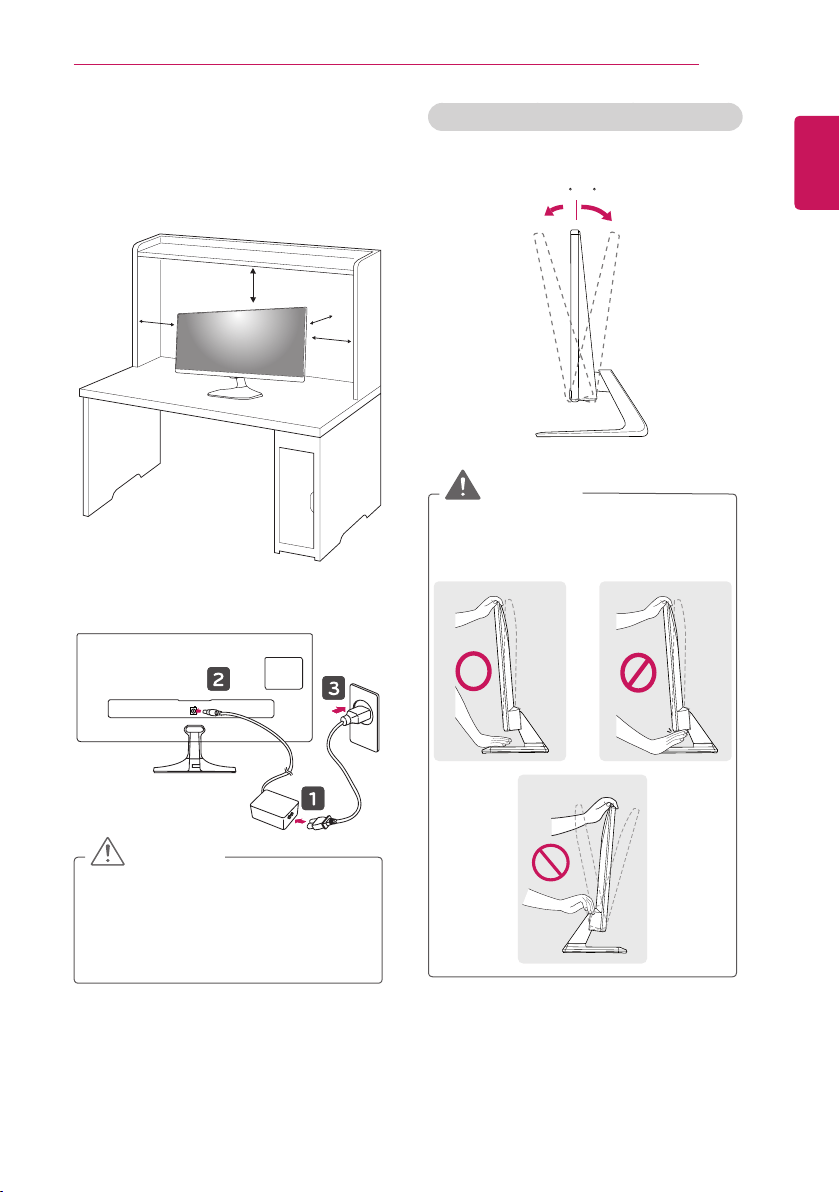
2
Open the Stand Screw Cover on the back of the
Stand Body and turn the screws on the stand
body to the left.
3
Detach the Stand Body from the TV.
Stand Body
Stand Hinge
CAUTION
y
When detaching the stand to the TV
set, place the screen facing down on a
cushioned table or flat surface to protect the
screen from scratches.
CAUTION
y
To remove the stand screw cover, use a
screwdriver, coin or similar object.
y
Removing the cover by hand may cause
injury.
Stand Screw
Cover
ENGLISH
ASSEMBLING AND PREPARING
13
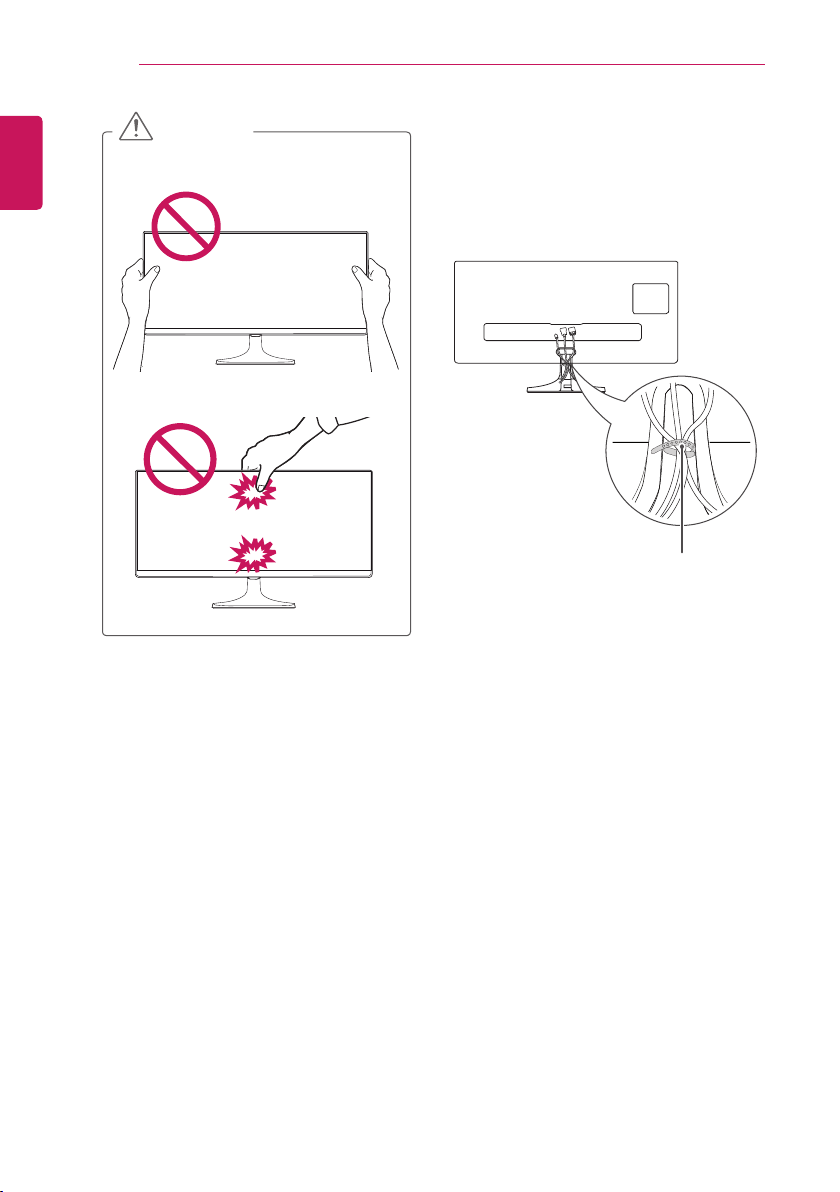
Mounting on a table
1 Lift and tilt the TV into its upright position on a
table. Leave a 10 cm (minimum) space from
the wall for proper ventilation.
10 cm
10 cm
10 cm
10 cm
2 Connect the AC-DC Adapter and Power Cord
to a wall outlet.
DC-IN
(19V )
CAUTION
y
Do not place the TV near or on sources
of heat, as this may result in re or other
damage.
y
Disconnect the power cord rst, and then
move or install the TV. Otherwise electric
shock may occur.
Adjusting the angle of the TV to suit view
Tilt from -5 to +20 degrees up or down to adjust
the angle of the TV to suit your view.
Front Rear
-5 20
:
WARNING
y
When you adjust the angle, do not hold the
button of the TV frame as shown on the
following illustration, as may injure your
ngers.
14
ENGLISH
ASSEMBLING AND PREPARING
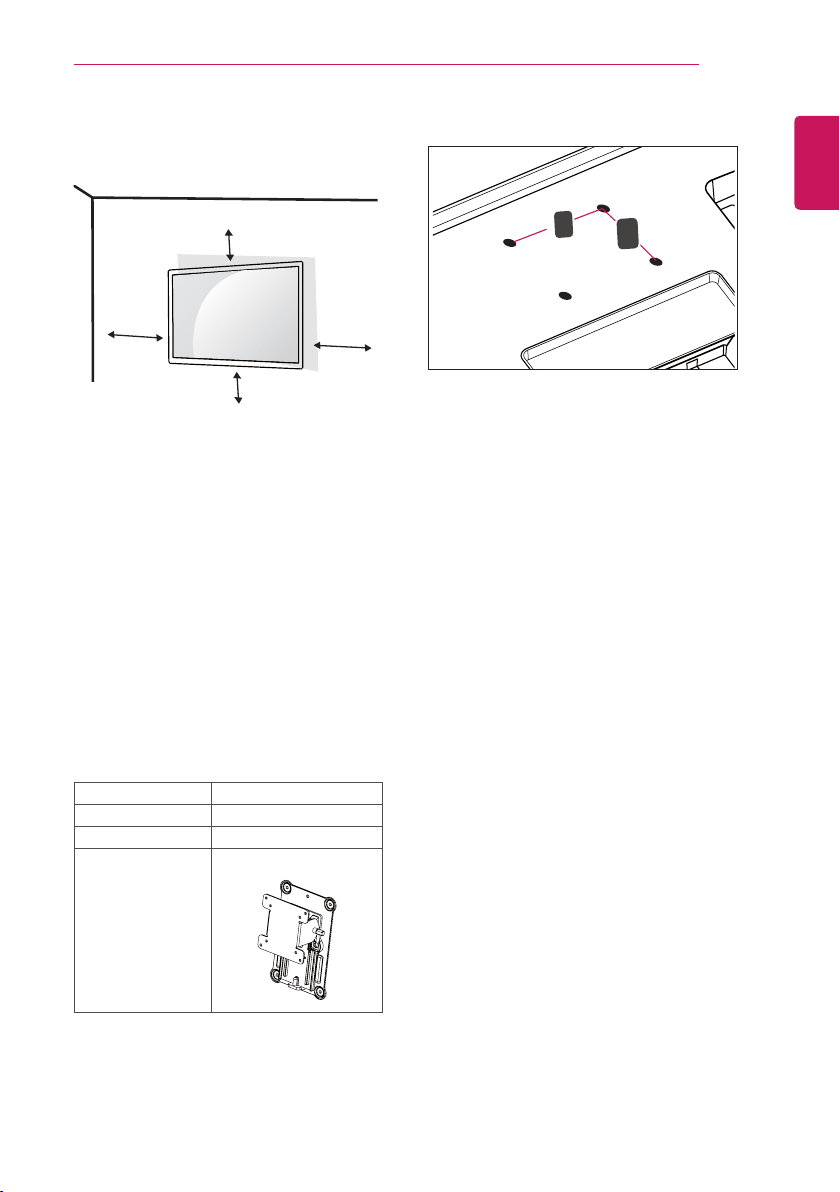
CAUTION
y
Be careful not to touch or press the screen
area when adjusting the angle of the TV.
y
Be careful not to press the screen with your
ngers or palm.
Tidying cables
1 Gather and bind the cables with the supplied
cable holder.
2 Place the cable on the hook located on the
stand base.
Cable Holder
ENGLISH
ASSEMBLING AND PREPARING
15
y
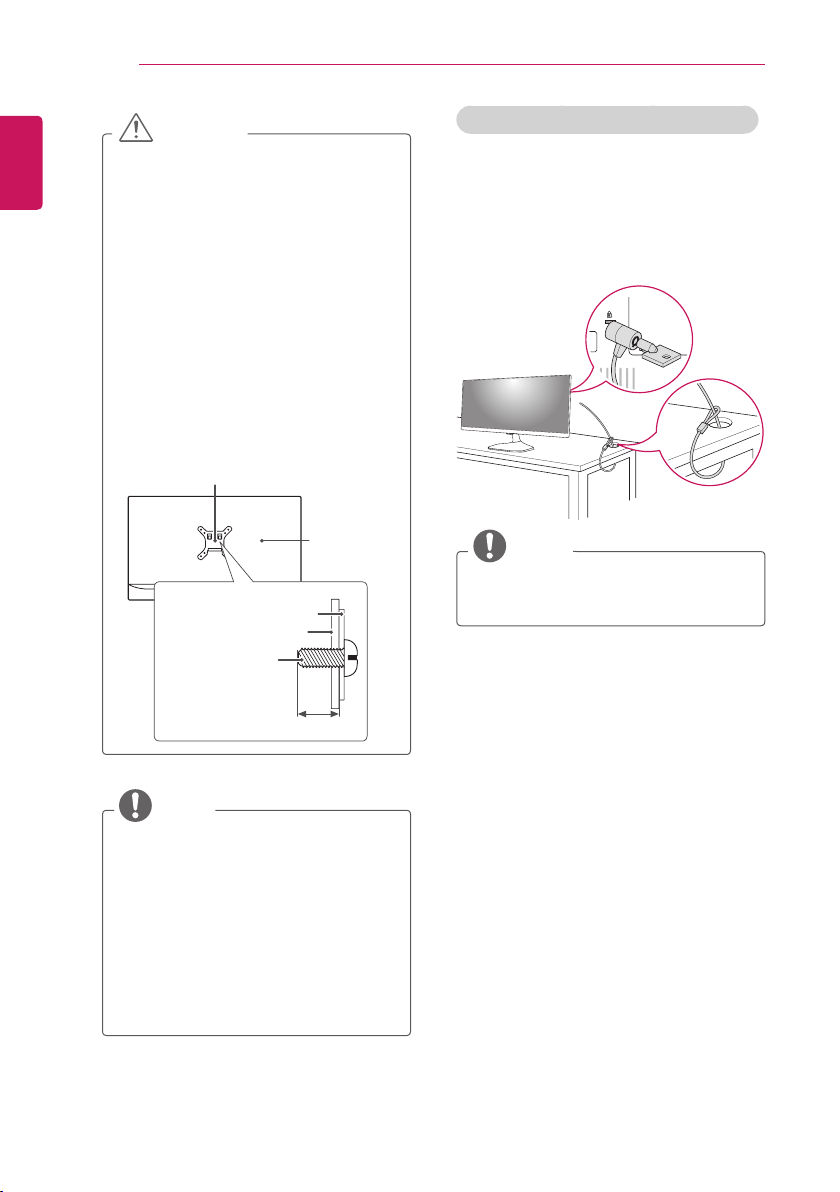
Wall mount (A x B)
A
B
Mounting on a wall
For proper ventilation, allow a clearance of 10
cm on each side and from the wall. Detailed
installation instructions are available from your
dealer, see the optional Tilt Wall Mounting
Bracket Installation and Setup Guide.
If you intend to mount the TV to a wall, attach
Wall mounting interface (optional parts) to the
back of the TV.
When you install the TV using the wall mounting
interface (optional parts), attach it carefully so it
will not drop.
1 If you use screw longer than standard, the
TV might be damaged internally.
2 If you use improper screw, the product
might be damaged and drop from mounted
position. In this case, LG Electronics is not
responsible for it.
Wall mount (A x B) 75 x 75
Standard screw M4 X L10
Number of screws 4
Wall mount bracket
(optional)
RW120
10 cm
10 cm
10 cm
10 cm
16
ENGLISH
ASSEMBLING AND PREPARING
CAUTION
y
Disconnect the power first, and then
move or install the TV. Otherwise electric
shock may occur.
y
If you install the TV on a ceiling or slanted
wall, it may fall and result in severe injury.
Use an authorized LG wall mount and
contact the local dealer or qualified
personnel.
y
Do not over tighten the screws as this
may cause damage to the TV and void
your warranty.
y
Use the screws and wall mounts that
meet the VESA standard. Any damages
or injuries by misuse or using an
improper accessory are not covered by
the warranty.
y
Screw length from outer surface of back
cover should be under 8mm.
Wall mount Pad
Back Cover
Standard screw
: M4 x L10
Wall mount Pad
Back Cover
Max.8mm
NOTE
y
Use the screws that are listed on the
VESA standard screw specifications.
y
The wall mount kit includes an installation
manual and necessary parts.
y
The wall mount bracket is optional. You
can obtain additional accessories from
your local dealer.
y
The length of screws may differ
depending on the wall mount. Be sure to
use the proper length.
y
For more information, refer to the
instructions supplied with the wall mount.
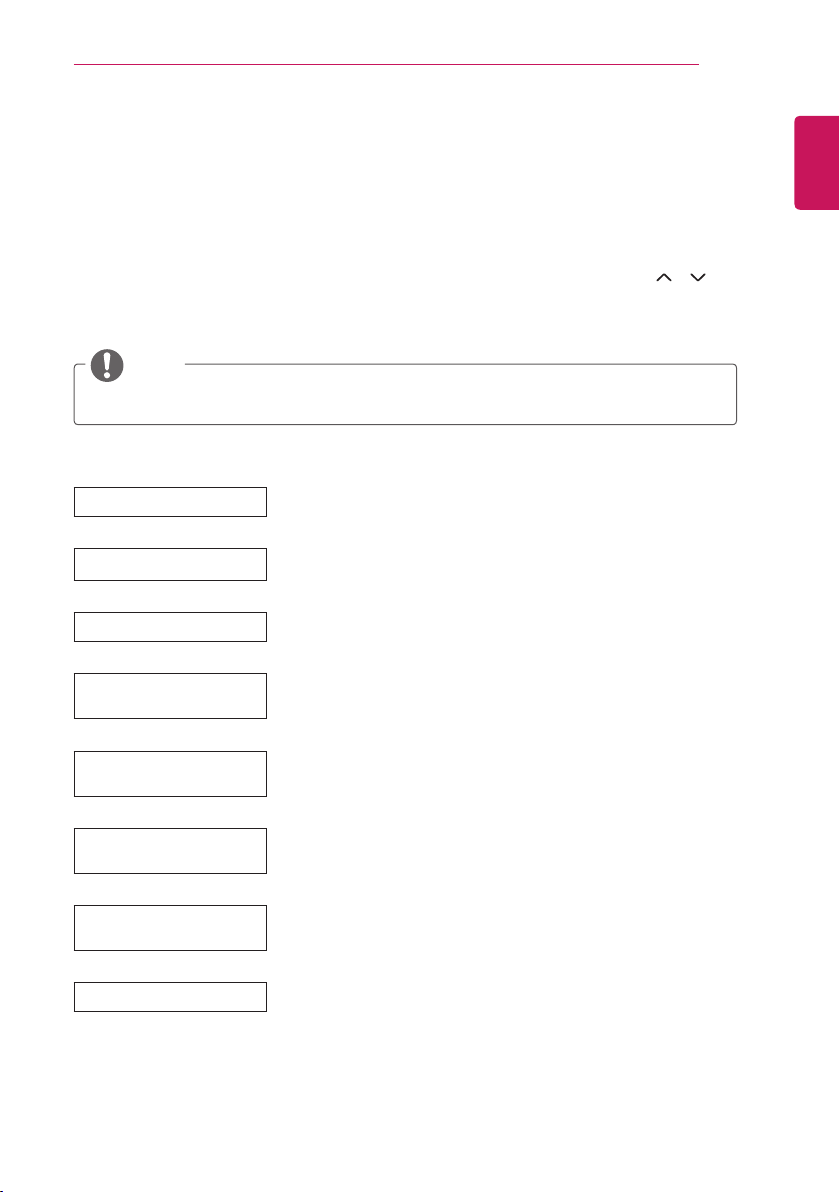
Using the Kensington security system
The Kensington security system connector is
located at the back of the TV. For more information
of installation and using, refer to the manual
supplied with the Kensington security system or
visit
http://www.kensington.com
.
Connect the Kensington security system cable
between the TV and a table.
NOTE
y
The Kensington security system is optional.
You can obtain additional accessories from
most electronics stores.
ENGLISH
WATCHING TV
17
WATCHING TV
Turning the TV on for the rst time
When you access the TV for the rst time, the Factory Reset screen appears. Select a language and
customize the basic settings.
1 Connect the power cord to a power outlet.
2 Standby Light is turned on. Set the joystick buttons on the TV or press the power, TV/PC,
P
,
INPUT, number buttons on the remote control to turn the TV on.
The Standby Light is turned off.
3 The Factory Reset screen appears if you access the TV for the rst time.
NOTE
y
If you do not operate the TV within 40 seconds when the setting menu screen appears, the setting
menus will disappear.
4 Follow the on-screen instructions to customize your TV according to your preferences.
Language Selects a language for the display.
Country Selects a country to display.
Mode Setting
Selects Home Use for the home environment.
Power Indicator
Selects the Standby Light. If you select On, the TV turns on the Standby
Light in the front panel when the TV is off.
Time Zone
Selects the time zone and daylight saving.
(When Russia is selected for Country)
Set Password
Set the password.
(When France/Italy is selected for Country)
Network Setting
(If there is LAN port) selects Network Setting to display.
(Only UK, **UT55V models)
Auto Tuning Scans and saves available programmes automatically.
18
ENGLISH
WATCHING TV
NOTE
y
For those countries without conrmed DTV broadcasting standards, some DTV features might not
work, depending on the DTV broadcasting environment.
y
When France is selected for Country, the initial password is not ‘0’, ‘0’, ‘0’, ‘0’ but ‘1’, ‘2’, ‘3’, ‘4’.
y
To display images in the best quality for your home environment, select Home Use mode.
y
Store Demo mode is suitable for the retail environment.
y
If you select Store Demo mode, the previously customized settings will switch to the default settings
of Store Demo mode in 5 minutes.
5 When the basic settings are complete, press
OK
.
NOTE
y
If you do not complete the Factory Reset, it will appear whenever you access the TV.
6 To turn the TV off, press the power button on the remote control or joystick button for a few second.
The Standby Light is turned on.
CAUTION
y
Disconnect the power cord from the power outlet when you do not use the TV for a long period of
time.
NOTE
y
You can also switch the TV from PC mode to TV mode, press TV/PC.
y
You can also access Factory Reset by accessing
OPTION
in the main menus.
ENGLISH
WATCHING TV
19
TV display (5:9 OSD)
Programme Guide
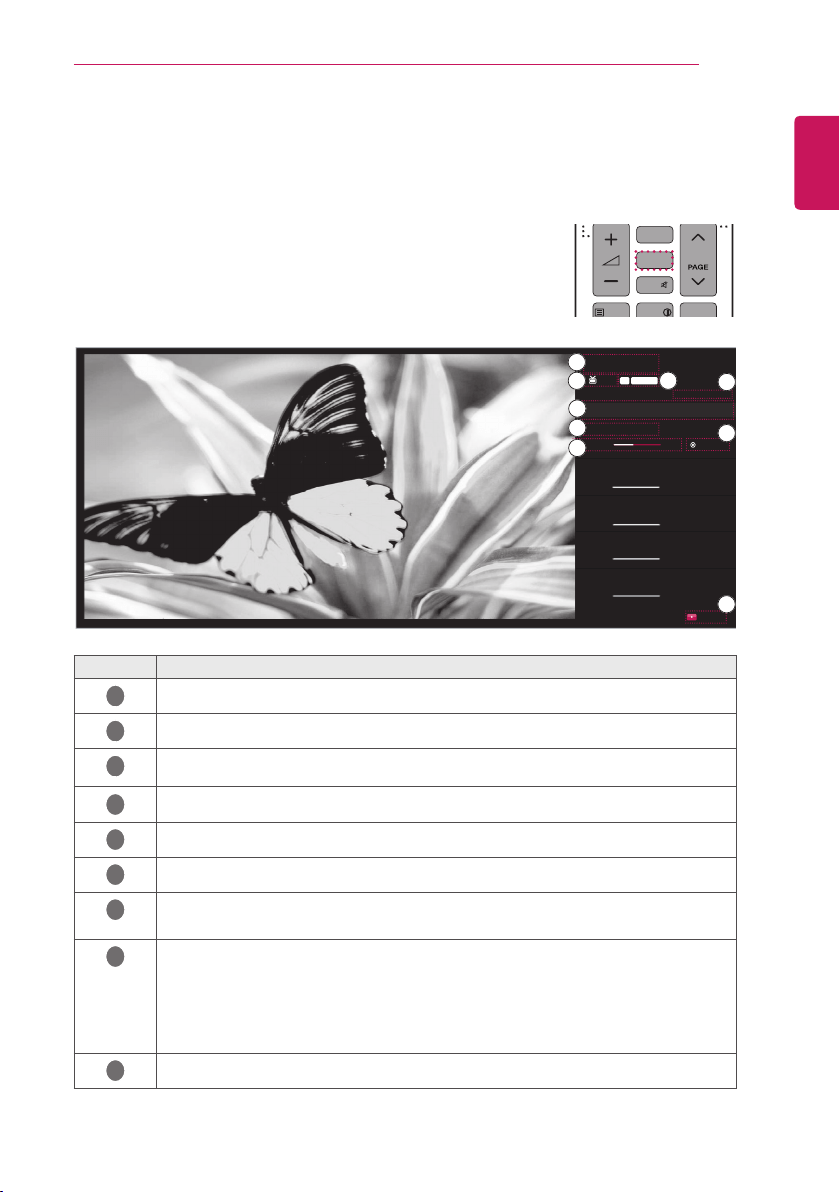
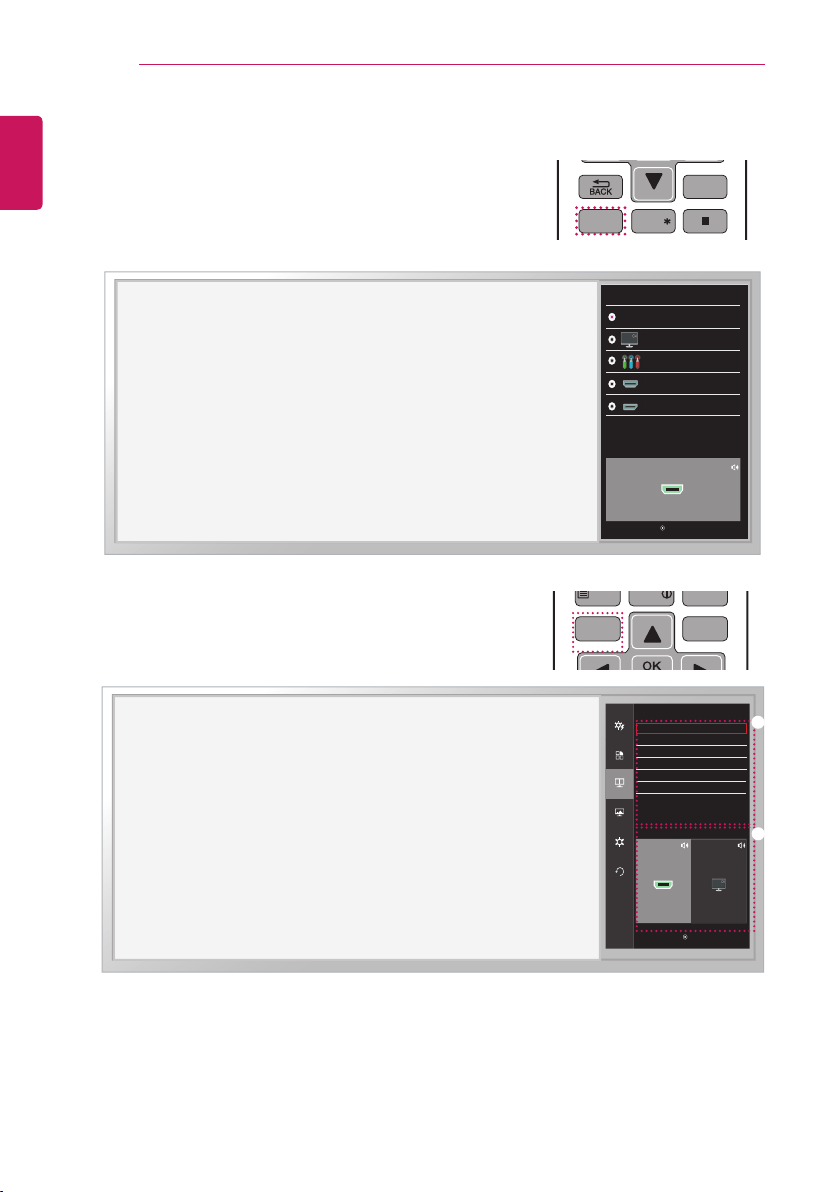
Press the GUIDE button on the remote control while you are watching TV.
- On the right-hand side (5:9 OSD) of the TV screen, the details
of programme you are currently watching and the programme
organization information are displayed.
- DTV channels are marked only in ‘Other Channels’ list.
1
TV/PC
4 5 6
7 8 9
LIST
SUBTITLE
TEXT
SETTINGS
Q.MENU
EXIT
AD
INFO
T.OPT
Q.VIEW
P
0
FAV
GUIDE
MUTE
2 3
INPUT
TV/
RAD
REC/
PIP SETTINGS
PIP
NO. Description
1
Displays the programme you are currently watching.
2
Displays the broadcasting type of the programme you are currently watching.
3
Displays the broadcasting type icon.
(e.g., HD, Dolby, Digital, etc.)
4
Displays the current date and time.
5
Displays the current programme schedule or the entire programme list.
6
Displays the information of programme you are currently watching.
7
Displays the running time of the programme.
- Displays the progress including start and end times of the programme.
8
Displays the available functions.
- If the programme you are currently watching is focused, the Watch function is
displayed.
- If the programme you are not currently watching is focused, the Remind function is
displayed.
- If other channel guide is focused, the Watch function is displayed.
9
Displays the programme guide for all programmes.
HD
.FOV$IBOHF
: :
▶
◀
%57
▶
▶
▶
/
▶
/
DOLBY DIGITAL
Schedule
Watch
Time All
1
2
3
4
5
6
7
8
9
20
ENGLISH
WATCHING TV
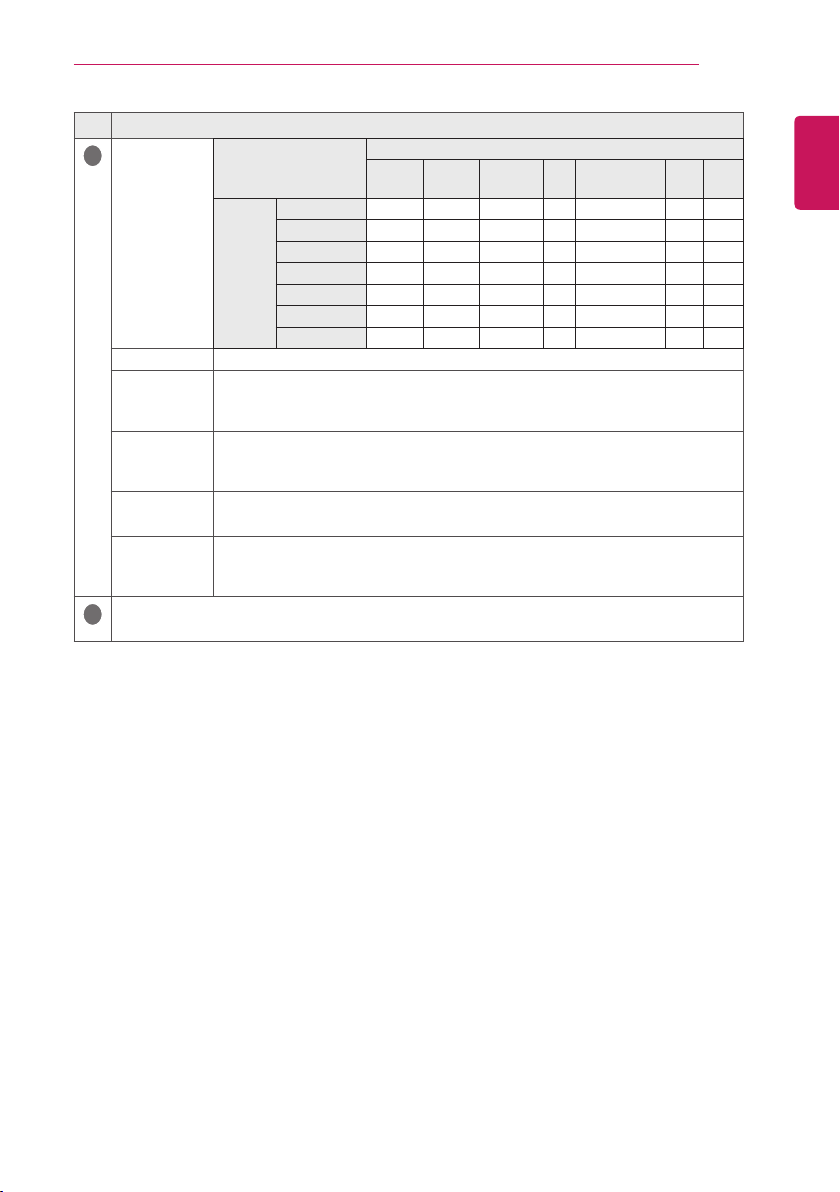
PIP function
Press the PIP button on the remote control while you are watching
HDMI1, 2, DisplayPort.
- Congured Sub screen is saved until change the Main screen.
1
TV/PC
4 5 6
7 8 9
LIST
SUBTITLE
TEXT
SETTINGS
Q.MENU
EXIT
AD
INFO
T.OPT
Q.VIEW
P
0
FAV
GUIDE
MUTE
2 3
INPUT
TV/
RAD
REC/
PIP SETTINGS
PIP
V GaG
V ඖGaG
ඔGaG
oktpX
V GaG㢨┍
V ඖGaG䞉㢬
ඔGaG㢨㤸G䞈⮨㡰⦐
e⺴䞈⮨
wpw
e䆠ὤ
e㠸㾌
e㢀㉥
e䞈⮨⽸㡜
e䍠⮹⓸
oktpX
wpwG⫠⸨ὤ
Sub
Off
TV
Move OK Back
Component
HDMI2
DisplayPort
While watching PIP, press the PIP SETTINGS button on the remote
control to display the Sub Menu.
1
TV/PC
4 5 6
7 8 9
LIST
SUBTITLE
TEXT
SETTINGS
Q.MENU
EXIT
AD
INFO
T.OPT
Q.VIEW
P
0
FAV
GUIDE
MUTE
2 3
INPUT
TV/
RAD
REC/
PIP SETTINGS
PIP
ⶸ ⶼ
ⶺ
ⶾ
)%.* 57
Move OK
Back
PIP
Sub
Size
Position
Audio
Ratio
Transparency
East control
Function
PIP
Settings
Screen
Reset
PIP Preview
PIP Preview
SubMain
①
②
ENGLISH
WATCHING TV
21
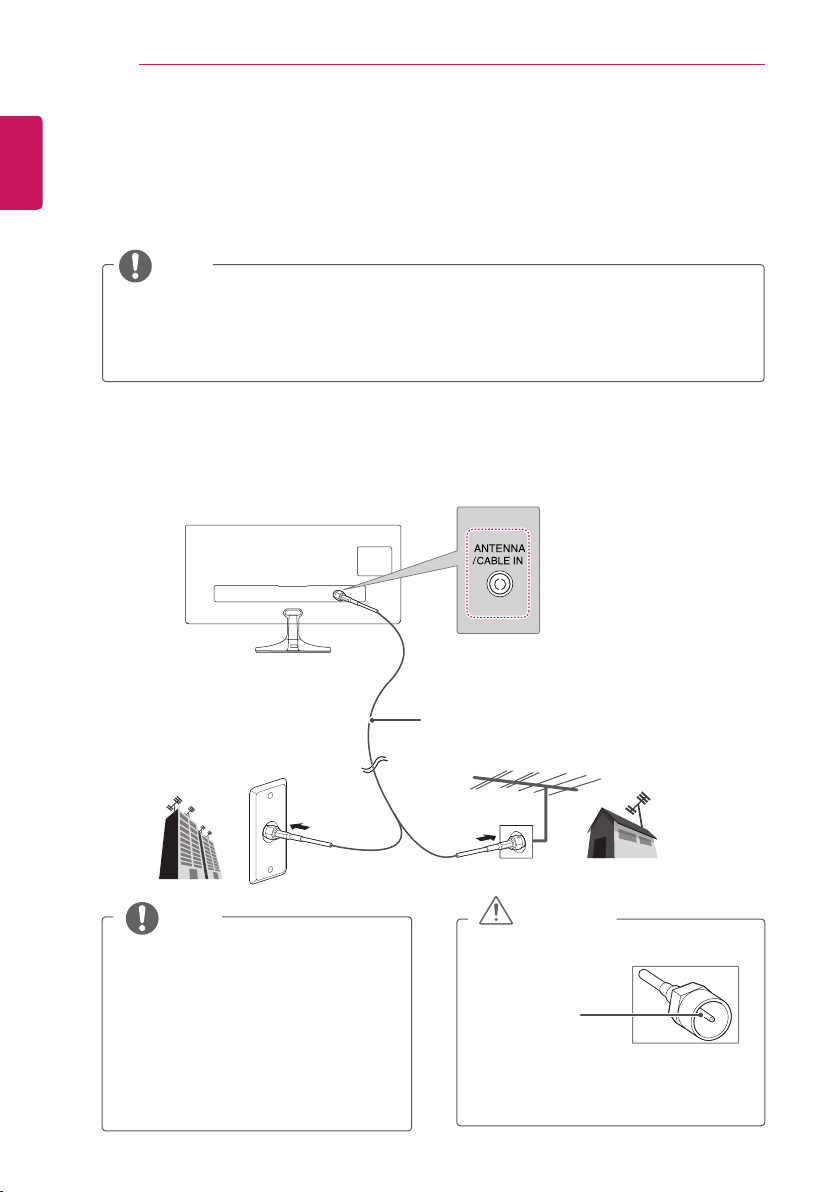
NO. Description
1
Sub
PIP Map
PIP Sub
HDMI1 HDMI2
Display
Port
TV Component AV1 AV2
Current
input
HDMI1 X O O O O X X
HDMI2 O X O O O X X
DisplayPort O O X O O X X
TV X X X X X X X
Component X X X X X X X
AV1 X X X X X X X
AV2 X X X X X X X
Size Sets the size of the PIP Sub window. (Small / Medium / Large / Balanced)
Position
Sets the position of the PIP Sub window.
(Bottom Right / Bottiom Left / Top Left / Top Right)
* This function is disabled when the size is set to [Balanced].
Audio
Selects the audio input.
* Only the items that are available under the current combination are enabled
(PIP Main / PIP Sub).
Ratio
Sets the aspect ratio of PIP Sub.
* This function is enabled when Size is set to [Balanced].
Transparency
Sets the opacity of PIP.
(Off / 25 % / 50 % / 75 %)
* This function is disabled when Size is set to [Balanced].
2
Displays the congured OSD icon and its name.
22
ENGLISH
MAKING CONNECTIONS
MAKING CONNECTIONS
Connect various external devices to the TV and switch input modes to select an external device. For more
information about an external device’s connection, refer to the manual supplied with each device.
Available external devices are: HD receivers, DVD players, VCRs, audio systems, USB storage devices,
PC, camcorders or cameras, gaming devices, and other external devices.
NOTE
y
If you record a TV program on a DVD recorder or VCR, make sure to connect the TV signal input
cable to the TV through a DVD recorder or VCR. For more information about recording, refer to the
manual supplied with the connected device.
y
The external device connection may differ from the model.
y
Connect external devices to the TV regardless of the order of the TV port.
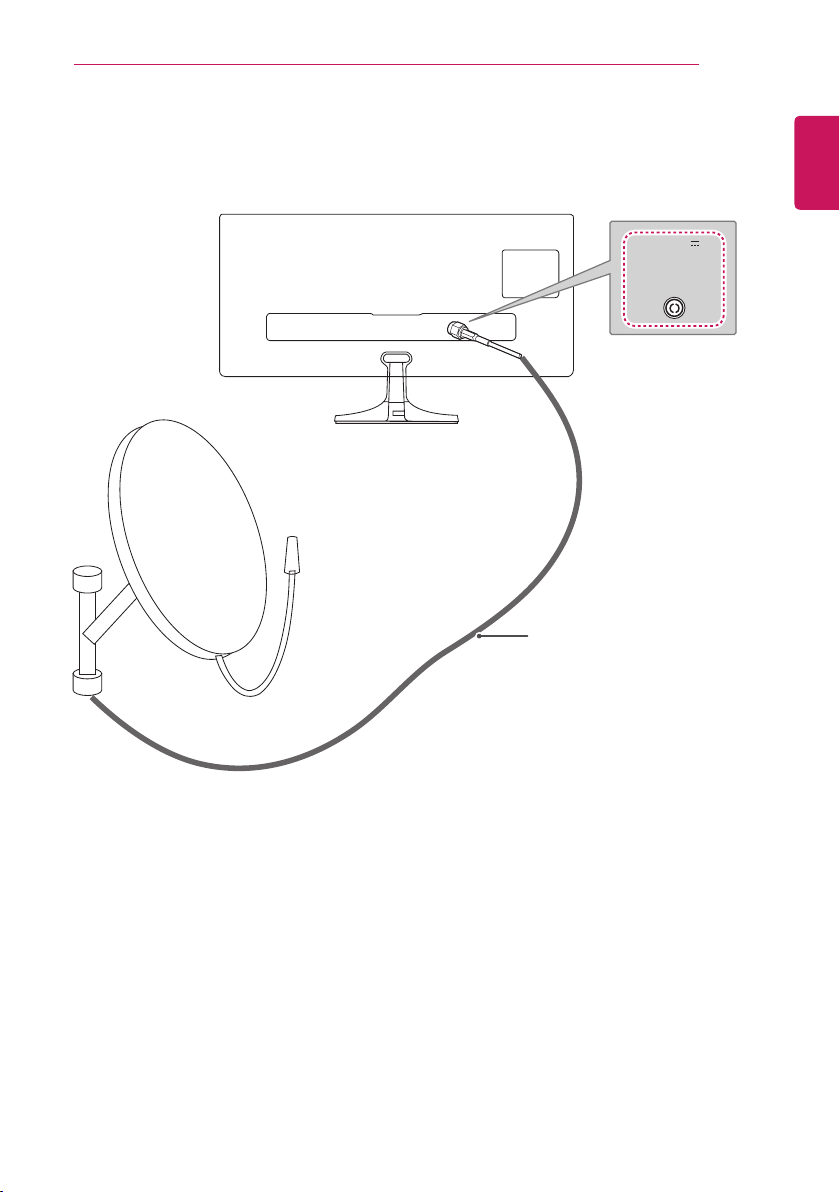
Connecting an antenna
Connect an antenna, cable or cable box to watch TV referring to the following. The illustrations may differ
from the actual accessories and an RF cable is optional.
Connect the TV to a wall antenna socket with an RF cable (75 Ω).
Outdoor Antenna
y
VHF Antenna
y
UHF Antenna
Wall Antenna Socket
(Not Provided)
NOTE
y
Use a signal splitter to use more than 2
TVs.
y
If the image quality is poor, install a signal
amplifier properly to improve the image
quality.
y
If the image quality is poor with an
antenna connected, aim the antenna to
the proper direction.
y
Visit
http://AntennaWeb.org
for more
information about the antenna and cable
connection.
CAUTION
y
Make sure not to bend the copper wire
of the RF cable.
Copper wire
y
Complete all connections instructions
between devices, and then connect
the power cord to the power outlet to
prevent damages to your TV.
ENGLISH
MAKING CONNECTIONS
23
Satellite connection
Connect the TV to a satellite dish to a satellite socket with a satellite RF cable (75 Ω).
13/18 V
700mA Max
LNB IN
Satellite
(Not Provided)
24
ENGLISH
MAKING CONNECTIONS
External Device Connections
Connect a HD receiver, DVD Player, VCR or Gaming device to the TV and select an appropriate input
mode.
HDMI connection
HDMI is the best way to connect a device.
Transmits the digital video and audio signals from an external device to the TV. Connect the external
device and the TV with the HDMI cable as shown on the following illustration.
NOTE
y
HDMI cable to the HDMI input and a digital broadcast receiver, connect the HDMI output. Video,
with sound output.
y
Press the
INPUT
button on the remote control to select either HDMI IN 1 or HDMI IN 2.
y
Dolby Digital and DTS are not supported. If no sound is coming out, set the audio output of the
connected device to PCM.
y
Using a non-standard HDMI cable may cause a problem with some of the functions. It is highly
recommended to use a standard cable.
HDMI IN 1
HDMI IN 2
HDMI OUT
DVD / Blu-Ray / HD Cable Box /
HD STB / Gaming device
y
Choose any HDMI input port to connect.
y
It does not matter which port you use.
ENGLISH
MAKING CONNECTIONS
25
Component connection
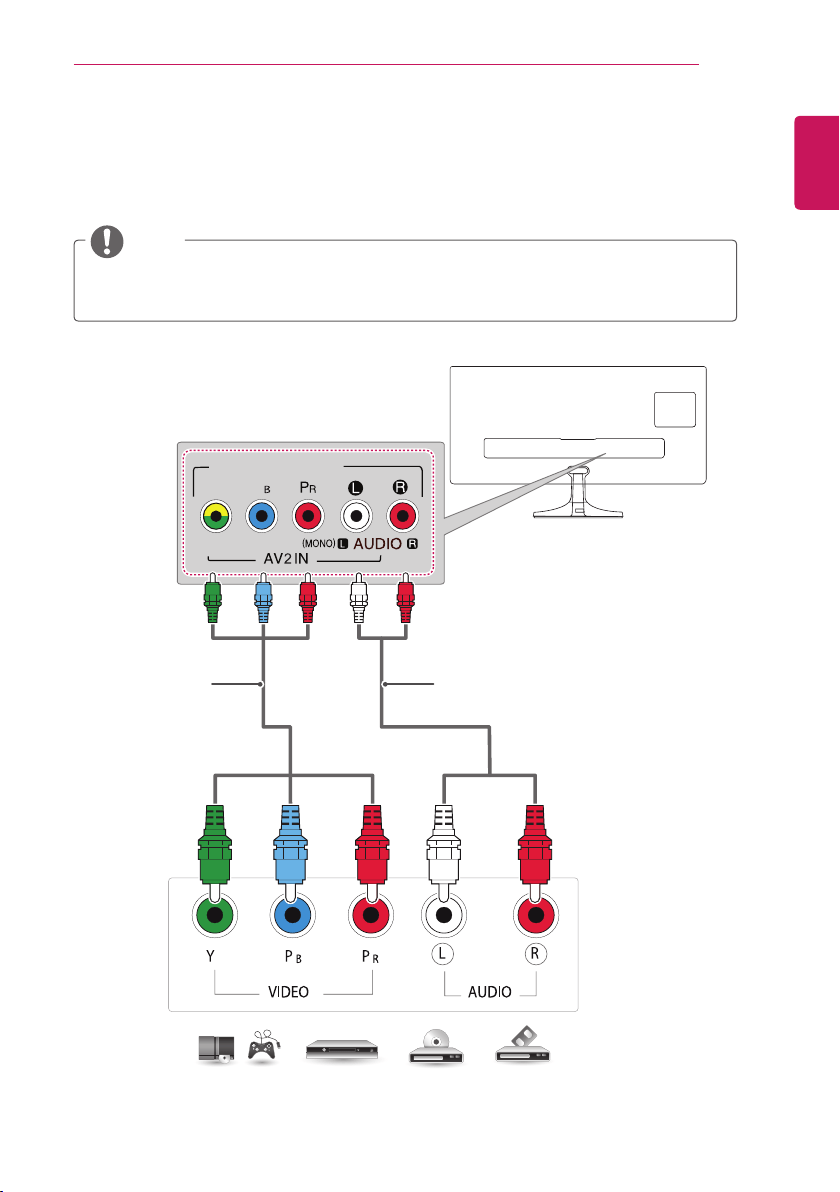
Transmits the analogue video and audio signals from an external device to the TV. Connect the external
device and the TV with the component cable as shown on the following illustration. To display images by
using progressive scan, make sure to use a component cable.
NOTE
y
If cables are installed incorrectly, image is displayed as black-and-white or abnormal colour.
y
Check to ensure each cable is matched with the corresponding colour connection.
y
Press the
INPUT
button on the remote control to select component.
DVD / Blu-Ray / HD Cable Box /
HD STB / Gaming device
COMPONENT IN
Y
P
VIDEO
(Not Provided) (Not Provided)
26
ENGLISH
MAKING CONNECTIONS
Composite connection
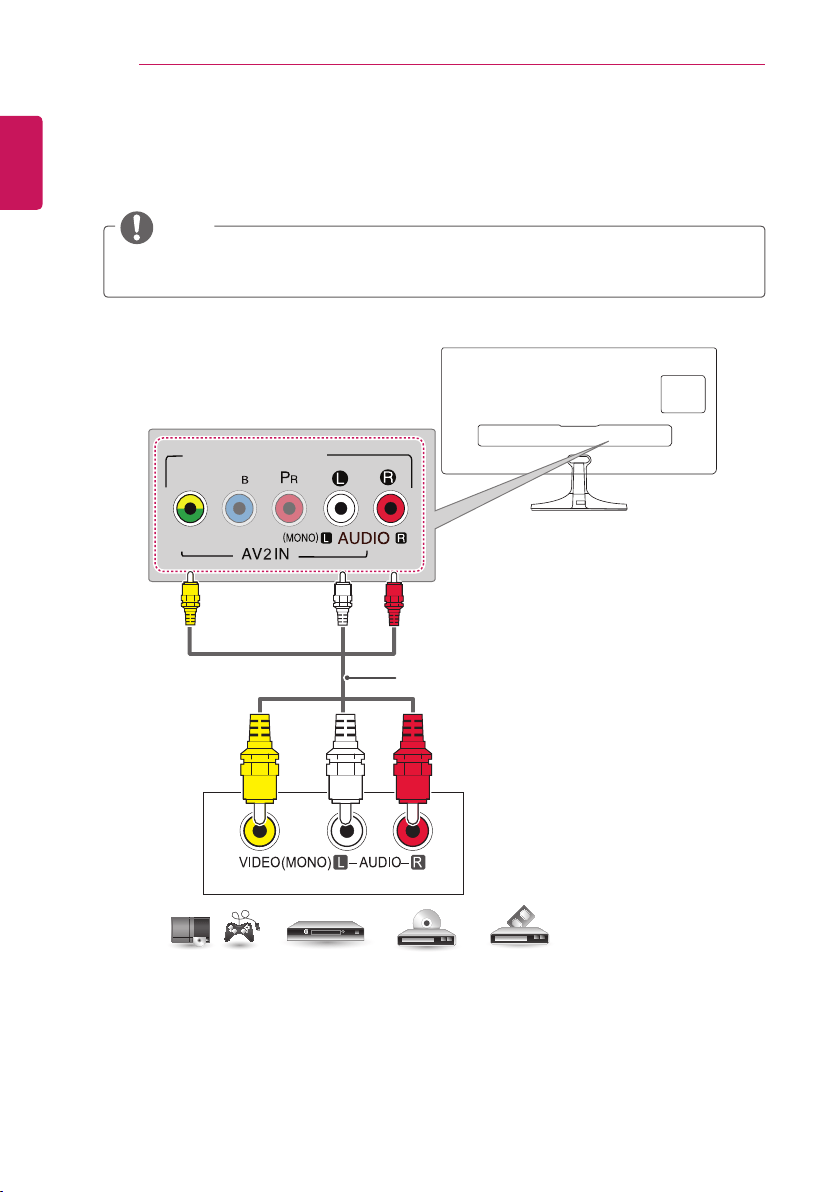
Transmits the analogue video and audio signals from an external device to the TV. Connect the external
device and the TV with the composite cable as shown on the following illustration.
NOTE
y
Check to ensure each cable is matched with the corresponding colour connection.
y
Press the
INPUT
button on the remote control to select AV2.
DVD / Blu-Ray / HD Cable Box /
HD STB / Gaming device
COMPONENT IN
Y
P
VIDEO
(Not Provided)
ENGLISH
MAKING CONNECTIONS
27
Euro Scart connection
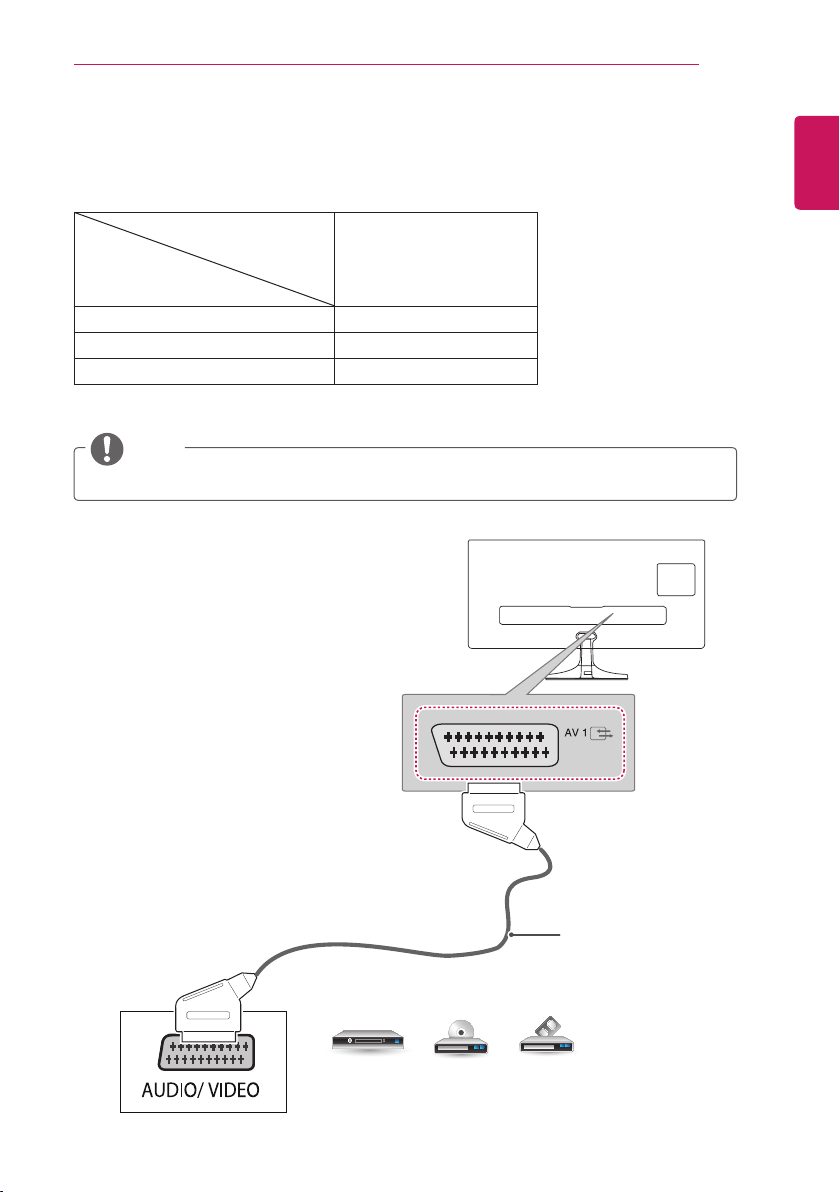
Transmits the video and audio signals from an external device to the TV. Connect the external device and
the TV with the Euro Scart cable as shown on the following illustration.
Output Type
Current
input mode
AV1 (TV Out
1
)
Digital TV Digital TV
Analogue TV Analogue TV
Component, AV, HDMI Analogue TV
1 TV Out : Outputs Analogue TV or Digital TV signals.
NOTE
y
Any Euro cable used must be shielded for signal quality.
DVD / Blu-Ray / HD Cable Box
(Not Provided)
28
ENGLISH
MAKING CONNECTIONS
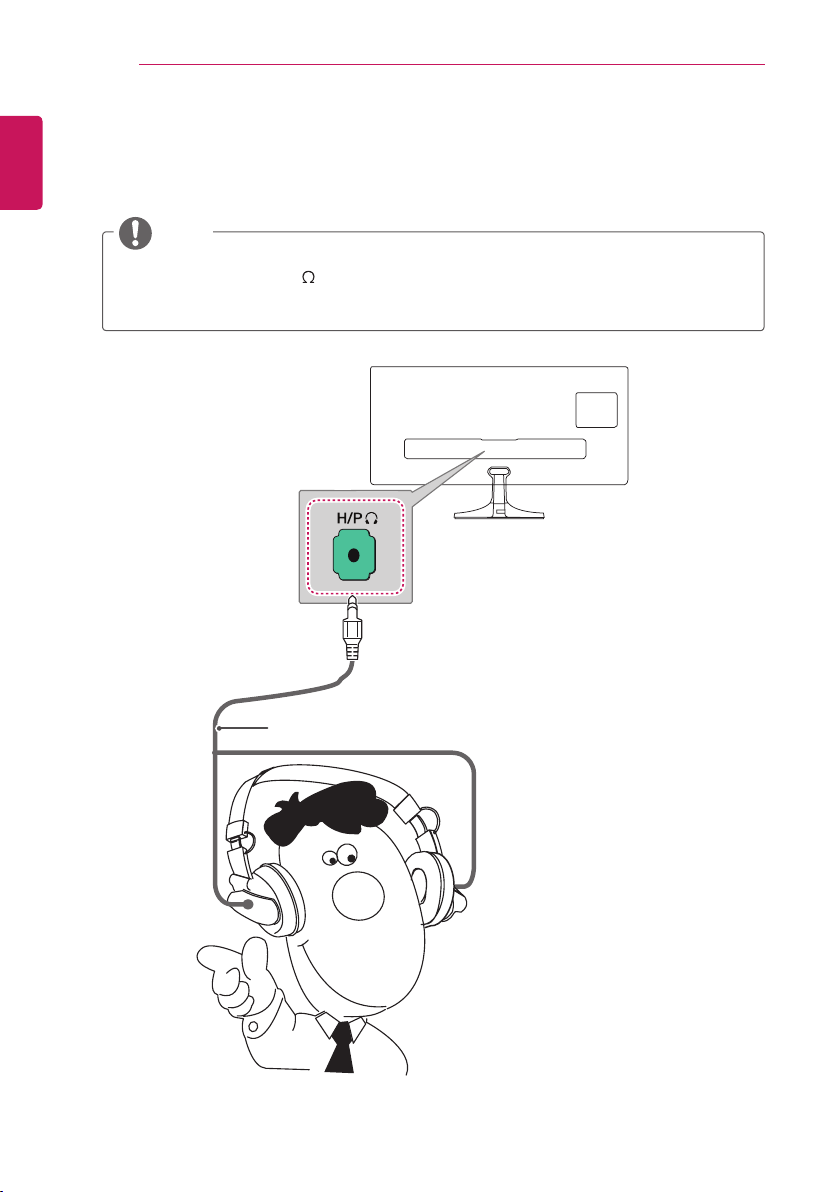
Headphone connection
Transmits the headphone signal from the TV to an external device. Connect the TV with the headphone as
shown on the following illustration.
NOTE
y
AUDIO menu items are disabled when connecting a headphone.
y
Headphone impedance: 16
y
Max audio output of headphone: 2.5 mW to 5.5 mW
y
Headphone jack size: 0.35 cm
(Not Provided)
Headphone
ENGLISH
MAKING CONNECTIONS
29
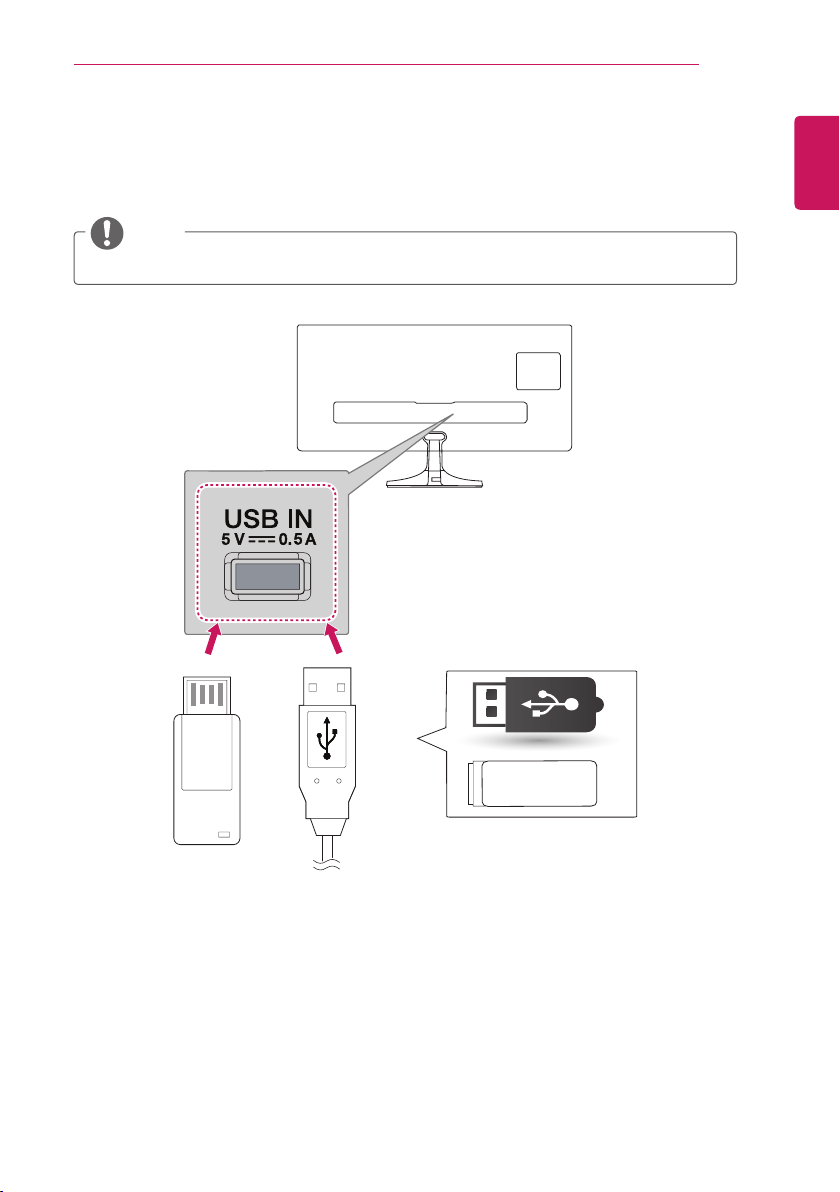
Connecting a USB Device
Connect a USB storage device such as s USB ash memory, external hard drive, MP3 player or a USB
memory card reader to the TV and select input as USB to use various multimedia les.
NOTE
y
It may not work when USB 3.0 devices are connected.
1 The USB port provides 0.5 A electric current. If you need more electric current in the case of an HDD,
use a separate power adaptor.
(Not Provided)
(Not Provided)
USB / HDD
1
30
ENGLISH
MAKING CONNECTIONS
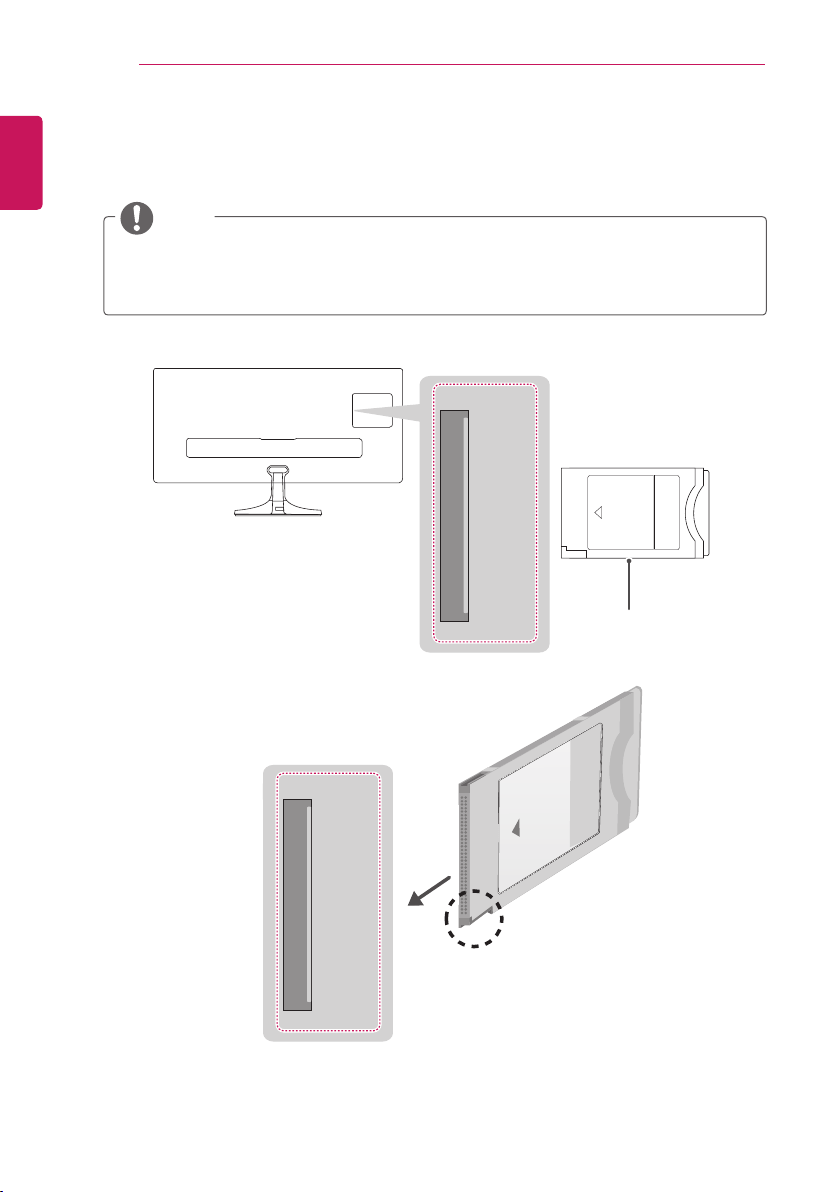
CI module connection
View the encrypted (pay) services in digital TV mode. This feature is not available in all countries.
NOTE
y
Check if the CI module is inserted into the PCMCIA CARD SLOT in the right direction. If the module is
not inserted properly, this can cause damage to the TV and the PCMCIA CARD SLOT.
y
If the TV does not display any video and audio when CI+ CAM is connected, please contact to the
Antenna/Cable/Satellite Service Operator.
▲ PCMCIA ▲
CARD SLOT
▲ PCMCIA ▲
CARD SLOT
(Not Provided)
ENGLISH
MAKING CONNECTIONS
31
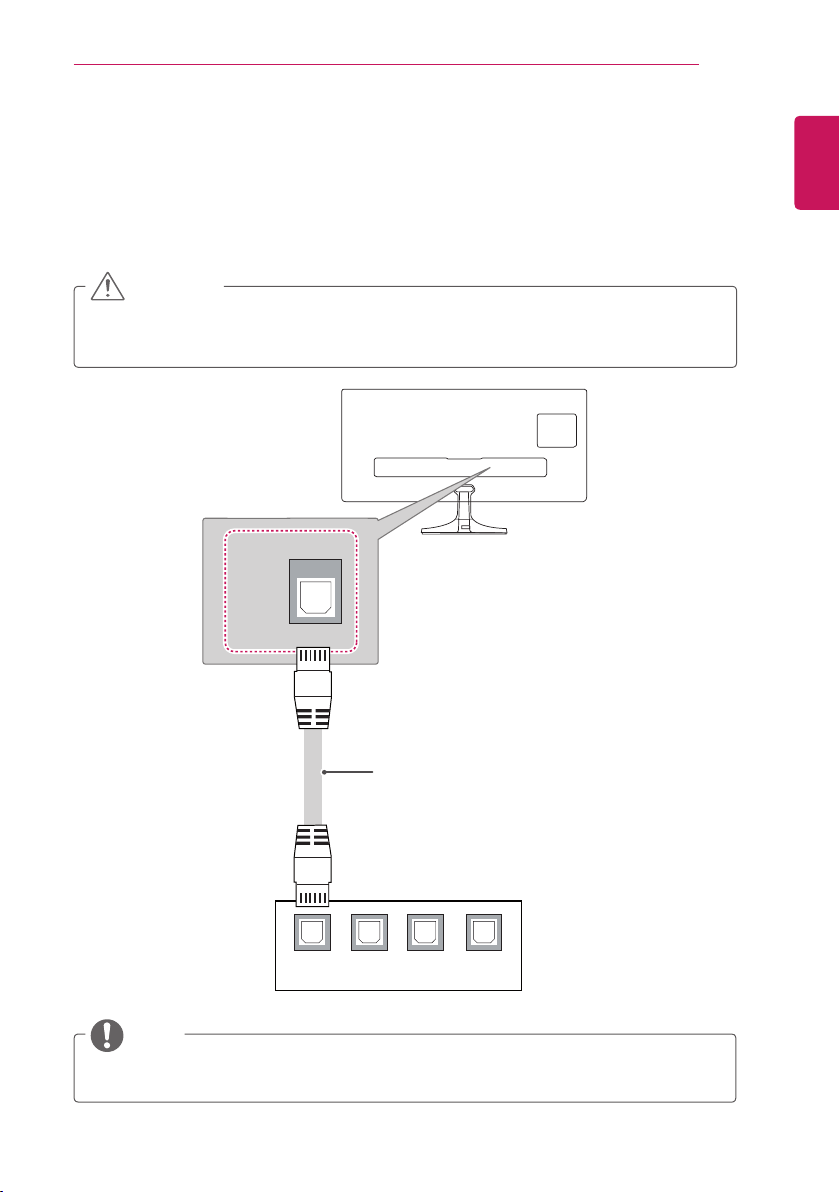
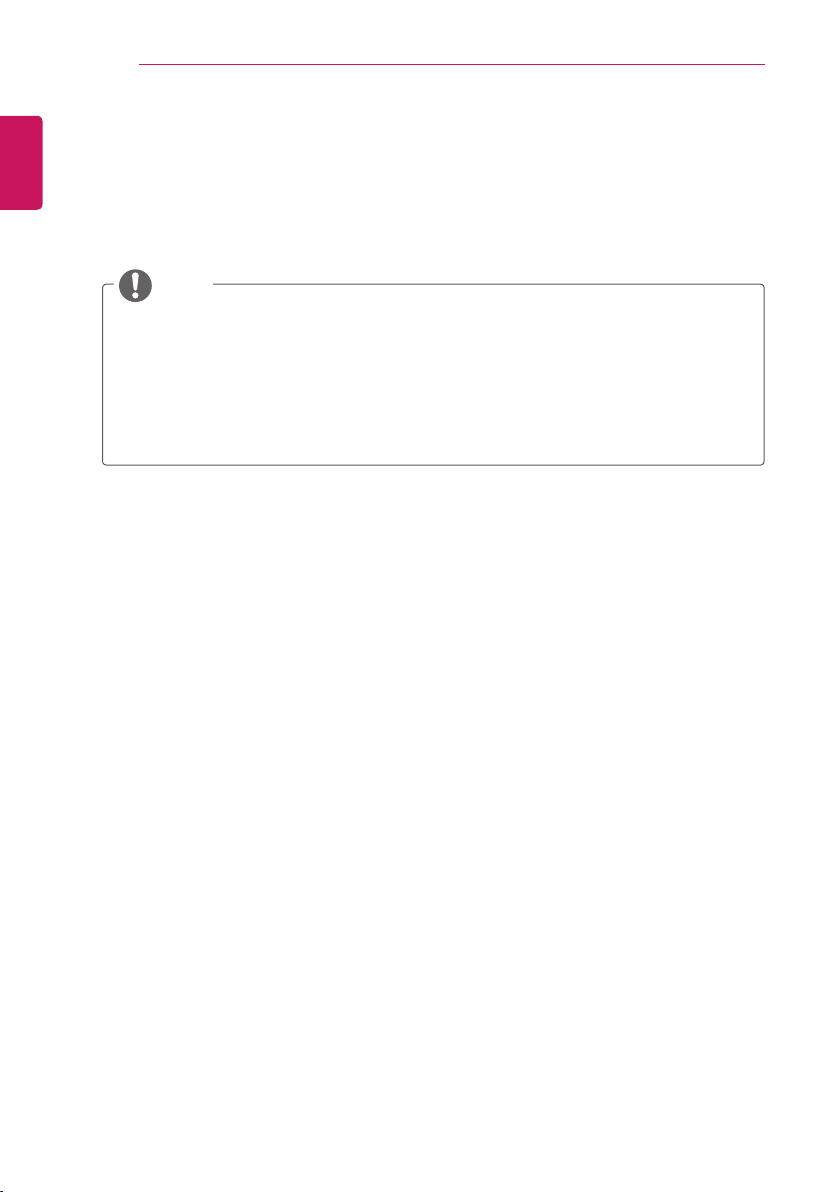
Connecting to a wired network
(Only UK)
Connect the TV to a local area network (LAN) via the LAN port as shown on the following illustration
and set up the network settings. After making a physical connection, a small number of home networks
may require the TV network settings to be adjusted. For most home networks, the TV will connect to
automatically without any adjustments.
For detail information, contact your internet provider or router manual.
CAUTION
y
Do not connect a modular phone cable to the LAN port.
y
Since there are various connection methods, please follow the specifications of your
telecommunication carrier or internet service provider.
NOTE
y
UK: LAN port is available. (The LAN port is added to support HD MHEG.)
y
Other areas: LAN port is not available.
LAN
1 2 3 4
LAN
(Not Provided)
32
ENGLISH
MAKING CONNECTIONS
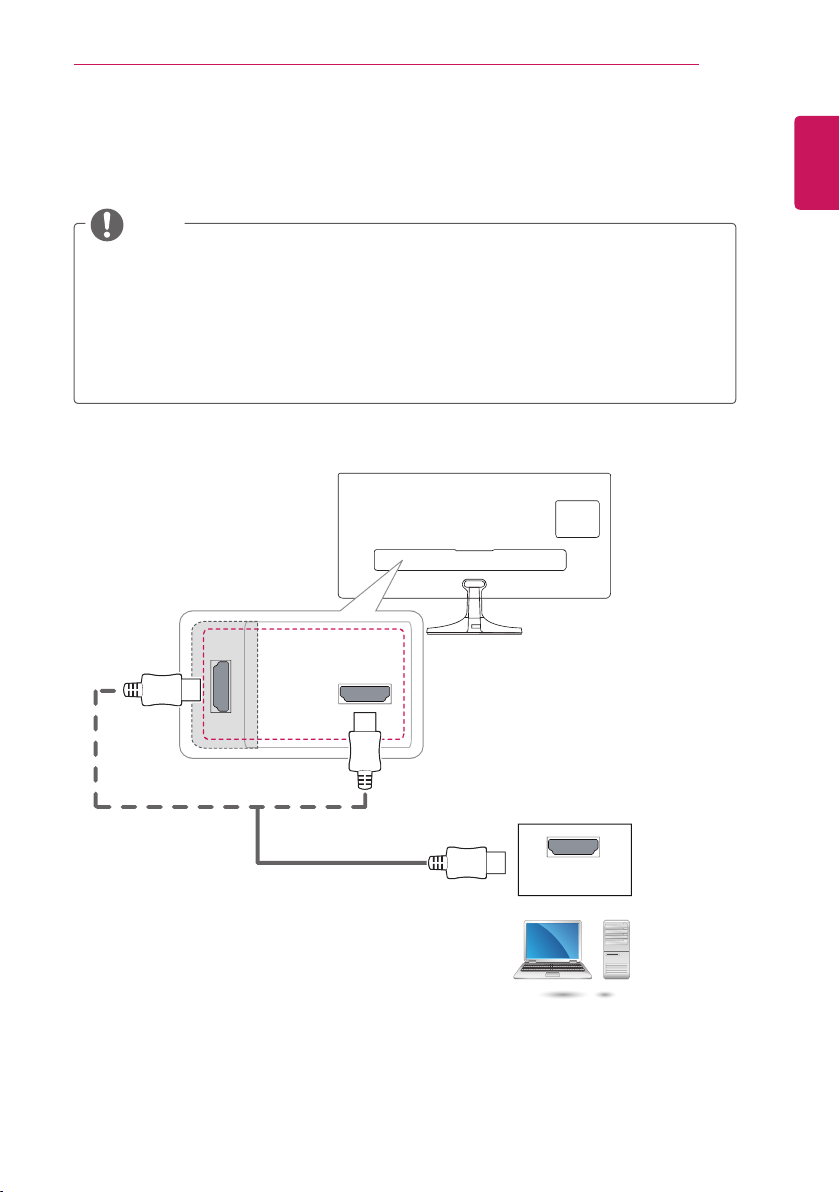
Connecting to a PC
Your TV supports the Plug & Play* feature.
* Plug & Play: The function when a PC recognizes a connected device and requires no driver to be
installed.
NOTE
y
It is recommended to use an TV with the HDMI connection for the best image quality.
y
If you turn the TV on when the set is cold, the screen may icker. This is normal.
y
Some red, green, or blue spots may appear on the screen. This is normal.
y
Do not press the screen with your nger for a long time as this may result in temporary distortion on
the screen.
y
Avoid displaying a xed image on the screen for a long period of time to prevent image burn. Use a
screensaver if possible.
y
When connecting the power cord to the outlet, use a grounded (3-hole) multi-socket or a grounded
power outlet.
ENGLISH
MAKING CONNECTIONS
33
HDMI connection
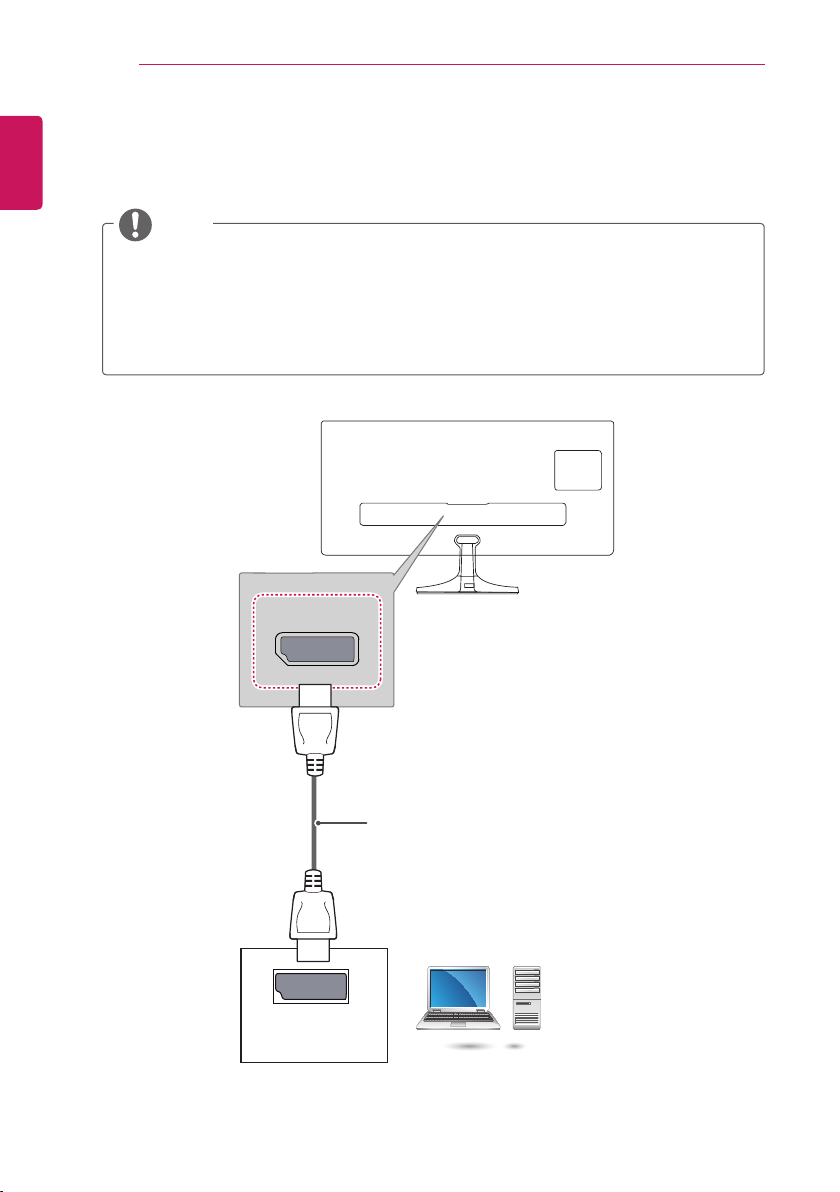
Transmits the digital video and audio signals from your PC to the TV. Connect the PC and the TV with an
HDMI cable as shown in the following illustrations.
NOTE
y
Use a High Speed HDMI
®
cable.
y
Please check your PC settings if you cannot hear any sound in HDMI mode.
y
Press the
INPUT
button on the remote control to select either HDMI IN 1 or HDMI IN 2.
y
Using a DVI to HDMI cable may cause compatibility issues.
y
If the PC is connected through a HDMI, the device may cause compatibility issues.
y
Dolby Digital and DTS are not supported. If no sound is coming out, set the audio output of the
connected device to PCM.
y
Using a non-standard HDMI cable may cause a problem with some of the functions. It is highly
recommended to use a standard cable.
PC
HDMI IN 1
HDMI IN 2
HDMI OUT
y
Choose any HDMI input port to connect.
y
It does not matter which port you use.
34
ENGLISH
MAKING CONNECTIONS
PC
Display Port connection
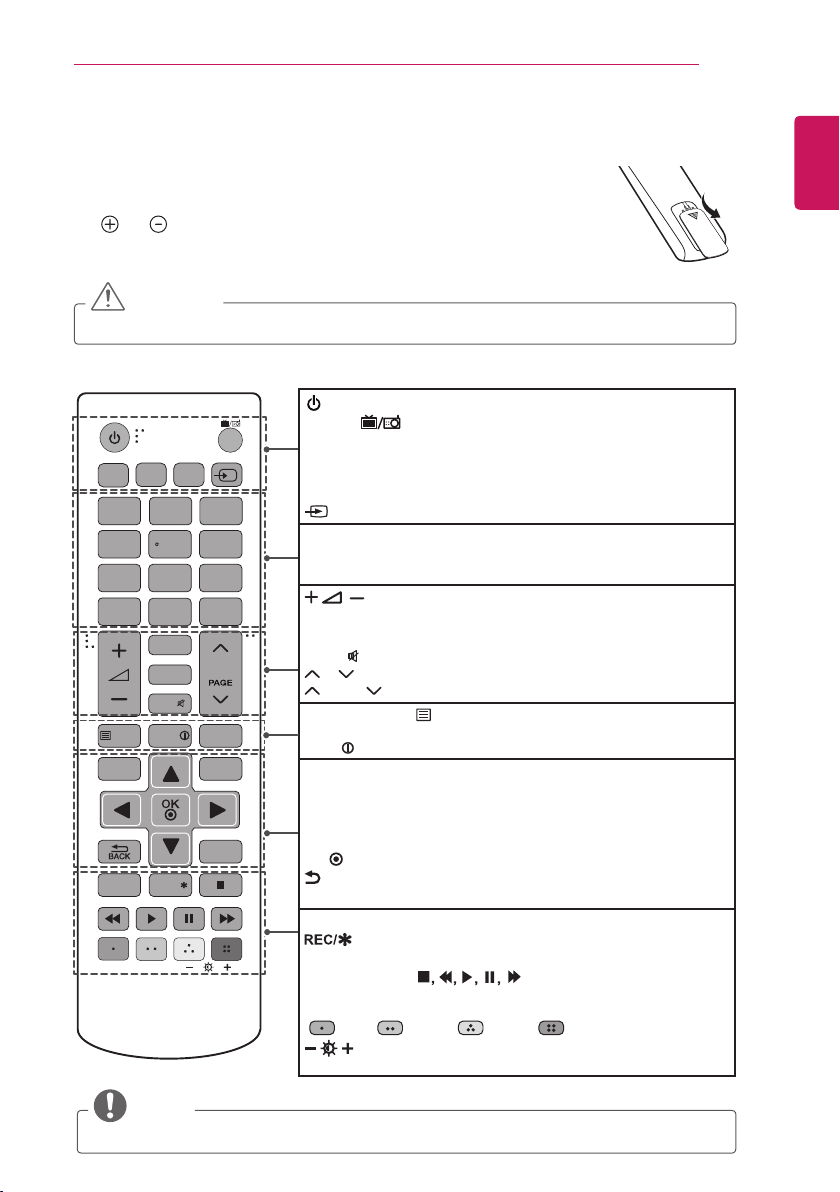
Transmits the digital video and audio signals from your PC to the TV. Connect your PC to the TV using the
display port cable as illustrated below.
NOTE
y
Sound may not hear depending on the DP version of your PC.
y
Dolby Digital and DTS are not supported. If no sound is coming out, set the audio output of the
connected device to PCM.
y
Press the
INPUT
button on the remote control to select DisplayPort.
y
Using a DP to HDMI or DP to DVI cable may cause compatibility issues.
y
HDMI signals are not converted to DP signals. If you use a DP to HDMI cable, you can watch your
media on a PC or other device with DP output by using the HDMI port.
DP - IN
DP OUT
(Not Provided)
ENGLISH
REMOTE CONTROL
35
REMOTE CONTROL
The descriptions in this manual are based on the buttons on the remote control.
Please read this manual carefully and use the TV correctly.
To replace batteries, open the battery cover, replace batteries (1.5 V AAA) matching
the and ends to the label inside the compartment, and close the battery cover.
To remove the batteries, perform the installation actions in reverse.
CAUTION
y
Do not mix old and new batteries, as this may damage the remote control.
Make sure to point the remote control toward the remote control sensor on the TV.
NOTE
y
On MHEG programme, you cannot adjust the backlight with the yellow or blue key.
1
TV/PC
4 5 6
7 8 9
LIST
SUBTITLE
TEXT
SETTINGS
Q.MENU
EXIT
AD
INFO
T.OPT
Q.VIEW
P
0
FAV
GUIDE
MUTE
2 3
INPUT
TV/
RAD
REC/
PIP SETTINGS
PIP
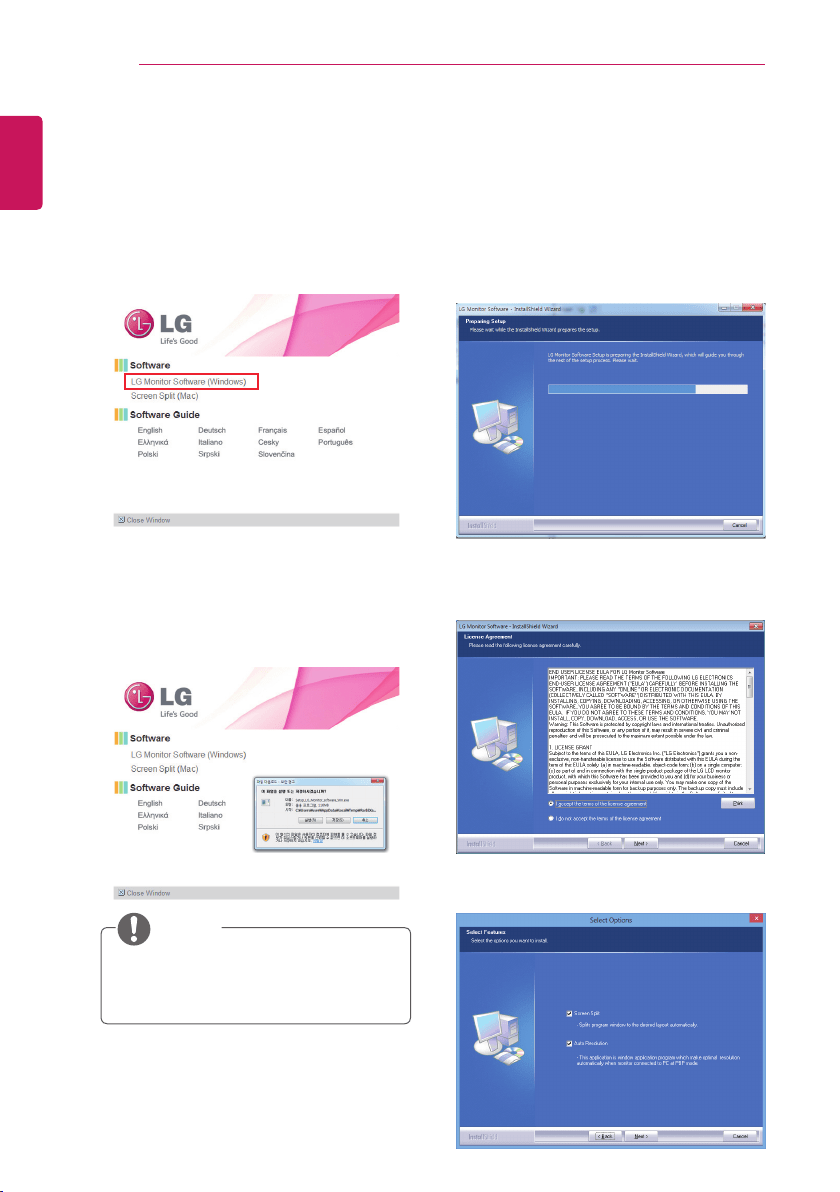
(POWER) Turns the TV on or off.
TV/RAD Selects Radio, TV and DTV programme.
SUBTITLE Recalls your preferred subtitle in digital mode.
AD By pressing the AD button, audio descriptions function will be
enabled.
TV/PC Selects TV or PC mode.
INPUT Changes the input source.
Number buttons Enters numbers.
LIST Accesses the saved programme list.
Q.VIEW Returns to the previously viewed programme.
Adjusts the volume level.
FAV Accesses your favourite programme list.
GUIDE Shows programme guide.
MUTE Mutes all sounds.
P
Scrolls through the saved programmes
PAGE Moves to the previous or next screen.
Teletext buttons( TEXT / T.OPT) These buttons are used for
teletext.
INFO Views the information of the current programme and screen.
SETTINGS Accesses the main menus.
PIP SETTINGS PIP Displays the Menu screen for the PIP mode.
Q. MENU Accesses the quick menus.
Navigation buttons (up/down/left/right) Scrolls through menus or
options.
OK Selects menus or options and conrms your input.
BACK Returns to the previous level.
EXIT Clears all on-screen displays and return to TV viewing.
PIP
Turns the PIP mode on or off.
Starts to record and displays record menu. (Depending on
model)
Control buttons ( ) Controls the USB menus, or the
compatible devices (USB).
Colour buttons These access special functions in some menus.
( : Red, : Green, : Yellow, : Blue)
(Backlight)
Adjusts the brightness of the screen by controlling
the screen backlight.
36
ENGLISH
INSTALLING LG MONITOR SOFTWARE
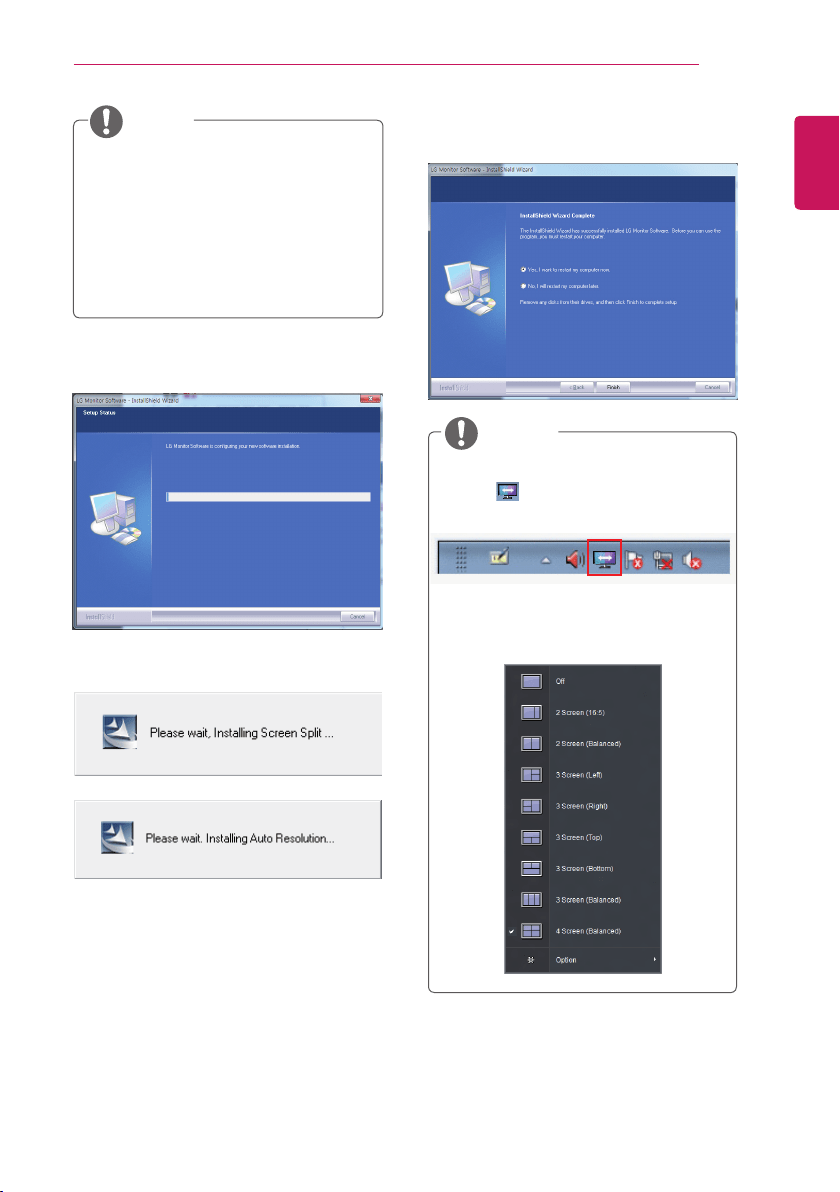
1 Set up Internet Explorer as the default web
browser.
2 Click 'LG Monitor Software' on the CD's main
screen. When the le download window
appears, click 'Run'. (Although the screen
below may differ depending on your operating
system or Internet Explorer version, the
installation methods are the same.)
INSTALLING LG MONITOR SOFTWARE
Insert the the Software CD included in the product package into your PC's CD driver and install the LG
Monitor Software.
3 Follow the instructions to proceed with the
installation.
4 Check 'I accept the terms of the agreement'
on the License Agreement screen and then
click the 'Next' button.
5 Select the programme that you want to
install.
NOTE
y
Windows 7 must be updated to Service Pack
1 or higher.
y
Versions before internet explorer 7 and
internet explorer 7 may not be supported.
ENGLISH
INSTALLING LG MONITOR SOFTWARE
37
NOTE
y
Screen Split : This program automatically
splits the program window as desired.
y
Auto Resolution: This is a program that
auto-matically changes the resolution to
the optimal settings when connecting the
monitor to the PC in PIP mode.
※
This program is not supported in Clone
Mode.
※
Extended Mode is not supported when
using a single display.
NOTE
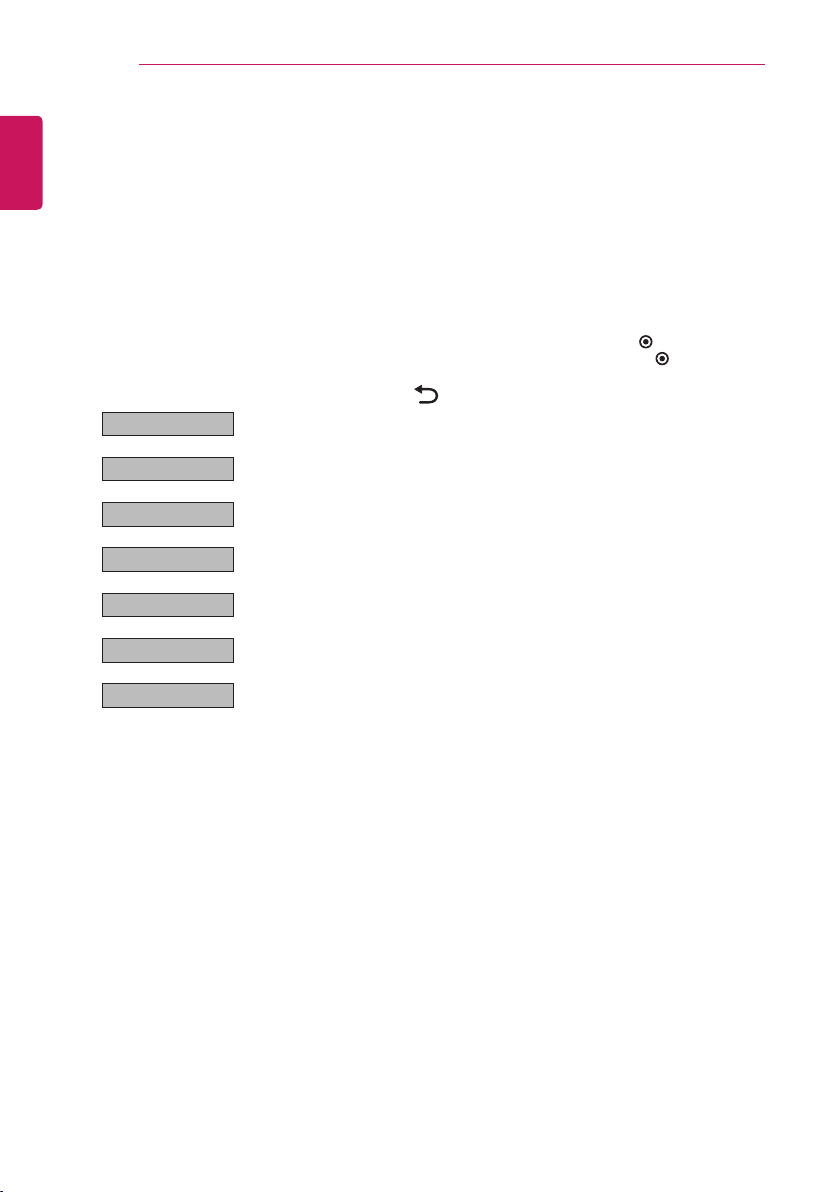
1 If you run Screen Split, the Screen Split
icon [ ] appears in the system tray at the
right bottom of the PC screen.
2 Right-click the Screen Split icon and select
a layout you want.
6 The LG Monitor Software starts the
installation as shown below:
7 The program you selected on the FUNCTION
page will install automatically.
8 When the installation is complete, restart
your system.
38
ENGLISH
CUSTOMIZING SETTINGS
CUSTOMIZING SETTINGS
Accessing the Main Menus
The menus displayed on the TV screen may vary depending on the selected input mode.
TV, Component, AV
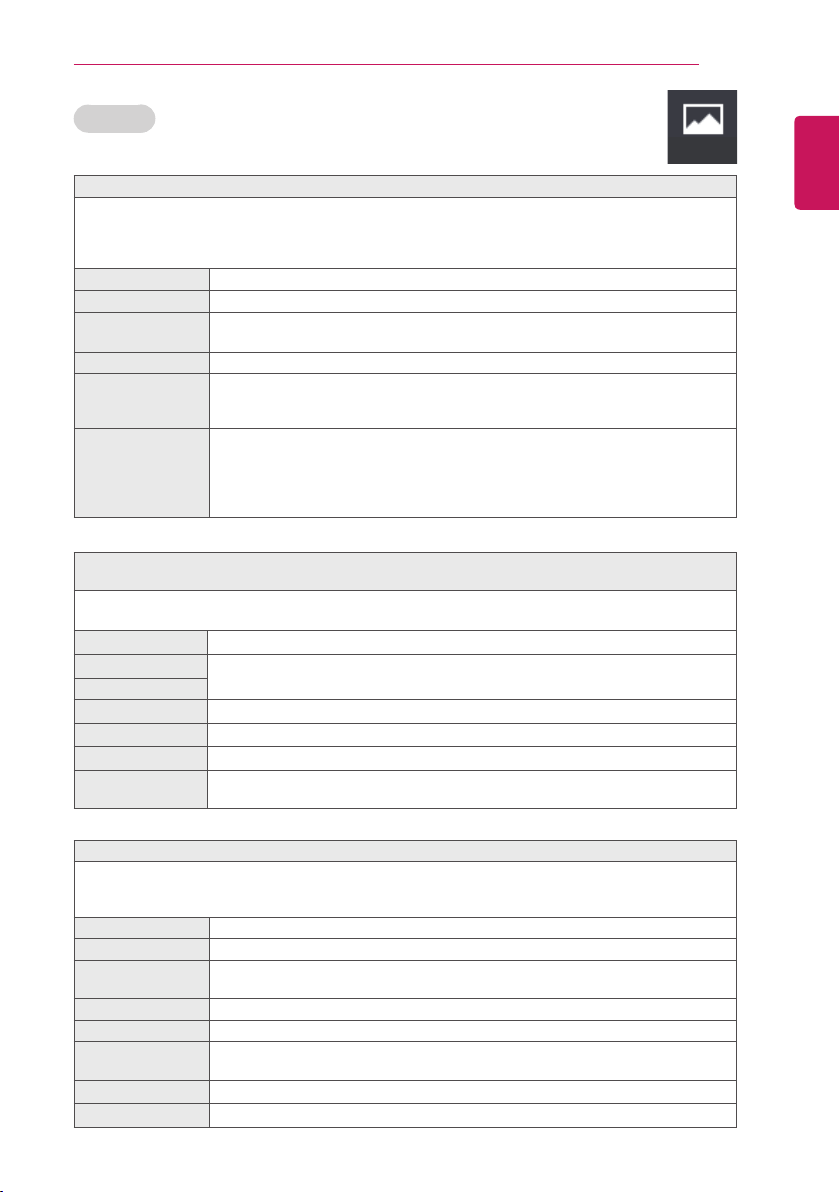
1 Press
SETTINGS
to access the main menus.
2 Press the Navigation buttons to scroll to one of the following menus and press
OK
.
3 Press the Navigation buttons to scroll to the setting or option you want and press
OK
.
4 When you are nished, press
EXIT
.
When you return to the previous menu, press
BACK
.
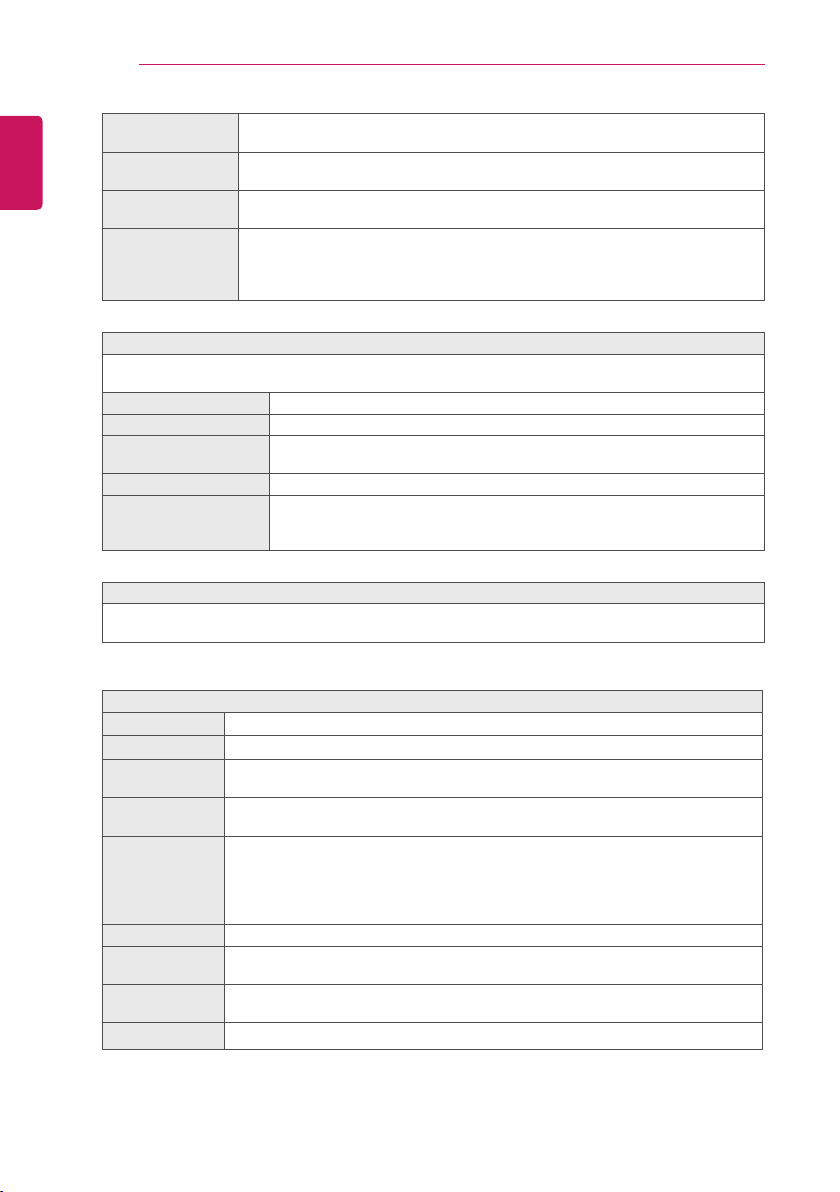
PICTURE Adjusts the image size, quality or effect.
AUDIO Adjusts the sound quality, effect or volume level.
SETUP Sets up and edit programmes.
TIME Sets the time, date or Timer feature.
LOCK Locks or unlocks channels and programmes.
OPTION Customizes the general settings.
NETWORK Sets the network. (Apply: UK country)
ENGLISH
CUSTOMIZING SETTINGS
39
PICTURE
To select Picture Mode
SETTINGS> PICTURE> Picture Mode
Select the picture mode optimized for the viewing environment or the programme.
Depending on input signal, available range of picture modes may differ.
ꕋ Expert mode is for picture tuning professionals to control and ne-tune using a specic image. For
normal images, the effects may not be dramatic.
Vivid Heightens contrast, brightness and sharpness to display vivid images.
Standard Displays images in standard levels of contrast, brightness and sharpness.
Eco
[This feature is available in certain countries only] The Energy Saver feature
changes settings on the TV to reduce power consumption.
Cinema / Game Displays the optimum picture for movie, game.
Sport [This feature is available in certain countries only.] Optimised picture mode for
sport. The pitch and kits are presented in vibrant colours, with crystal-clear images
even for fast movements.
ꕋ Expert1
ꕋ Expert2
Menu for adjusting picture quality that allows experts and amateurs to enjoy the
best TV viewing. This menu for adjustment is provided for ISF-certied picture
tuning professionals. (ISF logo can only be used on ISF-certied TVs.)
ISFccc: Imaging Science Foundation Certied Calibration Control
The ISF function is only available on some models.
To ne-tune picture mode
SETTINGS> PICTURE> Picture Mode> Backlight / Contrast / Brightness / Sharpness / Colour /
Tint / Colour Temp.
First select a Picture Mode of your choice. Depending on the input signal or other picture settings, the
range of detailed items for adjustment may differ.
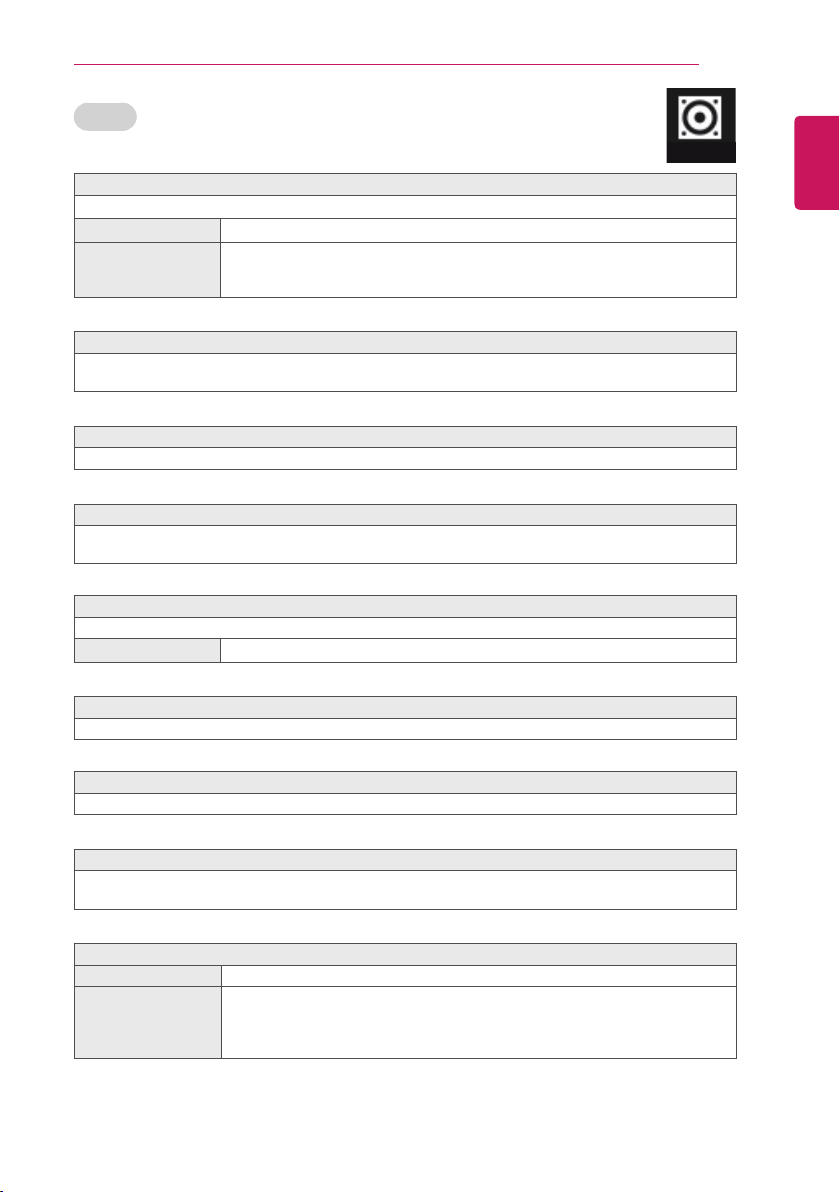
Backlight
Adjusts the display brightness by varying the brightness of the LCD panel.
Contrast
Adjusts the Colour contrast and brightness of the screen.
Brightness
Sharpness
Adjusts the sharpness of the screen.
Colour
Adjusts the Colour depth of the screen.
Tint
Adjusts the gamma, Colour temperature and Colour of the screen.
Colour Temp. Adjusts the overall tint of the picture.
In Expert mode, you can ne-tune the picture using the Gamma or Method options.
To set Advanced Control / Expert Control
SETTINGS> PICTURE> Picture Mode> Advanced Control / Expert Control
For each picture mode, screen can be calibrated; or for a special screen, picture settings can be
adjusted. Select the desired Picture Mode. Depending on input signal or other picture settings, the range
of detailed items for adjustment may differ.
Dynamic Contrast Adjusts the contrast to the optimal level according to the image’s brightness.
Dynamic Colour Adjusts colours to make the image appear in more natural colours.
Skin Colour Sets Skin colour spectrum separately to implement the skin colour as dened by
the user.
Sky Colour Sky colour is set separately.
Grass Colour Natural colour spectrum (meadows, hills, etc.) can be separately set.
Gamma Sets the gradation curve according to the output of picture signal in relation to the
input signal.
Color Gamut
Selects the range of colors that can be expressed.
Edge Enhancer
Shows clearer and distinctive yet natural edges of the video.
PICTURE
40
ENGLISH
CUSTOMIZING SETTINGS
Expert Pattern [This feature is available on certain models only] Patterns used for expert
adjustment.
Color Filter Filters a specic color spectrum in RGB colors to ne-tune color saturation and hue
accurately.
Color Temperature Adjusts the overall tone of the screen as desired. In Expert mode, detailed ne-
tuning can be set via Gamma method, etc.
Color Management
System
This system is used by experts to adjust color with a test pattern. They can select
from six color areas (Red/ Green/Blue/Cyan/Magenta/Yellow) without affecting
other colors. For normal images, adjustments may not result in noticeable color
changes.
To set Picture Option
SETTINGS> PICTURE> Picture Mode> Picture Option
Adjusts detailed setting for images. Depending on input signal or other picture settings, the range of
detailed items for adjustment may differ.
Noise Reduction Eliminates noise in the picture
MPEG Noise Reduction Eliminates noise generated while creating digital picture signals.
Black Level Adjusts the screen’s brightness and contrast to t them to the input picture’s
black level by using the blackness (black level) of the screen.
Real Cinema Optimizes the screen for movie viewing.
Motion Eye Care [This feature is available on certain models only.] Saves power consumption
by adjusting the brightness corresponding to the movement of the image on
the screen.
To set Picture Reset
SETTINGS> PICTURE> Picture Mode> Picture Reset
Resets picture settings that the user customizes.
Each picture mode is reset. Select the desired picture mode to reset.
To adjust Aspect Ratio
Selects the screen aspect ratio.
SETTINGS> PICTURE> Aspect Ratio
16:9
Resizes the image ratio to t 16:9 screen.
21:9
Resizes the image ratio to t 21:9 screen.
Just Scan Displays video images in the original size without removing parts of the edge of the
image. In DTV, Component(over 720 p) mode, Just Scan is available.
Original When your TV receives a wide screen signal it will automatically change to the
picture format broadcasted.
Full Wide When TV receives the wide screen signal, it will let you adjust the picture horizontally
or vertically, in a linear proportion,to ll the entire screen fully. 4:3 and 14:9 video is
supported in full screen without any video distortion through DTV input.
[This function is only available in the EU, China, and Hong Kong.]
In Analogue/DTV/AV/Scart mode, Full Wide is available.
4:3 Resizes the image ratio to t 4:3 screen.
14:9 You can view a picture format of 14:9 or a general TV programme in the 14:9 mode.
The 14:9 screen is viewed in the same way as in 4:3, but is moved up or down.
Zoom Resizes the image to t the screen width. The top and bottom parts of the image may
be cut off.
Cinema Zoom 1
Choose Cinema Zoom when you want to enlarge the picture in correct proportion.
While viewing an external device, these cases may result in image burn:
- a video with stationary caption (such as network name)
- 4 : 3 aspect ratio mode for an extended period
Take caution when using these functions.
Available picture size may differ depending on the input signal.
ENGLISH
CUSTOMIZING SETTINGS
41
AUDIO
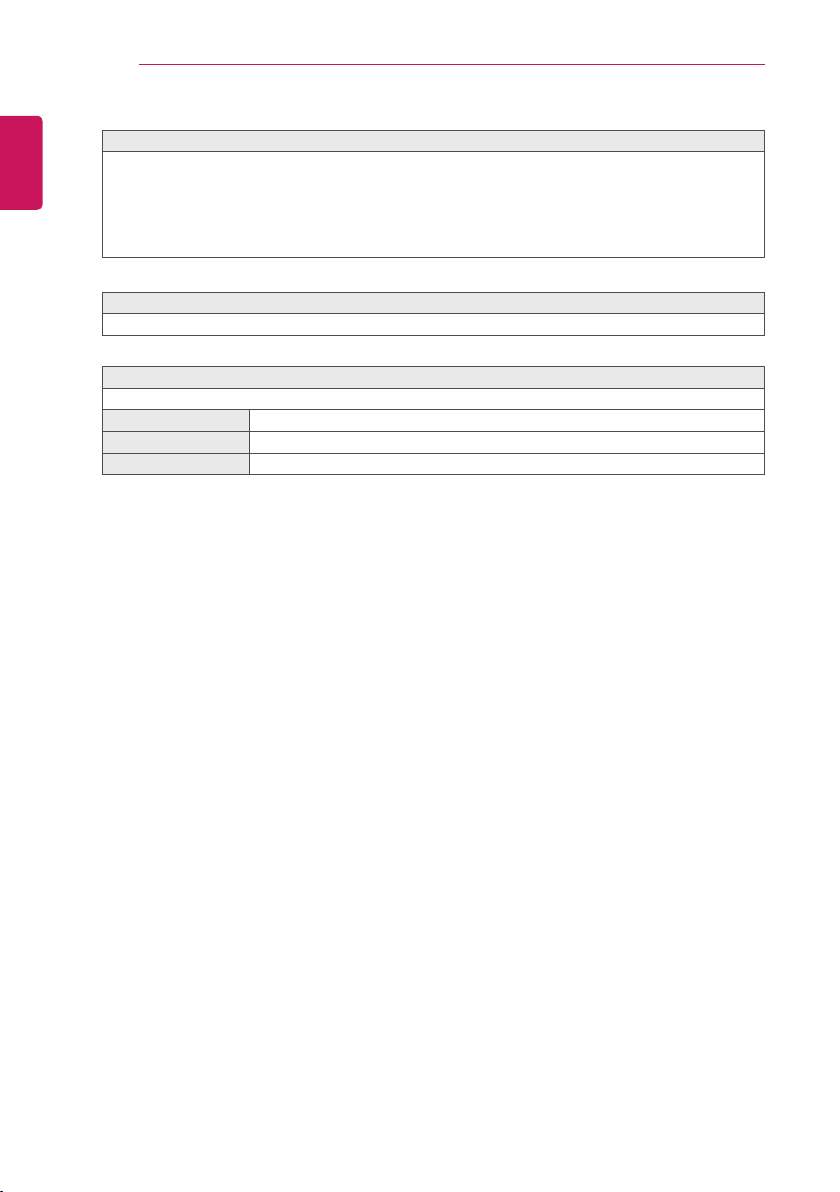
To use Sound Mode
SETTINGS> AUDIO> Sound Mode
Adjusts TV audio to an optimal level based on a selected sound mode.
Standard
Suitable for all types of video.
News / Music /
Cinema / Sport /
Game
Sets audio optimized for a specic genre.
Sport : This feature is available in certain countries only.
News : This feature is available on certain models only.
Using the Sound Effect function
SETTINGS> AUDIO> Sound Effect
the user can select various sound effects.
Sound Effect function is available only for Standard mode in Sound Mode menu.
To adjust Clear Voice ll function
SETTINGS> AUDIO> Sound Effect> Clear Voice ll
Boosts voice clarity from the TV.
To use MaxxAudio
SETTINGS> AUDIO> Sound Effect> MaxxAudio
MaxxAudio® by Waves, recipient of a Technical GRAMMY Award® is a suite of studio-quality sound tools
for a superior listening experience.
To adjust User Setting function
SETTINGS> AUDIO> Sound Effect> User Setting
Adjusts the volume to a level of your choice using the User EQ.
Reset
Resets voice options that the user has changed.
To adjust audio balance
SETTINGS> AUDIO> Sound Effect> Balance
Adjusts left/right audio balance.
Initializing the Sound Effect function
SETTINGS> AUDIO> Sound Effect> Reset
Initialize the applied effect under the Sound Effect menu.
To set Auto Volume
SETTINGS> AUDIO> Auto Volume
Auto Volume to On. Varying volume output from channel to channel is automatically adjusted for
convenient TV watching when clicking through different programme.
To set sound out
SETTINGS> AUDIO> Sound Out
TV Speaker Sound is output through the TV speaker.
Headphone
[Only available for models with an earphone/headphone port]
Sound is output through the headphone connected to the earphone/headphone port.
If you connect headphones while the TV is powered on, it automatically detects the
headphones and sounds through them.
AUDIO
42
ENGLISH
CUSTOMIZING SETTINGS
To use DTV Audio Setting function
SETTINGS> AUDIO> DTV Audio Setting
[Depending on model]
When different audio types exist in an input signal, this function allows you to select the audio type you want.
If set to AUTO, the search order is HE-AAC
→
Dolby Digital+
→
Dolby Digital
→
MPEG and output is
produced in the rst Audio Format found.
-
In Italy / Latvia / Lithuania only, the search order is HE-AAC → Dolby Digital+ → MPEG → Dolby Digital.
- If the selected Audio Format is not supported, another Audio Format may be used for output
To set AV Sync
SETTINGS> AUDIO> AV Sync. Adjust
Synchronizes video and audio directly when they do not match.
To use Sound Optimizer function
SETTINGS> AUDIO> Sound Optimizer
Optimized sound for custom TV installation.
Normal General sound mode.
Wall Mount Type Optimizes sound for a wall-mounted TV.
Stand Type Optimizes sound for a stand-mounted TV.
ENGLISH
CUSTOMIZING SETTINGS
43
SETUP
To view programme information
Press 'INFO' button.
Displays information on current programme and/or current time, etc.
TV Guide
Press 'GUIDE' button.
[In Digital mode only]
Obtains information about programmes and airtime. Checks the broadcasting time of the desired
programme and schedule viewing.
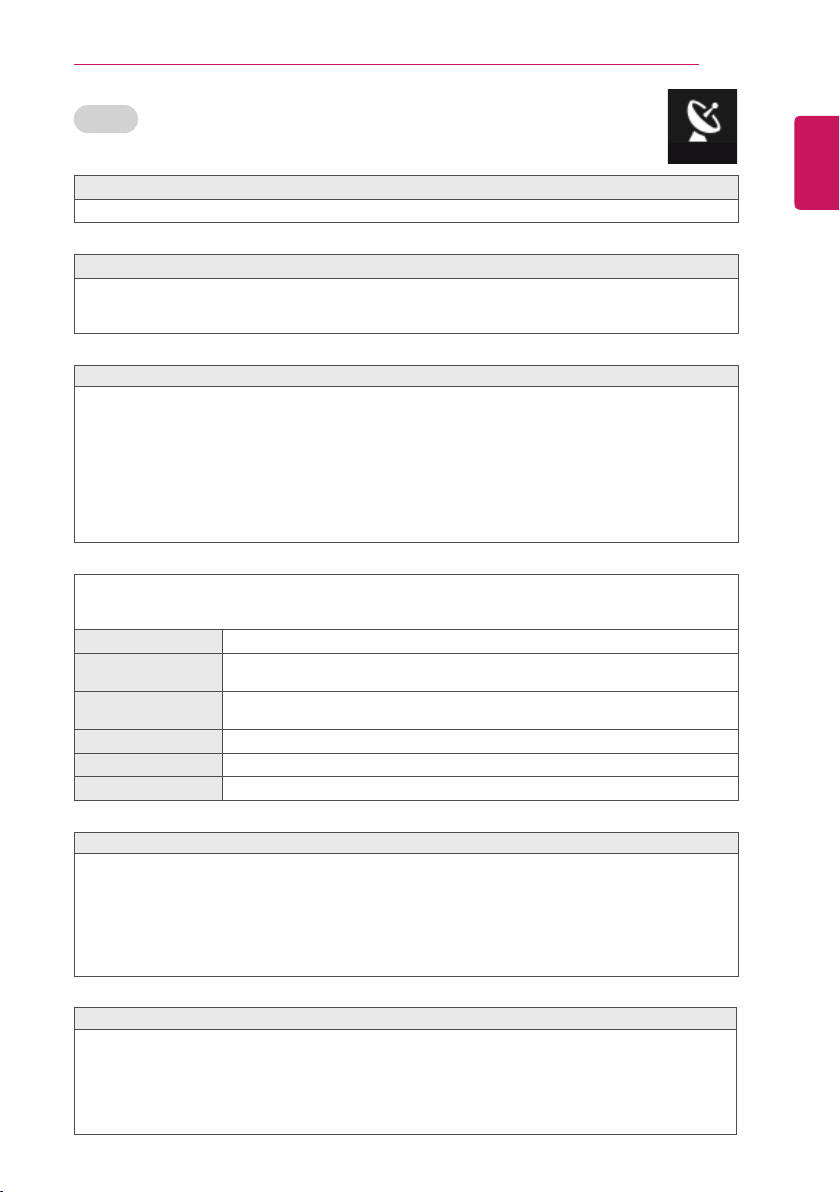
Automatically Setting Up Programme
SETTINGS> SETUP> Auto Tuning
Automatically tunes the programmes.
1.Select Country where the TV is used. Programme settings change depending on the country you
choose.
2.Initiate Auto Tuning.
3.Select Input Source of your choice.
4.Set Auto Tuning following screen instructions.
If Input Source is not connected properly, programme registration may not work.
Auto Tuning only nds programmes that are currently broadcasting.
If Lock System is turned on, a pop-up window will appear asking for password.
Cable DTV Setting option
When searching for programmes using FULL setting it can take a long time. The following values are
needed in order to search all available programmes quickly and correctly. The commonly used values are
provided as “default”.
Frequency
Enter a user-dened frequency.
Symbol rate Enter a user-dened symbol rate (Symbol rate: Speed at which a device such as
modem sends symbols to a programme).
Modulation Enter a user-dened modulation. (Modulation: Loading of audio or video signals
onto carrier).
Network ID
Unique identier allocated for each user.
Start Frequency
Enter a user-dened start frequency range.
End Frequency
Enter a user-dened end frequency range.
Cable DTV Setting
SETTINGS> SETUP> Cable DTV Setting
[In Cable mode only]
When Channel Auto Update is On, you can update information for all the programmes that can be
updated, including the programme currently being watched. When Channel Auto Update is Off, you can
only update information for the programme currently being watched.
The range that a user can select from the Service Operator menu differs depending on number of Service
Operator supported by each country.
If number of supported Service Operator for each country is 1, corresponding function becomes inactive.
To use Manual Tuning
SETTINGS> SETUP> Manual Tuning
Adjusts programmes manually and saves the results.
For digital broadcasting, signal strength and signal quality can be checked.
For analogue broadcasting, you can set up station names and use ne tuning. Normally ne tuning is
only necessary if reception is poor.
[This feature is available on certain models only]
You can also adjust the Frequency(KHz) and Bandwidth.
SETUP
44
ENGLISH
CUSTOMIZING SETTINGS
To edit programmes
SETTINGS> SETUP> Programme Edit
Edits the saved programmes.
Set as favourite programme, block/unblock programme, skip programme etc. of the selected programme.
To set favourite programmes
SETTINGS> SETUP> Programme Edit
[This feature is available on certain models only.]
1.Select the channel you want.
2.Press the FAV button to select Favourite Group and then OK.
You can check your favourite channels by pressing the LIST button on the remote control.
To use Favourite
Press the 'FAV' button.
You can only view the channels you set as favourites.
SETTINGS> SETUP> Programme Mode
[Depending on model]
This function allows you to watch a tuned program in Antenna, Cable, Satellite, or CAM Mode.
- You can only watch programs in the selected mode.
- The CAM menu is only available when the CAM Mode is enabled. The menu name may vary depending
on the CAM type.
CI Information
SETTINGS> SETUP> CI Information
- This function enables you to watch some encrypted services (pay services).
- If you remove the CI Module, you cannot watch pay services.
- CI (Common Interface) functions may not be possible depending upon the country broadcasting
circumstances.
- When the module is inserted into the CI slot, you can access the module menu.
- To purchase a module and smart card, contact your dealer.
- When the TV is turned on after inserting a CI Module, you may not have any sound output. The Smart
Card may not be compatible with the CI module.
- When using a CAM(Conditional Access Module), please make sure it meets fully the requirements of
either DVB-CI or CI plus.
- An abnormal process of CAM(Conditional Access Module) may cause a bad picture.
- [Depending on model] If the TV does not display any video and audio when CI+ CAM is connected,
please contact to the Antenna/Cable/Satellite Service Operator.
Teletext [Depending on the country]
Press 'TEXT' button.
Teletext is a free service provided by the TV station that offers text-based information about TV
programmes, news and weather.
The teletext decoder of this TV can support the SIMPLE, TOP and FASTEXT systems.
- Colour button: To select the preceding or following page.
- Number button: Enters the desired page number.
-
P
: To select the preceding or following page.
Press 'T.OPT' button.
* Special Teletext Function
Select the Text Option menu.
- Index : Select each index page.
- Time : When viewing a TV programme, select this menu to display the time at the top right hand corner
of the screen.
- Hold : Stops the automatic page change which will occur if a teletext page consists of 2 or more sub
pages.
- Reveal : Select this menu to display concealed information, such as solutions to riddles or puzzles.
- Update : Displays the TV picture on the screen while waiting for a new teletext page.
- Language [In Digital Mode Only] : Sets Teletext language.
ENGLISH
CUSTOMIZING SETTINGS
45
TIME
To set current time
SETTINGS> TIME> Clock
Checks or changes the time while watching TV.
Auto
Synchronizes the TV clock to the digital time information sent by the TV station.
Manual
Sets the time and date manually if the auto setup does not correspond to the current time.
To set the TV to turn on and off automatically
SETTINGS> TIME> Off Time / On Time
Sets On / Off time.
Select Off on Repeat to discontinue On Time / Off Time.
To use On Time / Off Time, set the current time correctly.
Even when the On Time function is on, the TV will turn off automatically in 120 minutes when no button is
pressed within that time.
To use Sleep Timer
SETTINGS> TIME> Sleep Timer
Turns off the TV after a preset number of minutes.
To cancel the Sleep Timer, select Off.
To set Automatic Standby
SETTING> TIME> Automatic Standby
[This function is available on certain models or in certain countries only]
If you do not press any button on the TV or remote control for a certain period, the TV will automatically
switch to standby mode.
This function does not work on Store Demo mode or while software update.
TIME
Digital Teletext
Press the 'TEXT' button.
[In UK/Ireland only]
The TV gives you access to digital teletext which gives much better text,graphics etc. than older
analogue teletext. This digital teletext can access special digital teletext services and specic services
which broadcast digital teletext.
* Teletext within digital service
1.Press the numeric or
P
button to select a certain service which broadcasts digital teletext.
2.Follow the indications on digital teletext and move onto the next step by pressing TEXT, OK,
Navigation, Red, Green, Yellow, Blue or NUMBER buttons etc..
3.Press the number or
P
button to use a different digital teletext service.
* Teletext in digital service
1.Press the numeric or
P
button to select a certain service which broadcasts digital teletext.
2.Press the TEXT or colour button to switch on teletext.
3.Follow the indications on digital teletext and move onto the next step by pressing OK, Navigation, Red,
Green, Yellow, Blue or NUMBER buttons etc..
4.Press the TEXT or colour button to switch off digital teletext and return to TV viewing.
46
ENGLISH
CUSTOMIZING SETTINGS
LOCK
To set the password
SETTINGS> LOCK> Set Password
Set or change the TV password.
The initial password is set as [0000].
When France is selected for Country, password is not ‘0’,‘0’,‘0’,‘0’ but ‘1’,’2’,’3’,’4’.
When France is selected for Country, password cannot be set as ‘0’,‘0’,‘0’,‘0’ .
To lock the system
SETTINGS> LOCK> Lock System
Locks the selected programme.
First set Lock System to On.
Block Programme Blocks programmes with content inappropriate for children. Programmes can
be selected but the screen is blank and the audio is muted. To watch a locked
programme, enter the password.
Parental Guidance This function operates according to information from the broadcaster. Therefore
if the signal has incorrect information, this function does not operate. Prevents
children from watching certain adult TV programmes according to the ratings limit
set. Enter a password to watch a blocked programme. Ratings differ by country.
To use Key Lock
SETTINGS> LOCK> Key Lock
Locks control buttons on the TV.
Key Lock function remains intact even in case of power outage or when the power cord is removed from
the wall socket.
Key Lock function can only be set by remote control, and not by the button on the TV.
Even with Key Lock ON, TV’s buttons can turn on the power.
LOCK
ENGLISH
CUSTOMIZING SETTINGS
47
OPTION
SETTINGS> OPTION> Language(Language)
You can select the language of the menu displayed on the screen and the digital sound broadcasting.
Menu Language Selects a language for the display text.
Audio Language [In Digital mode Only]: Selects the desired language when watching digital
broadcasting containing several voice languages.
Subtitle Language [In Digital mode Only]: [This feature is available in certain countries only.]
Use the Subtitle function when two or more subtitle languages are broadcast.
- If subtitle data in a selected language is not broadcast, the default language
subtitle will be displayed.
Text Language [In Digital mode Only]: [This feature is available in certain countries only.]
Use the Text language function when two or more Text languages are broadcast.
- If teletext data in a selected language is not broadcast, the default Text
language will be displayed.
- If you select the wrong local country, teletext may not appear correctly on the
screen and some problems may occur during teletext operation.
SETTINGS> OPTION> Country
[Depending on country]
Sets the country that the TV uses.
TV settings are changed according to the broadcast environment of the selected country.
If the country setting is changed, the Auto Tuning information screen may appear.
In a country that Digital broadcasting regulation isn’t xed, some DTV functions may not work depending
on digital broadcasting circumstances.
If the country setting is set to “--”, European terrestrial digital standard broadcasting programmes are
available, but some DTV functions may not work properly.
SETTINGS> OPTION> Disability Assistance
Audio commentary or subtitles are provided for those who are hard of hearing or visually impaired.
Hard of Hearing This function is used for the hearing impaired. If it is set to on, the subtitle is
displayed by default.
Audio Description This function is for the blind, and provides explanatory audio describing the
current situation in a TV programme in addition to the basic audio. When Audio
Description is selected On, basic audio and Audio Description are provided only
for those programmes that have Audio Description included.
To set Power Indicator
SETTINGS> OPTION> Standby Light
[This function is available on certain models or in certain countries only.]
Turns the standby light in the front panel of the TV on/off.
To set up USB storage
SETTINGS> OPTION> Divx(R) VOD
Registration Checks DivX Reg. Code for replaying DivX protected videos. Register at http://
vod.divx.com. Use Reg. Code to rent or purchase movies at www.divx.com/vod.
y
Rented/purchased DivX files cannot be played if the DivX Registration Code
of a different device is used. Use only the DivX Registration Code granted
to this specific device.
y
Converted files not conforming to the DivX Codec Standard may not play or
may produce abnormal sound.
Deregistration
Deregisters DivX.
OPTION
48
ENGLISH
CUSTOMIZING SETTINGS
To specify Factory Reset
SETTINGS> OPTION> Factory Reset
All stored information is deleted and TV settings are reset.
TV turns itself off and back on, and all settings are reset.
When Lock System is in place, a pop-up window appears and asks for password.
Do not turn off the power during initialization.
To change TV mode
SETTINGS> OPTION> Mode Setting
Selects Standard or Store Demo.
When in use in home, please select Standard.
Store Demo mode is for store display.
SETTINGS> OPTION> Customer Support> Software Update
Uses Software Update to check and obtain the latest version. If not updated, certain functions may not
work properly.
Software Update Set it to On. If an update is available, a prompt will appear to perform the update.
Automatic update
mode
[This feature is available on certain models only] If an update is available, the
update automatically starts without prompting.
Check Update
Version
[This feature is available on certain models only] Checks the latest update
version installed. When a new update is available, the download process can be
performed manually.
y
When the update starts, the update progress window appears for a short time and disappears.
y
The latest version can be obtained via the digital broadcast signal or an internet connection.
[Depending on model]
y
Changing the programme while downloading the software via a digital broadcast signal interrupts the
download process. Returning to the initial programme allows downloading to resume.
y
If software is not updated, certain functions may not work properly.
y
[For Finland/Sweden/Denmark/Norway models.]
If the software update is performed via the broadcasting signal, you will be prompted to continue the
update regardless of whether the Automatic update mode is enabled or not.
y
[This feature is available in certain countries only.] It is also possible to check manually for available
updates.
SETTINGS> OPTION> Customer Support> Picture Test
[This feature is available on certain models only.]
Run an Picture Test rst to verify that the image signal output is normal.
If there is no problem with the test image, check connected external devices and the broadcast signal.
SETTINGS> OPTION> Customer Support> Sound Test
[This feature is available on certain models only.]
Run a Sound Test rst to verify that the sound signal output is normal.
If there is no problem with the test sound, check connected external devices and the broadcast signal.
Data Service
SETTINGS> OPTION> Data Service
[Depending on country]
This function allows users to choose between MHEG (Digital Teletext) and Teletext if both exist at the
same time.
If only one of them exists, either MHEG or Teletext is enabled regardless of which option you selected.
ENGLISH
CUSTOMIZING SETTINGS
49
To connect a USB device
Plays content stored on a USB device (external HDD, USB memory stick) directly on the TV, easily and
conveniently.
Connect the USB storage device to the TV's USB IN terminal.
The connected USB storage device can be used immediately.
To remove the USB device
Q.MENU> USB device
Select a USB storage device that you want to remove.
When you see a message that the USB device has been removed, separate the device from the TV.
Once a USB device has been selected for removal, it can no longer be read. Remove the USB storage
device and then re-connect it.
Using a USB storage device - warning
y
If the USB storage device has a built-in auto recognition program or uses its own driver, it may not
work.
y
Some USB storage devices may not work or may work incorrectly.
y
Use only USB storage devices formatted with the Windows FAT32 or NTFS File System.
y
For external USB HDDs, it is recommended that you use devices with a rated voltage of less than 5
V and a rated current of less than 500 mA.
y
It is recommended that you use USB memory sticks of 32 GB or less and USB HDDs of 1 TB or
less.
y
If a USB HDD with power-saving function does not work properly, turn the power off and on. For
more information, refer to the user manual of the USB HDD.
y
Data in the USB storage device can be damaged, so be sure to back up important files to other
devices. Data maintenance is the user's responsibility and the manufacturer is not responsible for
data loss.
To use USB storage
INPUT> USB> All Media / Movie List / Photo List / Music List
Selects a file from the list. Displays the file that you choose.
Sets play related settings by checking option during disk playback.
y
Movie List : This feature is available on certain models only.
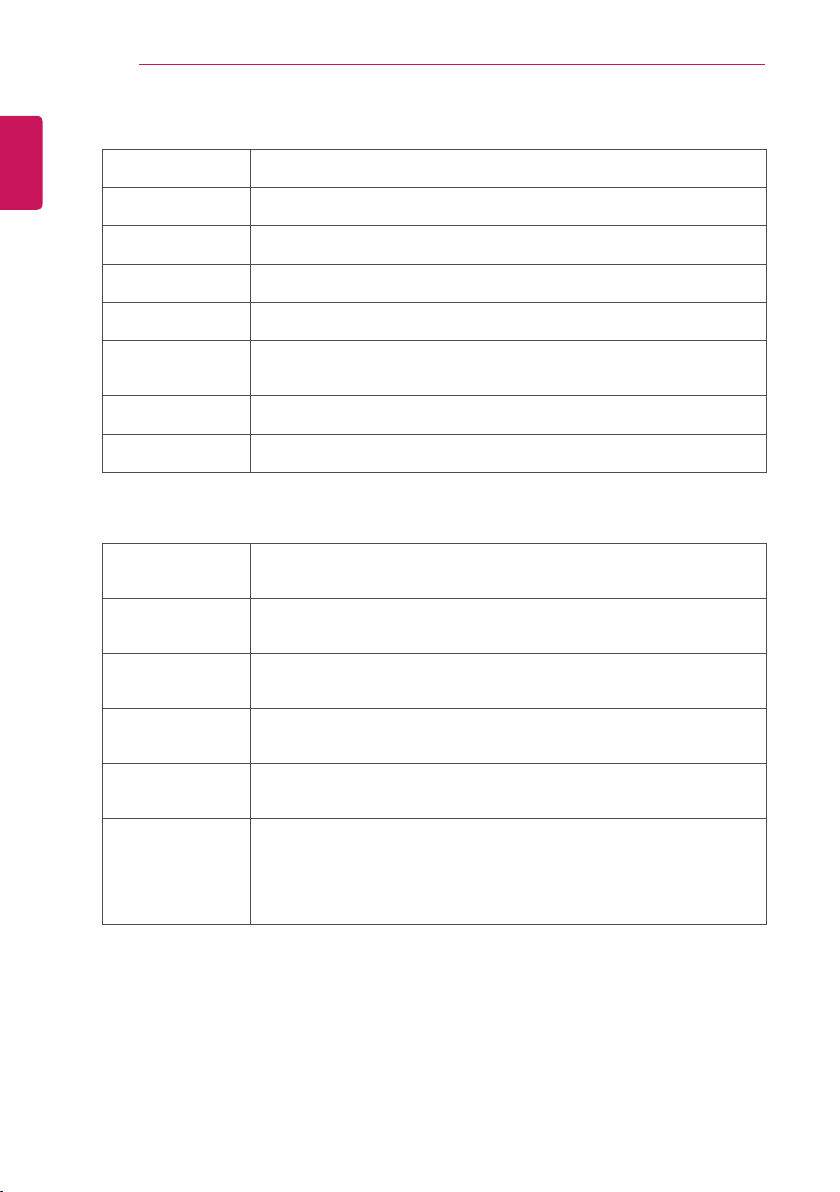
USB supporting file
Maximum data
transfer rate
20 Mbps (megabits per second)
External subtitle
formats supported
*.smi, *.srt, *.sub (MicroDVD, SubViewer 1.0/2.0), *.ass, *.ssa, *.txt (TMPlayer),
*.psb (PowerDivX)
Internal subtitle
formats supported
XSUB (supports internal subtitles generated from DivX6)
50
ENGLISH
CUSTOMIZING SETTINGS
Available video file
Maximum: 1920 x 1080 @ 30 p (only Motion JPEG 640 x 480 @ 30 p)
.asf, .wmv [Video] VC-1 Advanced Prole, VC-1 Simple and Main Proles, MP43
[Audio] WMA Standard
.3gp, .3gp2 [Video] H.264/AVC, MPEG-4 Part2
[Audio] AAC, AMR(NB/WB)
.divx, .avi [Video] DivX3.11, DivX4, DivX5, DivX6, XViD, H.264/AVC, Motion JPEG
[Audio] MPEG-1 Layer I, II, Dolby Digital, MPEG-1 Layer III (MP3), *DTS
.mp4, .m4v, .mov [Video] H.264/AVC, MPEG-4 Part 2, XViD
[Audio] AAC, MPEG-1 Layer III (MP3)
.mkv [Video] H.264/AVC, XViD, MPEG-4 Part2
[Audio] HE-AAC, Dolby Digital, MPEG-1 Layer III (MP3), *DTS
.ts, .trp, .tp, .mts,
.m2ts
[Video] H.264/AVC, MPEG-2
[Audio] MPEG-1 Layer I, II, MPEG-1 Layer III (MP3), Dolby Digital,
Dolby Digital Plus, AAC
.vob [Video] MPEG-1, MPEG-2
[Audio] Dolby Digital, MPEG-1 Layer I, II, DVD-LPCM
.mpg, .mpeg, .mpe [Video] MPEG-1
[Audio] MPEG-1 Layer I, II
*DTS : Depending on model
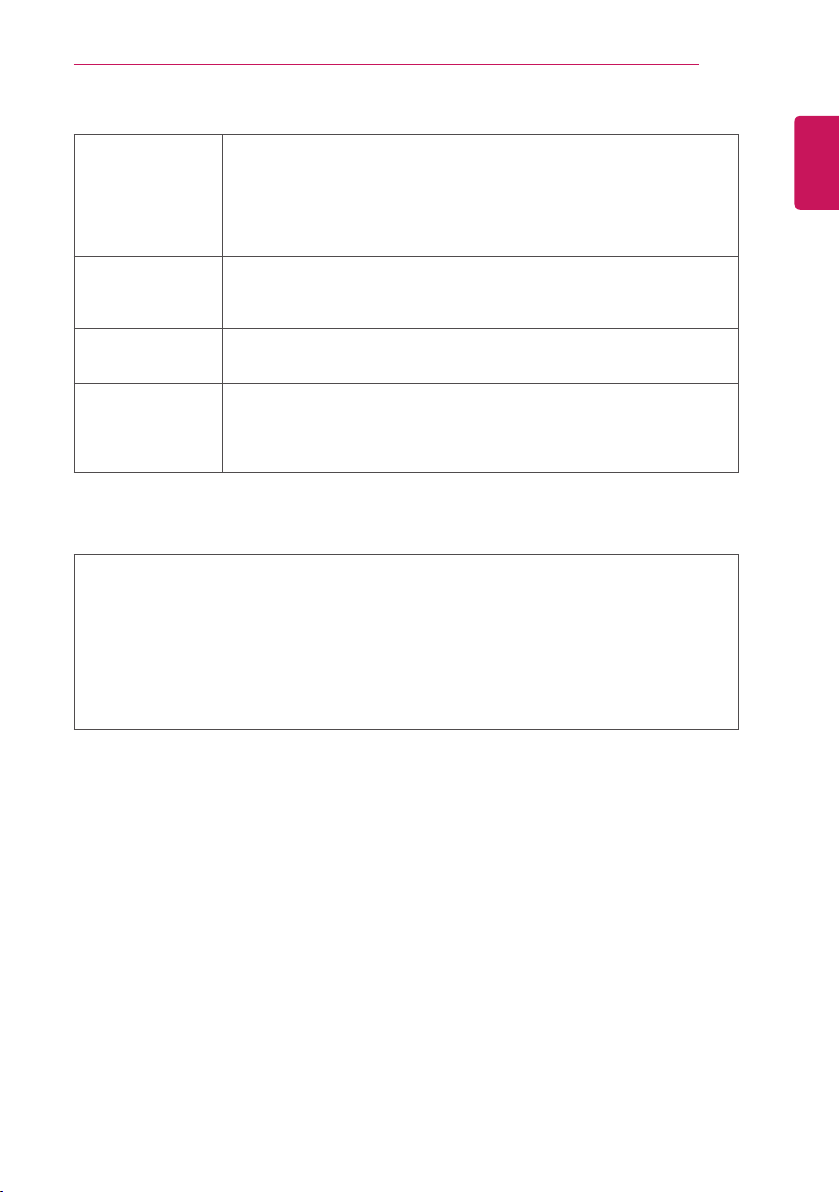
Available music file
mp3 [Bit rate] 32 Kbps - 320 Kbps
[Sample freq.] 16 kHz - 48 kHz
[Support] MPEG1, MPEG2, Layer2, Layer3
AAC [Bit rate] Free Format
[Sample freq.] 8 kHz ~ 48 kHz
[Support] ADIF, ADTS
M4A [Bit rate] Free Format
[Sample freq.] 8 kHz ~ 48 kHz
[Support] MPEG-4
OGG [Bit rate] Free Format
[Sample freq.] ~ 48 kHz
[Support] Vorvis
WMA [Bit rate] 128 kbps ~ 320 kbps
[Sample freq.] 8 kHz ~ 48 kHz
[Support] WMA7, 8, 9 Standard
WMA 10 Pro [Bit rate] ~ 768 kbps
[Channel / Sample freq.]
- M0 : Up to 2 / 48 kHz
- M1 : Up to 5.1 / 48 kHz
- M2 : Up to 5.1 / 96 kHz
[Support] WMA 10 Pro
ENGLISH
CUSTOMIZING SETTINGS
51
Available photo file
2D(jpeg, jpg, jpe),
3D(jps)
[Available le type]
SOF0: baseline, SOF1: Extend Sequential,
SOF2: Progressive
[Photo size]
Minimum: 64 x 64
Maximum: Normal Type: 15360 (W) x 8640 (H)
Progressive Type: 1920 (W) x 1440 (H)
3D (mpo) [Available le type] mpo
[Photo size]
4:3 size: 3,648 x 2,736 / 2,592 x 1,944 / 2,048 x 1,536
3:2 size: 3,648 x 2,432
BMP [Photo size]
Minimum : 64 x 64
Maximum : 9600 x 6400
PNG [Available le type] Interlace, Non-Interlace
[Photo size]
Minimum : 64 x 64
Maximum : Interlace : 1200 x 800
Non-Interlace : 9600 x 6400
y
BMP and PNG format files may be slower to display than JPEG.
y
The 3D function may differ, depending on the model.
Items to note when playing videos
y
Some subtitles created by users may not work properly.
y
The video and subtitle files should be placed in the same folder. For subtitles to display correctly,
the video and subtitle files must have the same name.
y
We do not support any stream that contains GMC (Global Motion Compensation) or Qpel (Quarterpel
Motion Estimation).
y
Only H.264/AVC profile level 4.1 and lower is supported.
y
Video files that exceed 50 GB (gigabyte) are not supported for playback. The file size limit is
dependent on the encoding environment.
y
The DTS is supported only for playback of USB and HDMI video files [depending on the model].
y
The DTS support may vary depending on your country and model.
52
ENGLISH
CUSTOMIZING SETTINGS
NETWORK
To connect to the network [Depending on model]
SETTINGS> NETWORK> Network Setting
Set IP Mode to IP Auto Setting or IP Manual Setting.
IP Auto Setting
Select this mode if your Internet service is broadband.
IP Manual Setting
Select this mode if you are using the Internet in an ofce (for example, xed IP).
If you select IP Manual Setting, type in the IP address.
Select OK to connect to the network.
Setting a network - warning
y
Use a standard LAN cable (Cat5 or higher with RJ45 connector, 10 Base-T or 100 Base TX LAN
port).
y
Resetting your modem can cause network connection problems. To resolve the problem, turn the
power off, disconnect and reconnect, and then turn the power back on.
y
LG Electronics is not responsible for any Internet connection problems or any faults, malfunctions
and errors caused by an Internet connection.
y
A network connection may not work properly depending on the Internet service provider.
y
A DSL modem is required for a DSL service; a cable modem is required for a cable service. Only
a limited number of Internet connections may be available, and TV network setting may not be
available depending on your contract with your Internet Service Provider (ISP). (If only one device is
allowed per line and the PC is already connected, other devices cannot be used.)
y
If you do not turn off the entire local home network, network traffic may occur on some devices.
y
Invalid settings on network devices can cause the TV to run slowly or not operate properly. Install
the devices correctly according to the appropriate manual and set the network.
SETTINGS> NETWORK> Network Status
Display the network status.
- Internet is connected : Externally connected
- Network is connected : Only internally connected
- Not connected : When there is no network connection
NETWORK
ENGLISH
CUSTOMIZING SETTINGS
53
If the following symptoms occur, please carry out the checks and adjustments described below. There
may be no malfunction.
Operational problems
Cannot view certain programmes.
Adjust the location or orientation of the antenna.
Save the programmes you wish to view using Auto Tuning or Programme Edit.
There is a delay after the TV is switched on before the image is fully visible.
This is normal. Any delay is due to an image deletion process which cleans up image noise that may
occur when the TV is rst switched on.
Image problems
Images from previous programme or other programmes linger or the screen displays annoying lines.
Adjusts the orientation of the antenna to the TV transmitter, or refer to the manual for instructions on
connecting the antenna.
Vibrating horizontal /vertical lines and fishnet patterns appear momentarily
Such a problem may happen when there is strong electronic interference. Turn off other electronic
devices such as mobile phones, power tools and other small electrical appliances.
The screen display freezes or does not work properly during a digital broadcast.
This may occur in case of a weak signal or unstable reception. Adjust the antenna orientation and cable
connections.
If the signal strength or quality is low on Manual Tuning, check with the TV station or administration ofce.
Digital broadcasting is not available even though the cable is connected.
Check with the cable operator providing your subscription and/or signal. (Depending on your
subscription, digital broadcasting may not be supported.)
The display is inactive or unclear when connected to an HDMI® source.
Check the HDMI® cable specications. If your HDMI® cable is not genuine, images may fade in and out
or not be displayed properly.
Ensure that all cables are securely connected. When connections are not secure, images may not be
properly displayed.
Does not work with a USB storage device.
Verify that the USB device and cable is version 2.0 or higher.
54
ENGLISH
CUSTOMIZING SETTINGS
Sound problems
Screen display is on but there is no sound.
Check other TV programmes.
[Depending on model] Ensure the TV Speaker is set to On.
For an analogue broadcast, stereo is not clear or sound comes from one speaker only.
In a poor reception area (areas with weak or unstable signals) or if Multi Audio is not stable, select Mono
on Multi Audio.
Adjust the Balance using the Navigation Button.
TV sound is not in sync with the image or the sound breaks up occasionally.
If the issue affects a specic TV programme only, it may be caused by problems with the broadcast
signal for the individual station. Check with the TV station or your cable operator.
The volume changes when I change programme.
Volume can vary from programme to programme.
Set Auto Volume to On.
On certain programmes, there is no sound at all, or only the background music can be heard (in case of
a programme created for overseas viewers).
In Language, set Language → Audio Language to the language of your choice. Even if you change the
language on Multi Audio, you can go back to the default setup once you turn off the power or change the
programme.
There is no sound when connected to an HDMI® / USB source.
Make sure that the High Speed HDMI™ or HDMI® cable is high speed.
Check that the USB device and cable is version 2.0 or higher.
Use only regular music (*mp3) les.
PC connection problem (Only for models supporting PC connection)
The screen display does not come on after connecting to the computer.
Make sure that the computer and the TV are securely connected.
Check whether the resolution is correctly set for PC input.
To use the TV as a secondary monitor, check if the connected desktop or laptop supports dual monitor
display.
There is no sound after connecting the computer with the HDMI cable.
Check with manufacturer of your video card to ensure it supports HDMI voice output. (Video cards in DVI
format require connection of a separate sound cable.)
When connected to the computer, the display is partially cut off or shifts to one side.
Set the resolution to support PC input.
(If this does not work, reboot the computer.)
Problems replaying movies in USB
[This feature is available on certain models only.]
I cannot view the files on the Movie List.
Check whether the le on the USB storage device can be read on a computer.
Check whether the le extension is supported.
The file is invalid. The above error message appears. Sound, video or subtitles is not normal.
Make sure that the le replays normally on the computer’s video player. (Check for damaged les.)
Check if USB media can support the selected le.
y
For information on requesting service, refer to the following menu.
[This feature is available on certain models only.]
SETTINGS> OPTION> Customer Support> Product/Service Info.
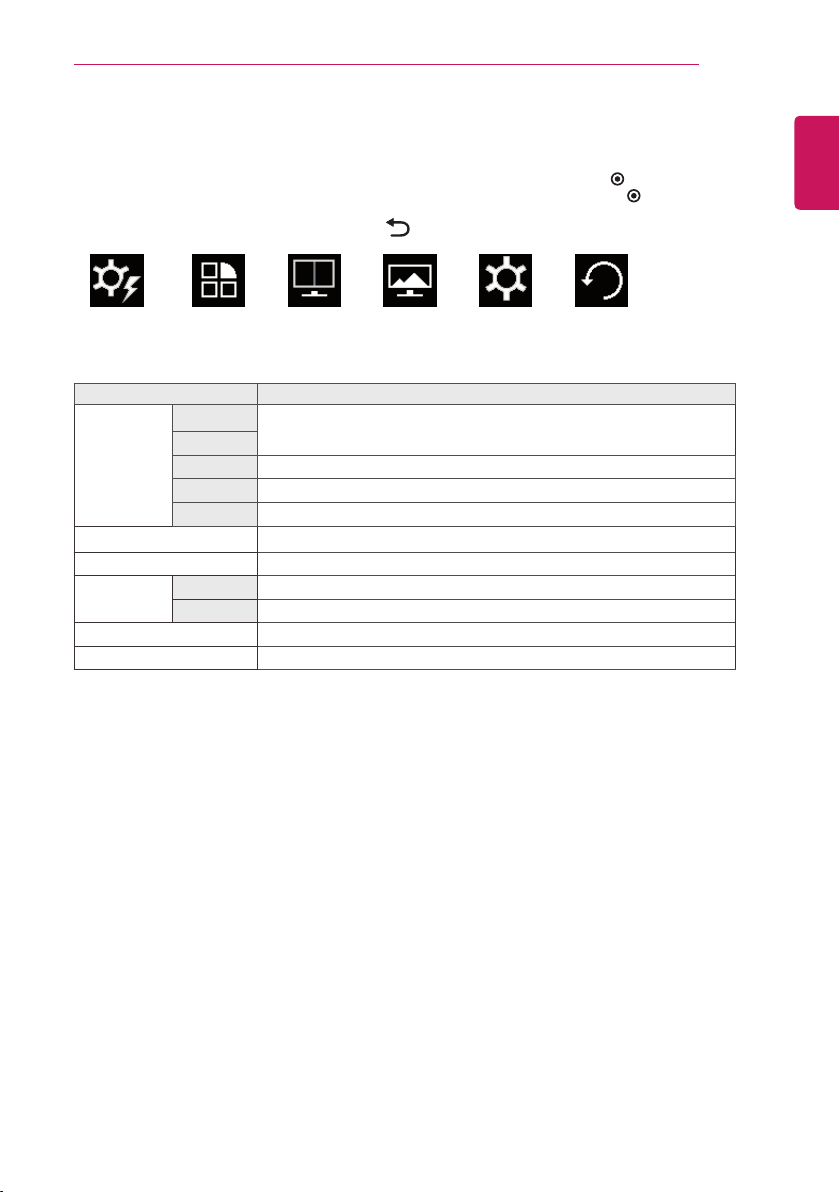
ENGLISH
CUSTOMIZING SETTINGS
55
HDMI1, HDMI2, DisplayPort
1 Press
SETTINGS
to access the main menus.
2 Press the Navigation buttons to scroll to one of the following menus and press
OK
.
3 Press the Navigation buttons to scroll to the setting or option you want and press
OK
.
4 When you are nished, press
EXIT
.
When you return to the previous menu, press
BACK
.
Easy control
Function PIP Screen Settings Reset
Each option is described below.
Menu Description
Easy control
Brightness
Adjusts the brightness and contrast of the screen.
Contrast
Volume
Adjusts the volume level.
Input
Changes the input source.
Ratio
Adjusts the screen ratio.
Function
Adjusts SES, picture mode and MaxxAudio.
PIP
Displays the screens of two input modes on one TV.
Screen Picture
Adjusts the sharpness, black level, and response time of the screen.
Color
Adjusts the gamma, Colour temperature and Colour balance of the screen.
Settings
Sets the Language, Standby Light, Automatic Standby and Key Lock.
Reset
Resets to the default settings as of the day of purchase.
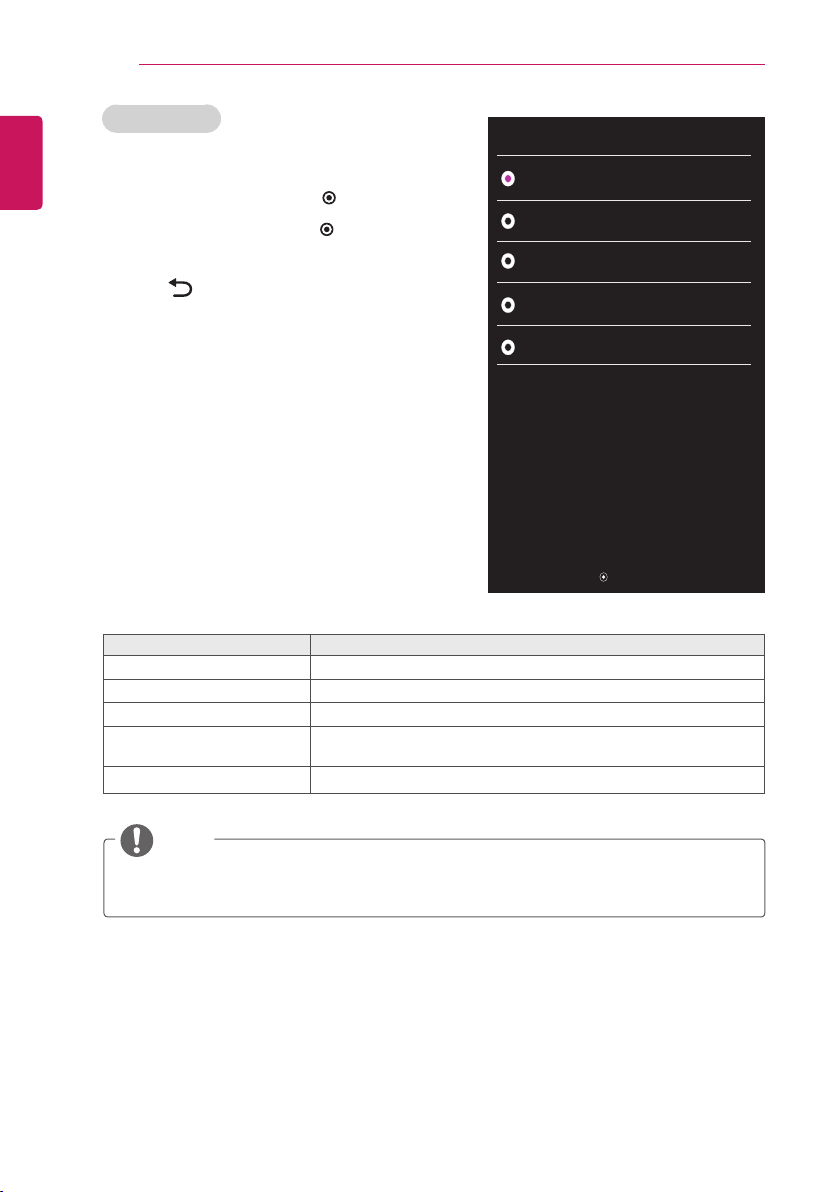
56
ENGLISH
CUSTOMIZING SETTINGS
Each option is described below.
Menu> Easy control> Ratio Description
Wide
Displays the video in wide-screen, regardless of the video signal input.
Original
Displays a video according to the input video signal aspect ratio.
Cinema1
Enlarges the screen with an aspect ratio of 21:9. (at 1080 p)
Cinema2 Enlarges the screen with an aspect ratio of 21:9 including the black box
area at the bottom for subtitles. (at 1080 p)
1:1
The aspect ratio is not adjusted from the original.
NOTE
y
The display may look the same for Wide, Original and 1:1 options at the recommended resolution
(2560 x 1080).
y
The ratio is disabled in the interlaced signal.
V GaG
V ඖGaG
ඔGaG
XGaGX
Move OK Back
Wide
Ratio
Original
Cinema1
Cinema2
Ratio Settings
1 Press
SETTINGS
to access the main menus.
2 Press the Navigation buttons to scroll to one of the
following menus and press
OK
.
3 Press the Navigation buttons to scroll to the setting or
option you want and press
OK
.
4 When you are nished, press
EXIT
.
When you return to the previous menu,
press
BACK
.
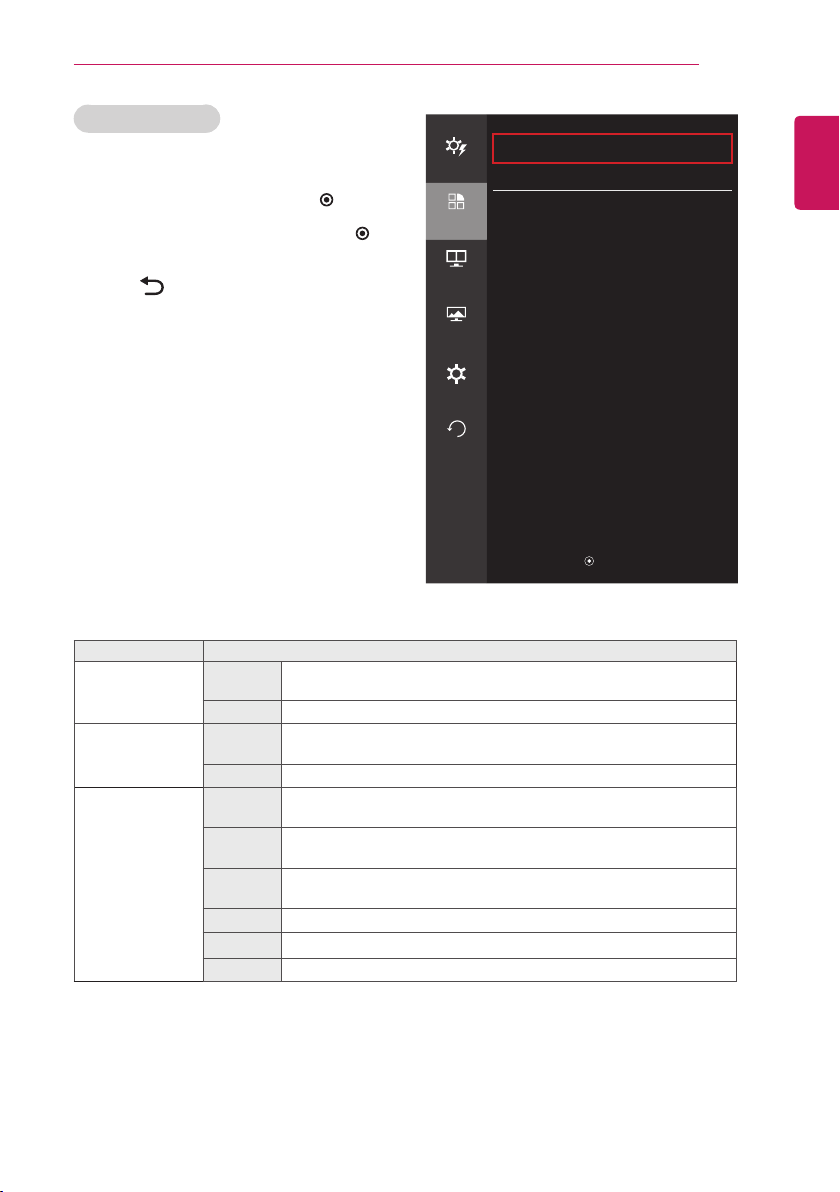
ENGLISH
CUSTOMIZING SETTINGS
57
Function Settings
1 Press
SETTINGS
to access the main menus.
2 Press the Navigation buttons to scroll to one of
the following menus and press
OK
.
3 Press the Navigation buttons to scroll to the
setting or option you want and press
OK
.
4 When you are nished, press
EXIT
.
When you return to the previous menu,
press
BACK
.
Each option is described below.
Menu> Function Description
MaxxAudio On
MaxxAudio® by Waves, recipient of a Technical GRAMMY Award® is a
suite of studio-quality sound tools for a superior listening experience.
Off
Disables the MaxxAudio function.
SES
(Super Energy
Saving)
On Enables the SES function, which allows you to save energy according
to the SES efficiency level.
Off
Disables the SES function.
Picture Mode Custom
Allows the user to adjust each element. The Colour mode of the main
menu can be adjusted.
Reader 1
Adjusts the screen to improve the visual effects to read the news. if you
want to make the screen brighter, you can adjust it on OSD menu.
Reader 2
Adjusts the screen to improve the visual effects to display the cartoon. if
you want to make the screen brighter, you can adjust it on OSD menu.
Photo
Optimizes the screen to view photos.
Cinema
Optimizes the screen to improve the visual effects of a video.
Game
Optimizes the screen for game play.
Function
Easy control
MaxxAudio On
>
SUPER ENERGY SAVING
On
>
Function
Picture Mode Custom
>
PIP
Screen
Settings
Reset
▲/▼ : Move
/
▶
: Ok
◀
: Back
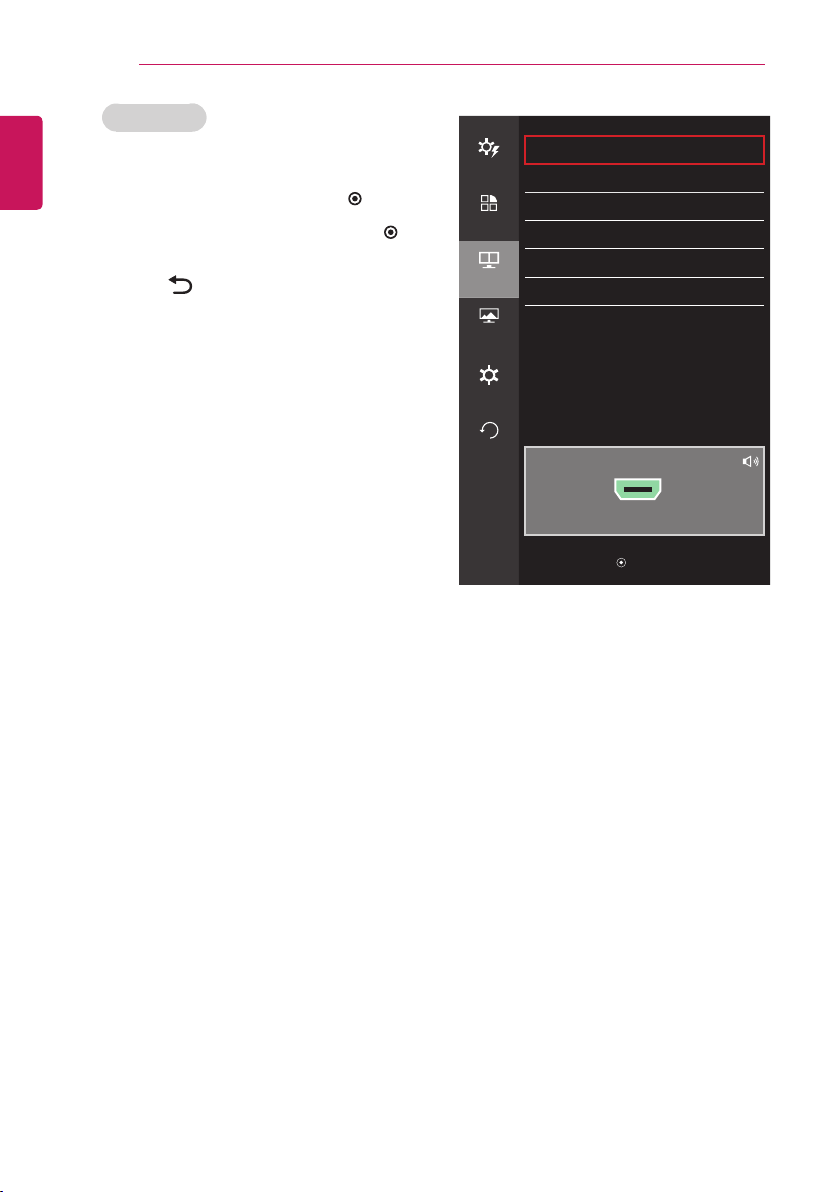
58
ENGLISH
CUSTOMIZING SETTINGS
PIP
Easy control
Sub
>
Size
>
Function
Position
>
Audio
>
PIP
Ratio
>
Transparency
>
Screen
Settings
Reset
PIP Preview
▲/▼ : Move
/
▶
: Ok
◀
: Back
PIP Settings
1 Press
SETTINGS
to access the main menus.
2 Press the Navigation buttons to scroll to one of
the following menus and press
OK
.
3 Press the Navigation buttons to scroll to the
setting or option you want and press
OK
.
4 When you are nished, press
EXIT
.
When you return to the previous menu,
press
BACK
.
HDMI1
y
On page 20 for the setting of that option "PIP function" section for more information.
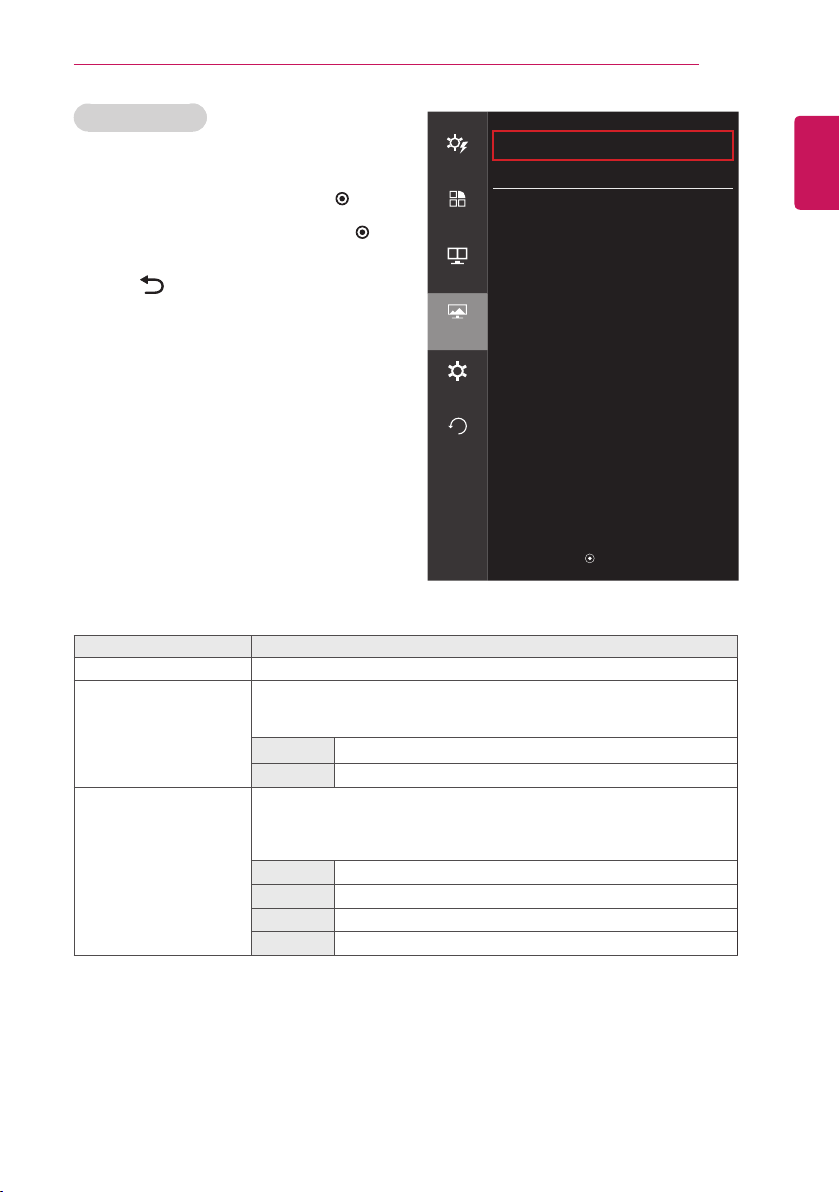
ENGLISH
CUSTOMIZING SETTINGS
59
Picture Settings
1 Press
SETTINGS
to access the main menus.
2 Press the Navigation buttons to scroll to one
of the following menus and press
OK
.
3 Press the Navigation buttons to scroll to the
setting or option you want and press
OK
.
4 When you are nished, press
EXIT
.
When you return to the previous menu,
press
BACK
.
Screen
Easy control
Picture
>
Color
>
Function
PIP
Screen
Settings
Reset
▲/▼ : Move
/
▶
: Ok
◀
: Back
Each option is described below.
Menu> Screen> Picture Description
Sharpness
Adjusts the sharpness of the screen.
Black Level
Sets the offset level (for HDMI only).
Offset:
as a reference for a video signal, this is the darkest Colour the TV
can display.
High
The picture of the screen gets brighter.
Low
The picture of the screen gets darker.
Response Time
Sets a response time for displayed pictures based on the speed of the
screen. For a normal environment, it is recommended that you use Normal.
For a fast-moving picture, it is recommended that you use High.
Setting to High may cause image sticking.
High
Sets the response time to High.
Middle
Sets the response time to Middle.
Low
Sets the response time to Low.
Off
Off the response time.
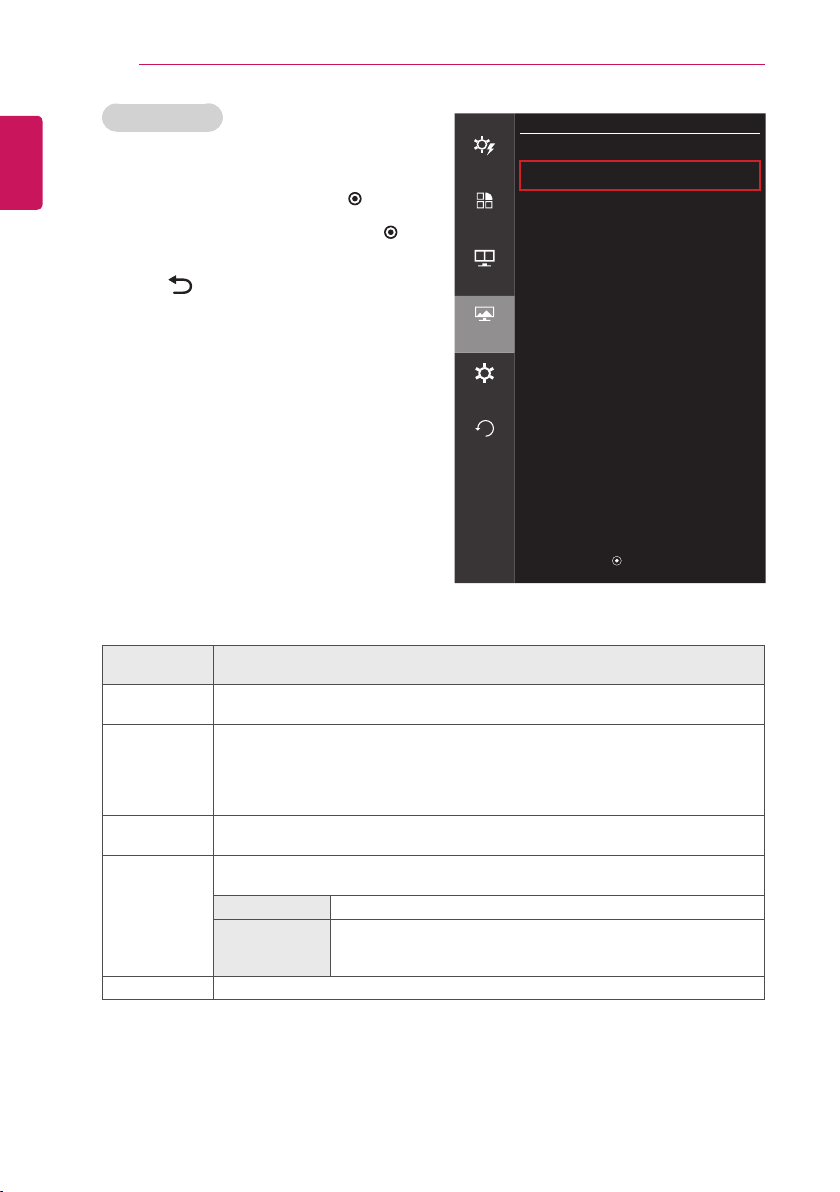
60
ENGLISH
CUSTOMIZING SETTINGS
Color Settings
1 Press
SETTINGS
to access the main menus.
2 Press the Navigation buttons to scroll to one of
the following menus and press
OK
.
3 Press the Navigation buttons to scroll to the
setting or option you want and press
OK
.
4 When you are nished, press
EXIT
.
When you return to the previous menu,
press
BACK
.
Screen
Easy control
Picture
>
Color
>
Function
PIP
Screen
Settings
Reset
▲/▼ : Move
/
▶
: Ok
◀
: Back
Each option is described below.
Menu>
Screen> Color
Description
Gamma
Custom gamma setting: When using the gamma 0, gamma 1, and gamma 2
TV settings, higher gamma settings mean a brighter image is displayed and vice versa.
Color Temp
Selects the factory default picture Colour.
Custom:
You can customize the picture Colour.
Warm:
Sets the screen Colour to a reddish tone.
Medium:
Sets the screen Colour between a red and blue tone.
Cool:
Sets the screen Colour to a bluish tone.
Red / Green /
Blue
You can customize the picture Colour using Red, Green, and Blue Colours.
Six Color
Meets the user requirements for Colours through adjusting the Colour and saturation of
the six Colours (red, green, blue, cyan, magenta, yellow) and saving the settings.
Hue
Adjusts tone of the screen.
Saturation
Adjusts the saturation of the screen Colours. The lower the value,
less saturated and bright the Colours become. The higher the value,
the more saturated and dark the Colours become.
Reset
Returns the Colour settings to the default settings.
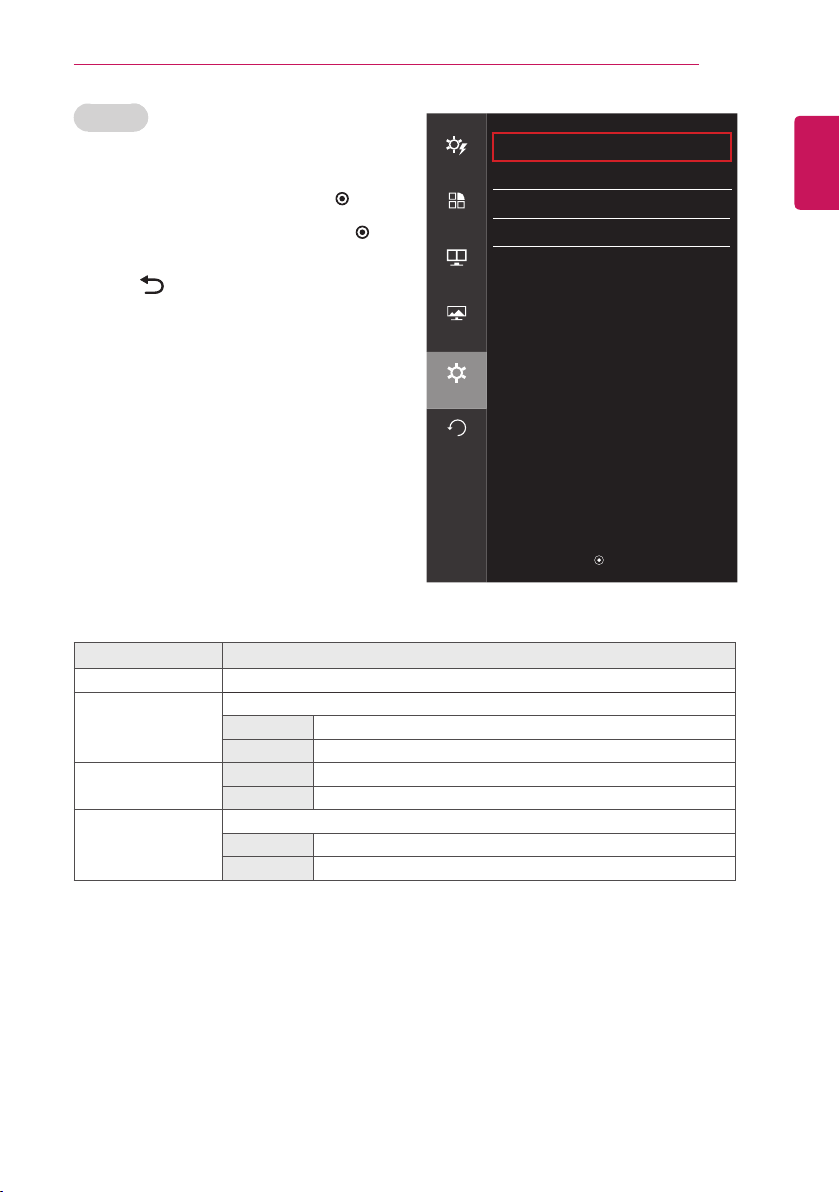
ENGLISH
CUSTOMIZING SETTINGS
61
Settings
1 Press
SETTINGS
to access the main menus.
2 Press the Navigation buttons to scroll to one
of the following menus and press
OK
.
3 Press the Navigation buttons to scroll to the
setting or option you want and press
OK
.
4 When you are nished, press
EXIT
.
When you return to the previous menu,
press
BACK
.
Each option is described below.
Menu> Settings Description
Language Sets the menu screen to the desired language.
Standby Light Turns the power indicator on the front side of the TV on/off.
On The Standby Light is automatically turned on.
Off The Standby Light is turned off.
Automatic Standby Off The Automatic Standby mode is turned off.
4H / 6H / 8H Sets the time frame of the Automatic Standby mode.
Key Lock Prevents incorrect key input.
On Key input is disabled.
Off Key input is enabled.
Settings
Easy control
Language English
>
Standby Light On
>
Function
Automatic Standby Off
>
Key Lock Off
>
PIP
Screen
Settings
Reset
▲/▼ : Move
/
▶
: Ok
◀
: Back
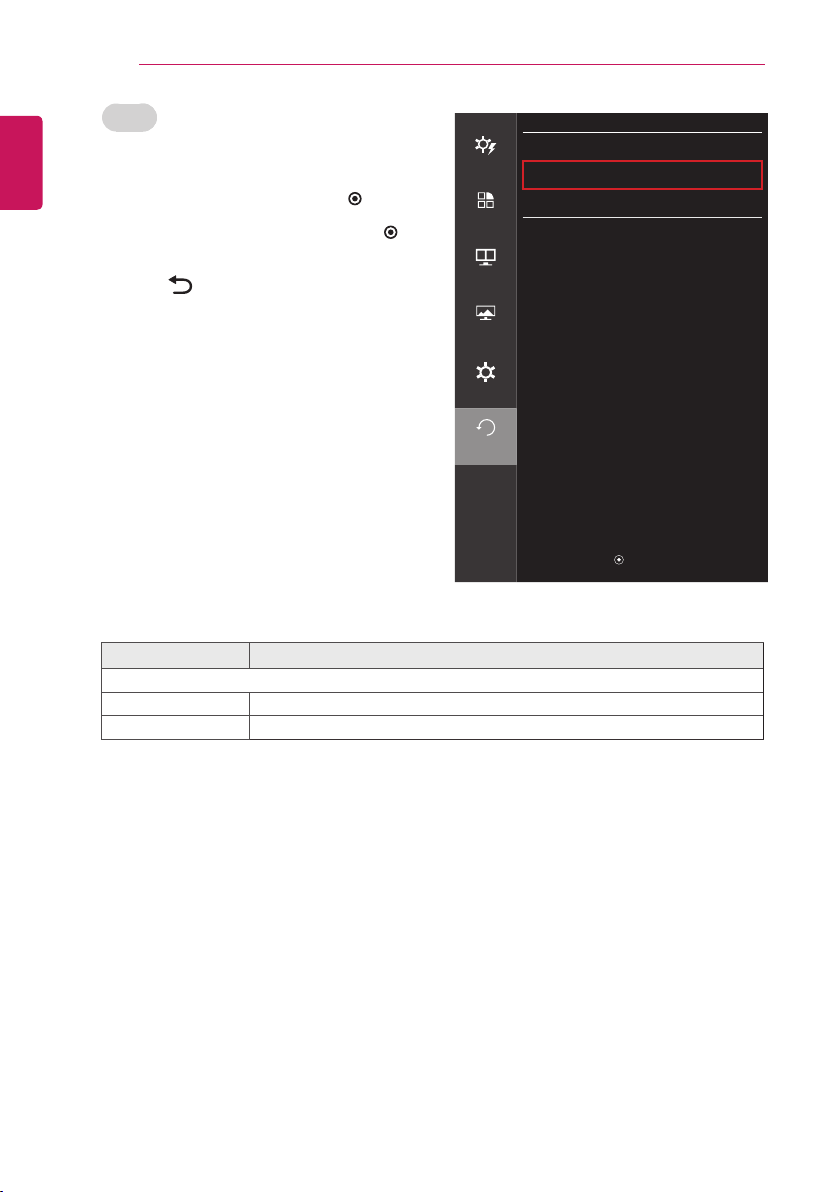
62
ENGLISH
CUSTOMIZING SETTINGS
Reset
1 Press
SETTINGS
to access the main menus.
2 Press the Navigation buttons to scroll to one of
the following menus and press
OK
.
3 Press the Navigation buttons to scroll to the
setting or option you want and press
OK
.
4 When you are nished, press
EXIT
.
When you return to the previous menu,
press
BACK
.
Reset
Easy control
Do you want to reset your settings?
Reset
Function
Cancel
PIP
Screen
Settings
Reset
▲/▼ : Move
/
▶
: Ok
◀
: Back
Each option is described below.
Menu> Reset Description
Do you want to reset your settings?
Reset
Resets to the default settings.
Cancel
Cancel the reset.
ENGLISH
MAINTENANCE
63
MAINTENANCE
Cleaning Your TV
Clean your TV regularly to keep the best performance and to extend the product's lifespan.
CAUTION
y
Make sure to turn the power off and disconnect the power cord and all other cables first.
y
When the TV is left unattended and unused for a long time, disconnect the power cord from the
wall outlet to prevent possible damage from lightning or power surges.
Screen and frame
To remove dust, wipe the surface with a dry and soft cloth.
To remove major dirt, wipe the surface with a soft cloth dampened in clean water or a diluted mild
detergent. Then wipe immediately with a clean and dry cloth.
CAUTION
y
Do not push, rub, or hit the surface with your fingernail or a sharp object, as this may result in
scratches on the screen and image distortions.
y
Do not use any chemicals, such as waxes, benzene, alcohol, thinners, insecticides, air fresheners,
lubricants, as these may damage the screen’s finish and cause discolourations.
Cabinet and stand
To remove dust, wipe the cabinet with a dry and soft cloth.
To remove major dirt, wipe the cabinet with a soft cloth dampened in a clean water or water containing a
small amount of mild detergent.
CAUTION
y
Do not spray liquid onto the surface. If water enters the TV, it may result in fire, electric shock, or
malfunction.
y
Do not use any chemicals as this may deteriorate the surface.
Power cord
Remove the accumulated dust or dirt on the power cord regularly.

64
ENGLISH
MAINTENANCE
Preventing “Image burn” or “Burn-in” on your TV screen
y
If a xed image displays on the TV screen for a long period of time, it will be imprinted and become
a permanent disgurement on the screen. This is “image burn” or “burn-in” and not covered by the
warranty.
y
If the aspect ratio of the TV is set to 4:3 for a long period of time, image burn may occur on the
letterboxed area of the screen.
y
Avoid displaying a xed image on the TV screen for a long period of time (2 or more hours for LCD) to
prevent image burn.
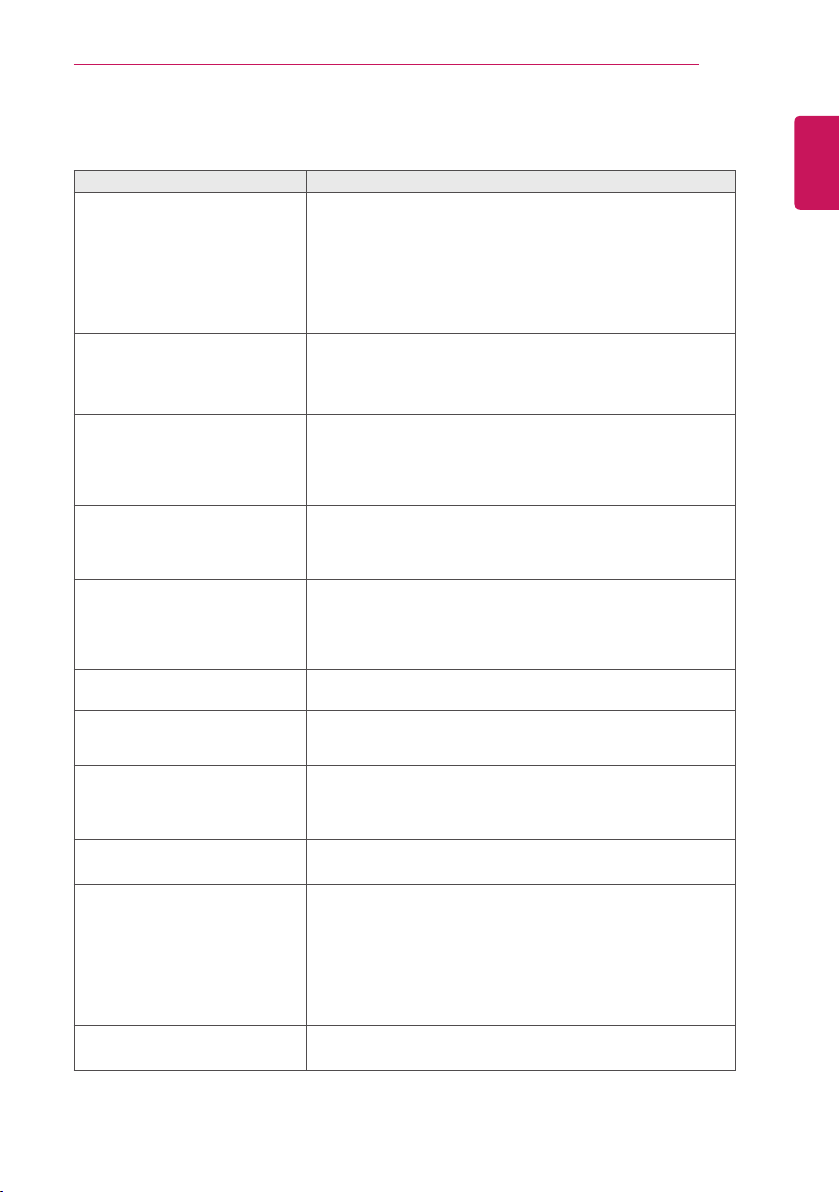
ENGLISH
TROUBLESHOOTING
65
TROUBLESHOOTING
Symptom Troubleshooting
No image is displayed.
y
Check whether there is a power cut or whether the power
cord is properly connected to the power outlet.
y
Check if the standby indicator is turned off.
y
If the screen is turned off due to use of the Energy Saving
mode, press any button on the remote control to disable
the Energy Saving mode and display the image.
y
Move the mouse or press any key, then the screen will
appear.
The 'Out of Range' message is
displayed on the screen.
y
This symptom occurs when signals from the PC (video
card) are out of the horizontal or vertical frequency range of
the product. Please see the Product Specification section
of this manual and configure your display again.
The 'No Signal' message is
displayed on the screen.
y
This symptom occurs when the signal cable between the
PC and the product is not connected. Check the signal
cable and connect it again.
y
Check if the input setting is correct when the PC and the
product are connected.
The screen position is incorrect
when using a PC.
y
Check whether the resolution or frequency of the video
card is set within the appropriate range for the product
and go to Control Panel> Display> Settings to set it to the
recommended resolution.
There are still images sticking after
power off.
y
Displaying a still image for a prolonged time may cause
damage to the screen, resulting in the retention of the
image.
y
Use a screen saver to protect the screen when using the
product for a prolonged period of time.
The display is discoloured (16
Colour).
y
Set the Colour to 24 bit (true Colour) or higher. In Windows,
go to Control Panel> Display> Settings> Colour Quality.
The screen Colour is unstable or
the images are displayed in only
one Colour.
y
Check if the signal cable is connected properly. Reconnect
the cable or reinsert the PC's video card.
Spots appear on the screen.
y
When using the Product, pixilated spots (red, green, blue,
white or black) may appear on the screen. This is normal
for the LCD screen. It is not an error nor is it related to the
Product's performance.
The 'Key Locked' message
displays on the screen.
y
The key lock is enabled. Go to Menu> Settings (Lock) and
set 'Key Lock' to Off.
The remote control is not working.
y
Make sure that there are no obstacles between the remote
control and the Product.
y
Check whether the batteries are correctly inserted with the
correct polarity.
y
If the batteries are weak, replace both of the batteries with
new ones.
y
The product may malfunction in a place where a lamp with
an electronic stabilizer (3-wavelength lamp) is installed.
Nothing is displayed on the TV
screen.
y
Use the TV/PC switch key to select TV.
66
ENGLISH
TROUBLESHOOTING
NOTE
y
Vertical Frequency
: In order to display an image, the screen must be refreshed dozens of times per
second like a uorescent lamp.
The number of times the screen is refreshed per second is called vertical frequency or refresh rate
and is represented by Hz.
y
Horizontal Frequency
: The time it takes to display one horizontal line is called the horizontal cycle.
The number of horizontal lines displayed in one second can be calculated by dividing one by the
horizontal cycle. This is called horizontal frequency and is represented by kHz.
y
Check if the video card's resolution or frequency is within the range allowed by the Product and set to
the recommended (optimal) resolution in
Control Panel> Display> Settings
.
y
Failing to set the video card to the recommended (optimal) resolution may result in blurred text, a
dimmed screen, a truncated display area or misalignment of the display.
y
The conguration procedure may differ depending on your computer and/or operating system. Also,
some video cards may not support certain resolutions. If this is the case, contact the manufacturer of
the computer or video card for assistance.
y
Some video cards may not support the 2560 x 1080 resolution.
If the resolution cannot be displayed, contact the manufacturer of your video card.
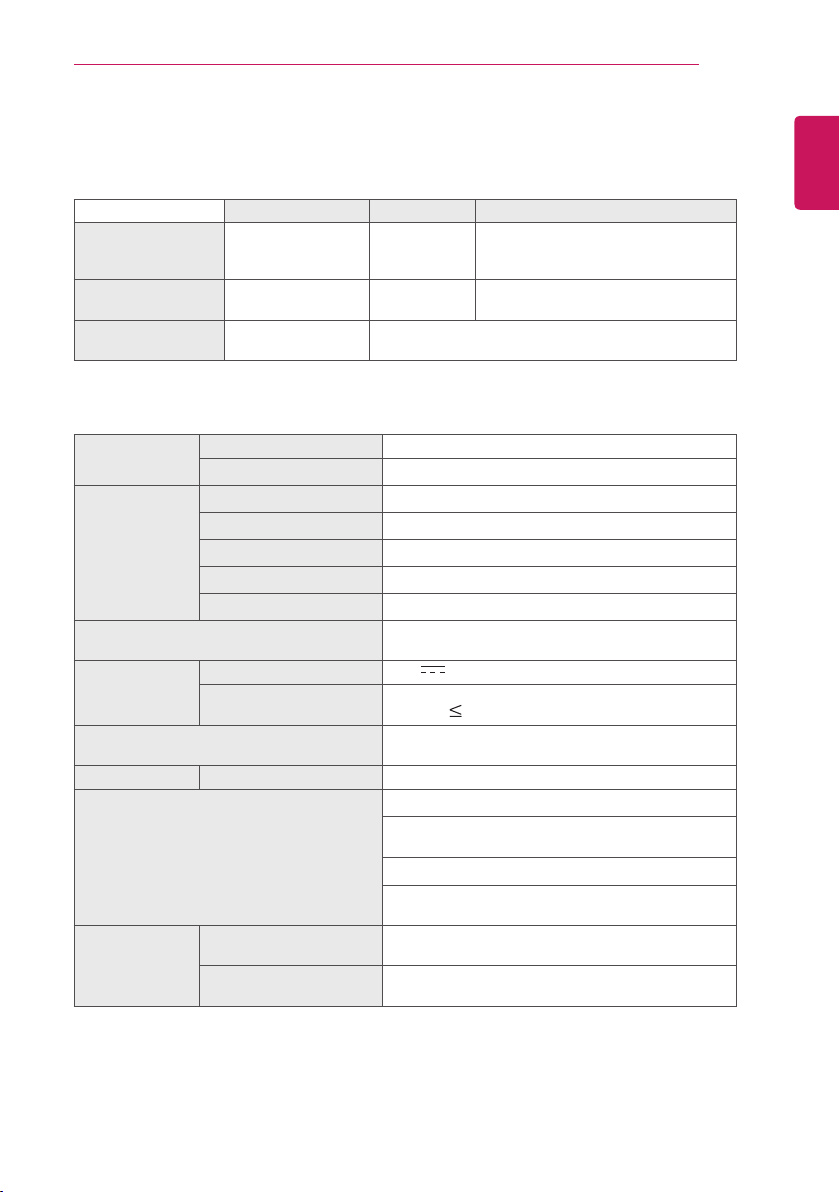
ENGLISH
SPECIFICATIONS
67
SPECIFICATIONS
Satellite Digital TV
1
Digital TV Analogue TV
Television system DVB-T/T2
DVB-C
DVB-S/S2
DVB-T
DVB-C
PAL/SECAM B/G/D/K,
PAL I/I’, SECAM L/L’
2
Programme coverage VHF, UHF
C-Band, Ku-Band
VHF, UHF VHF: E2 to E12, UHF : E21 to E69,
CATV: S1 to S21, HYPER: S21 to S47
Maximum number of
storable programmes
6,000 1,500
1 Only DVB-T2 support models
2 Except for Nordic countries (Denmark, Finland, Norway and Sweden)
Panel Screen Type 730 mm Wide
Pixel Pitch 0.2628 mm (H) x 0.2628 mm (V)
Video Signal Max. Resolution 2560 × 1080 @ 60 Hz
Recommended Resolution 2560 × 1080 @ 60 Hz
Horizontal Frequency 30 kHz to 90 kHz
Vertical Frequency 56 Hz to 75 Hz
Synchronization Type Digital
Input Connector TV, Component, AV1(SCART), AV2(CVBS), HDMI*2,
USB, DP, PCMCIA, LAN(Only UK)
Power Rated Voltage
19 V 3.2 A
Power Consumption On Mode : 45 W (typ.)
Off Mode 0.5 W
AC/DC Adapter Manufacturer : LIEN CHANG, Model : LCAP39
Manufacturer : APD, Model : DA-65G19
Tilt Tilt Range -5 to 20°
Dimensions (Width x Height x Depth)
Weight
With Stand
703.0 mm x 414.2 mm x 213.2 mm
5.7 kg
Without Stand
703.0 mm x 328.5 mm x 64.0 mm
5.2 kg
Environmental
conditions
Operating Temperature
Operating Humidity
10 °C to 35 °C
20 % to 80 %
Storage Temperature
Storage Humidity
-10 °C to 60 °C
5 % to 90 %
Product specifications shown above may be changed without prior notice due to upgrade of product
functions.
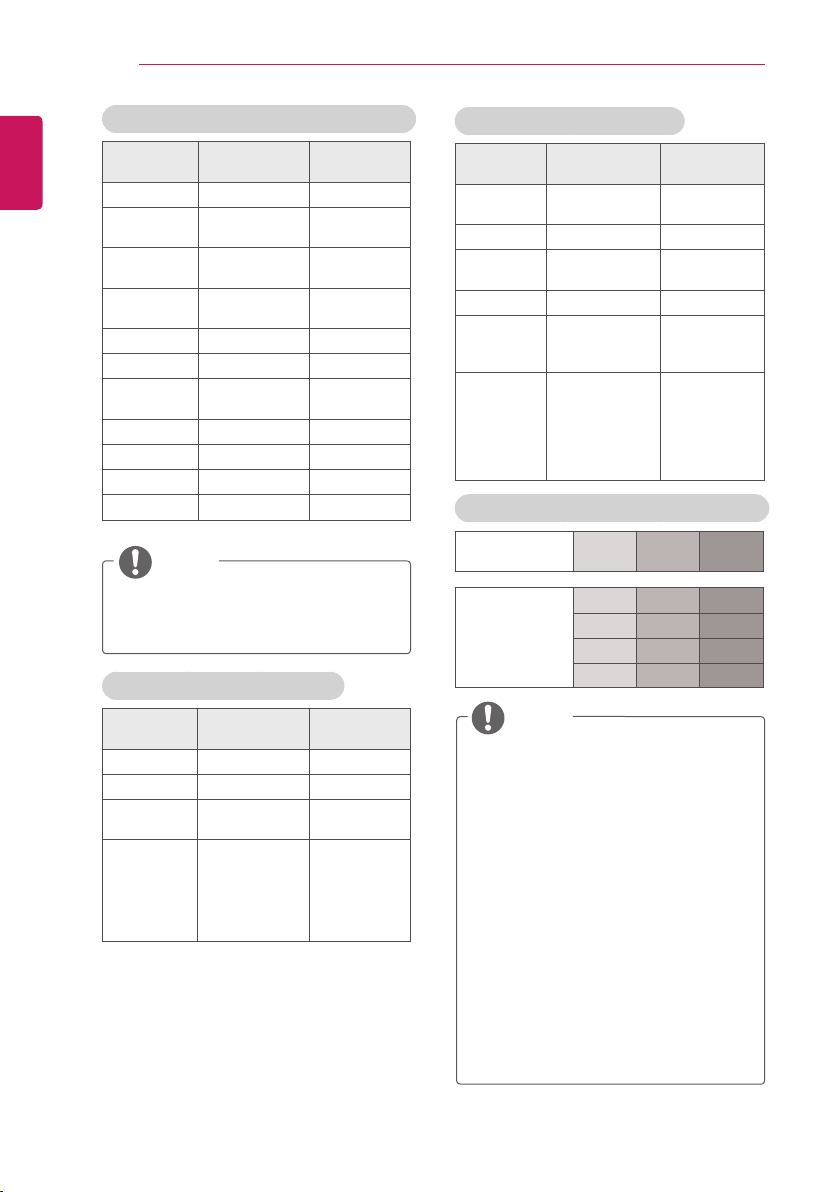
68
ENGLISH
SPECIFICATIONS
HDMI / DisplayPort(PC) supported mode
Resolution
Horizontal
Frequency(kHz)
Vertical
Frequency(Hz)
720 x 400 31.468 70.080
640 x 480
31.469
37.500
59.940
75.000
800 x 600
37.879
46.875
60.317
75.000
1024 x 768
48.363
60.023
60.004
75.029
1152 x 864 67.500 75.000
1280 x 720 45.000 60.000
1280 x 1024
63.981
79.976
60.020
75.025
1600 x 900 60.000 60.000
1680 x 1050 65.290 59.954
1920 x 1080 67.500 60.000
2560 x 1080 66.700 60.000
NOTE
y
The recommended resolution is
2560 x 1080 / 60 Hz. However, it may not
be supported depending on your PC or
AV model.
HDMI(VIDEO) supported mode
Resolution
Horizontal
Frequency(kHz)
Vertical
Frequency(Hz)
720 x 480 31.500 60.000
720 x 576 31.250 50.000
1280 x 720
37.500
45.000
50.000
60.000
1920 x 1080
33.750
28.125
33.750
56.250
67.500
60.000
50.000
30.000
50.000
60.000
Component supported mode
Resolution
Horizontal
Frequency(kHz)
Vertical
Frequency(Hz)
720 x 480
15.730
15.750
59.940
60.000
720 x 576 15.625 50.000
720 x 480
31.470
31.500
59.940
60.000
720 x 576 31.250 50.000
1280 x 720
44.960
45.000
37.500
59.940
60.000
50.000
1920 x 1080
33.720
33.750
28.125
56.250
67.432
67.500
59.940
60.000
50.000
50.000
59.940
60.000
Component port connecting information
Component ports
on the TV
Y P
B
P
R
Video output
ports on DVD
player
Y P
B
P
R
Y B-Y R-Y
Y Cb Cr
Y Pb Pr
NOTE
y
Avoid keeping a fixed image on the set’s
screen for prolonged periods of time. The
fixed image may become permanently
imprinted on the screen. Use a screen
saver when possible.
y
There may be interference relating to
resolution, vertical pattern, contrast or
brightness in PC mode. Change the PC
mode to another resolution or change the
refresh rate to another rate or adjust the
brightness and contrast on the menu until
the picture is clear. If the refresh rate of
the PC graphic card can not be changed,
change the PC graphic card or consult the
manufacturer of the PC graphic card.
y
The synchronization input waveform for
Horizontal and Vertical frequencies are
separate.
y
If using a sound card, adjust PC sound as
required.

Make sure to read the Safety Precautions
before using the product.
Keep the Owner’s Manual (CD) in an
accessible place for future reference.
The model and serial number of the TV
is located on the back and one side of
the TV. Record it below should you ever
need service.
MODEL
SERIAL