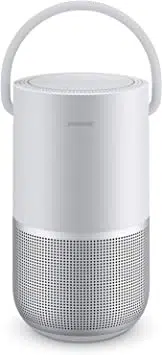

PORTABLE HOME SPEAKER
IMPORTANT SAFETY INSTRUCTIONS
2
|
ENG
Please read and keep all safety, security, and use instructions.
Important Safety Instructions
1. Read these instructions.
2. Keep these instructions.
3. Heed all warnings.
4. Follow all instructions.
5. Clean only with a dry cloth.
6. Do not block any ventilation openings. Install in accordance with the manufacturer’s instructions.
7. Do not install near any heat sources such as radiators, heat registers, stoves, or other apparatus (including
amplifiers) that produce heat.
8. Only use attachments/accessories specified by the manufacturer.
9. Unplug this apparatus during lightning storms or when unused for long periods of time.
10. Refer all servicing to qualified personnel. Servicing is required when the apparatus has been damaged in any
way, such as power-supply cord or plug is damaged, liquid has been spilled or objects have fallen into the
apparatus, the apparatus has been exposed to rain or moisture, does not operate normally, or has been dropped.
Contains small parts which may be a choking hazard. Not suitable for children under age 3.
This product contains magnetic material. Consult your physician on whether this might aect your
implantable medical device.
• Keep the product away from fire and heat sources. Do NOT place naked flame sources, such as lighted candles,
on or near the product.
• Do NOT make unauthorized alterations to this product.
• Do NOT use a power inverter with this product.
• Do not use any charger other than that specifically provided for use with the product.
仅适用于 2000m 以下地区安全使用
Use at altitude less than 2000 meters only.
• Do not expose products containing batteries to excessive heat (e.g. from storage in direct sunlight, fire or the like).
• The product label is located on the bottom of the product.
REGULATORY INFORMATION
3
|
ENG
NOTE: This equipment has been tested and found to comply with the limits for a Class B digital device, pursuant to
Part 15 of the FCC Rules. These limits are designed to provide reasonable protection against harmful interference in a
residential installation. This equipment generates, uses, and can radiate radio frequency energy and, if not installed
and used in accordance with the instructions, may cause harmful interference to radio communications. However,
there is no guarantee that interference will not occur in a particular installation. If this equipment does cause harmful
interference to radio or television reception, which can be determined by turning the equipment o and on, the user
is encouraged to try to correct the interference by one or more of the following measures:
• Reorient or relocate the receiving antenna.
• Increase the separation between the equipment and receiver.
• Connect the equipment into an outlet on a circuit dierent from that to which the receiver is connected.
• Consult the dealer or an experienced radio/TV technician for help.
Changes or modifications not expressly approved by Bose Corporation could void the user’s authority to operate
this equipment.
This device complies with part 15 of the FCC Rules and with ISED license-exempt RSS standard(s). Operation is subject
to the following two conditions: (1) This device may not cause harmful interference, and (2) this device must accept
any interference received, including interference that may cause undesired operation.
This equipment should be installed and operated with a minimum distance of 20 cm between radiator and your body.
This device for operation in the band 5150 – 5250 MHz is only for indoor use to reduce the potential for harmful
interference to other co-channel systems.
CAN ICES-3 (B)/NMB-3(B)
Bose Corporation hereby declares that this product is in compliance with the essential requirements and
other relevant provisions of Directive 2014/53/EU and all other applicable EU directive requirements. The
complete declaration of conformity can be found at: www.Bose.com/compliance
The product, in accordance with the Ecodesign Requirements for Energy Related Products Directive 2009/125/EC, is
in compliance with the following norm(s) or document(s): Regulation (EC) No. 1275/2008, as amended by Regulation
(EU) No. 801/2013.
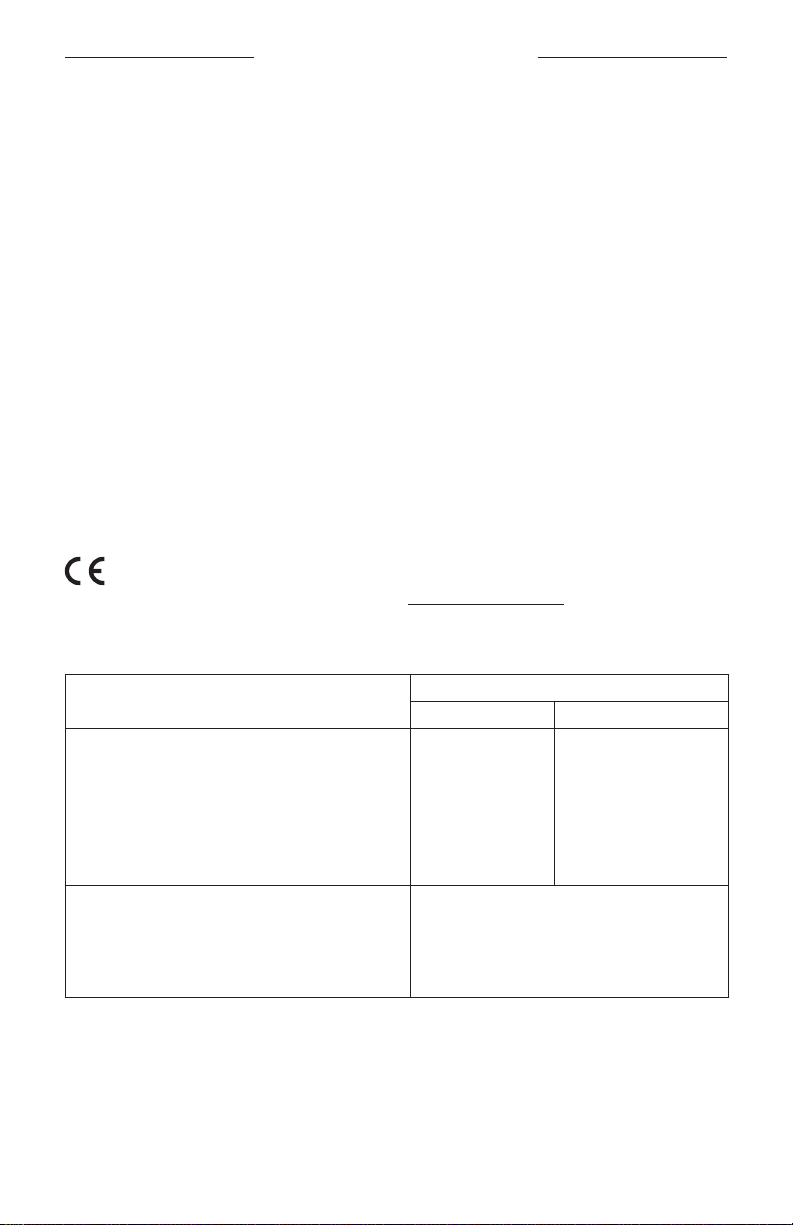
Required Power State Information
Power Modes
Standby Networked Standby
Power consumption in specified power mode, at 230V/50Hz input ≤ 0.5 W Wi-Fi®, Bluetooth® ≤ 2.0 W
Time after which equipment is automatically switched into mode < 2.5 hours ≤ 20 minutes
Power consumption in networked standby if all wired network
ports are connected and all wireless network ports are activated,
at 230V/50Hz input
N/A ≤ 2.0 W
Network port deactivation/activation procedures. Deactivating all
networks will enable standby mode.
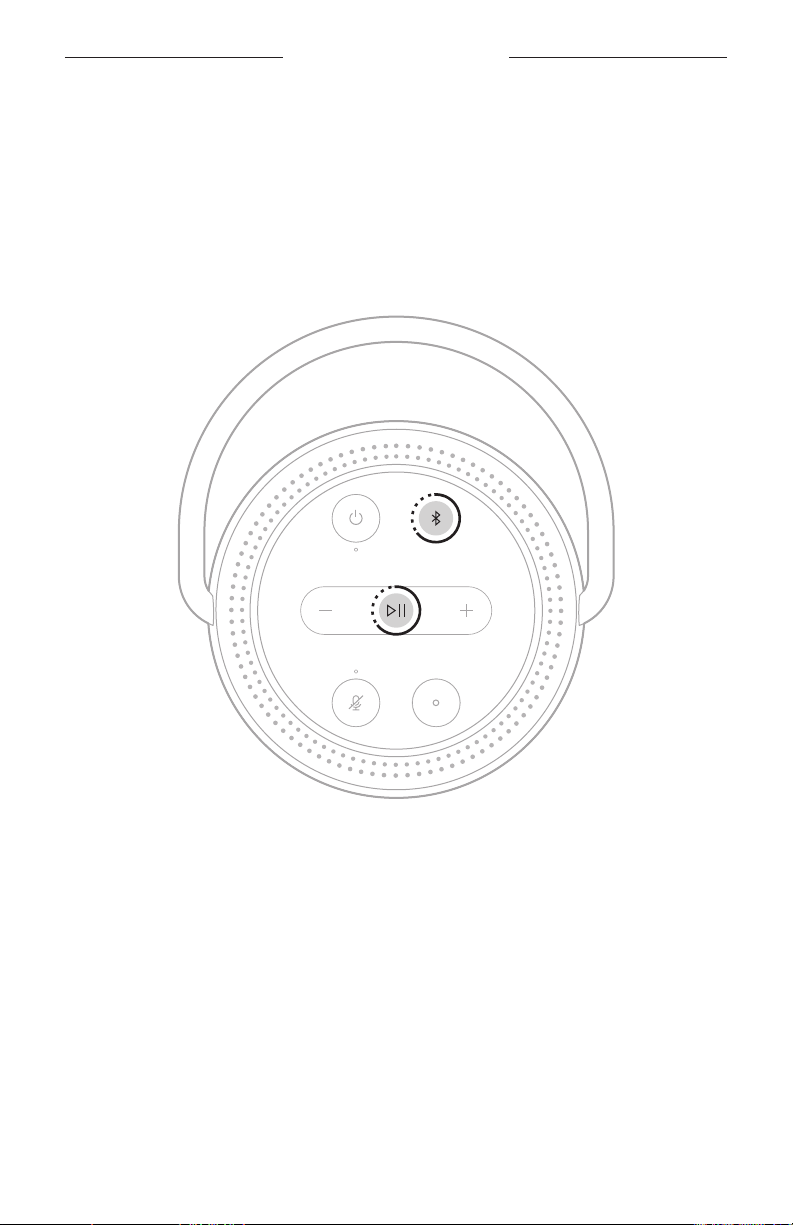
Wi-Fi®: Deactivate by pressing and holding the Play/Pause
button F and Bluetooth button l simultaneously for at
least 5 seconds. Repeat to activate.
Bluetooth®: Deactivate by clearing the pairing list by pressing
and holding the Bluetooth® button for 10 seconds. Activate
by pairing with a Bluetooth source.
REGULATORY INFORMATION
4
|
ENG
For Europe:
Frequency band of operation 2400 to 2483.5 MHz:
• Bluetooth/Wi-Fi: Maximum transmit power less than 20 dBm EIRP.
• Bluetooth Low Energy: Maximum power spectral density less than 10 dBm/MHz EIRP.
Frequency band of operation 5150 to 5350 MHz and 5470 to 5725 MHz:
• Wi-Fi: Maximum transmit power less than 20dBm EIRP.
This device is restricted to indoor use when operating in the 5150 to 5350 MHz frequency range in all EU Member
States listed in the table.
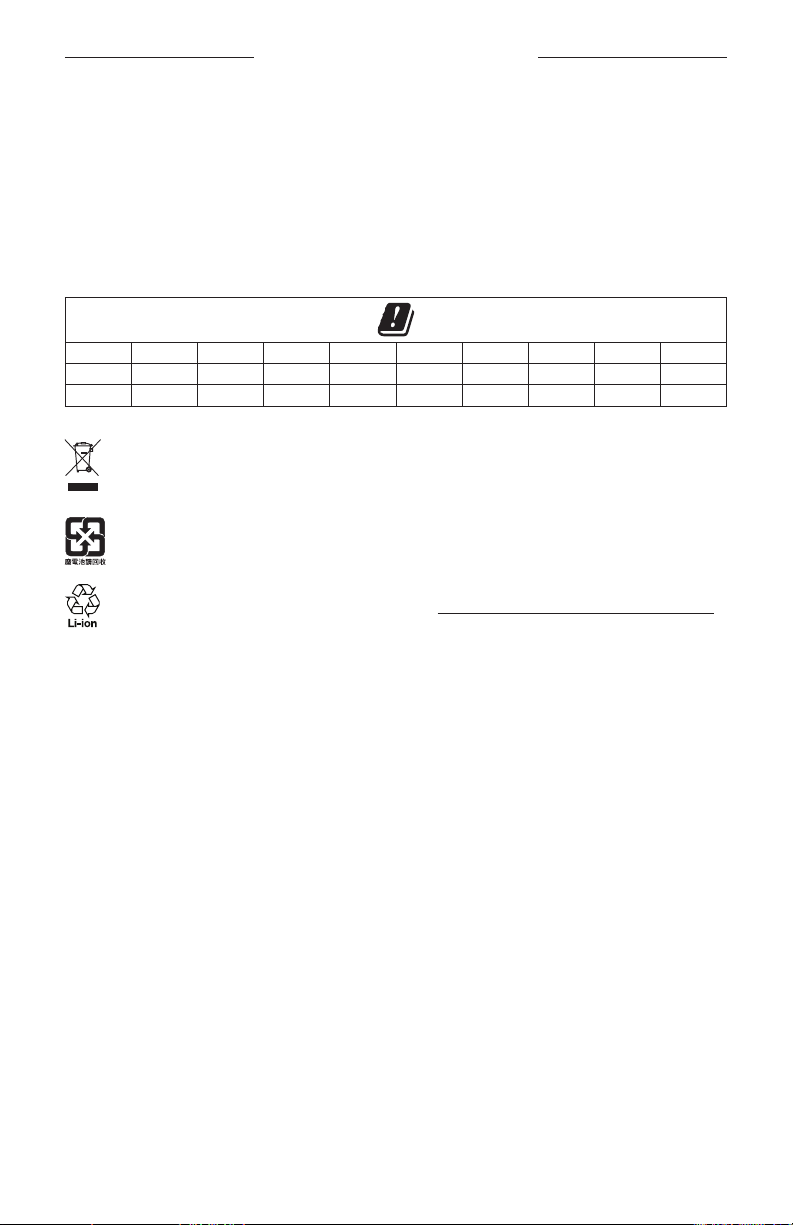
BE DK IE UK FR CY SK HU AT SE
BG DE PT EL HR LV LT MT PL
CZ EE FI ES IT RO LU NL SI
This symbol means the product must not be discarded as household waste, and should be delivered to an
appropriate collection facility for recycling. Proper disposal and recycling helps protect natural resources,
human health and the environment. For more information on disposal and recycling of this product, contact
your local municipality, disposal service, or the shop where you bought this product.
Please dispose of used batteries properly, following local regulations. Do not incinerate.
Removal of the rechargeable lithium-ion battery in this product should be conducted only by a qualified
professional. Please contact your local Bose retailer or see products.bose.com/static/compliance/index.html
for further information.
Management Regulation for Low-power Radio-frequency Devices
Article XII
According to “Management Regulation for Low-power Radio-frequency Devices” without permission granted by
the NCC, any company, enterprise, or user is not allowed to change frequency, enhance transmitting power or alter
original characteristic as well as performance to an approved low power radio-frequency devices.
Article XIV
The low power radio-frequency devices shall not influence aircraft security and interfere legal communications; If
found, the user shall cease operating immediately until no interference is achieved. The said legal communications
means radio communications operated in compliance with the Telecommunications Act.
The low power radio-frequency devices must be susceptible with the interference from legal communications or ISM
radio wave radiated devices.
DON’T attempt to remove the rechargeable lithium-ion battery from this product. Contact your local Bose retailer or
other qualified professional for removal.

REGULATORY INFORMATION
5
|
ENG
China Restriction of Hazardous Substances Table
Names and Contents of Toxic or Hazardous Substances or Elements
Toxic or Hazardous Substances and Elements
Part Name
Lead
(Pb)
Mercury
(Hg)
Cadmium
(Cd)
Hexavalent
(CR(VI))
Polybrominated
Biphenyl
(PBB)
Polybrominated
diphenylether
(PBDE)
PCBs X O O O O O
Metal Parts X O O O O O
Plastic Parts O O O O O O
Speakers X O O O O O
Cables X O O O O O
This table is prepared in accordance with the provisions of SJ/T 11364.
O: Indicates that this toxic or hazardous substance contained in all of the homogeneous materials for this
part is below the limit requirement of GB/T 26572.
X: Indicates that this toxic or hazardous substance contained in at least one of the homogeneous materials
used for this part is above the limit requirement of GB/T 26572.
Taiwan Restriction of Hazardous Substances Table
Equipment name: Powered Speaker, Type designation: 429329
Restricted substances and its chemical symbols
Unit
Lead
(Pb)
Mercury (Hg) Cadmium (Cd)
Hexavalent
chromium (Cr+6)
Polybrominated
biphenyls (PBB)
Polybrominated
diphenyl ethers
(PBDE)
PCBs
- ○ ○ ○ ○ ○
Metal Parts
- ○ ○ ○ ○ ○
Plastic Parts
○ ○ ○ ○ ○ ○
Speakers
- ○ ○ ○ ○ ○
Cables
- ○ ○ ○ ○ ○
Note 1: “○” indicates that the percentage content of the restricted substance does not exceed the percentage of reference value
of presence.
Note 2: The “−” indicates that the restricted substance corresponds to the exemption.
Please complete and retain for your records
The serial and model numbers are located on the bottom of the speaker.
Serial number: ____________________________________________________________________
Model number: ____________________________________________________________________
Please keep your receipt with your owner’s guide. Now is a good time to register your Bose product.
You can easily do this by going to http://global.Bose.com/register
Date of Manufacture: The eighth digit in the serial number indicates the year of manufacture; “9” is 2009 or 2019.
China Importer: Bose Electronics (Shanghai) Company Limited, Part C, Plant 9, No. 353 North Riying Road, China
(Shanghai) Pilot Free Trade Zone
EU Importer: Bose Products B.V., Gorslaan 60, 1441 RG Purmerend, The Netherlands
Taiwan Importer: Bose Taiwan Branch, 9F-A1, No.10, Section 3, Minsheng East Road, Taipei City 104, Taiwan
Phone Number: +886-2-2514 7676
Mexico Importer: Bose de México, S. de R.L. de C.V. , Paseo de las Palmas 405-204, Lomas de Chapultepec,
11000 México, D.F. Phone Number: +5255 (5202) 3545
Electrical ratings: 5Vdc, 3A

6
|
ENG
LEGAL INFORMATION
Security Information
This product is capable of receiving automatic security updates from Bose. To receive automatic security
updates, you must complete the product setup process in the Bose Music app and connect the product to
the Internet. If you do not complete the setup process, you will be responsible for installing security
updates that Bose makes available.
Amazon, Alexa, Amazon Music, and all related logos are trademarks of Amazon, Inc. or its aliates.
Apple, the Apple logo, and AirPlay are trademarks of Apple Inc. registered in the U.S. and other countries. App Store
is a service mark of Apple Inc.
Use of the Works with Apple badge means that an accessory has been designed to work specifically with the
technology identified in the badge and has been certified by the developer to meet Apple performance standards.
The Bluetooth
®
word mark and logos are registered trademarks owned by Bluetooth SIG, Inc. and any use of such
marks by Bose Corporation is under license.
Google and Google Play are trademarks of Google LLC.
This product contains the iHeartRadio service. iHeartRadio is a registered trademark of iHeartMedia, Inc.
This product is protected by certain intellectual property rights of Microsoft. Use or distribution of such technology
outside of this product is prohibited without a license from Microsoft.
Pandora, the Pandora logo, and the Pandora trade dress are trademarks or registered trademarks of Pandora Media,
Inc. used with permission.
This product incorporates Spotify software which is subject to third-party licenses found here:
www.spotify.com/connect/third-party-licenses
Spotify is a registered trademark of Spotify AB.
Wi-Fi is a registered trademark of Wi-Fi Alliance
®
.
Bose, Bose Portable Home Speaker, Bose Music, and the Bose Music logo are trademarks of Bose Corporation.
Bose Corporation Headquarters: 1-877-230-5639
©2019 Bose Corporation. No part of this work may be reproduced, modified, distributed, or otherwise used without
prior written permission.

7
|
ENG
To view the license disclosures that apply to the third-party software packages included as components of your
Bose Portable Home Speaker product:
1. On the speaker, press and hold the Volume up button H and the Volume down button z for 5 seconds.
2. Connect a USB-C cable to the USB-C connector on the bottom of the speaker.
NOTE: If you are using the Bose Portable Home Speaker Charging Cradle to charge the speaker, make sure that
the cable is connected to the USB-C port on the back of the speaker and not charging cradle.
3. Connect the other end of the cable to a computer.
4. On the computer, enter http://203.0.113.1/opensource in a browser window to display the EULA and
license disclosures.
LICENSE DISCLOSURES

CONTENTS
8
|
ENG
WHAT’S IN THE BOX
Contents ............................................................................................................................. 11
WAYS TO USE
Connected to Wi-Fi® ...................................................................................................... 12
Not connected to Wi-Fi ................................................................................................ 12
SPEAKER PLACEMENT
Recommendations.......................................................................................................... 13
BOSE MUSIC APP SETUP
Download the Bose Music app .................................................................................. 14
EXISTING BOSE MUSIC APP USERS
Add the speaker to an existing account ................................................................ 15
Connect to a dierent Wi-Fi network ..................................................................... 15
Reconnect to a Wi-Fi network ................................................................................... 15
POWER
Power on ............................................................................................................................ 16
Power o ............................................................................................................................ 17
Network standby ............................................................................................................. 17
SPEAKER CONTROLS
Speaker functions ........................................................................................................... 19
Media playback and volume ............................................................................... 19
Voice assistant controls ................................................................................................ 20

CONTENTS
9
|
ENG
VOICE ASSISTANT
Voice assistant options ................................................................................................. 21
Set up your voice assistant ......................................................................................... 21
Access your Google Assistant ................................................................................... 22
Use your voice ......................................................................................................... 22
Use the speaker controls ..................................................................................... 23
Play music with your Google Assistant .................................................................. 24
Choose a default music service ........................................................................ 24
Access Alexa ..................................................................................................................... 25
Use your voice ........................................................................................................ 25
Use the speaker controls ..................................................................................... 26
BLUETOOTH® CONNECTIONS
Using Bluetooth only (No Wi-Fi) .............................................................................. 27
Connect a mobile device ............................................................................................ 27
Disconnect a mobile device ........................................................................................ 28
Reconnect a mobile device ......................................................................................... 29
Connect an additional mobile device ..................................................................... 29
Clear the speaker device list....................................................................................... 29
STREAM AUDIO WITH AIRPLAY
Stream audio from the Control Center ................................................................... 30
Stream audio from an app .......................................................................................... 30
BATTERY
Charge the speaker ........................................................................................................ 31
Charge the speaker using the Bose Portable
Home Speaker Charging Cradle ...................................................................... 31
Check the battery level ................................................................................................. 32

CONTENTS
10
|
ENG
SPEAKER STATUS
Wi-Fi status ....................................................................................................................... 33
Media playback and volume status ......................................................................... 34
Bluetooth connection status ...................................................................................... 35
Voice assistant status .................................................................................................... 36
Your Google Assistant status ............................................................................. 36
Amazon Alexa status ............................................................................................ 37
Microphone o light .............................................................................................. 38
Power status ..................................................................................................................... 39
Update and error status ............................................................................................... 40
ADVANCED FEATURES
Update the speaker ........................................................................................................ 41
Disable/Enable Wi-Fi .................................................................................................... 41
CARE AND MAINTENANCE
Clean the speaker ........................................................................................................... 42
Replacement parts and accessories ........................................................................ 42
Limited warranty ............................................................................................................. 42
TROUBLESHOOTING
Try these solutions first ................................................................................................ 43
Other solutions ................................................................................................................ 43
Reset the speaker ........................................................................................................... 47
Restore the speaker network and audio settings ...................................... 47
11
|
ENG
WHAT’S IN THE BOX
CONTENTS
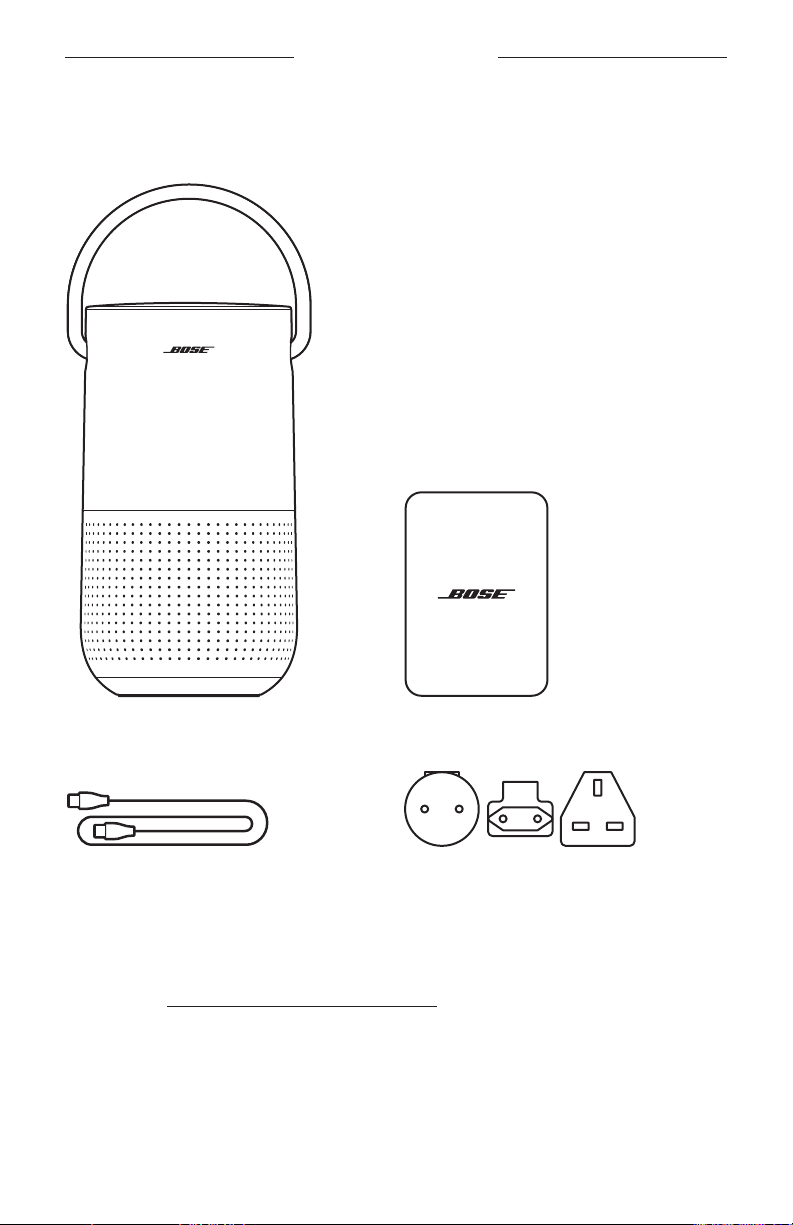
Confirm that the following parts are included:
Bose Portable Home Speaker Power supply
Power cord AC power adapters*
* May ship with multiple AC power adapters. Use the power adapter for your region.
NOTE: If any part of the product is damaged, don’t use it. Contact your authorized
Bose dealer or Bose customer service.
Visit: worldwide.Bose.com/Support/PHS

12
|
ENG
WAYS TO USE
CONNECTED TO WI-FI
When connected to a Wi-Fi network, the speaker has access to all of the features
including voice control, Bose Music app connectivity and music browsing, and
synchronization with other speakers.
To learn more about the Bose Music app, see page 14.
NOT CONNECTED TO WI-FI
When a Wi-Fi network is unavailable, the speaker is a Bluetooth speaker. Bluetooth
wireless technology lets you stream music from mobile devices such as
smartphones, tablets, and laptop computers.
To connect a device to the speaker using Bluetooth technology, see page 27.

13
|
ENG
SPEAKER PLACEMENT
RECOMMENDATIONS
• Do NOT place the speaker on top of audio/video equipment (receivers, TVs, etc.), or
any other object that may generate heat. Heat generated by these items may result
in poor speaker performance.
• Do NOT place any objects on top of the speaker or in front of the speaker.
• To avoid interference, keep other wireless equipment 1 – 3 ft (0.3 – 0.9 m) away
from the speaker.
• Place the speaker outside of and away from metal cabinets and direct heat sources.
• Place the speaker so that the rubber base is on a stable and level surface.
• When using Bluetooth technology, place your mobile device within 33 ft (10 m)
of the speaker, and make sure there is a clear line of sight between you and the
speaker. Moving your device farther away, or not having a clear line of sight may
impact sound quality, and your device may disconnect from the speaker.
CAUTIONS:
• Stand the speaker on its base. Standing the speaker on any other side may cause
damage to the speaker and aect sound quality.
• Avoid placing the speaker on wet or dirty surfaces.
14
|
ENG
BOSE MUSIC APP SETUP
The Bose Music app lets you set up and control the speaker from any mobile device
such as a smartphone or tablet.
Using the app, you can stream music, set and change presets, add music services,
explore internet radio stations, configure your Google Assistant or Amazon Alexa,
and manage speaker settings.
NOTE: If you have already created a Bose Music account in the Bose Music app for
another product, see “Add the speaker to an existing account” on page 15.
DOWNLOAD THE BOSE MUSIC APP
1. On your mobile device, download the Bose Music app.
2. Follow the app instructions.

15
|
ENG
EXISTING BOSE MUSIC APP USERS
ADD THE SPEAKER TO AN EXISTING ACCOUNT
1. In the Bose Music app, from the My Bose screen, press H.
NOTE: To return to the My Bose screen, tap Z in the top-left corner.
2. Follow the app instructions.
CONNECT TO A DIFFERENT WI-FI NETWORK
Connect to a dierent network if your network name or password has changed, or if
you want to change or add another network.
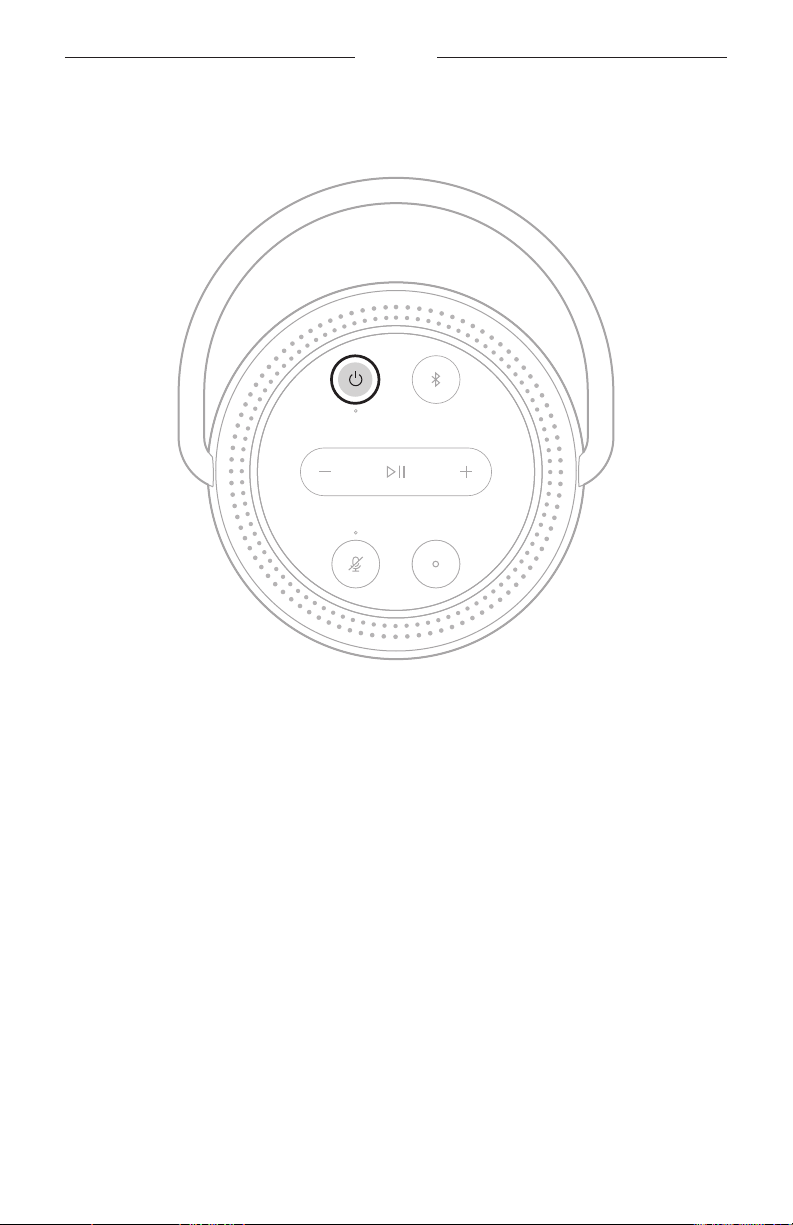
1. On the speaker, press and hold the Volume down button z and the Play/Pause
button F until the light ring glows amber on the top and bottom.
2. On your mobile device, open your Wi-Fi settings.
3. Select Bose Portable Home Speaker.
4. Open the Bose Music app, and follow the app instructions.
NOTES:
• If the app doesn’t prompt you to set up the speaker, tap the My Bose icon Z
in the top-left corner. Tap H to add your product.
• When connected to Wi-Fi, your speaker has access to voice control and all other
features oered in the Bose Music app.
RECONNECT TO A WI-FI NETWORK
The speaker will automatically reconnect to a known Wi-Fi network if the speaker is
powered on, and in range of the Wi-Fi network.
NOTE: The speaker stores up to 8 dierent Wi-Fi networks in the order they were
last used.
16
|
ENG
POWER
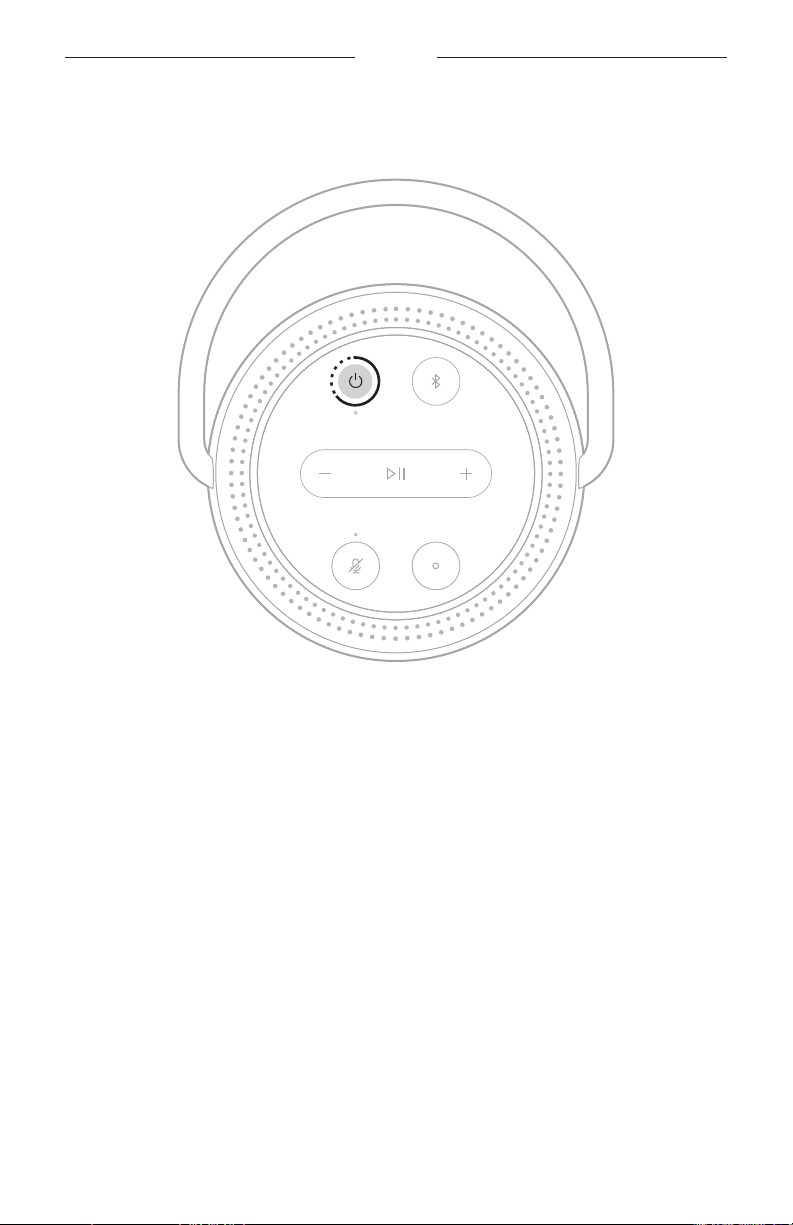
POWER ON
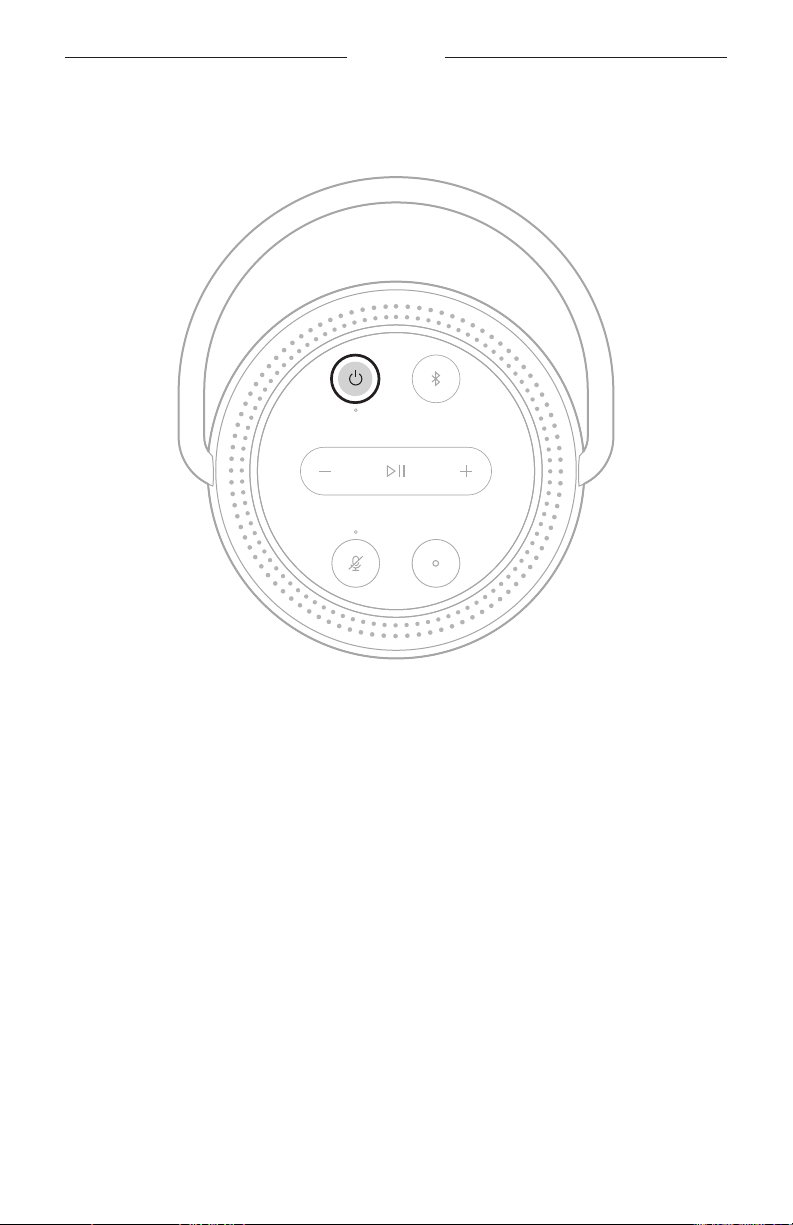
Press the Power button I.
A voice prompt announces the battery level.
POWER
17
|
ENG
POWER OFF
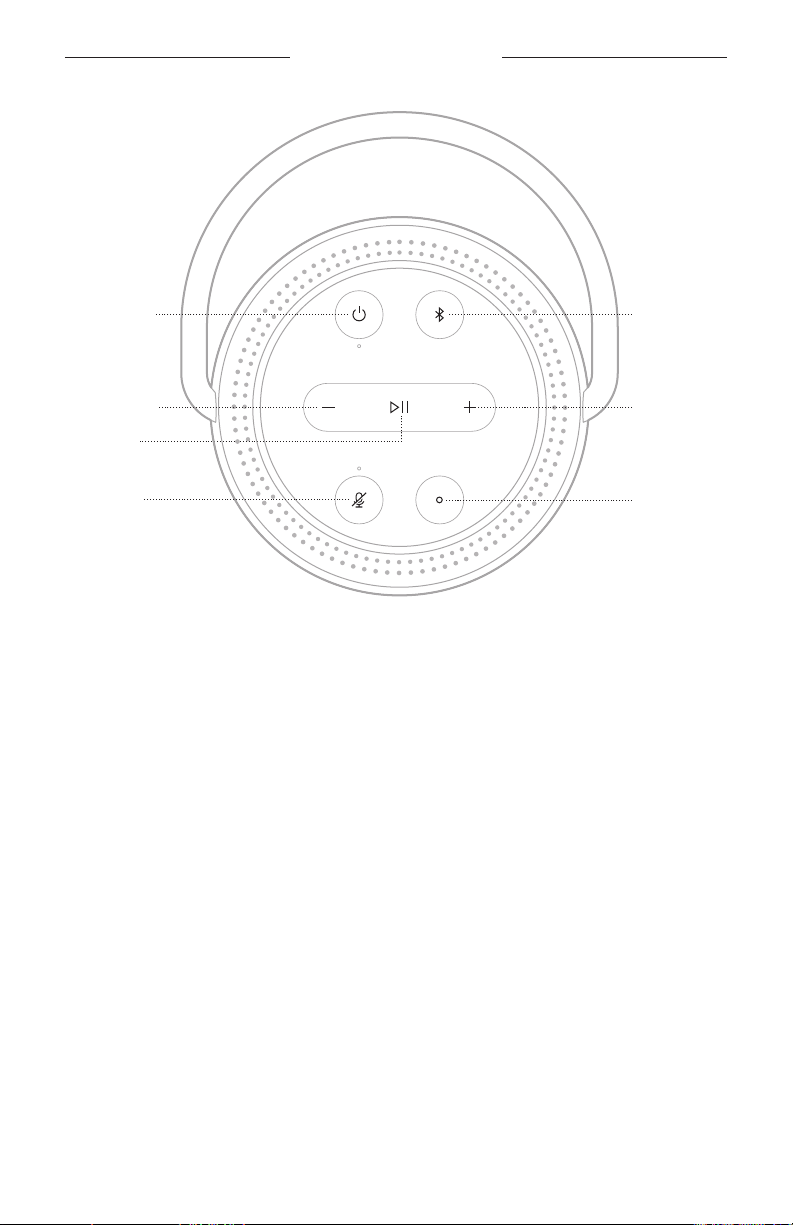
Press and hold the Power button I until the power light turns o.
NOTES:
• If the speaker isn’t connected to a Wi-Fi network, streaming audio
with Bluetooth technology, or charging, it powers o automatically after
20 minutes of inactivity.
• If Wi-Fi hasn’t been set up using the Bose Music app, press the Power button once
to power o the speaker.
NETWORK STANDBY
The speaker transitions to network standby when audio has stopped and you have
not pressed any buttons or accessed your voice assistant for 20 minutes.
To wake the speaker from network standby:
• Press any button on the speaker.
• Play or resume audio using your mobile device or using the Bose Music app.
• Talk to your voice assistant.
NOTE: To access your voice assistant in network standby, set it up using the Bose
Music app and turn on the microphone (see page 14).
SPEAKER CONTROLS
19
|
ENG
SPEAKER FUNCTIONS
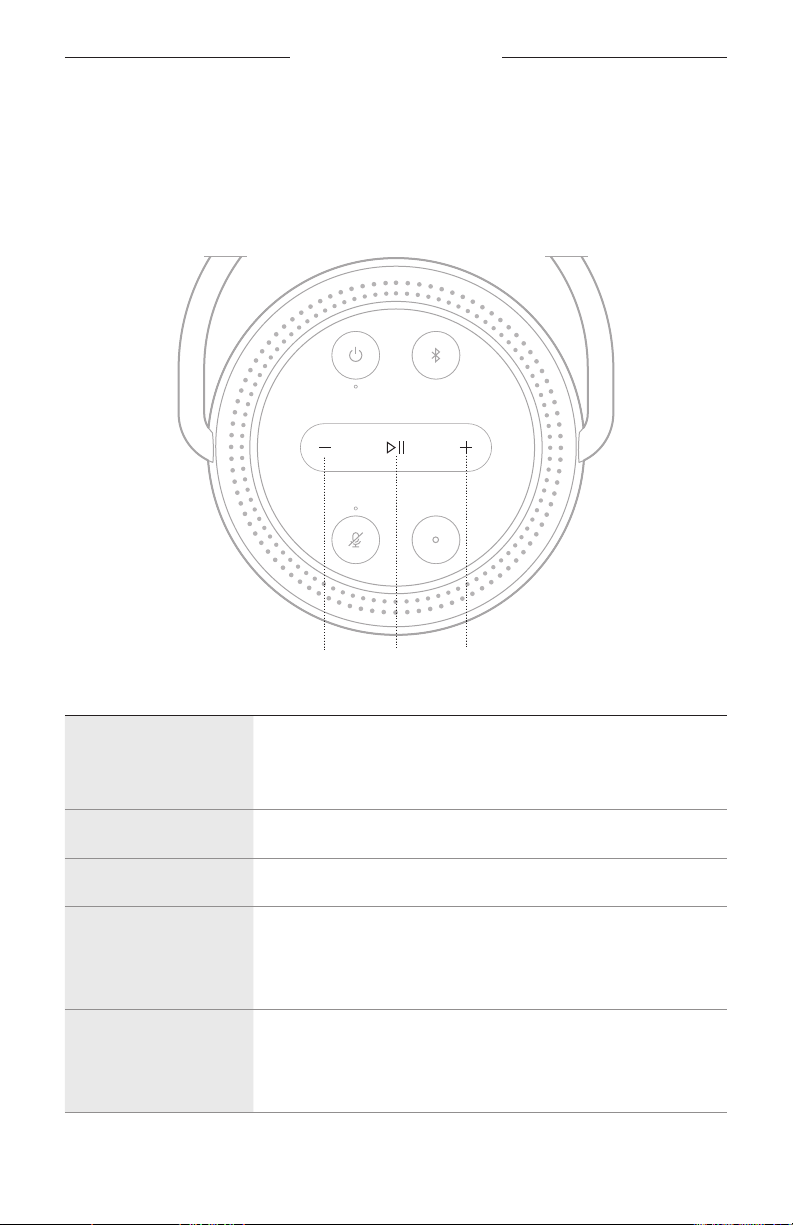
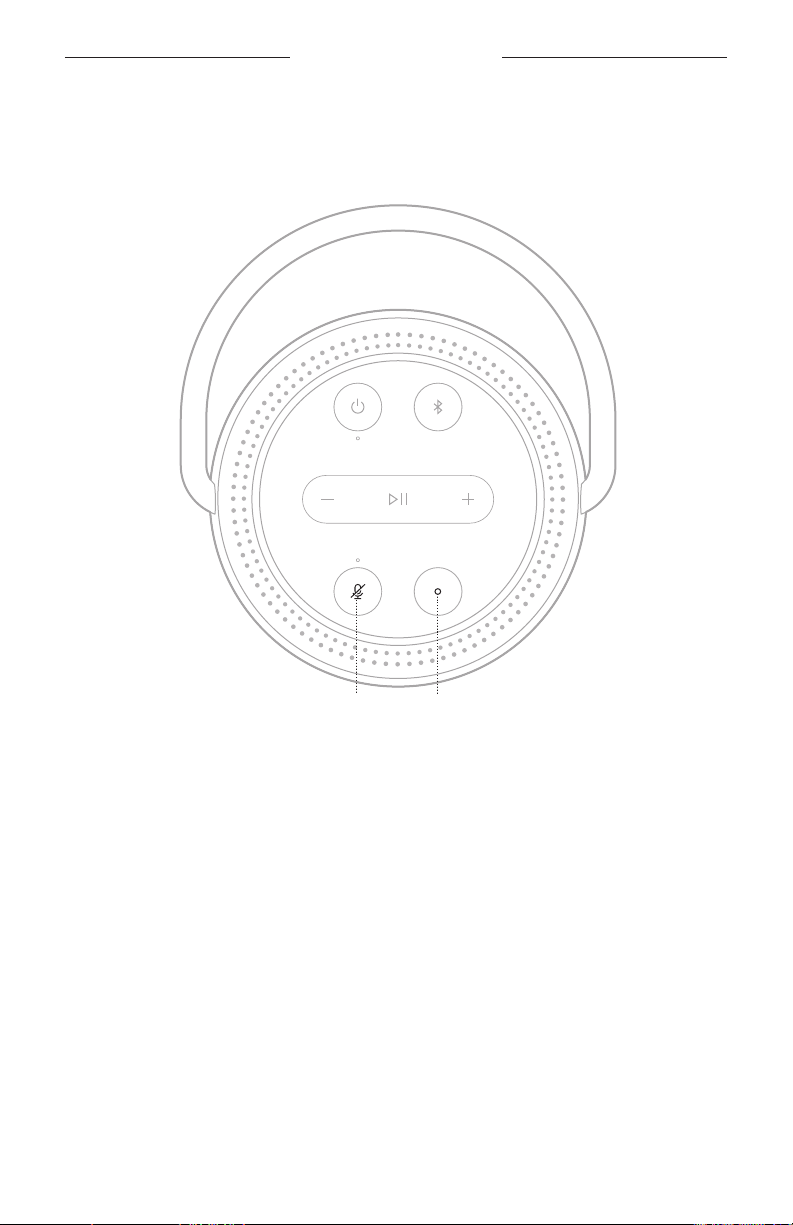
Speaker controls are located on the top of the speaker.
TIP: You can also control the speaker using the Bose Music app.
Media playback and volume
Increase the volumeDecrease the volume
Play/Pause
FUNCTION WHAT TO DO
Play/Pause
Press F.
When audio is paused, two lights on the top and two lights on the
bottom of the light ring glow white.
Skip forward
Double-press F.
Skip backward
Triple-press F.
Increase the volume
Press H.
The light ring fills clockwise.
NOTE: To quickly increase the volume, press and hold H.
Decrease the volume
Press z.
The light ring fades counter-clockwise.
NOTE: To quickly decrease the volume, press and hold z.

21
|
ENG
VOICE ASSISTANT
VOICE ASSISTANT OPTIONS
You can program the speaker to quickly and easily access your Google Assistant or
Amazon Alexa.
NOTE: The Google Assistant and Amazon Alexa aren’t available in certain languages
and countries.
OPTIONS HOW TO USE
Google Assistant
Use your voice and/or the Action button b
(see page 22).
Amazon Alexa
Use your voice and/or the Action button b
(see page 25).
NOTE: You can’t set the speaker to access the Google Assistant and Amazon Alexa at
the same time.
SET UP YOUR VOICE ASSISTANT
Before you begin, make sure your mobile device and the speaker are connected to the
same Wi-Fi network.
To set up your voice assistant, use the Bose Music app. You can access this option
from the Settings menu.
NOTE: When setting up your voice assistant, make sure you use the same audio
service account that you used in the Bose Music app.

VOICE ASSISTANT
22
|
ENG
ACCESS YOUR GOOGLE ASSISTANT
Get hands-free help from your Bose Portable Home Speaker, which now works
with your Google Assistant so you can pause and play your favorite media using
just your voice.
For more information about what your Google Assistant can do, visit:
https://support.google.com/assistant
NOTES:
• The Google Assistant isn’t available in certain languages and countries.
• For more information about playing audio with your Google Assistant,
see page 24.
Use your voice
Start with “Ok Google,” then say:
THINGS TO TRY EXAMPLES OF WHAT TO SAY
Access Google’s smarts How do you say friend in Spanish?
Have family fun What noise does an elephant make?
Set a reminder Remind me to call Mom on Thursday.
Check your calendar How does my day look?
Control your smart home Turn o the lights.
VOICE ASSISTANT
23
|
ENG
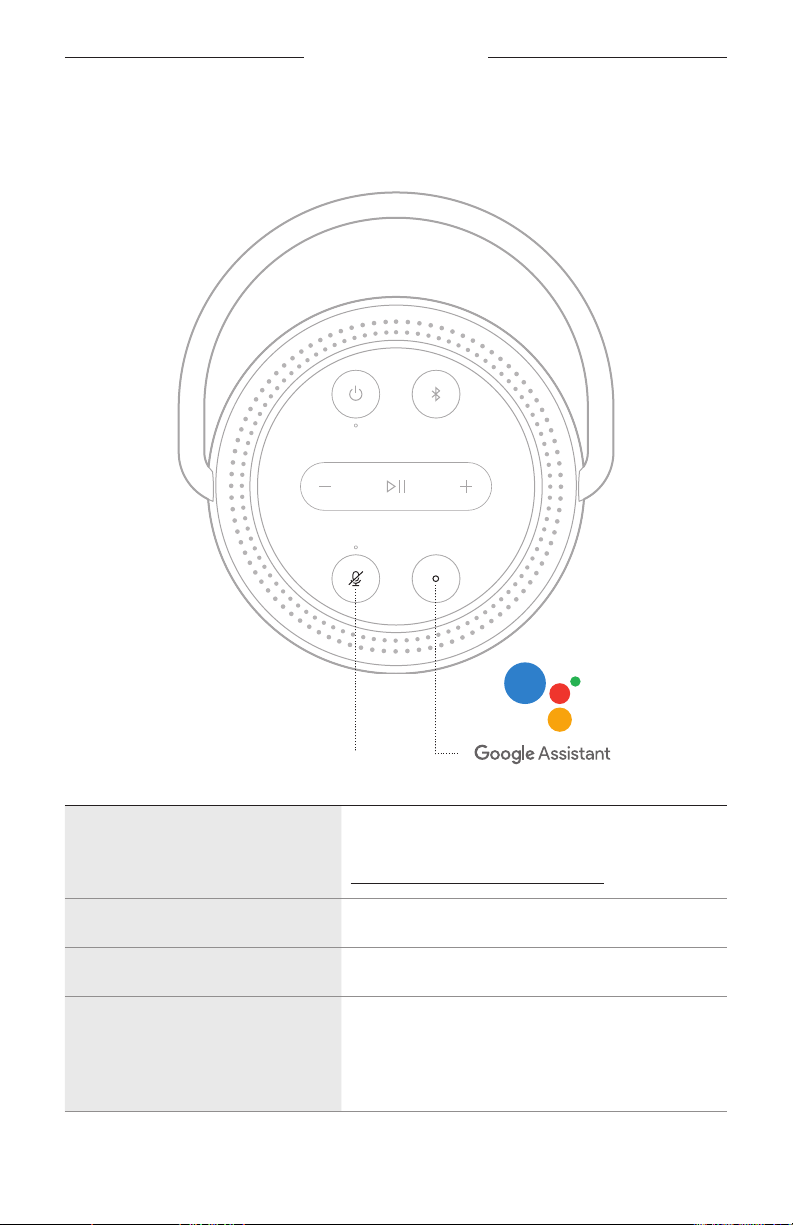
Use the speaker controls
You can use the Action button b and Microphone o button n to control your
Google Assistant. They are located on the top of the speaker.
Microphone o button
THINGS TO TRY WHAT TO DO
Talk to your Google Assistant
Press b then say your request.
For a list of things to try, visit:
https://support.google.com/assistant
Stop alarms and timers
Press b.
Stop your Google Assistant
Press b.
Turn the microphone on/o
Press n.
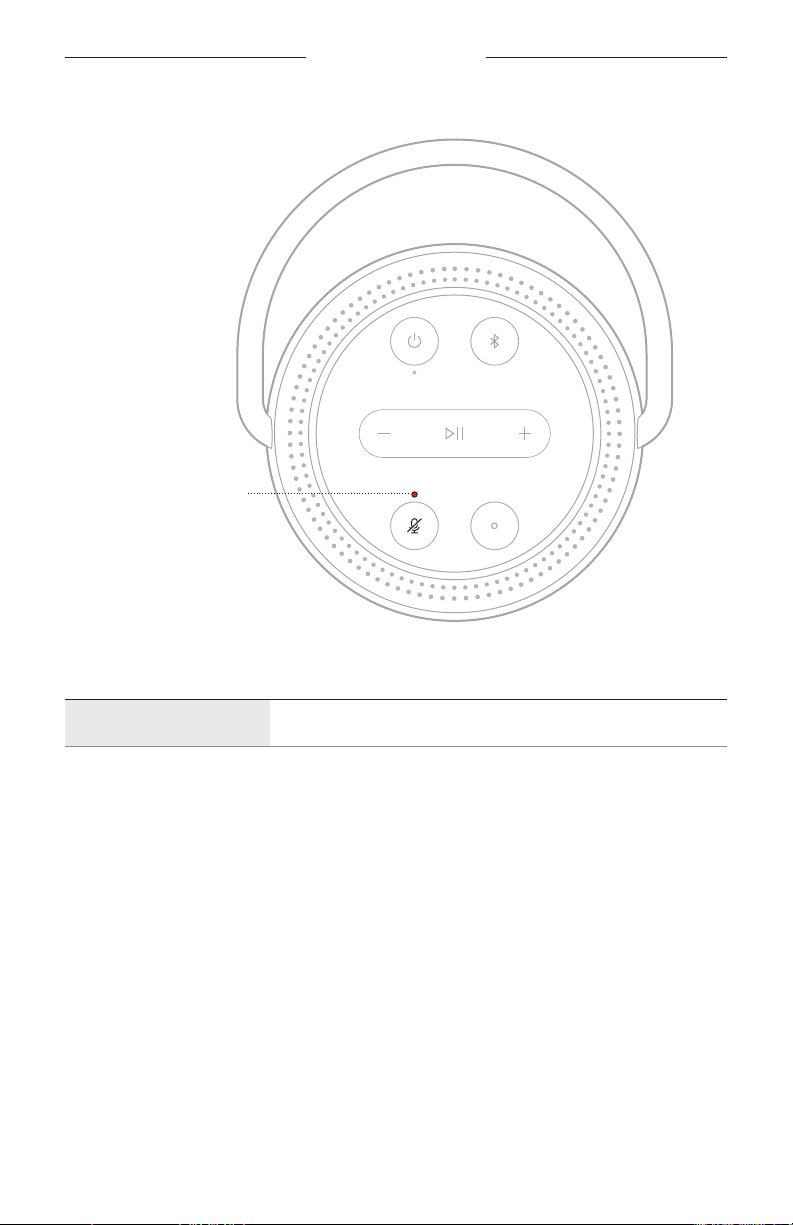
When the microphone is o, the light above the
Microphone o button n glows solid red, and you
can’t access your Google Assistant.

VOICE ASSISTANT
24
|
ENG
PLAY MUSIC WITH YOUR GOOGLE ASSISTANT
You can ask your Google Assistant to play audio from your default audio service or
from a specific audio service.
Start with “Ok Google,” then say:
THINGS TO TRY EXAMPLES OF WHAT TO SAY
Play music
Play some music
NOTE: The Google Assistant uses your default
audio service. If you hear an error message,
you may need to change your default audio
service. To change this setting, use the
Google Assistant app.
Control your speaker Turn it up
Play from a specific audio service
Play NPR on TuneIn
NOTE: The Google Assistant doesn’t support all
audio services.
Play on a specific speaker
Play some jazz on the living room speakers
NOTE: Make sure you say the speaker name you
assigned in the Bose Music app. If multiple
speakers have the same name, use the name
assigned in the Google Assistant app or
change the name in the Bose Music app.
Choose a default music service
During initial setup for your Google Assistant, the app prompts you to select a default
audio service. When using your Google Assistant with Bose products, only Pandora
and Spotify are supported default services. Although other audio services are listed as
available during setup, they are not supported.
For the best experience, choose Pandora or Spotify as your default audio service.
If you choose an unsupported audio service, you hear an error message when
requesting to play audio.

VOICE ASSISTANT
25
|
ENG
ACCESS ALEXA
The speaker has Amazon Alexa Built-in. With Alexa, you can ask to play music, hear
the news, check the weather, control smart home devices, and more. Using Alexa on
your speaker is as simple as asking. Just ask or use the Action button b and Alexa
responds instantly.
For more information about what Alexa can do, visit:
https://www.amazon.com/usealexa
NOTE: Alexa isn’t available in certain languages and countries.
Use your voice
THINGS TO TRY EXAMPLE OF WHAT TO SAY
Talk to Alexa Alexa, what’s the weather?
Play audio
Alexa, play Beethoven.
NOTE: Amazon Music is set as the default music
service. To change the default music service,
use the Alexa app.
Control volume Alexa, turn the volume up.
Play from a specific audio service
Alexa, play NPR on TuneIn.
NOTE: Amazon Alexa doesn't support all
audio services.
Play on a specific speaker
Alexa, play funk in the living room.
NOTE: Make sure you say the speaker name you
assigned in the Bose Music app. If multiple
speakers have the same name, use the name
assigned in the Alexa app or change the
name in the Bose Music app.
Skip to the next song Alexa, next song.
Set a timer Alexa, set a timer for 5 minutes.
Discover more skills Alexa, what new skills do you have?
Stop Alexa Alexa, stop.
VOICE ASSISTANT
26
|
ENG
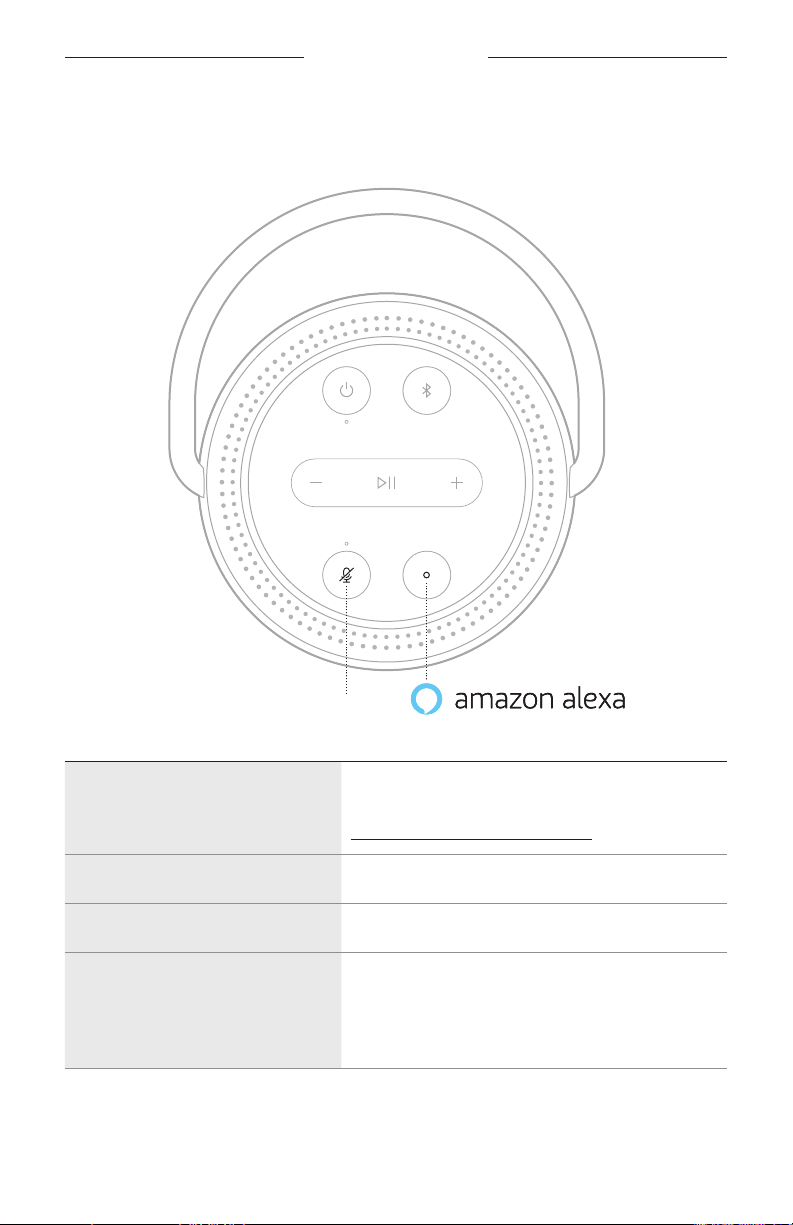
Use the speaker controls
The Action button b and Microphone o button n are used to control Alexa.
They are located on the top of the speaker.
Microphone o button
THINGS TO TRY WHAT TO DO
Talk to Alexa
Press b then say your request.
For a list of things to try, visit:
https://www.amazon.com/usealexa
Stop alarms and timers
Press b.
Stop Alexa
Press b.
Turn the microphone on/o
Press n.
NOTE: When the microphone is o, and the light
above the Microphone o button n glows
solid red, you can’t access Alexa.
27
|
ENG
BLUETOOTH CONNECTIONS
Bluetooth wireless technology lets you stream music from mobile devices such as
smartphones, tablets, and laptop computers. Before you can stream music from a
device, you must connect your device to the speaker.
USING BLUETOOTH ONLY (NO WI-FI)
When your speaker is disconnected from Wi-Fi, you only have access to the
Bluetooth functions of the speaker. To connect your mobile device using Bluetooth
technology, see page 27.
NOTE: When using Bluetooth technology only, you don’t have access to a voice assis-
tant or the features in the Bose Music app.
CONNECT A MOBILE DEVICE
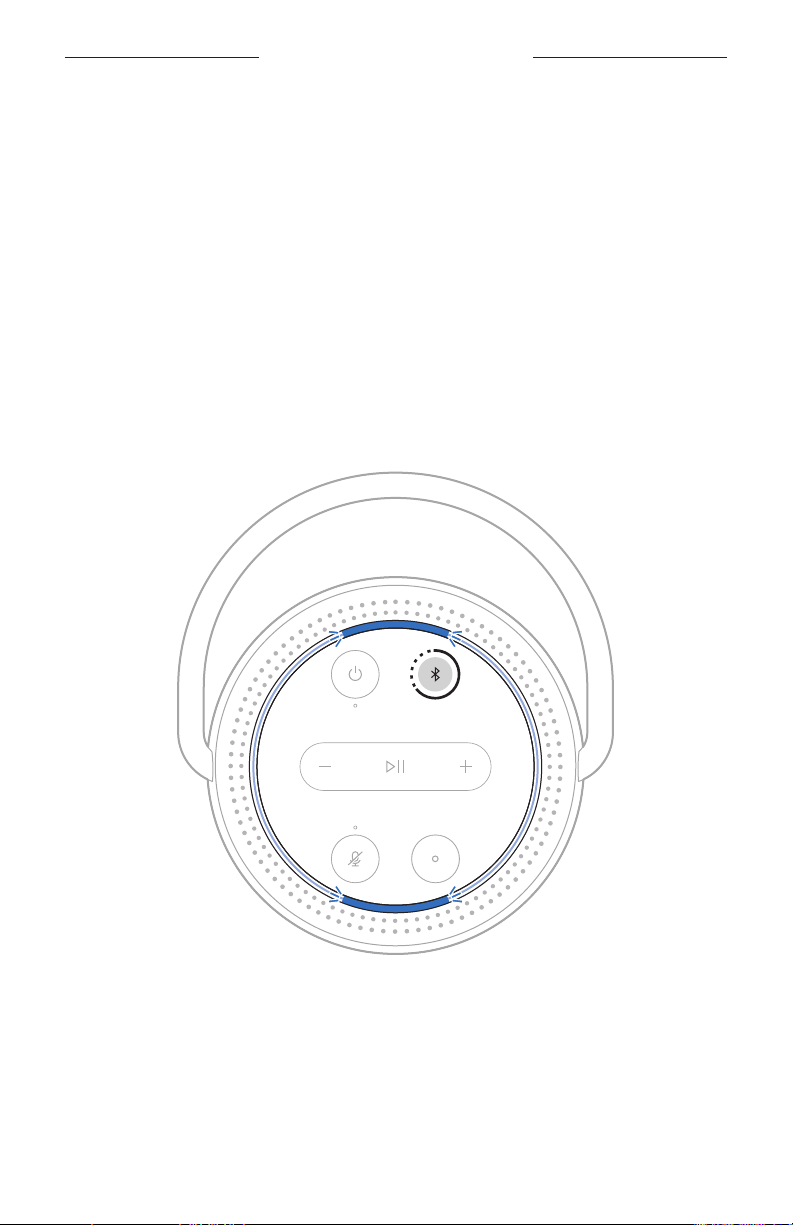
1. Press and hold the Bluetooth button l.
You hear a tone and the light ring pulses blue.
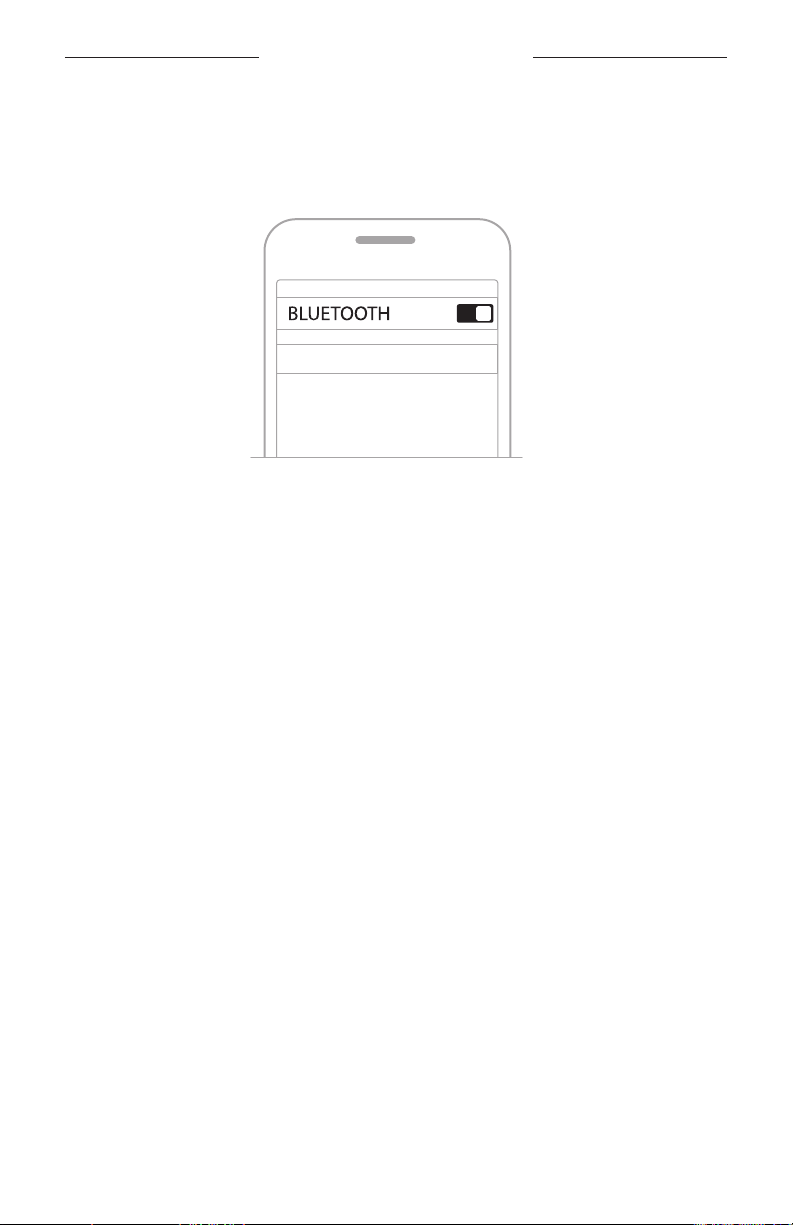
2. On your device, turn on the Bluetooth feature.
TIP: The Bluetooth menu is usually found in the settings menu on your
mobile device.
28
|
ENG
BLUETOOTH CONNECTIONS
3. Select your speaker from the device list.
TIP: Look for the name you entered for your speaker in the Bose Music app.
If you didn’t name your speaker, the default name appears.
Portable Home Speaker
Once connected, you hear a tone and the light ring glows solid blue on the top and
bottom then fades to black. Your speaker’s name appears in the mobile device list.
DISCONNECT A MOBILE DEVICE
Use the Bose Music app to disconnect your mobile device.
TIP: You can also use Bluetooth settings to disconnect your device. Disabling the
Bluetooth feature disconnects all other devices.

29
|
ENG
BLUETOOTH CONNECTIONS
RECONNECT A MOBILE DEVICE
1. Press the Bluetooth button l.
NOTE: Make sure the Bluetooth feature is enabled on your mobile device.
2. Play audio on the connected mobile device.
CONNECT AN ADDITIONAL MOBILE DEVICE
You can store up to eight devices in the speaker device list.
NOTE: You can play audio from only one device at a time.
1. Press and hold l until the light bar pulses blue.
2. On your mobile device, select the speaker from the device list.
NOTE: Make sure the Bluetooth feature is enabled on your mobile device.
CLEAR THE SPEAKER DEVICE LIST
1. Press and hold l for 10 seconds until the light ring pulses blue twice on the top
and bottom.
2. Delete the speaker from the Bluetooth list on your device.
All devices are cleared, and the speaker is ready to connect (see page 27).

30
|
ENG
STREAM AUDIO WITH AIRPLAY
The speaker is capable of playing AirPlay 2 audio, which allows you to quickly stream
audio from your Apple device to the speaker or multiple speakers.
NOTES:
• To use AirPlay 2, you need an Apple device running iOS 11.4 or later.
• Your Apple device and speaker must be connected to the same Wi-Fi network.
• For more information about AirPlay, visit: https://www.apple.com/airplay
STREAM AUDIO FROM THE CONTROL CENTER
1. On your Apple device, open the Control Center.
2. Touch and hold the audio card in the top-right corner of the screen, then
the AirPlay icon A.
3. Select your speaker or speakers.
STREAM AUDIO FROM AN APP
1. Open a music app (like Apple Music), and select a track to play.
2. Tap A.
3. Select your speaker or speakers.
31
|
ENG
BATTERY
CHARGE THE SPEAKER
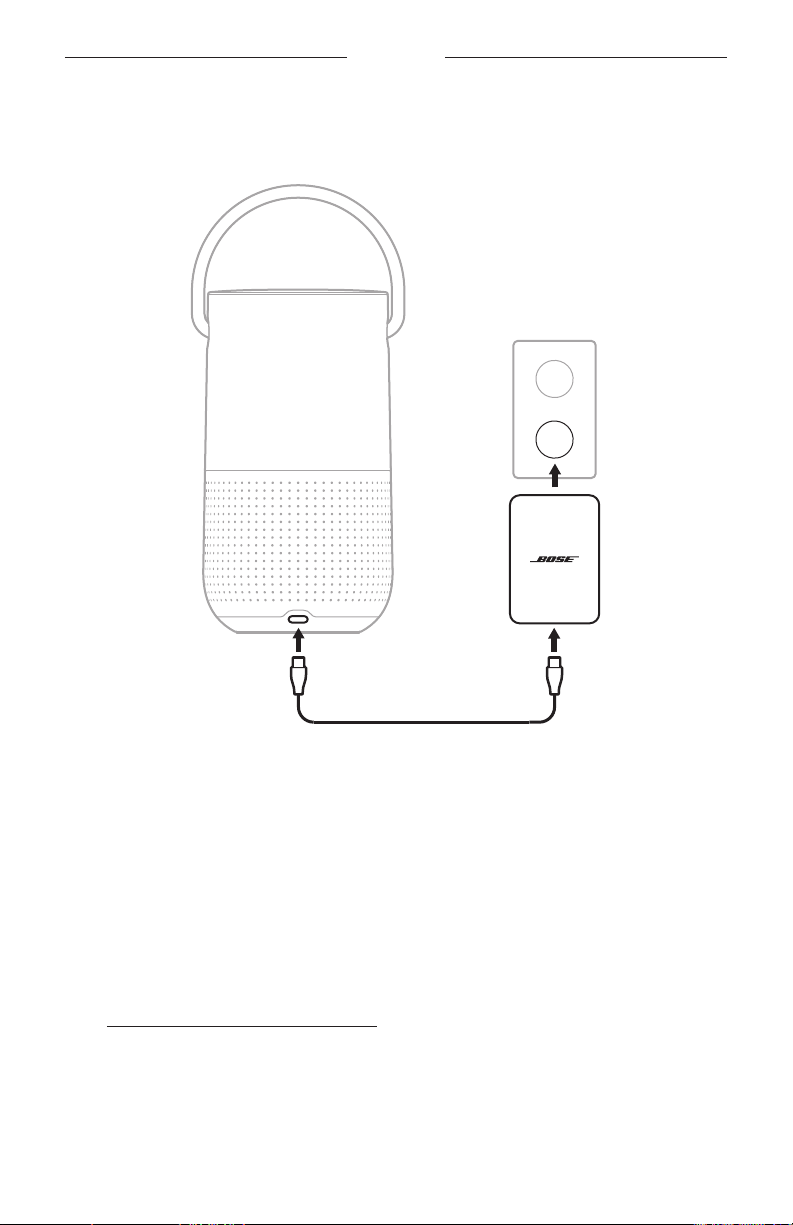
1. Connect the power cord to the power port on the speaker.
2. Connect the power cord to the power adapter.
3. Plug the power adapter into an AC (mains) power outlet.
The speaker powers on and the power light starts to blink white.
Charge the speaker using the Bose Portable Home Speaker
Charging Cradle
You can charge the speaker on the Bose Portable Home Speaker Charging Cradle.
To purchase the charging cradle, contact your authorized Bose dealer.
Visit: worldwide.Bose.com/Support/PHS
BATTERY
32
|
ENG
CHECK THE BATTERY LEVEL
Press the Power button I when the speaker is on and not playing audio.
A voice prompt announces the battery level.
TIP: You can also check the battery level using the Bose Music app.
33
|
ENG
SPEAKER STATUS
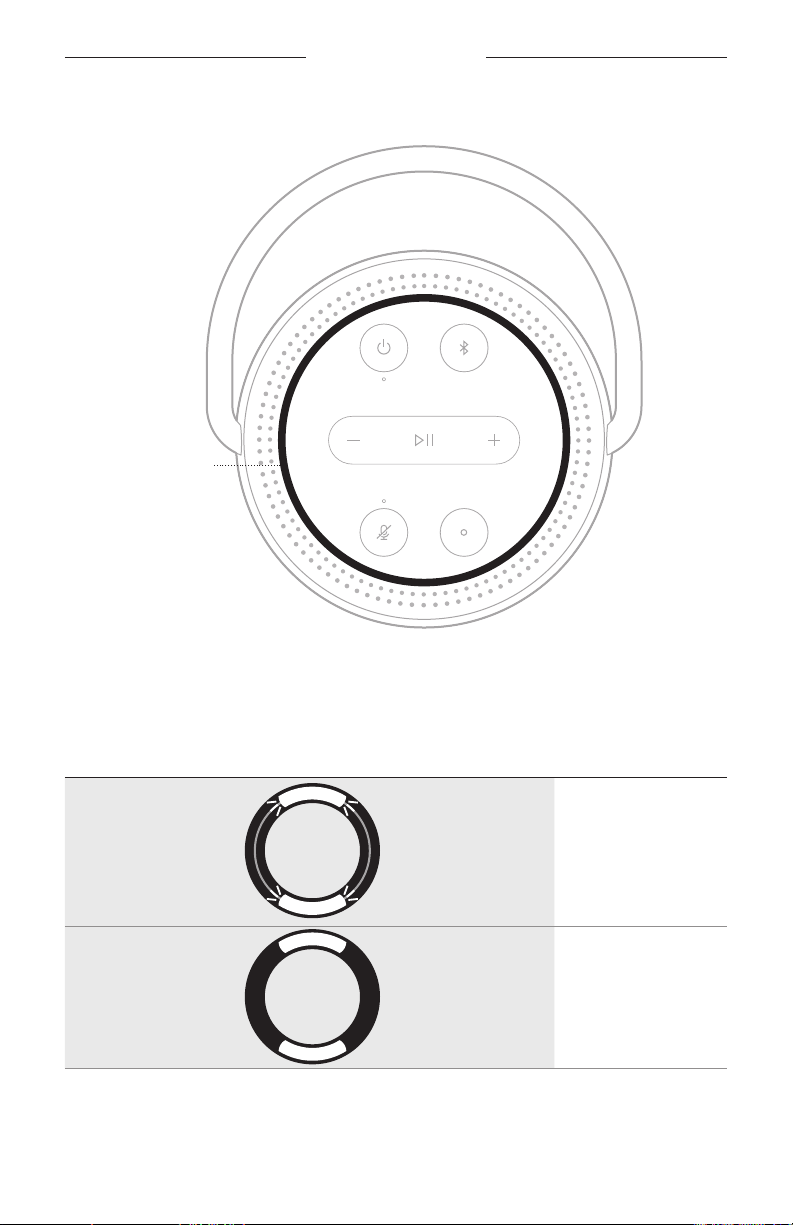
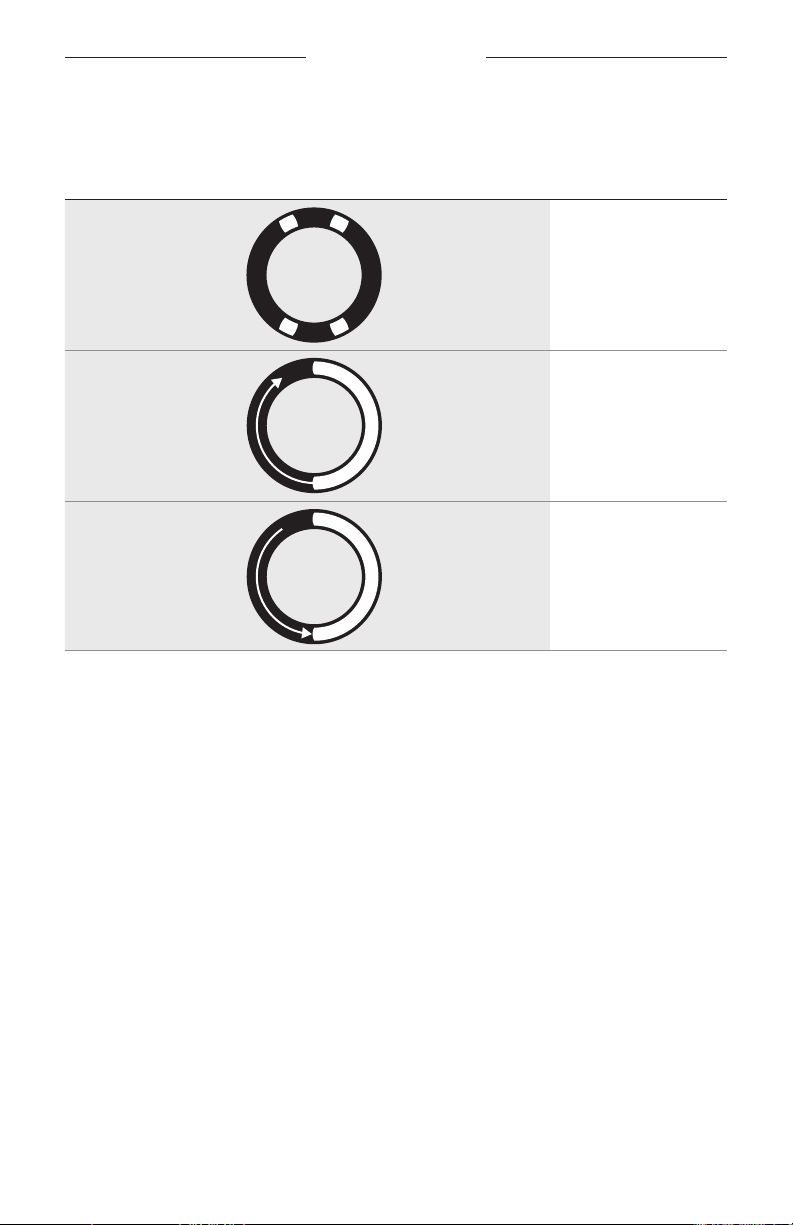
The LED light ring located on the top of the speaker shows the speaker status.
Light ring
WI-FI STATUS
Shows the Wi-Fi connection status of the speaker.
LIGHT RING ACTIVITY SYSTEM STATE
Pulsing white on top
and bottom
Connecting to Wi-Fi
Solid white then
fades to black on top
and bottom
Connected to Wi-Fi
SPEAKER STATUS
34
|
ENG
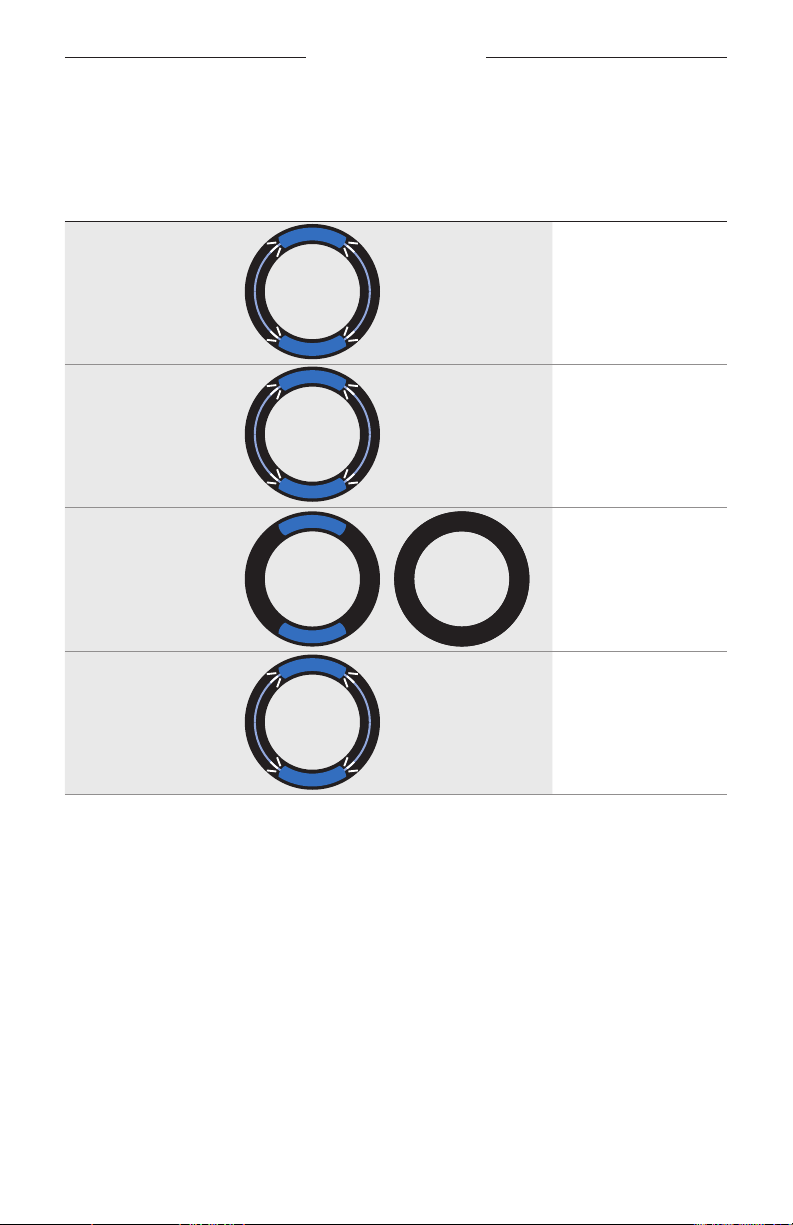
MEDIA PLAYBACK AND VOLUME STATUS
LIGHT RING ACTIVITY
SYSTEM STATE
Two lights on the top
and two lights on the
bottom glow white
Paused audio
White light
fills clockwise
Increase volume
White light fades
counter-clockwise
Decrease volume
SPEAKER STATUS
35
|
ENG
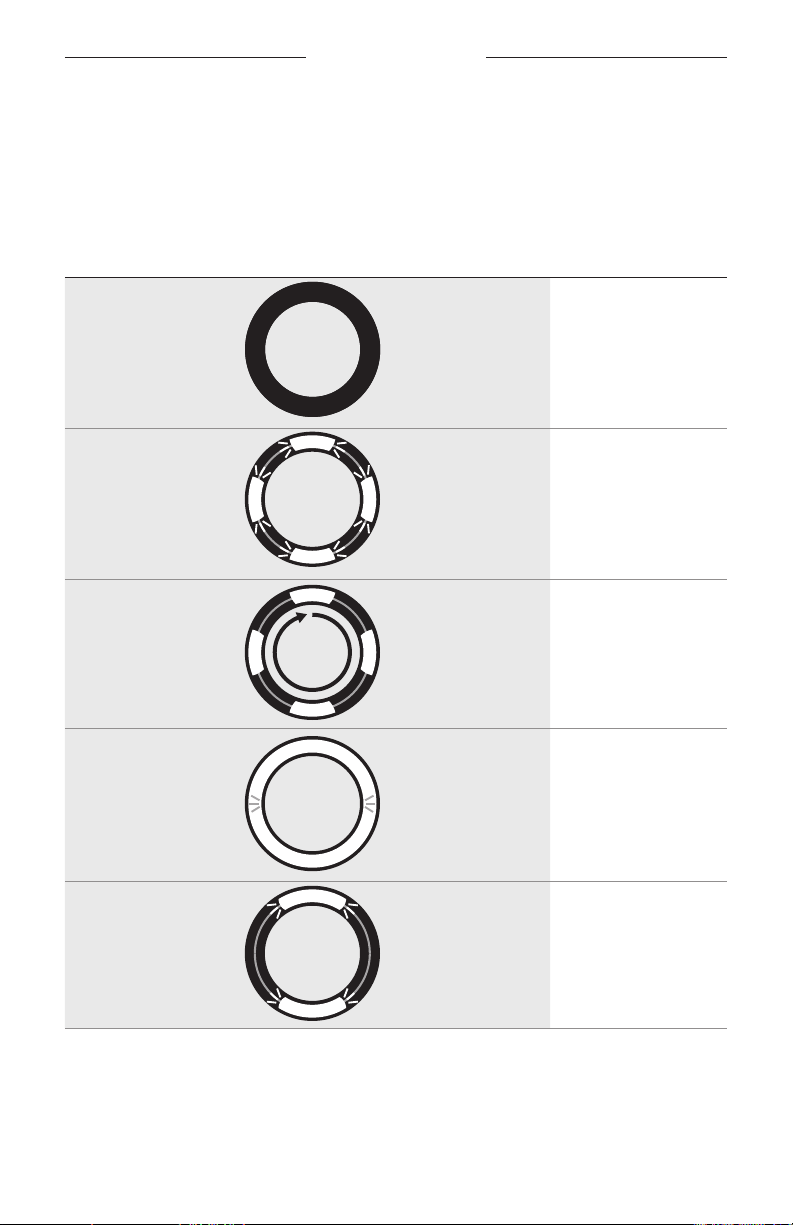
BLUETOOTH CONNECTION STATUS
Shows the Bluetooth connection status for mobile devices.
LIGHT RING ACTIVITY
SYSTEM STATE
Pulsing blue on top
and bottom
Ready to connect
to mobile device
Blinks blue on top
and bottom
Connecting to
mobile device
Solid blue then
fades to black on
top and bottom
Connected to
mobile device
Blinks blue twice Clearing device list
SPEAKER STATUS
36
|
ENG
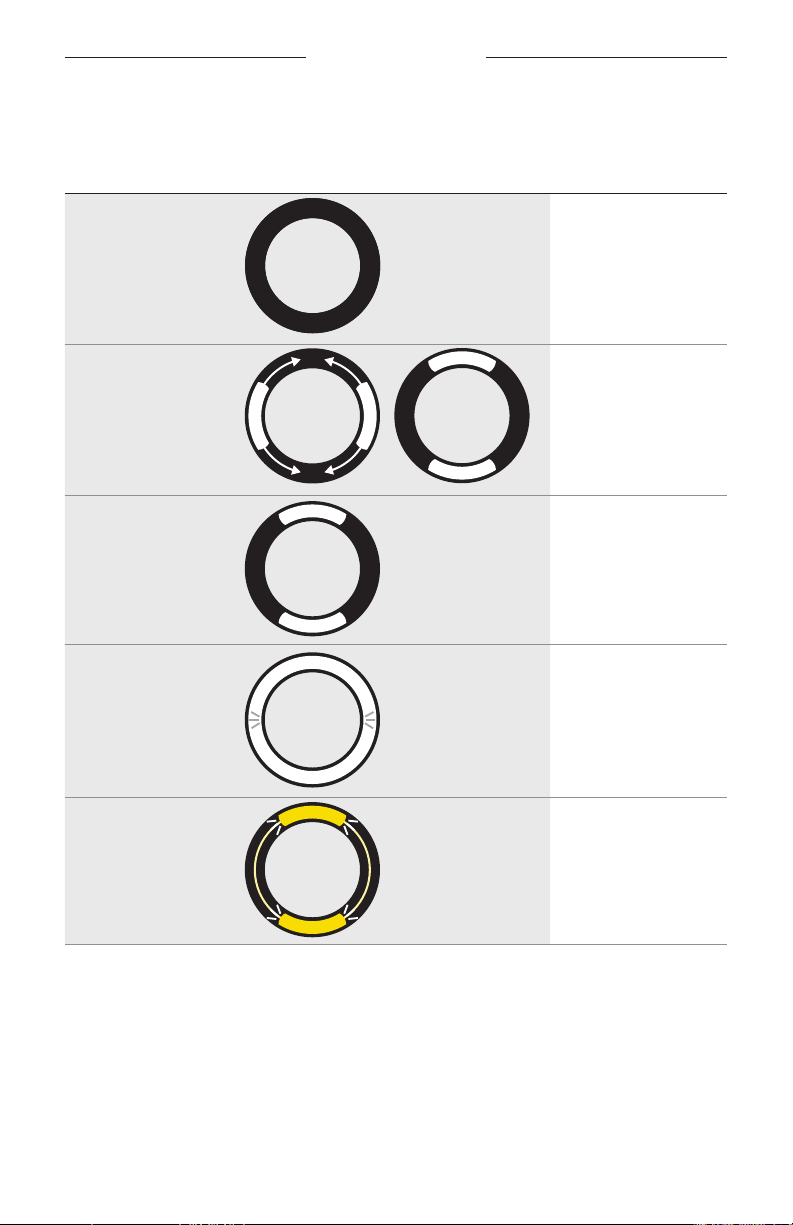
VOICE ASSISTANT STATUS
Shows the status of your Google Assistant or Amazon Alexa.
Your Google Assistant status
LIGHT RING ACTIVITY
VOICE ASSISTANT
STATE
O Idle
White light on top,
bottom, left, and right
Listening
White light rotates
clockwise
Thinking
Pulsing white (full) Speaking
White light blinks for
10 minutes
Notification
SPEAKER STATUS
37
|
ENG
Amazon Alexa status
LIGHT RING ACTIVITY
VOICE ASSISTANT
STATE
O Idle
White light slides to
the top and bottom
Listening
Solid white light
glows on top and
bottom
Thinking
Pulsing white (full) Speaking
Pulsing yellow on top
and bottom
Notification
SPEAKER STATUS
38
|
ENG
Microphone o light
Microphone o light
LIGHT ACTIVITY SYSTEM STATE
Solid red Microphone is o
SPEAKER STATUS
39
|
ENG
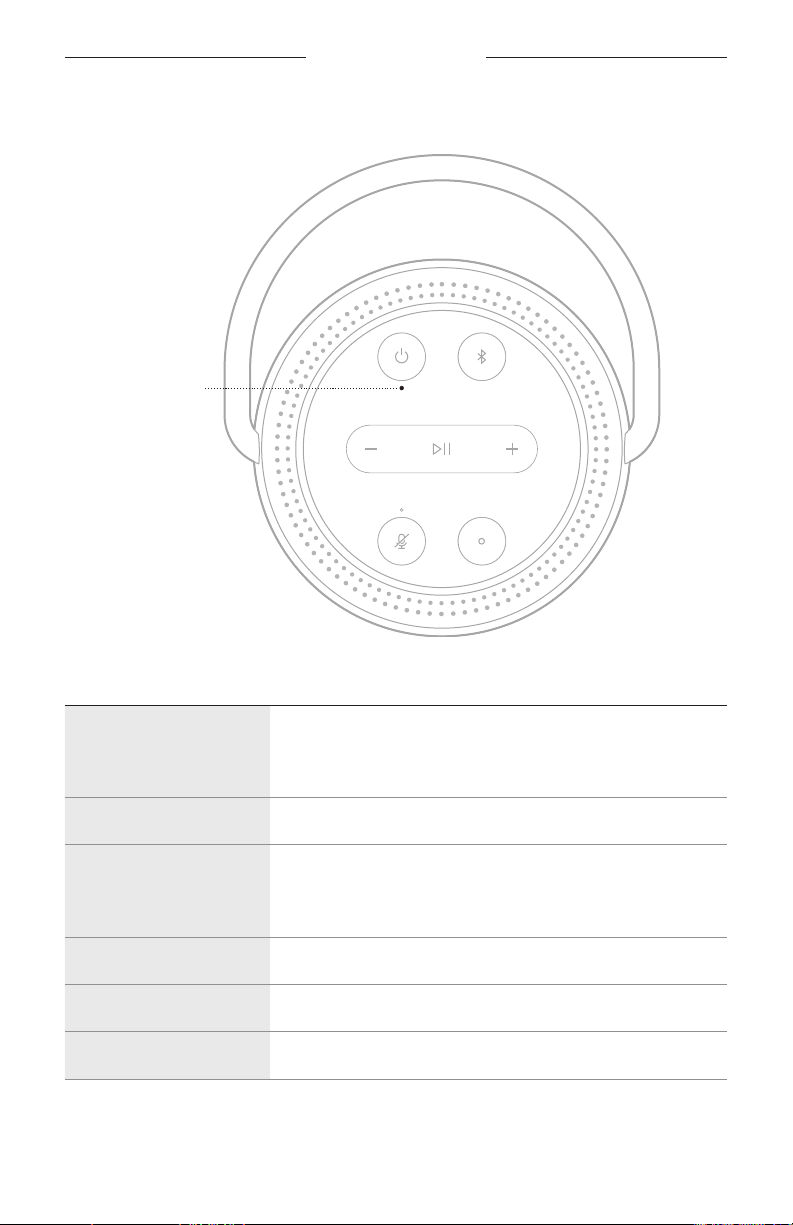
POWER STATUS
Power light
LIGHT ACTIVITY SYSTEM STATE
Solid white
On
NOTE: When the speaker is connected to the charging cable
solid whites means full charge.
Blinking white Charging
Dim white
Network standby
NOTE: The speaker only shows dim white light when it
isn’t charging.
Solid red 5% - 10% battery remaining
Blinking Red Less than 5% battery remaining
Black O
SPEAKER STATUS
40
|
ENG
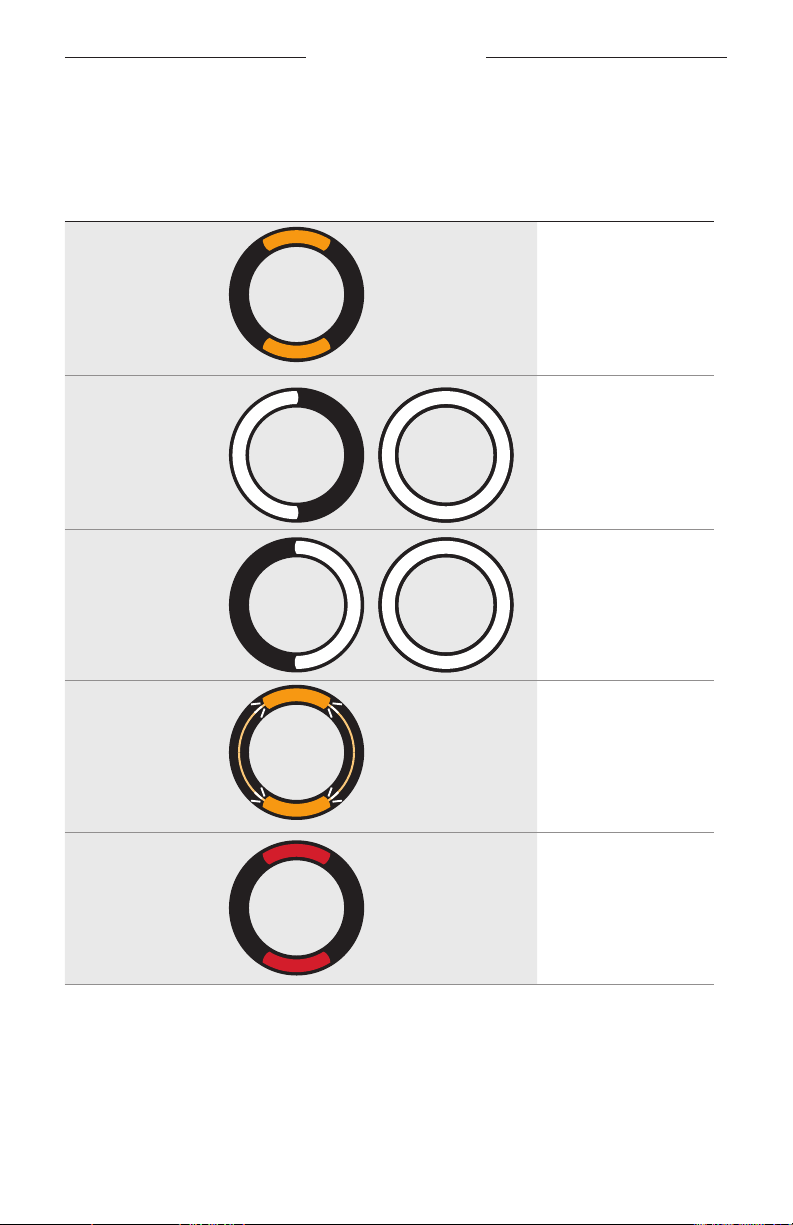
UPDATE AND ERROR STATUS
Shows the status of the software updates and error alerts.
LIGHT RING ACTIVITY
SYSTEM STATE
Solid amber on top
and bottom
Wi-Fi setup in progress
White light fills
the ring counter-
clockwise until full,
then repeats
Downloading update
White light fills
the ring clockwise
until full, then
repeats
Updating speaker
Blinks amber on
the top and bottom
four times
Error - refer to the
Bose Music app
Solid red on the top
and bottom
Error - contact Bose
customer service
41
|
ENG
ADVANCED FEATURES
UPDATE THE SPEAKER
The speaker updates automatically when connected to the Bose Music app and to
your Wi-Fi network.
DISABLE/ENABLE WI-FI
Press and hold Play/Pause F and the Bluetooth button l for 5 seconds until the light
ring fills with white light.
NOTE: When Wi-Fi is disabled, you can’t use the Bose Music app or your voice
assistant to control the speaker.

42
|
ENG
CARE AND MAINTENANCE
CLEAN THE SPEAKER
Clean the surface of the speaker with a soft, dry cloth.
CAUTIONS:
• Do NOT use any sprays near the speaker. Do NOT use any solvents, chemicals, or
cleaning solutions containing alcohol, ammonia, or abrasives.
• Do NOT allow liquids to spill into any openings.
REPLACEMENT PARTS AND ACCESSORIES
Replacement parts and accessories can be ordered through Bose customer service.
Visit: worldwide.Bose.com/Support/PHS
LIMITED WARRANTY
The speaker is covered by a limited warranty. Visit our website at
global.Bose.com/warranty for details of the limited warranty.
To register your product, visit global.Bose.com/register for instructions.
Failure to register will not aect your limited warranty rights.

43
|
ENG
TROUBLESHOOTING
TRY THESE SOLUTIONS FIRST
If you experience problems with the speaker, try these solutions first:
• Power on the speaker (see page 32).
• Charge the speaker (see page 14).
• Secure all cables.
• Verify the state of the speaker (see page 33).
• Download the Bose Music app and run available software updates.
• Move the speaker and mobile device away from possible interference (wireless
routers, cordless phones, televisions, microwaves, etc.).
• Move the speaker within the recommended range of your wireless router or mobile
device for proper operation.
OTHER SOLUTIONS
If you could not resolve your issue, see the table below to identify symptoms and
solutions to common problems. If you are unable to resolve your issue, contact
Bose customer service.
Visit: worldwide.Bose.com/contact
SYMPTOM SOLUTION
Speaker doesn’t
power on
Battery may be in protection mode or discharged. Connect your
speaker to the power cord.
Plug the power cord into a dierent AC (mains) outlet.
Unplug the power cord, wait 30 seconds, and firmly plug it back
in to the AC (mains) outlet.
Speaker doesn’t
power o
If Wi-Fi has been set up using the Bose Music app, press and hold
the Power button until the power light has turned o.
If Wi-Fi hasn’t been set up using the Bose Music app, press the
Power button once to power o the speaker.
Speaker doesn’t respond
during setup
Make sure you are using the Bose Music app for setup.
NOTE: If the app doesn’t prompt you to set up your speaker,
tap the My Bose icon Z in the top-left corner. Tap H to
add your product.
Unplug the power cord, wait 30 seconds, and firmly plug it back
in to the AC (mains) outlet.

TROUBLESHOOTING
44
|
ENG
SYMPTOM SOLUTION
Bose Music app doesn’t
work on mobile device
Make sure your mobile device is compatible with the Bose
Music app and meets minimum system requirements. For more
information, refer to the app store on your mobile device.
Uninstall the Bose Music app on your mobile device then reinstall
the app (see page 14).
Speaker doesn’t
connect to Wi-Fi
network
In the Bose Music app, select the correct network name and enter
the network password.
Make sure you connect the speaker to the same Wi-Fi network
your mobile device is connected to.
If your Wi-Fi network information has changed, see page 15.
Enable Wi-Fi on the device you are using for setup .
Close other open applications on your mobile device.
If your router supports both 2.4GHz and 5GHz bands, make sure
both your mobile device and the speaker are connecting to the
same band.
NOTE: Bose recommends giving each band a unique name to
make sure you’re connecting to the correct band.
Reset the router.
Uninstall the Bose Music app on your mobile device. Unplug
the power cord, wait 30 seconds, and firmly plug it into the
AC (mains) outlet. Download the Bose Music app and
restart setup.
Intermittent or
no audio
Increase the volume on the speaker and mobile device.
Stop other audio or video streaming applications.
Switch to a dierent source.
Play audio from a dierent application or music service.
Make sure you’re using a compatible Bluetooth mobile device.
Restart your mobile device.
Unplug the power cord, wait 30 seconds, and firmly plug it back
in to the AC (mains) outlet.
Make sure your speaker isn’t muted. Unmute by pressing
Volume up H or Volume down z on the speaker, or by using
the Bose Music app.

TROUBLESHOOTING
45
|
ENG
SYMPTOM SOLUTION
Speaker doesn’t
connect to a
mobile device
On your mobile device, turn the Bluetooth feature o and
then on again. Remove the speaker from the Bluetooth menu.
Connect again.
Connect a dierent mobile device (see page 27).
Make sure you’re using a compatible Bluetooth mobile device.
Remove the speaker from your mobile device Bluetooth list.
Connect again (see page 28).
Clear the speaker device list (see page 29).
Speaker doesn’t stream
audio using AirPlay
Make sure your speaker is powered on and in range
(see page 32).
Update your Apple device and speaker.
Make sure your Apple device and your speaker are connected to
the same Wi-Fi network.
Make sure the speaker is up-to-date (see page 41).
If you can’t find the AirPlay icon A in the music app you are
streaming from, stream audio from the Control Center.
For additional support, visit:
https://www.apple.com/airplay
Speaker isn’t visible
to add to a nother
Bose account
Make sure sharing is enabled on the speaker using the
Bose Music app.
Make sure the speaker and your mobile device are connected to
the same Wi-Fi network.

TROUBLESHOOTING
46
|
ENG
SYMPTOM SOLUTION
Your Google Assistant
doesn’t respond or
play audio
Make sure your Google Assistant has been set up using the
Bose Music app (see page 21).
Connect your mobile device to Wi-Fi.
Make sure you’re in a country where Google Assistant is available
on this product.
Make sure you are using the most up-to-date version of the
Google Assistant app.
Make sure the wake word is enabled (see page 22).
Make sure your mobile device is compatible.
Remove your Google Assistant from the speaker using the Bose
Music app. Then, add your Google Assistant again.
Choose Pandora or Spotify as your default audio service
(see page 24).
Make sure you use the same audio service account on the Bose
Music app and Google Assistant app.
Your Google Assistant may not support your request. New
features are added periodically.
For additional support, visit:
https://support.google.com/assistant
Change your Google
Assistant personal
result setting
To turn o personal results or change the account for persona
results, use the Settings menu in the Google Assistant app.
Alexa doesn’t respond
Make sure Alexa has been set up using the Bose Music app
(see page 14).
NOTE: The speaker must be set up and connected to your Wi-Fi
network using the Bose Music app.
Make sure you’re in a country where Alexa is available on
this product.
Make sure the light above the Microphone o button n is not
glowing red. Press n to turn on the microphone.
Make sure you say the name you assigned in the Bose Music app.
If multiple speakers have the same name, use the name assigned
in the Alexa app or change the name in the Bose Music app.
Remove Alexa from the speaker using the Bose Music app, then
add Alexa again.
Alexa may not support your request. New features are
added periodically.
For additional support, visit:
https://www.amazon.com/usealexa
TROUBLESHOOTING
47
|
ENG
RESET THE SPEAKER
Factory reset clears all source, volume, and network settings from the speaker and
returns it to original factory settings.
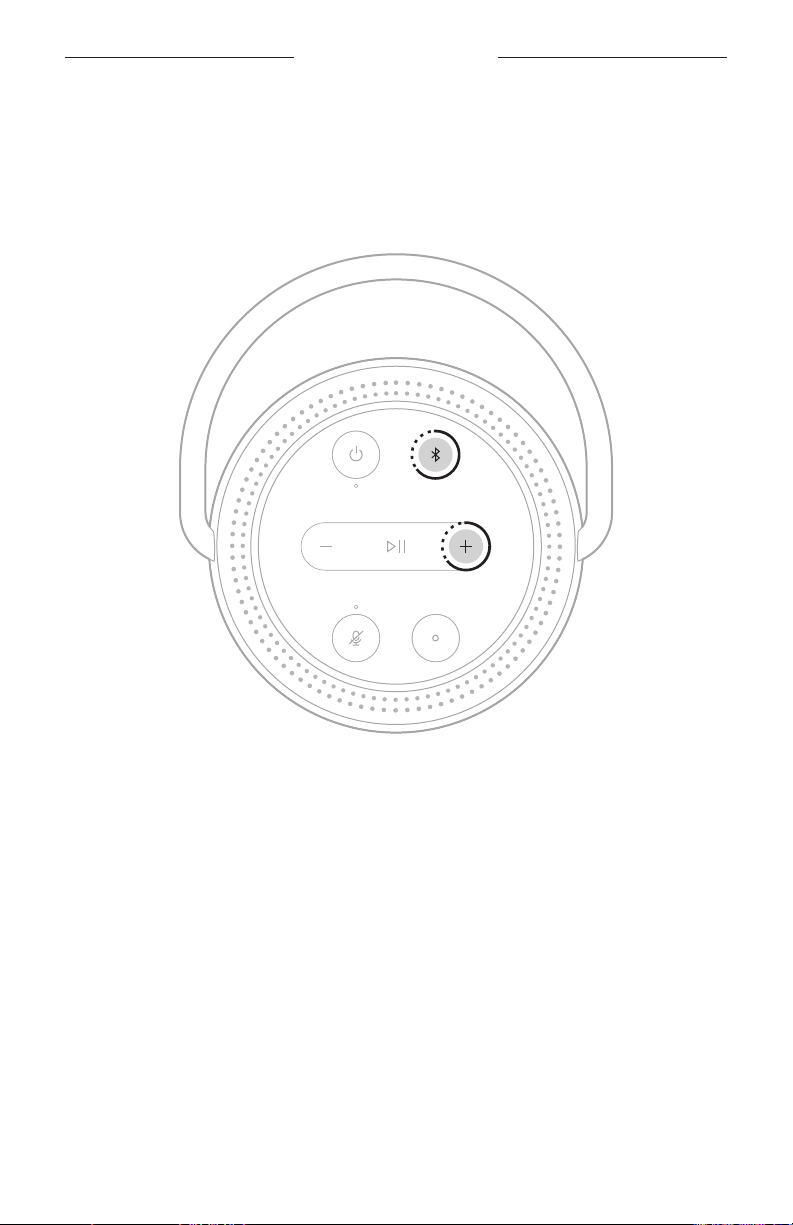
Press and hold the Volume up button H and the Bluetooth button l for 10 seconds
until the light ring fills with white light.
The speaker reboots. When the reset is complete, the light ring glows solid amber.
Restore the speaker network and audio settings
Set up the speaker using the Bose Music app (see page 14).

©2019 Bose Corporation, 100 The Mountain Road, Framingham, MA 01701-9168 USA
AM837954-0010 Rev. 02