Camera User Guide
DIGITAL CAMERA
Camera User Guide
CDI-E075-010 XX03XXXX © 2003 CANON INC. PRINTED IN JAPAN
ENGLISH
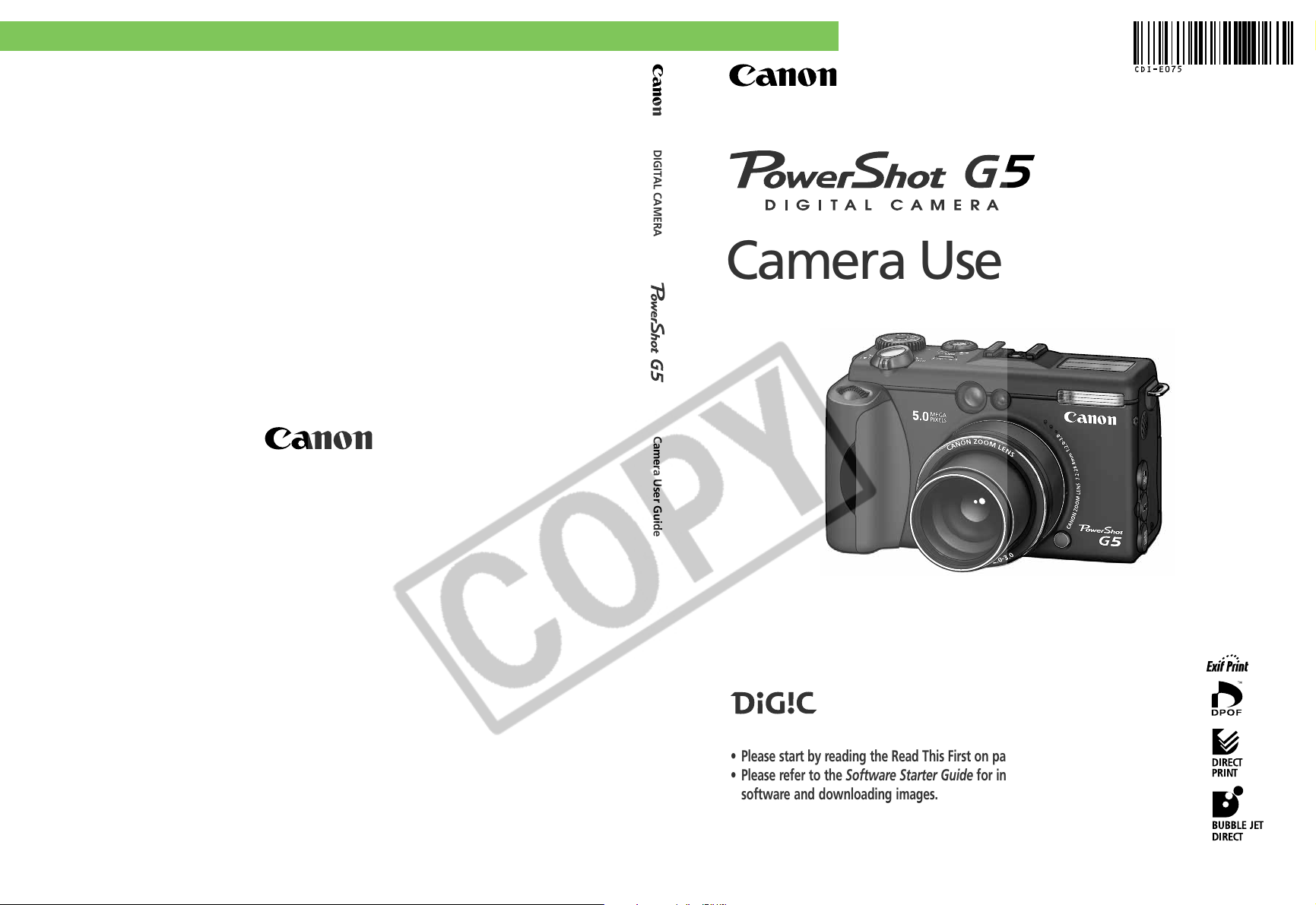
• Please start by reading the Read This First on page 4 of this manual.
• Please refer to the Software Starter Guide for information on installing the
software and downloading images.
• Please also read the printer user guide included with your Canon printer.
Flowchart and Reference Guides
This Guide
Shooting with the Camera
Software Starter Guide
Installing the Software
This Guide
Connecting the Camera to a Computer
Software Starter Guide
Downloading Images to a Computer
Printer User Guide
Using the Printer and Printing
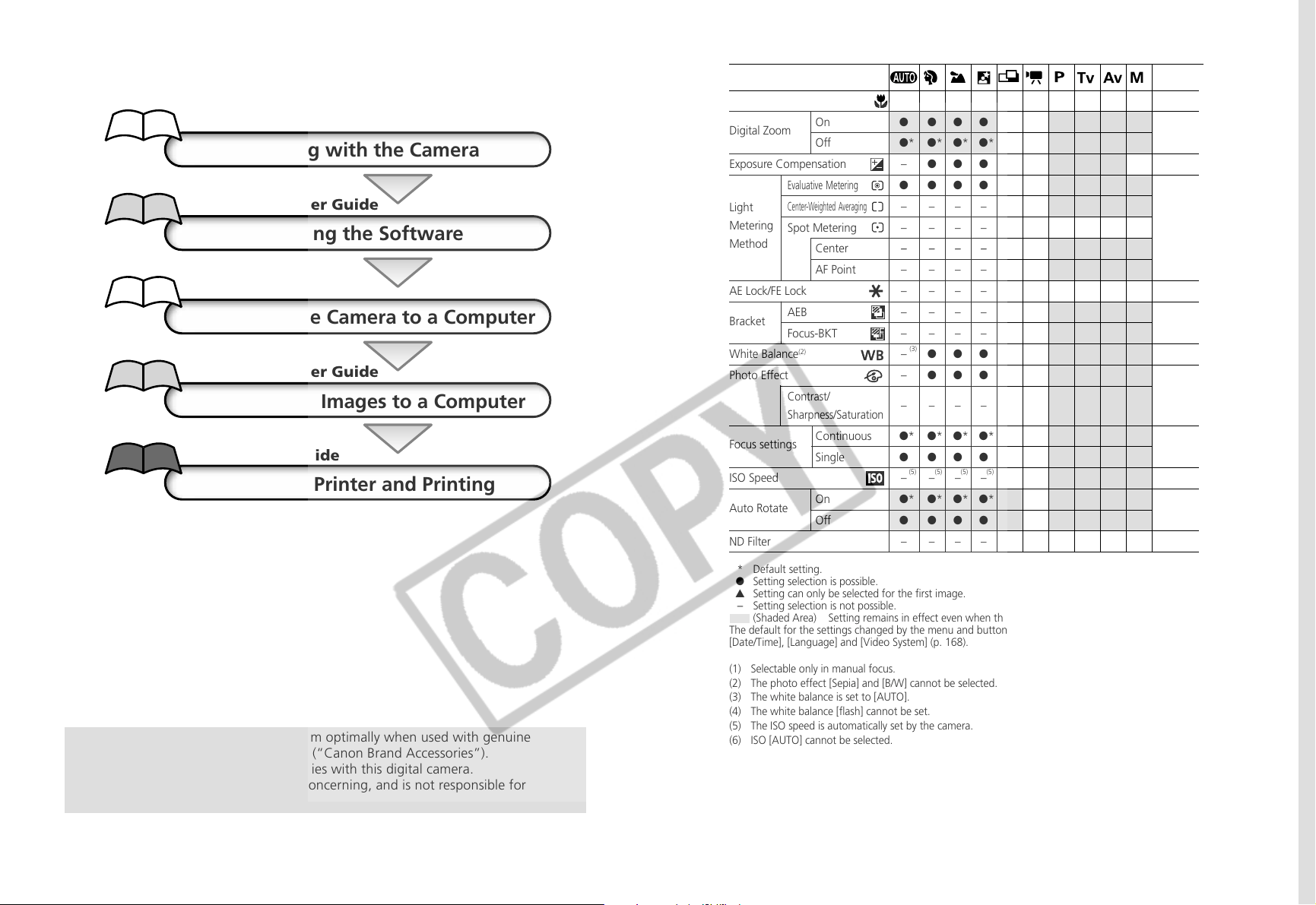
* Default setting.
● Setting selection is possible.
▲ Setting can only be selected for the first image.
-
Setting selection is not possible.
(Shaded Area) Setting remains in effect even when the camera is turned off.
The default for the settings changed by the menu and button operations can be restored all at once except for
[Date/Time], [Language] and [Video System] (p. 168).
(1) Selectable only in manual focus.
(2) The photo effect [Sepia] and [B/W] cannot be selected.
(3) The white balance is set to [AUTO].
(4) The white balance [flash] cannot be set.
(5) The ISO speed is automatically set by the camera.
(6) ISO [AUTO] cannot be selected.
Reference
Page
Macro Mode
Digital Zoom
On
Off
Exposure Compensation
Evaluative Metering
Center-Weighted Averaging
Spot Metering
Center
AF Point
AE Lock/FE Lock
Bracket
AEB
Focus-BKT
White Balance
(2)
Photo Effect
Contrast/
Sharpness/Saturation
Focus settings
Continuous
Single
ISO Speed
Auto Rotate
On
Off
ND Filter
●●– ●●●●●●●
●●●●––●●●●
●* ●* ●* ●*– – ●* ●* ●* ●*
– ●●●▲●●●● –
● ●●●●● ●* ●* ●* ●*
– –––––●●●●
– –––––●●●●
– ––––– ●* ●* ●* ●*
– –––––●●●●
– –––––●●● –
– –––––●●● –
– –––––●●●●
– ●●●▲●●●●●
– ●●●▲●●●●●
– –––––●●●●
●* ●* ●* ●* ▲* ● ●* ●* ●* ●*
●●●●▲– ●●●●
– –––––●●●●
●* ●* ●* ●* ▲*– ●* ●* ●* ●*
●●●●▲– ●●●●
– –––––●●●●
69
72
85
83
97/99
93/95
86
89
108
92
111
110
Light
Metering
Method
(5) (5) (5) (5) (5) (5) (6)
209
(3) (4)
(1) (1) (1) (1)
This digital camera is designed to perform optimally when used with genuine
Canon-brand digital camera accessories (“Canon Brand Accessories”).
You may use non-Canon brand accessories with this digital camera.
However, Canon makes no warranties concerning, and is not responsible for
damages resulting from, use of non-Canon brand accessories.
(i)
Camera Body Temperature
If your camera is used for prolonged periods, the camera body may become warm. Please be aware
of this and take care when operating the camera for an extended period.
About the LCD Monitor
The LCD monitor is produced with extremely high-precision manufacturing techniques. More than
99.99% of the pixels operate to specification. Less than 0.01% of the pixels may occasionally misfire
or appear as red or black dots. This has no effect on the recorded image and does not constitute a
malfunction.
Video Format
Please set the camera’s video signal format to the one used in your region before using it with a TV
monitor (p. 165).
Language Setting
Please see page 26 to change the language setting.
Please read through the “Read This First” section (p. 4) before using your camera.
Disclaimer
• While every effort has been made to ensure that the information contained in this guide is
accurate and complete, no liability can be accepted for any errors or omissions.
• Canon reserves the right to change the specifications of the hardware and software described
herein at any time without prior notice.
• No part of this guide may be reproduced, transmitted, transcribed, stored in a retrieval system,
or translated into any language in any form, by any means, without the prior written permission
of Canon.
• Canon makes no warranties for damages resulting from corrupted or lost data due to a
mistaken operation or malfunction of the camera, the software, the CompactFlash™ cards (CF
cards), personal computers, peripheral devices, or use of non-Canon CF cards.
Trademark Acknowledgements
• Canon, PowerShot and Bubble Jet are trademarks of Canon, Inc.
• CompactFlash is a trademark of SanDisk Corporation.
• iBook and iMac are trademarks of Apple Computer, Inc.
• Macintosh, PowerBook, Power Macintosh and QuickTime are trademarks of Apple Computer, Inc,
registered in the United States and other countries.
• Microsoft, Windows, and Windows NT are either registered trademarks or trademarks of Microsoft
Corporation in the United States and/or other countries.
• Other names and products not mentioned above may be registered trademarks or trademarks of
their respective companies.
Copyright ©2003 Canon Inc. All rights reserved.
(ii)
Symbols Used
: This mark denotes issues that may affect the camera’s operation.
: This mark denotes additional topics that complement the basic operating
procedures.
Question? Look Here First.
3 How do I navigate the menus?
Selecting Menus and Settings (p. 42)
3 What settings are available under each function?
and
Will my settings remain in effect even after I’ve turned the camera off?
Functions Available in Each Shooting Mode (p. 208)
3 How do I go about printing?
About Printing (p. 132)
3 What functions are available through the menus?
Rec. Menu (p. 158)
Replay Menu (p. 161)
Set up Menu (p. 162)
My Camera Menu (p. 166)
About this Camera User Guide
(iii)
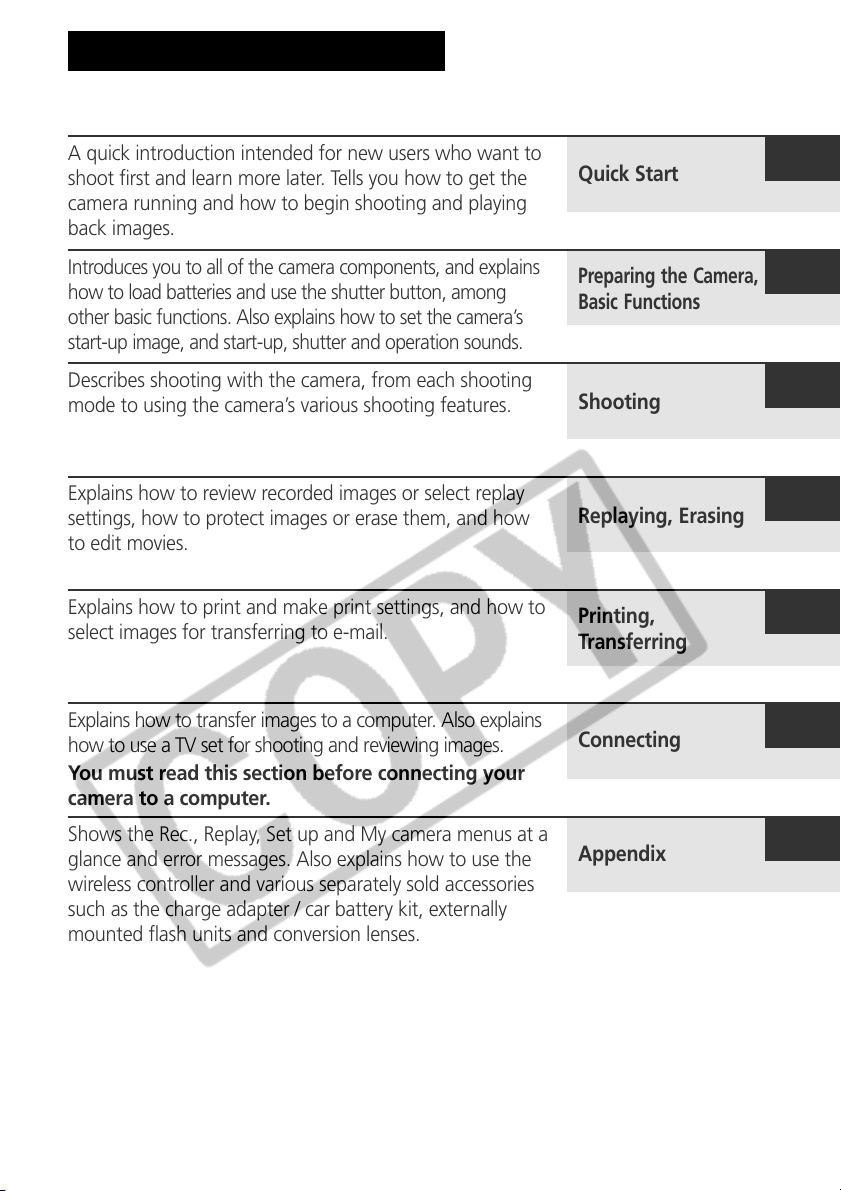
About the Thumb Index
A quick introduction intended for new users who want to
shoot first and learn more later. Tells you how to get the
camera running and how to begin shooting and playing
back images.
Introduces you to all of the camera components, and explains
how to load batteries and use the shutter button, among
other basic functions. Also explains how to set the camera’s
start-up image, and start-up, shutter and operation sounds.
Describes shooting with the camera, from each shooting
mode to using the camera’s various shooting features.
Explains how to review recorded images or select replay
settings, how to protect images or erase them, and how
to edit movies.
Explains how to print and make print settings, and how to
select images for transferring to e-mail.
Explains how to transfer images to a computer. Also explains
how to use a TV set for shooting and reviewing images.
You must read this section before connecting your
camera to a computer.
Shows the Rec., Replay, Set up and My camera menus at a
glance and error messages. Also explains how to use the
wireless controller and various separately sold accessories
such as the charge adapter / car battery kit, externally
mounted flash units and conversion lenses.
Quick Start
Preparing the Camera,
Basic Functions
Shooting
Replaying, Erasing
Printing,
Transferring
Connecting
Appendix

1
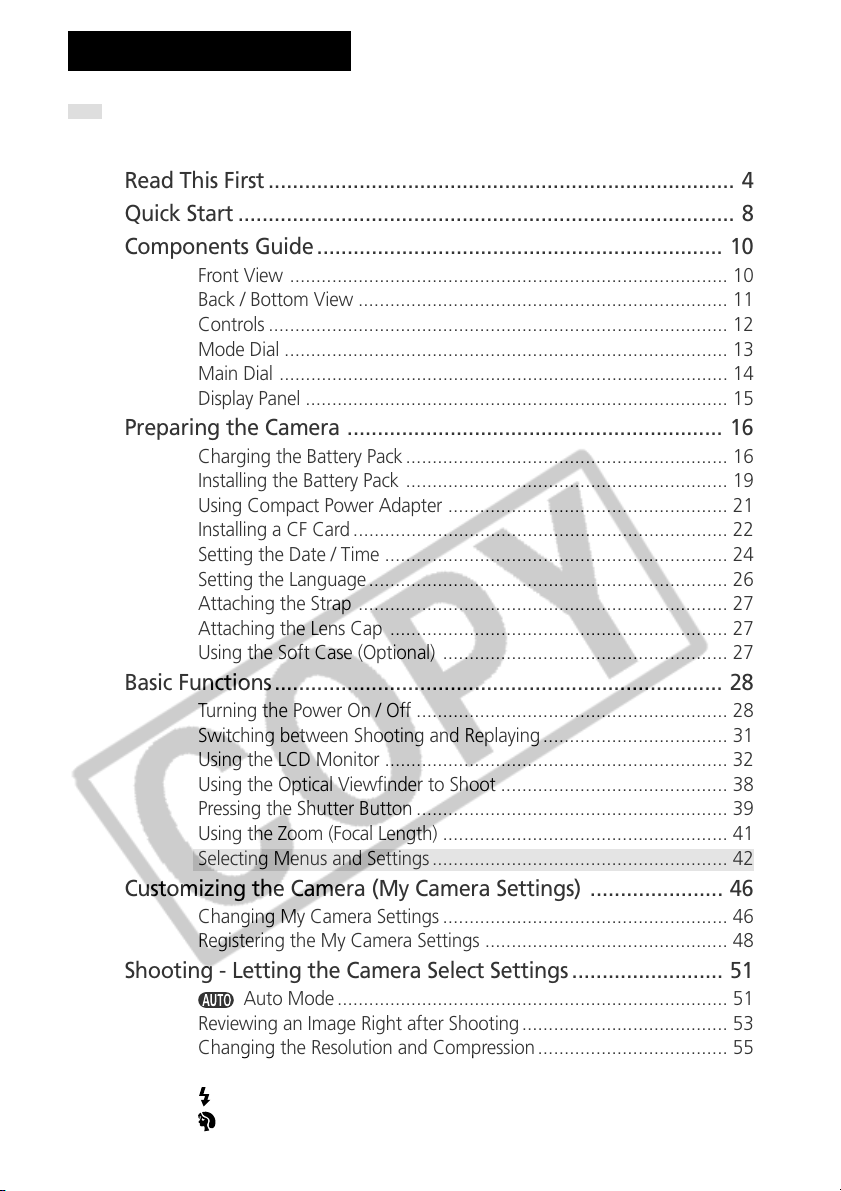
Read This First ............................................................................. 4
Quick Start .................................................................................. 8
Components Guide ................................................................... 10
Front View ................................................................................... 10
Back / Bottom View ...................................................................... 11
Controls ....................................................................................... 12
Mode Dial .................................................................................... 13
Main Dial ..................................................................................... 14
Display Panel ................................................................................ 15
Preparing the Camera .............................................................. 16
Charging the Battery Pack ............................................................. 16
Installing the Battery Pack ............................................................. 19
Using Compact Power Adapter ..................................................... 21
Installing a CF Card ....................................................................... 22
Setting the Date / Time ................................................................. 24
Setting the Language .................................................................... 26
Attaching the Strap ...................................................................... 27
Attaching the Lens Cap ................................................................ 27
Using the Soft Case (Optional) ...................................................... 27
Basic Functions .......................................................................... 28
Turning the Power On / Off ........................................................... 28
Switching between Shooting and Replaying ................................... 31
Using the LCD Monitor ................................................................. 32
Using the Optical Viewfinder to Shoot ........................................... 38
Pressing the Shutter Button ........................................................... 39
Using the Zoom (Focal Length) ...................................................... 41
Selecting Menus and Settings ........................................................ 42
Customizing the Camera (My Camera Settings) ...................... 46
Changing My Camera Settings ...................................................... 46
Registering the My Camera Settings .............................................. 48
Shooting - Letting the Camera Select Settings ......................... 51
Auto Mode .......................................................................... 51
Reviewing an Image Right after Shooting ....................................... 53
Changing the Resolution and Compression .................................... 55
Changing the File Format .............................................................. 58
Using the Flash .................................................................... 60
Portrait Mode ...................................................................... 63
Table of Contents
: Functions and operations tables. These pages are shaded on the right edges
to make them easy to find.
2
Landscape Mode ................................................................. 63
Night Scene Mode ............................................................... 64
Stitch Assist Mode................................................................ 65
Movie Mode ........................................................................ 68
Macro Mode........................................................................ 69
Self-Timer ............................................................................ 70
Digital Zoom ................................................................................ 72
Continuous Shooting ........................................................... 73
Shooting - Selecting Particular Effects ..................................... 75
Program AE ......................................................................... 75
Setting the Shutter Speed ..................................................... 77
Setting the Aperture ............................................................ 79
Manually Setting the Shutter Speed and Aperture ................. 81
Selecting an AF frame .......................................................... 82
Switching between Light Metering Modes ............................ 83
Adjusting the Exposure ......................................................... 85
Setting the White Balance .................................................... 86
Changing the Photo Effect ................................................... 89
Changing the ISO Speed ...................................................... 92
Auto Exposure Bracketing (AEB Mode) .................................. 93
Focus Bracketing (Focus-BKT Mode) ...................................... 95
Locking the Exposure Setting (AE Lock) ................................. 97
Locking the Flash Exposure Setting (FE Lock) .......................... 99
Switching between Flash Adjustment Settings ..................... 100
Switching the Timing at which the Flash Fires ............................... 102
Shooting Images at Set Intervals (Intervalometer) .......................... 103
Shooting Problem Subjects for the Autofocus .............................. 105
Switching between Focus Settings ............................................... 108
Saving Custom Settings .................................................... 109
Using the ND Filter ...................................................................... 110
Setting the Auto Rotate Function ................................................ 111
Resetting the File Numbers .......................................................... 112
Replaying ................................................................................ 113
Displaying Images Individually ..................................................... 113
Magnifying Images ............................................................ 114
Viewing Nine Images at a Time (Index Replay) ..................... 115
Jumping Between Images ............................................... 116
Viewing Movies .......................................................................... 117
Editing Movies ............................................................................ 119
Rotating Images in the Display .................................................... 121
Attaching Sound Annotations to Images ...................................... 122
Automated Playback (Slide Show) ................................................ 124
3
Protecting Images ....................................................................... 128
Erasing .................................................................................... 129
Erasing Images Individually .......................................................... 129
Erasing All Images ...................................................................... 130
Formatting a CF Card ................................................................. 131
Printing ................................................................................... 132
About Printing ............................................................................ 132
Selecting from the Print Menu ..................................................... 134
Connecting the Camera to a Printer ............................................ 136
Printing ...................................................................................... 139
Setting the Print Settings (Direct Print Function) ............................ 141
Print Settings (DPOF Print Settings) .............................................. 145
Printing with DPOF Print Settings ................................................. 150
Image Transfer Settings (DPOF Transfer Order) ..................... 152
Selecting Images for Transferring ................................................. 152
Viewing Images on a TV Set ................................................... 154
Downloading Images to a Computer ..................................... 155
Connecting the Camera to a Computer Via the USB Cable ........... 155
Downloading Directly from a CF Card .......................................... 157
List of Menu Options and Messages ...................................... 158
Rec. Menu ................................................................................. 158
Replay Menu .............................................................................. 161
Set up Menu .............................................................................. 162
My Camera Menu ...................................................................... 166
Resetting the Settings to Default ................................................. 168
List of Error / Message Codes ...................................................... 169
List of Messages ......................................................................... 170
Appendix ................................................................................ 174
Using the Wireless Controller ...................................................... 174
Using an Externally Mounted Flash (Optional) ............................... 177
Using Conversion Lenses (Optional) / Close-up Lenses (Optional) .. 183
Using a Charge Adapter / Car Battery Cable Kit (Optional) ............ 186
Replacing the Date Battery .......................................................... 188
Camera Care and Maintenance ................................................... 190
Troubleshooting.......................................................................... 191
Specifications .......................................................................... 194
Index ....................................................................................... 201
Functions Available in Each Shooting Mode .......................... 208
4
Please Read
Test Shots
Before you try to photograph important subjects, we highly recommend that you
shoot several trial images to confirm that the camera is operating and being
operated correctly. Please note that Canon, its subsidiaries and affiliates, and its
distributors are not liable for any consequential damages arising from any
malfunction of a camera or accessory, including CompactFlash™ cards, that results in
the failure of an image to be recorded or to be recorded in a format that is machine
sensible.
Warning Against Copyright Infringement
Please note that Canon digital cameras are intended for personal use and should
never be used in a manner that infringes upon or contravenes international or
domestic copyright laws and regulations. Please be advised that in certain cases the
copying of images from performances, exhibitions, or commercial properties by
means of a camera or other device may contravene copyright or other legal rights
even if the image was shot for personal use.
Warranty Limitations
This camera’s warranty is only effective in the country of sale. If a problem arises
while the camera is in use abroad, please convey it back to the country of sale before
proceeding with a warranty claim to a Canon Customer Support Help Desk.
For Canon Customer Support contacts, please see the Canon Limited
Warranty supplied with your camera.
Safety Precautions
• Before using the camera, please ensure that you read and understand the safety
precautions described below. Always ensure that the camera is operated correctly.
• The safety precautions noted on the following pages are intended to instruct you in
the safe and correct operation of the camera and its accessories to prevent injuries or
damage to yourself, other persons and equipment.
• In the next few pages, the term “equipment” refers primarily to the camera, its
power supply accessories and an optional compact power adapter.
Warnings
• Do not aim the camera directly into the sun or at other intense light sources
which could damage your eyesight.
• Do not trigger the flash in close proximity to human or animal eyes. Exposure
to the intense light produced by the flash may damage eyesight. In particular, remain
at least one meter (39 inches) away from infants when using the flash.
Read This First
5
• Store this equipment out of the reach of children and infants. Accidental
damage to the camera or batteries by a child could result in serious injury. In addition,
placement of the strap around the child’s neck could result in asphyxiation.
• Be particularly careful to keep the date battery used in the camera away
from children. Seek medical assistance immediately if a child swallows a battery.
• Do not attempt to disassemble or alter any part of the equipment that is not
expressly described in this guide. Disassembly or alteration may result in high-
voltage electrical shock. Internal inspections, alterations and repairs should be
conducted by qualified service personnel authorized by your camera distributor or a
Canon Customer Support Help Desk.
• To avoid the risk of high-voltage electrical shock, do not touch the flash
portion of the camera if it has been damaged. Similarly, never touch internal
portions of the equipment that become exposed as a result of damage. There is a risk
of high-voltage electrical shock. Please take the first opportunity to consult your
camera distributor or a Canon Customer Support Help Desk.
• Stop operating the equipment immediately if it emits smoke or noxious
fumes. Failure to do so may result in fire or electrical shock. Immediately turn the
camera’s power off, remove the camera battery or unplug the power cord from the
power outlet. Confirm that smoke and fume emissions have ceased. Please consult
your camera distributor or the closest Canon Customer Support Help Desk.
• Stop operating the equipment if it is dropped or the casing is damaged. Failure to
do so may result in fire or electrical shock. Immediately turn the camera’s power off,
remove the camera battery or unplug the power cord from the power outlet. Please
consult your camera distributor or the closest Canon Customer Support Help Desk.
• Do not allow the equipment to come into contact with, or become immersed
in, water or other liquids. Do not allow liquids to enter the interior. The camera has
not been waterproofed. If the exterior comes into contact with liquids or salt air, wipe it
dry with a soft, absorbent cloth. In the event that water or other foreign substances
enter the interior, immediately turn the camera’s power off and remove the camera
battery or unplug the power cord from the power outlet. Continued use of the
equipment may result in fire or electrical shock. Please consult your camera distributor
or the closest Canon Customer Support Help Desk.
• Do not use substances containing alcohol, benzene, thinners or other
flammable substances to clean or maintain the equipment. The use of these
substances may lead to fire.
• Remove the power cord on a regular periodic basis and wipe away the dust
and dirt that collects on the plug, the exterior of the power outlet and the
surrounding area. In dusty, humid or greasy environments, the dust that collects
around the plug over long periods of time may become saturated with humidity and
short-circuit, leading to fire.
6
•
Do not cut, damage, alter or place heavy items on the power adapter cord. Any of
these actions may cause an electrical short circuit, which may lead to fire or electrical shock.
• Do not handle the power cord if your hands are wet. Handling it with wet hands
may lead to electrical shock. When unplugging the cord, ensure that you hold the solid
portion of the plug. Pulling on the flexible portion of the cord may damage or expose the
wire and insulation, creating the potential for fires or electrical shocks.
• Use only the recommended power accessories. Use of power sources not
expressly recommended for this equipment may lead to overheating, distortion of the
equipment, fire, electrical shock or other hazards.
• Do not place the batteries near a heat source or expose them to direct flame or
heat. Neither should you immerse them in water. Such exposure may damage the batteries
and lead to the leakage of corrosive liquids, fire, electrical shock, explosion or serious injury.
• Do not attempt to disassemble, alter or apply heat to the batteries. There is
serious risk of injury due to an explosion. Immediately flush with water any area of the
body, including the eyes and mouth, or clothing, that comes into contact with the
inner contents of a battery. If the eyes or mouth contact these substances, immediately
flush with water and seek medical assistance.
• Avoid dropping or subjecting the batteries to severe impacts that could
damage the casings. It could lead to leakage and injury.
• Do not short-circuit the battery terminals with metallic objects, such as key
holders. It could lead to overheating, burns and other injuries. Use the supplied
terminal cover to transport or store the battery pack.
• Before you discard a battery, cover the terminals with tape or other insulators
to prevent direct contact with other objects. Contact with the metallic
components of other materials in waste containers may lead to fire or explosions.
Discard the batteries in specialized waste facilities if available in your area.
• Use only recommended batteries and accessories. Use of batteries not expressly
recommended for this equipment may cause explosions or leaks, resulting in fire,
injury and damage to the surroundings.
• Disconnect the compact power adapter from both the camera and power
outlet after recharging and when the camera is not in use to avoid fires and
other hazards. Continuous use over a long period of time may cause the unit to
overheat and distort, resulting in fire.
• The camera terminal of the supplied compact power cord is designed for
exclusive use with your camera. Do not use it with other products or batteries.
There is a risk of fire and other hazards.
7
• Exercise due caution when screwing on the separately sold wide converter
lens, tele-converter lens, close-up lens and conversion lens adapter. If they
loosen, fall off and shatter, the glass shards may cause an injury. Never aim the lenses
at the sun or strong light sources. There is a risk of damage to eyesight.
Cautions
• Avoid using, placing or storing the equipment in places subject to strong
sunlight or high temperatures, such as the dashboard or trunk (boot) of a car.
Exposure to intense sunlight and heat may cause the batteries to leak, overheat or
explode, resulting in fire, burns or other injuries. High temperatures may also cause
deformation of the casing. Ensure that there is good ventilation when using the
compact power adapter to charge the battery pack or power the camera.
• Do not store the equipment in humid or dusty areas. Storage in such areas could
lead to fire, electrical shock or other damage.
• Be careful not to bang the camera or subject it to strong impacts or shocks that
could lead to injury or damage the equipment when wearing or holding it by the strap.
• Be careful not to cover the flash with your fingers when shooting. In addition,
do not touch the surface of the flash after taking several pictures in rapid succession.
Either action could result in burns.
• Do not operate the flash with dirt, dust or other items stuck to its lens. The
resulting heat build-up could damage the flash.
• If your camera is used for prolonged periods, the camera body may become
warm. Please take care when operating the camera for an extended period as your
hands may experience a burning sensation.
Preventing Malfunctions
■ Avoid Strong Magnetic Fields
Never place the camera in close proximity to electric motors or other equipment
generating strong electromagnetic fields. Exposure to strong magnetic fields may
cause malfunctions or corrupt image data.
■ Avoid Condensation Related Problems
Moving the equipment rapidly between hot and cold temperatures may cause
condensation (water droplets) to form on its external and internal surfaces. You can
avoid this by placing the equipment in an airtight, resealable plastic bag and letting it
adjust to temperature changes slowly before removing it from the bag.
■ If Condensation Forms Inside the Camera
Stop using the camera immediately if you detect condensation. Continued use may
damage the equipment. Remove the CF card, and battery or a household power
source, from the camera and wait until the moisture evaporates completely before
resuming use.
8
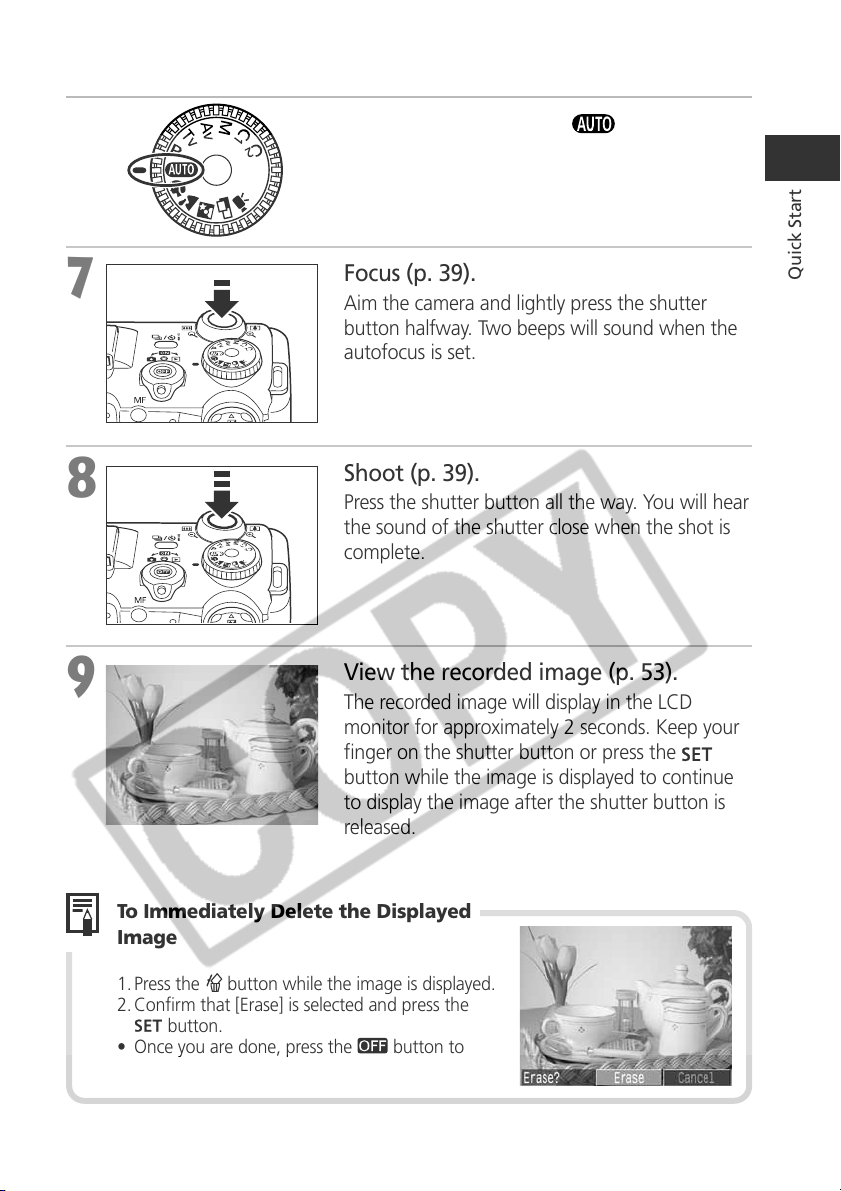
1
Install the Battery (p. 19).
Open the battery cover and insert the battery
while pressing the battery lock.
2
Charge the Battery (p. 16).
Check that the power is off. Charge the battery.
The battery is approximately 90% charged
(adequate charge for use) when the orange
indicator beside the viewfinder stops blinking and
lights steadily. After charging, detach the compact
power adapter’s DC plug from the camera.
3
Install the CF card (p. 22).
Push the card in until the CF card eject button
fully extends.
4
Remove the lens cap.
5
Turn the power on (p. 28).
Open the LCD monitor and turn the mode lever
to
(shooting) while pressing the release
button.
The Power/Mode indicator lights orange.
Quick Start
Battery lock
Indicator
To power
outlet
Power/Mode
Indicator
Release Button
CF Card Eject Button
9
Quick Start
6
Turn the mode dial to (p. 51).
7
Focus (p. 39).
Aim the camera and lightly press the shutter
button halfway. Two beeps will sound when the
autofocus is set.
8
Shoot (p. 39).
Press the shutter button all the way. You will hear
the sound of the shutter close when the shot is
complete.
9
View the recorded image (p. 53).
The recorded image will display in the LCD
monitor for approximately 2 seconds. Keep your
finger on the shutter button or press the
button while the image is displayed to continue
to display the image after the shutter button is
released.
To Immediately Delete the Displayed
Image
1. Press the button while the image is displayed.
2. Confirm that [Erase] is selected and press the
button.
• Once you are done, press the
button to
turn off the power.
10
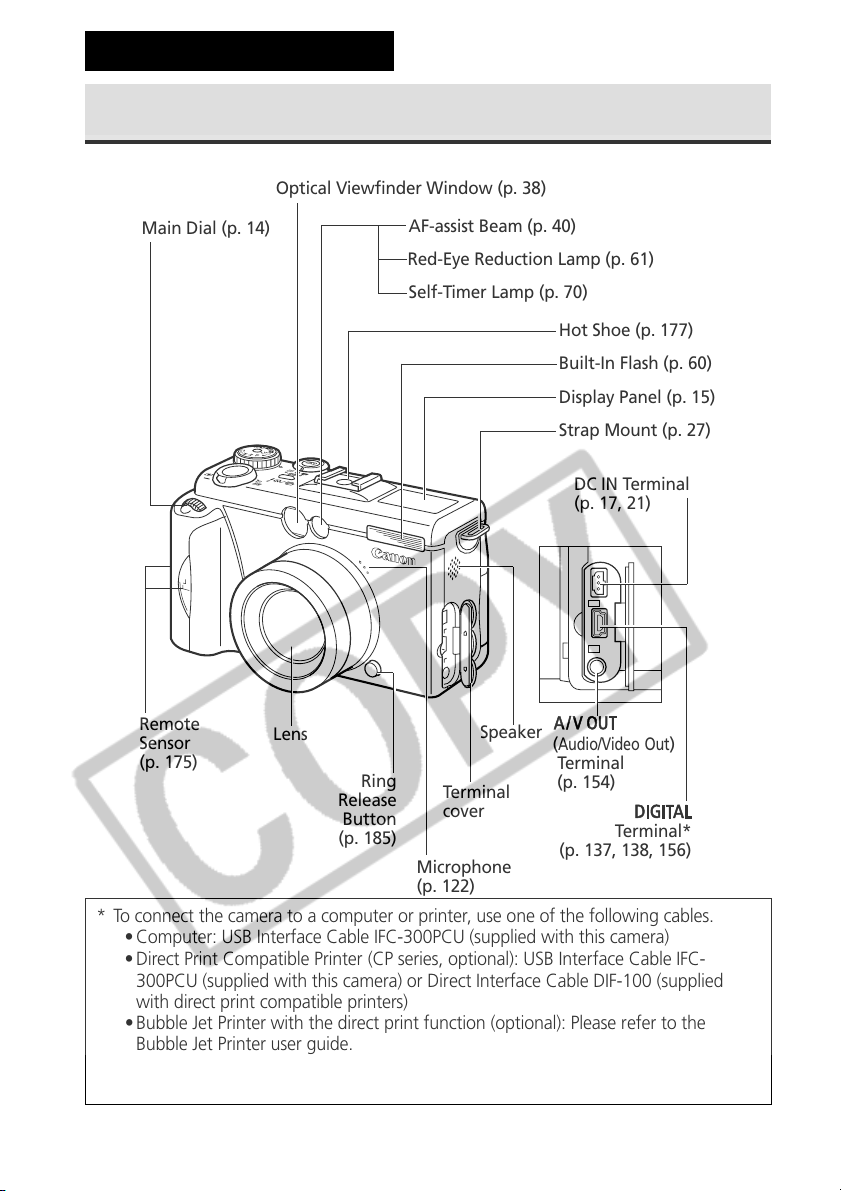
* To connect the camera to a computer or printer, use one of the following cables.
• Computer: USB Interface Cable IFC-300PCU (supplied with this camera)
• Direct Print Compatible Printer (CP series, optional): USB Interface Cable IFC-
300PCU (supplied with this camera) or Direct Interface Cable DIF-100 (supplied
with direct print compatible printers)
• Bubble Jet Printer with the direct print function (optional): Please refer to the
Bubble Jet Printer user guide.
Please refer to your System Map to find out which direct print function compatible
printers (CP series) can be used with this camera.
Front View
Components Guide
Remote
Sensor
(p. 175)
(
Audio/Video Out
)
Terminal
(p. 154)
Terminal*
(p. 137, 138, 156)
Main Dial (p. 14)
Ring
Release
Button
(p. 185)
Optical Viewfinder Window (p. 38)
Microphone
(p. 122)
Speaker
DC IN Terminal
(p. 17, 21)
Strap Mount (p. 27)
Display Panel (p. 15)
Built-In Flash (p. 60)
Hot Shoe (p. 177)
AF-assist Beam (p. 40)
Red-Eye Reduction Lamp (p. 61)
Self-Timer Lamp (p. 70)
Terminal
cover
Lens
11
Preparing the Camera, Basic Functions
Back / Bottom View
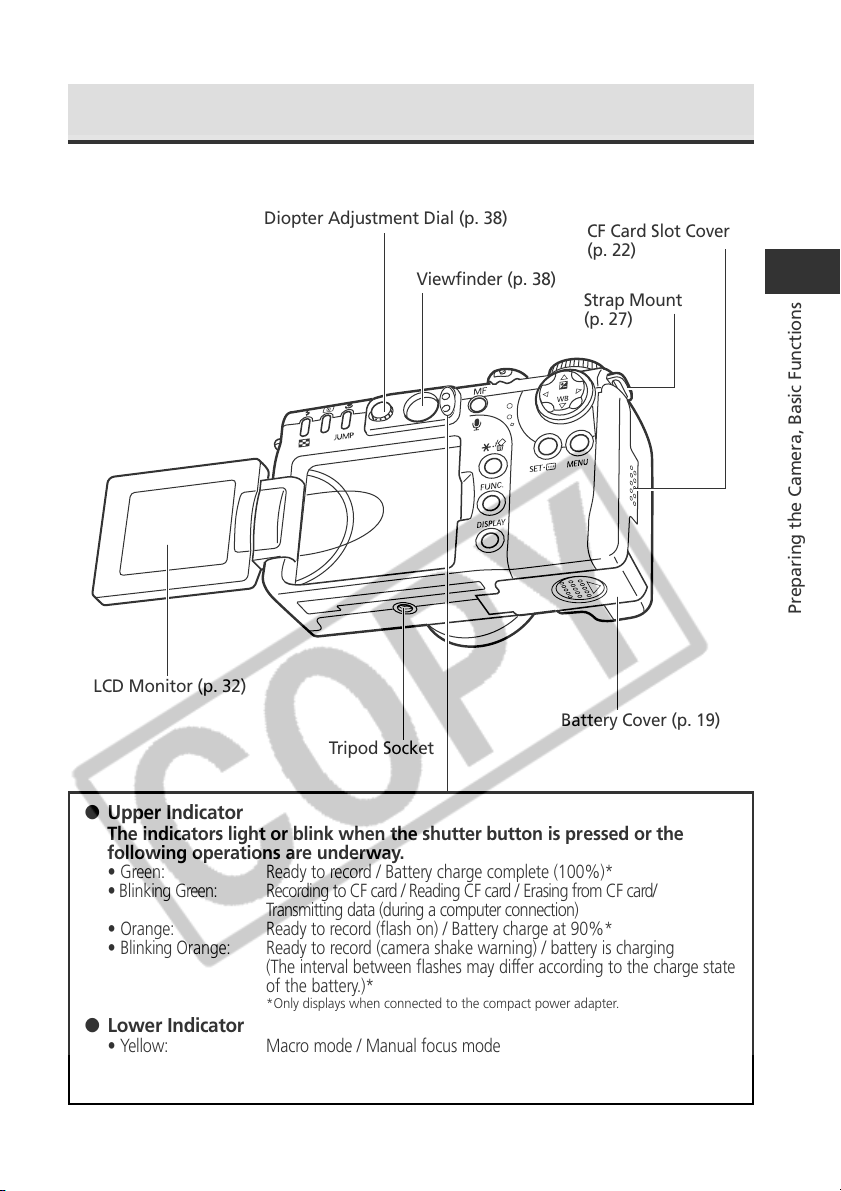
Viewfinder (p. 38)
Strap Mount
(p. 27)
Battery Cover (p. 19)
CF Card Slot Cover
(p. 22)
Tripod Socket
LCD Monitor (p. 32)
● Upper Indicator
The indicators light or blink when the shutter button is pressed or the
following operations are underway.
• Green: Ready to record / Battery charge complete (100%)*
• Blinking Green: Recording to CF card / Reading CF card / Erasing from CF card/
Transmitting data (during a computer connection)
• Orange: Ready to record (flash on) / Battery charge at 90%*
• Blinking Orange: Ready to record (camera shake warning) / battery is charging
(The interval between flashes may differ according to the charge state
of the battery.)*
*Only displays when connected to the compact power adapter.
● Lower Indicator
• Yellow: Macro mode / Manual focus mode
• Blinking Yellow: Focusing difficulty (although you can press the shutter button, try using
focus lock or adjusting the focus manually, p. 106)
Diopter Adjustment Dial (p. 38)
12
Controls
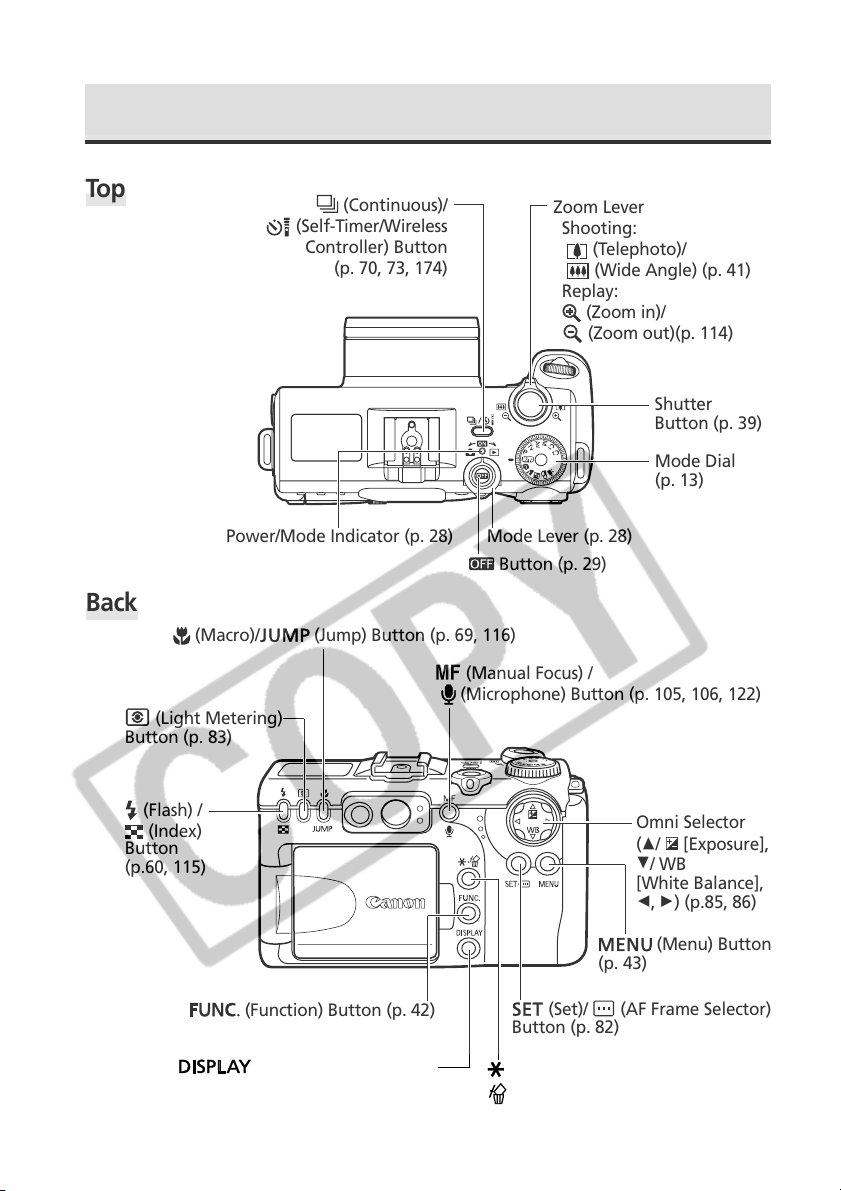
(Menu) Button
(p. 43)
(Display) Button (p. 33)
(AE Lock/FE Lock) /
(Erase) Button (p. 97, 99, 129)
Omni Selector
(C/
[Exposure],
D/ WB
[White Balance],
B, A) (p.85, 86)
(Set)/ (AF Frame Selector)
Button (p. 82)
(Function) Button (p. 42)
Button (p. 29)
Mode Lever (p. 28)Power/Mode Indicator (p. 28)
Mode Dial
(p. 13)
Shutter
Button (p. 39)
Zoom Lever
Shooting:
(Telephoto)/
(Wide Angle) (p. 41)
Replay:
(Zoom in)/
(Zoom out)(p. 114)
(Continuous)/
(Self-Timer/Wireless
Controller) Button
(p. 70, 73, 174)
(Manual Focus) /
(Microphone) Button (p. 105, 106, 122)
(Macro)/
(Jump) Button (p. 69, 116)
(Light Metering)
Button (p. 83)
(Flash) /
(Index)
Button
(p.60, 115)
Top
Back
13
Preparing the Camera, Basic Functions
Mode Dial
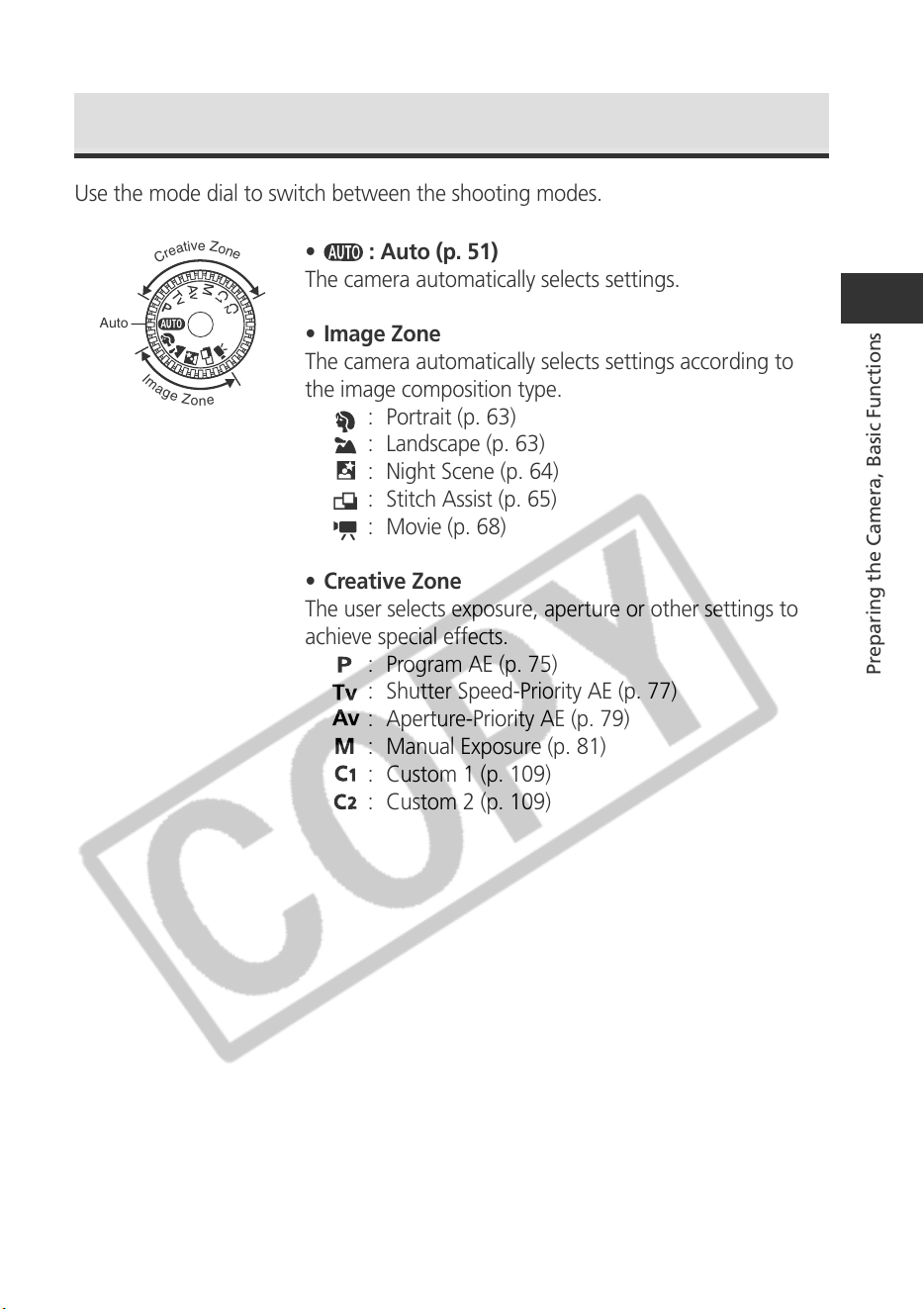
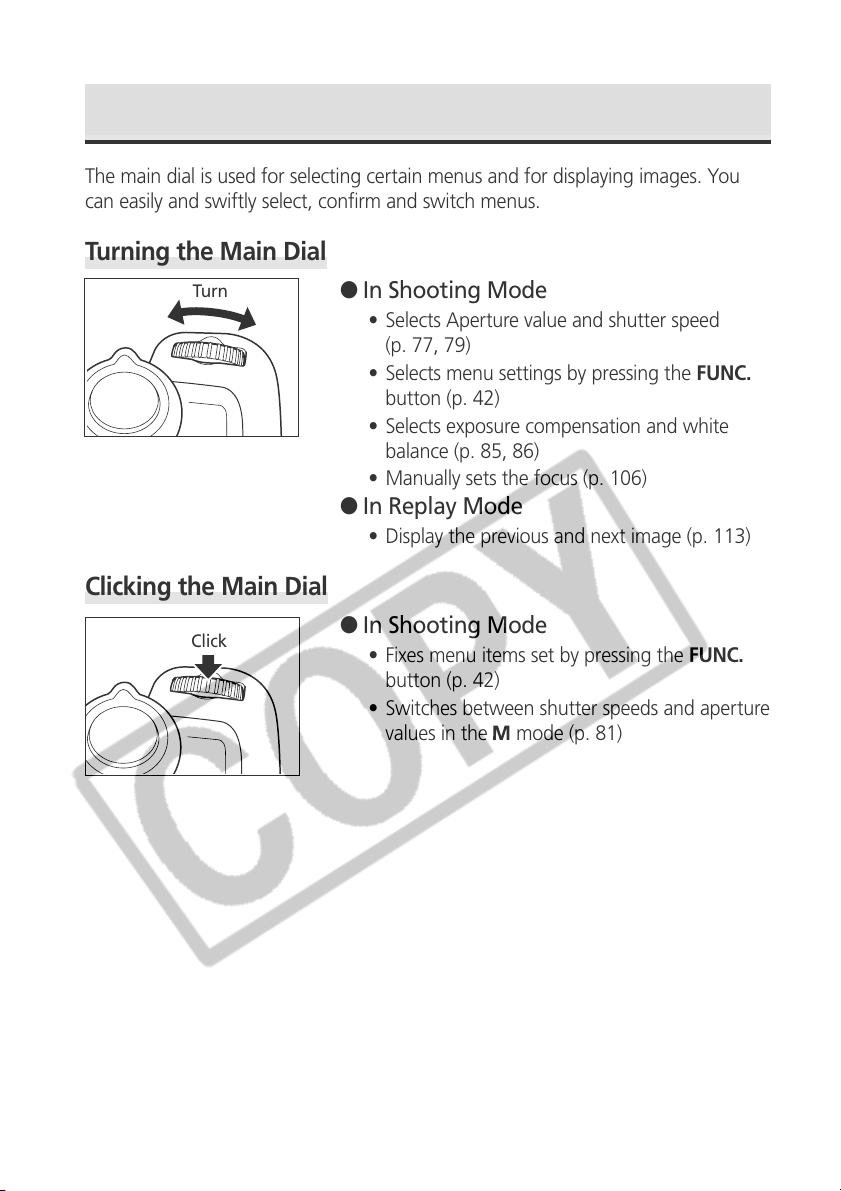
Use the mode dial to switch between the shooting modes.
•
: Auto (p. 51)
The camera automatically selects settings.
• Image Zone
The camera automatically selects settings according to
the image composition type.
: Portrait (p. 63)
: Landscape (p. 63)
: Night Scene (p. 64)
: Stitch Assist (p. 65)
: Movie (p. 68)
• Creative Zone
The user selects exposure, aperture or other settings to
achieve special effects.
: Program AE (p. 75)
: Shutter Speed-Priority AE (p. 77)
: Aperture-Priority AE (p. 79)
: Manual Exposure (p. 81)
: Custom 1 (p. 109)
: Custom 2 (p. 109)
Auto
I
m
a
g
e
Z
o
n
e
C
r
e
a
t
i
v
e
Z
o
n
e
14
Main Dial
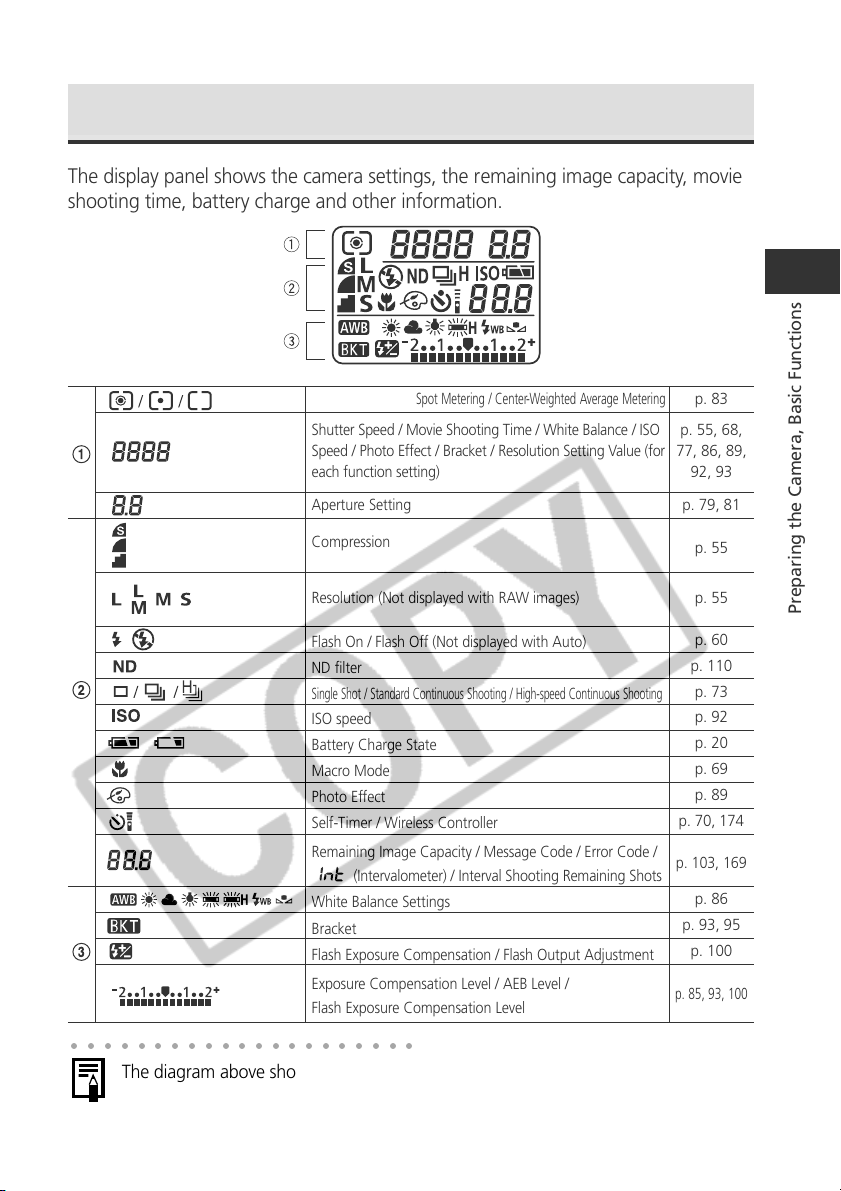
The main dial is used for selecting certain menus and for displaying images. You
can easily and swiftly select, confirm and switch menus.
Turning the Main Dial
● In Shooting Mode
• Selects Aperture value and shutter speed
(p. 77, 79)
• Selects menu settings by pressing the FUNC.
button (p. 42)
• Selects exposure compensation and white
balance (p. 85, 86)
• Manually sets the focus (p. 106)
● In Replay Mode
• Display the previous and next image (p. 113)
Clicking the Main Dial
● In Shooting Mode
• Fixes menu items set by pressing the FUNC.
button (p. 42)
• Switches between shutter speeds and aperture
values in the
mode (p. 81)
Turn
Click
15
Preparing the Camera, Basic Functions
Display Panel
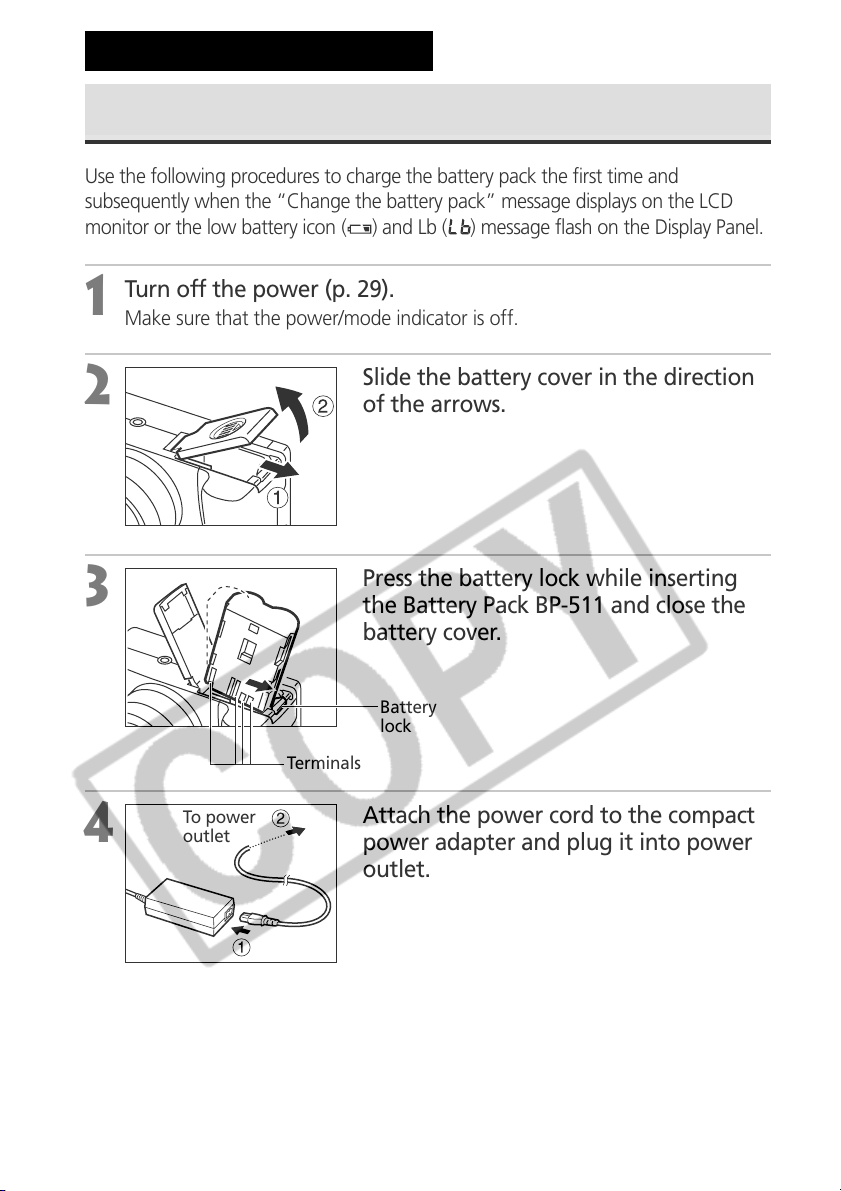
The display panel shows the camera settings, the remaining image capacity, movie
shooting time, battery charge and other information.
○○○○○○○○○○○○○○○○○○○○○
The diagram above shows all the icons appearing at once. Normally, only the icons
applicable to the selected mode and camera state appear.
Evaluative Metering / Spot Metering / Center-Weighted Average Metering
Shutter Speed / Movie Shooting Time / White Balance / ISO
Speed / Photo Effect / Bracket / Resolution Setting Value (for
each function setting)
Aperture Setting
Compression
Resolution (Not displayed with RAW images)
Flash On / Flash Off (Not displayed with Auto)
ND filter
Single Shot / Standard Continuous Shooting / High-speed Continuous Shooting
ISO speed
Battery Charge State
Macro Mode
Photo Effect
Self-Timer / Wireless Controller
Remaining Image Capacity / Message Code / Error Code /
(Intervalometer) / Interval Shooting Remaining Shots
White Balance Settings
Bracket
Flash Exposure Compensation / Flash Output Adjustment
Exposure Compensation Level / AEB Level /
Flash Exposure Compensation Level
p. 83
p. 55, 68,
77, 86, 89,
92, 93
p. 79, 81
p. 55
p. 55
p. 60
p. 110
p. 73
p. 92
p. 20
p. 69
p. 89
p. 70, 174
p. 103, 169
p. 86
p. 93, 95
p. 100
p. 85, 93, 100
16
Charging the Battery Pack
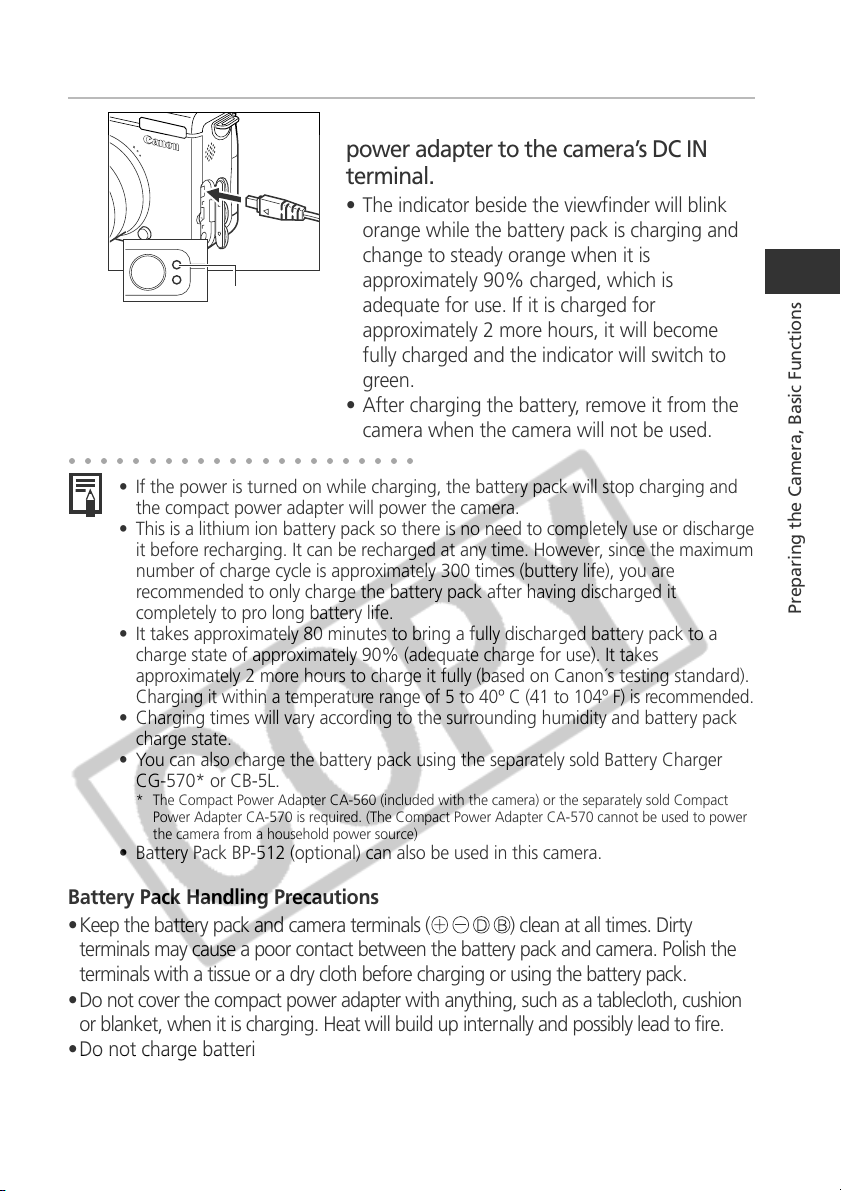
Use the following procedures to charge the battery pack the first time and
subsequently when the “Change the battery pack” message displays on the LCD
monitor or the low battery icon (
) and Lb ( ) message flash on the Display Panel.
1
Turn off the power (p. 29).
Make sure that the power/mode indicator is off.
2
Slide the battery cover in the direction
of the arrows.
3
Press the battery lock while inserting
the Battery Pack BP-511 and close the
battery cover.
4
Attach the power cord to the compact
power adapter and plug it into power
outlet.
Preparing the Camera
Terminals
To power
outlet
Battery
lock
17
Preparing the Camera, Basic Functions
5
Connect the DC plug of the compact
power adapter to the camera’s DC IN
terminal.
• The indicator beside the viewfinder will blink
orange while the battery pack is charging and
change to steady orange when it is
approximately 90% charged, which is
adequate for use. If it is charged for
approximately 2 more hours, it will become
fully charged and the indicator will switch to
green.
• After charging the battery, remove it from the
camera when the camera will not be used.
○○○○○○○○○○○○○○○○○○○○○○
• If the power is turned on while charging, the battery pack will stop charging and
the compact power adapter will power the camera.
• This is a lithium ion battery pack so there is no need to completely use or discharge
it before recharging. It can be recharged at any time. However, since the maximum
number of charge cycle is approximately 300 times (buttery life), you are
recommended to only charge the battery pack after having discharged it
completely to pro long battery life.
• It takes approximately 80 minutes to bring a fully discharged battery pack to a
charge state of approximately 90% (adequate charge for use). It takes
approximately 2 more hours to charge it fully (based on Canon´s testing standard).
Charging it within a temperature range of 5 to 40º C (41 to 104º F) is recommended.
• Charging times will vary according to the surrounding humidity and battery pack
charge state.
• You can also charge the battery pack using the separately sold Battery Charger
CG-570* or CB-5L.
* The Compact Power Adapter CA-560 (included with the camera) or the separately sold Compact
Power Adapter CA-570 is required. (The Compact Power Adapter CA-570 cannot be used to power
the camera from a household power source)
• Battery Pack BP-512 (optional) can also be used in this camera.
Battery Pack Handling Precautions
•Keep the battery pack and camera terminals (
) clean at all times. Dirty
terminals may cause a poor contact between the battery pack and camera. Polish the
terminals with a tissue or a dry cloth before charging or using the battery pack.
•Do not cover the compact power adapter with anything, such as a tablecloth, cushion
or blanket, when it is charging. Heat will build up internally and possibly lead to fire.
•Do not charge batteries other than Battery Pack BP-511 or Battery Pack BP-512
with the supplied equipment. It could damage the camera.
Indicator
18
BD
Fig.A Fig.B
Charging the Battery Pack (continued)
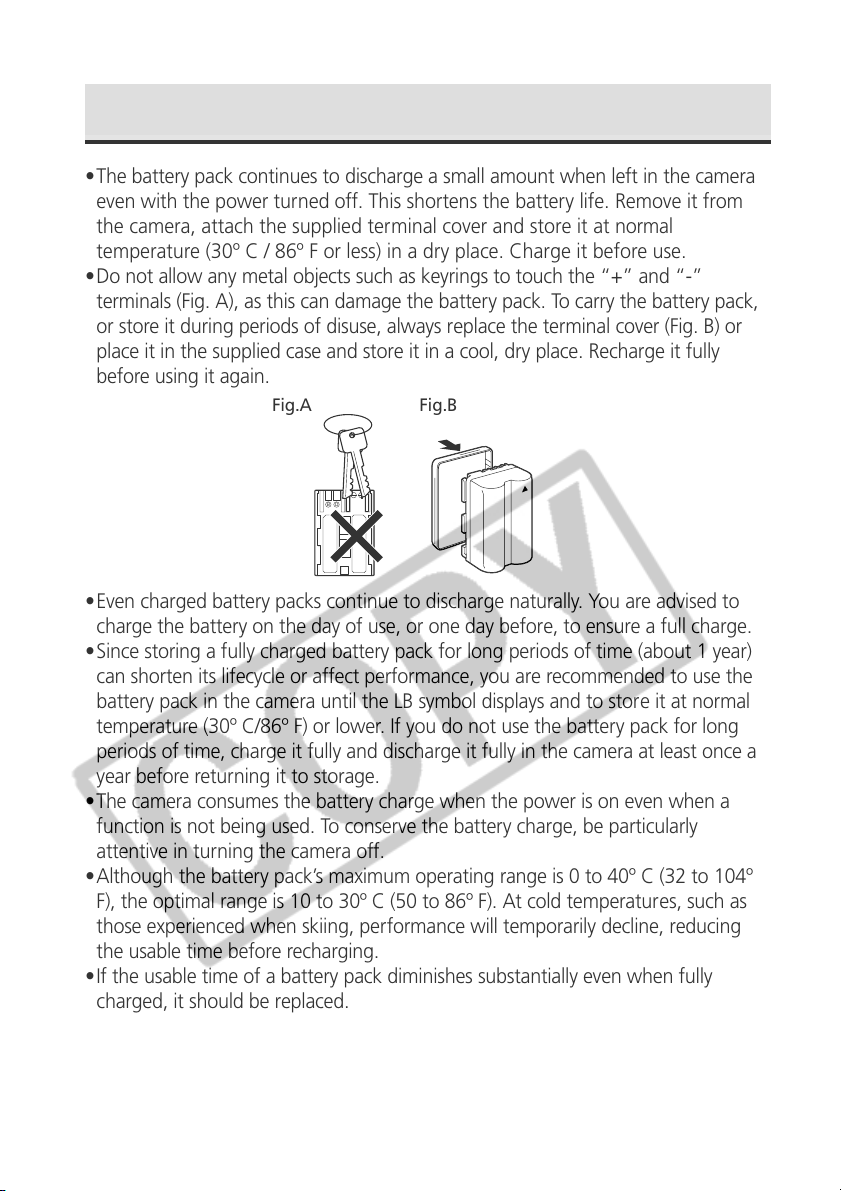
•The battery pack continues to discharge a small amount when left in the camera
even with the power turned off. This shortens the battery life. Remove it from
the camera, attach the supplied terminal cover and store it at normal
temperature (30º C / 86º F or less) in a dry place. Charge it before use.
•Do not allow any metal objects such as keyrings to touch the “+” and “-”
terminals (Fig. A), as this can damage the battery pack. To carry the battery pack,
or store it during periods of disuse, always replace the terminal cover (Fig. B) or
place it in the supplied case and store it in a cool, dry place. Recharge it fully
before using it again.
•Even charged battery packs continue to discharge naturally. You are advised to
charge the battery on the day of use, or one day before, to ensure a full charge.
•Since storing a fully charged battery pack for long periods of time (about 1 year)
can shorten its lifecycle or affect performance, you are recommended to use the
battery pack in the camera until the LB symbol displays and to store it at normal
temperature (30º C/86º F) or lower. If you do not use the battery pack for long
periods of time, charge it fully and discharge it fully in the camera at least once a
year before returning it to storage.
•The camera consumes the battery charge when the power is on even when a
function is not being used. To conserve the battery charge, be particularly
attentive in turning the camera off.
•Although the battery pack’s maximum operating range is 0 to 40º C (32 to 104º
F), the optimal range is 10 to 30º C (50 to 86º F). At cold temperatures, such as
those experienced when skiing, performance will temporarily decline, reducing
the usable time before recharging.
•If the usable time of a battery pack diminishes substantially even when fully
charged, it should be replaced.
19
Preparing the Camera, Basic Functions
Installing the Battery Pack
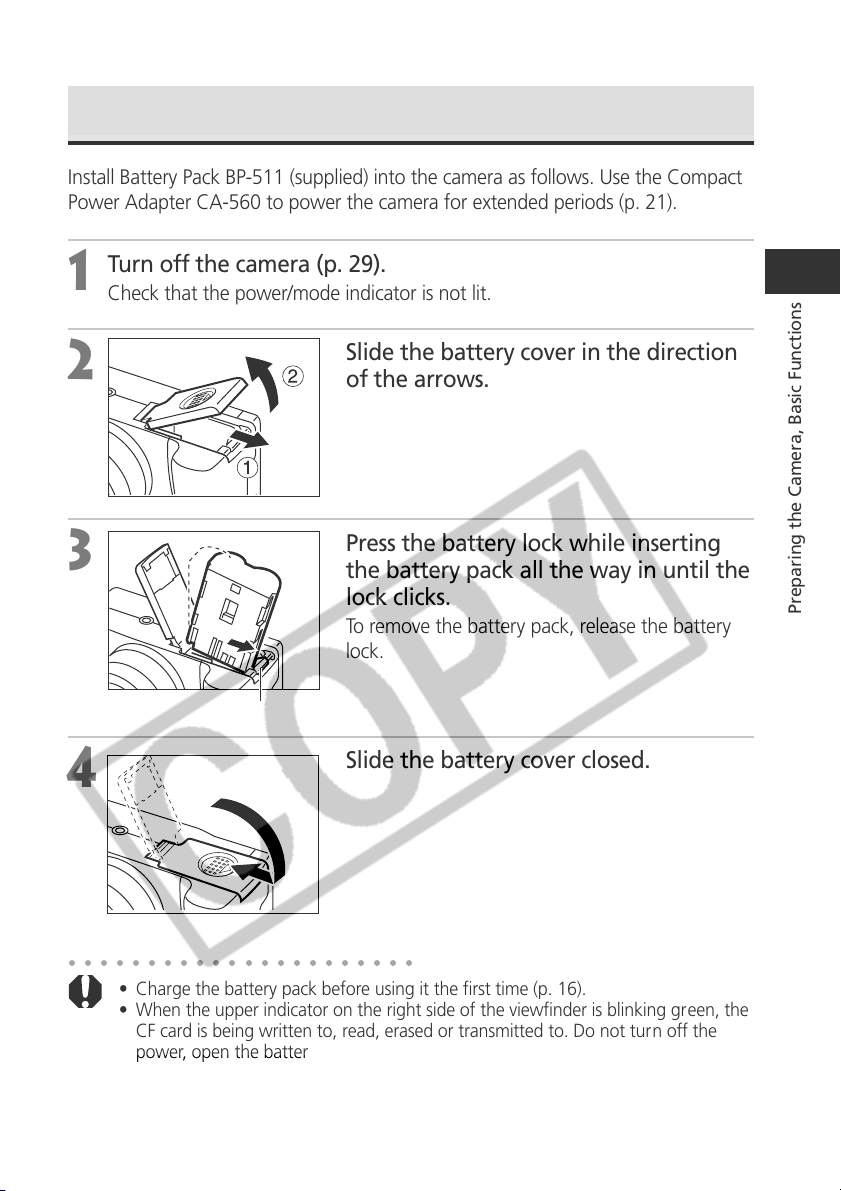
Install Battery Pack BP-511 (supplied) into the camera as follows. Use the Compact
Power Adapter CA-560 to power the camera for extended periods (p. 21).
1
Turn off the camera (p. 29).
Check that the power/mode indicator is not lit.
2
Slide the battery cover in the direction
of the arrows.
3
Press the battery lock while inserting
the battery pack all the way in until the
lock clicks.
To remove the battery pack, release the battery
lock.
4
Slide the battery cover closed.
○○○○○○○○○○○○○○○○○○○○○○
• Charge the battery pack before using it the first time (p. 16).
• When the upper indicator on the right side of the viewfinder is blinking green, the
CF card is being written to, read, erased or transmitted to. Do not turn off the
power, open the battery cover or open the CF card slot cover while the camera's
indicator blinks green.
• Remove the battery pack when the camera is not in use.
Battery lock
20
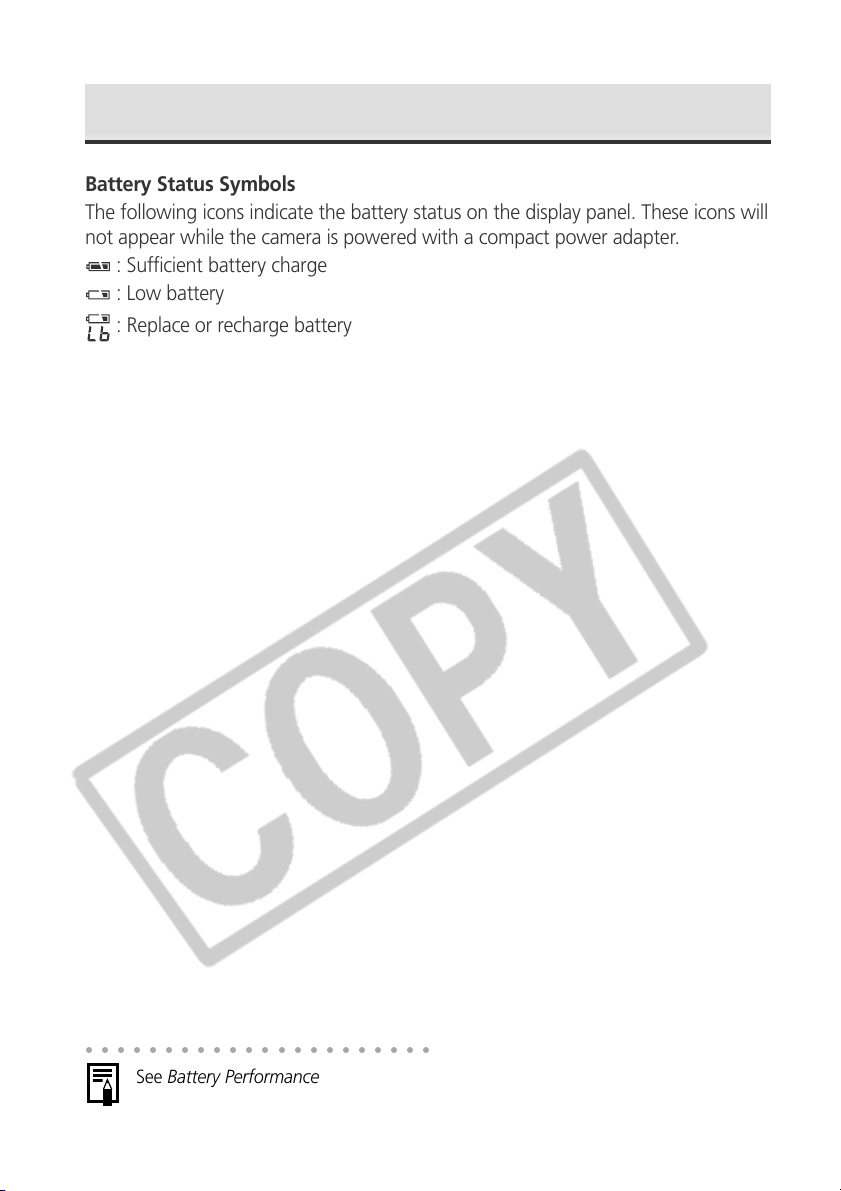
Battery Status Symbols
The following icons indicate the battery status on the display panel. These icons will
not appear while the camera is powered with a compact power adapter.
: Sufficient battery charge
: Low battery
: Replace or recharge battery
Installing the Battery Pack (continued)
○○○○○○○○○○○○○○○○○○○○○○
See Battery Performance (p. 196).
21
Preparing the Camera, Basic Functions
Using Compact Power Adapter
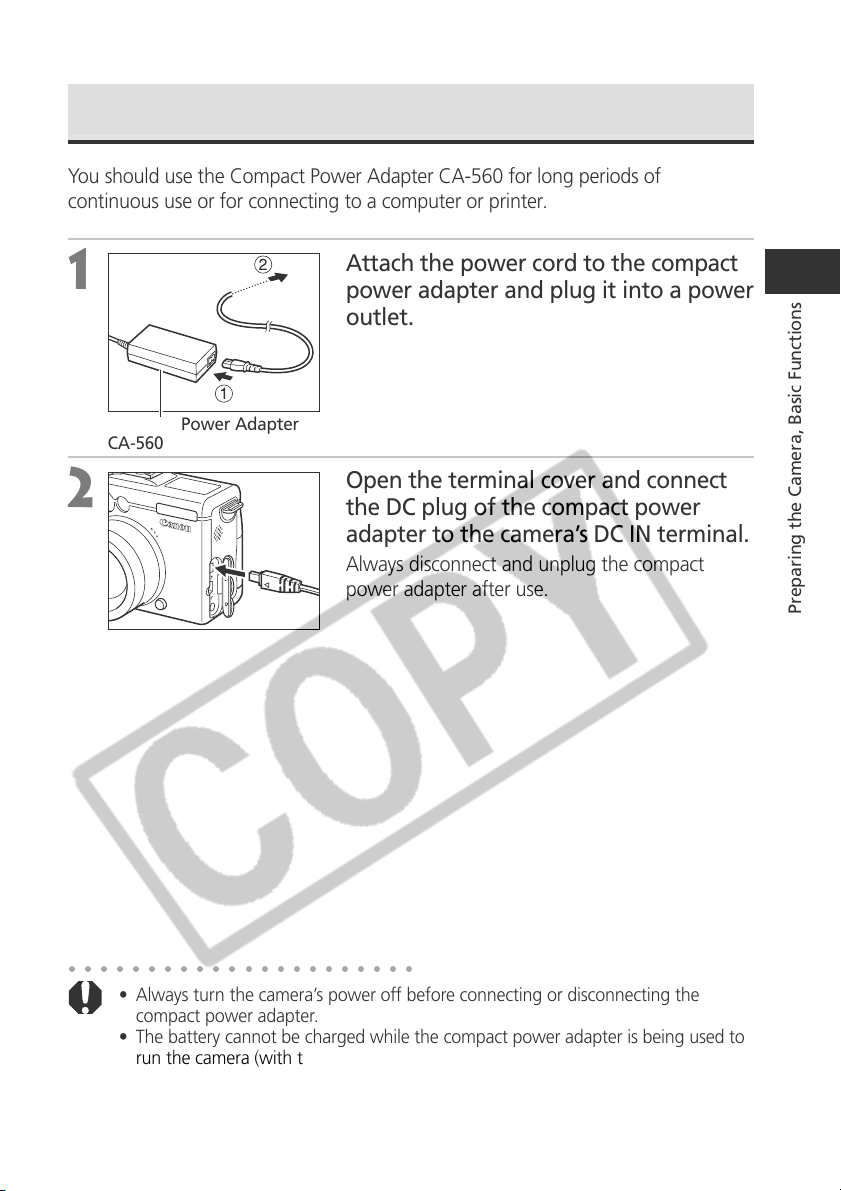
You should use the Compact Power Adapter CA-560 for long periods of
continuous use or for connecting to a computer or printer.
1
Attach the power cord to the compact
power adapter and plug it into a power
outlet.
2
Open the terminal cover and connect
the DC plug of the compact power
adapter to the camera’s DC IN terminal.
Always disconnect and unplug the compact
power adapter after use.
○○○○○○○○○○○○○○○○○○○○○○
• Always turn the camera’s power off before connecting or disconnecting the
compact power adapter.
• The battery cannot be charged while the compact power adapter is being used to
run the camera (with the power on).
• Do not use Compact Power Adapter CA-560 with any devices other than those
for which Battery Pack BP-511 or Battery Pack BP-512 are specified.
To power
outlet
Compact Power Adapter
CA-560
22
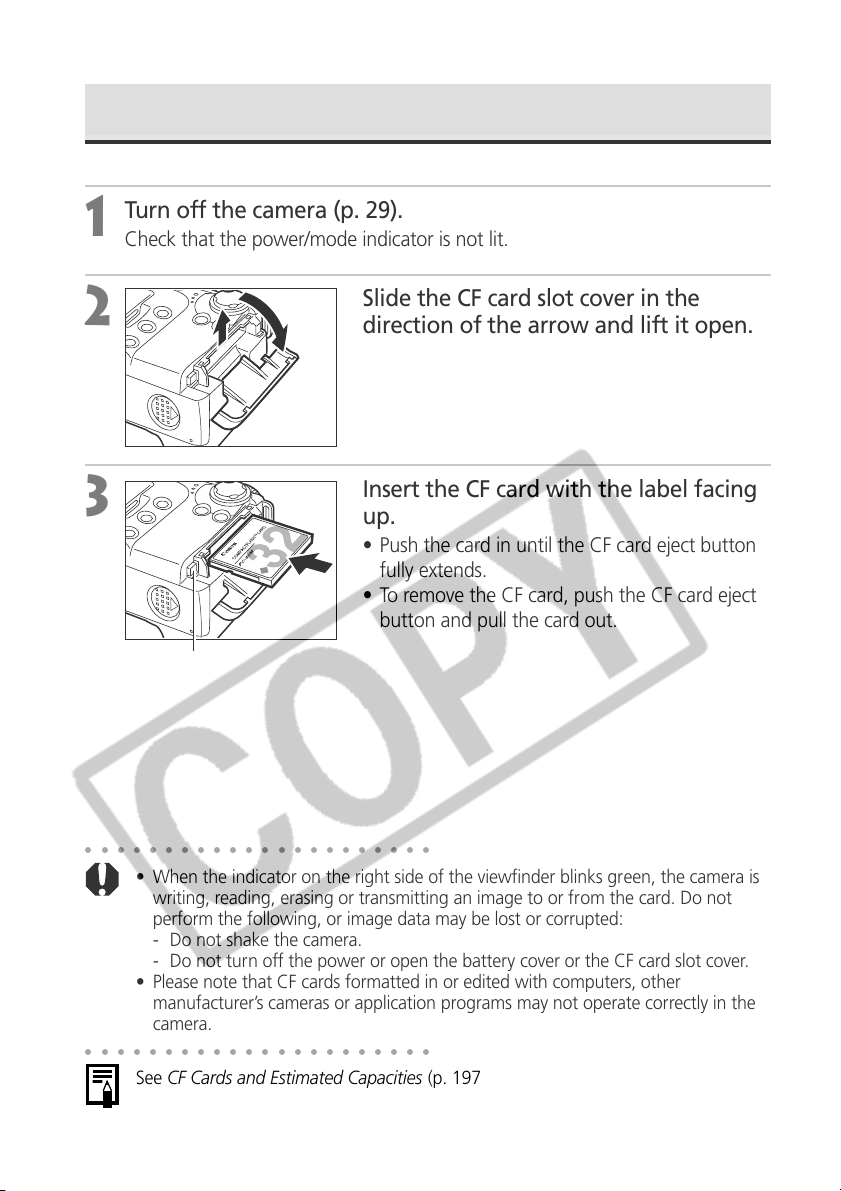
Installing a CF Card
1
Turn off the camera (p. 29).
Check that the power/mode indicator is not lit.
2
Slide the CF card slot cover in the
direction of the arrow and lift it open.
3
Insert the CF card with the label facing
up.
• Push the card in until the CF card eject button
fully extends.
• To remove the CF card, push the CF card eject
button and pull the card out.
○○○○○○○○○○○○○○○○○○○○○○
• When the indicator on the right side of the viewfinder blinks green, the camera is
writing, reading, erasing or transmitting an image to or from the card. Do not
perform the following, or image data may be lost or corrupted:
- Do not shake the camera.
- Do not turn off the power or open the battery cover or the CF card slot cover.
• Please note that CF cards formatted in or edited with computers, other
manufacturer’s cameras or application programs may not operate correctly in the
camera.
○○○○○○○○○○○○○○○○○○○○○○
See CF Cards and Estimated Capacities (p. 197).
w
q
CF Card Eject Button
23
Preparing the Camera, Basic Functions
CF Card Handling Precautions
•
CF cards are high-precision electronic devices. Do not bend, force, or subject
them to shocks or vibration.
•
Do not attempt to disassemble or alter a CF card.
•
Moving a CF card rapidly between temperature extremes may cause condensation
to form in the card, leading to potential malfunctions. To avoid condensation
formation, place the CF card in a sealed plastic bag before moving it into a
different temperature zone and allow it to adjust slowly to the new temperature. If
condensation forms on the CF card, put it aside until the water droplets have
evaporated completely.
•
Place the CF card in the supplied case for storage.
•
Do not use or store CF cards in the following types of locations.
• Locations subject to dust or sand
• Locations subject to high humidity and high temperatures
Microdrives are a recording medium with a hard disk. Their merits are a large
capacity and a low price per megabyte of capacity. However, they can be more
susceptible to vibrations and shocks than CF cards, which use durable flash
memories. Please be careful, therefore, not to subject the camera to vibrations
or shocks when using a microdrive, especially while recording or replaying.
24
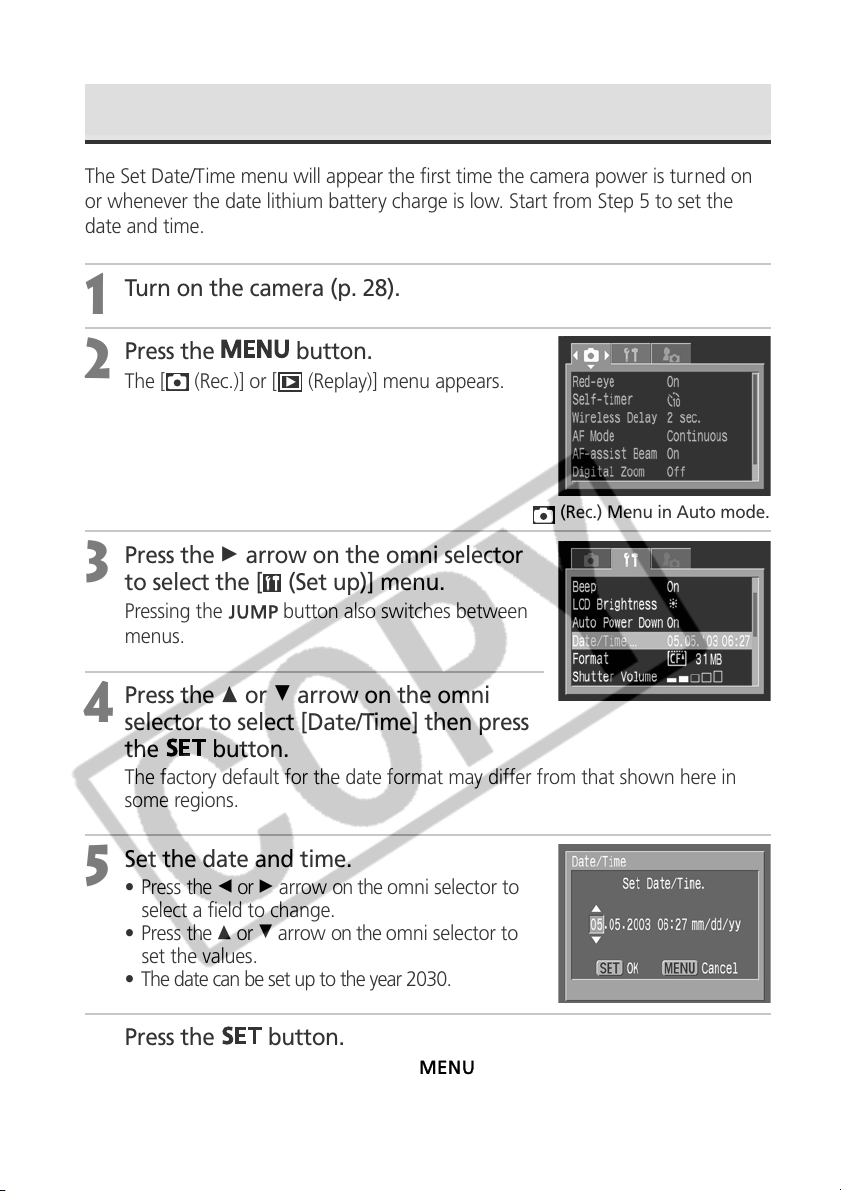
Setting the Date / Time
The Set Date/Time menu will appear the first time the camera power is turned on
or whenever the date lithium battery charge is low. Start from Step 5 to set the
date and time.
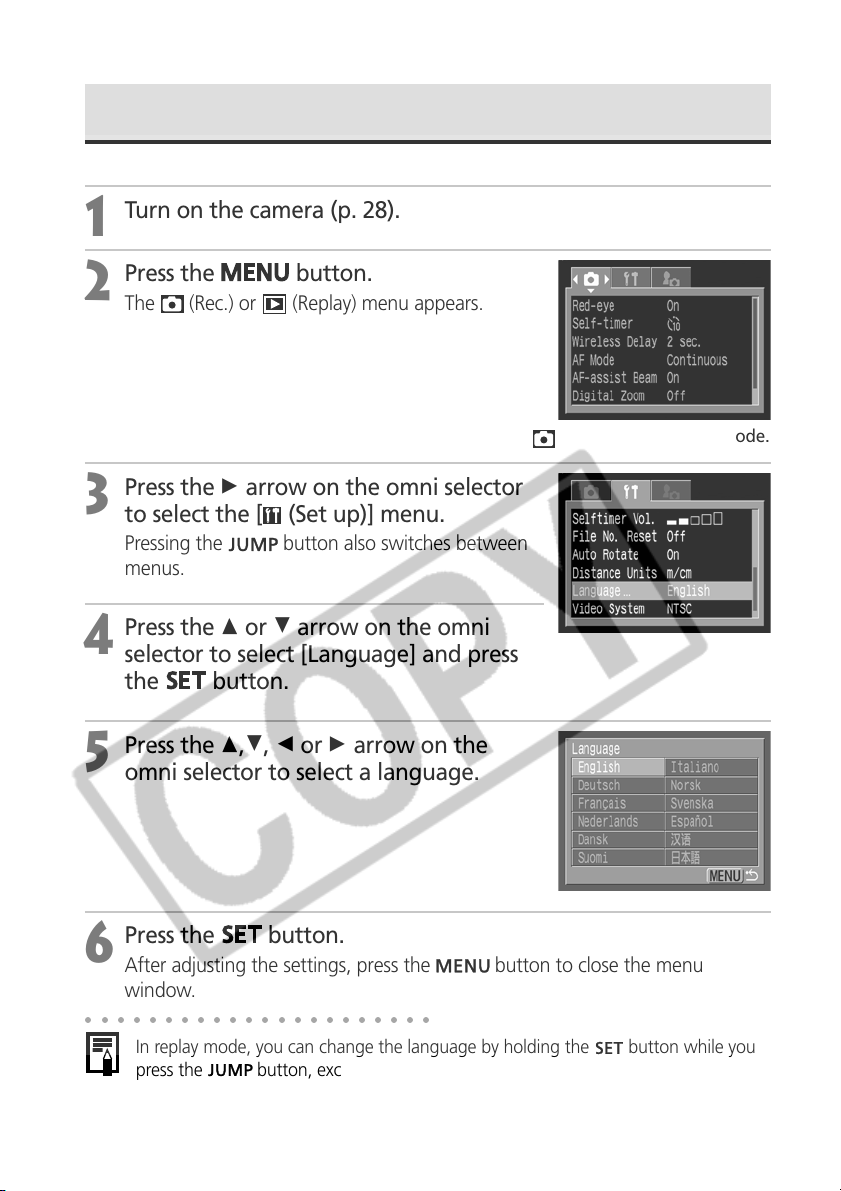
1
Turn on the camera (p. 28).
2
Press the
button.
The [ (Rec.)] or [ (Replay)] menu appears.
3
Press the A arrow on the omni selector
to select the [ (Set up)] menu.
Pressing the button also switches between
menus.
4
Press the C or D arrow on the omni
selector to select [Date/Time] then press
the
button.
The factory default for the date format may differ from that shown here in
some regions.
5
Set the date and time.
• Press the B or A arrow on the omni selector to
select a field to change.
• Press the C or D arrow on the omni selector to
set the values.
• The date can be set up to the year 2030.
6
Press the
button.
After adjusting the settings, press the
button to close the menu window.
(Rec.) Menu in Auto mode.
25
Preparing the Camera, Basic Functions
○○○○○○○○○○○○○○○○○○○○○○
• The Date/Time cannot be inserted in the actual image even if the Date/Time have
been set.
• For printing images with the date on them, refer to page 141.
• Replacing the Date Battery (p. 188).
26
Setting the Language
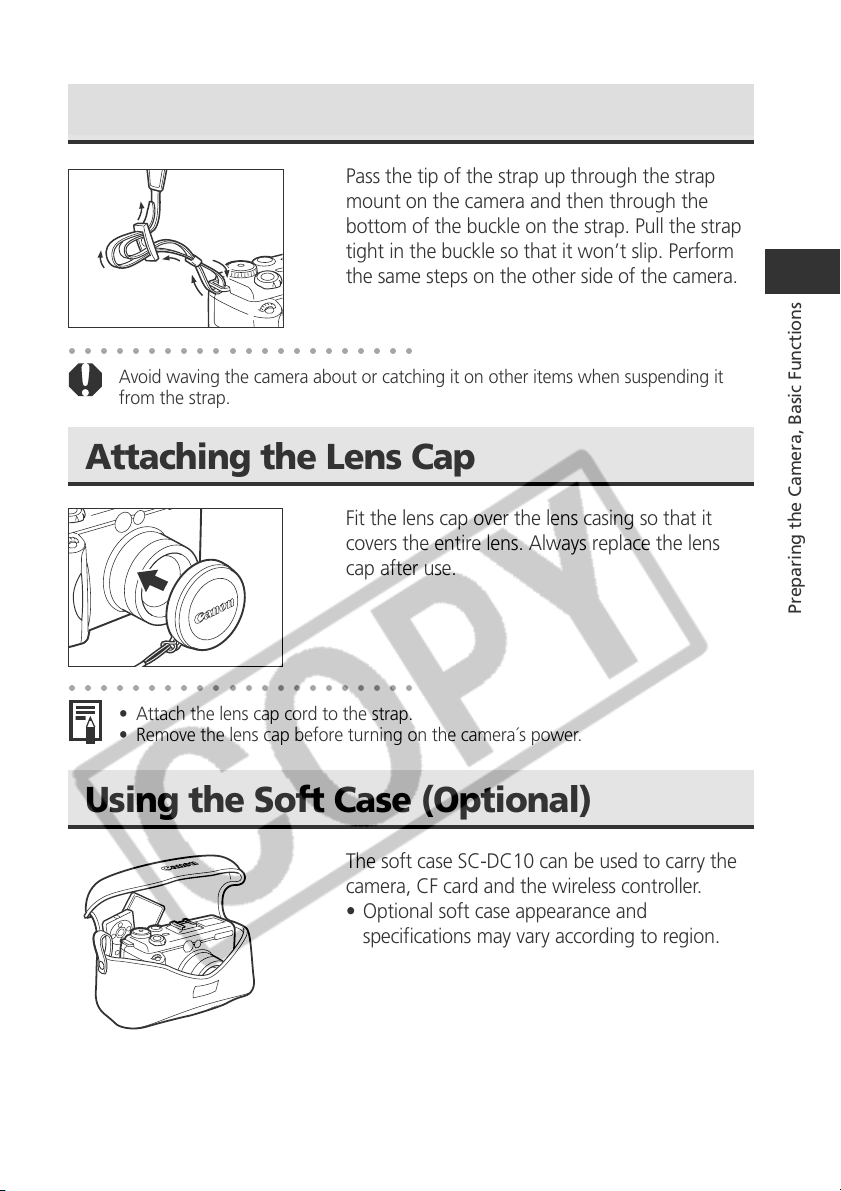
1
Turn on the camera (p. 28).
2
Press the
button.
The (Rec.) or (Replay) menu appears.
3
Press the A arrow on the omni selector
to select the [ (Set up)] menu.
Pressing the button also switches between
menus.
4
Press the C or D arrow on the omni
selector to select [Language] and press
the
button.
5
Press the C,D, B or A arrow on the
omni selector to select a language.
6
Press the
button.
After adjusting the settings, press the button to close the menu
window.
○○○○○○○○○○○○○○○○○○○○○○
In replay mode, you can change the language by holding the button while you
press the
button, except when an optional direct print function compatible
printer (CP series) or a Bubble Jet Printer with the direct print function (optional) is
connected or during movie playback.
(Rec.) Menu in Auto mode.
27
Preparing the Camera, Basic Functions
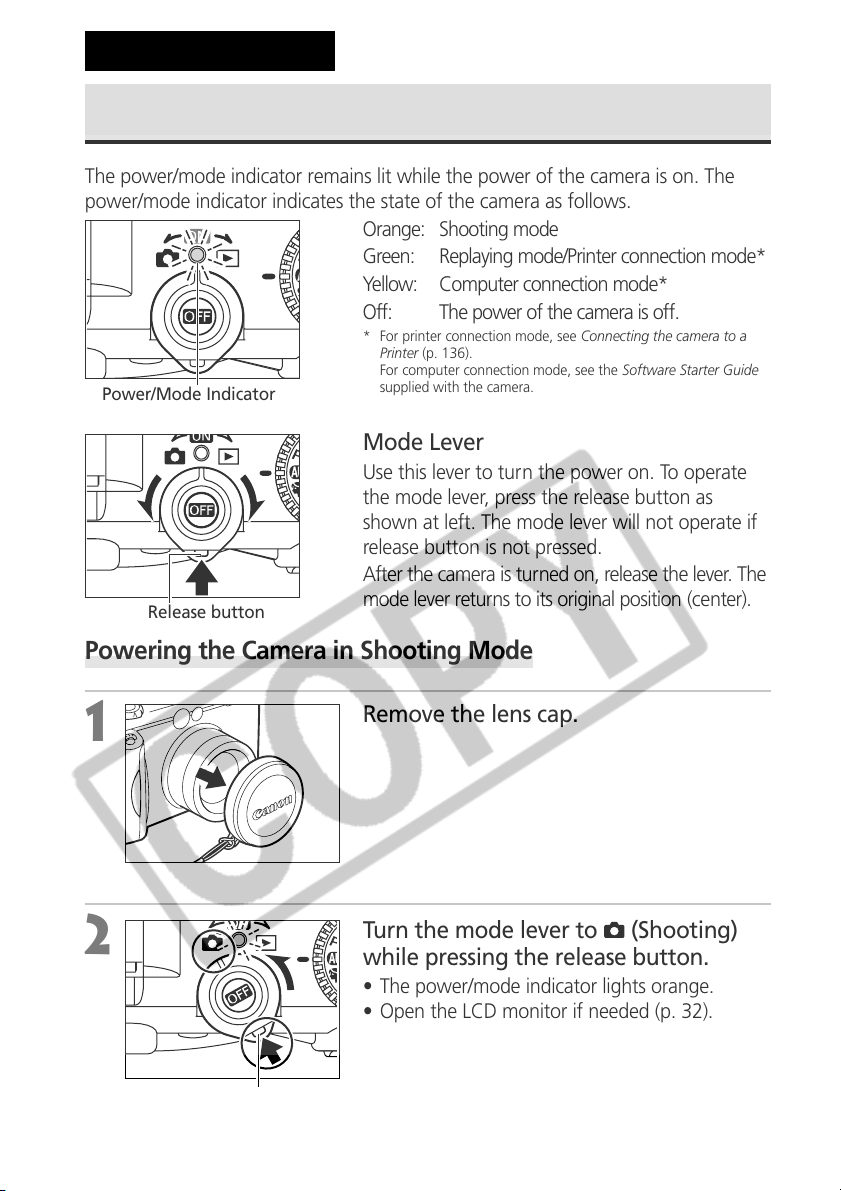
Attaching the Strap
Pass the tip of the strap up through the strap
mount on the camera and then through the
bottom of the buckle on the strap. Pull the strap
tight in the buckle so that it won’t slip. Perform
the same steps on the other side of the camera.
○○○○○○○○○○○○○○○○○○○○○○
Avoid waving the camera about or catching it on other items when suspending it
from the strap.
Attaching the Lens Cap
Fit the lens cap over the lens casing so that it
covers the entire lens. Always replace the lens
cap after use.
○○○○○○○○○○○○○○○○○○○○○○
• Attach the lens cap cord to the strap.
• Remove the lens cap before turning on the camera´s power.
Using the Soft Case (Optional)
The soft case SC-DC10 can be used to carry the
camera, CF card and the wireless controller.
• Optional soft case appearance and
specifications may vary according to region.
28
Basic Functions
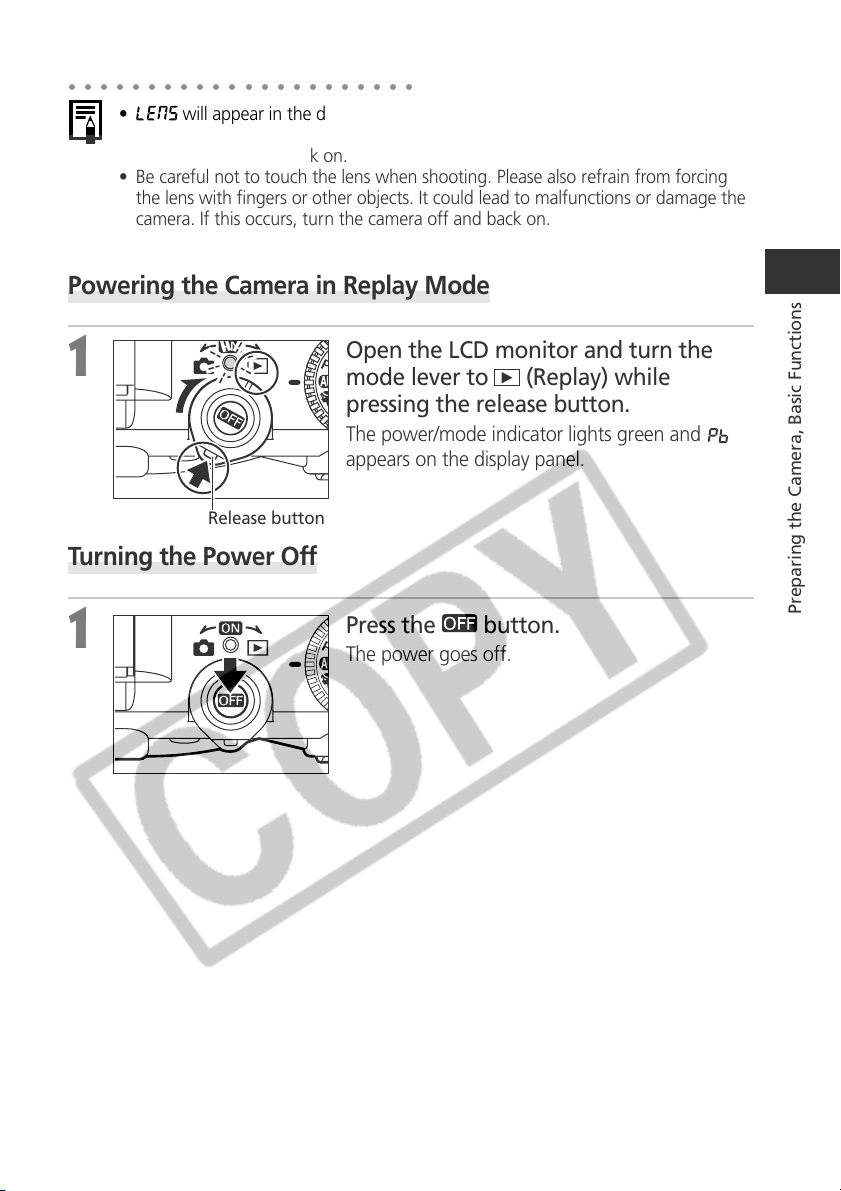
Power/Mode Indicator
Release button
Release button
Turning the Power On / Off
The power/mode indicator remains lit while the power of the camera is on. The
power/mode indicator indicates the state of the camera as follows.
Orange: Shooting mode
Green: Replaying mode/Printer connection mode*
Yellow: Computer connection mode*
Off: The power of the camera is off.
* For printer connection mode, see Connecting the camera to a
Printer (p. 136).
For computer connection mode, see the Software Starter Guide
supplied with the camera.
Mode Lever
Use this lever to turn the power on. To operate
the mode lever, press the release button as
shown at left. The mode lever will not operate if
release button is not pressed.
After the camera is turned on, release the lever. The
mode lever returns to its original position (center).
Powering the Camera in Shooting Mode
1
Remove the lens cap.
2
Turn the mode lever to (Shooting)
while pressing the release button.
• The power/mode indicator lights orange.
• Open the LCD monitor if needed (p. 32).
29
Preparing the Camera, Basic Functions
○○○○○○○○○○○○○○○○○○○○○○
• will appear in the display panel and a warning beep will sound if you turn
on the camera with the lens cap on. If this occurs, remove the lens cap and turn
the camera off and back on.
• Be careful not to touch the lens when shooting. Please also refrain from forcing
the lens with fingers or other objects. It could lead to malfunctions or damage the
camera. If this occurs, turn the camera off and back on.
Powering the Camera in Replay Mode
1
Open the LCD monitor and turn the
mode lever to
(Replay) while
pressing the release button.
The power/mode indicator lights green and
appears on the display panel.
Turning the Power Off
1
Press the button.
The power goes off.
Release button
30
○○○○○○○○○○○○○○○○○○○○○○
• You will hear a start-up sound and see the start-up image when the power comes
on. (To change the start-up sound and image, see below and pages 46 and 166.)
• The start-up image does not appear when the LCD monitor is off or the
terminal is connected to a TV.
Turning on the camera without the start-up sound and image
Press and hold the
button, then turn on the power.
Power-saving Function
The camera is equipped with a power-saving function. If [Auto Power Down] is set to
[On], the power goes off according to the following conditions.
Shooting Mode: Powers down approximately three minutes after the last
time a camera control is accessed. The LCD monitor will shut
off approximately three minutes after the last time a camera
control is accessed even if the power-saving function is
turned off.
Replaying Mode: Powers down approximately five minutes after the last time
a camera control is accessed.
Printer Connection Mode:
Powers down approximately five minutes after the last time
a camera control is accessed on the camera or something is
printed on the printer.
• Turning the mode lever toward
or will restore power when the camera
shuts down with the power-saving function.
• Please note that the camera continues to consume a minimal amount of power
even when the power-saving function shuts it down.
• The power-saving function is disabled while a slide show plays on the camera or
during a computer connection (p. 124, p.155).
• You can turn off the power-saving function in the [
(Set up)] menu (p. 162).
Turning the Power On / Off (continued)
31
Preparing the Camera, Basic Functions
Switching between Shooting and Replaying
You can quickly switch between Shooting mode and Replaying mode. This is
convenient when you wish to shoot again after checking or deleting an image
immediately after it is shot.
2 Shooting Mode
1
Open the LCD monitor and turn the mode lever to (Replay)
while pressing the release button (p. 29).
• The camera switches to Replaying mode. In this case, the lens does not
retract. (If the mode lever is turned to
(Replay) again, the lens retracts.)
• To return to Shooting mode, turn the mode lever to
(Shooting) while
pressing the release button or press the shutter button halfway.
2 Replaying Mode
1
Remove the lens cap.
2
Press the shutter button halfway or turn the mode lever to
(Shooting) while pressing the release button (p. 28).
The camera switches to shooting mode.
32
Using the LCD Monitor
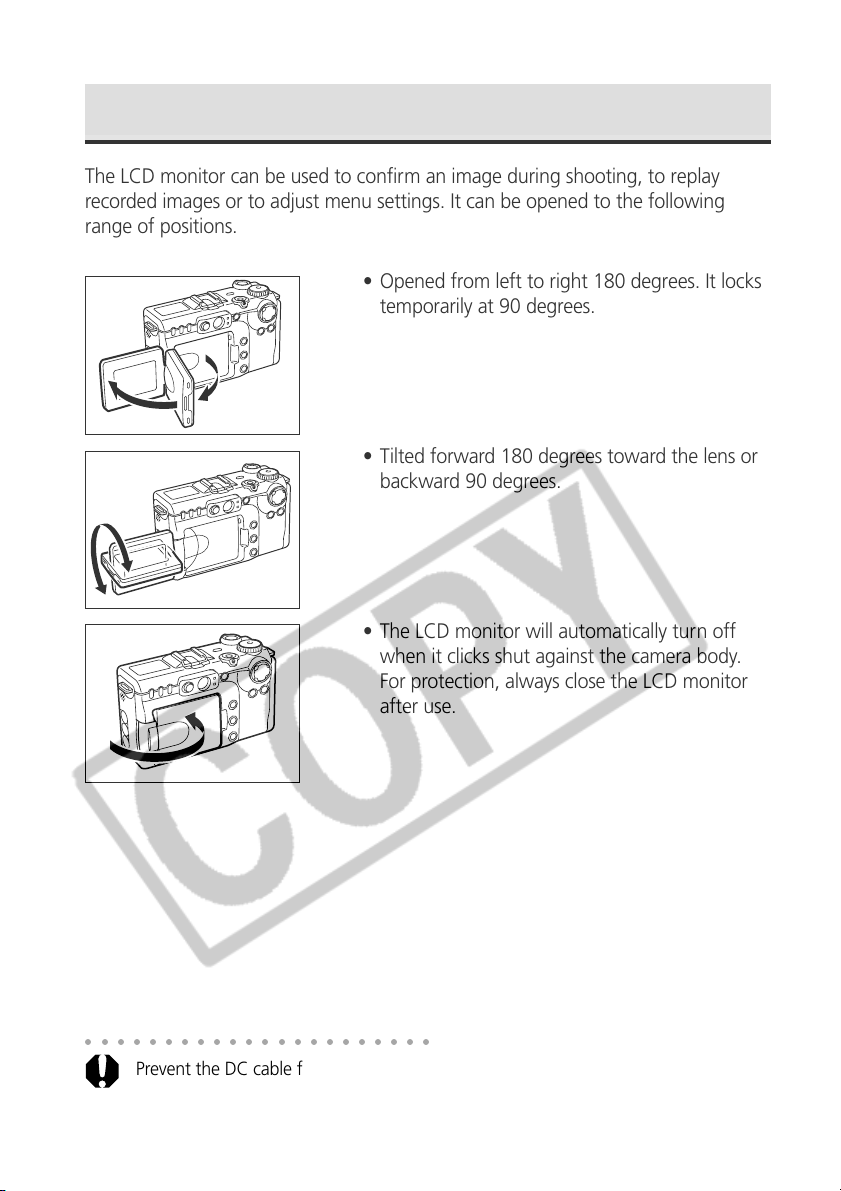
The LCD monitor can be used to confirm an image during shooting, to replay
recorded images or to adjust menu settings. It can be opened to the following
range of positions.
• Opened from left to right 180 degrees. It locks
temporarily at 90 degrees.
• Tilted forward 180 degrees toward the lens or
backward 90 degrees.
• The LCD monitor will automatically turn off
when it clicks shut against the camera body.
For protection, always close the LCD monitor
after use.
○○○○○○○○○○○○○○○○○○○○○○
Prevent the DC cable from touching the LCD monitor when the camera is connected
to a compact power adapter.
33
Preparing the Camera, Basic Functions
The LCD monitor can also be positioned as below.
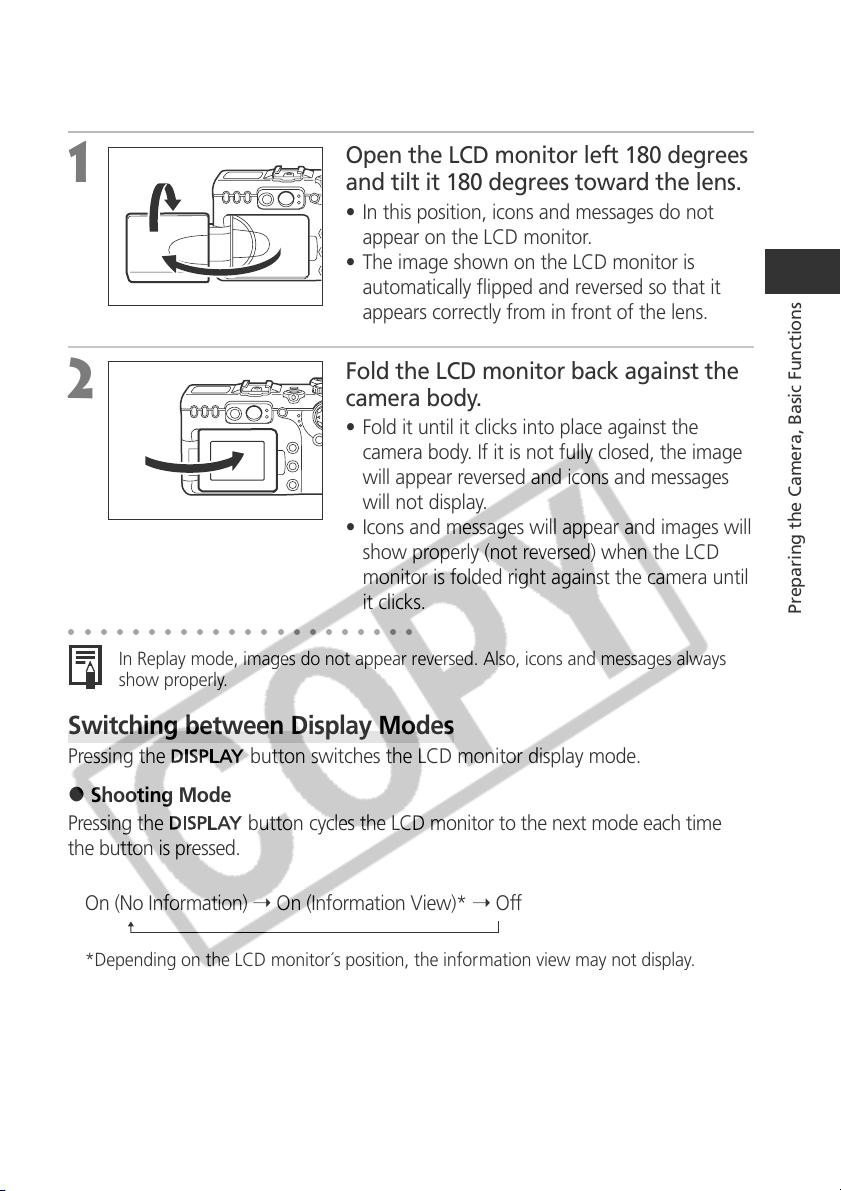
1
Open the LCD monitor left 180 degrees
and tilt it 180 degrees toward the lens.
• In this position, icons and messages do not
appear on the LCD monitor.
• The image shown on the LCD monitor is
automatically flipped and reversed so that it
appears correctly from in front of the lens.
2
Fold the LCD monitor back against the
camera body.
• Fold it until it clicks into place against the
camera body. If it is not fully closed, the image
will appear reversed and icons and messages
will not display.
• Icons and messages will appear and images will
show properly (not reversed) when the LCD
monitor is folded right against the camera until
it clicks.
○○○○○○○○○○○○○○○○○○○○○○
In Replay mode, images do not appear reversed. Also, icons and messages always
show properly.
Switching between Display Modes
Pressing the
button switches the LCD monitor display mode.
2 Shooting Mode
Pressing the
button cycles the LCD monitor to the next mode each time
the button is pressed.
On (No Information) ➝ On (Information View)* ➝ Off
*Depending on the LCD monitor´s position, the information view may not display.
34
Using the LCD Monitor (continued)
○○○○○○○○○○○○○○○○○○○○○○
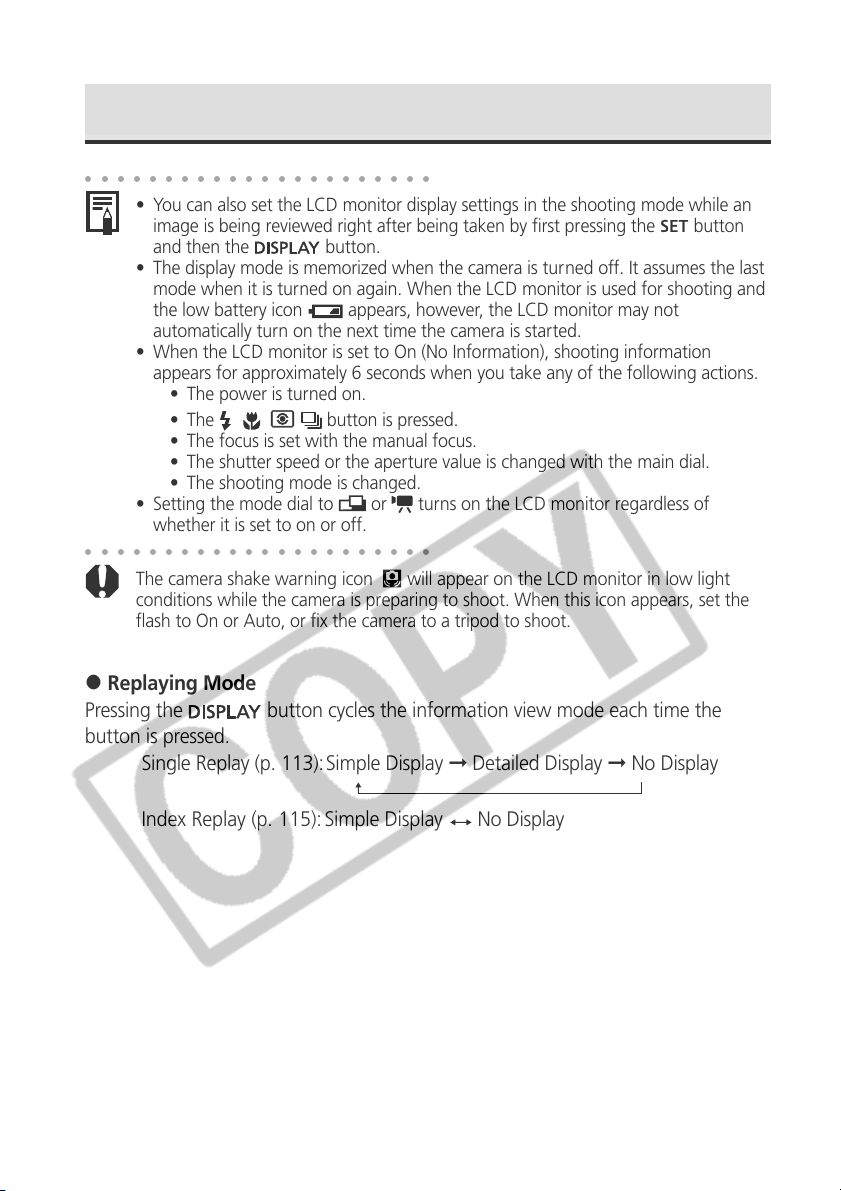
• You can also set the LCD monitor display settings in the shooting mode while an
image is being reviewed right after being taken by first pressing the
button
and then the
button.
• The display mode is memorized when the camera is turned off. It assumes the last
mode when it is turned on again. When the LCD monitor is used for shooting and
the low battery icon
appears, however, the LCD monitor may not
automatically turn on the next time the camera is started.
• When the LCD monitor is set to On (No Information), shooting information
appears for approximately 6 seconds when you take any of the following actions.
• The power is turned on.
• The
button is pressed.
• The focus is set with the manual focus.
• The shutter speed or the aperture value is changed with the main dial.
• The shooting mode is changed.
• Setting the mode dial to
or turns on the LCD monitor regardless of
whether it is set to on or off.
○○○○○○○○○○○○○○○○○○○○○○
The camera shake warning icon will appear on the LCD monitor in low light
conditions while the camera is preparing to shoot. When this icon appears, set the
flash to On or Auto, or fix the camera to a tripod to shoot.
2 Replaying Mode
Pressing the
button cycles the information view mode each time the
button is pressed.
Single Replay (p. 113):Simple Display ➞ Detailed Display ➞ No Display
Index Replay (p. 115): Simple Display
No Display
35
Preparing the Camera, Basic Functions
Information Displayed on the LCD Monitor
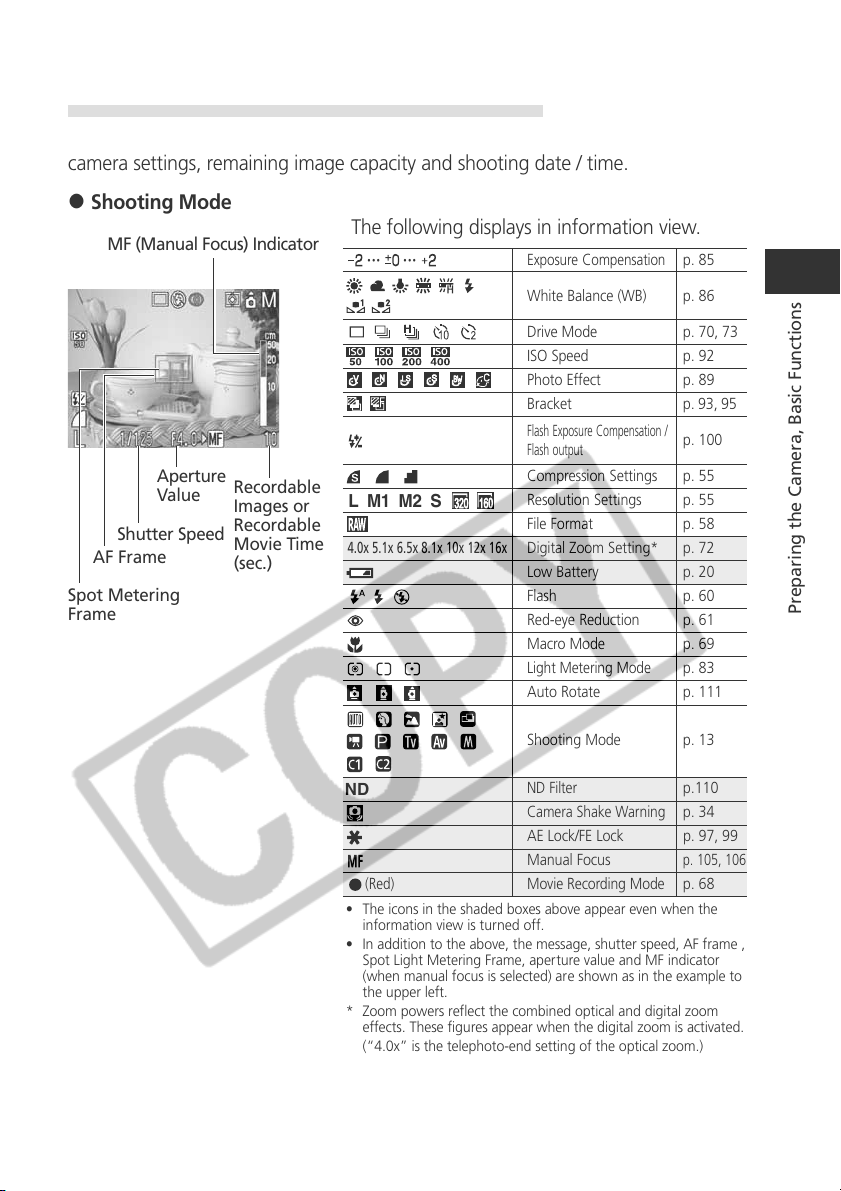
The LCD monitor displays information in Shooting or Replaying mode, such as the
camera settings, remaining image capacity and shooting date / time.
2 Shooting Mode
The following displays in information view.
• The icons in the shaded boxes above appear even when the
information view is turned off.
• In addition to the above, the message, shutter speed, AF frame ,
Spot Light Metering Frame, aperture value and MF indicator
(when manual focus is selected) are shown as in the example to
the upper left.
* Zoom powers reflect the combined optical and digital zoom
effects. These figures appear when the digital zoom is activated.
(“4.0x” is the telephoto-end setting of the optical zoom.)
Shutter Speed
Aperture
Value
MF (Manual Focus) Indicator
Recordable
Images or
Recordable
Movie Time
(sec.)
AF Frame
Spot Metering
Frame
••• •••
4.0x 5.1x 6.5x 8.1x 10x 12x 16x
L M1 M2 S
(Red)
ND
Exposure Compensation
p. 85
White Balance (WB)
p. 86
Drive Mode p. 70, 73
ISO Speed p. 92
Photo Effect p. 89
Bracket p. 93, 95
Flash Exposure Compensation /
Flash output
p. 100
Compression Settings p. 55
Resolution Settings p. 55
File Format p. 58
Digital Zoom Setting* p. 72
Low Battery p. 20
Flash p. 60
Red-eye Reduction p. 61
Macro Mode p. 69
Light Metering Mode
p. 83
Auto Rotate p. 111
Shooting Mode p. 13
ND Filter
p.110
Camera Shake Warning
p. 34
AE Lock/FE Lock p. 97, 99
Manual Focus
p. 105, 106
Movie Recording Mode
p. 68
36
Using the LCD Monitor (continued)
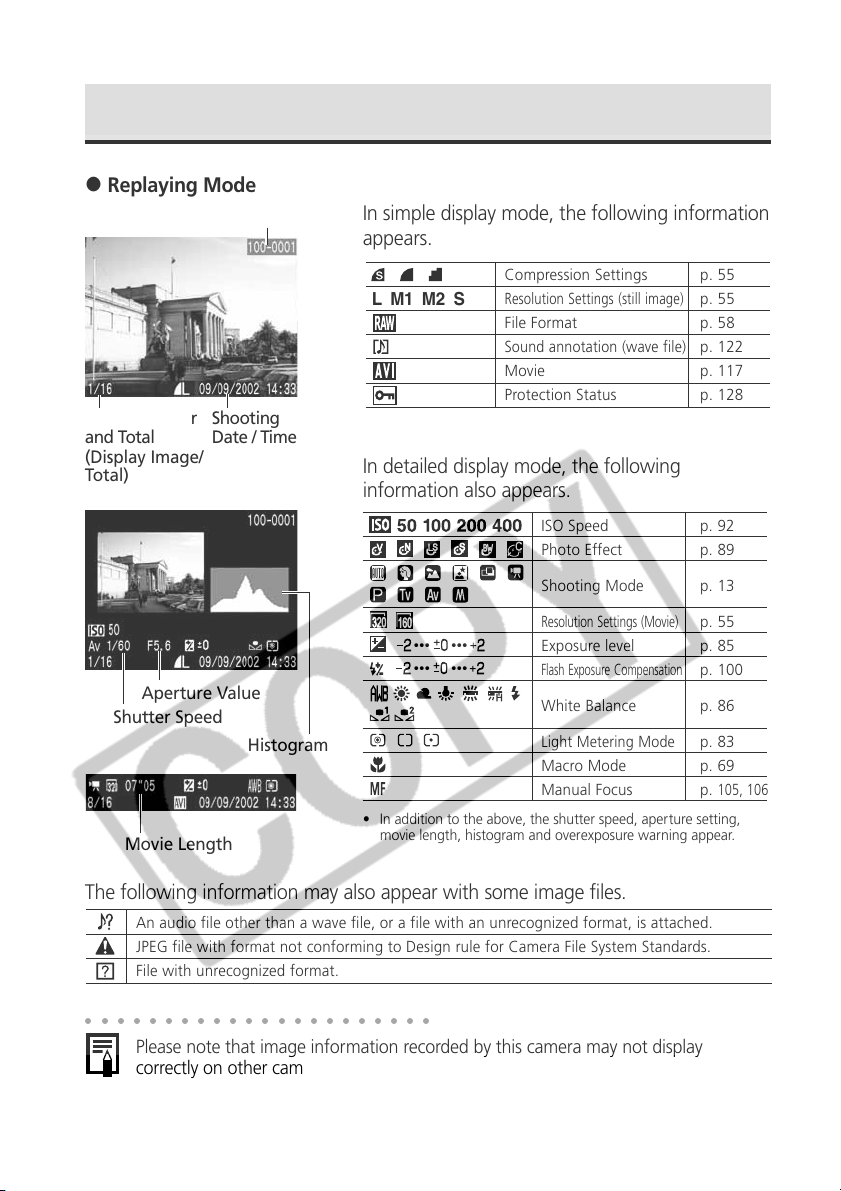
2 Replaying Mode
In simple display mode, the following information
appears.
In detailed display mode, the following
information also appears.
• In addition to the above, the shutter speed, aperture setting,
movie length, histogram and overexposure warning appear.
The following information may also appear with some image files.
○○○○○○○○○○○○○○○○○○○○○○
Please note that image information recorded by this camera may not display
correctly on other cameras and image information recorded by other cameras may
not display correctly on this camera.
File Number
Image Number
and Total
(Display Image/
Total)
Shooting
Date / Time
Aperture Value
Shutter Speed
Histogram
L M1 M2 S
Compression Settings p. 55
Resolution Settings (still image)
p. 55
File Format p. 58
Sound annotation (wave file)
p. 122
Movie p. 117
Protection Status p. 128
••• •••
••• •••
ISO Speed p. 92
Photo Effect p. 89
Shooting Mode p. 13
Resolution Settings (Movie)
p. 55
Exposure level p. 85
Flash Exposure Compensation
p. 100
White Balance p. 86
Light Metering Mode
p. 83
Macro Mode p. 69
Manual Focus p.
105, 106
An audio file other than a wave file, or a file with an unrecognized format, is attached.
JPEG file with format not conforming to Design rule for Camera File System Standards.
File with unrecognized format.
Movie Length
37
Preparing the Camera, Basic Functions
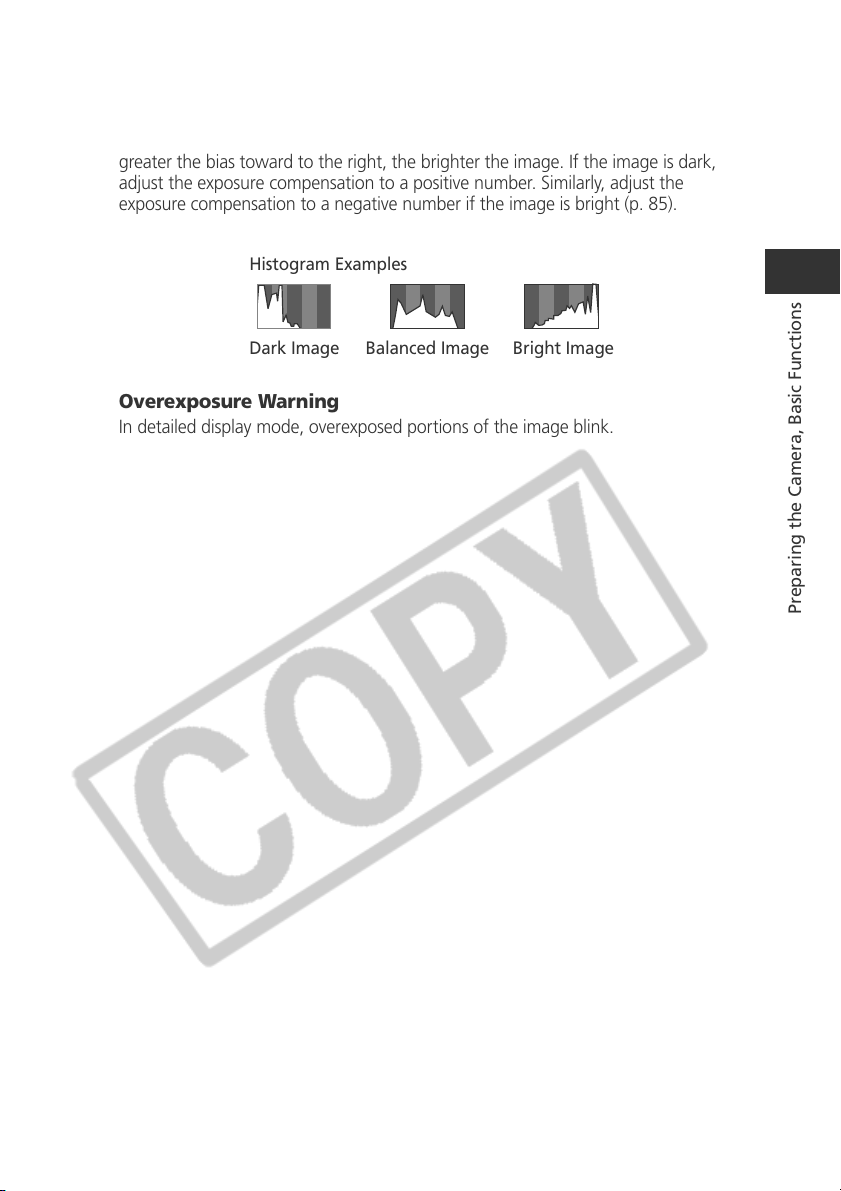
About the Histogram
The histogram is a graph that allows you to judge the brightness of the recorded
image. The greater the bias toward the left in the graph, the darker the image. The
greater the bias toward to the right, the brighter the image. If the image is dark,
adjust the exposure compensation to a positive number. Similarly, adjust the
exposure compensation to a negative number if the image is bright (p. 85).
Overexposure Warning
In detailed display mode, overexposed portions of the image blink.
Histogram Examples
Dark Image Balanced Image Bright Image
38
Using the Optical Viewfinder to Shoot
Setting the LCD monitor to Off (p. 33) and using the optical viewfinder can help
conserve power while shooting.
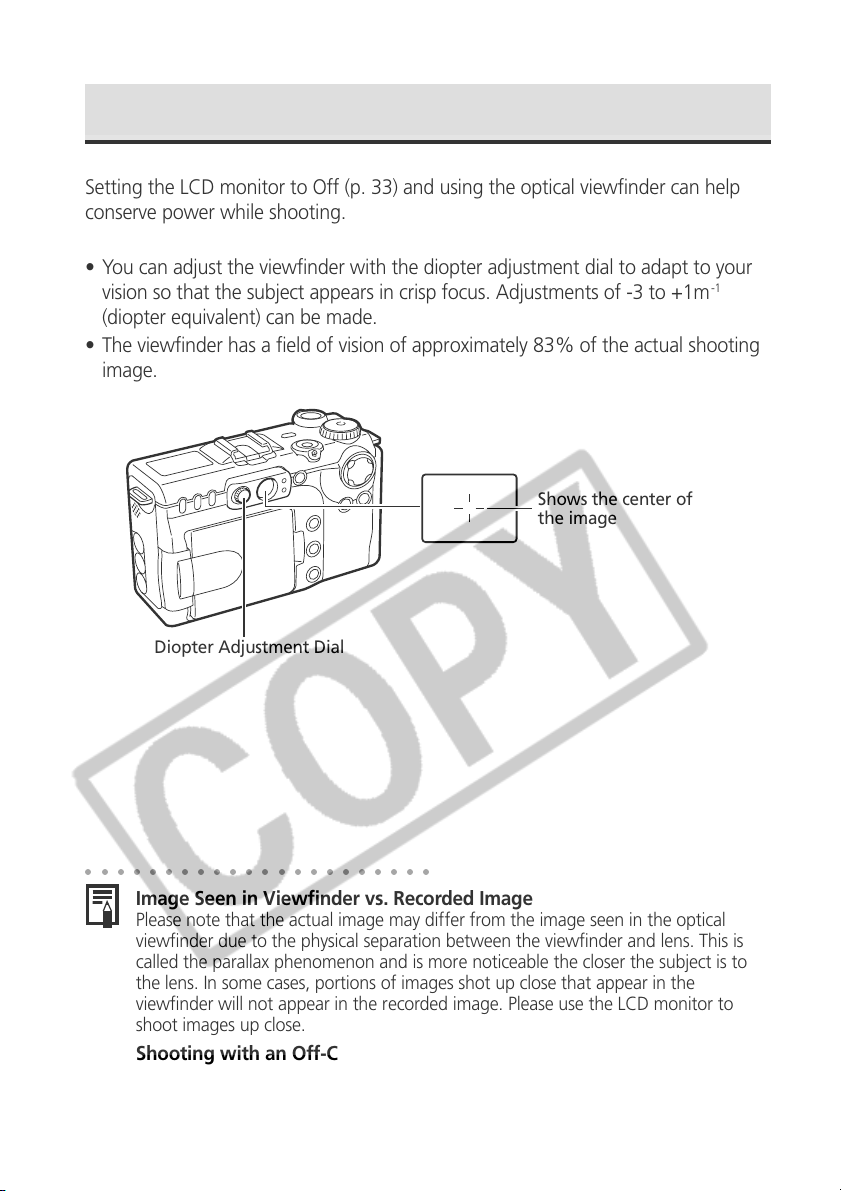
• You can adjust the viewfinder with the diopter adjustment dial to adapt to your
vision so that the subject appears in crisp focus. Adjustments of -3 to +1m
-1
(diopter equivalent) can be made.
• The viewfinder has a field of vision of approximately 83% of the actual shooting
image.
Diopter Adjustment Dial
Shows the center of
the image
○○○○○○○○○○○○○○○○○○○○○○
Image Seen in Viewfinder vs. Recorded Image
Please note that the actual image may differ from the image seen in the optical
viewfinder due to the physical separation between the viewfinder and lens. This is
called the parallax phenomenon and is more noticeable the closer the subject is to
the lens. In some cases, portions of images shot up close that appear in the
viewfinder will not appear in the recorded image. Please use the LCD monitor to
shoot images up close.
Shooting with an Off-Center AF Frame Selected
When setting the AF frame to the desired position to shoot an image, please use the
LCD monitor (See Selecting an AF Frame, p. 82).
39
Preparing the Camera, Basic Functions
AF Frame
Indicators
Pressing the Shutter Button
The shutter button features a two-stage action.
● Pressing Halfway
Pressing halfway automatically sets the exposure,
focus and white balance.
• The indicators light or blink as follows.
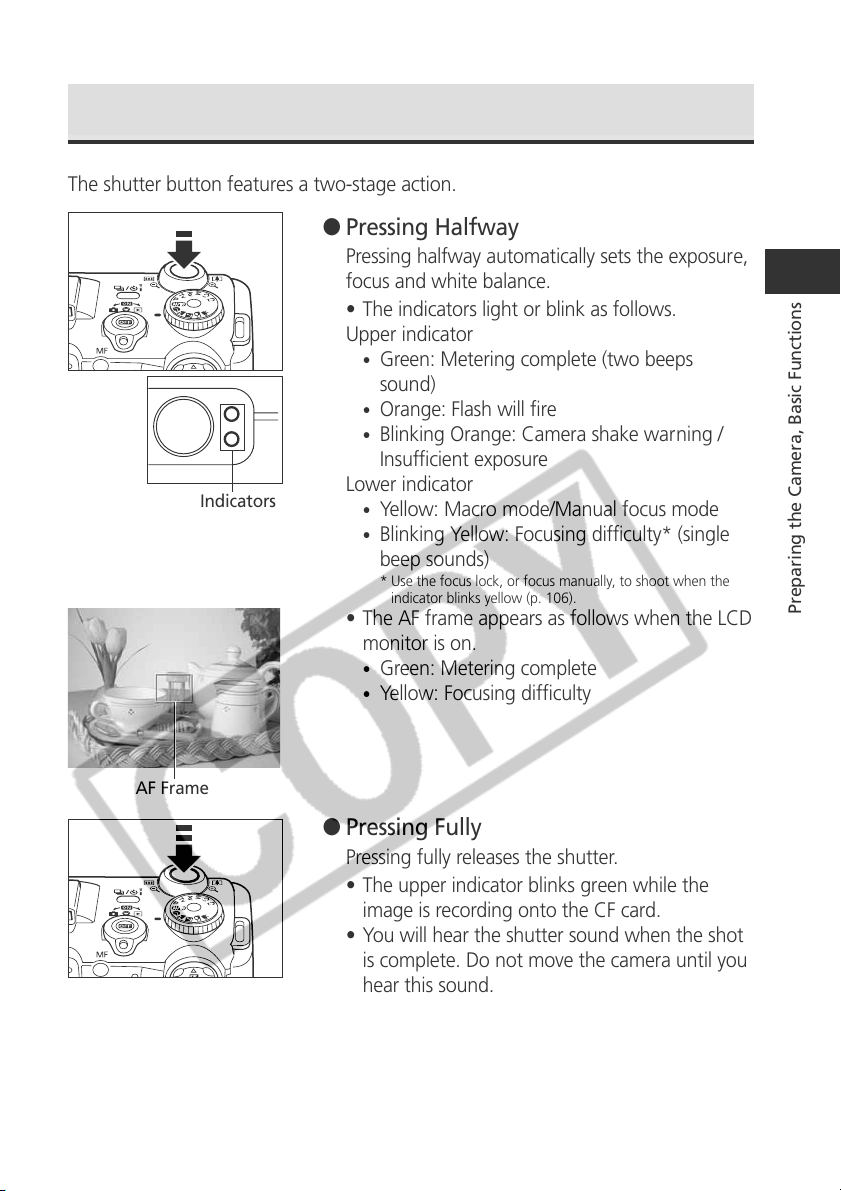
Upper indicator
•
Green: Metering complete (two beeps
sound)
•
Orange: Flash will fire
•
Blinking Orange: Camera shake warning /
Insufficient exposure
Lower indicator
•
Yellow: Macro mode/Manual focus mode
•
Blinking Yellow: Focusing difficulty* (single
beep sounds)
* Use the focus lock, or focus manually, to shoot when the
indicator blinks yellow (p. 106).
• The AF frame appears as follows when the LCD
monitor is on.
•
Green: Metering complete
•
Yellow: Focusing difficulty
● Pressing Fully
Pressing fully releases the shutter.
• The upper indicator blinks green while the
image is recording onto the CF card.
• You will hear the shutter sound when the shot
is complete. Do not move the camera until you
hear this sound.
40
○○○○○○○○○○○○○○○○○○○○○○
• If the orange or yellow indicator blinks while you press halfway, you can still press
fully to take the shot.
• Images are first saved into the camera’s internal memory before being recorded
onto the CF card, allowing the next images to be taken immediately as long as
sufficient space is available in the internal memory.
• The beep and shutter sound can be set On / Off in the Set up menu (p. 162, 163).
• When the shutter sound is set to Off, but the beep is set to On, one beep will
sound when the shutter button is fully pressed.
• There is no shutter sound in movie mode.
• Shots cannot be taken while the flash is charging.
AF-assist Beam
• The AF-assist beam will sometimes emit when the shutter button is pressed
halfway to assist focusing in certain conditions, i.e. dark conditions.
• The AF-assist beam can be turned off (p. 159).
If animals are your subject, turn off the beam when shooting in the dark to avoid
startling them. However, please keep in mind the following facts.
- Turning the AF-assist beam off may make it more difficult for the camera to
focus.
- The red-eye reduction lamp may emit when you press the shutter button
halfway even if the AF-assist beam is turned off.
In order to prevent any lamp from emitting before the flash fires, set both the red-
eye reduction function and the AF-assist beam to [Off] in the Shooting menu.
Pressing the Shutter Button (continued)
41
Preparing the Camera, Basic Functions
Using the Zoom (Focal Length)
The zoom can be adjusted from 35 to 140 mm (equivalent to 35 mm film format).
Telephoto / Wide Angle
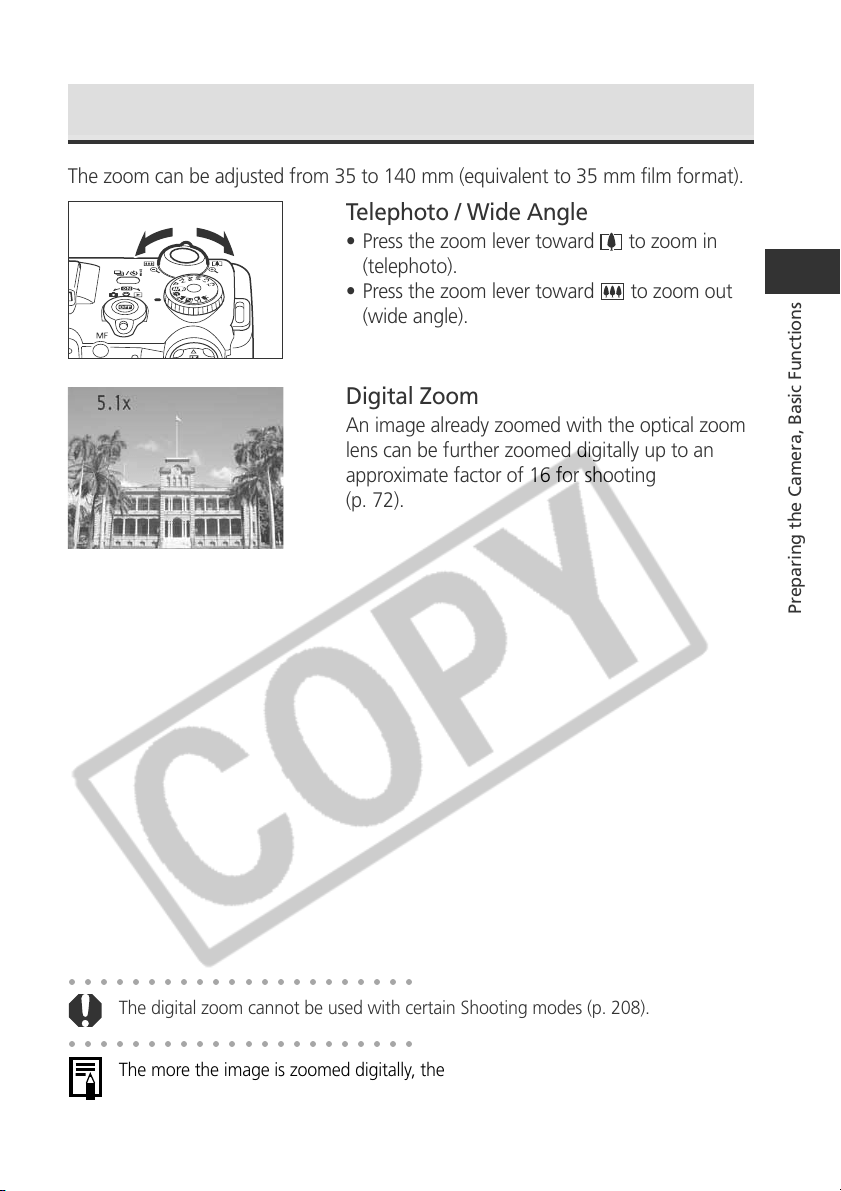
• Press the zoom lever toward to zoom in
(telephoto).
• Press the zoom lever toward
to zoom out
(wide angle).
Digital Zoom
An image already zoomed with the optical zoom
lens can be further zoomed digitally up to an
approximate factor of 16 for shooting
(p. 72).
○○○○○○○○○○○○○○○○○○○○○○
The digital zoom cannot be used with certain Shooting modes (p. 208).
○○○○○○○○○○○○○○○○○○○○○○
The more the image is zoomed digitally, the coarser its image quality becomes.
42
Selecting Menus and Settings
Menus are used to adjust shooting, replaying, date / time and beep sound settings.
Menus can be displayed by either pressing the
button or the
button.
Watch the LCD monitor while performing the following procedures.
Selecting Settings by Pressing the
Button (Only in Shooting Mode)
1
Turn the mode lever to (Shooting).
2
Press the
button to turn on the LCD monitor.
Some functions can also be operated from the display panel.
3
Press the
button.
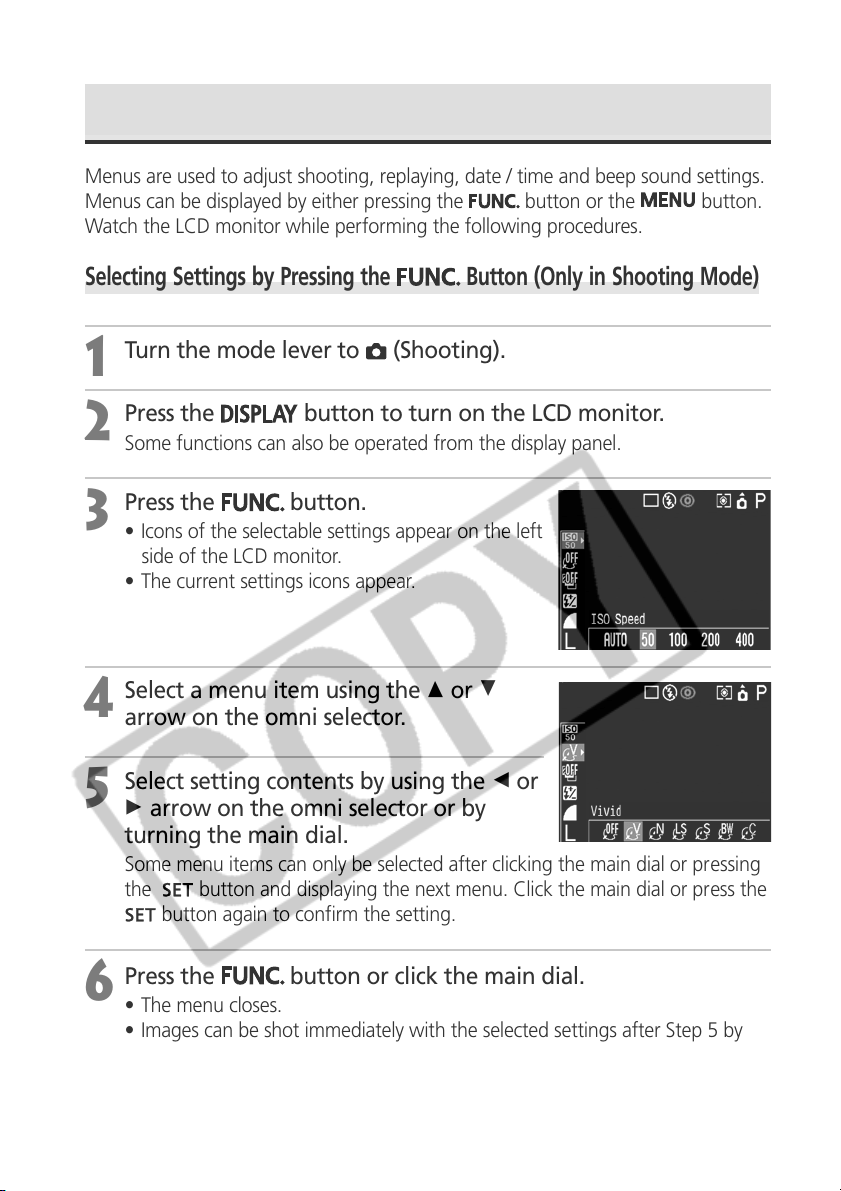
• Icons of the selectable settings appear on the left
side of the LCD monitor.
• The current settings icons appear.
4
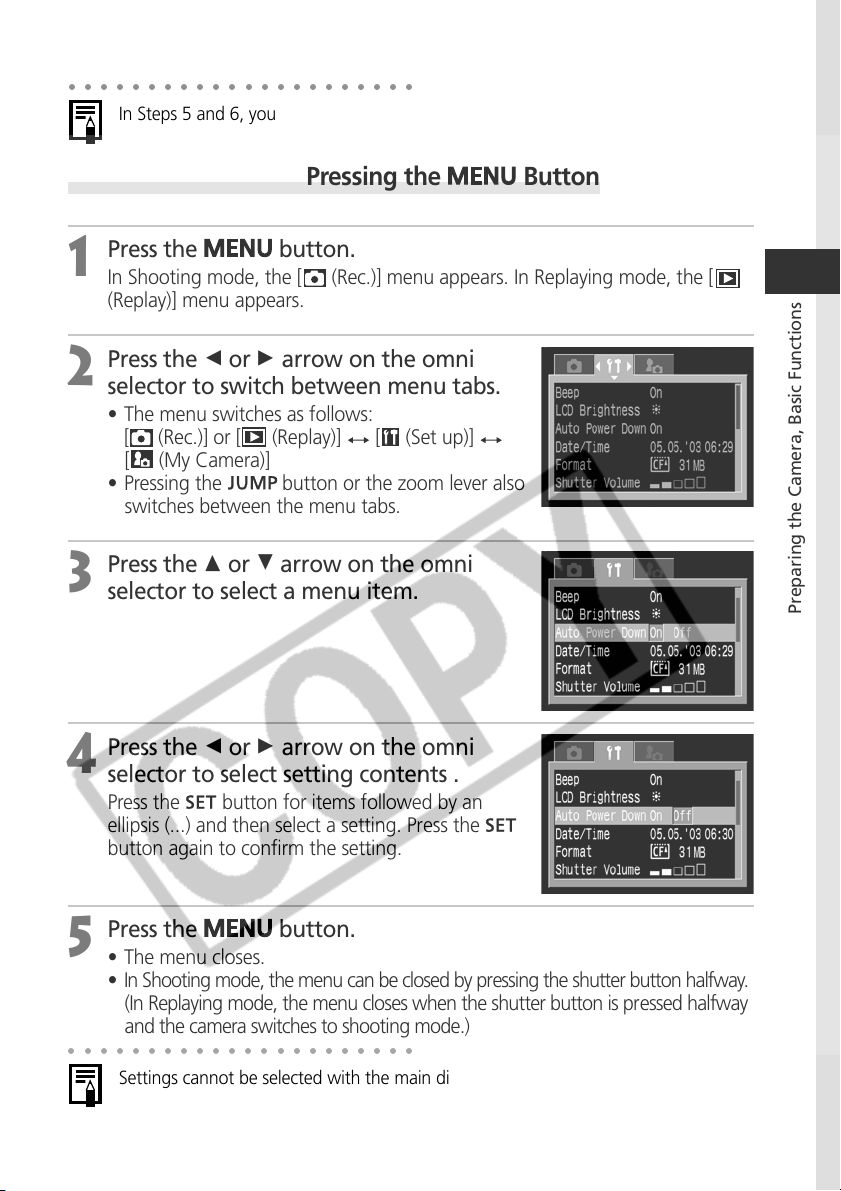
Select a menu item using the C or D
arrow on the omni selector.
5
Select setting contents by using the B or
A arrow on the omni selector or by
turning the main dial.
Some menu items can only be selected after clicking the main dial or pressing
the
button and displaying the next menu. Click the main dial or press the
button again to confirm the setting.
6
Press the
button or click the main dial.
• The menu closes.
• Images can be shot immediately with the selected settings after Step 5 by
pressing the shutter button.
43
Preparing the Camera, Basic Functions
○○○○○○○○○○○○○○○○○○○○○○
In Steps 5 and 6, you can easily select settings using the main dial.
Selecting Settings by Pressing the
Button
1
Press the
button.
In Shooting mode, the [ (Rec.)] menu appears. In Replaying mode, the [
(Replay)] menu appears.
2
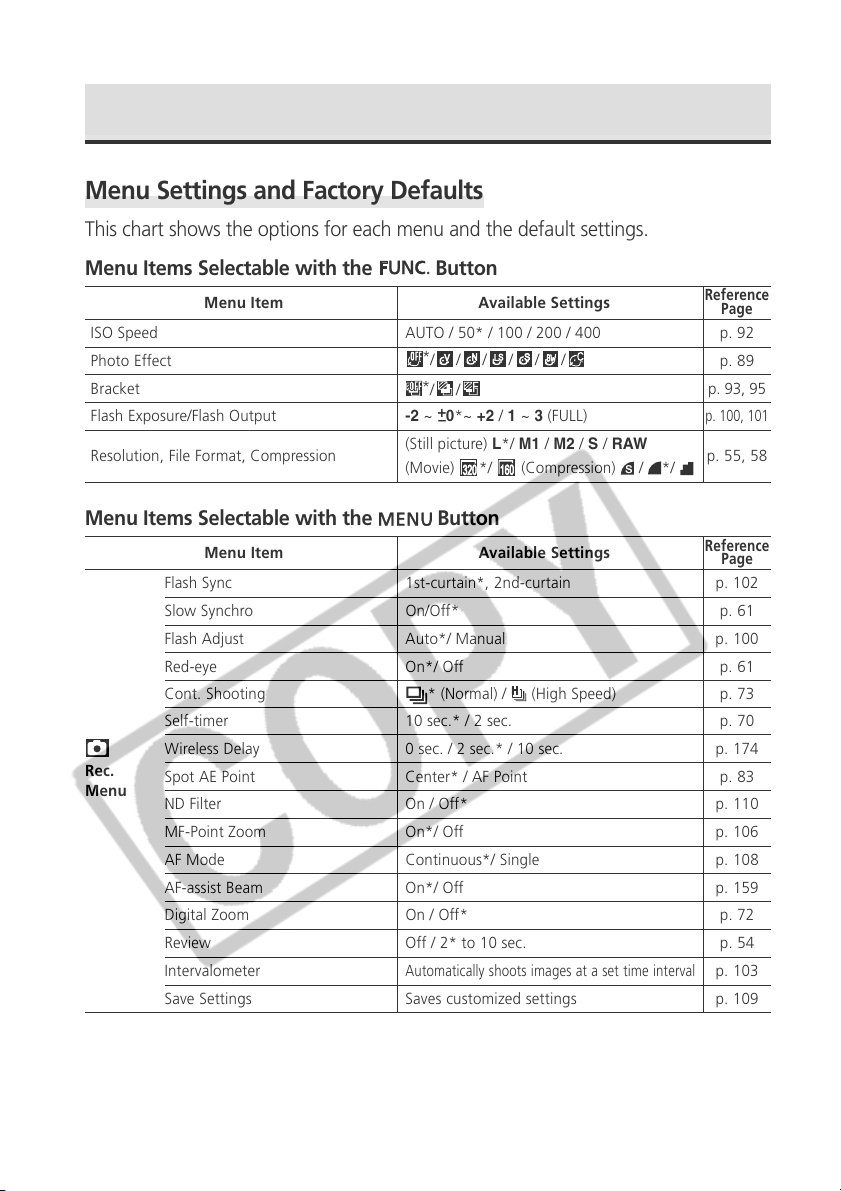
Press the B or A arrow on the omni
selector to switch between menu tabs.
• The menu switches as follows:
[
(Rec.)] or [ (Replay)] [ (Set up)]
[ (My Camera)]
• Pressing the
button or the zoom lever also
switches between the menu tabs.
3
Press the C or D arrow on the omni
selector to select a menu item.
4
Press the B or A arrow on the omni
selector to select setting contents .
Press the
button for items followed by an
ellipsis (...) and then select a setting. Press the
button again to confirm the setting.
5
Press the
button.
• The menu closes.
• In Shooting mode, the menu can be closed by pressing the shutter button halfway.
(In Replaying mode, the menu closes when the shutter button is pressed halfway
and the camera switches to shooting mode.)
○○○○○○○○○○○○○○○○○○○○○○
Settings cannot be selected with the main dial.
44
Selecting Menus and Settings (continued)
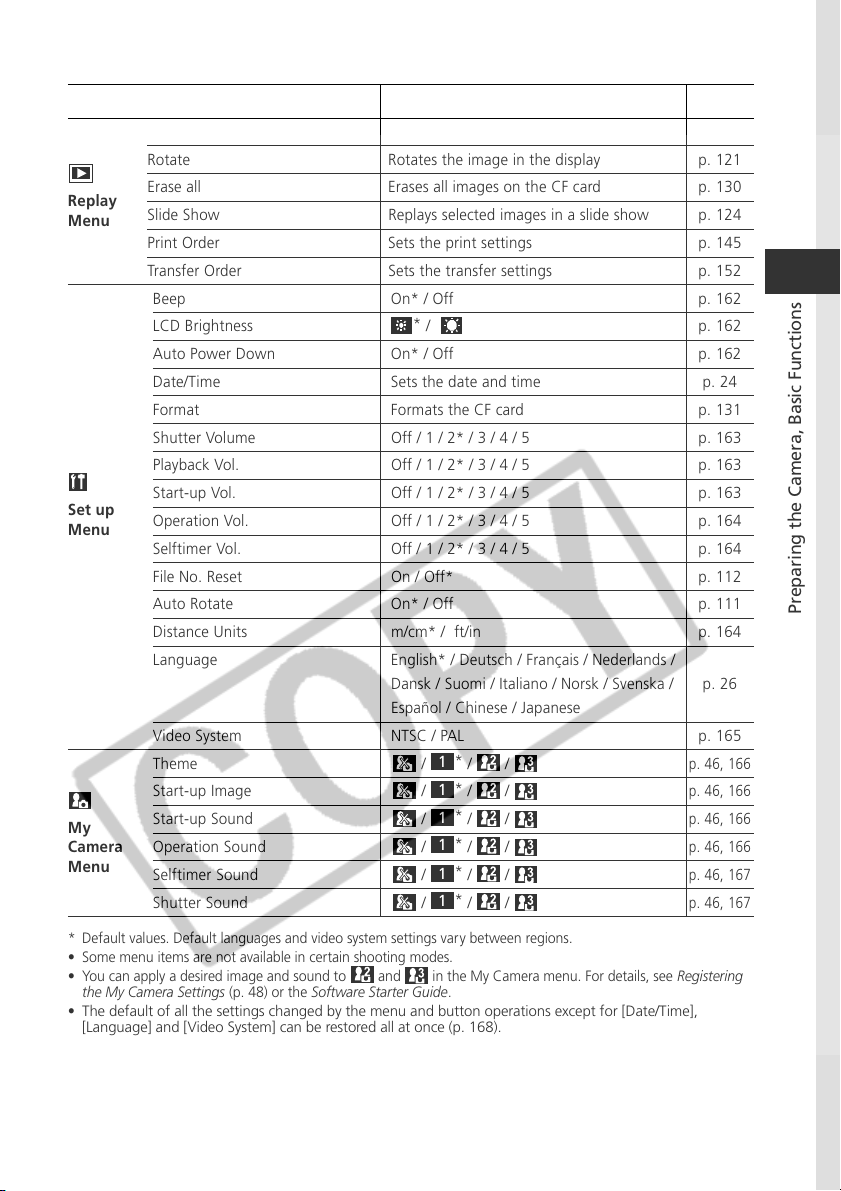
Menu Settings and Factory Defaults
This chart shows the options for each menu and the default settings.
Menu Items Selectable with the
Button
Menu Items Selectable with the
Button
Menu Item Available Settings
Reference
Page
ISO Speed AUTO / 50* / 100 / 200 / 400 p. 92
Photo Effect p. 89
Bracket p. 93, 95
Flash Exposure/Flash Output -2 ~
+
–
0*~ +2 / 1 ~ 3 (FULL)
p. 100, 101
Resolution, File Format, Compression
(Still picture) L*/ M1 / M2 / S / RAW
p. 55, 58
(Movie)
*/
(Compression) / */
*
/ / / / / /
*
/ /
Menu Item Available Settings
Reference
Page
Flash Sync 1st-curtain*, 2nd-curtain p. 102
Slow Synchro On/Off* p. 61
Flash Adjust Auto*/ Manual p. 100
Red-eye On*/ Off p. 61
Cont. Shooting * (Normal) / (High Speed) p. 73
Self-timer 10 sec.* / 2 sec. p. 70
Wireless Delay 0 sec. / 2 sec.* / 10 sec. p. 174
Spot AE Point Center* / AF Point p. 83
ND Filter On / Off* p. 110
MF-Point Zoom On*/ Off p. 106
AF Mode Continuous*/ Single p. 108
AF-assist Beam On*/ Off p. 159
Digital Zoom On / Off* p. 72
Review Off / 2* to 10 sec. p. 54
Intervalometer
Automatically shoots images at a set time interval
p. 103
Save Settings Saves customized settings p. 109
Rec.
Menu
45
Preparing the Camera, Basic Functions
* Default values. Default languages and video system settings vary between regions.
• Some menu items are not available in certain shooting modes.
• You can apply a desired image and sound to and in the My Camera menu. For details, see Registering
the My Camera Settings (p. 48) or the Software Starter Guide.
•
The default of all the settings changed by the menu and button operations except for [Date/Time],
[Language] and [Video System] can be restored all at once (p. 168).
Menu Item Available Settings
Reference
Page
Protect Turns image protection on and off p. 128
Rotate Rotates the image in the display p. 121
Erase all Erases all images on the CF card p. 130
Slide Show Replays selected images in a slide show p. 124
Print Order Sets the print settings p. 145
Transfer Order Sets the transfer settings p. 152
Beep On* / Off p. 162
LCD Brightness
*
/ p. 162
Auto Power Down On* / Off p. 162
Date/Time Sets the date and time p. 24
Format Formats the CF card p. 131
Shutter Volume Off / 1 / 2* / 3 / 4 / 5 p. 163
Playback Vol. Off / 1 / 2* / 3 / 4 / 5 p. 163
Start-up Vol. Off / 1 / 2* / 3 / 4 / 5 p. 163
Operation Vol. Off / 1 / 2* / 3 / 4 / 5 p. 164
Selftimer Vol. Off / 1 / 2* / 3 / 4 / 5 p. 164
File No. Reset On / Off* p. 112
Auto Rotate On* / Off p. 111
Distance Units m/cm* / ft/in p. 164
Language English* / Deutsch / Français / Nederlands /
Dansk / Suomi / Italiano / Norsk / Svenska / p. 26
Español / Chinese / Japanese
Video System NTSC / PAL p. 165
Theme
/
1
*
/ /
p. 46, 166
Start-up Image
/
1
*
/ /
p. 46, 166
Start-up Sound
/
1
*
/
/
p. 46, 166
Operation Sound
/
1
*
/ /
p. 46, 166
Selftimer Sound
/
1
*
/
/
p. 46, 167
Shutter Sound
/
1
*
/
/
p. 46, 167
My
Camera
Menu
Set up
Menu
Replay
Menu
46
Customizing the Camera (My Camera Settings)
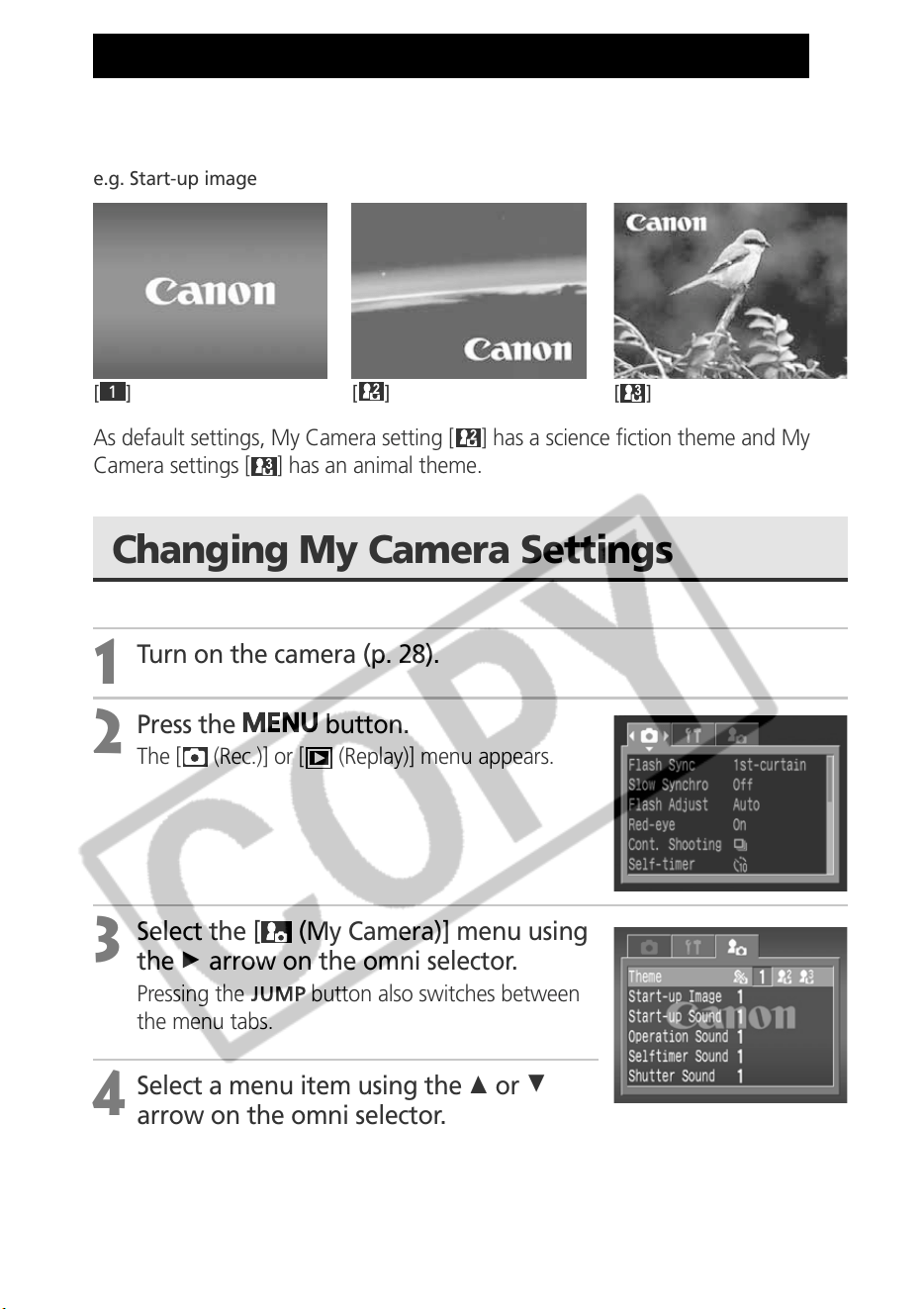
My Camera allows you to customize the start-up image and start-up, shutter,
operation and self-timer sounds. Each menu item has three choices.
e.g. Start-up image
[
1
][][]
As default settings, My Camera setting [ ] has a science fiction theme and My
Camera settings [
] has an animal theme.
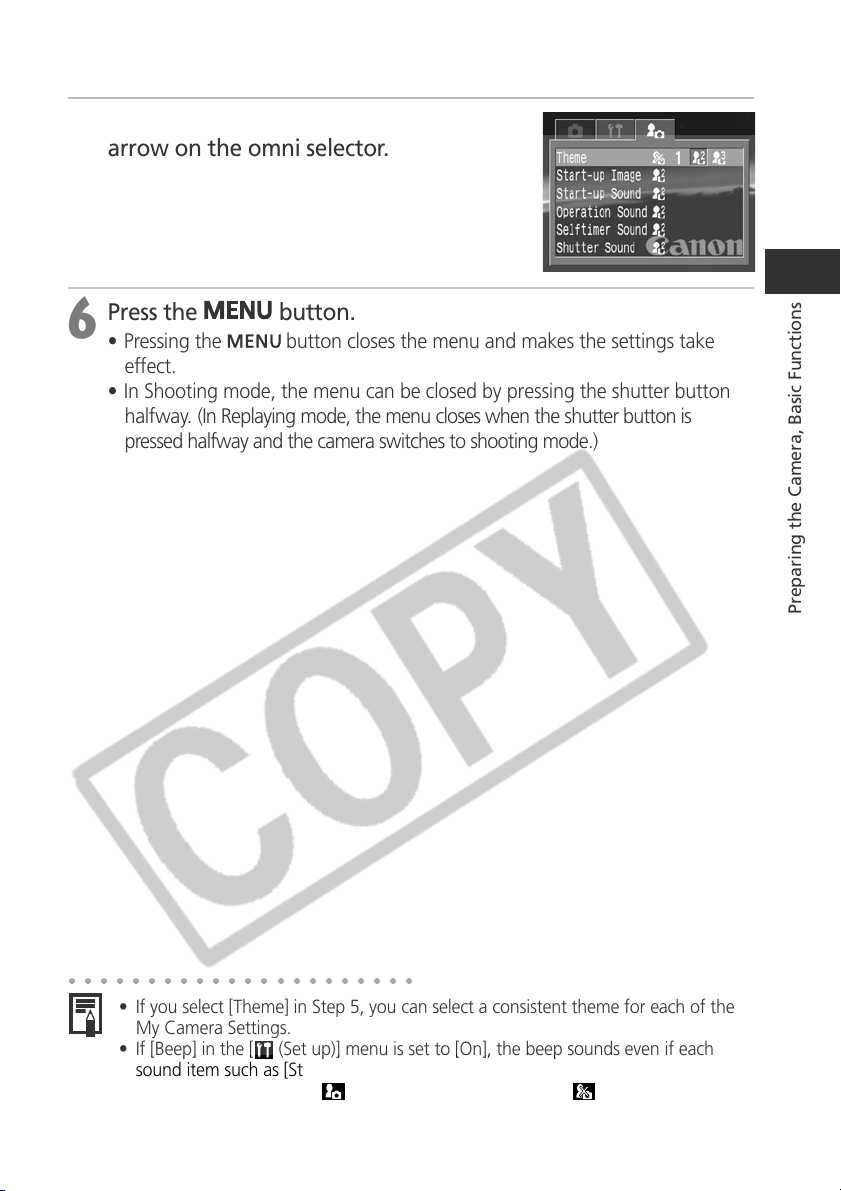
Changing My Camera Settings
1
Turn on the camera (p. 28).
2
Press the
button.
The [ (Rec.)] or [ (Replay)] menu appears.
3
Select the [ (My Camera)] menu using
the A arrow on the omni selector.
Pressing the button also switches between
the menu tabs.
4
Select a menu item using the C or D
arrow on the omni selector.
47
Preparing the Camera, Basic Functions
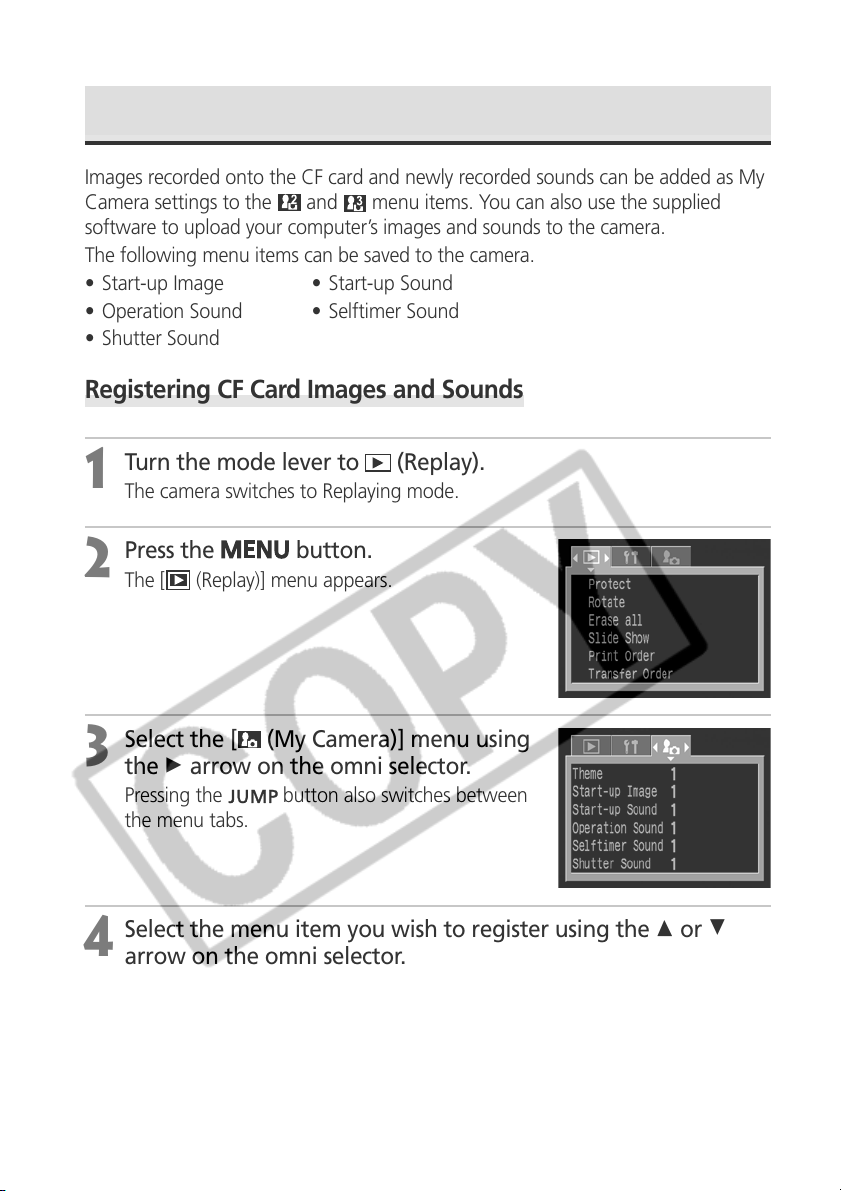
5
Select setting content using the B or A
arrow on the omni selector.
6
Press the
button.
• Pressing the
button closes the menu and makes the settings take
effect.
• In Shooting mode, the menu can be closed by pressing the shutter button
halfway. (In Replaying mode, the menu closes when the shutter button is
pressed halfway and the camera switches to shooting mode.)
○○○○○○○○○○○○○○○○○○○○○○
• If you select [Theme] in Step 5, you can select a consistent theme for each of the
My Camera Settings.
• If [Beep] in the [
(Set up)] menu is set to [On], the beep sounds even if each
sound item such as [Start-up Sound], [Shutter Sound], [Operation Sound] and
[Selftimer Sound] in the [
(My Camera)] menu is set to [
(Off)] (p. 162).
48
Registering the My Camera Settings
Images recorded onto the CF card and newly recorded sounds can be added as My
Camera settings to the
and menu items. You can also use the supplied
software to upload your computer’s images and sounds to the camera.
The following menu items can be saved to the camera.
• Start-up Image • Start-up Sound
• Operation Sound • Selftimer Sound
• Shutter Sound
Registering CF Card Images and Sounds
1
Turn the mode lever to (Replay).
The camera switches to Replaying mode.
2
Press the button.
The [ (Replay)] menu appears.
3
Select the [ (My Camera)] menu using
the A arrow on the omni selector.
Pressing the button also switches between
the menu tabs.
4
Select the menu item you wish to register using the C or D
arrow on the omni selector.
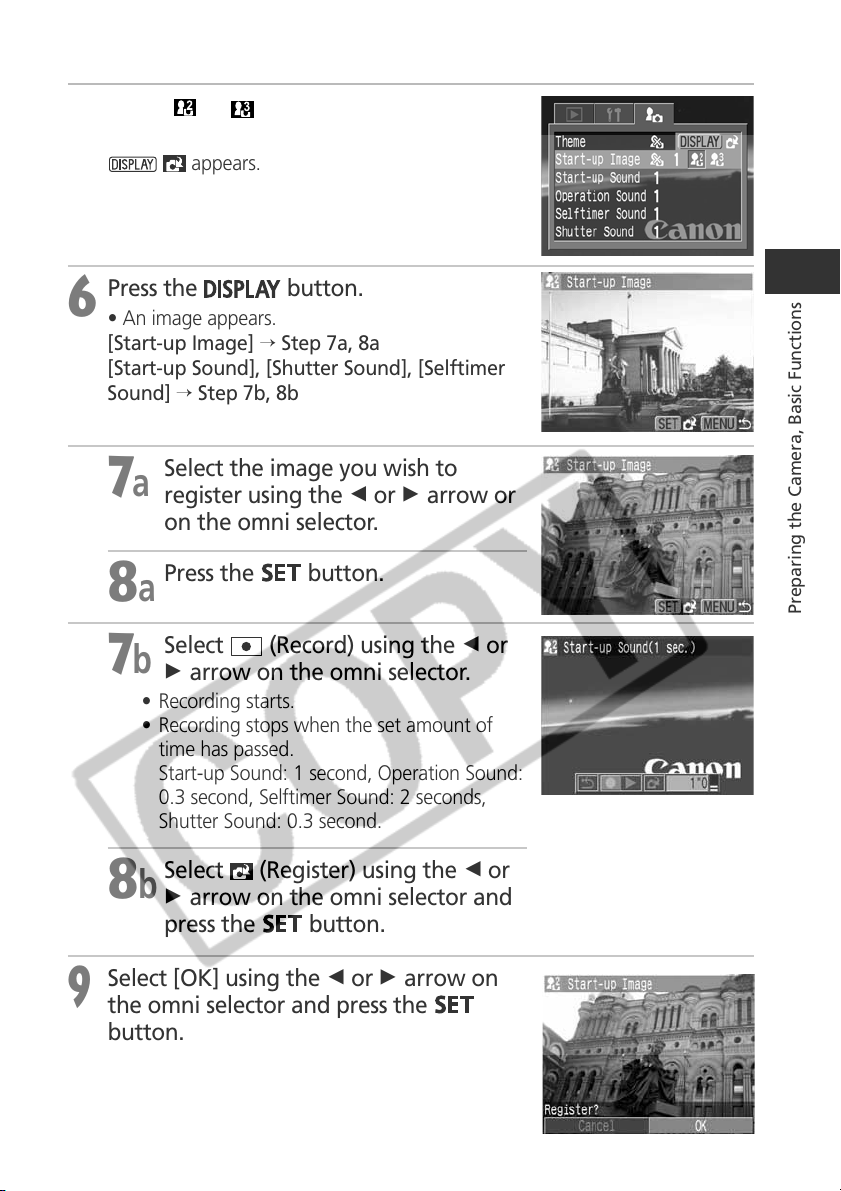
49
Preparing the Camera, Basic Functions
5
Select or using the B or A arrow
on the omni selector.
appears.
6
Press the
button.
• An image appears.
[Start-up Image] → Step 7a, 8a
[Start-up Sound], [Shutter Sound], [Selftimer
Sound] → Step 7b, 8b
7a
Select the image you wish to
register using the B or A arrow or
on the omni selector.
8a
Press the
button.
7b
Select (Record) using the B or
A arrow on the omni selector.
• Recording starts.
• Recording stops when the set amount of
time has passed.
Start-up Sound: 1 second, Operation Sound:
0.3 second, Selftimer Sound: 2 seconds,
Shutter Sound: 0.3 second.
8b
Select (Register) using the B or
A arrow on the omni selector and
press the
button.
9
Select [OK] using the B or A arrow on
the omni selector and press the
button.
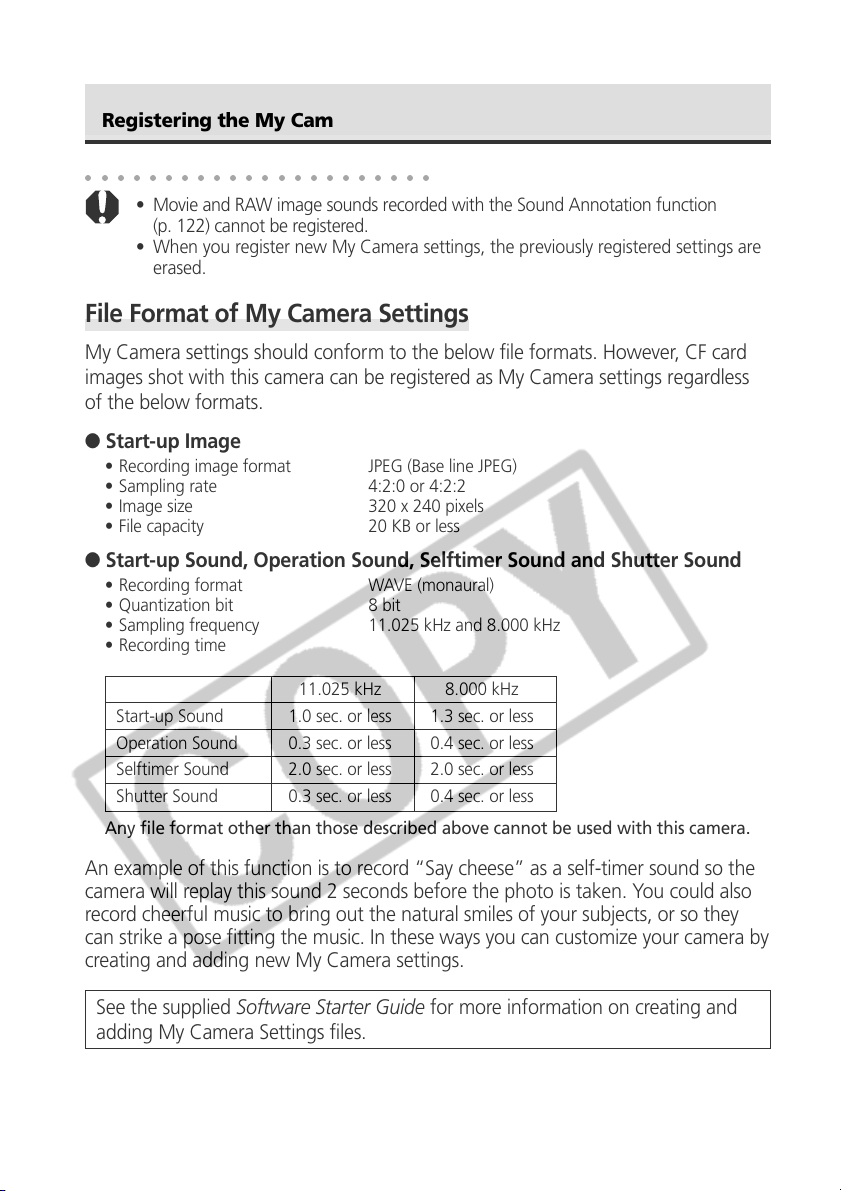
50
○○○○○○○○○○○○○○○○○○○○○○
• Movie and RAW image sounds recorded with the Sound Annotation function
(p. 122) cannot be registered.
• When you register new My Camera settings, the previously registered settings are
erased.
File Format of My Camera Settings
My Camera settings should conform to the below file formats. However, CF card
images shot with this camera can be registered as My Camera settings regardless
of the below formats.
● Start-up Image
• Recording image format JPEG (Base line JPEG)
• Sampling rate 4:2:0 or 4:2:2
• Image size 320 x 240 pixels
• File capacity 20 KB or less
● Start-up Sound, Operation Sound, Selftimer Sound and Shutter Sound
• Recording format WAVE (monaural)
• Quantization bit 8 bit
• Sampling frequency 11.025 kHz and 8.000 kHz
• Recording time
11.025 kHz 8.000 kHz
Start-up Sound 1.0 sec. or less 1.3 sec. or less
Operation Sound 0.3 sec. or less 0.4 sec. or less
Selftimer Sound 2.0 sec. or less 2.0 sec. or less
Shutter Sound 0.3 sec. or less 0.4 sec. or less
Any file format other than those described above cannot be used with this camera.
An example of this function is to record “Say cheese” as a self-timer sound so the
camera will replay this sound 2 seconds before the photo is taken. You could also
record cheerful music to bring out the natural smiles of your subjects, or so they
can strike a pose fitting the music. In these ways you can customize your camera by
creating and adding new My Camera settings.
See the supplied Software Starter Guide for more information on creating and
adding My Camera Settings files.
Registering the My Camera Settings (continued)
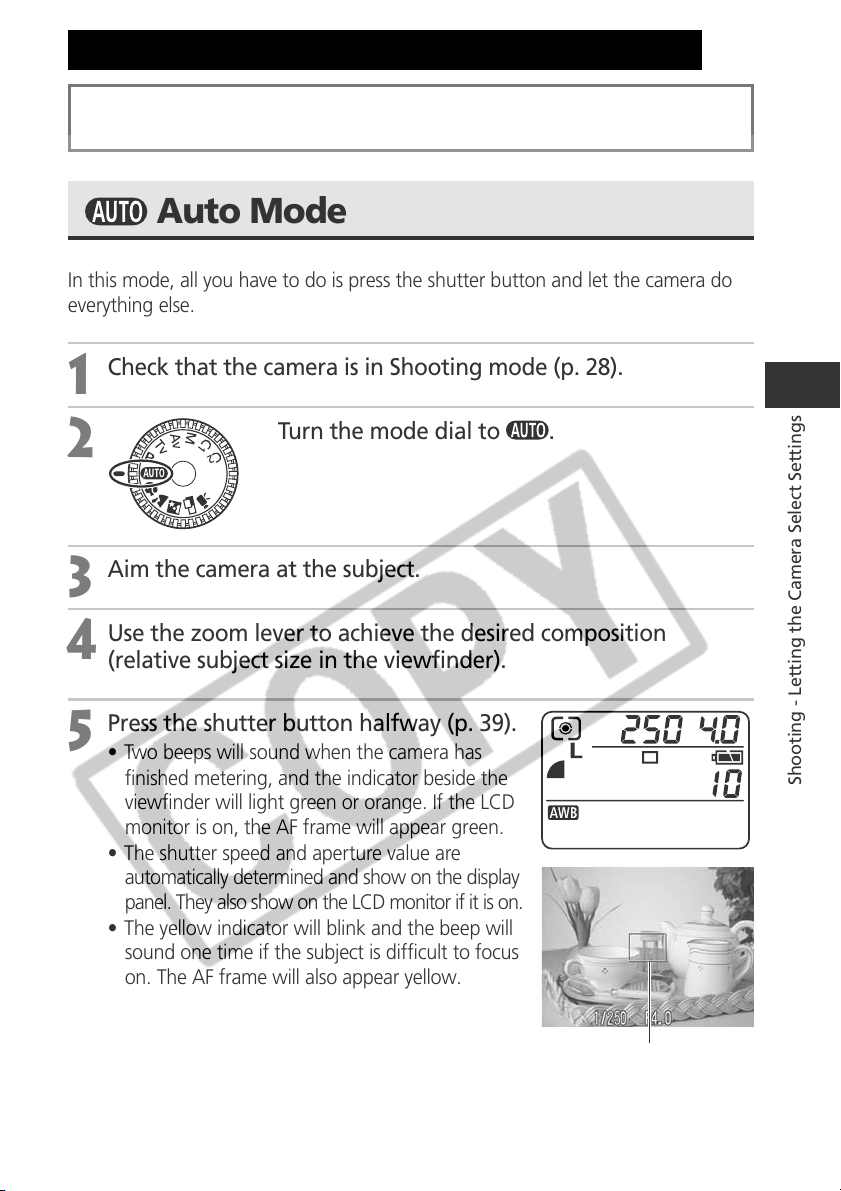
51
Shooting - Letting the Camera Select Settings
Auto Mode
In this mode, all you have to do is press the shutter button and let the camera do
everything else.
1
Check that the camera is in Shooting mode (p. 28).
2
Turn the mode dial to .
3
Aim the camera at the subject.
4
Use the zoom lever to achieve the desired composition
(relative subject size in the viewfinder).
5
Press the shutter button halfway (p. 39).
• Two beeps will sound when the camera has
finished metering, and the indicator beside the
viewfinder will light green or orange. If the LCD
monitor is on, the AF frame will appear green.
• The shutter speed and aperture value are
automatically determined and show on the display
panel. They also show on the LCD monitor if it is on.
• The yellow indicator will blink and the beep will
sound one time if the subject is difficult to focus
on. The AF frame will also appear yellow.
Shooting - Letting the Camera Select Settings
AF Frame
See Functions Available in Each Shooting Mode (p. 208) at the end of this
manual to find out which settings can be changed in which shooting modes.
52
○○○○○○○○○○○○○○○○○○○○○○
• Functions Available in Each Shooting Mode (p. 208)
• With the Review function, you can change the length of time images show on the
LCD monitor after shooting, or set it so they do not show at all (p. 54).
6
Press the shutter button all the way (p. 39).
• You will hear the sound of the shutter when the shutter activates.
• The picture appears for two seconds on the LCD monitor, if it is on.
Auto Mode (continued)
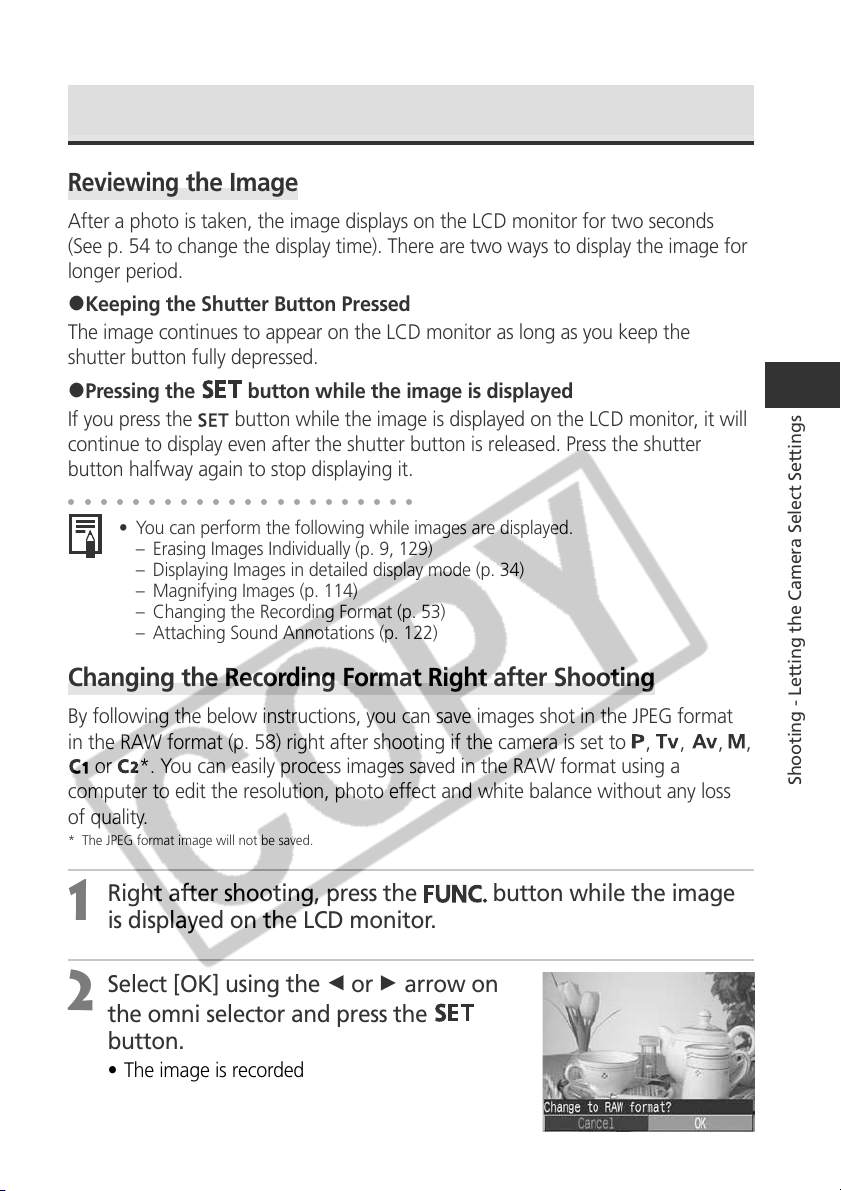
53
Shooting - Letting the Camera Select Settings
Reviewing an Image Right after Shooting
Reviewing
the Image
After a photo is taken, the image displays on the LCD monitor for two seconds
(See p. 54 to change the display time). There are two ways to display the image for
longer period.
2Keeping the Shutter Button Pressed
The image continues to appear on the LCD monitor as long as you keep the
shutter button fully depressed.
2Pressing the
button while the image is displayed
If you press the
button while the image is displayed on the LCD monitor, it will
continue to display even after the shutter button is released. Press the shutter
button halfway again to stop displaying it.
○○○○○○○○○○○○○○○○○○○○○○
• You can perform the following while images are displayed.
– Erasing Images Individually (p. 9, 129)
– Displaying Images in detailed display mode (p. 34)
– Magnifying Images (p. 114)
– Changing the Recording Format (p. 53)
– Attaching Sound Annotations (p. 122)
Changing the Recording Format Right after Shooting
By following the below instructions, you can save images shot in the JPEG format
in the RAW format (p. 58) right after shooting if the camera is set to
, , , ,
or
*. You can easily process images saved in the RAW format using a
computer to edit the resolution, photo effect and white balance without any loss
of quality.
* The JPEG format image will not be saved.
1
Right after shooting, press the
button while the image
is displayed on the LCD monitor.
2
Select [OK] using the B or A arrow on
the omni selector and press the
button.
• The image is recorded in the RAW format.
• When you press the shutter button halfway, the
camera returns to the shooting screen.
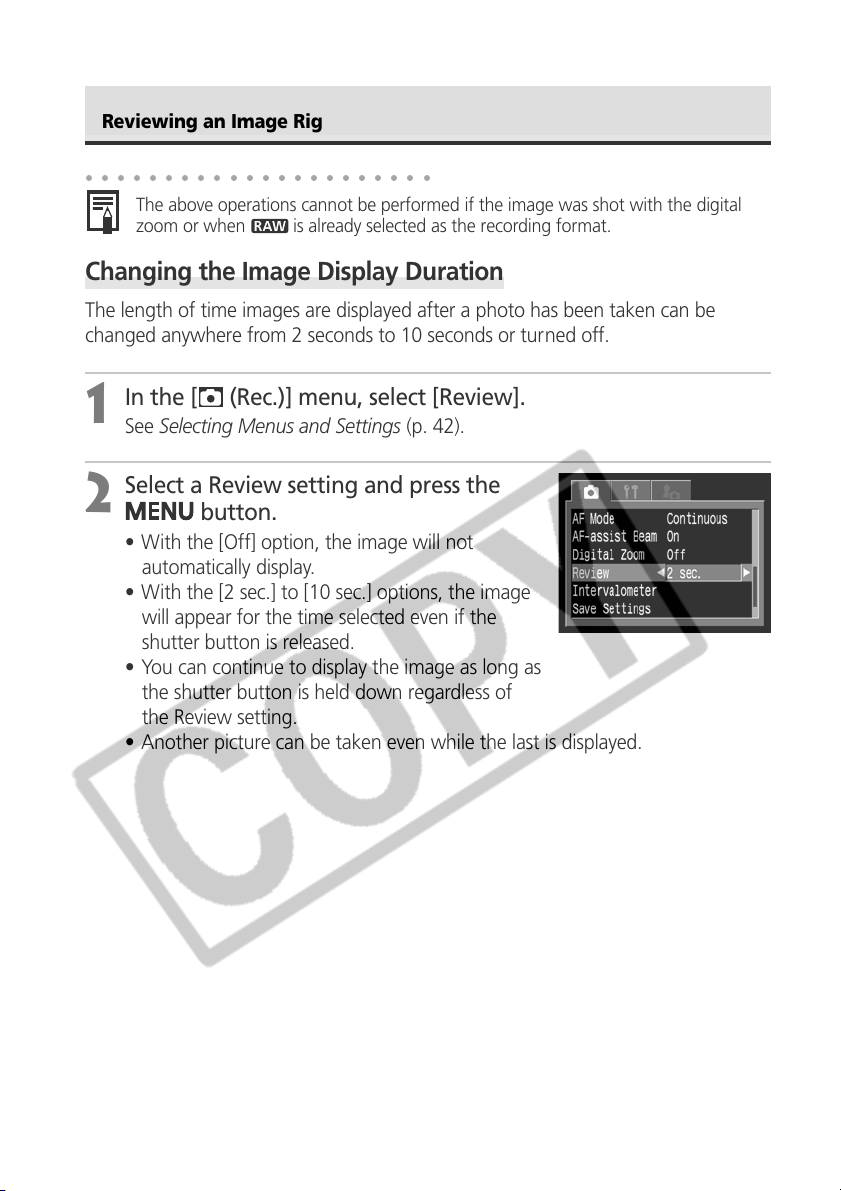
54
○○○○○○○○○○○○○○○○○○○○○○
The above operations cannot be performed if the image was shot with the digital
zoom or when
is already selected as the recording format.
Changing the Image Display Duration
The length of time images are displayed after a photo has been taken can be
changed anywhere from 2 seconds to 10 seconds or turned off.
1
In the [ (Rec.)] menu, select [Review].
See Selecting Menus and Settings (p. 42).
2
Select a Review setting and press the
button.
• With the [Off] option, the image will not
automatically display.
• With the [2 sec.] to [10 sec.] options, the image
will appear for the time selected even if the
shutter button is released.
• You can continue to display the image as long as
the shutter button is held down regardless of
the Review setting.
• Another picture can be taken even while the last is displayed.
Reviewing an Image Right after Shooting
(continued)
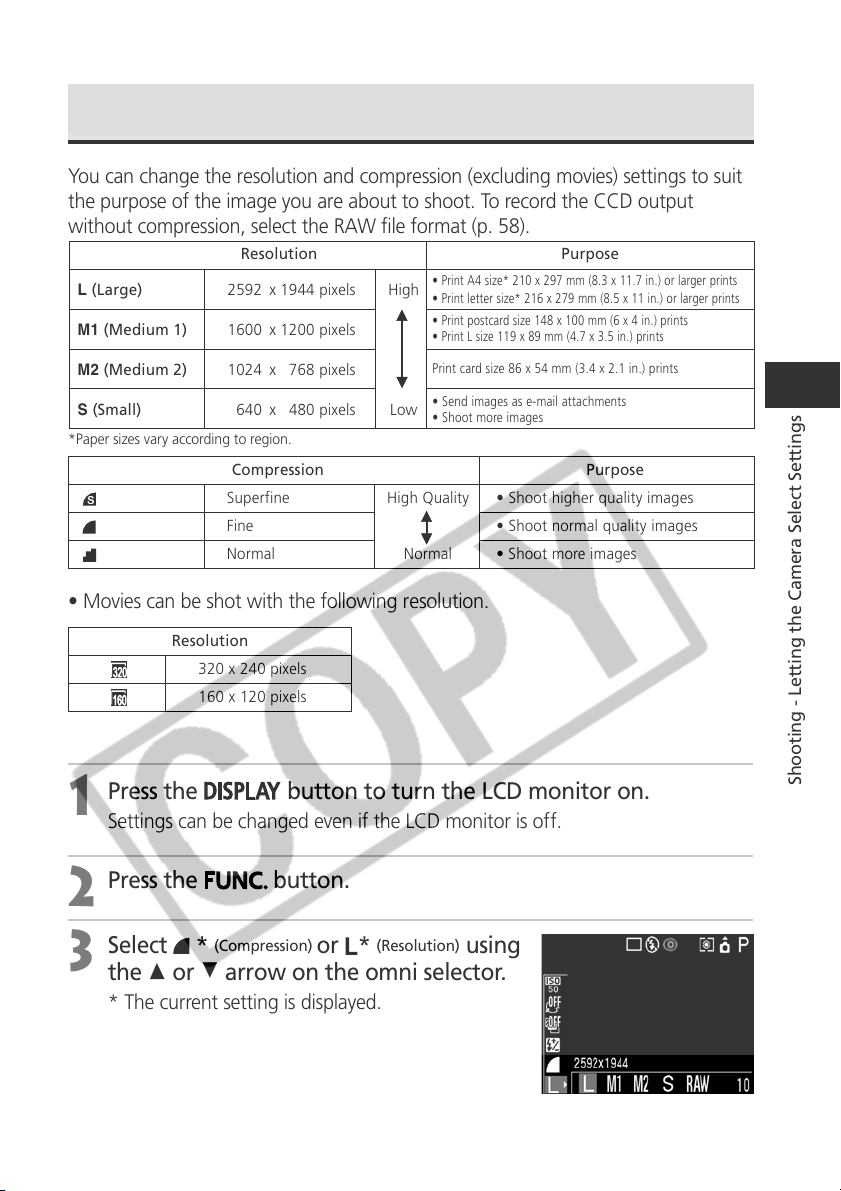
55
Shooting - Letting the Camera Select Settings
Changing the Resolution and Compression
You can change the resolution and compression (excluding movies) settings to suit
the purpose of the image you are about to shoot. To record the CCD output
without compression, select the RAW file format (p. 58).
Compression Purpose
Superfine High Quality
Fine
Normal Normal
• Shoot higher quality images
• Shoot normal quality images
• Shoot more images
• Movies can be shot with the following resolution.
Resolution
320 x 240 pixels
160 x 120 pixels
1
Press the
button to turn the LCD monitor on.
Settings can be changed even if the LCD monitor is off.
2
Press the button.
3
Select *
(Compression)
or *
(Resolution)
using
the C or D arrow on the omni selector.
* The current setting is displayed.
Resolution Purpose
• Print A4 size* 210 x 297 mm (8.3 x 11.7 in.) or larger prints
• Print letter size* 216 x 279 mm (8.5 x 11 in.) or larger prints
• Print postcard size 148 x 100 mm (6 x 4 in.) prints
• Print L size 119 x 89 mm (4.7 x 3.5 in.) prints
Print card size 86 x 54 mm (3.4 x 2.1 in.) prints
• Send images as e-mail attachments
• Shoot more images
L (Large) 2592 x 1944 pixels High
M1 (Medium 1) 1600 x 1200 pixels
M2 (Medium 2) 1024 x 768 pixels
S (Small) 640 x 480 pixels Low
*Paper sizes vary according to region.
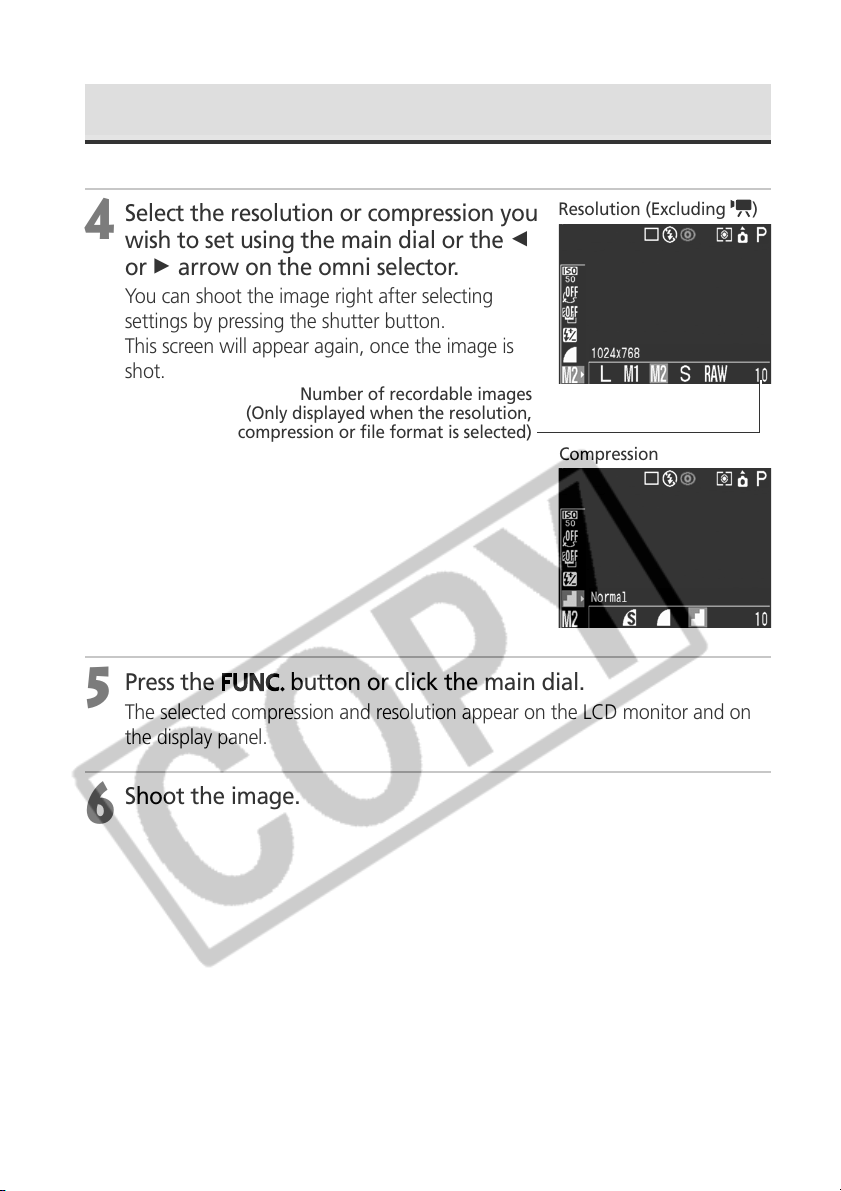
56
4
Select the resolution or compression you
wish to set using the main dial or the B
or A arrow on the omni selector.
You can shoot the image right after selecting
settings by pressing the shutter button.
This screen will appear again, once the image is
shot.
5
Press the
button or click the main dial.
The selected compression and resolution appear on the LCD monitor and on
the display panel.
6
Shoot the image.
Changing the Resolution and Compression (continued)
Resolution (Excluding )
Number of recordable images
(Only displayed when the resolution,
compression or file format is selected)
Compression
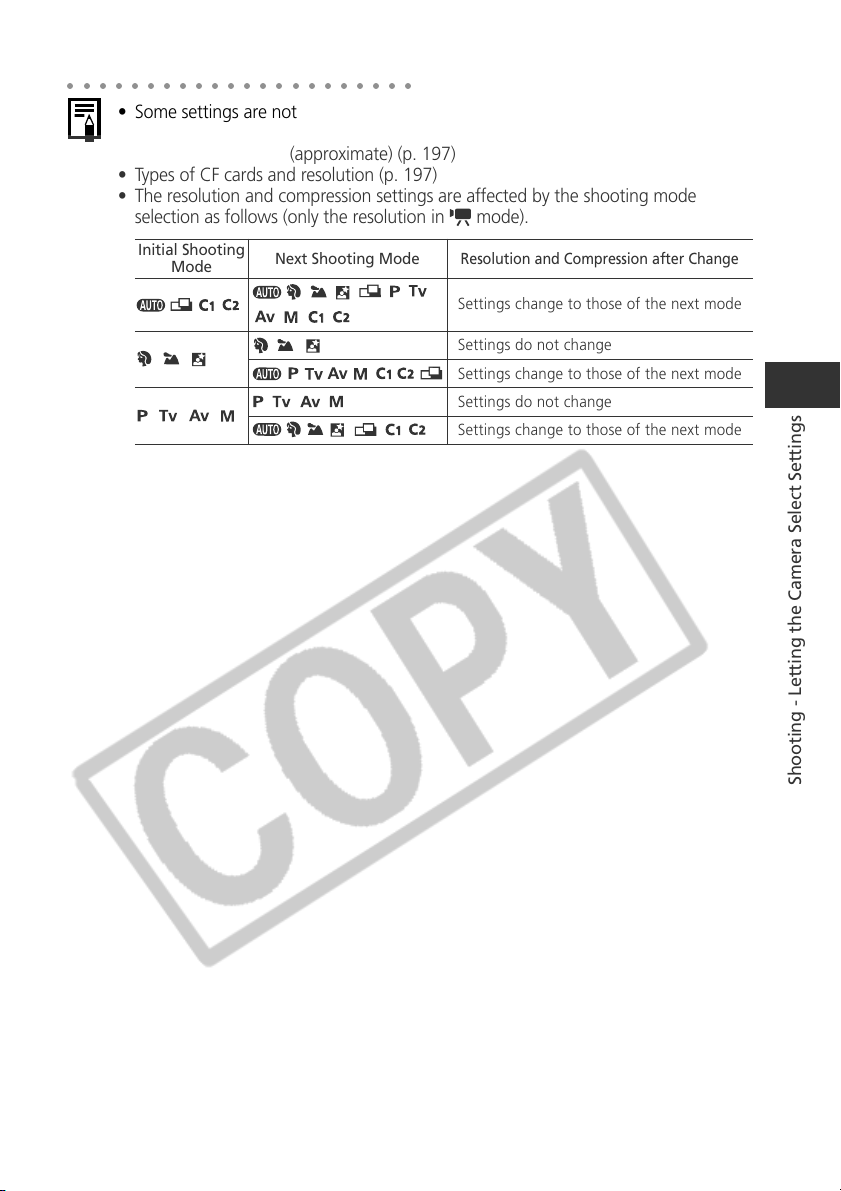
57
Shooting - Letting the Camera Select Settings
○○○○○○○○○○○○○○○○○○○○○○
• Some settings are not available with certain Shooting modes. Please refer to
Functions Available in Each Shooting Mode (p. 208).
• Size of an image file (approximate) (p. 197)
• Types of CF cards and resolution (p. 197)
• The resolution and compression settings are affected by the shooting mode
selection as follows (only the resolution in
mode).
Next Shooting Mode
Resolution and Compression after Change
Settings change to those of the next mode
Settings do not change
Settings change to those of the next mode
Settings do not change
Settings change to those of the next mode
Initial Shooting
Mode
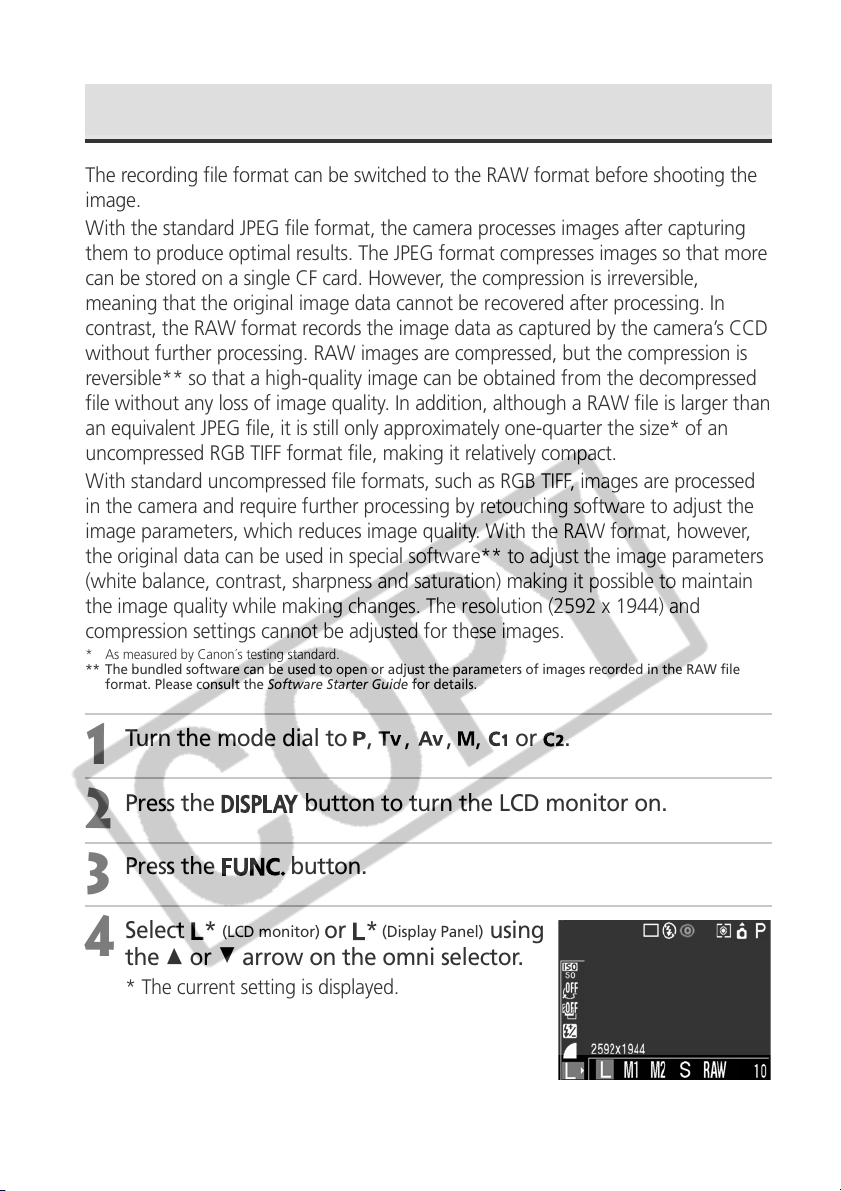
58
Changing the File Format
The recording file format can be switched to the RAW format before shooting the
image.
With the standard JPEG file format, the camera processes images after capturing
them to produce optimal results. The JPEG format compresses images so that more
can be stored on a single CF card. However, the compression is irreversible,
meaning that the original image data cannot be recovered after processing. In
contrast, the RAW format records the image data as captured by the camera’s CCD
without further processing. RAW images are compressed, but the compression is
reversible** so that a high-quality image can be obtained from the decompressed
file without any loss of image quality. In addition, although a RAW file is larger than
an equivalent JPEG file, it is still only approximately one-quarter the size* of an
uncompressed RGB TIFF format file, making it relatively compact.
With standard uncompressed file formats, such as RGB TIFF, images are processed
in the camera and require further processing by retouching software to adjust the
image parameters, which reduces image quality. With the RAW format, however,
the original data can be used in special software** to adjust the image parameters
(white balance, contrast, sharpness and saturation) making it possible to maintain
the image quality while making changes. The resolution (2592 x 1944) and
compression settings cannot be adjusted for these images.
* As measured by Canon´s testing standard.
** The bundled software can be used to open or adjust the parameters of images recorded in the RAW file
format. Please consult the Software Starter Guide for details.
1
Turn the mode dial to , , , ,
or
.
2
Press the
button to turn the LCD monitor on.
3
Press the
button.
4
Select *
(LCD monitor)
or *
(Display Panel)
using
the C or D arrow on the omni selector.
* The current setting is displayed.
59
Shooting - Letting the Camera Select Settings
5
Select RAW
(LCD monitor)
or (r)
(Display panel)
using the main dial or
the B or A arrow on the omni selector.
You can shoot the image right after selecting settings by pressing the shutter button.
The previous screen will appear again, once the image is shot.
6
Press the
button or click the main dial.
appears on the LCD monitor.
7
Shoot the image.
○○○○○○○○○○○○○○○○○○○○○○
Images shot in the JPEG format can also be changed to the RAW format while they
are displayed right after shooting (p. 53).
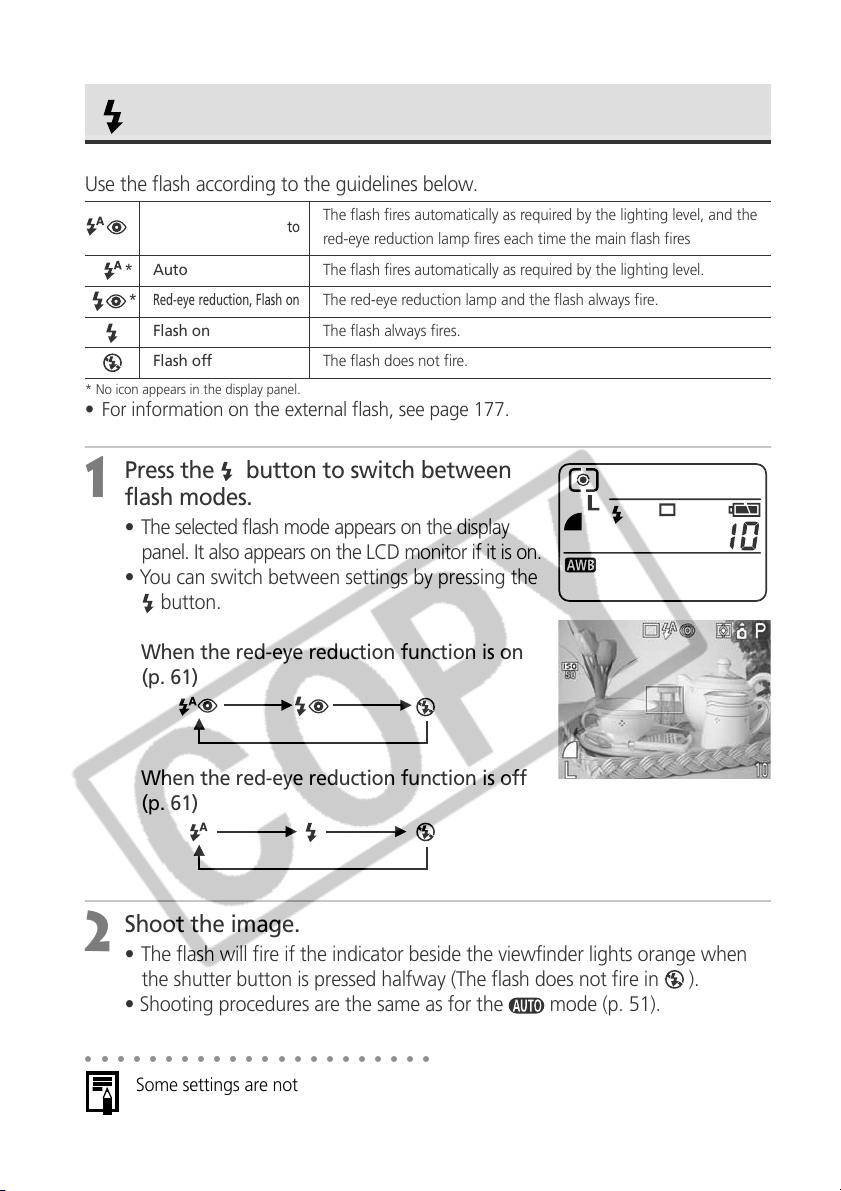
60
Using the Flash
Use the flash according to the guidelines below.
* No icon appears in the display panel.
• For information on the external flash, see page 177.
1
Press the button to switch between
flash modes.
• The selected flash mode appears on the display
panel. It also appears on the LCD monitor if it is on.
• You can switch between settings by pressing the
button.
When the red-eye reduction function is on
(p. 61)
When the red-eye reduction function is off
(p. 61)
2
Shoot the image.
• The flash will fire if the indicator beside the viewfinder lights orange when
the shutter button is pressed halfway (The flash does not fire in
).
• Shooting procedures are the same as for the
mode (p. 51).
○○○○○○○○○○○○○○○○○○○○○○
Some settings are not available with certain Shooting modes. Please refer to
Functions Available in Each Shooting Mode (p. 208).
*
Red-eye reduction, Auto
The flash fires automatically as required by the lighting level, and the
red-eye reduction lamp fires each time the main flash fires
* Auto The flash fires automatically as required by the lighting level.
*
Red-eye reduction, Flash on
The red-eye reduction lamp and the flash always fire.
Flash on The flash always fires.
Flash off The flash does not fire.
61
Shooting - Letting the Camera Select Settings
Setting the Red-eye Reduction Function
The red-eye reduction lamp fires when the flash is used in dark areas. This prevents
light from reflecting back from the eyes and making them appear red.
1
In the [ (Rec)] menu, set [Red-eye] to [On].
appears on the LCD monitor.
○○○○○○○○○○○○○○○○○○○○○○
When shooting with the red-eye reduction function, the subjects must look right at
the red-eye reduction lamp for this mode to be effective. Try asking them to look
directly at the lamp. Even better results can be obtained by shooting with the lens set
to a wide angle, increasing the lighting in indoor settings or approaching closer to
the subject.
Setting the Slow Synchro
You can shoot images using the flash with a slow shutter speed. This helps avoid
dark backgrounds when shooting night scenes or with indoors lighting conditions.
1
In the [ (Rec.)] menu, set [Slow Synchro] to [On].
62
○○○○○○○○○○○○○○○○○○○○○○
When shooting with a high ISO sensitivity and using the built-in flash, there is more
of a chance of overexposure the closer you are to the subject.
○○○○○○○○○○○○○○○○○○○○○○
• When shooting with [Slow Synchro] set to [On], we recommend the use of a
tripod to prevent camera shake.
• Some settings are not available with certain Shooting modes. Please refer to
Functions Available in Each Shooting Mode (p. 208).
• The flash fires twice. A pre-flash will fire and will be followed by the main flash.
The pre-flash is used by the camera to obtain the subject’s exposure data so that
the main flash can be set to the optimal intensity for the shot.
• The fastest shutter speed for flash synchronization is 1/250 second. The camera
automatically resets the shutter speed to 1/250 second if a faster speed is selected.
• The flash fires with automatic adjustments when [Flash Adjust] is set to [Auto] in
the [
(Rec.)] menu. When shooting in mode, or with [Flash Adjust] set to
[Manual], the flash fires fully or with the manually set adjustments.
• The built-in flash may take up to approximately 10 seconds to charge in some
cases. Actual times will vary according to usage and the battery charge.
• Shots cannot be taken while the flash is charging.
• The flash exposure and the Flash Output can be changed (p. 100).
• The flash setting is saved when the camera is turned off in the
, , and
shooting modes.
Using the Flash (continued)
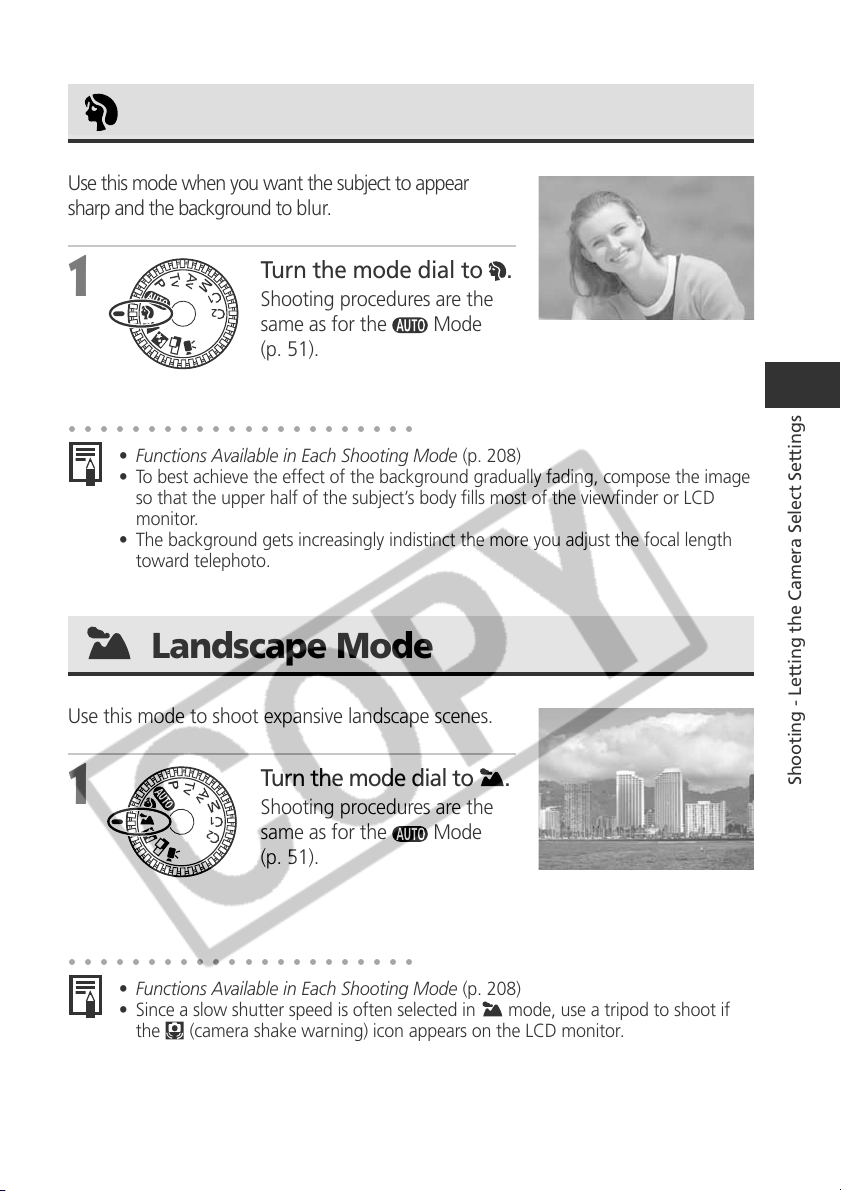
63
Shooting - Letting the Camera Select Settings
Portrait Mode
Use this mode when you want the subject to appear
sharp and the background to blur.
1
Turn the mode dial to .
Shooting procedures are the
same as for the
Mode
(p. 51).
○○○○○○○○○○○○○○○○○○○○○○
• Functions Available in Each Shooting Mode (p. 208)
• To best achieve the effect of the background gradually fading, compose the image
so that the upper half of the subject’s body fills most of the viewfinder or LCD
monitor.
• The background gets increasingly indistinct the more you adjust the focal length
toward telephoto.
Landscape Mode
Use this mode to shoot expansive landscape scenes.
1
Turn the mode dial to .
Shooting procedures are the
same as for the
Mode
(p. 51).
○○○○○○○○○○○○○○○○○○○○○○
• Functions Available in Each Shooting Mode (p. 208)
• Since a slow shutter speed is often selected in
mode, use a tripod to shoot if
the
(camera shake warning) icon appears on the LCD monitor.
64
Night Scene Mode
Use this mode to capture human subjects against the backdrop of an evening sky or
night scene. The people are illuminated with light from the flash while the backdrop
is captured at a slow shutter speed so that both appear correctly exposed.
1
Turn the mode dial to .
Shooting procedures are the same as for the mode
(p. 51).
○○○○○○○○○○○○○○○○○○○○○○
Always use a tripod to prevent camera shake in this mode.
○○○○○○○○○○○○○○○○○○○○○○
• Functions Available in Each Shooting Mode (p. 208)
• Warn people to stay still for a few seconds after the flash fires because of the slow
shutter speed.
• Using the
mode in daylight will produce an effect similar to that of the
mode.
• With the
mode, the slow synchro function automatically turns on (p. 61).
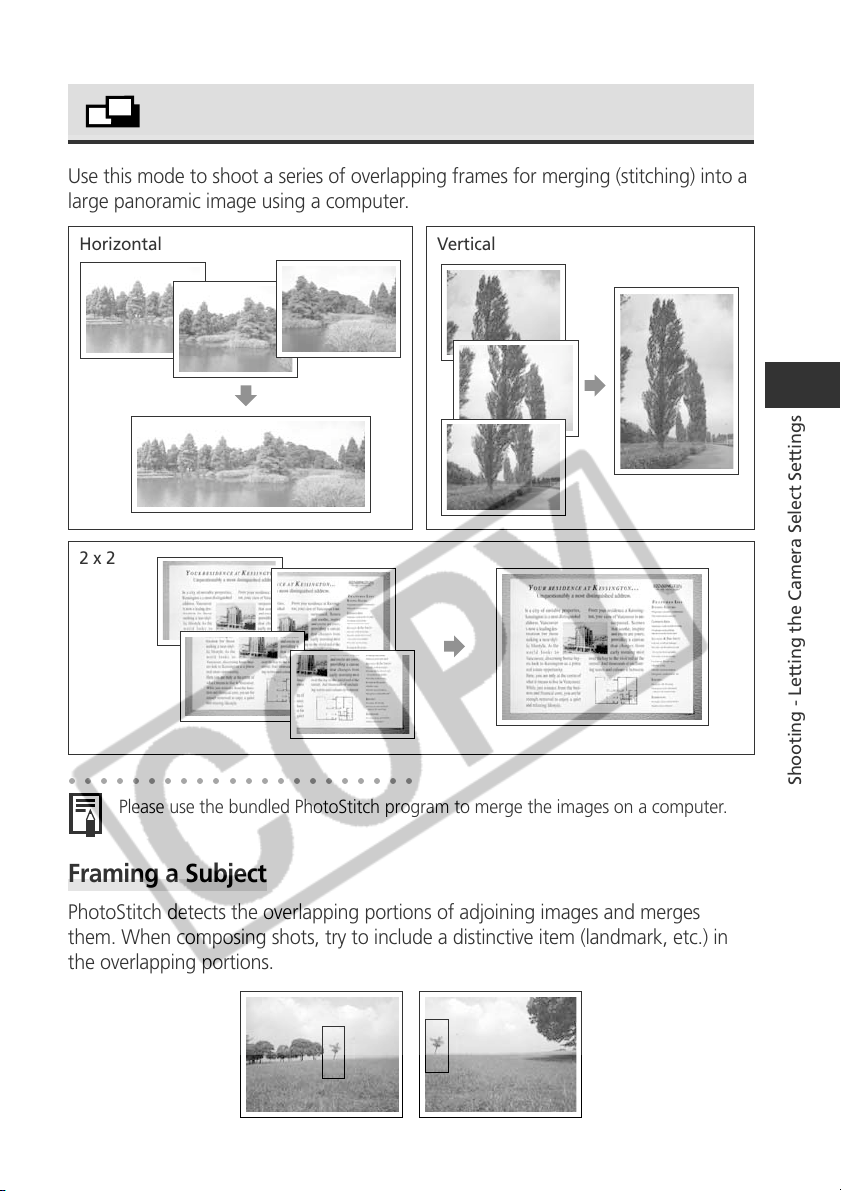
65
Shooting - Letting the Camera Select Settings
Horizontal Vertical
2 x 2
Stitch Assist Mode
Use this mode to shoot a series of overlapping frames for merging (stitching) into a
large panoramic image using a computer.
○○○○○○○○○○○○○○○○○○○○○○
Please use the bundled PhotoStitch program to merge the images on a computer.
Framing a Subject
PhotoStitch detects the overlapping portions of adjoining images and merges
them. When composing shots, try to include a distinctive item (landmark, etc.) in
the overlapping portions.
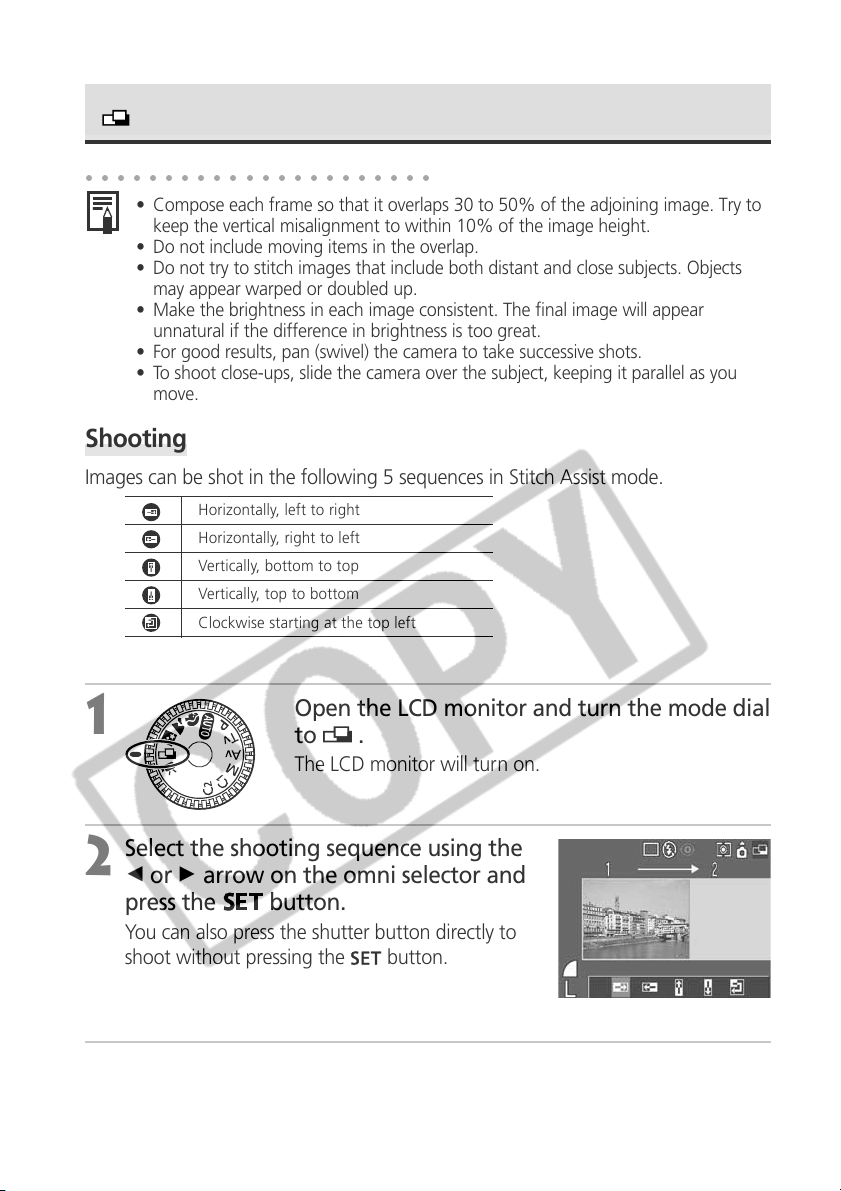
66
Stitch Assist Mode (continued)
Shooting
Images can be shot in the following 5 sequences in Stitch Assist mode.
Horizontally, left to right
Horizontally, right to left
Vertically, bottom to top
Vertically, top to bottom
Clockwise starting at the top left
1
Open the LCD monitor and turn the mode dial
to .
The LCD monitor will turn on.
2
Select the shooting sequence using the
B or A arrow on the omni selector and
press the
button.
You can also press the shutter button directly to
shoot without pressing the
button.
3
Shoot the first image.
The exposure and white balance settings are set and locked with the first image.
○○○○○○○○○○○○○○○○○○○○○○
• Compose each frame so that it overlaps 30 to 50% of the adjoining image. Try to
keep the vertical misalignment to within 10% of the image height.
• Do not include moving items in the overlap.
• Do not try to stitch images that include both distant and close subjects. Objects
may appear warped or doubled up.
• Make the brightness in each image consistent. The final image will appear
unnatural if the difference in brightness is too great.
• For good results, pan (swivel) the camera to take successive shots.
• To shoot close-ups, slide the camera over the subject, keeping it parallel as you
move.
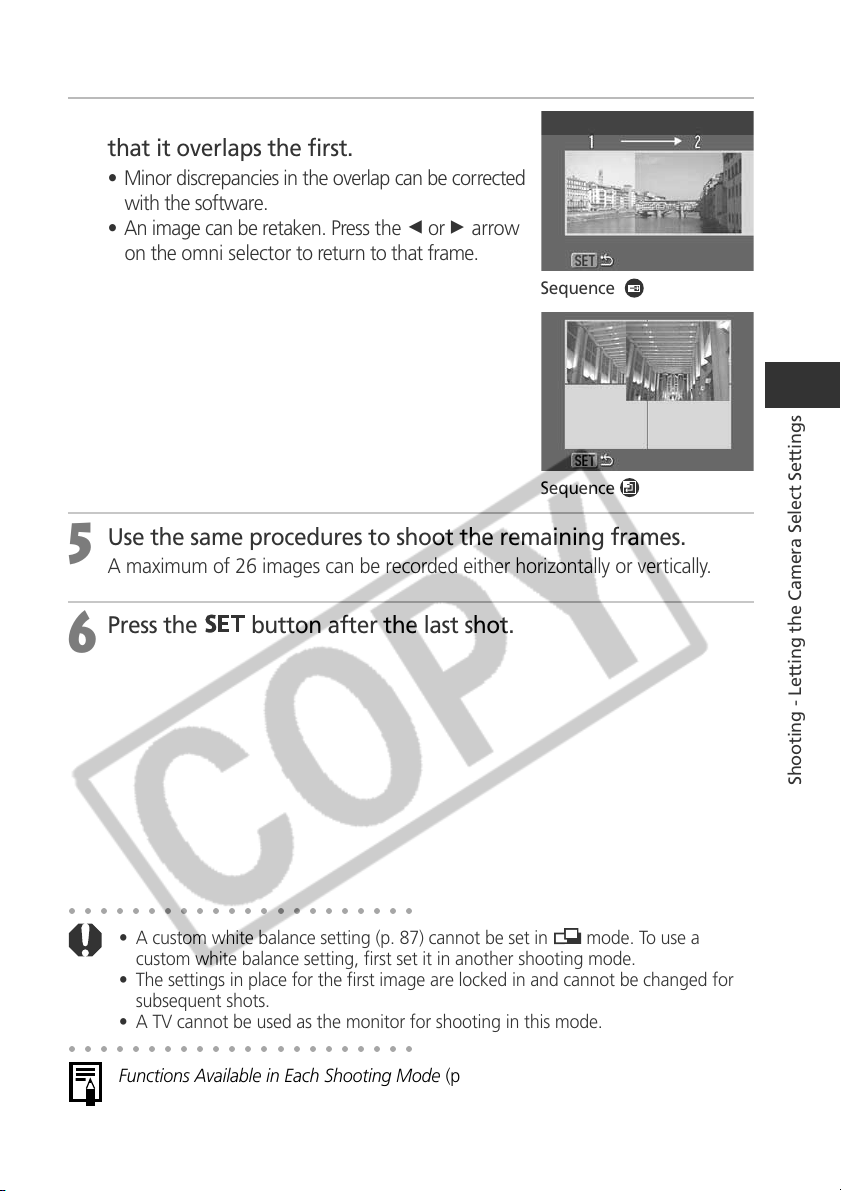
67
Shooting - Letting the Camera Select Settings
4
Compose and shoot the second image so
that it overlaps the first.
• Minor discrepancies in the overlap can be corrected
with the software.
• An image can be retaken. Press the B or A arrow
on the omni selector to return to that frame.
5
Use the same procedures to shoot the remaining frames.
A maximum of 26 images can be recorded either horizontally or vertically.
6
Press the
button after the last shot.
Sequence
Sequence
○○○○○○○○○○○○○○○○○○○○○○
• A custom white balance setting (p. 87) cannot be set in mode. To use a
custom white balance setting, first set it in another shooting mode.
• The settings in place for the first image are locked in and cannot be changed for
subsequent shots.
• A TV cannot be used as the monitor for shooting in this mode.
○○○○○○○○○○○○○○○○○○○○○○
Functions Available in Each Shooting Mode (p. 208)
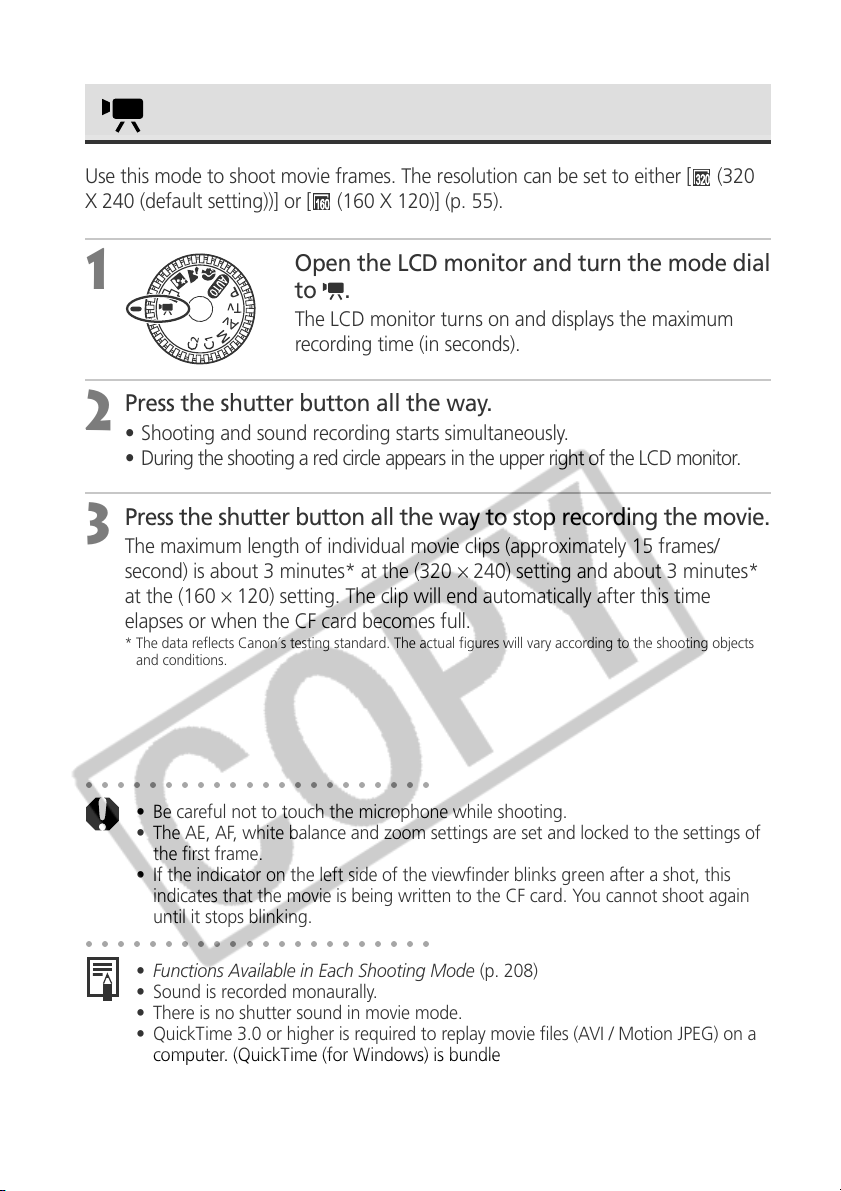
68
Movie Mode
Use this mode to shoot movie frames. The resolution can be set to either [
(320
X 240 (default setting))] or [
(160 X 120)] (p. 55).
1
Open the LCD monitor and turn the mode dial
to .
The LCD monitor turns on and displays the maximum
recording time (in seconds).
2
Press the shutter button all the way.
• Shooting and sound recording starts simultaneously.
• During the shooting a red circle appears in the upper right of the LCD monitor.
3
Press the shutter button all the way to stop recording the movie.
The maximum length of individual movie clips (approximately 15 frames/
second) is about 3 minutes* at the (320 × 240) setting and about 3 minutes*
at the (160 × 120) setting. The clip will end automatically after this time
elapses or when the CF card becomes full.
* The data reflects Canon´s testing standard. The actual figures will vary according to the shooting objects
and conditions.
○○○○○○○○○○○○○○○○○○○○○○
• Be careful not to touch the microphone while shooting.
• The AE, AF, white balance and zoom settings are set and locked to the settings of
the first frame.
• If the indicator on the left side of the viewfinder blinks green after a shot, this
indicates that the movie is being written to the CF card. You cannot shoot again
until it stops blinking.
○○○○○○○○○○○○○○○○○○○○○○
• Functions Available in Each Shooting Mode (p. 208)
• Sound is recorded monaurally.
• There is no shutter sound in movie mode.
• QuickTime 3.0 or higher is required to replay movie files (AVI / Motion JPEG) on a
computer. (QuickTime (for Windows) is bundled on the supplied Digital Camera
Solution Disk. On the Macintosh platform, QuickTime 3.0 or later is generally
bundled with Mac OS 8.5 or later operating system.)
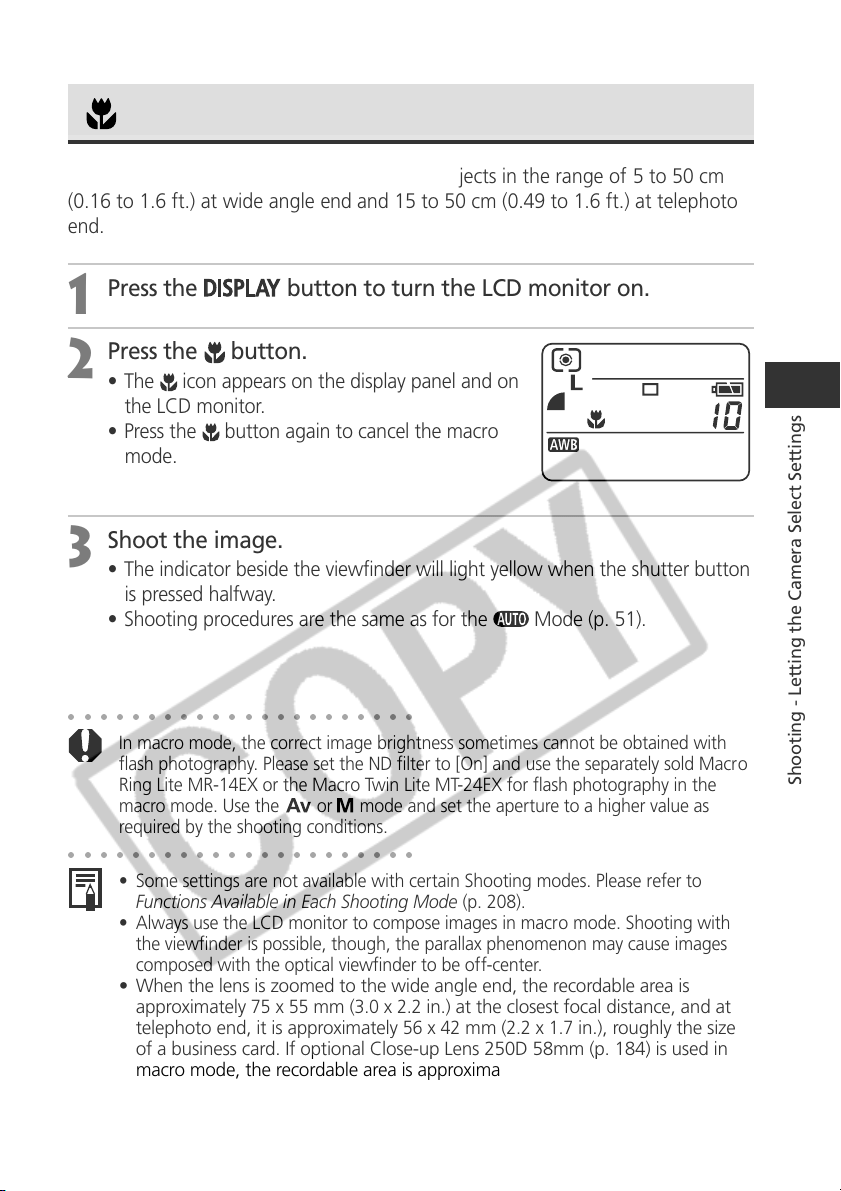
69
Shooting - Letting the Camera Select Settings
○○○○○○○○○○○○○○○○○○○○○○
In macro mode, the correct image brightness sometimes cannot be obtained with
flash photography. Please set the ND filter to [On] and use the separately sold Macro
Ring Lite MR-14EX or the Macro Twin Lite MT-24EX for flash photography in the
macro mode. Use the
or mode and set the aperture to a higher value as
required by the shooting conditions.
○○○○○○○○○○○○○○○○○○○○○○
• Some settings are not available with certain Shooting modes. Please refer to
Functions Available in Each Shooting Mode (p. 208).
• Always use the LCD monitor to compose images in macro mode. Shooting with
the viewfinder is possible, though, the parallax phenomenon may cause images
composed with the optical viewfinder to be off-center.
• When the lens is zoomed to the wide angle end, the recordable area is
approximately
75
x
55
mm (
3.0
x
2.2
in.) at the closest focal distance, and at
telephoto end, it is approximately
56
x
42
mm (
2.2
x
1.7
in.), roughly the size
of a business card. If optional Close-up Lens 250D 58mm (p. 184) is used in
macro mode, the recordable area is approximately
37
x
28
mm (
1.5
x
1.1
in.) at
maximum telephoto.
Macro Mode
Use the macro mode to shoot close-ups of subjects in the range of 5 to 50 cm
(0.16 to 1.6 ft.) at wide angle end and 15 to 50 cm (0.49 to 1.6 ft.) at telephoto
end.
1
Press the
button to turn the LCD monitor on.
2
Press the button.
• The icon appears on the display panel and on
the LCD monitor.
• Press the
button again to cancel the macro
mode.
3
Shoot the image.
• The indicator beside the viewfinder will light yellow when the shutter button
is pressed halfway.
• Shooting procedures are the same as for the
Mode (p. 51).
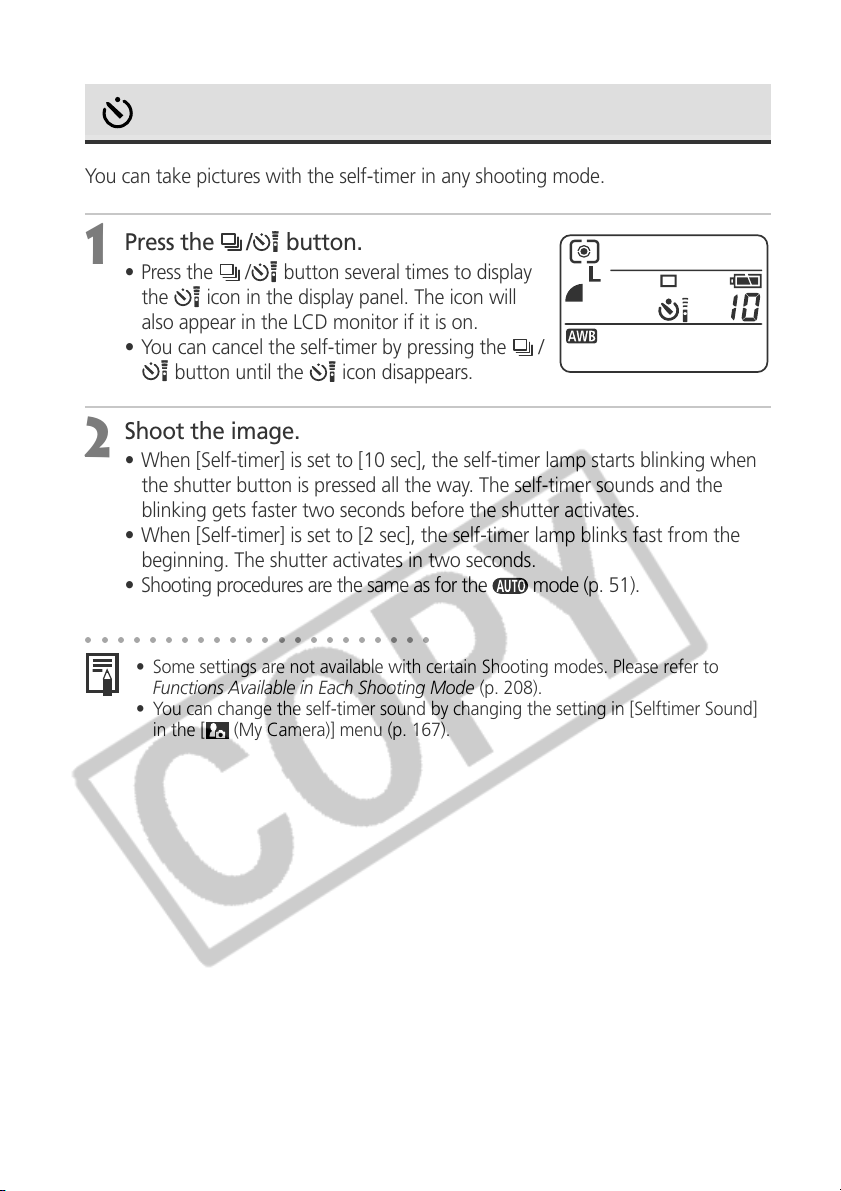
70
Self-Timer
You can take pictures with the self-timer in any shooting mode.
1
Press the
/
button.
• Press the
/
button several times to display
the
icon in the display panel. The icon will
also appear in the LCD monitor if it is on.
• You can cancel the self-timer by pressing the
/
button until the
icon disappears.
2
Shoot the image.
• When [Self-timer] is set to [10 sec], the self-timer lamp starts blinking when
the shutter button is pressed all the way. The self-timer sounds and the
blinking gets faster two seconds before the shutter activates.
• When [Self-timer] is set to [2 sec], the self-timer lamp blinks fast from the
beginning. The shutter activates in two seconds.
• Shooting procedures are the same as for the
mode (p. 51).
○○○○○○○○○○○○○○○○○○○○○○
• Some settings are not available with certain Shooting modes. Please refer to
Functions Available in Each Shooting Mode (p. 208).
• You can change the self-timer sound by changing the setting in [Selftimer Sound]
in the [
(My Camera)] menu (p. 167).
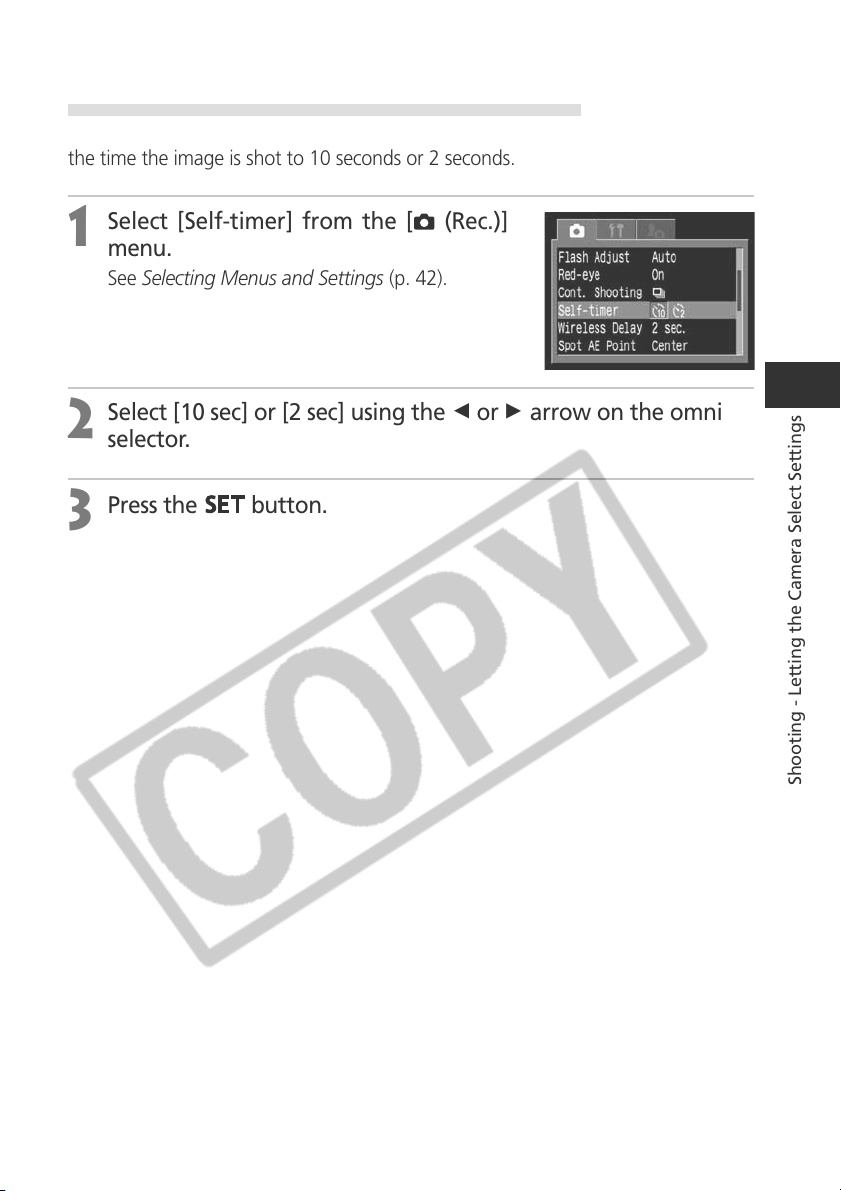
71
Shooting - Letting the Camera Select Settings
Setting the Number of Seconds until Shooting
You can set the number of seconds from the time the shutter button is pressed to
the time the image is shot to 10 seconds or 2 seconds.
1
Select [Self-timer] from the [ (Rec.)]
menu.
See Selecting Menus and Settings (p. 42).
2
Select [10 sec] or [2 sec] using the B or A arrow on the omni
selector.
3
Press the
button.
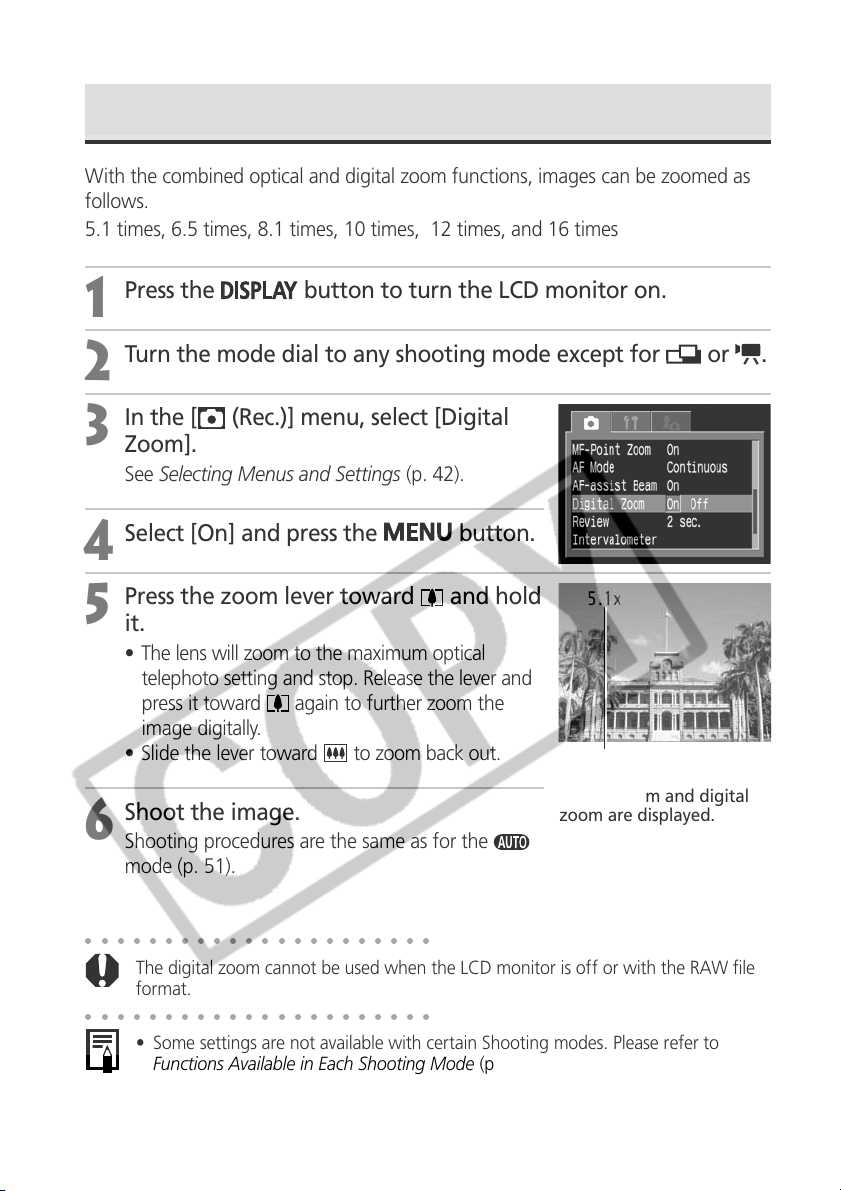
72
Digital Zoom
With the combined optical and digital zoom functions, images can be zoomed as
follows.
5.1 times, 6.5 times, 8.1 times, 10 times, 12 times, and 16 times
1
Press the
button to turn the LCD monitor on.
2
Turn the mode dial to any shooting mode except for or .
3
In the [ (Rec.)] menu, select [Digital
Zoom].
See Selecting Menus and Settings (p. 42).
4
Select [On] and press the
button.
5
Press the zoom lever toward and hold
it.
• The lens will zoom to the maximum optical
telephoto setting and stop. Release the lever and
press it toward
again to further zoom the
image digitally.
• Slide the lever toward
to zoom back out.
6
Shoot the image.
Shooting procedures are the same as for the
mode (p. 51).
○○○○○○○○○○○○○○○○○○○○○○
The digital zoom cannot be used when the LCD monitor is off or with the RAW file
format.
○○○○○○○○○○○○○○○○○○○○○○
• Some settings are not available with certain Shooting modes. Please refer to
Functions Available in Each Shooting Mode (p. 208).
• Images become coarser the more they are digitally zoomed.
The combined
magnifications of the
optical zoom and digital
zoom are displayed.
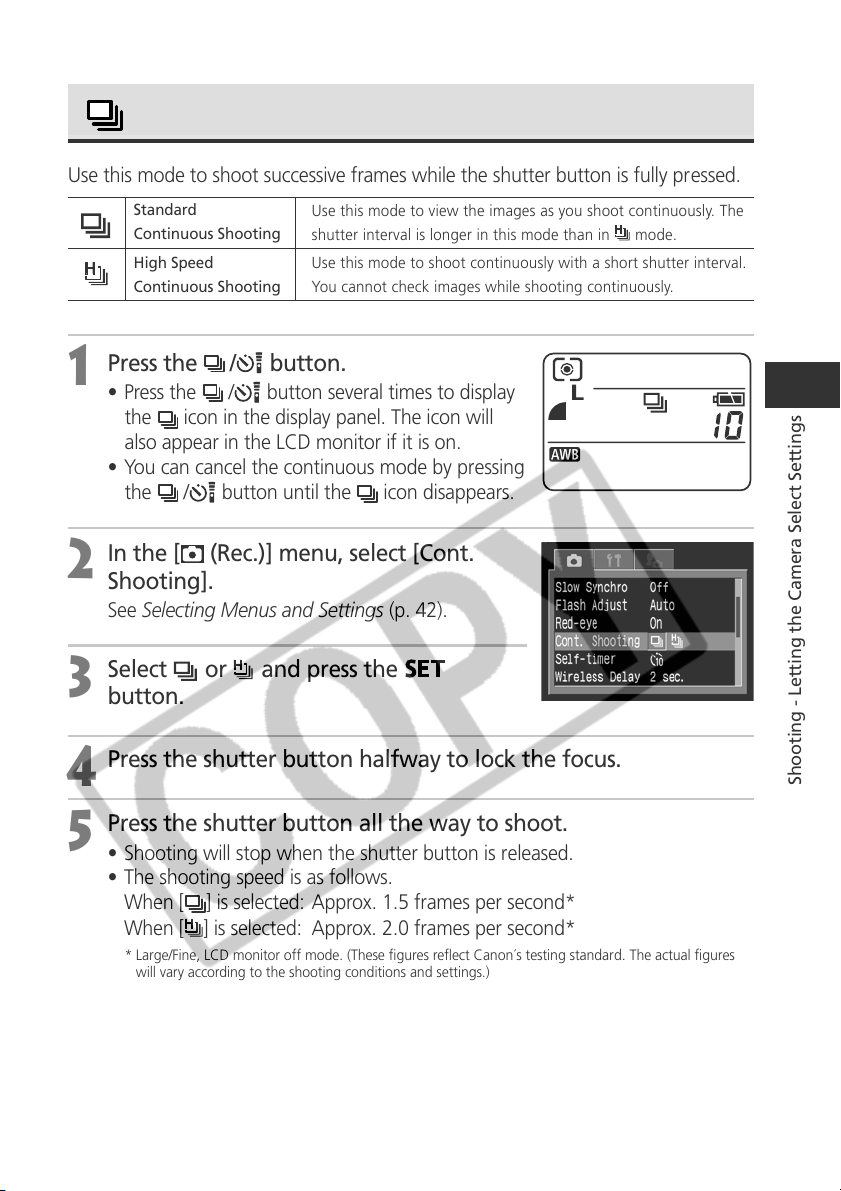
73
Shooting - Letting the Camera Select Settings
Standard
Continuous Shooting
High Speed
Continuous Shooting
Continuous Shooting
Use this mode to shoot successive frames while the shutter button is fully pressed.
Use this mode to view the images as you shoot continuously. The
shutter interval is longer in this mode than in mode.
Use this mode to shoot continuously with a short shutter interval.
You cannot check images while shooting continuously.
1
Press the
/
button.
• Press the
/
button several times to display
the
icon in the display panel. The icon will
also appear in the LCD monitor if it is on.
• You can cancel the continuous mode by pressing
the
/ button until the
icon disappears.
2
In the [ (Rec.)] menu, select [Cont.
Shooting].
See Selecting Menus and Settings (p. 42).
3
Select or and press the
button.
4
Press the shutter button halfway to lock the focus.
5
Press the shutter button all the way to shoot.
• Shooting will stop when the shutter button is released.
• The shooting speed is as follows.
When [
] is selected: Approx. 1.5 frames per second*
When [
] is selected: Approx. 2.0 frames per second*
* Large/Fine, LCD monitor off mode. (These figures reflect Canon´s testing standard. The actual figures
will vary according to the shooting conditions and settings.)
74
○○○○○○○○○○○○○○○○○○○○○○
• Some settings are not available with certain Shooting modes. Please refer to
Functions Available in Each Shooting Mode (p. 208).
• The interval between frames may lengthen somewhat when the internal memory
becomes full.
• The built-in flash can be used, but the interval between images will lengthen to
accommodate the flash recharge time.
• The flash will not fire with an externally mounted flash.
• Turning the camera off restores the standard shooting mode. However, the
selected continuous shooting option will remain effective the next time
continuous shooting is activated, making it possible to skip steps 2 and 3
above if you wish to use the same option.
Continuous Shooting (continued)
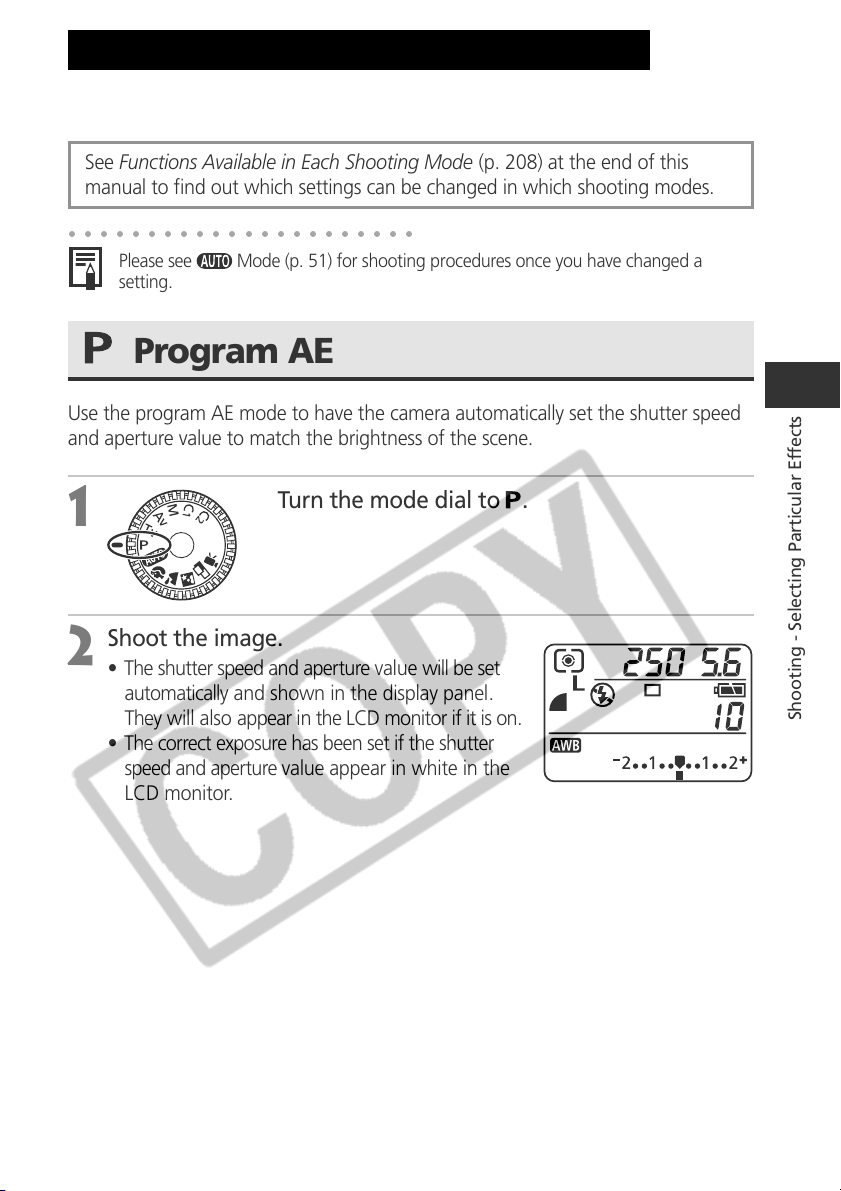
75
Shooting - Selecting Particular Effects
Shooting - Selecting Particular Effects
Camera settings such as shutter speed and aperture can be freely changed for
shooting.
Program AE
Use the program AE mode to have the camera automatically set the shutter speed
and aperture value to match the brightness of the scene.
1
Turn the mode dial to .
2
Shoot the image.
• The shutter speed and aperture value will be set
automatically and shown in the display panel.
They will also appear in the LCD monitor if it is on.
• The correct exposure has been set if the shutter
speed and aperture value appear in white in the
LCD monitor.
○○○○○○○○○○○○○○○○○○○○○○
Please see Mode (p. 51) for shooting procedures once you have changed a
setting.
See Functions Available in Each Shooting Mode (p. 208) at the end of this
manual to find out which settings can be changed in which shooting modes.
76
○○○○○○○○○○○○○○○○○○○○○○
• Functions Available in Each Shooting Mode (p. 208)
• If a correct exposure cannot be obtained, the shutter speed and aperture value show
in red on the LCD monitor. Use the following methods to obtain the correct
exposure and make them show in white.
- Use the flash.
- Change the ISO speed setting.
- Change the light metering mode.
Differences and Similarities between the and Modes.
• Both modes automatically select the shutter speed and aperture value.
• The following settings can be adjusted in
mode, but not in mode.
•
Exposure Compensation
•
White Balance
•
ISO Speed
•
Bracket Mode
•
Flash Exposure Compensation
•
Built-In Flash (Flash on, Slow Synchro, 2nd-curtain flash)
•
Photo Effect
•
Continuous Shooting
•
File Format Settings
•
Light Metering Mode
•
Manual Focus
•
AF frame
•
AE Lock
•
FE Lock
•
ND Filter
Program AE (continued)
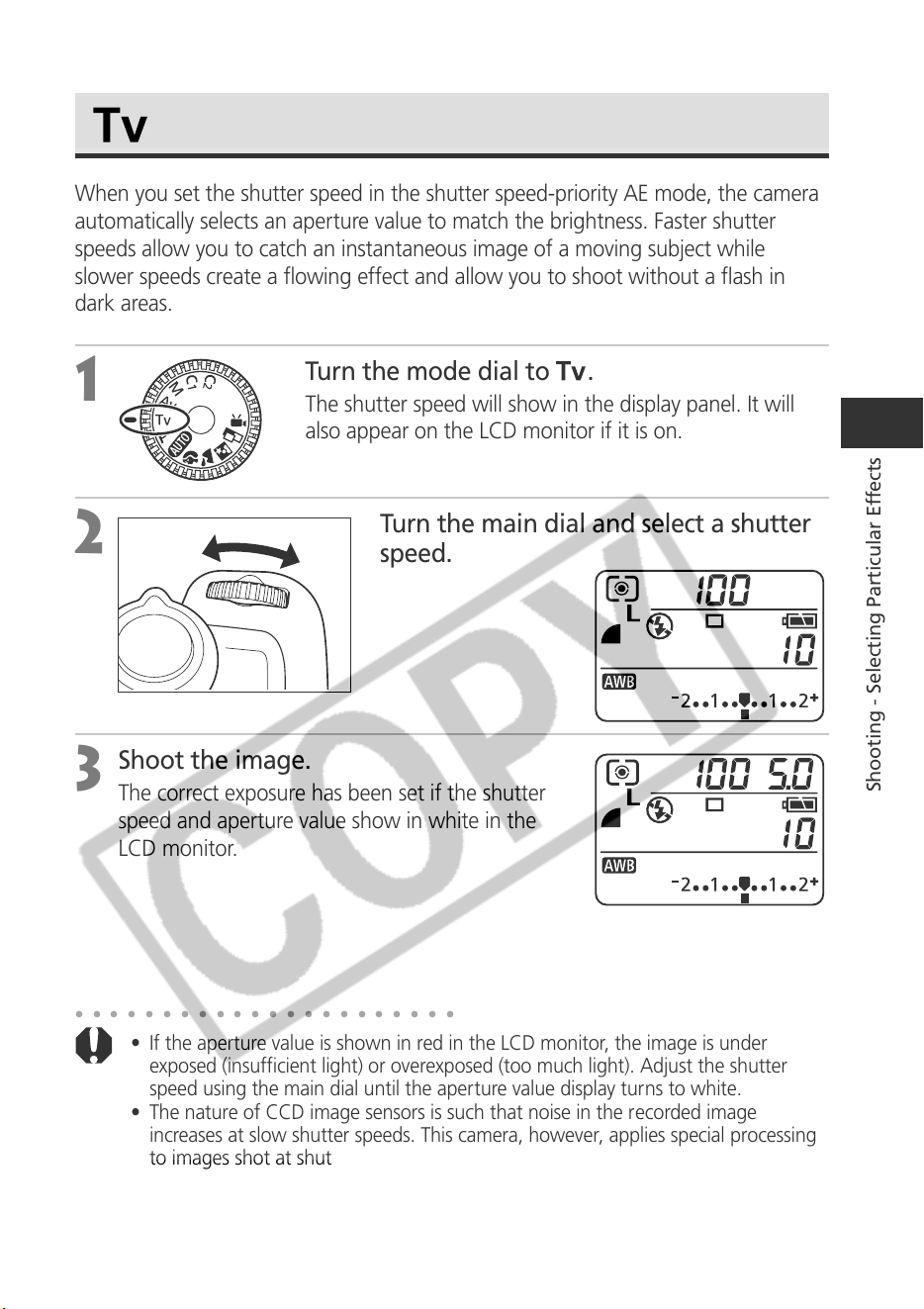
77
Shooting - Selecting Particular Effects
Setting the Shutter Speed
When you set the shutter speed in the shutter speed-priority AE mode, the camera
automatically selects an aperture value to match the brightness. Faster shutter
speeds allow you to catch an instantaneous image of a moving subject while
slower speeds create a flowing effect and allow you to shoot without a flash in
dark areas.
1
Turn the mode dial to .
The shutter speed will show in the display panel. It will
also appear on the LCD monitor if it is on.
2
Turn the main dial and select a shutter
speed.
3
Shoot the image.
The correct exposure has been set if the shutter
speed and aperture value show in white in the
LCD monitor.
○○○○○○○○○○○○○○○○○○○○○○
• If the aperture value is shown in red in the LCD monitor, the image is under
exposed (insufficient light) or overexposed (too much light). Adjust the shutter
speed using the main dial until the aperture value display turns to white.
• The nature of CCD image sensors is such that noise in the recorded image
increases at slow shutter speeds. This camera, however, applies special processing
to images shot at shutter speeds slower than 1.3 seconds to eliminate the noise,
thereby producing high-quality images. Nevertheless, a certain amount of
processing time may be required before the next image can be shot.
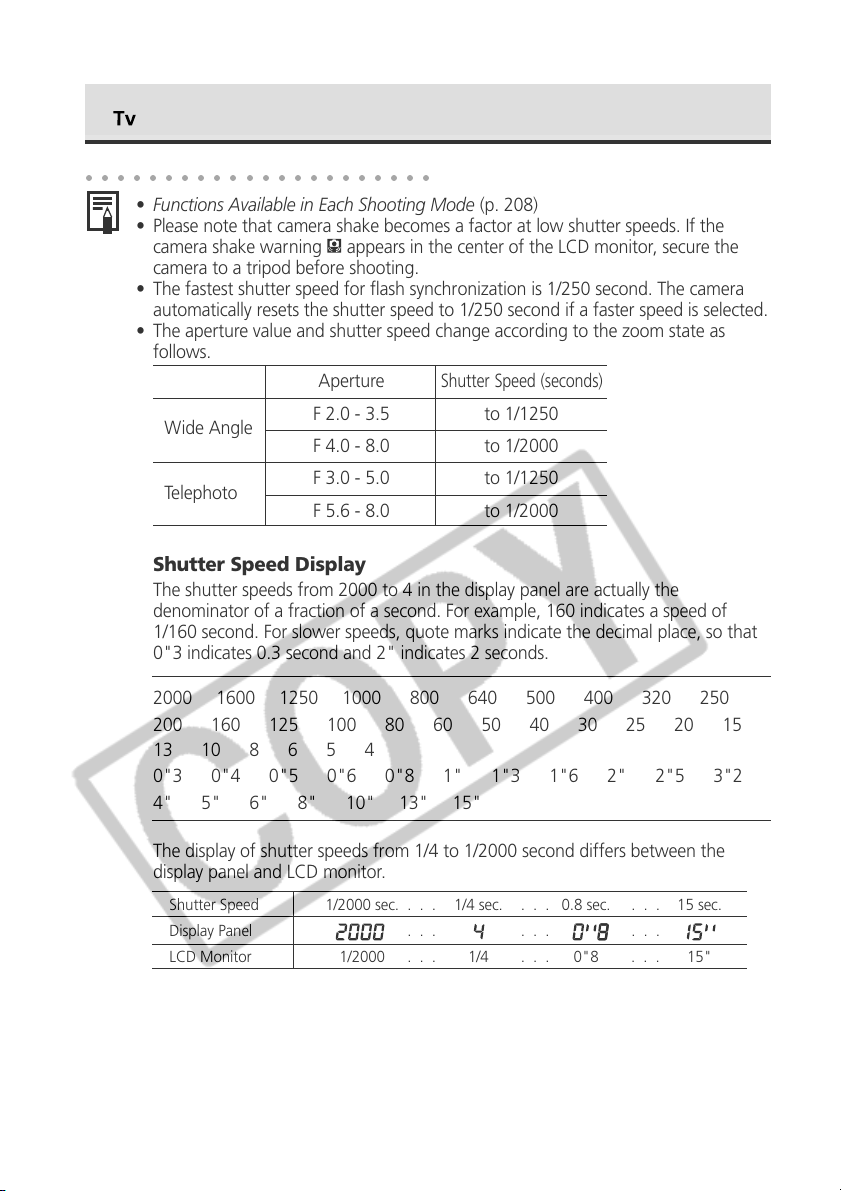
78
Setting the Shutter Speed (continued)
○○○○○○○○○○○○○○○○○○○○○○
• Functions Available in Each Shooting Mode (p. 208)
• Please note that camera shake becomes a factor at low shutter speeds. If the
camera shake warning
appears in the center of the LCD monitor, secure the
camera to a tripod before shooting.
• The fastest shutter speed for flash synchronization is 1/250 second. The camera
automatically resets the shutter speed to 1/250 second if a faster speed is selected.
• The aperture value and shutter speed change according to the zoom state as
follows.
Aperture
Shutter Speed (seconds)
Wide Angle
F 2.0 - 3.5 to 1/1250
F 4.0 - 8.0 to 1/2000
Telephoto
F 3.0 - 5.0 to 1/1250
F 5.6 - 8.0 to 1/2000
Shutter Speed Display
The shutter speeds from 2000 to 4 in the display panel are actually the
denominator of a fraction of a second. For example, 160 indicates a speed of
1/160 second. For slower speeds, quote marks indicate the decimal place, so that
0"3 indicates 0.3 second and 2" indicates 2 seconds.
2000 1600 1250 1000 800 640 500 400 320 250
200 160 125 100 80 60 50 40 30 25 20 15
13 10 8 6 5 4
0"3 0"4 0"5 0"6 0"8 1" 1"3 1"6 2" 2"5 3"2
4" 5" 6" 8" 10" 13" 15"
The display of shutter speeds from 1/4 to 1/2000 second differs between the
display panel and LCD monitor.
Shutter Speed 1/2000 sec. . . . 1/4 sec. . . . 0.8 sec. . . . 15 sec.
Display Panel . . . . . . . . .
LCD Monitor 1/2000 . . . 1/4 . . . 0"8 . . . 15"
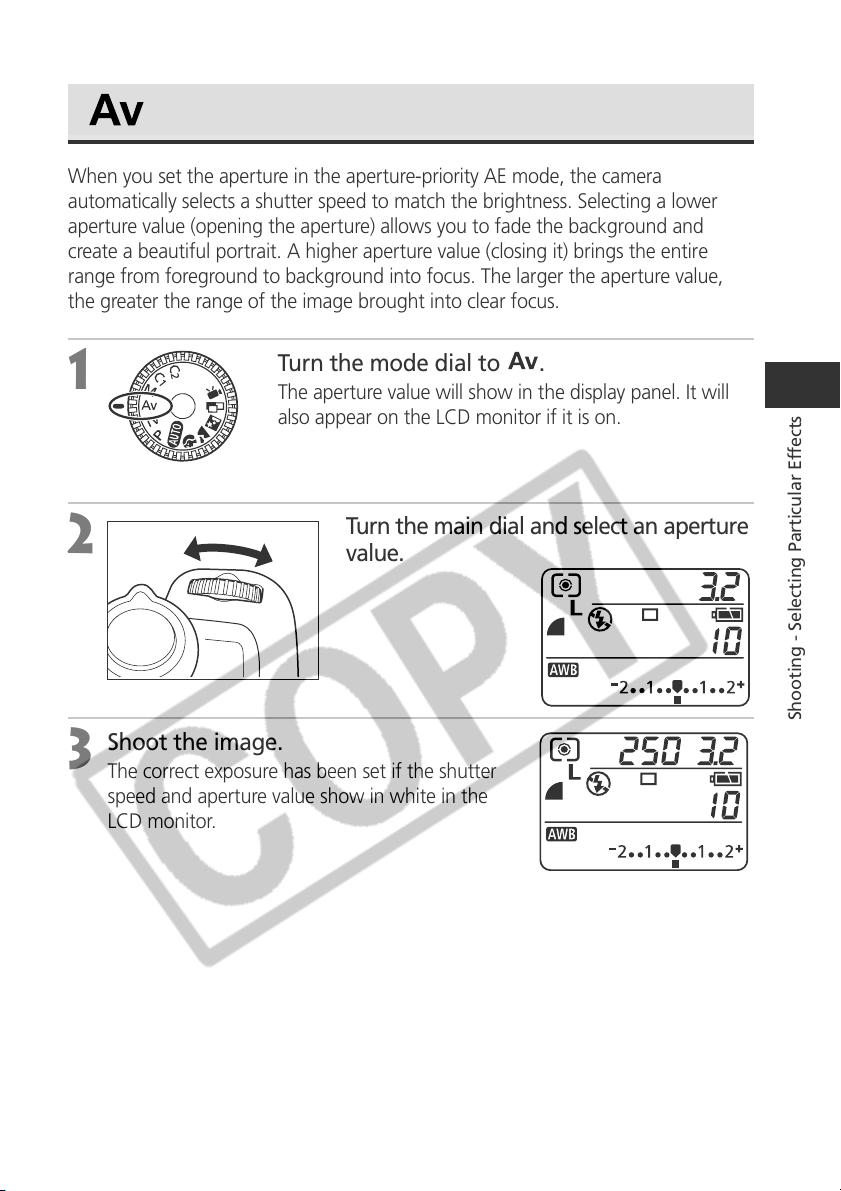
79
Shooting - Selecting Particular Effects
Setting the Aperture
When you set the aperture in the aperture-priority AE mode, the camera
automatically selects a shutter speed to match the brightness. Selecting a lower
aperture value (opening the aperture) allows you to fade the background and
create a beautiful portrait. A higher aperture value (closing it) brings the entire
range from foreground to background into focus. The larger the aperture value,
the greater the range of the image brought into clear focus.
1
Turn the mode dial to .
The aperture value will show in the display panel. It will
also appear on the LCD monitor if it is on.
2
Turn the main dial and select an aperture
value.
3
Shoot the image.
The correct exposure has been set if the shutter
speed and aperture value show in white in the
LCD monitor.
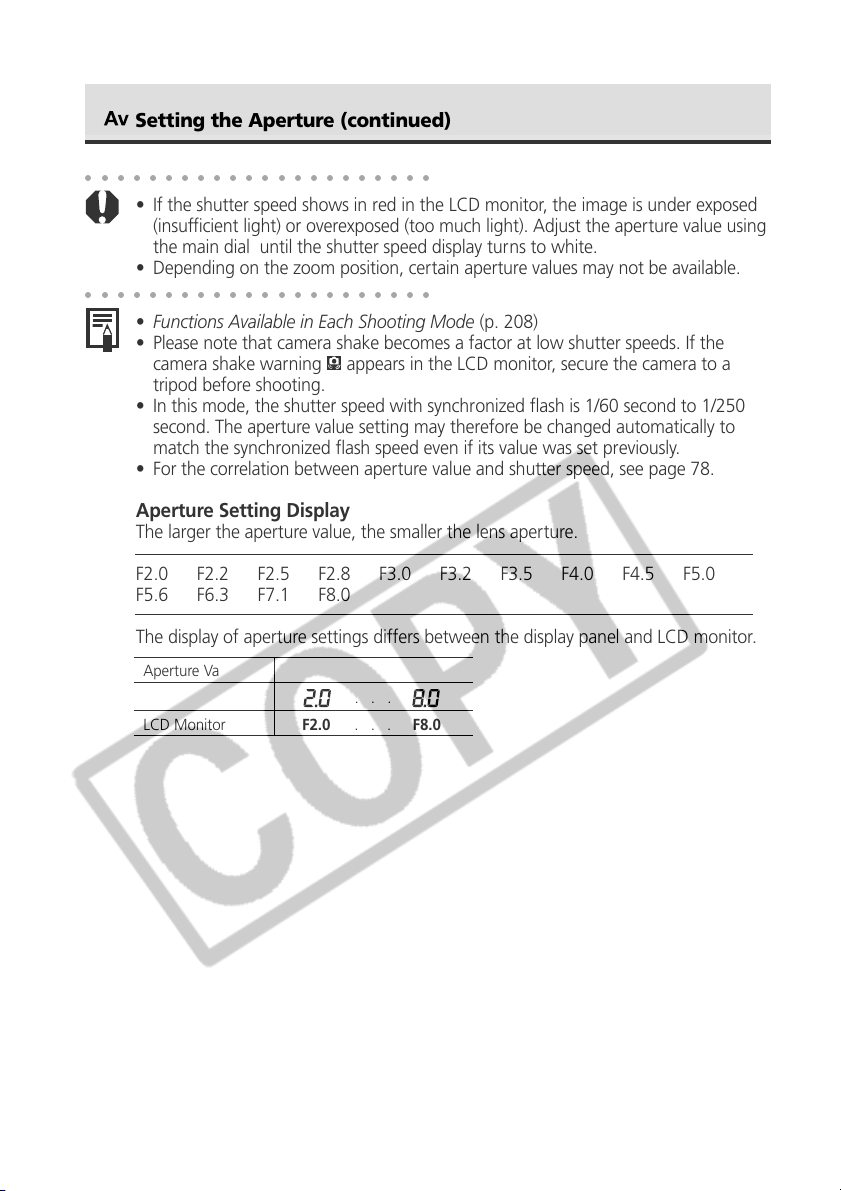
80
○○○○○○○○○○○○○○○○○○○○○○
• If the shutter speed shows in red in the LCD monitor, the image is under exposed
(insufficient light) or overexposed (too much light). Adjust the aperture value using
the main dial until the shutter speed display turns to white.
• Depending on the zoom position, certain aperture values may not be available.
○○○○○○○○○○○○○○○○○○○○○○
• Functions Available in Each Shooting Mode (p. 208)
• Please note that camera shake becomes a factor at low shutter speeds. If the
camera shake warning
appears in the LCD monitor, secure the camera to a
tripod before shooting.
• In this mode, the shutter speed with synchronized flash is 1/60 second to 1/250
second. The aperture value setting may therefore be changed automatically to
match the synchronized flash speed even if its value was set previously.
• For the correlation between aperture value and shutter speed, see page 78.
Aperture Setting Display
The larger the aperture value, the smaller the lens aperture.
F2.0 F2.2 F2.5 F2.8 F3.0 F3.2 F3.5 F4.0 F4.5 F5.0
F5.6 F6.3 F7.1 F8.0
The display of aperture settings differs between the display panel and LCD monitor.
Setting the Aperture (continued)
Aperture Value F2.0 . . . F8.0
Display Panel . . .
LCD Monitor F2.0 . . . F8.0
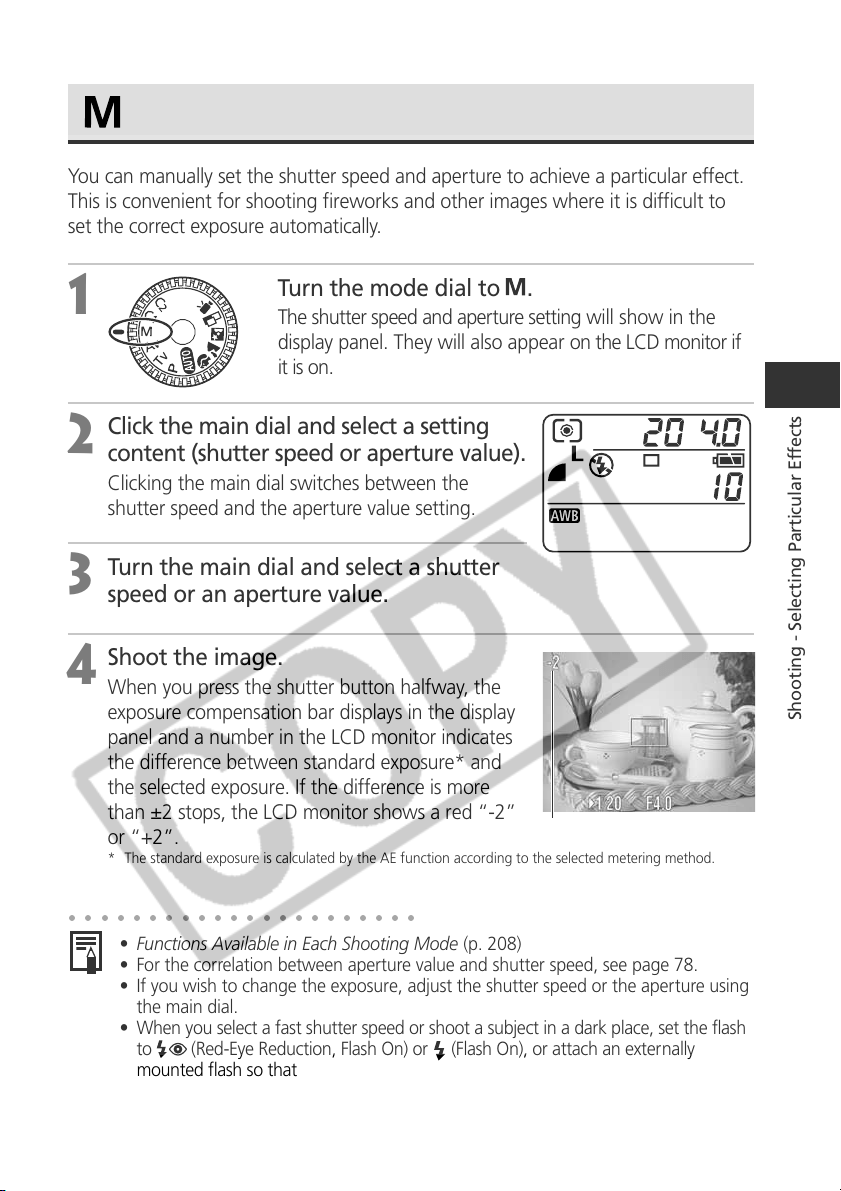
81
Shooting - Selecting Particular Effects
Manually Setting the Shutter Speed and Aperture
You can manually set the shutter speed and aperture to achieve a particular effect.
This is convenient for shooting fireworks and other images where it is difficult to
set the correct exposure automatically.
1
Turn the mode dial to .
The shutter speed and aperture setting will show in the
display panel. They will also appear on the LCD monitor if
it is on.
2
Click the main dial and select a setting
content (shutter speed or aperture value).
Clicking the main dial switches between the
shutter speed and the aperture value setting.
3
Turn the main dial and select a shutter
speed or an aperture value.
4
Shoot the image.
When you press the shutter button halfway, the
exposure compensation bar displays in the display
panel and a number in the LCD monitor indicates
the difference between standard exposure* and
the selected exposure. If the difference is more
than ±2 stops, the LCD monitor shows a red “-2”
or “+2”.
* The standard exposure is calculated by the AE function according to the selected metering method.
○○○○○○○○○○○○○○○○○○○○○○
• Functions Available in Each Shooting Mode (p. 208)
• For the correlation between aperture value and shutter speed, see page 78.
• If you wish to change the exposure, adjust the shutter speed or the aperture using
the main dial.
• When you select a fast shutter speed or shoot a subject in a dark place, set the flash
to
(Red-Eye Reduction, Flash On) or (Flash On), or attach an externally
mounted flash so that the LCD monitor's brightness matches the selected shutter
speed and aperture value. The LCD monitor will always light up when the flash is on.
Displays in red
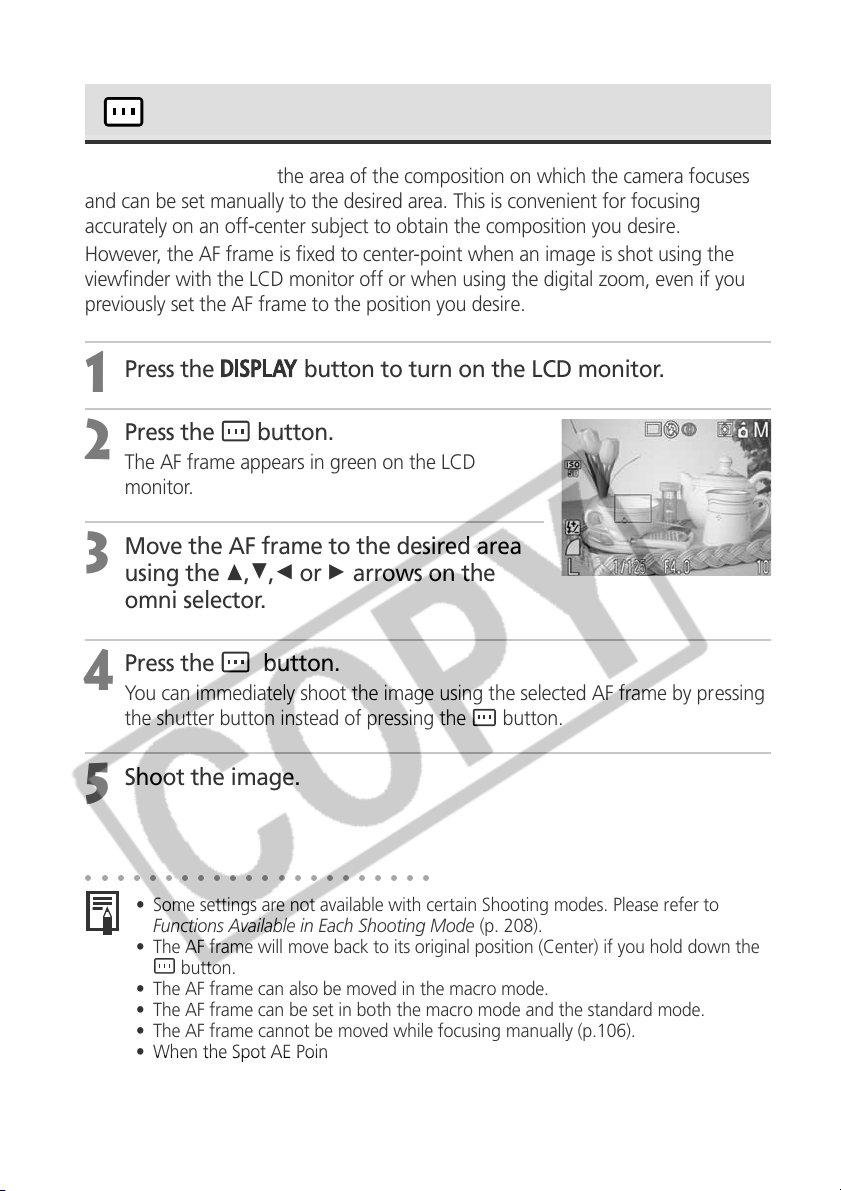
82
○○○○○○○○○○○○○○○○○○○○○○
• Some settings are not available with certain Shooting modes. Please refer to
Functions Available in Each Shooting Mode (p. 208).
• The AF frame will move back to its original position (Center) if you hold down the
button.
• The AF frame can also be moved in the macro mode.
• The AF frame can be set in both the macro mode and the standard mode.
• The AF frame cannot be moved while focusing manually (p.106).
• When the Spot AE Point is selected as the light metering mode, you can use the
selected AF frame as the Spot AE Point (p. 83).
• For an explanation of the AF frame colors, please refer to page 39.
Selecting an AF Frame
The AF frame indicates the area of the composition on which the camera focuses
and can be set manually to the desired area. This is convenient for focusing
accurately on an off-center subject to obtain the composition you desire.
However, the AF frame is fixed to center-point when an image is shot using the
viewfinder with the LCD monitor off or when using the digital zoom, even if you
previously set the AF frame to the position you desire.
1
Press the
button to turn on the LCD monitor.
2
Press the button.
The AF frame appears in green on the LCD
monitor.
3
Move the AF frame to the desired area
using the C,D,B or A arrows on the
omni selector.
4
Press the button.
You can immediately shoot the image using the selected AF frame by pressing
the shutter button instead of pressing the
button.
5
Shoot the image.
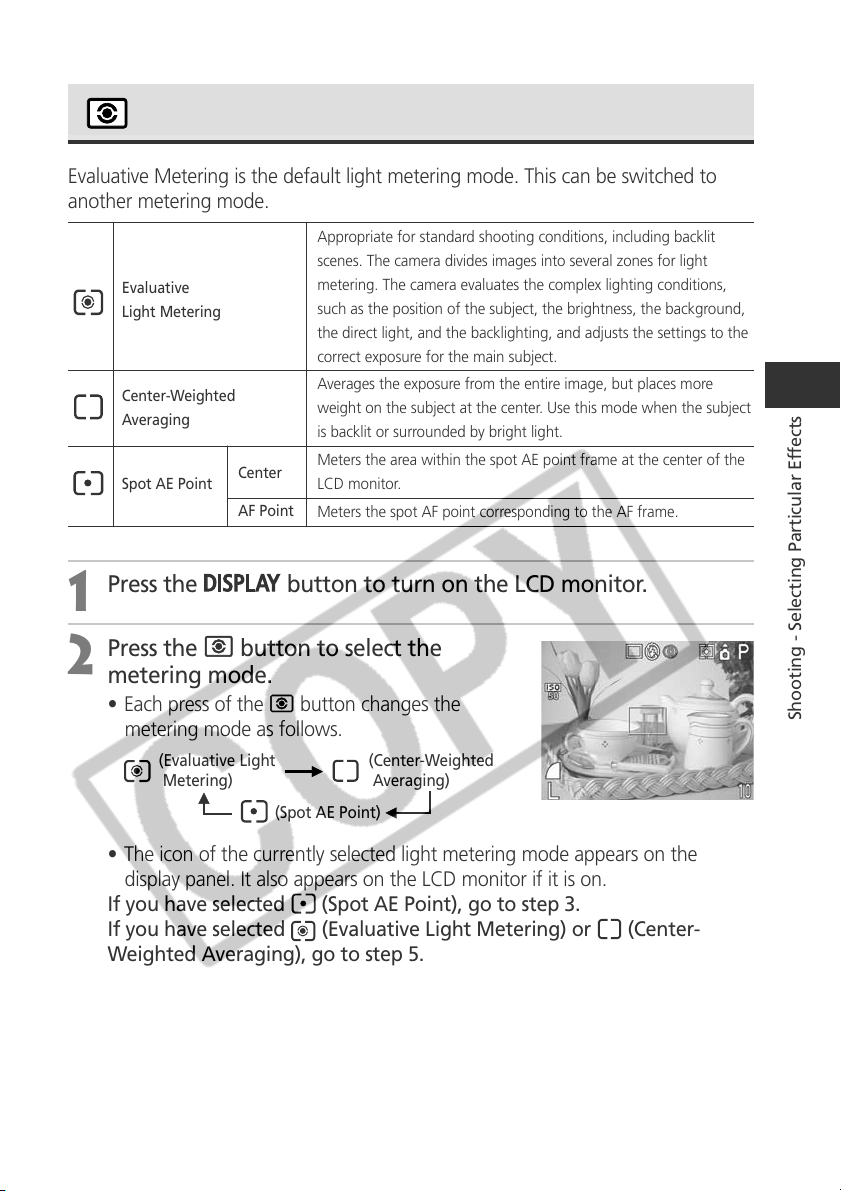
83
Shooting - Selecting Particular Effects
Switching between Light Metering Modes
Evaluative Metering is the default light metering mode. This can be switched to
another metering mode.
Appropriate for standard shooting conditions, including backlit
scenes. The camera divides images into several zones for light
metering. The camera evaluates the complex lighting conditions,
such as the position of the subject, the brightness, the background,
the direct light, and the backlighting, and adjusts the settings to the
correct exposure for the main subject.
Averages the exposure from the entire image, but places more
weight on the subject at the center. Use this mode when the subject
is backlit or surrounded by bright light.
Meters the area within the spot AE point frame at the center of the
LCD monitor.
Meters the spot AF point corresponding to the AF frame.
1
Press the
button to turn on the LCD monitor.
2
Press the button to select the
metering mode.
• Each press of the button changes the
metering mode as follows.
• The icon of the currently selected light metering mode appears on the
display panel. It also appears on the LCD monitor if it is on.
If you have selected
(Spot AE Point), go to step 3.
If you have selected
(Evaluative Light Metering) or (Center-
Weighted Averaging), go to step 5.
Evaluative
Light Metering
Center-Weighted
Averaging
Spot AE Point
Center
AF Point
(Evaluative Light (Center-Weighted
Metering) Averaging)
(Spot AE Point)
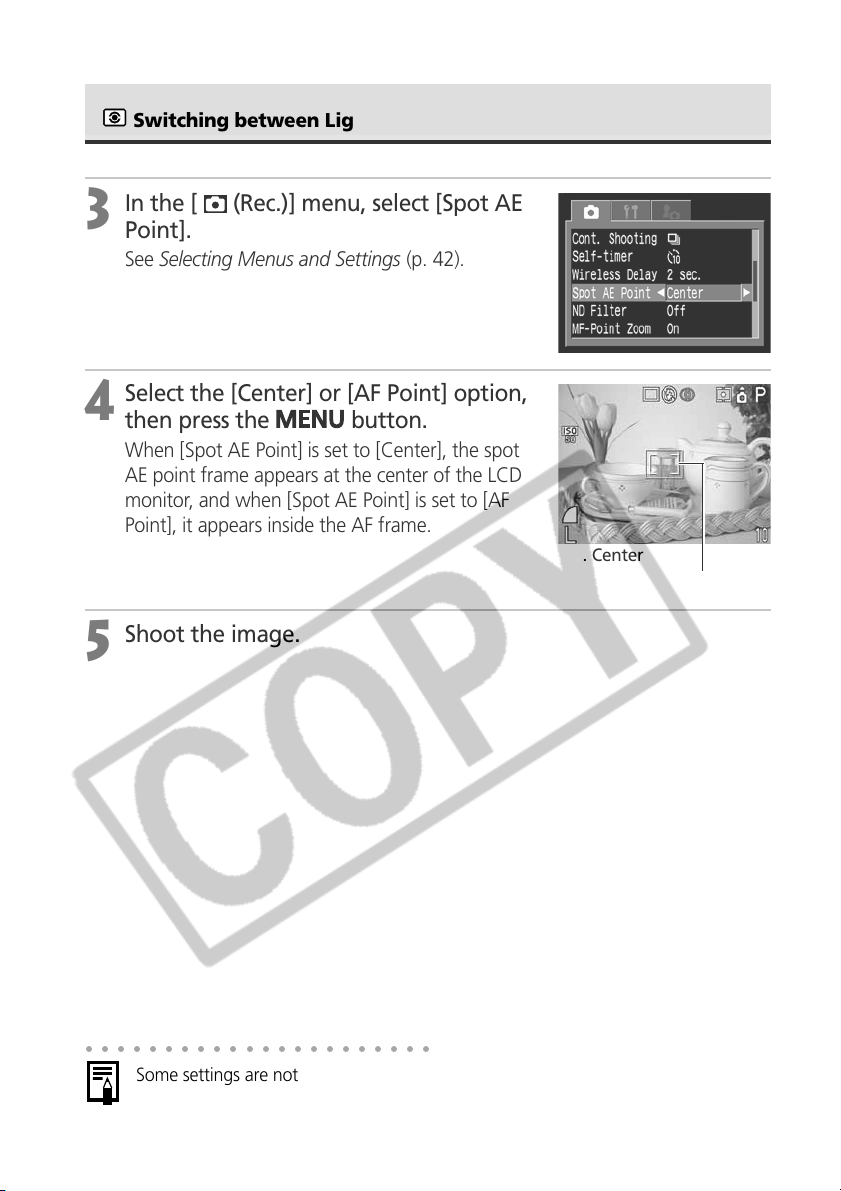
84
3
In the [ (Rec.)] menu, select [Spot AE
Point].
See Selecting Menus and Settings (p. 42).
4
Select the [Center] or [AF Point] option,
then press the
button.
When [Spot AE Point] is set to [Center], the spot
AE point frame appears at the center of the LCD
monitor, and when [Spot AE Point] is set to [AF
Point], it appears inside the AF frame.
5
Shoot the image.
○○○○○○○○○○○○○○○○○○○○○○
Some settings are not available with certain Shooting modes. Please refer to
Functions Available in Each Shooting Mode (p. 208).
Spot AE Point Frame
e.g. Center
Switching between Light Metering Modes (continued)
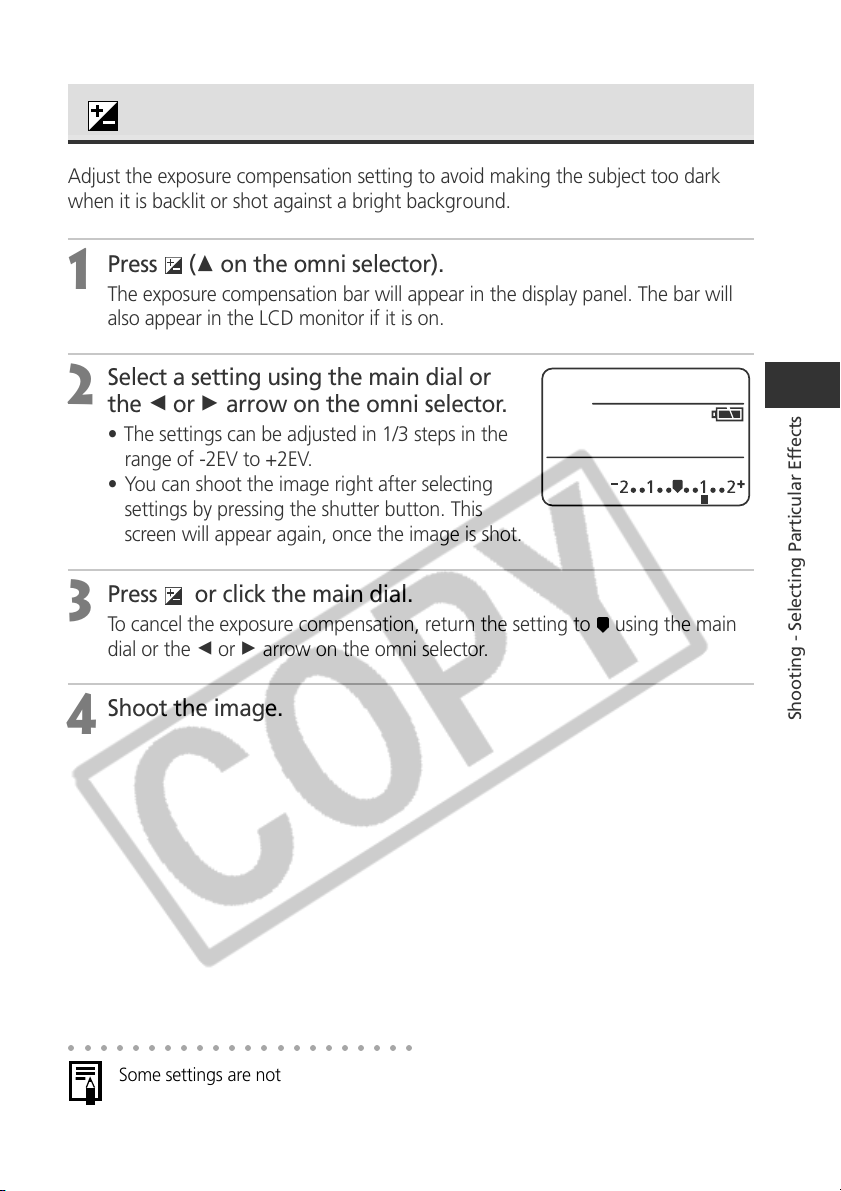
85
Shooting - Selecting Particular Effects
Adjusting the Exposure
Adjust the exposure compensation setting to avoid making the subject too dark
when it is backlit or shot against a bright background.
1
Press
(C on the omni selector).
The exposure compensation bar will appear in the display panel. The bar will
also appear in the LCD monitor if it is on.
2
Select a setting using the main dial or
the B or A arrow on the omni selector.
• The settings can be adjusted in 1/3 steps in the
range of -2EV to +2EV.
• You can shoot the image right after selecting
settings by pressing the shutter button. This
screen will appear again, once the image is shot.
3
Press or click the main dial.
To cancel the exposure compensation, return the setting to using the main
dial or the B or A arrow on the omni selector.
4
Shoot the image.
○○○○○○○○○○○○○○○○○○○○○○
Some settings are not available with certain Shooting modes. Please refer to
Functions Available in Each Shooting Mode (p. 208).
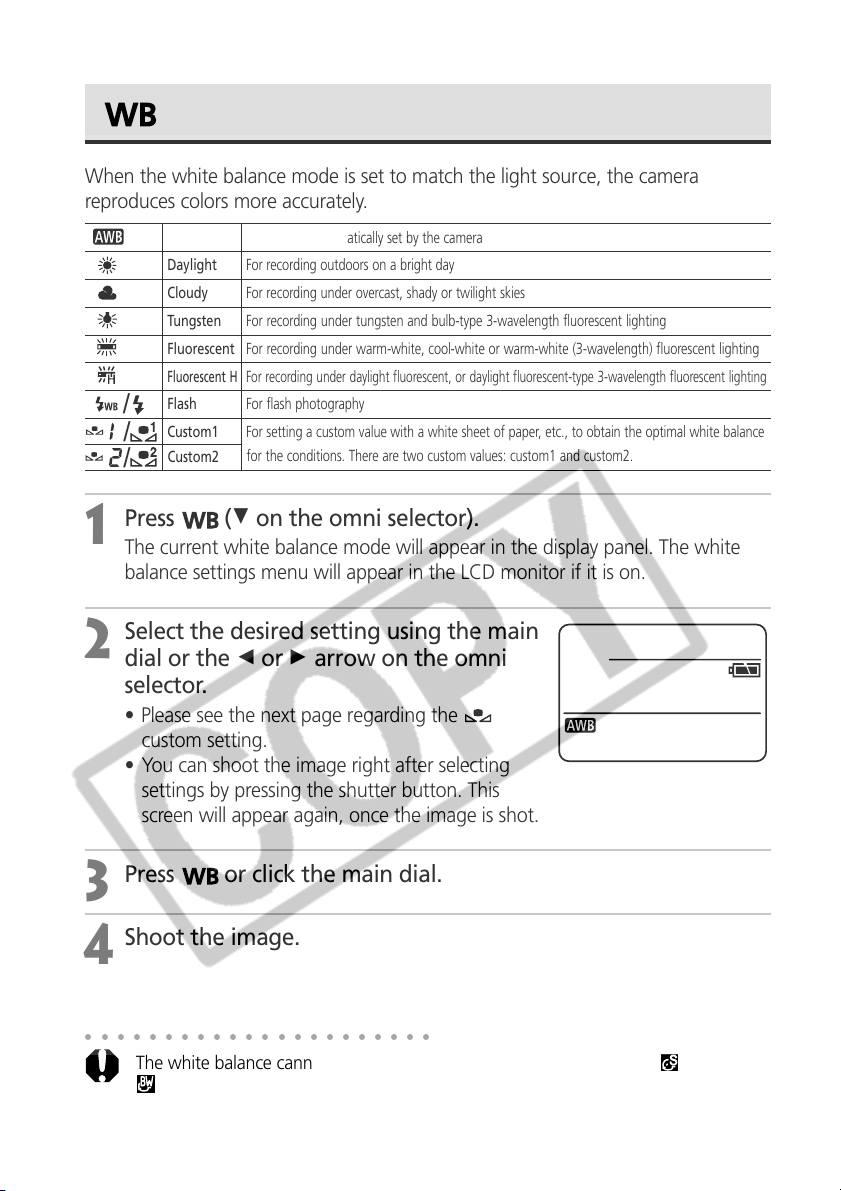
86
Setting the White Balance
When the white balance mode is set to match the light source, the camera
reproduces colors more accurately.
1
Press (D on the omni selector).
The current white balance mode will appear in the display panel. The white
balance settings menu will appear in the LCD monitor if it is on.
2
Select the desired setting using the main
dial or the B or A arrow on the omni
selector.
• Please see the next page regarding the
custom setting.
• You can shoot the image right after selecting
settings by pressing the shutter button. This
screen will appear again, once the image is shot.
3
Press or click the main dial.
4
Shoot the image.
○○○○○○○○○○○○○○○○○○○○○○
The white balance cannot be adjusted when the photo effect is set to
(Sepia) or
(B/W).
Auto Settings are automatically set by the camera
Daylight For recording outdoors on a bright day
Cloudy For recording under overcast, shady or twilight skies
Tungsten For recording under tungsten and bulb-type 3-wavelength fluorescent lighting
Fluorescent For recording under warm-white, cool-white or warm-white (3-wavelength) fluorescent lighting
Fluorescent H
For recording under daylight fluorescent, or daylight fluorescent-type 3-wavelength fluorescent lighting
Flash For flash photography
Custom1 For setting a custom value with a white sheet of paper, etc., to obtain the optimal white balance
for the conditions. There are two custom values: custom1 and custom2.
Custom2
/
/
/
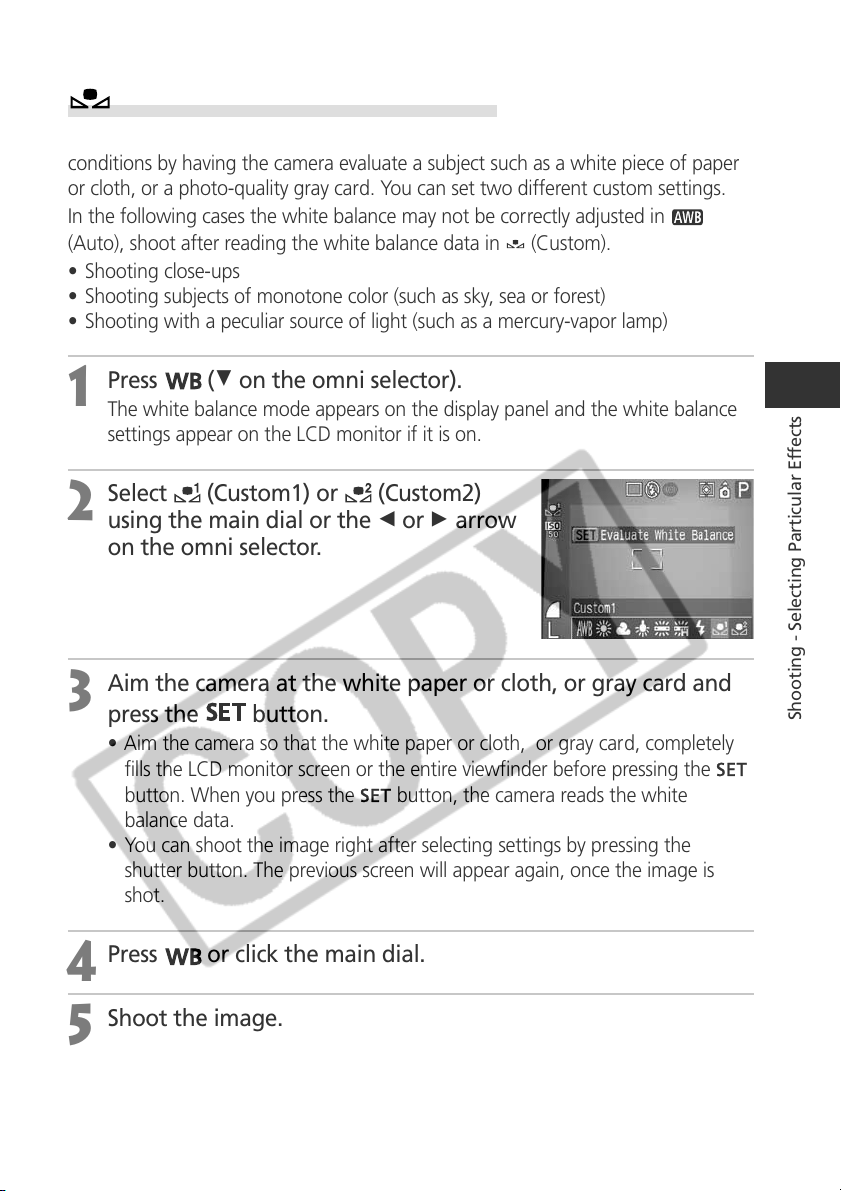
87
Shooting - Selecting Particular Effects
Setting a Custom White Balance
You can set a custom white balance to obtain the optimal setting for the shooting
conditions by having the camera evaluate a subject such as a white piece of paper
or cloth, or a photo-quality gray card. You can set two different custom settings.
In the following cases the white balance may not be correctly adjusted in
(Auto), shoot after reading the white balance data in (Custom).
• Shooting close-ups
• Shooting subjects of monotone color (such as sky, sea or forest)
• Shooting with a peculiar source of light (such as a mercury-vapor lamp)
1
Press (D on the omni selector).
The white balance mode appears on the display panel and the white balance
settings appear on the LCD monitor if it is on.
2
Select (Custom1) or (Custom2)
using the main dial or the B or A arrow
on the omni selector.
3
Aim the camera at the white paper or cloth, or gray card and
press the
button.
• Aim the camera so that the white paper or cloth, or gray card, completely
fills the LCD monitor screen or the entire viewfinder before pressing the
button. When you press the
button, the camera reads the white
balance data.
• You can shoot the image right after selecting settings by pressing the
shutter button. The previous screen will appear again, once the image is
shot.
4
Press or click the main dial.
5
Shoot the image.
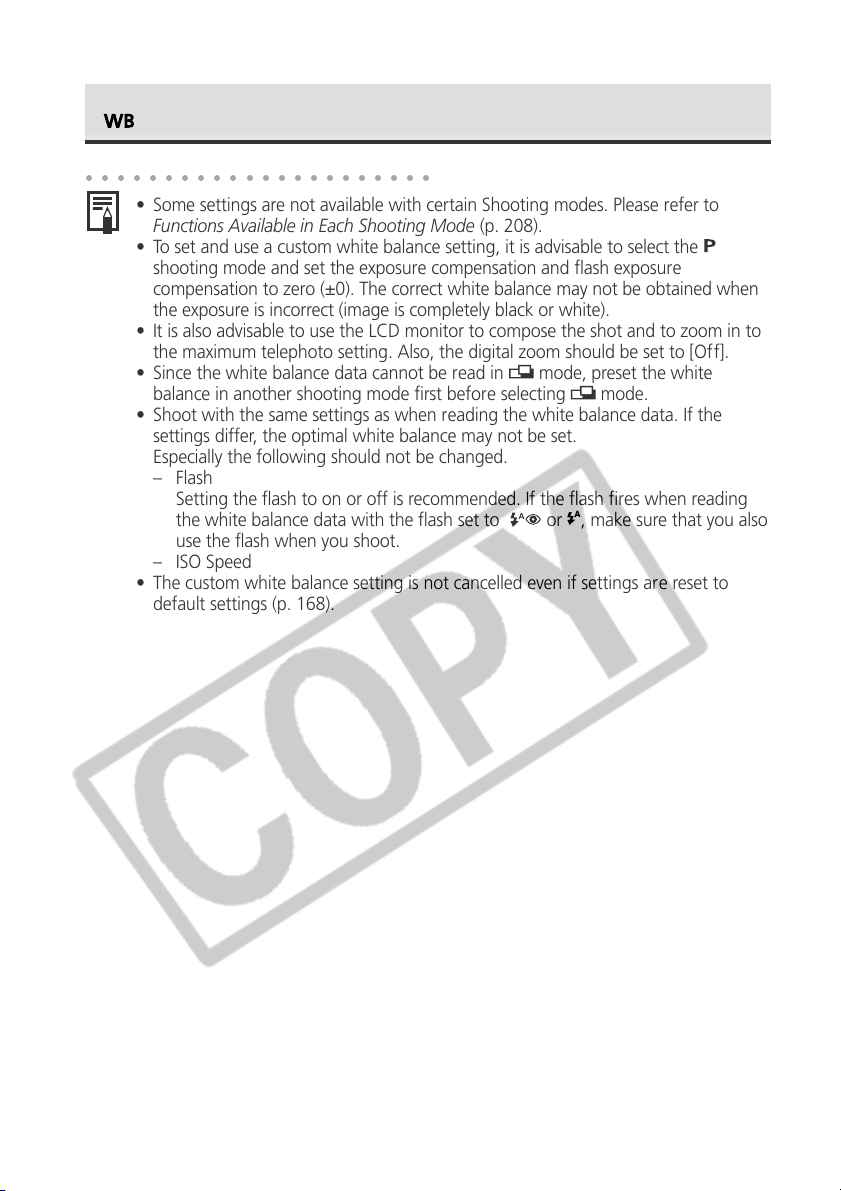
88
Setting the White Balance (continued)
○○○○○○○○○○○○○○○○○○○○○○
• Some settings are not available with certain Shooting modes. Please refer to
Functions Available in Each Shooting Mode (p. 208).
• To set and use a custom white balance setting, it is advisable to select the
shooting mode and set the exposure compensation and flash exposure
compensation to zero (±0). The correct white balance may not be obtained when
the exposure is incorrect (image is completely black or white).
• It is also advisable to use the LCD monitor to compose the shot and to zoom in to
the maximum telephoto setting. Also, the digital zoom should be set to [Off].
• Since the white balance data cannot be read in
mode, preset the white
balance in another shooting mode first before selecting
mode.
• Shoot with the same settings as when reading the white balance data. If the
settings differ, the optimal white balance may not be set.
Especially the following should not be changed.
– Flash
Setting the flash to on or off is recommended. If the flash fires when reading
the white balance data with the flash set to
or , make sure that you also
use the flash when you shoot.
– ISO Speed
• The custom white balance setting is not cancelled even if settings are reset to
default settings (p. 168).
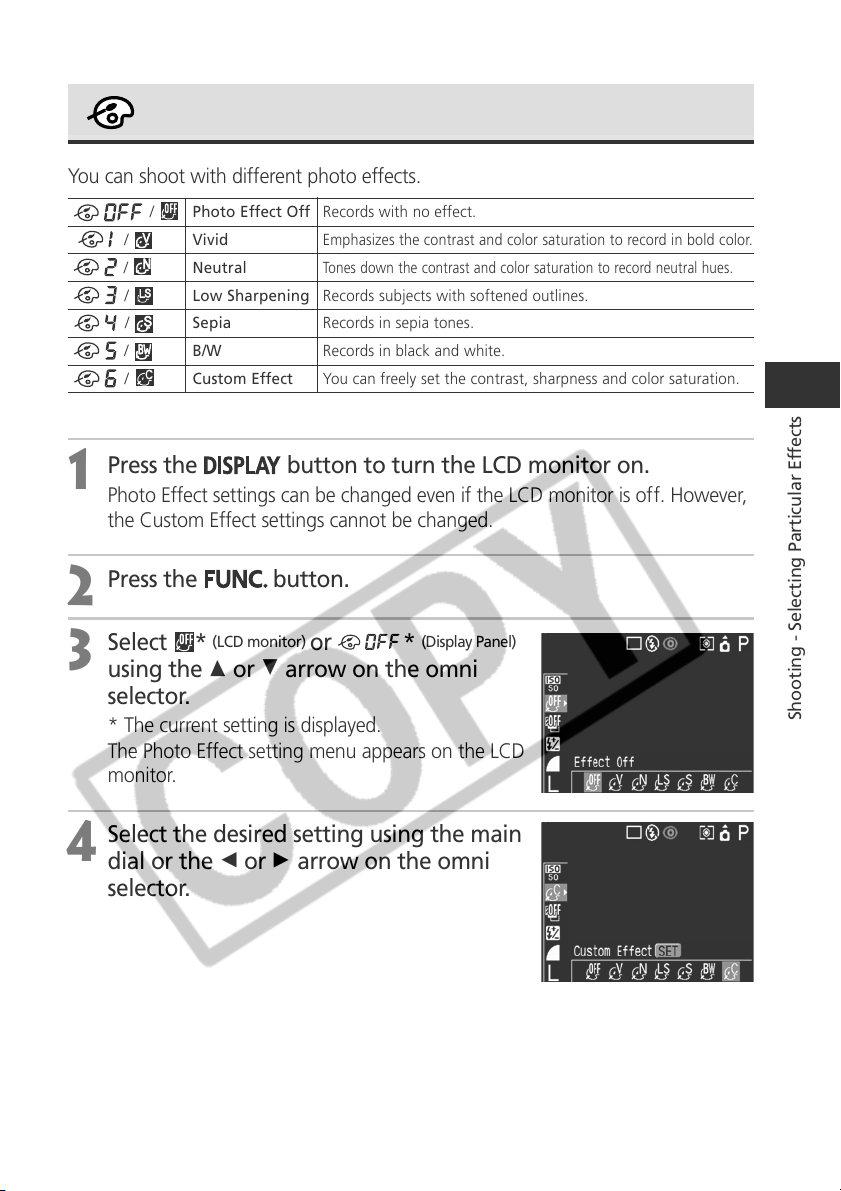
89
Shooting - Selecting Particular Effects
Changing the Photo Effect
You can shoot with different photo effects.
1
Press the
button to turn the LCD monitor on.
Photo Effect settings can be changed even if the LCD monitor is off. However,
the Custom Effect settings cannot be changed.
2
Press the
button.
3
Select *
(LCD monitor)
or *
(Display Panel)
using the C or D arrow on the omni
selector.
* The current setting is displayed.
The Photo Effect setting menu appears on the LCD
monitor.
4
Select the desired setting using the main
dial or the B or A arrow on the omni
selector.
/ Photo Effect Off Records with no effect.
/
Vivid
Emphasizes the contrast and color saturation to record in bold color.
/ Neutral
Tones down the contrast and color saturation to record neutral hues.
/
Low Sharpening Records subjects with softened outlines.
/
Sepia Records in sepia tones.
/
B/W Records in black and white.
/ Custom Effect You can freely set the contrast, sharpness and color saturation.
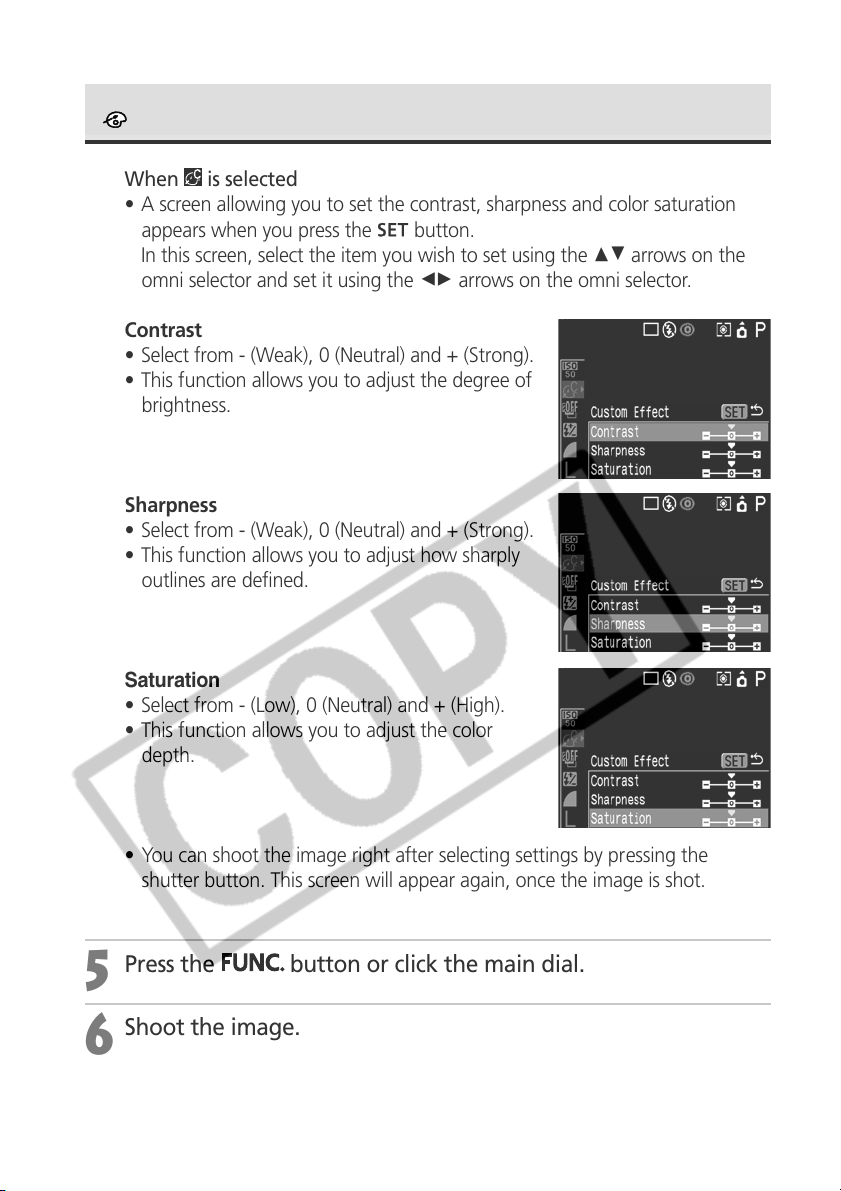
90
When is selected
• A screen allowing you to set the contrast, sharpness and color saturation
appears when you press the
button.
In this screen, select the item you wish to set using the CD arrows on the
omni selector and set it using the BA arrows on the omni selector.
Contrast
• Select from - (Weak), 0 (Neutral) and + (Strong).
• This function allows you to adjust the degree of
brightness.
Sharpness
• Select from - (Weak), 0 (Neutral) and + (Strong).
• This function allows you to adjust how sharply
outlines are defined.
Saturation
• Select from - (Low), 0 (Neutral) and + (High).
• This function allows you to adjust the color
depth.
• You can shoot the image right after selecting settings by pressing the
shutter button. This screen will appear again, once the image is shot.
5
Press the
button or click the main dial.
6
Shoot the image.
Changing the Photo Effect (continued)
91
Shooting - Selecting Particular Effects
○○○○○○○○○○○○○○○○○○○○○○
The white balance cannot be set when
(sepia) or
(B/W) mode is selected.
○○○○○○○○○○○○○○○○○○○○○○
Some settings are not available with certain Shooting modes. Please refer to
Functions Available in Each Shooting Mode (p. 208).
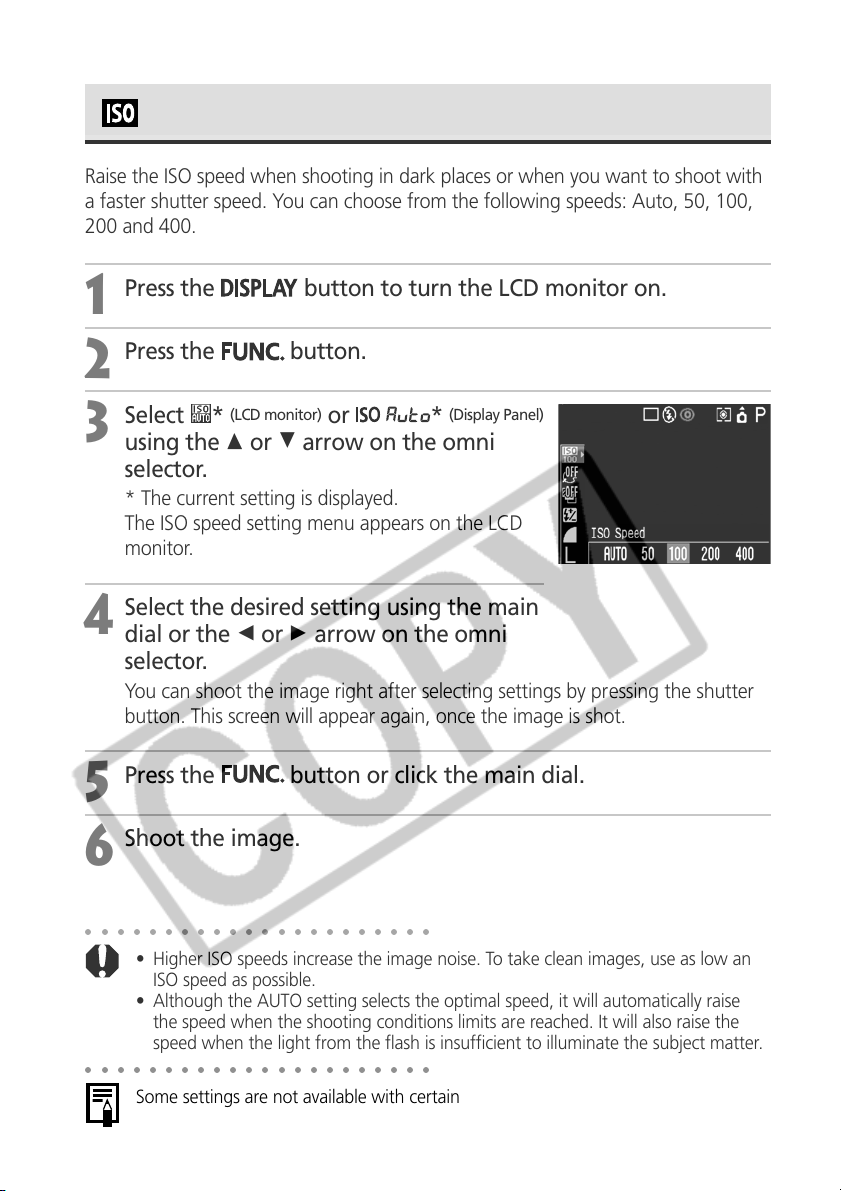
92
Changing the ISO Speed
Raise the ISO speed when shooting in dark places or when you want to shoot with
a faster shutter speed. You can choose from the following speeds: Auto, 50, 100,
200 and 400.
1
Press the
button to turn the LCD monitor on.
2
Press the
button.
3
Select *
(LCD monitor)
or *
(Display Panel)
using the C or D arrow on the omni
selector.
* The current setting is displayed.
The ISO speed setting menu appears on the LCD
monitor.
4
Select the desired setting using the main
dial or the B or A arrow on the omni
selector.
You can shoot the image right after selecting settings by pressing the shutter
button. This screen will appear again, once the image is shot.
5
Press the
button or click the main dial.
6
Shoot the image.
○○○○○○○○○○○○○○○○○○○○○○
• Higher ISO speeds increase the image noise. To take clean images, use as low an
ISO speed as possible.
• Although the AUTO setting selects the optimal speed, it will automatically raise
the speed when the shooting conditions limits are reached. It will also raise the
speed when the light from the flash is insufficient to illuminate the subject matter.
○○○○○○○○○○○○○○○○○○○○○○
Some settings are not available with certain Shooting modes. Please refer to
Functions Available in Each Shooting Mode (p. 208).
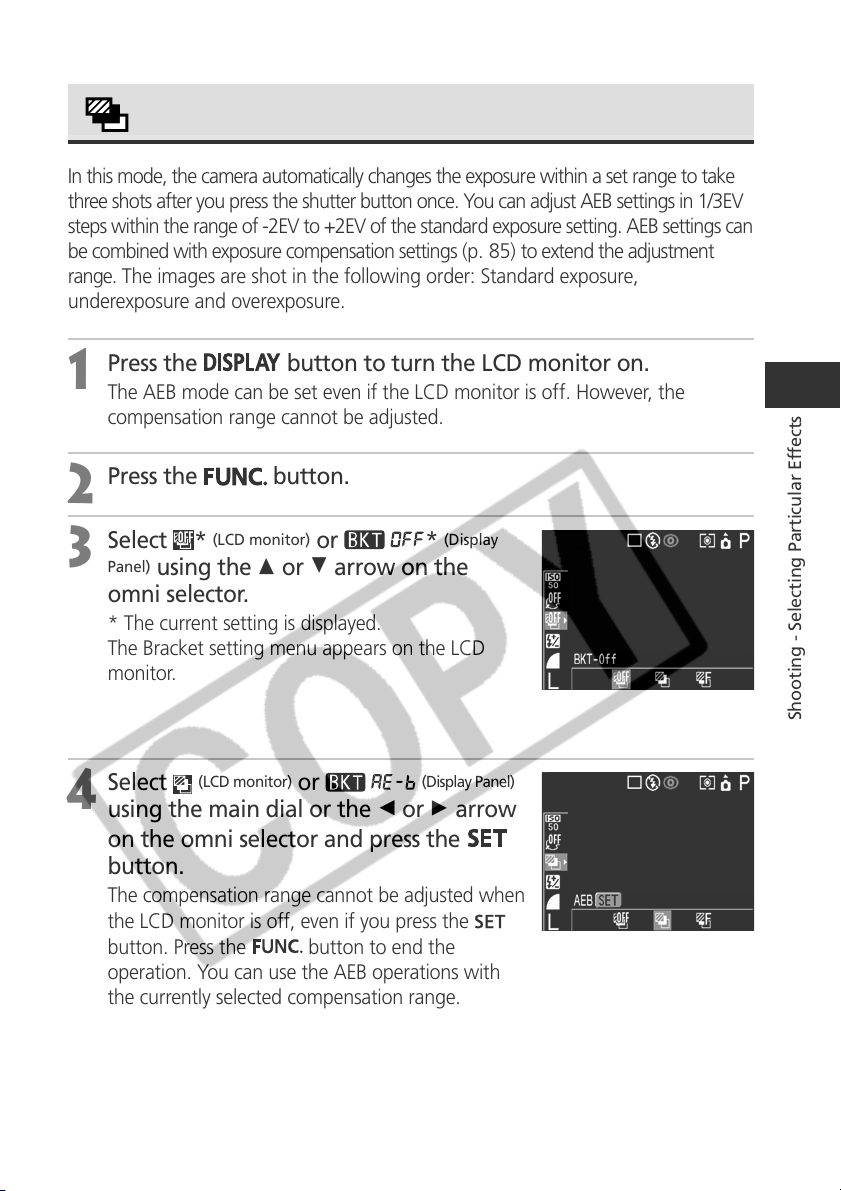
93
Shooting - Selecting Particular Effects
Auto Exposure Bracketing (AEB Mode)
In this mode, the camera automatically changes the exposure within a set range to take
three shots after you press the shutter button once. You can adjust AEB settings in 1/3EV
steps within the range of -2EV to +2EV of the standard exposure setting. AEB settings can
be combined with exposure compensation settings (p. 85) to extend the adjustment
range. The images are shot in the following order: Standard exposure,
underexposure and overexposure.
1
Press the
button to turn the LCD monitor on.
The AEB mode can be set even if the LCD monitor is off. However, the
compensation range cannot be adjusted.
2
Press the
button.
3
Select *
(LCD monitor)
or *
(Display
Panel)
using the C or D arrow on the
omni selector.
* The current setting is displayed.
The Bracket setting menu appears on the LCD
monitor.
4
Select
(LCD monitor)
or
(Display Panel)
using the main dial or the B or A arrow
on the omni selector and press the
button.
The compensation range cannot be adjusted when
the LCD monitor is off, even if you press the
button. Press the
button to end the
operation. You can use the AEB operations with
the currently selected compensation range.
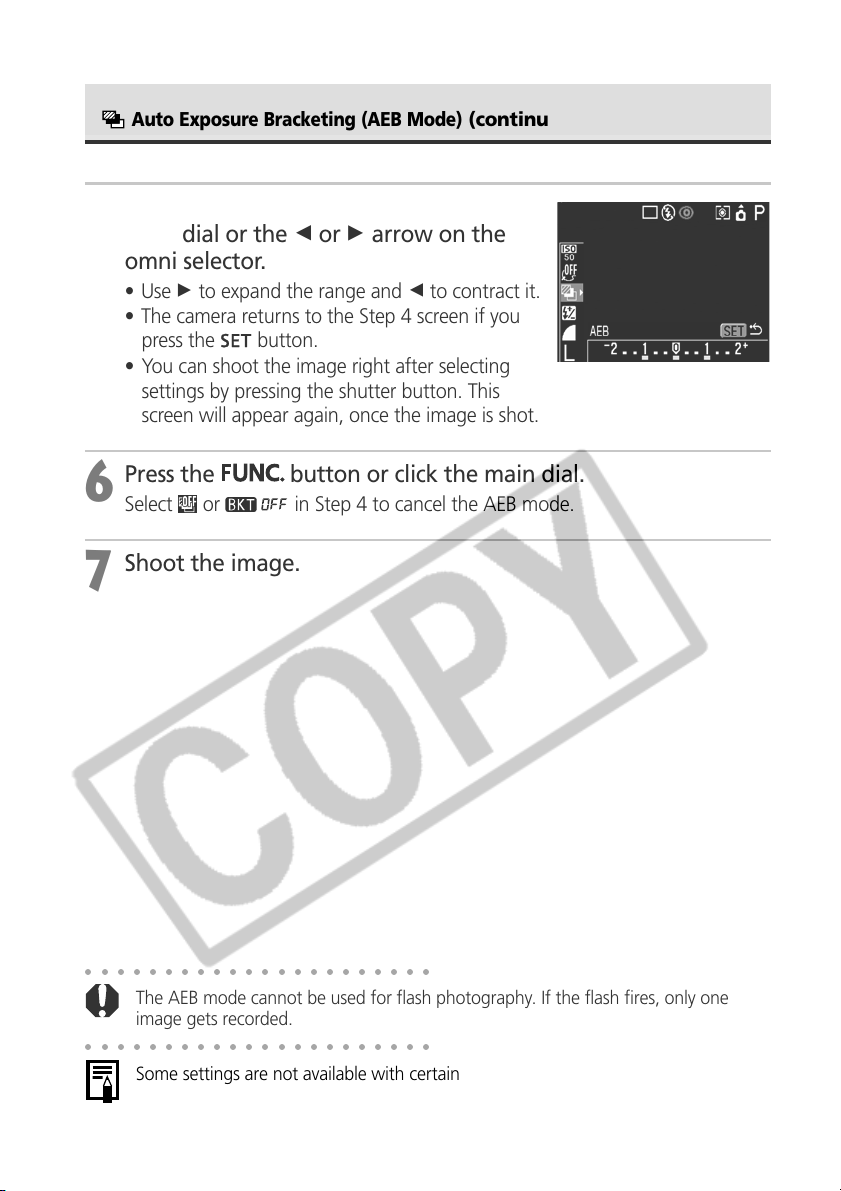
94
○○○○○○○○○○○○○○○○○○○○○○
The AEB mode cannot be used for flash photography. If the flash fires, only one
image gets recorded.
○○○○○○○○○○○○○○○○○○○○○○
Some settings are not available with certain Shooting modes. Please refer to
Functions Available in Each Shooting Mode (p. 208).
5
Expand or contract the range using the
main dial or the B or A arrow on the
omni selector.
• Use A to expand the range and B to contract it.
• The camera returns to the Step 4 screen if you
press the
button.
• You can shoot the image right after selecting
settings by pressing the shutter button. This
screen will appear again, once the image is shot.
6
Press the
button or click the main dial.
Select or in Step 4 to cancel the AEB mode.
7
Shoot the image.
Auto Exposure Bracketing (AEB Mode)
(continued)
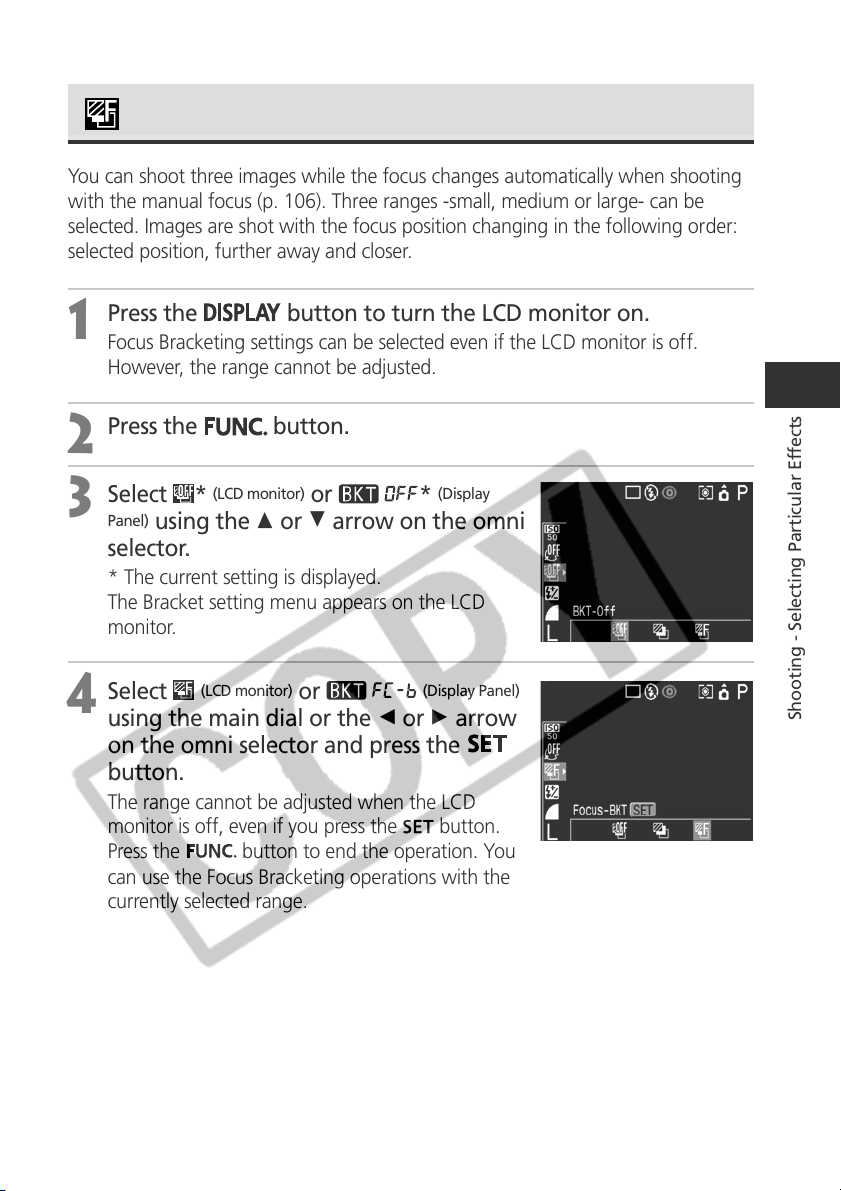
95
Shooting - Selecting Particular Effects
Focus Bracketing (Focus-BKT Mode)
You can shoot three images while the focus changes automatically when shooting
with the manual focus (p. 106). Three ranges -small, medium or large- can be
selected. Images are shot with the focus position changing in the following order:
selected position, further away and closer.
1
Press the
button to turn the LCD monitor on.
Focus Bracketing settings can be selected even if the LCD monitor is off.
However, the range cannot be adjusted.
2
Press the
button.
3
Select *
(LCD monitor)
or *
(Display
Panel)
using the C or D arrow on the omni
selector.
* The current setting is displayed.
The Bracket setting menu appears on the LCD
monitor.
4
Select
(LCD monitor)
or
(Display Panel)
using the main dial or the B or A arrow
on the omni selector and press the
button.
The range cannot be adjusted when the LCD
monitor is off, even if you press the
button.
Press the
button to end the operation. You
can use the Focus Bracketing operations with the
currently selected range.
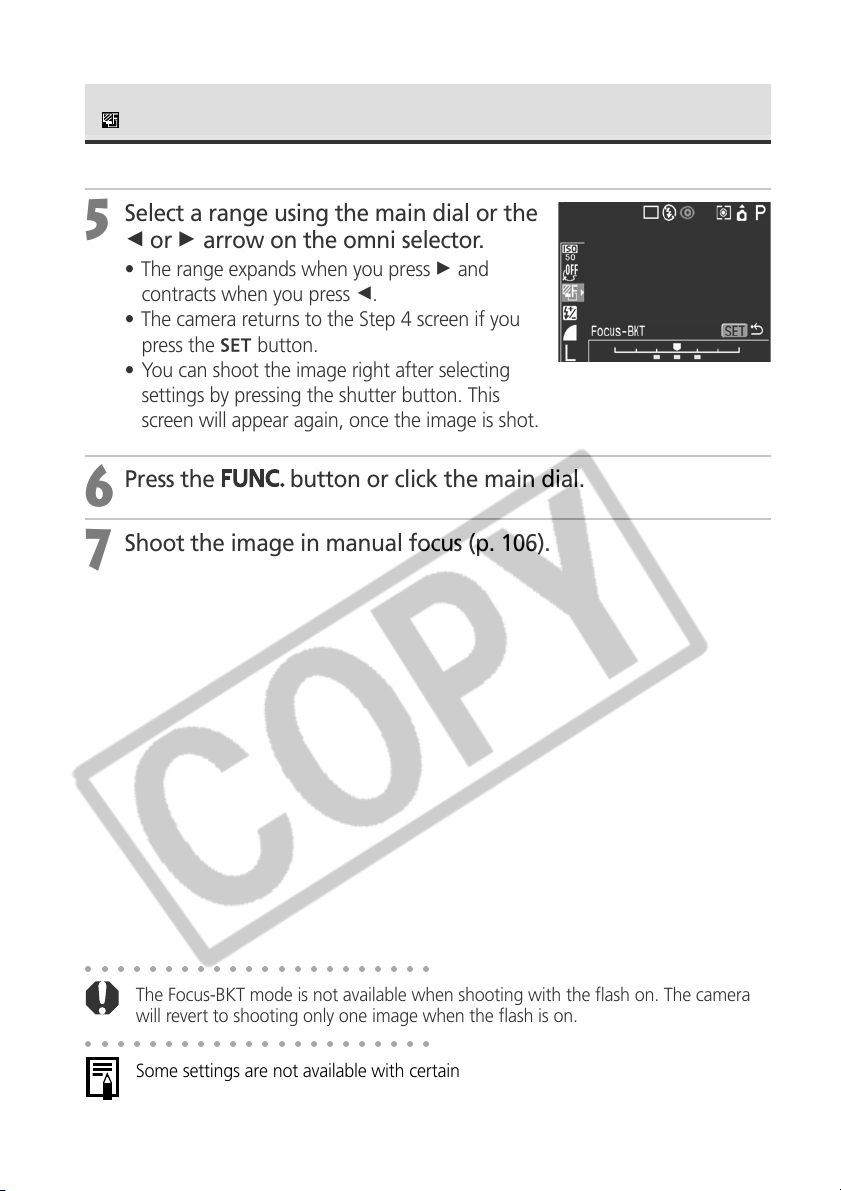
96
5
Select a range using the main dial or the
B or A arrow on the omni selector.
• The range expands when you press A and
contracts when you press B.
• The camera returns to the Step 4 screen if you
press the
button.
• You can shoot the image right after selecting
settings by pressing the shutter button. This
screen will appear again, once the image is shot.
6
Press the
button or click the main dial.
7
Shoot the image in manual focus (p. 106).
○○○○○○○○○○○○○○○○○○○○○○
The Focus-BKT mode is not available when shooting with the flash on. The camera
will revert to shooting only one image when the flash is on.
○○○○○○○○○○○○○○○○○○○○○○
Some settings are not available with certain Shooting modes. Please refer to
Functions Available in Each Shooting Mode (p. 208).
Focus Bracketing (Focus-BKT Mode) (continued)
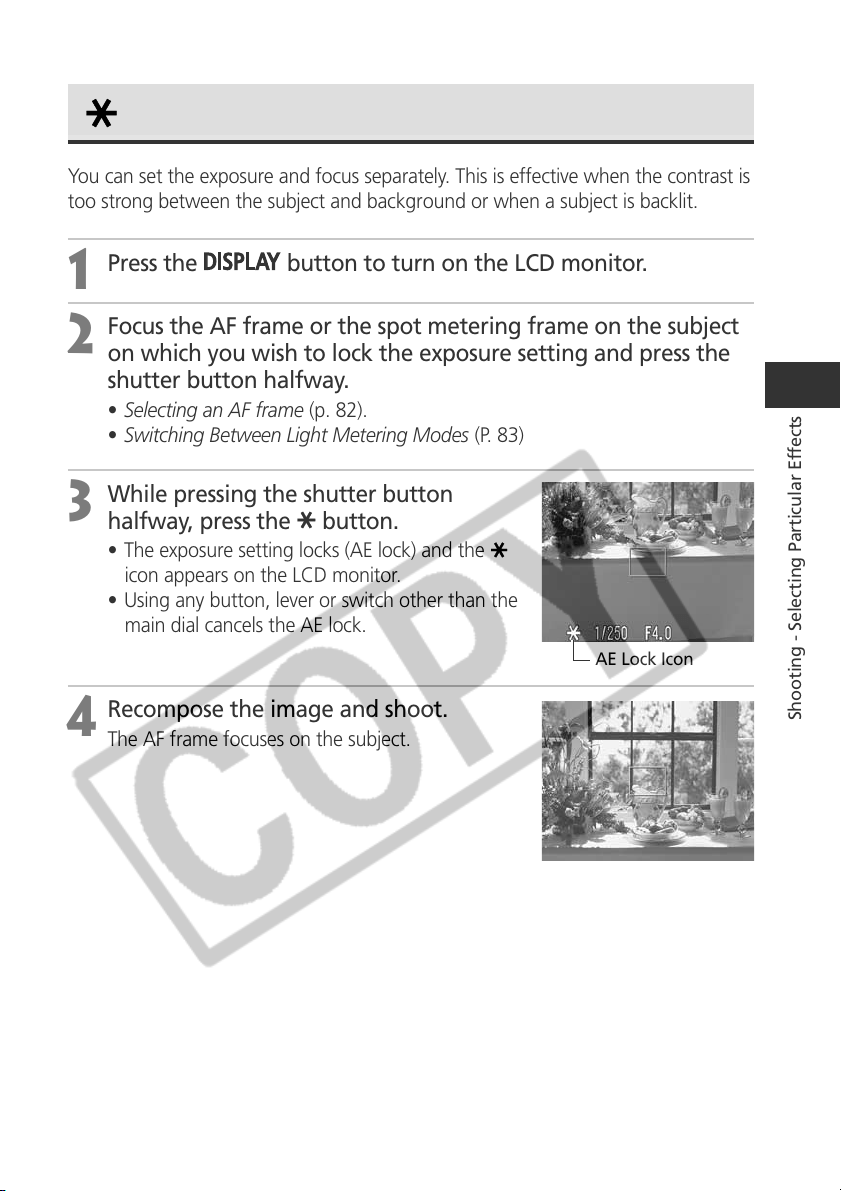
97
Shooting - Selecting Particular Effects
AE Lock Icon
Locking the Exposure Setting (AE Lock)
You can set the exposure and focus separately. This is effective when the contrast is
too strong between the subject and background or when a subject is backlit.
1
Press the
button to turn on the LCD monitor.
2
Focus the AF frame or the spot metering frame on the subject
on which you wish to lock the exposure setting and press the
shutter button halfway.
• Selecting an AF frame (p. 82).
• Switching Between Light Metering Modes (P. 83)
3
While pressing the shutter button
halfway, press the
button.
• The exposure setting locks (AE lock) and the
icon appears on the LCD monitor.
• Using any button, lever or switch other than the
main dial cancels the AE lock.
4
Recompose the image and shoot.
The AF frame focuses on the subject.
98
○○○○○○○○○○○○○○○○○○○○○○
The AE lock function cannot be used when the LCD monitor is off.
○○○○○○○○○○○○○○○○○○○○○○
• Some settings are not available with certain Shooting modes. Please refer to
Functions Available in Each Shooting Mode (p. 208).
• The automatically selected combinations of shutter speeds and aperture values can
be freely changed without altering the exposure with the following procedures.
1 Turn the mode dial to
, or .
2 Press the
button to turn on the LCD monitor.
3 Focus on the subject on which you wish to lock the exposure.
- Press the shutter button halfway.
4 Press the
button.
- The exposure setting will lock and the
icon will appear in the LCD monitor.
5 Turn the main dial until the desired shutter speed or aperture value is reached.
6 Recompose the image and shoot.
The setting will cancel after the shot is taken.
Locking the Exposure Setting (AE Lock)
(continued)
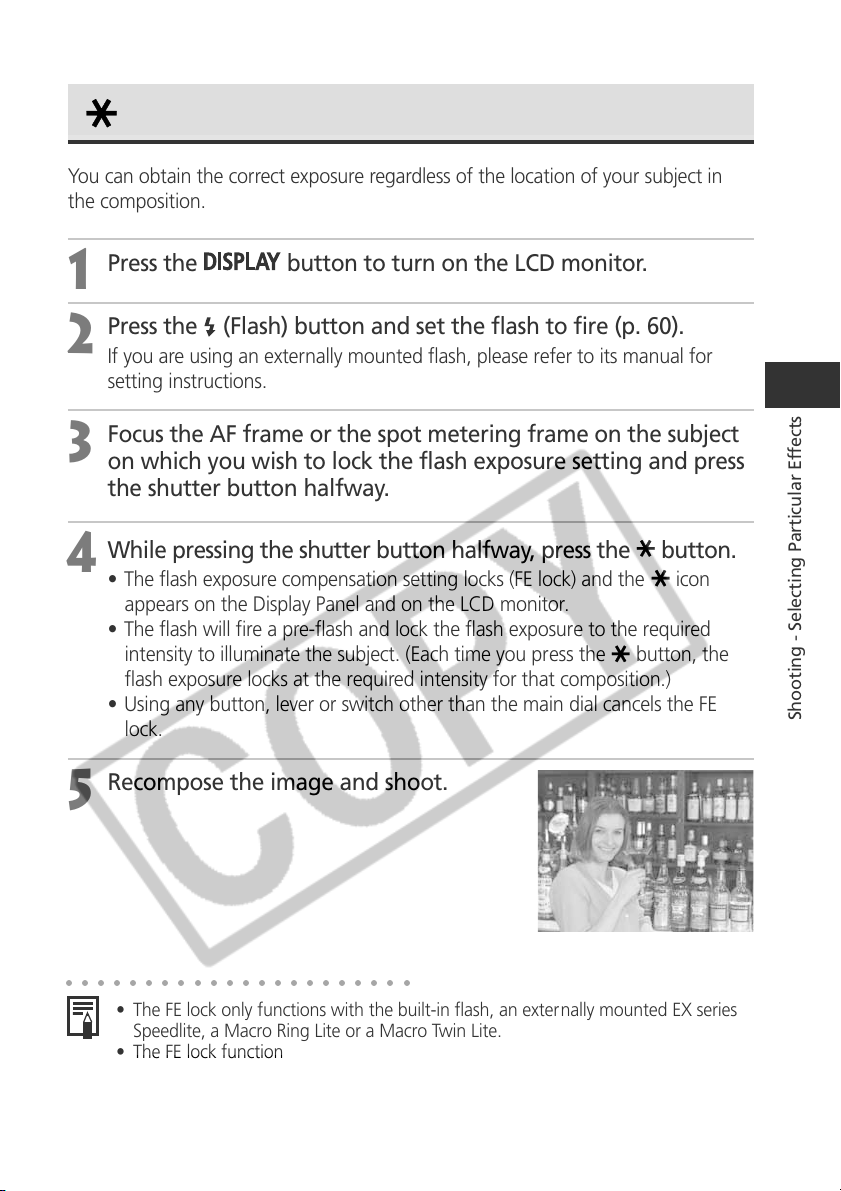
99
Shooting - Selecting Particular Effects
Locking the Flash Exposure Setting (FE Lock)
You can obtain the correct exposure regardless of the location of your subject in
the composition.
1
Press the
button to turn on the LCD monitor.
2
Press the (Flash) button and set the flash to fire (p. 60).
If you are using an externally mounted flash, please refer to its manual for
setting instructions.
3
Focus the AF frame or the spot metering frame on the subject
on which you wish to lock the flash exposure setting and press
the shutter button halfway.
4
While pressing the shutter button halfway, press the button.
• The flash exposure compensation setting locks (FE lock) and the
icon
appears on the Display Panel and on the LCD monitor.
• The flash will fire a pre-flash and lock the flash exposure to the required
intensity to illuminate the subject. (Each time you press the
button, the
flash exposure locks at the required intensity for that composition.)
• Using any button, lever or switch other than the main dial cancels the FE
lock.
5
Recompose the image and shoot.
○○○○○○○○○○○○○○○○○○○○○○
• The FE lock only functions with the built-in flash, an externally mounted EX series
Speedlite, a Macro Ring Lite or a Macro Twin Lite.
• The FE lock function is not available when [Flash Adjust] is set to [Manual].
• Some settings are not available depending on the Shooting mode. Please refer to
Functions Available in Each Shooting Mode (p. 208).
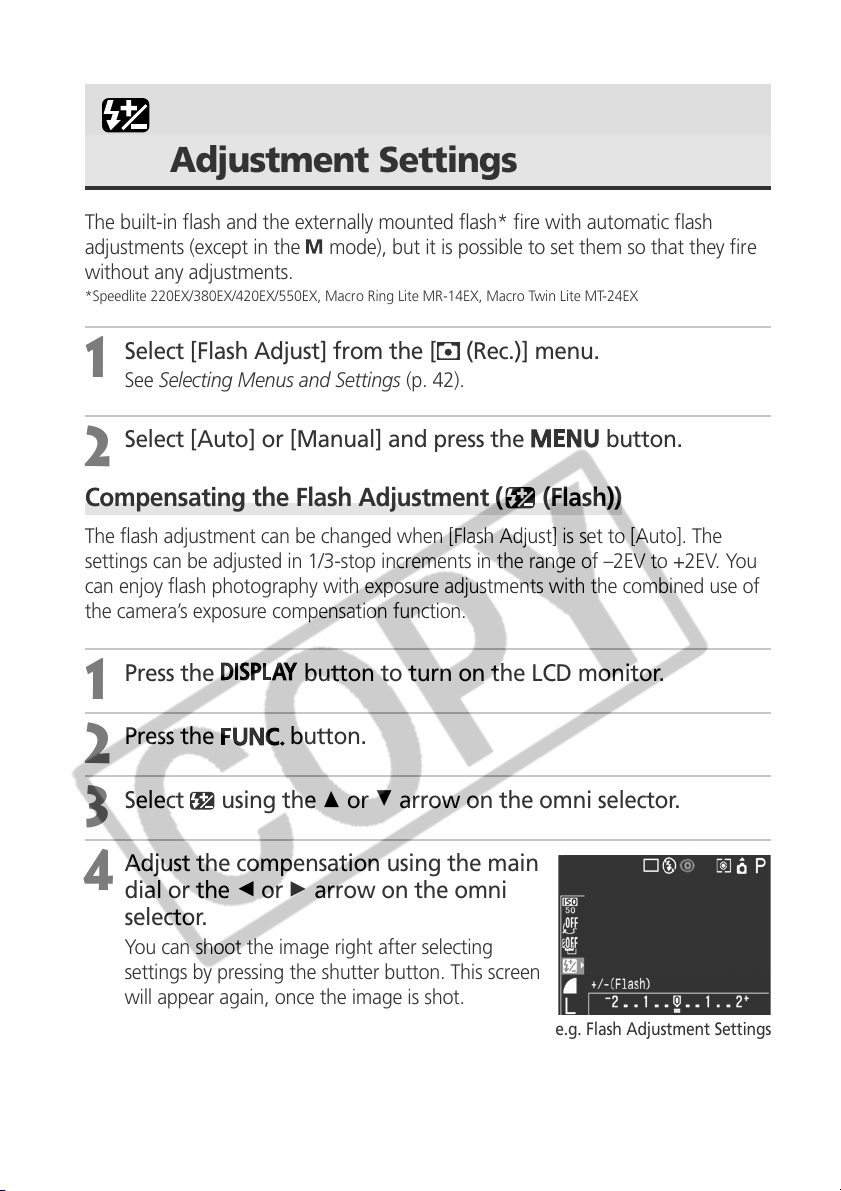
100
Switching between Flash
Adjustment Settings
The built-in flash and the externally mounted flash* fire with automatic flash
adjustments (except in the
mode), but it is possible to set them so that they fire
without any adjustments.
*Speedlite 220EX/380EX/420EX/550EX, Macro Ring Lite MR-14EX, Macro Twin Lite MT-24EX
1
Select [Flash Adjust] from the [ (Rec.)] menu.
See Selecting Menus and Settings (p. 42).
2
Select [Auto] or [Manual] and press the
button.
Compensating the Flash Adjustment ( (Flash))
The flash adjustment can be changed when [Flash Adjust] is set to [Auto]. The
settings can be adjusted in 1/3-stop increments in the range of –2EV to +2EV. You
can enjoy flash photography with exposure adjustments with the combined use of
the camera’s exposure compensation function.
1
Press the
button to turn on the LCD monitor.
2
Press the button.
3
Select using the C or D arrow on the omni selector.
4
Adjust the compensation using the main
dial or the B or A arrow on the omni
selector.
You can shoot the image right after selecting
settings by pressing the shutter button. This screen
will appear again, once the image is shot.
e.g. Flash Adjustment Settings
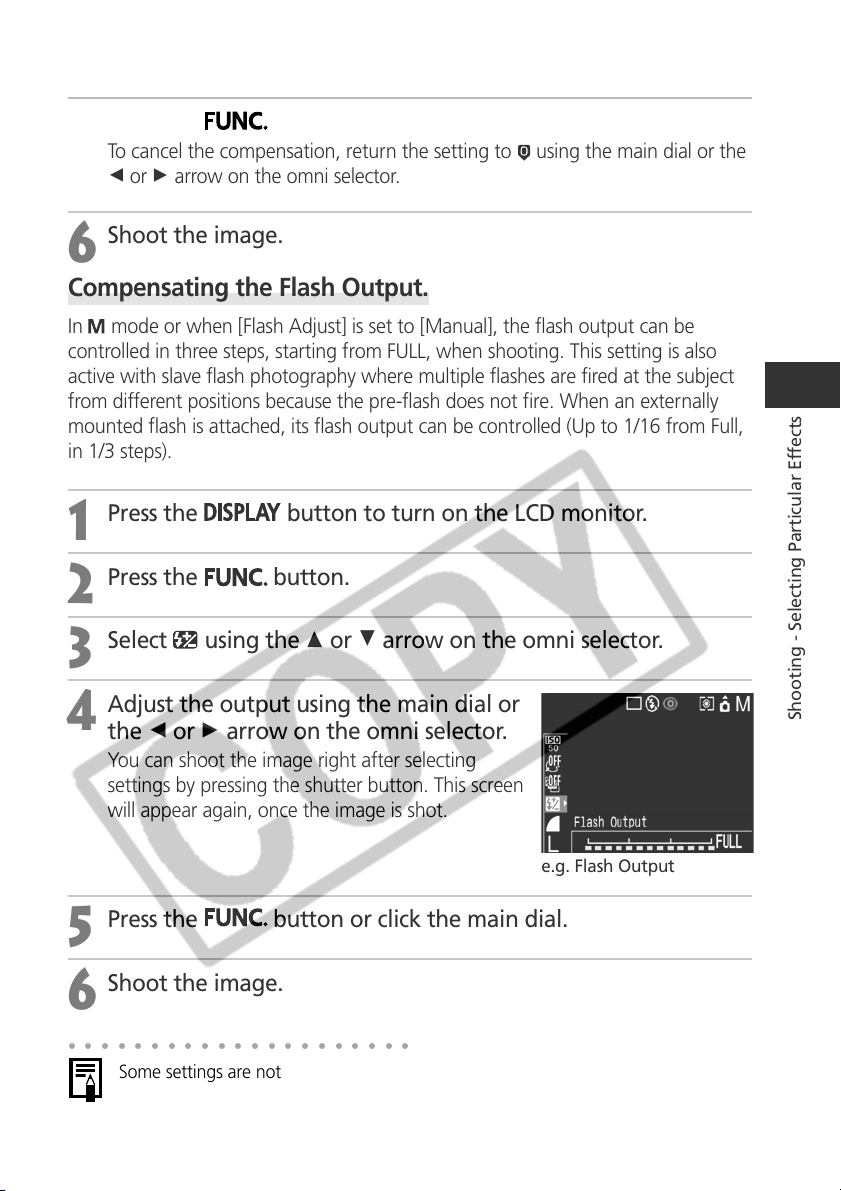
101
Shooting - Selecting Particular Effects
5
Press the
button or click the main dial.
To cancel the compensation, return the setting to using the main dial or the
B or A arrow on the omni selector.
6
Shoot the image.
Compensating the Flash Output.
In mode or when [Flash Adjust] is set to [Manual], the flash output can be
controlled in three steps, starting from FULL, when shooting. This setting is also
active with slave flash photography where multiple flashes are fired at the subject
from different positions because the pre-flash does not fire. When an externally
mounted flash is attached, its flash output can be controlled (Up to 1/16 from Full,
in 1/3 steps).
1
Press the
button to turn on the LCD monitor.
2
Press the
button.
3
Select using the C or D arrow on the omni selector.
4
Adjust the output using the main dial or
the B or A arrow on the omni selector.
You can shoot the image right after selecting
settings by pressing the shutter button. This screen
will appear again, once the image is shot.
5
Press the
button or click the main dial.
6
Shoot the image.
e.g. Flash Output
○○○○○○○○○○○○○○○○○○○○○
Some settings are not available with certain Shooting modes. Please refer to
Functions Available in Each Shooting Mode (p. 208).
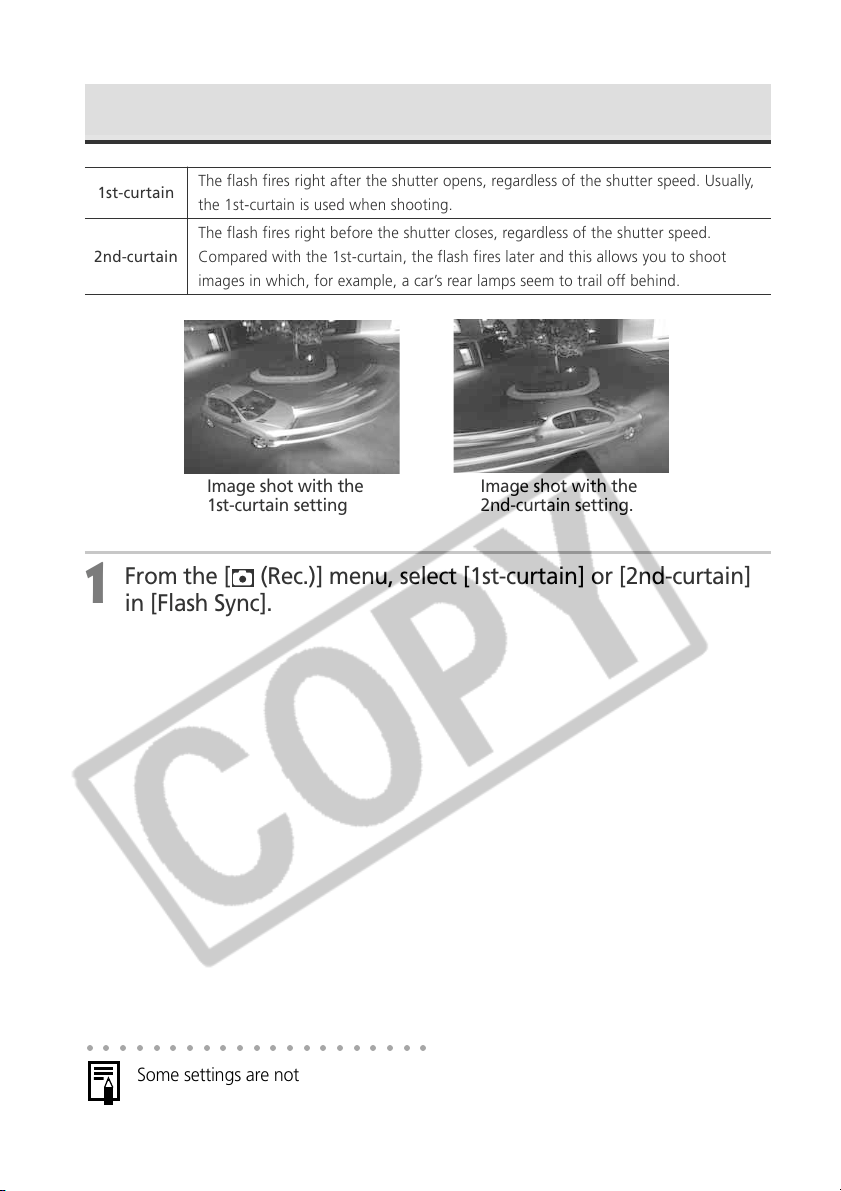
102
Image shot with the
1st-curtain setting
Image shot with the
2nd-curtain setting.
Switching the Timing at which the Flash Fires
1st-curtain
The flash fires right after the shutter opens, regardless of the shutter speed. Usually,
the 1st-curtain is used when shooting.
2nd-curtain
The flash fires right before the shutter closes, regardless of the shutter speed.
Compared with the 1st-curtain, the flash fires later and this allows you to shoot
images in which, for example, a car’s rear lamps seem to trail off behind.
1
From the [ (Rec.)] menu, select [1st-curtain] or [2nd-curtain]
in [Flash Sync].
○○○○○○○○○○○○○○○○○○○○○
Some settings are not available with certain Shooting modes. Please refer to
Functions Available in Each Shooting Mode (p. 208).
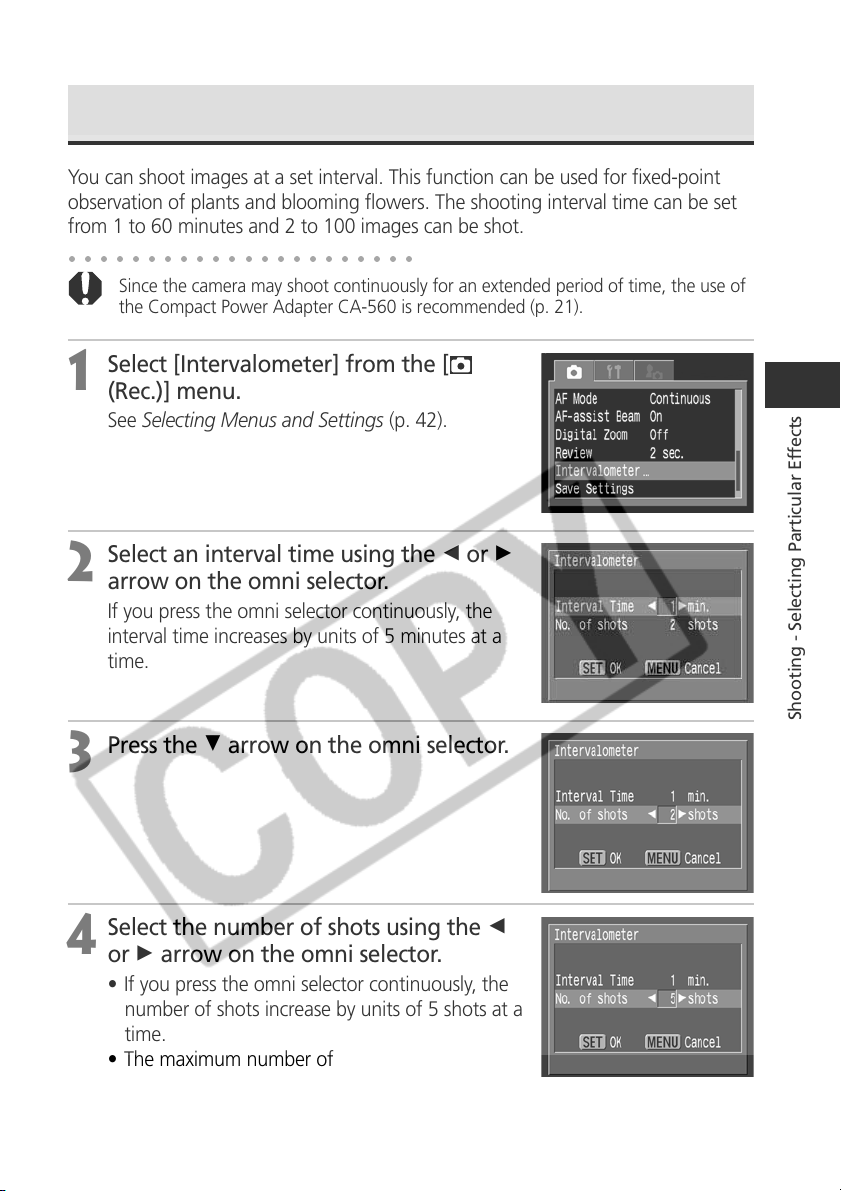
103
Shooting - Selecting Particular Effects
Shooting Images at Set Intervals (Intervalometer)
You can shoot images at a set interval. This function can be used for fixed-point
observation of plants and blooming flowers. The shooting interval time can be set
from 1 to 60 minutes and 2 to 100 images can be shot.
○○○○○○○○○○○○○○○○○○○○○○
Since the camera may shoot continuously for an extended period of time, the use of
the Compact Power Adapter CA-560 is recommended (p. 21).
1
Select [Intervalometer] from the [
(Rec.)] menu.
See Selecting Menus and Settings (p. 42).
2
Select an interval time using the B or A
arrow on the omni selector.
If you press the omni selector continuously, the
interval time increases by units of 5 minutes at a
time.
3
Press the D arrow on the omni selector.
4
Select the number of shots using the B
or A arrow on the omni selector.
• If you press the omni selector continuously, the
number of shots increase by units of 5 shots at a
time.
• The maximum number of shots* is determined
according to the CF card’s remaining capacity.
* The maximum number of shots may decrease according to the
images shot.
104
○○○○○○○○○○○○○○○○○○○○○
• Once the interval shooting session is started, all operation buttons become
inactive. Turning the mode dial cancels the interval shooting session.
• The lens stays extended until the next image is shot.
• Images are not displayed on the LCD monitor right after being shot.
• Interval shooting is not available when the date and time are not set.
• Continuous Shooting (normal, high-speed) and Self-timer are not available.
• The AEB mode and the Focus-BKT mode settings cannot be set.
• The battery cannot be charged in the camera even if the Compact Power Adapter
CA-560 is connected.
○○○○○○○○○○○○○○○○○○○○○
Some settings are not available with certain Shooting modes. Please refer to
Functions Available in Each Shooting Mode (p. 208).
5
Press the
button.
appears on the LCD monitor and appears on the display panel.
6
Press the shutter button.
• The first image is shot and the interval shooting session starts.
• Once the set number of shots is taken, the camera automatically powers
down regardless of the power-saving function settings.
• If the below operations are accessed while the interval shooting is in process,
the interval shooting session will be cancelled.
– Turning the mode dial while the camera is waiting to shoot the next
image
– Pressing the shutter button halfway while the camera is waiting to shoot
the next image
– Opening the CF card slot/battery cover
– Switching to Replay mode
– Turning off the power
Shooting Images at Set Intervals (Intervalometer)
(continued)
105
Shooting - Selecting Particular Effects
Shooting with Focus Lock
Focus Lock Method 1
1
Aim the center of the optical viewfinder or, if an AF frame is
selected, the AF frame to an object at a similar distance to the
subject you wish to shoot.
2
Press the shutter button halfway to lock the focus.
The AE setting will also lock when you do this. The exposure may occasionally
be incorrect if the difference between the two items is too great. Use Method
2 or the AE lock procedure when this happens.
3
Keep it pressed while you recompose the image and press the
shutter button all the way to shoot the image.
Focus Lock Method 2
1
Press the
button to turn on the LCD monitor.
2
Press the shutter button halfway to lock the focus. Keep it
pressed and press the button.
• The icon appears on the LCD monitor.
• The focus setting will lock even if the shutter button and the
button are
released.
• The manual focus setting will cancel if the
button is pressed again.
Shooting Problem Subjects for the Autofocus
The autofocus may not work well on the following types of subjects.
•
Subjects with extremely low contrast to the surroundings
•
Subjects mixing close and far objects
•
Subjects with extremely bright objects at the center of the composition
•
Subjects that are moving quickly
To shoot these subjects, first aim the camera at an object at a similar distance, lock the
focus and recompose the image with the desired subject, or use the manual focus.
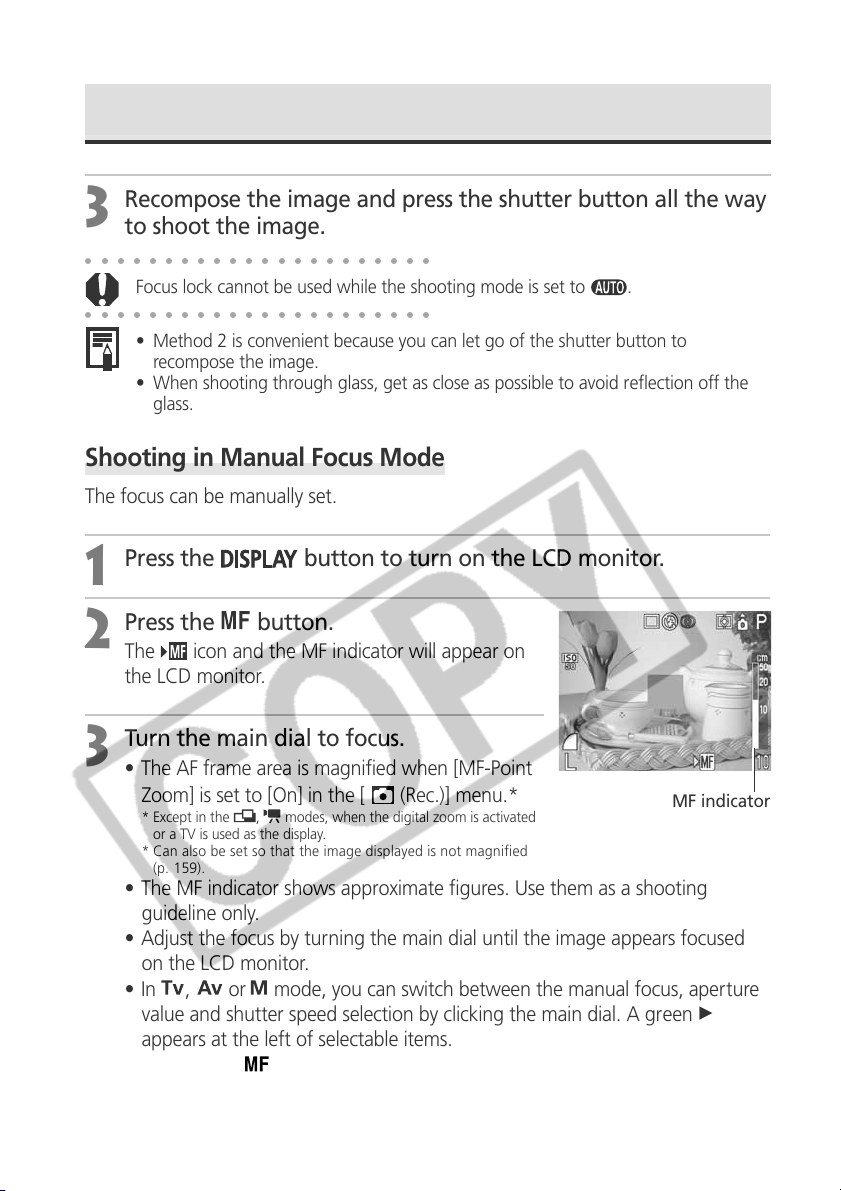
106
Shooting in Manual Focus Mode
The focus can be manually set.
1
Press the
button to turn on the LCD monitor.
2
Press the button.
The icon and the MF indicator will appear on
the LCD monitor.
3
Turn the main dial to focus.
• The AF frame area is magnified when [MF-Point
Zoom] is set to [On] in the [
(Rec.)] menu.*
* Except in the , modes, when the digital zoom is activated
or a TV is used as the display.
* Can also be set so that the image displayed is not magnified
(p. 159).
• The MF indicator shows approximate figures. Use them as a shooting
guideline only.
• Adjust the focus by turning the main dial until the image appears focused
on the LCD monitor.
•In
, or mode, you can switch between the manual focus, aperture
value and shutter speed selection by clicking the main dial. A green A
appears at the left of selectable items.
• Pressing the
button a second time cancels the manual focus mode.
Shooting Problem Subjects for the Autofocus (continued)
3
Recompose the image and press the shutter button all the way
to shoot the image.
○○○○○○○○○○○○○○○○○○○○○○
Focus lock cannot be used while the shooting mode is set to .
○○○○○○○○○○○○○○○○○○○○○○
• Method 2 is convenient because you can let go of the shutter button to
recompose the image.
• When shooting through glass, get as close as possible to avoid reflection off the
glass.
MF indicator
107
Shooting - Selecting Particular Effects
4
Shoot the image.
The indicator beside the viewfinder lights yellow when the shutter button is
pressed halfway.
Using the Manual Focus in Combination with the Auto Focus
The camera automatically searches for a more suitable focusing point from the
current manually focused location.
1
Focus the camera with the manual focus.
2
Press the
button.
The camera focuses automatically to a more accurate focusing point near the
current focusing point.
○○○○○○○○○○○○○○○○○○○○○○
You cannot change the AF frame setting while focusing manually. Cancel the manual
focus mode, then change the AF frame setting. With the changed AF frame setting,
you can resume the manual focus mode.
○○○○○○○○○○○○○○○○○○○○○○
• Some settings are not available with certain Shooting modes. Please refer to
Functions Available in Each Shooting Mode (p. 208).
• You can use manual focus in the macro focal distance 5 to 50 cm (0.16 to 1.6 ft.)
at wide angle end and 15 to 50 cm (0.49 to 1.6 ft.) at telephoto end. In this case,
the fine scale is adopted.
• You can change the MF indicator displayed distance units (p. 164).
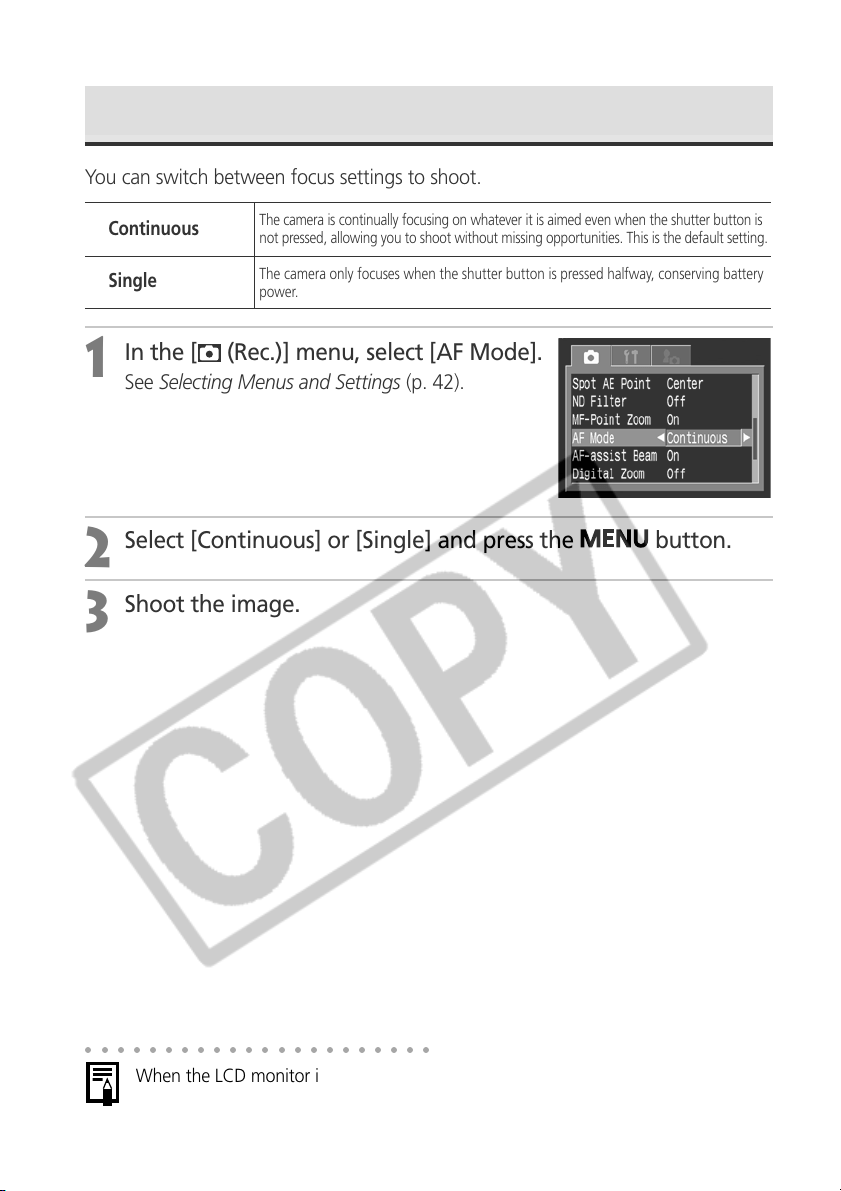
108
Switching between Focus Settings
You can switch between focus settings to shoot.
1
In the [ (Rec.)] menu, select [AF Mode].
See Selecting Menus and Settings (p. 42).
2
Select [Continuous] or [Single] and press the button.
3
Shoot the image.
The camera is continually focusing on whatever it is aimed even when the shutter button is
not pressed, allowing you to shoot without missing opportunities. This is the default setting.
The camera only focuses when the shutter button is pressed halfway, conserving battery
power.
Continuous
Single
○○○○○○○○○○○○○○○○○○○○○○
When the LCD monitor is off, the setting locks in the Single mode.
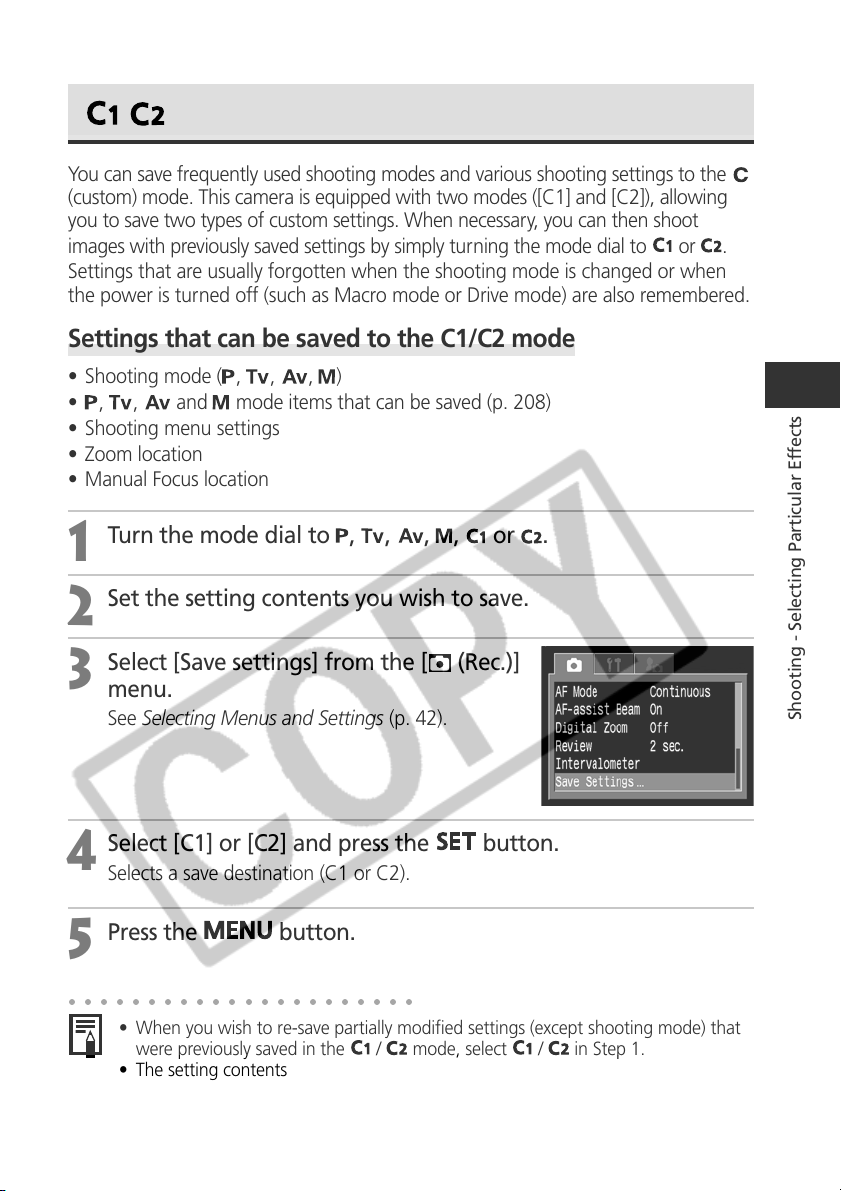
109
Shooting - Selecting Particular Effects
Saving Custom Settings
You can save frequently used shooting modes and various shooting settings to the
(custom) mode. This camera is equipped with two modes ([C1] and [C2]), allowing
you to save two types of custom settings. When necessary, you can then shoot
images with previously saved settings by simply turning the mode dial to
or
.
Settings that are usually forgotten when the shooting mode is changed or when
the power is turned off (such as Macro mode or Drive mode) are also remembered.
Settings that can be saved to the C1/C2 mode
• Shooting mode ( , , , )
•
, , and mode items that can be saved (p. 208)
• Shooting menu settings
• Zoom location
• Manual Focus location
1
Turn the mode dial to , , , ,
or .
2
Set the setting contents you wish to save.
3
Select [Save settings] from the [ (Rec.)]
menu.
See Selecting Menus and Settings (p. 42).
4
Select [C1] or [C2] and press the
button.
Selects a save destination (C1 or C2).
5
Press the
button.
○○○○○○○○○○○○○○○○○○○○○○
• When you wish to re-save partially modified settings (except shooting mode) that
were previously saved in the
/
mode, select / in Step 1.
• The setting contents do not influence other shooting modes.
• Saved settings can be reset (p. 168).
110
Using the ND Filter
The brightness can be decreased by setting the ND filter on. This allows you to select
a smaller aperture and a slower shutter speed than usual.
1
Press the
button to turn on the LCD monitor.
2
Select [ND Filter] in the [ (Rec.)] menu.
See Selecting Menus and Settings (p. 42).
3
Select [On] and press the
button.
appears on the Display Panel. also appears on the LCD monitor if it is on.
○○○○○○○○○○○○○○○○○○○○○○
Always use a tripod to prevent camera shake in this mode.
○○○○○○○○○○○○○○○○○○○○○○
• Some settings are not available with certain Shooting modes. Please refer to
Functions Available in Each Shooting Mode (p. 208).
• Standard brightness is decreased to approximately 1/8 when the ND filter is on.
For example, if the appropriate aperture value is 5.6, it becomes 2 when the ND
filter is on.
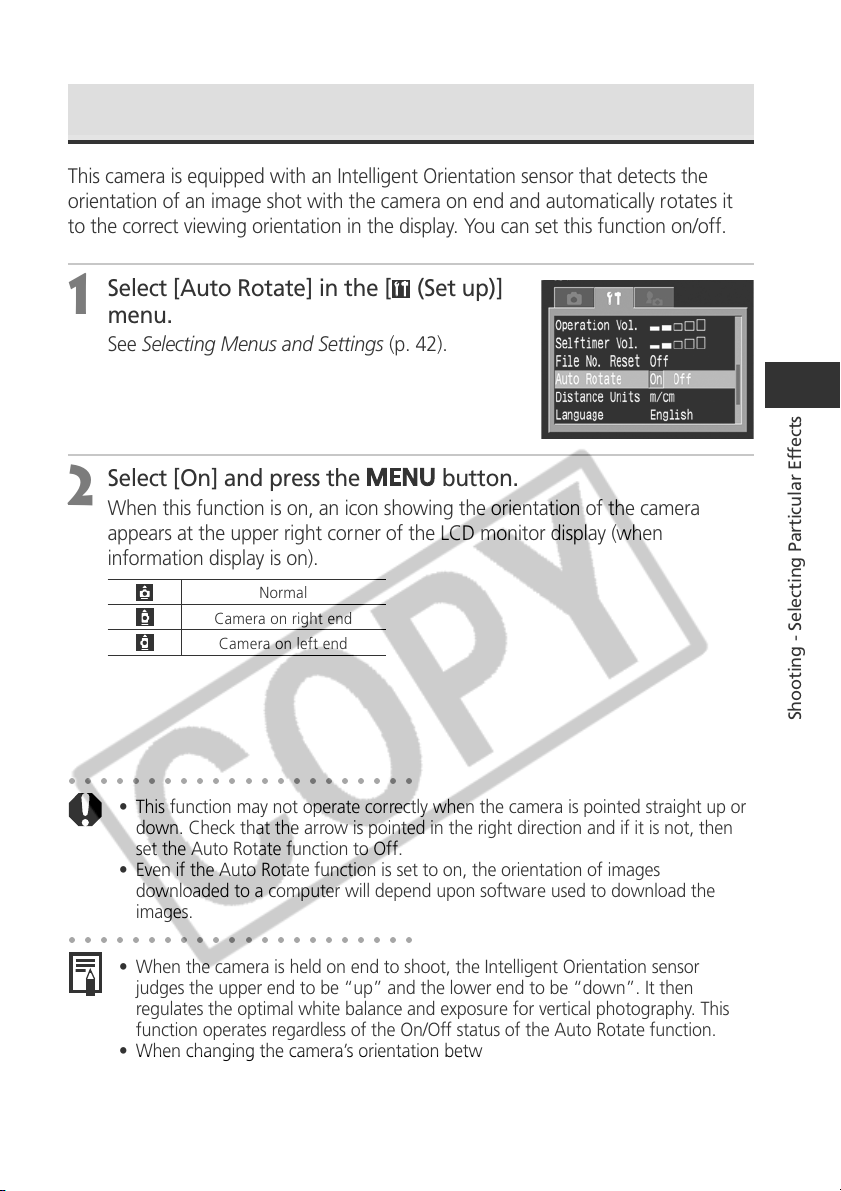
111
Shooting - Selecting Particular Effects
Setting the Auto Rotate Function
This camera is equipped with an Intelligent Orientation sensor that detects the
orientation of an image shot with the camera on end and automatically rotates it
to the correct viewing orientation in the display. You can set this function on/off.
1
Select [Auto Rotate] in the [ (Set up)]
menu.
See Selecting Menus and Settings (p. 42).
2
Select [On] and press the
button.
When this function is on, an icon showing the orientation of the camera
appears at the upper right corner of the LCD monitor display (when
information display is on).
Normal
Camera on right end
Camera on left end
○○○○○○○○○○○○○○○○○○○○○○
• This function may not operate correctly when the camera is pointed straight up or
down. Check that the arrow is pointed in the right direction and if it is not, then
set the Auto Rotate function to Off.
• Even if the Auto Rotate function is set to on, the orientation of images
downloaded to a computer will depend upon software used to download the
images.
○○○○○○○○○○○○○○○○○○○○○○
• When the camera is held on end to shoot, the Intelligent Orientation sensor
judges the upper end to be “up” and the lower end to be “down”. It then
regulates the optimal white balance and exposure for vertical photography. This
function operates regardless of the On/Off status of the Auto Rotate function.
• When changing the camera’s orientation between the horizontal and vertical
positions, you may hear noise coming from the orientation detection mechanism.
This is not a malfunction.
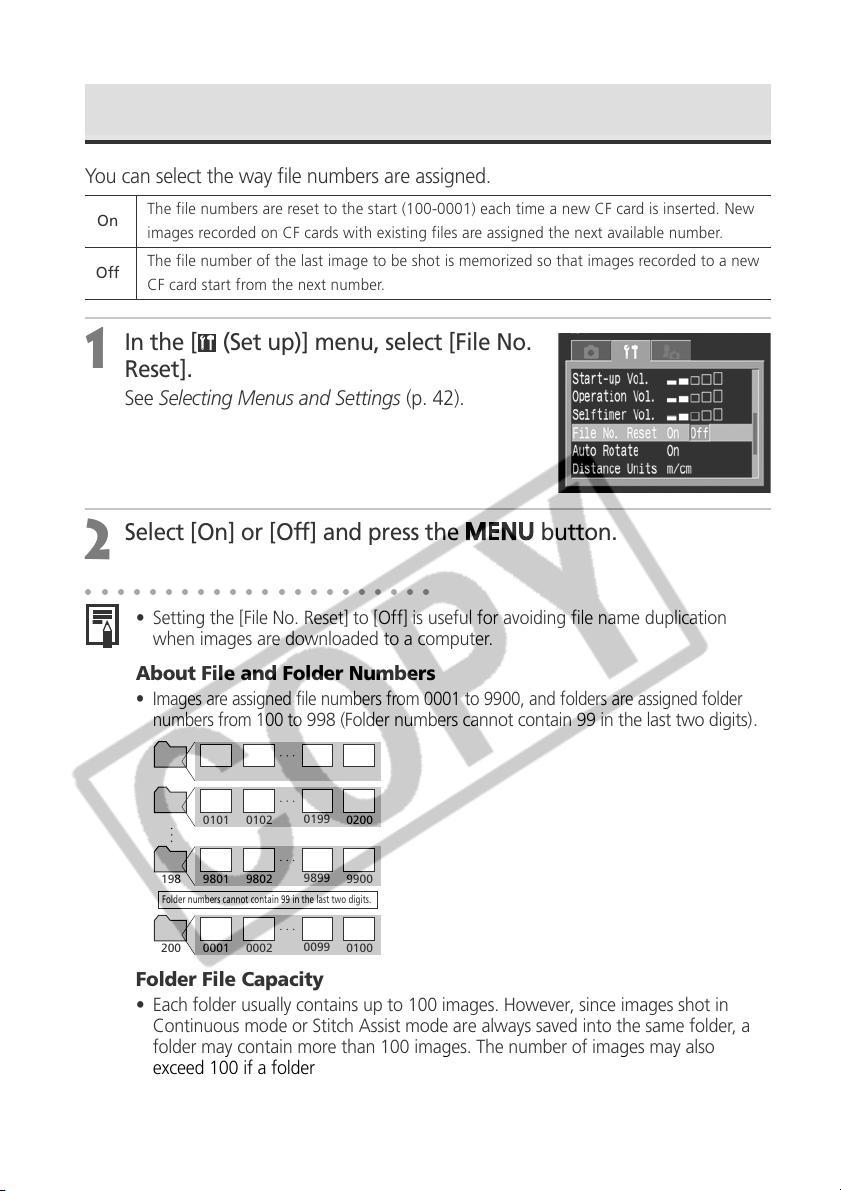
112
Resetting the File Numbers
You can select the way file numbers are assigned.
1
In the [ (Set up)] menu, select [File No.
Reset].
See Selecting Menus and Settings (p. 42).
2
Select [On] or [Off] and press the
button.
○○○○○○○○○○○○○○○○○○○○○○
• Setting the [File No. Reset] to [Off] is useful for avoiding file name duplication
when images are downloaded to a computer.
About File and Folder Numbers
• Images are assigned file numbers from 0001 to 9900, and folders are assigned folder
numbers from 100 to
998 (Folder numbers cannot contain 99 in the last two digits).
Folder File Capacity
• Each folder usually contains up to 100 images. However, since images shot in
Continuous mode or Stitch Assist mode are always saved into the same folder, a
folder may contain more than 100 images. The number of images may also
exceed 100 if a folder contains images copied from a computer or images shot
with other cameras. Please note, however, that the images in folders containing
2001 or more images cannot be replayed in this camera.
100
0001 0002
0099
0100
101
0101 0102
0199
0200
198
9801 9802
9899
9900
200
0001 0002
0099
0100
Folder numbers cannot contain 99 in the last two digits.
On
The file numbers are reset to the start (100-0001) each time a new CF card is inserted. New
images recorded on CF cards with existing files are assigned the next available number.
Off
The file number of the last image to be shot is memorized so that images recorded to a new
CF card start from the next number.
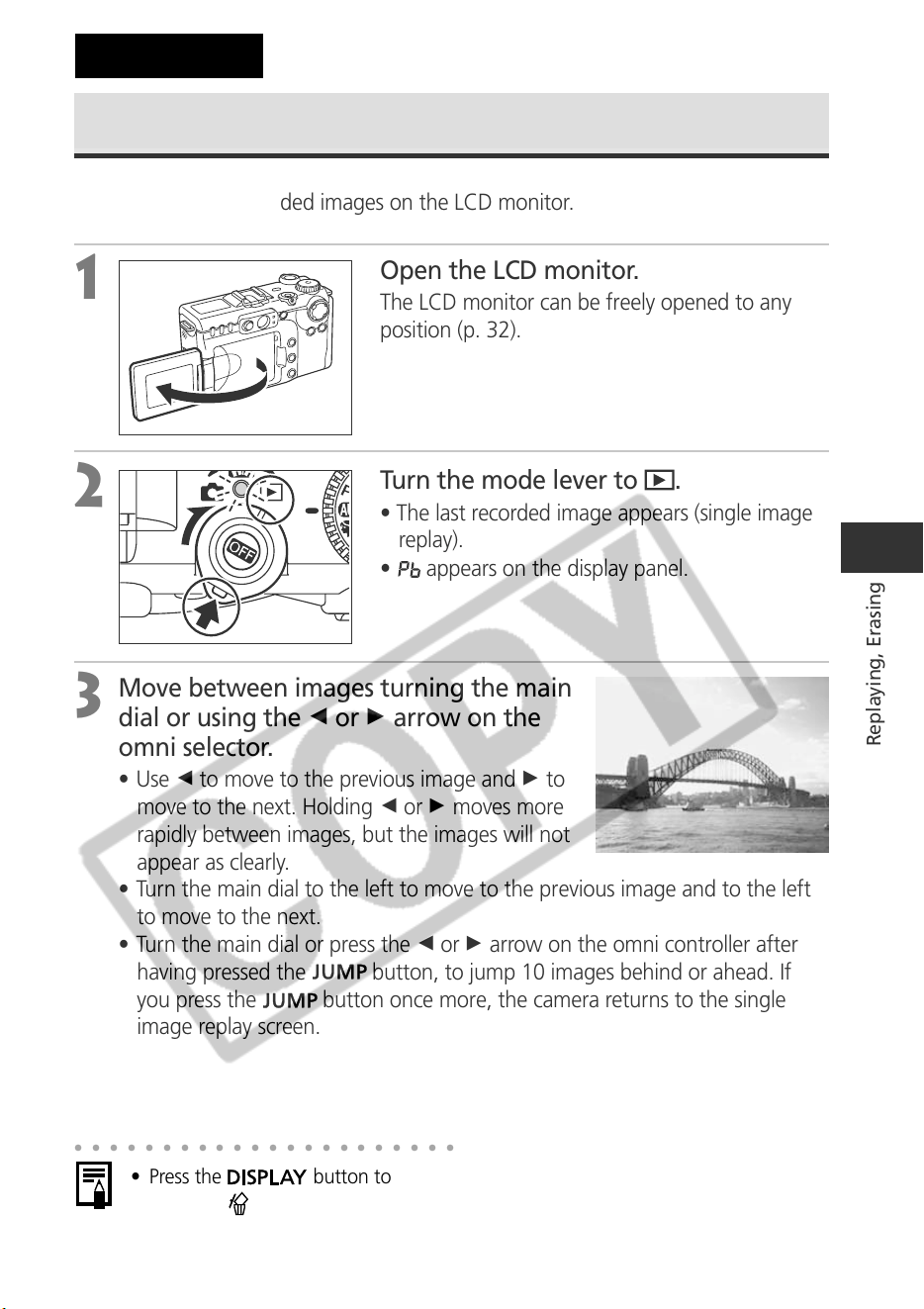
113
Replaying, Erasing
○○○○○○○○○○○○○○○○○○○○○○
• Press the
button to show the data for the displayed image (p. 33).
• Press the
button to quickly delete the displayed image (p. 129).
Replaying
Displaying Images Individually
You can view the recorded images on the LCD monitor.
1
Open the LCD monitor.
The LCD monitor can be freely opened to any
position (p. 32).
2
Turn the mode lever to .
• The last recorded image appears (single image
replay).
•
appears on the display panel.
3
Move between images turning the main
dial or using the B or A arrow on the
omni selector.
• Use B to move to the previous image and A to
move to the next. Holding B or A moves more
rapidly between images, but the images will not
appear as clearly.
• Turn the main dial to the left to move to the previous image and to the left
to move to the next.
• Turn the main dial or press the B or A arrow on the omni controller after
having pressed the
button, to jump 10 images behind or ahead. If
you press the
button once more, the camera returns to the single
image replay screen.
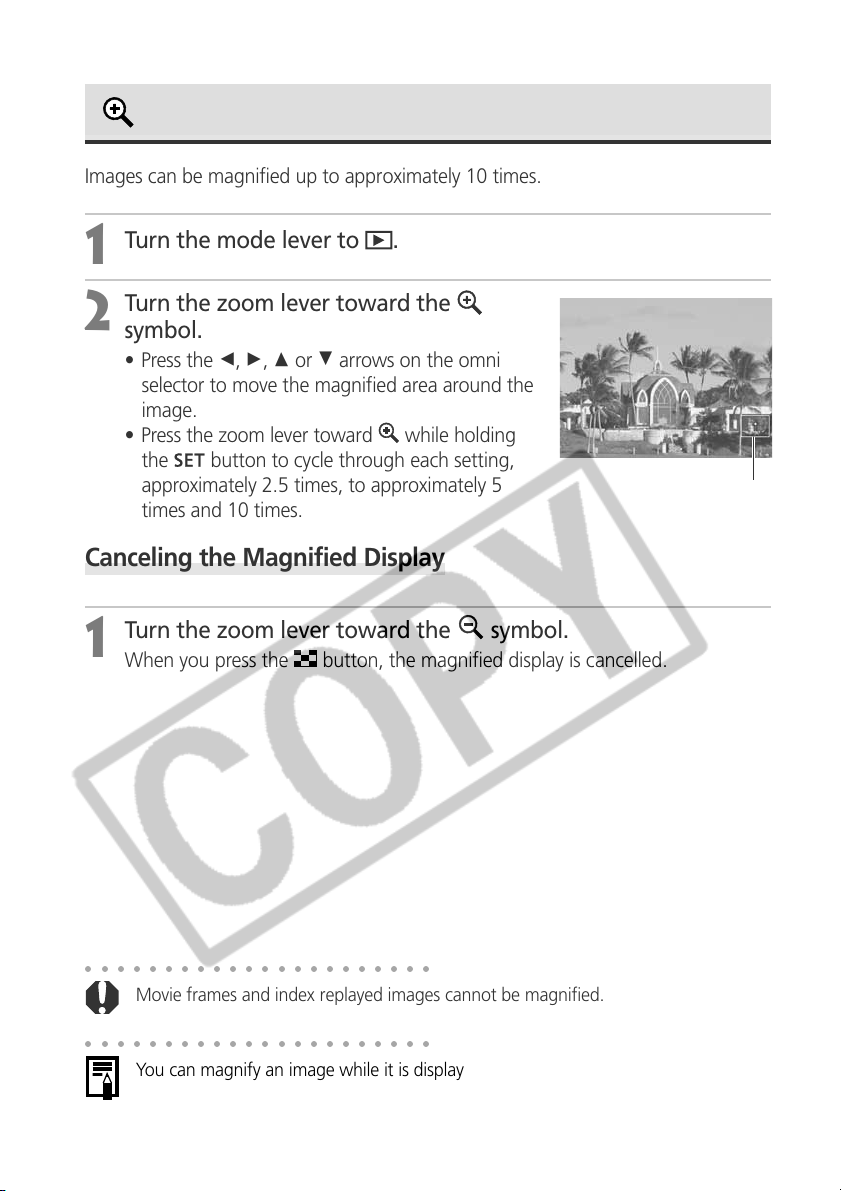
114
Magnifying Images
Images can be magnified up to approximately 10 times.
1
Turn the mode lever to .
2
Turn the zoom lever toward the
symbol.
• Press the B, A, C or D arrows on the omni
selector to move the magnified area around the
image.
• Press the zoom lever toward
while holding
the
button to cycle through each setting,
approximately 2.5 times, to approximately 5
times and 10 times.
Canceling the Magnified Display
1
Turn the zoom lever toward the symbol.
When you press the button, the magnified display is cancelled.
○○○○○○○○○○○○○○○○○○○○○○
Movie frames and index replayed images cannot be magnified.
○○○○○○○○○○○○○○○○○○○○○○
You can magnify an image while it is displayed on the LCD monitor in Shooting
mode immediately after the image is shot (p. 53).
Approximate
position
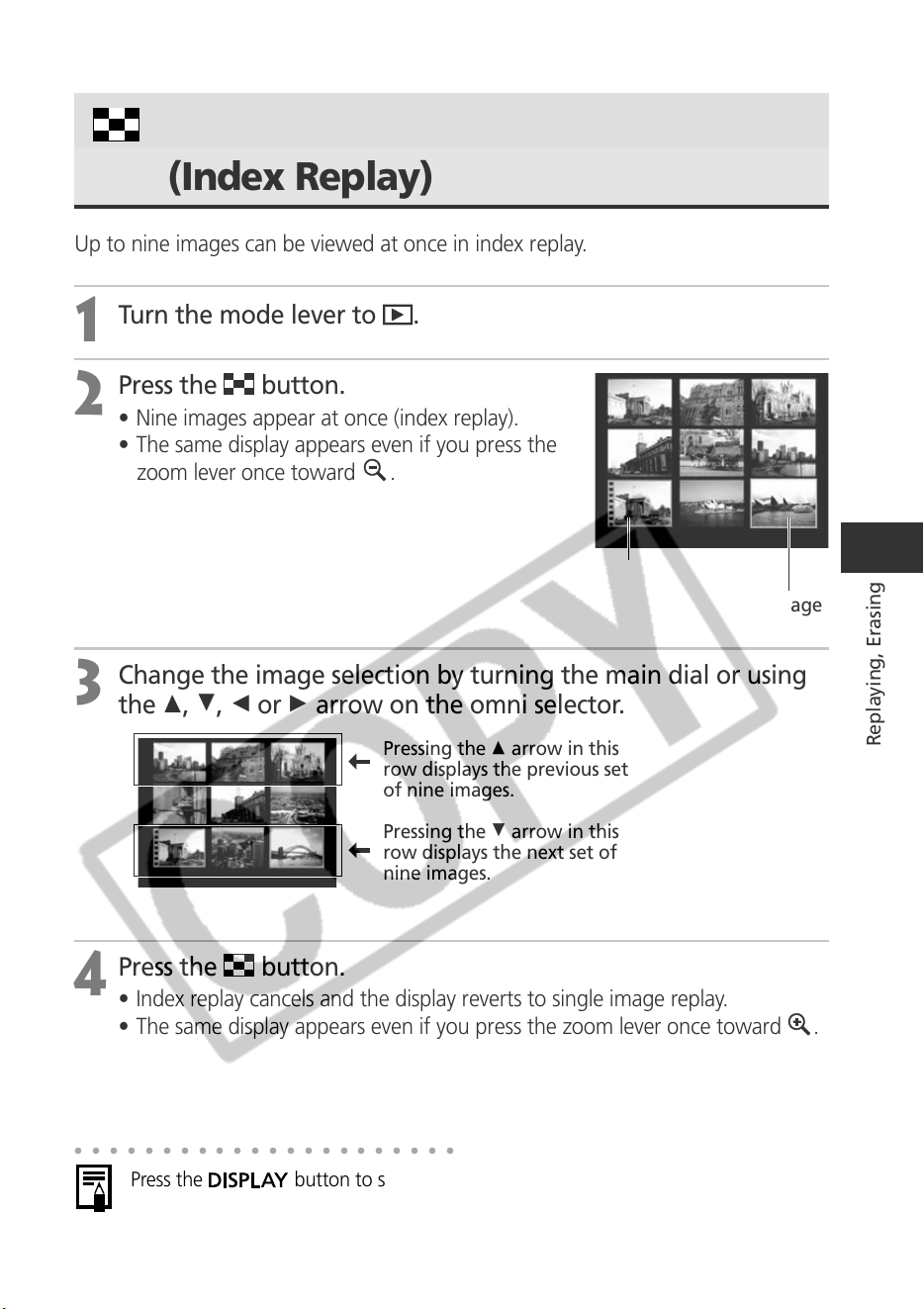
115
Replaying, Erasing
Viewing Nine Images at a Time
(Index Replay)
Up to nine images can be viewed at once in index replay.
1
Turn the mode lever to .
2
Press the button.
• Nine images appear at once (index replay).
• The same display appears even if you press the
zoom lever once toward
.
3
Change the image selection by turning the main dial or using
the C, D, B or A arrow on the omni selector.
4
Press the button.
• Index replay cancels and the display reverts to single image replay.
• The same display appears even if you press the zoom lever once toward
.
○○○○○○○○○○○○○○○○○○○○○○
Press the
button to show the data for the displayed image (p. 33).
Movie Frame
Selected Image
Pressing the C arrow in this
row displays the previous set
of nine images.
Pressing the D arrow in this
row displays the next set of
nine images.
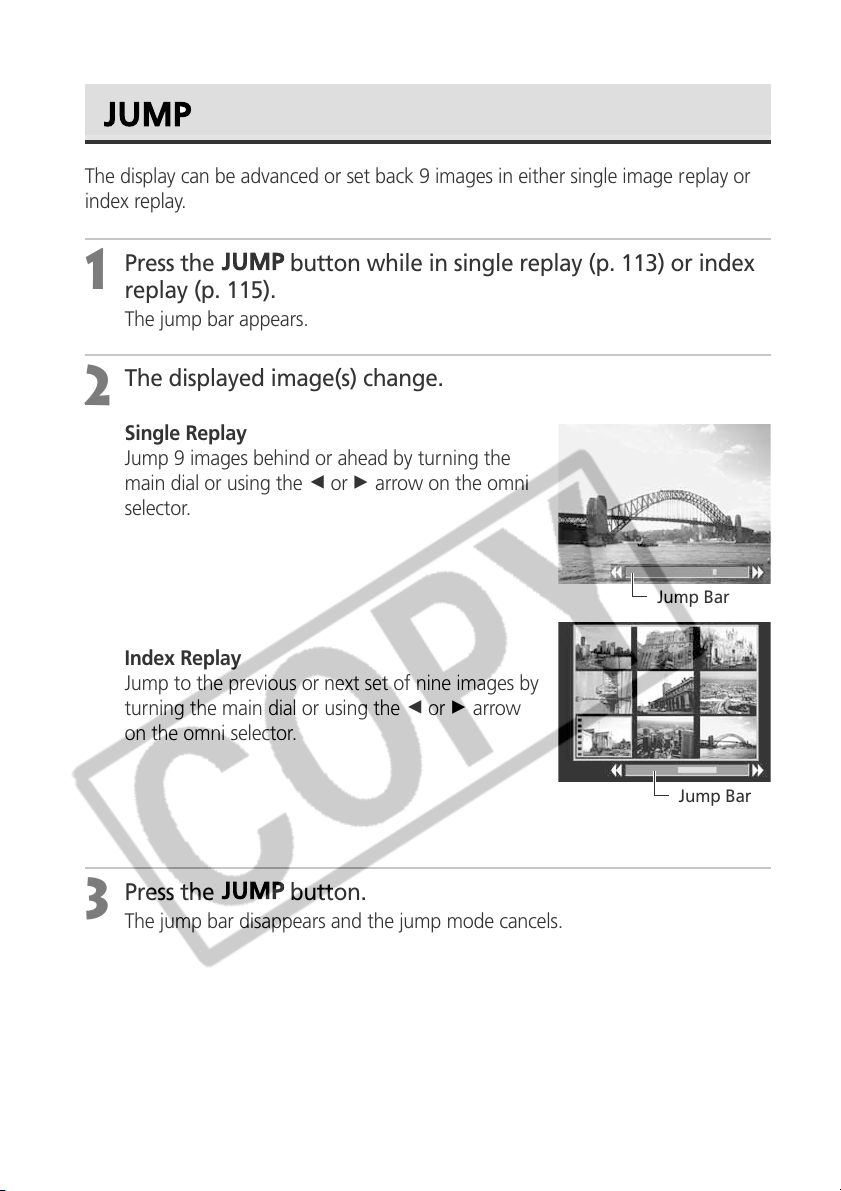
116
Jumping Between Images
The display can be advanced or set back 9 images in either single image replay or
index replay.
1
Press the button while in single replay (p. 113) or index
replay (p. 115).
The jump bar appears.
2
The displayed image(s) change.
Single Replay
Jump 9 images behind or ahead by turning the
main dial or using the B or A arrow on the omni
selector.
Index Replay
Jump to the previous or next set of nine images by
turning the main dial or using the B or A arrow
on the omni selector.
3
Press the button.
The jump bar disappears and the jump mode cancels.
Jump Bar
Jump Bar
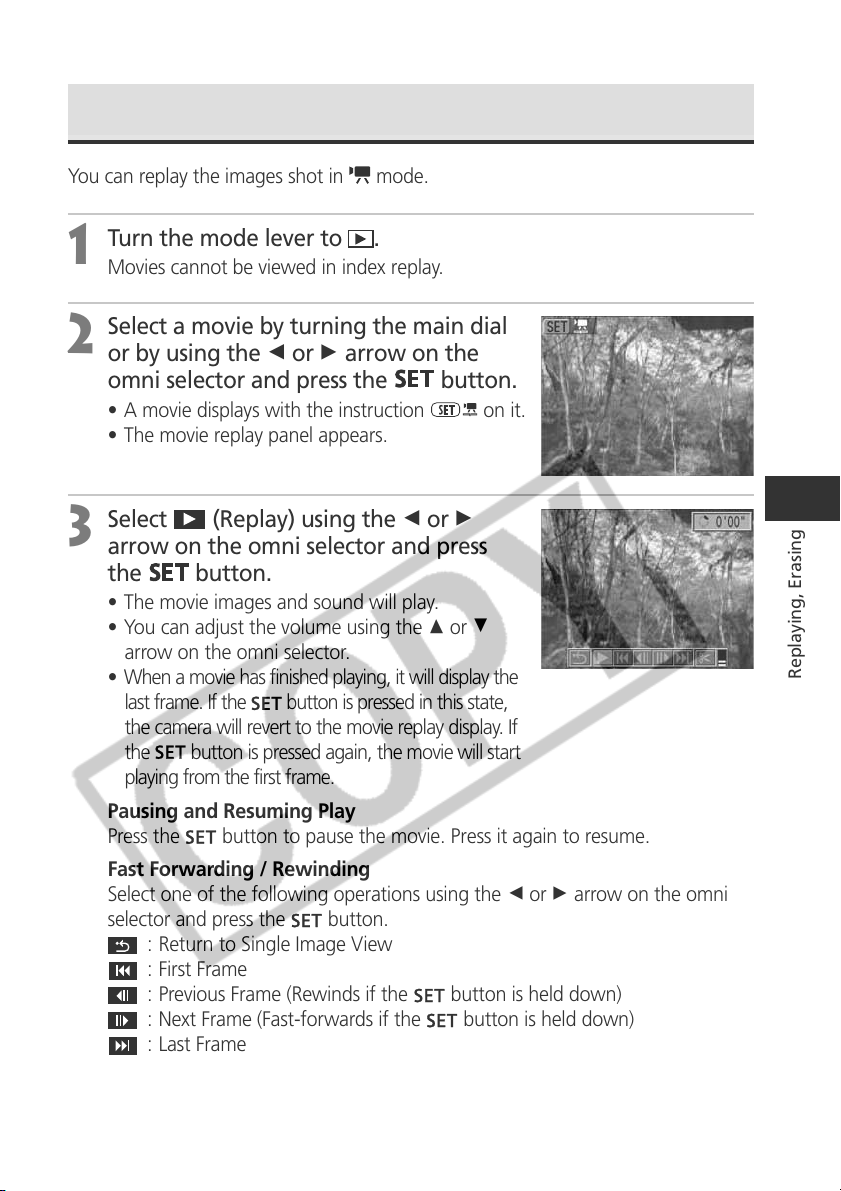
117
Replaying, Erasing
Viewing Movies
You can replay the images shot in mode.
1
Turn the mode lever to .
Movies cannot be viewed in index replay.
2
Select a movie by turning the main dial
or by using the B or A arrow on the
omni selector and press the
button.
• A movie displays with the instruction
on it.
• The movie replay panel appears.
3
Select (Replay) using the B or A
arrow on the omni selector and press
the
button.
• The movie images and sound will play.
• You can adjust the volume using the C or D
arrow on the omni selector.
• When a movie has finished playing, it will display the
last frame. If the
button is pressed in this state,
the camera will revert to the movie replay display. If
the
button is pressed again, the movie will start
playing from the first frame.
Pausing and Resuming Play
Press the
button to pause the movie. Press it again to resume.
Fast Forwarding / Rewinding
Select one of the following operations using the B or A arrow on the omni
selector and press the
button.
: Return to Single Image View
: First Frame
: Previous Frame (Rewinds if the
button is held down)
: Next Frame (Fast-forwards if the
button is held down)
: Last Frame
118
○○○○○○○○○○○○○○○○○○○○○○
You may experience frame dropping and audio breakup when replaying a movie on
a computer with insufficient system resources.
○○○○○○○○○○○○○○○○○○○○○○
• The volume at which movies replay can also be adjusted in the Replay menu (p. 163).
• Please adjust the audio sound level on the TV when viewing movie files on a TV.
Viewing Movies (continued)
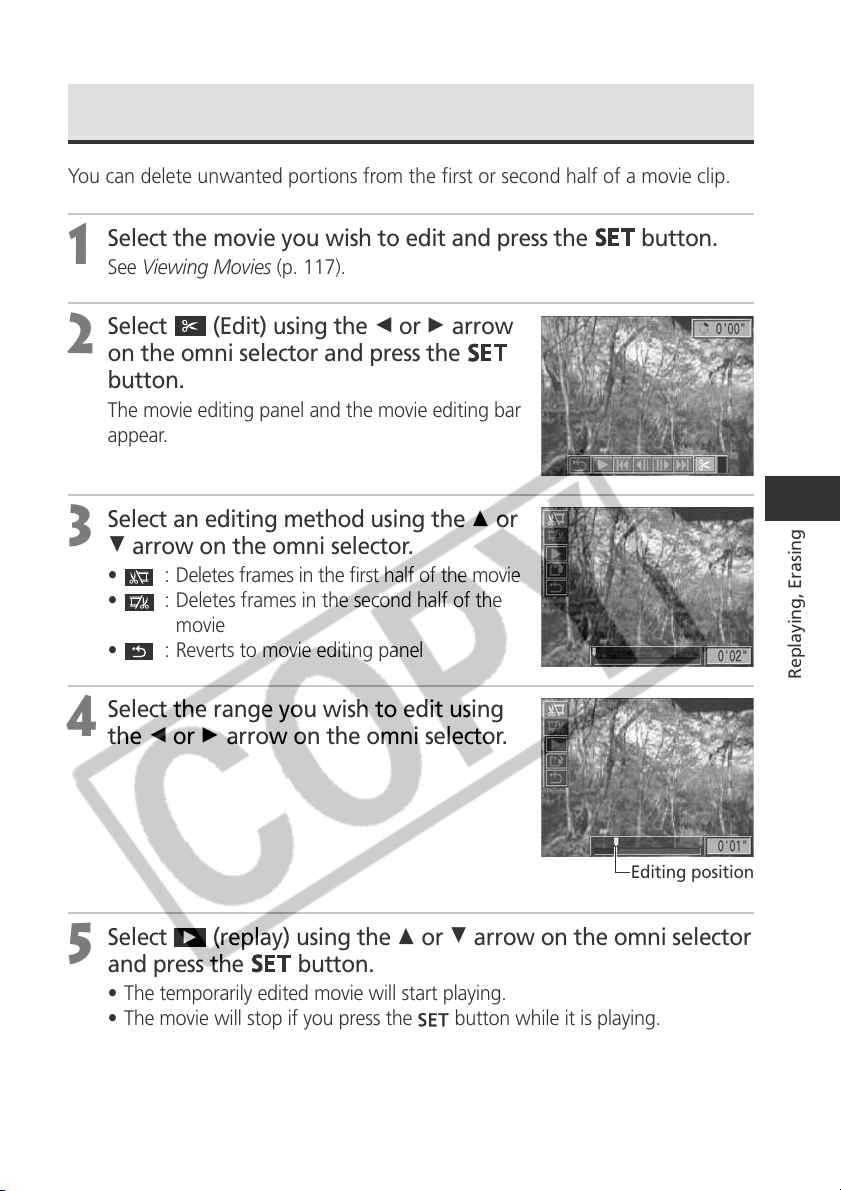
119
Replaying, Erasing
Editing Movies
You can delete unwanted portions from the first or second half of a movie clip.
1
Select the movie you wish to edit and press the
button.
See Viewing Movies (p. 117).
2
Select (Edit) using the B or A arrow
on the omni selector and press the
button.
The movie editing panel and the movie editing bar
appear.
3
Select an editing method using the C or
D arrow on the omni selector.
• : Deletes frames in the first half of the movie
•
: Deletes frames in the second half of the
movie
•
: Reverts to movie editing panel
4
Select the range you wish to edit using
the B or A arrow on the omni selector.
5
Select
(replay) using the C or D arrow on the omni selector
and press the
button.
• The temporarily edited movie will start playing.
• The movie will stop if you press the button while it is playing.
Editing position
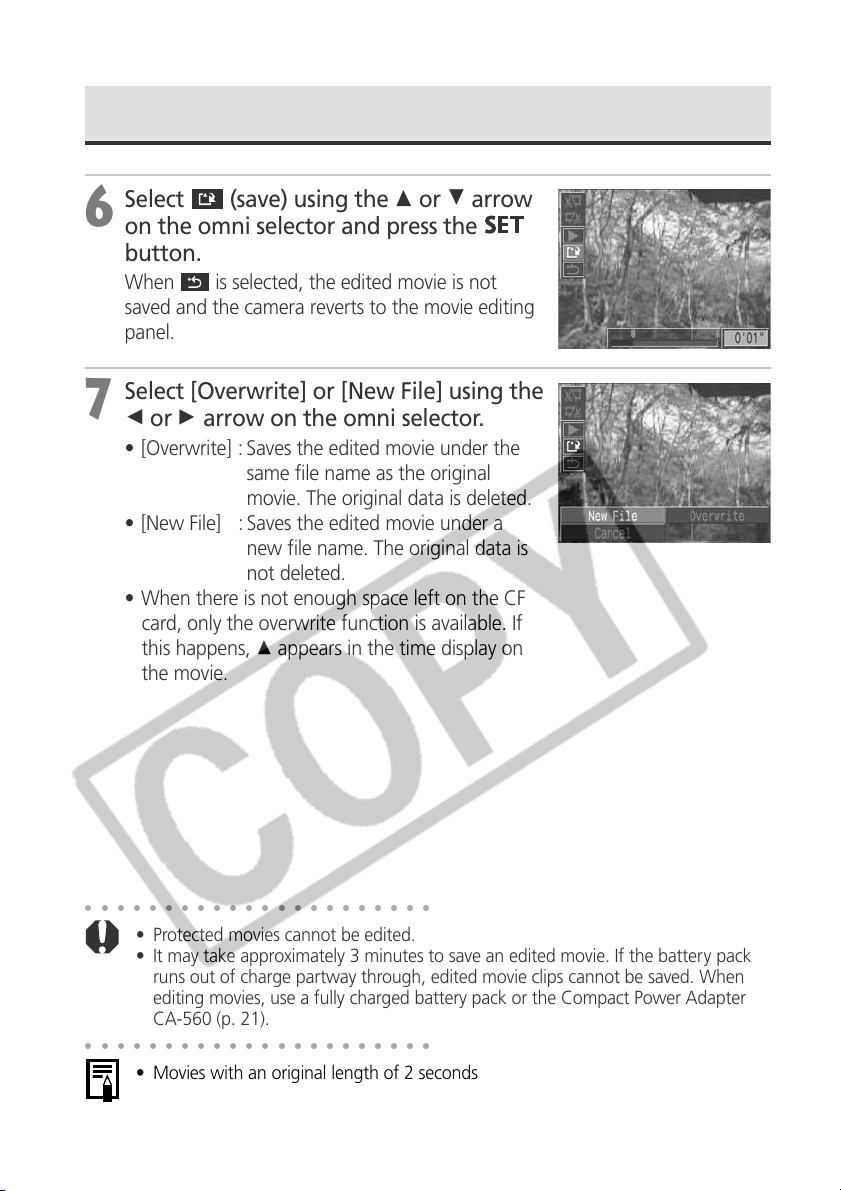
120
6
Select
(save) using the C or D arrow
on the omni selector and press the
button.
When is selected, the edited movie is not
saved and the camera reverts to the movie editing
panel.
7
Select [Overwrite] or [New File] using the
B or A arrow on the omni selector.
• [Overwrite] : Saves the edited movie under the
same file name as the original
movie. The original data is deleted.
• [New File] : Saves the edited movie under a
new file name. The original data is
not deleted.
• When there is not enough space left on the CF
card, only the overwrite function is available. If
this happens, C appears in the time display on
the movie.
○○○○○○○○○○○○○○○○○○○○○○
• Protected movies cannot be edited.
• It may take approximately 3 minutes to save an edited movie. If the battery pack
runs out of charge partway through, edited movie clips cannot be saved. When
editing movies, use a fully charged battery pack or the Compact Power Adapter
CA-560 (p. 21).
○○○○○○○○○○○○○○○○○○○○○○
• Movies with an original length of 2 seconds or more can be edited.
• The minimum length for movie clips is 1 second.
Editing Movies (continued)
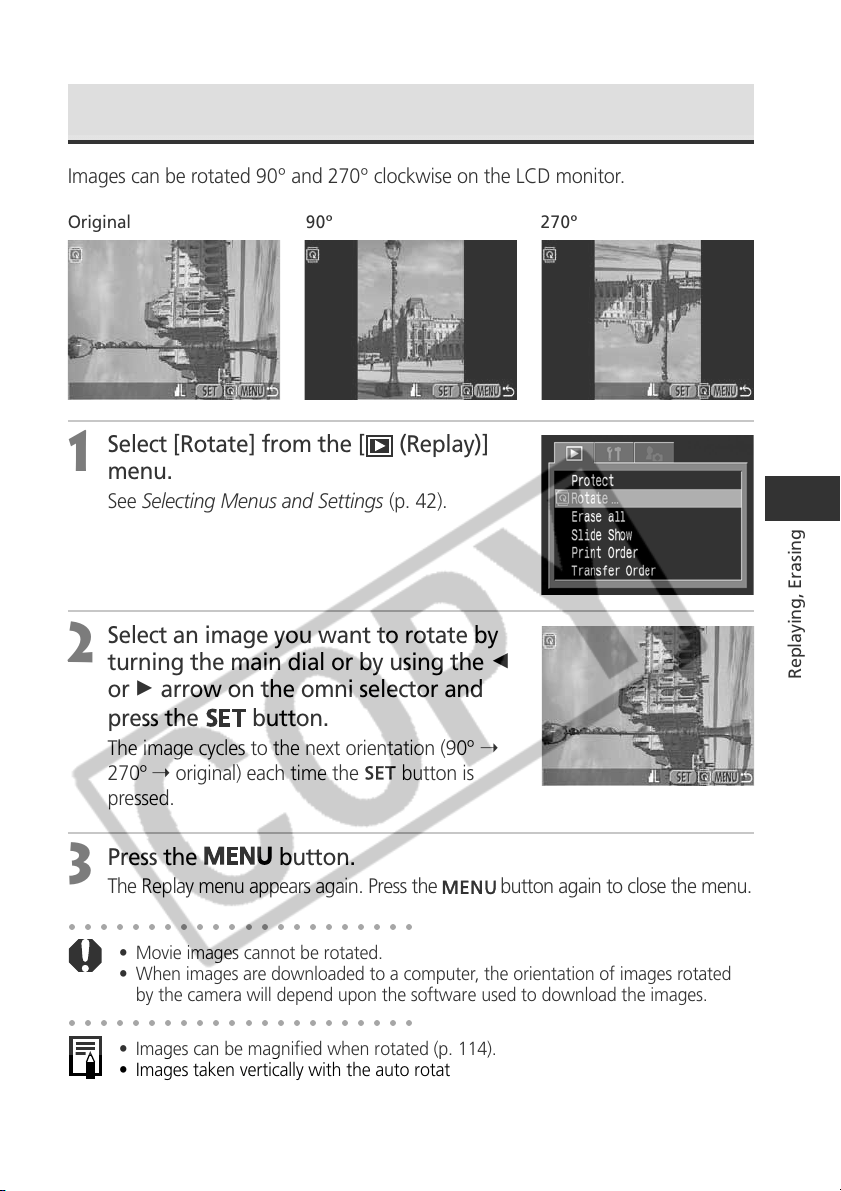
121
Replaying, Erasing
Rotating Images in the Display
Images can be rotated 90º and 270º clockwise on the LCD monitor.
Original 90º 270º
1
Select [Rotate] from the [ (Replay)]
menu.
See Selecting Menus and Settings (p. 42).
2
Select an image you want to rotate by
turning the main dial or by using the B
or A arrow on the omni selector and
press the
button.
The image cycles to the next orientation (90º ➝
270º ➝ original) each time the
button is
pressed.
3
Press the
button.
The Replay menu appears again. Press the button again to close the menu.
○○○○○○○○○○○○○○○○○○○○○○
• Movie images cannot be rotated.
• When images are downloaded to a computer, the orientation of images rotated
by the camera will depend upon the software used to download the images.
○○○○○○○○○○○○○○○○○○○○○○
• Images can be magnified when rotated (p. 114).
• Images taken vertically with the auto rotate function (p. 111) set to [On] will
automatically be rotated to the vertical position when viewed on the LCD monitor.
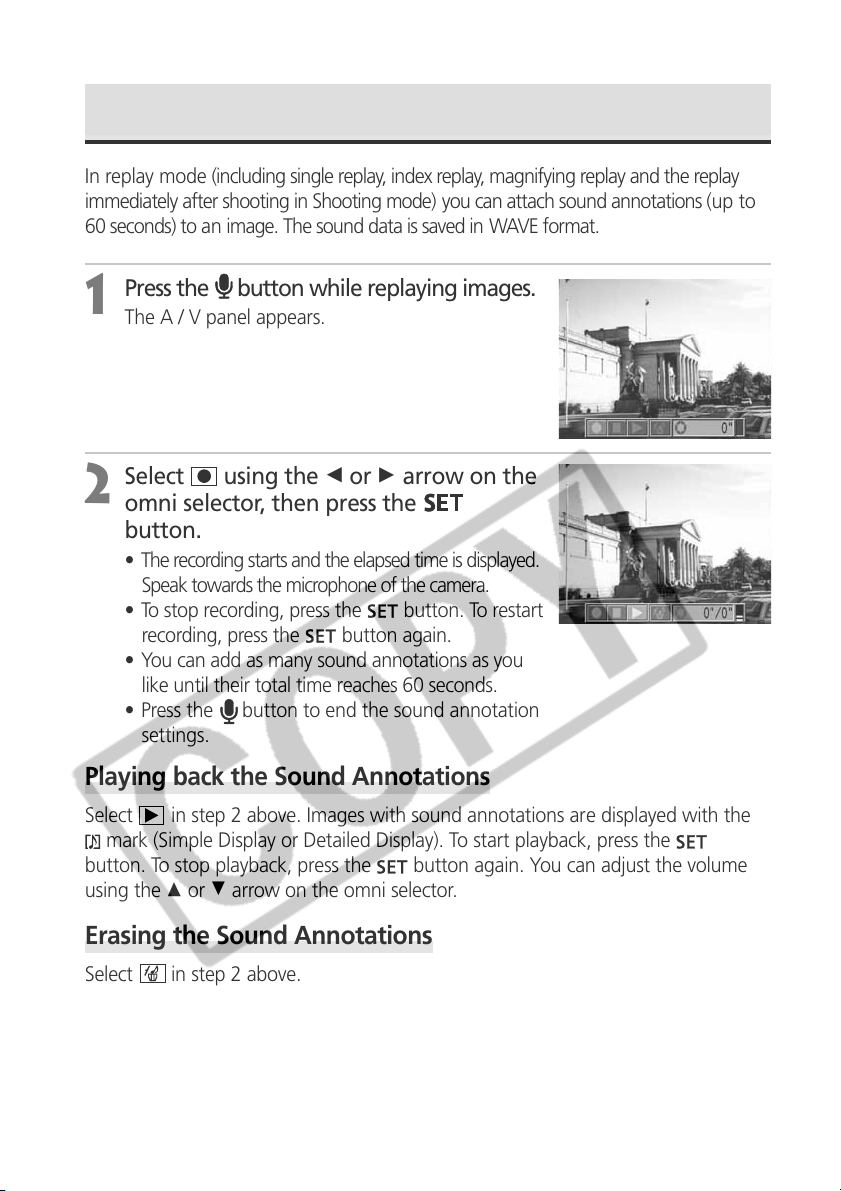
122
Attaching Sound Annotations to Images
In replay mode (including single replay, index replay, magnifying replay and the replay
immediately after shooting in Shooting mode) you can attach sound annotations (up to
60 seconds) to an image. The sound data is saved in WAVE format.
1
Press the button while replaying images.
The A / V panel appears.
2
Select using the B or A arrow on the
omni selector, then press the
button.
• The recording starts and the elapsed time is displayed.
Speak towards the microphone of the camera.
• To stop recording, press the
button. To restart
recording, press the
button again.
• You can add as many sound annotations as you
like until their total time reaches 60 seconds.
• Press the
button to end the sound annotation
settings.
Playing back the Sound Annotations
Select in step 2 above. Images with sound annotations are displayed with the
mark (Simple Display or Detailed Display). To start playback, press the
button. To stop playback, press the
button again. You can adjust the volume
using the C or D arrow on the omni selector.
Erasing the Sound Annotations
Select
in step 2 above.
123
Replaying, Erasing
○○○○○○○○○○○○○○○○○○○○○○
• You cannot attach sound annotation to movies.
• You cannot record or playback sound notes for images that already have an
incompatible sound file attached. If you attempt to record or play such images, the
“Incompatible WAVE format” message will display. Incompatible sound files can
be deleted with this camera.
• Sound annotations for protected images cannot be erased. (p. 128).
○○○○○○○○○○○○○○○○○○○○○○
The volume can be adjusted in the Set up menu (p. 163).
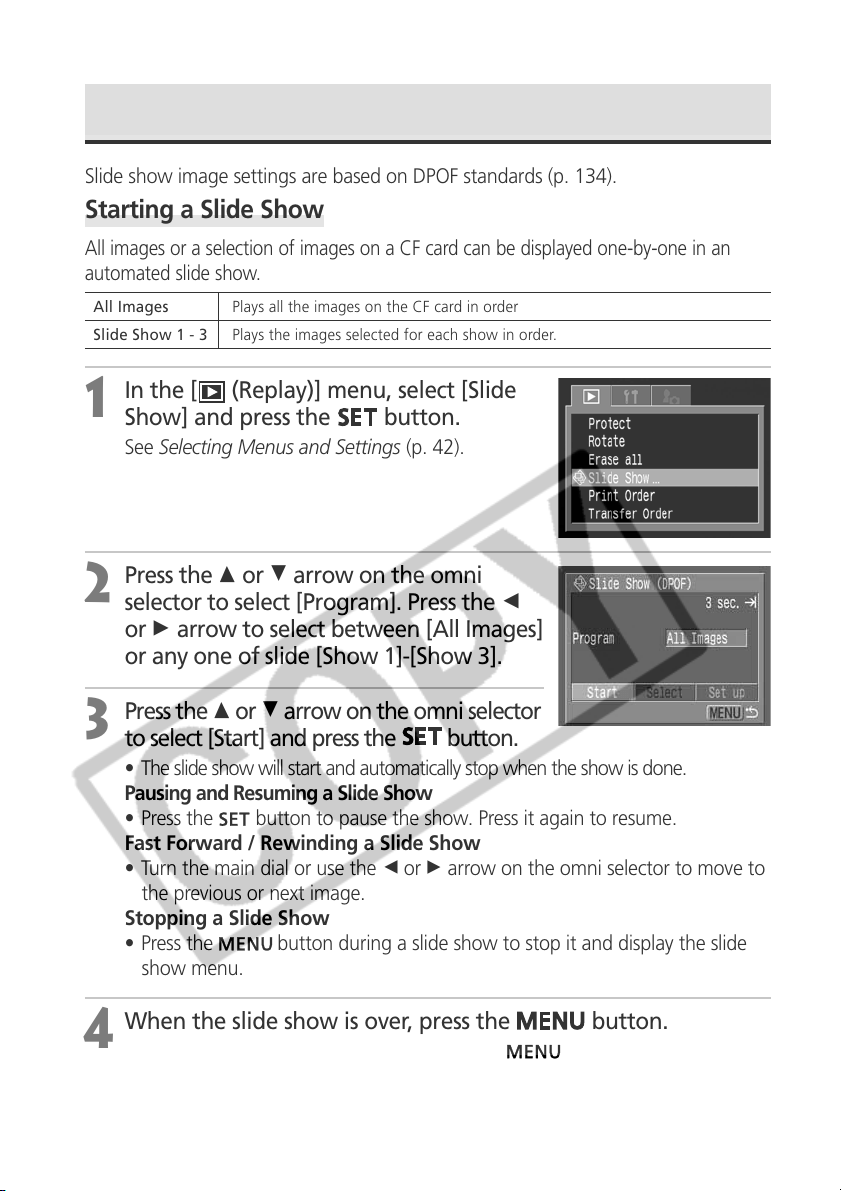
124
Automated Playback (Slide Show)
Slide show image settings are based on DPOF standards (p. 134).
Starting a Slide Show
All images or a selection of images on a CF card can be displayed one-by-one in an
automated slide show.
1
In the [ (Replay)] menu, select [Slide
Show] and press the
button.
See Selecting Menus and Settings (p. 42).
2
Press the C or D arrow on the omni
selector to select [Program]. Press the B
or A arrow to select between [All Images]
or any one of slide [Show 1]-[Show 3].
3
Press the C or D arrow on the omni selector
to select [Start] and press the
button.
• The slide show will start and automatically stop when the show is done.
Pausing and Resuming a Slide Show
• Press the
button to pause the show. Press it again to resume.
Fast Forward / Rewinding a Slide Show
• Turn the main dial or use the B or A arrow on the omni selector to move to
the previous or next image.
Stopping a Slide Show
• Press the
button during a slide show to stop it and display the slide
show menu.
4
When the slide show is over, press the
button.
The slide show menu appears again. Press the
button again to close
the menu.
All Images Plays all the images on the CF card in order
Slide Show 1 - 3 Plays the images selected for each show in order.
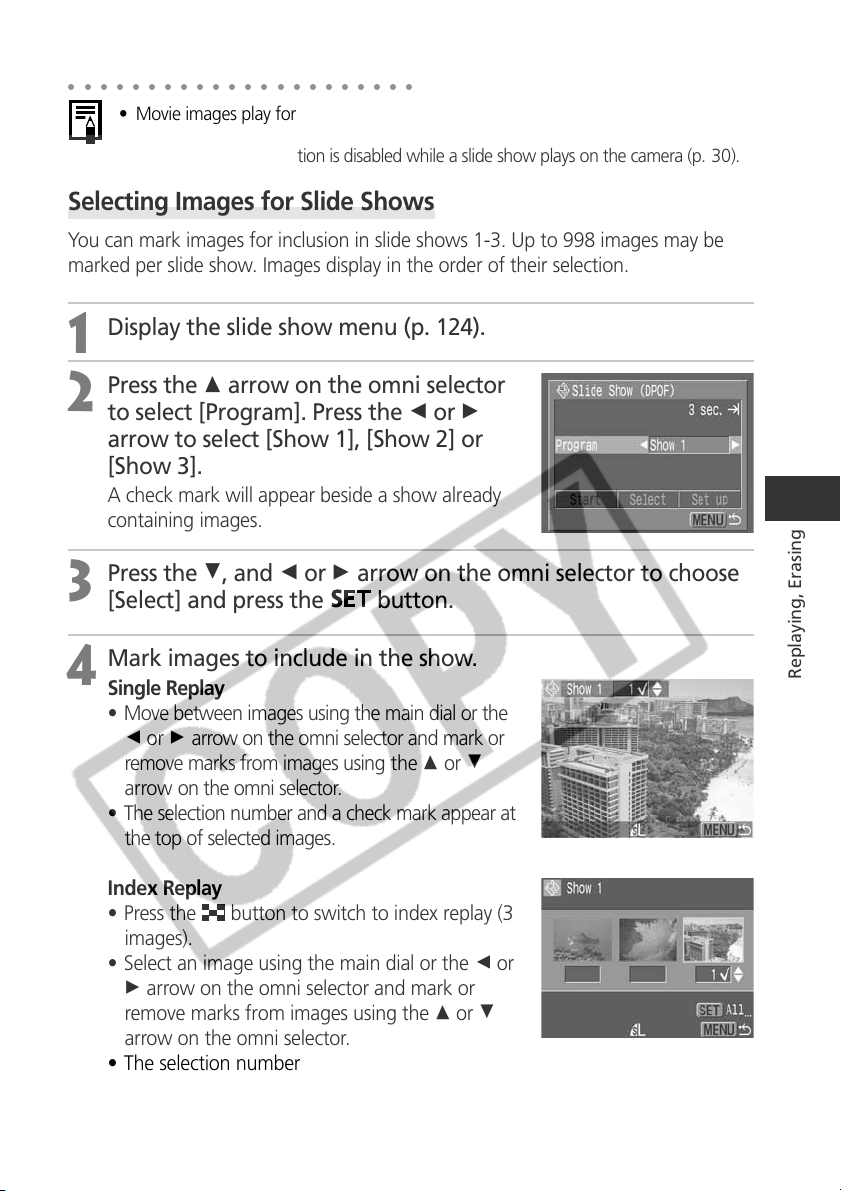
125
Replaying, Erasing
○○○○○○○○○○○○○○○○○○○○○○
• Movie images play for the length of time that they were recorded regardless of the
time set in the slide show settings.
• The power-saving function is disabled while a slide show plays on the camera (p. 30).
Selecting Images for Slide Shows
You can mark images for inclusion in slide shows 1-3. Up to 998 images may be
marked per slide show. Images display in the order of their selection.
1
Display the slide show menu (p. 124).
2
Press the C arrow on the omni selector
to select [Program]. Press the B or A
arrow to select [Show 1], [Show 2] or
[Show 3].
A check mark will appear beside a show already
containing images.
3
Press the D, and B or A arrow on the omni selector to choose
[Select] and press the
button.
4
Mark images to include in the show.
Single Replay
• Move between images using the main dial or the
B or A arrow on the omni selector and mark or
remove marks from images using the C or D
arrow on the omni selector.
• The selection number and a check mark appear at
the top of selected images.
Index Replay
• Press the
button to switch to index replay (3
images).
• Select an image using the main dial or the B or
A arrow on the omni selector and mark or
remove marks from images using the C or D
arrow on the omni selector.
• The selection number and a check mark appears
at the bottom of selected images.
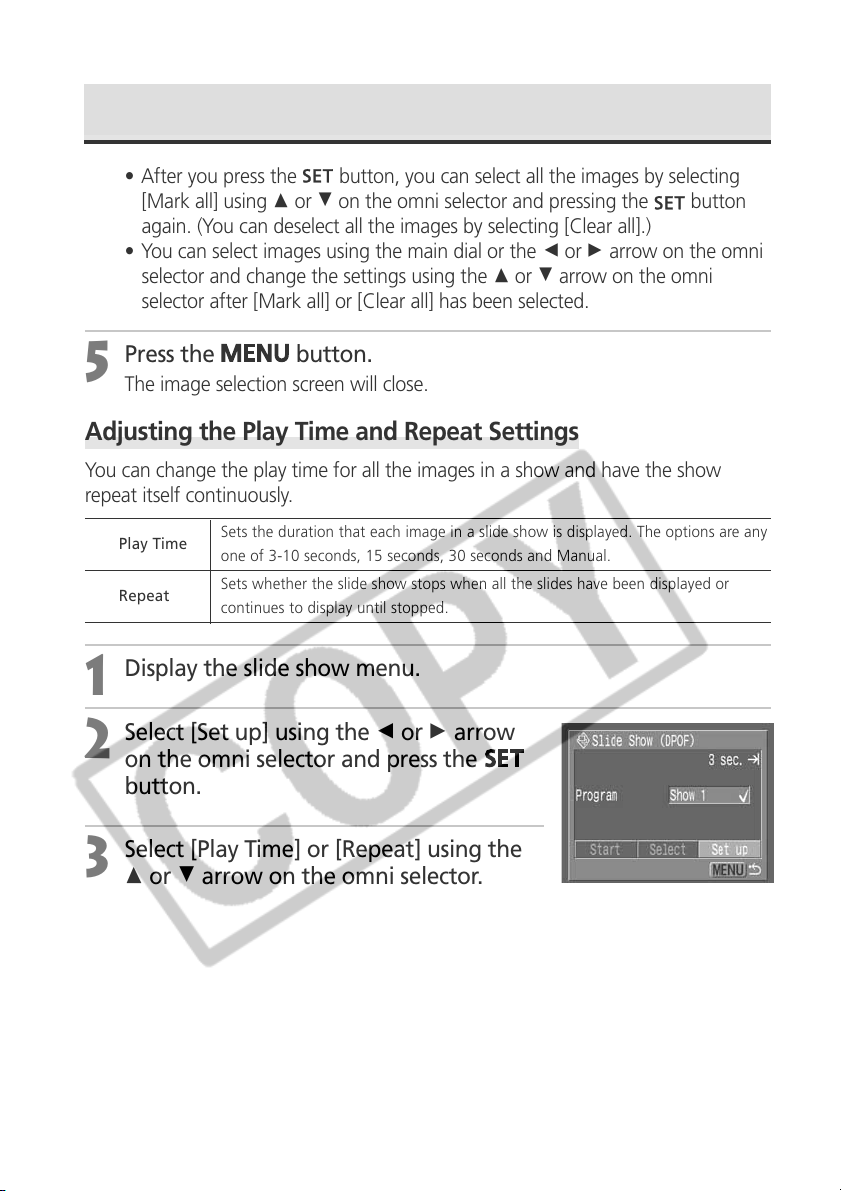
126
• After you press the
button, you can select all the images by selecting
[Mark all] using C or D on the omni selector and pressing the
button
again. (You can deselect all the images by selecting [Clear all].)
• You can select images using the main dial or the B or A arrow on the omni
selector and change the settings using the C or D arrow on the omni
selector after [Mark all] or [Clear all] has been selected.
5
Press the
button.
The image selection screen will close.
Adjusting the Play Time and Repeat Settings
You can change the play time for all the images in a show and have the show
repeat itself continuously.
1
Display the slide show menu.
2
Select [Set up] using the B or A arrow
on the omni selector and press the
button.
3
Select [Play Time] or [Repeat] using the
C or D arrow on the omni selector.
Automated Playback (Slide Show) (continued)
Play Time
Sets the duration that each image in a slide show is displayed. The options are any
one of 3-10 seconds, 15 seconds, 30 seconds and Manual.
Repeat
Sets whether the slide show stops when all the slides have been displayed or
continues to display until stopped.
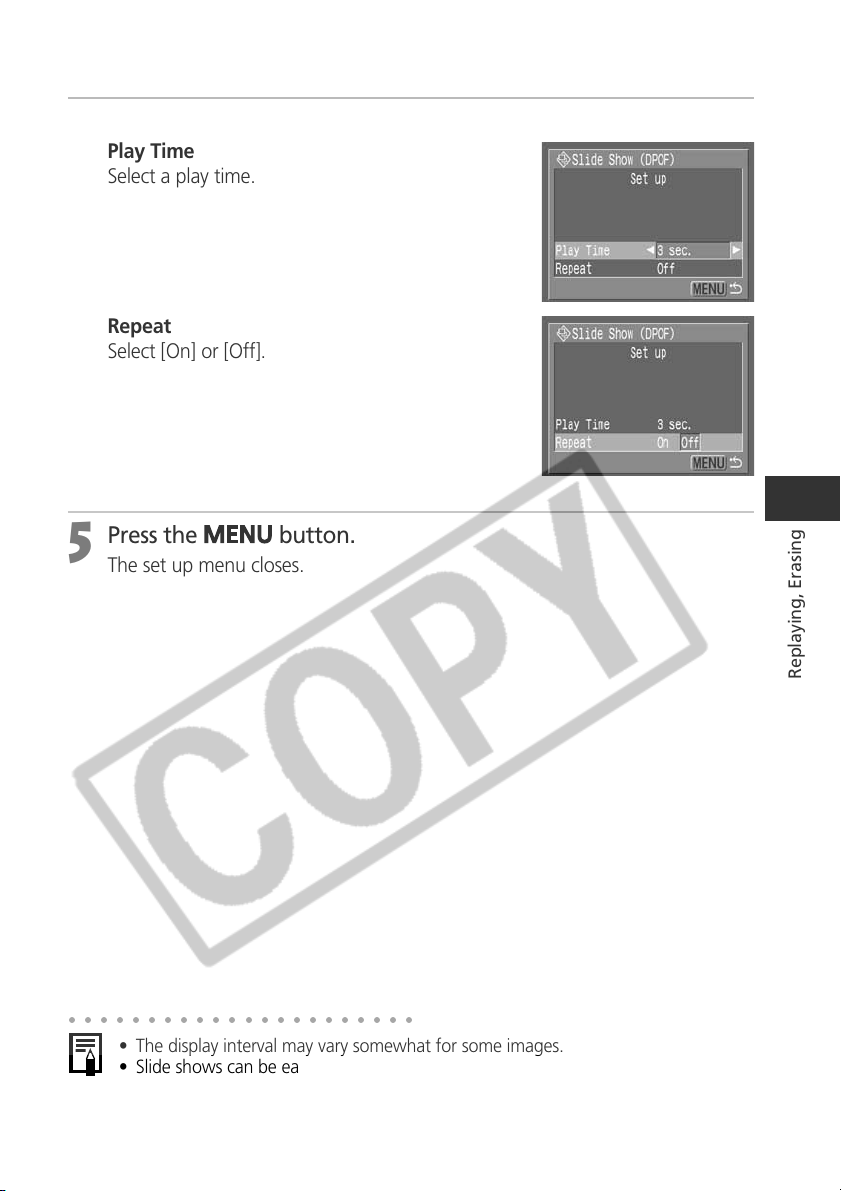
127
Replaying, Erasing
4
Select a setting using the B or A arrow on the omni selector.
Play Time
Select a play time.
Repeat
Select [On] or [Off].
5
Press the
button.
The set up menu closes.
○○○○○○○○○○○○○○○○○○○○○○
• The display interval may vary somewhat for some images.
• Slide shows can be easily edited on a computer with the supplied software. See
the Software Starter Guide.
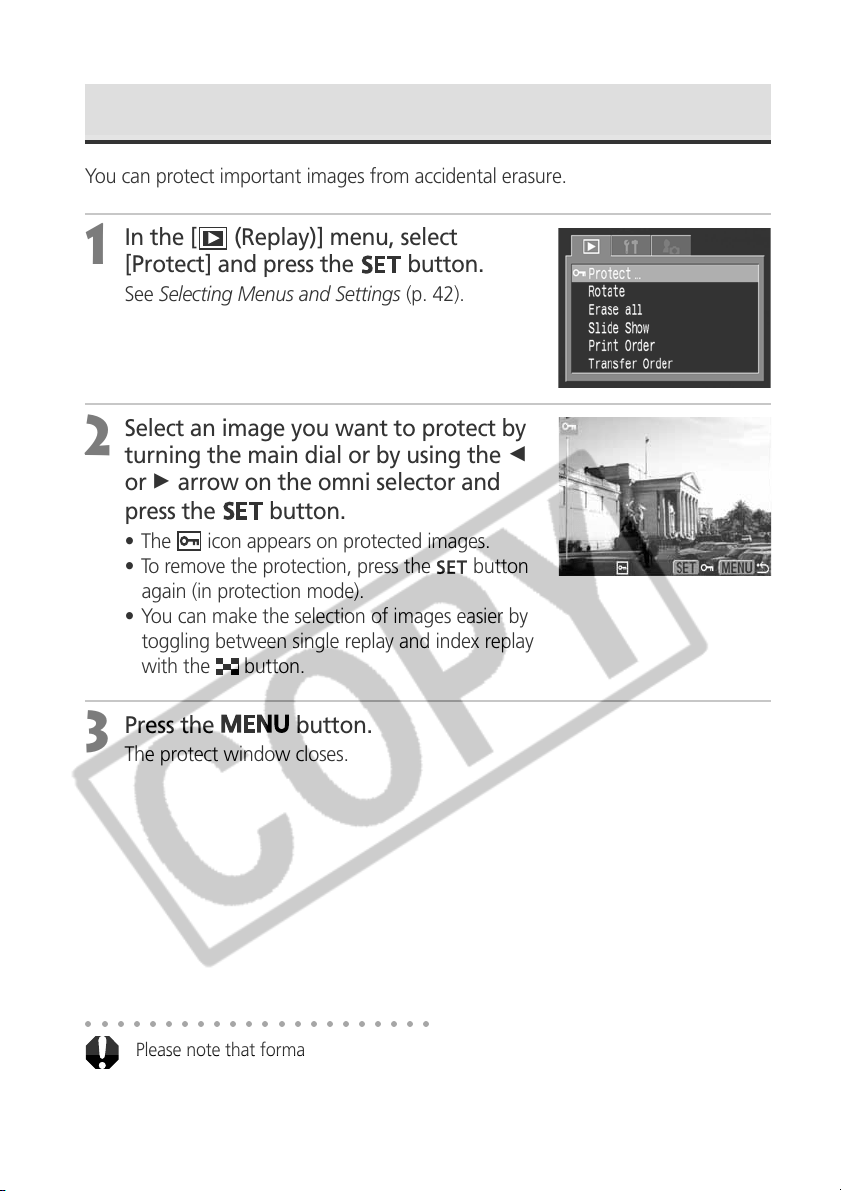
128
Protecting Images
You can protect important images from accidental erasure.
1
In the [ (Replay)] menu, select
[Protect] and press the
button.
See Selecting Menus and Settings (p. 42).
2
Select an image you want to protect by
turning the main dial or by using the B
or A arrow on the omni selector and
press the
button.
• The icon appears on protected images.
• To remove the protection, press the
button
again (in protection mode).
• You can make the selection of images easier by
toggling between single replay and index replay
with the
button.
3
Press the button.
The protect window closes.
○○○○○○○○○○○○○○○○○○○○○○
Please note that formatting (initializing) a CF card erases all data, including protected
images (p. 131) and other file types. Please check the contents of a CF card before
formatting it.
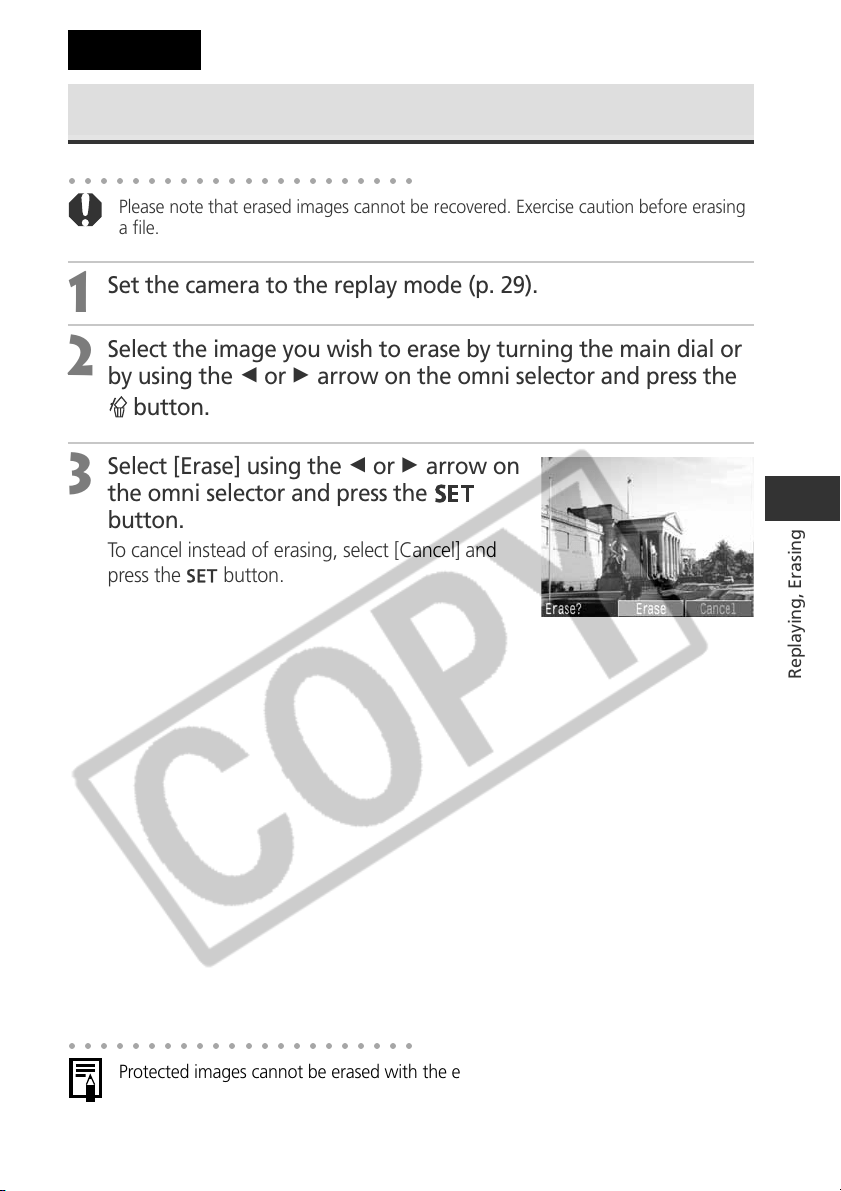
129
Replaying, Erasing
Erasing Images Individually
○○○○○○○○○○○○○○○○○○○○○○
Please note that erased images cannot be recovered. Exercise caution before erasing
a file.
1
Set the camera to the replay mode (p. 29).
2
Select the image you wish to erase by turning the main dial or
by using the B or A arrow on the omni selector and press the
button.
3
Select [Erase] using the B or A arrow on
the omni selector and press the
button.
To cancel instead of erasing, select [Cancel] and
press the
button.
○○○○○○○○○○○○○○○○○○○○○○
Protected images cannot be erased with the erase function (p. 128).
Erasing
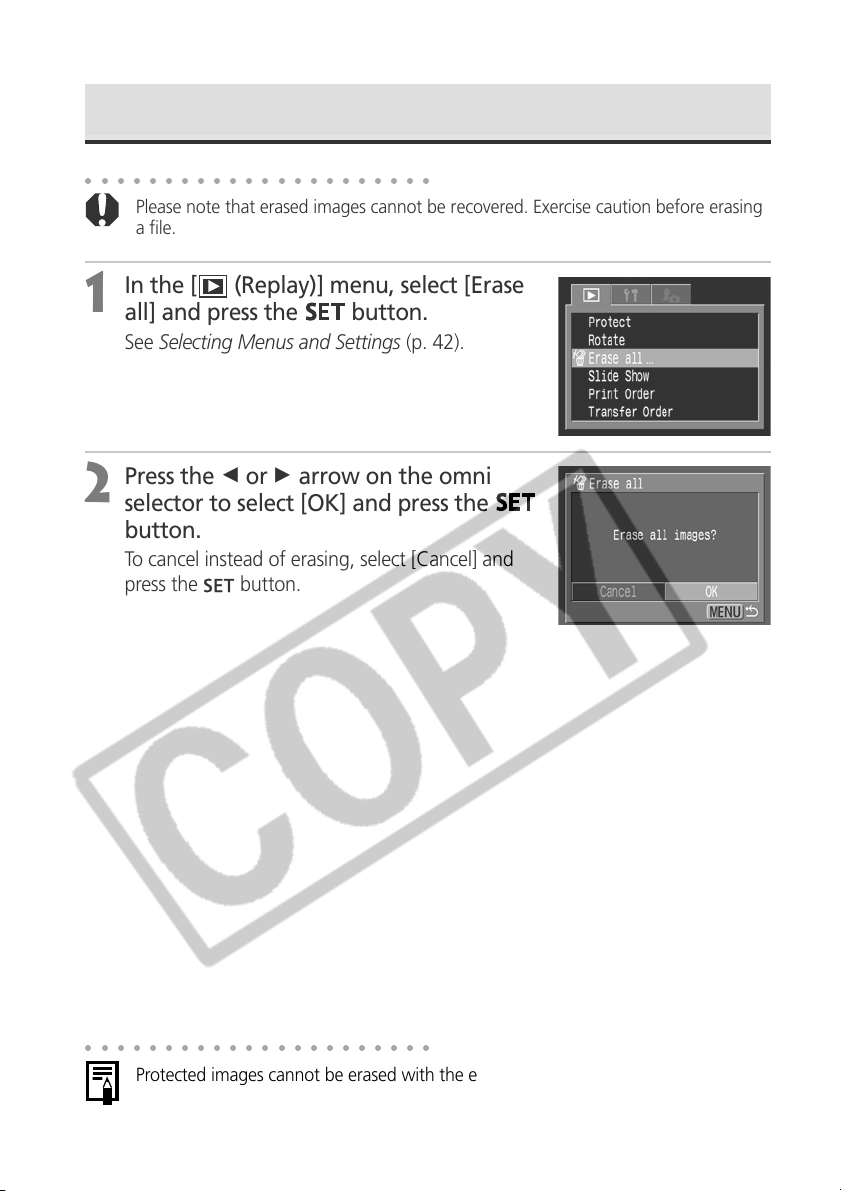
130
Erasing All Images
○○○○○○○○○○○○○○○○○○○○○○
Please note that erased images cannot be recovered. Exercise caution before erasing
a file.
1
In the [ (Replay)] menu, select [Erase
all] and press the
button.
See Selecting Menus and Settings (p. 42).
2
Press the B or A arrow on the omni
selector to select [OK] and press the
button.
To cancel instead of erasing, select [Cancel] and
press the
button.
○○○○○○○○○○○○○○○○○○○○○○
Protected images cannot be erased with the erase function (p. 128).
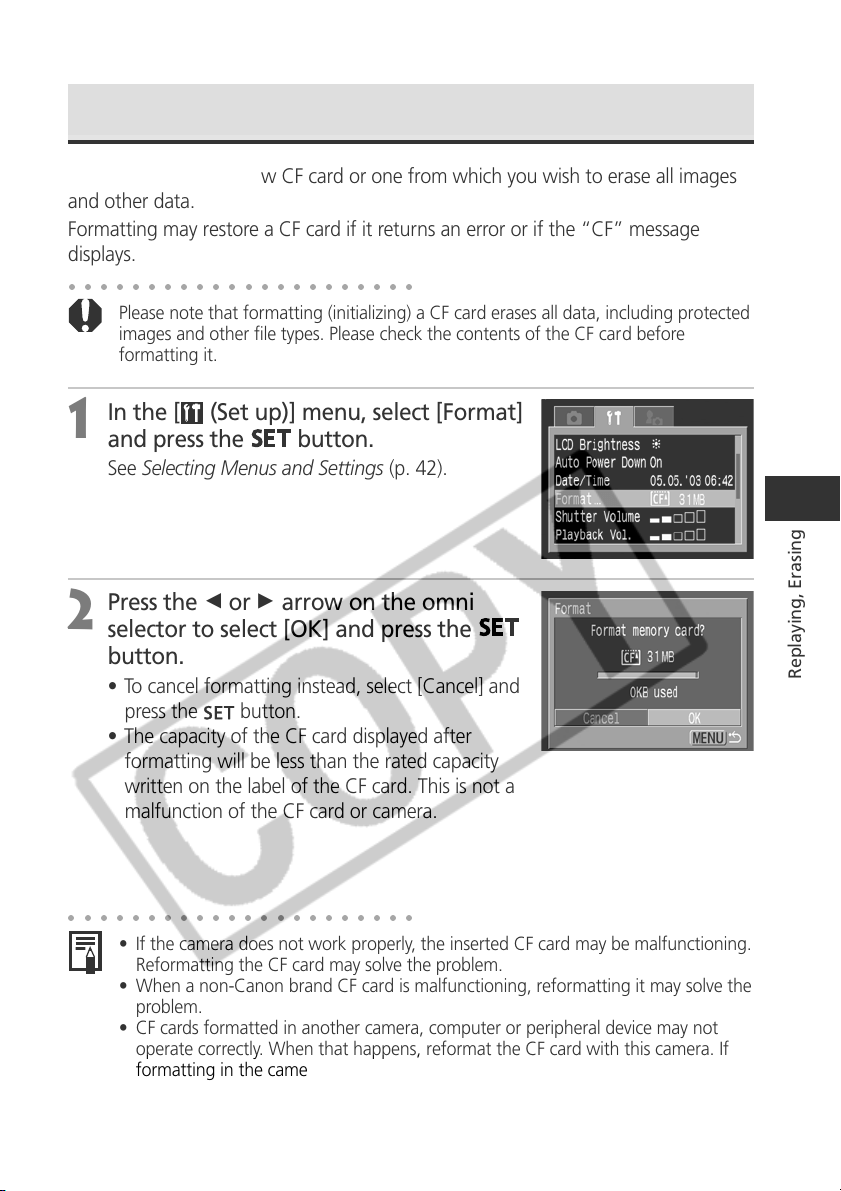
131
Replaying, Erasing
○○○○○○○○○○○○○○○○○○○○○○
• If the camera does not work properly, the inserted CF card may be malfunctioning.
Reformatting the CF card may solve the problem.
• When a non-Canon brand CF card is malfunctioning, reformatting it may solve the
problem.
• CF cards formatted in another camera, computer or peripheral device may not
operate correctly. When that happens, reformat the CF card with this camera. If
formatting in the camera does not work properly, turn the camera off and re-
insert the CF card. Then turn the camera back on and format again.
Formatting a CF Card
You should format a new CF card or one from which you wish to erase all images
and other data.
Formatting may restore a CF card if it returns an error or if the “CF” message
displays.
○○○○○○○○○○○○○○○○○○○○○○
Please note that formatting (initializing) a CF card erases all data, including protected
images and other file types. Please check the contents of the CF card before
formatting it.
1
In the [ (Set up)] menu, select [Format]
and press the
button.
See Selecting Menus and Settings (p. 42).
2
Press the B or A arrow on the omni
selector to select [OK] and press the
button.
• To cancel formatting instead, select [Cancel] and
press the
button.
• The capacity of the CF card displayed after
formatting will be less than the rated capacity
written on the label of the CF card. This is not a
malfunction of the CF card or camera.
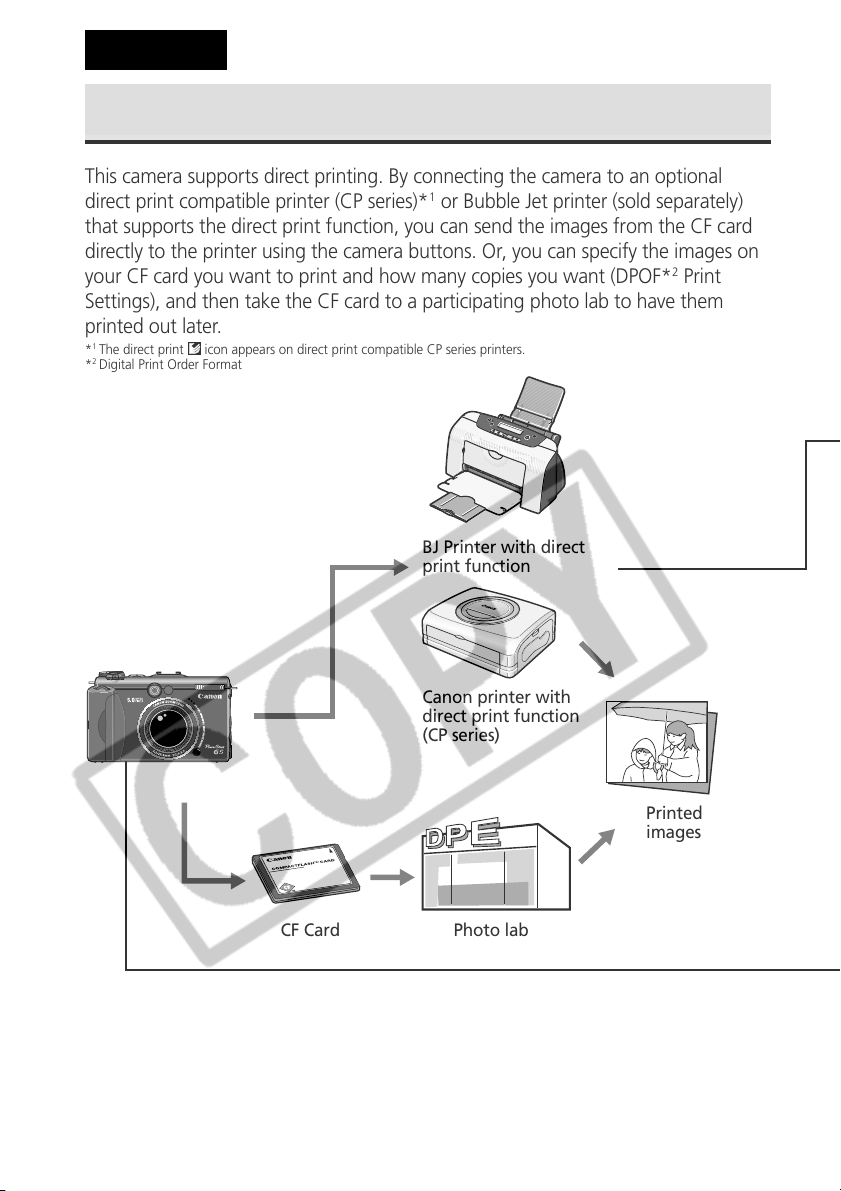
132
Printing
About Printing
This camera supports direct printing. By connecting the camera to an optional
direct print compatible printer (CP series)*
1
or Bubble Jet printer (sold separately)
that supports the direct print function, you can send the images from the CF card
directly to the printer using the camera buttons. Or, you can specify the images on
your CF card you want to print and how many copies you want (DPOF*
2
Print
Settings), and then take the CF card to a participating photo lab to have them
printed out later.
*
1
The direct print icon appears on direct print compatible CP series printers.
*
2
Digital Print Order Format
BJ Printer with direct
print function
Canon printer with
direct print function
(CP series)
Printed
images
CF Card Photo lab
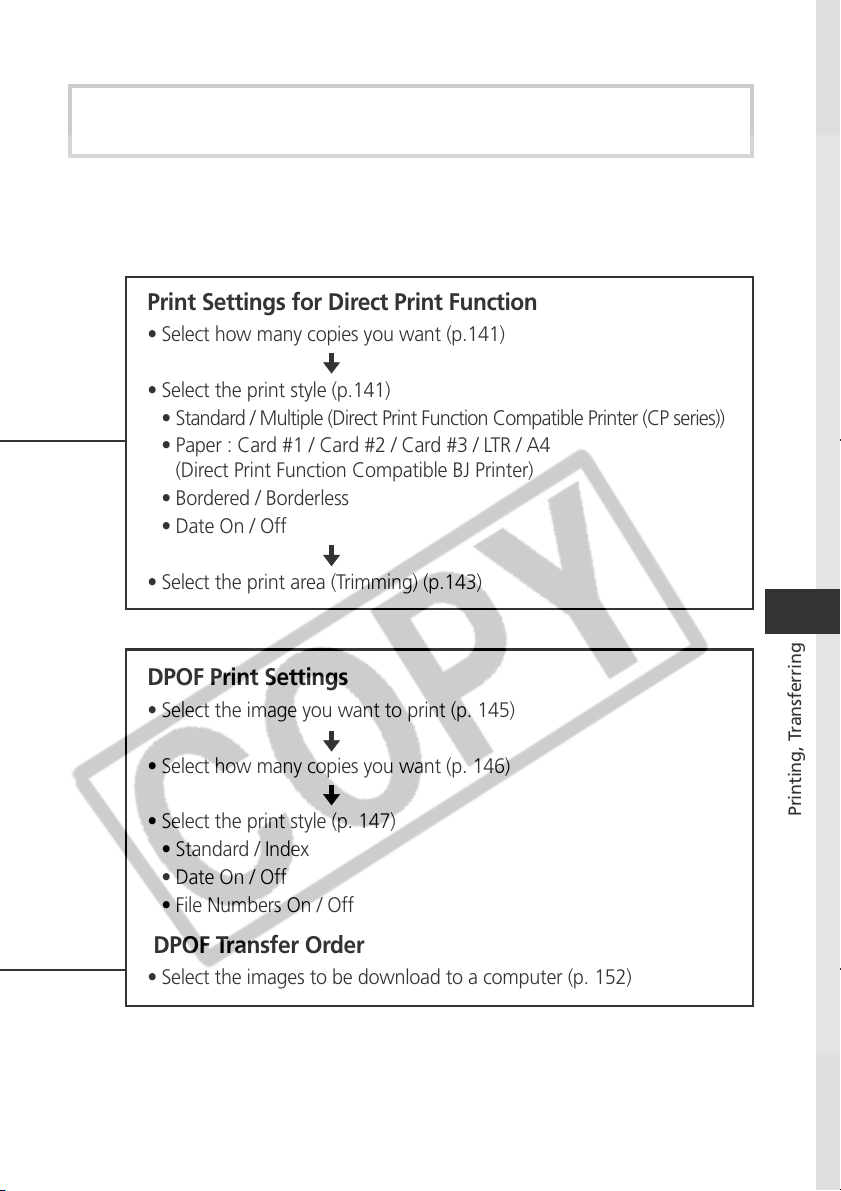
133
Printing, Transferring
Please refer to the System Map supplied with your camera for direct print
function compatible printer (CP series) information.
Print Settings for Direct Print Function
• Select how many copies you want (p.141)
• Select the print style (p.141)
• Standard / Multiple (Direct Print Function Compatible Printer (CP series))
• Paper : Card #1 / Card #2 / Card #3 / LTR / A4
(Direct Print Function Compatible BJ Printer)
• Bordered / Borderless
• Date On / Off
• Select the print area (Trimming) (p.143)
DPOF Print Settings
• Select the image you want to print (p. 145)
• Select how many copies you want (p. 146)
• Select the print style (p. 147)
• Standard / Index
• Date On / Off
• File Numbers On / Off
DPOF Transfer Order
• Select the images to be download to a computer (p. 152)
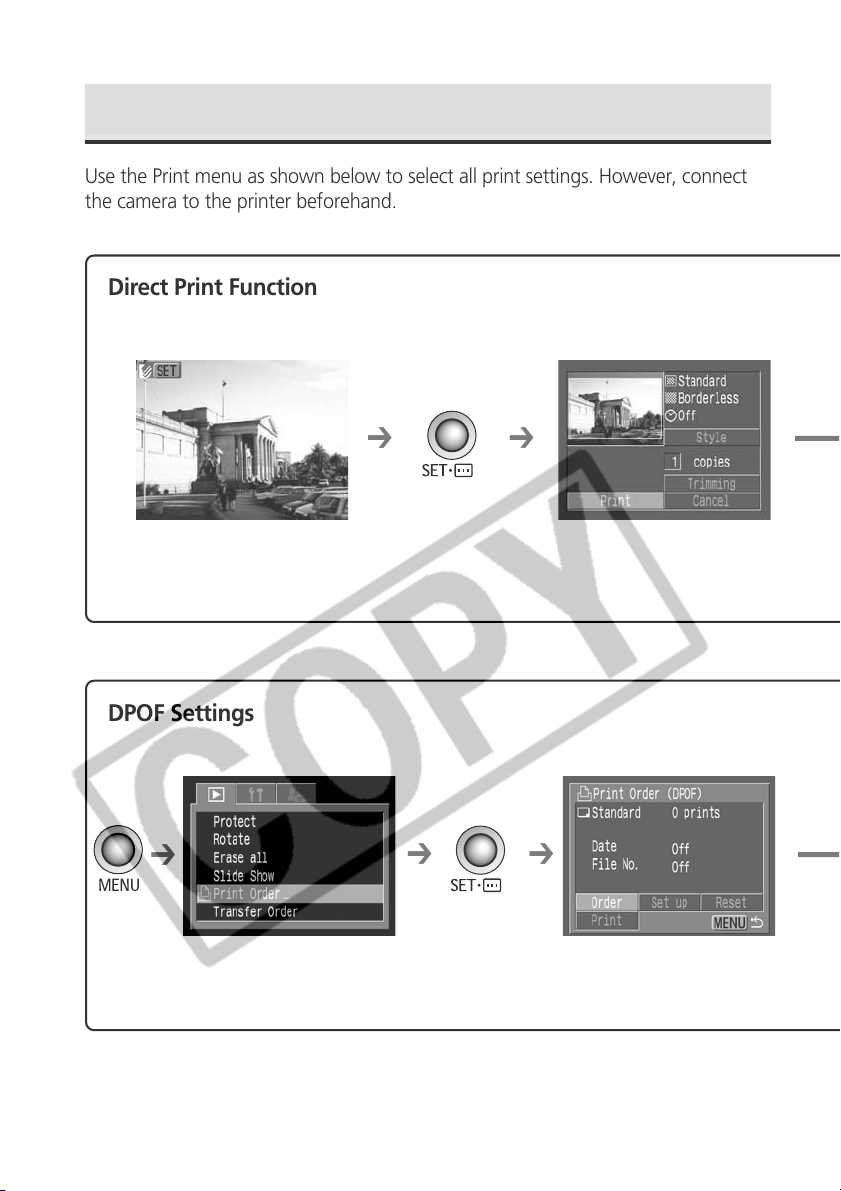
134
➔
➔
➔
➔
➔
Selecting from the Print Menu
Use the Print menu as shown below to select all print settings. However, connect
the camera to the printer beforehand.
Direct Print Function
DPOF Settings
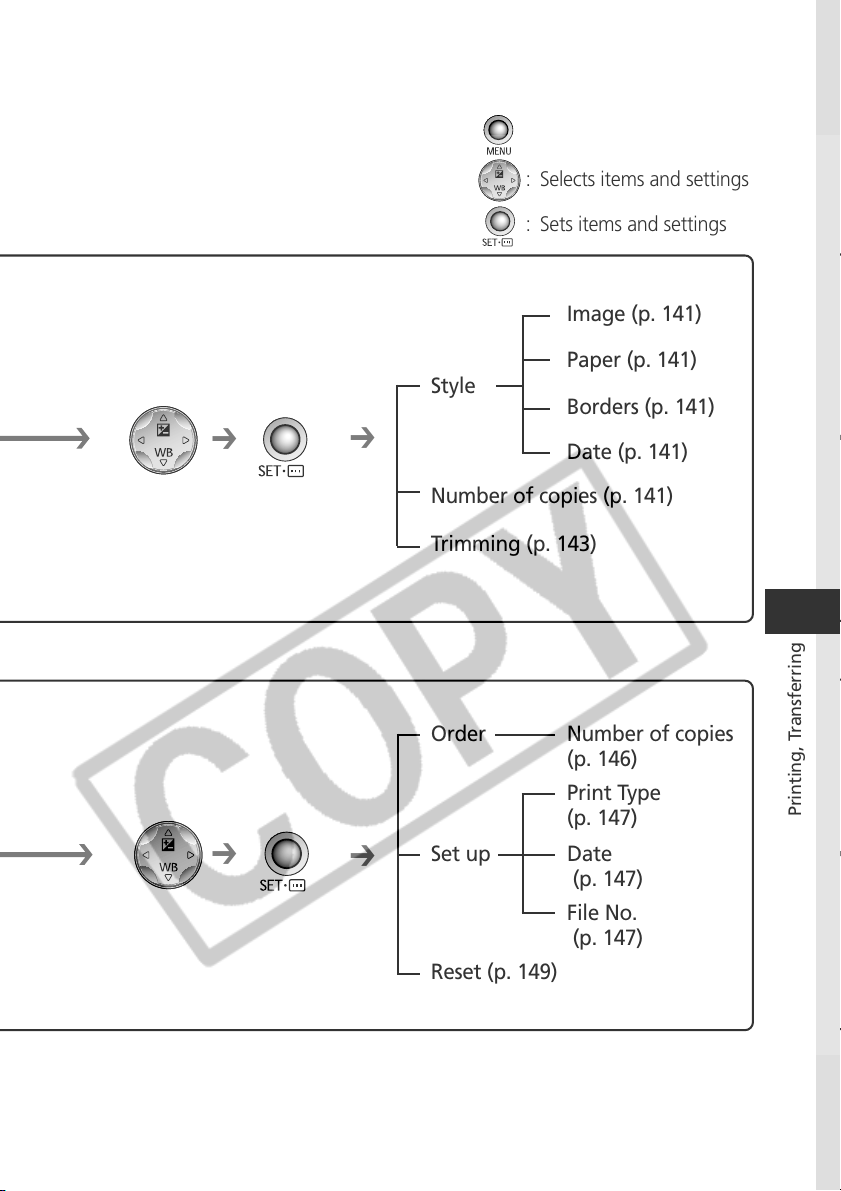
135
Printing, Transferring
➔
➔
➔
➔
: Turns the menu on/off
: Selects items and settings
: Sets items and settings
Image (p. 141)
Paper (p. 141)
Style
Borders (p. 141)
Date (p. 141)
Number of copies (p. 141)
Trimming (p. 143)
Order Number of copies
(p. 146)
Print Type
(p. 147)
Set up Date
(p. 147)
File No.
(p. 147)
Reset (p. 149)
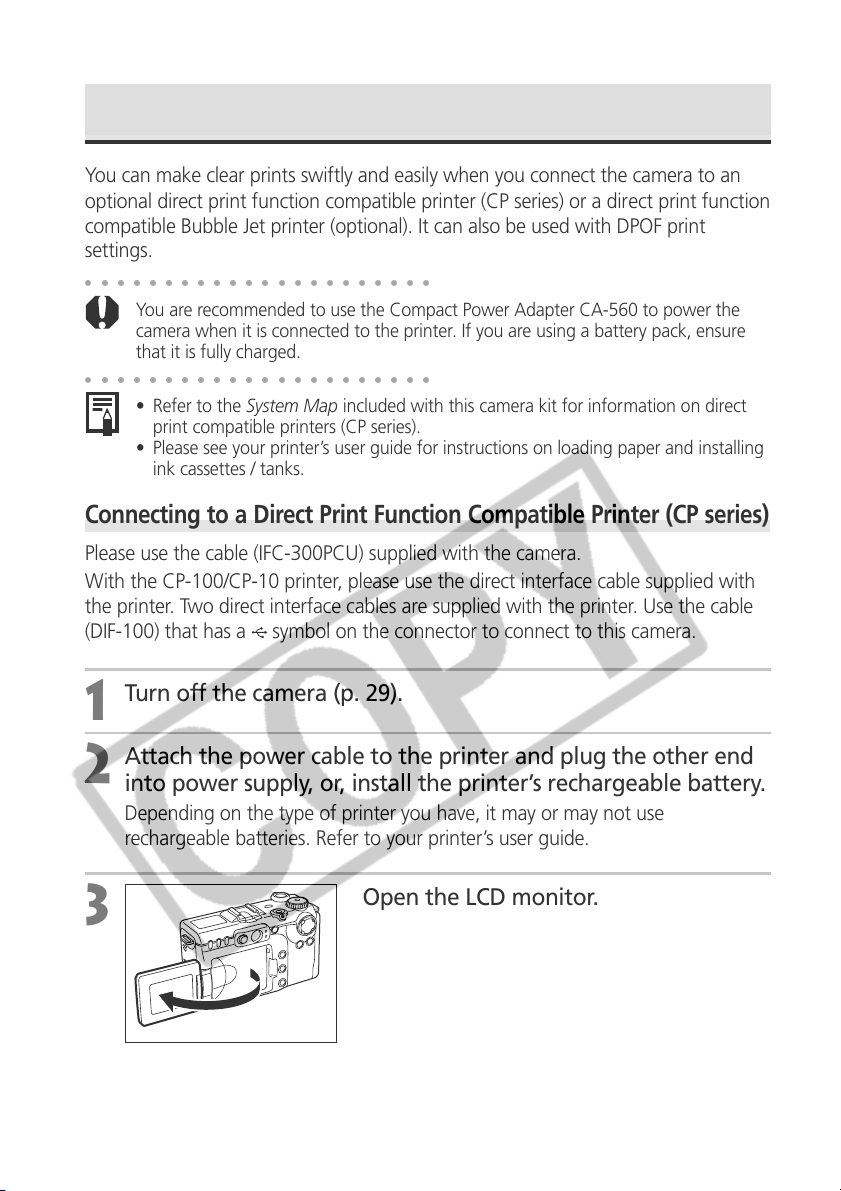
136
Connecting the Camera to a Printer
You can make clear prints swiftly and easily when you connect the camera to an
optional direct print function compatible printer (CP series) or a direct print function
compatible Bubble Jet printer (optional). It can also be used with DPOF print
settings.
○○○○○○○○○○○○○○○○○○○○○○
You are recommended to use the Compact Power Adapter CA-560 to power the
camera when it is connected to the printer. If you are using a battery pack, ensure
that it is fully charged.
○○○○○○○○○○○○○○○○○○○○○○
• Refer to the System Map included with this camera kit for information on direct
print compatible printers (CP series).
• Please see your printer’s user guide for instructions on loading paper and installing
ink cassettes / tanks.
Connecting to a Direct Print Function Compatible Printer (CP series)
Please use the cable (IFC-300PCU) supplied with the camera.
With the CP-100/CP-10 printer, please use the direct interface cable supplied with
the printer. Two direct interface cables are supplied with the printer. Use the cable
(DIF-100) that has a
symbol on the connector to connect to this camera.
1
Turn off the camera (p. 29).
2
Attach the power cable to the printer and plug the other end
into power supply, or, install the printer’s rechargeable battery.
Depending on the type of printer you have, it may or may not use
rechargeable batteries. Refer to your printer’s user guide.
3
Open the LCD monitor.
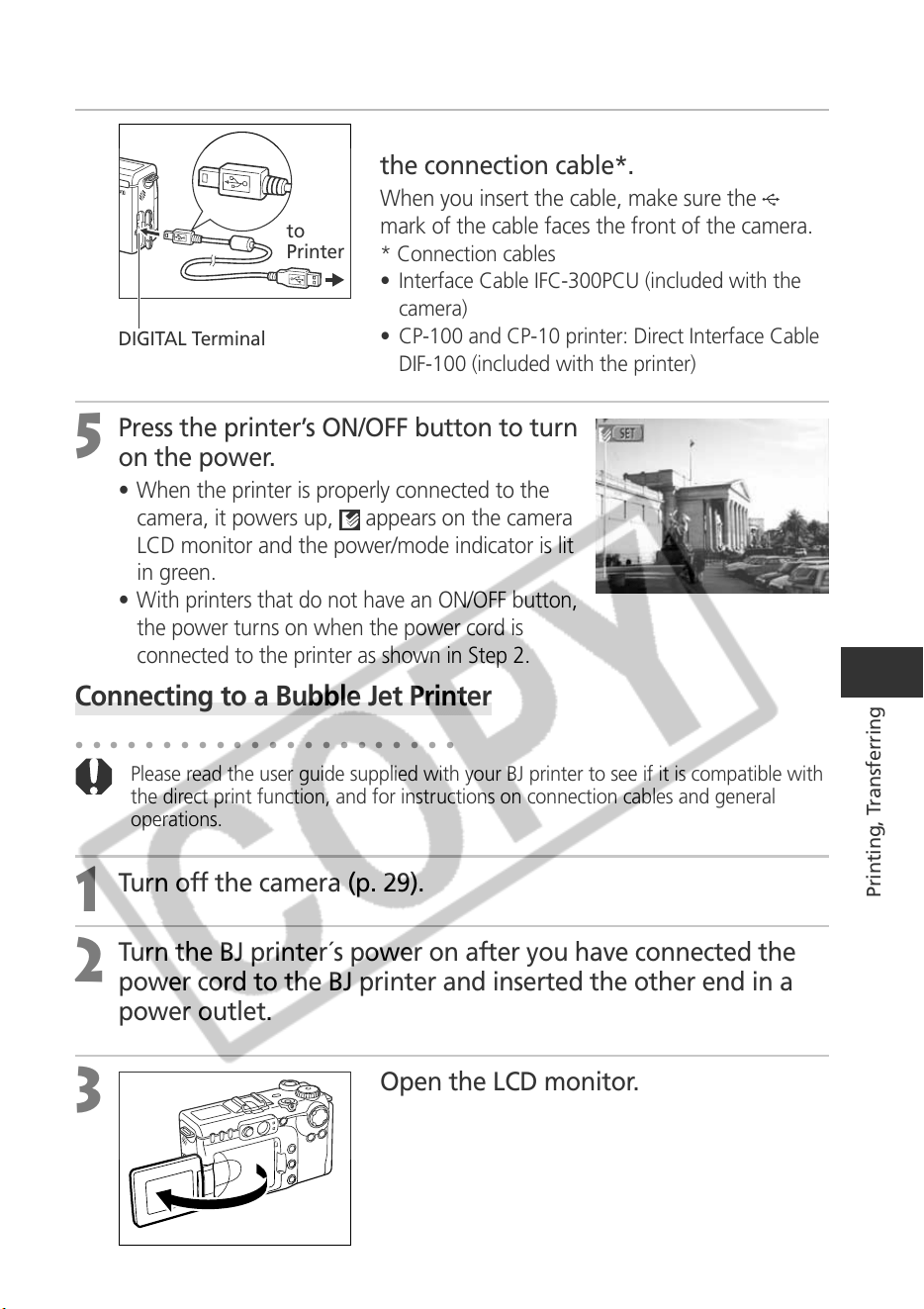
137
Printing, Transferring
4
Connect the camera and printer using
the connection cable*.
When you insert the cable, make sure the
mark of the cable faces the front of the camera.
* Connection cables
• Interface Cable IFC-300PCU (included with the
camera)
• CP-100 and CP-10 printer: Direct Interface Cable
DIF-100 (included with the printer)
5
Press the printer’s ON/OFF button to turn
on the power.
• When the printer is properly connected to the
camera, it powers up,
appears on the camera
LCD monitor and the power/mode indicator is lit
in green.
•
With printers that do not have an ON/OFF button,
the power turns on when the power cord is
connected to the printer as shown in Step 2.
Connecting to a Bubble Jet Printer
○○○○○○○○○○○○○○○○○○○○○○
Please read the user guide supplied with your BJ printer to see if it is compatible with
the direct print function, and for instructions on connection cables and general
operations.
1
Turn off the camera (p. 29).
2
Turn the BJ printer´s power on after you have connected the
power cord to the BJ printer and inserted the other end in a
power outlet.
3
Open the LCD monitor.
DIGITAL Terminal
to
Printer
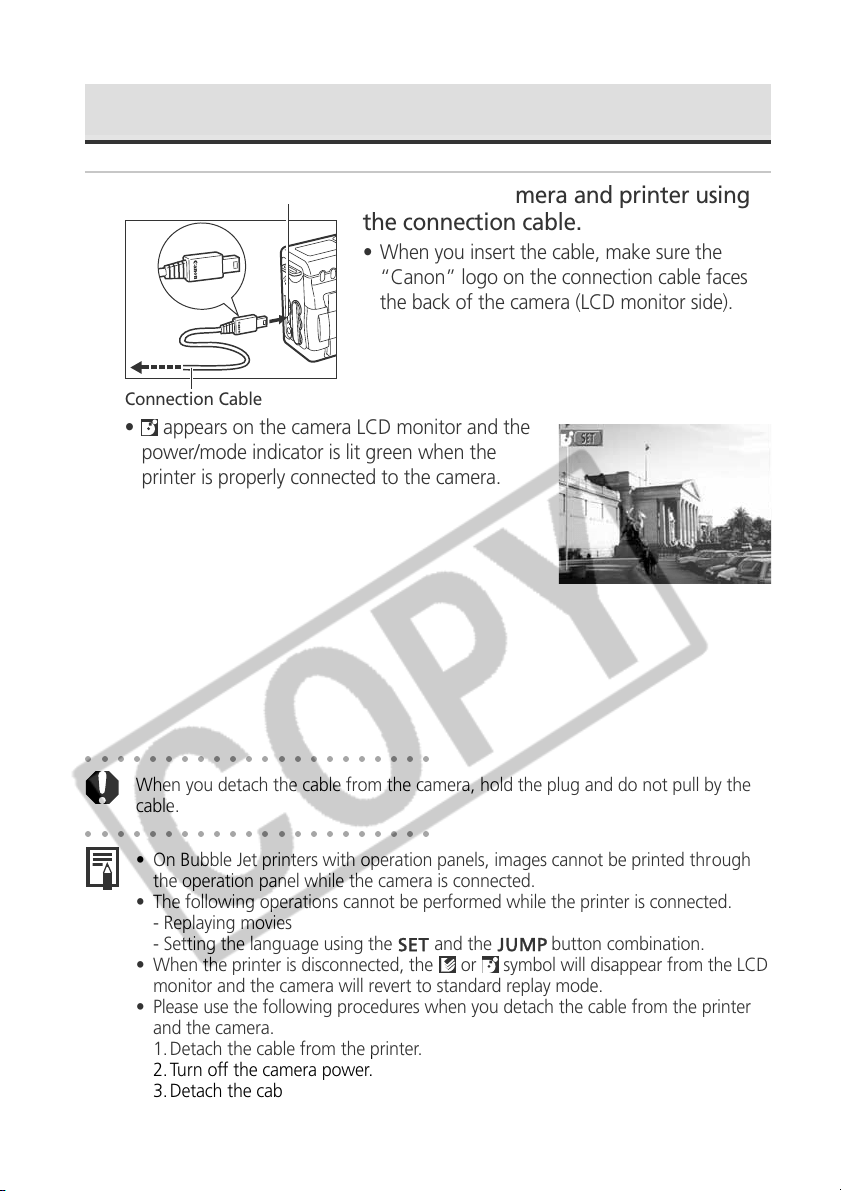
138
○○○○○○○○○○○○○○○○○○○○○○
When you detach the cable from the camera, hold the plug and do not pull by the
cable.
○○○○○○○○○○○○○○○○○○○○○○
• On Bubble Jet printers with operation panels, images cannot be printed through
the operation panel while the camera is connected.
• The following operations cannot be performed while the printer is connected.
- Replaying movies
- Setting the language using the
and the
button combination.
• When the printer is disconnected, the
or symbol will disappear from the LCD
monitor and the camera will revert to standard replay mode.
• Please use the following procedures when you detach the cable from the printer
and the camera.
1. Detach the cable from the printer.
2. Turn off the camera power.
3. Detach the cable from the camera.
Connecting the Camera to a Printer (continued)
To BJ Printer
DIGITAL Terminal
4
Connect the camera and printer using
the connection cable.
• When you insert the cable, make sure the
“Canon” logo on the connection cable faces
the back of the camera (LCD monitor side).
•
appears on the camera LCD monitor and the
power/mode indicator is lit green when the
printer is properly connected to the camera.
Connection Cable
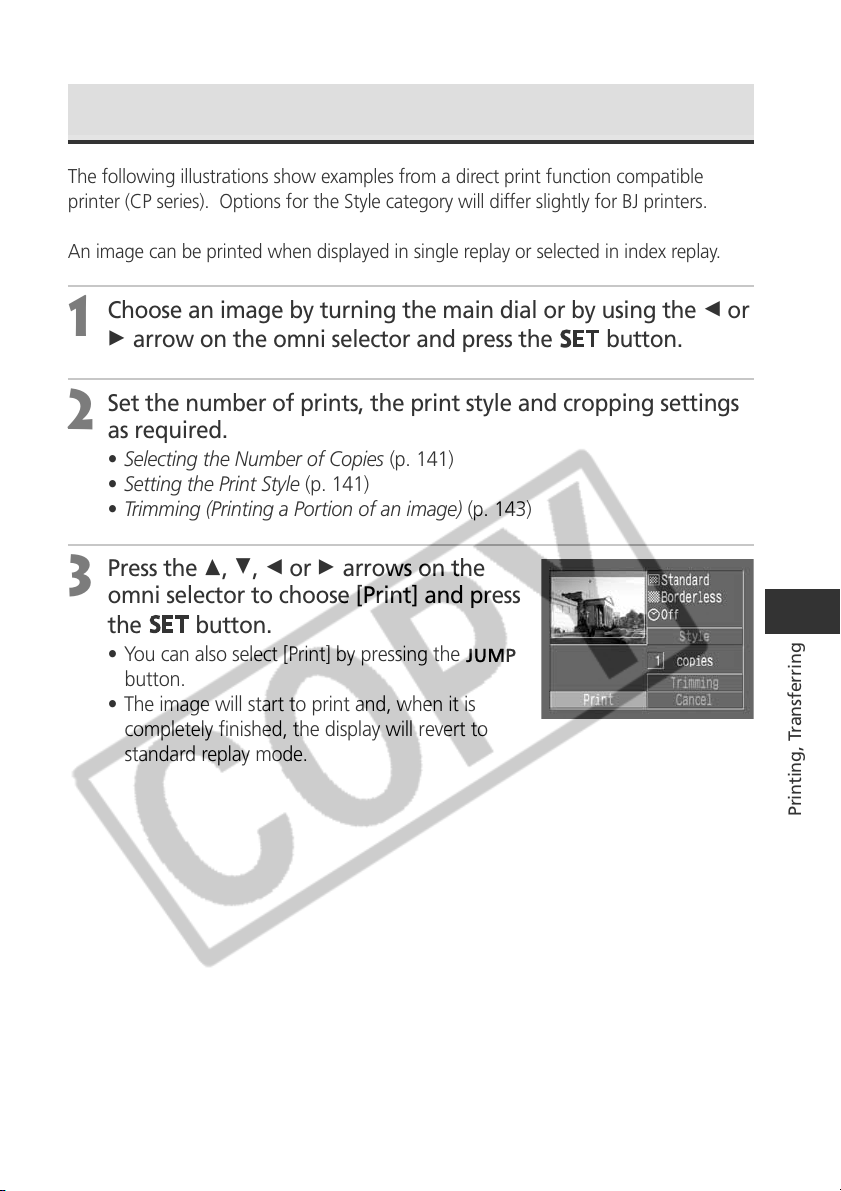
139
Printing, Transferring
Printing
The following illustrations show examples from a direct print function compatible
printer (CP series). Options for the Style category will differ slightly for BJ printers.
An image can be printed when displayed in single replay or selected in index replay.
1
Choose an image by turning the main dial or by using the B or
A arrow on the omni selector and press the
button.
2
Set the number of prints, the print style and cropping settings
as required.
• Selecting the Number of Copies (p. 141)
• Setting the Print Style (p. 141)
• Trimming (Printing a Portion of an image) (p. 143)
3
Press the C, D, B or A arrows on the
omni selector to choose [Print] and press
the
button.
• You can also select [Print] by pressing the
button.
• The image will start to print and, when it is
completely finished, the display will revert to
standard replay mode.
140
○○○○○○○○○○○○○○○○○○○○○○
You cannot print movies or images recorded in the RAW format.
○○○○○○○○○○○○○○○○○○○○○○
Cancel Printing
• To cancel printing between images, press the button. A confirmation dialog
will display. Press the B or A arrow to select [OK] and press the
button.
– Direct Print Function Compatible Printers (CP series)
A print in progress cannot be stopped. The printer will stop after the current
print is complete and the camera will display its replay screen at that point.
– BJ Printers
The printer will stop printing the current image and eject the paper.
Printing Errors
• An error message will display if an error occurs for some reason during the
printing process. Press the B or A arrow on the omni selector to choose [Stop] or
[Resume] and press the
button (with a BJ printer, printing resumes
automatically once the problem is solved).
– Direct Print Function Compatible Printers (CP series)
The [Resume] option may not appear with some types of errors. In that case,
select [Stop].
– BJ Printers
– The [Continue] and [Stop] options may appear with some error messages.
– On BJ printers equipped with an operation panel, an error number displays on
the panel. Please refer to the Bubble Jet Printer Quick Start Guide for the
remedies corresponding to the error numbers.
Printing (continued)
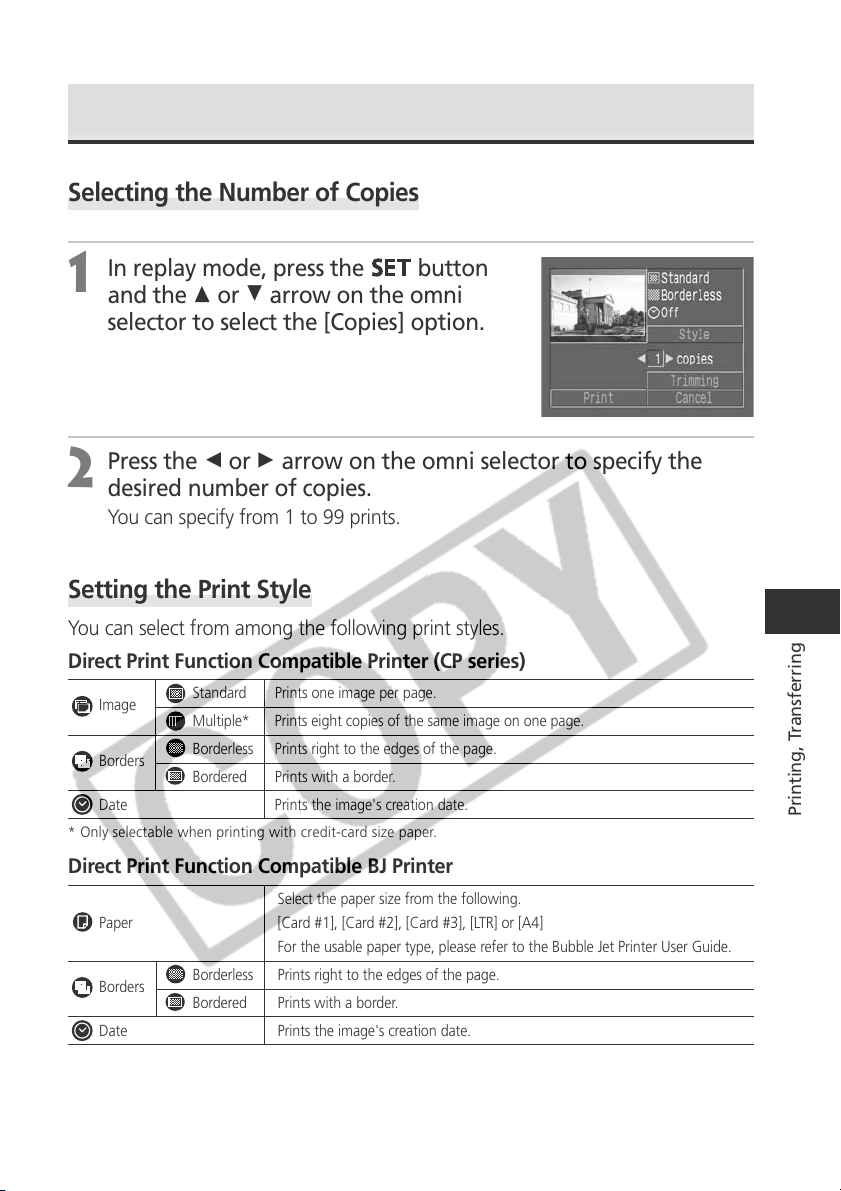
141
Printing, Transferring
Setting the Print Settings (Direct Print Function)
Selecting the Number of Copies
1
In replay mode, press the
button
and the C or D arrow on the omni
selector to select the [Copies] option.
2
Press the B or A arrow on the omni selector to specify the
desired number of copies.
You can specify from 1 to 99 prints.
Setting the Print Style
You can select from among the following print styles.
Direct Print Function Compatible Printer (CP series)
Image
Standard Prints one image per page.
Multiple* Prints eight copies of the same image on one page.
Borders
Borderless Prints right to the edges of the page.
Bordered Prints with a border.
Date Prints the image's creation date.
* Only selectable when printing with credit-card size paper.
Direct Print Function Compatible BJ Printer
Select the paper size from the following.
Paper [Card #1], [Card #2], [Card #3], [LTR] or [A4]
For the usable paper type, please refer to the Bubble Jet Printer User Guide.
Borders
Borderless Prints right to the edges of the page.
Bordered Prints with a border.
Date Prints the image's creation date.
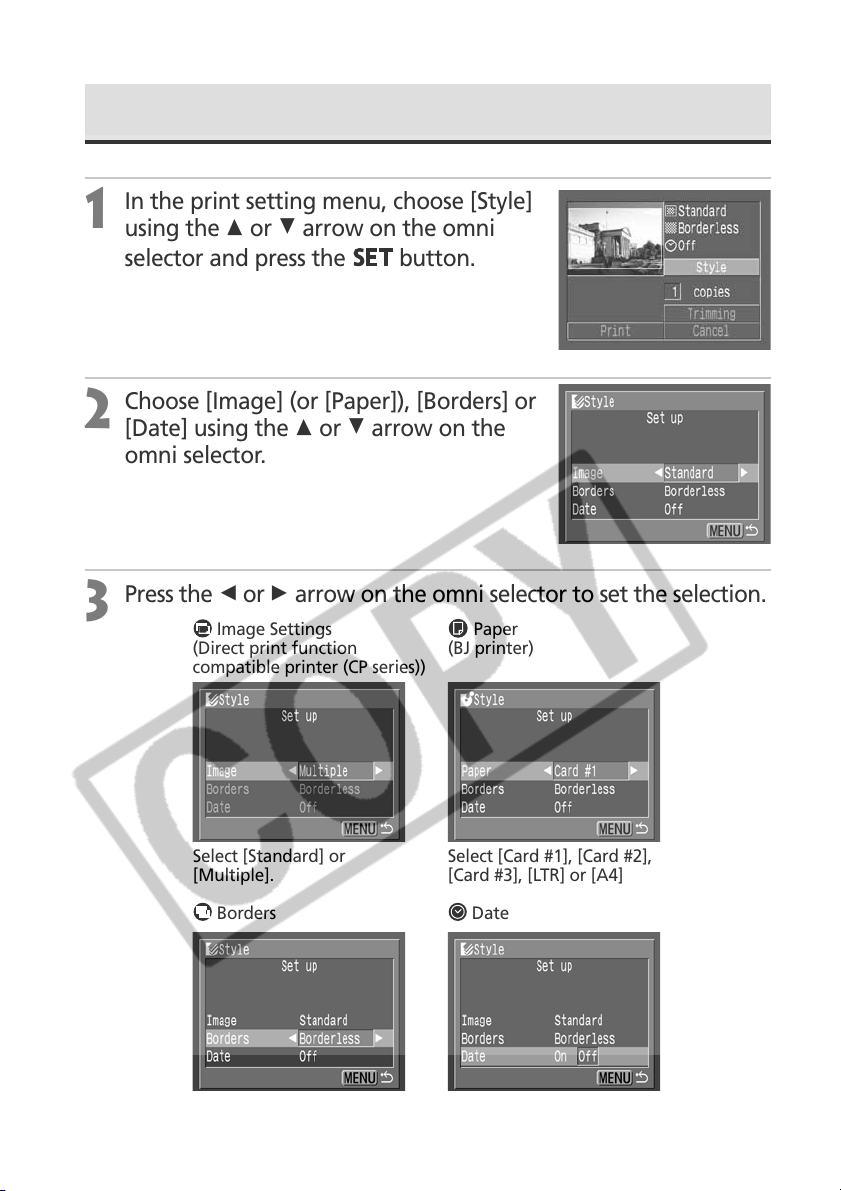
142
1
In the print setting menu, choose [Style]
using the C or D arrow on the omni
selector and press the
button.
2
Choose [Image] (or [Paper]), [Borders] or
[Date] using the C or D arrow on the
omni selector.
3
Press the B or A arrow on the omni selector to set the selection.
Choose [On] or [Off].
Select [Standard] or
[Multiple].
Choose [Borderless] or
[Bordered].
Borders Date
Image Settings Paper
(Direct print function (BJ printer)
compatible printer (CP series))
Select [Card #1], [Card #2],
[Card #3], [LTR] or [A4]
Setting the Print Settings (Direct Print Function) (continued)
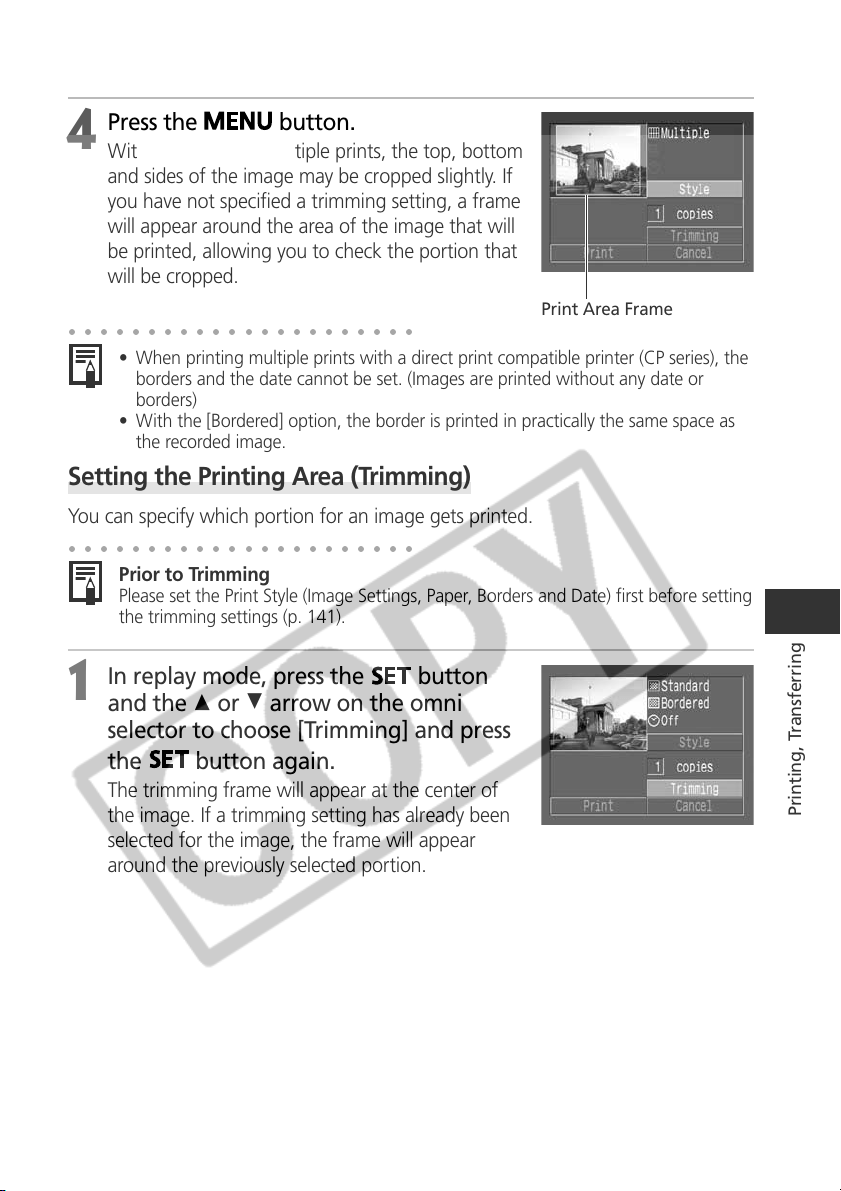
143
Printing, Transferring
Setting the Printing Area (Trimming)
You can specify which portion for an image gets printed.
○○○○○○○○○○○○○○○○○○○○○○
Prior to Trimming
Please set the Print Style (Image Settings, Paper, Borders and Date) first before setting
the trimming settings (p. 141).
1
In replay mode, press the
button
and the C or D arrow on the omni
selector to choose [Trimming] and press
the
button again.
The trimming frame will appear at the center of
the image. If a trimming setting has already been
selected for the image, the frame will appear
around the previously selected portion.
Print Area Frame
4
Press the
button.
With borderless or multiple prints, the top, bottom
and sides of the image may be cropped slightly. If
you have not specified a trimming setting, a frame
will appear around the area of the image that will
be printed, allowing you to check the portion that
will be cropped.
○○○○○○○○○○○○○○○○○○○○○○
• When printing multiple prints with a direct print compatible printer (CP series), the
borders and the date cannot be set. (Images are printed without any date or
borders)
• With the [Bordered] option, the border is printed in practically the same space as
the recorded image.
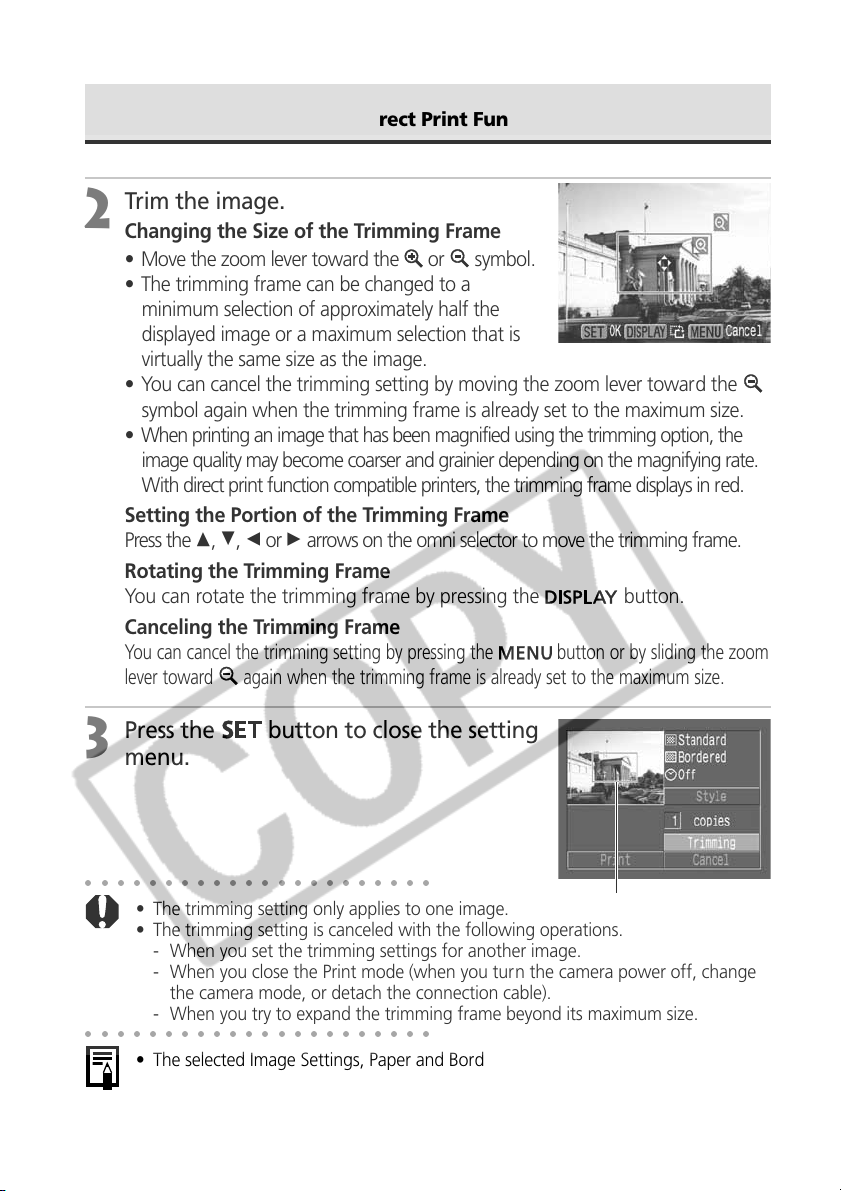
144
2
Trim the image.
Changing the Size of the Trimming Frame
• Move the zoom lever toward the
or symbol.
• The trimming frame can be changed to a
minimum selection of approximately half the
displayed image or a maximum selection that is
virtually the same size as the image.
• You can cancel the trimming setting by moving the zoom lever toward the
symbol again when the trimming frame is already set to the maximum size.
• When printing an image that has been magnified using the trimming option, the
image quality may become coarser and grainier depending on the magnifying rate.
With direct print function compatible printers, the trimming frame displays in red.
Setting the Portion of the Trimming Frame
Press the C, D, B or A arrows on the omni selector to move the trimming frame.
Rotating the Trimming Frame
You can rotate the trimming frame by pressing the
button.
Canceling the Trimming Frame
You can cancel the trimming setting by pressing the
button or by sliding the zoom
lever toward
again when the trimming frame is already set to the maximum size.
3
Press the
button to close the setting
menu.
○○○○○○○○○○○○○○○○○○○○○○
• The trimming setting only applies to one image.
• The trimming setting is canceled with the following operations.
- When you set the trimming settings for another image.
- When you close the Print mode (when you turn the camera power off, change
the camera mode, or detach the connection cable).
- When you try to expand the trimming frame beyond its maximum size.
○○○○○○○○○○○○○○○○○○○○○○
• The selected Image Settings, Paper and Border settings determine the shape of the
trimming frame.
• Please use the LCD monitor to set the trimming settings. The trimming frame may
not display correctly on a TV monitor.
Trimming Frame
Setting the Print Settings (Direct Print Function) (continued)
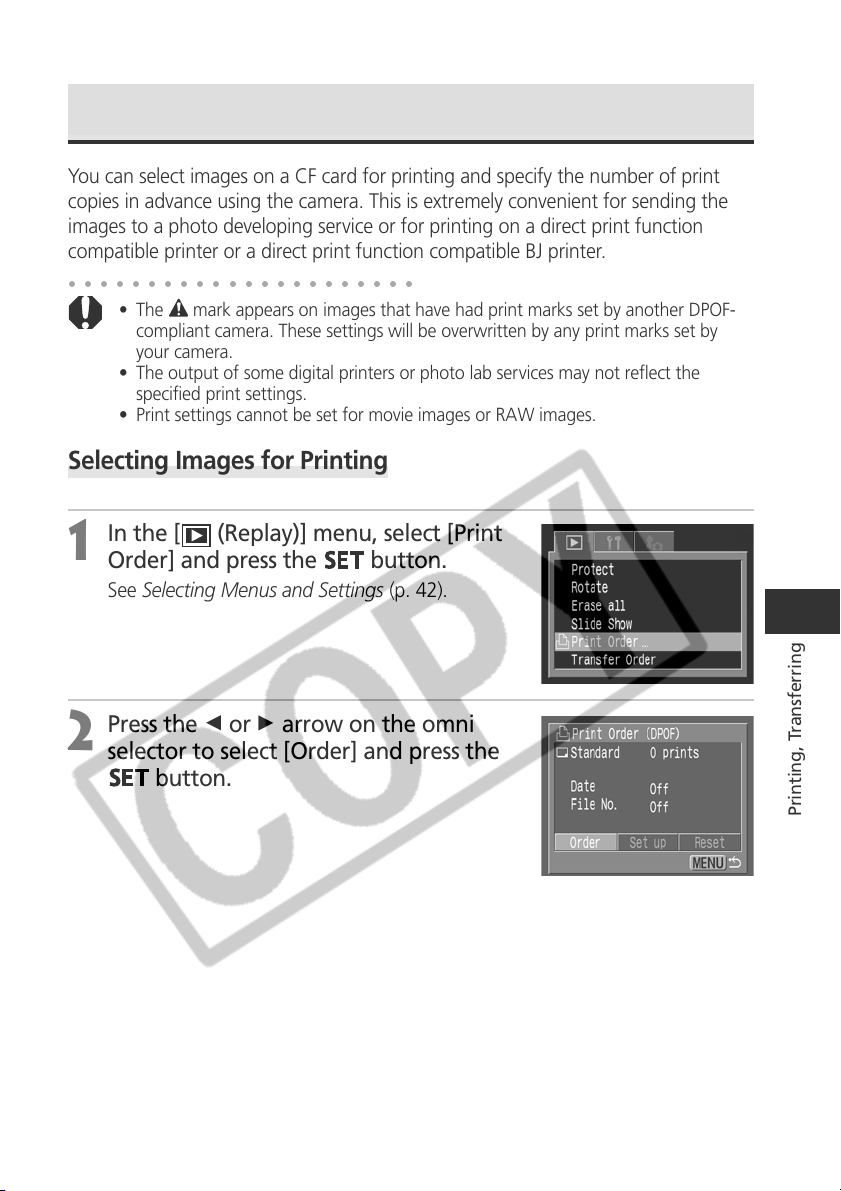
145
Printing, Transferring
Print Settings (DPOF Print Settings)
You can select images on a CF card for printing and specify the number of print
copies in advance using the camera. This is extremely convenient for sending the
images to a photo developing service or for printing on a direct print function
compatible printer or a direct print function compatible BJ printer.
○○○○○○○○○○○○○○○○○○○○○○
• The mark appears on images that have had print marks set by another DPOF-
compliant camera. These settings will be overwritten by any print marks set by
your camera.
• The output of some digital printers or photo lab services may not reflect the
specified print settings.
• Print settings cannot be set for movie images or RAW images.
Selecting Images for Printing
1
In the [ (Replay)] menu, select [Print
Order] and press the
button.
See Selecting Menus and Settings (p. 42).
2
Press the B or A arrow on the omni
selector to select [Order] and press the
button.
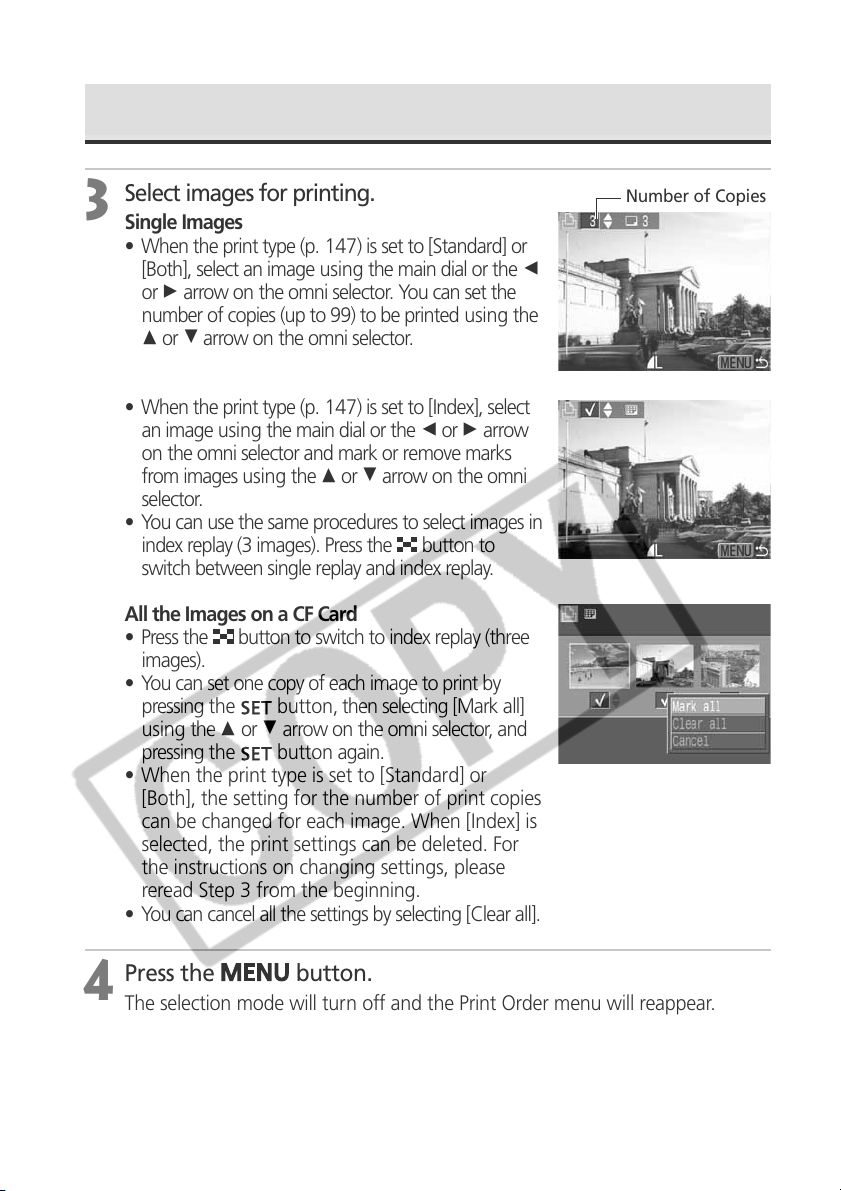
146
Print Settings (DPOF Print Settings) (continued)
3
Select images for printing.
Single Images
• When the print type (p. 147) is set to [Standard] or
[Both], select an image using the main dial or the B
or A arrow on the omni selector. You can set the
number of copies (up to 99) to be printed using the
C or D arrow on the omni selector.
• When the print type (p. 147) is set to [Index], select
an image using the main dial or the B or A arrow
on the omni selector and mark or remove marks
from images using the C or D arrow on the omni
selector.
• You can use the same procedures to select images in
index replay (3 images). Press the
button to
switch between single replay and index replay.
All the Images on a CF Card
• Press the
button to switch to index replay (three
images).
• You can set one copy of each image to print by
pressing the
button, then selecting [Mark all]
using the C or D arrow on the omni selector, and
pressing the
button again.
• When the print type is set to [Standard] or
[Both], the setting for the number of print copies
can be changed for each image. When [Index] is
selected, the print settings can be deleted. For
the instructions on changing settings, please
reread Step 3 from the beginning.
• You can cancel all the settings by selecting [Clear all].
4
Press the
button.
The selection mode will turn off and the Print Order menu will reappear.
Number of Copies
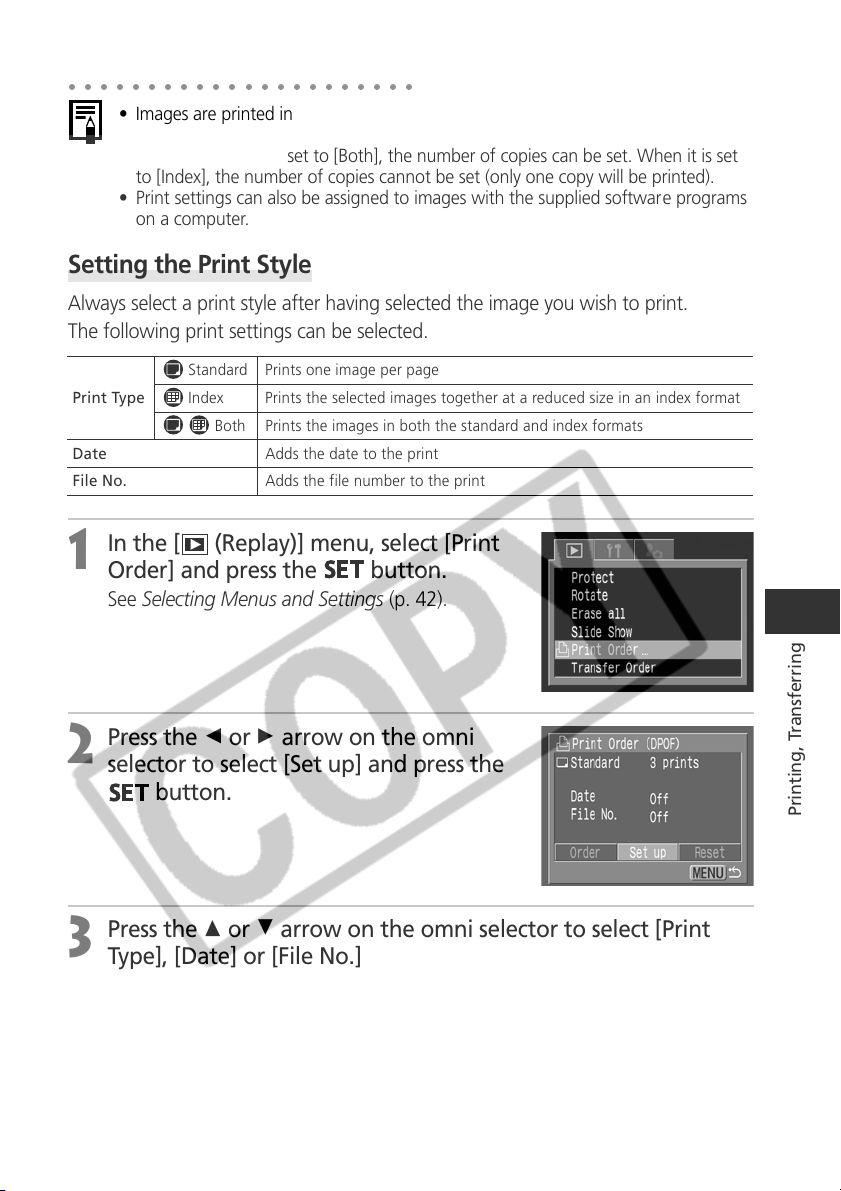
147
Printing, Transferring
○○○○○○○○○○○○○○○○○○○○○○
• Images are printed in order from oldest to newest by the shooting date.
• A maximum of 998 images can be marked per CF card.
• When [Print Type] is set to [Both], the number of copies can be set. When it is set
to [Index], the number of copies cannot be set (only one copy will be printed).
• Print settings can also be assigned to images with the supplied software programs
on a computer.
Setting the Print Style
Always select a print style after having selected the image you wish to print.
The following print settings can be selected.
1
In the [ (Replay)] menu, select [Print
Order] and press the
button.
See Selecting Menus and Settings (p. 42).
2
Press the B or A arrow on the omni
selector to select [Set up] and press the
button.
3
Press the C or D arrow on the omni selector to select [Print
Type], [Date] or [File No.]
Standard Prints one image per page
Print Type Index Prints the selected images together at a reduced size in an index format
Both Prints the images in both the standard and index formats
Date Adds the date to the print
File No. Adds the file number to the print
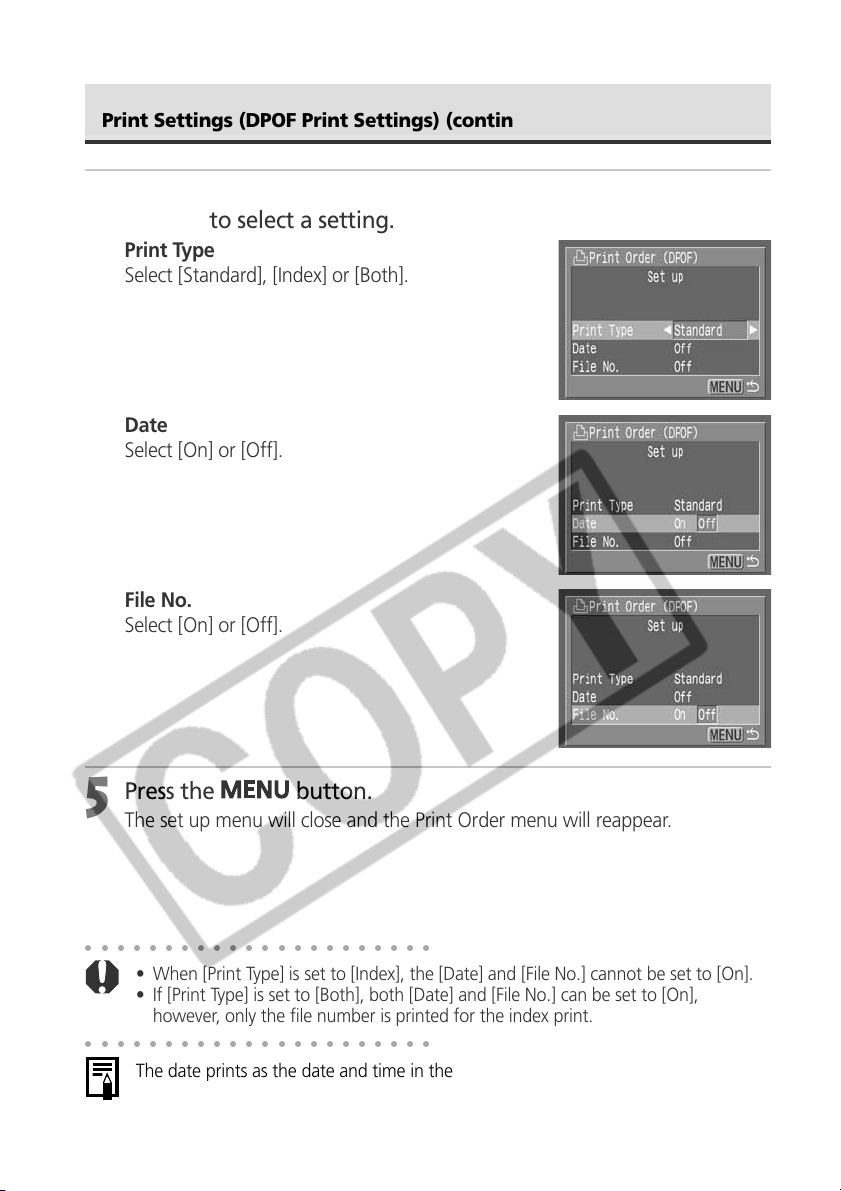
148
○○○○○○○○○○○○○○○○○○○○○○
• When [Print Type] is set to [Index], the [Date] and [File No.] cannot be set to [On].
• If [Print Type] is set to [Both], both [Date] and [File No.] can be set to [On],
however, only the file number is printed for the index print.
○○○○○○○○○○○○○○○○○○○○○○
The date prints as the date and time in the format specified in the Set Date/Time
menu (p. 24).
4
Press the B or A arrow on the omni
selector to select a setting.
Print Type
Select [Standard], [Index] or [Both].
Date
Select [On] or [Off].
File No.
Select [On] or [Off].
5
Press the
button.
The set up menu will close and the Print Order menu will reappear.
Print Settings (DPOF Print Settings) (continued)
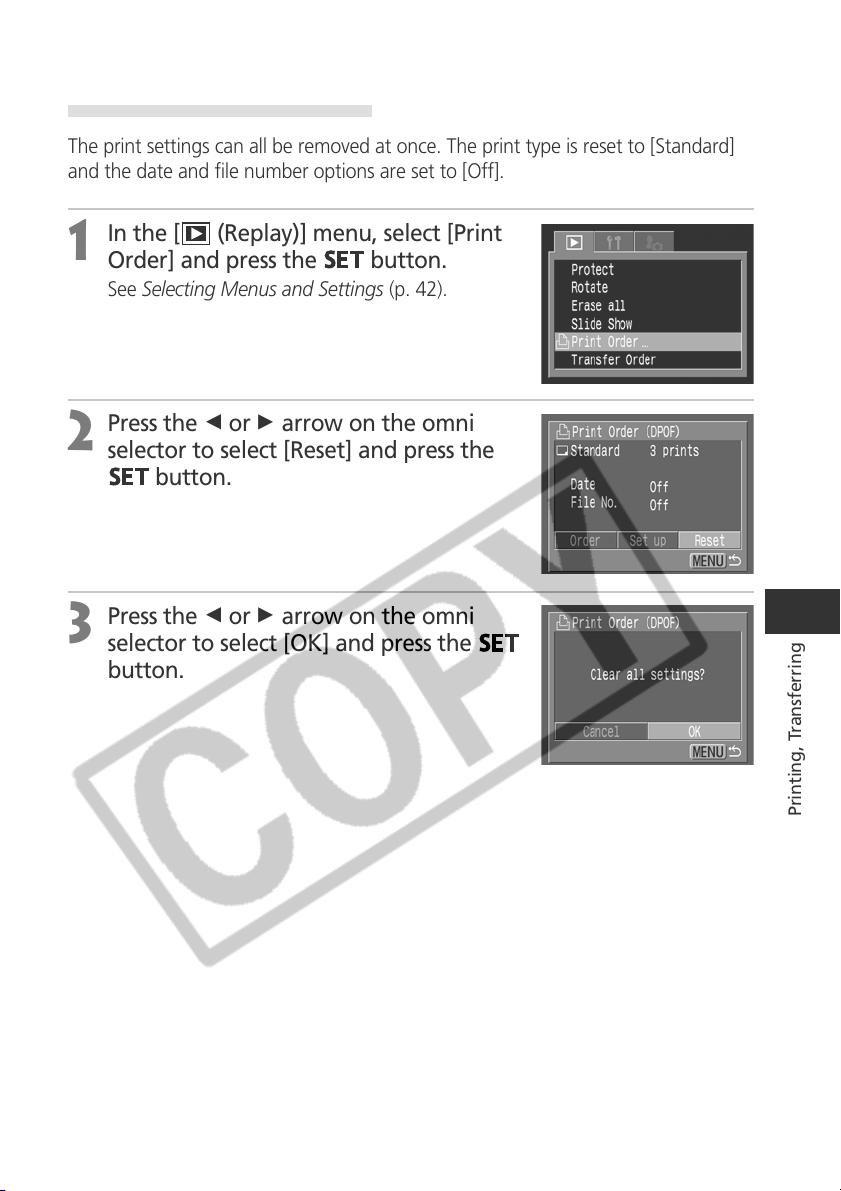
149
Printing, Transferring
Resetting the Print Settings
The print settings can all be removed at once. The print type is reset to [Standard]
and the date and file number options are set to [Off].
1
In the [ (Replay)] menu, select [Print
Order] and press the
button.
See Selecting Menus and Settings (p. 42).
2
Press the B or A arrow on the omni
selector to select [Reset] and press the
button.
3
Press the B or A arrow on the omni
selector to select [OK] and press the
button.
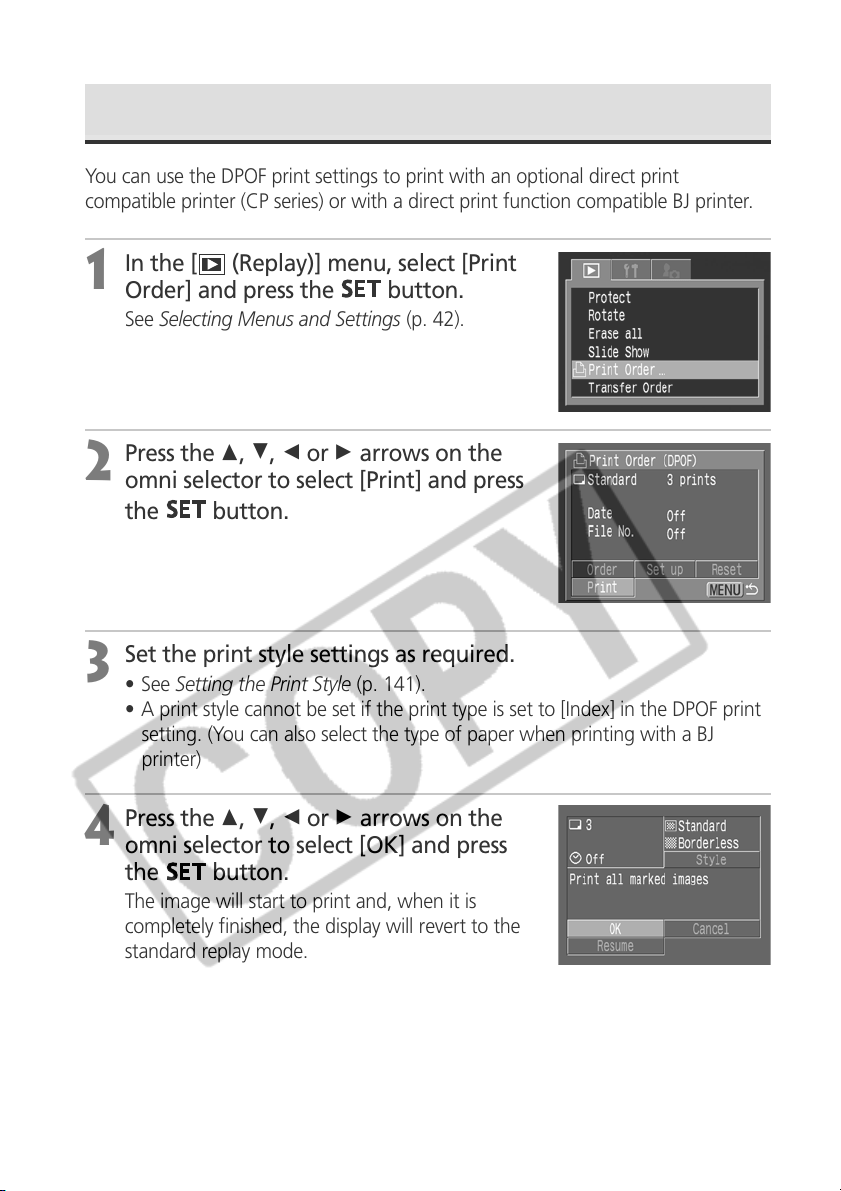
150
Printing with DPOF Print Settings
You can use the DPOF print settings to print with an optional direct print
compatible printer (CP series) or with a direct print function compatible BJ printer.
1
In the [ (Replay)] menu, select [Print
Order] and press the
button.
See Selecting Menus and Settings (p. 42).
2
Press the C, D, B or A arrows on the
omni selector to select [Print] and press
the
button.
3
Set the print style settings as required.
• See Setting the Print Style (p. 141).
• A print style cannot be set if the print type is set to [Index] in the DPOF print
setting. (You can also select the type of paper when printing with a BJ
printer)
4
Press the C, D, B or A arrows on the
omni selector to select [OK] and press
the
button.
The image will start to print and, when it is
completely finished, the display will revert to the
standard replay mode.
151
Printing, Transferring
○○○○○○○○○○○○○○○○○○○○○○
• To print the date, set the [Date] setting in the print order menu in Step 2 on the
previous page to [On]. You cannot set the date to print with the [Style] menu in
Step 3 on the previous page. If the print type is set to [Index], the date will not
print even if the [Date] setting is set to [On] in Step 2.
• When the print type is set to [Both], it is possible to have both the [Date] and [File
No.] options set to [On], but only the file number will print on the Index print.
(With a BJ printer, the file number and the date cannot be printed in the [Index]
option)
• When the print type is set to [Standard], file numbers will not be printed even if
they are set to [On].
○○○○○○○○○○○○○○○○○○○○○○
• The maximum number of images printed on one page in the Index print type
depends upon the selected paper size.
- Card Size: 20 images
- L Size: 42 images
- Postcard Size: 63 images
(Please refer to your Bubble Jet´s user guide for an explanation of the number of
images printed with a Bubble Jet printer.)
Cancel Printing (p. 140)
Restarting Printing
• In the Print Order menu, press the B or A arrow on the omni selector to select
[Resume] and press the
button. The remaining images can be printed.
• Printing cannot be restarted under the following circumstances.
- If the print settings have been changed before restarting.
- If the image for which the print settings were set has been deleted before
restarting.
- If there was very little free space on the CF card when the printing was
cancelled.
If these circumstances apply, you can select [OK] in the Print Order menu and
reprint starting from the first image. If printing was cancelled because the camera
battery became discharged, you are recommended to power the camera with the
Compact Power Adapter CA-560. If you must use a battery pack, ensure that it is
fully charged for printing. After replacing the spent battery pack, turn the camera
power on again.
Printing Errors (p. 140)
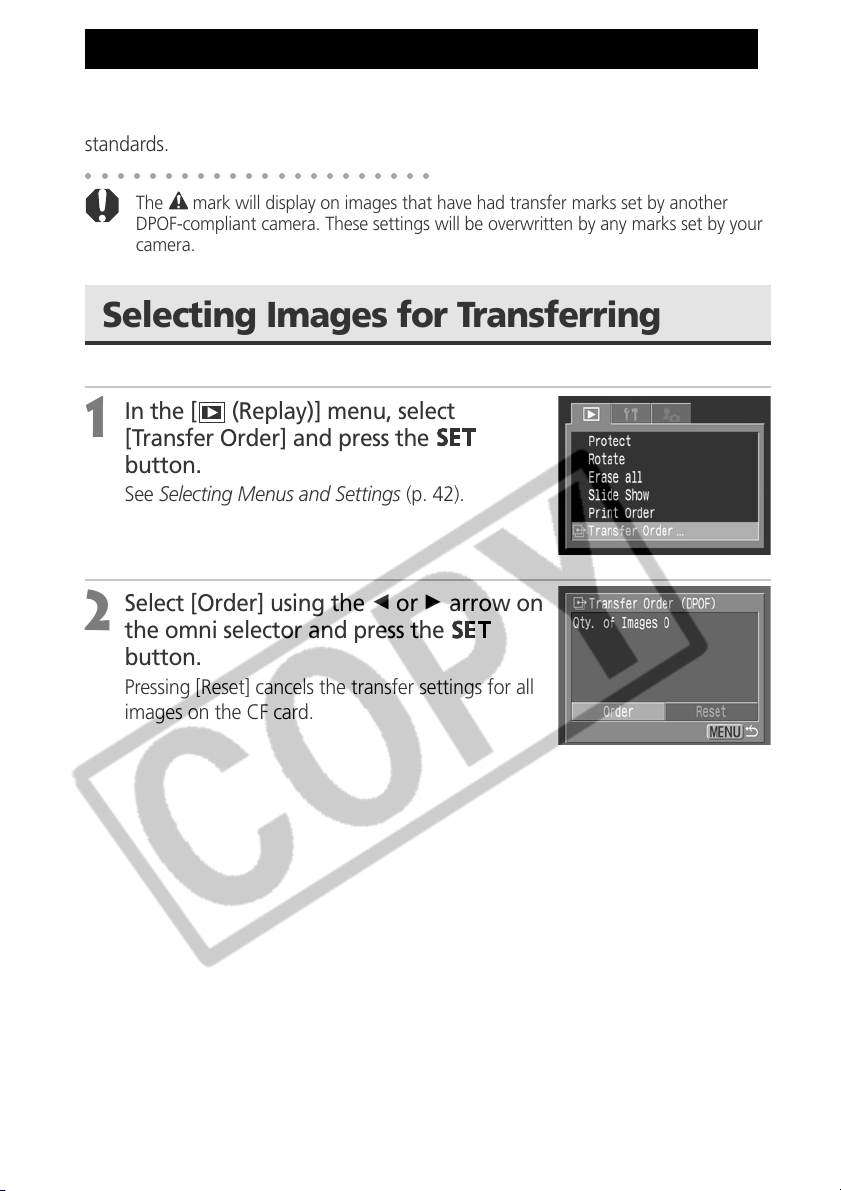
152
Image Transfer Settings (DPOF Transfer Order)
Using the camera, you can make marks on images you wish to download to a
computer. These settings are compatible with the Digital Print Order Format (DPOF)
standards.
○○○○○○○○○○○○○○○○○○○○○○
The mark will display on images that have had transfer marks set by another
DPOF-compliant camera. These settings will be overwritten by any marks set by your
camera.
Selecting Images for Transferring
1
In the [ (Replay)] menu, select
[Transfer Order] and press the
button.
See Selecting Menus and Settings (p. 42).
2
Select [Order] using the B or A arrow on
the omni selector and press the
button.
Pressing [Reset] cancels the transfer settings for all
images on the CF card.
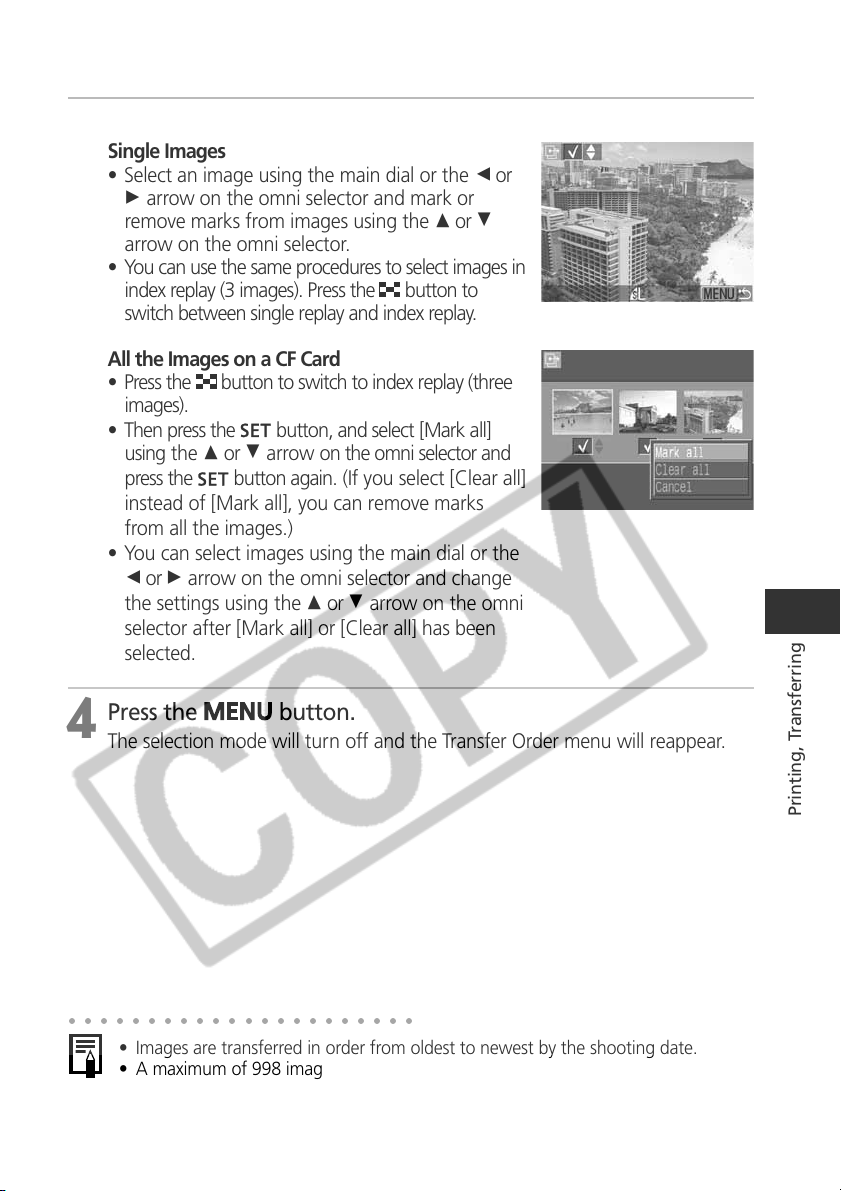
153
Printing, Transferring
3
Select images for transferring.
Single Images
• Select an image using the main dial or the B or
A arrow on the omni selector and mark or
remove marks from images using the C or D
arrow on the omni selector.
• You can use the same procedures to select images in
index replay (3 images). Press the
button to
switch between single replay and index replay.
All the Images on a CF Card
• Press the
button to switch to index replay (three
images).
• Then press the
button, and select [Mark all]
using the C or D arrow on the omni selector and
press the
button again. (If you select [Clear all]
instead of [Mark all], you can remove marks
from all the images.)
• You can select images using the main dial or the
B or A arrow on the omni selector and change
the settings using the C or D arrow on the omni
selector after [Mark all] or [Clear all] has been
selected.
4
Press the
button.
The selection mode will turn off and the Transfer Order menu will reappear.
○○○○○○○○○○○○○○○○○○○○○○
• Images are transferred in order from oldest to newest by the shooting date.
• A maximum of 998 images can be marked per CF card.
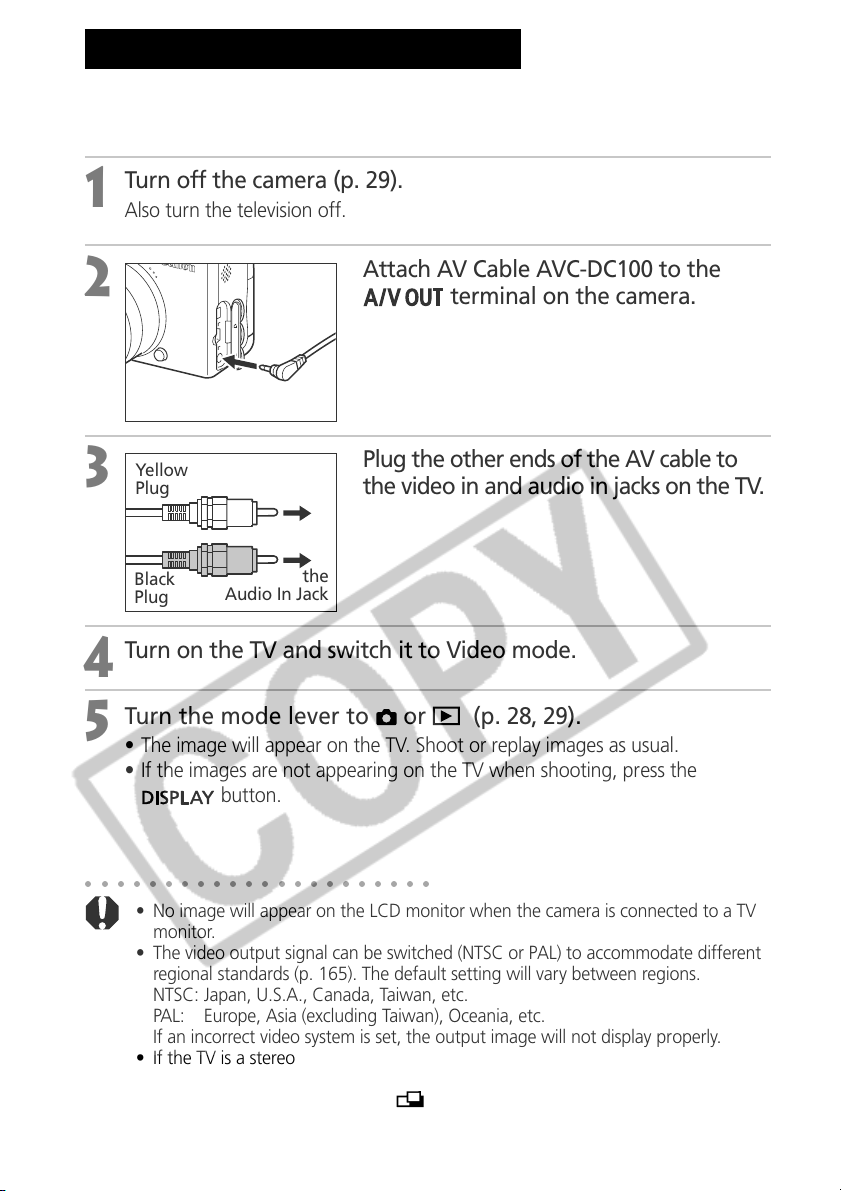
154
A video-compatible television connected via the supplied AV cable AVC-DC100 can
be used to view images as you shoot or replay them.
1
Turn off the camera (p. 29).
Also turn the television off.
2
Attach AV Cable AVC-DC100 to the
terminal on the camera.
3
Plug the other ends of the AV cable to
the video in and audio in jacks on the TV.
4
Turn on the TV and switch it to Video mode.
5
Turn the mode lever to or (p. 28, 29).
• The image will appear on the TV. Shoot or replay images as usual.
• If the images are not appearing on the TV when shooting, press the
button.
○○○○○○○○○○○○○○○○○○○○○○
• No image will appear on the LCD monitor when the camera is connected to a TV
monitor.
• The video output signal can be switched (NTSC or PAL) to accommodate different
regional standards (p. 165). The default setting will vary between regions.
NTSC: Japan, U.S.A., Canada, Taiwan, etc.
PAL: Europe, Asia (excluding Taiwan), Oceania, etc.
If an incorrect video system is set, the output image will not display properly.
• If the TV is a stereo model, you can plug the audio plug into either the left or right
Audio In jack. Please refer to the TV´s manual for details.
• A TV monitor cannot be used in
mode.
Viewing Images on a TV Set
To the
Video In Jack
To the
Audio In Jack
Yellow
Plug
Black
Plug
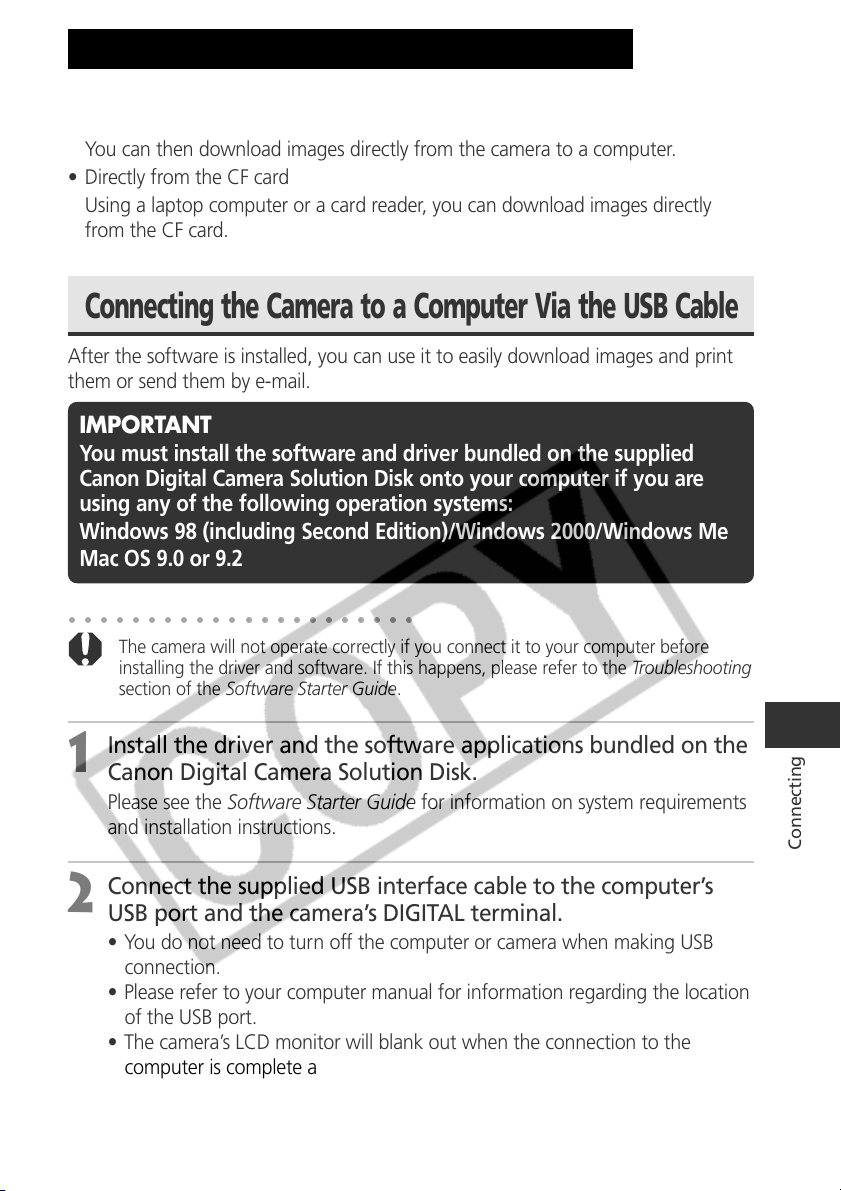
155
Connecting
Download images taken with the camera to a computer in one of the following ways:
• Connect the camera to a computer with the USB cable
You can then download images directly from the camera to a computer.
• Directly from the CF card
Using a laptop computer or a card reader, you can download images directly
from the CF card.
Connecting the Camera to a Computer Via the USB Cable
After the software is installed, you can use it to easily download images and print
them or send them by e-mail.
IMPORTANT
You must install the software and driver bundled on the supplied
Canon Digital Camera Solution Disk onto your computer if you are
using any of the following operation systems:
Windows 98 (including Second Edition)/Windows 2000/Windows Me
Mac OS 9.0 or 9.2
○○○○○○○○○○○○○○○○○○○○○○
The camera will not operate correctly if you connect it to your computer before
installing the driver and software. If this happens, please refer to the Troubleshooting
section of the Software Starter Guide.
1
Install the driver and the software applications bundled on the
Canon Digital Camera Solution Disk.
Please see the Software Starter Guide for information on system requirements
and installation instructions.
2
Connect the supplied USB interface cable to the computer’s
USB port and the camera’s DIGITAL terminal.
• You do not need to turn off the computer or camera when making USB
connection.
• Please refer to your computer manual for information regarding the location
of the USB port.
• The camera’s LCD monitor will blank out when the connection to the
computer is complete and the power/mode indicator will light yellow.
Downloading Images to a Computer
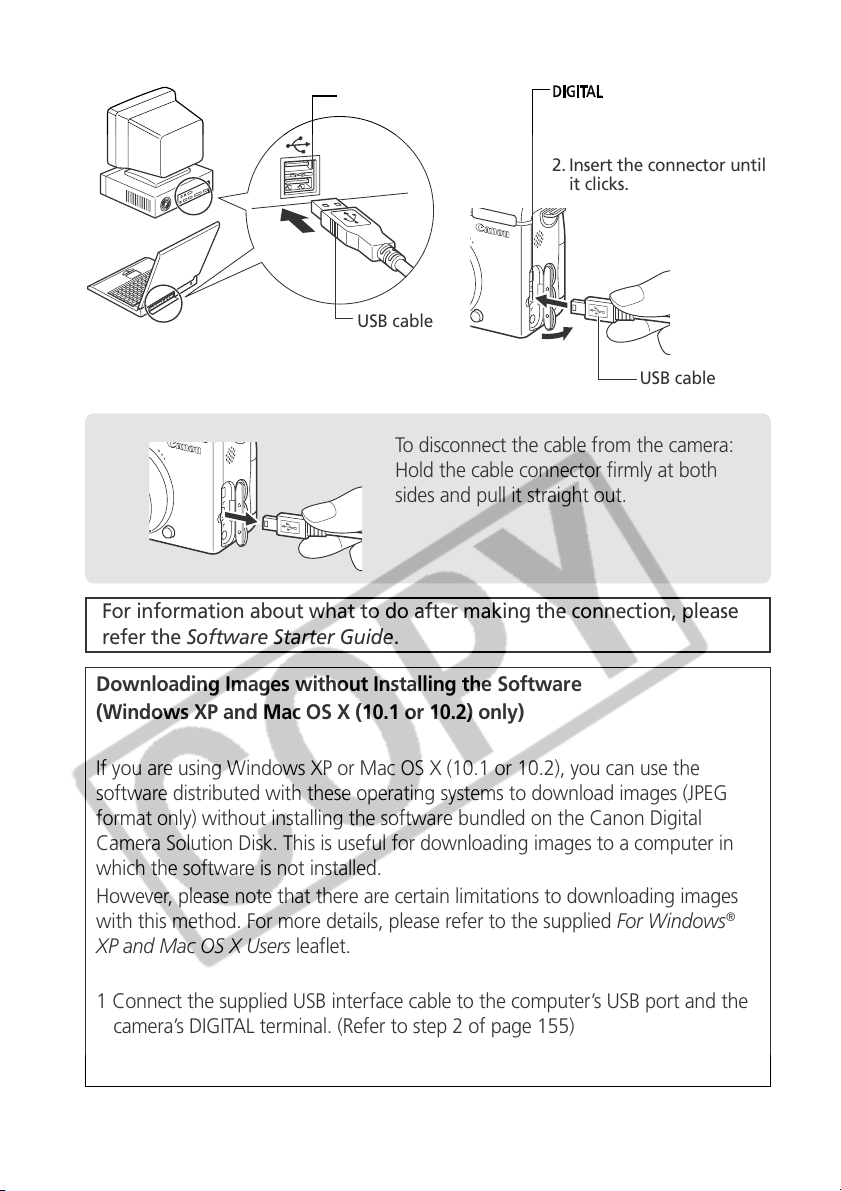
156
terminal
1. Open the terminal cover
with your fingernail.
2. Insert the connector until
it clicks.
To disconnect the cable from the camera:
Hold the cable connector firmly at both
sides and pull it straight out.
USB port
USB cable
USB cable
Downloading Images without Installing the Software
(Windows XP and Mac OS X (10.1 or 10.2) only)
If you are using Windows XP or Mac OS X (10.1 or 10.2), you can use the
software distributed with these operating systems to download images (JPEG
format only) without installing the software bundled on the Canon Digital
Camera Solution Disk. This is useful for downloading images to a computer in
which the software is not installed.
However, please note that there are certain limitations to downloading images
with this method. For more details, please refer to the supplied For Windows
®
XP and Mac OS X Users leaflet.
1 Connect the supplied USB interface cable to the computer’s USB port and the
camera’s DIGITAL terminal. (Refer to step 2 of page 155)
2 Follow the onscreen instructions to download the images.
For information about what to do after making the connection, please
refer the Software Starter Guide.
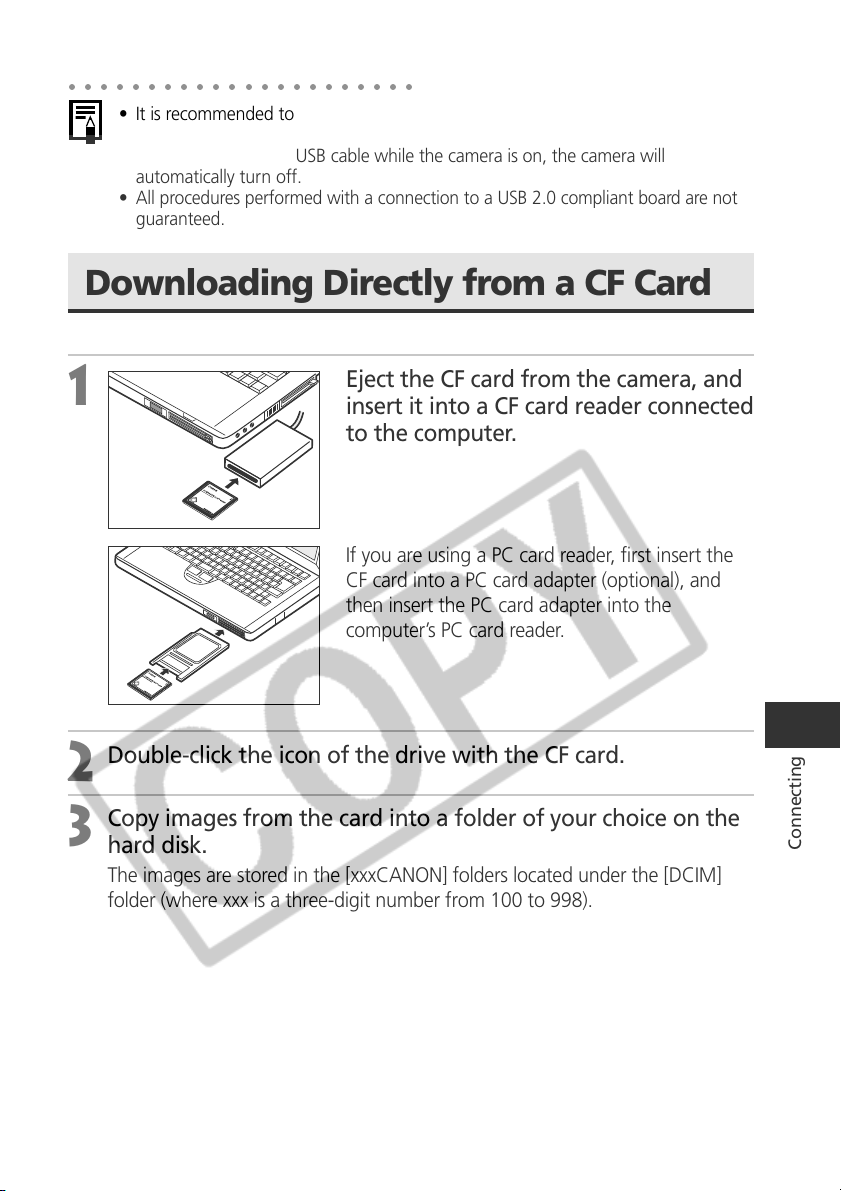
157
Connecting
○○○○○○○○○○○○○○○○○○○○○○
• It is recommended to power the camera with the optional Compact Power
Adapter CA-560 when connected to a computer (p. 162).
• If you disconnect the USB cable while the camera is on, the camera will
automatically turn off.
•
All procedures performed with a connection to a USB 2.0 compliant board are not
guaranteed.
Downloading Directly from a CF Card
1
Eject the CF card from the camera, and
insert it into a CF card reader connected
to the computer.
If you are using a PC card reader, first insert the
CF card into a PC card adapter (optional), and
then insert the PC card adapter into the
computer’s PC card reader.
2
Double-click the icon of the drive with the CF card.
3
Copy images from the card into a folder of your choice on the
hard disk.
The images are stored in the [xxxCANON] folders located under the [DCIM]
folder (where xxx is a three-digit number from 100 to 998).
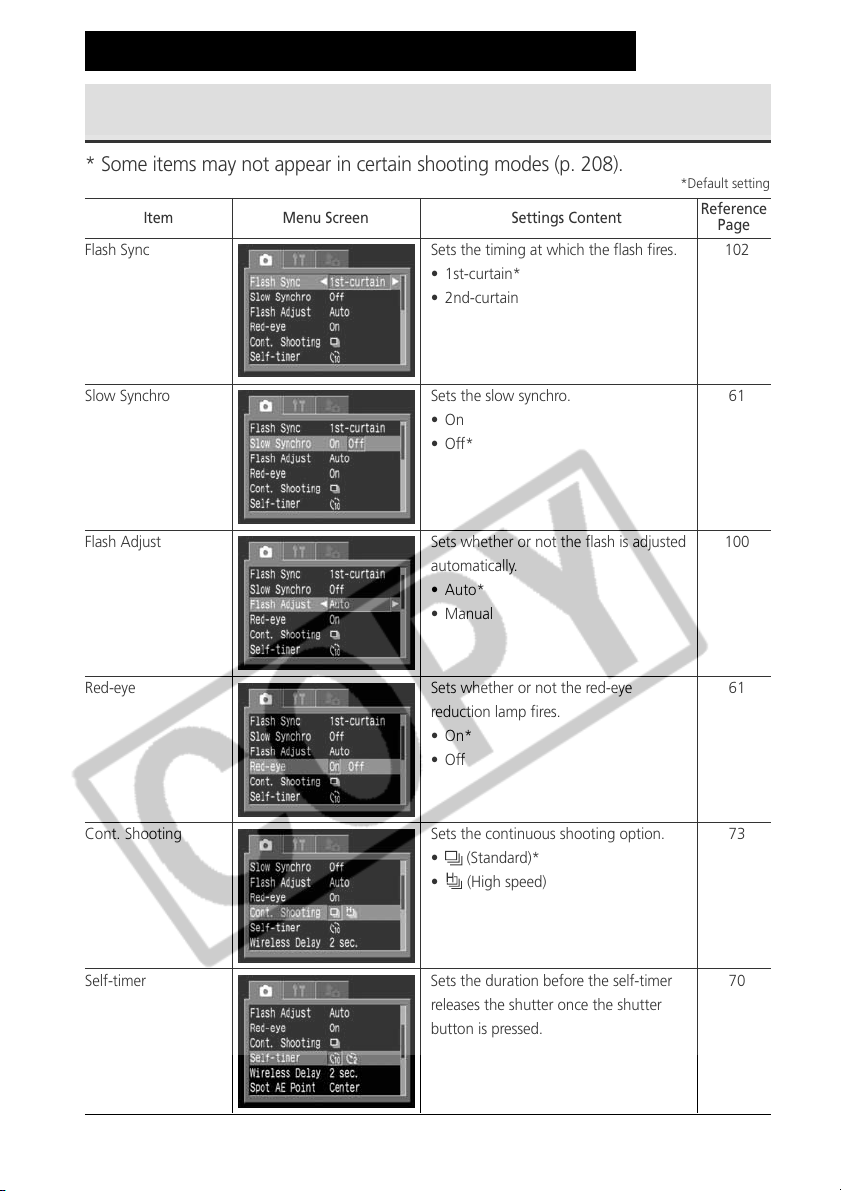
158
Rec. Menu
* Some items may not appear in certain shooting modes (p. 208).
List of Menu Options and Messages
Flash Sync Sets the timing at which the flash fires.
• 1st-curtain*
• 2nd-curtain
Slow Synchro Sets the slow synchro.
•On
•Off*
Flash Adjust Sets whether or not the flash is adjusted
automatically.
• Auto*
• Manual
Red-eye Sets whether or not the red-eye
reduction lamp fires.
• On*
•Off
Cont. Shooting Sets the continuous shooting option.
• (Standard)*
• (High speed)
Self-timer Sets the duration before the self-timer
releases the shutter once the shutter
button is pressed.
• 2 seconds
• 10 seconds*
Item Menu Screen Settings Content
Reference
Page
102
61
100
61
73
70
*Default setting
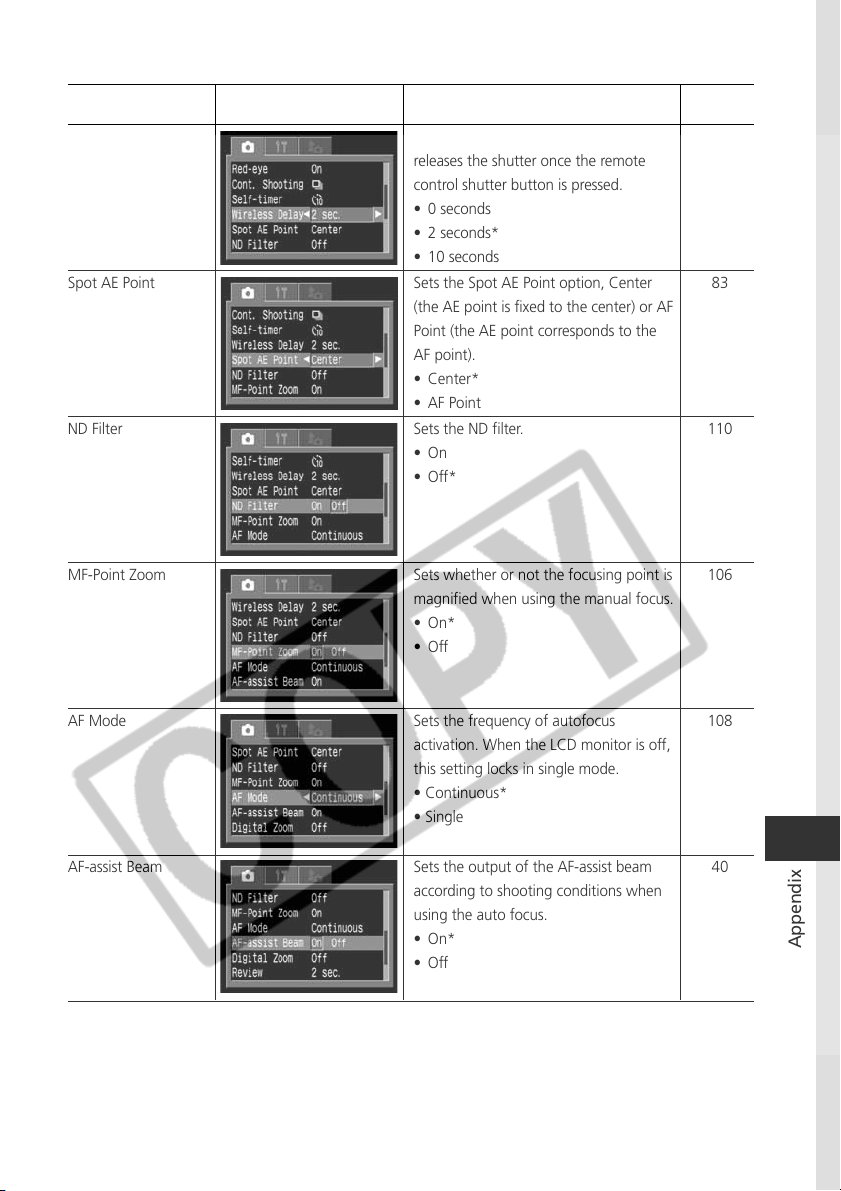
159
Appendix
Wireless Delay Sets the duration before the self-timer
releases the shutter once the remote
control shutter button is pressed.
• 0 seconds
• 2 seconds*
• 10 seconds
Spot AE Point Sets the Spot AE Point option, Center
(the AE point is fixed to the center) or AF
Point (the AE point corresponds to the
AF point).
• Center*
• AF Point
ND Filter Sets the ND filter.
•On
•Off*
MF-Point Zoom Sets whether or not the focusing point is
magnified when using the manual focus.
• On*
•Off
AF Mode Sets the frequency of autofocus
activation. When the LCD monitor is off,
this setting locks in single mode.
• Continuous*
• Single
AF-assist Beam Sets the output of the AF-assist beam
according to shooting conditions when
using the auto focus.
• On*
•Off
Item Menu Screen Settings Content
Reference
Page
175
83
110
106
108
40
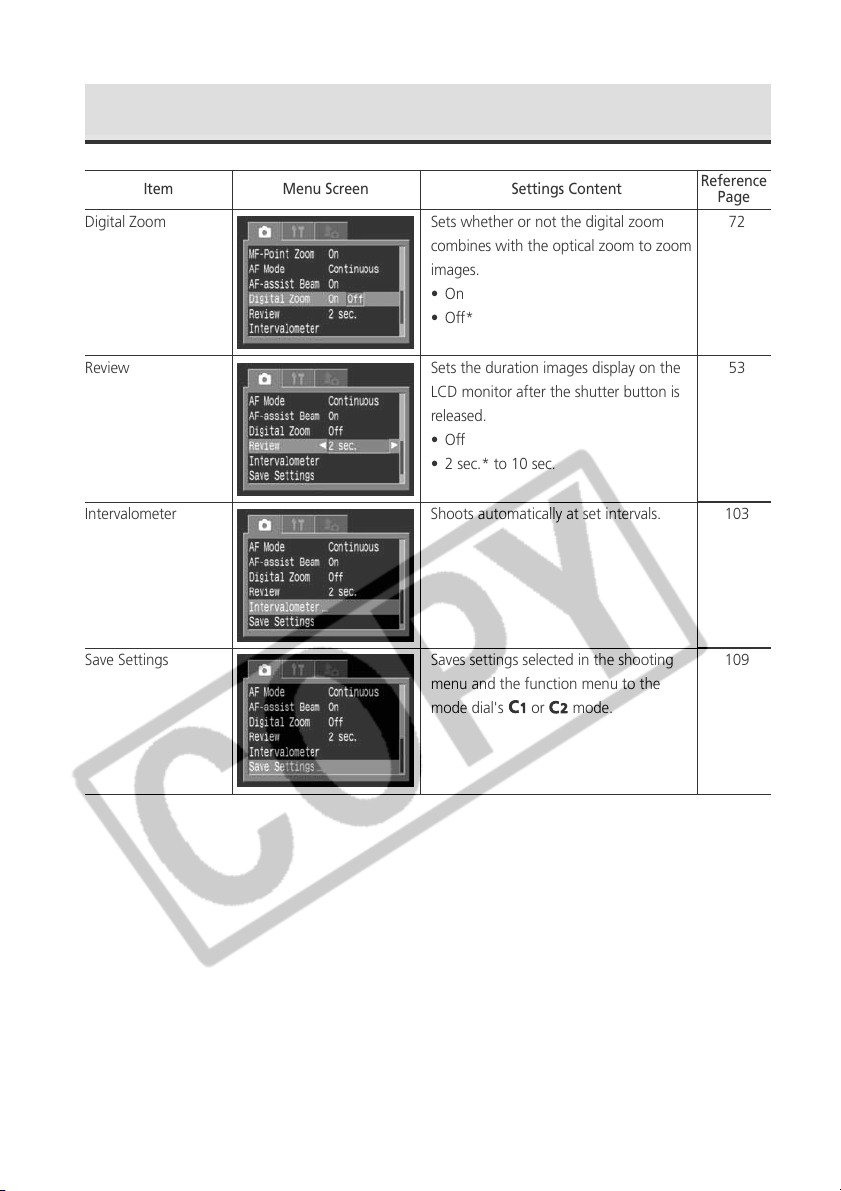
160
Digital Zoom Sets whether or not the digital zoom
combines with the optical zoom to zoom
images.
•On
•Off*
Review Sets the duration images display on the
LCD monitor after the shutter button is
released.
•Off
• 2 sec.* to 10 sec.
Intervalometer Shoots automatically at set intervals.
Save Settings Saves settings selected in the shooting
menu and the function menu to the
mode dial's
or mode.
Item Menu Screen Settings Content
Reference
Page
72
53
103
109
Rec. Menu (continued)
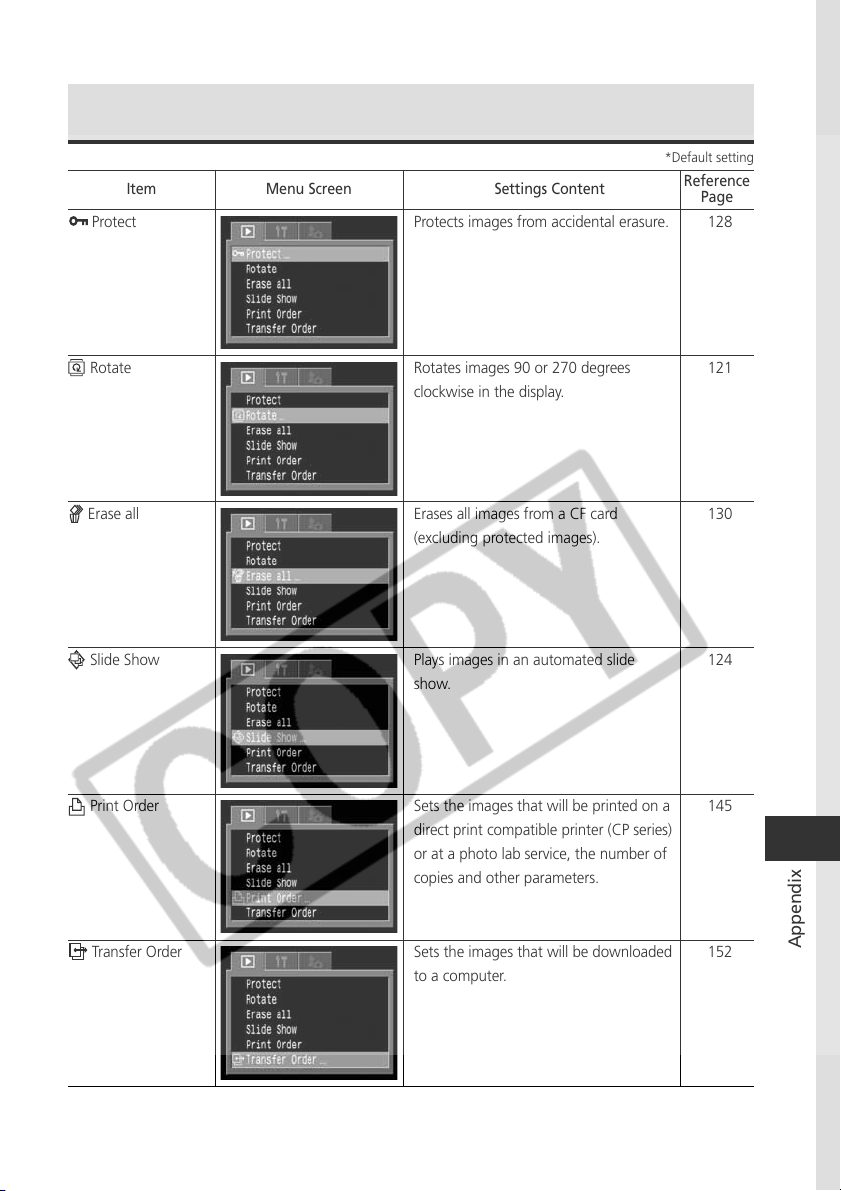
161
Appendix
Replay Menu
Protect Protects images from accidental erasure.
Rotate Rotates images 90 or 270 degrees
clockwise in the display.
Erase all Erases all images from a CF card
(excluding protected images).
Slide Show Plays images in an automated slide
show.
Print Order Sets the images that will be printed on a
direct print compatible printer (CP series)
or at a photo lab service, the number of
copies and other parameters.
Transfer Order Sets the images that will be downloaded
to a computer.
Item Menu Screen Settings Content
Reference
Page
128
121
130
124
145
152
*Default setting
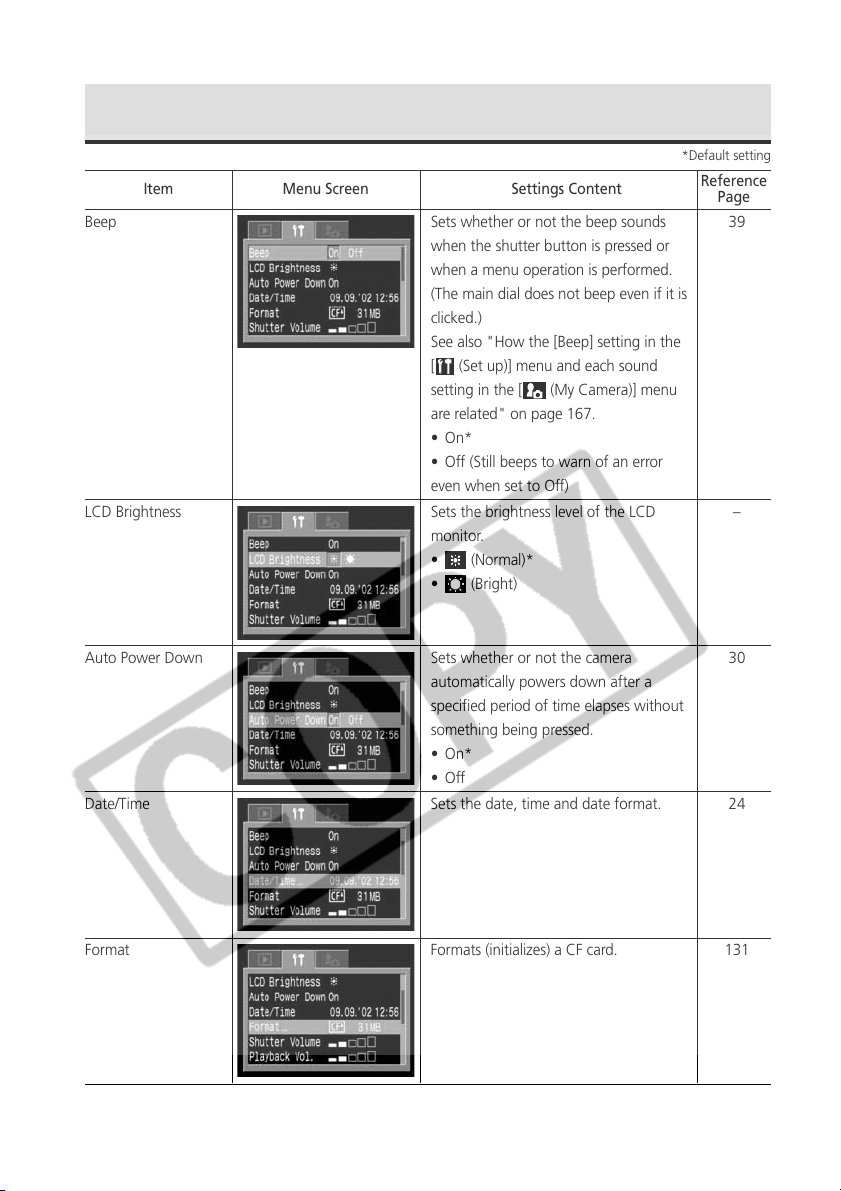
162
Set up Menu
Beep Sets whether or not the beep sounds
when the shutter button is pressed or
when a menu operation is performed.
(The main dial does not beep even if it is
clicked.)
See also "How the [Beep] setting in the
[
(Set up)] menu and each sound
setting in the [ (My Camera)] menu
are related" on page 167.
• On*
• Off (Still beeps to warn of an error
even when set to Off)
LCD Brightness Sets the brightness level of the LCD
monitor.
• (Normal)*
• (Bright)
Auto Power Down Sets whether or not the camera
automatically powers down after a
specified period of time elapses without
something being pressed.
• On*
•Off
Date/Time Sets the date, time and date format.
Format Formats (initializes) a CF card.
Item Menu Screen Settings Content
Reference
Page
39
–
30
24
131
*Default setting
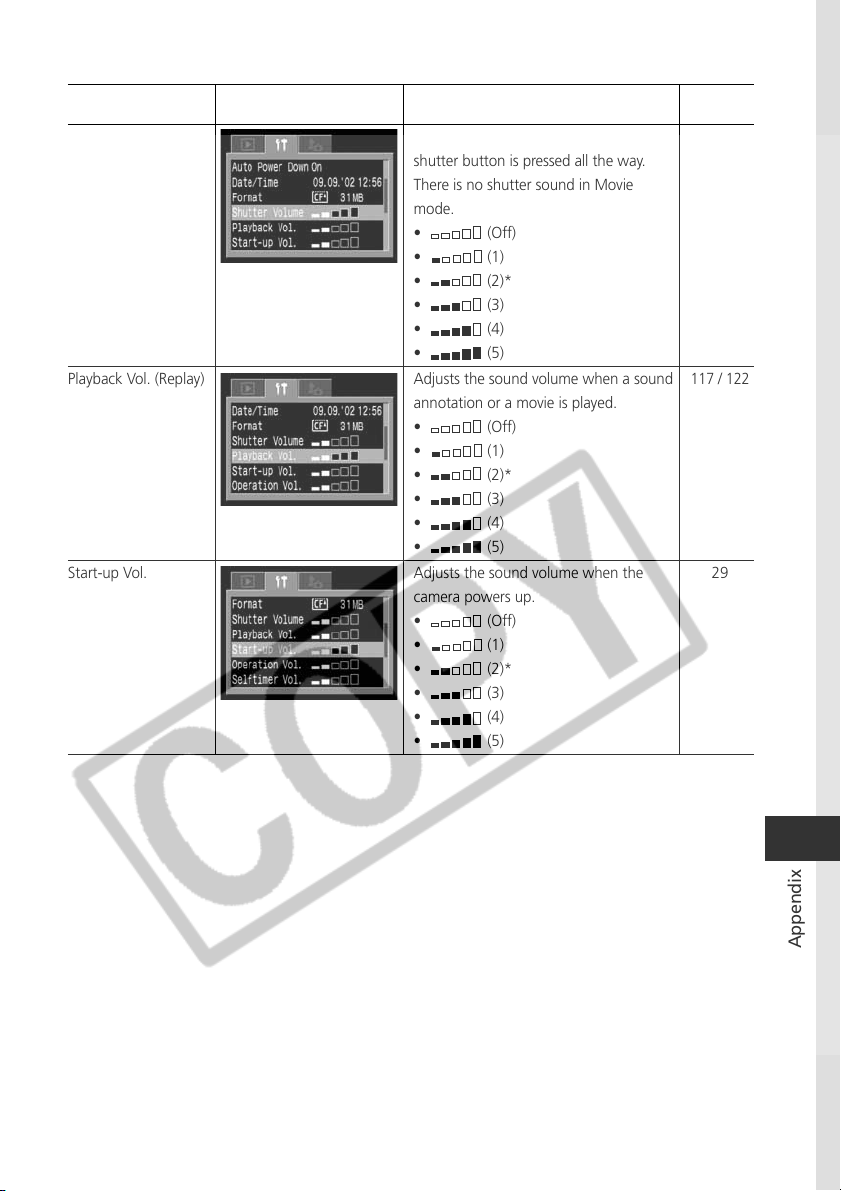
163
Appendix
Shutter Volume Adjusts the sound volume when the
shutter button is pressed all the way.
There is no shutter sound in Movie
mode.
• (Off)
• (1)
• (2)*
• (3)
• (4)
• (5)
Playback Vol. (Replay) Adjusts the sound volume when a sound
annotation or a movie is played.
• (Off)
• (1)
• (2)*
• (3)
• (4)
• (5)
Start-up Vol. Adjusts the sound volume when the
camera powers up.
• (Off)
• (1)
• (2)*
• (3)
• (4)
• (5)
Item Menu Screen Settings Content
Reference
Page
46
117 / 122
29
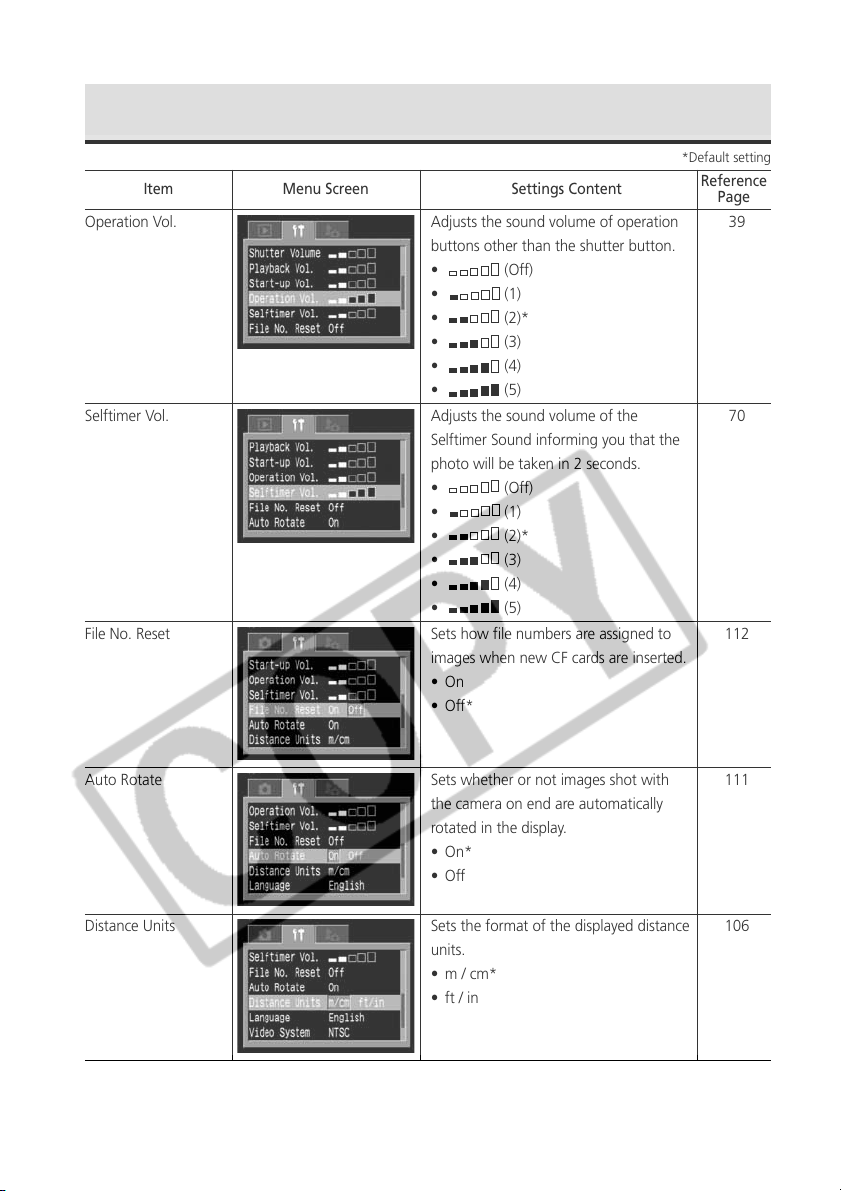
164
39
70
112
111
106
Operation Vol. Adjusts the sound volume of operation
buttons other than the shutter button.
• (Off)
• (1)
• (2)*
• (3)
• (4)
• (5)
Selftimer Vol. Adjusts the sound volume of the
Selftimer Sound informing you that the
photo will be taken in 2 seconds.
• (Off)
• (1)
• (2)*
• (3)
• (4)
• (5)
File No. Reset Sets how file numbers are assigned to
images when new CF cards are inserted.
•On
•Off*
Auto Rotate Sets whether or not images shot with
the camera on end are automatically
rotated in the display.
• On*
•Off
Distance Units Sets the format of the displayed distance
units.
• m / cm*
• ft / in
Set up Menu (continued)
*Default setting
Item Menu Screen Settings Content
Reference
Page
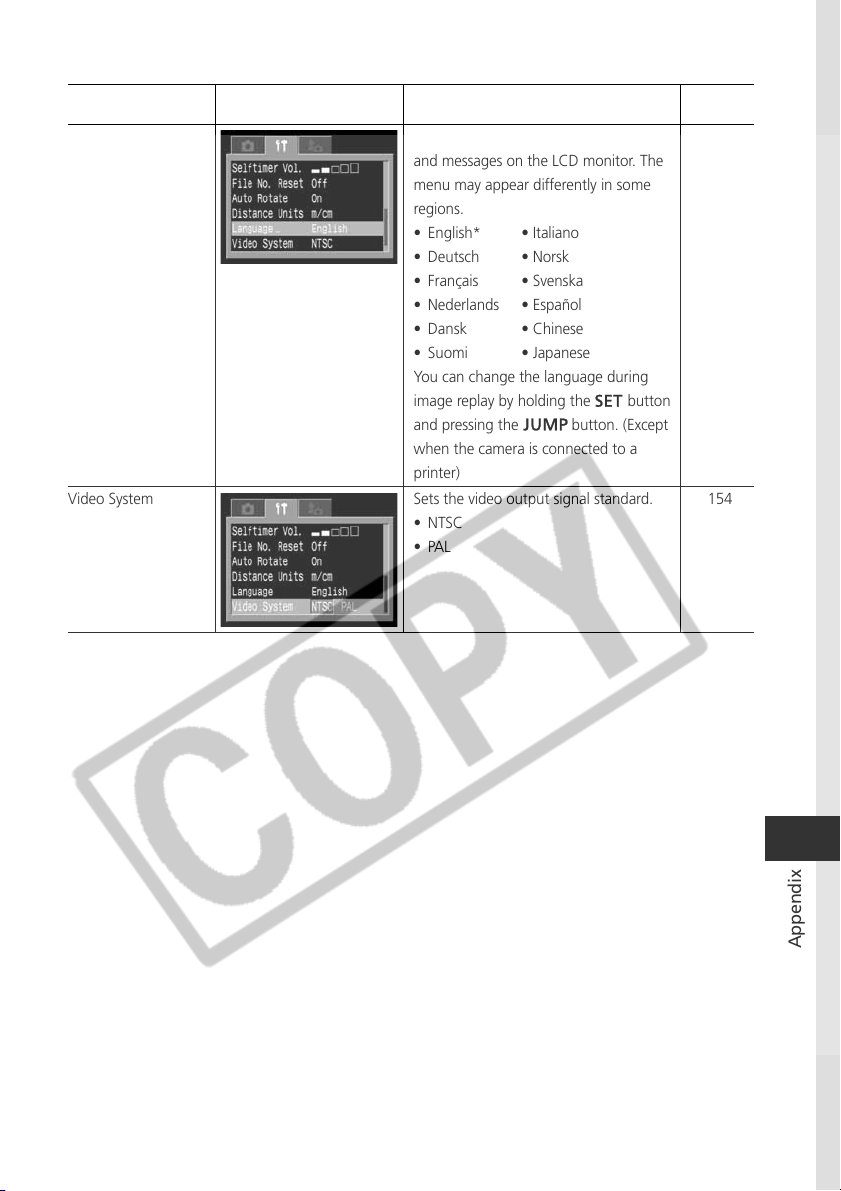
165
Appendix
Language Sets the language used in the menus
and messages on the LCD monitor. The
menu may appear differently in some
regions.
• English* • Italiano
• Deutsch • Norsk
• Français • Svenska
• Nederlands • Español
• Dansk • Chinese
• Suomi • Japanese
You can change the language during
image replay by holding the button
and pressing the button. (Except
when the camera is connected to a
printer)
Video System Sets the video output signal standard.
• NTSC
•PAL
Item Menu Screen Settings Content
Reference
Page
26
154
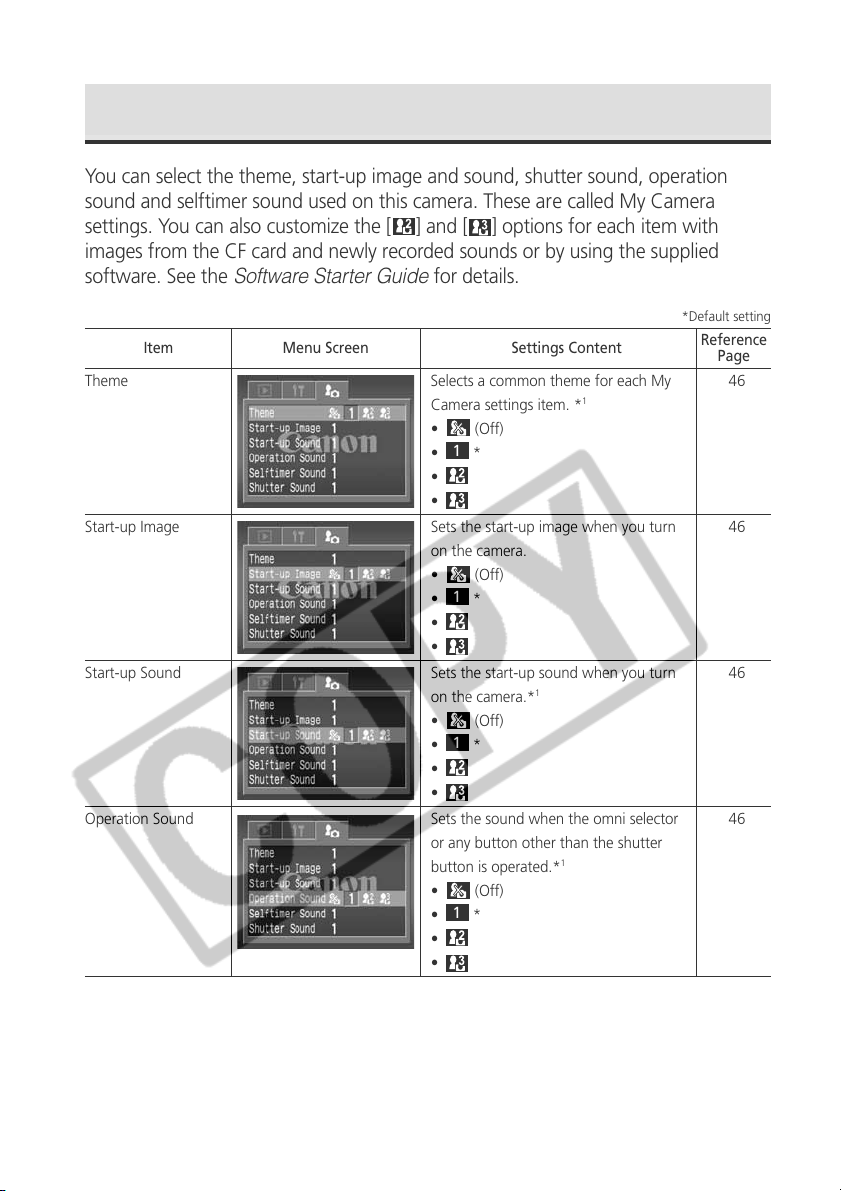
166
My Camera Menu
You can select the theme, start-up image and sound, shutter sound, operation
sound and selftimer sound used on this camera. These are called My Camera
settings. You can also customize the [
] and [ ] options for each item with
images from the CF card and newly recorded sounds or by using the supplied
software. See the
Software Starter Guide
for details.
*Default setting
Theme Selects a common theme for each My
Camera settings item. *
1
•
(Off)
•
1
*
•
•
Start-up Image Sets the start-up image when you turn
on the camera.
•
(Off)
•
1
*
•
•
Start-up Sound Sets the start-up sound when you turn
on the camera.*
1
•
(Off)
•
1
*
•
•
Operation Sound Sets the sound when the omni selector
or any button other than the shutter
button is operated.*
1
•
(Off)
•
1
*
•
•
Item Menu Screen Settings Content
Reference
Page
46
46
46
46
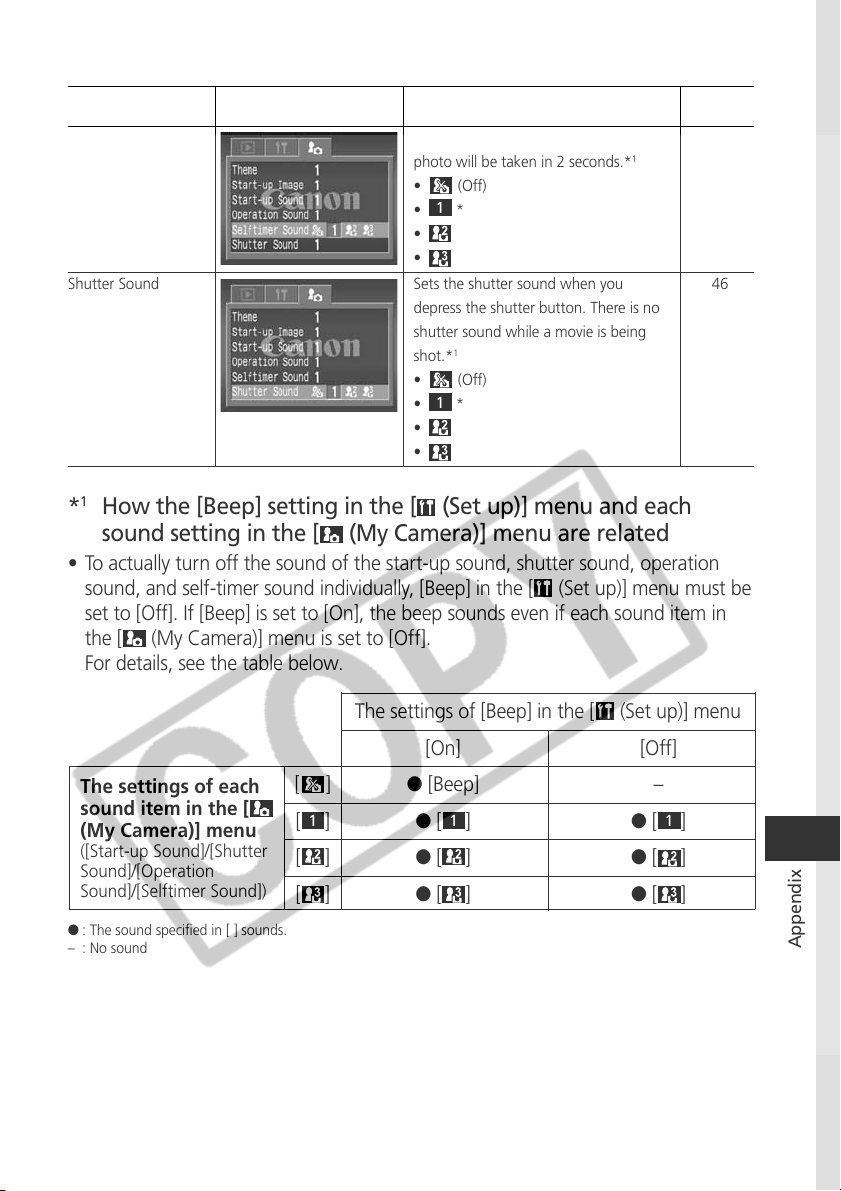
167
Appendix
The settings of [Beep] in the [ (Set up)] menu
[On] [Off]
[
] ● [Beep] –
[
1
] ● [
1
] ● [
1
]
[ ] ● [ ] ● [ ]
[ ] ● [ ] ● [ ]
*
1
How the [Beep] setting in the [ (Set up)] menu and each
sound setting in the [ (My Camera)] menu are related
• To actually turn off the sound of the start-up sound, shutter sound, operation
sound, and self-timer sound individually, [Beep] in the [
(Set up)] menu must be
set to [Off]. If [Beep] is set to [On], the beep sounds even if each sound item in
the [
(My Camera)] menu is set to [Off].
For details, see the table below.
● : The sound specified in [ ] sounds.
– : No sound
The settings of each
sound item in the [
(My Camera)] menu
([Start-up Sound]/[Shutter
Sound]/[Operation
Sound]/[Selftimer Sound])
*Default setting
Selftimer Sound Sets the sound informing you that the
photo will be taken in 2 seconds.*
1
•
(Off)
•
1
*
•
•
Shutter Sound Sets the shutter sound when you
depress the shutter button. There is no
shutter sound while a movie is being
shot.*
1
•
(Off)
•
1
*
•
•
Item Menu Screen Settings Content
Reference
Page
46
46
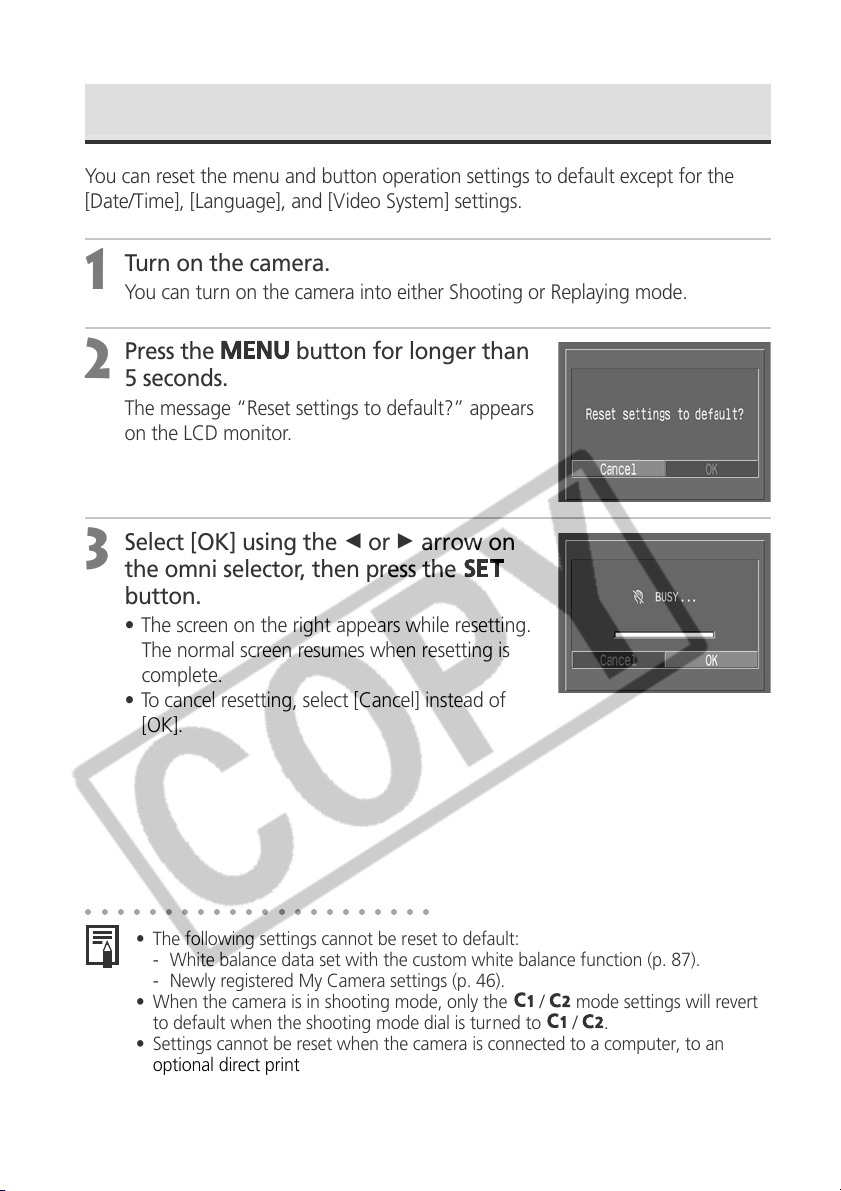
168
Resetting the Settings to Default
You can reset the menu and button operation settings to default except for the
[Date/Time], [Language], and [Video System] settings.
1
Turn on the camera.
You can turn on the camera into either Shooting or Replaying mode.
2
Press the button for longer than
5 seconds.
The message “Reset settings to default?” appears
on the LCD monitor.
3
Select [OK] using the B or A arrow on
the omni selector, then press the
button.
• The screen on the right appears while resetting.
The normal screen resumes when resetting is
complete.
• To cancel resetting, select [Cancel] instead of
[OK].
○○○○○○○○○○○○○○○○○○○○○○
• The following settings cannot be reset to default:
- White balance data set with the custom white balance function (p. 87).
- Newly registered My Camera settings (p. 46).
• When the camera is in shooting mode, only the
/
mode settings will revert
to default when the shooting mode dial is turned to
/
.
• Settings cannot be reset when the camera is connected to a computer, to an
optional direct print function compatible printer (CP series) or to a direct print
function compatible BJ printer (optional).
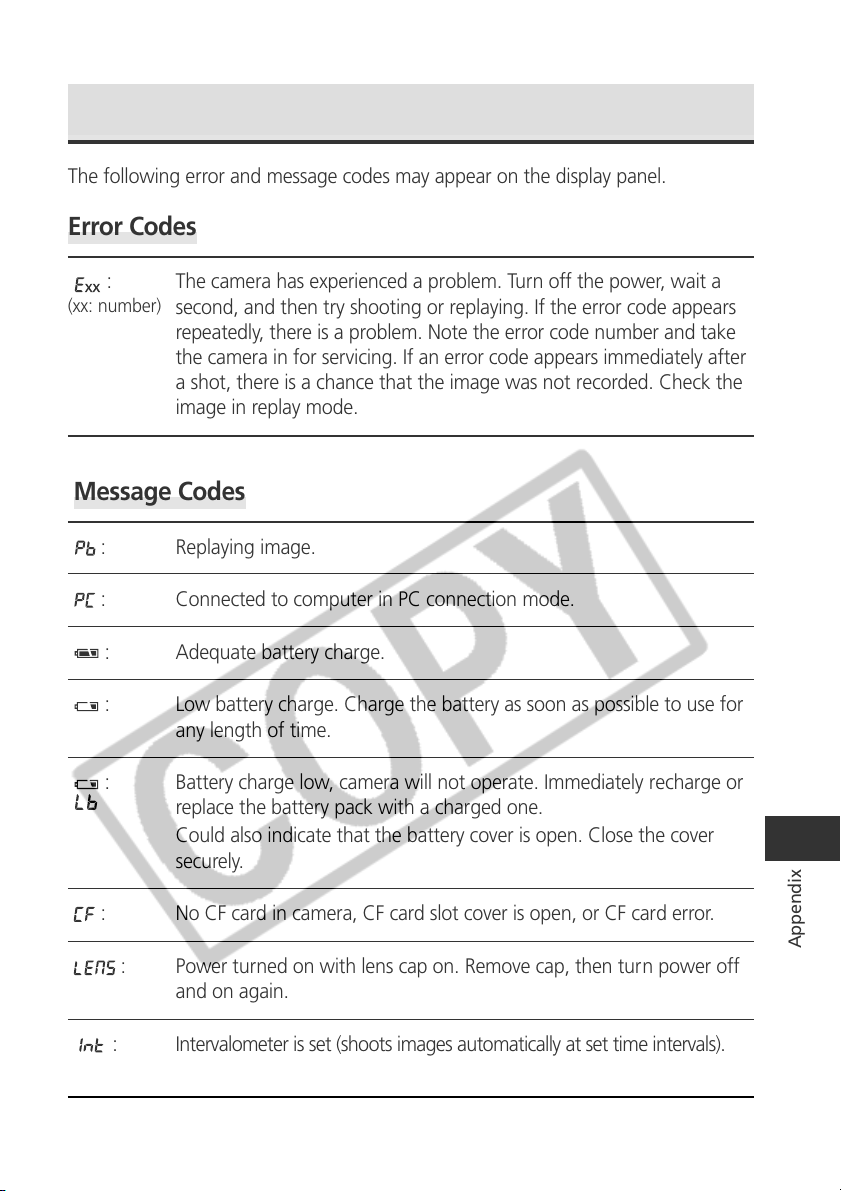
169
Appendix
List of Error / Message Codes
The following error and message codes may appear on the display panel.
Error Codes
: The camera has experienced a problem. Turn off the power, wait a
second, and then try shooting or replaying. If the error code appears
repeatedly, there is a problem. Note the error code number and take
the camera in for servicing. If an error code appears immediately after
a shot, there is a chance that the image was not recorded. Check the
image in replay mode.
Message Codes
: Replaying image.
: Connected to computer in PC connection mode.
: Adequate battery charge.
: Low battery charge. Charge the battery as soon as possible to use for
any length of time.
: Battery charge low, camera will not operate. Immediately recharge or
replace the battery pack with a charged one.
Could also indicate that the battery cover is open. Close the cover
securely.
: No CF card in camera, CF card slot cover is open, or CF card error.
: Power turned on with lens cap on. Remove cap, then turn power off
and on again.
: Intervalometer is set (shoots images automatically at set time intervals).
(the number of remaining shots display after the first images is shot.)
(xx: number)
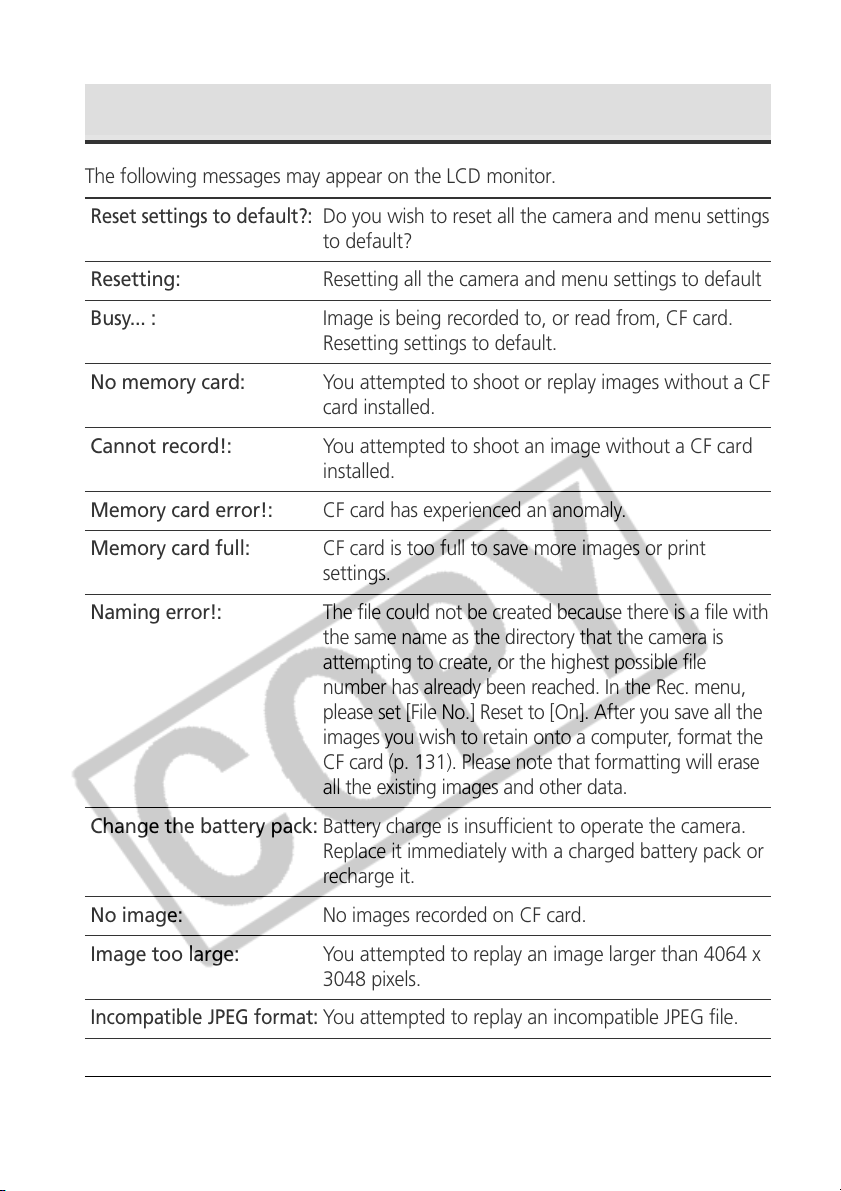
170
List of Messages
The following messages may appear on the LCD monitor.
Reset settings to default?:
Do you wish to reset all the camera and menu settings
to default?
Resetting: Resetting all the camera and menu settings to default
Busy... : Image is being recorded to, or read from, CF card.
Resetting settings to default.
No memory card: You attempted to shoot or replay images without a CF
card installed.
Cannot record!: You attempted to shoot an image without a CF card
installed.
Memory card error!: CF card has experienced an anomaly.
Memory card full: CF card is too full to save more images or print
settings.
Naming error!: The file could not be created because there is a file with
the same name as the directory that the camera is
attempting to create, or the highest possible file
number has already been reached. In the Rec. menu,
please set [File No.] Reset to [On]. After you save all the
images you wish to retain onto a computer, format the
CF card (p. 131). Please note that formatting will erase
all the existing images and other data.
Change the battery pack: Battery charge is insufficient to operate the camera.
Replace it immediately with a charged battery pack or
recharge it.
No image: No images recorded on CF card.
Image too large: You attempted to replay an image larger than 4064 x
3048 pixels.
Incompatible JPEG format:
You attempted to replay an incompatible JPEG file.
Corrupted data: You attempted to replay an image with corrupted data.
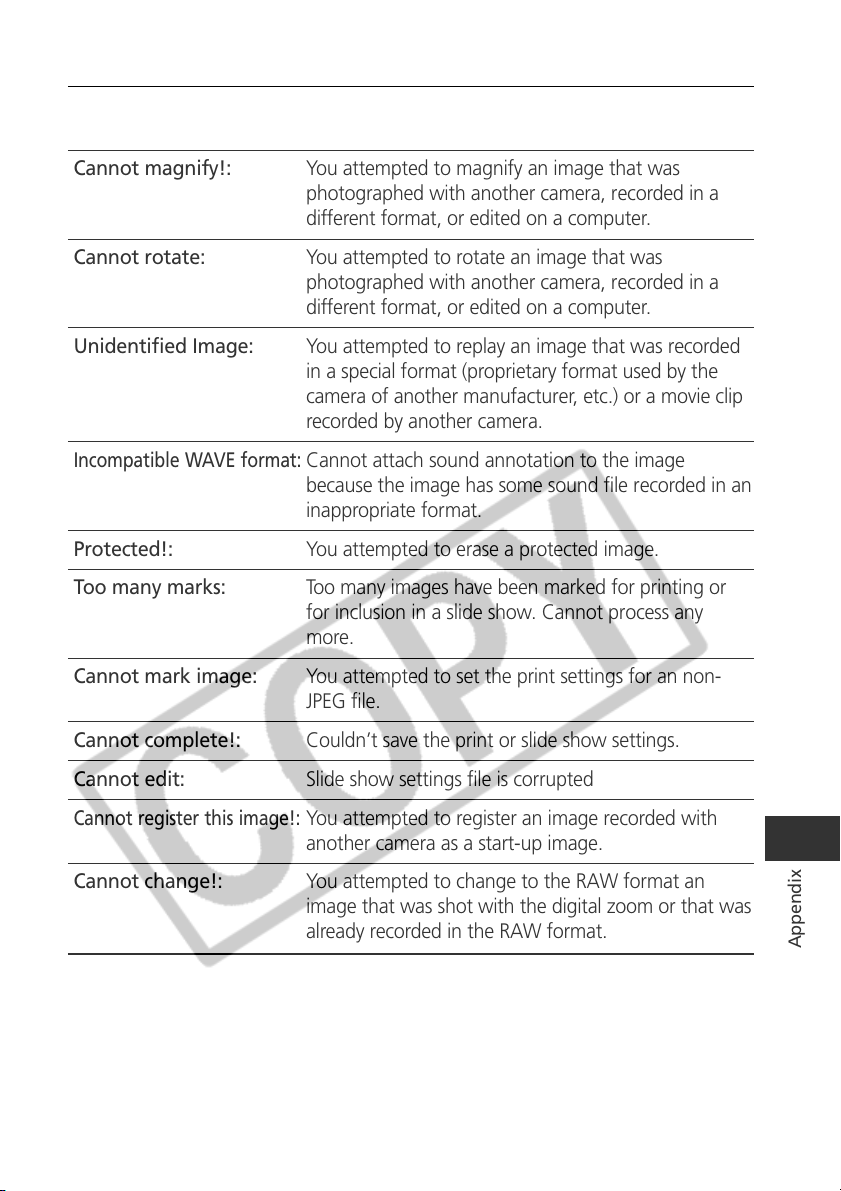
171
Appendix
RAW: You attempted to replay an image recorded in an
incompatible RAW format.
Cannot magnify!: You attempted to magnify an image that was
photographed with another camera, recorded in a
different format, or edited on a computer.
Cannot rotate: You attempted to rotate an image that was
photographed with another camera, recorded in a
different format, or edited on a computer.
Unidentified Image: You attempted to replay an image that was recorded
in a special format (proprietary format used by the
camera of another manufacturer, etc.) or a movie clip
recorded by another camera.
Incompatible WAVE format:
Cannot attach sound annotation to the image
because the image has some sound file recorded in an
inappropriate format.
Protected!: You attempted to erase a protected image.
Too many marks: Too many images have been marked for printing or
for inclusion in a slide show. Cannot process any
more.
Cannot mark image: You attempted to set the print settings for an non-
JPEG file.
Cannot complete!: Couldn’t save the print or slide show settings.
Cannot edit: Slide show settings file is corrupted
Cannot register this image!:
You attempted to register an image recorded with
another camera as a start-up image.
Cannot change!: You attempted to change to the RAW format an
image that was shot with the digital zoom or that was
already recorded in the RAW format.
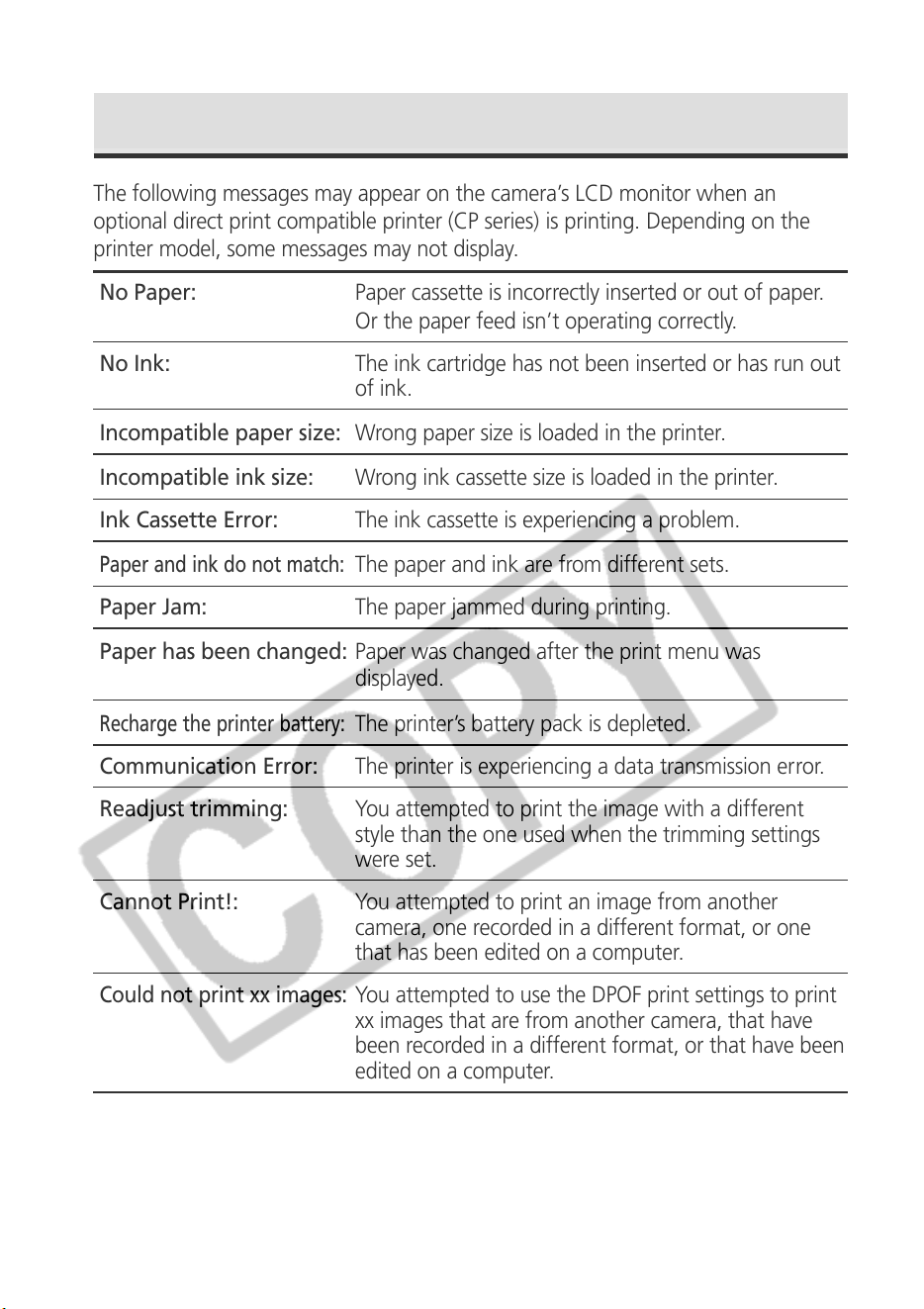
172
The following messages may appear on the camera’s LCD monitor when an
optional direct print compatible printer (CP series) is printing. Depending on the
printer model, some messages may not display.
No Paper: Paper cassette is incorrectly inserted or out of paper.
Or the paper feed isn’t operating correctly.
No Ink: The ink cartridge has not been inserted or has run out
of ink.
Incompatible paper size: Wrong paper size is loaded in the printer.
Incompatible ink size: Wrong ink cassette size is loaded in the printer.
Ink Cassette Error: The ink cassette is experiencing a problem.
Paper and ink do not match:
The paper and ink are from different sets.
Paper Jam: The paper jammed during printing.
Paper has been changed: Paper was changed after the print menu was
displayed.
Recharge the printer battery:
The printer’s battery pack is depleted.
Communication Error: The printer is experiencing a data transmission error.
Readjust trimming: You attempted to print the image with a different
style than the one used when the trimming settings
were set.
Cannot Print!: You attempted to print an image from another
camera, one recorded in a different format, or one
that has been edited on a computer.
Could not print xx images:
You attempted to use the DPOF print settings to print
xx images that are from another camera, that have
been recorded in a different format, or that have been
edited on a computer.
List of Messages (continued)
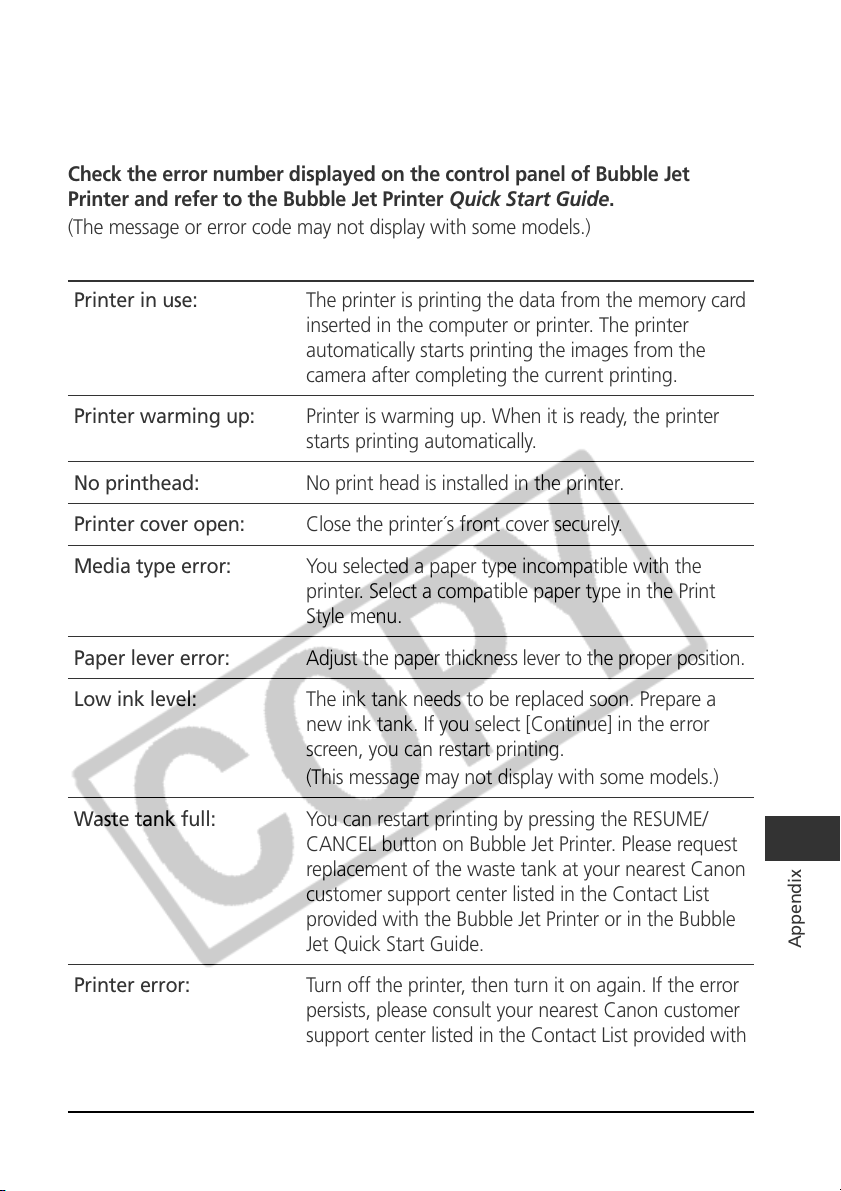
173
Appendix
The following messages may appear when the camera is connected to the direct
print compatible Bubble Jet Printer.
Check the error number displayed on the control panel of Bubble Jet
Printer and refer to the Bubble Jet Printer Quick Start Guide.
(The message or error code may not display with some models.)
Printer in use: The printer is printing the data from the memory card
inserted in the computer or printer. The printer
automatically starts printing the images from the
camera after completing the current printing.
Printer warming up: Printer is warming up. When it is ready, the printer
starts printing automatically.
No printhead: No print head is installed in the printer.
Printer cover open: Close the printer´s front cover securely.
Media type error: You selected a paper type incompatible with the
printer. Select a compatible paper type in the Print
Style menu.
Paper lever error: Adjust the paper thickness lever to the proper position.
Low ink level: The ink tank needs to be replaced soon. Prepare a
new ink tank. If you select [Continue] in the error
screen, you can restart printing.
(This message may not display with some models.)
Waste tank full: You can restart printing by pressing the RESUME/
CANCEL button on Bubble Jet Printer. Please request
replacement of the waste tank at your nearest Canon
customer support center listed in the Contact List
provided with the Bubble Jet Printer or in the Bubble
Jet Quick Start Guide.
Printer error: Turn off the printer, then turn it on again. If the error
persists, please consult your nearest Canon customer
support center listed in the Contact List provided with
the Bubble Jet Printer or in the Bubble Jet Quick Start
Guide.
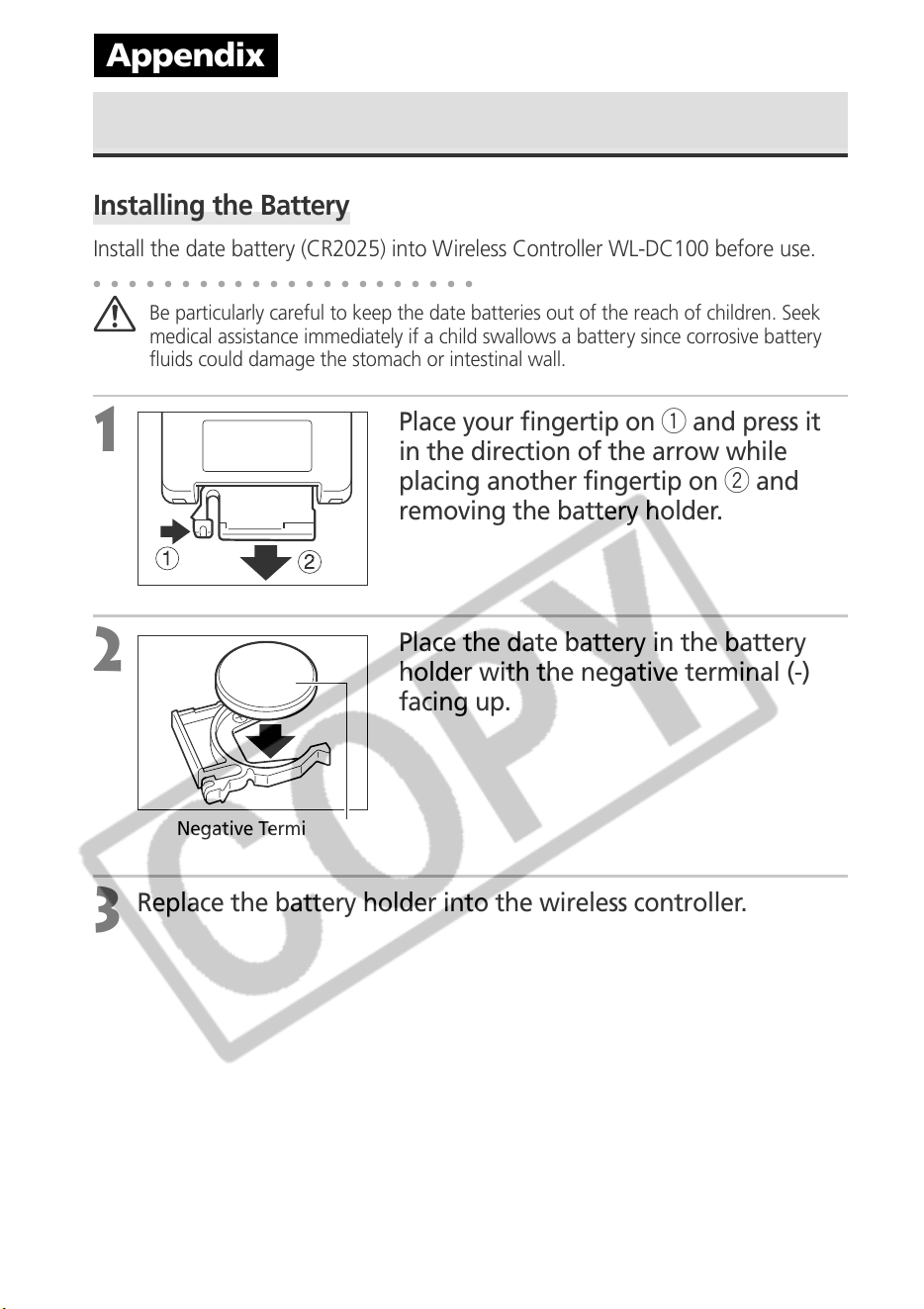
174
Using the Wireless Controller
Installing the Battery
Install the date battery (CR2025) into Wireless Controller WL-DC100 before use.
○○○○○○○○○○○○○○○○○○○○○○
Be particularly careful to keep the date batteries out of the reach of children. Seek
medical assistance immediately if a child swallows a battery since corrosive battery
fluids could damage the stomach or intestinal wall.
1
Place your fingertip on q and press it
in the direction of the arrow while
placing another fingertip on w and
removing the battery holder.
2
Place the date battery in the battery
holder with the negative terminal (-)
facing up.
3
Replace the battery holder into the wireless controller.
Appendix
Negative Terminal (-)
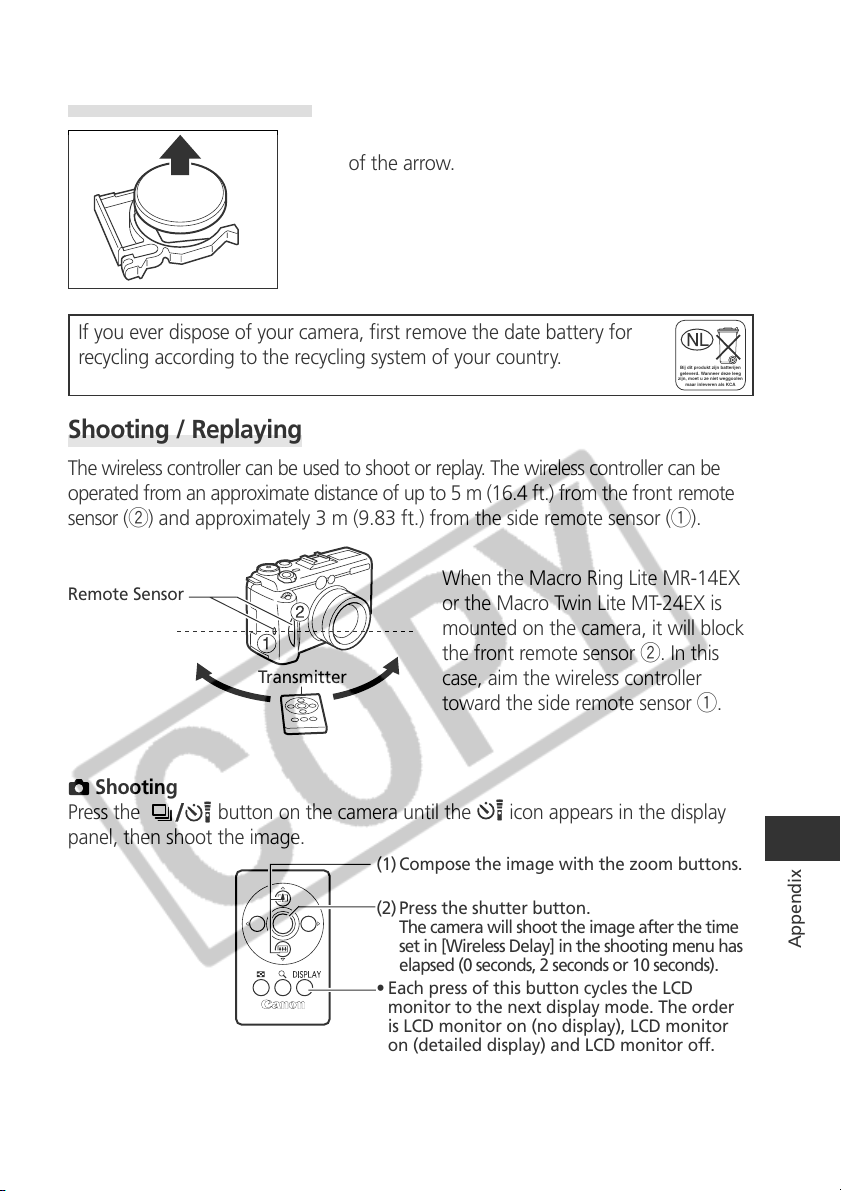
175
Appendix
Bij dit produkt zijn batterijen
geleverd. Wanneer deze leeg
zijn, moet u ze niet weggoolen
maar inleveren als KCA
If you ever dispose of your camera, first remove the date battery for
recycling according to the recycling system of your country.
Removing the Battery
To remove the date battery, pull it in the direction
of the arrow.
Shooting / Replaying
The wireless controller can be used to shoot or replay. The wireless controller can be
operated from an approximate distance of up to 5 m (16.4 ft.) from the front remote
sensor (w) and approximately 3 m (9.83 ft.) from the side remote sensor (q).
When the Macro Ring Lite MR-14EX
or the Macro Twin Lite MT-24EX is
mounted on the camera, it will block
the front remote sensor w. In this
case, aim the wireless controller
toward the side remote sensor q.
Shooting
Press the
button on the camera until the
icon appears in the display
panel, then shoot the image.
(1) Compose the image with the zoom buttons.
(2) Press the shutter button.
The camera will shoot the image after the time
set in [Wireless Delay] in the shooting menu has
elapsed (0 seconds, 2 seconds or 10 seconds).
• Each press of this button cycles the LCD
monitor to the next display mode. The order
is LCD monitor on (no display), LCD monitor
on (detailed display) and LCD monitor off.
Transmitter
Remote Sensor
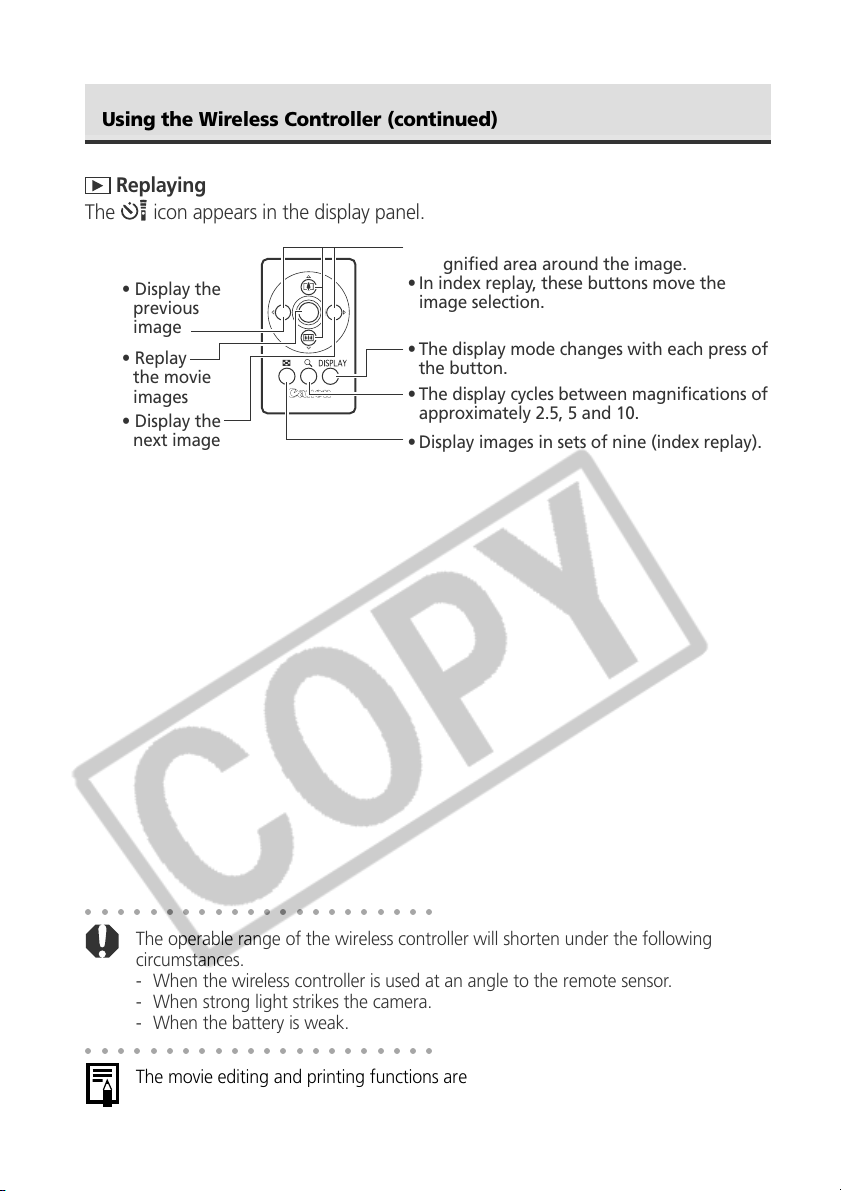
176
○○○○○○○○○○○○○○○○○○○○○○
The operable range of the wireless controller will shorten under the following
circumstances.
- When the wireless controller is used at an angle to the remote sensor.
- When strong light strikes the camera.
- When the battery is weak.
○○○○○○○○○○○○○○○○○○○○○○
The movie editing and printing functions are not available.
• In magnified mode, these buttons move the
magnified area around the image.
• In index replay, these buttons move the
image selection.
• The display mode changes with each press of
the button.
• The display cycles between magnifications of
approximately 2.5, 5 and 10.
• Display images in sets of nine (index replay).
• Display the
next image
• Replay
the movie
images
• Display the
previous
image
Replaying
The
icon appears in the display panel.
Using the Wireless Controller (continued)
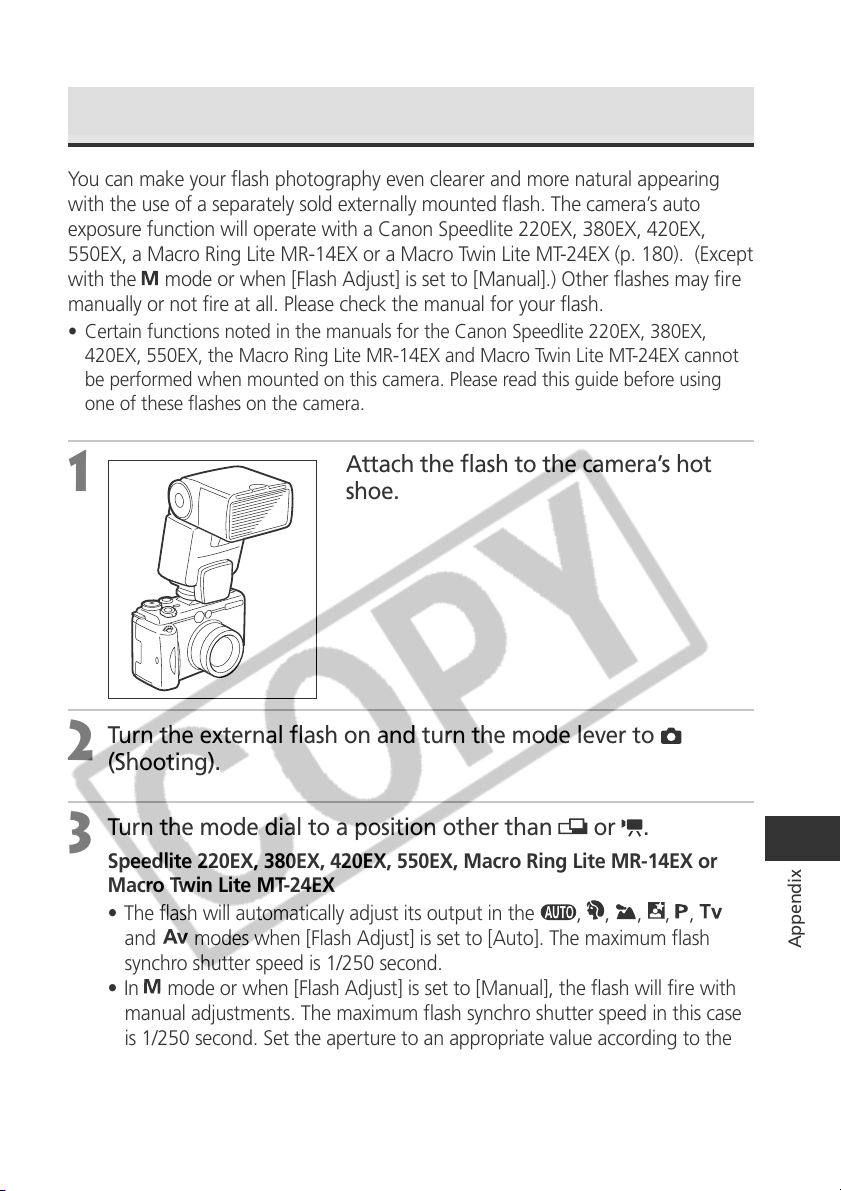
177
Appendix
Using an Externally Mounted Flash (Optional)
You can make your flash photography even clearer and more natural appearing
with the use of a separately sold externally mounted flash. The camera’s auto
exposure function will operate with a Canon Speedlite 220EX, 380EX, 420EX,
550EX, a Macro Ring Lite MR-14EX or a Macro Twin Lite MT-24EX (p. 180). (Except
with the
mode or when [Flash Adjust] is set to [Manual].) Other flashes may fire
manually or not fire at all. Please check the manual for your flash.
• Certain functions noted in the manuals for the Canon Speedlite 220EX, 380EX,
420EX, 550EX, the Macro Ring Lite MR-14EX and Macro Twin Lite MT-24EX cannot
be performed when mounted on this camera. Please read this guide before using
one of these flashes on the camera.
1
Attach the flash to the camera’s hot
shoe.
2
Turn the external flash on and turn the mode lever to
(Shooting).
3
Turn the mode dial to a position other than or .
Speedlite 220EX, 380EX, 420EX, 550EX, Macro Ring Lite MR-14EX or
Macro Twin Lite MT-24EX
• The flash will automatically adjust its output in the
, , , , ,
and modes when [Flash Adjust] is set to [Auto]. The maximum flash
synchro shutter speed is 1/250 second.
•In
mode or when [Flash Adjust] is set to [Manual], the flash will fire with
manual adjustments. The maximum flash synchro shutter speed in this case
is 1/250 second. Set the aperture to an appropriate value according to the
flash’s guide number and the distance to the subject. Check the camera’s
ISO sensitivity setting since the flash’s guide number will change with the
ISO value.
178
Using an Externally Mounted Flash (Optional)
(continued)
• When [Flash Adjust] is set to [Manual], the flash output can be adjusted.
When [Flash Adjust] is set to [Auto] the flash exposure compensation can be
adjusted (p. 100).
•In
mode or when [Flash Adjust] is set to [Manual], the output of an
externally mounted flash can be adjusted in the flash output adjustment
screen (p. 101). When a Speedlite 550EX, a Macro Ring Lite MR-14EX or a
Macro Twin Lite MT-24EX is mounted on the camera, you can adjust the
flash output from either the flash or the camera. To set it from the flash, you
are recommended to use the flash’s manual mode. You can also adjust the
flash output even when the camera is set to the E-TTL automatic flash
exposure compensation mode by changing the flash exposure
compensation setting. In this situation, the +2 step setting fires the flash at
full intensity.
To shoot with the flash, you are recommended to set the white balance to
the
(Flash) setting.
Other Canon Flashes
Since other flashes fire at full strength, set the shutter speed and aperture
accordingly. Set the shutter speed to 1/125 second or slower, and set the
aperture to a value appropriate to the flash’s guide number and the distance
to the subject. You are recommended to set the white balance to
(Flash) to
shoot.
4
Press the shutter button halfway to focus.
The flash is charged when its pilot lamp lights up.
5
Press the shutter button all the way to shoot the image.
○○○○○○○○○○○○○○○○○○○○○○
• The externally mounted flash will not fire in , or continuous shooting.
• The Bracket mode cannot be used for flash photography. If the flash fires, only
one image gets recorded.
• Please note that flashes (especially high-voltage flashes) or flash accessories made
by other manufacturers may cause a camera malfunction.
• The Canon Speedlite 480EG cannot be used with this camera. Even if you attach it
to the camera, it will not fire.
179
Appendix
○○○○○○○○○○○○○○○○○○○○○○
The following functions can be used with a Speedlite 220EX, 380EX, 420EX or
550EX.
- Auto Exposure (Use the E-TTL mode with a 550EX)
- FE Lock (Not available in
mode)
- Flash Sync (1st-curtain/2nd-curtain) (2nd-curtain-priority with Speedlite 550EX)
- Daylight Synchro
- Slow Synchro
- Flash Exposure Compensation (When Speedlite 550EX is used, if flash exposure
adjustments are made both from the camera and the flash, the 550EX’s flash
exposure compensation setting takes precedence when the flash is set to E-TTL
mode. The camera’s flash exposure compensation setting will not activate.)
- Auto Zoom (Not available with the 220EX)
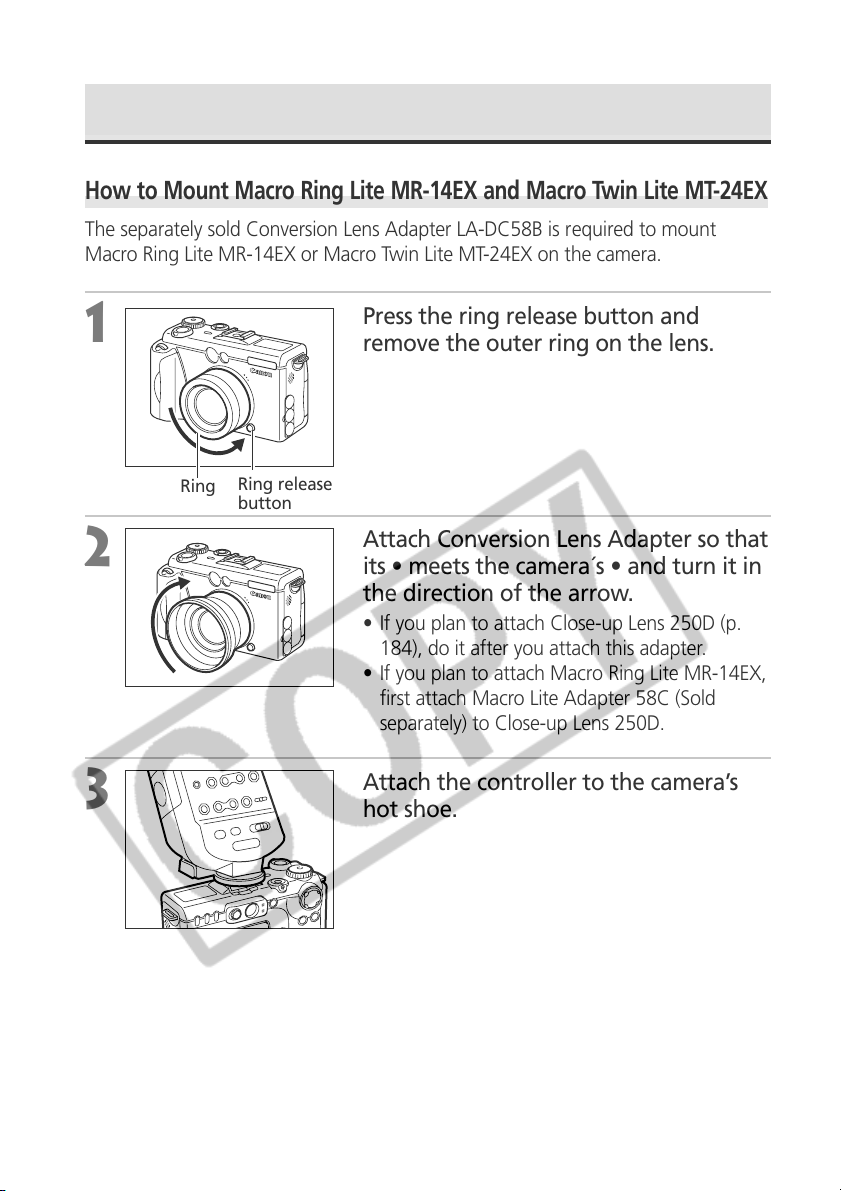
180
Using an Externally Mounted Flash (Optional)
(continued)
How to Mount Macro Ring Lite MR-14EX and Macro Twin Lite MT-24EX
The separately sold Conversion Lens Adapter LA-DC58B is required to mount
Macro Ring Lite MR-14EX or Macro Twin Lite MT-24EX on the camera.
1
Press the ring release button and
remove the outer ring on the lens.
2
Attach Conversion Lens Adapter so that
its • meets the camera´s • and turn it in
the direction of the arrow.
• If you plan to attach Close-up Lens 250D (p.
184), do it after you attach this adapter.
• If you plan to attach Macro Ring Lite MR-14EX,
first attach Macro Lite Adapter 58C (Sold
separately) to Close-up Lens 250D.
3
Attach the controller to the camera’s
hot shoe.
Ring release
button
Ring
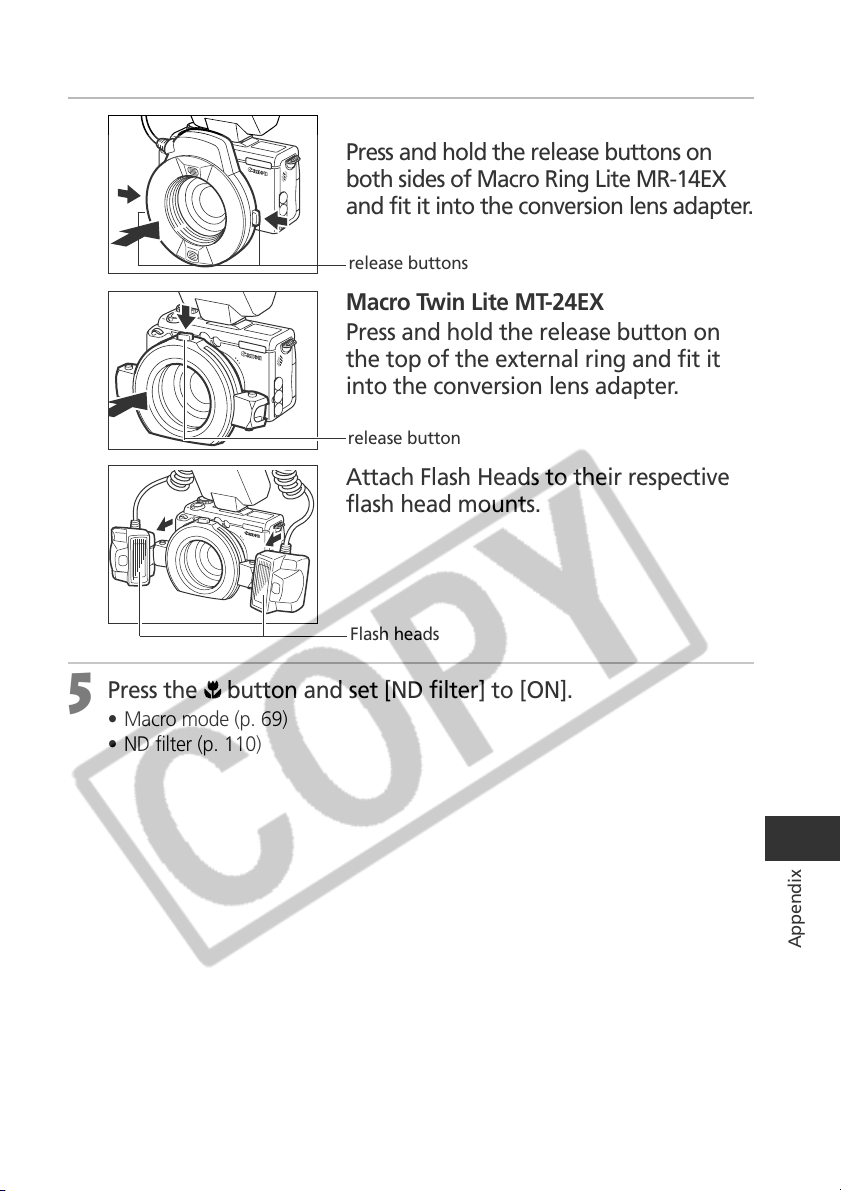
181
Appendix
4
Macro Ring Lite MR-14EX
Press and hold the release buttons on
both sides of Macro Ring Lite MR-14EX
and fit it into the conversion lens adapter.
Macro Twin Lite MT-24EX
Press and hold the release button on
the top of the external ring and fit it
into the conversion lens adapter.
Attach Flash Heads to their respective
flash head mounts.
5
Press the button and set [ND filter] to [ON].
• Macro mode (p. 69)
• ND filter (p. 110)
release buttons
release button
Flash heads
182
○○○○○○○○○○○○○○○○○○○○○○
• When you are using Macro Ring Lite MR-14EX or Macro Twin Lite MT-24EX, you
can shoot in E-TTL automatic flash exposure compensation mode just by setting
the camera’s shooting mode to
, or .
You are recommended to set the aperture in
or mode for full-fledged
macro flash photography.
• The following functions can be used with Macro Ring Lite MR-14EX or Macro Twin
Lite MT-24EX mounted.
- E-TTL Automatic Flash Exposure Compensation
- FE Lock
- Flash Sync (1st-curtain/2nd-curtain) (2nd-curtain priority with MR-14EX or MT-24EX)
- Daylight Synchro
- Slow Synchro
- Flash Exposure Compensation
• When Macro Ring Lite MR-14EX or Macro Twin Lite MT-24EX is used, the external
flash's flash exposure compensation setting takes precedence when the flash is set
to E-TTL mode and a flash exposure compensation value other than 0 is set. The
camera’s flash exposure compensation setting will not activate unless the external
flash's flash exposure compensation is set to 0.
Using an Externally Mounted Flash (Optional)
(continued)
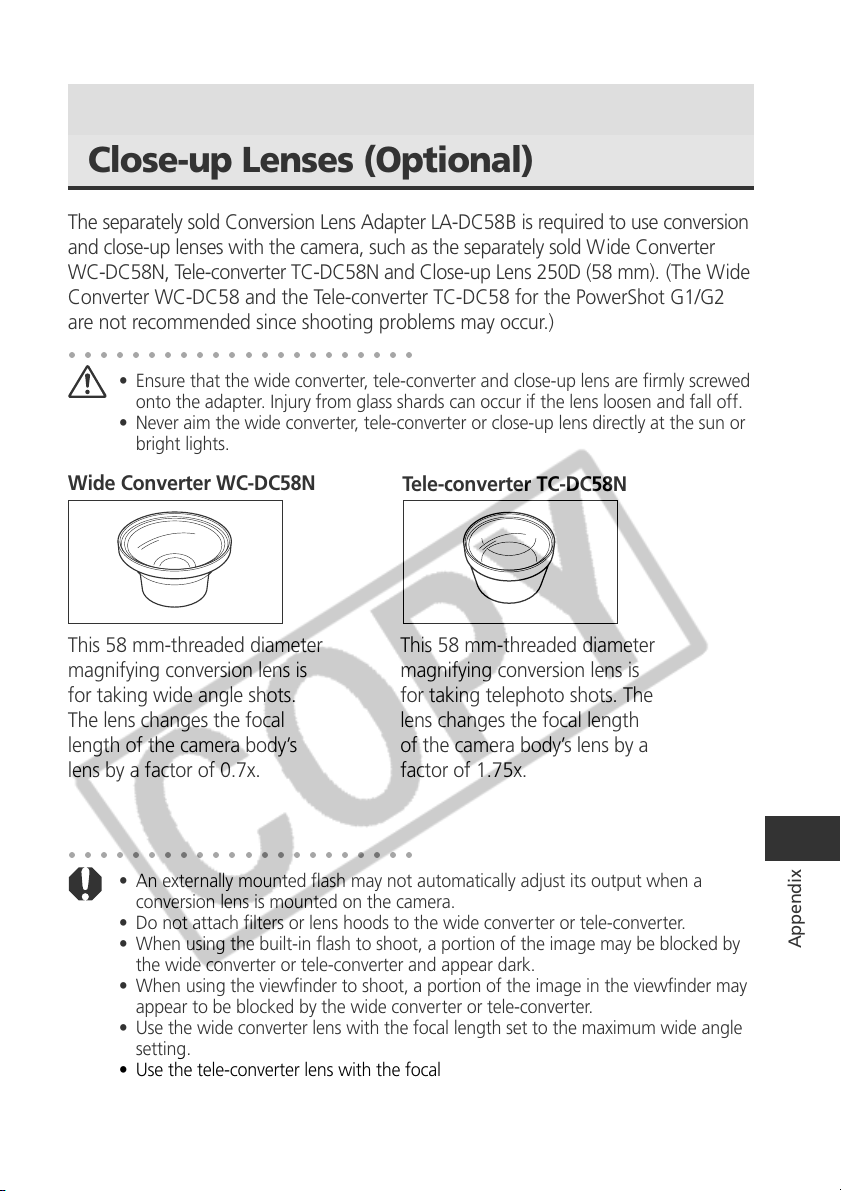
183
Appendix
Using Conversion Lenses (Optional) /
Close-up Lenses (Optional)
The separately sold Conversion Lens Adapter LA-DC58B is required to use conversion
and close-up lenses with the camera, such as the separately sold Wide Converter
WC-DC58N, Tele-converter TC-DC58N and Close-up Lens 250D (58 mm). (The Wide
Converter WC-DC58 and the Tele-converter TC-DC58 for the PowerShot G1/G2
are not recommended since shooting problems may occur.)
○○○○○○○○○○○○○○○○○○○○○○
• Ensure that the wide converter, tele-converter and close-up lens are firmly screwed
onto the adapter. Injury from glass shards can occur if the lens loosen and fall off.
• Never aim the wide converter, tele-converter or close-up lens directly at the sun or
bright lights.
Wide Converter WC-DC58N
Tele-converter TC-DC58N
This 58 mm-threaded diameter
magnifying conversion lens is
for taking wide angle shots.
The lens changes the focal
length of the camera body’s
lens by a factor of 0.7x.
This 58 mm-threaded diameter
magnifying conversion lens is
for taking telephoto shots. The
lens changes the focal length
of the camera body’s lens by a
factor of 1.75x.
○○○○○○○○○○○○○○○○○○○○○○
• An externally mounted flash may not automatically adjust its output when a
conversion lens is mounted on the camera.
• Do not attach filters or lens hoods to the wide converter or tele-converter.
• When using the built-in flash to shoot, a portion of the image may be blocked by
the wide converter or tele-converter and appear dark.
• When using the viewfinder to shoot, a portion of the image in the viewfinder may
appear to be blocked by the wide converter or tele-converter.
• Use the wide converter lens with the focal length set to the maximum wide angle
setting.
• Use the tele-converter lens with the focal length set to the maximum telephoto
setting. At other zoom settings, the image will not appear correctly.
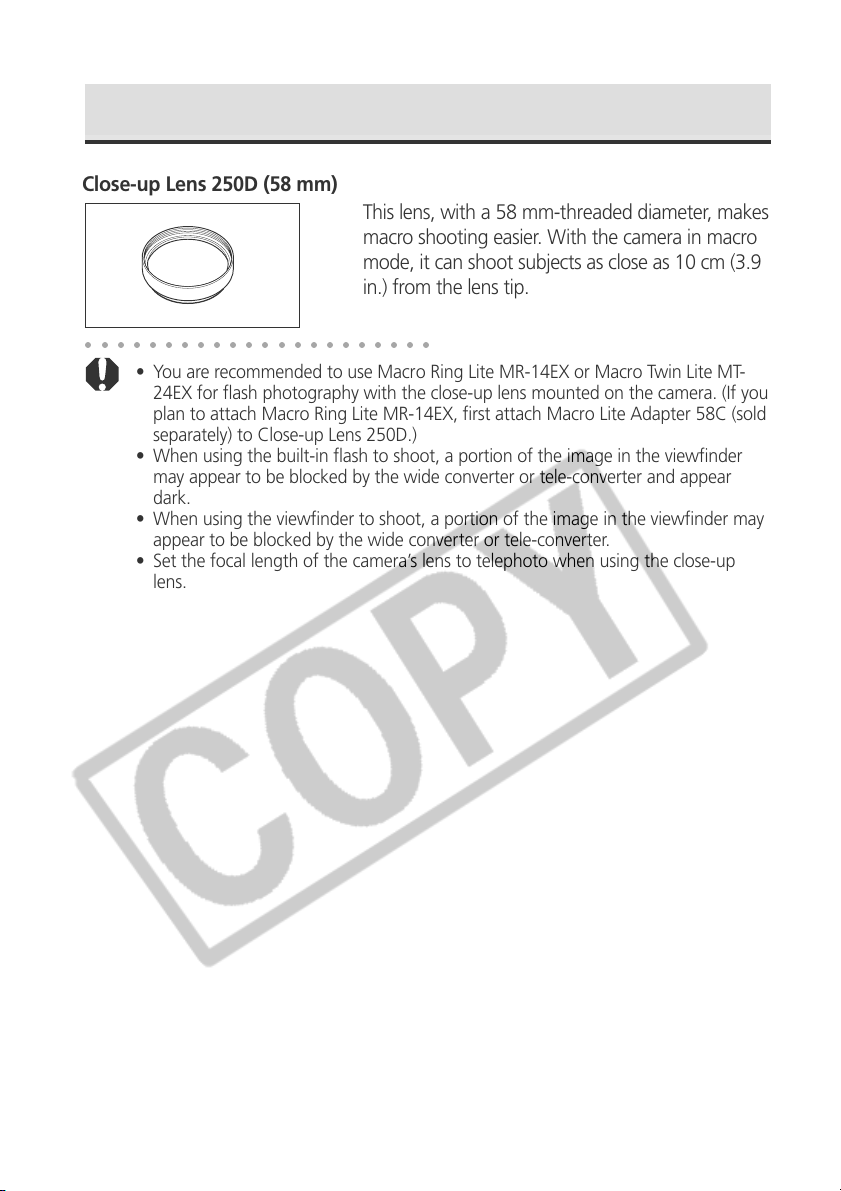
184
Using Conversion Lenses (Optional) / Close-up Lenses (Optional) (continued)
Close-up Lens 250D (58 mm)
This lens, with a 58 mm-threaded diameter, makes
macro shooting easier. With the camera in macro
mode, it can shoot subjects as close as 10 cm (3.9
in.) from the lens tip.
○○○○○○○○○○○○○○○○○○○○○○
• You are recommended to use Macro Ring Lite MR-14EX or Macro Twin Lite MT-
24EX for flash photography with the close-up lens mounted on the camera. (If you
plan to attach Macro Ring Lite MR-14EX, first attach Macro Lite Adapter 58C (sold
separately) to Close-up Lens 250D.)
• When using the built-in flash to shoot, a portion of the image in the viewfinder
may appear to be blocked by the wide converter or tele-converter and appear
dark.
• When using the viewfinder to shoot, a portion of the image in the viewfinder may
appear to be blocked by the wide converter or tele-converter.
• Set the focal length of the camera’s lens to telephoto when using the close-up
lens.
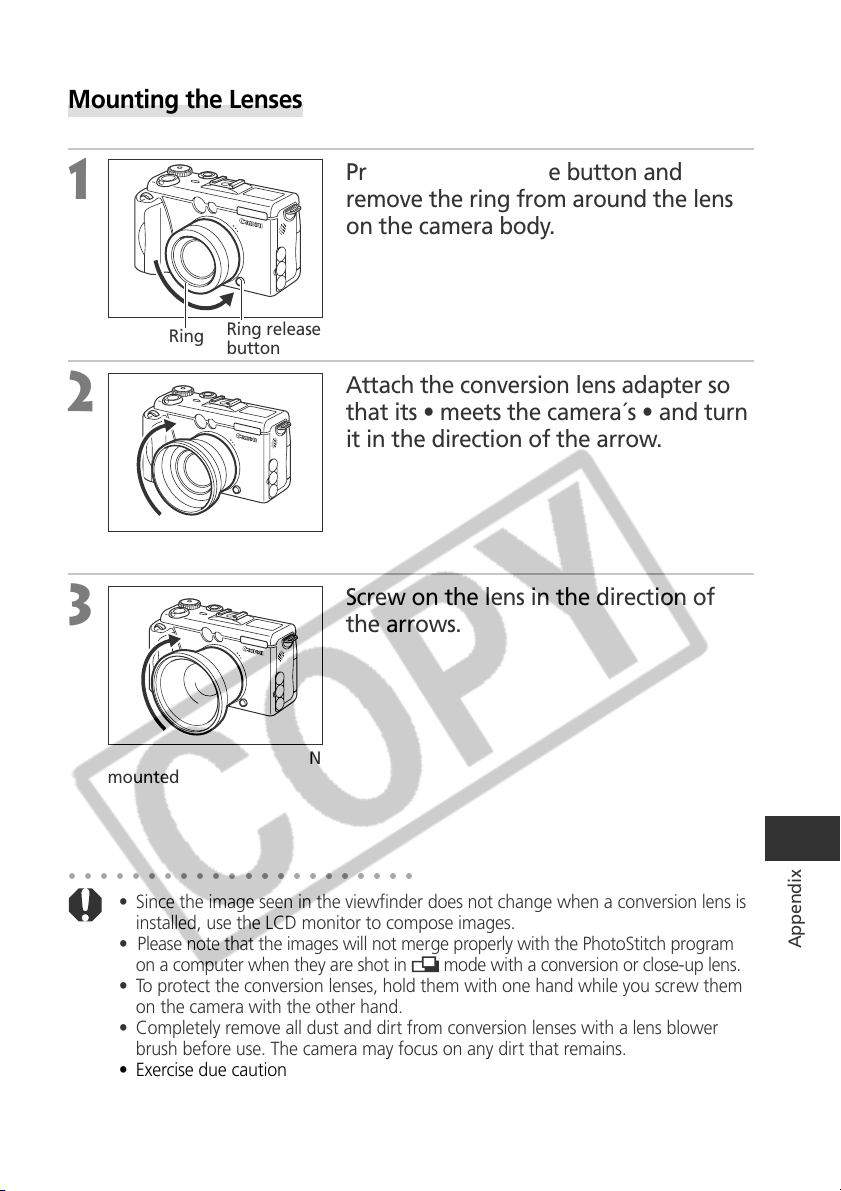
185
Appendix
○○○○○○○○○○○○○○○○○○○○○○
• Since the image seen in the viewfinder does not change when a conversion lens is
installed, use the LCD monitor to compose images.
• Please note that the images will not merge properly with the PhotoStitch program
on a computer when they are shot in
mode with a conversion or close-up lens.
• To protect the conversion lenses, hold them with one hand while you screw them
on the camera with the other hand.
• Completely remove all dust and dirt from conversion lenses with a lens blower
brush before use. The camera may focus on any dirt that remains.
• Exercise due caution when handling the conversion lenses since it is easy to dirty
them with fingerprints.
Wide-Converter WC-DC58N
mounted
Mounting the Lenses
1
Press the ring release button and
remove the ring from around the lens
on the camera body.
2
Attach the conversion lens adapter so
that its • meets the camera´s • and turn
it in the direction of the arrow.
3
Screw on the lens in the direction of
the arrows.
Ring release
button
Ring
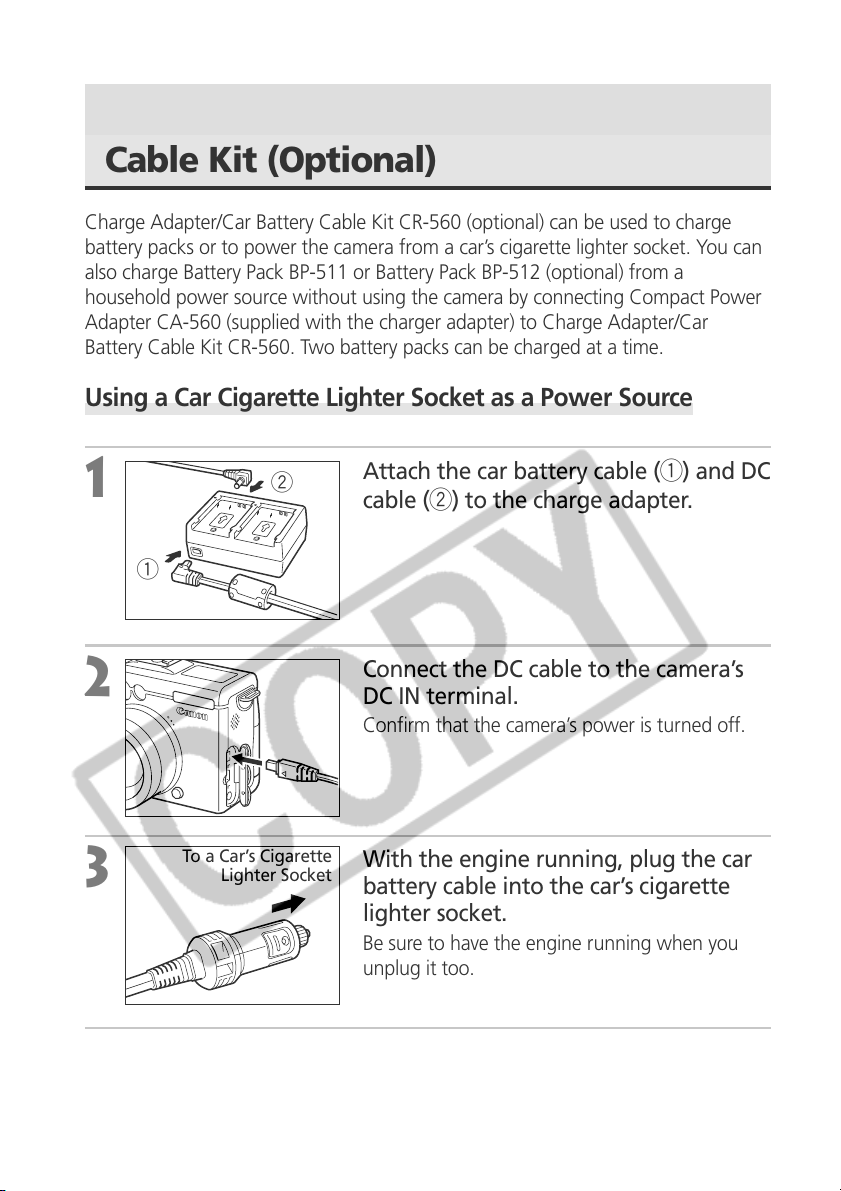
186
q
w
Using a Charge Adapter / Car Battery
Cable Kit (Optional)
Charge Adapter/Car Battery Cable Kit CR-560 (optional) can be used to charge
battery packs or to power the camera from a car’s cigarette lighter socket. You can
also charge Battery Pack BP-511 or Battery Pack BP-512 (optional) from a
household power source without using the camera by connecting Compact Power
Adapter CA-560 (supplied with the charger adapter) to Charge Adapter/Car
Battery Cable Kit CR-560. Two battery packs can be charged at a time.
Using a Car Cigarette Lighter Socket as a Power Source
1
Attach the car battery cable (q) and DC
cable (w) to the charge adapter.
2
Connect the DC cable to the camera’s
DC IN terminal.
Confirm that the camera’s power is turned off.
3
With the engine running, plug the car
battery cable into the car’s cigarette
lighter socket.
Be sure to have the engine running when you
unplug it too.
4
Turn the camera on.
To a Car’s Cigarette
Lighter Socket
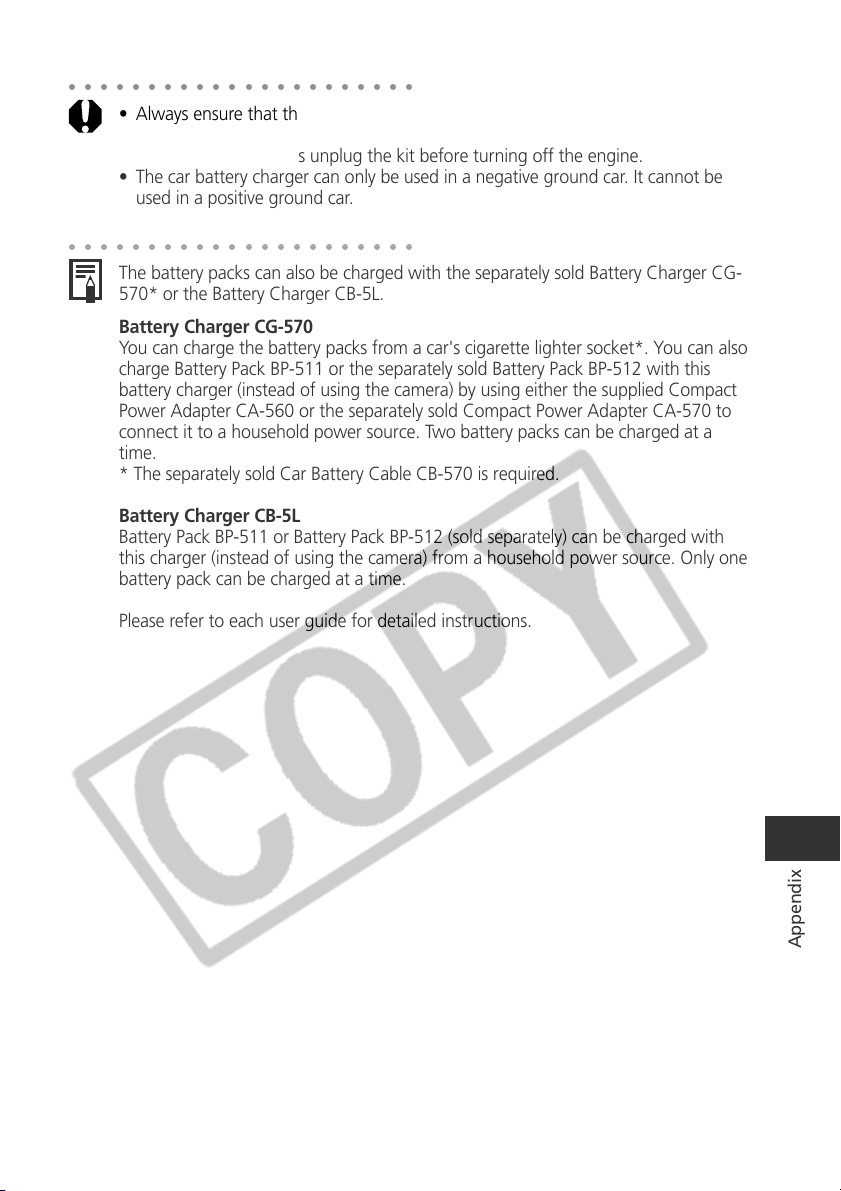
187
Appendix
○○○○○○○○○○○○○○○○○○○○○○
• Always ensure that the car’s engine is running when you use Charge Adapter/Car
Battery Cable Kit CR-560. Use of the kit without the engine running may flatten
the car battery. Always unplug the kit before turning off the engine.
• The car battery charger can only be used in a negative ground car. It cannot be
used in a positive ground car.
○○○○○○○○○○○○○○○○○○○○○○
The battery packs can also be charged with the separately sold Battery Charger CG-
570* or the Battery Charger CB-5L.
Battery Charger CG-570
You can charge the battery packs from a car's cigarette lighter socket*. You can also
charge Battery Pack BP-511 or the separately sold Battery Pack BP-512 with this
battery charger (instead of using the camera) by using either the supplied Compact
Power Adapter CA-560 or the separately sold Compact Power Adapter CA-570 to
connect it to a household power source. Two battery packs can be charged at a
time.
* The separately sold Car Battery Cable CB-570 is required.
Battery Charger CB-5L
Battery Pack BP-511 or Battery Pack BP-512 (sold separately) can be charged with
this charger (instead of using the camera) from a household power source. Only one
battery pack can be charged at a time.
Please refer to each user guide for detailed instructions.
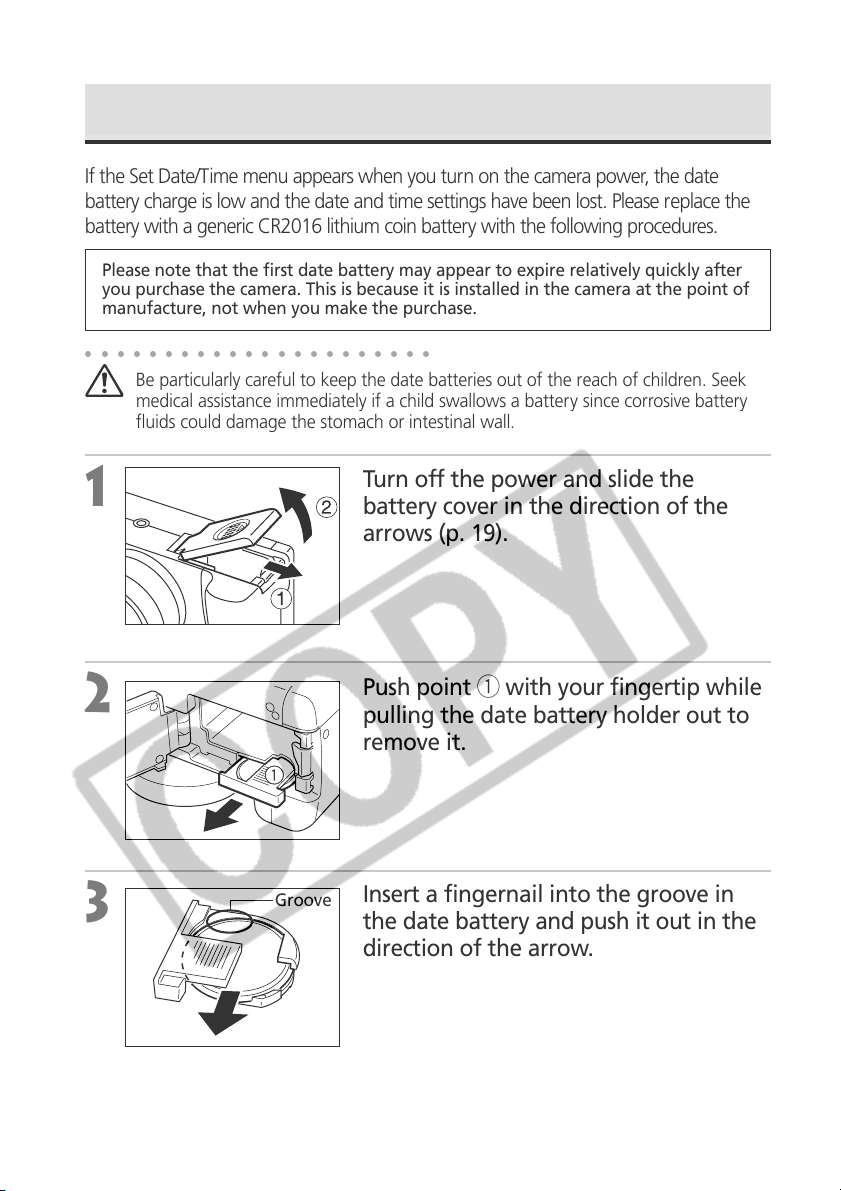
188
q
Replacing the Date Battery
If the Set Date/Time menu appears when you turn on the camera power, the date
battery charge is low and the date and time settings have been lost. Please replace the
battery with a generic CR2016 lithium coin battery with the following procedures.
Please note that the first date battery may appear to expire relatively quickly after
you purchase the camera. This is because it is installed in the camera at the point of
manufacture, not when you make the purchase.
○○○○○○○○○○○○○○○○○○○○○○
Be particularly careful to keep the date batteries out of the reach of children. Seek
medical assistance immediately if a child swallows a battery since corrosive battery
fluids could damage the stomach or intestinal wall.
1
Turn off the power and slide the
battery cover in the direction of the
arrows (p. 19).
2
Push point q with your fingertip while
pulling the date battery holder out to
remove it.
3
Insert a fingernail into the groove in
the date battery and push it out in the
direction of the arrow.
Groove
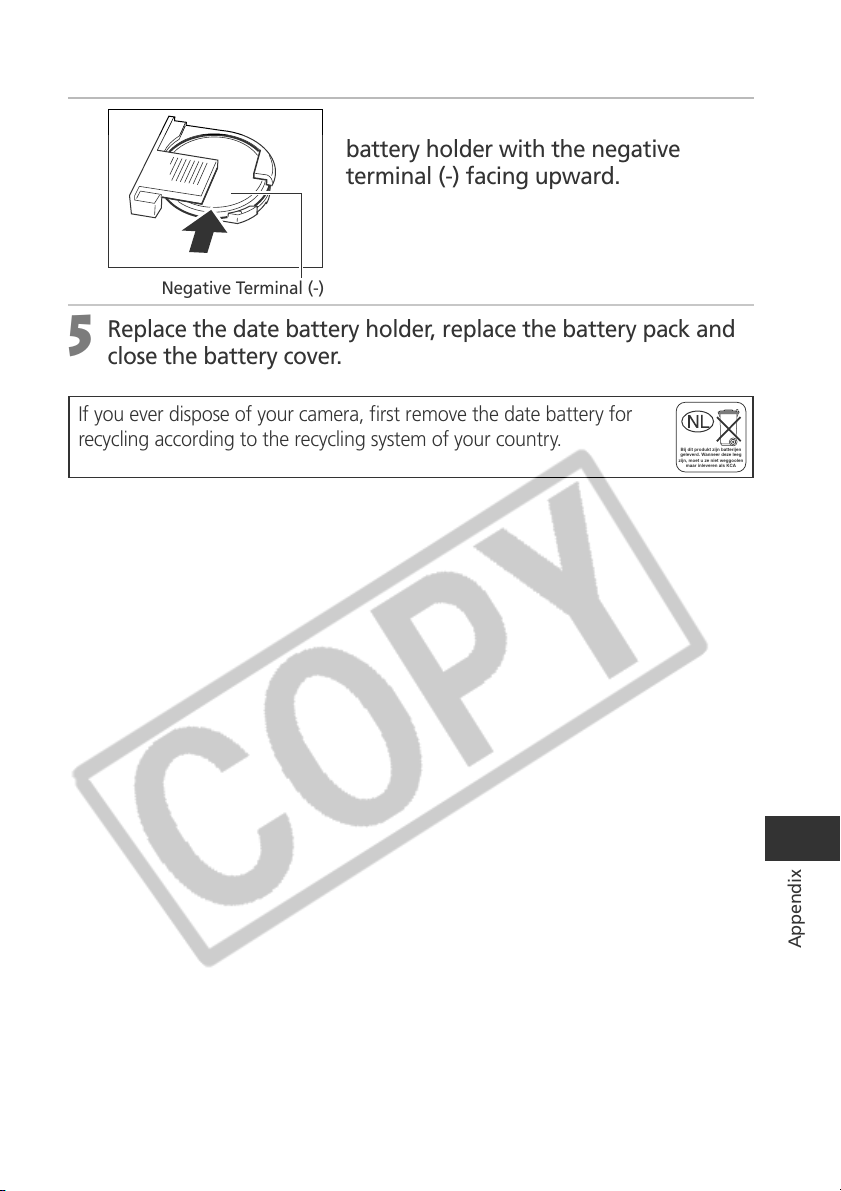
189
Appendix
4
Place a new date battery into the date
battery holder with the negative
terminal (-) facing upward.
5
Replace the date battery holder, replace the battery pack and
close the battery cover.
Negative Terminal (-)
If you ever dispose of your camera, first remove the date battery for
recycling according to the recycling system of your country.
Bij dit produkt zijn batterijen
geleverd. Wanneer deze leeg
zijn, moet u ze niet weggoolen
maar inleveren als KCA
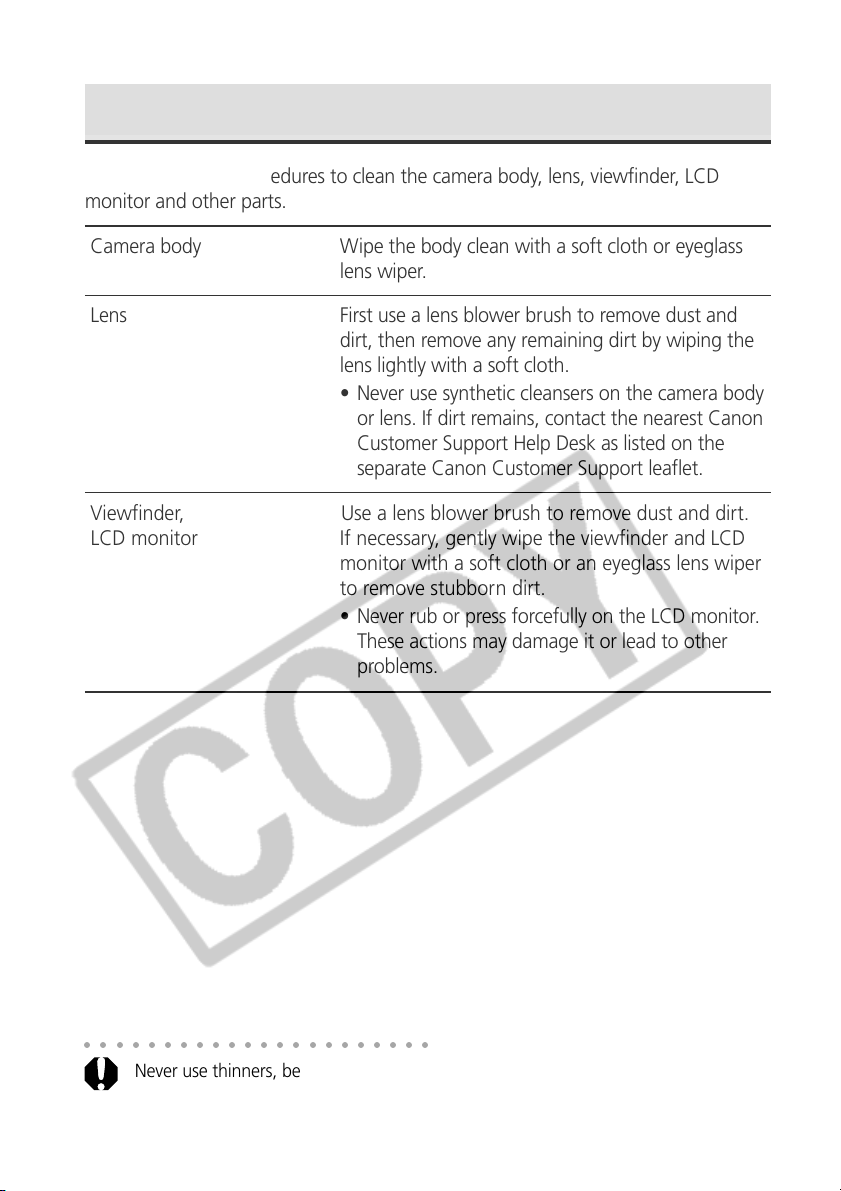
190
○○○○○○○○○○○○○○○○○○○○○○
Never use thinners, benzene, synthetic cleansers or water to clean the camera. These
substances may distort or damage the equipment.
Camera Care and Maintenance
Use the following procedures to clean the camera body, lens, viewfinder, LCD
monitor and other parts.
Camera body Wipe the body clean with a soft cloth or eyeglass
lens wiper.
Lens First use a lens blower brush to remove dust and
dirt, then remove any remaining dirt by wiping the
lens lightly with a soft cloth.
• Never use synthetic cleansers on the camera body
or lens. If dirt remains, contact the nearest Canon
Customer Support Help Desk as listed on the
separate Canon Customer Support leaflet.
Viewfinder, Use a lens blower brush to remove dust and dirt.
If necessary, gently wipe the viewfinder and LCD
monitor with a soft cloth or an eyeglass lens wiper
to remove stubborn dirt.
• Never rub or press forcefully on the LCD monitor.
These actions may damage it or lead to other
problems.
LCD monitor
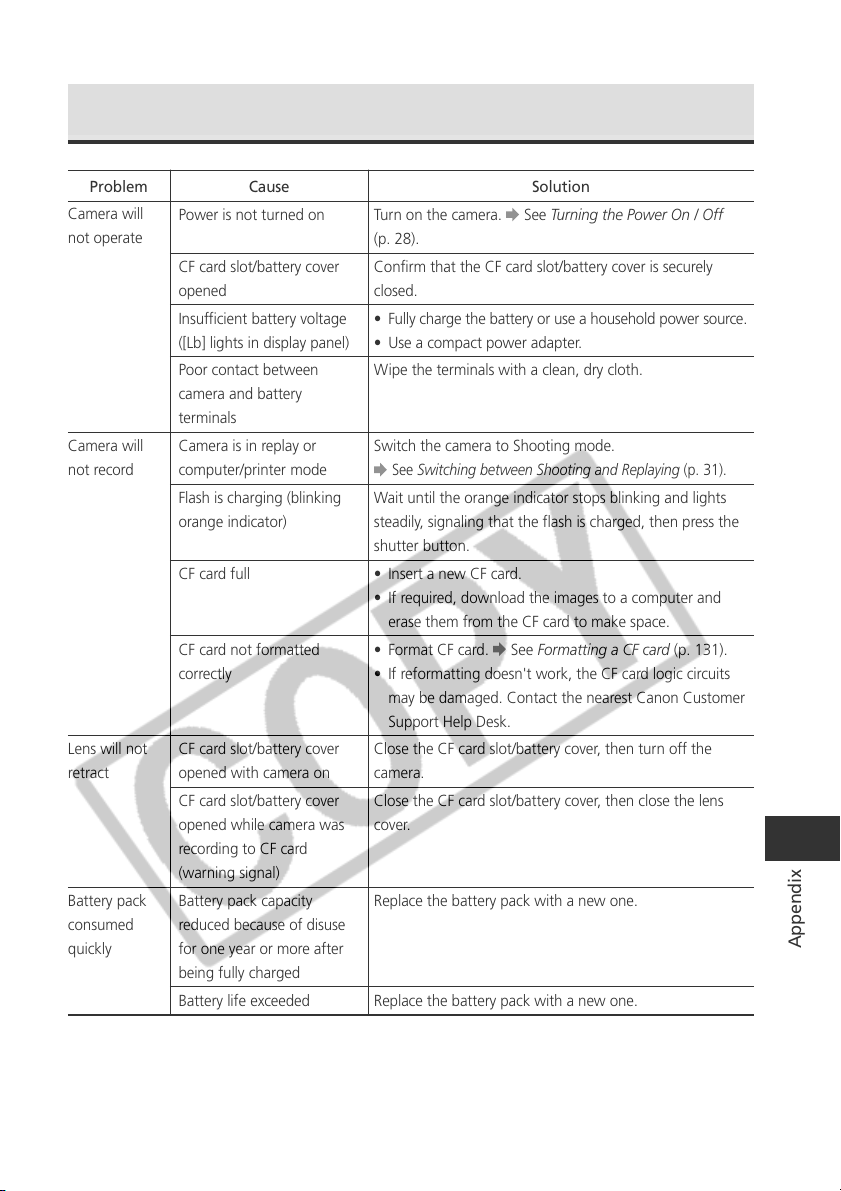
191
Appendix
Troubleshooting
Turn on the camera. See Turning the Power On / Off
(p. 28).
Confirm that the CF card slot/battery cover is securely
closed.
• Fully charge the battery or use a household power source.
• Use a compact power adapter.
Wipe the terminals with a clean, dry cloth.
Switch the camera to Shooting mode.
See Switching between Shooting and Replaying (p. 31).
Wait until the orange indicator stops blinking and lights
steadily, signaling that the flash is charged, then press the
shutter button.
• Insert a new CF card.
• If required, download the images to a computer and
erase them from the CF card to make space.
• Format CF card. See Formatting a CF card (p. 131).
• If reformatting doesn't work, the CF card logic circuits
may be damaged. Contact the nearest Canon Customer
Support Help Desk.
Close the CF card slot/battery cover, then turn off the
camera.
Close the CF card slot/battery cover, then close the lens
cover.
Replace the battery pack with a new one.
Replace the battery pack with a new one.
Problem Cause Solution
Power is not turned on
CF card slot/battery cover
opened
Insufficient battery voltage
([Lb] lights in display panel)
Poor contact between
camera and battery
terminals
Camera is in replay or
computer/printer mode
Flash is charging (blinking
orange indicator)
CF card full
CF card not formatted
correctly
CF card slot/battery cover
opened with camera on
CF card slot/battery cover
opened while camera was
recording to CF card
(warning signal)
Battery pack capacity
reduced because of disuse
for one year or more after
being fully charged
Battery life exceeded
Camera will
not operate
Camera will
not record
Lens will not
retract
Battery pack
consumed
quickly
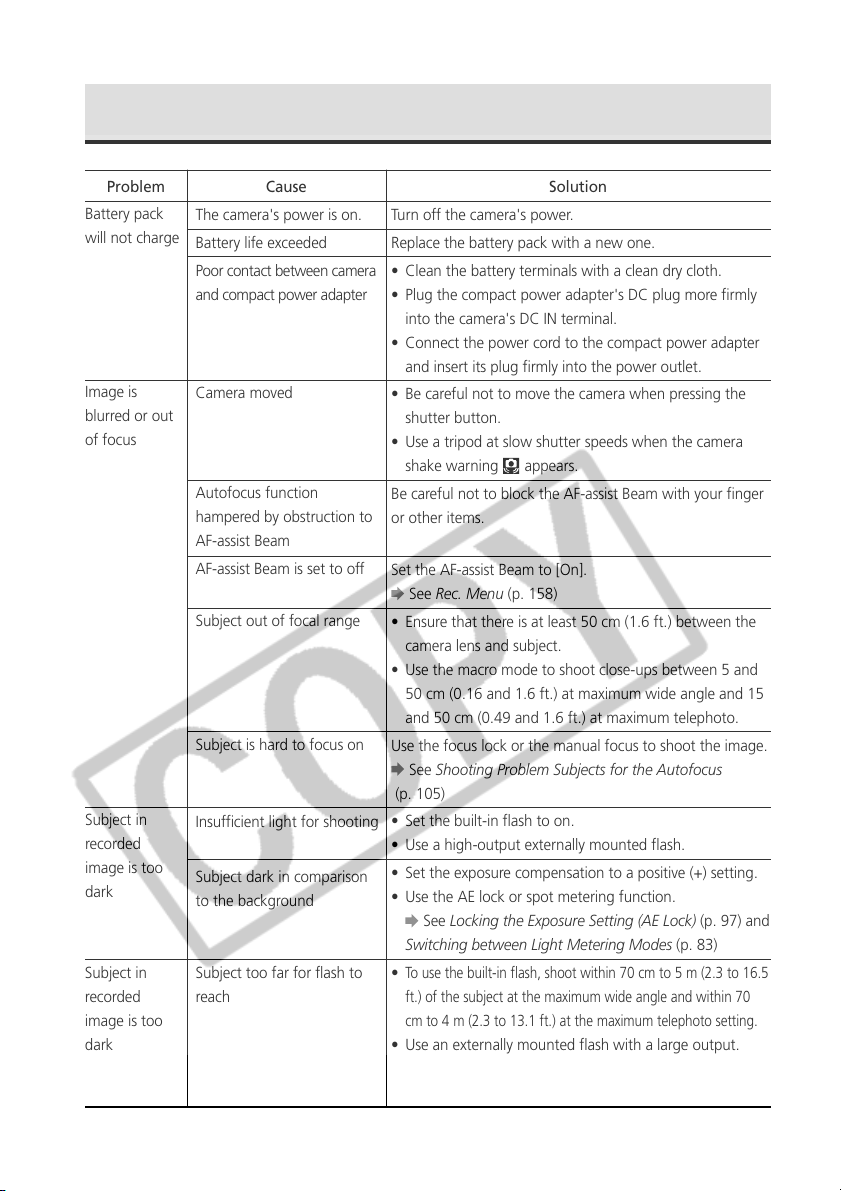
192
Turn off the camera's power.
Replace the battery pack with a new one.
• Clean the battery terminals with a clean dry cloth.
• Plug the compact power adapter's DC plug more firmly
into the camera's DC IN terminal.
• Connect the power cord to the compact power adapter
and insert its plug firmly into the power outlet.
• Be careful not to move the camera when pressing the
shutter button.
• Use a tripod at slow shutter speeds when the camera
shake warning appears.
Be careful not to block the AF-assist Beam with your finger
or other items.
Set the AF-assist Beam to [On].
See Rec. Menu (p. 158)
• Ensure that there is at least 50 cm (1.6 ft.) between the
camera lens and subject.
• Use the macro mode to shoot close-ups between 5 and
50 cm (0.16 and 1.6 ft.) at maximum wide angle and 15
and 50 cm (0.49 and 1.6 ft.) at maximum telephoto.
Use the focus lock or the manual focus to shoot the image.
See Shooting Problem Subjects for the Autofocus
(p. 105)
• Set the built-in flash to on.
• Use a high-output externally mounted flash.
• Set the exposure compensation to a positive (+) setting.
• Use the AE lock or spot metering function.
See Locking the Exposure Setting (AE Lock) (p. 97) and
Switching between Light Metering Modes (p. 83)
•
To use the built-in flash, shoot within 70 cm to 5 m (2.3 to 16.5
ft.) of the subject at the maximum wide angle and within 70
cm to 4 m (2.3 to 13.1 ft.) at the maximum telephoto setting.
• Use an externally mounted flash with a large output.
• Raise the ISO sensitivity and then shoot. See Changing
the ISO speed (p. 92)
Problem Cause Solution
The camera's power is on.
Battery life exceeded
Poor contact between camera
and compact power adapter
Camera moved
Autofocus function
hampered by obstruction to
AF-assist Beam
AF-assist Beam is set to off
Subject out of focal range
Subject is hard to focus on
Insufficient light for shooting
Subject dark in comparison
to the background
Subject too far for flash to
reach
Battery pack
will not charge
Subject in
recorded
image is too
dark
Troubleshooting (continued)
Image is
blurred or out
of focus
Subject in
recorded
image is too
dark
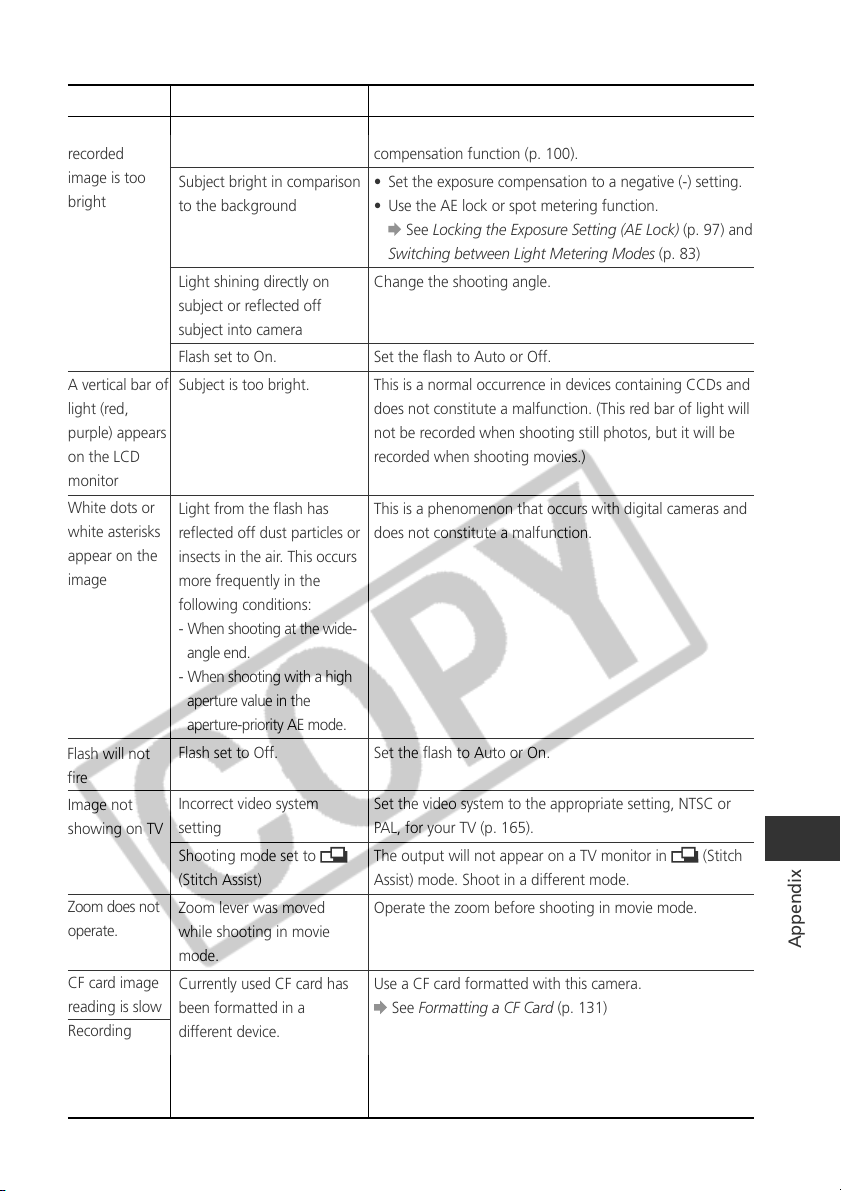
193
Appendix
Adjust the flash output with the flash exposure
compensation function (p. 100).
• Set the exposure compensation to a negative (-) setting.
• Use the AE lock or spot metering function.
See Locking the Exposure Setting (AE Lock) (p. 97) and
Switching between Light Metering Modes (p. 83)
Change the shooting angle.
Set the flash to Auto or Off.
This is a normal occurrence in devices containing CCDs and
does not constitute a malfunction. (This red bar of light will
not be recorded when shooting still photos, but it will be
recorded when shooting movies.)
This is a phenomenon that occurs with digital cameras and
does not constitute a malfunction.
Set the flash to Auto or On.
Set the video system to the appropriate setting, NTSC or
PAL, for your TV (p. 165).
The output will not appear on a TV monitor in (Stitch
Assist) mode. Shoot in a different mode.
Operate the zoom before shooting in movie mode.
Use a CF card formatted with this camera.
See Formatting a CF Card (p. 131)
Problem Cause Solution
Subject in
recorded
image is too
bright
A vertical bar of
light (red,
purple) appears
on the LCD
monitor
White dots or
white asterisks
appear on the
image
Flash will not
fire
Image not
showing on TV
Zoom does not
operate.
CF card image
reading is slow
Recording
i
mages on the
CF card takes
too long
Subject too close
Subject bright in comparison
to the background
Light shining directly on
subject or reflected off
subject into camera
Flash set to On.
Subject is too bright.
Light from the flash has
reflected off dust particles or
insects in the air. This occurs
more frequently in the
following conditions:
- When shooting at the wide-
angle end.
- When shooting with a high
aperture value in the
aperture-priority AE mode.
Flash set to Off.
Incorrect video system
setting
Shooting mode set to
(Stitch Assist)
Zoom lever was moved
while shooting in movie
mode.
Currently used CF card has
been formatted in a
different device.
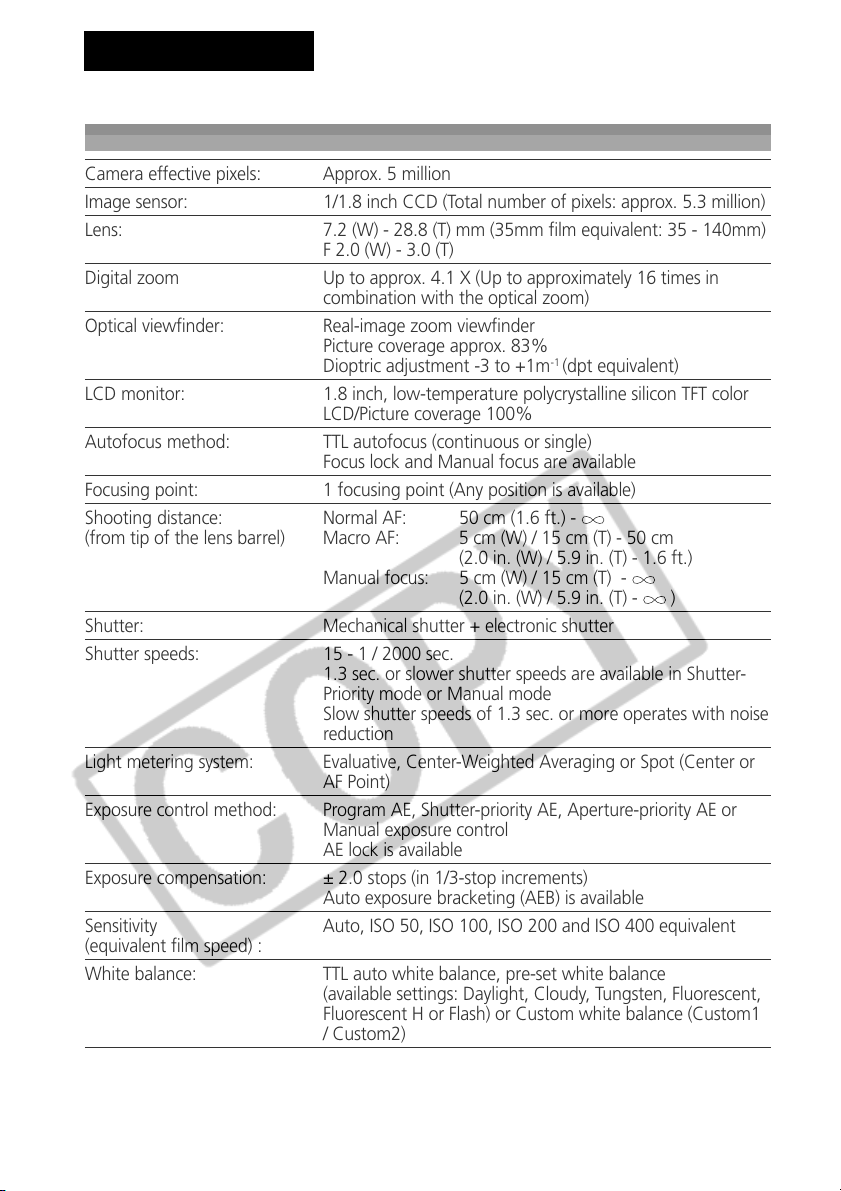
194
All data is based on Canon’s testing standard. Subject to change without notice.
PowerShot G5
Camera effective pixels: Approx. 5 million
Image sensor: 1/1.8 inch CCD (Total number of pixels: approx. 5.3 million)
Lens: 7.2 (W) - 28.8 (T) mm (35mm film equivalent: 35 - 140mm)
F 2.0 (W) - 3.0 (T)
Digital zoom Up to approx. 4.1 X (Up to approximately 16 times in
combination with the optical zoom)
Optical viewfinder: Real-image zoom viewfinder
Picture coverage approx. 83%
Dioptric adjustment -3 to +1m
-1
(dpt equivalent)
LCD monitor: 1.8 inch, low-temperature polycrystalline silicon TFT color
LCD/Picture coverage 100%
Autofocus method: TTL autofocus (continuous or single)
Focus lock and Manual focus are available
Focusing point: 1 focusing point (Any position is available)
Shooting distance: Normal AF: 50 cm (1.6 ft.) -
(from tip of the lens barrel) Macro AF: 5 cm (W) / 15 cm (T) - 50 cm
(2.0 in. (W) / 5.9 in. (T) - 1.6 ft.)
Manual focus: 5 cm (W) / 15 cm (T) -
(2.0 in. (W) / 5.9 in. (T) - )
Shutter: Mechanical shutter + electronic shutter
Shutter speeds: 15 - 1 / 2000 sec.
1.3 sec. or slower shutter speeds are available in Shutter-
Priority mode or Manual mode
Slow shutter speeds of 1.3 sec. or more operates with noise
reduction
Light metering system: Evaluative, Center-Weighted Averaging or Spot (Center or
AF Point)
Exposure control method: Program AE, Shutter-priority AE, Aperture-priority AE or
Manual exposure control
AE lock is available
Exposure compensation: ± 2.0 stops (in 1/3-stop increments)
Auto exposure bracketing (AEB) is available
Sensitivity Auto, ISO 50, ISO 100, ISO 200 and ISO 400 equivalent
(equivalent film speed) :
White balance: TTL auto white balance, pre-set white balance
(available settings: Daylight, Cloudy, Tungsten, Fluorescent,
Fluorescent H or Flash) or Custom white balance (Custom1
/ Custom2)
Specifications
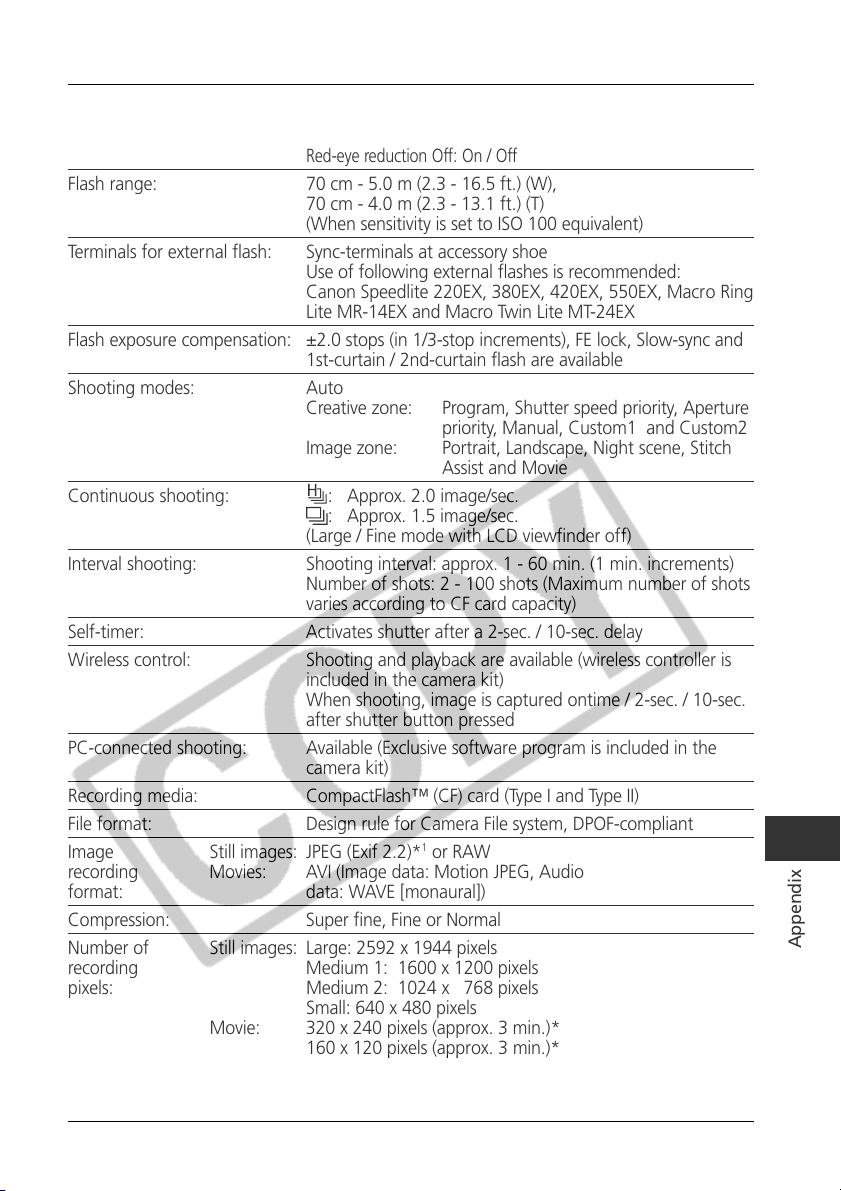
195
Appendix
Built-in flash:
Auto, On, Off
Red-eye reduction On: Red-eye reduction auto /
Red-eye reduction On / Off
Red-eye reduction Off: On / Off
Flash range: 70 cm - 5.0 m (2.3 - 16.5 ft.) (W),
70 cm - 4.0 m (2.3 - 13.1 ft.) (T)
(When sensitivity is set to ISO 100 equivalent)
Terminals for external flash: Sync-terminals at accessory shoe
Use of following external flashes is recommended:
Canon Speedlite 220EX, 380EX, 420EX, 550EX, Macro Ring
Lite MR-14EX and Macro Twin Lite MT-24EX
Flash exposure compensation: ±2.0 stops (in 1/3-stop increments), FE lock, Slow-sync and
1st-curtain / 2nd-curtain flash are available
Shooting modes: Auto
Creative zone: Program, Shutter speed priority, Aperture
priority, Manual, Custom1 and Custom2
Image zone: Portrait, Landscape, Night scene, Stitch
Assist and Movie
Continuous shooting: : Approx. 2.0 image/sec.
: Approx. 1.5 image/sec.
(Large / Fine mode with LCD viewfinder off)
Interval shooting: Shooting interval: approx. 1 - 60 min. (1 min. increments)
Number of shots: 2 - 100 shots (Maximum number of shots
varies according to CF card capacity)
Self-timer: Activates shutter after a 2-sec. / 10-sec. delay
Wireless control: Shooting and playback are available (wireless controller is
included in the camera kit)
When shooting, image is captured ontime / 2-sec. / 10-sec.
after shutter button pressed
PC-connected shooting: Available (Exclusive software program is included in the
camera kit)
Recording media: CompactFlash™ (CF) card (Type I and Type II)
File format: Design rule for Camera File system, DPOF-compliant
Image Still images: JPEG (Exif 2.2)*
1
or RAW
recording Movies: AVI (Image data: Motion JPEG, Audio
format: data: WAVE [monaural])
Compression: Super fine, Fine or Normal
Number of Still images: Large: 2592 x 1944 pixels
recording Medium 1: 1600 x 1200 pixels
pixels: Medium 2: 1024 x 768 pixels
Small: 640 x 480 pixels
Movie: 320 x 240 pixels (approx. 3 min.)*
160 x 120 pixels (approx. 3 min.)*
Approx. 15 frames/second
* The data in parentheses refer to the maximum movie
length per shooting.
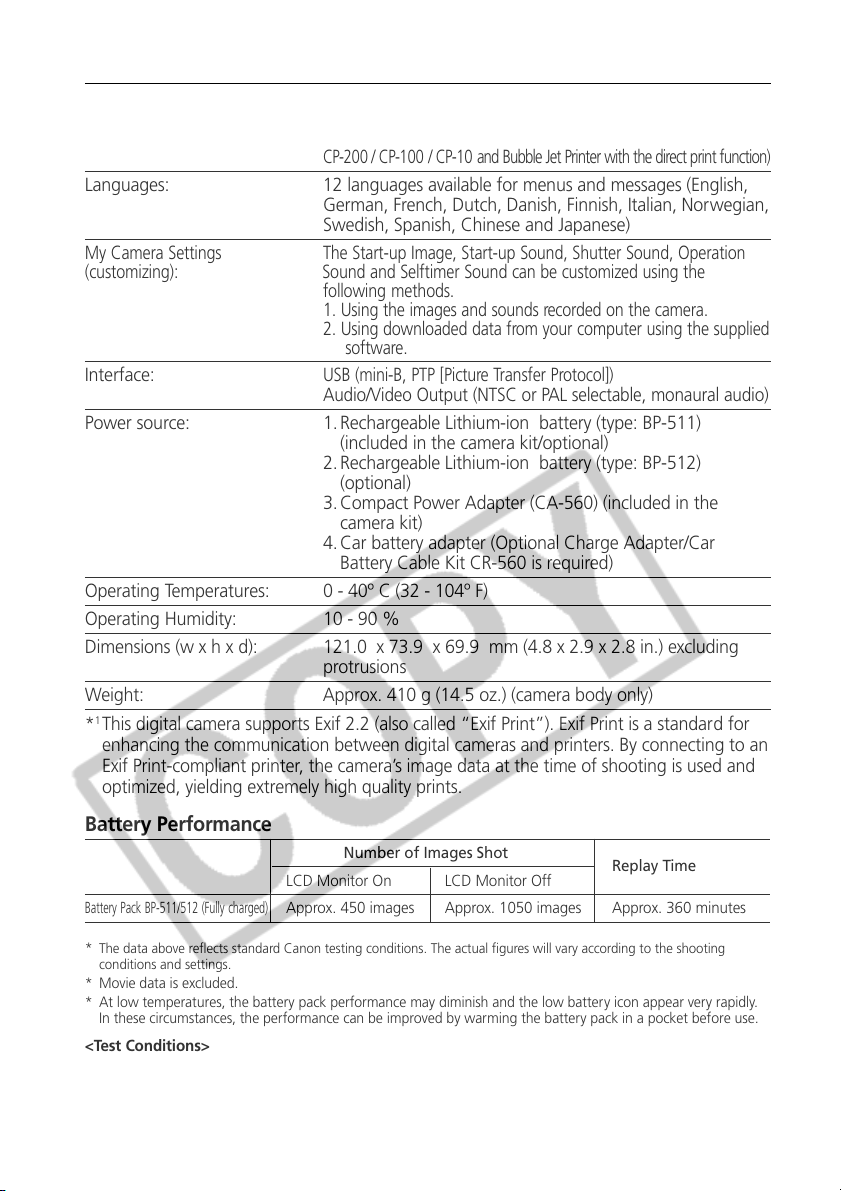
196
Number of Images Shot
Replay Time
LCD Monitor On LCD Monitor Off
Battery Pack BP-511/512 (Fully charged)
Approx. 450 images Approx. 1050 images Approx. 360 minutes
Replay modes: Single (Histogram displayable), Index (9 thumbnail images),
Magnified (approx. 10x (max.) in LCD monitor),
Sound annotations
(up to 60 sec.),
Slide Show
or Image output to direct Printer (CP-300 /
CP-200 / CP-100 / CP-10 and Bubble Jet Printer with the direct print function)
Languages: 12 languages available for menus and messages (English,
German, French, Dutch, Danish, Finnish, Italian, Norwegian,
Swedish, Spanish, Chinese and Japanese)
My Camera Settings The Start-up Image, Start-up Sound, Shutter Sound, Operation
(customizing): Sound and Selftimer Sound can be customized using the
following methods.
1. Using the images and sounds recorded on the camera.
2. Using downloaded data from your computer using the supplied
software.
Interface:
USB (mini-B, PTP [Picture Transfer Protocol])
Audio/Video Output (NTSC or PAL selectable, monaural audio)
Power source: 1. Rechargeable Lithium-ion battery (type: BP-511)
(included in the camera kit/optional)
2. Rechargeable Lithium-ion battery (type: BP-512)
(optional)
3. Compact Power Adapter (CA-560) (included in the
camera kit)
4. Car battery adapter (Optional Charge Adapter/Car
Battery Cable Kit CR-560 is required)
Operating Temperatures: 0 - 40º C (32 - 104º F)
Operating Humidity: 10 - 90 %
Dimensions (w x h x d): 121.0 x 73.9 x 69.9 mm (4.8 x 2.9 x 2.8 in.) excluding
protrusions
Weight: Approx. 410 g (14.5 oz.) (camera body only)
*
1
This digital camera supports Exif 2.2 (also called “Exif Print”). Exif Print is a standard for
enhancing the communication between digital cameras and printers. By connecting to an
Exif Print-compliant printer, the camera’s image data at the time of shooting is used and
optimized, yielding extremely high quality prints.
Battery Performance
*
The data above reflects standard Canon testing conditions. The actual figures will vary according to the shooting
conditions and settings.
* Movie data is excluded.
* At low temperatures, the battery pack performance may diminish and the low battery icon appear very rapidly.
In these circumstances, the performance can be improved by warming the battery pack in a pocket before use.
<Test Conditions>
Shooting: Normal temperature (23º C, 73º F), alternating wide angle end and telephoto end shots at 20-second intervals
with flash fired once every four shots and camera power turned off and on every eighth shot. CF card used.
Replaying: Normal temperature (23º C, 73º F), continuous playback at one image per 3 seconds. CF card used.
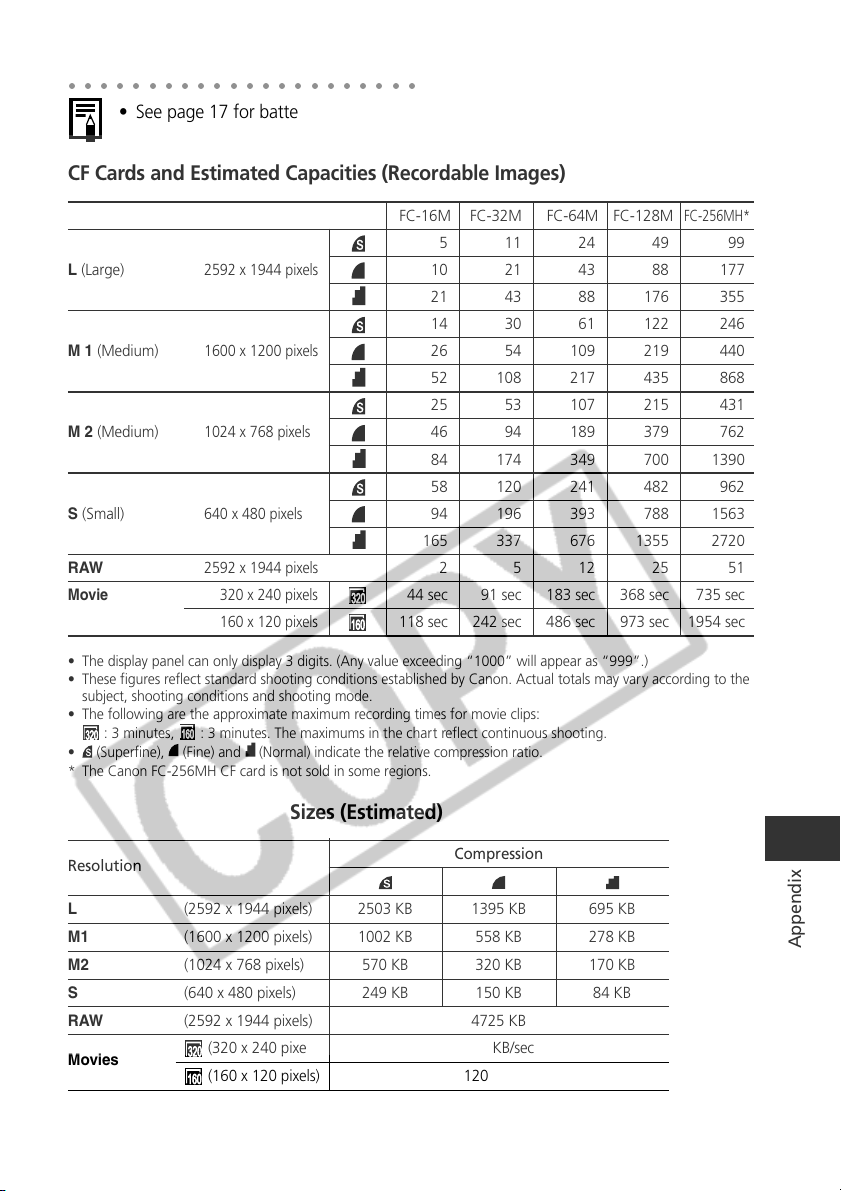
197
Appendix
CF Cards and Estimated Capacities (Recordable Images)
• The display panel can only display 3 digits. (Any value exceeding “1000” will appear as “999”.)
• These figures reflect standard shooting conditions established by Canon. Actual totals may vary according to the
subject, shooting conditions and shooting mode.
• The following are the approximate maximum recording times for movie clips:
: 3 minutes, : 3 minutes. The maximums in the chart reflect continuous shooting.
• (Superfine), (Fine) and (Normal) indicate the relative compression ratio.
* The Canon FC-256MH CF card is not sold in some regions.
FC-16M FC-32M FC-64M FC-128M
FC-256MH*
5112449 99
10 21 43 88 177
21 43 88 176 355
14 30 61 122 246
26 54 109 219 440
52 108 217 435 868
25 53 107 215 431
46 94 189 379 762
84 174 349 700 1390
58 120 241 482 962
94 196 393 788 1563
165 337 676 1355 2720
2 5 12 25 51
44 sec 91 sec 183 sec 368 sec 735 sec
118 sec 242 sec 486 sec 973 sec 1954 sec
L (Large)
2592 x 1944 pixels
M 1 (Medium)
1600 x 1200 pixels
M 2 (Medium)
1024 x 768 pixels
S (Small)
640 x 480 pixels
RAW
2592 x 1944 pixels
Movie 320 x 240 pixels
160 x 120 pixels
○○○○○○○○○○○○○○○○○○○○○○
• See page 17 for battery handling precautions.
Approximate Image File Sizes (Estimated)
Resolution
Compression
L (2592 x 1944 pixels) 2503 KB 1395 KB 695 KB
M1 (1600 x 1200 pixels) 1002 KB 558 KB 278 KB
M2 (1024 x 768 pixels) 570 KB 320 KB 170 KB
S (640 x 480 pixels) 249 KB 150 KB 84 KB
RAW (2592 x 1944 pixels) 4725 KB
Movies
(320 x 240 pixels) 330 KB/sec
(160 x 120 pixels) 120 KB/sec
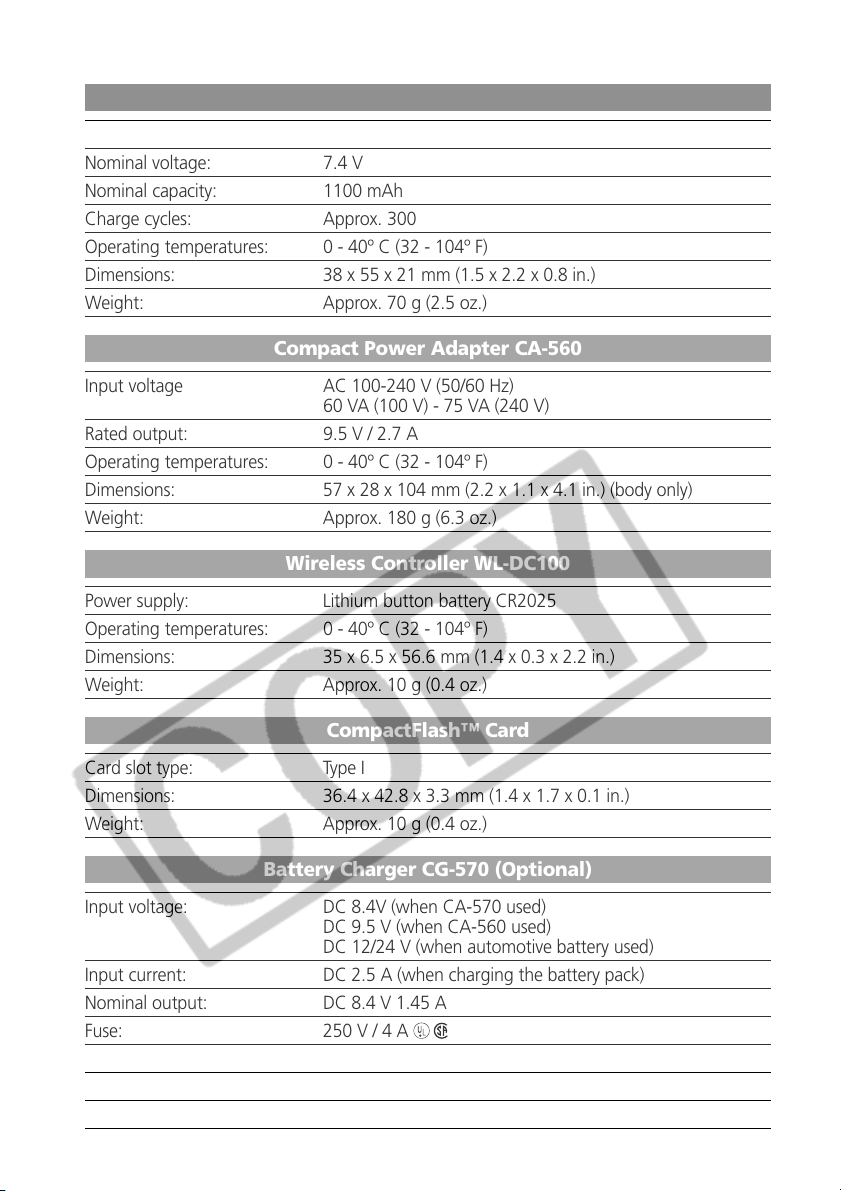
198
Battery Pack BP-511/Battery Pack BP-512 (Optional)
Type: Rechargeable lithium ion cell
Nominal voltage: 7.4 V
Nominal capacity: 1100 mAh
Charge cycles: Approx. 300
Operating temperatures: 0 - 40º C (32 - 104º F)
Dimensions: 38 x 55 x 21 mm (1.5 x 2.2 x 0.8 in.)
Weight: Approx. 70 g (2.5 oz.)
Compact Power Adapter CA-560
Input voltage AC 100-240 V (50/60 Hz)
60 VA (100 V) - 75 VA (240 V)
Rated output: 9.5 V / 2.7 A
Operating temperatures: 0 - 40º C (32 - 104º F)
Dimensions: 57 x 28 x 104 mm (2.2 x 1.1 x 4.1 in.) (body only)
Weight: Approx. 180 g (6.3 oz.)
Wireless Controller WL-DC100
Power supply: Lithium button battery CR2025
Operating temperatures: 0 - 40º C (32 - 104º F)
Dimensions: 35 x 6.5 x 56.6 mm (1.4 x 0.3 x 2.2 in.)
Weight: Approx. 10 g (0.4 oz.)
CompactFlash™ Card
Card slot type: Type I
Dimensions: 36.4 x 42.8 x 3.3 mm (1.4 x 1.7 x 0.1 in.)
Weight: Approx. 10 g (0.4 oz.)
Battery Charger CG-570 (Optional)
Input voltage: DC 8.4V (when CA-570 used)
DC 9.5 V (when CA-560 used)
DC 12/24 V (when automotive battery used)
Input current: DC 2.5 A (when charging the battery pack)
Nominal output: DC 8.4 V 1.45 A
Fuse: 250 V / 4 A
Operating temperatures: 0 - 40º C (32 - 104º F)
Dimensions: 93 x 36 x 73 mm (3.7 x 1.4 x 2.9 in.)
Weight: Approx. 130 g (4.6 oz.)
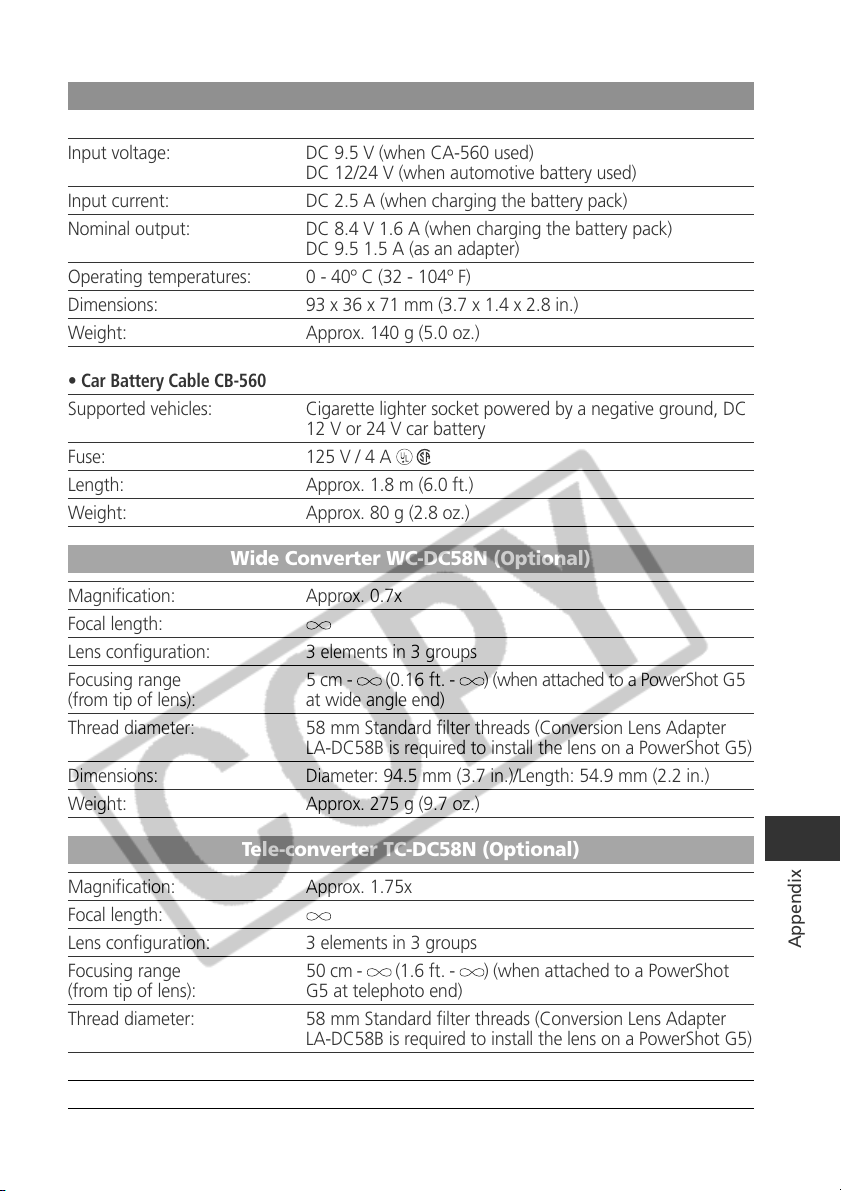
199
Appendix
Charge Adapter / Car Battery Cable Kit CR-560 (Optional)
• Charge Adapter CG-560
Input voltage: DC 9.5 V (when CA-560 used)
DC 12/24 V (when automotive battery used)
Input current: DC 2.5 A (when charging the battery pack)
Nominal output: DC 8.4 V 1.6 A (when charging the battery pack)
DC 9.5 1.5 A (as an adapter)
Operating temperatures: 0 - 40º C (32 - 104º F)
Dimensions: 93 x 36 x 71 mm (3.7 x 1.4 x 2.8 in.)
Weight: Approx. 140 g (5.0 oz.)
• Car Battery Cable CB-560
Supported vehicles: Cigarette lighter socket powered by a negative ground, DC
12 V or 24 V car battery
Fuse: 125 V / 4 A
Length: Approx. 1.8 m (6.0 ft.)
Weight: Approx. 80 g (2.8 oz.)
Wide Converter WC-DC58N (Optional)
Magnification: Approx. 0.7x
Focal length:
Lens configuration: 3 elements in 3 groups
Focusing range 5 cm - (0.16 ft. - ) (when attached to a PowerShot G5
(from tip of lens): at wide angle end)
Thread diameter: 58 mm Standard filter threads (Conversion Lens Adapter
LA-DC58B is required to install the lens on a PowerShot G5)
Dimensions: Diameter: 94.5 mm (3.7 in.)/Length: 54.9 mm (2.2 in.)
Weight: Approx. 275 g (9.7 oz.)
Tele-converter TC-DC58N (Optional)
Magnification: Approx. 1.75x
Focal length:
Lens configuration: 3 elements in 3 groups
Focusing range 50 cm - (1.6 ft. - ) (when attached to a PowerShot
(from tip of lens): G5 at telephoto end)
Thread diameter: 58 mm Standard filter threads (Conversion Lens Adapter
LA-DC58B is required to install the lens on a PowerShot G5)
Dimensions: Diameter: 75 mm (3.0 in.)/Length: 50 mm (2.0 in.)
Weight: Approx. 185 g (6.5 oz.)
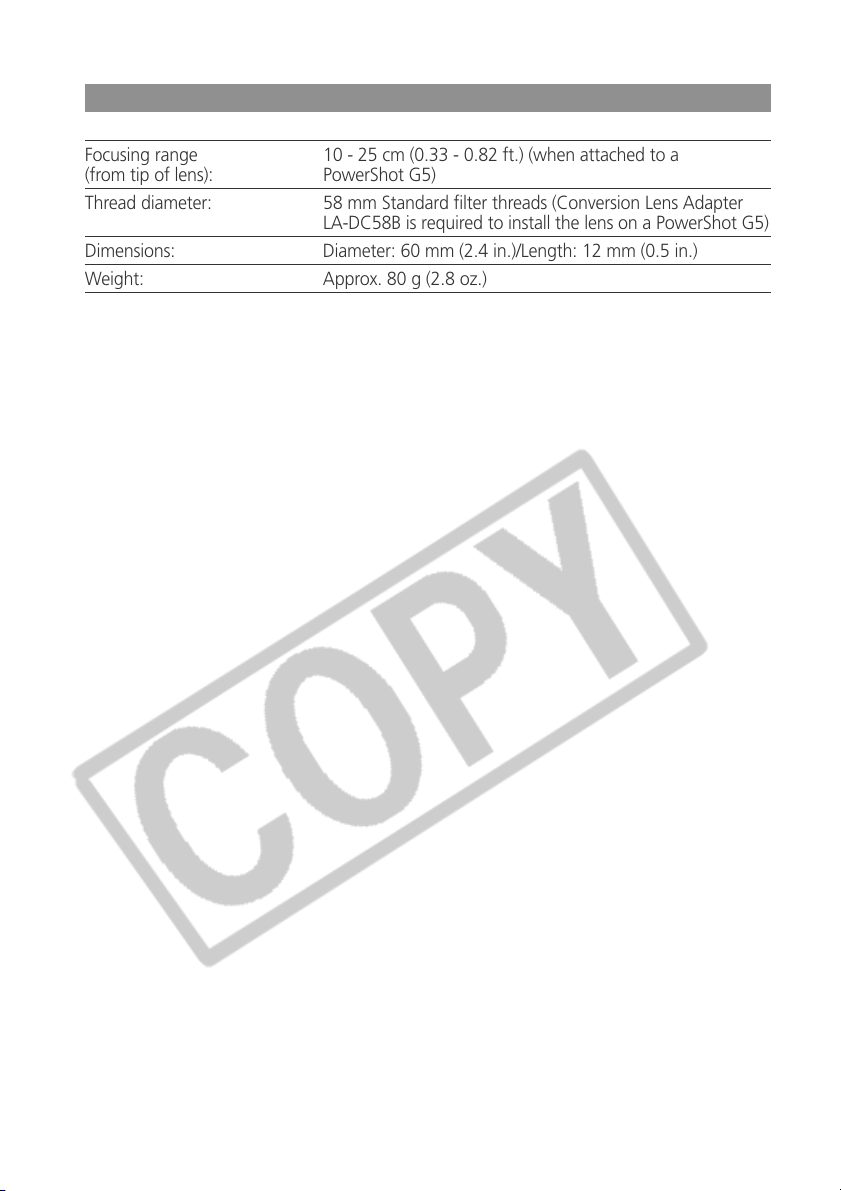
200
Close-up Lens 250D (58 mm) (Optional)
Focal length: 250 mm
Focusing range 10 - 25 cm (0.33 - 0.82 ft.) (when attached to a
(from tip of lens): PowerShot G5)
Thread diameter: 58 mm Standard filter threads (Conversion Lens Adapter
LA-DC58B is required to install the lens on a PowerShot G5)
Dimensions: Diameter: 60 mm (2.4 in.)/Length: 12 mm (0.5 in.)
Weight: Approx. 80 g (2.8 oz.)
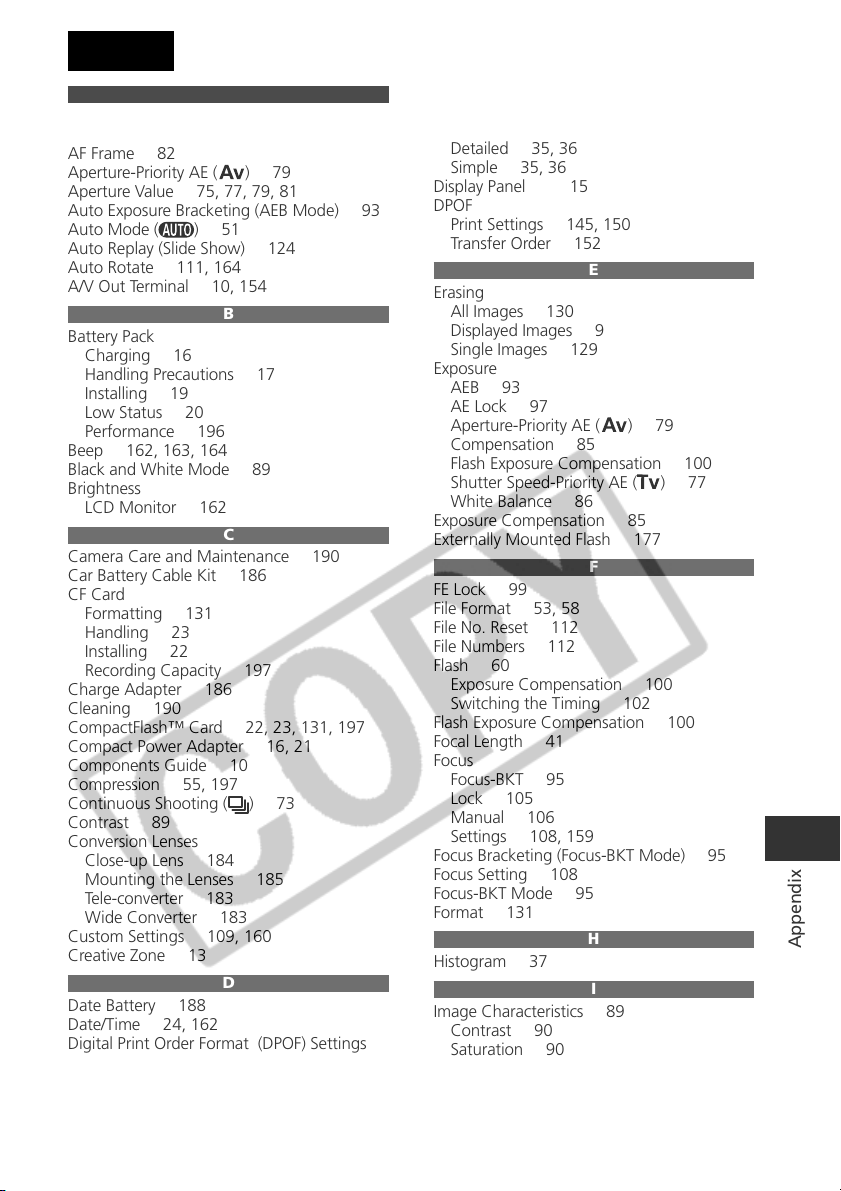
201
Appendix
Index
A
AE Lock 97
AEB Mode 93
AF Frame 82
Aperture-Priority AE (
) 79
Aperture Value 75, 77, 79, 81
Auto Exposure Bracketing (AEB Mode) 93
Auto Mode (
) 51
Auto Replay (Slide Show) 124
Auto Rotate 111, 164
A/V Out Terminal 10, 154
B
Battery Pack
Charging 16
Handling Precautions 17
Installing 19
Low Status 20
Performance 196
Beep 162, 163, 164
Black and White Mode 89
Brightness
LCD Monitor 162
C
Camera Care and Maintenance 190
Car Battery Cable Kit 186
CF Card
Formatting 131
Handling 23
Installing 22
Recording Capacity 197
Charge Adapter 186
Cleaning 190
CompactFlash™ Card 22, 23, 131, 197
Compact Power Adapter 16, 21
Components Guide 10
Compression 55, 197
Continuous Shooting (
) 73
Contrast 89
Conversion Lenses
Close-up Lens 184
Mounting the Lenses 185
Tele-converter 183
Wide Converter 183
Custom Settings 109, 160
Creative Zone 13
D
Date Battery 188
Date/Time 24, 162
Digital Print Order Format (DPOF) Settings
Print Settings 145, 150
Transfer Order 152
Digital Terminal 10, 137, 156
Digital Zoom 41, 72, 160
Display Modes 32 - 37
Detailed 35, 36
Simple 35, 36
Display Panel 15
DPOF
Print Settings 145, 150
Transfer Order 152
E
Erasing
All Images 130
Displayed Images 9
Single Images 129
Exposure
AEB 93
AE Lock 97
Aperture-Priority AE (
) 79
Compensation 85
Flash Exposure Compensation 100
Shutter Speed-Priority AE (
) 77
White Balance 86
Exposure Compensation 85
Externally Mounted Flash 177
F
FE Lock 99
File Format 53, 58
File No. Reset 112
File Numbers 112
Flash 60
Exposure Compensation 100
Switching the Timing 102
Flash Exposure Compensation 100
Focal Length 41
Focus
Focus-BKT 95
Lock 105
Manual 106
Settings 108, 159
Focus Bracketing (Focus-BKT Mode) 95
Focus Setting 108
Focus-BKT Mode 95
Format 131
H
Histogram 37
I
Image Characteristics 89
Contrast 90
Saturation 90
Sharpness 90
Image Zone 13
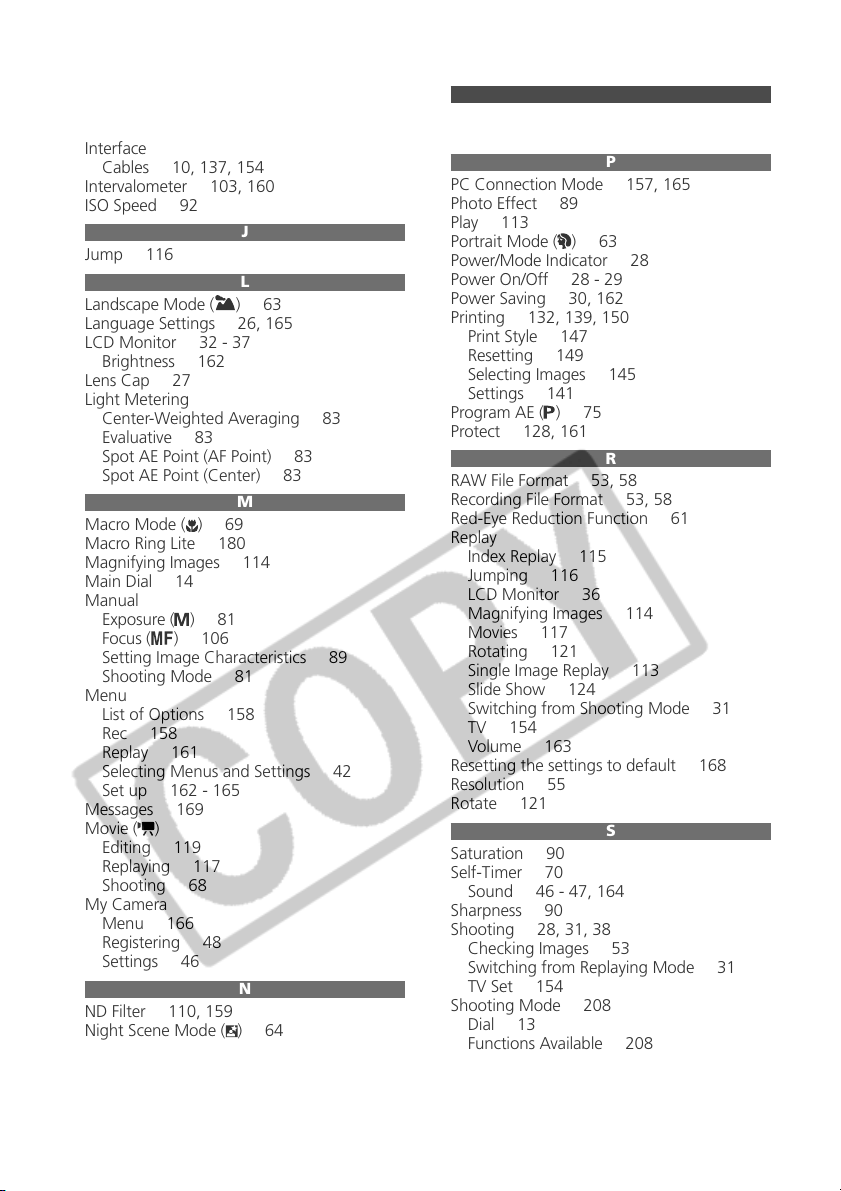
202
Index Replay 115
Indicators 11
Information View 35 - 36
Interface
Cables 10, 137, 154
Intervalometer 103, 160
ISO Speed 92
J
Jump 116
L
Landscape Mode ( ) 63
Language Settings 26, 165
LCD Monitor 32 - 37
Brightness 162
Lens Cap 27
Light Metering
Center-Weighted Averaging 83
Evaluative 83
Spot AE Point (AF Point) 83
Spot AE Point (Center) 83
M
Macro Mode ( ) 69
Macro Ring Lite 180
Magnifying Images 114
Main Dial 14
Manual
Exposure (
) 81
Focus (
) 106
Setting Image Characteristics 89
Shooting Mode 81
Menu
List of Options 158
Rec 158
Replay 161
Selecting Menus and Settings 42
Set up 162 - 165
Messages 169
Movie (
)
Editing 119
Replaying 117
Shooting 68
My Camera
Menu 166
Registering 48
Settings 46
N
ND Filter 110, 159
Night Scene Mode (
) 64
O
Operation Sound 46 - 47, 164
Overexposure Warning 37
P
PC Connection Mode 157, 165
Photo Effect 89
Play 113
Portrait Mode (
) 63
Power/Mode Indicator 28
Power On/Off 28 - 29
Power Saving 30, 162
Printing 132, 139, 150
Print Style 147
Resetting 149
Selecting Images 145
Settings 141
Program AE (
) 75
Protect 128, 161
R
RAW File Format 53, 58
Recording File Format 53, 58
Red-Eye Reduction Function 61
Replay
Index Replay 115
Jumping 116
LCD Monitor 36
Magnifying Images 114
Movies 117
Rotating 121
Single Image Replay 113
Slide Show 124
Switching from Shooting Mode 31
TV 154
Volume 163
Resetting the settings to default 168
Resolution 55
Rotate 121
S
Saturation 90
Self-Timer 70
Sound 46 - 47, 164
Sharpness 90
Shooting 28, 31, 38
Checking Images 53
Switching from Replaying Mode 31
TV Set 154
Shooting Mode 208
Dial 13
Functions Available 208
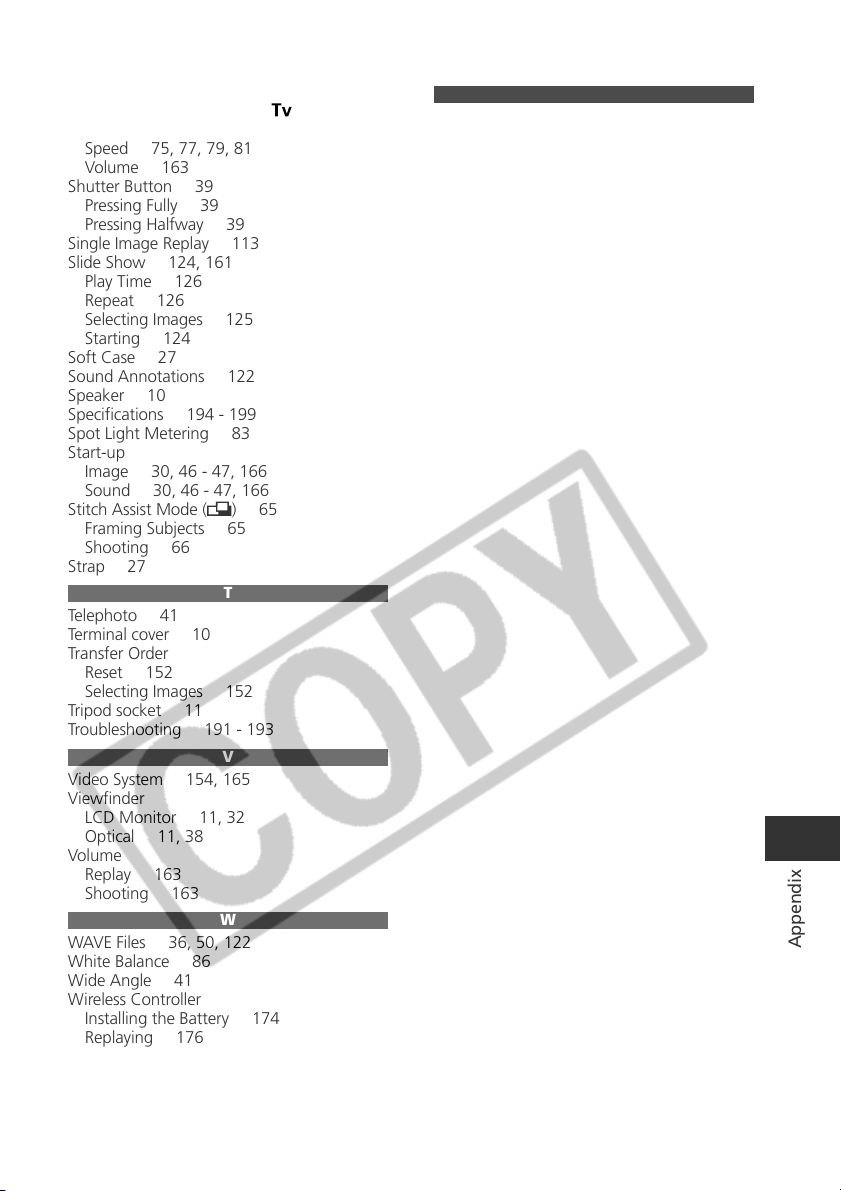
203
Appendix
Shutter
Shutter Speed-Priority AE (
) 77
Sound 46 - 47, 163
Speed 75, 77, 79, 81
Volume 163
Shutter Button 39
Pressing Fully 39
Pressing Halfway 39
Single Image Replay 113
Slide Show 124, 161
Play Time 126
Repeat 126
Selecting Images 125
Starting 124
Soft Case 27
Sound Annotations 122
Speaker 10
Specifications 194 - 199
Spot Light Metering 83
Start-up
Image 30, 46 - 47, 166
Sound 30, 46 - 47, 166
Stitch Assist Mode (
) 65
Framing Subjects 65
Shooting 66
Strap 27
T
Telephoto 41
Terminal cover 10
Transfer Order
Reset 152
Selecting Images 152
Tripod socket 11
Troubleshooting 191 - 193
V
Video System 154, 165
Viewfinder
LCD Monitor 11, 32
Optical 11, 38
Volume
Replay 163
Shooting 163
W
WAVE Files 36, 50, 122
White Balance 86
Wide Angle 41
Wireless Controller
Installing the Battery 174
Replaying 176
Removing the Battery 175
Shooting 175
Z
Zoom 41, 72, 114

204
MEMO
205
Appendix
MEMO

206
MEMO
Flowchart and Reference Guides
This Guide
Shooting with the Camera
Software Starter Guide
Installing the Software
This Guide
Connecting the Camera to a Computer
Software Starter Guide
Downloading Images to a Computer
Printer User Guide
Using the Printer and Printing
* Default setting.
● Setting selection is possible.
▲ Setting can only be selected for the first image.
-
Setting selection is not possible.
(Shaded Area) Setting remains in effect even when the camera is turned off.
The default for the settings changed by the menu and button operations can be restored all at once except for
[Date/Time], [Language] and [Video System] (p. 168).
(1) Selectable only in manual focus.
(2) The photo effect [Sepia] and [B/W] cannot be selected.
(3) The white balance is set to [AUTO].
(4) The white balance [flash] cannot be set.
(5) The ISO speed is automatically set by the camera.
(6) ISO [AUTO] cannot be selected.
Reference
Page
Macro Mode
Digital Zoom
On
Off
Exposure Compensation
Evaluative Metering
Center-Weighted Averaging
Spot Metering
Center
AF Point
AE Lock/FE Lock
Bracket
AEB
Focus-BKT
White Balance
(2)
Photo Effect
Contrast/
Sharpness/Saturation
Focus settings
Continuous
Single
ISO Speed
Auto Rotate
On
Off
ND Filter
●●– ●●●●●●●
●●●●––●●●●
●* ●* ●* ●*– – ●* ●* ●* ●*
– ●●●▲●●●● –
● ●●●●● ●* ●* ●* ●*
– –––––●●●●
– –––––●●●●
– ––––– ●* ●* ●* ●*
– –––––●●●●
– –––––●●● –
– –––––●●● –
– –––––●●●●
– ●●●▲●●●●●
– ●●●▲●●●●●
– –––––●●●●
●* ●* ●* ●* ▲* ● ●* ●* ●* ●*
●●●●▲– ●●●●
– –––––●●●●
●* ●* ●* ●* ▲*– ●* ●* ●* ●*
●●●●▲– ●●●●
– –––––●●●●
69
72
85
83
97/99
93/95
86
89
108
92
111
110
Light
Metering
Method
(5) (5) (5) (5) (5) (5) (6)
209
(3) (4)
(1) (1) (1) (1)
This digital camera is designed to perform optimally when used with genuine
Canon-brand digital camera accessories (“Canon Brand Accessories”).
You may use non-Canon brand accessories with this digital camera.
However, Canon makes no warranties concerning, and is not responsible for
damages resulting from, use of non-Canon brand accessories.
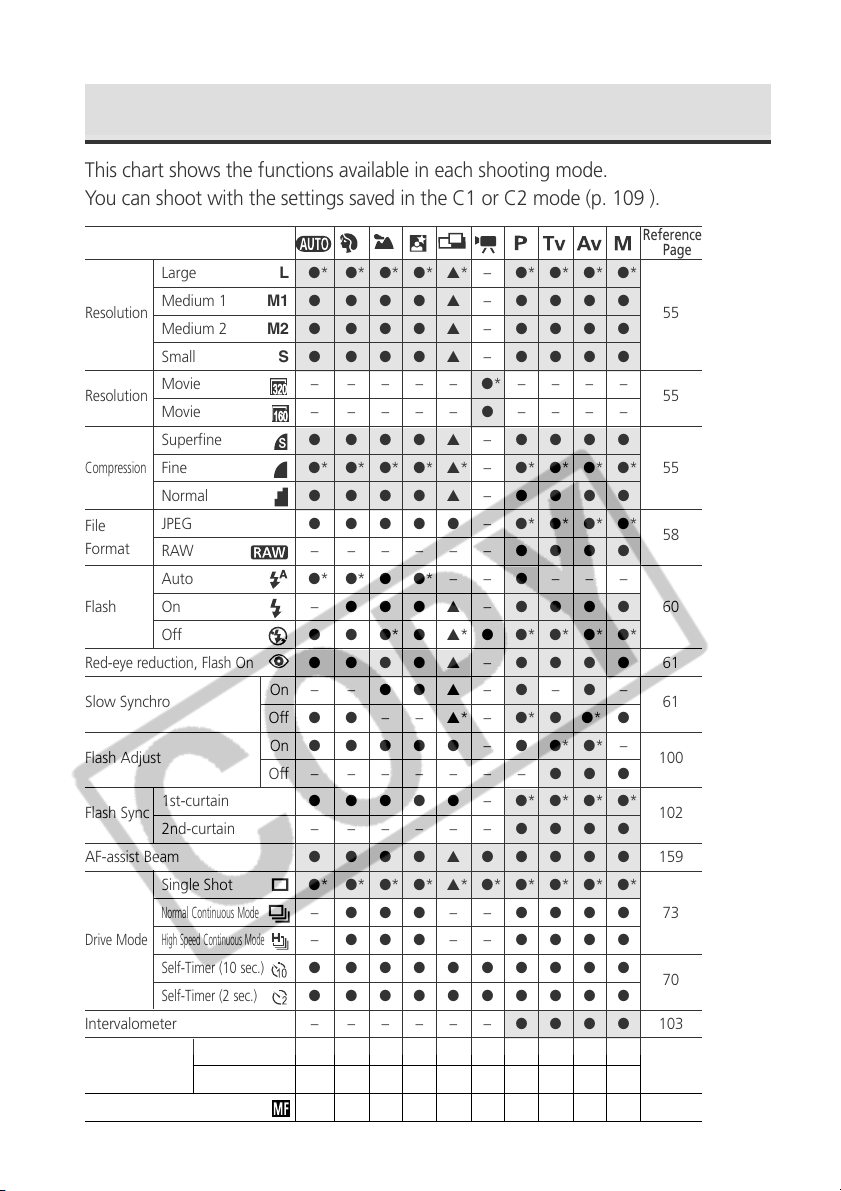
Camera User Guide
DIGITAL CAMERA
Camera User Guide
CDI-E075-010 XX03XXXX © 2003 CANON INC. PRINTED IN JAPAN
ENGLISH
• Please start by reading the Read This First on page 4 of this manual.
• Please refer to the Software Starter Guide for information on installing the
software and downloading images.
• Please also read the printer user guide included with your Canon printer.