
Need assistance?
visit our website at www.tclusa.com
or call 1-877-300-8837
or 1-877-800-1269 in AK, HI or Puerto Rico.
User’s Guide
For use with model
: 48F
D
2700
Figures and illustrations in this User’s Guide are
provided for reference only and may dier from
actual product appearance. Product design and
specications may be changed without notice.
1
Refertotheidentification/ratinglabellocatedonthebackpanelofyourproductforitsproperoperatingvoltage.
FCCregulationsstatethatunauthorizedchangesormodificationstothisequipmentmayvoidtheuser’sauthorityto
operateit.
Cable TV Installer: ThisreminderisprovidedtocallyourattentiontoArticle82040oftheNationalElectricalCode
(Section54oftheCanadianElectricalCode,Part1)whichprovidesguidelinesforpropergroundingand,inparticular,
specifiesthatthecablegroundshouldbeconnectedtothegroundingsystemofthebuildingasclosetothepointof
cableentryaspractical.
Important: Thistelevisionisatablemodelandisdesignedtositonafirm,flatsurface.Don’tplacetheTVonsoft
carpetingorsimilarsurfacebecausetheventilationslotsonthebottomoftheunitwillbeblocked,resultinginreduced
lifetimefromoverheating.Toassureadequateventilationforthisproduct,maintainaspacingof4inchesfromthetop
andsideoftheTVreceiverand2inchesfromtherearoftheTVreceiverandothersurfaces.
Also,makesurethestandorbaseyouuseisofadequatesizeandstrengthtopreventtheTVfrombeingaccidentally
tippedover,pushedoff,orpulledoff.Thiscouldcausepersonalinjuryand/ordamagetotheTV.Refertothe
ImportantSafetyInstructionsonthenextpage.
ThePowerbutton(followedbythepowersymbol)onthisTVandyourremotecontrolputstheTVintoaverylow
powerstandbymodebutwillnotcompletelyturnthepoweroff.Inordertocompletelyshutthepoweroff,youwill
needtodisconnectthepowercordfromtheoutlet.Themainsplug/appliancecouplerisusedasdisconnectdevice,
thedisconnectdeviceshallremainreadilyoperable.Therefore,youshouldensurethattheTVisinstalledinamanner
thatallowsyoutodisconnectthepowercordwhendesired.
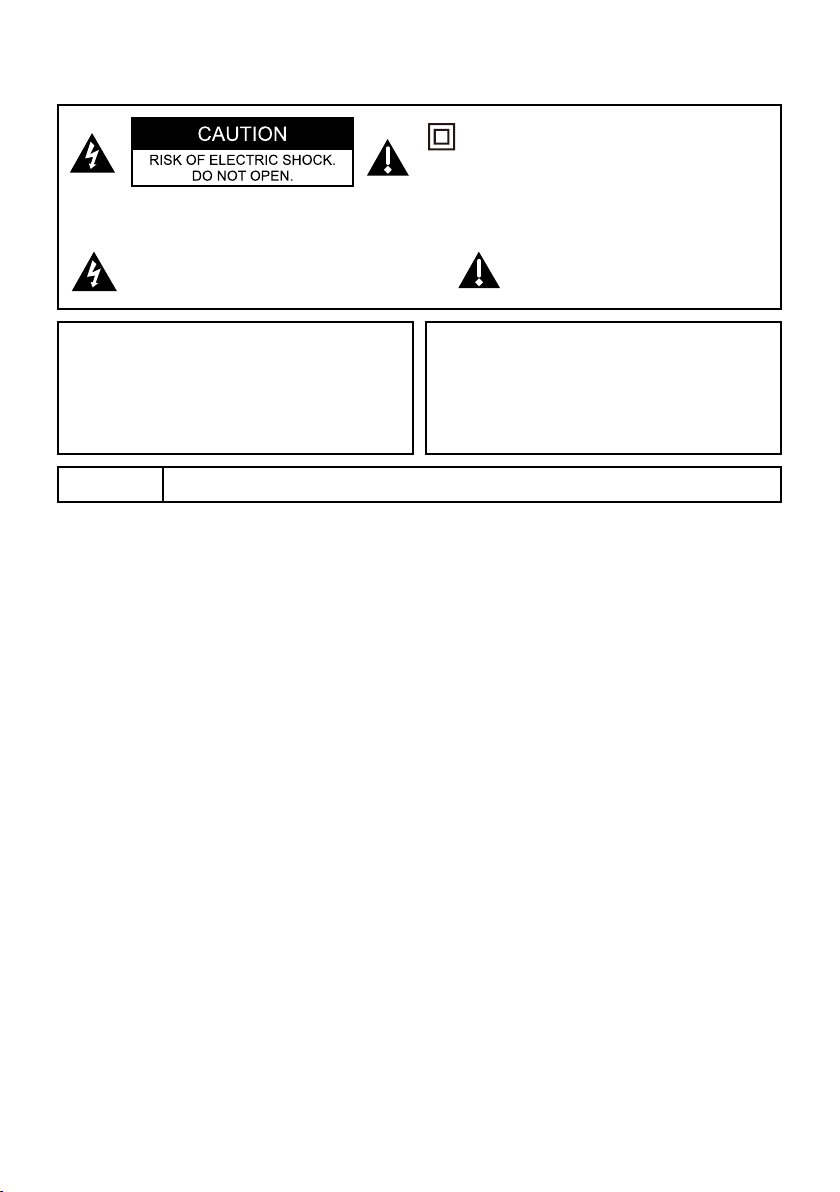
Caution:Toreducetheriskofelectricshock,donotremovecover(orback).Nouserserviceablepartsinside.
Referservicingtoqualifiedservicepersonnel.
Thissymbolindicates“dangerousvoltage”
insidetheproductthatpresentsariskof
electricshockorpersonalinjury.
Thissymbolindicatesimportant
instructionsaccompanyingtheproduct.
Thissymbolindicatesthatthisproduct
incorporatesdoubleinsulationbetweenhazardous
mainvoltageanduseraccessibleparts.When
servicing,useonlyidenticalreplacementparts.
Important Information
WARNING
Thebatteriesshallnotbeexposedtoexcessiveheatsuchassunshine,fireorthelike.
WARNING
Toreducetheriskoffireorelectricshock,donot
exposethisproducttorainormoisture.Thisproduct
shouldnotbeexposedtodrippingorsplashing.No
objectsfilledwithliquids,suchasvases,shouldbe
placedonthecomponent.
WARNING
TheTVisunstableifitisnotproperlyattachedtothe
baseormountedtothewall.Pleasefollowthebase
orwallmountinginstructionsprovidedintheUser’s
Guidetoensureyoursafety.
2
Important Safety Instructions
1. Readtheseinstructions.
2. Keeptheseinstructions.
3. Heedallwarnings.
4. Followallinstructions.
5. Donotusethisapparatusnearwater.
6. Cleanonlywithdrycloth.
7. Donotblockanyventilationopenings.Installinaccordancewiththemanufacturer’sinstructions.
8. Donotinstallnearanyheatsourcessuchasradiators,heatregisters,stoves,orotherapparatus(including
amplifiers)thatproduceheat.
9. Donotdefeatthesafetypurposeofthepolarizedorgroundingtypeplug.Apolarizedplughastwoblades
withonewiderthantheother.Agroundingtypeplughastwobladesandathirdgroundingprong.The
widebladeorthethirdprongareprovidedforyoursafety.Iftheprovidedplugdoesnotfitintoyouroutlet,
consultanelectricianforreplacementoftheobsoleteoutlet.
10.Protectthepowercordfrombeingwalkedonorpinchedparticularlyatplugs,conveniencereceptacles,
andthepointwheretheyexitfromtheapparatus.
11.Onlyuseattachments/accessoriesspecifiedbythemanufacturer.
12.Useonlywiththecart,stand,tripod,bracket,ortablespecifiedbythemanufacturer,
orsoldwiththeapparatus.Whenacartisused,usecautionwhenmovingthecart/apparatuscombination
toavoidinjuryfromtipover.
13.Unplugthisapparatusduringlightningstormsorwhenunusedforlongperiodsoftime.
14.Referallservicingtoqualifiedservicepersonnel.Servicingisrequiredwhentheapparatushasbeen
damagedinanyway,suchaspowersupplycordorplugis damaged,liquidhasbeenspilledorobjectshave
fallenintotheapparatus,theapparatushasbeenexposedtorainormoisture,doesnotoperatenormally,
orhasbeendropped.
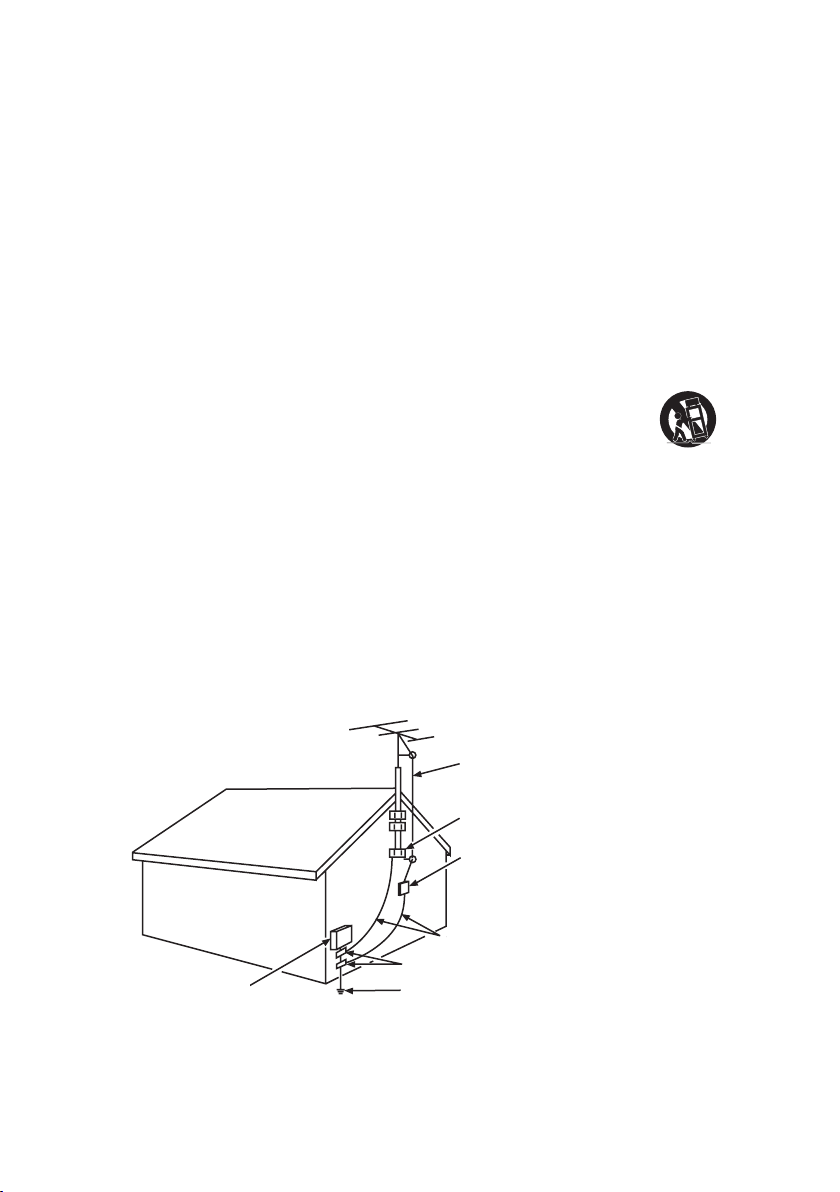
15.Ifanoutsideantennaorcablesystemisconnectedtotheproduct,besuretheantennaorcablesystemis
groundedsoastoprovidesomeprotectionagainstvoltagesurgesandbuiltupstaticcharges.Section810
oftheNationalElectricalCode,ANSI/NFPANo.702011(Section54ofCanadianElectricalCode,Part1)
providesinformationwithrespecttopropergroundingofthemastandsupportingstructure,groundingof
theleadinwiretoanantennadischargeunit,sizeofgroundingconductors,locationofantennadischarge
unit,connectiontogroundingelectrodes,andrequirementsforthegroundingelectrode.Seefollowing
example:
ANTENNA LEAD IN WIRE
GROUND CLAMP
GROUNDING CONDUCTORS
(NEC SECTION 810-21)
GROUND CLAMPS
POWER SERVICE GROUNDING
ELECTRODE SYSTEM
(NEC ART 250, PAR TH)
ELECTRIC SERVICE
EQUIPMENT
ANTENNA DISCHARGE
UNIT(NEC SECTION 810-20)
ANTENNALEADINWIRE
GROUNDCLAMP
ANTENNADISCHARGEUNIT
(NECSECTION81020)
GROUNDCLAMPS
GROUNDINGCONDUCTORS
(NECSECTION81021)
ELECTRICSERVICE
EQUIPMENT
POWERSERVICEGROUNDING
ELECTRODESYSTEM(NECART
250,PARTH)
8
9
9
9
10
11
12
12
12
12
12
12
12
12
12
12
12
12
13
13
13
13
13
13
13
13
13
14
14
14
14
15
16
17
17
17
17
ARC
17
18
19
21
21
23
Limited Warranty
22
Legal Statement of TCL
25
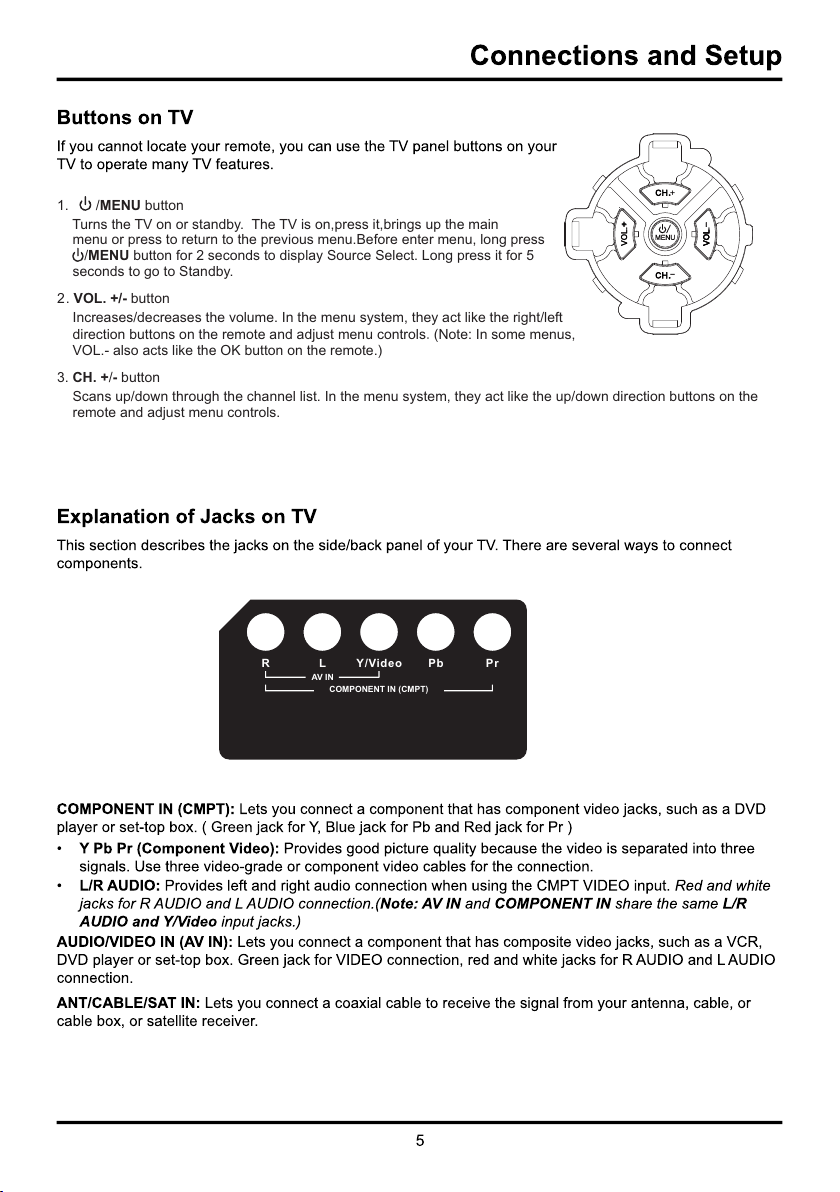
1. / button MENU
Turns the TV on or standby.
menu or press to return to the previous menu.Before enter menu, long press
/MENU button for 2 seconds to display Source Select. Long press it for 5
seconds to go to Standby.
The TV is on,press it,brings up the main
3. CH. +/- button
Scans up/down through the channel list. In the menu system, they act like the up/down
remote and adjust menu controls.
direction buttons on the
2
. VOL. +/- button
Increases/decreases the volume. In the menu system, they act like the right/left
direction buttons on the remote and adjust menu controls. (Note: In some menus,
VOL.- also acts like the OK button on the remote.)
CH.
-
CH.
+
+
Pr
Pb
Y/Video
R
L
AV IN
COMPONENT IN (CMPT)
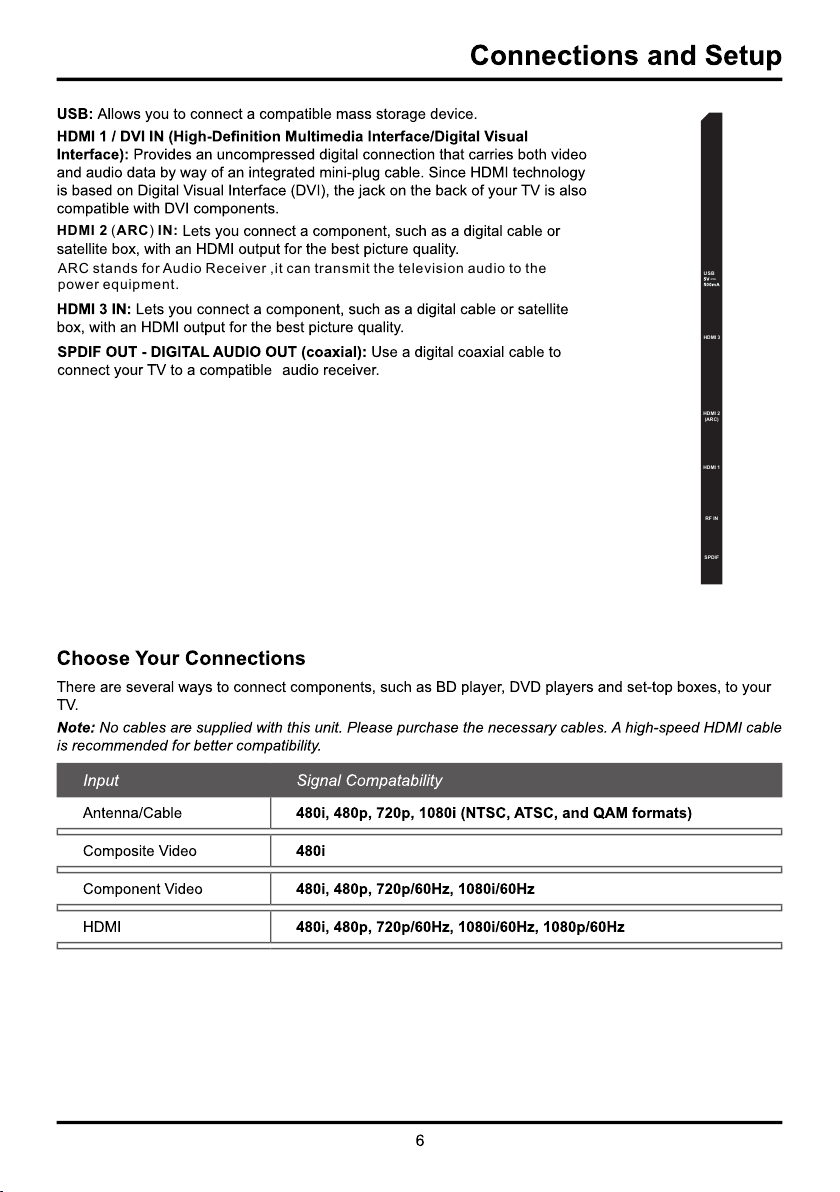
HDMI 2 (ARC) IN:
ARC stands for Audio Receiver ,it can transmit the television audio to the
power equipment.
HDMI 3
HDMI 1
RF IN
HDMI 2
(ARC)
SPDIF
USB
7
Connections and Setup
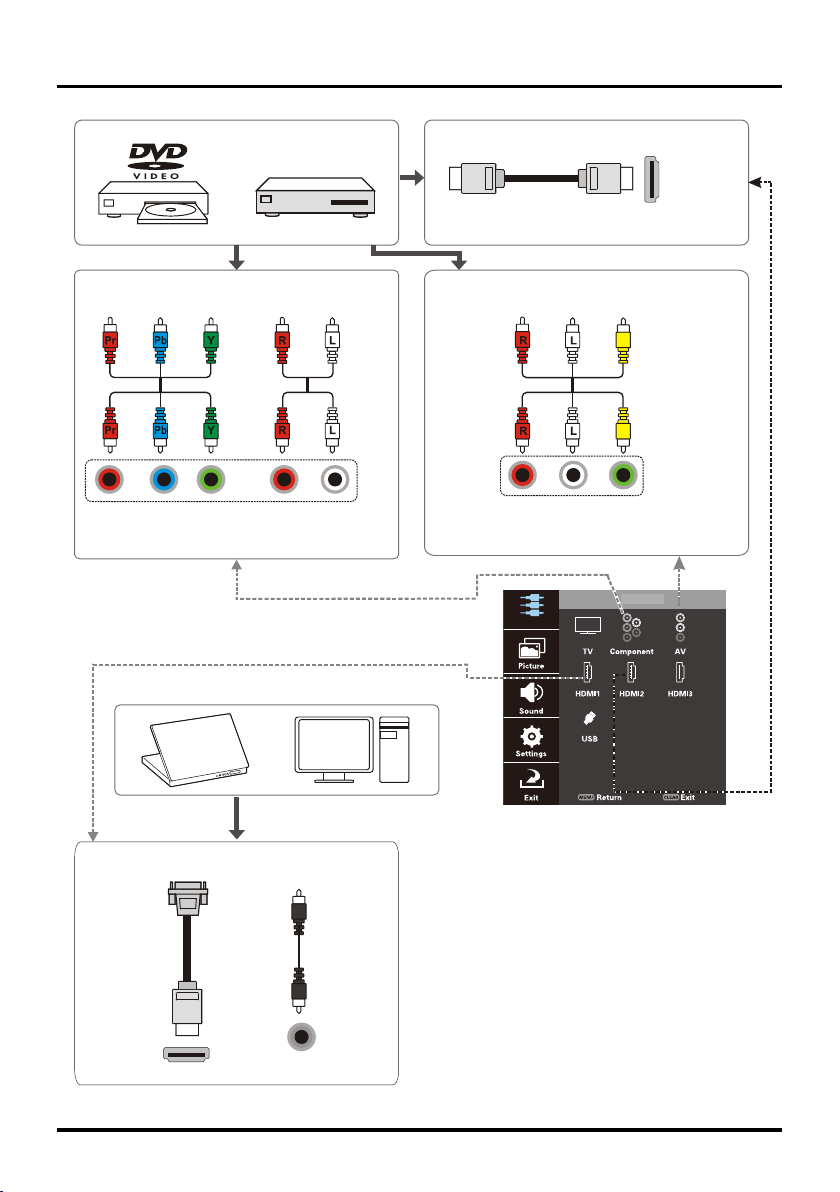
Same connection to HDMI 1/HDMI 3 IN
HDMI 2 IN
AUDIO/VIDEO IN (AV)
COMPONENT IN (CMPT)
HDMI /DVI I N1
Menu operation for input source selection
or select the input source directly by pressing
INPUT button.
SameconnectiontoHDMI1/HDMI3IN
COMPONENTIN(CMPT)
AUDIO/VIDEOIN(AV)
HDMI1/DVIIN
Component Video Connection (Better)
Composite Video Connection (Good)
HDMI Connection (Best)
Set-top box
or
or
HDMI cable
HDMI2IN
AUDIO
VIDEO
VIDEO
AUDIO
AUDIO
AUDIO
DVI Connection
Audio
cable
HDMI-DVI
conversion
cable
DVI
AUDIO IN
Input
Input
8
9
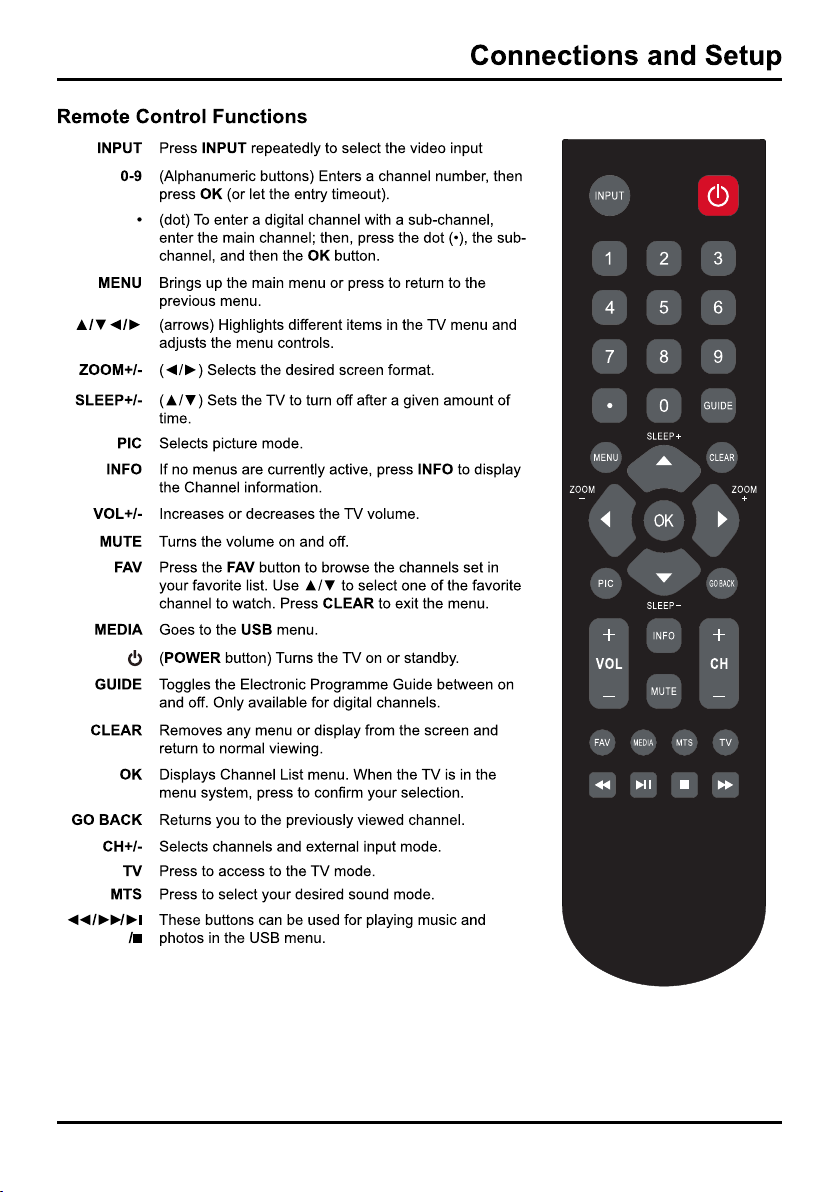
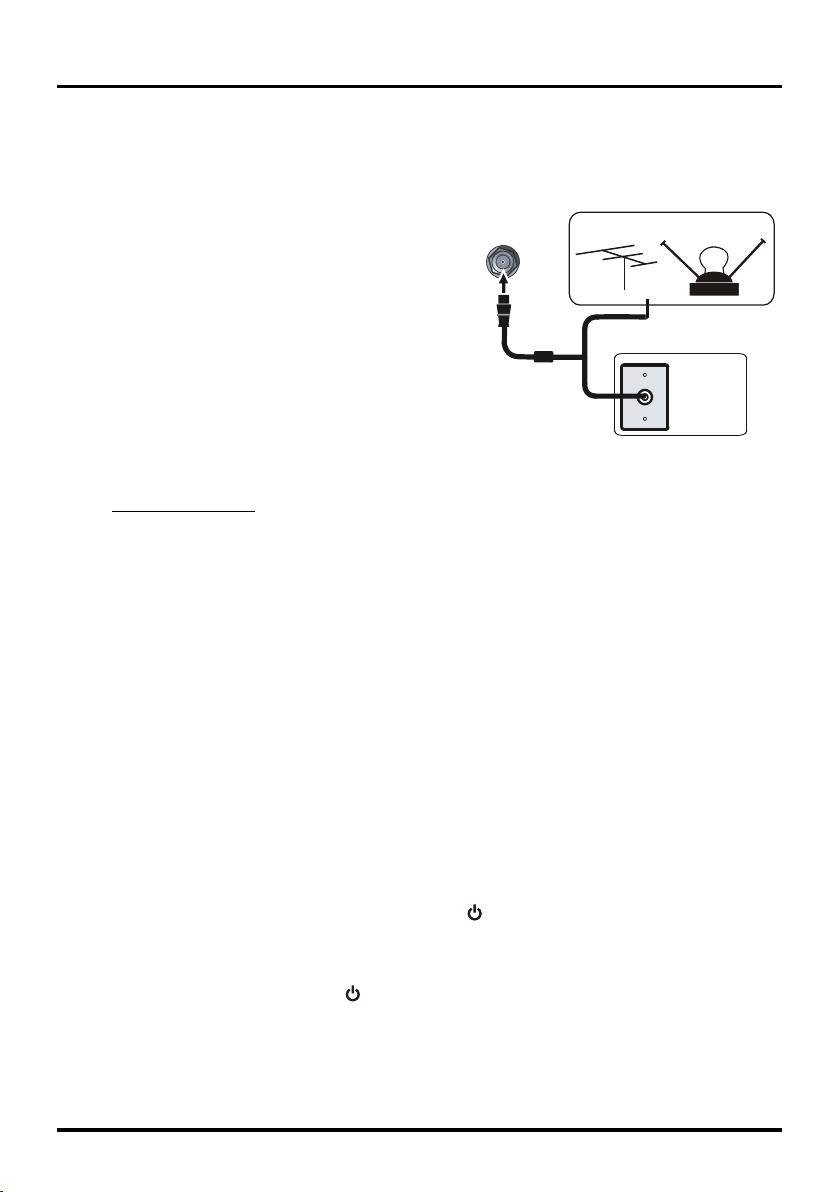
ANT/CABLE
/SAT IN
Outdoor or indoor Antenna
Cable Box,
( Wall Outlet)
RF Coaxial
Wire
(75 ohm)
Or
Or
Connections and Setup
Obtain the Signal
ThefirststepinconnectingyourTVisobtainingthesignal.ThebackpanelofyourTVallowsyoutoreceive
analogand/ordigitalchannelsbyusingtheHDMI or ANT/CABLE/SATconnections.Toobtainthebest
quality,usetheHDMIconnection.
ConnecttheoutsidearieltotheANT/CABLE/SAT IN
connectiononthebackoftheTVtoreceiveoffairchannels.
UseanHDMIconnectiontodisplaythebestpictureand
soundqualityforsatelliteandcable
• Ifyouhaveasettopbox,youmayneedtocallyour
cablecompanyorsatelliteserviceprovider.Theymay
recommendspecialcablestoallowyoutoviewdigital
channels.
• Theaerialsocket(75OHMVHF/UHF/cable)canbe
usedforconnectinganexternalaerialorotherequipment
fittedwithamodulator(videorecorder,satellitereceiver,
etc.).Werecommendthatyoudonotconnectother
equipment(videorecorder,satellitereceiver,etc.)to
yourTVsettobeginwith,soasnottocomplicatethe
setupprocedurewiththeadditionalstepsinvolved.Connectthemwhenyouhavefinishedsettingupthe
channels.
• Visitwww.antennaweb.orgforhelpindecidingwhattypeofantennatouseinordertoreceivethelocal
digitalchannelsavailabletoyou.Enteryourlocation,andtheprogramwilllistlocalanaloganddigital
stationsavailableusingyourantenna.
Switching On
FollowtheinstructionsonthispageonhowtoswitchonyourTVsetandusetheremotecontrolbeforegoing
ontofollowingpagesdescribinghowtousethechannelscanprocedure.
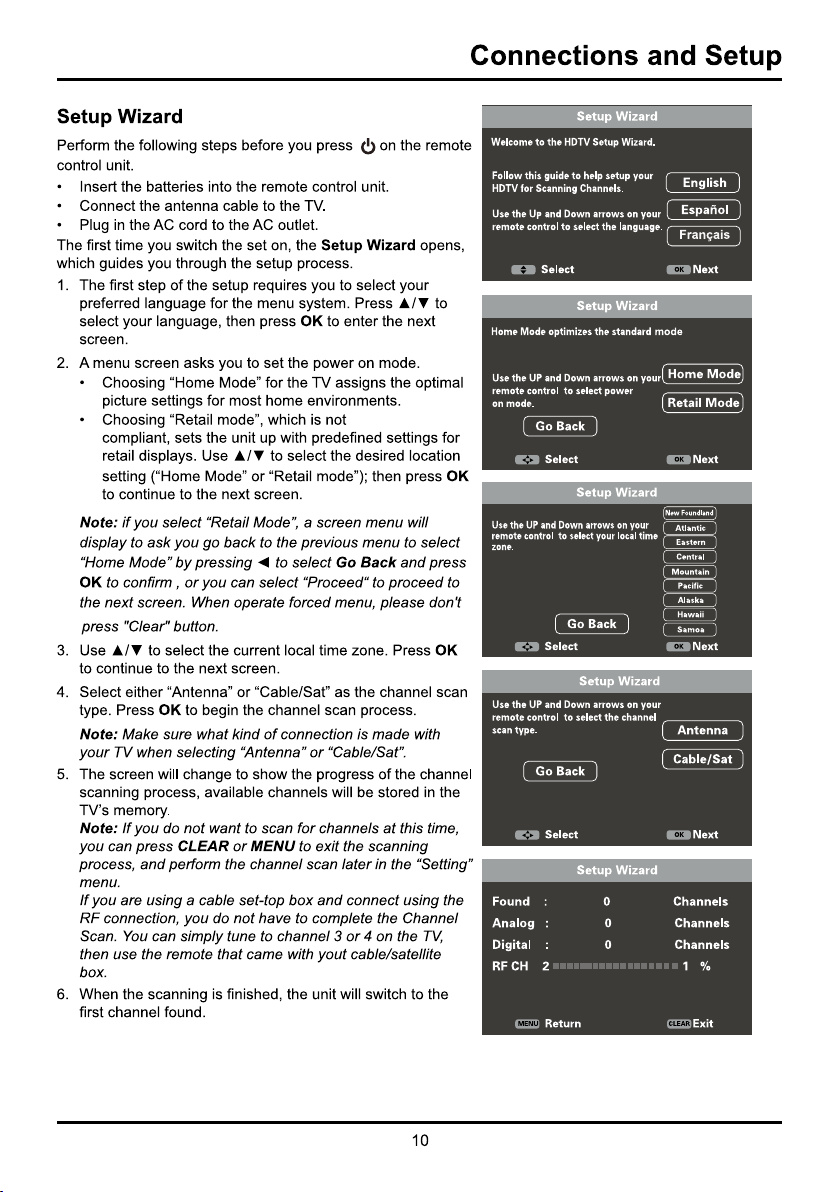
1. InserttwoAAAbatteriesintheremotecontrol.
Precautionsonusingbatteries:
Onlyusethebatterytypesspecified.
Makesureyouusethecorrectpolarity.
Donotmixnewandusedbatteries.
Donotuserechargeablebatteries.
Donotexposebatteriestoexcessiveheatsuchassunshine,fireorthelike,throwtheminafire,
rechargethemortrytoopenthem,asthiscouldcausethemtoleakorexplode.
Removethebatteriesfromtheremotecontrolifyouarenotusingitforalongperiodoftime.
2. Connectthepowercabletoapoweroutlet.(Ifthepowercableisnotconnectedtothetelevision,please
firstconnectthepowercabletothetelevision.)YourTVsetshouldonlybeconnectedtoanACsupply.
ItmustnotbeconnectedtoaDCsupply.Iftheplugisdetachedfromthecable,donot,underany
circumstances,connectittoapoweroutlet,asthereisariskofelectricshock.
3. Whenpoweredon,iftheTVsetisinstandbymode,press
ontheremotecontrolorontheTVsetto
turnontheTV.
Switching Off
ToputtheTVsetintostandbymode,press ontheremotecontrolorontheTV,theTVsetremains
poweredup,butwithlowenergyconsumption.
TodisconnectpowerfromtheTVset,unplugthepowercordfromthepoweroutlet.
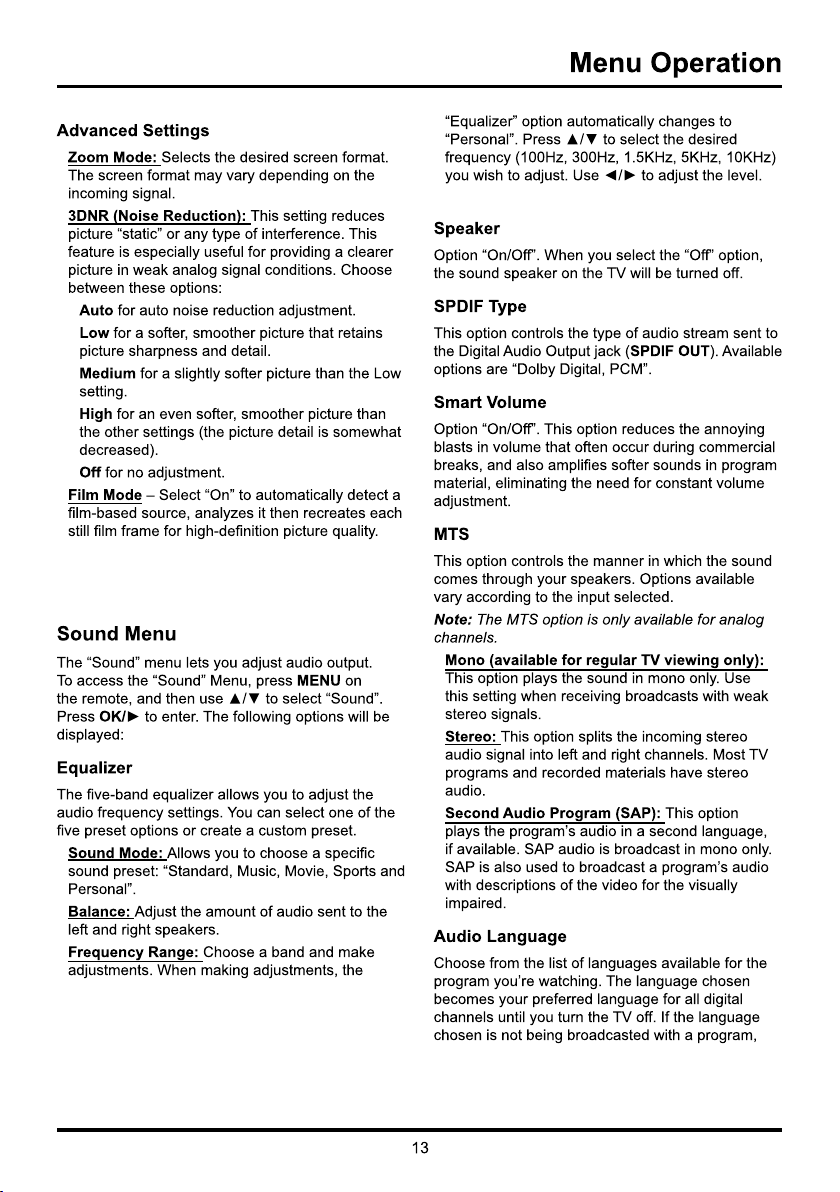
ECO Save
ECO Save.
50
50
50
50
50
< On
ECO Save
ECO Save
ECO Save,
50
50
50
50
50
< On

14
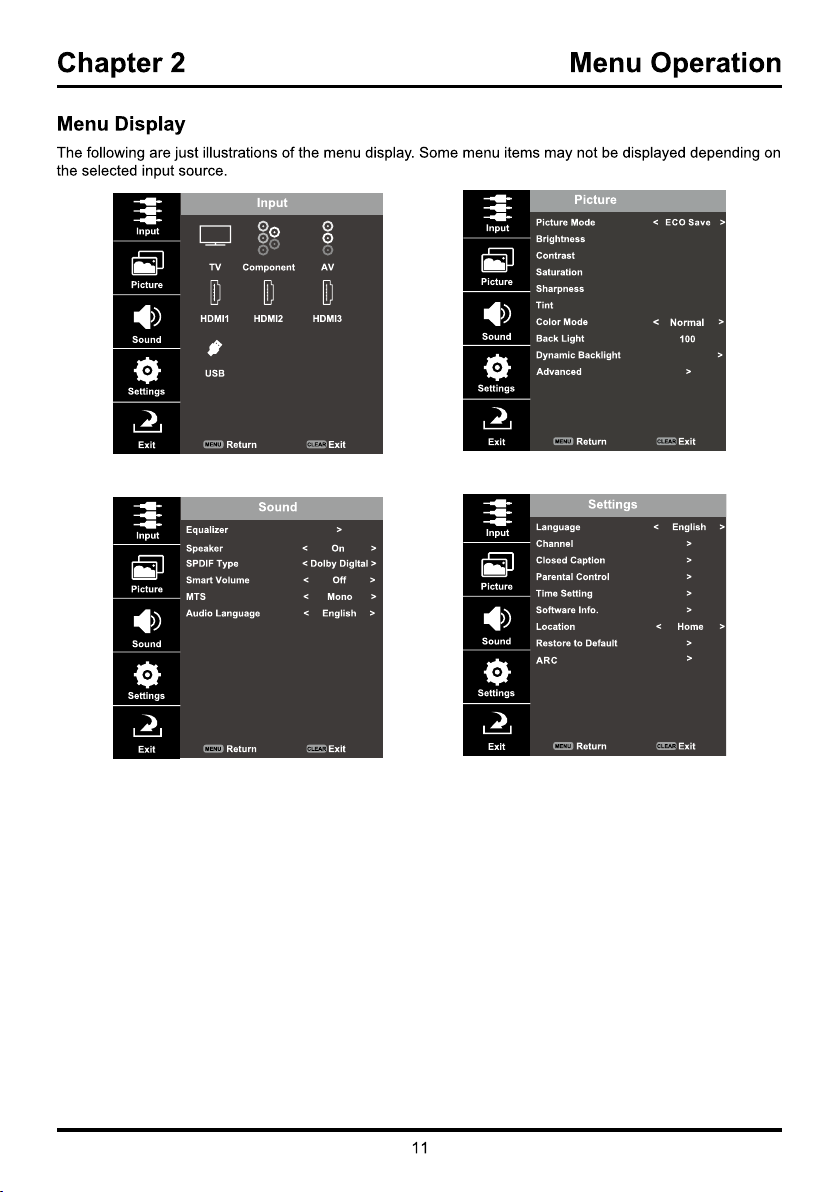
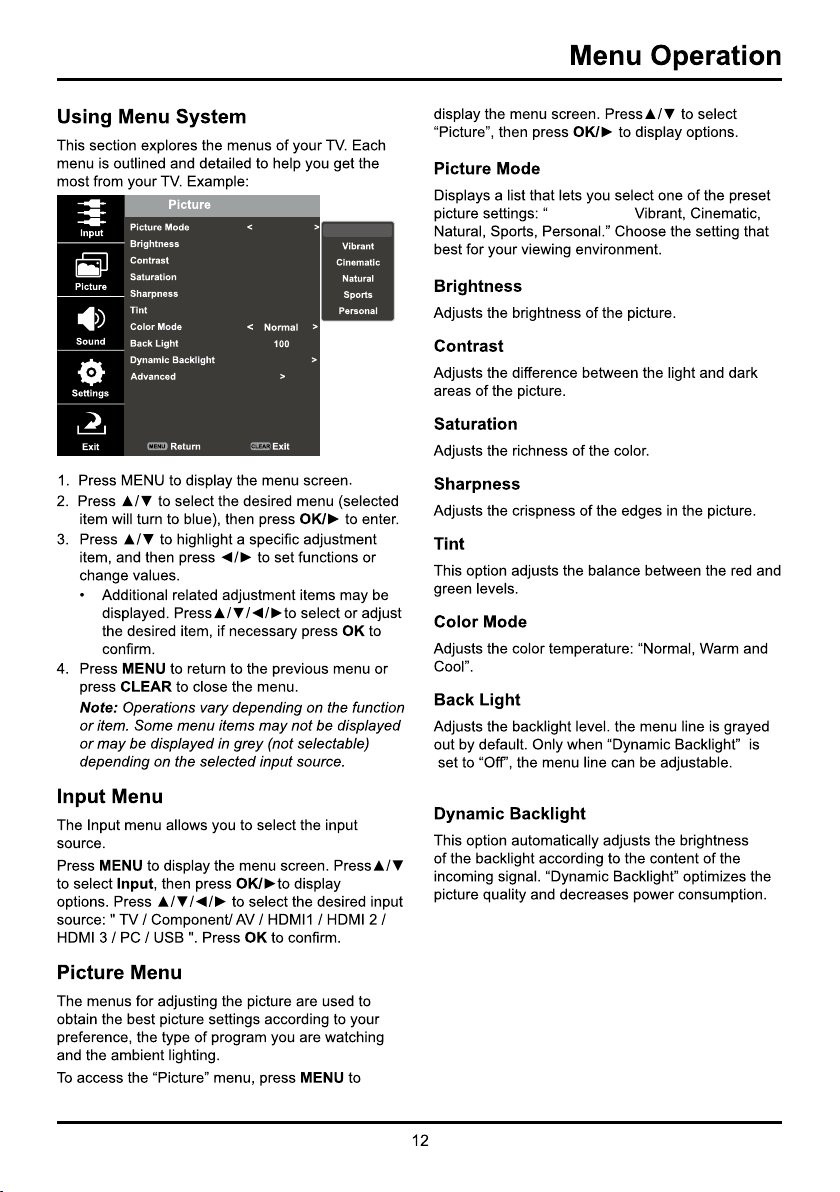
Menu Operation
theTVplaysthedefaultlanguagefortheprogram
(usually“English”intheUS).
Note: The “Audio Language” option is only available
for digital channels.
Setting Menu
The“Setup”menuallowsyoutoconfiguretheTV
withyourpreferences.PressMENUtodiaplaythe
menuscreen.Press▲/▼toselect“Setting”then
presstodisplaythefollowingoptions:
Language
SelecttheOSDmenulanguagefromEnglish,
Spanish,orFrench.
Channel
Signal Source: Choosethesignalsource(“Cable/
Sat”or“Antenna”)youhaveconnectedtothe
ANT/CABLE/SAT IN.
Scan: WhenyouperformaChannelScan,your
TVsearchesforchannelswithsignalsandstores
thechannelinformationintheChannelList.Then,
asyouwatchTVandpressCH+orCH,your
TVgoestothenextorpreviouschannelinthe
ChannelListandskipsthechannelsthatdonot
havesignals.IftheTVsignalsourcechanges–for
example,ifyouchangefromanoutdoorantenna
tocableTV–youwillneedtorescanforchannels.
Toautomaticallyscanforchannels:
1. Afterchoosingasignalsource,selectSetting >
Channel > Scan.
2. Presstostartthescan.Youcansee
thesearchprogressandhowmanychannels
arefoundintheonscreenmenu.(Note: If
you wish to stop the search, press the CLEAR
button.)
3. Afterthescaniscomplete, the unit will exit
menu automatically.
Favorite:
1. Select“Setting>Channel>Favorite”,press
toenter,alistofavailablechannels
displayed.
2. Press▲/▼toselectthedesiredchanel,then
pressOKtosetitasthefavorite,andaheart
iconappearstotherightsideofthechannel
indicatingthischannelalreadystoredinthe
favoritechannellist.
3. Setotherfavoritechannelsthesameway.
4. Youcaneasilyselectthefavoritechannelto
watchusingFAVand▲/▼buttons.
Show/Hide: YoucanhidechannelsintheChannel
List.Then,whenyoupresstheCH+ or CH-button,
theTVwillskipthehiddenchannels.Youcanstill
tunetothesehiddenchannelsbypressingthe
numberofthechannelonthenumerickeypad.
Tohidespecificchannels:
1. Select“Show/Hide”,presstoopenthe
submenu.
2. Press▲/▼tohighlightthechannelyouwish
tohidethenpressOKtocheckthehighlighted
channel.Youcanaddthechannelbackintothe
ChannelListbyhighlightingitandunchecking
it.
3. Repeattheprocesstohideadditionalchannels.
4. PressMENUtoreturntothepreviousmenu,or
pressCLEARtoclosethemenu.
DTV Signal: ShowtheconditionofDTVsignal:
GoodorBad,Normal.BadfornoDTVsignalor
veryweakDTVsignal.
Closed Caption
Manyprogramsareencodedwithclosedcaptioning
information,whichallowsyoutodisplaytheaudio
portionofaprogramastextontheTVscreen.
Note: Closed caption settings are not available for
HDMI, CMPT or inputs. These settings must be
captioning is not available on all channels at all
closed captioning information.
TheClosedCaptionoptionsare:
CC Mode: Thisoptionallowsyoutochoosethe
wayclosedcaptioninginformationappearsonthe
screen.
CC Off - Nocaptioninginformationdisplayed.
CC On - Choosesthisoptionifyouwant
captioninginformationtobeshownwhenever
available.
On When Mute - Thisoptionallowsthe
closedcaptioningtodisplay(whenavailable)
whenevertheTV’ssoundismuted.The
captioninginformationisnotdisplayedwhenthe
soundisnotmuted.
Analog CC Option: Thisoptionletsyouselect
thecaptioningmode(CC1CC4orTEXT1TEXT4)
usedfordisplayingcaptioninformation,when
available.Ifyouareunsureofthedifferences
amongthemodes,youmayprefertoleavethe
closedcaptionedmodesettoCC1,whichdisplays
completetextoftheprogramintheprimary
languageinyourarea.

15
Menu Operation
Digital CC Option: Ifavailable,thisallowsyou
toselectaclosedcaptionservicemode(16)for
digitalchannels.
CC Option
Mode - Selecteither“Default”or“Custom”
options.“Custom”modeallowsyoutosetthe
optionsbelow.
Font Style - Allowsyoutochooseacharacter
designforthedigitalclosedcaptiontext.Afont
isacompleteassortmentofletters,numbers,
punctuationmarks,etc.inagivendesign.You
canchoosefromavarietyoffonts.
Font Size - Allowsyoutosetthesizeofthe
digitalclosedcaptiontext.
Font Edge Style - Allowsyoutosetedgestyle
oftheclosedcaptiontext.
Font Edge Color - letsyousetthecolorofthe
closedcaptiontextedge.
FG Color - Allowsyoutosetthecolorofthe
digitalclosedcaptiontext.
BG Color - Allowsyoutochoosethecolorof
theareaofthescreenbehindthedigitalclosed
caption.
FG Opacity - Allowsyoutosetstheappearance
ofthedigitalclosedcaptiontext.
BG Opacity - Allowsyoutoasettheappearance
ofthespacebehindthedigitalclosedcaption
text.
Parental Control
ThechoicesintheUSVChipandCanadaVChip
menusinvolvesoftwareinsideyourTV,referredto
asVChip,whichallowsyoutoblockTVprograms
andmovies.TVprogramscanbeblockedbyage
basedratings,suchasTVMA.Ifavailable,TV
programscanalsobeblockedbycontent,suchas
adultlanguage(L).Moviescanonlybeblocked
byagebasedratings.Onceyoublockprograms,
youcanunblockthembyenteringapassword.By
default,thesoftwareinsideyourTVisturnedoffor
unlocked.
VChipreadstheprogram’sagebasedrating(TV
MA,TV14,etc.)andcontentthemes(Violence
(V),AdultLanguage(L),etc.).Ifyouhaveblocked
theratingand/orcontentthemesthattheprogram
contains,youreceiveamessagethatthechannel
iscurrentlyblocked.Changethechannelorto
enteryourpasswordandtemporarilydeactivatethe
parentalcontrols.
Broadcastersarenotrequiredtoprovidecontent
themes,soprogramsreceivedwithnocontent
themesareblockedonlyifyoublocktheirage
basedrating.Youcanalsoblockprogramsthathave
beengivenanExemptrating,andprogramsthatare
consideredunrated.
Change V-Chip Password
ThefirsttimeyouentertheParentalControlmenu,
youmustenterthedefaultsecretcode0000to
adjustotherparentalcontrolsettings.Thenset
yourindividualpassword:
1. Selelct“ParentalControl>ChangePassword”,
presstoenter.
2. Usethenumberbuttonstoenterthefourdigit
numberforyourpassword.
3. Reenterthesamecodetoconfirmthepass
word.
Note: The password must be entered before
the TV will continue with Parental settings next
time. The super password is 2458, If you forget
your password, enter it to override any existing
password.
System Lock
Youmustremembertoset“SystemLock”toOn
modetohavethefollowingparentallocksettings
totakeeffect.
Input Lock
1. Select“ParentalControl>InputBlock”,press
OK/►todisplaytheInputsourcelistscreen.
2. Press▲/▼toselectainputsource,andpress
◄/►toselecttoblockorunblocktheinput.
Whenyoutunetotheblockedinput,youwill
needtoenterapasswordtoviewit.
US V-Chip
Presstodisplayitssubmenus:
US V-Chip TV Ratings
Youcanautomaticallyblockallprogramratings
aboveaspecifiedagebasedratinglevel.
1. Select“ParentalControl>US>TVRating”,
pressOK/►toentertheUSTVRatings
screen.
IntheUSTVRatingspanelyoucancustomize
theprogramblockingofthefollowingTV
ratings:
TV–Y Allchildren
TV–Y7 Children7yearsandolder
TV–G Generalaudience
TV–PG Parentalguidancesuggested
TV–14 Parentsstronglycautioned
TV–MA Matureaudienceonly
YoucanalsocustomizetheTVratingsforthe

16
Menu Operation
followingcontent:
D Sexualexplicitdialog
L Adultlanguage
S Sexualsituations
V Violence
FV Fantasyviolence
2. Press▲/▼/◄/►tonavigatethroughtheTV
ratingoptions.PressOKtoblockor(unlocked).
US V-Chip Movie Ratings (MPAA)
Youcanautomaticallyblockallprogramratings
aboveaspecifiedagebasedratinglevel.
1. Select“ParentalControl>US>MPAA”,press
toentertheUSMovieRatingsscreen.
IntheUSMovieRatingspanelyoucan
customizetheprogramblockingofthefollowing
Movieratings:
G Generalaudience
PG Parentalguidancesuggested
PG-13 Unsuitableforchildrenunder13
R Restricted,under17requires
companyingparentoradultguardian
NC-17 Nooneunder17admitted
X Matureaudienceonly
Canada English or French V-Chip Ratings
IfyoureceiveCanadianprograms,youcanblock
CanadianEnglishandFrenchVChipbyratings
only.Whenyoublockaparticularrating,you
automaticallyblockthehigherratedprograms
aswell.ToblockCanadianEnglishandFrench
programratings,followthesesteps:
1. SelectParentalControl>Canada,pressOK/►
toenterthenextscreen.
2. Press▲/▼toselect“CanadaEngorCannada
Fre”.PressOK/►toproceed.
Canadian Enlish Ratings:
C Children
C8+ Children8andolder
G Generalaudience
PG Parentalguidance
14+ Viewer14andover
18+ Adult
Canadian French Ratings:
G Generalaudience
8ans+ Viewer8andolder
13ans+ Viewer13andolder
16ans+ Viewer16andolder
18ans+ Adult
3. Press▲/▼toselectthedesiredrating,and
pressOKtoblockorunblockit.
RRT Setting: Allowsyoutoselectthe
downloadableratinglevel.Intheeventthatanew
ratingsystemisprovidedbythebroadcaster,the
newratingoptionswouldappearwithinthismenu.
Reset RRT:ResettothedefaultRRTsetting.
Unrated
TheUnratedRatingsoptionletsyoudecideif
programsthattheVChiprecognizesasunratedor
exemptcanbeviewed.UnratedTVprogramsmay
includenews,sports,political,religious,localand
weatherprograms,emergencybulletins,public
announcements,andprogramswithoutratings.The
ExemptoptionappliestobothUSandCanadian
unratedprogramsandCanadianprogramsratedE.
1. SelectParentalControl>Unrated.
2. Press◄/►totogglebetweenViewandBlock.
ViewAllunratedprogramsareavailable.
BlockAllunratedprogramsarenotavailable.
Keyboard Lock
Thisoptionallowsyoutoblock(disable)orunblock
(enable)theTVpanelbuttons.Theremotecontrol
stilltunestoanychannel.Ifyouareusingthisto
keepchildrenfromchangingchannels,besure
toremoveaccesstoanyremotethatiscapable
ofoperatingtheTVwhileyouhavetheTVpanel
buttonblocked.ToblocktheTVpanelbuttons,
select“ParentalControl>KeyboardLock”,and
press◄/►tochoosethe“Block”option.Toenable
thesebuttonsagain,returntothismenuand
choosethe"UnBlock"option.
Clear All
Thisoptionresetsallsettings(parentalcontrol
settings)tothefactorydefaults.Whenyouselect
thisoption,aconfirmationboxopens.
Time Setting
Time Zone
YoucansetthecorrectTimeZoneforyourarea.
Auto Sync - Press◄/►tochooseOntoacquire
thetimeautomaticallyfromdigitalchannels.
1. Select“Setting>TimeSetup”,press
toproceedtothenextscreen.
2. Optionsonthisscreeninclude:
Clock - Onlyavailablewhen“AutoSynchronzation”
issetto“Off”.Select“Clock”andpressOKto
enter,setthefollowingtimeitems:
Year - Press▲/▼toselect"Year",press◄/►to
settheyear.Usingthesamewaytoset"Month,
Day, Hour, Minute".PM/AMwillchange
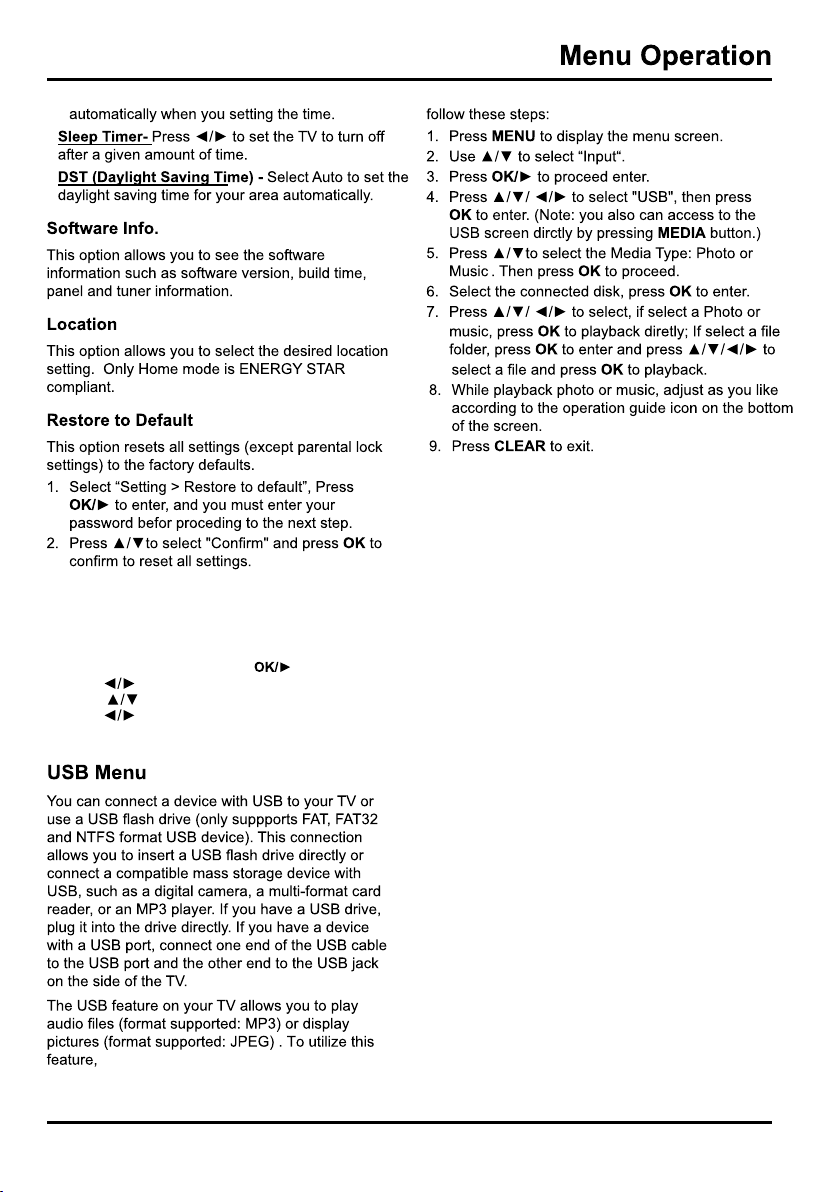
ARC
This option can be selected(default: Off)to decide
whether support ARC function or not.
1. Select Setting>ARC:,press
to select “On”
2. Press to select “Audio Receiver”,
press to select “On”.
to enter,
press
17

18
Chapter 3 Other Information
Frequently Asked Questions (FAQs)
ConnectanoffairantennatotheANT/CABLE/SATINtoviewfreelocaldigitalchannels.Youmayneedto
purchaseanantenna.
Visitwww.antennaweb.orgforassistanceindecidingwhattypeofantennatousetoreceivethelocaldigital
channelsavailabletoyou.Byenteringyourlocation,thismappingprogramtellsyouwhichlocalanalogand
digitalstationsareavailableusingacertainantenna.
Besidesusinganoffairantennaasmentionedabove,youcanalsouseasettopboxtoreceive
digitalvideo.Contactyourcablecompanyorsatelliteprovidertopurchasedigitalprogramming
andhavethemconnecttheboxtoensureyouareviewingchannelsthebestway.
PresstheINFObuttontodisplaytheChannelBanner.Lookatthethescreen.Thedot(•)isdisplayedfora
digitalchannel.Ifthereisnodot,itisananalogchannel.
Mostdigitalvideoissentina16/9formatwhichfillsyourscreen,butissometimessentin4/3whichdoesnot
fillyourscreen.ItdependsonhowthestationordeviceconnectedtoyourTVisformattingthevideo.Ifthere
arebarsonthescreen,presstheZOOM/+buttontotryadifferentformatthatmayeliminatethebars.Some
barscan’tberemovedbecauseofthewaytheformatissentbythebroadcaster.Theformatchangesasyou
presstheZOOM/+buttonandtheformattypeisdisplayedatthebottomofthescreen.
Somechannelsenabledbythecablecompanydon’tcarryprogramming,suchasvideoondemand.When
channelsareunavailable,yourTVscreenisblankorappearslikesnow.Youprobablywanttoremovethese
channelsfromyourChannelList.RemovetheseintheChannelSkipMenu.
Ifyouhavebothanaloganddigitalchannels,theTVislookingforallavailablechannelsintheChannelList.If
youdohavedigitalchannels,theTVisalsosearchingforscrambledchannels,nonscrambledchannels,and
eachsubchannelofthatdigitalchannel.
UsetheHDMIconnectionsonyourTVtodisplaythebestpicturequality.However,evenusingtheHDMI,
yourcontentandcontentsourcewilldictatethepicturequalityyousee.Forexample,sourcecontentthatis
1080pwillshowbetterthan720por480p.

19
Other Information
Troubleshooting
MostproblemsyouencounterwithyourTVcanbecorrectedbyconsultingthefollowingtroubleshootinglist.
TV Problems
The TV won’t turn on.
• MakesuretheTVispluggedin.
• Checkthewallreceptacle(orextensioncord)tomakesureitis“live”byplugginginanotherdevice.
• TheTVpanelcontrolsmaybelocked(disabled).UsetheremotecontroltounlocktheTVpanelcontrols.
• SelecttheButtonBlockfeatureontheParentalControlmenuandpressOKtouncheckthebox.
There is no picture and no sound but the TV is on.
• Youmaybetunedtoaninputwithnocomponentconnectedtoit.Ifyou’retryingtoviewaconnected
component,pressINPUTuntilthepicturefromthatcomponentappears.
• TheSignalTypeoptionmaybesetincorrectly.
• Thechannelmaybeblank.Trychangingchannels.
• Ifyou’rewatchingyourVCRandit’sconnectedwithcoaxialcabletotheANT/CABLE/SAT INjack,tune
theTVtochannel3or4(whicheverchannelisselectedonthe3/4switchonthebackofyourVCR).Also
makesuretheTV/VCRbuttonontheVCRisinthecorrectmode(presstheTV/VCRbuttononyourVCR).
• Ifyou’regettingablackandwhitepicturefromacomponentyou’veconnectedtoyourTV,youmight
haveyourvideocablesconnectedtothewrongjacks.AyellowvideocableconnectstotheyellowVIDEO
INPUTjackonthesideorbackofyourTVthreevideocablesorbundledcomponentvideocables(red,
blue,andgreen)connecttothecorrespondingCOMPONENTINPUTjacksonthebackofyourTV.
• Checktheantennaconnections.Makesureallofthecablesarefirmlyconnectedtothejacks.
• Thesoundmightbemuted.Trypressingthevolumeupbuttontorestoresound.
• IfusingDVIorY,PB,PR,remembertoalsoconnectthedevice’sleftandrightaudiooutputjackstothe
TV’sLandRAUDIOINPUTjacks.
• Thesoundsettingsmaynotbesetcorrectly.
The screen is blank.
• Checkyourconnections.Ifyouusedyellow,red,andwhitecablestoconnect,makesurethey’re
connectedtothered,white,andyellowAUDIO/VIDEOINPUTjacksonthesideorbackoftheTV.
• Ifyou’retryingtowatchsomethingthat’splayingonacomponentconnectedtotheTV(likeaDVD),press
INPUTuntilyougettothecorrectvideoinputchannel.
• MakesurethecomponentconnectedtotheTVisturnedon.
• Tryanotherchannel.
The buttons on the TV panel don’t work.
• TheTVpanelcontrolsmaybelocked(disabled).UsetheremotecontroltounlocktheTVpanelcontrols
byselectingtheButtonBlockfeatureintheParentalControlMenuandpress◄/►touncheckthebox.
• UnplugtheTVfor10minutesandthenplugitbackin.TurntheTVonandtryagain.
The TV turns off unexpectedly.
• Theelectronicprotectioncircuitmayhavebeenactivatedbecauseofapowersurge.Wait30seconds,
andthenturntheTVonagain.Ifthishappensfrequently,thevoltageinyourhousemaybeabnormally
highorlow.
• Unplug.Wait10minutes.Pluginagain.

20
Other Information
You can’t select a certain channel.
• ThechannelmaybeblockedornotapprovedintheParental ControlMenu.
• IfusingaVCR,checktomakesuretheTV/VCRbuttonontheVCRisinthecorrectmode(presstheTV/
VCRbuttononyourVCR).
• PresstheTVbuttonandthentrytochangechannels.
The stereo reception is noisy.
• Itmaybeaweakstation.UsetheSoundMenuandAnalogTVSoundtochoosemono.
A black box appears on the screen.
• Closedcaptioningmightbeon.CheckClosedCaptionintheSetupmenu.
You are having problems with the HDMI Connection.
• MakesuretheHDMIorDVIcomponentisturnedonandthecablesarefirmlyconnected.Ifproblems
stilloccur,turnoffyourcomponentandreconnectit.Resetthepowerbyunpluggingthepowercordand
pluggingitbackin.
• IfyouaretunedtotheHDMI 1,orotherHDMIINPUTandyou’rereceivingUnusableSignalmessage
screen,presstheINFObuttonontheremote.IfAcquiringChannelappearsintheChannel Banner,the
HDMIorDVIdeviceisn’tresponding.ContactthemanufactureroftheHDMIorDVIdeviceforfurther
assistance.
• IfyoutunetotheHDMI 1,orotherHDMIINPUTandyouseesnow,thevideogoesinandout,orthevideo
takesalongtimetoappear,yourHDMIorDVIcomponentishavingtroublesendingvideoinformationto
theTV.Reconnectyourdevice.Resetthepowerbyunpluggingthepowercordandpluggingitbackin.If
problemspersist,tryconnectingtheYPbPrjacksiftheyareavailableorcontactthemanufacturerofthe
HDMIorDVIcomponentforfurtherassistance.
• Ifyouhaveblackbarsoneachsideofyourpicture,thecomponentyouconnectedmighthaveaswitch
oramenuoptionallowingyoutochangethepicturequalityoutputthatwillfixthis.Chooseeither720por
1080i.
The remote control doesn’t work.
• SomethingmightbebetweentheremoteandtheremotelightsensoronthefrontoftheTV.Makesure
thereisaclearpath.
• TheremotemaynotbeaimeddirectlyattheTV.
• Thebatteriesintheremotemaybeweak,dead,orinstalledincorrectly.Putnewbatteriesintheremote.
The Universal Remote control doesn’t work.
ThisTVutilizesnewremotecontrolsignalsandmaynotbecompatiblewithyourexistinguniversalremote(e.g.
satelliteboxremotes,cableboxremotes,andgenericuniversalremotes,etc.).Overtime,neweruniversal
remotesandsettopboxequipmentwillbecomeavailablethatshouldpickupthenewTVcodes.
You are experiencing problems with V-Chip/Parental Control.
Iftheratinglimitsdon’twork,youmustlockthesettings.GototheMainMenu(pressMENUonyourremote),
selectParental Control > V-Chip > Rating Enable,RatingEnableishighlighted.Press◄/►toselectOnto
havetheratinglimitstakeeffect.
21
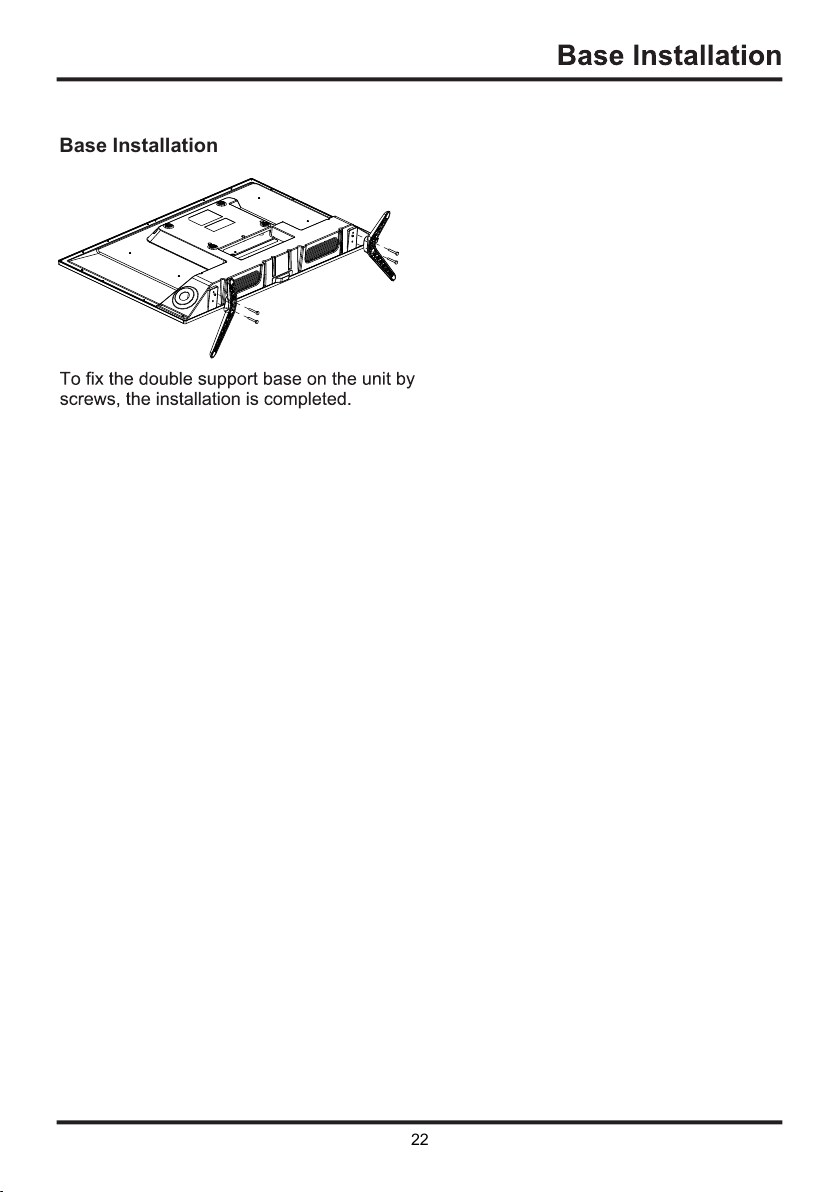
Base Installation
22
23
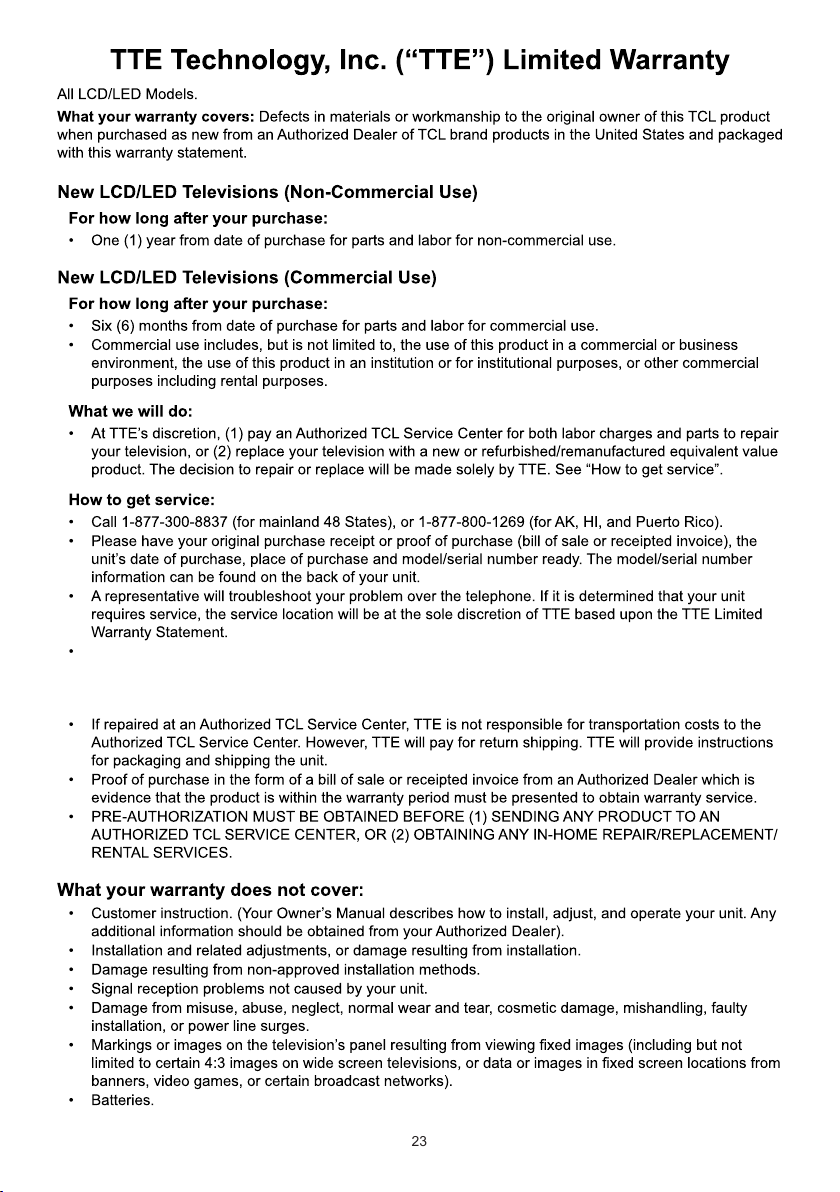
At the sole discretion of TTE, television screen sizes 40” and smaller will either be repaired at an
Authorized TCL Service Center or directly exchanged for a new or refurbished/remanufactured unit.
At the sole discretion of TTE, television screen sizes 42” or larger will either be repaired in-home or
exchanged for a new or refurbished/remanufactured unit.
24
25
Part No.: 2-48FD27-E399A
TTE Technology, Inc.
2455 Anselmo Drive, Suite 101,Corona, CA 92879