Please read this manual carefully before operating your TV and retain
it for future reference.
Safety and Reference
Copyright ⓒ 2018 LG Electronics Inc. All Rights Reserved.
Printed in Korea
www.lg.com
OLED77C8PUA OLED65B8PUA
OLED65B8SUC
OLED65C8PUA
OLED65C8AUA
OLED65E8PUA
OLED55B8PUA
OLED55B8SUC
OLED55C8PUA
OLED55C8AUA
OLED55E8PUA
*MFL70301502*
(1806-REV03)
2
ENGLISH
Important Safety Instruction
• Read these instructions.
• Keep these instructions.
• Heed all warnings.
• Follow all instructions.
• Do not use this apparatus near water.
• Clean only with dry cloth.
• Do not block any ventilation openings. Install in accordance with the manufacturer’s instructions.
• Do not install near any heat sources such as radiators, heat registers, stoves, or other apparatus (including ampliers) that produce heat.
• Do not defeat the safety purpose of the polarized or grounding-type plug. A polarized plug has two blades with one wider than the other. A
grounding type plug has two blades and a third grounding prong. The wide blade or the third prong are provided for your safety. If the provided
plug does not t into your outlet, consult an electrician for replacement of the obsolete outlet.
• Protect the power cord from being walked on or pinched particularly at plugs, convenience receptacles, and the point where they exit from the
apparatus.
• Only use attachments/accessories specied by the manufacturer.
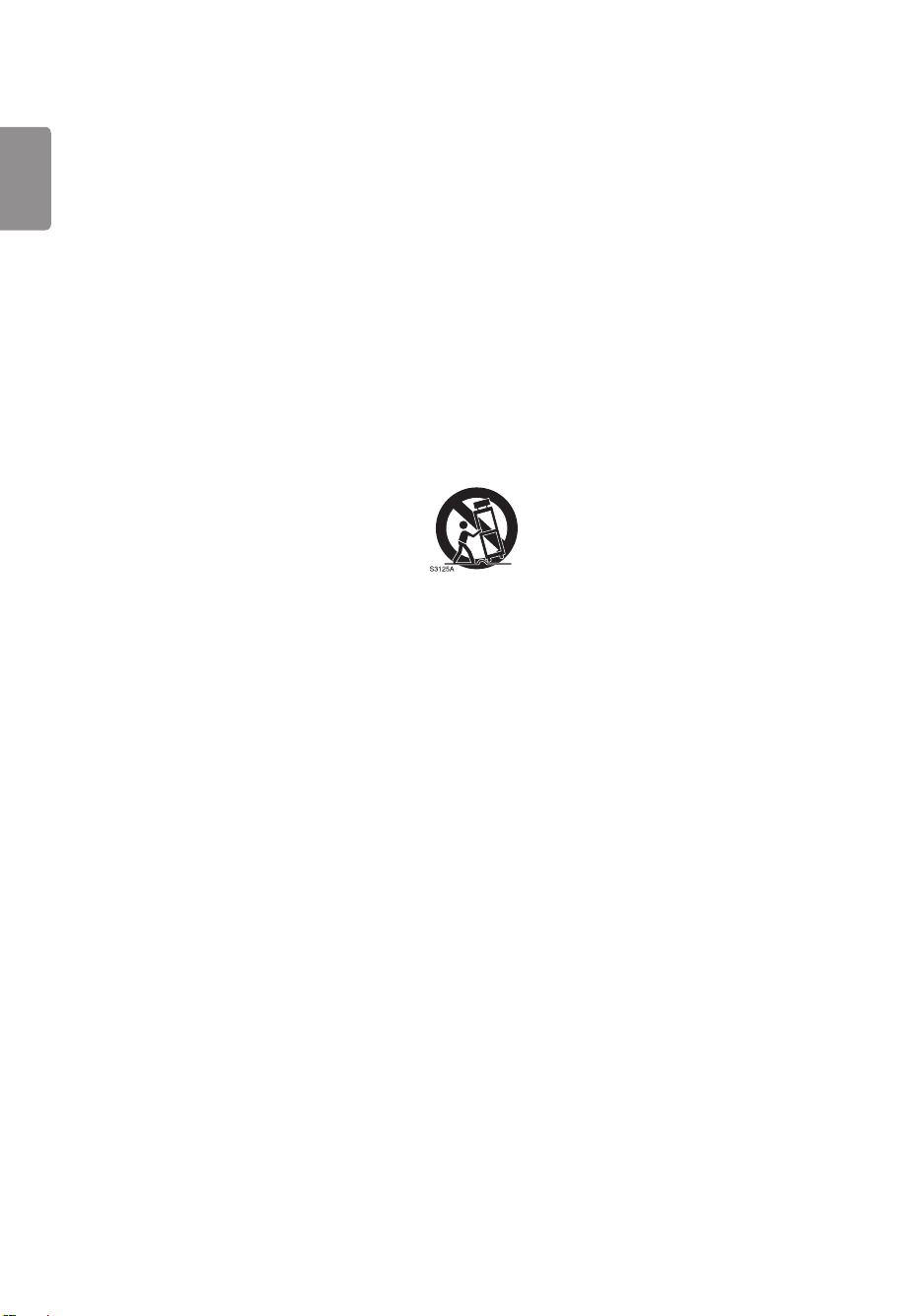
• Use only with the cart, stand, tripod, bracket, or table specied by the manufacturer, or sold with the apparatus. When a cart is used, use caution
when moving the cart/apparatus combination to avoid injury from tip-over.
• Unplug this apparatus during lightning storms or when unused for long periods of time.
• Refer all servicing to qualied service personnel. Servicing is required when the apparatus has been damaged in any way, such as power-supply
cord or plug is damaged, liquid has been spilled or objects have fallen into the apparatus, the apparatus has been exposed to rain or moisture,
does not operate normally, or has been dropped.
By using this product, you agree that all disputes between you and LG arising out of or relating in any way to this product (including but not
limited to warranty disputes) shall be resolved exclusively through binding arbitration on an individual basis. The terms of the arbitration
agreement (including details on the procedure for resolving disputes) is available at www.lg.com/us/arbitration (USA) or www.lg.ca/arbitration
(Canada).
ENGLISH
3
Warning! Safety Instructions
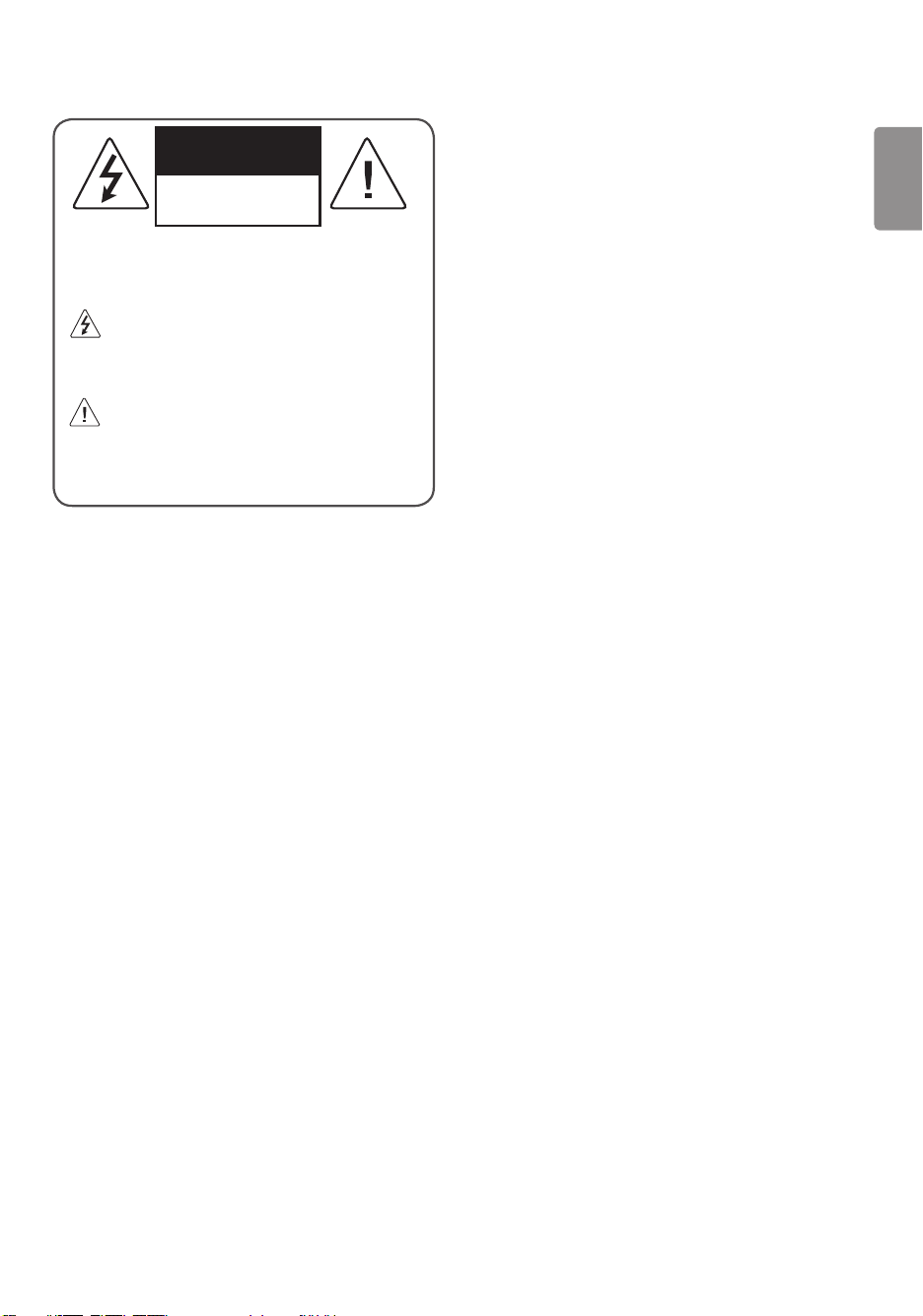
CAUTION
RISK OF ELECTRIC SHOCK
DO NOT OPEN
CAUTION : TO REDUCE THE RISK OF ELECTRIC SHOCK DO NOT
REMOVE COVER (OR BACK). NO USER SERVICEABLE PARTS INSIDE.
REFER TO QUALIFIED SERVICE PERSONNEL.
The symbol is intended to alert the user to the presence of
uninsulated dangerous voltage within the product’s
enclosure that may be of sucient magnitude to constitute a risk
of electric shock to persons.
The symbol is intended to alert the user to the presence of
important operating and maintenance (servicing)
instructions in the literature accompanying the device.
WARNING : TO REDUCE THE RISK OF FIRE AND ELECTRIC SHOCK,
DO NOT EXPOSE THIS PRODUCT TO RAIN OR MOISTURE.
• TO PREVENT THE SPREAD OF FIRE, KEEP CANDLES OR OTHER ITEMS
WITH OPEN FLAMES AWAY FROM THIS PRODUCT AT ALL TIMES.
• Do not place the TV and/or remote control in the following
environments:
- Keep the product away from direct sunlight.
- An area with high humidity such as a bathroom
- Near any heat source such as stoves and other devices that
produce heat.
- Near kitchen counters or humidiers where they can easily be
exposed to steam or oil.
- An area exposed to rain or wind.
- Do not expose to dripping or splashing and do not place objects
lled with liquids, such as vases, cups, etc. on or over the
apparatus (e.g., on shelves above the unit).
- Near ammable objects such as gasoline or candles, or expose
the TV to direct air conditioning.
- Do not install in excessively dusty places.
Otherwise, this may result in re, electric shock, combustion/
explosion, malfunction or product deformation.
• Ventilation
- Install your TV where there is proper ventilation. Do not install in
a conned space such as a bookcase.
- Do not install the product on a carpet or cushion.
- Do not block or cover the product with cloth or other materials
while unit is plugged in.
• Take care not to touch the ventilation openings. When watching
the TV for a long period, the ventilation openings may become hot.
• Protect the power cord from physical or mechanical abuse, such as
being twisted, kinked, pinched, closed in a door, or walked upon.
Pay particular attention to plugs, wall outlets, and the point where
the cord exits the device.
• Do not move the TV whilst the Power cord is plugged in.
• Do not use a damaged or loosely tting power cord.
• Be sure do grasp the plug when unplugging the power cord. Do
not pull on the power cord to unplug the TV.
• Do not connect too many devices to the same AC power outlet as
this could result in re or electric shock.
• Disconnecting the Device from the Main Power
- The power plug is the disconnecting device. In case of an
emergency, the power plug must remain readily accessible.
• Do not let your children climb or cling onto the TV. Otherwise, the
TV may fall over, which may cause serious injury.
• Outdoor Antenna Grounding (Can dier by country):
- If an outdoor antenna is installed, follow the precautions below.
An outdoor antenna system should not be located in the vicinity
of overhead power lines or other electric light or power circuits,
or where it can come in contact with such power lines or circuits
as death or serious injury can occur.
Be sure the antenna system is grounded to provide some
protection against voltage surges and built-up static charges.
Section 810 of the National Electrical Code (NEC) in the U.S.A.
provides information with respect to proper grounding of the
mast and supporting structure, grounding of the lead-in wire
to an antenna discharge unit, size of grounding conductors,
location of antenna discharge unit, connection to grounding
electrodes and requirements for the grounding electrode.
Antenna grounding according to the National Electrical Code,
ANSI/NFPA 70

4
ENGLISH
• Grounding (Except for devices which are not grounded.)
- TV with a three-prong grounded AC plug must be connected to
a three-prong grounded AC outlet. Ensure that you connect the
earth ground wire to prevent possible electric shock.
• Never touch this apparatus or antenna during a lightning storm.
You may be electrocuted.
• Make sure the power cord is connected securely to the TV and wall
socket if not secured damage to the Plug and socket may occur and
in extreme cases a re may break out.
• Do not insert metallic or inammable objects into the product. If a
foreign object is dropped into the product, unplug the power cord
and contact the customer service.
• Do not touch the end of the power cord while it is plugged in. You
may be electrocuted.
• If any of the following occur, unplug the product
immediately and contact your local customer service.
- The product has been damaged.
- If water or another substance enters the product (like an AC
adapter, power cord, or TV).
- If you smell smoke or other odors coming from the TV
- When lightning storms or when unused for long periods of time.
Even the TV is turned o by remote control or button, AC power
source is connected to the unit if not unplugged in.
• Do not use high voltage electrical equipment near the TV (e.g., a
bug zapper). This may result in product malfunction.
• Do not attempt to modify this product in any way without written
authorization from LG Electronics. Accidental re or electric shock
can occur. Contact your local customer service for service or repair.
Unauthorized modication could void the user’s authority to
operate this product.
• Use only an authorized attachments / accessories approved by
LG Electronics. Otherwise, this may result in re, electric shock,
malfunction, or product damage.
• Never disassemble the AC adapter or power cord. This may result in
re or electric shock.
• Handle the adapter carefully to avoid dropping or striking it. An
impact could damage the adapter.
• To reduce the risk of re or electrical shock, do not touch the TV
with wet hands. If the power cord prongs are wet or covered with
dust, dry the power plug completely or wipe dust o.
• Batteries
- Store the accessories (battery, etc.) in a safe location out of the
reach of children.
- Do not short circuit, disassemble, or allow the batteries to
overheat. Do not dispose of batteries in a re. Batteries should
not be exposed to excessive heat.
• Moving
- When moving, make sure the product is turned o, unplugged,
and all cables have been removed. It may take 2 or more people
to carry larger TVs. Do not press or put stress on the front panel
of the TV. Otherwise, this may result in product damage, re
hazard or injury.
• Keep the packing anti-moisture material or vinyl packing out of the
reach of children.
• Do not allow an impact shock, any objects to fall into the product,
and do not drop anything onto the screen.
• Do not press strongly upon the panel with a hand or a sharp
object such as a nail, pencil, or pen, or make a scratch on it. It may
causedamage to screen.
• Cleaning
- When cleaning, unplug the power cord and wipe gently with a
soft/dry cloth. Do not spray water or other liquids directly on the
TV. Do not clean your TV with chemicals including glass cleaner,
any type of air freshener, insecticide, lubricants, wax (car,
industrial), abrasive, thinner, benzene, alcohol etc., which can
damage the product and/or its panel. Otherwise, this may result
in electric shock or product damage.
ENGLISH
5
Preparing
• When the TV is turned on for the rst time after being shipped
from the factory, initialization of the TV may take approximately
one minute.
• Image shown may dier from your TV.
• Your TV’s OSD (On Screen Display) may dier slightly from that
shown in this manual.
• The available menus and options may dier from the input source
or product model that you are using.
• New features may be added to this TV in the future.
• The device must be easily accessed to a location outlet near the
access. Some devices are not made by turning on / o button,
turning o the device and unplugging the power cord.
• The items supplied with your product may vary depending upon
the model.
• Product specications or contents of this manual may be changed
without prior notice due to upgrade of product functions.
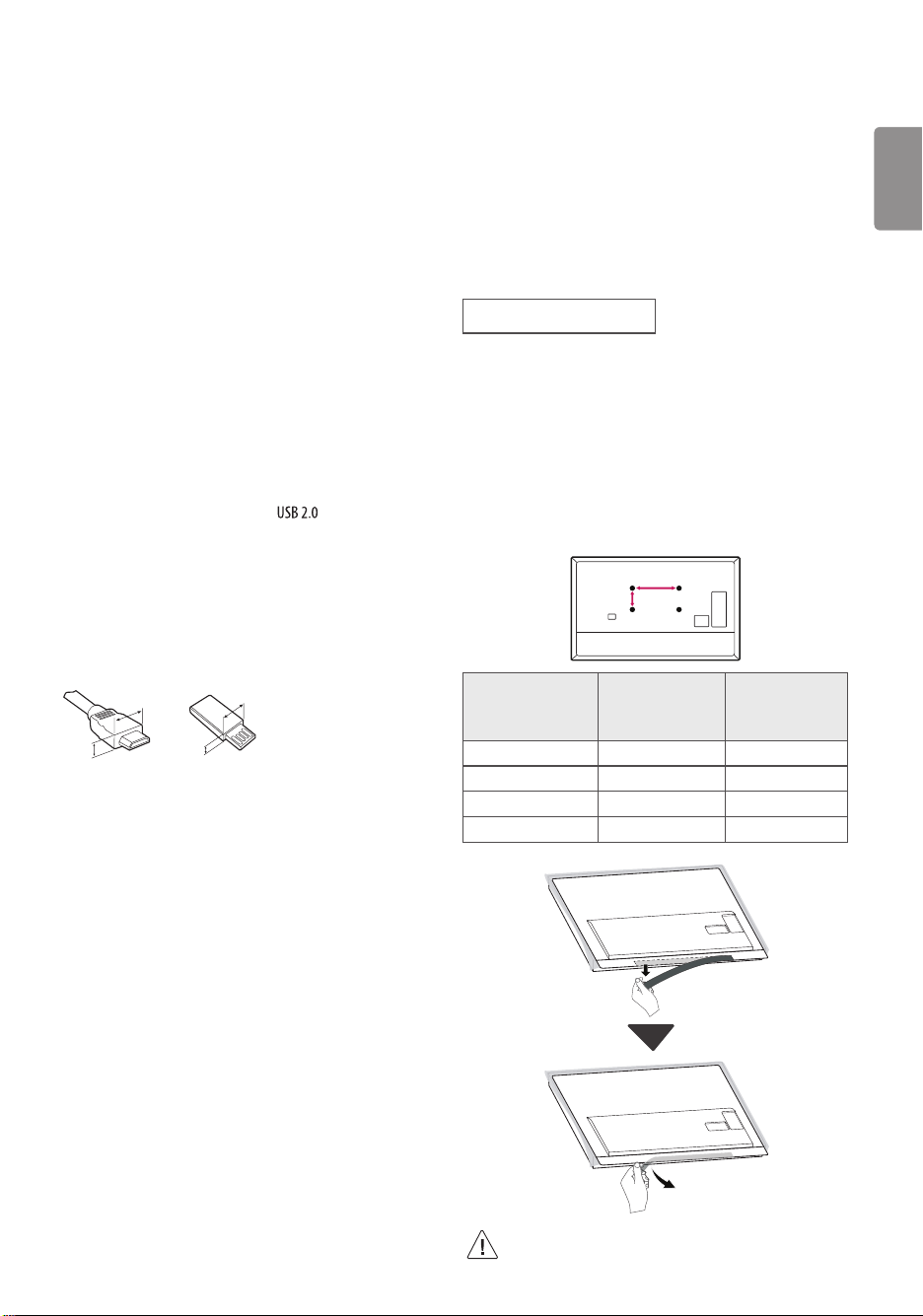
• For an optimal connection, HDMI cables and USB devices should
have bezels less than 10 mm (0.39 inches) thick and 18 mm (0.7
inches) width.
• Use an extension cable that supports
if the USB cable or
USB ash drive does not t into your TV’s USB port.
• Use a certied cable with the HDMI logo attached. If you do not use
a certied HDMI cable, the screen may not display or a connection
error may occur.
• Recommended HDMI cable types (3 m (9.84 ft) or less)
- High-Speed HDMI®/™ cable
- High-Speed HDMI®/™ cable with Ethernet
A
B
A
B
*A
<
=
10 mm (0.39 inches)
*B
<
=
18 mm (0.7 inches)
• When attaching the stand to the TV set, place the screen facing
down on a cushioned table or at surface to protect the screen
from scratches.
• Make sure to wring any excess water or cleaner from the cloth.
• Do not spray water or cleaner directly onto the TV screen.
• Make sure to spray just enough of water or cleaner onto a dry cloth
to wipe the screen.
Optional Extras
Optional extras can be changed or modied for quality improvement
without any notication. Contact your dealer for buying these items.
These devices work only with certain models. The model name or
design may be changed due to the manufacturer’s circumstances or
policies.
Magic Remote Control
(Depending upon model)
AN-MR18BA
Check whether your TV model supports Bluetooth in the Wireless
Module Specication to verify whether it can be used with the Magic
Remote.
Wall Mounting Bracket
(Depending upon model)
Make sure to use screws and wall mount bracket that meet the VESA
standard. Standard dimensions for the wall mount kits are described in
the following table.
A
B
Model
OLED55/65B8*
OLED55/65C8*
OLED55/65E8*
OLED77C8*
VESA (A x B) (mm) 300 x 200 400 x 200
Standard screw M6 M6
Number of screws 4 4
Wall mount bracket OLW480B OLW480B
• Remove the bracket itself and the protective lm inside it
when installing the wall mount. (Only OLED55/65E8*)
6
ENGLISH
Lifting and moving the TV
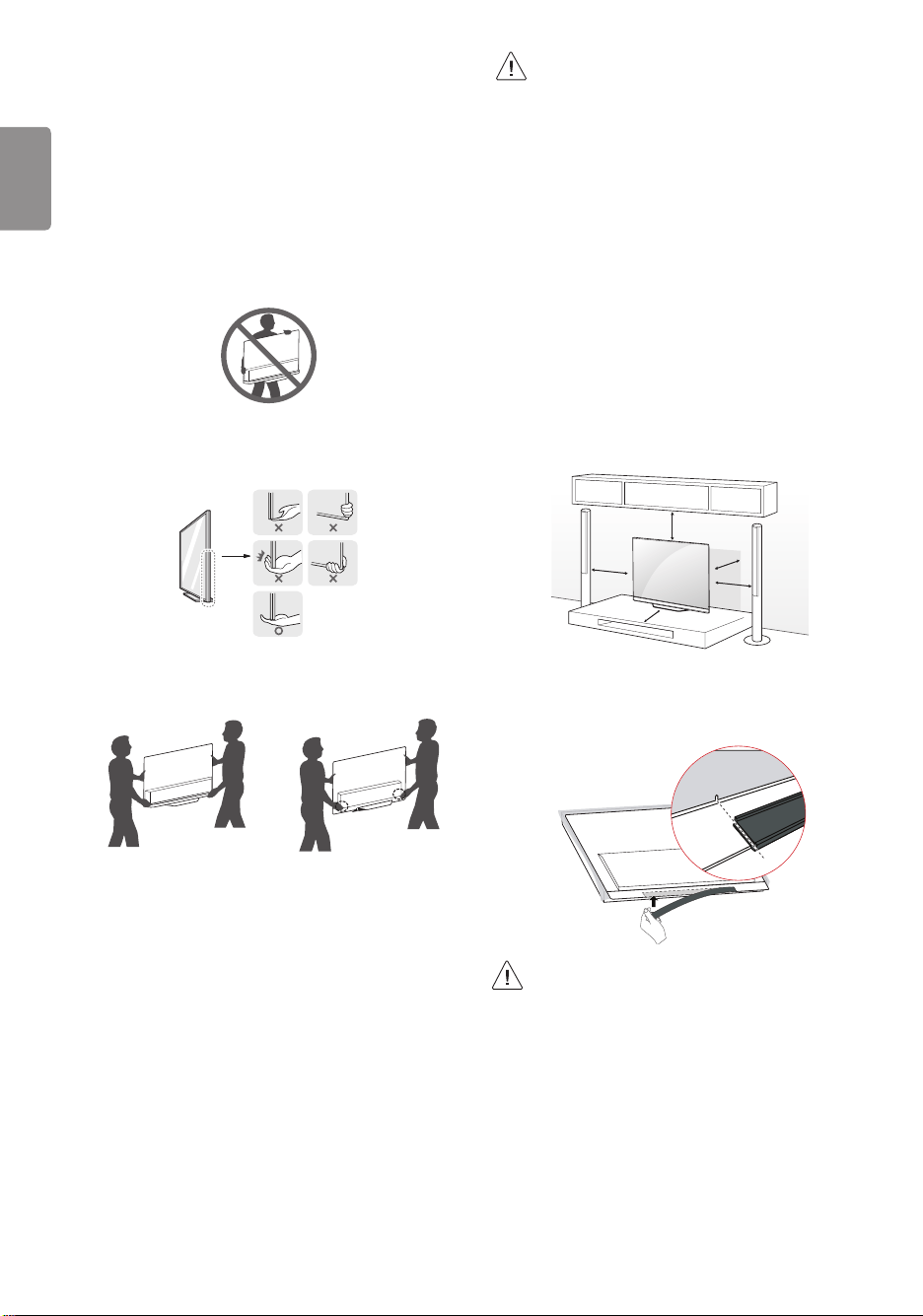
When moving or lifting the TV, read the following to prevent the TV
from being scratched or damaged and for safe transportation regardless
of its type and size.
• It is recommended to move the TV in the box or packing material
that the TV originally came in.
• Before moving or lifting the TV, disconnect the power cord and
all cables.
• When holding the TV, the screen should face away from you to
avoid damage.
• Hold the side and bottom of the TV frame rmly. Make sure not
to hold the transparent part, speaker, or speaker grill area. (Not
applicable for OLED55/65E8*)
• Use at least two people to move a large TV.
• When transporting the TV by hand, hold the TV as shown in the
following illustration.
(Only OLED55/65E8*)
• Hold the side of the TV with one hand, and hold the bottom of the
rear cover with the other. (Hold the rear cover when placing the TV
on the oor. Holding the bottom glass may result in injury.) (Only
OLED55/65E8*)
• When transporting the TV, do not expose the TV to jolts or
excessive vibration.
• When transporting the TV, keep the TV upright; never turn the TV
on its side or tilt towards the left or right.
• When handling the TV, be careful not to damage the protruding
buttons.
• Avoid touching the screen at all times, as this may result
in damage to the screen.
• Do not place the product on the oor with its front facing
down without padding. Failure to do so may result in
damage to the screen.
• Do not move the TV by holding the cable holders, as the
cable holders may break, and injuries and damage to the
TV may occur, (Depending upon model).
• When attaching the stand to the TV set, place the screen
facing down on a cushioned table or at surface to
protect the screen from scratches.
Mounting on the Table
1 Lift and tilt the TV into its upright position on a table.
• Leave a minimum of 10 cm (4 inches) space from the wall for
proper ventilation.
10 cm
10 cm
(4 inches)
10 cm
10 cm
10 cm
(Depending upon model)
2 Connect the power cord to a wall outlet.
• If you install the TV on a stand instead of mounting it on a
wall, make sure that the removed brackets are reattached
at the bottom of the TV. (Only OLED55/65E8*)
ENGLISH
7
• Do not apply foreign substances (oils, lubricants, etc.) to
the screw parts when assembling the product. (Doing so
may damage the product.)
• If you install the TV on a stand, you need to take actions
to prevent the product from overturning. Otherwise, the
product may fall over, which may cause injury.
• Do not use any unapproved items to ensure the safety
and lifespan of the product.
• Any damages or injuries by using unapproved items are
not covered by the warranty.
• Make sure that the screws are fastened tightly. (If they
are not fastened securely enough, the TV may tilt forward
after being installed.)
• Do not fasten the screws with excessive force otherwise
they may strip and become loose.
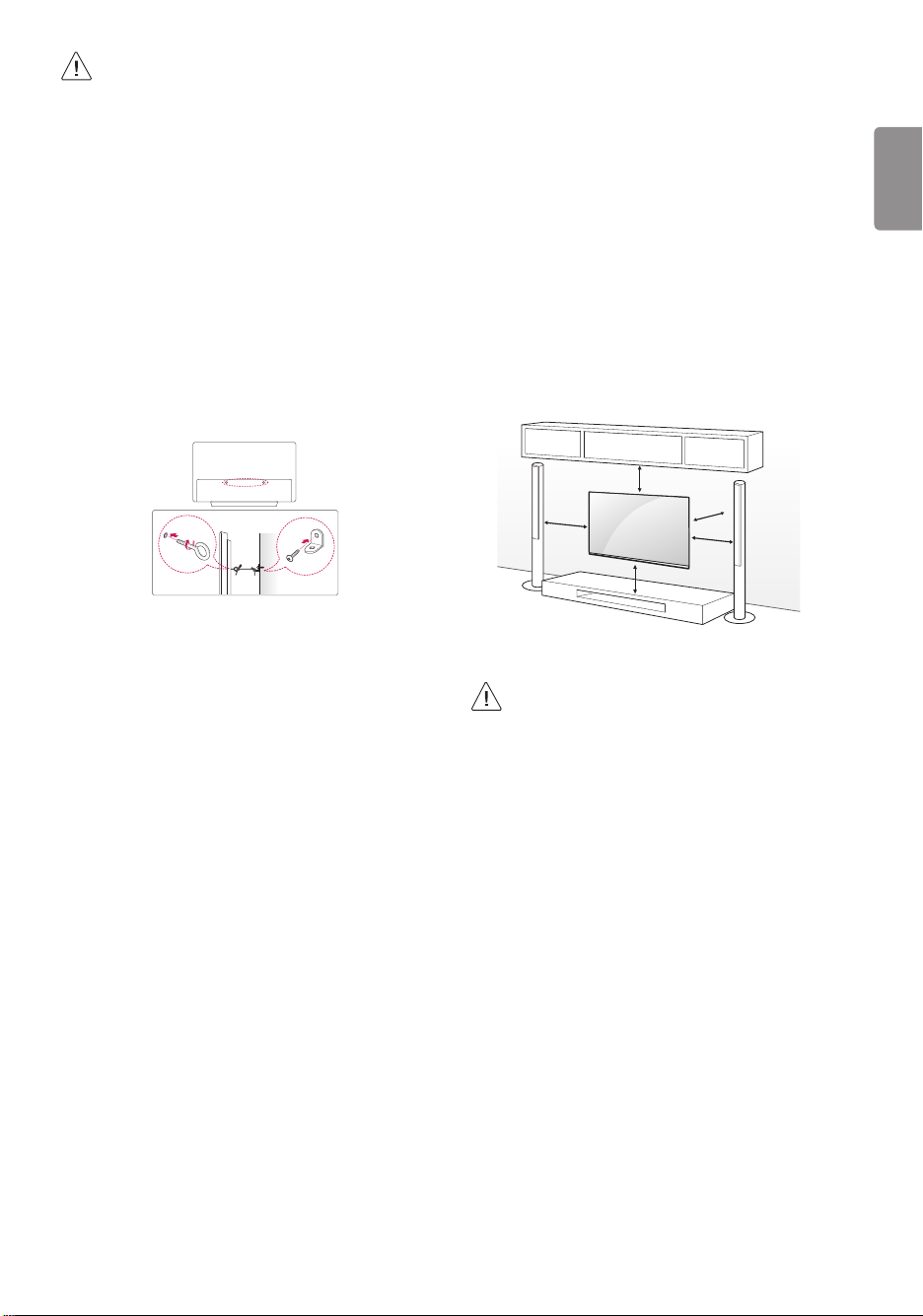
Securing TV to the Wall
(Depending upon model)
1 Insert and tighten the eye-bolts, or TV brackets and bolts on the back
of the TV.
• If there are bolts inserted at the eye-bolts position, remove the
bolts rst.
2 Mount the wall brackets with the bolts to the wall. Match the
location of the wall bracket and the eye-bolts on the rear of the TV.
3 Connect the eye-bolts and wall brackets tightly with a sturdy rope or
cable. Make sure to keep the rope parallel to the at surface.
• Use a platform or cabinet that is strong and large enough to
support the TV securely.
• Brackets, bolts and ropes are optional. You can obtain additional
accessories from your local dealer.
Mounting to the Wall
An optional wall mount can be used with your LG Television. Consult
with your local dealer for a wall mount that supports the VESA
standard used by your TV model. Carefully attach the wall mount
bracket at the rear of the TV. Install the wall mount bracket on a solid
wall perpendicular to the oor. If you are attaching the TV to other
building materials, please contact qualied personnel to install the
wall mount. Detailed instructions will be included with the wall mount.
We recommend that you use an LG brand wall mount. The LG wall
mount is easy to adjust or to connect the cables. When you do not use
LG’s wall mount bracket, use a wall mount bracket where the device is
adequately secured to the wall with enough space to allow connectivity
to external devices. If you are using a non-adjustable mount, attach the
mount to the wall. Attach the cables to the TV rst, then attach the TV
to the mount.
10 cm
10 cm
(4 inches)
10 cm
10 cm
10 cm
(Depending upon model)
• Remove the stand before installing the TV on a wall
mount by performing the stand attachment in reverse.
• For more information of screws and wall mount bracket,
refer to the Separate purchase.
• If you intend to mount the product to a wall, attach VESA
standard mounting interface (optional parts) to the back
of the product. When you install the set to use the wall
mounting bracket (optional parts), x it carefully so as
not to drop.
• When mounting a TV on the wall, make sure not to install
the TV by hanging the power and signal cables on the
back of the TV.
• Do not install this product on a wall if it could be exposed
to oil or oil mist. This may damage the product and cause
it to fall.
8
ENGLISH
Connections
You can connect various external devices to the TV. For more
information on external device’s connection, refer to the manual
provided with each device.
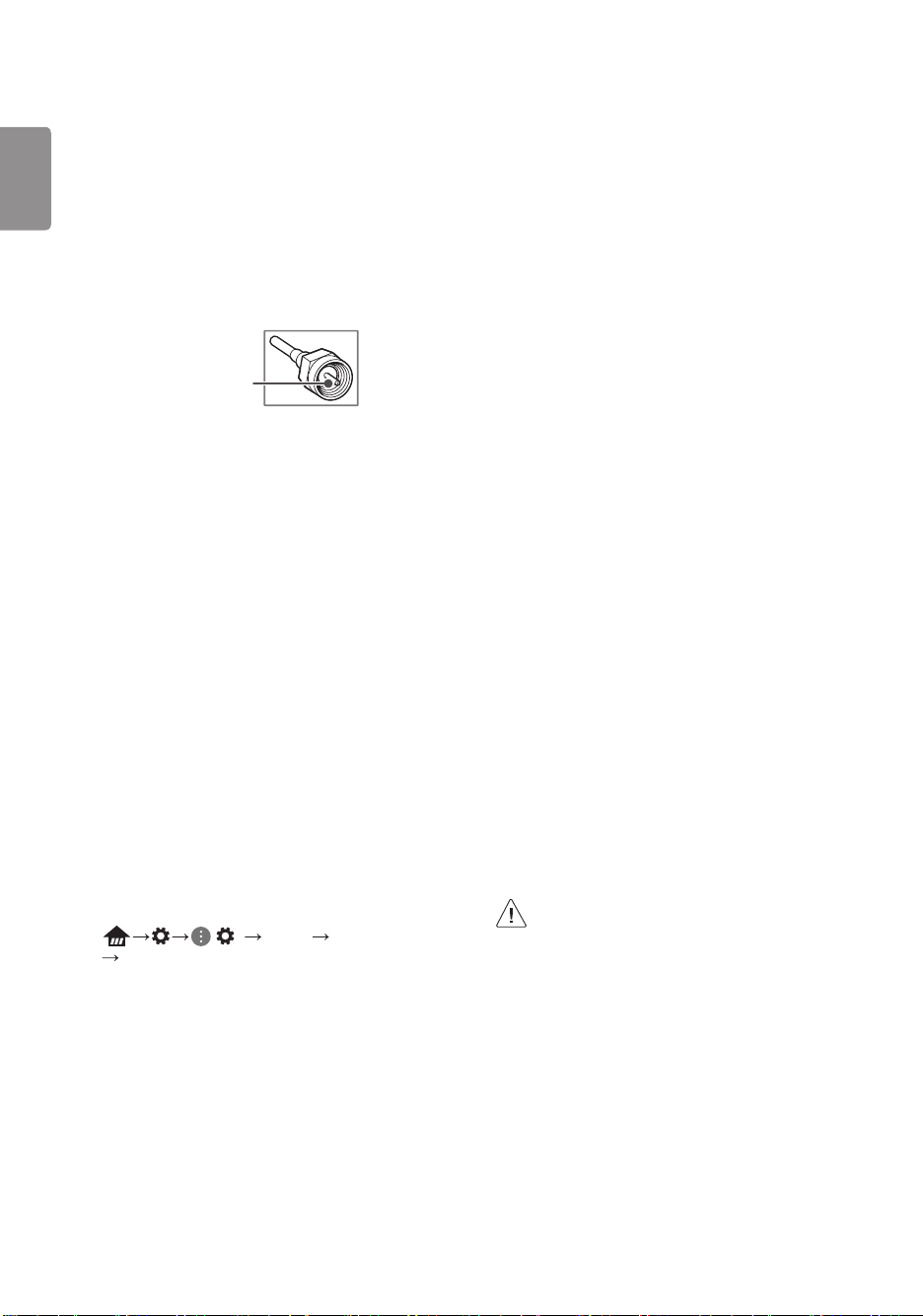
Antenna/Cable
Connect an antenna, cable, or cable box to watch TV while referring to
the following. The illustrations may dier from the actual items and an
RF cable is optional.
• Make sure not to bend the copper wire of the RF cable.
Copper wire
• Complete all connections between devices, and then connect the
power cord to the power outlet to prevent damage to your TV.
• Use a signal splitter to use 2 TVs or more.
• DTV Audio Supported Codec: MPEG, Dolby Digital
• This TV cannot receive ULTRA HD (3840 x 2160 pixels) broadcasts
directly because the related standards have not been conrmed,
(Depending upon model).
Other connections
Connect your TV to external devices. For the best picture and audio
quality, connect the external device and the TV with the HDMI cable.
HDMI
• Supported HDMI Audio format :
(Depending upon model)
DTS (44.1 kHz, 48 kHz, 88.2 kHz, 96 kHz),
DTS HD (44.1 kHz, 48 kHz, 88.2 kHz, 96 kHz, 176.4 kHz, 192 kHz),
True HD (48 kHz),
Dolby Digital / Dolby Digital Plus (32 kHz, 44.1 kHz, 48 kHz),
PCM (32 kHz, 44.1 kHz, 48 kHz, 96 kHz, 192 kHz)
(Only UHD models)
•
( ) Picture Additional Settings
HDMI ULTRA HD Deep Color
- On : Support 4K @ 60 Hz (4:4:4, 4:2:2, 4:2:0)
- Off : Support 4K @ 60 Hz 8 bit (4:2:0)
If the device connected to Input Port also supports ULTRA HD Deep
Color, your picture may be clearer. However, if the device doesn’t
support it, it may not work properly. In that case, change the TV’s
HDMI ULTRA HD Deep Color setting to o.
External Devices
Supported external devices are: Blu-ray player, HD receivers, DVD
players, VCRs, audio systems, USB storage devices, PC, gaming devices,
and other external devices.
• If you record a TV program on a Blu-ray/DVD recorder or VCR, make
sure to connect the TV signal input cable to the TV through a DVD
recorder or VCR. For more information about recording, refer to the
manual provided with the connected device.
• The external device connections shown may dier slightly from
illustrations in a manual.
• Connect external devices to the TV regardless about the order of
the TV port.
• If you connect a gaming device to the TV, use the cable supplied
with the gaming device.
• Refer to the external equipment’s manual for operating
instructions.
• In PC mode, there may be noise associated with the resolution,
vertical pattern, contrast or brightness. If noise is present, change
the PC output to another resolution, change the refresh rate to
another rate or adjust the brightness and contrast on the PICTURE
menu until the picture is clear. Depending upon the graphics card,
some resolution settings may not allow the image to be positioned
on the screen properly.
• Some USB Hubs may not work. If a USB device connected through
a USB Hub is not detected, connect it directly to the USB port on
the TV.
• The TV may be capable of operating without a set-top-box from a
multichannel video programming distributor (MVPD).
• When connecting via a wired LAN, it is recommended to use a CAT
7 cable.
Remote RS-232C setup
To obtain the RS-232C external control setup information, please
visit www.lg.com. Download and read the manual, (Depending upon
model).
• Do not drop the product or let it fall over when
connecting external devices. Otherwise, this may result in
injury or damage to the product.
• When connecting external devices such as video game
consoles, make sure the connecting cables are long
enough. Otherwise, the product may fall over, which may
cause injury or damage the product.
ENGLISH
9
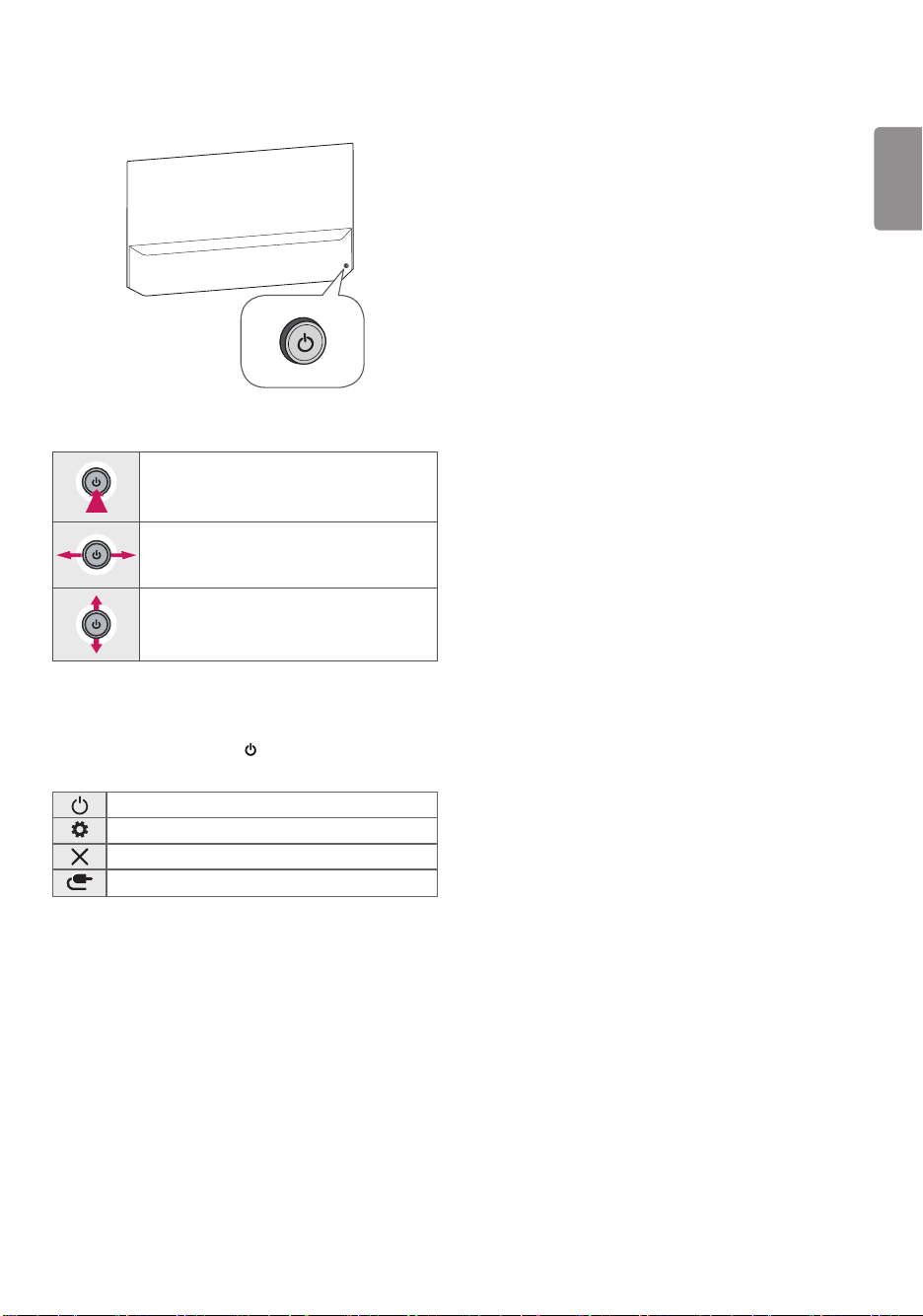
Using Button
You can simply operate the TV functions, using the button.
Basic functions
Power On (Press)
Power O
1
(Press and hold)
Volume Control
Channels Control
1 All running apps will close.
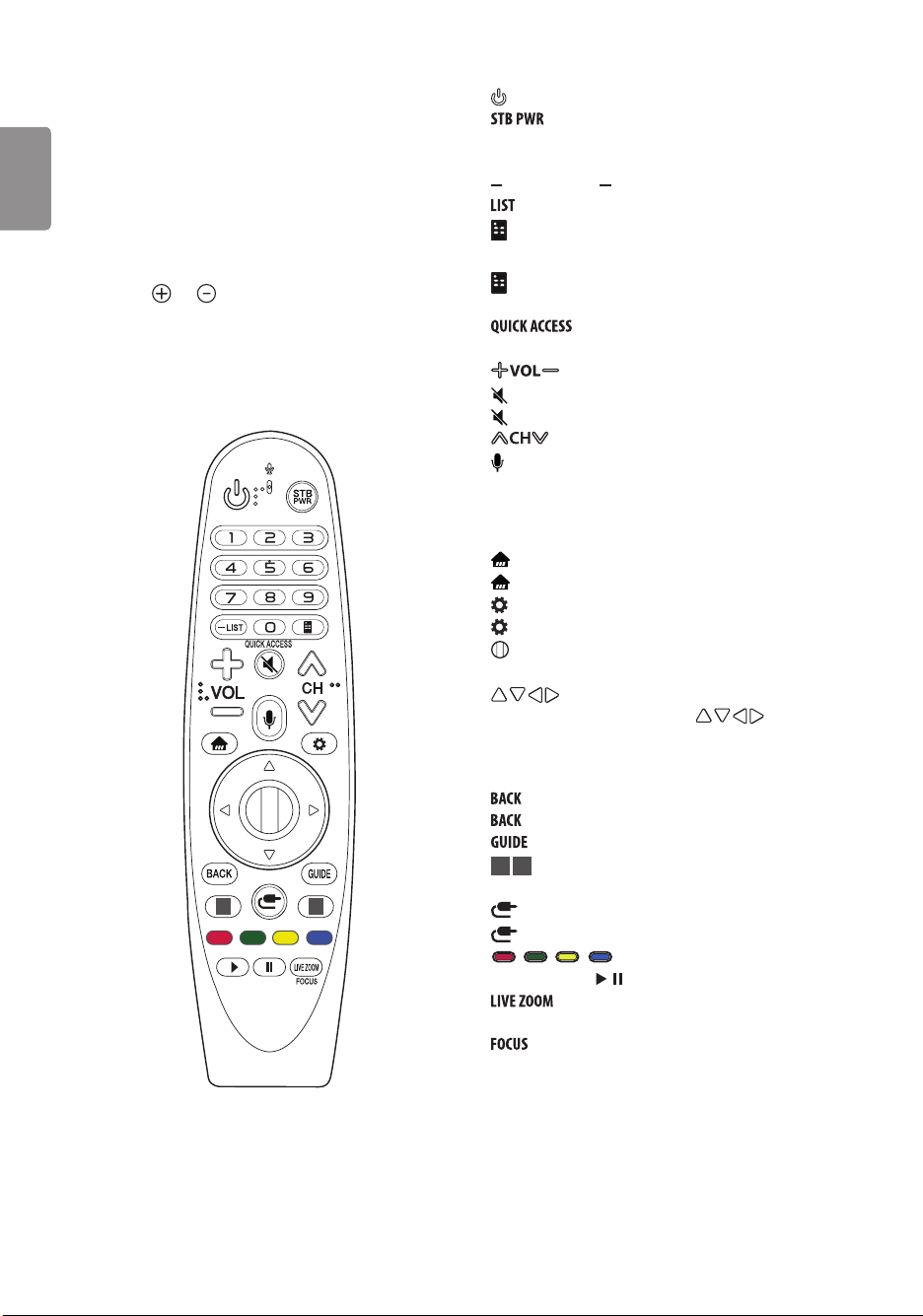
Adjusting the menu
When the TV is turned on, press the button one time. You can adjust
the Menu items using the button.
Turns the power o.
Accesses the settings menu.
Clears on-screen displays and returns to TV viewing.
Changes the input source.
10
ENGLISH
Using Magic Remote
Control
(Depending upon model)
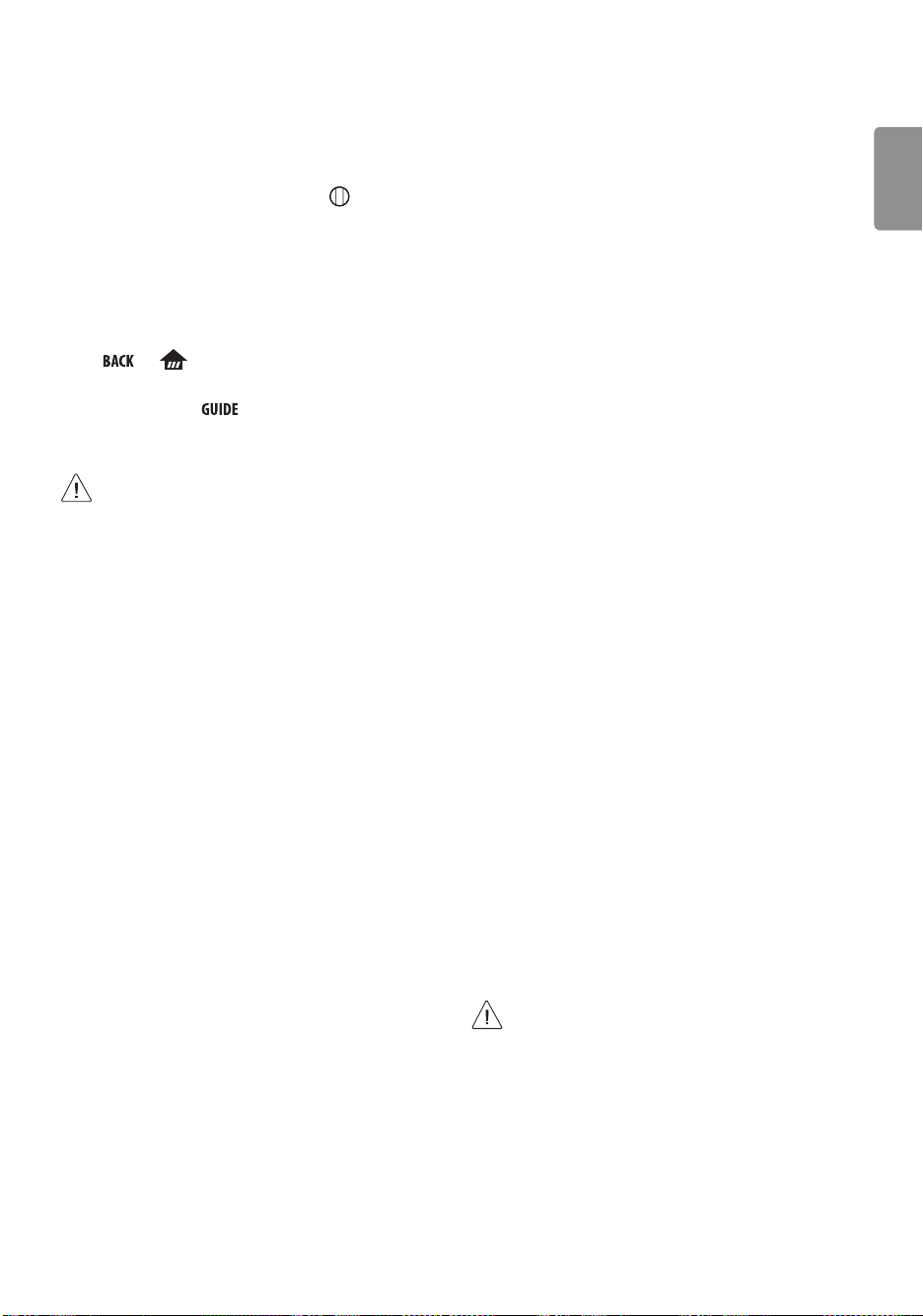
The descriptions in this manual are based on the buttons on the remote
control. Please read this manual carefully and use the TV correctly.
When the message “Magic Remote battery is low. Please change the
battery.” is displayed, replace the batteries.
To install batteries, open the battery cover, replace batteries (1.5 V AA)
matching the
and ends to the label inside the compartment,
and close the battery cover. Be sure to point the magic remote toward
the remote control sensor on the TV. To remove the batteries, perform
the installation actions in reverse. This remote uses infrared light. When
in use, it should be pointed in the direction of the TV’s remote sensor.
북미/멕시코/브라질/중남미/필리핀
1
2
(Some buttons and services may not be provided depending upon
models or regions.)
* To use the button, press and hold for more than 3 seconds.
(POWER) Turns the TV on or o.
You can turn your set-top box on or o by adding the set-
top box to the universal remote control for your TV.
Number buttons Enters numbers.
(DASH) Inserts a (DASH) between numbers such as 2-1 and 2-2.
Accesses the saved channels list.
(Screen Remote) Displays the Screen Remote.
- Accesses the Universal Control Menu in some regions.
* (Screen Remote) SAP (Secondary Audio Program) Feature can
be enabled by pressing the key.
* You can access apps or Live TV using the number
buttons corresponding to the features.
Adjusts the volume level.
(MUTE) Mutes all sounds.
* (MUTE) Accesses the Accessibility menu.
Scrolls through the saved channels.
* (Voice recognition)
Network connection is required to use the voice recognition function.
Once the voice display bar is activated on the TV screen, press and hold
the button and speak your command out loud.
(HOME) Accesses the Home menu.
* (HOME) Shows the previous history.
(Q. Settings) Accesses the Quick Settings.
* (Q. Settings) Displays the All Settings menu.
Wheel (OK) Press the center of the Wheel button to select a
menu. You can change channels by using the wheel button.
(up/down/left/right) Press the up, down, left or right
button to scroll the menu. If you press buttons while the
pointer is in use, the pointer will disappear from the screen and Magic
Remote will operate like a general remote control. To display the
pointer on the screen again, shake Magic Remote to the left and right.
Returns to the previous level.
* Clears on-screen displays and returns to last input viewing.
Displays the program event according to time scheduler.
1
2
Streaming Service buttons Connects to the Video
Streaming Service.
(INPUT) Changes the input source.
* (INPUT) Displays a list of all the external inputs.
, , , These access special functions in some menus.
Control buttons (
, ) Controls media contents.
By zooming in on the selected area, you can view it in
full screen.
* You can zoom in on the area where the remote control is
pointed.
ENGLISH
11
Registering Magic Remote Control
How to register the Magic Remote Control
To use the Magic Remote, rst pair it with your TV.
1 Put batteries into the Magic Remote and turn the TV on.
2 Point the Magic Remote at your TV and press the Wheel (OK) on
the remote control.
* If the TV fails to register the Magic Remote, try again after turning
the TV off and back on.
How to deregister the Magic Remote
Control
Press the and (HOME) buttons at the same time, for ve
seconds, to unpair the Magic Remote with your TV.
* Pressing and holding the button will let you cancel and re-
register Magic Remote at the same time.
• It is recommended that an Access Point (AP) be located
more than 0.2 m (0.65 ft) away from the TV. If the AP is
installed closer than 0.2 m (0.65 ft), the Magic remote
control may not perform as expected due to frequency
interference.
• Do not mix new batteries with old batteries. This may
cause the batteries to overheat and leak.
• Failure to match the correct polarities of the battery
may cause the battery to burst or leak, resulting in re,
personal injury, or ambient pollution.
• This apparatus uses batteries. In your community there
might be regulations that require you to dispose of these
batteries properly due to environmental considerations.
Please contact your local authorities for disposal or
recycling information.
• Batteries inside or inside the product shall not be
exposed to excessive heat such as sunshine, re or the
like.
Troubleshooting
Cannot control the TV with the remote control.
• Check if anything such as tape has been placed over the receiver.
• Check if there is any obstacle between the product and the remote
control.
• Replace the batteries with new fresh ones.
No image display and no sound is produced.
• Check if the product is turned on.
• Check if the power cord is connected to a wall outlet.
• Check if there is a problem in the wall outlet by connecting other
products.
The TV turns o suddenly.
• Check the power control settings. The power supply may be
interrupted.
• Check if the auto-o function is activated in the settings menu.
• If there is no signal while the TV is on, the TV will turn o
automatically after 15 minutes of inactivity.
Abnormal Display
• If the TV feels cold to the touch, there may be a small icker when
it is turned on. This is normal; there is nothing wrong with TV.
Some minute dot defects may be visible on the screen, appearing
as tiny red, green, or blue spots. However, they have no adverse
eect on the TV’s performance. Avoid touching the screen or
holding your nger(s) against it for long periods of time. Doing so
may produce some temporary distortion eects on the screen.
• This panel is an advanced product that contains millions of pixels.
In a very few cases, you could see ne dots on the screen while
you’re viewing the TV. Those dots are deactivated pixels and do not
aect the performance and reliability of the TV.
Generated Sound
• Cracking noise A cracking noise that occurs when watching or
turning o the TV is generated by plastic thermal contraction due
to temperature and humidity. This noise is common for products
where thermal deformation is required.
• Electrical circuit humming/panel buzzing A low level noise
is generated from a high-speed switching circuit, which supplies a
large amount of current to operate a product. It varies depending
upon the product. This generated sound does not aect the
performance and reliability of the product.
• Make sure to wring any excess water or cleaner from
the cloth.
• Do not spray water or cleaner directly onto the TV screen.
• Make sure to spray just enough of water or cleaner onto a
dry cloth to wipe the screen.
12
ENGLISH
Specications
Product specications may be changed without prior notice due to upgrade of product functions.
Estimated yearly energy consumption indicated on the FTC label is measured in accordance with the Test Procedures for Television Sets (USA only).
The actual energy consumption depends on the usage environment (The content watched, TV settings, etc.).
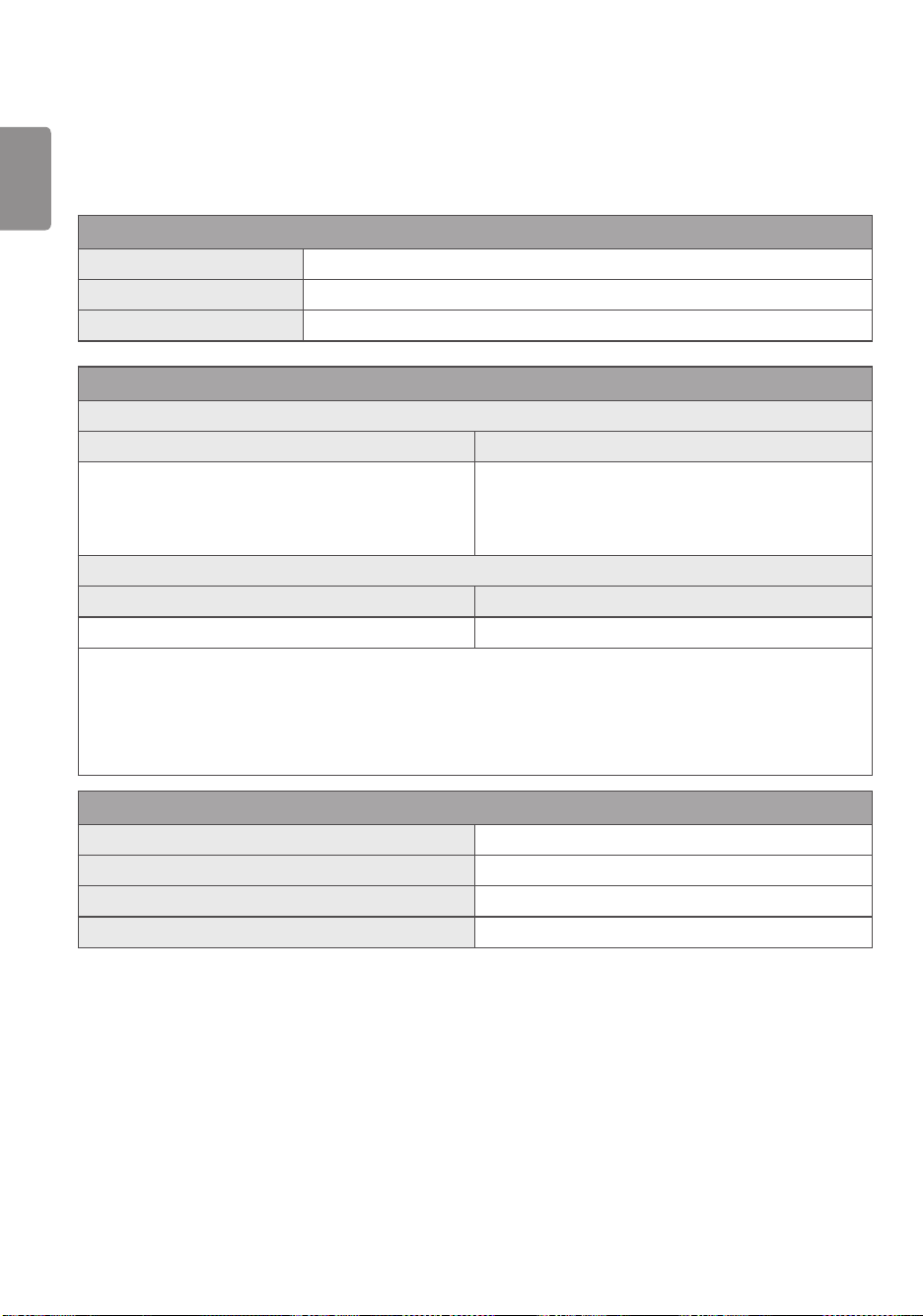
Broadcasting Specifications
Television system ATSC, NTSC-M, 64 & 256 QAM
Program coverage VHF 2-13, UHF 14-69, DTV 2-69, CATV 1-135, CADTV 1-135
External antenna impedance 75 Ω
Wireless module (LGSBWAC72) Specifications
Wireless LAN (IEEE 802.11a/b/g/n/ac)
Frequency Range Output Power (Max.)
2400 to 2483.5 MHz
5150 to 5725 MHz
5725 to 5850 MHz
15 dBm
14.5 dBm
14.5 dBm
Bluetooth
Frequency Range Output Power (Max.)
2400 to 2483.5 MHz 8.5 dBm
As band channels can vary per country, the user cannot change or adjust the operating frequency. This product is congured for the regional
frequency table.
For consideration of the user, this device should be installed and operated with a minimum distance of 20 cm (7.8 inches) between the device
and the body.
FCC ID: BEJLGSBWAC72 / IC: 2703H-LGSBWAC72
Environment condition
Operating Temperature 0 °C to 40 °C (32 °F to 104 °F)
Operating Humidity Less than 80 %
Storage Temperature -20 °C to 60 °C (-4 °F to 140 °F)
Storage Humidity Less than 85 %
ENGLISH
13
Open Source Software
Notice Information
To obtain the source code under GPL, LGPL, MPL, and other open source
licenses, that is contained in this product, please visit http://opensource.
lge.com.
In addition to the source code, all referred license terms, warranty
disclaimers and copyright notices are available for download.
LG Electronics will also provide open source code to you on CD-ROM
for a charge covering the cost of performing such distribution (such
as the cost of media, shipping, and handling) upon email request to
opensourc[email protected].
This oer is valid for a period of three years after our last shipment of
this product. This oer is valid to anyone in receipt of this information.
Licenses
Supported licenses may dier by model.

14
ENGLISH
Information on Functions
Supporting Image Quality in
Relation to Temporary Image
Retention
• OLED TV oers a function called Pixel Refresher, which helps to
prevent temporary image retention. This function can be operated
automatically or manually.
• The auto feature will activate when the TV power is turned o, but
only after the TV has been turned on for a cumulated total of four
(4) hours or more, which need not be consecutive. Pixel Refresher
will automatically run for several minutes after the screen is
turned o. (Please note that failure to supply the AC power or
disconnecting the power cord from the outlet will disable the auto
feature.)
• To manually activate Pixel Refresher, you will have to select
Picture
OLED Panel Settings Pixel Refresher in the
settings. Once manually activated, the function will run for
approximately one (1) hour. During this time, a horizontal line may
appear on the screen; however, this is not a malfunction.
• If Pixel Refresher has not been manually activated for a certain
period of time, a pop-up window advising to activate this function
will appear on the screen. Please follow the instructions set forth in
the pop-up window.
• In addition to Pixel Refresher, there are other functions available
for protecting the screen from image retention. For example, a
function that automatically reduces the screen brightness level, in
part or in whole, will be activated when a static image is displayed
uninterrupted on the screen. Once the static image disappears, the
brightness level will automatically return to the previous level. This
function is an intended function, and not a malfunction.
Important Information for
Preventing Image Retention
OLED is a self-emissive technology, which brings many signicant
benets to image quality and performance. As with any self-emitting
display, it is possible for users of OLED TVs to experience temporary
image retention under certain conditions, such as when displaying a
static image on the screen for a long time. Even so, this phenomenon is
rare under ordinary viewing conditions and is not a malfunction. Below
sets forth helpful information you may refer to for using your OLED TV.
Examples of Images that may Cause
Image Retention
• Still images or xed images containing certain information
that are displayed uninterrupted on the screen, such as channel
numbers, station logos, program titles, news or movie subtitles,
and headlines.
• Fixed menu or icons for video game consoles or broadcasting
set-top boxes.
• Black bars shown on the left, right, top, or bottom of the screen,
such as in images with a 4:3 or 21:9 ratio.
Recommended Measures for
Preventing Image Retention
• Avoid watching a video displaying an image as listed above for
extended periods of time.
• Adjust your TV settings as below when turning on a video
exhibiting an image as listed above for extended periods of time.
- Picture Picture Mode Settings Picture Mode APS
- Picture Picture Mode Settings OLED LIGHT Adjust
to lower value
- Picture OLED Panel Settings Logo Luminance
Adjustment High
• Turn o the menu bar of an external device, such as a set-top
box, to prevent long-term display of the menu bar of such device.
(Please refer to the manual of the applicable external device for
instructions.)
• Adjust the settings as below when watching a video constantly
showing black bars on the left, right, top or bottom, in order to
remove the black bars.
- Picture Aspect Ratio Settings Aspect Ratio
Vertical Zoom or All-Direction Zoom

ENGLISH
15
Regulatory
FCC NOTICE
(For USA)
This equipment has been tested and found to comply with the limits
for a Class B digital device, pursuant to Part 15 of the FCC Rules. These
limits are designed to provide reasonable protection against harmful
interference in a residential installation. This equipment generates, uses
and can radiate radio frequency energy and, if not installed and used
in accordance with the instructions, may cause harmful interference to
radio communications. However, there is no guarantee that interference
will not occur in a particular installation. If this equipment does
cause harmful interference to radio or television reception, which
can be determined by turning the equipment o and on, the user is
encouraged to try to correct the interference by one or more of the
following measures:
- Reorient or relocate the receiving antenna.
- Increase the separation between the equipment and the receiver.
- Connect the equipment to an outlet on a circuit dierent from
that to which the receiver is connected.
- Consult the dealer or an experienced radio/TV technician for
help.
This device complies with part 15 of the FCC Rules. Operation is subject
to the following two conditions: (1) this device may not cause harmful
interference and (2) this device must accept any interference received,
including interference that may cause undesired operation. Any
changes or modications in construction of this device which are not
expressly approved by the party responsible for compliance could void
the user’s authority to operate the equipment.
FCC Radio Frequency Interference
Requirements (for UNII devices)
High power radars are allocated as primary users of the 5.25 to 5.35 GHz
and 5.65 to 5.85 GHz bands. These radar stations can cause interference
with and/or damage this device. This device cannot be co-located with
any other transmitter.
FCC RF Radiation Exposure Statement
[For having wireless function (WLAN, Bluetooth,...)]
This equipment complies with FCC radiation exposure limits set forth for
an uncontrolled environment. This transmitter must not be colocated
or operating in conjunction with any other antenna or transmitter. This
equipment should be installed and operated with minimum distance
20 cm (7.8 inches) between the radiator and your body. Users must
follow the specic operating instructions for satisfying RF exposure
compliance.
Industry Canada Statement
(For Canada)
[For having wireless function (WLAN, Bluetooth,...)]
This device contains licence-exempt transmitter(s)/receiver(s) that
comply with Innovation, Science and Economic Development Canada’s
licence-exempt RSS(s). Operation is subject to the following two
conditions:
(1) This device may not cause interference.
(2) This device must accept any interference, including interference
that may cause undesired operation of the device.
IC Radiation Exposure Statement
(For Canada)
[For having wireless function (WLAN, Bluetooth,...)]
This equipment complies with IC radiation exposure limits set forth
for an uncontrolled environment. This equipment should be installed
and operated with minimum distance 20 cm (7.8 inches) between the
antenna & your body.
NOTE : THE MANUFACTURER IS NOT RESPONSIBLE FOR ANY RADIO OR
TV INTERFERENCE CAUSED BY UNAUTHORIZED MODIFICATIONS TO THIS
EQUIPMENT. SUCH MODIFICATIONS COULD VOID THE USER’S AUTHORITY
TO OPERATE THE EQUIPMENT.
16
ENGLISH
WARNING!
Never place a television set in an unstable location. A television set may
fall, causing serious personal injury or death. Many injuries, particularly
to children, can be avoided by taking simple precautions such as:
• Using cabinets or stands recommended by the manufacturer of the
television set.
• Only using furniture that can safely support the television set.
• Ensuring the television set is not overhanging the edge of the
supporting furniture.
• Not placing the television set on tall furniture (for example,
cupboards or bookcases) without anchoring both the furniture and
the television set to a suitable support.
• Not placing the television set on cloth or other materials that may
be located between the television set and supporting furniture.
• Educating children about the dangers of climbing on furniture to
reach the television set or its controls.
If your existing television set is being retained and relocated, the same
considerations as above should be applied.
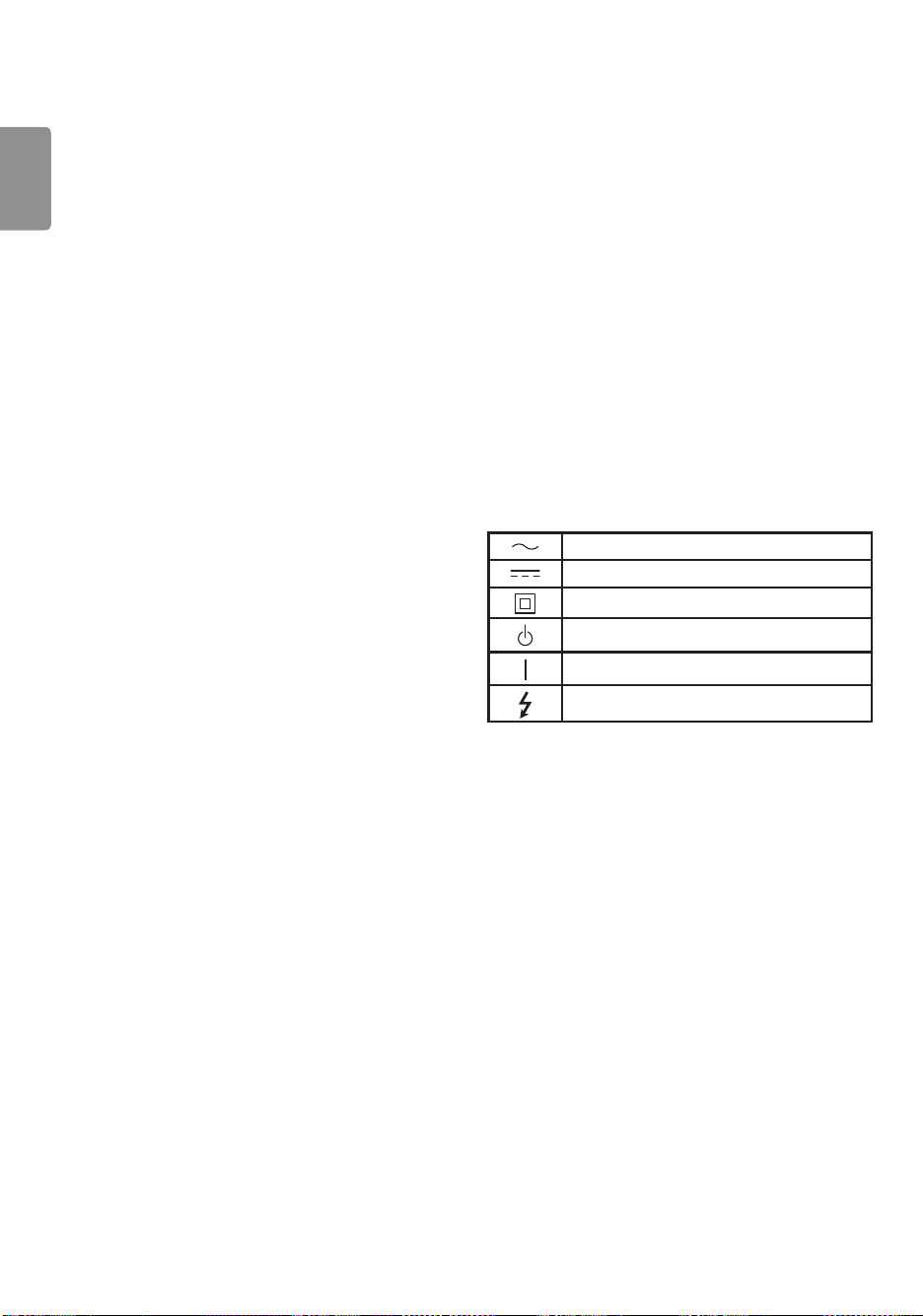
Symbols
Refers to alternating current (AC).
Refers to direct current (DC).
Refers to class II equipment.
Refers to stand-by.
Refers to “ON” (power).
Refers to dangerous voltage.
RSS-247 Requirement
(For Canada)
[For product having the wireless function using 5 GHz frequency bands]
(1) the device for operation in the band 5150–5250 MHz is only for
indoor use to reduce the potential for harmful interference to
co-channel mobile satellite systems;
(2) for devices with detachable antenna(s), the maximum antenna
gain permitted for devices in the bands 5250-5350 MHz and
5470-5725 MHz shall be such that the equipment still complies
with the e.i.r.p. limit;
(3) for devices with detachable antenna(s), the maximum antenna
gain permitted for devices in the band 5725-5850 MHz shall be
such that the equipment still complies with the e.i.r.p. limits as
appropriate; and
(4) [for devices operating in the band 5250-5350 MHz having an e.i.r.p.
greater than 200 mW] Antenna type(s), antenna models(s), and
worst-case tilt angle(s) necessary to remain compliant with the
e.i.r.p. elevation mask requirement set forth in section 6.2.2.3 of
RSS-247 shall be clearly indicated.
Users should also be advised that high-power radars are allocated as
primary users (i.e. priority users) of the bands 5250-5350 MHz and
5650-5850 MHz and that these radars could cause interference and/or
damage to LE-LAN devices.
NOTE TO CABLE/TV INSTALLER
(For USA and Canada)
This reminder is provided to call the CATV system installer’s attention to
Article 820-40 of the National Electric Code (U.S.A.). The code provides
guidelines for proper grounding and, in particular, species that
the cable ground shall be connected to the grounding system of the
building, as close to the point of the cable entry as practical.
ENGLISH
17

18
ENGLISH
ENGLISH
19
THE CONSUMER ELECTRONICS INDUSTRY CARES
• Manufacturers, retailers and the rest of the consumer electronics industry are committed to
making home entertainment safe and enjoyable.
• As you enjoy your television, please note that all televisions – new and old- must be supported on
proper stands or installed according to the manufacturer’s recommendations. Televisions that
are inappropriately situated on dressers, bookcases, shelves, desks, speakers, chests, carts, etc.,
may fall over, resulting in injury.
TUNE IN TO SAFETY
• ALWAYS follow the manufacturer’s recommendations for the safe installation of your television.
• ALWAYS read and follow all instructions for proper use of your television.
• NEVER allow children to climb on or play on the television or the furniture on which the television
is placed.
• NEVER place the television on furniture that can easily be used as steps, such as a chest of
drawers.
• ALWAYS install the television where it cannot be pushed, pulled over or knocked down.
• ALWAYS route cords and cables connected to the television so that they cannot be tripped
over, pulled or grabbed.
WALL OR CEILING MOUNT YOUR TELEVISION
• ALWAYS contact your retailer about professional installation if you have any doubts about your
ability to safely mount your television.
• ALWAYS use a mount that has been recommended by the television manufacturer and has a
safety certication by an independent laboratory (such as UL, CSA, ETL).
• ALWAYS follow all instructions supplied by the television and mount manufacturers.
• ALWAYS make sure that the wall or ceiling where you are mounting the television is appropriate.
Some mounts are not designed to be mounted to walls and ceilings with steel studs or cinder
block construction. If you are unsure, contact a professional installer.
• Televisions can be heavy. A minimum of two people is required for a wall or ceiling mount
installation.
MOVING AN OLDER TELEVISION TO A NEW PLACE IN
YOUR HOME
• Many new television buyers move their older CRT televisions into a secondary room after the
purchase of a at-panel television. Special care should be made in the placement of older CRT
televisions.
• ALWAYS place your older CRT television on furniture that is sturdy and appropriate for its size
and weight.
• NEVER place your older CRT television on a dresser where children may be tempted to use the
drawers to climb.
• ALWAYS make sure your older CRT television does not hang over the edge of your furniture.
CHILD SAFETY:
PROPER TELEVISION PLACEMENT MATTERS
CE.org/safety
LG Customer Information Center
For inquires or comments, visit www.lg.com or call;
1-800-243-0000 USA, Consumer User
1-888-865-3026 USA, Commercial User
1-888-542-2623 CANADA
Register your product Online!
www.lg.com
The model and serial numbers of the TV are located
on the back and on one side of the TV. Record them
below should you ever need service.
MODEL
SERIAL NO.
Declaration of Conformity
Trade Name LG
Responsible Party LG Electronics Inc.
Address 1000 Sylvan Ave. Englewood
Cliffs NJ 07632 U.S.A
TEL 201-266-2534
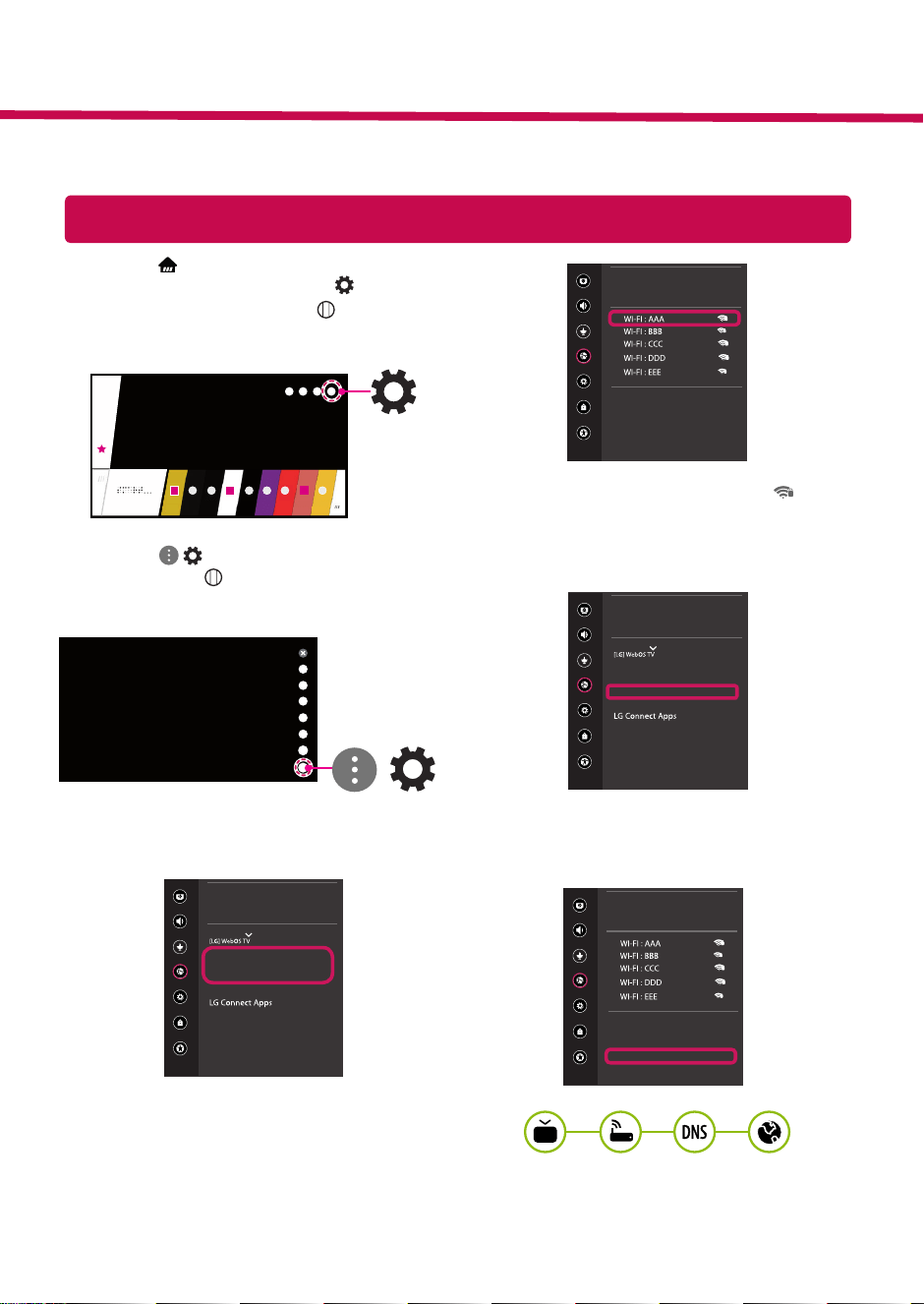
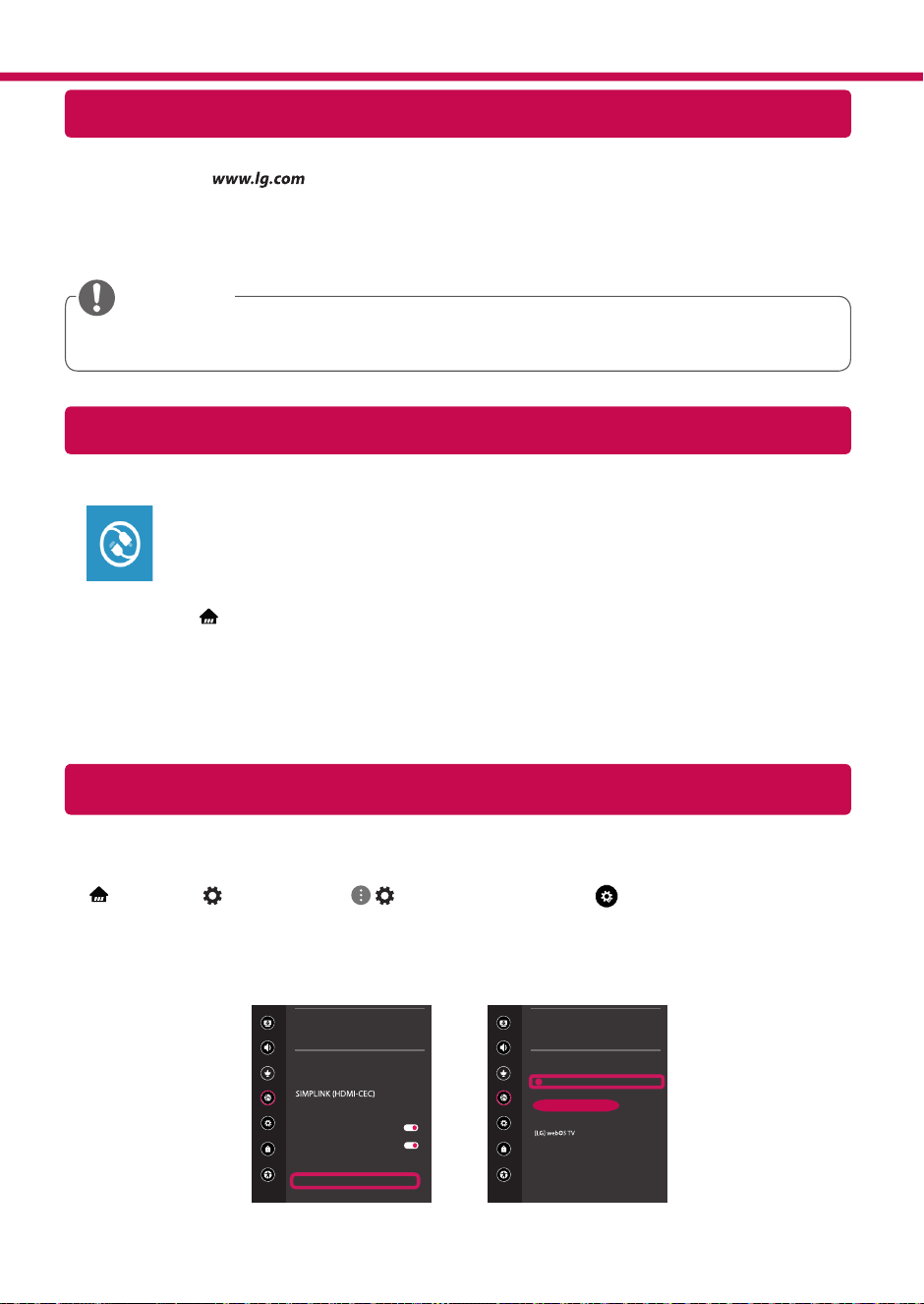
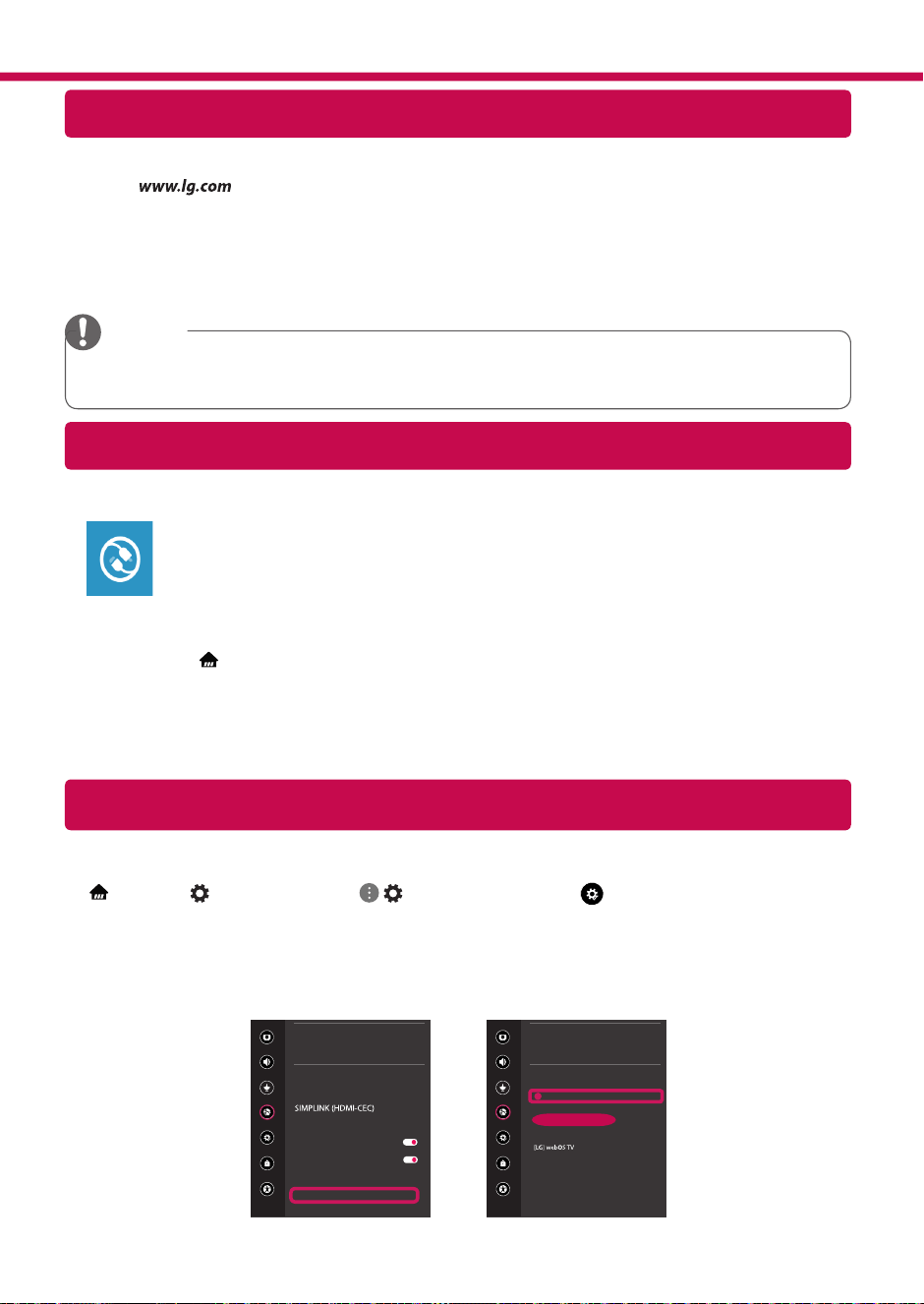
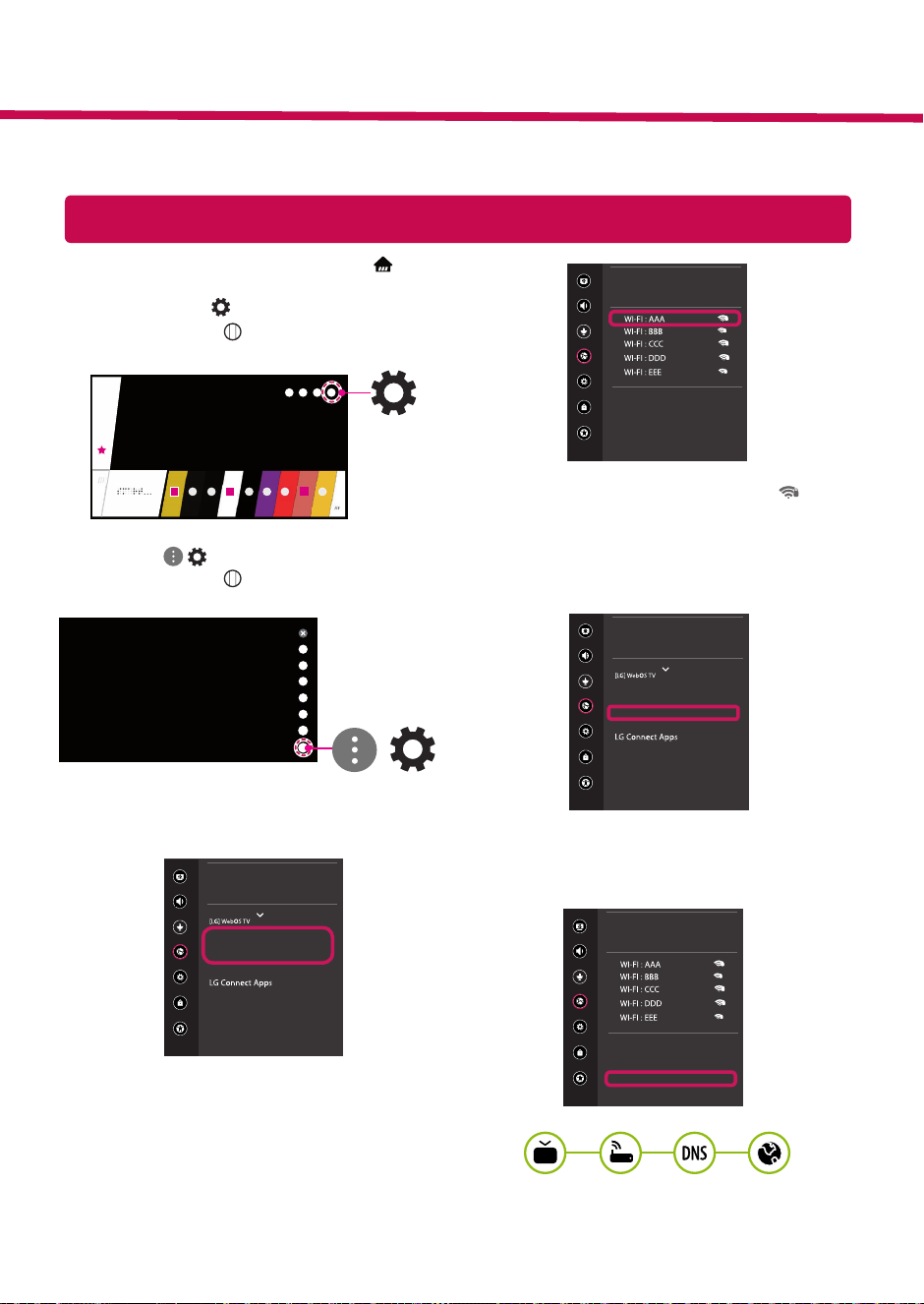
Network Settings
1 Press the (Home) button on the remote to
access the Home menu. Point the (Settings)
icon and select by pressing the Wheel (OK)
button on the remote.
2 Point the
( )
(All Settings)
icon and select
by pressing the Wheel (OK) button on the
remote.
All Settings
(
)
3 Select the Network
→
Wired Connection
(Ethernet) or Wi-Fi Connection.
Picture
NETWORK
TV Name
Wired Connection (Ethernet)
Not Connected
Wi-Fi Connection
Not Connected
Wi-Fi Direct
Sound
Channels
Network
General
Safety
Accessibility
4 The device automatically tries to connect to the
network available (wired network first).
When you select the Wi-Fi Connection, the
network list available is displayed. Choose the
network you wish to use.
Picture
WI-FI CONNECTION
Network /
Sound
Channels
Network
General
Safety
Accessibility
ꔐ
Add a Hidden Wireless Network
Connect via WPS PBC
Connect via WPS PIN
Advanced Wi-Fi Settings
For wireless AP (Router) that have the
symbol, you need to enter the security key.
5 If the connection is successful, the "Connected
to Internet" is displayed.
Picture
NETWORK
TV Name
Wired Connection (Ethernet)
Not Connected
Wi-Fi Connection
Connected to Internet
Wi-Fi Direct
Sound
Channels
Network
General
Safety
Accessibility
You can check the status of connection in
Advanced Wi-Fi settings.
Picture
WI-FI CONNECTION
Network /
Sound
Channels
Network
General
Safety
Accessibility
ꔐ
Add a Hidden Wireless Network
Connect via WPS PBC
Connect via WPS PIN
Advanced Wi-Fi Settings
* Image shown may differ from your TV.
* Image shown on a PC or mobile phone may vary depending on the OS(Operating System).
* App icon positions may vary on the platform, depending upon the software version.
SMART TV Quick Setup Guide
www.lg.com
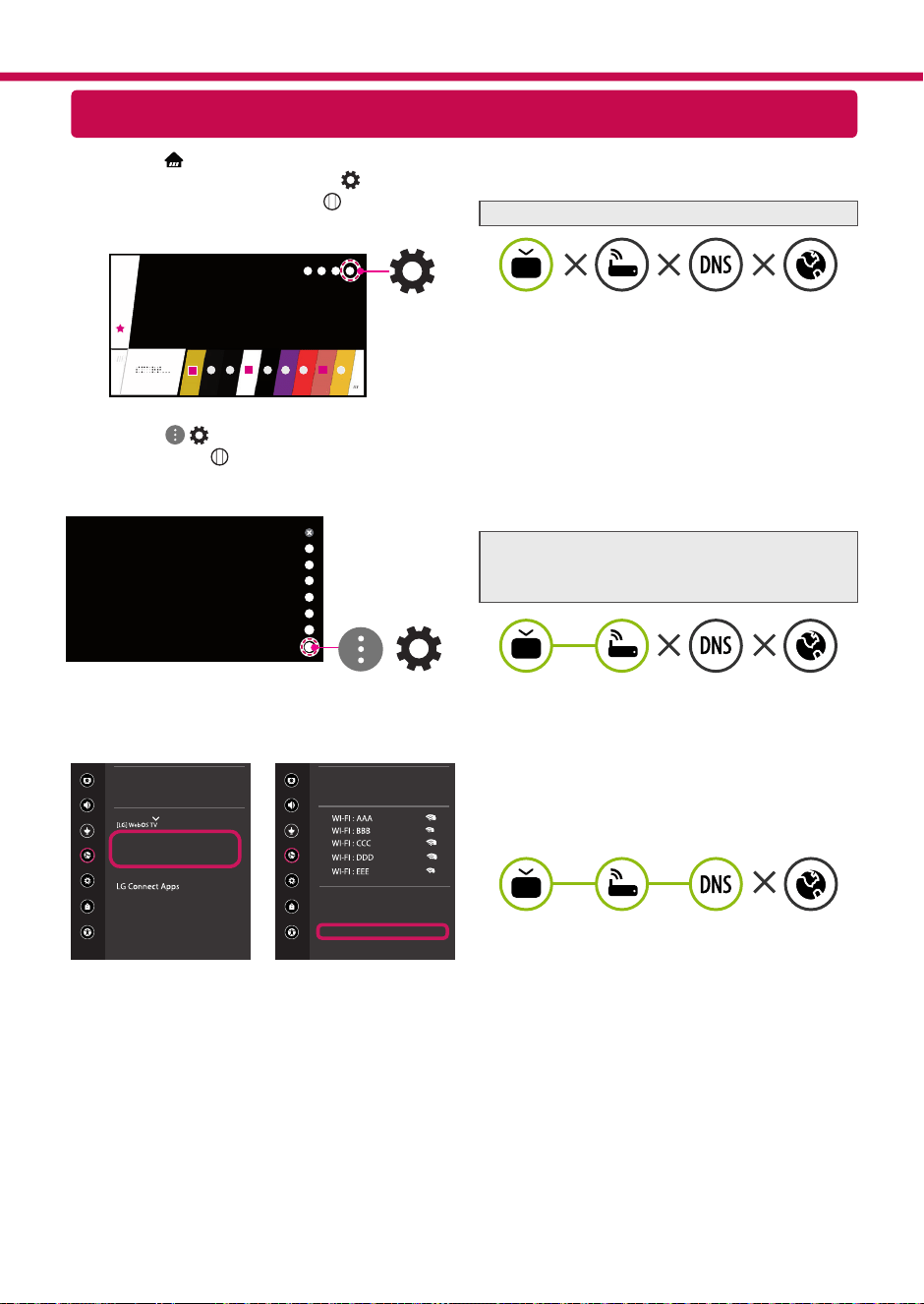
Troubleshooting Network Problems
1 Press the (Home) button on the remote to
access the Home menu. Point the (Settings)
icon and select by pressing the Wheel (OK)
button on the remote.
2 Point the ( ) (All Settings) icon and select
by pressing the Wheel (OK) button on the
remote.
All Settings
(
)
3 Select the Network
→
Wired Connection
(Ethernet) or Wi-Fi Connection
→
Advanced
Wi-Fi Settings.
Picture
NETWORK
TV Name
Wired Connection (Ethernet)
Not Connected
Wi-Fi Connection
Not Connected
Wi-Fi Direct
Sound
Channels
Network
General
Safety
Accessibility
Picture
WI-FI CONNECTION
Network /
Sound
Channels
Network
General
Safety
Accessibility
ꔐ
Add a Hidden Wireless Network
Connect via WPS PBC
Connect via WPS PIN
Advanced Wi-Fi Settings
Follow the instructions below that match to your
network status.
Check the TV or the AP (Router).
When X appears next to TV:
1
Check the connection status of the TV, AP
(Router) and cable modem.
2
Power off and power on in the following order;
(1st) the cable modem, wait for the cable
modem to reset, (2nd) the AP (Router), wait for
the AP (Router) to reset and (3rd) the TV.
3
If you are using a static IP, enter the IP directly.
4
Contact internet service provider or AP (Router)
manufacturer.
Check the AP (Router) or consult your Internet
service provider.
When X appears next to Gateway:
1
Unplug the power cord of the AP (Router) or
cable modem, wait 5 seconds. Reapply power.
2
Initialize (Reset) the AP (Router) or cable
modem.
3
Contact Internet service provider or AP (Router)
manufacturer.
When X appears next to DNS:
1
Unplug the power cord of the AP (Router) or
cable modem, wait 5 seconds. Reapply power.
2
After the cable modem or AP (Router) has
initialized (Reset), try to reconnect.
3
Check that the MAC address of the TV/AP
(Router) is registered with your Internet service
provider. (The MAC address displayed on the
right pane of the network status window
should be registered with your Internet service
provider.)
4
Check the AP (Router) manufacturer’s website
to make sure your router has the latest firmware
version installed.
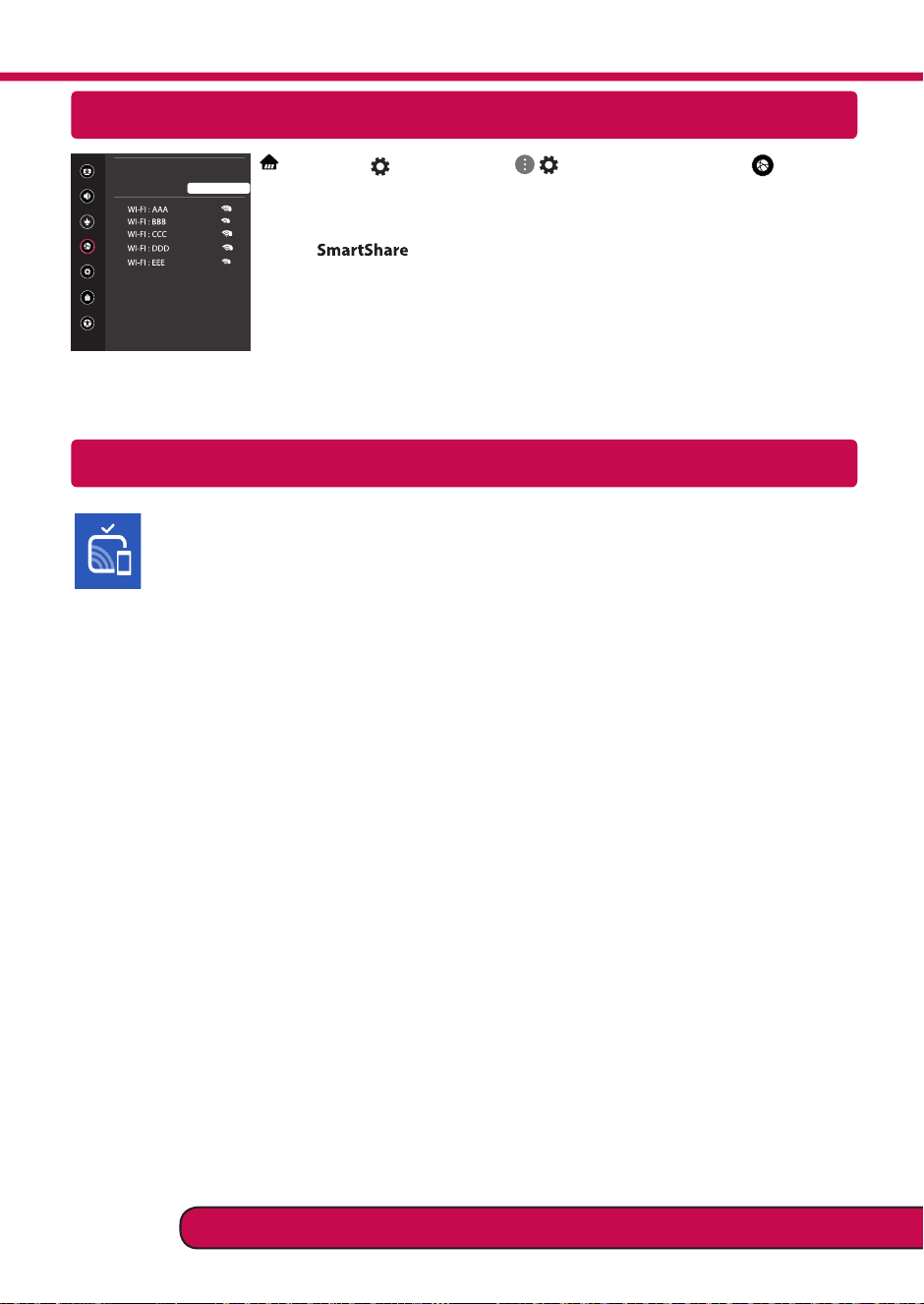
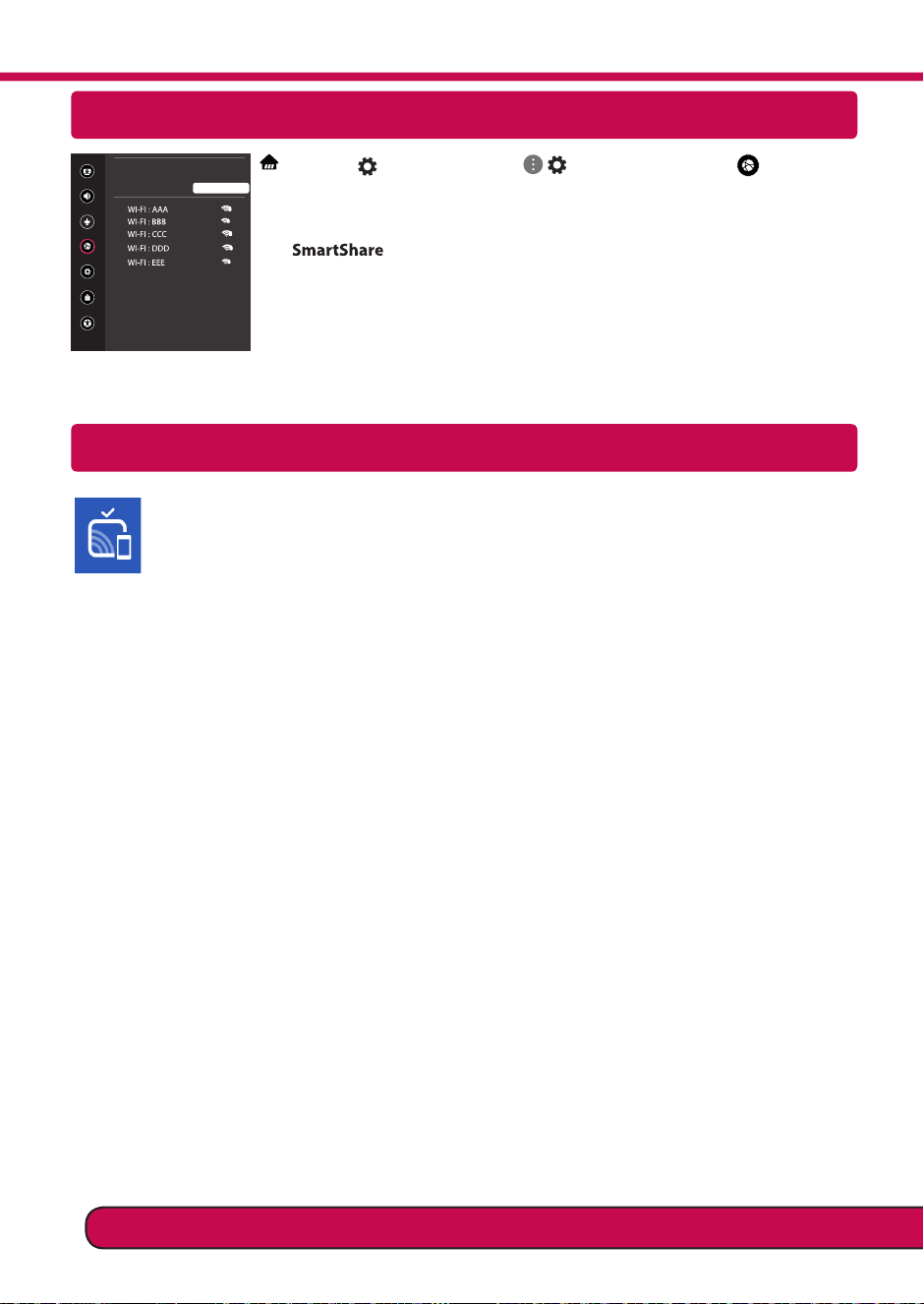
SmartShare PC SW Installing & Setting
1 Install the SmartShare PC SW programme on your PC.
2 Go to . Then, select your region.
3 Select Support.
4 Select Software & Drivers. Then, select SmartShare.
5 Download the SmartShare PC SW and install it on your PC. You can run the program when installation is
complete.
NOTE
y
Smartshare service is only available if TV and other devices are connected via a single AP (Router).
SmartShare Connection to Smartphone
Updating the TV Firmware
* If the TV is turned on for the first time after it was shipped from the factory, initialization of the TV may
take a few minutes.
1 (Home)
→
(Settings)
→
( )
(All Settings)
→
General
→
About This TV
→
CHECK FOR
UPDATES
2 After checking the version of the software, update it.
If you check the "Allow Automatic Updates", you can update the software automatically.
Picture
GENERAL
Sound
Channels
Network
General
Safety
Accessibility
Eco Mode
Mobile TV On
LG Wireless Keyboard
Settings Help
No Signal Image
Reset to Initial Settings
About This TV
User Agreements
Picture
ABOUT THIS TV
General /
Sound
Channels
Network
General
Safety
Accessibility
Software Version xx.xx.xx
ꔐ
Allow Automatic Updates
TV Information
User Guide
Open Source Software Notice
Set ID : 1
CHECK FOR UPDATES
1 Check that Wi-Fi is enabled on your smartphone. To use SmartShare, both devices must
on the same local network.
2 Install/run the app for sharing content on your smartphone (It's called LG TV Plus on LG
phones).
3 Enable your smartphone to share content files with other devices.
4 Open Device Connector application.
(Home)
→
Device Connector
→
Smartphone
→
CONTENT SHARE.
5 Select the file type you want to play (movie, audio or photo).
6 Select a movie, music or photo file to play on the TV.
7 Play the media file to view and enjoy it on your TV.
Miracast Setting
Wi-Fi Direct Setting
(Home)
→
(Settings)
→
( ) (All Settings)
→
Network
→
Wi-Fi Direct
If a local network is not available, you can connect a portable device directly to the TV
using Wi-Fi Direct.
With , you can share files or screens of devices connected to Wi-Fi Direct.
1 When you open Wi-Fi Direct menu, a list of available devices appears.
2 When you are prompted to request connection, select Yes. Wi-Fi Direct is now
connected to your TV.
* You can only use devices that support Wi-Fi Direct.
Please call LG Customer Service if you experience any problems.
Miracast allows a portable device to send video and sound securely to the TV wirelessly.
1 Miracast should be set to "ON" on your portable device.
2 When your TV is detected, select the device on your portable device.
When connection is completed, the device screen appears on the TV screen.
Picture
WI-FI Direct
Network /
Sound
Channels
Network
General
Safety
Accessibility
ꔐ
REFRESH LIST
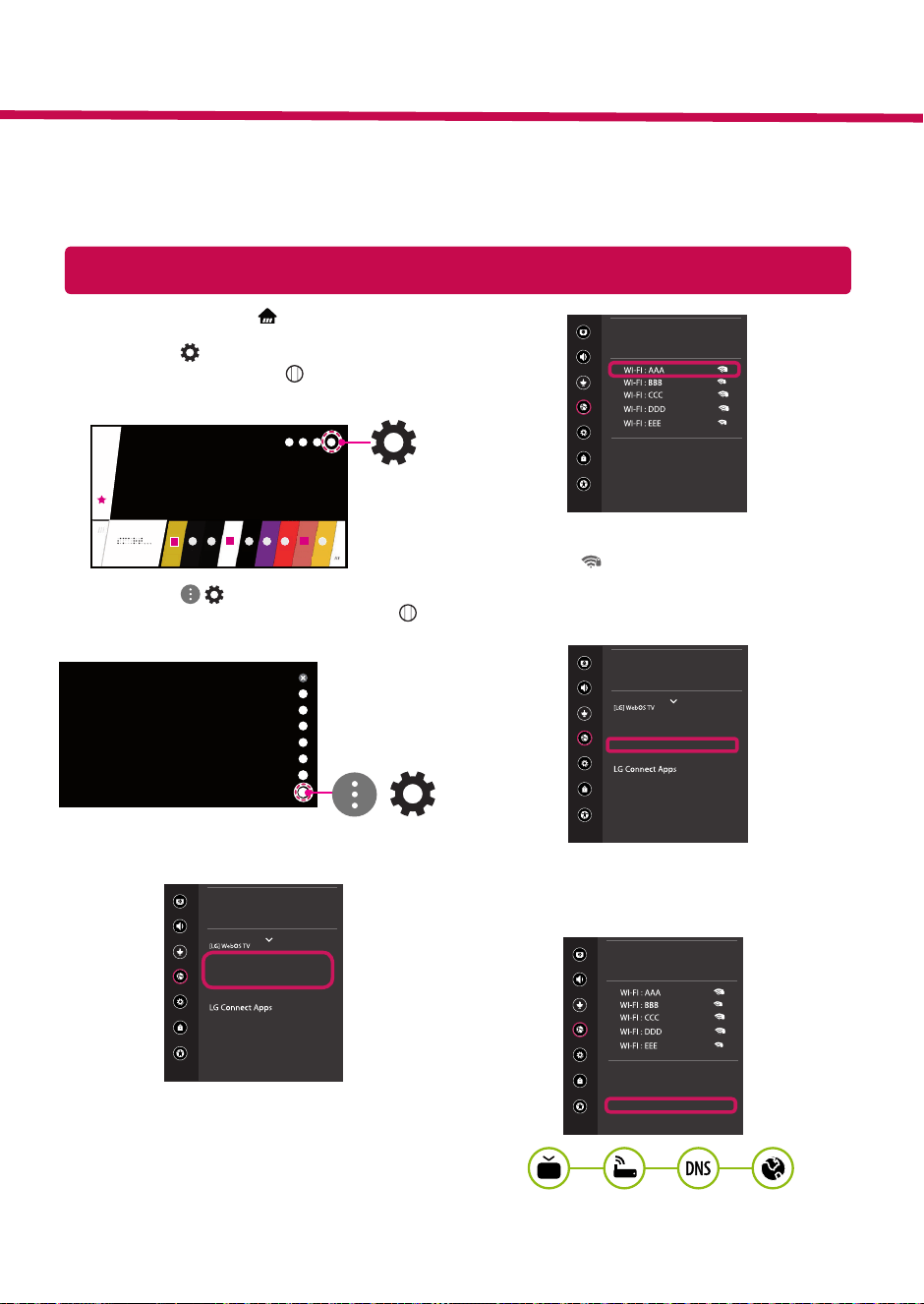
Paramètres réseau
1 Appuyez sur le bouton (Accueil) de la
télécommande pour accéder au menu d’accueil.
Visez l’icône (Paramètres) et sélectionnez-la
en appuyant sur le bouton Molette (OK) de la
télécommande.
2 Visez l’icône
( )
(Tous les paramètres) et
sélectionnez-la en appuyant sur le bouton
Molette (OK) de la télécommande.
Tous les paramètres
(
)
3 Sélectionnez le Réseau
→
Connexion filaire
(Ethernet) ou Connexion Wi-Fi.
Image
RÉSEAU
NOM DE LA TV
Connexion filaire (Ethernet)
Non connecté
Connexion Wi-Fi
Non connecté
Wi-Fi Direct
Son
Chaînes
Réseau
Général
Sécurité
Accessibilité
4 L’appareil tente automatiquement de se
connecter au réseau disponible (réseau filaire en
premier).
Lorsque vous sélectionnez la Connexion Wi-Fi, la
liste des réseaux disponibles s’affiche. Choisissez
le réseau que vous voulez utiliser.
Image
CONNEXION WI-FI
Réseau /
Son
Chaînes
Réseau
Général
Sécurité
Accessibilité
ꔐ
Ajoutez un réseau sans fil caché
Se connecter via WPS-PBC
Se connecter via PIN WPS
Paramètres Wi-Fi avancés
Pour les points d’accès sans fil (routeur) affichant
le symbole , vous devez saisir le code de
sécurité.
5 Lorsque la connexion est établie, la mention
«Connecté à Internet» est affichée.
Image
RÉSEAU
NOM DE LA TV
Connexion filaire (Ethernet)
Non connecté
Connexion Wi-Fi
Connecté à Internet
Wi-Fi Direct
Son
Chaînes
Réseau
Général
Sécurité
Accessibilité
Vous pouvez vérifier l’état de la connexion dans
Paramètres Wi-Fi avancés.
Image
CONNEXION WI-FI
Réseau /
Son
Chaînes
Réseau
Général
Sécurité
Accessibilité
ꔐ
Ajoutez un réseau sans fil caché
Se connecter via WPS-PBC
Se connecter via PIN WPS
Paramètres Wi-Fi avancés
* Les images présentées pourraient ne pas correspondre à votre téléviseur.
* Les images affichées sur un ordinateur ou un téléphone mobile peuvent varier en fonction du SE (système
d’exploitation).
* L’emplacement de l’icône de l’application peut varier sur la plateforme, en fonction de la version du logi-
ciel.
Guide d’installation rapide du téléviseur SMART
www.lg.com
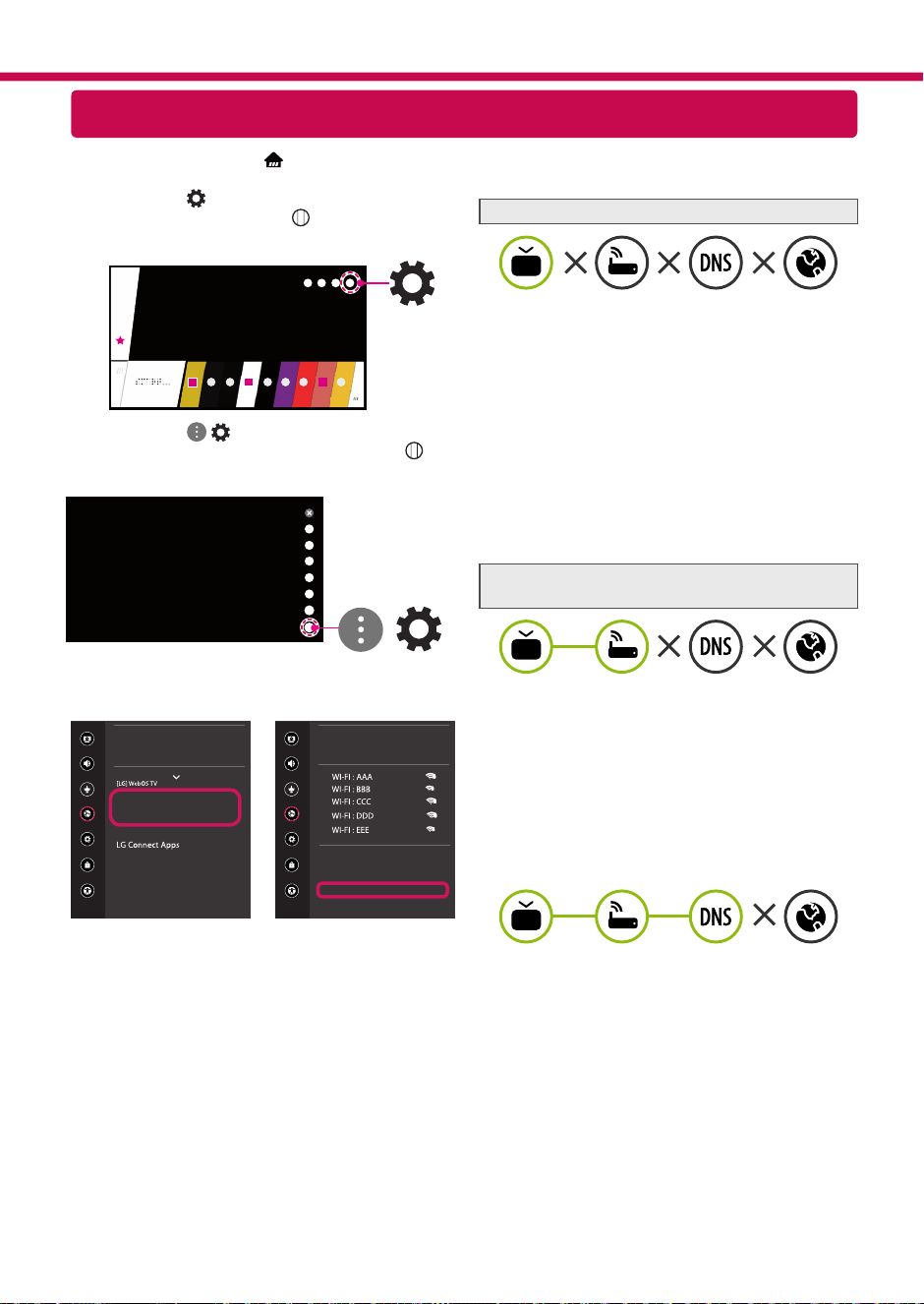
Dépannage des problèmes réseau
1 Appuyez sur le bouton (Accueil) de la
télécommande pour accéder au menu d’accueil.
Visez l’icône (Paramètres) et sélectionnez-la
en appuyant sur le bouton Molette (OK) de
la télécommande.
2 Visez l’icône ( ) (Tous les paramètres) et
sélectionnez-la en appuyant sur le bouton
Molette (OK) de la télécommande.
Tous les paramètres
(
)
3 Sélectionnez le Réseau
→
Connexion filaire
(Ethernet) ou Connexion Wi-Fi
→
Paramètres
Wi-Fi avancés.
Image
RÉSEAU
NOM DE LA TV
Connexion filaire (Ethernet)
Non connecté
Connexion Wi-Fi
Non connecté
Wi-Fi Direct
Son
Chaînes
Réseau
Général
Sécurité
Accessibilité
Image
CONNEXION WI-FI
Réseau /
Son
Chaînes
Réseau
Général
Sécurité
Accessibilité
ꔐ
Ajoutez un réseau sans fil caché
Se connecter via WPS-PBC
Se connecter via PIN WPS
Paramètres Wi-Fi avancés
Suivez les instructions ci-dessous qui correspondent
à l’état de votre réseau.
Vérifiez le téléviseur ou le point d’accès (routeur).
Lorsqu’une croix (X) apparaît à côté du téléviseur:
1
Vérifiez l’état de la connexion du téléviseur, du point
d’accès (routeur) et du modem câble.
2
Mettez les appareils hors tension et sous tension
dans l’ordre suivant : (1) le modem câble, attendez
que le modem câble se réinitialise; (2) le point
d’accès (routeur), attendez que le routeur se
réinitialise et (3) le téléviseur.
3
Si vous utilisez une adresse IP fixe, saisissez-la
directement.
4
Communiquez avec le fournisseur d’accès à Internet
ou avec le fabricant du point d’accès (routeur).
Vérifiez le point d’accès (routeur) ou consultez
votre fournisseur d’accès à Internet.
Lorsqu’une croix (X) apparaît à côté de la
passerelle:
1
Débranchez le cordon d’alimentation du point d’accès
(routeur) ou du modem câble, attendez 5 secondes,
puis rebranchez-le.
2
Réinitialisez le point d’accès (routeur) ou le modem
câble.
3
Communiquez avec le fournisseur d’accès Internet
ou le fabricant du point d’accès (routeur).
Lorsqu’une croix (X) apparaît à côté du DNS:
1
Débranchez le cordon d’alimentation du point d’accès
(routeur) ou du modem câble, attendez 5 secondes,
puis rebranchez-le.
2
Une fois que le modem câble ou le point
d’accès (routeur) est réinitialisé, essayez de vous
reconnecter.
3
Vérifiez que l’adresse MAC du téléviseur ou du
point d’accès (routeur) est enregistrée auprès de
votre fournisseur d’accès à Internet. (L’adresse
MAC affichée dans le volet droit de la fenêtre d’état
du réseau doit être enregistrée auprès de votre
fournisseur d’accès Internet.)
4
Consultez le site Web du fabricant de votre point
d’accès (routeur) afin de vérifier que celui-ci exécute
la dernière version du microprogramme.
Installation et configuration du logiciel PC SmartShare
1 Installez le logiciel PC SmartShare sur votre ordinateur.
2 Rendez-vous sur , puis sélectionnez votre région.
3 Sélectionnez Soutien.
4 Sélectionnez Logiciels et micrologiciels. Sélectionnez Partage "SmartShare".
5 Téléchargez le logiciel PC SmartShare et installez-le sur votre ordinateur. Vous pouvez exécuter le
programme lorsque l’installation est terminée.
REMARQUE
y
Le service Smartshare est offert uniquement si le téléviseur et les autres appareils sont connectés au
même point d’accès (routeur).
Connexion SmartShare à un téléphone intelligent
Mise à jour du micrologiciel du téléviseur
* S’il s’agit de la première fois que le téléviseur est allumé depuis sa sortie d’usine, l’initialisation peut
prendre quelques minutes.
1 (Accueil)
→
(Paramètres)
→
( )
(Tous les paramètres)
→
Général
→
À propos de ce
téléviseur
→
Rechercher des mises à jour
2 Vérifiez d’abord la version du logiciel, puis mettez-le à jour.
Si vous cochez la case «Autoriser les mises à jour automatiques», vous pouvez mettre à jour le logiciel
automatiquement.
Image
GÉNÉRAL
Son
Chaînes
Réseau
Général
Sécurité
Accessibilité
Mode éco.
Télé mobile active
Clavier sans fil LG
Aide relative aux Paramètres
Image Aucun signal
Réinitialiser les paramètres initiaux
À propos de ce téléviseur
Accords utilisateur
Image
À PROPOS DE CE TÉLÉVISEUR
Général /
Son
Chaînes
Réseau
Général
Sécurité
Accessibilité
Version du logiciel xx.xx.xx
ꔐ
Autoriser les mises à jour automatiques
Renseignements sur le téléviseur
Guide de l’utilisateur
Notice de logiciel ouvert
ID du groupe: 1
Rechercher des mises à jour
1 Vérifiez que l’option Wi-Fi est activée sur votre téléphone intelligent. Pour utiliser
SmartShare, les deux appareils doivent être sur le même réseau local.
2 Installez/exécutez l’application de partage de contenu sur votre téléphone intelligent (sur
les téléphones LG, il s’agit de LGTVPlus).
3 Activez l’option sur votre téléphone intelligent afin de partager des fichiers avec d’autres
appareils.
4 Ouvrez l’application Connecteur de périphérique.
(Accueil)
→
Connecteur de périphérique
→
Téléphone intelligent
→
PARTAGE
DE CONTENU.
5 Sélectionnez le type de fichier que vous voulez lire (film, musique ou photo).
6 Sélectionnez un fichier de film, de musique ou de photo à lire.
7 Lisez le fichier multimédia sur votre téléviseur.
Configuration de Miracast
Configuration de Wi-Fi Direct
(Accueil)
→
(Paramètres)
→
( ) (Tous les paramètres)
→
Réseau
→
Wi-Fi Direct
S’il n’y a pas de réseau local disponible, vous pouvez connecter un appareil mobile
directement au téléviseur à l’aide de Wi-Fi Direct.
Grâce à , vous pouvez partager des fichiers ou les écrans d’appareils
connectés à Wi-Fi Direct.
1 Lorsque vous ouvrez le menu Wi-Fi Direct, une liste d’appareils disponibles
apparaît.
2 Lorsque vous êtes invité(e) à demander une connexion, sélectionnez OK. Wi-
Fi Direct est à présent connecté à votre téléviseur.
* Vous ne pouvez utiliser que les périphériques qui prennent en charge Wi-Fi
Direct.
Appelez le service à la clientèle de LG si vous constatez le moindre problème.
Miracast permet à un appareil mobile d’envoyer sans fil et de manière sécuritaire des vidéos et
du contenu audio au téléviseur.
1 L’option Miracast doit être sur «ON» (activée) sur votre appareil mobile.
2 Lorsque votre téléviseur est détecté, sélectionnez-le sur vot re appareil mobile.
Une fois la connexion établie, l’écran de l’appareil apparaît sur le téléviseur.
Image
WI-FI Direct
Réseau /
Son
Chaînes
Réseau
Général
Sécurité
Accessibilité
ꔐ
ACTUALISER LA LISTE
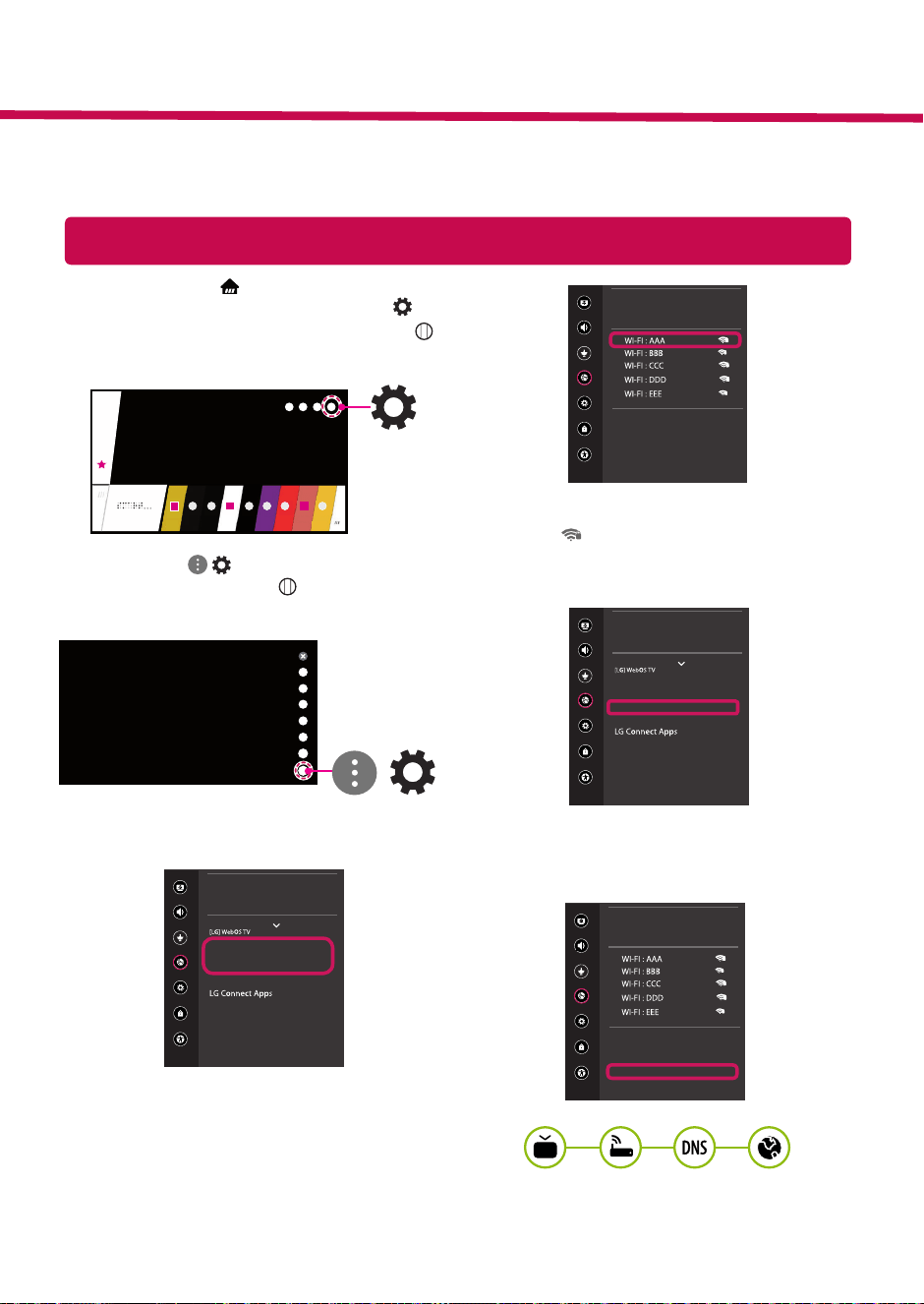
Configuración de la red
1 Presione el botón (Inicio) del control remoto
para acceder al menú Inicio. Vaya al ícono
(Configuración) y selecciónelo con el botón
Rueda (Aceptar) del control remoto.
2 Vaya al ícono
( )
(Todos los ajustes) y
selecciónelo con el botón Rueda (Aceptar)
del control remoto.
Todos los ajustes
(
)
3 Seleccione Red
→
Conexión cableada
(Ethernet) o Conexión Wi-Fi.
Imagen
RED
Nombre de la TV
Conexión cableada (Ethernet)
No conectado
Conexión Wi-Fi
No conectado
Wi-Fi Direct
Audio
Canales
Red
General
Seguridad
Accesibilidad
4 El dispositivo intenta conectarse
automáticamente a la red disponible (primero,
la red cableada).
Cuando selecciona Conexión Wi-Fi, se muestra
la lista de redes disponibles. Seleccione la red
que desea usar.
Imagen
CONEXIÓN WI-FI
Red /
Audio
Canales
Red
General
Seguridad
Accesibilidad
ꔐ
Agregar una red inalámbrica oculta
Conectarse a través de WPS PBC
Conectar mediante WPS PIN
Configuración avanzada de Wi-Fi
Para el AP inalámbrico (enrutador) que tiene el
símbolo , debe ingresar la clave de seguridad.
5 Si la conexión es exitosa, se muestra "Conectado
a Internet".
Imagen
RED
Nombre de la TV
Conexión cableada (Ethernet)
No conectado
Conexión Wi-Fi
Conectado a Internet
Wi-Fi Direct
Audio
Canales
Red
General
Seguridad
Accesibilidad
Puede verificar el estado de conexión en
Configuración avanzada de Wi-Fi.
Imagen
CONEXIÓN WI-FI
Red /
Audio
Canales
Red
General
Seguridad
Accesibilidad
ꔐ
Agregar una red inalámbrica oculta
Conectarse a través de WPS PBC
Conectar mediante WPS PIN
Configuración avanzada de Wi-Fi
* La imagen que se muestra puede ser diferente a su televisor.
* La imagen que se muestra en una PC o un teléfono móvil puede variar según el sistema operativo
(sistema operativo).
* Las posiciones de los íconos de la aplicación pueden variar en la plataforma según la versión del software.
Guía de conguración rápida del SMART TV
www.lg.com
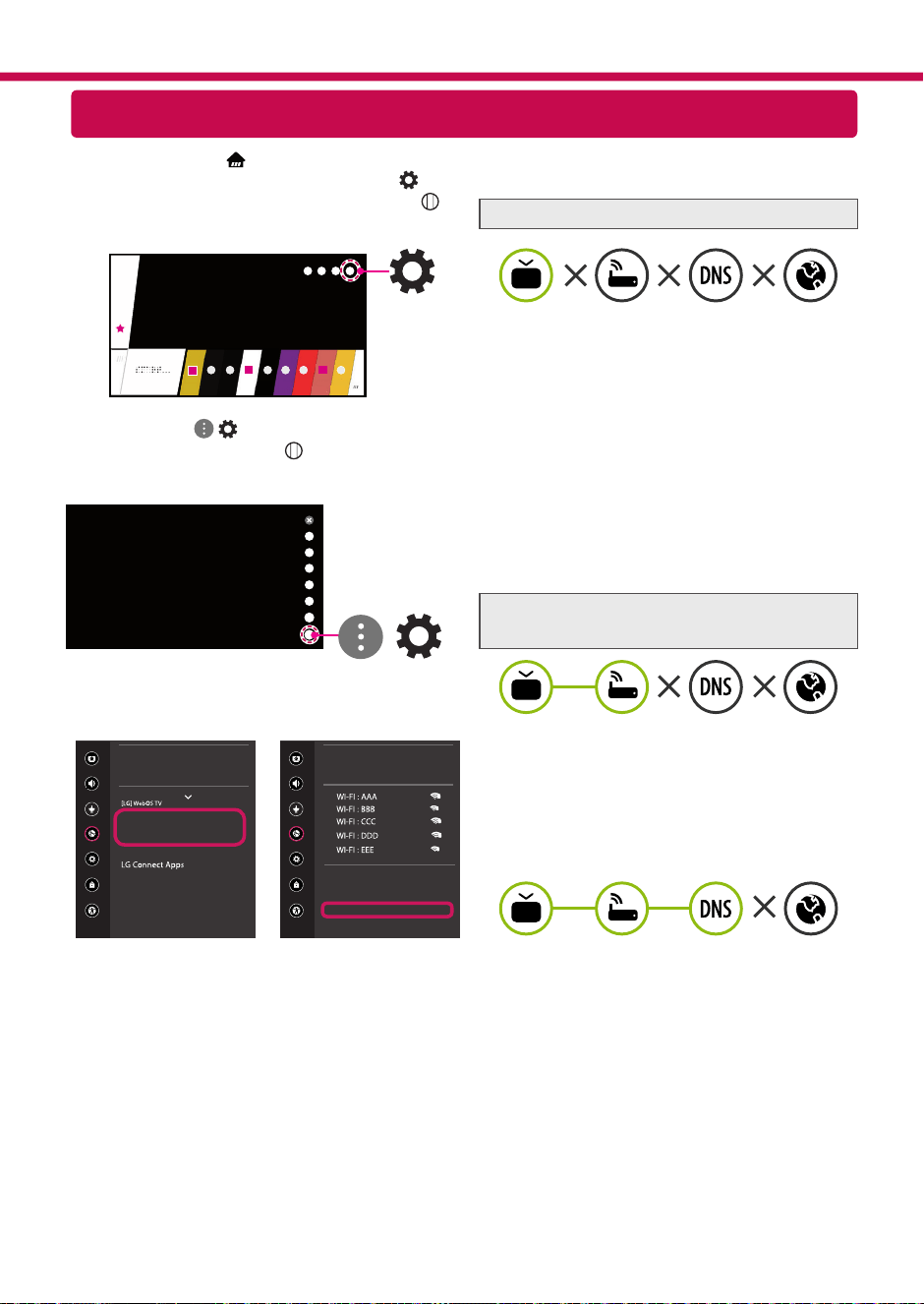
Resolución de problemas de red
1 Presione el botón (Inicio) del control remoto
para acceder al menú Inicio. Vaya al ícono
(Configuración) y selecciónelo con el botón
Rueda (Aceptar) del control remoto.
2 Vaya al ícono ( ) (Todos los ajustes) y
selecciónelo con el botón Rueda (Aceptar)
del control remoto.
Todos los ajustes
(
)
3 Seleccione Red
→
Conexión cableada
(Ethernet) o Conexión Wi-Fi
→
Configuración
avanzada de Wi-Fi.
Imagen
RED
Nombre de la TV
Conexión cableada (Ethernet)
No conectado
Conexión Wi-Fi
No conectado
Wi-Fi Direct
Audio
Canales
Red
General
Seguridad
Accesibilidad
Imagen
CONEXIÓN WI-FI
Red /
Audio
Canales
Red
General
Seguridad
Accesibilidad
ꔐ
Agregar una red inalámbrica oculta
Conectarse a través de WPS PBC
Conectar mediante WPS PIN
Configuración avanzada de Wi-Fi
Siga las instrucciones que están a continuación y
que se relacionan con el estado de red.
Revise el televisor o el AP (enrutador).
Cuando aparece X al lado del televisor:
1
Revise el estado de la conexión del TV, el Punto
de Acceso (Router), y módem de cable.
2
Apague y encienda en el siguiente orden:
(Primero) el módem de cable, espere que el
módem de cable se restablezca, (Segundo) el
Punto de Acceso (Router), espere a que el Punto
de Acceso (Router) se restablezca, (Tercero) la
TV.
3
Si usa una dirección IP estática, ingrésela
directamente.
4
Comuníquese con el proveedor de servicios de
Internet o la empresa de AP (enrutador).
Revise el AP (enrutador) o consulte a su
proveedor de servicios de Internet.
Cuando aparece X junto a la puerta de enlace:
1
Desenchufe el cable de alimentación del AP
(enrutador) e intente conectarlo después de 5
segundos.
2
Inicialice (restablezca) el AP (enrutador).
3
Comuníquese con el proveedor de servicios de
Internet o la empresa de AP (enrutador).
Cuando aparece X junto a DNS:
1
Desconecte el cable de alimentación del Punto
de Acceso (Router), y del módem de cable ,
espere 5 segundos. Vuelva a conectar los cables
de alimentación, y vuelva a intentar la conexión.
2
Inicialice (Reset) el Punto de Acceso (Router), o
el módem de cable.
3
Verifique que la dirección MAC del TV/AP
(enrutador) esté registrada con su proveedor
de servicios de Internet. (La dirección MAC que
se muestra en el panel derecho de la ventana
de estado de red debe registrarse con su
proveedor de servicios de Internet.)
4
Consulte el sitio web del fabricante del
AP (enrutador) para asegurarse de que su
enrutador tenga instalada la última versión de
firmware.
Instalación y configuración de SmartShare PC SW
1 Instale el programa SmartShare PC SW en su PC.
2 Vaya a . Luego, seleccione su región.
3 Seleccione Soporte.
4 Select Software y actualizaciones. Then, select SmartShare.
5 Descargue el Software SmartShare PC e instálelo en su PC. Puede ejecutar el programa al finalizar la
instalación.
NOTA
y
El servicio Smartshare solo está disponible si el televisor y otros dispositivos están conectados a
través de un solo AP (enrutador).
Conexión de SmartShare a un teléfono inteligente
Actualización del firmware del televisor
* Cuando el televisor se enciende por primera vez después de que se envía de fábrica, la inicialización del
televisor puede tardar unos minutos.
1 (Inicio)
→
(Configuración)
→
( )
(Todos los ajustes)
→
General
→
Acerca de este TV
→
BUSCAR ACTUALIZACIONES
2 Después de verificar la versión del software, actualícela.
Si marca la opción "Permitir Actualizaciones Automáticas", puede actualizar el software
automáticamente.
Imagen
GENERAL
Audio
Canales
Red
General
Seguridad
Accesibilidad
Modo Eco
TV móvil activo
Teclado inalámbrico LG
Ayuda para la configuración
Imagen sin señal
Restablecer la configuración inicial.
Acerca de este TV
Acuerdos del usuario
Imagen
ACERCA DE ESTE TV
General /
Audio
Canales
Red
General
Seguridad
Accesibilidad
Versión de software xx.xx.xx
ꔐ
Permitir Actualizaciones Automáticas
Información del TV
Guía del usuario
Aviso de software de código abierto
ID de configuración: 1
BUSCAR ACTUALIZACIONES
1 Verifique que la conexión Wi-Fi esté activada en su teléfono inteligente. Para utilizar
SmartShare, ambos dispositivos deben estar en la misma red local.
2 Instale y ejecute la aplicación para compartir contenido en su teléfono inteligente (se
llama LG TV Plus en teléfonos LG).
3 Permita que su teléfono inteligente comparta archivos de contenido con otros
dispositivos.
4 Abra la aplicación Conector de Dispositivo.
(Inicio)
→
Conector de Dispositivo
→
Teléfono Inteligente
→
COMPARTIR
CONTENIDO.
5 Seleccione el tipo de archivo que desea reproducir (película, audio o foto).
6 Seleccione una película, música o archivo de fotografía para reproducir en el televisor.
7 Reproduzca el archivo multimedia para verlo y disfrutarlo en su televisor.
Configuraciones Miracast
Configuración de Wi-Fi Direct
(Inicio)
→
(Configuración)
→
( ) (Todos los ajustes)
→
Red
→
Wi-Fi
Direct
Si no hay una red local disponible, puede conectar un dispositivo portátil
directamente al televisor con Wi-Fi Direct.
Con , puede compartir archivos o pantallas de dispositivos conectados
a Wi-Fi Direct.
1 Cuando abre el menú Wi-Fi Direct, aparece una lista de los dispositivos
disponibles.
2 Cuando se le indica que solicite conexión, seleccione OK. Wi-Fi Direct ahora
está conectado a su televisor.
* Solo puede utilizar dispositivos compatibles con Wi-Fi Direct.
Comuníquese con el Servicio de atención al cliente de LG si tiene algún problema.
Miracast permite que el dispositivo portátil envíe vídeos y sonidos al TV sin cables de
form
1 Miracast debe configurarse en "ENCENDIDO" en su dispositivo móvil.
2 Cuando se detecta el televisor, seleccione el dispositivo en su dispositivo portátil.
Cuando se completa la conexión, aparece la pantalla del dispositivo en la pantalla del
televisor.
Imagen
WI-FI Direct
Red /
Audio
Canales
Red
General
Seguridad
Accesibilidad
ꔐ
ACTUALIZAR LISTA
Ajustes de Rede
1 No controle remoto, pressione o botão
(Home) para acessar o menu principal. No
menu, selecione (CONFIGURAÇÕES) e
pressione o botão Scroll (OK).
2 Selecione
( )
(Todas as Configurações)
e
pressione o botão Scroll (OK).
Todas as Configurações
(
)
3 No menu selecione Rede
→
Conexão com fio
(Ethernet) ou Conexão da rede Wi-Fi.
Imagem
REDE
Nome da TV
Conexão com fio (Ethernet)
Não conectado
Conexão da rede Wi-Fi
Não conectado
Wi-Fi Direct
Som
Canais
Rede
Geral
Segurança
Acessibilidade
4 O dispositivo será conectado automaticamente
em uma rede disponível (rede com fio em
primeiro lugar).
Ao selecionar Conexão da rede Wi-Fi, uma lista
de redes será disponibilizada. Selecione a rede
desejada.
Imagem
CONEXÃO DA REDE WI-FI
Rede /
Som
Canais
Rede
Geral
Segurança
Acessibilidade
ꔐ
Adicionar uma rede sem fio oculta
Conectar através de WPS PBC
Conectar através de WPS PIN
Configurações avançadas de Wi-Fi
Para roteadores protegidos, o símbolo
é
exibido indicando a necessidade de senha para
acessar a rede.
5 Caso a conexão esteja correta, a mensagem
"Conectado à Internet" será exibida.
Imagem
REDE
Nome da TV
Conexão com fio (Ethernet)
Não conectado
Wi-Fi Connection
Conectado à Internet
Wi-Fi Direct
Som
Canais
Rede
Geral
Segurança
Acessibilidade
Caso deseje, verifique o status da conexão
acessando a opção Configurações avançadas
de Wi-Fi.
Imagem
CONEXÃO DA REDE WI-FI
Rede /
Som
Canais
Rede
Geral
Segurança
Acessibilidade
ꔐ
Adicionar uma rede sem fio oculta
Conectar através de WPS PBC
Conectar através de WPS PIN
Configurações avançadas de Wi-Fi
* As imagens neste guia podem ser diferentes da TV.
* As imagens do PC ou Telefone podem ser diferentes dependendo do sistema operacional.
* A posição dos ícones de Aplicativos podem variar na plataforma, dependendo da versão de software.
Guia Rápido de Conguração SMART TV
www.lg.com
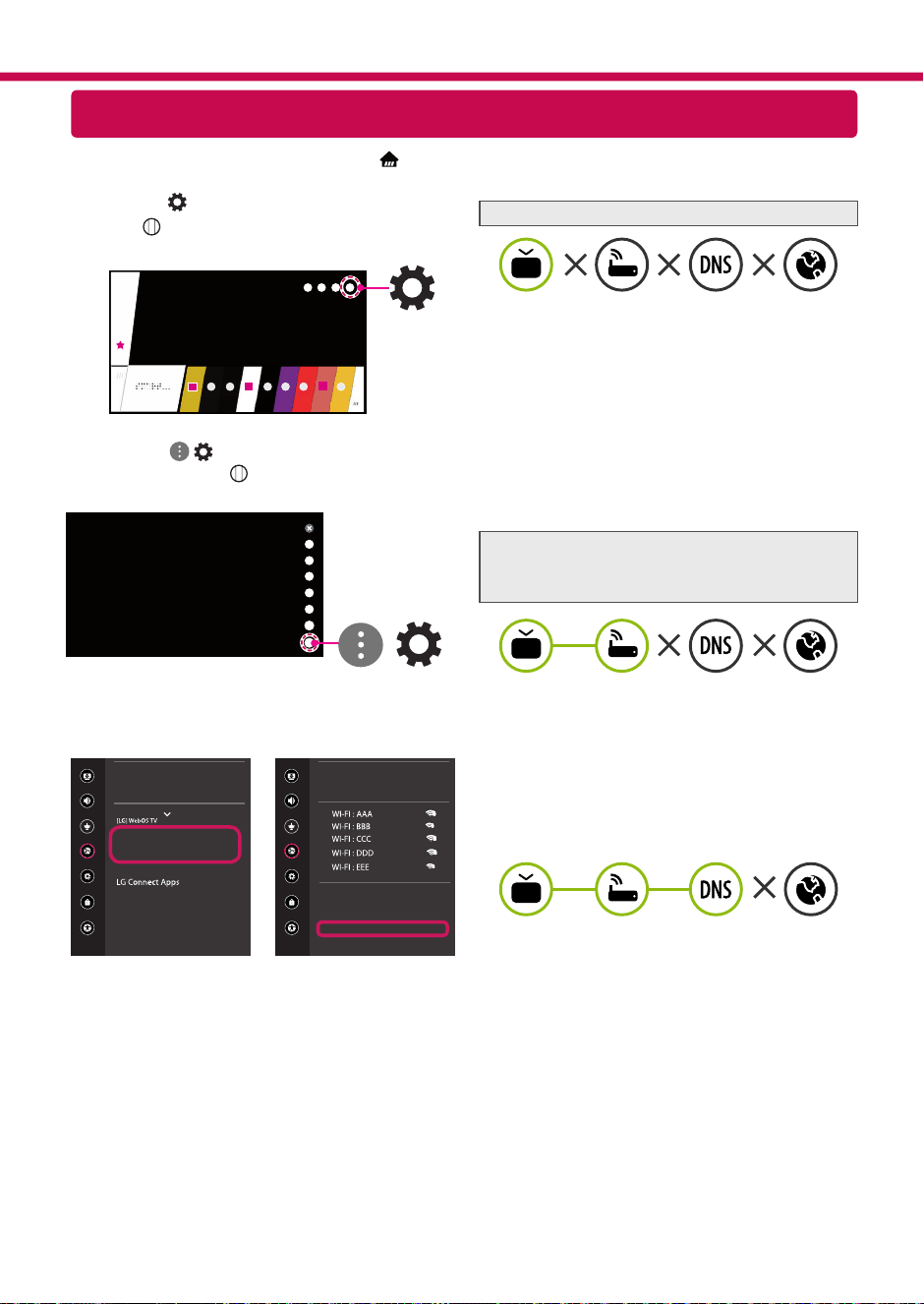
Problemas de Rede - Soluções
1 No controle remoto, pressione o botão
(Home) para acessar o menu principal. No menu,
selecione (CONFIGURAÇÕES) e pressione o
botão Scroll (OK).
3 Selecione
( )
(Todas as Configurações)
e
pressione o botão Scroll (OK).
Todas as Configurações
(
)
4 Selecione Rede
→
Conexão com fio (Ethernet)
ou Conexão da rede Wi-Fi
→
Configurações
avançadas de Wi-Fi.
Imagem
REDE
Nome da TV
Conexão com fio (Ethernet)
Não conectado
Conexão da rede Wi-Fi
Não conectado
Wi-Fi Direct
Som
Canais
Rede
Geral
Segurança
Acessibilidade
Imagem
CONEXÃO DA REDE WI-FI
Rede /
Som
Canais
Rede
Geral
Segurança
Acessibilidade
ꔐ
Adicionar uma rede sem fio oculta
Conectar através de WPS PBC
Conectar através de WPS PIN
Configurações avançadas de Wi-Fi
As instruções abaixo servem para verificar o status
da conexão de rede.
Verifique a TV ou o Roteador.
Quando o X estiver próximo do ícone TV:
1
Verifique o status da conexão na TV, Roteador e
Modem.
2
Desligue os equipamentos na ordem: (1º) o
modem, aguarde o modem reiniciar, (2º) o ro-
teador, aguarde o roteador reiniciar e (3º) a TV.
3
Nos casos de endereço IP estático será necessá-
rio inseri-lo manualmente.
4
Se o problema persistir, contate o provedor de
internet ou o fabricante do roteador.
Verifique o roteador ou contate o provedor de
internet.
Quando o X estiver próximo do ícone Gateway:
1
Desconecte o cabo de força da tomada do ro-
teador ou modem, aguarde 5 segundos e torne
a conectar.
2
Reinicie o roteador e o modem.
3
Contate seu provedor de internet e o fabricante
do roteador.
Quando o X estiver próximo do ícone DNS:
1
Desconecte o cabo de força da tomada do ro-
teador ou modem, aguarde 5 segundos e torne
a conectar.
2
Reinicie o roteador e o modem e tente reconec-
tar
3
Verifique se o endereço MAC da TV/Roteador
está registrado no seu provedor de internet (o
endereço MAC é exibido na janela de status de
rede. Envie este número ao seu provedor para
registrá-lo).
4
Verifique no site do fabricante do seu roteador
se a última versão do firmware está instalada.
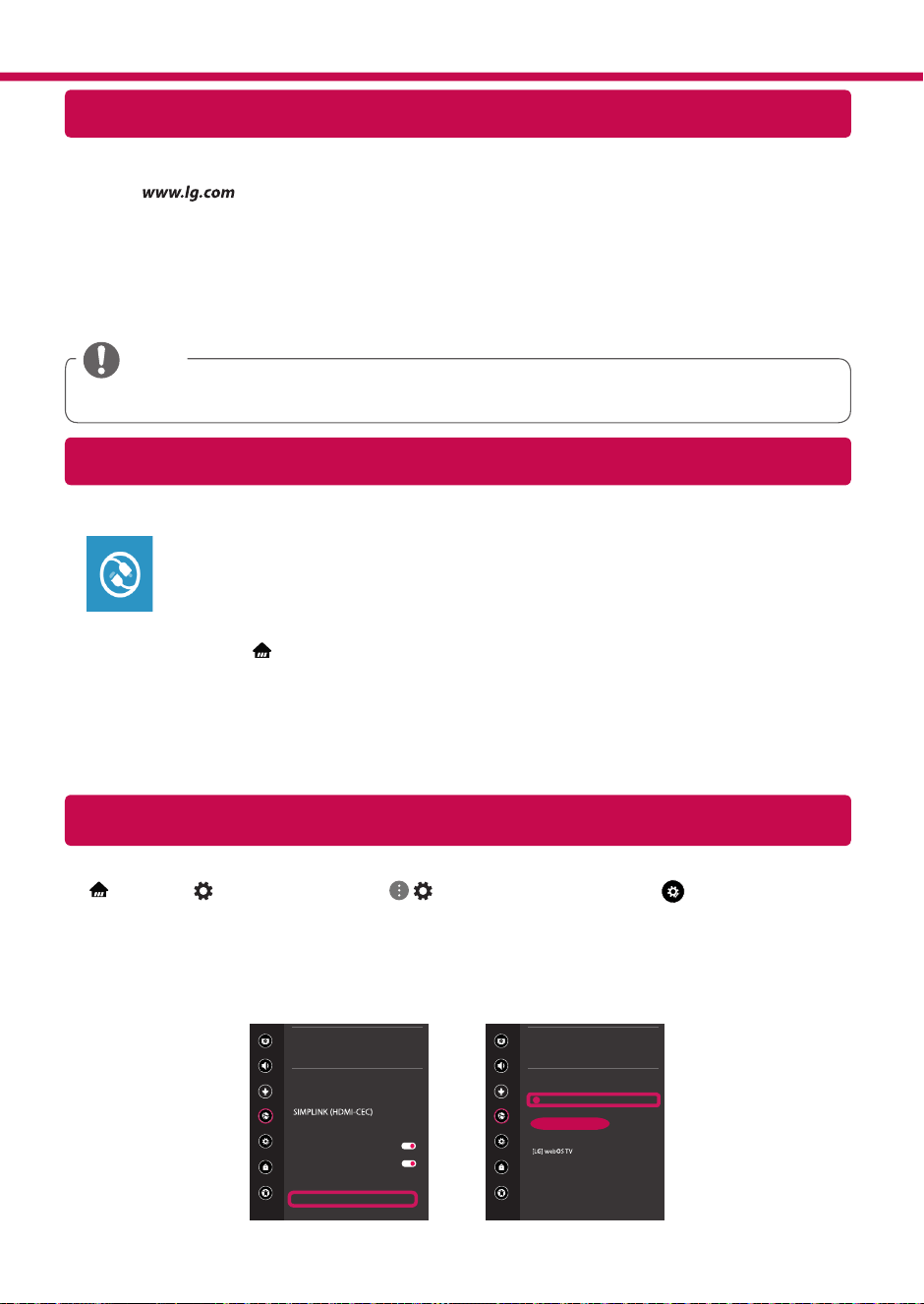
Instalar & Configurar o SmartShare PC Software
1 Instale o SmartShare PC em seu computador.
2 Acesse . Se necessário, selecione seu país ou região.
3 Selecione Suporte.
4 Selecione Software & Drivers. Então, selecione SmartShare.
5 Faça o download e instale o software. Após a finalização da instalação será possível executar e configurar
o programa.
NOTE
y
A função Smartshare está disponível na TV e em dispositivos conectados ao mesmo roteador.
SmartShare - Conectando um Smartphone
Atualizando o Software da TV
* Ao ligar a TV pela primeira vez, a inicialização do aparelho pode levar alguns minutos.
1 (Home)
→
(CONFIGURAÇÕES)
→
( )
(Todas as Configurações)
→
Geral
→
Sobre esta
TV
→
VERIFICAR POR ATUALIZAÇÕES
2 Após verificar, execute o processo de atualização.
Se desejar, selecione a opção "Permitir Atualizações Automáticas", para atualizar o software da TV
automaticamente.
Imagem
GERAL
Som
Canais
Rede
Geral
Segurança
Acessibilidade
Modo Eco
TV Mobile ativada
Teclado LG Sem Fio
Ajuda com as configurações
Proteção de Tela
Redefinir para Configurações Iniciais
Sobre esta TV
Acordos de Usuário
Imagem
SOBRE ESTA TV
Geral /
Som
Canais
Rede
Geral
Segurança
Acessibilidade
Versão do software xx.xx.xx
ꔐ
Permitir Atualizações Automáticas
Informações da TV
Guia do Usuário
Aviso sobre Software de Código...
Definir ID : 1
Verificar por atualizações
1 Ative a conexão Wi-Fi no Smartphone. Para conectar usando o SmartShare, os dispositi-
vos (TV e Smartphone) devem estar conectados na mesma rede.
2 No Smartphone, instale ou execute o aplicativo de compartilhamento (se desejar instale
o aplicativo LG TV Plus).
3 Ative o compartilhamento para compartilhar conteúdo com outros dispositivos.
4 Acesse (Home) e execute o aplicativo Conector de Dispositivos. No menu acesse a
opção Smartphone
→
COMPARTILHAMENTO DE CONTEÚDO.
5 Selecione o tipo de arquivo desejado (filme, música ou foto).
6 Selecione o conteúdo desejado para reproduzi-lo na TV.
7 Inicie a reprodução do conteúdo selecionado na TV.
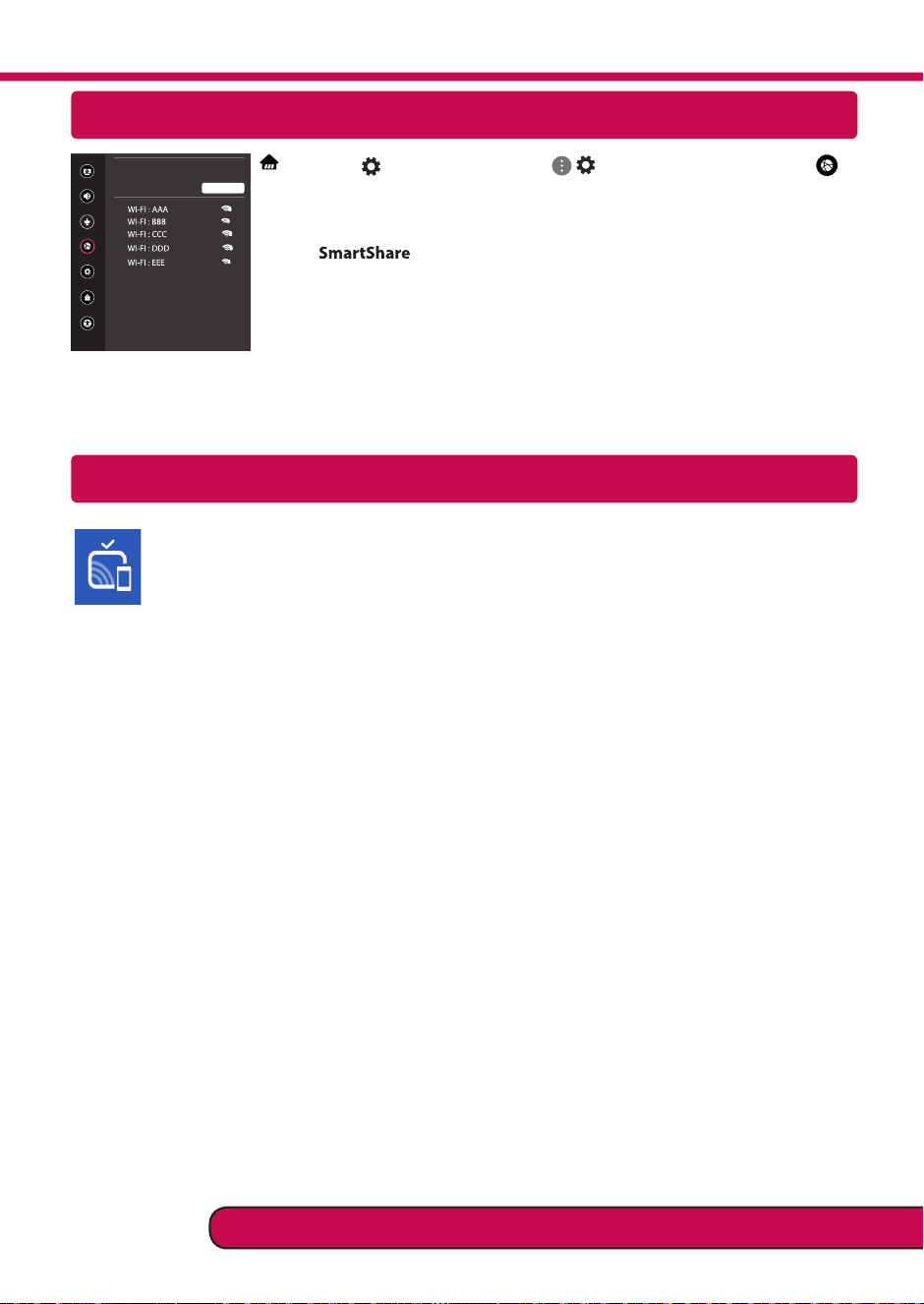
Ajustar Miracast
Ajustar Wi-Fi Direct
(Home)
→
(CONFIGURAÇÕES)
→
( ) (Todas as Configurações)
→
Rede
→
Wi-Fi Direct
Caso uma rede local não esteja disponível, conecte-se diretamente a TV usando a
função Wi-Fi Direct.
Usando , será possível compartilhar telas ou arquivos usando Wi-Fi
Direct.
1 Ao selecionar o menu Wi-Fi Direct, uma lista de dispositivos disponíveis será
exibida.
2 Quando a solicitação de conexão for exibida, selecione Sim. O dispositivo Wi-
Fi Direct estará conectado com sua TV.
* Somente dispositivos Wi-Fi Direct estarão disponíveis para conexão.
Miracast permite o compartilhamento de áudio e vídeo sem fio do dispositivo para a TV.
1 Ative a função Miracast no seu dispositivo.
2 Quando a TV detectar, selecione o seu dispositivo.
Quando a conexão estiver completa a tela do dispositivo será exibida na TV.
Imagem
WI-FI DIRECT
REDE /
Som
Canais
Rede
Geral
Segurança
Acessibilidade
ꔐ
ATUALIZAR ...
Por favor, entre em contato com o SAC para mais informações.

OWNER’S MANUAL
EXTERNAL CONTROL
DEVICE SETUP
Please read this manual carefully before operating the set and retain it for
future reference.
www.lg.com
2
ENG
ENGLISH
2
KEY CODES
KEY CODES
• This feature is not available for all models.
Code
(Hexa)
Function Note
Code
(Hexa)
Function Note
00 CH +, PR + R/C Button 53 List R/C Button
01 CH -, PR - R/C Button 5B Exit R/C Button
02 Volume + R/C Button 60 PIP(AD) R/C Button
03 Volume - R/C Button 61 Blue R/C Button
06 > (Arrow Key / Right Key) R/C Button 63 Yellow R/C Button
07 < (Arrow Key / Left Key) R/C Button 71 Green R/C Button
08 Power R/C Button 72 Red R/C Button
09 Mute R/C Button 79 Ratio / Aspect Ratio R/C Button
0B Input R/C Button 91 AD (Audio Description) R/C Button
0E SLEEP R/C Button 9E LIVE MENU R/C Button
0F TV, TV/RAD R/C Button 7A User Guide R/C Button
10 - 19 * Number Key 0 - 9 R/C Button 7C Smart / Home R/C Button
1A Q.View / Flashback R/C Button 7E SIMPLINK R/C Button
1E FAV (Favorite Channel) R/C Button 8E ►►(Forward) R/C Button
20 Text (Teletext) R/C Button 8F ◄◄(Rewind) R/C Button
21 T. Opt (Teletext Option) R/C Button AA Info R/C Button
28 Return (BACK) R/C Button AB Program Guide R/C Button
30 AV (Audio / Video) Mode R/C Button B0 ►(Play) R/C Button
39 Caption/Subtitle R/C Button B1 ꕗ (Stop / File List) R/C Button
40 Λ
(Arrow Key / Cursor Up)
R/C Button B5 RECENT R/C Button
41
V (Arrow Key / Cursor
Down)
R/C Button BA
ꕘ (Freeze / Slow Play /
Pause)
R/C Button
42 My Apps R/C Button BB Soccer R/C Button
43 Menu / Settings R/C Button BD ꔄ (REC) R/C Button
44 OK / Enter R/C Button DC 3D R/C Button
45 Q.Menu R/C Button 99 AutoConfig R/C Button
4C List, - (ATSC Only) R/C Button 9F App / * R/C Button
4D PICTURE R/C Button 9B TV / PC R/C Button
52 SOUND R/C Button
* Key code 4C (0x4C) is available on ATSC/ISDB models which use major/minor channel.
(For South Korea, Japan, North America, Latin America except Colombia models)
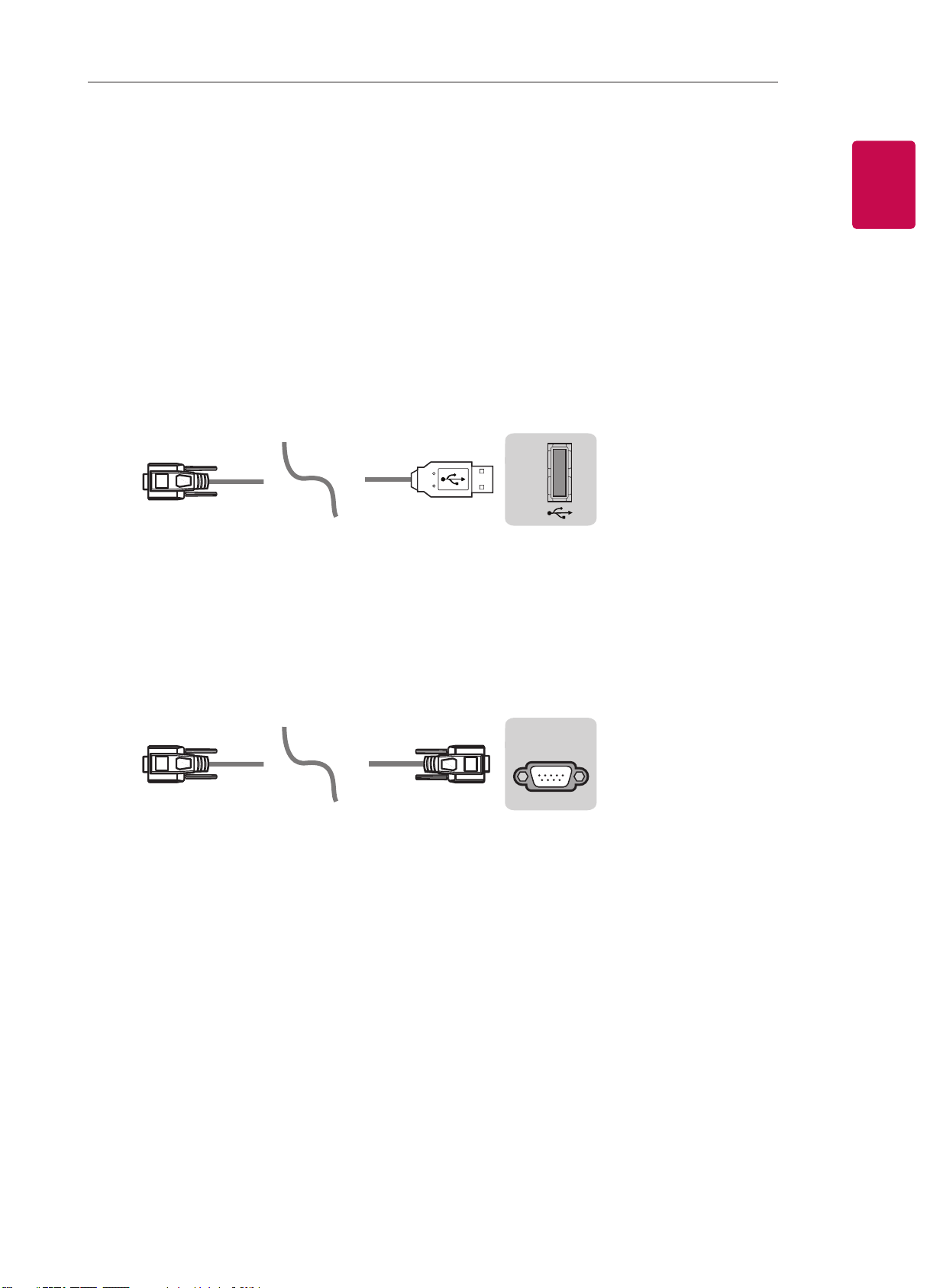
3
ENGENGLISH
3
EXTERNAL CONTROL DEVICE SETUP
EXTERNAL CONTROL DEVICE SETUP
• Image shown may differ from your TV.
Connect the USB to Serial converter/RS-232C input jack to an external control device (such as a computer
or an A/V control system) to control the product’s functions externally.
Note: The type of control port on the TV can be different between model series.
* Please be advised that not all models support this type of connectivity.
* Cable is not provided.
USB to Serial converter with USB Cable
USB Type
USB IN
(TV)
(PC )
(PC
)
RS-232C IN
(CONTROL & SERVICE)
(TV)
(TV)
(PC )
(TV)
(PC )
SERVICE ONLY
RS-232C IN
(CONTROL & SERVICE)
RS-232C IN
(CONTROL & SERVICE)
1
3
2
1
3
2
• LGTV supports PL2303 chip-based (Vendor ID : 0x0557, Product ID : 0x2008) USB to serial converter
which is not made nor provided by LG.
• It can be purchased from computer stores that carry accessories for IT support professionals.
RS-232C With RS232C Cable
DE9 (D-Sub 9pin) Type
• You need to purchase the RS-232C (DE9, D-Sub 9pin female-to-female type) to RS-232C cable required
for the connection between the PC and the TV, which is specified in the manual.
USB IN
(TV)
(PC
)
(PC )
RS-232C IN
(CONTROL & SERVICE)
(TV)
(TV)
(PC )
(TV)
(PC )
SERVICE ONLY
RS-232C IN
(CONTROL & SERVICE)
RS-232C IN
(CONTROL & SERVICE)
1
3
2
1
3
2
The connection interface may differ from your TV.
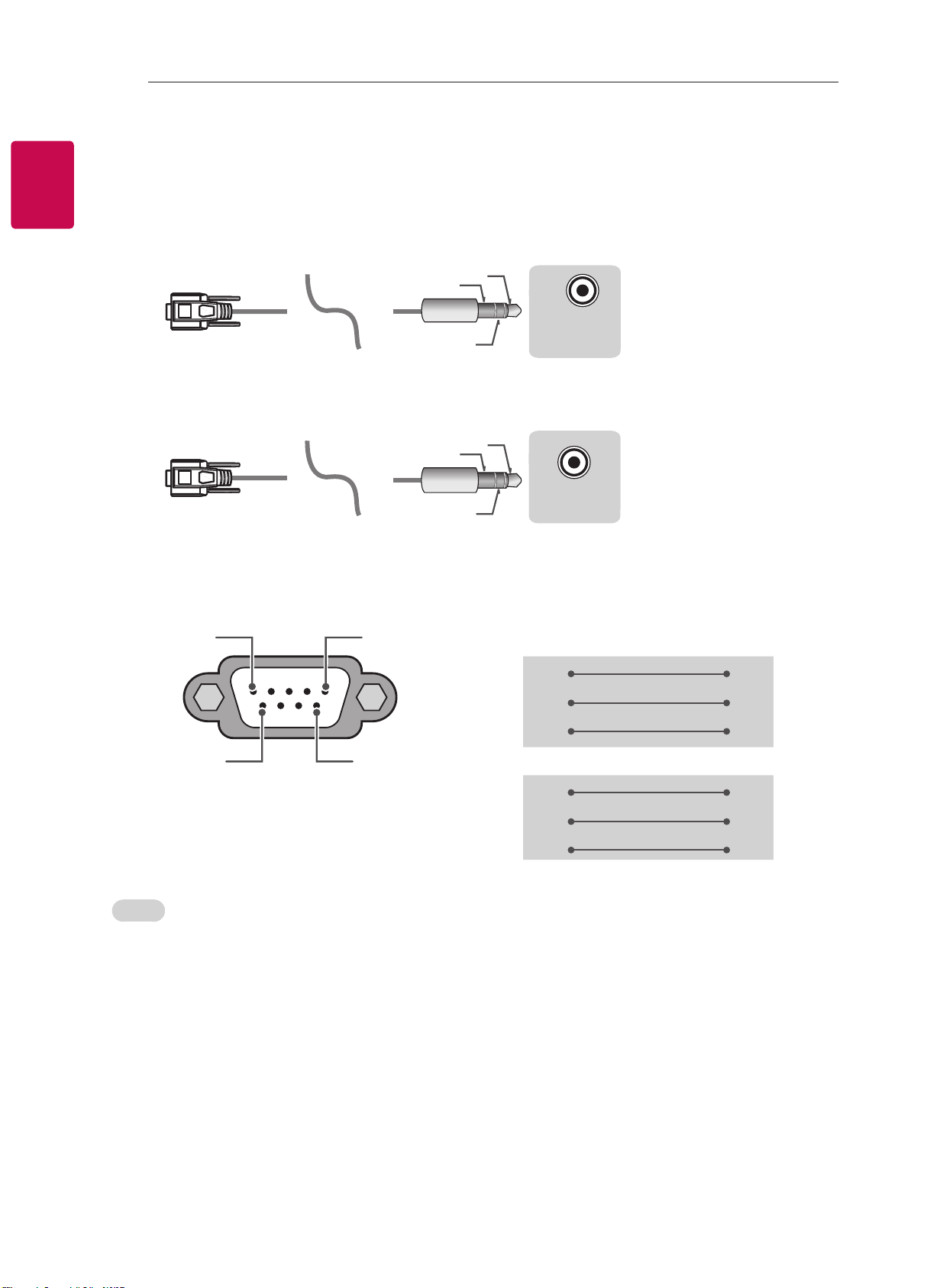
4
ENG
ENGLISH
4
EXTERNAL CONTROL DEVICE SETUP
Phone jack Type
• You need to purchase the phone-jack to RS-232 cable required for the connection between the PC and
the TV, which is specified in the manual.
* For other models, connect to the USB port.
* The connection interface may differ from your TV.
USB IN
(TV)
(PC )
(PC )
RS-232C IN
(CONTROL & SERVICE)
(TV)
(TV)
(PC
)
(TV)
(PC )
SERVICE ONLY
RS-232C IN
(CONTROL & SERVICE)
RS-232C IN
(CONTROL & SERVICE)
1
3
2
1
3
2
- or
USB IN
(TV)
(PC )
(PC )
RS-232C IN
(CONTROL & SERVICE)
(TV)
(TV)
(PC )
(TV)
(PC
)
SERVICE ONLY
RS-232C IN
(CONTROL & SERVICE)
RS-232C IN
(CONTROL & SERVICE)
1
3
2
1
3
2
Customer Computer RS-232C configurations
3-Wire Configurations(Not standard)
1
6
5
9
PC TV
RXD 2 2 TXD
TXD 3 1 RXD
GND 5 3 GND
OR
RXD 3 2 TXD
TXD 2 1 RXD
GND 5 3 GND
D-Sub 9 Phone
RS-232C
(Serial port)
Set ID
For Set ID number, see "Real Data Mapping" on p.6
1. Press SETTINGS to access the main menus.
2. Press the Navigation buttons to scroll to (*General → About this TV or OPTION) and press OK.
3. Press the Navigation buttons to scroll to SET ID and press OK.
4. Scroll left or right to select a set ID number and select CLOSE. The adjustment range is 1-99.
5. When you are finished, press EXIT.
* (Depending on model)
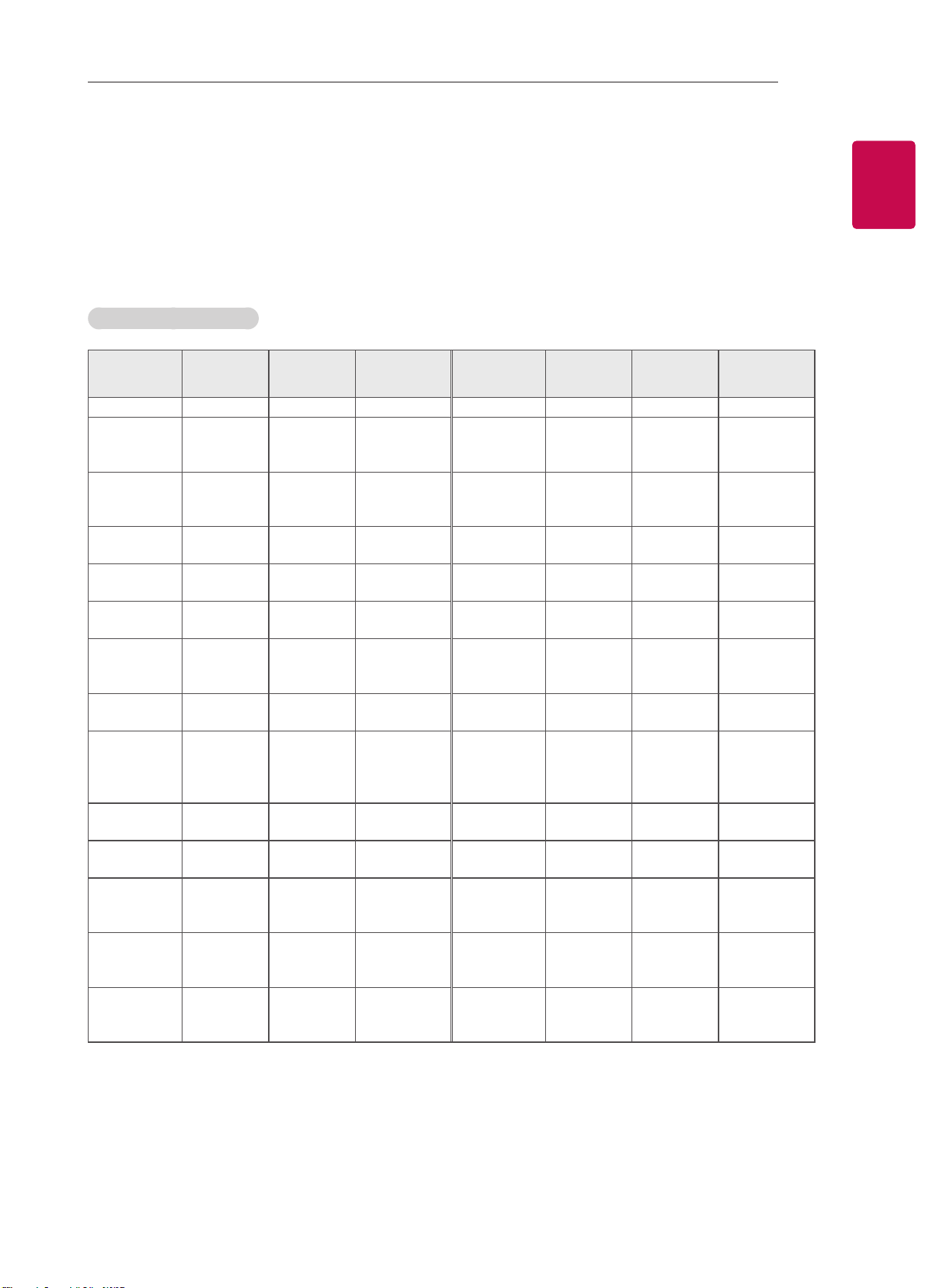
5
ENGENGLISH
5
EXTERNAL CONTROL DEVICE SETUP
Communication Parameters
• Baud rate : 9600 bps (UART)
• Data length : 8 bits
• Parity : None
• Stop bit : 1 bit
• Communication code : ASCII code
• Use a crossed (reverse) cable.
Command reference list
(Depending on model)
COMMAND1 COMMAND2
DATA
(Hexadecimal)
COMMAND1 COMMAND2
DATA
(Hexadecimal)
01. Power* k a 00 to 01 15. Balance k t 00 to 64
02. Aspect
Ratio
k c (p.7)
16. Color
(Colour)
Temperature
x u 00 to 64
03. Screen
Mute
k d (p.7)
17. ISM
Method (Only
Plasma TV)
j p (p.8)
04. Volume
Mute
k e 00 to 01 18. Equalizer j v (p.8)
05. Volume
Control
k f 00 to 64
19. Energy
Saving
j q 00 to 05
06. Contrast k g 00 to 64
20. Tune
Command
m a (p.9)
07.
Brightness
k h 00 to 64
21. Channel
(Programme)
Add/Del(Skip)
m b 00 to 01
08. Color/
Colour
k i 00 to 64 22. Key m c Key Codes
09. Tint k j 00 to 64
23. Control
Backlight,
Control Panel
Light
m g 00 to 64
10.
Sharpness
k k 00 to 32
24. Input
select (Main)
x b (p.11)
11. OSD
Select
k l 00 to 01
25. 3D (Only
3D models)
x t (p.11)
12. Remote
Control Lock
Mode
k m 00 to 01
26. Extended
3D (Only 3D
models)
x v (p.12)
13. Treble k r 00 to 64
27. Auto
Configure
j u (p.12)
14. Bass k s 00 to 64
* Note: During playing or recording media, all commands except Power (ka) and Key (mc) are not
executed and treated as NG.
With RS232C cable, TV can communicate "ka command" in power-on or power-off status. but with
USB-to-Serial converter cable, the command works only if TV is on.
6
ENG
ENGLISH
6
EXTERNAL CONTROL DEVICE SETUP
Transmission / Receiving Protocol
Transmission
[Command1][Command2][ ][Set ID][ ][Data][Cr]
[Command 1] : First command to control the TV. (j, k, m or x)
[Command 2] : Second command to control the TV.
[Set ID] : You can adjust the [Set ID] to choose desired monitor ID number in option menu.
Adjustment range in TV is 1 to 99. If [Set ID] value is selected to ‘0’, every connected set
can be controlled.
* [Set ID] is indicated as decimal (1 to 99) on menu and as Hexadecimal (0x00 to 0x63) on
transmission/receiving protocol.
[DATA] : To transmit command data (hexadecimal). Transmit ‘FF’ data to read status of command.
[Cr] : Carriage Return - ASCII code ‘0x0D’
[ ] : Space – ASCII code ‘0x20’
OK Acknowledgement
[Command2][ ][Set ID][ ][OK][Data][x]
* The set transmits ACK (acknowledgement) based on this format when receiving normal data. At this time,
if the data is data read mode, it indicates present status data. If the data is data write mode, it returns the
data of the PC computer.
Error Acknowledgement
[Command2][ ][Set ID][ ][NG][Data][x]
* The set transmits ACK (acknowledgement) based on this format when receiving abnormal data from
non-viable functions or communication errors.
Data 00: Illegal Code
Real data mapping (Hexadecimal b Decimal)
* When you enter the [data] in hexadecimal, refer to following conversion table.
* Channel Tune (ma) Command uses two-byte hexadecimal value([data]) to select channel number.
00 : Step 0 32 : Step 50 (Set ID 50) FE : Step 254
01 : Step 1 (Set ID 1) 33 : Step 51 (Set ID 51) FF : Step 255
... ... ...
0A : Step 10 (Set ID 10) 63 : Step 99 (Set ID 99) 01 00 : Step 256
... ... ...
0F : Step 15 (Set ID 15) C7 : Step 199 27 0E : Step 9998
10 : Step 16 (Set ID 16) C8 : Step 200 27 0F : Step 9999
... ... ...

7
ENGENGLISH
7
EXTERNAL CONTROL DEVICE SETUP
* Commands may work differently depending on model and signal.
01. Power (Command: k a)
► To control Power *On or Off of the set.
Transmission[k][a][ ][Set ID][ ][Data][Cr]
Data 00 : Power Off 01 : *Power On
Ack [a][ ][Set ID][ ][OK/NG][Data][x]
► To Show TV is Power On or *Off
Transmission [k][a][ ][Set ID][ ][FF][Cr]
Ack [a][ ][Set ID][ ][OK][Data][x]
* Similarly, if other functions transmit ‘FF’ data
based on this format, Acknowledgement feedback
presents status about each function.
02. Aspect Ratio (Command: k c)
(Main Picture Size)
► To adjust the screen format. (Main picture format)
You can also adjust the screen format using the
Aspect Ratio in the Q.MENU. or PICTURE menu.
Transmission [k][c][ ][Set ID][ ][Data][Cr]
Data 01 : Normal screen
(4:3)
02 : Wide screen
(16:9)
04 : Zoom
05 : Zoom 2
(Latin America
except Colombia
Only)
06 : Set by Program/
Original
07 : 14:9
(Europe, Colombia, Mid-East,
Asia except South Korea and
Japan)
09 : * Just Scan
0B : Full Wide
(Europe, Colombia, Mid-
East, Asia except South
Korea and Japan)
10 to 1F : Cinema Zoom 1 to 16
0c : 21:9 (Depending on model)
Ack [c][ ][Set ID][ ][OK/NG][Data][x]
* Using the PC input, you select either 16:9 or 4:3
screen aspect ratio.
* In DTV/HDMI/Component mode (high-definition),
Just Scan is available.
* Full wide mode may work differently based on
model and is supported for DTV fully, and ATV,
AV partially.
03. Screen Mute (Command: k d)
► To select screen mute on/off.
Transmission [k][d][ ][Set ID][ ][Data][Cr]
Data 00 : Screen mute off (Picture on)
Video mute off
01 : Screen mute on (Picture off)
10 : Video mute on
Ack [d][ ][Set ID][ ][OK/NG][Data][x]
* In case of video mute on only, TV will display On
Screen Display(OSD). But, in case of Screen mute
on, TV will not display OSD.
04. Volume Mute (Command: k e)
► To control volume mute on/off.
You can also adjust mute using the MUTE button
on remote control.
Transmission [k][e][ ][Set ID][ ][Data][Cr]
Data 00 : Volume mute on (Volume off)
01 : Volume mute off (Volume on)
Ack [e][ ][Set ID][ ][OK/NG][Data][x]
05. Volume Control (Command: k f)
► To adjust volume.
You can also adjust volume with the volume
buttons on remote control.
Transmission [k][f][ ][Set ID][ ][Data][Cr]
Data Min : 00 to Max : 64
Ack [f][ ][Set ID][ ][OK/NG][Data][x]
06. Contrast (Command: k g)
► To adjust screen contrast.
You can also adjust contrast in the PICTURE
menu.
Transmission [k][g][ ][Set ID][ ][Data][Cr]
Data Min : 00 to Max : 64
Ack [g][ ][Set ID][ ][OK/NG][Data][x]
07. Brightness (Command: k h)
► To adjust screen brightness.
You can also adjust brightness in the PICTURE
menu.
Transmission [k][h][ ][Set ID][ ][Data][Cr]
Data Min : 00 to Max : 64
Ack [h][ ][Set ID][ ][OK/NG][Data][x]

8
ENG
ENGLISH
8
EXTERNAL CONTROL DEVICE SETUP
08. Color/Colour (Command: k i)
► To adjust the screen Color(Colour).
You can also adjust colour in the PICTURE menu.
Transmission [k][i][ ][Set ID][ ][Data][Cr]
Data Min : 00 to Max : 64
Ack [i][ ][Set ID][ ][OK/NG][Data][x]
09. Tint (Command: k j)
► To adjust the screen tint.
You can also adjust tint in the PICTURE menu.
Transmission [k][j][ ][Set ID][ ][Data][Cr]
Data Red : 00 to Green : 64
Ack [j][ ][Set ID][ ][OK/NG][Data][x]
10. Sharpness (Command: k k)
► To adjust the screen sharpness.
You can also adjust sharpness in the PICTURE
menu.
Transmission [k][k][ ][Set ID][ ][Data][Cr]
Data Min : 00 to Max : 32
Ack [k][ ][Set ID][ ][OK/NG][Data][x]
11. OSD Select (Command: k l)
► To select OSD (On Screen Display) on/off when
controlling remotely.
Transmission [k][l][ ][Set ID][ ][Data][Cr]
Data 00 : OSD off 01 : OSD on
Ack [l][ ][Set ID][ ][OK/NG][Data][x]
12. Remote control lock mode (Command: k m)
► To lock the front panel controls on the monitor and
remote control.
Transmission [k][m][ ][Set ID][ ][Data][Cr]
Data 00 : Lock off 01 : Lock on
Ack [m][ ][Set ID][ ][OK/NG][Data][x]
* If you are not using the remote control, use this
mode.
When main power is off & on (plug-off and plug-in,
after 20 - 30 seconds), external control lock is
released.
* In the standby mode (DC off by off timer or ‘ka’,
‘mc’ command), and if key lock is on, TV will not
turn on by power on key of IR & Local Key.
13. Treble (Command: k r)
► To adjust treble.
You can also adjust in the AUDIO menu.
Transmission [k][r][ ][Set ID][ ][Data][Cr]
Data Min : 00 to Max : 64
Ack [r][ ][Set ID][ ][OK/NG][Data][x]
* (Depending on model)
14. Bass (Command: k s)
► To adjust Bass.
You can also adjust in the AUDIO menu.
Transmission [k][s][ ][Set ID][ ][Data][Cr]
Data Min : 00 to Max : 64
Ack [s][ ][Set ID][ ][OK/NG][Data][x]
* (Depending on model)
15. Balance (Command: k t)
► To adjust balance.
You can also adjust balance in the AUDIO menu.
Transmission [k][t][ ][Set ID][ ][Data][Cr]
Data Min : 00 to Max : 64
Ack [t][ ][Set ID][ ][OK/NG][Data][x]
16. Color(Colour) Temperature (Command: x u)
► To adjust colour temperature. You can also adjust
Color(Colour) Temperature in the PICTURE menu.
Transmission [x][u][ ][Set ID][ ][Data][Cr]
Data Min : 00 to Max : 64
Ack [u][ ][Set ID][ ][OK/NG][Data][x]
17. ISM Method (Command: j p) (Only Plasma TV)
► To control the ISM method. You can also adjust
ISM Method in OPTION menu.
Transmission [j][p][ ][Set ID][ ][Data][Cr]
Data Min : 02: Orbiter
08: Normal
20: Color(Colour) Wash
Ack [p][ ][Set ID][ ][OK/NG][Data][x]
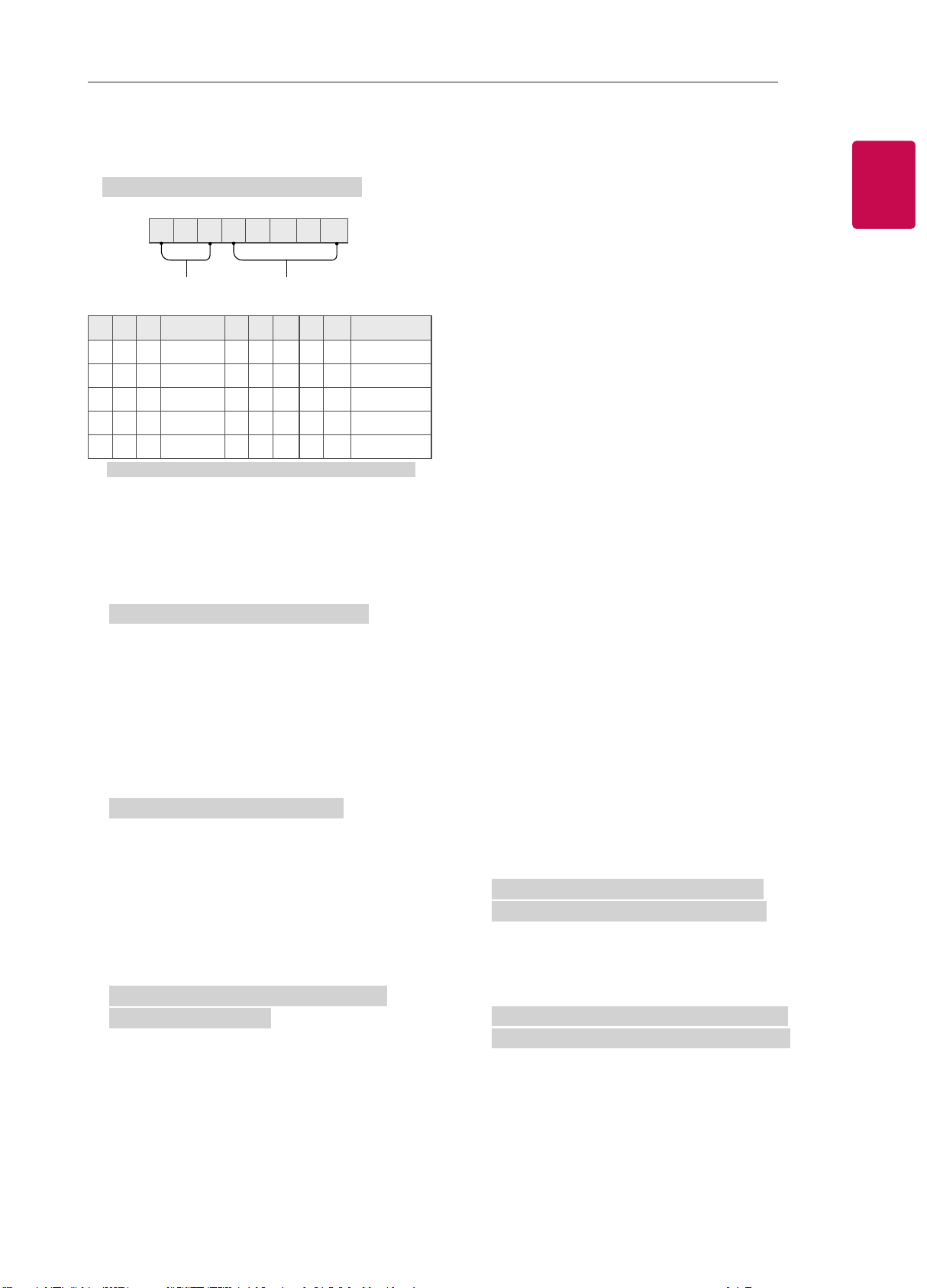
9
ENGENGLISH
9
EXTERNAL CONTROL DEVICE SETUP
18. Equalizer (Command : j v)
► Adjust EQ of the set.
Transmission [j][v][ ][Set ID][ ][Data][Cr]
0 0 0 0 0 0 0 0
MSB
Frequency Data
LSB
7 6 5
Frequency
4 3 2 1 0 Step
0 0 0
1st Band
0 0 0 0 0
0(decimal)
0 0 1
2nd Band
0 0 0 0 1
1(decimal)
0 1 0
3rd Band
... ... ... ... ...
...
0 1 1
4th Band
1 0 0 1 1
19(decimal)
1 0 0
5th Band
1 0 1 0 1
20(decimal)
Acknowledgement [v][ ][Set ID][ ][OK/NG][Data][x]
* It depends on model, and can adjust when sound
mode is EQ adjustable value.
19. Energy Saving (Command: j q)
► To reduce the power consumption of the TV. You
can also adjust Energy Saving in PICTURE menu.
Transmission [j][q][ ][Set ID][ ][Data][Cr]
Data
00 : Off
01 : Minimum
02 : Medium
03 : Maximum
04 : Auto (For LCD TV / LED TV) /
Intelligent sensor (For PDP TV)
05 : Screen off
* (Depending on model)
Ack [q][ ][Set ID][ ][OK/NG][Data][x]
20. Tune Command (Command: m a)
* This command may work differently depending on
model and signal.
• For Europe, Mid-East, Colombia, Asia except
South Korea and Japan Model
► Select channel to following physical number.
Transmission [m][a][ ][Set ID][ ][Data 00][ ]
[Data 01][ ][Data 02][Cr]
* Analog Antenna/Cable
[Data 00][Data 01] Channel Data
Data 00 : High byte channel data
Data 01 : Low byte channel data
- 00 00 ~ 00 C7 (Decimal : 0 ~ 199)
Data 02 : Input Source (Analog)
- 00 : Antenna TV (ATV)
- 80 : Cable TV (CATV)
* Digital Antenna/Cable/Satellite
[Data 00][Data 01]: Channel Data
Data 00 : High Channel data
Data 01 : Low Channel data
- 00 00 ~ 27 0F (Decimal: 0 ~ 9999)
Data 02 : Input Source (Digital)
- 10 : Antenna TV (DTV)
- 20 : Antenna Radio (Radio)
- 40 : Satellite TV (SDTV)
- 50 : Satellite Radio (S-Radio)
- 90 : Cable TV (CADTV)
- a0 : Cable Radio (CA-Radio)
* Tune Command Examples:
1. Tune to the Analog antenna (PAL) Channel 10.
Set ID = All = 00
Data 00 & 01 = Channel Data is 10 = 00 0a
Data 02 = Analog Antenna TV = 00
Result = ma 00 00 0a 00
2. Tune to the digital antenna (DVB-T) Channel 01.
Set ID = All = 00
Data 00 & 01 = Channel Data is 1 = 00 01
Data 02 = Digital Antenna TV = 10
Result = ma 00 00 01 10
3. Tune to the satellite (DVB-S) Channel 1000.
Set ID = All = 00
Data 00 & 01 = Channel Data is 1000 = 03 E8
Data 02 = Digital Satellite TV = 40
Result = ma 00 03 E8 40
Ack [a][ ][Set ID][ ][OK][Data 00][Data 01]
[Data 02][x][a][ ][Set ID][ ][NG][Data 00][x]
• For South Korea, North/Latin America except
Colombia Model
► To tune channel to following physical/major/minor
number.
Transmission [m][a][ ][0][ ][Data00][ ][Data01]
[ ][Data02][ ][Data03][ ][Data04][ ][Data05][Cr]
Digital channels have a Physical, Major, and Minor
channel number. The Physical number is the actual
digital channel number, the Major is the number that
the channel should be mapped to, and the Minor is
the sub-channel. Since the ATSC tuner automatically
maps the channel from the Major / Minor number,
the Physical number is not required when sending a
command in Digital.
10
ENG
ENGLISH
10
EXTERNAL CONTROL DEVICE SETUP
* Analog Antenna/Cable
Data 00 : Physical Channel Number
- Antenna (ATV) : 02~45 (Decimal: 2 ~ 69)
- Cable (CATV) : 01, 0E~7D (Decimal : 1, 14~125)
[Data 01 ~ 04]: Major/Minor Channel Number
Data 01 & 02: xx (Don't care)
Data 03 & 04: xx (Don't care)
Data 05: Input Source (Analog)
- 00 : Antenna TV (ATV)
- 01 : Cable TV (CATV)
* Digital Antenna/Cable
Data 00 : xx (Don't care)
[Data 01][Data 02]: Major Channel Number
Data 01 : High byte Channel Data
Data 02 : Low byte Channel Data
- 00 01 ~ 27 0F (Decimal: 1 ~ 9999)
[Data 03][Data 04]: Minor Channel Number
Data 03 : High byte Channel Data
Data 04 : Low byte Channel Data
Data 05 : Input Source (Digital)
- 02 : Antenna TV (DTV) – Use Physical Channel
Number
- 06 : Cable TV (CADTV) – Use Physical Channel
Number
- 22 : Antenna TV (DTV) – Don’t Use Physical
Channel Number
- 26 : Cable TV (CADTV) - Don’t Use Physical
Channel Number
- 46 : Cable TV (CADTV) – Use Physical/Major
Channel Number Only (One Part Channel)
- 66 : Cable TV (CADTV) – Use Major Channel
Number Only (One Part Channel)
- 0b : Cable DTV Plus – Use Physical Channel
Number
- 2b : Cable DTV Plus – Don’t Use Physical
Channel Number
- 4b : Cable DTV Plus – Use Physical/Major
Channel Number Only (One Part Channel)
- 6b : Cable DTV Plus – Use Major Channel
Number Only (One Part Channel)
Two bytes are available for each major and minor
channel data, but usually the low byte is used alone
(high byte is 0).
* Tune Command Examples:
1. Tune to the Analog cable (NTSC) channel 35.
Set ID = All = 00
Data 00 = Channel Data is 35 = 23
Data 01 & 02 = No Major = 00 00
Data 03 & 04 = No Minor = 00 00
Data 05 = Analog Cable TV = 01
Total = ma 00 23 00 00 00 00 01
2. Tune to the digital antenna (ATSC) channel 30-3.
Set ID = All = 00
Data 00 = Don’t know Physical = 00
Data 01 & 02 = Major is 30 = 00 1E
Data 03 & 04 = Minor is 3 = 00 03
Data 05 = Digital Antenna TV = 22
Total = ma 00 00 00 1E 00 03 22
Ack [a][ ][Set ID][ ][OK][Data 00][Data 01]
[Data 02][Data 03][Data 04][Data 05]
[x][a][ ][Set ID][ ][NG][Data 00][x]
• For Japan Model
► To tune channel to following physical/major/minor
number.
Transmission [m][a][ ][0][ ][Data00][ ][Data01]
[ ][Data02][ ][Data03][ ][Data04][ ][Data05][Cr]
* Digital Antenna/Satellite
Data 00: xx (Don't care)
[Data 01][Data 02]: Major Channel Number
Data 01: High byte Channel Data
Data 02: Low byte Channel Data
- 00 01 ~ 27 0F (Decimal: 1 ~ 9999)
[Data 03][Data 04]: Minor/Branch Channel Number
(Don’t care in Satellite)
Data 03: High byte Channel Data
Data 04: Low byte Channel Data
Data 05 : Input Source (Digital/Satellite for Japan)
- 02 : Antenna TV (DTV)
- 42 : Antenna TV (DTV) – Use Physical/Major
Channel Number Only (One Part Channel)
- 62 : Antenna TV (DTV) – Use Major Channel
Number Only (One Part Channel)
- 07 : BS (Broadcasting Satellite)
- 08 : CS1 (Communication Satellite 1)
- 09 : CS2 (Communication Satellite 2)
* Tune Command Examples:
1
Tune to the digital antenna (ISDB-T) channel 17-1
.
Set ID = All = 00
Data 00 = Don’t know Physical = 00
Data 01 & 02 = Major is 17 = 00 11
Data 03 & 04 = Minor/Branch is 1 = 00 01
Data 05 = Digital Antenna TV = 02
Total = ma 00 00 00 11 00 01 02

11
ENGENGLISH
11
EXTERNAL CONTROL DEVICE SETUP
2. Tune to the BS (ISDB-BS) channel 30.
Set ID = All = 00
Data 00 = Don’t know Physical = 00
Data 01 & 02 = Major is 30 = 00 1E
Data 03 & 04 = Don’t Care = 00 00
Data 05 = Digital BS TV = 07
Total = ma 00 00 00 1E 00 00 07
* This feature is varied based on the model.
Ack [a][ ][Set ID][ ][OK][Data 00][Data 01]
[Data 02][Data 03][Data 04][Data 05]
[x][a][ ][Set ID][ ][NG][Data 00][x]
21. Channel(Programme) Add/Del(Skip)
(Command: m b)
► To skip current channel(programme) for next time.
Transmission [m][b][ ][Set ID][ ][Data][Cr]
Data 00 : Del(ATSC,ISDB)/Skip(DVB) 01 : Add
Ack [b][ ][Set ID][ ][OK/NG][Data][x]
* Set the saved channel status to del(ATSC, ISDB)/
skip(DVB) or add.
22. Key (Command: m c)
► To send IR remote key code.
Transmission [m][c][ ][Set ID][ ][Data][Cr]
Data Key code - p.2.
Ack [c][ ][Set ID][ ][OK/NG][Data][x]
23. Control Backlight (Command: m g)
• For LCD TV / LED TV
► To control the backlight.
Transmission [m][g][ ][Set ID][ ][Data][Cr]
Data Min : 00 to Max : 64
Ack [g][ ][Set ID][ ][OK/NG][Data][x]
Control Panel Light (Command: m g)
• For Plasma TV
► To control the panel light.
Transmission [m][g][ ][Set ID][ ][Data][Cr]
Data Min : 00 to Max : 64
Ack [g][ ][Set ID][ ][OK/NG][Data][x]
24. Input select (Command: x b)
(Main Picture Input)
► To select input source for main picture.
Transmission [x][b][ ][Set ID][ ][Data][Cr]
Data
00 : DTV
02 : Satellite DTV
ISDB-BS (Japan)
03 : ISDB-CS1 (Japan)
04 : ISDB-CS2 (Japan)
11 : CATV
01 : CADTV
10 : ATV
20 : AV or AV1 21 : AV2
40 : Component1
60 : RGB
41 : Component2
90 : HDMI1
92 : HDMI3
91 : HDMI2
93 : HDMI4
Ack [b][ ][Set ID][ ][OK/NG][Data][x]
* This function depends on model and signal.
25. 3D(Command: x t) (only 3D models)
(Depending on model)
► To change 3D mode for TV.
Transmission [x][t][ ][Set ID][ ][Data 00][ ][Data 01]
[ ][Data 02][ ][Data 03][Cr]
* (Depending on model)
Data Structure
[Data 00] 00 : 3D On
01 : 3D Off
02 : 3D to 2D
03 : 2D to 3D
[Data 01] 00 : Top and Bottom
01 : Side by Side
02 : Check Board
03 : Frame Sequential
04 : Column interleaving
05 : Row interleaving
[Data 02] 00 : Right to Left
01 : Left to Right
[Data 03] 3D Effect(3D Depth): Min : 00 - Max : 14
(*transmit by Hexadecimal code)
12
ENG
ENGLISH
12
EXTERNAL CONTROL DEVICE SETUP
* [Data 02], [Data 03] functions depend on model
and signal.
* If [Data 00] is 00 (3D On), [Data 03] has no
meaning.
* If [Data 00] is 01 (3D off) or 02 (3D to 2D), [Data
01], [Data 02] and [Data 03] have no meaning.
* If [Data 00] is 03 (2D to 3D), [Data 01] and
[Data 02] have no meaning.
* If [Data 00] is 00 (3D On) or 03 (2D to 3D), [Data
03] works when 3D Mode (Genre) is manual only.
* All 3D pattern options ([Data 01]) may not be
available according to broadcasting/video signal.
[Data 00] [Data 01] [Data 02] [Data 03]
00 O O O
01 X X X
02 X X X
03 X O O
X : don’t care
Ack [t][ ][Set ID][ ][OK][Data00][Data01][Data02]
[Data03][x]
[t][ ][Set ID][ ][NG][Data00][x]
26. Extended 3D(Command: x v) (only 3D models)
(Depending on model)
► To change 3D option for TV.
Transmission [x][v][ ][Set ID][ ][Data 00][ ]
[Data 01][Cr]
[Data 00] 3D option
00 : 3D Picture Correction
01 : 3D Depth (3D Mode is Manual Only)
02 : 3D Viewpoint
06 : 3D Color Correction
07 : 3D Sound Zooming
08 : Normal Image View
09 : 3D Mode (Genre)
[Data 01] It has own range for each 3D option
determined by [Data 00].
1) When [Data 00] is 00
00 : Right to Left
01 : Left to Right
2) When [Data 00] is 01, 02
Data Min: 0 - Max: 14 (*transmit by Hexadecimal
code)
Data value range(0 - 20) converts Viewpoint range
(-10 - +10) automatically (Depending on model)
* This option works when 3D Mode (Genre) is manual
only.
3) When [Data 00] is 06, 07
00 : Off
01 : On
4) When [Data 00] is 08
00 : Revert to 3D video from 3D-to-2D
converted 2D video
01 : Change 3D video to 2D video, except
2D-to-3D video
* If conversion condition doesn’t meet, command is
treated as NG.
5) When [Data 00] is 09
00 : Standard
02 : Cinema
04 : Manual
01 : Sport
03 : Extreme
05 : Auto
Ack [v][ ][Set ID][ ][OK][Data00][Data01][x]
[v][ ][Set ID][ ][NG][Data00][x]
27. Auto Configure (Command: j u)
(Depending on model)
► To adjust picture position and minimize image
shaking automatically. It works only in RGB (PC)
mode.
Transmission [j][u][ ][Set ID][ ][Data][Cr]
Data 01 : To set Auto Configure
Ack [u][ ][Set ID][ ][OK/NG][Data][x]