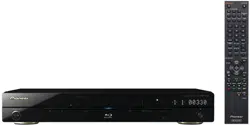
BDP-180
BDP-180
-K
BDP-180
-S
Operating Instructions
Blu-ray 3D
TM
PLAYER
For customers in Europe:
Discover the benefits of registering your product online at
http://www.pioneer.co.uk
(or
http://www.pioneer.eu
)
Download an electronic version of this manual from our website.
BDP-180_72-BDP180-GBRB1_En.book Page 1 Friday, April 17, 2015 3:15 PM
Thank you for buying this Pioneer product. Please read through these operating instructions so you will
know how to operate your model properly. After you have finished reading the instructions, put them
away in a safe place for future reference.
Operating Environment
Operating environment temperature and humidity:
+5 °C to +35 °C (+41 °F to +95 °F); less than 85 %RH
(cooling vents not blocked)
Do not install this unit in a poorly ventilated area, or in
locations exposed to high humidity or direct sunlight (or
strong artificial light)
D3-4-2-1-7c*_A1_En
WARNING
This equipment is not waterproof. To prevent a fire or
shock hazard, do not place any container filled with
liquid near this equipment (such as a vase or flower
pot) or expose it to dripping, splashing, rain or
moisture.
D3-4-2-1-3_A1_En
VENTILATION CAUTION
When installing this unit, make sure to leave space
around the unit for ventilation to improve heat radiation
(at least 10 cm at top, 10 cm at rear, and 10 cm at each
side).
WARNING
Slots and openings in the cabinet are provided for
ventilation to ensure reliable operation of the product,
and to protect it from overheating. To prevent fire
hazard, the openings should never be blocked or
covered with items (such as newspapers, table-cloths,
curtains) or by operating the equipment on thick carpet
or a bed.
D3-4-2-1-7b*_A1_En
CAUTION
The
STANDBY/ON switch on this unit will not
completely shut off all power from the AC outlet.
Since the power cord serves as the main disconnect
device for the unit, you will need to unplug it from the
AC outlet to shut down all power. Therefore, make
sure the unit has been installed so that the power
cord can be easily unplugged from the AC outlet in
case of an accident. To avoid fire hazard, the power
cord should also be unplugged from the AC outlet
when left unused for a long period of time (for
example, when on vacation).
D3-4-2-2-2a*_A1_En
This product is for general household purposes. Any
failure due to use for other than household purposes
(such as long-term use for business purposes in a
restaurant or use in a car or ship) and which requires
repair will be charged for even during the warranty
period.
K041_A1_En
CAUTION
TO PREVENT THE RISK OF ELECTRIC SHOCK, DO NOT
REMOVE COVER (OR BACK). NO USER-SERVICEABLE
PARTS INSIDE. REFER SERVICING TO QUALIFIED
SERVICE PERSONNEL.
D3-4-2-1-1_B1_En
CAUTION
This product is a class 1 laser product classified
under the Safety of laser products, IEC 60825-1:2007,
but this product contains a laser diode higher than
Class 1. To ensure continued safety, do not remove
any covers or attempt to gain access to the inside of
the product.
Refer all servicing to qualified personnel.
The following caution label appears on your unit.
Location: inside of the unit
D58-5-2-2b*_B1_En
CLASS 1 LASER PRODUCT
WARNING
To prevent a fire hazard, do not place any naked flame
sources (such as a lighted candle) on the equipment.
D3-4-2-1-7a_A1_En
BDP-180_72-BDP180-GBRB1_En.book Page 2 Friday, April 17, 2015 3:15 PM
POWER-CORD CAUTION
Handle the power cord by the plug. Do not pull out the
plug by tugging the cord and never touch the power
cord when your hands are wet as this could cause a
short circuit or electric shock. Do not place the unit, a
piece of furniture, etc., on the power cord, or pinch the
cord. Never make a knot in the cord or tie it with other
cords. The power cords should be routed such that they
are not likely to be stepped on. A damaged power cord
can cause a fire or give you an electrical shock. Check
the power cord once in a while. When you find it
damaged, ask your nearest PIONEER authorized
service center or your dealer for a replacement.
S002*_A1_En
Cautions on 3D Viewing
• If you should experience any fatigue or discomfort while viewing 3D images, stop viewing them.
• Children, particularly those under 6, may be more prone to sensitivity, so guardians should watch for
any signs of fatigue or discomfort.
• When viewing 3D images, rest periodically.
Extended viewing of 3D images without rest periods could cause fatigue or discomfort.
Condensation
If the player is moved suddenly from a cold place into a
warm room (in winter, for example) or if the
temperature in the room in which the player is installed
rises suddenly due to a heater, etc., water droplets
(condensation) may form inside (on operating parts and
the lens). When condensation is present, the player will
not operate properly and playback is not possible. Let
the player stand at room temperature for 1 or 2 hours
with the power turned on (the time depends on the
extent of condensation). The water droplets will
dissipate and playback will become possible.
Condensation can also occur in the summer if the
player is exposed to the direct wind from an
air-conditioner. If this happens, move the player to a
different place.
S005_A1_En
K058a_A1_En
Information for users on collection and disposal of old equipment and used batteries
These symbols on the products, packaging, and/or accompanying documents mean
that used electrical and electronic products and batteries should not be mixed with
general household waste.
For proper treatment, recovery and recycling of old products and used batteries,
please take them to applicable collection points in accordance with your national
legislation.
By disposing of these products and batteries correctly, you will help to save valuable
resources and prevent any potential negative effects on human health and the
environment which could otherwise arise from inappropriate waste handling.
For more information about collection and recycling of old products and batteries,
please contact your local municipality, your waste disposal service or the point of sale
where you purchased the items.
These symbols are only valid in the European Union.
For countries outside the European Union:
If you wish to discard these items, please contact your local authorities or dealer and
ask for the correct method of disposal.
Symbol examples
for batteries
Symbol for
equipment
Pb
[European model only]
K056_A1_En
[Taiwan model only]
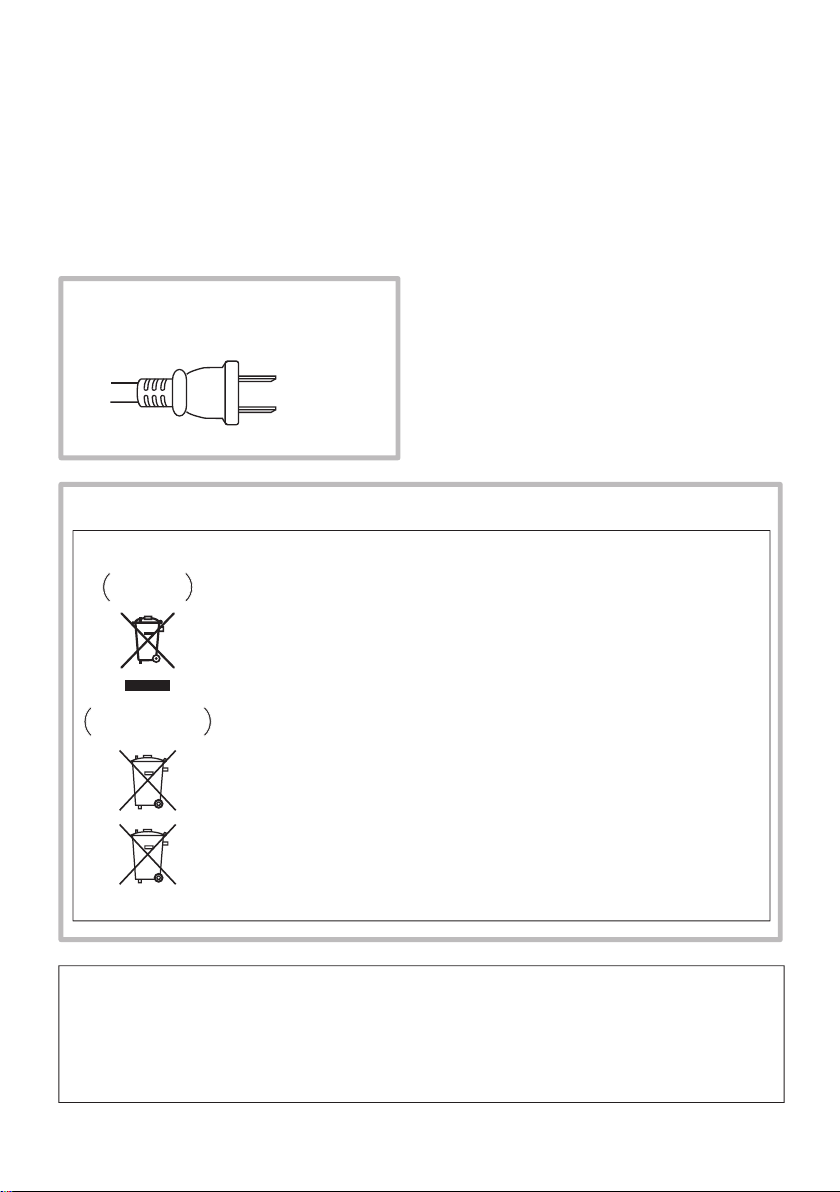
Taiwanese two pin flat-bladed plug
BDP-180_72-BDP180-GBRB1_En.book Page 3 Friday, April 17, 2015 3:15 PM

4
En
Contents
01 Before you start
What’s in the box . . . . . . . . . . . . . . . . . . . . . . . . . . . . . . . . . . . 5
Putting the batteries in the remote control . . . . . . . . . . . . . 5
Software Update . . . . . . . . . . . . . . . . . . . . . . . . . . . . . . . . . . . . 6
About operation of this player from a mobile device
(iPod, iPhone, iPad etc.). . . . . . . . . . . . . . . . . . . . . . . . . . . . . . 6
Types of discs/files that can be played . . . . . . . . . . . . . . . . . . 7
Playable discs . . . . . . . . . . . . . . . . . . . . . . . . . . . . . . . . . . . . 7
Playable files . . . . . . . . . . . . . . . . . . . . . . . . . . . . . . . . . . . . 10
Part Names and Functions . . . . . . . . . . . . . . . . . . . . . . . . . . 13
Remote Control . . . . . . . . . . . . . . . . . . . . . . . . . . . . . . . . . . 13
Front Panel . . . . . . . . . . . . . . . . . . . . . . . . . . . . . . . . . . . . . . 14
Rear Panel . . . . . . . . . . . . . . . . . . . . . . . . . . . . . . . . . . . . . . 14
02 Connecting up
Connecting using an HDMI cable. . . . . . . . . . . . . . . . . . . . . 15
About HDMI . . . . . . . . . . . . . . . . . . . . . . . . . . . . . . . . . . . . . 15
About Control Function with HDMI . . . . . . . . . . . . . . . . . . 16
Connecting a TV. . . . . . . . . . . . . . . . . . . . . . . . . . . . . . . . . . 17
Connecting an AV receiver or amplifier. . . . . . . . . . . . . . . 17
Connecting audio cables . . . . . . . . . . . . . . . . . . . . . . . . . . . . 18
Connecting an AV receiver or amplifier using an optical
digital audio cable . . . . . . . . . . . . . . . . . . . . . . . . . . . . . . . . 18
Connecting components to the USB port . . . . . . . . . . . . . . 18
About USB devices . . . . . . . . . . . . . . . . . . . . . . . . . . . . . . . 18
Connecting the USB device . . . . . . . . . . . . . . . . . . . . . . . . 18
Connecting to the network through LAN interface . . . . . . . 19
Connecting with a LAN cable (wired LAN) . . . . . . . . . . . . 19
Connecting to a wireless LAN . . . . . . . . . . . . . . . . . . . . . . 19
Connecting the power cord . . . . . . . . . . . . . . . . . . . . . . . . . . 19
03 Getting Started
Making settings using the Setup Navigator menu . . . . . . . 20
Switching the output video resolution . . . . . . . . . . . . . . . . . 21
04 Playback
Playing discs or files. . . . . . . . . . . . . . . . . . . . . . . . . . . . . . . . 22
Quick view (Quick view with audio) . . . . . . . . . . . . . . . . . . 22
Slow-view play (Slow play with audio) . . . . . . . . . . . . . . . . 22
Forward and reverse scanning . . . . . . . . . . . . . . . . . . . . . . 23
Playing specific chapters, tracks or files . . . . . . . . . . . . . . 23
Skipping content . . . . . . . . . . . . . . . . . . . . . . . . . . . . . . . . . 23
To return to a position a short while ago . . . . . . . . . . . . . . 23
To advance to a position slightly ahead. . . . . . . . . . . . . . . 23
Slow playback. . . . . . . . . . . . . . . . . . . . . . . . . . . . . . . . . . . . 23
Reverse slow playback. . . . . . . . . . . . . . . . . . . . . . . . . . . . . 23
Step forward and step reverse . . . . . . . . . . . . . . . . . . . . . . 23
Playing a specific section within a title or
track repeatedly (A-B Repeat). . . . . . . . . . . . . . . . . . . . . . . 24
Playing repeatedly
(Repeat Play) . . . . . . . . . . . . . . . . . . . . . . . . . . . . . . . . . . . . 24
Playing in the desired order (Programmed Play) . . . . . . . 24
Making bookmarks . . . . . . . . . . . . . . . . . . . . . . . . . . . . . . . 24
Zoom . . . . . . . . . . . . . . . . . . . . . . . . . . . . . . . . . . . . . . . . . . . 25
Playing photos as slideshows. . . . . . . . . . . . . . . . . . . . . . . 25
Switching the camera angles. . . . . . . . . . . . . . . . . . . . . . . 25
Switching the subtitles . . . . . . . . . . . . . . . . . . . . . . . . . . . . 25
Moving subtitles. . . . . . . . . . . . . . . . . . . . . . . . . . . . . . . . . . 26
Switching the audio. . . . . . . . . . . . . . . . . . . . . . . . . . . . . . . 26
Switching the CD/SACD playback area. . . . . . . . . . . . . . . 26
Displaying the disc information . . . . . . . . . . . . . . . . . . . . . 26
Enjoying BONUSVIEW or
BD-LIVE. . . . . . . . . . . . . . . . . . . . . . . . . . . . . . . . . . . . . . . . . 26
Playback functions . . . . . . . . . . . . . . . . . . . . . . . . . . . . . . . 27
Using the FUNCTION menu . . . . . . . . . . . . . . . . . . . . . . . . . 28
Playing from a specific time (Time Search). . . . . . . . . . . . 29
Playing a specific title, chapter, track or file (Search) . . . 29
Playing specified range of discs, titles or
chapter (track/file) in random order. . . . . . . . . . . . . . . . . . 29
Continuing playback from a specified position
(Continued Viewing Playback) . . . . . . . . . . . . . . . . . . . . . . . 29
Changing the Video options . . . . . . . . . . . . . . . . . . . . . . . . 30
05 Playback from Source function
About Source function. . . . . . . . . . . . . . . . . . . . . . . . . . . . . . 31
About network playback . . . . . . . . . . . . . . . . . . . . . . . . . . . 31
Playback file on the network . . . . . . . . . . . . . . . . . . . . . . . . . 32
Disc/USB playback . . . . . . . . . . . . . . . . . . . . . . . . . . . . . . . . 32
Playing back image files . . . . . . . . . . . . . . . . . . . . . . . . . . . 33
Playing in the desired order (Playlist). . . . . . . . . . . . . . . . . . 33
Adding tracks/files . . . . . . . . . . . . . . . . . . . . . . . . . . . . . . . 33
Playing the Playlist . . . . . . . . . . . . . . . . . . . . . . . . . . . . . . . 33
Deleting tracks/files from the Playlist . . . . . . . . . . . . . . . . 33
06 Connecting by Miracast
TM
/Wi-Fi Direct
TM
About Miracast
TM
/Wi-Fi Direct
TM
. . . . . . . . . . . . . . . . . . . . . 34
About Wi-Fi . . . . . . . . . . . . . . . . . . . . . . . . . . . . . . . . . . . . . 34
Use the unit’s Miracast/Wi-Fi Direct functions . . . . . . . . 34
Display the Miracast/Wi-Fi Direct mode screen. . . . . . . . 34
Connecting by Miracast . . . . . . . . . . . . . . . . . . . . . . . . . . . 35
Connect to device not compatible with
Miracast/Wi-Fi Direct . . . . . . . . . . . . . . . . . . . . . . . . . . . . . 35
Connecting by WPS . . . . . . . . . . . . . . . . . . . . . . . . . . . . . . 35
Change SSID and password. . . . . . . . . . . . . . . . . . . . . . . . 35
Canceling the Miracast/Wi-Fi Direct connection . . . . . . 36
Playing a mobile device’s photos, music or video files. . . . 36
07 Playing the web contents
Available web contents . . . . . . . . . . . . . . . . . . . . . . . . . . . . . 37
Enjoying YouTube. . . . . . . . . . . . . . . . . . . . . . . . . . . . . . . . . . 37
08 Advanced settings
Changing the settings . . . . . . . . . . . . . . . . . . . . . . . . . . . . . . 38
Operating the Initial Setup screen. . . . . . . . . . . . . . . . . . . 38
WPS setup (Wi-Fi Protected Setup) . . . . . . . . . . . . . . . . . . . 43
WPS connection setting . . . . . . . . . . . . . . . . . . . . . . . . . . . 43
Wireless network connection . . . . . . . . . . . . . . . . . . . . . . . . 44
Wireless network setup. . . . . . . . . . . . . . . . . . . . . . . . . . . . 44
Software updating . . . . . . . . . . . . . . . . . . . . . . . . . . . . . . . . 45
Restoring all the settings to the factory
default settings . . . . . . . . . . . . . . . . . . . . . . . . . . . . . . . . . . 46
About how digital audio formats are output . . . . . . . . . . . . 47
09 Additional information
Cautions on use . . . . . . . . . . . . . . . . . . . . . . . . . . . . . . . . . . . 48
Moving the player . . . . . . . . . . . . . . . . . . . . . . . . . . . . . . . . 48
Place of installation. . . . . . . . . . . . . . . . . . . . . . . . . . . . . . . 48
Turn the power off when not using the player . . . . . . . . . 48
Condensation. . . . . . . . . . . . . . . . . . . . . . . . . . . . . . . . . . . . 48
Cleaning the player . . . . . . . . . . . . . . . . . . . . . . . . . . . . . . . 48
Caution for when the unit is installed in a rack with
a glass door . . . . . . . . . . . . . . . . . . . . . . . . . . . . . . . . . . . . . 48
Cleaning the pickup lens . . . . . . . . . . . . . . . . . . . . . . . . . . 49
Handling discs. . . . . . . . . . . . . . . . . . . . . . . . . . . . . . . . . . . 49
Troubleshooting . . . . . . . . . . . . . . . . . . . . . . . . . . . . . . . . . . . 50
Playback . . . . . . . . . . . . . . . . . . . . . . . . . . . . . . . . . . . . . . . . 50
Control function. . . . . . . . . . . . . . . . . . . . . . . . . . . . . . . . . . 53
Network . . . . . . . . . . . . . . . . . . . . . . . . . . . . . . . . . . . . . . . . 53
Wireless LAN . . . . . . . . . . . . . . . . . . . . . . . . . . . . . . . . . . . . 56
Others. . . . . . . . . . . . . . . . . . . . . . . . . . . . . . . . . . . . . . . . . . 57
Glossary. . . . . . . . . . . . . . . . . . . . . . . . . . . . . . . . . . . . . . . . . . 59
Specifications . . . . . . . . . . . . . . . . . . . . . . . . . . . . . . . . . . . . . 61
BDP-180_72-BDP180-GBRB1_En.book Page 4 Friday, April 17, 2015 3:15 PM
5
En
01
Chapter 1
Before you start
What’s in the box
• Remote control x 1
• AAA 700 size manganese batteries x 2
•Power cord
• Warranty card (European models only) x 1
• Operating instructions (this document) x 1
Putting the batteries in the
remote control
The batteries included with the player have been provided
to allow you to check product operation and may not last
long. We recommend using alkaline batteries that have a
longer life.
WARNING
• Do not use or store batteries in direct sunlight or
other excessively hot place, such as inside a car or
near a heater. This can cause batteries to leak,
overheat, explode or catch fire. It can also reduce the
life or performance of batteries.
Caution
• Do not use a new battery together with an old one.
• When loading the batteries into the remote control,
set them in the proper direction, as indicated by the
polarity marks ( and ).
• When inserting the batteries, make sure not to
damage the springs on the battery’s terminals.
This can cause batteries to leak or overheat.
• Do not heat batteries, disassemble them, or throw
them into flames or water.
• Batteries may have different voltages, even if they look
similar. Do not use different kinds of batteries
together.
• Store small parts out of the reach of children and
infants. If accidentally swallowed, contact a doctor
immediately.
• To prevent leakage of battery fluid, remove the
batteries if you do not plan to use the remote control
for a long period of time (1 month or more). If the fluid
should leak, wipe it carefully off the inside of the case,
then insert new batteries. If a battery should leak and
the fluid should get on your skin, flush it off with large
quantities of water.
• When disposing of used batteries, please comply with
governmental regulations or environmental public
institution’s rules that apply in your country/area.
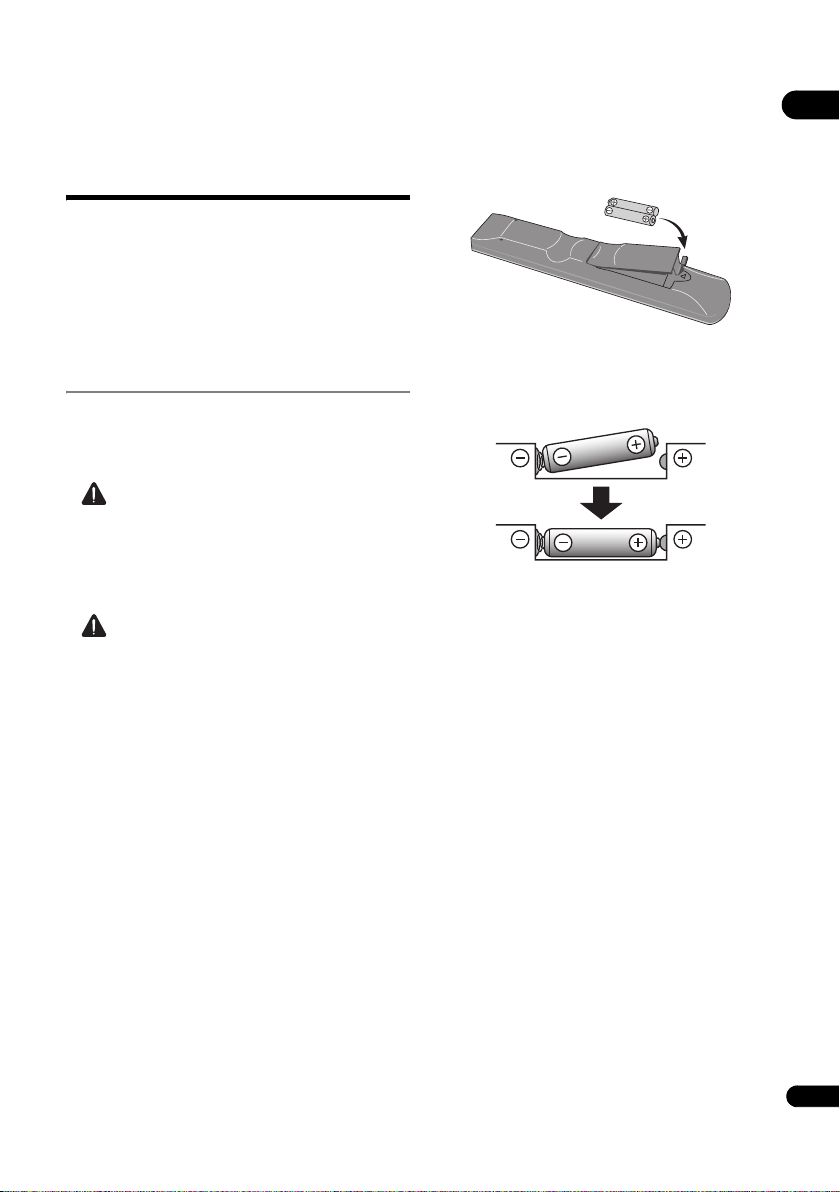
1 Open the rear cover.
2 Insert (2 x AAA 700 size) batteries that are
supplied.
Insert first from the side.
3 Close the rear cover.
Close securely (a click should be heard).
BDP-180_72-BDP180-GBRB1_En.book Page 5 Friday, April 17, 2015 3:15 PM

01
6
En
Software Update
Product information on this player is provided on the
Pioneer website. Check this website for update and
service information on your Blu-ray disc player.
IN Europe:
http://www.pioneer.eu/
IN U.K.:
http://www.pioneer.eu/
http://www.pioneer.co.uk/
IN Hong Kong:
http://www.pioneerhongkong.com.hk/
IN Singapore:
http://www.pioneer.com.sg
About operation of
this player from a
mobile device (iPod,
iPhone, iPad etc.)
The player can be controlled from a mobile device by
installing the special application onto the mobile device.
For details, see the product information on the Pioneer
website.
This special application may be changed or discontinued
without notice.
Apple, iPad, iPhone, iPod, iPod nano, and iPod touch are
trademarks of Apple Inc., registered in the U.S. and other
countries.
BDP-180_72-BDP180-GBRB1_En.book Page 6 Friday, April 17, 2015 3:15 PM
7
En
01
Types of discs/files that can be played
Playable discs
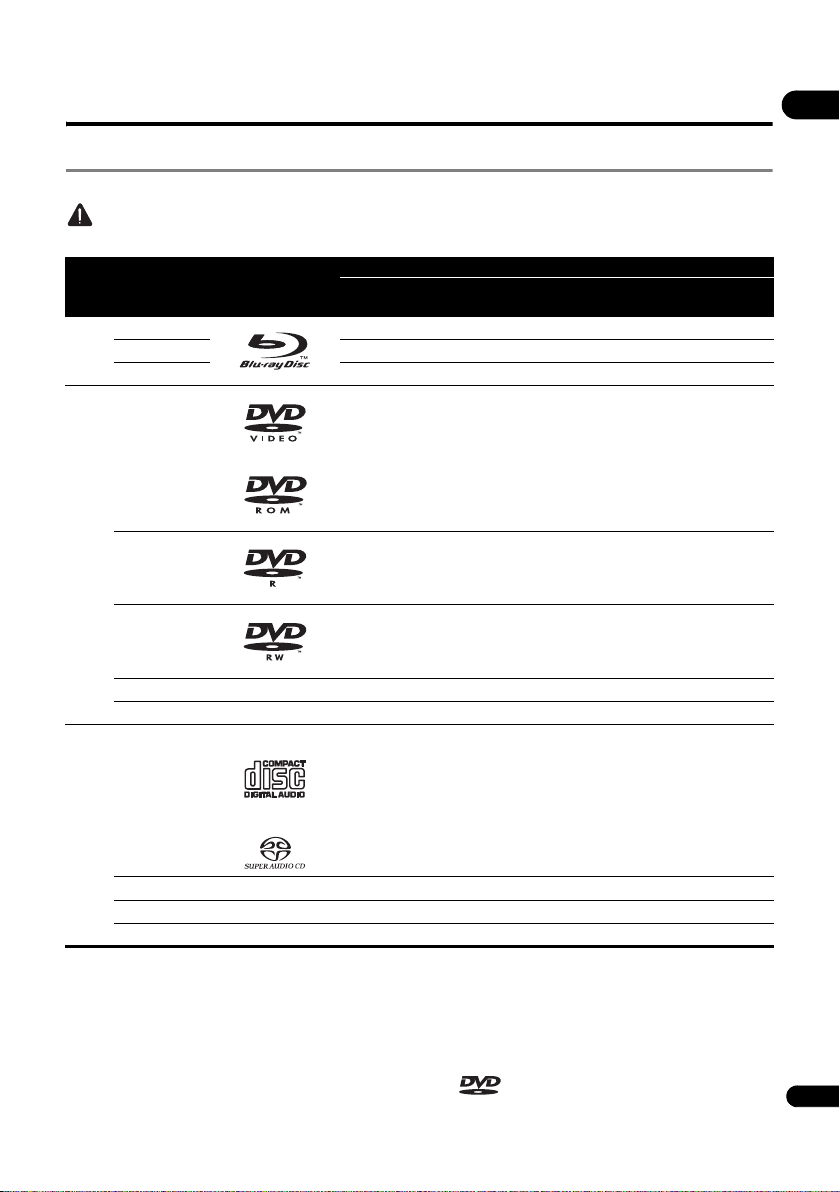
Discs with the logo marks below indicated on the disc label, package or jacket can be played.
Caution
• Only the discs that have been finalized can be played.
• “Blu-ray Disc”, “Blu-ray” and “Blu-ray Disc” logo are
trademarks of Blu-ray Disc Association.
• is a trademark of DVD Format/Logo
Licensing Corporation.
Disc type Logo
Application format
BDMV BDAV
DVD-
Video
DVD VR
CD-DA
DTS-CD
DATA-
DISC
1
1. Discs on which video, image or audio files are recorded.
BD
2
2. Including dual-layered discs.
BD-ROM
BD-R
BD-RE
DVD
DVD-ROM
DVD-R
2,3,4
3. Finalize them before playing them on this player.
4. DVD-R for Authoring discs (3.95 GB and 4.7 GB) cannot be played.
5
5. Including the AVCHD format.
6
6. Including the AVCREC format.
DVD-RW
3,7
7. Version 1.0 DVD-RW discs cannot be played.
5
6
DVD+R
2,3
DVD+RW
3
CD
CD-DA
(Audio CD)
8
8. Including Video CDs.
CD-R
3
CD-RW
3
CD-ROM
BDP-180_72-BDP180-GBRB1_En.book Page 7 Friday, April 17, 2015 3:15 PM
01
8
En
Discs that cannot be played
• HD DVDs
•DVD-RAM discs
It is possible that some discs other than the ones listed
above may not be playable either.
Note
• Some discs cannot be played, even if one of the logo
marks on the previous page is indicated.
• To play 8 cm discs, set the disc in the 8 cm disc
depression in the center of the disc tray. No adapter
is necessary. 8 cm BD-ROMs cannot be played.
About playback of unauthorized
copies
Cinavia Notice
This product uses Cinavia technology to limit the use of
unauthorized copies of some commercially-produced
film and videos and their soundtracks. When a prohibited
use of an unauthorized copy is detected, a message will
be displayed and playback or copying will be interrupted.
More information about Cinavia technology is provided at
the Cinavia Online Consumer Information Center at
http://www.cinavia.com. To request additional
information about Cinavia by mail, send a postcard with
your mailing address to: Cinavia Consumer Information
Center, P.O. Box 86851, San Diego, CA, 92138, USA.
Copyright 2004-2010 Verance Corporation. Cinavia™ is a
Verance Corporation trademark. Protected by U.S. Patent
7,369,677 and worldwide patents issued and pending
under license from Verance Corporation. All rights
reserved.
About copyright protection
Copyright protection technology is used for some Blu-ray
Discs
TM
, DVDs and contents played over the Internet or
other networks. Copyright protection technology restricts
playback and analog output. Due to updates in copyright
protection provisions, the restrictions may differ
depending on the date this product was purchased.
Furthermore, the restrictions may be updated when the
software is updated after purchase.
About audio formats
The following audio formats are supported on this player:
•Dolby TrueHD
•Dolby Digital Plus
•Dolby Digital
•DSD
•DTS-HD Master Audio
• DTS-HD High Resolution Audio
• DTS Digital Surround
•MPEG audio (AAC)
• Linear PCM
To enjoy the surround sound of Dolby TrueHD, Dolby
Digital Plus, DSD, DTS-HD Master Audio and DTS-HD
High Resolution Audio, it is recommended to connect the
player to an AV receiver or amplifier compatible with
these audio formats using an HDMI cable. After loading
a BD containing sound in one of these audio formats,
select the audio format on the menu screen.
Manufactured under license from Dolby Laboratories.
“Dolby” and the double-D symbol are trademarks of Dolby
Laboratories.
For DTS patents, see http://patents.dts.com.
Manufactured under license from DTS Licensing Limited.
DTS, DTS-HD, the Symbol, & DTS and the Symbol
together are registered trademarks, and DTS-HD Master
Audio | Essential is a trademark of DTS, Inc. © DTS, Inc.
All Rights Reserved.
Playing BDs
• BDs (BDMV) compatible with the formats below can
be played.
– Blu-ray Disc Read-Only (ROM) Format Version 2
– Blu-ray Disc Recordable (R) Format Version 2
– Blu-ray Disc Rewritable (RE) Format Version 3
This player supports BD-ROM Profile 5.
“Blu-ray 3D” and “Blu-ray 3D” logo are trademarks of
Blu-ray Disc Association.
BONUSVIEW functions such as playback of
secondary video (Picture-in-Picture) and secondary
audio can be used. The data used with the
BONUSVIEW functions (the secondary video
(Picture-in-Picture) and secondary audio data) may
be stored in the storage. For details on secondary
video and secondary audio playback, refer to the
disc’s instructions.
“BONUSVIEW” is trademark of Blu-ray Disc
Association.
BDP-180_72-BDP180-GBRB1_En.book Page 8 Friday, April 17, 2015 3:15 PM
9
En
01
BD-LIVE functions such as downloading movie
trailers or additional audio and subtitle languages
and playing on-line games can be enjoyed over the
Internet. The data downloaded with the BD-LIVE
function (trailers, etc.) is stored in the storage. Refer
to the disc’s instructions for details about BD-LIVE
functions.
“BD-LIVE” logo is trademark of Blu-ray Disc
Association.
With BD-ROMs, it is possible to use BD-J (Java)
applications to create highly interactive titles, for
example including games.
Oracle and Java are registered trademarks of Oracle
and/or its affiliates. Other names may be trademarks
of their respective owners.
• BDs (BDAV) compatible with the formats below can
be played.
– Blu-ray Disc Recordable (R) Format Version 1
– Blu-ray Disc Rewritable (RE) Format Version 2
Playing DVDs
This label indicates playback compatibility with DVD-RW
discs recorded in VR format (Video Recording format).
However, for discs recorded with a record-only-once
encrypted program, playback can only be achieved using
a CPRM compatible device.
The AVCHD is a high definition (HD) digital video camera
recorder format recording high-definition onto certain
media by using highly efficient codec technologies.
“AVCHD” and the “AVCHD” logo are trademarks of
Panasonic Corporation and Sony Corporation.
About region numbers
Blu-ray Disc Player and BD-ROM or DVD-Video discs are
assigned region numbers according to the region in
which they are sold.
This player’s region numbers are:
•BD-ROM:
– Europe, Australia and New Zealand models:
B
–Others:
A
•DVD-Video:
–Europe models:
2
– Australia and New Zealand models:
4
–
Others:
3
Discs not including these numbers cannot be played.
Discs playable on this player are as shown below.
•BDs:
–
Europe, Australia and New Zealand models:
B
(including B) and ALL
–
Others:
A (including A) and ALL
•DVDs:
–
Europe models:
2 (including 2) and ALL
–
Australia and New Zealand models:
4 (including 4)
and ALL
–
Others:
3 (including 3) and ALL
Playing CDs
Regarding copy protected CDs: This player is designed to
conform to the specifications of the Audio CD format.
This player does not support the playback or function of
discs that do not conform to these specifications.
DualDisc playback
A DualDisc is a two-sided disc, one side of which
contains DVD content — video, audio, etc. — while the
other side contains non-DVD content such as digital
audio material.
The DVD side of a DualDisc can be played on this player.
The non-DVD, audio side of the disc is not compatible
with this player.
It is possible that when loading or ejecting a DualDisc,
the opposite side to that being played will be scratched.
Scratched discs may not be playable.
For more detailed information on the DualDisc
specification, please refer to the disc manufacturer or
disc retailer.
Playing discs created on computers
or BD/DVD recorders
• It may not be possible to play discs recorded using a
computer due to the application settings or
computer’s environment settings. Record discs in a
format playable on this player. For details, contact the
dealer.
BDP-180_72-BDP180-GBRB1_En.book Page 9 Friday, April 17, 2015 3:15 PM
01
10
En
• It may not be possible to play discs recorded using a
computer or a BD/DVD recorder, if burn quality is not
good due to characteristics of the disc, scratches, dirt
on the disc, dirt on the recorder’s lens, etc.
About video, audio, and image files
and folders
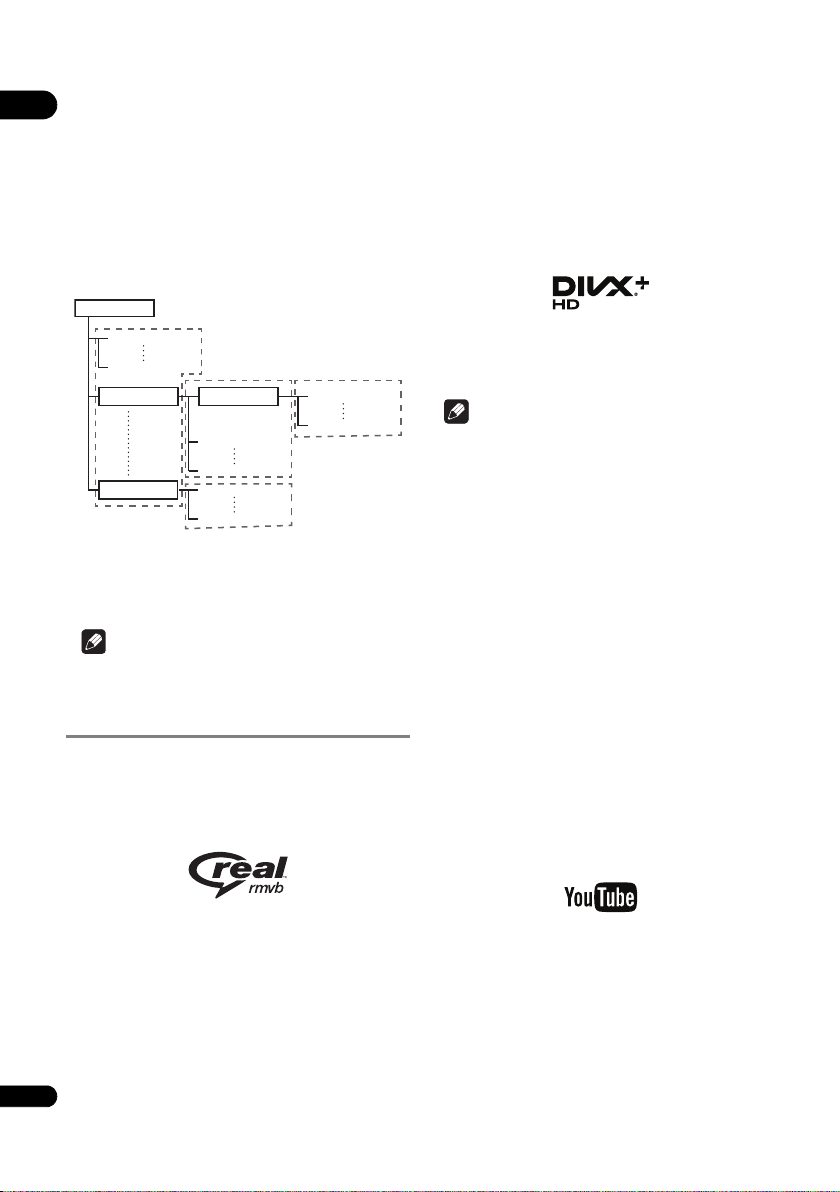
Audio and image files can be played on this player when
the folders on the disc or USB device are created as
described below.
Example of folder structure:
* The number of folders and files within a single folder
(including the root directory) is limited to a maximum of
256. Also, keep the number of folder layers to a maximum
of 5.
Note
• The file and folder names displayed on this player may
differ from those displayed on a computer.
Playable files
Video, image and audio files recorded on BDs, DVDs, CDs
or USB devices can be played.
Supported video file formats
• Real RMVB (Only for ASEAN and Taiwan models)
Real RMVB logo is a trademark or a registered
trademark of RealNetworks, Inc.
•DivX Plus HD
DivX Certified
®
to play DivX
®
and DivX Plus
®
HD
(H.264/MKV) video up to 1080p HD, including
premium content.
DivX Plus
®
HD devices have been tested for high-
quality DivX
®
(.divx, .avi) and DivX Plus HD (.mkv)
video playback. When you see the DivX logo, you
know you have the freedom to play your favorite DivX
movies.
This DivX Certified
®
device has passed rigorous
testing to ensure it plays DivX
®
video. To play
purchased DivX movies, first register your device at
vod.divx.com. To obtain your registration code, locate
the DivX VOD section in your device setup menu.
DivX
®
, DivX Certified
®
, DivX Plus
®
HD and
associated logos are trademarks of DivX, LLC and are
used under license.
Note
•This DivX
®
Certified device must be registered in
order to play DivX Video-on-Demand (VOD) content.
First generate the DivX VOD registration code for your
device and submit it during the registration process.
Important: DivX VOD content is protected by a DivX
DRM (Digital Rights Management) system that
restricts playback to registered DivX Certified devices.
If you try to play DivX VOD content not authorized for
your device, the message Authorization Error will be
displayed and your content will not be played. Learn
more at www.divx.com/vod.
– This player’s DivX VOD registration code can be
checked at HOME MENU Initial Setup
Playback DivX
®
VOD DRM Registration
Code (page 41).
– The number of views is restricted for some DivX
VOD files. When such files are played on this
player, the remaining number of views is displayed.
Files for which the remaining number of views has
reached 0 cannot be played (This DivX rental has
expired is displayed). Files for which the number of
views is not restricted can be played as many times
as you like (the remaining number of views is not
displayed).
• YouTube
YouTube
TM
is a trademark of Google inc.
*
*
*
*
Root
01 Folder
XX Folder
Folder
001.jpg/001.mp3
xxx.jpg/xxx.mp3
001.jpg/001.mp3
xxx.jpg/xxx.mp3
001.jpg/001.mp3
xxx.jpg/xxx.mp3
001.jpg/001.mp3
xxx.jpg/xxx.mp3
BDP-180_72-BDP180-GBRB1_En.book Page 10 Friday, April 17, 2015 3:15 PM
11
En
01
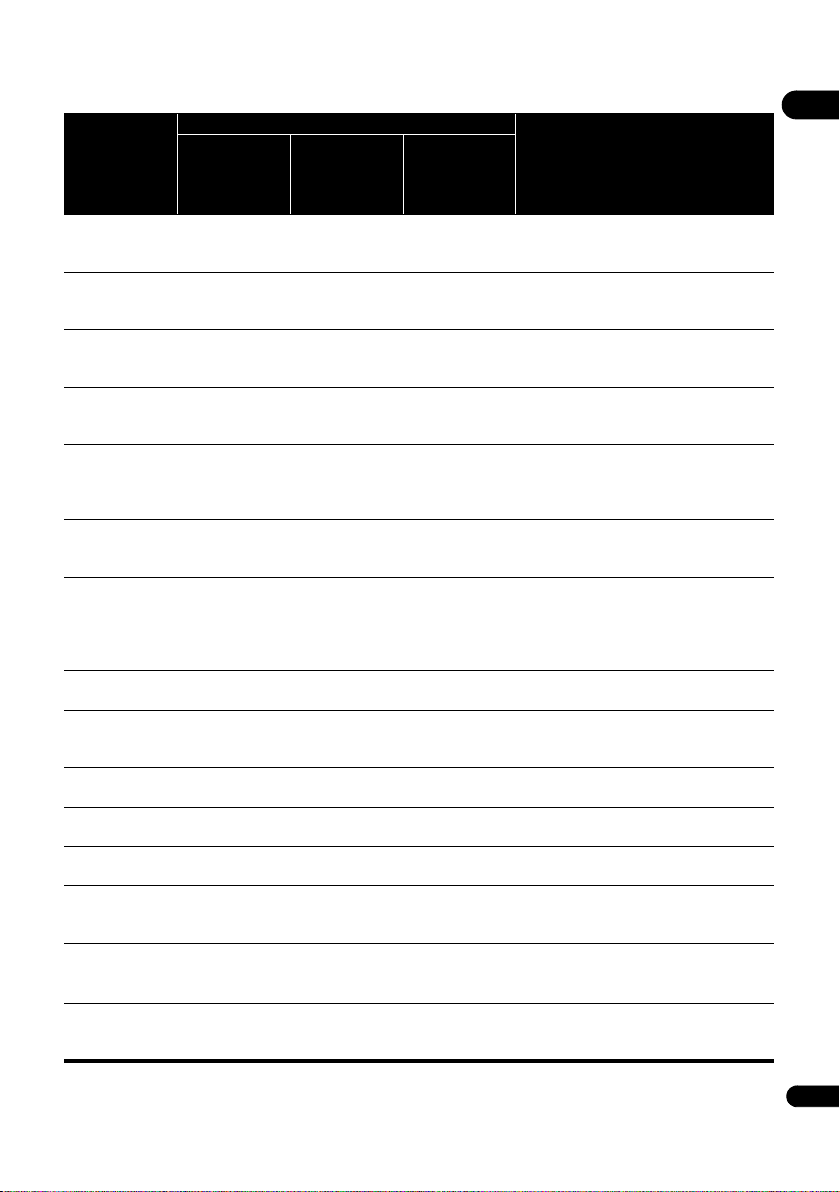
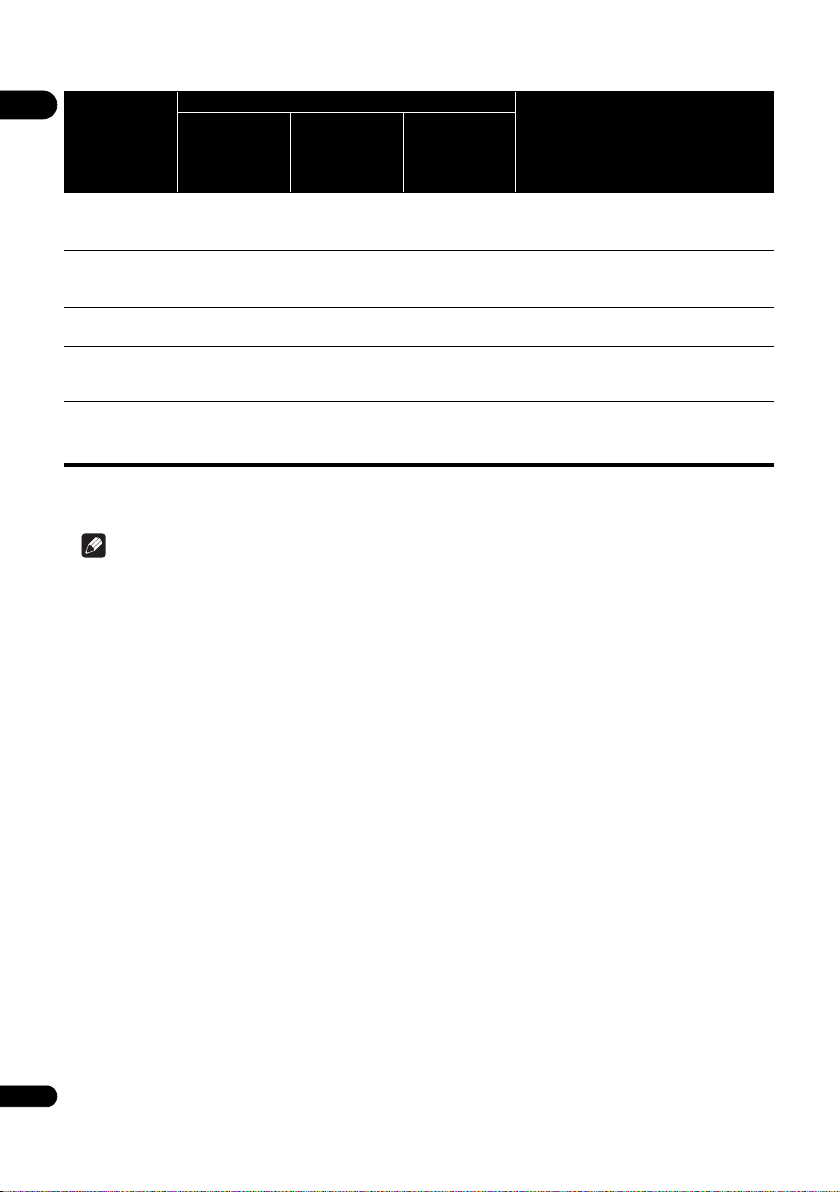
Table of Playable Files
Playable files
(Extensions)
Playable media
File specifications
BD-R/RE/-R DL/
RE DL/-R LTH,
DVD-R/RW/-R DL/
+R/+RW/+R DL,
CD-R/RW
USB devices
1
Network
2
MP3
(.mp3)
Sampling frequencies: Up to 48 kHz
Bit rate: Up to 320 kbps
Audio type: MPEG-1 Audio Layer 3
WMA
3
(.wma)
Sampling frequencies: Up to 48 kHz
Bit rate: Up to 192 kbps
Audio type: WMA version 9
AAC
(.m4a)
Sampling frequencies: Up to 96 kHz
Bit rate: Up to 320 kbps
Audio type: MPEG4-AAC
MPEG2 AAC
(.aac)
Sampling frequencies: Up to 48 kHz
Bit rate: Up to 320 kbps
Audio type: MPEG2-AAC
WAV
(.wav)
Sampling frequencies: Up to 192 kHz
Quantization bitrate: 16 bit, 24 bit
Channel: 2ch/Multi (7.1 ch)
(PCM codec)
FLAC
(.flac)
Sampling frequencies: Up to 192 kHz
Quantization bitrate: 16 bit, 24 bit
Channel: 2ch/Multi (5.1 ch)
Monkey’s Audio
(.ape)
Sampling frequencies:
Extra-high support up to 48 kHz
High support up to 96 kHz
Quantization bitrate: 16 bit, 24 bit
Channel: 2ch
DSD
(.dff/.dsf)
2.8 MHz
Channel: 2ch/Multi (5.1 ch)
ALAC
(.m4a)
Sampling frequencies: Up to 192 kHz
Quantization bitrate: 16 bit, 24 bit
Channel: 2ch
JPEG
(.jpg/.jpeg)
Maximum resolution: 4 000 x 3 000 pixels
MPO
(.mpo)
3D photo image
PNG
(.png)
Maximum resolution: 2 048 x 1 024 pixel
Animated PNG files are not supported.
GIF
(.gif)
Maximum resolution: 2 048 x 1 024 pixel
Animated GIF files are not supported.
Rotate is not supported.
DivX
(.avi/.divx/.mkv)
Supported versions: Through DivX Plus
®
HD
Maximum resolution:
Up to 1 920 x 1 080 (DivX Plus
®
HD)
MP4
(.mp4)
Maximum resolution: Up to 1 920 x 1 080
Video: MPEG4, MPEG-4 AVC (level 4.1)
Audio: AAC, MP3
BDP-180_72-BDP180-GBRB1_En.book Page 11 Friday, April 17, 2015 3:15 PM
01
12
En
Note
• Depending on the file structure, the server capacity and the network environment, it may not be possible to play
certain files, even for files indicated on the table of playable files above.
• With wireless LAN connections, depending on the usage environment (radio interference, etc.), the picture or
sound may be interrupted when playing high picture quality video files (such as files with HD quality) or high sound
quality music files (such as 192 kHz/24 bit WAV files) due to the large amount of data that must be transferred.
• Files protected by DRM (Digital Rights Management) cannot be played (not including DivX VOD files).
• AVCHD contents cannot be played via LAN.
WMV
(.wmv)
Maximum resolution: Up to 1 920 x 1 080
Video: WMV9, WMV9AP (VC-1)
Audio: WMA
AVI
(.avi)
Maximum resolution: Up to 1 920 x 1 080
Video: MPEG4
Audio: MP3, AAC
3GP
(.3gp)
Video: H.263, MPEG4, H.264
Audio: MPEG-4 AAC
FLV
(.flv)
Video: Sorenson H.263 (FLV1), VP6 (FLV4),
H.264
Audio: MP3, AAC
RMVB
4
(.rm/.rmvb)
Maximum resolution: Up to 1 280 x 720
Video: RealVideo
®
Audio: RealAudio
®
, AAC
1. This unit supports FAT16, FAT32 and NTFS file systems.
2. Unsupported files may not be displayed under the “list of input sources”.
3. WMA Pro, Lossless and Voice are not supported.
4. Only for ASEAN and Taiwan models.
Playable files
(Extensions)
Playable media
File specifications
BD-R/RE/-R DL/
RE DL/-R LTH,
DVD-R/RW/-R DL/
+R/+RW/+R DL,
CD-R/RW
USB devices
1
Network
2
BDP-180_72-BDP180-GBRB1_En.book Page 12 Friday, April 17, 2015 3:15 PM
13
En
01
Part Names and Functions
Remote Control
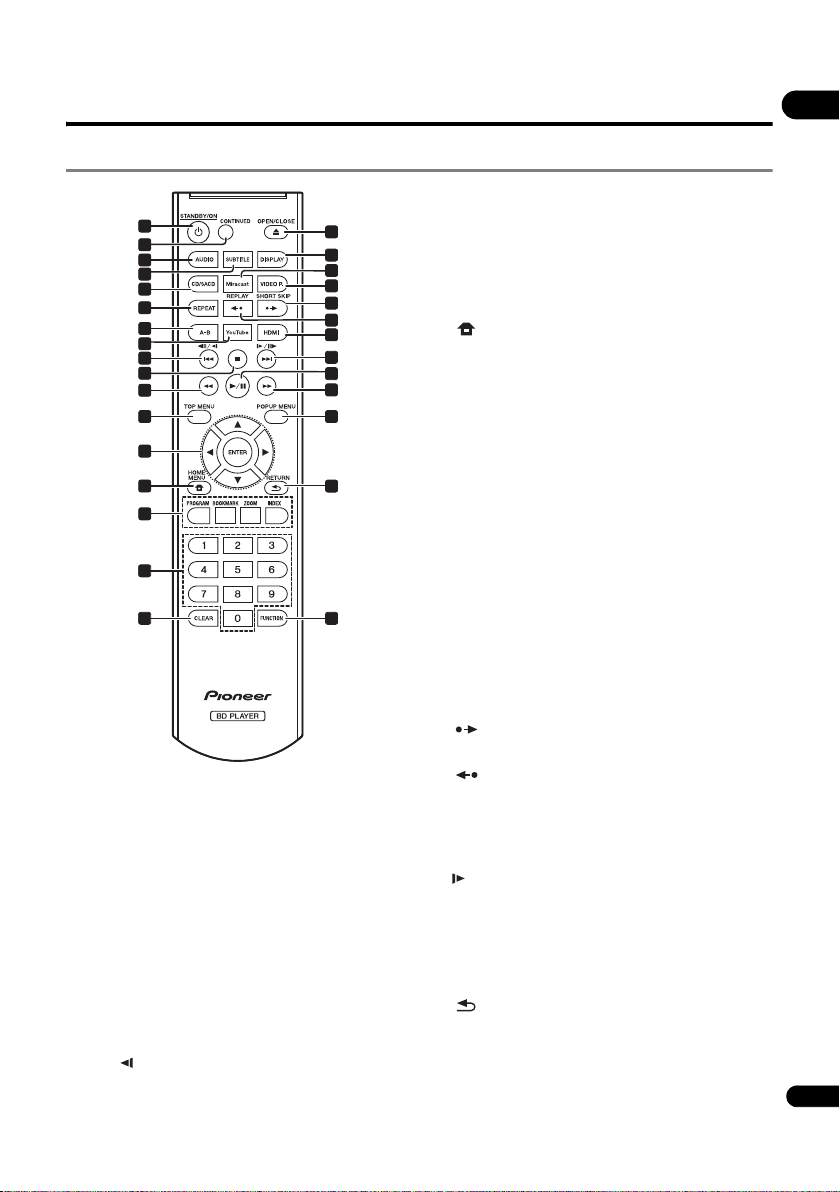
1 STANDBY/ON – Press to turn the power on and
off.
2CONTINUED – Use to continue playback from a
specified position. (page 29)
3 AUDIO – (page 26)
4 SUBTITLE – (page 25)
5CD/SACD – For hybrid discs, press to switch between
the CD and SACD layers. (page 26)
6 REPEAT – (page 24)
7A-B – (page 24)
8 YouTube – Use to play the video on YouTube.
(page 37)
9 / / – (page 23)
10 STOP – (page 22)
11 REV – (page 23)
12 TOP MENU – Press to display the top menu of the
BD-ROM or DVD-Video.
13 /// – Use to select items, change settings and
move the cursor.
ENTER – Press to execute the selected item or enter a
setting that has been changed, etc.
14 HOME MENU – (page 38)
15 Color buttons – Use these to navigate BD-ROM
menus.
PROGRAM – (page 24)
BOOK MARK – (page 24)
ZOOM – (page 25)
INDEX – (page 25)
16 Number buttons – Use these to select and play the
title/chapter/track you want to view or listen to and to
select items from menus.
17 CLEAR – Press to clear the numeric number, etc.
18 OPEN/CLOSE – Press to open and close the disc
tray.
19 DISPLAY – (page 26)
20 Miracast – Display the Miracast/Wi-Fi Direct mode
screen. (page 34)
21 VIDEO P. – Adjust image quality.
22 SHORT SKIP – Press during playback to forward
to a position 30 seconds later. (page 23)
23 REPLAY – Press during playback to return to a
position 10 seconds earlier. (page 23)
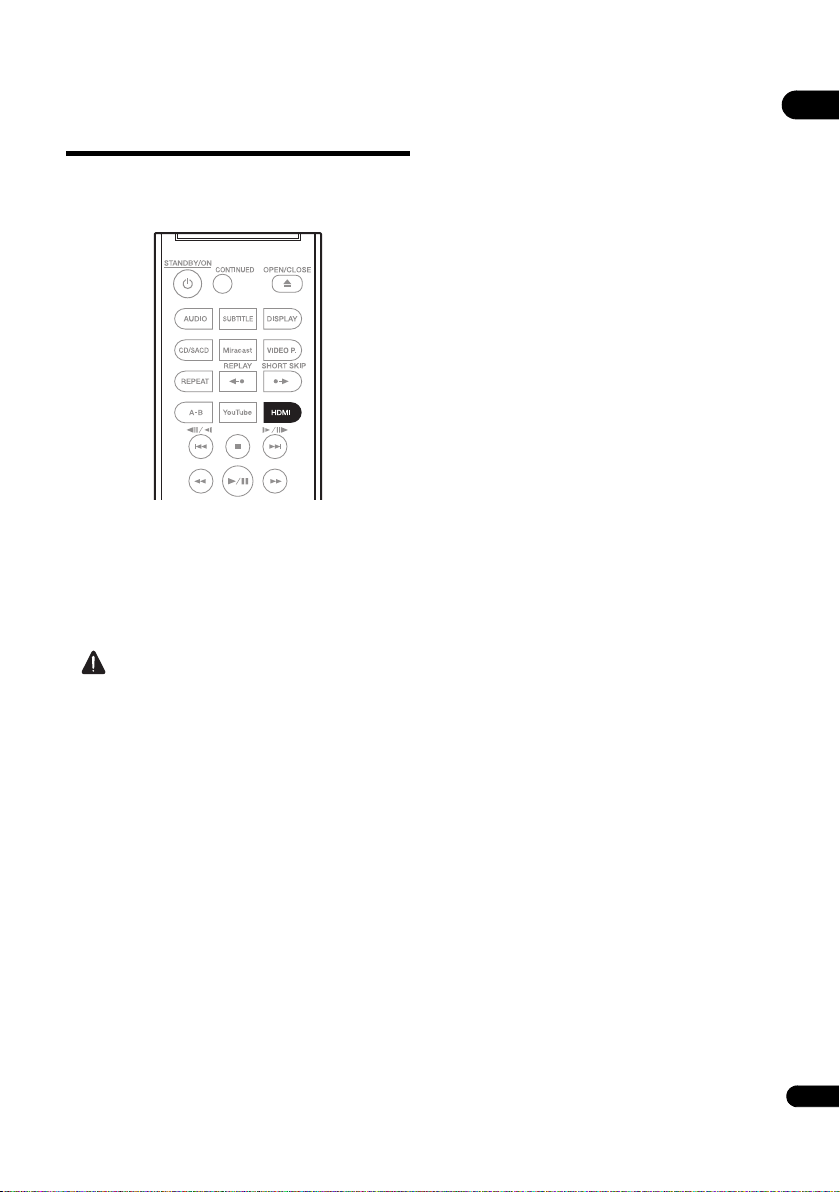
24 HDMI – Use to switch the resolution of the video
signals output from the HDMI OUT terminal
(page 21).
25 // – (page 23)
26 – (page 22)
27 FWD – (page 23)
28 POP UP MENU/MENU – Press to display the
BD-ROM or DVD-Video menus.
29 RETURN – Press to return to the previous
screen.
30 FUNCTION – (page 28)
14
9
5
4
10
16
17
6
7
30
15
1
3
21
12
13
11
28
29
22
19
24
25
27
18
20
8
2
23
26
BDP-180_72-BDP180-GBRB1_En.book Page 13 Friday, April 17, 2015 3:15 PM
01
14
En
Front Panel
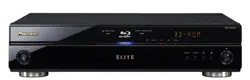
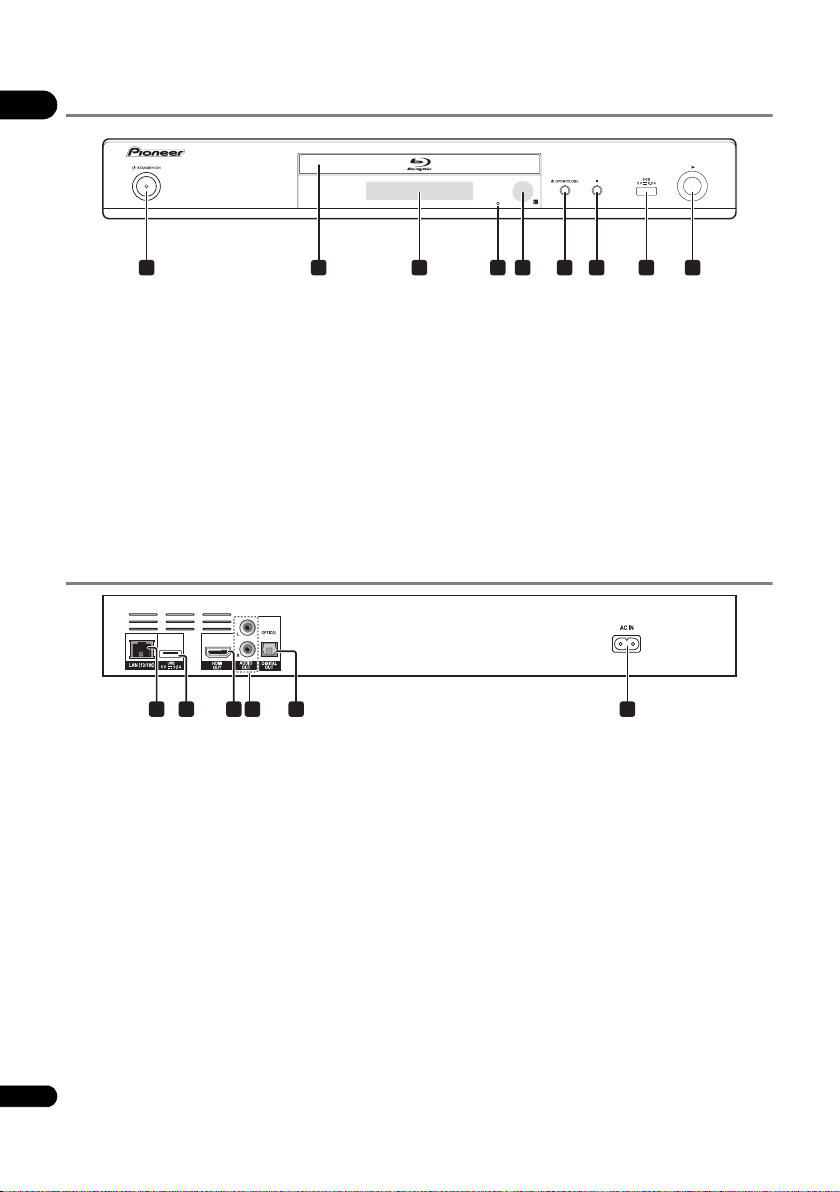
1 STANDBY/ON – Press to turn the power on and
off.
2Disc tray
3 Front panel display
4 Reset button – If the power cannot be turned off (set
to standby), use a thin rod to press this button. When
the Reset button is pressed, power to the unit is
turned off (standby status). When the STANDBY/
ON button is pressed to turn on the power, the unit
becomes operational again.
5 Remote control sensor – Point the remote control to
this, then operate it within approximately 7 m.
The player may have trouble capturing remote control
signals if there is a fluorescent light nearby. If this
happens, move the player away from the fluorescent
light.
6 OPEN/CLOSE – Press to open and close the disc
tray.
7 – Press to stop playback.
8 USB port – (page 18)
9 – Press to start playback.
Rear Panel
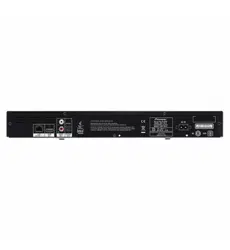
1 LAN (10/100) terminal – (page 19)
2 USB port – (page 18)
3 HDMI OUT terminal – (page 15)
4 AUDIO OUT terminals – (page 18)
5 DIGITAL OUT (OPTICAL) terminal – (page 18)
6AC IN – (page 19)
1 2 3 54 6 7 8
9
4 631 2 5
BDP-180_72-BDP180-GBRB1_En.book Page 14 Friday, April 17, 2015 3:15 PM
15
En
02
Chapter 2
Connecting up
Be sure to turn off the power and unplug the power cord
from the power outlet whenever making or changing
connections.
After connecting, make the settings at the Setup
Navigator or Initial Setup menu according to the type of
cable connected (page 20).
Also refer to the operating instructions for the device
being connected.
Connecting using an
HDMI cable
The audio and video signals can be transferred to HDMI-
compatible devices as digital signals with no loss of
sound or video quality.
Note
• Make the settings at the Setup Navigator menu
according to the connected HDMI-compatible device
(page 20).
• 1080p and 4K video signals may not be output,
depending on the HDMI cable being used.
About HDMI
This player incorporates the High-Definition Multimedia
Interface (HDMI
®
) technology.
The terms HDMI and HDMI High-Definition Multimedia
Interface, and the HDMI Logo are trademarks or
registered trademarks of HDMI Licensing, LLC in the
United States and other countries.
The player supports Deep Color.
The conventional players can transmit a video signal with
8 bit color depth in the YCbCr 4:4:4 or RGB format; the
players supporting Deep Color can transmit a video
signal with a color bit depth of greater than 8 bits per
color component. Subtle color gradations can be
reproduced when this player is connected to a TV that
supports Deep Color.
This product is compatible with “x.v.Color” that have the
capability to realize a wide-gamut color space based on
the xvYCC specifications.
Playing video signals conforming to “xvYCC” standards
on this player when this player is connected to an
“x.v.Color”-compatible TV, etc., expands color
reproduction capabilities, allowing natural colors to be
reproduced more faithfully than ever.
“x.v.Color” is a promotion name given to the products that
have the capability to realize a wide-gamut color space
based on the international standard specifications
defined as xvYCC.
“x.v.Color” and are trademarks of Sony
Corporation.
Playable audio signals through the
HDMI OUT terminal
•Dolby TrueHD
•Dolby Digital Plus
•Dolby Digital
•DTS-HD Master Audio
• DTS-HD High Resolution Audio
• DTS Digital Surround
• Linear PCM
Linear PCM audio signals meeting the following
conditions can be output:
– Sampling frequency: 32 kHz to 192 kHz
– Number of channels: Up to 8 (up to 6 for a 192 kHz
sampling frequency)
•DSD audio
• AAC
When connected to a DVI device
• It is not possible to connect DVI devices
(computer displays, for example) that are not
compatible with HDCP. HDCP is a specification to
protect audiovisual content across the DVI/HDMI
interface.
• No audio signals are output.
• This player is designed for connection with HDMI-
compatible devices. When connected to a DVI device,
it may not operate properly depending on the DVI
device.
BDP-180_72-BDP180-GBRB1_En.book Page 15 Friday, April 17, 2015 3:15 PM
02
16
En
About Control Function with
HDMI
The functions work when a control function with HDMI-
compatible Pioneer TV or AV system (AV receiver or
amplifier, etc.) is connected to the player using an HDMI
cable.
Also refer to the operating instructions for the TV and AV
system (AV receiver or amplifier, etc.).
To use the control function with
HDMI
• The control function with HDMI operates when
control function with HDMI is set to On for all devices
connected with HDMI cables.
• Once the connections and the settings of all the
devices are finished, be sure to check that the player’s
picture is output to the TV. (Also check after changing
the connected devices and reconnecting HDMI
cables.) The control function with HDMI may not
operate properly if the player’s picture is not properly
output to the TV.
• Use High Speed HDMI
®
/
TM
Cables when using the
control function with HDMI. The control function with
HDMI may not operate properly if other HDMI cables
are used.
• For some models, the control function with HDMI
may be referred to as “KURO LINK” or “HDMI
Control”.
• The control function with HDMI does not work with
devices of other brands, even if this player is
connected with an HDMI cable.
What the control function with
HDMI can do
• Operating the player with the TV’s remote
control.
Such player operations as starting and stopping
playback and displaying the menus can be performed
from the TV.
• The player’s playback picture is displayed on the
TV’s screen. (Auto-select function)
The input switches automatically on the TV and AV
system (AV receiver or amplifier, etc.) when playback
is started on the player or the HOME MENU is
displayed. When the input is switched, the playback
picture, the HOME MENU appears on the TV.
• The power of the TV and the player turns on and
off automatically. (Simultaneous power function)
When playback on the player is started or the HOME
MENU is displayed, if the TV’s power was off, its
power turns on automatically. When the TV’s power is
turned off, the player’s power automatically turns off.
Sound Retriever Link
About Sound Retriever Link
Sound Retriever Link is a sound quality correction control
technology that automatically adjusts the compressed
sound quality for the connected AV receiver using HDMI
control function.
Sound Retriever Link function allows you to enjoy higher
quality audio by setting the connected AV receiver’s
Sound Retriever function automatically.
Sound Retriever Link function on this player works
exclusively with the following situations.
• When playing via a network or playing PC contents
stored on a USB device.
• The Pioneer AV receiver compatible with Sound
Retriever Link function is connected to this player
through an HDMI cable and the player’s setting is set
as shown below (page 39).
Control: On
• Also refer to the instructions of the AV receiver.
• See Pioneer website about AV receivers compatible
with Sound Retriever Link function.
Caution
• Connect the player directly to the Pioneer AV receiver
compatible with Sound Retriever Link function.
Interrupting a direct connection with an amplifier or
AV converter (such as an HDMI switch) can cause
malfunction.
Stream Smoother Link
About Stream Smoother Link
Stream Smoother Link is a function that improves picture
quality of network video contents using the control
function with HDMI. Stream Smoother Link function
allows you to enjoy a high quality picture with less noise
by setting the connected AV receiver’s Stream Smoother
function automatically.
Stream Smoother Link function on this player works
exclusively with the following situations.
• When playing a video distribution service on a
network or PC contents stored on a medium.
• The Pioneer AV receiver with Stream Smoother Link
function is connected to this player through an HDMI
cable and the player’s setting is set as shown below
(page 39). Also refer to the instructions for the AV
receiver.
Control: On
See Pioneer website about AV receivers compatible with
Stream Smoother Link function.
Caution
• Connect the player directly to the Pioneer AV receiver
compatible with Stream Smoother Link function.
Interrupting a direct connection with an amplifier or
AV converter (such as HDMI switch) can cause
malfunction.
BDP-180_72-BDP180-GBRB1_En.book Page 16 Friday, April 17, 2015 3:15 PM
17
En
02
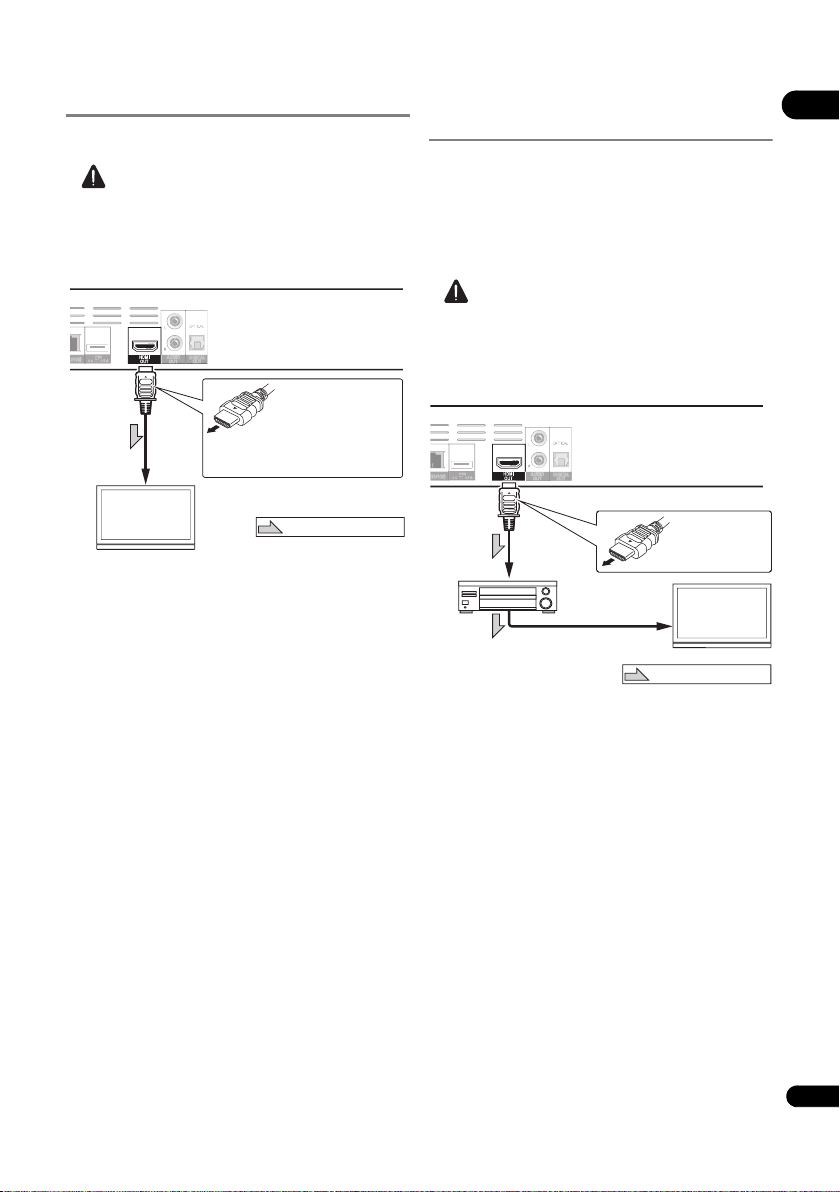
Connecting a TV
See
Connecting an AV receiver or amplifier
on page 17 to
connect an AV receiver or amplifier using an HDMI cable.
Caution
• Hold the plug when connecting and disconnecting
the cable.
• Placing a load on the plug could result in faulty
contact and no video signals being output.
Connecting an AV receiver or
amplifier
Connect to an AV receiver or amplifier in order to enjoy
the surround sound of Dolby TrueHD, Dolby Digital Plus,
Dolby Digital, DTS-HD Master Audio, DTS-HD High
Resolution Audio, DTS Digital Surround, LPCM, AAC or
DSD. For instructions on connecting the TV and speakers
to the AV receiver or amplifier, refer to the operating
instructions for AV receiver or amplifier.
Caution
• Hold the plug when connecting and disconnecting
the cable.
• Placing a load on the plug could result in faulty
contact and no video signals being output.
Rear panel
TV
Match the direction of
the plug to the terminal
and insert straight.
To HDMI
input terminal
HDMI cable
(commercially
available)
It is also possible to connect to an
AV receiver or amplifier using an
HDMI cable.
Direction of signal flow
Rear panel
To HDMI
input terminal
From HDMI
output
terminal
AV receiver
or amplifier
To HDMI input
terminal
TV
HDMI cable
(commercially
available)
Match the direction
of the plug to the
terminal and insert
straight.
Direction of signal flow
HDMI cable
(commercially
available)
BDP-180_72-BDP180-GBRB1_En.book Page 17 Friday, April 17, 2015 3:15 PM
02
18
En
Connecting audio
cables
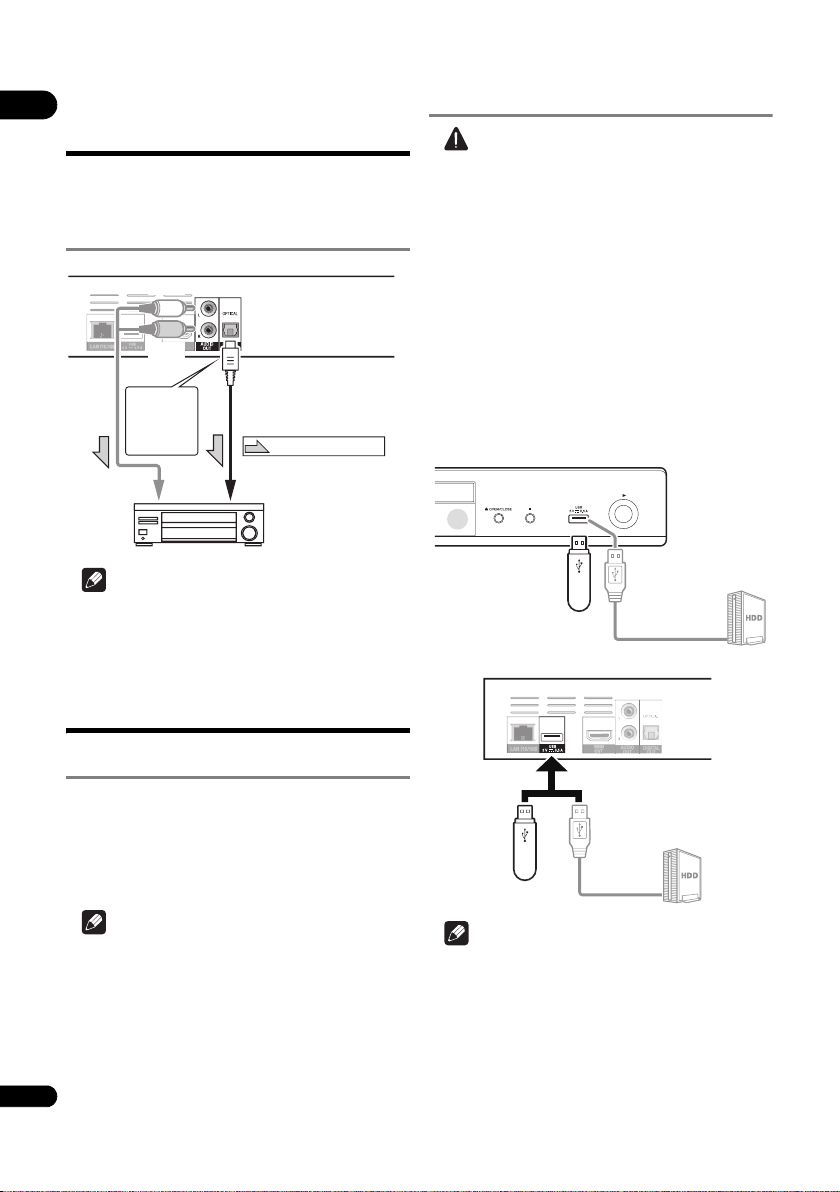
Connecting an AV receiver or
amplifier using an optical
digital audio cable
Note
• The volume of analog output audio may be low
depending on the setting of this device and contents
being played.
Connecting components
to the USB port
About USB devices
The USB devices that can be connected to the player are
as shown below.
• USB 2.0-compatible USB flash drive (capacity of 1 GB
or greater, 2 GB or greater recommended) or HDD
(capacity 2 TB or less)
• File system: FAT16, FAT32 or NTFS
Note
• Devices formatted with a file system other than the
above cannot be used.
• USB devices may not be recognized if they contain
multiple partitions.
• Some USB devices may not operate with this player.
• Operation of USB devices is not guaranteed.
Connecting the USB device
Caution
• Be sure to turn the player’s power off before
connecting or disconnecting USB devices.
• When using an external hard disk as the external
storage device, be sure to turn on the hard disk’s
power before turning on the player’s power.
• If the USB device is write-protected, be sure to disable
the write-protection.
• When connecting the USB cable, hold onto the plug,
set the plug in the proper direction for the port and
insert it horizontally.
• Placing excessive loads on the plug may result in
poor contact, making it impossible to write data on
the USB device.
• When a USB device is connected and the player’s
power is turned on, do not unplug the power cord.
Note
• Devices may not work if connected to the USB port via
a memory card reader or USB hub.
• Use a USB cable with a length of 2 meters or less.
UT
AV receiver
or amplifier
Rear panel
Direction of signal flow
White
Red
To optical digital
audio input terminal
Audio cable
(commercially available)
Optical digital audio
cable (commercially
available)
To audio
input
terminals
2-channel
analog audio
can also be
connected.
USB flash drive
Player’s front panel
Hard disk, etc.
USB cable
(commercially
available)
USB flash drive
Rear panel
Hard disk, etc.
USB cable
(commercially
available)
BDP-180_72-BDP180-GBRB1_En.book Page 18 Friday, April 17, 2015 3:15 PM
19
En
02
Connecting to the
network through LAN
interface
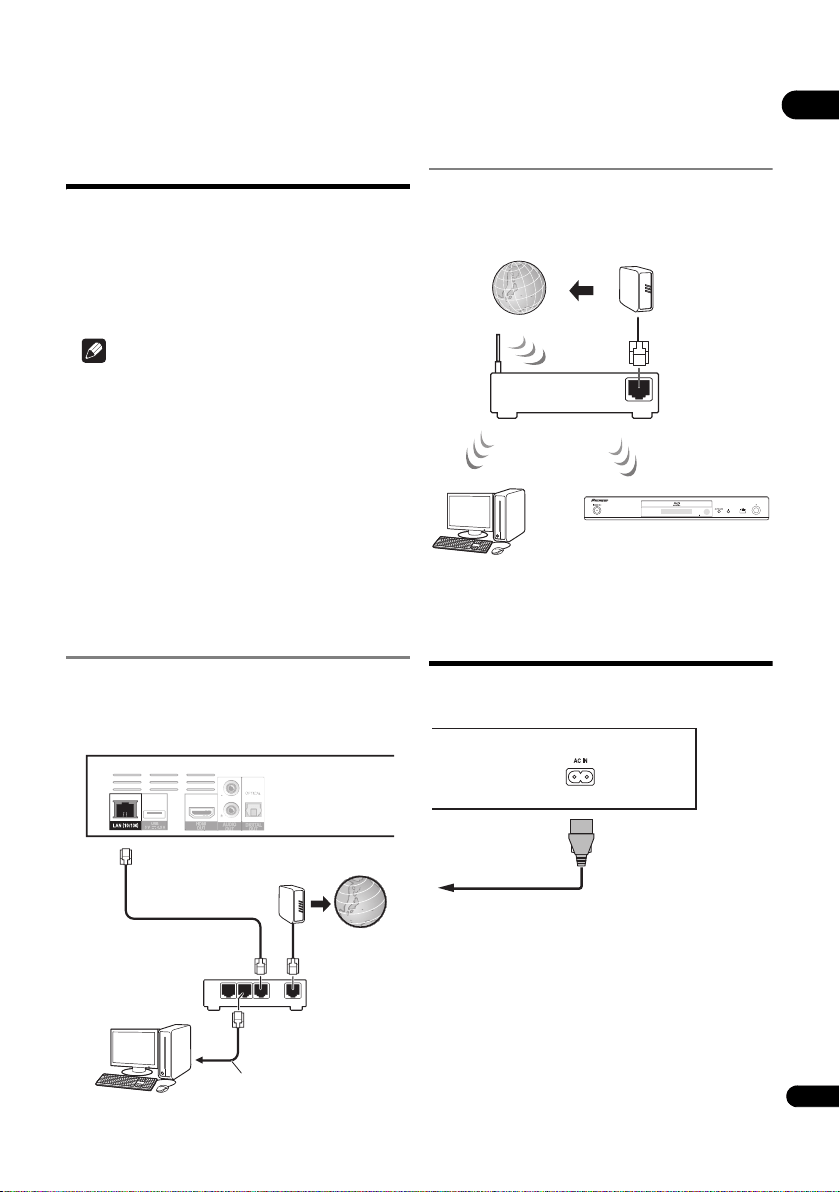
By connecting this player to the network via the LAN
terminal or a wireless LAN, you can play image, audio and
video files stored on the components on the network,
including your computer, using SOURCE inputs.
Turn on the DHCP server function of your router. In case
your router does not have the built-in DHCP server
function, it is necessary to set up the network manually.
For details, see
Setting the IP address
on page 43 .
Note
• Refer to the operation manual of the equipment you
have as the connected equipment and connection
method may differ depending on your Internet
environment.
• When using a broadband Internet connection, a
contract with an Internet service provider is required.
For more details, contact your nearest Internet
service provider.
• Please note that Pioneer will accept no responsibility
whatsoever for communications errors or problems
related to the user's network connection environment
or connected devices. Contact your provider or the
manufacturer of your connected devices.
Connecting with a LAN cable
(wired LAN)
Connect the LAN terminal on this receiver to the LAN
terminal on your router (with or without the built-in DHCP
server function) with a straight LAN cable (CAT 5 or
higher).
LAN terminal specifications
LAN terminal: Ethernet jack (10BASE-T/100BASE-TX)
Connecting to a wireless LAN
Manual settings must be made to connect to a wireless
LAN. For details, see
About how digital audio formats are
output
on page 47.
Connecting the power
cord
Connect the power cord after all the connections between
devices have been completed.
WAN
321
LAN
LAN cable
(commercially available)
Router
Internet
ModemLAN cable
(commercially
available)
Computer
Rear panel
WAN
Router
Internet
Modem
Computer
Rear panel
Power cord
(included)
To wall outlet
BDP-180_72-BDP180-GBRB1_En.book Page 19 Friday, April 17, 2015 3:15 PM
03
20
En
Chapter 3
Getting Started
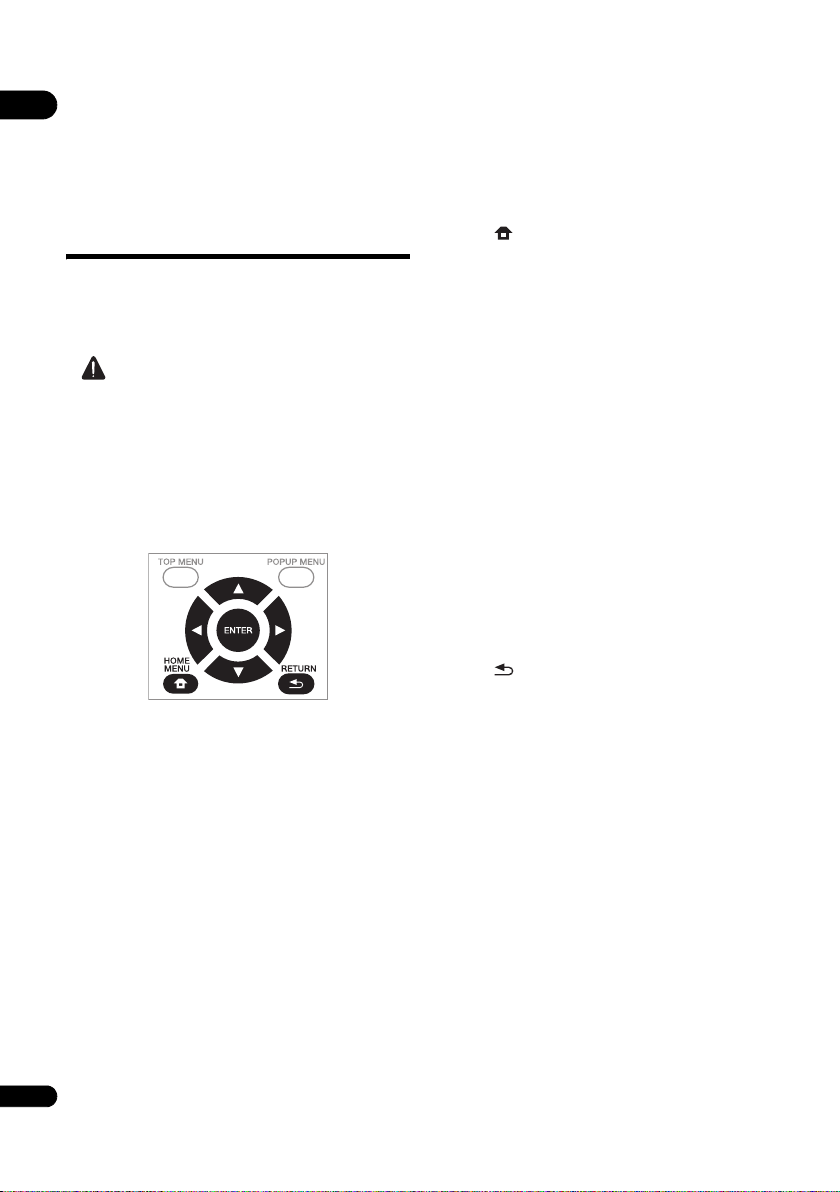
Making settings using
the Setup Navigator
menu
Be sure to perform these settings when using the player
in the following situations.
• When you use the player for the first time.
•After Initial Setup format.
Caution
• Before turning on the power, check that the
connections between the player and other devices are
correct. Also, turn on the power of the devices
connected to the player before turning on the player’s
power.
• When using a Pioneer TV or front projector
compatible with the Control function, set Control to
On on the connected device before turning on the
player’s power.
1 Turn on the TV’s power and switch the input.
See the TV’s operating instructions for the details of
operating the TV.
2 Turn on the player’s power.
Press STANDBY/ON.
Check that the Setup Navigator menu is displayed.
If the Setup Navigator menu is not
displayed
Press HOME MENU to display the Home
Menu, select Initial Setup Setup Navigator
Start, then press ENTER.
3 Start Setup Navigator.
Press ENTER.
• Setup Navigator starts.
4 Select the OSD language.
Use / to select, then press ENTER.
When a Pioneer TV that is compatible with Control
function is connected to this player’s HDMI OUT
terminal, language settings are imported from the
Pioneer TV’s language settings before Setup Navigator
begins.
5 Select the appropriate output resolution for the
connected TV.
Use / to select, then press ENTER.
6 Select the appropriate aspect for the connected
TV.
Use / to select, then press ENTER.
7 Close the Setup Navigator menu.
Press ENTER.
• Setup Navigator finishes and the setting is stored.
• Press RETURN to go back to the previous
screen.
BDP-180_72-BDP180-GBRB1_En.book Page 20 Friday, April 17, 2015 3:15 PM
21
En
03
Switching the output
video resolution
Use the procedure below to switch the output video
resolution from the various video output terminals.
Press HDMI.
• The current output video resolution setting is
displayed on the player’s front panel display.
To switch the output video resolution, press HDMI
again.
• The output video resolution setting can also be
switched by selecting Resolution from the Initial
Setup menu (page 38).
Caution
• On some devices (TV, AV receiver or amplifier, etc.),
the video or audio may not be output properly when
the resolution is switched. If this happens, use HDMI
to set a resolution at which the video and audio are
properly output.
• When video signals are being output with a resolution
of 4K/24p, 1080/50i, 1080/50p, 720/50p, 1080/24p,
1080/60i, 1080/60p or 720/60p from the HDMI OUT
terminals, the picture may be output with an aspect
ratio of 16:9, even if the TV Aspect Ratio is set to 4:3
(Standard).
• The picture may not be displayed for a while when the
resolution is switched.
• When the connected device supports 3D and if a 3D
Disc is played back, the 3D output is prioritized for
output, regardless of the resolution settings. Also,
switching of resolution may not be possible while the
3D contents are playing.
• When Auto is selected, the picture is output at 60
frames/second if your TV is not compatible with 1080/
24p signals.
• When 4K/24p, 1080/24p is selected, the signals are
output as such, even if your TV is not compatible with
4K/24p or 1080/24p signals. If the picture is not
displayed properly, use HDMI to set an output video
resolution at which the video and audio signals are
properly output.
• When the unit is set to [Auto] and is playing 24p
content, the TV outputs the content at 4K/24p, if the
TV you are using supports 4K/24p output. If the
connected television set does not support 4K/24p,
then the output is made with a recommended
resolution other than 4K/24p.
• When the Resolution is set to Auto, 1080p, 4K/24p
and if the resolution of output from the HDMI is
1080p, 4K/24p, then output may not occur depending
on the HDMI cable in use.
• There are resolutions that cannot be output
depending on the television set in use.
BDP-180_72-BDP180-GBRB1_En.book Page 21 Friday, April 17, 2015 3:15 PM

04
22
En
Chapter 4
Playback
Playing discs or files
This section describes the player’s main operations.
For the types of discs and files that can be played, see
page 7. Video, image and audio files recorded on discs
are played with the Source function (page 31).
1 Press STANDBY/ON to turn on the power.
Turn the TV’s power on and switch its input beforehand.
2 Press OPEN/CLOSE to open the disc tray and
load the disc.
Note
• Load the disc with the printed side facing up.
• Several dozen seconds are required to read the disc.
Once reading is completed, the type of disc is
displayed on the player’s front panel display.
• When a BD with usage restrictions set by a BD
recorder is loaded, the PIN code input screen
appears. In this case, input your PIN code.
3 Press to play the disc.
• To pause, press during playback.
• To stop, press STOP during playback.
Note
• Some discs start playing automatically when the disc
tray is closed.
• BD-ROM/DVD-Video discs have parental lock
features. Input the password registered in the player’s
settings to unlock the parental lock. For details, see
page 42.
• Some BD-R/-RE discs have playback protection. To
cancel the protection, input the password set for the
disc.
• If the picture and sound are not properly output,
Troubleshooting
on page 50.
If the disc menu is displayed
For some discs, the disc menu is displayed automatically
when playback starts. The contents of the disc menu and
the way to operate depend on the disc.
Resuming playback from where it
was stopped (resume playback
function)
• When STOP is pressed during playback, the point
at which the disc stopped is stored in the memory.
When is pressed after that, playback resumes
from that point.
• To cancel the resume playback function, press
STOP while playback is stopped.
Note
• The resume playback function is canceled
automatically in the following cases:
– When the disc tray is opened.
– When the file list window is switched.
– When the power is turned off. (For BDs and DVDs
this does not cancel the resume playback
function.)
– When it entered the Miracast / Wi-Fi Direct Mode
screen. (page 34)
• When you want to continue playback from a position
you specify to be played next time, see
Playing
specified range of discs, titles or chapter (track/file) in
random order
on page 29.
• The resume playback function cannot be used for
some discs.
Quick view (Quick view with
audio)
Audio is being output while the video images are played
back at about 1.5 times the normal speed.
Press while playing back BD or DVD.
•If is pressed during quick playback, it will switch
to fast forward.
To return to normal playback
• Press .
Note
• You cannot pause during quick playback. Please
pause after returning to normal playback.
• As for the tone during quick playback, the output
comes via PCM regardless of the configuration of the
main body of the device.
• It is not possible to switch the audio during quick
playback.
• Depending on the audio format, such as Dolby
TrueHD and DTS-HD Master Audio,there might be no
sound output during fast-forward.
• For the output conditions of each voice, please refer
to
About how digital audio formats are output
on
page 47.
Slow-view play (Slow play
with audio)
Audio is being output while the video images are played
back at about 0.8 times the normal speed.
BDP-180_72-BDP180-GBRB1_En.book Page 22 Friday, April 17, 2015 3:15 PM
23
En
04
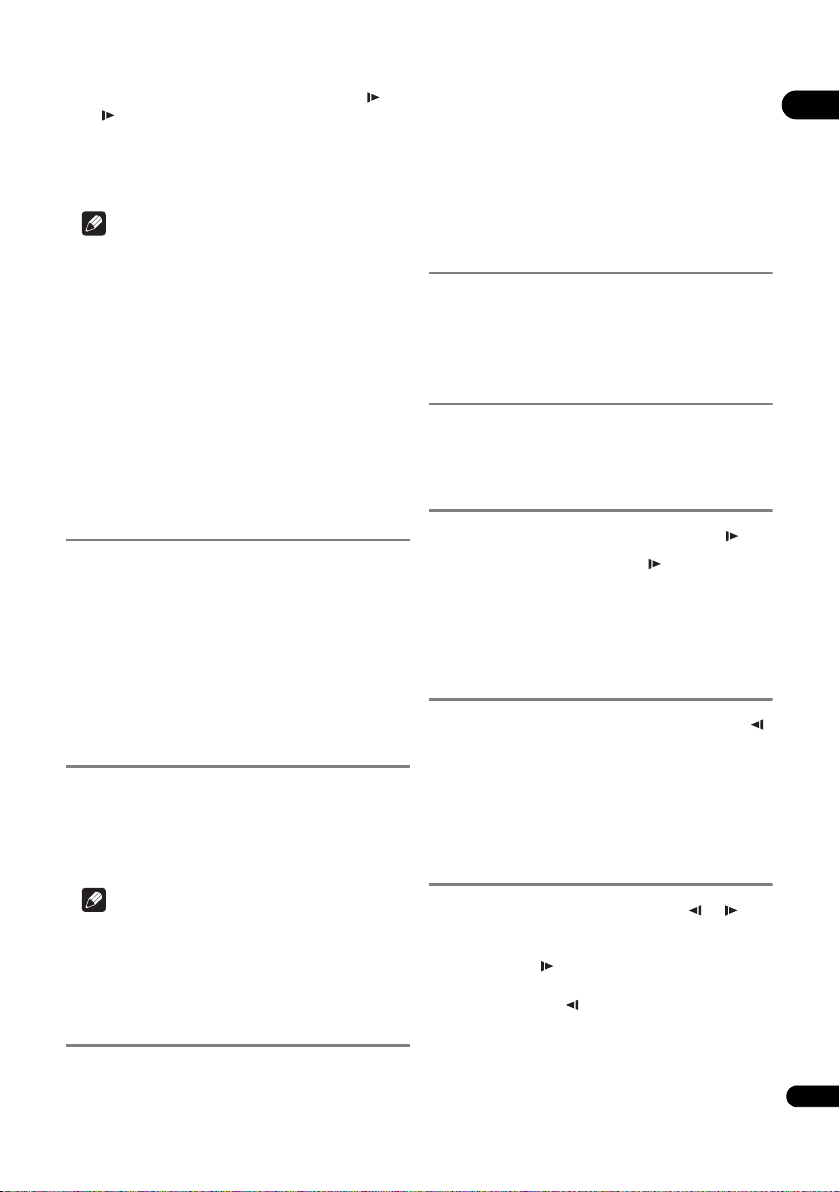
While playback is paused, press and hold /.
•If / is pressed during slow-view play, it will
switch to slow playback.
To return to normal playback
• Press .
Note
• You cannot pause during slow-view play. Please
pause after returning to normal playback.
• As for the tone during slow-view play, the output
comes via PCM regardless of the configuration of the
main body of the device.
• It is not possible to switch the audio during slow-view
play.
• Depending on the audio format, such as Dolby
TrueHD and DTS-HD Master Audio,there might be no
sound output during slow playback.
• For the output conditions of each voice, please refer
to
About how digital audio formats are output
on
page 47.
Forward and reverse
scanning
During playback or quick playback, press REV
or FWD.
• The scanning speed switches each time the button is
pressed. The speed steps depend on the disc or file
(the speed is displayed on the TV screen).
To resume normal playback
Press .
Playing specific chapters,
tracks or files
During playback, input the number of the
chapter/track/file you want to select.
• Use the number buttons (0 to 9) to input the number,
then press ENTER.
• Press CLEAR to clear the values you have input.
Note
• If the set disk is a CD, you can specify the track and
play, even when the Pioneer logo is displayed on the
screen.
• If the disk being played is a CD, you can specify the
track and play, even during pause.
Skipping content
During playback, press or .
• When is pressed, the playback skips ahead to the
beginning of the next chapter/track/file.
• When is pressed while a video or audio file is
playing, the playback skips back to the beginning of
the currently playing chapter/track/file. Press twice to
skip back to the beginning of the previous chapter/
track/file.
• When is pressed while an image file is playing,
playback returns to the previous file.
To return to a position a
short while ago
Press during playback to return to a position 10 seconds
earlier.
During playback, press REPLAY.
To advance to a position
slightly ahead
Press during playback to forward to a position 30 seconds
later.
During playback, press SHORT SKIP.
Slow playback
1 While playback is paused, press and hold /.
2 During Slow-view play, press /.
• The speed switches each time the button is pressed
(the speed is displayed on the TV screen).
To resume normal playback
• Press .
Reverse slow playback
While playback is paused, press and hold /.
• The speed switches each time the button is pressed
(the speed is displayed on the TV screen).
To resume normal playback
• Press .
Step forward and step
reverse
While playback is paused, press / or /.
• The picture moves a step forward or step reverse each
time the button is pressed.
• Each time the / button is pressed, a frame is
advanced.
• Each time the / button is pressed, a frame is
reversed.
To resume normal playback
• Press .
BDP-180_72-BDP180-GBRB1_En.book Page 23 Friday, April 17, 2015 3:15 PM

04
24
En
Playing a specific section
within a title or track
repeatedly (A-B Repeat)
Use this procedure to play a specific section within a title
or track repeatedly.
1 During playback, press A-B to select the starting
point.
• [A-] is displayed on the TV screen.
2 During playback, press A-B to select the ending
point.
• A-B Repeat playback starts.
To cancel A-B Repeat play
• Press A-B during the A-B Repeat play.
Note
• A-B Repeat play is canceled in the following cases:
– When you search outside of the repeat range.
– When you start other Repeat Play or Random Play.
Playing repeatedly
(Repeat Play)
Use this procedure to play the currently playing disc, title,
chapter, track or file repeatedly.
During playback, press REPEAT.
• Each time you press REPEAT the type of repeat
modes changes as shown below.
BD
Current chapter Current title
DVD
Current chapter Current title All titles
CD/Video file/Audio file/Image file
Current track/file All tracks/All files in folder
To cancel Repeat Play
• Press REPEAT several times during Repeat Play.
Note
• Repeat Play is canceled in the following cases:
– When you search outside the repeat range.
– When you start other Repeat Play or Random Play.
Playing in the desired order
(Programmed Play)
1 During playback, press PROGRAM.
• The program screen is displayed.
2 Select the program number.
Use / to select, then press ENTER.
3 Select the track/title/chapter you want to play.
Use /// to select, then press ENTER.
4Press .
• Playback starts.
Editing the program
1 Select the program number you want to edit,
then press ENTER.
2 Select title/chapter, then press ENTER.
Deleting the program
Select the program number you want to delete,
then press CLEAR.
• To delete all the programs, press RETURN.
Note
• When you use audio CDs for Programmed Play, enter
the track number in step 3.
• This function does not work with BDs.
Making bookmarks
You can make bookmarks on the video currently playing
and play back the scene later.
During playback, press BOOKMARK.
• The bookmark is made.
• Maximum number of bookmarks are 12.
Playing the bookmarked scene
1 Press and hold BOOKMARK for a few seconds.
• The list of bookmarks is displayed.
2 Select the bookmark you want to play.
Use / to select, then press ENTER.
Deleting the bookmark
Select the bookmark you want to delete, then
press CLEAR.
• Bookmarks may not be allowed to make for some
discs.
• Bookmarks are canceled in the following cases:
– When the player’s power turned off.
– When the disc tray is opened.
BDP-180_72-BDP180-GBRB1_En.book Page 24 Friday, April 17, 2015 3:15 PM
25
En
04
Zoom
During playback, press ZOOM.
• Each time you press ZOOM, the zoom level changes
as shown below.
[Zoom 2x] [Zoom 3x] [Zoom 4x] [Zoom 1/2]
[Zoom 1/3] [Zoom 1/4] Normal (not
displayed)
Note
• This function does not work with some discs.
Playing photos as slideshows
This function plays the photos, switching them
automatically.
During playback, press INDEX.
• Display the thumbnail of image files. The maximum
number is 12 at once.
• If you select one of the image and press ENTER,
slideshow will start from the image you selected.
Rotating/inverting photos
When a slideshow is playing or paused, the display
switches as shown below when the /// buttons are
pressed.
button: Rotates 90° clockwise
button: Rotates 90° counterclockwise
button: Flips horizontally
button: Flips vertically
Switching the camera angles
For BD-ROM and DVD-Video discs on which multiple
angles are recorded, the angles can be switched during
playback.
1 During playback, press FUNCTION.
2 Select Angle from the FUNCTION menu.
• The current angle and total number of recorded
angles are displayed on the TV screen.
• If the angles are not switched, switch them from the
disc menu screen.
Note
• Some discs cannot switch angles.
Switching the subtitles
For discs or files on which multiple subtitles are recorded,
the subtitles can be switched during playback.
Caution
• The subtitles cannot be switched for discs recorded
by a DVD or BD recorder. Also refer to the operating
instructions for the device used for recording.
During playback, press SUBTITLE.
• The current subtitle and total number of recorded
subtitles are displayed on the TV screen.
To switch the subtitle, press SUBTITLE again.
• The subtitles can also be switched by selecting
Subtitle from the FUNCTION menu.
• If the subtitles are not switched when SUBTITLE is
pressed, switch them from the disc menu screen.
Turning the subtitles off
Press SUBTITLE several times or select Subtitle
from the FUNCTION menu to switch the setting to
Off.
About displaying external subtitle
files while playing DivX media files
In addition to the subtitles recorded in DivX media files,
this player also supports the display of external subtitle
files. If a file has the same name as that of a DivX media
file aside from the file extension and the extension is one
of the extensions listed below, the file is treated as an
external subtitle file. Note that DivX media files and
external subtitle files must be located in the same folder.
Only one external subtitle file can be displayed on this
player. Use a computer, etc., to delete any external
subtitle files you do not want to display from the disc.
Text files with the extensions “.smi”, “.srt”, “.sub” and “.txt”
are supported.
Note
• Depending on the file, the external subtitles may not
be displayed properly.
BDP-180_72-BDP180-GBRB1_En.book Page 25 Friday, April 17, 2015 3:15 PM
04
26
En
Moving subtitles
The position of the subtitles displayed while playing BD-
ROMs or DVDs can be moved.
1 Play the BD-ROM or DVD video and display the
subtitles on the TV screen.
2 Press and hold the SUBTITLE button for at least 2
seconds.
• The Subtitle shift mode is set.
• [Subtitle shift mode] is displayed on the TV screen.
3 Use the / buttons to move the position of the
subtitles.
• Once the setting is complete, press ENTER.
4 Cancel the Subtitle shift mode.
Press the ENTER button.
Switching the audio
For discs or files on which multiple audio streams/
channels are recorded, audio streams/channels can be
switched during playback.
During playback, press AUDIO.
• The current audio and total number of recorded audio
streams are displayed on the TV screen.
To switch the audio, press AUDIO again.
• The audio can also be switched by selecting Audio
from the FUNCTION menu.
• If the audio is not switched when AUDIO is pressed,
switch it from the disc menu screen.
Switching the CD/SACD
playback area
1 Select the area you want to play.
In the stop mode, press CD/SACD. The playback area
switches on the front panel display window each time the
button is pressed.
[CD AREA] [SACD 2CH] [SACD MCH] (back to
beginning)
• During playback, press STOP twice to cancel
continuous play before selecting the playback area.
Displaying the disc
information
Press DISPLAY.
The disc information appears on the TV screen. To switch
off the information display, press DISPLAY again.
The information display differs between during playback
and when playback is stopped.
Enjoying BONUSVIEW or
BD-LIVE
This player is compatible with BD-Video BONUSVIEW
and BD-LIVE.
When using BD-Video discs compatible with
BONUSVIEW, you can enjoy such functions as secondary
video (picture in picture) (page 28) and secondary audio
(page 28). With BD-Video discs supporting BD-LIVE,
special video images and other data can be downloaded
from the Internet.
Data recorded on BD video and downloaded from BD-
LIVE is stored on the USB flash drive (external memory).
To enjoy these functions, connect a USB flash drive
(minimum 1 GB capacity, 2 GB or greater recommended)
supporting USB 2.0 High Speed (480 Mbit/s) to the USB
port.
• When you insert or remove a USB flash drive, be sure
to turn the player’s power off.
• To recall data stored in the USB flash drive, first insert
the disc media that was being used at the time the
data was downloaded (if a different disc is loaded, the
data stored on the USB flash drive cannot be played).
• If a USB flash drive containing other data (previously
recorded) is used, the video and audio may not play
back properly.
• Do not disconnect the USB flash drive while playback
is in progress.
• Some time may be required for the data to load (read/
write).
Caution
• It may not be possible to use the BONUSVIEW and
BD-LIVE functions if there is insufficient space on the
USB flash drive. In this case, refer to
Erasing data that
has been added to BDs and application data
on
page 42 for erasing the Virtual Package data and the
BD-LIVE data in the USB flash drive.
Note
• Operation of USB flash drives is not guaranteed.
• Playback of BD-LIVE function data differs depending
on the disc used. For details, consult the user
instructions supplied with the disc.
• To enjoy the BD-LIVE function, a network connection
and settings are required (pages 19 and 43).
• BD-LIVE is a function that provides for connection to
the Internet. Discs supporting the BD-LIVE function
may send ID codes identifying this player and the disc
to the contents provider via the Internet.
BDP-180_72-BDP180-GBRB1_En.book Page 26 Friday, April 17, 2015 3:15 PM
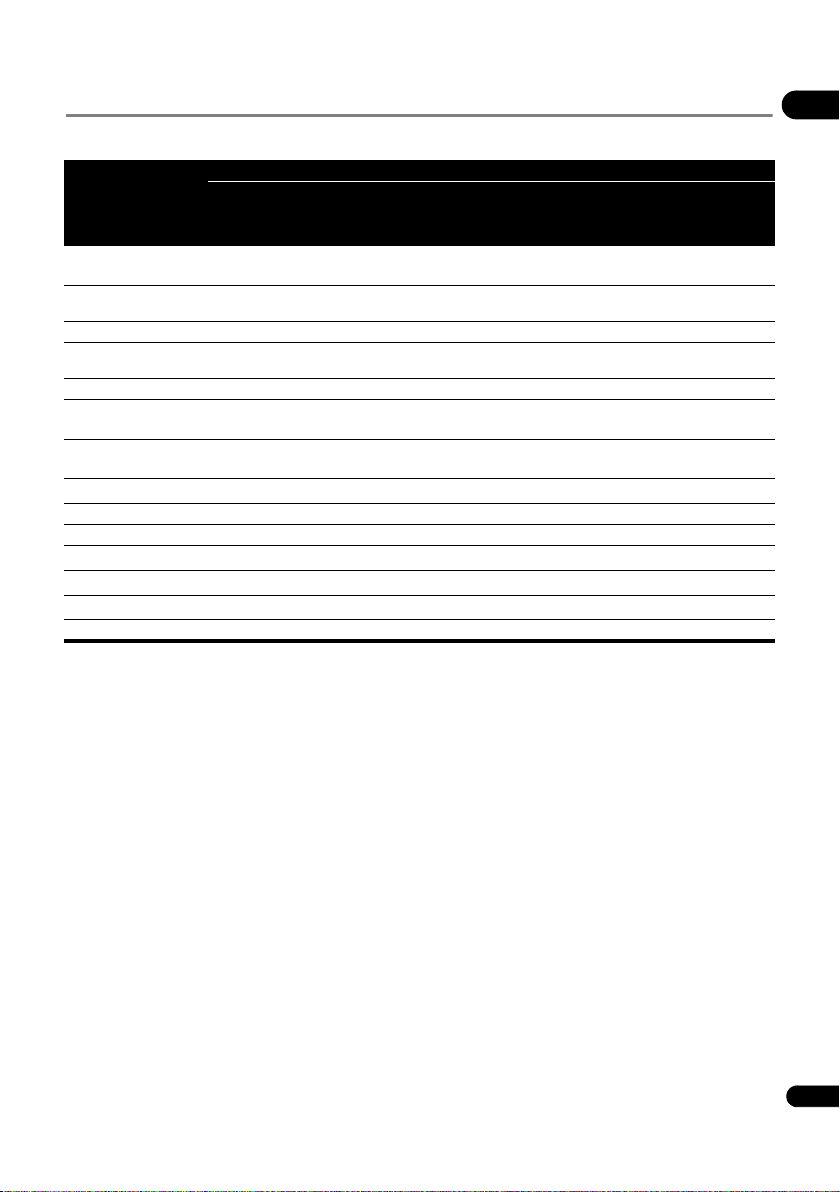
27
En
04
Playback functions
The functions that can be used differ according to the type of disc and file. In some cases, some of the functions cannot
be used. Check the usable functions on the table below.
Function
1
1. Some functions may not work for some discs or files, even if indicated [] on the table.
Disc/file type
BD-ROM
BD-R
/-RE
DVD-
Video
DVD-R
/-RW
(VR
format)
AVCREC AVCHD
Video
file
Image
file
Audio
file
Audio
CD
Quick playback/
Slow-view play
2
2. Depending on the audio format, such as Dolby TrueHD and DTS-HD Master Audio, there might be no sound output during fast-forward or
slow playback.
Forward and reverse
scanning
3
3. Sound is not produced during forward and reverse scanning.
3
3
3
3
3
3
4
4. Sound is produced during forward and reverse scanning.
4
Short Skip/Replay
Playing specific titles,
chapters or tracks
Skipping content
Slow motion play/
reverse slow playback
5
5. No sound is output during slow motion playback.
6
6. Reverse slow motion playback is not possible.
Step forward and step
reverse
7
7. If a chapter is switched, some discs will cause an automatic return to normal playback.
8
8. Reverse step playback is not possible.
A-B Repeat play
7
Repeat Play
Zoom
Angle
9
9. Angle mark is displayed for scenes at which multiple angles are recorded if Angle Mark is set to On (page 41).
Subtitle
10
10. • The types of recorded subtitles depend on the disc and file.
• In some cases, the subtitle may switch or the switching screen provided on the disc may be displayed immediately, without the current
subtitle or the total number of subtitles recorded on the disc being displayed.
Audio
11
11. The types of recorded audio streams depend on the disc and file.
Disc information
BDP-180_72-BDP180-GBRB1_En.book Page 27 Friday, April 17, 2015 3:15 PM
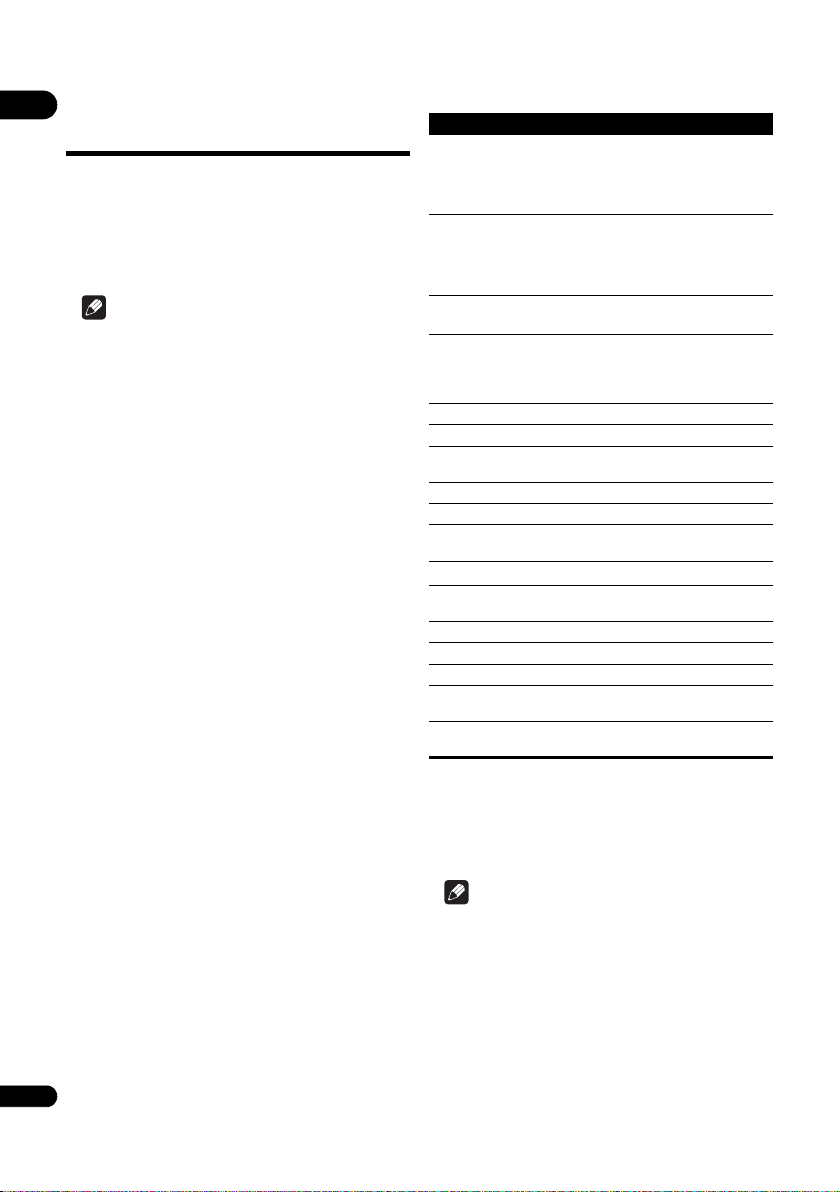
04
28
En
Using the FUNCTION
menu
Various functions can be called out according to the
player’s operating status.
1 Display the FUNCTION menu.
Press FUNCTION during playback.
2 Select and set the item.
Use / to select, then press ENTER.
Note
• Items that cannot be changed are displayed in gray.
The items that can be selected depend on the player’s
status.
To change the setting of the
selected item
Use / to change.
To close the FUNCTION menu
Press FUNCTION.
FUNCTION menu item list
Note
• Selectable items depend on the type of disc.
• The types of recorded secondary audio streams
depend on the disc and file.
• Some discs do not include secondary audio/
secondary video.
• In some cases, the secondary audio/secondary video
may switch or the switching screen provided on the
disc may be displayed immediately, without the
current secondary audio/secondary video or the total
number of secondary audio/secondary video streams
recorded on the disc being displayed.
Item Description
Title (track)
1
1. One of these types of information is displayed, depending on the
type of disc.
Display the title information for the
currently playing disc and total number
of titles on the disc. Also select the title
you want to play. (See the following
description.)
Chapter Display the information for the currently
playing chapter (track/file) and total
number of chapters in the disc. Also
select the chapter (track/file) you want to
play. (See the following description.)
File Display current file information.
Select your favorite file.
Time Display the elapsed or remaining time.
Also enter the time from which you want
to start playback. (See the following
description.)
Mode Switch the play mode (page 29).
Audio Switch the audio.
Angle Switch the BD-ROM/DVD-Video disc’s
camera angle.
Subtitle Switch the subtitle language.
Code Page Switch the subtitle code page.
Secondary Video
2
2. Secondary video mark is displayed for scenes at which secondary
video is recorded if PIP Mark is set to On (page 41).
Switch the BD-ROM’s secondary video
(Picture-in-Picture).
Secondary Audio
3
3. Secondary audio mark is displayed for scenes at which secondary
audio is recorded if Secondary Audio Mark is set to On
(page 41).
Switch the BD-ROM’s secondary audio.
Bitrate Display the bitrate of the audio/video/
secondary video/secondary audio.
Still off Switch off the BD-ROM’s still picture.
Short Skip Forward to a position 30 seconds later.
Replay Return to a position 10 seconds earlier.
Slide Show Switch the playback speed while playing
the picture slide show.
Transition Change the style of the slide show while
playing the picture slide show.
BDP-180_72-BDP180-GBRB1_En.book Page 28 Friday, April 17, 2015 3:15 PM

29
En
04
Playing from a specific time
(Time Search)
1 Select Time.
Use / to select, then press ENTER.
2 Input the time.
Use the number buttons (0 to 9) to input the time.
• To play from 45 minutes, input 0, 0, 4, 5, 0 and 0, then
press ENTER.
• To play from 1 hour 20 minutes, input 0, 1, 2, 0, 0 and
0, then press ENTER.
• Press CLEAR to clear the values you have input.
3 Starting playback from the specified time.
Press ENTER.
Playing a specific title,
chapter, track or file (Search)
1 Select Title or Chapter (track/file).
Use / to select, then press ENTER.
2 Input the Title or Chapter (track/file) number.
Use the number buttons (0 to 9) or / to input the
number.
• To search for title 32, input 3 and 2, then press
ENTER.
• Press CLEAR to clear the values you have input.
3 Starting playback from the specified title, chapter
or track.
Press ENTER.
Playing specified range of
discs, titles or chapter (track/
file) in random order
You can select from two types of random playback.
1 Select Mode.
Use / to select, then press ENTER.
2 Select the playing mode.
Use / to select, then press ENTER.
Random play
The specified range of discs, titles or chapter (track/file) is
played in random order. The same item may be played
consecutively.
Shuffle play
The specified range of discs, titles or chapter (track/file) is
played in random order. Each item is played once.
Continuing playback
from a specified
position (Continued
Viewing Playback)
This function allows you to continue playback from a
position you specify to be played next time, even after
turning the power off.
Setting
During playback, press CONTINUED at the
position from which you want to start continued
viewing playback.
The elapsed playing time at the specified position is
displayed on the TV screen.
Playing
1Press to play the title for which you have set
continued viewing playback.
The continued viewing playback confirmation screen
appears.
• In the cases below, the continued viewing playback
confirmation screen is displayed.
For BD videos
The screen is displayed after the main featured has
been played.
For recorded discs
The screen is displayed after the folder is selected and
the title set for continued viewing playback has been
played.
2 Use / to select Yes, then press ENTER.
Playback starts from the specified position.
Note
• The continued viewing playback setting is canceled
when OPEN/CLOSE is pressed.
• Continued viewing playback may not work properly
with some discs.
BDP-180_72-BDP180-GBRB1_En.book Page 29 Friday, April 17, 2015 3:15 PM
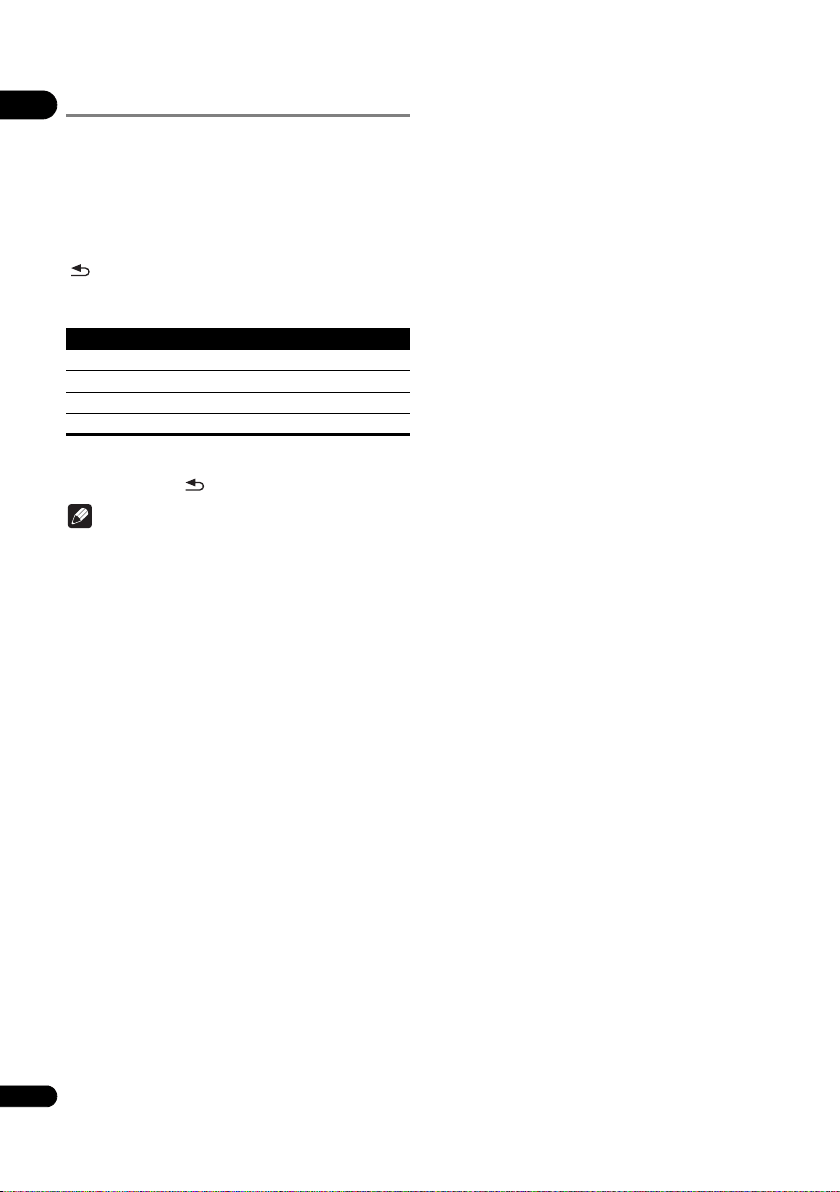
04
30
En
Changing the Video options
You can adjust the setting of the screen according to your
liking.
1 Press VIDEO P. to display the Video Parameter
screen.
2 Select the item and change the setting.
Use / to select the item, then use / to change the
setting. Once the setting is completed, press
RETURN to close the settings screen.
List of setting items
Closing the Video Parameter screen
Press VIDEO P. or RETURN.
Note
•
It is not possible to open the Video Parameter screen
when any of the Home Menu (Source, Web Contents,
Initial Setup), Function Menu or Disc Menu is being
displayed.
Item Description
Brightness Adjust the brightness.
Contrast Adjust the shade of color.
Hue Adjust the balance of green and red.
Saturation Adjust the color saturation.
BDP-180_72-BDP180-GBRB1_En.book Page 30 Friday, April 17, 2015 3:15 PM
31
En
05
Chapter 5
Playback from
Source function
About Source function
This player’s Source function allows you to display a list
of input sources and start playback. This chapter
describes setup and playback procedures required to
enjoy these features. When you play the files stored on
your computer or the components on the network, it is
advisory that you also refer to the operation manual
supplied with your network component.
The input sources that can be played from Source
function are as shown below.
• BD-R/RE (BDAV format) discs
• DVD-R/RW (VR format) discs
• Audio CDs (CD-DA, SACD and DTS CDs)
• DVD/CDs on which only data files of video, image or
audio files, etc. are recorded.
•USB device
• Files on the network servers (on the PCs or
components connected to the player via LAN
interface.)
Note
•The Source function allows you to play files on media
servers connected on an identical Local Area Network
(LAN) as the receiver.
• The following files are allowed to be played from
Source function:
– PCs running Microsoft Windows Vista with
Windows Media Player 11 installed
– PCs running Microsoft Windows 7 with Windows
Media Player 12 installed
– DLNA-compatible digital media servers (on PCs or
other components)
Files stored in a PC or DMS (Digital Media Server) as
described above can be played by Digital Media
Player (DMP). The player supports the use of such
DMP.
Files stored in a PC or DMS (Digital Media Server) as
described above can be played via command from an
external Digital Media Controller (DMC). Devices
controlled by this DMC to play files are called DMRs
(Digital Media Renderers). This player supports this
DMR function. When in the DMR mode, such
operations as playing and stopping files can be
performed from the external controller.
• To play back audio files stored on components on the
network, you must turn on the DHCP server function
of your router. In case your router does not have the
built-in DHCP server function, it is necessary to set up
the network manually. Otherwise, you cannot play
back files stored on components on the network. See
“Setting the IP address” on page 43.
About network playback
The network playback function of this unit uses the
following technologies:
Windows Media Player
See Windows Media Player 11/Windows Media Player 12
above for more on this.
DLNA
DLNA CERTIFIED
®
Audio Player
The Digital Living Network Alliance (DLNA) is a cross-
industry organization of consumer electronics,
computing industry and mobile device companies.
Digital Living provides consumers with easy sharing of
digital media through a wired or wireless network in the
home.
The DLNA certification logo makes it easy to find
products that comply with the DLNA Interoperability
Guidelines. This unit complies with DLNA Interoperability
Guidelines v1.5. When a PC running DLNA server
software or a DLNA compatible device is connected to
this player, some setting changes of software or other
devices may be required. Please refer to the operating
instructions for the software or device for more
information.
DLNA
®
, the DLNA Logo and DLNA CERTIFIED
®
are
trademarks, service marks, or certification marks of the
Digital Living Network Alliance.
Content playable over a network
• Even when encoded in a compatible format, some
files may not play correctly.
• Some functions may not be supported depending on
the server type or version used.
BDP-180_72-BDP180-GBRB1_En.book Page 31 Friday, April 17, 2015 3:15 PM

05
32
En
• Supported file formats vary by server. As such, files
not supported by your server are not displayed on this
unit. For more information check with the
manufacturer of your server.
Disclaimer for Third Party Content
Access to content provided by third parties requires a
high speed Internet connection and may also require
account registration and a paid subscription.
Third party content services may be changed, suspended,
interrupted, or discontinued at any time without notice,
and Pioneer disclaims any liability in connection with
such occurrences.
Pioneer does not represent or warrant that content
services will continue to be provided or available for a
particular period of time, and any such warranty, express
or implied, is disclaimed.
About playback behavior over a
network
• Playback may stall when the PC is switched off or any
media files stored on it are deleted while playing
content.
• If there are problems within the network environment
(heavy network traffic, etc.) content may not be
displayed or played properly (playback may be
interrupted or stalled). For best performance, a
10BASE-T/100BASE-TX connection between the
player and the PC is recommended.
• If several clients are playing simultaneously, as the
case may be, playback is interrupted or stalled.
• Depending on the security software installed on a
connected PC and the setting of such software,
network connection may be blocked.
Pioneer is not responsible for any malfunction of the
player and/or the Source function features due to
communication errors/malfunctions associated with
your network connection and/or your PC, or other
connected equipment. Please contact your PC
manufacturer or Internet service provider.
Windows Media is either a registered trademark or
trademark of Microsoft Corporation in the United States
and/or other countries.
This product includes technology owned by Microsoft
Corporation and cannot be used or distributed without a
license from Microsoft Licensing, Inc.
Microsoft®, Windows®7, Windows®Vista,
Windows®XP, Windows®2000, Windows®Millennium
Edition, Windows®98, and WindowsNT® are either
registered trademarks or trademarks of Microsoft
Corporation in the United States and/or other countries.
Playback file on the
network
1 Press HOME MENU to display the Home Menu
screen.
2 Select [SOURCE], and press ENTER.
3 Select the server which contains the file you want
to play.
4 Select the file you want to play.
Use / to select, then press ENTER.
To end Source function
Press HOME MENU.
Disc/USB playback
1 Press HOME MENU to display the Home Menu
screen.
2 Select [SOURCE], and press ENTER.
3 Select Disc or USB.
Use / to select, then press ENTER.
4 Select Photo/Music/Video/AVCHD.
Use / to select, then press ENTER.
• This step is not for the discs that have been recorded
with BDAV/VR/AVCREC format.
• To play files in AVCHD format on a USB device, create
a folder named “AVCHD” on the USB device, then
copy the “BDMV” folder containing which the files to
be played into the “AVCHD” folder.
5 Select the title/track or file you want to play.
Use / to select, then press ENTER.
Playback starts from the selected title/track or file.
• If the file you want to play is in the folder, select the
folder that contains the file first.
BDP-180_72-BDP180-GBRB1_En.book Page 32 Friday, April 17, 2015 3:15 PM
33
En
05
Playing back image files
About Slideshow
A display of the files in the folder switches automatically.
Note
• Some BD-R/-RE discs have playback protection. To
cancel the protection, input the password set for the
disc.
• It may take a few seconds before playback starts. This
is normal.
• It may not be possible to play some files properly.
• The number of views may be restricted.
• Depending on the connected devices and conditions,
some time may be required for playback to start and
for the image to switch.
Playing in the desired
order (Playlist)
The discs that can add tracks and files to the Playlist are
as shown below.
• DVDs/CDs/USB devices on which audio files are
recorded.
Adding tracks/files
Use this procedure to add tracks and files, and create the
Playlist.
1 Press HOME MENU to display the Home Menu
screen.
2 Select [SOURCE], and press ENTER.
3 Select Disc or USB.
Load the disc beforehand.
Use / to select, then press ENTER.
4 Select the track/file to be added.
Use to select.
5 Press POP UP MENU to display the POP UP MENU
menu.
6 Select Add to Playlist to add to Playlist.
Use / to select, then press ENTER.
The track or file selected in step 4 is added to the Playlist.
• To add more tracks or files, repeat steps 4 to 6.
Playing the Playlist
1 Press HOME MENU to display the Home Menu
screen.
2 Select [SOURCE], and press ENTER.
3 Select Playlist.
Use / to select, then press ENTER.
4 Select the track/file to be played.
Use / to select, then press ENTER.
Playback starts from the selected track/file and continues
until the end of the list is reached. Use / to play
the previous or next track/file. The Now Playing screen is
displayed.
Deleting tracks/files from
the Playlist
1 Select the track/file to be deleted, then press POP
UP MENU to display the POP UP MENU menu.
2 Use / to select Remove from Playlist, then
press ENTER.
Note
• In the following cases, all information in the playlist
will be deleted.
– When you open the disc tray.
– When you turn off the power.
BDP-180_72-BDP180-GBRB1_En.book Page 33 Friday, April 17, 2015 3:15 PM
06
34
En
Chapter 6
Connecting by Miracast
TM
/Wi-Fi Direct
TM
About Miracast
TM
/
Wi-Fi Direct
TM
About Wi-Fi
The Wi-Fi CERTIFIED Logo is a certification mark of the
Wi-Fi Alliance.
The Wi-Fi Protected Setup Identifier Mark is a mark of the
Wi-Fi Alliance.
Wi-Fi, Wi-Fi Protected Setup, Wi-Fi Direct, Miracast,
WPA, WPA2 are marks of the Wi-Fi Alliance.
Use the unit’s Miracast/Wi-Fi
Direct functions
Miracast and Wi-Fi Direct are functions for connecting
your mobile devices to the unit without using a wireless
LAN router.
Miracast is a function that allows you to display the videos
on a mobile device as is on a large screen TV.
Wi-Fi Direct is a function that allows you to play back
photo, music, and video files stored on a mobile device
with the unit by installing a DLNA compliant application
on your mobile device.
Caution
• Depending on the model, a connection might not be
possible even for Miracast/Wi-Fi Direct compatible
models.
• The connection procedure for Miracast/Wi-Fi Direct
depends on the mobile device. For details, refer to the
instruction manual for the mobile device.
• Depending on the specifications of the mobile device,
or the type and version of the OS, it might not be
compatible with the Miracast/Wi-Fi Direct function.
For details, refer to the instruction manual for the
mobile device.
• Some copyright protected contents, etc., might,
depending on the type of content, not be displayed by
the television and the mobile device.
• In some cases, depending on the radio wave
environment conditions or mobile device you are
using, video and audio may be interrupted.
• In some cases, depending on the playback contents
and the connection environment, video and audio
may be interrupted.
• In some cases, when performing an operation on your
mobile device, video and audio may be interrupted.
• As for the connection environment of Miracast/Wi-Fi
Direct, please confirm it on the connection screen.
• When Miracast/Wi-Fi Direct is being connected, the
connection to the Internet of this device is temporarily
interrupted.
Note
• You can only connect one mobile device to the unit at
a time with this function.
• If you want to connect a different mobile device, you
will first need to disconnect the one that is currently
connected.
• If the power to the unit is turned OFF (Standby) then
this function will be terminated, and network settings
will be returned to what they were before using this
function.
• In order to use this function your mobile device must
meet Wi-Fi specifications.
• The unit does not support mobile device control using
a specialist application.
Display the Miracast/Wi-Fi
Direct mode screen
1 Turn on the power of the TV.
2Press STANDBY/ON to turn this unit's power
on.
The Pioneer logo appears on the TV screen.
Note
• If the Pioneer logo is not displayed, check the
following:
– If this unit is in the play mode, press STOP.
–If the Source function or home menu is displayed,
press HOME MENU to close the displayed screen.
3 Press Miracast to display the Miracast/Wi-Fi
Direct mode screen.
• Settings to connect the unit and mobile devices will
be started from this screen.
• Closing this screen will terminate the Miracast/Wi-Fi
Direct connection.
• Resume play will be canceled automatically if one
enters this screen.
BDP-180_72-BDP180-GBRB1_En.book Page 34 Friday, April 17, 2015 3:15 PM
35
En
06
Connecting by Miracast
You can connect to your mobile device if it has Miracast
function in conformity with Wi-Fi standards.
Press Miracast to display the Miracast/Wi-Fi Direct mode
screen.
• As for Miracast, some of the functions have different
names depending on the mobile device. For details,
refer to the instruction manual for the mobile device.
1 Turn on the Miracast setting on your mobile
device.
A list of the devices that can be connected to the mobile
device is displayed on the mobile device screen.
2 Select the device name “DIRECT-xxBD/BDP-180”
for the unit appearing on the TV screen from the list
displayed on your mobile device.
“xx” indicates the device’s identification number.
Caution
• If the name of the unit “DIRECT-xxBD/BDP-180”does
not appear on your mobile device, press
RETURN on the remote control and then
Miracast and perform the controls again from the
Miracast/Wi-Fi Direct mode screen.
If the connection is successful, the screen of the mobile
device is also displayed on the TV.
Note
• For instructions on operating your mobile devices,
see their respective operating instructions.
Connect to device not
compatible with Miracast/
Wi-Fi Direct
Normally connect using the procedure below.
1 Display the Miracast/Wi-Fi Direct mode screen.
2 At the Wi-Fi network settings on your mobile
device, select this unit's device name, as displayed on
the TV screen ("DIRECT-xxBD/BDP-180").
“xx” indicates the device’s identification number.
Caution
• If the name of the unit “DIRECT-xxBD/BDP-180”does
not appear on your mobile device, press
RETURN on the remote control and then
Miracast and perform the controls again from the
Miracast/Wi-Fi Direct mode screen.
3 On your mobile device, input this unit's
password, as displayed on the TV screen.
Note
• For instructions on operating your mobile devices,
see their respective operating instructions.
Connecting by WPS
If your mobile device supports WPS (by push-button
method), it can be connected.
1 Display the Miracast/Wi-Fi Direct mode screen.
2 Use / to select WPS, then press ENTER.
3 Use / to select Next, then press ENTER.
4 Within 2 minutes, turn on the mobile device’s
WPS setting.
Once the connection is completed, [Connection Success]
appears on the TV screen.
Note
• For instructions on operating your mobile devices,
see their respective operating instructions.
5 Press ENTER.
This completes the connection.
The Miracast/Wi-Fi Direct mode screen is displayed.
Change SSID and password
Change the SSID and password used to connect the unit
and a mobile device.
1Press STANDBY/ON and the power to the unit
will come on.
The Pioneer logo will be displayed on the TV screen.
2 Press Miracast to display the Miracast/Wi-Fi
Direct mode screen.
3 Use / to select Refresh, then press ENTER.
SSID and password will be changed.
The connection between the unit and mobile device will
be terminated.
Caution
• All connection settings that have been setup for
mobile devices will be removed.
• The SSID and password will not change until an
update (Refresh) is performed. You should
periodically perform an update (Refresh) for security
reasons.
After the connection is terminated, when using the unit’s
Miracast/Wi-Fi Direct function again you will also need to
set up the connection again.
BDP-180_72-BDP180-GBRB1_En.book Page 35 Friday, April 17, 2015 3:15 PM

06
36
En
Canceling the Miracast/Wi-Fi
Direct connection
1 While the Miracast/Wi-Fi Direct mode screen is
displayed, press RETURN.
• The connection is canceled.
• The network settings set before using Miracast/Wi-Fi
Direct are restored.
Note
• To play discs, USB devices or web contents when
connected by Miracast/Wi-Fi Direct, close the
Miracast/Wi-Fi Direct mode screen.
Playing a mobile
device’s photos, music
or video files
Send the photos, music or video files from your mobile
device to this unit.
Note
• For instructions on operating your mobile devices,
see their respective operating instructions.
• Depending on the mobile device, you may have to
install software for transferring the photos, music or
video files.
• Depending on the software of the mobile device, it
may not work properly.
BDP-180_72-BDP180-GBRB1_En.book Page 36 Friday, April 17, 2015 3:15 PM
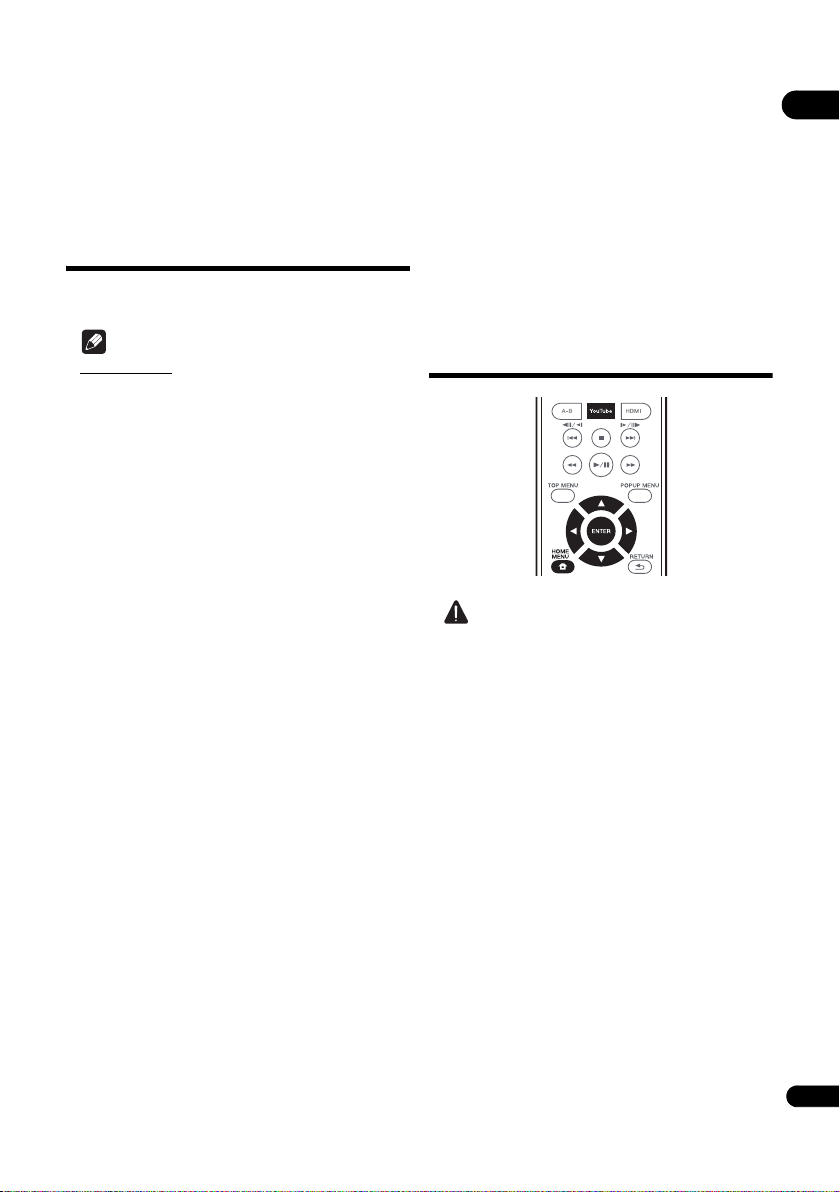
37
En
07
Chapter 7
Playing the web contents
You can enjoy some streaming contents on the Internet
with the player.
Available web
contents
•YouTube
Note
About YouTube
• This player supports the YouTube Leanback service.
• YouTube videos for mobile phones cannot be played.
• Some YouTube videos cannot be played.
• Depending on the Internet connection environment,
it may not be possible to play web contents properly.
• To access to web contents, this player requires a
broadband Internet connection. A contract with an
Internet provider is required for a broadband Internet
connection.
• Access to content provided by third parties requires a
high speed Internet connection and may also require
account registration and a paid subscription.
Third party content services may be changed,
suspended, interrupted, or discontinued at any time
without notice, and Pioneer disclaims any liability in
connection with such occurrences.
Pioneer does not represent or warrant that content
services will continue to be provided or available for a
particular period of time, and any such warranty,
express or implied, is disclaimed.
• Disc playback and this function cannot be used at the
same time.
About the function for restricting
access to harmful information on the
Internet
• This unit is equipped with a function for restricting
viewing of web contents, etc., you do not want your
children or others to see.
• To use this restriction function, change the Internet
settings (page 41).
Enjoying YouTube
Caution
• You must connect the player to the Internet
beforehand. See
Connecting to the network through
LAN interface
on page 19 for the details.
1 Press YouTube to display the YouTube screen.
2Press /// to select the item you want to
play, then press ENTER.
Press to stop playback.
BDP-180_72-BDP180-GBRB1_En.book Page 37 Friday, April 17, 2015 3:15 PM
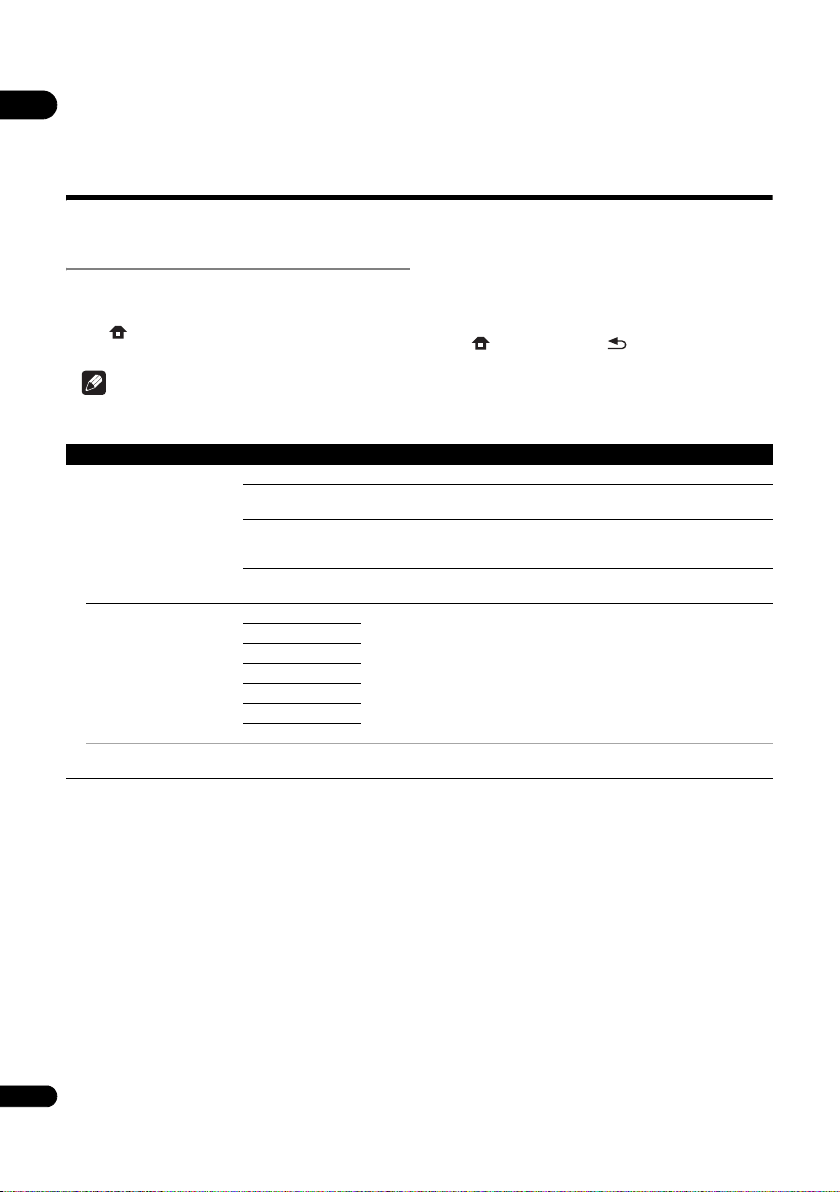
08
38
En
Chapter 8
Advanced settings
Changing the settings
Operating the Initial Setup
screen
1 When playback is stopped, display the Home
Menu screen.
Press HOME MENU.
2 Select and set Initial Setup.
Use / to select, then press ENTER.
3 Select the item and change the setting.
Use /// to select, then press ENTER.
Closing the Initial Setup screen
Press HOME MENU or RETURN.
Note
• The items that can be selected depend on the player’s status.
• In Options, the factory default settings are indicated in bold.
Setting Options Explanation
Display Setting
TV Screen 16:9 Full Select this when connecting to a wide (16:9) TV.
16:9 Normal Select this when connected to a wide (16:9) TV. 4:3 pictures are displayed
with vertical black bars along the sides.
4:3 Pan&Scan Select this when connecting to a 4:3 screen TV and playing a 16:9 video. The
video will be played with the left and right sides of the image cut off to display
on the 4:3 screen. (This function works if the disc is labeled for 4:3PS.)
4:3 Letterbox Select this when connecting to a 4:3 screen TV and playing a 16:9 video. The
video will be played with black bands at the top and bottom.
Resolution Auto [Auto] automatically outputs the screen resolution.
You can enjoy Blu-ray Discs and also videos on DVD with great picture quality
using the Upscaling function.
In other settings, the images are output according to the resolution of the
selected setting.
You can change the resolution by using the HDMI button on the remote
control. The resolution changes each time the HDMI button is pressed.
480p/576p
720p
1080i
1080p
1080/24p
4K/24p
• When 1080/24p or 4K/24p is selected, the movement may be unnatural or the picture unclear, depending on the contents
being played back. In such cases, set the resolution to something other than 1080/24p or 4K/24p.
BDP-180_72-BDP180-GBRB1_En.book Page 38 Friday, April 17, 2015 3:15 PM
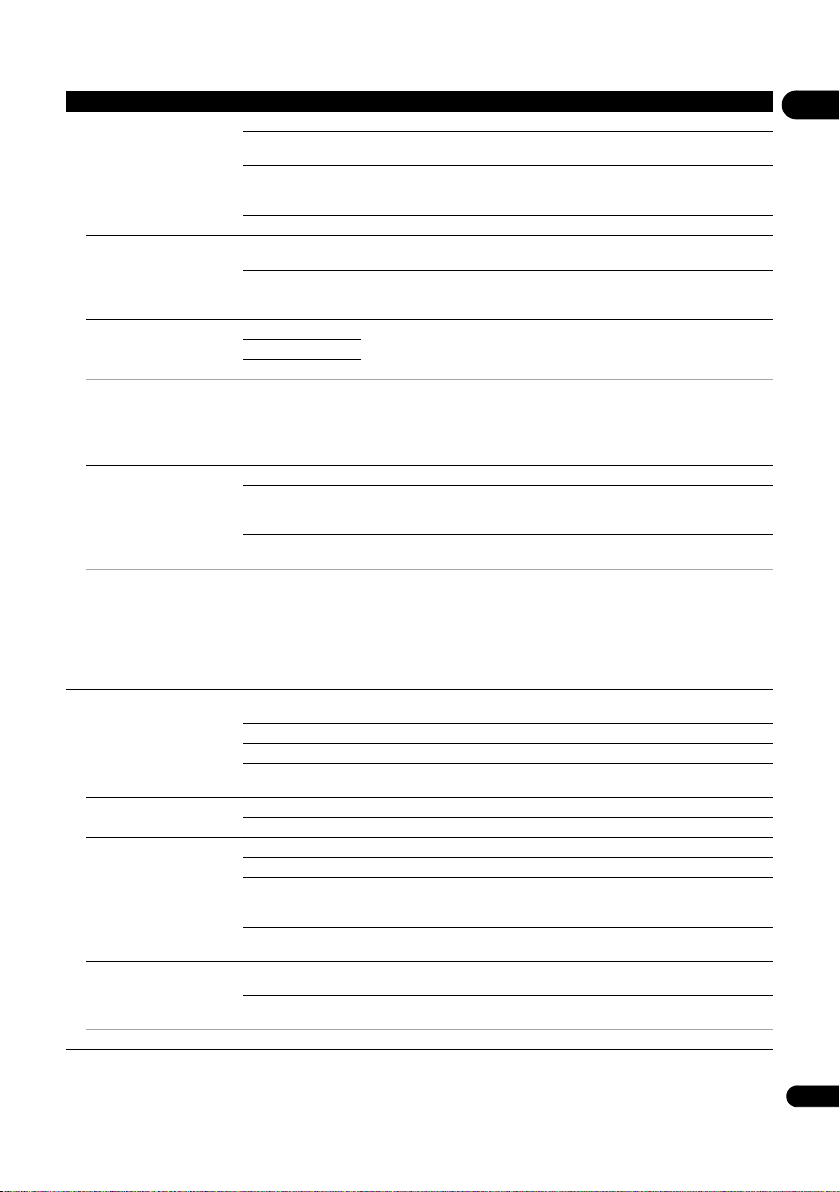
39
En
08
Audio Output
Digital Output Bitstream Select this to output digital audio signals directly.
PCM Select this to output digital audio signals converted to 2-channel audio
signals.
Reencode When a BD containing secondary audio and interactive audio is played, the
two audio signals are mixed and converted to Dolby Digital audio or DTS
audio for output.
Off Select this to output audio signals other than digital audio signals.
Downmix Stereo Surround audio signals converted to linear PCM audio signals are converted
into 2-channel (stereo) signals for output.
Lt/Rt Surround for output (when the connected AV receiver or amplifier, etc., is
compatible with Dolby Pro Logic, the AV receiver or amplifier outputs the
linear PCM audio signals as surround audio signals).
Max Sampling Frequency 48k Outputs audio signals that are limited to a sampling frequency below the set
sampling frequency from the DIGITAL OUT terminal. Select according to the
performance of the connected device.
96k
192k
• When playing back a sampling frequency file or a disk having a lower than or equal setting compared to the present setting,
you can output it at the unchanged sampling frequency.
• Sources with sampling frequencies of over 192 kHz cannot be played.
• When playing copyright-protected discs or files, the signals are output with the sampling frequency limited to 48 kHz or below,
regardless of this setting.
DRC (Dynamic Range
Control)*
Off Select this to output audio signals without using the DRC function.
On Select this to adjust the range between the loudest and softest sounds
(dynamic range) for playback at average volume. Use this when it is hard to
hear dialog or when watching movies at midnight.
Auto Select to switch the DRC setting On/Off automatically according to the input
audio signal from the disc. This only affects Dolby TrueHD signals.
*
• This affects such audio signals as Dolby Digital, Dolby TrueHD, and Dolby Digital Plus.
• DRC affects audio signals output from the following audio output terminals:
– Analog audio signals output from the AUDIO OUT terminals
– Linear PCM audio signals output from the DIGITAL OUT or HDMI OUT terminals
• Depending on the disc, the effect may be weak.
• The effect may differ depending on the speakers, the AV amplifier settings, etc.
HDMI
Color Space RGB Select this to output the video signals as RGB signals. Choose this if the
colors seem too faint and the black seems too bright.
YCbCr 444 Select this to output the video signals as YCbCr 4:4:4 signals.
YCbCr 422 Select this to output the video signals as YCbCr 4:2:2 signals.
Full RGB Select this to output the video signals as RGB signals. Choose this if the colors
seem too dense and all the dark colors are displayed in a uniform black.
HDMI Deep Color Auto Select when you want to automatically output the optimal bit color.
Off Select this when outputting the video signals with normal 24-bit color.
HDMI Audio Out Bitstream Select this to output HDMI audio signals directly.
PCM Select this to output HDMI audio signals converted to PCM audio signals.
Reencode When a BD containing secondary audio and interactive audio is played, the
two audio signals are mixed and converted to Dolby Digital audio or DTS
audio for output.
Off Select this when you do not want to output the audio signal from the HDMI
output terminal.
Control On Select this to control the player with the remote control of the connected AV
device using an HDMI cable. Also refer to page 16.
Off Select this when you do not want to control the player with the remote control
of the connected AV device using an HDMI cable.
To use Sound Retriever Link and Stream Smoother Link function (pages 16), Control must be set to On.
Setting Options Explanation
BDP-180_72-BDP180-GBRB1_En.book Page 39 Friday, April 17, 2015 3:15 PM

08
40
En
HDMI
HDMI 3D Auto With 3D discs, the disc is played with 3D images.
Off 3D images are not played.
3D Notice Yes This sets whether or not to display the 3D notice when playing 3D images.
No
Network
IP Address Setting Select this to set the IP address of the player and DNS server (page 43).
Proxy Server Only set the proxy server if so instructed by your Internet service provider (page 43).
Information Displays the values of the MAC address, IP address, subnet mask, default gateway, DNS server
(primary) and DNS server (secondary).
Connection Test Select this to test the network connection (page 43).
BD-Live Connection Permitted All discs are allowed to connect to BD-LIVE.
Partial Permitted Only discs whose safety has been confirmed are allowed to connect to BD-LIVE.
Prohibited No disc is allowed to connect to BD-LIVE.
DLNA Enable Select this when connecting to DLNA server.
Disable Select this when not connecting to DLNA server.
Interface Ethernet Select when using a LAN cable to connect to the network.
Wireless Select when connecting wirelessly to the network.
Wireless Setting Perform settings for a wireless network connection (page 34).
Language
OSD available languages Choose a language for the on-screen displays from the listed languages.
Audio
* For some discs, it may not
be possible to change to the
selected language.
available languages Choose a language from the listed languages to set the default audio
language for BD-ROM and DVD-Video playback.
If a language not recorded on the BD/DVD is set, one of the recorded languages is automatically selected for playback.
Subtitle
* For some discs, it may not
be possible to change to the
selected language.
available languages Choose a language from the listed languages to set the default subtitle
language for BD-ROM and DVD-Video playback.
If a language not recorded on the BD/DVD is set, one of the recorded languages is automatically selected for playback.
Menu
* For some discs, it may not
be possible to change to the
selected language.
available languages Choose a language from the listed languages to set the default language for
BD-ROM and DVD-Video menus.
If a language not recorded on the BD/DVD is set, one of the recorded languages is automatically selected for playback.
Setting Options Explanation
BDP-180_72-BDP180-GBRB1_En.book Page 40 Friday, April 17, 2015 3:15 PM
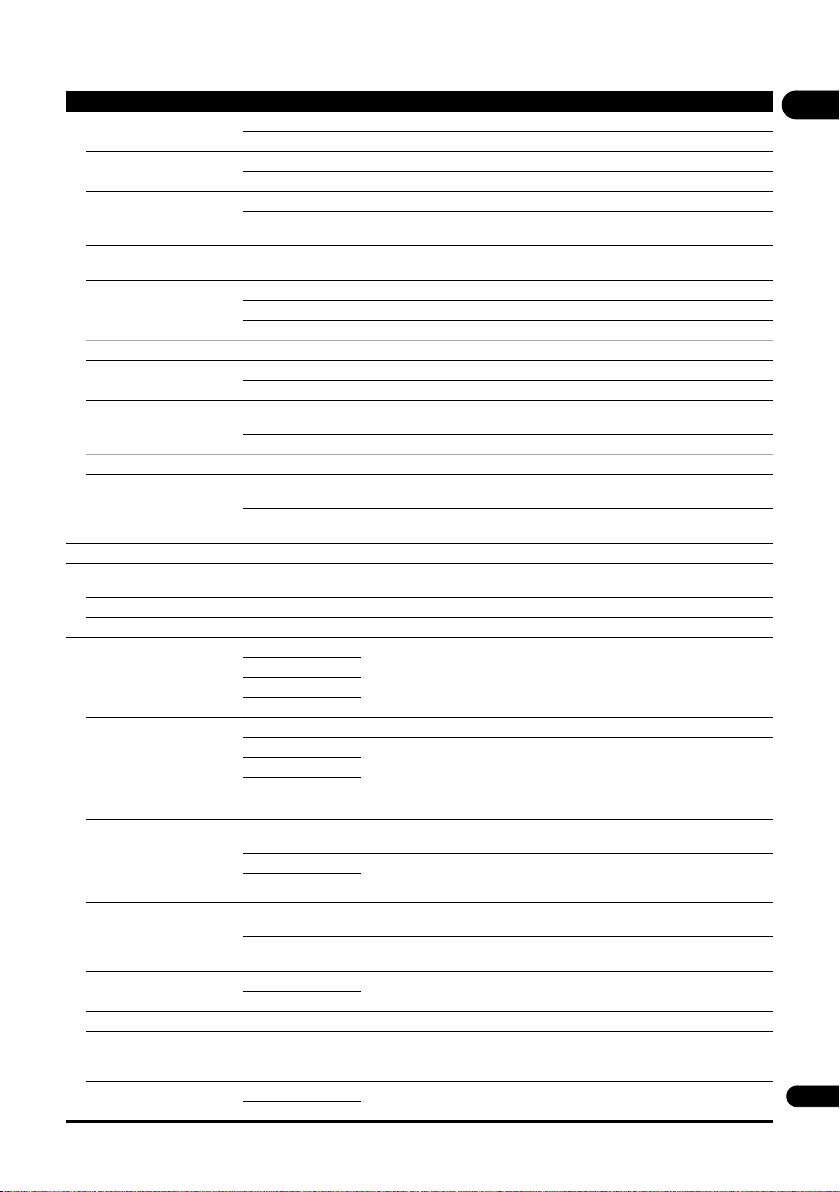
41
En
08
Playback
Angle Mark On Select this to display the angle mark on the TV screen (page 25).
Off Select this if you do not want to display the angle mark on the TV screen.
PIP Mark On Select this to display the PIP mark on the TV screen.
Off Select this if you do not want to display the PIP mark on the TV screen.
Secondary Audio Mark On Select this to display the secondary audio mark on the TV screen (page 28).
Off Select this if you do not want to display the secondary audio mark on the TV
screen.
DivX
®
VOD DRM
Registration Code Displays the player’s registration code required to play DivX VOD files
(page 10).
Internet Setting Permitted Web contents can be watched without entering the password.
Partially Permitted The password must be entered to watch web contents.
Prohibited No web contents can be watched.
To restrict the viewing of web contents, etc., by children or others, select [Partial Permitted] or [Prohibited].
Disc Auto Playback On Discs are played automatically after they are loaded.
Off Loaded discs do not start playing automatically.
Last Memory On Select this to save the point at which you last stopped playback, even after the
disc tray is opened or you switch to the standby mode.
Off Select this when you want to use only Continue Viewing Play (page 29).
Use of a disk that does not support the function is not possible.
PBC (Play Back Control) On Select this to play Video-CDs (version 2.0) compatible with PBC using the
disc menu.
Off Select this to play Video-CDs (version 2.0) compatible with PBC without using
the disc menu.
Setup Navigator Start making the settings using the Setup Navigator menu. For details, see page 20.
Security
Change Password Register (change) the password for parental lock settings or for unlocking to play DVD-Videos with
the parental lock feature (page 42). The default password is “0000”.
Parental Control Change the player’s parental lock level (page 42).
Country Code Change the Country/Area code (page 42).
Options
FL Dimmer Normal Select the brightness of the main unit display window.
Slightly dimmed
Dimmed
Highly dimmed
Screen Saver Off The screen saver is not activated.
1 min • The screen saver will be activated if no operation has been performed for
more than one minute/two minutes/three minutes.
• During operation of the screen saver, [SCNSVR] is displayed on the front
panel display.
• Operating the remote control can deactivate the screen saver.
2 min
3 min
Auto Power Off Off Select this if you do not want the power to turn off automatically. This is the
default setting for models other than European models.
15 min The power will be automatically turned off if no operation has been performed
for more than 15 minutes/30 minutes. The default setting for European
models is 15 minutes.
30 min
Network Standby On Select this function if you want to turn on the player from a mobile device
using a dedicated application (page 6).
Off Select this if you do not want to use the Network Standby function (described
above).
Update USB Storage Select the method of software updating (page 43).
Network
Load Default Restore the settings to the factory default.
System Information Check the system version number.
When you want to display the license of the software that you are using in the device, select
“License”.
BUDA BUDA Information Display and set up the BUDA data on the connected USB device (page 42).
BUDA Setup
Setting Options Explanation
BDP-180_72-BDP180-GBRB1_En.book Page 41 Friday, April 17, 2015 3:15 PM

08
42
En
Changing to other language at
language setting
1 Select and set Language.
Use / to select, then press ENTER.
2 Select and set OSD, Audio, Subtitle or Menu.
Use / to select, then press ENTER.
3 Select and set the desired language.
Use / to select, then press ENTER.
Note
• If a language not recorded on the BD/DVD is set, one
of the recorded languages is automatically selected
and played.
Erasing data that has been added to
BDs and application data
Use this procedure to erase data that has been added to
BDs (data downloaded with the BD-LIVE function and
data used with the BONUSVIEW function) and
application data.
Caution
• Some time is required to erase the data.
• Do not unplug the power cord while data is being
erased.
1 Select and set Options BUDA BUDA Setup.
Use / to select, then press ENTER.
2 Select and set Format.
Press ENTER.
Registering or Changing the
password
Use this procedure to register or change the code
number required for the Parental Lock settings.
About default password of this unit
The default password is “0000”.
• This unit might ask you to enter a password when you
change the password.
• If you reset this unit, your password is simultaneously
changed to the default setting.
1 Select and set Security Change Password
Next Screen.
Use / to select, then press ENTER.
2 Input the password.
Use the number buttons (0 to 9) to input the number.
Use / to move the cursor.
3 Re-input the password.
Use the number buttons (0 to 9) to input the number, then
press ENTER to set.
Use / to move the cursor.
• To change the password, input the previously
registered password, then input the new password.
Note
• We recommend making a note of the password.
• If you have forgotten the password, reset the player to
the factory default setting, then register the password
again (page 46).
Changing the Parental Lock level for
viewing DVDs/BD-ROMs
Some DVD-Video discs containing scenes of violence, for
example, have Parental Lock levels (check the indications
on the disc’s jacket or elsewhere). To restrict viewing
these discs, set the player’s level to the level lower than
the discs.
1 Select and set Security Parental Control
Next Screen.
Use / to select, then press ENTER.
2 Input the password.
Use the number buttons (0 to 9) to input the number, then
press ENTER to set.
Use / to move the cursor.
3 Change the level.
Use / to change, then press ENTER to set.
Note
• The level can be set to Off or between Level1 and
Level8. When set to Off, viewing is not restricted.
Changing the Country/Area code
1 Select and set Security Country Code Next
Screen.
Use / to select, then press ENTER.
2 Input the password.
Use the number buttons (0 to 9) to input the number, then
press ENTER to set.
Use / to move the cursor.
3 Change the country/area code.
Use / to change, then press ENTER to set.
BDP-180_72-BDP180-GBRB1_En.book Page 42 Friday, April 17, 2015 3:15 PM
43
En
08
Setting the IP address
1 Select and set Network IP Address Setting
Next Screen.
Use / to select, then press ENTER.
2 Set IP address.
Use /// to set the IP address of the player or DNS
server, then press ENTER.
• Auto Set IP Address
On – The player’s IP address is obtained
automatically. Select this when using a broadband
router or broadband modem that has a DHCP
(Dynamic Host Configuration Protocol) server
function. This player’s IP address will automatically
be allocated from the DHCP server.
Off – The player’s IP address must be set manually.
Use the number buttons (0 to 9) to input the IP
address, subnet mask and default gateway.
Caution
• Some time is required for the IP address setting.
Note
• Once the IP address is set, select [Connection Test] to
check that the unit is properly connected.
• For information on the DHCP server function, refer to
the operating instructions for the network device.
• You may need to contact your Internet service
provider or network administrator when inputting the
IP address manually.
Setting the proxy server
Only set the proxy server if so instructed by your Internet
service provider.
1 Select and set Network Proxy Server Next
Screen.
Use / to select, then press ENTER.
2 Select and set Use or Not use at Proxy Server.
Use / to change, then press .
• Use – Select this when using a proxy server.
• Not use – Select this when not using a proxy server.
If you have selected Use, proceed to step 3.
3 Select and set Server Select Method.
Use / to change, then press .
• IP Address – Input the IP address.
• Server Name – Input the server name.
4 Input IP Address or Server Name.
Use the number buttons (0 to 9) to input the number if you
select IP address in step 3. Use / to move the cursor.
When Server Name is selected in step 3, use the number
buttons (0 to 9) to launch the software keyboard. Now use
/// to select characters and items, then press
ENTER to input.
5 Input Port Number.
Press , then use the number buttons (0 to 9) to input
the number.
6 Press ENTER to set.
Displaying the network settings
Select and set Network Information Next
Screen.
Use / to select, then press ENTER.
The MAC address, IP address, subnet mask, default
gateway and DNS server (primary and secondary)
settings are displayed.
When Auto Set IP Address is set to On, the values
obtained automatically are displayed.
Note
• “0.0.0.0” is displayed when each IP address has not
been set.
Testing the network connection
Select and set Network Connection Test
Start.
Use / to select, then press ENTER.
“Network is OK.” is displayed once the test is completed.
If any other message is displayed, check the connections
and/or settings (pages 19 and page 43).
WPS setup (Wi-Fi
Protected Setup)
WPS connection setting
WPS is abbreviation of Wi-Fi Protected Setup. A standard
established by the Wi-Fi Alliance industry group for a
function allowing settings related to interconnection of
WPS compatible wireless LAN devices and encryption to
be made with simple operations.
This unit supports push-button configuration and PIN
code configuration.
PBC (Push Button Configuration)
Connection settings are made automatically simply by
pressing the WPS buttons on the WPS compatible
wireless LAN device. This is the simplest way of making
the settings, and is possible when the WPS compatible
wireless LAN device is equipped with WPS button.
BDP-180_72-BDP180-GBRB1_En.book Page 43 Friday, April 17, 2015 3:15 PM

08
44
En
PIN Input
Connection settings are made by inputting the 8-digit PIN
code shown on the main display to the access point to
which you selected. Follow the instructions shown in
Connecting using PIN code configuration on the right.
When performing wireless settings set Initial Setup
Network Interface to Wireless.
1 Press HOME MENU.
The HOME MENU screen is displayed.
2 Use /// to select Initial Setup and press
ENTER.
The Initial Setup screen is displayed.
3 Select Initial Setup Network Wireless
Setting Next Screen and press ENTER.
A confirmation screen is displayed.
4 Use / to select Yes, then press ENTER.
The Wireless Setting screen is displayed.
5 Use / to select Auto, then press ENTER.
The WPS (Wi-Fi Protected Setup) screen is displayed.
6 Use / to switch between [PBC] or [PIN]
screens.
If WPS button is at the access point, it is recommended
you select [PBC].
When connecting using PBC go to step 7.
When connecting using PIN go to step 8.
7 When connecting using PBC (Push Button), on the
[PBC] screen use / to select Next, then press
ENTER.
Then press the WPS button on the access point within
120 seconds.
8 When connecting using PIN confirm the PIN Code
on the [PIN] screen. Use cursor / to select Next,
then press ENTER.
9 Enter into the access point the PIN Code that you
confirmed in step 8 above.
The PIN Code input method differs depending on the LAN
device used. For details, consult the operating
instructions accompanying your LAN device.
Wireless network
connection
Wireless network setup
For the wireless network connection, the player needs to
be set up for network communication. This adjustment
can be done from the Setup menu. Adjust the NETWORK
setting as follow. Setting up the access point or the
wireless router is required before connecting the player to
the network.
Preparation
Before setting the wireless network, you need to:
– set the access point or wireless router.
– note the SSID and security code of the network.
Note
• This unit conforms to the IEEE802.11b/g/n Wi-Fi
standards.
• Only 2.4 GHz is supported for the IEEE802.11n
standards.
1 Select Initial Setup Network Interface
Wireless and press ENTER.
• When making the wireless setting for the first time,
Wireless Setting is displayed. Proceed to step 4.
• When already set to Wireless, proceed to step 2.
2 Select Initial Setup Network Wireless
Setting Next Screen and press ENTER.
3 Select Yes and press ENTER to continue.
The new connection settings reset the current network
settings.
4 Wireless Setting menu is displayed.
Use / to select Scan. Then select Next using the /
and press ENTER.
5 The player scans the all available access points or
wireless routers within range and display them as a
list. Use / to select an access point or wireless
router on the list, and then press ENTER.
• If you have security on your access point or wireless
router, verify that the WEP or WPA key that was
entered into the player matches the routerís
information exactly. You need to input the security
code as necessary.
BDP-180_72-BDP180-GBRB1_En.book Page 44 Friday, April 17, 2015 3:15 PM

45
En
08
6 How to enter the security code.
1 Select the security code section using ///
and press ENTER to start the software keyboard.
2Use /// to select characters and items, and
then press ENTER to input.
3 Select abc, ABC, or !@#$ using /// to
switch to lower case characters, upper case characters,
or symbols.
4 Finish entering the security code by selecting Enter
using /// and pressing ENTER.
7 Select Next using /// and press ENTER. If it
connects success, it will display connection success
and IP is obtained.
8 Pressing ENTER ends Wireless Setting.
Note
• WEP security mode generally have 4 keys available on
an access point or wireless routerís setting. If your
access point or wireless router use WEP security,
enter the security code of the key “No.1” to connect on
your home network.
• An Access Point is a device that allows you to connect
to your home network wirelessly.
Scan - The player scans the all available access points or
wireless routers within range and display them as a list.
Manual - Your access point may not be broadcasting its
access point name (SSID). Check your router settings
through your computer and either set your router to
broadcast SSID, or manually enter the access point name
(SSID) in [Manual].
Auto - If your access point or wireless router that
supports the Push Button Configuration method, select
this option and press the Push Button on your access
point or wireless router within 120 counts. You do not
need to know the access point name (SSID) and security
code of your access point or wireless router.
Note
• If there is no DHCP server on the network and you
want to set the IP address manually, Please refer to
Setting the IP address
on page 43.
Software updating
The player’s software can be updated using one of the
methods shown below.
• Connecting to the Internet.
• Using a USB flash drive.
Product information on this player is provided on the
Pioneer website. Check the website shown on page 6 for
update and service information on your Blu-ray disc
player.
Caution
• Do not perform the actions below while the software
is being updated. Doing so will interrupt updating and
could lead to malfunction.
– Disconnecting a USB memory device
– Unplugging the power cord
– Pressing the reset button.
• There are two processes for software updating,
downloading and updating. Both processes may take
a certain period of time.
• Other operations are defeated during software
updating. Furthermore, updating process cannot be
canceled.
Updating connecting to the Internet
1 Connect to the Internet.
2 When playback is stopped, display the Home
Menu screen.
Press HOME MENU.
3 Select and set Initial Setup.
Use / to select, then press ENTER.
4 Select and set Options Update Network
Start.
Use / to select, then press ENTER.
5 Updating starts.
Press ENTER.
• Software updating may take a certain period of time.
• When updating is completed, the unit restarts
automatically.
BDP-180_72-BDP180-GBRB1_En.book Page 45 Friday, April 17, 2015 3:15 PM

08
46
En
Updating using a USB flash drive
Note
• When an update file is provided on the Pioneer
website, use your computer to download it onto a
USB flash drive. Carefully read the instructions on
downloading update files provided on the Pioneer
website.
• Store the update file in the root directory of the USB
flash drive. Do not store it within a folder.
• Do not put any files other than the update file on the
USB flash drive.
• This unit supports USB flash drives formatted in
FAT32, FAT16 or NTFS. When formatting a USB flash
drive on your computer, do so with the settings below.
– File system: FAT32
– Allocation unit size: Default allocation size
• Only store the most recent update file on the USB
flash drive.
• Do not use a USB extension cable to connect a USB
flash drive to the player. Using a USB extension cable
may prevent the player from performing correctly.
1 Plug in the USB flash drive on which the update
file is stored.
2 When playback is stopped, display the Home
Menu screen.
Press HOME MENU.
3 Select and set Initial Setup.
Use / to select, then press ENTER.
4 Select and set Options Update USB Storage
Start.
Use / to select, then press ENTER.
5 Updating starts.
Press ENTER.
• Software updating may take a certain period of time.
• When updating is completed, the unit restarts
automatically.
Restoring all the settings to
the factory default settings
1 Check that the player’s power is turned on.
2 When playback is stopped, display the Home
Menu screen.
Press HOME MENU.
3 Select and set Initial Setup.
Use / to select, then press ENTER.
4 Select and set Options Load Default Next
Screen.
Use / to select, then press ENTER.
5 Select and set OK.
Use / to select, then press ENTER.
Note
• After restoring all the settings to the factory default
settings, use Setup Navigator to reset the player
(page 20).
• When disposing of the product, we recommend you
reset it to the factory default setting to delete the data.
BDP-180_72-BDP180-GBRB1_En.book Page 46 Friday, April 17, 2015 3:15 PM
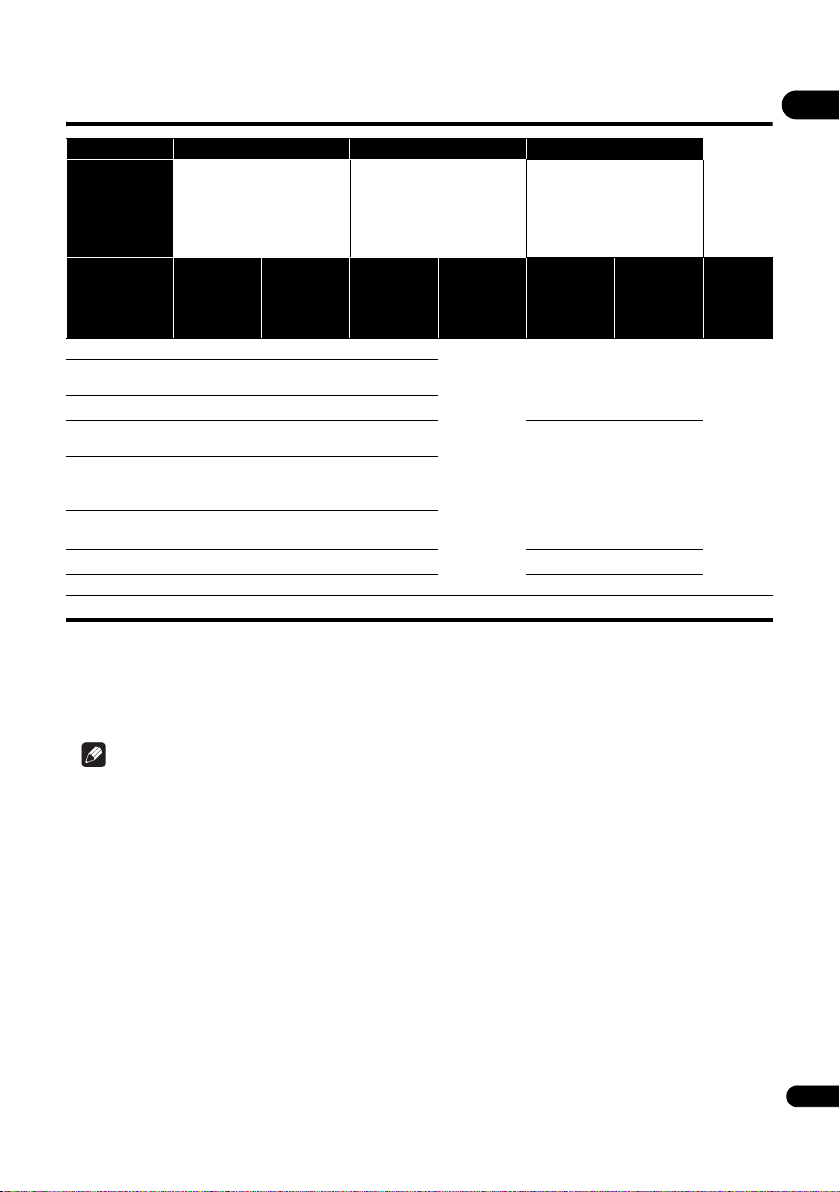
47
En
08
About how digital audio formats are output
Note
• Depending on the disc, the number of channels may differ.
• Depending on the connected HDMI device, the HDMI output audio and number of channels may differ.
• The HDMI output audio and number of channels may differ when Resolution is set to 480p/576p, as well as when
set to Auto if the connected device only supports 480p or 576p.
• Three types of audio are recorded on BD video discs.
– Primary audio: The main sound.
– Secondary audio: Additional sound added supplementarily, such as comments by directors, actors, etc.
– Interactive audio: Sounds such as clicks heard when operations are performed. The interactive audio differs from
disc to disc.
Setting Bitstream PCM Re-encode
Method of
conversion
Only the primary audio (the
main sound for movies, etc.) is
output. The secondary audio
and interactive audio are not
output.
The primary audio, secondary
audio and interactive audio are
converted into PCM audio and
output simultaneously.
1
1. In case of Quick View (Quick view with audio) or Slow-view play (Slow play with audio), the audio output will be equal to the PCM setting
regardless of any other settings. The LFE channel, however, is not output (5.1 5.0, 7.1 7.0).
The primary audio, secondary
audio and interactive audio are
converted into PCM audio then
converted again into Dolby
Digital audio or DTS audio and
output simultaneously.
2
2. If there is no secondary audio or interactive audio, depending on the disc the signals may be output without being re-encoded.
Output
terminal(s)
Audio type
HDMI OUT
terminal
DIGITAL OUT
terminal
HDMI OUT
terminal
DIGITAL OUT
terminal
HDMI OUT
terminal
DIGITAL OUT
terminal
AUDIO
OUTPUT
terminal
Dolby Digital Dolby Digital Dolby Digital PCM 5.1ch
PCM 2 ch
4
Dolby Digital Dolby Digital
2 ch
4
Dolby Digital
Plus
Dolby Digital
Plus
Dolby Digital PCM 7.1ch
Dolby TrueHD
3
3. Quick View (Quick view with audio) or Slow-view play (Slow play with audio) function cannot be performed.
Dolby TrueHD Dolby Digital PCM 7.1ch
DTS Digital
Surround
DTS Digital
Surround
DTS Digital
Surround
PCM 5.1ch
DTS Digital
Surround
DTS Digital
Surround
DTS-HD High
Resolution
Audio
3
DTS-HD High
Resolution
Audio
DTS Digital
Surround
PCM 7.1ch
DTS-HD
Master Audio
3
DTS-HD
Master Audio
DTS Digital
Surround
PCM 7.1ch
PCM PCM 7.1ch
PCM 2 ch
4
4. For multi-channel audio, the sound is converted into 2-channel audio for output.
PCM 7.1ch Dolby Digital Dolby Digital
AAC AAC AAC PCM 5.1ch AAC AAC
SACD (DSD)
3
DSD
5
5. When Resolution is set to 480p/576p, or even when it is set to Auto, if the connected device does not support 480p or 576p, the DSD
multi-channel audio of SACDs is output in two channels, front left and front right (page 38).
PCM 2 ch
6
6. When HDMI Audio Out is set to Bitstream, the sound is not output (page 39).
PCM 5.1ch
PCM 2 ch
6
PCM 5.1ch
PCM 2 ch
6
2 ch
6
BDP-180_72-BDP180-GBRB1_En.book Page 47 Friday, April 17, 2015 3:15 PM

09
48
En
Chapter 9
Additional information
Cautions on use
Moving the player
If you need to move this unit, first remove the disc if
there’s one loaded, and close the disc tray. Next, press
STANDBY/ON to switch the power to standby,
checking that the POWER OFF indication on the front
panel display goes off. Wait at least 10 seconds. Lastly,
disconnect the power cord.
Never lift or move the unit during playback — discs rotate
at a high speed and may be damaged.
Place of installation
Select a stable place near the TV and AV system to which
the unit is connected.
Do not place the player on top of a TV or color monitor.
Keep it away from cassette decks or other components
easily affected by magnetism.
Avoid the following types of places:
• Places exposed to direct sunlight
• Humid or poorly ventilated places
• Extremely hot or cold places
• Places subject to vibration
• Places in which there is much dust or cigarette
smoke
• Places exposed to soot, steam or heat (in kitchens,
etc.)
Do not place objects on top
Do not place objects on top of the player.
Do not obstruct the ventilation
holes
Do not use the player on a shaggy rug, bed, or sofa, and
do not cover the player with a cloth, etc. Doing so will
prevent heat dissipation and could lead to damage.
Keep away from heat
Do not place the player on top of an amplifier or other
device generating heat. When installing in a rack, to avoid
the heat generated by the amplifier and other devices,
place it on a shelf below the amplifier whenever possible.
Turn the power off when not
using the player
Depending on the conditions of the TV broadcast signals,
striped patterns may appear on the screen when the TV is
turned on while the player’s power is turned on. This is not
a malfunction with the player or TV. If this happens, turn
the player’s power off. In the same way, noise may be
heard in the sound of a radio.
Condensation
If the player is moved suddenly from a cold place into a
warm room (in winter, for example) or if the temperature
in the room in which the player is installed rises suddenly
due to a heater, etc., water droplets (condensation) may
form inside (on operating parts and the lens). When
condensation is present, the player will not operate
properly and playback is not possible. Let the player stand
at room temperature for 1 or 2 hours with the power
turned on (the time depends on the extent of
condensation). The water droplets will dissipate and
playback will become possible.
Condensation can also occur in the summer if the player
is exposed to the direct wind from an air-conditioner. If
this happens, move the player to a different place.
Cleaning the player
Normally, wipe the player with a soft cloth. For tough dirt,
apply some neutral detergent diluted in 5 to 6 parts water
to a soft cloth, wring out thoroughly, wipe off the dirt, then
wipe again with a dry cloth.
Note that getting alcohol, thinner, benzene or insecticide
on the player could cause the print and coating to peel off.
Also, avoid leaving rubber or vinyl products in contact
with the player for long periods of time, as this could
damage the cabinet.
When using chemical-impregnated wipes, etc., read the
wipe’s cautions carefully.
Unplug the power cord from the power outlet when
cleaning the player.
Caution for when the unit is
installed in a rack with a glass
door
Do not press the OPEN/CLOSE on the remote control
to open the disc tray while the glass door is closed. The
door will hamper the movement of the disc tray, and the
unit could be damaged.
BDP-180_72-BDP180-GBRB1_En.book Page 48 Friday, April 17, 2015 3:15 PM
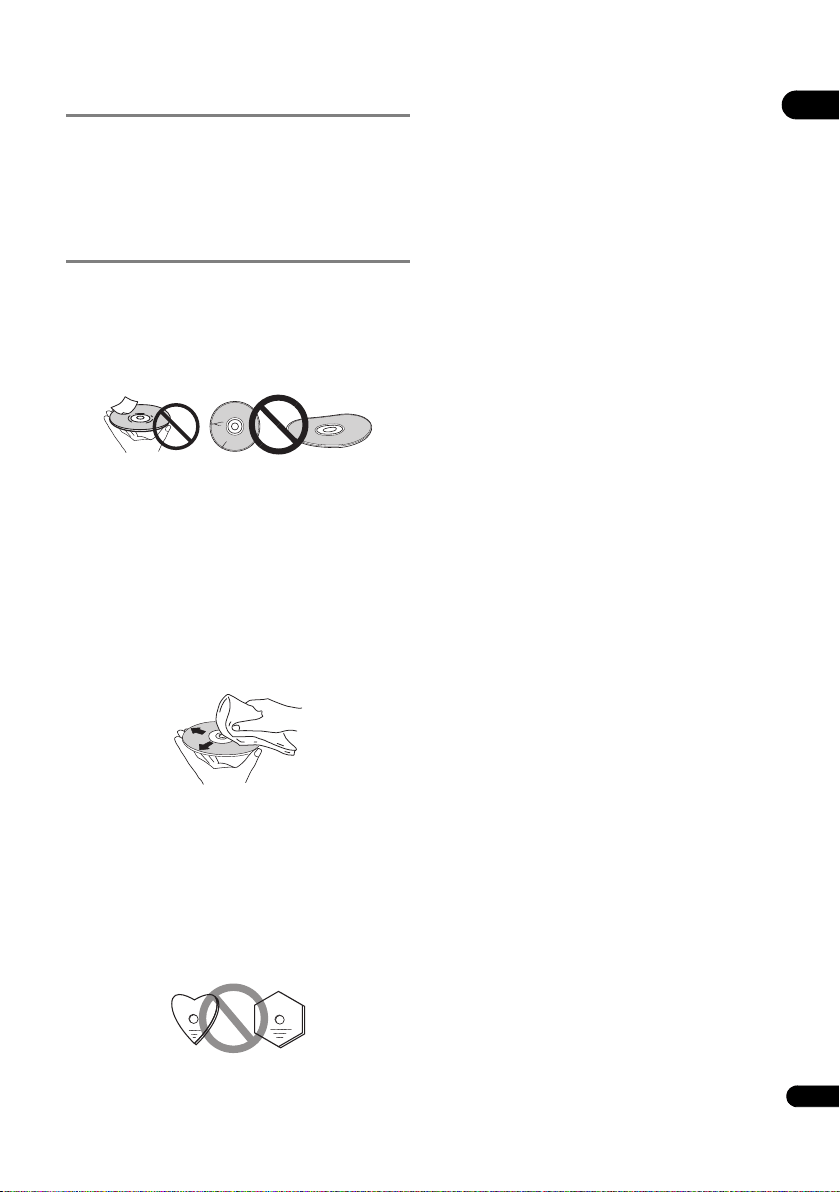
49
En
09
Cleaning the pickup lens
The player’s lens should not become dirty in normal use,
but if for some reason it should malfunction due to dust
or dirt, consult your nearest Pioneer authorized service
center. Although lens cleaners for players are
commercially available, we advise against using them
since some may damage the lens.
Handling discs
Do not use damaged (cracked or warped) discs.
Do not scratch the disc’s signal surface or let it get dirty.
Do not load more than one disc into the player at a time.
Do not glue paper or put stickers onto the disc, or use a
pencil, ball-point pen or other sharp-tipped writing
instrument. These could all damage the disc.
Storing discs
Always store discs in their cases, and place the cases
vertically, avoiding places exposed to high temperatures
or humidity, direct sunlight or extremely low
temperatures.
Be sure to read the cautions included with the disc.
Cleaning discs
It may not be possible to play the disc if there are
fingerprints or dust on it. In this case, using a cleaning
cloth, etc., to wipe the disc gently from the center toward
the outer edge. Do not use a dirty cleaning cloth.
Do not use benzene, thinner or other volatile chemicals.
Also do not use record spray or antistatic agents.
For tough dirt, apply some water to a soft cloth, wring out
thoroughly, wipe off the dirt, then wipe off the moisture
with a dry cloth.
Specially shaped discs
Specially shaped discs (heart-shaped, hexagonal, etc.)
cannot be used on this player. Never use such discs, as
they will damage the player.
Condensation on discs
If the disc is moved suddenly from a cold place into a
warm room (in winter, for example), water droplets
(condensation) may form on the disc surface. Discs will
not play properly if there is condensation on them.
Carefully wipe off the water droplets from the disc surface
before using the disc.
BDP-180_72-BDP180-GBRB1_En.book Page 49 Friday, April 17, 2015 3:15 PM

09
50
En
Troubleshooting
Incorrect operation is often mistaken for trouble or malfunction. If you think that there is something wrong with this
component, check the points below. Sometimes the trouble may lie in another component. Inspect the other
components and electrical appliances being used. If the trouble cannot be rectified even after checking the points
below, ask your nearest Pioneer authorized service center or your dealer to carry out repair work.
Playback
Problem Check Remedy
• Disc does not play.
• Disc tray opens
automatically.
Is the disc one that is
playable on this player?
• Check whether the disc is one that can be played on this player
(page 7).
• Discs that have not been finalized cannot be played.
Is the file one that is playable
on this player?
• Check whether the file is one that can be played on this player
(page 10).
• Check whether or not the file is damaged.
Is the disc scratched? It may not be possible to play scratched discs.
Is the disc dirty? Clean the disc (page 49).
Is there a piece of paper or
sticker attached to the disc?
The disc may be warped and unplayable.
Is the disc properly set in the
disc tray?
• Set the disc with the printed side facing up.
• Set the disc properly in the depression in the disc tray.
Is the region number correct? See page 9 for the region numbers of discs that can be played on this
player.
• Eliminate any condensation inside the unit (page 48).
• Depending on how the disc was recorded, the status of the pickup
and compatibility between the disc being used and this unit, it may not
be possible to play the disc properly.
• If the recorded time is short, it may not be possible to play the disc
properly.
• BD-RE/-R discs recorded in formats other than BDMV or BDAV
cannot be played.
No picture is displayed or the
picture is not displayed
properly.
Is the HDMI cable properly
connected?
• Connect the cable properly according to the connected devices
(page 15).
• Disconnect the cable, then reinsert it firmly and all the way in.
Is the HDMI cable damaged? If the cable is damaged, replace it with a new one.
Is the input setting on the
connected TV or AV receiver
or amplifier right?
Read the operating instructions for the connected components and
switch to the proper input.
Is the output video resolution
properly set?
Switch the resolution at which the video and audio are output by
pressing HDMI.
Is the player connected with
an HDMI cable other than a
High Speed HDMI
®
/
TM
cable
(with a Standard HDMI
®
/
TM
cable)?
Connect the player to the TV using a High Speed HDMI
®
/
TM
cable.
Is a DVI device connected? The picture may not be displayed properly if a DVI device is connected.
Is Color Space properly set? Change the Color Space setting (page 39).
Playback stops. • Playback may stop if the unit is subject to shocks or set in an unstable
place.
• Playback may stop when a USB device is connected or disconnected
during playback. Do not connect or disconnect USB devices during
playback.
BDP-180_72-BDP180-GBRB1_En.book Page 50 Friday, April 17, 2015 3:15 PM
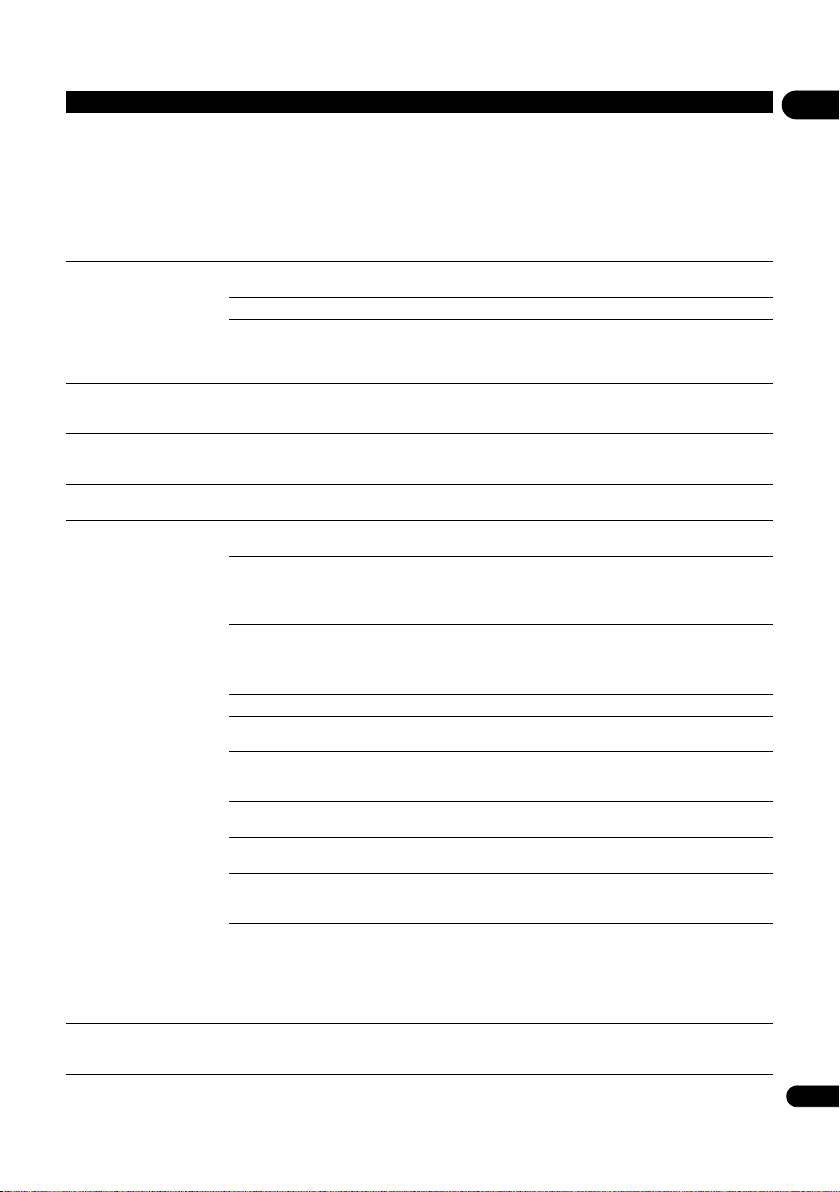
51
En
09
Picture freezes and the front
panel and remote control
buttons stop working.
• Press STOP to stop playback, then restart playback.
• If the playback cannot be stopped, press STANDBY/ON on the
player’s front panel to turn off the power, then turn the power back on.
• If the power cannot be turned off (to standby), reset the unit. Use a
thin rod to press the reset button on the main unit’s front panel. When
the Reset button is pressed, power to the unit is turned off (standby
status). When the STANDBY/ON button is pressed to turn on the
power, the unit becomes operational again.
• It may not be possible to play scratched discs.
• Picture is stretched.
• Picture is cropped.
• Aspect ratio cannot be
switched.
Is the TV’s aspect ratio
properly set?
Read the operating instructions for the TV and set the TV’s aspect ratio
properly.
Is TV Screen properly set? Set TV Screen properly (page 38).
When video signals with a resolution of 4K24p, 1080/50i, 1080/50p,
720/50p, 1080/24p, 1080/60i, 1080/60p or 720/60p are being output from
the
HDMI OUT
terminal, they may be output with an aspect ratio of 16:9
even if
TV Screen
is set to
4:3 Pan&Scan
(page 38).
Picture is interrupted. The picture may be interrupted when the resolution of the recorded
video signal switches. Set Resolution to something other than Auto
(page 39).
There is square noise
(pixelation) on the screen.
Due to the characteristics of digital image compression technology,
block-shaped images may stand out, for example in scenes where there
is fast movement.
The subtitles cannot be
switched.
The subtitles cannot be switched for discs recorded on a DVD or BD
recorder.
• No sound is output.
• Sound is not output
properly.
Is the volume set to the
minimum?
If the volume of the TV or AV amplifier is set to the minimum, raise it.
Is the disc played back in
slow motion?
Is the disc played back in fast
forward or fast reverse?
No sound is output during slow motion play and forward and reverse
scanning.
Are the audio cables properly
connected?
• Connect the cable properly according to the connected devices
(page 15).
• Insert the cable firmly and all the way in.
• If the connection plug or terminal is dirty, wipe it clean.
Is the audio cable damaged? If the cable is damaged, replace it with a new one.
Is Audio Output properly
set?
Set Audio Output properly, according to the connected device
(page 39).
Are the connected
components (AV receiver or
amplifier, etc.) properly set?
Read the operating instructions for the connected components and
check the volume, input, speaker settings, etc.
Is HDMI Audio Out properly
set?
Set HDMI Audio Out to Re-encode or PCM. (page 39).
Is the output video resolution
properly set?
Switch the resolution at which the video and audio are output by
pressing HDMI.
Is a DVI device connected? The sound will not be output from the HDMI OUT terminal if a DVI
device is connected. Connect the device to a DIGITAL OUT terminal or
the AUDIO OUT terminals (page 18).
• For some BDs, audio signals are only output from DIGITAL OUT
terminal or the HDMI OUT terminal.
• The sound may not be output for discs containing sound other than
audio signals or non-standard sound.
• When copy-protected discs are played, the picture or sound may not
be properly output. This is not a malfunction.
Left/right audio channels are
inverted or only one side is
produced.
Are the audio cables properly
connected?
Check whether the audio cables for the left and right channels are
inverted or whether the cable for one side is disconnected (page 18).
Problem Check Remedy
BDP-180_72-BDP180-GBRB1_En.book Page 51 Friday, April 17, 2015 3:15 PM
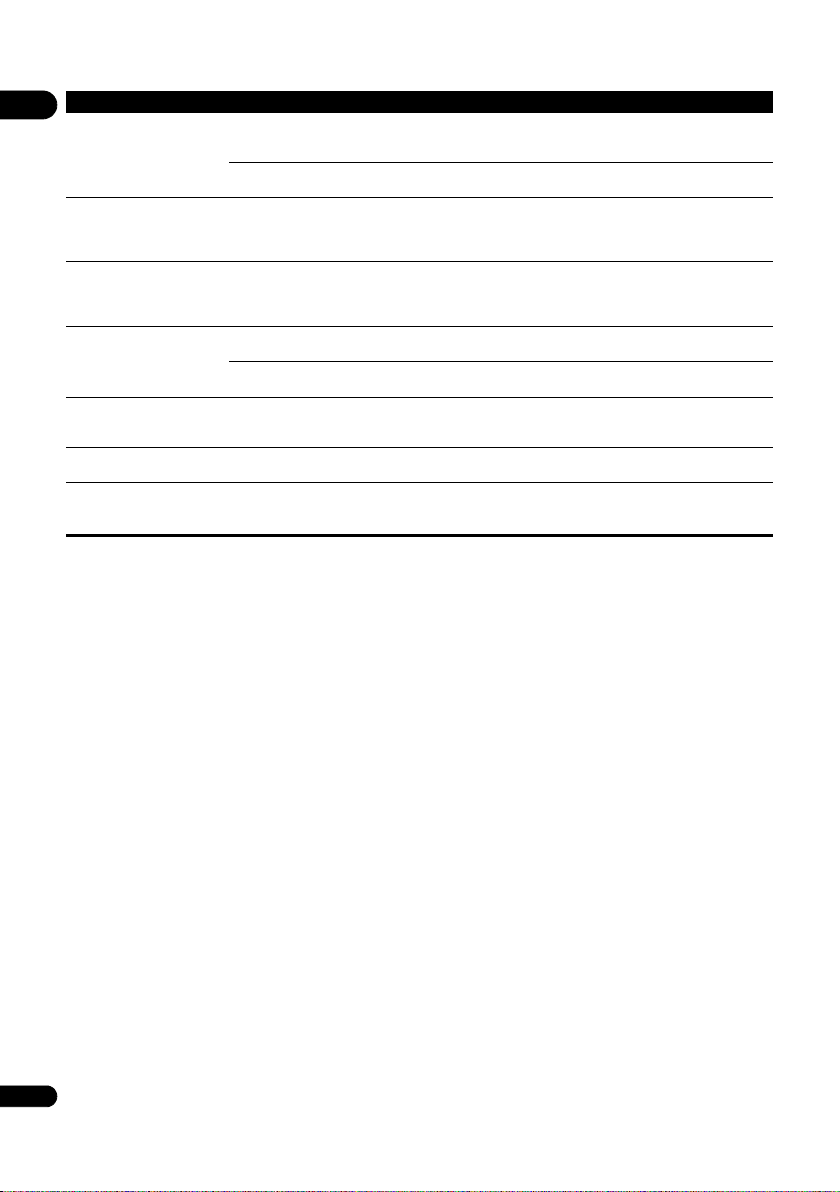
09
52
En
Multi-channel sound is not
output.
Is the audio output of the
connected AV receiver or
amplifier, etc., properly set?
Read the operating instructions for the connected AV receiver or
amplifier and check the audio output settings of the AV receiver or
amplifier.
Is multi-channel sound
selected?
Use the menu screen or AUDIO to switch the disc’s sound to multi-
channel.
Noise can be heard when
outputting DTS Digital Audio
signals from the DIGITAL
OUT terminal.
Is the connected AV receiver
or amplifier compatible with
DTS Digital Surround?
If an AV receiver or amplifier that is not compatible with DTS Digital
Surround is connected to the DIGITAL OUT terminal, set Digital
Output to PCM (page 39).
192 kHz or 96 kHz digital
audio signals cannot be
output from the DIGITAL
OUT terminal.
• Copyright-protected audio is converted to 48 kHz or less before
output.
• Set Max Sampling Frequency to 96KHz or 192KHz (page 39).
Secondary audio or
interactive audio is not
output.
Is HDMI Audio Out properly
set?
When listening to the sound from an HDMI OUT terminal, set HDMI
Audio Out to Re-encode or PCM (page 39).
Are Digital Output properly
set?
When listening to the sound from an DIGITAL OUT terminal, set
Digital Output to Re-encode or PCM (page 39).
After a disc is inserted,
Loading stays displayed and
playback does not start.
Are there too many files
recorded on the disc?
When a disc on which files are recorded is inserted, depending on the
number of files recorded on the disc, loading may take several dozen
minutes.
is displayed in file names,
etc.
The characters that cannot be displayed on this player are displayed in
.
A message indicating low
memory appears while
playing a BD-ROM disc.
• Connect a USB device (page 18).
• Erase the data stored on the connected USB device from BUDA
Setup (page 42).
Problem Check Remedy
BDP-180_72-BDP180-GBRB1_En.book Page 52 Friday, April 17, 2015 3:15 PM

53
En
09
Control function
Network
Problem Check Remedy
Control function does not
work.
Is the HDMI cable properly
connected?
To use the Control function, connect the TV and AV system (AV receiver
or amplifier, etc.) to the HDMI OUT terminal (page 15).
Is the HDMI cable you are
using a High Speed HDMI
®
/
TM
Cable?
Use a High Speed HDMI
®
/
TM
Cable. The Control function may not work
properly if an HDMI cable other than a High Speed HDMI
®
/
TM
Cable is
used.
Is this player connected to
the TV using an HDMI cable
to watch the picture?
If video signals are being output from a terminal other than the HDMI
OUT terminal, the Control function does not work. Connect to the TV
using an HDMI cable (page 15).
Is Control set to On on the
player?
Set Control to On on the player (page 39).
Does the connected device
support the Control function?
• The Control function will not work with devices of other brands that
do not support the Control function, even when connected using an
HDMI cable.
• The Control function will not work if devices that do not support the
Control function are connected between the Control-compatible device
and the player. See page 16.
• Even when connected to a Pioneer product compatible with the
Control function, some of the functions may not work.
Also refer to the operating instructions for the connected device.
Is Control set to On on the
connected device?
Set Control to On on the connected device. The Control function
operates when Control is set to On for all devices connected to the
HDMI OUT terminal.
Once connections and settings of all the devices are finished, be sure
to check that the player’s picture is output to the TV. (Also, check after
changing the connected devices and connecting and/or disconnecting
HDMI cables.) If the player’s picture is not being output to the TV, the
Control function may not work properly.
For details, refer to the operating instructions of the connected device.
Are multiple players
connected?
The Control function may not work if 4 or more players, including this
player, are connected by an HDMI cable.
Depending on the connected device, the function may not work.
Problem Check Remedy
Cannot connect to network. • Insert the LAN cable securely as far as it goes (page 19).
• Do not connect using a modular cable. Use a LAN cable for the LAN
(10/100) terminal.
• Check that the power of the Ethernet hub (router with hub function)
or the modem is turned on.
• Check that the Ethernet hub (router with hub function) or the modem
is properly connected.
• Check the network settings.
BD-LIVE function
(connection to the Internet)
cannot be used.
• Check the network connections and settings.
• Connect a USB memory device.
• Delete data from the USB memory device.
• Check that the BD-ROM supports the BD-LIVE function.
• Test the connections (page 43). If "Network is OK" is displayed, check
the proxy server settings at [Initial Setup] -> [Network] -> [Proxy
Server] -> [Next Screen] (page 41). There may also be a problem with
the Internet connection. Contact your provider.
Software updating is slow. Depending on the Internet connection and other conditions, some time
may be required to update the software.
BDP-180_72-BDP180-GBRB1_En.book Page 53 Friday, April 17, 2015 3:15 PM

09
54
En
A message other than
“Networks is OK.” is
displayed when Connection
Test is performed.
Is “Network is FAILED.”
displayed?
• Check that this player and the Ethernet hub (or router with a hub
functionality) are properly connected.
• If the IP address is obtained using the DHCP server function, check
the setting is correct at the Information (page 40). For details on the
DHCP server function, see the operating instructions for the Ethernet
hub (or router with a hub functionality).
• Set the IP address manually.
• Check the operation and settings of the DHCP server function of the
Ethernet hub (or router with hub functionality). For details on the DHCP
server function, see the operating instructions for the Ethernet hub (or
router with a hub functionality).
• If this player has been set manually, reset the IP address of this player
or other components.
Is the Ethernet hub (or router
with a hub functionality)
operating properly?
• Check the settings and operation the Ethernet hub (or router with a
hub functionality). For details, see the operating instructions for the
Ethernet hub.
• Reboot the Ethernet hub (or router with a hub functionality).
The audio files stored on
components on the network,
such as a computer, cannot
be played back.
There are cases where a component with Internet security software
installed cannot be accessed.
The audio component on the
network which has been
switched off is switched on.
Switch on the audio component on the network before switching on
this unit.
If the client is automatically authorized, you need to enter the
corresponding information again. Check whether the connection
status is set to “Do not authorize”.
Check the audio files stored on the component connected to the
network.
Install Windows Media Player 11 or Windows Media Player 12 on your
computer.
Play back audio files recorded in MP3, WAV (LPCM only), MPEG-4 AAC,
or WMA. Note that some audio files recorded in these formats may not
be played back on this unit.
Audio files recorded in
MPEG-4 or AAC are being
played back on Windows
Media Player 11 or Windows
Media Player 12.
Audio files recorded in MPEG-4 AAC cannot be played back on
Windows Media Player 11 or Windows Media Player 12. Try using
another server. Refer to the operation manual supplied with your
server.
Check whether the component is affected by special circumstances or
is in the sleep mode. Try rebooting the component if necessary.
Try changing the settings for the component connected to the network.
The folder stored on the
omponent connected to the
network has been deleted or
damaged.
Check the folder stored on the component connected to the network.
The audio files stored on
components on the network,
such as a computer, cannot
be played back.
Check the computer’s network settings, security settings, etc.
Playback does not start. The component is currently
disconnected from this unit
or the power supply.
Check whether the component is properly connected to this unit or the
power supply.
The computer is not properly
operated.
The corresponding IP
address is not properly set.
Switch on the built-in DHCP server function of your router, or set up the
network manually according to your network environment.
The automatic configuration process takes time. Please wait.
Cannot access Windows
Media Player 11 or Windows
Media Player 12.
You are currently logged onto
the domain through your
computer with Windows 7
installed.
Instead of logging onto the domain, log onto the local machine.
Problem Check Remedy
BDP-180_72-BDP180-GBRB1_En.book Page 54 Friday, April 17, 2015 3:15 PM

55
En
09
Video and audio playback are
undesirably stopped or
disturbed.
Check whether the audio file was recorded in a format supported by
this unit.
Even audio files listed as playable on this unit may sometimes not be
played back or displayed.
Check whether the folder has been damaged or corrupted.
The LAN cable is currently
disconnected.
Connect the LAN cable properly.
There is heavy traffic on the
network with the Internet
being accessed on the same
network.
Use 100BASE-TX to access the components on the network.
There is a connection routed
through a wireless LAN on
the same network.
• There may be a shortage of bandwidth on the 2.4 GHz band used by
the wireless LAN. Make wired LAN connections not routed through a
wireless LAN.
• Install away from any devices emitting electromagnetic waves on the
2.4 GHz band (microwave ovens, game consoles, etc.). If this does not
solve the problem, stop using other devices that emit electromagnetic
waves.
Problem Check Remedy
BDP-180_72-BDP180-GBRB1_En.book Page 55 Friday, April 17, 2015 3:15 PM

09
56
En
Wireless LAN
Problem Check Remedy
Network cannot be accessed
via wireless LAN.
This unit and wireless LAN
router etc. are too far apart, or
there is an obstacle between
them.
Improve the wireless LAN environment by taking steps such as moving
the unit and wireless LAN router etc. closer together.
There is a microwave oven or
other device generating
electromagnetic waves near
the wireless LAN
environment.
• Use the unit in a place away from microwave ovens or others device
generating electromagnetic waves.
• Avoid using devices generating electromagnetic waves as much as
possible when using the unit with a wireless LAN.
Multiple wireless devices are
connected to the wireless
LAN router.
When connecting multiple wireless devices, their IP addresses must be
changed.
Connection settings between
the unit and the wireless LAN
router etc. are not set up
correctly.
If the connection settings between the unit and the wireless LAN router
etc. are not set up correctly, connection settings much be performed in
order to connect the unit and the wireless LAN router etc.
The IP address settings for
the unit and the wireless LAN
router etc. (including DHCP
settings) do not match.
• Check the IP address settings of the unit and the wireless LAN router
etc. (including the DHCP setting).
• If the unit’s DHCP setting is on, turn the unit’s power off, then turn
the power back on. Check that the IP address of the unit matches the
settings of the wireless LAN router etc.
• If the unit’s DHCP setting is off, set an IP address matching the
network of the wireless LAN router etc.
For example, if the wireless LAN router’s IP address is “192.168.1.1”, set
the unit’s IP address to “192.168.1.XXX” (*1), the subnet mask to
“255.255.255.0”, and the gateway and DNS to “192.168.1.1”.
(*1) Set the “XXX” in “192.168.1.XXX” to a number between 2 and 248
that is not assigned to other devices.
The access point is set to
conceal the SSID.
In this case, the SSID may not be displayed on the access point list
screen. If not, set the SSID etc. by setting the wireless LAN settings on
the receiver manually.
The access point’s security
settings use WEP 152-bit
length code key or shared key
authentication.
The unit does not support WEP 152-bit length code key or shared key
authentication.
Cannot connect with the
Miracast/Wi-Fi Direct
function.
Is the Miracast/Wi-Fi Direct
Mode screen displayed on
the TV or is [READY]
displayed on the unitís
display window?
Press
RETURN on the remote control to close the Miracast/Wi-
Fi Direct Mode Screen. Then press Miracast and perform the controls
again from the Miracast/Wi-Fi Direct Mode Screen.
Check the SSID and
password in the Miracast/Wi-
Fi Direct Mode screen.
If an update was performed in the Wi-Fi Direct Mode screen or the unit
was restored to the default settings, the SSID and password will have
changed.
Enter the newly set SSID and password on the mobile device.
Is the mobile device
compliant with Wi-Fi Direct
or Miracast?
Only mobile devices that are compliant with Wi-Fi Direct or Miracast
are supported.
Ask the manufacturer of the corresponding device whether the mobile
device is compliant with Wi-Fi Direct or Miracast.
Select [Refresh] on the Miracast/Wi-Fi Direct Mode screen and then try
connecting again.
• Turn off power (to stand-by mode) once then turn power back on.
• Insert a thin rod into the reset button on the front side of the main
body then reset the unit.
There is a connection on the
mobile device but the mobile
device video is not displayed
on the TV (Miracast function).
Is the mobile device
compliant with Miracast?
Only mobile devices that are compliant with Miracast are supported.
Ask the manufacturer of the corresponding device whether the mobile
device is compliant with Miracast.
BDP-180_72-BDP180-GBRB1_En.book Page 56 Friday, April 17, 2015 3:15 PM
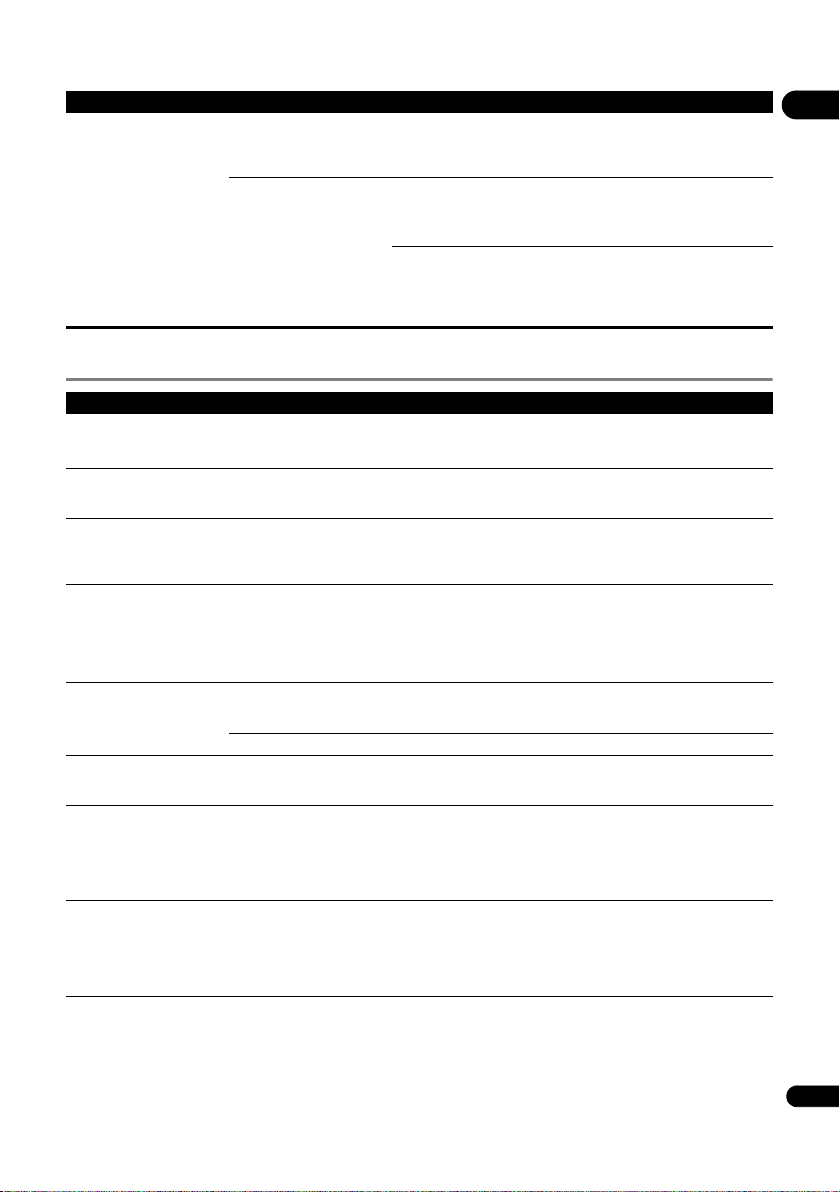
57
En
09
Others
The audio or video is
interrupted (distorted) when
using DRM, Wi-Fi Direct, or
Miracast.
Is there a microwave oven or
other device that generates
electromagnetic waves near
the unit?
Improve the wireless LAN environment by taking steps such as moving
the unit and mobile devices etc. closer together.
Are the mobile device and
unit far away from each other
or is there an object between
them?
• Use the unit in a place away from microwave ovens or others device
generating electromagnetic waves.
• Avoid using devices generating electromagnetic waves as much as
possible when using the unit with a wireless LAN.
When using wireless LAN, Wi-Fi Direct or Miracast, depending on the
environment (radiowave interference) during sending/receiving of a
large volume of data such as HD quality image files and WAV 192 kHz/
24 bit high quality audio files, images and sound may be interrupted
during playback.
Problem Check Remedy
Power does not turn on. Is the power cord properly
connected?
• Plug the power cord securely into the power outlet (page 19).
• Unplug the power cord, wait several seconds, then plug the power
cord back in.
The player’s power turns off
automatically.
Is Auto Power Off set to
15 min/30 min?
If Auto Power Off is set to 15 min/30 min, the player’s power
automatically turns off if no operation is performed for the set amount
of time (page 41).
The player’s power turns on
automatically.
Is Control set to On? The player’s power may turn on together with the power of the TV
connected to the HDMI OUT terminal. If you do not want the player’s
power to turn on when the TV’s power is turned on, set Control to Off
(page 39).
This unit cannot be operated. • Use within the specified usage temperature range (page 61).
• If the power cannot be turned off (to standby), reset the unit. Use a
thin rod to press the reset button on the main unit’s front panel. When
the Reset button is pressed, power to the unit is turned off (standby
status). When the STANDBY/ON button is pressed to turn on the
power, the unit becomes operational again.
The player cannot be
operated with the remote
control.
Are you operating the remote
control from a point too far
away from the player?
Operate from within 7 m of the remote control sensor.
Are the batteries dead? Replace the batteries (page 5).
Unit heats up during use. Depending on the usage environment, the temperature of the unit's
cabinet may increase somewhat during use, but this is not a
malfunction and there is no need to worry.
Input of the connected TV
and AV system switches
automatically.
Is Control set to On? The input of the TV and AV system (AV receiver or amplifier, etc.)
connected to the HDMI OUT terminal may automatically switch to the
player when playback starts on the player or the menu screen
(SOURCE, etc.) is displayed. If you do not want the inputs of the
connected TV and AV system (AV receiver or amplifier, etc.) to switch
automatically, set Control to Off (page 39).
Settings I have made have
been cleared.
• Have you disconnected the
power cord while the player’s
power was on?
• Has there been a power
failure?
Always press STANDBY/ON on the player’s front panel or
STANDBY/ON on the remote control and check that POWER OFF
has turned off from the player’s front panel display before
disconnecting the power cord. Be particularly careful when the power
cord is connected to the AC outlet on another device because the
player turns off in conjunction with the device.
Problem Check Remedy
BDP-180_72-BDP180-GBRB1_En.book Page 57 Friday, April 17, 2015 3:15 PM

09
58
En
USB (external storage) device
does not work with this player
properly.
Is the USB device properly
connected?
• Turn the player’s power off, then turn the power back on.
• Turn the player’s power off, then reconnect the external storage
device (page 18).
Is the USB device connected
via an extension cable?
Do not use an extension cable. The player may not work properly with it.
Is the external storage device
connected to the USB port via
a memory card reader or USB
hub?
External storage device may not work if connected to the USB port via
a memory card reader or USB hub.
Does the external storage
device contain multiple
partitions?
External storage devices may not be recognized if they contain multiple
partitions.
Is the external storage device
write-protected?
Turn the player’s power off, then disable the write-protection.
Is the USB device’s file
system FAT32, FAT16 or
NTFS?
USB devices formatted in the FAT32, FAT16 or NTFS file system can be
used.
Some external storage devices may not operate.
Problem Check Remedy
BDP-180_72-BDP180-GBRB1_En.book Page 58 Friday, April 17, 2015 3:15 PM

59
En
09
Glossary
Angle (Multi angle)
Up to 9 camera angles can be recorded simultaneously on BD-
ROM or DVD-Video discs, letting you view the same scene from
different angles.
AVCHD (Advanced Video Codec High
Definition)
See page 9.
BDAV
Of the BD format, the Audio Visual Format Specifications for HD
digital broadcast recording is referred to as BDAV on this player
and in these operating instructions.
BD-J
See page 9.
BD-LIVE
See page 9.
BDMV
Of the BD format, the Audio Visual Format Specifications
designed for pre-packaged high definition (HD) movie contents is
referred to as BDMV on this player and in these operating
instructions.
BONUSVIEW
See page 8.
Deep Color
See page 15.
Default Gateway
A default gateway is a communication device such as a router
which passes data between networks. It is used to direct data to
networks on which the destination gateway is not explicitly
specified.
DHCP (Dynamic Host Configuration
Protocol)
This protocol provides configuration parameters (IP address,
etc.) for computers and other devices connected to the network.
DivX
See page 10.
DNS (Domain Name System)
This is a system for associating Internet host names with IP
addresses.
Dolby Digital
Dolby Digital is an audio format to record the sound in up to 5.1
channels with a fraction of the amount of data as compared to
linear PCM audio signals.
Dolby Digital Plus
Dolby Digital Plus is an audio format for high-definition media.
Built on Dolby Digital, it combines the efficiency and flexibility to
provide high quality multi-channel audio. With BD-ROMs, up to
7.1 channels of digital sound can be recorded.
Dolby TrueHD
Dolby TrueHD is an audio format using lossless coding. With BD-
ROMs, up to 8 channels can be recorded at 96 kHz/24 bits, or up
to 6 channels at 192 kHz/24 bits.
DRM
A technology for protecting copyrighted digital data. Digitized
videos, images and audio retain the same quality even when they
are copied or transferred repeatedly. DRM is a technology for
restricting the distribution or playback of such digital data
without the authorization of the copyright holder.
DSD (Direct Stream Digital)
The Digital Audio encoding system found on SACDs, that
expresses the audio signals by the pulse density of one bit data.
DTS Digital Surround
DTS Digital Surround is an audio format to record 48 kHz/24 bits
audio signals in 5.1 channels.
DTS-HD High Resolution Audio
DTS-HD High Resolution Audio is an audio format using lossy
coding. It can record 7.1 channels at 96 kHz/24 bits.
DTS-HD Master Audio
DTS-HD Master Audio is an audio format using lossless coding.
With BD-ROMs, 7.1 channels can be recorded at 96 kHz/24 bits,
or 5.1 channels at 192 kHz/24 bits.
Ethernet
A standard for local area networks (LANs) used to connect
multiple computers, etc. in the same location. This player
supports 10BASE-T/100BASE-TX.
Frames and fields
A frame is the unit for one of the still pictures which compose
motion pictures. One frame consists of a picture of odd lines and
a picture of even lines called fields in video signal with interlaced
scan method (1080i, etc.).
HDMI (High-Definition Multimedia
Interface)
See page 15.
Interactive audio
The audio signals recorded in the titles of BD-ROMs. They include
for example the clicking sound made when the menu screen is
operated.
Interlaced scan
With this method, one picture is displayed by scanning it twice.
The odd lines are displayed in the first pass, the even lines are
displayed in the second, to form a single picture (frame).
Interlaced scan is indicated in this player and operating
instructions by an “i” after the resolution value (for example,
1080).
IP address
An address that identifies a computer or other device connected
to the Internet or local area network. It is represented a number
in four sections.
BDP-180_72-BDP180-GBRB1_En.book Page 59 Friday, April 17, 2015 3:15 PM

09
60
En
Linear PCM
This is referred as the audio signals that are not compressed.
MAC (Media Access Control) address
A hardware identification number assigned specifically to the
network device (LAN card, etc.).
MPEG (Moving Picture Experts Group)
The name of a family of standards used to encode video and
audio signals in a digital compressed format. The video encoding
standards include MPEG-1 Video, MPEG-2 Video, MPEG-4 Visual,
MPEG-4 AVC, etc. The audio encoding standards include MPEG-
1 Audio, MPEG-2 Audio, MPEG-2 AAC, etc.
Multi-session
Multi-session/multi-border recording is a method of recording
two or more sessions/borders on a single disc. When recording
data on a disc, the unit comprising the data from the beginning
to the end of that instance of recording is called a session or
border.
Parental Lock
See page 42.
Picture-in-Picture (P-in-P)
This is a function for superimposing a sub video on the main
video. Some BD-ROMs include secondary video, which can be
superimposed on the primary video.
Port number
This is a sub-address provided below the IP address for
simultaneously connecting to multiple parties during Internet
communications.
Progressive scan
With this method, one picture is consisted of a single picture,
without dividing it in two pictures. Progressive scan provides
clear pictures with no flicker, in particular for still pictures that
contain much text, graphics, or horizontal lines. Progressive scan
is indicated in this player and operating instructions by a “p” after
the resolution value (for example, 576p).
Proxy server
This is a relay server for ensuring fast access and safe
communications when connecting to the Internet from an
internal network.
Region number
See page 9.
Secondary audio
Some BD-ROMs include sub audio streams mixed with the main
audio stream. These sub audio streams are called “secondary
audio”. On some discs this secondary audio is recorded as the
audio for the secondary video.
Secondary video
Some BD-ROMs include sub videos superimposed on the main
videos using the Picture-in-Picture function. These sub videos are
called “secondary video”.
Subnet mask
This is used to identify which part of the IP address corresponds
to the subnet (a separately managed network). The subnet mask
is expressed as ‘255.255.255.0’.
USB (Universal Serial Bus)
USB is the industry standard for connecting peripherals to PCs.
VC-1
A video codec developed by Microsoft and standardized by the
Society of Motion Picture and Television Engineers (SMPTE).
Some BDs include videos encoded in this codec.
x.v.Color
See page 15.
BDP-180_72-BDP180-GBRB1_En.book Page 60 Friday, April 17, 2015 3:15 PM
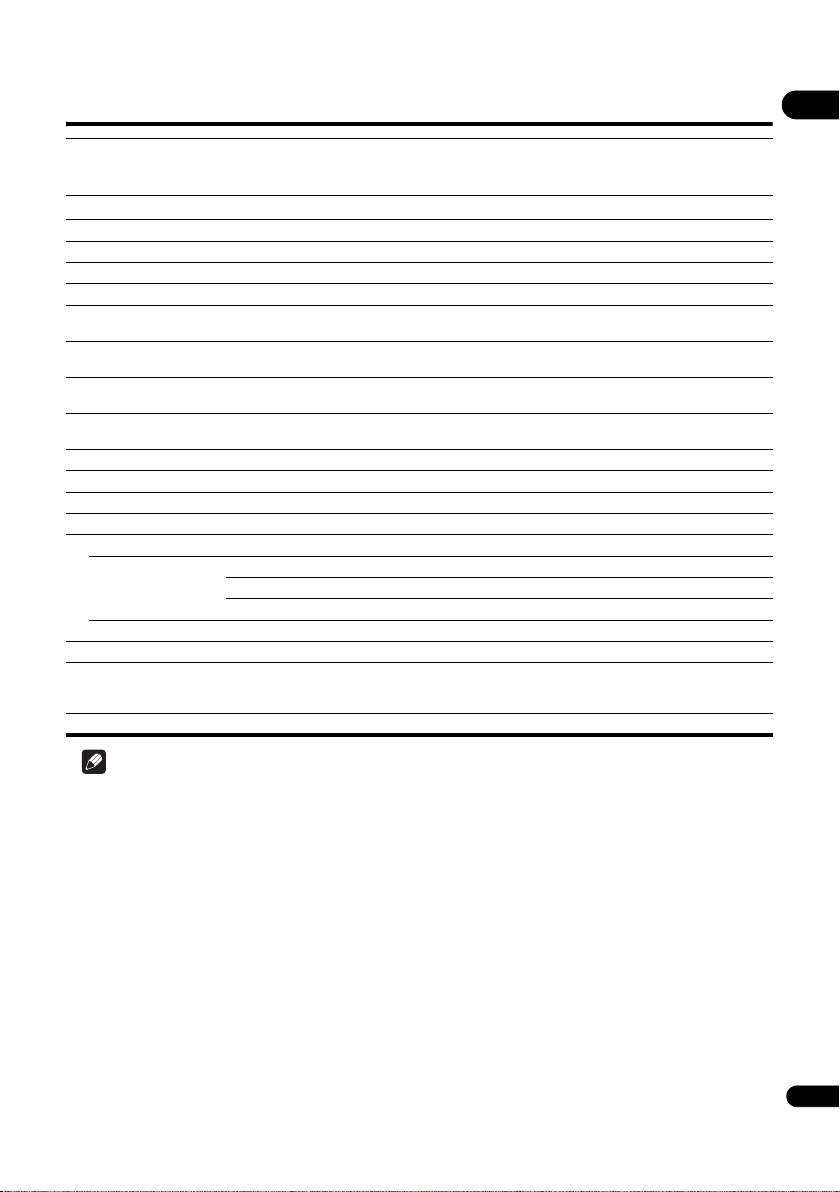
61
En
09
Specifications
Note
• The specifications and design of this product are subject to change without notice.
• This item incorporates copy protection technology that is protected by U.S. patents and other intellectual property
rights of Rovi Corporation. Reverse engineering and disassembly are prohibited.
• Corporation and product names mentioned herein are trademarks or registered trademarks of the respective
corporations.
Model BDP-180
BDP-180-K
BDP-180-S
Type
Blu-ray 3D
TM
PLAYER
Rated voltage
AC 110 V to 240 V
Rated frequency 50 Hz/60 Hz
Power consumption 18 W
Power consumption (Standby) Less than 0.5 W
Power consumption
(Standby, Network Standby On, LAN connected)
2.3 W
Power consumption
(Standby, Network Standby On, Wireless LAN connected)
2.3 W
Power consumption
(Standby, HDMI control On, Network Standby On, LAN connected)
2.3 W
Power consumption (Standby, HDMI control On, Network Standby
On, Wireless LAN connected)
2.3 W
Weight 2.0 kg
External dimensions (including projecting parts) 435 mm (W) x 58 mm (H) x 250 mm (D)
Tolerable operating temperature +5 °C to +35 °C
Tolerable operating humidity 5 % to 85 % (no condensation)
Output terminals
HDMI 1 set, 19-pin: 5 V, 250 mA
Audio outputs 2-channel (left/right) 1 set, RCA jacks
Audio output level 200 mVrms (1 kHz, –20 dB)
Frequency response 4 Hz to 88 kHz (192 kHz sampling)
Digital audio outputs Optical 1 set, Optical digital jack
LAN 1 set, Ethernet jack (10BASE-T/100BASE-TX)
Wireless LAN (internal antenna) Integrated IEEE 802.11n (2.4 GHz band) wireless
networking access, compatible with 802.11b/g Wi-Fi
networks
USB 2 set, Type A
BDP-180_72-BDP180-GBRB1_En.book Page 61 Friday, April 17, 2015 3:15 PM
DeclarationofConformitywithregardtothe R&TTE Directive 1999/5/EC
Manufacturer:
PIONEER HOME ELECTRONICS
CORPORATION
1-1, Shin-ogura, Saiwai-ku,
Kawasaki-shi, Kanagawa
EU Representative’s:
Pioneer Europe NV
Haven 1087, Keetberglaan 1,
9120 Melsele, Belgium
http://www.pioneer.eu
212-0031, Japan
English:
Suomi:
Nederlands:
Français:
Svenska:
Dansk:
Deutsch:
Italiano:
Español:
Hereby, Pioneer, declares that this [*] is
in compliance with the essential
requirements and other relevant
provisions of Directive 1999/5/EC.
Undertegnede Pioneer erklærer herved,
at følgende udstyr [*] overholder de
væsentlige krav og øvrige relevante
krav i direktiv 1999/5/EF
Con la presente Pioneer dichiara che
questo [*] è conforme ai requisiti
essenziali ed alle altre disposizioni
pertinenti stabilite dalla direttiva
1999/5/CE.
Por medio de la presente Pioneer
declara que el [*] cumple con los
requisitos esenciales y cualesquiera
otras disposiciones aplicables o
exigibles de la Directiva 1999/5/CE
Hiermit erklärt Pioneer, dass sich
dieses [*] in Übereinstimmung mit den
grundlegenden Anforderungen und den
anderen relevanten Vorschriften der
Richtlinie 1999/5/EG befindet". (BMWi)
Pioneer vakuuttaa täten että [*]
tyyppinen laite on direktiivin 1999/5/EY
oleellisten vaatimusten ja sitä
koskevien direktiivin muiden ehtojen
mukainen.
Hierbij verklaart Pioneer dat het toestel
[*] in overeenstemming is met de
essentiële eisen en de andere
relevante bepalingen van richtlijn
1999/5/EG
Par la présente Pioneer déclare que
l’appareil [*] est conforme aux
exigences essentielles et aux autres
dispositions pertinentes de la directive
1999/5/CE
Härmed intygar Pioneer att denna [*]
står I överensstämmelse med de
väsentliga egenskapskrav och övriga
relevanta bestämmelser som framgår
av direktiv 1999/5/EG.
ȂǼȉǾȃȆǹȇȅȊȈǹ3LRQHHUǻǾȁȍȃǼǿ
ȅȉǿ>@ȈȊȂȂȅȇĭȍȃǼȉǹǿȆȇȅȈȉǿȈ
ȅȊȈǿȍǻǼǿȈǹȆǹǿȉǾȈǼǿȈȀǹǿȉǿȈ
ȁȅǿȆǼȈȈȋǼȉǿȀǼȈǻǿǹȉǹȄǼǿȈȉǾȈ
ȅǻǾīǿǹȈǼȀ
ǼȜȜȘȞȚțȐ
[*] BDP-180-K, BDP-180-S
[European model only]
BDP-180_72-BDP180-GBRB1_En.book Page 62 Friday, April 17, 2015 3:15 PM
Português:
Pioneer declara que este [*] está
conforme com os requisitos essenciais
e outras disposições da Directiva
1999/5/CE.
3LRQHHUWtPWRSURKODãXMHåHWHQWR>@MH
YHVKRGČVH]iNODGQtPLSRåDGDYN\D
GDOãtPLSĜtVOXãQêPLXVWDQRYHQtPL
VPČUQLFH(6
Eesti:
.lHVROHYDJDNLQQLWDE3LRQHHUVHDGPH
>@YDVWDYXVWGLUHNWLLYL(h
S}KLQ}XHWHOHMDQLPHWDWXGGLUHNWLLYLVW
WXOHQHYDWHOHWHLVWHOHDVMDNRKDVWHOH
sätetele.
Magyar:
$OXOtURWW3LRQHHUQ\LODWNR]RPKRJ\D>@
PHJIHOHODYRQDWNR]yDODSYHW}
N|YHWHOPpQ\HNQHNpVD](&
LUiQ\HOYHJ\pEHO}tUiVDLQDN
$UãR3LRQHHUGHNODUƝND>@DWELOVW
'LUHNWƯYDV(.EnjWLVNDMƗP
SUDVƯEƗPXQFLWLHPDUWRVDLVWƯWDMLHP
QRWHLNXPLHP
âLXR3LRQHHUGHNODUXRMDNDGãLV>@
DWLWLQNDHVPLQLXVUHLNDODYLPXVLUNLWDV
(%'LUHNW\YRVQXRVWDWDV
Malti:
+DZQKHNN3LRQHHUMLGGLNMDUDOLGDQ>@
MLNNRQIRUPDPDOƫWLƥLMLHWHVVHQ]MDOLXPD
SURYYHGLPHQWLRƫUDMQUHOHYDQWLOLKHPP
ILG'LUUHWWLYD(&
3LRQHHUWêPWRY\KODVXMHåH>@VSĎĖD
]iNODGQpSRåLDGDYN\DYãHWN\SUtVOXãQp
XVWDQRYHQLD6PHUQLFH(6
R-TTE-24L_C1_En
3LRQHHUL]MDYOMDGDMHWD>@YVNODGX]
ELVWYHQLPL]DKWHYDPLLQRVWDOLPL
UHOHYDQWQLPLGRORþLOLGLUHNWLYH
(6
3ULQSUH]HQWD3LRQHHUGHFODUDFDDFHVW
[*] este in conformitate cu cerintele
esentiale si alte prevederi ale Directivei
1999/5/EU.
Polski:
1LQLHMV]\P3LRQHHURĞZLDGF]DĪH>@
MHVW]JRGQ\]]DVDGQLF]\PLZ\PRJDPL
RUD]SR]RVWDá\PLVWRVRZQ\PL
SRVWDQRZLHQLDPL'\UHNW\Z\(&
Norsk:
3LRQHHUHUNOUHUKHUYHGDWXWVW\UHW>@HU
LVDPVYDUPHGGHJUXQQOHJJHQGHNUDY
RJ¡YULJHUHOHYDQWHNUDYLGLUHNWLY
1999/5/EF.
Íslenska:
+pUPHèOêVLU3LRQHHU\ILUìYtDè>@HUt
VDPUPLYLèJUXQQNU|IXURJDèUDU
NU|IXUVHPJHUèDUHUXtWLOVNLSXQ
1999/5/EC
ɋɧɚɫɬɨɹɳɟɬɨ3LRQHHUɞɟɤɥɚɪɢɪɚɱɟ
ɬɨɡɢ>@ɨɬɝɨɜɚɪɹɧɚɨɫɧɨɜɧɢɬɟ
ɢɡɢɫɤɜɚɧɢɹɢɞɪɭɝɢɫɴɨɬɜɟɬɧɢ
ɩɨɫɬɚɧɨɜɥɟɧɢɹɧɚȾɢɪɟɤɬɢɜɚ
1999/5/EC.
Hrvatski:
2YLPHWYUWND3LRQHHUL]MDYOMXMHGDMH
ovaj [*@XVNODGXRVQRYQLP]DKWMHYLPDL
RVWDOLPRGUHGEDPD'LUHNWLYH
1999/5/EC.
BDP-180_72-BDP180-GBRB1_En.book Page 63 Friday, April 17, 2015 3:15 PM

Printed in China
© 2015 PIONEER HOME ELECTRONICS CORPORATION.
All rights reserved.
<72-BDP180-GBRB1>
PIONEER HOME ELECTRONICS CORPORATION
1-1, Shin-ogura, Saiwai-ku, Kawasaki-shi, Kanagawa 212-0031, Japan
PIONEER ELECTRONICS (USA) INC.
P.O. BOX 1540, Long Beach, California 90801-1540, U.S.A. TEL: (800) 421-1404
PIONEER EUROPE NV
Haven 1087, Keetberglaan 1, B-9120 Melsele, Belgium TEL: 03/570.05.11
PIONEER ELECTRONICS ASIACENTRE PTE. LTD.
253 Alexandra Road, #04-01, Singapore 159936 TEL: 65-6472-7555
K002_B3_En
BDP-180_72-BDP180-GBRB1_En.book Page 64 Friday, April 17, 2015 3:15 PM