
Basic User’s Guide
MFC-J5920DW
Version 0
USA-ENG

If you must contact Customer Service
Please complete this information for future reference:
Model Number: MFC-J5920DW
Serial Number:
1
Date of Purchase:
Place of Purchase:
1
The serial number is on the back of the unit. Retain
this User's Guide with your sales receipt as a
permanent record of your purchase, in the event of
theft, fire or warranty service.
Register your product on-line at
http://www.brother.com/registration
By registering your product with Brother, you will be recorded as the
original owner of the product. Your registration with Brother:
may serve as confirmation of the purchase date of your product
should you lose your receipt;
may support an insurance claim by you in the event of product loss
covered by insurance; and,
will help us notify you of enhancements to your product and special
offers.
The most convenient and efficient way to register your new product is
on-line at http://www.brother.com/registration
.
© 2014 Brother Industries, Ltd. All rights reserved.

i
Brother numbers
NOTE
For technical help, you must call the country where you bought the machine. Calls must be
made from within that country.
Register your product
By registering your product with Brother International Corporation, you will be recorded as the
original owner of the product. Your registration with Brother:
may serve as confirmation of the purchase date of your product should you lose your receipt;
may support an insurance claim by you in the event of product loss covered by insurance; and,
will help us notify you of enhancements to your product and special offers.
Register
1
your new product online at
http://www.brother.com/registration
1
(USA only) You can also complete and fax the Brother Warranty Registration and Test Sheet.
FAQs (frequently asked questions)
The Brother Solutions Center is our one-stop resource for all your Fax Machine/Multi-Function
Center needs. Download the latest software documents and utilities, read FAQs and
troubleshooting tips, and learn how to get the most from your Brother product.
http://support.brother.com
NOTE
• Check here for Brother driver updates.
• To keep your machine’s performance up to date, check here for the latest firmware upgrade.
For Customer Service
In USA: http://www.brother-usa.com/support (Self-Service/Email/Chat)
1-877-BROTHER (1-877-276-8437)
1-901-379-1215 (assistance via fax)
1-877-268-9575 (test your fax-sending and fax-receiving operations)
In Canada: http://www.brother.ca/support
(Self-Service Videos, Email, Chat, Facebook and Twitter Help)

ii
Service Center Locator (USA only)
For the location of a Brother authorized service center, call 1-877-BROTHER (1-877-276-8437)
or visit http://www.brother-usa.com/service
.
Service Center Locations (Canada only)
For the location of a Brother authorized service center, visit http://www.brother.ca/support.
Ordering accessories and supplies
For best quality results use only genuine Brother accessories, which are available at most Brother
retailers. If you cannot find the accessory you need and have a Visa, MasterCard, Discover,
American Express credit card, or PayPal account, you can order directly from Brother. Visit us
online for a complete selection of the Brother accessories and supplies that are available for
purchase.
NOTE
In Canada only Visa and MasterCard are accepted.
In USA: 1-877-552-MALL (1-877-552-6255)
1-800-947-1445 (assistance via fax)
http://www.brothermall.com
In Canada:
http://www.brother.ca
iii
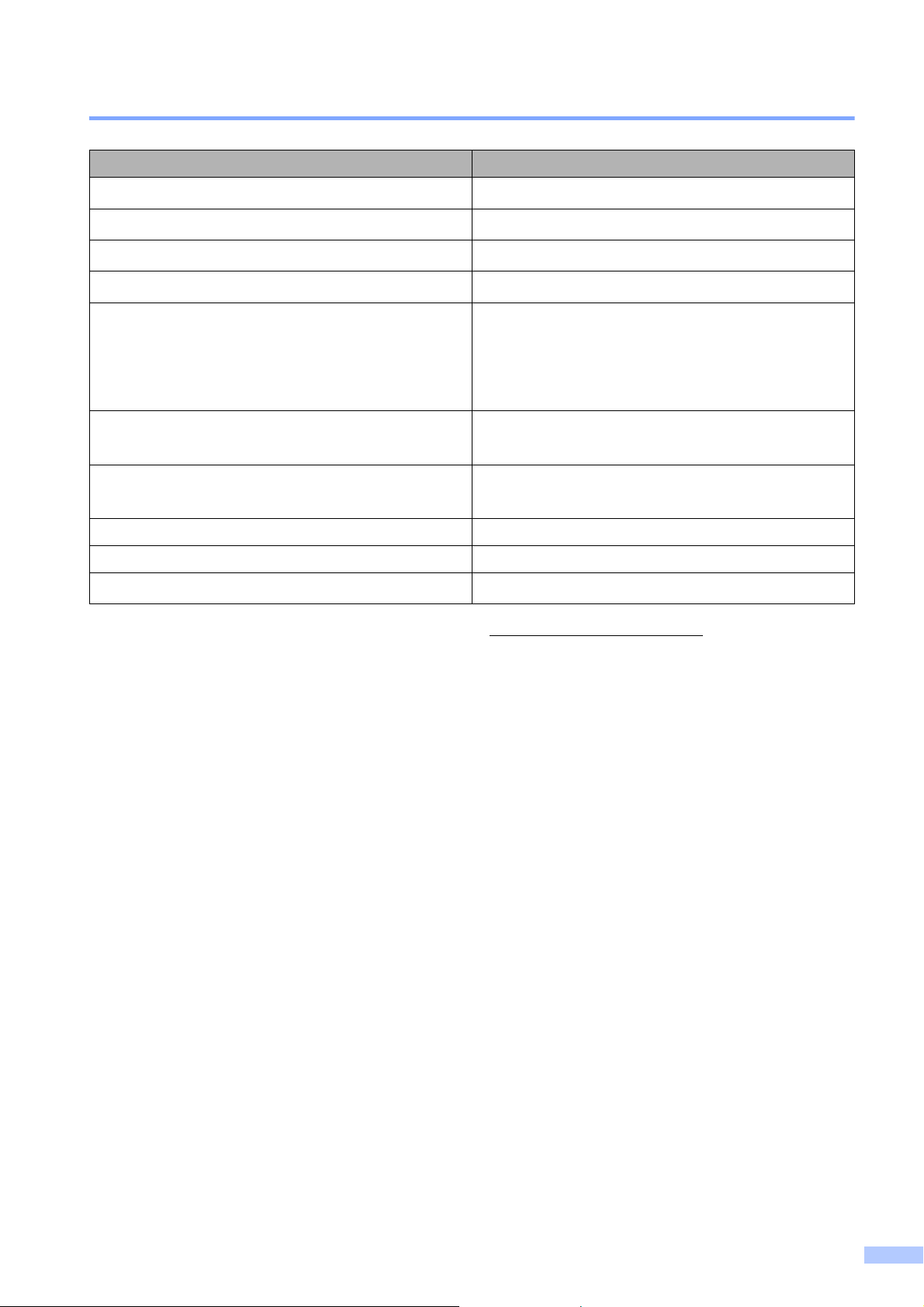
Order Information
1
For more information about the replacement supplies, visit http://www.brother.com/pageyield.
Description Item
Ink Cartridge Super High Yield <black>
LC20EBK (Prints approx. 2,400 pages)
1
Ink Cartridge Super High Yield <yellow>
LC20EY (Prints approx. 1,200 pages)
1
Ink Cartridge Super High Yield <cyan> (blue)
LC20EC (Prints approx. 1,200 pages)
1
Ink Cartridge Super High Yield <magenta> (red)
LC20EM (Prints approx. 1,200 pages)
1
Premium Plus Glossy Photo Paper
(Ledger size / 20 sheets) BP71GLGR
(Letter size / 20 sheets) BP71GLTR
(4" 6" size / 20 sheets) BP71GP20
Multipurpose Paper - Plain Paper
(Letter size / 500 sheets) BP60MPLTR (USA only)
Plain Inkjet Paper
(Ledger size / 100 sheets) BP60PLGR (USA only)
Telephone Line Cord LG3077001 (USA only)
Basic User’s Guide LEW303001
CD ROM for Windows
®
& Mac
LEW269001

iv
Notice - Disclaimer of Warranties
(USA and Canada)
BROTHER'S LICENSOR(S), AND THEIR DIRECTORS, OFFICERS, EMPLOYEES OR AGENTS
(COLLECTIVELY BROTHER'S LICENSOR) MAKE NO WARRANTIES, EXPRESS OR IMPLIED,
INCLUDING WITHOUT LIMITATION THE IMPLIED WARRANTIES OF MERCHANTABILITY
AND FITNESS FOR A PARTICULAR PURPOSE, REGARDING THE SOFTWARE. BROTHER'S
LICENSOR(S) DOES NOT WARRANT, GUARANTEE OR MAKE ANY REPRESENTATIONS
REGARDING THE USE OR THE RESULTS OF THE USE OF THE SOFTWARE IN TERMS OF
ITS CORRECTNESS, ACCURACY, RELIABILITY, CURRENTNESS OR OTHERWISE. THE
ENTIRE RISK AS TO THE RESULTS AND PERFORMANCE OF THE SOFTWARE IS
ASSUMED BY YOU. THE EXCLUSION OF IMPLIED WARRANTIES IS NOT PERMITTED BY
SOME STATES IN THE USA AND SOME PROVINCES IN CANADA. THE ABOVE EXCLUSION
MAY NOT APPLY TO YOU.
IN NO EVENT WILL BROTHER'S LICENSOR(S) BE LIABLE TO YOU FOR ANY
CONSEQUENTIAL, INCIDENTAL OR INDIRECT DAMAGES (INCLUDING DAMAGES FOR
LOSS OF BUSINESS PROFITS, BUSINESS INTERRUPTION, LOSS OF BUSINESS
INFORMATION, AND THE LIKE) ARISING OUT OF THE USE OR INABILITY TO USE THE
SOFTWARE EVEN IF BROTHER'S LICENSOR HAS BEEN ADVISED OF THE POSSIBILITY OF
SUCH DAMAGES. BECAUSE SOME STATES IN THE USA AND SOME PROVINCES IN
CANADA DO NOT ALLOW THE EXCLUSION OR LIMITATION OF LIABILITY FOR
CONSEQUENTIAL OR INCIDENTAL DAMAGES, THE ABOVE LIMITATIONS MAY NOT APPLY
TO YOU. IN ANY EVENT BROTHER'S LICENSOR'S LIABILITY TO YOU FOR ACTUAL
DAMAGES FROM ANY CAUSE WHATSOEVER, AND REGARDLESS OF THE FORM OF THE
ACTION (WHETHER IN CONTRACT, TORT (INCLUDING NEGLIGENCE), PRODUCT
LIABILITY OR OTHERWISE), WILL BE LIMITED TO $50.
Compilation and Publication Notice
Under the supervision of Brother Industries, Ltd., these products’ manuals have been compiled
and published, covering the latest product descriptions and specifications.
The contents of the manuals and the specifications of this product are subject to change without
notice.
Brother reserves the right to make changes without notice in the specifications and materials
contained herein and shall not be responsible for any damages (including consequential) caused
by reliance on the materials presented, including but not limited to typographical and other errors
relating to the publications.
v
You can use the
following features!
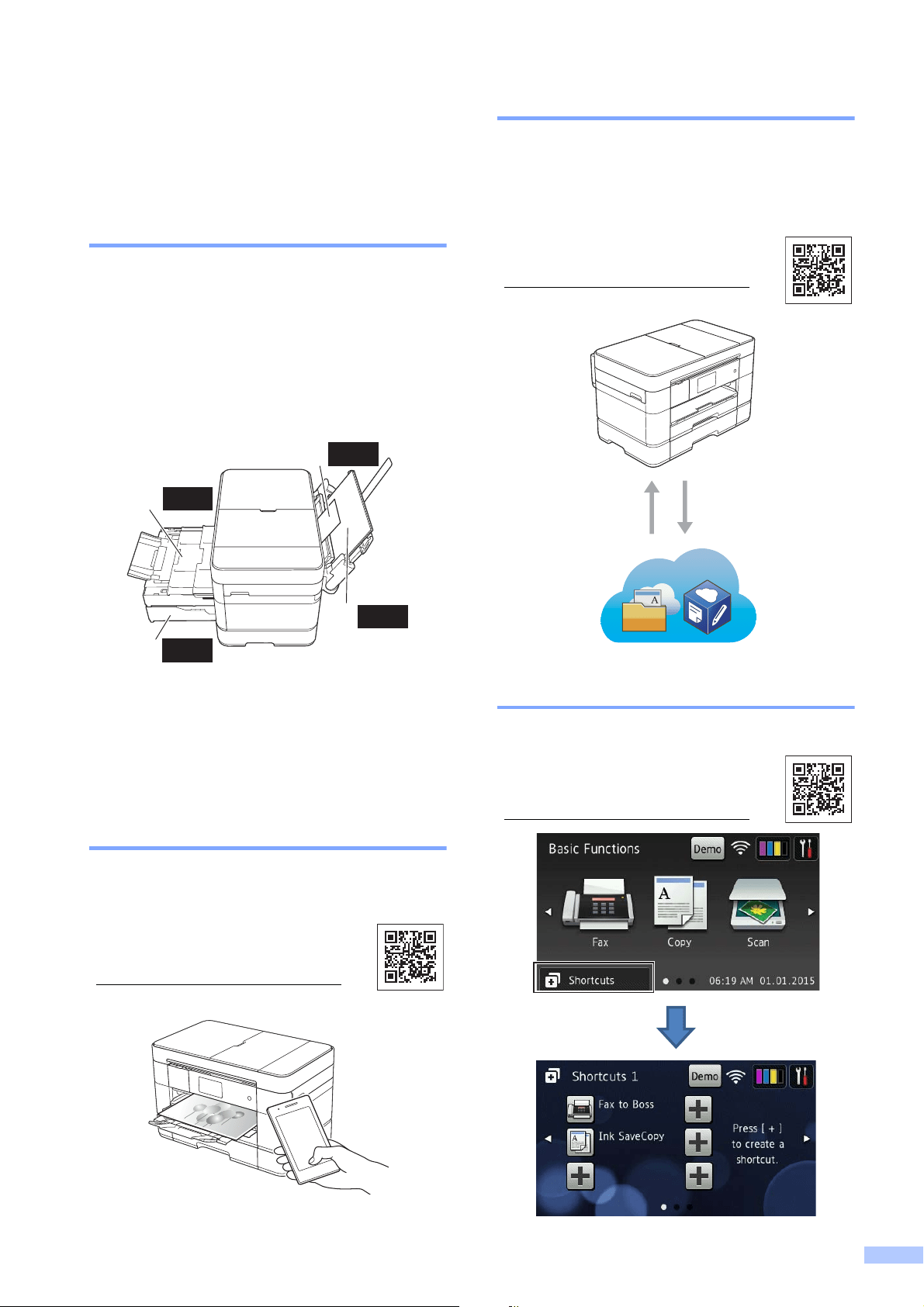
High capacity versatile paper
handling
You can load a wide variety of paper types
into the trays. Continuous Ledger or A3
printing is also possible. If you choose auto
select in your printer driver, the tray
containing the correct paper size will be
selected automatically during printing.
(See Loading paper on page 9.)
1 Manual Feed Slot - - - - 1 sheet
2 MP Tray - - - - - - - - - - - 80 sheets
3 Tray 1 - - - - 250 sheets / Up to Ledger or A3
4 Tray 2 - - - - 250 sheets / Up to Ledger or A3
Mobile Connect
Web Connect / Brother Apps
Add Shortcuts
Use Brother iPrint&Scan to print and scan
images and files from mobile devices.
(See Mobile Print/Scan Guide
for Brother iPrint&Scan at
solutions.brother.com/manuals
.)
3
4
2
1
250
250
80
1
Scan and upload images and files to popular
web services directly from your machine.
Capture and convert information directly
from your machine without your computer.
(See Web Connect Guide at
solutions.brother.com/manuals
.)
Printing Scanning
Save your most frequently-used
settings as Shortcuts.
(See Online User’s Guide at
solutions.brother.com/manuals
.)

vi
User's Guides and where to find them
1
Visit solutions.brother.com/manuals.
Which Guide? What's in it? Where is it?
Product Safety Guide Read this Guide first. Please read the Safety
Instructions before you set up your machine. See
this Guide for trademarks and legal limitations.
Printed / In the box
Quick Setup Guide Follow the instructions for setting up your machine,
and installing the drivers and software for the
operating system and connection type you are
using.
Printed / In the box
Basic User’s Guide Learn the basic Fax, Copy, Scan and PhotoCapture
Center operations and basic machine maintenance.
See troubleshooting tips.
Printed / In the box
Online User’s Guide This HTML (Web) guide includes the contents of the
Basic User’s Guide, and additional information
about the machine’s settings and operations,
security features, troubleshooting tips, and
maintenance instructions.
In addition to information about the PC-Print, Scan,
Copy, Fax (MFC models only), and PhotoCapture
Center and Brother ControlCenter operations, useful
information is included about using the machine on
a network.
HTML / CD-ROM
(Windows
®
) /
Brother Solutions
Center
1
(Macintosh)
Web Connect Guide This Guide provides useful information about
accessing Internet services from the Brother
machine, as well as downloading images, printing
data and uploading files directly to Internet services.
PDF file / Brother
Solutions Center
1
AirPrint Guide This Guide provides information for using AirPrint to
print from OS X v10.7.x or later and your iPhone,
iPod touch, iPad, or other iOS device to your Brother
machine without installing a printer driver.
PDF file / Brother
Solutions Center
1
Google Cloud Print
Guide
This Guide provides details on how to use Google
Cloud Print™ services for printing over the Internet.
PDF file / Brother
Solutions Center
1
Mobile Print/Scan Guide
for Brother iPrint&Scan
This Guide provides useful information about
printing from your mobile device and scanning from
your Brother machine to your mobile device when
connected to a Wi-Fi
®
network.
PDF file / Brother
Solutions Center
1
vii
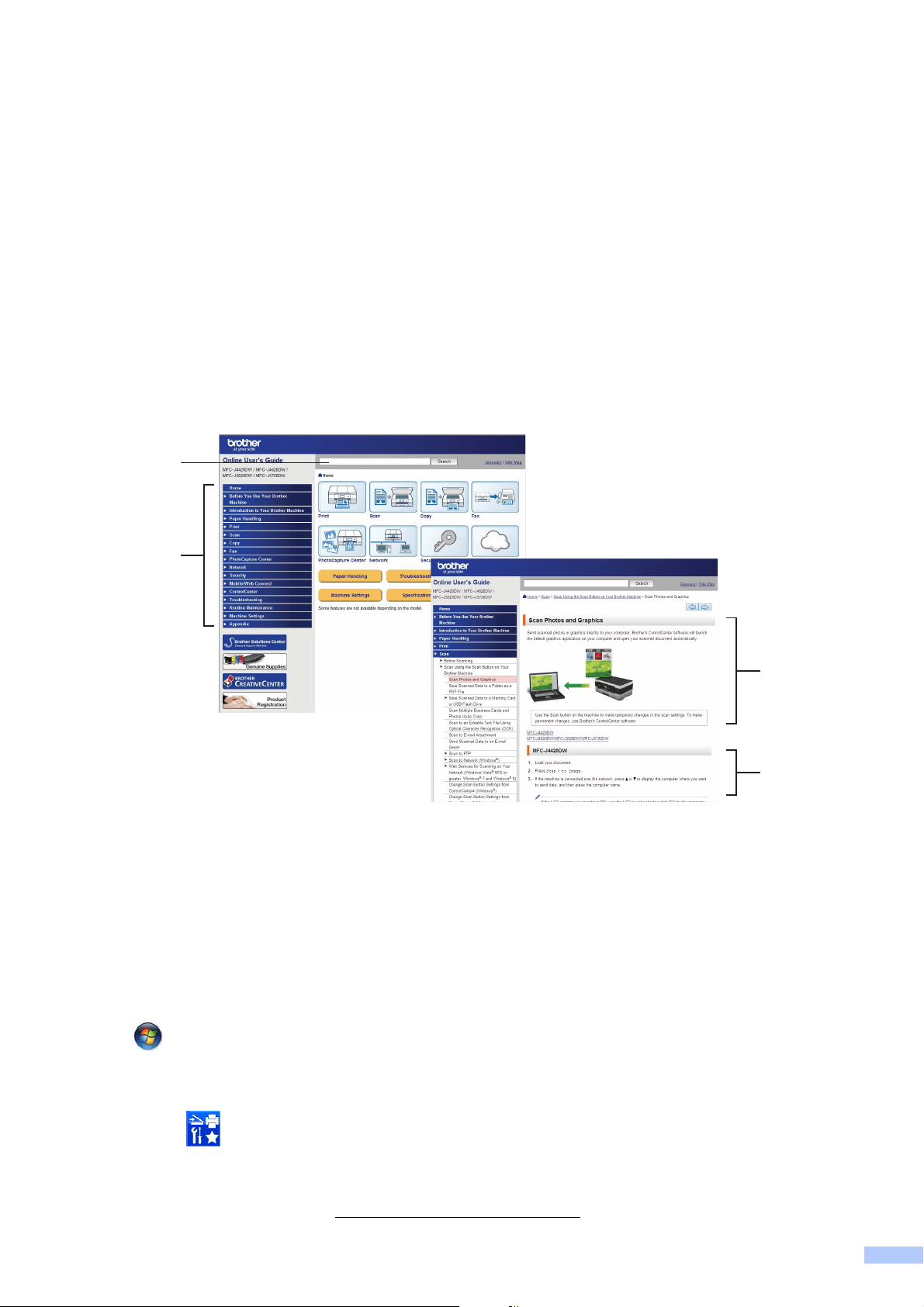
The Online User’s Guide helps you get the most
out of your machine.
Quicker navigation!
• Search box
• Navigation index in a separate pane
Comprehensive!
• Every topic in one guide
Simplified layout!
• Provides step-by-step instructions
• Summarizes the feature at the top of the page
1 Search Box
2 Navigation Index
3 Feature Summary
4 Step-by-Step Instructions
Where can I find the Online User’s Guide?
(Windows
®
)
Click (Start) > All Programs > Brother > Brother Utilities > MFC-XXXX (XXXX is your
model name.) > Support > User’s Guides.
(Windows
®
8)
Tap or click (Brother Utilities) > MFC-XXXX (XXXX is your model name.) > Support >
User’s Guides.
(Macintosh or other options)
Visit Brother Solutions Center: solutions.brother.com/manuals
.
1
2
3
4
viii
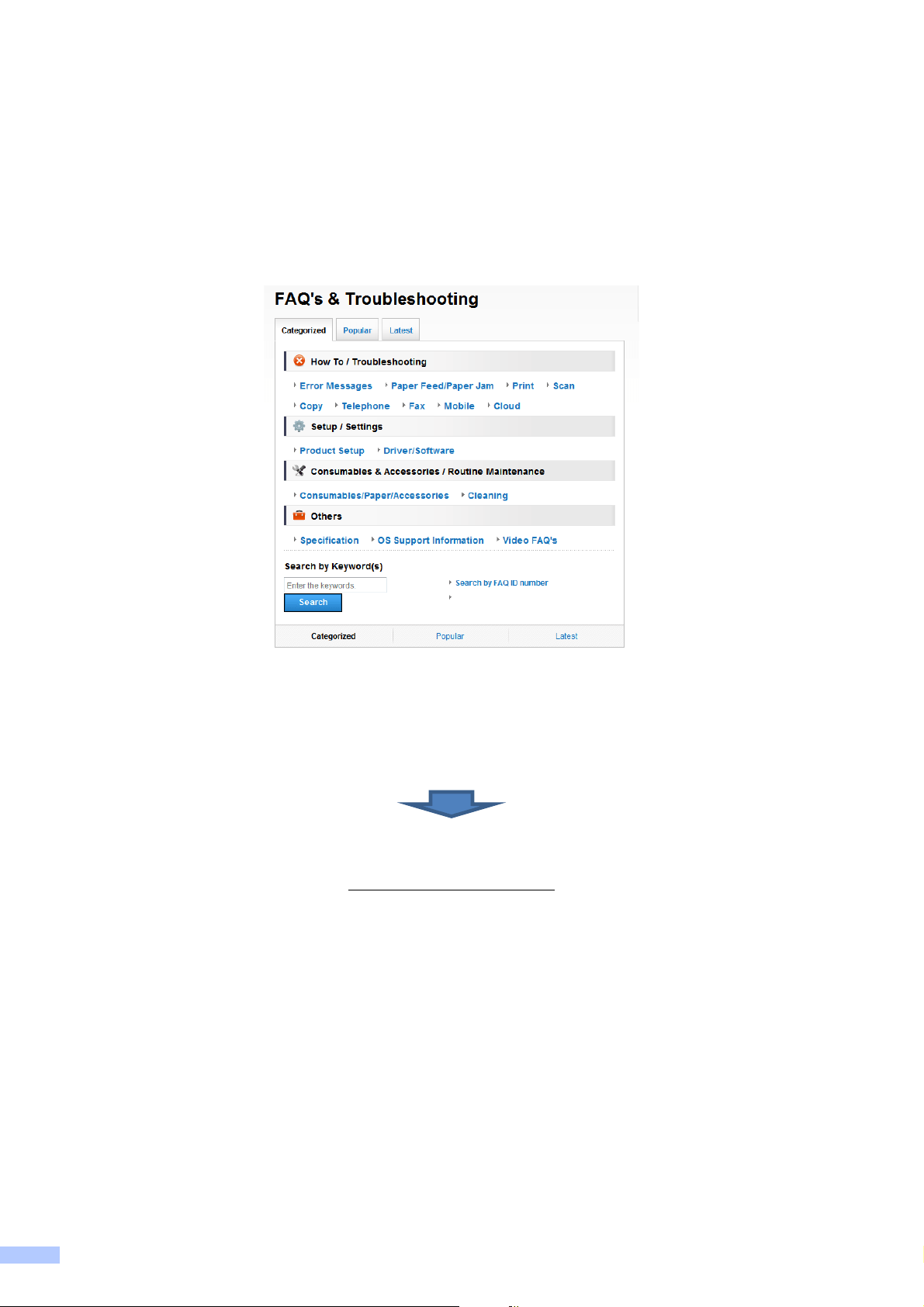
If you have questions or problems, please take a
look at your model’s FAQs.
Provides several ways to search
Displays related questions for additional information
Receives regular updates based on customer feedback
* The FAQ home page will vary depending on your model.
Where can I find these FAQs?
Brother Solutions Center
http://support.brother.com

ix
Table of Contents
1 General information............ 1
How to use the documentation ....... 1
Symbols and conventions............ 1
About Brother Utilities
(Windows
®
)..................................... 1
Control panel overview ................... 2
3.7" Touchscreen LCD................. 4
Entering Text ............................... 8
2 Loading paper ..................... 9
Before loading paper....................... 9
Loading paper in paper tray #1 ....... 9
Loading paper in paper tray #2 ..... 14
Loading paper in the
multi-purpose tray (MP Tray) ........ 17
Loading paper in the manual
feed slot ........................................ 19
Paper settings............................... 22
Set Paper Size and Type........... 22
Check Paper setting...................... 23
Recommended print media........ 23
Handling and using print
media ......................................... 23
3 Loading documents.......... 24
How to load documents ................ 24
Using the ADF ........................... 24
Using the scanner glass ............ 25
4 Printing from a
computer............................ 27
How to print a document ............... 27
5 Copying.............................. 28
How to copy .................................. 28
Stop copying .............................. 28
Copy options overview.................. 28
Paper Type ................................ 29
Paper Size ................................. 29
Tray Select................................. 29
6 Scanning to a computer ... 30
Before scanning............................ 30
How to scan a document as a
PDF file using ControlCenter4
(Windows
®
)................................... 30
How to scan a document as a
PDF file using the Touchscreen.... 31
7 PhotoCapture Center:
Printing photos from a
memory card or USB flash
drive.................................... 32
PhotoCapture Center operations
(PHOTO mode)............................. 32
How to print images ...................... 32
View Photos............................... 32
PhotoCapture Center print settings
overview........................................ 33
8 Telephone services and
external devices ................ 34
Telephone services overview ....... 34
Voice mail .................................. 34
Distinctive Ring .......................... 34
Voice over Internet Protocol
(VoIP) ........................................ 34
Connecting an external telephone
answering device (TAD) ............ 35
External and extension
telephones ................................. 35
9 Sending a fax..................... 36
How to send a fax ......................... 36
Stop faxing................................. 37
How to store numbers................... 37
Storing a pause.......................... 37
Storing Address Book
numbers..................................... 38
How to set your Station ID ............ 38

x
10 Receiving a fax .................. 39
Receive Modes ............................. 39
How to choose the correct
Receive Mode............................ 39
Receive Modes overview........... 40
Receive Mode settings.................. 42
Ring Delay ................................. 42
F/T Ring Time
(Fax/Tel mode only)................... 42
A Routine maintenance ........ 43
How to clean and check the
machine ........................................ 43
Cleaning the scanner................. 43
Checking the print quality........... 44
Checking the print alignment ..... 45
B Troubleshooting ................ 47
Identifying the problem.................. 47
Error and maintenance
messages...................................... 47
Error animations......................... 57
Transferring your faxes or Fax
Journal report............................. 57
Document jam ........................... 58
Printer jam or paper jam ............ 60
Troubleshooting for Wireless LAN
setup ............................................. 66
Wireless LAN report................... 66
If you are having difficulty with
your machine ................................ 67
Dial Tone detection.................... 77
Telephone Line Interference or
VoIP System .............................. 77
Machine Information ..................... 78
Checking the serial number ....... 78
Checking the firmware
version ....................................... 78
Reset operations overview......... 78
How to reset the machine .......... 79
C Index ................................... 80
Supplies ............................. 83
1
1
1
How to use the
documentation
1
Thank you for buying a Brother product!
Reading the documentation will help you
make the most of your machine.
Symbols and conventions 1
The following symbols and conventions are
used throughout the documentation.
About Brother Utilities
(Windows
®
) 1
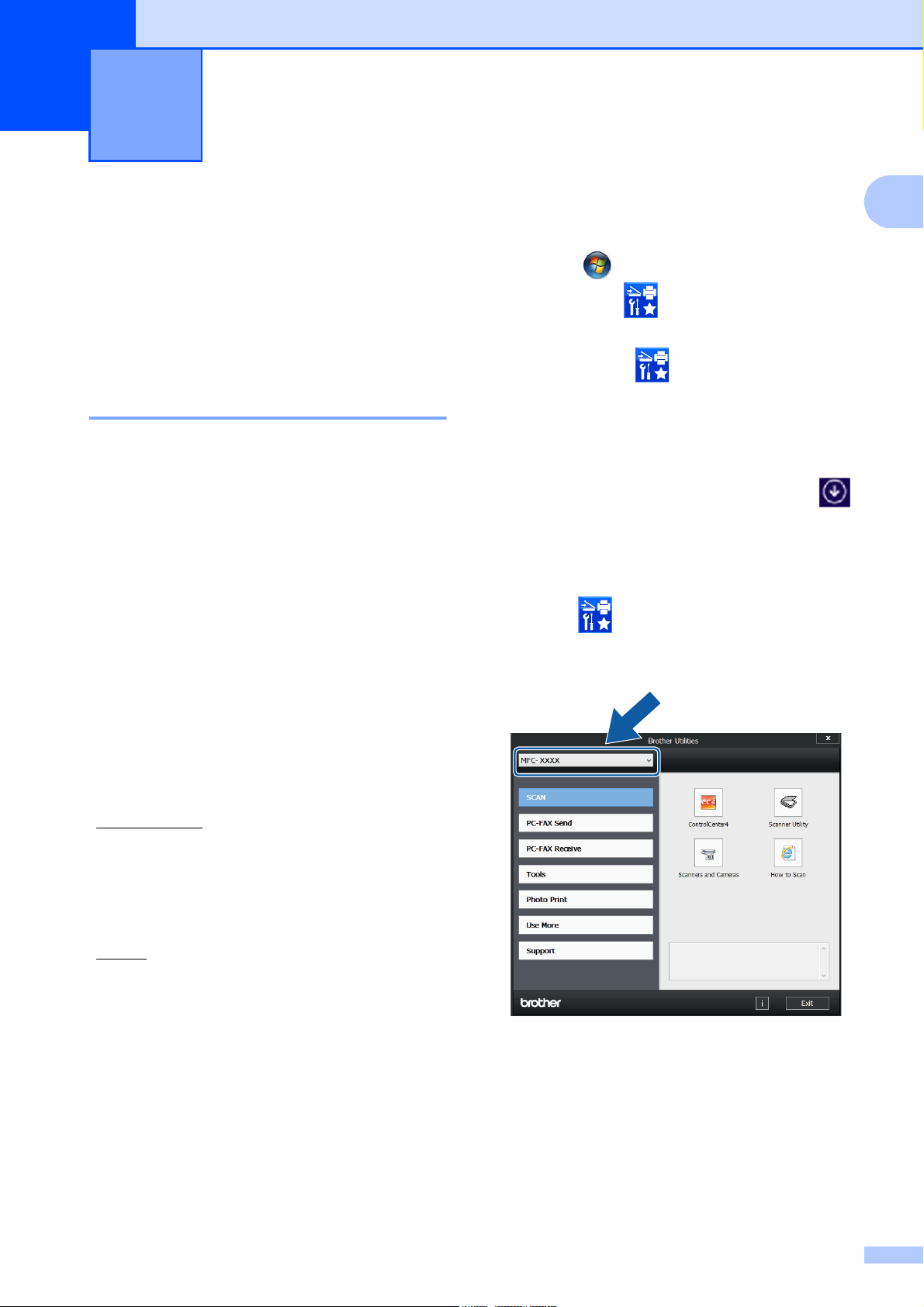
Brother Utilities is an application launcher
that offers convenient access to all Brother
applications installed on your device.
a (Windows
®
XP, Windows Vista
®
and
Windows
®
7)
Click (Start) > All Programs >
Brother > (Brother Utilities).
(Windows
®
8)
Tap or click (Brother Utilities)
either on the Start screen or the
desktop.
(Windows
®
8.1)
Move your mouse to the lower left
corner of the Start screen and click
(if you are using a touch-based device,
swipe up from the bottom of the Start
screen to bring up the Apps screen).
When the Apps screen appears, tap or
click (Brother Utilities).
b Select your machine.
c Choose the operation you want.
General information 1
Bold Bold typeface identifies
buttons on your computer
screen.
Italics Italicized typeface emphasizes
an important point or refers
you to a related topic.
Courier
New
Text in Courier New font
identifies messages displayed
on the machine’s Touchscreen
LCD.
IMPORTANT
IMPORTANT indicates a potentially
hazardous situation which, if not avoided,
may result in damage to property or loss of
product functionality.
NOTE
NOTE specifies the operating environment,
conditions for installation, or special
conditions of use.
Chapter 1
2
Control panel overview 1
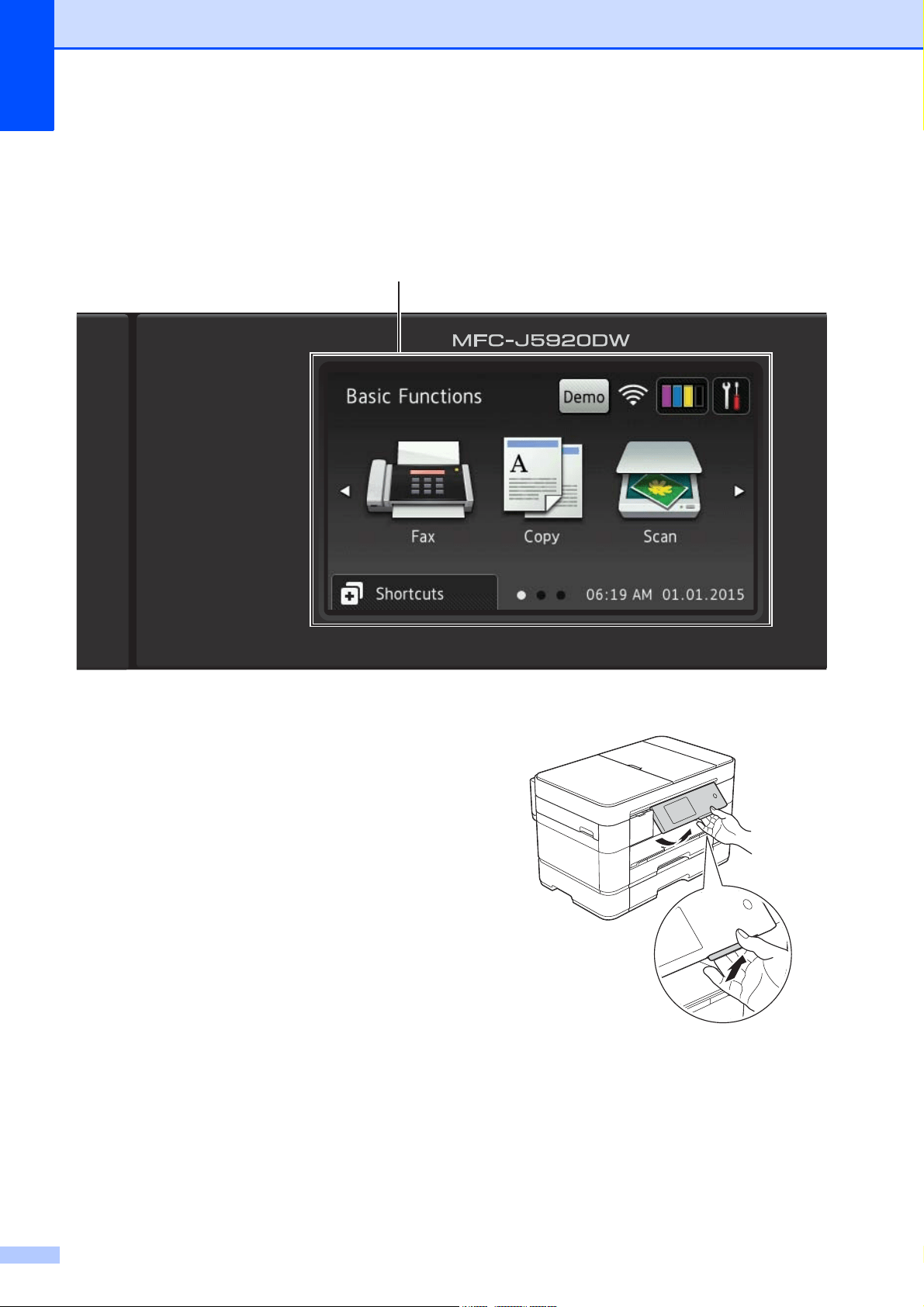
3.7" Touchscreen LCD and Touchpanel 1
1 3.7" Touchscreen LCD (Liquid Crystal
Display)
Access the menus and options you want by
pressing them as they are displayed on the
Touchscreen LCD.
You can adjust the angle of the Touchscreen
LCD and Touchpanel by lifting it. To lower this
control panel, press the release button that is
located behind it, as shown in the illustration.
1
General information
3
1
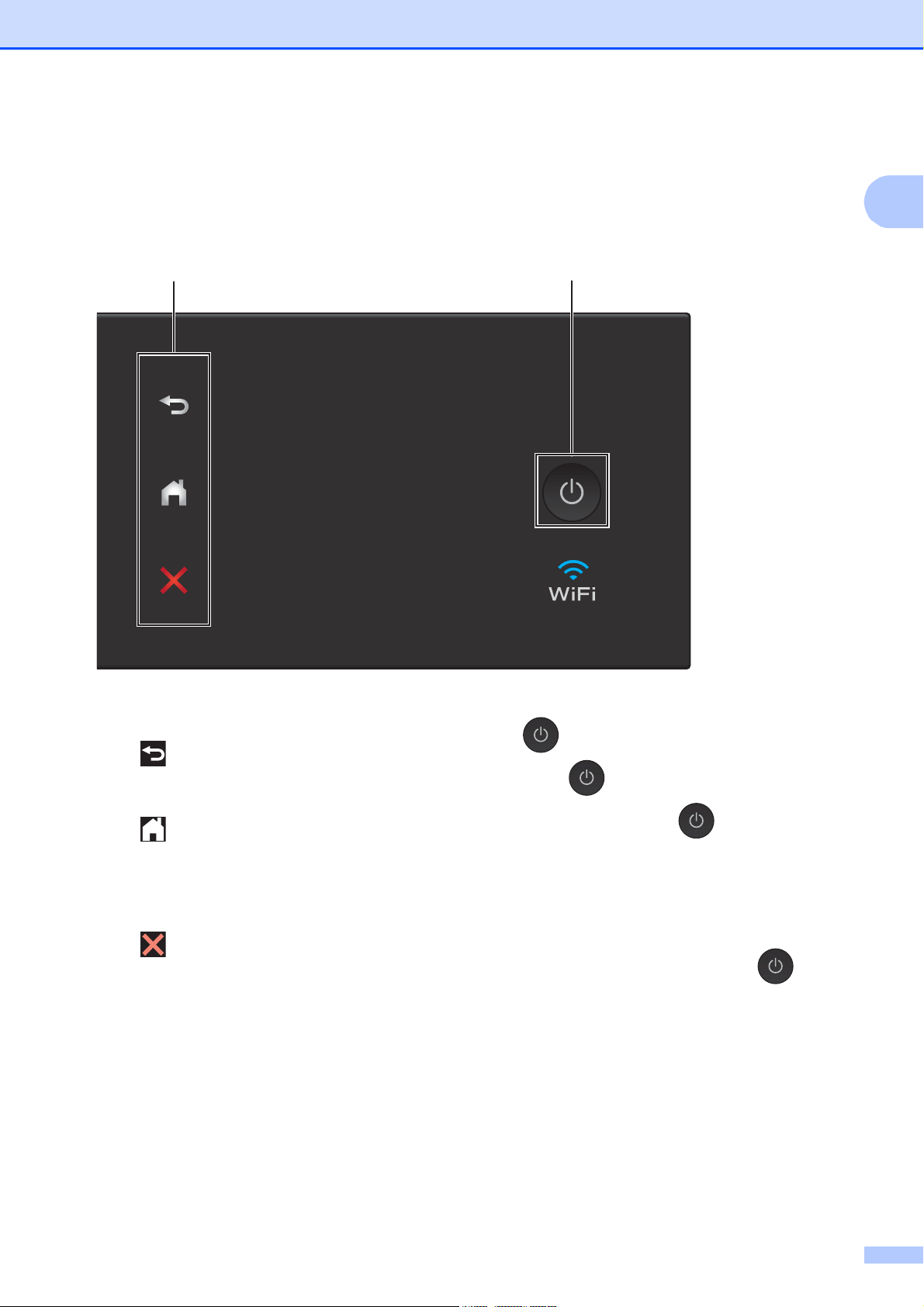
2 Touchpanel:
Back
Press to go back to the previous menu
level.
Home
Press to return to the Home screen. The
default screen displays the date and time,
but you can change the default Home
screen.
Cancel
Press to cancel an operation when lit.
3 Power On/Off
Press to turn on the machine.
Press and hold down to turn off the
machine. The Touchscreen LCD displays
Shutting Down and stays on for a few
seconds before turning off.
If you have connected an external telephone or
TAD, it is always available.
If you turn off the machine using , it still
periodically cleans the print head to maintain
print quality. To prolong print head life, provide
better ink efficiency, and maintain print quality,
keep your machine connected to the power at
all times.
2 3
Chapter 1
4
3.7" Touchscreen LCD 1
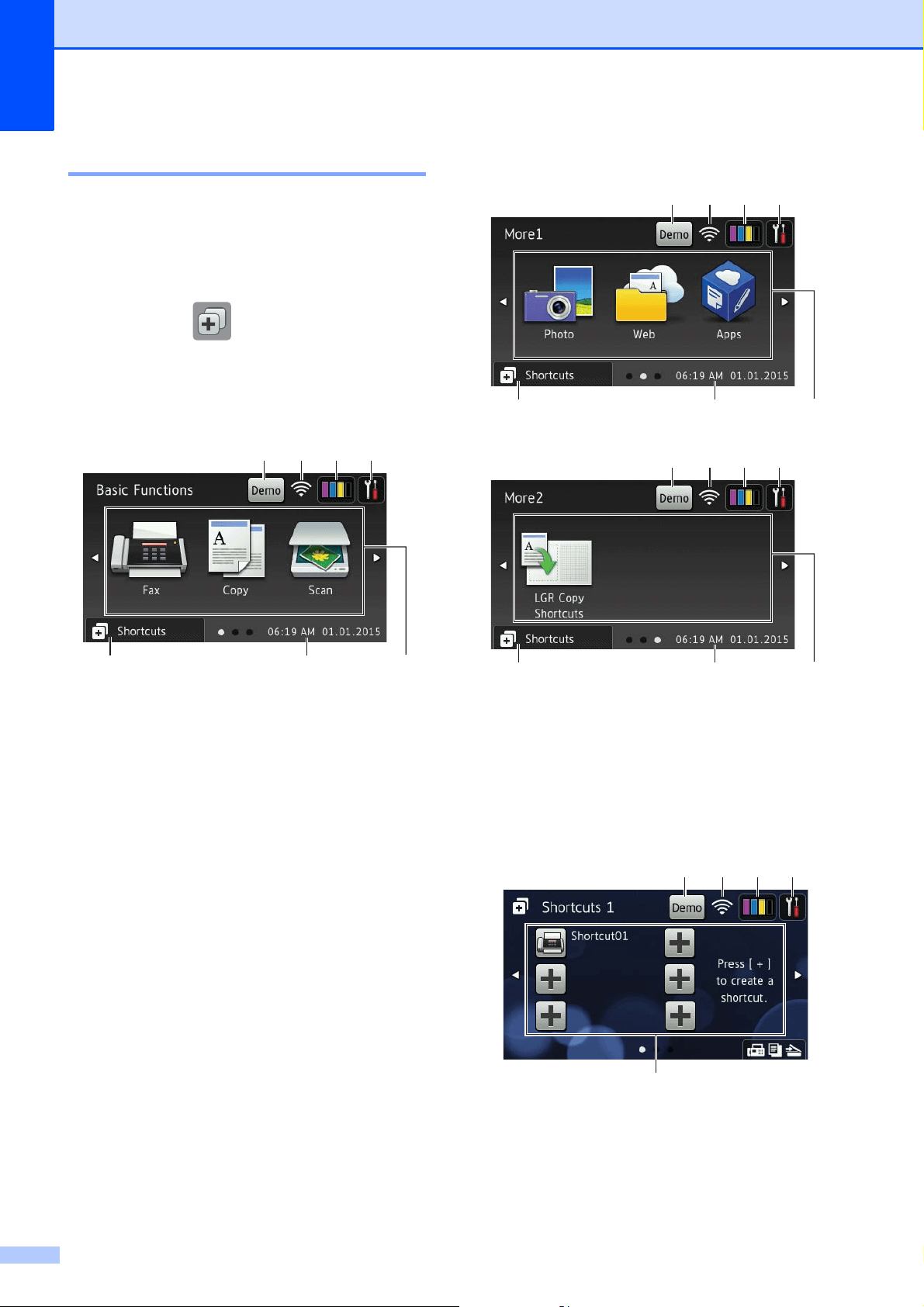
Select from three types of screens to set the
Home screen: Basic Functions screen, More
screens and Shortcuts screens. When the
Basic Functions screen is displayed, swipe
left or right or press d or c to display the More
screens. Press to display the Shortcut
screens.
Basic Functions screen 1
The Basic Functions screen displays the date
and time and provides access to Fax, Copy
and Scan modes.
More screens 1
The More screens display the date and time
and provides access to additional features,
such as Photo, Web, Apps and Ledger Copy
Shortcuts.
Shortcut screens 1
Create Shortcuts for frequently-used
operations, such as sending a fax, making a
copy, scanning and using Web Connect. (For
instructions, see Online User’s Guide: Save
Your Favorite Settings as a Shortcut.)
2
7
1
6
3 4
5
2
7
1
6
3 4
5
2
7
1
6
3 4
5
21 3 4
8
General information
5
1
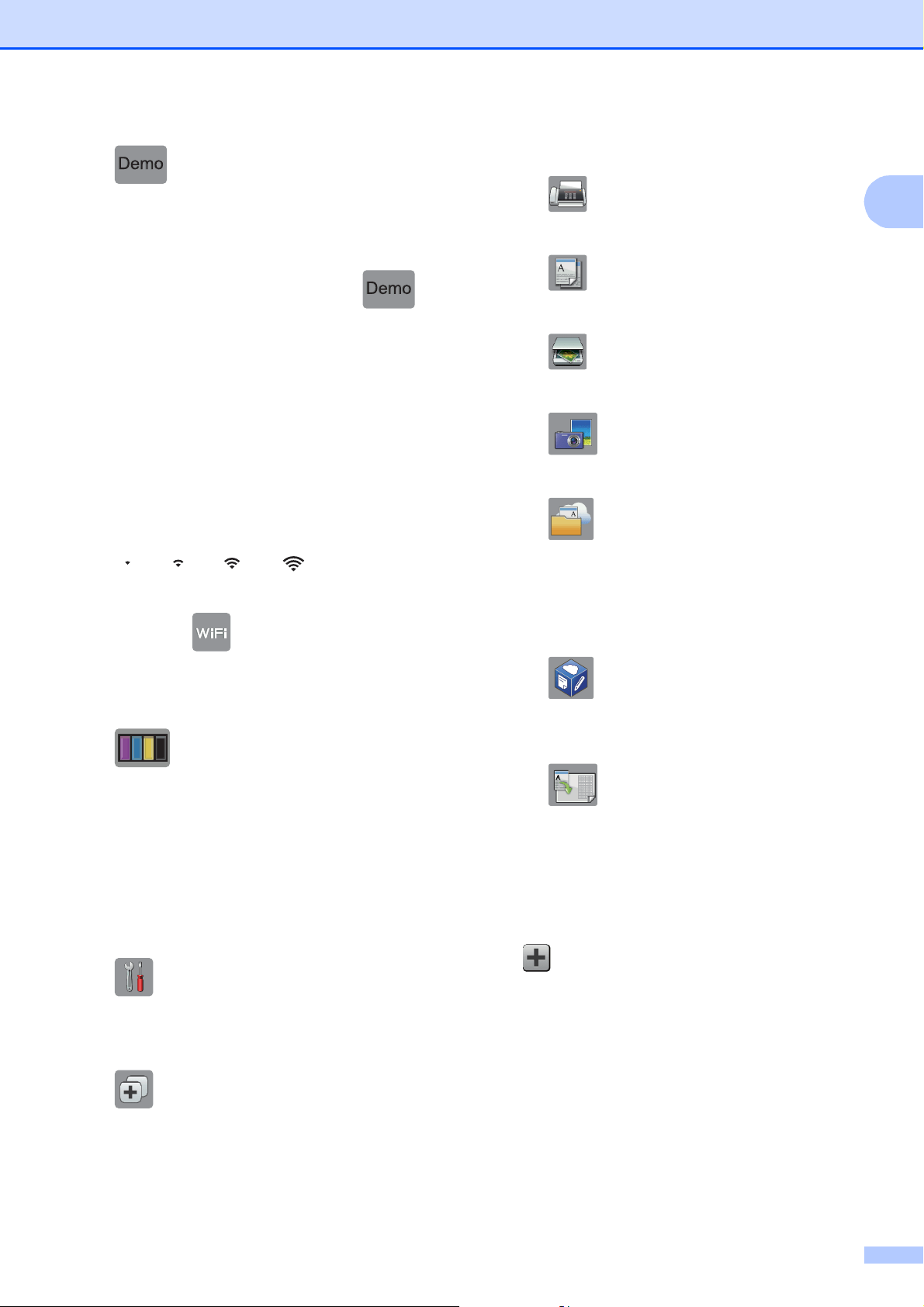
1 Demo
(USA only)
Press to print a list of the machine’s main
features, followed by a slide show on the
Touchscreen.
After you print from a computer, will
disappear from the screen.
To restore the icon, you must delete all the
settings you have changed by performing
a Machine Reset. (See How to reset the
machine on page 79.)
2 Wireless Status
A four-level indicator on the Ready Mode
screen displays the current wireless signal
strength if you are using a wireless
connection.
When appears on the
Touchscreen, press it to configure your
wireless settings. For more
information, see Quick Setup Guide.
3 Ink
Displays the available ink volume. Press
to access the Ink menu.
When an ink cartridge is near the end of its
life or having a problem, an error icon
appears on the ink color.
(See Online User’s Guide: Check the Ink
Volume.)
4 Settings
Press to access the settings.
(See Settings screen on page 7.)
5 Shortcuts
Press to access the Shortcuts screens.
6 Date & Time
Displays the date and time that has been
set in the machine.
7 Modes:
Fax
Press to access Fax mode.
Copy
Press to access Copy mode.
Scan
Press to access Scan mode.
Photo
Press to access Photo mode.
Web
Press to connect the Brother machine
to an Internet service.
For more information, see Web
Connect Guide.
Apps
Press to connect the Brother machine
to the Brother Apps menu.
LGR Copy Shortcuts
Use this preset copy shortcut to copy
on Ledger or A3 size paper.
For more information, see Online
User’s Guide: Use the Ledger Copy
Shortcuts.
8 Add Shortcut
Create Shortcuts for frequently-used
operations, such as sending a fax,
copying, scanning and using Web
Connect.
Three Shortcuts screens are available
with space for up to six Shortcuts on each
screen.
For more information, see Online User’s
Guide: Save Your Favorite Settings as a
Shortcut.
0Max
Chapter 1
6
NOTE
If a Shortcuts screen is set as the Home
screen, is displayed at the
bottom of the screen. Press this icon to
access the Basic Functions screen.
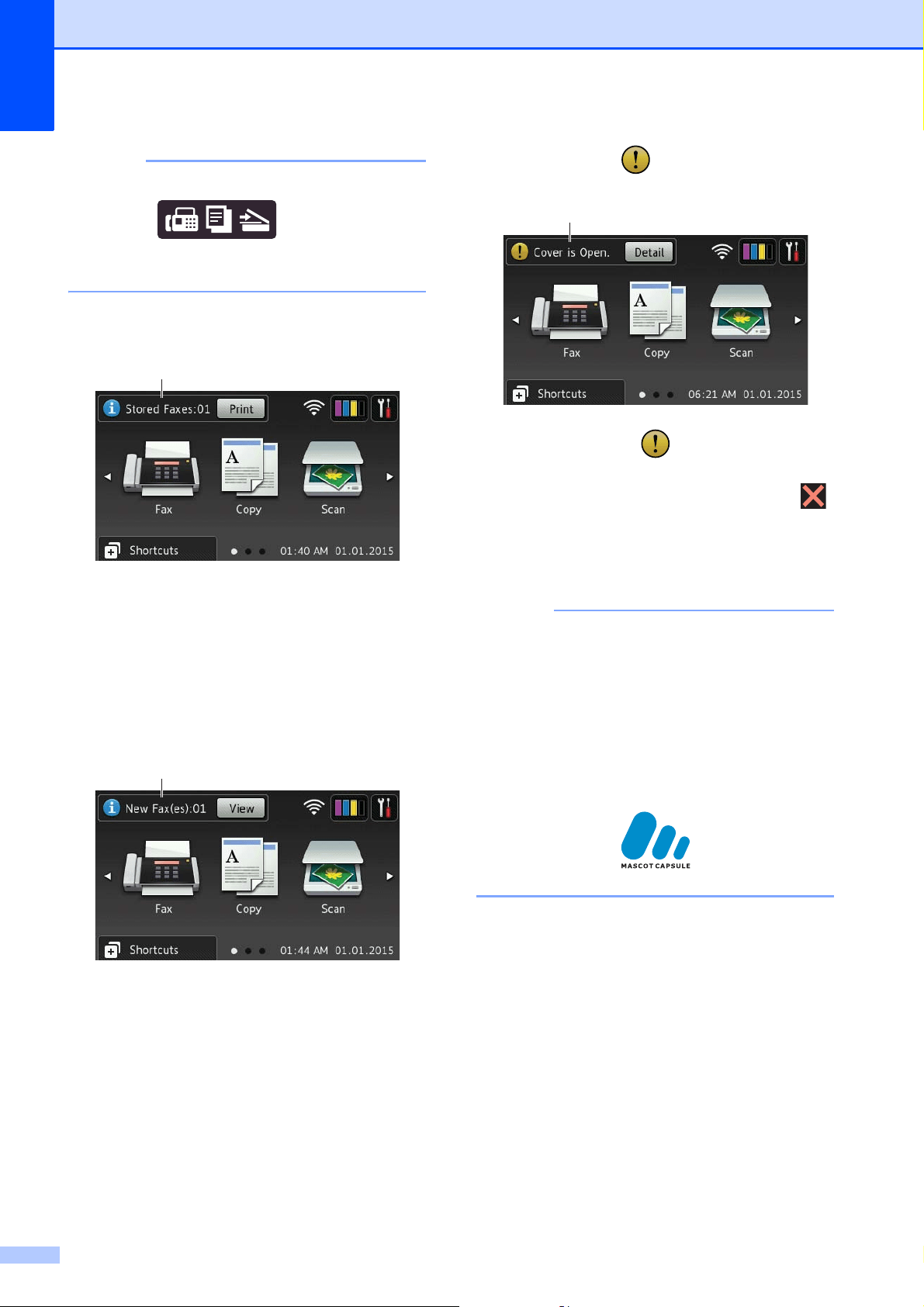
9 Stored Faxes:
When Fax Preview is set to Off,
Stored Faxes displays how many
received faxes are in the machine’s
memory.
Press Print to print the faxes.
10 New Fax(es):
When Fax Preview is set to On,
New Fax(es) displays how many new
faxes you have received and stored in the
machine’s memory.
Press View to view your faxes on the
Touchscreen.
11 Warning icon
The warning icon appears when there
is an error or maintenance. Press Detail
to view the message, and then press
to return to Ready mode.
(See Error and maintenance messages
on page 47.)
NOTE
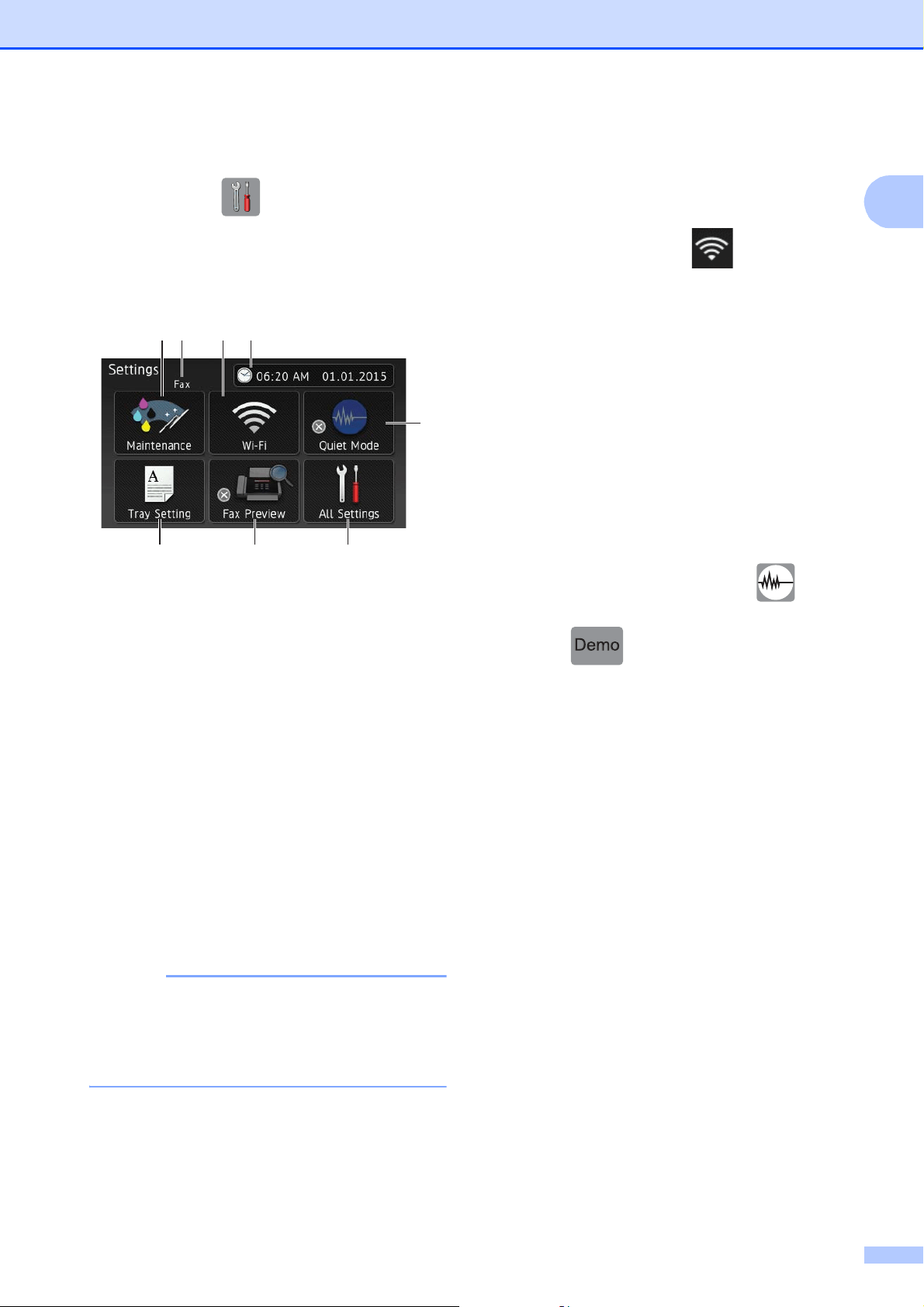
• This product adopts the font of ARPHIC
TECHNOLOGY CO.,LTD.
• MascotCapsule UI Framework and
MascotCapsule Tangiblet developed by
HI CORPORATION are used.
MascotCapsule is a registered trademark
of HI CORPORATION in Japan.
9
10
11
General information
7
1
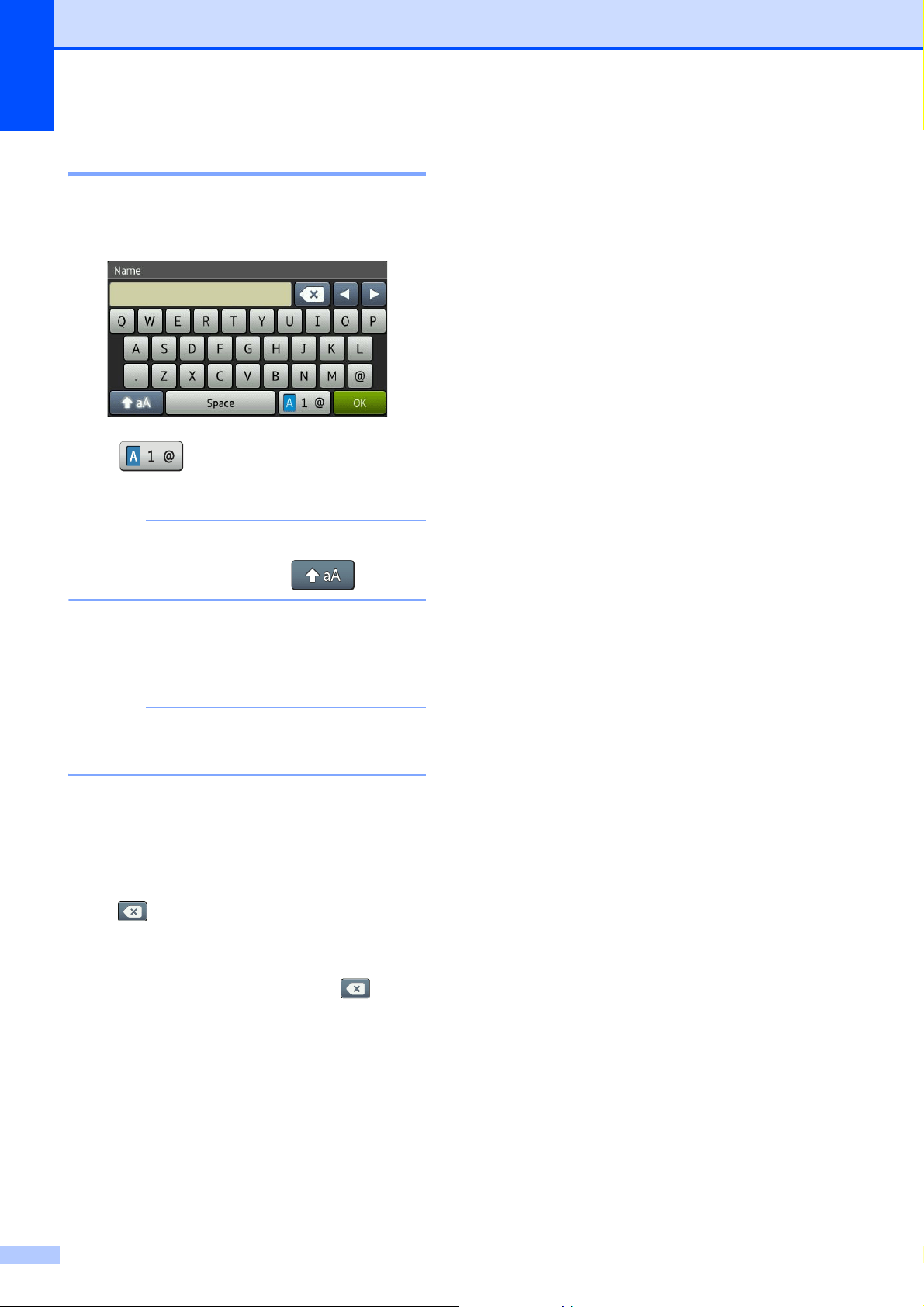
Settings screen 1
When you press , the Touchscreen LCD
displays the machine’s status.
This screen provides access to all the
machine’s settings.
1 Maintenance
Press to access the Maintenance menu.
Check and improve the print quality, clean
the print head and check the available ink
volume. You can also use the
Maintenance solution menu to solve a
recurring paper jam error.
2 Receive Mode
Displays the current Receive Mode:
Fax (Fax Only)
Fax/Tel
External TAD
Manual
NOTE
When the Distinctive Ring feature is
turned on, the Touchscreen displays D/R.
For more information, see Online User’s
Guide: Distinctive Ring.
3 Wi-Fi
Press to set up a wireless network
connection.
A four-level indicator on the screen
displays the current wireless signal
strength if you are using a wireless
connection.
4 Date & Time
Displays the date and time that has been
set in the machine.
Press to access the Date & Time menu
to adjust date and time.
5 Quiet Mode
Displays the Quiet Mode setting. Press to
access the Quiet Mode menu.
When this menu is set to On, is
displayed on the Home screen (for USA:
when is not displayed), and the
machine’s printing noise is lowered.
For more information, see Online User’s
Guide: Reduce the Printing Noise.
6 All Settings
Press to access the Settings menu.
7 Fax Preview
Displays the Fax Preview setting.
Press to access the Fax Preview
setting.
8 Tray Setting
Press to access the
Tray Setting
menu. Use the Tray Setting menu to
change paper size and paper type for
each tray.
12 43
8 7 6
5
Chapter 1
8
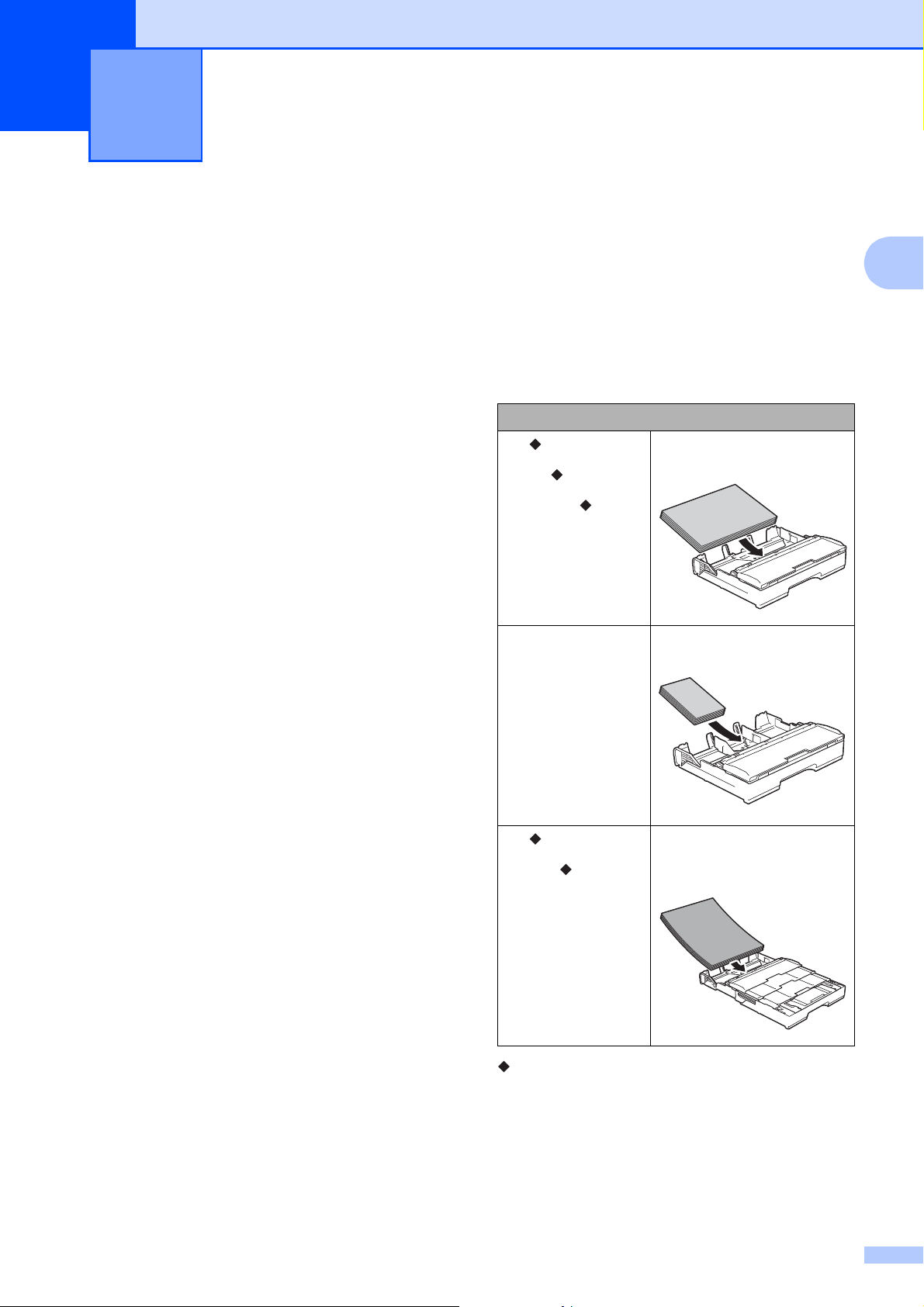
Entering Text 1
When you must enter text into the machine, a
keyboard appears on the Touchscreen.
Press to cycle between letters,
numbers and special characters.
NOTE
To change between lowercase or
uppercase letters, press .
Inserting spaces 1
To enter a space, press Space or c.
NOTE
The characters that are available may
differ depending on your country.
Making corrections 1
If you entered an incorrect character and
want to change it, press d to move the cursor
to highlight the incorrect character, and then
press . Enter the correct character. You
can also use the cursor to go back and insert
characters.
To erase all the characters, press
repeatedly.
9
2
2
Before loading paper 2
Load only one size of paper and one type of
paper in the paper tray at a time.
When loading a different paper size in the
tray, you must also change the paper size
setting in the machine. Doing this enables
the machine to automatically feed paper
from the appropriate tray if Auto Tray
Select has been set in the machine or
printer driver. (See Set Paper Size and
Type on page 22.)
If the Check Paper setting is On, the
machine will display a message asking if
you want to change the paper type and
paper size when you pull Tray #1 or
Tray #2 out of the machine or load paper
in the MP Tray. Change the paper size
and paper type settings if needed,
according to the instructions on the
Touchscreen. (See Check Paper setting
on page 23.)
We explain how to load paper for each tray:
Tray #1 . . . . . . . . . . . . . . . . . . See page 9.
Tray #2 . . . . . . . . . . . . . . . . . . See page 14.
MP Tray . . . . . . . . . . . . . . . . . See page 17.
Manual feed slot . . . . . . . . . . . See page 19.
Loading paper in paper
tray #1
2
Paper size and loading orientation 2
The paper size determines the orientation
when loading paper in Tray #1.
See the details in this chapter.
For information about other paper sizes,
see Online User’s Guide: Load Paper in
Paper Tray #1.
Loading paper 2
Tray #1
A4
Letter
Executive
Landscape orientation
A5
A6
Photo
Photo L
Photo 2L
Index card
Envelope
Portrait orientation
A3
Ledger
Legal
(Glossy photo
paper is not
available.)
Portrait orientation
(Tray #1 is extended.)
Chapter 2
10
When using Letter, A4 or Executive size
paper:
2
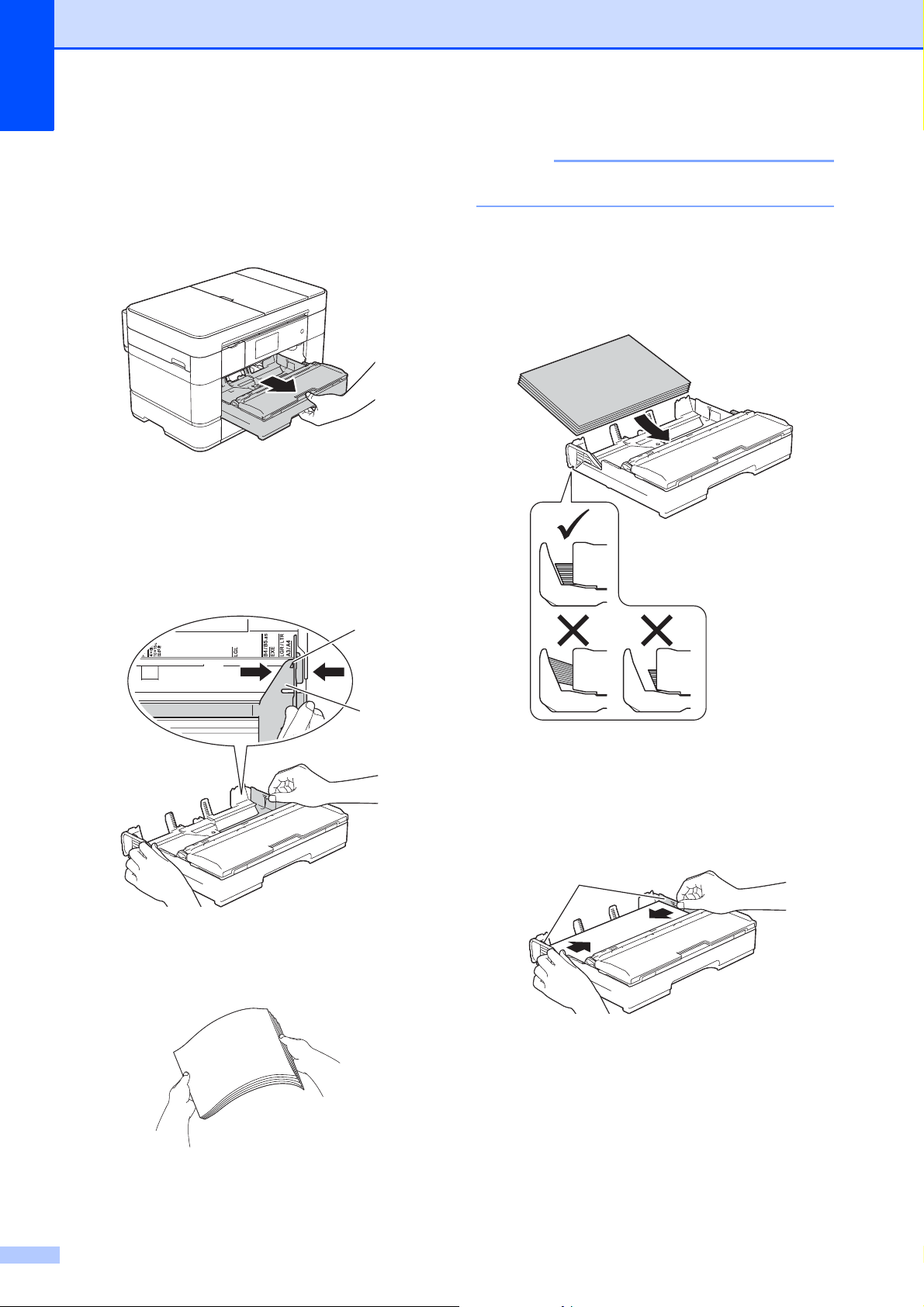
a Pull Tray #1 completely out of the
machine.
b Gently press and slide the paper
guides (1) to fit the paper size.
Make sure the triangular mark (2) on the
paper guide (1) lines up with the mark
for the paper size you are using.
c Fan the stack of paper well to avoid
paper jams and misfeeds.
NOTE
Always make sure the paper is not curled.
d Load paper in the paper tray with the
printing surface face down.
Check that the paper is flat in the tray.
Landscape orientation
2
e Gently adjust the paper guides (1) to fit
the paper.
Make sure the paper guides touch the
sides of the paper.
1
2
1
Loading paper
11
2
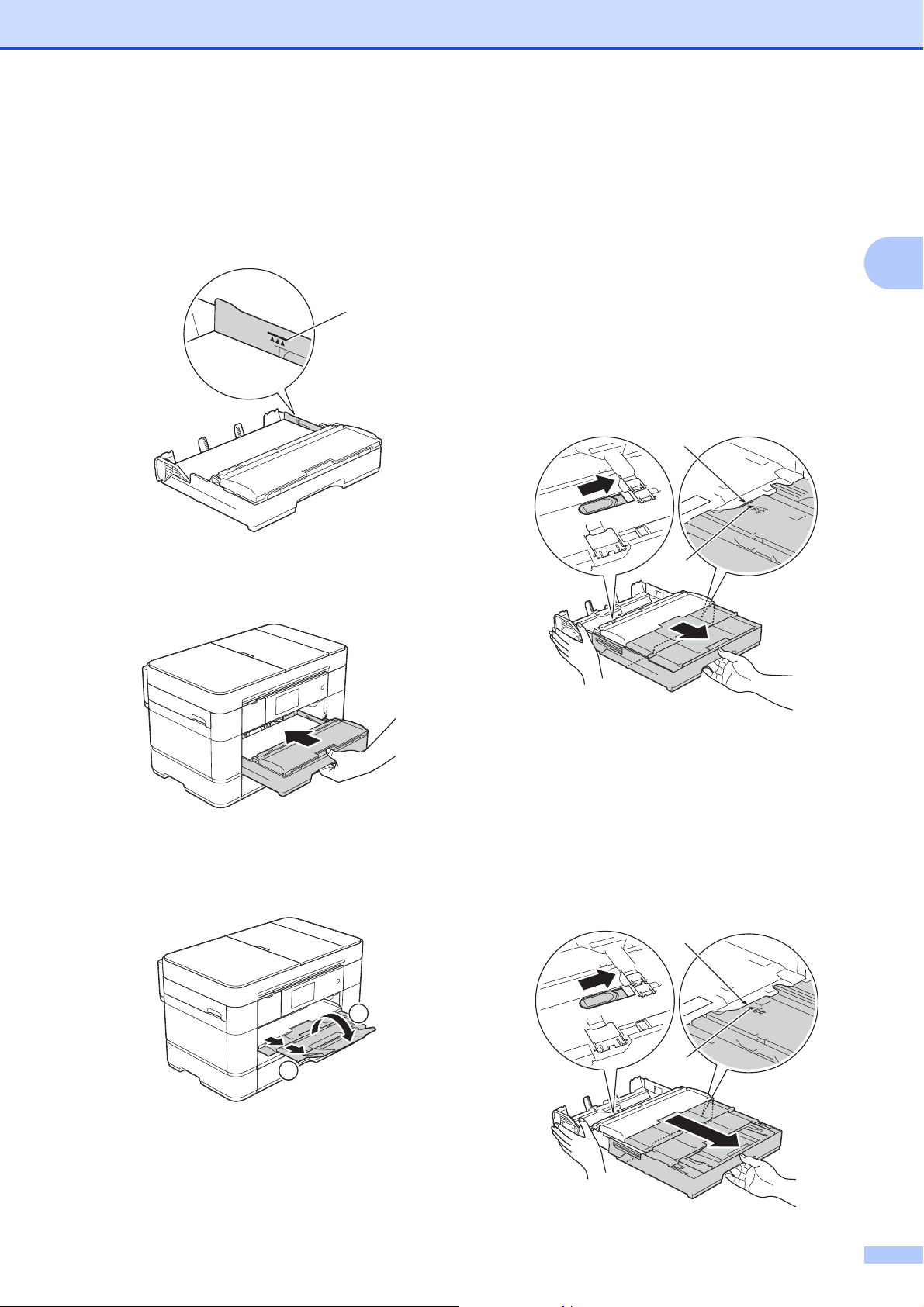
f Check that the paper is flat in the tray
and below the maximum paper
mark (1).
Overfilling the paper tray may cause
paper jams.
g Slowly push the paper tray completely
into the machine.
h Pull out the paper support (1) until it
locks into place, and then unfold the
paper support flap (2).
i Change the paper size setting in the
machine’s menu, if needed.
(See Set Paper Size and Type
on page 22.)
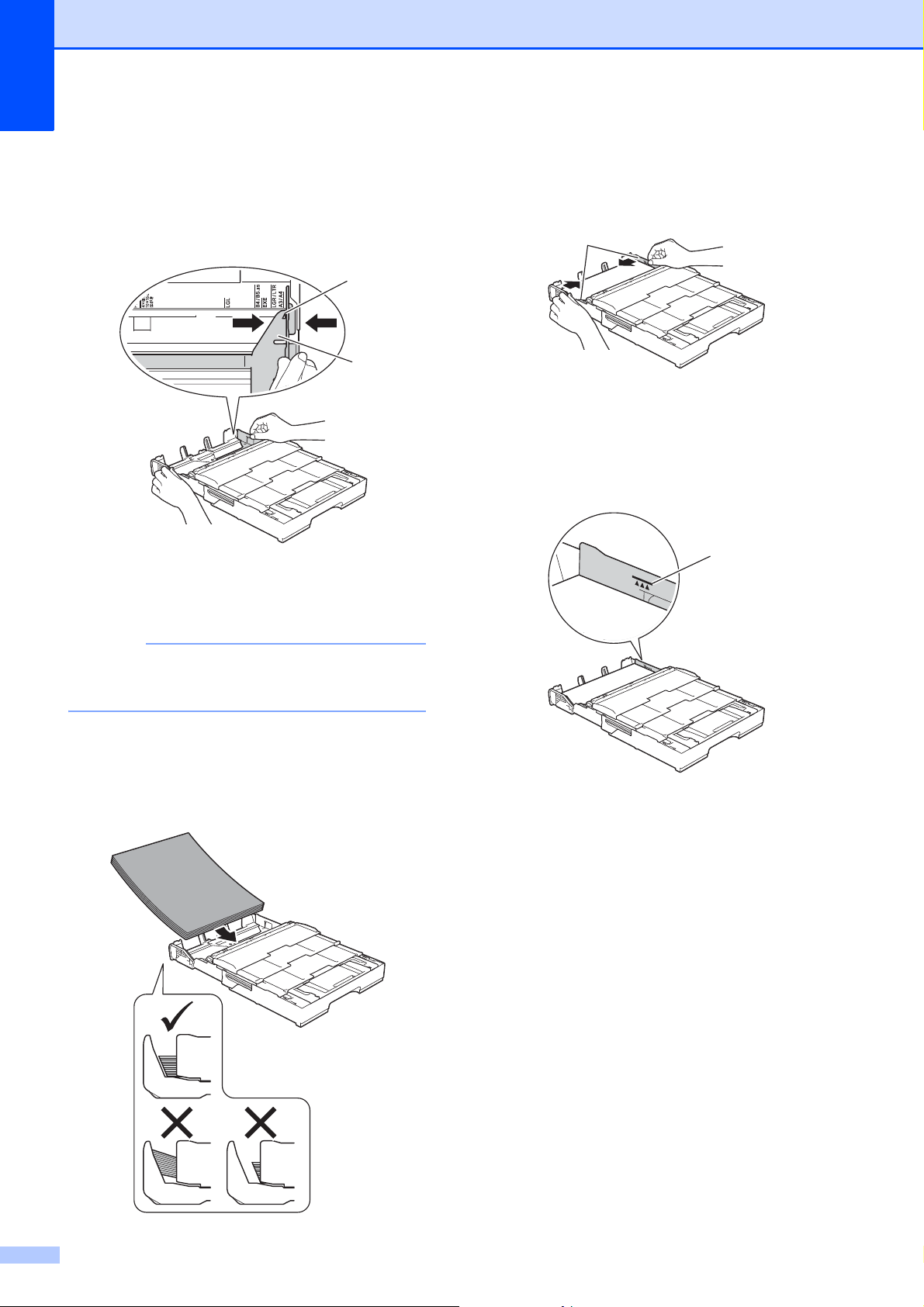
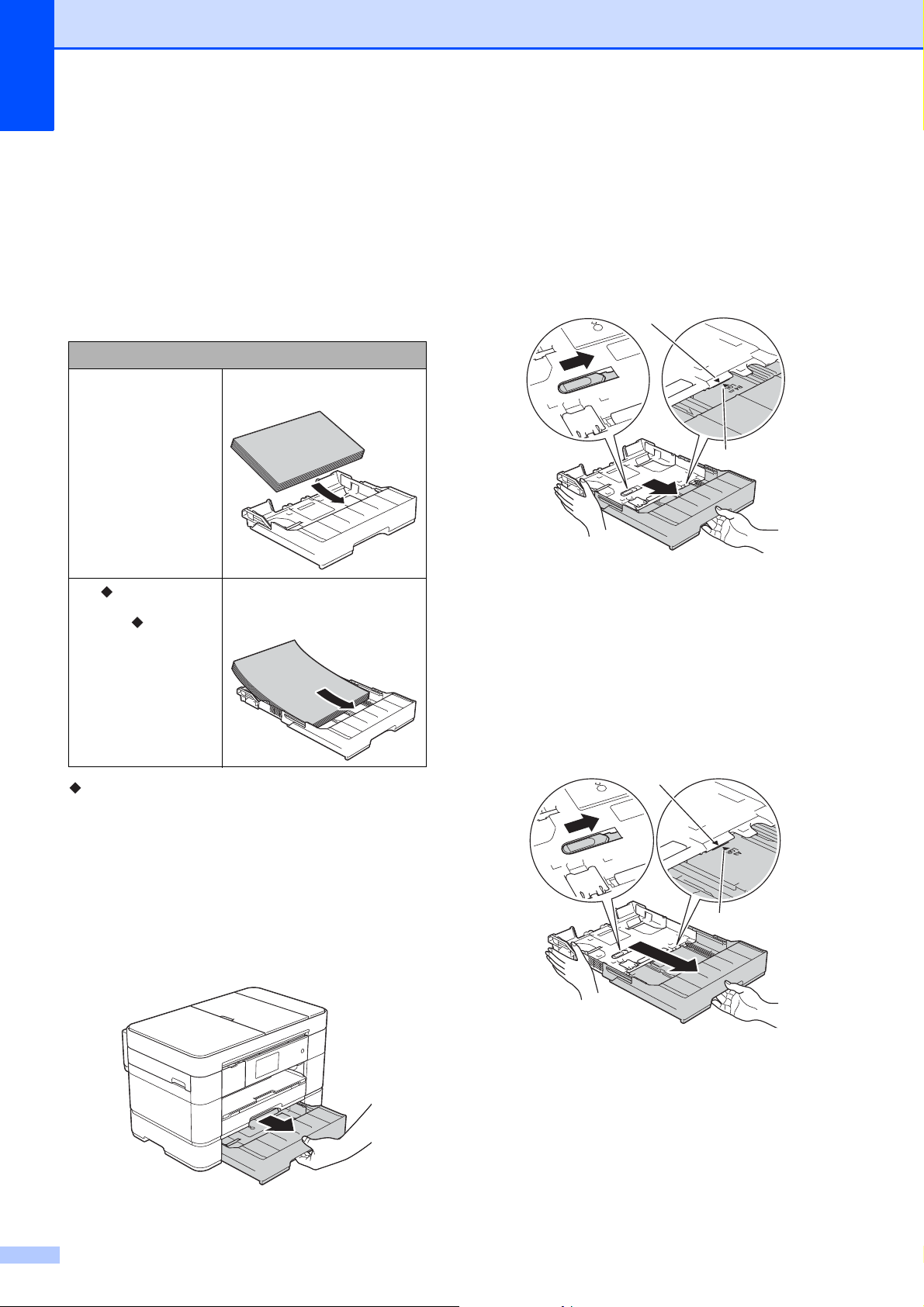
When using Ledger or A3 size paper:
2
a Pull Tray #1 completely out of the
machine. Rest the tray on a flat surface.
b Push the blue slider until it locks in the
release position, and then extend the
tray until the blue slider returns to and
locks in the default position. Open the
tray cover and make sure the triangular
mark inside the tray (1) lines up with the
mark (2) for B4 JIS/LGL, as shown in
the illustration.
Push the blue slider a second time until
it locks in the release position, and then
extend the tray until the blue slider
returns to and locks in the default
position. Open the tray cover and make
sure the triangular mark inside the
tray (1) lines up with the mark (2) for
A3/LGR, as shown in the illustration.
1
2
1
1
2
1
2
Chapter 2
12
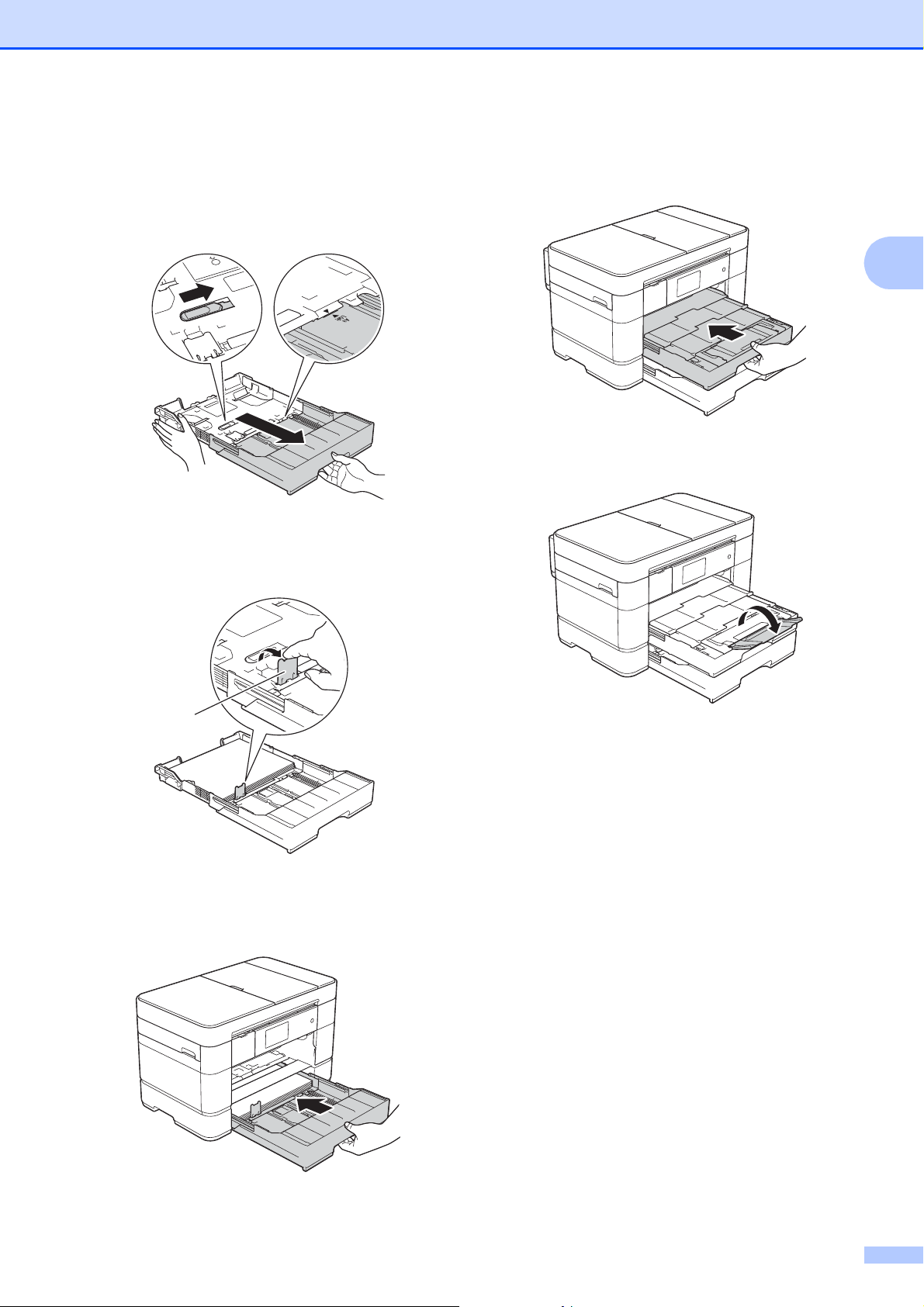
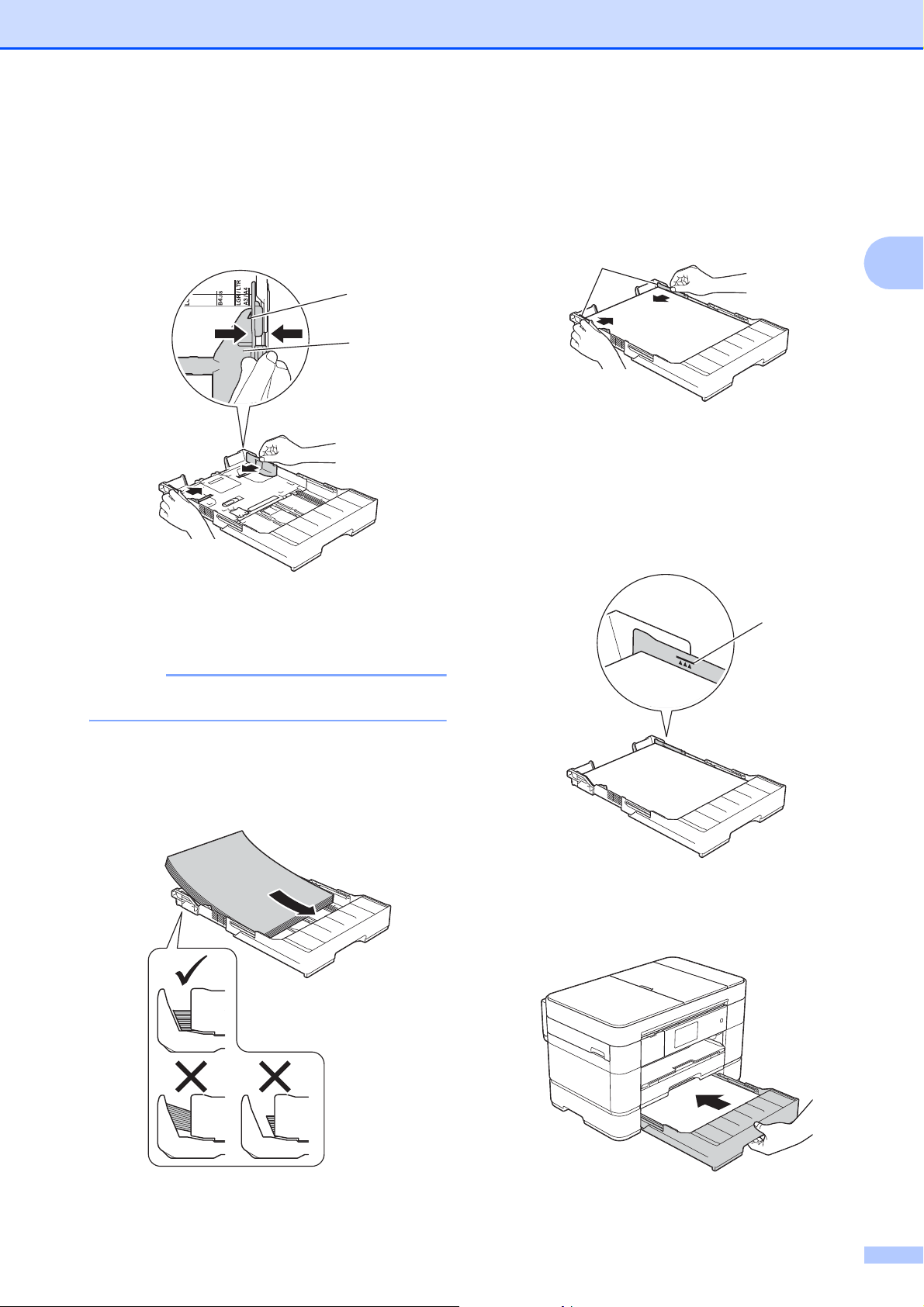
c Gently press and slide the paper
guides (1) to fit the paper size. Make
sure the triangular mark (2) on the paper
guide (1) lines up with the mark for the
paper size you are using.
d Fan the stack of paper well to avoid
paper jams and misfeeds.
NOTE
Always make sure the paper is not curled
or wrinkled.
e Gently load paper in the paper tray with
the printing surface face down. Check
that the paper is flat in the tray.
Portrait orientation
2
f Gently adjust the paper guides (1) to fit
the paper. Make sure the paper guides
touch the sides of the paper.
g Check that the paper is flat in the tray
and below the maximum paper
mark (1). Overfilling the paper tray may
cause paper jams.
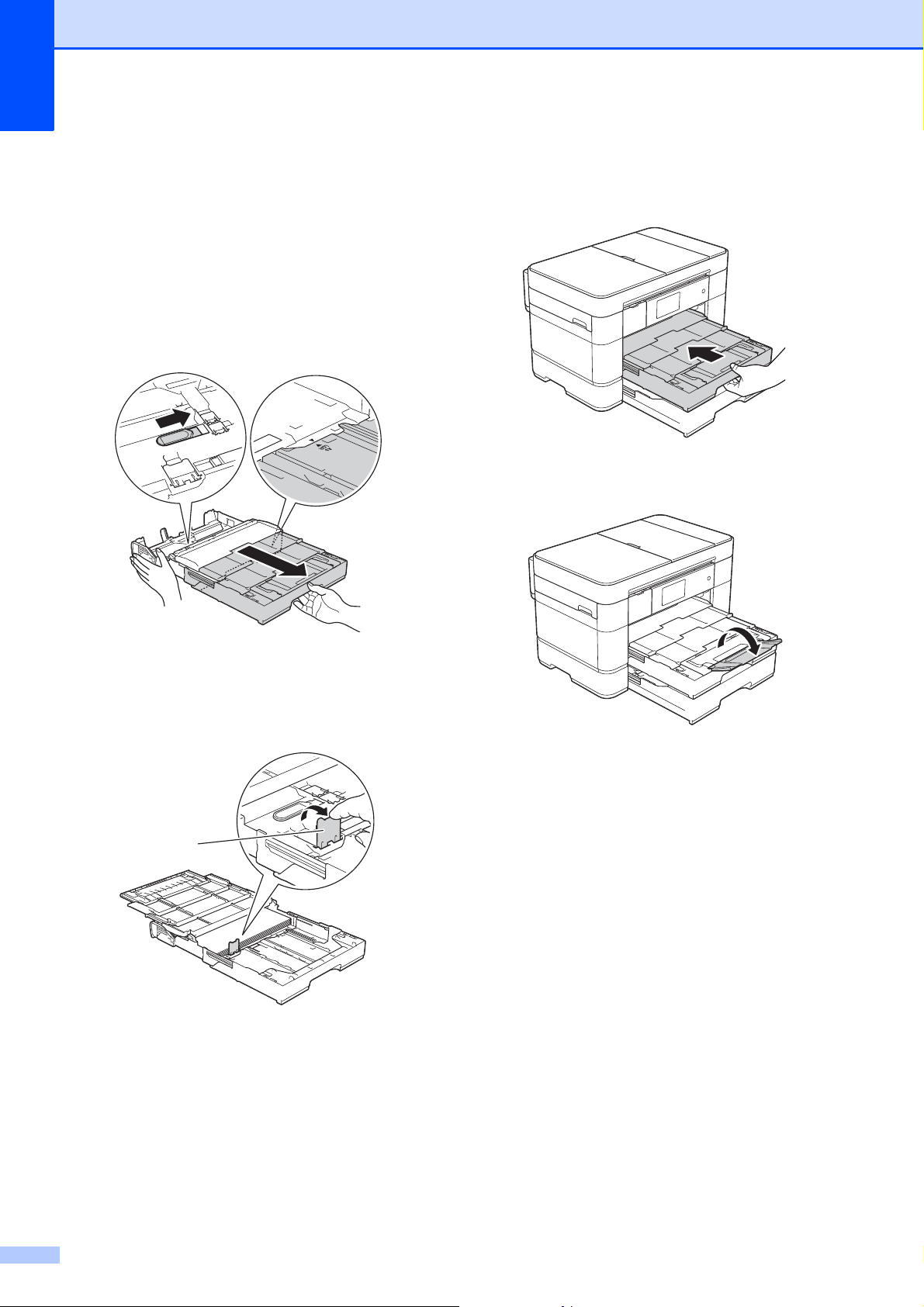
h Extend Tray #2 under Tray #1 to keep
the machine stable.
1 Pull Tray #2 out of the machine.
1
2
1
1
Loading paper
13
2
2 In the same way you extended
Tray #1, push the blue slider and
extend Tray #2 to Ledger or A3
size, so it is even with Tray #1.
3 Lift the A4/LTR stopper (1) if Letter
or A4 size paper is in Tray #2.
4 Slowly push Tray #2 completely
into the machine.
i Slowly push Tray #1 completely into the
machine.
j Unfold the paper support flap.
k Change the paper size setting in the
machine’s menu, if needed.
(See Set Paper Size and Type
on page 22.)
1
Chapter 2
14
Loading paper in paper
tray #2
2
Paper size and loading orientation 2
The paper size determines the orientation
when loading paper in Tray #2.
See the details in this chapter.
For information about other paper sizes,
see Online User’s Guide: Load Paper in
Paper Tray #2.
When using Ledger or A3 size paper:
2
a Pull Tray #2 completely out of the
machine. Rest the tray on a flat surface.
b Push the blue slider until it locks in the
release position, and then extend the
tray until the blue slider returns to and
locks in the default position. Make sure
the triangular mark inside the tray (1)
lines up with the mark (2) for
B4 JIS/LGL, as shown in the illustration.
Push the blue slider a second time until
it locks in the release position, and then
extend the tray until the blue slider
returns to and locks in the default
position. Make sure the triangular mark
inside the tray (1) lines up with the
mark (2) for A3/LGR, as shown in the
illustration.
Tray #2
A4
Letter
Landscape orientation
A3
Ledger
Legal
Portrait orientation
(Tray #2 is extended.)
1
2
1
2
Loading paper
15
2
c Gently press and slide the paper
guides (1) to fit the paper size.
Make sure the triangular mark (2) on the
paper guide (1) lines up with the mark
for the paper size you are using.
d Fan the stack of paper well to avoid
paper jams and misfeeds.
NOTE
Always make sure the paper is not curled.
e Gently load the paper into the paper tray
with the printing surface face down.
Portrait orientation
2
f Gently adjust the paper guides (1) to fit
the paper.
Make sure the paper guides touch the
sides of the paper.
g Check that the paper is flat in the tray
and below the maximum paper
mark (1).
Overfilling the paper tray may cause
paper jams.
h Slowly push Tray #2 completely into the
machine.
2
1
1
1
Chapter 2
16
i Extend Tray #1 over Tray #2 to
prevent printed pages from falling off
the output tray.
1 Pull Tray #1 out of the machine.
2 In the same way you extended
Tray #2, push the blue slider and
extend Tray #1 to Ledger or A3
size, so it is even with Tray #2.
j Open the output paper tray and lift the
A4/LTR stopper (1) if Letter or A4 size
paper is in Tray #1.
k Close the output paper tray cover and
slowly push Tray #1 completely into the
machine.
l Unfold the paper support flap.
m Change the paper size setting in the
machine’s menu, if needed.
(See Set Paper Size and Type
on page 22.)
1
Loading paper
17
2
Loading paper in the
multi-purpose tray (MP
Tray)
2
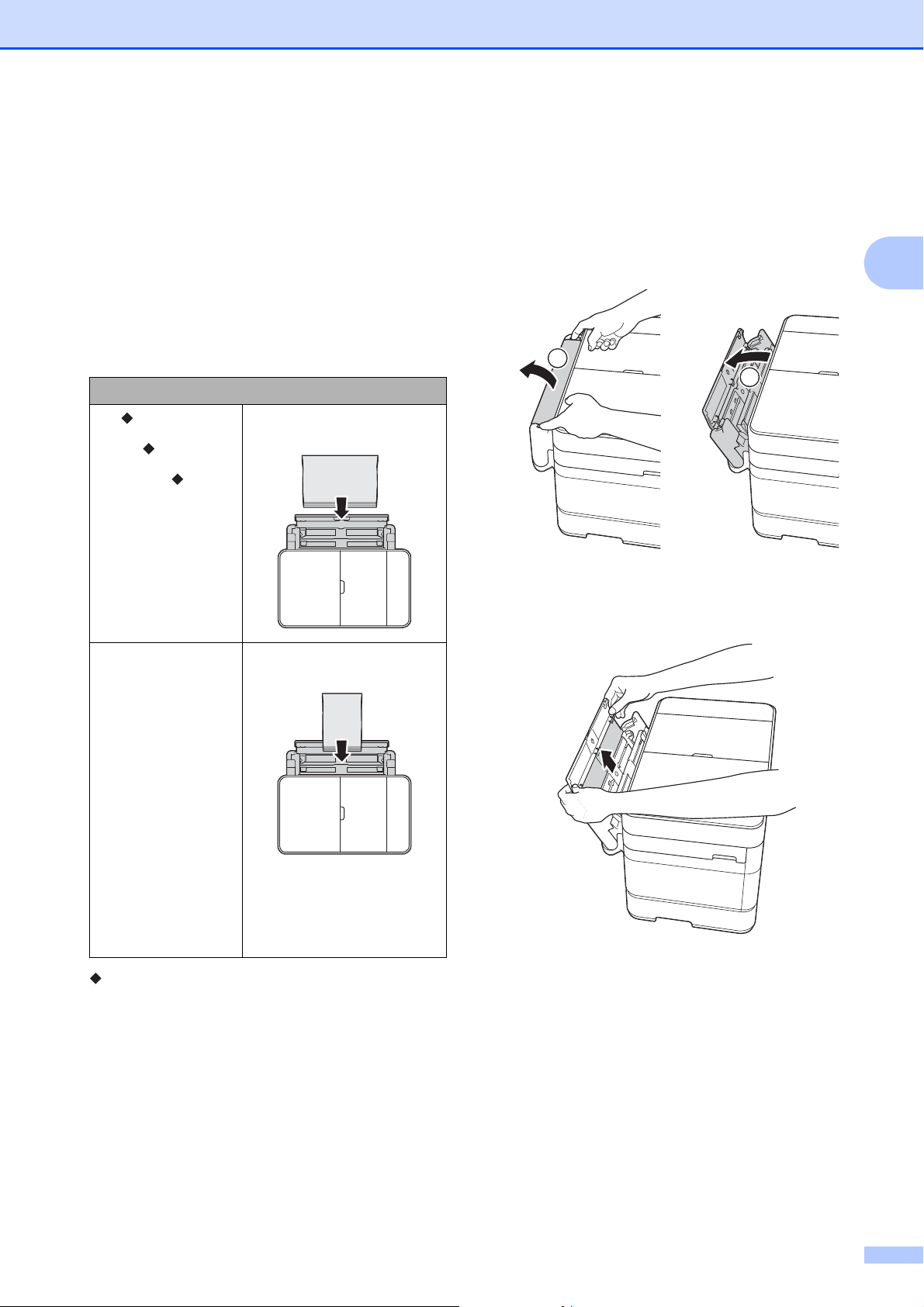
Paper size and loading orientation 2
The paper size determines the orientation
when loading paper in the MP Tray.
See the details in this chapter.
For information about other paper sizes,
see Online User’s Guide: Load Paper in the
Multi-purpose Tray (MP Tray).
When using Letter, A4 or Executive size
paper:
2
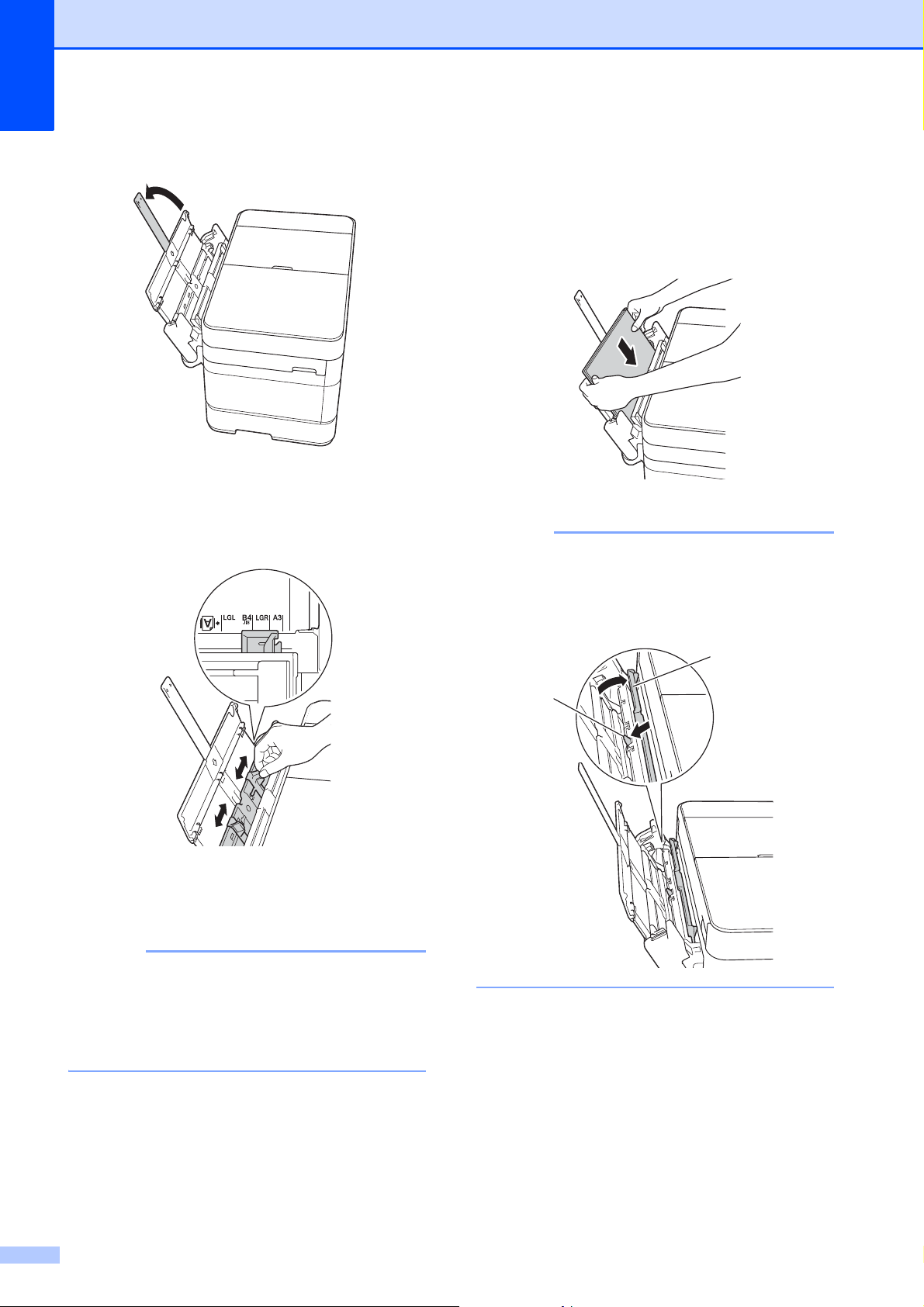
a Using both hands, use the finger holds
to open the upper cover (1) and MP
Tray (2).
b Using both hands, pull up the paper tray
until it locks into place.
MP Tray
A4
Letter
Executive
Landscape orientation
A3
Ledger
Legal
Folio
A5
A6
Photo
Photo L
Photo 2L
Index card
Envelope
Portrait orientation
1
2
Chapter 2
18
c Lift up the paper support.
d Gently press and slide the MP Tray
paper guides to the width of the paper
you are using.
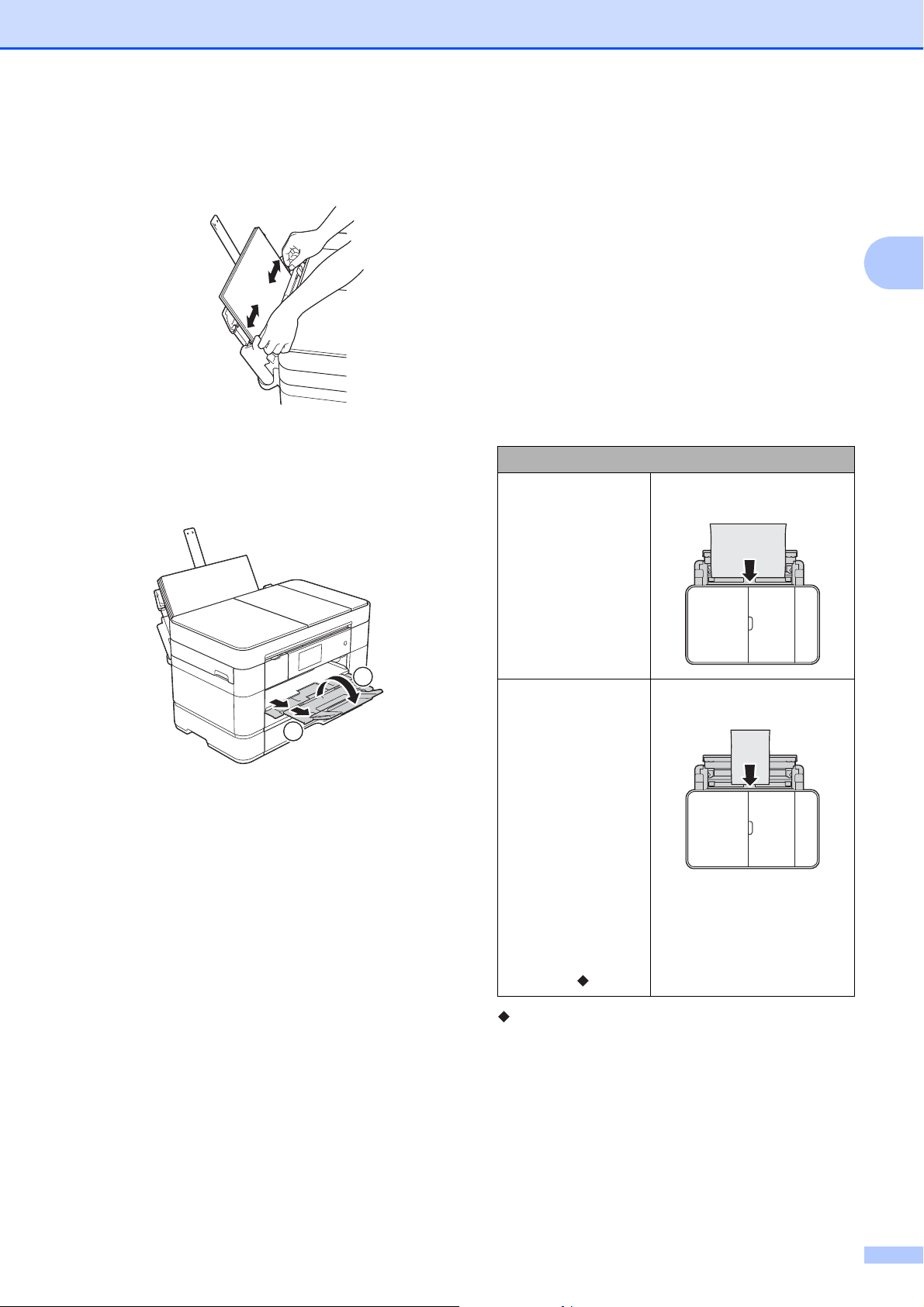
e Fan the stack of paper well to avoid
paper jams and misfeeds.
NOTE
• Always make sure the paper is not curled
or wrinkled.
• You can load up to 80 sheets of plain
paper.
f Gently load the paper in the MP Tray
with the printing surface face up.
Make sure you load the paper in the MP
Tray, and not the manual feed slot.
Landscape orientation
2
NOTE
If you cannot load the paper in the MP
Tray, lift the cover (1) forward and push
the release lever (2) toward the back of
the machine, and then load the paper.
1
2
Loading paper
19
2
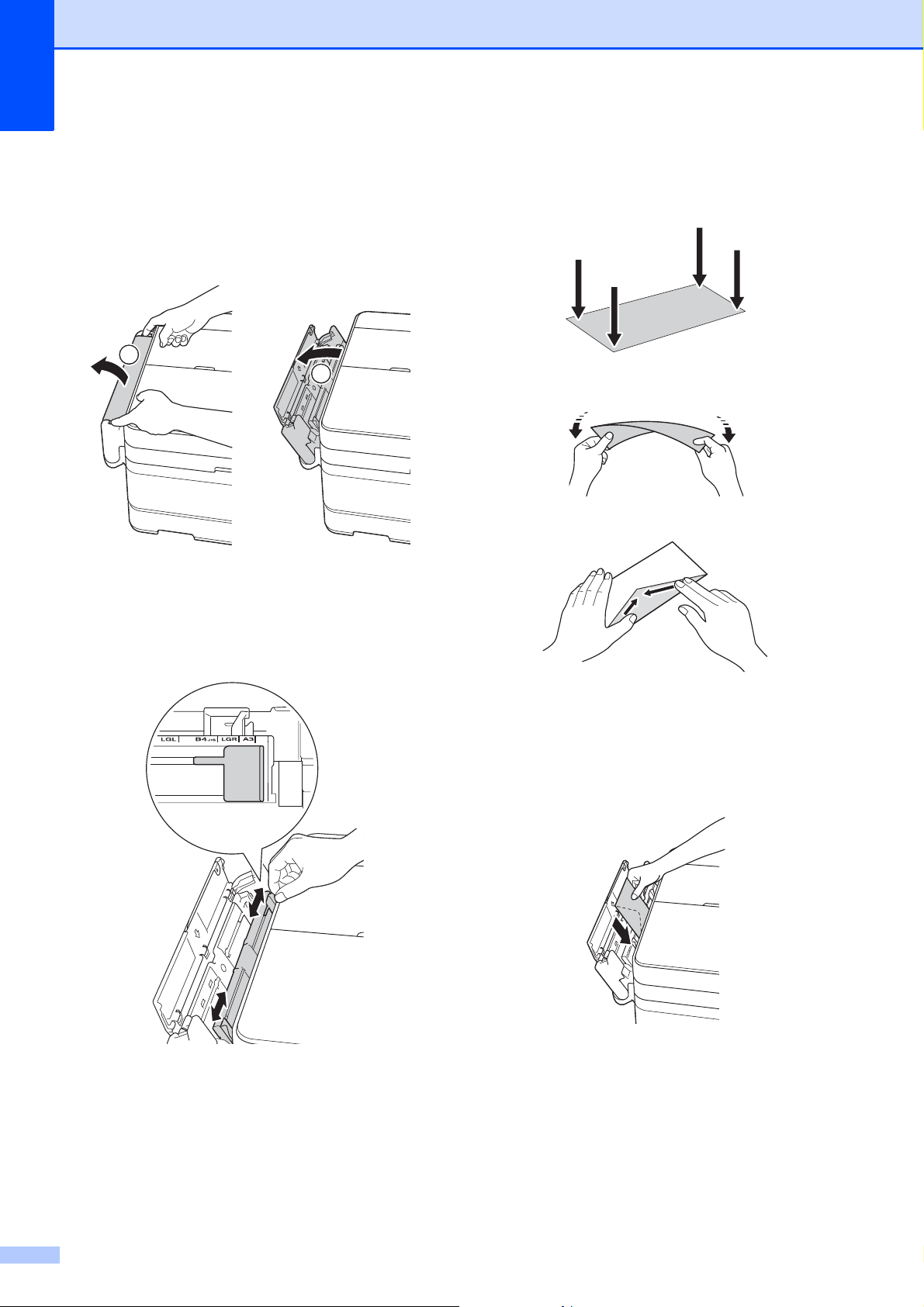
g Using both hands, gently adjust the MP
Tray paper guides to fit the paper.
h Pull out the paper support (1) until it
locks into place, and then unfold the
paper support flap (2).
i Change the paper size setting in the
machine’s menu, if needed.
(See Set Paper Size and Type
on page 22.)
Loading paper in the
manual feed slot
2
Use the manual feed slot to load special print
media, one sheet at a time.
The manual feed slot cannot be used for
printing faxes.
Paper size and loading orientation 2
The paper size determines the orientation
when loading paper in the manual feed slot.
See the details in this chapter.
For information about other paper sizes,
see Online User’s Guide: Load Paper in the
Manual Feed Slot.
1
2
Manual feed slot
A4
Letter
Executive
Landscape orientation
A3
Ledger
Legal
Folio
A5
A6
Photo
Photo L
Photo 2L
Index card
Envelope
Portrait orientation
Chapter 2
20
How to load envelopes: 2
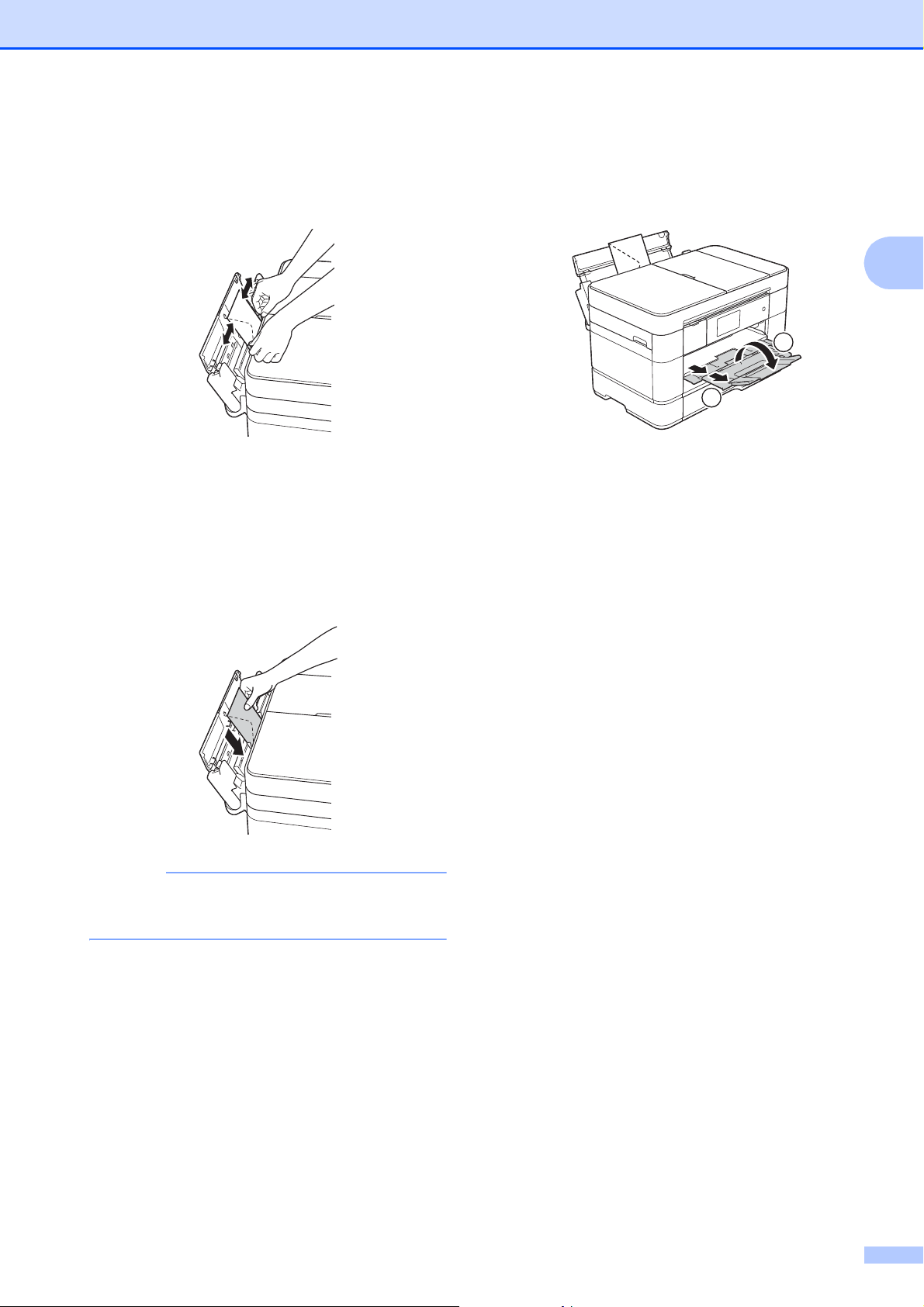
a Using both hands, use the finger holds
to open the upper cover (1) and MP
Tray (2).
b Slide the manual feed slot paper guides
to match the width of the envelope you
are using.
c Press the corners and sides of the
envelopes to make them as flat as
possible.
d Load only one envelope in the manual
feed slot with the printing surface
face up.
Portrait orientation
2
1
2
Loading paper
21
2
e Using both hands, gently adjust the
manual feed slot paper guides to fit the
envelope.
f Put one envelope in the manual feed
slot until the front edge touches the
paper feed roller. Let go of the envelope
when you hear the machine pull it in a
short distance. The Touchscreen
displays Manual Feed Slot ready.
NOTE
Push the envelope into the manual feed
slot until you feel it grab the envelope.
g Pull out the paper support (1) until it
locks into place, and then unfold the
paper support flap (2).
2
1
Chapter 2
22
Paper settings 2
Set Paper Size and Type 2
To get the best print quality, set the machine
for the type of paper you are using.
You can use the following sizes of paper for
copies: Letter, Legal, Ledger, Folio, A4, A5,
A3, Executive and
Photo (4" 6")/(10 15 cm), and the
following sizes for printing faxes: Letter,
Legal, Ledger, Folio, A4 and A3. When
loading a different size of paper in the
machine, you must change the paper size
setting at the same time so your machine can
fit an incoming fax on the page.
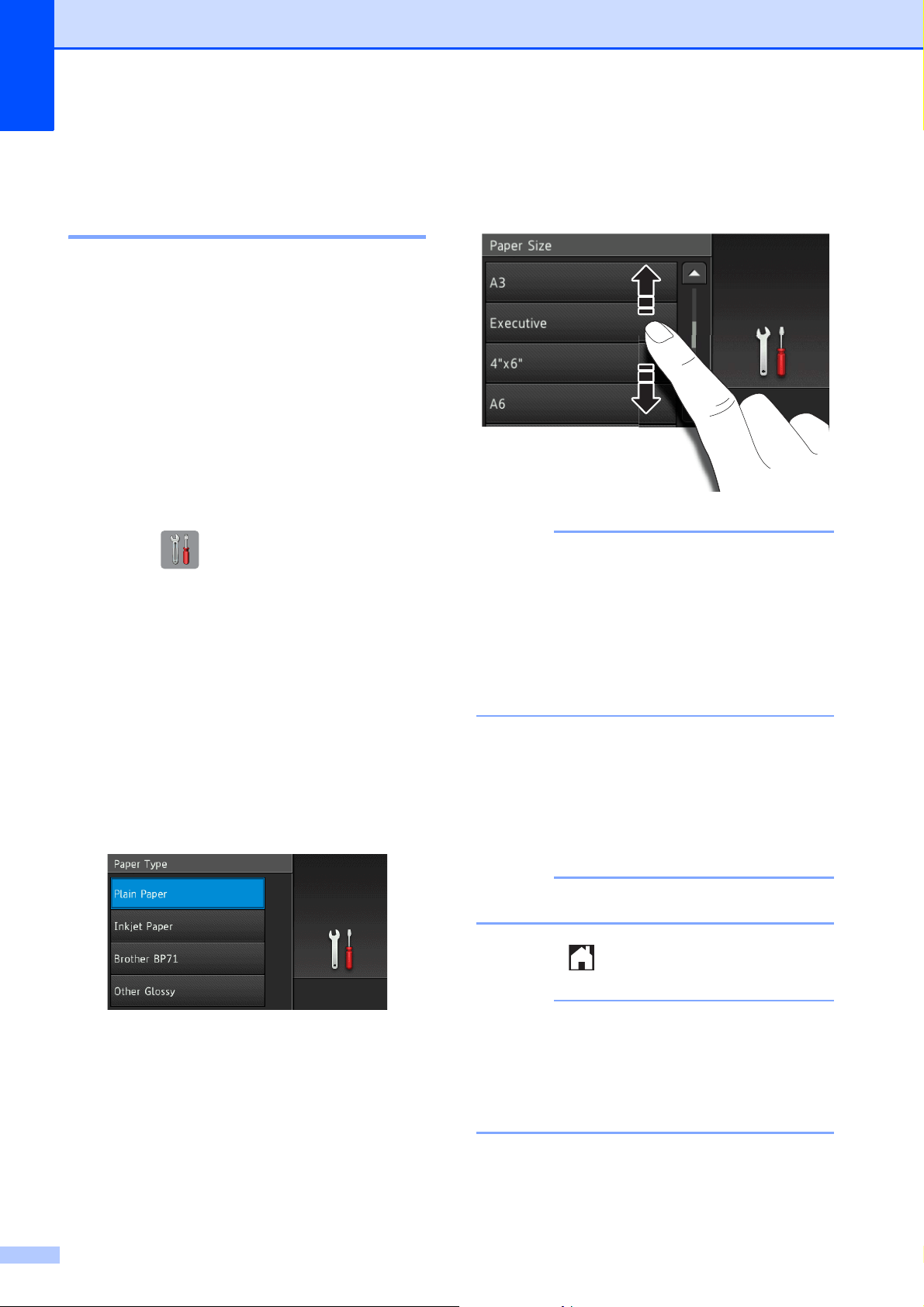
a Press (Settings).
b Press Tray Setting.
c Press Tray #1, Tray #2, or
MP Tray.
d Do one of the following:
If you pressed Tray #1 or
MP Tray, press Paper Type.
Press Plain Paper,
Inkjet Paper, Brother BP71 or
Other Glossy.
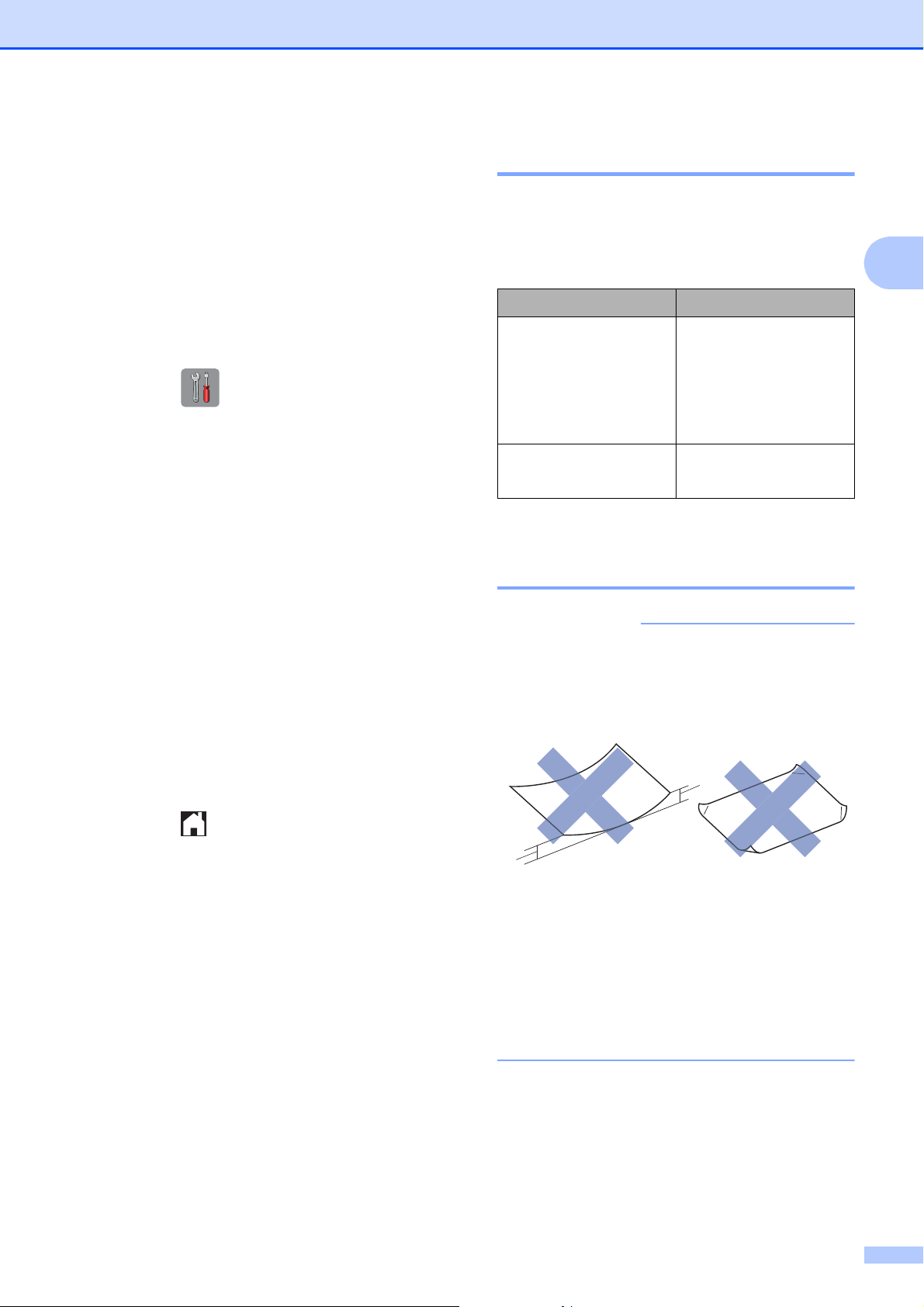
Press Paper Size.
Swipe up or down or press a or b to
display the option you want to set,
and press it.
NOTE
• When Brother BP71 or
Other Glossy is selected, Tray #1 is
not available for paper larger than Letter
or A4 size.
• If information about loading the paper in
the MP Tray appears on the Touchscreen,
read it and then press OK to confirm it.
If you selected Tray #2, press
Paper Size.
Swipe up or down or press a or b to
display the paper size options, and
then press the option you want.
NOTE
Only plain paper is available for Tray #2.
e Press .
NOTE
The machine ejects paper with the printed
surface face up onto the paper tray at the
front of the machine. When using glossy
paper, remove each sheet at once to
prevent smudging or paper jams.
Loading paper
23
2
Check Paper setting 2
If the Check Paper setting is set to On, the
machine displays a message asking if you
want to change the paper type and paper size
setting. This message will appear each time
you pull a tray out of the machine or load
paper in the MP Tray. The default setting is
On.
a Press (Settings).
b Press All Settings.
c Swipe up or down or press a or b to
display General Setup.
d Press General Setup.
e Swipe up or down or press a or b to
display Tray Setting.
f Press Tray Setting.
g Swipe up or down or press a or b to
display Check Paper.
h Press Check Paper.
i Press Off (or On).
j Press .
Recommended print media 2
To get the best print quality, we recommend
using the following paper:
Handling and using print
media 2
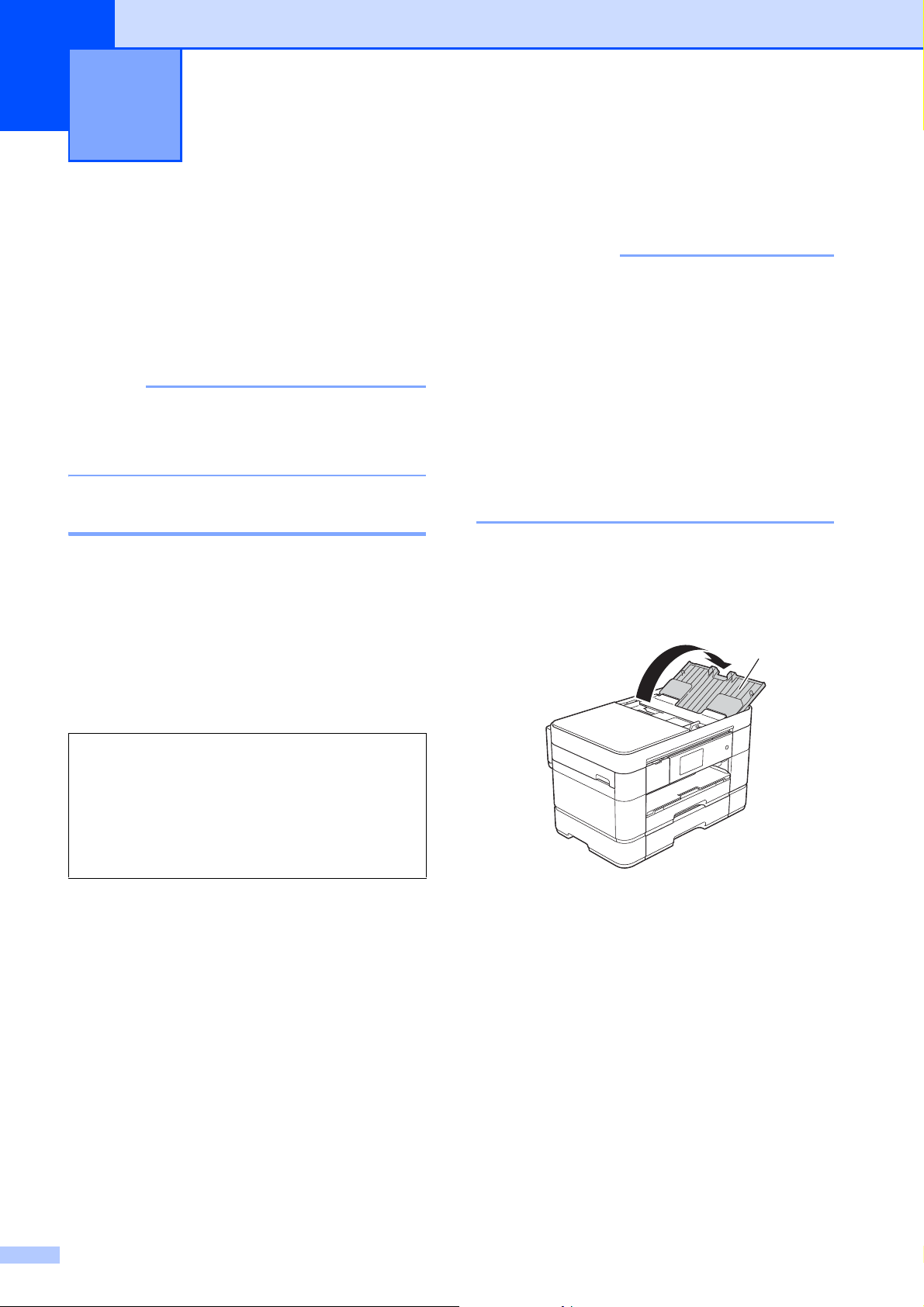
IMPORTANT
DO NOT use the following kinds of paper:
• Damaged, curled, wrinkled, or
irregularly shaped
1 0.08 in. (2 mm) or greater curl may
cause jams to occur.
• Extremely shiny or highly textured
• Paper that cannot be arranged
uniformly when stacked
• Paper made with a short grain
Brother paper
Paper Type Item
Premium Plus Glossy
Photo
Ledger BP71GLGR
Letter BP71GLTR
4" 6" BP71GP20
Plain Inkjet
Ledger BP60PLGR (USA only)
1
1
24
3
How to load
documents
3
You can send a fax, make copies, and scan
from the automatic document feeder (ADF)
and from the scanner glass.
NOTE
2-sided documents can be faxed, copied,
or scanned up to Legal size using the
ADF.
Using the ADF 3
The ADF can hold up to 50 pages and feed
each sheet individually. Use paper that is
within the sizes and weights shown in the
table. Always fan the pages before placing
them in the ADF.
Document Sizes and Weights 3
How to load documents 3
IMPORTANT
• DO NOT pull on the document while it is
feeding.
• DO NOT use paper that is curled,
wrinkled, folded, ripped, stapled, paper
clipped, glued, or taped.
• DO NOT use cardboard, newspaper, or
fabric.
• DO NOT leave a thick document on the
scanner glass. If you do this, the ADF may
jam.
Make sure documents with ink or correction
fluid are completely dry.
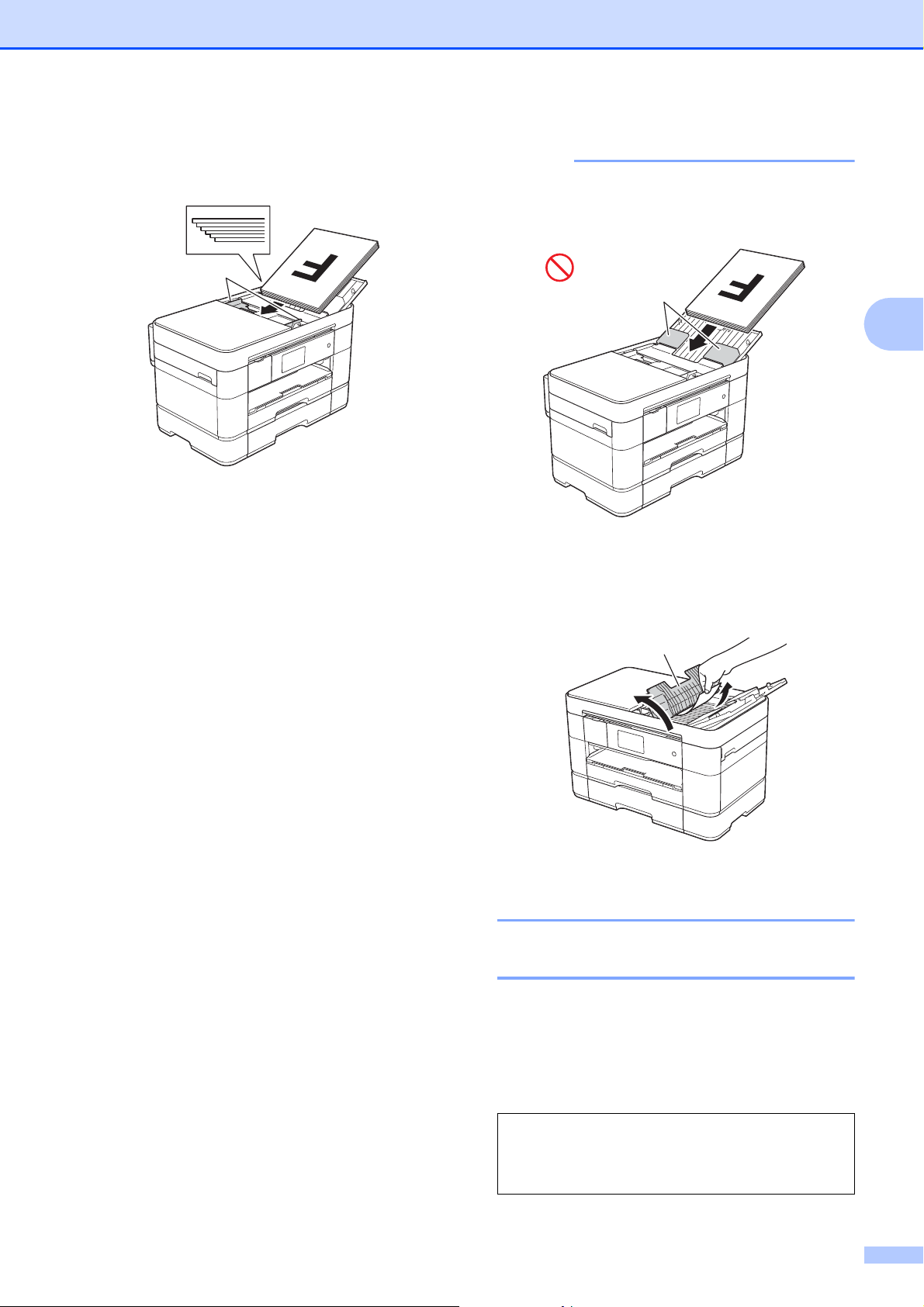
a Unfold the ADF document support (1).
b Fan the pages well.
Loading documents 3
Length: 5.8 to 14.0 in.
(148 to 355.6 mm)
Width: 5.8 to 8.5 in.
(148 to 215.9 mm)
Paper weight: 17 to 24 lb
(64 to 90 g/m
2
)
1
Loading documents
25
3
c Adjust the paper guides (1) to fit the
width of your document.
d Place your document face up, top edge
first in the ADF until the Touchscreen
displays ADF Ready. and you feel it
touch the feed rollers.
NOTE
• DO NOT load your document underneath
the supports (1).
• If you load a small size document and
cannot remove it, open the stack tray (1)
and then remove the document.
Close the stack tray before closing the
ADF document support.
Using the scanner glass 3
Use the scanner glass to fax, copy, or scan
one page at a time.
Document Sizes Supported 3
1
Length: Up to 11.7 in. (297 mm)
Width: Up to 8.5 in. (215.9 mm)
Weight: Up to 4.4 lb (2 kg)
1
1
Chapter 3
26
How to load documents 3
NOTE
To use the scanner glass, the ADF must
be empty and the ADF document support
must be closed.
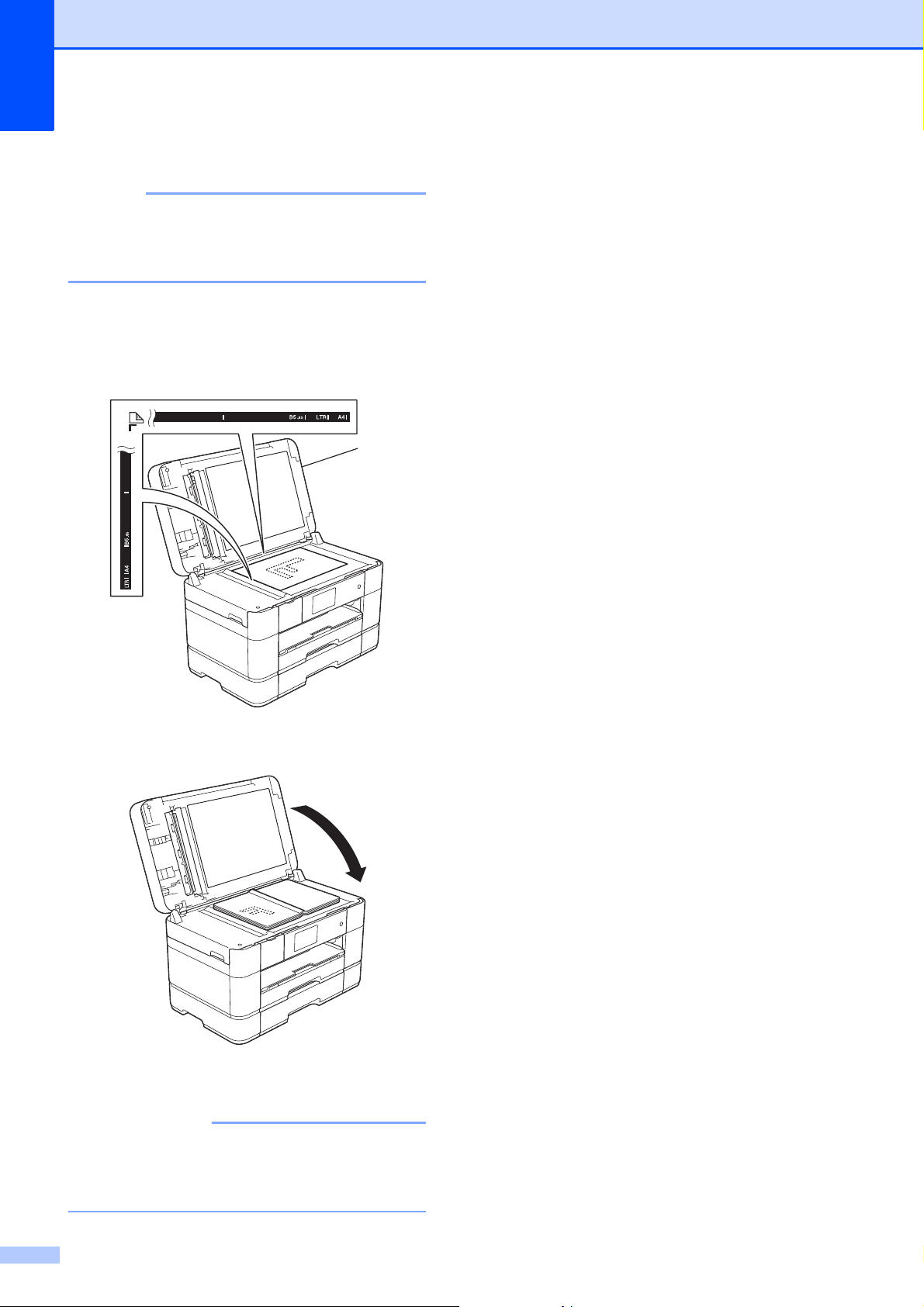
a Lift the document cover.
b Place the document face down in the
upper left corner of the scanner glass.
1 Document Cover
c Close the document cover.
IMPORTANT
If you are scanning a book or thick
document, DO NOT slam or press on the
document cover.
1

27
4
4
How to print a
document
4
The machine can receive and print data from
your computer. Before you can print from a
computer, you must install the printer driver.
For more information and detailed
instructions on printing, see Online User’s
Guide: Print.
a Install the Brother printer driver from the
Installer CD-ROM or from Brother
Solutions Center. (See Quick Setup
Guide.)
b From your application, select the Print
command.
c Select the name of your machine in the
Print dialog box and click Properties or
Preferences, depending on the
application you are using.
d Select the settings you want to change
in the Properties dialog box.
Commonly used settings include:
Media Type
Print Quality
Paper Size
Orientation
Color / Grayscale
Ink Save Mode
Scaling
2-sided / Booklet
e Click OK.
f Click Print (or OK depending on the
application you are using) to begin
printing.
Printing from a computer 4
28
5
How to copy 5
a Do one of the following to load your
document:
Place the document face up in the
ADF.
(See Using the ADF on page 24.)
Place the document face down on
the scanner glass.
(See Using the scanner glass
on page 25.)
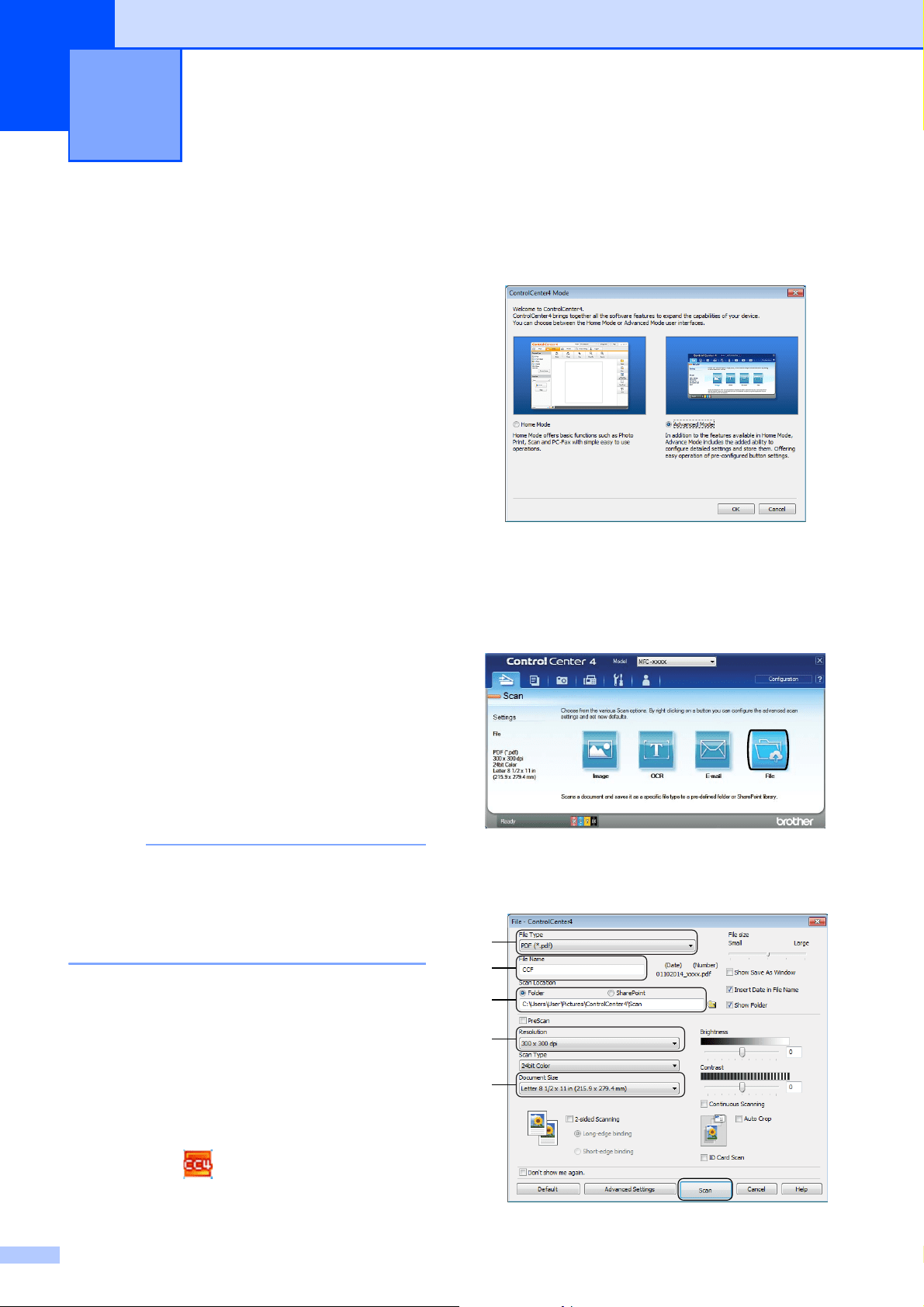
b Press (Copy).
The Touchscreen displays:
1 No. of Copies
Enter the number of copies:
Press - or + on the Touchscreen (as
shown above).
Press the displayed number of copies
on the Touchscreen, and then enter
the number of copies you want.
Press OK.
c If you want more than one copy, enter
the number (up to 99).
d Press Black Start or Color Start.
Stop copying 5
To stop copying, press .
Copy options overview5
To change copy options, press Copy, and
then press Options. Swipe up or down or
press a or b to scroll through the copy
settings. When the setting you want is
displayed, press it and choose your option.
When you have finished changing options,
press OK.
For more information about changing the
following copy options, see page 29.
Paper Type
Paper Size
Tray Select
For more information about changing the
following copy options, see Online User’s
Guide: Copy.
Quality
Enlarge/Reduce
Page Layout
2 in 1 (ID)
Stack/Sort
Density
Ink Save Mode
Thin Paper Copy
Book Copy
Watermark Copy
Remove Background Color
2-sided Copy
Copying 5
1

Copying
29
5
Paper Type 5
If you are copying on special paper, set the
machine for the type of paper you are using to
get the best print quality.
a Load your document.
b Press (Copy).
c Enter the number of copies you want.
d Press Options.
e Swipe up or down or press a or b to
display Paper Type.
f Press Paper Type.
g Press Plain Paper, Inkjet Paper,
Brother BP71 or Other Glossy.
NOTE
When Brother BP71 or Other Glossy is
chosen, Tray #1 is not available for the
paper larger than Letter or A4 size.
h Press OK.
i Press Black Start or Color Start.
Paper Size 5
If you are copying on paper other than Letter
size, you must change the Paper Size setting.
You can copy only on Letter, Legal, Ledger,
A4, A5, A3, Executive, Photo
(4" 6")/(10 15 cm), or Folio paper.
a Load your document.
b Press (Copy).
c Enter the number of copies you want.
d Press Options.
e Swipe up or down or press a or b to
display Paper Size.
f Press Paper Size.
g Swipe up or down or press a or b to
display Letter, Legal, Ledger, A4,
A5, A3, Executive, 4"x6" or Folio,
and then press the option you want.
NOTE
If you are using the manual feed slot,
insert only one sheet of paper at a time.
(See Loading paper in the manual feed
slot on page 19.)
h Press OK.
i Press Black Start or Color Start.
Tray Select 5
You can change the tray temporarily for the
next copy.
To change the default tray setting, see Online
User’s Guide: Change the Tray Setting for
Copy.
a Load your document.
b Press (Copy).
c Enter the number of copies you want.
d Press Options.
e Swipe up or down or press a or b to
display Tray Select.
f Press Tray Select.
g Press Tray #1, Tray #2, MP Tray,
or Auto Tray Select.
h Press OK.
i Press Black Start or Color Start.
30
6
Before scanning 6
To use the machine as a scanner, install a
scanner driver. If the machine is on a
network, configure it with a TCP/IP address.
Install the scanner drivers from the
Installer CD-ROM. (See Quick Setup
Guide.)
Configure the machine with a TCP/IP
address if network scanning does not
work.
For more information, see Online User’s
Guide: Configure Network Scanning for
Windows
®
.
How to scan a
document as a PDF file
using ControlCenter4
(Windows
®
) 6
For more information, see Online User’s
Guide: Scan Using ControlCenter4 Advanced
Mode (Windows
®
).
NOTE
• The screens on your PC may vary
depending on your model.
• This section is based on using Advanced
Mode in ControlCenter4.
ControlCenter4 is a software utility that lets
you access the applications you use most
often without having to manually launch
specific applications.
a Load your document. (See How to load
documents on page 24.)
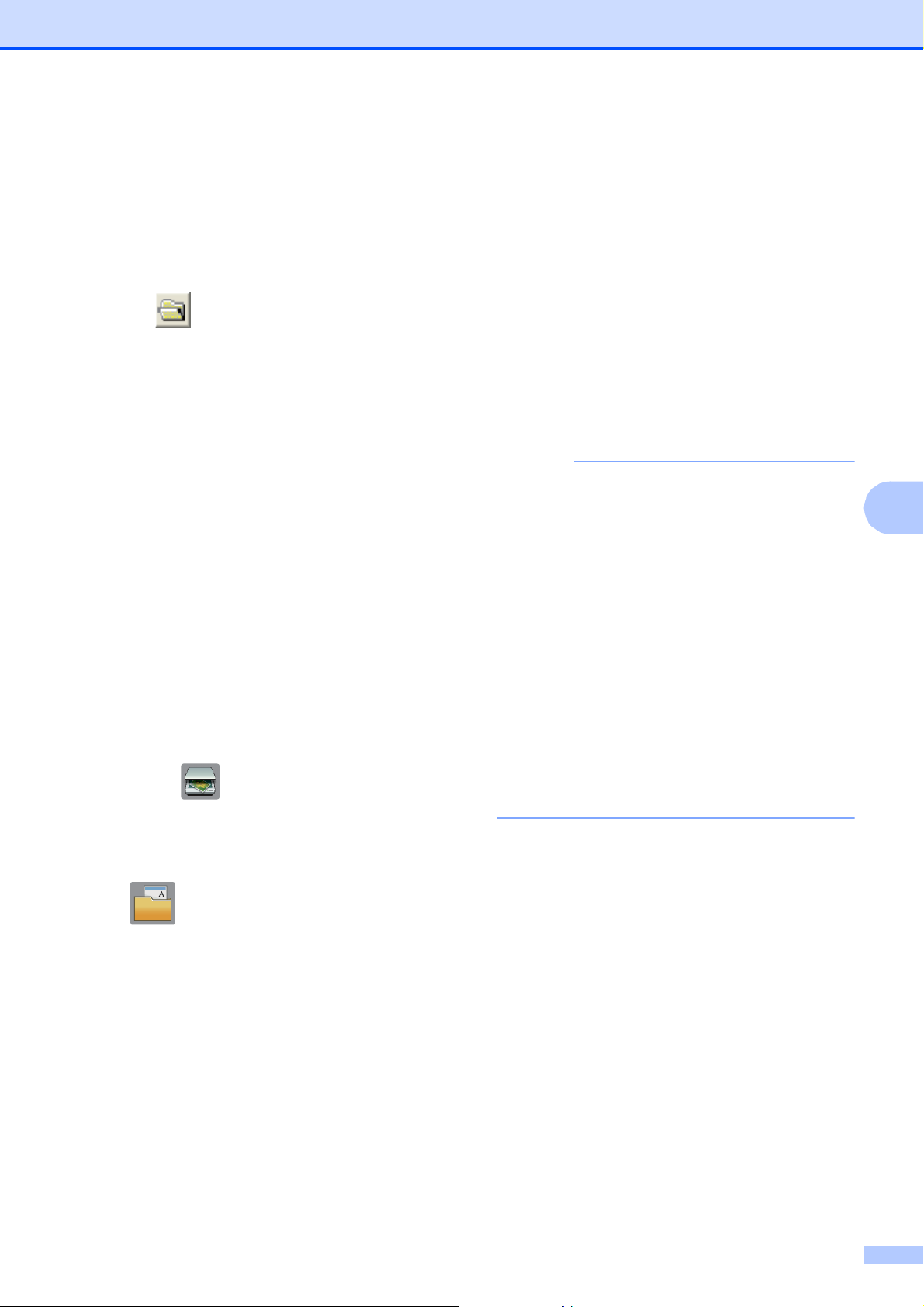
b Click the (ControlCenter4) icon in
the task tray, and then click Open.
c If the ControlCenter4 Mode screen
appears, click Advanced Mode, and
then click OK.
d Select your machine from the Model
drop-down list at the top of the screen.
e Click the Scan tab. Then click File.
The configuration dialog box appears.
Change the default settings if needed.
Scanning to a computer 6
1
2
3
4
5
Scanning to a computer
31
6
1 Select PDF (*.pdf) from the
File Type drop-down list.
2 Type a file name for the document.
3 Click Folder. You can save the file to
the default folder, or select your
preferred folder by clicking the
(Browse) button.
4 Select a scanning resolution from the
Resolution drop-down list.
5 Select the document size from the
Document Size drop-down list.
f Click Scan.
The machine starts scanning. The folder
where the file is saved opens
automatically.
How to scan a
document as a PDF file
using the Touchscreen
6
a Load your document. (See How to load
documents on page 24.)
b Press (Scan).
c Swipe left or right to display to File.
d Press to File.
is highlighted and appears in the
center of the Touchscreen.
e Press OK.
If the machine is connected to a
network, press the PC Name.
Do one of the following:
To use the default settings, go to
step j.
To change the default settings, go to
step f.
f Press Options.
g Press Scan Settings, and then press
Set at Device.
h Choose the settings for
2-sided Scan, Scan Type,
Resolution, File Type,
Scan Size, Skip Blank Page and
Remove Background Color if
needed.
i Press OK.
j Press Start.
The machine starts scanning.
NOTE
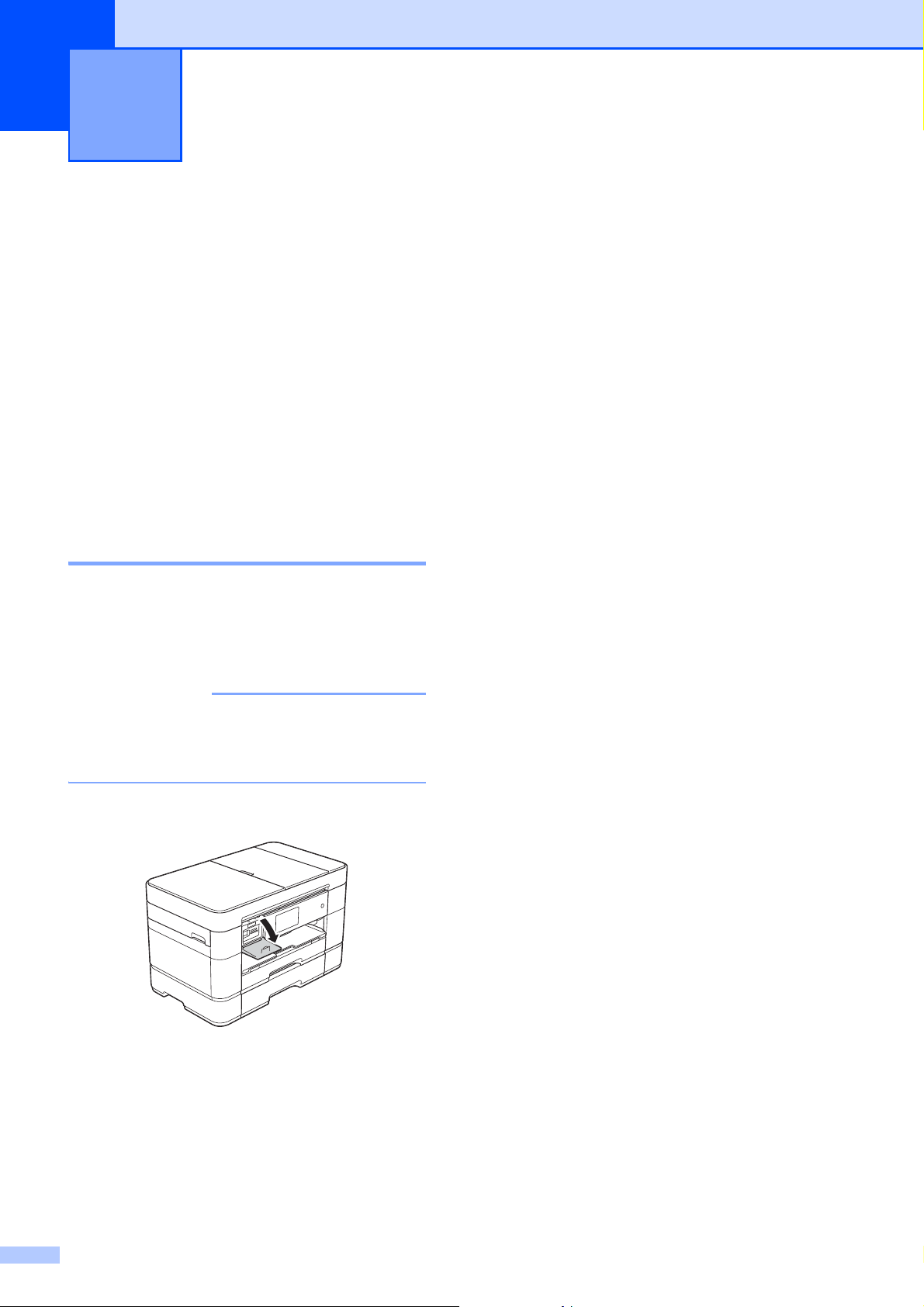
The following scan modes are available:
• to OCR
• to File
• to Image
• to Media
• to E-mail
• to E-mail Server
• to FTP
• to Network
• to Web
• WS Scan
1
(Web Services Scan)
1
Windows
®
users only. (Includes Windows Vista
®
SP2 or later, Windows
®
7 and Windows
®
8)
For more information, see Online User’s Guide:
Scan Using Web Services from the Brother Machine
(Windows Vista
®
SP2 or greater, Windows
®
7 and
Windows
®
8).
32
7
PhotoCapture Center
operations
(PHOTO mode)
7
Even if your machine is not connected to your
computer, you can print photos directly from
digital camera media or a USB flash drive.
How to print images 7
View Photos 7
You can preview your photos on the
Touchscreen before you print them. If your
photos are large files, there may be a delay
before each photo appears.
IMPORTANT
DO NOT insert more than one media card
in the machine at the same time. Doing
this may damage the machine.
a Open the media slot cover.
b Put the memory card or USB flash drive
in the correct slot.
c Press Photo.
d Swipe left or right to display
View Photos.
e Press View Photos.
Press OK.
f Do one of the following:
To choose the photos you want to
print, or to print multiple copies of an
image, go to step g.
To print all the photos, press
Print All. Press Yes to confirm.
Go to step j.
g Swipe left or right or press d or c to
display the photo you want to print, and
then press it.
h Enter the number of copies:
Press - or + on the Touchscreen.
Press the number of copies to
display the dial pad on the
Touchscreen, and then use it to enter
the number of copies. Press OK.
Press OK.
i Repeat steps g and h until you have
selected all the photos you want to print.
j Press OK.
k Read and confirm the displayed list of
options.
PhotoCapture Center: Printing
photos from a memory card or
USB flash drive
7

PhotoCapture Center: Printing photos from a memory card or USB flash drive
33
7
l Press Print Settings to change the
paper type and paper size.
Swipe up or down or press a or b to
display Paper Type and press it,
and then press the option you want.
Swipe up or down or press a or b to
display Paper Size and press it,
and then press the option you want.
Change other print settings if needed.
When finished, press OK.
m Press Start.
n Wait until the message on the
Touchscreen disappears after printing,
and then remove the memory card or
USB flash drive from the media slot.
PhotoCapture Center
print settings overview
7
The Print Settings you change are temporary
for your current printout. The machine returns
to its default settings after printing is
complete.
NOTE
You can save the print settings you use
most often by setting them as the default.
(See Online User’s Guide: Set Your
Changes as the New Defaults for Photos.)

34
8
Telephone services
overview
8
NOTE
Important information and setup
instructions for the telephone services are
in the Online User’s Guide. To download
the Online User’s Guide, visit at
solutions.brother.com/manuals
and go to
your model’s Manual page.
Your machine supports the Caller ID and
Distinctive Ring subscriber telephone
services that some telephone companies
offer.
Features like VoIP, Voice Mail, Call Waiting,
Call Waiting/Caller ID, RingMaster,
answering services, alarm systems or other
custom features on one telephone line may
create problems with the operation of your
machine. If you have Voice Mail on your
telephone line, please read the following
carefully.
Voice mail 8
If you have voice mail service and your
Brother machine on the same line, they will
conflict with one another when receiving
incoming calls. If you want the Brother
machine to share a single line with your voice
mail, you must either put the Brother machine
in Manual mode or subscribe to your
telephone company’s Distinctive Ring
service.
For more information and setup instructions:
(See How to choose the correct Receive
Mode on page 39.)
(See Distinctive Ring on page 34.)
(See Online User’s Guide: Voice Mail.)
Distinctive Ring 8
Distinctive Ring is a telephone-company
service that allows you to have two different
phone numbers on a single line. Each
telephone number has its own ring pattern.
You can program your Brother machine to
automatically receive faxes on one of the two
numbers.
For more information and setup instructions:
(See Online User’s Guide: Distinctive
Ring.)
(See Online User’s Guide: Register the
Distinctive Ring Pattern.)
(See Online User’s Guide: Turn off
Distinctive Ring.)
Voice over Internet Protocol
(VoIP) 8
VoIP is a phone system that uses an Internet
connection instead of a traditional telephone
line. Telephone providers frequently bundle
VoIP with Internet and cable services.
Your Brother machine may not work with
some VoIP systems.
For more information and setup instructions:
(See Online User’s Guide: Voice Over
Internet Protocol (VoIP/Telephone Line
Interference).)
(See Telephone Line Interference or VoIP
System on page 77.)
Telephone services and external
devices
8

Telephone services and external devices
35
8
Connecting an external
telephone answering device
(TAD) 8
Your Brother machine can automatically
receive faxes when it shares a line with an
external TAD. To receive faxes successfully,
you must connect the TAD to the jack labeled
EXT. on the Brother machine and set the
machine’s Receive Mode to External TAD.
When you record the outgoing message on
your external TAD, we recommend recording
5 seconds of silence at the beginning of
message, and limiting your speaking to
20 seconds.
For more information and setup instructions:
(See Online User’s Guide: External TAD
(Telephone Answering Device).)
(See Online User’s Guide: Connect an
External TAD.)
(See Online User’s Guide: Record an
Outgoing Message (OGM) on the External
TAD.)
External and extension
telephones 8
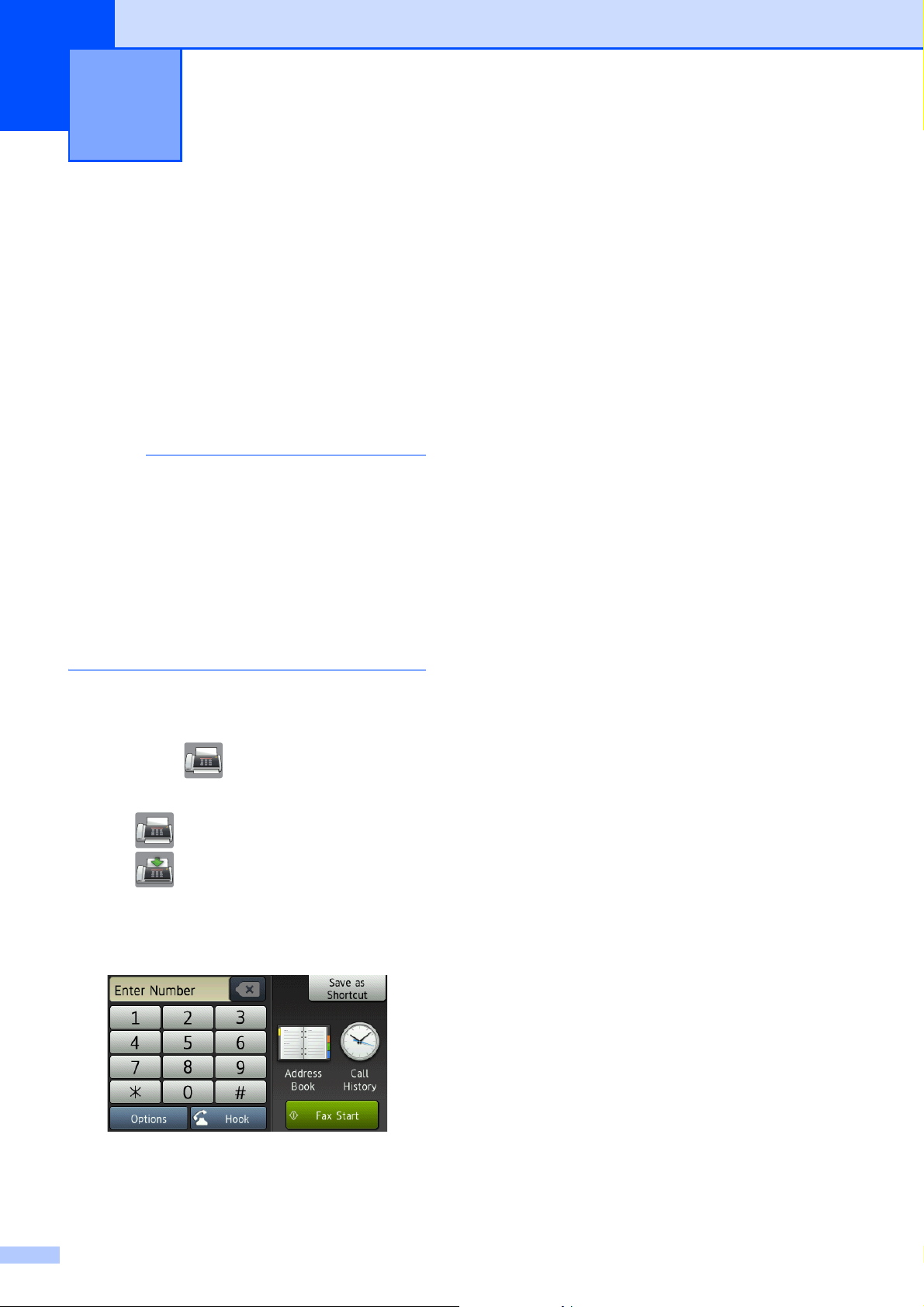
You can connect a separate telephone to the
jack labeled EXT. on the Brother machine. If
you answer an incoming fax on the
telephone, you can make the machine
receive it by pressing l 51, or by pressing
Fax Start, and then choosing Receive.
If you answer an incoming fax on an
extension telephone that shares the line with
the Brother machine, you can transfer the fax
to the machine by pressing l 51.
(See Online User’s Guide: External and
Extension Telephones.)
36
9
How to send a fax 9
a Do one of the following:
Place the document face up in the
ADF. (See Using the ADF
on page 24.)
Place your document face down on
the scanner glass. (See Using the
scanner glass on page 25.)
NOTE
• To send faxes with multiple pages, use the
ADF.
• If you send a black and white fax from the
ADF when the memory is full, it will be
sent in real time.
• You can use the scanner glass to fax
pages of a book one at a time. The
document can be up to Letter or A4 size.
b Do one of the following:
When Fax Preview is set to Off,
press (Fax).
When Fax Preview is set to On, press
(Fax) and then
(Sending Faxes).
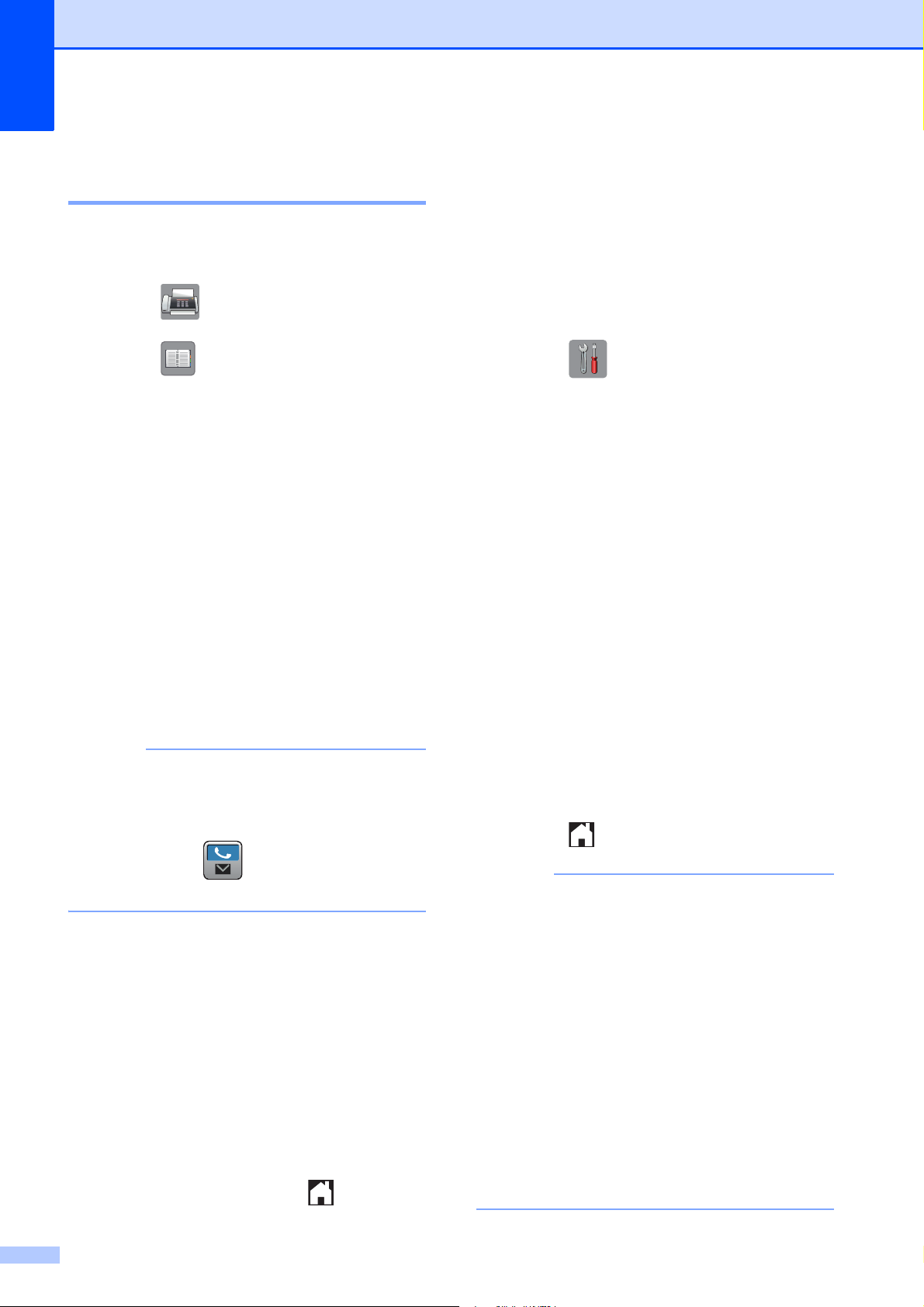
The Touchscreen displays:
c To change the fax-sending settings,
press Options. Swipe up or down or
press a or b to scroll through the fax
settings. When the setting you want is
displayed, press it and choose your new
option. When finished changing options,
press OK.
For more advanced fax-sending
operations and settings, see Online
User’s Guide: Send a Fax and Fax
Reports.
Fax Resolution
Contrast
2-sided Fax
Glass Scan Size
Color Fax Transmission
Preview Outgoing Fax
Faxing at the end of a call
Broadcasting
Real Time Transmission
Overseas Mode
Delayed Fax
Batch Transmission
Canceling Waiting Jobs
Set New Default
Factory Reset
Polled Transmit
Transmission Verification Report
Sending a fax 9

Sending a fax
37
9
d Enter the fax number.
Using the dial pad on the
Touchscreen.
Using (Address Book)
Address Book
Using (Call History)
Redial
Outgoing Call
Caller ID history
NOTE
• To preview a fax message before sending
it, set Preview to On.
(See Online User’s Guide: Preview an
Outgoing Fax.)
• If your network supports the LDAP
protocol you can search for fax numbers
and email addresses on your server.
For more information, see Online User’s
Guide: Perform an LDAP Search Using
the Control Panel.
e Press Fax Start.
Faxing from the ADF 9
The machine scans and sends the
document.
Faxing from the scanner glass 9
If you select Black in the
Color Setting (default setting),
the machine starts scanning the first
page. Go to step f.
If you select Color in the
Color Setting, the Touchscreen
asks if you want to send a color fax.
Press Yes (Color fax) to
confirm. The machine dials and
sends the page.
f When the Touchscreen displays
Next Page?, do one of the following:
To send a single page, press No.
The machine sends the document.
To send more than one page, press
Yes and go to step g.
g Place the next page on the scanner
glass.
Press OK.
The machine scans the page. (Repeat
steps f and g for each additional
page.)
Stop faxing 9
To stop faxing, press .
How to store numbers 9
Store fax and telephone numbers in your
machine’s Address Book or create Groups of
fax recipients so you can broadcast a fax to
many people at once.
NOTE
Even if you lose electrical power, numbers
stored in your Address Book will not be
lost.
Storing a pause 9
When storing Address Book numbers, you
can insert one or more 3.5-second pauses by
pressing Pause on the Touchscreen.
Chapter 9
38
Storing Address Book
numbers 9
Your Address Book can hold up to 100
entries, each with up to two numbers.
a Press (Fax).
b Press (Address Book).
c Press Edit.
d Press Add New Address.
e Press Name.
f Enter the name (up to 16 characters)
using the keyboard on the Touchscreen.
Press OK.
(See Entering Text on page 8.)
g Press Address 1.
h Enter the first fax or telephone number
(up to 20 digits) using the Touchscreen.
Press OK.
NOTE
If you downloaded Internet Fax (I-Fax):
To store an email address to use with
Internet Fax (I-Fax) or Scan to E-mail
server, press and enter the email
address, and then press OK.
i To store a second fax or telephone
number, press Address 2.
Enter the fax or telephone number (up to
20 digits) using the Touchscreen.
Press OK.
j Press OK to confirm.
k Do one of the following:
To store another Address Book
number, repeat steps c to j.
When finished, press .
How to set your
Station ID
9
Set your machine’s Station ID so that the date
and time appear on each fax you send.
If you are not using this machine for faxing,
the Station ID is not required.
a Press (Settings).
b Press All Settings.
c Swipe up or down or press a or b to
display Initial Setup.
Press Initial Setup.
d Press Station ID.
e Press Fax.
f Enter your fax number (up to 20 digits)
using the Touchscreen.
Press OK.
g Press Name.
h Enter your name (up to 20 characters)
using the Touchscreen.
Press OK.
(See Entering Text on page 8.)
i Press .
NOTE
(USA only)
The Telephone Consumer Protection Act
of 1991 makes it unlawful for any person
to use a computer or electronic device to
send any message via a telephone fax
machine unless such messages clearly
contain, in a margin at the top or bottom of
each transmitted page, or on the first page
of the transmission, the date and time it is
sent and an identification of the business
or other entity or other individual sending
the message and the telephone number of
the sending machines or such business,
other entity or individual.
39
10
10
Receive Modes 10
How to choose the correct Receive Mode 10
The correct Receive Mode is determined by the external devices and telephone subscriber
services (such as Voice Mail and Distinctive Ring) you will be using on the same line as the
Brother machine.
Receiving a fax 10
Will you be using a Distinctive Ring number for receiving faxes?
Brother uses the term “Distinctive Ring” but different telephone companies may have other names for this
service, such as Custom Ringing, RingMaster, Personalized Ring, Teen Ring, Ident-A-Ring, Ident-A-Call,
Data Ident-A-Call, Smart Ring and SimpleBiz Fax & Alternate Number Ringing. (See Online User’s Guide:
Distinctive Ring.)
Will you be using Voice Mail on the same telephone line as your Brother machine?
If you have Voice Mail on the same telephone line as your Brother machine, there is a strong possibility
that Voice Mail and the Brother machine will conflict with each other when receiving incoming calls.
(See Online User’s Guide: Voice Mail.)
Will you be using a Telephone Answering Device on the same telephone line as your Brother
machine?
Your external telephone answering device (TAD) will automatically answer every call. Voice messages are
stored on the external TAD and fax messages are printed. Choose External TAD as your Receive Mode.
(See Online User’s Guide: External TAD (Telephone Answering Device).)
Will you be using your Brother machine on a dedicated fax line?
Your machine automatically answers every call as a fax. Choose Fax Only as your Receive Mode.
(See Fax Only on page 40.)
Will you be using your Brother machine on the same line as your telephone?
Do you want to receive voice calls and faxes automatically?
Fax/Tel mode is used when sharing the Brother machine and your telephone on the same line.
Choose Fax/Tel as your Receive Mode. (See Fax/Tel on page 40.)
Important Note: You cannot receive voice messages on either Voice Mail or an answering machine
with Fax/Tel mode.
Do you expect to receive very few faxes?
Choose Manual as your Receive Mode. You control the telephone line and must answer every call
yourself. (See Manual on page 41.)
Chapter 10
40
To set the Receive Mode, follow the instructions:
a Press (Settings).
b Press All Settings.
c Swipe up or down or press a or b to display Fax.
d Press Fax.
e Swipe up or down or press a or b to display Setup Receive.
f Press Setup Receive.
g Swipe up or down or press a or b to display Receive Mode.
h Press Receive Mode.
NOTE
If you cannot change the Receive Mode, make sure the Distinctive Ring feature is set to Off.
(See Online User’s Guide: Register the Distinctive Ring Pattern.)
i Press Fax Only, Fax/Tel, External TAD or Manual.
j Press .
Receive Modes overview 10
Some Receive Modes answer automatically (Fax Only and Fax/Tel). You may want to change
the Ring Delay before using these modes. (See Ring Delay on page 42.)
Fax Only 10
Fax Only mode will automatically answer every call as a fax call.
Fax/Tel 10
Fax/Tel mode recognizes and manages incoming fax and voice calls:
Faxes will be received automatically.
Voice calls will start the F/T Ring to alert you to answer the call. The F/T Ring is a fast
pseudo/double-ring made by your machine.
(See F/T Ring Time (Fax/Tel mode only) on page 42.)
(See Ring Delay on page 42.)

Receiving a fax
41
10
Manual 10
Manual mode turns off all automatic answering operations unless you are using the Distinctive
Ring feature.
To receive a fax in Manual mode, lift the handset of the external telephone or press Hook. When
you hear fax tones (short repeating beeps), press Fax Start and choose Receive. The Easy
Receive feature lets you receive faxes by lifting a handset on the same line as the machine.
(See Online User’s Guide: Set Easy Receive.)
External TAD 10
External TAD mode lets an external answering device manage your incoming calls:
Faxes will be received automatically.
Voice callers can record a message on the external TAD.
To connect your External TAD, see Online User’s Guide: Connect an External TAD.

Chapter 10
42
Receive Mode settings 10
Ring Delay 10
Ring Delay sets the number of times the
machine rings before it answers in Fax Only
or Fax/Tel mode. If you have external or
extension telephones on the same line as the
machine, keep the Ring Delay setting of four
rings.
(See Online User’s Guide: Operation from
External and Extension Telephones and Set
Easy Receive.)
a Press (Settings).
b Press All Settings.
c Swipe up or down or press a or b to
display Fax.
d Press Fax.
e Swipe up or down or press a or b to
display Setup Receive.
f Press Setup Receive.
g Swipe up or down or press a or b to
display Ring Delay.
h Press Ring Delay.
i Swipe up or down or press a or b to
display 0, 1, 2, 3, or 4, and then press
the option you want.
If you select 0, the machine will answer
immediately and the line will not ring at
all.
j Press .
F/T Ring Time
(Fax/Tel mode only) 10
When your machine receives a call, you and
your caller will hear the normal telephone
ring. The number of rings is set in the Ring
Delay setting.
If the call is a fax, your machine will print or
store it. If the call is a voice call, the machine
will sound the F/T Ring (a fast
pseudo/double-ring) for the number of
seconds you have set for the F/T Ring Time.
If you hear the F/T Ring, it means you have a
voice caller on the line.
Because the F/T Ring is made by the
machine, extension and external telephones
will not ring, although you can still answer the
call on any telephone by using a remote code.
(See Online User’s Guide: Use the Remote
Codes.)
a Press (Settings).
b Press All Settings.
c Swipe up or down or press a or b to
display Fax.
d Press Fax.
e Swipe up or down or press a or b to
display Setup Receive.
f Press Setup Receive.
g Swipe up or down or press a or b to
display F/T Ring Time.
h Press F/T Ring Time.
i Press 20, 30, 40 or 70 seconds.
j Press .
NOTE
Even if the caller hangs up during the
pseudo/double-ringing, the machine will
continue to ring for the set time.
43
A
A
How to clean and
check the machine
A
Cleaning the scanner A
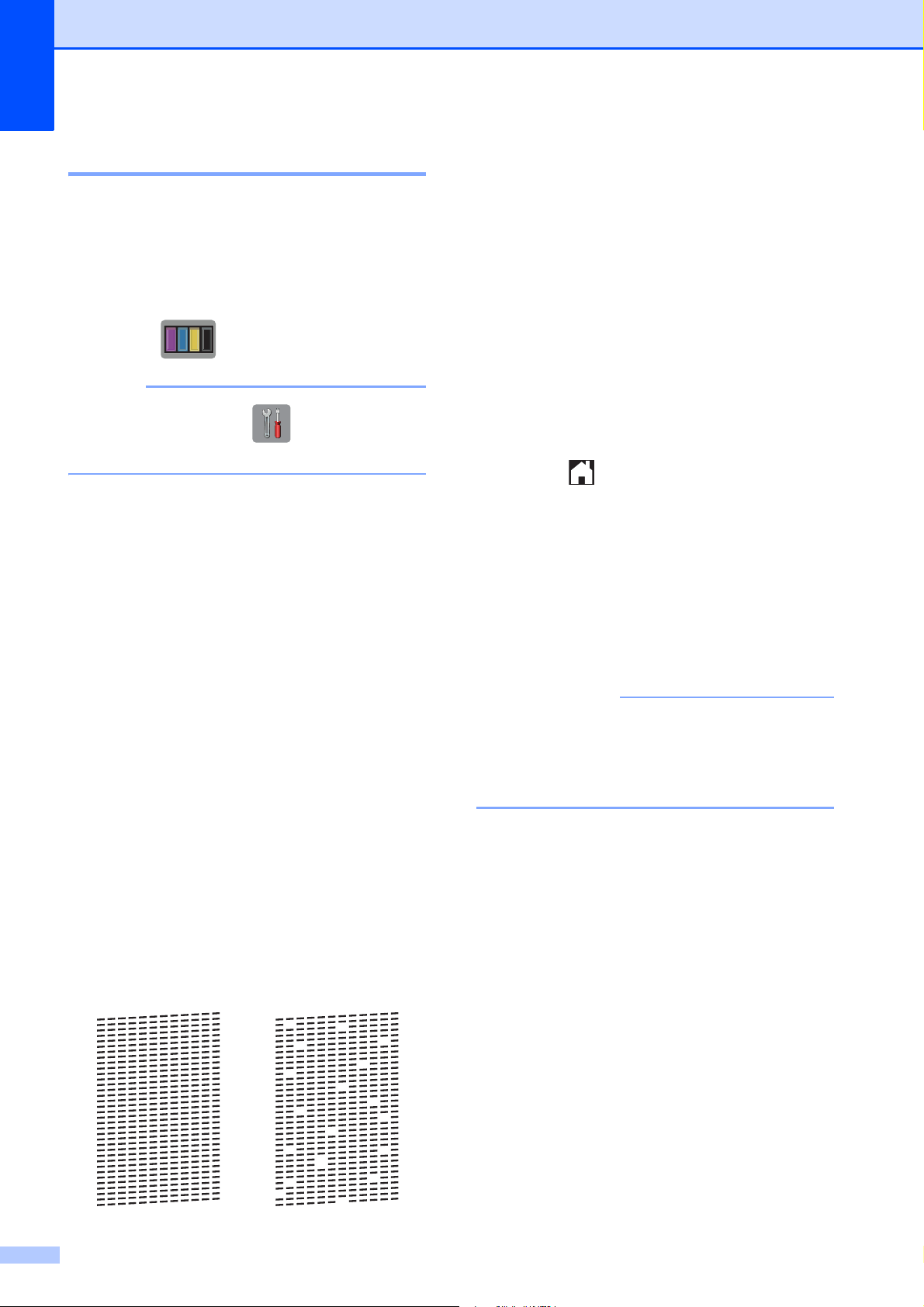
a Unplug the machine from the AC power
outlet.
b Lift the document cover (1). Clean the
scanner glass (2) and the white
plastic (3) with a soft lint-free cloth
moistened with a non-flammable glass
cleaner.
c In the ADF unit, clean the white bar (1)
and the glass strip (2) with a lint-free
cloth moistened with a non-flammable
glass cleaner.
d Close the document cover and open the
ADF cover.
Clean the white bar (1) and the glass
strip (2) with a soft lint-free cloth
moistened with a non-flammable glass
cleaner.
e Close the ADF cover.
Routine maintenance A
2
1
3
1
2
1
2
44
Checking the print quality A
If faded or streaked colors and text appear on
your printouts, some of the print head nozzles
may be clogged. Check this by printing the
Print Quality Check Sheet and looking at the
nozzle check pattern.
a Press .
NOTE
You can also press , and then press
Maintenance.
b Press Improve Print Quality.
c Press Check Print Quality.
d Following the instructions on the
Touchscreen, load Letter or A4 size
plain paper in the paper tray, and then
press Start. The machine prints the
Print Quality Check Sheet.
e Check the quality of the four color blocks
on the sheet.
f The Touchscreen displays a message
asking about the print quality.
Do one of the following:
If all lines are clear and visible, press
No to finish the Print Quality check,
and then go to step j.
If you can see missing short lines as
shown in the illustration, press Yes.
g The Touchscreen prompts you to check
the print quality of each color. Following
the instructions on the Touchscreen,
press 1, 2, 3 or 4 to select the example
most similar to the Print Quality Check
Sheet for each color.
h If you press number 2, 3, or 4, the
Touchscreen prompts you to start
cleaning.
Press Start.
i After the cleaning procedure is finished,
press Yes, and return to step d.
j Press .
If you clean the print head at least five times
and the print has not improved, try installing a
new Genuine Brother Brand replacement ink
cartridge for each problem color. Try cleaning
the print head up to five more times. If the
print has not improved, contact Brother
Customer Service. (See Brother numbers
on page i.)
IMPORTANT
DO NOT touch the print head. Touching
the print head may cause permanent
damage and may void the print head's
warranty.
OK Poor
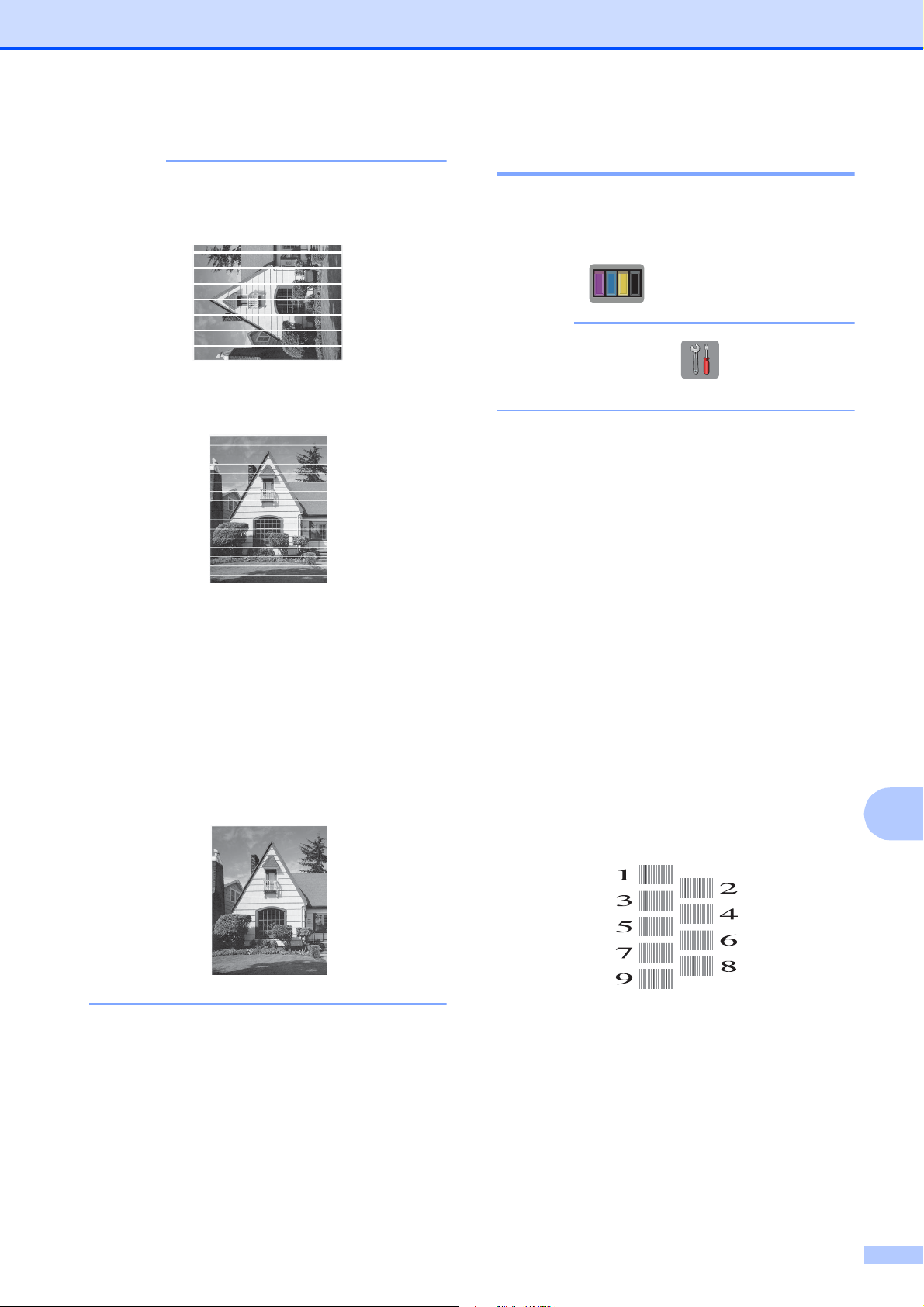
Routine maintenance
45
A
NOTE
When a print head nozzle is clogged, the
printed sample looks like this.
Letter, A4 and Executive
Ledger, A3, Legal, Folio, A5, A6,
envelopes, Photo (4" 6")/(10 15 cm),
Photo L (3.5" 5")/(89 127 mm),
Photo 2L (5" 7")/(13 18 cm) and Index
Card (5" 8")/(127 203 mm)
After the print head nozzle is cleaned, the
horizontal lines are gone.
Checking the print alignment A
If your printed text becomes blurred or
images become faded after transporting the
machine, adjust the print alignment.
a Press .
NOTE
You can also press and then
Maintenance.
b Press Improve Print Quality.
c Press Alignment.
d Press Next.
e Swipe up or down or press a or b to
display the paper size options and then
press the paper size that needs a print
alignment adjustment, and then press it.
f Press Basic alignment or
Advanced alignment.
g Following the instructions on the
Touchscreen, load plain paper of the
selected size in Tray #1, and then press
Start.
The machine prints the Alignment
Check Sheet.
h For the “A” pattern, swipe up or down or
press a or b to display the number of the
test print that has the least visible
vertical stripes (1-9), and then press it.
Then press OK.
In the example, number 6 is the best
choice.
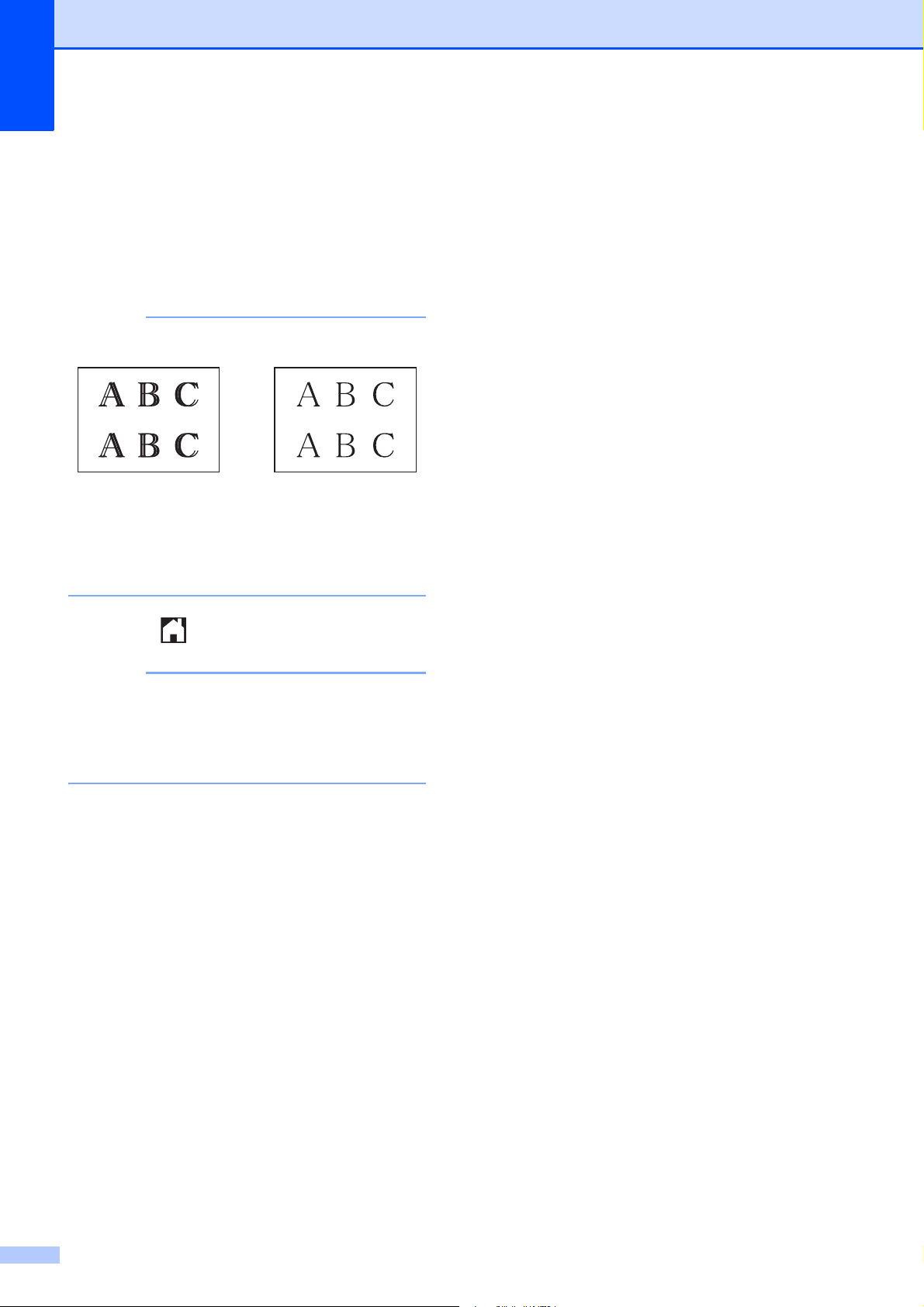
46
i Do one of the following:
If you selected Basic alignment,
repeat step h for patterns B to H.
If you selected
Advanced alignment, repeat
step h for patterns B to Z.
NOTE
j Press .
NOTE
For more information about cleaning and
checking the machine, see Online User’s
Guide: Clean Your Brother Machine and
Check Your Brother Machine.
i
When the print
alignment is not
adjusted properly,
text looks blurry.
After the print
alignment is
adjusted properly,
text looks sharp.

47
B
B
Identifying the problem B
First, check the following.
The machine’s power cord is connected correctly and the machine’s power switch is turned on.
All of the protective parts have been removed.
Paper is loaded correctly in the paper tray.
The interface cables are securely connected to the machine and the computer, or the wireless
connection is set up on both the machine and your computer.
Touchscreen Messages
(See Error and maintenance messages on page 47.)
If you did not solve the problem with the above checks: See If you are having difficulty with your
machine on page 67.
Error and maintenance messages B
As with any sophisticated office product, errors may occur and supplies must be replaced. If this
happens, your machine identifies the error or required routine maintenance and displays the
appropriate message. The most common error and maintenance messages are shown in the
table.
Troubleshooting B
If you think there is a problem with your machine, check each of the items below first and follow
the troubleshooting tips.
You can correct most problems by yourself. If you need additional help, the Brother Solutions
Center offers the latest FAQs and troubleshooting tips.
Visit http://support.brother.com
.

48
Error Message Cause Action
B&W 1-sided Print Only
Replace ink.
One or more of the color ink
cartridges have reached the end of
their life.
You can use the machine in
black and white mode for
approximately four weeks depending
on the number of pages you print.
While this message appears on the
Touchscreen, each operation works
in the following way:
Printing
If the media type is set to
Plain Paper in the Basic tab and
Grayscale is chosen in the
Advanced tab of the printer
driver, you can use the machine
as a black and white printer.
2-sided print is not available when
this message appears.
Copying
If the paper type is set to
Plain Paper you can make
copies in black and white.
2-sided copy is not available
when this message appears.
Faxing
If the paper type is set to
Plain Paper or
Inkjet Paper, the machine will
receive and print the faxes in
black and white.
If a sending machine has a color
fax, the machine’s “handshake”
will ask that the fax be sent as
black and white.
Replace the ink cartridges.
(See Online User’s Guide: Replace
the Ink Cartridges.)
NOTE
The machine will stop all print
operations and you will not be able to
use the machine until you change to a
new ink cartridge in the following
cases:
• If you unplug the machine or take
out the ink cartridge.
• (Windows
®
) If you select
Slow Drying Paper in the Basic
tab of the printer driver.
(Macintosh) If you select
Slow Drying Paper in the
Print Settings drop-down list of
the printer driver.
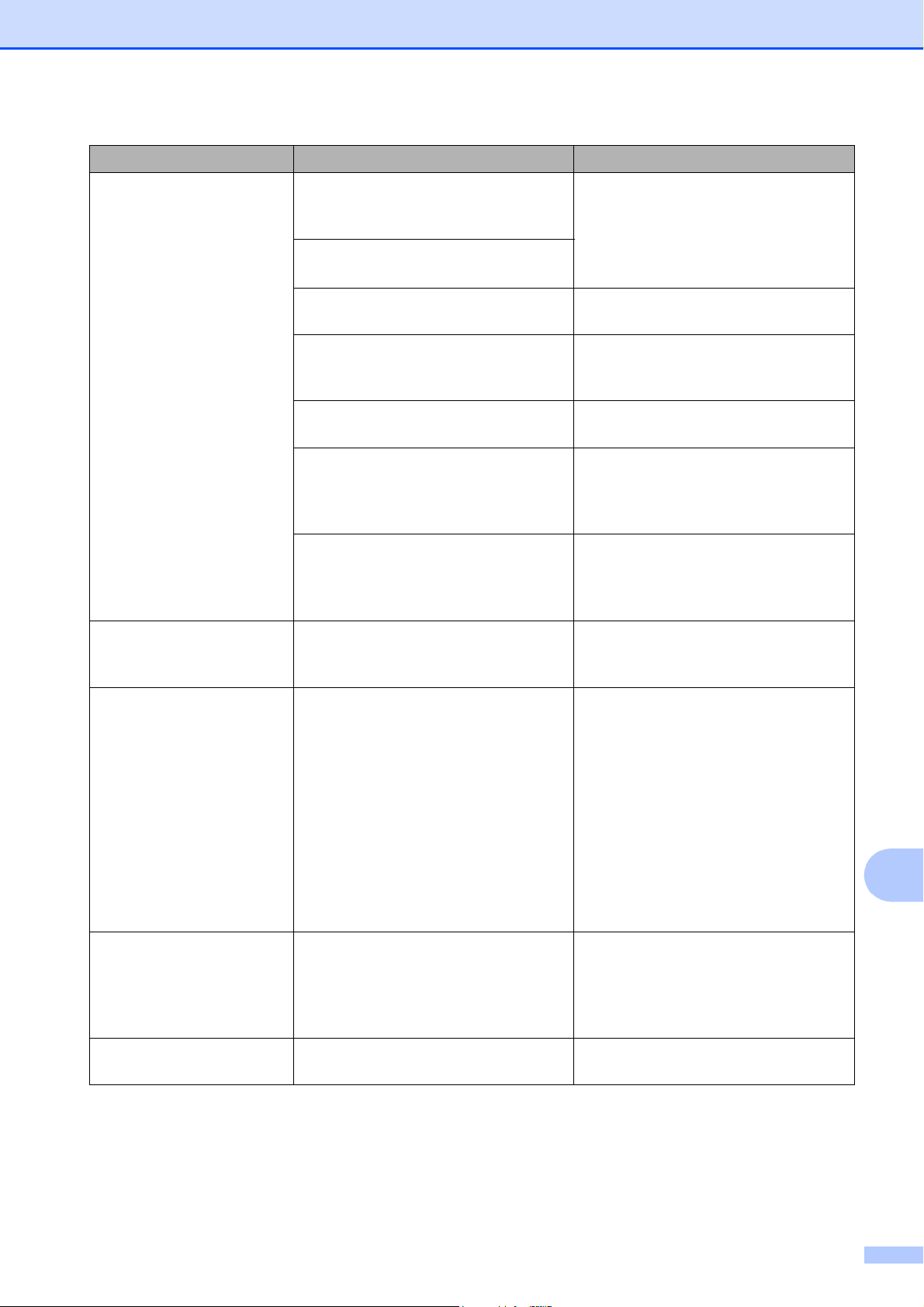
Troubleshooting
49
B
Cannot Detect You installed a new ink cartridge too
quickly and the machine did not
detect it.
Take out the new ink cartridge and
reinstall it slowly and firmly until it
latches.
(See Online User’s Guide: Replace
the Ink Cartridges.)
An ink cartridge is not installed
correctly.
A used ink cartridge was reinstalled. Remove the used ink cartridge and
install a new one.
If you are not using Genuine Brother
ink, the machine may not detect the
ink cartridge.
Use a new Genuine Brother Ink
Cartridge. If the error is not cleared,
call Brother Customer Service.
The ink cartridge must be replaced. Replace the ink cartridge with a new,
genuine Brother ink cartridge.
The new ink cartridge has an air
bubble.
Slowly turn the ink cartridge so that
the ink supply port is pointing
downward, and then reinstall the
cartridge.
The wrong Brother model ink
cartridge was installed.
Check the model numbers of the ink
cartridges and install the correct ink
cartridges. (See Supplies
on page 83.)
Cannot Detect Ink
Volume
If you are not using Genuine Brother
ink, the machine may not detect the
ink volume.
Use a new Genuine Brother Ink
Cartridge. If the error is not cleared,
call Brother Customer Service.
Cannot Print
Replace ink.
One or more of the ink cartridges
have reached the end of their life. The
machine will stop all print operations.
While memory is available, black and
white faxes will be stored in the
memory. If a sending machine has a
color fax, the machine's “handshake”
will ask that the fax be sent as black
and white. If the sending machine has
the ability to convert it, the color fax
will be stored in the memory as a
black and white fax.
Replace the ink cartridges.
(See Online User’s Guide: Replace
the Ink Cartridges.)
Comm.Error Poor telephone line quality caused a
communication error.
Send the fax again or connect the
machine to another telephone line. If
the problem continues, call the
telephone company and ask them to
check your telephone line.
Connection Failed You tried to poll a fax machine that is
not in Polled Waiting mode.
Check the other fax machine's polling
setup.
Error Message Cause Action
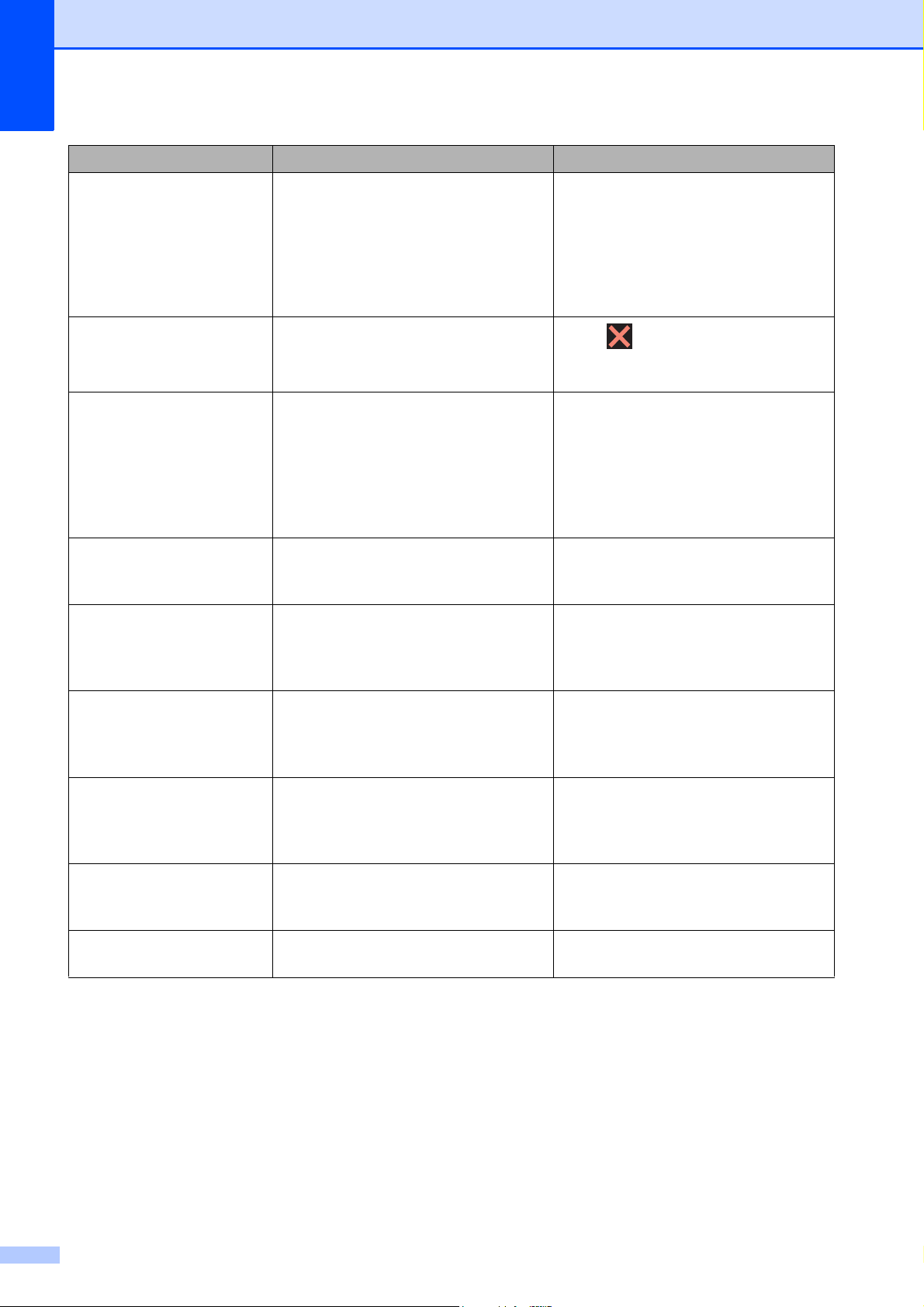
50
Current Tray #1
Settings
Current Tray #2
Settings
Current MP Tray
Settings
These messages are displayed when
the Check Paper setting to confirm
the paper type and size is enabled.
To not display this confirmation
message, set the Check Paper
setting to Off. (See Check Paper
setting on page 23.)
Data Remaining in
Memory
Print data is left in the machine's
memory.
Press . The machine will cancel
the job and clear it from the memory.
Try to print again.
Disconnected The other person or other person's
fax machine stopped the call.
Try to send or receive again.
If calls are stopped repeatedly and
you are using a VoIP (Voice over IP)
system, try changing the
Compatibility to Basic(for VoIP).
(See Telephone Line Interference or
VoIP System on page 77.)
Document Jam/too Long
The document was not inserted or fed
correctly, or the document scanned
from the ADF was too long.
(See Using the ADF on page 24.)
(See Document jam on page 58.)
DR Mode in Use The machine is in Distinctive Ring
mode. You cannot change the
Receive Mode from Manual to
another mode.
Set Distinctive Ring to Off.
(See Online User’s Guide: Register
the Distinctive Ring Pattern.)
High Temperature The room temperature is too high. After cooling the room, allow the
machine to cool down to room
temperature. Try again when the
machine has cooled down.
Hub is Unusable. A hub or USB flash drive with hub has
been connected to the USB direct
interface.
Hubs, including a USB flash drive that
has a built-in hub, are not supported.
Unplug the device from the USB
direct interface.
Image Too Long The proportions of your photo are
irregular so effects could not be
added.
Choose a regularly proportioned
image.
Image Too Small The size of your photo is too small to
trim.
Choose a larger image.
Error Message Cause Action

Troubleshooting
51
B
Ink Absorber Pad Full
The ink absorber box or flushing box
is full. These components are
periodic maintenance items that may
require replacement after a period of
time to ensure optimum performance
from your Brother machine. Because
these components are periodic
maintenance items, the replacement
is not covered under the warranty.
The need to replace these items and
the time period before replacement is
dependent on the number of purges
and flushes required to clean the ink
system. These boxes acquire
amounts of ink during the different
purging and flushing operations. The
number of times a machine purges
and flushes for cleaning varies
depending on different situations. For
example, frequently powering the
machine on and off will cause
numerous cleaning cycles since the
machine automatically cleans itself
upon power up. The use of
non-Brother ink may cause frequent
cleanings because non-Brother ink
could cause poor print quality, which
is resolved by cleaning. The more
cleaning the machine requires, the
faster these boxes will fill up.
NOTE
Repairs resulting from the use of
non-Brother supplies may not be
covered under the stated product
warranty.
The ink absorber box or flushing box
must be replaced. Call Brother
Customer Service or a Brother
Authorized Service Center to have
your machine serviced. (See Brother
numbers on page i.)
Other reasons for cleaning are:
1 After a paper jam has been
cleared, the machine
automatically cleans itself before
the next received fax page is
printed.
2 The machine automatically cleans
itself after sitting idle for more than
30 days (infrequent use).
3 The machine automatically cleans
itself after ink cartridges of the
same color have been replaced
12 times.
Ink Absorber Pad
NearFull
The ink absorber box or flushing box
is nearly full.
The ink absorber box or flushing box
must be replaced soon.
Call Brother Customer Service or a
Brother Authorized Service Center to
have your machine serviced.
(See Brother numbers on page i.)
Error Message Cause Action
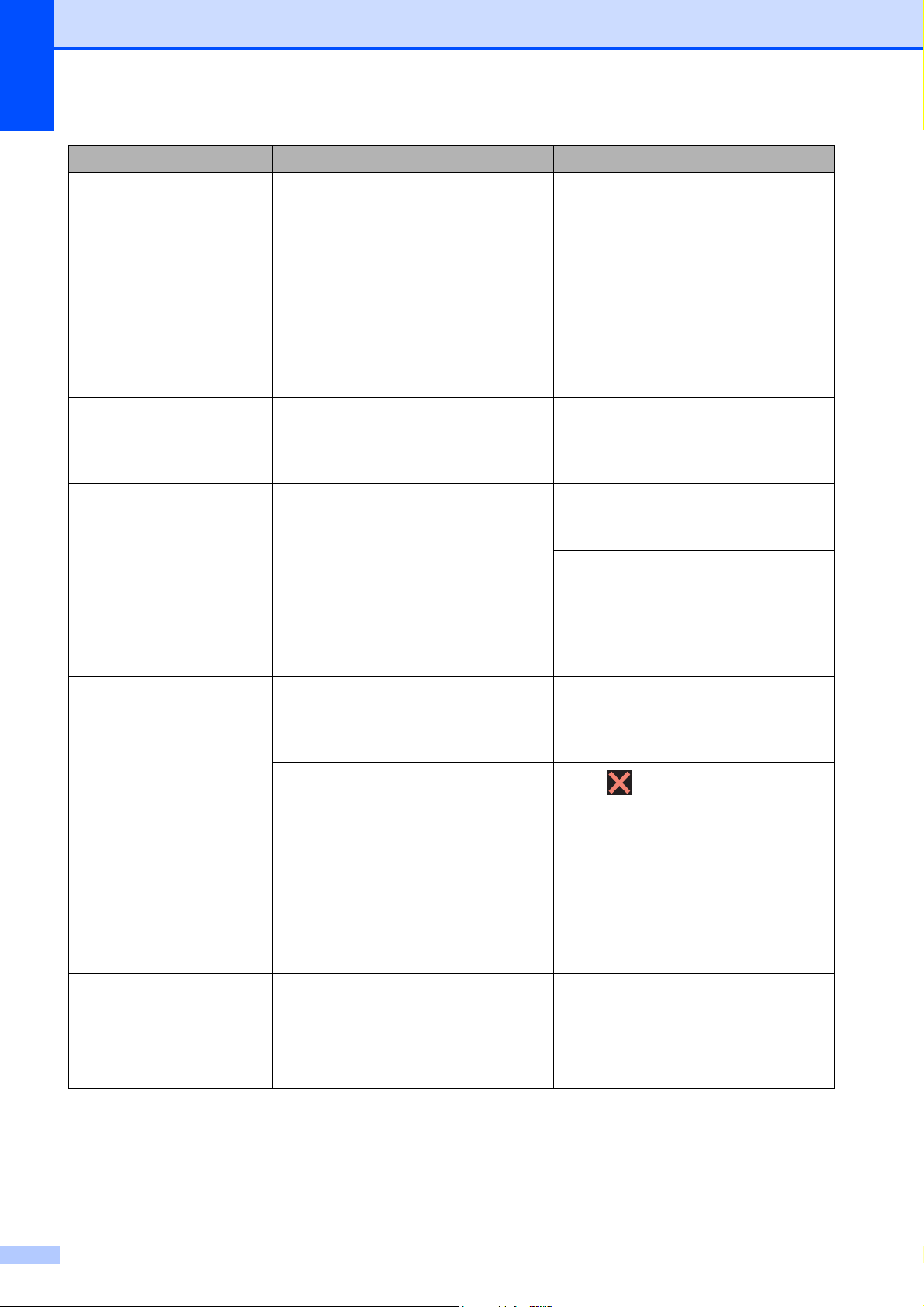
52
Ink Low One or more of the ink cartridges are
near the end of their life. If one of the
color ink cartridges is near the end of
its life and someone is sending you a
color fax, your machine’s
“handshake” will ask that the fax be
sent as black and white. If the
sending machine has the ability to
convert it, the color fax will be printed
at your machine as a black and white
fax.
Order a new ink cartridge. You can
continue printing until the
Touchscreen displays
Cannot Print. (See Ordering
accessories and supplies on page ii.)
To replace the ink cartridges,
see Online User’s Guide: Replace the
Ink Cartridges.
Low Temperature The room temperature is too low. After warming the room, allow the
machine to warm up to room
temperature. Try again when the
machine has warmed up.
Media Error The memory card is either corrupted,
incorrectly formatted, or there is a
problem with the memory card.
Remove the memory card from the
media drive (slot) of the machine and
format it correctly.
Put the card firmly into the slot again
to make sure it is in the correct
position. If the error remains, check
the media drive (slot) of the machine
by putting in another memory card
that you know is working.
Media is Full. The memory card or USB flash drive
you are using already contains 999
files.
Your machine can save to your
memory card or USB flash drive only
if it contains less than 999 files.
Delete unused files and try again.
The memory card or USB flash drive
you are using does not have enough
free space to scan the document.
Press .
Delete unused files from your
memory card or USB flash drive to
make some free space, and then try
again.
No Caller ID There is no incoming call history. You
did not receive calls or you have not
subscribed to the Caller ID service
from your telephone company.
If you want to use the Caller ID
feature, call your telephone company.
(See Online User’s Guide: Caller ID.)
No Ink Cartridge An ink cartridge is not installed
correctly.
Take out the new ink cartridge and
reinstall it slowly and firmly until it
latches.
(See Online User’s Guide: Replace
the Ink Cartridges.)
Error Message Cause Action

Troubleshooting
53
B
No Paper Fed
[Tray #1]
No Paper Fed
[Tray #2]
No Paper Fed
[MP Tray]
The machine is out of paper or paper
is not correctly loaded in the paper
tray.
Do one of the following:
Refill the paper tray, and then
press OK on the Touchscreen.
Remove and reload the paper,
then press OK on the
Touchscreen. (See Before
loading paper on page 9.)
The paper tray was not fully inserted. Remove the paper tray and reinstall it
until it locks into place, and then press
OK on the Touchscreen.
The paper was not inserted in the
center position of the manual feed
slot or MP Tray.
Remove the paper and re-insert it in
the center of the manual feed slot,
and then press OK on the
Touchscreen. (See Loading paper in
the manual feed slot on page 19.)
The Jam Clear Cover is not closed
correctly.
Make sure the Jam Clear Cover is
closed evenly at both ends.
(See Printer jam or paper jam
on page 60.)
Paper dust has accumulated on the
surface of the paper pick-up rollers.
Clean the paper pick-up rollers.
(See Online User’s Guide: Clean the
Paper Pick-up Rollers and Clean the
Paper Pick-up Rollers for Paper
Tray #2.)
The paper is jammed in the machine. Remove the jammed paper by
following the steps. (See Printer jam
or paper jam on page 60.)
If this error occurs often during
2-sided copying or 2-sided printing,
the paper feed rollers may be stained
with ink. Clean the paper feed rollers.
(See Online User’s Guide: Clean the
Paper Feed Rollers.)
Out of Fax Memory The fax memory is full. Do one of the following:
Clear the data from the memory.
To gain extra memory, you can
turn off Memory Receive.
(See Online User’s Guide: Turn
Off Memory Receive.)
Print the faxes that are in the
memory.
(See Online User’s Guide: Print a
Fax Stored in the Machine’s
Memory.)
Error Message Cause Action

54
Out of Memory The machine's memory is full. If a fax-sending or copy operation
is in process:
Press or Quit or Close and
wait until the other operations that
are in process finish, and then try
again.
Press Send Now to send the
pages scanned so far.
Press Partial Print to copy
the pages scanned so far.
Clear the data in the memory. To
gain extra memory, you can turn
off Memory Receive.
(See Online User’s Guide: Turn
Off Memory Receive.)
Print the faxes that are in the
memory.
(See Online User’s Guide: Print a
Fax Stored in the Machine’s
Memory.)
Paper Jam [Front]
Paper Jam [Front,Rear]
Paper Jam [Rear]
The paper is jammed in the machine. Remove the jammed paper by
following the steps. (See Printer jam
or paper jam on page 60.)
If there is a repeat paper jam, try
another paper jam operation.
(See Additional paper jam clear
operations on page 65.)
Paper Tray #1 not
detected
Paper Tray #2 not
detected
The paper tray is not completely
inserted.
Slowly push the paper tray
completely into the machine.
Jammed paper or a foreign object has
prevented the paper tray from being
inserted properly.
Pull the paper tray out of the machine
and remove the paper or foreign
object. If you cannot find or remove
the jammed paper, follow the steps.
(See Printer jam or paper jam
on page 60.) Slowly push the paper
tray completely into the machine.
Touchscreen
Initialization
Failed
The Touchscreen was pressed
before the power on initialization was
completed.
Make sure that nothing is touching or
resting on the Touchscreen,
especially when plugging in the
machine.
Debris may be stuck between the
lower part of the Touchscreen and its
frame.
Insert a piece of stiff paper between
the lower part of the Touchscreen and
its frame and slide it back and forth to
push out the debris.
Error Message Cause Action
Troubleshooting
55
B
Unable to Clean XX
Unable to Initialize XX
Unable to Print XX
The machine has a mechanical
problem.
—OR—
A foreign object, such as a paper clip
or a piece of ripped paper, is in the
machine.
Open the scanner cover and remove
any foreign objects and paper scraps
from inside the machine. If the error
message continues, disconnect the
machine from the power for several
minutes, and then reconnect it.
You can try additional paper jam clear
operations. (See Additional paper
jam clear operations on page 65.)
(The machine can be turned off
without losing faxes stored in the
memory. (See Transferring your
faxes or Fax Journal report
on page 57.))
If the problem continues, call Brother
Customer Service.
Unable to Scan XX The machine has a mechanical
problem.
Disconnect the machine from the
power for several minutes, and then
reconnect it.
The machine can be turned off
without losing faxes stored in the
memory. (See Transferring your
faxes or Fax Journal report
on page 57.)
If the problem continues, call Brother
Customer Service.
Unusable Device
Disconnect device from
front connector & turn
machine off & then on
A broken device is connected to the
USB direct interface.
Unplug the device from the USB
direct interface, and then press
to turn the machine off and then on
again.
Unusable Device
Please disconnect USB
device.
A USB device or USB flash drive that
is not supported has been connected
to the USB direct interface.
Unplug the device from the USB
direct interface. Turn the machine off
and then on again.
Wrong Ink Color An ink cartridge has been installed in
the wrong position.
Check which ink cartridges are not
matched by color to their ink cartridge
positions and move them to their
correct positions.
Error Message Cause Action

56
Wrong Paper
Wrong Paper [Tray #1]
Wrong Paper [Tray #2]
Wrong Paper [MP Tray]
The paper size setting does not
match the size of paper in the tray.
1 Check that the paper size you
choose on the Touchscreen
matches the size of the paper in
the tray.
(See Set Paper Size and Type
on page 22.)
2 Make sure you loaded the paper
in the proper orientation, and set
the paper guides at the indicators
for your paper size. (See Before
loading paper on page 9.)
3 After you have checked the paper
size and the paper orientation,
press OK on the Touchscreen.
The paper orientation is not proper for
the paper size.
You did not set the paper guides in
the tray to the indicators for the paper
size you are using.
If you are printing from your
computer, make sure the paper size
you choose in the printer driver
matches the size of paper in the tray.
For more information, see Online
User’s Guide: Change the Paper Size
(Windows
®
) or Change the Paper
Size (Macintosh).
Wrong Tray Settings The machine’s Paper Size and Tray
Use settings do not match the size of
paper in the tray you are using.
Follow the instructions on the
Touchscreen and try to print again.
Configure the paper size setting for
the tray according to the on-screen
instructions.
Error Message Cause Action
Troubleshooting
57
B
Error animations B
Error animations display step-by-step
instructions when paper gets jammed. You
can read the steps at your own pace by
pressing c to see the next step and d to go
back a step.
Transferring your faxes or Fax
Journal report B
If the Touchscreen displays:
Unable to Clean XX
Unable to Initialize XX
Unable to Print XX
Unable to Scan XX
We recommend transferring your faxes to
another fax machine or to your PC.
(See Transferring faxes to another fax
machine on page 57.)
(See Transferring faxes to your PC
on page 57.)
Transfer the Fax Journal report to see if there
are any faxes you must transfer.
(See Transferring the Fax Journal report to
another fax machine on page 58.)
Transferring faxes to another fax
machine
B
If you have not set up your Station ID, you
cannot enter fax transfer mode.
(See How to set your Station ID on page 38.)
a Press to temporarily interrupt the
error.
b Press (Settings).
c Press All Settings.
d Swipe up or down or press a or b to
display Service.
e Press Service.
f Press Data Transfer.
g Press Fax Transfer.
h Do one of the following:
If the Touchscreen displays
No Data, there are no faxes in the
machine’s memory.
Press Close, and then press .
Enter the fax number where faxes
will be forwarded.
i Press Fax Start.
Transferring faxes to your PC B
Transfer faxes from your machine’s memory
to your PC.
a Press to temporarily interrupt the
error.
b Make sure you have installed
MFL-Pro Suite on your PC, and then
turn on PC-FAX Receive on the PC.
Do one of the following:
(Windows
®
XP, Windows Vista
®
and
Windows
®
7)
From (Start), select All Programs,
Brother, Brother Utilities,
MFC-XXXX, PC-FAX Receive, and
select Receive. (XXXX is your model
name.)
(Windows
®
8)
Click (Brother Utilities), and then
click the drop-down list and select your
model name (if not already selected).
Click PC-FAX Receive in the left
navigation bar, and then click Receive.
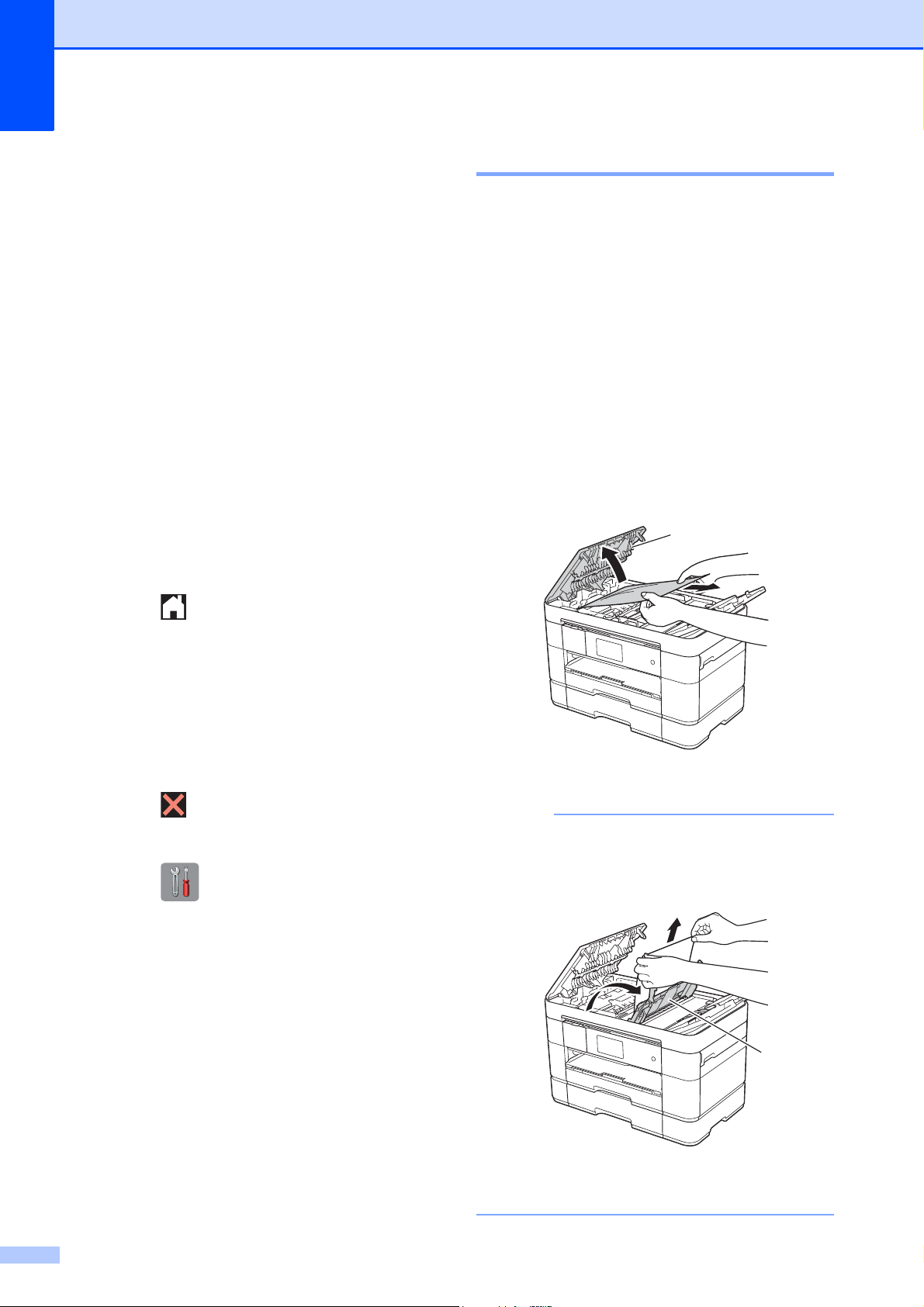
58
c Make sure you have set PC-Fax
Receive on the machine.
(See Online User’s Guide: Use PC-Fax
Receive to transfer Received Faxes to
Your Computer (Windows
®
only).)
If faxes are in the machine’s memory
when you set up PC-Fax Receive, the
Touchscreen displays a message
asking if you want to transfer the faxes
to your PC.
d Do one of the following:
To transfer all faxes to your PC,
press Yes. If Fax Preview is set to
Off, the Touchscreen displays a
message asking if you also want to
turn on the backup print option.
To exit and leave the faxes in the
machine’s memory, press No.
e Press .
Transferring the Fax Journal report to
another fax machine
B
If you have not set up your Station ID, you
cannot enter fax transfer mode.
(See How to set your Station ID on page 38.)
a Press to temporarily interrupt the
error.
b Press (Settings).
c Press All Settings.
d Swipe up or down or press a or b to
display Service.
e Press Service.
f Press Data Transfer.
g Press Report Transfer.
h Enter the fax number where the Fax
Journal report will be forwarded.
i Press Fax Start.
Document jam B
Documents can jam in the ADF if they are not
inserted or fed correctly, or if they are too
long. Follow the steps to clear a document
jam.
Document is jammed in the top of the
ADF
B
a Take out any paper from the ADF that is
not jammed.
b Open the ADF cover.
c Remove the jammed document by
pulling it upward.
1 ADF cover
NOTE
If you cannot remove the jammed paper,
open the feed tray (1) and then remove
the jammed paper.
Close the feed tray before closing the ADF
cover.
1
1
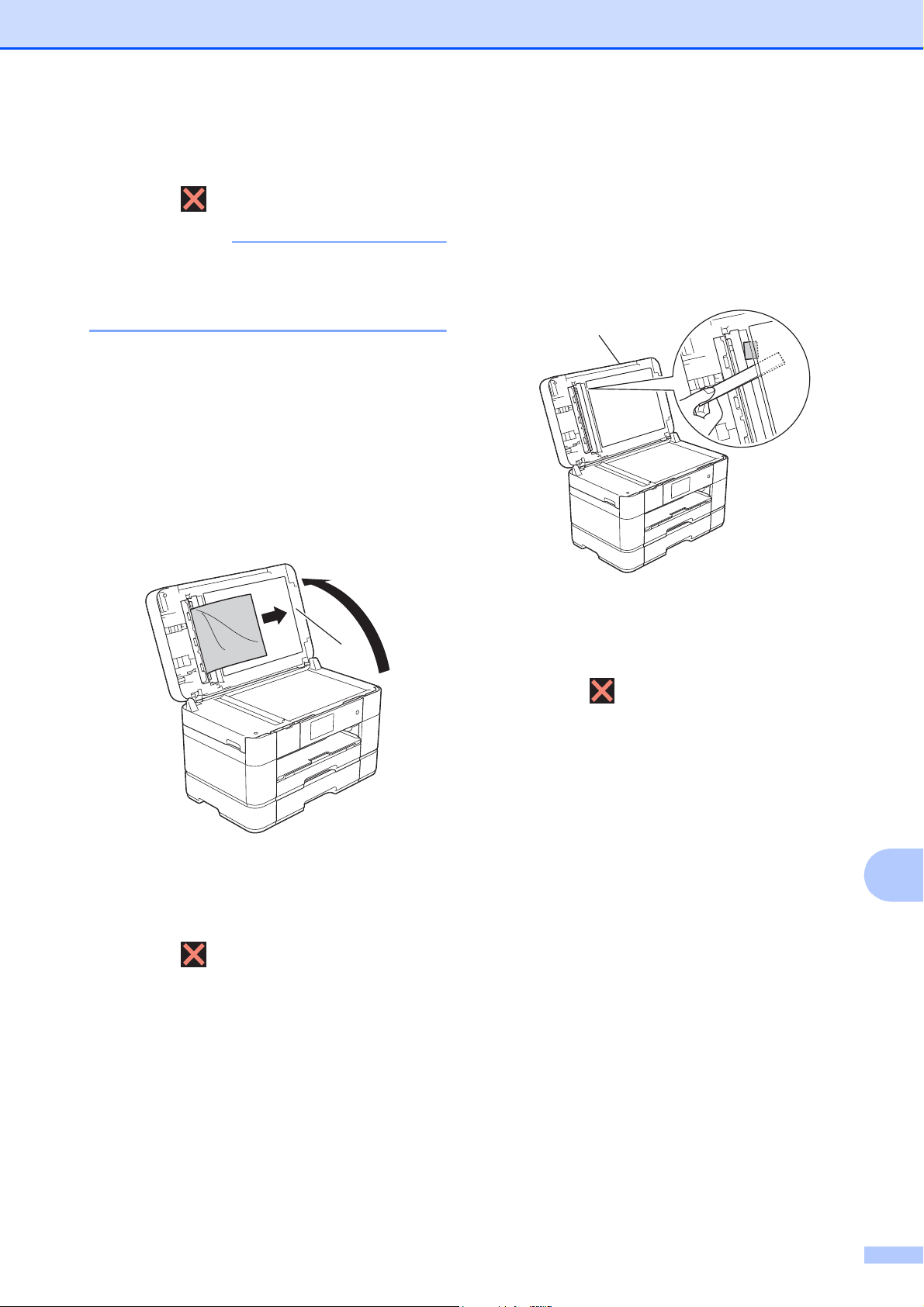
Troubleshooting
59
B
d Close the ADF cover.
e Press .
IMPORTANT
To avoid future document jams, close the
ADF cover correctly by placing your hands
in the center and pressing down gently.
Document is jammed inside the ADF B
a Take any paper that is not jammed out
of the ADF.
b Lift the document cover.
c Pull the jammed document out to the
right.
1 Document Cover
d Close the document cover.
e Press .
Paper scraps are jammed in the ADF B
a Lift the document cover.
b Insert a piece of stiff paper, such as
cardstock, into the ADF to push any
small paper scraps through.
1 Document Cover
c Close the document cover.
d Press .
1
1
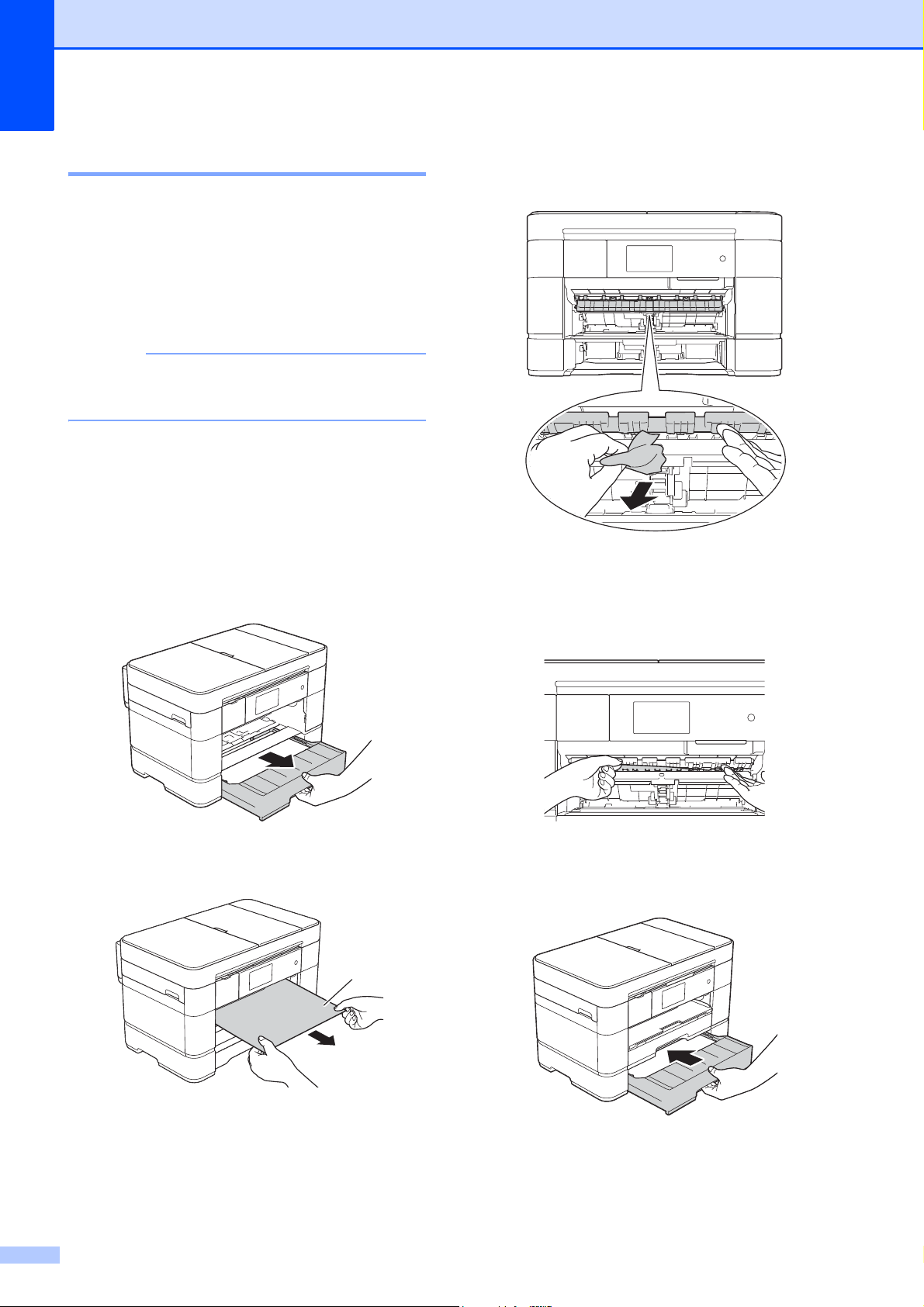
60
Printer jam or paper jam B
Follow these steps to locate and
remove the jammed paper if the
Touchscreen displays:
Paper Jam [Front] or
Paper Jam [Front,Rear]
B
NOTE
If the Touchscreen displays
Paper Jam [Rear], see page 63.
a Unplug the machine from the AC power
outlet.
b If paper is loaded in the MP Tray,
remove the paper.
c Pull Tray #1 and then Tray #2
completely out of the machine.
d Pull out the jammed paper (1).
e Lift the Jam Clear Flap, and remove the
jammed paper.
f Make sure you look carefully inside the
machine above and below the Jam
Clear Flap for scraps of paper.
g Put Tray #1 and then Tray #2 firmly
back in the machine.
1
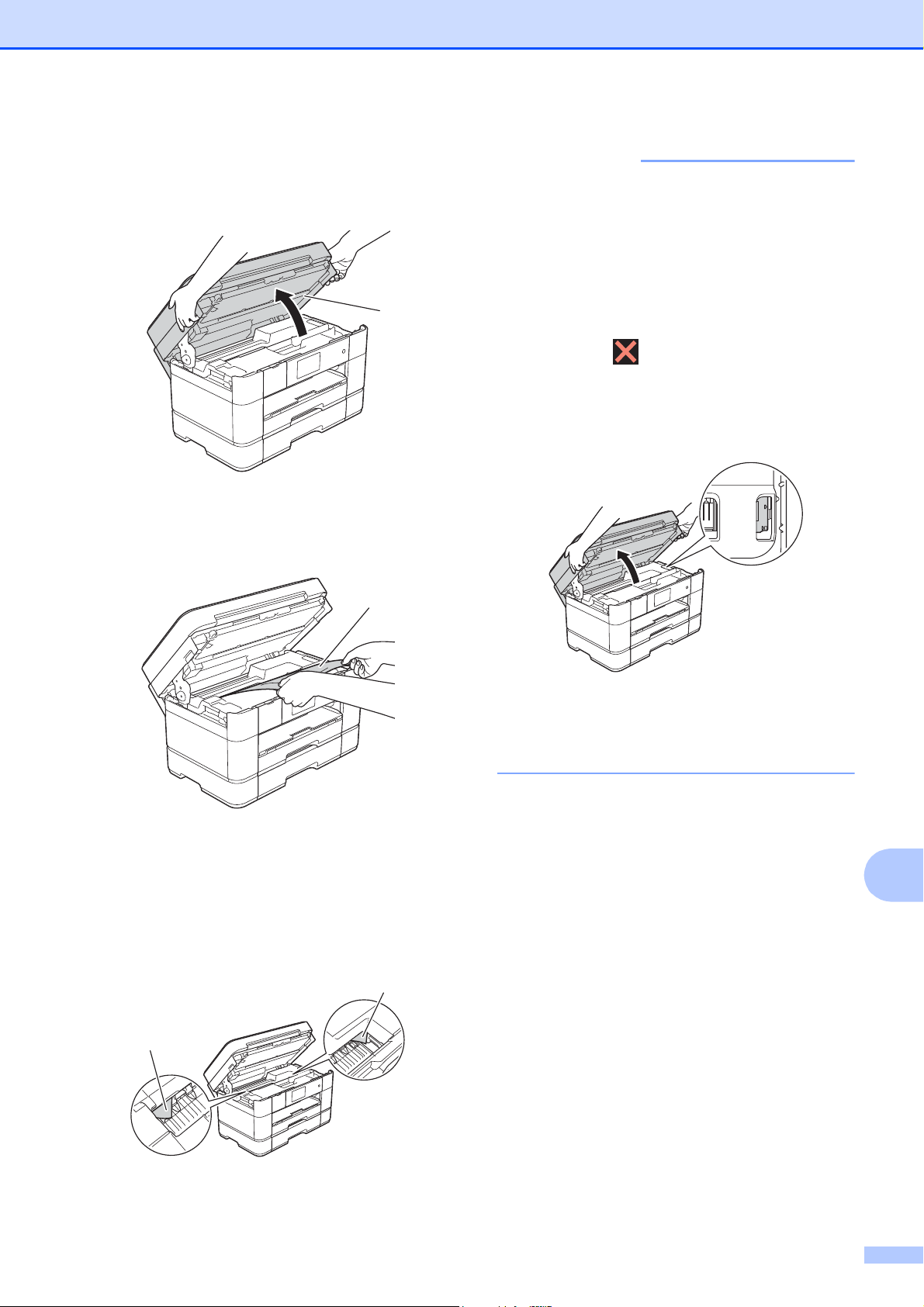
Troubleshooting
61
B
h Using both hands, use the finger holds
on each side of the machine to lift the
scanner cover (1) into the open position.
i Slowly pull the jammed paper (1) out of
the machine.
j Move the print head (if necessary) to
take out any paper remaining in this
area. Make sure that jammed paper
scraps are not left in the corners of the
machine (1) and (2).
IMPORTANT
• If paper is jammed under the print head,
unplug the machine from the power
source, and then move the print head to
release the paper.
• If the print head is in the right corner as
shown in the illustration, you cannot move
the print head. Reconnect the power cord.
Hold down until the print head moves
to the center. Then unplug the machine
from the power source and remove the
paper.
• If ink gets on your skin or clothing,
immediately wash it off with soap or
detergent.
1
1
1
2
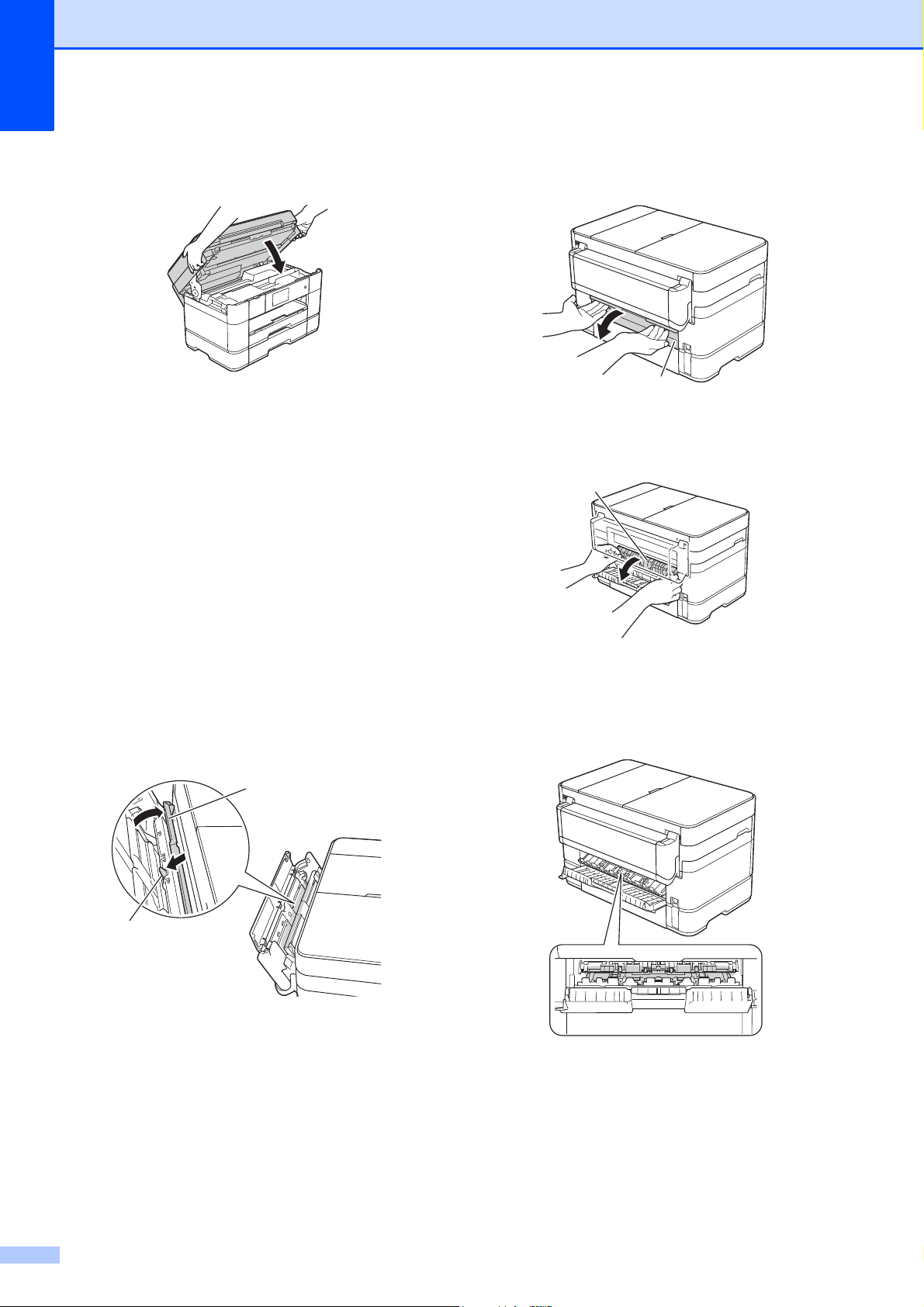
62
k Gently close the scanner cover using
the finger holds on each side.
Do one of the following:
If the Touchscreen displays
Paper Jam [Front], go to
step r.
If the Touchscreen displays
Paper Jam [Front,Rear], go to
step l.
l Open the MP Tray.
Make sure you look carefully inside for
jammed paper. If there is jammed
paper, slowly pull it out of the MP Tray.
If you cannot remove the jammed paper,
lift the cover (1) forward and push the
release lever (2) toward the back of the
machine. Then remove the paper.
m Close the MP Tray.
n Open the Jam Clear Cover (1) at the
back of the machine.
o Open the inside cover (1).
p Make sure you look carefully inside for
jammed paper. If paper is jammed,
slowly pull it out of the machine.
1
2
1
1
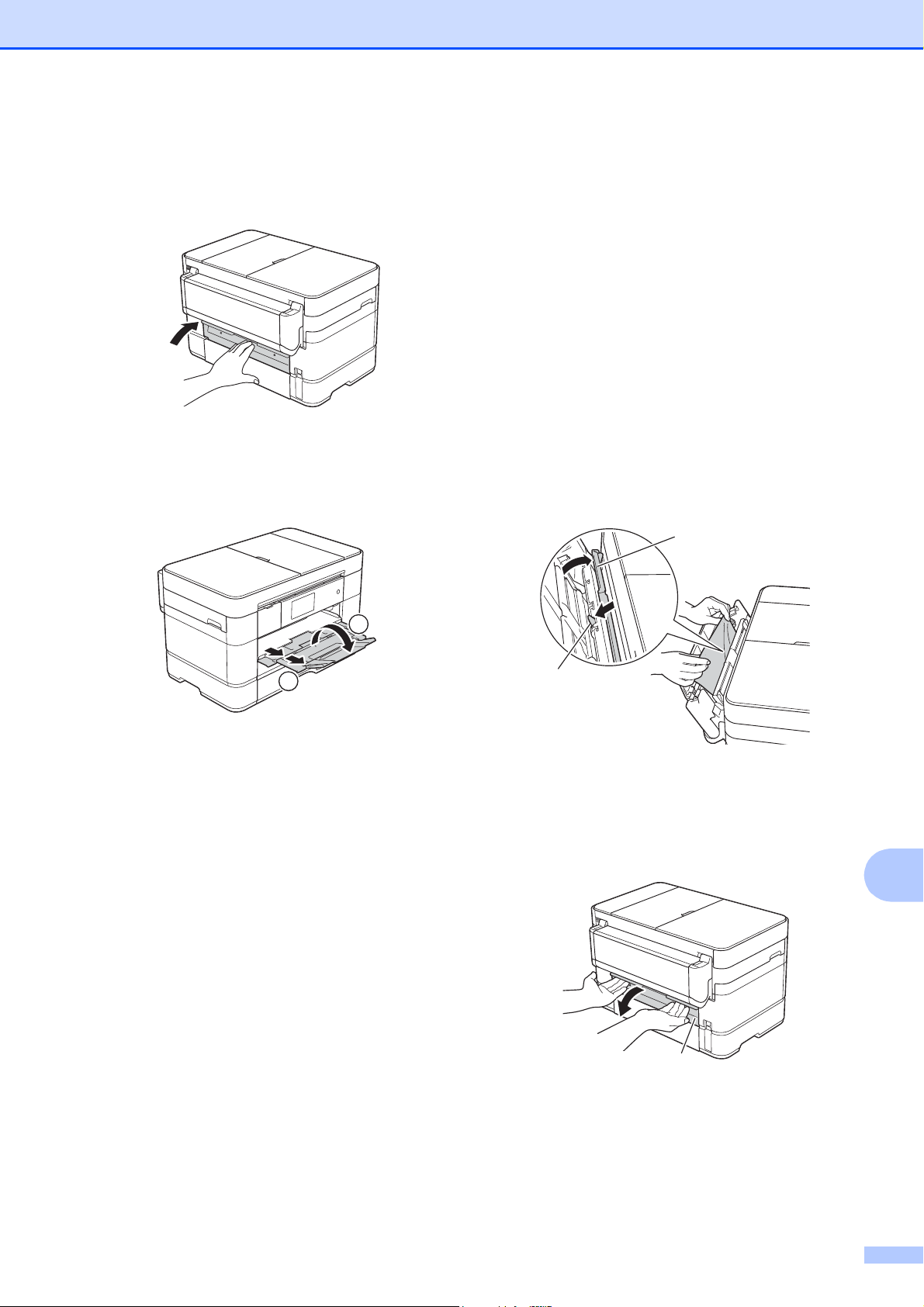
Troubleshooting
63
B
q Close the inside cover and Jam Clear
Cover. Make sure the covers are closed
completely.
r Pull out the paper support (1) until it
locks into place, and then unfold the
paper support flap (2).
s Reconnect the power cord.
If the Touchscreen displays
Paper Jam [Rear], follow these
steps:
B
a Unplug the machine from the AC power
outlet.
b Open the MP Tray.
If the paper is loaded in the MP Tray,
remove it.
c Slowly pull the jammed paper out of the
MP Tray. If you cannot remove the
jammed paper, lift the cover (1) forward
and push the release lever (2) toward
the back of the machine. Then remove
the paper.
d Close the MP Tray.
e Open the Jam Clear Cover (1) at the
back of the machine.
2
1
1
2
1
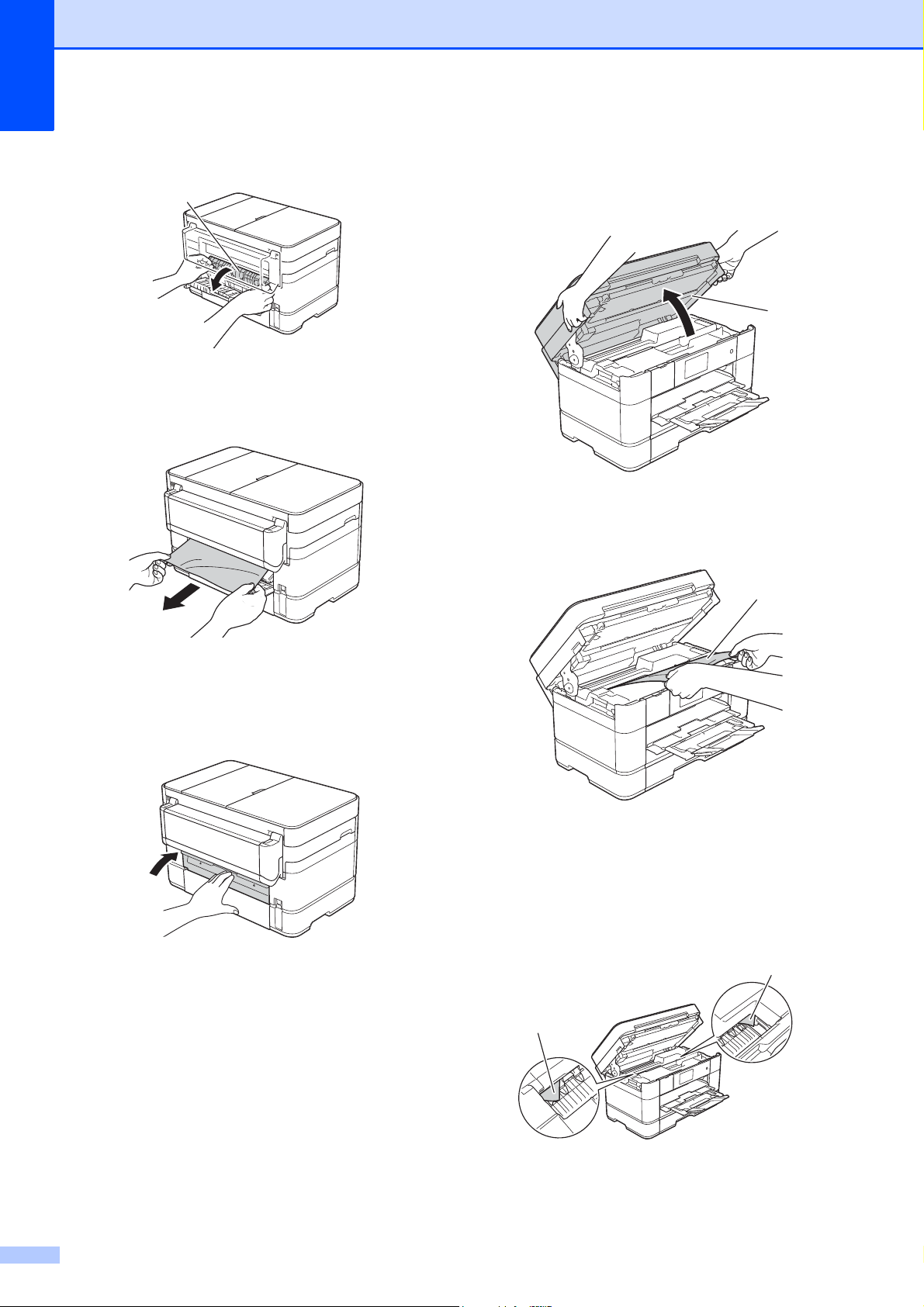
64
f Open the inside cover (1).
g Slowly pull the jammed paper out of the
machine.
h Close the inside cover and Jam Clear
Cover. Make sure the covers are closed
properly.
i Using both hands, use the finger holds
on each side of the machine to lift the
scanner cover (1) into the open position.
j Slowly pull the jammed paper (1) out of
the machine.
k Move the print head (if necessary) to
remove paper remaining in this area.
Make sure paper scraps are not left in
the corners of the machine (1) and (2).
1
1
1
1
2
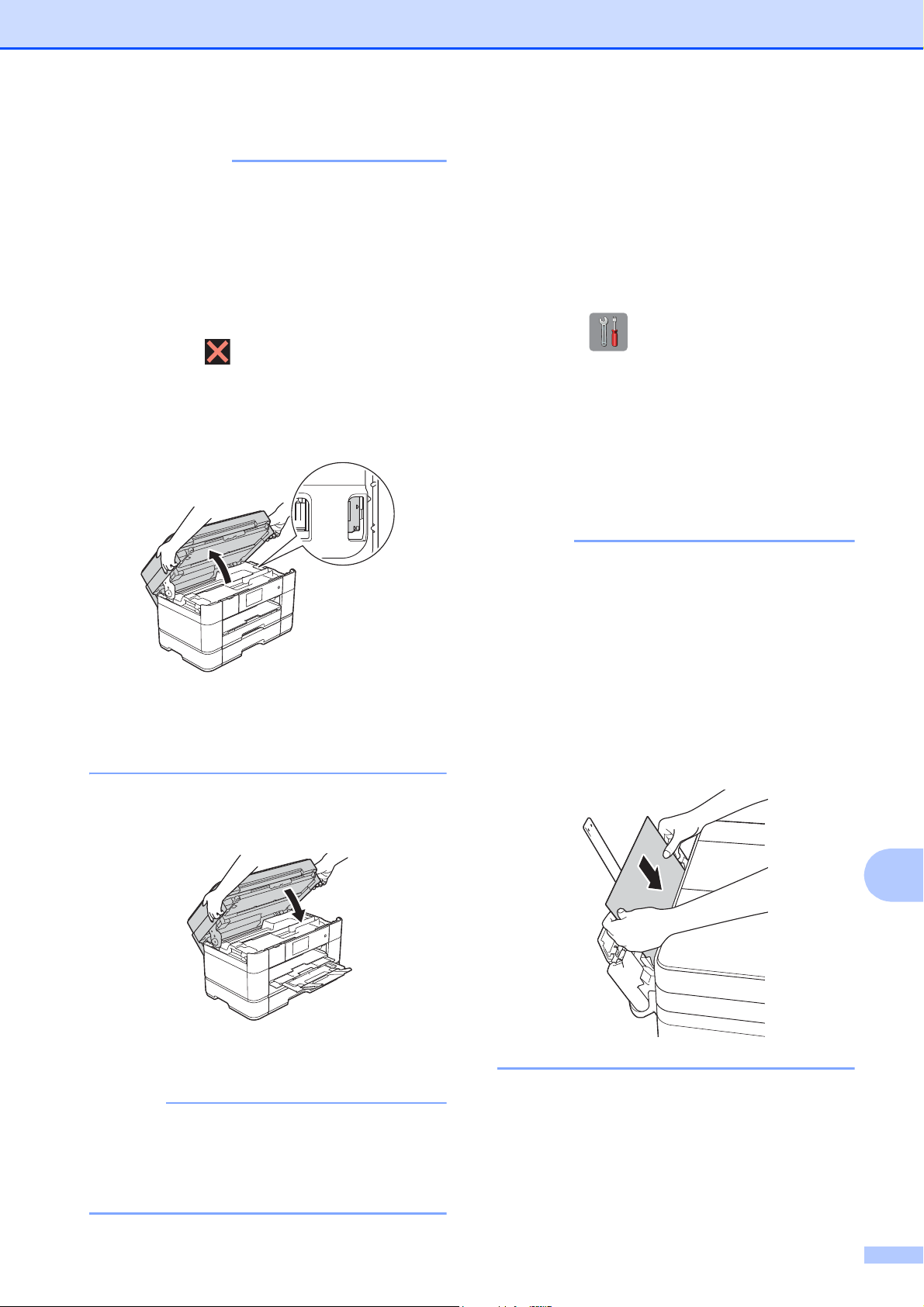
Troubleshooting
65
B
IMPORTANT
• If paper is jammed under the print head,
unplug the machine from the power
source, and then move the print head to
release the paper.
• If the print head is in the right corner as
shown in the illustration, you cannot move
the print head. Reconnect the power cord.
Hold down until the print head moves
to the center. Then unplug the machine
from the power source and remove the
paper.
• If ink gets on your skin or clothing,
immediately wash it off with soap or
detergent.
l Gently close the scanner cover using
the finger holds on each side.
m Reconnect the power cord.
NOTE
If there is a repeat paper jam, a small
scrap of paper may be stuck in the
machine. (See Additional paper jam clear
operations on page 65.)
Additional paper jam clear operationsB
a If you experience paper jam repeatedly
(3 times or more), the Touchscreen
displays a message asking if you want
to remove the scraps.
Press Yes to return to the Home screen.
b Press (Settings).
c Press Maintenance.
d Press Remove Paper Scraps.
e Follow the instructions on the
Touchscreen and remove the paper
scraps.
NOTE
During the procedure, you must load the
Maintenance sheet (included with your
machine) in Landscape position in the
manual feed slot. (If you do not have the
Maintenance sheet, use one sheet of
Letter or A4 size thicker paper, such as
glossy paper.)
Make sure you put the sheet in the manual
feed slot (not in the MP Tray).
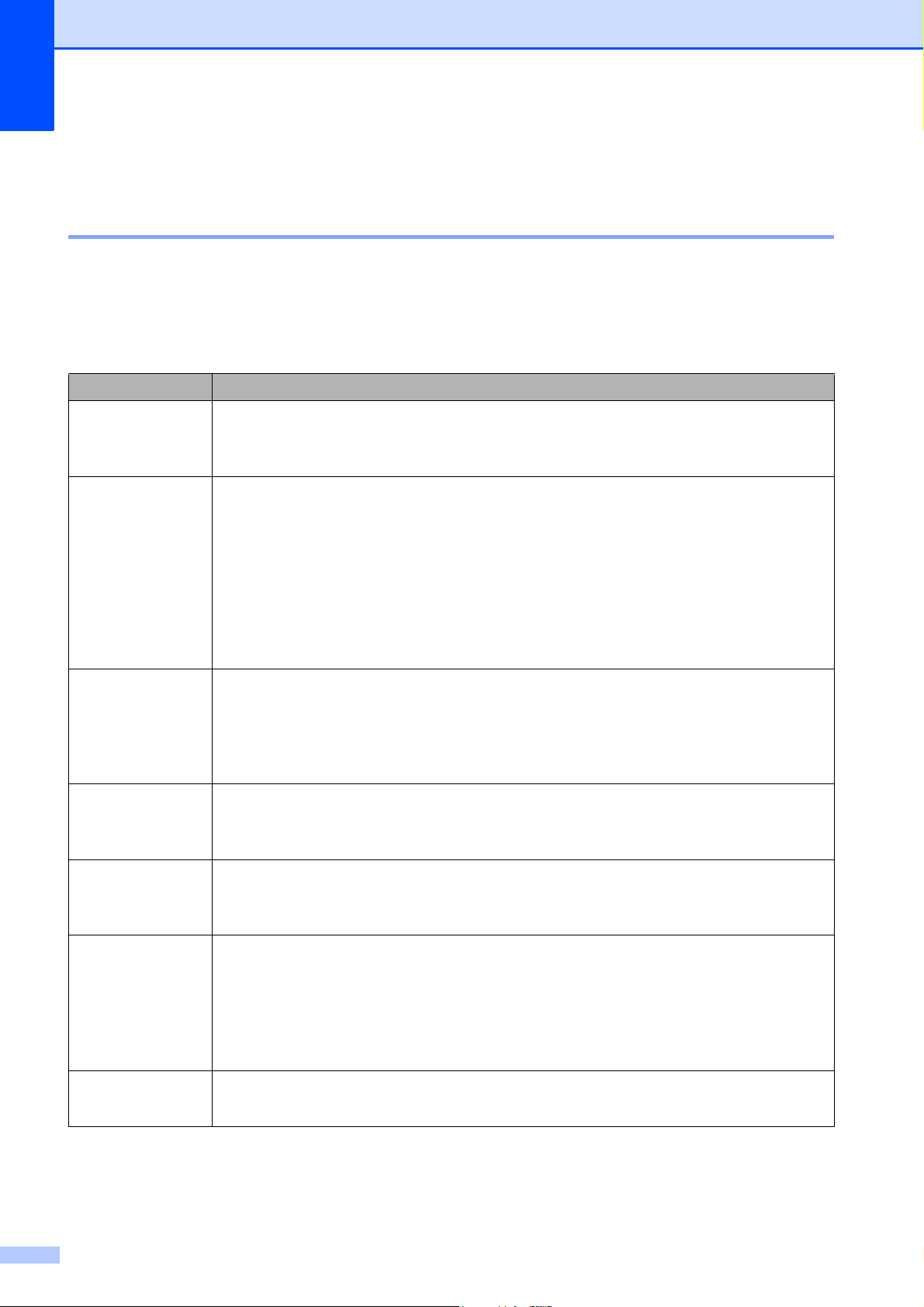
66
Troubleshooting for Wireless LAN setup B
Wireless LAN report B
After you configure the wireless LAN settings of the machine, a wireless LAN report will be printed
automatically.
If the printed report shows that the connection failed, check the error code on the printed report
and refer to the following instructions.
Error code Recommended Solutions
TS-01
The wireless setting is not activated, change the wireless setting to ON.
If a network cable is connected to your machine, disconnect it and change your
machine’s wireless setting to ON.
TS-02
Your wireless access point/router cannot be detected. Please try the following:
Check that you are selecting the correct SSID (network name) and are entering the
correct network key.
Check that your wireless access point/router is not using additional security
settings, such as MAC address filtering.
Try moving the device closer to your wireless access point/router. After it is
connected to the network, you should be able to move it back to its previous
location.
TS-04
Unsupported authentication/encryption method has been detected on your wireless
access point/router.
Your wireless access point/router is using an authentication/encryption method
that is not supported by the device. Check that you are selecting the correct SSID
(network name).
TS-05
The specified SSID and network key are incorrect.
Check that you are selecting the correct SSID (network name) and are entering the
correct network key.
TS-06
The specified wireless security information is incorrect.
Check the authentication/encryption method that you are selecting and make sure
you are entering the correct network key.
TS-07
The machine cannot detect a wireless access point/router that has WPS or AOSS™
enabled.
If you would like to configure your wireless settings using WPS or AOSS™, you
must set up WPS or AOSS™ on both your machine and the wireless access
point/router. Confirm your wireless access point/router supports WPS or AOSS™
and try starting again.
TS-08
Two or more wireless access points with WPS or AOSS™ enabled are detected.
Try starting again after a few minutes avoid interference from other access points.

Troubleshooting
67
B
If you are having difficulty with your machine B
IMPORTANT
Using non-Brother supplies may affect the print quality, hardware performance, and machine
reliability.
If you think there is a problem with your machine, check the following tables of troubleshooting
tips. You can correct most problems yourself.
If you need additional help, the Brother Solutions Center offers the latest FAQs and
troubleshooting tips.
Visit http://support.brother.com
.
NOTE
For technical help, you must call the country where you bought the machine. Calls must be
made from within that country.
Printing Difficulties
Difficulty Suggestions
The headers or footers appear
when the document is displayed on
the screen but they do not show up
when it is printed.
There is an unprintable area on the top and bottom of the page. Adjust the top and
bottom margins in your document to allow for this.
(See Online User’s Guide: Unprintable Area.)
Print speed is too slow. Try changing the printer driver setting. The highest resolution needs longer data
processing, sending and printing time. Try the other quality settings in the printer
driver as follows:
(Windows
®
)
Click Color Settings on the Advanced tab, and make sure you uncheck
Color Enhancement (True2Life).
(Macintosh)
Choose Color Settings, click Advanced Color Settings, and make sure you
uncheck Color Enhancement.
Turn the Borderless feature off. Borderless printing is slower than normal printing.
For more information, see Online User’s Guide: Print without a Border
(Windows
®
) or Print without a Border (Macintosh).
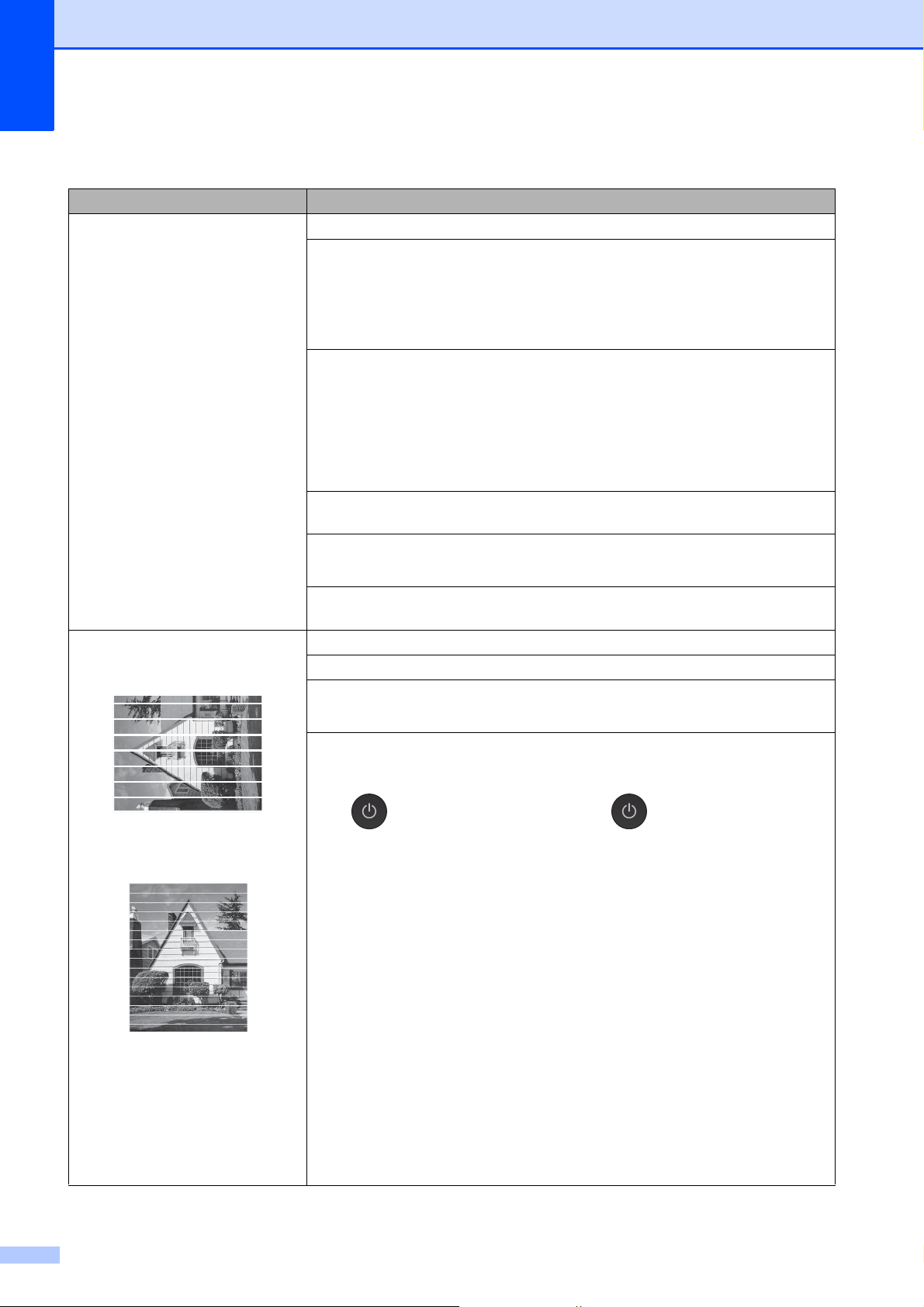
68
Print Quality Difficulties
Difficulty Suggestions
Poor print quality. Check the print quality. (See Checking the print quality on page 44.)
Make sure that the Media Type setting in the printer driver or the Paper Type
setting in the machine’s menu matches the type of paper you are using.
(See Set Paper Size and Type on page 22.)
For more information, see Online User’s Guide: Change the Media Type
(Windows
®
) or Change the Media Type (Macintosh).
Make sure that your ink cartridges are fresh. The following may cause ink to clog:
The expiration date written on the cartridge package has passed. (Genuine
Brother ink cartridges stay usable for up to two years if kept in their original
packaging.)
The ink cartridge has been in your machine for over six months.
The ink cartridge may not have been stored correctly before use.
Make sure you are using Genuine Brother Ink. Using non-Brother supplies may
affect the print quality, hardware performance, and machine reliability.
Make sure you are using one of the recommended types of paper.
(See Online User’s Guide: Acceptable Paper and Other Print Media.)
The recommended environment for your machine is between 68 F to 91 F
(20 C to 33 C).
White horizontal lines appear in text
or graphics.
Letter, A4 and Executive
Ledger, A3, Legal, Folio, A5, A6,
envelopes, Photo
(4" 6")/(10 15 cm), Photo L
(3.5" 5")/(89 127 mm),
Photo 2L (5" 7")/(13 18 cm)
and Index Card
(5" 8")/(127 203 mm)
Check the print quality. (See Checking the print quality on page 44.)
Make sure you are using Genuine Brother Ink.
Try using the recommended types of paper.
(See Online User’s Guide: Acceptable Paper and Other Print Media.)
To prolong print head life, provide the best ink cartridge economy and maintain
print quality, we do not recommend frequently unplugging the machine and/or
leaving the machine unplugged for extended periods of time. We recommend
using to power down the machine. Using allows minimal power to the
machine, resulting in periodic, but less frequent cleaning of the print head.
Troubleshooting
69
B
The machine prints blank pages. Check the print quality. (See Checking the print quality on page 44.)
Make sure you are using Genuine Brother Ink.
To prolong print head life, provide the best ink cartridge economy and maintain
print quality, we do not recommend frequently unplugging the machine and/or
leaving the machine unplugged for extended periods of time. We recommend
using to power down the machine. Using allows minimal power to the
machine, resulting in periodic, but less frequent cleaning of the print head.
Characters and lines are blurred. Check the printing alignment. (See Checking the print alignment on page 45.)
Printed text or images are skewed. Make sure the paper is loaded correctly in the paper tray and the paper guides are
adjusted correctly. (See Before loading paper on page 9.)
Make sure the Jam Clear Cover is closed correctly.
Smudge or stain at the top center of
the printed page.
Make sure the paper is not too thick or curled.
(See Online User’s Guide: Acceptable Paper and Other Print Media.)
Printing appears dirty or ink seems
to run.
Make sure you are using the recommended types of paper.
(See Online User’s Guide: Acceptable Paper and Other Print Media.)
Do not handle the paper until the ink is dry.
Make sure the printing surface is face down in the paper tray.
Make sure you are using Genuine Brother Ink.
If you are using photo paper, make sure that you have set the correct paper type.
If you are printing a photo from your PC, set the Media Type in the printer driver.
Ink is smudged or wet when using
glossy photo paper.
Be sure to check the front and back of the paper. Place the glossy surface (printing
surface) face down. (See Set Paper Size and Type on page 22.)
If you use glossy photo paper, make sure that the paper type setting is correct.
Printouts appear dirty or the paper
jams when using Ledger paper.
(PC print for Windows
®
)
Check Slow Drying Paper in the Basic tab of the printer driver.
(PC print for Macintosh)
Select Print Settings from drop-down list and then check Slow Drying Paper of
the printer driver.
(Copy)
Adjust the copy density to make copies lighter.
(See Online User’s Guide: Adjust the Copy Density.)
Stains appear on the reverse side
or at the bottom of the page.
Make sure the printer platen is not dirty with ink.
(See Online User’s Guide: Clean the Machine’s Printer Platen.)
Make sure you are using Genuine Brother Ink.
Make sure you are using the paper support flap.
(See Before loading paper on page 9.)
Make sure the paper feed rollers are not dirty with ink.
(See Online User’s Guide: Clean the Paper Feed Rollers.)
The machine prints dense lines on
the page.
(Windows
®
)
Select Reverse Order in the Basic tab of the printer driver.
Print Quality Difficulties (continued)
Difficulty Suggestions
70
The printouts are wrinkled.
(Windows
®
)
In the printer driver Advanced tab, click Color Settings, and uncheck
Bi-Directional Printing.
(Macintosh)
In the printer driver, choose Print Settings, click Advanced, choose
Other Print Options, and uncheck Bi-Directional Printing.
Make sure you are using Genuine Brother Ink.
Paper Handling Difficulties
Difficulties Suggestions
Photo paper does not feed
correctly.
When you print on Brother Photo paper, load one extra sheet of the same photo
paper in the paper tray. An extra sheet has been included in the paper package
for this purpose.
Machine feeds multiple pages. Do the following:
(See Before loading paper on page 9.)
Make sure the paper is loaded correctly in the paper tray.
Remove all the paper from the tray and fan the stack of paper well, then put it
back in the tray.
Make sure you do not push the paper in too far.
Make sure the Jam Clear Cover is closed correctly. (See Printer jam or paper jam
on page 60.)
Make sure the Base Pad in the paper tray is not dirty.
(See Online User’s Guide: Clean the Paper Pick-up Rollers and Clean the Paper
Pick-up Rollers for Paper Tray #2.)
There is a paper jam. Remove the jammed paper by following the steps. (See Printer jam or paper jam
on page 60.) Make sure the paper guides are set to the correct paper size. Do not
extend the paper tray when you load A5 or smaller size paper.
Paper jam reoccurs. If there is a repeat paper jam, a small piece of paper may be stuck in the machine.
Make sure paper is not still jammed in the machine. (See Additional paper jam
clear operations on page 65.)
Print Quality Difficulties (continued)
Difficulty Suggestions
Troubleshooting
71
B
Printing Received Faxes
Difficulty Suggestions
Condensed print
Horizontal streaks
Top and bottom sentences are
cut off
Missing lines
This is usually caused by a poor telephone connection. Make a copy; if your copy
looks good, you probably had a bad connection with static or interference on the
telephone line. Ask the other party to send the fax again.
Vertical black lines when receiving. The sender's scanner may be dirty. Ask the sender to make a copy to see if the
problem is with the sending machine. Try receiving from another fax machine.
Left and right margins are cut off or
a single page is printed on two
pages.
If the received faxes are divided and printed on two pages or if you get an extra
blank page, your paper size setting may not be correct for the paper you are using.
(See Set Paper Size and Type on page 22.)
Turn on Auto Reduction.
(See Online User’s Guide: Shrink Page Size of an Oversized Incoming Fax.)
Telephone Line or Connections
Difficulty Suggestions
Dialing does not work.
(No dial tone)
Check all line cord connections. Make sure the telephone line cord is plugged into
the telephone wall jack and the LINE jack inside the machine.
(Canada only) Change the Tone/Pulse setting.
(See Online User’s Guide: Set Tone or Pulse Dialing Mode.)
Send a manual fax by pressing Hook and dialing the number. Wait to hear
fax-receiving tones before pressing Fax Start.
If there is no dial tone, connect a known-working telephone and telephone line
cord to the jack. Then lift the external telephone's handset and listen for a dial tone.
If there is still no dial tone, ask your telephone company to check the line and/or
wall jack.
If you subscribe to DSL, VoIP, or MagicJack services, contact your service
provider for connection instructions.
The machine does not answer
when called.
Make sure the machine is in the correct Receive Mode for your setup.
(See How to choose the correct Receive Mode on page 39.) Check for a dial tone.
If possible, call your machine to hear it answer. If there is still no answer, check
that the telephone line cord is plugged into the telephone wall jack and the LINE
jack inside the machine. If there is no ringing when you call your machine, ask your
telephone company to check the line.

72
Receiving Faxes
Difficulty Suggestions
Cannot receive a fax. Make sure your machine has a dial tone by pressing Hook in Fax mode. If you
hear static or interference on your fax line, call your local telephone provider.
Check all line cord connections. Make sure the telephone line cord is plugged into
the telephone wall jack and the LINE jack inside the machine. If you subscribe to
DSL, VoIP or MagicJack services, call your service provider for connection
instructions.
If you have problems due to possible interference on the telephone line, you can
change the compatibility setting. (See Telephone Line Interference or VoIP
System on page 77.)
Make sure the machine is in the correct Receive Mode. This is determined by the
external devices and telephone subscriber services you have on the same line as
the Brother machine. (See How to choose the correct Receive Mode on page 39.)
If you have a dedicated fax line and want your Brother machine to automatically
answer all incoming faxes, select Fax Only mode.
If your Brother machine shares a line with an external answering machine, select
External TAD mode. In External TAD mode, your Brother machine will
automatically receive incoming faxes and voice callers will be able to leave a
message on your answering machine.
If your Brother machine shares the line with a Voice Mail subscriber service,
see Online User’s Guide: Voice Mail.
If your Brother machine is on a line with the Distinctive Ring subscriber service,
see Online User’s Guide: Distinctive Ring.
If your Brother machine shares a line with other telephones and you want it to
automatically answer all incoming faxes, select Fax/Tel mode. In Fax/Tel
mode, your Brother machine will automatically receive faxes and produce a
pseudo/double-ring to alert you to answer voice calls.
If you do not want your Brother machine to automatically answer incoming faxes,
select Manual mode. In Manual mode, you must answer every incoming call and
activate the machine to receive faxes.
Another device or service at your location may be answering the call before your
Brother machine answers. To test this, lower the Ring Delay setting:
If the Receive Mode is set to Fax Only or Fax/Tel, reduce the Ring Delay
to 1 ring. (See Ring Delay on page 42.)
If the Receive Mode is set to External TAD, reduce the number of rings
programmed on your answering machine to 2.
If the Receive Mode is set to Manual, DO NOT adjust the Ring Delay setting.
Have someone send you a test fax:
If you received the test fax successfully, your machine is operating correctly.
Remember to reset your Ring Delay or answering machine setting back to
your original setting. If receiving problems recur after resetting the Ring Delay,
then a person, device, or subscriber service is answering the fax call before
the machine has a chance to answer.
If you were not able to receive the fax, then another device or subscriber
service may be interfering with your fax reception or there may be a problem
with your fax line.
Troubleshooting
73
B
Cannot receive a fax.
(continued)
If you are using a telephone answering machine (External TAD mode) on the
same line as the Brother machine, make sure your answering machine is set up
correctly.
(See Online User’s Guide: External TAD (Telephone Answering Device).)
1 Plug the telephone line cord directly from the wall telephone jack to your
Brother machine’s LINE jack.
2 Remove the protective cap from your Brother machine’s EXT. jack, and then
plug the telephone line cord from your answering machine into the EXT. jack.
3 Set your answering machine to answer within 4 rings.
If you are having problems receiving faxes or voice messages, set your
answering machine to answer within 2 or 3 rings.
4 Record the outgoing message on your answering machine.
Record five seconds of silence at the beginning of your outgoing
message.
Limit your speaking to 20 seconds.
End your outgoing message with your Fax Receive Code for people
sending manual faxes. For example: “After the beep, leave a message or
press l 51 and Start to send a fax.”
5 Set your answering machine to answer calls.
6 Set your Brother machine’s Receive Mode to External TAD. (See How to
choose the correct Receive Mode on page 39.)
Make sure your Brother machine’s Easy Receive feature is turned On. Easy
Receive is a feature that allows you to receive a fax even if you have answered
the call on an external or extension telephone.
(See Online User’s Guide: Set Easy Receive.)
If you often get transmission errors due to possible interference on the telephone
line, try changing the Compatibility setting to Basic(for VoIP).
(See Telephone Line Interference or VoIP System on page 77.)
Sending Faxes
Difficulty Suggestions
Cannot send a fax. Check all line cord connections. Make sure the telephone line cord is plugged into
the telephone wall jack and the LINE jack inside the machine.
Print the Transmission Verification Report and check for an error.
(See Online User’s Guide: Print Reports.)
Ask the other party to check that the receiving machine has paper.
If you subscribe to DSL, VoIP, or MagicJack services, contact your service
provider for connection instructions.
Poor fax send quality. Try changing your resolution to Fine or S.Fine. Make a copy to check your
machine’s scanner operation. If the copy quality is poor, clean the scanner.
(See Cleaning the scanner on page 43.)
Receiving Faxes (continued)
Difficulty Suggestions
74
Transmission Verification Report
says RESULT:NG.
There is probably temporary noise or static on the line. Try sending the fax again.
If you send a PC FAX message and get RESULT:NG on the Transmission
Verification Report, your machine may be out of memory.
To gain extra memory, you can turn off Memory Receive (see Online User’s
Guide: Turn Off Memory Receive), print fax messages from the machine’s
memory (see Online User’s Guide: Print a Fax Stored in the Machine’s Memory),
or cancel a Delayed Fax or Polling Job (see Online User’s Guide: Cancel a Fax in
Progress or Check and Cancel Pending Fax).
If the problem continues, ask the telephone company to check your telephone line.
If you often get transmission errors due to possible interference on the telephone
line, try changing the machine's Compatibility setting to Basic(for VoIP).
(See Telephone Line Interference or VoIP System on page 77.)
Vertical black lines when sending. Black vertical lines on faxes you send are typically caused by dirt or correction fluid
on the glass strip. Clean the glass strip. (See Cleaning the scanner on page 43.)
Handling Incoming Calls
Difficulty Suggestions
The machine “hears” a voice as a
CNG Tone.
If Easy Receive is set to On, your machine is more sensitive to sounds. It may
mistakenly interpret certain voices or music on the line as a fax machine calling
and respond with fax-receiving tones. Deactivate the machine by pressing .
Try avoiding this problem by turning Easy Receive to Off.
(See Online User’s Guide: Set Easy Receive.)
Sending a fax call to the machine. If you answered on an extension telephone, press your Fax Receive Code (the
factory setting is l 51). If you answered on the external telephone (connected to
the EXT. jack), press Fax Start, and then press Receive to receive the fax.
When your machine answers, hang up.
Custom features on a single line. If you have Call Waiting, Call Waiting/Caller ID, Caller ID, RingMaster, Voice Mail,
an answering machine, an alarm system or other custom feature on a single
telephone line with your machine, it may create a problem sending or receiving
faxes.
For example: If you subscribe to Call Waiting or another custom service and its
signal comes through the line while your machine is sending or receiving a fax, the
signal can temporarily interrupt the fax. Brother's ECM (Error Correction Mode)
feature should help overcome this problem. This condition is related to the
telephone system industry and is common to all devices that send and receive
information on a single, shared line with custom features. If avoiding a slight
interruption is crucial to your business, we recommend using a separate
telephone line with no custom features.
Sending Faxes (continued)
Difficulty Suggestions
Troubleshooting
75
B
Copying Difficulties
Difficulty Suggestions
Vertical black lines or streaks
appear in copies.
Black vertical lines on copies are typically caused by dirt or correction fluid on the
glass strip. Clean the glass strip, scanner glass, and the white bar and white
plastic above them. (See Cleaning the scanner on page 43.)
Black marks or spots appear in
copies.
Black marks or spots on copies are typically caused by dirt or correction fluid on
the scanner glass. Clean the scanner glass and white plastic above it.
(See Cleaning the scanner on page 43.)
Poor copy results when using the
ADF.
Try using the scanner glass. (See Using the scanner glass on page 25.)
Fit to Page does not work correctly. Make sure the document is not skewed on the scanner glass.
Reposition the document and try again.
Scanning Difficulties
Difficulty Suggestions
Poor scanning results when using
the ADF.
Vertical black lines appear in
the scanned data.
Clean the white bar and the glass strip underneath it. (See Cleaning the scanner
on page 43.)
Try using the scanner glass. (See Using the scanner glass on page 25.)
PhotoCapture Center Difficulties
Difficulty Suggestions
Removable Disk does not work
correctly.
1 Take out the memory card or USB flash drive and put it back in again.
2 If you have tried “Eject” from within Windows
®
, take out the memory card or
USB flash drive before you continue.
3 If an error message appears when you try to eject the memory card or USB
flash drive, it means the card is being accessed. Wait a while, and then try
again.
4 If all of the above do not work, turn off your PC and machine, and then turn
them on again.
Part of my photo is missing when
printed.
Make sure that Borderless printing and Cropping are turned off.
(See Online User’s Guide: Print Photos with Auto Cropping and Print Borderless
Photos from Media.)
Software Difficulties
Difficulty Suggestions
Cannot install software or print.
(Windows
®
)
Run the Repair MFL-Pro Suite program on the CD-ROM. This program will repair
and reinstall the software.
76
Network Difficulties
Difficulty Suggestions
Cannot print over the network. Make sure that your machine is powered on and is online and in Ready mode.
Print a Network Configuration list (see Online User’s Guide: Print Reports) and
check the current Network settings printed in this list. Reconnect the LAN cable to
the hub to verify that the cabling and network connections are good.
If you are using a wireless connection or are having Network problems, see Online
User’s Guide: Network Problems.
The network scanning feature does
not work.
It is necessary to configure the third-party Security/Firewall Software to allow
Network scanning. Add port 54925 for Network scanning.
(See Online User’s Guide: My Brother Machine Cannot Print, Scan, or PC-FAX
Receive over the Network.)
The network PC-Fax Receive
feature does not work.
(Windows
®
)
It is necessary to set the third-party Security/Firewall Software to allow PC-FAX
Rx. Add port 54926 for Network PC-FAX Rx.
(See Online User’s Guide: My Brother Machine Cannot Print, Scan, or PC-FAX
Receive over the Network.)
The Brother software cannot be
installed.
(Windows
®
)
If the Security Software warning appears on the PC screen during the installation,
change the Security Software settings to permit the Brother product setup
program or other program to run.
(Macintosh)
If you are using a firewall function of anti-spyware or antivirus security software,
temporarily disable it and then install the Brother software.
Cannot connect to wireless
network.
Investigate the problem using the WLAN Report.
Press , All Settings, and then swipe up or down or press a or b to
display Print Reports. Press Print Reports. Swipe up or down or press a
or b to display WLAN Report, and then press WLAN Report.
For more information, see Online User’s Guide: Print the WLAN Report.
Troubleshooting
77
B
Dial Tone detection B
Setting the dial tone to Detection will shorten
the dial detect pause.
a Press (Settings).
b Press All Settings.
c Swipe up or down or press a or b to
display Initial Setup.
d Press Initial Setup.
e Swipe up or down or press a or b to
display Dial Tone.
f Press Dial Tone.
g Press Detection or No Detection.
h Press .
Telephone Line Interference
or VoIP System B
If you are having problems sending or
receiving a fax due to possible interference
on the telephone line, or if you are using a
VoIP system, we recommend that you
change the modem speed to minimize errors
in fax operations.
a Press (Settings).
b Press All Settings.
c Swipe up or down or press a or b to
display Initial Setup.
d Press Initial Setup.
e Swipe up or down or press a or b to
display Compatibility.
f Press Compatibility.
g Press High, Normal or
Basic(for VoIP).
Basic(for VoIP) reduces the
modem speed to 9,600 bps and
turns off color fax receiving and Error
Correction Mode (ECM), except for
color fax-sending. Unless
interference is a recurring problem
on your telephone line, you may
prefer to use it only when needed.
To improve compatibility with most
VoIP services, Brother recommends
changing the compatibility setting to
Basic(for VoIP).
Normal sets the modem speed at
14,400 bps.
High increases the modem speed to
33,600 bps. (factory setting)
h Press .
NOTE
VoIP (Voice over IP) is a type of phone
system that uses an Internet connection,
rather than a traditional phone line.
78
Machine Information B
Checking the serial number B
You can see the machine’s serial number on
the Touchscreen.
a Press (Settings).
b Press All Settings.
c Swipe up or down or press a or b to
display Machine Info.
d Press Machine Info.
e Press Serial No.
Your machine’s serial number will
appear on the Touchscreen.
f Press .
Checking the firmware
version B
You can see the machine’s firmware version
on the Touchscreen.
a Press (Settings).
b Press All Settings.
c Swipe up or down or press a or b to
display Machine Info.
d Press Machine Info.
e Press Firmware Version.
f Press Main Version.
Your machine’s firmware version will
appear on the Touchscreen.
g Press .
Reset operations overview B
The following reset operations are available:
1 Machine Reset
You can reset all the machine’s settings
that you have changed, such as Date and
Time and Ring Delay.
The icon will be restored to the
Home screen. (USA only)
2 Network
You can reset the print server back to its
factory settings, such as the password
and IP address information.
3 Address Book & Fax
Address Book & Fax resets the following
settings:
Address Book
(Address Book and Setup Groups)
Programmed fax jobs in the memory
(Polled Transmit, Delayed Fax and
Delayed Batch Transmission)
Station ID
(Name and Number)
Remote Fax Options
(Fax Forwarding and Paging)
Report settings
(Transmission Verification Report,
Address Book and Fax Journal)
History
(Caller ID history and Outgoing Call)
Faxes in memory
4 All Settings
You can restore all settings to the factory
settings.
Brother strongly recommends performing
this procedure before handing over or
disposing of the machine.

Troubleshooting
79
B
NOTE
Unplug the interface cable before you
choose Network or All Settings.
How to reset the machine B
a Press (Settings).
b Press All Settings.
c Swipe up or down or press a or b to
display Initial Setup.
d Press Initial Setup.
e Swipe up or down or press a or b to
display Reset.
f Press Reset.
g Press the type of reset you want to do
(Machine Reset, Network,
Address Book & Fax, or
All Settings).
h Press Yes to confirm.
i Press Yes for two seconds to reboot the
machine.

Index
80
C
A
Accessories and supplies .......................... ii
Address Book
setting up
..............................................38
ADF (automatic document feeder)
...........24
Automatic
fax receive
.............................................39
B
Brother
accessories and supplies
........................ ii
Brother numbers
...................................... i
Customer Service
.................................... i
FAQs (frequently asked questions)
.......... i
Notice-Disclaimer
................................... iv
product support
........................................ i
service centers
........................................ ii
Solutions Center
...................................... i
C
Cleaning
scanner
.................................................43
Control panel overview
..............................2
ControlCenter
See Online User’s Guide.
Copy
paper size
.............................................29
paper type
.............................................29
using ADF
.............................................24
using scanner glass
..............................25
Custom telephone features on a single
line
...........................................................74
D
Dialing
a pause
.................................................37
Document
loading
........................................... 24, 26
E
Envelopes .....................................9, 17, 19
Error messages on Touchscreen
.............47
F
Fax, from PC
See Online User’s Guide.
Fax, stand-alone
receiving
............................................... 39
difficulties
.................................... 71, 72
F/T Ring Time, setting
....................... 42
Ring Delay, setting
............................ 42
telephone line interference or VoIP
system
............................................... 77
sending
................................................. 36
difficulties
.......................................... 73
telephone line interference or VoIP
system
............................................... 77
Fax/Tel mode
Ring Delay
............................................ 42
J
Jams
document
.............................................. 58
paper
.................................................... 60
M
Manual
receive
.................................................. 39
Manual feed slot
...................................... 19
Multi-purpose tray
.................................... 17
N
Network
Printing
See Online User’s Guide.
Scanning
See Online User’s Guide.

81
C
P
Paper
Check Paper setting
.............................23
loading
............................................. 9, 14
size of document
...................................24
type
.......................................................22
PhotoCapture Center
from PC
See Online User’s Guide.
Preview photos
.....................................32
Printing
all photos
...........................................32
Print
difficulties
..............................................67
Printing
See Online User’s Guide.
R
Receive Mode
External TAD
........................................39
Fax Only
...............................................39
Fax/Tel
..................................................39
Manual
..................................................39
Ring Delay, setting
...................................42
S
Scanning
See Online User’s Guide.
Serial Number
how to find .............. See inside front cover
Supplies
...................................................83
T
TAD (telephone answering device),
external
.................................................... 39
Receive Mode
...................................... 39
Telephone line
difficulties
............................................. 71
interference or VoIP system
................. 77
Text, entering
............................................ 8
Transferring your faxes or
Fax Journal report
................................... 57
Tray Select
.............................................. 29
Troubleshooting
document jam
....................................... 58
error and maintenance messages on
Touchscreen
........................................ 47
if you are having difficulty
copying
.............................................. 75
incoming calls
.................................... 74
Network
............................................. 76
paper handling
.................................. 70
phone line or connections
................. 71
PhotoCapture Center
........................ 75
print quality
........................................ 68
printing
.............................................. 67
printing received faxes
...................... 71
receiving faxes
.................................. 72
scanning
............................................ 75
software
............................................. 75
paper jam
............................................. 60
wireless LAN setup
Wireless LAN report
.......................... 66
W
Warranties are in the box
Notice-Disclaimer
...................................iv
Wireless Network
See Quick Setup Guide and Online User’s
Guide.

82
83
Supplies
Ink The machine uses individual Black, Yellow, Cyan and Magenta ink
cartridges that are separate from the print head assembly.
Service Life of Ink
Cartridge
Starter ink cartridges are in the box. The first time you install the ink
cartridges the machine will use extra ink to fill the ink delivery tubes.
This is a one-time process that enables high-quality printing.
Afterward, replacement ink cartridges will print the specified
number of pages.
Replacement Supplies <Super High Yield Black> LC20EBK
<Super High Yield Yellow> LC20EY
<Super High Yield Cyan> LC20EC
<Super High Yield Magenta> LC20EM
Black - Approximately 2,400 pages
1
Yellow, Cyan and Magenta - Approximately 1,200 pages
1
1
Approx. cartridge yield is declared in accordance with ISO/IEC 24711
For more information about the replacement supplies, visit
http://www.brother.com/pageyield
.
If you’re using Windows
®
, double-click the Brother CreativeCenter icon on your desktop to access
our FREE website designed as a resource to help you easily create and print customized materials
for business and home use with photos, text and creative touch.
Mac users can access Brother CreativeCenter at this web address: http://www.brother.com/creativecenter
www.brotherearth.com
Brother International Corporation
200 Crossing Boulevard
P.O. Box 6911
Bridgewater, NJ 08807-0911 USA
Brother International Corporation (Canada) Ltd.
1 rue Hôtel de Ville,
Dollard-des-Ormeaux, QC, Canada H9B 3H6
Visit us on the World Wide Web
http://www.brother.com
This machine is approved for use in the country of purchase only. Local Brother companies or their
dealers will support only machines purchased in their own countries.