Be sure to read this document before using the machine.
Operation Manual
Cutting Machine
Product Code: 893-Z11

i
Terms of Use
IMPORTANT-PLEASE READ CAREFULLY:
This Terms of Use (“Agreement”) is a legal agreement between Brother Industries, Ltd. (“Company”) and you
that governs your use of any Software, installed on or made available by Company for use with sewing or craft
products (“Company Product”). The term of “Software” means any and all contents data, design data, data
format, firmware of Company Product, and PC application or mobile device application.
By using the Software and Company Product, you shall be deemed to have agreed to be bound by the terms of
this Agreement. If you do not agree to the terms of this Agreement, Company is unwilling to license the Software
and you are not allowed to use the Software. Amendments and supplements to this Agreement may be attached
to the Software.
An individual who accepts this Agreement on behalf of an entity represents to Company that he or she has the
legal right to enter into a binding legal agreement for that entity.
Terms and Conditions
1 Grant of License.
1.1 Subject to this Agreement, Company hereby grants you a personal, non-exclusive, non-
transferable and revocable license to use the Software only within the Company Product.
1.2 Your right to use of the Software is licensed and not sold, and solely for your use subject to this
Agreement. Company or its suppliers retains all right, title, and interest relating to Software,
including without limitation all intellectual property rights relating thereto.
2 Restrictions
2.1 Except as expressly set out in this Agreement or as required by any local law, you shall undertake:
2.1.1 not to disassemble, de-compile, reverse engineer, translate or otherwise attempt to learn
the source code of the Software(including the data or contents created by using the
Company Product or contents editing application software; hereinafter the same shall
apply in this Clause 2.);
2.1.2 not to create derivative works based on the whole or any part of the Software;
2.1.3 not to distribute, provide or make available the Software in any form, in whole or in part
to any person without prior written consent from Company;
2.1.4 not to copy the Software, except where such copying is incidental to normal use of the
Software with Company Product or where it is necessary for the purpose of back-up or
operational security;
2.1.5 not to transfer, rent, lease, sub-license, loan, translate, merge, adapt, vary, alter or modify,
the whole or any part of the Software nor permit the Software or any part of it to be
combined with, or become incorporated in, any other programs;
2.1.6 to include Company’s copyright notice and this Agreement on all entire and partial copies
of the Software; and
2.1.7 not to use the Software for any purpose (including, but not limited to, use with
unauthorized sewing/craft products or software) other than as provided under Clause 1 of
this Agreement.
3No warranty
TO THE EXTENT PERMISSIBLE BY APPLICABLE LAW, THIS SOFTWARE IS PROVIDED TO YOU
"AS IS" WITHOUT WARRANTIES OR CONDITIONS OF ANY KIND, WHETHER ORAL OR
WRITTEN, EXPRESS OR IMPLIED. COMPANY SPECIFICALLY DISCLAIMS ANY IMPLIED
WARRANTIES OR CONDITIONS OF MERCHANTABILITY, SATISFACTORY QUALITY, NON-
INFRINGEMENT AND/OR FITNESS FOR A PARTICULAR PURPOSE.
4 Limitation of liability
4.1 COMPANY SHALL NOT BE LIABLE TO YOU, ITS END-USERS OR ANY OTHER ENTITY FOR
ANY LOSS OF PROFITS OR INCOME OR SAVINGS, LOSS OF DATA, INTERRUPTION OF USE,
OR CONSEQUENTIAL, INCIDENTAL, SPECIAL, PUNITIVE OR INDIRECT DAMAGES
INCURRED BY SUCH PARTY (WHETHER IN AN ACTION IN CONTRACT OR TORT), EVEN IF
COMPANY HAS BEEN ADVISED OF THE POSSIBILITY OF SUCH DAMAGES, ARISING OUT
OF OR RELATING TO THE SOFTWARE, SUPPORT SERVICE OR THIS AGREEMENT. THESE

ii
LIMITATIONS SHALL APPLY TO THE MAXIMUM EXTENT ALLOWED BY APPLICABLE LAW
NOTWITHSTANDING ANY FAILURE OF ESSENTIAL PURPOSE OF ANY LIMITED REMEDY.
4.2 NOTWITHSTANDING THE CLAUSE 3 OR 4.1 HEREOF, THIS AGREEMENT DOES NOT
PURPORT TO EXCLUDE OR RESTRICT COMPANY'S LIABILITY FOR DEATH OR PERSONAL
INJURY RESULTING FROM NEGLIGENCE OR LIMIT THE STATUTORY RIGHTS OF A
CONSUMER.
5Termination
5.1 Company shall have the right to terminate this Agreement at any time by providing a written
notice to you if you commit a material breach of any terms of this Agreement and fail to
immediately rectify such breach upon Company’s request.
5.2 Upon termination for any reason all rights granted to you under this Agreement shall cease, you
shall cease all activities authorized by this Agreement and you shall immediately delete or
remove the Software from all computer equipment in your possession and delete or destroy all
copies of the Software or its derivative works in your possession. In addition to the above, you
shall delete contents or design data created by you from the Company Product in your
possession.
6 Miscellaneous terms
6.1 You shall not export or re-export the Software or any copy or adaptation thereof in violation of
any applicable laws or regulations.
6.2 You shall not assign all or any part of this Agreement to any third party or any interest therein,
without prior written consent of Company. A change of control or reorganization of you
pursuant to a merger, sale of assets or stock shall be deemed to be an assignment under this
Agreement.
6.3 You agree that a breach of this Agreement will cause irreparable injury to Company for which
monetary damages would not be an adequate remedy and Company shall be entitled to seek
equitable relief in addition to any remedies it may have hereunder or at law without a bond,
other security, or proof of damages.
6.4 If any provisions of this Agreement shall be declared or determined as void or unenforceable by a
court of competent jurisdiction, such provisions shall be severable and independent from the
other provisions of this Agreement and the validity of the other provisions and of the entire
Agreement shall not be affected thereby.
6.5 This Agreement, together with all exhibits or other attachments referenced herein, constitutes the
entire agreement between the parties on the subject matter hereof, and supersedes all proposals,
oral and written, between the parties on this subject.
6.6 If Company fails to insist that you perform any of your obligations under this Agreement, or if
Company does not enforce any rights against you, or if Company delay in doing so, that will not
mean that Company have waived any rights against you and will not mean that you do not have
to comply with those obligations. If Company does waive a default by you, Company will only
do so in writing, and that will not mean that Company will automatically waive any later default
by you.
6.7 This Agreement is governed by the laws of Japan and Japanese Courts shall have exclusive
jurisdiction with respect to this Agreement except with regard to enforcement in which case the
jurisdiction of the Japanese Courts shall be non-exclusive.
6.8 The Company may update this Agreement in the below cases: A) When the changes are made for
the users’ benefit, or B) When the updates to the Agreement are adequate, reasonable, and not
contrary to the purposes of the Agreement. The Company will notify you and give you the
opportunity to review any material changes or updates to the Agreement, by posting a notice on
the Company’s website or a website specified by the Company at least 30 days before the
Agreement enters into effect. Once the updated Agreement is in effect, you will be bound by it if
you continue to use the Software.
1
Thank you for purchasing this machine.
Before using this machine or attempting any maintenance, carefully read the “IMPORTANT SAFETY
INSTRUCTIONS” on the Product Safety Guide, and then read the Operation Manual for the correct operation of
the various functions. In addition, after you have finished reading this manual, store it where it can quickly be
accessed for future reference. Failure to follow these instructions may result in an increased risk of personal
injury or damage to property, including through fire, electrical shock, burns or suffocation.
●
This machine is intended for household use.
● This machine is approved for use in the country of purchase only.
● Due to product quality improvements, the specifications or appearance of this machine may change without notice.
● The screens in this manual are for illustration purposes only and may differ from the actual screens.
● The contents of this document are subject to change without notice.
● The contents of this document may not be duplicated or reproduced, partially or in full, without permission.
● We assume no responsibility for damages arising from earthquakes, fire, other disasters, actions of third parties, the user’s
intentional or negligent operation, misuse or operation under other special conditions.
● For additional product information, visit our web site at www.brother.com
Symbols Used in This Document
The following symbols are used in this document.
INTRODUCTION
IMPORTANT NOTICE
IMPORTANT SAFETY INSTRUCTIONS
WARNING
Failure to observe instructions with this marking may result in fatal or
critical injuries.
CAUTION
Failure to observe instructions with this marking may result in serious
injuries.

2
Terms of Use .................................................. i
INTRODUCTION .......................................... 1
IMPORTANT NOTICE ................................... 1
IMPORTANT SAFETY INSTRUCTIONS ......... 1
Symbols Used in This Document........................... 1
FEATURES...................................................... 4
Patterns (“Pattern” mode) ...................................... 4
Scanning (“Scan” mode)........................................ 4
Transferring Data using the Wireless Network
Connection Function.............................................. 5
1 GETTING STARTED............6
PARTS AND FUNCTIONS ............................. 6
Unit Descriptions - Front........................................ 6
Unit Descriptions - Rear......................................... 7
Unit Descriptions - Operation Panel ...................... 7
Included Accessories ............................................. 7
BEFORE USE .................................................. 8
Placing the Machine............................................... 8
Removing the Packing Materials............................ 8
Turning On/Off the Machine................................... 8
Preparing for Feeding the Mat ............................... 9
Operation of LCD Panel ......................................... 9
MACHINE SETTINGS .................................. 10
Settings Screen.................................................... 10
Auto Shutdown..................................................... 12
2 BASIC OPERATIONS........13
FIRST STEPS................................................. 13
Selecting the Mat and Blade Appropriate for the
Material................................................................. 13
Reference Table of Mat, Blade and Material
Combinations ....................................................... 15
Attaching the Material to the Mat......................... 18
Installing and Uninstalling the Holder................... 26
Test Cut (Trial Cut) ............................................... 27
PATTERN CUTTING .................................... 31
Tutorial 1 - Cutting Patterns................................. 31
Tutorial 2 - Cutting Advanced Patterns................ 34
Tutorial 3 - Adding a Weeding Box to a Pattern .. 39
PATTERN SELECTION ................................. 41
Selecting a Single Pattern.................................... 41
Selecting Multiple Patterns .................................. 41
3
ADVANCED OPERATIONS
...43
CUTTING AND EDITING FUNCTIONS ...... 43
Pattern Editing Functions..................................... 43
Pattern Editing Functions - Multiple Patterns ...... 44
Mat Layout Screen ............................................... 44
Layout Editing Functions...................................... 45
Object Editing Screen .......................................... 46
Undoing an Operation.......................................... 47
Grouping/Ungrouping Patterns............................ 47
Welding (Merging the Outlines of Multiple Patterns)
............................................................................. 49
Adding an Offset Line to the Pattern.................... 50
Aligning Patterns .................................................. 51
Auto Layout Functions ......................................... 53
Scanning a Background Image............................ 53
Character Input Functions.................................... 55
DRAWING FUNCTIONS .............................57
Drawing ................................................................ 57
Cutting Around Drawings..................................... 58
Using Drawing Functions to Fill Patterns/Make
Outlines Thicker ................................................... 62
MEMORY FUNCTIONS ...............................64
Saving .................................................................. 64
Retrieve Data........................................................ 65
Importing Designs ................................................ 66
4
SCANNING FUNCTIONS
... 67
SCANNING FOR CUTTING (Direct Cut).....67
Tutorial 4 - Scanning and Cutting ........................ 67
Advanced Cutting Functions for “Direct Cut” ...... 71
CREATING CUTTING DATA (Scan to Cut
Data)............................................................ 73
Tutorial 5 - Creating Cutting Data ........................ 73
Adjusting Image Detection Levels........................ 79
SCANNING IMAGES (Scan to USB).............81
Notes on Scanning............................................... 81
Tutorial 6 - Scanning to USB ............................... 81
Selecting the Area to be Saved............................ 83
Transferring an Image to CanvasWorkspace....... 83
5
WIRELESS NETWORK
CONNECTION FUNCTION
... 85
Machine Wireless Network Connection
Settings ........................................................85
Enable the Wireless Network Function ................ 85
Set up the Wireless Network................................ 85
Check the Wireless Network Setup/Status.......... 88
Using the “Others” Menu ..................................... 88
Register Machine Under
CanvasWorkspace........................................89
6 DATA TRANSFER
FUNCTION ......................... 92
Retrieving Data from CanvasWorkspace......92
Retrieve Transferred Patterns from
CanvasWorkspace (Using a Wireless Network) ... 92
Retrieve Transferred Patterns from
CanvasWorkspace (Using a USB Cable) (compatible
only with Windows) .............................................. 93
Batch Download a Pattern Collection from
CanvasWorkspace (compatible only with the Web
version)................................................................. 94
My Connection Function..............................96
CONTENTS

3
Retrieving Embroidery Data for Cutting
(Compatible Models Only) .......................... 97
Preparing .phc, .phx or .pes Files ........................ 97
Retrieving the Pattern to the Cutting Machine..... 97
Creating Appliqué Data........................................ 98
Creating Embroidering Line Data......................... 98
7 APPENDIX......................101
CONSUMABLES ........................................ 101
Replacement Criteria.......................................... 101
Replacing the Blade ........................................... 101
CARE AND MAINTENANCE...................... 103
Cleaning ............................................................. 103
Cleaning the Scanner Glass............................... 105
Adjusting the Screen.......................................... 106
Adjusting the Scanning/Cutting Position ........... 106
Adjusting the Position of the Feed Roller........... 108
TROUBLESHOOTING ............................... 109
How can I Find the Wireless Security Information
(Network Name (SSID) and Network
Password)........................................................... 113
ERROR MESSAGES .................................... 114
UPDATING THE SOFTWARE .................... 119
Automatic Update Function ............................... 119
Update Procedure Using USB Flash Drive ........ 120
Update Procedure Using the Application
(CanvasWorkspace) ........................................... 120
OPTIONAL ACCESSORIES ........................ 122
PRODUCT SPECIFICATIONS .................... 123
INDEX ....................................................... 124
4
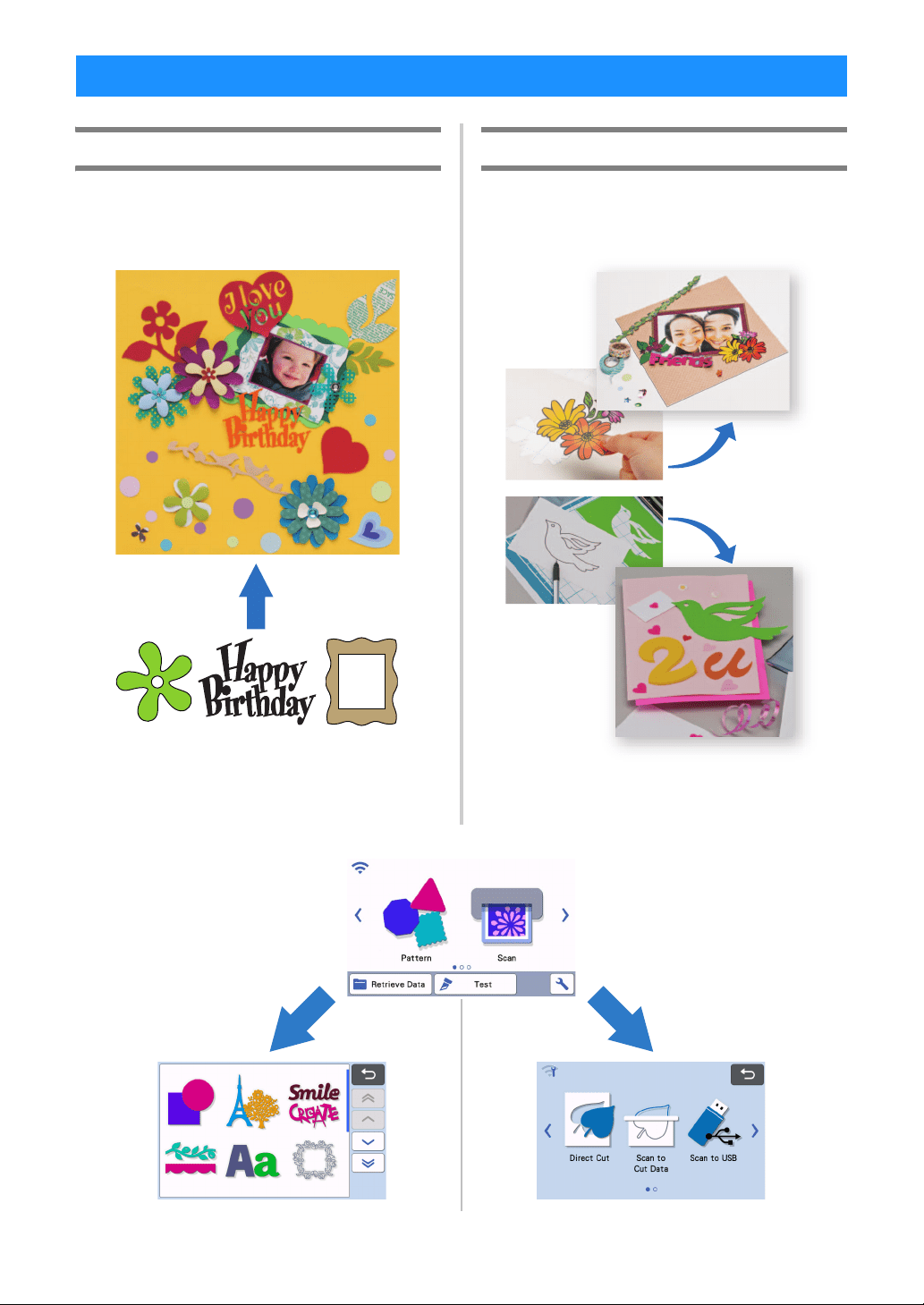
Patterns (“Pattern” mode)
Select a pattern and edit it to create your own design.
By simply loading craft paper or fabric, you can
quickly create precision paper and fabric cutouts.
The editing functions of ScanNCut DX will allow you to
easily edit the built-in patterns to create your own
design.
Scanning (“Scan” mode)
Scan an illustration, photo or your own drawing to
create personalized cut designs. The design can then
be cut out or saved as data.
Without your PC or mobile device, you can scan your
choice of pattern, use/edit the scanned design, and
save the pattern for later use.
FEATURES
Home screen
Select a pattern.
“Tutorial 1 - Cutting Patterns”
on page 31
“Tutorial 2 - Cutting
Advanced Patterns” on
page 34
Scan an image.
“Tutorial 4 - Scanning and
Cutting” on page 67
“Tutorial 5 - Creating Cutting
Data” on page 73
“Tutorial 6 - Scanning to
USB” on page 81
5
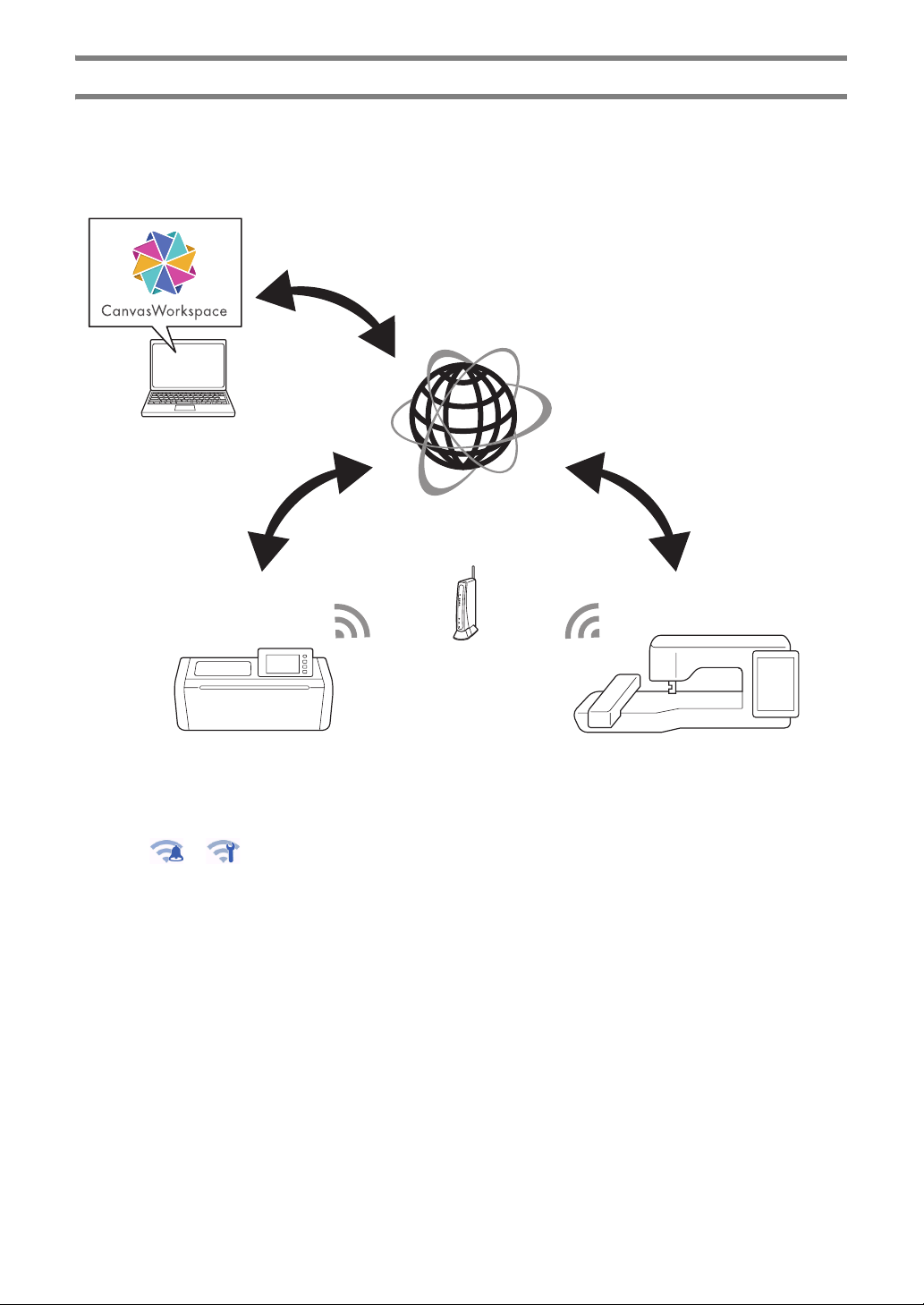
Transferring Data using the Wireless Network Connection Function
This machine is equipped with a wireless network connection function. With this function, patterns edited in the
dedicated application CanvasWorkspace can be transferred to the machine, or pattern data can be shared with
Brother embroidery machines (*) via a wireless network connection. It is also possible to download software
directly to the machine. Refer to the following to use the wireless network function.
* Compatible models only. For details on compatible models, check http://s.brother/cnxaa/.
* Transferable data can only be sent one file at a time. If continuous transmission operations are performed from any
device, only the most recent file can be recalled by the receiving device.
* Transferred data is sent and received via the shared Temporary Data Pocket. (Excluding uploads to CanvasWorkspace)
1. Connecting to a wireless network:
Touch
or in the home screen to specify the wireless network connection settings. For the
connection procedure, refer to “WIRELESS NETWORK CONNECTION FUNCTION” on page 85.
2. Register machine under CanvasWorkspace
In order to save or retrieve patterns using the wireless network function, your machine must first be
registered with CanvasWorkspace.
Log into CanvasWorkspace (Web) to register your machine.
A CanvasWorkspace Login ID is required to use CanvasWorkspace.
If you do not already have a free account, create an account from [Member Registration].
For details, refer to “WIRELESS NETWORK CONNECTION FUNCTION” on page 85.
3. Retrieving/saving patterns:
Patterns can be downloaded or uploaded, without using a USB flash drive. For details, see “Saving” on
page 64 and “Retrieve Data” on page 65.
CanvasWorkspace (Windows/Mac) is a PC based application that allows you to create and edit cutting or
drawing pattern data to download to your cutting machine. This application allows you to edit the pattern data
without an Internet connection.
You can download the application from the Brother support website (http://s.brother/cuoad/).
Also, by accessing CanvasWorkspace (Web) <http://CanvasWorkspace.Brother.com>, you can download
Canvas Project recipes.
6
Chapter 1 GETTING STARTED
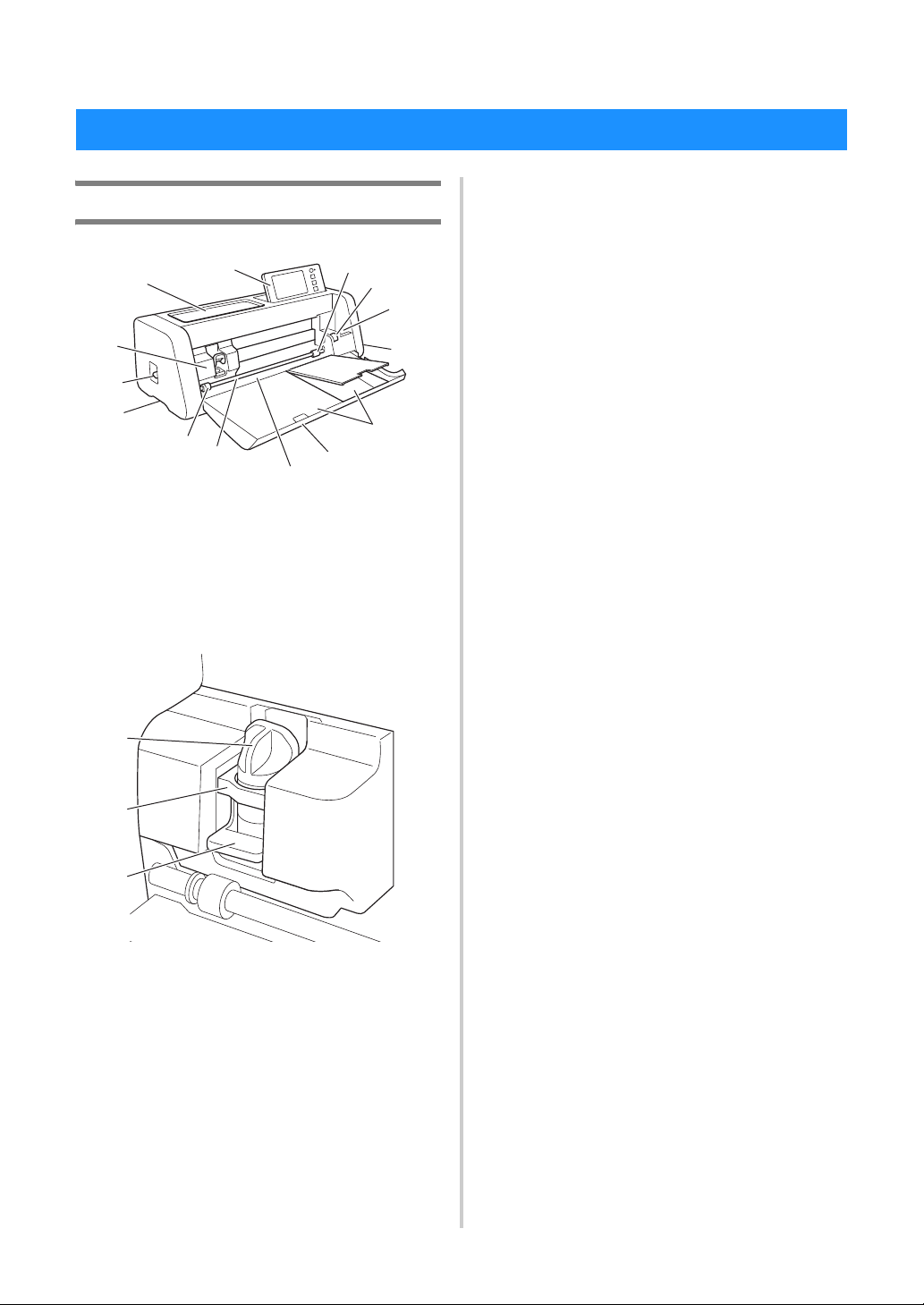
Unit Descriptions - Front
a Operation Panel
Allows you to control the unit and specify settings with
the LCD panel and operating buttons. The angle of the
operation panel can be adjusted.
b Tool Tray
Stores accessories for easy access during use.
c Carriage
Moves the installed holder for cutting or drawing.
1 Holder
Installs in the carriage to cut or draw on craft paper
or fabric. Use the holder designed specifically for
cutting or drawing.
2 Holder Guide
The guide secures the holder.
3 Holder Lock Lever
Releases the holder when the lever is raised. Locks
the holder when the lever is lowered.
d Scanner Lever
Adjusted according to the operation being performed.
For details, see “Preparing for Feeding the Mat” on
page 9.
e Grips
Grasped when moving the machine.
f Feed Rollers
Should be adjusted on the right side when the
optional roll feeder is used. For details, see “Adjusting
the Position of the Feed Roller” on page 108.
g Shaft
Drives a feed roller on each end to feed the mat.
h Feeder Release Lever
Locks or releases the shaft when the optional roll
feeder is used. For normal operations, set to the
locked position. For details, see “Adjusting the
Position of the Feed Roller” on page 108.
i Tool Holder
Holds accessories upright for easy access during use.
j Storage
Stores accessories.
k Front Tray Cover
Protects the feed rollers, carriage and holder. Open
the cover while the machine is operating.
l Feed Slot
Feeds in the mat when it is loaded.
PARTS AND FUNCTIONS
h
i
a
b
c
e
d
e
f
g
k
j
l
f
a
b
c
7
1
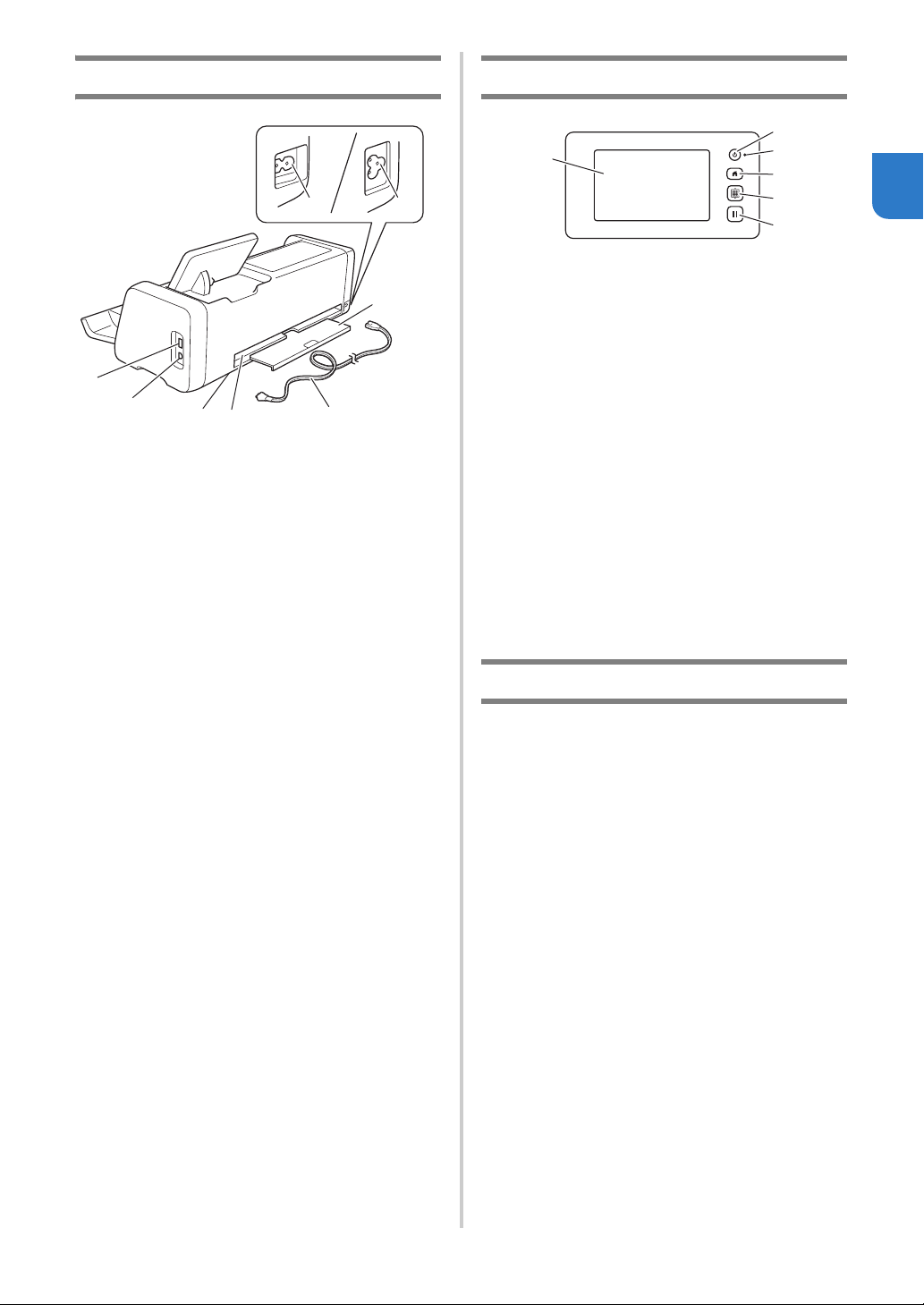
Unit Descriptions - Rear
a USB Port (for a USB flash drive)
Allows a USB flash drive to be connected for saving
and recalling data.
b USB Port (for a computer)
Allows a USB cable to be connected for saving and
recalling data. For Computers and Operating
Systems, see “Connecting Your Machine to the
Computer” on page 93.
c Scanner Glass (inside of machine)
Can be maintained after the rear tray has been
removed. For details, see “Cleaning the Scanner
Glass” on page 105.
d Slot
Allows a mat to be fed back and forth during an
operation. Do not place any objects near the slot that
would prevent the mat from being fed out.
e Rear Tray
Supports the mat when it is fed out of the slot during
operation. Be sure to pull out this tray before using the
machine.
f AC Power Jack
g AC Power Cord
Unit Descriptions - Operation Panel
a LCD Panel
Displays operation screens, preview images of
patterns and error messages.
b Power Button
Turns the machine on/off.
c Power Indicator
Lights up when the machine is turned on, and flashes
when the machine enters the sleep mode (power-
saving mode) or the machine’s software is being
updated.
d Home Button
Displays the home screen (starting screen for
operating this machine).
e Feed Button
Feeds the loaded mat in to or out from the feed slot.
Be sure to press this button to feed the mat when
loading or unloading it.
f Pause/Stop Button
Stops or pauses operation being performed by the
machine.
Included Accessories
For details on the included accessories, refer to the
“Included Accessories” insertion.
a
c
g
d
f f
e
b
a
b
d
f
e
c
8
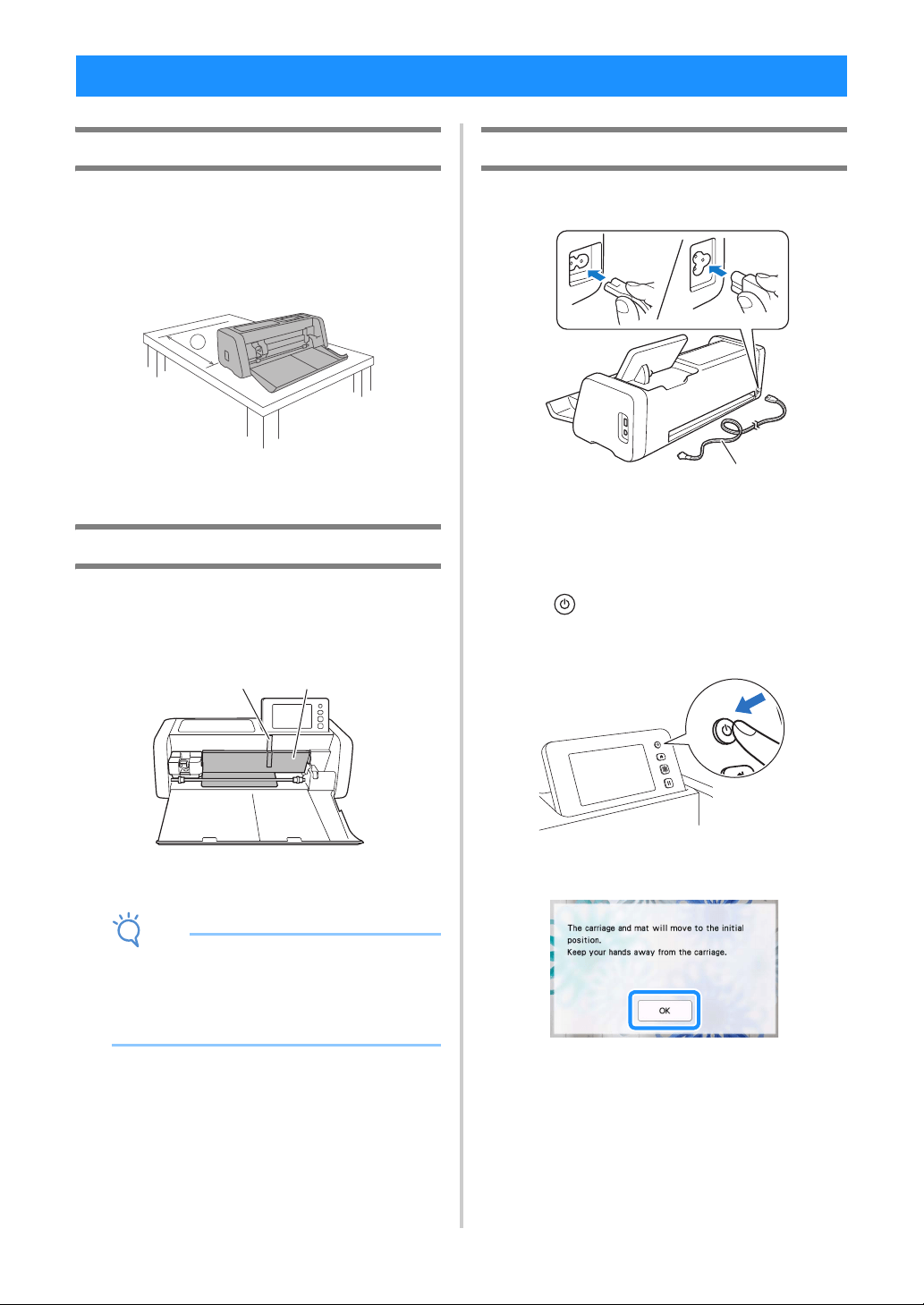
Placing the Machine
Open the front cover, and check that the entire cover
fits completely within the area of the desktop. When
using a cutting mat, since the mat travels back and
forth, make sure to keep enough space behind the
machine.
a 30 cm or more of open space
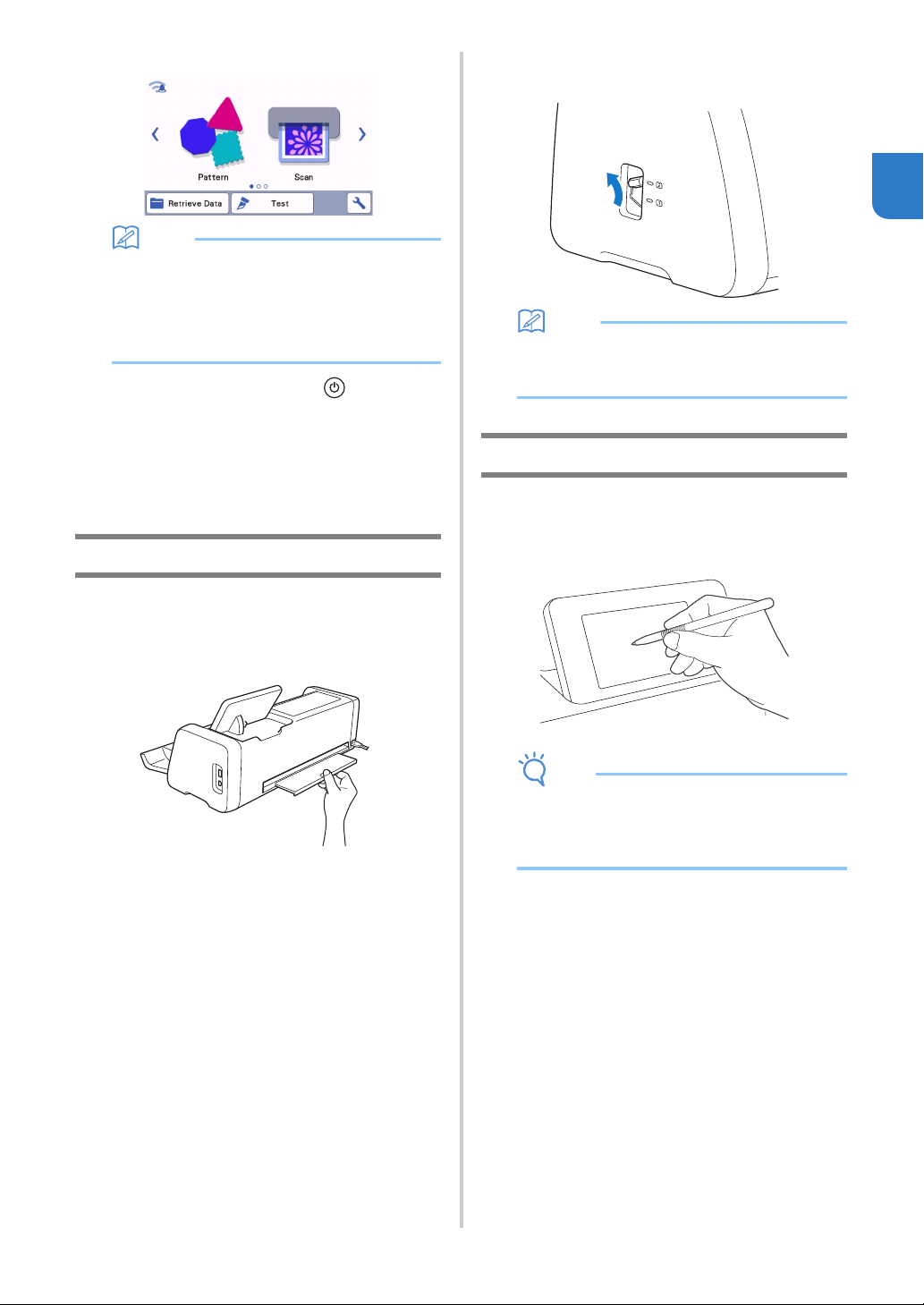
Removing the Packing Materials
Before turning on the machine, open the front tray
cover, and then remove all shipping tapes (in front
and back of the machine) and the cardboard shock-
absorbing material.
a Shipping tape
b Cardboard shock-absorbing material
Note
• If the packing materials were removed after the
machine was turned on, turn the machine off,
then on again. Continuing to use the machine
without restarting it may result in incorrect
operation.
Turning On/Off the Machine
a Connect the power cord to the machine.
a Power cord
b Plug the power cord into an electrical outlet.
c Press in the operation panel.
When the opening screen appears, touch anywhere on
the display.
When the following message appears, touch the
“OK” key.
BEFORE USE
1
b
a
a
9
1
The home screen appears.
Memo
• LCD panels commonly have bright spots
(permanently lit dots) and dark spots (unlit
dots). It may cause some unexpected luminous
spots to appear and tiny picture elements to be
missed in the screen. Please note that this is
not a sign of malfunction.
d To turn off the machine, press in the
operation panel.
e Unplug the power cord from the electrical
outlet.
f Disconnect the power cord from the machine.
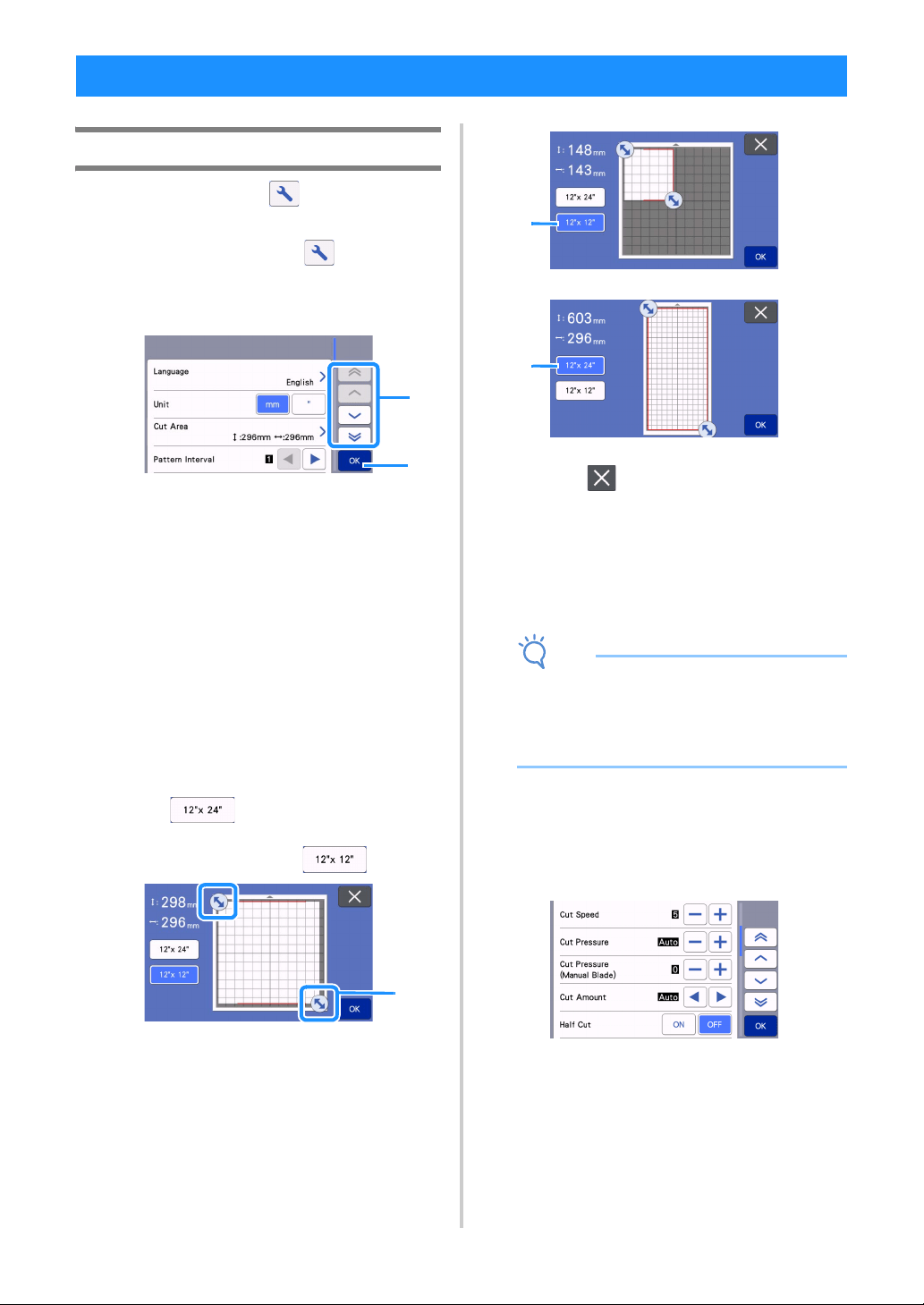
Preparing for Feeding the Mat
a Pull out the rear tray.
Before using the machine, be sure to pull out the rear
tray.
b Raise the scanner lever (on the left side of the
machine) to “2”.
Memo
• Before scanning thin material, set the lever to
“1”. Leaving the lever raised may result in
blurred scans.
Operation of LCD Panel
After the machine is turned on, the operation screens
appear in the touch panel. To perform operations in
the screens, use the included touch pen (stylus).
Note
• Never use a hard or pointed object, such as a
mechanical pencil or screwdriver, to make a
selection on the screens. Otherwise, damage to
the machine may result.
10
Settings Screen
From the LCD panel, touch to select and adjust
the settings for each function.
This section contains descriptions of the machine
settings which will appear when is selected on
the home screen.
■ Group 1
a Touch to display the previous or next item.
* Swiping the touch pen (stylus) over the screen
will also display a different screen.
b Touch to finish specifying settings.
Language
Select the display language. Touch this button, select
the desired display language, and then touch the
“OK” key.
Unit
Select either millimeters or inches as the displayed
measurement units.
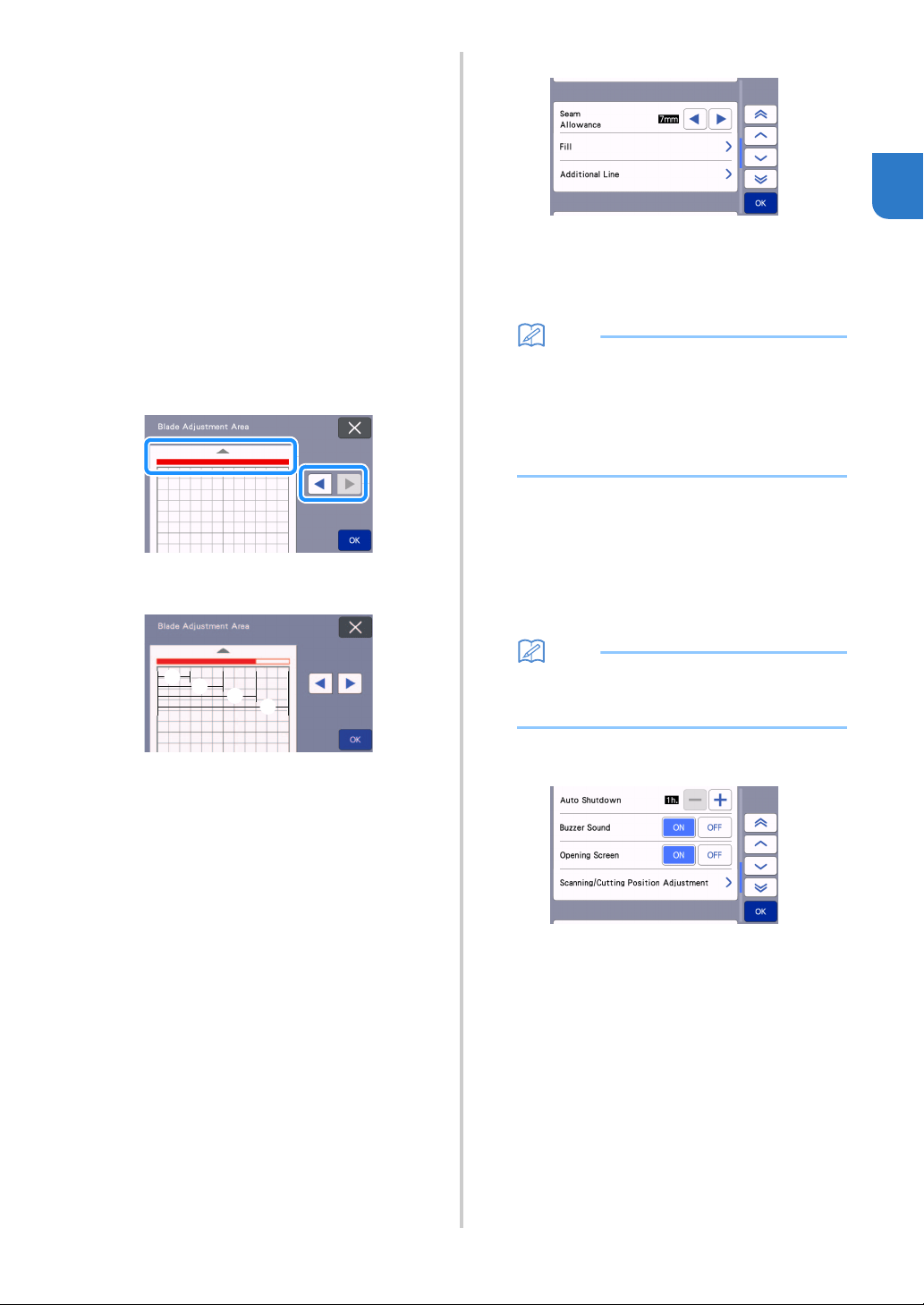
Cut Area
Specify the area for cutting/drawing according to the
size of material to be used. Touch this button, and
then touch and drag the area resizing keys to specify
the area. When using a 12" × 24" (305 mm × 610 mm)
mat, touch to select a larger mat size, and
then specify the area size. When using a 12" × 12"
(305 mm × 305 mm) mat, touch .
a Area resizing key (Using the touch pen (stylus),
touch the key, and then drag it around the
screen to specify the area.)
b Mat size key
• Touch the “OK” key to apply the settings.
Touch to return to the previous screen
without applying the settings.
Pattern Interval
Specify the spacing between patterns as well as white
space around the edges of cutting area when patterns
on the mat layout screen are automatically arranged.
The larger the number setting, the further spacing
between patterns.
Note
• Set the pattern interval to “3” or higher when
lightweight fabric is attached to the mat with a
high tack adhesive fabric support sheet.
• Set the pattern interval to “5” or higher when
using the rotary auto blade.
Background
Adjust the contrast of a background image scanned
with the background scanning function. For details,
see “Scanning a Background Image” on page 53.
■ Group 2
Cut Speed
Adjust the cutting speed.
Cut Pressure
Adjust the cutting pressure.
Cut Pressure (Manual Blade)
Specify the cutting pressure when the optional
manual blade is used.
MACHINE SETTINGS
b
a
a
b
b
11
1
Cut Amount
Specify the cutting depth. Adjust the blade cut
amount when a pattern with a sharp corner is cut from
soft, thick material.
Half Cut
Select whether or not to make half-cuts. For details,
see “Half Cut (Kiss Cut) Settings” on page 30.
Cut Pressure (Half Cut)
Specify the cutting pressure for half-cuts.
Cut Mode (Rotary Blade)
Select the cutting mode for when using the rotary auto
blade holder. For details, refer to the instruction
manual of the rotary auto blade kit.
Blade Adjustment Area
Select from 1/4, 2/4, 3/4 or whole cutting area to be
used for blade adjustment. Before cutting out a
pattern, this machine performs an automatic blade
adjustment, which adjusts the direction of the blade
outside of the adhesive area of the mat.
• With each press of the left or right arrow key,
the size of the blade adjustment area changes
by 1/4.
a 1/4
b 2/4
c 3/4
d Entire area
Blade Adjustment Area (Rotary Blade)
Set the blade adjustment area for when using the
rotary auto blade holder.
For details, refer to the instruction manual of the rotary
auto blade kit.
Draw Speed
Adjust the drawing speed.
Draw Pressure
Adjust the drawing pressure. Adjustments to the
drawing pressure will affect the finished product. Use
the same material that the pattern will be drawn on to
make the adjustments in advance. If the pressure is
too high, the pen tip may be damaged. Adjust the
pressure appropriately.
■ Group 3
Seam Allowance
Specify the seam allowance. This is applied when
drawing on fabric, then cutting it, for example, when
making quilt pieces. For details, see “Cutting Around
Drawings” on page 58.
Memo
• When multiple patterns are cut at the same
time, the setting specified in this screen is
applied to all patterns.
• If cutting line data saved with a different seam
allowance is imported and used, the setting
specified in this screen will have priority over
the saved setting.
Fill
Select the design that will be used to fill patterns. For
details, see “Using Drawing Functions to Fill Patterns/
Make Outlines Thicker” on page 62.
Additional Line
With [Number of Additional Line], specify the number
of lines to be added. With [Additional Line Spacing],
specify the spacing of the lines to be added.
Memo
• For details for Fill and Additional Line setting,
refer to “Using Drawing Functions to Fill
Patterns/Make Outlines Thicker” on page 62.
■ Group 4
Auto Shutdown
Specify the length of time for the auto shutdown
function. The setting can be specified in 1-hour
increments. For details, see “Auto Shutdown” on
page 12.
Buzzer Sound
Select whether or not an operation sound is
produced, for example, when a key is touched.
Opening Screen
Select whether the opening slide show is displayed
after the machine is turned on. If the slide show is
displayed, touch the screen to display the home
screen.
1
2
3
4
12
Scanning/Cutting Position Adjustment
The scanning/cutting position can be adjusted. To
adjust the position, touch this button to display the
settings screen. For details, see “Adjusting the
Scanning/Cutting Position” on page 106.
■ Group 5
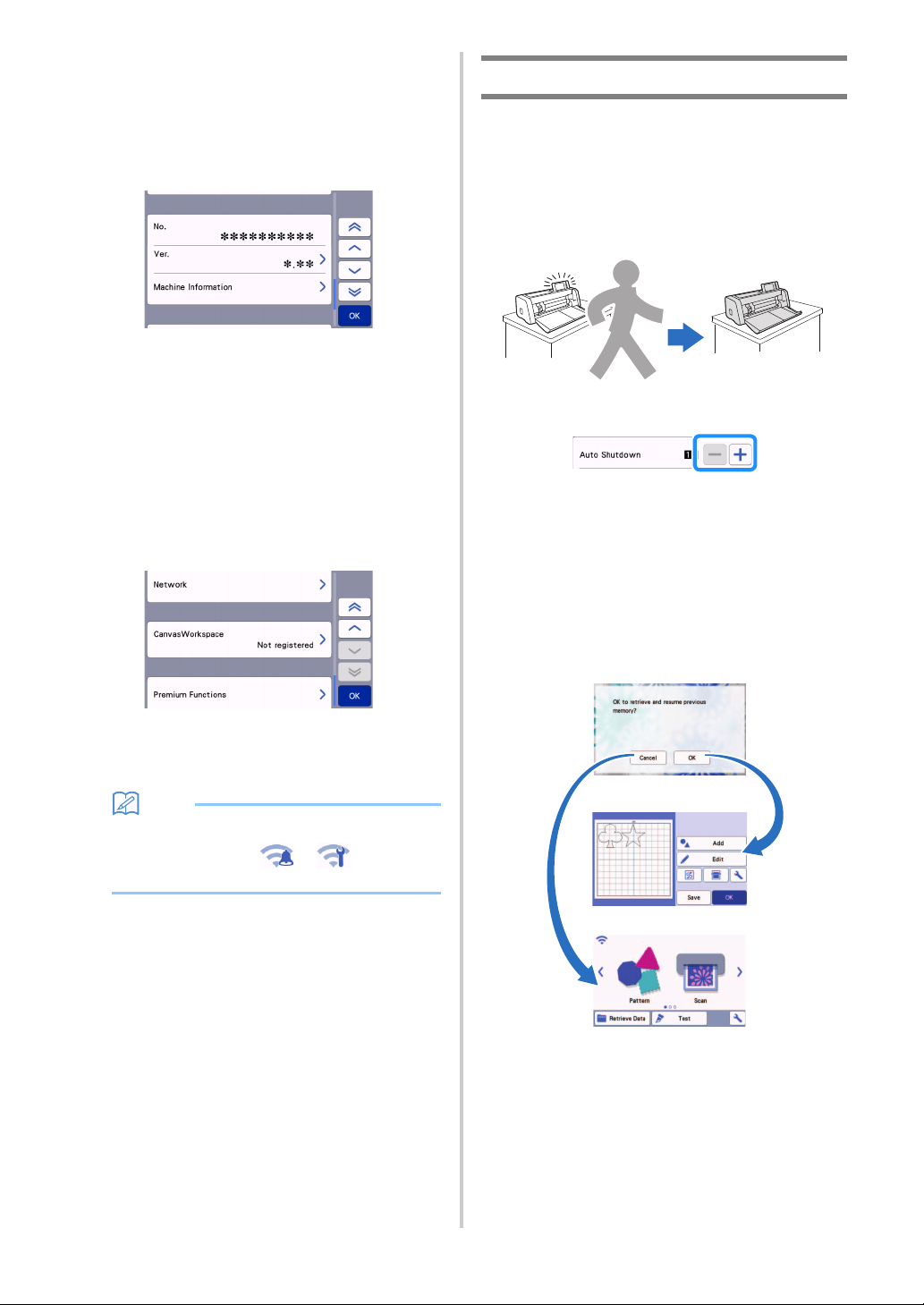
No.
Displays the number for this machine.
Ver.
Displays the version information for this software.
Touch this button to update the machine’s software.
For details, see “UPDATING THE SOFTWARE” on
page 119.
Machine Information
Touch this button, this page displays machine
information.
■ Group 6
Network
Touch this button to set up a wireless network. For
details, refer to “WIRELESS NETWORK
CONNECTION FUNCTION” on page 85.
Memo
• The wireless network connection can also be
set up by touching
or in the home
screen.
■ Group 7
CanvasWorkspace
Touch this button to specify settings for registering
the machine with CanvasWorkspace. These settings
are necessary in order to transfer patterns via a
wireless network connection. For details, refer to
“WIRELESS NETWORK CONNECTION FUNCTION”
on page 85.
■ Group 8
Premium Functions
Activate optional accessories and specify settings for
their functions.
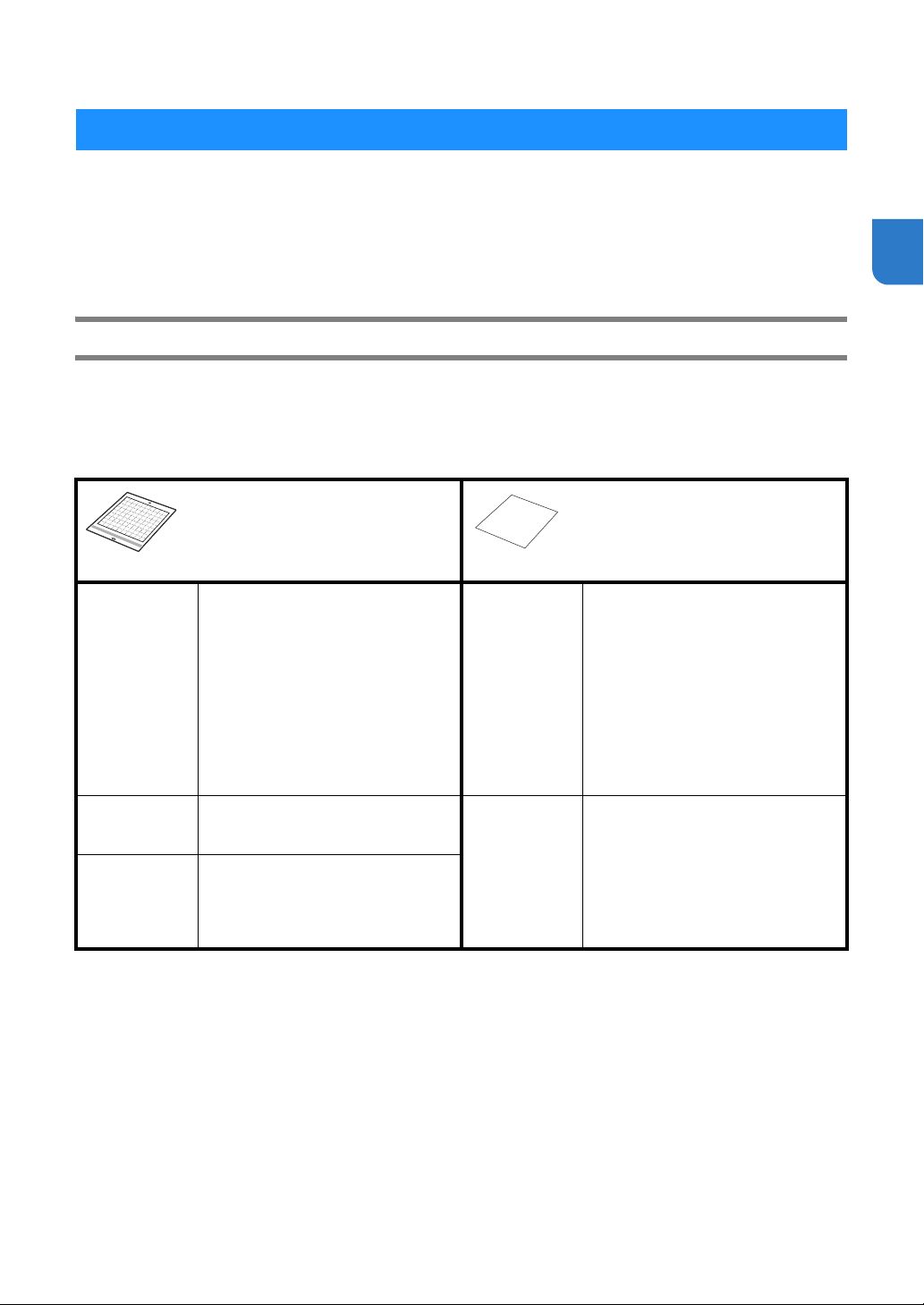
Auto Shutdown
If the machine is not used for a specified length of
time, it will automatically turn off. The length of time
until the machine turns off can be specified in the
settings screen.
If the machine is automatically turned off after you
reach the mat layout screen, the stored information
can be recalled when the machine is turned on
again. Following the instructions in the message
screen that appear when the machine is turned on
again, touch the “OK” key to display the mat layout
screen or touch the “Cancel” key to return to the
home screen.
a Message screen
b Mat layout screen
c Home screen
If the machine is automatically turned off before you
reach the mat layout screen, the home screen will be
displayed when the machine is turned on again.
a
b
c
13
2
Chapter 2
BASIC OPERATIONS
The following procedures describe basic operations, from preparing the material to performing trial cutting.
1. Selecting the Mat and Blade Appropriate for the Material .................P.13
2. Reference Table of Mat, Blade and Material Combinations ...............P.15
3. Attaching the Material to the Mat..........................................................P.18
4. Installing and Uninstalling the Holder ...................................................P.26
5. Test Cut (Trial Cut) ..................................................................................P.27
Selecting the Mat and Blade Appropriate for the Material
Refer to the following table and the “Reference Table of Mat, Blade and Material Combinations” on page 15 for
the appropriate mat, sheet for fabric cutting, and blade according to the material to be used for cutting or
drawing.
Depending on the machine model, some accessories listed in the chart may not be included. In that case, they
must be purchased separately.
FIRST STEPS
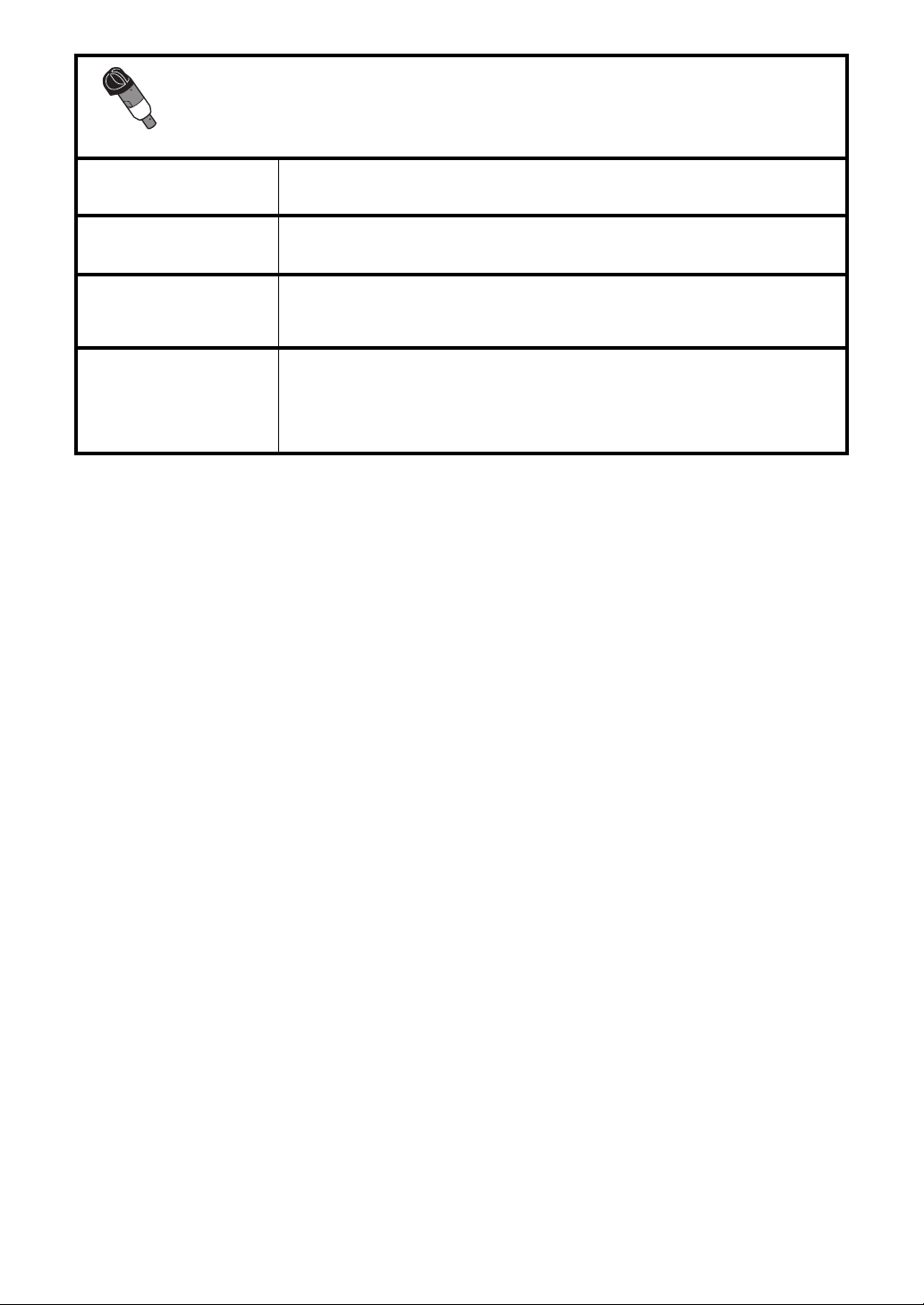
Mat
Sheet for fabric cutting
Use one of the following sheets
when cutting fabric.
Standard tack
adhesive mat
Our standard tack adhesive mat has a
high adhesive strength for use with
cutting.
* Use the low tack adhesive mat with
copy paper and smooth paper.
Since the standard tack adhesive
mat has a high adhesive strength,
materials may remain stuck to the
mat, causing the mat to become
unusable.
Iron-on fabric
appliqué
contact sheet
(white backing)
(See page 19)
• Reinforces the fabric so that various
patterns can be cut out.
• Original texture may change
because it remains attached to the
back of fabric.
* For use with the standard tack
adhesive mat.
* Do not place fabric backed with
iron-on contact sheet directly onto a
mat with high tack fabric support
sheet.
Low tack
adhesive mat
Low adhesive mat; suitable for copy
paper and smooth paper.
High tack
adhesive fabric
support sheet
(See page 23)
• For best results when cutting fabric,
attach the high tack adhesive fabric
support sheet to the standard tack
adhesive mat in order to increase
the strength of the adhesive.
• Depending on the shape, the pattern
may not be cleanly cut.
Fabric Mat Suitable for cutting quilt pieces of thin
cotton material (0.25 mm) and flannel
(0.5 mm). No sheet for fabric cutting
required.
14
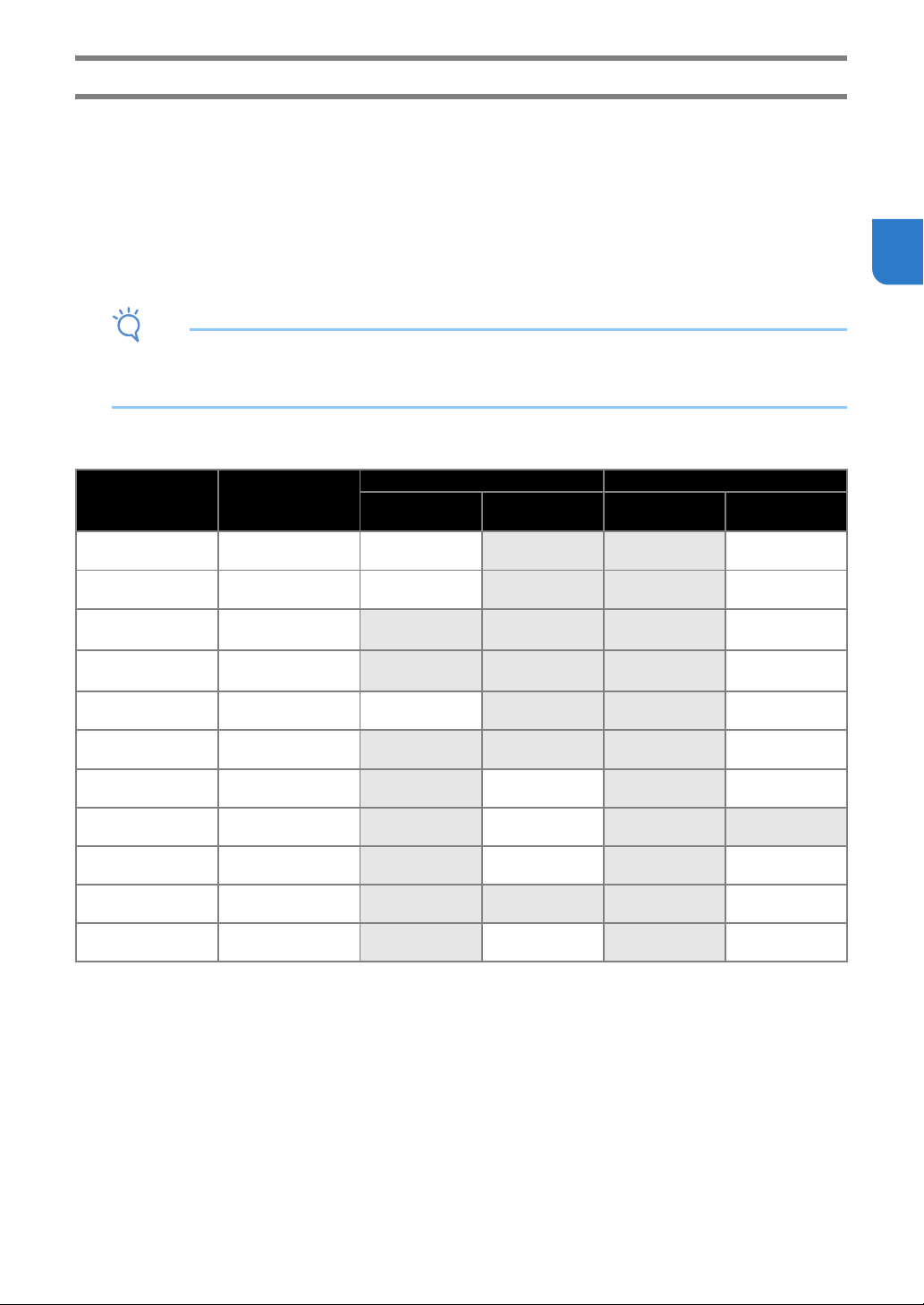
Auto Blade Holder (Blade)
Auto Blade (Black) • Blade suitable for cutting a variety of materials such as paper, thick fabric, vinyl, or
sponge sheets (0.1 mm to 3.0 mm thick, varies by material).
Thin Fabric Auto Blade
(Beige)
• Blade suitable for quilt pieces without interlining (0.25 mm to 0.5 mm thick, varies by
material).
Vinyl Auto Blade (Blue) • Blade suitable for cutting fine patterns. Use it with vinyl sticker sheets and iron heat
transfer sheets (0.1 mm to 1.0 mm thick, varies by material).
• Use it installed to the vinyl auto blade holder (included with the vinyl auto blade kit).
Rotary Auto Blade
(Turquoise)
• Blade that can minimize fraying and shape collapse of the cloth when peeling the
material from the mat, and suitable for maintaining the texture of cloth while cutting
(0.1 mm to 1.0 mm thick, varies by material).
• Use it installed to the rotary auto blade holder (included with the rotary auto blade
kit).
15
2
Reference Table of Mat, Blade and Material Combinations
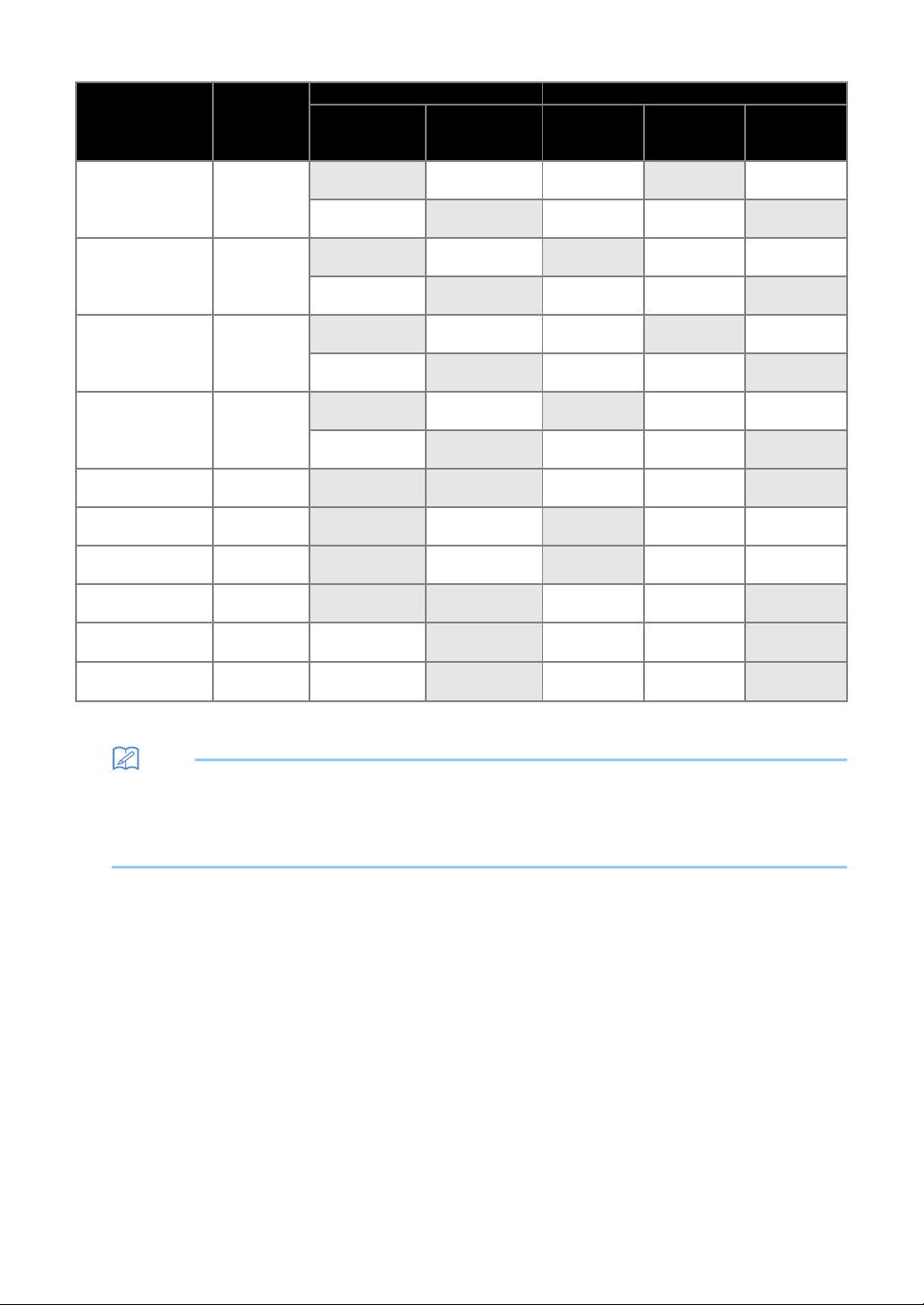
Use a mat and blade appropriate for the material, as referred to in this table. You can also check the latest
reference table at http://s.brother/cfokb/.
Before using materials from your project, test attaching the material to check the adhesion to the mat.
The optimal blade type will vary depending on the type or thickness of the material. Perform a test cut before
cutting the material. For test cutting, refer to “Test Cut (Trial Cut)” on page 27. Depending on the material, the
appropriate combination may differ from the table below. Always perform a test cut to be sure the material can
be cut without a problem.
If a problem cannot be resolved, check the Q&A on the Brother support website (http://s.brother/cpoac/).
Note
• The blade holder included with this machine is an auto blade holder. It detects the thickness of the material and
automatically adjusts the blade length.
• Thick or hard materials are automatically cut multiple times.
■ Paper and Other Materials
* When cutting paper with a smooth surface
Material
Thickness
Mat (for ScanNCut DX) Auto Blade Holder (Blade)
Standard Tack
Adhesive Mat
Low Tack
Adhesive Mat
Auto Blade (Black)
Vinyl Auto Blade
(Blue)
Printer paper 80 g/m² (0.1 mm)
Scrapbook paper
(thin)
120 g/m²
(0.15 mm)
Scrapbook paper
(medium-thick)
200 g/m²
(0.25 mm)
*
Cardstock
280 g/m²
(0.35 mm)
*
Vellum, tracing paper 0.07 mm
Poster board
400 g/m²
(0.5 mm)
Plastic sheet (PP) 0.2 mm
Vinyl 0.2 mm
Magnet 0.3 mm
Sticker or seal 0.2 mm
Foam sheet 3 mm
16
■ Fabric
*1 Attach the high tack adhesive fabric support sheet to the mat to use it. It is also possible to use the fabric mat by itself.
*2 Attach the iron-on fabric appliqué contact sheet to the fabric material to use it.
Memo
• When using a 12" × 12" (305 mm × 305 mm) mat, the maximum work area for cutting/drawing is 296 mm × 298
mm (11.65" × 11.73").
• When using an optional 12" × 24" (305 mm × 610 mm) mat, the maximum work area for cutting/drawing is 296
mm × 603 mm (11.65" × 23.74").
• Some fabrics with uneven surfaces can be cut if turned upside down.
Material
Thickness
Mat (for ScanNCut DX) Auto Blade Holder (Blade)
Standard Tack
Adhesive Mat
Low Tack
Adhesive Mat
Auto Blade
(Black)
Thin Fabric
Auto Blade
(Beige)
Rotary Auto
Blade
(Turquoise)
Thin cotton fabric
(for quilt piece)
0.25 mm
*
1
Thin cotton fabric
(except for quilt
piece)
0.25 mm
*
2
Flannel (for quilt
piece)
0.5 mm
*
1
Flannel (except for
quilt piece)
0.5 mm
*
2
Felt 1 mm
Felt 3 mm
*
2
Denim 14 oz 0.75 mm
*
2
Jersey 1 mm
Lace
0.1 mm -
1mm
Organza
0.1 mm -
1mm

17
2
Note
• Avoid using craft paper or fabric covered with decorative layer (that can easily separate), such as lamé or foil.
The separate layer may stick to the machine’s scanning device or feed rollers during operation, resulting in
damage to the machine. It may also damage the cutting blade. When using such material, be sure to clean the
scanner glass inside the machine after every use (page 105).
• Tape material that can easily peel off, such as foam sheets, to secure it in place.
• Be careful since tape with an extremely high adhesive strength may damage the mat.
• Do not affix masking tape, etc., over the scanning marks. Otherwise, the mat may not be correctly recognized or
images may not be correctly scanned.
a Scanning marks
• Do not affix tape on both long edges of the cutting mat as it may attach to the feed rollers during operation.
• Do not attach any material or tape that will go beyond the adhesive area of the mat as the auto blade holder
may not recognize the material thickness and may not accurately cut the material.
a
a

18
Attaching the Material to the Mat
After preparing the mat and sheet (when cutting
fabric) appropriate for the material, attach the
material to the mat. For the mat and sheet
appropriate for the material, see “Reference Table of
Mat, Blade and Material Combinations” on page 15.
Note
• Do not discard the protective sheet peeled off
the mat; save it for later use.
• In order to maintain the adhesive strength,
attach the protective sheet to the adhesive side
of the mat after use.
• When the mat is not being used, clean the
adhesive side and affix the protective sheet
before storing it. For details, see “Cleaning the
Mat” on page 103.
• Place the material within the attaching area
(grid area) on the adhesive side. If the material
extends from the attaching area, it may be
caught on the feed rollers when the mat is fed,
damaging the machine.
• Insert the mat into the machine in the direction
of the arrow. Pay attention to the mat’s
orientation to avoid inserting the mat in the
wrong direction.
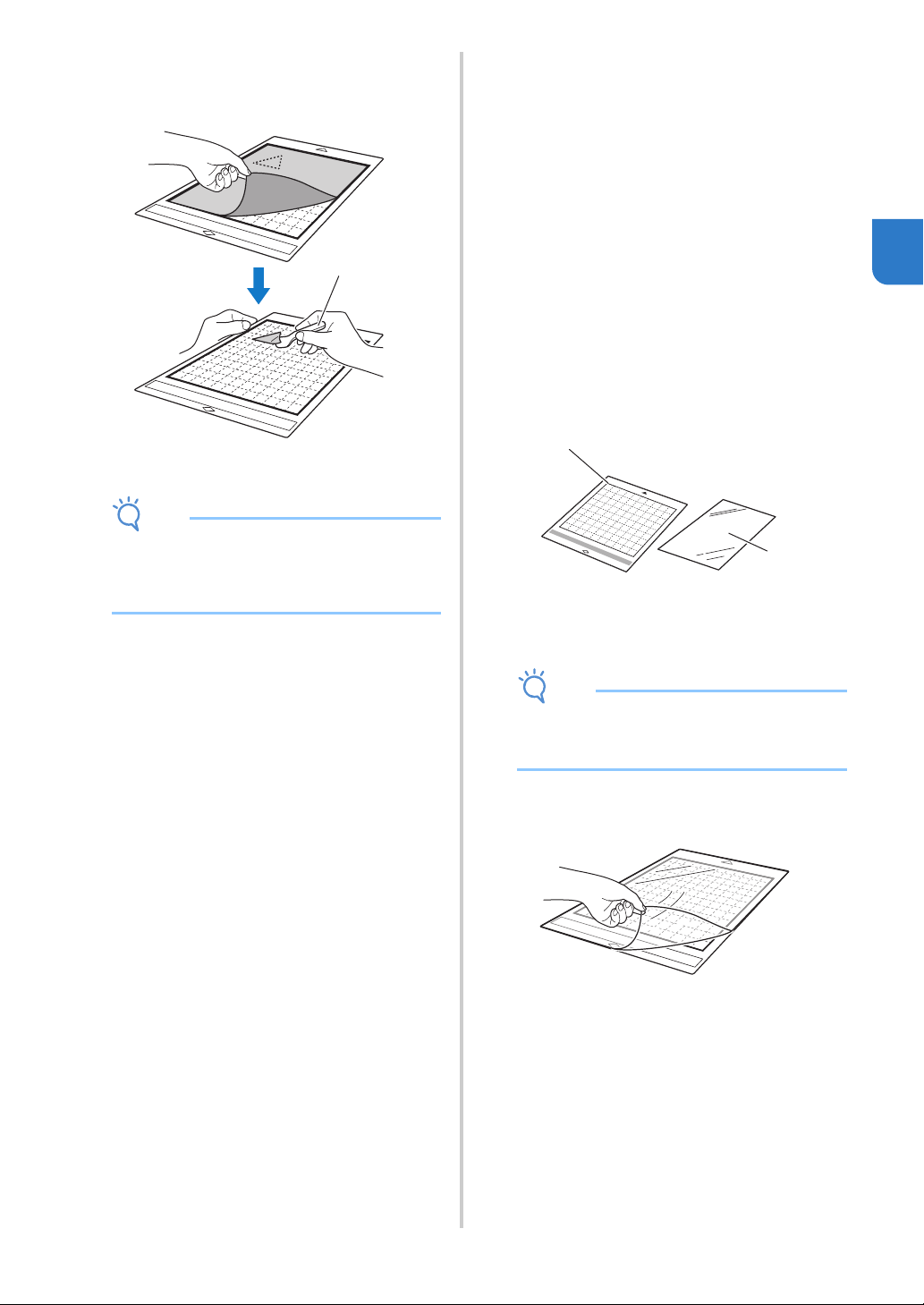
■ Paper
a Mat suitable for the material
Attaching the Material (Paper)
a Peel off the protective sheet from the adhesive
side of the mat.
b Test attaching the material.
Before attaching the material to the mat, use a corner
of the adhesive side of the mat to test attaching it.
If any of the following problems occur when test
attaching, the adhesive strength of the mat is too high
for the material. Use different material.
• When the material is peeled off, color from the
material remains on the mat.
• When the material is peeled off, it tears or is
deformed.
Note
• Use the low tack adhesive mat with copy paper
and smooth paper. Since the standard tack
adhesive mat has a high adhesive strength,
materials may remain stuck to the mat, causing
the mat to become unusable
c Attach the material to the mat’s adhesive side.
d Firmly attach all of the material to the mat so
that there are no wrinkles and no part can curl
off.
• Otherwise, curls in the material may become
caught when the mat is inserted.
Note
• If the mat is dirty, clean it. For details, see
“Cleaning the Mat” on page 103.
Material
“Paper” on page 18
“Fabric (Other Than for Quilt Piecing)” on page 19
“Fabric (for Quilt Piecing)” on page 23
a
19
2
Peeling Off the Material (Paper)
After cutting the material, use a spatula to slowly
peel off the paper.
a Spatula
Note
• When peeling off the material, insert the spatula
as level as possible into the space between the
material and mat. Strongly rubbing the adhesive
side of the mat may damage it.
■ Fabric (Other Than for Quilt Piecing)
Attaching Fabric Material to a Mat Using
Iron-on Fabric Appliqué Contact Sheet
Iron the specially designed contact sheet to the
back of fabrics (excluding quilt piecing) and then
attach them to the standard tack adhesive mat.
The double-faced adhesive type of the iron-on
fabric appliqué contact sheet reinforces the fabric
and enables any pattern to be cut easily,
including appliqués. The sheet cannot be
removed once it has been attached to the back of
fabrics.
For quilt piecing, use the high tack adhesive
fabric support sheet or Fabric mat and avoid using
the iron-on fabric appliqué contact sheet. For
details on using fabric for quilt piecing, see
“Fabric (for Quilt Piecing)” on page 23.
a Standard tack adhesive mat
b Iron-on fabric appliqué contact sheet (white
backing)
Note
• The contact sheet may not adhere to a fabric
surface that is so rough that the two surfaces
cannot be heat-set to adhere to each other.
a Peel off the protective sheet from the adhesive
side of the standard tack adhesive mat.
a
a
b
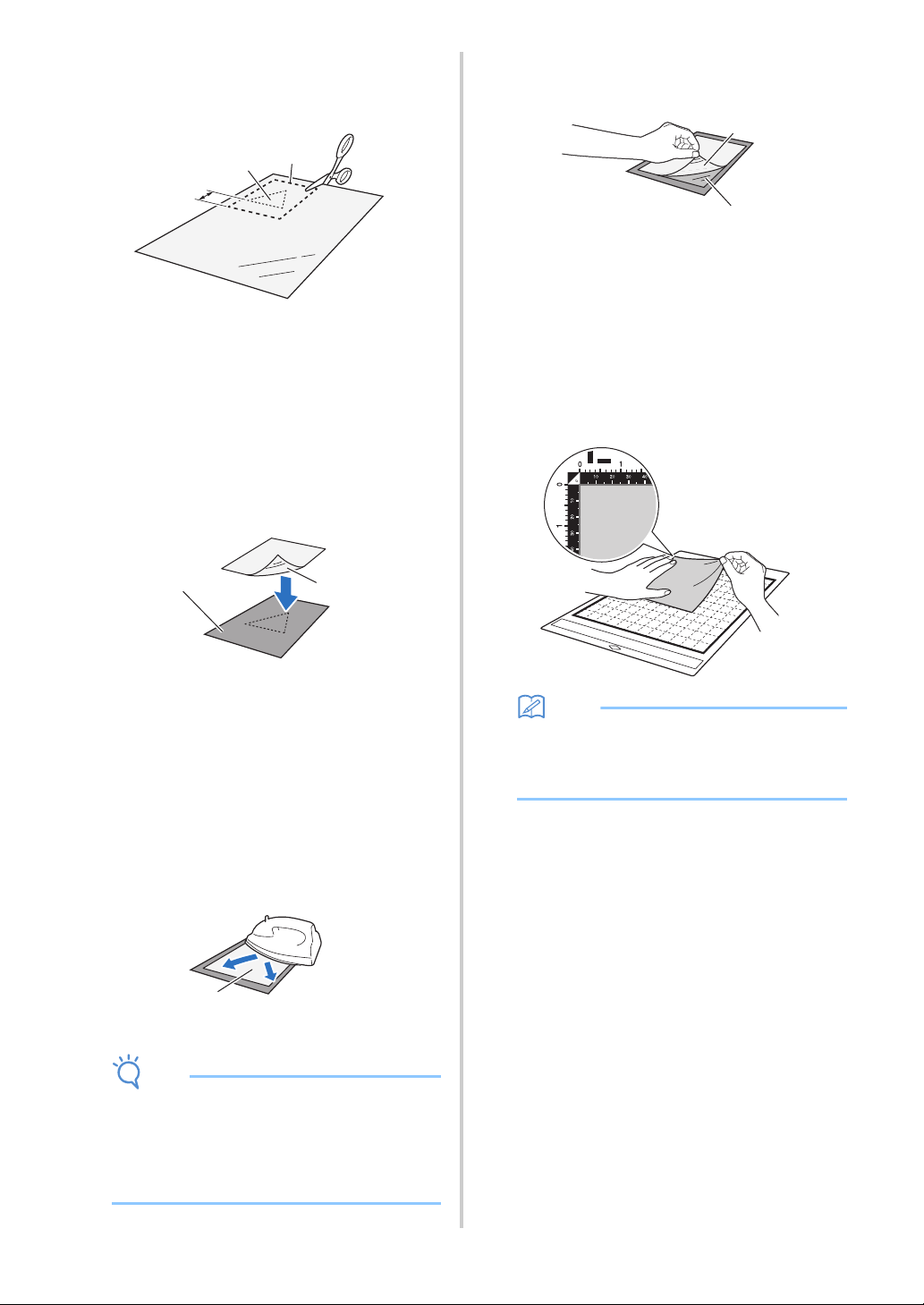
20
b Cut the iron-on fabric appliqué contact sheet to
a size 2 cm (3/4") or more larger than the
outline of the pattern to be cut.
a Pattern to be cut
b Cutting line of sheet
c Margin of 2 cm (3/4") or more
c With the glossy side of the contact sheet facing
down, place it on the wrong side of the fabric.
Be sure to first iron the fabric to remove any wrinkles.
Before placing the contact sheet on the fabric, make
sure that the fabric has been allowed to cool after
ironing.
a Glossy side of contact sheet
b Wrong side of fabric
d Evenly iron the entire contact sheet to affix it to
the wrong side of the fabric.
With the iron on a medium temperature setting (140
°C to 160 °C (284 °F to 320 °F)), press each part of the
sheet for about 20 seconds (the length of time differs
depending on the material).
Be sure to apply pressure on the top of the backing
and push out any air between the sheet and fabric.
a Backing
Note
• Before attaching the contact sheet to the fabric,
use a piece of the sheet to test attach it. If any
problems occur when test attaching, use
different material.
• Leaving the iron in the same place for too long
may scorch or melt the material.
e Peel off the backing from the contact sheet.
Before peeling off the backing, allow all parts to cool.
a Contact sheet
b Backing
f With the side of the fabric that the contact
sheet is attached to facing down, attach the
material to the mat from its edges.
Slowly attach the entire surface of the material from its
edges while pressing out any air with a ruler, etc., so
that no air is trapped between the mat and the
material.
Memo
• Be sure that the vertical grain of the attached
fabric runs straight up and down. The built-in
patterns are automatically arranged suitable for
fabric with vertical grain.
g Firmly attach all of the material to the mat so
that there are no wrinkles and no part can curl
off.
• Otherwise, curls in the material may become
caught when the mat is inserted.
a
c
b
a
b
a
a
b
21
2
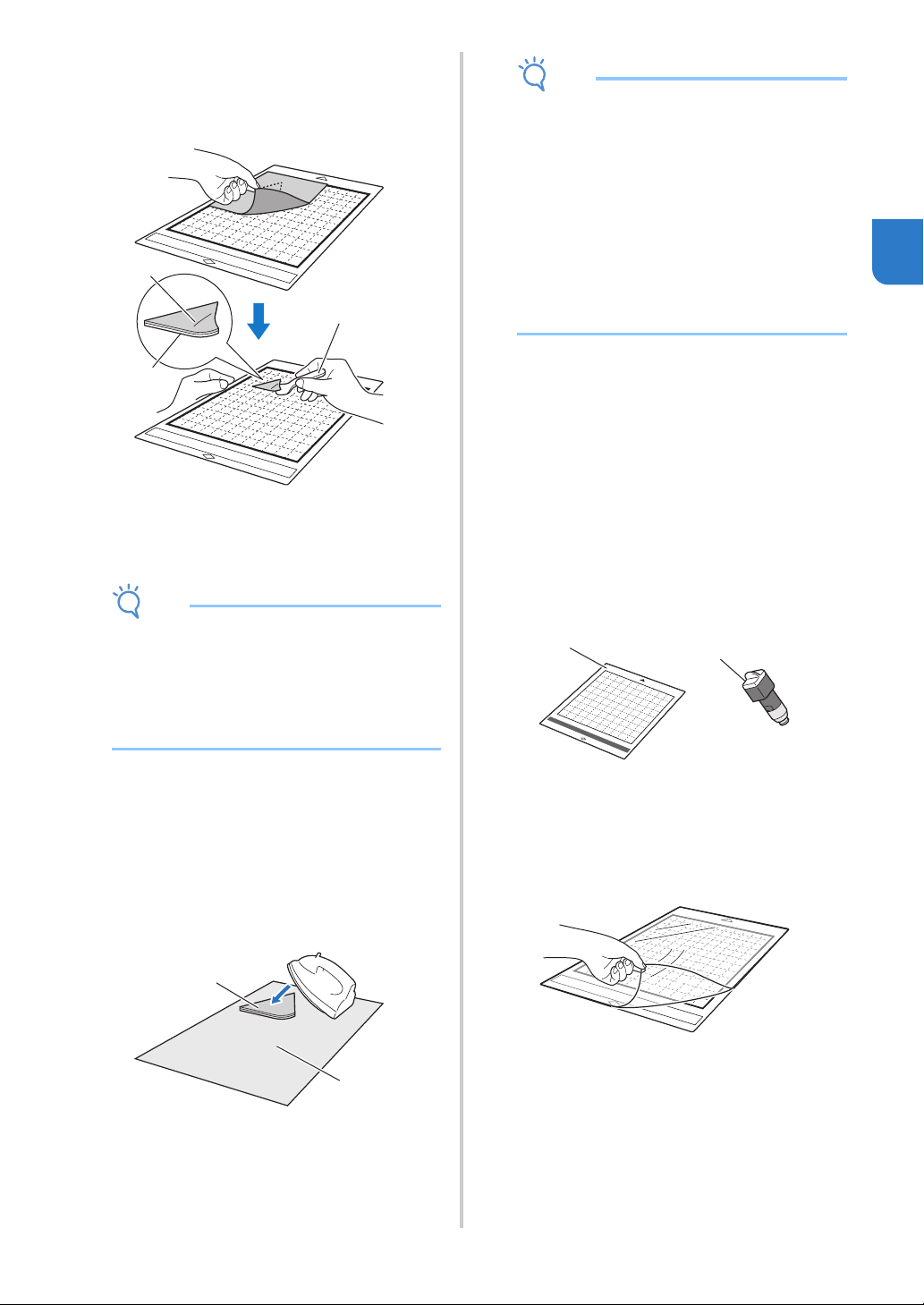
Peeling Off the Material
After cutting the material, use a spatula to peel off
the fabric together with the attached contact
sheet.
a Pattern that was cut out
b Contact sheet
c Spatula
Note
• Do not place anything heated on the fabric
attached with a contact sheet. Adhesive will
permeate any other pieces of fabric around.
• When peeling off the material, insert the spatula
as level as possible into the space between the
material and mat. Strongly rubbing the adhesive
side of the mat may damage it.
Attaching Fabrics With the Double-
Sided Adhesive
Place a cutout on a base fabric and apply pressure
on the top of the cutout using an iron. (The
contact sheet may not adhere well to some
fabrics.) Hand or machine stitch to ensure that the
cutout stays in place.
a Base fabric
b Cutout with a contact sheet
Note
• Do not wash fabrics attached together with a
double-sided adhesive contact sheet.
• When attaching fabrics with the double-sided
adhesive, iron carefully, being sure that the
material and adhesive surfaces are properly
heat-set.
• When attaching fabrics of different weights with
the double-sided adhesive, first iron the lighter-
weight fabric to affix the contact sheet.
• When attaching fabric with an iron-on sheet
attached or paper to the mat, cleanly peel off
the support sheet from the mat, or attach the
material to a different standard tack adhesive
mat without a support sheet attached.
Notice on Use of Iron-on Fabric
Appliqué Contact Sheet
• Store the contact sheet at room temperature
and in a location not exposed to high
temperatures, high humidity or direct sunlight.
Cutting Fabric Other Than Quilt Pieces
Using the Rotary Auto Blade Holder
When cutting fabric (other than for quilt pieces)
with the rotary auto blade holder, attach the
material directly to the mat appropriate for the
material and cut it.
a Mat appropriate for the material
b Rotary auto blade holder
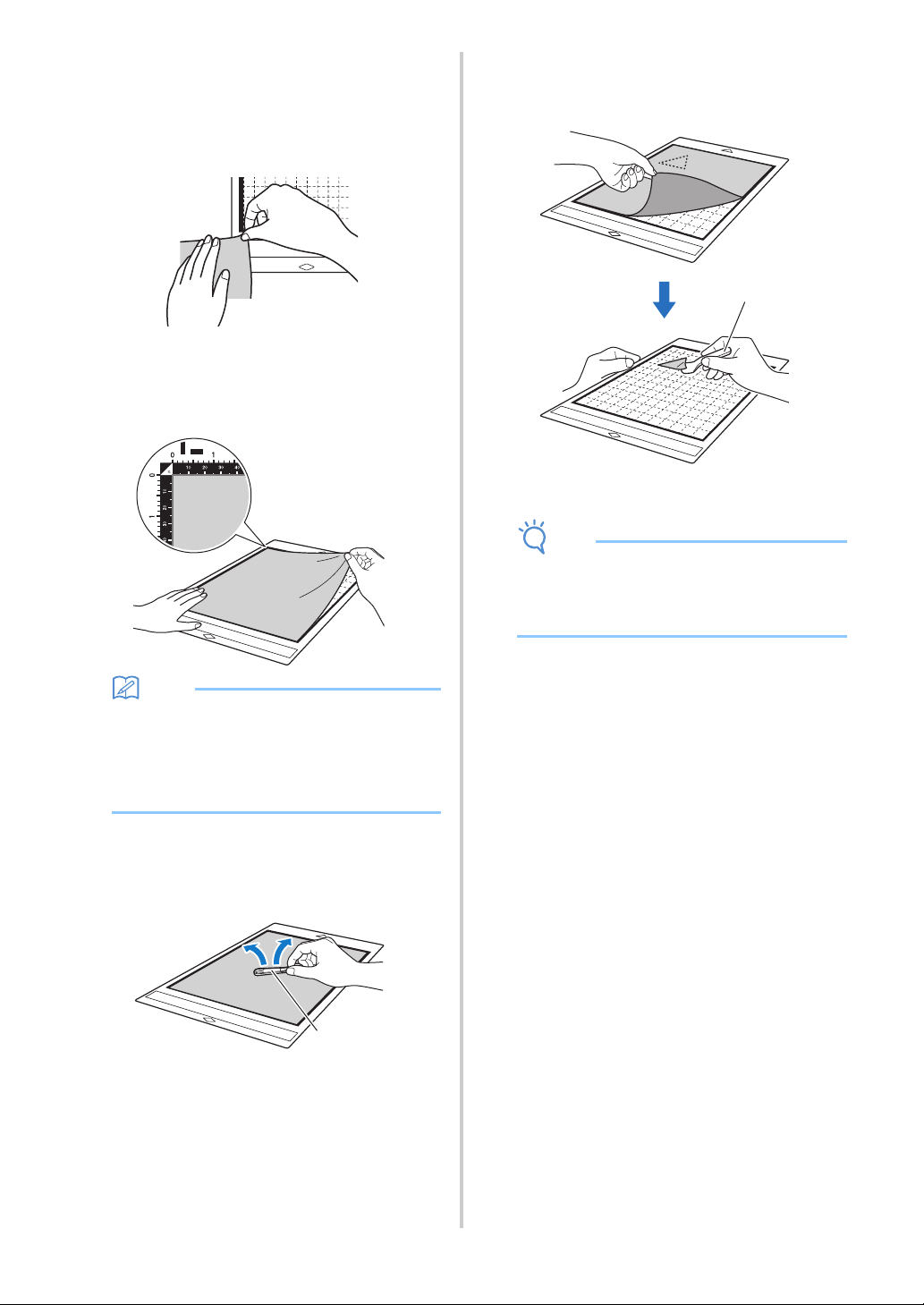
a Peel off the protective sheet from the adhesive
side of the mat.
a
b
c
a
b
a
b
22
b Test attaching the material.
Before attaching the material to the mat, use a corner
of the adhesive side of the mat to test attach it. If any
problems occur when test attaching, the adhesive
strength of the mat is too high for the material. Use
different material.
c From its edges, attach the material to the
adhesive side of the mat so that there are no
wrinkles in the material.
Be sure to first iron the fabric to remove any wrinkles.
Memo
• Be sure that the vertical grain of the attached
fabric runs straight up and down. The built-in
patterns are automatically arranged suitable for
fabric with vertical grain.
• When drawing a seam allowance, attach the
fabric to the mat with its wrong side facing up.
d Firmly move the spatula handle across the
surface of the fabric to remove any wrinkles
and firmly attach the fabric to the mat.
a Spatula
Peeling Off the Material
After cutting the material, use a spatula to slowly
peel off the fabric.
a Spatula
Note
• When peeling off the material, insert the spatula
as level as possible into the space between the
material and mat. Strongly rubbing the adhesive
side of the mat may damage it.
a
a
23
2
■ Fabric (for Quilt Piecing)
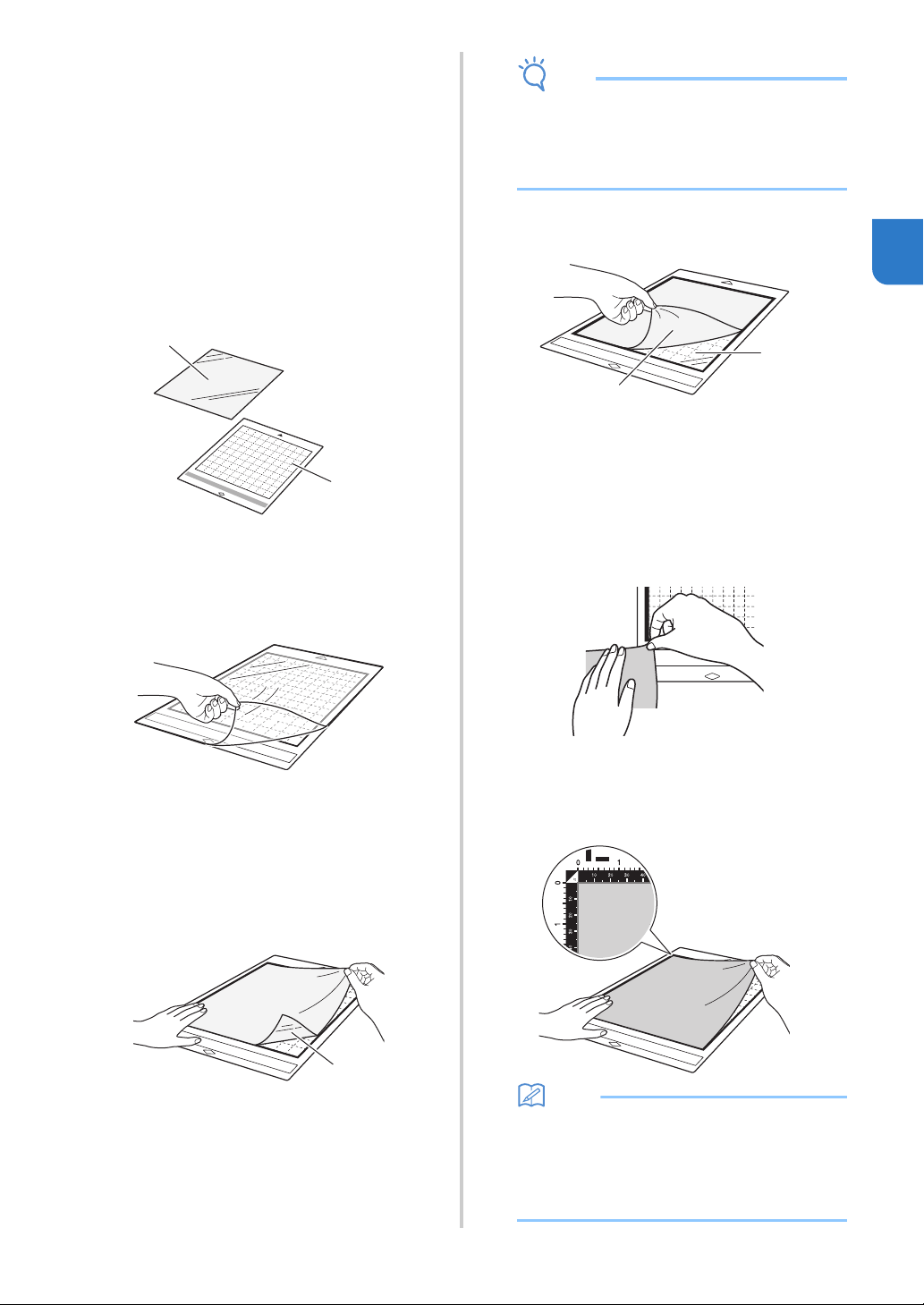
Attaching the Material Using a High
Tack Adhesive Fabric Support Sheet
When attaching fabrics for quilt piecing, attach
the high tack adhesive fabric support sheet to the
standard tack adhesive mat to use it. These sheets
should only be used with patterns that have a
seam allowance. The high tack adhesive fabric
support sheet can be repeatedly used until their
adhesive strength has decreased. (Once the
support sheet has been peeled off the mat, it can
no longer be used.)
a Standard tack adhesive mat
b High tack adhesive fabric support sheet
a Peel off the protective sheet from the adhesive
side of the standard tack adhesive mat.
b With the glossy side of the high tack adhesive
fabric support sheet facing down, attach it to
the mat’s adhesive side.
Slowly attach the entire surface of the support sheet
from its edges while pressing out any air with a ruler,
etc., so that no air is trapped between the mat and the
sheet.
a Glossy side of support sheet
Note
• Place the support sheet within the attaching
area (grid area) on the adhesive side of the mat.
If the sheet extends from the attaching area, it
may be damaged by the feed rollers when the
mat is fed.
c Peel off the backing from the top of the support
sheet.
a Backing
b Adhesive
d Test attaching the material.
Before attaching the material to the mat, use a corner
of the adhesive side of the mat to test attach it. If any
problems occur when test attaching, the adhesive
strength of the mat is too high for the material. Use
different material.
e From its edges, attach the material to the
adhesive side of the mat so that there are no
wrinkles in the material.
Be sure to first iron the fabric to remove any wrinkles.
Memo
• Be sure that the vertical grain of the attached
fabric runs straight up and down. The built-in
patterns are automatically arranged suitable for
fabric with vertical grain.
• When drawing a seam allowance, attach the
fabric to the mat with its wrong side facing up.
b
a
a
a
b
24
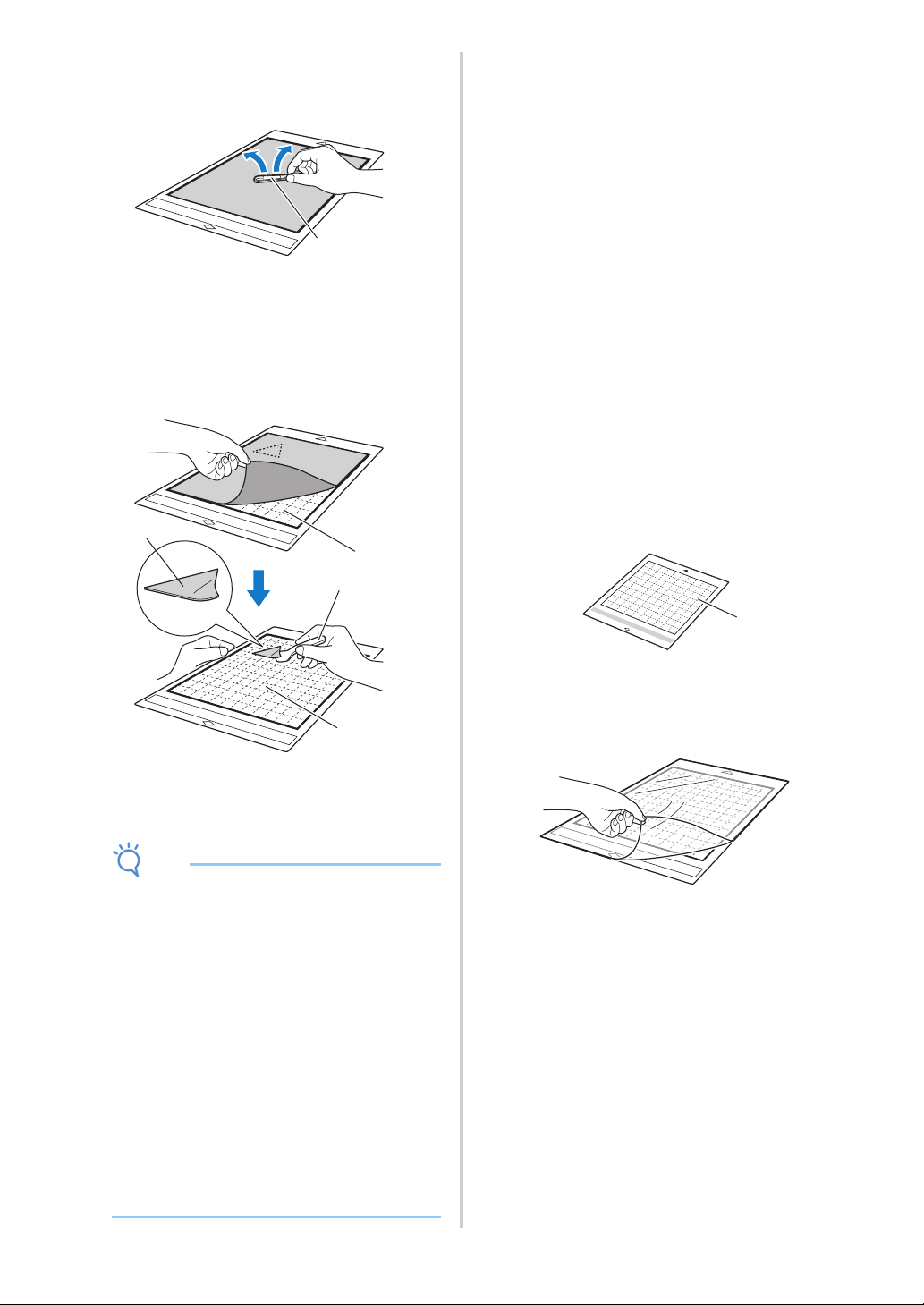
f Firmly move the spatula handle across the
surface of the fabric to remove any wrinkles
and firmly attach the fabric to the mat.
a Spatula
Peeling Off the Material (Fabric for Quilt
Piecing)
After cutting the material, use a spatula to slowly
peel off just the fabric. Try not to peel off the
support sheet.
a Fabric cut out
b Support sheet remaining on mat
c Spatula
Note
• The support sheet may be unintentionally
peeled off while you are removing the fabric
from the mat under the following conditions:
- The adhesive between the mat and support
sheet is becoming weak after repeated uses.
- The support sheet tends to be strongly
attached to a certain types of fabrics.
• In this case, use the included spatula to hold
the support sheet on the mat and remove the
fabric using your hand.
• After cutting, carefully remove any fibers
remaining on the support sheet.
• Do not leave material attached to a mat with a
support sheet attached for a long period of
time; otherwise, the adhesive will permeate the
material.
• When peeling off the material, insert the spatula
as level as possible into the space between the
material and mat. Strongly rubbing the adhesive
side of the mat may damage it.
Notice on Use of High Tack Adhesive
Fabric Support Sheet
• When the sheet’s adhesive strength decreases
or fabric becomes twisted while being cut,
replace the sheet with a new one.
• When peeling the sheet off the mat or replacing
the sheet, use the spatula to carefully remove
the old sheet.
• Store the mat in between uses with the
protective sheet affixed to the support sheet.
• If a mat with a support sheet attached is not to
be used for a certain length of time, peel the
support sheet off the mat and affix the
protective sheet on the adhesive side of the mat
before storing it.
• Do not reuse a support sheet that has been
attached to the mat.
• Store the support sheet at room temperature
and in a location not exposed to high
temperatures, high humidity or direct sunlight.
• Do not bend the support sheet to store it.
• We recommend attaching it to a new cutting
mat.
Attaching the Material to the Fabric Mat
When cutting fabric for quilt piecing without
using a sheet for fabric cutting, attach the fabric to
the fabric mat and cut it.
a Fabric mat
a Peel off the protective sheet from the adhesive
side of the mat.
a
a
b
b
c
a
25
2
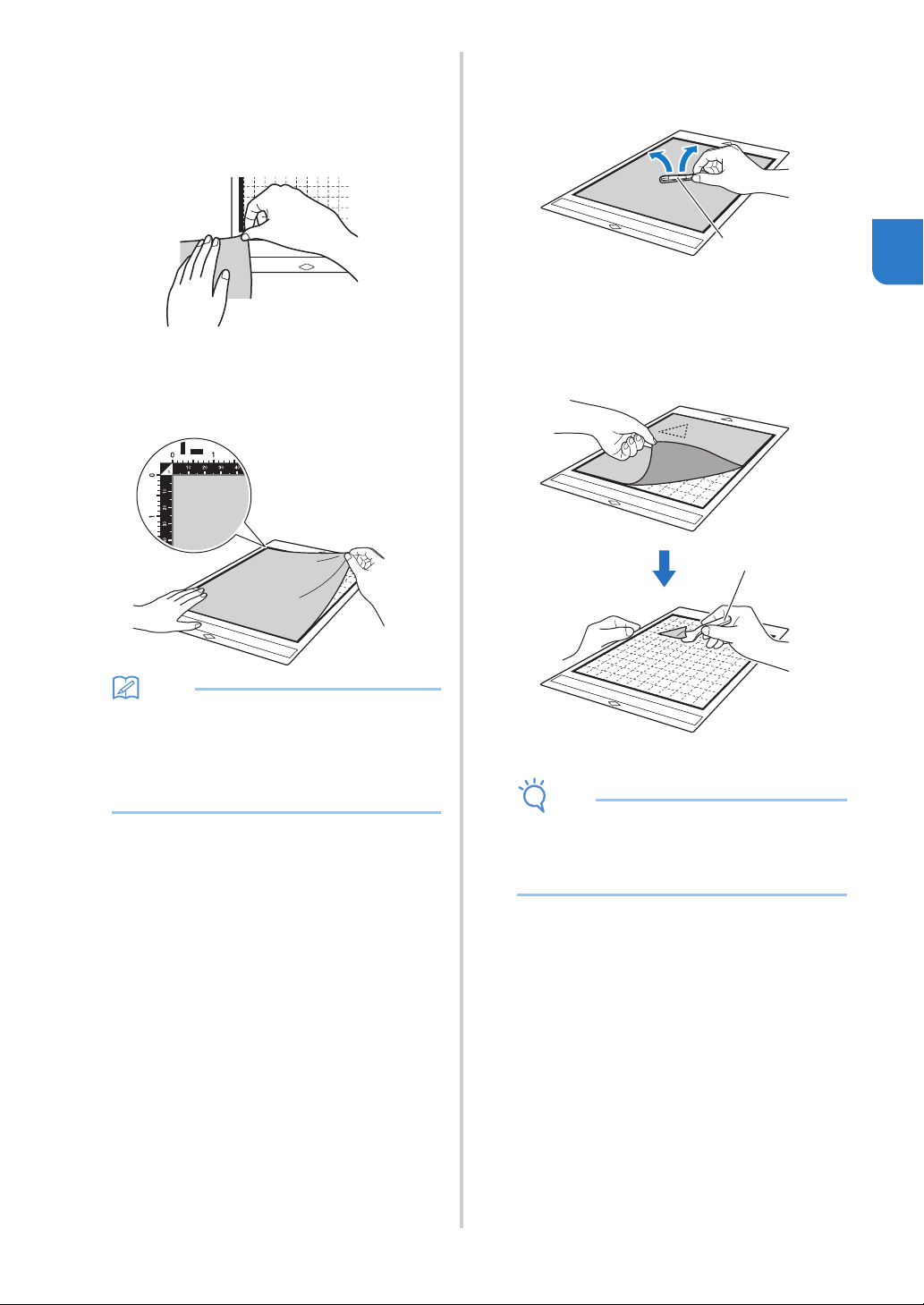
b Test attaching the material.
Before attaching the material to the mat, use a corner
of the adhesive side of the mat to test attach it. If any
problems occur when test attaching, the adhesive
strength of the mat is too high for the material. Use
different material.
c From its edges, attach the material to the
adhesive side of the mat so that there are no
wrinkles in the material.
Be sure to first iron the fabric to remove any wrinkles.
Memo
• Be sure that the vertical grain of the attached
fabric runs straight up and down. The built-in
patterns are automatically arranged suitable for
fabric with vertical grain.
• When drawing a seam allowance, attach the
fabric to the mat with its wrong side facing up.
d Firmly move the spatula handle across the
surface of the fabric to remove any wrinkles
and firmly attach the fabric to the mat.
a Spatula
Peeling Off the Material (Fabric for Quilt
Piecing)
After cutting the material, use a spatula to slowly
peel off the fabric.
a Spatula
Note
• When peeling off the material, insert the spatula
as level as possible into the space between the
material and mat. Strongly rubbing the adhesive
side of the mat may damage it.
Cutting Fabric for Quilt Piecing with the
Rotary Auto Blade Holder
When cutting fabric (for quilt pieces) with the
rotary auto blade holder, attach the material
directly to the mat appropriate for the material
and cut it. For details, refer to page 21.
a
a
26
Installing and Uninstalling the Holder
Select the holder appropriate for the material, and
then install it into the machine. For details on the
holder appropriate for the material, see “Reference
Table of Mat, Blade and Material Combinations” on
page 15.
a Press in the operation panel to turn on the
machine.
For details, see “Turning On/Off the Machine” on
page 8.
Note
• Be sure to turn on the machine before installing
the holder.
• If the holder is installed while the machine is off,
the blade may break and material may not be
cut cleanly.
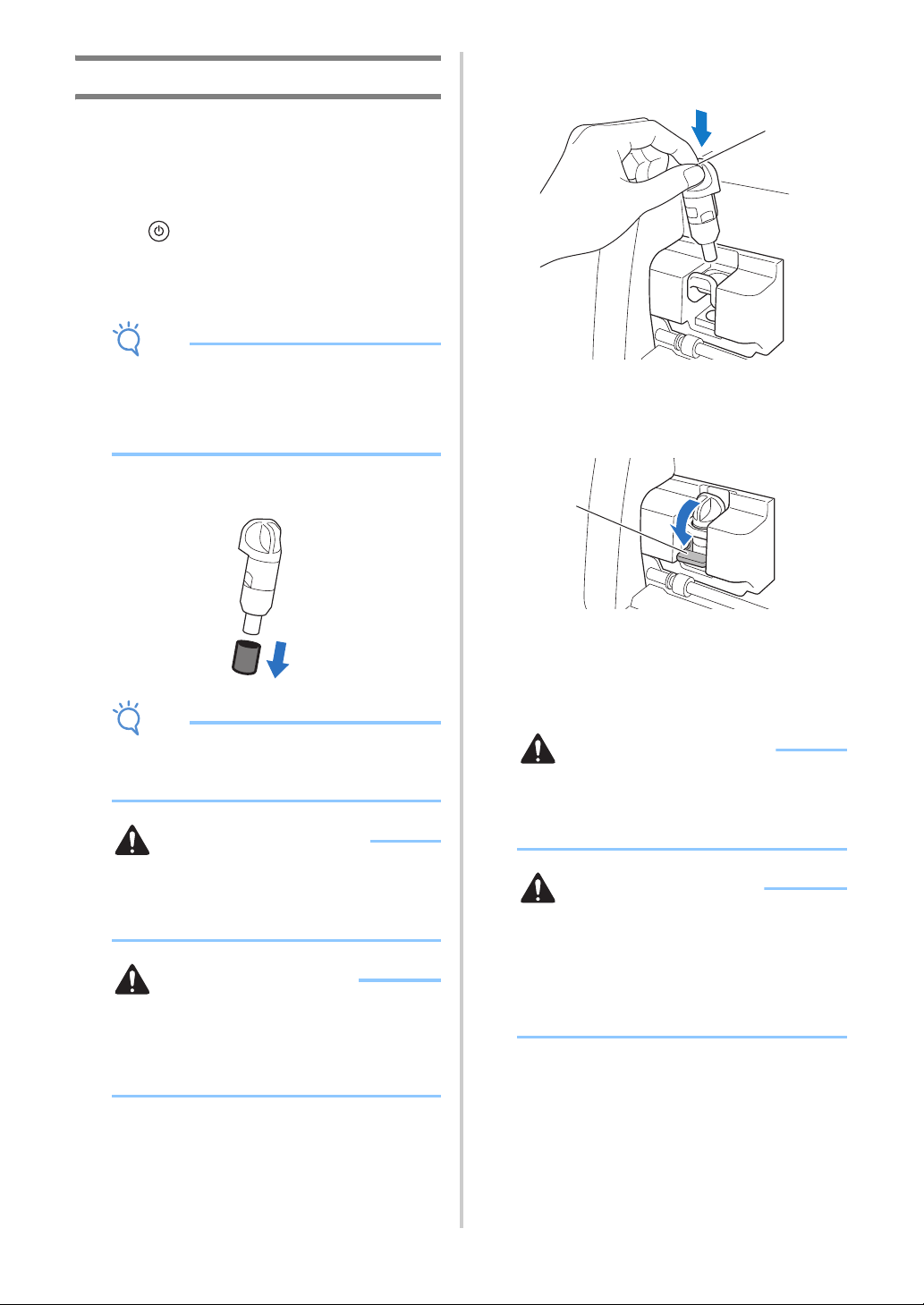
b Remove the protective cap.
Note
• Please remove protective cap from blade
holder before placing it into the machine
carriage.
WARNING
• This is not a toy and is not intended to be used
by children. In order to prevent choking
hazards, do not allow infants/children to put the
protective caps in their mouths.
CAUTION
• Do not press the tip of the holder with your
hand or fingers because the tip of the blade will
extend and may result in injuries.
• Do not touch the tip of the blade with your
hands or fingers. There is a risk of injury.
c Grasp the holder grip, and then insert the
holder into the carriage.
a Grip
d Push down on the holder lock lever.
Firmly push down until the holder is locked in place.
a Holder lock lever
e Reverse the installation procedure to uninstall
the holder.
WARNING
• This is not a toy and is not intended to be used
by children. In order to prevent choking
hazards, do not allow infants/children to put the
protective caps in their mouths.
CAUTION
• After removing the blade holder from the
machine, be sure to attach the protective cap.
• Do not press the tip of the holder with your
hand or fingers because the tip of the blade will
extend and may result in injuries.
• Do not touch the tip of the blade with your
hands or fingers. There is a risk of injury.
aa
a
27
2
Test Cut (Trial Cut)
Perform test/trial cut or draw on the type of material
to be used in your project, to check that the desired
result can be achieved.
This section describes the procedure for performing
test cut.
■ Turning On the Machine
Press in the operation panel to turn on the machine.
• For details, see “Turning On/Off the Machine” on
page 8.
■ Setting the Holder
Install the cutting blade holder into the carriage of the
machine.
• For details, see “Installing and Uninstalling the
Holder” on page 26.
■ Selecting the Test Pattern
Cut out the test pattern.
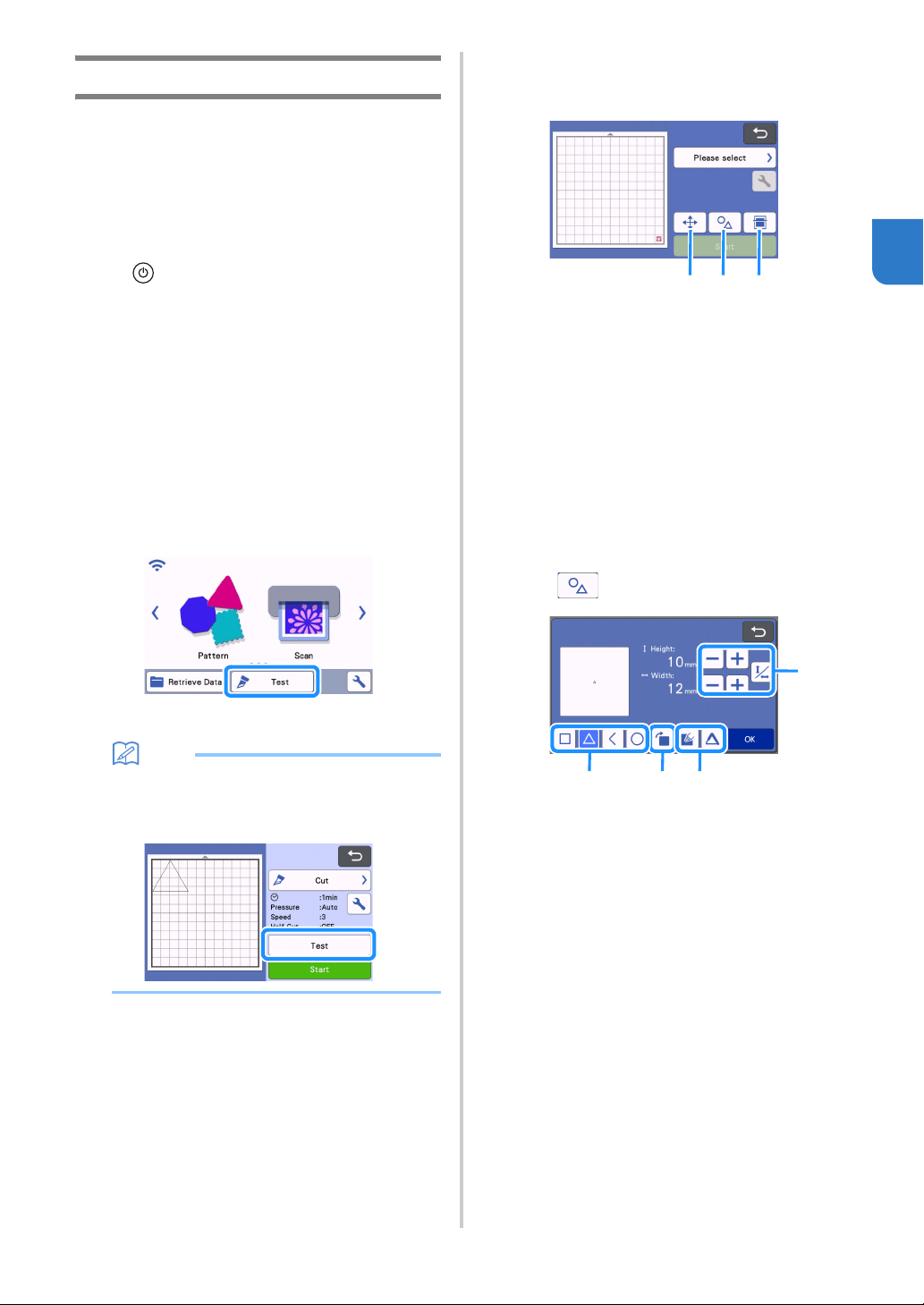
a Touch the “Test” key in the home screen.
The pattern is automatically arranged in the test
screen.
Memo
• Test/trial cut can also be performed after
selecting an operation in the preview screen,
displayed after a pattern is selected. For details,
see “Tutorial 1 - Cutting Patterns” on page 31.
b Check that the pattern to be cut out is arranged
within a cutting area specified according to the
size of the material.
a Pattern Arrangement Key
Touch to make adjustments in the mat editing
screen when changing the arrangement of the
pattern. If changes are applied to the pattern
arrangement, the pattern will be automatically
arranged in the same location the next time
test/trial cut is performed.
b Size/Shape Adjustment Key
Touch to adjust the pattern shape and size.
For details on making changes, see step
c.
c Background Scanning Key
Scan a background image. For details, see
“Scanning a Background Image” on page 53.
c To change the shape and size of the pattern,
touch .
a Size Adjustment Keys
Change the size of the pattern. For details, see
“Pattern Editing Functions” on page 43.
b Test Pattern Selecting Keys
Select the test pattern.
c Test Pattern Rotating Key
Rotate the test pattern. Touch the key that
shown in the screen for the desired angle to
rotate the pattern. For details, see “Object
Editing Screen” on page 46.
d Test Pattern Fill/Additional Line Setting Keys
Select whether or not to fill or add lines to the
test pattern. These functions are not available
when you select the “Cut” or “Emboss”
operation mode.
Touch the “OK” key to return to the test screen.
a b c
a
cb d
28
■ Loading the Mat
a Attach the material that will be cut to the mat.
• For details on attaching material to the mat, see
“Attaching the Material to the Mat” on page 18.
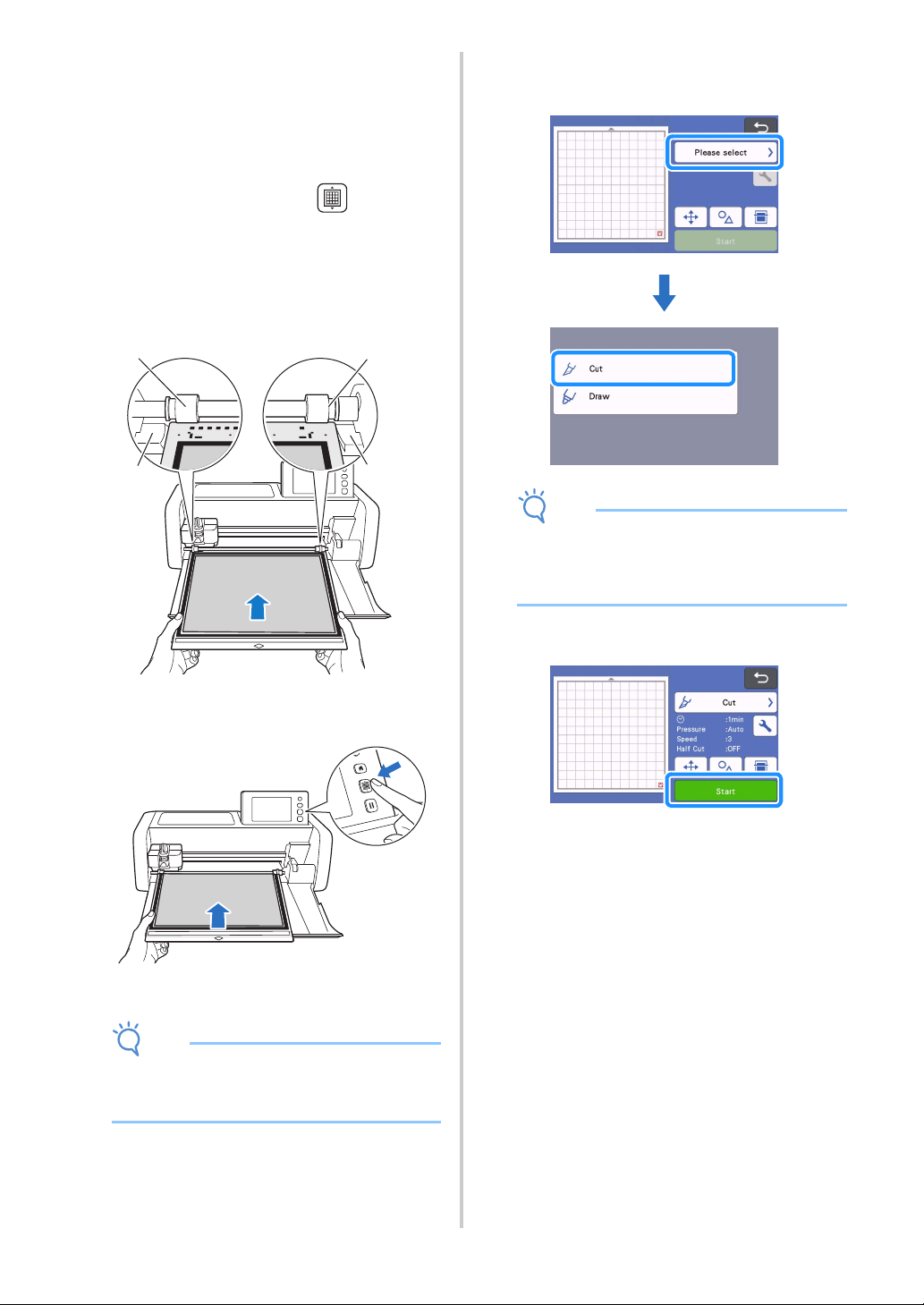
b While holding the mat level, gently insert it into
the feeding slot and press the on the
operation panel while gently pushing the mat
forward.
Insert the tip of the mat so that it aligns with the guides
on the left and right sides of the feed slot and is tucked
under the feed rollers. Insert the end of the mat marked
with an arrow into the machine.
a Guides
b Feed rollers
The mat is fed in to complete the preparations for
cutting.
Note
• Do not forcefully pull the mat while it is being
fed in. Otherwise, damage, for example, to the
feed rollers, may result.
■ Cutting
a Select “Cut” in the test screen.
Note
• To make half cuts (kiss cuts), turn on half cut
(kiss cut) in the settings screen. For details on
specifying the settings, see “Half Cut (Kiss Cut)
Settings” on page 30.
b Touch the “Start” key to start cutting.
When cutting is finished, the message “Finished
cutting.” appears on the display. Touch the “OK”
key to return to the test screen.
a
b
a
b
29
2
■ Unloading the Mat
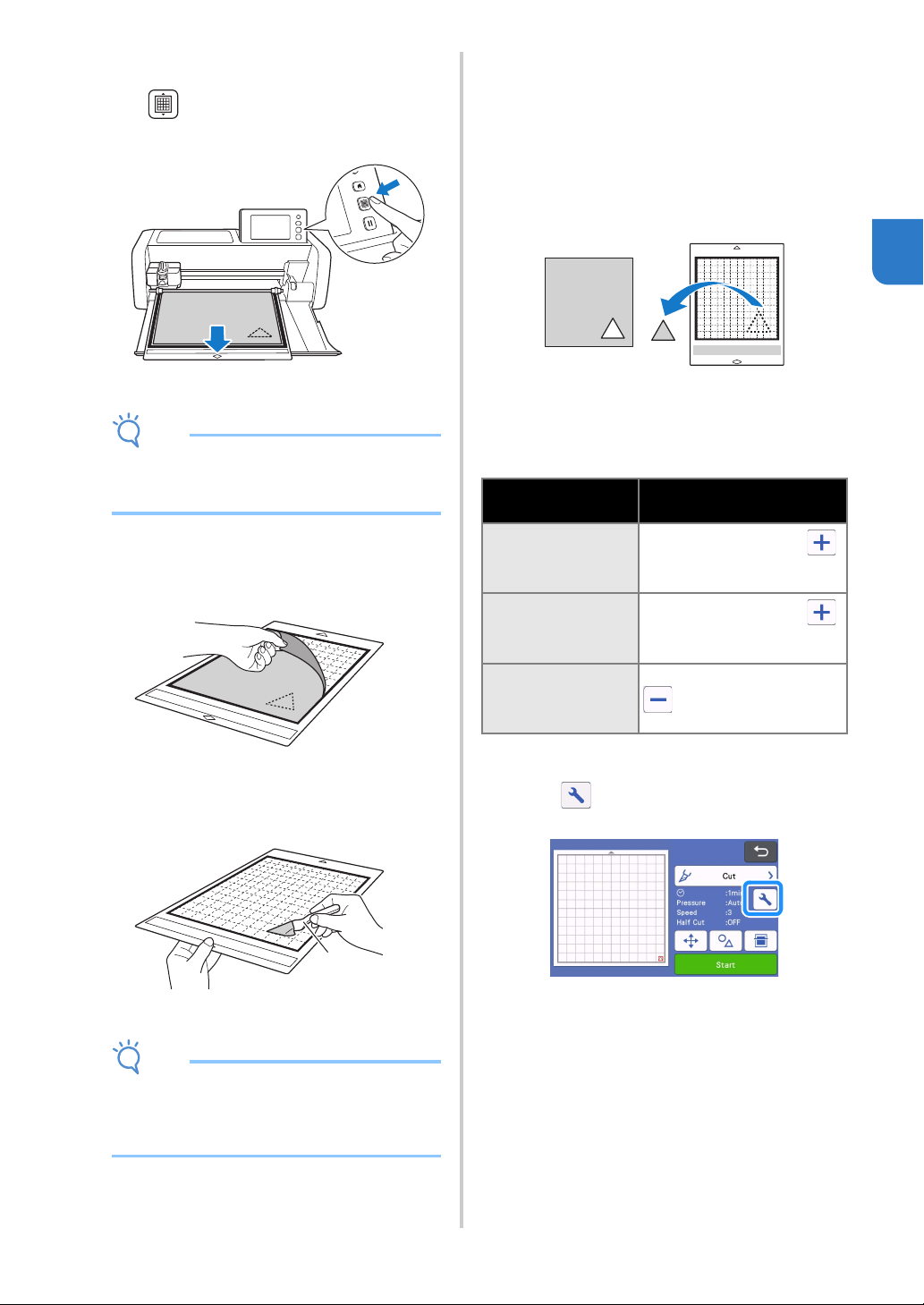
a Press in the operation panel to feed out
the mat.
Note
• Do not forcefully pull the mat while it is being
fed out. Otherwise, damage, for example, to the
feed rollers, may result.
b Peel off the material from an area that is easily
removable, such as a corner, and then slowly
peel while maintaining an even pressure.
c Holding the mat with your hand, use the
included spatula to carefully peel off the cut-
out patterns.
a Spatula
Note
• When peeling off the material, insert the spatula
as level as possible into the space between the
material and mat. Strongly rubbing the adhesive
side of the mat may damage it.
■ Checking the Test/Trial Cut Results
Adjust the cutting pressure according to the test/trial cut
results.
Repeatedly perform test/trial cut and adjust the cutting
pressure until the material is cut cleanly.
With an Appropriate Cutting Pressure
When the material is peeled off, a faint trace of
the cut remains on the mat surface.
■ Changing the Auto Cutting Pressure
If the material could not be cut cleanly, refer to the
following table, and adjust the setting for the cutting
pressure.
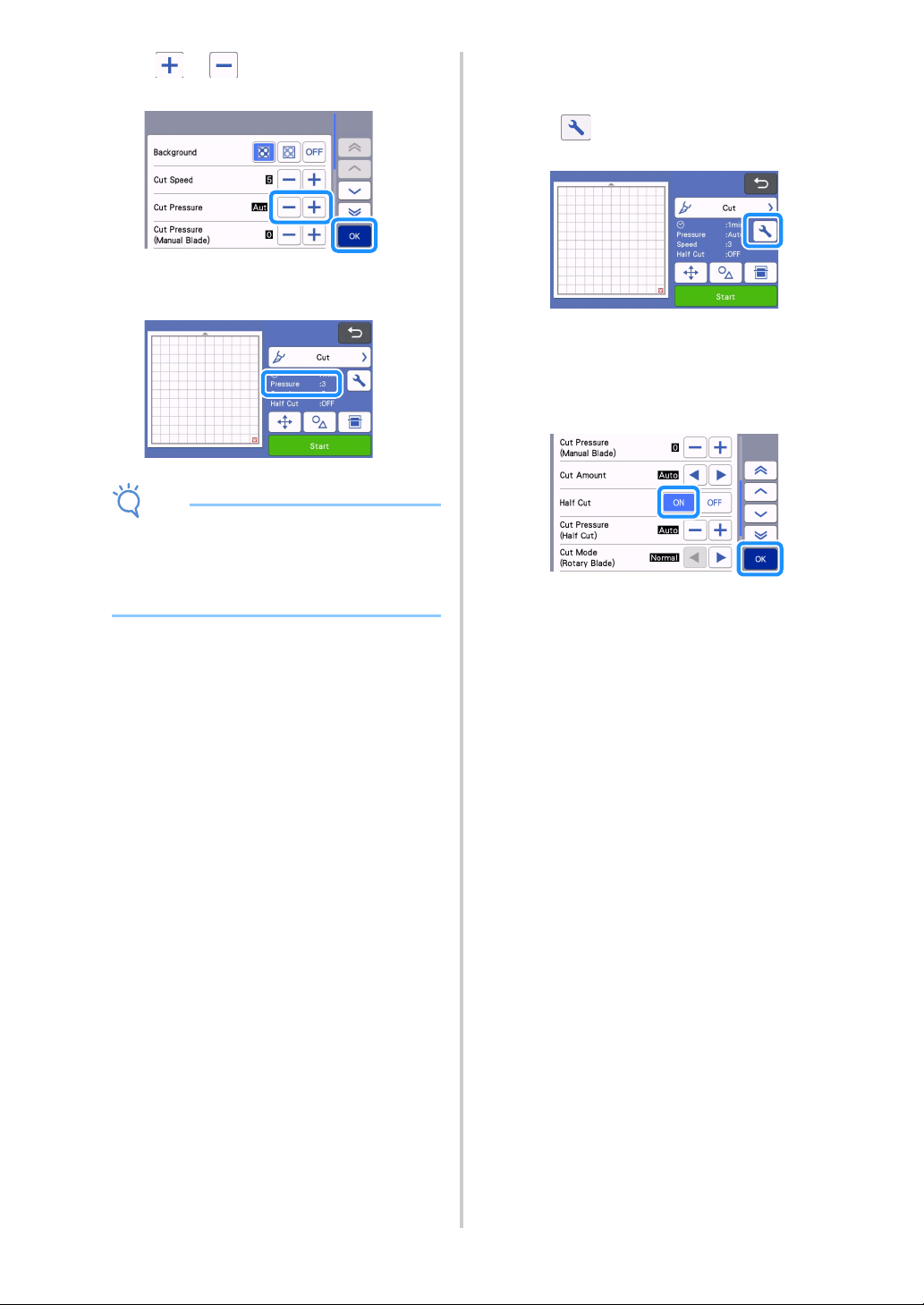
Changing the Cut Pressure Setting
a Touch in the test screen to display the
settings screen.
a
Test/Trial Cut
results
Tips for adjustment
Part of the pattern is
not cut.
Pressure too light: Touch
in the settings screen once to
increase the pressure.
The entire pattern is
not cut.
Pressure too light: Touch
in the settings screen once to
increase the pressure.
There are deep cuts
completely through
the mat.
Pressure too strong: Touch
in the settings screen
once to decrease the pressure.
30
b Touch or to adjust the cutting
pressure, and then touch the “OK” key.
c Check that the settings have changed in the test
screen, and then perform test/trial cut again.
Note
• Be careful not to increase the pressure too
much. Otherwise, the blade may break. If the
pressure is too strong, the material may not be
cut cleanly. In addition, the mat will deteriorate
more quickly.
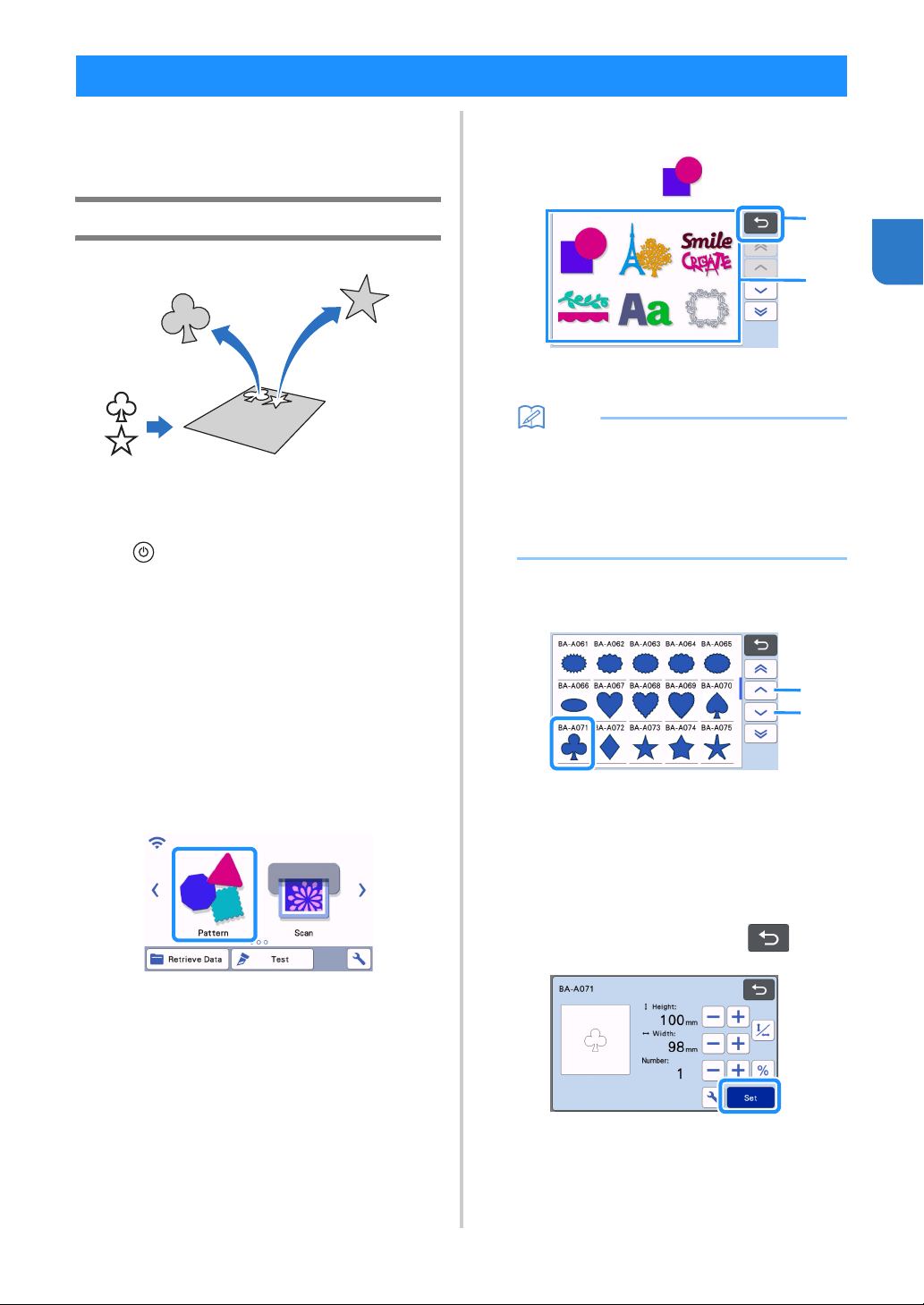
■ Half Cut (Kiss Cut) Settings
To make half cuts (kiss cuts), turn on half cut (kiss cut) in
the settings screen before beginning to cut.
a Touch in the preview screen to display the
settings screen.
b Turn on “Half Cut”, and then touch the “OK”
key.
• The pressure for half cut (kiss cut) can adjusted
with “Cut Pressure (Half Cut)”. Adjust the cutting
pressure until half cut (kiss cut) result is as desired.
31
2
The following procedures use built-in patterns to
describe the entire series of operations, from
selecting a pattern and editing it to cutting.
Tutorial 1 - Cutting Patterns
In this tutorial, we will cut two built-in patterns.
■ Turning On the Machine
Press to turn on the machine.
• For details, see “Turning On/Off the Machine” on
page 8.
■ Setting the Holder
Install the cutting blade holder into the carriage of the
machine.
• For details, see “Installing and Uninstalling the
Holder” on page 26.
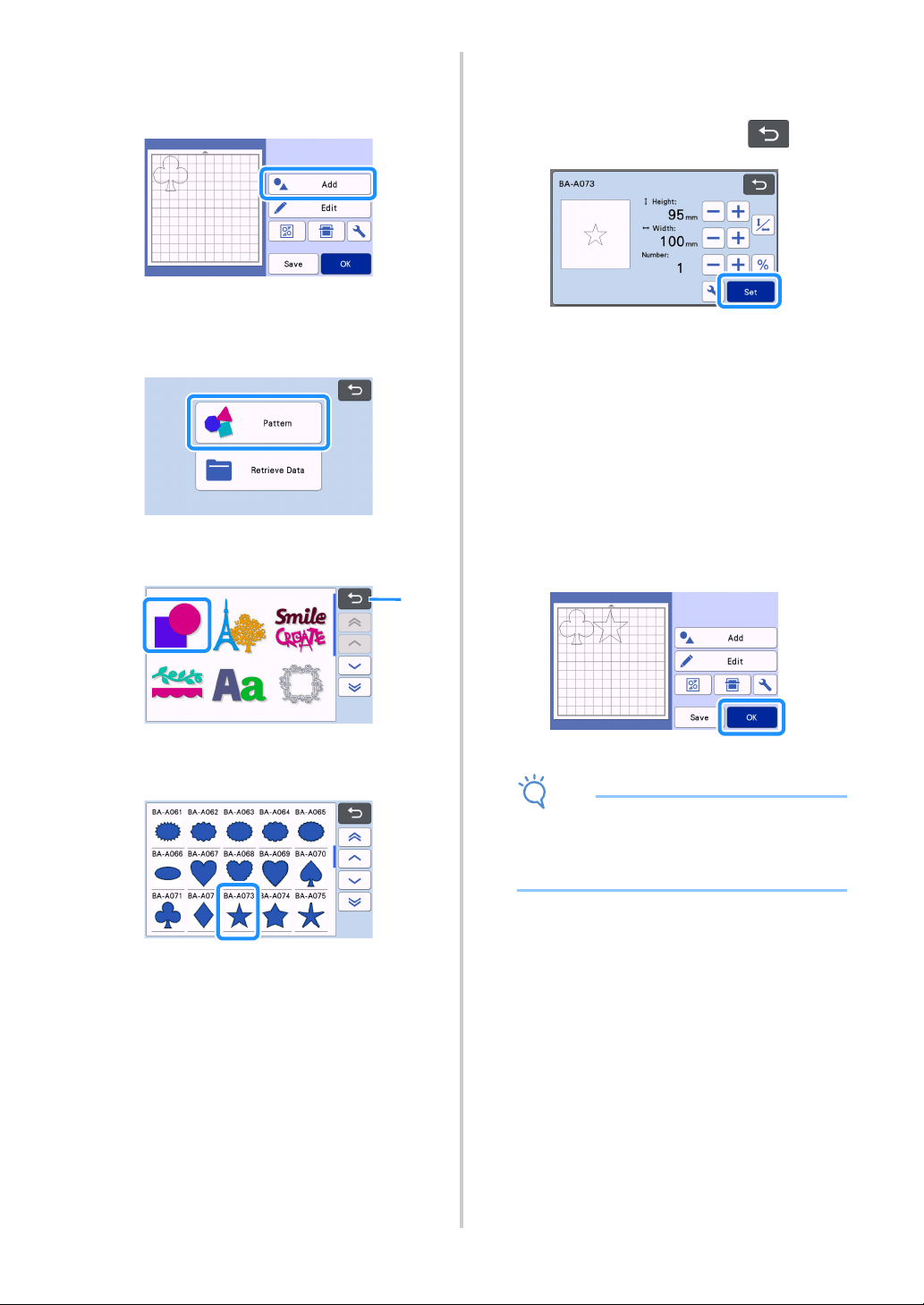
■ Selecting and Editing the First
Pattern
a Select “Pattern” in the home screen.
b Select the category for the pattern to be cut out
in the pattern category selection screen.
For this example, select .
a Touch to return to the previous screen.
b Pattern categories
Memo
• The pattern categories and built-in patterns that
appear in the operation screens differ
depending on the machine model. For details
on the built-in patterns, refer to the “Pattern
List”. The “Pattern List” can be downloaded
from the Brother support website (http://
s.brother/cmoae/).
c Select the first pattern to be used in the pattern
selection screen.
a Touch to scroll up.
b Touch to scroll down.
d Edit the size and number of the pattern using
the pattern editing screen.
After editing is finished, touch the “Set” key.
• For details on the editing functions, see “Pattern
Editing Functions” on page 43.
• To select a different pattern, touch , cancel
the selection, and then select a pattern again.
PATTERN CUTTING
b
a
b
a
32
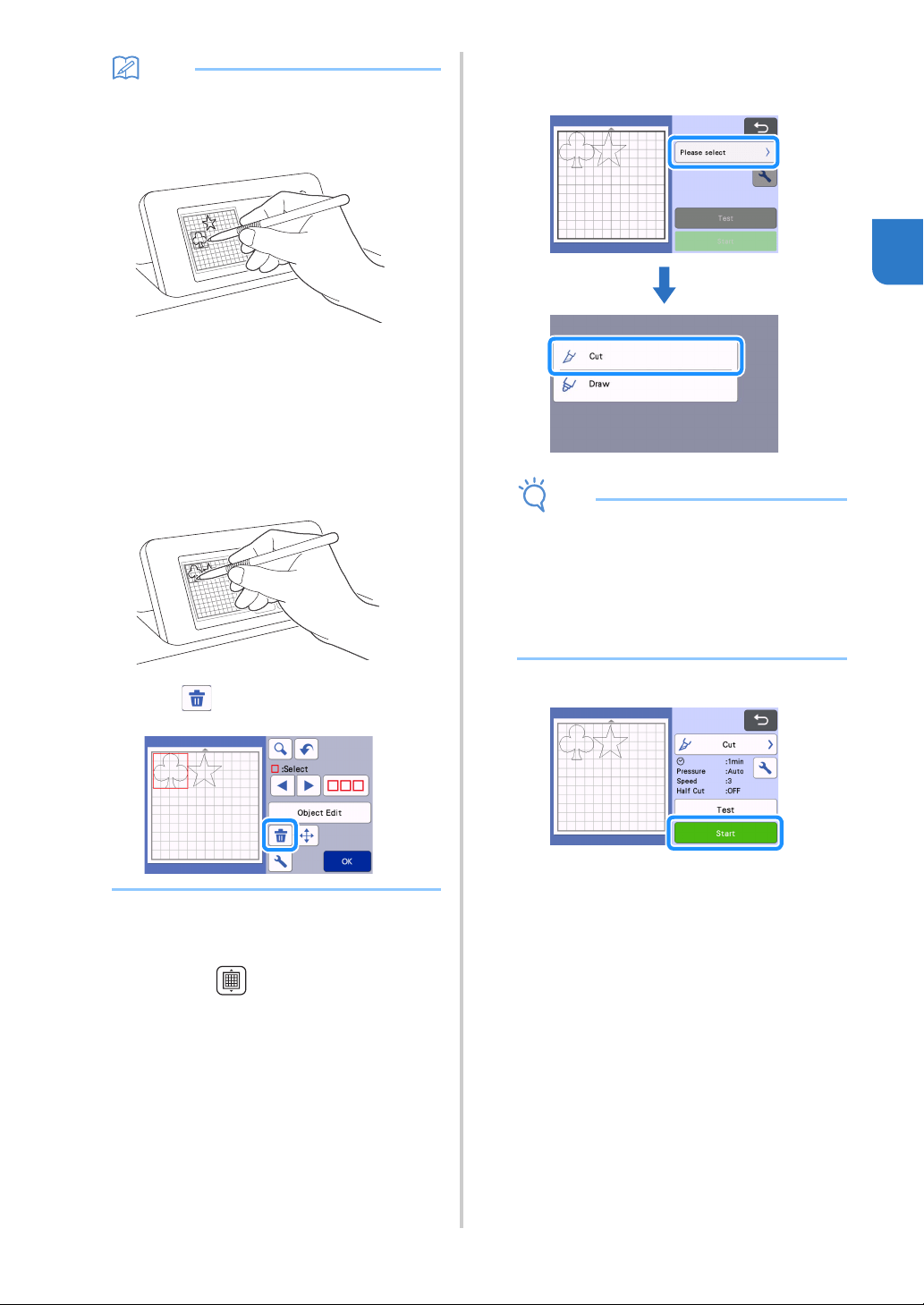
■ Selecting and Editing the Second
Pattern
a Touch the “Add” key in the mat layout screen.
b Select the location of the pattern to be added.
• For this example, touch the “Pattern” key to add a
built-in pattern. For details on recalling pattern
data, see step
c in “Retrieve Data” on page 65.
c Select the category for the pattern to be cut
out.
a Touch to return to the previous screen.
d Select the second pattern to be used.
e Edit the pattern.
After editing is finished, touch the “Set” key.
• For details on the editing functions, see “Pattern
Editing Functions” on page 43.
• To select a different pattern, touch , cancel
the selection, and then select a pattern again.
f Check the pattern arrangement.
The two patterns that will be cut out appear in the mat
layout screen. After checking the arrangement, touch
the “OK” key.
• From this screen, an individual pattern can be
edited, moved or deleted. For details on the
functions that can be used in the mat layout
screen, see “Layout Editing Functions” on
page 45.
• By using the auto layout function, the
arrangement of the patterns can easily be
adjusted. For details, see “Auto Layout
Functions” on page 53.
• Select the “Cut Area” setting appropriate for the
mat being used. (See page 10.)
The preview screen appears.
Note
• Depending on the pattern type and material to
be cut, the patterns may not be cleanly cut if
their spacing is too small. In that case,
rearrange the patterns to separate them.
a
33
2
Memo
• To move a pattern within the cutting/drawing
area, touch the pattern on the screen and drag
it to the desired position.
• To delete a pattern from the arrangement,
select the pattern in the mat editing screen, and
then use the function for deleting.
Touch the “Edit” key in the mat layout screen.
Touch the pattern to be deleted in the screen.
To delete multiple patterns, use the function for
selecting multiple patterns. For details, see
“Selecting Multiple Patterns” on page 41.
Touch in the mat editing screen to delete
the selected pattern(s).
■ Loading the Mat
While holding the mat level and lightly inserting it into
the feed slot, press in the operation panel.
• For details, see “Loading the Mat” on page 28.
■ Cutting
a Select “Cut” in the preview screen.
Note
• Before continuing operation, make sure that
patterns that will be cut out are arranged in the
cutting area corresponding to the size of the
material to be used.
• To make half cuts (kiss cuts), turn on half cut
(kiss cut) in the settings screen before
beginning to cut. For details, see “Half Cut (Kiss
Cut) Settings” on page 30.
b Touch the “Start” key to start cutting.
When cutting is finished, the preview screen
appears again.
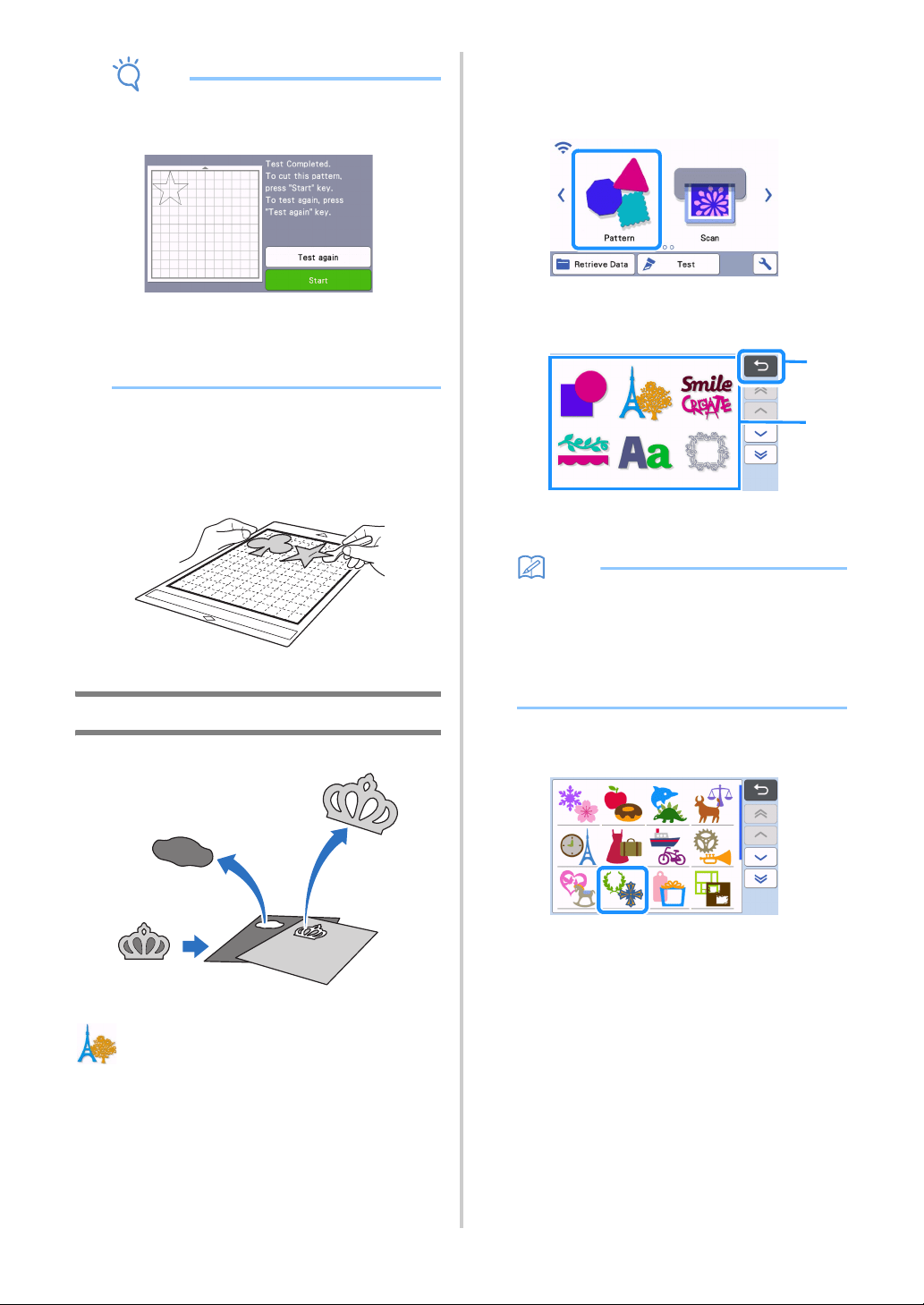
34
Note
• Touch the “Test” key in the preview screen to
perform test/trial cut. When test/trial cut is
finished, the following screen appears.
- Touch the “Start” key to start cutting the
pattern.
- Touch the “Test again” key to return to the
test screen. Change the settings, and then
perform test/trial cut again.
■ Unloading the Mat
Feed out the mat, and then use the included spatula to
peel off the patterns.
For details, see “Unloading the Mat” on page 29.
Tutorial 2 - Cutting Advanced Patterns
In this tutorial, we will use a built-in pattern in the
category to cut different materials for each
part.
■ Selecting and Editing the First
Pattern Piece
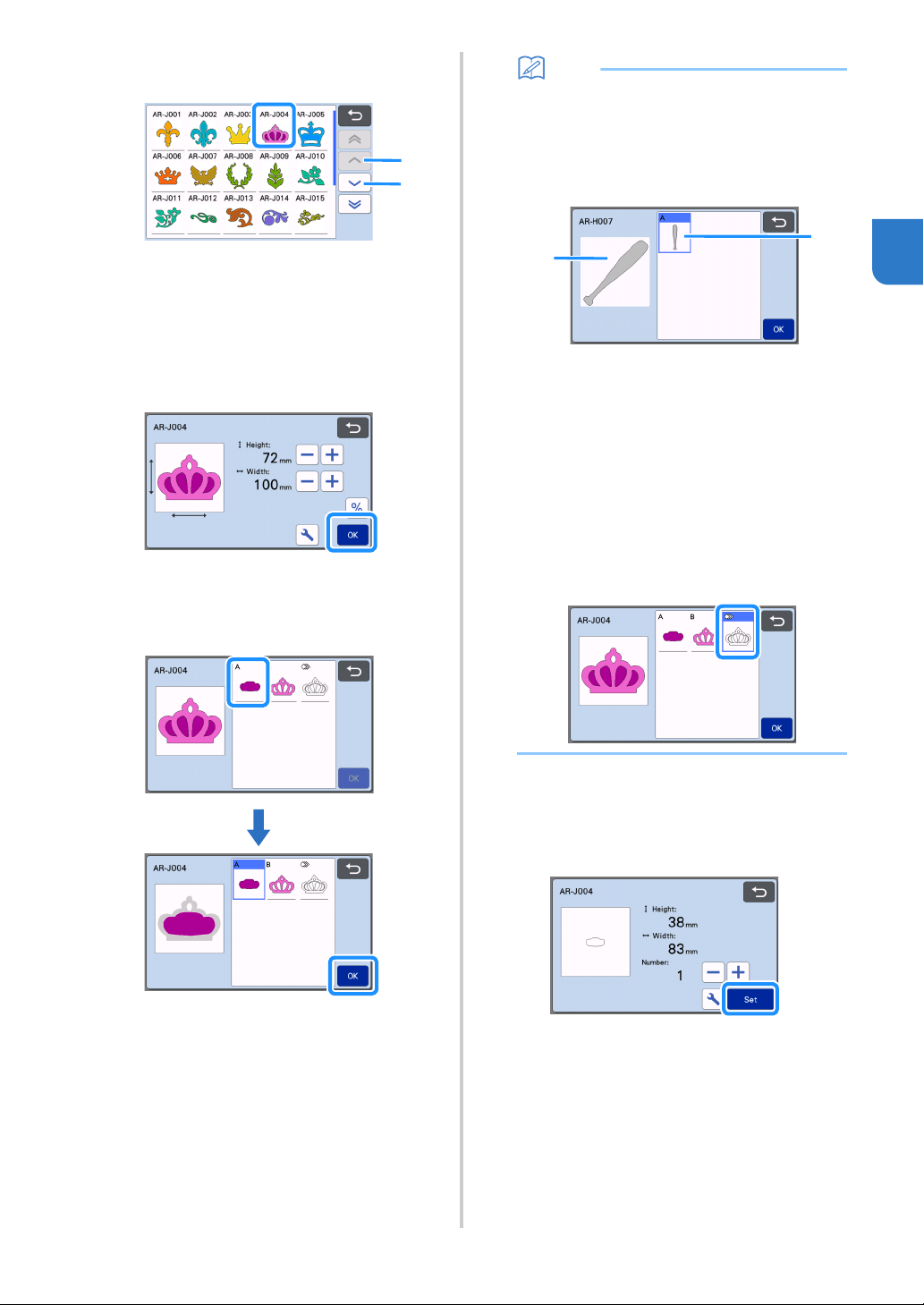
a Select “Pattern” in the home screen.
b Select the category in the pattern category
selection screen.
a Touch to return to the previous screen.
b Pattern categories
Memo
• The pattern categories and built-in patterns that
appear in the operation screens differ
depending on the machine model. For details
on the built-in patterns, refer to the “Pattern
List”. The “Pattern List” can be downloaded
from the Brother support website (http://
s.brother/cmoae/).
c Select the sub-category in the pattern sub-
category selection screen.
b
a
35
2
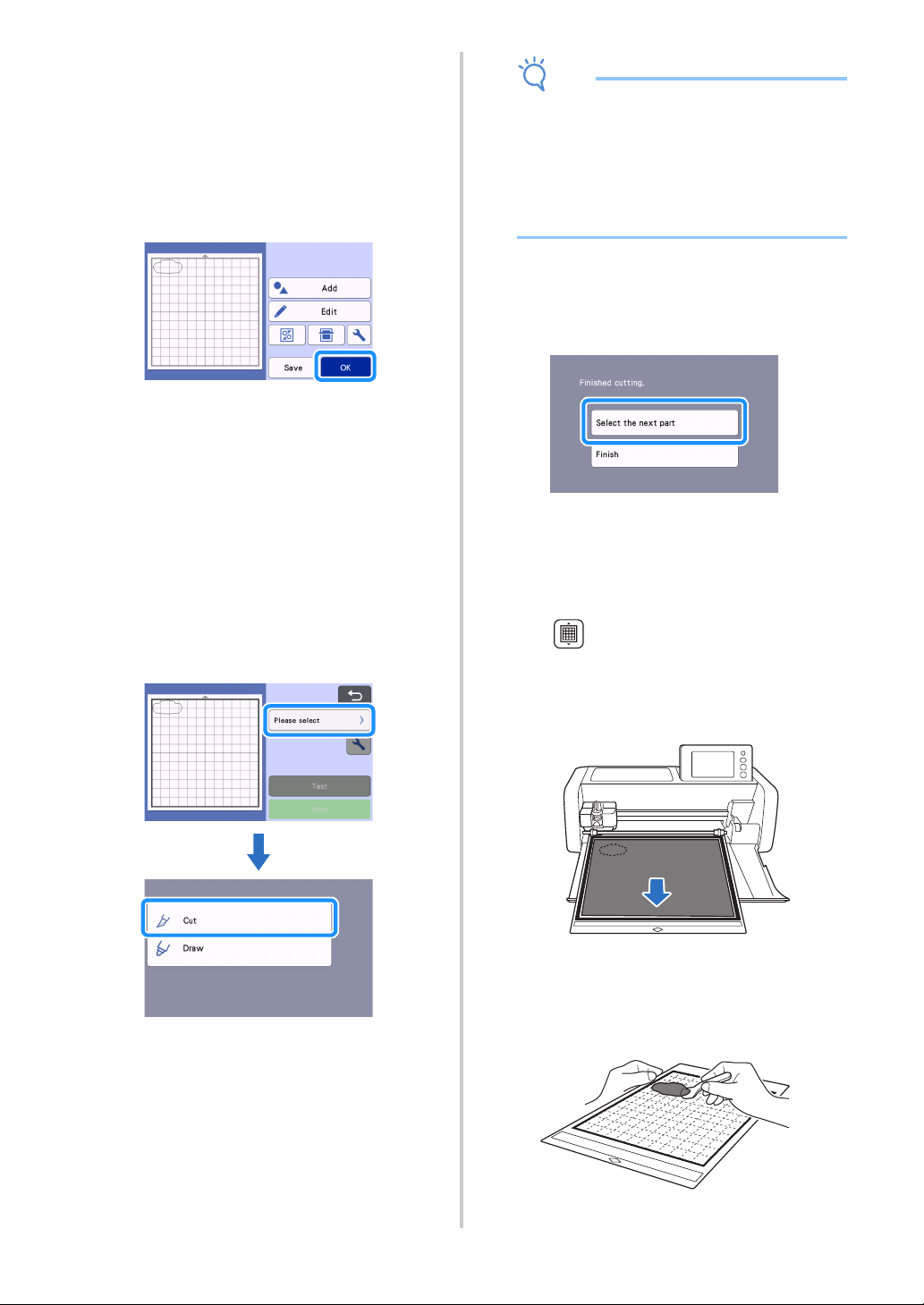
d Select the pattern to be cut out in the pattern
selection screen.
a Touch to scroll up.
b Touch to scroll down.
e Edit the size of the entire pattern using the
pattern sizing screen.
After editing is finished, touch the “OK” key.
• For details on the pattern sizing screen, see
“Pattern Sizing” on page 44.
f Select the piece to be edited first in the pattern
piece list screen, and then touch the “OK” key.
From the pattern piece list that appears in the screen,
touch a pattern piece to edit it individually.
Memo
• The pattern pieces displayed in the pattern
piece list screen are automatically arranged so
that the grain is vertical when fabric is used as
the material for cutting. Therefore, the angle at
which the pattern appears in the pattern piece
list may differ from the actual angle of the
pattern piece to be cut out.
a Appearance in pattern piece list
b Actual arrangement of the pattern piece to be
cut out
• Change the angle of pattern piece using the
rotating function according to your project. For
details, see “Editing the Pattern Piece” on
page 44.
• A key showing all pattern pieces appears at the
end of the pattern piece list. Press this key to
select all pattern pieces and arrange them on
the mat. This key is useful when cutting the
pattern outline and cutting multiple pattern
pieces within the same mat, see “Editing and
Cutting the Second Pattern Piece” on page 37.
g Edit the pattern piece using the pattern piece
editing screen.
After editing is finished, touch the “Set” key.
• For details on the editing functions, see “Editing the
Pattern Piece” on page 44.
b
a
b
a
36
hCheck the pattern piece arrangement using the
mat layout screen.
The pattern piece to be cut out appears in the screen.
After checking the arrangement, touch the “OK” key.
• From this screen, an individual pattern piece can
be edited, moved, deleted or saved. For details on
the editing functions in the mat layout screen, see
“Mat Layout Screen” on page 44.
• Select the “Cut Area” setting appropriate for the
mat being used. (See page 10.)
The preview screen appears.
■ Loading the Mat
Attach the material that the first pattern piece will be cut
out of to the mat, and then feed in the mat from the feed
slot.
When cutting a pattern consisting of multiple pieces in
different colors, edit the pattern piece for each color,
and then change the material to cut out each piece.
• For details on preparing the material and loading
the mat, see “Loading the Mat” on page 28.
■ Cutting the First Pattern
a Select “Cut” in the preview screen.
Note
• Before continuing operation, make sure that
patterns that will be cut out are arranged in the
cutting area corresponding to the size of the
material to be used.
• To make half cuts (kiss cuts), turn on half cut
(kiss cut) in the settings screen before
beginning to cut. For details, see “Half Cut (Kiss
Cut) Settings” on page 30.
b Touch the “Start” key to start cutting.
After the first pattern piece has been cut out, the
following message appears. In order to cut out
the second pattern piece, touch the “Select the
next part” key.
Touching the “Select the next part” key erases all
editing information for the first pattern piece and
displays the pattern piece list screen again.
■ Unloading the Mat
a Press in the operation panel to feed out
the mat.
In order to replace the material with one of a different
color, the material used for the first pattern piece must
be fed out.
b Peel from the mat the pattern piece that was
cut out.
For details on peeling the material from the mat, see
“Unloading the Mat” on page 29.
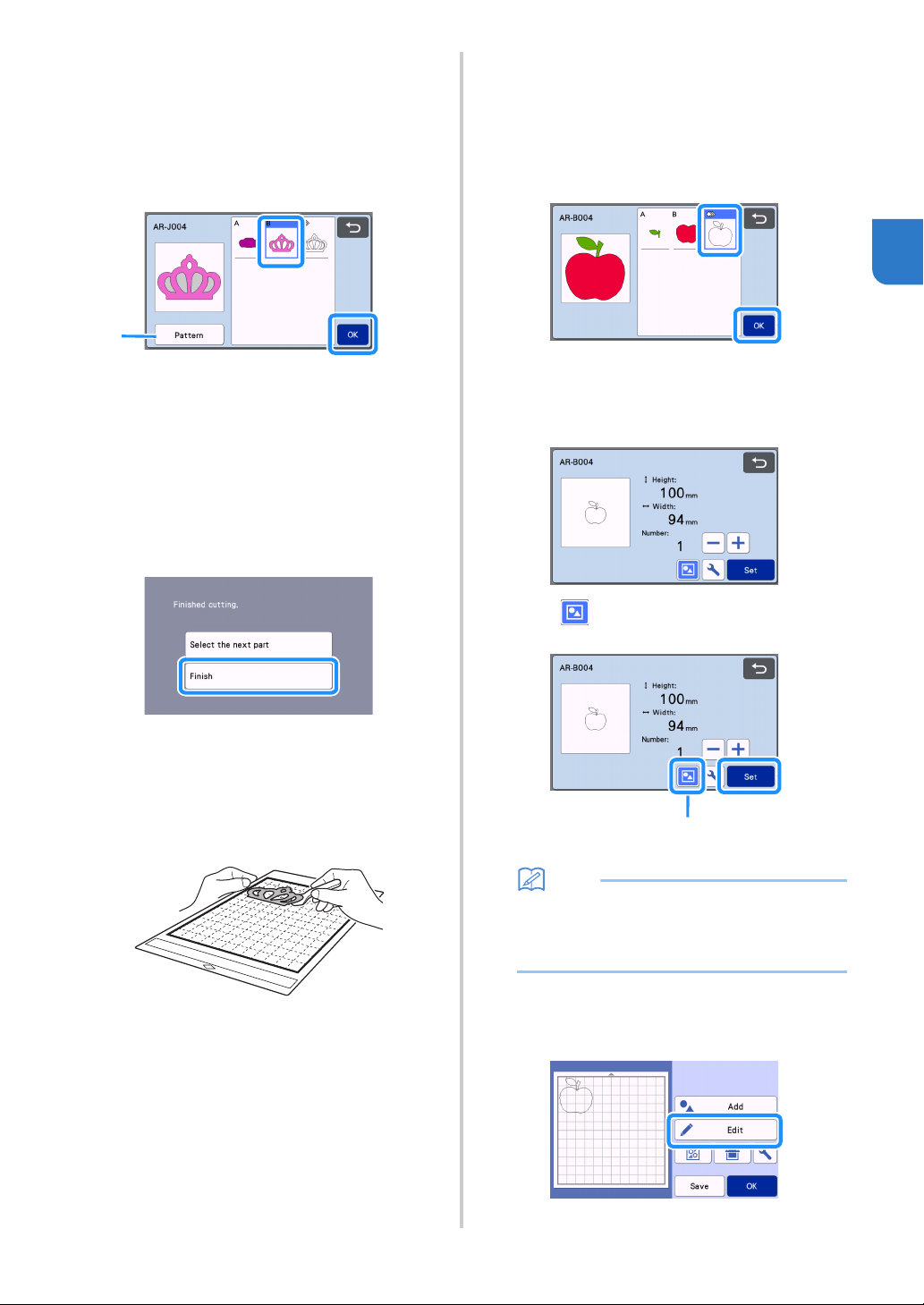
37
2
■ Editing and Cutting the Second
Pattern Piece
a Select and edit the second pattern piece, and
then touch the “OK” key.
For details on editing the pattern, follow steps f-h
(page 35) in “Selecting and Editing the First Pattern
Piece”.
a Touch to return to the pattern category
selection screen for selecting another pattern.
b Follow the procedures described in “Loading
the Mat” (page 28) and “Cutting” (page 28) to
load the material to be used for the second
pattern piece and cut it out.
When cutting is finished, a message appears.
c After all pattern pieces have been cut out,
touch the “Finish” key.
The preview screen appears again.
■ Unloading the Mat
Peel from the mat the pattern piece that was cut out.
For details on peeling the material from the mat, see
“Unloading the Mat” on page 29.
■ Editing and Cutting the all Pattern
Pieces
Cutting the pattern outline
a Select and edit the all pattern pieces, and then
touch the “OK” key.
b Edit the pattern piece using the pattern piece
editing screen.
• For details on the editing functions, see “Editing the
Pattern Piece” on page 44.
c Touch to ungroup the pattern pieces.
After editing is finished, touch the “Set” key.
a Grouping/Ungrouping Key
Memo
• Grouping/Ungrouping patterns can also be
adjusted in the object editing screen. For
details, see “Grouping/Ungrouping Patterns” on
page 47.
d Check the pattern piece arrangement using the
mat layout screen and then touch the “Edit”
key.
a
a
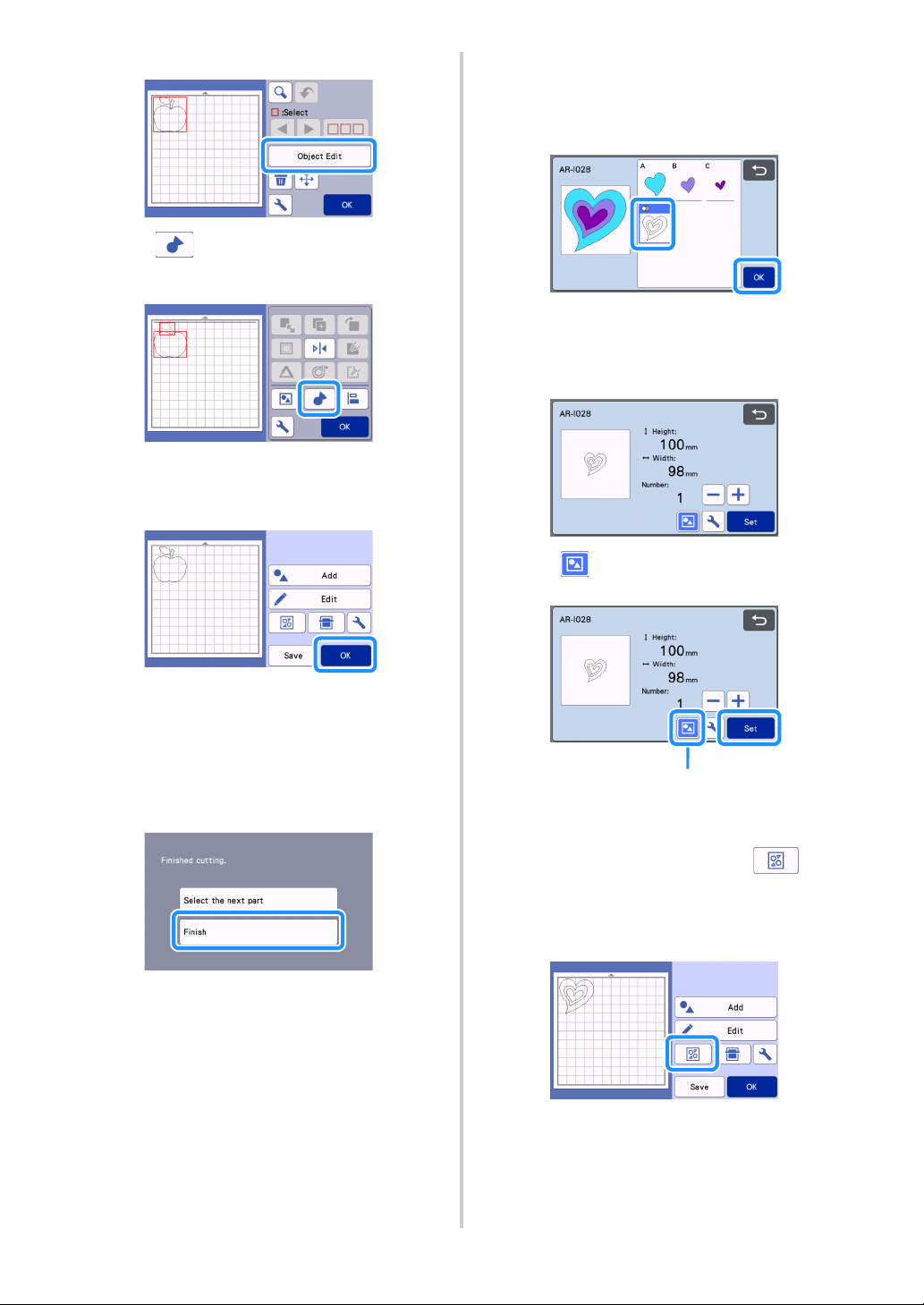
38
e Touch the “Object Edit” key.
f Touch to weld the pattern.
• For details on the welding, see “Welding (Merging
the Outlines of Multiple Patterns)” on page 49.
Touch the “OK” key in the editing screen to
return to the mat layout screen.
g Touch the “OK” key.
hFollow the procedures described in “Loading
the Mat” (page 28) and “Cutting” (page 28) to
load the material to be cut.
When cutting is finished, a message appears.
i After all pattern pieces have been cut out,
touch the “Finish” key.
Cutting all the pattern piece within the
same mat
a Select and edit the all pattern pieces, and then
touch the “OK” key.
b Edit the pattern piece using the pattern piece
editing screen.
• For details on the editing functions, see “Editing the
Pattern Piece” on page 44.
c Touch to ungroup the pattern pieces.
After editing is finished, touch the “Set” key.
a Grouping/Ungrouping Key
d Check the pattern piece arrangement using the
mat layout screen and then touch to
arrange all the pattern pieces layout
automatically.
• For details on the auto layout function, see “Auto
Layout Functions” on page 53.
Touch the “OK” key in the editing screen to
return to the mat layout screen.
a
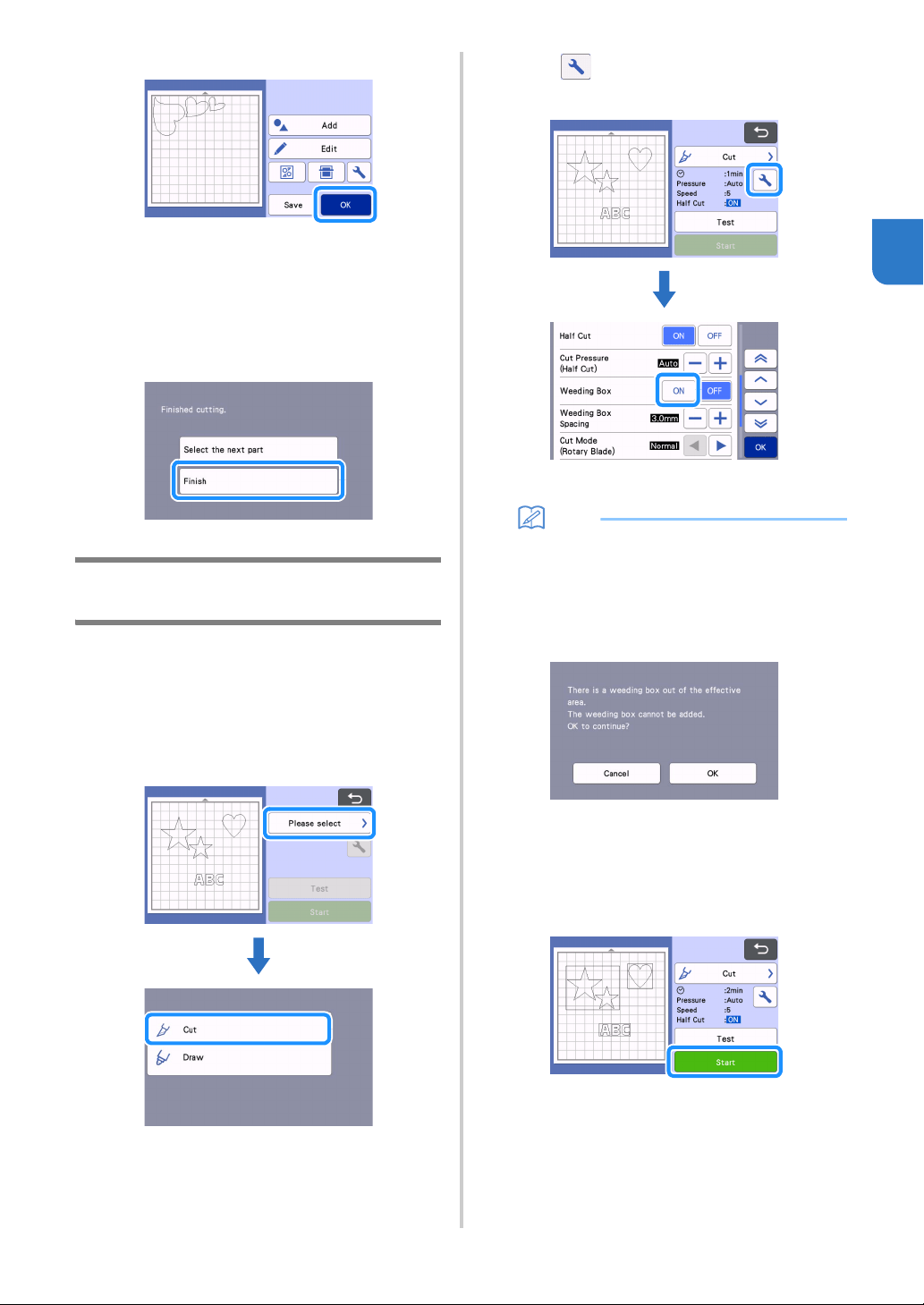
39
2
e Touch the “OK” key.
f Follow the procedures described in “Loading
the Mat” (page 28) and “Cutting” (page 28) to
load the material to be cut.
When cutting is finished, a message appears.
g After all pattern pieces have been cut out,
touch the “Finish” key.
Tutorial 3 - Adding a Weeding Box to a
Pattern
In this tutorial, we will be adding a weeding box to
cut a pattern to make it easier to do “weeding” work
to remove only the unnecessary parts after cutting
materials with backing paper or backing film.
a After editing the pattern, select “Cut” in the
preview screen.
b Touch , and then set “Weeding Box” to
“ON” to add weeding boxes.
A weeding box is added around each pattern.
Memo
• If patterns are close to each other, the weeding
box is added as if the patterns are one group,
even if they are not grouped.
• A weeding box is not added to test patterns.
• If the weeding box is outside of the cutting area,
the following message appears and the
weeding box is not added.
Touch the “Cancel” key, and then either reduce
the setting for “Weeding Box Spacing” or return
to the editing screen and adjust the
arrangement of the patterns.
c Touch the “Start” key to start cutting.
After cutting is finished, “Weeding Box” is set
back to “OFF”.
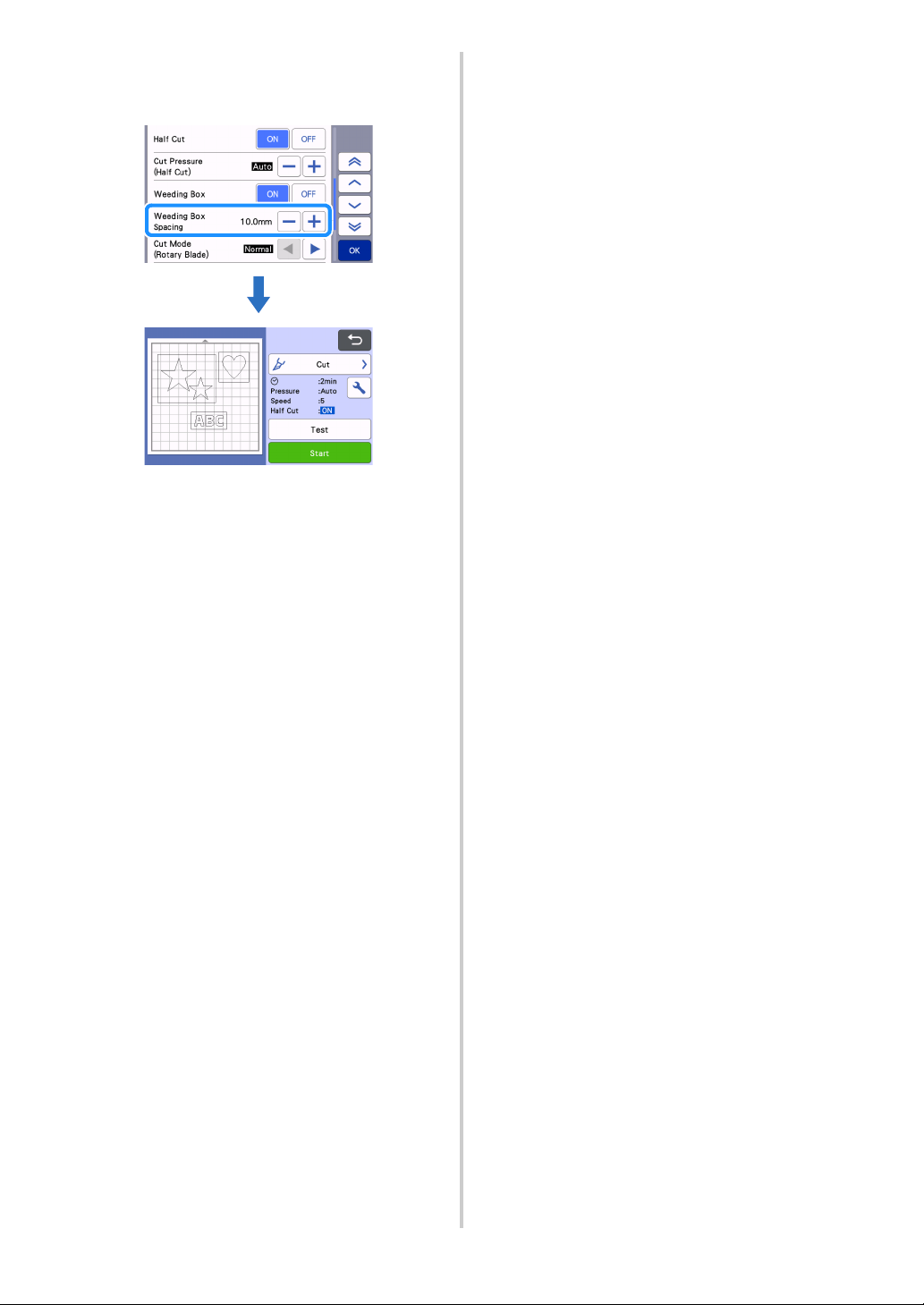
40
To change the distance of the weeding box
from the pattern, change the setting for
“Weeding Box Spacing” in the settings screen.
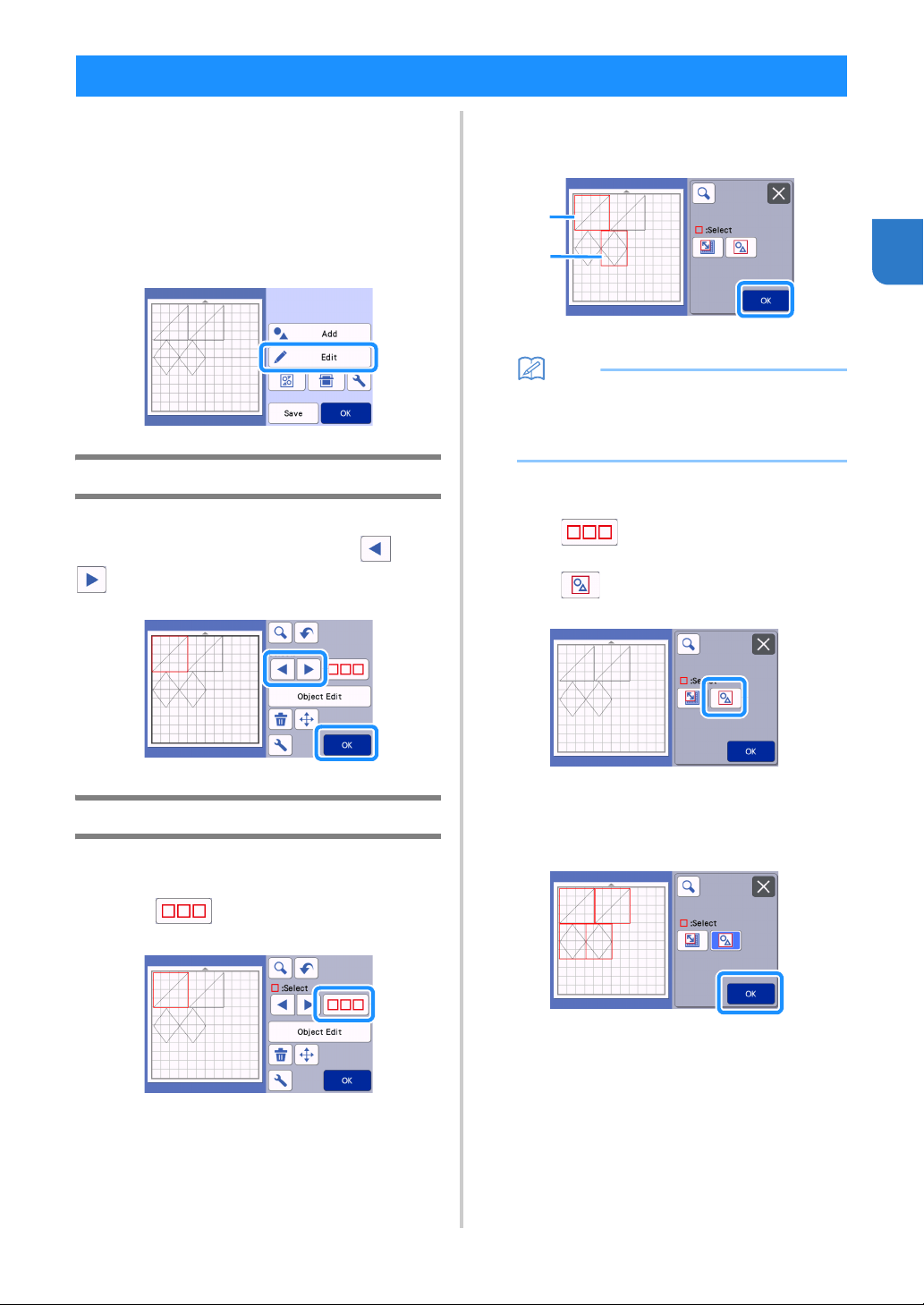
41
2
The following four pattern selection functions are
available in the mat editing screen depending on
your preference:
● Selecting a Single Pattern
● Selecting Desired Patterns
● Selecting All Patterns
● Specifying the Selection Area
Touch the “Edit” key in the mat layout screen to
use the pattern selection functions.
Selecting a Single Pattern
Select an individual pattern to be edited by either
touching it in the editing screen or using and
.
The selected pattern is surrounded with a red box.
Selecting Multiple Patterns
■ Selecting Desired Patterns
a Touch in the mat editing screen for
making multiple pattern selection.
b Individually touch all the patterns you want to
select in the screen, and then touch the “OK”
key.
a Selected patterns
Memo
• Touching a selected (surrounded with a red
box) pattern again clears its multiple selection.
• Touching any blank space in the screen clears
all the pattern selections.
■ Selecting All Patterns
a Touch in the mat editing screen for
making multiple pattern selection.
b Touch to select all the patterns on the
screen.
c Check the selection, and then touch the “OK”
key.
All the selected patterns are surrounded with a
red box.
PATTERN SELECTION
a
a
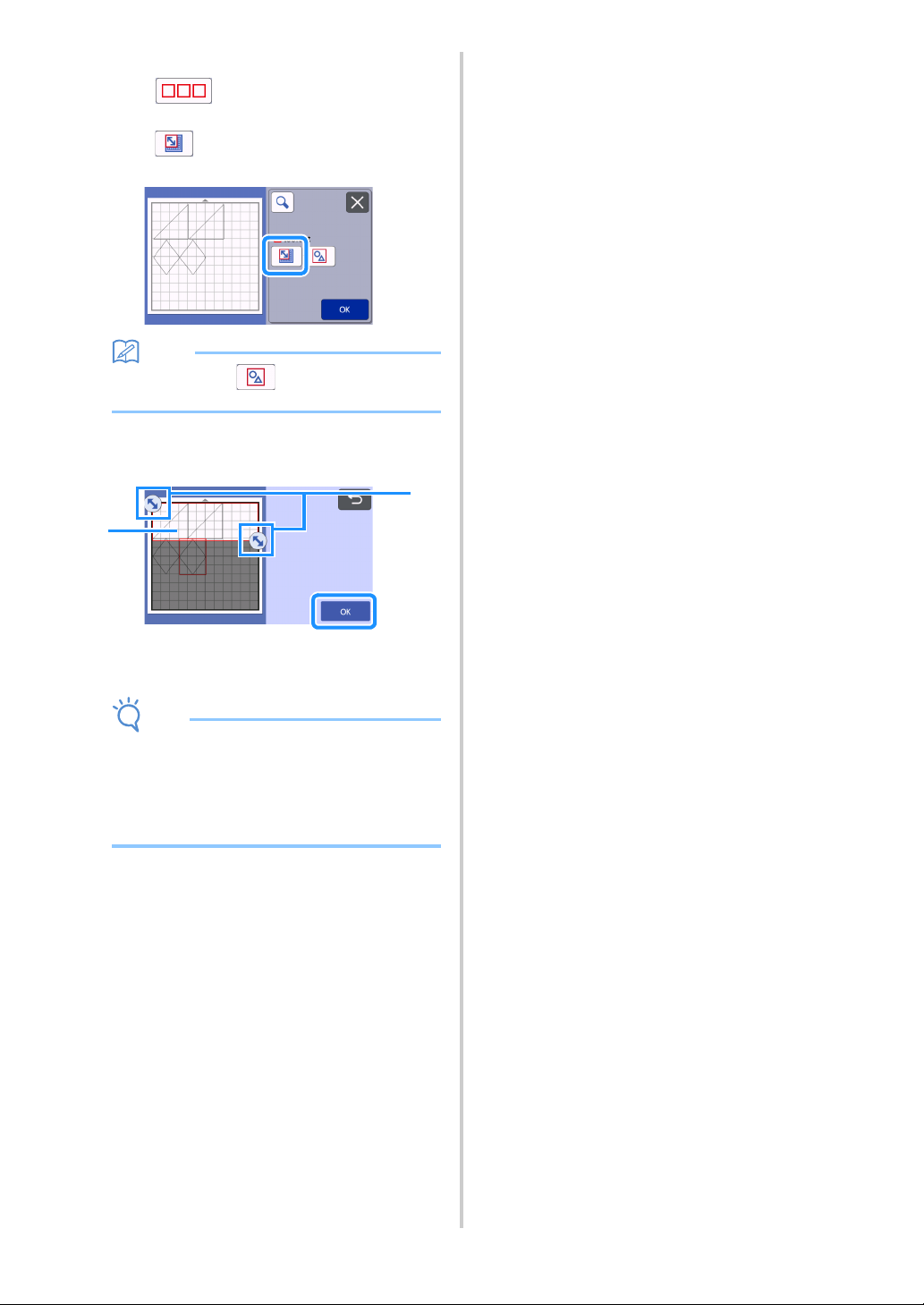
42
■ Specifying the Selection Area
a Touch in the mat editing screen for
making multiple pattern selection.
b Touch for specifying an area to select the
patterns.
Memo
• Make sure that is not selected before
specifying the area to select.
c Touch and drag the area resizing keys to specify
the area, and then touch the “OK” key.
a Keys for specifying the area
b Patterns to be selected
Note
• Make sure to specify to include more than two
patterns in the area.
• This method of selecting patterns within a
specified area is useful for welding or unifying
patterns and deleting unwanted images when
scanning (page 49, page 78).
a
b
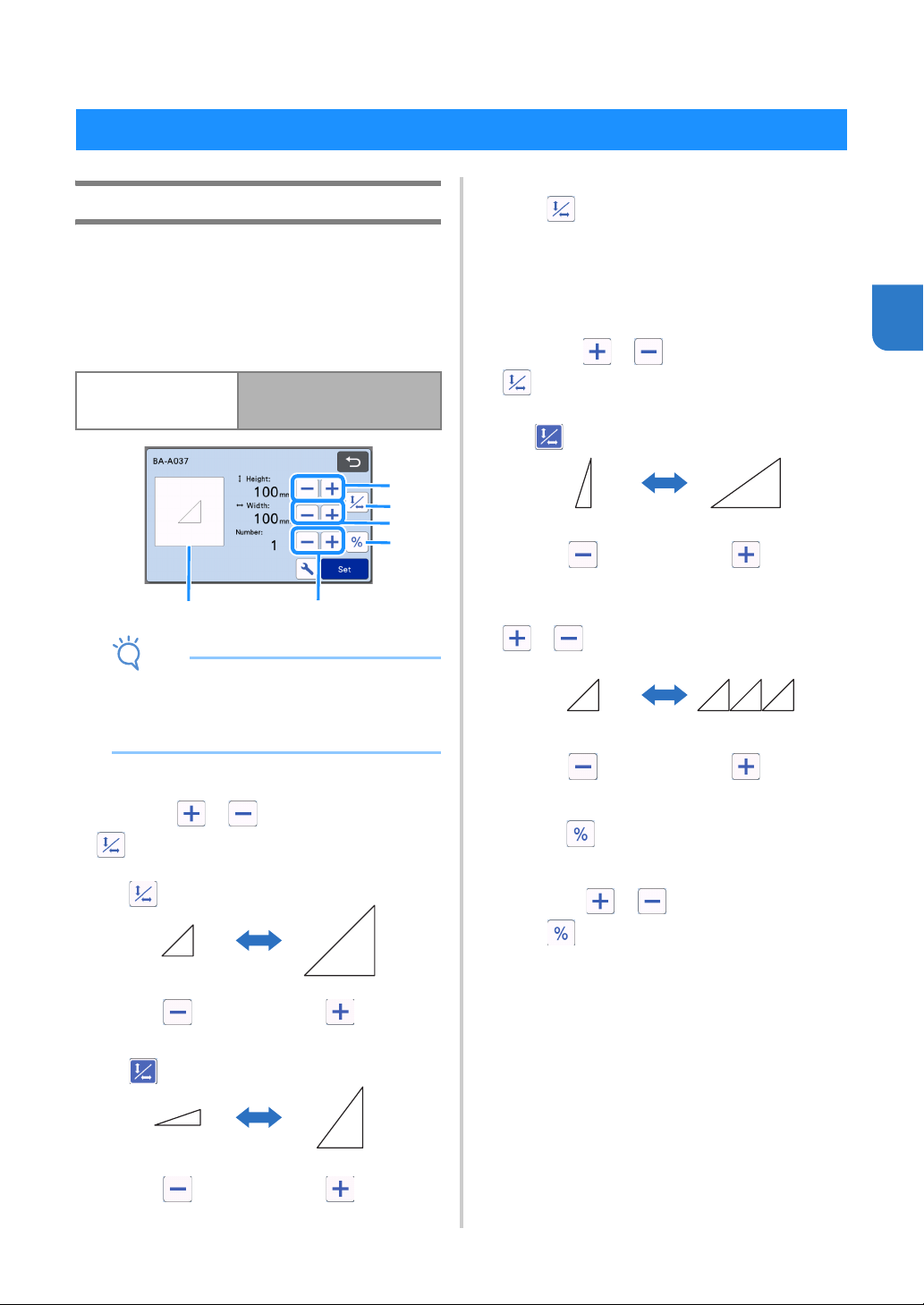
43
3
Chapter 3
ADVANCED OPERATIONS
Pattern Editing Functions
The pattern editing functions available may differ
depending on the pattern you select. Follow the
instructions in either this section or “Pattern Editing
Functions - Multiple Patterns” on page 44.
Available in the following screen
Note
• Depending on the pattern being used, the
material may not be cut cleanly, if reducing the
size of the pattern. Before making your project,
perform test/trial cut with the same material.
a Sizing (Height)
Edit the pattern height while maintaining the aspect
ratio. Touch or to adjust the setting. Touch
to edit only the height.
b Unlocking the Aspect Ratio
Touch to edit the pattern size without
maintaining the aspect ratio. The function is available
depending on the pattern you select. If the key is not
available, the aspect ratio is locked and the pattern
can only be edited while maintaining the aspect ratio.
c Sizing (Width)
Edit the pattern width while maintaining the aspect
ratio. Touch or to adjust the setting. Touch
to edit only the width.
d Duplicating (Pattern Quantity)
Create duplicate(s) of the selected pattern. Touch
or to specify the pattern quantity.
e Re-sizing (% specification)
Touching changes the size to a 100% display.
Change the size of a pattern while maintaining the
aspect ratio.
Touch either or to change the settings.
Touch again to return to millimeter/inch units.
Setting values that were re-sized with a specified
percentage are recorded as 100%.
f Previewing
Display a preview of the edited pattern.
CUTTING AND EDITING FUNCTIONS
Pattern editing screen
Tutorial 1; Step
d
(page 31)
in “Selecting and Editing the
First Pattern”
a
b
c
df
e
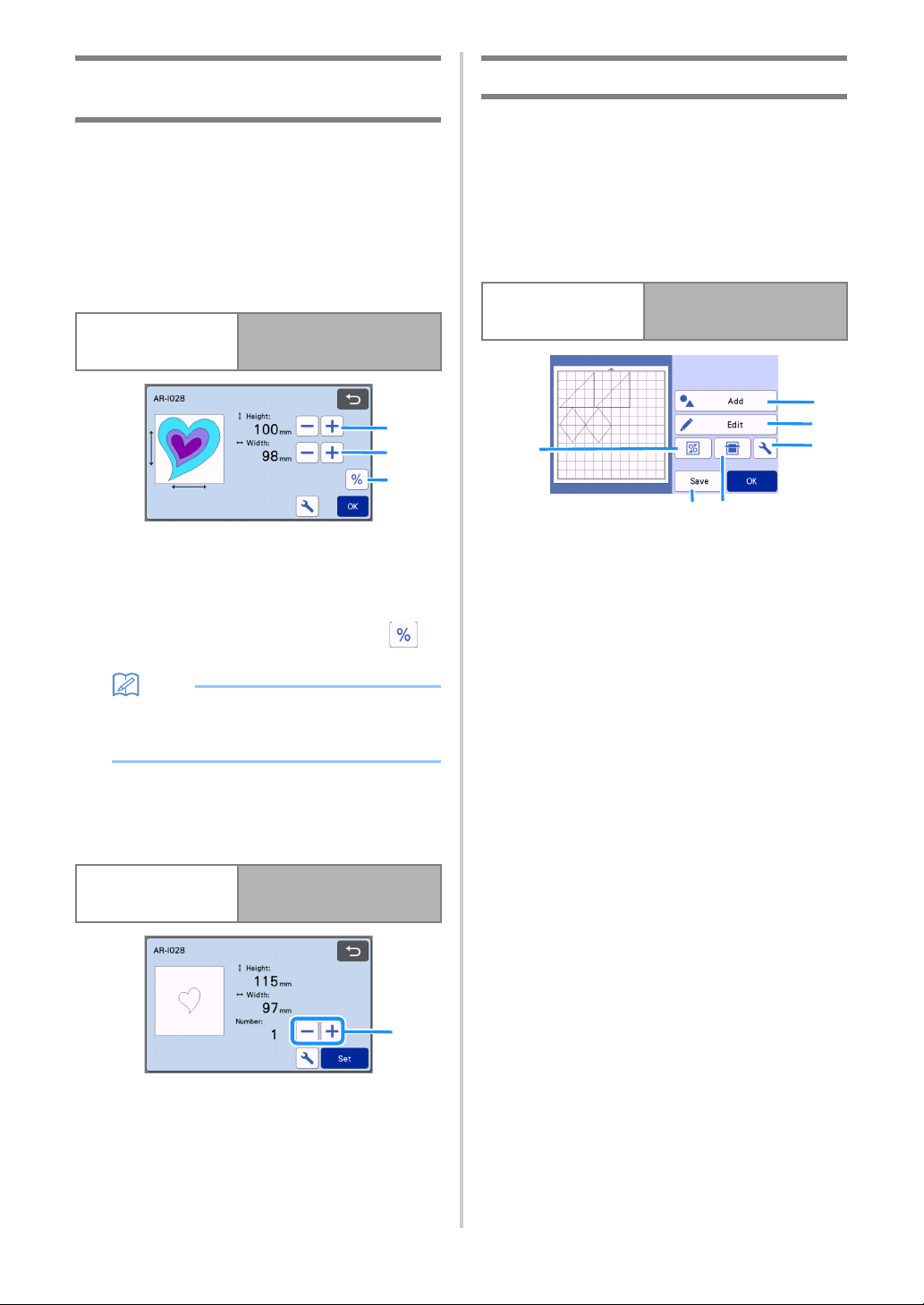
44
Pattern Editing Functions - Multiple
Patterns
The pattern editing functions available may differ
depending on the pattern you select. Follow the
instructions in either this section or “Pattern Editing
Functions” on page 43.
■ Pattern Sizing
Available in the following screen
a Touch to edit the pattern height (while
maintaining the aspect ratio).
b Touch to edit the pattern width (while
maintaining the aspect ratio).
c Change the size of the pattern with the
setting (while maintaining the aspect ratio).
Memo
• All the pattern pieces displayed on the pattern
sizing screen can be resized while maintaining
the aspect ratio.
■ Editing the Pattern Piece
Available in the following screen
a Duplicating (Pattern Quantity)
For details, see “Pattern Editing Functions” on
page 43.
Mat Layout Screen
The arrangement of the patterns can be edited. The
cutting/drawing area specified with the “Cut Area”
setting (page 10) in the settings screen is displayed in
the preview screen. Edit the pattern arrangement so
that the patterns fit within the specified area.
Available in the following screen
a Adding Patterns
Add a pattern to the layout.
Touching this key displays the selection screen
for an additional pattern. From that screen, select
the location of the pattern to be added.
b Editing
The patterns in the layout can be edited, moved or
deleted. For details, see “Layout Editing Functions”
on page 45.
c Auto Layout
Automatically arrange the patterns to reduce their
spacing. For details, see “Auto Layout Functions” on
page 53.
d Settings
Specify the cutting area, pattern spacing and
background contrast. For details, see “Settings
Screen” on page 10 or “Scanning a Background
Image” on page 53.
e Background Scanning
Scan the material for cutting/drawing to be displayed
in the background of the mat layout screen.
You can use specific areas of the material to cut out/
draw patterns, or display the material that has already
been cut in order to reuse it. For details, see
“Scanning a Background Image” on page 53.
f Saving
Save the pattern arrangement as data. For details, see
“Saving” on page 64.
Pattern sizing screen
Tutorial 2; Step
e
(page 35)
in “Selecting and Editing the
First Pattern Piece”
Pattern piece editing
screen
Tutorial 2; Step
g
(page 35)
in “Selecting and Editing the
First Pattern Piece”
a
b
c
a
Mat layout screen
Tutorial 1; Step
f
(page 32)
in “Selecting and Editing the
Second Pattern”
b
a
c
e
d
f
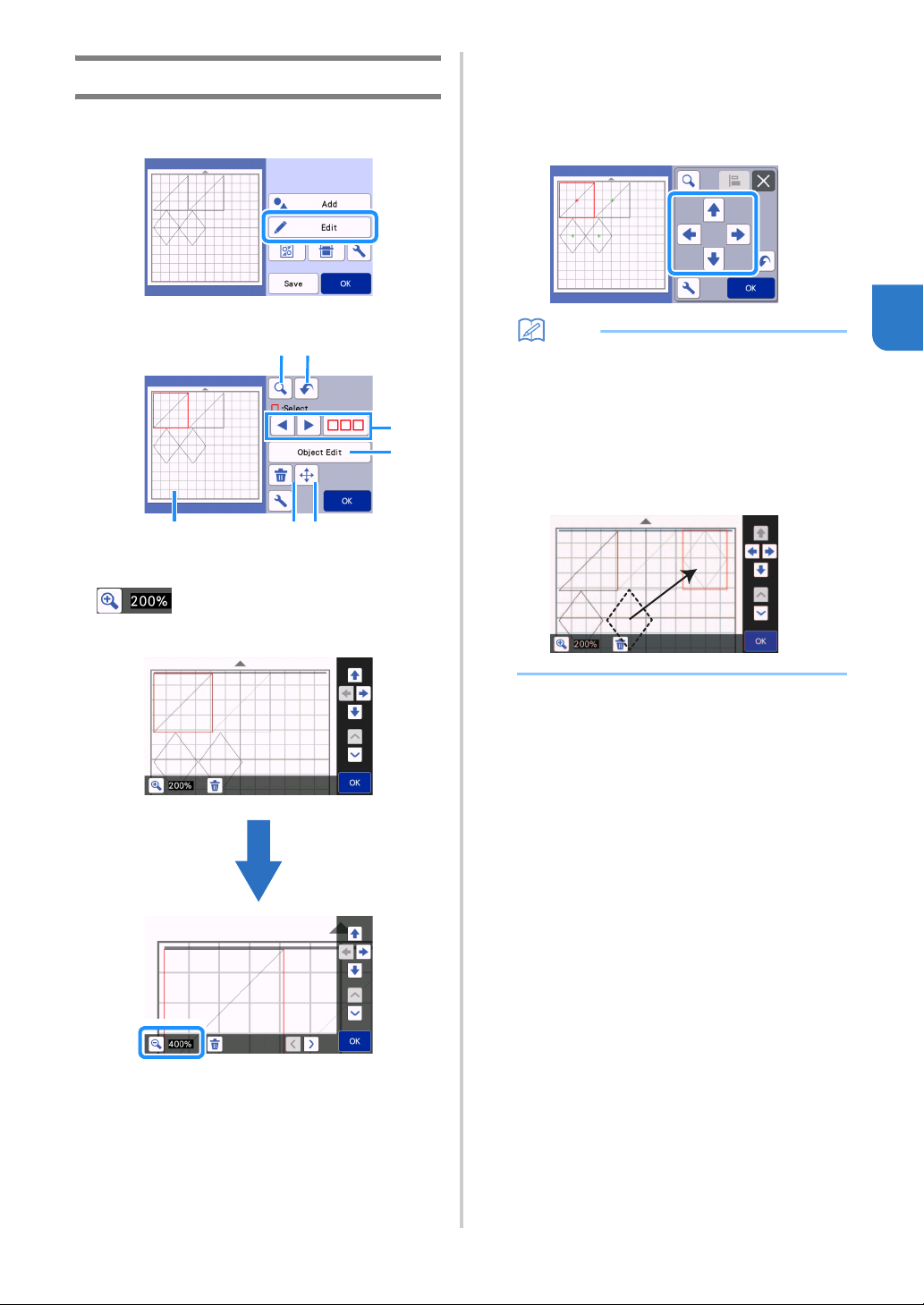
45
3
Layout Editing Functions
The layout editing functions are available when the
“Edit” key is touched in the mat layout screen.
The mat editing screen appears.
a Magnifying
Zoom in on the pattern at 200%. Then, touch
to display the patterns enlarged by
400%. To scroll through the screen, touch the arrow
keys.
b Undoing an Operation
Undo the last operation to return to the previous
condition. For details, see “Undoing an Operation” on
page 47.
c Selecting Patterns
Select an individual pattern or multiple patterns to be
edited. For details, see “PATTERN SELECTION” on
page 41.
d Object Edit
The selected pattern can be edited in more detail. For
details, see “Object Editing Screen” on page 46.
e Moving
Incrementally move the selected patterns. Touch the
arrow keys to adjust the position of the patterns.
Memo
• The pattern can also be moved by touching it
displayed in the layout editing screen and
dragging it in the screen.
• To move a pattern while in the zoom mode,
drag the pattern or touch the arrow key after
selecting the pattern.
• Touch the arrow key once to move the selected
pattern 0.5 mm (5 mm when the key is held
down).
f Deleting
Delete the selected patterns.
g Previewing
Display a preview of the edited pattern.
c
a
d
ef
b
g

46
Object Editing Screen
a Sizing
Change the size of the selected pattern.
Touching this key displays the pattern sizing
screen. From that screen, the height and width of
the pattern can be changed.
b Duplicating (Pattern Quantity)
Create a duplicate of the pattern.
c Rotating
Rotate the pattern.
Touching this key displays the pattern rotation
screen. From that screen, touch the key for the
desired angle to rotate the pattern.
d Seam Allowance
Apply the seam allowance setting. Apply this setting
when cutting around a drawn pattern, such as when
making appliqué or quilt pieces. When applied, the
drawing line (blue) and cutting line (black) appear.
• For details on the seam allowance function, see
“Cutting Around Drawings” on page 58.
Memo
• Depending on the pattern, the seam allowance
may be applied as a default. Check the setting.
• If the cutting line of a pattern extends from the
cutting/drawing area due to editing, such as by
applying a seam allowance or flipping a pattern,
the line will become gray. Continue editing the
pattern to move it within the cutting/drawing
area.
e Mirroring
Flip the pattern along a vertical axis.
f Fill
Select settings for filling patterns. For details, see
“Using Drawing Functions to Fill Patterns/Make
Outlines Thicker” on page 62.
g Additional Line
Specify the number of lines to be added. For details,
see “Using Drawing Functions to Fill Patterns/Make
Outlines Thicker” on page 62.
h Adding Offset Lines
Offset lines can be added to a selected pattern.
Offset lines can be set with cut, draw, and other
extensions. For details, refer to “Adding an Offset Line
to the Pattern” on page 50.
i Converting Cutting Lines to Dotted Lines
Convert a selected pattern with dotted lines. Use this
when making holes in a pattern with the paper
piercing tool. For details, refer to the instruction
manual of the optional paper piercing starter kit.
j Grouping/Ungrouping Patterns
When multiple patterns are selected, those patterns
can be unified together and edited as a single pattern.
This is useful for increasing or reducing the size of
multiple patterns at one time. For selecting multiple
patterns, touch in the mat editing screen.
For details, see “Grouping/Ungrouping Patterns” on
page 47.
a
f
kj
b c
l
g
d
e
i
h
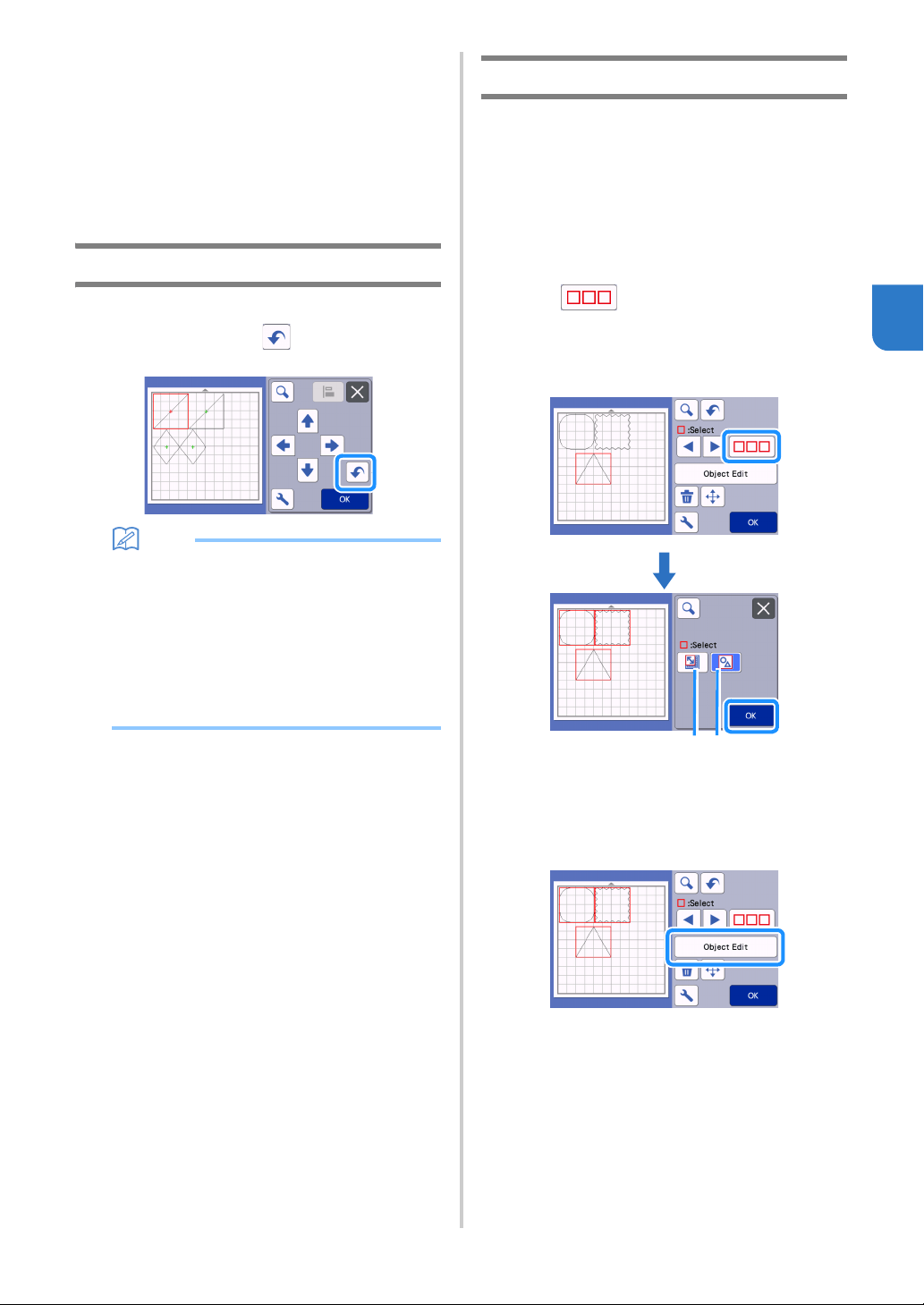
47
3
k Welding (Merging the Outlines of Multiple
Patterns)
Weld the outlines of multiple patterns to create a
single outline. For details, see “Welding (Merging the
Outlines of Multiple Patterns)” on page 49.
l Alignment
Select multiple patterns to align them based on their
positions or heights. For details, see “Aligning
Patterns” on page 51.
Undoing an Operation
In the editing screen after patterns have been
arranged in the mat, touch to undo the previous
operation.
Memo
• Up to 10 of the previous operations can be
undone.
• After an operation is undone, it cannot be
redone.
• If the number of patterns has changed as a
result of adding, removing, welding or unifying
patterns, only operations after the number of
patterns were changed can be undone.
• When patterns are automatically arranged, the
operation cannot be undone.
Grouping/Ungrouping Patterns
Multiple patterns selected can be combined into a
single group, or that group can be separated into the
individual patterns.
(Under some conditions, it may not be possible to
ungroup patterns. For the conditions where patterns
cannot be ungrouped, refer to page 48.)
■ Grouping Patterns
a Touch in the mat editing screen, select
the patterns to be grouped, and then touch the
“OK” key.
• For details on selecting multiple patterns, see
“Selecting Multiple Patterns” on page 41.
a Selects the patterns in the selection area.
b Selects all patterns in the layout.
b Touch the “Object Edit” key in the mat editing
screen.
b
a
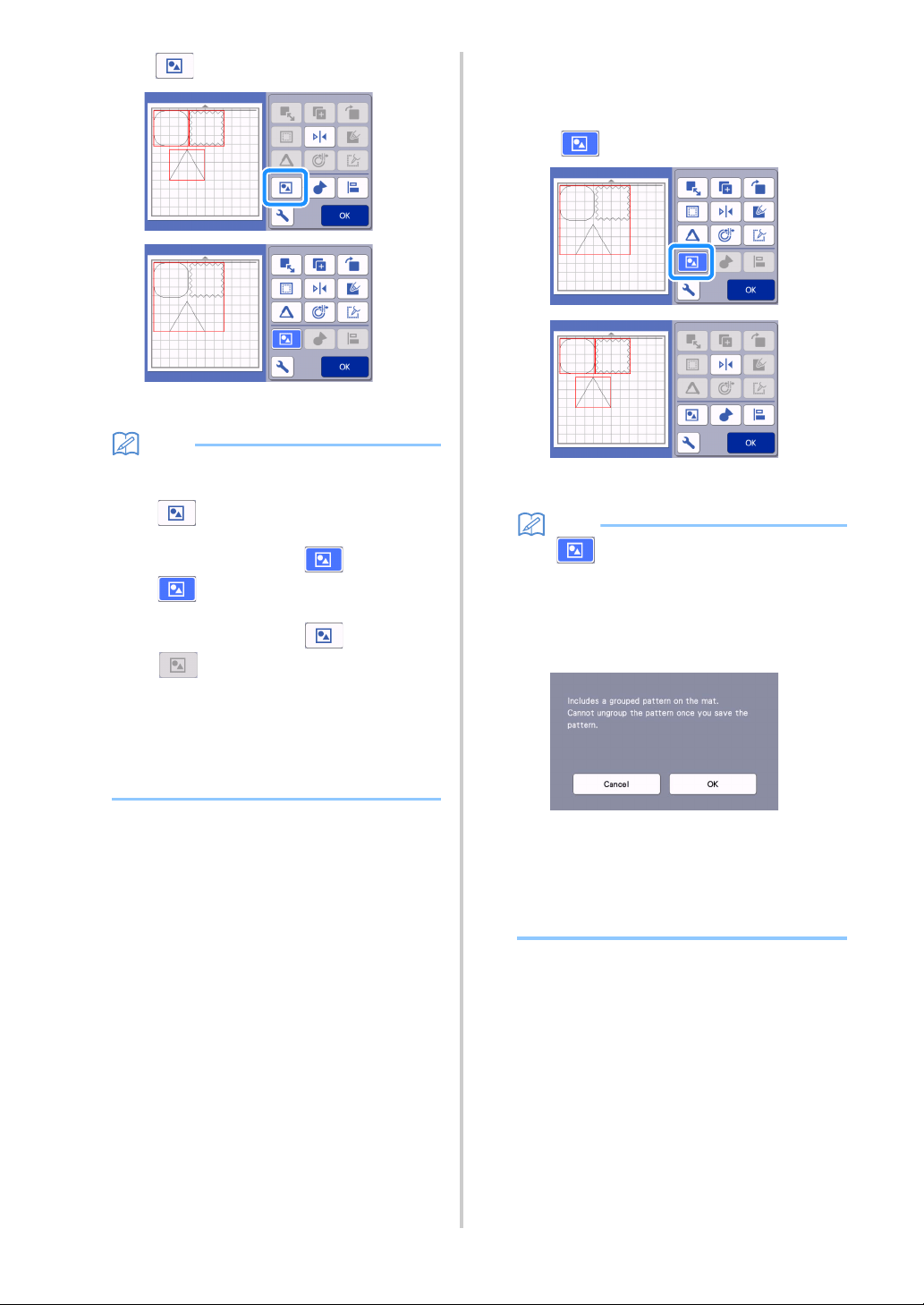
48
c Touch in the object editing screen.
All of the selected patterns are grouped. (The
color of the key changed.)
Memo
• The key color indicates how the selected
patterns are grouped.
- : Two or more patterns are selected
and can be grouped. When the key is
touched, it appears as .
- : The patterns are grouped. (The color
of the key changed.) When the key is
touched, it appears as .
- : Since two or more patterns are not
selected, patterns cannot be grouped.
• Patterns cannot be grouped under the following
conditions.
- There is not enough of the machine’s
memory available.
- Patterns with and without seam allowances
have been selected.
■ Ungrouping Patterns
a Select grouped patterns in the mat editing
screen, and then touch the “Object Edit” key.
b Touch in the object editing screen.
The selected patterns are ungrouped. (The color
of the key changed.)
Memo
•If appears when patterns are selected,
the patterns can be ungrouped.
• Grouped patterns are saved as one pattern.
When the saved pattern is recalled, it cannot be
ungrouped. When saving a pattern that
contains grouped patterns, the following
message appears.
• Patterns cannot be ungrouped under the
following conditions.
- The number of patterns after being
ungrouped exceeds the maximum number
of patterns possible.
- The pattern was retrieved from the resume
memory after an auto shutdown.
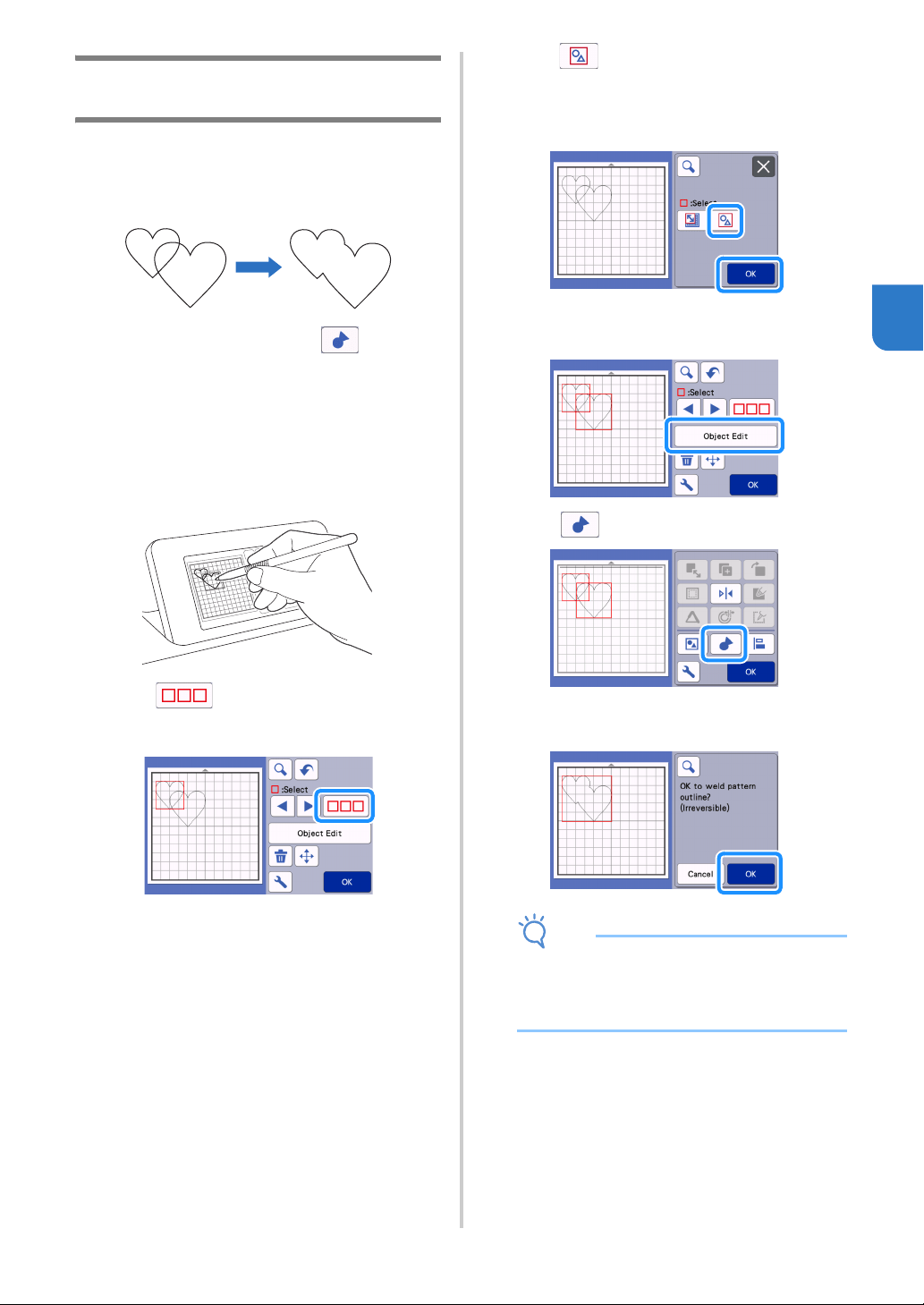
49
3
Welding (Merging the Outlines of
Multiple Patterns)
When multiple patterns are selected, the outlines of
those patterns can be welded to create a single
outline.
a Select two heart patterns of different sizes and
arrange them in the mat layout screen.
b Touch the large heart pattern in the mat layout
screen, and then drag it over the small pattern.
c Touch in the mat editing screen.
• For details on the functions in the mat editing
screen, see “Layout Editing Functions” on page 45.
d Select , and then touch the “OK” key.
• Two pattern selection functions are available
depending on your preference. For details on
selecting multiple patterns, see “Selecting Multiple
Patterns” on page 41.
e Touch the “Object Edit” key in the mat layout
screen.
f Touch in the object editing screen.
g Check the preview, and then touch the “OK”
key.
Note
• Welding pattern outlines cannot be undone. In
order to recreate the original pattern
arrangement, select the patterns again, and
then arrange them.
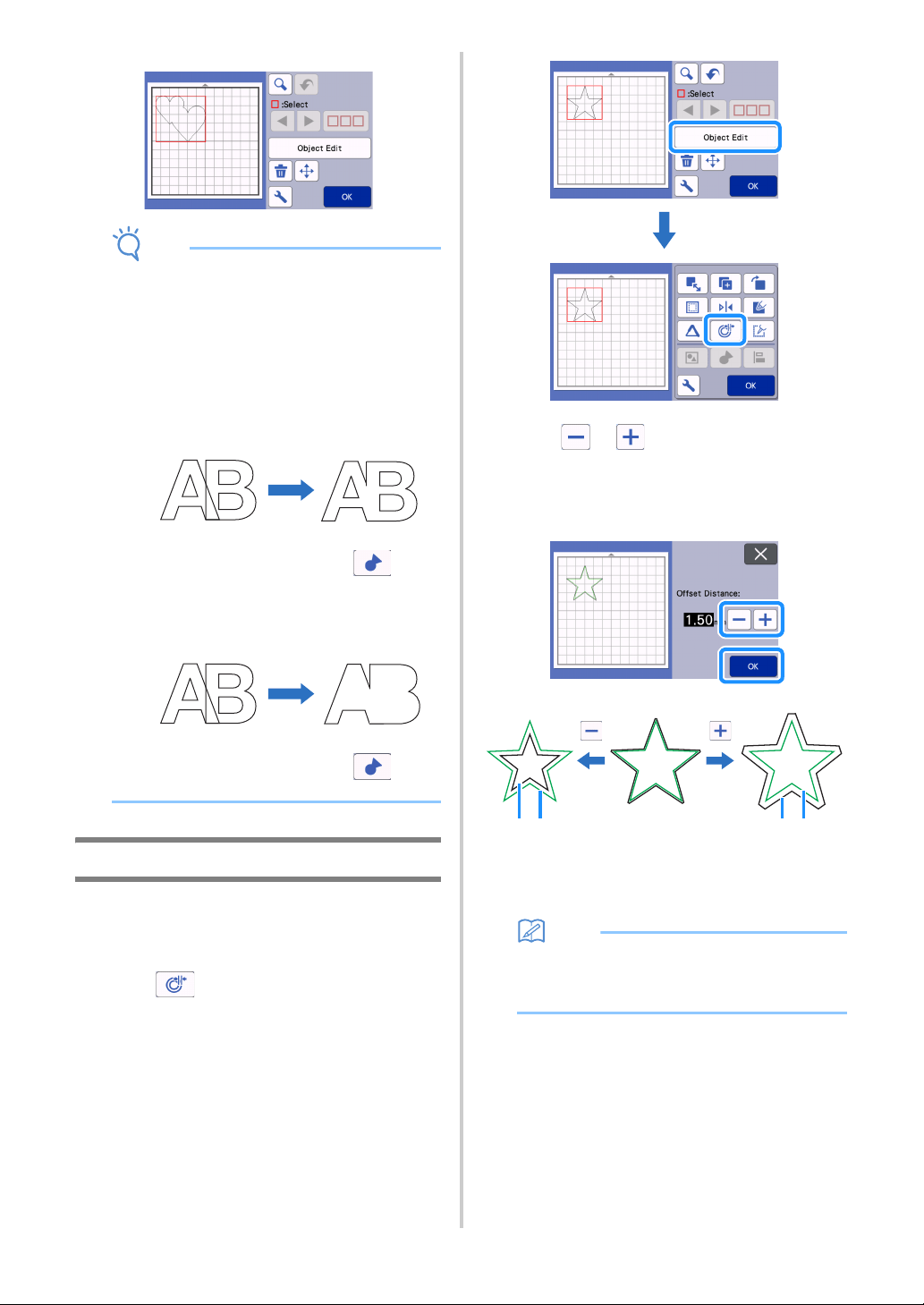
50
The outlines of the selected patterns are welded.
Note
• This function welds the outermost outline of the
patterns. When welding certain types of
patterns that have inside areas cut out, the cut-
out areas are not used to create the outline. Be
sure that the welded patterns in the preview
area meet your wishes before completing the
procedure.
- Welding built-in characters
- Welding character images created by
scanning
Adding an Offset Line to the Pattern
An offset line can be added to the selected pattern.
Offset line setting can be used for cutting, drawing
and other premium functions.
a Touch in the object editing screen, and
then add an offset line to the pattern.
• The selected original design/pattern appears in
green.
• The newly added offset line appears in black.
• After the offset distance has been specified, it
cannot be changed. First, delete the added offset
line and then display the offset setting screen to
add a new offset line.
b Touch or to adjust the setting.
• Specify a negative setting for “Offset Distance” to
create an offset line inside the pattern, or specify a
positive setting to create an offset line outside the
pattern.
a Offset line
b Original pattern
Memo
• If a positive setting was specified to create an
offset line outside the pattern, the corners of
the offset line will be beveled.
1 2
1 2
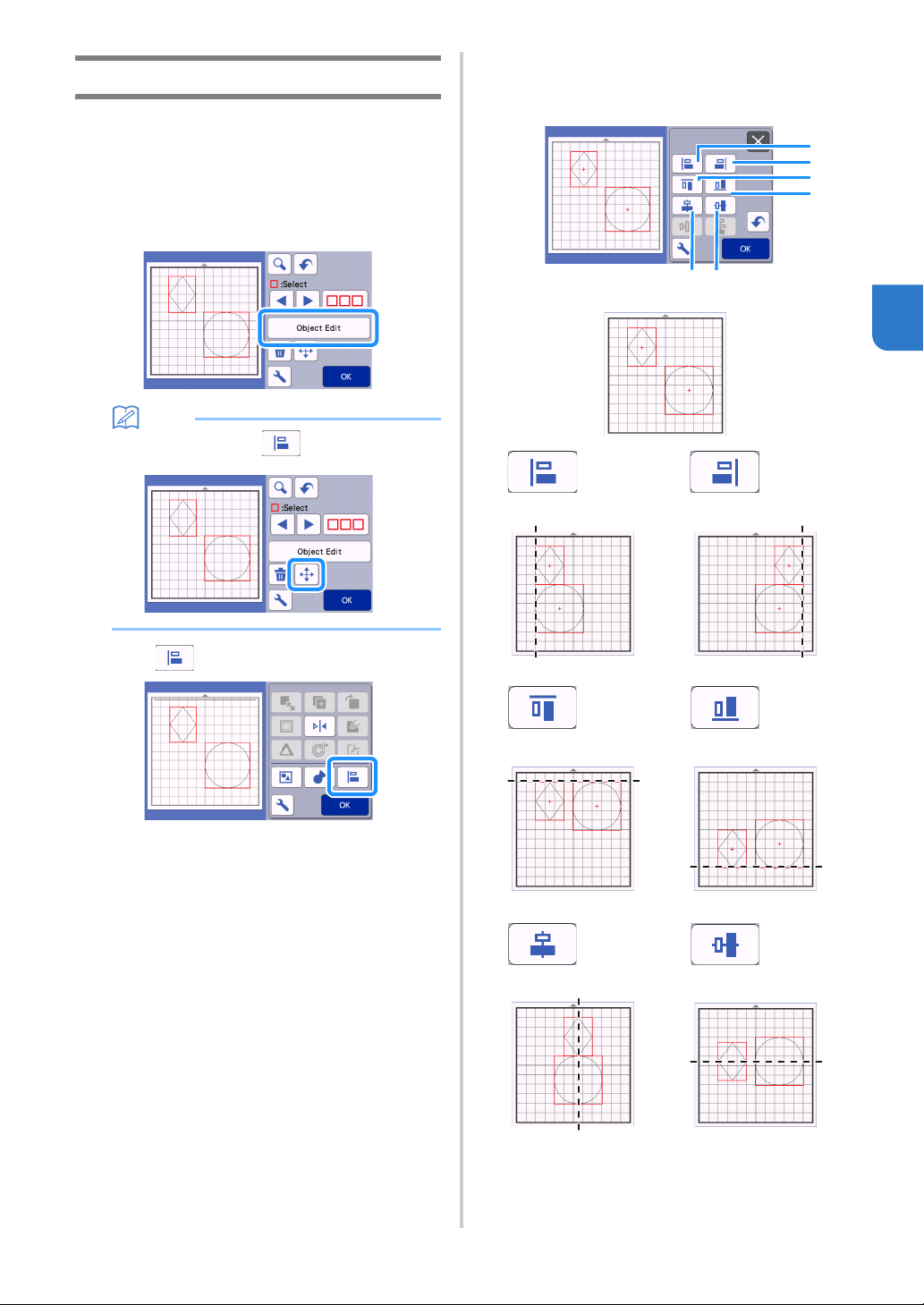
51
3
Aligning Patterns
Multiple patterns can be selected and aligned based
on their positions or heights.
a Select two or more patterns in the mat editing
screen, and then touch the “Object Edit” key.
• For details on selecting multiple patterns, see
“Selecting Multiple Patterns” on page 41.
Memo
• The alignment key ( ) can also be
displayed in the pattern moving screen.
b Touch in the object editing screen.
c Align the patterns.
• The patterns are aligned depending on the key that
is touched, as described below.
a
Left
b
Right
c
Top
d
Bottom
e
Center
f
Middle
e
f
b
a
c
d
Original
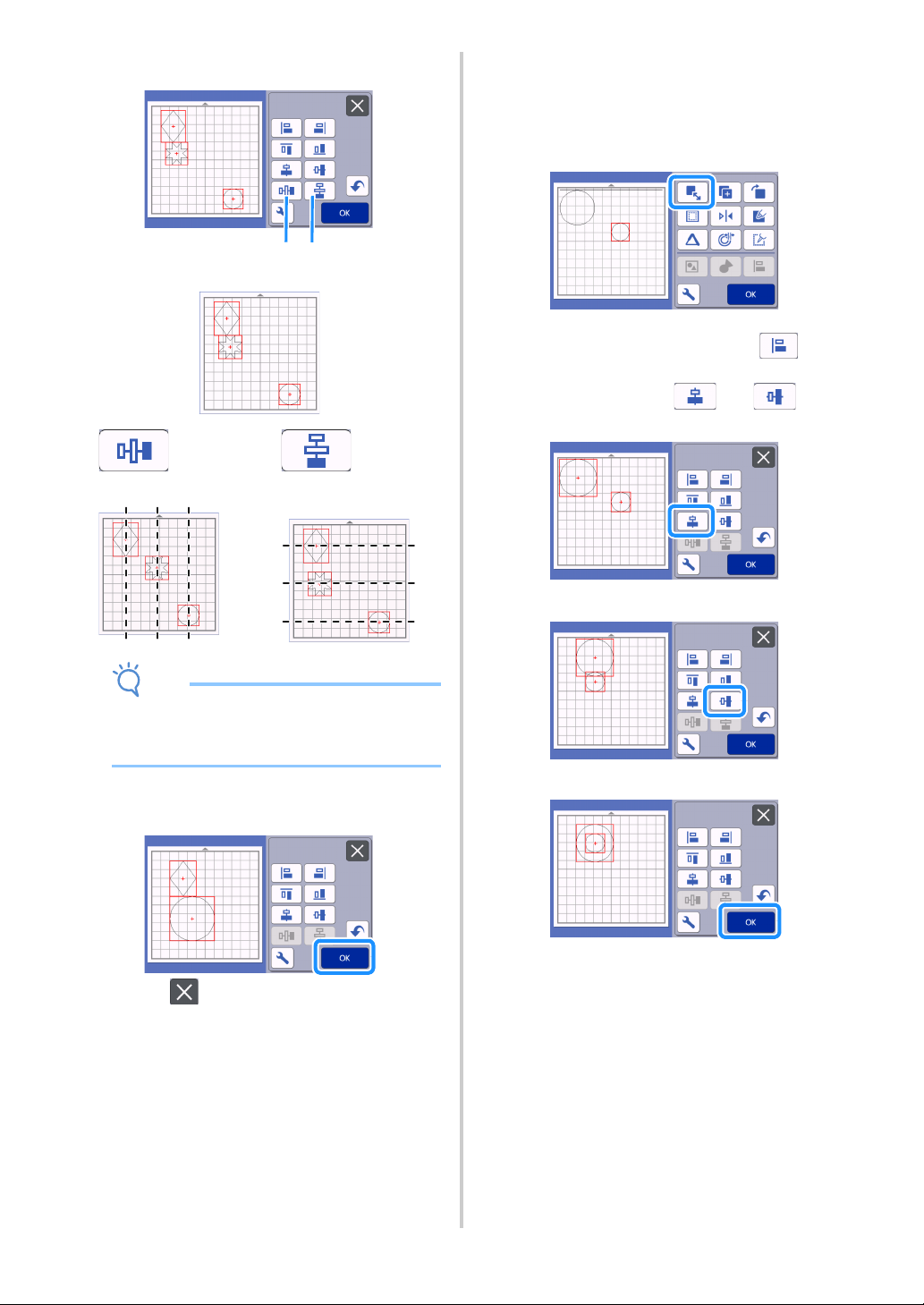
52
• If three or more patterns were selected, they can be
distributed horizontally (g) or vertically (h).
Note
• When patterns are distributed, they may extend
out the mat. Adjust the pattern positions
according to the message instructions.
d Touch the “OK” key to return to the object
editing screen.
• Touch to return to the object editing screen
without applying the pattern arrangement.
■ Centering Two or More Patterns
a Add two circle patterns, and then change the
size of one.
• For details on resizing patterns, see “Object Editing
Screen” on page 46.
b After selecting two patterns, touch in the
object editing screen to display the following
screen. After touching and to
align the patterns, touch the “OK” key.
The patterns are arranged.
g
Distribute horizontally
h
Distribute vertically
gh
Original
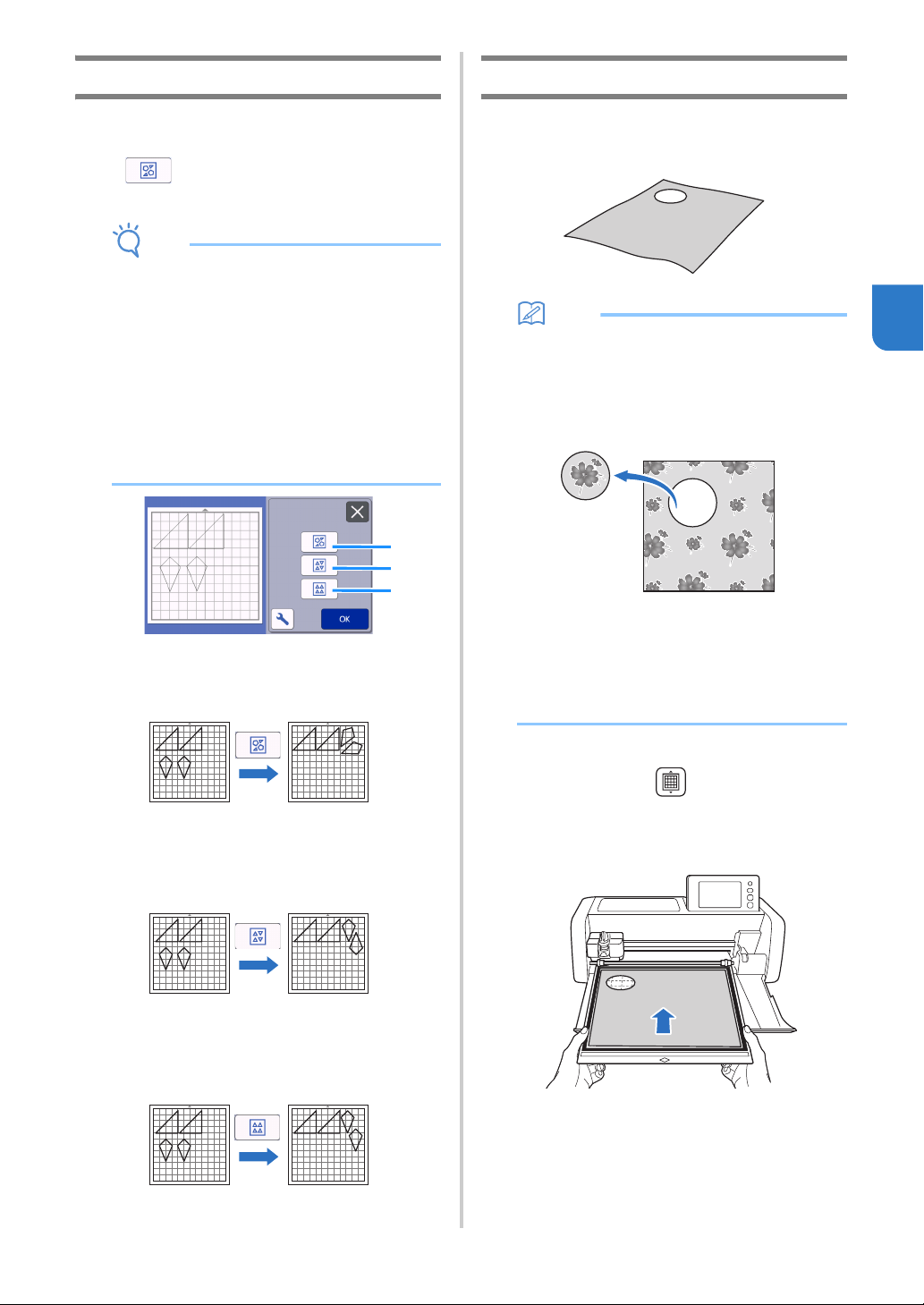
53
3
Auto Layout Functions
The auto layout function is useful when you do not
wish to waste the material attached to the mat.
Touch in the mat layout screen (page 44) to
perform the auto layout function.
Note
• Depending on the pattern and material to be
cut, the patterns may not be cleanly cut if their
spacing is too small. In that case, rearrange the
patterns to slightly separate them.
• The spacing between arranged patterns can be
specified in the settings screen (see “Pattern
Interval” on page 10). Perform the auto layout
function after every time you adjust the spacing
between patterns so the changes are applied.
• Set the number to “3” or higher in the “Pattern
Interval” setting when lightweight fabric is
attached to the mat with a high tack adhesive
fabric support sheet.
a Rearranging By Rotating Patterns to Any Angle
This is useful when arranging a large number of
patterns in a limited space.
b Rearranging By Rotating Patterns 0° or 180°
This is useful when arranging the printed design
(vertical patterns) on paper or fabric as the material for
cutting/drawing or when using the vertical grain.
c Rearranging Without Rotating Patterns
This is useful when arranging the printed design on
paper or fabric as the material for cutting/drawing or
when using the grain.
Scanning a Background Image
In this example, we will use material with a cutout in
its upper-left corner as a background image.
Memo
• The background scanning function is also
useful when cutting out patterns from material
with a design on it. By arranging the patterns on
the screen in the desired patterned area of the
material, cutouts with a specific design can be
created.
• This function cannot be used when an optional
scanning mat is used.
• Depending on the machine model, the sizes of
mats that can be used will differ. Check the
“Maximum Scanning Area” under “Machine
Information” of the settings screen. For details,
refer to “Settings Screen” on page 10.
a Attach the material for the background to the
mat, and then press in the operation
panel.
For details on preparing the material and loading the
mat, see “Loading the Mat” on page 28.
a
b
c
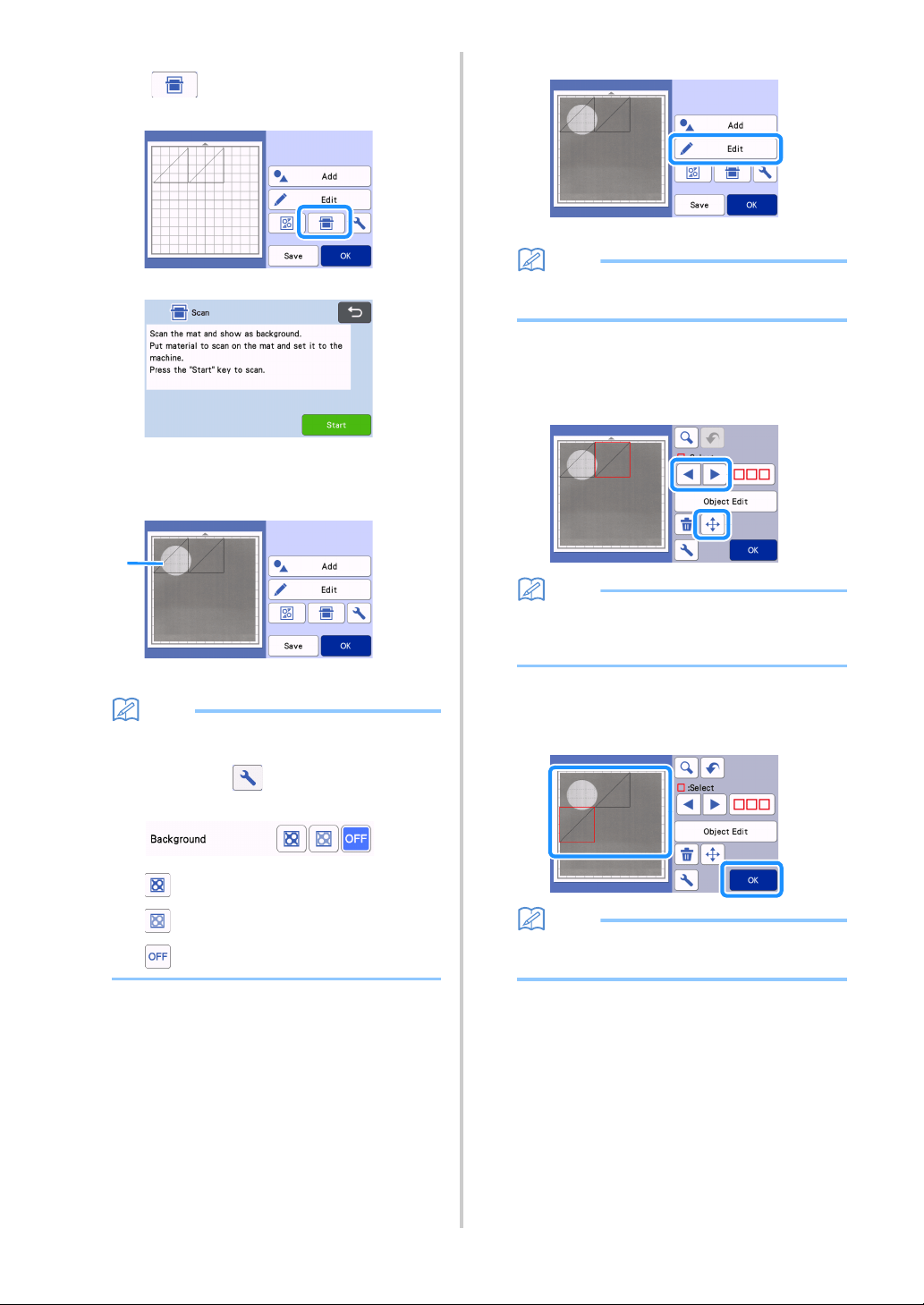
54
b After selecting the cutting/drawing pattern,
touch in the mat layout screen to start
the background scanning function.
The following message appears.
c Touch the “Start” key to start scanning.
After the material has been scanned, it appears as
the background in the mat layout screen.
a Material with a cutout displayed as background
Memo
• If it is difficult to see the arranged patterns,
adjust the background contrast in the settings
screen. Touch in the mat layout screen to
display the settings screen.
: Makes the background image darker.
: Makes the background image lighter.
: Does not display the background image.
d Touch the “Edit” key.
The mat editing screen appears.
Memo
• The pattern can also be moved by touching and
dragging it in the screen.
e Use the layout editing functions to move the
patterns.
• For details on moving patterns, see “Layout Editing
Functions” on page 45.
Memo
• The pattern can also be moved by touching the
pattern(s) displayed in the layout editing screen
and dragging it in the screen.
f Check that the patterns in the screen do not
overlap the cutouts in the background material
and then touch the “OK” key.
Memo
• When the scanned material is unloaded, the
background is cleared.
a

55
3
Character Input Functions
Characters can be selected, edited, cut out and
drawn as a single pattern. Select the character type
from the pattern category selection screen.
a Select decorated characters. The characters
can be edited, cut out and drawn as a pattern.
For details on editing, see “Pattern Editing
Functions” on page 43.
b Type in the desired combination of characters.
Typing In the Word “RAINBOW”
a Select the font category in the pattern category
selection screen.
b Touch the desired font type.
c Type in the characters.
The keyboard is in the QWERTY layout. After entering
the characters, touch the “OK” key.
a Character input display
b Character keys
c Uppercase/lowercase selection key
d Space key
e Letter/accented character/number selection
key
f Backspace key (deletes one character from the
end of those displayed)
g Cursor movement keys
Memo
• If the entered characters do not fit within the
cutting/drawing area, the character size is
automatically reduced.
d Adjust the settings of character size and
character spacing.
Touch or to adjust the character size or the
space between characters. After completing the
adjustment, touch the “Set” key.
a Character size adjustment keys
b
a
a
b
c
de
g
f
a
b
c
0612 0612
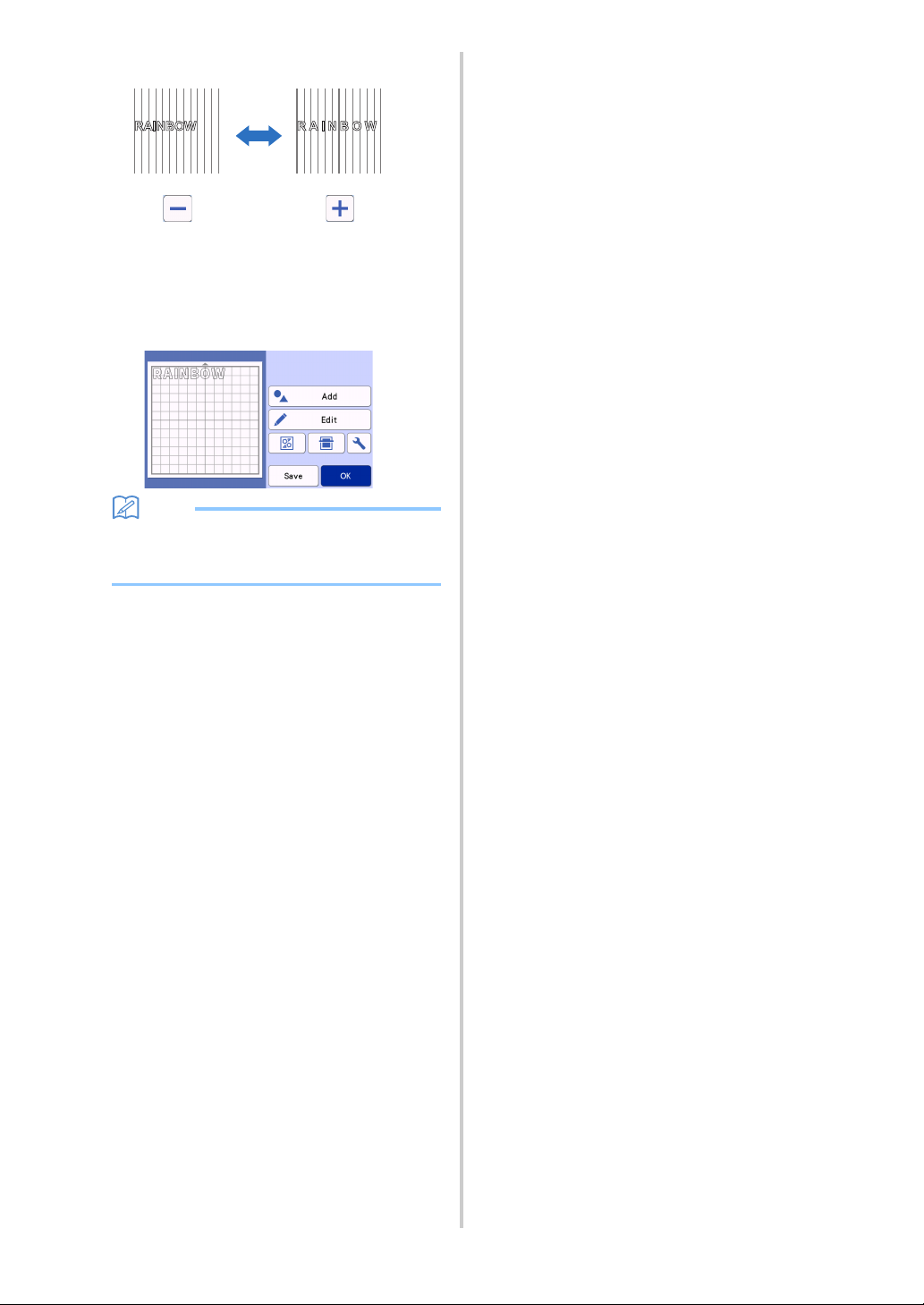
56
b Character spacing adjustment keys
c Size of entire character string
e Check the character arrangement.
To cut or draw, touch the “OK” key.
To save the characters as data, touch the “Save” key.
For details on saving data, see “Saving” on page 64.
Memo
• Entered characters can only be edited as the
entire character string. One character cannot
be edited individually.
0612 0612
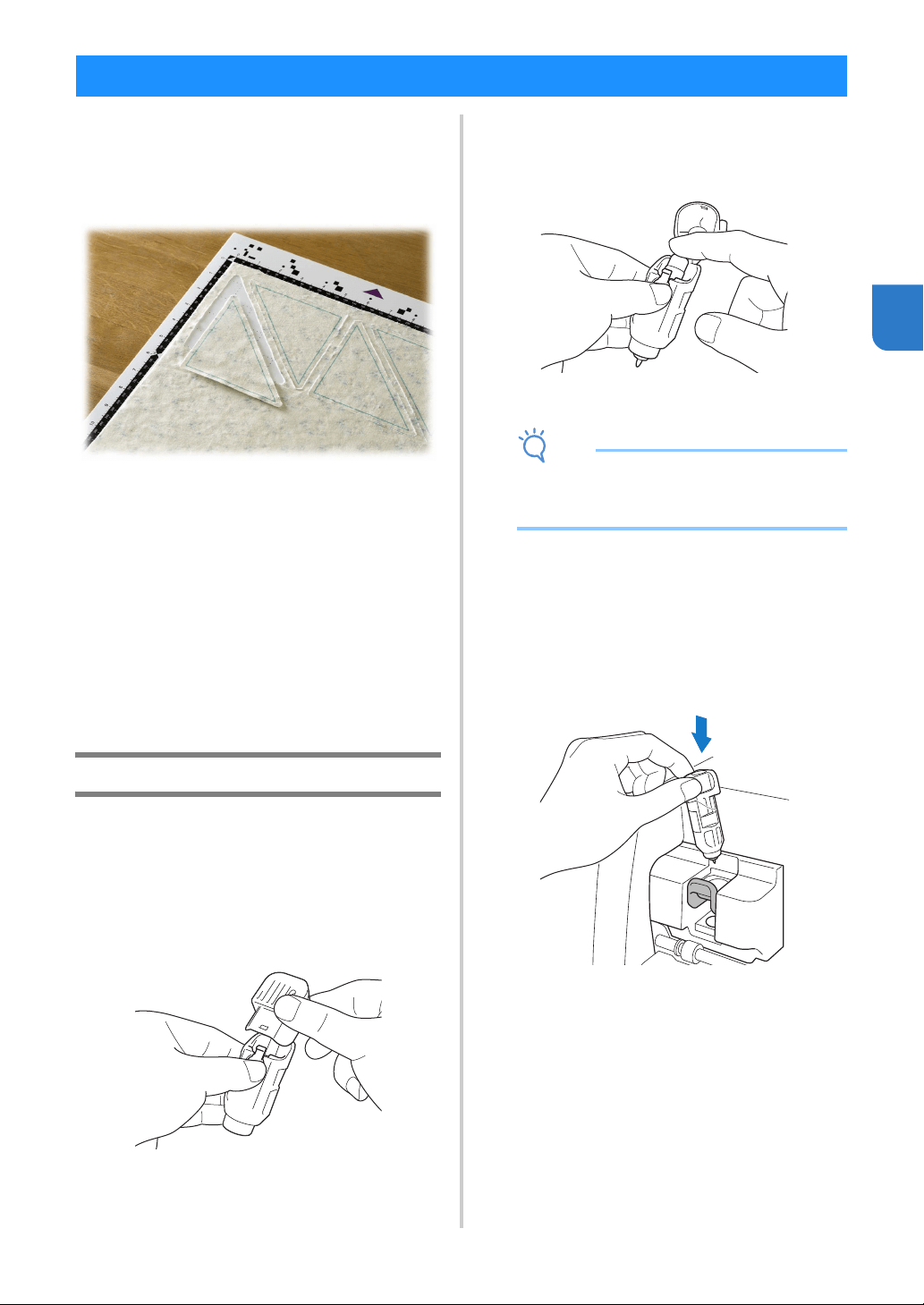
57
3
With a pen and pen holder, you can draw patterns
on material. Using the seam allowance settings also
allows you to draw patterns with seam allowances
on material and then cut them out. These drawing
functions can be used to create quilt pieces.
■ Preparation
Prepare the following accessories for drawing. An
additional purchase may be required depending on the
machine model.
- Pen holder
- Erasable pen set or color pen set
- Mat appropriate for the material that will be drawn
on.
- Blade and blade holder appropriate for the material
that will be cut.
- Mat, iron-on fabric appliqué contact sheet, or high
tack adhesive fabric support sheet appropriate for the
fabric that will be cut or drawn on.
Drawing
In this example, we will draw a built-in pattern on
material.
■ Preparing the Pen Holder
a Press the button at the center of the pen holder
to unhook the lid and open it.
b Remove the cap from the pen, and then insert
the pen into the pen holder with the point
down.
c Close the lid of the pen holder.
Note
• After use, remove the pen from the pen holder,
and then attach the cap to the pen before
storing it.
■ Drawing
a Grasp the holder grip, and then install the pen
holder in the carriage with its lid opening
button facing against you.
• For details, see “Installing and Uninstalling the
Holder” on page 26.
b Select and edit the pattern.
• For details on selecting and editing patterns, see
“Selecting and Editing the First Pattern” on
page 31.
DRAWING FUNCTIONS
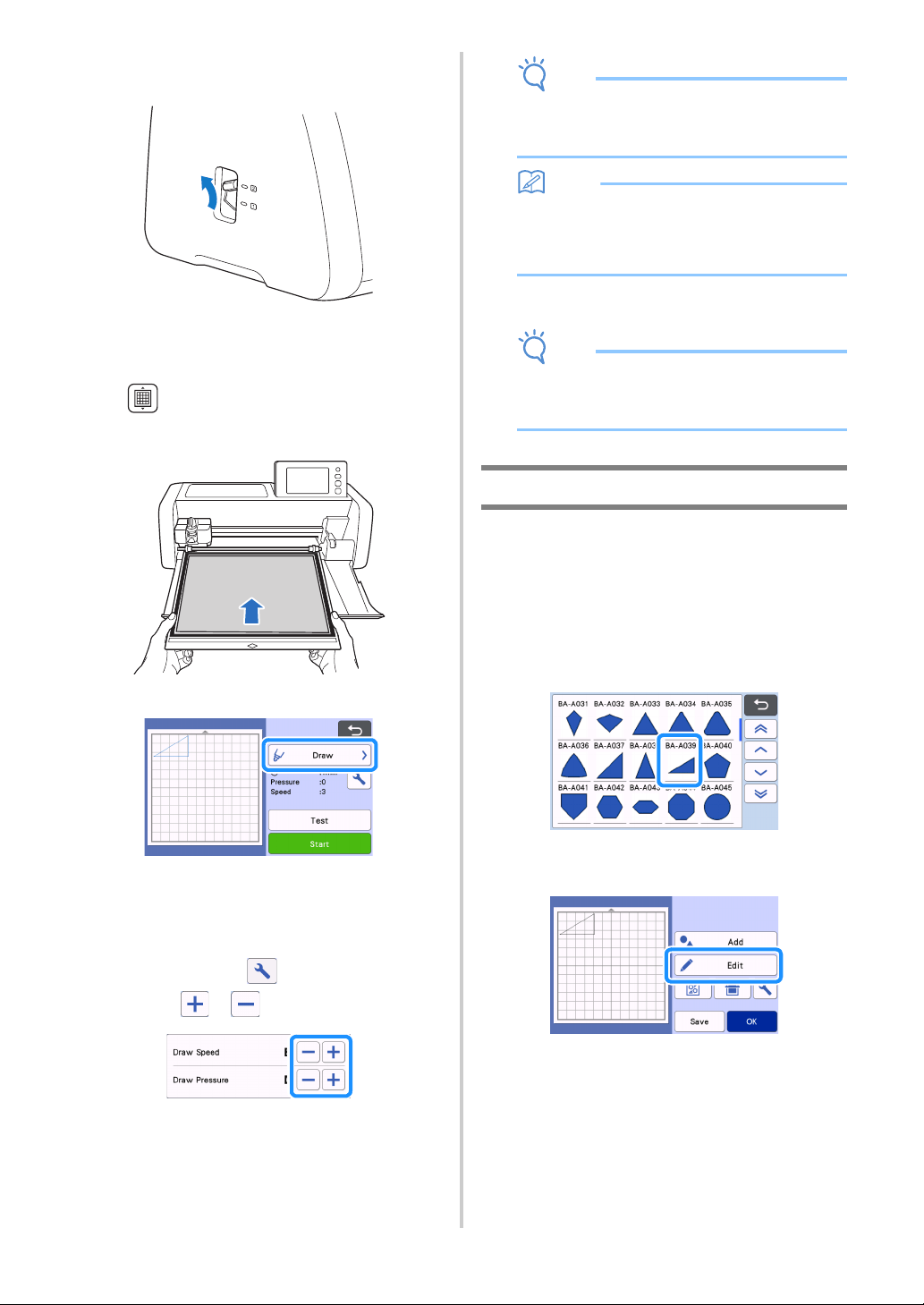
58
c Raise the scanner lever (on the left side of the
machine) to “2”.
d Load the mat with the material for drawing
(cutting) attached.
• Lightly insert the mat into the feed slot, and press
in the operation panel.
• For details on inserting the mat, see “Loading the
Mat” on page 28.
e Select “Draw” in the preview screen.
The drawing line (blue) appears.
f Adjust the drawing speed and pressure.
Before drawing the pattern, adjust the drawing speed
and pressure. These adjustments can be made from the
settings screen. Touch .
Touch or to change the settings.
Note
• If the drawing pressure is too high, the pen tip
may be damaged. Adjust it to an appropriate
setting.
Memo
• Adjustments to the drawing pressure will affect
the finished product. Use the same material
that the pattern will be drawn on to make the
adjustments.
g Touch the “Start” key to start drawing.
Note
• After use, remove the pen from the pen holder,
and then attach the cap to the pen before
storing it.
Cutting Around Drawings
In this example, we will specify a seam allowance
for a built-in pattern and draw the pattern, then cut
an outline around it.
■ Specifying the Seam Allowance
a Select the pattern to be drawn, and then touch
the “Set” key.
The mat layout screen appears.
b Touch the “Edit” key.
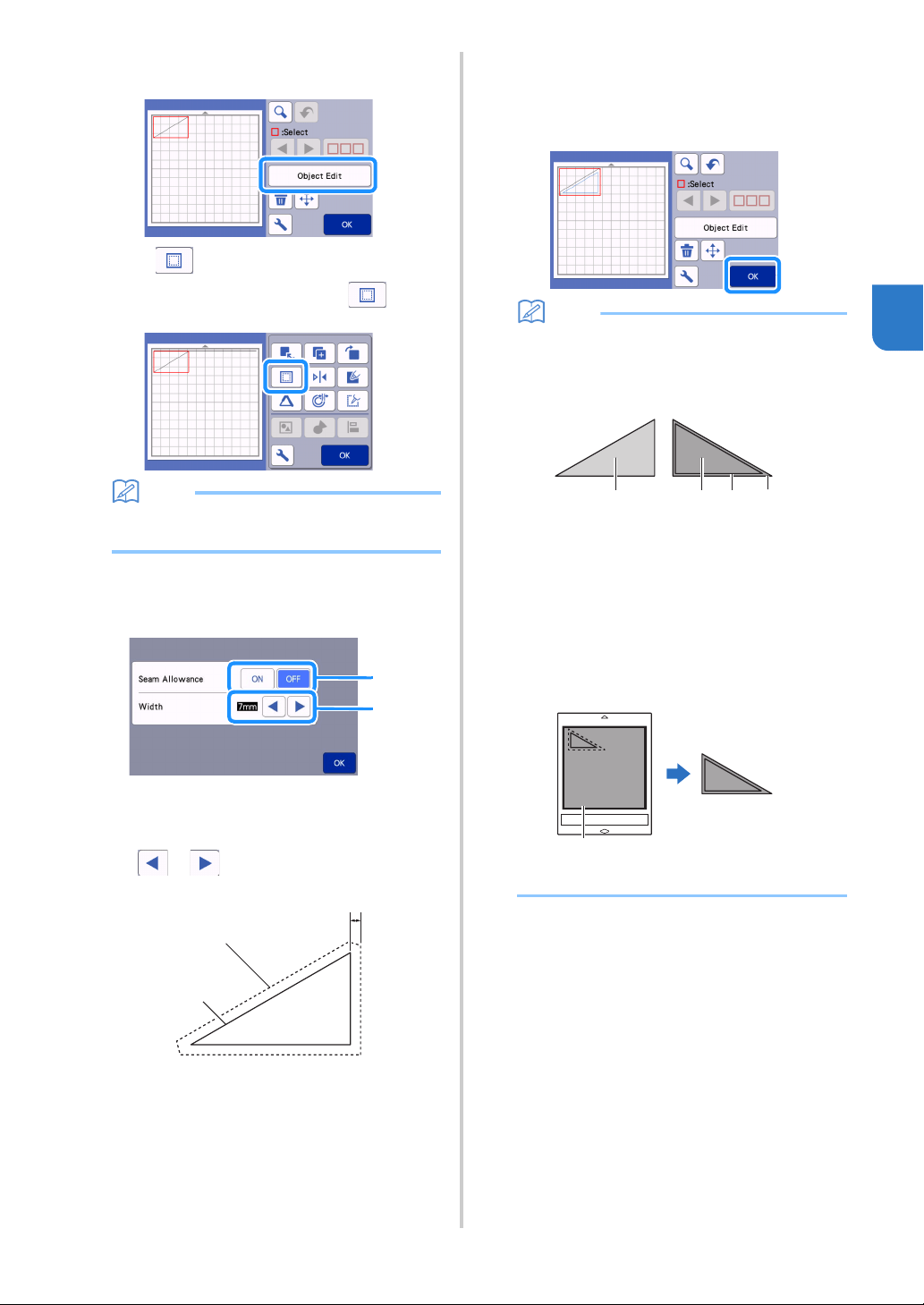
59
3
c Touch the “Object Edit” key in the mat editing
screen.
d Touch .
The Seam Allowance screen appears. If appears
in gray, the seam allowance cannot be applied.
Memo
• Depending on the pattern, the seam allowance
may be applied as a default. Check the setting.
The pattern in the preview appears with a
drawing line (blue) and a cutting line (black).
e Specify the seam allowance settings.
a Select whether or not to add a seam allowance.
b Specify the width (distance between the outline
and cutting line) of the seam allowance. Touch
or to change setting.
a Seam allowance line
b Pattern outline (stitching line)
c Seam allowance
Touch the “OK” key to finish specifying the
setting and return to the object editing screen.
f Touch the “OK” key in the object editing
screen.
g Touch the “OK” key to finish editing the
pattern.
Memo
• To draw the seam allowance on the wrong side
of the fabric, flip the pattern.
Image of Pattern Piece to be Created
a Right side of fabric
b Wrong side of fabric
c Drawing line (stitching line)
d Seam allowance line
After attaching to the mat the fabric with the
wrong side facing up, load the mat into the
machine, flip the pattern, and then draw it and
cut it out.
a Wrong side of fabric
a
b
c
a
b
acb d
a
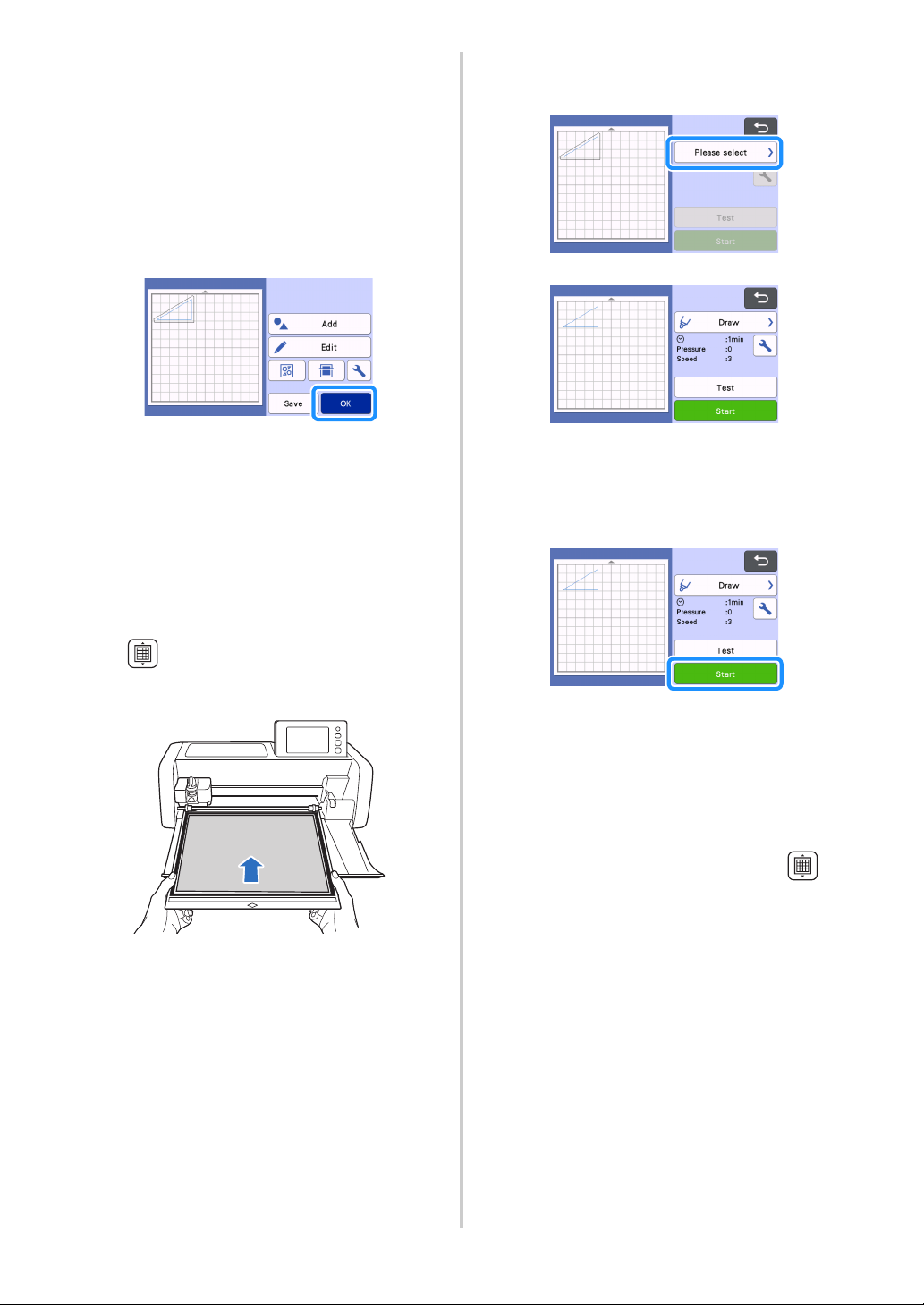
60
hCheck the pattern arrangement, and then touch
the “OK” key.
When using fabric, the patterns may not be cleanly cut
if they are arranged near the edge of the fabric. In this
case, move patterns so they are at least 10 mm from
the fabric edge (the edge of the cutting/drawing area in
the screen).
• To re-edit the pattern arrangement after checking it,
touch the “Edit” key. For details, see “Mat Layout
Screen” on page 44.
• Select the “Cut Area” setting appropriate for the
mat being used. (See page 10.)
The preview screen appears.
■ Loading the Material
Load the mat with the material for cutting (drawing)
attached.
When drawing the seam allowance on the wrong side of
the fabric, attach the material to the mat with its wrong
side facing up.
• For details on attaching material to the mat, see
“Attaching the Material to the Mat” on page 18.
• Lightly insert the mat into the feed slot, and press
in the operation panel.
• For details on inserting the mat, see “Loading the
Mat” on page 28.
■ Drawing
a Select “Draw” in the preview screen.
A preview of the line to be drawn appears.
b Adjust the drawing pressure.
For details on adjusting the drawing pressure, see step
f (page 58) in “Drawing”.
c Touch the “Start” key to start drawing.
When drawing is finished, the message appears
in the screen. After you touch the “OK” key, the
preview screen appears.
• To perform test/trial drawing operations to
adjust the drawing pressure, touch the “Test”
key. For details, see “Test Cut (Trial Cut)” on
page 27.
• To cut around the drawn patterns, keep the mat
inserted into the slot without pressing ,
and continue with the following cutting
procedure.
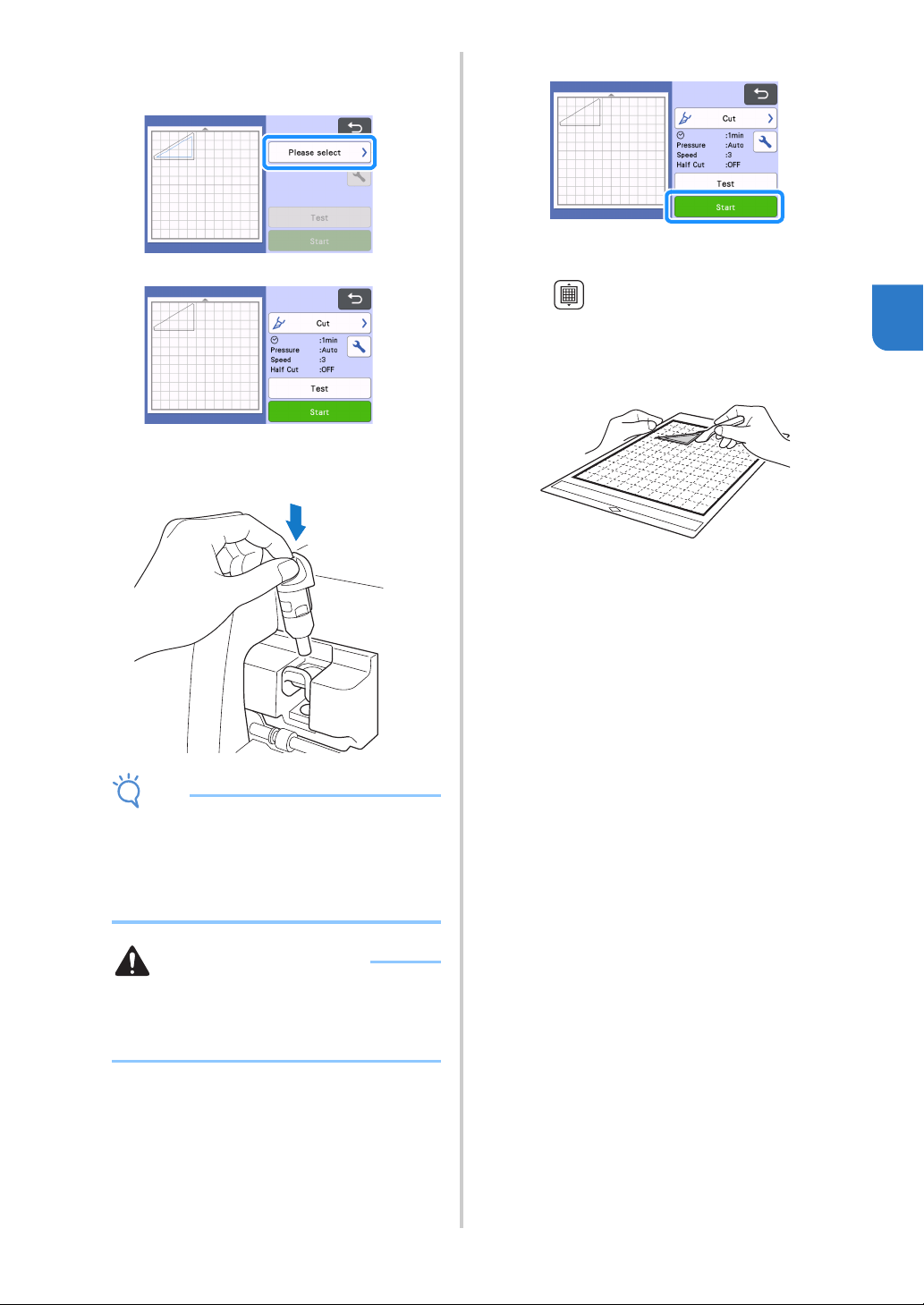
61
3
■ Cutting
a Select “Cut” in the preview screen.
A preview of the line to be cut appears.
b Remove the pen holder, and then install the
blade holder.
Note
• After use, remove the pen from the pen holder,
and then attach the cap to the pen before
storing it.
• Please remove protective cap from blade
holder before placing it into the machine
carriage.
WARNING
• This is not a toy and is not intended to be used
by children. In order to prevent choking
hazards, do not allow infants/children to put the
protective caps in their mouths.
c Touch the “Start” key to start cutting.
When cutting is finished, the preview screen
appears.
d Press in the operation panel to feed out
the mat.
e Peel the patterns off the mat.
• For details, see “Unloading the Mat” on page 29.
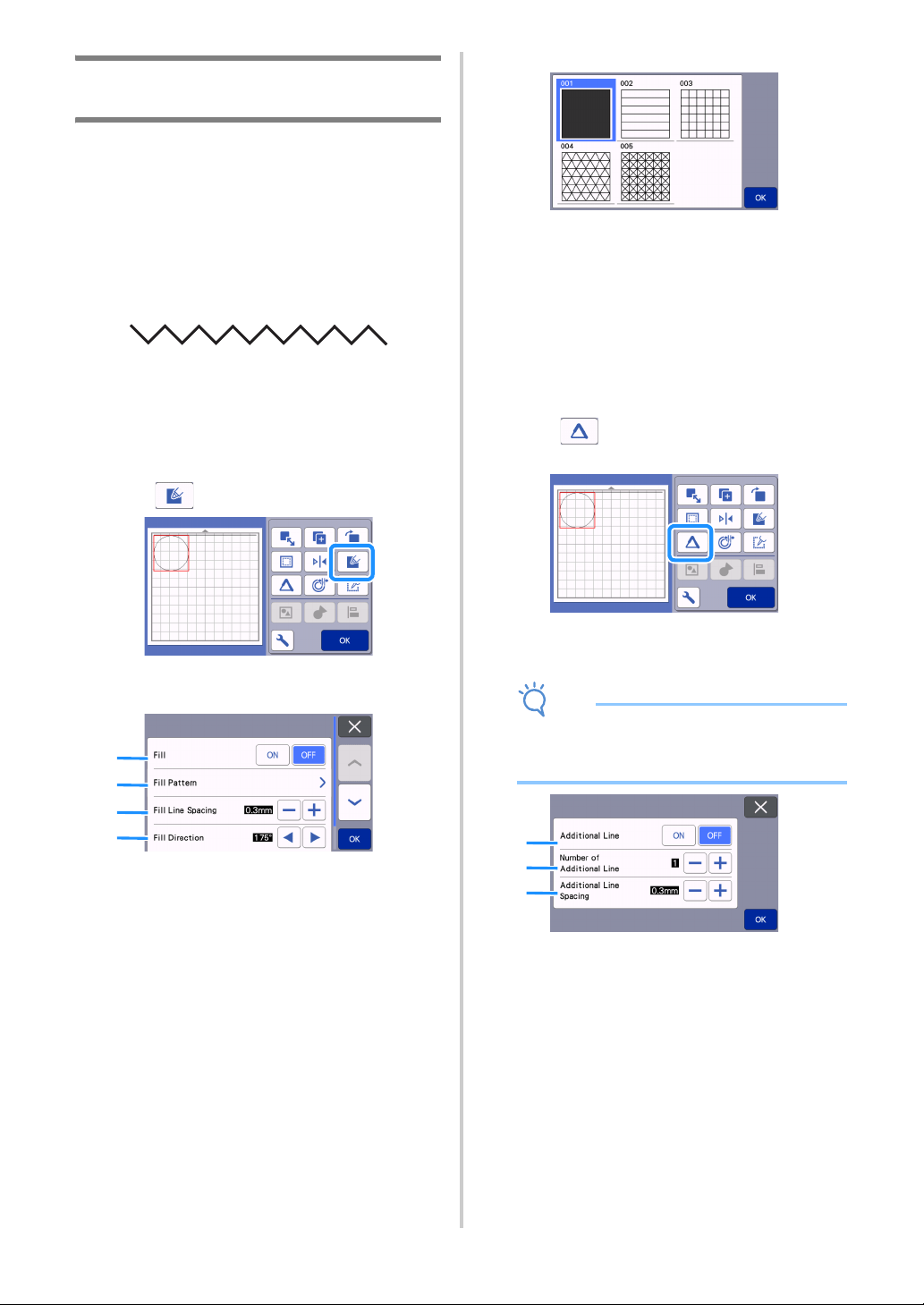
62
Using Drawing Functions to Fill
Patterns/Make Outlines Thicker
Precautions for Using the Fill Function
● Depending on the material and pen being used,
material drawn with a filled pattern may be
difficult to peel off or may tear. Perform test/trial
drawing with the pattern to be used in your
project.
● An open pattern cannot be filled.
Example:
● When fill settings are specified, the settings are
applied to all patterns in the pattern layout screen.
● Fill and additional line settings cannot both be
specified for the same pattern.
■ Filling Patterns
a Touch in the object editing screen.
Settings screen
a Fill
Select whether or not to fill patterns.
b Fill Pattern
c Fill Line Spacing
Adjust the spacing of the lines filling the pattern.
d Fill Direction
Adjust the direction of the fill pattern.
■ Making Pattern Outlines Thicker
Additional lines can be drawn to make pattern outlines
appear thicker.
a Touch in the object editing screen to
display the outline settings screen.
Settings screen
Note
• The settings for “Number of Additional Line”
and “Additional Line Spacing” will not be
applied to patterns with fill settings applied.
a Additional Line
Select whether or not lines are to be added.
b Number of Additional Line
Specify the number of lines to be added.
a
b
c
d
a
b
c
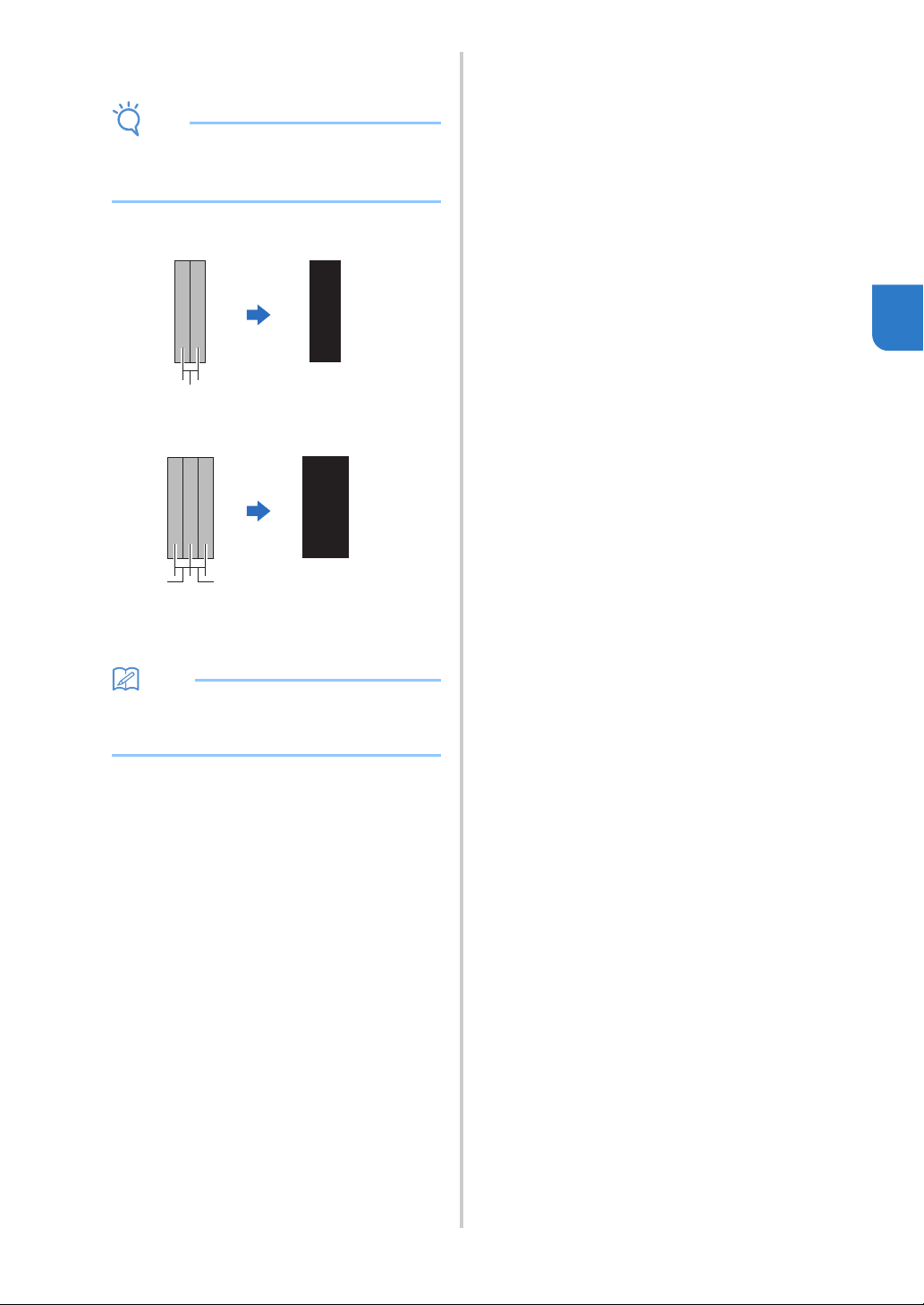
63
3
c Additional Line Spacing
Specify the spacing of the lines to be added.
Note
• Refer to the following examples when
specifying settings for “Number of Additional
Line” and “Additional Line Spacing”.
a Number of Additional Line 1: One line added.
b Number of Additional Line 2: Two lines added.
c Additional Line Spacing: Adjusts the line
spacing. Increasing the line spacing creates a
space between the lines.
Memo
• The drawing result differs depending on the
thickness of the pen that is used. Make
adjustments according to the pen thickness.
c
c
c
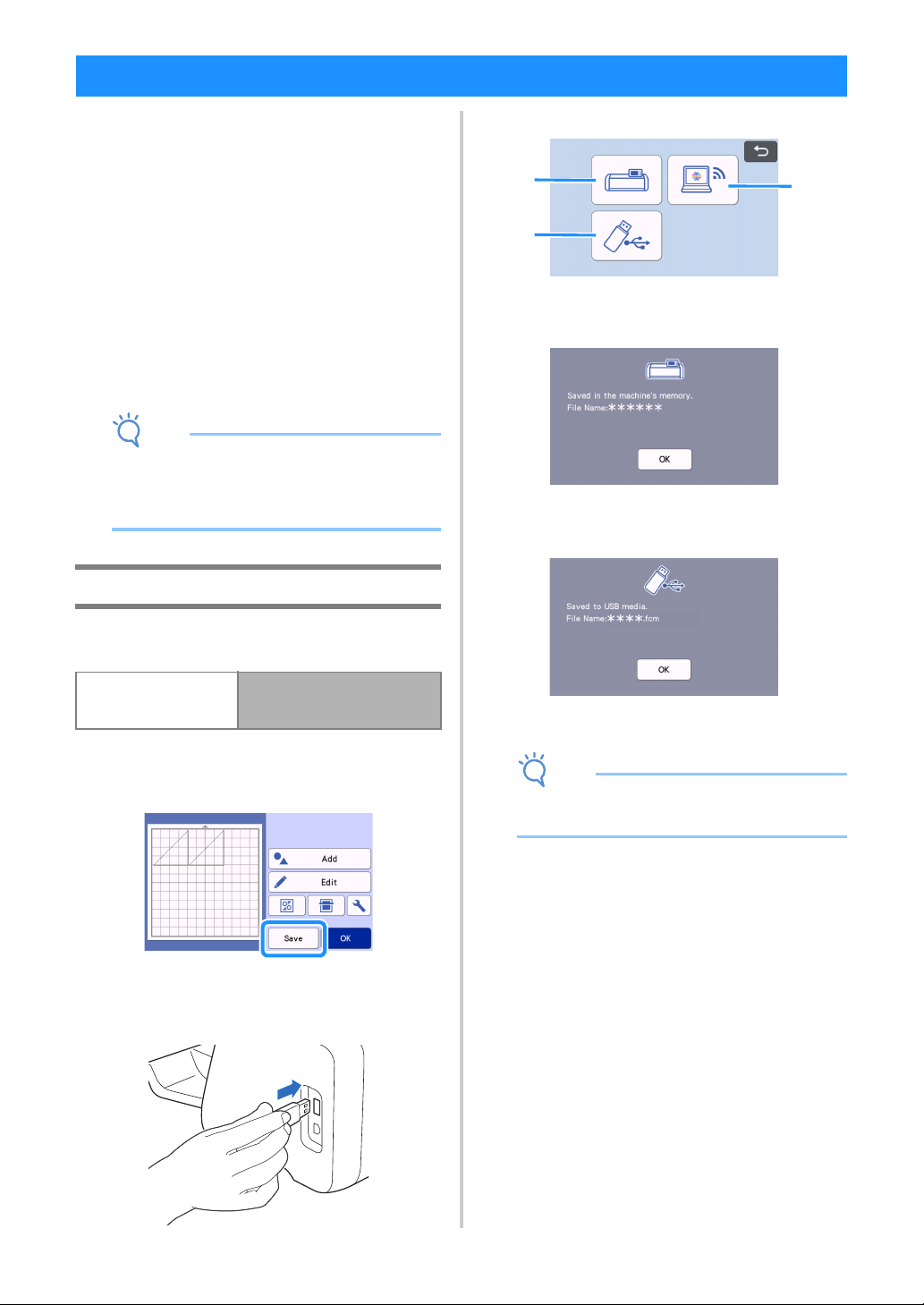
64
Patterns and characters arranged in the cutting/
drawing area can be saved and recalled later.
For details on the file formats that can be
imported into the cutting machine from a USB
flash drive or computer, see “Importing
Designs” on page 66.
If the name of the data file/folder cannot be
identified, for example, when the name contains
special characters, the file/folder is not
displayed. If this occurs, change the name of the
file/folder. We recommend using the 26 letters
of the alphabet (uppercase and lowercase), the
numbers 0 through 9, “-” and “_”.
Note
• USB flash drive is widely used, however some
USB flash drive may not be usable with this
machine. Please visit our website
“ http://s.brother/cpoac/ ” for more details.
Saving
Available in the following screen
a Touch the “Save” key to display the file
destination options.
b To save the data on a USB flash drive, insert the
USB flash drive into the USB port (for a USB
flash drive) on this machine.
c Touch the file location to save the file.
a Save to the machine’s memory.
When saving is finished, the following message
and the name of the saved file appear.
b Save to the USB flash drive.
When saving is finished, the following message
and the name of the saved file appear.
• The name of the saved file with the extension
“.fcm” is automatically assigned.
Note
• While data is being saved, do not remove the
USB flash drive.
c Save to CanvasWorkspace.
• Use the wireless network function transfer
patterns to CanvasWorkspace.
This function is only available when the
machine’s wireless network settings and
machine registration on CanvasWorkspace
have been completed.
For details about setting methods, refer to
“WIRELESS NETWORK CONNECTION
FUNCTION” on page 85.
• Transferrable data can only be sent to
CanvasWorkspace one file at a time.
MEMORY FUNCTIONS
Mat layout screen
Tutorial 1; Step
f
(page 32)
in “Selecting and Editing the
Second Pattern”
a
c
b
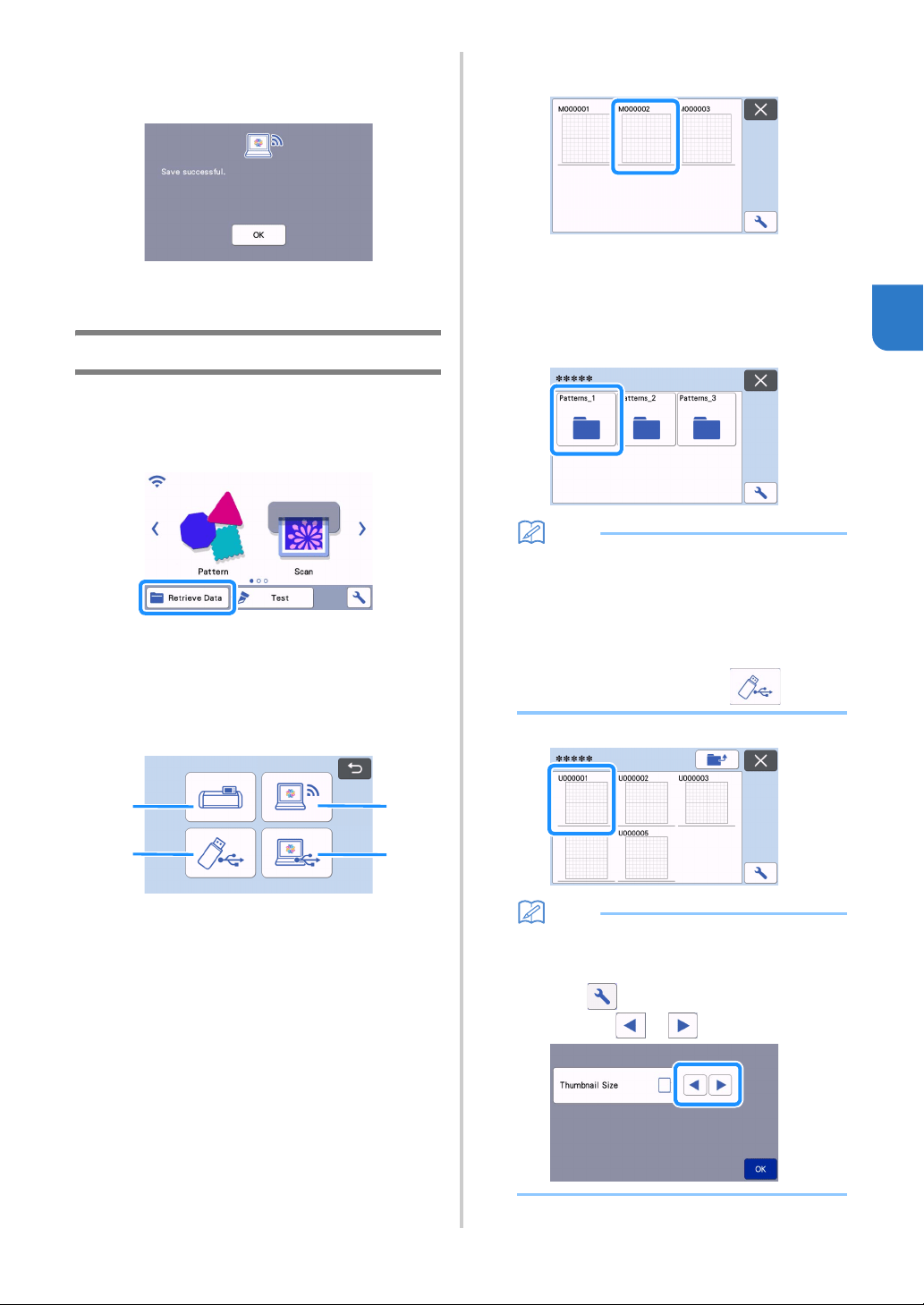
65
3
When saving is finished, the following message
appears. For details on checking data saved in
CanvasWorkspace, refer to the Help for
CanvasWorkspace.
d Touch the “OK” key to finish saving the data.
Retrieve Data
a Touch the “Retrieve Data” key in the home
screen to display the retrieve source selection
screen.
b To use the data from a USB flash drive, insert
the USB flash drive into the USB port (for a
USB flash drive) on this machine.
c Touch where you saved the pattern to be
retrieved, and then select the pattern.
a Retrieve from machine’s memory key
b Retrieve from USB flash drive key
c Retrieve from CanvasWorkspace key (via a
wireless network connection)
d Retrieve from CanvasWorkspace key (using
a USB cable)
a Retrieve from the machine’s memory.
Touch the pattern to be retrieved and display.
b Retrieve from a USB flash drive.
• If there are folders on the USB flash drive, touch
a folder to display the list of patterns that it
contains.
• If there are many folders or patterns, touch the
arrows keys in the screen to scroll up or down.
Memo
• It may take some time for the USB flash drive to
be detected. Wait 5 to 6 seconds after inserting
the USB flash drive before pressing a key. (The
length of time differs depending on the USB
flash drive.)
• When using a USB flash drive with an access
indicator, wait until the indicator stops flashing.
• If an error is indicated, touch again.
Touch the pattern to be retrieved and display.
Memo
• When retrieving pattern data from the
machine’s memory or a USB flash drive, the
size of the thumbnail previews can be changed.
Touch to display the settings screen, and
then touch or to change the size.
a
c
b
d
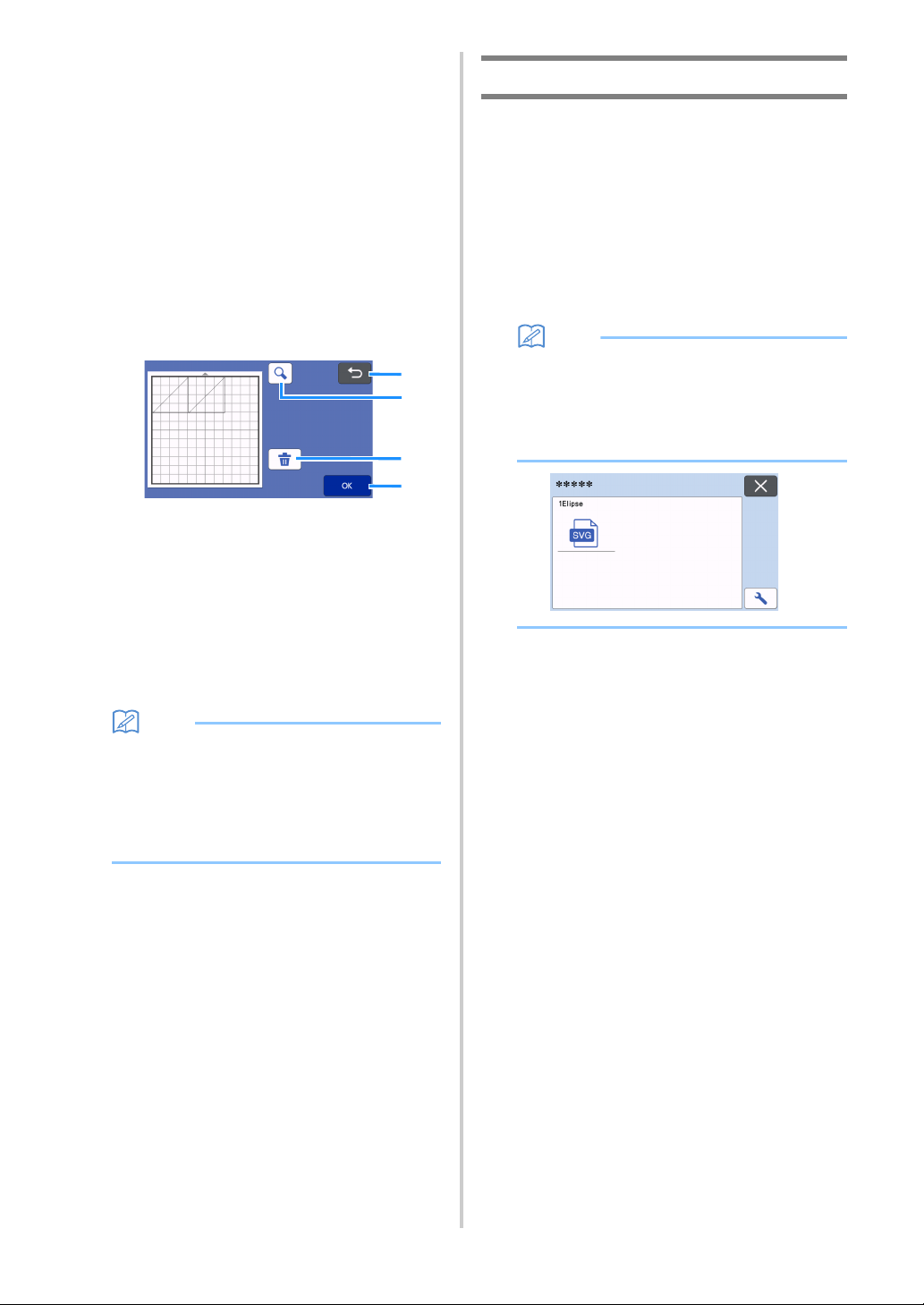
66
c Retrieve from CanvasWorkspace (via a wireless
network connection).
The transferred pattern from CanvasWorkspace
appears on mat layout screen. For details, see
“Retrieve Transferred Patterns from
CanvasWorkspace (Using a Wireless Network)”
on page 92.
d Retrieve from CanvasWorkspace (using a USB
cable).
The transferred pattern from CanvasWorkspace
appears on mat layout screen. For details, see
“Retrieve Transferred Patterns from
CanvasWorkspace (Using a USB Cable)
(compatible only with Windows)” on page 93.
d Check the preview of the pattern layout in the
screen, and then touch the “OK” key.
a Returning Key
Touch to return to the list of patterns at the
destination.
b Magnifying Key
Touch to display the patterns in zoom mode.
c Deleting Key
Touch to delete the data for the displayed
pattern layout.
d OK Key
Touch to recall the pattern layout data.
Memo
• Even if a seam allowance has been saved with
the pattern(s) (see “Cutting Around Drawings”
on page 58), the “Seam Allowance” setting
specified in the settings screen will have priority
and will be applied. If necessary, adjust the
“Seam Allowance” setting in the settings screen
(see “Seam Allowance” on page 11).
Importing Designs
■ Importable File Formats
In addition to the FCM format, files in the following
formats can be imported into the machine.
• Embroidery data in PHC/PHX/PES format
(compatible models and via USB flash drive
only): For details, see page 97.
• SVG (Scalable Vector Graphics: vector image
format for describing two-dimensional
graphics) format. “.svg” data is displayed in the
pattern list screen by file name (the actual
image cannot be displayed).
Memo
• The imported vector graphics will appear in the
edit screen after they have been converted.
This feature allows you to import only vector
data. Image, text, width of the line, gradient,
opacity, and any other styles or attributes of line
will not be imported.
a
c
b
d
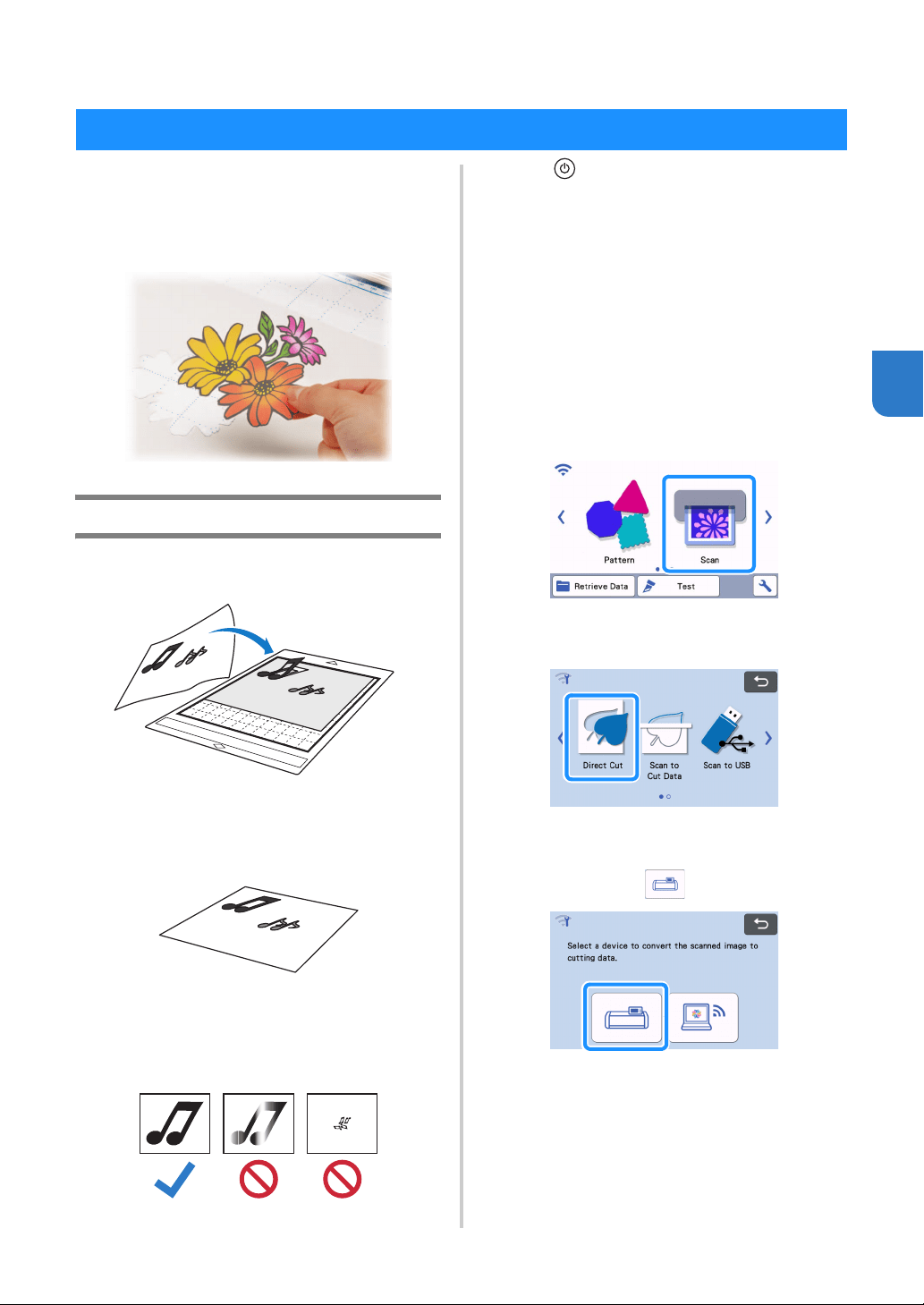
67
4
Chapter 4 SCANNING FUNCTIONS
A printed image (paper/sticker), stamped paper or an
original hand-drawn illustration can be scanned and
its outline can be cut out or drawn. This is useful for
scanning images for paper crafts, then cutting them
out.
Tutorial 4 - Scanning and Cutting
In this tutorial, we will scan an illustration drawn on
paper, then cut around it.
■ Preparation
a Prepare the original.
When using the “Direct Cut” mode, use originals like
those described below.
• Patterns that are clearly drawn, with no gradation,
fading or blurriness
• Not using an extremely intricate design
b Press to turn on the machine.
• For details, see “Turning On/Off the Machine” on
page 8.
c Install the cutting blade holder into the carriage
of the machine.
• For details, see “Installing and Uninstalling the
Holder” on page 26.
■ Scanning
Depending on the color of the illustration, it can be
scanned in grayscale or color recognition mode.
a Touch the “Scan” key in the home screen to
select the scanning mode.
b Select “Direct Cut” in the scanning mode
selection screen.
A message appears.
c In the selection screen for the cutting data
destination, touch .
SCANNING FOR CUTTING (Direct Cut)
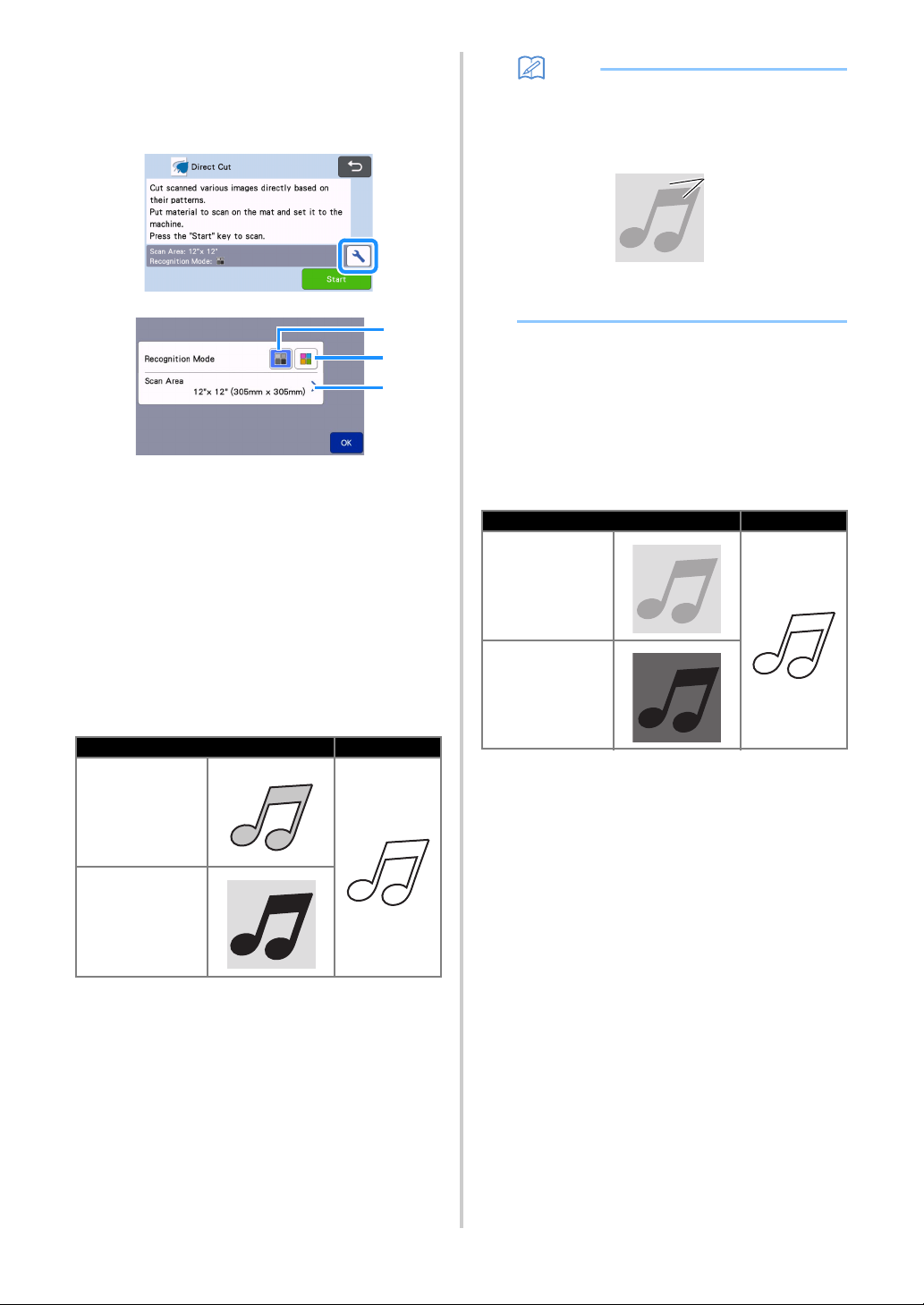
68
d Select the scanning mode according to the
material to be scanned.
• First, test with grayscale recognition mode. If the
desired cutting data is not created, test with color
recognition mode.
a Grayscale recognition mode
The cutting data is created after the illustration is
converted to grayscale.
Scanning in grayscale recognition mode is most
appropriate for illustrations with clear outlines or
distinct brightness differences. Processing is faster
with this mode compared with the color recognition
mode.
If there are adjacent objects of the same color after an
illustration has been converted to grayscale, select
the color recognition mode.
Examples of illustrations appropriate for
grayscale recognition mode:
Memo
• The edges of illustrations in a color of the same
brightness as their background, as shown
below, cannot be detected. In this case, use the
color recognition mode.
a Background and illustration in colors with the
same brightness.
b Color recognition mode
The cutting data is created without converting the
illustration to grayscale. Creating data in this mode
may take longer, depending on the pattern.
* The default scanning recognition setting is the
grayscale recognition mode.
Examples of illustrations appropriate for
color recognition mode:
c Scanning area
The scanning size settings screen appears. The size
of the scanning area can be selected. The available
scanning area sizes differ depending on the model.
Example Result
Outlines that are
clear
Distinct
difference in
brightness
between
background and
illustration
a
b
c
Example Result
Illustrations that
are the same light
color as the
background
Illustrations that
are the same dark
color as the
background
a
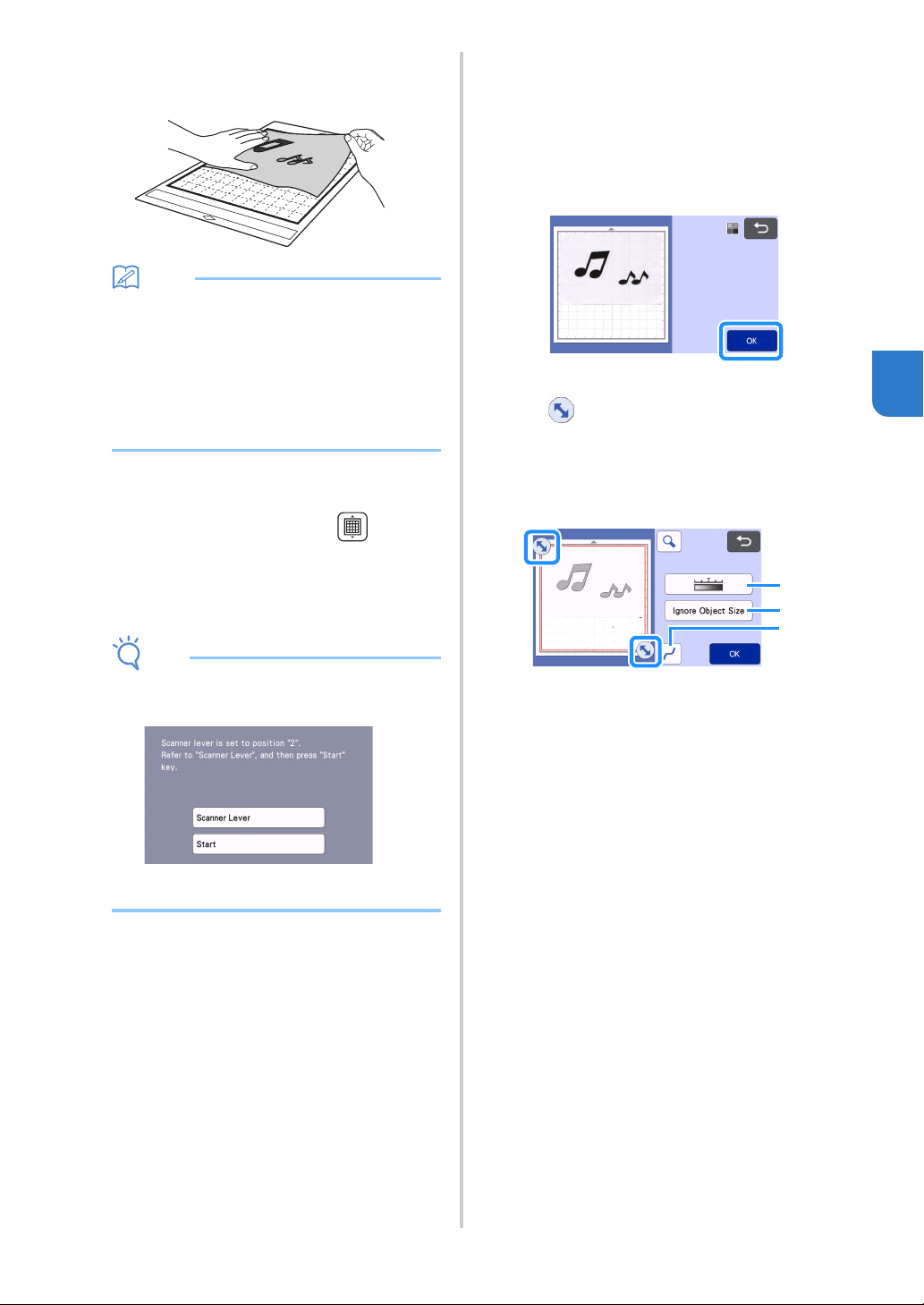
69
4
e Attach the original that will be scanned to the
mat.
Memo
• In “Direct Cut” mode, the scanning mat cannot
be used.
• Depending on the machine model, the sizes of
mats that can be used will differ. Check the
“Maximum Scanning Area” under “Machine
Information” of the settings screen (page 12).
• Before attaching the material to the mat, use a
corner of the adhesive side of the mat to test
attaching it.
f While holding the mat level and lightly
inserting it under the feed rollers on the left and
right sides of the feed slot, press in the
operation panel.
• For details, see “Loading the Mat” on page 28.
g Touch the “Start” key to start scanning.
Note
• When the scanner lever is raised, the following
message appears.
Scanning with the lever raised may result in
blurry scans.
■ Creating Cutting Data
The procedure for creating cutting data differs
depending on the mode.
Grayscale recognition mode
a Check the scanned image, and then touch the
“OK” key.
b In the image trim screen, use the touch pen to
drag to trim the image to the size to be
imported.
• When trimming is performed, the “OK” key
changes to the “Preview” key.
If cutting lines are created, the outline of the
scanned illustration will be black.
a Image Detection Level Key
Adjust the image detection level.
b Ignore Object Size Key
Small unnecessary patterns (dotted lines, etc.)
can be excluded from cutting data. For details,
see “Specifying “Ignore Object Size”” on
page 79.
c Smoothing Setting Key
Specify the level of smoothing applied to the
image outline. For details, see “Adjusting Image
Detection Levels” on page 79.
a
b
c
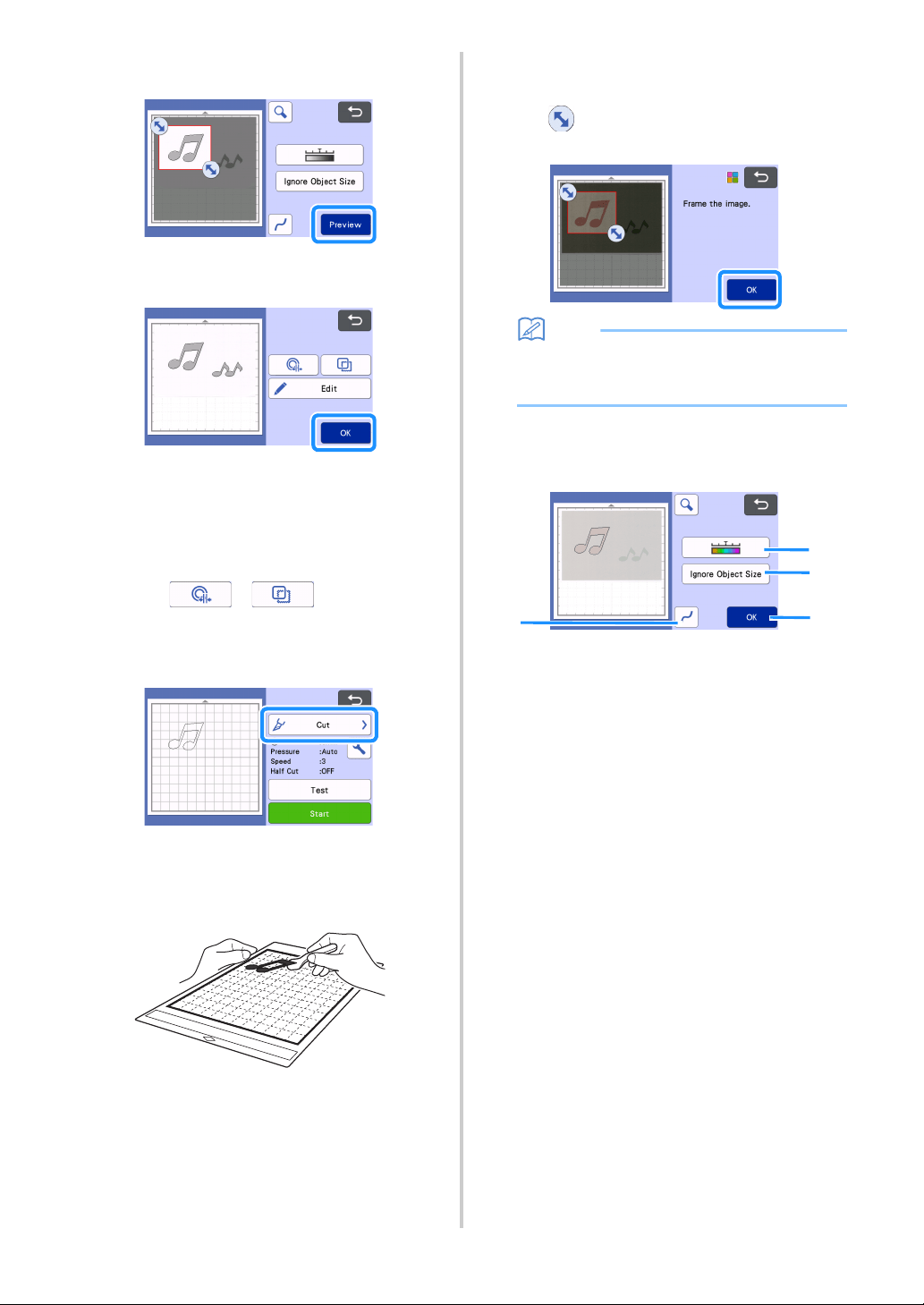
70
c Touch the “Preview” key to confirm the
trimmed area.
Only the cutting lines appear.
d Touch the “OK” key in the mat layout screen.
• Touch the “Edit” key to fill patterns or make
outlines thicker. For details, see “Using Drawing
Functions to Fill Patterns/Make Outlines Thicker”
on page 62. In addition, a pattern can be deleted,
or multiple patterns can be selected. For details on
selecting multiple patterns, see “Selecting Multiple
Patterns” on page 41.
• Touch or to edit the imported
cutting data. For details, see “Advanced Cutting
Functions for “Direct Cut”” on page 71.
e Select “Cut” in the preview screen.
f Touch the “Start” key to start cutting.
• For details on unloading the mat after cutting,
follow the procedure under “Unloading the Mat”
on page 29.
Color recognition mode
a In the image trim screen, use the touch pen to
drag to trim the image to the size to be
imported, and then touch the “OK” key.
Memo
• Trimming the image to the desired size can
reduce the amount of time required to convert it
to cutting data.
b Check the imported image in the image editing
screen.
The created cutting data appears as black lines.
a Image Detection Level Key
If the cutting lines were not correctly detected,
change the number of colors to be detected. If
a color that appears as a single color is
detected as separate colors, reduce the
number of colors. If adjacent colors with a
similar brightness are detected as a single
color, increase the number of colors.
a
d
b
c
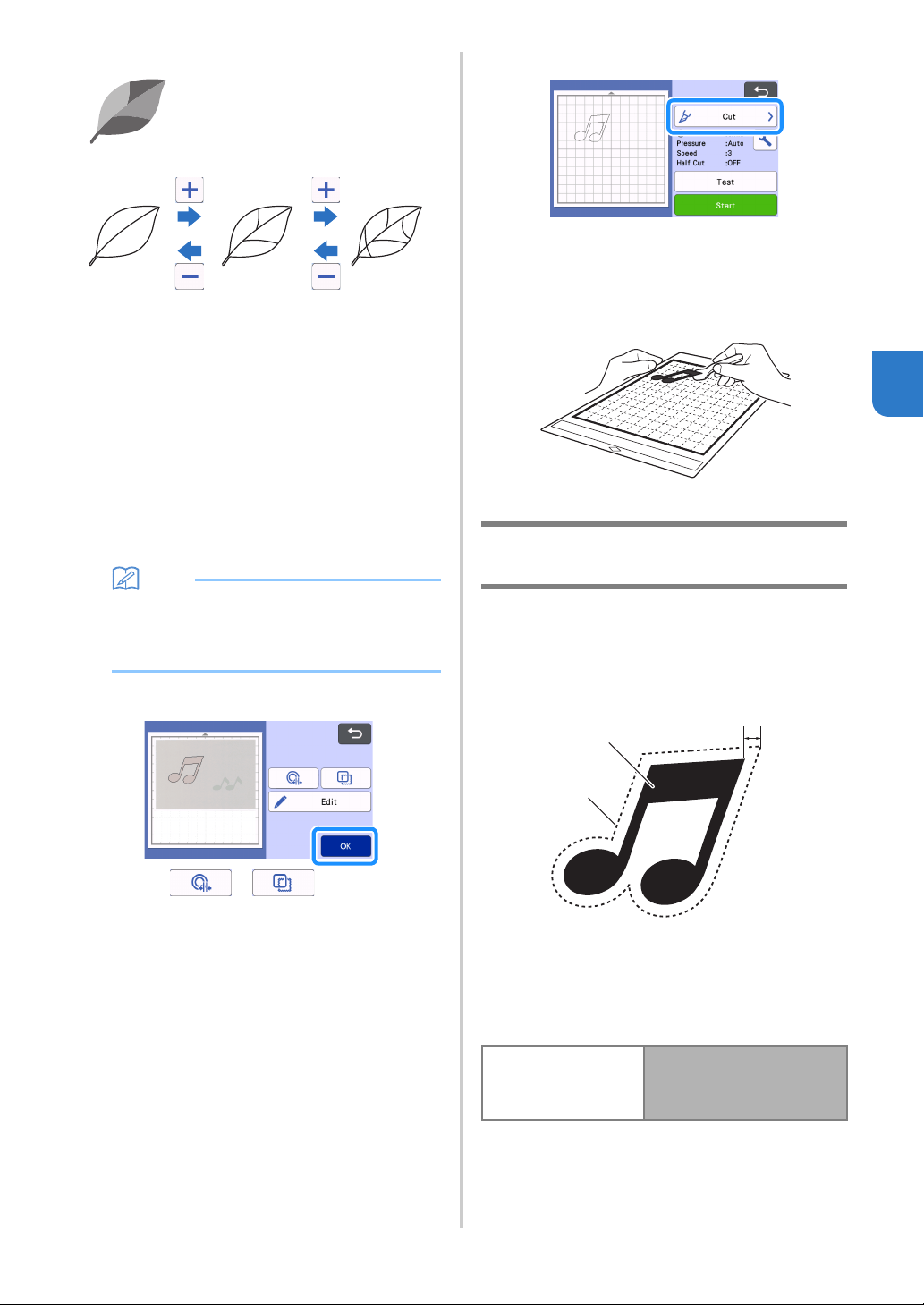
71
4
b Ignore Object Size Key
Small unnecessary patterns (dotted lines, etc.)
can be excluded from cutting data. For details,
see “Specifying “Ignore Object Size”” on
page 79.
c Smoothing Setting Key
Specify the level of smoothing applied to the
image outline. For details, see “Adjusting Image
Detection Levels” on page 79.
d OK Key
Touch the “OK” key to apply the settings. When
trimming is performed, the “OK” key changes to
the “Preview” key. After trimming, touch the
“Preview” key to check the trimming results.
Memo
• When making a stamp, for example, the image
may not be converted to cutting data if it
contains a gradation or areas that are only
partially filled with a color.
c Touch the “OK” key.
• Touch or to edit the imported
cutting data. For details, see “Advanced Cutting
Functions for “Direct Cut”” on page 71.
• Touch the “Edit” key to fill patterns or make
outlines thicker. For details, see “Using Drawing
Functions to Fill Patterns/Make Outlines Thicker”
on page 62. In addition, a pattern can be deleted,
or multiple patterns can be selected. For details on
selecting multiple patterns, see “Selecting Multiple
Patterns” on page 41.
Only the cutting lines appear.
d Select “Cut” in the preview screen.
e Touch the “Start” key to start cutting.
• For details on unloading the mat after cutting,
follow the procedure under “Unloading the Mat”
on page 29.
Advanced Cutting Functions for
“Direct Cut”
■ Outline Distance
Use this function to cut while adding a margin around
patterns. Specify the distance from the cutting line to the
outline of the scanned image.
a Pattern outline
b Cutting line
c Outline distance
Available in the following screen
original
Mat layout screen
Tutorial 4; Step
d
(page 70)
in “Grayscale recognition
mode” or Step
c
(page 71) in
“Color recognition mode”
a
b
c
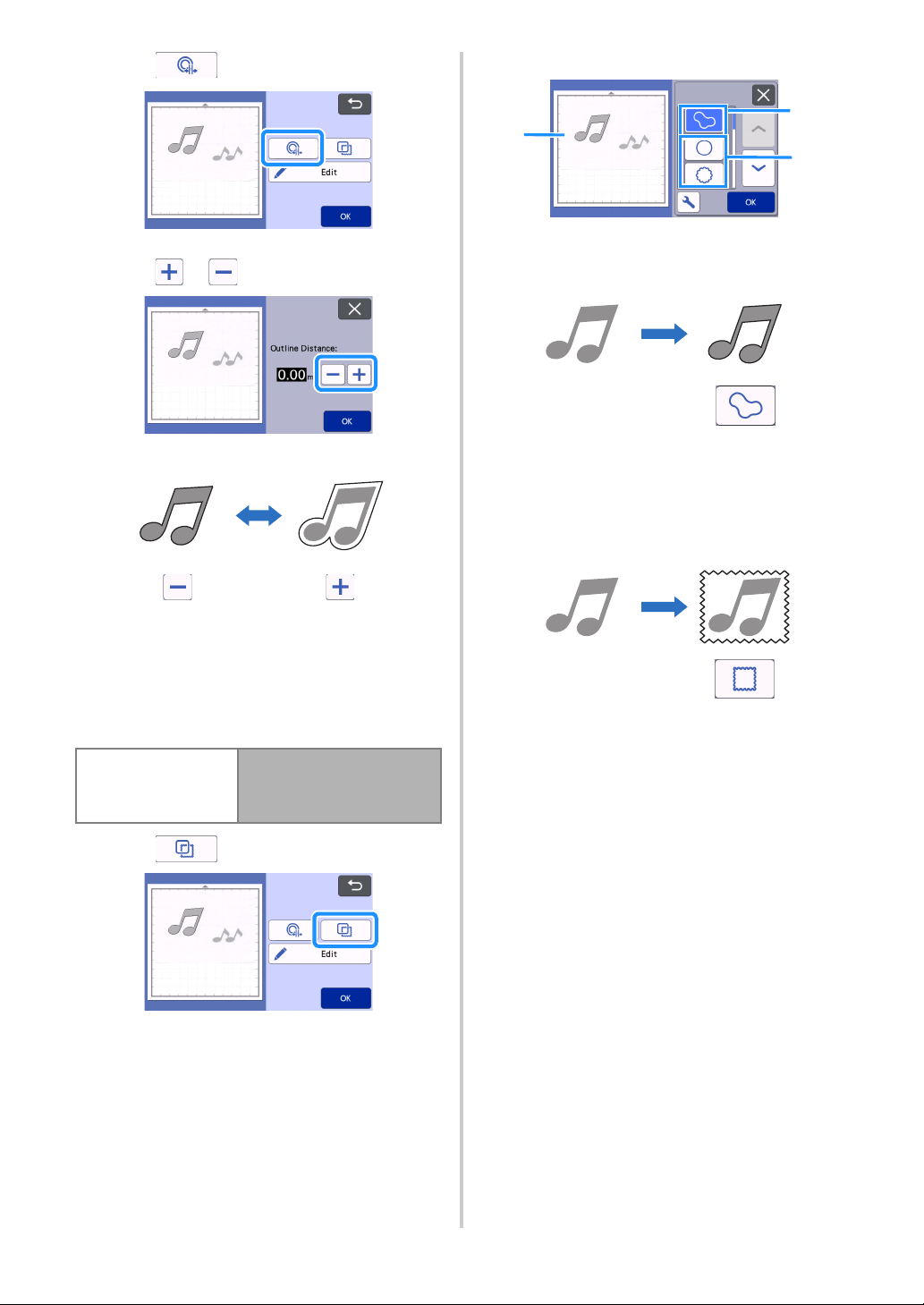
72
a Touch .
The setting screen appears.
b Touch or to change the setting.
■ Outlining and Framing
Any shape can be specified as the cutting line for the
scanned image.
Available in the following screen
a Touch .
The settings screen appears.
b Select the shape of the cutting line.
a Outlining
Touch this key to create a cutting line that follows the
outline of the scanned image.
b Framing
Touch the key for the desired frame to add it to the
scanned image and create a cutting line that follows
its shape.
• If there are multiple images, a frame can be
specified for each image.
c Previewing
Display a preview of the image together with the
cutting line for the selected frame.
Mat layout screen
Tutorial 4; Step
d
(page 70)
in “Grayscale recognition
mode” or Step
c
(page 71) in
“Color recognition mode”
c
a
b
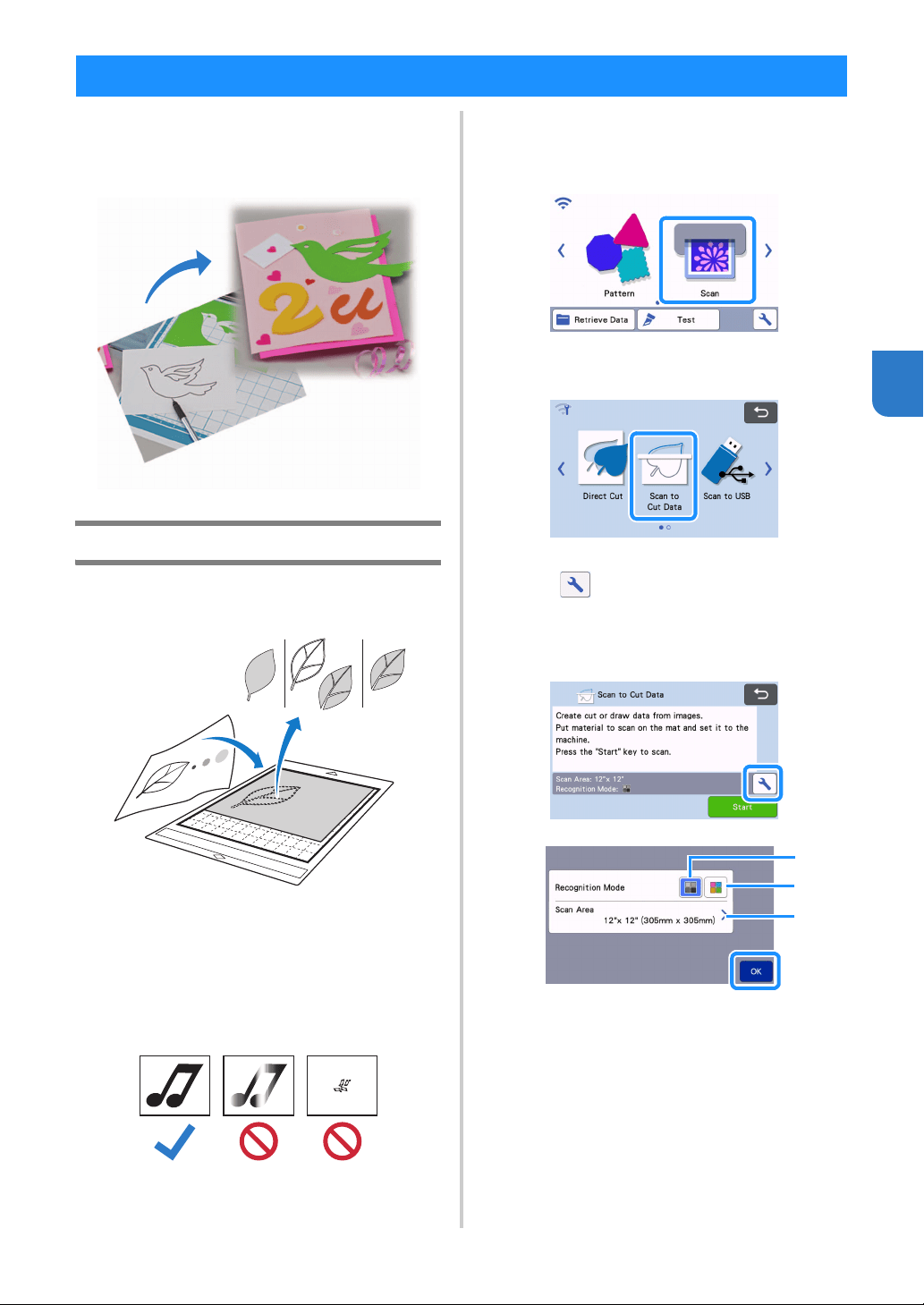
73
4
A printed pattern or image or an original hand-drawn
illustration can be scanned, converted to cutting
lines for cutting/drawing with this machine, then
saved as data.
Tutorial 5 - Creating Cutting Data
In this tutorial, we will save an illustration drawn on
paper as cutting data.
■ Preparing the material
When using the “Scan to Cut Data” mode, use originals
like those described below.
• Patterns that are clearly drawn, with no gradation,
fading or blurriness
• Not using an extremely intricate design
■ Scanning
a Touch the “Scan” key in the home screen to
select the scanning mode.
b Select “Scan to Cut Data” in the scanning mode
selection screen.
A message appears.
c Touch , select the scanning mode, and then
touch the “OK” key.
• First, test with grayscale recognition mode. If the
desired cutting data is not created, test with color
recognition mode.
a Grayscale recognition mode
The cutting data is created after the illustration is
converted to grayscale. Scanning in grayscale
recognition mode is most appropriate for illustrations
with clear outlines or distinct brightness differences.
Processing is faster with this mode compared with the
color recognition mode.
If there are adjacent objects of the same color after an
illustration has been converted to grayscale, select
the color recognition mode.
CREATING CUTTING DATA (Scan to Cut Data)
a
b
c
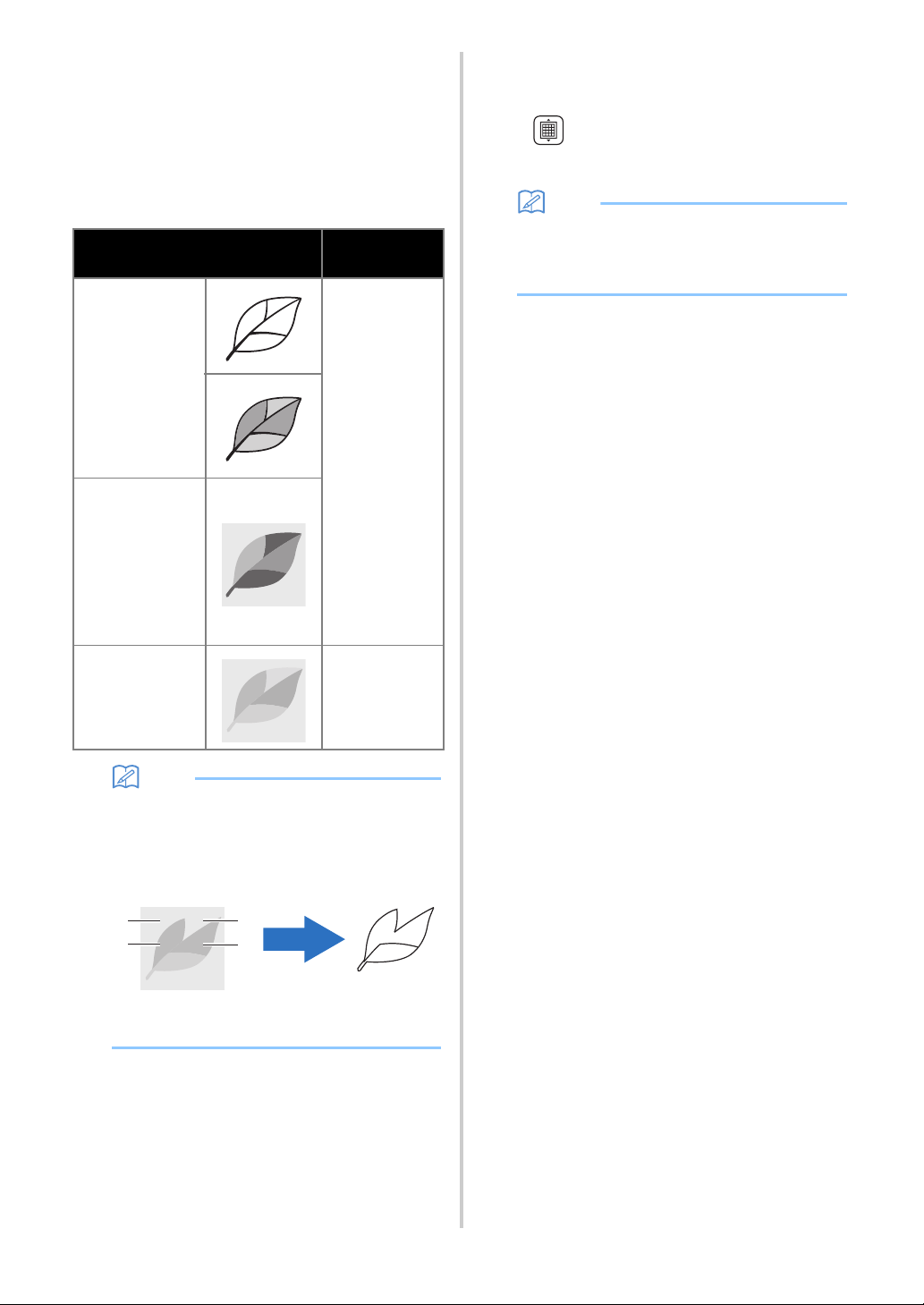
74
b Color recognition mode
The cutting data is created without converting the
illustration to grayscale.
Creating data in this mode may take some time.
* The default color recognition setting is the
grayscale recognition mode.
Examples of illustrations appropriate for
recognition mode:
Memo
• The edges of adjacent colors with the same
brightness, as shown below, cannot be
detected. In this case, use the color recognition
mode.
a “a” and “b” as well as “c” and “d” have the
same brightness.
c Scanning area
The scanning size settings screen appears. The size
of the scanning area can be selected. The available
scanning area sizes differ depending on the model.
d Attach the original to the mat, and then load
the mat into the feed slot.
• Lightly insert the mat into the feed slot, and press in
the operation panel.
• For details on loading the mat, see “Loading the
Mat” on page 28.
Memo
• Depending on the machine model, the sizes of
mats that can be used will differ. Check the
“Maximum Scanning Area” under “Machine
Information” of the settings screen (page 12).
e Touch the “Start” key to start scanning.
• When the scanner lever is raised, a confirmation
message appears.
For details, see step
g in “Scanning” of “Tutorial 4
- Scanning and Cutting” on page 67.
When scanning is finished, the scanned image
appears in the screen.
Example
Recommended
recognition
mode
Outlines that are
clear
Grayscale
recognition mode
•Distinct
difference in
brightness
between
background
and illustration
•Different
brightness of
adjacent colors
• Similar
brightness of
adjacent colors
Color recognition
mode
a
b
c
d
a
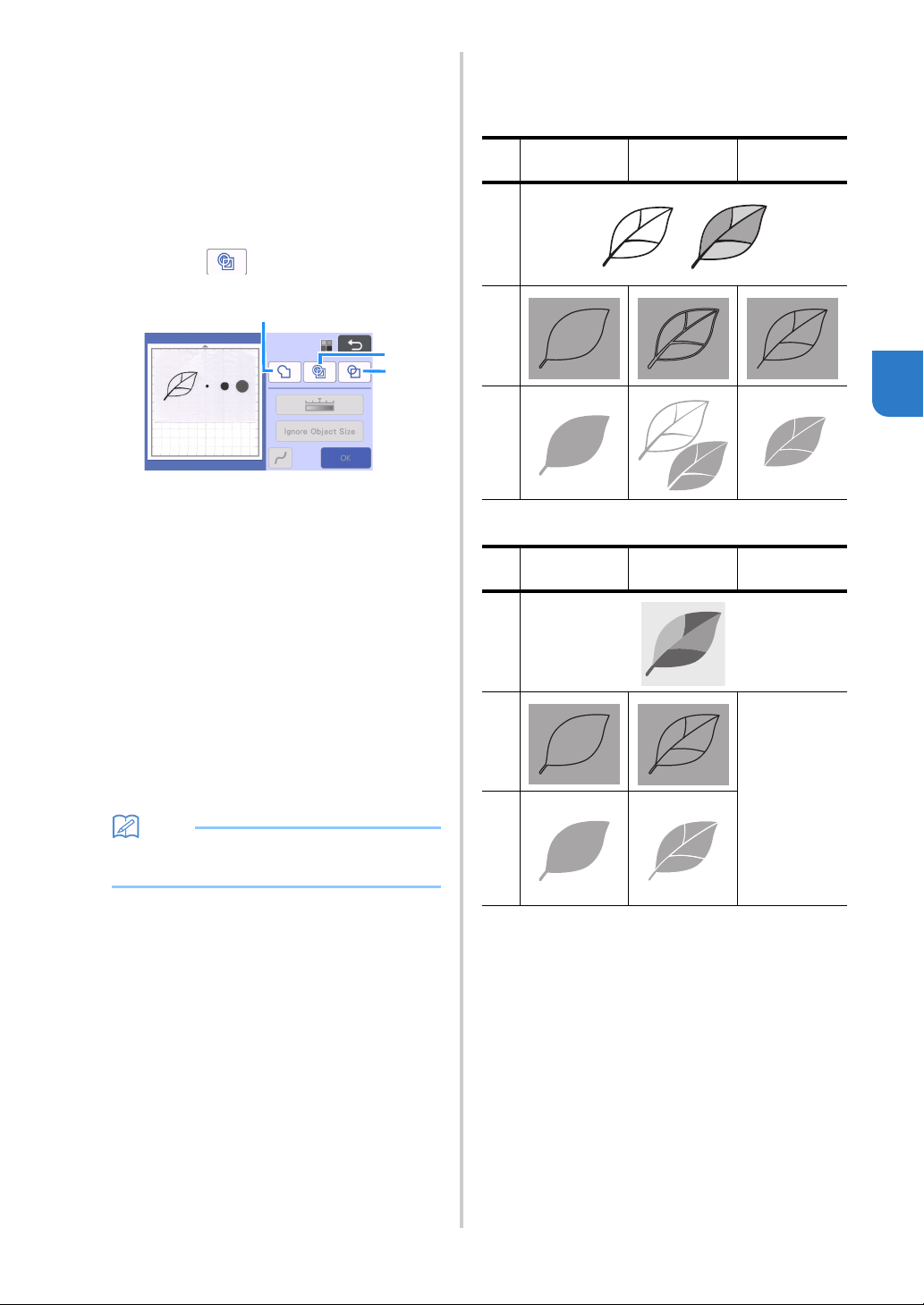
75
4
■ Creating Cutting Data
The procedure for creating cutting data differs
depending on the mode.
Grayscale recognition mode
a Select the cutting line type in the image editing
screen.
The image shape is detected and cutting lines are
created based on one of three standards. For this
example, touch to create cutting lines using
region detection.
a Outline detection
If you wish to cut/draw along the outline of an image,
select this option to convert the outline of the image to
a cutting line. This is useful for saving as data an
illustration drawn for an appliqué.
b Region detection
Select this option to detect the colored portions of an
image as regions and create a cutting line around
each region. Cutouts can be created using thick
hand-drawn lines, such as borderlines of images or
text illustrations. This option allows you to use not
only cut-out patterns but the material from which
portions are cut out, such as lace.
c Line detection (Grayscale recognition mode only)
Select this option to detect the center of lines and
convert them to a cutting line. This is useful for
detecting patterns consisting of multiple pieces and
creating cutting lines for each piece.
Memo
• Lines thicker than 1.5 mm will not be detected
as lines.
a
c
b
Difference in cutting lines depending on
detection standard
Example 1
a Outline
detection
b Region
detection
c Line
detection
Original
Cutting
lines
Finished project
after cutting
Example 2
a Outline
detection
b Region
detection
c Line
detection
Original
Cutting
lines
Does not apply
since there are
no outlines for
each color in
the original.
Finished project
after cutting
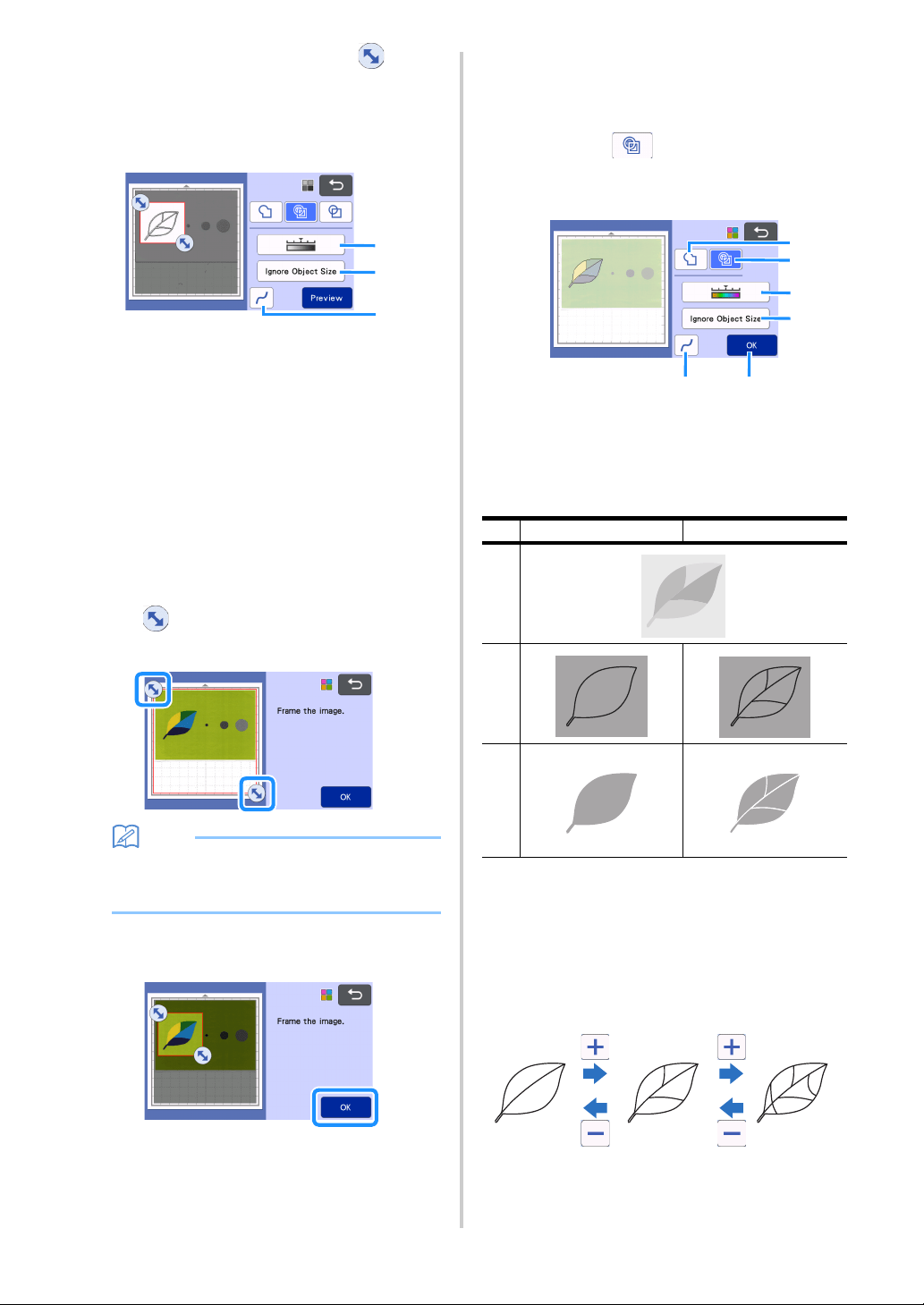
76
b Use the touch pen (stylus) to touch and
drag it around the screen to trim the cutting
lines.
• When trimming is performed, the “OK” key
changes to the “Preview” key. Touch the “Preview”
key to confirm the trimmed area.
a Image Detection Level Key
Adjust the image detection level.
b Ignore Object Size Key
Small unnecessary patterns (dotted lines, etc.)
can be excluded from cutting data. For details,
see “Specifying “Ignore Object Size”” on
page 79.
c Smoothing Setting Key
Specify the level of smoothing applied to the
image outline. For details, see “Adjusting Image
Detection Levels” on page 79.
Color recognition mode
a In the image trim screen, use the touch pen to
drag to trim the image to the size to be
imported.
Memo
• Trimming the image to the desired size can
reduce the amount of time required to convert it
to cutting data.
b Touch the “OK” key to confirm the trimmed
area.
c Select the detection standard in the image
editing screen.
The image shape is detected and cutting lines are
created based on one of two standards. For this
example, touch to create cutting lines using
region detection.
For details on the detection standards, see step
a in
“Grayscale recognition mode”.
a Outline Detection Key
b Region Detection Key
c Image Detection Level Key
If the cutting lines were not correctly detected,
change the number of colors to be detected. If
a color that appears as a single color is
detected as separate colors, reduce the
number of colors. If adjacent colors with a
similar brightness are detected as a single
color, increase the number of colors.
a
b
c
Difference in cutting lines depending on
detection standard
a Outline detection b Region detection
Original
Cutting
lines
Finished project
after cutting
b
a
c
d
e
f
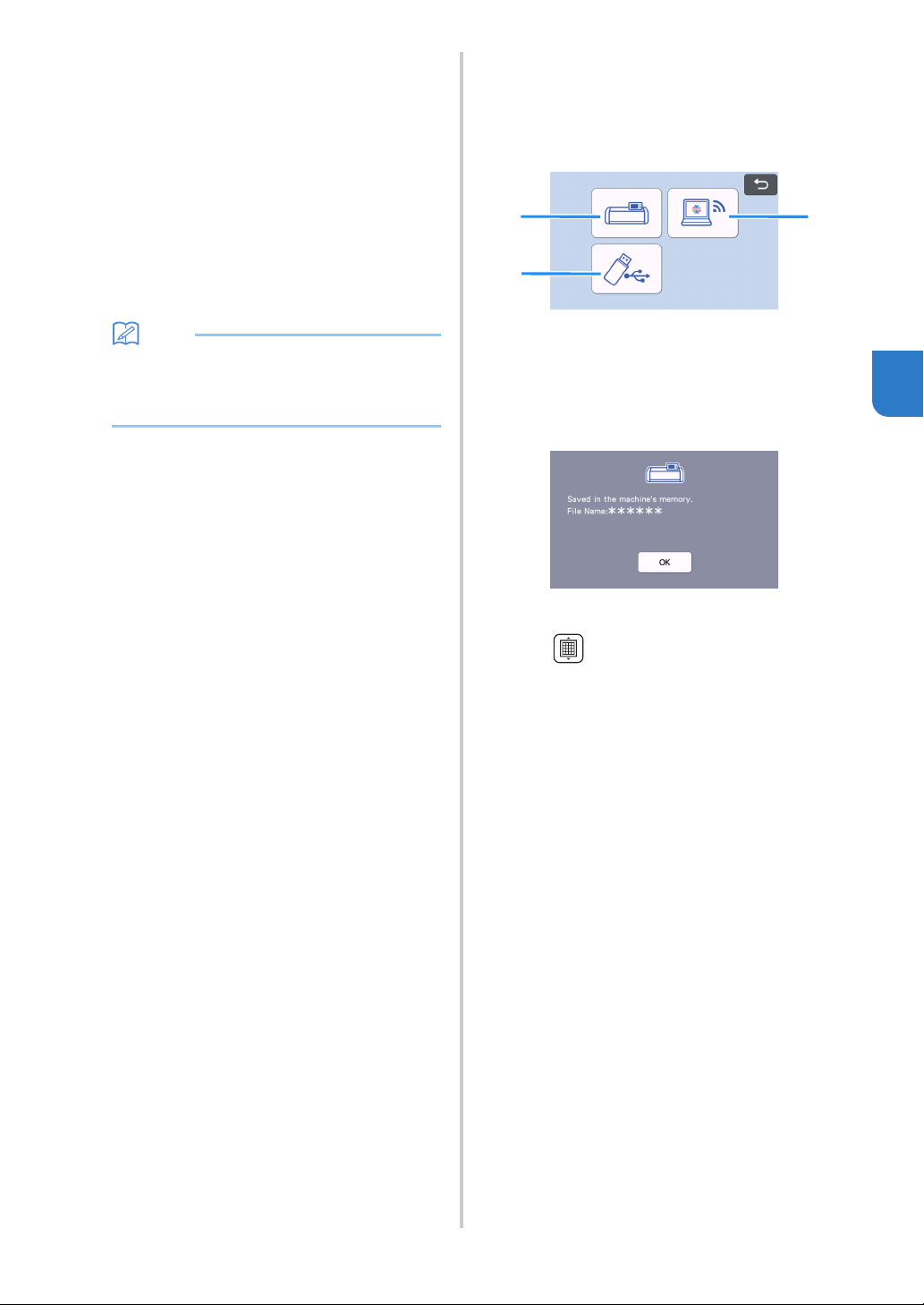
77
4
d Ignore Object Size Key
Small unnecessary patterns (dotted lines, etc.)
can be excluded from cutting data. For details,
see “Specifying “Ignore Object Size”” on
page 79.
e Smoothing Setting Key
Specify the level of smoothing applied to the
image outline. For details, see “Specifying
Smoothing” on page 80.
f OK Key
Touch the “OK” key to apply the settings. When
the number of colors is changed, the “OK” key
changes to the “Preview” key. After changing
the number of colors, touch the “Preview” key
to check the results.
Memo
• When making a stamp, for example, the image
may not be converted to cutting data if it
contains a gradation or areas that are only
partially filled with a color.
■ Saving Data
a Select the destination where the data will be
saved.
Select the desired location. For this example, select the
machine.
a Save to the machine’s memory.
b Save to the USB flash drive.
c Transfer to CanvasWorkspace.
Touching a key starts saving the data. When the
data has been saved, the following message
appears.
b Touch the “OK” key to finish saving the data.
c Press in the operation panel to feed out
the mat, and then peel off the original from the
mat.
c
b
a
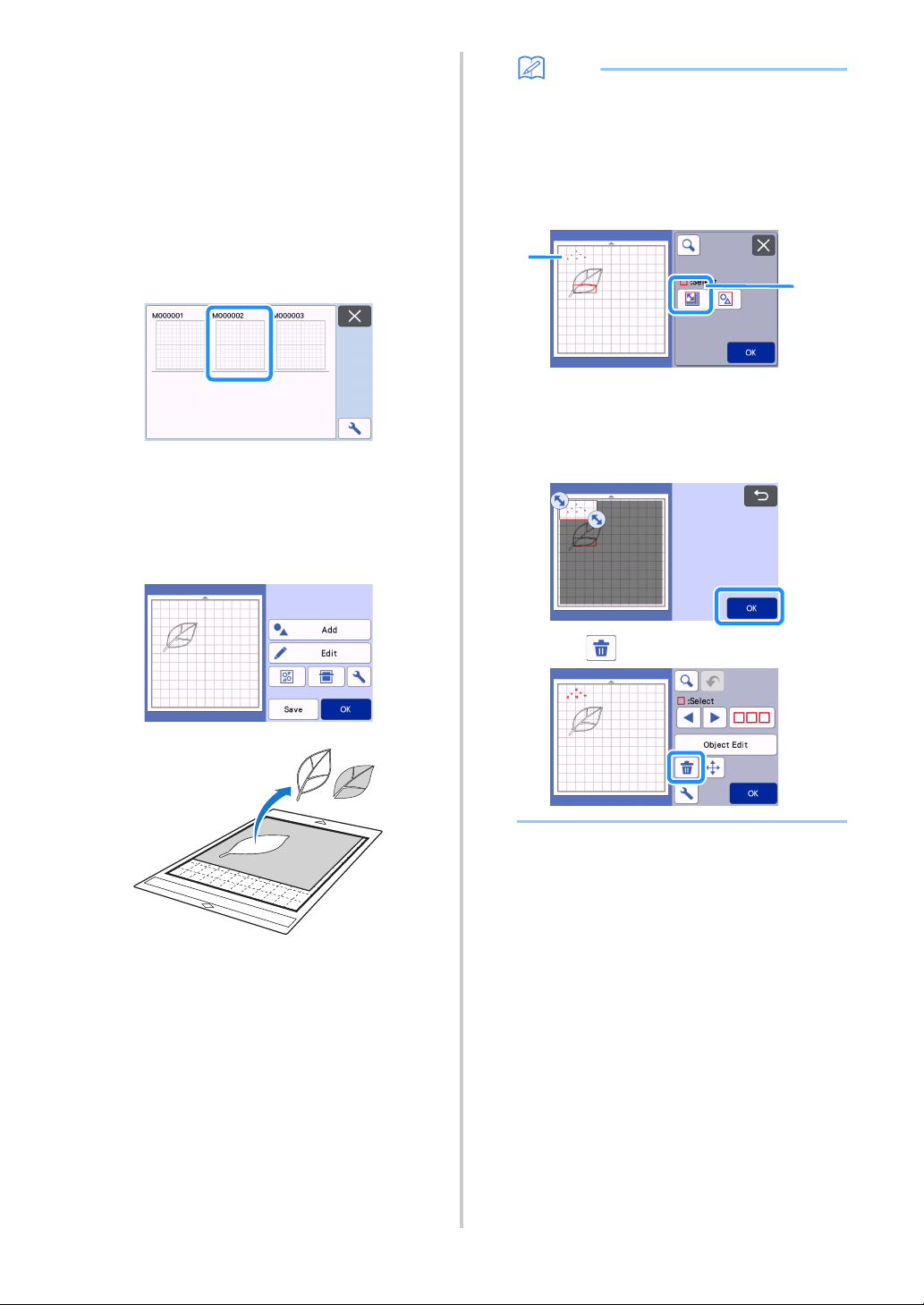
78
■ Retrieve Cutting Data
Saved cutting data can be retrieved for cutting.
a Attach the material for cutting to the mat, and
then load the mat.
• For details on attaching the material, see
“Attaching the Material to the Mat” on page 18.
• For details on loading the mat, see “Loading the
Mat” on page 28.
b Retrieve the saved cutting data.
• For details on retrieve data, follow the procedure
under “Retrieve Data” on page 65.
A preview of the pattern layout appears.
c Edit the cutting data as necessary, and then cut
or draw.
For details on finishing cutting, follow the procedures
under “Loading the Mat” on page 28 and “Cutting” on
page 28.
Memo
• Small spots and unwanted lines created during
scanning can be deleted after a scanned image
is converted to cutting data.
After recalling the cutting data into the mat layout
screen, use the editing functions for selecting the
spots to delete.
For details on the function, see “Specifying the
Selection Area” on page 42.
a Touch for selecting multiple patterns in the
specified area.
b Unwanted spots and lines
Specify the area of the unwanted spots, and then
touch the “OK” key.
Touch to delete all of the selected spots.
b
a
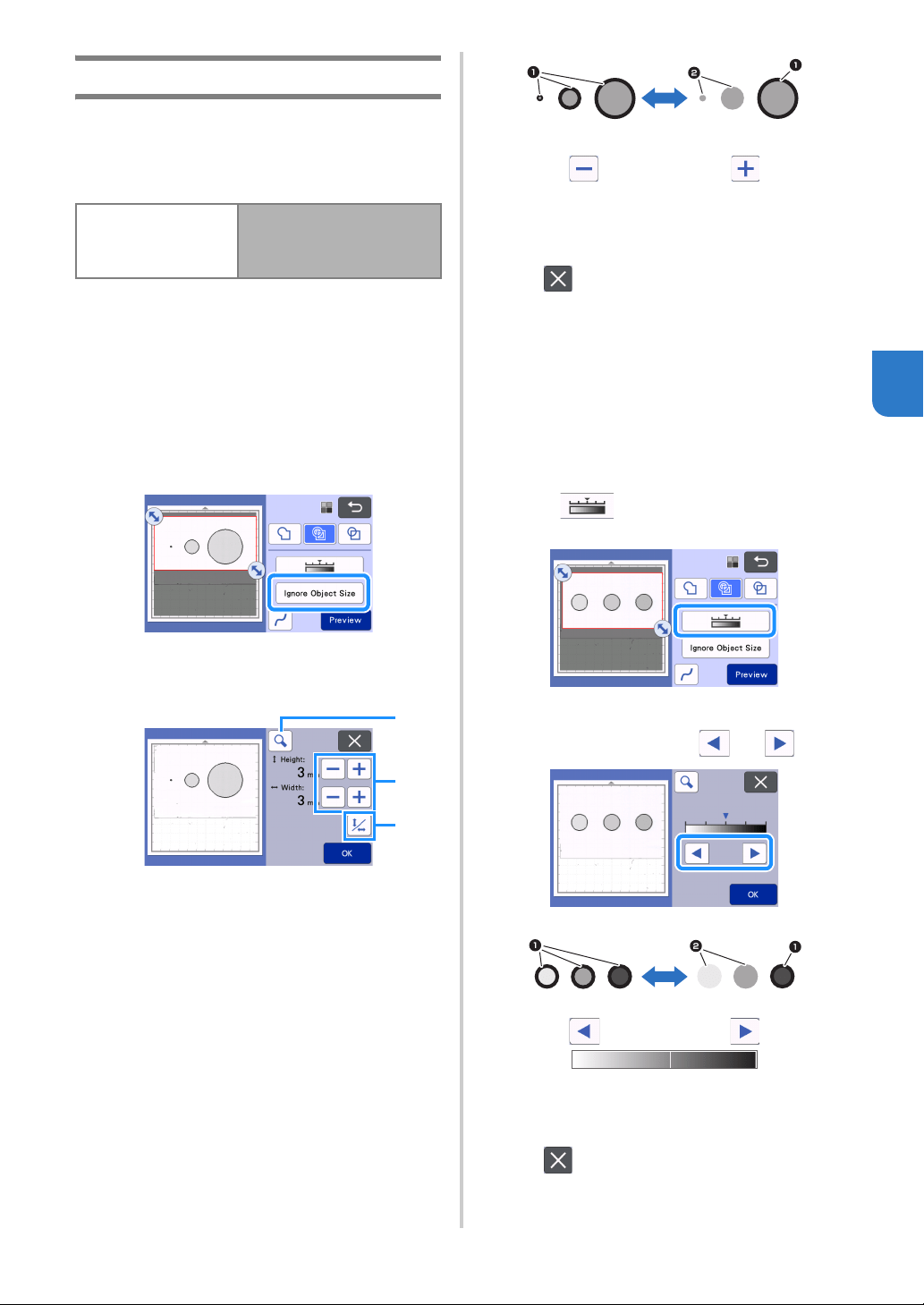
79
4
Adjusting Image Detection Levels
The output levels of the scanned image data can be
adjusted.
Available in the following screen
■ Specifying “Ignore Object Size”
Small unnecessary patterns (dotted lines, etc.) can be
excluded from cutting data. In the following example,
we will scan three images of different sizes (4 mm, 40
mm and 100 mm) and use the grayscale recognition
mode of the “Scan to Cut Data” mode.
a Select one of the detection options, and then
touch “Ignore Object Size” to display the
setting screen.
b Specify an object size smaller than which is not
to be converted to cutting lines.
a Magnifying
b Size Adjustment Keys
c Locking/Unlocking the Aspect Ratio
1 Cutting line created
2 No cutting line created
Touch the “OK” key to apply the settings. Touch
to return to the previous screen without
applying the settings.
■ Setting Image Detection Level
(Grayscale recognition mode only)
Convert an image with a gradation or shading to a two-
tone (black and white) image, and then create cutting
lines for that image. The image detection level
(threshold) can be specified.
In the following example, we will scan three images of
different tones (light, medium, dark).
a Touch in the function selection screen
to display the setting screen.
b Specify the threshold for converting an image
to a two-tone image using and .
1
Cutting line created
2 No cutting line created
Touch the “OK” key to apply the settings. Touch
to return to the previous screen without
applying the settings.
Image editing screen
Tutorial 5; Step
a
(page 75)
in “Grayscale recognition
mode” or Step
c
(page 76) in
“Color recognition mode”
b
a
c
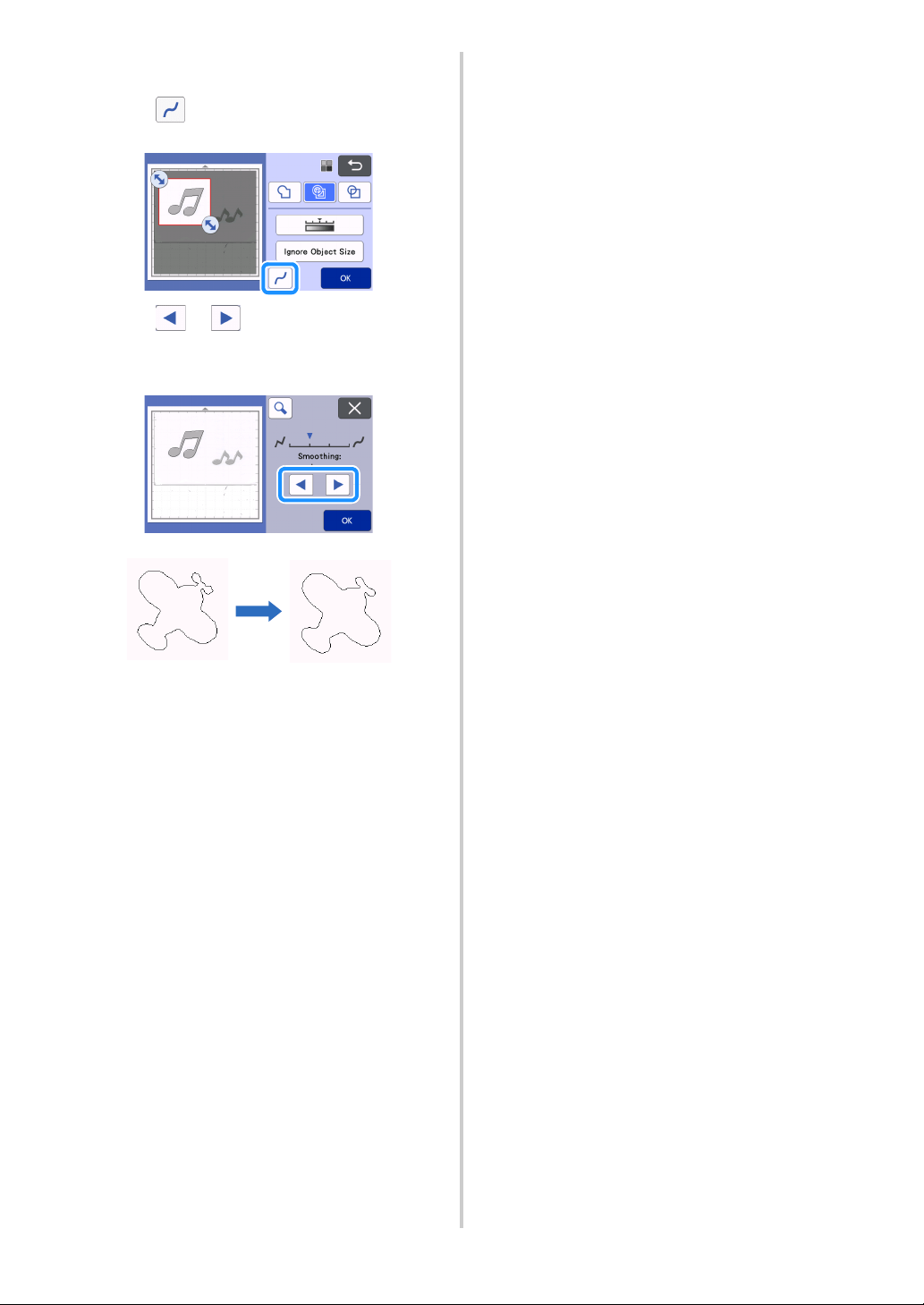
80
■ Specifying Smoothing
Curves and corners in the image can be smoothed out.
a Touch in the function selection screen to
display the smoothing setting screen.
b Touch or to specify the setting.
• Four settings are available: OFF, Low, Middle and
High. Setting to “Low” is suitable for smoothing the
corner and straight line.
OFF Middle
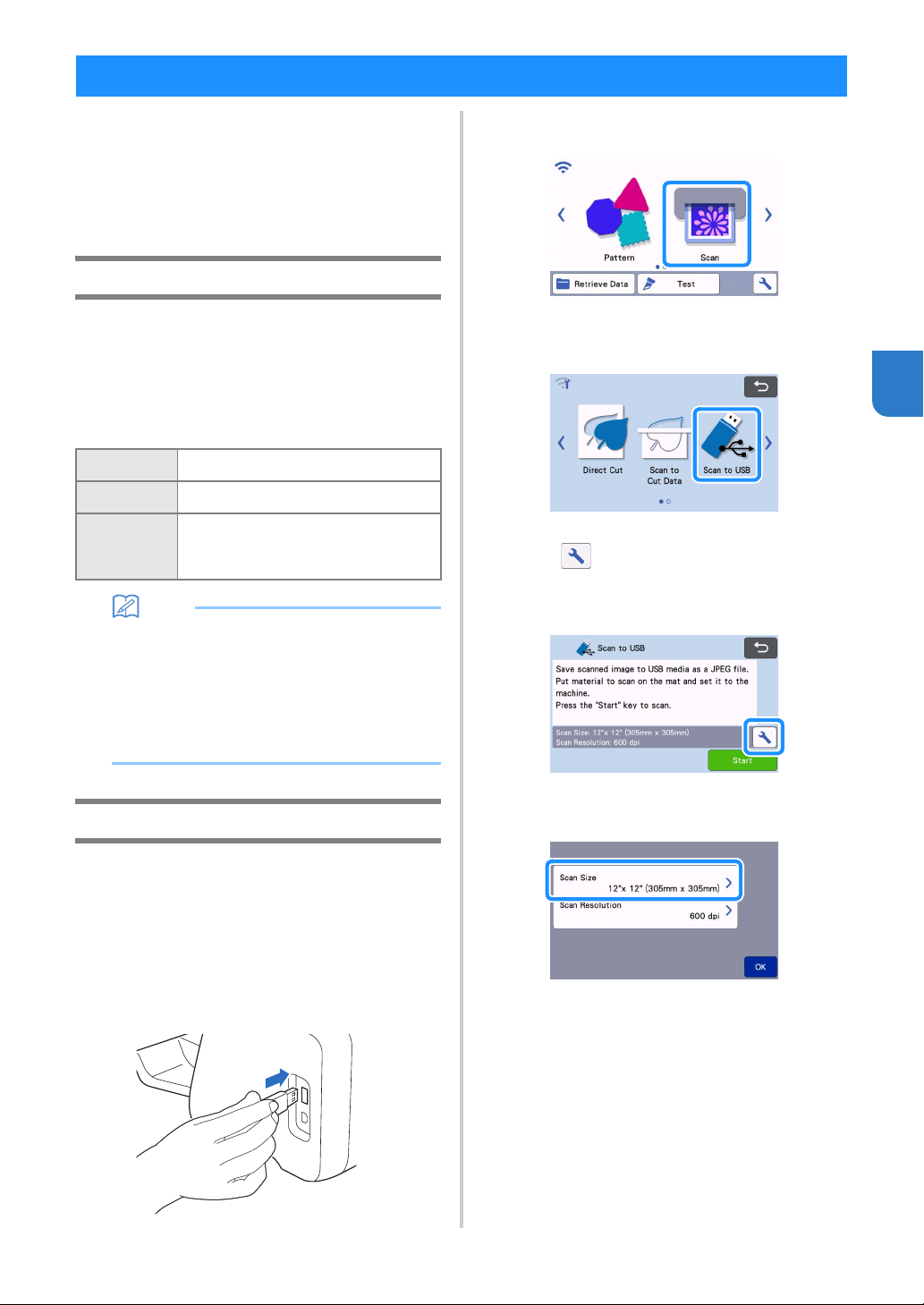
81
4
A pattern printed on paper or fabric, an image, a
pattern template or an original hand-drawn
illustration can be scanned and saved as image data
on a USB flash drive.
This is useful for saving the data of an original image
as backup before cutting.
Notes on Scanning
■ Scanning Specifications
• Scanning format: Color
• Saved file format: jpg
■ Material That Can be Scanned
Memo
• Depending on the machine model, the sizes of
mats that can be used will differ. Check the
“Maximum Scanning Area” under “Machine
Information” of the settings screen (page 12).
• Optional scanning mat can be used without
attaching the material as the scanning mat can
secure the material by inserting the material
between the sheet and the mat.
Tutorial 6 - Scanning to USB
In this tutorial, we will save an illustration drawn on
paper as JPEG data to a USB flash drive.
■ Scan Settings
a Insert the USB flash drive into the USB port (for
a USB flash drive) on this machine.
b Touch the “Scan” key in the home screen to
select the scanning mode.
c Select “Scan to USB” in the scanning mode
selection screen.
A message appears.
d Touch to display the scanning settings
screen.
Specify the size of the area to be scanned and the
scanning resolution.
e Touch the “Scan Size” button to display the
scanning size settings screen.
SCANNING IMAGES (Scan to USB)
Thickness
Max. 3 mm
Type
Paper/Fabric
Mat
Mat suitable for the material (See
“Reference Table of Mat, Blade and
Material Combinations” on page 15.)
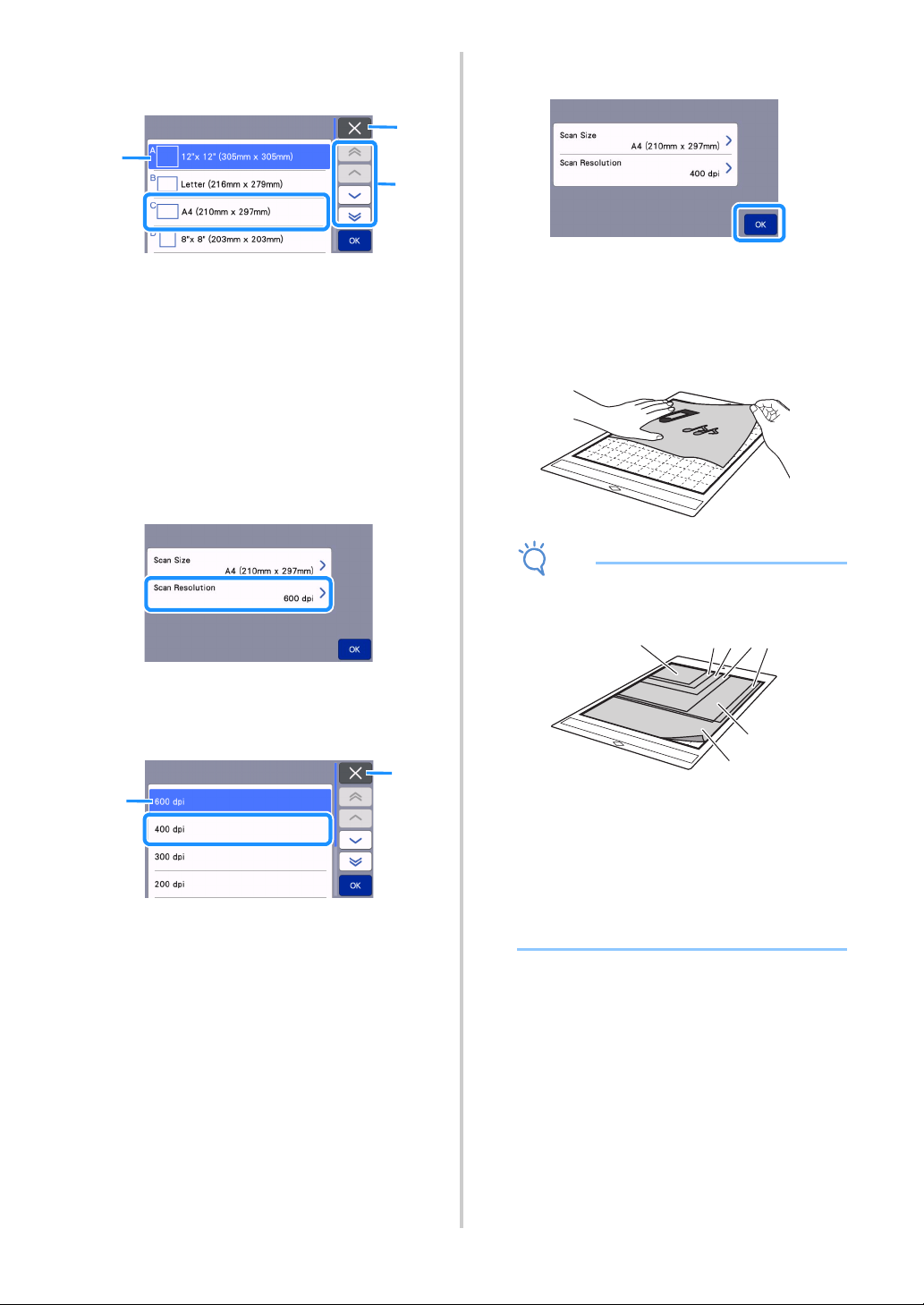
82
f Select the size of the scanning area.
From the list, touch the key for the size of the original
to be scanned. For this example, select the A4 size.
a Size selection keys
b Touch to cancel the setting and return to the
previous screen.
c Touch to scroll through the list.
After the selected key is highlighted, touch the
“OK” key to finish specifying settings.
• Select “Custom”, and then touch the “OK” key to
specify the desired scanning area. For details, see
“Selecting the Area to be Saved” on page 83.
g Touch the “Scan Resolution” button to display
the scanning resolution settings screen.
hSelect the scanning resolution.
From the list, touch the key for the scanning
resolution. For this example, select 400 dpi.
a Resolution selection keys
b Touch to cancel the setting and return to the
previous screen.
After the selected key is highlighted, touch the
“OK” key to finish specifying settings.
i Check the settings, and then touch the “OK”
key.
A message appears.
■ Scanning and Saving
a Attach the original that will be scanned to the
mat.
Note
• Place the original to be scanned so that it is in
the landscape orientation.
a 12" × 12" (305 mm × 305 mm)
b Letter (216 mm × 279 mm)
c A4 (210 mm × 297 mm)
d 8" × 8" (203 mm × 203 mm)
e 5" × 7" (127 mm × 178 mm)
f 4" × 6" (102 mm × 152 mm)
g 3.5" × 5" (89 mm × 127 mm)
b Load the mat into the feed slot.
For details on loading the mat, see “Loading the Mat”
on page 28.
c Touch the “Start” key to start scanning.
• When the scanner lever is raised, a confirmation
message appears. For details, see step
g in
“Scanning” of “Tutorial 4 - Scanning and Cutting”
on page 67.
The data is saved at the same time that the
original is being scanned.
When scanning and saving is finished, the
completion message appears.
b
a
c
a
b
a
b
c
d
e
f
g
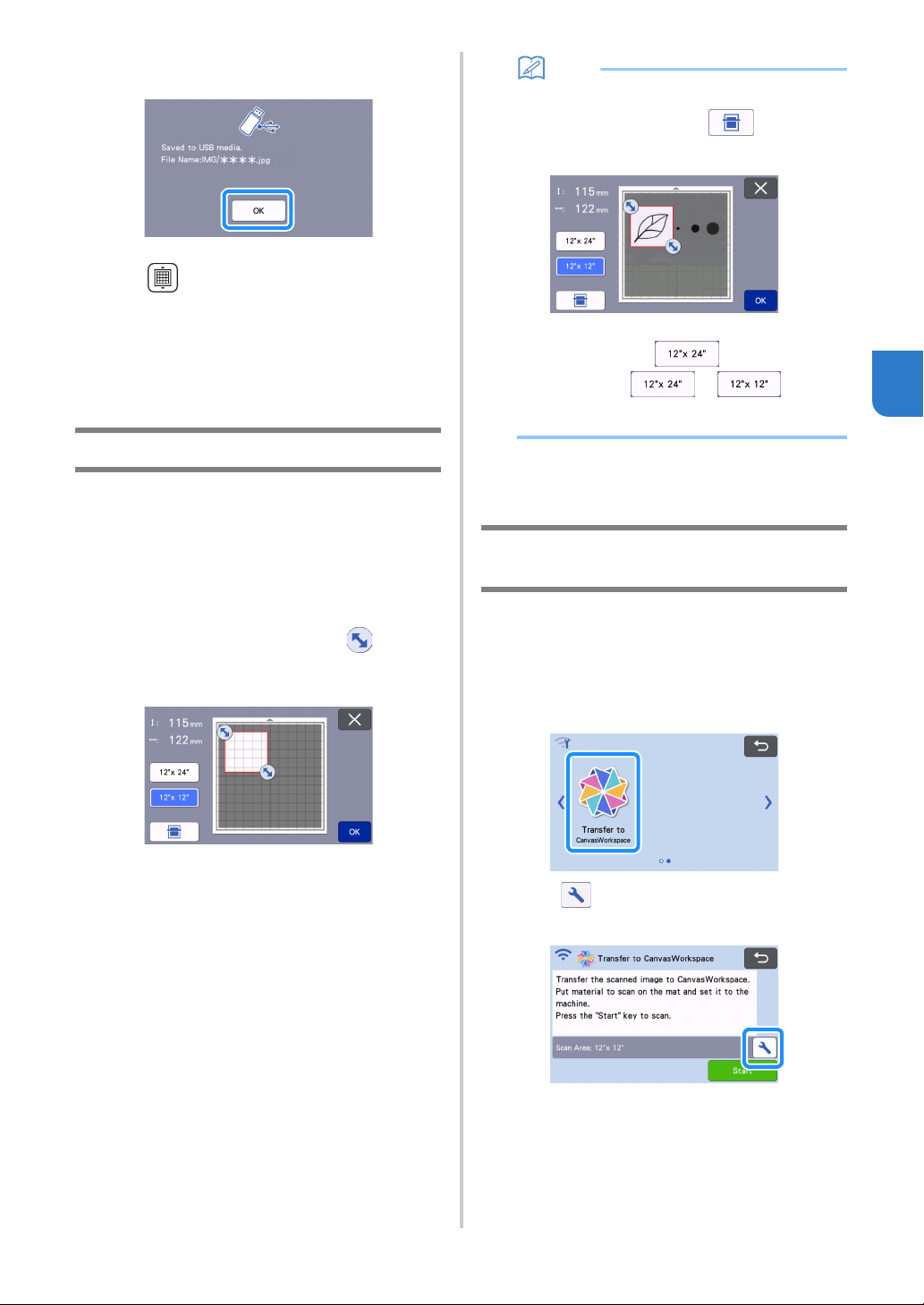
83
4
d Touch the “OK” key to exit “Scan to USB”
mode.
e Press in the operation panel to feed out
the mat.
f Remove the USB flash drive from the USB port
(for a USB flash drive) on this machine.
g From a computer, check the saved image data.
Selecting the Area to be Saved
When saving a scanned image to a USB flash drive,
the desired scanning area can be specified.
a Follow steps a through e in “Scan Settings”
of “Tutorial 6 - Scanning to USB” on page 81.
b Select “Custom”, and then touch the “OK” key.
c Using the touch pen (stylus), drag to select
the scanning area, and then touch the “OK”
key.
• The scanning area (white area) can also be dragged
to move it.
Memo
• Load the mat with the original to be scanned
attached, and then touch to display the
mat in the screen. The scanning area can be
selected while viewing the displayed image.
• On models compatible with 24-inch scanning,
the mat size key ( ) appears. (Touch a
mat size key ( or ) to
specify a mat size of 12" × 12” (305 mm ×305
mm) or 12" × 24” (305 mm × 610 mm).)
d Continue from step g in “Scan Settings” of
“Tutorial 6 - Scanning to USB”.
Transferring an Image to
CanvasWorkspace
An image scanned with the machine can be sent to
CanvasWorkspace. This is useful for saving data or
editing the image in CanvasWorkspace.
a Select “Transfer to CanvasWorkspace” in the
scanning mode selection screen.
b Touch to display the scanning settings
screen.
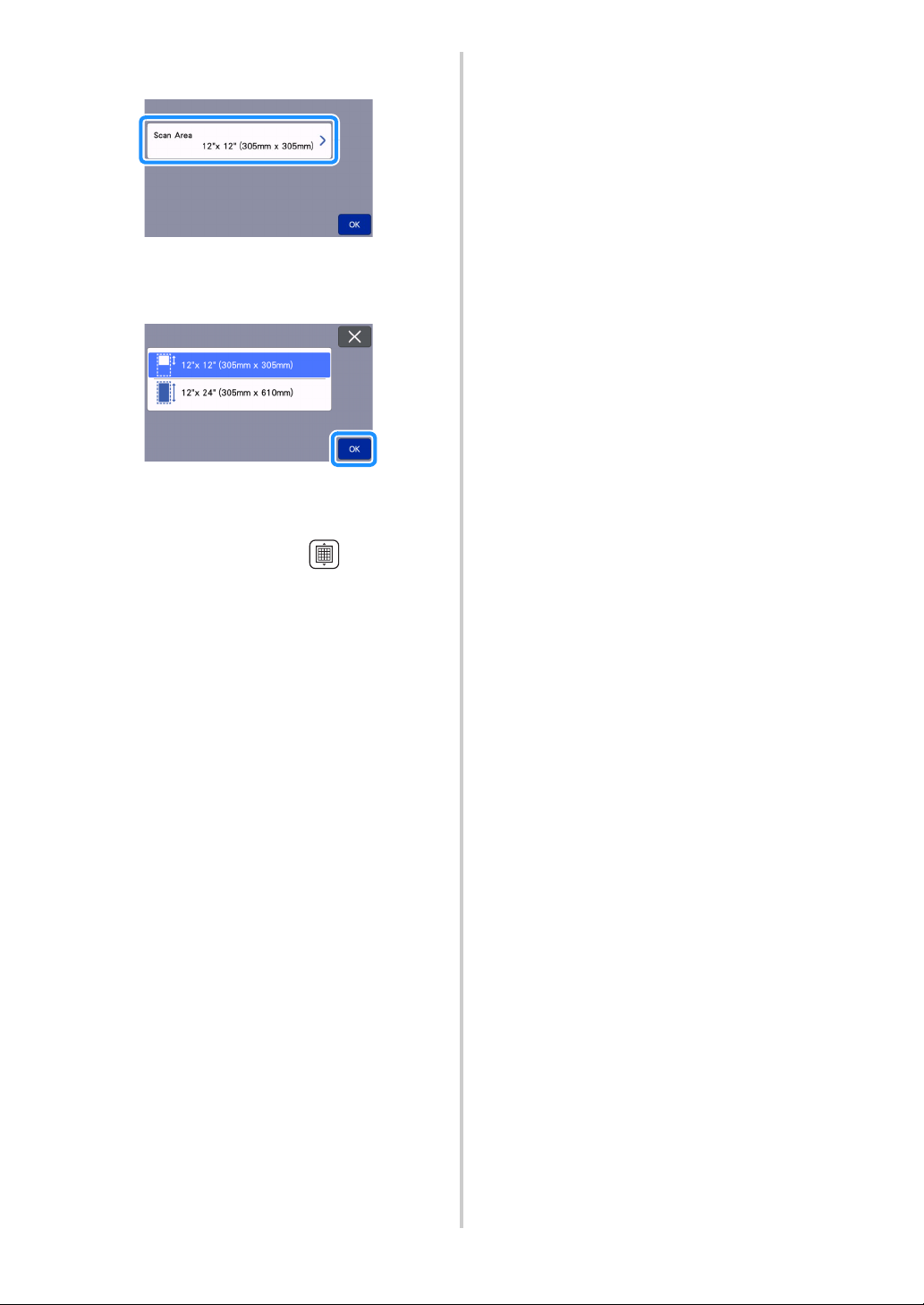
84
c Touch the “Scan Area” button to display the
scanning area settings screen.
d Select the size of the scanning area.
After the selected key is highlighted, touch the
“OK” key to finish specifying settings.
e Attach the material to be scanned onto the mat.
f While holding the mat level, lightly insert it into
the feed slot, and then press in the
operation panel.
• For details, see “Loading the Mat” on page 28.
g Touch the “Start” key to start scanning.
• When the scanner lever is raised, a confirmation
message appears.
For details, see step
g in “Scanning” of “Tutorial 4
- Scanning and Cutting” on page 67.
For details on checking data saved in
CanvasWorkspace, refer to the Help for
CanvasWorkspace.
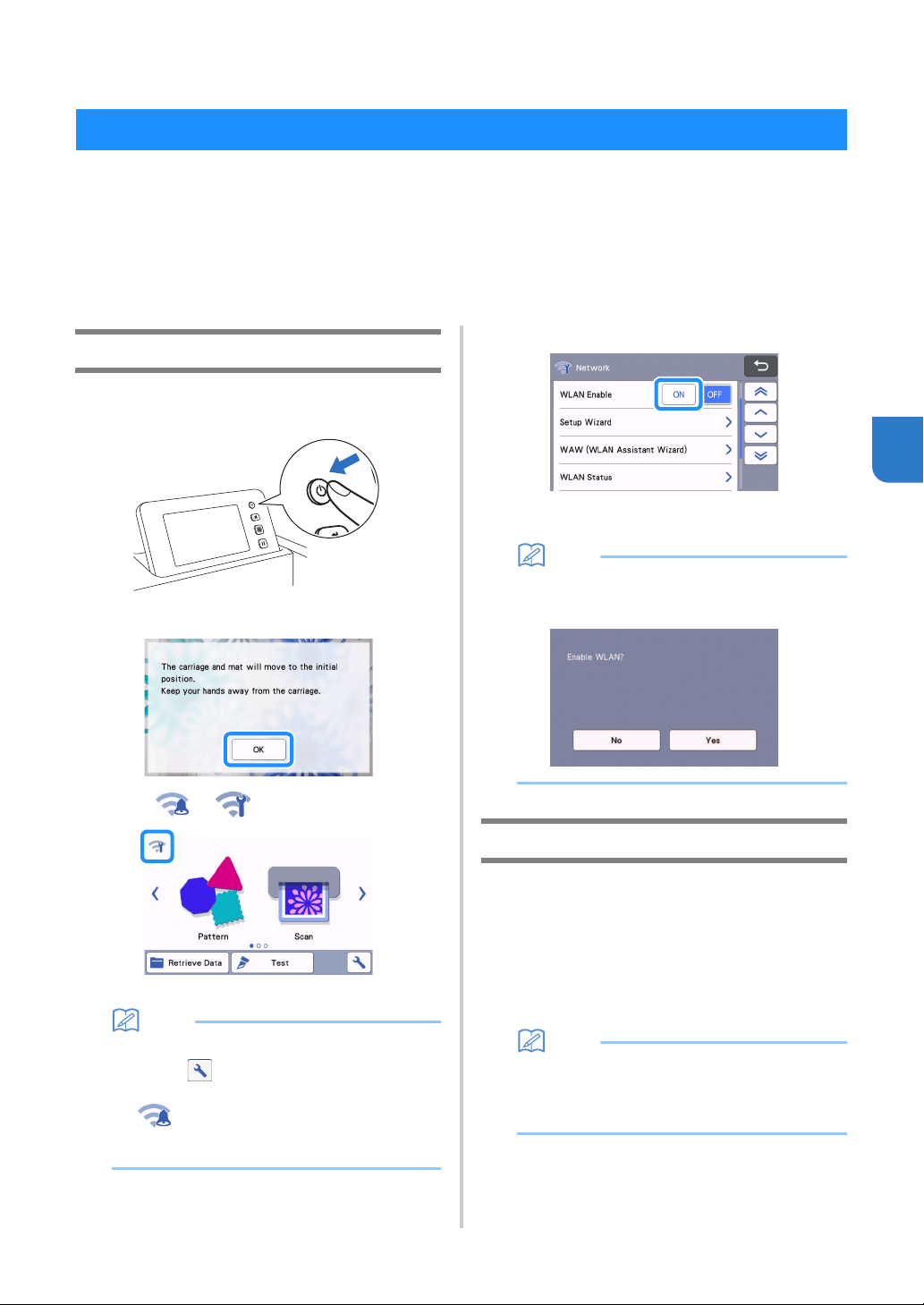
85
5
Chapter 5
WIRELESS NETWORK CONNECTION FUNCTION
This machine is equipped with a wireless network connection function. For the method for setting the wireless
network connection, see the following explanation.
1. Enable the machine’s wireless network function and connect to the internet.
2. Register the machine on CanvasWorkspace.
* When using CanvasWorkspace, a CanvasWorkspace login ID is required. If you don’t have a free account, perform
a new registration from <http://CanvasWorkspace.Brother.com>.
Enable the Wireless Network Function
a Turn on the machine.
When the following message appears, touch the
“OK” key.
b Touch or in the home screen.
The network settings screen appears.
Memo
• Another way to access the “Network” menu is
to click located at the bottom of the home
screen.
• is displayed by default. Follow the on-
screen instructions to proceed to the network
settings screen.
c Select “ON” for “WLAN Enable”.
Your machine will begin to emit the wireless
network signal.
Memo
• Another way to turn “ON” the “WLAN Enable” is
by selecting “Yes” when the message below
appears in the “Setup Wizard”.
Set up the Wireless Network
Wireless LAN connection can be set up by using the
wizard (recommended) or alternative method.
■ Requirements for the wireless
network connection
The wireless network connection complies with IEEE
802.11 n/g/b standards and uses the 2.4 GHz frequency.
Memo
• A wireless network cannot be set up with WPA/
WPA2 Enterprise. For the authentication
methods your machine supports, see “Err-03”
on page 117.
Machine Wireless Network Connection Settings
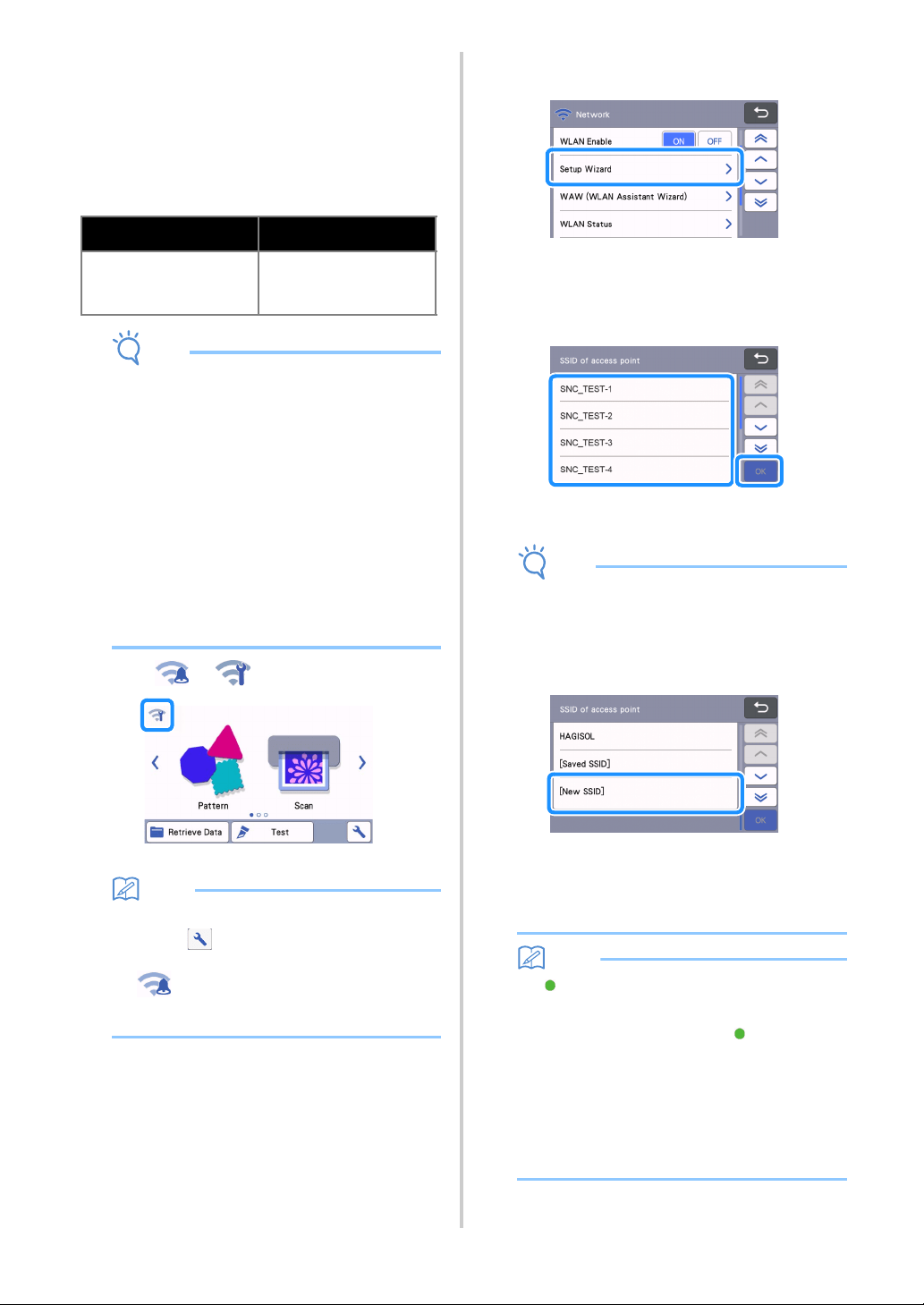
86
■ Connect Using Setup Wizard
(Recommended)
a The Wireless Network Name (SSID) & Network
Password (KEY)* are required to connect your
machine to a wireless network.
* Network Password is also described as the
Network Key, Security Key, or Encryption Key.
Note
• If you do not know this information (Network
Name (SSID) and Network Password (Key)), you
cannot continue the wireless setup.
• How can I find this information?
1) You should see the documentation provided
with your wireless access point/router.
2) The default Network Name (SSID) could be
the manufacturer’s name or the model
name.
3) If you do not know the security information,
please consult the router manufacturer, your
system administrator, or internet provider.
4) Some Wireless Network Name (SSID) and
Network Password (Key) are case (upper
case and lower case) sensitive. Please
properly record your information.
b Touch or in the home screen.
The network settings screen appears.
Memo
• Another way to access the “Network” menu is
to click located at the bottom of the home
screen.
• is displayed by default. Follow the on-
screen instructions to proceed to the network
settings screen.
c Under “Network” settings screen as shown
below, touch “Setup Wizard”.
Available Network Name (SSID) will be
displayed.
d Select your Network Name (SSID), and then
touch the “OK” key.
The screen for entering the Network Password
(Key) appears.
Note
• If the desired Network Name (SSID) is not
displayed, specify it as described below.
1) Select “[New SSID]”, and then touch the
“OK” key.
* “[New SSID]” appears at the bottom of the
list of detected SSIDs.
2) Type in the desired Network Name (SSID),
and then touch the “OK” key.
3) Specify the authentication method and
encryption mode and then touch the “OK”
key.
Memo
• appears beside a previously connected
network from the list of available networks.
Since the Network Password (Key) has been
saved for the network beside , a connection
to that network can be re-established without
having to re-enter the connection information
(Network Password, etc.).
• The previously entered Network Password
(Key) for a maximum of 12 connections are
saved with “[Saved SSID]”. Touch the “[Saved
SSID]” key to display the connection
information.
Network Name (SSID)
Network Password
(Network Key)
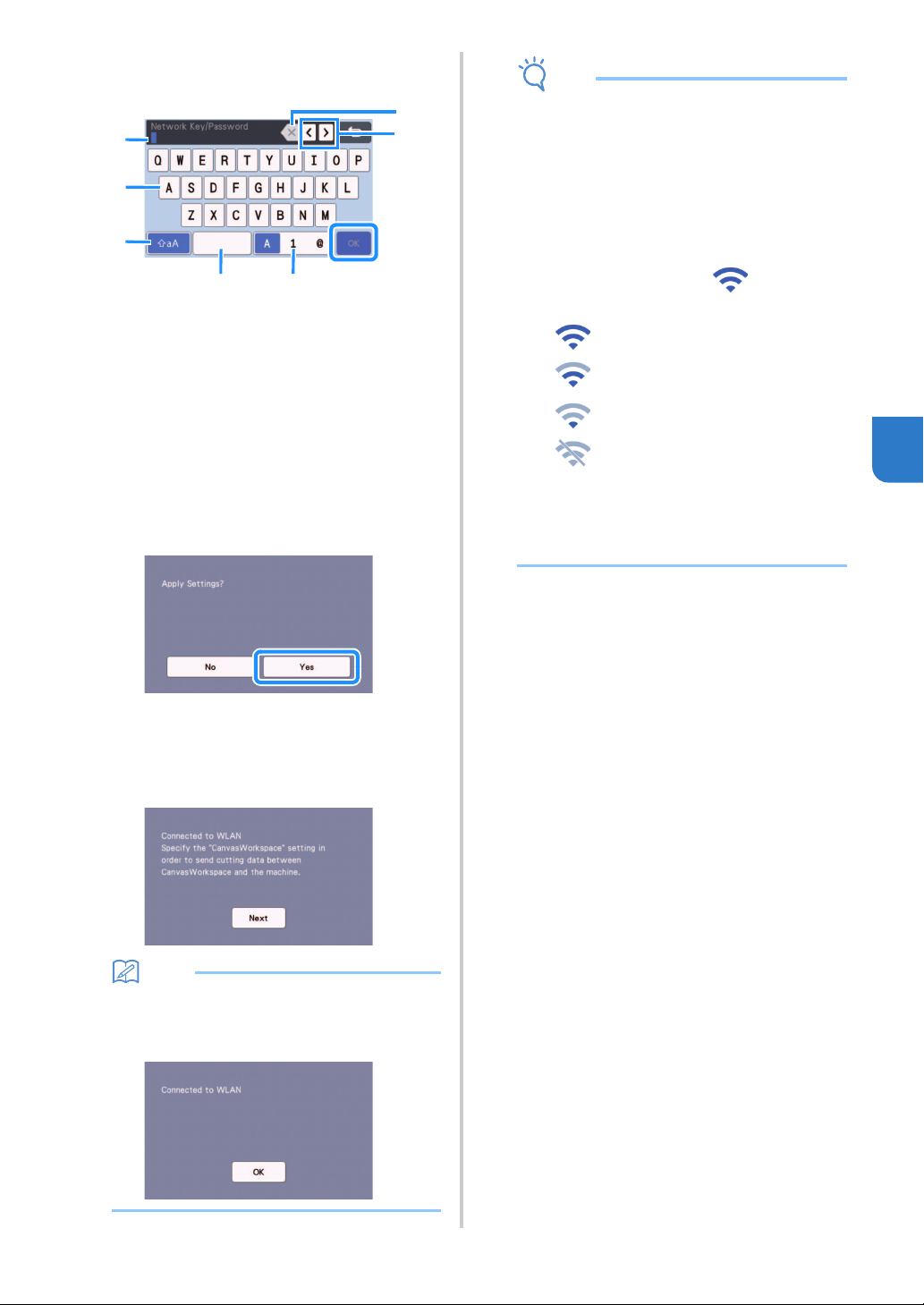
87
5
e Type in the Network Password (Key) noted in
step
a, and then touch the “OK” key.
a Character input display
b Character keys
c Uppercase/lowercase selection key
d Space key
e Letter/number/special character selection key
f Backspace key (Deletes the character at the
cursor’s position.)
g Cursor keys (Move the cursor to the left or
right.)
f When the message shown below appears, touch
the “Yes” key.
The following screen appears when a connection
is established.
Touch the “Next” key, and then continue with
“Register Machine Under CanvasWorkspace” on
page 89.
Memo
• If you have already completed the machine
registration under CanvasWorkspace, the
following screen appears. Touch the “OK” key
to complete the wireless network setup.
Note
• If a connection was not successfully
established:
- If the message “Wrong Network Key: Err-04”
appeared, the Network Password (Key) may
have been entered incorrectly. Touch the
“OK” key, and then repeat the procedure
from step
c of “Connect Using Setup
Wizard (Recommended)” on page 86.
- For details on other causes, see page 116.
• While connected, the strength of the signal is
indicated by the blue icon in the upper-
left corner of screens such as the home screen.
• After your wireless network has been set up,
your machine will connect to the wireless
network each time the machine is turned on.
However, “WLAN Enable” in the network
settings screen must remain set to “ON”.
■ Connect Using “WLAN Assistant
Wizard” (WAW).
The wireless network can be set up using the dedicated
application “WLAN Assistant Wizard” (WAW).
Download the application from
http://s.brother/cuoad/, and then follow the instructions
that appear in the computer screen in order to complete
the setup.
After a connection is established, touch the “Next” key,
and then continue with “Register Machine Under
CanvasWorkspace” on page 89.
g
a
b
c
f
d
e
:
Strong signal
:
Medium signal
:
Weak signal
:
No signal
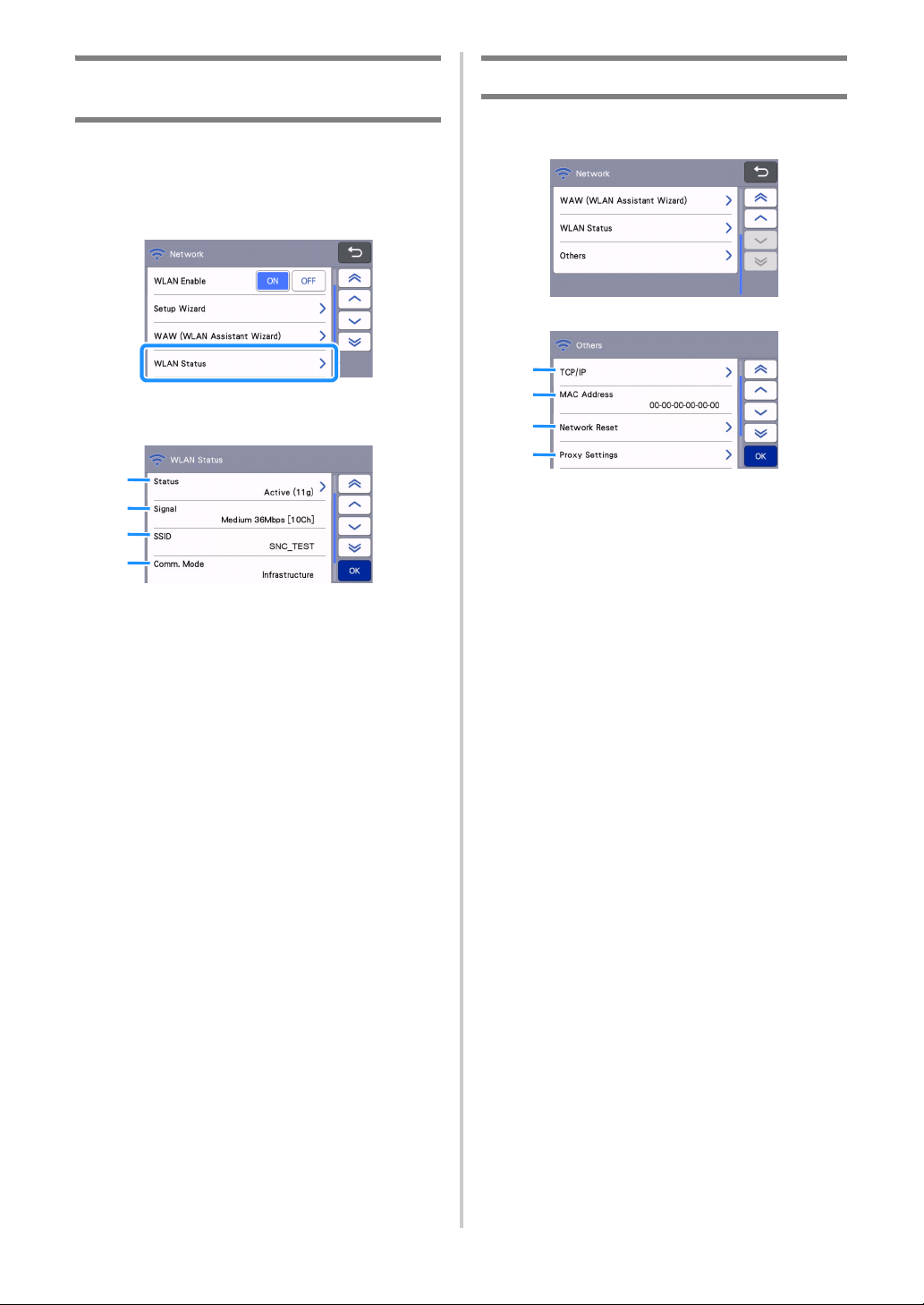
88
Check the Wireless Network Setup/
Status
Follow these instructions when you can’t establish
the wireless network connection.
a Under “Network” settings screen as shown
below, touch “WLAN Status”.
The wireless network connection status, protocol,
signal strength and Network Name (SSID) are
displayed.
a Displays the connection status.
When “Active (xxx)” is indicated:
The machine is connected to a wireless
network. The characters within the parentheses
indicate the protocol of the wireless network
being used.
When “Connection Fail: Err-xx” is indicated:
The machine failed to establish a connection.
“Err-xx” indicates the error number. See error
codes on page 116.
b Displays the wireless signal strength;
communication speed and channel being used.
c Displays the Network Name (SSID).
d Displays the communication mode. The
communication mode is fixed to the
infrastructure mode.
Using the “Others” Menu
The “Others” menu is at the bottom of the network
settings screen.
The “Others” menu contains the following items.
a TCP/IP can be manually entered.
b Displays the MAC address.
c All applied network settings will be reset to
manufacturers original settings when the
machine was purchased. Any information you
inputted will be removed (erased). After setting
this function, turn the machine off, then on
again.
d Use this when proxy settings are required.
a
b
c
d
a
b
c
d
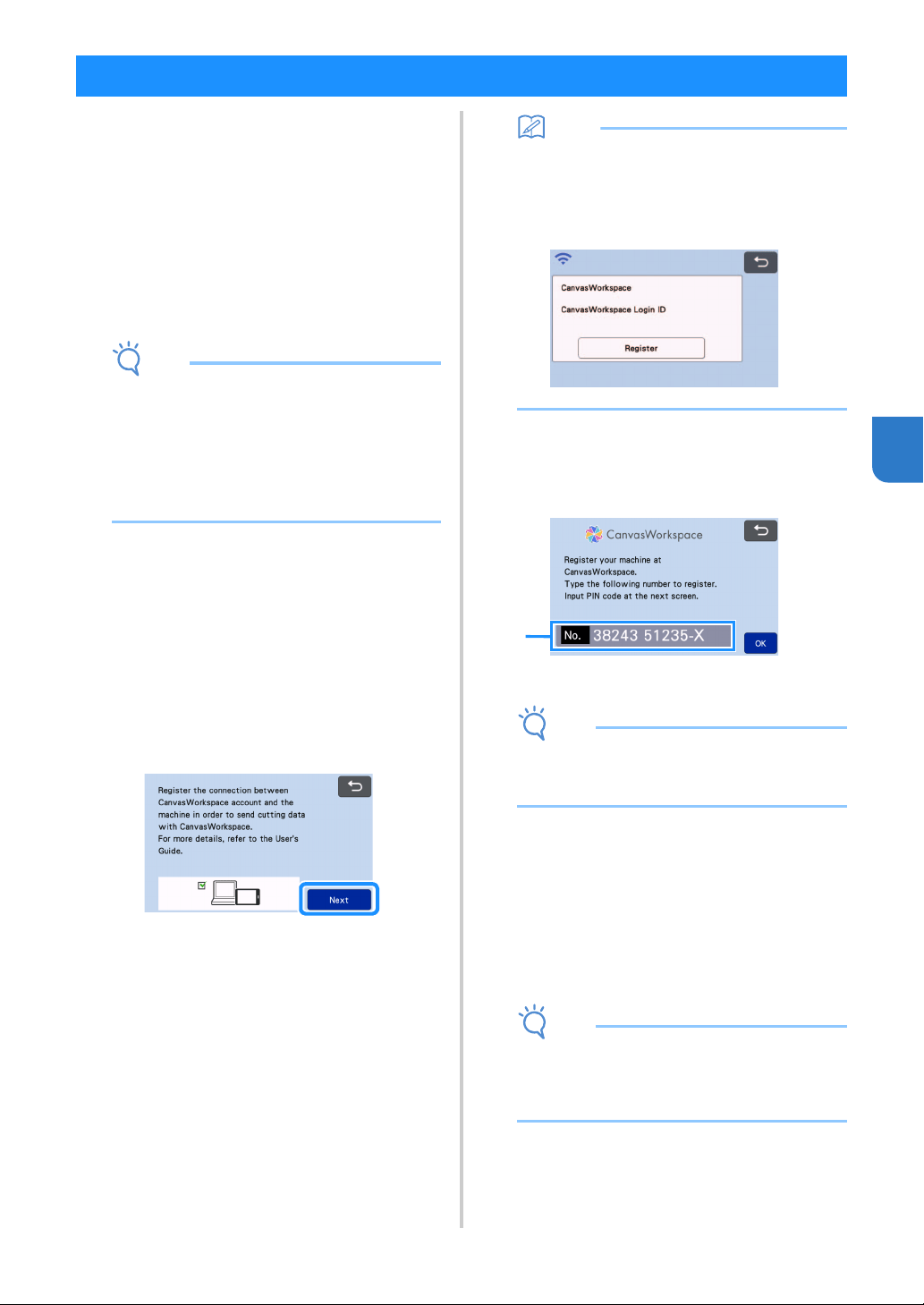
89
5
Once you have registered your machine under
CanvasWorkspace, you can now transfer data to and
from CanvasWorkspace and your machine.
This section describes the procedure for linking a
machine with a specific number to a
CanvasWorkspace login ID.
If the setup is not completed correctly and an error
message appears, see error codes and error messages
on page 114.
Note
• A computer that is connected to the network
and can run CanvasWorkspace is required.
• Before continuing with this procedure, setup for
the connection between your machine and
wireless network must be completed. If your
machine is not connected to the network, first
follow the procedure in “Machine Wireless
Network Connection Settings” on page 85.
In the following procedures, [MACHINE] indicates
operations performed from your machine, and
[COMPUTER] indicates operations performed in
CanvasWorkspace.
[MACHINE]
a The following screen message will appear after
the wireless network connection setup, once
you have completed reading the message touch
the “Next” key.
Memo
• If this procedure is stopped after the wireless
network connection has been set up, you can
register your machine with CanvasWorkspace
by touching the “CanvasWorkspace” key in the
settings screen, then touching the “Register”
key in the account registration screen.
b After the following screen, describing how to
obtain the PIN code, appears, leave the screen
displayed, and then continue with the next
[COMPUTER] operation.
a Machine number
Note
• Do not touch the “OK” key yet.
Your machine number appearing in the screen
will be used in the following step.
[COMPUTER]
The screens in the following descriptions are
those that appear when CanvasWorkspace is
opened on a computer.
c Open CanvasWorkspace Internet version
(http://CanvasWorkspace.Brother.com) on
your computer and then log in.
Note
• First time users should obtain a free account.
• If you already have an account with
CanvasWorkspace, you can use the same login
ID and password to login.
Register Machine Under CanvasWorkspace
a
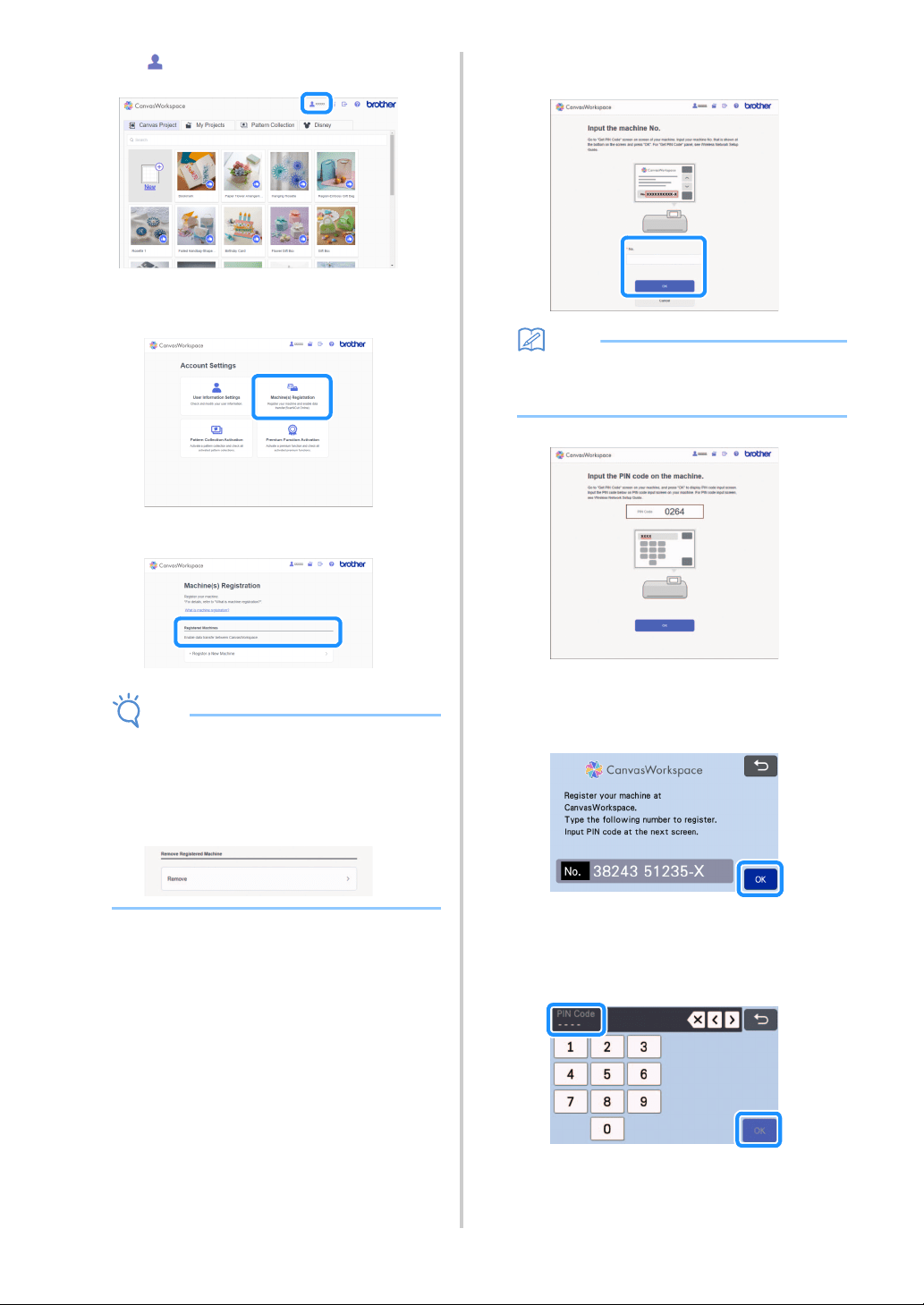
90
d Click in the upper-right corner of the screen.
The page for managing your account appears.
e Click “Machine(s) Registration”.
f Click “Register a New Machine”.
Note
• If the maximum amount of registered machines
has been reached, select the registered
machine that you are not using and click
“Remove” in the “Registered Machine
Information” screen, and then register the new
machine.
g Type in your machine number, and then click
the “OK” button.
Memo
• Your machine number appears on your
machine in the screen shown in step
b
describing how to obtain the PIN code.
A four-digit PIN code appears in the screen.
[MACHINE]
hTouch the “OK” key.
The PIN code input screen appears.
i Type in the four-digit PIN code that appeared
in the CanvasWorkspace screen, and then
touch the “OK” key.
The following screen appears.
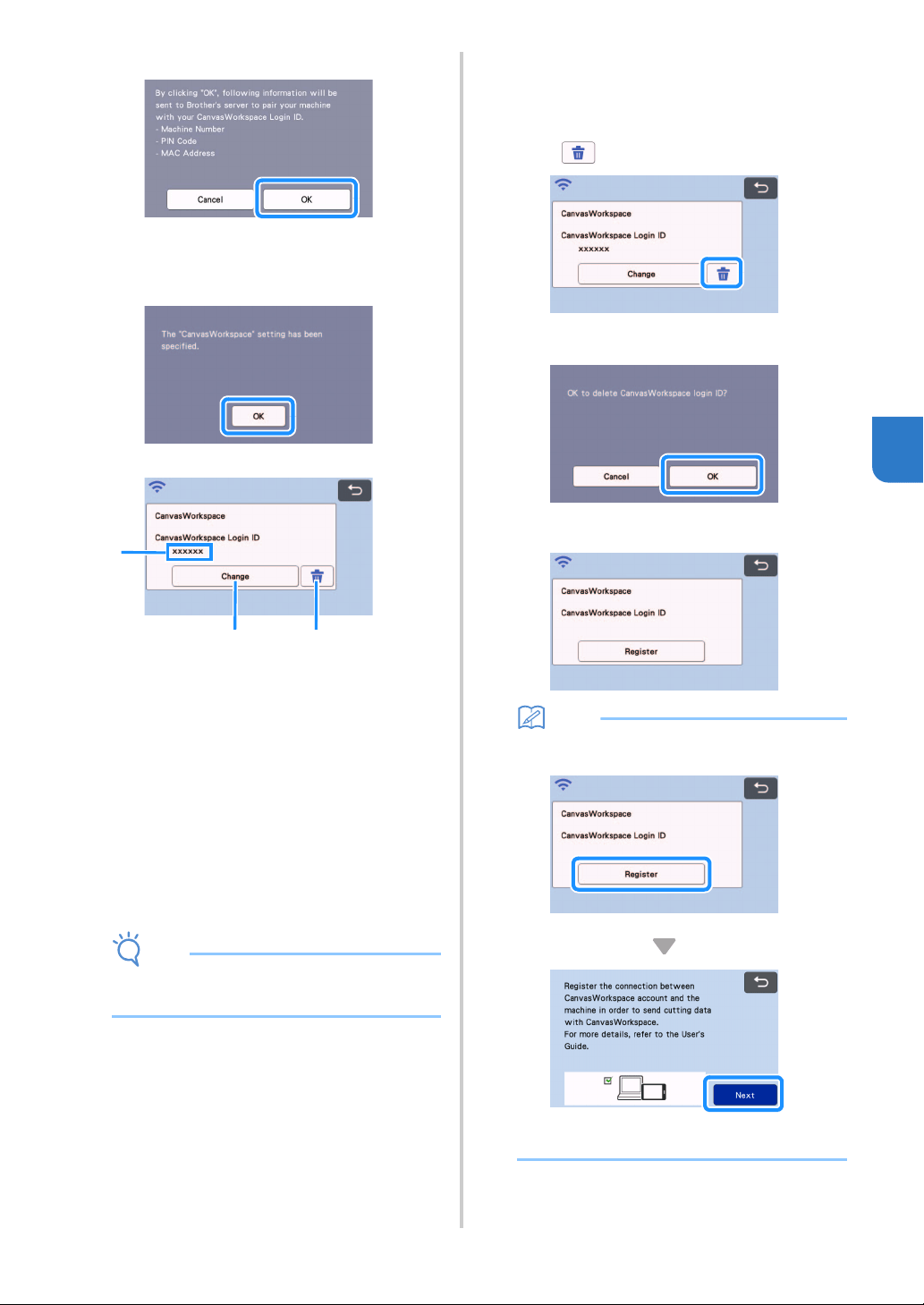
91
5
j Touch the “OK” key.
The machine information is transferred to the
server.
k Touch the “OK” key.
The account registration screen appears.
a CanvasWorkspace login ID linked to your
machine
b Touch this key to link your machine with a
different CanvasWorkspace login ID. Then
perform the registration operation again,
referring to “Register Machine Under
CanvasWorkspace” on page 89.
c Touch this key to delete the currently linked
CanvasWorkspace login ID. For the detail, refer
to “Deleting the linked CanvasWorkspace login
ID” on page 91.
This completes the registration of your machine with
CanvasWorkspace.
Note
• If an error occurs while transferring data, refer
to “ERROR MESSAGES” on page 114
For details on transferring data between
CanvasWorkspace and your machine, refer to
“Transferring an Image to CanvasWorkspace” on
page 83.
■ Deleting the linked
CanvasWorkspace login ID
To completely delete a linked CanvasWorkspace login
ID from the machine, follow the procedure below.
a Touch .
b Touch the “OK” key.
The CanvasWorkspace login ID is deleted, and
the following screen appears.
Memo
• Touch the “Register” key to register your
machine with CanvasWorkspace again.
For details on the procedure, refer to “Register
Machine Under CanvasWorkspace” on page 89.
a
bc
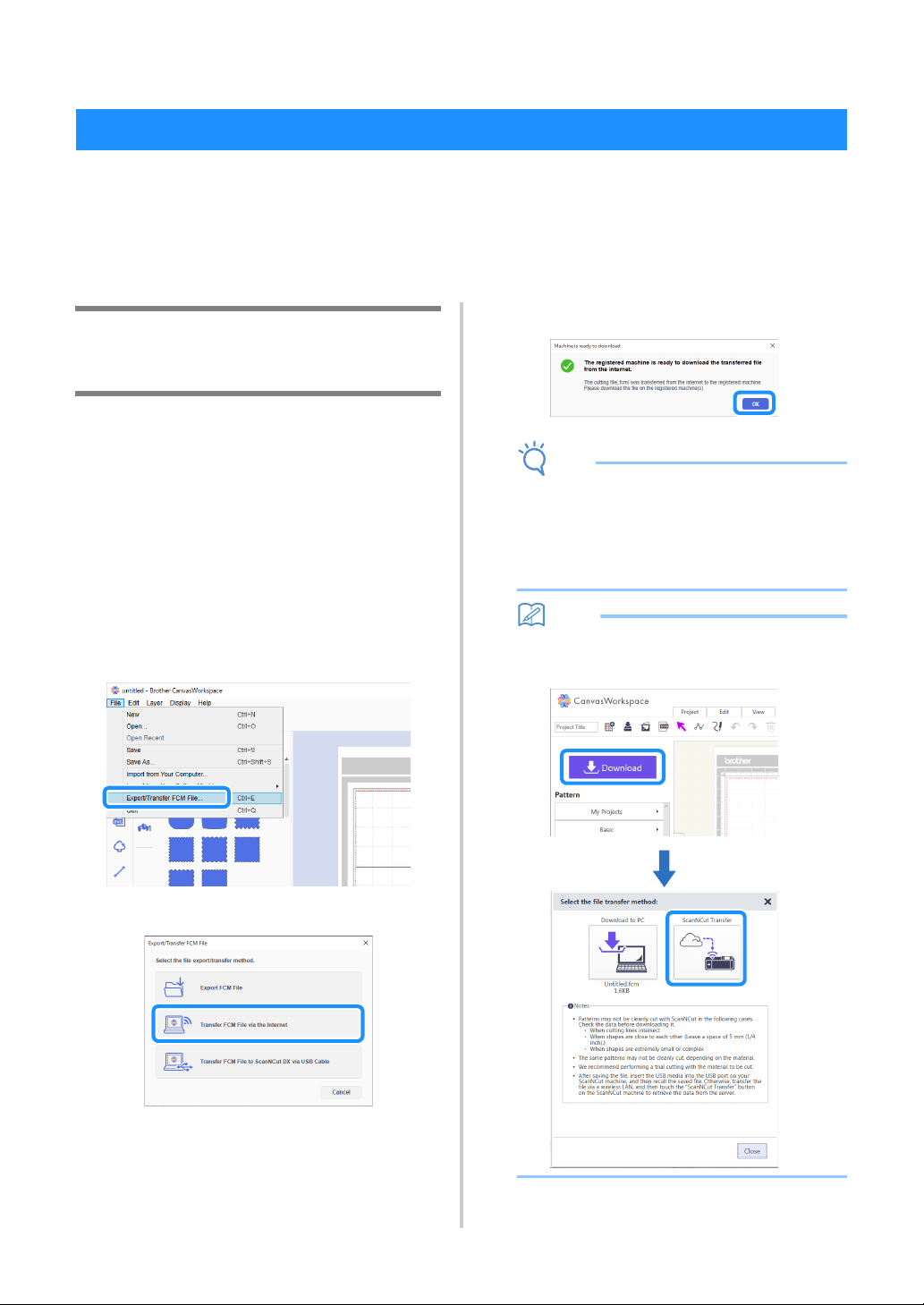
92
Chapter 6 DATA TRANSFER FUNCTION
CanvasWorkspace is a free pattern editing application with both PC (Windows/Mac) and Web versions
available. The downloadable PC (Windows/Mac) version allows you to authenticate many optional kits, and is
equipped with more useful editing functions than the Web version. The Web version can be used without need
for installation.
CanvasWorkspace (Windows/Mac): Downloadable from the Brother support website (http://s.brother/cuoad/).
CanvasWorkspace (Web): http://CanvasWorkspace.Brother.com/
Retrieve Transferred Patterns from
CanvasWorkspace (Using a Wireless
Network)
Perform the wireless network settings for the
machine and register the machine on
CanvasWorkspace ahead of time.
For details, refer to “WIRELESS NETWORK
CONNECTION FUNCTION” on page 85.
a Create and edit data in CanvasWorkspace
(Windows/Mac).
• For detailed methods for editing patterns in
CanvasWorkspace, refer to the Help for
CanvasWorkspace.
b From the [File] menu, click [Export/Transfer
FCM File].
c Click [Transfer FCM File via the Internet].
When the pattern is transferred to the machine,
the following message appears. Click [OK].
Note
• Data is transferred to the machine through the
server. Data on the server is deleted after a
certain period of time has passed.
• Only one data item can be transferred to the
machine. If the transferred data already exists,
it is updated.
Memo
• For CanvasWorkspace (Web), click [Download]
and then [ScanNCut Transfer] to send the FCM
file to the machine.
Retrieving Data from CanvasWorkspace

93
6
d Touch the “Retrieve Data” key in the home
screen to display the retrieve source selection
screen.
e Select “Retrieve from CanvasWorkspace (via a
wireless network connection)”.
The mat layout screen appears.
Retrieve Transferred Patterns from
CanvasWorkspace (Using a USB
Cable) (compatible only with Windows)
When the machine is connected to the computer
with a USB cable, a pattern can be retrieved from
CanvasWorkspace (Windows).
■ Connecting Your Machine to the
Computer
• Compatible models:
IBM PC with a USB port as standard equipment
IBM PC-compatible computer equipped with a
USB port as standard equipment
• Compatible operating systems:
Microsoft Windows 8.1, Windows 10 (except
Windows 10 S mode)
■ USB Cable (Sold Separately)
• We recommend using a USB 2.0 cable (Type A/
B) that is no longer than 2 meters (6 feet).
■ Transferable File Formats
• FCM files opened in CanvasWorkspace
a Insert the USB cable connector into the
corresponding USB ports for the computer and
for the machine.
a USB port for computer
b USB cable connector
Note
• The connectors on the USB cable can only be
inserted into a port in one direction. If it is
difficult to insert the connector, do not insert it
with force. Check the orientation of the
connector.
a Create and edit data in CanvasWorkspace.
b From the [File] menu, click [Export/Transfer
FCM File].
c Click [Transfer FCM File to ScanNCut DX via
USB Cable].
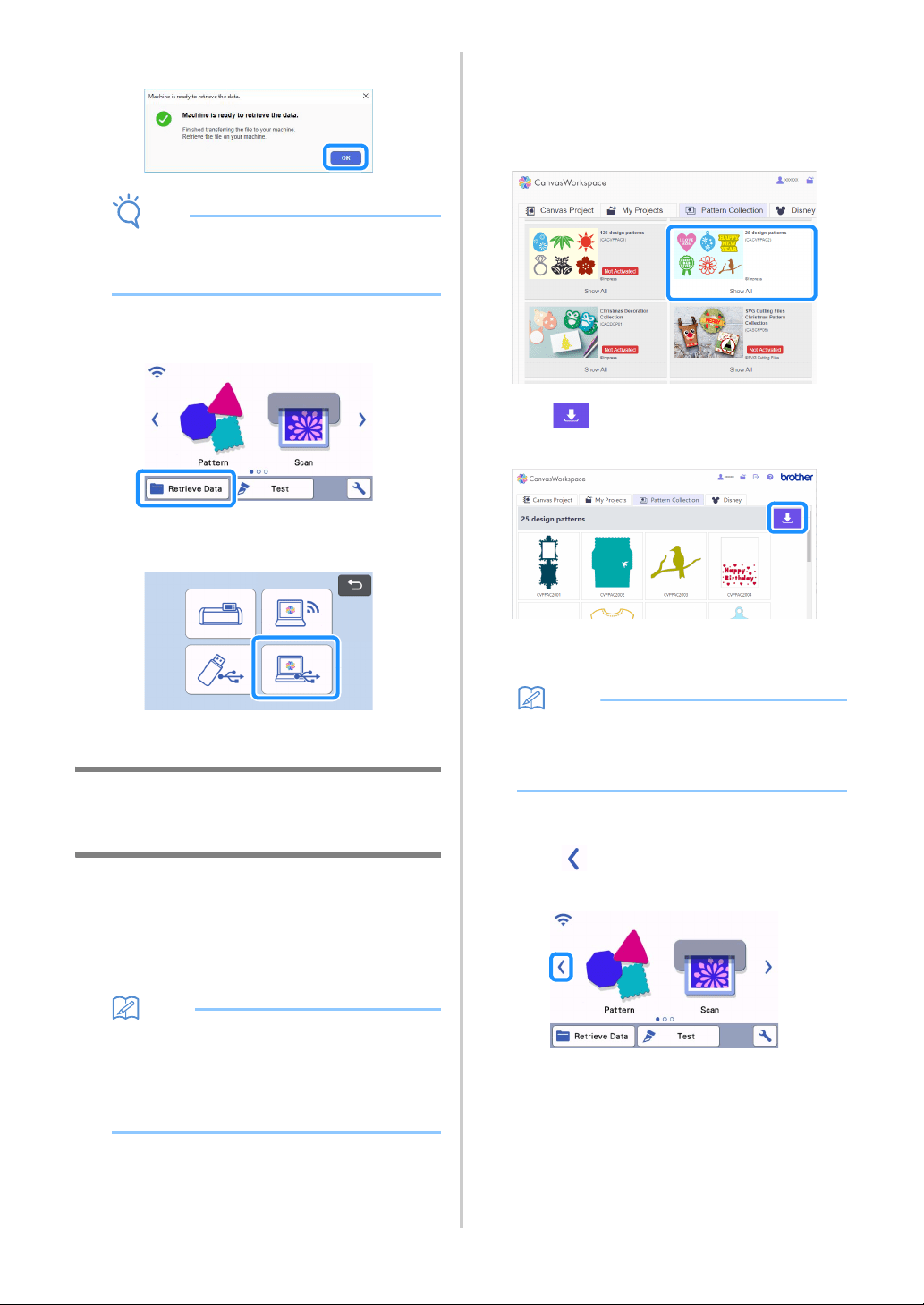
94
When the pattern data is saved to the machine,
the following message appears. Click [OK].
Note
• Only one pattern data can be transferred to the
machine. If data had already been transferred
to the machine, it will be overwritten.
d Touch the “Retrieve Data” key to display the
recall source selection screen.
e Select “Retrieve from CanvasWorkspace (using
a USB cable)”.
The mat layout screen appears.
Batch Download a Pattern Collection
from CanvasWorkspace (compatible
only with the Web version)
A feature has been added to CanvasWorkspace
(Web), allowing you to batch-download optional
pattern collections that have been activated. Save the
downloaded patterns to a USB flash drive, and
retrieve patterns in each collection from the “My
Collection” category on the machine.
Memo
The batch download function on the [Pattern
Collection] and [Disney] tabs displayed in the
following applications cannot be used.
• CanvasWorkspace (Windows/Mac)
• CanvasWorkspace (Web) accessed from a
mobile device
a Log in to CanvasWorkspace.
(http://CanvasWorkspace.Brother.com)
b From the [Pattern Collection] or [Disney] tab in
the main screen, select the category to be
batch-downloaded.
c Click in the upper-right corner of the
screen, and then download the ZIP file.
d Expand the downloaded ZIP file, and then save
the folder to a USB flash drive.
Memo
• Save the expanded folder directly to the USB
flash drive.
• Save the folder without changing its name or
contents.
e Insert the USB flash drive into the machine.
f Touch in the home screen to display the
following screen.
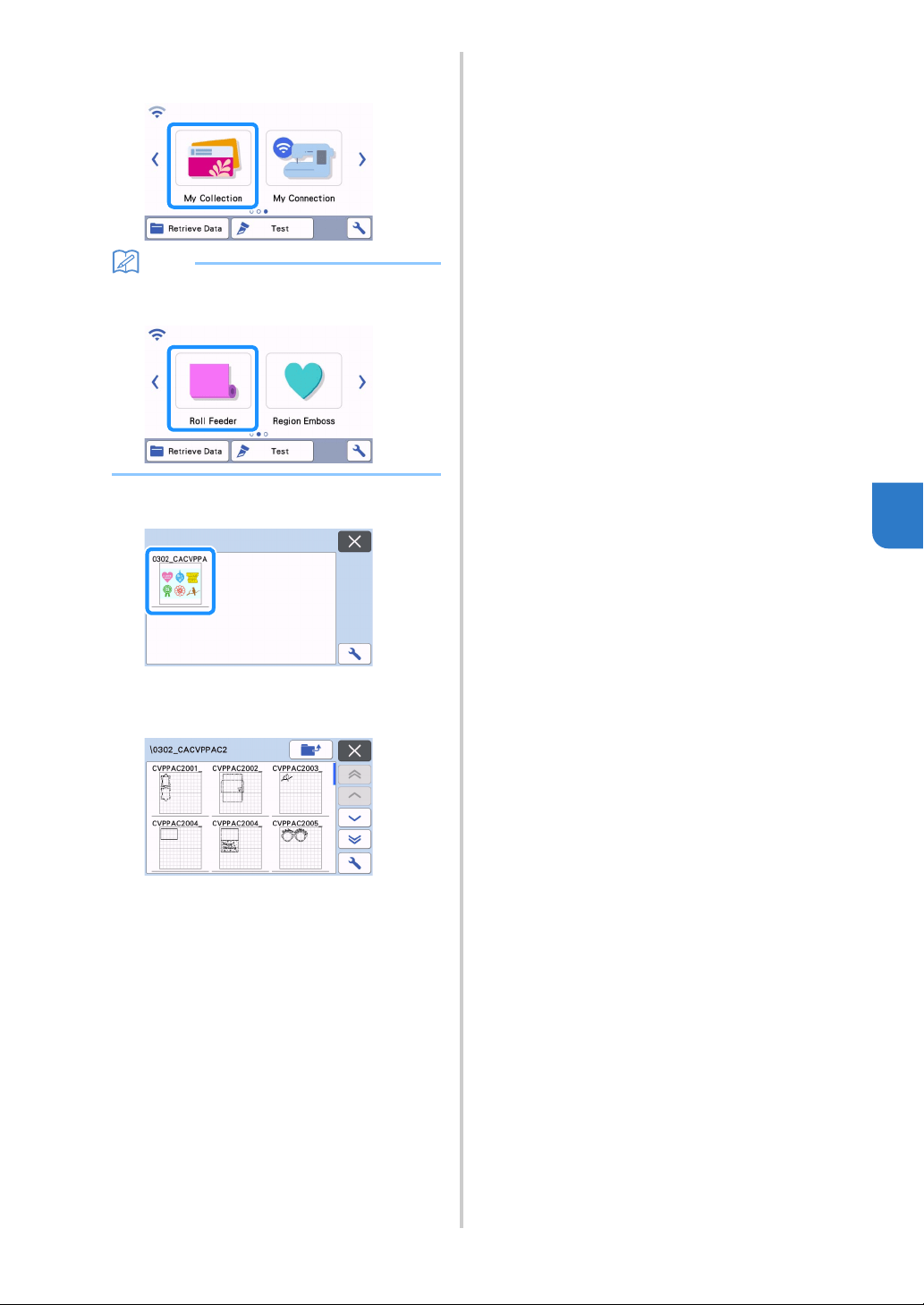
95
6
g Select “My Collection”.
A folder for each pattern collection appears.
Memo
• To retrieve a roll feeder patterns, select “Roll
Feeder”, shown below.
hSelect the pattern collection folder.
The patterns in the folder appear.
i Select the pattern to be retrieved.

96
This product is equipped with a function for linking with Brother embroidery machines (compatible models
only).
Using the wireless network function, you can transfer built-in patterns from the cutting machine, or make an
outline of part of an embroidery pattern from the embroidery machine and transfer it to cut or draw with the
cutting machine.
For a detailed explanation using patterns, refer to the “My Connection” operation manual. http://s.brother/
cmoae/
● For details on compatible machines, check the Brother support website (http://s.brother/cnxaa/).
● Of the built-in patterns in the machine, some of copyrighted patterns cannot be transferred.
■ Preparation
Perform the wireless network settings for the machine and register the machine on CanvasWorkspace ahead of time.
For details, refer to “WIRELESS NETWORK CONNECTION FUNCTION” on page 85.
For details on wireless network settings for the embroidery machine, refer to the embroidery machine’s instruction manual.
My Connection Function
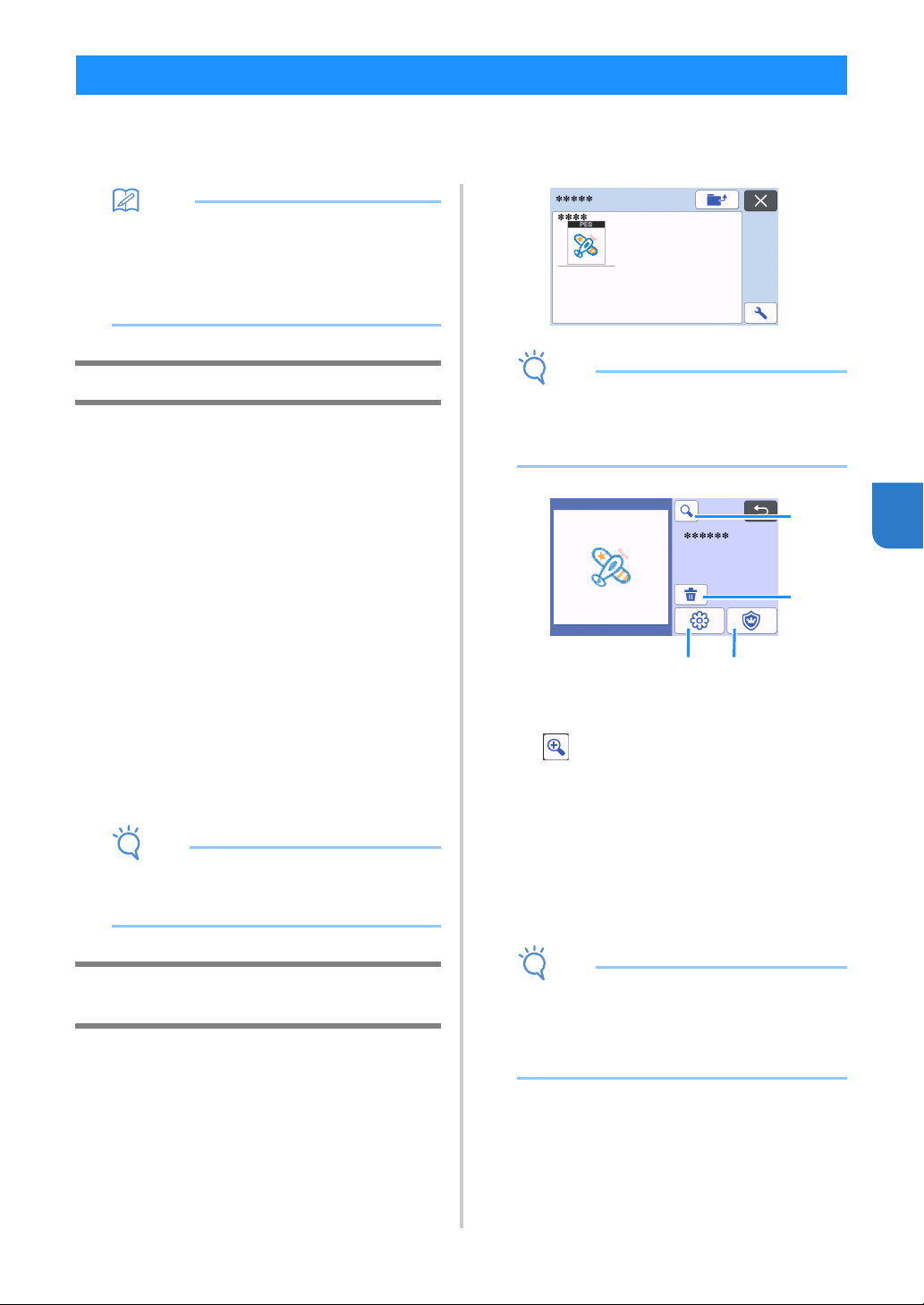
97
6
Embroidery data (.phc, .phx or .pes files) can be retrieved to the machine, then cut out or drawn. .phc or .phx
files are embroidery data from embroidery machines equipped with an embroidering function, and .pes files are
embroidery data created with the embroidery design software system PE-DESIGN. With this embroidery data,
outline data or region data of parts of each color or of the entire pattern can be created.
Memo
• This feature is compatible only with models
equipped with a function to import embroidery
data. For the functions available with your
machine model, check “Embroidery Data (.PES/
.PHC/.PHX)” under “Machine Information” of
the settings screen.
Preparing .phc, .phx or .pes Files
■ .phc Files, .phx Files
Using an embroidery machine that can save embroidery
patterns to an external device, save the embroidery
pattern to the USB flash drive. The procedure for saving
the embroidery pattern to the USB flash drive differs
depending on the embroidery machine. Refer to the
operation manual for your embroidery machine.
When using an embroidery machine equipped with a
connection function, it is possible to transfer .phx files
using the wireless network function.
For details, see the “My Connection” operation manual.
■ .pes Files
Using embroidery design software system, save the
embroidery pattern to the USB flash drive. The
procedure for saving the embroidery pattern to the USB
flash drive differs depending on the version of the
software. Refer to the instruction manual for your
software. This manual uses embroidery patterns created
with PE-DESIGN as examples.
Note
• For details on .phc, .phx and .pes files, contact
your authorized Brother dealer or the nearest
Brother authorized service center.
Retrieving the Pattern to the Cutting
Machine
a Retrieve the embroidery pattern (.phc, .phx or
.pes file) from the USB flash drive to the
machine. (Refer to “Retrieve Data” on
page 65.)
Note
• .phc, .phx and .pes files cannot be imported
into CanvasWorkspace. Retrieve the patterns
directly from a USB flash drive to the cutting
machine.
A confirmation screen appears.
a Magnifying
Zoom in on the pattern to 200%. Then, touch
to display the patterns enlarged by 400%.
To scroll through the screen, touch the arrow
keys.
b Deleting
Delete the selected patterns.
c Appliqué
Create cutting data for an appliqué piece.
d Embroidering lines
Convert embroidery data to cutting/drawing
data.
Note
• With embroidery data created from a photo,
intricate shapes are not suitable for cutting. Use
the Enhanced Image Tracing function (premium
function) of CanvasWorkspace to extract the
necessary outlines from the original photo.
Retrieving Embroidery Data for Cutting (Compatible Models Only)
b
d
c
a
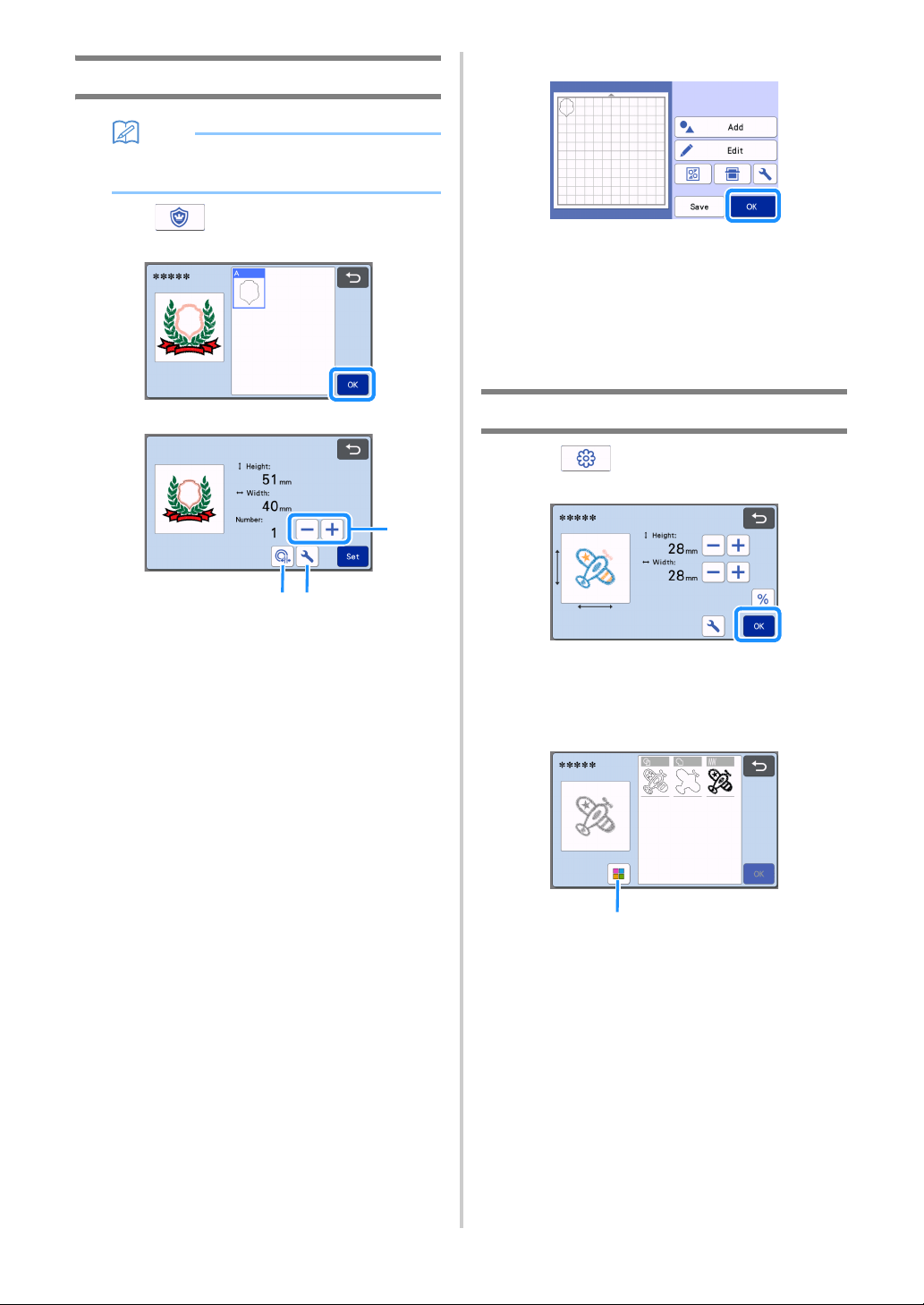
98
Creating Appliqué Data
Memo
• Make sure that the pattern contains an
“APPLIQUE MATERIAL” pattern.
a Touch to display the pattern piece list
screen, and then touch the “OK” key.
The pattern editing screen appears.
a Duplicating
Create a duplicate of the pattern. For details,
see “Pattern Editing Functions” on page 43.
b Outline Distance
Specify the distance from the outline of the
pattern to the cutting line. For details, see
“Advanced Cutting Functions for “Direct Cut””
on page 71.
c Settings
Specify the measurement units (millimeters or
inches), cutting area and pattern spacing. For
details, see “Settings Screen” on page 10.
b Touch the “Set” key to display the mat layout
screen.
• The pattern can be edited. For details, see “Mat
Layout Screen” on page 44 or “Layout Editing
Functions” on page 45.
c Touch the “OK” key.
“APPLIQUE MATERIAL” appears in the screen.
d Attach the fabric for the appliqué piece to the
mat, and then cut out the pattern.
e Refer to the operation manual for the
embroidery machine to complete the appliqué.
Creating Embroidering Line Data
a Touch to display the pattern editing
screen, and then touch the “OK” key.
• The pattern size can be adjusted in this screen. For
details, see “Pattern Editing Functions” on page 43.
b In the part selection screen, select the color
recognition mode.
a Switch on and off color recognition mode.
b c
a
a
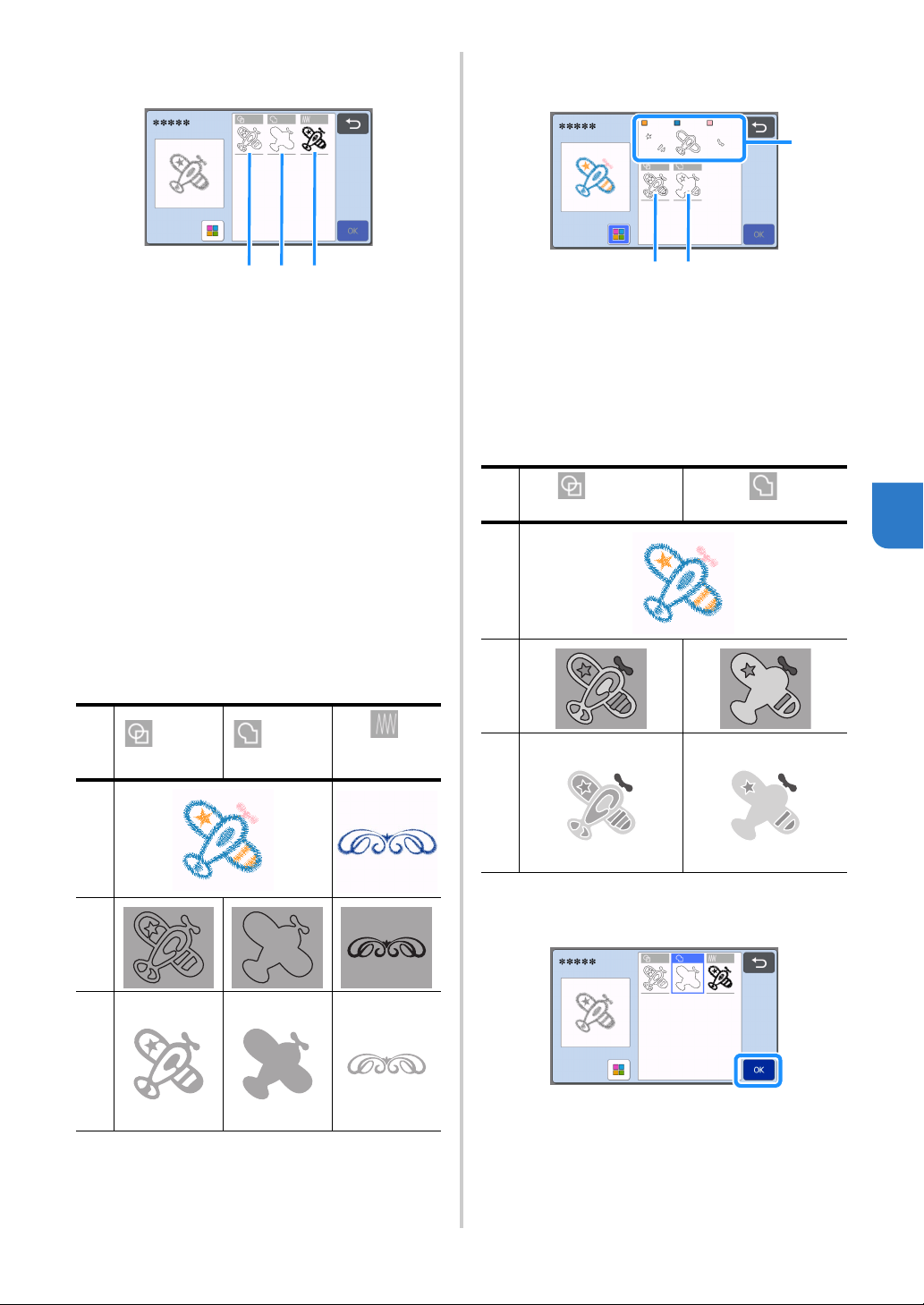
99
6
• Color recognition mode switched off
The cutting/drawing data is created after the
embroidery pattern is converted to grayscale.
a Region detection
Select this option to detect the colored portions
of a pattern as regions and create a cutting/
drawing lines around each region.
b Outline detection
Select this option to convert the outline of the
image to cutting/drawing lines.
c Stitching line detection
Select this option to convert the stitching lines
embroidered by the machine to cutting/drawing
lines.
Stitching line detection is not suitable for
cutting since the needle movements of the
embroidery machine are faithfully converted to
data. We recommend using this option for
drawing and line embossing (premium
function).
• Color recognition mode switched on
Each color in the embroidery pattern is detected to
create cutting data.
a The parts for each color detected as a region
are displayed in the list.
b Region detection
c Outline detection
c Select the detection method, and then touch
the “OK” key.
Differences in cutting/drawing lines
depending on detection method (color
recognition mode switched off)
: Region
detection
: Outline
detection
:
Stitching
line detection
Original image
Cutting/
drawing lines
Finished project
after cutting/drawing
a b c
Differences in cutting/drawing lines
depending on detection method (color
recognition mode switched on)
: Region
detection
:
Outline detection
Original image
Cutting/
drawing lines
Finished project
after cutting/drawing
c
a
b
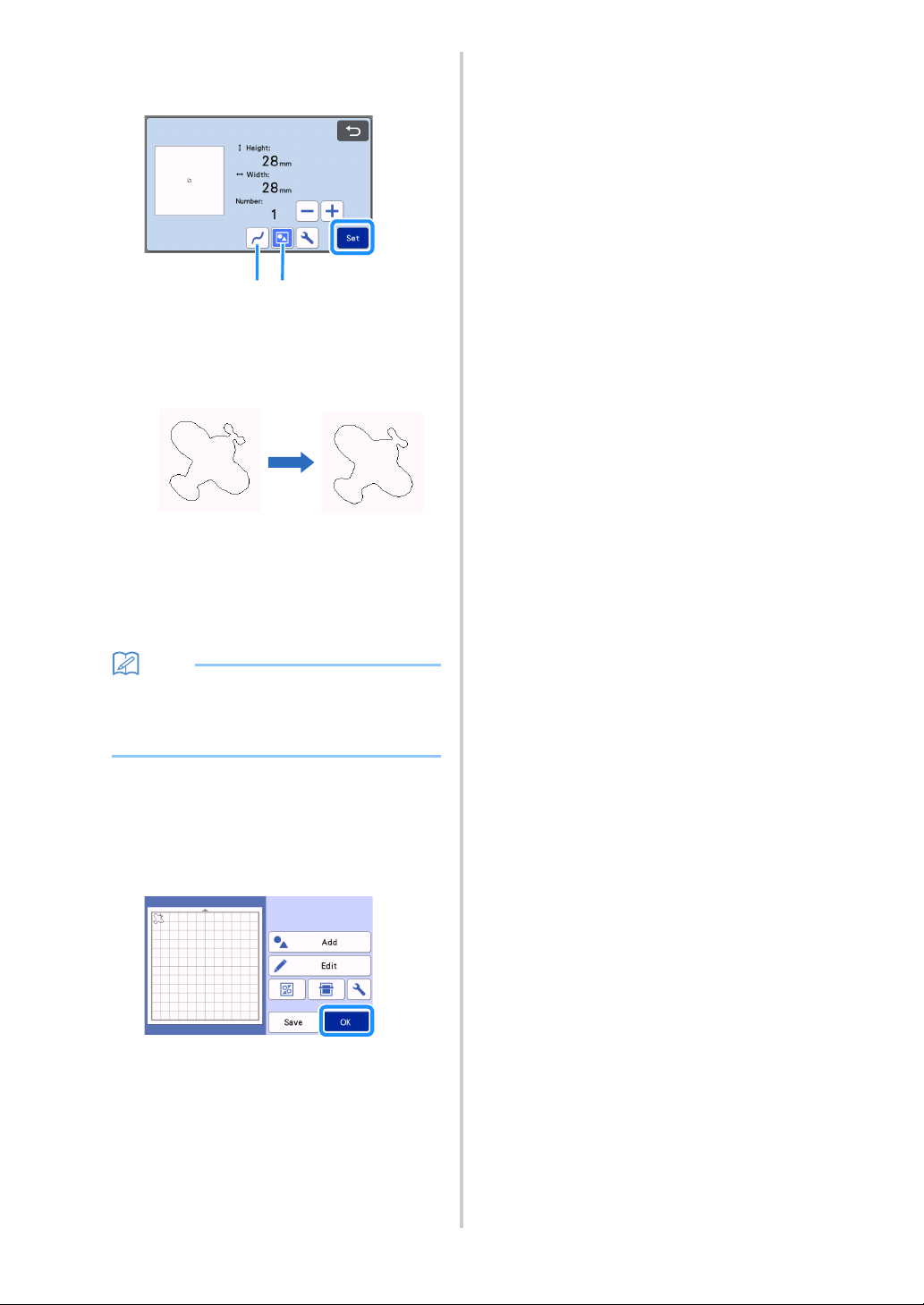
100
d Adjust the cutting/drawing lines.
After making the desired adjustments, touch the “Set”
key.
a Smoothing
Smooths out curves and corners in the lines.
Select from the four settings available: OFF,
Low, Middle and High.
b Grouping/Ungrouping
When ungrouped, the parts can be edited
separately. For details, see “Grouping/
Ungrouping Patterns” on page 47. The setting
cannot be changed if there is only one shape.
Memo
• If the pattern contains unnecessary parts,
ungroup it. This allows the unnecessary parts to
easily be deleted in the mat layout screen,
which appears next.
e In the mat layout screen, check the cutting/
drawing lines.
• The pattern can be edited. For details, see “Mat
Layout Screen” on page 44 or “Layout Editing
Functions” on page 45. After finishing all editing,
touch the “OK” key.
ba
OFF Middle
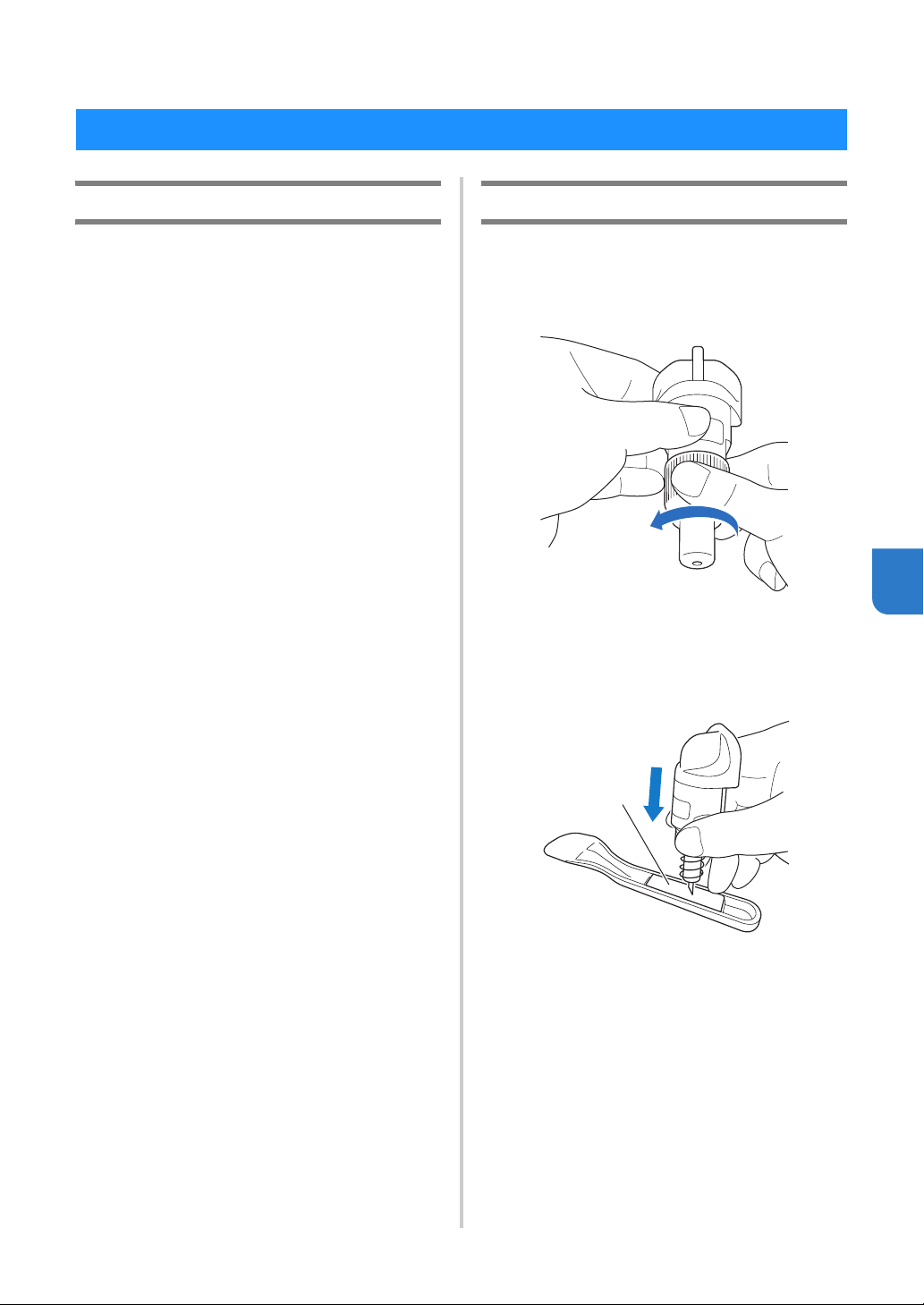
101
7
Chapter 7 APPENDIX
Replacement Criteria
For the safe operation of this machine, replace the
following consumables according to the replacement
criteria. To purchase parts, contact the retailer who
sold you this machine or the nearest authorized
service center. For details on the optional
accessories, see “OPTIONAL ACCESSORIES” on
page 122.
Mat
• When the mat’s adhesive strength decreases
• When there are many cutting traces in the mat
• When there is a deep cut from cutting in the mat
Cutting blade
• When the cuts in the material become rough,
reducing the quality of the finished product
• When the cutting edge becomes blunt
• When the blade is chipped (If the Cut Pressure
setting value is increased and you are still having
issues cutting evenly, the blade may be chipped
and will need to be replaced.)
High tack adhesive fabric support sheet
• When the sheet’s adhesive strength decreases
• When fabric attached becomes twisted while being
cut
Scanning mat
• When the mat and cover sheet become dirty,
reducing the quality of the scan image
Erasable pen
• When the ink is dry and not marking the fabric
properly
• When the ink is used completely
Color pen
• When the ink is dry and not marking the paper or
material properly
• When the ink is used completely
Replacing the Blade
■ Removing
a Twist off the holder cap to remove it.
For the rotary auto blade holder, proceed to step
c.
b Stick the blade straight into the rubber area on
the back of the included spatula.
a Rubber area
CONSUMABLES
a
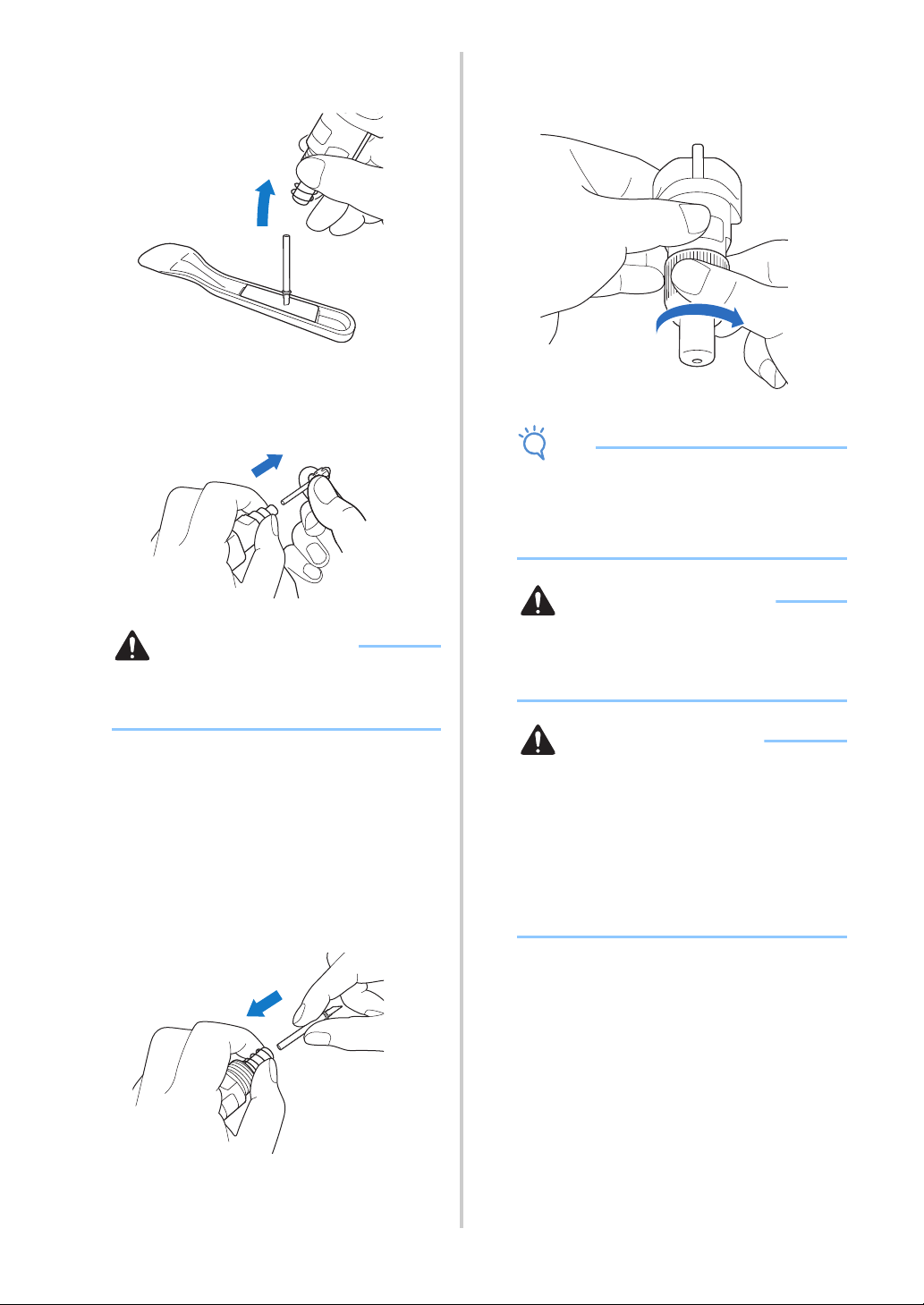
102
c Pull up the holder to leave the blade in the
rubber area.
c(For Rotary Auto Blade Holder) Hold the shaft
section of the rotary auto blade, and remove it
from the holder.
CAUTION
• When removing the rotary auto blade, do not
touch the blade. Be sure to hold the shaft while
removing it. There is a risk of injury.
■ Installing
a Grasp the shaft of the new blade, and then
insert it into the blade slot in the end of the
holder.
The blade shaft is held in place by a magnet in the
holder. Slowly insert the blade shaft, and then slowly
release it after the shaft snaps into place against the
magnet.
b Twist on the holder cap to attach it to the
holder.
Fully tighten the cap until it can no longer be turned.
Note
• When attaching the holder cap, be careful not
to bump the blade edge against the holder cap.
• Please remove protective cap from blade
holder before placing it into the machine
carriage.
WARNING
• This is not a toy and is not intended to be used
by children. In order to prevent choking
hazards, do not allow infants/children to put the
protective cap in their mouths.
CAUTION
• After removing the blade holder from the
machine, be sure to attach the protective cap.
• Do not press the tip of the holder with your
hand or fingers because the tip of the blade will
extend and may result in injuries.
• Do not touch the tip of the blade with your
hands or fingers. There is a risk of injury.
• This is not a toy and is not intended to be used
by children. In order to prevent injury, do not
allow infants/children to touch the blade.
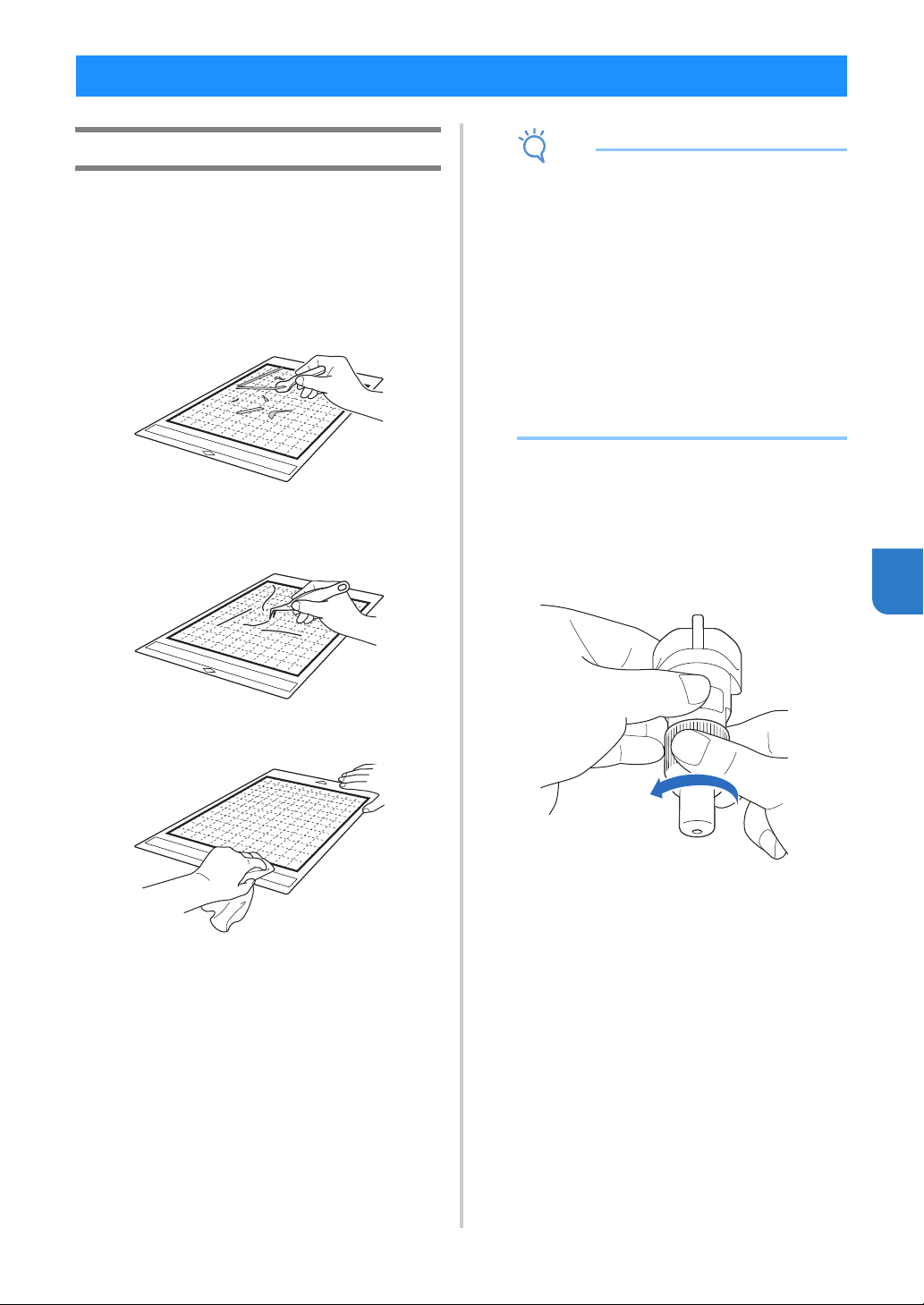
103
7
Cleaning
■ Cleaning the Mat
Cuttings and cut edges of patterns attached to the mat
may reduce the mat’s adhesive strength and prevent
correct operation. Periodically clean the mat. Using the
included spatula, lightly scrape off any cuttings attached
to the mat. Strongly rubbing the adhesive side of the mat
may damage it.
Use tweezers (available either as optional
accessories or commercially) to remove any fabric
threads attached to the mat.
Clean the dotted marks on the mat and their
surrounding area with a dry cloth.
Note
• Do not use alcohol or water to clean the mat.
• When the mat is not being used, clean it, and
then store it with the protective sheet affixed. If
the protective sheet is not affixed, the mat’s
adhesive strength will decrease. At that time,
do not affix the protective sheet while the mat is
damp. Otherwise, the mat’s adhesive strength
will decrease.
• Do not fold or bend the mat to store it.
• Store the mat at room temperature and in a
location not exposed to high temperatures, high
humidity or direct sunlight.
• If the mat no longer has any adhesive strength,
replace it with a new one. For details on
optional mats, see “OPTIONAL
ACCESSORIES” on page 122.
■ Cleaning the Holder
If material cuttings, lint or dust accumulate in the
holder, it may not operate correctly. Clean the holder
after every use.
a Twist off the holder cap to remove it.
CARE AND MAINTENANCE
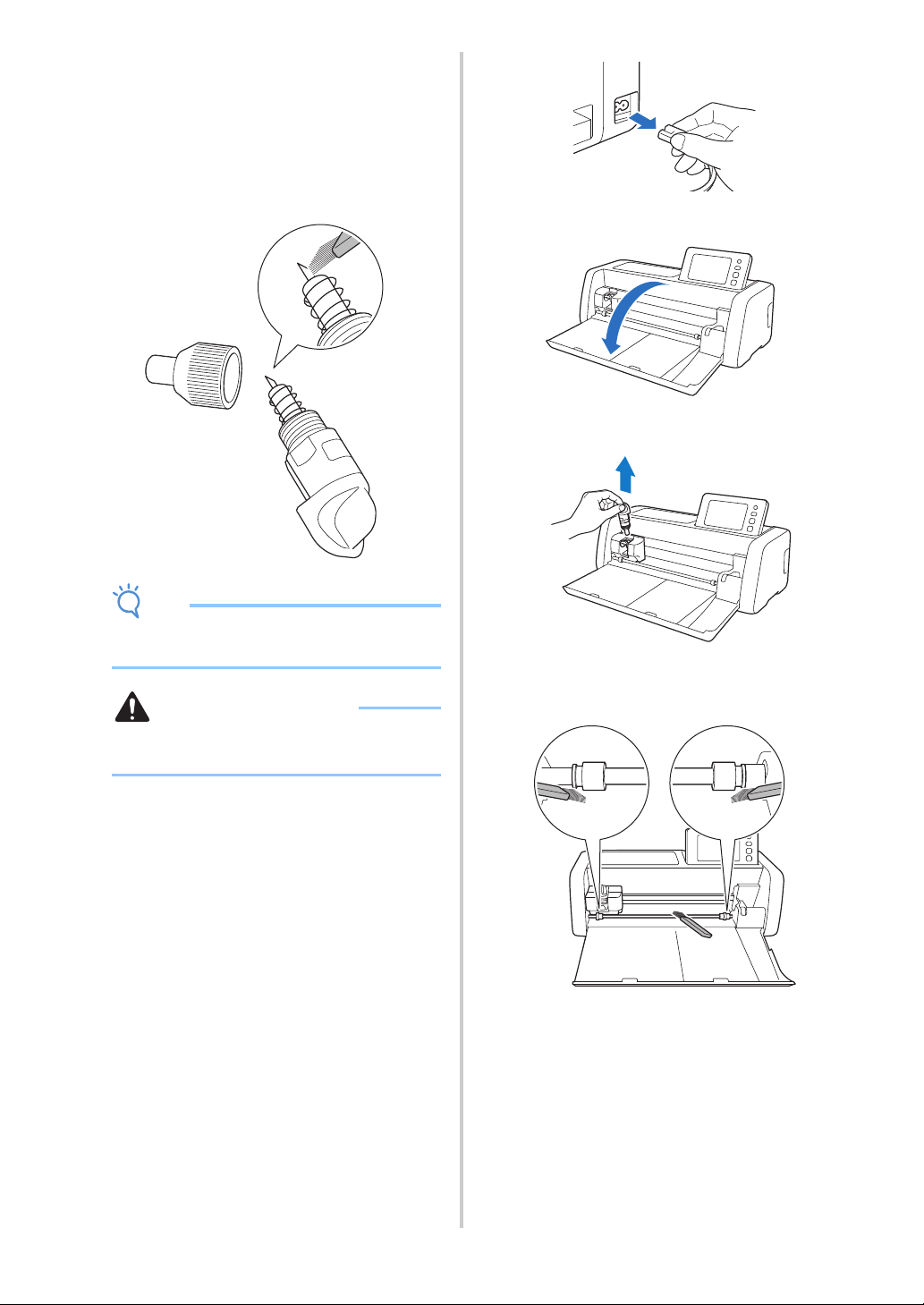
104
b Using a commercially available brush, clean off
cuttings, lint and dust.
Specifically, clean the surface of the blade and the
cutting scraps or shavings in the spaces. If lint and dust
accumulate between the blade and holder, the blade
may no longer rotate or the cutting quality may
become poor. In addition, clean out any lint and dust
that has accumulated in the cap.
Note
• Clean so as to avoid bumping the blade edge
against anything hard, such as metal.
CAUTION
• Do not touch the tip of the blade with your
hands or fingers. There is a risk of injury.
c Attach the holder cap to the holder.
For details on attaching the holder cap, see “Installing”
on page 102.
■ Cleaning Inside the Machine
If there are vertical lines or blank areas in the scanned
image, lint or dust may have accumulated in the
machine. The lint may also attach to the surface of the
feed rollers, preventing a mat to be loaded or unloaded
correctly. Use a soft brush to clean it.
a Turn off the machine, unplug the power cord
from the electrical outlet, and then disconnect
the AC power cord from the AC power jack on
the back of the machine.
b Open the front tray cover.
c Remove the holder from the carriage.
d Use a commercially available brush to clean
around the feed slot and the carriage.
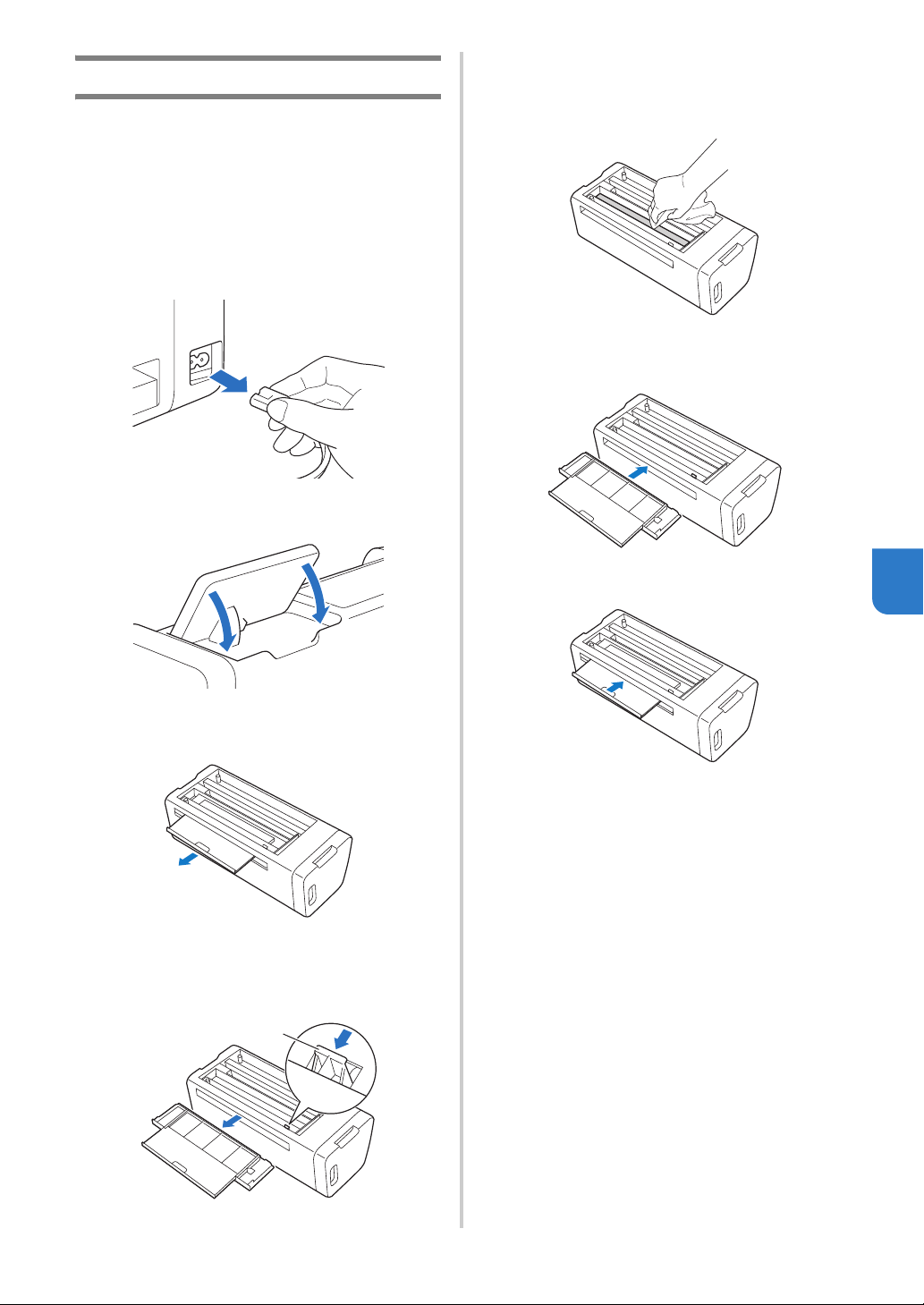
105
7
Cleaning the Scanner Glass
If there are unwanted vertical lines in the scanned
image or if scanning cannot be done cleanly, the
scanning area of the scanner may have become
dirty. Clean the scanner glass inside the machine.
a Turn off the machine, unplug the power cord
from the electrical outlet, and then disconnect
the AC power cord from the AC power jack on
the back of the machine.
b Store away the operation panel.
c Turn the machine upside down, and then pull
out the rear tray.
d Pull the rear tray release lever (at the bottom of
the machine), and then remove the cover.
Pull out the rear tray to remove it together with the
cover.
a Rear tray release lever
e Dampen a soft lint-free cloth with water and
firmly wring it out, and then wipe the scanner
glass inside the machine.
f Attach the cover to the machine.
• Push in the cover until it snaps into place.
g Push in the rear tray.
hAfter cleaning, perform a test scan.
a
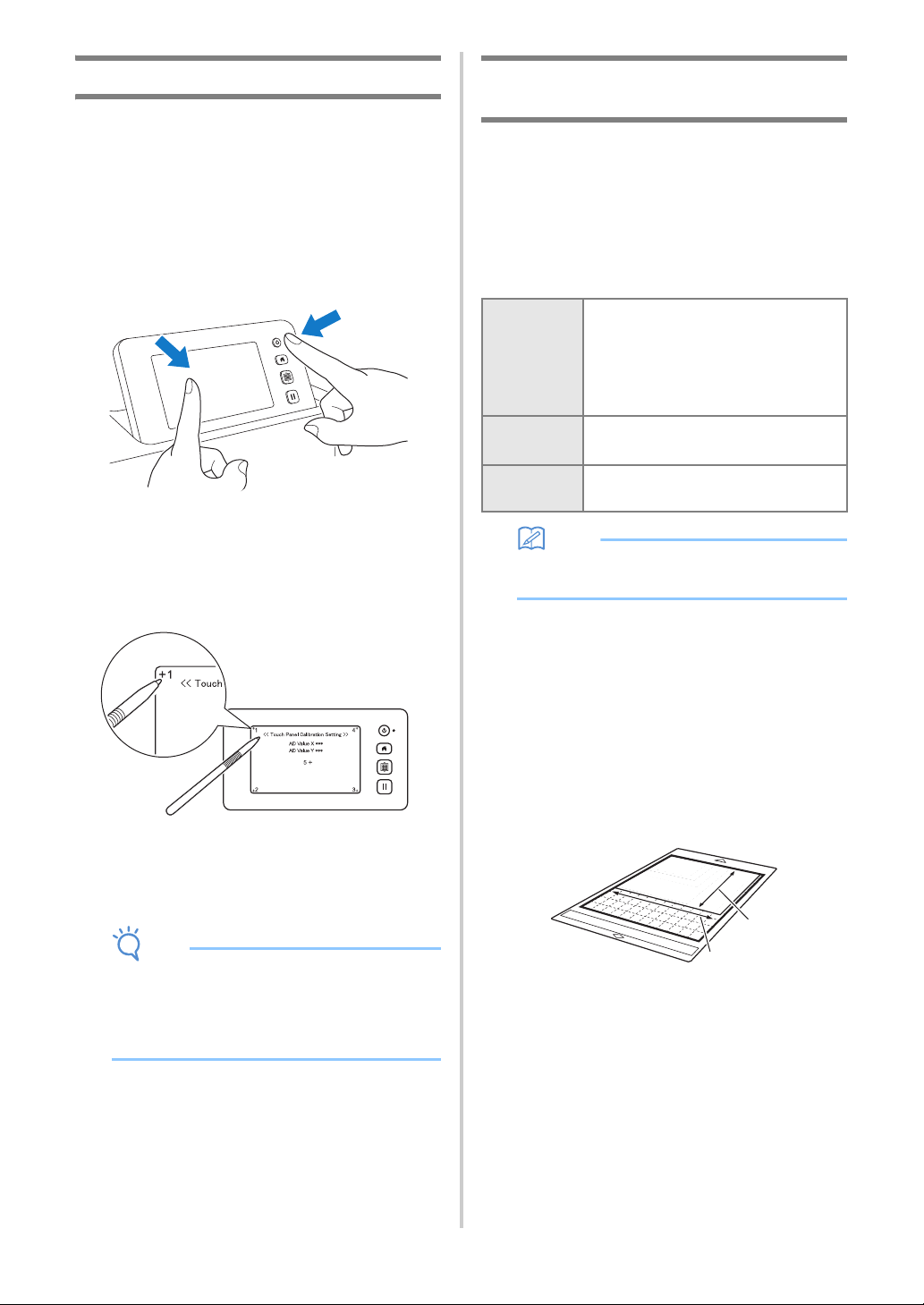
106
Adjusting the Screen
If the screen does not respond correctly when you
touch a key (the machine does not perform the
operation or performs a different operation), follow
the steps below to make the proper adjustments.
a Holding your finger on the LCD screen, turn
the main power to off and back to on. Keep
your finger on the LCD screen, until Brother
logo disappears.
The touch panel adjustment screen is displayed.
b Using the included touch pen (stylus), lightly
touch the center of each +, in order from 1 to
5. If an error occur when touching +, start
again from number 1.
After completing the touch panel adjustment, the
message “SUCCESS” appears on the screen.
c Turn the main power to off, then turn it back to
on.
Note
• If you finish the screen adjustment and the
screen still does not respond correctly, or if you
cannot do the adjustment, contact the retailer
who sold you this machine or the nearest
authorized service center.
Adjusting the Scanning/Cutting
Position
In “Direct Cut” mode, the cutting position can be
automatically adjusted if it has shifted.
For details on the “Direct Cut” mode, see
“SCANNING FOR CUTTING (Direct Cut)” on
page 67.
■ Materials
Memo
• Be sure to first test attach it to a mat suitable
for the paper.
a Insert the holder into the carriage.
• For details, follow the procedures under “Installing
and Uninstalling the Holder” on page 26.
b Attach the paper to the mat.
• Align the upper-left corner of the paper with the
upper-left corner of the mat.
• For details on attaching the paper, follow the
procedure under “Attaching the Material (Paper)”
on page 18.
a Long side
b Short side
Paper
Thick paper
Color: White
Size: A4 size (210 mm × 297 mm) or
Letter size (216 mm × 279 mm)
Thickness: 0.2 to 0.3 mm
(recommended)
Mat
Mat suitable for the material (See
page 15.)
Cutting
blade
Auto Blade Holder (black)
a
b
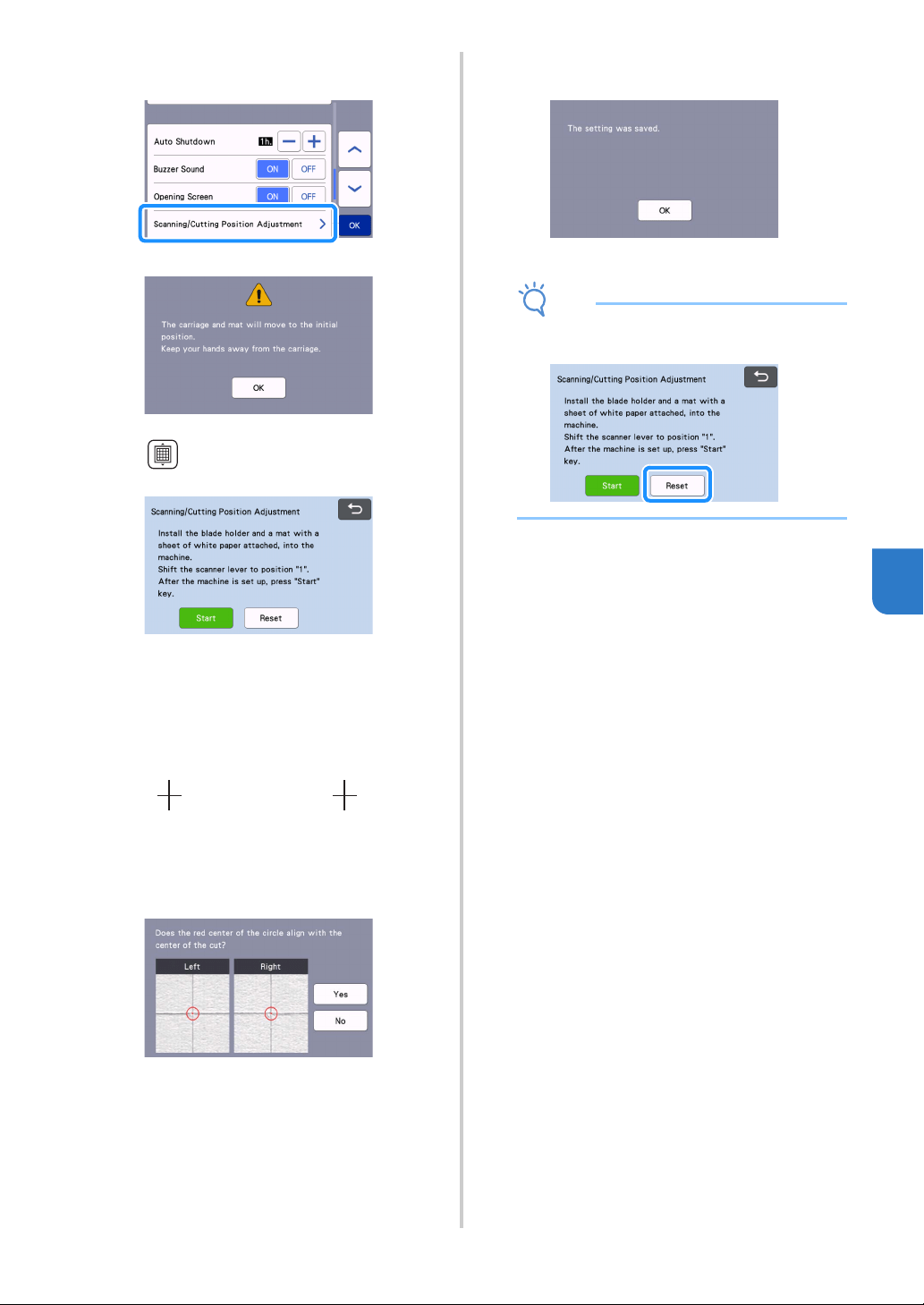
107
7
c Touch the “Scanning/Cutting Position
Adjustment” button in the settings screen.
The following message appears.
• Touch the “OK” key.
d Press to feed in the mat.
• For details, see “Loading the Mat” on page 28.
e After making sure that the scanner lever (on the
left side of the machine) is lowered to “1”,
touch the “Start” key to start cutting.
See “Cutting” on page 28.
Position adjustment cuts are cut, and then the
cuts are scanned.
• Using the intersecting cuts on the left and right
sides, the scanning position is automatically
adjusted.
f The adjustment results screen appears.
• If the center of the cut aligns with the center of the
red circle, the position is properly adjusted.
Touch the “Yes” key, and then continue with step
g.
• If the center of the cut does not align with the
center of the red circle, the position is improperly
adjusted. Touch the “No” key, replace the paper
attached to the mat, and then repeat steps
d
through
f to readjust the position.
g When the following message appears, touch the
“OK” key.
The adjustment is finished.
Note
• To return the settings to their defaults, touch
the “Reset” key in the screen shown below.
hUse “Direct Cut” mode to check the
adjustment results.
• For details on the “Direct Cut” mode, see
“SCANNING FOR CUTTING (Direct Cut)” on
page 67.
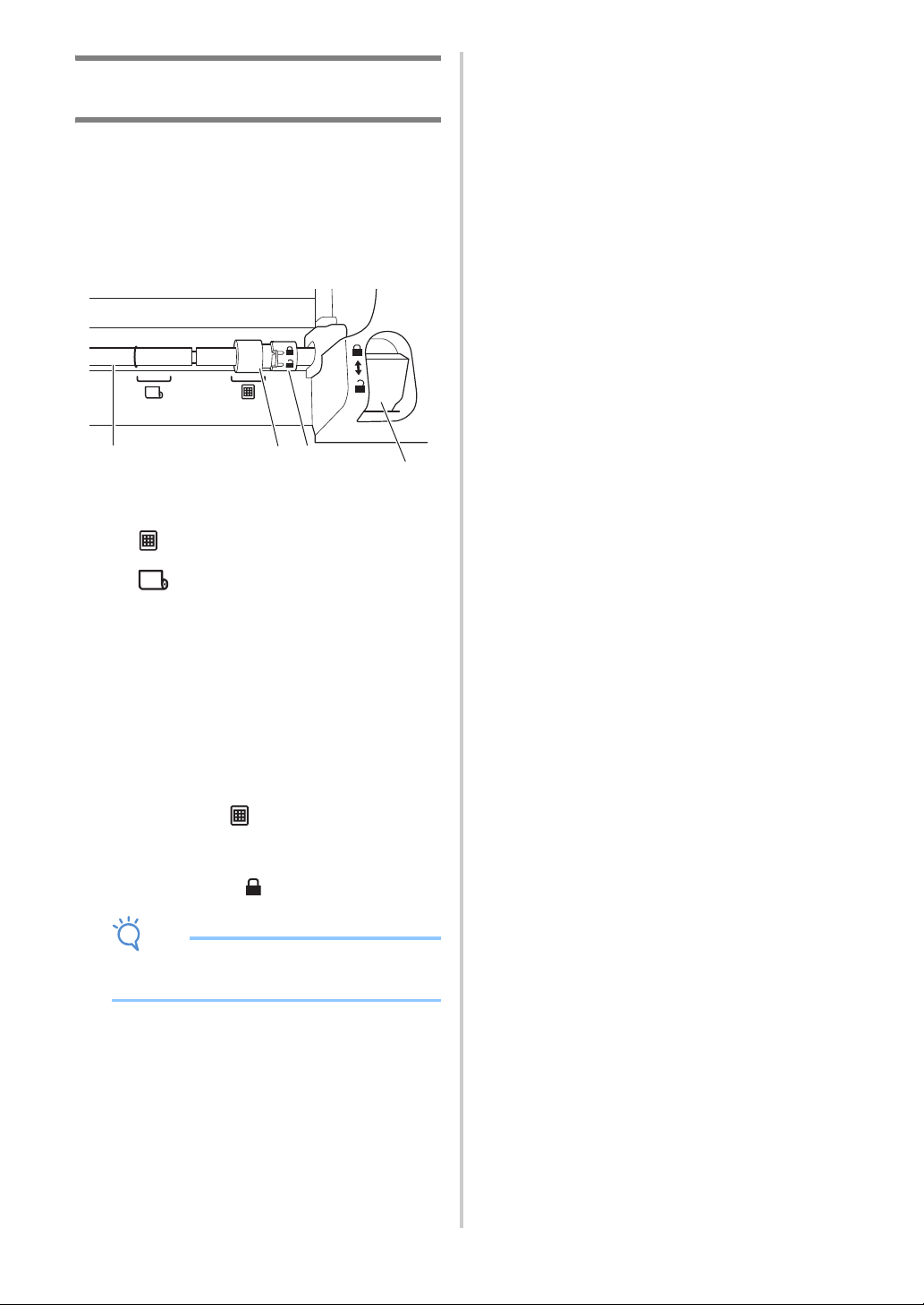
108
Adjusting the Position of the Feed
Roller
For normal operations (when the optional roll feeder
is not used), it is not necessary to adjust the position
of the feed roller. If the feed roller is inadvertently
moved, follow the procedure below to return it to its
original position.
For details on using the roll feeder, refer to the
manual included with it.
a Shaft
b Feed roller
: Move the feed roller to this position for
normal operations.
: Move the feed roller to this position when
the roll feeder is being used.
c Feed roller lock dial
Rotates forward/backward to lock/release the
feed roller.
d Feeder release lever
Locks/releases the shaft.
a Pull the feeder release lever toward you to
release the shaft.
b Rotate the feed roller lock dial toward the back
to unlock the feed roller, and then move the
feed roller to the mark.
c Rotate the feed roller lock dial toward you to
lock the feed roller, and then push the feeder
release lever to the position.
Note
• Be careful not to pinch your fingers while
operating the feeder release lever.
a
b
c
d

109
7
Please pay attention to all applicable safety warnings when referring to the sections cited below.
If the machine stops operating correctly, check the following possible problems before requesting service.
You can solve most problems by yourself. If you need additional help, the Brother support website offers the
latest FAQs and troubleshooting tips. Visit us at “ http://s.brother/cpoac/ ”.
If the problem persists, contact the retailer who sold you this machine or the nearest authorized service center.
For wireless network troubleshooting, refer to “WIRELESS NETWORK CONNECTION FUNCTION” on page 85.
Power Supply
Mat
TROUBLESHOOTING
Symptom Possible Causes (or Results) Solutions Reference
The machine cannot be
turned on.
The AC power cord is not correctly
connected to the machine.
Check that the power cord is connected
to the electrical outlet.
page 8
Symptom Possible Causes (or Results) Solutions Reference
The mat cannot be
inserted.
When the mat was inserted, it was
not placed under the feed rollers.
Insert the mat so that it is placed under
the feed rollers on the left and right sides
of the feed slot.
page 28
The mat was not loaded using the
“Feed” button.
Lightly insert the mat into the feed slot,
and then press the “Feed” button.
page 28
The feed roller is not positioned
correctly.
Adjust the position of the feed roller. page 108
The shaft is released. Lock the shaft. page 108
The mat cannot be
recognized.
The dotted marks on the part of the
mat that is inserted are dirty.
Clean the dotted marks on the mat and
their surrounding area.
page 103
The dotted marks on the part of the
mat that is inserted are hidden by
material or tape that was attached.
Attach the material or tape while keeping
it within the adhesive area of the mat.
page 18
The mat was inserted so that the
side with the material attached is
facing down.
Insert the mat so that the side with the
material attached is facing up.
page 28
The mat was inserted in the wrong
direction.
Insert the mat in the correct direction. page 28
The scanner glass is dirty.
Clean the scanner glass inside the
machine.
page 105
A mat designed specifically for this
machine is not used.
Replace the mat with one designed
specifically for this machine.
—
The mat is fed in at an
angle.
The mat was inserted into the feed
slot at an angle.
Press the “Feed” button to feed out the
mat, and then re-insert it straight in.
page 28
page 29
The corners of the mat are
deformed (bent).
Replace the mat with a new one. page 101
The rear tray is not pulled out. Pull out the rear tray.
page 7
page 9
The feed roller is not positioned
correctly.
Adjust the position of the feed roller. page 108
The material to be cut/
drawn or original to be
scanned cannot be
attached to the mat.
The material extends from the
adhesive area of the mat.
Attach the material while keeping it
within the adhesive area of the mat.
page 18
The mat’s adhesive strength has
decreased.
Replace the mat with a new one. page 101
The mat cannot be fed
out.
The material to be cut/drawn or
original to be scanned is jammed in
the feeding mechanism in the
machine.
Press the “Feed” button while the mat is
being inserted to feed it out.
If the mat does not feed out, turn off the
machine, and then carefully pull out the
mat.
page 29
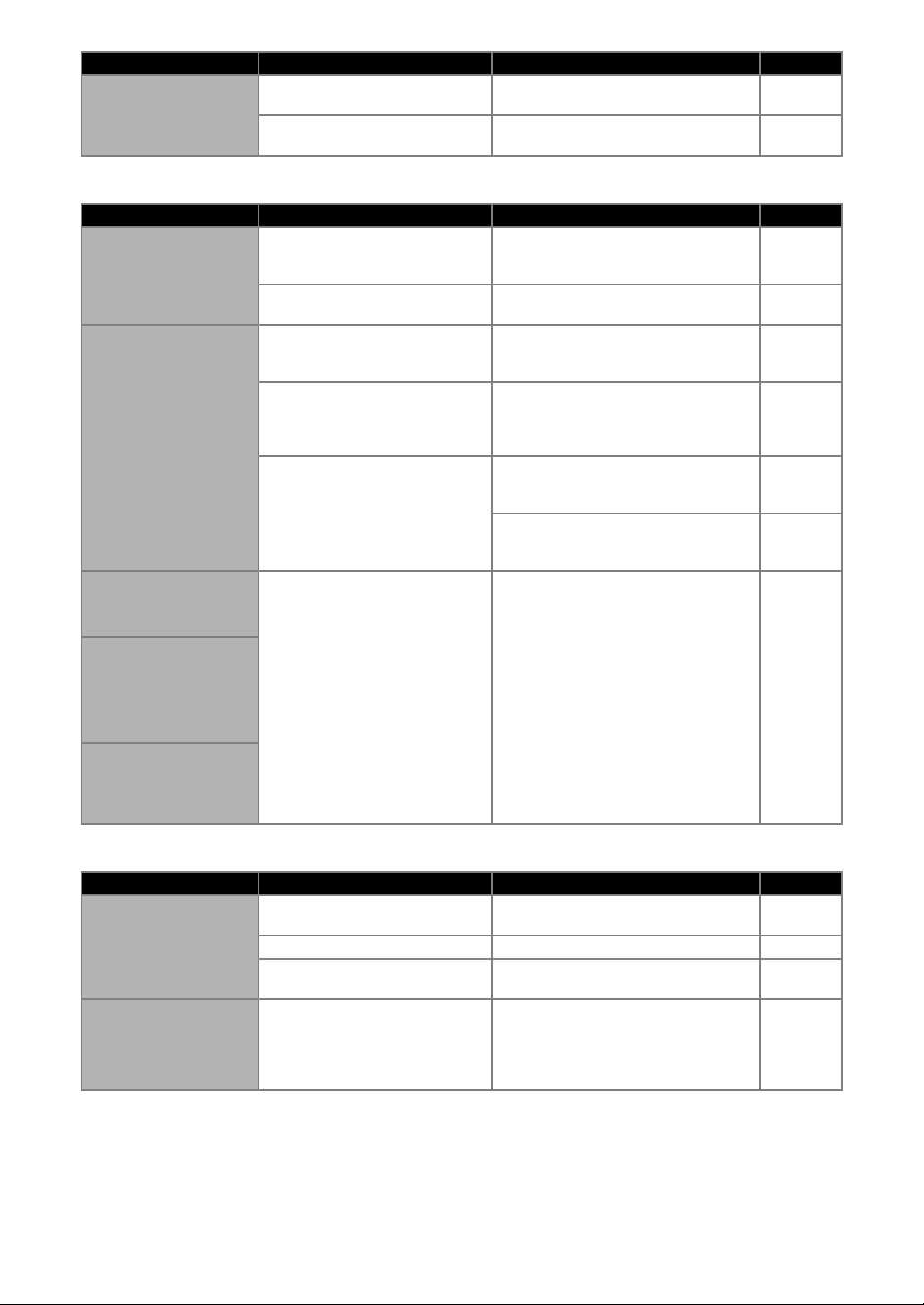
110
Paper/Fabric Jam
Cutting
When the mat is
inserted, the attached
material peels off.
The mat is not level due to the
weight of the material.
With your hands, hold the mat level when
inserting it.
page 28
The mat’s adhesive strength has
decreased.
Replace the mat with a new one. page 101
Symptom Possible Causes (or Results) Solutions Reference
Symptom Possible Causes (or Results) Solutions Reference
The mat cannot be fed.
There is an obstruction around the
slot at the back of the machine.
Maintain space around the slot at the
back of the machine so that the mat can
be fed out.
page 8
The surface where the machine is
installed is uneven.
Place the machine on a flat, even
surface.
—
The mat or the material
catches on a feed roller
when the mat is being
inserted.
The mat’s adhesive strength has
decreased, or the material is not
secured.
Press the “Feed” button to feed out the
mat, and then replace the mat with a new
one.
page 29
page 101
The material or tape is extending
from the adhesive surface.
After pressing the feed button and
removing the mat, attach the material or
tape so that it fits on the adhesive
surface of the mat.
page 18
page 29
The thickness of the material
exceeds the maximum limit.
Press the “Feed” button to feed out the
mat, raise the scanner lever, and then
correctly insert the mat.
page 7
page 9
page 29
Press the “Feed” button to feed out the
mat, and then change the material to a
thin one.
—
The mat or the material
catches on a feed roller
during cutting/drawing/
scanning.
- The mat’s adhesive strength has
decreased, or the material is not
secured.
- The material extends from the
adhesive area of the mat.
- The rear tray is not pulled out.
Press the “Pause/Stop” button to stop
the operation. Follow the instructions on
the screen, and press the “Feed” button
to feed out the mat.
If the mat does not feed out, turn off the
machine, remove the holder, and then
manually feed out the mat.
After feeding out the mat, replace it with
a new one or attach the material while
keeping it within the adhesive area of the
mat. Pull out the rear tray, and then
insert the mat.
page 7
page 9
page 18
page 29
page 101
The mat is fed in at an
angle and is not fed
during cutting/drawing/
scanning.
The material to be cut/
drawn or original to be
scanned peels off during
cutting/drawing/
scanning.
Symptom Possible Causes (or Results) Solutions Reference
The material being cut
catches on the tip of the
cutting blade.
Dust or lint has accumulated in the
holder.
Clean the holder. page 103
The blade is worn. Replace the blade with a new one. page 101
The material being cut is
incompatible with this machine.
Replace the material with one
compatible with this machine.
page 15
The machine stopped
while an operation is
being performed.
For safety, the machine stops
operating if the panel is touched
while cutting.
Follow the instructions in the message
that appears in the screen. Touch the
“OK” key to move the carriage to its
initial position. Load the mat and perform
the operation again.
—

111
7
Not all of the material to
be cut is cut. Some
areas remain uncut.
A blade appropriate for the material
being cut is not used.
Use a blade appropriate for the material
being cut.
page 15
If the Cut Pressure setting value is
increased and you are still having
issues cutting evenly, the blade
may be chipped.
Replace the blade with a new one. page 101
The mat’s adhesive strength has
decreased, or the material is not
secured.
Replace the mat with a new one. page 101
The blade is worn. Replace the blade with a new one. page 101
The material is incompatible with
this machine.
Replace the material with one
compatible with this machine.
page 15
The cutting pressure (“Cut
Pressure”) is incorrect.
Adjust the setting for “Cut Pressure” in
the settings screen.
page 10
page 29
Dust or lint has accumulated in the
holder.
Clean the holder. page 103
The spacing between arranged
patterns is too small.
Rearrange the patterns to slightly
separate them.
Set the number to “3” or higher in the
“Pattern Interval” setting, and then
rearrange the patterns or perform the
auto layout function.
page 10
page 53
The material or tape extends from
the adhesive area of the mat.
Attach the material or tape while keeping
it within the adhesive area of the mat.
page 18
Fabric was cut without using a
sheet for fabric cutting.
Attach a high tack adhesive fabric
support sheet to a mat or affix an iron-on
fabric appliqué contact sheet to a fabric
before cutting it.
page 19
page 23
A fabric is not firmly attached to a
mat that has a high tack adhesive
fabric support sheet on its
adhesive side.
Firmly attach the fabric to the mat
pressing the handle of the included
spatula across the surface of the fabric.
page 23
An iron-on fabric appliqué contact
sheet is not firmly attached to a
fabric.
Iron the entire contact sheet to affix it
firmly to the wrong side of the fabric.
page 19
There are deep cuts
completely through the
mat.
The cutting pressure (“Cut
Pressure”) is incorrect.
Adjust the setting for “Cut Pressure” in
the settings screen.
page 10
page 29
Symptom Possible Causes (or Results) Solutions Reference
112
Drawing
Scanning
Data Transfer
Symptom Possible Causes (or Results) Solutions Reference
The drawn line is thicker
(thinner) than intended.
The drawing speed (“Draw Speed”)
or drawing pressure (“Draw
Pressure”) is incorrect.
Adjust the settings for “Draw Speed” and
“Draw Pressure” in the settings screen.
To draw thicker lines, increase the
drawing pressure. To draw thinner lines,
decrease the drawing pressure.
To draw thicker lines, reduce the drawing
speed. To draw thinner lines, increase
the drawing speed.
After adjusting the settings, perform a
test/trial drawing operation.
page 10
page 57
The machine stopped
while an operation is
being performed.
For safety, the machine stops
operating if the panel is touched
while drawing.
Follow the instructions in the message
that appears in the screen. Touch the
“OK” key to move the carriage to its
initial position. Load the mat and perform
the operation again.
—
Symptom Possible Causes (or Results) Solutions Reference
Unwanted images are
scanned.
The scanning area is incorrectly
specified.
In “Scan to USB” mode, specify the
paper size with the “Scan Size” setting.
page 81
In “Direct Cut” or “Scan to Cut Data”
mode, trim the image in the editing
screen after scanning.
page 67
page 73
Scanning cannot be
done cleanly (there are
lines in the scanned
image).
The scanner glass is dirty.
Clean the scanner glass inside the
machine.
page 105
The original to be scanned is dirty
or scratched.
In “Direct Cut” or “Scan to Cut Data”
mode, remove thin lines or dirt in the
image editing screen.
page 79
The lines printed on the
mat are scanned.
The original is transparent so the
lines printed on the mat are being
scanned.
In “Direct Cut” or “Scan to Cut Data”
mode, remove the lines in the image
editing screen.
page 79
The scanned image is
red.
When the optional scanning mat is
used, scanning is performed
without peeling off the blue tape.
Peel off the blue tape from the optional
scanning mat before scanning.
—
The scan image is out of
focus.
The scanner lever is not correctly
positioned for the thickness of the
material
Set the scanner lever position to “1”. page 9
Symptom Possible Causes (or Results) Solutions Reference
The data retrieved with
the machine is different
from the transferred
data.
Multiple data items are being
transferred from
CanvasWorkspace or from a
machine using the “My
Connection” function.
Only a single file of data can be
transferred over the server. If data is
repeatedly transferred before retrieving it
with the cutting machine, it is updated to
the latest data.
—
Transferred data cannot
be retrieved.
The storage period on the server
has elapsed.
Data is erased from the server after a
certain period of time has elapsed since
the data was transferred. Retrieve the
data on the machine as soon as possible
after transferring the data.
—
The cutting machine was not
registered on CanvasWorkspace at
the time the data was transferred
from the embroidery machine using
the “My Connection” function.
Register the cutting machine with
CanvasWorkspace machine registration,
and transfer the data from the
embroidery machine again.
page 89
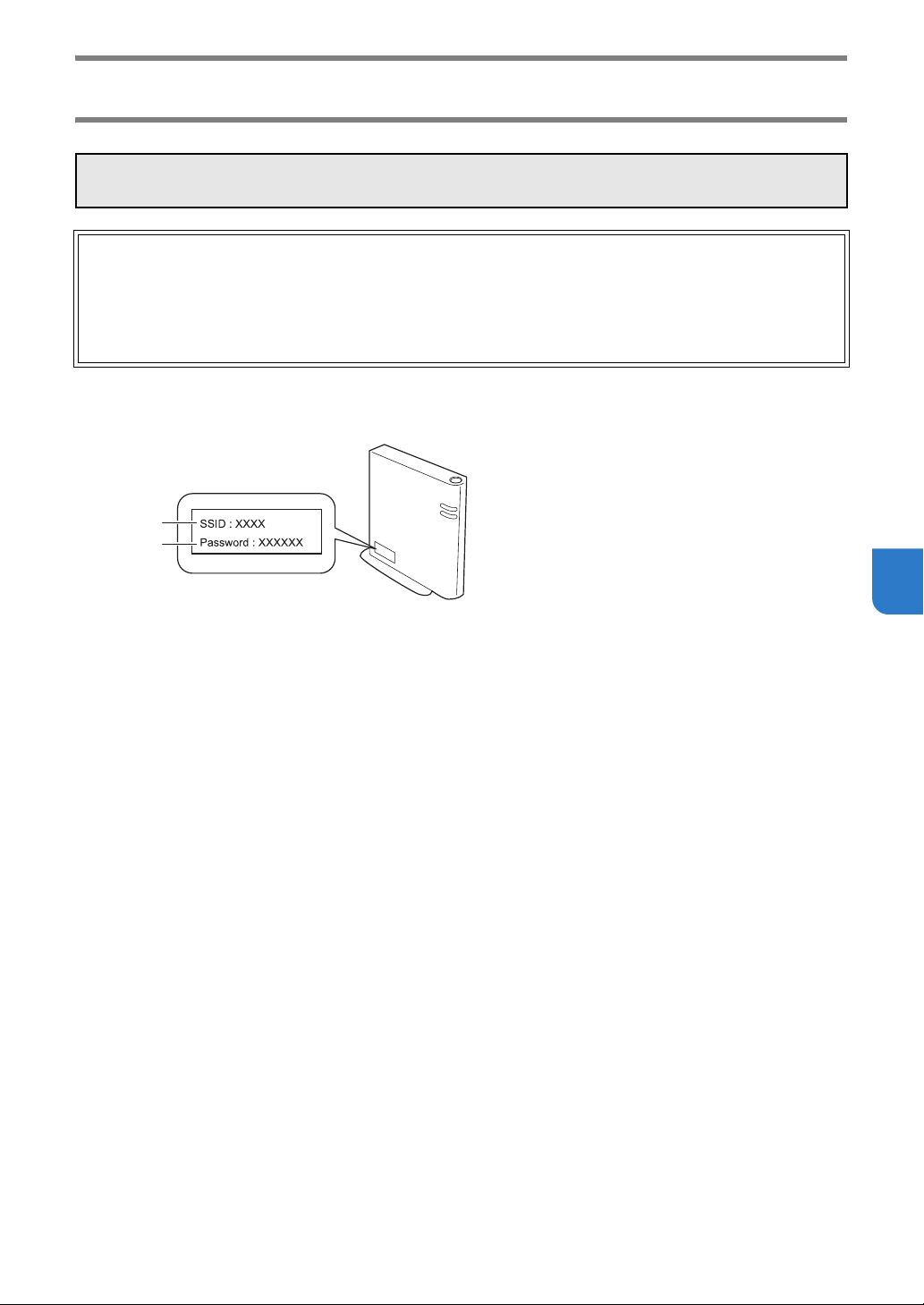
113
7
How can I Find the Wireless Security Information (Network Name (SSID) and
Network Password)
* The Network Password may also be described as the Network Key, Security Key or Encryption Key.
* If the wireless access point/router is not broadcasting the Network Name (SSID), the Network Name (SSID) will not
automatically be detected. You will have to manually enter the Network Name (SSID).
Please do not contact Brother Customer Service for assistance without the wireless security information. We
cannot assist you in locating your network security settings.
1) You should see the documentation provided with your wireless access point/router.
2) The default Network Name (SSID) could be the manufacturer’s name or the model name.
3) If you do not know the security information, please consult the router manufacturer, your system
administrator, or internet provider.
4) Some Wireless Network Name (SSID) and Network Password (Key) are case (upper case and lower case)
sensitive. Please properly record your information.
a SSID
b Network key (password)
a
b
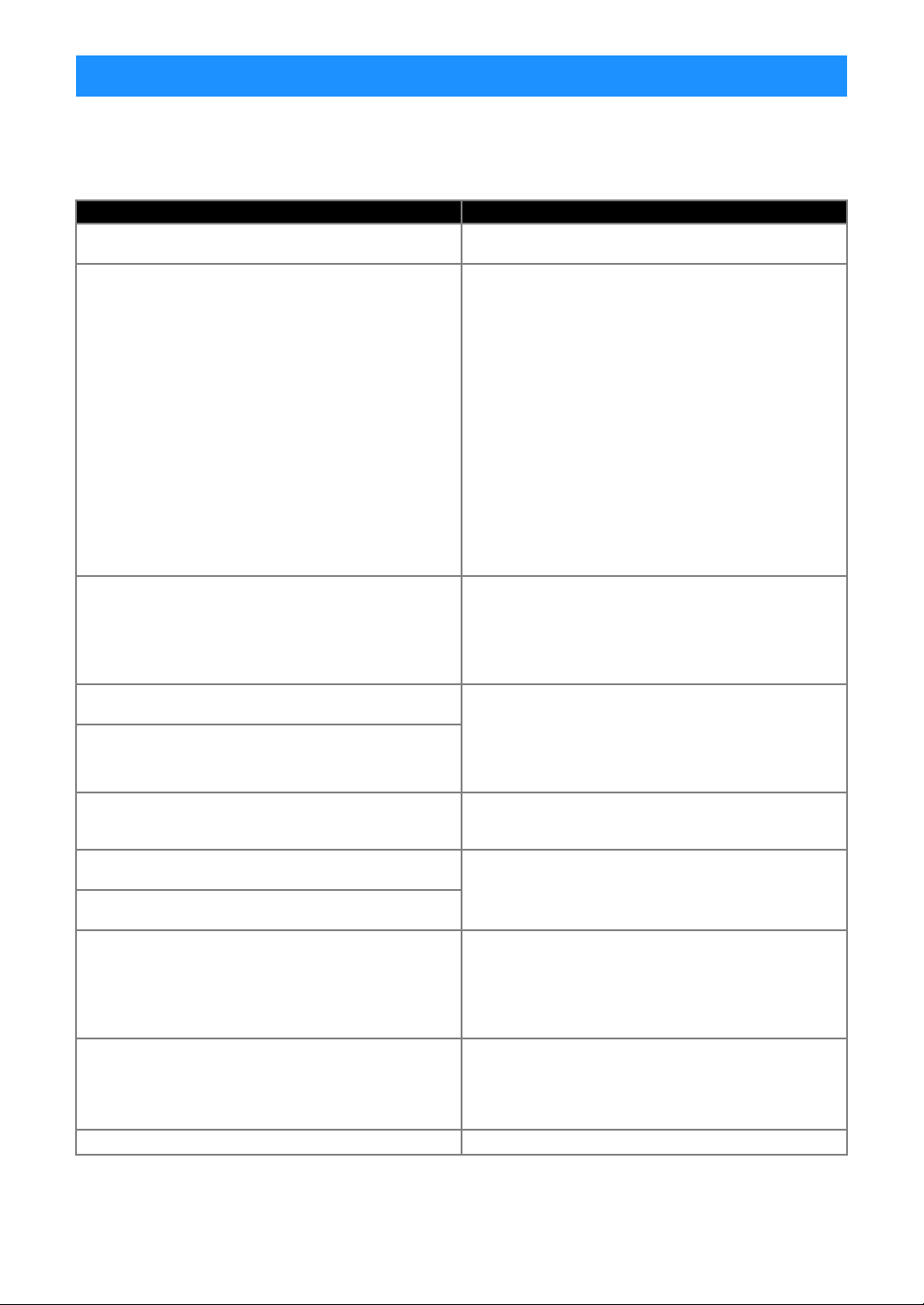
114
The following table lists some of the messages that may appear while the machine is operating as well as their
corresponding solutions.
Perform the necessary operation according to the instructions in the message or the solution described here.
If the problem persists, contact the retailer who sold you this machine or the nearest authorized service center.
ERROR MESSAGES
Error Messages Causes / Solutions
A malfunction occurred.
Turn the machine off, then on again.
Turn the machine off, then on again.
Cannot operate when there are too many patterns.
The message appears under the following conditions:
- In “Direct Cut” mode, more than the maximum number of
patterns have been detected for the cutting pattern.
- In “Scan to Cut Data” mode, more than the maximum
number of patterns are being saved as cutting data.
Reduce the number of patterns being used.
* Depending on the machine model, the maximum number
of patterns will differ. Check the “Maximum Pattern
Number” under “Machine Information” of the settings
screen.
- There are too many cutting lines to be created after large
number of small patterns are scanned.
- There are too many light tone patterns to be converted to
two-tone (black and white) patterns while the image
detection level is being adjusted.
Scan images again after reducing the number of patterns
arranged in the original.
Cannot operate when there is no pattern.
There is no scanned image or lines for scanning.
Recheck the image to be scanned, and adjust the scanning
area, image detection level and “Ignore Object Size”
settings.
In addition, change the image drawn on the original to one
more easily scanned.
Cannot read the data.
Get the PIN code again and register to the machine.
- This message appears when you try to transfer data with
a machine different than the one registered with
CanvasWorkspace.
- The registration of your machine has been canceled from
CanvasWorkspace. Register the machine to be used
again.
Cannot save the data.
Get the PIN code again and register to the machine.
Includes a special pattern that cannot be saved to external
memory.
Save the pattern in the machine’s memory.
Depending on the pattern, it may not be possible to save it
to external memory (USB flash drive or CanvasWorkspace).
Initialization of the blade position failed.
Turn the machine off.
Turn the machine off, then on again.
Initialization of the head failed.
Turn the machine off.
No more patterns can be added to this combination.
More than the maximum number of patterns are being
combined. Reduce the number of patterns.
* Depending on the machine model, the maximum number
of patterns will differ. Check the “Maximum Pattern
Number” under “Machine Information” of the settings
screen.
No pattern in the effective area.
There is no pattern(s) to be cut out or drawn within the
cutting area.
To cut out or draw a pattern outside of the area, increase
the setting for “Cut Area”, or move the pattern(s) into the
area specified with “Cut Area” (page 10).
Not enough available memory to save the data. Delete a file from the machine’s memory or USB flash drive.

115
7
Not enough space on the mat.
Check pattern size, space on the mat, Cut Area (setting) or
Pattern Interval (setting).
Perform one of the following to arrange the patterns.
- Delete a pattern already arranged in the mat layout
screen.
- Resize a pattern in the arrangement.
- Enlarge the setting for “Cut Area” (page 10).
- Reduce the spacing between arranged patterns using
the “Pattern Interval” setting.
Not enough space on the mat.
Max: 10 (example: calculated number)
Since there are too many patterns, they cannot be
arranged.
Reduce the number of patterns to the maximum shown on
the screen.
OK to retrieve and resume previous memory?
To use data from the previous operation, touch the “OK”
key. (page 12)
Pattern cannot be grouped.
Invalid pair was selected.
The message appears when you are unifying patterns.
Patterns with seam allowances and no seam allowances
are selected as pairs. Select patterns, all of which have
either seam allowances or no seam allowances.
Patterns cannot be welded.
There are some patterns which cannot accept or no
overlaps.
The message appears when you are welding patterns.
- The patterns do not overlap. Rearrange them so the
selected patterns overlap. Unifying the pattern, instead,
can be an alternative editing method depending on your
project.
- A pattern that has a seam allowance is selected.
Deactivate the seam allowance setting and weld the
patterns.
- An open shape is selected as a pattern. Only closed
shapes can be welded. Unifying the pattern, instead, can
be an alternative editing method depending on your
project.
Replace the mat with 12 × 24 inch mat.
The 12" × 12" mat was loaded although 24-inch data was
created. Load the 12" × 24" mat.
Scanning error occurred.
Turn the machine off.
Turn the machine off, then on again, and then try
performing the operation again.
Since the shape was larger than the mat, it was reduced in
size when imported.
If the pattern in the imported SVG file is larger than the mat,
the pattern will be reduced to fit the size of the mat. If
necessary, in the software used to create the SVG file, edit
the pattern to fit the size of the mat.
Some shapes could not be converted.
The imported SVG data contains data that cannot be
converted, such as images or text. All other data was read
as cutting line data.
The data cannot be deleted.
The USB flash drive being used may not be usable with this
machine. If removing the USB flash drive and performing
the operation again causes the message to appear again,
replace the USB flash drive. For information about USB
flash drive compatible with this machine, visit our website
“ http://s.brother/cpoac/
”.
The data cannot be read.
The data cannot be saved.
The data could not be imported.
There are too many patterns.
The message appears when an SVG file contains more than
the maximum number of patterns. In the software used to
create the SVG file, reduce the number of patterns.
* Depending on the machine model, the maximum number
of patterns will differ. Check the “Maximum Pattern
Number” under “Machine Information” of the settings
screen.
The data is too complicated to be imported.
SVG files containing a complicated pattern cannot be
imported. In the software used to create the SVG file,
simplify the pattern.
The mat cannot be recognized.
The mat will unload.
A mat that cannot be recognized has been inserted. If a
mat designed specifically for this machine is not being
used, use the specially designed mat.
Clean the dotted marks at the edge of the mat and their
surrounding area. If the mat is still not recognized, replace
the mat with a new one.
Error Messages Causes / Solutions
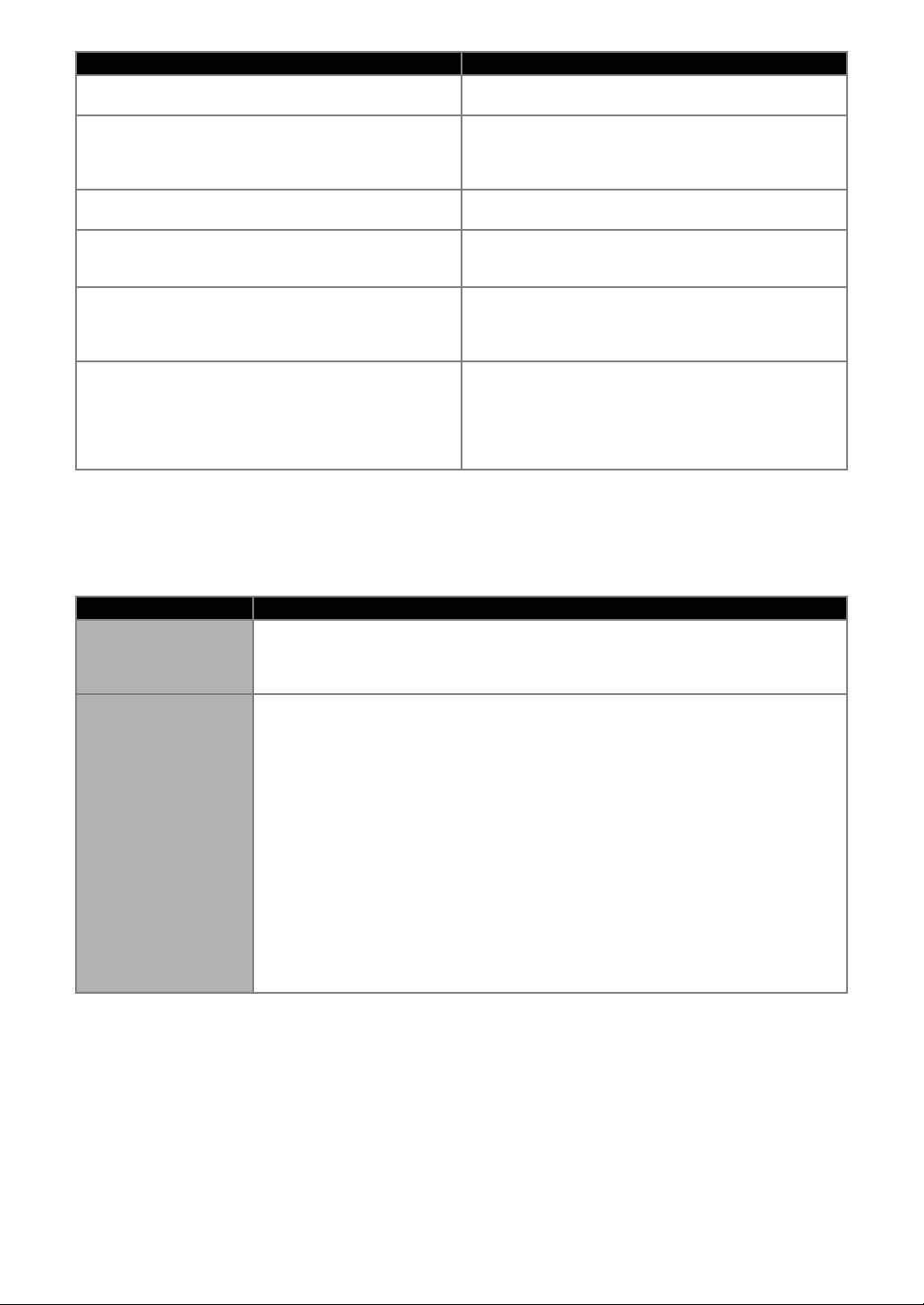
116
When Setting Up the Wireless Network
The following table contains a list of the various messages that may appear during setup or while registering the
machine with CanvasWorkspace as well as the appropriate solutions.
Perform the necessary operation according to the instructions in the message or the solution described here.
If the problem persists, contact the retailer who sold you this machine or the nearest authorized service center.
There are no patterns that can be detected.
The imported SVG data contains data that cannot be
converted, such as images or text.
There are some patterns which cannot add seam
allowance.
The seam allowance settings cannot be specified for
complex pattern shapes. Select a pattern with a simple
shape.
Expanding the seam allowance to 2 mm or more may help.
There are some patterns which cannot set cutting distance
from the outline.
The cutting distance cannot be specified for complex
pattern shapes. Select a pattern with a simple shape.
This data is too complicated and cannot be converted.
Complex patterns cannot be welded or filled.
Reduce the number of patterns arranged or change the
patterns to ones with simple designs.
This mat cannot be used.
The mat is one that cannot be used with the function being
performed. Replace the mat.
(For example, the scanning mat was loaded while trying to
cut.)
Cooling Down
The machine has stopped cutting/drawing to cool down the
hot part inside the machine.
Leave it for a while then follow the instruction on the screen
to restart.
If this message appears often, contact the retailer who sold
you this machine or the nearest authorized service center.
Error code Cause/Solution
Err-01
The wireless network setting is not activated.
Activate the wireless network.
See “Enable the Wireless Network Function” on page 85.
Err-02
The wireless access point/router cannot be detected.
1. Check the following 4 points.
- Make sure that the wireless access point/ router is powered on.
- Move your machine to an area with no items which obstruct the wireless network signal,
such as metal doors or walls, or closer to the wireless access point/router.
- Temporarily place your machine within about 1 m (3.3 feet) from the wireless access point
when you are configuring the wireless settings.
- If your wireless access point/router is using MAC address filtering, confirm the MAC address
of this machine is allowed in the filter.
2. If you manually entered the Network Name (SSID) and security information (Network
Name (SSID)/authentication method/encryption method/Network Password (Network
Key)), the information may be incorrect. Reconfirm the Network Name (SSID) and
security information and re-enter the correct information as necessary.
See “How can I Find the Wireless Security Information (Network Name (SSID) and Network
Password)” on page 113 to confirm.
Error Messages Causes / Solutions
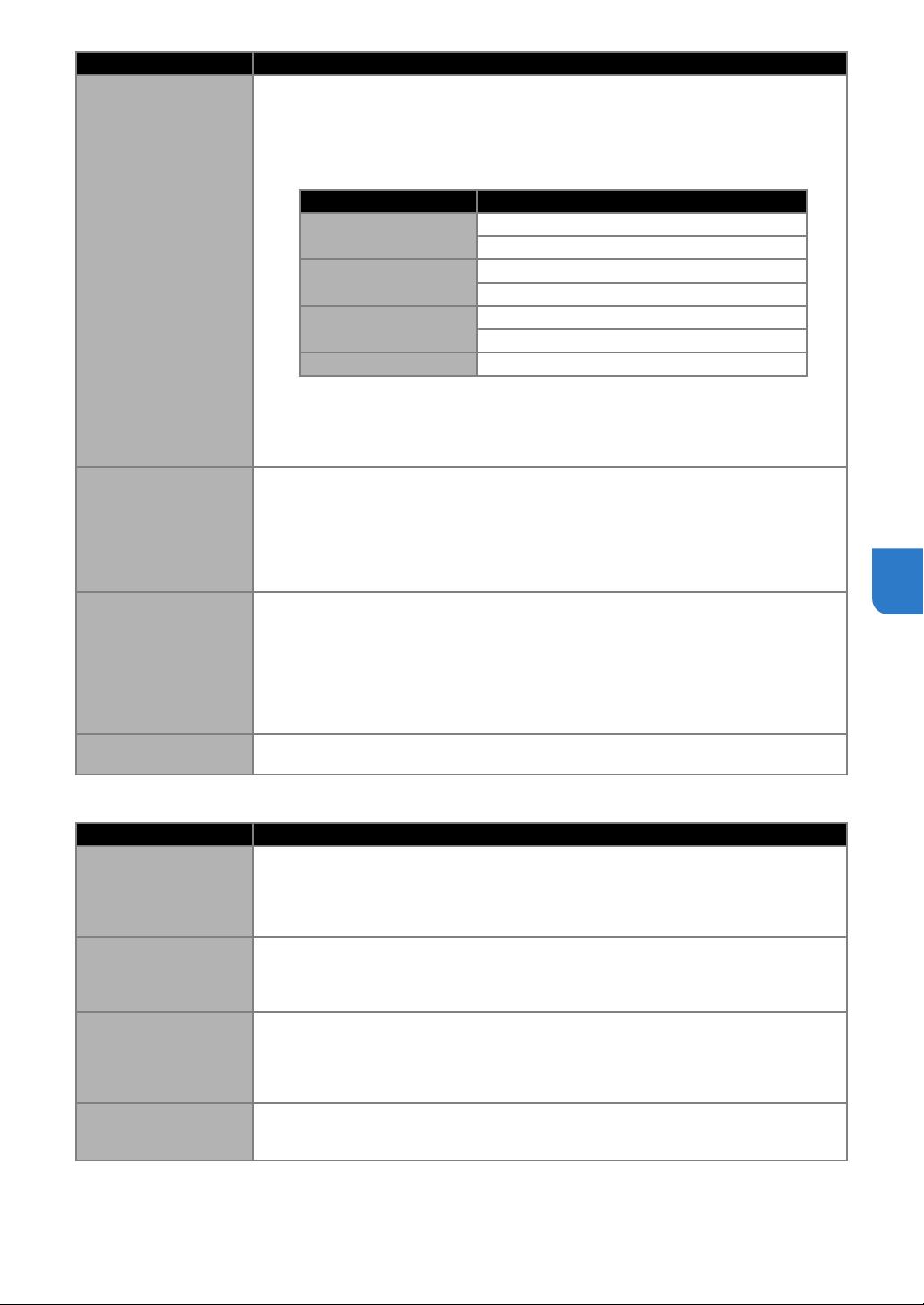
117
7
When Registering the Machine with CanvasWorkspace
Err-03
The Authentication/Encryption methods used by the selected wireless access point/router are
not supported by your machine.
For infrastructure mode, change the authentication and encryption methods of the wireless
access point/router.
Your machine supports the following authentication methods:
If your problem is not solved, the Network Name (SSID) or network settings you entered may be
incorrect. Reconfirm the wireless network settings.
See “How can I Find the Wireless Security Information (Network Name (SSID) and Network
Password)” on page 113 to confirm.
Err-04
The security information (Network Name (SSID)/Network Password (Network Key)) is incorrect.
Reconfirm the Network Name (SSID) and security information (Network Password (Network
Key)).
See “How can I Find the Wireless Security Information (Network Name (SSID) and Network
Password)” on page 113 to confirm.
Err-05
The wireless security information (Authentication method/Encryption method/Network
Password (Network Key)) is incorrect.
Reconfirm the wireless security information (Authentication method/Encryption method/
Network Password (Network Key)) in the table of Err-03.
See “How can I Find the Wireless Security Information (Network Name (SSID) and Network
Password)” on page 113 to confirm.
Err-20
The machine is still trying to connect to your wireless network. Please wait a few minutes, and
then check the WLAN status.
Error message Cause/Solution
A network error
occurred.
A network error occurred during communication.
Check the following.
- Is your wireless access point/router turned on?
- Is the network cable of your wireless access point/router plugged in?
Errors occurred in
network function.
An internal malfunction occurred.
Contact the retailer where you purchased this machine or the nearest authorized service
center.
Registration failed.
Registration of the PIN code failed.
Internal data may be corrupted.
Contact the retailer where you purchased this machine or the nearest authorized service
center.
Unconnected to the
internet server.
Check the proxy setting.
The proxy settings are incorrect.
Check the proxy settings of your wireless network and your machine.
Error code Cause/Solution
Authentication method Encryption method
WPA-Personal
TKIP
AES
WPA2-Personal
TKIP
AES
Open
WEP
None (without encryption)
Shared key
WEP

118
Unconnected to the
network.
Check the network
connection status.
The machine is not connected to the network.
- Check that there is a good network connection.
- A network connection may not yet be established.
Wait a while, and then try again.
Error message Cause/Solution
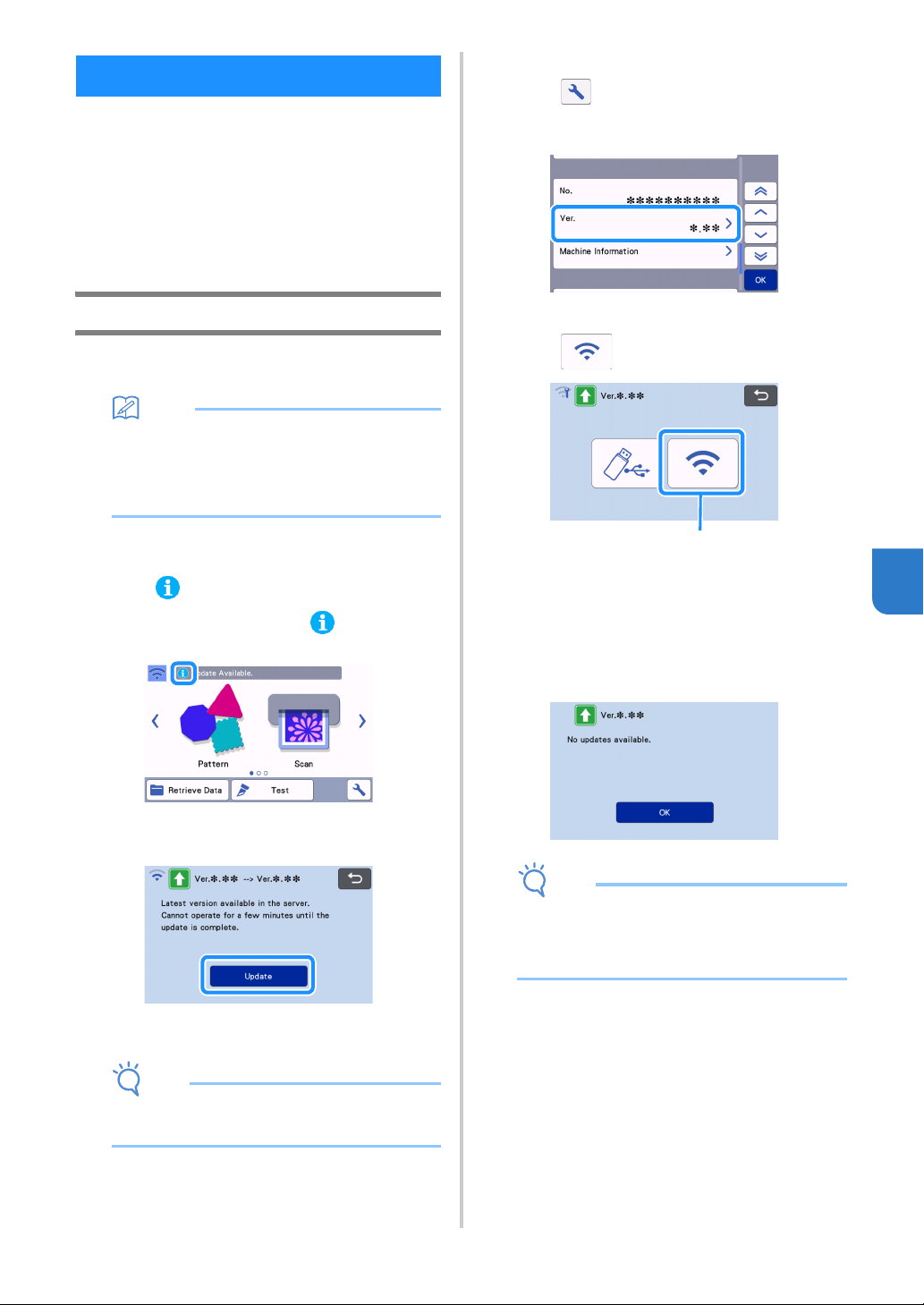
119
7
The machine’s software can be updated with any of
the following three procedures.
● Updating Using Automatic Update Function
- Updating from the Home Screen
- Updating from the Settings Screen
● Updating Using a USB Flash Drive
● Updating Using the Application
(CanvasWorkspace)
Automatic Update Function
The machine can be updated by retrieving update
files directly from the Internet.
Memo
• Before using this function, register your
machine with CanvasWorkspace, and connect
the machine to the network. For details on
registering, refer to “WIRELESS NETWORK
CONNECTION FUNCTION” on page 85.
■ Updating from the Home Screen
a Touch in the home screen.
• If there is no new update file, does not appear
in the home screen.
b Touch the “Update” key to retrieve the
software.
When the update is finished, the machine
automatically restarts.
Note
• Do not turn off the machine while it is being
updated.
■ Updating from the Settings Screen
a Touch in the home screen to display the
settings screen, and then touch the “Ver.”
button.
The update method selection screen appears.
b Touch .
a Update automatically
c Updating begins.
• Refer to step b in “Updating from the Home
Screen”.
If there is no new update file, the following
message appears.
Note
• If the automatic update fails, retrieve the update
file from the Brother support website (http://
s.brother/cuoad/), and then update your
machine using a USB flash drive.
UPDATING THE SOFTWARE
a
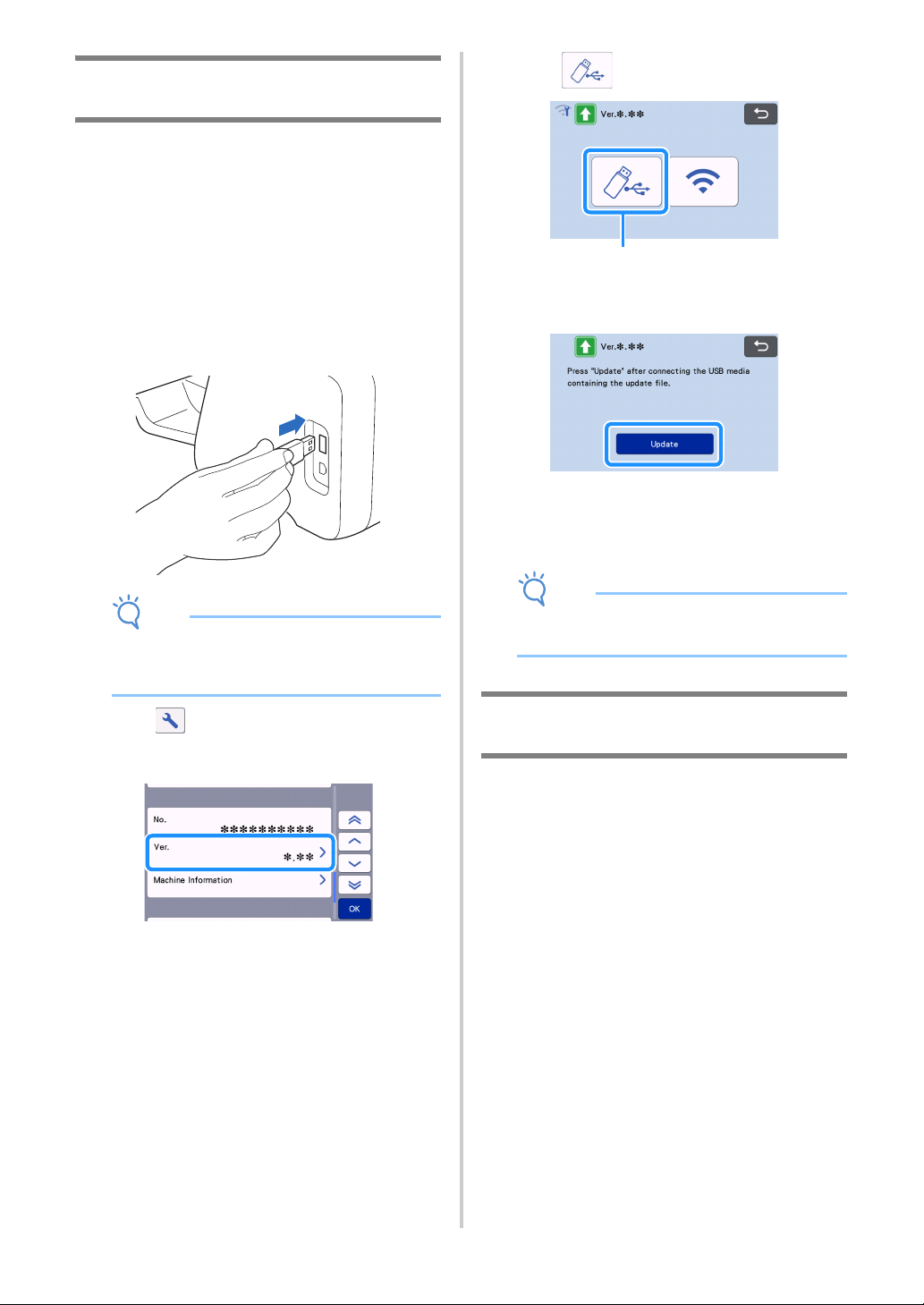
120
Update Procedure Using USB Flash
Drive
Using a USB flash drive, the machine’s software can
be updated. For update information, refer to details
posted on the Brother support website (http://
s.brother/cuoad/). If an update file is posted,
download the file, and then update the machine
according to the following procedure.
a Insert the USB flash drive containing the update
file into the USB port on this machine.
The USB flash drive must not contain any data other
than the update file. Otherwise, the machine may stop
operating correctly.
Note
• This machine is incompatible with a USB hub.
Insert the USB flash drive directly into the USB
port.
b Touch in the home screen to display the
settings screen, and then touch the “Ver.”
button.
The update method selection screen appears.
c Touch .
a Update using USB flash drive
d Touch the “Update” key to start the update.
When the update is finished, the machine
automatically restarts.
e Remove the USB flash drive from the port.
Note
• Do not remove the USB flash drive while the
machine is being updated.
Update Procedure Using the
Application (CanvasWorkspace)
With this function, the machine can be connected to
a computer with a USB cable in order to retrieve the
update file from CanvasWorkspace to update the
machine. Before using this function, install
CanvasWorkspace on the computer.
■ USB cable (sold separately)
• We recommend using a USB 2.0 cable (Type A/
B) that is no longer than 2 meters (6 feet).
a Insert the USB cable connectors into the
corresponding USB ports on the computer and
on the machine, and then turn on the machine.
b Display the home screen on the machine.
a
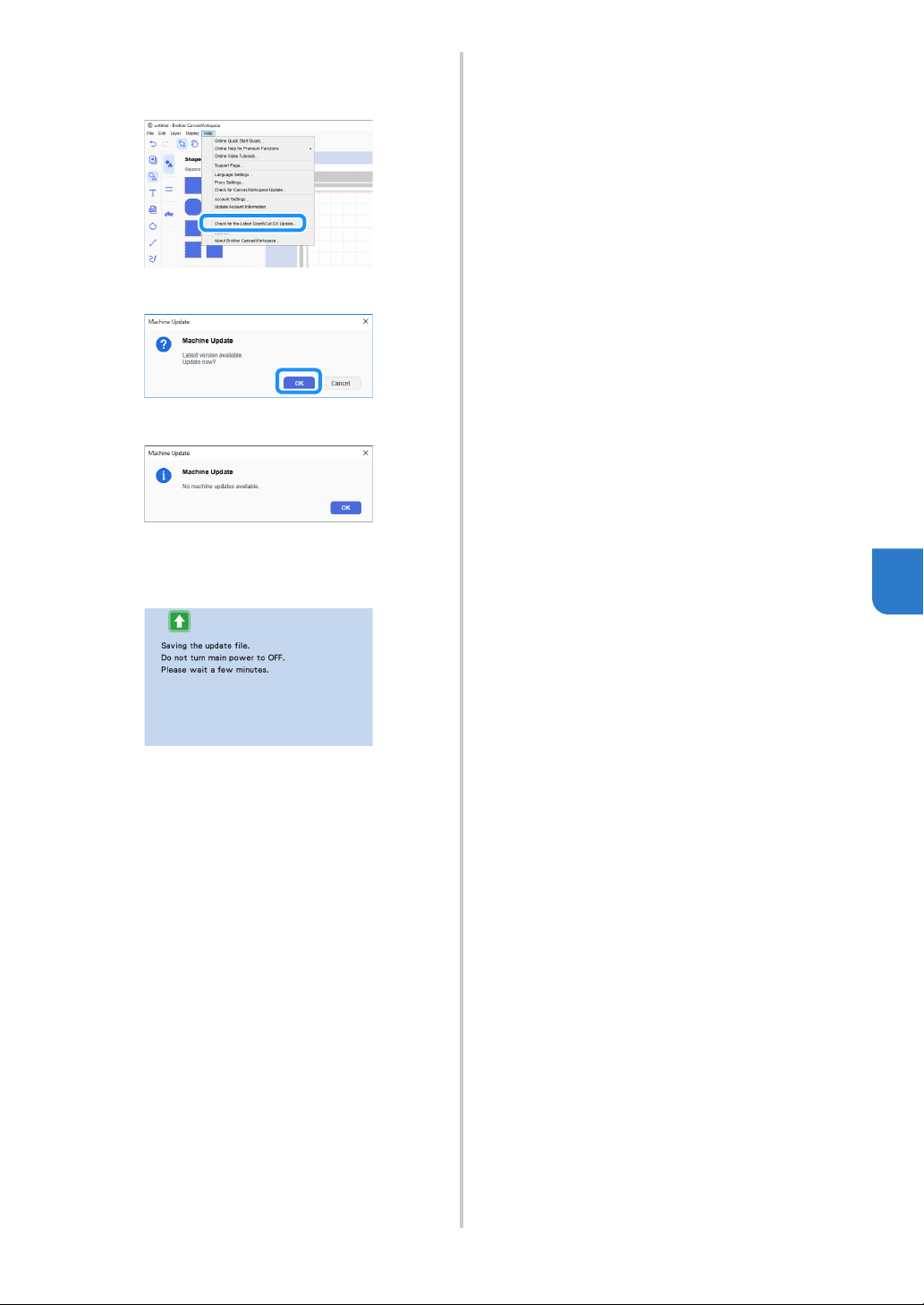
121
7
c Start up CanvasWorkspace, and then click
[Check for the Latest ScanNCut DX Update…]
on the [Help] menu.
When the following message appears, click [OK]
to update the software.
If there is no new update file, the following
message appears.
d When the machine receives the update file, the
following screen appears. When the update is
finished, the machine automatically restarts.
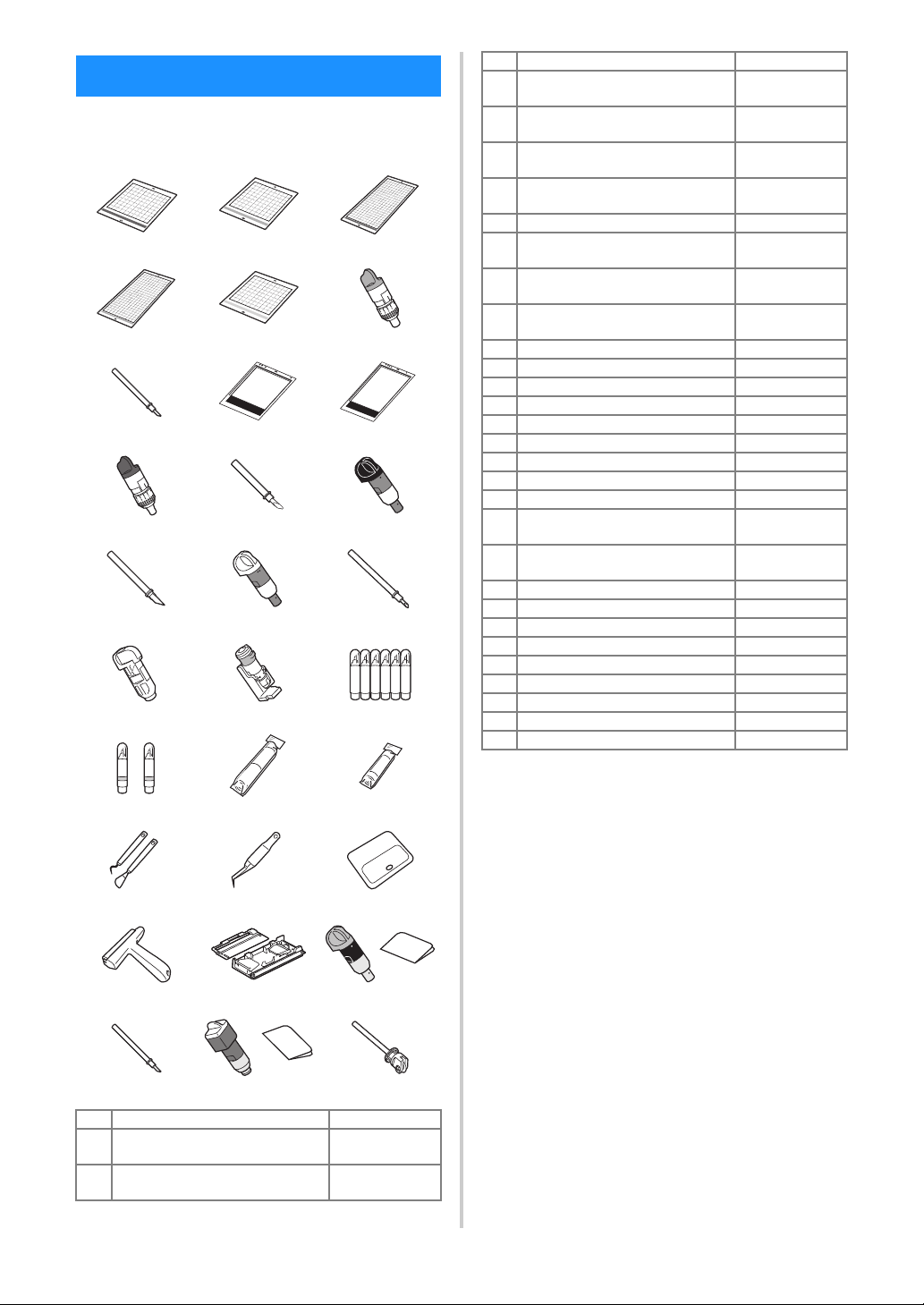
122
The following are available as optional accessories
to be purchased separately.
* Contact the retailer who sold you this machine or
the nearest authorized service center.
* Use a mat designed specifically for this machine.
The machine will not operate correctly if any other
mat is used.
* For the newest information and manuals on
optional accessories compatible with this machine,
refer to the Brother support website (http://
s.brother/ccoab/).
* The blade extension and cutting pressure must be
adjusted manually with the Standard Cut Blade
Holder (turquoise) and Deep Cut Blade Holder
(purple). For details on making adjustments, refer
to the Brother support website (http://s.brother/
cfoae/).
OPTIONAL ACCESSORIES
1. 2. 3.
4. 5. 6.
7. 8. 9.
10. 11. 12.
13. 14. 15.
16. 17. 18.
19. 20. 21.
22. 23. 24.
25. 26. 27.
28. 29. 30.
No. Part Name Part Code
1
Low Tack Adhesive Mat 12" ×
12" (305 mm × 305 mm)
CADXMATLOW12
2
Standard Tack Adhesive Mat 12"
× 12" (305 mm × 305 mm)
CADXMATSTD12
3
Low Tack Adhesive Mat 12" ×
24" (305 mm × 610 mm)
CADXMATLOW24
4
Standard Tack Adhesive Mat 12"
× 24" (305 mm × 610 mm)
CADXMATSTD24
5
Fabric Mat 12" x12" (305 mm x
305 mm)
CADXMATF12
6
Standard Cut Blade Holder
(turquoise) (with no blade)
CAHLP1
7 Standard Cut Blade CABLDP1
8
Scanning Mat 12" × 12" (305 mm
× 305 mm)
CADXMATS12
9
Scanning Mat 12" × 24" (305 mm
× 610 mm)
CADXMATS24
10
Deep Cut Blade Holder (purple)
(with no blade)
CAHLF1
11 Deep Cut Blade CABLDF1
12 Auto Blade Holder CADXHLD1
13 Auto Blade CADXBLD1
14 Thin Fabric Auto Blade Holder CADXHLDQ1
15 Thin Fabric Auto Blade CADXBLDQ1
16 Pen Holder CAPENHL1
17 Universal Pen Holder CAUNIPHL1
18 Color Pen Set CAPEN1
19 Erasable Pen Set CAPEN2
20
Iron-on Fabric Appliqué Contact
Sheet (White Backing)
CASTBL1
21
High Tack Adhesive Fabric
Support Sheet
CASTBL2
22 Spatula and Hook Set CASPHK1
23 Precision Tweezers CATWZ1
24 3.9 inch (100 mm) Scraper CASCP1
25 4 inch (102 mm) Brayer / Roller CABRY1
26 Roll Feeder 2 CADXRF2
27 Vinyl Auto Blade Kit CADXVBKIT1
28 Vinyl Auto Blade CADXBLDV1
29 Rotary Auto Blade Kit CADXRBKIT1
30 Rotary Auto Blade CADXBLDR1
No. Part Name Part Code

123
7
PRODUCT SPECIFICATIONS
Items Specifications
Dimensions
Approx. 531 mm (W) × 215 mm (D) ×
173 mm (H)
(Approx. 20.9 inches (W) × 8.5 inches
(D) × 6.8 inches (H))
Weight Approx. 6 kg (Approx. 13.2 lb)

124
A
AC power jack ...............................................................7
Advanced pattern cutting
............................................34
Aligning Patterns
..........................................................51
Auto shutdown
.....................................................11, 12
B
Background .................................................................10
Background scanning
..................................................53
Basic pattern cutting
...................................................31
Buzzer sound
...............................................................11
C
CanvasWorkspace ..................................................5, 64
Carriage
..................................................................6, 26
Character input functions
............................................55
Cleaning
.....................................................................103
Cut area
................................................................10, 44
Cut pressure
................................................................10
Cut speed
....................................................................10
Cutting around drawings
.............................................58
Cutting blade replacement
........................................101
Cutting line
...................................................................75
D
Direct cut .....................................................................67
Color recognition mode
.......................................68
Grayscale recognition mode
................................68
Draw pressure
......................................................11, 58
Draw speed
...........................................................11, 58
Drawing functions
........................................................57
E
Error messages ..........................................................114
F
Feed slot ......................................................................28
G
Grouping/Ungrouping Patterns ...................................47
H
High tack adhesive fabric support sheet ..............13, 23
Holder lock lever
.....................................................6, 26
Holder setting
..............................................................26
Home screen
..........................................................9, 31
I
Image editing screen ..............................70, 75, 76, 79
Image trim screen
..........................................69, 71, 76
Iron-on fabric appliqué contact sheet
..................13, 19
L
Language .....................................................................10
Layout editing functions
..............................................45
Layout Interval
.............................................................10
Low tack adhesive mat
................................................13
M
Main power switch ..................................................8, 31
Mat and material combinations
...................................15
Mat editing screen
.......................................................41
Mat layout screen
.................................................32, 44
Mat loading
..................................................................28
Mat unloading
..............................................................29
My Connection
............................................................96
O
Opening screen ......................................................8, 11
Operation panel
.............................................................7
Optional accessories
.................................................122
Outline distance
...........................................................71
Outlining and framing
..................................................72
P
Parts and functions ........................................................6
Pattern category selection screen
...............................31
Pattern editing functions
..............................................43
Pattern editing screen
...........................................31, 43
“Pattern” mode
..............................................................4
Pattern piece editing screen
.................................35, 44
Pattern piece list screen
..............................................35
Pattern selection screen
.......................................31, 35
Pattern sizing screen
...................................................35
Pattern sub-category selection screen
........................34
PES
..............................................................................97
PHC
.............................................................................97
PHX
..............................................................................97
Picture editing
..............................................................79
Preview screen
............................................................33
R
Rear tray ...................................................................7, 9
Attaching
...........................................................105
Removing
...........................................................105
Recalling
......................................................................65
Replacement criteria
..................................................101
Required material condition (scanning)
................67, 81
S
Saving ..........................................................................64
“Scan” mode
..........................................................4, 67
Scan to cut data
..........................................................73
Color recognition mode
.......................................74
Grayscale recognition mode
................................73
Scan to USB
................................................................81
Scanner lever
..............................................6, 9, 58, 69
Scanning/Cutting position calibration
.......................106
Seam allowance
............................................11, 46, 58
Selecting multiple patterns
..........................................41
Settings screen
............................................................10
Software update
........................................................119
Standard tack adhesive mat
........................................13
T
Terms of Use .................................................................. i
Test/Trial Cut
...............................................................27
Touch screen calibration
...........................................106
Troubleshooting
.........................................................109
U
Unit ..............................................................................10
USB port
........................................................7, 64, 120
W
Welding (merging the outlines of multiple patterns) ....49
Wireless network
.............................................5, 12, 64
Wireless network connection function
........................85
INDEX

Please visit us at http://s.brother/cpoac/ where you can get
product support and answers to frequently asked questions (FAQs).
These machines are approved for use in the country of purchase only. Local Brother
companies or their dealers will only support machines purchased in their own countries.
English
893-Z11
Version 0