
English
1
English
Table of Contents
Table of Contents
Usage Notice
Safety Instructions .................................................2
Introduction
Product Features ...................................................5
Package Overview .................................................6
Product Overview .................................................. 7
Connection Ports ................................................8
Control Panel ......................................................9
Remote Control .................................................10
Remote Control Operating Range ....................12
Installation
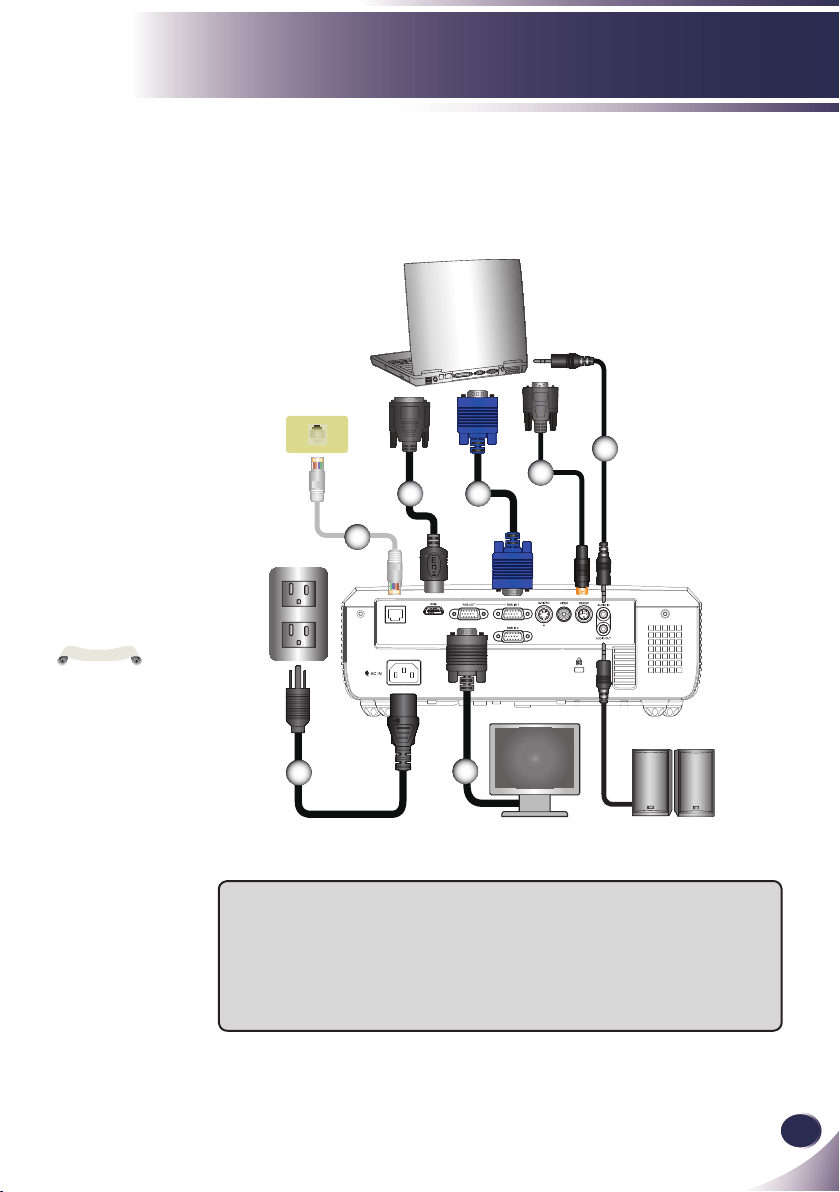
Connecting the Projector ..................................... 13
Connect to Computer/Notebook .......................13
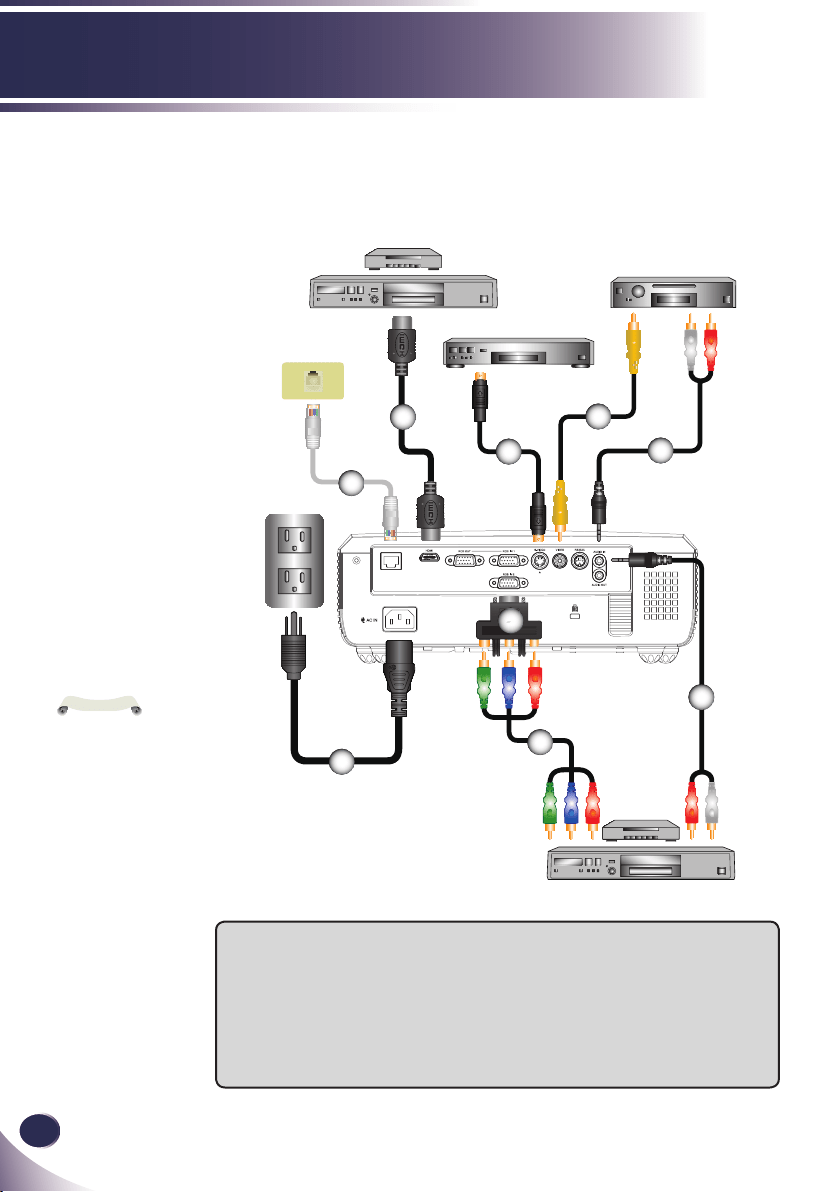
Connect to Video ..............................................14
Powering On/Off the Projector ............................. 15
Powering On the Projector ................................15
Powering Off the Projector ................................16
Warning Indicator ..............................................17
Adjusting the Projected Image .............................18
Adjusting the Height of Projector Image ...........18
Adjusting the Projector’s Focus ........................ 19
Adjusting Projection Image Size ....................... 19
User Controls
On Screen Display ...............................................20
How to operate .................................................20
IMAGE ..............................................................21
IMAGE | Advanced ........................................... 23
IMAGE | Advanced | Input Source .................... 24
SCREEN ........................................................... 25
SETTING | Language ....................................... 28
SETTING ..........................................................29
SETTING | Network .......................................... 31
SETTING | Signal ............................................. 32
SETTING | Advanced ....................................... 33
OPTIONS ..........................................................34
OPTIONS | Lamp Settings ................................36
OPTIONS | Security Setting .............................37
OPTIONS | Advanced ....................................... 38
INFORMATION .................................................39
Lan Module User’s Guide ....................................40
Preface .............................................................40
Network Connection ......................................... 40
Webpage Operations ........................................ 41
Appendices
Troubleshooting ................................................... 44
Replacing the lamp ..............................................49
Compatibility Mode .............................................. 50
Computer Compatibility (Analog) ...................... 50
Computer Compatibility (HDMI) ........................ 51
Congurations of Terminals ................................. 53
Terminal : Analog RGB (Mini D-sub 15 pin) ...... 53
Terminal : Mini DIN 3-pin ..................................53
RS232 Command Table....................................54
Dimensions ..........................................................56
Regulation & Safety Notices ................................57
2
English
Usage Notice
Safety Instructions are given in two forms as detailed below.
WARNING : The violation of this instruction may cause serious injuries and even death.
NOTES : The violation of this instruction may cause injuries or damage to the projector.
After reading this manual, keep it in the place that you can access easily.
Safety Instructions
Please take note of the safety instructions to prevent any poten
-
tial accident or misuse of the projector.
Indoor Installation
NOTES
Indoor Installation
WARNING
Do not place the Projector in direct
sunlight or near heat sources such
as radiators, res, stove etc.
This may cause a re hazard !
Do not place ammable materials
in, on or near the projector
This may cause a re hazard!
Do not hang on the installed
projector.
It may cause the projector to fall,
causing injury or death.
Do not block the vents of the pro-
jector or restrict air-ow in any way.
This would cause the internal tem-
perature to increase and could cause
a re hazard or damage to the unit!
Do not place the projector close to
sources of steam or oil such as a
humidier.
This may create a re hazard or an
electric shock hazard !
Do not place the projector where it
might be exposed to dust.
This may cause a re hazard or dam-
age to the unit!
Do not use the projector in a damp
place such as a bathroom where it
is likely to get wet.
This may cause a re or an electric
shock hazard!
Do not place the projector directly
on a carpet, rug or place where
ventilation is restricted.
This would cause its internal tempera-
ture to increase and might create a re
hazard or damage the unit.
Ensure good ventilation around the
projector. The distance between
the projector and the wall should be
more than 30cm/12 inches.
An excessive increase in its internal
temperature may cause a re hazard
or damage to the unit!
When installing the projector on a
table, be careful not to place it near
the edge.
The projector could fall causing injury
and damage to the projector.
Only use a suitable stand.
Disconnect from the power supply
and remove all connections before
moving, or cleaning.
Only use the projector on a level
and stable surface.
It may fall and cause injury and/or
damage to the unit.
Power
WARNING
Earth wire should be connected.
Ensure that you connect the earth ground wire
to prevent possible electric shock (i.e.a Projector
with a three-prong grounded AC plug must be
connected to a three-prong gronded AC outlet.
If grounding methods are not possible, have
a qualied electrician install a separate circuit
breaker.
Do not try to ground the unit by connecting it to
telephone wires, lightening rods, or gas pipes.
The power cord should be inserted
fully into the power outlet to avoid
a re hazard!
This may cause a re hazard or dam-
age the unit.
Do not place heavy objects on the
power cord.
This may cause a re or an electric
shock hazard !
English
3
English
Usage Notice
Power
WARNING
Never touch the power plug with a
wet hand
This may cause an electric shock-
hazard!
Do not plug-in too many items into
one power outlet.
It may result in overheating of the
outlet and create a re hazard!
Prevent dust from collecting on the
power plug pins or outlet.
This may cause a re hazard!
Power
NOTES
Hold the plug rmly when unplug-
ging. If you pull the cord, it may be
damaged.
This may cause a re hazard !
Do not use if the power cord or the
plug is damaged or any part of the
power outlet is loose.
This may cause a re or an electric-
shock hazard or damage to the unit!
Ensure the power cord does not
come into contact with sharp or
hot objects.
This may cause a re or an electric-
shock hazard or damage to the unit!
Place the projector where people
will not trip or tread on the power
cord.
This may cause a re or an electric-
shock hazard or damage to the unit!
Do not turn the projector On/Off by plugging-in or unplugging the power
plug to the wall outlet.
(Allow the unit to cool before removing power.)
It may cause mechanical failure or could cause an electric shock.
Using
WARNING
Do not place anything containing
liquid on top of the projector such
as owerpot, cup, cosmetics or
candle.
This may cause a re hazard or dam-
age to the unit!
In case of impact shock or damage
to the projector switch it off and
unplug it from the power outlet
and contact an authorized service
center.
This may cause a re or an electric
shock hazard or damage to the unit!
Do not allow any objects to fall into
the projector.
This may cause an electric shock
hazard or damage to the unit!
If water is spilt into the projector
unplug it from the power supply
immediately and consult your
Service Agent.
This may cause an electric shock
hazard or damage to the unit!
Dispose of used batteries carefully and safely.
In the case of a battery being swallowed by a child please consult a doctor
immediately.
Do not remove any covers.
High risk of Electric Shock!
Don’t look directly into the lens
when the projector is in use. Eye
damage may occur!
Do not touch metal parts during
or soon after operation since the
vents will remain very hot!
CAUTION concerning the Power Cord
It is recommend that most appliances be placed on a dedicated circuit; that is,a single outlet circuit which powers
only that appliance and has no additional outlets or branch circuits. Check the specication page of this owner’s
manual to be certain.
Do not overload wall outlets. Overloaded wall outlets, loose or damaged wall outlets, extension cords, frayed power
cords, or damaged or cracked wire insulation are dangerous. Any of these conditions could result in electric shock
or re. Periodically examine the cord of your appliance, and if its appearance indicates damage or deterioration,
unplug it, discontinue use of the appliance, and have the cord replaced with an exact replacement part by an
authorized service personnel.
Protect the power cord from physical or mechanical abuse, such as being twisted, kinked, pinched, closed in a
door, or walked upon. Pay particular attention to plugs, wall outlets, and the point where the cord exits the appli-
ance.
4
English
Usage Notice
Using
WARNING
If the projector is in a room that
experiences a gas leak, do not
touch the projector.
It can cause a re or a burn by a
spark.
Don’t look at laser beam directly as
it can cause eye damage!
Always open the lens door or
remove the lens cap when the
projector lamp is on.
Using
NOTES
Do not place heavy objects on top
of projector.
This may cause mechanical failure
orpersonal injury!
Take care not to impact the lens
particularly when moving the
projector.
Do not touch the lens of the
projector. It is delicate and easily
damaged.
Do not use any sharp tools on the
projector as this will damage the
casing.
In the event that an image does
not appear on the screen please
switch it off and unplug it from
the power outlet and contact your
Service Agent.
This may cause a re or an electric
shock hazard or damage to the unit!
Do not drop the projector or allow
impact shock.
This may cause mechanical failure or
personal injury!
Cleaning
WARNING
Do not use water while cleaning
the projector.
This may cause damage to the projec-
tor or an electric shock hazard.
In the unlikely event of smoke or
a strange smell from the projector,
switch it off , unplug it from the wall
outlet and contact your dealer or
service centre.
This may cause a re or an electric
shock hazard or damage to the unit!
Use an air spray or soft cloth that
is moist with a neutral detergent
and water for removing dust or
stains on the projection lens.
Cleaning
NOTES
Contact the Service
Center once a year to
clean the internal parts of
the projector.
Accumulated dust can
cause mechanical failure.
When cleaning the plastic parts such as projector case, unplug the power and wipe it
with a soft cloth. Do not use cleanser, spray water or wipe with a wet cloth. Especially,
never use cleanser (glass cleaner), automobile or industrial shiner, abrasive or wax,
benzene, alcohol etc., which can damage the product.
Use an air spray or soft cloth that is moist with a neutral detergent and water for
removing dust or stains on the projection lens.
It can cause re, electric shock or product damage (deformation, corrosion and damage).
Others
WARNING
Do not attempt to service the projector yourself. Contact your dealer or service center.
This may cause damage to the projector and could give an electric Shock as well as invalidating the warranty!
Others
NOTES
Be sure to unplug if the projector is not to be used for
a long period.
Accumulated dust may cause a re hazard or damage to
the unit!
Only use the specied type of battery.
This could cause damage to the remote control.

English
5
English
Introduction
Product Features
This product is an XGA single chip 0.55” DLP
®
projector.
Outstanding features include:
■ XGA (1024x768) Native resolution
■ One built-in speaker with 8 watt amplier
■ HDTV compatible (720P, 1080i/p)
■ RGB monitor Loop Thru (works on standby mode > 1W)
■ BrilliantColor
TM
Technology
■ RS232C control
6
English
Introduction
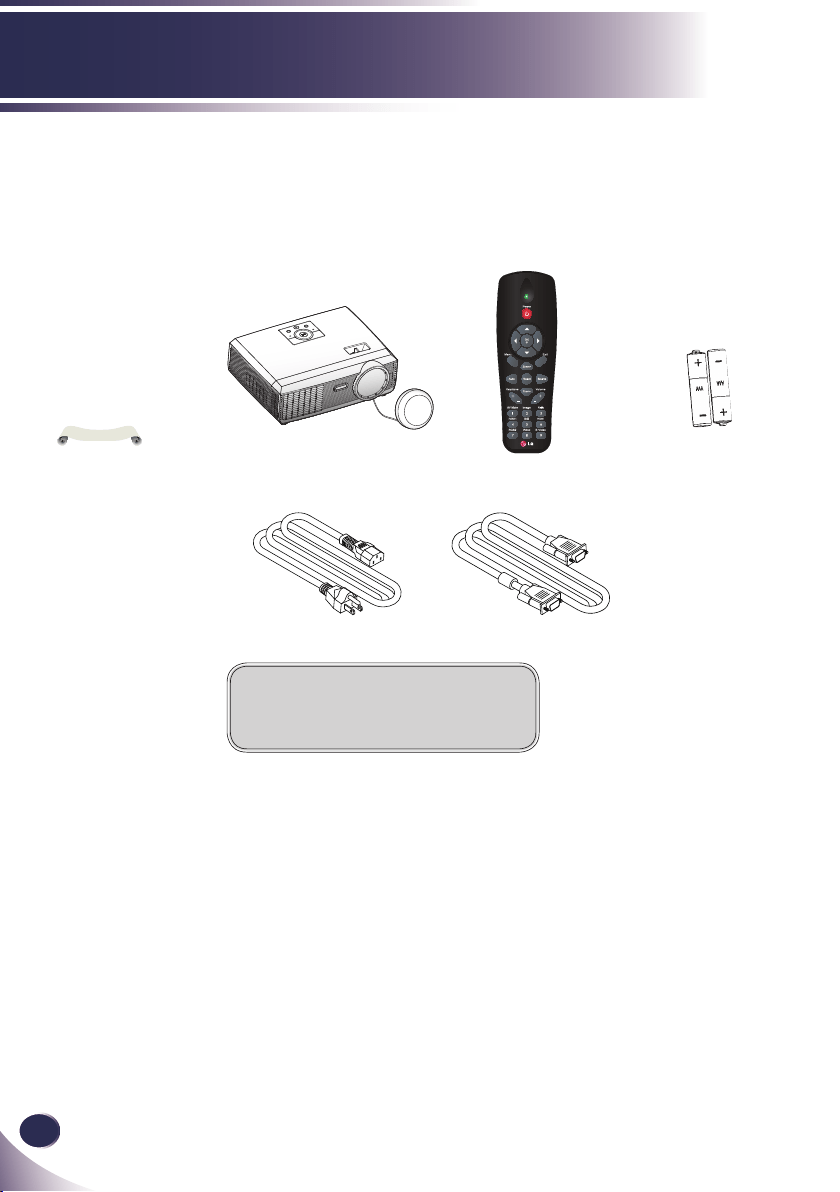
Power Cable RGB Cable
Wireless Remote ControlProjector with lens cap
Package Overview
This projector comes with all the items shown below.
Check to make sure your unit is complete. Contact your
dealer immediately if anything is missing.
Due to the differ-
ence in applications
for each country, some
regions may have dif-
ferent accessories.
N
o
t
e
Documentation:
CD-ROM User’s Manual
Battery
English
7
English
Introduction
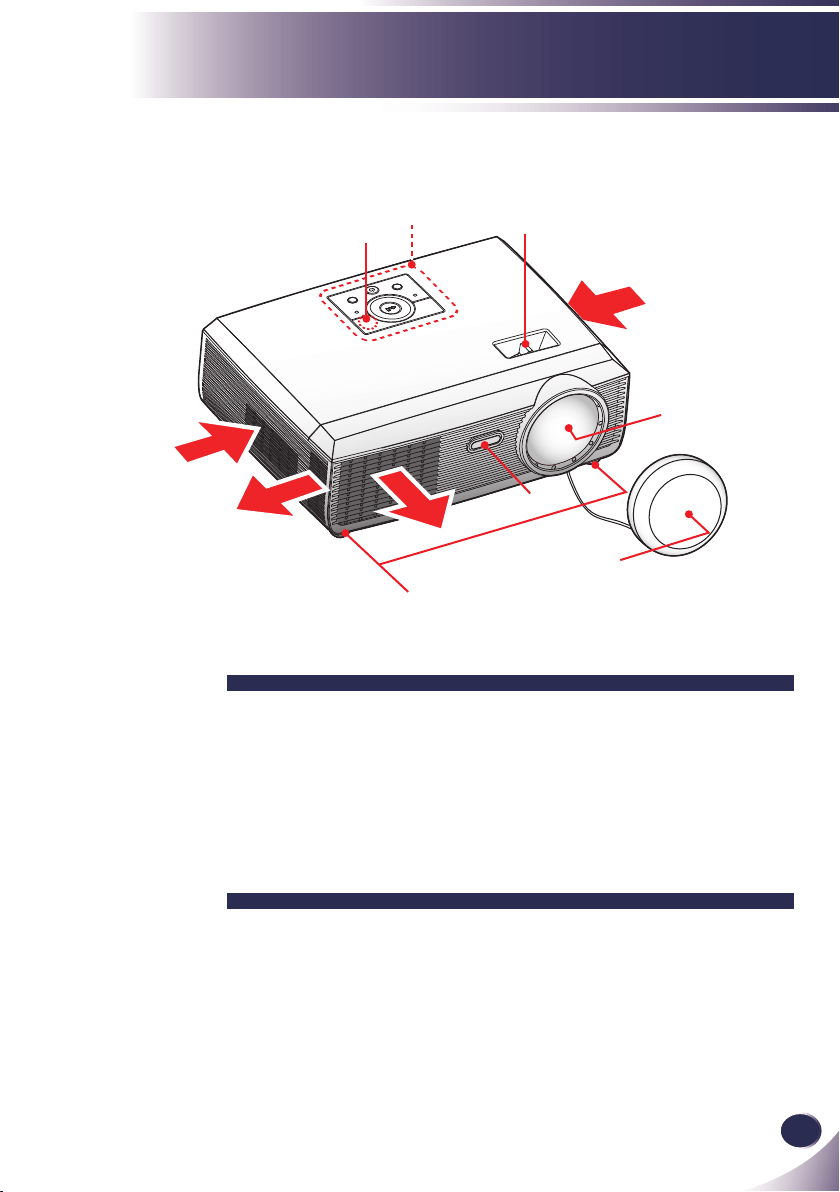
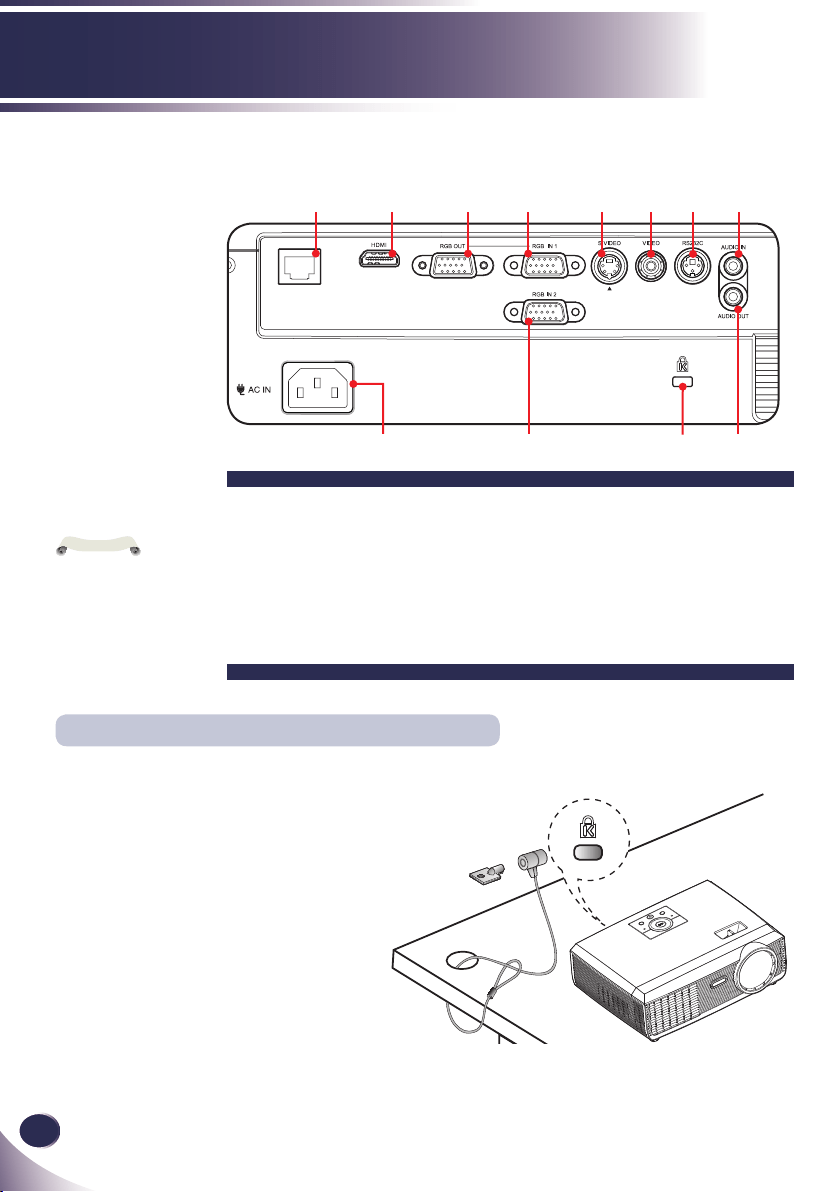
1. Control Panel
2. Remote Sensors
3. Focus Ring
4. Lens
5. Lens Cap
6. Adjustable feet
7. Ventilation (inlet)
8. Ventilation (outlet)
Product Overview
Air Flow
1
2
3
4
7
2
5
6
7
8
8
8
English
Introduction
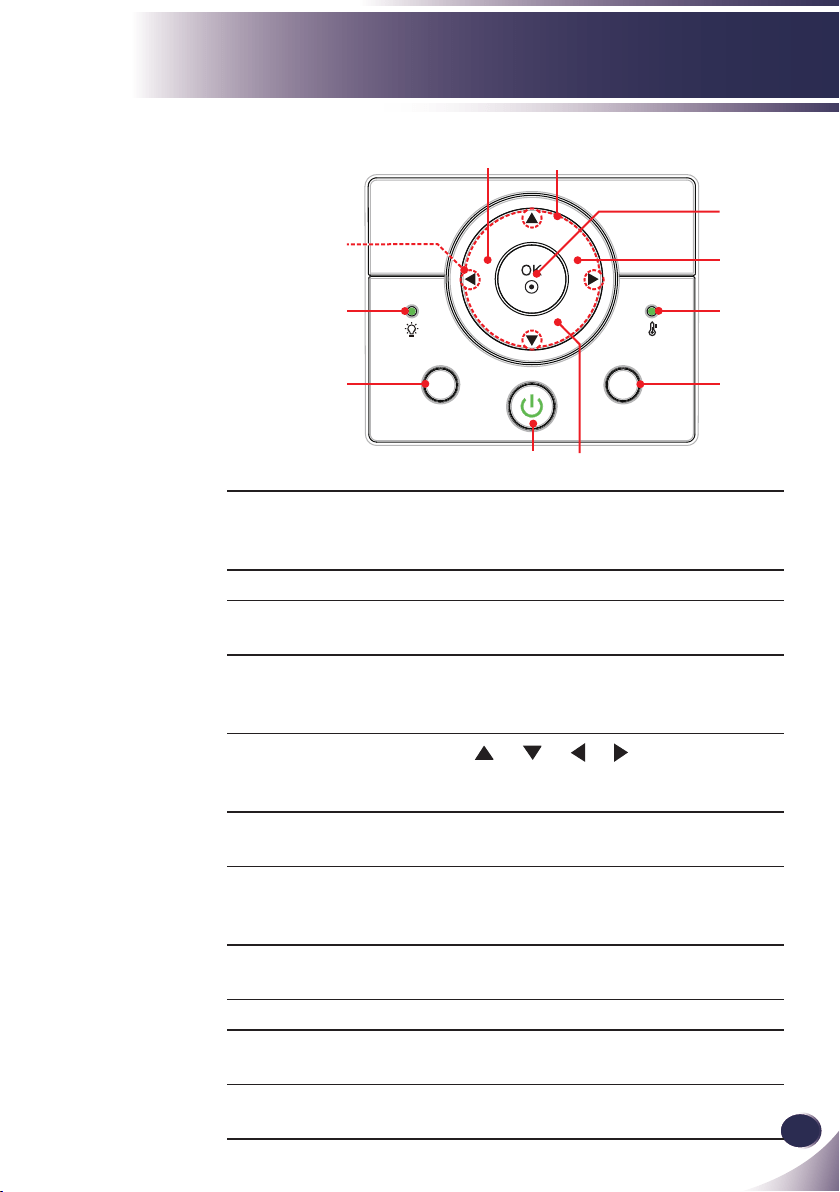
Connection Ports
1. AC IN
2. RJ45 Connector
3. HDMI Connector
4. * RGB OUT Connector
5. RGB IN 1 Connector
6. RGB IN 2 Connector
7. S-VIDEO In Connector
8. VIDEO Connector
9. RS232C Service Port
10. AUDIO IN Jack
11. AUDIO OUT Connector
12. Kensington
TM
Lock
LAN
2 3 4 5 8
1
6
7
This projector has a Kensington
Security System Connector on the
side panel. Connect the Kensington
Security System cable as below.
For the detailed installation and use of
the Kensington Security System, refer
to the user’s guide included with the
Kensington Security System set. And
for further information, contact
http://www.kensington.com, the
internet homepage of the Kensington
company that deals with expensive
electronic equipment such as notebook
PCs or projectors.
The Kensington Security System is an
optional item.
Kensington Security System
9 10
11
12
“*” for “RGB IN 1
Connector” only
N
o
t
e
English
9
English
Introduction
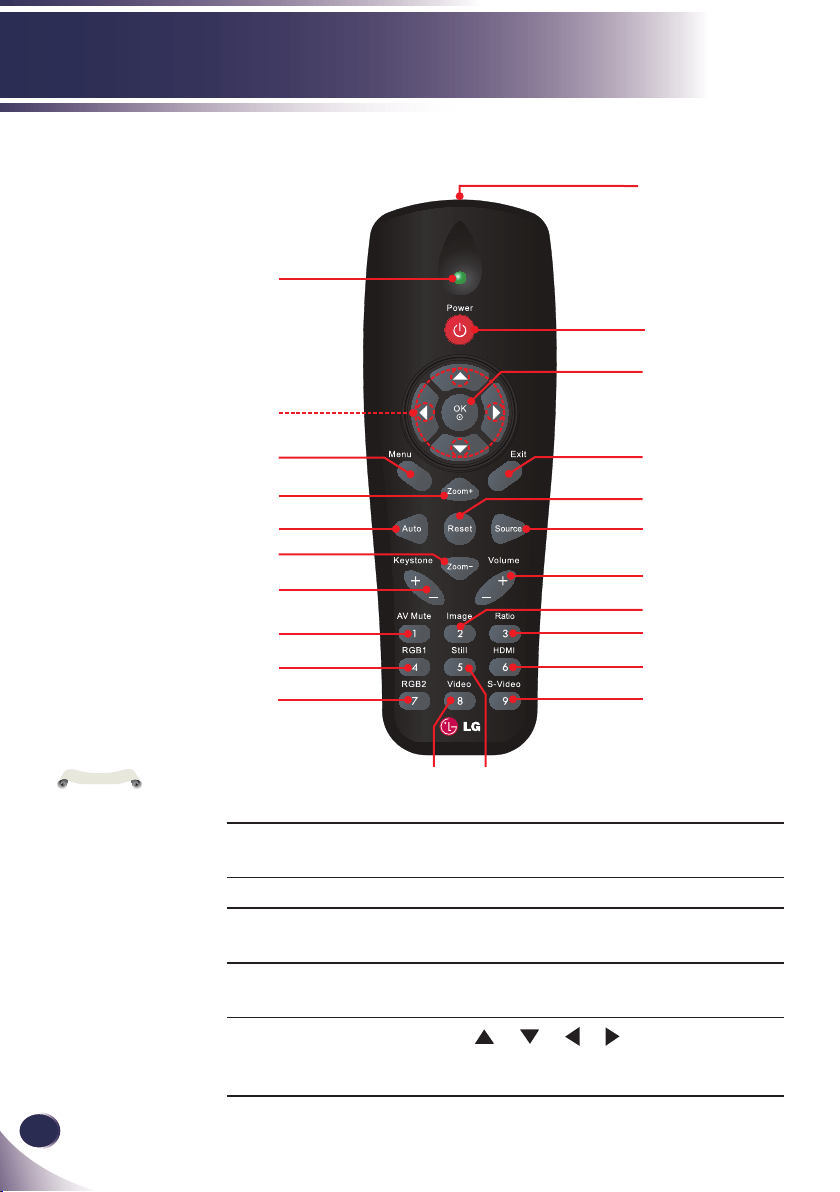
Control Panel
1 POWER
POWER LED
Refer to the “Power On/Off the Pro-
jector” section on pages 15~16.
Indicate the projector’s status.
2 LAMP LED Indicate the projector’s lamp status.
3 TEMP LED Indicate the projector’s temperature
status.
4 KEYSTONE Adjust the image to compensate for
distortion caused by tilting the projec-
tor.
5 Four Direction-
al Select Keys
Use or or or to select items
or make adjustments to your selec-
tion.
6 SOURCE Press “SOURCE” to select an input
signal.
7 MENU Press “MENU” to launch the on-
screen display (OSD) menu. To exit
OSD, Press “MENU” again.
8 VOLUME Adjust to increase / decrease the
volume.
9 OK Con rm your item selection.
10 AUTO Automatically synchronizes the pro-
jector to the input source.
11 STILL Pause the screen image. Press again to
resume the screen image.
1
K
E
Y
S
T
O
N
E
A
U
T
O
E
M
U
L
O
V
S
O
U
R
C
E
MENU STILL
2
3
4
8
11
7
6
10
5
9
10
English
Introduction
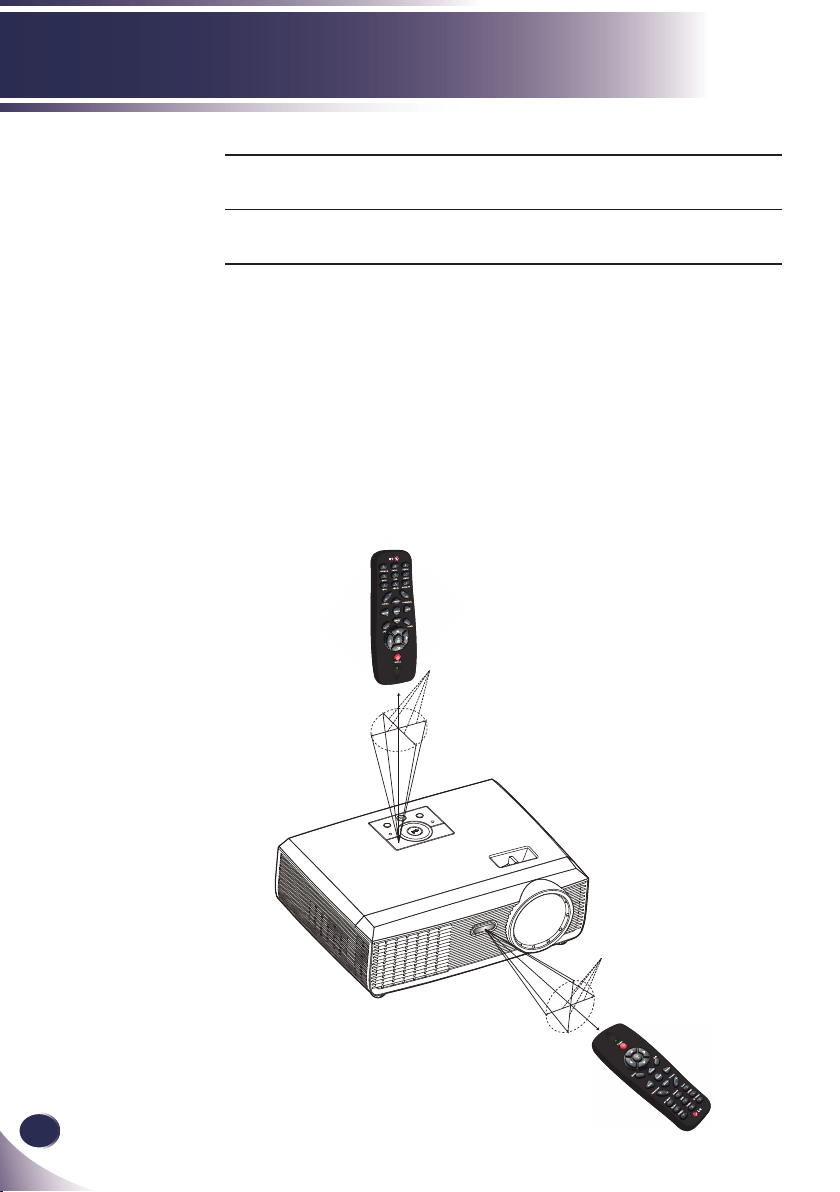
Remote Control
1 Infrared trans-
mitter
Sends signals to the projector.
2 LED LED Indicator.
3 Power Refer to the “Power On/Off the Pro-
jector” section. (See pages 15~16)
4 OK Conrm your section of items in sub
menu operation.
5 Four
Directional
Select Keys
Use or or or to select items or
make adjustments to your selection.
You can only turn
the projector on/off
with POWER button on
the projector.
You can operate all
of the functions of the
projector via the remote
control. Make sure
not to lose the remote
control.
N
o
t
e
10
12
14
16
2
5
6
8
18
20
23
11
13
15
17
3
4
7
9
19
21
22
1

English
11
English
Introduction
6 Menu Press “Menu” to launch the Onscreen
display (OSD), back to the top level of
OSD for the OSD main menu opera-
tion
7 Exit Press “Exit” to close the OSD menu.
8 Zoom+ Zoom in the projector display.
9 Reset Return the adjustments and settings
to the factory default values. (except
for lamp counter)
10 Auto Automatically synchronize the
projector to the input source.
11 Source Press “Source” to choose RGB,
S-Video, Composite and HDMI
sources.
12 Zoom- Zoom out the projector display.
13 Volume +/- Increase/decrease speaker volume.
14 Keystone +/- Adjust the image to compensate
for distortion caused by tilting the
projector.
15 Image Select the Image mode from
Presentation, Bright, Movie, sRGB,
and User.
16 AV Mute Momentarily turn off/on the audio
and video.
17 Ratio Use this function to choose your
desired aspect ratio.
18 RGB1 Press “RGB1” to choose RGB IN 1
connector.
19 HDMI Press “HDMI” to choose HDMI
connector.
20 RGB2 Press “RGB2” to choose RGB IN 2
connector.
21 S-Video Press “S-Video” to choose S-VIDEO
connector.
12
English
Introduction
Remote Control Operating Range
Point the remote control toward the projector (Infrared Re-
mote Receiver) when pressing any button. Maximum operat-
ing range for the remote control is about 23.0’ (7m) and 30° in
front of the projector.
23.0’ (7m)
Approx.15°
23.0’ (7m)
Approx.15°
23.0’ (7m)
22 Video Press “Video” to choose VIDEO
connector.
23 Still Pause the screen image. Press again to
resume the screen image.
English
13
English
Installation
LAN
E62405SP
R
Connecting the Projector
Due to the differ-
ence in applications
for each country, some
regions may have differ-
ent accessories.
N
o
t
e
1............................................................................................Power cable (supplied)
2...............................................................................................RGB cable (supplied)
3.............................................................................................................RS232C cable
4............................................................................................. Audio cable Jack/Jack
5..................................................................................................... DVI/HDMI cable
6...........................................................................................................Network cable
7.....................................................................................................Monitor out cable
RGB, DVI
1
4
3
5
Connect to Computer/Notebook
Monitor Output
2
6
7
14
English
Installation
LAN
E62405SP
R
Due to the differ-
ence in applications
for each country, some
regions may have dif-
ferent accessories.
N
o
t
e
1............................................................................................Power cable (supplied)
2............................................................................................... RGB to RCA adaptor
3........................................................................................3 RCA Component Cable
4............................................................................................ Composite video cable
5............................................................................................................ S-Video cable
6............................................................................................Audio cable Jack/RCA
7...............................................................................................................HDMI cable
8...........................................................................................................Network cable
S-Video Output
DVD player, Set-top Box
HDTV receiver
1
2
4
7
6
Connect to Video
Video Output
6
3
DVD player, Set-top Box
HDTV receiver
5
8
English
15
English
Installation
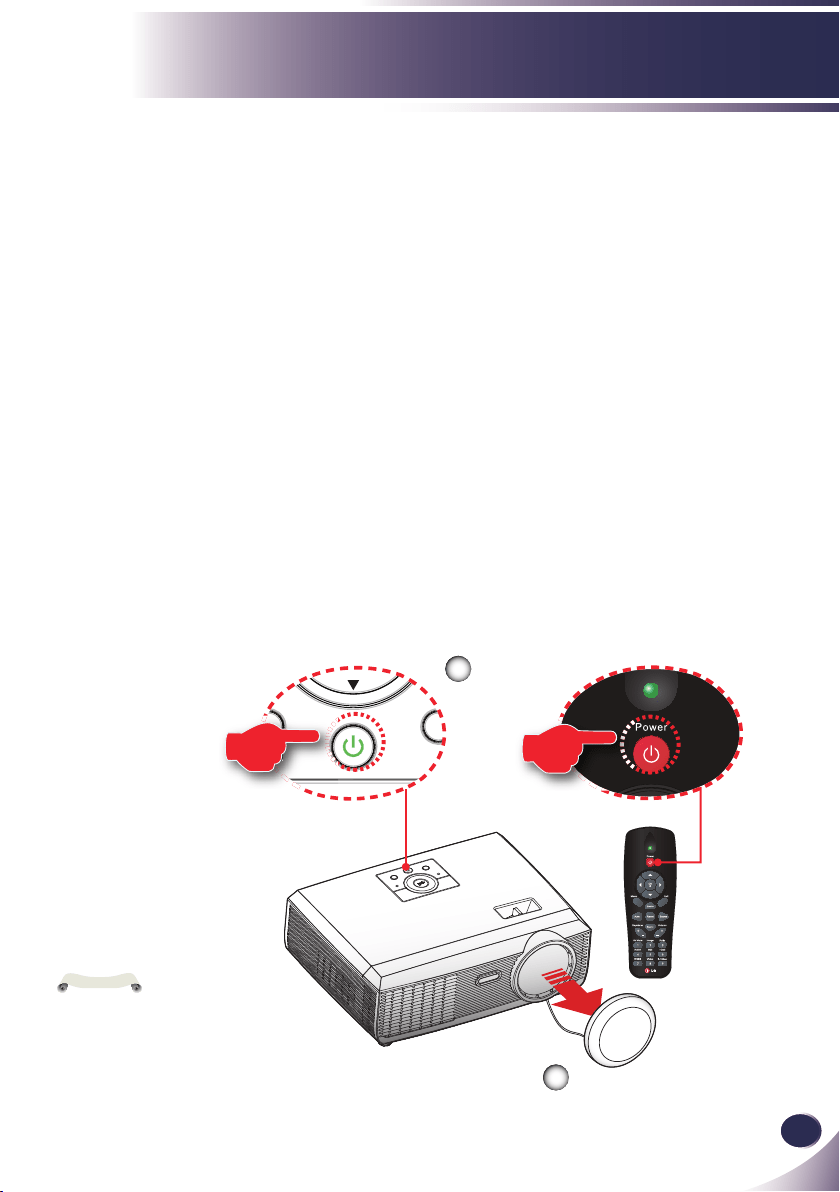
Powering On the Projector
1. Ensure that the power cable and signal cable are securely
connected. The POWER LED will turn orange.
2. Remove the lens cap.
3. Turn on the lamp by pressing “POWER” on the control
panel or the remote control. The POWER LED will ash
green.
The startup screen will display in approximately 5 seconds.
When disappear startup screen, the POWER LED will turn
green.
4. Turn on your source (computer, notebook, video player,
etc.) The projector will detect your source automatically.
If you connect multiple sources at the same time, use the
“SOURCE” on the remote control or use “RGB”, “S-video”,
“Video”, “HDMI” on the remote control to switch inputs.
Powering On/Off the Projector
Turn on the projec-
tor rst and then the
signal sources.
N
o
t
e
POWER
2
or
K
E
Y
S
T
O
N
E
A
U
T
O
E
M
U
L
O
V
S
O
U
R
C
E
MENU
STILL
MENU
Lens Cap
1

16
English
Installation
Powering Off the Projector
1. Press the “POWER” to turn off the projector lamp, you will
see a message as below on the on-screen display.
2. Press the “POWER” again to conrm.
3. The cooling fan continues to operate for about 60 seconds for
cooling cycle and the POWER LED will ash green. When
the POWER LED ashes orange, the projector has entered
standby mode.
If you wish to turn the projector back on, you must wait
until the projector has completed the cooling cycle and has
enter standby mode.
Once in standby mode, simply press “POWER” to restart the
projector.
4. Disconnect the power cable from the electrical outlet and the
projector.
5. Do not turn on the projector immediately following a power
off procedure.
English
17
English
Installation
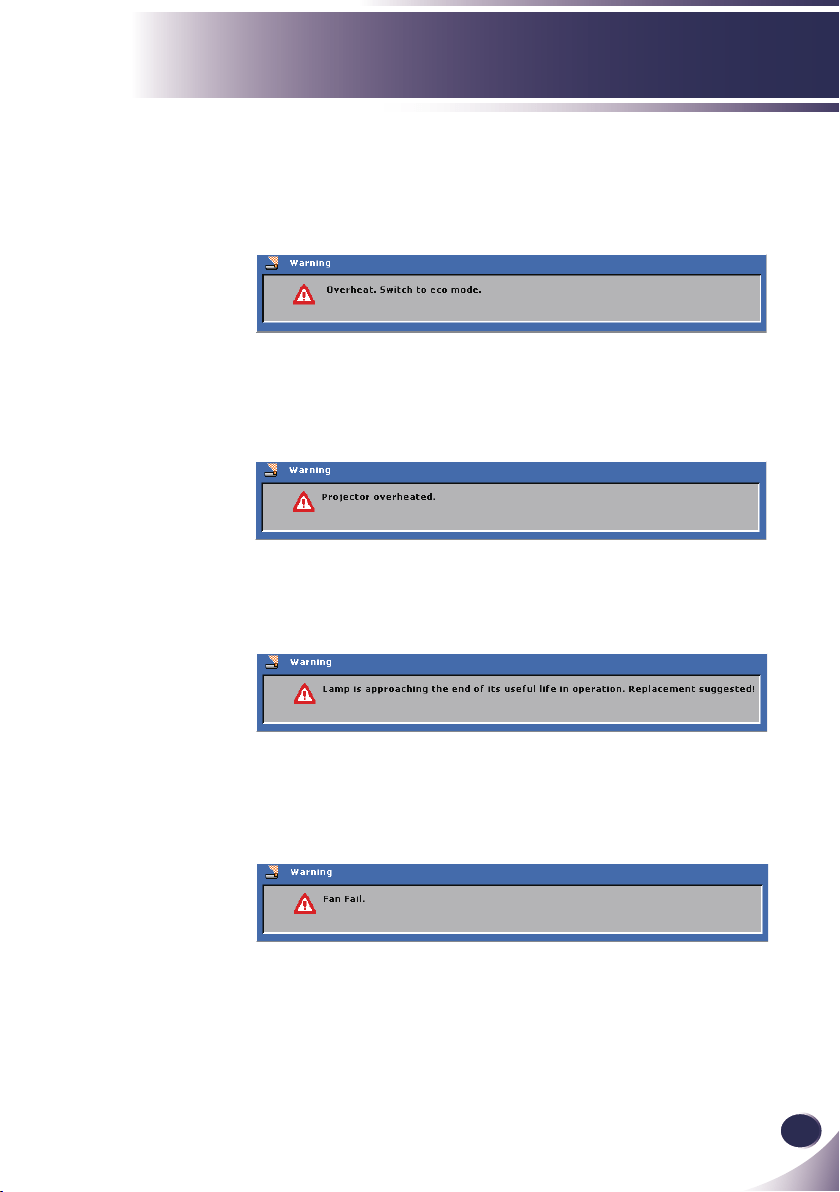
Warning Indicator
When the “TEMP” LED indicator lights red, it indicates the
projector has overheated. The projector will automatically
switch to eco mode.
When the projector keep overheated for 60 seconds under
eco mode, the projector will automatically shut itself down.
If the problem persists, you should c
ontact your local dealer
or our service center.
When you see the message below displays on-screen, the
projector has detected that the lamp is approaching its end
of life. Please change the lamp as soon as possible or contact
your local dealer or our service center.
When the “TEMP” LED indicator ashes red and the mes-
sage below displays on-screen, it indicates the fan failed.
Stop using the projector and disconnect the power cable
from the electrical outlet, then contact your local dealer or
our service center.
18
English
Installation
Adjusting the Projected Image
Adjusting the Height of Projector Image
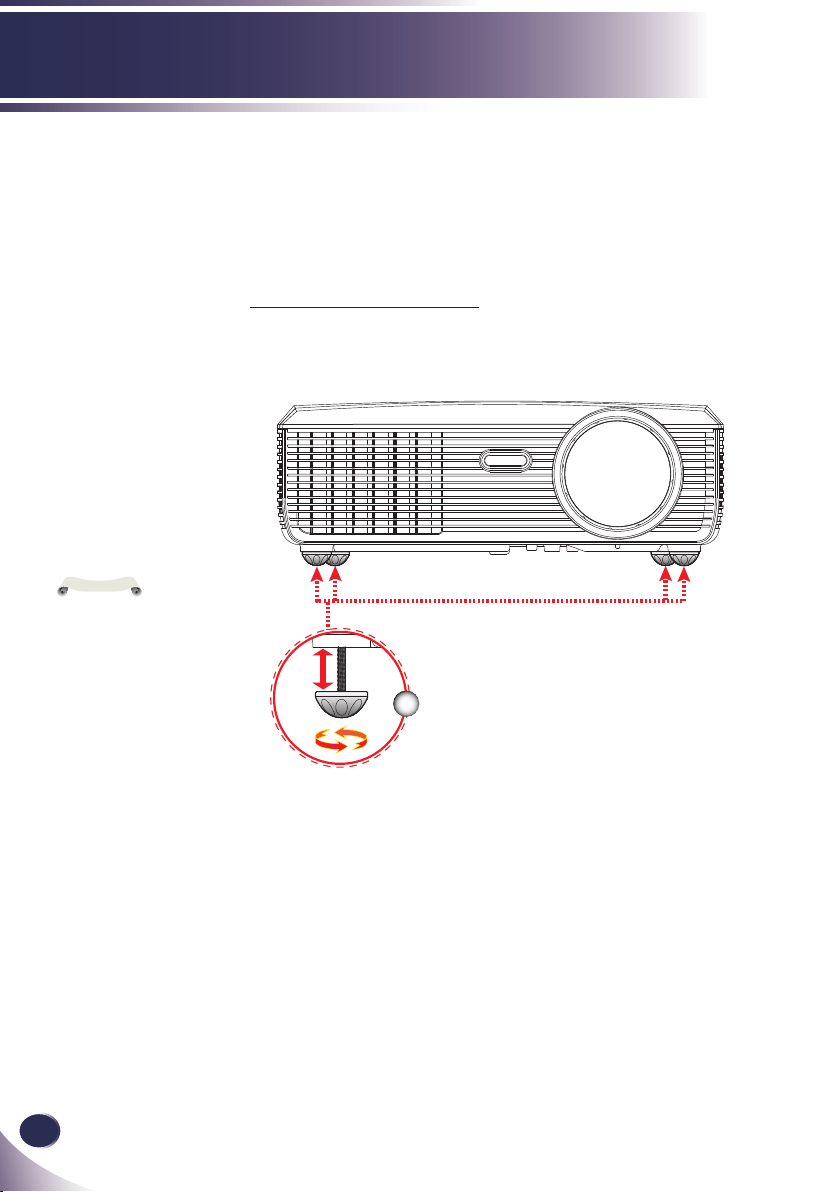
The projector is equipped with adjustable feet to raise and
lower the image to ll the screen.
To raise/lower the image:
1. Use to ne-tune the display angle.
You can raise the
projector front up to 4
degrees by rotating the
adjustable feet.
N
o
t
e
Adjustable feet
1
Maximum Length: 13.8 mm
English
19
English
Installation
1.3'
(0.4m)
26.2'(8.0m)
19.7'(6.0m)
14.8'(4.5m)
9.8'(3.0m)
4.9'(1.5m)
32.8'(10.0m)
31.4"
(79.9cm)
117.9"
(229.5cm)
235.8"
(559.0cm)
353.8"
(898.6cm)
471.7"
(1,198.1cm)
628.9"
(1,597.4cm)
786.1"
(1,996.8cm)
Lens Center
H
A
Lens Center
H : A = 6.67
B ÷ H x 100% = 115%(Offset)
B
Focus Ring
Adjusting the Projector’s Focus
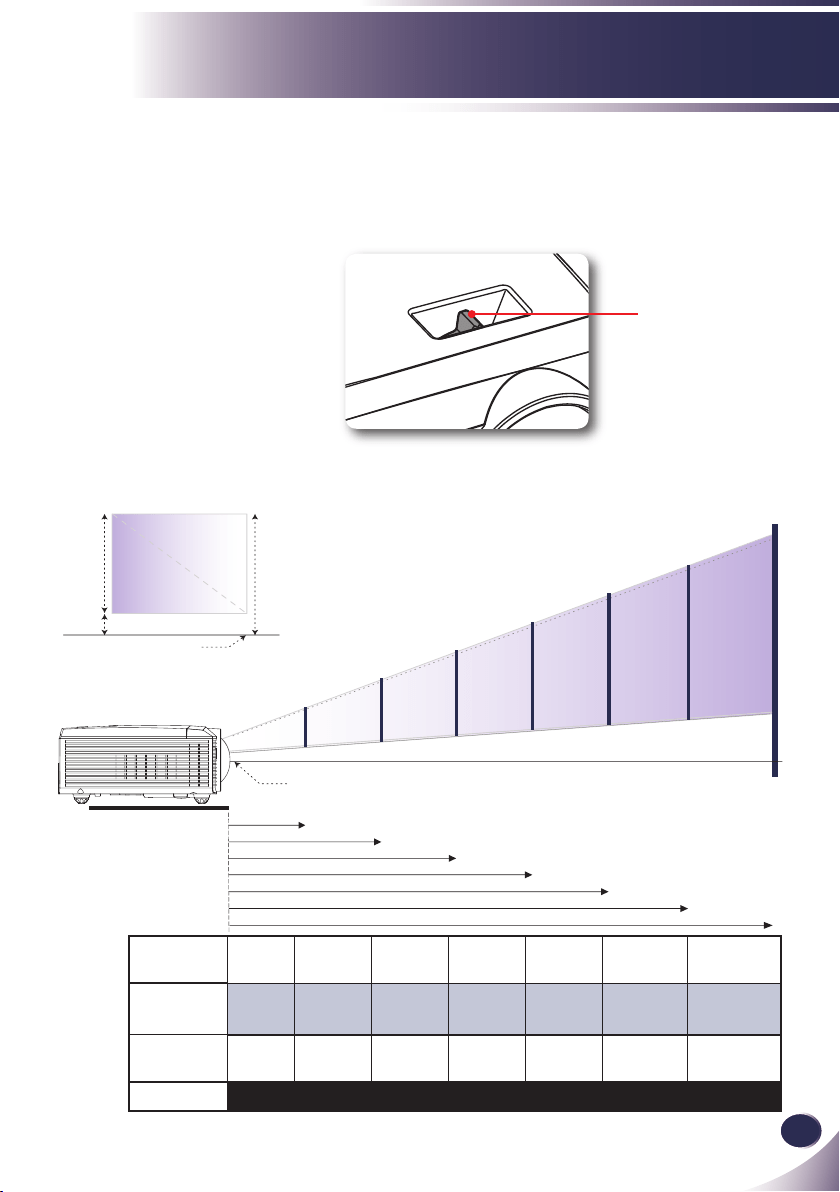
To focus the image, rotate the focus ring until the image is clear.
The projector will focus at distances from 1.3 to 32.8 feet (0.4 to
10.0 meters) with mechanical travel.
Adjusting Projection Image Size
Screen
(Diagonal)
31.4”
(79.9cm)
117.9”
(229.5cm)
235.8”
(559.0cm)
353.8”
(898.6cm)
471.7”
(1,198.1cm)
628.9”
(1,597.4cm)
786.1”
(1,996.8cm)
Screen Size
Max.(WxH)
25.1”x18.8”
63.9x47.9cm
94.3”x70.7”
239.6x179.7cm
188.6”x141.5”
479.2x359.4cm
283.0”x212.3”
718.9x539.2cm
377.4”x283.0”
958.5x718.9cm
503.1”x377.3”
1,227.9x958.4cm
628.9”x471.7”
1,597.4x1,198.1cm
Hd
2.83”
(7.20cm)
10.61”
(27.00cm)
21.22”
(53.90cm)
31.84”
(80.90cm)
42.45”
(107.80cm)
56.60”
(143.80cm)
70.75”
(179.70cm)
Distance
1.3’ (0.4m) 4.9’ (1.5m) 9.8’ (3.0m) 14.8’ (4.5m) 19.7’ (6.0m) 26.2’ (8.0m) 32.8’ (10.0m)
This graph is for user’s reference only.
20
English
User Controls
The Projector has multilingual On-screen Display menus
that allow you to make image adjustments and change a
variety of settings. The projector will automatically detect
the source.
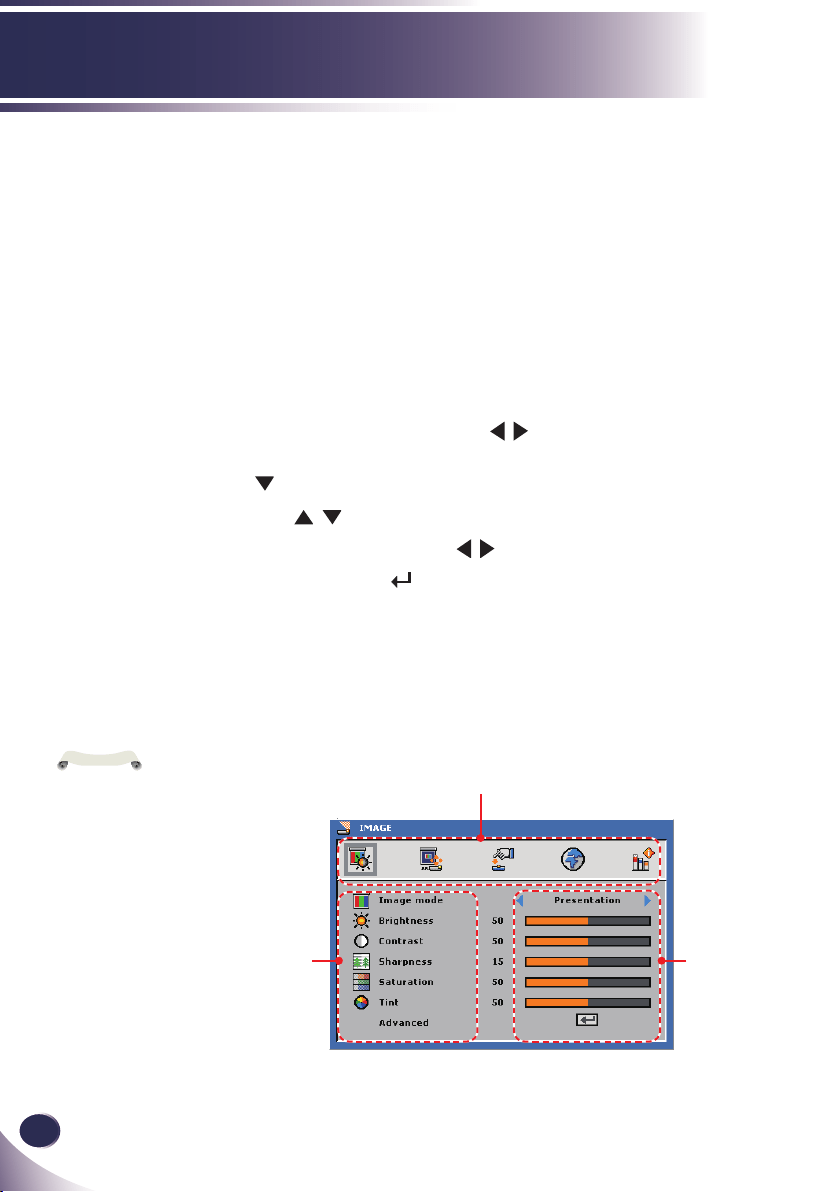
How to operate
1. To open the OSD, press “MENU” on the Remote Control or Con-
trol Panel.
2. When OSD is displayed, use keys to select any item in the
main menu. While making a selection on a particular page, press
or “OK” key to enter sub menu.
3. Use keys to select the desired item in the sub menu and
adjust the settings using
key.
4. If the setting has icon, you could press “OK” to enter another
sub menu. Press “MENU” to close the sub menu after adjustment.
5. After adjusting the settings, press “MENU” go back to the main
menu.
6. To exit, press “MENU” again. The OSD will be closed and the pro
-
jector will automatically save the new settings.
On Screen Display
If no button op-
eration is made for 30
seconds, the OSD will
be closed automatically.
N
o
t
e
Main Menu
Sub Menu
Setting
English
21
English
User Controls
IMAGE
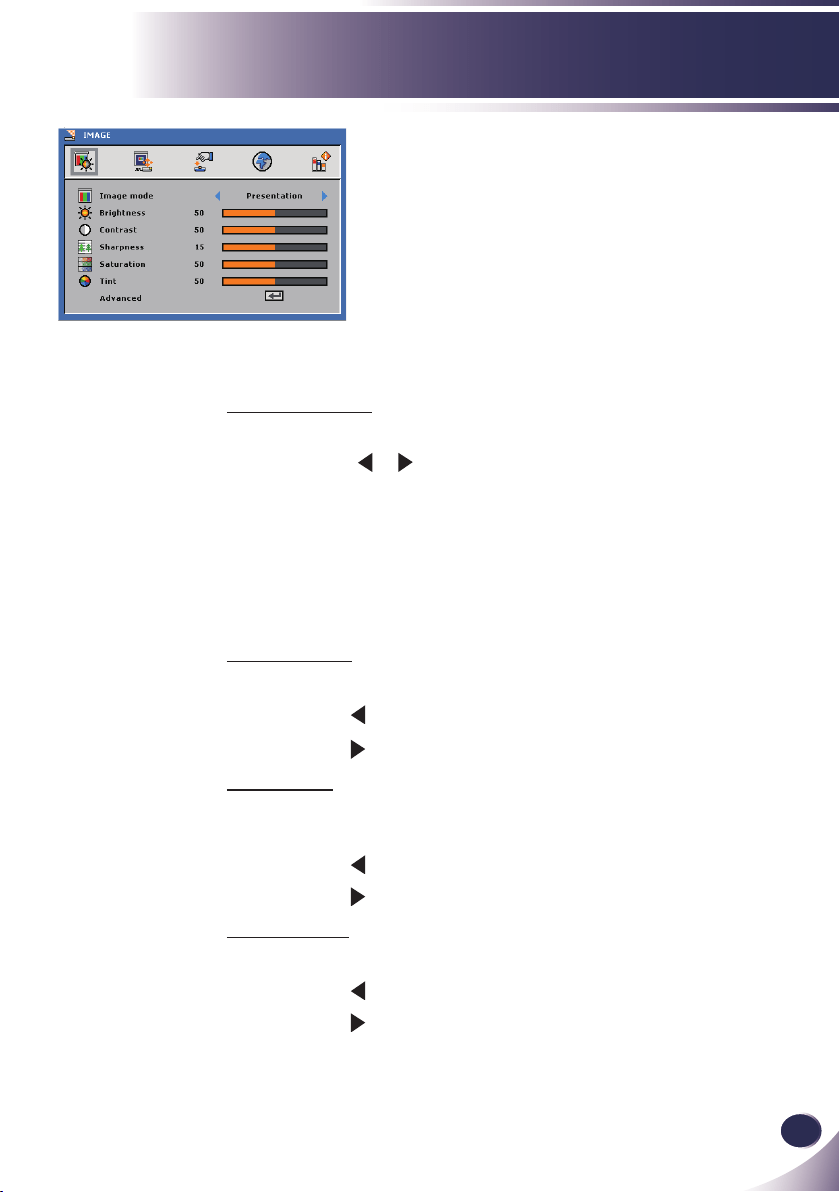
Image Mode
There are many factory presets optimized for various types of im-
ages. Use the or to select the item.
Presentation: For computer or notebook.
Bright: For bright room.
Movie: For home theater.
sRGB: For standard color.
User: Memorize user’s settings.
Brightness
Adjust the brightness of the image.
Press the to darken image.
Press the to lighten the image.
Contrast
The contrast controls the degree of difference between the lightest
and darkest parts of the picture.
Press the to decrease the contrast.
Press the to increase the contrast.
Sharpness
Adjust the sharpness of the image.
Press the to decrease the sharpness.
Press the to increase the sharpness.

22
English
User Controls
Saturation
Adjust a video image from black and white to fully saturated color.
Press the to decrease the amount of color in the image.
Press the to increase the amount of color in the image.
Tint
Adjust the color balance of red and green.
Press the to increase the amount of green in the image.
Press the to increase the amount of red in the image.
“Sharpness”,
“Saturation” and “Tint”
functions are only
supported under Video
mode.
N
o
t
e
English
23
English
User Controls
IMAGE | Advanced
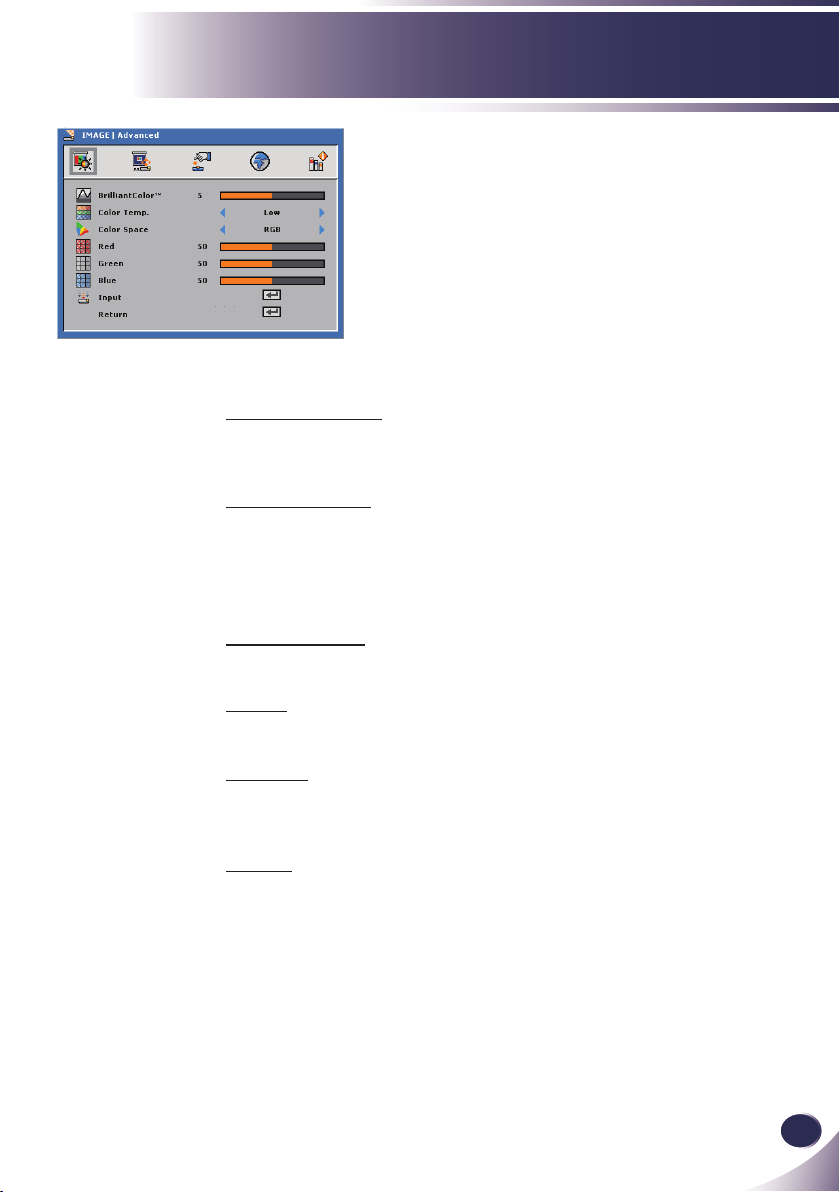
BrilliantColor
TM
Produces an expanded onscreen color spectrum that delivers en-
hanced color saturation for bright, true-to-life images.
Color Temp.
The screen appears cooler at higher color temperatures and warmer
at lower color temperatures.
When you adjust the values in the color adjust menu, the user mode
is activated. The values are saved in the user mode.
Color Space
Select an appropriate color matrix type from RGB, YCbCr or YPbPr.
Red
Use the setting for advanced adjustment of the individual red color.
Green
Use the setting for advanced adjustment of the individual green
color.
Blue
Use the setting for advanced adjustment of the individual blue
color.
24
English
User Controls
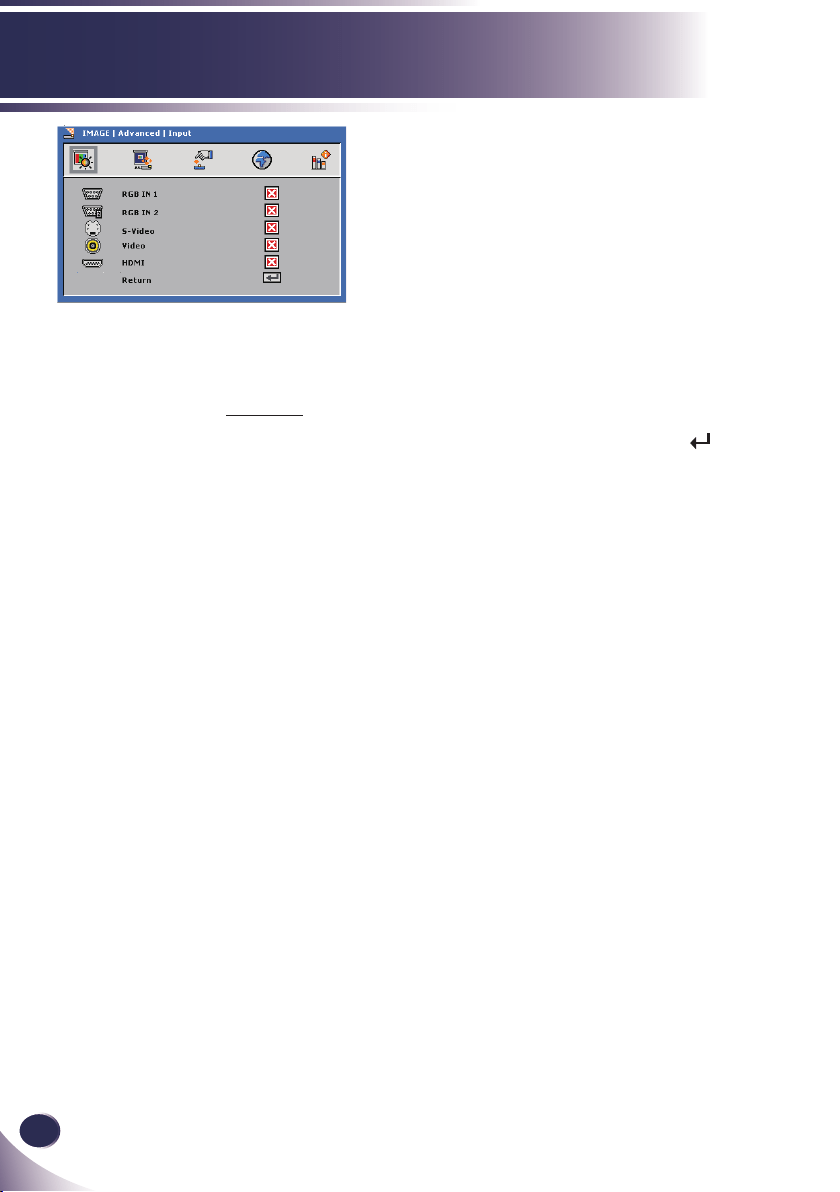
Input
Use this option to enable / disable input sources. Press to enter
the sub menu and select which sources you require. Press “OK” to
nalize the selection. The projector will not search for inputs that
are not selected.
IMAGE | Advanced
| Input Source
English
25
English
User Controls
SCREEN
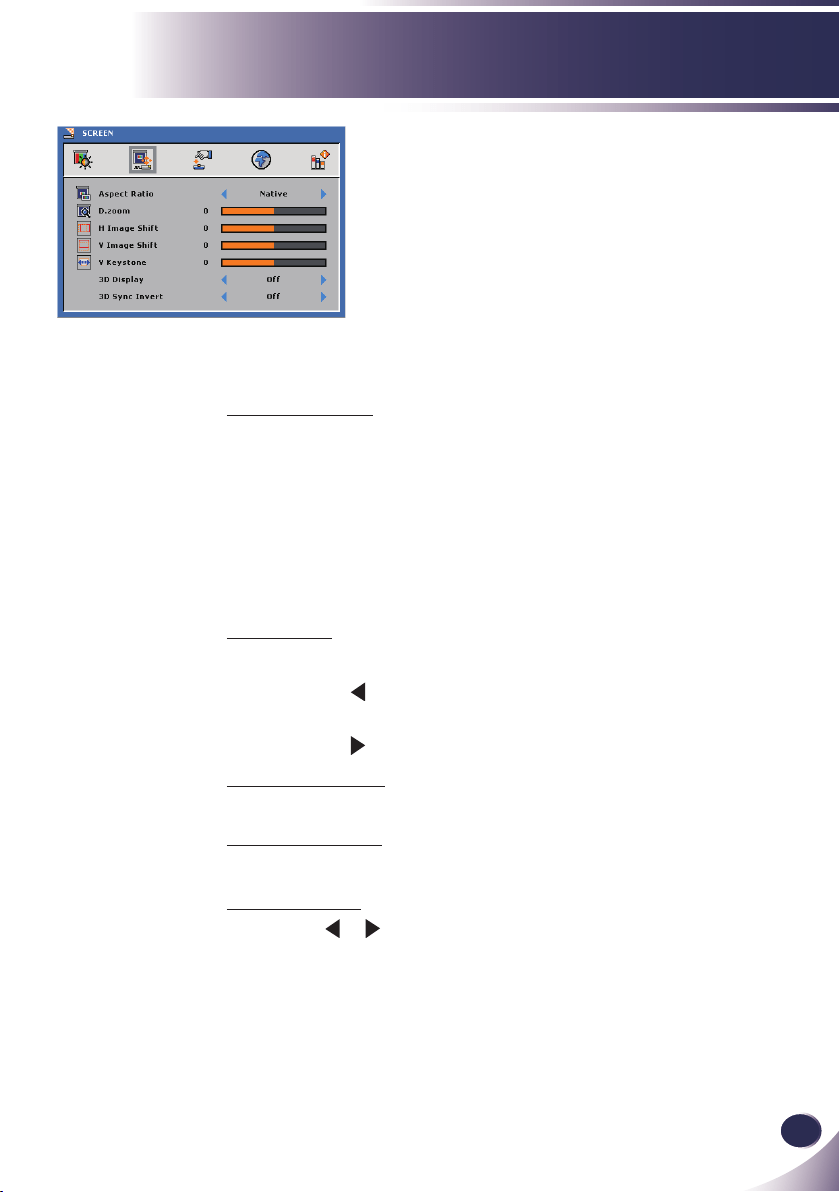
Aspect Ratio
Use this function to choose your desired aspect ratio.
4:3: This format is for 4×3 input sources not enhanced for Wide-
screen TV.
16:9: This format is for 16×9 input sources, like HDTV and DVD
enhanced for Wide screen TV.
Native: This format displays the original image without any scal-
ing.
D. zoom
Adjust the size of projector’s display area.
Press the to reduce the size of an image on the projection
screen.
Press the to magnify an image on the projection screen.
H Image Shift
Shift the projected image position horizontally.
V Image Shift
Shift the projected image position vertically.
V Keystone
Press the or to adjust image distortion vertically and makes a
rectangular image.
26
English
User Controls
How 3D Works
* 3D technology takes advantage of the difference in angular vision
between our two eyes to allow us to see images in three dimensions.
How to watch 3D video
1. You can watch 3D videos through your PC or DVD player. For PC,
use the 3D video player in a computer equipped with a graphics
card (Quad buffer feature) that has a quad buffer feature capable
of outputting 120Hz vertical frequency.
2. There can be a difference in resolution of 3D video images depend
-
ing on the capacity of the graphics card. The supported resolutions
are shown below. For DVD player, please select 3D disk.
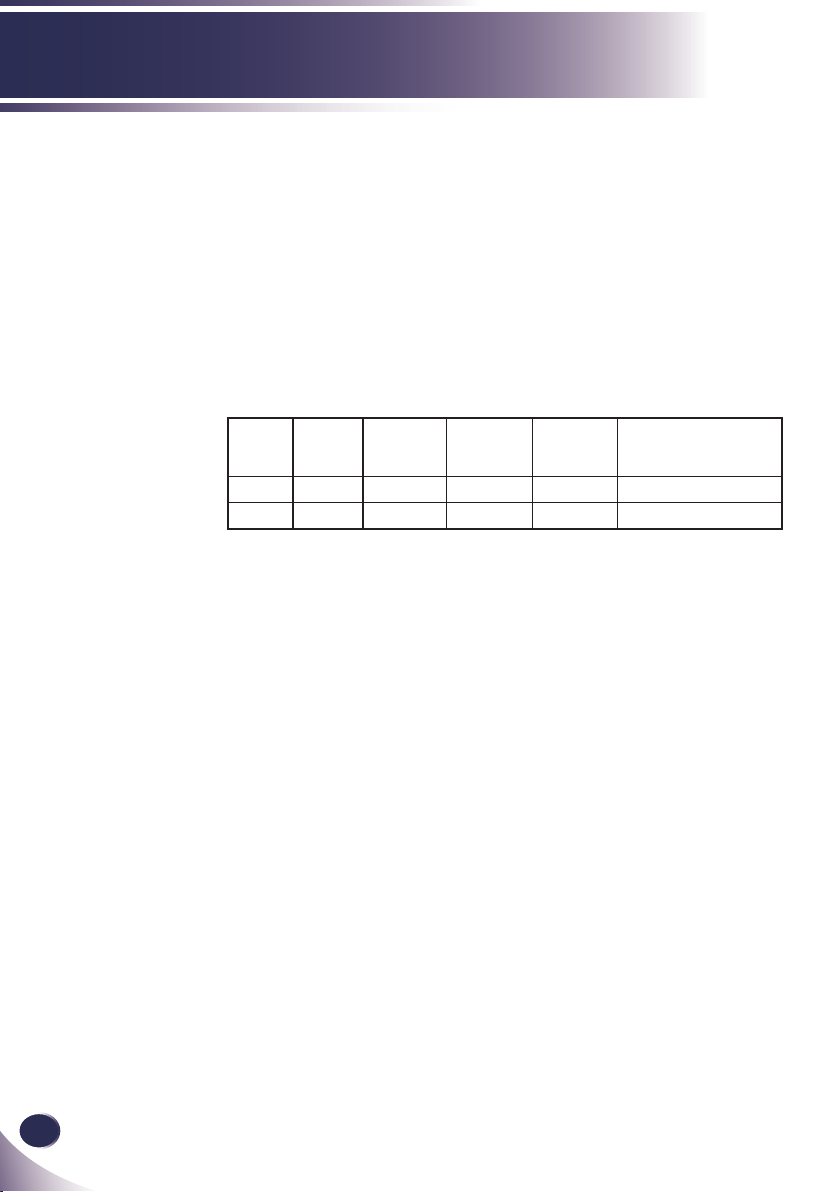
RGBPC Signals Resolution Horizontal
Frequency
(kHz)
Vertical
Frequency
(Hz)
Type of 3D Video
Images which can be
played
SVGA 800x600 - 120 Frame Sequential
XGA 1024x768 - 120 Frame Sequential
3. Select “3D function On” from the projector menu.
4. You can use the L/R function on the menu, to switch the video dis
-
play from left to right and vice versa. Choose the one that works
for you.
Please note the following facts.
After you have turned the glasses on, the left and right video im-
ages may overlap to start with. Please allow a short time for the
device to optimize.
When you watch the 3D video images under a uorescent light
(50~60Hz), a 3-wave lamp or near a window, interference my
cause the video images to strobe or ash.
If this happens, please draw the curtains to block sunlight, or dim the
lights.
If there is an object between the screen and the 3D glasses, you
may not be able to fully experience the 3D video effect.
The 3D glasses support DLP Link Type only.
The performance of 3D glasses may vary depending on the manu-
facturer.

English
27
English
User Controls
Things to remember when watching 3D videos
Please watch 3D videos within the recommended angle and dis-
tance from the screen. (Recommended Distance: 1.5m~5m.)
- If you exceed the recommended angle or distance, you may not
be able to experience the full 3D effect.
If you watch 3D video from very close to the screen for a pro-
longed period of time, it may weaken your eyesight.
If you watch the 3D videos for a prolonged time with 3D glasses, it
may cause dizziness or eye fatigue.
Pregnant women, elderly and inrm persons, anyone with a heart
condition or motion sickness should refrain from watching 3D
video. Also please don’t watch 3D video after consuming alcohol.
- A viewer may perceive 3D images as being real and may be
-
come alarmed or excited.
Please remove objects that might easily break, or could cause
injury, when watching the 3D video.
- A viewer may make a sudden movement after mistaking a 3D
image for a real object or event and could be injured by such
objects.
Parents should pay extra attention when children are viewing 3D
video.
Children under the age of ve should not be allowed to watch 3D
video images, since this could cause complications in the proper
development of eyesight.
By following the preliminary steps as below, you can reduce the
risks of problems related to 3D video viewing, such as photosensi-
tive seizure for example.
- Rest for 5 to 15 minutes after one hour of viewing 3D video.
- If your sight is different for each of your eyes, please correct
eyesight before watching.
- Adjust your eye level to the 3D screen height and watch from
directly in front of the screen.
- If you experience a headache, exhaustion or dizziness, please
stop watching and take a rest.
- Refrain from watching 3D video for a prolonged time if you
feel sleepy, exhausted or sick.
28
English
User Controls
SETTING |
Language
Language
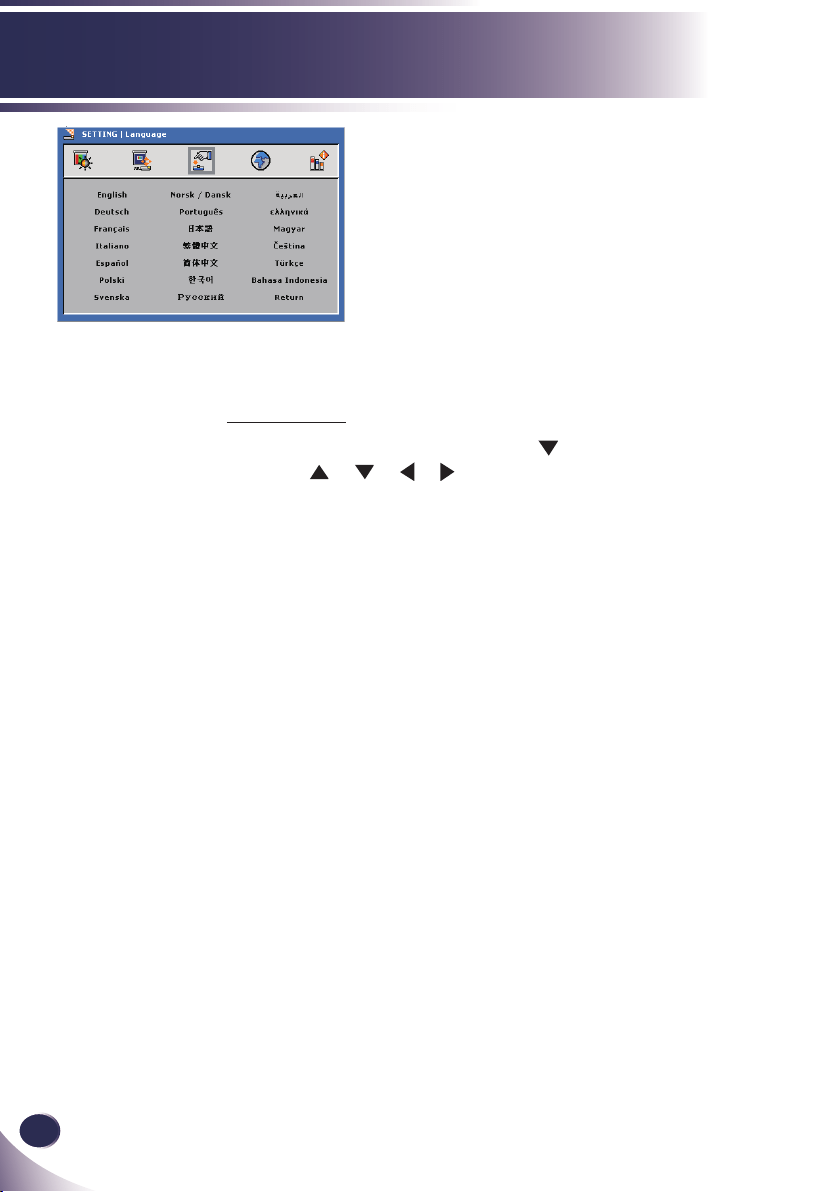
Choose the multilingual OSD. Press into the sub menu and then
use the or or or key to select your preferred language.
Press “OK” to nalize the selection.
English
29
English
User Controls
SETTING
Mounting
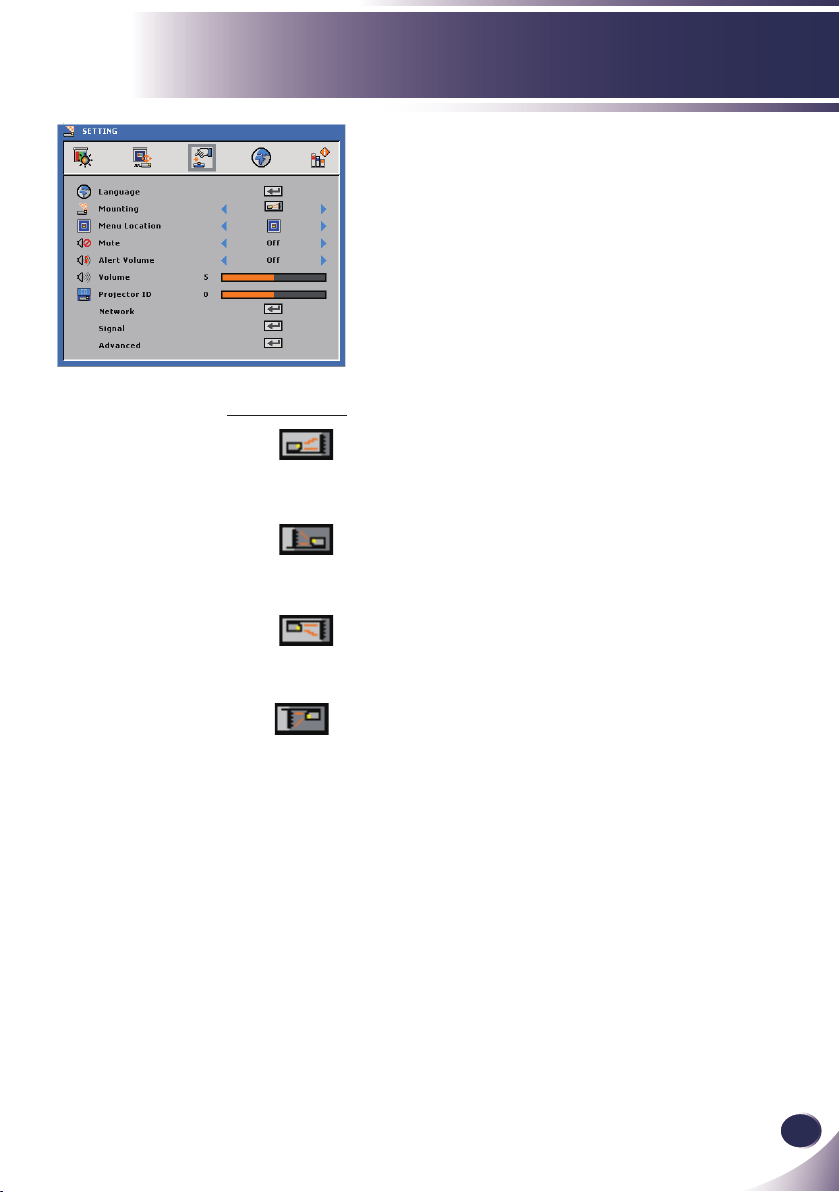
Front-Desktop
The factory default setting. The image is projected straight on the
screen.
Rear-Desktop
When you select this function, the projector reverses the image
so you can project behind a translucent screen.
Front-Ceiling
When you select this function, the projector turns the image
upside down for ceiling-mounted projection.
Rear-Ceiling
When you select this function, the projector reverses and turns
the image upside down at same time. You can project from be
-
hind a translucent screen with ceiling mounted projection.

30
English
User Controls
Menu Location
Choose the menu location on the display screen.
Mute
Choose “On” to mute the volume.
Choose “Off” to restore the volume.
Alert Volume
Allows you to set buzzer alert loudness (Off, Low, Medium or
High) for power on/off, warning and command keys.
Volume
Press the to decrease the volume.
Press the to increase the volume.
Projector ID
ID denition can be set up by menu (range 0~99), and allow user
control an individual projector by RS232C.
English
31
English
User Controls
SETTING |
Network
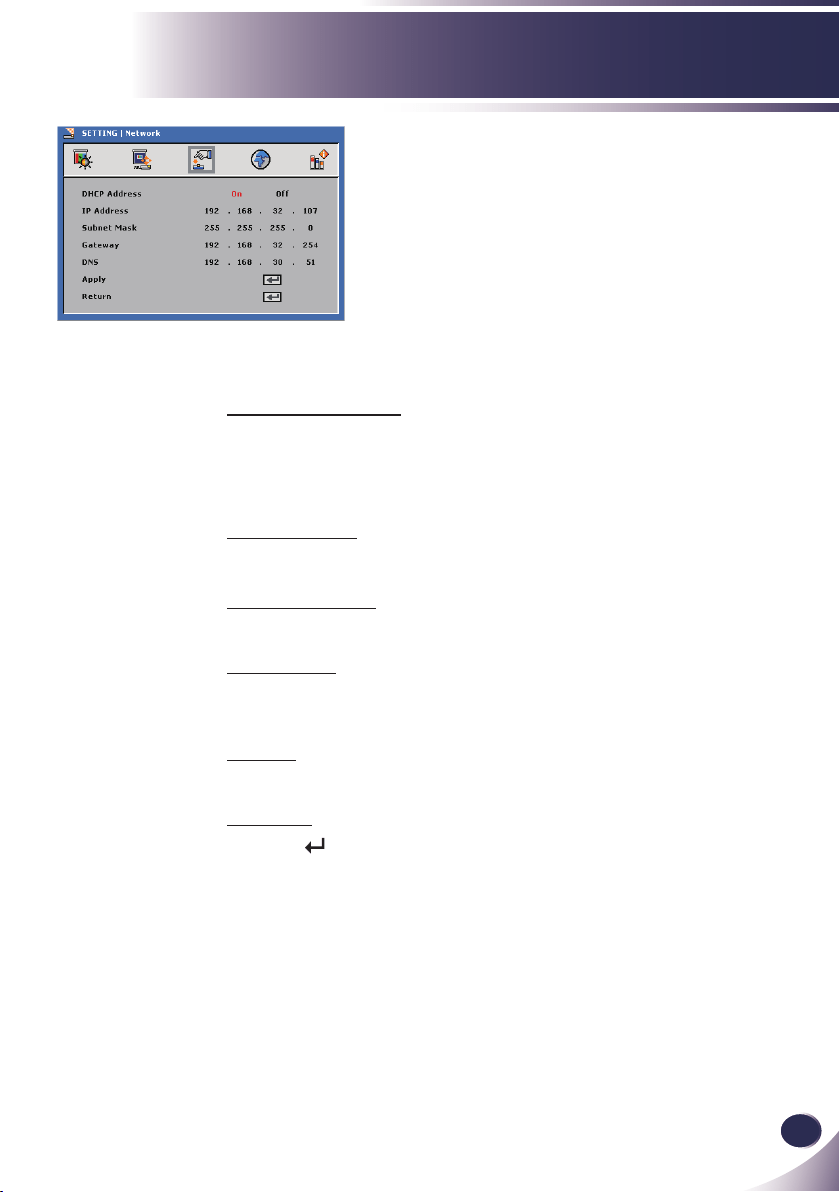
DHCP Address
On: Assign an IP address to the projector from an external
DHCP server automatically.
Off: Assign an IP address manually.
IP Address
Select an IP address.
Subnet Mask
Select subnet mask number.
Gateway
Select the default gateway of the network connected to the
projector.
DNS
Select DNS number.
Apply
Press “ ” to save the changes made in network con guration
settings.
32
English
User Controls
SETTING |
Signal
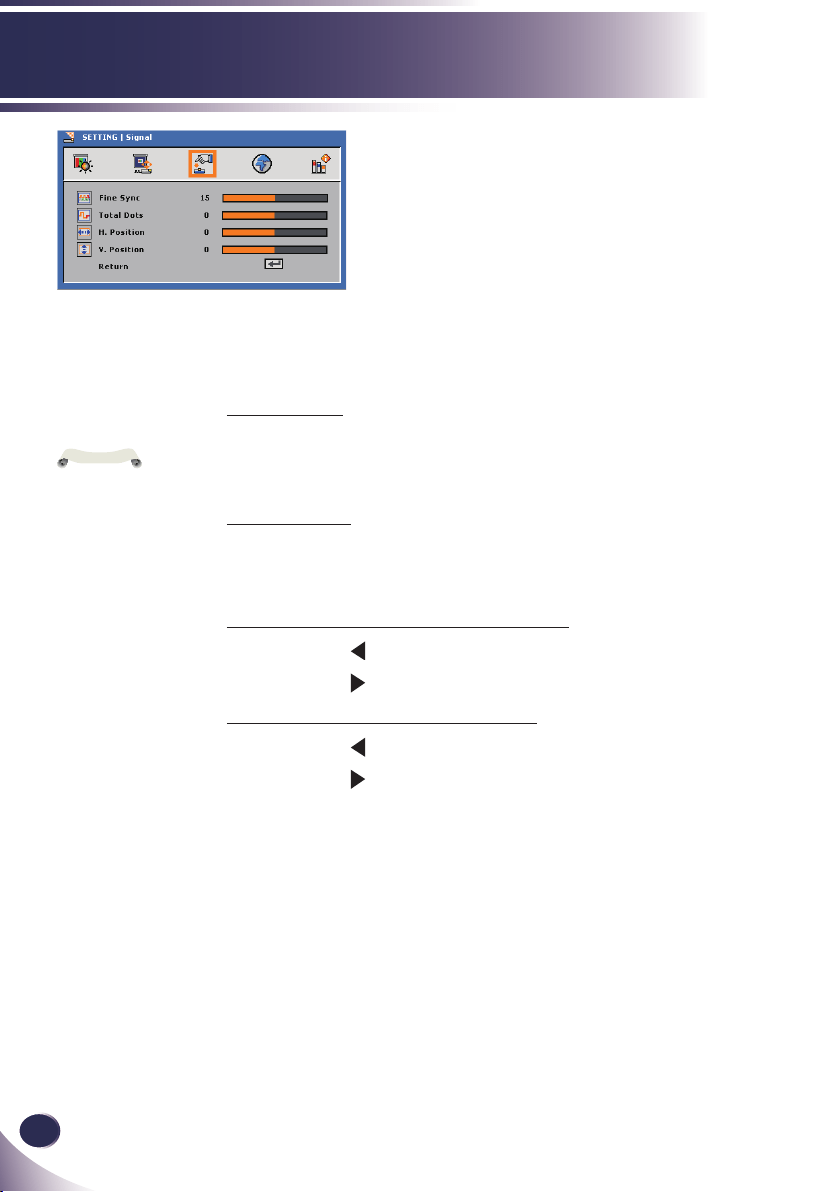
Fine Sync
Change the display data frequency to match the frequency of your
computer’s graphic card. Use this function only if the image appears
to icker vertically.
Total Dots
Synchronize the signal timing of the display with the graphic card.
If the image appears to be unstable or ickers, use this function to
correct it.
H. Position (Horizontal Position)
Press the to move the image left.
Press the to move the image right.
V. Position (Vertical Position)
Press the to move the image down.
Press the to move the image up.
“Signal” is only
supported in Analog
VGA (RGB) signal.
N
o
t
e
English
33
English
User Controls
SETTING |
Advanced
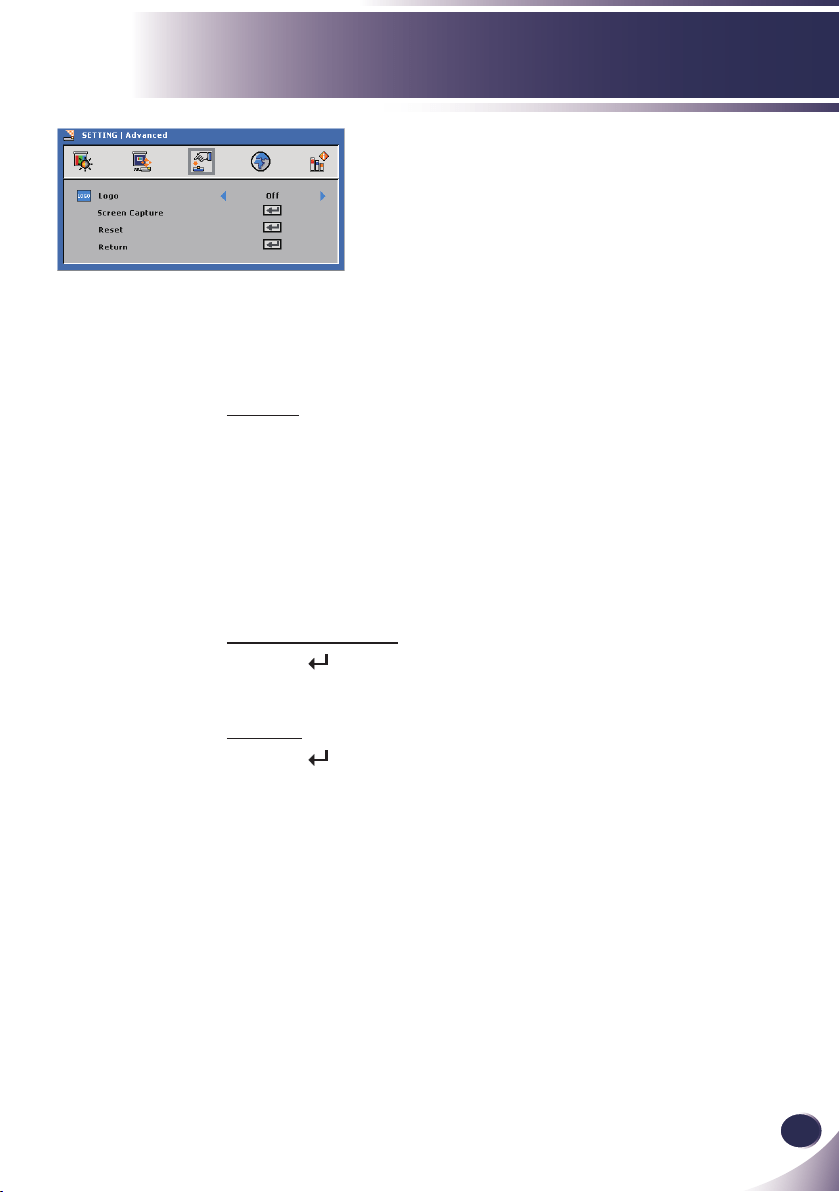
Logo
Use this function to set the desired startup screen. If changes are
made they will take effect the next time the projector is powered
on.
Off: No logo is displayed.
Normal: LG startup screen.
Capture Screen: Use memorize from “Screen Capture”
function.
Screen Capture
Press “ ” to immediately capture an image of the picture
currently displayed on screen.
Reset
Press “ ” to delete the captured picture and set back to the
default setting.
34
English
User Controls
OPTIONS
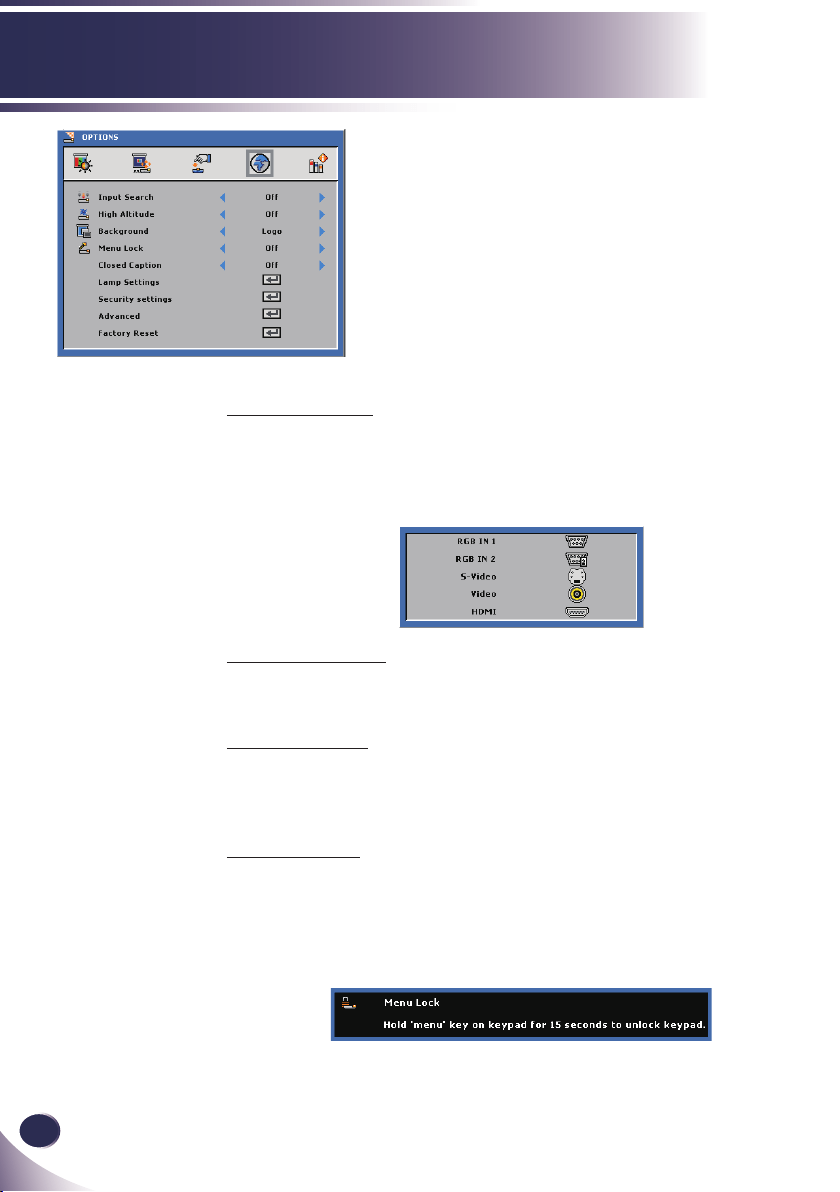
Input Search
When “On” is selected, the projector will search for other signals
if the current input signal is lost.
When “Off” is selected, the projector will only search a specied
connection port.
High Altitude
When “On” is selected, the fans will spin faster. This feature is use-
ful in high altitude areas where the air is thin.
Background
Use this feature to display a “Logo”, “Black”, “Red”, “Blue”,
“Green”, “White”, “Gray” or “Capture Screen” screen when no
signal is available.
Menu Lock
Choose “On” to enable Menu Lock and hide the OSD menu.
Choose “Off” to disable the Menu Lock. If you want to disable
the Menu Lock function and have the OSD disappear, press the
Menu button on the control panel for 15 seconds, then disable
the function.
English
35
English
User Controls
Closed Caption
Select an appropriate closed captions option: CC1, CC2, CC3, and
CC4.
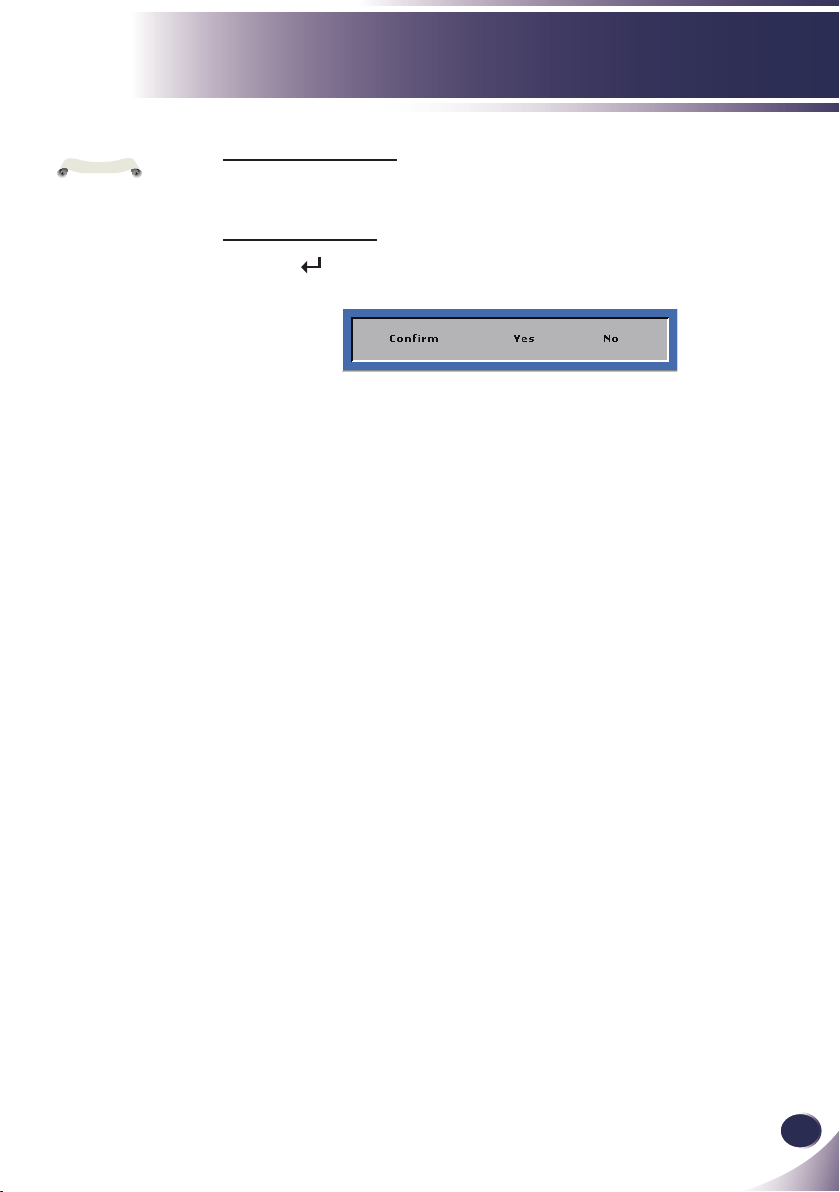
Factory Reset
Press “ ” to reset all settings to its factory default, the warning
message below appears.
“Closed Caption”
option is available for
NTSC only.
N
o
t
e
36
English
User Controls
OPTIONS |
Lamp Settings
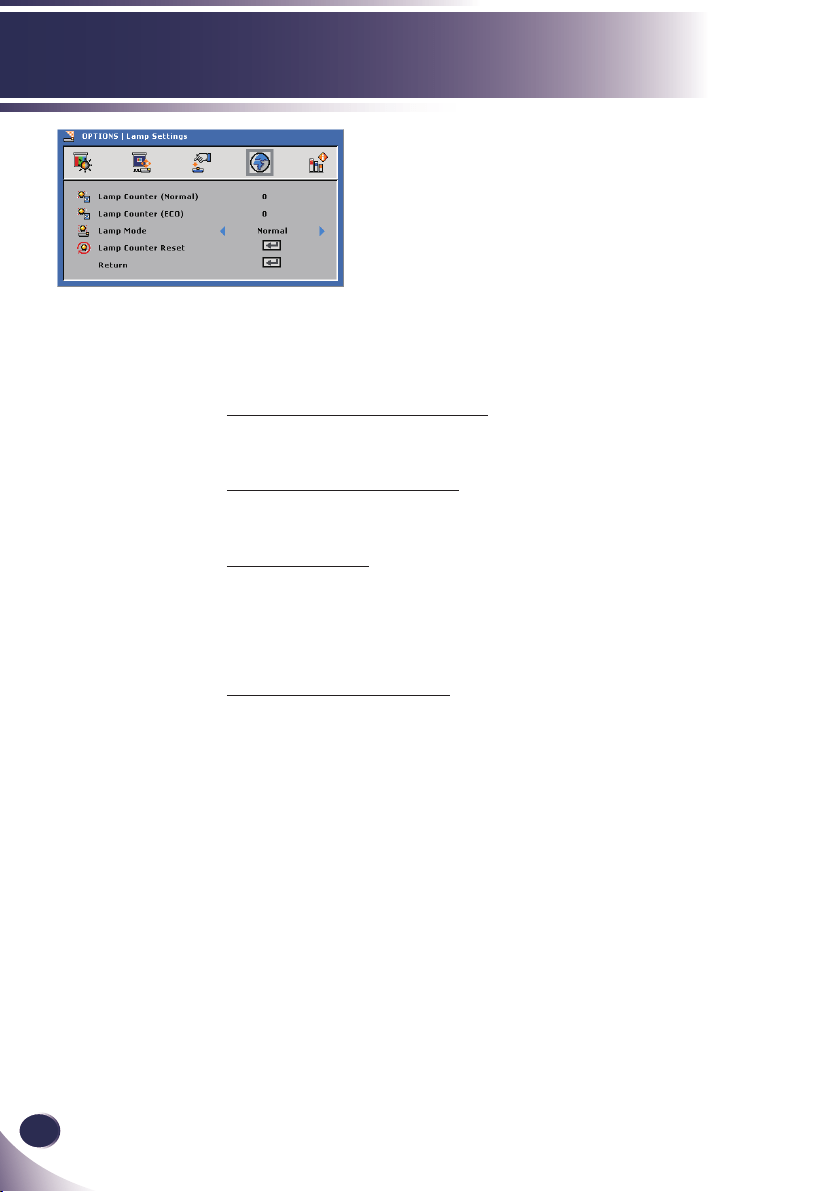
Lamp Counter (Normal)
Display the projection time of normal mode.
Lamp Counter (ECO)
Display the projection time of ECO mode.
Lamp Mode
ECO: Choose “ECO” to dim the projector lamp which will
lower power consumption and extend the lamp life.
Normal: Choose “Normal” to increase the brightness.
Lamp Counter Reset
Reset the lamp hour counter after replacing the lamp.
English
37
English
User Controls
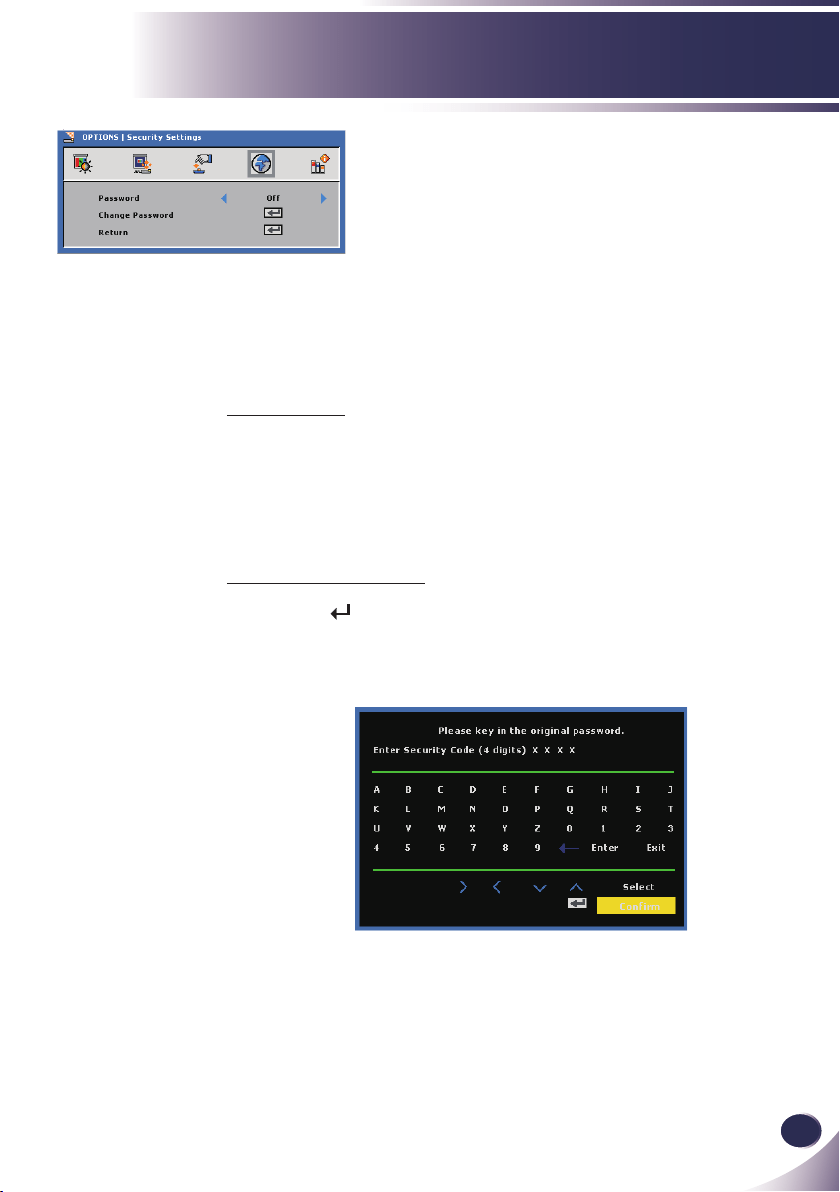
Password
On: Choose “On” to use password verication when the turning
on the projector.
Off: Choose “Off” to be able to switch on the projector without
password verication.
Change Password
1. Press “ ” to set the password.
2. The password has to be 4 digits.
3. Key in the original password, then enter the new password and
conrm the new password again.
OPTIONS |
Security Setting
38
English
User Controls
OPTIONS |
Advanced
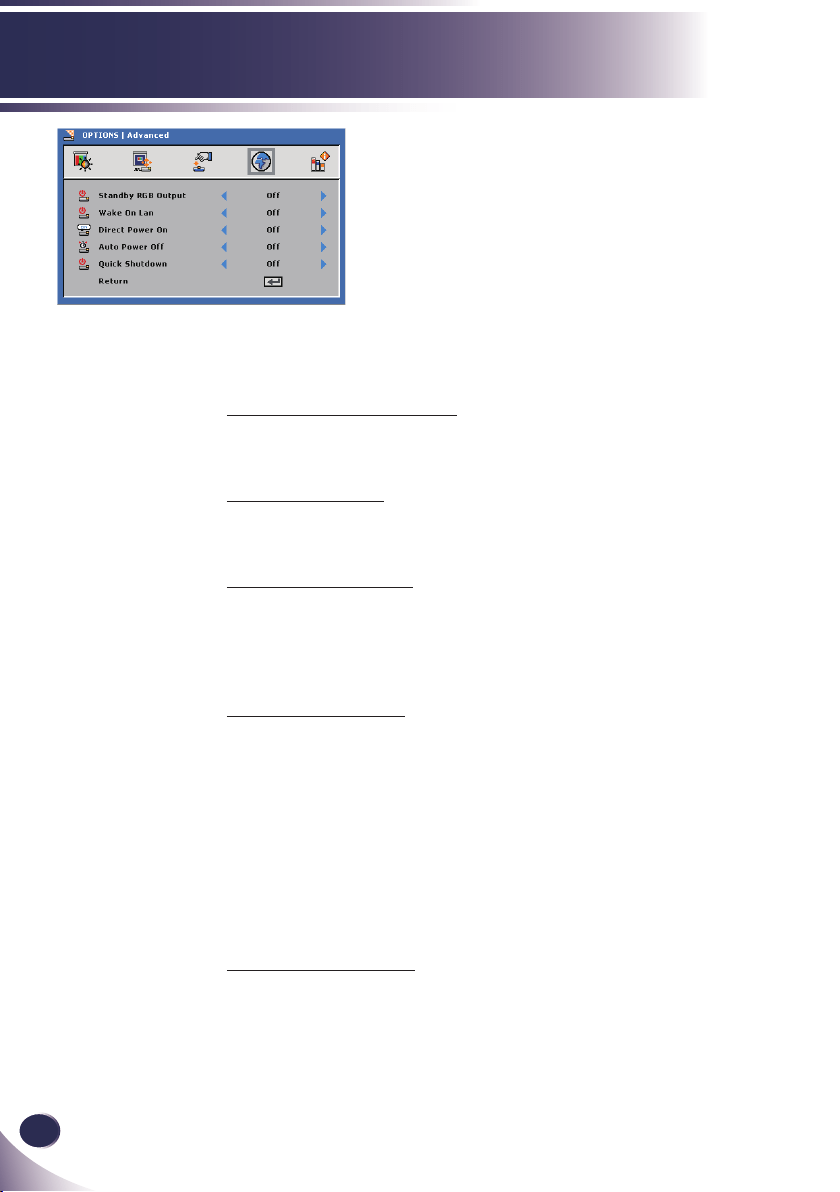
Standby RGB Output
Choose “On” or “Off” the RGB output function at projector standby
status. Default is Off.
Wake On Lan
Choose “On” or “Off” the Network function at projector standby
status. Default is Off.
Direct Power On
Choose “On” to activate Direct Power mode. The projector will
automatically power on when AC power is supplied, without
pressing the “POWER” key on the projector control panel or
“POWER” key on the remote control.
Auto Power Off
Use this function to activate power settings. By default, the projector
is set to enter auto power off mode after 120 minutes of no activity.
A warning message appears on screen showing a 60-second
countdown before switching to auto power off mode. Press any
button during countdown period to stop auto power off mode.
Auto power off can be set to 30, 60, 90 or 120 minutes.
If an input signal is not detected within two hours during auto
power off mode, the projector switches from auto power off mode
to power off mode.
Quick Shutdown
Choose “On” to turn off the projector with a single press of the
power button. This function allows the projector to quick power off
with an accelerated fan speed.
English
39
English
User Controls
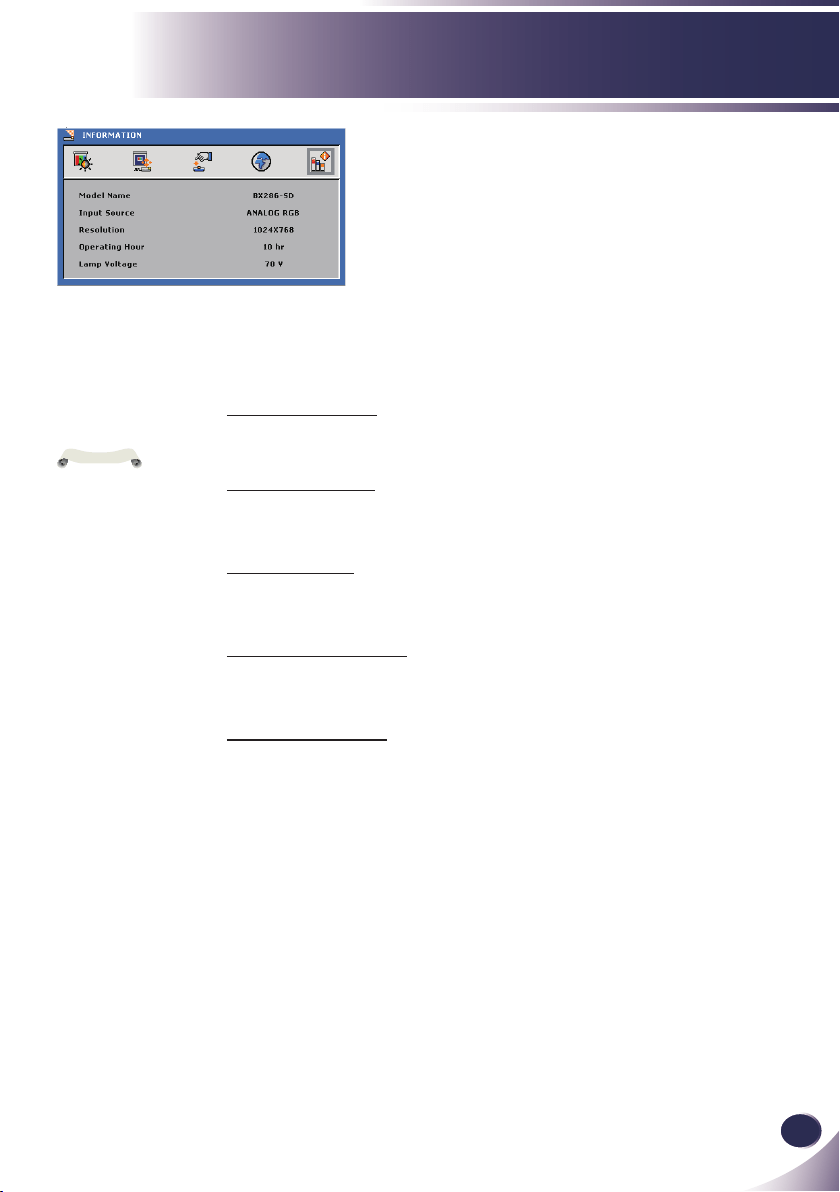
Model Name
Display the model name.
Input Source
Display the input connector type.
Resolution
Display the current display resolution.
Operating Hour
Display the operation hours.
Lamp Voltage
Display the Lamp Voltage.
INFORMATION
All functions in
Information display
the status of the
projector only.
N
o
t
e

40
English
User Controls
Preface
LAN module is a connection bridge between a projector and
a district network. And via network, PC users can process
remote control with projectors and received information from
projectors.
Denition of Terms
Projector RS232C Command: A separated projector can
execute command received from RS232C interface. RS232C
interface of a projector must be congured as network
feature but not other functions.
LAN module: With its RS232C interface connected to pro
-
jector, and its RJ45 interface connected to network, LAN
module can then communicate with both. LAN module
rmware is written for this job.
PC clients: Webpage control and Application can be used
to process remote control.
Ethernet LAN and 802.3 LAN are both supported by this
module. Correctly congured, user can connect to the module
by browser (Microsoft IE, Firefox, etc.).
HTML pages are shown after you enter the module’s IP ad-
dress.
N
o
t
e
Default congura-
tions of this module
are:
DHCP: Disabled
IP: 192.168.0.100
Mask: 255.255.255.0
Gateway:
192.168.0.254
DNS: 0.0.0.0
These congurations
can be changed which
are described bellow.
Lan Module User’s Guide
Network Connection
English
41
English
User Controls
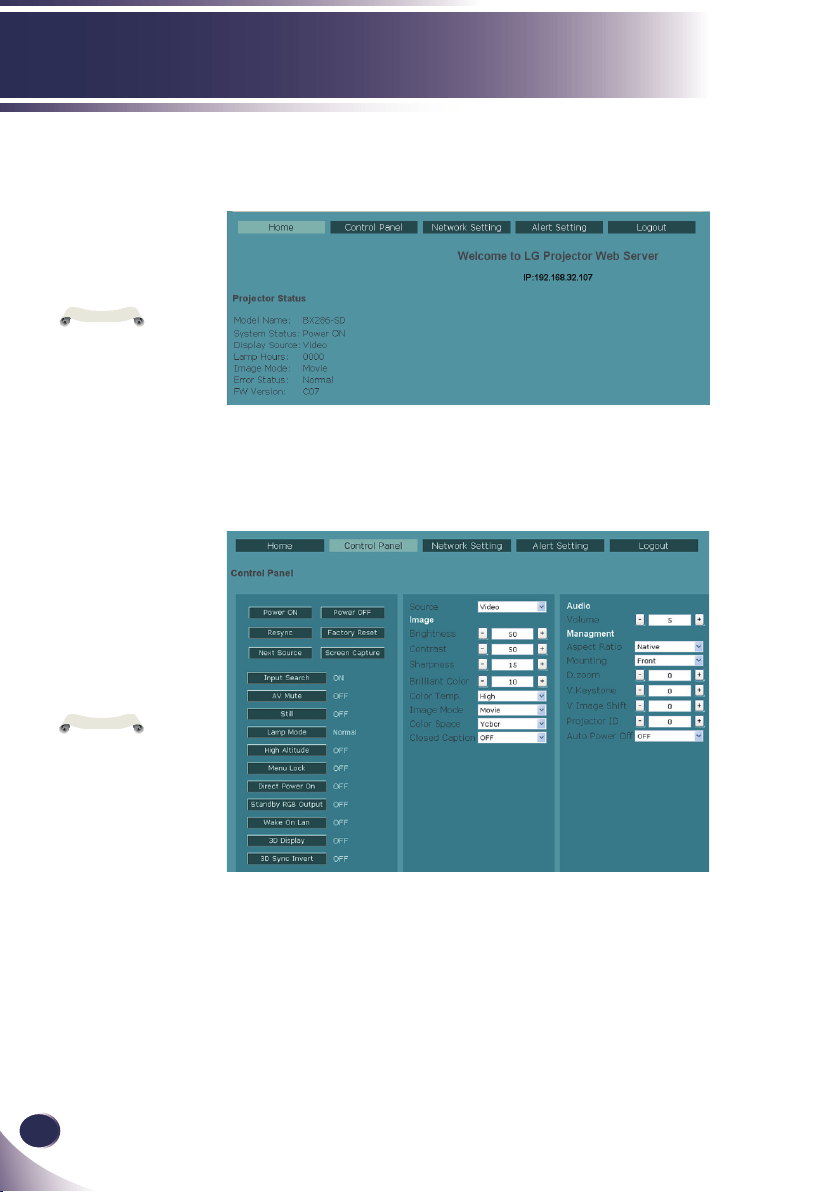
Login
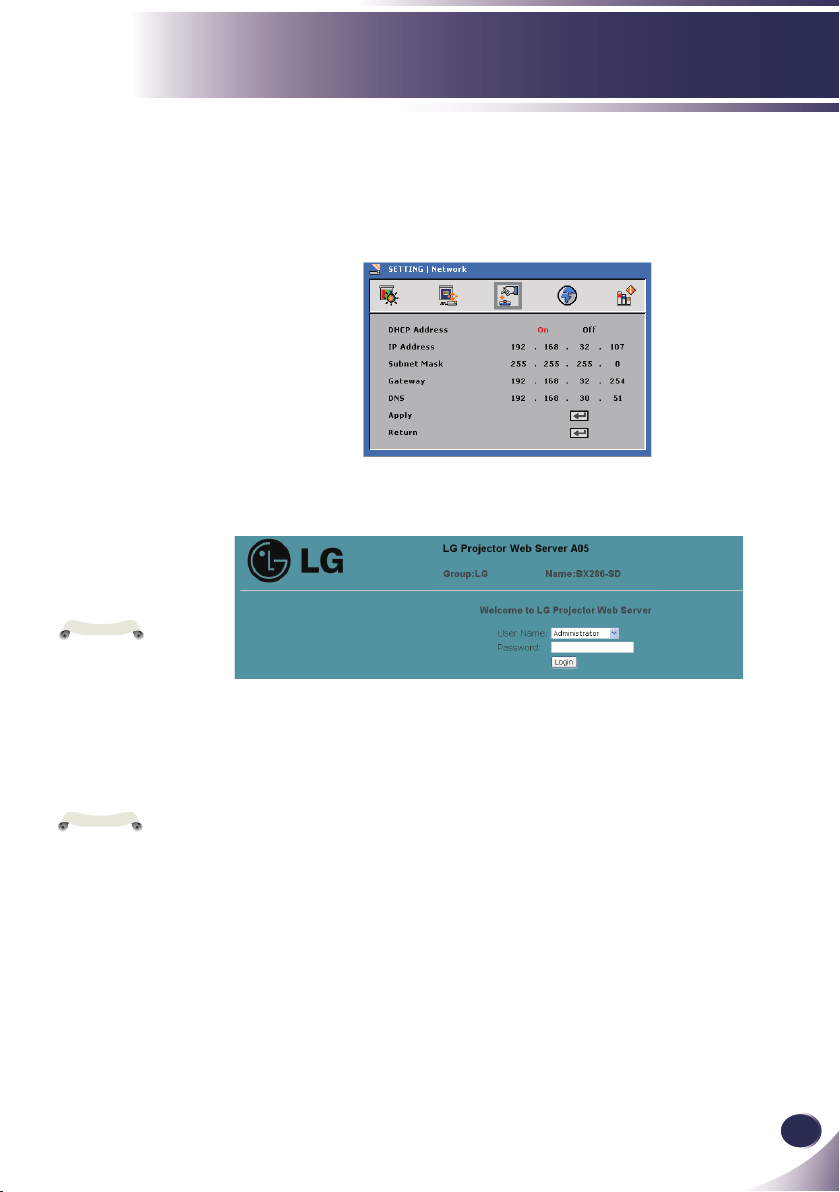
Before login the web server, please get the IP address from
projector OSD Menu.
Key in the IP address projector acquired.
A password is needed to login before can do any other work.
• Select a user. Administrator is with high authority that can
process more operations such as network setting and alert
setting. And User is with normal authority.
• Click Login button to login. There will be a prompt if your
password is wrong. With correct password, you can enter
to control pages.
After login, control pages will appear, i.e. Home, Control
Panel, Network Setting, Alert Setting, and Logout.
Home page is automatically selected after login.
N
o
t
e
Network Setting
and Alert Setting page
will NOT appear if
User account is used.
N
o
t
e
Default passwords
of two users are:
Administrator:
“admin”
User: “user”
Quote not included
and capital sensitive.
Webpage Operations
42
English
User Controls
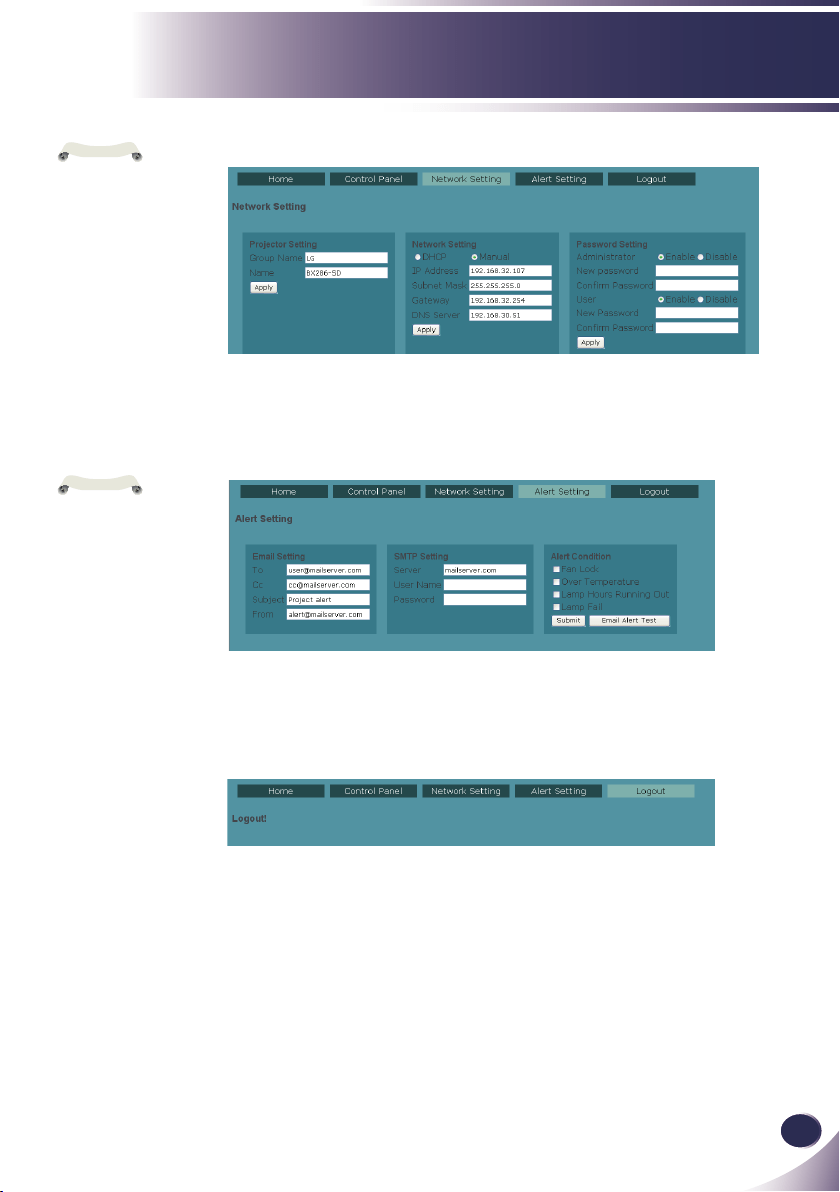
Projector Control Panel
This page shows many controls of your projector. And it will
show current status of your projector.
N
o
t
e
Information on this
page will be updated
every time this page
begins to show and 5
seconds after last but
-
ton clicked if a serial
of actions performed.
Home
This is Home page which shows basic information of your
projector. There is no control on this page.
N
o
t
e
Information on this
page will be updated
every time this page
begins to show.
English
43
English
User Controls
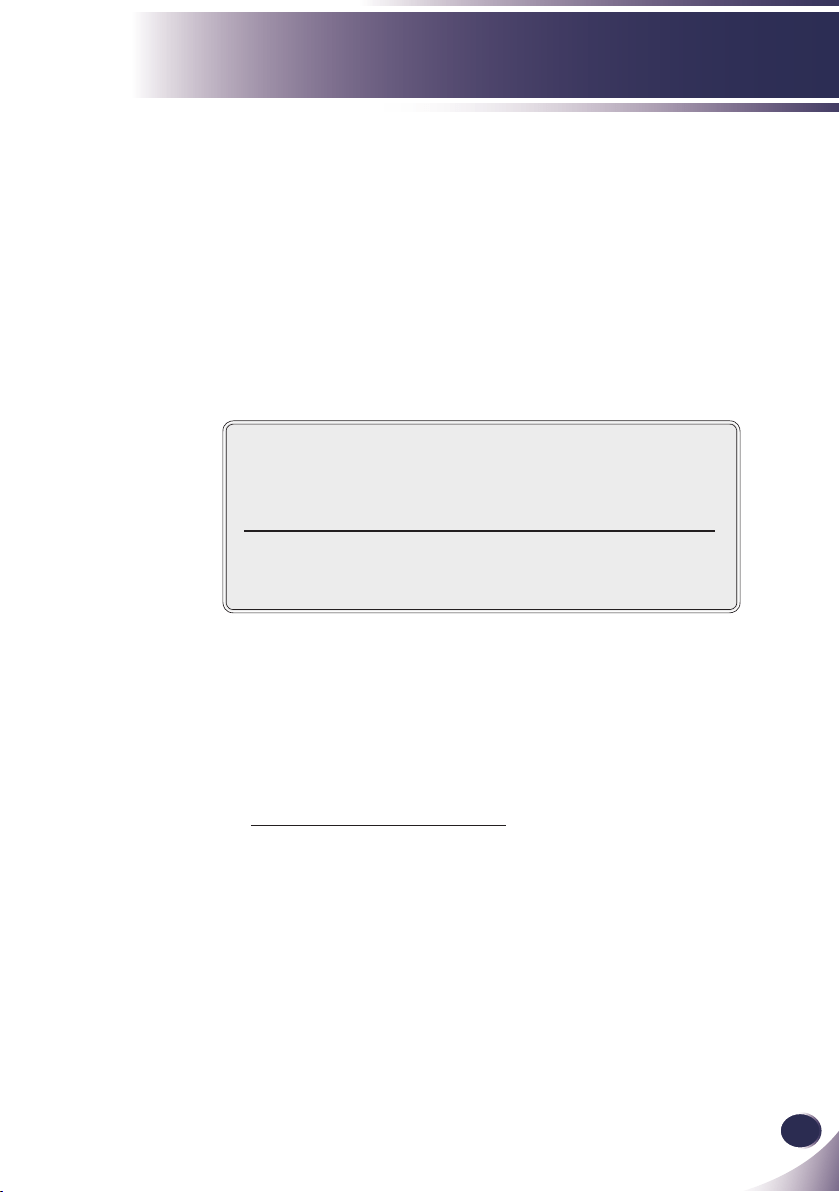
Alert Setting
Email will be sent whose body text informs the events which
conditions occurred.
Logout
This page will appear for 5 seconds and then jump to login
page
N
o
t
e
1. Information on
this page will be
updated every time
this page begins to
show.
2. Please submit set-
tings before process
test.
Network Setting
Group Name and projector Name must be less then 32 char-
acters. Strings will be truncated if it is too long.
N
o
t
e
1. After Network
congurations are
changed, LAN
module may reboot
and there will be a
moment before runs
normally.
2. Information on
this page will be
updated every time
this page begins to
show.

44
English
Appendices
Problem: No image appears on screen
Ensure all the cables and power connections are correctly and
securely connected as described in the “Installation” section.
Ensure the pins of connectors are not crooked or broken.
Check if the projection lamp has been securely installed. Please
refer to the “Replacing the lamp” section.
Make sure you have removed the lens cap and the projector is
switched on.
Ensure that the “AV Mute” feature is not turned on.
Problem: Partial, scrolling or incorrectly displayed image
Press “Auto” on the remote control or on the control panel.
If you are using a PC:
For Windows 95, 98, 2000, XP:
1. From the “My Computer” icon, open the “Control Panel” folder,
and double click the “Display” icon.
2. Select the “Settings” tab
3. Click on the “Advanced Properties”.
For Windows Vista:
1. From the “My Computer” icon, open the “Control Panel” folder,
and double click the “Appearance and Personalization”
2. Select “Personalization”
3. Click “Adjust screen resolution” to display “Display Settings”.
Click on the “Advanced Settings”.
If the projector is still not projecting the whole image, you will
also need to change the monitor display you are using. Refer to
the following steps.
Troubleshooting
If you experience trouble with the projector, refer to
the following information. If the problem persists,
please contact your local dealer or service center.
English
45
English
Appendices
4. Verify the resolution setting is less than or equal to 1600 x 1200
resolution.
5. Select the “Change” under the “Monitor” tab .
6. Click on “Show all devices”. Next, select “Standard monitor
types” under the SP box; choose the resolution mode you need
under the “Models” box.
If you are using a Notebook:
1. First, follow the steps above to adjust resolution of the com
-
puter.
2. Press the toggle output settings. Example: [Fn]+[F4]
Acer
[Fn]+[F5]
Asus
[Fn]+[F8]
Dell
[Fn]+[F8]
Gateway
[Fn]+[F4]
Mac Apple:
System Preference
Display
Arrangement
Mirror
display
IBM/Lenovo
[Fn]+[F7]
HP/Compaq
[Fn]+[F4]
NEC
[Fn]+[F3]
Toshiba
[Fn]+[F5]
If you experience difculty hanging resolutions or your monitor
freezes, restart all equipment including the projector.
Problem: The screen of the Notebook or PowerBook com-
puter is not displaying a presentation
If you are using a Notebook PC:
Some Notebook PCs may deactivate their own screens when a
second display device is in use. Each has a different way to be
reactivated. Refer to your computer’s documentation for detailed
information.

46
English
Appendices
Problem: Image is unstable or ickering
Adjust the “Total Dots” or “Fine Sync” to correct it. Refer to the
“SETTING|signal” section for more information.
Change the monitor color setting from your computer.
Check and recongure the display mode of your graphic card to
make it compatible with the product.
Problem: Image is out of focus
Adjust the focus ing on the projector lens.
Make sure the projection screen is between the required distance
1.3 to 32.8 feet (0.4 to 10.0 meters) from the projector (refer to
page 19).
Problem: The image is stretched when displaying 16:9 DVD
The projector automatically detects 16:9 DVD and adjusts the aspect
ratio by digitizing to full screen with 4:3 default setting.
If the image is still stretched, you will also need to adjust the aspect
ratio by referring to the following:
Please select 4:3 aspect ratio type on your DVD player if you are
playing a 16:9 DVD.
If you can’t select 4:3 aspect ratio type on your DVD player,
please select 4:3 aspect ratio in the on screen menu.
Problem: Image is too small or too large
Move the projector closer to or further from the screen.
Press “MENU” button on the remote control or projector panel,
go to “SCREEN --> Aspect Ratio” and try the different settings.
Problem: Image is reversed
Select “SETTING -->Mounting” from the OSD and adjust the
projection direction.
English
47
English
Appendices
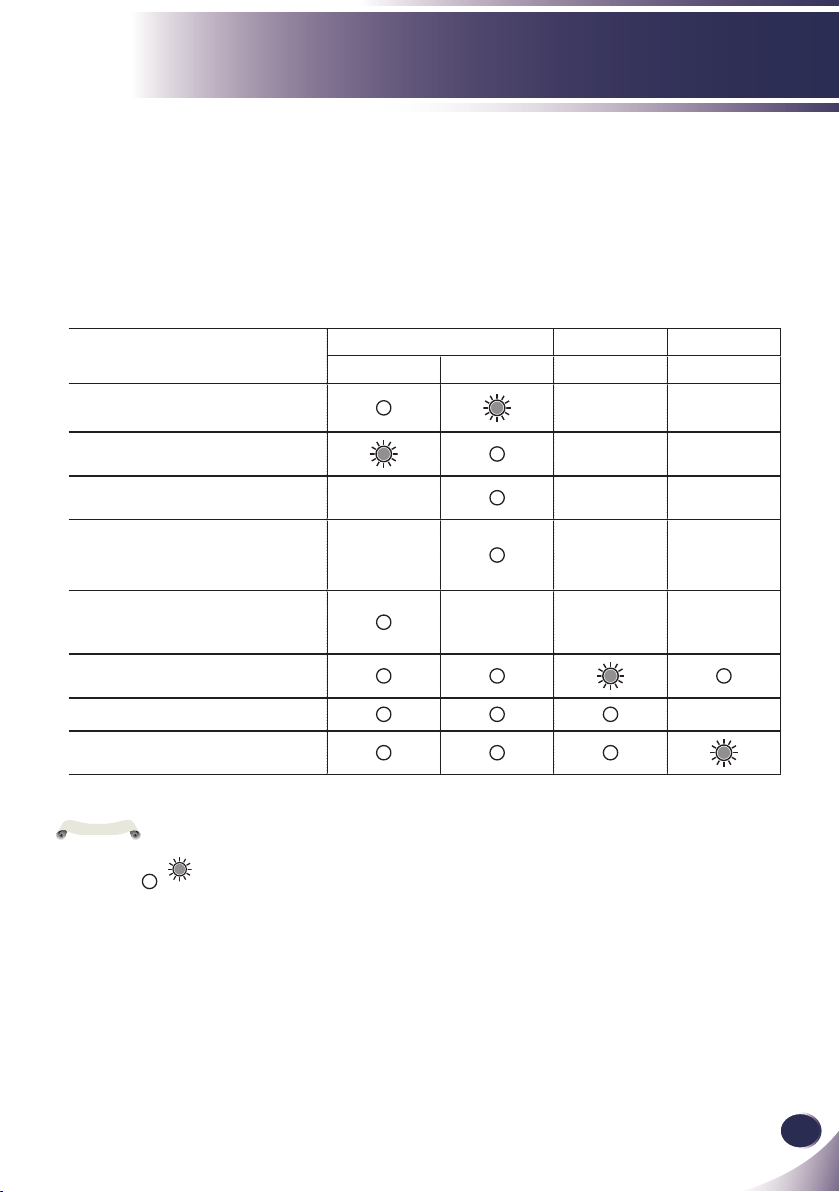
Message
POWER-LED LAMP-LED TEMP-LED
(Green) (Orange) (Red) (Red)
Standby (Input power cable)
Normal (Power on)
Powering up (Warming up) Flashing
Power off (Cooling-I: It can’t ac-
cept any key at this status)
Flashing
Power off (Cooling-II: It can
accept power key to turn on the
projector)
Flashing
Error (Lamp failed)
Error (Fan lock) Flashing
Error (Over temp.)
Problem: Lamp burns out or makes a popping sound
When the lamp reaches its end of life, it will burn out and may
make a loud popping sound. If this happens, the projector will not
turn on until the lamp module has been replaced. To replace the
lamp, follow the procedures in the “Replacing the Lamp”.
Problem: LED lighting message
Steady light =>
No light =>
N
o
t
e
48
English
Appendices
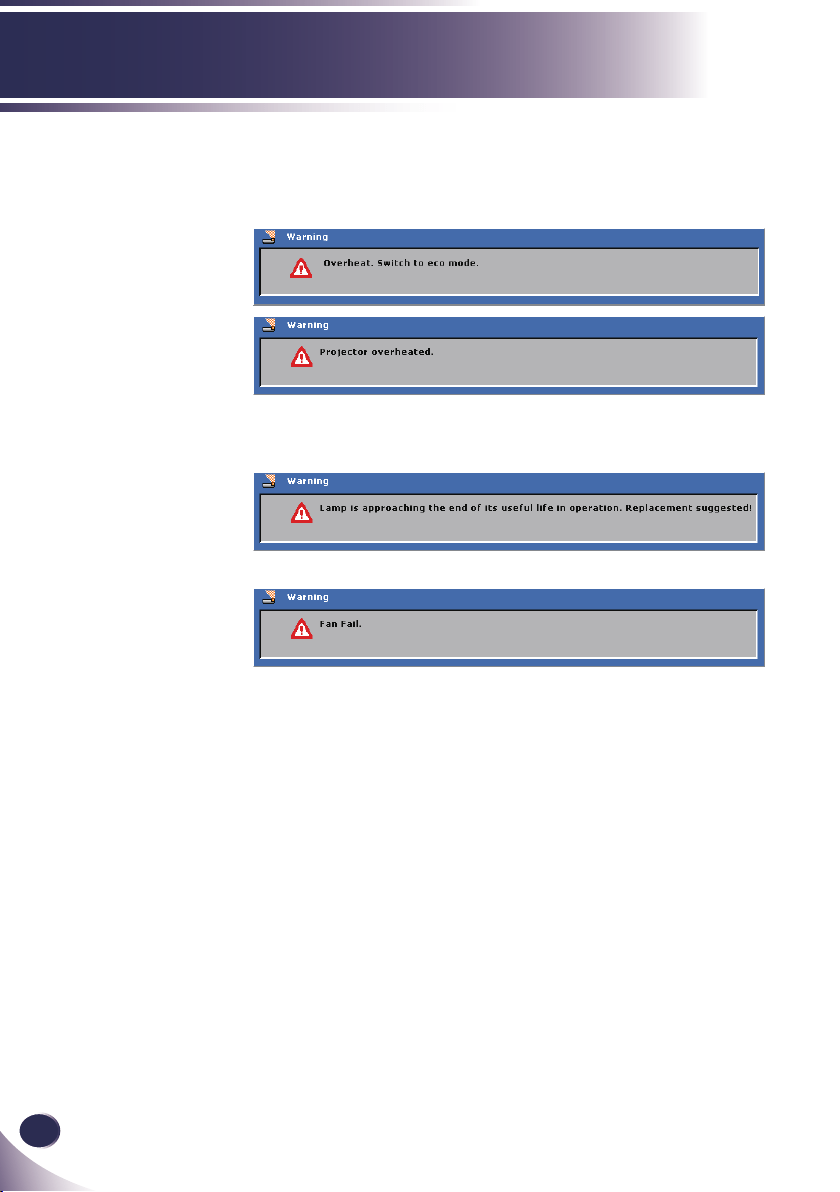
Problem: Message Reminders
Over temperature - the projector has exceeded its recommended
operating temperature and must be allowed to cool down before it
may be used.
Replacing the lamp - the lamp is about to reach its maximum life-
time. Prepare to replace it soon.
Fan failed - the system fan is not working.
English
49
English
Appendices
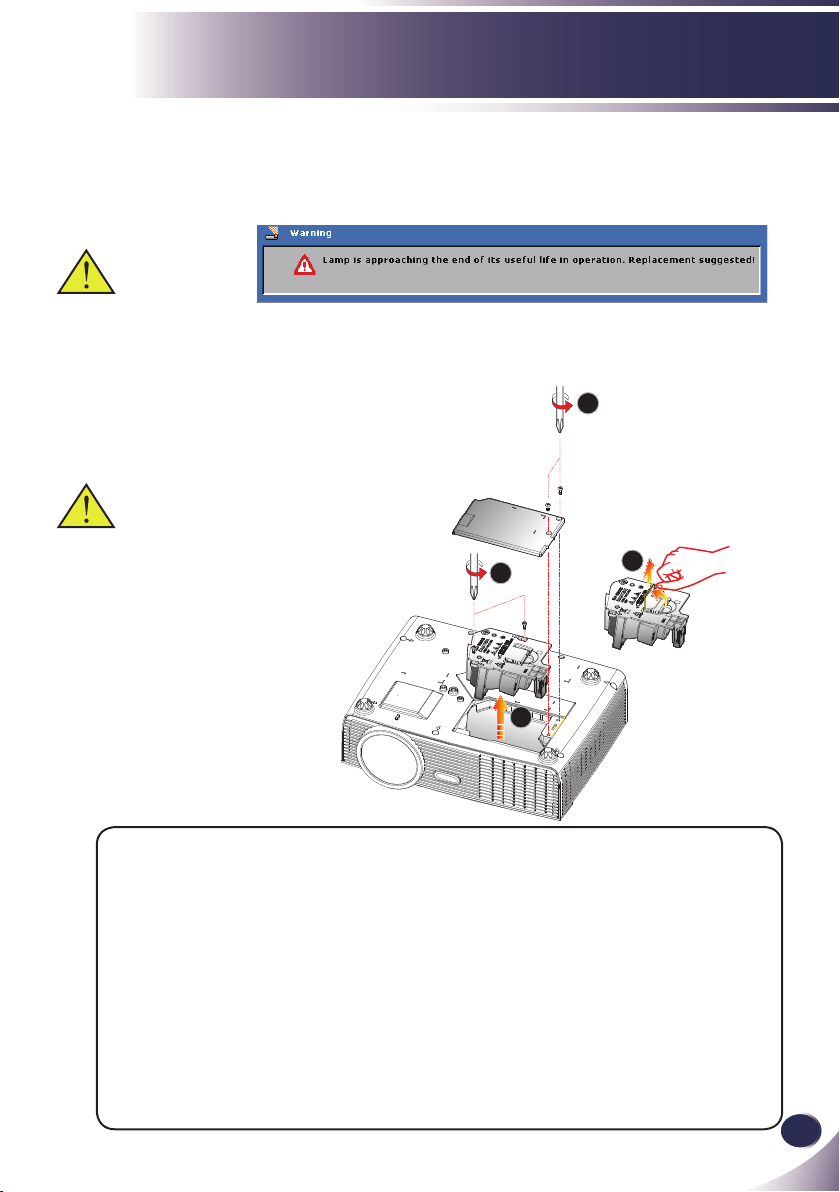
Replacing the lamp
The projector will detect the lamp life itself. It will show you a
warning message
When you see this message, please contact your local reseller
or service center to change the lamp as soon as possible. Make
sure the projector has been cooled down for at least 45 min-
utes before changing the lamp.
Warning: Lamp com-
partment may be hot!
Allow it to cool down
before changing the
lamp!
1
2
3
4
Warning: To reduce the
risk of personal injury,
do not drop the lamp
module or touch the
lamp bulb. The bulb
may shatter and cause
injury if it is dropped.
Lamp Replacing Procedure:
1. Switch off the power to the projector by pressing the “POWER”.
2. Allow the projector to cool down at least 45 minutes.
3. Disconnect the power cable.
4. Use a screwdriver to remove the 2 screws from the cover.
5. Push up and remove the cover.
6. Remove the 2 screws from the lamp module and pull up the lamp bar.
7. Pull out the lamp module by force.
8. Install the new lamp module by reversing the previous steps.
9. After replacing the lamp, turn on the power, and select the menu ->
[OPTIONS|Lamp Settings] ->[Lamp Counter Reset] to reset the lamp usage
hours. See page 36.
50
English
Appendices
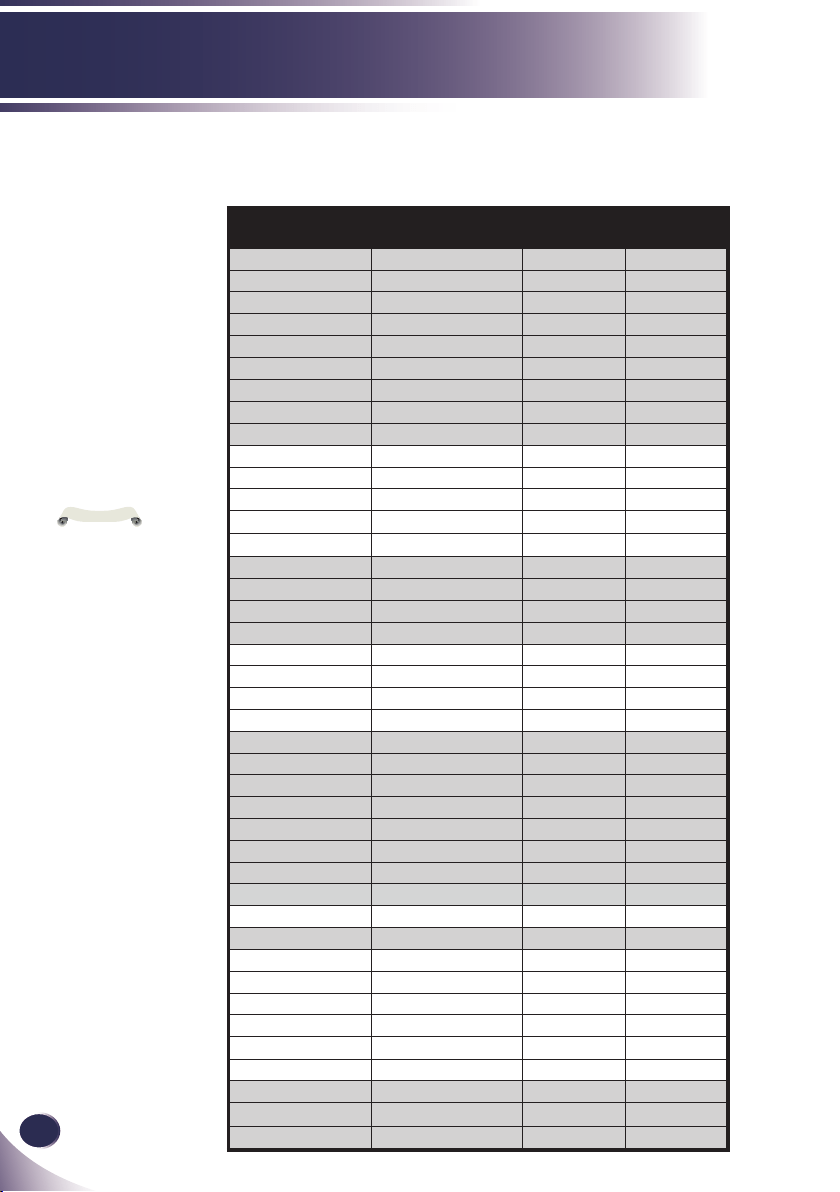
Compatibility Mode
Modes Resolution
V-Sync
(Hz)
H-Sync
(kHz)
VGA 640 x 350 70 31.50
640 x 350 85 37.90
640 x 400 85 37.90
640 x 480 60 31.50
640 x 480 72 37.90
640 x 480 75 37.50
640 x 480 85 43.30
720 x 400 70 31.50
720 x 400 85 37.90
SVGA 800 x 600 56 35.20
800 x 600 60 37.90
800 x 600 72 48.10
800 x 600 75 46.90
800 x 600 85 53.70
XGA *1024 x 768 60 48.40
*1024 x 768 70 56.50
*1024 x 768 75 60.00
*1024 x 768 85 68.70
WXGA *1280 x 768 60 47.40
*1280 x 768 75 60.30
*1280 x 720 60 45.00
*1280 x 800 60 49.702
SXGA *1152 x 864 60 53.50
*1152 x 864 70 63.80
*1152 x 864 75 67.50
*1152 x 864 85 77.10
*1280 x 1024 60 63.98
*1280 x 1024 75 79.98
*1280 x 1024 85 91.10
*1280 x 960 60 60.00
SXGA+ *1400 x 1050 60 63.98
UXGA *1600 x 1200 60 75.00
MAC LC 13” 640 x 480 66.66 34.98
MAC II 13” 640 x 480 66.68 35.00
MAC 16” *832 x 624 74.55 49.725
MAC 19” *1024 x 768 75 60.24
MAC *1152 x 870 75.06 68.68
MAC G4 640 x 480 60 31.35
i Mac DV *1024 x 768 75 60.00
i Mac DV *1152 x 870 75 68.49
i Mac DV *1280 x 960 75 75.00
“*” compressed
computer image.
If projector does
not support the input
signal, ”Out of display
range” message ap-
pears on the screen.
If the input signal
is not in the compat-
ibility table, the image
may not be displayed
clearly.
N
o
t
e
Computer Compatibility (Analog)
English
51
English
Appendices
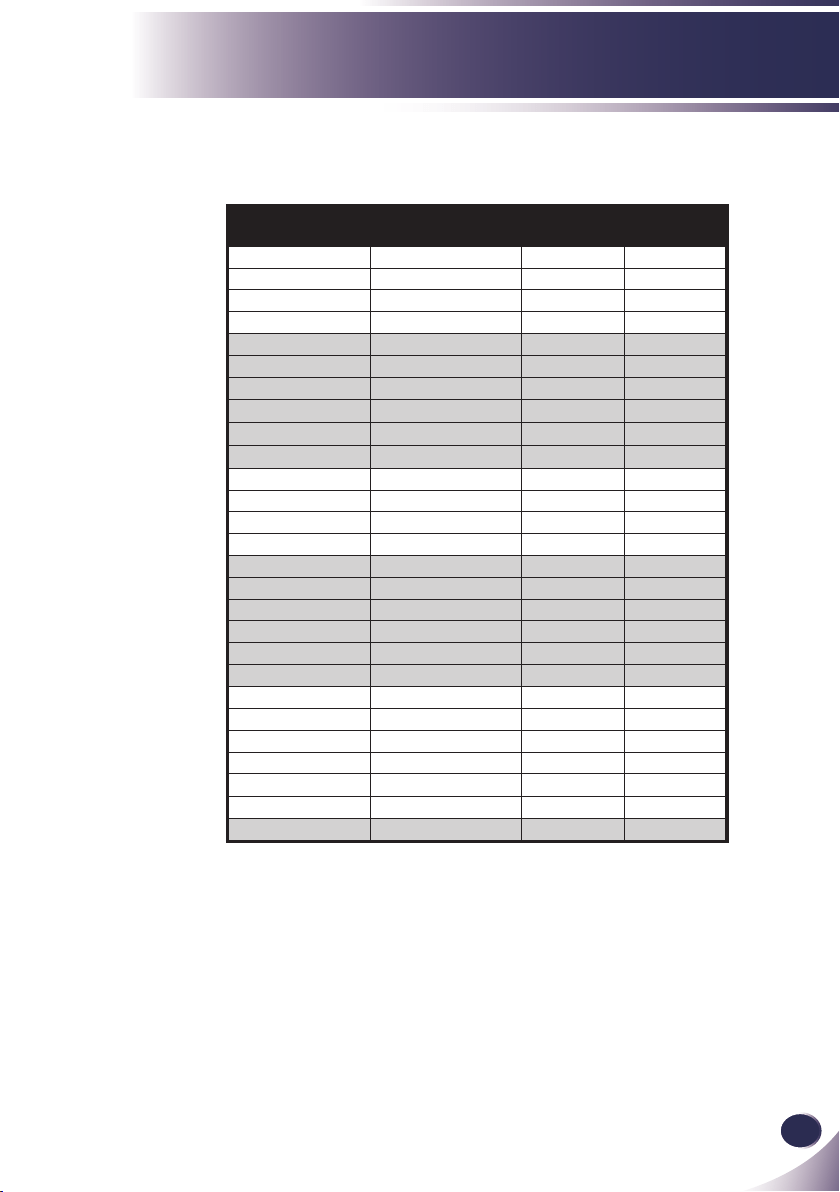
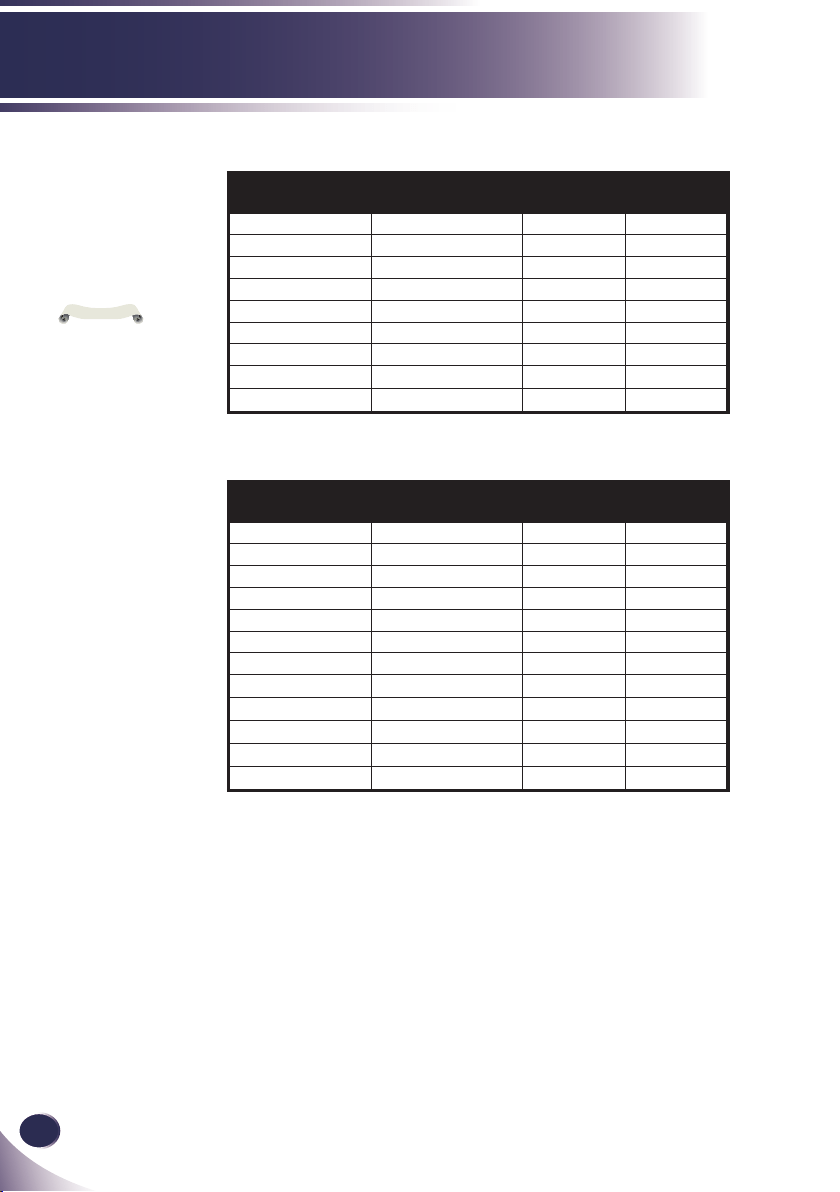
Computer Compatibility (HDMI)
Modes Resolution
V-Sync
(Hz)
H-Sync
(kHz)
VGA 640 x 480 60 31.47
640 x 480 72 37.86
640 x 480 75 37.50
640 x 480 85 43.27
SVGA 800 x 600 56 35.20
800 x 600 60 37.88
800 x 600 72 48.08
800 x 600 75 46.88
800 x 600 85 53.67
800 x 600 119.85 77.20
XGA 1024 x 768 60 48.36
1024 x 768 70 56.48
1024 x 768 75 60.02
1024 x 768 119.8 98.80
SXGA 1152 x 864 75 67.50
1152 x 864 85 77.1
1280 x 1024 60 64.00
1280 x 1024 75 79.98
1280 x 1024 85 91.15
1280 x 960 75 75.00
PowerBook G4 640 x 480 60 31.50
PowerBook G4 640 x 480 66.6(67) 35.00
PowerBook G4 800 x 600 60 37.88
PowerBook G4 1024 x 768 60 48.36
PowerBook G4 1152 x 870 75 68.68
PowerBook G4 1280 x 960 75 75.20
i Mac DV(G3) 1024 x 768 75 60.30
HDMI - PC Signal
52
English
Appendices
Modes Resolution
V-Sync
(Hz)
H-Sync
(kHz)
WXGA 1280 x 768 60 47.78
1280 x 768 75 60.29
1280 x 768 85 68.63
1280 x 720 60 44.80
1280 x 800 60 49.60
1440 x 900 60 55.90
1680 x 1050 60 65.30
1366 x 768 60 47.71
*1920 x 1080-RB 60 66.60
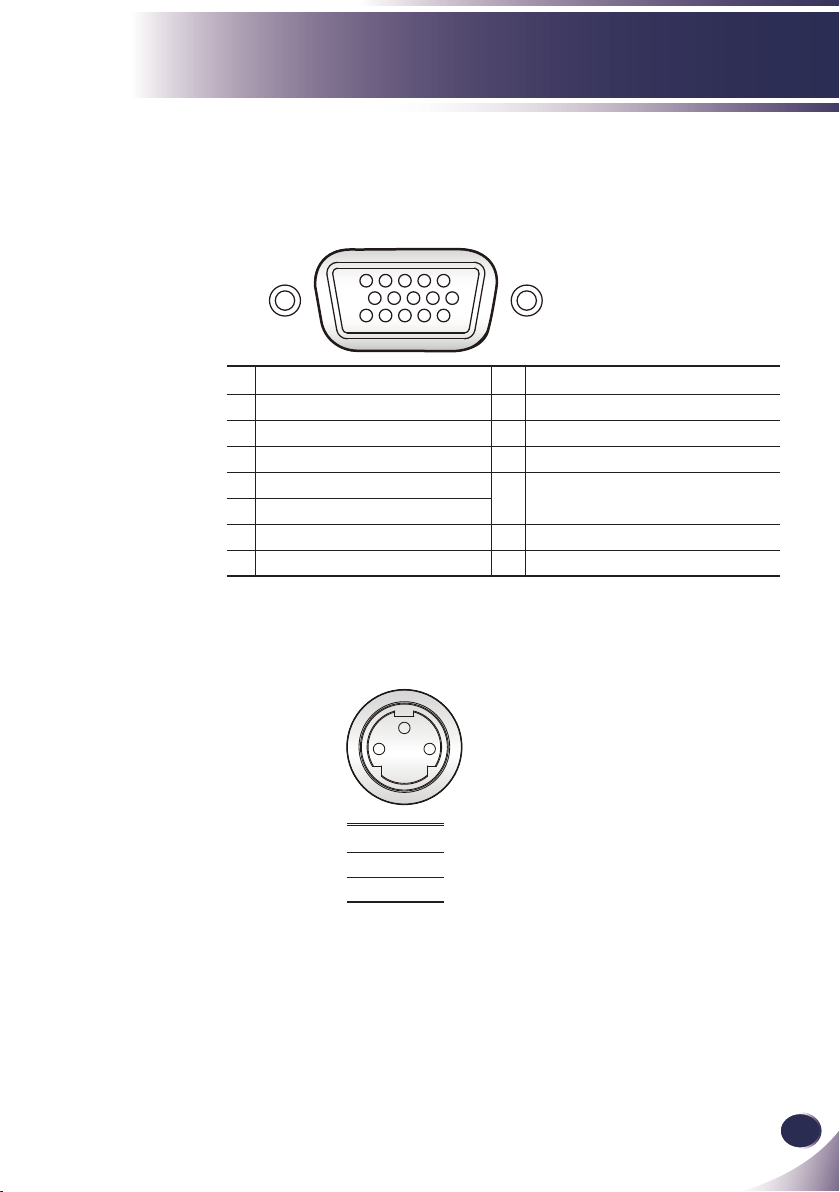
HDMI - Extended Wide timing
“*” Only support
1080P@60Hz (with
reduced blanking tim-
ing).
N
o
t
e
Modes Resolution
V-Sync
(Hz)
H-Sync
(kHz)
480i 720 x 480(1440 x 480) 59.94(29.97) 27.00
480p 720 x 480 59.94 31.47
576i 720 x 576(1440 x 576) 50(25) 27.00
576p 720 x 576 50 31.25
720p 1280 x 720 60 45.00
720p 1280 x 720 50 37.50
1080i 1920 x 1080 60(30) 33.75
1080i 1920 x 1080 50(25) 33.75
1080p 1920 x 1080 60 67.50
1080p 1920 x 1080 50 56.26
1080p 1920 x 1080 24 27.00
1080p 1920 x 1080 23.98 26.97
HDMI - Video Signal
English
53
English
Appendices
Congurations of Terminals
1 TXD
2 RXD
3
GND
Terminal : Analog RGB (Mini D-sub 15 pin)
1
Red (R/Cr) Input/R Output
9
5V / ***
2
Green (G/Y) Input/G Output
10
Ground (Ver. sync.)
3
Blue (B/Cb) Input/B Output
11
ICP download
4
***
12
DDC data / ***
5
Ground (Horiz.sync.)
13
Horiz. sync. Input / Output
(Composite H/V sync. Input)
6
Ground (Red)
7
Ground (Green)
14
Vert. sync. Input / Output
8
Ground (Blue)
15
DDC clock / ***
3
12
Terminal : Mini DIN 3-pin
5 4 3 2 1
10 9 8 7 6
15 14 13 12 11

54
English
Appendices
LG BX286-SD RS232 Command Table
---------------------------------------------------------------------------------------------------------------------------------------------------------------------------------------------------------------------------
Baud Rate : 9600 Note : There is a <CR> after all ASCII commands
Data Bits: 8 0D is the HEX code for <CR> in ASCII code
Parity: None
Stop Bits: 1
Flow Control : None
UART16550 FIFO: Disable
Projector Return (Pass): P
Projector Return (Fail): F XX=01ˀ99, projector's ID, XX=00 is for all projectors
---------------------------------------------------------------------------------------------------------------------------------------------------------------------------------------------------------------------------
SEND to projector
---------------------------------------------------------------------------------------------------------------------------------------------------------------------------------------------------------------------------
232 ASCII Code HEX Code Function Description
---------------------------------------------------------------------------------------------------------------------------------------------------------------------------------------------------------------------------
~XX00 1 7E 30 30 30 30 20 31 0D Power ON
~XX00 0 7E 30 30 30 30 20 30 0D Power OFF (0/2 for backward compatible)
~XX00 1 ~nnnn 7E 30 30 30 30 20 31 20 a 0D Power ON with Password ~nnnn = ~0000 (a=7E 30 30 30 30) - ~9999(a=7E 39 39 39 39)
---------------------------------------------------------------------------------------------------------------------------------------------------------------------------------------------------------------------------
~XX01 1 7E 30 30 30 31 20 31 0D Resync
~XX02 1 7E 30 30 30 32 20 31 0D AV Mute On
~XX02 0 7E 30 30 30 32 20 30 0D Off (0/2 for backward compatible)
~XX03 1 7E 30 30 30 33 20 31 0D Mute On
~XX03 0 7E 30 30 30 33 20 30 0D Off (0/2 for backward compatible)
~XX04 1 7E 30 30 30 34 20 31 0D Freeze
~XX04 0 7E 30 30 30 34 20 30 0D Unfreeze (0/2 for backward compatible)
~XX05 1 7E 30 30 30 35 20 31 0D Zoom Plus
~XX06 1 7E 30 30 30 36 20 31 0D Zoom Minus
~XX07 1 7E 30 30 30 37 20 31 0D Up (Pan under zoom)
~XX08 1 7E 30 30 30 38 20 31 0D Down (Pan under zoom)
~XX09 1 7E 30 30 30 39 20 31 0D Left (Pan under zoom)
~XX10 1 7E 30 30 31 30 20 31 0D Right (Pan under zoom)
~XX12 1 7E 30 30 31 32 20 31 0D Direct Source Commands HDMI
~XX12 5 7E 30 30 31 32 20 35 0D RGB 1
~XX12 6 7E 30 30 31 32 20 36 0D RGB 2
~XX12 9 7E 30 30 31 32 20 39 0D S-Video
~XX12 10 7E 30 30 31 32 20 31 30 0D Video
---------------------------------------------------------------------------------------------------------------------------------------------------------------------------------------------------------------------------
~XX20 1 7E 30 30 32 30 20 31 0D Display Mode Presentation
~XX20 2 7E 30 30 32 30 20 32 0D Bright
~XX20 3 7E 30 30 32 30 20 33 0D Movie
~XX20 4 7E 30 30 32 30 20 34 0D sRGB
~XX20 5 7E 30 30 32 30 20 35 0D Customer
---------------------------------------------------------------------------------------------------------------------------------------------------------------------------------------------------------------------------
~XX21 n 7E 30 30 32 31 20 a 0D Brightness n = 0 (a=30) ~ 100 (a=31 30 30)
~XX22 n 7E 30 30 32 32 20 a 0D Contrast n = 0 (a=30) ~ 100 (a=31 30 30)
~XX23 n 7E 30 30 32 33 20 a 0D Sharpness n = 0 (a=30) ~ 31 (a=33 31)
---------------------------------------------------------------------------------------------------------------------------------------------------------------------------------------------------------------------------
~XX34 n 7E 30 30 33 34 20 a 0D BrilliantColor
TM
n = 0 (a=30) ~ 10 (a=31 30)
---------------------------------------------------------------------------------------------------------------------------------------------------------------------------------------------------------------------------
~XX36 1 7E 30 30 33 36 20 31 0D Color Temp. Warm
~XX36 2 7E 30 30 33 36 20 32 0D Medium
~XX36 3 7E 30 30 33 36 20 33 0D Cold
~XX37 1 7E 30 30 33 37 20 31 0D Color Space RGB
~XX37 2 7E 30 30 33 37 20 32 0D YCbCr
~XX37 3 7E 30 30 33 37 20 33 0D YPbPr
---------------------------------------------------------------------------------------------------------------------------------------------------------------------------------------------------------------------------
~XX44 n 7E 30 30 34 34 20 a 0D Color (Saturation) n = 0 (a=30) ~ 100 (a=31 30 30)
~XX45 n 7E 30 30 34 35 20 a 0D Tint n = 0 (a=30) ~ 100 (a=31 30 30)
~XX90 1 7E 30 30 39 30 20 31 0D 3D On
~XX90 0 7E 30 30 39 30 20 30 0D Off
~XX91 1 7E 30 30 39 31 20 31 0D 3D Sync Invert On
~XX91 0 7E 30 30 39 31 20 30 0D Off
---------------------------------------------------------------------------------------------------------------------------------------------------------------------------------------------------------------------------
~XX60 1 7E 30 30 36 30 20 31 0D Format 4:3
~XX60 2 7E 30 30 36 30 20 32 0D 16:9
~XX60 6 7E 30 30 36 30 20 36 0D Native
---------------------------------------------------------------------------------------------------------------------------------------------------------------------------------------------------------------------------
~XX62 n 7E 30 30 36 32 20 a 0D Zoom n = -5 (a=2D 35) ~ 25 (a=32 35)
~XX63 n 7E 30 30 36 33 20 a 0D H Image Shift n = -50 (a=2D 35 30) ~ +50 (a=35 30)
~XX64 n 7E 30 30 36 34 20 a 0D V Image Shift n = -50 (a=2D 35 30) ~ +50 (a=35 30)
~XX66 n 7E 30 30 36 36 20 a 0D V Keystone n = -40 (a=2D 34 30) ~ 40 (a=34 30)
---------------------------------------------------------------------------------------------------------------------------------------------------------------------------------------------------------------------------
~XX70 1 7E 30 30 37 30 20 31 0D Language English
~XX70 2 7E 30 30 37 30 20 32 0D German
~XX70 3 7E 30 30 37 30 20 33 0D French
~XX70 4 7E 30 30 37 30 20 34 0D Italian
~XX70 5 7E 30 30 37 30 20 35 0D Spanish
~XX70 6 7E 30 30 37 30 20 36 0D Polish
~XX70 7 7E 30 30 37 30 20 37 0D Swedish
~XX70 8 7E 30 30 37 30 20 38 0D Norwegian/Danish
~XX70 9 7E 30 30 37 30 20 39 0D Portugese
~XX70 10 7E 30 30 37 30 20 31 30 0D Japanese
~XX70 11 7E 30 30 37 30 20 31 31 0D Traditional Chinese
~XX70 12 7E 30 30 37 30 20 31 32 0D Simplified Chinese
~XX70 13 7E 30 30 37 30 20 31 33 0D Korean
~XX70 14 7E 30 30 37 30 20 31 34 0D Russian
~XX70 15 7E 30 30 37 30 20 31 35 0D Arabic
~XX70 16 7E 30 30 37 30 20 31 36 0D Greek
~XX70 17 7E 30 30 37 30 20 31 37 0D Hungarian
~XX70 18 7E 30 30 37 30 20 31 38 0D Czech
~XX70 19 7E 30 30 37 30 20 31 39 0D Turkish
~XX70 20 7E 30 30 37 30 20 32 30 0D Indonesian
---------------------------------------------------------------------------------------------------------------------------------------------------------------------------------------------------------------------------
~XX71 1 7E 30 30 37 31 20 31 0D Projection Front-Desktop
~XX71 2 7E 30 30 37 31 20 32 0D Rear-Desktop
~XX71 3 7E 30 30 37 31 20 33 0D Front-Ceiling
~XX71 4 7E 30 30 37 31 20 34 0D Rear-Ceiling
---------------------------------------------------------------------------------------------------------------------------------------------------------------------------------------------------------------------------
~XX72 1 7E 30 30 37 32 20 31 0D Menu Location Top Left
~XX72 2 7E 30 30 37 32 20 32 0D Top Right
~XX72 3 7E 30 30 37 32 20 33 0D Centre
~XX72 4 7E 30 30 37 32 20 34 0D Bottom Left
~XX72 5 7E 30 30 37 32 20 35 0D Bottom Right
---------------------------------------------------------------------------------------------------------------------------------------------------------------------------------------------------------------------------
~XX73 n 7E 30 30 37 33 20 a 0D Signal Frequency n = -5 (a=2D 35) ~ 5 (a=35) By signal
~XX74 n 7E 30 30 37 34 20 a 0D Phase n = 0 (a=30) ~ 31 (a=33 31) By signal
~XX75 n 7E 30 30 37 35 20 a 0D H. Position n = -5 (a=2D 35) ~ 5 (a=35) By timing
~XX76 n 7E 30 30 37 36 20 a 0D V. Position n = -5 (a=2D 35) ~ 5 (a=35) By timing
---------------------------------------------------------------------------------------------------------------------------------------------------------------------------------------------------------------------------
~XX79 n 7E 30 30 37 39 20 a 0D Projector ID n = 00 (a=30 30) ~ 99 (a=39 39)
---------------------------------------------------------------------------------------------------------------------------------------------------------------------------------------------------------------------------
~XX81 n 7E 30 30 38 31 20 a 0D Volume n = 0 (a=30) ~ 20 (a=31 30)
---------------------------------------------------------------------------------------------------------------------------------------------------------------------------------------------------------------------------
~XX83 1 7E 30 30 38 33 20 31 0D Logo Capture
---------------------------------------------------------------------------------------------------------------------------------------------------------------------------------------------------------------------------
~XX88 0 7E 30 30 38 38 20 30 0D Closed Captioning Off
RS232 Command Table

English
55
English
Appendices
---------------------------------------------------------------------------------------------------------------------------------------------------------------------------------------------------------------------------
232 ASCII Code HEX Code Function Projector Return Description
---------------------------------------------------------------------------------------------------------------------------------------------------------------------------------------------------------------------------
~XX88 1 7E 30 30 38 38 20 31 0D cc1
~XX88 2 7E 30 30 38 38 20 32 0D cc2
~XX88 3 7E 30 30 38 38 20 31 0D cc3
~XX88 4 7E 30 30 38 38 20 32 0D cc4
---------------------------------------------------------------------------------------------------------------------------------------------------------------------------------------------------------------------------
~XX100 1 7E 30 30 31 30 30 20 31 0D Source Lock On
~XX100 0 7E 30 30 31 30 30 20 30 0D Off (0/2 for backward compatible)
~XX100 3 7E 30 30 31 30 30 20 33 0D Next Source
~XX101 1 7E 30 30 31 30 31 20 31 0D High Altitude On
~XX101 0 7E 30 30 31 30 31 20 30 0D Off (0/2 for backward compatible)
~XX103 1 7E 30 30 31 30 33 20 31 0D Menu Lock On
~XX103 0 7E 30 30 31 30 33 20 30 0D Off (0/2 for backward compatible)
---------------------------------------------------------------------------------------------------------------------------------------------------------------------------------------------------------------------------
~XX105 1 7E 30 30 31 30 35 20 31 0D Advanced Direct Power On On
~XX105 0 7E 30 30 31 30 35 20 30 0D Off (0/2 for backward compatible)
~XX106 0 7E 30 30 31 30 36 20 30 0D Auto Power Off off
~XX1061 7E 30 30 31 30 36 20 31 0D 30 min
~XX106 2 7E 30 30 31 30 36 20 32 0D 60 min
~XX106 3 7E 30 30 31 30 36 20 33 0D 90 min
~XX106 4 7E 30 30 31 30 36 20 34 0D 120 min
~XX114 1 7E 30 30 31 31 34 20 31 0D Standby RGB Out On
~XX114 0 7E 30 30 31 31 34 20 30 0D Off
~XX113 1 7E 30 30 31 31 33 20 31 0D Wake On Lan On
~XX113 0 7E 30 30 31 31 33 20 30 0D Off
---------------------------------------------------------------------------------------------------------------------------------------------------------------------------------------------------------------------------
~XX110 1 7E 30 30 31 31 30 20 31 0D Brightness Mode Normal
~XX110 0 7E 30 30 31 31 30 20 30 0D ECO (0/2 for backward compatible)
---------------------------------------------------------------------------------------------------------------------------------------------------------------------------------------------------------------------------
~XX112 1 7E 30 30 31 31 32 20 31 0D Reset Yes
---------------------------------------------------------------------------------------------------------------------------------------------------------------------------------------------------------------------------
SEND from projector automatically
---------------------------------------------------------------------------------------------------------------------------------------------------------------------------------------------------------------------------
232 ASCII Code HEX Code Function Projector Return Description
---------------------------------------------------------------------------------------------------------------------------------------------------------------------------------------------------------------------------
when Standby/Warming/Cooling/Out of Range/Lamp fail/ INFOn n : 0/1/2/3/4/6/7/8/9 = Standby/Warming/Cooling/Out of Range/Lamp fail/
Fan Lock/Over Temperature/Lamp Hours Running Out/Cover Open Fan Lock/Over Temperature/Lamp Hours Running Out/Cover Open
---------------------------------------------------------------------------------------------------------------------------------------------------------------------------------------------------------------------------
READ from projector
---------------------------------------------------------------------------------------------------------------------------------------------------------------------------------------------------------------------------
232 ASCII Code HEX Code Function Projector Return Description
---------------------------------------------------------------------------------------------------------------------------------------------------------------------------------------------------------------------------
~XX150 1 7E 30 30 31 35 30 20 31 0D Information OKabbbbccdddde a : 0/1 = Off/On
bbbb: LampHour
cc: source 00/01/02/03/04/05 = None/VGA1/VGA2/S-Video/Video/HDMI
dddd: FW version
e : Display mode 0/1/2/3/4/5
None/Presentation/Bright/Movie/sRGB/Customer
~XX150 2 7E 30 30 31 35 30 20 32 0D Info. to web only OK[data] ( !!! Caution !!! data[ ] are all ASCII character.)
data[0] : NA 1
data[1] : NA 1
data[2] : Bright Mode 1/0=on/off
data[3] : Freeze 1/0=on/off
data[4] : Source Lock 1/0=on/off
data[5] : AV 1/0=on/off
data[6] : NA 0
data[7] : NA 0
data[8] : High Altitude 1/0=on/off
data[9] : Menu Lock 1/0=on/off
data[10] : NA 0
data[11] : Wake On Lan 1/0=on/off
data[12] : Direct Power On /0=on/off
data[13] : Standby RGB Out 1/0=on/off
data[14] : Source 0/1/2/3/4/5= None/RGB1/RGB2/S-
Video/Video/HDMI1
data[15] : Aspect Ratio 0/1/2=4:3/16:9/Native
data[16] : Display mode 0/1/2/3/4/5/6/7/8=None/Presentation
/Bright/Movie/sRGB/ Customer
data[17] :Colour temperature 0/1/2/=low/med/high
data[18] :NA 0
data[19] :Projection 0/1/2/3=front/front-ceiling/rear/rear-
ceiling.
data[20] :Logo 0/1=LG Logo/Screen Capture
data[21] : Background Color 0/1/2/3/4/5/6/7=Logo/Capture Screen
/Black/Red/Blue/Green/White/Gray
data[22] : Color Space 0/1/2= RGB /Ycbcr/Ypbpr
data[23..24] : Projector ID XX
data[25..26] : Volume XX
data[27..28] : Sharpness XX
data[29..30] : Phase XX
data[31..32] : BrilliantColor XX
data[33..34] : Zoom XX (zoomÆ0~20 )
data[35..37] : Brightness XXX
data[38..40] : Contrast XXX
data[41..43] : V Image Position XXX
data[44..46] : Ver. keystone XXX
data[47..49] : Auto Power Off XXX
data[50..52] : NA 000
data[53]: Closed Captioning 0/1/2/3/4=Off/cc1/cc2/cc3/cc4
data[54]: NA 0
data[55]: 3D 0/1=off/on
data[56]: 3D Sync Invert 0/1=off/on
---------------------------------------------------------------------------------------------------------------------------------------------------------------------------------------------------------------------------
Query Lan module
---------------------------------------------------------------------------------------------------------------------------------------------------------------------------------------------------------------------------
232 Code Function Lan module Return Description
---------------------------------------------------------------------------------------------------------------------------------------------------------------------------------------------------------------------------
Q01 Query lan module OKn n : n=AAAAAAAANNNNNNNNGGGGGGGGDDDDDDDDPC
A: IP Address
N: Subnet Mask
G: Gateway
D: DNS
P: DHCP Mode(0/1: Off/ON)
C: RJ-45 Connector State(0/1: Disconnect/Connect)
---------------------------------------------------------------------------------------------------------------------------------------------------------------------------------------------------------------------------
Set Lan module
---------------------------------------------------------------------------------------------------------------------------------------------------------------------------------------------------------------------------
232 Code Function Lan module Return Description
---------------------------------------------------------------------------------------------------------------------------------------------------------------------------------------------------------------------------
S01n Set lan module P or F n : n=AAAAAAAANNNNNNNNGGGGGGGGDDDDDDDD
A: IP Address
N: Subnet Mask
G: Gateway
D: DNS
S02n Set lan module P or F n : 1/0=DHCP on/off
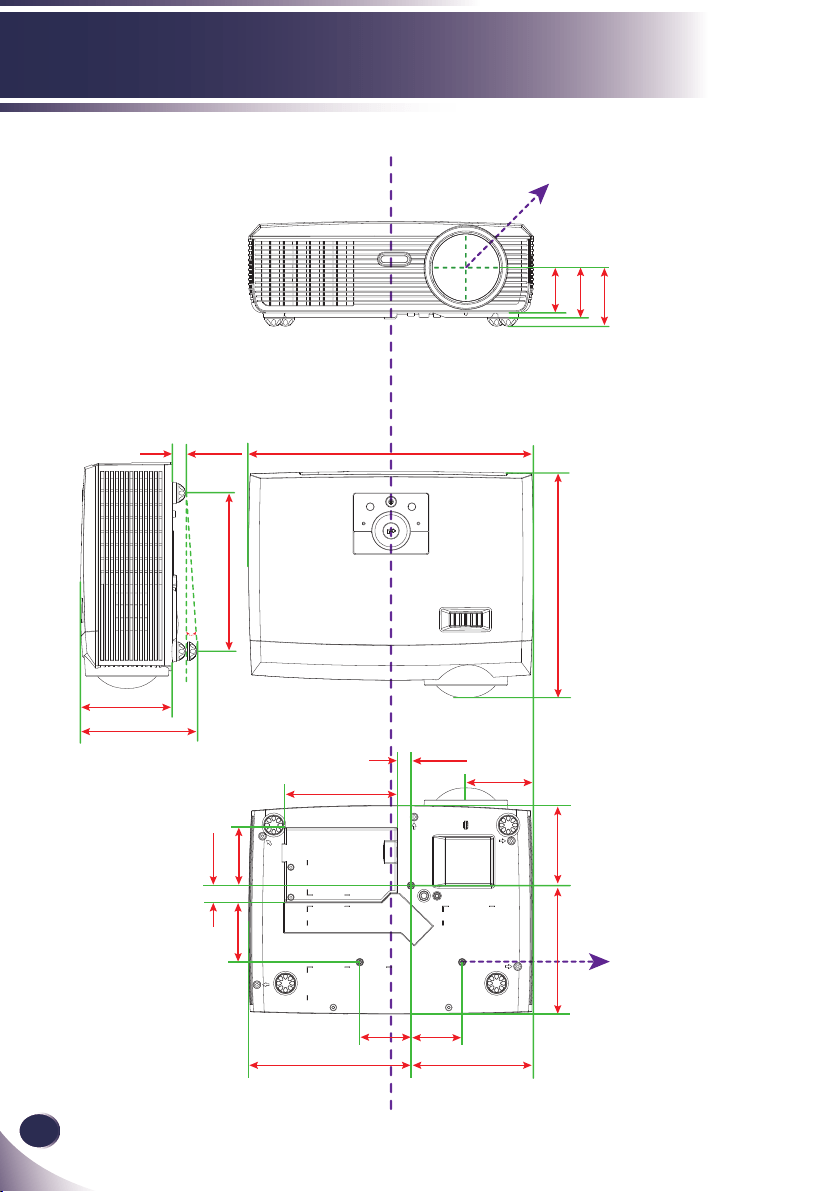
56
English
Appendices
Dimensions
Screw holes for ceiling mount
Screw M3
Depth: 7.0 mm
LENS CENTER
48.58
53.39
124.50
63.82
18.48
61.99
121.30
14.55
174.35
55.00
55.00
305.88
98.47
170.00
4.0°
241.60
131.53
72.35
86.05
137.94
62.88
14.30
Unit: mm

English
57
English
Appendices
Regulation & Safety Notices
This appendix lists the general notices of your projector.
FCC notice
This device has been tested and found to comply with the
limits for a Class B digital device pursuant to Part 15 of the
FCC rules. These limits are designed to provide reasonable
protection against harmful interference in a residential
installation. This device generates, uses and can radiate radio
frequency energy and, if not installed and used in accordance
with the instructions, may cause harmful interference to radio
communications.
However, there is no guarantee that interference will not
occur in a particular installation. If this device does cause
harmful interference to radio or television reception, which
can be determined by turning the device off and on, the user is
encouraged to try to correct the interference by one or more of
the following measures:
• Reorient or relocate the receiving antenna.
• Increase the separation between the device and receiver.
• Connect the device into an outlet on a circuit different
from that to which the receiver is connected.
• Consult the dealer or an experienced radio/television
technician for help.
Notice: Shielded cables
All connections to other computing devices must be
made using shielded cables to maintain compliance
with FCC regulations.
Caution
Changes or modications not expressly approved by the
manufacturer could void the user’s authority, which is
granted by the Federal Communications Commission,
to operate this projector.
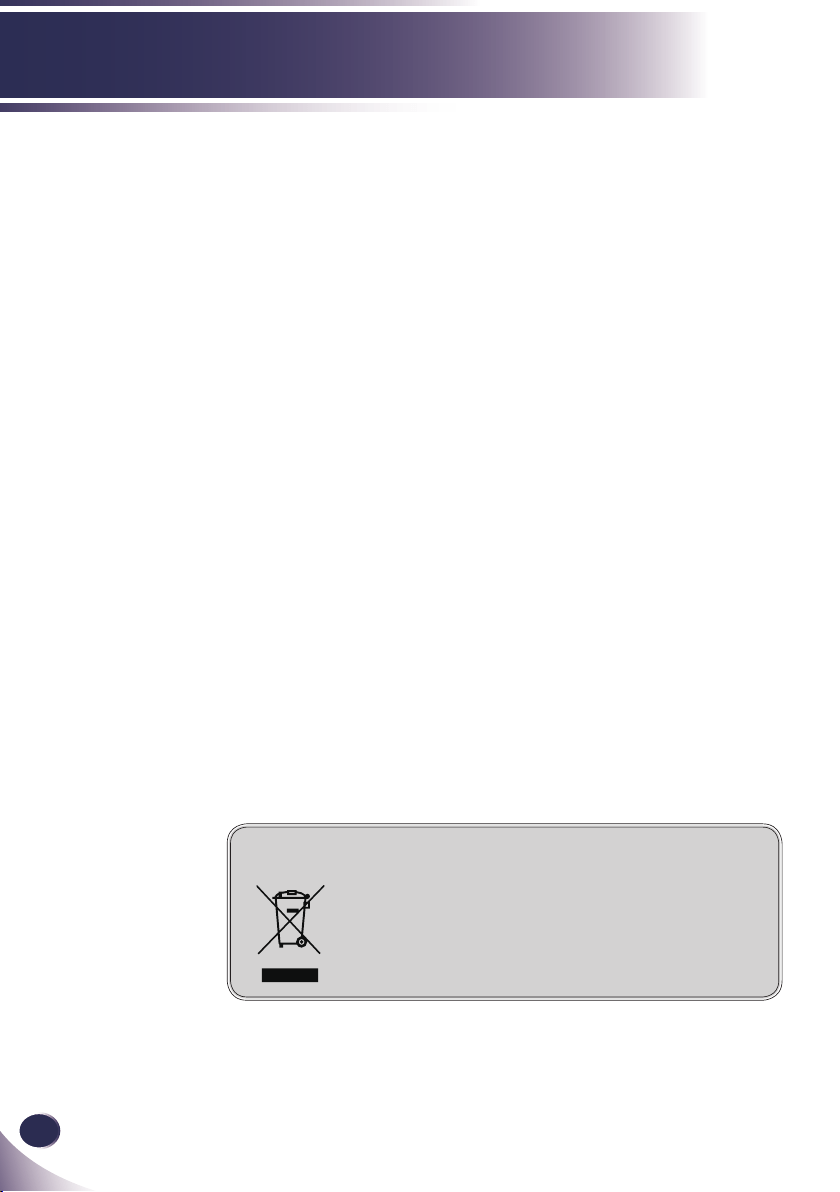
58
English
Appendices
Disposal instructions
Do not throw this electronic device into the
trash when discarding. To minimize pollution
and ensure utmost protection of the global
environment, please recycle it.
Operation conditions
This device complies with Part 15 of the FCC Rules. Operation
is subject to the following two conditions:
1. This device may not cause harmful interference and
2. This device must accept any interference received,
including interference that may cause undesired
operation.
Notice: Canadian users
This Class B digital apparatus complies with Canadian
ICES-003.
Remarque à l’intention des utilisateurs
canadiens
Cet appareil numerique de la classe B est conforme a la norme
NMB-003 du Canada.
Declaration of Conformity for EU countries
• EMC Directive 2004/108/EC (including amendments)
• Low Voltage Directive 2006/95/EC
• R & TTE Directive 1999/5/EC (if product has RF
function)