
OWNER’S MANUAL
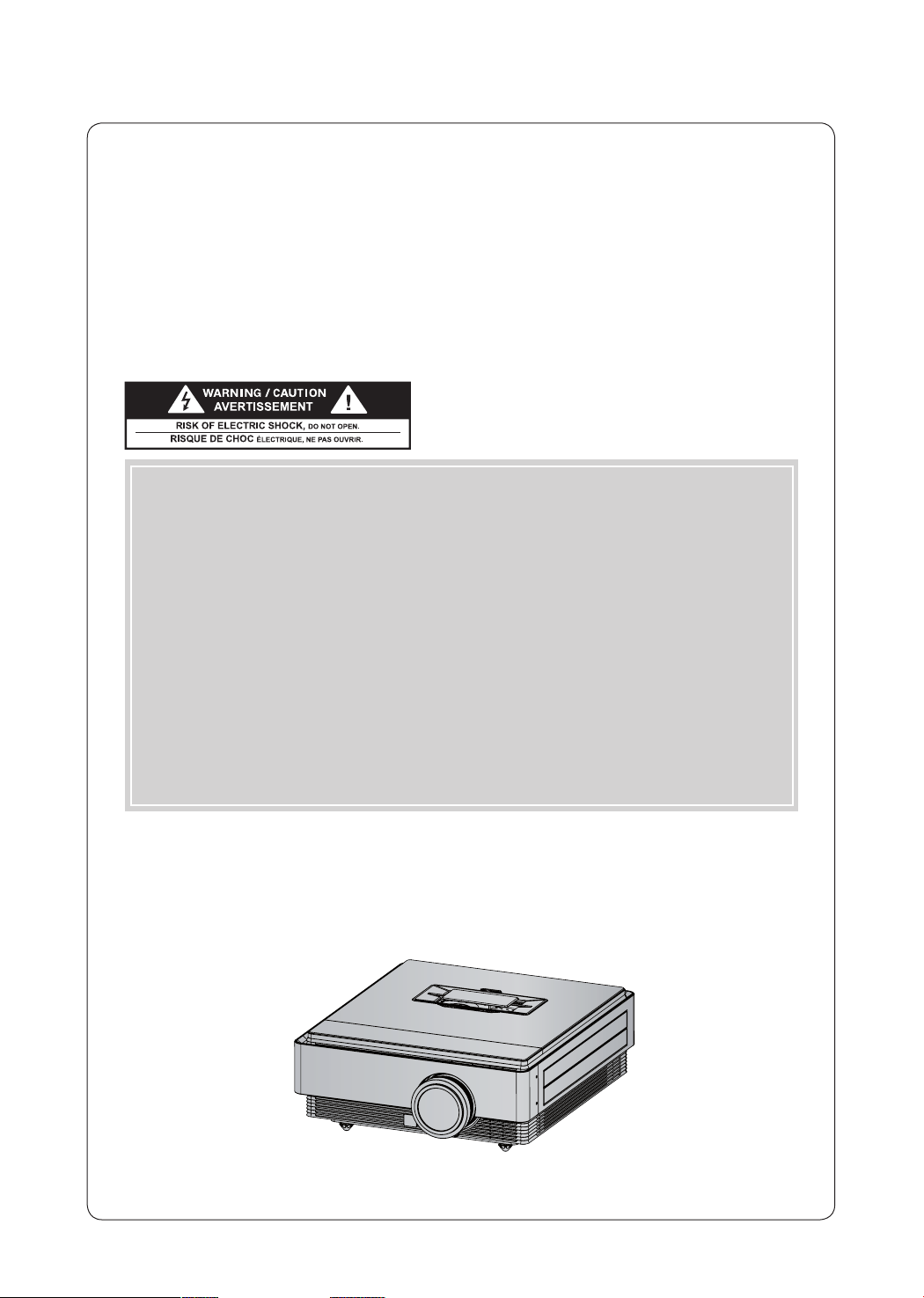
LCOS PROJECTOR
CF3D
Please read this manual carefully before operating
your set and retain it for future reference.
www.lg.com
LCOS PROJECTOR
LCOS PROJECTOR
Warning - Class B
(b) For a Class B Digital device or peripheral, the instructions furnished the user shall include the fol-
lowing or similar statement, placed in a prominent location in the text of the manual:
NOTE: This equipment has been tested and found to comply with the limits for a Class B digital device,
pursuant to part 15 of the FCC Rules. These limits are designed to provide reasonable protec-
tion against harmful interference in a residential installation. This equipment generates, uses
and can radiate radio frequency energy and, if not installed and used in accordance with the
instructions, may cause harmful interference to radio communications. However, there is no
guarantee that interference will not occur in a particular installation. If this equipment does
cause harmful interference to radio or television reception, which can be determined by turning
the equipment off and on, the user is encouraged to try to correct the interference by one or
more of the following measures:
- Reorient or relocate the receiving antenna.
- Increase the separation between the equipment and receiver.
- Connect the equipment into an outlet on a circuit different from that to which the receiver is
connected.
- Consult the dealer or an experienced radio/TV technician for help.
Contents
3
Contents
Disposal of your old appliance
1. When this crossed-out wheeled bin symbol is attached to a product it means the product is covered by
the European Directive 2002/96/EC.
2. All electrical and electronic products should be disposed of separately from the municipal waste stream
through designated collection facilities appointed by your government or your local authorities.
3. The correct disposal of your old appliance will help prevent potential negative consequences for the
environment and human health.
4. For more detailed information about disposal of your old appliance, please contact your city office,
waste disposal service or the shop where you purchased the product.
5. The fluorescent lamp used in this product contains a small amount of mercury. Do not dispose of this
product with general household waste. Disposal of this product must be carried out in accordance to
the regulations of your local authority.
Safety Instructions .......................................................4
Names of parts
Main Body ..........................................................................................7
Control Panel .....................................................................................7
Connecting Part .............................................................................. 8
Remote Control .............................................................................. 9
Installing Batteries ........................................................................... 9
Projector Status Indicators ..........................................................10
Accessories .......................................................................................11
Optional Extras ...............................................................................11
Installing and Composition
Installation Precautions .................................................................12
Positioning the Projector ..............................................................13
Kensington Security System .......................................................14
Turning on the Projector ..............................................................14
Turning off the Projector ..............................................................14
Focus and Position of the Screen Image ................................15
Selecting Input Mode ...................................................................15
Connection
Connecting to a Desktop PC ......................................................16
Connecting to a Video Source ...................................................16
Connecting to a DVD Player ....................................................... 17
Connecting to a D-TV Set-Top Box .......................................... 17
3D Video Function
Caution When Viewing 3D Video ..............................................18
When Viewing 3D Video ..............................................................18
How to Watch 3D Video ...............................................................19
Function
PICTURE Menu Options
Picture Mode ...................................................................................21
Color Temperature Function ........................................................21
Adjusting Picture Mode ...............................................................22
Advanced Control Function ........................................................22
Picture Reset Function .................................................................24
TruMotion Demo Function ..........................................................24
SCREEN Menu Options
Using the Still Function ...............................................................24
To Change PJT Mode ..................................................................25
Using Aspect Ratio Function .....................................................25
Test Pattern Function ...................................................................25
Using Keystone Function ............................................................25
Auto Configure Function .............................................................26
RGB Config. Function ..................................................................26
TIME Menu Options
Sleep Time Function .................................................................... 27
Auto Off Function ......................................................................... 27
OPTION Menu Options
Selecting Language .....................................................................28
Using Blank Function ...................................................................28
Selecting Blank image .................................................................28
To Calibrate the Camera .............................................................29
To Adjust the Brightness of the Lamp ....................................29
High Altitude Mode ......................................................................30
Network Setup ...............................................................................30
Setting Input Label .......................................................................32
Setting Power Sound ...................................................................32
INFORMATION Menu Options
To See The Projector Information .............................................32
Information
Supported Monitor Display .........................................................33
Maintenance ...................................................................................34
Replacing the Lamp .....................................................................35
Specifications .................................................................................38
Open Source Software Notice ...................................................39
Safety Instructions
4
Safety Instructions
Please take note of the safety instructions to prevent any potential accident or misuse of the projector.
ꔈ Safety Instructions are given in two forms as detailed below.
WARNING : The violation of this instruction may cause serious injuries and even death.
NOTES : The violation of this instruction may cause injuries or damage to the projector.
ꔈ
After reading this manual, keep it in the place that you can access easily.
Indoor Installation WARNING
Do not place the Projector in direct
sunlight or near heat sources such
as radiators, fires, stove etc.
This may cause a fire hazard!
Do not place flammable materi-
als in, on or near the projector.
This may cause a fire hazard!
Do not hang on the installed
projector.
It may cause the projector to fall,
causing injury or death.
Power WARNING
Indoor Installation NOTES
Earth wire should be connected.
Ensure that you connect the earth ground
wire to prevent possible electric shock (That
is a Projector with a three-prong grounded
AC plug must be connected to a three-
prong grounded AC outlet).
If grounding methods are not possible, have
a qualified electrician install a separate circuit
breaker.
Do not try to ground the unit by connecting
it to telephone wires, lightening rods, or gas
pipes.
The power cord should be inserted
fully into the power outlet to avoid
a fire hazard!
This may cause a fire hazard or damage
the unit.
Do not place heavy objects on
the power cord.
This may cause a fire or an electric
shock hazard!
Do not place the projector close
to sources of steam or oil such
as a humidifier.
This may create a fire hazard or an
electric shock hazard!
Do not place the projector where
it might be exposed to dust.
This may cause a fire hazard or
damage to the unit!
Do not block the vents of the pro-
jector or restrict air-flow in any way.
This would cause the internal tempera-
ture to increase and could cause a fire
hazard or damage to the unit!
Ensure good ventilation around the
projector. The distance between
the projector and the wall should
be more than 30 cm.
An excessive increase in its internal
temperature may cause a fire hazard or
damage to the unit!
Do not use the projector in a
damp place such as a bathroom
where it is likely to get wet.
This may cause a fire or an electric
shock hazard!
Do not place the projector direct-
ly on a carpet, rug or place where
ventilation is restricted.
This would cause its internal tempera-
ture to increase and might create a
fire hazard or damage the unit.
When installing the projector on
a table, be careful not to place it
near the edge.
The projector could fall causing injury
and damage to the projector.
Only use a suitable stand.
Only use the projector on a level
and stable surface.
It may fall and cause injury and/or
damage to the unit.
Disconnect from the power sup-
ply and remove all connections
before moving, or cleaning.
Safety Instructions
5
Using WARNING
If water is spilt into the projector unplug it from the power supply
immediately and consult your Service Agent.
This may cause an electric shock hazard or damage to the unit!
Dispose of used batteries
carefully and safely.
In the case of a battery being
swallowed by a child please consult
a doctor immediately.
CAUTION concerning the Power Cord
Do not overload wall outlets or circuit breakers. Overloaded wall outlets, loose or damaged wall outlets,
extension cords, frayed power cords, or damaged or cracked wire insulation are dangerous.Any of these
conditions could result in electric shock or fire. Periodically examine the cord of your appliance, and if its
appearance indicates damage or deterioration, unplug it, discontinue use of the appliance, and have the
cord replaced with an exact replacement part by authorized service personnel.
Protect the power cord from physical or mechanical abuse, such as being twisted, kinked, pinched,
closed in a door, or walked upon. Pay particular attention to plugs, wall outlets, and the point where the
cord exits the appliance.
Do not remove any covers. High
risk of Electric Shock!
Don’t look directly into the lens
when the projector is in use. Eye
damage may occur!
Do not touch metal parts during
or soon after operation since the
vents will remain very hot!
Power WARNING
Power NOTES
Do not plug-in too many items
into one power outlet.
It may result in overheating of the out-
let and create a fire hazard!
Never touch the power plug with
a wet hand.
This may cause an electric shock
hazard!
Prevent dust from collecting on
the power plug pins or outlet.
This may cause a fire hazard!
Hold the plug firmly when
unplugging. If you pull the cord,
it may be damaged.
This may cause a fire hazard!
Do not use if the power cord or
the plug is damaged or any part
of the power outlet is loose.
This may cause a fire or an electric
shock hazard or damage to the unit!
Ensure the power cord does not
come into contact with sharp or
hot objects.
This may cause a fire or an electric
shock hazard or damage to the unit!
Place the projector where people
will not trip or tread on the power
cord.
This may cause a fire or an electric
shock hazard or damage to the unit!
Do not turn the projector On/Off by plugging-in or unplugging the
power plug to the wall outlet.
(Allow the unit to cool before removing power.)
It may cause mechanical failure or could cause an electric shock.
Do not place anything containing
liquid on top of the projector
such as flowerpot, cup, cosmet-
ics or candle.
This may cause a fire hazard or
damage to the unit!
In case of impact shock or damage
to the projector switch it off and
unplug it from the power outlet and
contact an authorized service center.
This may cause a fire or an electric shock
hazard or damage to the unit!
Do not allow any objects to fall
into the projector.
This may cause an electric shock haz-
ard or damage to the unit!
Safety Instructions
6
Using NOTES
Do not place heavy objects on
top of projector.
This may cause mechanical failure or
personal injury!
Take care not to impact the lens
particularly when moving the
projector.
Do not touch the lens of the pro-
jector. It is delicate and easily
damaged.
Others NOTES
Cleaning NOTES
Contact the Service
Center once a year to
clean the internal
parts of the projector.
Accumulated dust can
cause mechanical failure.
When cleaning the plastic parts such as projector case, unplug the power and
wipe it with a soft cloth. Do not use cleanser, spray water or wipe with a wet
cloth. Especially, never use cleanser (glass cleaner), automobile or industrial
shiner, abrasive or wax, benzene, alcohol etc., which can damage the product.
Use an air spray or soft cloth that is moist with a neutral detergent and water
for removing dust or stains on the projection lens.
It can cause fire, electric shock or product damage (deformation, corrosion and damage).
Cleaning WARNING
Do not use water while cleaning
the projector.
This may cause damage to the pro-
jector or an electric shock hazard.
In the unlikely event of smoke or
a strange smell from the projec-
tor, switch it off, unplug it from
the wall outlet and contact your
dealer or service center.
This may cause a fire or an electric
shock hazard or damage to the unit!
Use an air spray or soft cloth that
is moist with a neutral detergent
and water for removing dust or
stains on the projection lens.
Others WARNING
Do not attempt to service the projector yourself. Contact your dealer or service center.
This may cause damage to the projector and could give an electric Shock as well as invalidating the warranty!
Using WARNING
If the projector is in a room that experiences a gas leak, do not touch
the projector.
It can cause a fire or a burn by a spark.
Always open the lens door or
remove the lens cap when the
projector lamp is on.
Do not use any sharp tools on
the projector as this will damage
the casing.
In the event that an image does
not appear on the screen please
switch it off and unplug it from the
power outlet and contact your
Service Agent.
This may cause a fire or an electric
shock hazard or damage to the unit!
Do not drop the projector or
allow impact shock.
This may cause mechanical failure or
personal injury!
Be sure to unplug if the projector is
not to be used for a long period.
Accumulated dust may cause a fire haz-
ard or damage to the unit!
Only use the specified type
of battery.
This could cause damage to the
remote control.
Do not mix new batteries with old
batteries.
This may cause the batteries to over-
heat and leak.
Names of parts
7
Names of parts
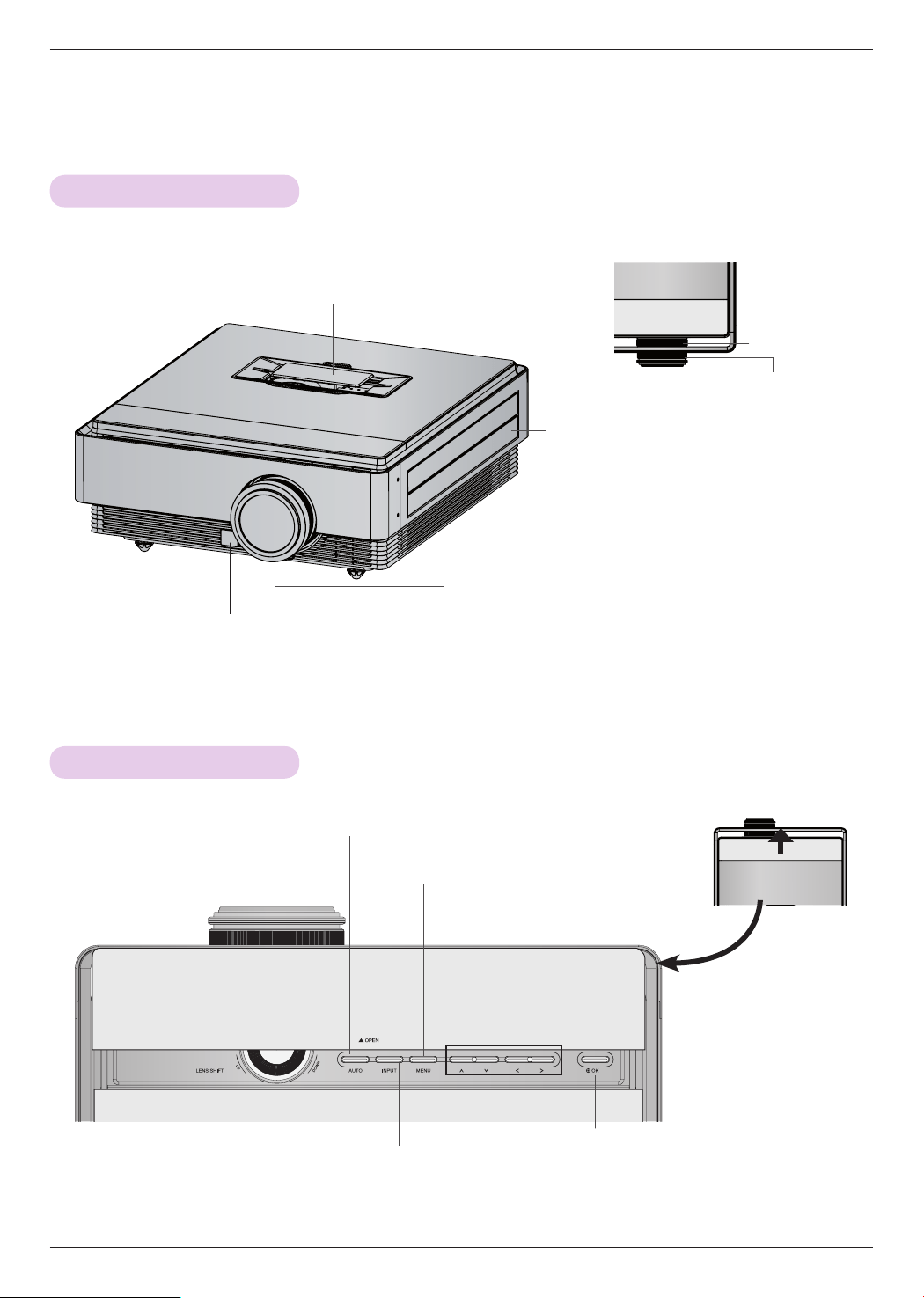
Main Body
Control Panel
MENU Button
Displays or closes menus.
AUTO Button
Automatically formats the video when
using RGB (VGA).
INPUT Button
Switches to input modes.
LENS SHIFT Dial
Move the screen image up or down.
∧/∨/</> Button
Adjusts functions of menus.
◉OK Button
Checks present mode and saves
the change of functions.
Filter Cover
* Do not block this filter when using the
projector.
Remote Control Sensor
Camera Sensor
* It is used to operate Camera Calibration function.
Air Vent Door
* Do not close the air vent door when using
the projector. There is chance that projector
may be turned off.
Lens and Lens Cap
* Do not touch the lens and opening the lens cap when using
the projector.
Slide the Door.
Focus Ring
Zoom Ring
Names of parts
8
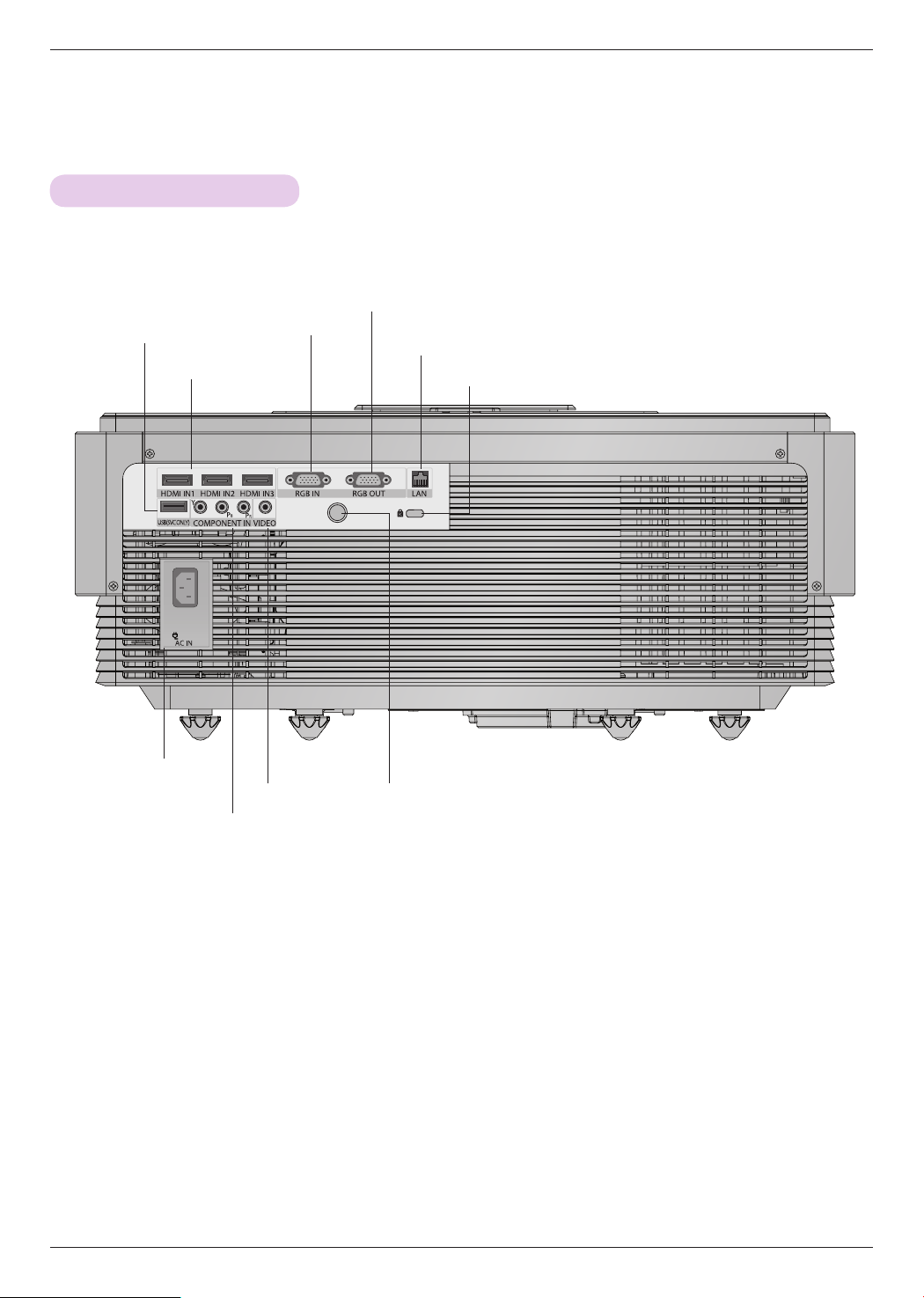
Connecting Part
USB (SVC ONLY)
IR (Remote control sensor)
*
Do not block the IR port for normal operation
of remote control.
COMPONENT IN
AC IN
Kensington Security System Connector
VIDEO IN
HDMI IN 1, 2, 3
RGB IN
RGB OUT
LAN
Names of parts
9
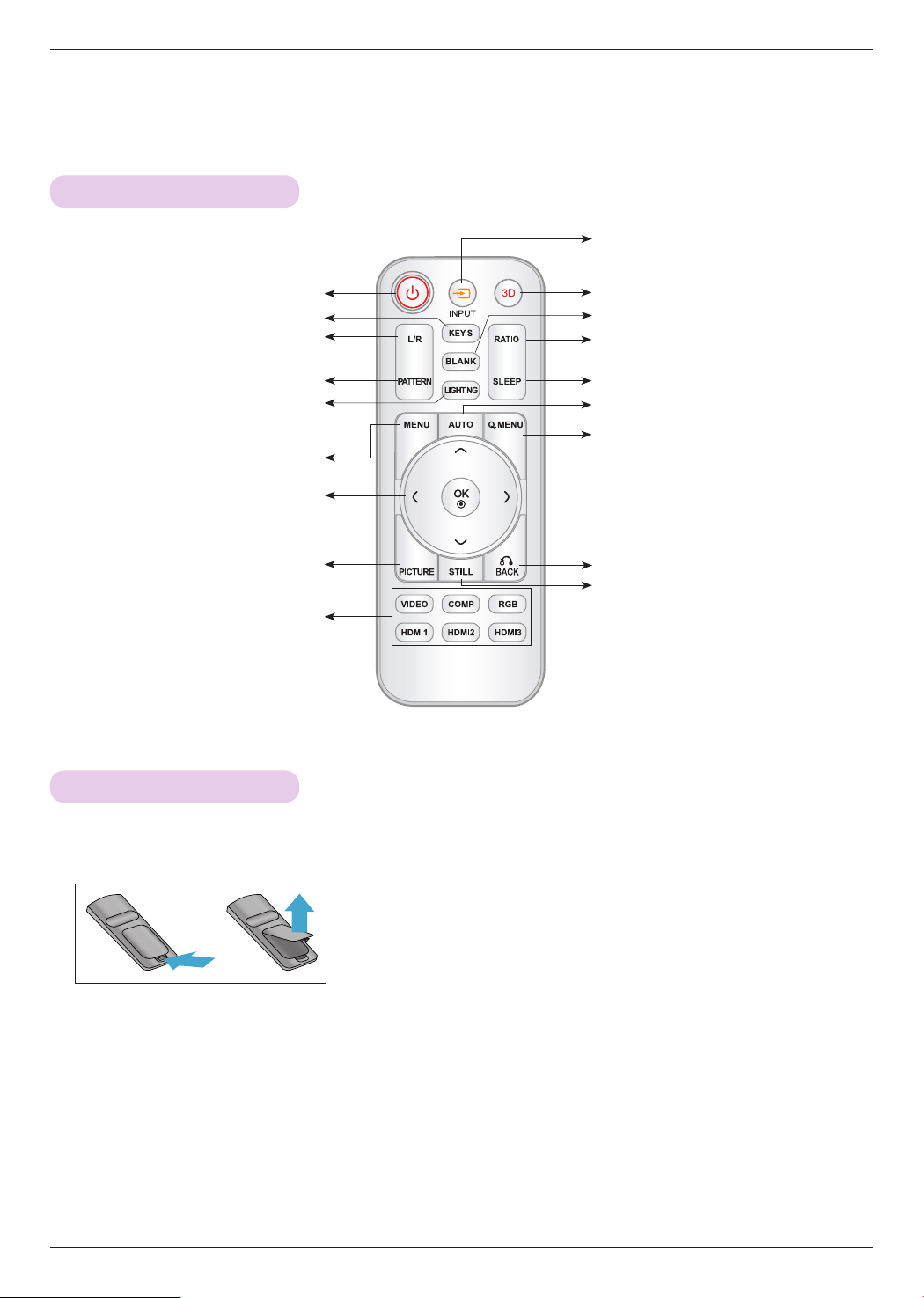
Remote Control
Installing Batteries
INPUT Button
MENU Button
Select Direct Input Buttons
AUTO Button
PATTERN Button
L/R Button
LIGHTING Button
(Illuminates the remote control buttons.)
CAUTION
RISK OF EXPLOSION IF BATTERY IS REPLACED WITH AN INCORRECT TYPE.
DISPOSE OF USED BATTERIES ACCORDING TO THE INSTRUCTIONS.
KEYSTONE Button
BACK Button
OK◉, ∧/∨/</> Button
STILL Button
BLANK Button
3D Button
Q.MENU Button
POWER Button
• Open the battery compartment cover on the back of the remote control.
• Insert the specified type of batteries with correct polarity, match “+” with “+”,
and match “-” with “-”.
• Install two 1.5V AAA batteries. Don’t mix used batteries with new batteries.
RATIO Button
SLEEP Button
PICTURE Button
Names of parts
10
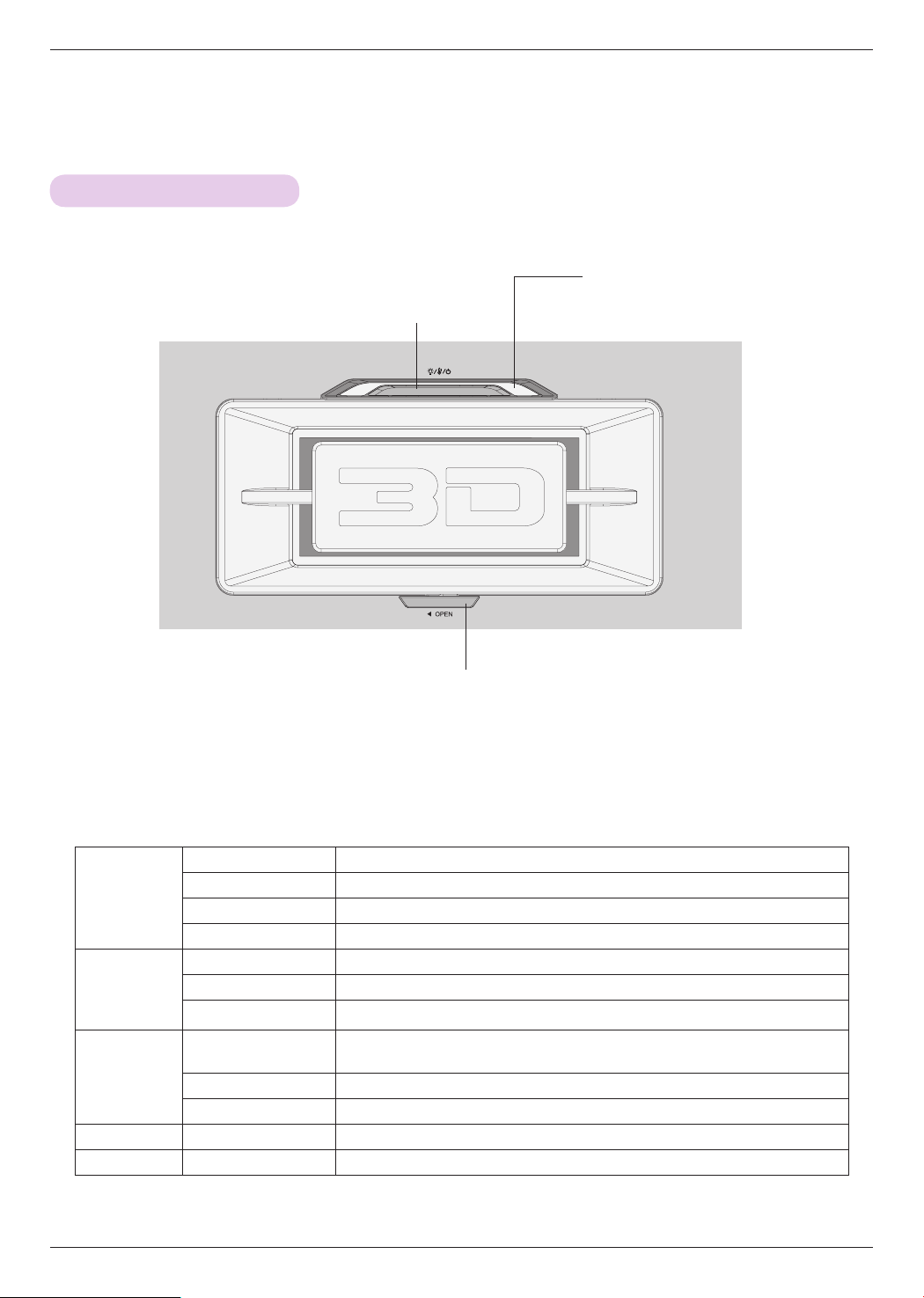
Projector Status Indicators
* Lamp indicator, operation indicator and temperature indicator at the top of the projector show the user the operating status
of the projector.
Operation
Blue Standby.
Green (Blinking) Power on.
Green Using the Projector.
Cyan (Blinking) Power off (lamp is cooling for 90 seconds).
Temperature
Red (Blinking) An error has occurred in the internal cooling fan.
Yellow High temperature warning.
Yellow (Blinking) Turned off due to excessive heat.
Lamp
Magenta
The lamp is reaching the end of its life and needs to be replaced with a new
lamp.
Magenta (Blinking) An error has occurred in the lamp.
Red The lamp cover is opened.
Air Vent Door Cyan An error has occurred in the air vent.
Filter Blue (Blinking) The filter cover is opened.
Operation Indicator
Temperature Indicator
Lamp Indicator
Top Filter Cover Lock
Power Button
Turns ON/OFF the projector.
Names of parts
11
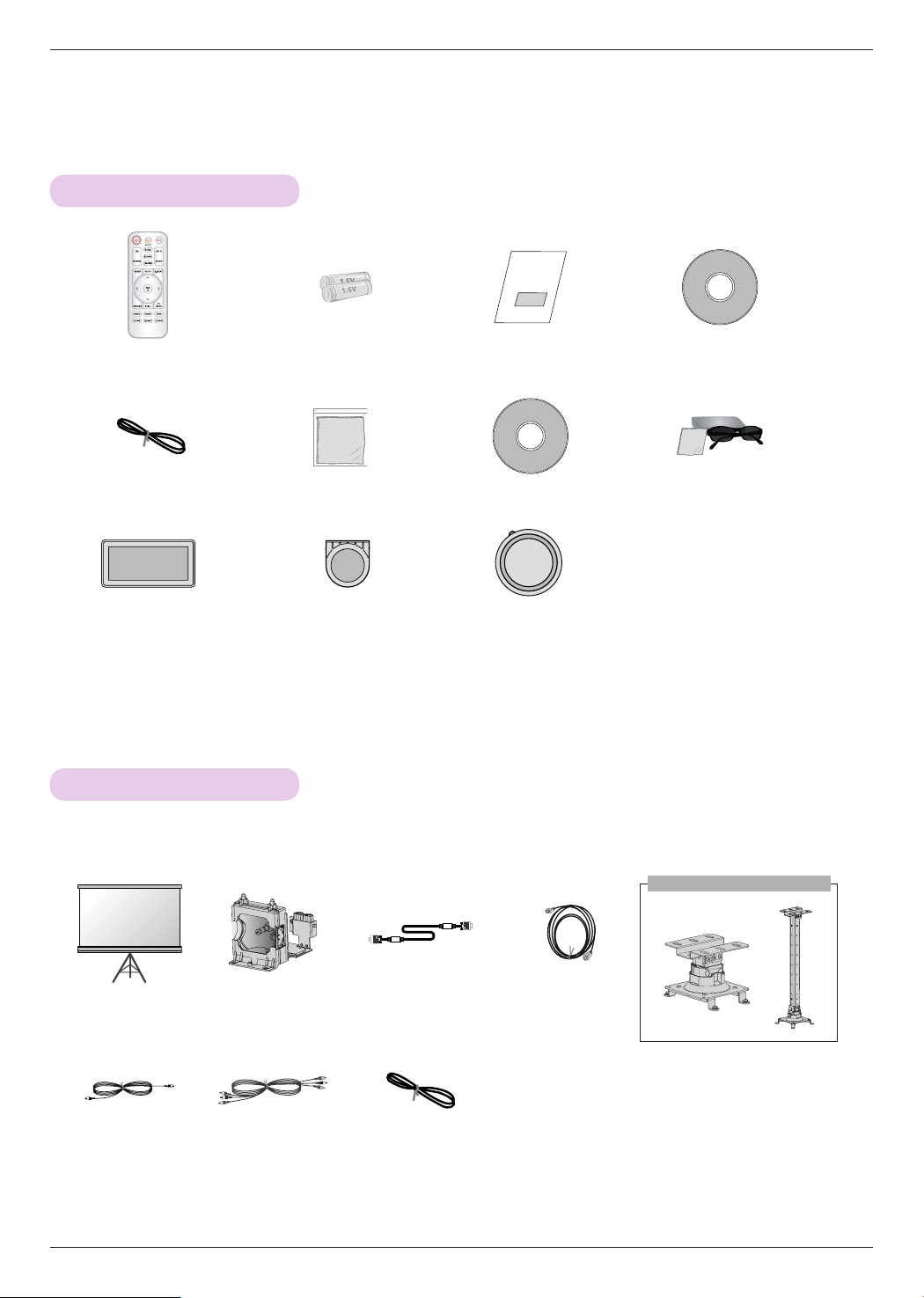
Ceiling mount for projector
Accessories
Optional Extras
* Contact your dealer to purchase these items.
* Optional parts can be changed without notice to improve the quality of the product, and new optional parts can be added.
Remote Control AAA Battery Owner’s manual CD Owner’s manual
Power Cord Polishing Cloth eZ-Net Manager CD 3D Glasses
Top Filter Bottom Filter Lens Cap
Projection Screen
for 3D
Lamp Computer Cable HDMI Cable
Video Cable Component Cable LAN Cable
Installing and Composition
12
Installing and Composition
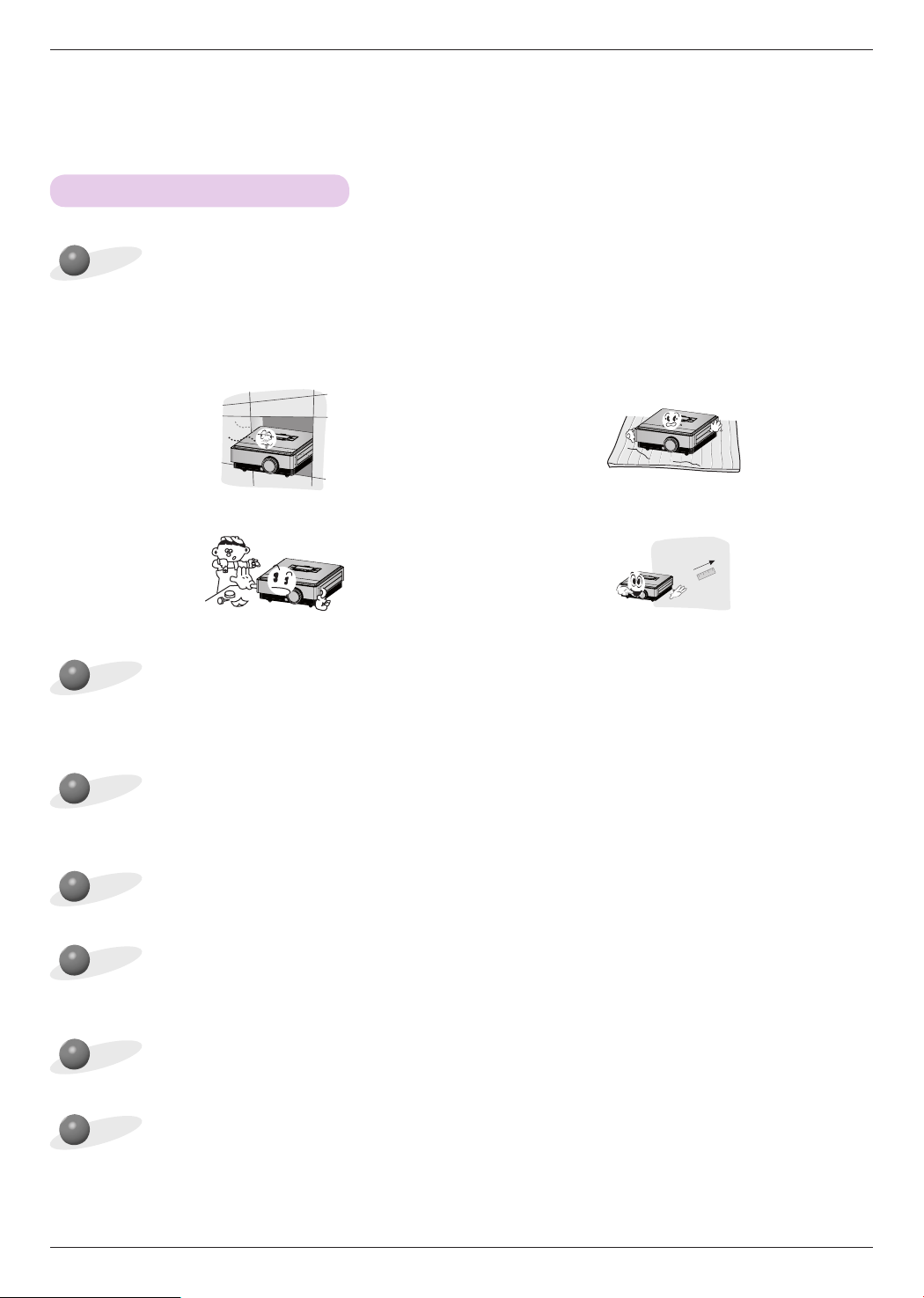
Provide proper ventilation for this projector.
Place this projector in adequate temperature and humidity conditions.
• Install this projector only in a location where adequate temperature and humidity is available. (Refer to page 38)
Don’t place the projector where it can be covered with dust.
• This may cause overheating of the projector.
This projector is manufactured using high-precision technology. You may, however, see tiny black points and/or bright
points (red, blue or green) that continuously appear on the projector Screen. This is a normal result of the manufacturing
process and does not indicate a malfunction.
To display DTV programs, it is necessary to purchase a DTV receiver (Set-top Box) and connect it to the projector.
Installation Precautions
The remote control may not work when a lamp equipped with electronic ballast or a three-wavelength lamp is installed.
Replace those lamps with international standard products to use the remote control normally.
Do not obstruct the slots and openings of the projector. This may cause overheating and create a fire hazard.
• The projector is equipped with ventilation holes(intake) on
the bottom and ventilation holes(exhaust) on the front. Do
not block or place anything near these holes. Internal heat
build-up may occur, causing picture degradation or dam-
age to the projector.
• Do not place the projector on a carpet, rug or other similar
surface. It may prevent a adequate ventilation of the pro-
jector bottom. This product should be mounted to a wall
or ceiling only.
• Never push projector or spill any kind of liquid into the
projector.
• Leave an adequate distance (30 cm or more) around the
projector.
Installing and Composition
13
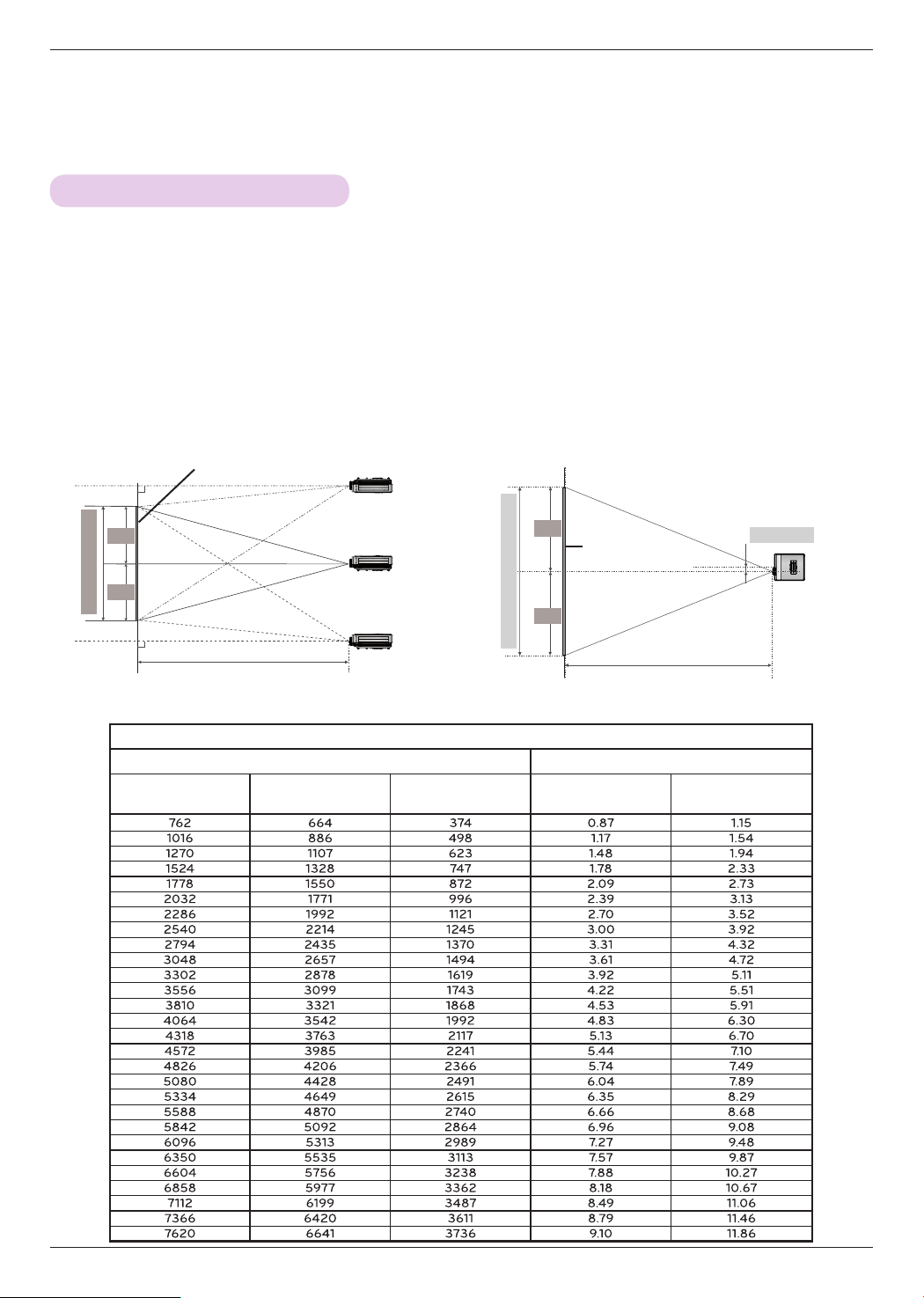
1. Place the projector on a sturdy and horizontal surface with the PC or AV source.
2. The distance between the projector and the screen determines the actual size of the image.
3. Position the projector so that the lens is set at a right angle to the screen. If the projector is not set at a
right angle, the screen image will be crooked. Although, slight angles can be counteracted using the
Keystone adjustement. (Refer to page 25.)
4. Connect the power cable to the projector and the wall outlet after placing the projector in its desired
location.
Projection distance (D)
Lens shift
Max
Max
0%
80.5 mm
Projection distance (D)
Positioning the Projector
Screen
< Projection Distance Based on the Picture Format >
Screen height (X)
X/2
X/2
Y/2
Y/2
Screen
Screen Width (Y)
16 : 9 Scale
Screen Projection Distance
Diagonal Size (mm)
Screen Width (Y)
(mm)
Screen height (X)
(mm)
Minimum Projection
Distance (D1) (m)
Maximum Projection
Distance (D2) (m)
Installing and Composition
14
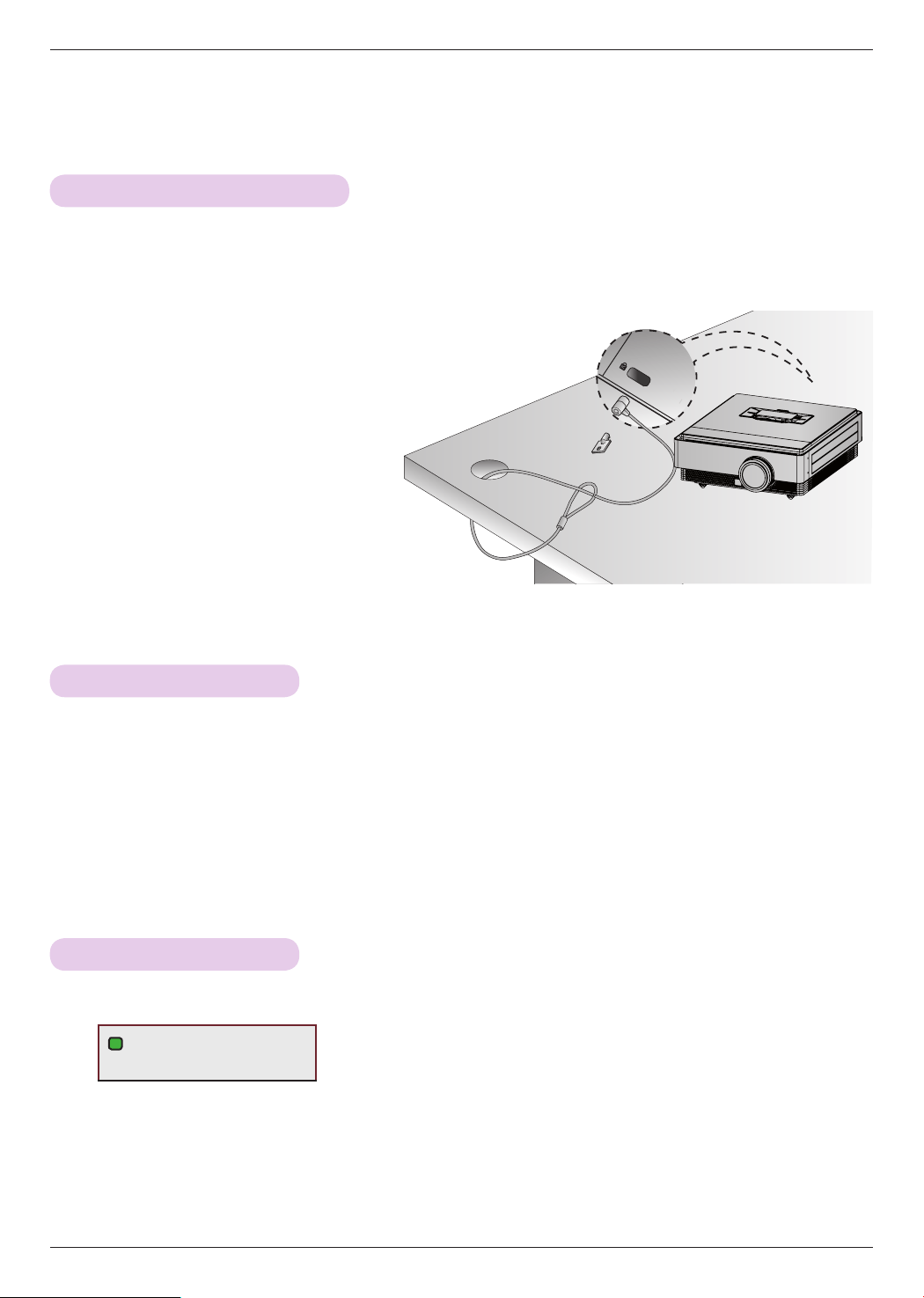
• This projector has a Kensington Security System Connector on the back or side panel. Connect the Kensington Security
System cable as below.
• For the detailed installation and use of the Kensington Security System, refer to the user’s guide included with the
Kensington Security System set. And for further information, contact http://www.kensington.com, the internet homepage
of the Kensington company that deals with expensive electronic equipment such as notebook PCs or projectors.
• The Kensington Security System is an optional item.
Kensington Security System
Turning on the Projector
1. Make sure the power cord is connected correctly.
2. Press the POWER button. The operation indicator will blink green while the projector is warming up.
• Power on time is long because of the characteristics of 3D Projector.
• Press the INPUT button to select the input signal you want.
• There will be short sound when the projector is being turned on.
• Check if the lens cap is open before turning on the power.
Turning off the Projector
1. Press the POWER button.
2. The unit will turn off when you press the POWER button a second time. The operation indicator LED will
blink blue for 90 seconds while the bulb cools. Do not disconnect the projector while the LED (fan) turns off.
When the indicator becomes solid blue, you may remove the power cord if needed (Refer to page 10).
i
Power off?
Please press Power key again.
Installing and Composition
15
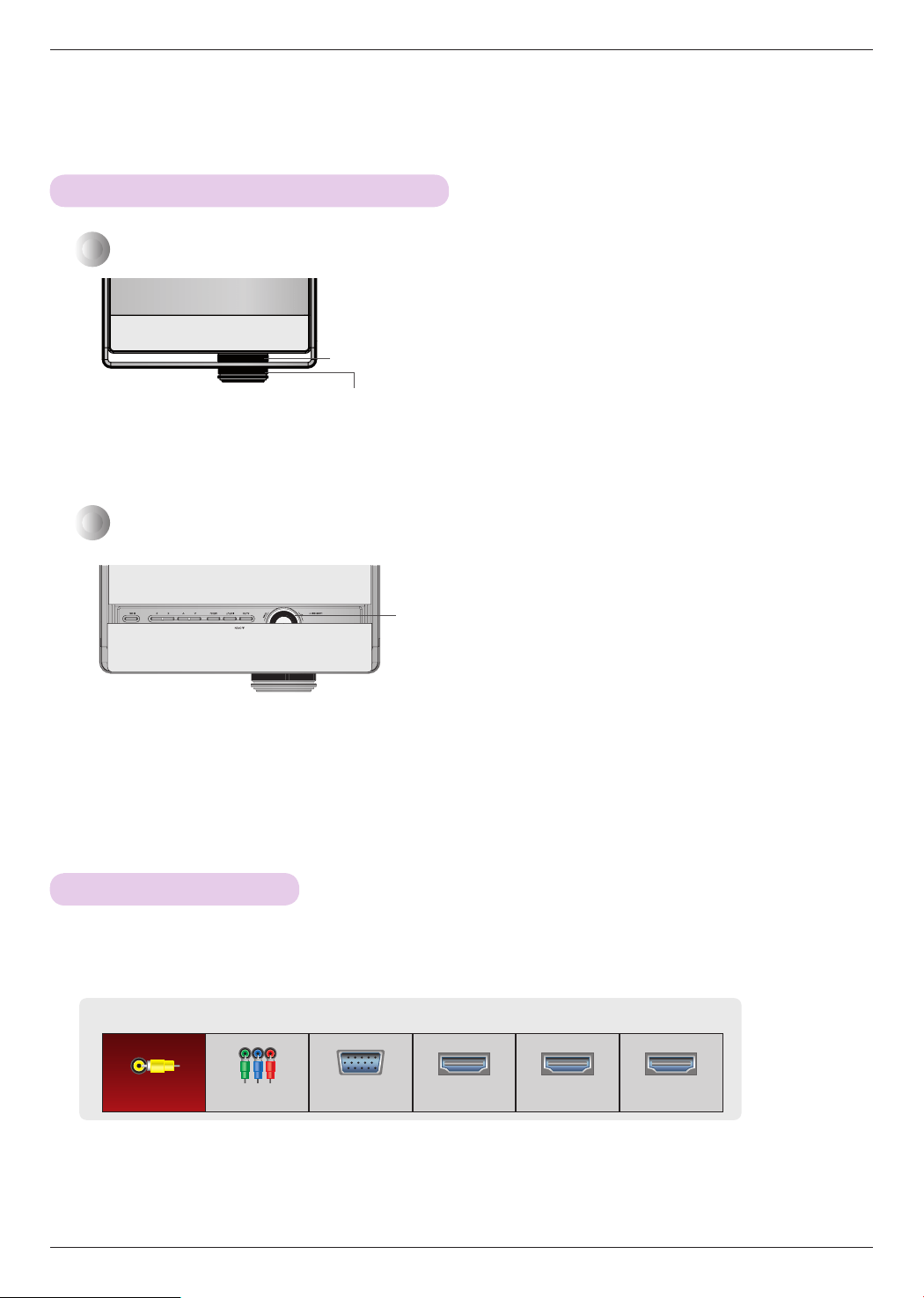
Selecting Input Mode
• Selecting an input signal with the VIDEO, COMP, RGB, HDMI1, HDMI2 and HDMI3 buttons.
• Connected input list is displayed in front.
Input
ComponentVideo RGB HDMI 1 HDMI 2 HDMI 3
When an image appears on the screen, check if it is in focus and fits the screen properly.
When you need to move the screen image up or down, use the zoom ring on the projector to adjust the height as shown
below.
• To adjust the focus of the image, rotate the focus ring.
• To adjust the size of the image, rotate the zoom ring.
• Turn the Lens shift dial left or right to adjust the projector image up or down.
• Turning the Lens shift dial with excessive power may cause damage to the projector.
Focus and Position of the Screen Image
Focus Ring
Zoom Ring
Lens shift Dial
1. Press the INPUT button.
2. The menu will cycle between active inputs when you press the INPUT button. Use the <, > button to switch
between inputs that are not active.
Connection
16
Connection
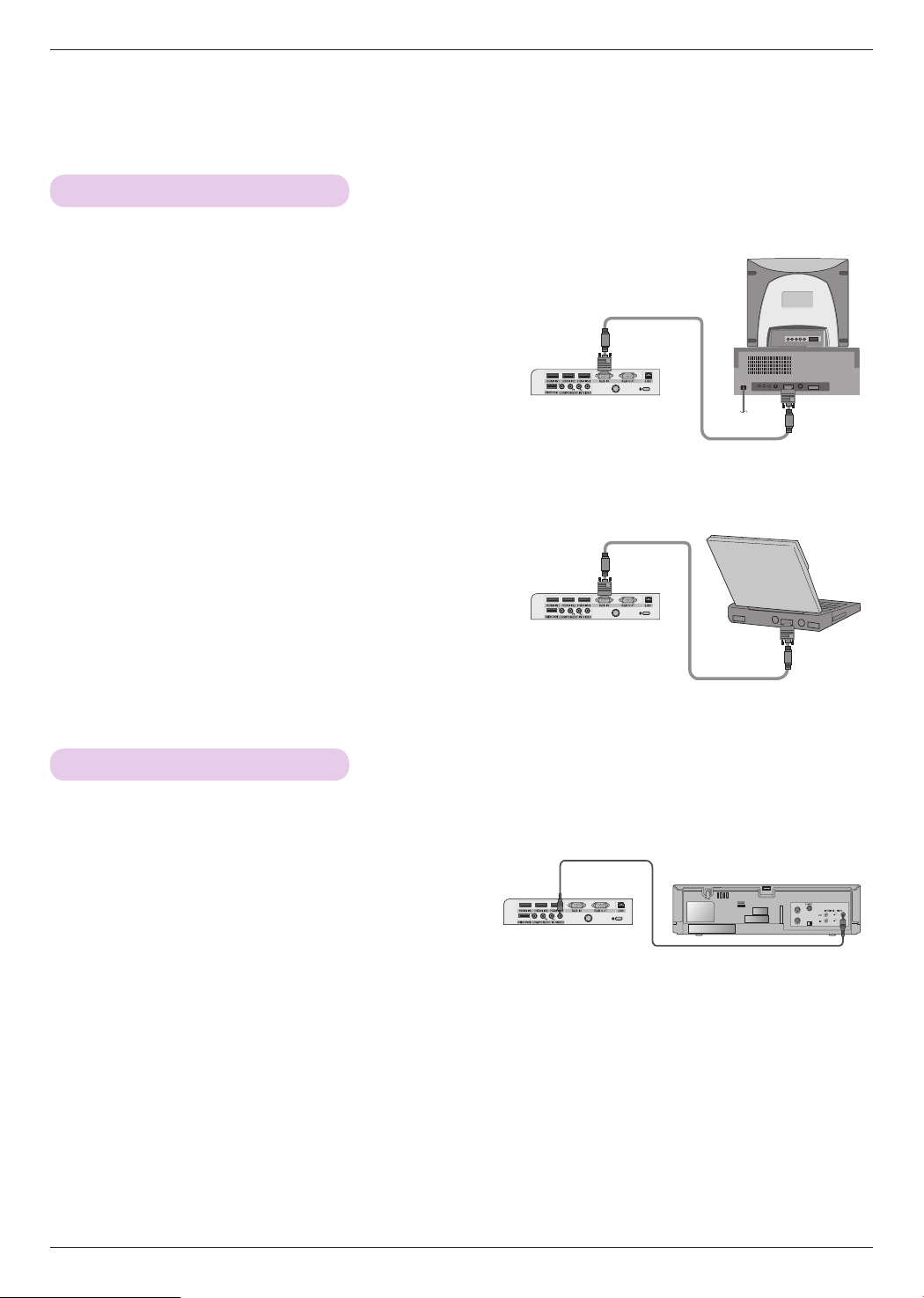
Connecting to a Desktop PC
* You can connect the projector to a computer with VGA, SVGA, XGA, SXGA output.
* Refer to page 33 for resolutions the projector supports.
< How to connect >
Connect the RGB IN of the projector and the RGB out-
put port of the computer with a computer cable.
* You may have to change the resolution that your PC
exports to one supported by the projector. Refer to page
33. Notebook computers may require a button or button
combination to be pressed to activate the external video
port.
Connecting to a Video Source
< How to connect >
Connect the VIDEO input of the projector to the output
jack of the video source with a (yellow) video cable.
* You can connect a VCR, a camcorder or any other compatible video image source to the projector.
< VCR >
Video Cable
Computer Cable
Computer Cable
Connection
17
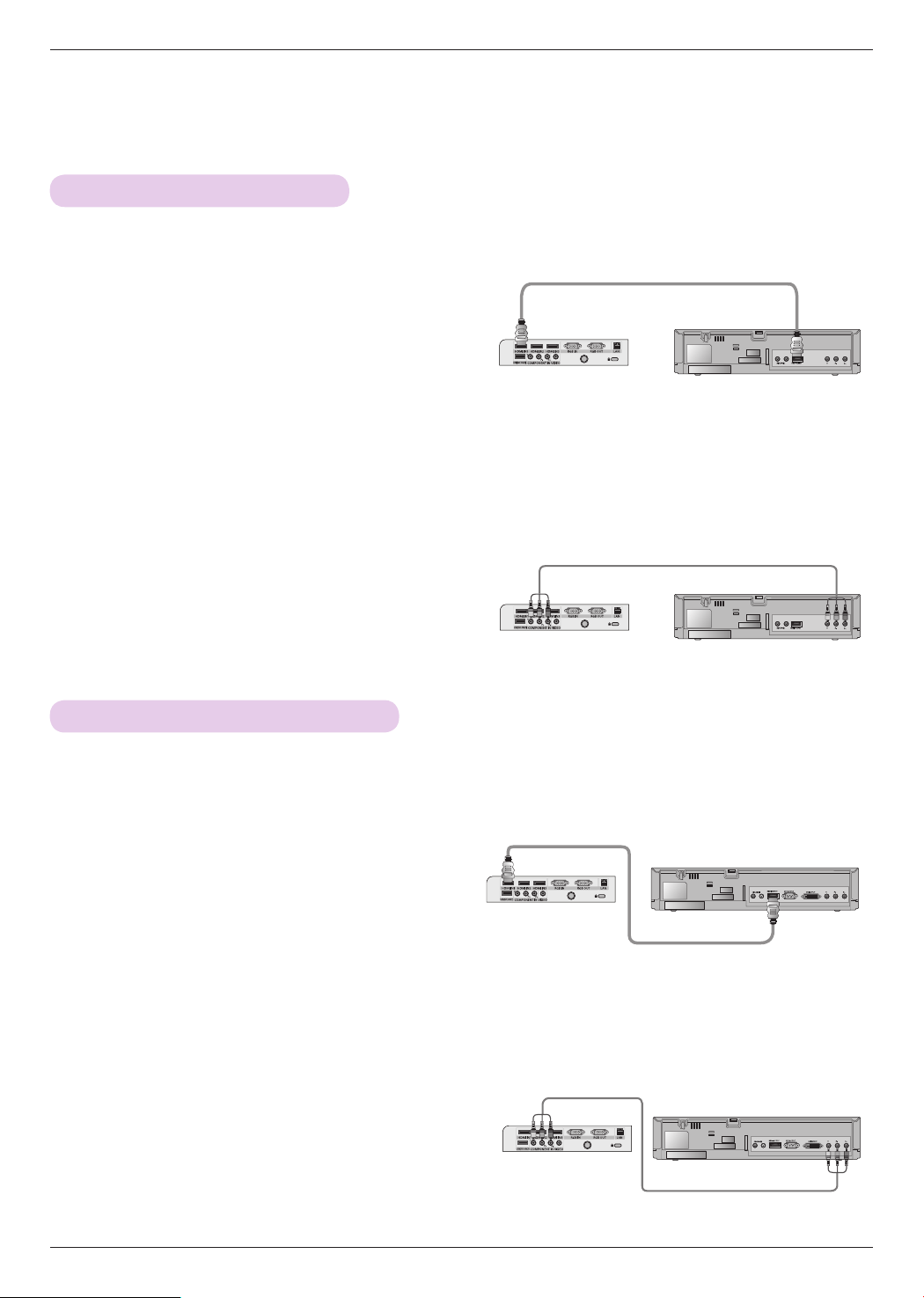
Connecting to a DVD Player
< How to connect a Component source >
Connect the COMPONENT IN of the projector and the
compontnt output port of the DVD Player with a compo-
nent cable.
* When connecting the component cable, match the jack
colors with the component cable.(Y=green, PB=blue, PR
=red)
< How to connect a HDMI source >
1. Connect the HDMI IN 1 (or HDMI IN 2/3) of the pro-
jector and the HDMI output port of the DVD Player
with an HDMI cable.
2. Set the DVD Player's resolution to one of the following:
480p(576p)/720p/1080i/1080p mode.
< How to use a HDMI source >
First, turn on the projector, then turn on the HDMI device.
* Depending on the equipment, the component output jacks (Y, PB, PR) of the DVD Player may be labeled as Y, Pb, Pr/Y, B-Y, R-Y/Y, Cb, Cr.
< DVD Player >
Component cable
Component cable
Connecting to a D-TV Set-Top Box
< How to connect a HDMI source >
1. Connect the HDMI IN 1 (or HDMI IN 2/3) of the pro-
jector and the HDMI output port of the DTV set-top
box with an HDMI cable.
2. Set the DTV receiver's resolution to one of the follow-
ing: 480p(576p)/720p/1080i/1080p mode.
< How to use a HDMI source >
First, turn on the projector, then turn on the HDMI device.
* To receive Digital TV (D-TV) programs, it is necessary to purchase a D-TV receiver (Set-Top Box) and connect it to
the projector.
* Please refer to the owner's manual of the D-TV Set-Top Box for the connection between the projector and D-TV
Set-Top Box.
< How to connect a Component source >
Connect the COMPONENT IN of the projector and the
compontnt output port of the D-TV Set-Top Box with a
component cable.
* When connecting the component cable, match the jack
colors with the component cable.(Y=green, PB=blue, PR
=red)
< D-TV Set-Top Box >
< D-TV Set-Top Box >
< DVD Player >
HDMI Cable
HDMI Cable
3D Video Function
18
10
10
3D Video Function
* 3D video is the technology of using a different video frame for each eye to add depth to the video.
* The following is required is required to view 3D video: 3D TV or projector, 3D glasses, and 3D external input (a BD Player, Sat,
or Cable box with a 3D program or movie). It will not “up-convert” 2D to 3D.
* 3D video can be watched only on a silver screen.
Caution When Viewing 3D Video
When Viewing 3D Video
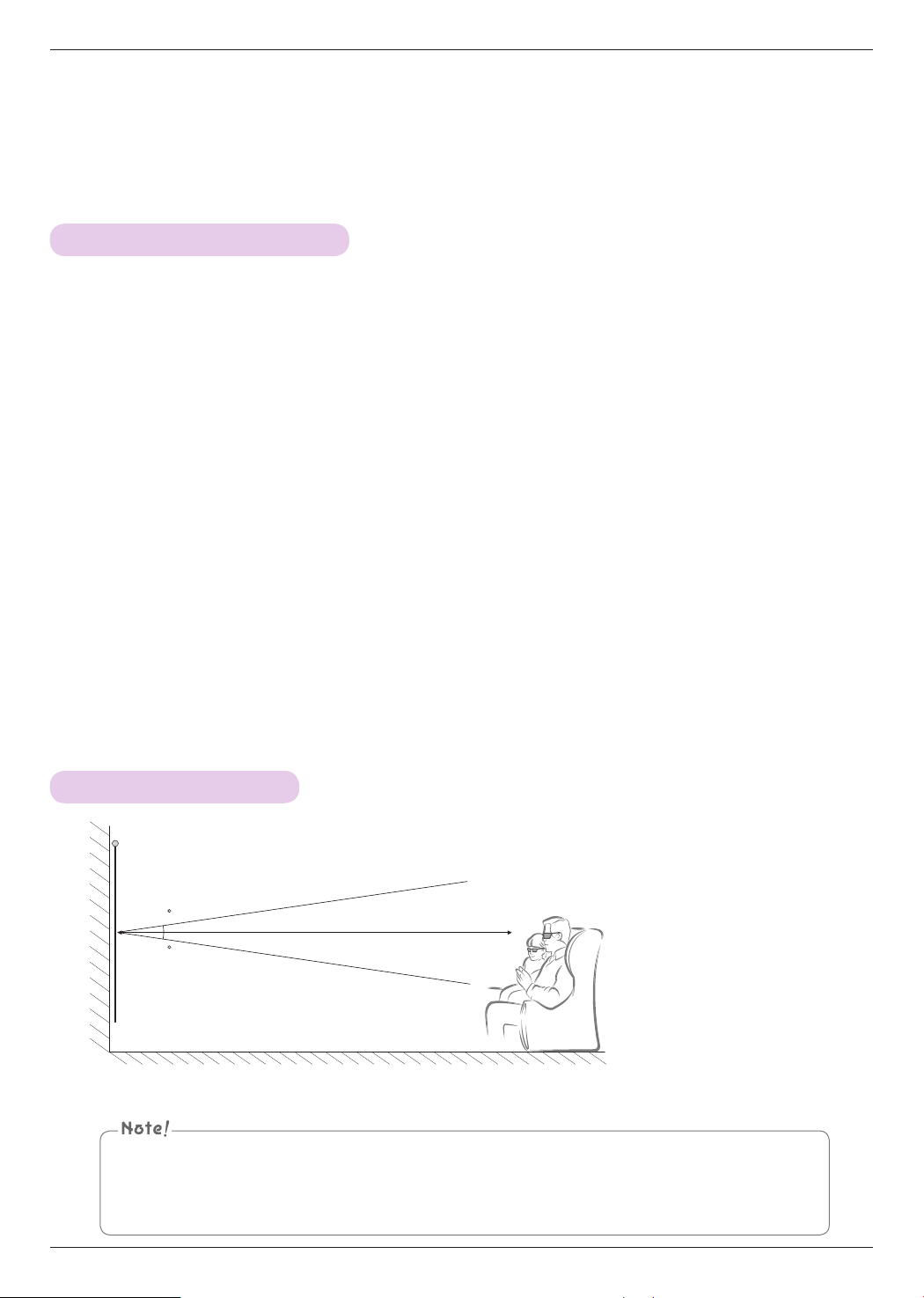
► When viewing 3D video, watch the projector within the effective viewing angle and distance.
- If you exceed the viewing angle or distance, you may not be able to view 3D video.
► If you watch the 3D video too closely for a long period of time, it may strain your eyes.
► Watching the screen with the 3D video glasses for a long period of time can cause drowsiness or fatigue to your eyes.
- If you feel headache, fatigue or drowsiness, stop watching the video.
► Pregnant woman, senior, person with heart problem or frequent drowsiness may wish to refrain from watching 3D video.
- 3D video can cause an elevated heart rate.
► Some 3D video may cause you to duck or dodge the image in the video. Do not watch 3D video near fragile objects or
any objects that can be knocked over easily.
► Do not use the 3D glasses as general glasses, sunglasses or protective goggles. It can cause an injury.
► Do not store the 3D glasses in hot or cold location.
► Because the lens (Polarized film) of 3D glasses is sensitive to scratches, only use a soft and clean cloth to wipe the prod-
uct.
- Because any alien particle on the cloth can result in scratches, be cautious.
► Do not scratch the surface of the lens (Polarized film) of 3D glasses or wipe the lens with chemicals.
- The polarized film can be scratched and the video may not look normal when viewing 3D.
► The lens of the 3D glasses is different from those of general glasses, and is very thin. Therefore be careful with the glass-
es as the lens can be popped out easily.
► Warning for photosensitization seizure: Specific image from the video and light or specific pattern from the video can
cause a seizure to some individuals. If you or anybody from your family has a history of epilepsy or seizure, please consult
your doctor before watching 3D video. Also the following symptoms can occur in unspecified conditions without any pre-
vious history.
- If you experience dizziness, visual transition, visual or facial instability, unconscious action, convulsion, loss
of con-
science, confusion, loss of directional sense or nausea during or after watching the 3D video, immediately stop watching
the 3D video and consult the doctor. Especially special care is required for children watching the 3D video.
- Do not watch 3D video when very sleepy, tired or sick, and avoid watching 3D video for a long period
of time.
* Effective viewing angle: Top/Bottom 10°
Recommended viewing distance: 5 m to 10 m
5 m - 10 m
▪ Specific menus may not work while watching 3D video.
▪ 3D effect can only be seen when 3D Mode is selected appropriately for the 3D input signal supplied to the
Projector.
▪ HDMI-PC/DVI-PC input does not support 3D Mode.
3D Video Function
19
How to Watch 3D Video
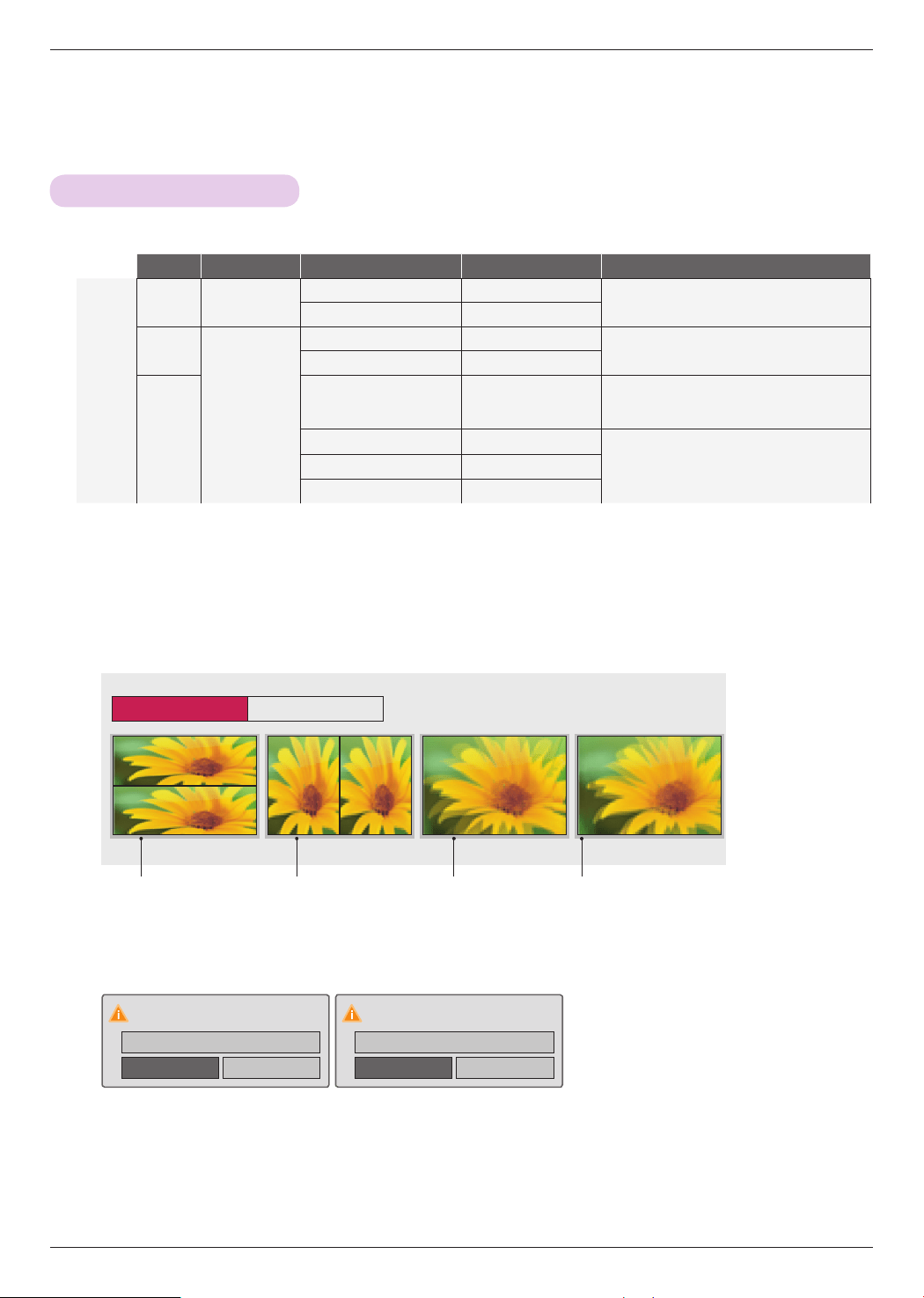
1. Input the 3D video from an external 3D compatible device using one of the following formats. The default
settings on the playing device should work.
Signal Resolution Horizontal Frequency(kHz) Vertical Frequency(Hz) Playable 3D video format
HDMI
720p 1280x720
45.00 60
Top & Bottom, Side by Side
HDMI(V1.4 with HDMI 3D) Frame Packing
37.50 50
1080i
1920x1080
33.75 60
Top & Bottom, Side by Side
28.125 50
1080p
27.00 24
Top & Bottom, Side by Side,
Checker Board, Frame Sequential
HDMI(V1.4 with HDMI 3D) Frame Packing
33.75 30
Top & Bottom, Side by Side,
Checker Board, Frame Sequential
67.50 60
56.25 50
• Media content and player need to support HDMI (V. 1.4 with HDMI 3D) Frame Packing to play Frame Packing format ste-
reoscopic.
• Video, which is input as HDMI (V. 1.4 with HDMI 3D) Frame Packing format, is switched into the stereoscopic screen auto-
matically.
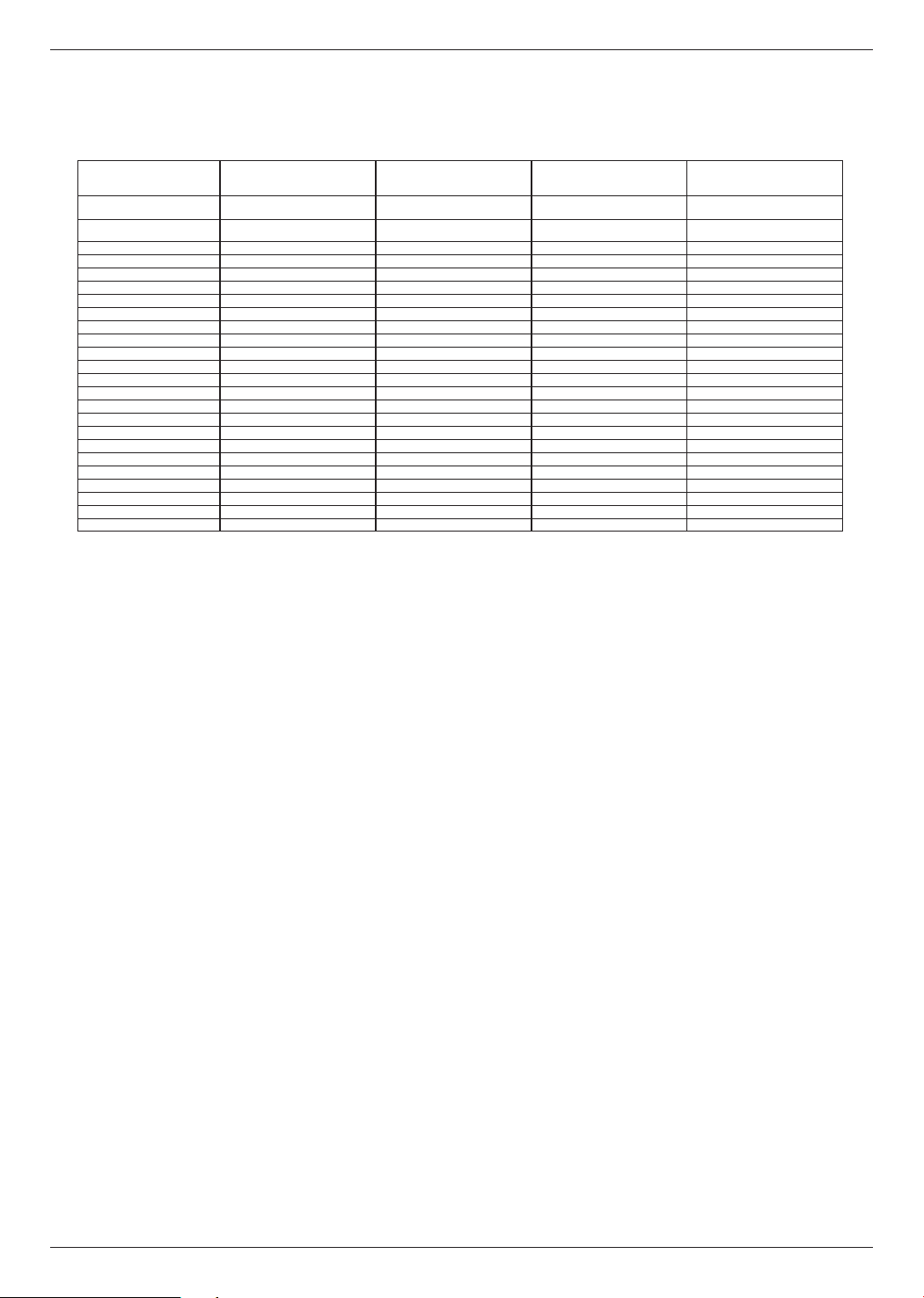
2. Press the 3D button on the remote control.
3. Press the ∧, ∨, <, > button to selecting the shape as shown in the screen, wear the 3D glasses.
To turn on 3D Mode, select this icon.
3D Video 2D Video
ꔁ Move ꔉ OK ꕉ Exit
Top & Bottom Side by Side Checker Board
Frame Sequential
4. Press the L/R button to the 3D video with better visibility.
5. Press the 3D button to exit 3D video mode (or 3D to 2D video mode).
Turn off 3D Mode.
OK
2D Mode
Cancel
Turn off 2D Mode.
OK
3D Video
Cancel
• You can use this function through the MENU button.
3D Video Function
20
O
O
O
O
X
X
X
X
X
X
X
X
X
X
O
O
O
O
O
O
O
O
O
O
O
O
X
X
X
X
X
X
X
X
X
X
O
O
O
O
O
O
O
O
O
O
O
O
X
X
X
X
X
X
X
X
X
X
O
O
O
O
O
O
O
O
O
O
O
O
O
O
O
O
O
O
X
O
O
X
O
O
O
O
O
O
O
O
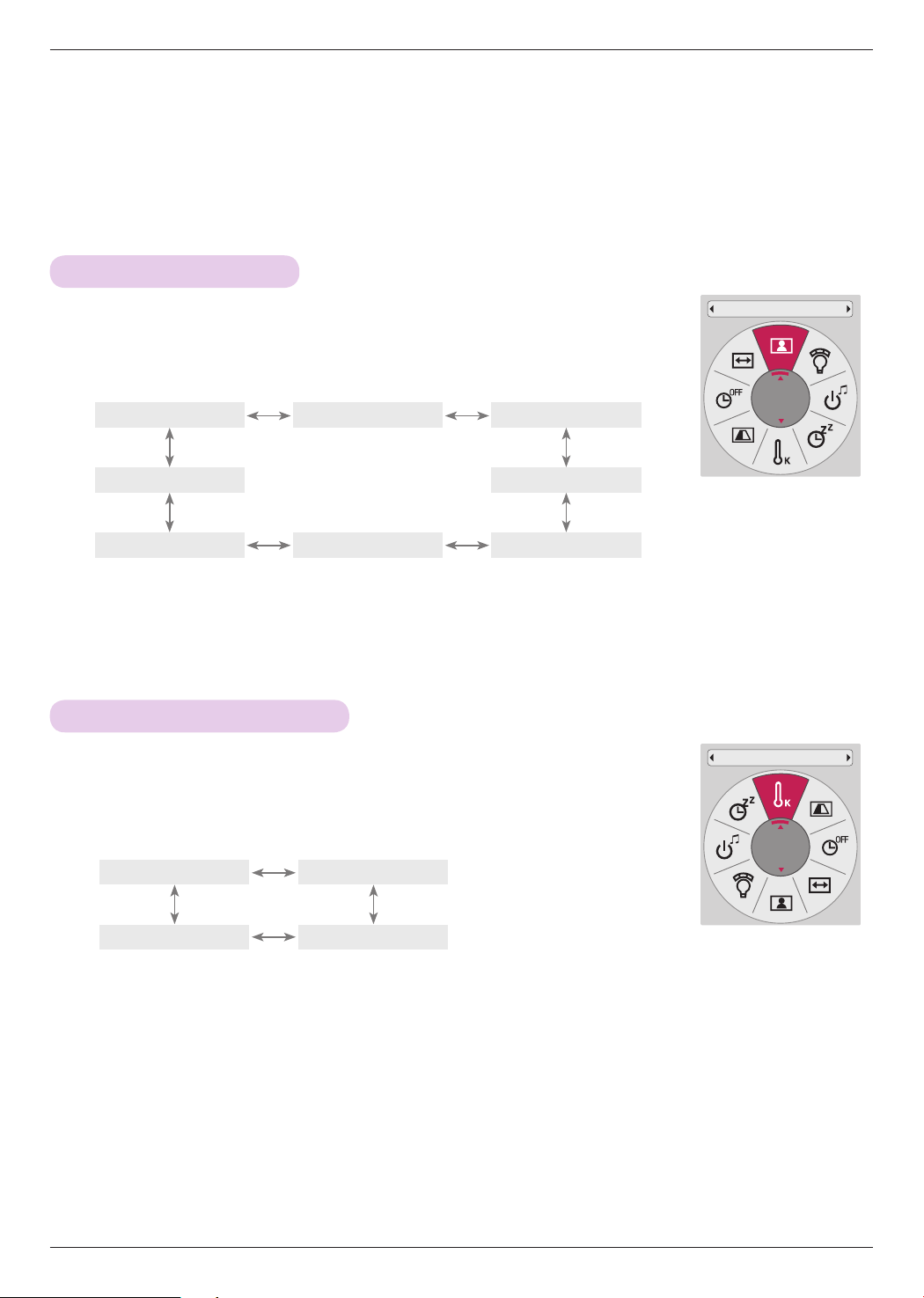
< Remote Controller Function only operational in 3D mode >
3D Mode Top & Bottom Side by Side Checker Board Frame Sequential
Resolution 720p, 1080i, 1080p 1080p 720p 1080p
Vertical Frquency
24 Hz, 30 Hz, 50 Hz, 60 Hz 24 Hz, 30 Hz, 50 Hz, 60 Hz 50 Hz, 60 Hz
24 Hz (1080p only)
Power
Input
3D
L/R
PATTERN
KEY.S
BLANK
RATIO
SLEEP
MENU
AUTO
Q.MENU
PICTURE
STILL
BACK
OK
VIDEO
COMP
RGB
HDMI1
HDMI2
HDMI3
Function
21
PICTURE Menu Options
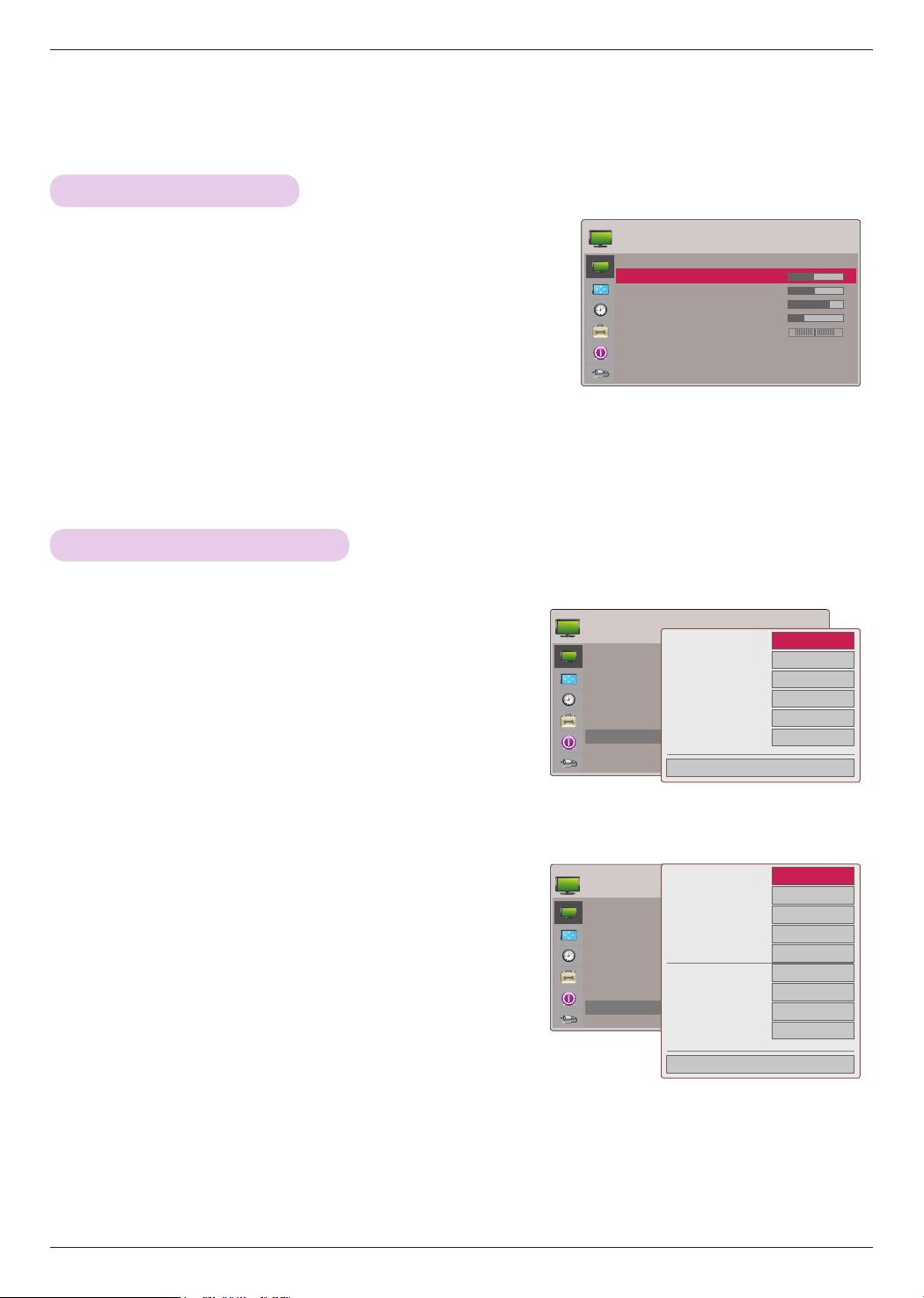
1. Press the PICTURE button on the remote control.
2. Press the ∧, ∨ button to toggle through the preset picture settings..
Picture Mode
* Use the Picture mode function to set the projector for the best picture appearance.
• You can use this function through the MENU button or Q.MENU button.
• Press the BACK button to exit the menu screen.
Picture Mode
Standard
1. Press the Q.MENU button on the remote control.
2. Press the <, > buttons to move to Color Temperature.
3. Press the ∧, ∨ button to toggle through the preset picture settings.
Color Temperature Function
• This function enables Vivid/Standard/Natural/Cinema/Sport/Game.
• You can use this function through the MENU button.
• Press the BACK button to exit the menu screen.
Color Temperature
Cool
Function
* The On-Screen Display (OSD) in this manual may be slightly different from your projector.
* This operating guide mostly operation of RGB(PC) mode.
Vivid
NaturalStandard
Expert2 Cinema
Expert1 SportGame
Medium
Cool
Warm Natural
Function
22
PICTURE
Picture Mode : Standard
• Contrast 50 ꔉ
• Brightness 50
• Sharpness 5
• Color 70
• Tint 0
• Advanced Control
• Picture Reset
TruMotion Demo
PICTURE
Picture Mode : Standard
• Contrast 50 ꔉ
• Brightness 50
• Sharpness 5
• Color 70
• Tint 0
• Advanced Control
• Picture Reset
1. Press the MENU button. Then, move to PICTURE with the
∧, ∨, <, > buttons and press the ◉OK button.
2. Press the ∧, ∨ buttons to move to a desired function and
press the ◉OK button.
3. Press the <, > buttons to make a desired adjustment and
then press the ◉OK button.
• You can set image values differently for each input and Picture Mode.
• Saving after making adjustments will display (User) in adjusted Picture Mode. (except Expert 1/2)
• Execute Picture Reset for Picture Mode to restore back to default factory settings.
• Press the BACK button to exit the menu screen.
Adjusting Picture Mode
1. Press the MENU button. Then, move to PICTURE with
the ∧, ∨, <, > buttons and press the ◉OK button.
2. Press the ∧, ∨ buttons to move to Advanced Control
and press the ◉OK button.
3. Move to a desired item with the ∧, ∨ buttons.
4. Press the <, > buttons to make a desired adjustment
and then press the ◉OK button.
• You can set image values differently for each input and Picture
Mode.
• Execute Picture Reset for Picture Mode to restore back to default
factory settings.
• Press the BACK button to exit the menu screen.
Advanced Control Function
< When Picture Mode is Vivid/Standard/Natural/
Cinema/Sport/Game >
< When Picture Mode is Expert 1/2 >
ꔗ
Medium
ꔃ
Medium
Medium
High
Off
Low
Close
Color Temperature
Noise Reduction
Gamma
Black Level
Real Cinema
TruMotion
ꔂMove ꔉOK
PICTURE
Picture Mode : Standard
• Contrast 50 ꔉ
• Brightness 50
• Sharpness 5
• Color 70
• Tint 0
• Advanced Control
• Picture Reset
TruMotion Demo
R G
ꔗ
High
ꔃ
High
High
On
Low
Warm
2 Points
Outer
0
Close
Noise Reduction
Gamma
Black Level
Real Cinema
TruMotion
White Balance
ꔈMethod
ꔈPattern
ꔈRed Contrast
ꔍ
Function
23
Color Temperature
- This function enables Vivid/Standard/Natural/Cinema/Sport/Game.
ꔈ Set to warm to enhance hotter colors such as red, or set to cool to make the video more
blue.
Noise Reduction
ꔈReduces screen noise without compromising video quality.
Gamma
Low : Make dark and middle gray level area of the picture brighter.
Medium: Express original picture levels.
High: Make dark and middle gray level area of the picture darker.
ꔈYou can adjust brightness of dark area and middle gray level area of the picture.
Black Level
Low: The reflection of the screen gets darker.
High: The reflection of the screen gets brighter.
ꔈSet black level of the screen to proper level.
ꔈThis function disables RGB input.
Real Cinema
ꔈMakes video clips recorded in film look more natural by eliminating judder effect.
ꔈDVD and Blu-ray movies are filmed at 24 frames per second.
TruMotion
ꔈ Advance video technology that provides clearer, smoother images, even during fast action
scenes creating a more stable structure for a crisper picture.
Off: Turn off TruMotion operation.
Low: Provides smooth picture movement. Use this setting for standard use.
High: Provides smoother picture movement.
ꔈTruMotion works with all inputs except PC mode.
ꔈIf you enable TruMotion, noise may appear on the screen. If this occurs, set to Off.
ꔈIf you select Picture mode - Game set TruMotion to Off.
ꔈ If you adjust Keystone set TruMotion to Off. Execute Reset for Keystone to be able to
adjust TruMotion.
White Balance
- This function enables Expert 1/2.
ꔈThis is the function adjusts the overall color of the screen.
a. Method : 2 Points
- Pattern: Inner, Outer
- Red/Green/Blue Contrast, Red/Green/Blue Brightness: The adjustment range is -50 -
+50.
b. Method : 20 Points IRE
- Pattern: Inner, Outer
- IRE (Institute of Radio Engineers) is the unit to display the size of the video signal and
can be set among 5, 10, 15 - 95, 100. You can adjust Red, Green or Blue according to
each setting.
- Red/Green/Blue: The adjustment range is -50 - +50.
Color Management
System
- This function enables Expert 1/2.
ꔈ As the tool used by the experts to make adjustments by using the test patterns, this does
not affect other colors but can be used to selectively adjust the 6 color areas (Red/Green/
Blue/Cyan/Magenta/Yellow).
Color difference may not be distinctive even when you make the adjustments for the gen-
eral video.
Adjusts Red/Green/Blue/Yellow/Cyan, Magenta.
- Red/Green/Blue/Yellow/Cyan, Magenta Color: The adjustment range is -30 - +30.
- Red/Green/Blue/Yellow/Cyan, Magenta Tint: The adjustment range is -30 - +30.
- This function disables RGB input.
* The categories that can be set vary according to input signal and video setting.
Function
24
SCREEN Menu Options
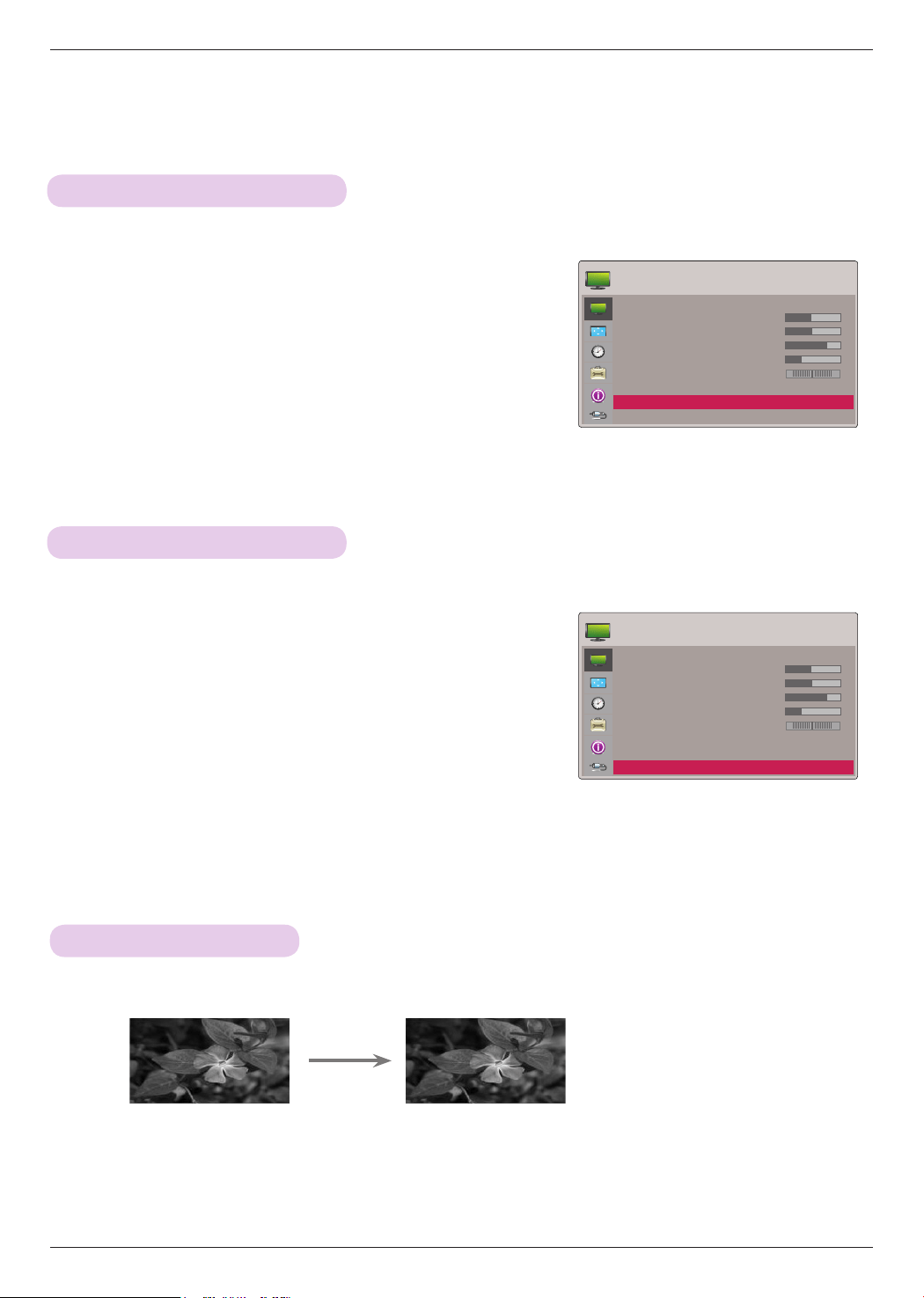
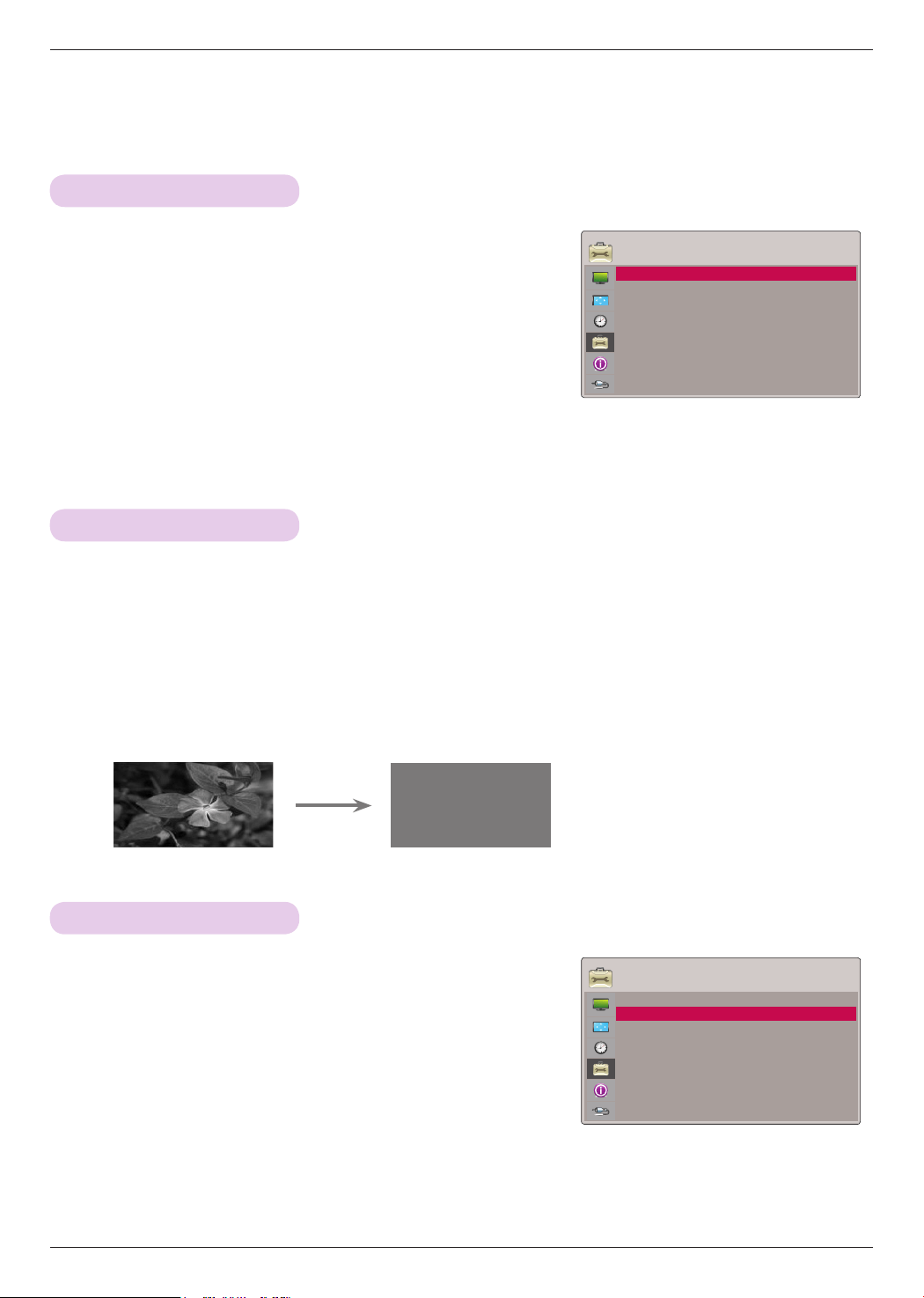
1. Press the STILL button on the remote control.
* You can freeze the moving image.
2. To exit still mode, Press the STILL button once more.
* The STILL function will release automatically after approximately 10 minutes.
Using the Still Function
< Moving Image >
< Still Image >
1. Press the MENU button. Then, move to PICTURE with the
∧, ∨, <, > buttons and press the ◉OK button.
2. Press the ∧, ∨ buttons to move to TruMotion Demo and
press the ◉OK button.
• This function disables RGB input.
• To exit TruMotion Demo, press any button.
• Press the BACK button to exit the menu screen.
1. Press the MENU button. Then, move to PICTURE with the
∧, ∨, <, > buttons and press the ◉OK button.
2. Press the ∧, ∨ buttons to move to Picture Reset and press
the ◉OK button.
3. Press the <, > buttons to move to Yes and press the ◉OK
button.
• Press the BACK button to exit the menu screen.
TruMotion Demo Function
Picture Reset Function
* Use this feature to see the difference TruMotion makes.
* Settings of the selected PICTURE function for each input and Picture Mode return to the default factory settings.
ꔂMove ꔉOK
PICTURE
Picture Mode : Standard (User)
• Contrast 50
• Brightness 50
• Sharpness 5
• Color 70
• Tint 0
• Advanced Control
• Picture Reset
TruMotion Demo ꔉ
R G
ꔂMove ꔉOK
PICTURE
Picture Mode : Standard (User)
• Contrast 50
• Brightness 50
• Sharpness 5
• Color 70
• Tint 0
• Advanced Control
• Picture Reset ꔉ
TruMotion Demo
R G
Function
25
• Select Rear when projecting from the back of the transparent screen purchased separately.
• Select Ceiling when installing the product on the ceiling.
• You can use this function through the MENU button.
• Press the BACK button to exit the menu screen.
To Change PJT Mode
* This function turns the projected image upside down or flips horizontal.
PJT Mode
Front
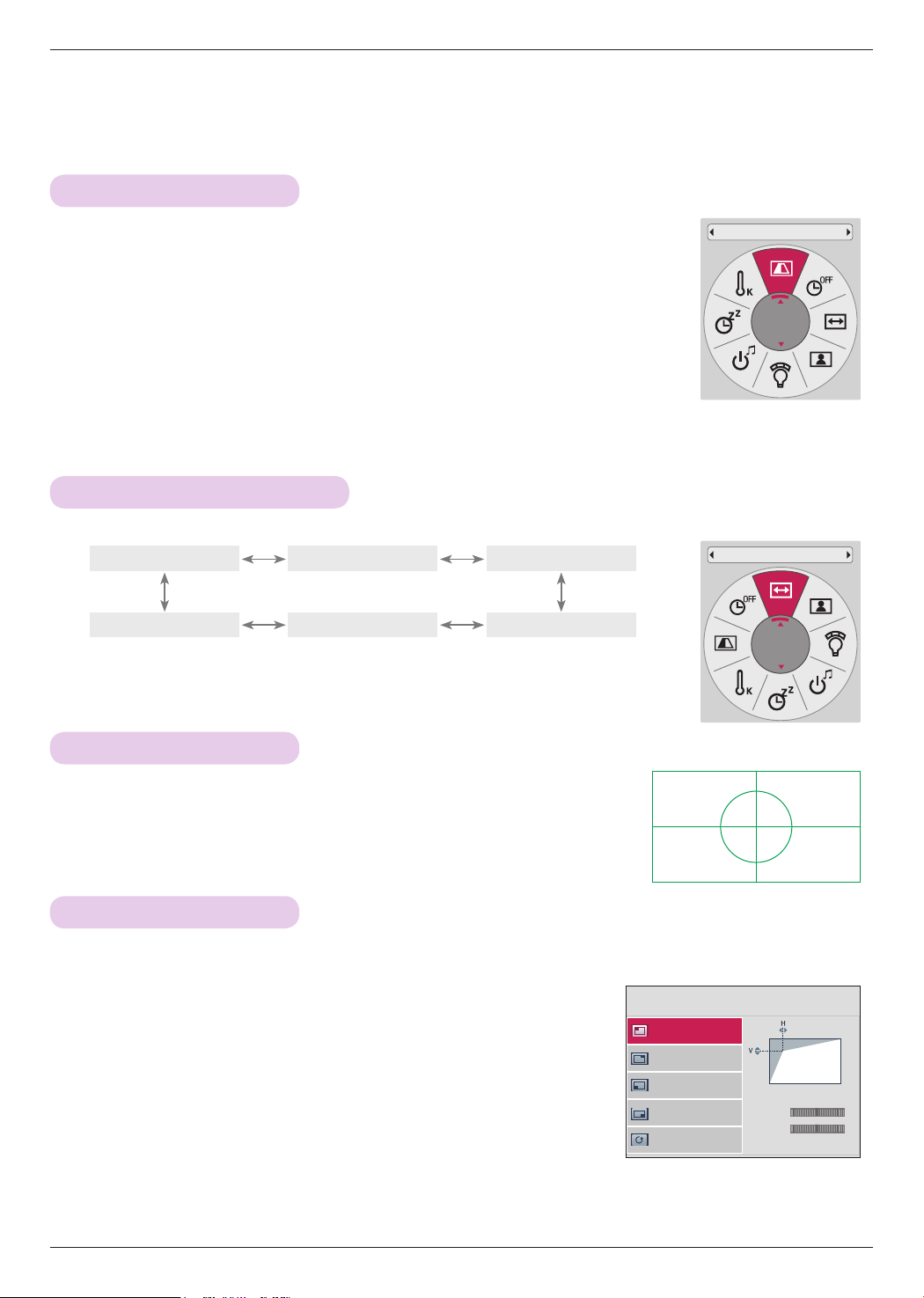
1. Press the Q.MENU button on the remote control.
2. Press the <, > buttons to move to PJT Mode.
3. Press the ∧, ∨ button to select a desired item.
1. Press the KEY.S button of remote control.
2. Move to a desired item with the ∧, ∨ buttons and then press the
> button.
3. Press the ∧, ∨, <, > button to adjust the screen condition as you
want and then press the ◉OK button.
• Keystone can be adjusted from -100 to 0 or 0 to 100 to depend on the
location.
• Execute Reset to restore back to default factory settings.
• You can use this function through the MENU button.
• Press the BACK button to exit the menu screen.
Using Keystone Function
* Use this function when the screen is not at a right angle to the projector and the image is a trapezoid shape.
* Only use the Keystone function when you can’t get the best angle of projection.
Keystone
Top Right
Bottom Left
Top Left ꔃ
Bottom Right
Reset
H : 0
V : 0
ꔂMove ꕉ Prev.
* Execute this function when installing the projector to adjust the screen size and focus.
Press the RATIO button to select a desired screen size.
Press the PATTERN button on the remote control.
• You can use this function through the MENU button.
Using Aspect Ratio Function
Test Pattern Function
• Some options may not be available depending on input signals.
• You can use this function through the MENU button or Q.MENU button.
• Press the BACK button to exit the menu screen.
Aspect Ratio
16:9
16:9
Set By ProgramJust Scan
Cinema Zoom1 4:3Zoom
Function
26
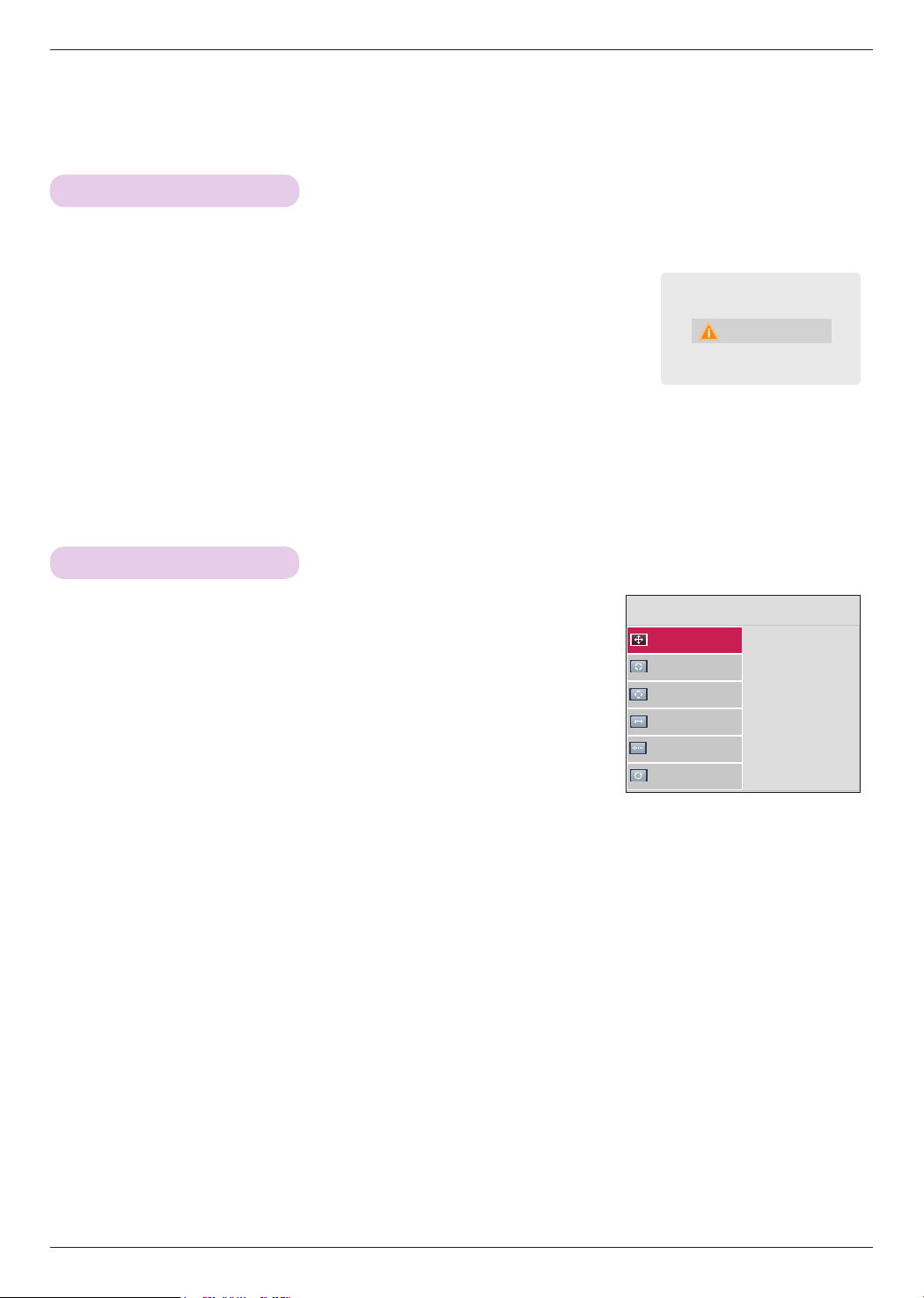
RGB Config. Function
RGB Config.
Auto Config.
Position
Resolution ꔃ
Size
Phase
Reset
ꔐ 1024 x 768
1280 x 768
1360 x 768
ꔂMove ꕉ Prev.
Press the AUTO button of the remote control.
• If you execute screen adjustment for a video from PC graphic signal, optimal
state may not be found. Execute the Auto Config. function for a still image.
• You can use this function through the MENU button.
Auto Configure Function
* This function assures you of getting the best video quality by automatically adjusting the horizontal size and
synchronization of the image.
* Auto Tracking function works in RGB PC input only.
Auto config.
1. Press the MENU button. Then, move to SCREEN with the ∧, ∨, <, >
buttons and press the ◉OK button.
2. Press the ∧, ∨ buttons to move to RGB Config. and press the ◉OK
button.
3. Move to a desired item with the ∧, ∨ buttons and then press the >
button.
4. Press the ∧, ∨, <, > button to adjust the screen condition as you
want and then press the ◉OK button.
• Resolution can be chosen between 768 resolution (1024x768/1280x768/1360x768, 60Hz) and 1050
resolution (1400x1050/1680x1050, 60Hz).
• Press the BACK button to exit the menu screen.
Function
27
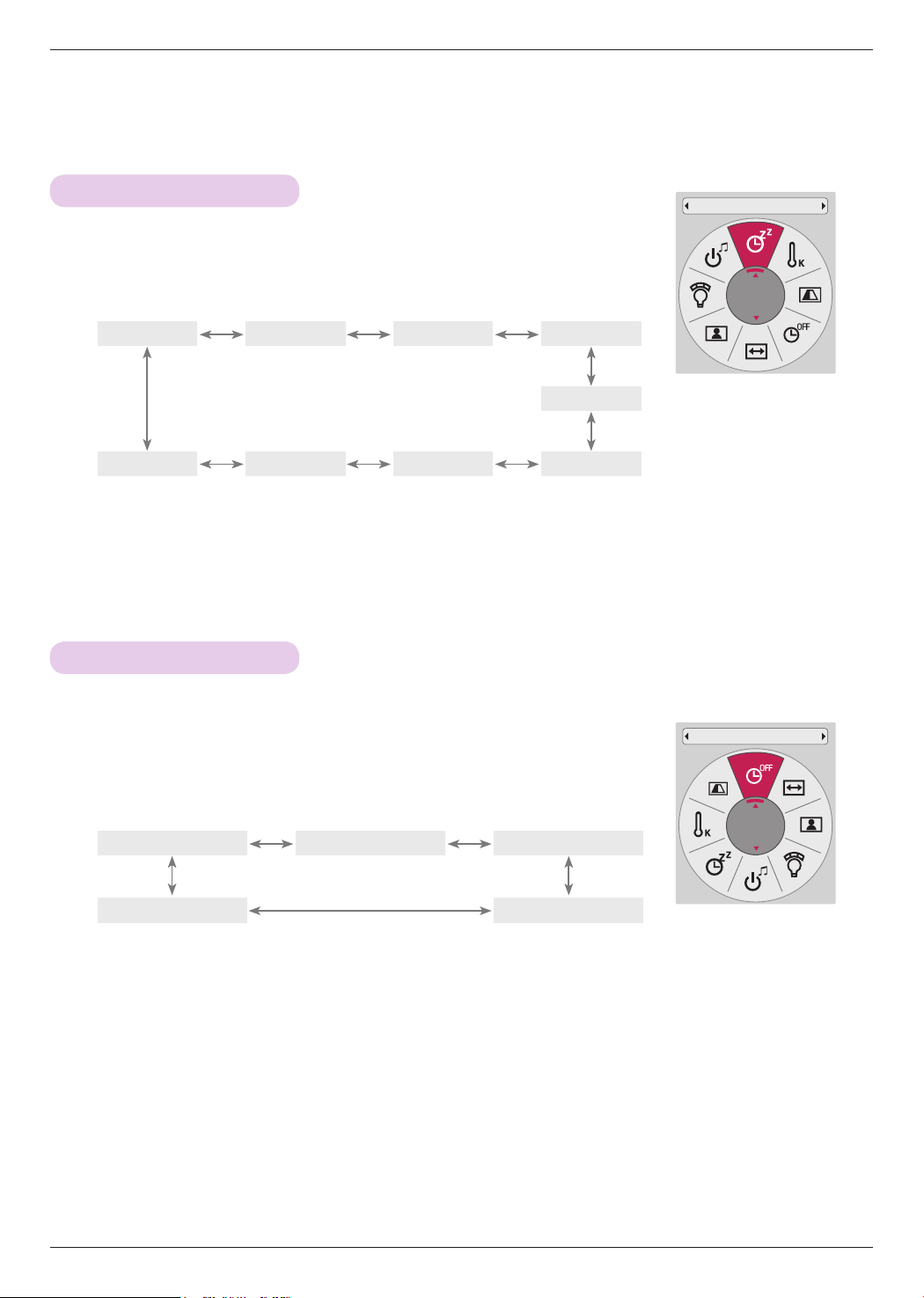
* The sleep timer turns the projector off at the preset time.
1. Press the SLEEP button on the remote control.
2. Press the ∧, ∨ buttons to select a desired preset time.
• You can use this function through the MENU button or Q.MENU button.
• Press the BACK button to exit the menu screen.
• You can use this function through the MENU button.
• Press the BACK button to exit the menu screen.
Sleep Time Function
Auto Off Function
TIME Menu Options
1. Press the Q.MENU button on the remote control.
2. Press the <, > buttons to move to Auto Off.
3. Press the ∧, ∨ buttons to select a desired preset time.
* This function turns the projector off automatically after the preset time is passed when there is no signal.
Sleep Timer
Off
Auto Off
60 min.
60 min
10 min.Off
30 min. 20 min.
Off
30
min.
10
min.
20
min.
60
min.
240
min.
90
min.
180
min.
120
min.
Function
28
OPTION Menu Options
1. Press the MENU button. Then, move to OPTION with the
∧, ∨, <, > buttons and press the ◉OK button.
2. Press the ∧, ∨ buttons to move to Menu Language and
press the ◉OK button.
3. Move to a desired item with the ∧, ∨, <, > buttons and
then press the ◉OK button.
• On-Screen-Display (OSD) is displayed in the selected language.
• Press the BACK button to exit the menu screen.
Selecting Language
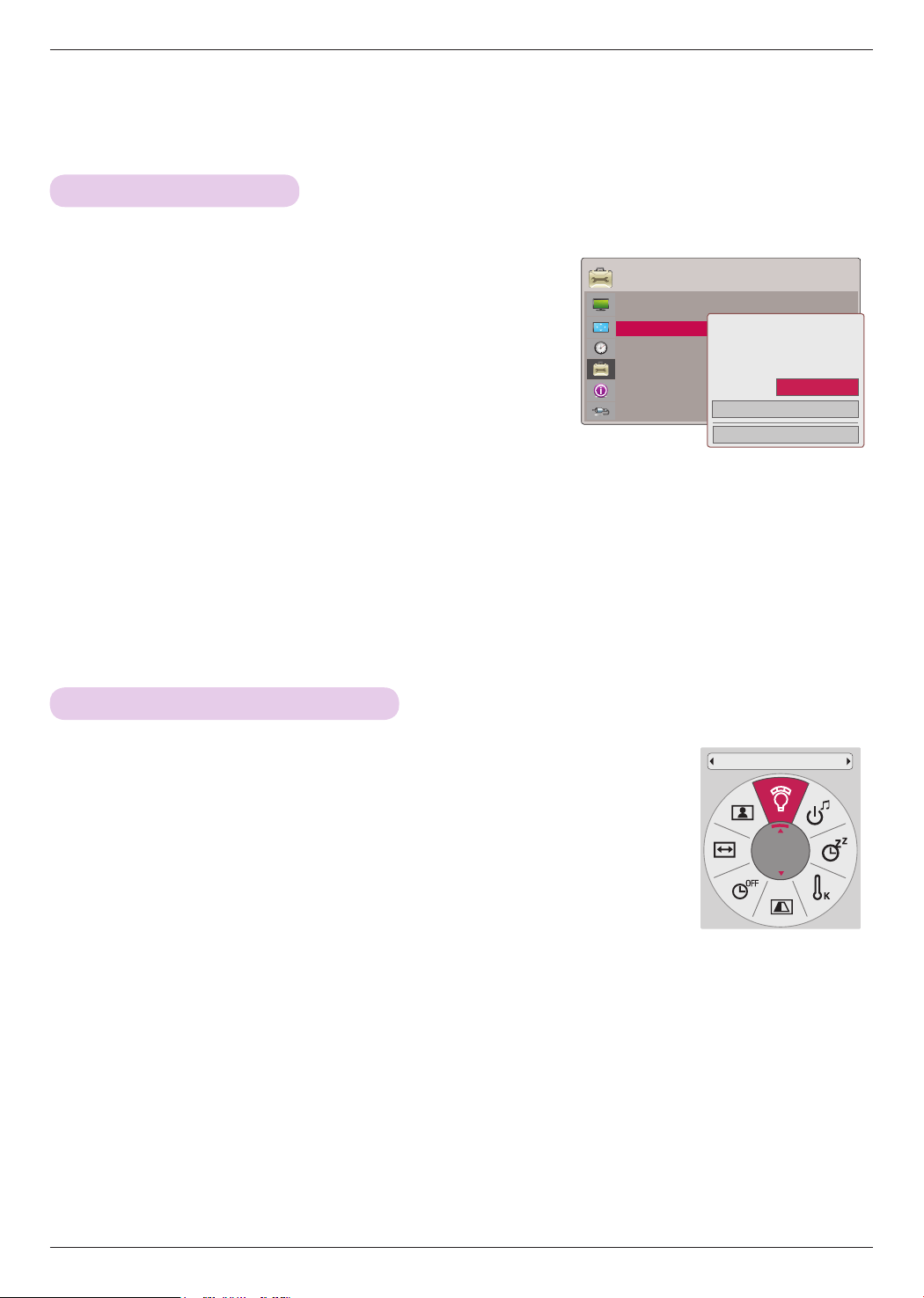
1. Press the BLANK button on the remote control.
• The screen turns off to a background color.
• You can choose the background color. (Refer to ‘Selecting Blank image’)
2. Press any button to cancel the blank function.
• To temporarily turn off the lamp, press BLANK on the remote control. Do not block the projection lens with any
objects when the projector is under operation as this could cause the objects to become heated and deformed or
even cause a fire.
Using Blank Function
* This function may be effective if you need to get the attention of the audience during presentations, meetings or briefings.
1. Press the MENU button. Then, move to OPTION with the
∧, ∨, <, > buttons and press the ◉OK button.
2. Press the ∧, ∨ buttons to move to Blank Image and
press the ◉OK button.
3. Move to a desired item with the ∧, ∨ buttons and then
press the ◉OK button.
• Background image will be altered to the selected Blank function image.
• Press the BACK button to exit the menu screen.
Selecting Blank image
OPTION
Menu Language : English ꔉ
Blank Image : Blue
Camera Calibration
Lamp Mode : Normal
High Altitude : Off
Network Setting
3D Mode
Input Label
Power Sound : On
ꔂMove ꔉOK
OPTION
Menu Language : English
Blank Image : Blue ꔉ
Camera Calibration
Lamp Mode : Normal
High Altitude : Off
Network Setting
3D Mode
Input Label
Power Sound : On
ꔂMove ꔉOK
Function
29
* 3D video is video from two separate cameras interwoven together. If the luminance of each frame is not the
same, you may notice some flickering. This setting will help equalize the luminance of each frame.
1. Press the MENU button. Then, move to OPTION with the
∧, ∨, <, > buttons and press the ◉OK button.
2. Press the ∧, ∨ buttons to move to Camera Calibration
and press the ◉OK button.
3. Press the <, > buttons to move to On.
4. Press the ∧, ∨ buttons to move to Calibration Start and
press the ◉OK button.
• The value input on Camera Calibration applies only to 3D video. It doesn't apply to 2D video.
• When the surrounding lighting is too bright the illumination adjustment may not work properly.
• It operates 5 minutes after the power is turned on.
• Press the BACK button to exit the menu screen.
To Calibrate the Camera
OPTION
Menu Language : English
Blank Image : Blue
Camera Calibration ꔉ
Lamp Mode : Normal
High Altitude
Network Setting
3D Mode
Input Label
Power Sound : On
ꔂMove ꔉOK
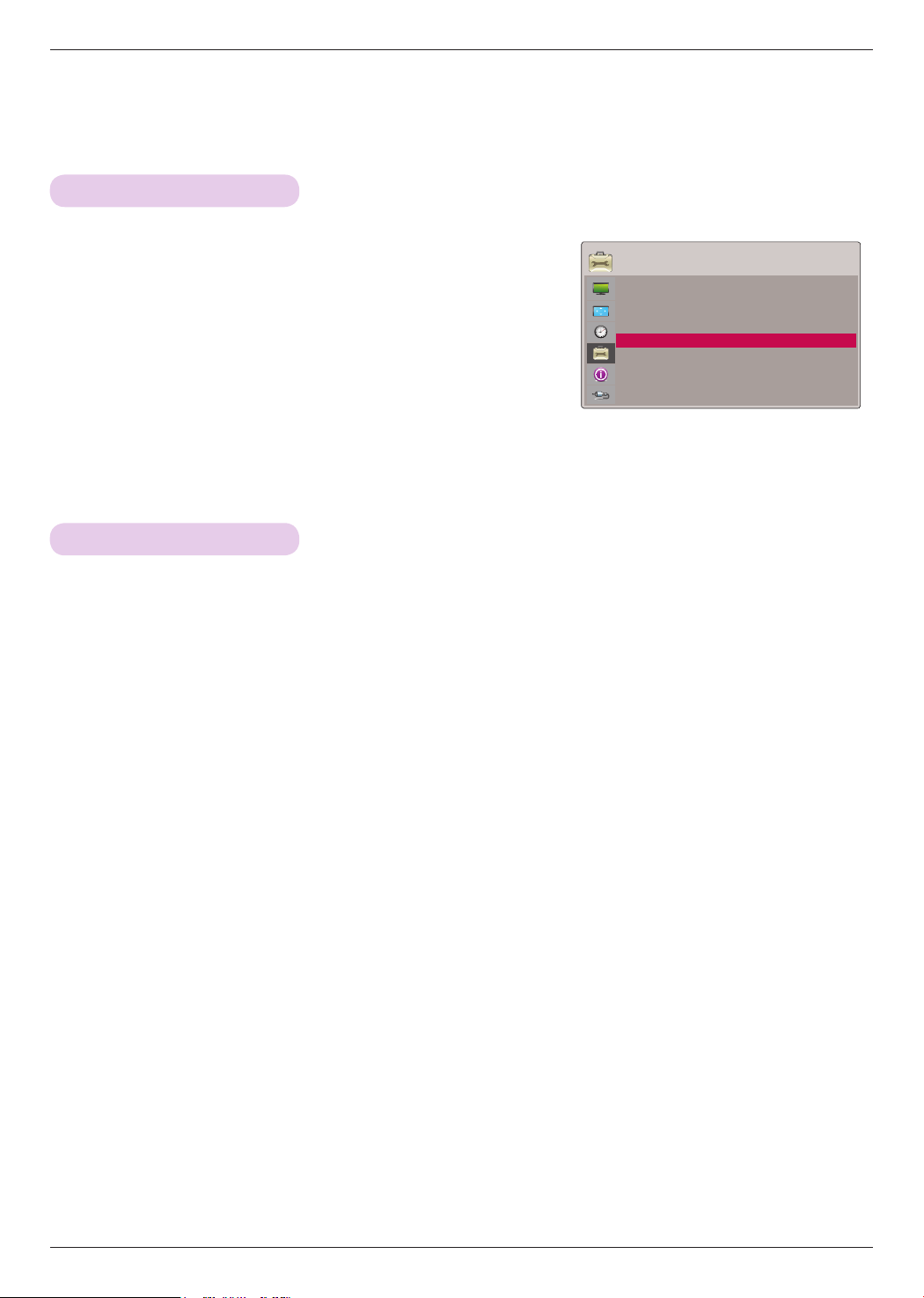
1. Press the Q.MENU button on the remote control.
2. Press the <, > buttons to move to Lamp Mode.
3. Move to a desired item with the <, > buttons.
• This function is not available in 3D mode or when the lamp is over 35°C.
• You can use this function through the MENU button.
• Press the BACK button to exit the menu screen.
To Adjust the Brightness of the Lamp
Lamp Mode
Economic
ꔗ
On
ꔃ
Calibration Start
Close
Camera
Function
30
Network Setup
< NOTICE >
▪ Use a standard LAN cable with this Projector. Cat5 or better with a RJ45 connector.
▪ Many network connection problems during set up can often be fixed by re-setting the router or modem. After con-
necting the player to the home network, quickly power off and/or disconnect the power cable of the home network
router or cable modem. Then power on and/or connect the power cable again.
▪ A 10 Base-T or 100 Base-TX LAN port is required for connection to this Projector. If your internet service does not
allow for such a connection, you will not be able to connect the Projector.
▪ To connect to the wireless router, a router that supports wireless connection is necessary, and the wireless connection
function of the corresponding router must be activated. Please enquire the manufacturer of the corresponding router
about whether the router is possible for wireless connection.
▪ To connect to a wireless router, verify the SSID and security setting of the wireless router. Please refer to the user
guide of the corresponding router for SSID and security setting of the wireless router.
▪ Projector may have malfunction because of improper setting of the network device. (wired/wireless router, hub, etc.)
After properly installing with reference to the manual of the corresponding device, set the network.
▪ When Ad-hoc is used, it may not be able to connect according to the device (for example : notebook computer) that
is connected.
▪ The connection method may vary according to the manufacturer of the wireless router.
1. Press the MENU button. Then, move to OPTION with the
∧, ∨, <, > buttons and press the ◉OK button.
2. Press the ∧, ∨ buttons to move to High Altitude and press
the ◉OK button.
3. Press the <, > buttons to move to On and press the ◉OK
button.
• Press the BACK button to exit the menu screen.
High Altitude Mode
OPTION
Menu Language : English
Blank Image : Blue
Camera Calibration
Lamp Mode : Normal
High Altitude : Off ꔉ
Network Setting
3D Mode
Input Label
Power Sound : On
ꔂMove ꔉOK
* High Altitude Mode is used when the environment is higher than 4,000 feet.
Function
31
OPTION
Menu Language : English
Blank Image : Blue
Camera Calibration
Lamp Mode : Normal
High Altitude
Network Setting
3D Mode
Input Label
Power Sound : On
ꔂMove ꔉOK
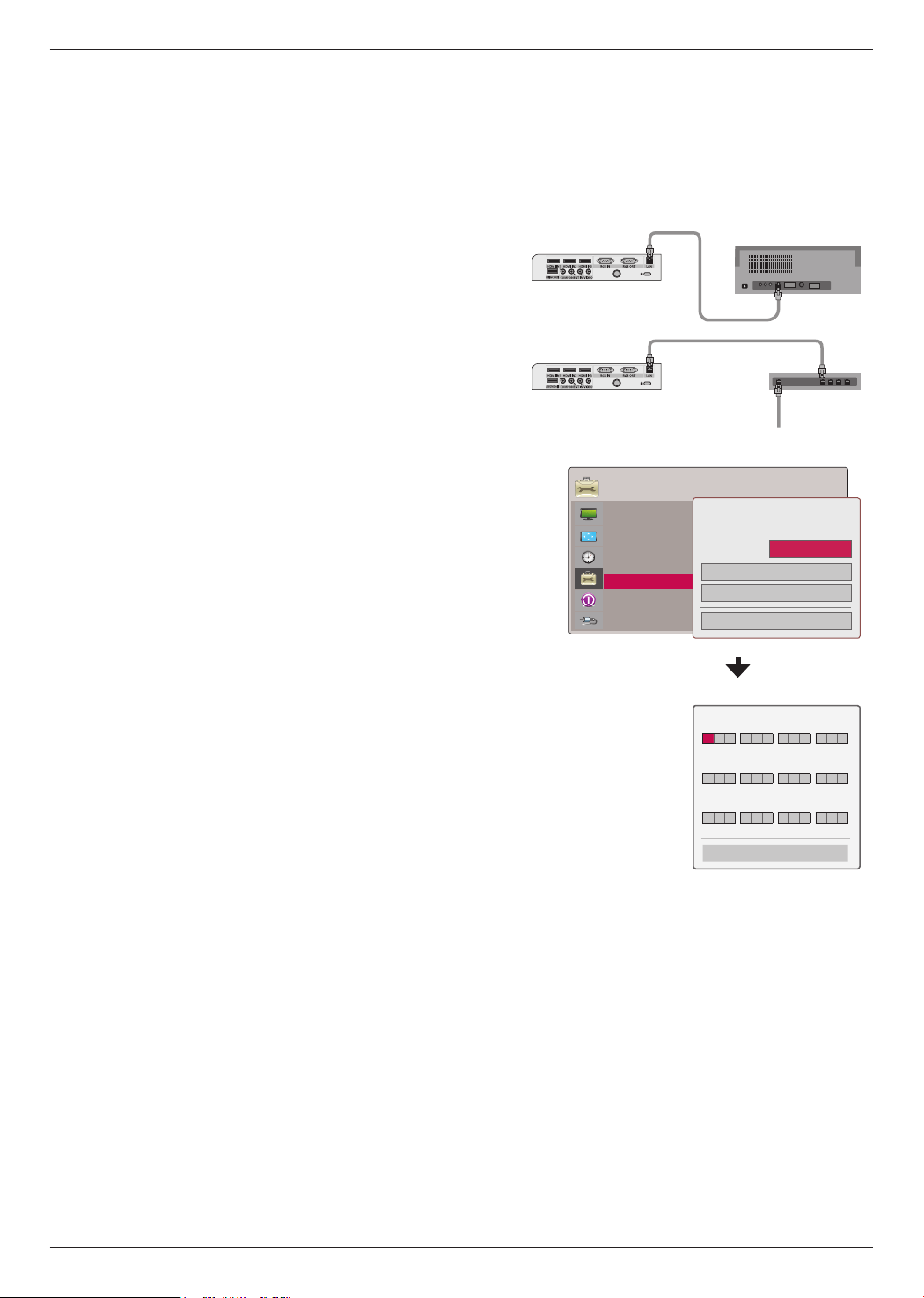
< How to connect >
Connect the LAN of the projector and the LAN port
of the PC or network with a LAN cable (Cross cable).
LAN Cable
< PC >
< Router >
Connecting PC
Close
IP Auto Setting
IP Manual Setting
Network does not exist.
Do you want to reset?
LAN
ꔗ
Off
ꔃ
< When select IP Manual Setting >
IP Address
ꔌ
1 9 2 1 6 8 0 0 0 2 5 4
ꔍ
Subnet Mask
2 5 5 2 5 5 2 5 5 0 0 0
Gateway
1 9 2 1 6 8 0 0 0 0 0 1
Close
ꔁMove ꔉOK
Function
3232
OPTION
Menu Language : English
Blank Image : Blue
Camera Calibration
Lamp Mode : Normal
High Altitude
Network Setting
3D Mode
Input Label
Power Sound : On
ꔂMove ꔉOK
INFORMATION
Model Name : CF3D-JS
Lamp Time (L) : 29
Lamp Time (R) : 29
Input : HDMI1
Resolution : 1080p
Fh/Fv : 67 Khz/60 Hz
IP Address : 223.212.145.0
INFORMATION Menu Options
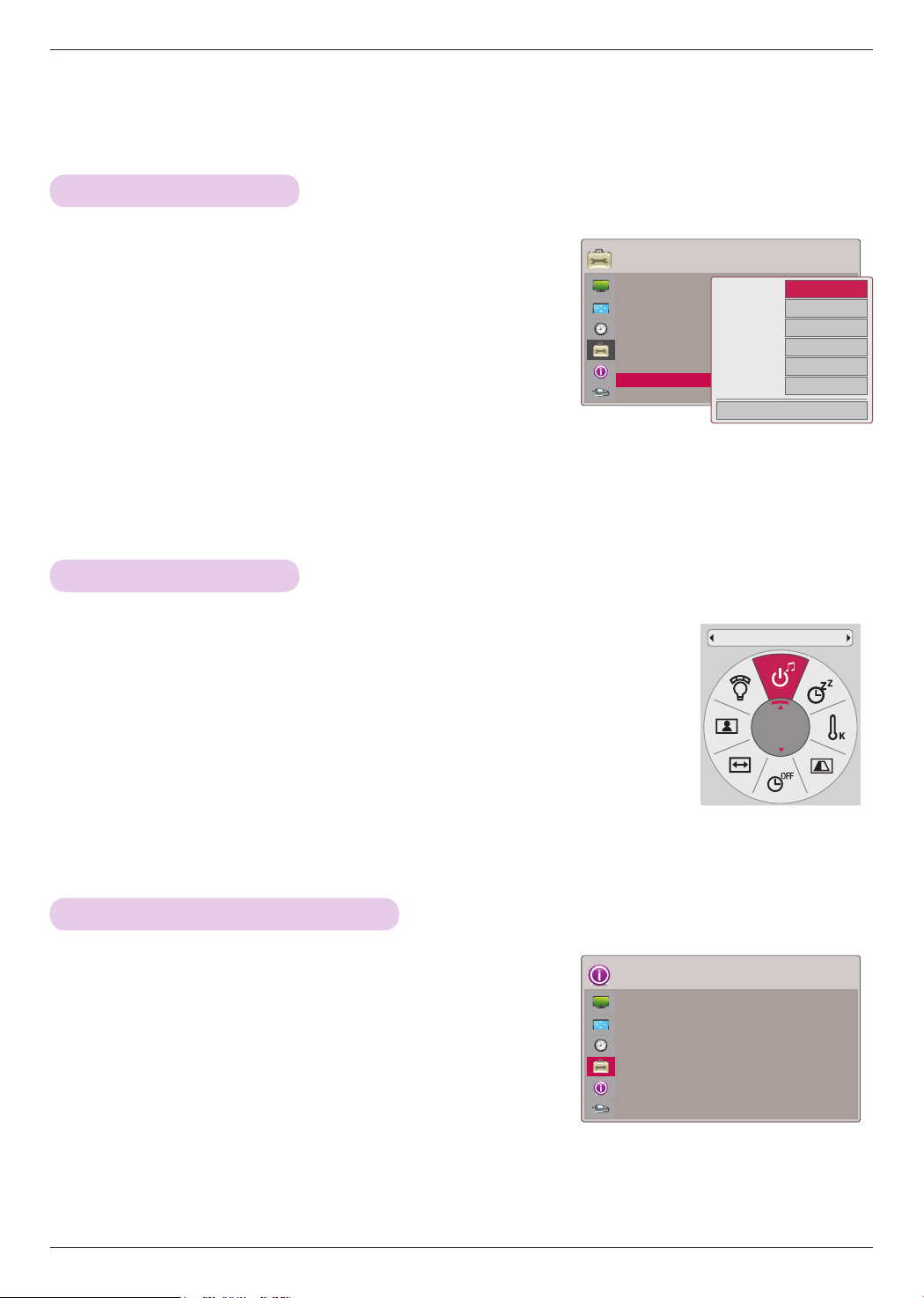
1. Press the MENU button. Then, move to INFORMATION with
the ∧, ∨, <, > buttons and press the ◉OK button.
2. You can see the current information of the projector.
• Press the BACK button to exit the menu screen.
To See The Projector Information
1. Press the MENU button. Then, move to OPTION with the
∧, ∨, <, > buttons and press the ◉OK button.
2. Press the ∧, ∨ buttons to move to Input Label and press
the ◉OK button.
3. Press the ∧, ∨ buttons to move a desired input.
4. Press the <, > buttons to selete a desired input label.
5. Press the ∧, ∨ buttons to move to Close and press the
◉OK button.
• Press the BACK button to exit the menu screen.
1. Press the Q.MENU button on the remote control.
2. Press the <, > buttons to move to Power Sound.
3. Move to a desired item with the ∧, ∨ buttons.
• You can use this function through the MENU button.
• Press the BACK button to exit the menu screen.
Setting Input Label
Setting Power Sound
ꔗ
ꔃ
Close
Video
Component
RGB
HDMI1
HDMI2
HDMI3
* This indicates which device is connected to which input port.
* The opening sound may be turned on or off.
Power Sound
On
Information
3333
Supported Monitor Display
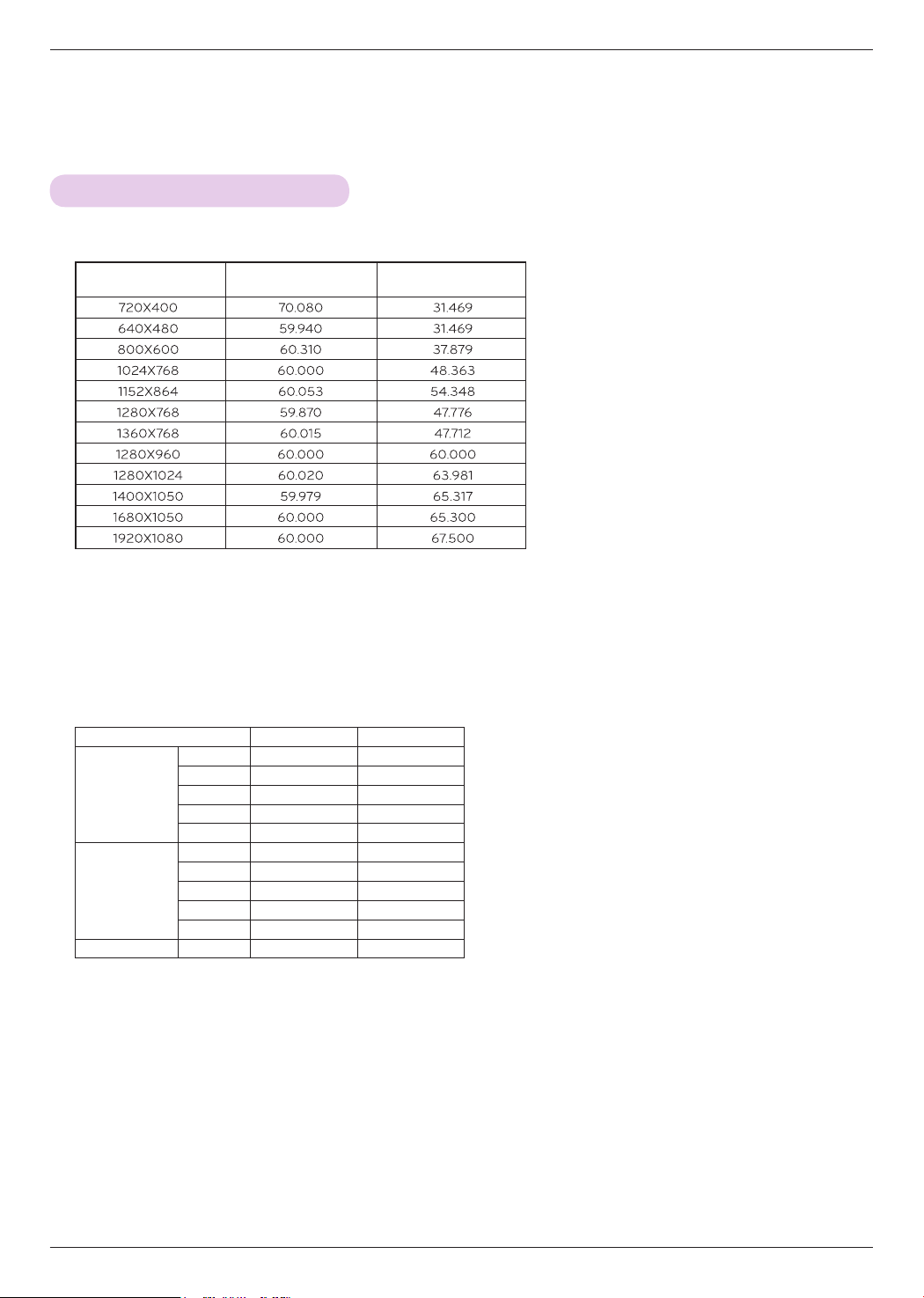
* The following table lists the display formats supported by the projector.
* If the projector does not support the input signal, “Invalid Format” message appears on the screen.
* The projector supports DDC1/2B type as Plug & Play function. (Auto recognition of PC monitor)
* PC synchronization signal types supported :Separate type synchronization.
* To get the the best picture quality, adjust the PC graphics card to 1920x1080.
* Cable type
1- Component Cable
2- HDMI Cable
< DVD/DTV Input >
Information
Signal Component-*1 HDMI-*2
NTSC (60 Hz)
480i O X
480p O O
720p O O
1080i O O
1080p O O
PAL (50 Hz)
576i O X
576p O O
720p O O
1080i O O
1080p O O
24 / 30 Hz 1080p
O O
Format Vertical Freq.(Hz) Horizontal Freq.(kHz)
Information
34
Cleaning the lens
If there is any dust or stain on the surface of the lens, you must clean the lens. Use an air spray or cleaning cloth for
product exterior, provided with the product, to lightly clean the product. Please use a recommended air spray or lens
cleaning product. To clean the lens, spray a small amount of cleaning agent on a swab or a soft cloth and the clean the
lens. Please be aware that liquid may flow pass into the lens if the product is sprayed on lens directly.
Cleaning the Projector Case
Cleaning the Filter
To clean the projector case, first unplug the power cable. To remove dirt or dust, wipe the casing the provided polishing
cloth. Do not use alcohol, benzene, thinners or other chemical detergents as these can cause the casing to be warped or
discolored.
It is recommend to filter cleaning to maintain the performance of the proejector.
When prompted to clean the filter, take the following steps to clean it.
* You should keep the lens, case and air vent clean because any dirt or stains may appear on the screen. If any parts
need to be replaced, contact your dealer. When cleaning any part of the projector, always turn the power off and unplug
the projector first.
Maintenance
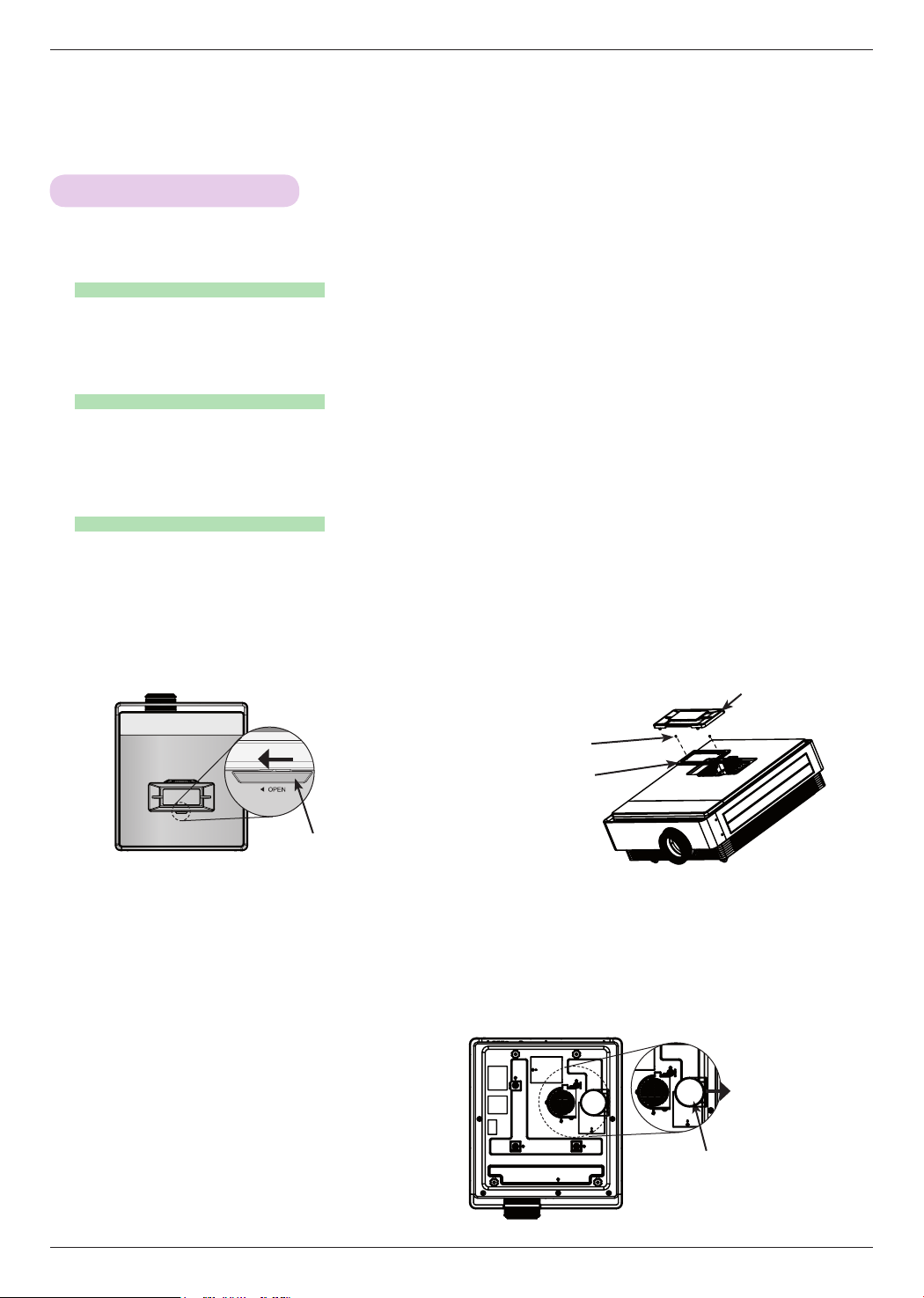
< Cleaning the top filter >
1. Turn off the projector and unplug the power cable. Place it on a table or flat surface.
2. Open the filter cover by pushing the filter cover
lock to the direction of the arrow as of the picture.
3. After separating the filter cover, remove the screw.
Filter Cover Lock
Filter Cover
Filter
Screw
4. Take out the filter and dust off lightly. (When the filter is damaged, use a new filer.)
5. After installing the filter and filter cover, push the filter cover lock to the reverse direction of the arrow until a click
sound.
< Cleaning the bottom filter >
1. Turn off the projector and unplug the power cable. Turn it upside down and place it on a table or flat sur-
face.
2. Take out the filter by pulling the bottom filter to
the direction of the arrow as of the picture.
3. Dust off the filter lightly. (When the filter is damaged,
use a new filer.)
4. Install the filter in the reverse order.
Filter
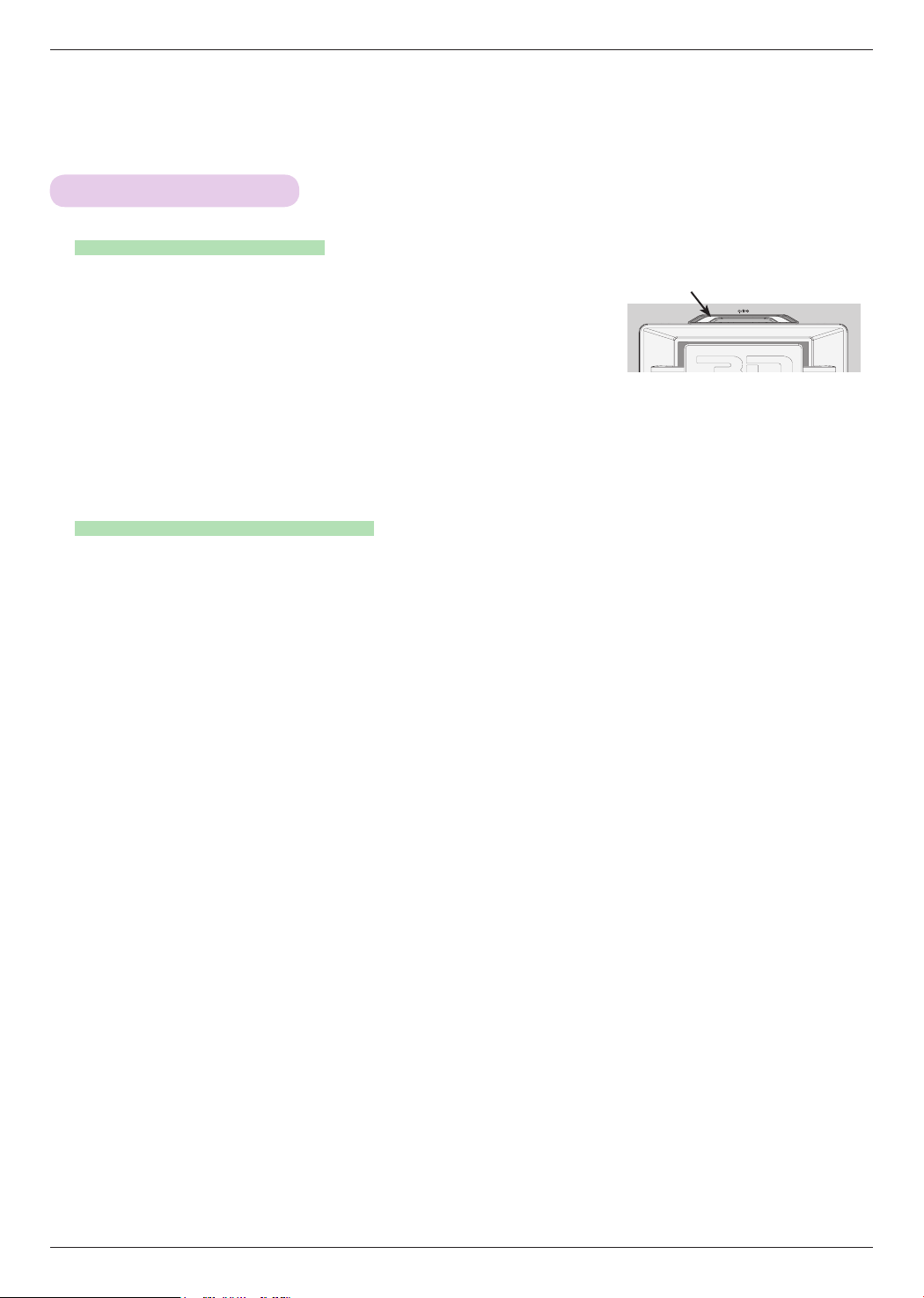
Information
35
Lamp Replacement
Be careful when replacing lamp
The lifetime of the lamp depends on how much the projector is used. You can
see the used lamp time in the Lamp Time of INFORMATION section (page.32).
You must replace the lamp when:
• The projected image gets darker or starts to deteriorate.
• The lamp indicator is magenta.
• The message “Replace the lamp” appears on the screen when turning
the projector on.
• Press the POWER button on the control panel or remote control to turn off power.
• If the operation indicator LED is cyan and blinking, do not disconnect the main supply until the operation indicator
LED is lit up constantly (blue).
• Allow the lamp to cool for 1 hour before replacing it.
• Replace only with the same type lamp from an LG Electronics Service Center. Using another manufacturers lamp
may cause damage to the projector and lamp.
• Pull out the lamp only when replacing the lamp.
• Keep the lamp unit out of reach of children. Keep the Lamp away from heat sources such as radiators, stoves etc.
• To reduce the risk of fire do not expose the lamp to liquids or foreign materials.
• Do not place the lamp near any heat source.
• Make sure the new lamp is securely tightened with screws. If not, the image may be dark or there could be an
increased risk of fire.
• Never touch the glass on the lamp. Image quality may be compromised or lamp life maybe reduced.
Replacing the Lamp
< Top panel of the Projector >
Lamp indicators
Information
36
Regarding the projector lamp control
To obtain a replacement Lamp unit
Lamp unit disposal
• Don’t turn off the projector for at least in 5 minutes after activating it.
- The frequent On/Off changes may cause the lamp to deteriorate.
• Don’t pull out the power cord while the projector or the cooling fan are running.
- It may shorten the life of the lamp.
• The life-span of depends on the environment its used in and how well its treated.
• The projector uses a high pressure mercury lamp. Shock or abuse to the projector can cause the lamp to burst.
• Continuing to use a lamp the projector has indicated needs replacement may burst.
• If the lamp burst, perform the following:
- Remove the power cord immediately.
- Let some fresh air in immediately (Ventilation).
- Have a service center check the projector's condition and replace the lamp.
- Do not disassemble the projector.
Lamp model number is on page 38. Check the lamp model and then purchase it from an LG Electronics Service
Center. Using another manufacturers lamp may cause damage to the projector.
Dispose of the used lamp by returning it to the LG Electronics Service Center.
WARNING
Information
37
Replacing the Lamp
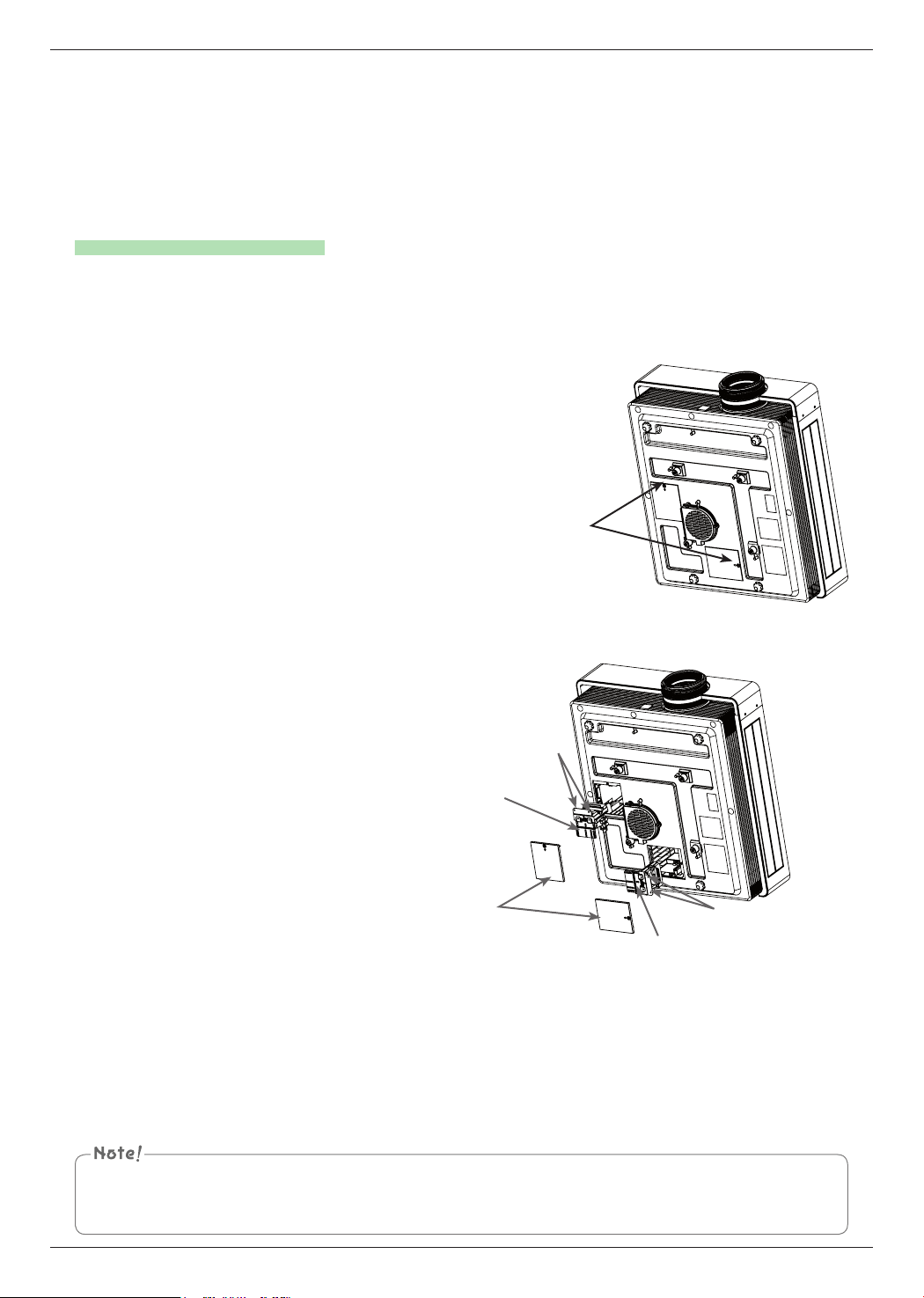
1. Turn off the projector and unplug the power cable. Carefully place on a cushioned surface. (Allow the
lamp to cool for 1 hour before removing the used lamp from the projector.)
2. Unscrew the screw from the lamp cover using a screwdriver.
Lamp cover screw
3. After lifting the lamp cover off, remove the two retaining screws on the lamp case with a screwdriver. Lift
the lamp up from the projector.
Screws
Lamp cover
Screws
Lamp bottom
Lamp Knob
4. Pull out the handle slowly and remove the lamp case.
5. Insert the new lamp gently into the correct position. Push the lamp bottom to check if it is correctly
installed.
6. Tighten the screws you removed in step 3. (Make sure they are fixed firmly.)
7. Close the lamp cover and install the screws from step 2 to install the cover. (If the lamp cover is not
installed correctly the unit will not power on.)
Using another manufacturers lamp may cause damage to the projector or lamp.
Make sure the lamp cover is securely fastened. If the lamp cover is not installed correctly the unit will not power on.
If this fault persists contact an LG Authorized Service Center.
Information
38
MODEL
CF3D (CF3D-JS)
Resolution 1920 (Horizontal) x 1080 (Vertical) pixel
Horizontal / Vertical Ratio 16:9 (horizontal:vertical)
Panel size (mm) 15.4
Projection distance
(Screen size)
Wide: 0.88 m - 9.08 m (76.2 cm - 762.0 cm)
Tele: 1.14 m - 11.8 m (76.2 cm - 762.0 cm)
Projection Offset 100 %
Remote control distance 12 m
Video compatibility NTSC/PAL/SECAM/NTSC4.43/PAL-M/PAL-N/PAL-60
Power AC 110 V - 240 V~ 50/60 Hz, 5.5 A
Height (mm) 190
Width (mm) 501
Length (mm) 560
Weight (kg) 21.1
Operating Condition Projector Lamp
Temperature Lamp model
In operation : 0°C - 35°C
In storage and transit : -20°C - 60°C
AJ-LCF3
Humidity Lamp power consumption
In operation : 0 % - 80% relative humidity
Not in operation : 0 % - 85% relative humidity
220 W (2 ea)
Elevation
In operation : 0 m - 2,500 m
Specifications

Information
39
Open Source Software Notice
The following GPL executables and LGPL, MPL libraries used in this product are subject to the
GPL2.0/LGPL2.1/MPL1.1 License Agreements:
GPL EXECUTABLES:
Linux kernel 2.6, busybox, lzo, u-boot
LGPL LIBRARIES:
uClibc
MPL LIBRARIES:
nanox
LG Electronics offers to provide source code to you on CD-ROM for a charge covering the cost of
performing such distribution, such as the cost of media, shipping and handling upon e-mail request
to LG Electronics at: [email protected]
This offer is valid for a period of three (3) years from the date of the distribution of this product by
LG Electronics.
You can obtain a copy of the GPL, LGPL and MPL licenses on the CD-ROM provided with this
product.
Also you can obtain the translation of GPL, LGPL licenses from
http://www.gnu.org/licenses/old-licenses/gpl-2.0-translations.html,
http://www.gnu.org/licenses/old-licenses/lgpl-2.1-translations.html.
This product includes
► jpeg: Independent JPEG Group, copyright © 1991 – 1998, Thomas G. Lane.
► libpng : copyright © 2004 Glenn Randers-Pehrson
► tinyxml : copyright © 2000-2006 Lee Thomason
► zlib : copyright © 1995-2002 Jean-loup Gailly and Mark Adler.
All rights reserved.
Permission is hereby granted, free of charge, to any person obtaining a copy of this software and
associated documentation files (the "Software"), to deal in the Software without restriction, including
without limitation the rights to use, copy, modify, merge, publish, distribute, sublicense, and/or sell
copies of the Software, and to permit persons to whom the Software is furnished to do so, subject
to the following conditions:
THE SOFTWARE IS PROVIDED "AS IS", WITHOUT WARRANTY OF ANY KIND, EXPRESS OR
IMPLIED, INCLUDING BUT NOT LIMITED TO THE WARRANTIES OF MERCHANTABILITY, FITNESS
FOR A PARTICULAR PURPOSE AND NONINFRINGEMENT. IN NO EVENT SHALL THE AUTHORS
OR COPYRIGHT HOLDERS BE LIABLE FOR ANY CLAIM, DAMAGES OR OTHER LIABILITY,
WHETHER IN AN ACTION OF CONTRACT, TORT OR OTHERWISE, ARISING FROM, OUT OF OR
IN CONNECTION WITH THE SOFTWARE OR THE USE OR OTHER DEALINGS IN THE SOFTWARE.

The model and serial number of the projector is
located on the back or one side of the projector.
Record it below should you ever need service.
MODEL
SERIAL