
2
LICENSES
This device meets the EMC requirements for home appliances (Class B) and is
intended for home usage. This device can be used in all regions.
LICENSES
Supported licenses may differ by model. For more information about licenses,
visit www.lge.com/br.
Manufactured under license from Dolby Laboratories.
Dolby and the double-D symbol are trademarks of Dolby
Laboratories.
ABOUT DIVX VIDEO: DivX® is a digital video format created by
DivX, LLC, a subsidiary of Rovi Corporation. This is an official
DivX Certified® device that plays DivX video. Visit divx.com for
more information and software tools to convert your files into
DivX video.
ABOUT DIVX VIDEO-ON-DEMAND: This DivX Certified®
device must be registered in order to play purchased DivX
Video-on-Demand (VOD) movies. To obtain your registration
code, locate the DivX VOD section in your device setup menu.
Go to vod.divx.com for more information on how to complete
your registration.
“DivX Certified® to play DivX® video up to HD 1080p, including
premium content.”
“DivX®, DivX Certified® and associated logos are trademarks
of Rovi Corporation or its subsidiaries and are used under
license.”
“Covered by one or more of the following U.S. patents :
7,295,673; 7,460,668; 7,515,710; 7,519,274”
The terms HDMI and HDMI High-Definition Multimedia Interface,
and the HDMI logo are trademarks or registered trademarks of
HDMI Licensing LLC in the United States and other countries.
NOTE
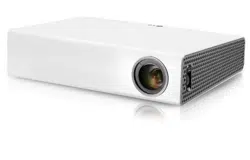
Image shown may differ from your projector.
Your projector’s OSD (On Screen Display) may differ slightly from that shown in
this manual.
3
SAFETY INSTRUCTIONS
Read these instructions.
Keep these instructions.
Heed all warnings.
Follow all instructions.
Indoor Installation
WARNING
Do not place the projector in direct
sunlight or near heat sources such as
radiators, fires, stoves, etc.
- This may cause a fire.
Do not place flammable materials
such as aerosols near the projector.
- This may cause a fire.
Do not allow your children to cling to
or climb up to the projector.
- The projector may fall down and
cause personal injury or death.
Do not place the projector directly on
a carpet, rug or place where ventilation
is restricted such as a book shelf or
closet.
- This may cause the projector's
internal temperature to rise and
cause a fire.
Do not place the product close to
sources of steam, oil or oil mist, such
as humidifiers and kitchen counters.
- Failure to do so may result in fire,
electric shock, or corrosion.
SAFETY INSTRUCTIONS
Please take note of the safety instructions to prevent any potential accident or
misuse of the projector.
Safety precautions are given in two forms, i.e. WARNING and CAUTION as detailed
below.
WARNING:
Failure to follow the instructions may cause serious injury and even death.
CAUTION:
Failure to follow the instructions may cause injury to persons or damage
to the product.
Read the owner's manual carefully and keep it to hand.
WARNING/CAUTION
RISK OF ELECTRIC SHOCK
DO NOT OPEN
WARNING/CAUTION
RISK OF ELECTRIC SHOCK
DO NOT OPEN
The lightning flash with
arrowhead symbol, within
an equilateral triangle, is
intended to alert the user
to the presence of uninsulated
“dangerous voltage” within the
product’s enclosure that may be of
sufficient magnitude to constitute a
risk of electric shock to persons.
WARNING/CAUTION
RISK OF ELECTRIC SHOCK
DO NOT OPEN
The exclamation point within
an equilateral triangle is
intended to alert the user to
the presence of important
operating and maintenance
(servicing) instructions in the literature
accompanying the appliance.
WARNING/CAUTION
- TO REDUCE THE RISK OF FIRE
AND ELECTRIC SHOCK, DO NOT
EXPOSE THIS PRODUCT TO RAIN
OR MOISTURE.

4
SAFETY INSTRUCTIONS
Do not install the product onto a wall
or ceiling that is close to sources of
oil or oil mist.
- The product may be damaged and
fall, resulting in serious injury.
Do not place the projector where it
might be exposed to excessive dust.
- This may cause a fire.
Do not use the projector in a damp
place such as a bathroom where it is
likely to get wet.
- This may cause a fire or an electric
shock.
Do not allow a tablecloth or curtain to
block the vents.
- This may cause the internal
temperature of the projector to rise
and cause a fire.
The distance between the projector
and the wall should be more than
30 cm for ventilation purposes.
- Otherwise, this may cause the
internal temperature of the projector
to rise and cause a fire.
CAUTION
When installing the projector on a
table, be careful not to place it near
the edge.
- The projector may fall causing injury
to persons or damage to the projec-
tor. Make sure that you use a stand
suitable for the size of projector.
Turn off the projector, disconnect the
power supply and remove all connec
tions before moving the projector.
- A damaged cord may cause a fire
or an electric shock.
Do not install the projector on an
unstable or vibrating surface such as
a vibrating shelf or tilted surface.
- It may fall and cause injury.
Be careful not to tip the projector over
when connecting external devices to
the projector.
- This may cause injury to persons or
damage to the projector.
Power
WARNING
The ground wire should be connected.
- Inappropriate earth grounding may
cause damage to the projector or
an electric shock when there is an
electrical surge.
If the projector must be installed at
a place where earth grounding is not
possible, purchase a circuit breaker
and connect the projector to its wall
outlet.
Do not ground the projector to the
gas pipe, water pipe, lightning rod or
telephone line, etc.
The power plug should be fully
inserted into the wall outlet.
- Unstable connection may cause a fire.
Do not place heavy objects on the
power cord or place the cord
underneath the projector.
- This may cause a fire or an electric
shock.
Never touch the power plug with a
wet hand.
- This may cause an electric shock.
Do not connect too many devices to
the same power extension.
- Overheating may cause a fire.
Remove dust or contaminants around
power plug pins or wall outlets.
- This may cause a fire.
To turn off the main power, remove the
power plug, which should be positioned
so it is easy to access for operation.
5
SAFETY INSTRUCTIONS
CAUTION
Hold the plug firmly when
unplugging.
- A broken wire in the cord may
cause a fire.
Ensure the power cord or plug is not
damaged, modified, severely bent,
twisted, pulled, sandwiched or heated.
Do not use a loose wall outlet.
- This may cause a fire or an electric
shock.
Keep the power cord away from any
heating devices.
- The cord coating may melt and
cause an electric shock.
Place the projector where people will
not trip over or tread on the power
cord or plug to protect the power
cord and plug from any damage.
- This may cause a fire hazard or an
electric shock.
Do not turn the projector on or off by
plugging in the power plug or un-
plugging it from the wall outlet.
(Do not use the power plug as a
switch.)
- This may cause an electric shock or
damage to the projector.
Do not insert a conductor into the
other side of the wall outlet while the
power plug is inserted into the wall
outlet.
In addition, do not touch the power
plug immediately after it is
disconnected from the wall outlet.
- This may cause an electric shock.
Use only the official power cord which
is provided by LG Electronics, Inc. Do
not use other power cords.
- This may cause a fire or an electric
shock.
When in Use
WARNING
Do not place anything containing
liquid, such as a vase, flowerpot, cup,
cosmetics, chemicals, decorations or
candles, etc., on top of the projector.
- Possible fire, electric shock or falling
may cause physical injury.
In the event that there is a big impact
to the projector or the cabinet is
damaged, switch it off, unplug it from
the wall outlet and contact an
authorized service center.
- Otherwise, this may cause a fire or
an electric shock.
Do not insert pieces of metal such as
coins, hairpins or metal debris, nor
flammable materials such as paper or
matches into the projector.
- This may cause a fire or an electric
shock.
In the event that liquid or a foreign
object falls into the projector, please
switch it off and unplug it from the
wall outlet and contact an LG Elec-
tronics Service Center.
- Otherwise, this may cause a fire or
an electric shock.
When replacing a battery of the remote
control, make sure a child does not
swallow the battery. Keep the battery
out of reach of children.
- In the case of a battery being
swallowed by a child, please consult
a doctor immediately.
Never open any cover on the projec-
tor. There is a high risk of electric
shock.

6
SAFETY INSTRUCTIONS
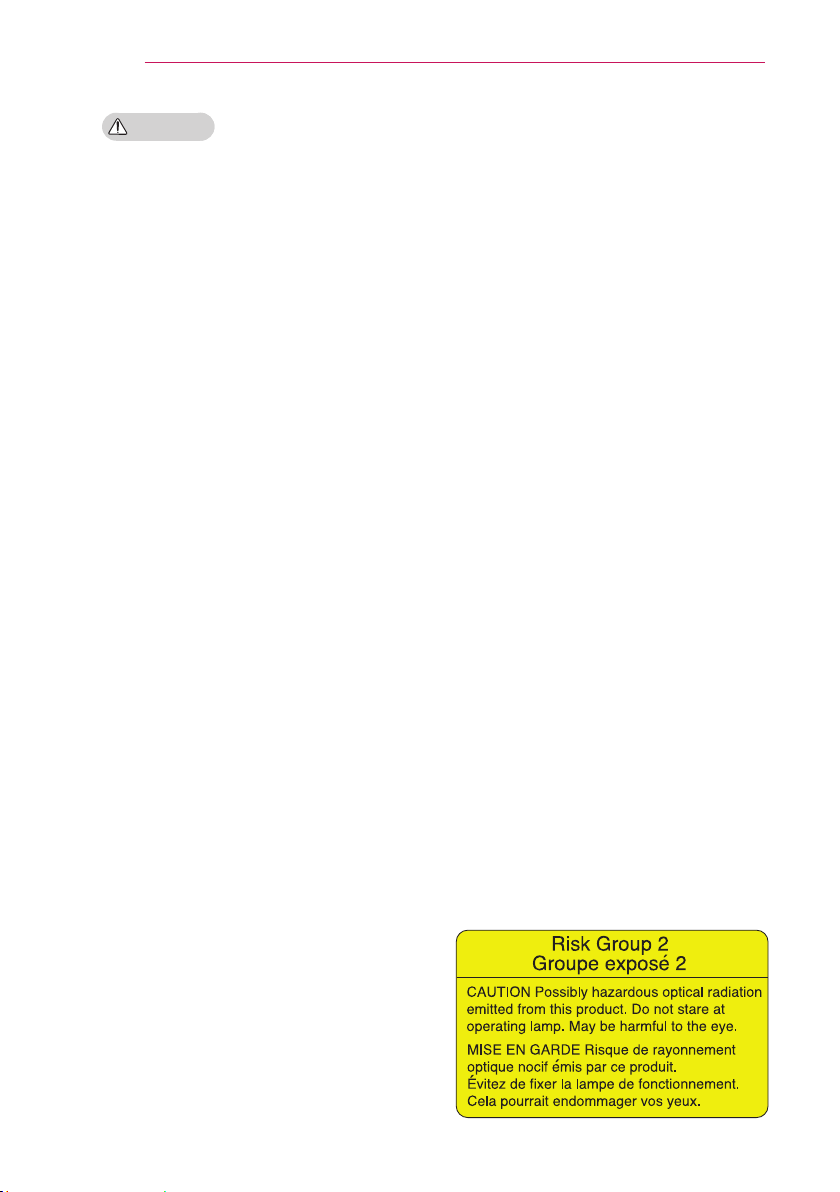
Do not look directly into the lens
when the projector is in use. The
strong light may damage your eyes.
When the lamp is on or has just been
turned off, avoid touching the air vent
or lamp because these will be very
hot.
If there is a gas leak, do not touch
the wall outlet. Open the window for
ventilation.
- A spark may cause a fire or burn.
Never touch the projector or power
cord during thunder or lightning.
- This may cause an electric shock.
Do not use the projector near an
electronic device which generates a
strong magnetic field.
Store the vinyl envelope used to pack
the projector in a safe place away
from children.
- It could cause suffocation if used
improperly.
Do not keep your hand on the projector
for a long time when it is running.
When you play a game by connecting
a game console to a projector, it is
recommended that you maintain a
distance of more than four times the
diagonal length of the screen.
Make sure that the length of
connecting cable is long enough.
Otherwise, the product may fall
causing personal injury or damage to
the product.
CAUTION
Do not place a heavy object on the
projector.
- It may fall down and cause physical
injury.
Be careful to prevent the lens from
heavy impact during transportation.
Do not touch the lens.
The lens may be damaged.
Do not use any sharp tools on the
projector such as a knife or hammer,
because this may damage the casing.
In the event that no image appears
on the screen, switch the projector
off, unplug it from the wall outlet and
contact an authorized service center.
- Otherwise, this may cause a fire or
an electric shock.
Do not drop an object onto the
projector or apply heavy pressure to it.
- This may cause injury to persons or
damage to the projector.
The distance between your eyes and
the screen must be around 5 - 7 times
the diagonal length of the screen.
- If you watch the screen at a close
distance for a long time, your eye
sight may become worse.
7
SAFETY INSTRUCTIONS
Cleaning
WARNING
Do not spray the projector with water
when cleaning. Do not allow water to
go into the projector or do not allow it
to get wet.
- This may cause a fire or an electric
shock.
When there is smoke or a strange
smell coming out from the projector
or a foreign object falls into the pro-
jector, please switch it off and unplug
it from the power outlet and contact
an LG Electronics Service Center.
- If not, this may cause a fire or an
electric shock.
Use an air spray or soft cloth or
cotton swab moistened with a lens
cleaning chemical or alcohol to
remove dust or stains on the front
projection lens.
CAUTION
Contact your seller or the Service
Center once a year to clean the
internal parts of the projector.
- If you do not clean the contaminated
interior of the projector for a long
time, there may be a fire or damage
to the projector.
When cleaning plastic parts such as
the projector case, unplug the power
first and wipe with a soft cloth. Do
not spray with water or wipe with a
wet cloth. When cleaning the plastic
parts, such as the projector case,
do not use cleanser, automobile or
industrial shiner, abrasive or wax,
benzene, alcohol, etc., which can
damage the product.
- This can cause fire, electric shock or
product damage (deformation,
corrosion and damage).
OTHERS
WARNING
Only a qualified technician can
disassemble or modify the projector.
For inspection, adjustment or repair,
contact your seller or the Service
Center.
- Otherwise, this may cause a fire or
an electric shock.
Dispose of the used battery properly.
- Otherwise, this may result in
explosion or fire.
The correct method of disposal may
vary depending on your country
or region. Dispose of the battery
pack according to the appropriate
instructions.
Do not throw or disassemble the
battery.
- Otherwise, this may result in fire or
explosion due to damage to the
battery.
Always use batteries approved and
certified by LG Electronics.
- Otherwise, this may result in fire or
explosion.
Store the battery away from metallic
objects, such as keys and paper clips.
Excess current may cause a rapid
increase in temperature, resulting in
fire or burns.
Do not store the battery near any
heat source, such as a heater.
- This may result in fire or damage
the product.
Do not store it at temperatures higher
than 60 °C or in high humidity.
Keep the battery out of reach of
children.
- This may result in personal injury or
damage to the product.
Make sure that the battery is installed
correctly.
Incorrect battery replacement may
cause fire.
8
SAFETY INSTRUCTIONS
CAUTION
Unplug the power cord if the projector
is not used for a long period.
- Accumulated dust may cause
overheating, an electric shock from
corroded insulation and a fire from an
electrical surge.
Only use the specified type of battery.
- Otherwise, this may cause an electric
shock caused by overheating and
leakage.
Make sure you use the same type of
battery when replacing.
(Battery CR2032/ 3 V)
- In the case of a battery contact
failure, the battery may drain quickly
or the remote control may not work
properly.
Do not stare directly into lens when in
operation, eye damage can occure.
No user serviceable parts inside unit.
High voltage parts can cause shock
and even electrocution.
Proper ventilation required, do not
block airflow around unit.
Doing so can cause injury and
internal overheating.
To prevent damage to lamp, unit must
remain plugged in for approximately
3 minutes after power down to allow
for proper cool down (not applicable
on LED models).
Do not touch the lens; doing so can
result in burns or damage to lens.
Lens and unit may be HOT during
and immediately after use.
Use caution when handling unit,
allowing for proper cool down.
Only use a grounded electrical outlet.
Do not insert anything into or cover
up the exhaust vents.
Follow all maintenance guidelines for
optimal use; service only at an
authorized service center.
Lamp contains mercury and as such
must be disposed of according to
local, state and federal laws
(not applicable on LED models).
- This DLP Projector is a Risk Group
2 device that meets safety standard
IEC 62471 standard.

9
CONTENTS
CONTENTS
LICENSES 2
SAFETY INSTRUCTIONS 3
PREPARATION 10
Accessories 10
Optional Extras 11
Parts and Components 12
Installation 13
- Installation Precautions 13
- Connecting an adapter 13
- Projection Distance per Screen Size 14
- Using the Lens Hood 15
- Using the Cradle scene 15
- Connecting a battery 16
- How to Install the Projector On
a Tripod 17
- Kensington Security System 18
REMOTE CONTROL 19
USING THE PROJECTOR 21
Watching the Projector 21
- Turning on the Projector 21
- Focus and Position of the Screen
Image 21
- Watching the Projector 21
- Using the battery 22
- Battery using time information 22
Using Additional Options 24
- Adjusting Aspect Ratio 24
- Using the Keystone Function 25
- Using the Input List 25
- Blank Function 26
Using the Quick Menu 26
ENTERTAINMENT 27
Using SCREEN SHARE 27
MY MEDIA 28
- Connecting USB Storage Devices 28
- MOVIE LIST 30
- PHOTO LIST 36
- MUSIC LIST 38
- FILE LIST 40
CUSTOMIZING SETTINGS 42
SETUP Menu 42
PICTURE Settings 43
AUDIO Settings 47
TIME Settings 48
OPTION Settings 49
MAKING CONNECTIONS 51
Connecting to an HD Receiver,
DVD Player or VCR 52
- HDMI Connection 52
Connecting to a PC 52
- RGB Connection 52
Connecting to the AV INPUT 53
- Component Connection 54
Connecting to Headphones 54
MHL Connection 55
MAINTENANCE 55
Cleaning the Projector 55
- Cleaning the Lens 55
- Cleaning the Projector Case 55
SPECIFICATIONS 56
10
PREPARATION
PREPARATION
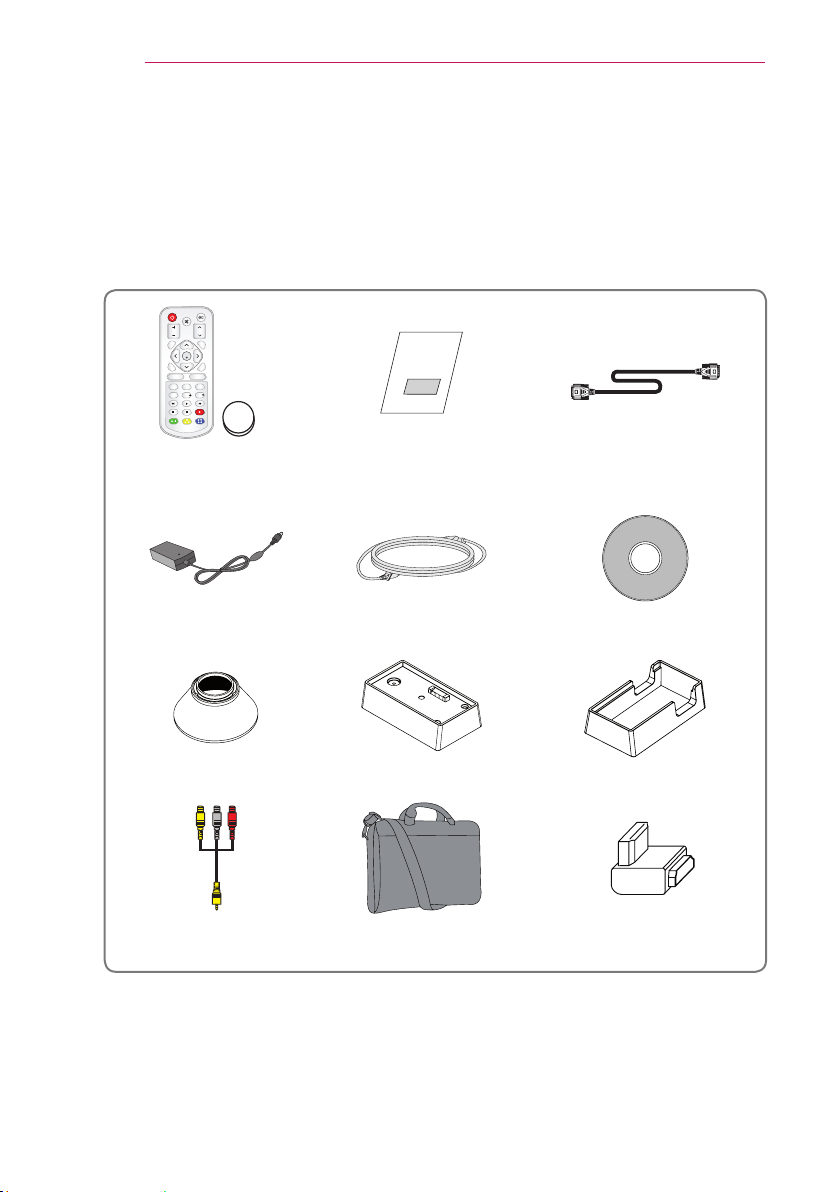
Accessories
Check enclosed accessories.
The picture may be different from an actual product.
219'4
/76'
+0276
81.7/'
2#)'
#761
$.#0-
':+6ꕯ
ꕣ
5'66+0)5 3/'07
56+..
1-
4#6+1
75$
*'.2 -';5 -';5
Remote Control
Lithium Battery
(CR2032/ 3 V)
Owner's Manual RGB Cable
Adapter Power Cord Owner's Manual CD
1
2
2
3
Hood Battery Cradle
Composite video cable Bag HDMI Gender
11
PREPARATION
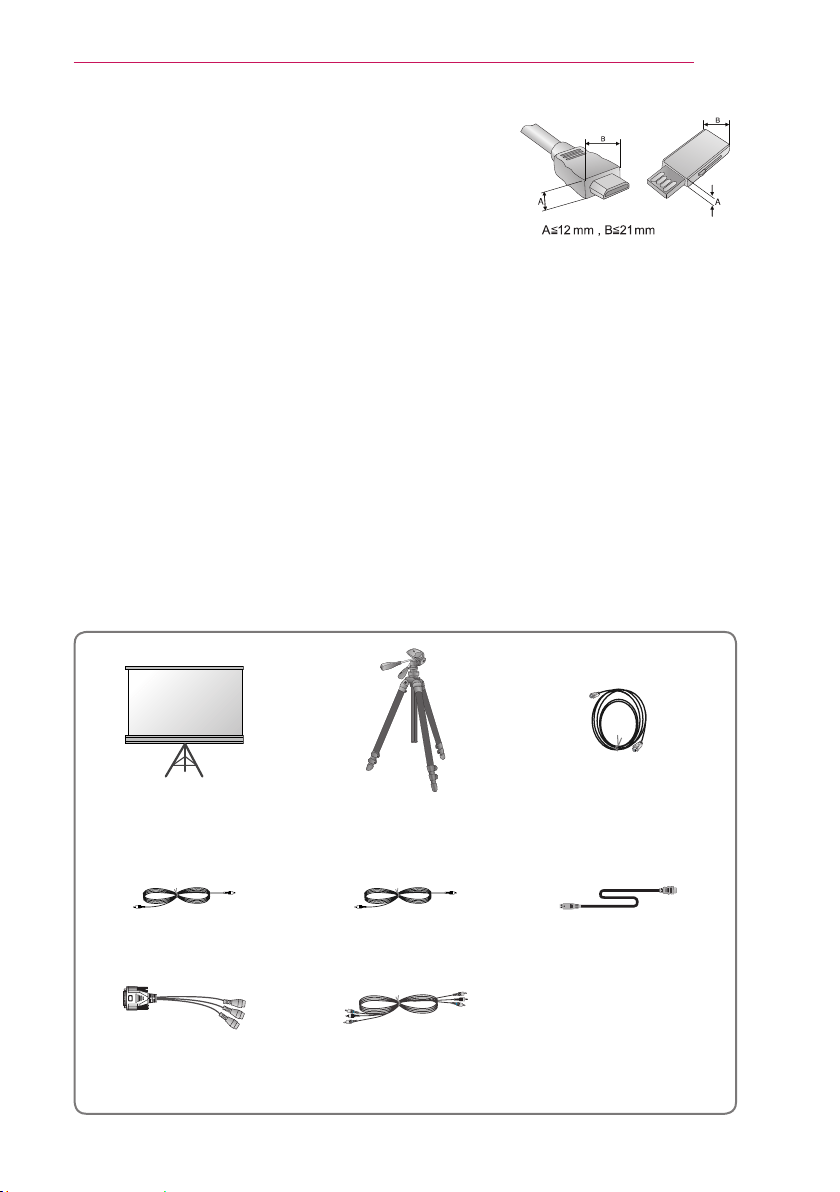
When connecting an HDMI or USB cable, or con-
necting a USB flash drive to the HDMI or USB port,
use a product that has a width of 21 mm or less and
a height of 12 mm or less. If the USB cable or USB
flash drive does not fit the USB ports of the projector,
use an extension cable that supports USB 2.0.
Use a certified cable with the HDMI logo attached.
If you do not use a certified HDMI cable, the screen
may not display or a connection error may occur.
(Recommended HDMI cable types)
- High-Speed HDMI®/
TM
Cable
- High-Speed HDMI®/
TM
Cable with Ethernet
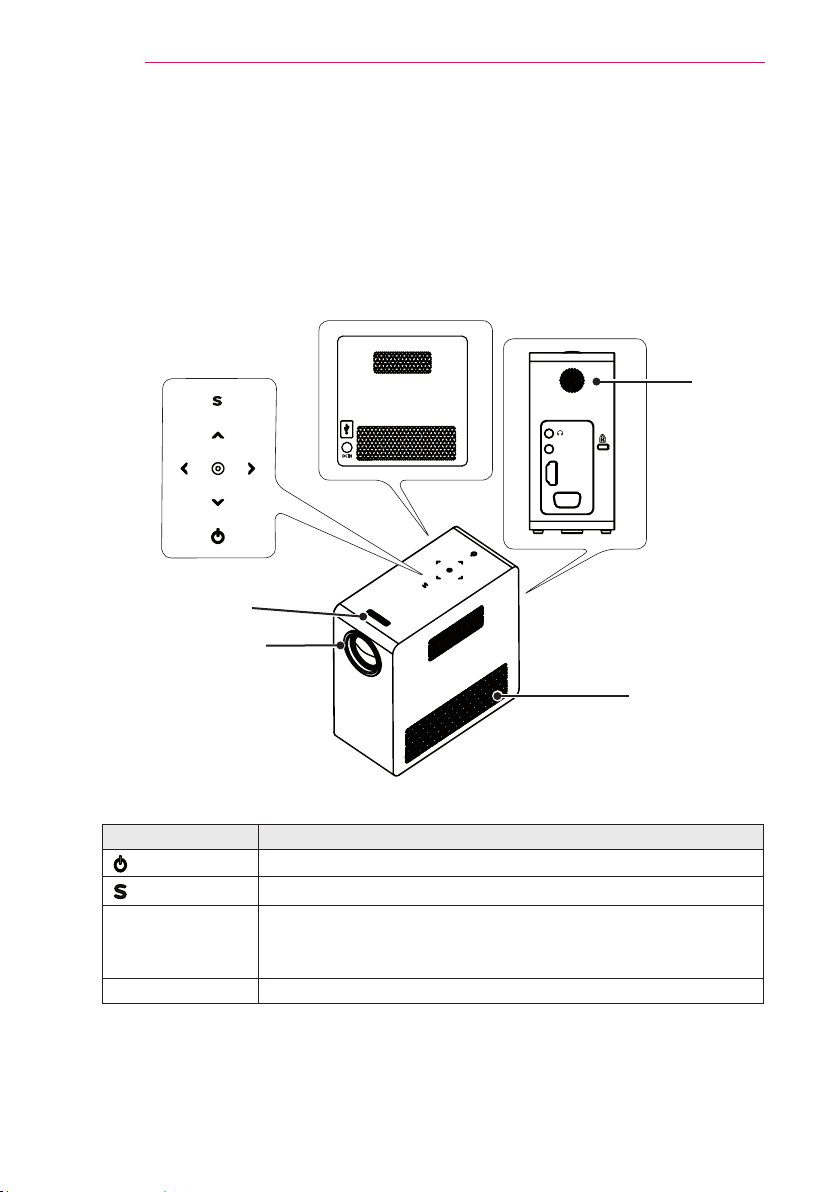
Optional Extras
To purchase optional extras, visit an electronics store or online shopping site or contact
the retail store where you purchased the product.
Without prior notice, optional extras are subject to change in order to improve the per-
formance of the product, and new accessories may be added.
Projector Screen Tripod HDMI Cable
Video Cable Audio Cable MHL Cable
RGB to Component Cable Component Cable
12
PREPARATION
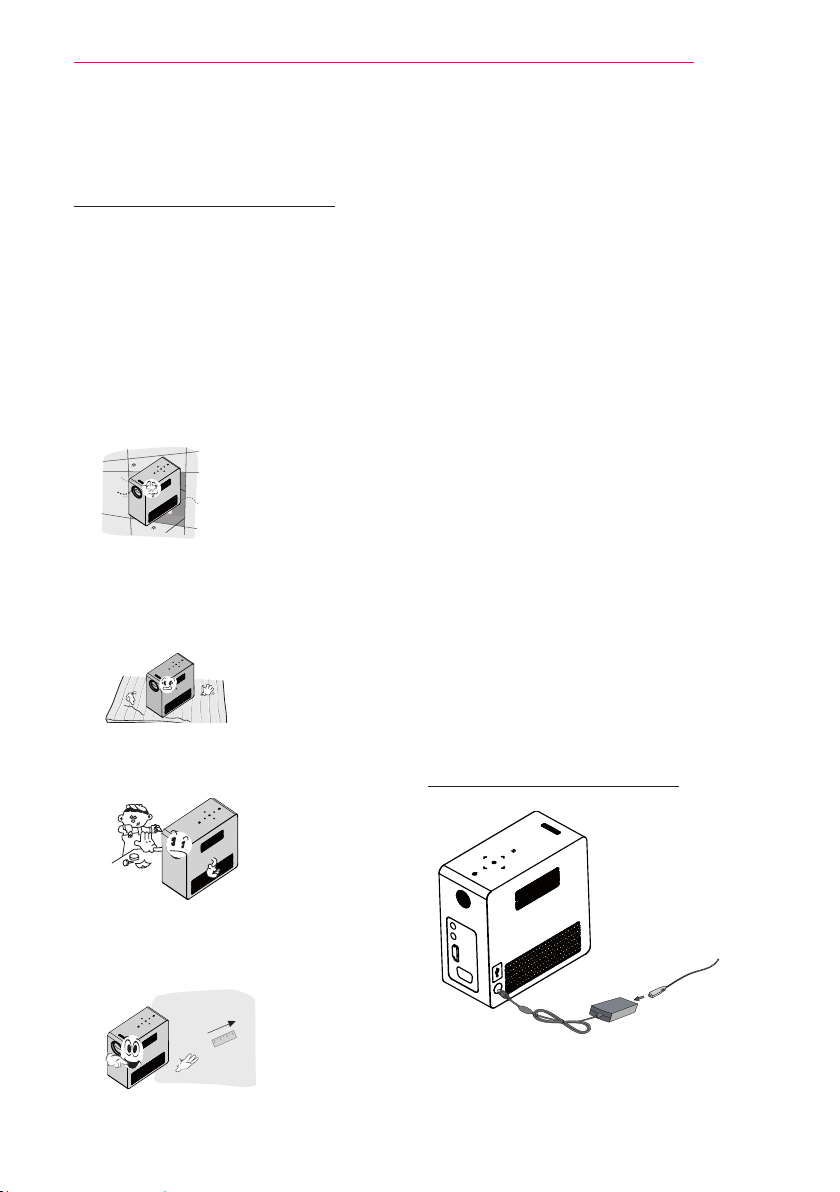
Parts and Components
* The projector is manufactured using high-precision technology. You may, however,
see tiny black dots and/or bright colored dots (red, blue or green) that continuously
appear on the projector screen. This is a normal result of the manufacturing process
and does not indicate a malfunction. When powered on, the LED of the control panel
turns on.
Button Description
(Power)
Turns the projector on or off.
(Settings)
Selects or closes menus.
∧, ∨, <, >
Moves between menus and changes the settings.
(<, > button : The volume can be adjusted according to the
input mode)
(OK) Checks present mode and saves function changes.
1 Due to the high temperature air coming out of the vents, do not get close to the
vents.
2 Do not touch the lens when using the projector. The lens may be damaged.
Back
HDMI/DVI
RGB IN
A/V IN
Focus Ring
Lens
2
Control Panel
Left
Speaker
Vent
1
HDMI/DVI
RGB IN
A/V IN
DC IN
13
PREPARATION
Installation
Installation Precautions
Place the projector in a well-ventilated
environment.
- To prevent internal heat from
building up, install the projector in a
well-ventilated place.
Do not place anything near the pro-
jector as this may block the air vents.
If the air vents are blocked, the i
nternal temperature will increase.
- Do not place the projector on a
carpet or rug. Do not block any vents
on the bottom
and use the projector
on a leveled solid surface
.
- Be sure to prevent foreign objects
such as paper debris from entering
the projector.
- Leave an adequate open area
(30 cm or more) around the
projector.
Do not place the projector in a hot or
humid environment.
- Do not place the projector in a hot,
cold or humid environment.
Do not place the projector in a place
where it will easily attract dust.
- This may cause a fire.
Never open any cover on the projec-
tor. There is a high risk of electric
shock.
The projector is manufactured using
high-precision technology. You may,
however, see tiny black dots and/
or bright colored dots (red, blue or
green) that continuously appear on
the projector screen. This is a normal
result of the manufacturing process
and does not indicate a malfunction.
The remote control may not work
in an environment where a lamp
equipped with electronic ballasts or
a three-wavelength fluorescent lamp
is installed. Replace the lamp with an
internationally standardized lamp for
the remote control to work normally.
Connecting an adapter
Connect the DC adapter plug to the power
input jack on the projector.
14
PREPARATION
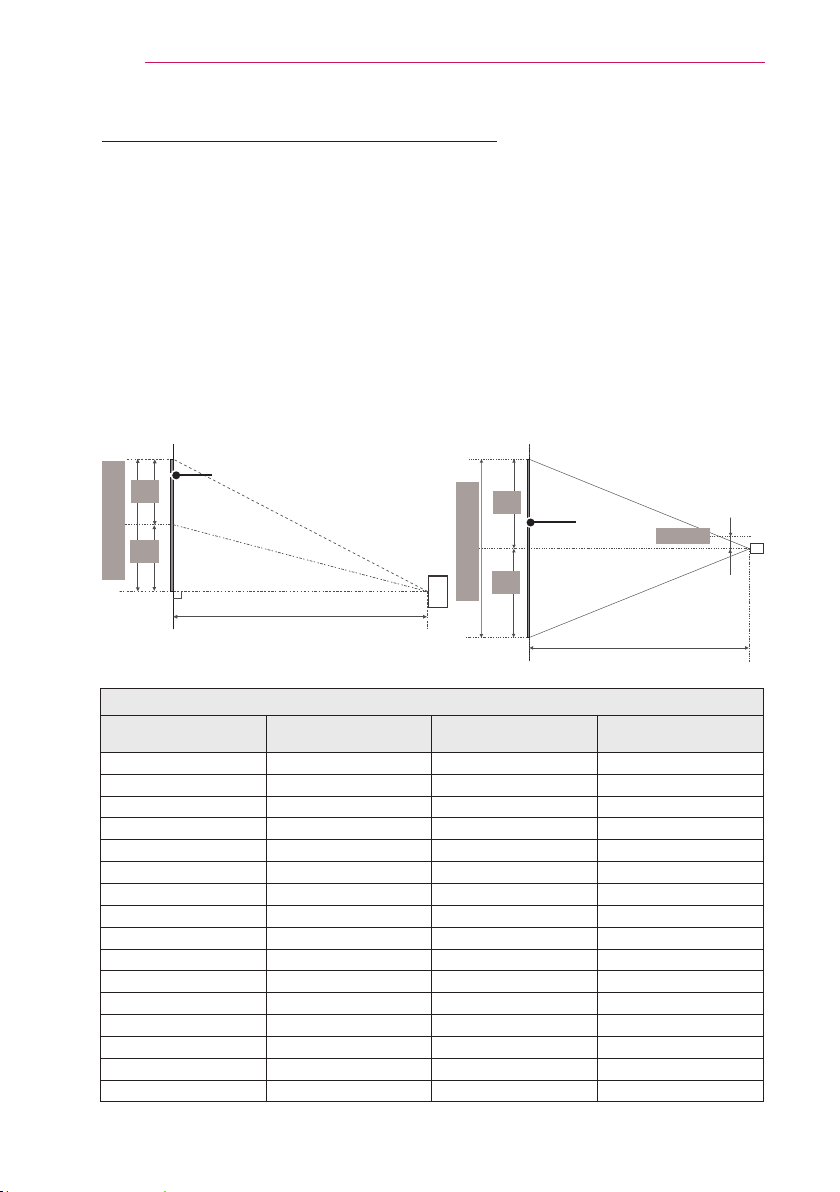
Projection Distance per Screen Size
1 Place the projector on a sturdy, level surface, together with the PC or audio/video
source.
2 Place the projector at an appropriate distance from the screen. The distance
between the projector and the screen determines the actual size of the image.
3 Position the projector so that the lens is set at a right angle to the screen. If the
projector is not set at a right angle, the image on the screen will be tilted and the
image quality will be poor. If the screen image is crooked, use the Keystone function.
4 Connect the power cords of the projector and the connected devices to the wall
outlet.
Ratio of upward projection: 100 %
Screen Height (X)
X/2
X/2
Screen Width (Y)
Y/2
Y/2
Screen
Projection distance (D)
Projection distance (D)
Screen
30 mm
16:10 Screen
Screen Size
(mm)
Screen Width (Y)
(mm)
Screen Height (X)
(mm)
Projection Distance (D)
(mm)
635 538 337 803
762 646 404 966
889 754 471 1130
1016 861 539 1293
1143 969 606 1456
1270 1077 673 1619
1397 1185 741 1783
1524 1292 808 1946
1651 1400 875 2109
1778 1508 943 2272
1905 1615 1010 2436
2032 1723 1077 2599
2159 1831 1145 2762
2286 1938 1212 2925
2413 2046 1279 3089
2540 2154 1347 3252
15
PREPARATION
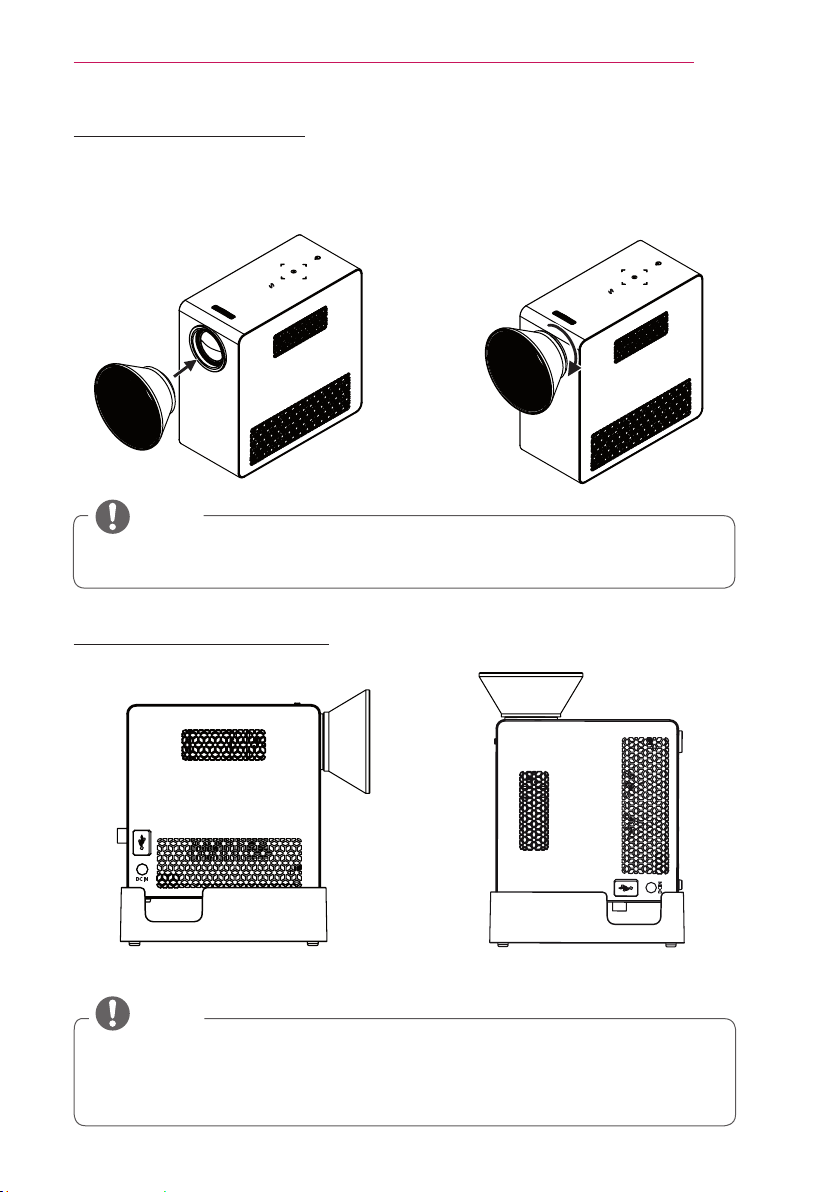
Using the Lens Hood
Using the Cradle scene
Normal Scene
Turn the lens hood as shown by the arrow.
Top Scene
DC IN
DC IN
DC IN
DC IN
NOTE
Be careful not to use excessive force when mounting the lens hood. Failure to do so
may damage the product.
NOTE
When projecting images onto the ceiling, you must only use the provided angle-type
antenna cable and USB storage device.
For HDMI connections, use an HDMI cable that matches the projector HDMI input
port.
16
PREPARATION
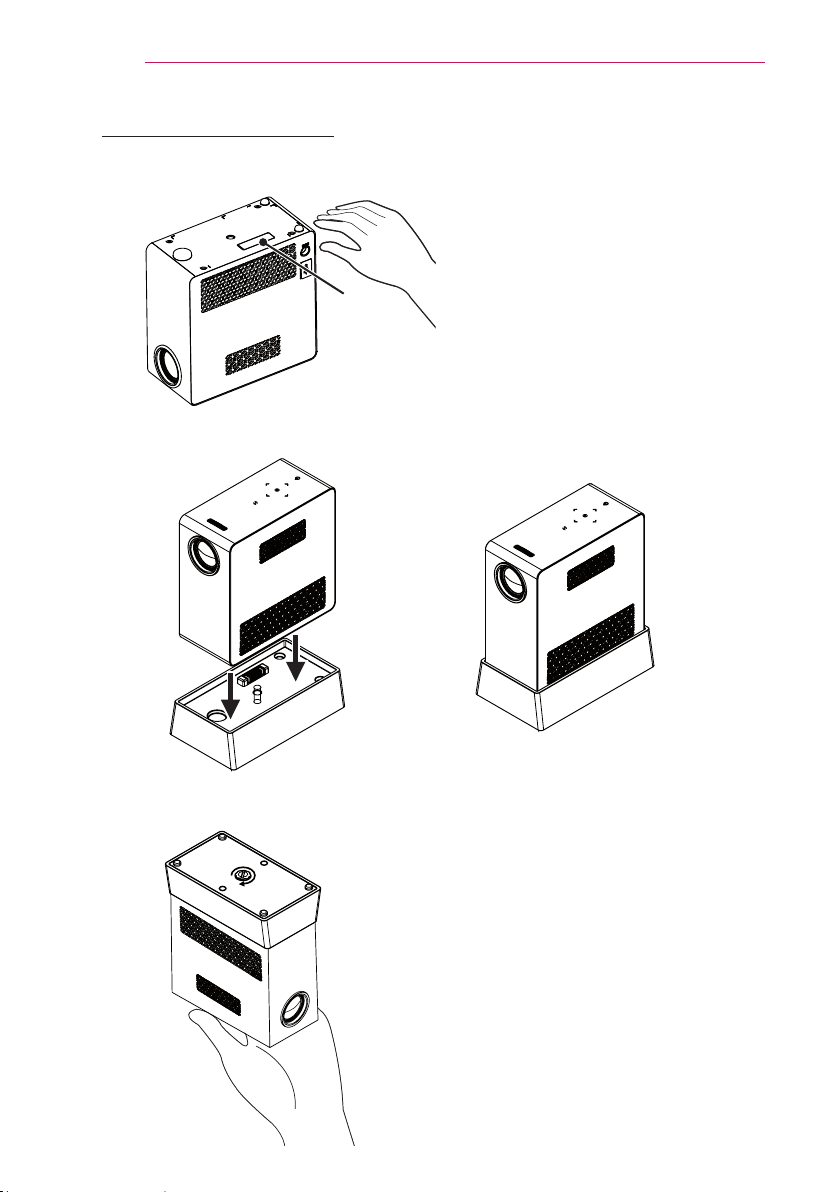
Connecting a battery
2 Assemble the projector as shown.
3 Turn the knob as shown by the arrow.
1 Remove the cover.
Cover

17
PREPARATION
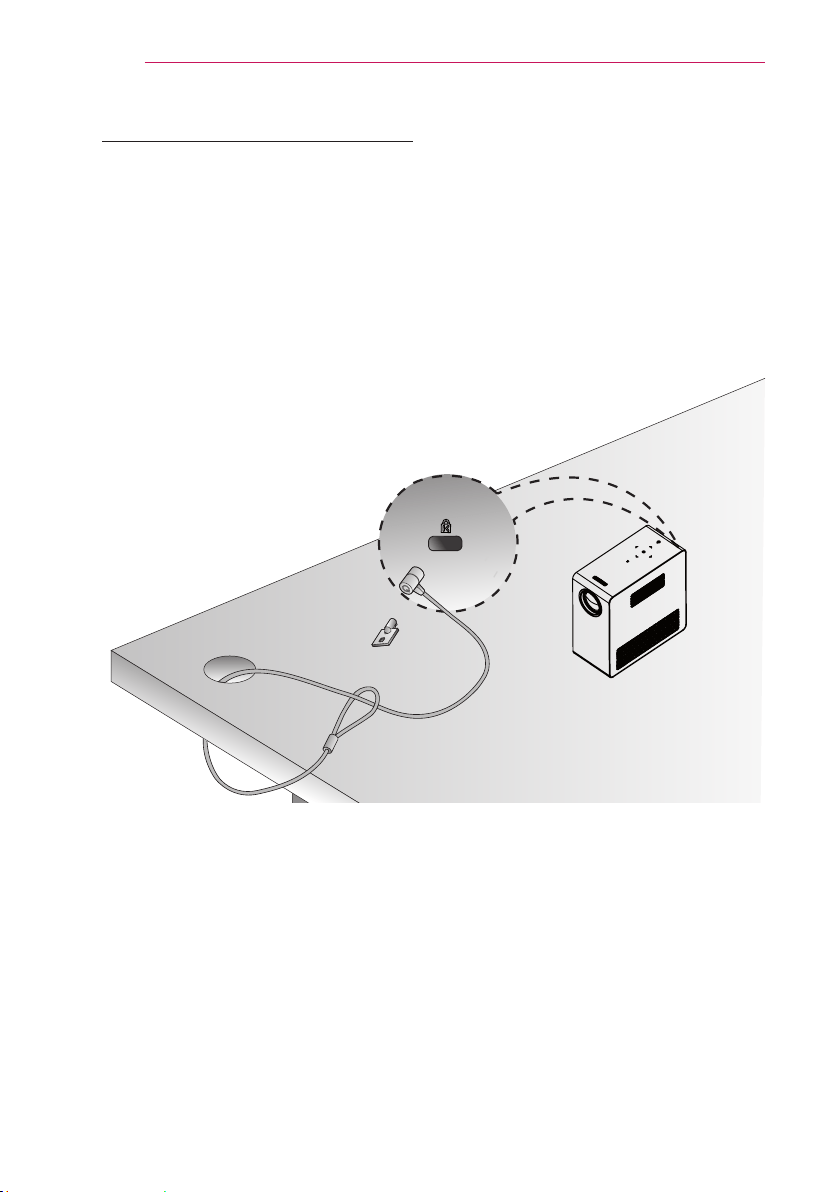
How to Install the Projector On a Tripod
You can install this projector on a camera tripod as shown below.
When stabilizing the tripod, we recommend using a locking bolt of standard size
4.5 mm or less. The maximum size allowed for the locking bolt is 5.5 mm.
(If it is longer than the maximum allowed size, it may damage the projector.)
Bottom side of
the projector
Bottom side of
the
battery
The projector is
connected to this part.
The
battery
is
connected to this part.
Tripod
Tripod
Bolt used to attach
the projector
Bolt used to attach
the battery
18
PREPARATION
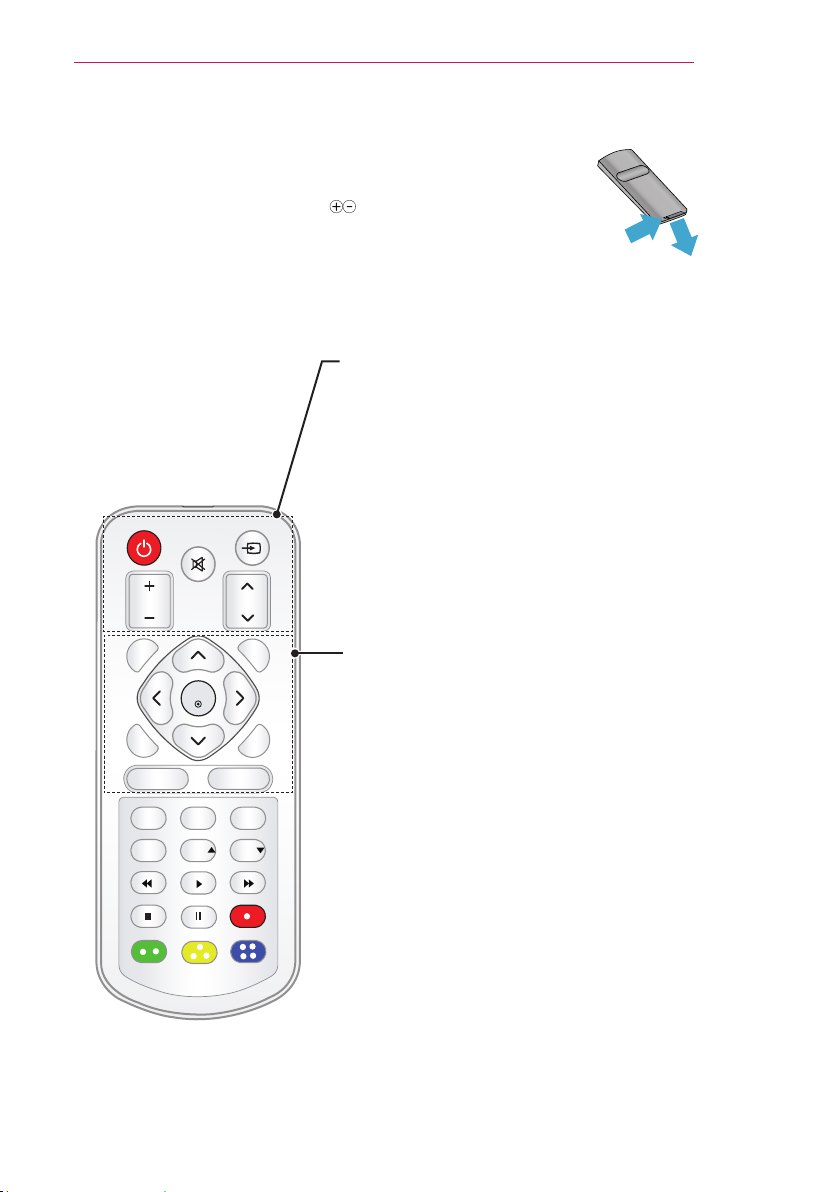
Kensington Security System
This projector has a Kensington Security System Connector on the panel. Connect a
Kensington Security System cable as below.
For detailed installation and use of the Kensington Security System, refer to the
user’s guide included with the Kensington Security System set.
The Kensington Security System is an optional item.
What is Kensington?
Kensington is a company that sells security systems that prevent expensive
electronic equipment such as a computer or laptop from being stolen.
Internet Homepage: http://www.kensington.com
19
REMOTE CONTROL
REMOTE CONTROL
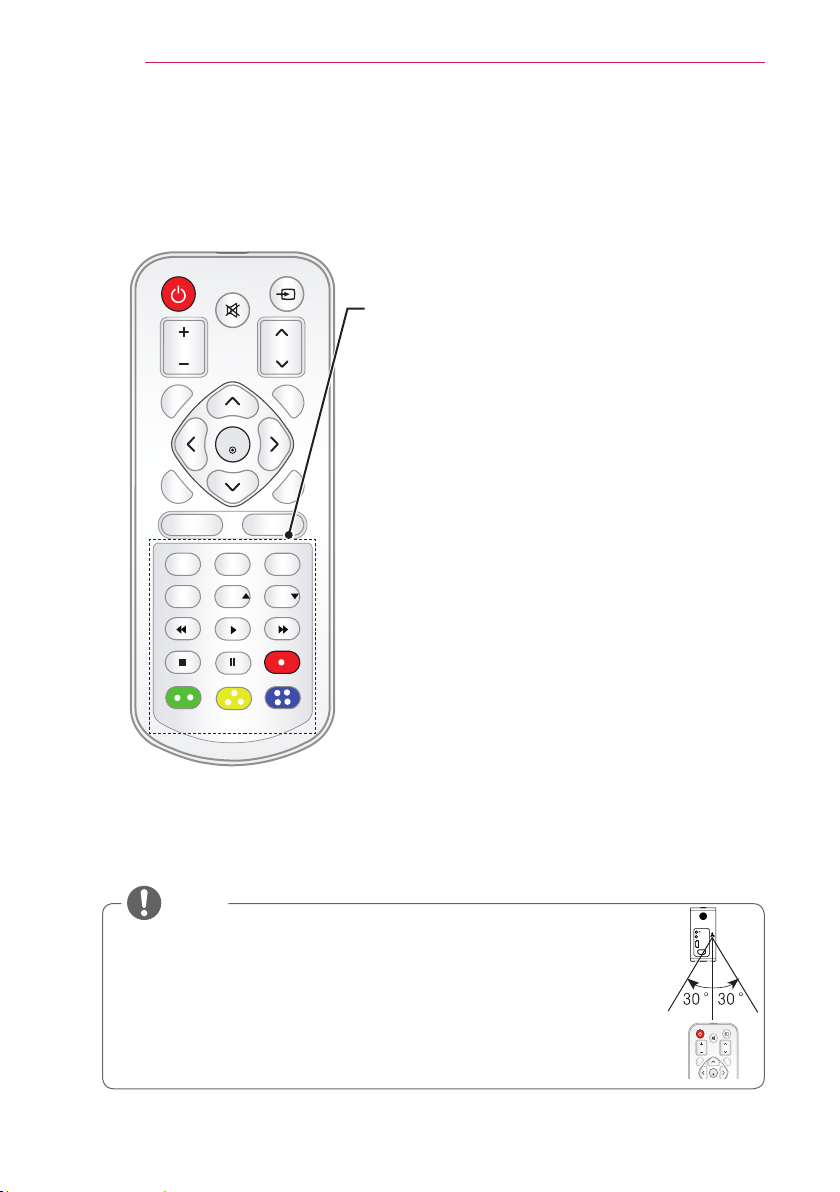
Open the battery cover on the back of the remote control and insert the
specified batteries as per instructions . The same type of batteries must
be used.
219'4
/76'
+0276
81.7/'
2#)'
#761
$.#0-
':+6ꕯ
ꕣ
5'66+0)5 3/'07
56+..
1-
4#6+1
75$
*'.2 -';5 -';5
POWER
Turns the projector on or off.
INPUT
Changes the input source.
MUTE
Mutes all sounds.
VOLUME +, -
Adjusts the volume level.
PAGE
Moves to the previous/next page.
AUTO
Automatically adjusts the RGB-PC input image.
BLANK
Turns the projector screen on or off.
UP/DOWN/LEFT/RIGHT BUTTONS
Sets the function or moves the cursor.
OK
Checks present mode and saves function changes.
EXIT
Clears all on-screen displays and returns to
projector viewing.
ꕣ
Returns to the previous level.
SETTINGS
Selects or closes menus.
Q.MENU
Accesses the quick menu.
①
②
20
REMOTE CONTROL
219'4
/76'
+0276
81.7/'
2#)'
#761
$.#0-
':+6ꕯ
ꕣ
5'66+0)5 3/'07
56+..
1-
4#6+1
75$
*'.2 -';5 -';5
NOTE
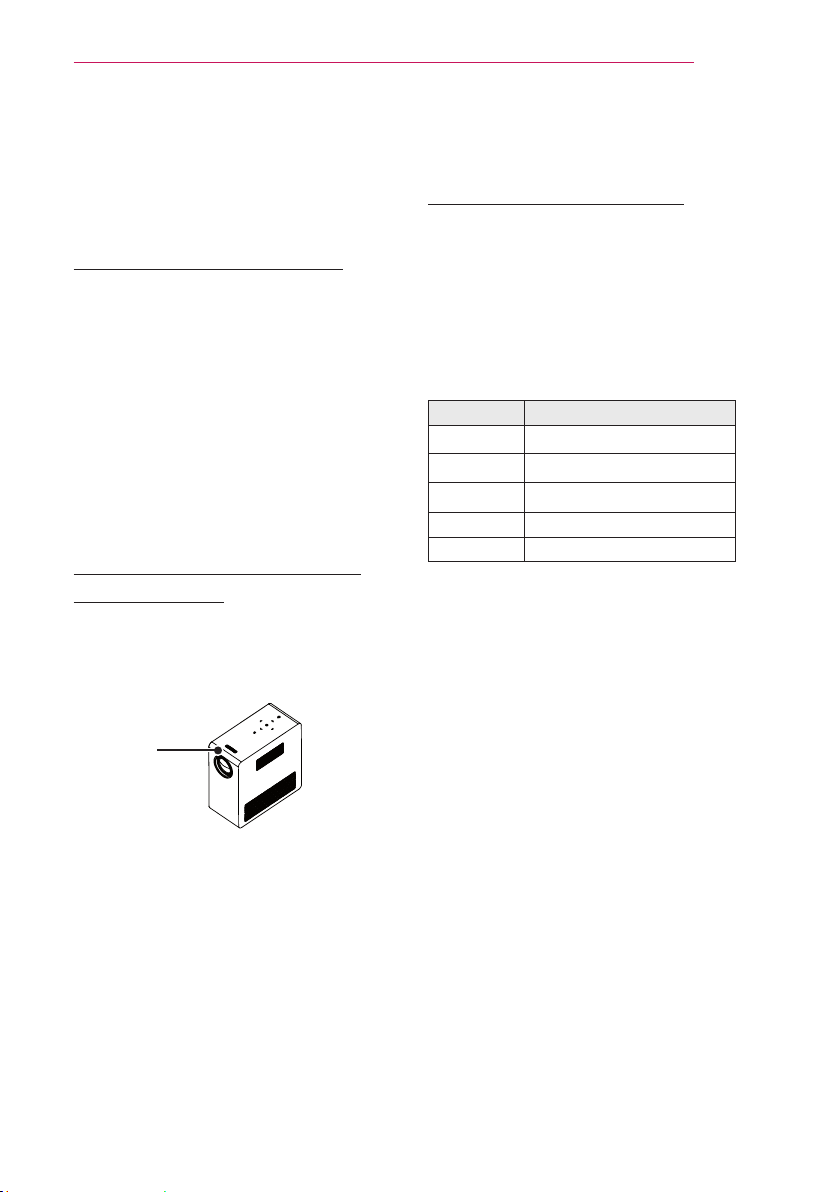
When using the remote control, the optimal remote range is less than
3 meters (left/right) and within a 30 degree arc of the IR receiver.
For seamless operation, do not block the IR receiver.
When you carry the remote control in the portable bag, make sure that the buttons
on the remote control are not pressed by the projector, cables, documents or any
other accessories in the bag. Otherwise, it may significantly reduce the battery life.
STILL
Freezes the moving image.
(Available in any mode other than USB mode.)
RATIO
Resizes an image.
USB
Accesses USB mode.
HELP
Enables the self-diagnosis.
KEY.S ,
Adjusts Keystone.
Playback Control Buttons
Controls playback of MY MEDIA.
Color buttons
Access special functions in some menus.
HDMI/DVI
RGB IN
A/V IN
219'4
/76'
+0276
81.7/'
2#)'
#761
$.#0-
':+6ꕯ
ꕣ
5'66+0)5 3/'07
56+..
1-
4#6+1
75$
*'.2 -';5 -';5
21
USING THE PROJECTOR
USING THE PROJECTOR
Watching the Projector
Turning on the Projector
1 Connect the power cord correctly.
2 After waiting for a moment, press
the POWER button on the remote
control or the control panel.
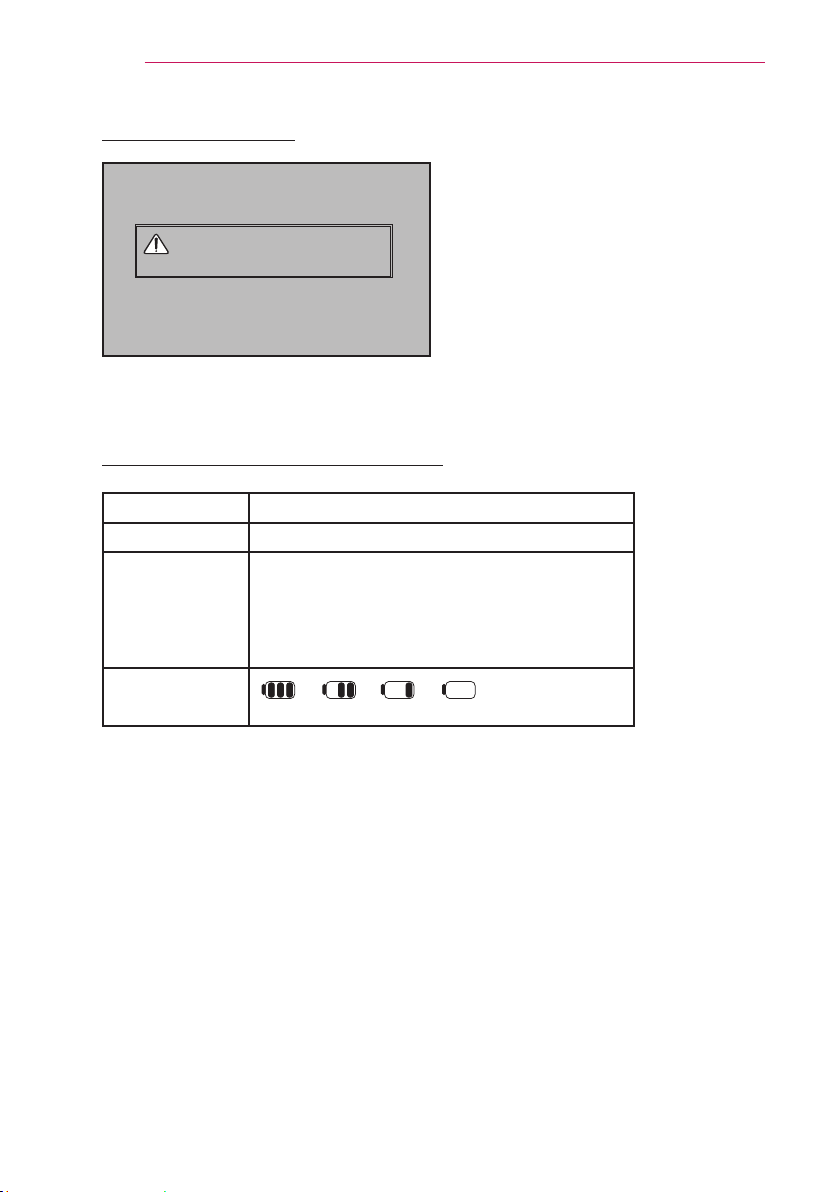
(The light on the control panel will be
turned on.)
3 In the Language Selection screen,
select a language.
4 Select an input signal by using the
INPUT button on the remote control.
Focus and Position of the
Screen Image
When an image appears on the screen,
check if it is in focus and fits the screen
properly.
HDMI/DVI
RGB IN
A/V IN
Focus ring
To adjust the focus of the image,
rotate the focus ring.
To adjust the focus ring, be careful
not to touch the keys on the control
panel.
Watching the Projector
1 In Standby mode, press the POWER
button to turn the projector on.
2 Press the INPUT button and select
the input signal you want.
3 Control the projector using the
following buttons while watching
projector.
Button Description
VOL -, + Adjusts the volume level.
MUTE Mutes all sounds.
Q.MENU Accesses the quick menu.
RATIO Resizes an image.
KEY.S , Adjusts Keystone.
4 To turn the projector off, press the
POWER button.
22
USING THE PROJECTOR
Using the battery
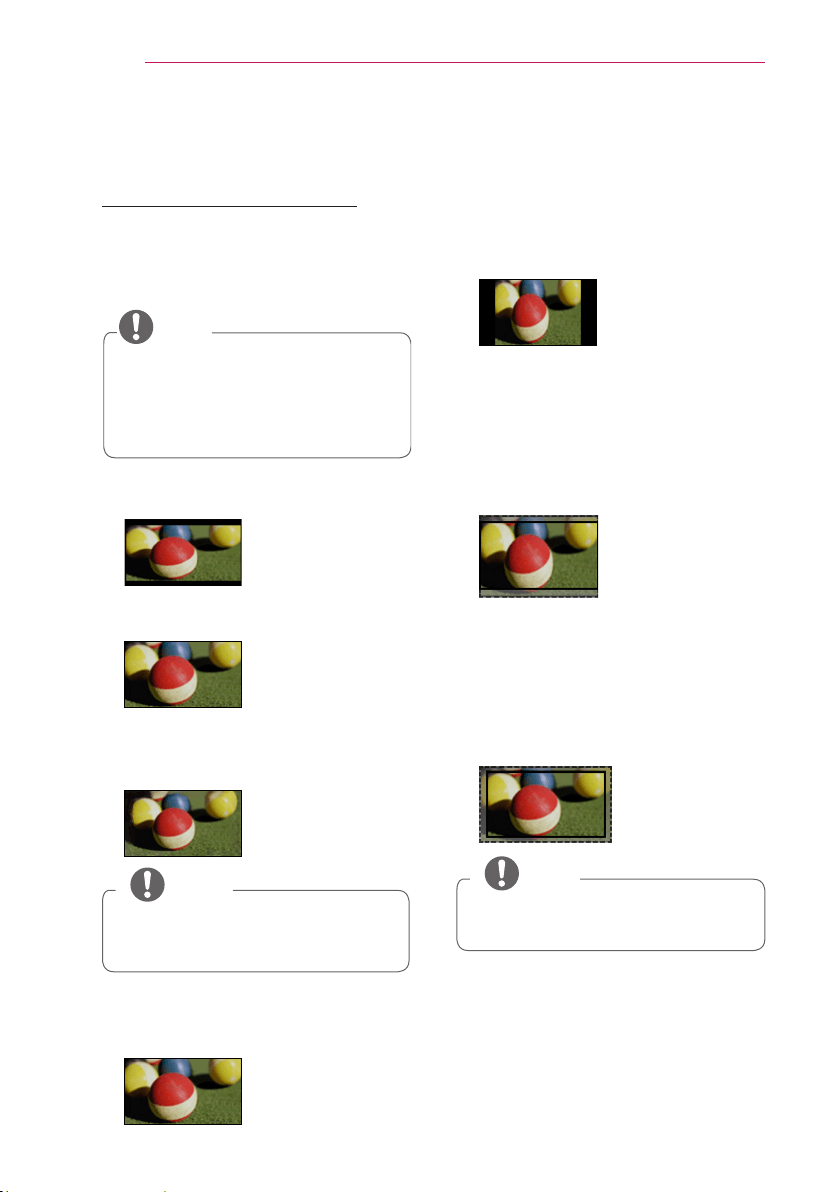
Low battery! The projector will turn
off soon
* It is displayed when the battery is running out.
* As your bettery is low, the projector will be turned off in a minute.
Battery using time information
Status Time and Display
Charging About 3 hours
Usage Hours About 2 hour
(Available battery using time
About 2 hour when Energy Saving mode set to Max.
Changing the Energy Saving mode default values will
reduce battery life.)
Battery Level
Indicator
Step 1 Step 2 Step 3 Step 4
* If you do not use the projector for long periods of time, remove the battery from the
projector and store it separately.
It is recommended to charge the battery to 40 - 50 percent for long-term storage.
* The battery is automatically recharged when the projector is connected to a power
supply.
* Charge the battery fully when you first use the projector.
* The battery standard usage time given in the manual is based on measurements
taken by LG; the actual time may vary depending on usage.
* Battery usage time may vary depending on broadcast type, operating temperature,
period of use, and user preferences.
* As the battery is consumable, its lifetime gradually decreases. When the battery’s
life is reduced by half, replace it with a new battery from an LG Electronics customer
center.
* In battery mode, Energy Saving is set to maximum.
* Do not charge the battery using any equipment other than that supplied with the
product. This may damage the battery or cause a fire.

23
USING THE PROJECTOR
* Dispose of the used battery appropriately. Failure to do so may result in an
explosion or fire. Methods for disposing of batteries vary depending on your country
or region. Ensure the battery is disposed of in accordance with applicable laws and
regulations.
* Do not throw or disassemble the battery. Damage to the battery may result in fire or
an explosion.
* Always use a battery that is approved and certified by LG Electronics, Inc. Failure to
do so may result in an explosion or fire.
* Store the battery away from metallic objects, such as keys and paper clips. Overcurrent
may cause a rapid increase in temperature, resulting in fire or burns.
* Do not store the battery near any heat source, such as a heater. This may cause a
fire or malfunction.
* Do not store the battery in temperatures higher than 60 °C or in a humid place.
Failure to do so may result in an explosion or fire.
* Keep away from children. Failure to do so may result in personal injury and damage to
the product.
* Make sure that the battery is connected correctly. Failure to do so may result in an
explosion or fire.
* If the battery leaks or smells, remove it from the projector immediately and contact an
LG Electronics customer center.
* The battery contains lithium-ion, so please handle with care. Failure to do so may
result in an explosion or fire.
* Danger of explosion if battery is incorrectly replaced. Replace only with the same or
equivalent type.
24
USING THE PROJECTOR
Using Additional Options
Adjusting Aspect Ratio
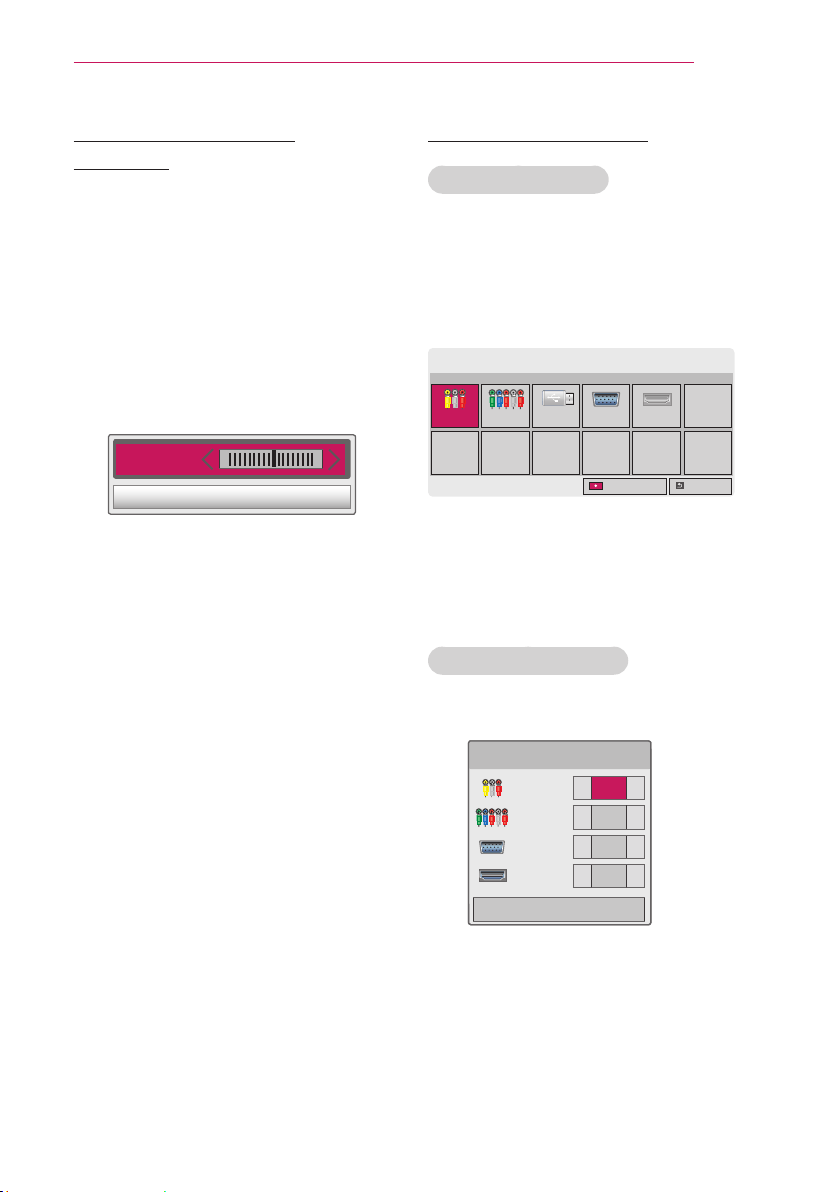
You can adjust the aspect ratio of the
picture by pressing RATIO while
watching projector.
NOTE
Available options may vary
depending on the input signal.
You can also change the image size
by pressing Q.MENU or
SETTINGS.
- 16:9: Resizes images to fit the
screen width.
- FULL: Changes to the full screen
regardless of the aspect ratio.
- Just Scan: Displays video images in
the original size without cutting off
the edges.
NOTE
If you select Just Scan, you may see
image noises at the edge or edges
of the screen.
- Set By Program: Displays images in
the same aspect ratio as the original
image.
- 4:3: Resizes images to the 4:3
aspect ratio.
- Zoom: Enlarges an image to fit the
screen width. The top and bottom of
the image may be truncated.
Press the
or
button to zoom in
or out of the image.
Press the
or
button to move
the image.
- Cinema Zoom 1 : Formats an image
to the cinemascope ratio, 2.35:1. It
ranges from 1 to 16.
Press the
or
button to zoom in
or out of the image.
Press the
or
button to move
the image.
NOTE
If you enlarge or reduce an image,
the image may be distorted.
25
USING THE PROJECTOR
Using the Keystone
Function
To prevent the screen image from
becoming trapezoidal, Keystone adjusts
the top and bottom width of the image
if the projector is not set at a right angle
to the screen.
Because the Keystone function may
cause inferior screen image quality, use
this function only when it is not possible
to set up the projector at an optimal
angle.
1 Press the SETTINGS button.
2 Press the orbutton to
select O
PTION
and press the OK
button.
3 Press the button to select
Keystone and press the OK button.
4 Press the or button to adjusted
Keystone.
Keystone can be adjusted from
- 40 to 40.
5 Press the OK button after
adjustment.
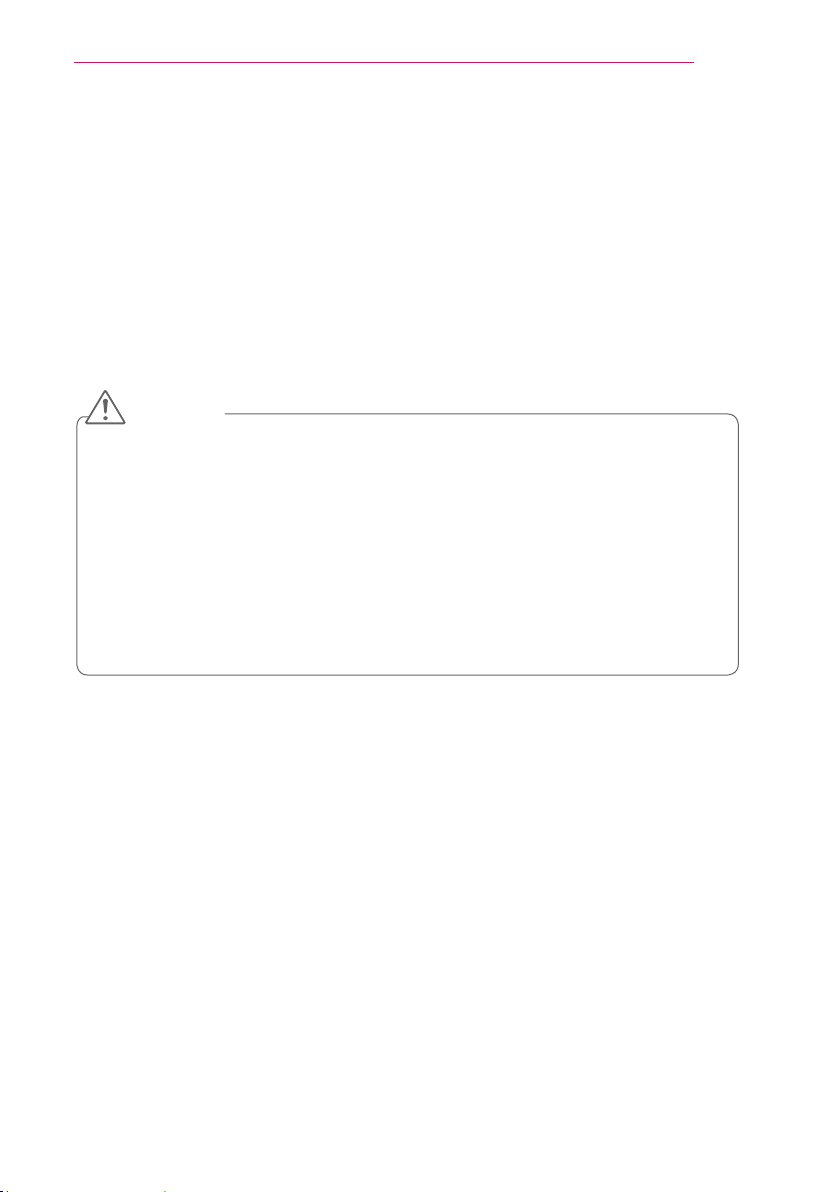
Using the Input List
Using the Input List
1 Press the INPUT button to access
the input sources.
- The connected input mode appears
first. However, AV / Component
input is always activated.
2
Select an input signal using the INPUT
button and the projector is switched
only to the connected input mode. You
can use the rbutton to
switch between all the input modes.
Adding an Input Label
Displays which devices are connected to
which input ports.
1 Press the INPUT button to access
the input sources.
2 Press the RED button.
3 Use the or button to scroll to
one of the input sources.
4 Use the orbutton to select one
of the input labels.

26
USING THE PROJECTOR
Blank Function
Using the Blank Function
This function may be effective when you
need to draw attention during a meeting
or training.
1 Press the BLANK button, and the
screen is covered by the background
color.
You can change the background
color by referring to "Selecting a
Blank Image".
2 Press any button to clear the blank
function.
To cover the screen temporarily, press
the BLANK button on the remote
control.
Do not block the lens with any object
while the projector is running.
It may become overheated and
deformed or even cause a fire.
Selecting a Blank Image
1 Press the SETTINGS button.
2 Press the orbutton to
select O
PTION
and press the OK
button.
3 Press the button to select
B
LANK IMAGE
and press the OK
button.
4 Use the button to move to
the setting or option you want and
press the OK button.
Using the Quick Menu
You can customize frequently used
menus.
1 Press Q.MENU to access the quick
menus.
2 Press theorbutton to scroll
through the following menus and
pressOK.
Menu Description
Aspect
Ratio
Changes the aspect ratio
(see 24 page)
Picture
Mode
Changes the picture
mode. (see 43 page)
Energy
Saving
Adjusts the brightness.
Clear
Voice II
Makes the voice from the
projector crisp and clear.
Sound
Mode
Sets the sound mode.
Sleep
Timer
Sets the Projector to be
turned off at the specified
time.
PJT Mode Turns the projected image
upside down or flips it
horizontally.
USB
Device
Disconnects a USB
device.
3 Press the or button to
scroll through the following menus.
27
ENTERTAINMENT
ENTERTAINMENT
Using SCREEN SHARE
1 Enable related SCREEN SHARE function on the device you wish to connect.
2 Connect the Projector from the search list on the device you wish to connect.
(When you connect the projector to your laptop, input the PIN code shown on your
display. The request for a PIN will be shown only at the initial connection.)
3 If the desired device accepts the request, SCREEN SHARE will be started.
CAUTION
Windows 7 / 8 / 8.1 are compatible with SCREEN SHARE. However, other versions
of Windows, and some other operating systems, may not be compatible with
SCREEN SHARE.
Ice Cream Sandwich, Jellybean, and KitKat versions of LG’s Android devices are
guaranteed to be compatible.
When connecting via SCREEN SHARE, place the device close to the projector.
The response rate and image quality may vary depending upon the user’s
environment.
For more information on the device you want to connect to, refer to its owner’s
manual.
28
ENTERTAINMENT
MY MEDIA
Connecting USB Storage
Devices
Connect a USB flash drive as shown
below.
When a USB storage device is connected,
the USB adjustment screen appears.
You cannot write or delete data on the
USB storage device.
USB flash drive
To disconnect the USB storage device,
1 Press the Q.MENU button.
2 Use the orbutton to move to
USB Device and press the OK
button.
3 Remove the USB device.
NOTE
After the USB storage device is
disconnected, it cannot be read.
Remove the USB storage device
and connect it again.

29
ENTERTAINMENT
Tips for Using USB Devices
Only a USB storage device is
recognizable.
USB hubs are not supported.
A USB storage device which uses its
own driver may not be recognized.
The recognition speed of a USB
storage device will depend on each
device.
If a normal USB device does not
work, disconnect and reconnect it.
Please do not turn off the projector
or unplug the USB device when the
connected USB device is working.
The USB device or stored files may
be damaged.
Please do not connect the USB
storage device that has been manip-
ulated on the PC. The projector may
not operate properly or fail to play
files. Use a USB storage device which
contains normal music, photo, video
or document files.
Please only use a USB storage device
formatted as a FAT 16, FAT 32 or NTFS
file system provided by Windows. In
case a storage device formatted as a
different utility program is not
supported by Windows, it may not be
recognized.
Please connect power to a USB stor-
age device which requires an external
power supply. If not, the device may
not be recognized.
Please connect a USB storage device
with a cable provided by the USB
manufacturer. When you use a cable
that is not provided by a USB manu-
facturer or an excessively long cable,
the device may not be recognized.
Some USB devices may not be
supported or will not work properly.
If the length of a folder or file is too
long, the folder or file may not be
recognized properly.
The files in a USB storage device are
sorted in the same way as Windows
XP. Up to 100 English characters for
a file name are allowed.
The data of a USB device may be
damaged, so it is recommended to
backup any important files. Because
a user is responsible for data man-
agement, the manufacturer is not
responsible.
It is recommended to use a USB
flash drive which is 32 GB or less
and a USB hard disk which is 1 TB or
less. Any device with more than the
recommended capacity may not work
properly.
If a USB storage device is not working
properly, disconnect it and connect it
again.
If a USB external hard disk with the
power saving function does not work,
turn the hard disk off and on again to
make it work properly.
USB storage devices below USB 2.0
are supported as well. However, they
may not work properly in the movie
list.

30
ENTERTAINMENT
MOVIE LIST
In the Movie List, you can watch movies stored on the connected USB device.
Tips for Playing Video Files
Some subtitles created by a user may
not work.
Some special characters are not
supported in subtitles.
HTML tags are not supported in
subtitles.
Time information in a subtitle file
should be arranged in ascending
order to play the subtitle properly.
Changing font and color in subtitles
is not supported.
A language which is not specified
in the subtitle languages is not
supported.
Subtitle files of 1 MB or larger are not
supported.
The screen may suffer temporary
interruptions (image stoppage, faster
playback, etc.) when the audio
language is changed.
A damaged video file may not be
played properly or some functions
may not be available.
Video files created with some
encoders may not be played properly.
Either audio or video may only be
supported depending on the video or
audio packet structure of a video file.
Video files with higher resolution than
the maximum supported for each
frame may not be played properly.
Video files in formats other than the
ones specified above may not be
played properly.
Streaming files which include GMC
(Global Motion Compensation) or
Qpel (Quarterpel Motion Estimation)
is not supported.
Up to 10,000 sync blocks are
supported in the subtitle file.
Seamless playback is not guaranteed
for files encoded level 4.1 or higher in
H.264/ AVC.
DTS audio codec is not supported.
Video files larger than 30 GB
(Gigabytes) are not supported.
Playing a video via a USB connection
that does not support high speed
may not work properly.
A video file and its subtitle file must
be located in the same folder. A video
file name and its subtitle file name
must be identical in order to display
the subtitle properly.
While watching a video using the
movie list function, you cannot adjust
the picture mode.
Trick Mode does not support other
functions than
if video files do not
have index information.
When playing a video file using net-
work, the Trick mode is limited to 2X
speed.
Video file names that contain special
characters may not be playable.
31
ENTERTAINMENT
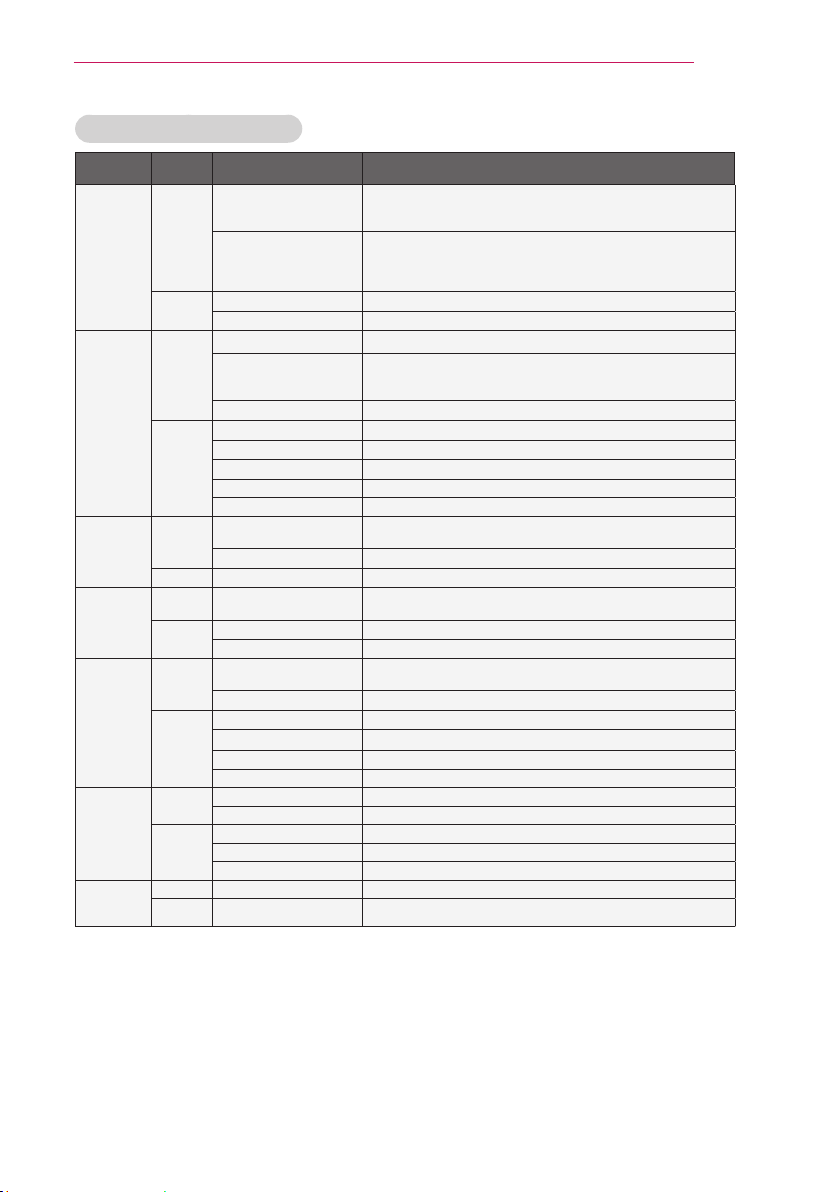
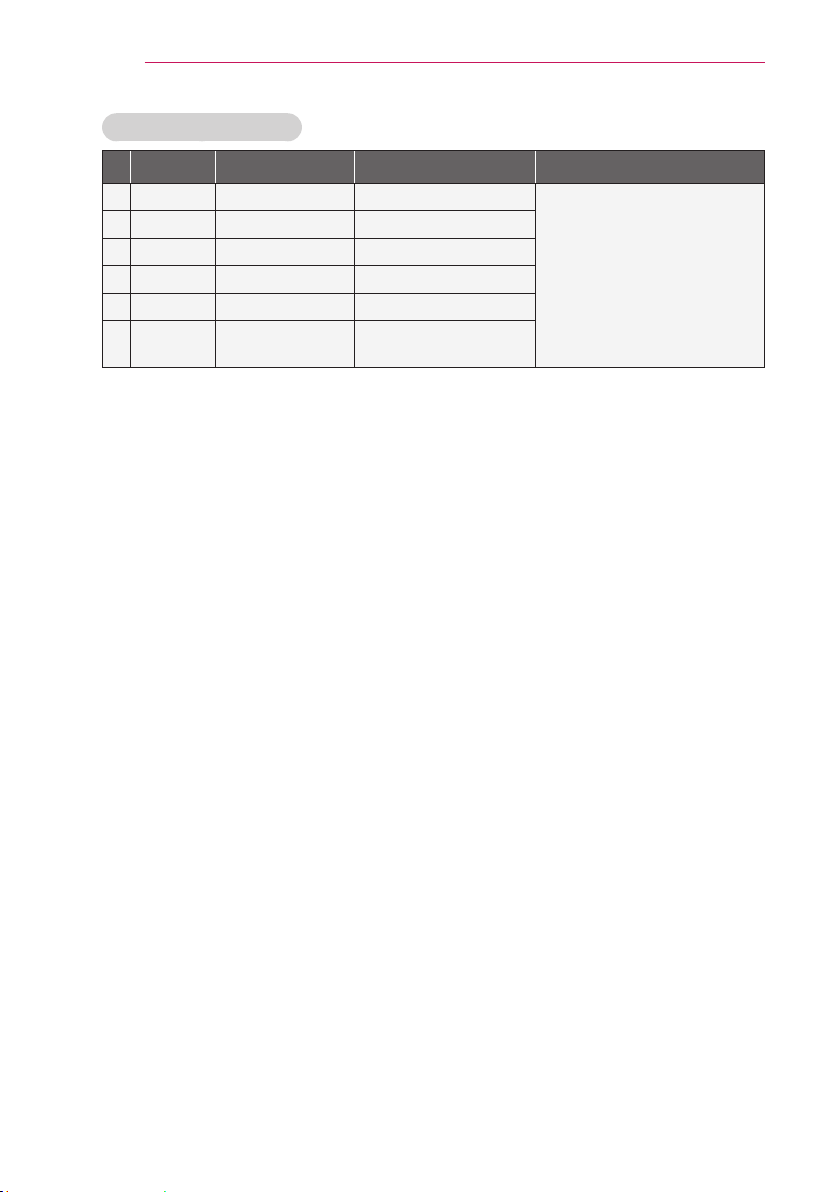
Supported Video Formats
File
Extensions
Audio/
Video
Codec Profile/Level Support
.asf
.wmv
Video
VC-1 Advanced Profile
Advanced Profile @ Level 3 (e.g.720p60, 1080i60, 1080p30)
Only streams compliant to SMPTE 421M VC-1 standard are
supported.
VC-1 Simple
and Main Profiles
Simple Profile @ Medium Level (e.g.CIF,QVGA)
Main Profile @ High Level (e.g.1080p30)
Only streams compliant to SMPTE 421M VC-1 standard are
supported.
Audio
WMA Standard
WMA 9 Professional
.divx
.avi
Video
DivX3.11
DivX4
DivX5
DivX6
Advanced Simple Profile (720p/ 1080i)
XViD Advanced Simple Profile (720p/ 1080i)
Audio
MPEG-1 Layer I,II
MPEG-1 Layer III (MP3)
Dolby Digital
WMA Standard
WMA 9 Professional
.mp4
.m4v
Video
H.264 /AVC
Main Profile @Level 4.1
High Profile @Level 4.1 (e.g.720p60, 1080i60, 1080p30)
MPEG-4 Part 2 Advanced Simple Profile (720p/ 1080i)
Audio HE-AAC HE-AAC-LC and HE-AAC
.mkv
Video H.264 /AVC
Main Profile @Level 4.1
High Profile @Level 4.1 (e.g.720p60, 1080i60, 1080p30)
Audio
HE-AAC HE-AAC-LC and HE-AAC
Dolby Digital
.ts
.trp
.tp
Video
H.264 /AVC
Main Profile @Level 4.1
High Profile @Level 4.1 (e.g.720p60, 1080i60, 1080p30)
MPEG-2 Main Profile @High Level (e.g.720p60, 1080i60)
Audio
MPEG-1 Layer I,II
MPEG-1 Layer III (MP3)
Dolby Digital
HE-AAC HE-AAC-LC and HE-AAC
.vob
Video
MPEG-1
MPEG-2 Main Profile @High Level (e.g.720p60, 1080i60)
Audio
Dolby Digital
LPCM
MPEG-1 Layer I,II
.mpg
.mpeg
.mpe
Video MPEG-1
Audio MPEG-1 Layer I,II Only streams compliant configured properly for TS, PS or ES
32
ENTERTAINMENT
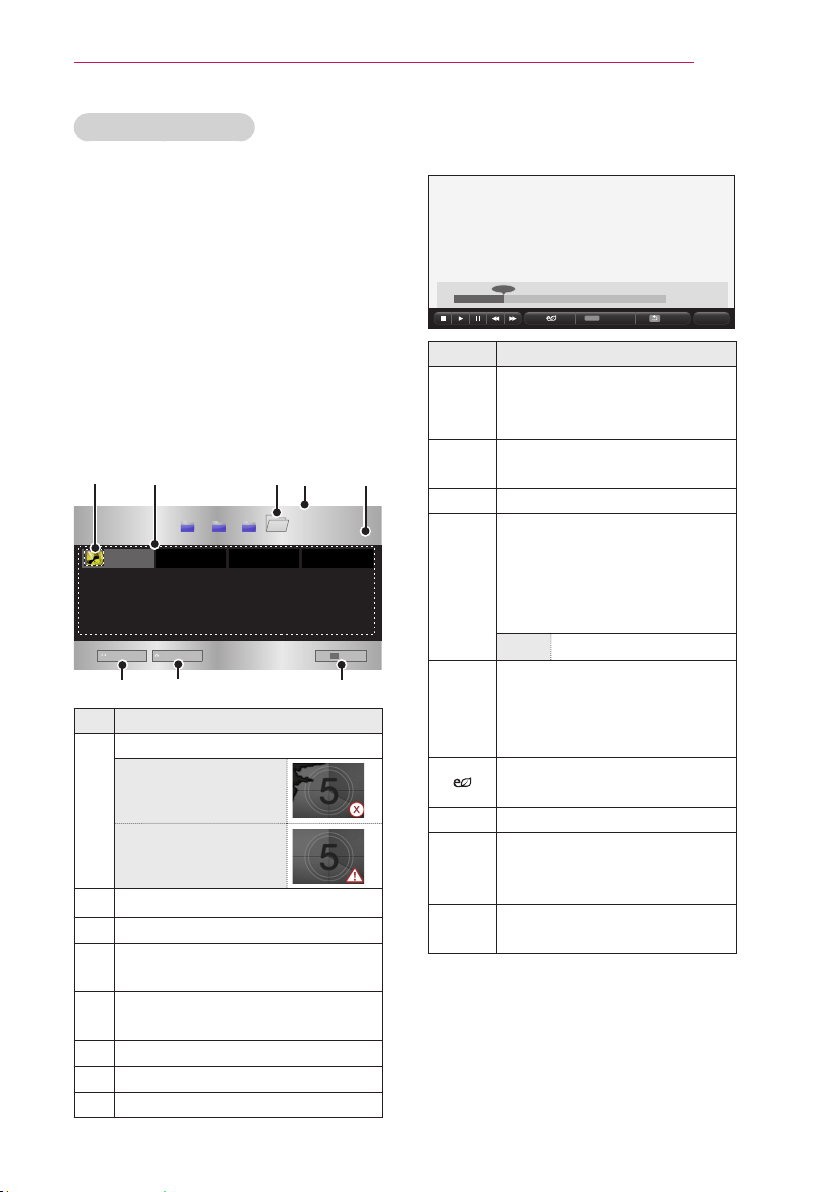
Supported Audio Files
No
Audio
Codec
Bit rate Sampling rate
Remark
1 MP3 32 kbps - 320 kbps 32 kHz - 48 kHz
2 AC3 32 kbps - 640 kbps 32 kHz, 44.1 kHz, 48 kHz
3 MPEG 32 kbps - 448 kbps 32 kHz - 48 kHz
4 AAC,HEAAC 24 kbps - 3844 kbps 8 kHz - 96 kHz
5 CDDA 1.44 kbps 44.1 kHz
6 LPCM 1.41 Mbps - 9.6 Mbps
Multi-channel : 44.1 kHz,
88.2 kHz/ 48 kHz, 96 kHz
Stereo : 176.4 kHz, 192 kHz
33
ENTERTAINMENT
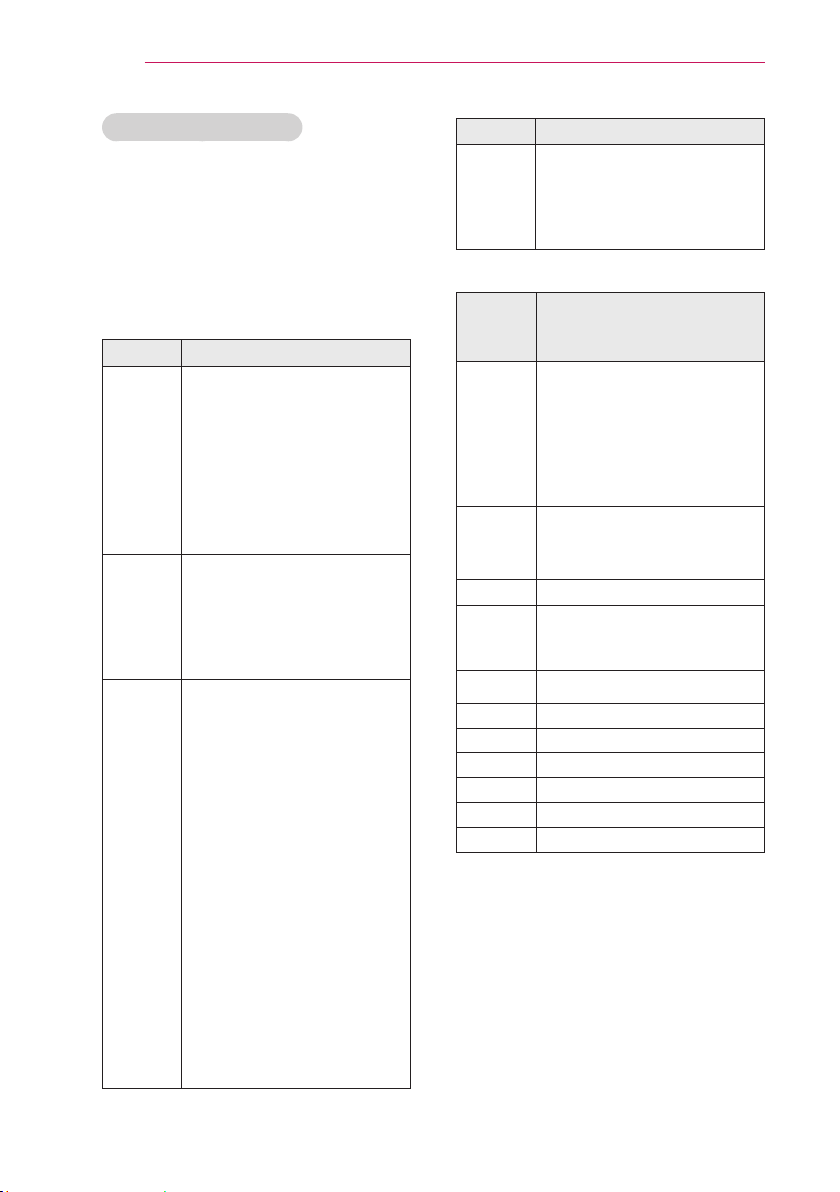
Browsing Movie List
Play a video file stored from a connected
device.
1 Connect a USB storage device.
2 Press the SETTINGS button.
3 Accesses the MY MEDIA.
4 Use the or button to
select Movie List and press the OK
button.
5 Use the orbutton to
select the file you want and press the
OK button.
Description
Thumbnails
Abnormal file
File not supported
File List
Moves to the upper level folder.
Current page/Total no. of folder
pages
Current page/Total no. of file
pages
Moves to the top level folder.
Moves to the upper level folder.
Exit Movie List.
6 Control playback by using the
following buttons.
Q.MENU
Setting Description
Shows the current playing
position. Use buttons
to move forward or backward.
Stops playing and returns to
Movie List.
Returns to normal playback.
Pauses the media player.
If no button is pressed on the
remote control for 10 minutes
after pausing, the playback is
restarted.
Displays in slow motion.
Whenever this button is
pressed, the playback speed
is changed.
: x2, x4, x8, x16, x32
You can use the Energy
Saving mode.
Option A pop-up window will appear.
Hide Hides the playback bar. Press
the OK button to make it
appear.
Exit
Returns to the Movie List
screen.
34
ENTERTAINMENT
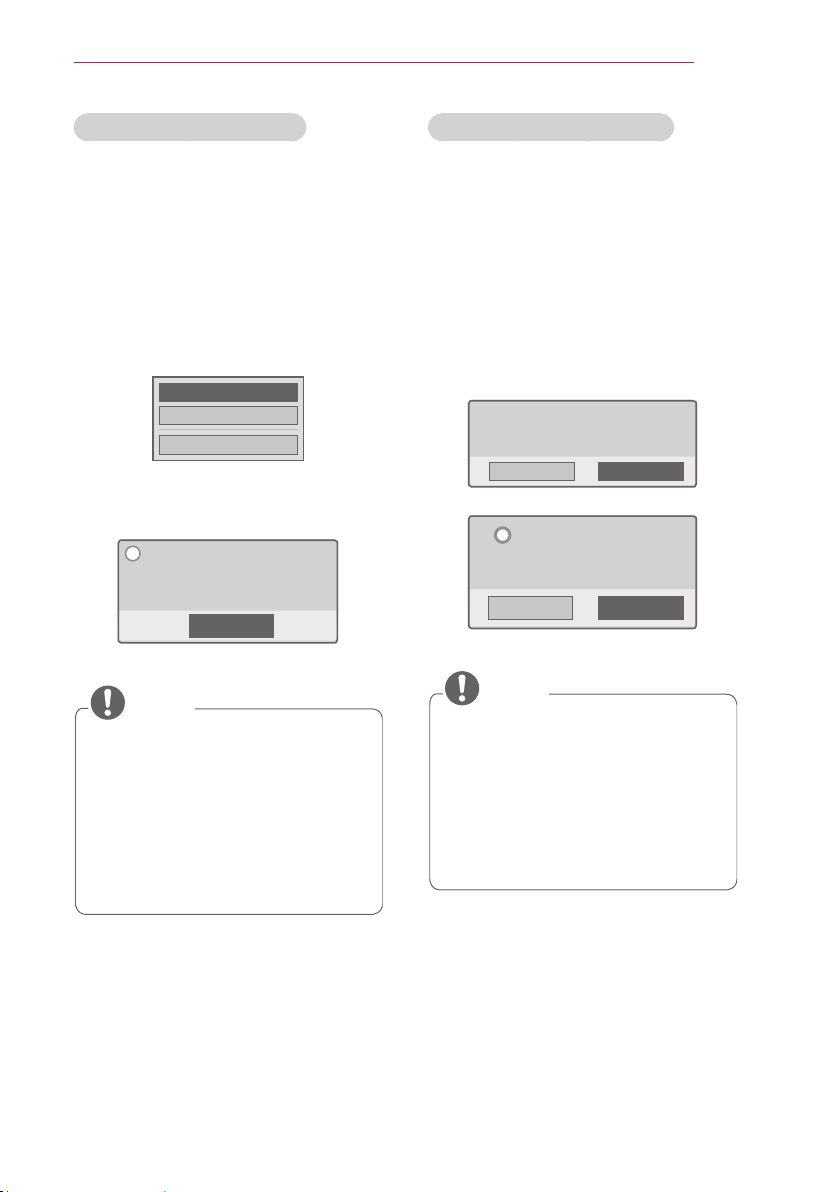
Options for Movie List
1 Press the Q.MENU button.
2 Use the or button to move to a
desired option and press the
OK button.
3 Use orbutton to set up
each item.
Set Video Play.
Setting Description
Picture
Size
Selects the size of a playback
screen.
Full: Files are played in
full screen mode accord-
ing to the aspect ratio of
video.
Original: Displays the
video in the original as-
pect ratio.
Audio
Lan-
guage
Allows you to select the lan-
guage you want for the file
with multiple audio tracks.
This option is not available
if the file has only one audio
track.
Subtitle
Lan-
guage
The subtitle can be turned
on or off.
Language: One of any of
the available languages
can be selected.
Code Page: A character set
used for a subtitle can be
selected.
By default, the subtitle is
displayed in a language
configured in OPTION
Menu Language.
Sync: If a subtitle is not
synchronized with its
video, you can adjust its
speed at 0.5 sec unit.
Position: Moves the loca-
tion of a subtitle.
Size: Changes the sub-
title font size.
Setting Description
Repeat
Turns the repeat function on
or off.
When it is set to off, the next
file can be played sequentially
if the file name is similar.
Subtitle Language
Subtitle
Lan-
guage
Language
Latin1 English, Spanish, Irish,
Welsh, French, German,
Italian, Dutch, Swedish,
Finnish, Portuguese,
Danish, Romanian,
Norwegian, Albanian, Gaelic,
Catalan, Valencian
Latin2 Bosnian, Polish, Croatian,
Czech, Slovak, Slovene,
Serbian, Hungarian
Latin4 Estonian, Latvian, Lithuanian
Cyrillic Bulgarian, Russian,
Ukranian, Kazakh,
Macedonian
Greek Greek
Hebrew Hebrw
Chinese Chinese
Korean Korean
Arabic Arabic
Turkish Turkish
Thai Thai
Set Video.
You can change video settings.
(Refer to "PICTURE Settings" on 43 page)
Set Audio.
You can change audio settings.
(Refer to "AUDIO Settings" on 47 page)
35
ENTERTAINMENT
Registering the DivX code
Please check your DivX code. For more
information on the registration process,
visit www.divx.com/vod. After registra-
tion, your can enjoy DivX VOD content
protected by the DivX DRM code.
1 Press SETTINGS button to enter
Setup menu.
2 Move to OPTION and press DivX(R)
VOD.
3 Press theor button to move to
Registration and press the OK but-
ton.
4 Check the DivX registration code.
NOTE
You cannot use DivX registration
codes assigned to other devices.
Make sure to use the DivX registra-
tion code assigned to your device.
The video or audio files that are
not converted by the standard DivX
codec may be corrupted or not be
played.
To deregister the DivX code
Use the DivX deregistration code to
deactivate the DivX DRM function.
1 Press SETTINGS button to enter
Setup menu.
2 Move to OPTION and press DivX(R)
VOD.
3 Use the orbutton to go to
Deregistration and press the
OK button.
4 Select Yes.
NOTE
What is DRM
[Digital Rights Management]?
This is a technology and service that
prevents the illegal use of digital media
to protect the benefits and rights
of the copyright owner. Files can be
played after the license is verified
through an online method, etc.
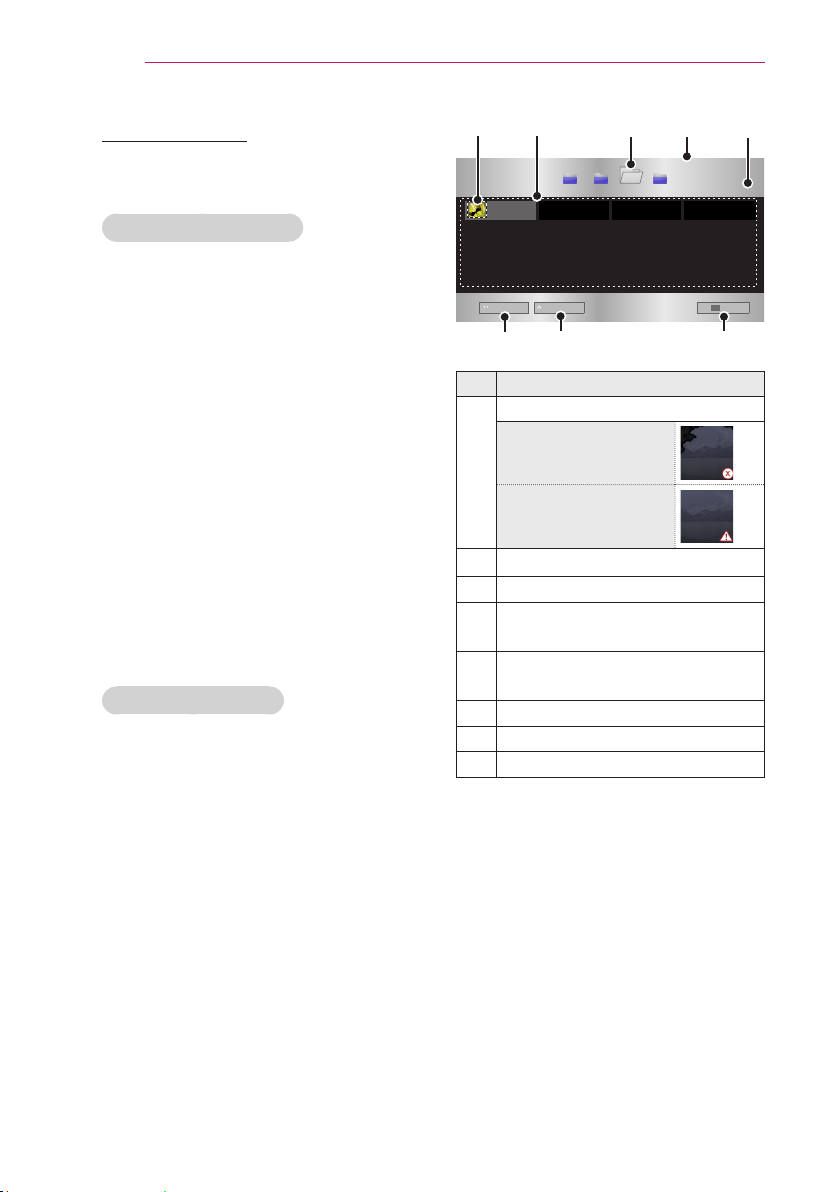
36
ENTERTAINMENT
PHOTO LIST
You can see the photos stored on a
connected device.
Supported Photo Files
PHOTO (*.JPEG)
Baseline: 64-pixel (width) x 64-pixel
(height) - 15360-pixel (width) x
8640-pixel (height)
Progressive: 64-pixel (width) x 64-pixel
(height) - 1920-pixel (width) x 1440-pixel
(height)
Only JPEG files are supported.
Non-supported files are displayed in
the form of an icon.
An error message is displayed for
corrupted files or file formats that
cannot be played.
Corrupted files may not be displayed
properly.
It may take some time to view
high-resolution images in full screen.
Browsing Photo List
1 Connect a USB storage device.
2 Press the SETTINGS button.
3 Accesses the MY MEDIA.
4 Use the orbutton to
select Photo List and press the OK
button.
5 Use the or button to
select the file you want and press the
OK button.
Description
Thumbnails
Abnormal file
File not supported
File List
Moves to the upper level folder.
Current page/Total no. of folder
pages
Current page/Total no. of file
pages
Moves to the top level folder.
Moves to the upper level folder.
Exit
37
ENTERTAINMENT
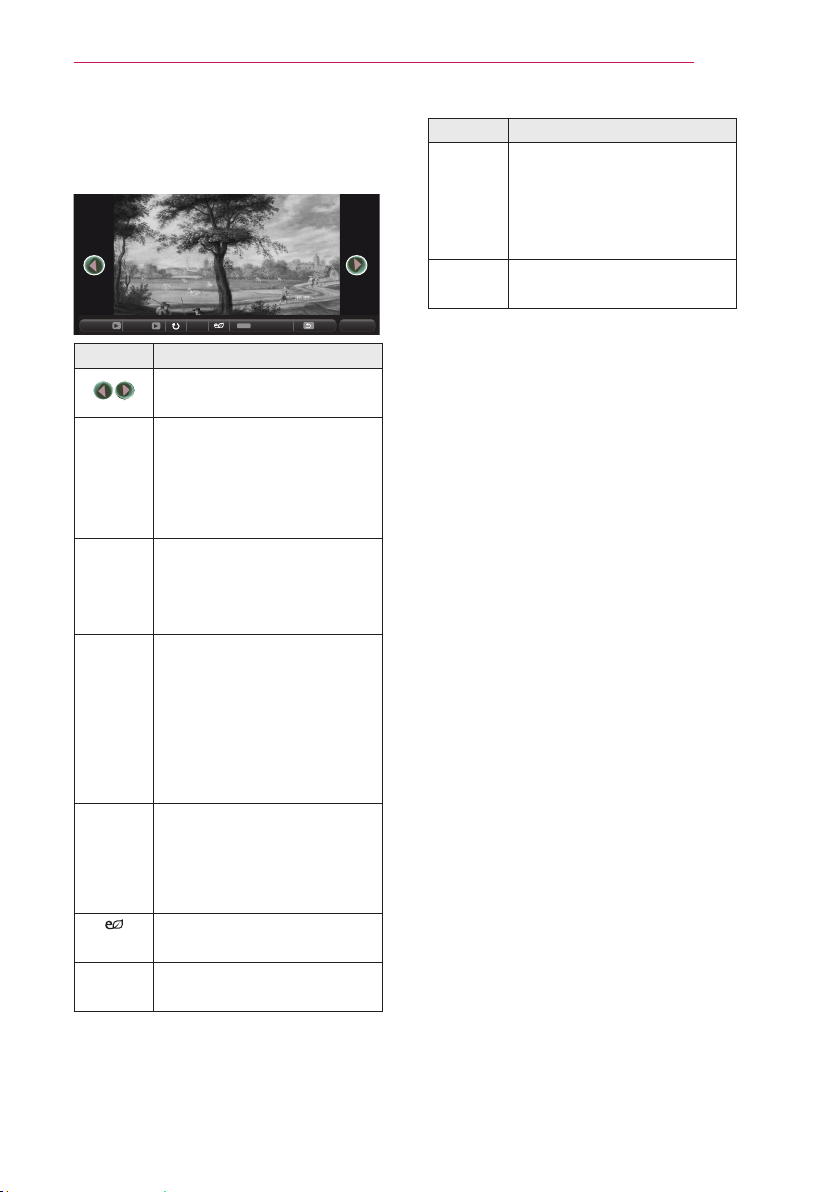
6 Control playback by using the
following buttons.
Q.MENU
ꔦ
Setting Description
Selects the previous or next
photo.
Slide-
show
All photos are displayed
during slide show.
Set the time interval of
the slide show in Option
Set Photo View menu.
BGM You can listen to music while
viewing photos in full size.
Set the BGM in Option
→
Set Photo View menu.
Rotates photos.
Rotates a photo 90 °, 180 °
,
270 °, 360 ° clockwise.
Photos cannot be rotated
if their width is greater
than the height of the
max. supported resolution.
You can move between
screens using the navigation
buttons.
Press the blue button to
enlarge the image.
You can use the Energy
Saving mode.
Option A pop-up window will
appear.
Setting Description
Hide Hides the menu on the full
size screen.
To see the menu, press
the OK button on the
remote control.
Exit Exit from full screen photo
view.
38
ENTERTAINMENT
Options for Photo List
1 Press the Q.MENU button.
2 Use the orbutton to move to a
desired option and press theOK
button.
3 Use rbutton to set up
each item.
Set Photo View.
Setting Description
Slide
speed
Selects a slideshow speed.
BGM
(Back-
ground
Music)
Selects a music folder for
the background music.
You cannot change the
music folder while the
background music is
playing.
For background music,
only the folder from the
same device can be
selected.
Repeat Selects repeat.
Random Selects random play.
Set Vidio.
You can change video settings.
(Refer to "PICTURE Settings" on 43 page)
Set Audio.
You can change audio settings.
(Refer to "AUDIO Settings" on 47 page)
MUSIC LIST
You can play audio files stored on the
connected device.
Supported Music Files
*.MP3
Bit rate range 32 Kbps - 320 Kbps
Sampling rate MPEG 1 Layer 3:
32 kHz, 44.1 kHz, 48 kHz
Sampling rate MPEG 2 Layer 3:
16 kHz, 22.05 kHz, 24 kHz
Browsing Music List
1 Connect a USB storage device.
2 Press the SETTINGS button.
3 Accesses the MY MEDIA.
4 Use the button to
selectMusic List and press the OK
button.
5 Use the rbutton to
select the file you want and press the
OK button.
39
ENTERTAINMENT
Setting Description
Hide Hides the playback bar.
Press the OK button to
make the playback bar
appear.
Exit Returns to the Music List
screen.
Options for Music List
1 Press the Q.MENU button.
2 Use the orbutton to move to a
desired option and press theOK
button.
3 Use rbutton to set up
each item.
Set Audio Play.
Setting Description
Repeat Selects repeat play.
Random Selects random play.
Set Audio.
You can change audio settings.
(Refer to "AUDIO Settings" on 47 page)
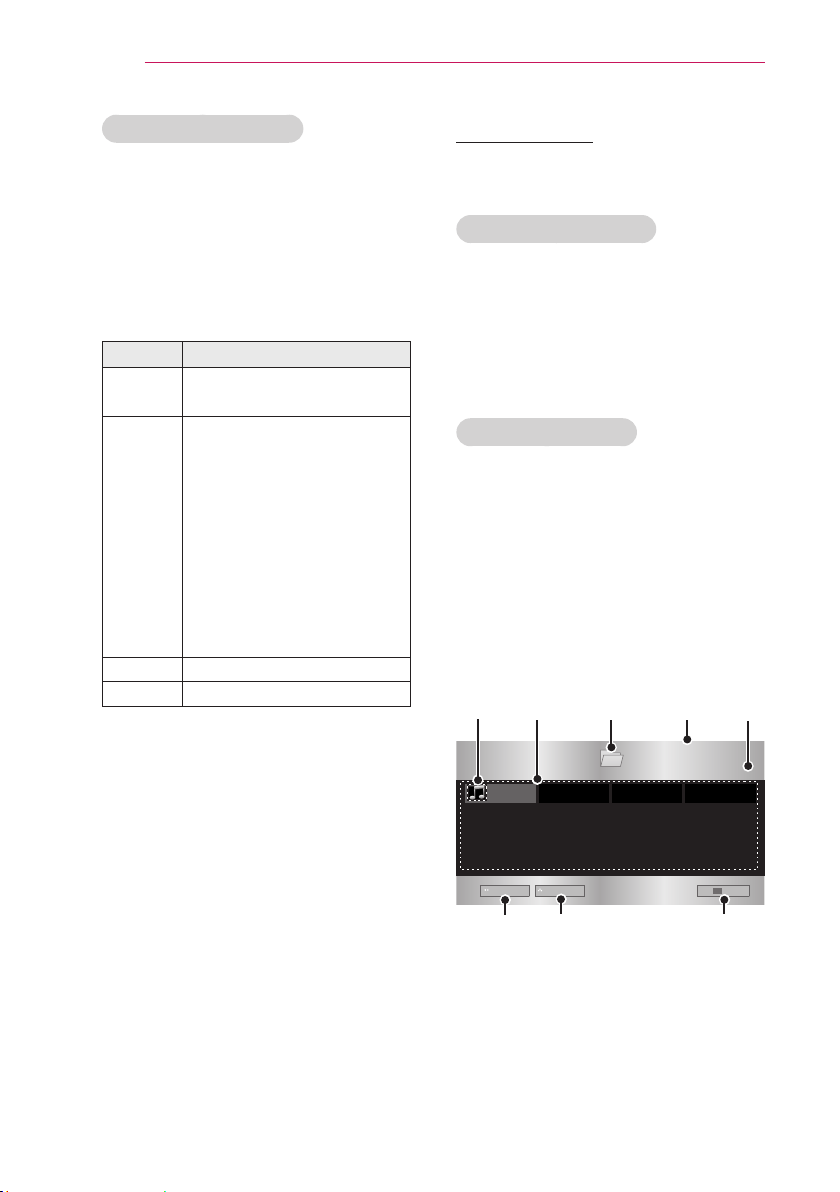
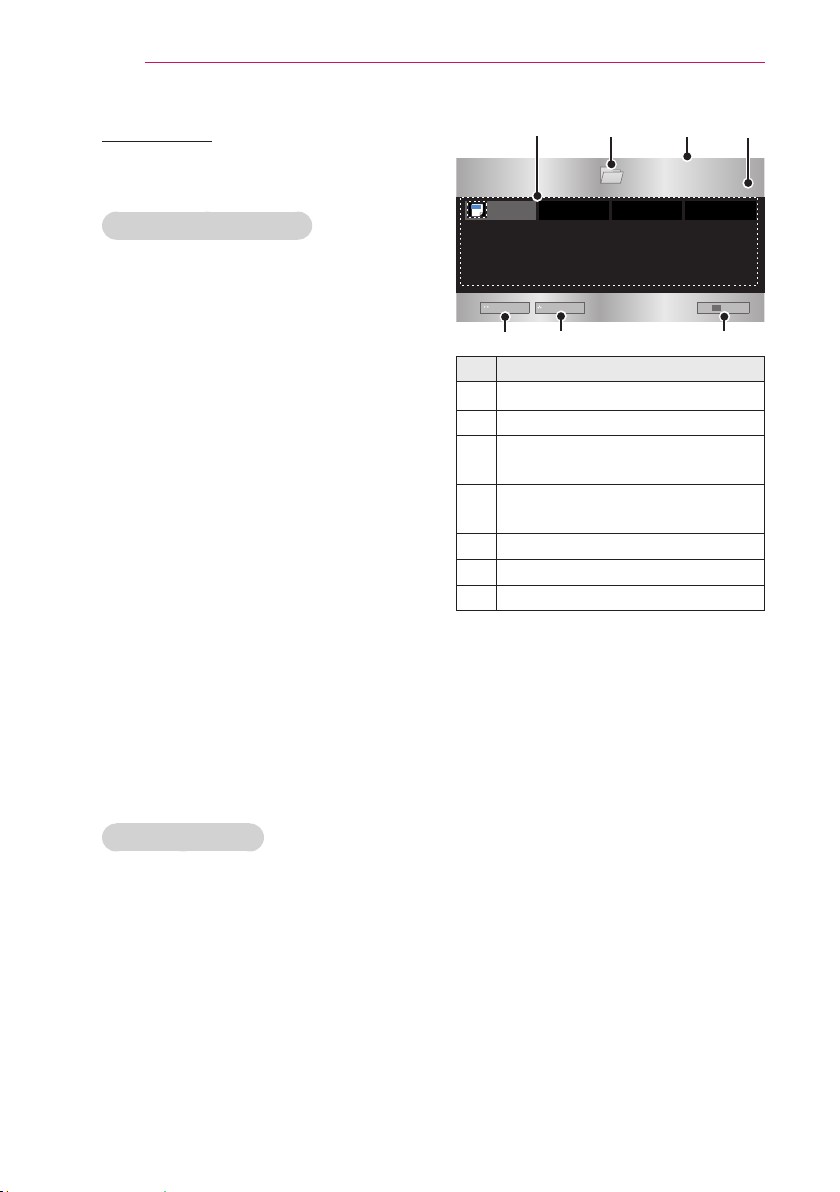
Description
Thumbnails
Abnormal file
File not supported
File List
Moves to the upper level folder.
Current page/Total no. of folder
pages
Current page/Total no. of file
pages
Moves to the top level folder.
Moves to the upper level folder.
Exit
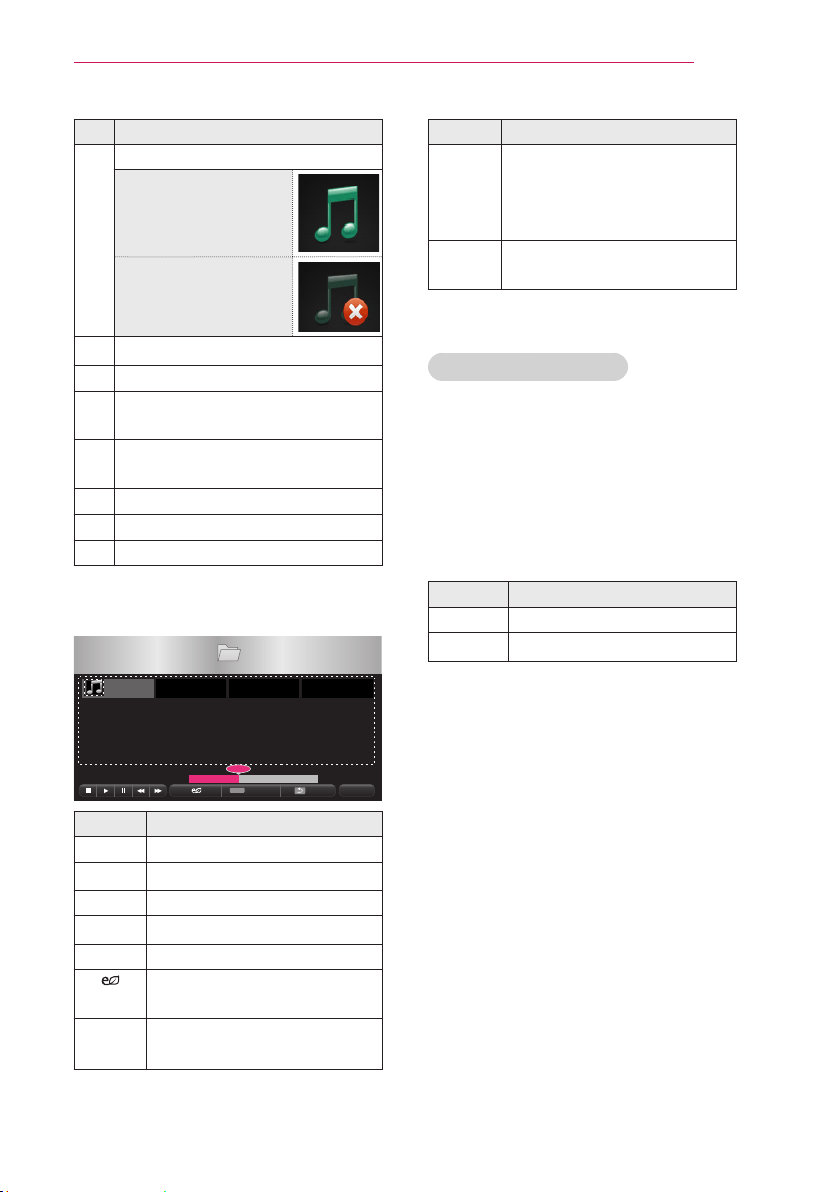
6 Control playback by using the follow-
ing buttons.
Q.MENU
Setting Description
Changes the playing position.
Stops playing.
Returns to normal playback.
Pauses the media player.
Plays the previous/next file.
You can use the Energy
Saving mode.
Option Sets up the options of Music
List.
40
ENTERTAINMENT
FILE LIST
You can see document files stored on a
connected device.
Supported File Formats
XLS, DOC, PPT, TXT, XLSX, PPTX,
DOCX, PDF
Microsoft Office
97/ 2000/ 2002/ 2003/ 2007
Adobe PDF 1.0/ 1.1/ 1.2/ 1.3/ 1.4
File Viewer realigns a document, so
it may look different from what is
displayed on a PC.
For documents that include images,
the resolution may look lower during
the realigning process.
If the document volume is big or it
has many pages, it may take longer
to load the document.
Unsupported fonts may be replaced
by other fonts.
The file viewer may not open for
Office documents that contain many
high resolution images.In that case,
reduce the image file size, save it on
a USB storage device and run the
file viewer again or connect your PC
to the projector and open the file on
your PC.
Browsing File List
1 Connect a USB storage device.
2 Press the SETTINGS button.
3 Accesses the MY MEDIA.
4 Use the rbutton to
selectFile List and press the OK
button.
5 Use the rbutton to
select the file you want and press the
OK button.
DO
C
HWP PDF
PPT TXT XLS
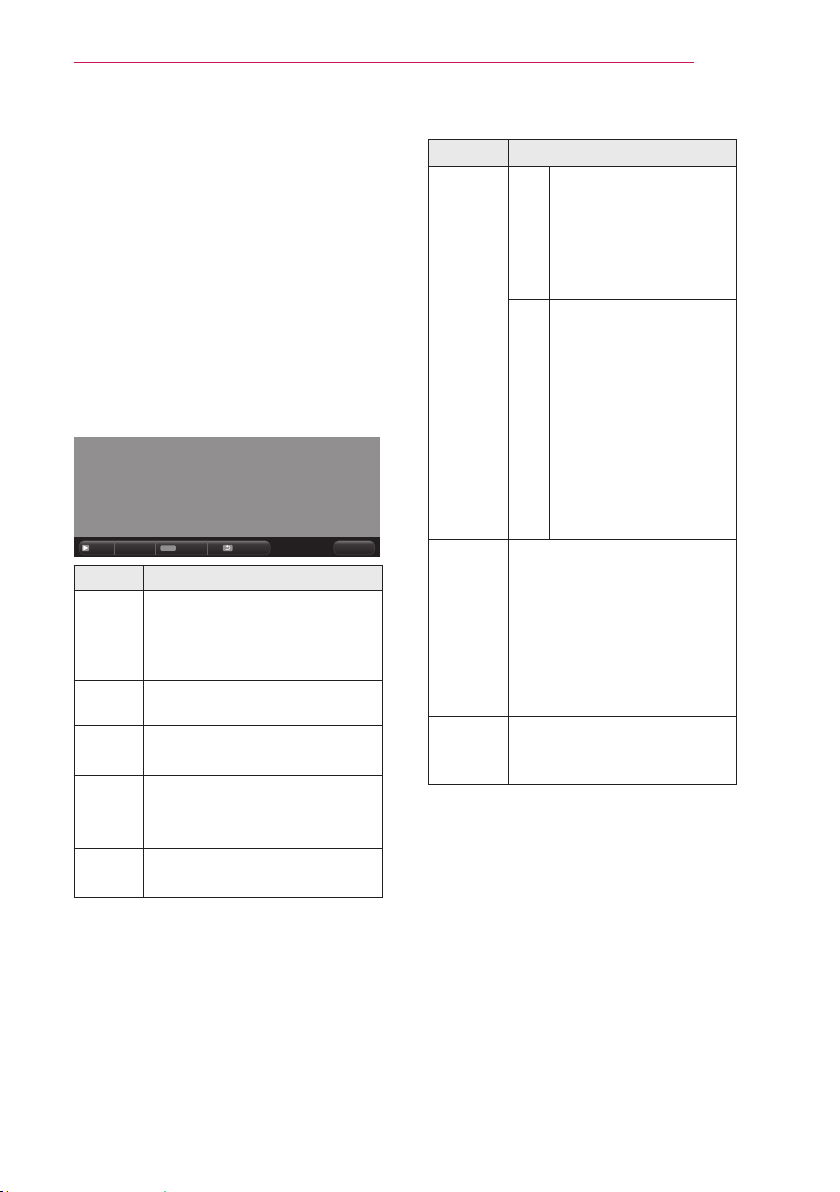
Description
File List
Moves to the upper level folder.
Current page/Total no. of folder
pages
Current page/Total no. of file
pages
Moves to the top level folder.
Moves to the upper level folder.
Exit
41
ENTERTAINMENT
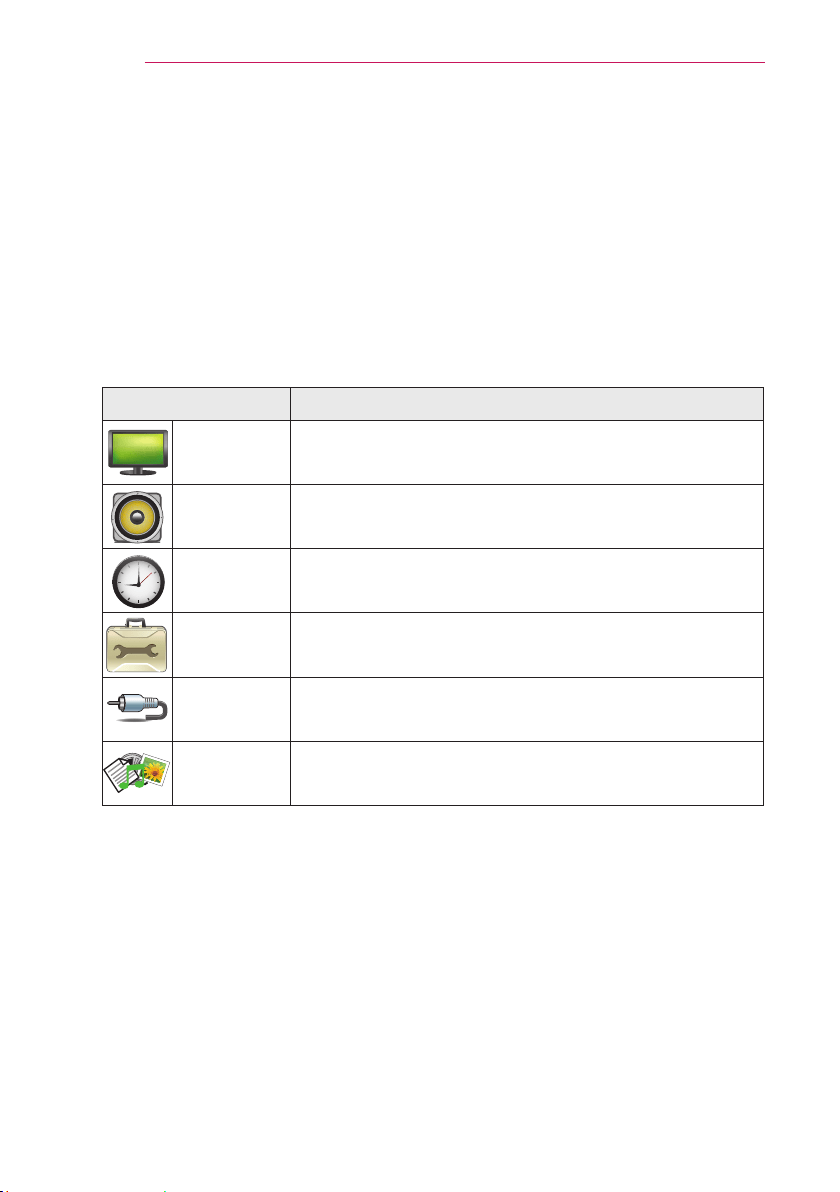
6 Control playback by using the follow-
ing buttons.
Click Go Page then the pop-up
window for selecting the number of
page appears.
Input the page to move to the page
you want.
Press the volume button to zoom in
or zoom out.
1. Press OK.
2. Press the Up/Down/Left/Right
buttons to move to Go Page or
Zoom.
Q.MENU
ꔦ
Setting Description
Go
Page
Moves to the page you want.
Use the Up/Down/Left/Right
buttons to select a page and
press the OK button.
Zoom Views the photo in full mode
or original mode.
Option Sets up the options of File
Viewer.
Hide Hides the menu.
Press the OK button to
make it appear.
Exit Returns to the File Viewer
screen.
Set FileViewer Option
Setting Description
Single
Page
Loading
On Loads and displays
pages one by one. The
initial loading time is
short but a content-
heavy page may be
displayed slowly.
Off Loads all pages of a
file to memory before
it starts to display
them. The initial
loading time is long
but you can navigate
pages quickly after
loading is complete.
If a file is too large, it
may fail to load all the
pages.
Image
QuaIity
You can set the quality of
the image included in the
document. The following
three options are available
for the image quality: High,
Medium, Low. Higher the
image quality, lower the
display time.
Docu-
ment
Align
Selects initial document
align method.
File View settings are default, so close
the currently opened document to apply
changes to the new document, if any.
42
CUSTOMIZING SETTINGS
CUSTOMIZING SETTINGS
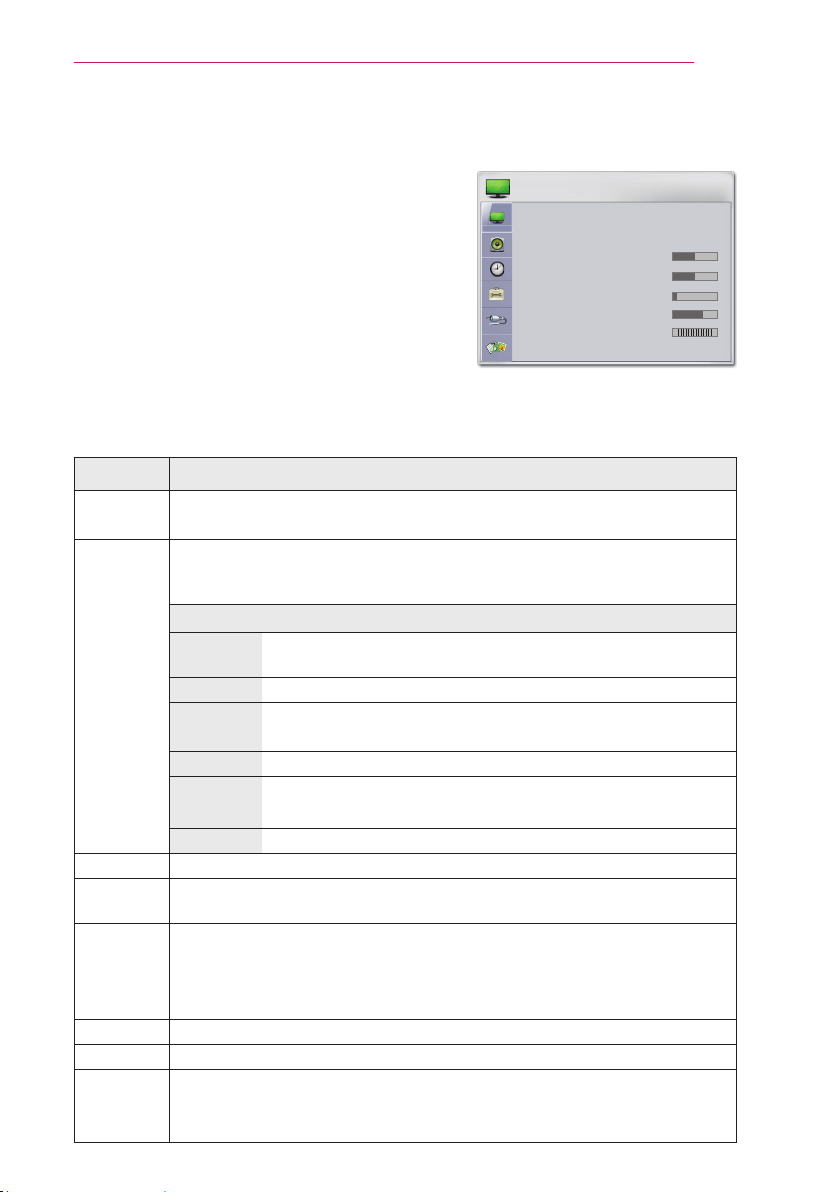
SETUP Menu
1 Press the SETTINGS button.
2 Use the or button to select a desired item and press theOK button.
3 Use the or button to set up a desired item and press theOK button.
4 When you finished, press EXIT.
Menu Description
PICTURE Adjusts the image quality for optimal viewing.
AUDIO Adjusts the sound quality and volume level.
TIME Sets the time and time-related features.
OPTION Customizes the general settings.
INPUT Selects the desired input source.
MY MEDIA Accesses photo, music, movie, and document files.
43
CUSTOMIZING SETTINGS
PICTURE Settings
1 Press the SETTINGS button.
2 Use the orbutton to select PICTURE
and press the OK button.
3 Use the or button to set up a desired
item and press the OK button.
- To return to the previous menu, press the
button.
4 Press the EXIT button when completed.
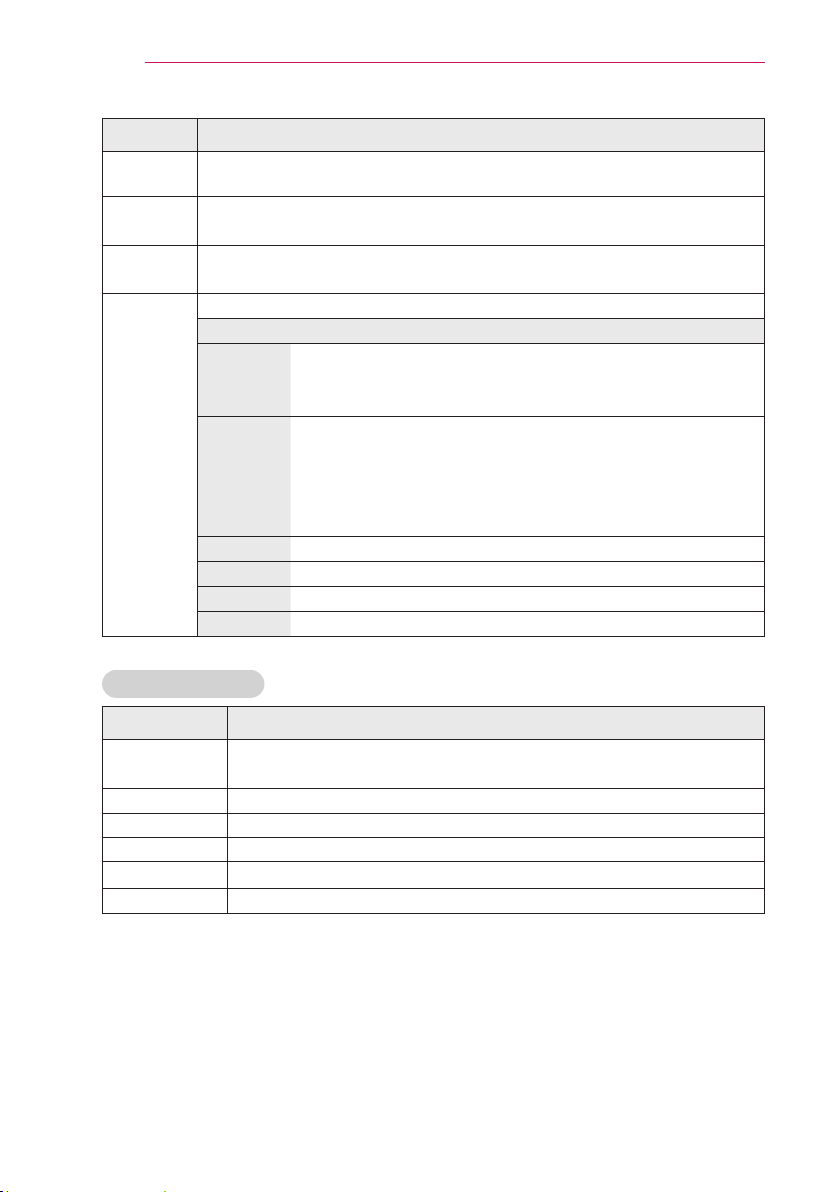
The available picture settings are described as follows.
Setting Description
Energy
Saving
Reduces the power consumption by adjusting the screen brightness.
Picture
Mode
Selects one of the preset images or customizes options in each mode
for the best screen performance.
You are also able to customize advanced options of each mode.
Mode
Vivid Maximizes the visual effect of video. Displays a crystal clear
picture by enhancing contrast, brightness, and sharpness.
Standard Has the contrast, brightness, and sharpness at normal levels.
Eco The Energy Saver feature changes settings on the Projector
to reduce power consumption.
Cinema Optimizes the image for movie.
GAME Optimizes the image for playing games on fast-moving
screens.
Expert 1/2 Adjusts the detailed image settings.
Contrast Increases or decreases the gradient of the video signal.
Brightness Adjusts the base level of the video signal to make the image brighter or
darker.
Sharpness Adjusts the level of sharpness in the edge between the light and dark
areas of the picture. The lower the level is, the softer the image looks.
Horizontal and Vertical Sharpness are available only in Cinema and
Expert1/2.
Color Adjusts the intensity of all colors.
Tint Adjusts the balance between red and green levels.
Advanced
/ Expert
Control
Customizes the advanced settings.
44
CUSTOMIZING SETTINGS
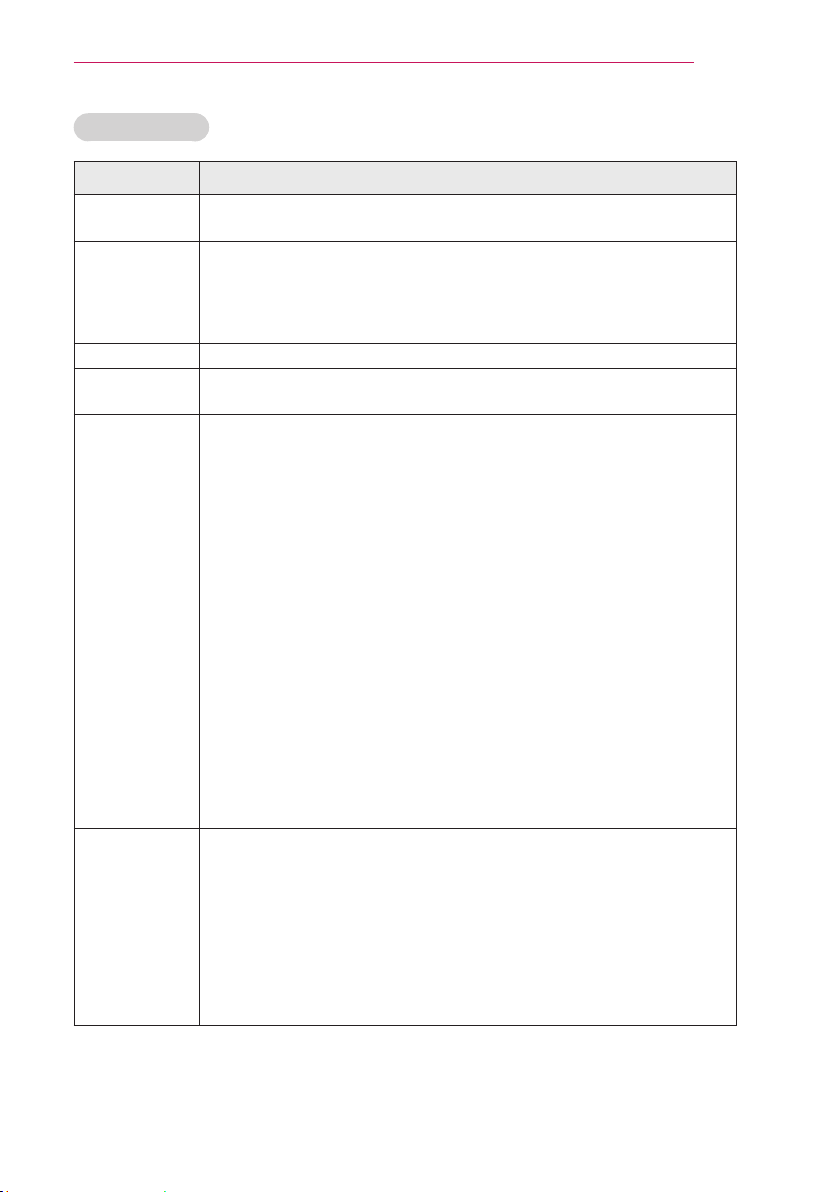
Setting Description
Picture
Option
Sets optional settings.
Picture
Reset
Restores the options of each mode to the factory default.
Aspect
Ratio
Changes the image size to view images at its optimal size.
Screen
(RGB-PC)
Adjusts the picture quality of RGB-PC input.
Option
Resolution Available resolutions are 768 resolution (1024 x 768/
1280 x 768/ 1360 x 768, 60 Hz) and 1050 resolution (1400
x 1050/ 1680 x 1050, 60 Hz).
Auto
Config.
Provides optimized picture quality by automatically calibrat-
ing the mismatch of horizontal width and picture shake
caused by clashes between the internal settings of the pro-
jector and various PC graphic signals.
You can also use the AUTO button on the remote control.
Position Moves the image up/down/left/right.
Size Changes the screen size.
Phase Makes the picture look clear by removing horizontal noise.
Reset
Restores all the settings to the factory default.
Advanced Control
Setting Description
Dynamic
Contrast
Adjusts the contrast to keep it at the best level according to the bright-
ness of the screen.
Dynamic Color
Adjusts screen colors so that they look natural.
Skin Color Adjusts the skin color in the picture to your preference.
Sky Color Adjusts only the color of the sky.
Grass Color Adjusts only the natural color area of e.g., field and mountain.
Gamma
Sets a gradation curve between video input and output signal.
45
CUSTOMIZING SETTINGS
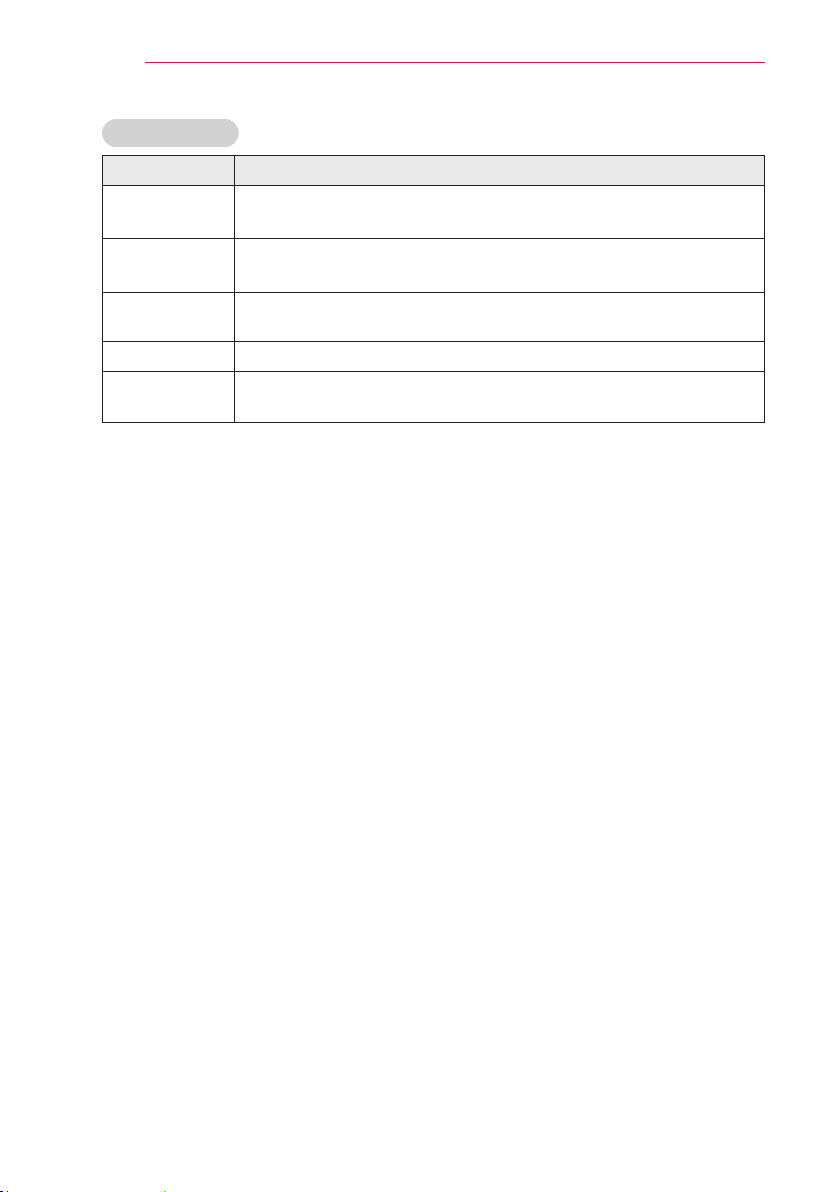
Expert Control
Setting Description
Dynamic
Contrast
Adjusts the contrast to keep it at the best level for the brightness of
the screen.
Color Gamut Selects the range of colors to display.
Standard: Displays the original colors of an input signal regardless
of the display features.
Wide
:
Sets to use the rich colors of the display.
Edge Enhancer Provides much sharper and clearer edges to the picture.
Color Filter Accurately adjusts color and tint by filtering a specific color area of
RGB space.
Color
Temperature
Gamma
Sets a gradation curve between video input and output signal.
a. Method: 2 points
- Pnttern: Inner, Outer
- Points: Low, High
- Red/Green/Blue: The adjustment range is -50 - +50.
- Apply to all inputs: The values of the Color Temperature is applied
to all the input modes.
b. Method: 10 points IRE
- Pattern: Inner, Outer
- Institute of Radio Engineers (IRE) is the unit indicating the size of a
video signal and can be set to 5, 10, 15, ... 100. You can fine-tune for
each setting as shown below.
- Luminance: If you set up luminance for 100 IRE, a luminance value
satisfying each gamma is automatically calculated for
each step from 10 IRE to 90 IRE.
- Red/Green/Blue: The adjustment range is -50 - +50.
- Apply to all inputs: The values of the Color Temperature is applied
to all the input modes.
Color
Management
system
Adjusts Red/Green/Blue/Cyan/Magenta/Yellow colors. Allows an
expert to adjust the tint using a test pattern. Six colors (Red/Green/
Blue/Cyan/Magenta/Yellow) can be selectively adjusted without
affecting other colors.
You may not see colors change on a normal picture even after
adjustment.
Chroma Red/Green/Blue/Yellow/Cyan/Magenta,
Tone Red/Green/Blue/Yellow/Cyan/Magenta:
The adjustment range is -30 - +30 each.
* Available options may differ depending on the input signal or video mode, etc.
46
CUSTOMIZING SETTINGS
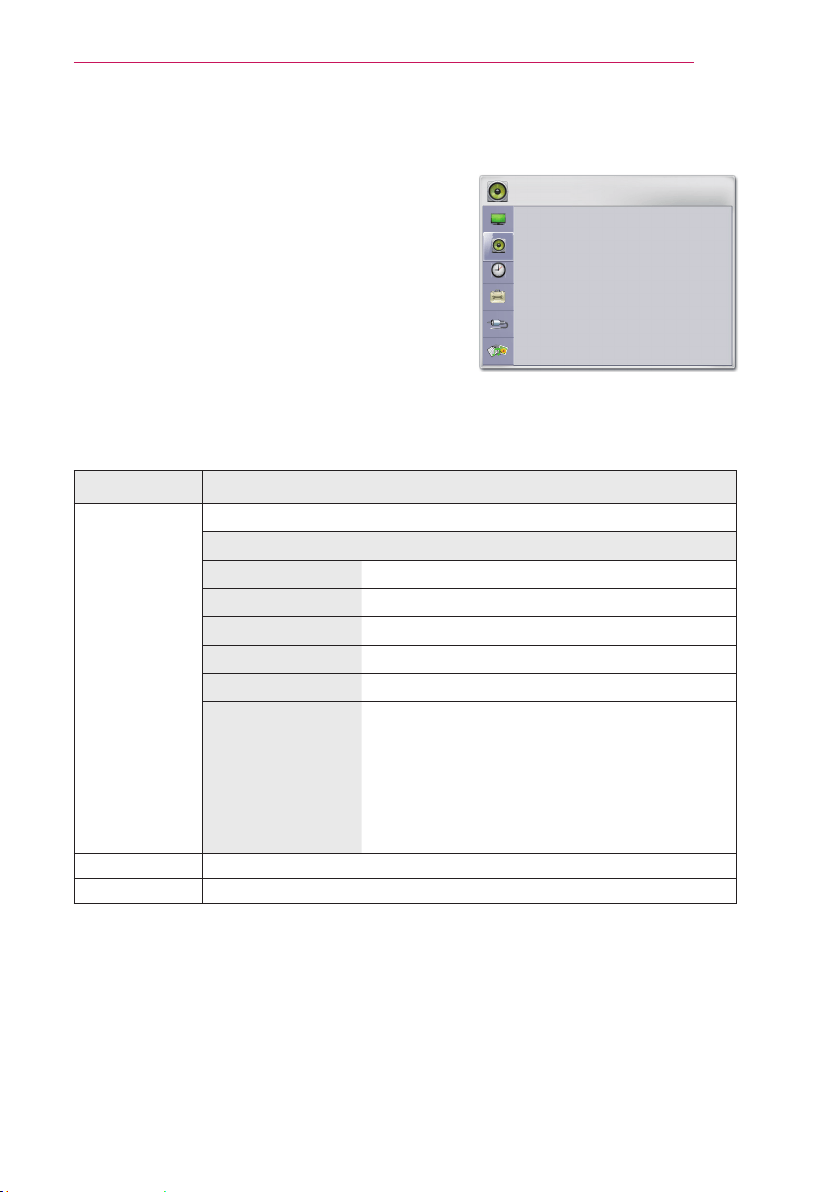
Picture Option
Setting Description
Noise
Reduction
Removes noises in the picture.
MPEG Noise
Reduction
Reduces the noise produced while creating digital video signals.
Black Level
Compensates the brightness and contrast of a screen to balance with
the black level of the video input.
Real Cinema
Provides optimal picture quality for watching a movie.
Color
Temperature
Adjusts the overall color of the screen to suit your preference.
You can
select Warm, Cool, Medium or Natural.
47
CUSTOMIZING SETTINGS
AUDIO Settings
1 Press the SETTINGS button.
2 Use the or buttons to selectAUDIO
and press the OK button.
3 Use the or button to set up a desired
item and press the OK button.
- To return to the previous menu, press the
button.
4 Press the EXIT button when completed.
The available audio settings are described as follows.
Setting Description
Sound Mode Adjusts sound.
Option
Standard Select when you want standard-quality sound.
Music Select when you listen to music.
Cinema Select when you watch movies.
Sport Select when you watch sports events.
Game Select when you play games.
User setting Adjusts the volume to the desired level using
the User EQ.
Audio-band(100Hz / 300Hz/ 1kHz/ 3KHz/
10KHz) can be adjusted from -10 to 10
Reset: Restores all the settings to the factory
default.
Clear Voice II Makes the voice from the projector crisp and clear.
Auto Volume Automatically adjusts the volume level.
48
CUSTOMIZING SETTINGS
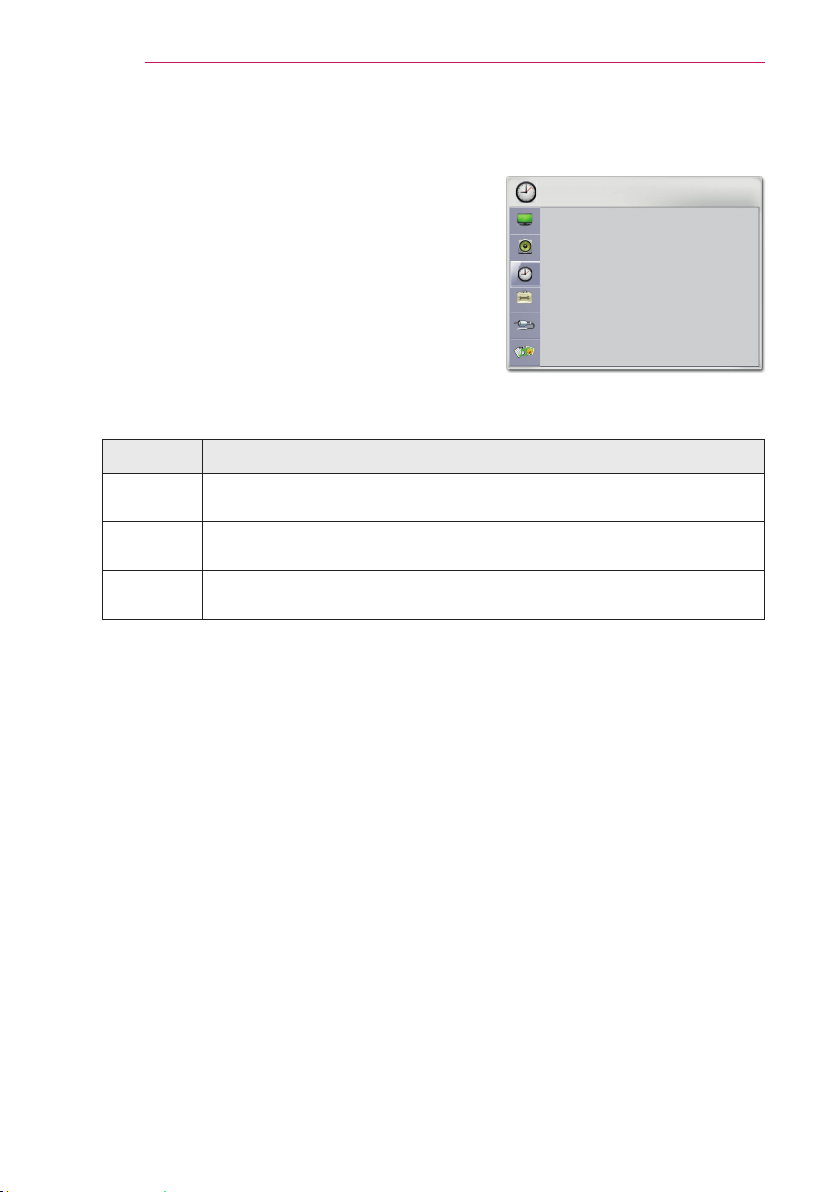
TIME Settings
1 Press the SETTINGS button.
2 Use the or button to selectTIME
and press the OK button.
3 Use the or button to set up a desired
item and press the OK button.
- To return to the previous menu, press the
button.
4 Press the EXIT button when completed.
The available time settings are described as follows.
Setting Description
Sleep
Timer
Sets the length of time until the projector turns off.
Auto Off If there is no signal, the projector automatically turns off after the preset
time has elapsed.
Automatic
Standby
If there is no press any button when Automatic Standby function is on,
the Projector automatically switches to the standby mode.
49
CUSTOMIZING SETTINGS
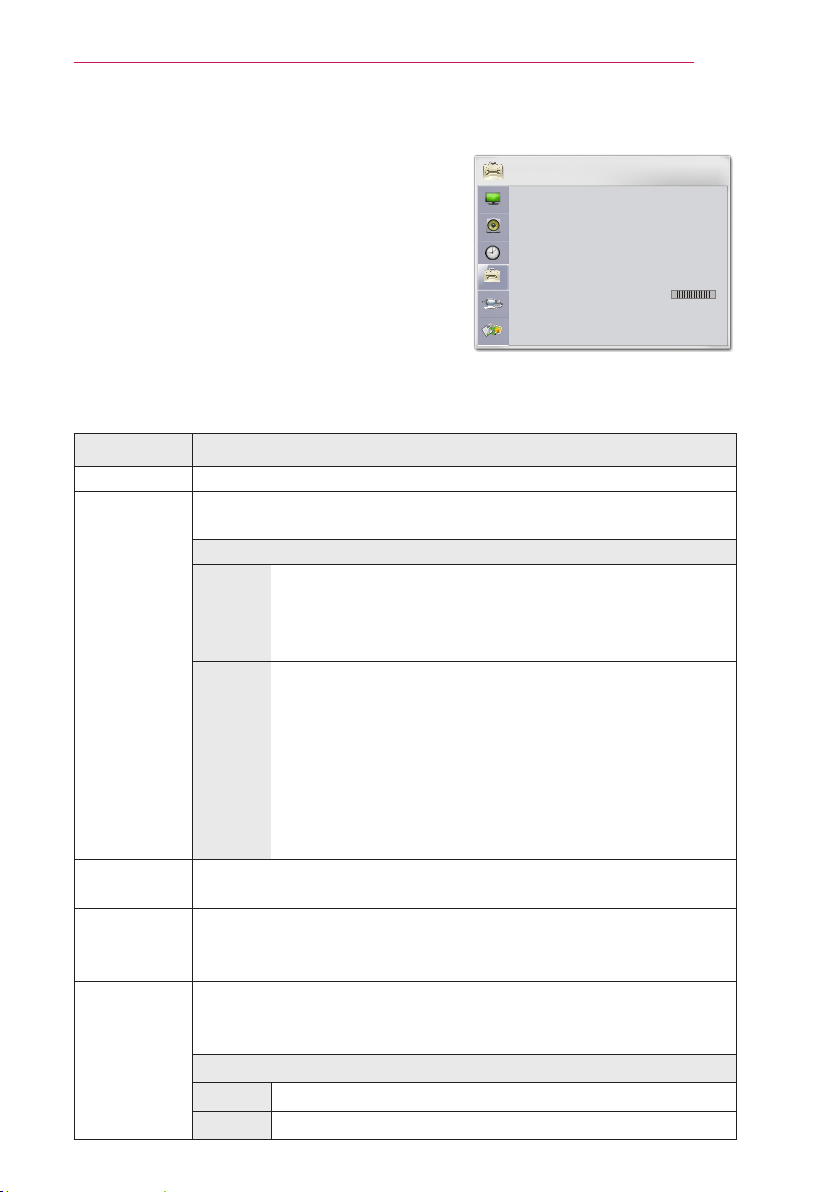
OPTION Settings
1 Press the SETTINGS button.
2 Use the or button to select OPTION
and press the OK button.
3 Use the orbutton to set up a desired
item and press theOK button.
- To return to the previous menu, press the
button.
4 Press the EXIT button when completed.
The available option settings are described as follows.
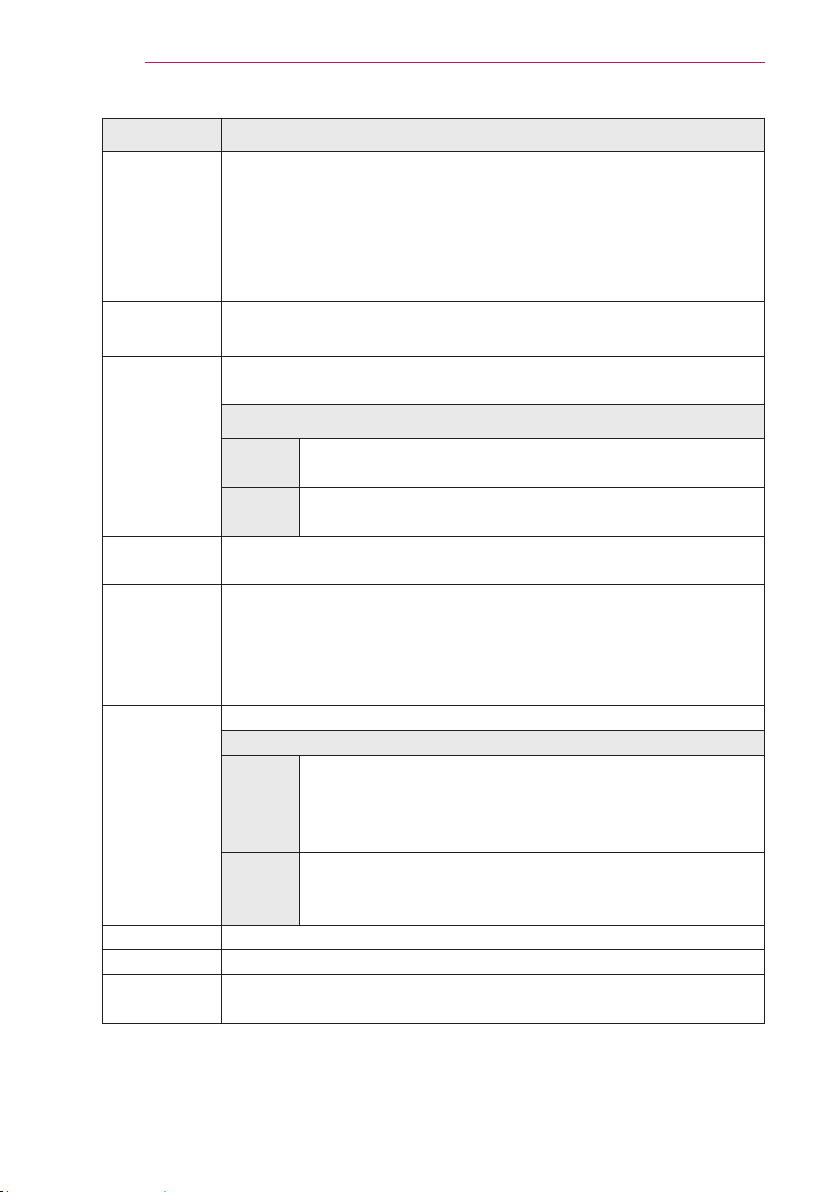
Setting Description
Language Selects a desired menu language.
SCREEN
SHARE
The SCREEN SHARE displays the screen of the connected device.
You can check the SCREEN SHARE's ID.
Mode
Group This is the Group setting for each device supporting the
SCREEN SHARE feature. When the wireless connection is
weak or unstable, adjust the Group setting to correct the
problem.
Channel You can change the channel used for wireless connections.
Search Channels: Select channel searching methods.
- Auto: The projector searches for available channels and
automatically selects the least used channel.
- Manual: You can select a channel manually.
Channel: This is shown when Search Channels is set to
Manual. It allows you to specify a channel number to
use.
Caption If the language for the AV input is set to Korean, captions can be
turned on or off.
Keystone To prevent the screen image from becoming trapezoidal, Keystone
adjusts the top and bottom width of the image if the projector is not
set at a right angle to the screen.
Auto
Keystone
Auto Keystone provides a rectangular screen image by automatically
adjusting the Keystone number when there is a trapezoidal screen im-
age caused by tilting of the projector.
Option
ON Automatically adjusts the Keystone number.
Off Manually adjusts the Keystone number.
50
CUSTOMIZING SETTINGS
Setting Description
PJT Mode This function turns the projected image upside down or flips horizontal.
Select Rear when projecting from the back of the transparent
screen purchased separately.
Select Ceiling when installing the product on the ceiling.
When PJT Mode is Front/Front Ceiling/Rear/Rear Ceiling, the left/
right of the speaker changes automatically.
Blank
Image
Selects a background for blank Image.
(see 26 page)
Auto Power Makes the projector turn on automatically when the adaptor plug is
inserted.
Option
On When the DC plug is connected to the projector, it turns on
automatically.
Off When the DC plug is connected to the projector, it goes
into standby mode.
Auto Input
Search
Automatically searches and displays an input signal type when it is
received.
High Altitude If the projector is used at an altitude higher than 1200 meters, turn
this on.
Otherwise, the projector may overheat or its protection function may
be activated. If this happens, turn the projector off and then on again
after waiting for several minutes.
Standby
Light
Adjusts the LED button indicator.
Option
On When the buttons are touched, their indicators are all
turned on at maximum brightness. In standby mode, all
LED indicators are turned on at 20 % of the maximum
brightness.
Off When the buttons are touched, their indicators are all
turned on at maximum brightness. In standby mode, all
LED indicators are turned off.
DivX(R) VOD Sets DivX related settings.
Initial Setting Resets all the projector settings to the factory default.
Self
Diagnosis
Troubleshoots functional problems that can arise while using the
product.
51
MAKING CONNECTIONS
MAKING CONNECTIONS
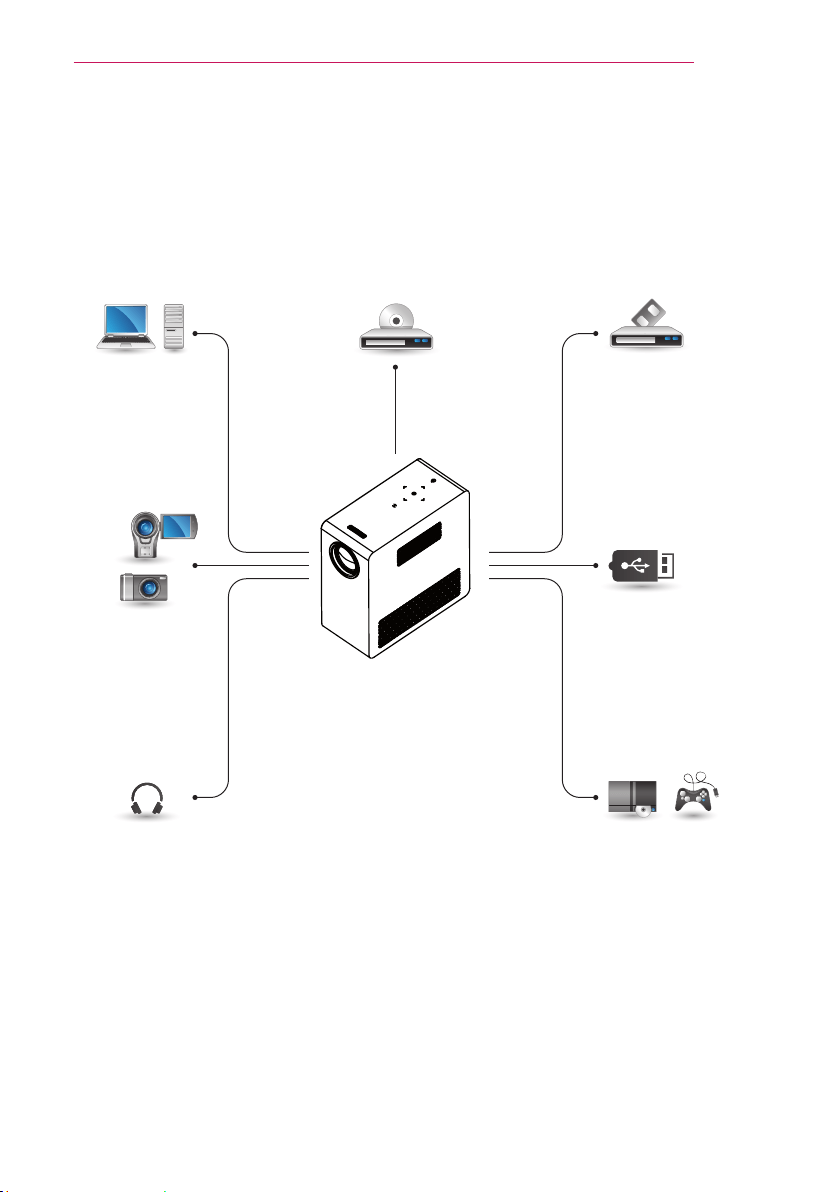
You can connect various external devices to the ports on the projector.
Computer/Notebook VideoDVD
Digital Device
USB
Headphones
Game Console
HDMI - Page 52
Component - Page 54
Input(AV) - Page 53
RGB - Page 52
USB Devices - Page 28
Headphones - Page 54
HDMI/DVI
RGB IN
A/V IN
52
MAKING CONNECTIONS
Connecting to an HD
Receiver, DVD Player or
VCR
Connect an HD receiver, DVD Player or
VCR to the projector and select an
appropriate input mode.
HDMI Connection
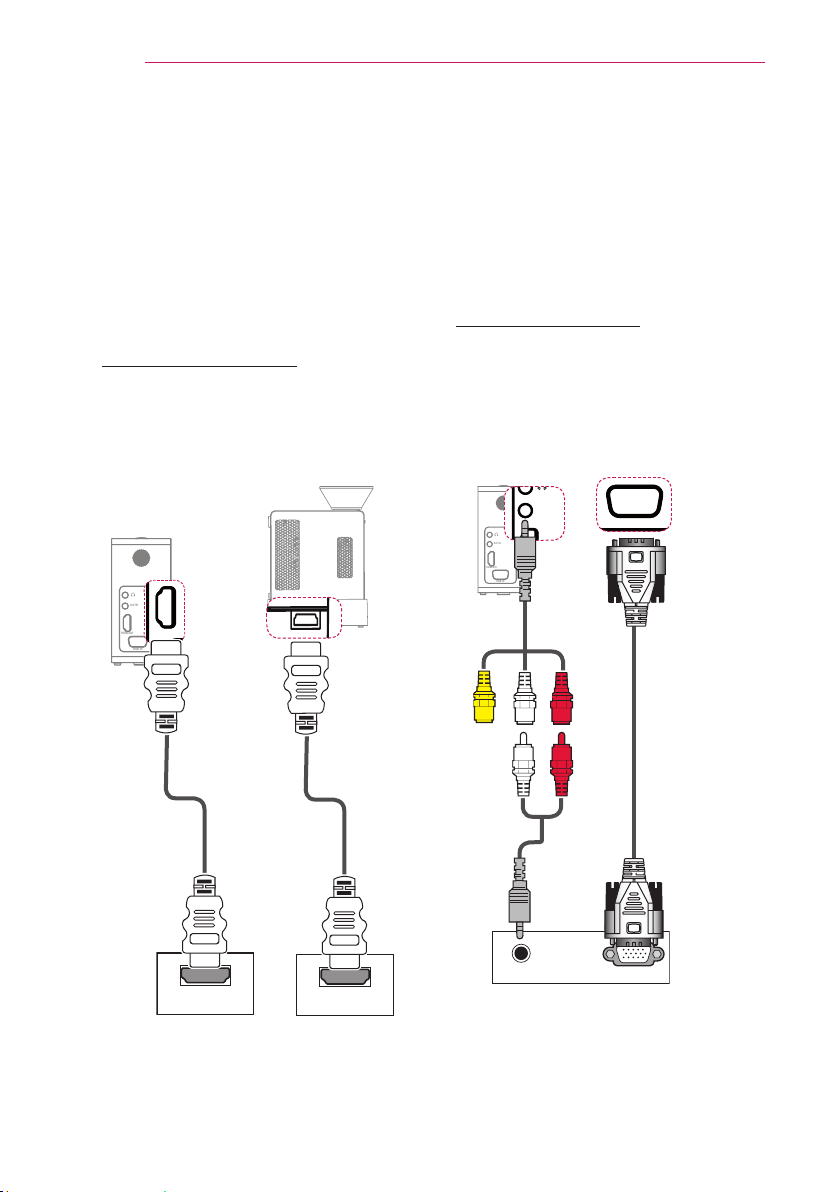
With an HDMI cable, you can enjoy high
quality picture and sound. Press the
INPUT button on the remote control to
select HDMI.
HDMI/DVI
RGB IN
A/V IN
HDMI/DVI
RGB IN
A/V IN
+'0,
Connecting to a PC
The projector supports Plug & Play.
A PC will automatically recognize the
projector and requires no driver to be
installed.
RGB Connection
Connect the PC output and the PC
video input port of the projector with the
RGB cable.
For audio signal, connect the PC and the
projector with an optional audio cable.
HDMI/DVI
RGB IN
A/V IN
HDMI/DVI
RGB IN
A/V IN
$8',2287
5*%2873&
YELLOW
WHITE
RED
WHITE
RED
Accessories
Accessories
Optional
Extras
HDMI/DVI
RGB IN
A/V IN
Optional
Extras
Optional
Extras
DC IN
DC IN
DC IN
DC IN
+'0,
HDMI Gender
(Accessories)
53
MAKING CONNECTIONS
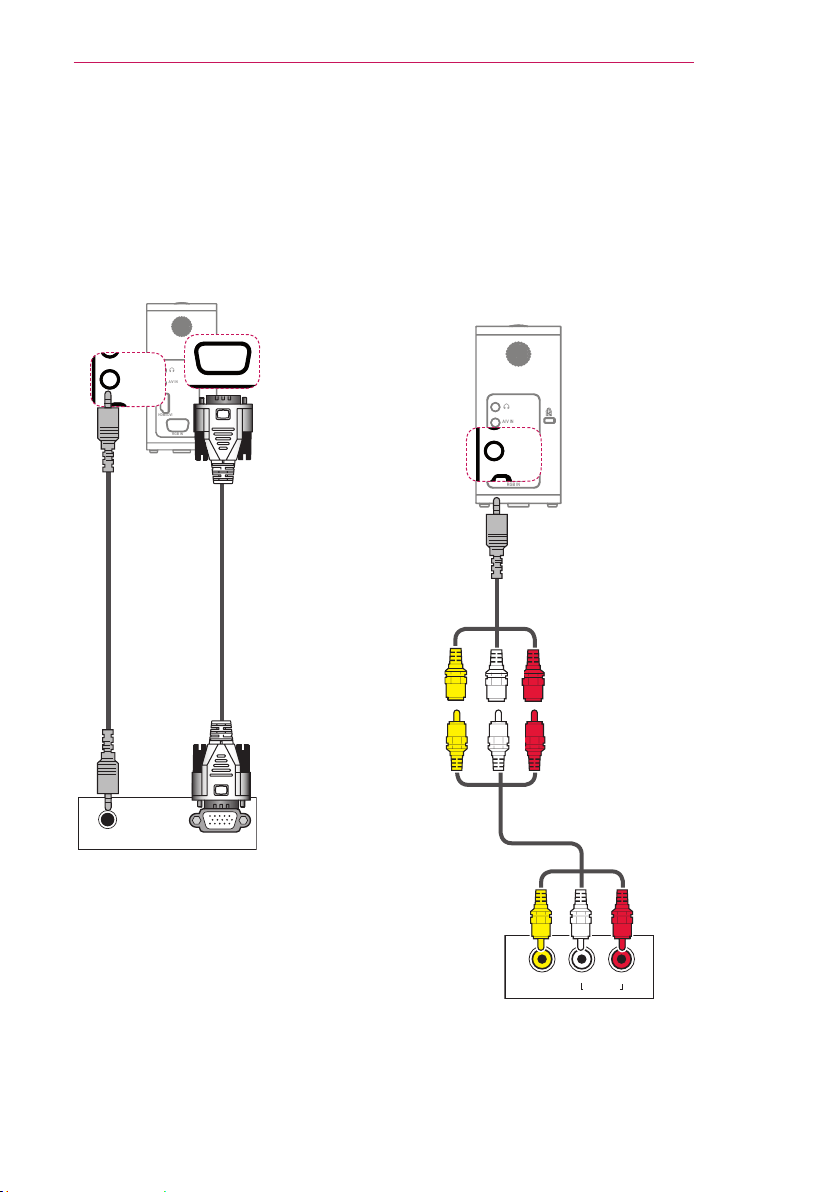
Connecting to the AV
INPUT
Connect the output ports of an external
device and the AV INPUT port of the
projector. Press the INPUT button to
select AV.
$9287
/HIW 5LJKW
$8',2287
HDMI/DVI
RGB IN
A/V IN
YELLOW
WHITE
RED
YELLOW
WHITE
RED
YELLOW
WHITE
RED
HDMI/DVI
RGB IN
A/V IN
HDMI/DVI
RGB IN
A/V IN
$8',2287
5*%2873&
HDMI/DVI
RGB IN
A/V IN
You can connect the audio cable without
using a gender as shown in the
illustration above.
HDMI/DVI
RGB IN
A/V IN
Accessories
Accessories
Optional
Extras
Optional
Extras
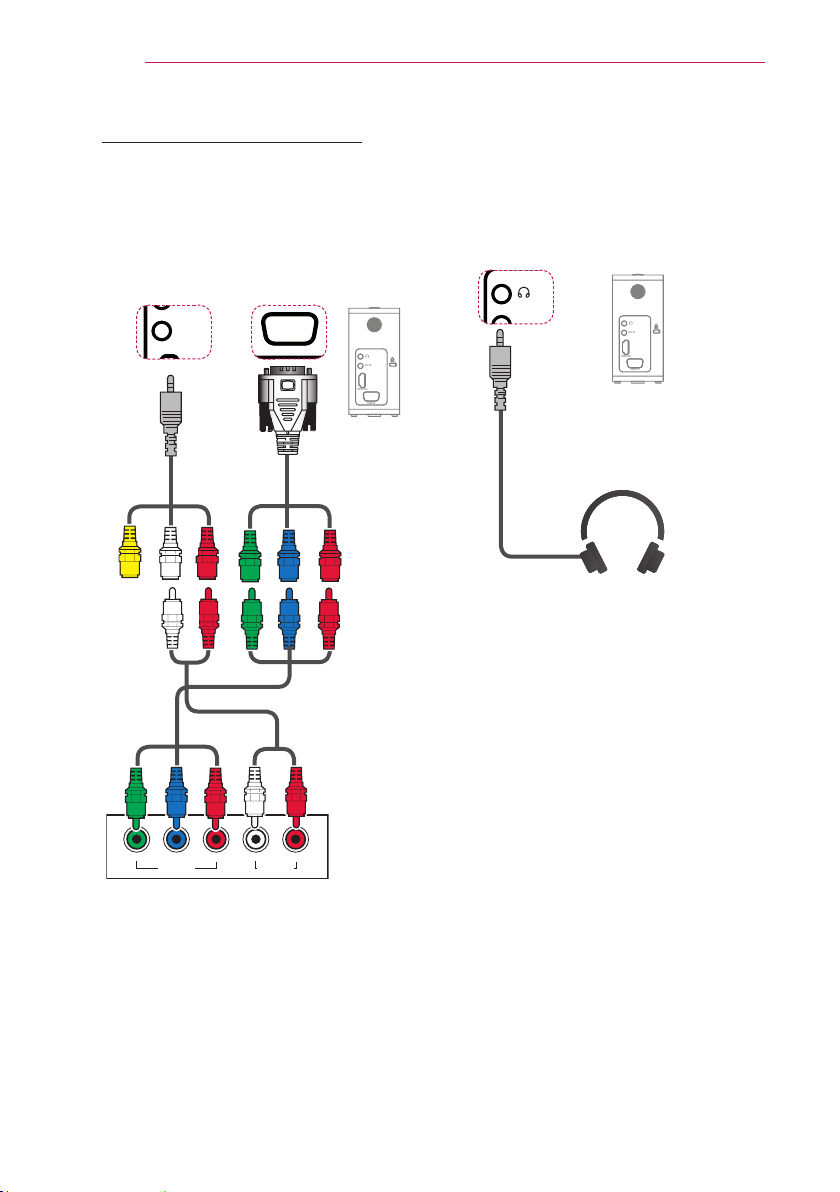
54
MAKING CONNECTIONS
Component Connection
You can enjoy vivid images when you
connect an external device with a RGB
IN port to the component port of the
projector. Press the INPUT button on
the remote control to select Component.
$9287
/HIW<3
% 35 5LJKW
$8',2287
YELLOW
WHITE
RED
WHITE
RED
WHITE
RED
GREEN
BLUE
RED
GREEN
BLUE
RED
GREEN
BLUE
RED
Connecting to
Headphones
You can listen to the audio through a
headphone.
HDMI/DVI
RGB IN
A/V IN
HDMI/DVI
RGB IN
A/V IN
HDMI/DVI
RGB IN
A/V IN
HDMI/DVI
RGB IN
A/V IN
HDMI/DVI
RGB IN
A/V IN
Optional
Extras
Optional
Extras
Optional
Extras
Optional
Extras
Accessories
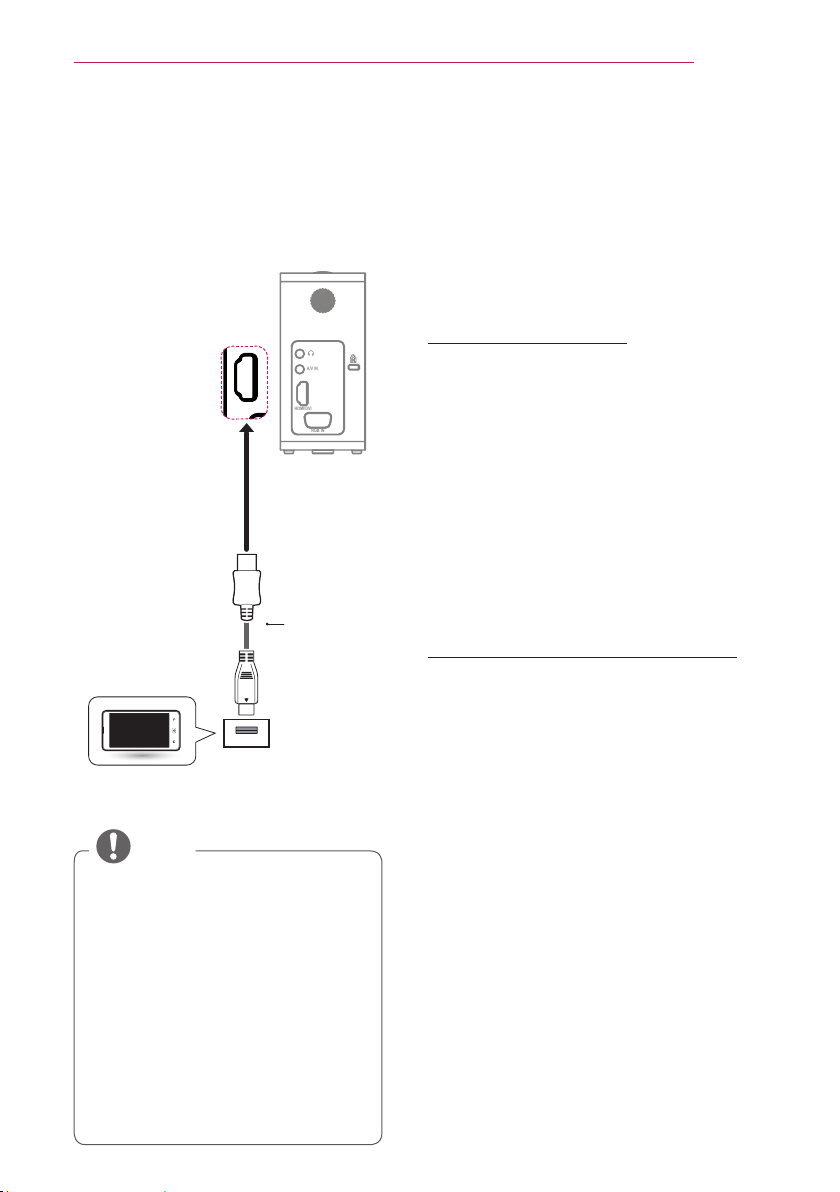
55
MAINTENANCE
MAINTENANCE
Clean your projector to keep it in
optimum condition.
Cleaning the Projector
Cleaning the Lens
If there is any dust or staining on the
lens surface, you must clean the lens.
Use an air spray or a cleaning cloth to
clean the lens.
To remove dust or stains, use an air
spray or apply a small amount of clean-
ing agent onto a swab or soft cloth to
lightly rub the lens.
Please be aware that liquid may flow
onto the lens if the product is sprayed
directly onto the lens.
Cleaning the Projector Case
To clean the projector case, first unplug
the power cord.
To remove dust or stains, use only a dry,
lint-free, nonabrasive cloth to polish the
lens.
Do not use alcohol, benzene, thinners
or other chemicals, which may damage
the case.
MHL Connection
Mobile High-definition Link (MHL) is
an interface for transmitting digital
audiovisual signals from mobile phones
to projector sets.
NOTE
Connect the mobile phone to
the HDMI IN port to view the
phone screen on the Projector.
The MHL passive cable is
needed to connect the Projector
and a mobile phone.
Only MHL-certified mobile
devices can be connected
properly. To find out whether
your device is MHL-certified,
please contact your device
manufacturer.
Optional Extras
HDMI/DVI
RGB IN
A/V IN
IN
2
(MHL)
IN 2 (MHL)
Mobile phone
MHL passive
cable
HDMI/DVI
RGB IN
A/V IN
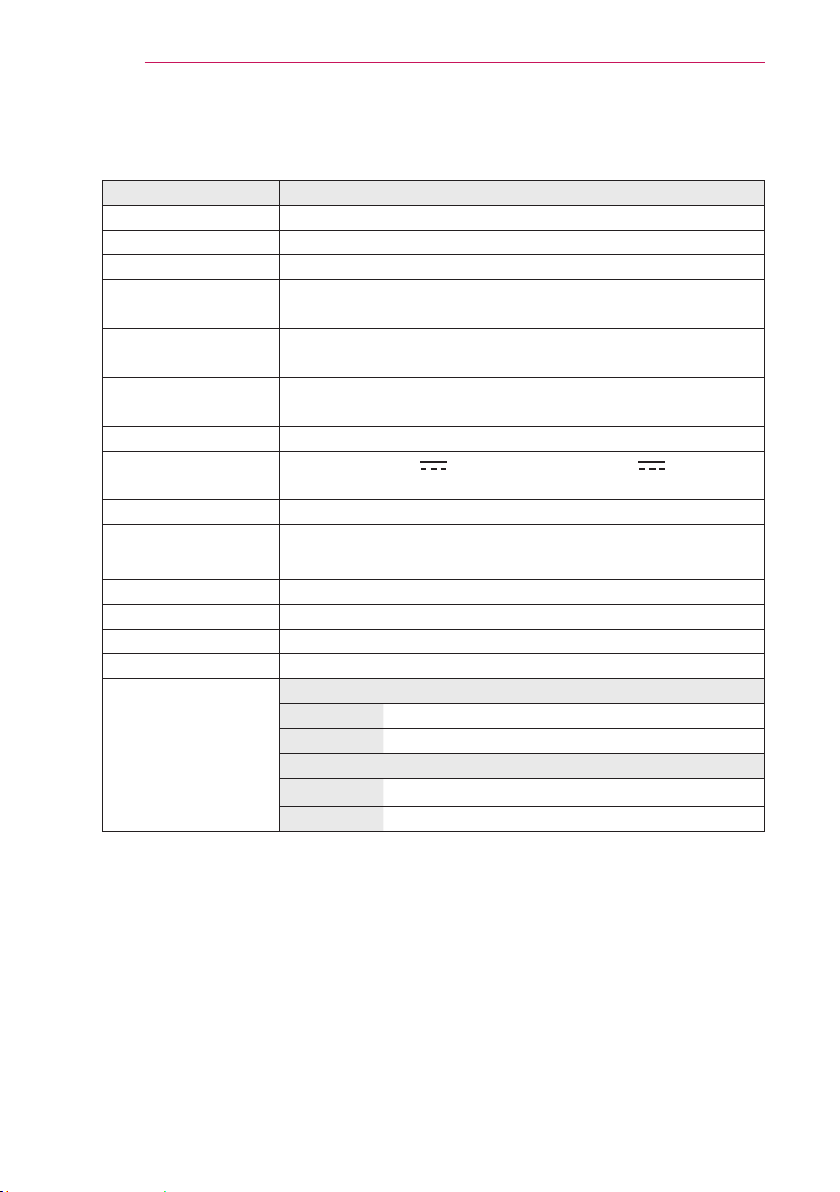
56
SPECIFICATIONS
SPECIFICATIONS
MODELS PG60G (PG60G-JE)
Resolution (Pixel) 1280 (Horizontal) × 800 (Vertical)
Aspect ratio 16:10 (Horizontal:Vertical)
Panel size (mm) 11.623
Projection distance
(Video size)
0.80 m - 3.25 m (63.5 cm - 254.0 cm)
Ratio of upward
projection
100 %
Working range of the
remote control
3 m
Video input
NTSC M / PAL-B, D, G, H, I / PAL M / PAL N / PAL 60 / SECAM
AC-DC Adaptor
90 W (19.5 V , 4.62 A) / 110 W (19.0 V , 5.79 A)
(Adaptor Input 100 ~ 240 @ 50 Hz/60 Hz)
Audio Output 3 W MONO
Height (mm)
125 (without foot)
127.5 (with foot)
Width (mm) 60
Depth (mm) 125
Weight (kg) 0.68
USB Device 5 V, 0.5 A (Max.)
Operation
environment
Temperature
Operation 0 °C - 40 °C
Storage -20 °C - 60 °C
Relative Humidity
Operation 0 % - 80 %
Storage 0 % - 85 %
* Contents in this manual may be changed without prior notice due to upgrade of
product functions.
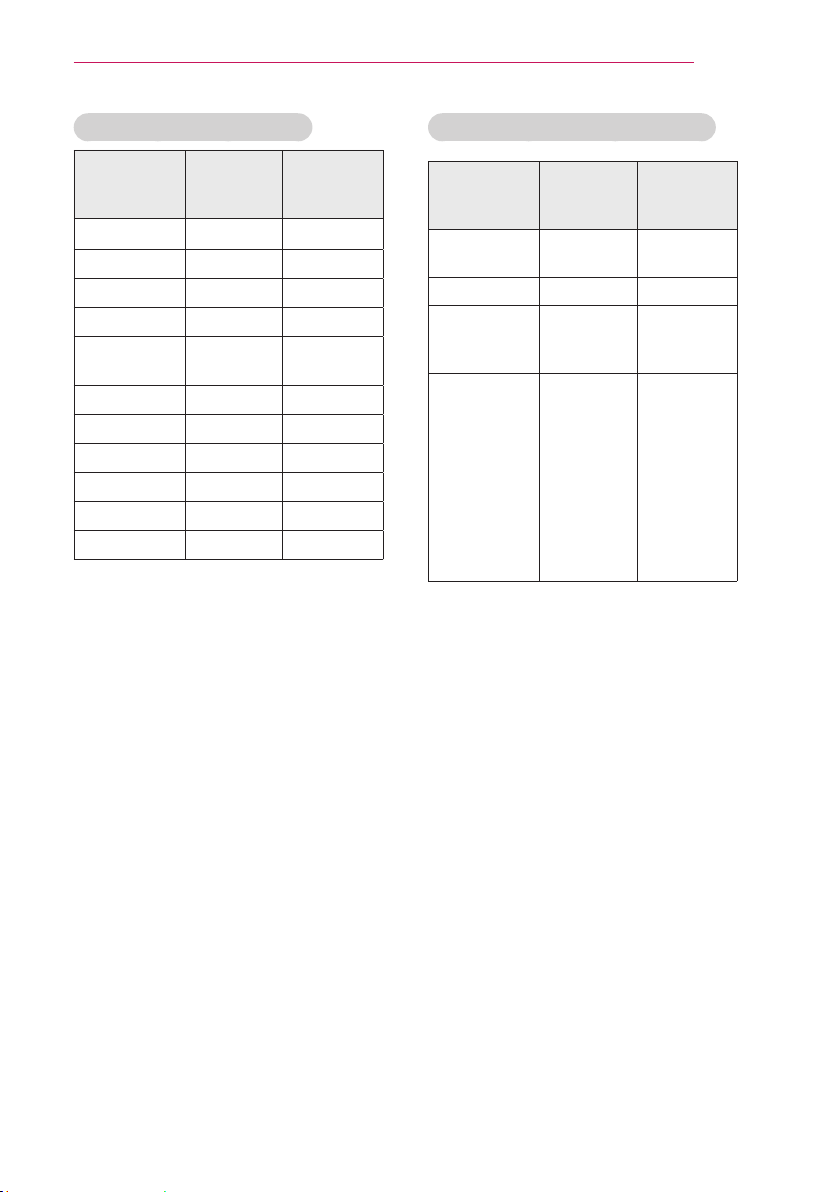
57
SPECIFICATIONS
HDMI/DVI-DTV supported mode
Resolution
Horizontal
Frequency
(kHz)
Vertical
Frequency
(Hz)
720 x 480 31.469
31.5
59.94
60
720 x 576 31.25 50
1280 x 720 37.5
44.96
45
50
59.94
60
1920 x 1080 33.72
33.75
28.125
26.97
27
33.716
33.75
56.25
67.43
67.5
59.94
60
50
23.97
24
29.976
30.00
50
59.94
60
If an invalid signal is input into the
projector, it will not be displayed
properly on the screen or a message
such as No Signal or Invalid
Mode will
be displayed.
The projector supports the DDC1/2B type
as the Plug & Play function
(Auto-recognition of PC monitor).
PC synchronization signal types
supported: Separate type synchronization.
In PC mode, 1280 x 800 is recommended
for the best picture quality.
Supported Monitor Display
Resolution
Horizontal
Frequency
(kHz)
Vertical
Frequency
(Hz)
640 x 350 31.468 70.09
720 x 400 31.469 70.08
640 x 480 31.469 59.94
800 x 600 37.879 60.31
1024 x 768 48.363
60.00
119.99
1152 x 864 54.348 60.053
1280 x 800 49.68 60
1360 x 768 47.7 12 60.015
1280 x 1024 63.981 60.020
1400 x 1050 65.317 59.979
1680 x 1050 65.3 60
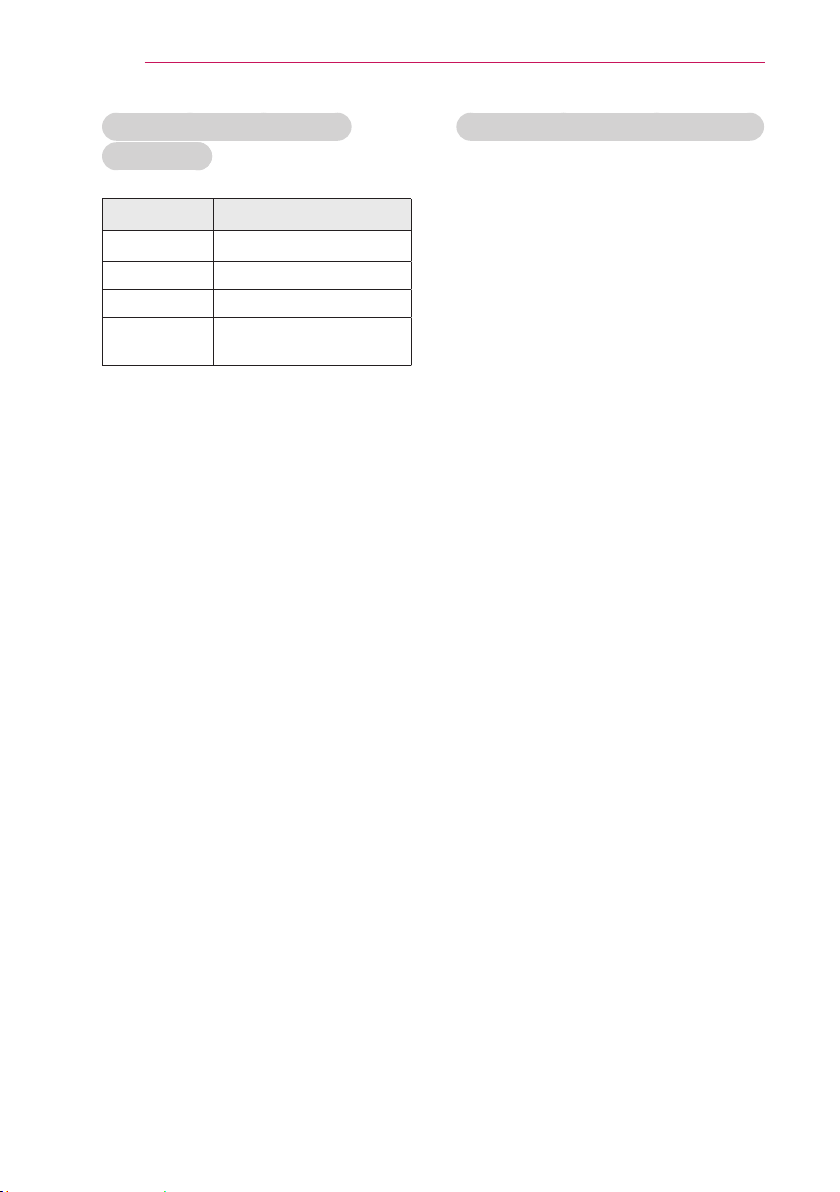
58
SPECIFICATIONS
Component port connecting
information
Signal
Component
480i / 576i
o
480p / 576p o
720p / 1080i o
1080p
o
(50 Hz / 60 Hz only)
Open Source Software Information
To obtain the source code under GPL,
LGPL, MPL and other open source
licenses, that is contained in this product,
please visit http://opensource.lge.com .
In addition to the source code, all
referred license terms, warranty dis-
claimers and copyright notices are
available for download.
LG Electronics will also provide open
source code to you on CD-ROM for a
charge covering the cost of performing
such distribution
(such as the cost of media, shipping
and handling) upon email request to
opensource@lge.com. This offer is valid
for three (3) years from the date on
which you purchased the product.
The model and serial number of the projec-
tor are located on the back or on the side
of the projector. Record them below should
you ever need service.
MODEL
SERIAL