
2
Getting Started
3 Read me first
8 Device layout
11 Battery
14 Wearing the Galaxy Fit
17 Turning the Galaxy Fit on and off
18 Connecting the Galaxy Fit to a mobile
device
20 Controlling the screen
22 Screen composition
Widgets and features
29 Messages
30 Answering calls
30 Health management widget
34 Health summary
34 Exercise
39 Steps
40 Calories
41 Heart rate
43 Sleep
44 Water
45 Caffeine
46 Weather
47 Calendar
48 Stopwatch and timer
49 Find My Phone
Table of Contents
Galaxy Wearable app
50 Introduction
52 Home
60 Watch faces
Appendix
61 Troubleshooting
65 Removing the battery
Health and Safety

3
Getting Started
Read me first
Please read this manual before using this device to ensure safe and proper use.
•
Descriptions are based on the device’s default settings.
•
Some content may differ from your device depending on the region, model
specifications, or device’s software.
•
Samsung is not liable for performance issues or incompatibilities caused by edited
registry settings or modified operating system software. Attempting to customize the
operating system may cause the Galaxy Fit or apps to work improperly.
•
Software, sound sources, wallpapers, images, and other media provided with this
Galaxy Fit are licensed for limited use. Extracting and using these materials for
commercial or other purposes is an infringement of copyright laws. Users are entirely
responsible for illegal use of media.
•
Default apps that come with the Galaxy Fit are subject to updates and may no longer be
supported without prior notice. If you have questions about an app provided with the
Galaxy Fit, contact a Samsung Service Centre.
•
Modifying the Galaxy Fit’s operating system or installing software from unofficial sources
may result in Galaxy Fit malfunctions and data corruption or loss. These actions are
violations of your Samsung licence agreement and will void your warranty.
•
Some functions may not work as described in this manual depending on the maker and
model of the mobile device you connect to the Galaxy Fit.
•
This product includes certain free/open source software. To see the instructions for
viewing the open source licence, go to the Samsung website (opensource.samsung.com).

Getting Started
4
•
Some functions may not be available depending on the region or service provider.
•
Depending on the region or service provider, a screen protector is attached for protection
during production and distribution. Damage to the attached screen protector is not
covered by the warranty.
•
Due to the nature of the product, displaying fixed graphics for extended periods may
result in afterimages (screen burn-in) or ghosting.
–
It is recommended not to use fixed graphics on part or all of the touchscreen for
extended periods and turn off the touchscreen when not using the device.
–
You can set the touchscreen to turn off automatically when you are not using it.
Launch the
Galaxy Wearable
app on your mobile device that is connected to your
Galaxy Fit, tap
Home
→
Display
→
Screen timeout
, and then select the length of
time you want the device to wait before turning off the touchscreen.
–
Depending on the region or model, some devices are required to receive approval
from the Federal Communications Commission (FCC) or Industry, Science and
Economic Development Canada (ISED). If your device is approved by the FCC or
ISED, you can view the ID on the connected mobile device. To view the ID, launch the
Galaxy Wearable app on your mobile device that is connected to your Galaxy Fit, tap
Home
→
About band
→
Device information
, and then check the FCC or IC ID under
FCC and ISED certification.
Maintaining water and dust resistance
Your device supports water- and dust-resistance. Follow these tips carefully to maintain the
water- and dust-resistance of your device. Failure to do so may result in damage to your
device.
•
Do not expose the device to water moving with force.
•
Do not use your device when you dive into the water, snorkel or try any water sports in
fast-flowing water.
•
If the device or your hands are wet, dry them thoroughly before handling the device.
•
If the device is exposed to fresh water, dry it thoroughly with a clean, soft cloth. If the
device is exposed to other liquids, such as salt water, swimming pool water, soapy water,
oil, perfume, sunscreen, hand cleaner, or chemical products such as cosmetics, rinse it
with fresh water and dry it thoroughly with a clean, soft cloth. If you do not follow these
instructions, the device’s performance and appearance may be affected.

Getting Started
5
•
If the device is dropped or receives an impact, the water- and dust-resistant features of
the device may be damaged.
•
Do not disassemble your device. The water- and dust-resistant features of the device can
be damaged.
•
Do not expose your device to a dramatic change in air temperature or water temperature.
•
Do not dry your device with a heating machine like a hair drier.
•
The water-resistant feature of the device can be damaged in the sauna.
•
Some features such as the touchscreen may not work properly if the device is used in
water.
•
Your device has been tested in a controlled environment and certified to be water-
and dust-resistant in specific situations and conditions. (Meets the requirements of
the water-resistance in a 50 m deep water as described by the international standard
ISO 22810:2010 and your device can be used in shallow water. Meets the requirements
of the dust-resistance as described by classification IEC 60529 IP6X.)
Precautions for overheating
If you feel discomfort due to overheating while using the device, stop using it immediately
and remove it from your wrist.
To avoid problems, such as device malfunction, skin discomfort or damage, and battery
draining, a warning will appear on the device if it reaches a specific temperature. When the
initial warning appears, all device functions will be disabled until the device cools down to a
specific temperature.
If the device temperature continues to increase, a second warning will appear. At this time,
the device will shut down. Do not use the device until it cools down to a specific temperature.
Getting Started
6
Instructional icons
Warning: situations that could cause injury to yourself or others
Caution: situations that could cause damage to your device or other equipment
Notice: notes, usage tips, or additional information
Cleaning and managing the Galaxy Fit
Follow the points below to ensure your Galaxy Fit functions correctly and maintains its
appearance. Failure to do so may damage the Galaxy Fit and cause the skin irritation.
•
Prevent the device from being exposed to dust, sweat, ink, oil, and chemical products
such as cosmetics, antibacterial sprays, hand cleaners, detergents, and insecticides.
The Galaxy Fit’s exterior and interior parts may be damaged or it could result in poor
performance. If your Galaxy Fit is exposed to any of the previously mentioned substances,
use a lint-free, soft cloth to clean it.
•
Do not use soap, cleaning agents, abrasive materials and compressed air when cleaning
your Galaxy Fit and do not clean it with ultrasonic waves or external heat sources. Doing
so may damage the Galaxy Fit. Skin irritation may be caused by soap, detergents, hand
sanitizers, or cleaning agents left on the Galaxy Fit.
•
Clean your wrist and band after exercising or sweating. Clean the Galaxy Fit with fresh
water, wipe it with a little rubbing alcohol and dry it thoroughly.
•
When you remove sun block, lotion, or oil, use a soap-free detergent, then rinse and dry
your Galaxy Fit thoroughly.
•
If the Galaxy Fit’s band gets stained or contains any materials, wipe it with a moistened
soft bristle toothbrush.

Getting Started
7
Use caution if you are allergic to any materials on the Galaxy Fit
•
Samsung has tested the noxious materials found on the Galaxy Fit through internal
and external certificate authorities, including testing all materials that contact skin, skin
toxicity test, and the Galaxy Fit-wearing test.
•
The Galaxy Fit includes nickel. Take the necessary precautions if your skin is
hypersensitive or you have an allergy to any materials found on the Galaxy Fit.
–
Nickel: The Galaxy Fit contains a small amount of nickel, which is below its reference
point limited by the Europe REACH regulation. You will not be exposed to the nickel
inside the Galaxy Fit and the Galaxy Fit has passed the international certification test.
However, if you are sensitive to nickel, be careful when using the Galaxy Fit.
•
Only materials that observe the standards of the U.S Consumer Product Safety
Commission (CPSC), the regulations of European countries, and other international
standards are used to make a Galaxy Fit.
•
For more information about how Samsung manages chemicals, refer to the Samsung
website (https://www.samsung.com/ca/aboutsamsung/sustainability/environment/).

Getting Started
8
Device layout
Package contents
Refer to the quick start guide for package contents.
•
The items supplied with the Galaxy Fit and any available accessories may vary
depending on the region or service provider.
•
The supplied items are designed only for this Galaxy Fit and may not be compatible
with other devices.
•
Appearances and specifications are subject to change without prior notice.
•
You can purchase additional accessories from your local Samsung retailer. Make
sure they are compatible with the Galaxy Fit before purchase.
•
Some accessories may not have the same water- and dust-resistance certification
as the Galaxy Fit.
•
Use only Samsung-approved accessories. Using unapproved accessories may cause
performance problems and malfunctions that are not covered by the warranty.
•
Availability of all accessories is subject to change depending entirely on
manufacturing companies. For more information about available accessories, refer
to the Samsung website.
Getting Started
9
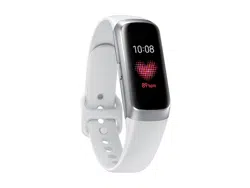
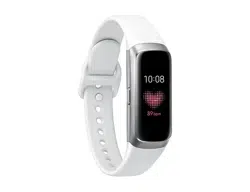
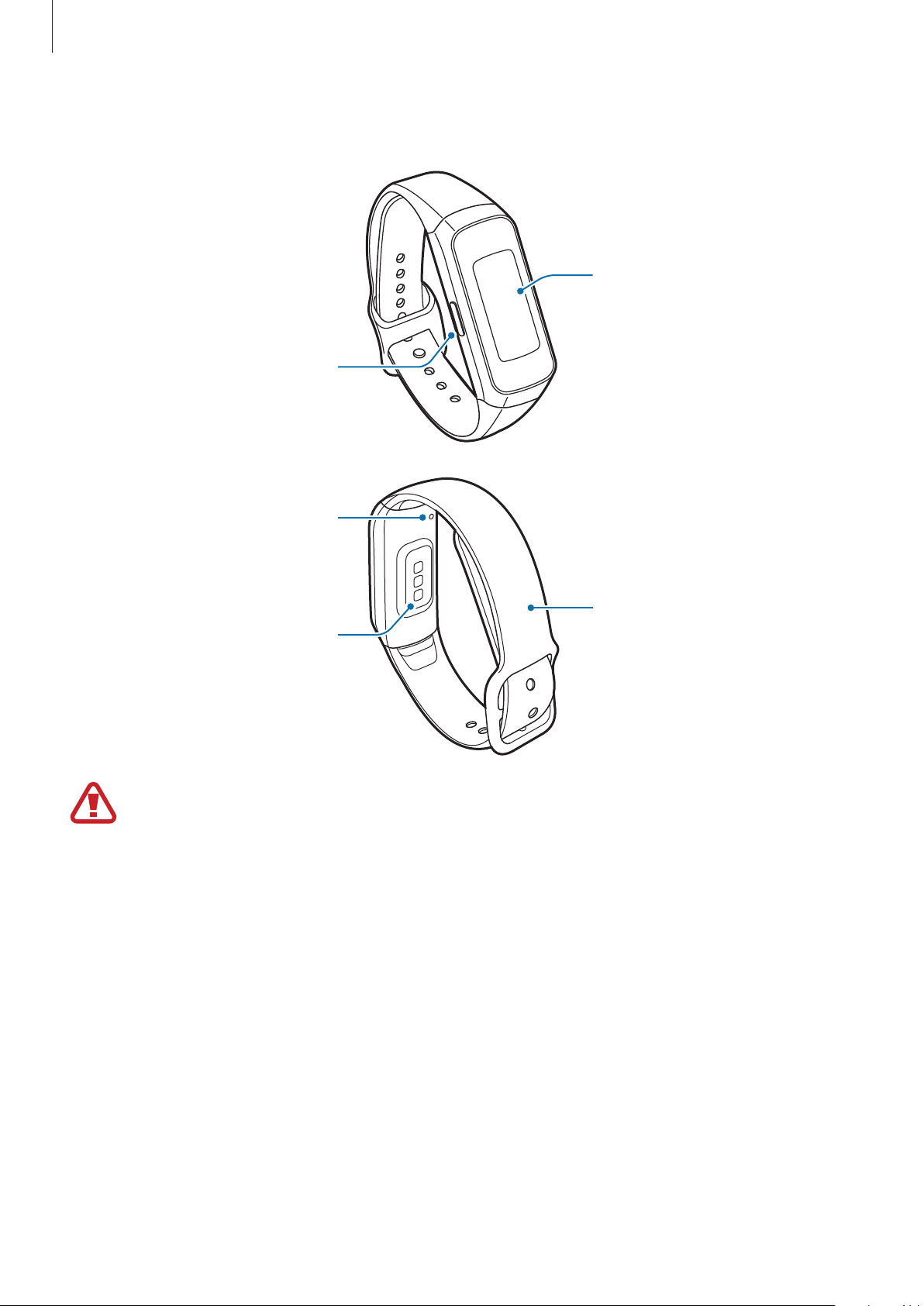
Galaxy Fit
Touchscreen
Side key
Heart rate sensor
Band
Pressure vent
The device and some accessories (sold separately) contain magnets. The American
Heart Association (US) and the Medicines and Healthcare Products Regulatory
Agency (UK) both warn that magnets can affect the operation of implanted
pacemakers, cardioverters, defibrillators, insulin pumps or other electro medical
devices (collectively, “Medical Device”) within the range of 15 cm (6 inches). If you
are a user of any of these Medical Devices, DO NOT USE THIS DEVICE AND SOME
ACCESSORIES (SOLD SEPARATELY) UNLESS YOU HAVE CONSULTED WITH YOUR
PHYSICIAN.
Getting Started
10
•
Do not store your device and some accessories (sold separately) near magnetic
fields. Magnetic stripe cards, including credit cards, phone cards, passbooks, and
boarding passes, may be damaged by magnetic fields.
•
Ensure that the band is kept clean. Contact with contaminants, such as dust and
dye, can cause stains on the band that may not be fully removed.
•
Do not insert sharp objects into the pressure vent. Inner components of the
Galaxy Fit may be damaged along with the water-resistance feature.
•
If you use the device with its glass or acrylic body broken, there may be a risk of
injury. Use the device only after it has been repaired at a Samsung Service Centre.
The pressure vent ensures that Galaxy Fit’s inner parts and sensors work correctly
when you use the Galaxy Fit in environment where the atmospheric pressure
changes.
Keys
Key Function
Side
•
Press and hold to start exercising quickly. Continue to
press and hold to turn the Galaxy Fit on or off.
•
Press to turn on the screen.
•
Press and hold for more than 7 seconds to restart the
Galaxy Fit.
•
Press to open the Watch screen when you are on any
other screen.
Getting Started
11
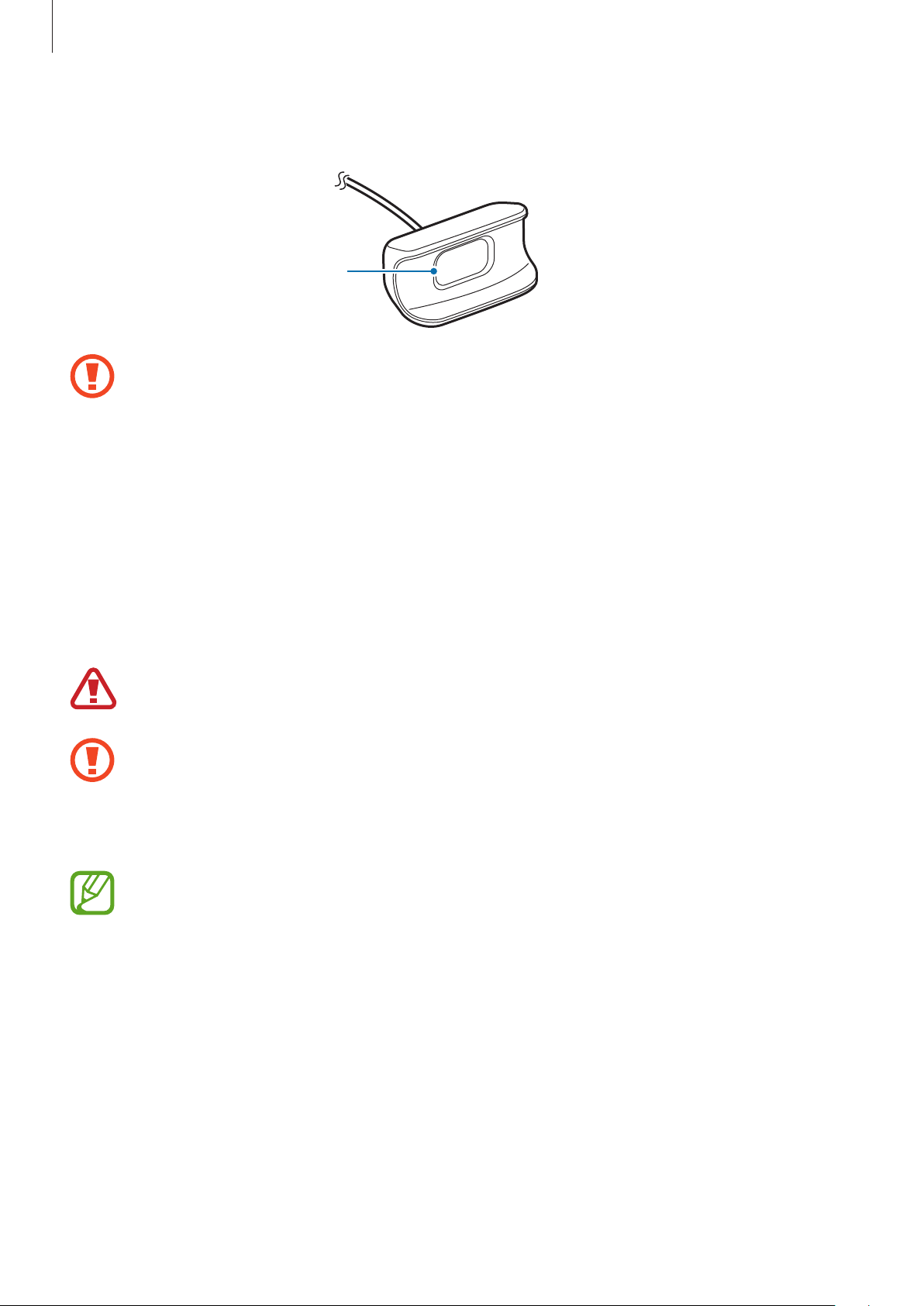
Wireless charger
Wireless charging
surface
Do not expose the wireless charger to water. The wireless charger does not have same
water- resistance certification as your Galaxy Fit.
Battery
Charging the battery
Charge the battery before using it for the first time or when it has been unused for extended
periods.
Use only Samsung-approved chargers, batteries, and cables. Unapproved chargers or
cables can cause the battery to explode or damage the Galaxy Fit.
•
Use the supplied wireless charger and charger. The Galaxy Fit cannot be charged
properly with a third-party wireless charger and charger.
•
Connecting the charger improperly may cause serious damage to the device. Any
damage caused by misuse is not covered by the warranty.
To save energy, unplug the charger when not in use. The charger does not have a
power switch, so you must unplug the charger from the electric socket when not in
use to avoid wasting power. The charger should remain close to the electric socket
and be easily accessible while charging.
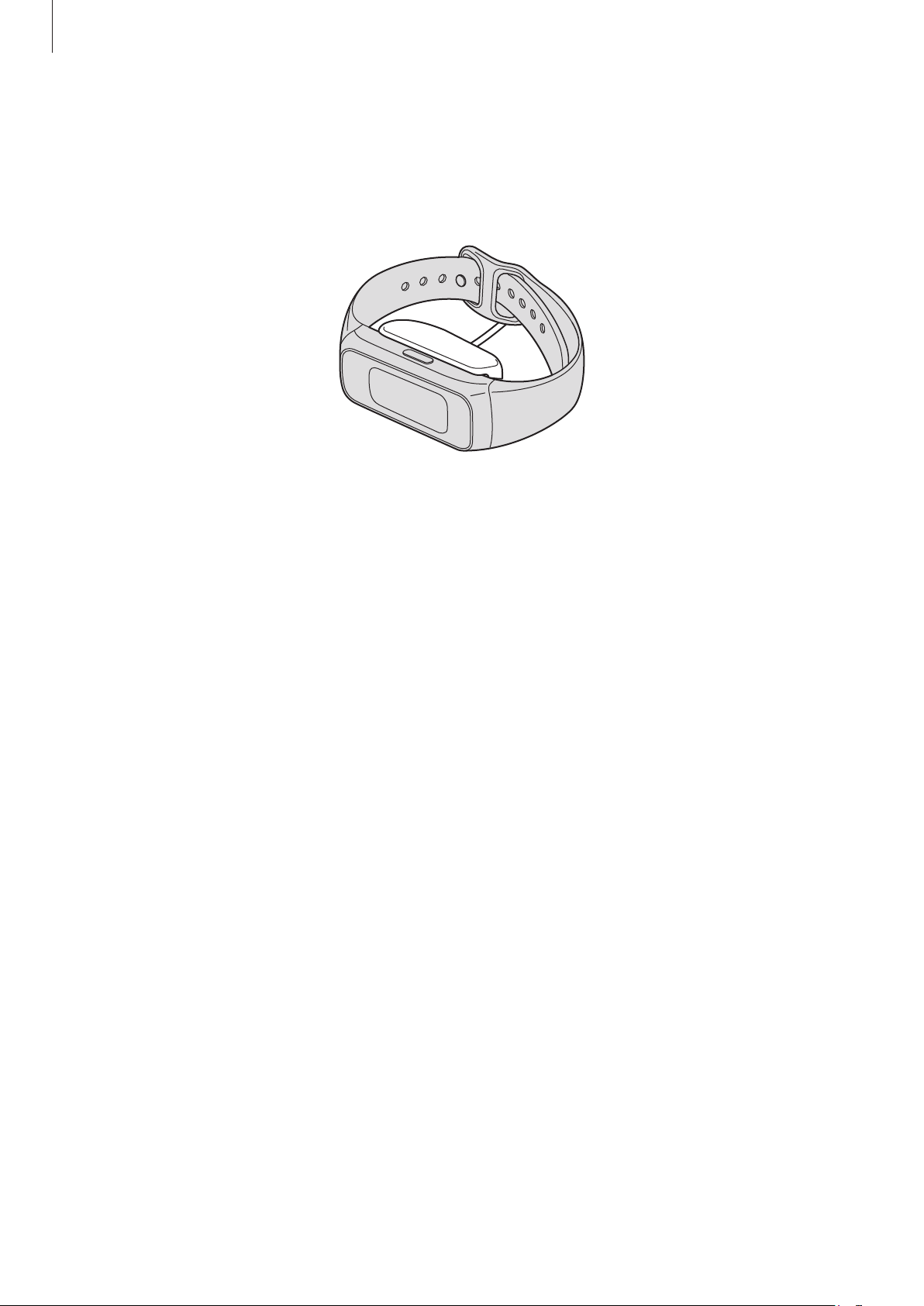
Getting Started
12
1
Connect the wireless charger to the charger and plug the charger into an electric socket.
2
Place the Galaxy Fit into the wireless charger aligning the centre of your Galaxy Fit’s back
side with the centre of the wireless charger.
3
After fully charging, disconnect the Galaxy Fit from the wireless charger. First disconnect
the wireless charger from the charger, and then unplug the charger from the electric
socket.
Reducing the battery consumption
Your Galaxy Fit provides options that help you conserve battery power.
•
Customize the notification settings in
Galaxy Wearable
app on the mobile device.
•
Deactivate the vibration feature in
Galaxy Wearable
app on the mobile device.

Getting Started
13
Battery charging tips and precautions
•
If there are obstructions between the Galaxy Fit and the wireless charger, the Galaxy Fit
may not charge properly. Prevent the Galaxy Fit and the wireless charger from coming
into contact with sweat, liquids, or dust.
•
If the battery is completely discharged, the Galaxy Fit cannot be turned on immediately
when the charger is connected. Allow a depleted battery to charge for a few minutes
before turning on the Galaxy Fit.
•
Using a power source other than the charger, such as a computer, may result in a slower
charging speed due to a lower electric current.
•
If the Galaxy Fit is being charged with other devices via a multi charger, charging may
take longer.
•
While charging the Galaxy Fit’s battery, only the current time and the battery level can be
checked on the screen. However, some notifications that should be checked immediately,
such as calls, will be received.
•
If the Galaxy Fit receives an unstable power supply while charging, the touchscreen may
not function. If this happens, disconnect the Galaxy Fit from the wireless charger.
•
While charging, the Galaxy Fit may heat up. This is normal and should not affect the
Galaxy Fit’s lifespan or performance. If the battery gets hotter than usual, the charger
may stop charging for your safety. If this happens, continue charging the Galaxy Fit after
allowing it to cool down by removing it from the wireless charger.
•
If the Galaxy Fit is not charging properly, take the Galaxy Fit to a Samsung Service Centre.
•
Avoid using a bent or damaged charging cable.
Getting Started
14
Wearing the Galaxy Fit
Putting on the Galaxy Fit
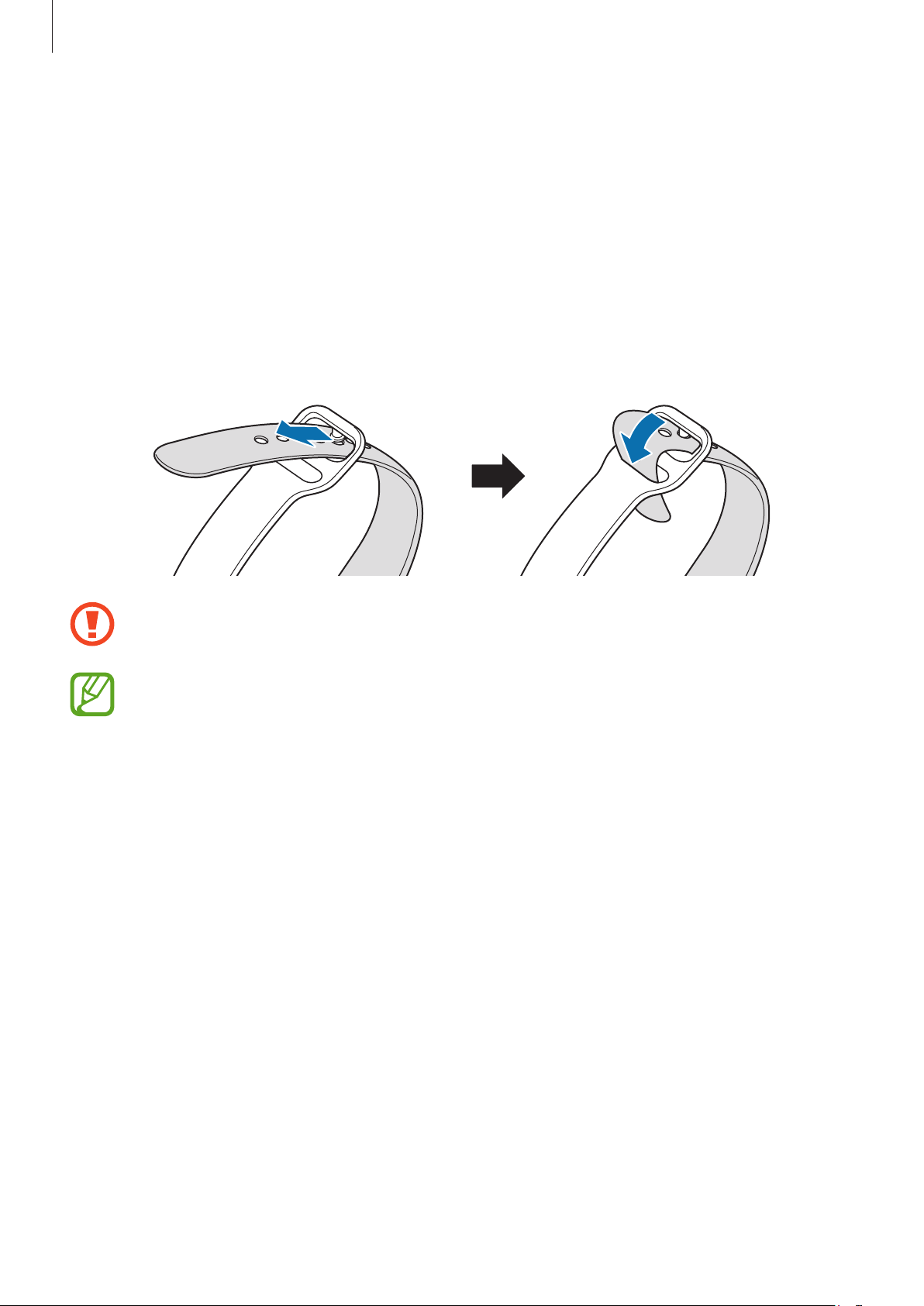
Open the buckle and place the band around your wrist. Push the band into the upper part
of the buckle, insert the pin into the hole, and then push the end of the band into the lower
part of the buckle to secure the Galaxy Fit to your wrist. Make sure to fasten the Galaxy Fit
one hole further out than you normally would so as not to feel discomfort as the band can be
inadvertently tightened if the end of the band is pulled inward.
Do not bend the band excessively. Doing so may damage the Galaxy Fit.
To measure your heart rate more accurately with the Galaxy Fit, wear the Galaxy Fit
firmly around your lower arm just above the wrist. Refer to Wearing the Galaxy Fit
correctly for more information.
Band tips and precautions
•
Be cautious when wearing the Galaxy Fit. If you have sensitive skin or fasten the Galaxy Fit
too tightly, you may feel some discomfort.
•
Some people may experience discomfort when wearing the Galaxy Fit for prolonged
periods.
•
Skin irritation may occur due to an allergy, environment factors, other factors, or when
your skin is exposed to soap or sweat for long periods.
•
Do not wear the Galaxy Fit too tightly. Make sure to keep the device clean and dry.
Though this device has met international safety standards, some people may experience
skin irritation if they are allergic to certain substances.
Getting Started
15
Taking off the Galaxy Fit
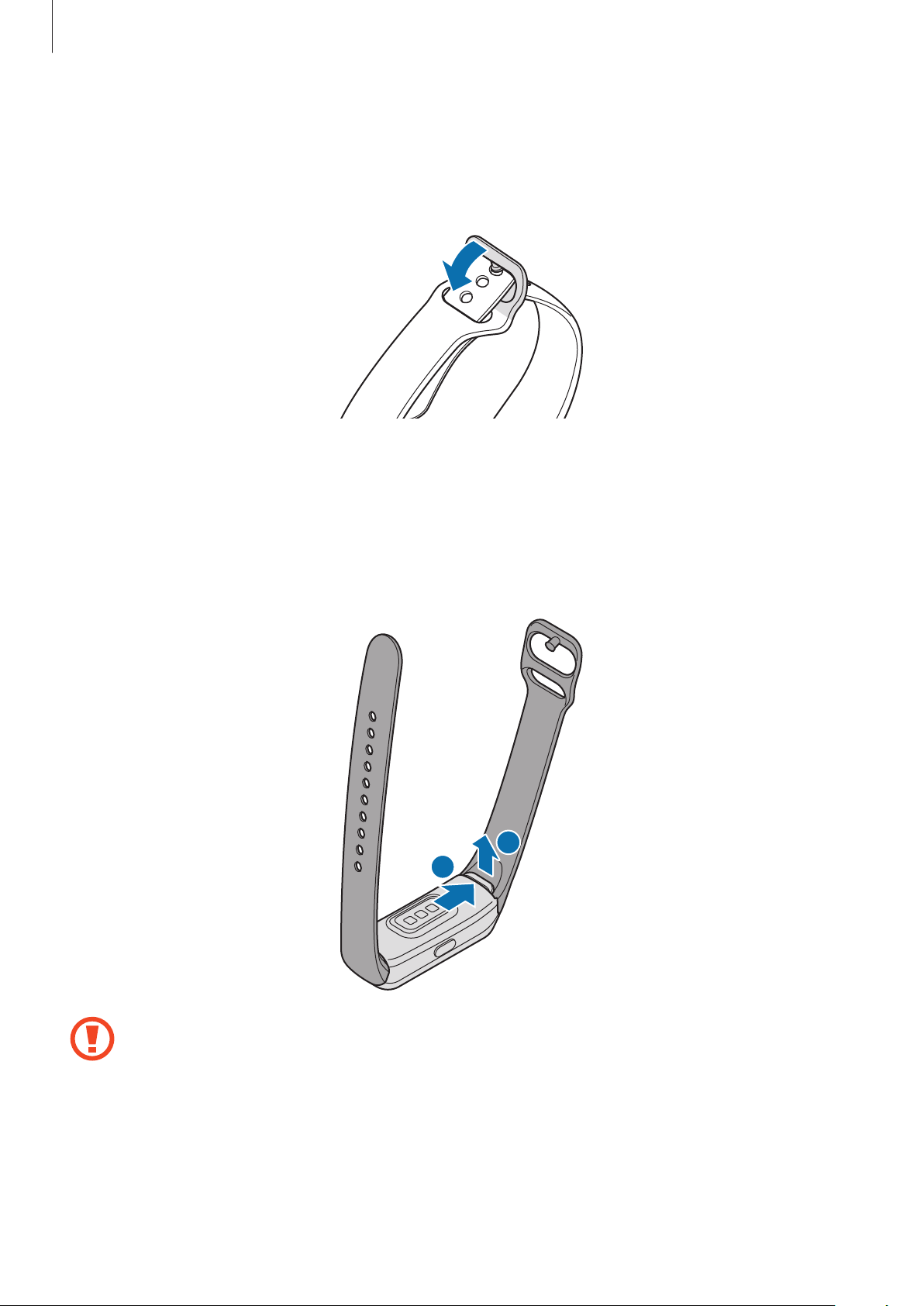
When taking off the Galaxy Fit, remove the pin from the hole and pull up on the buckle while
holding both sides.
Replacing the band
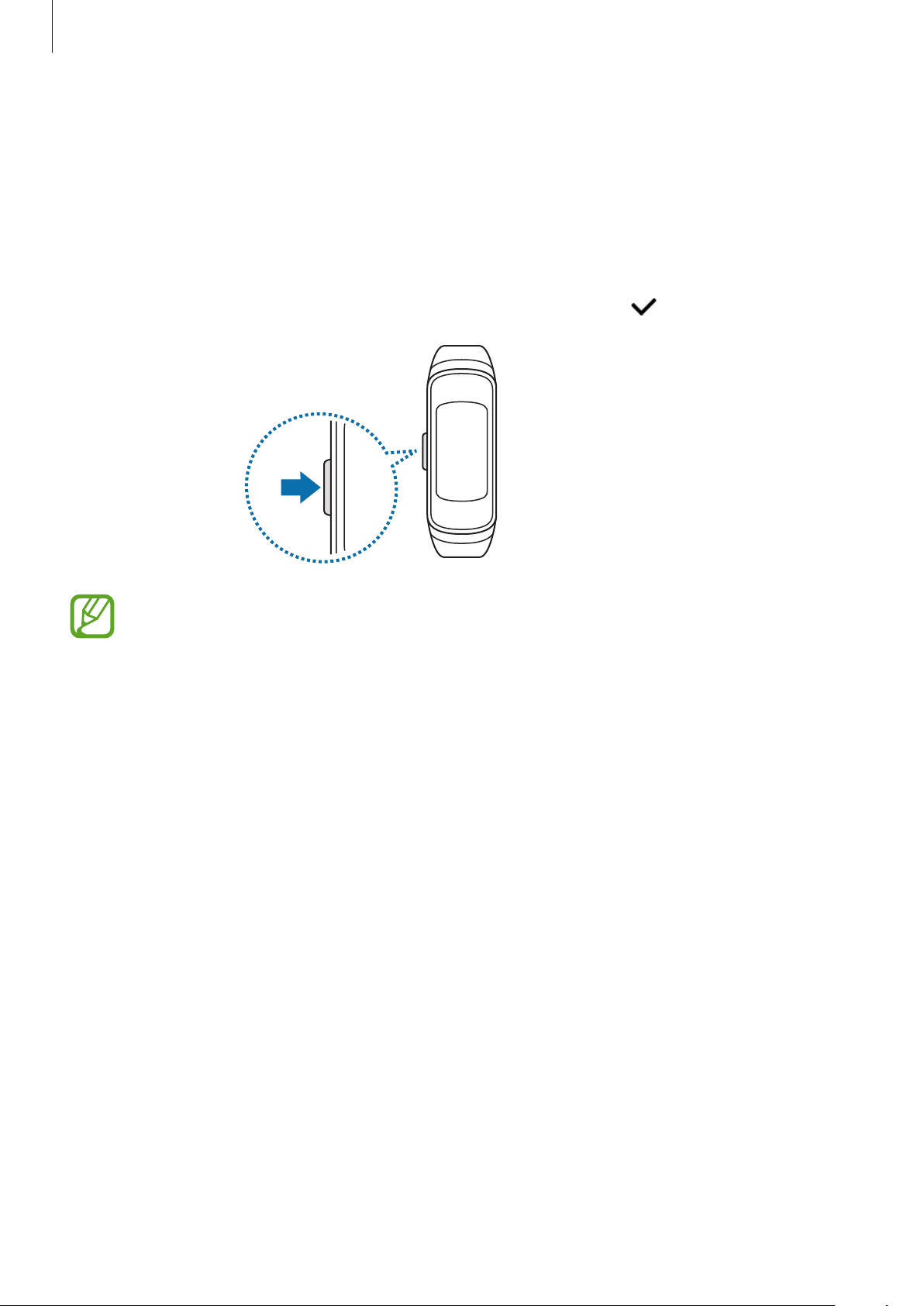
Detach the band from the Galaxy Fit to replace it with a new one.
1
Pull upwards on the band while pushing downwards the band lock.
2
1
Keep the Galaxy Fit stable and remove the band. Otherwise, the Galaxy Fit may be
damaged during band detachment.
Getting Started
16
2
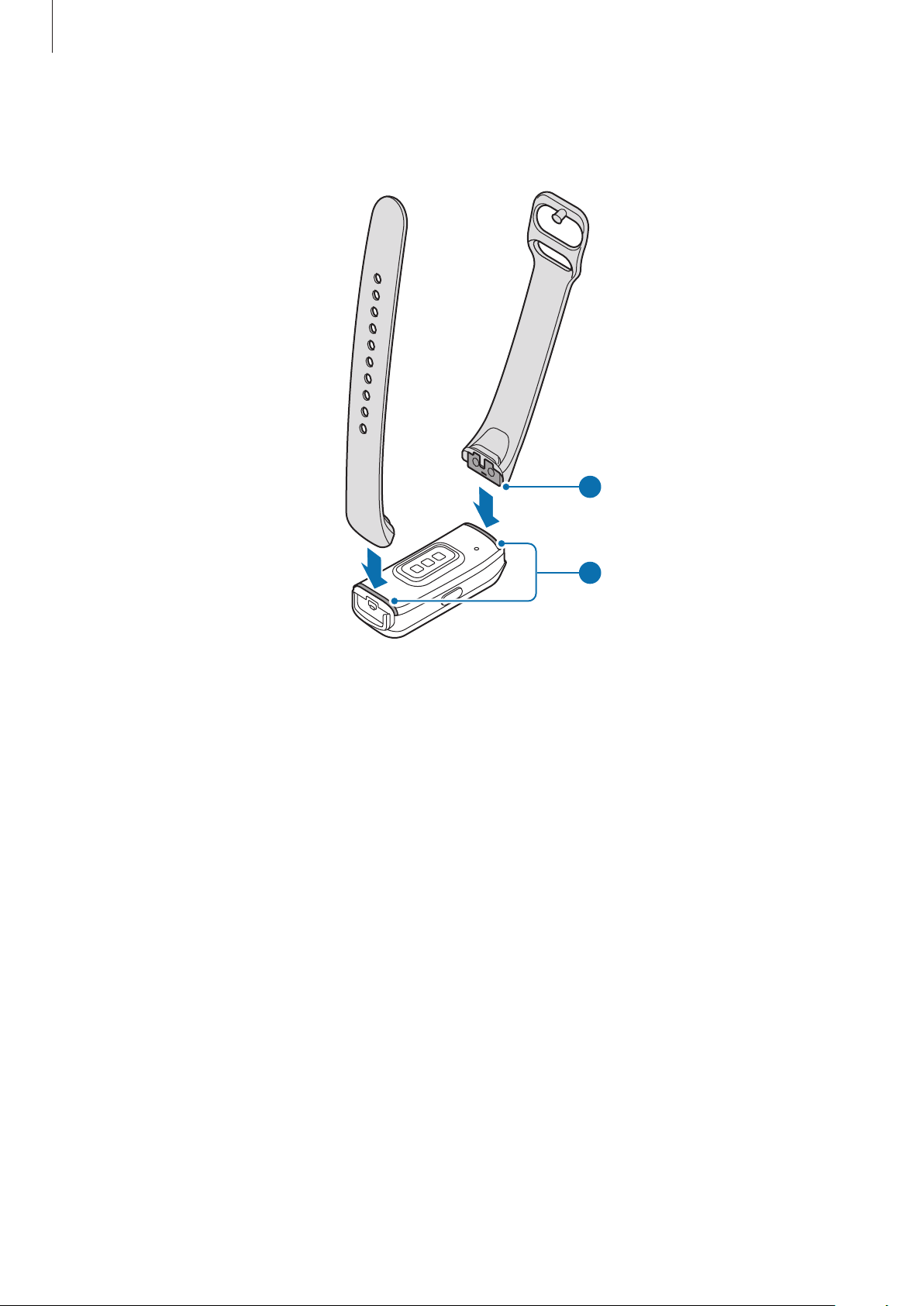
Insert the new band’s holder into the Galaxy Fit’s notch and push the band until it is fully
inserted into the Galaxy Fit.
Holder
Notch
2
1
Getting Started
17
Turning the Galaxy Fit on and off
Press and hold the Side key for a few seconds to turn on the Galaxy Fit.
When you turn on the Galaxy Fit for the first time or reset it, on-screen instructions will appear
to launch the Galaxy Wearable app on your mobile device. Refer to Connecting the Galaxy Fit
to a mobile device for more information.
To turn off the Galaxy Fit, press and hold the Side key, and then tap .
Follow all posted warnings and directions from authorized personnel in areas where
the use of wireless devices is restricted, such as airplanes and hospitals.
Restarting the Galaxy Fit
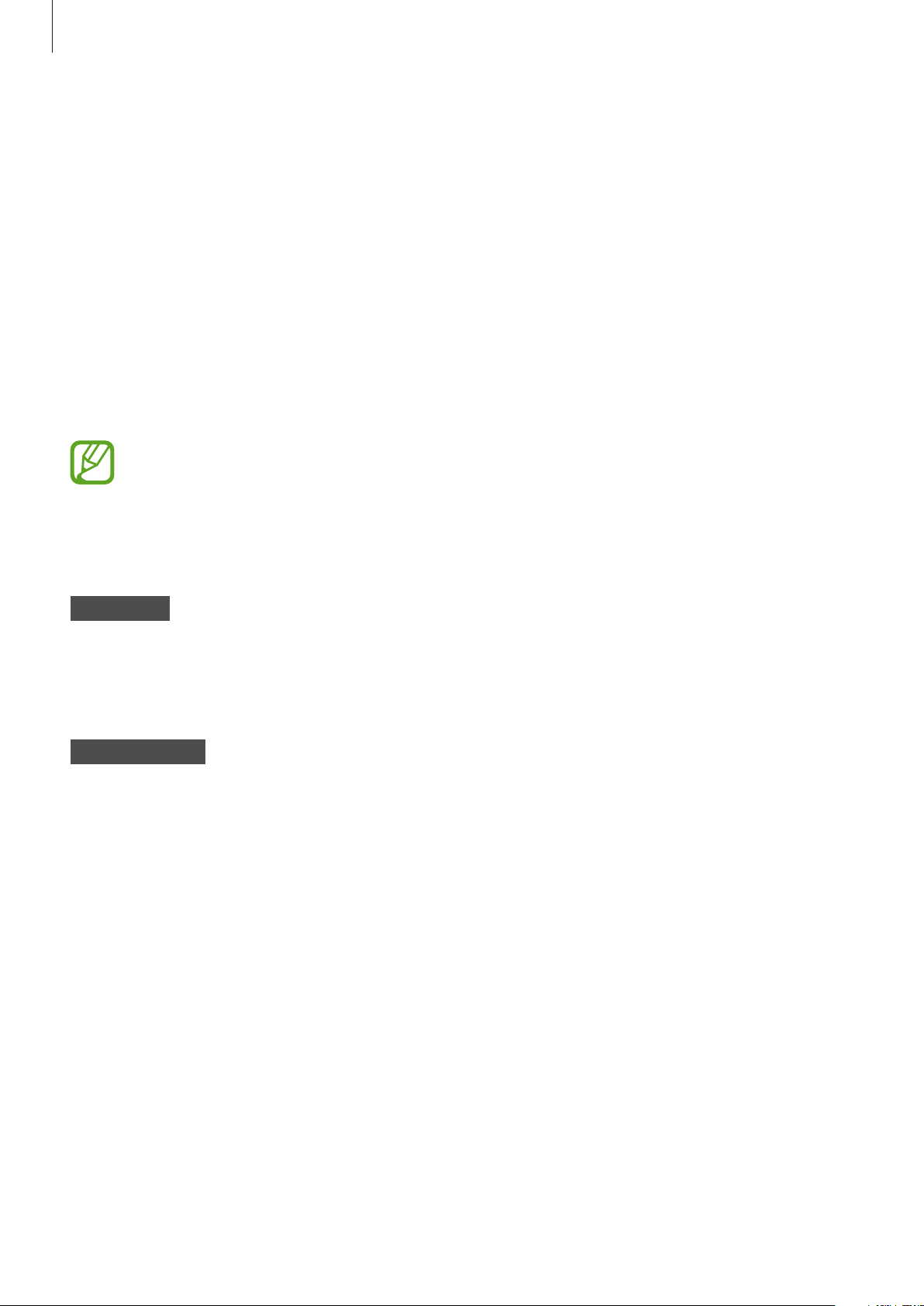
If your Galaxy Fit is frozen and unresponsive, press and hold the Side key for more than
7 seconds to restart it.
Getting Started
18
Connecting the Galaxy Fit to a mobile device
Installing the Galaxy Wearable app
To connect your Galaxy Fit to a mobile device, install the Galaxy Wearable app on the mobile
device.
Depending on your mobile device, you can download the Galaxy Wearable app from the
following places:
•
Samsung Android devices:
Galaxy Store
,
Play Store
•
Other Android devices:
Play Store
You cannot install the Galaxy Wearable app on mobile devices that do not support
Galaxy Fit syncing. Ensure that your mobile device is compatible with a Galaxy Fit.
Connecting the Galaxy Fit to a mobile device via Bluetooth
Galaxy Fit
1
Press and hold the Side key to turn on the Galaxy Fit.
A screen will appear about launching the Galaxy Wearable app.
Mobile device
2
Make sure the Bluetooth feature is activated.
3
Launch the
Galaxy Wearable
app.
If necessary, update the Galaxy Wearable app to the latest version.
4
Tap
Start the journey
.
Getting Started
19
5
Select your device on the screen.
If you cannot find your device, tap
Mine’s not here
.
6
Follow the on-screen instructions to complete the connection.
When completing the connection, the Watch screen will appear on the Galaxy Fit’s
screen.
•
Connection methods and screen may vary depending on your mobile device and
software version.
•
Supported mobile devices and features may vary depending on your region,
service provider, and device manufacturer. Visit www.samsung.com to see
compatible devices.
•
To use all features of the Galaxy Fit, update the Samsung Health app to the latest
version.
Connecting the Galaxy Fit to a new mobile device
Connect your Galaxy Fit to other mobile devices. You can connect with other mobile devices
that are not connected to your Galaxy Fit. When you connect the Galaxy Fit to a new mobile
device, the Galaxy Fit will be reset.
1
Launch the
Galaxy Wearable
app on your mobile device.
2
Tap
→
Disconnect
.
3
On your new mobile device, launch the
Galaxy Wearable
app to connect to your
Galaxy Fit.
If the mobile device you want to connect to is already connected to another
Galaxy Fit your Galaxy Fit cannot establish a connection. Disconnect your mobile
device from the previous Galaxy Fit to connect to your current Galaxy Fit.

Getting Started
20
Controlling the screen
Touchscreen
•
Do not allow the touchscreen to come into contact with other electronic devices.
Electrostatic discharges can cause the screen to malfunction.
•
To avoid damaging the touchscreen, do not tap it with anything sharp or apply
excessive pressure to it with your fingertips.
•
It is recommended not to use fixed graphics on part or all of the touchscreen for
extended periods. Doing so may result in afterimages (screen burn-in) or ghosting.
•
The Galaxy Fit may not recognize touch inputs close to the edges of the screen,
which are outside of the touch input area.
•
It is recommended to use fingers when you use the touchscreen.
•
The touchscreen may not be available when water lock mode is activated.
Tapping
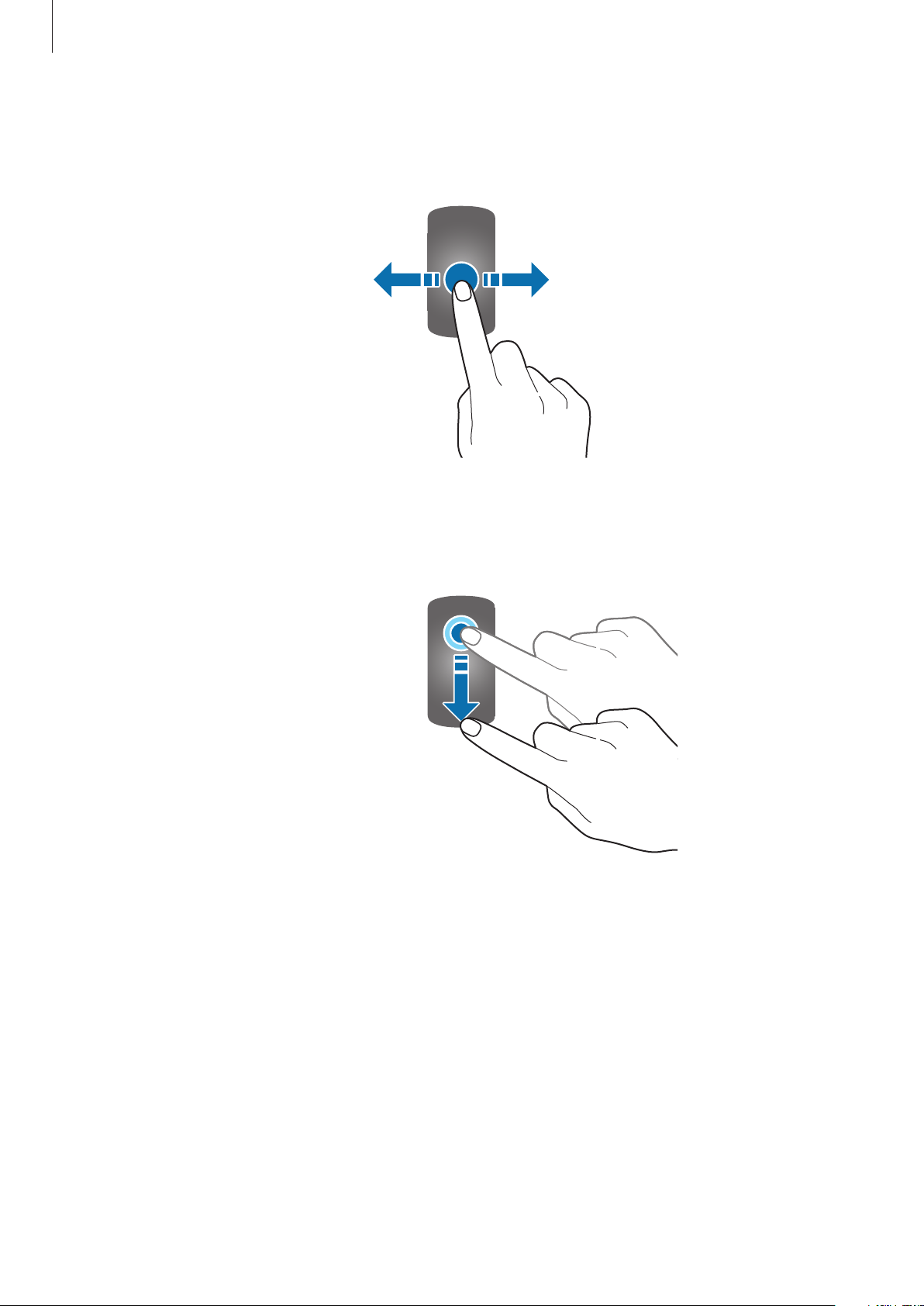
To launch the feature, select a menu item, or press an on-screen button, tap it with your
finger.
Getting Started
21
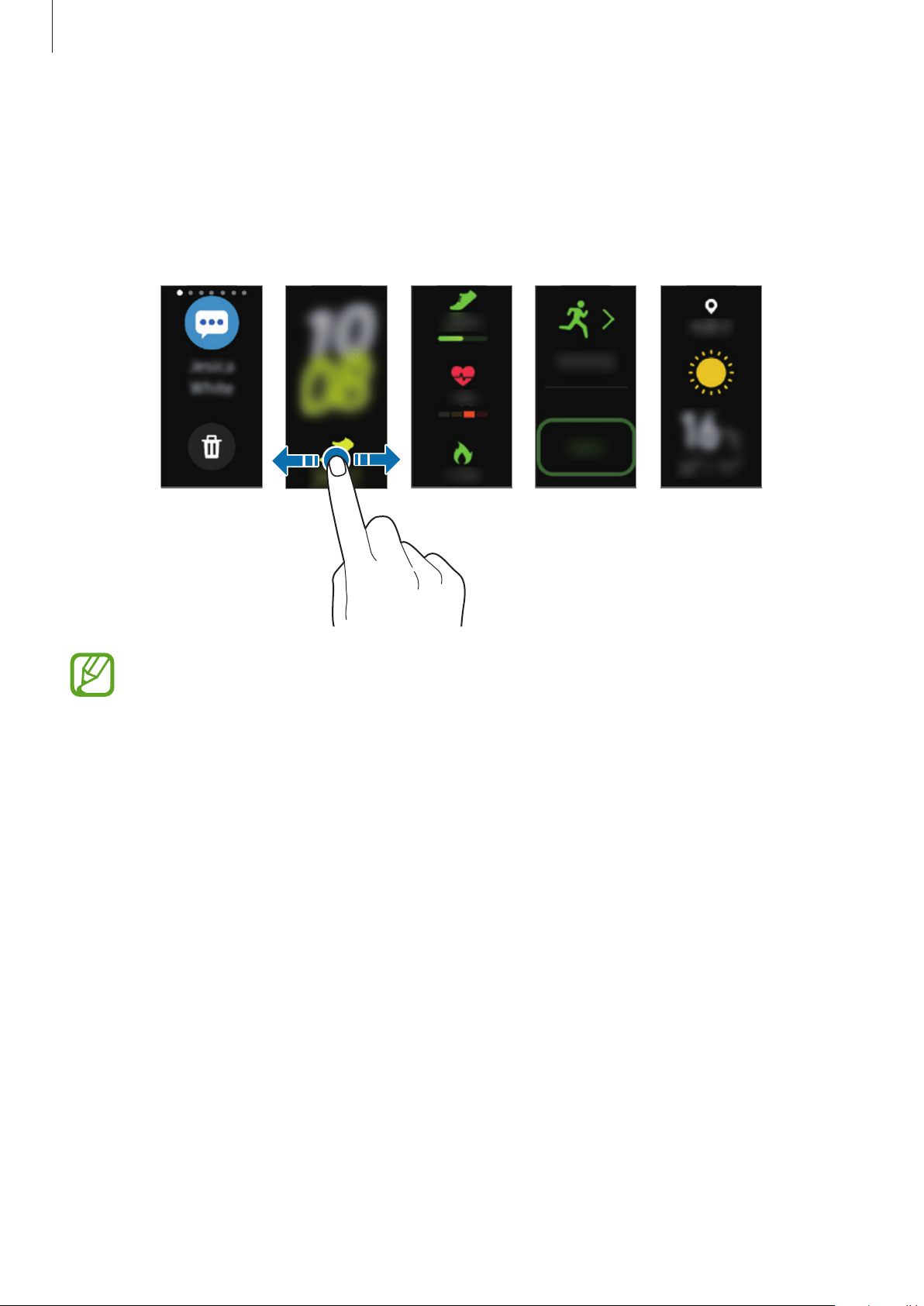
Swiping
Swipe to the left or right to view other screens.
Dragging
To move an item, tap it and drag it to the target position.
Getting Started
22
Screen composition
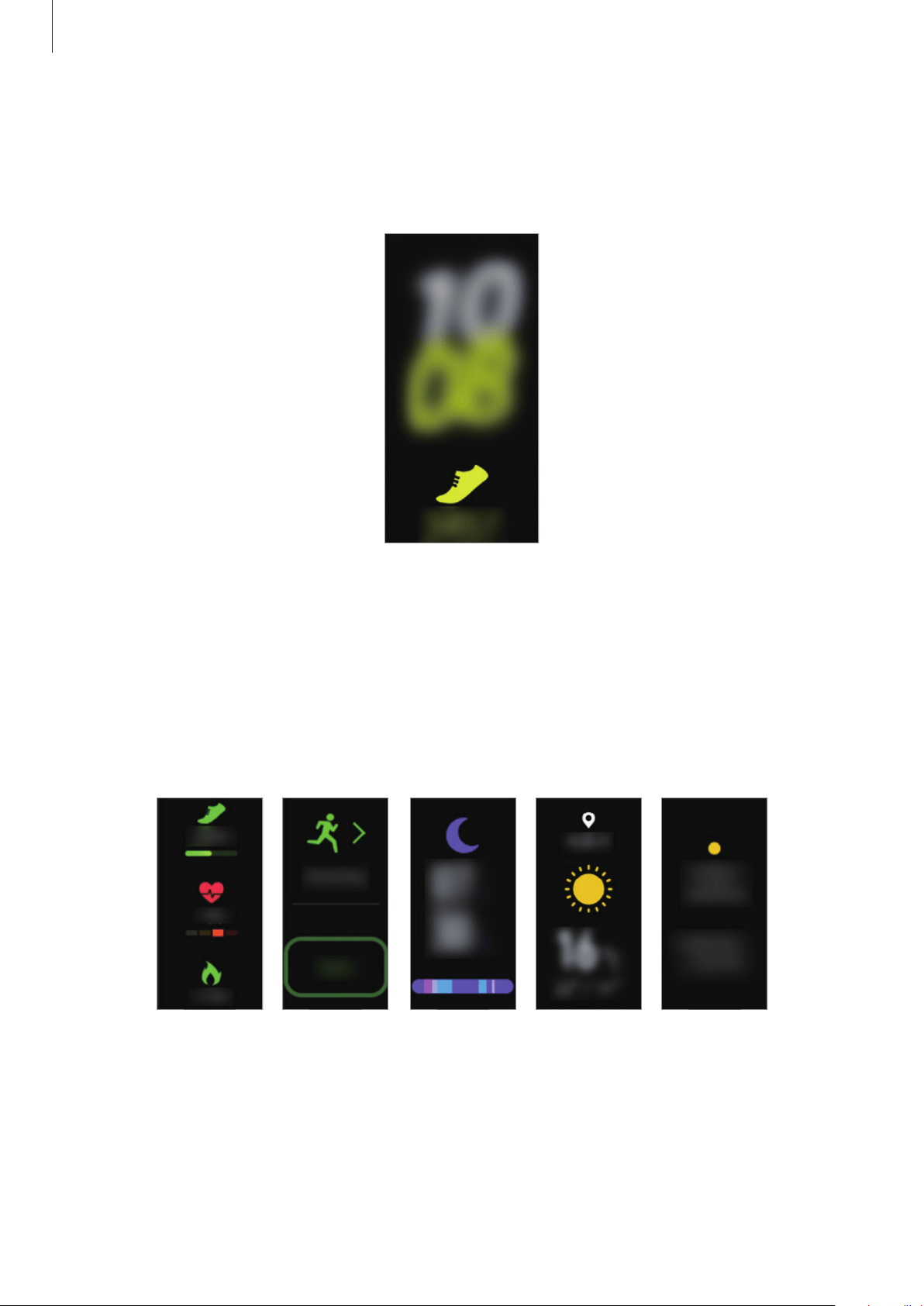
The Watch screen is the starting point for accessing all of the Galaxy Fit’s many screens.
You can view other screens by swiping to the left or right on the screen.
Watch
Health
summary
Notifications Exercise Weather
Available screens, widgets, and their arrangements may vary depending on the
software version.
Turning the screen on and off
To turn on the screen, press the Side key.
To turn off the screen, cover it with your palm. Also, the screen will automatically turn off if the
Galaxy Fit is not used for a specified period.
You can also turn on the screen using the wake-up gesture feature. On the mobile device,
launch the
Galaxy Wearable
app, tap
Home
→
Advanced
→
Wake-up gesture
, and then
tap the switch to activate it.
Getting Started
23
Watch screen
You can check the current time. You can also check your health information, such as your step
count or heart rate.
To change the watch face, launch the
Galaxy Wearable
app on your mobile device, tap
Watch faces
, and then select a watch face you want.
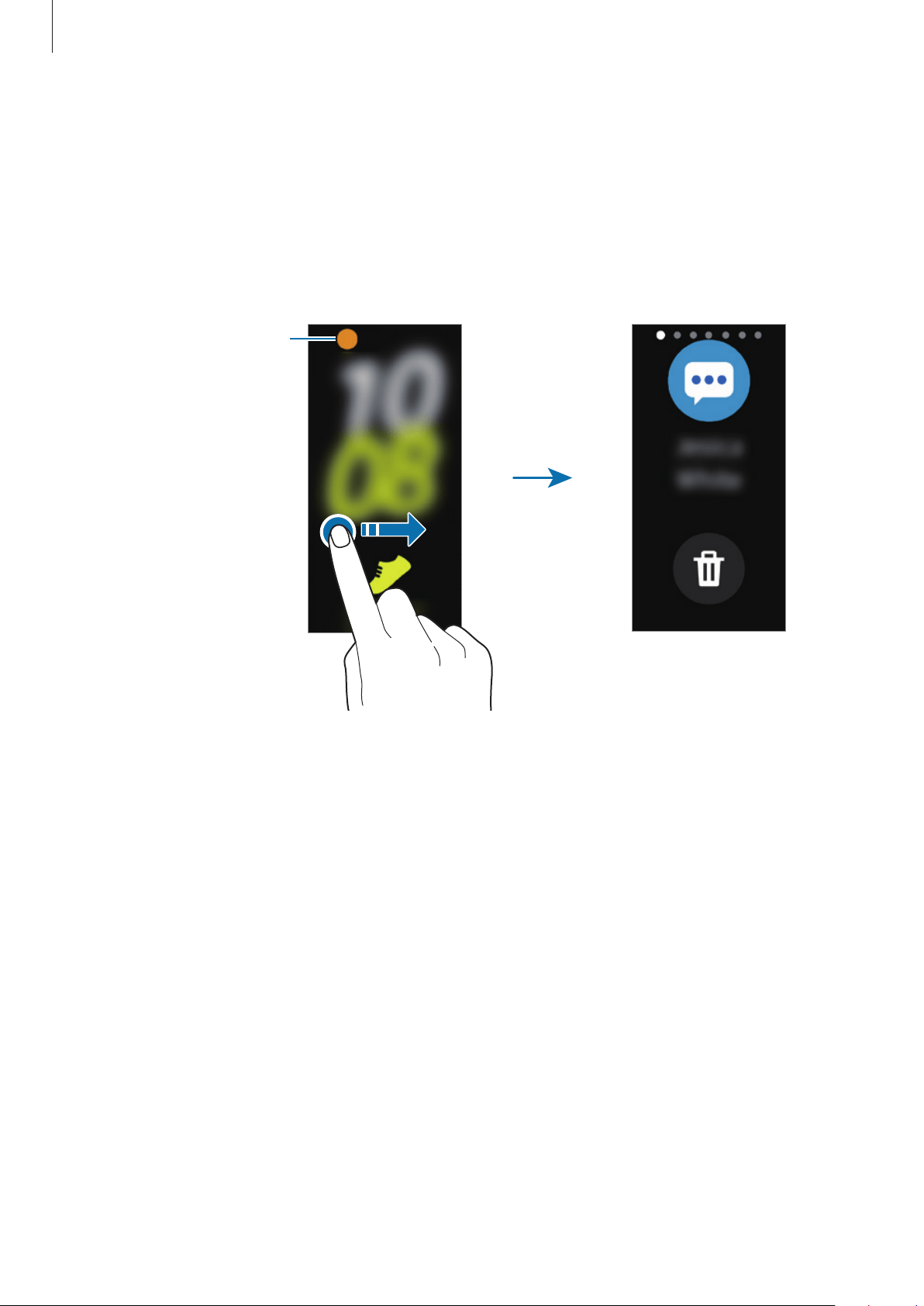
Widget screen
You can instantly check your health and activity information and view app information, such
as weather and schedules, for some connected mobile devices.
Health
summary
Sleep Weather CalendarExercise
Getting Started
24
Notification panel
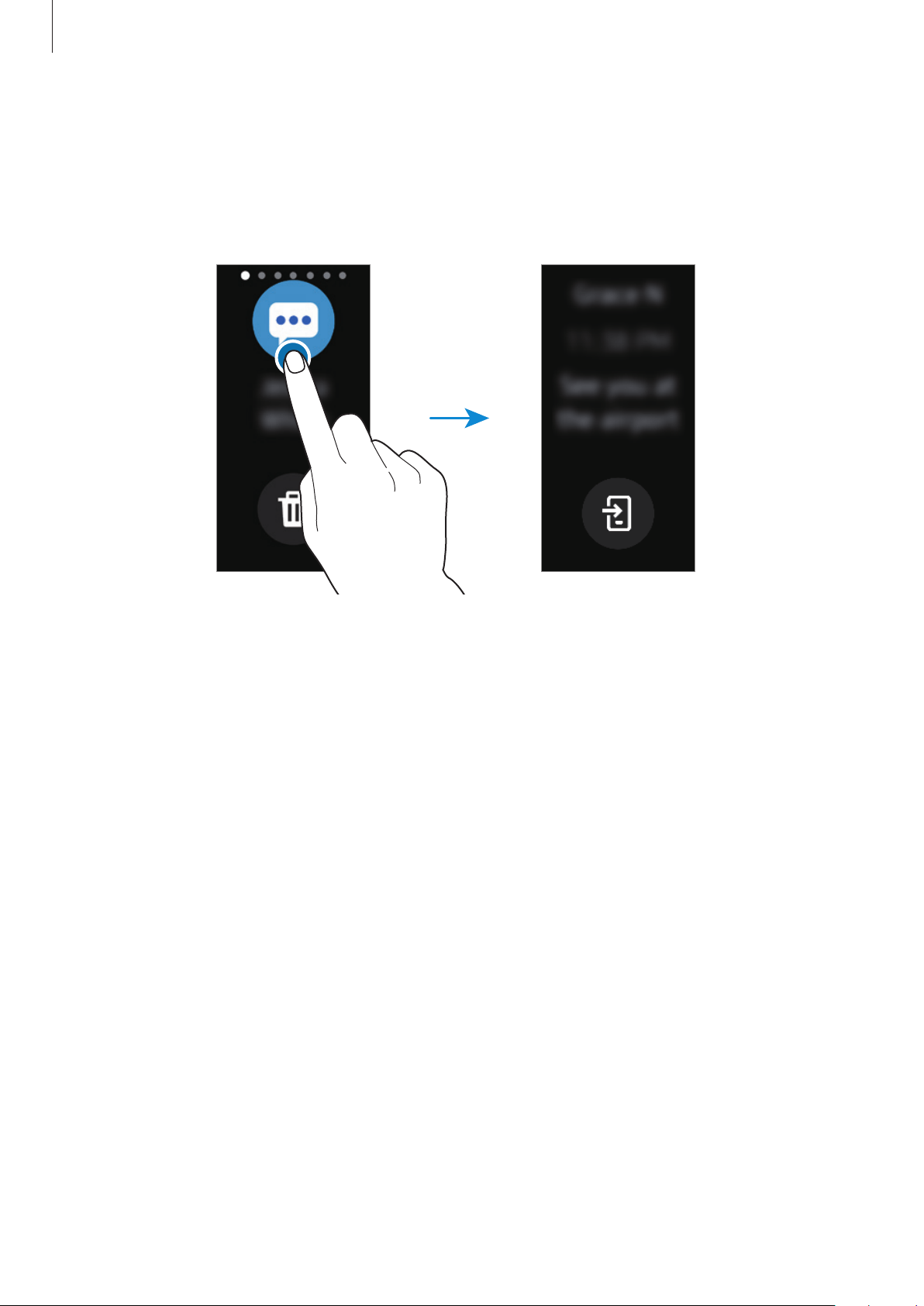
When an alarm sounds, or when there is a call, message, or notification from your mobile
device, the Galaxy Fit will vibrate.
On the Watch screen, swipe to the right to open the notification panel to check a notification,
such as a new message or a missed call. When there are unchecked notifications, an orange
dot will be visible on the Watch screen.
Notification indicator
Getting Started
25
Checking notifications
When you receive a notification, information about the notification, such as its type or the
time you received it, will appear on the screen.
Tap the notification to view details.
Blocking notifications
1
Launch the
Galaxy Wearable
app on your mobile device.
2
Tap
Home
→
Notifications
.
3
Tap the switch to deactivate it.
To block notifications by app, tap
Manage notifications
and tap the switch next to an
app.
Getting Started
26
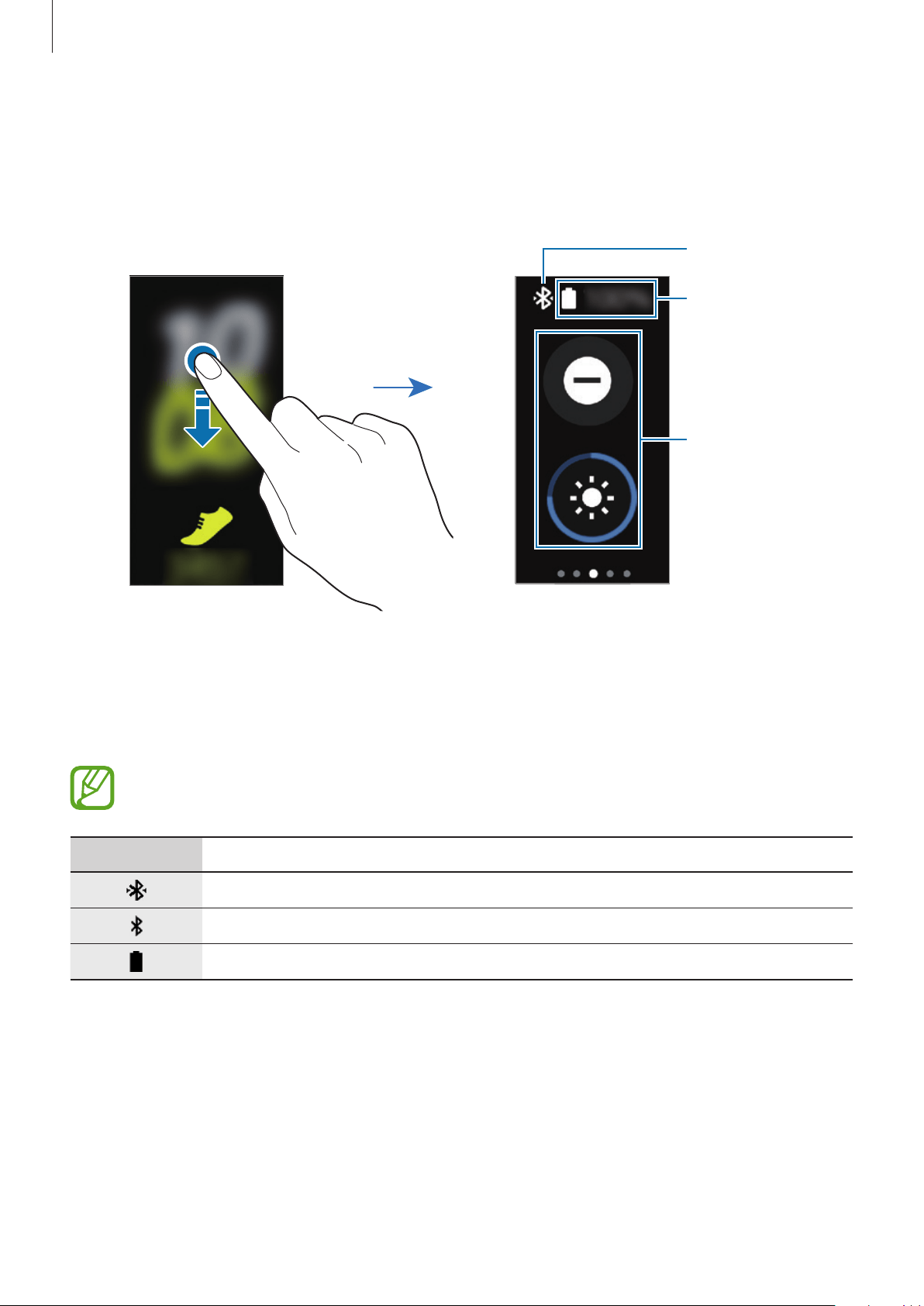
Quick panel
This panel allows you to view the Galaxy Fit’s current status and configure settings.
Swipe downwards from the top edge of the screen.
Indicator icons
Battery power
level
Quick setting
icons
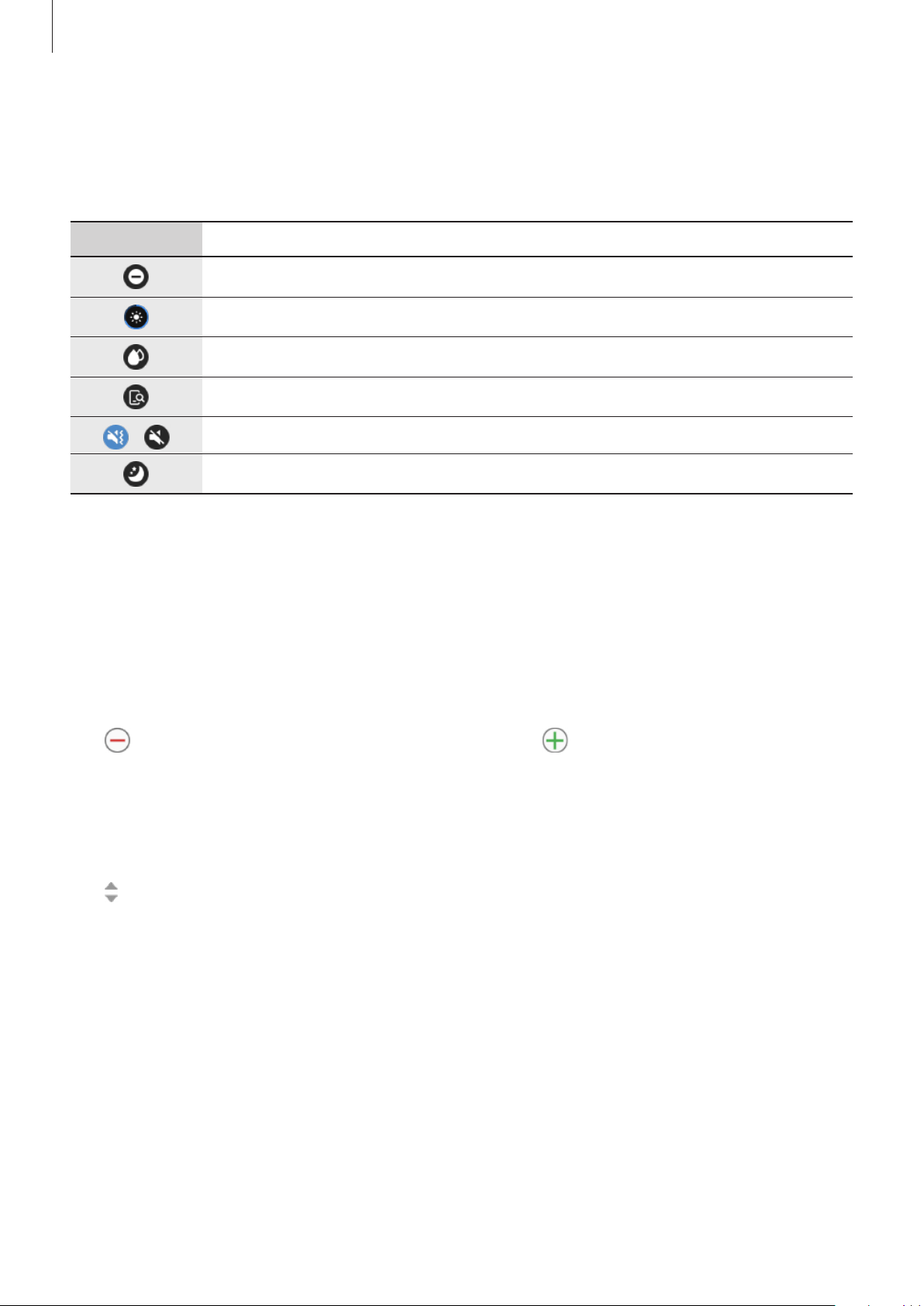
Checking the indicator icons
Indicator icons appear at the top of the quick panel and let you know the Galaxy Fit’s current
status. The icons listed in the table below are most common.
The indicator icons shown may vary depending on the region.
Icon Meaning
Bluetooth connected
Bluetooth disconnected
Battery power level
Getting Started
27
Checking quick setting icons
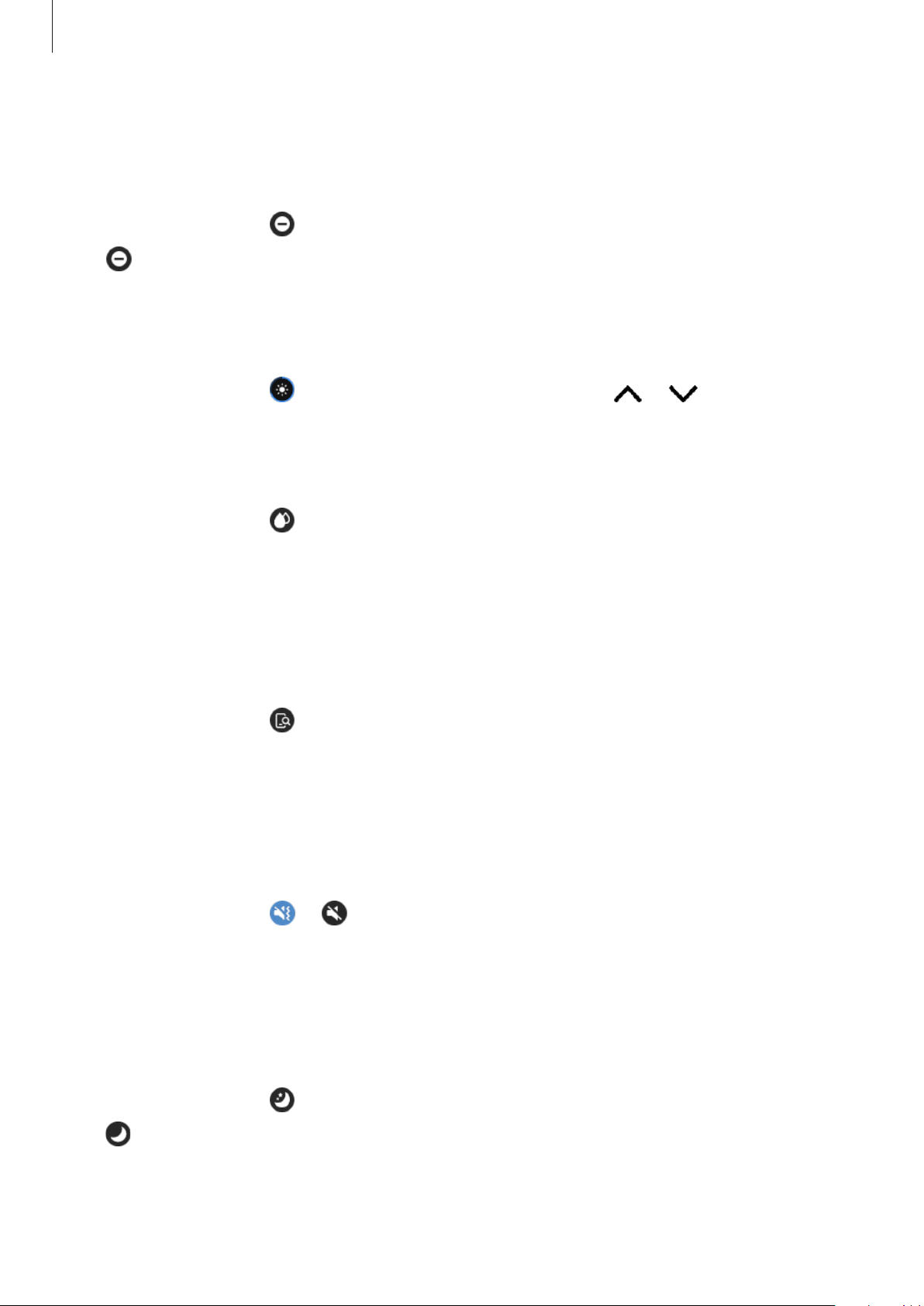
Quick setting icons appear on the quick panel. Tap the icon to change the basic settings or
launch the function conveniently.
Icon Meaning
Activate do not disturb mode
Adjust the brightness
Activate water lock mode
Launch the find my phone feature
/
Activate vibrate or silent mode
Activate good night mode
Editing the quick settings icon
You can edit the icons on the quick panel.
Launch the
Galaxy Wearable
app on your mobile device and tap
Home
→
Advanced
→
Edit
quick settings
.
Adding or removing quick setting icons
Tap next to the quick setting icon to remove it or tap next to the quick setting icon to
add it and tap
SAVE
.
The quick setting icon will be added or removed from the quick panel of the Galaxy Fit.
Reordering quick setting icons
Tap next to a quick setting icon, drag it to another position, and then tap
SAVE
.
The quick setting icon’s order will be changed on the quick panel of the Galaxy Fit.
Getting Started
28
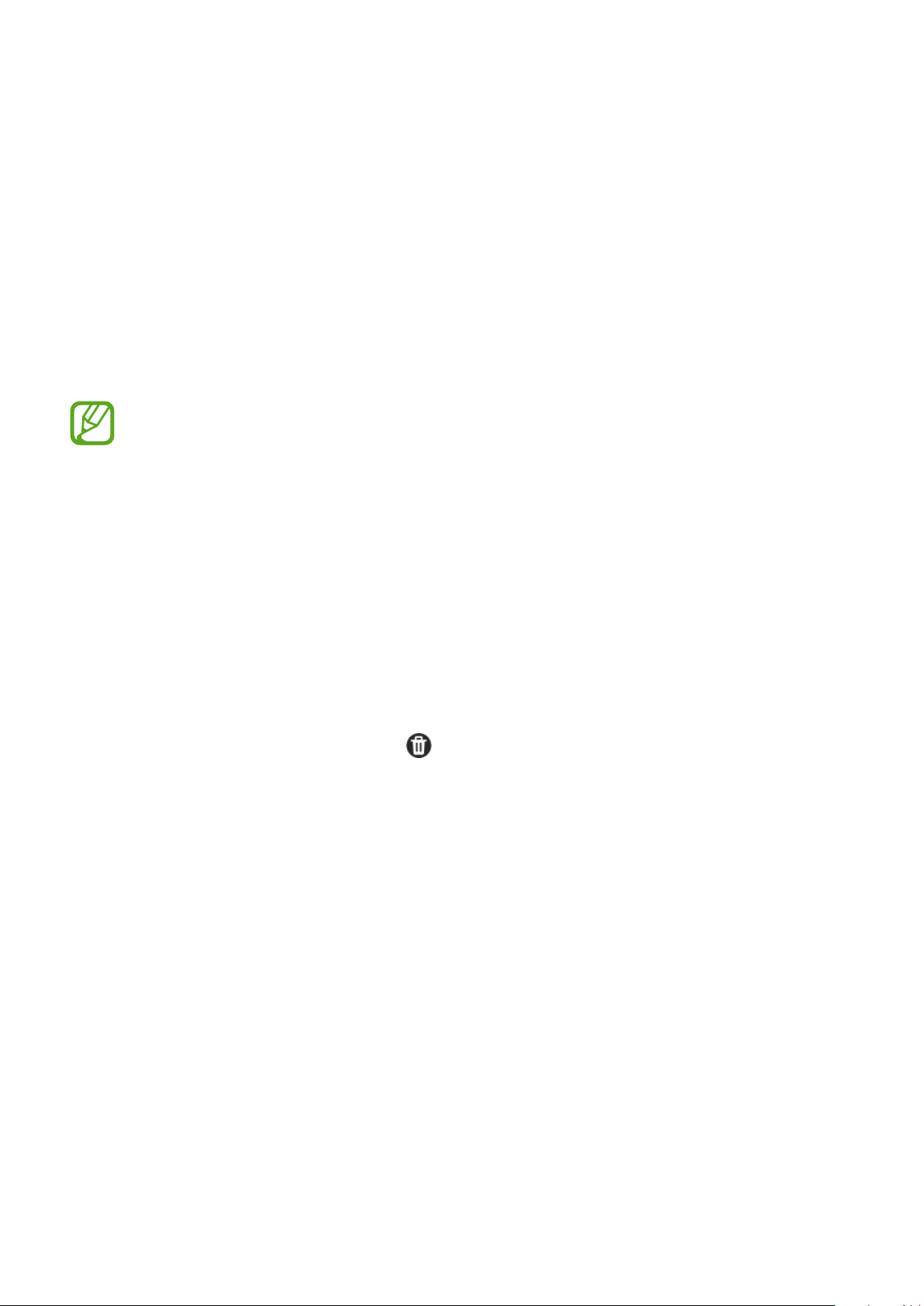
Activating do not disturb mode
Set the Galaxy Fit to mute all notifications except for alarms and not turn on the screen when
notifications are received.
On the quick panel, tap .
The icon will appear at the top of the Watch screen.
Adjusting the brightness
You can adjust the Galaxy Fit’s brightness as desired.
On the quick panel, tap and adjust the brightness by tapping or .
Activating water lock mode
Activate water lock mode when you exercise in water.
On the quick panel, tap .
The touchscreen and the wake-up gesture feature will be deactivated automatically.
Press and hold the Side key until the circle disappears to turn off water lock mode.
Launching the find my phone feature
Launch the find my phone feature and find your mobile device when you misplace it.
On the quick panel, tap .
The mobile device will emit sound and turn on the screen. Refer to Find My Phone for more
information.
Activating vibrate or silent mode
Activate vibrate or silent mode.
On the quick panel, tap or .
Activating good night mode
Activate good night mode for sleeping. All notifications except for alarms are muted and
the screen will not turn on when notifications are received while sleeping. Also, the wake-up
gesture feature will be deactivated automatically.
On the quick panel, tap .
The icon will appear at the top of the Watch screen.
29
Widgets and features
Messages
View and reply to messages using the Galaxy Fit.
Viewing and sending messages
You may incur additional charges for receiving messages while you are roaming.
1
Swipe the screen to the right on the Watch screen to open the notification panel and
view a new message.
2
Swipe upwards or downwards on the screen and select a quick reply message.
The message will be sent.
Deleting messages
Swipe to the right on the Watch screen to open the notification panel, swipe upwards or
downwards on the screen, and then tap .
Widgets and features
30
Answering calls
You can check incoming calls and reject them.
Rejecting a call
You can reject incoming calls.
Tap and drag it upwards when a call comes in.
Checking a missed call
If a call is missed, a notification will appear on the notification panel. Swipe to the right on the
Watch Screen to open the notification panel and view the notification.
Health management widget
Introduction
You can check and manage your health status with various widgets, such as steps or exercise.
Also, the health management widgets help you cultivate healthy habits by recording your
activity and how long you sleep.
You can view additional information and save and manage the data related to your health via
the Samsung Health app on the mobile device that is connected to your Galaxy Fit.
•
Samsung Health features are intended only for leisure, well-being, and fitness
purposes. They are not intended for medical use. Before using these features, read
the instructions carefully.
•
Any information that is obtained from use of the Galaxy Fit or the Fit Software
or any application preloaded within may not be suitable, accurate, complete or
reliable.
Widgets and features
31
Wearing the Galaxy Fit correctly
•
Launch the
Galaxy Wearable
app on your mobile device, tap
Home
→
Health settings
→
Auto heart rate settings
, and then select
Always
or
Frequent
for how often to
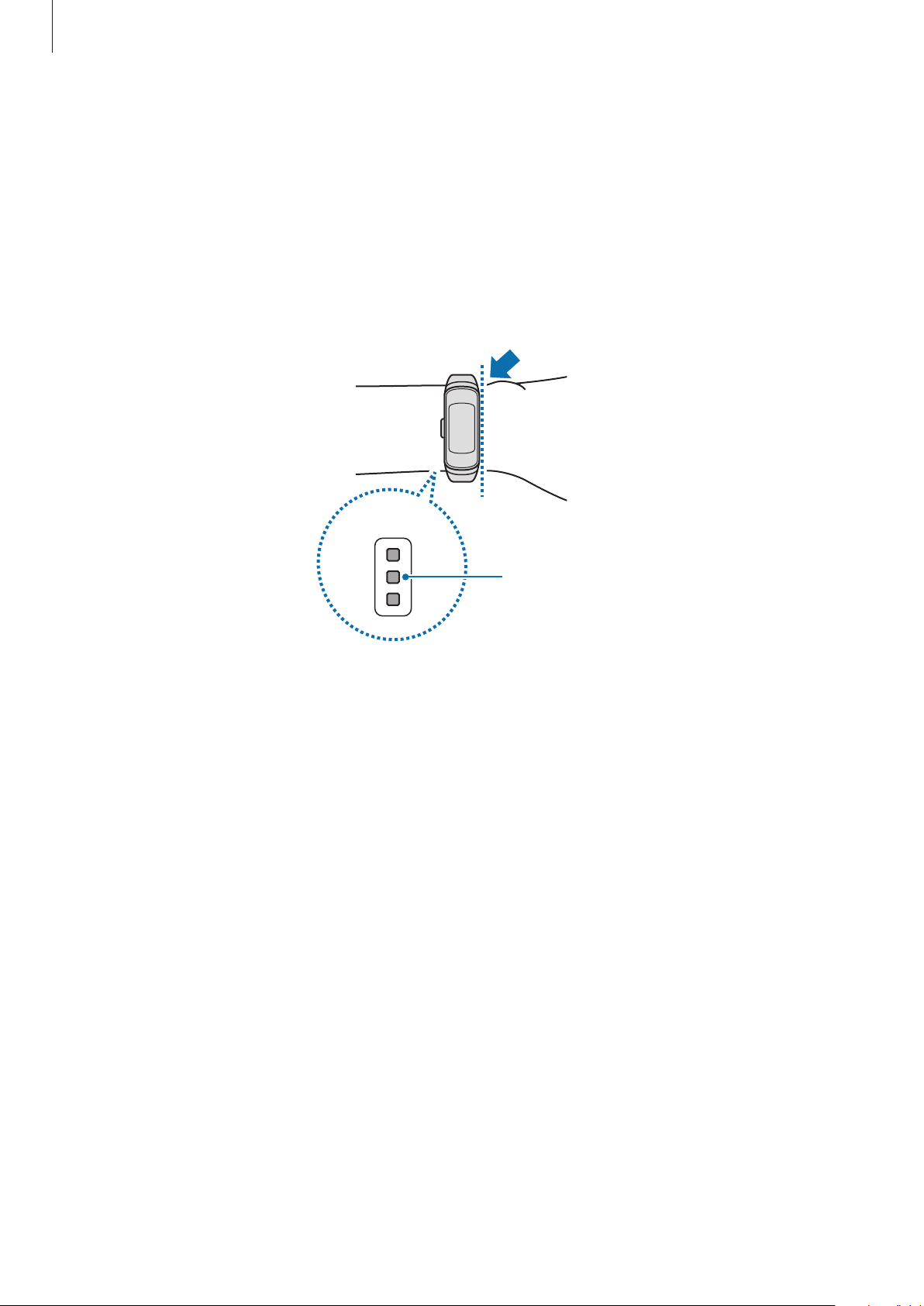
measure your heart rate. When measuring your heart rate, wear the Galaxy Fit snugly on
your arm above your wrist as shown in the figure below.
•
If you fasten the Galaxy Fit too tightly, skin irritation may occur and if you fasten it too
loosely, friction may occur.
<Rear>
Heart rate sensor

Widgets and features
32
•
The accuracy of the heart rate sensor may be diminished depending on
measurement conditions and surroundings.
•
Use the HR feature only for measuring your heart rate.
•
Do not look directly at the heart rate sensor’s lights. Doing so may impair your
vision. Make sure children do not look directly at the lights.
•
Cold ambient temperatures may affect your measurement; during winter or cold
weather, keep yourself warm when checking your heart rate.
•
Take heart rate measurements when you are seated and relaxed. Do not move your
body while taking heart rate measurements. Doing so may cause your heart rate to
be recorded inaccurately.
•
If you receive a reading that is very different from your expected heart rate, rest
and then measure again.
•
Smoking or consuming alcohol before taking measurements may cause your heart
rate to be different from your normal heart rate.
•
Do not talk, yawn, or breathe deeply while taking heart rate measurements. Doing
so may cause your heart rate to be recorded inaccurately.
•
Because the heart rate sensor uses light to approximate heart rate, its accuracy
may vary due to physical factors that affect light absorption and reflection, such as
blood circulation/blood pressure, skin condition and location and concentration of
blood vessels. In addition, if your heart rate is extremely high or low, measurements
may be inaccurate.
•
Users with thin wrists may receive inaccurate heart rate measurements when
the device is loose, causing the light to be reflected unevenly. If heart rate
measurement is not working properly, adjust the position of the device’s heart rate
sensor to the right, left, up, or down on your wrist, or turn the device so the heart
rate sensor sits firmly against the inside of your wrist.
•
If the heart rate sensor is dirty, wipe the sensor and try again. Obstructions
between the device’s band and your wrist, such as body hair, dirt, or other objects
may prevent the light from reflecting evenly. Please make sure you remove such
obstructions before use.
•
If your device becomes hot to the touch, please remove it until it cools. Exposing
skin to a hot surface of the device for a long time may cause skin burn.

Widgets and features
33
Additional information
•
The purpose for such data collection is limited to providing the service that you have
requested, including providing additional information to enhance your wellness, back
up/sync data, data analysis and statistics or to develop and provide better services. (But
if you sign in to your Samsung account from Samsung Health, your data may be saved
on the server for data backup purposes.) Personal information may be stored until the
completion of such purposes. To delete any data you have shared with social networks or
transferred to storage devices, you must delete them separately.
•
You assume full responsibility for the inappropriate use of data shared on social networks
or transmitted to others. Use caution when sharing your personal data with others.
•
If the Galaxy Fit is connected to a mobile device, verify the communication protocol
to confirm proper operation. If you use a wireless connection, such as Bluetooth, the
Galaxy Fit may be affected by electronic interference from other devices. Avoid using the
Galaxy Fit near other devices that transmit radio waves.
•
The content used in the Samsung Health app may vary depending on the software
version of the app. The services provided with the app are subject to change or the
cancellation of support without prior notice.
•
Available Samsung Health functions and services may vary depending on the local laws
and regulations in your region.
•
Some functions of Samsung Health may not be provided depending on your region.
•
Samsung Health functions are intended for fitness and informational purposes only and
is not intended for use in the diagnosis of disease or other conditions, or in the cure,
mitigation, treatment, or prevention of disease.
Widgets and features
34
Health summary
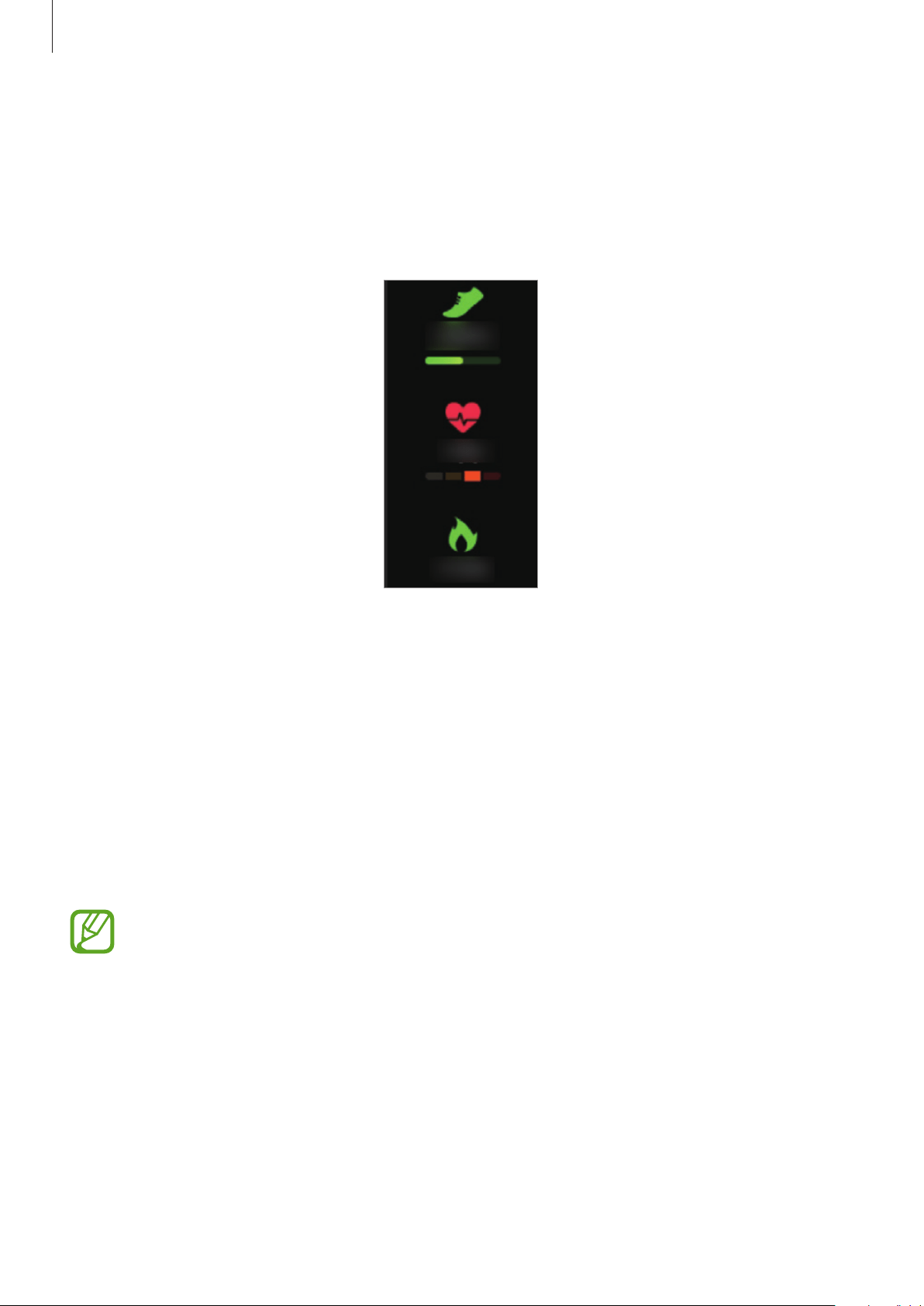
View your activity and health information, such as your daily step count, calories burned, and
real-time heart rate.
Swipe to the left on the Watch screen to switch to the health summary widget screen.
Swipe upwards or downwards on the screen to view your health information.
Exercise
Introduction
Record your exercise information and check the results, such as burned calories, with the
exercise feature.
•
Before using this feature, pregnant women, the elderly, young children, and users
suffering from conditions such as chronic heart disease or high blood pressure, are
recommended to seek the advice of a licensed medical professional.
•
If you feel dizzy, experience pain, or have difficulty breathing during exercise, stop
using this feature and seek the advice of a licensed medical professional.
•
If you have just purchased or have reset the Galaxy Fit, create your profile.
Widgets and features
35
Be aware of following conditions before exercising in cold weather conditions:
•
Avoid using the device in cold weather. If possible, use the device indoors.
•
If you use the device outside in cold weather, cover the Galaxy Fit with your sleeves
before using it.
Starting the exercises
1
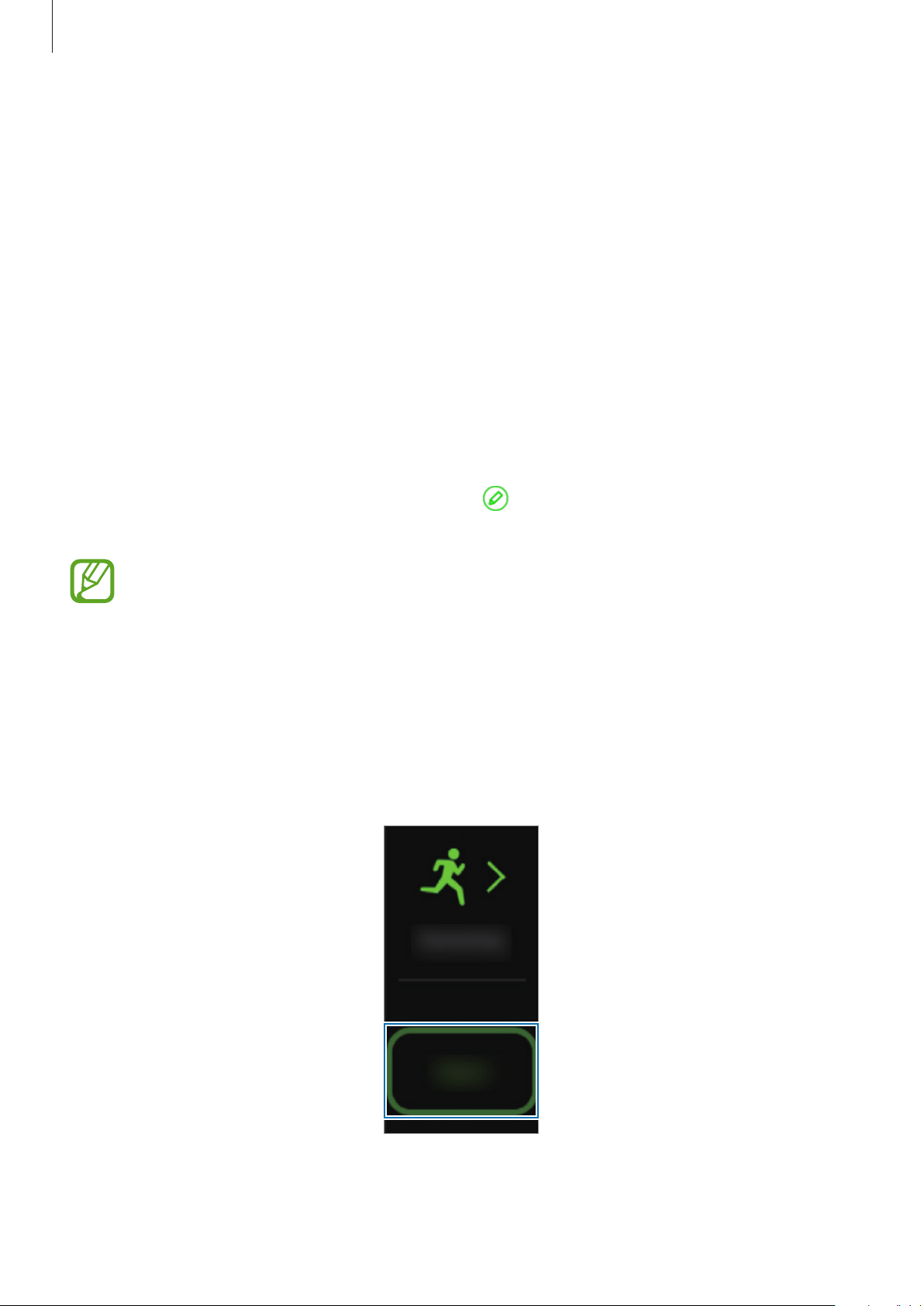
Swipe to the left on the Watch screen to switch to the exercise widget screen.
2
Tap the exercise type and select the exercise type you want from the list and start
exercising.
When the exercise type you want is already selected, tap
Start
and start exercising.
When there is no exercise type you want, tap to launch the
Samsung Health
app on
your mobile device and add the exercise type displayed on your Galaxy Fit.
•
Your heart rate is measured in seconds when you start exercising. To measure your
heart rate more accurately with the Galaxy Fit, wear the Galaxy Fit firmly around
your lower arm just above your wrist.
•
Do not move until your heart rate displays on the screen so it can be measured
more accurately.
•
Your heart rate may not be visible temporarily due to various conditions such as
the environment, your physical state, or how the Galaxy Fit is worn.
•
When you select
Swimming
, water lock mode will be activated automatically.
Widgets and features
36
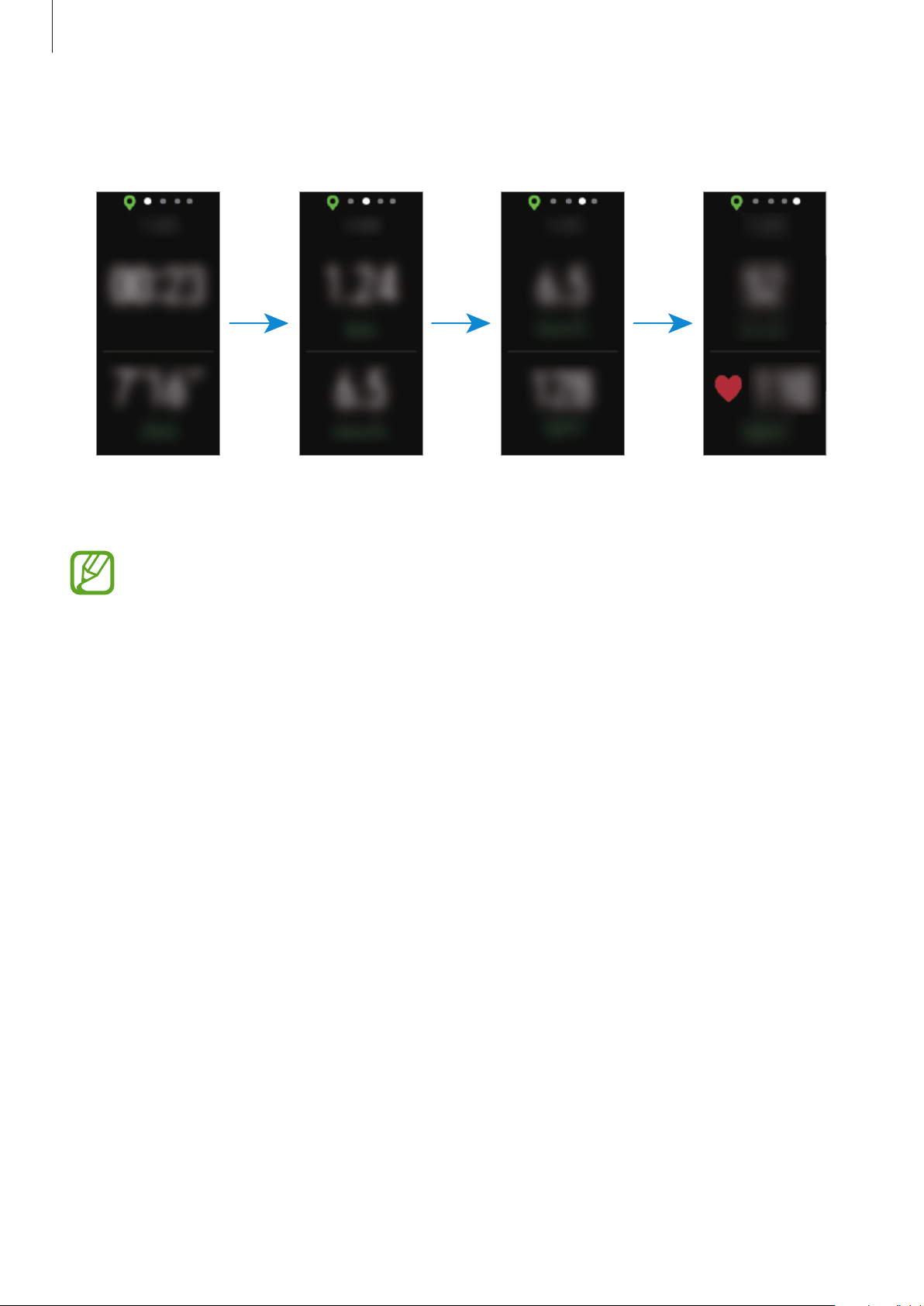
3
Swipe the screen to the left or right to view exercise information, such as your heart rate,
distance, or time, on the workout screen.
When you are swimming, you can check additional exercise information, such as your
interval and stroke.
•
When you select
Swimming
, water lock mode will be automatically activated and
the touchscreen will be disabled. The screen will change automatically and you can
check your exercise information.
•
When you select
Swimming
, the recorded value may not be accurate in following
cases:
–
If you stop swimming before reaching the completion point
–
If you change your swimming stroke midstream
–
If you stop moving your arms before reaching the completion point
–
If you kick with your legs on a kickboard or swim without moving your arms
–
If you do not pause or restart the exercise by pressing the Side key, but finish
the exercise by pressing the Side key and tapping
Finish

Widgets and features
37
4
Press the Side key to pause the exercise.
To restart the exercise, tap the Side key again after pausing the exercise.
To finish exercising, tap
Finish
after pausing the exercise.
To finish swimming, press and hold the Side key to deactivate water lock mode first, press
the Side key again, and then tap
Finish
.
5
Swipe upwards or downwards on the screen after finishing the exercise and view your
exercise information.
Start exercising quickly
You can start exercising quickly by pressing and holding the Side key without switching to
the exercise widget screen.
1
Press and hold the Side key.
2
Tap .
The exercise type “Running” is started.
To change the exercise type to start quickly, launch the
Galaxy Wearable
app on your
mobile device, tap
Home
→
Advanced
→
Press and hold Side key
, and then select
another exercise type.
Widgets and features
38
Doing multiple exercises
You can log various exercises and go straight through an entire routine by starting another
exercise right after finishing the current exercise.
1
Press the Side key to pause the current exercise.
2
Tap
New
.
3
Select the exercise type and start the next exercise.
Automatic exercise recognition
Once you have engaged in an activity for more than ten minutes while wearing the Galaxy Fit,
it automatically recognizes that you are exercising and records exercise information such as
the exercise type, duration and calories burned.
When you stop doing some exercises for more than one minute, the Galaxy Fit automatically
recognizes that you have stopped exercising and this feature is deactivated. Check your
exercise information via the Samsung Health app on the mobile device that is connected to
your Galaxy Fit.
•
You can check the list of exercises that are supported by the automatic exercise
recognition feature. Launch the
Galaxy Wearable
app on your mobile device and
tap
Home
→
Health settings
→
Workout detection
.
•
The automatic exercise recognition feature measures the distance travelled and
calories burned using the acceleration sensor. The measurements may not be
accurate depending on your manner of walking, exercise routines, and lifestyle.
Widgets and features
39
Steps
Introduction
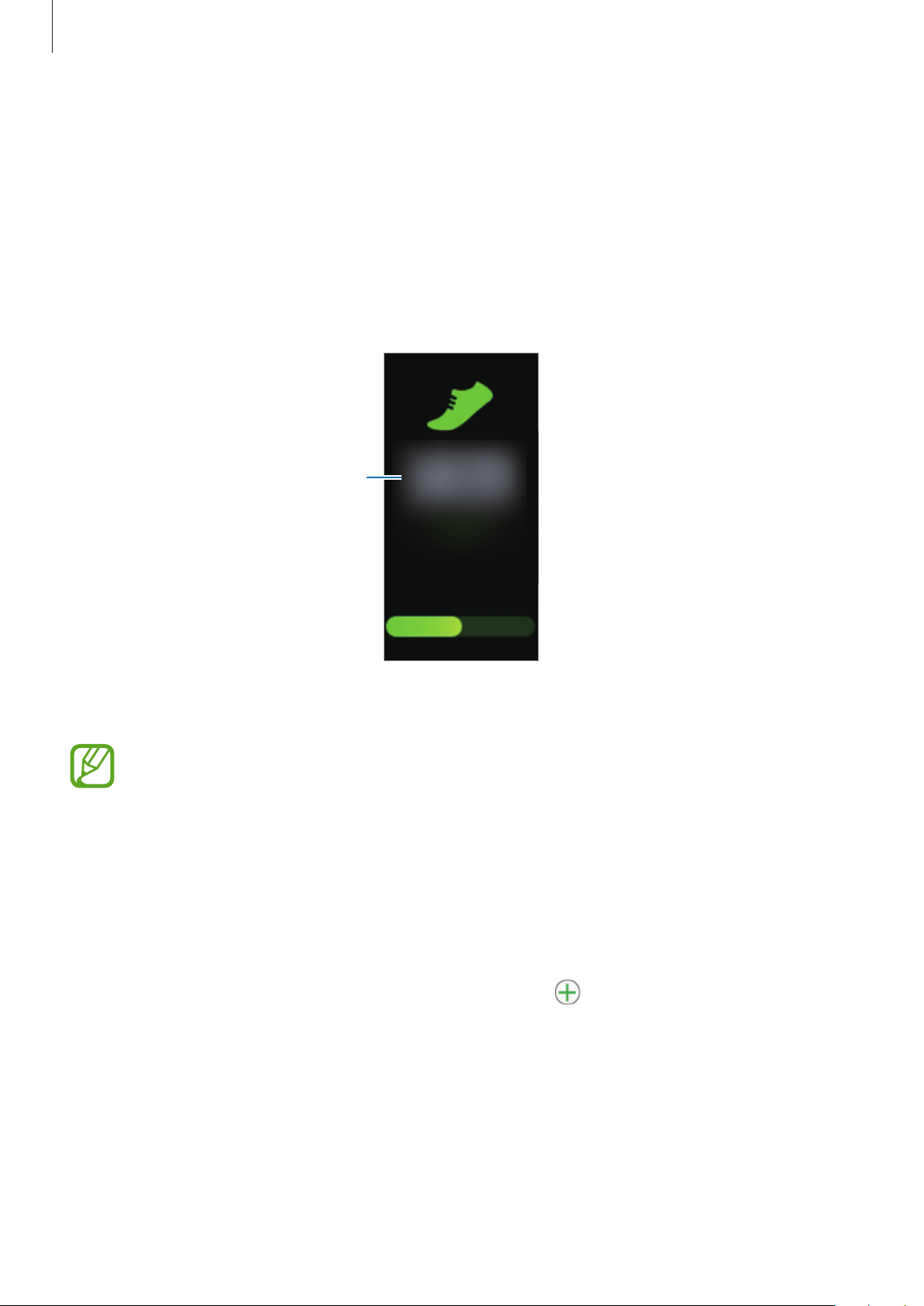
The Galaxy Fit counts the number of steps you have taken and measures the distance
travelled and the calories burned while walking.
Swipe to the left on the Watch screen to switch to the steps widget screen.
Current step total
Swipe upwards or downwards on the screen to view your step information.
•
When you start to measure your step, the step tracker monitors your steps and
displays your step account after a brief delay because your Galaxy Fit accurately
recognizes your movement after you walk for a while. Also, for an accurate step
count, you may experience a brief delay before the pop-up window indicates that
a certain goal has been reached.
•
If you use the steps tracker while travelling by car or train, vibration may affect your
step count.
•
You must first add the steps widget to use it. Launch the
Galaxy Wearable
app on
your mobile device, tap
Home
→
Widgets
, tap next to the steps widget, and
then tap
SAVE
.
Widgets and features
40
Setting the step target
Launch the
Galaxy Wearable
app on your mobile device and tap
Home
→
Health settings
→
Step target
to set a step target.
Calories
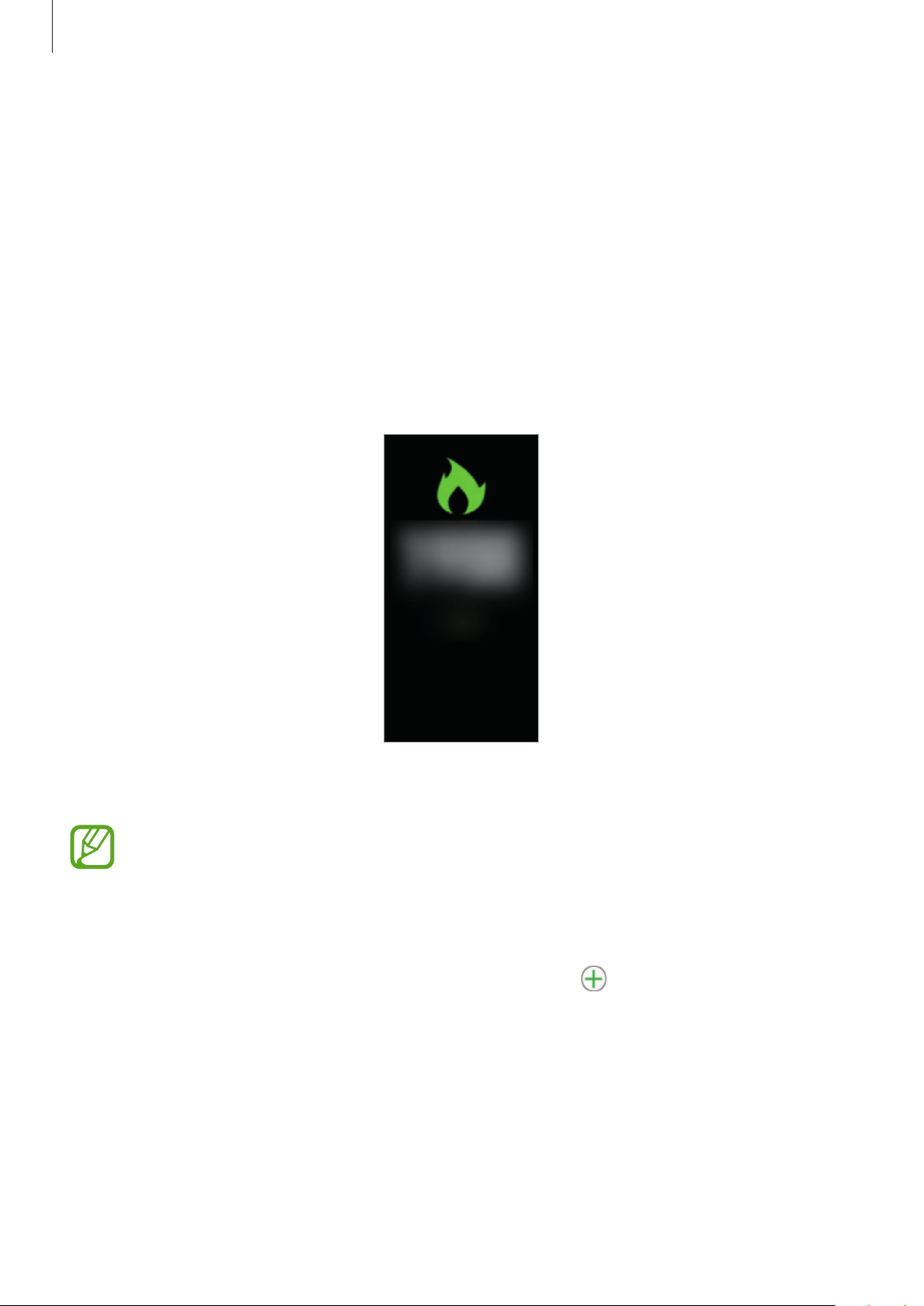
You can check your total calories burned by day and also check your calorie burn totals by
activity and rest.
Swipe to the left on the Watch screen to switch to the calories widget screen.
Swipe upwards or downwards on the screen to view your calories information.
•
The calories you burn include your basal metabolism calculated based on the
profile you registered. When you launch this feature for the first time, the basal
metabolism you expended until the time you launched this feature will be
displayed as the calories you burned.
•
You must first add the calories widget to use it. Launch the
Galaxy Wearable
app
on your mobile device, tap
Home
→
Widgets
, tap of the calories widget, and
then tap
SAVE
.
Widgets and features
41
Heart rate
Introduction
Measure and record your heart rate.
•
The Galaxy Fit’s heart rate tracker is intended for fitness and informational
purposes only and is not intended for use in the diagnosis of disease or other
conditions, or in the cure, mitigation, treatment, or prevention of disease.
•
To measure your heart rate more accurately with the Galaxy Fit, wear the Galaxy Fit
firmly around your lower arm just above the wrist. Refer to Wearing the Galaxy Fit
correctly for more information.
•
The Galaxy Fit can be used as a heart rate measurement accessory. Connect the
Galaxy Fit and your mobile device, tap exercise tracker in the Samsung Health
app on your mobile device to start exercising. You can see your heart rate
measurements via the exercise screen, the exercise tracker results, and the heart
rate tracker.
•
You must first add the heart rate widget to use it. Launch the
Galaxy Wearable
app on your mobile device, tap
Home
→
Widgets
, tap next to the heart rate
widget, and then tap
SAVE
.
Be aware of following conditions before measuring your heart rate:
•
If the measurement is very different from the expected heart rate, rest and then measure
it again.
•
During winter or in cold weather, keep yourself warm when measuring your heart rate.
•
Smoking or consuming alcohol before taking measurements may cause your heart rate
to be different from your normal heart rate.
•
Do not talk, yawn, or breathe deeply while taking heart rate measurements. Doing so
may cause your heart rate to be recorded inaccurately.
•
Heart rate measurements may vary depending on the measurement method and the
environment they are taken in.
•
If the heart rate sensor is not working, check the Galaxy Fit on your wrist and make sure
nothing is obstructing the sensor. If the heart rate sensor continues to have the same
problem, visit a Samsung Service Centre.
Widgets and features
42
Tracking your heart rate
The Galaxy Fit measures and records your heart rate at regular intervals throughout the day.
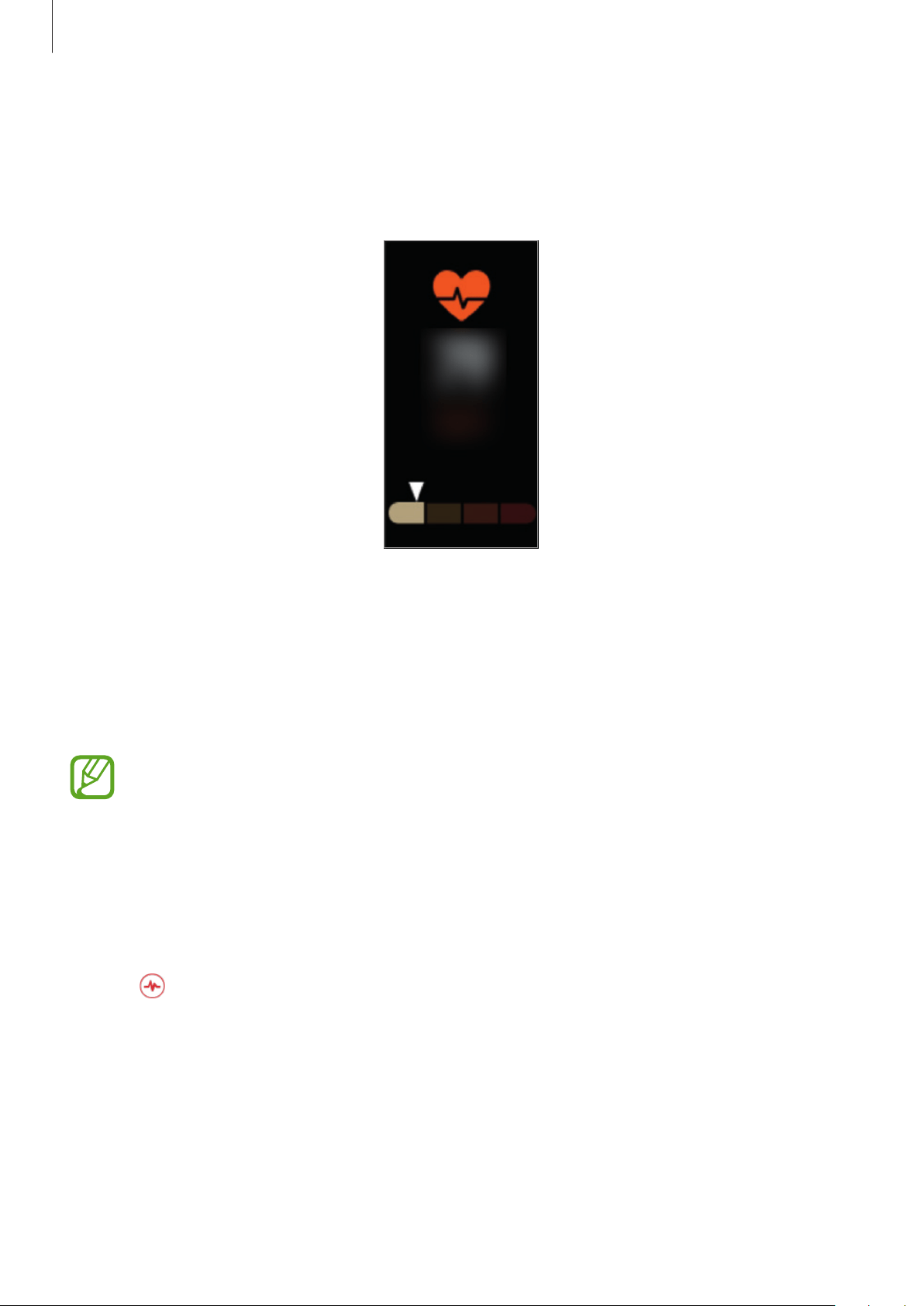
Swipe to the left on the Watch screen to switch to the heart rate widget screen.
After a moment, swipe upwards or downwards on the screen to view your heart rate
information.
Measuring your heart rate
You can measure your heart rate manually whenever you want.
Your heart rate will be measured regardless of the selected auto heart rate settings
while working out.
1
Launch the
Galaxy Wearable
app on your mobile device, tap
Home
→
Health settings
→
Auto heart rate settings
, and then select
Never
.
2
Swipe to the left on the Watch screen to switch to the heart rate widget screen.
3
Tap to start measuring your heart rate.
After a moment, your current heart rate will be displayed on the screen.
4
Swipe upwards or downwards on the screen to view your heart rate information.
Widgets and features
43
Sleep
Introduction
Record how long you sleep by analyzing your movement while you are sleeping.
To measure your heart rate more accurately with the Galaxy Fit, wear the Galaxy Fit
firmly around your lower arm just above the wrist. Refer to Wearing the Galaxy Fit
correctly for more information.
Checking your sleep record
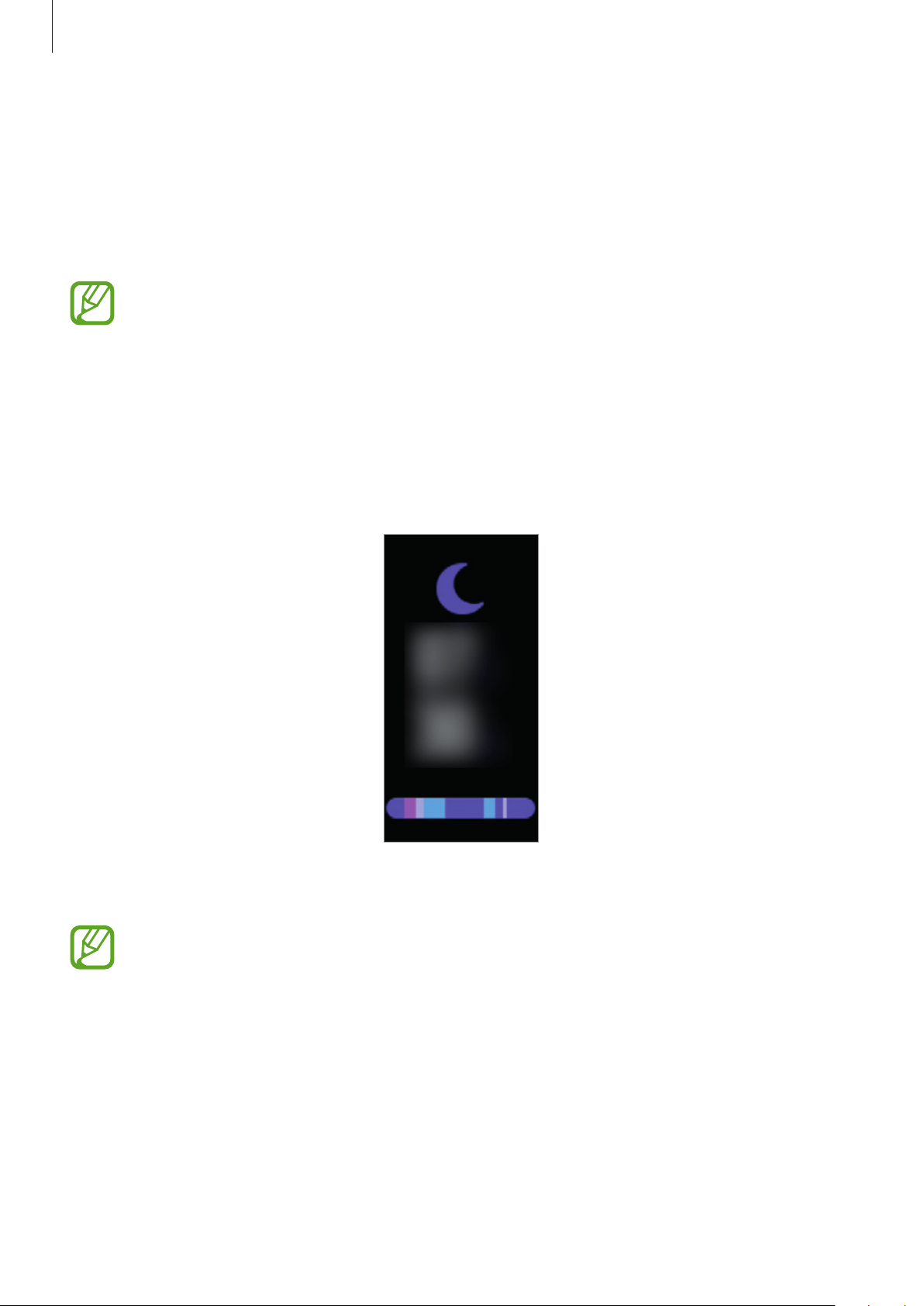
The Galaxy Fit measures your sleep record when you sleep while wearing the Galaxy Fit.
Swipe to the left on the Watch screen to switch to the sleep widget screen after you wake up.
Swipe upwards or downwards on the screen to view your sleep information.
•
You can view your sleep patterns and information via the Samsung Health app on
the mobile device that is connected to your Galaxy Fit.
•
The sleep pattern will have its four states (Awake, REM, Light, Deep) analyzed by
using your movement and changes in your heart rate.
•
If your heart rate is irregular, your Galaxy Fit cannot recognize your heart rate
properly. The sleep pattern will be analyzed into three states (Restless, Light,
Motionless).
Widgets and features
44
Water
Introduction
Record and track how many glasses of water you drink.
You must first add the water widget to use it. Launch the
Galaxy Wearable
app on
your mobile device, tap
Home
→
Widgets
, tap next to the water widget, and
then tap
SAVE
.
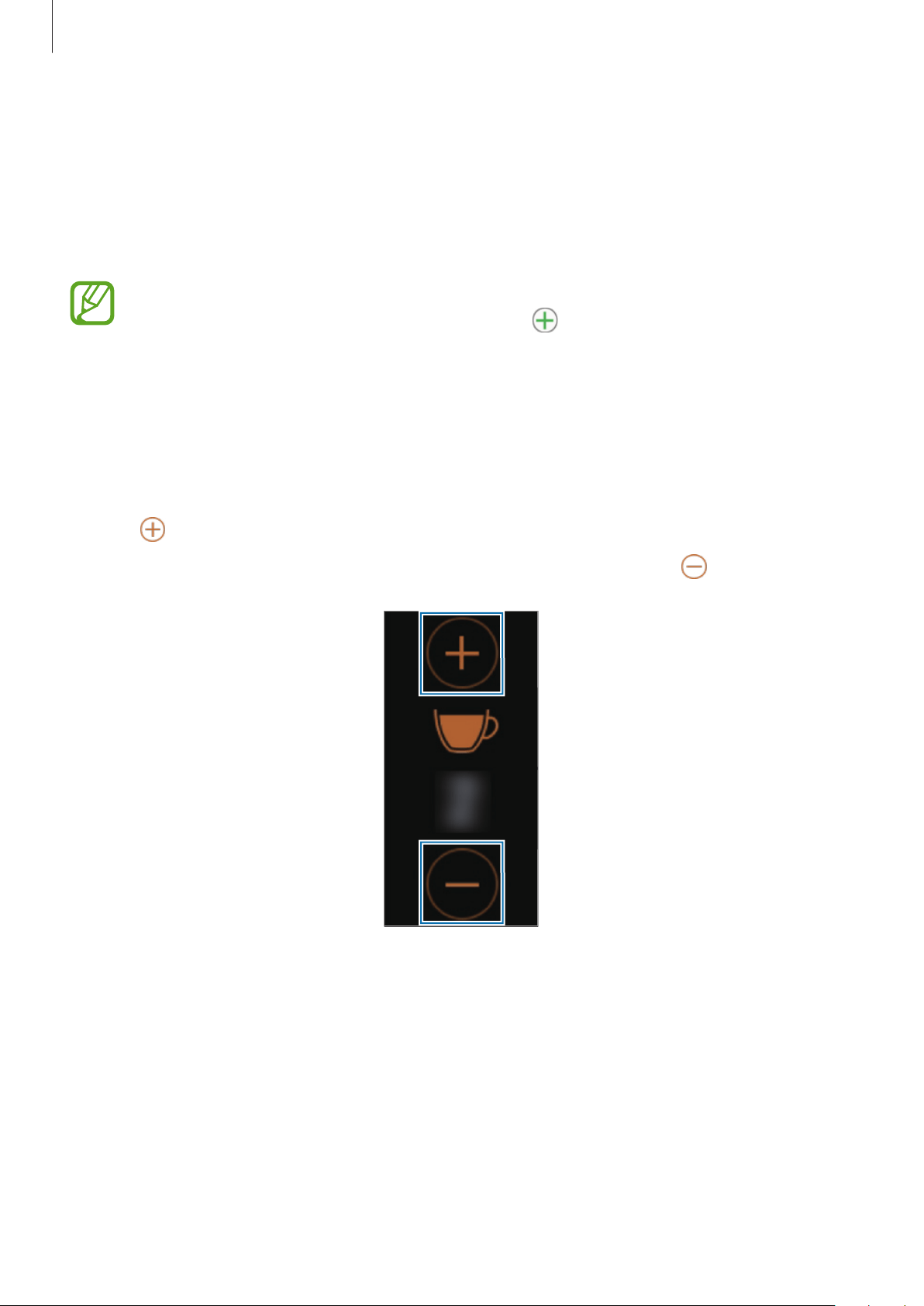
Recording water consumption
1
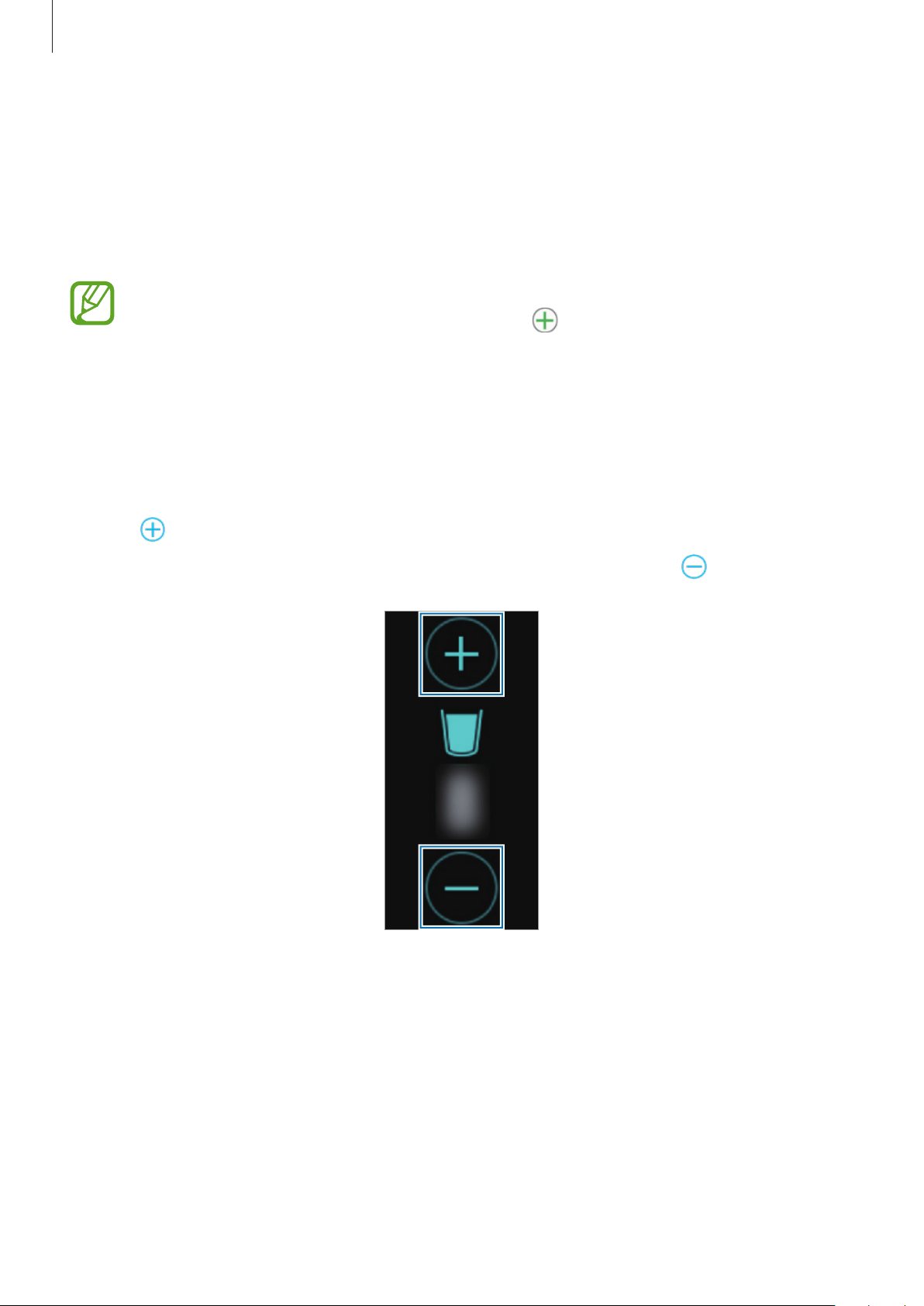
Swipe to the left on the Watch screen to switch to the water widget screen.
2
Tap when you drink a glass of water.
If you accidentally added an incorrect value, you can fix it by tapping .
Widgets and features
45
Caffeine
Introduction
Record and track how many cups of coffee you drink.
You must first add the caffeine widget to use it. Launch the
Galaxy Wearable
app on
your mobile device, tap
Home
→
Widgets
, tap next to the caffeine widget, and
then tap
SAVE
.
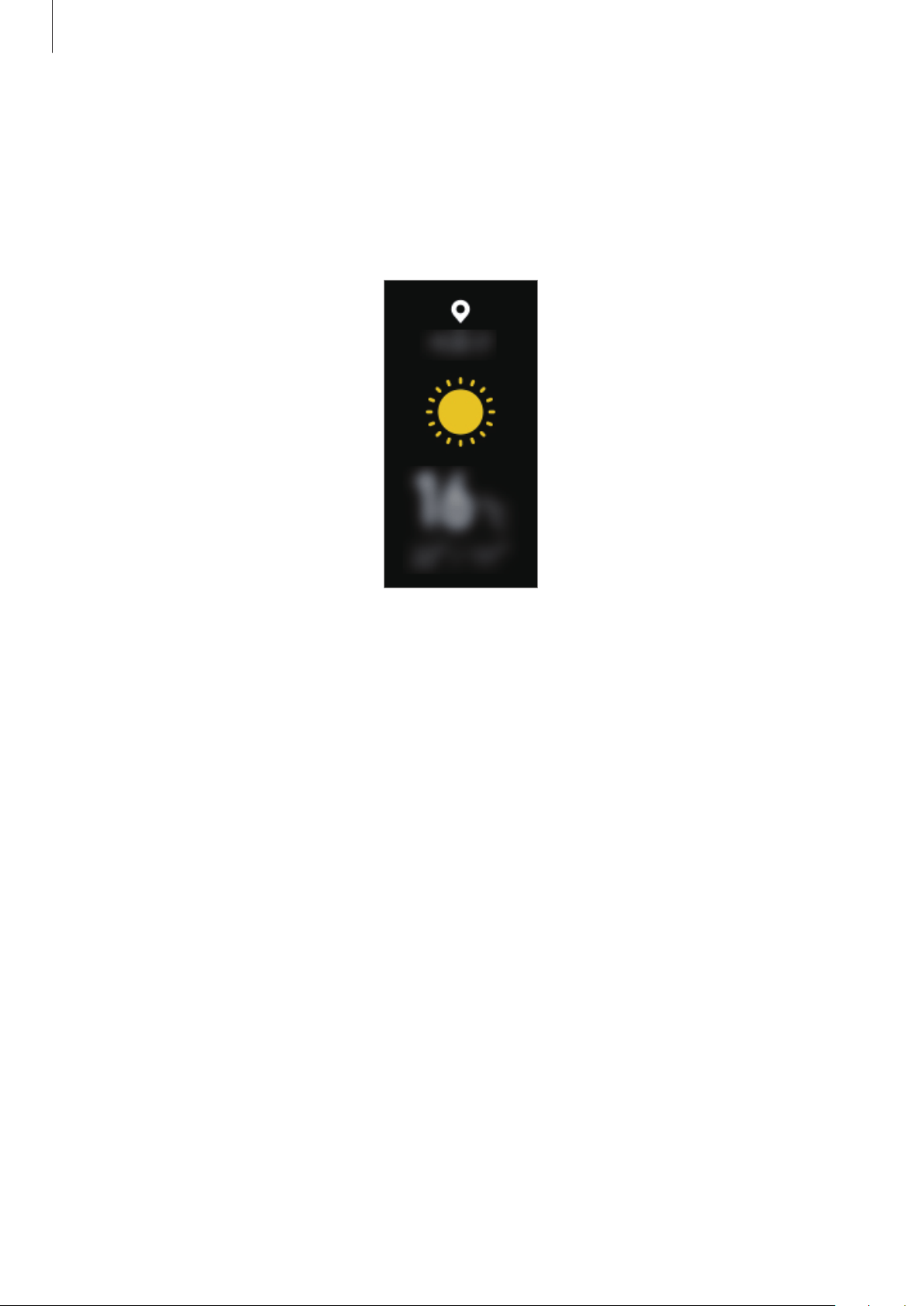
Recording your coffee consumption
1
Swipe to the left on the Watch screen to switch to the caffeine widget screen.
2
Tap when you drink a cup of coffee.
If you accidentally added an incorrect value, you can fix it by tapping .
Widgets and features
46
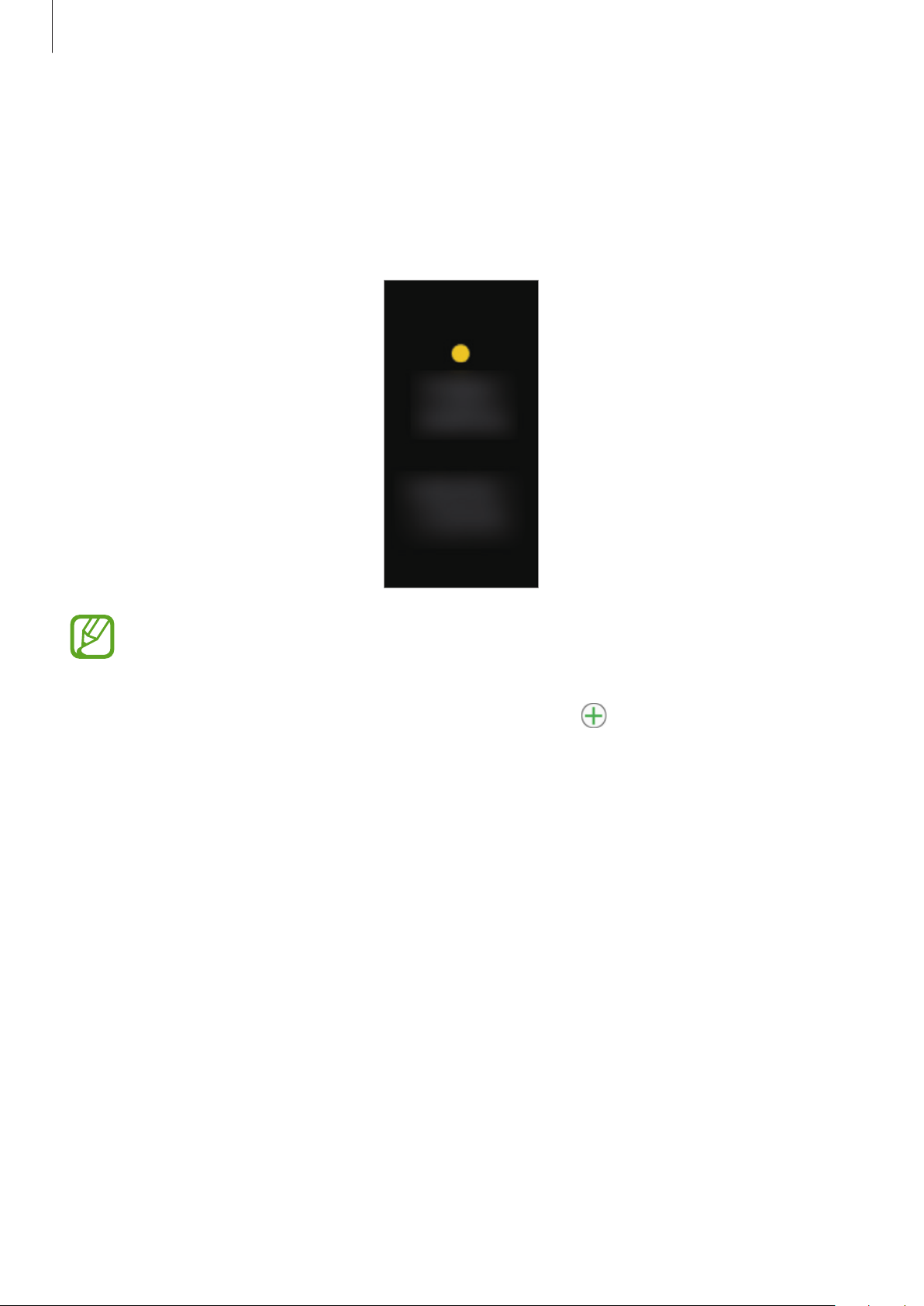
Weather
You can view weather information on the Galaxy Fit for locations set on the connected mobile
device.
Swipe to the left on the Watch screen to switch to the weather widget screen.
Widgets and features
47
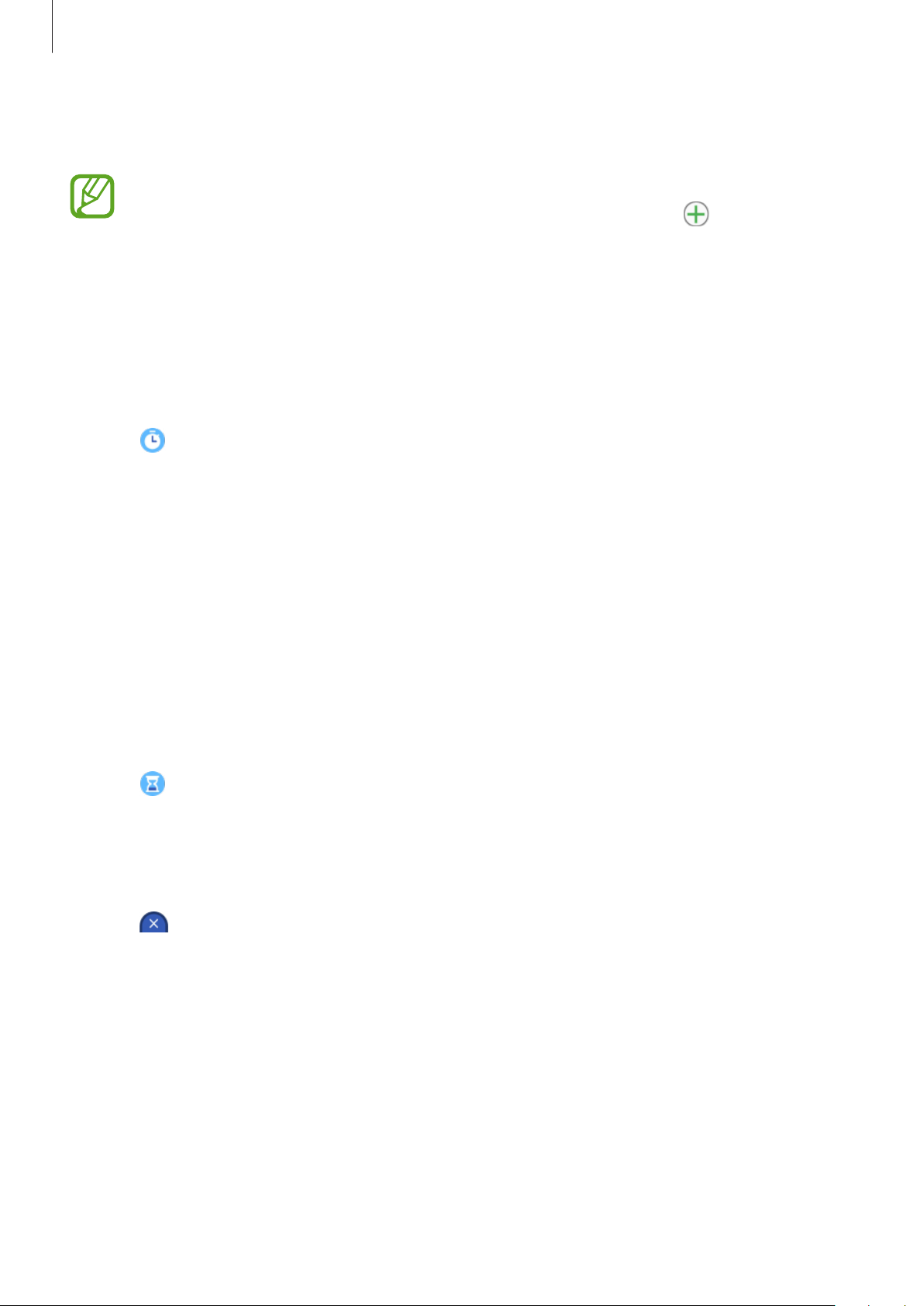
Calendar
You can check the schedules of events that you saved on your mobile device on your
Galaxy Fit.
Swipe to the left on the Watch screen to switch to the calendar widget screen.
•
All events scheduled on your mobile device will be synced with the connected
Galaxy Fit automatically to check them, and receive alarms from the Galaxy Fit.
•
You must first add the calendar widget to use it. Launch the
Galaxy Wearable
app
on your mobile device, tap
Home
→
Widgets
, tap next to the calendar widget,
and then tap
SAVE
.
Widgets and features
48
Stopwatch and timer
You must first add the stopwatch and timer widget to use it. Launch the
Galaxy
Wearable
app on your mobile device, tap
Home
→
Widgets
, tap next to the
stopwatch and timer widget, and then tap
SAVE
.
Using the stopwatch
1
Swipe to the left on the Watch screen to switch to the stopwatch and timer widget
screen.
2
Tap .
3
Tap the screen to time an event.
4
Tap the screen to stop timing.
Tap
Reset
to return the stopwatch to the default setting.
Using the timer
1
Swipe to the left on the Watch screen to switch to the stopwatch and timer widget
screen.
2
Tap .
3
Tap the screen, swipe upwards or downwards on the screen to set the time, and then tap
the screen again.
4
Tap and drag it upwards when the timer goes off.
Widgets and features
49
Find My Phone
If you misplace the mobile device, the Galaxy Fit can help you find it.
1
Swipe downwards on the screen to open the quick panel.
2
Tap .
The mobile device emits sounds and turns on the screen. Tap and hold and drag it to
the left or right on your mobile device, or tap
Stop
on the Galaxy Fit.
50
Galaxy Wearable app
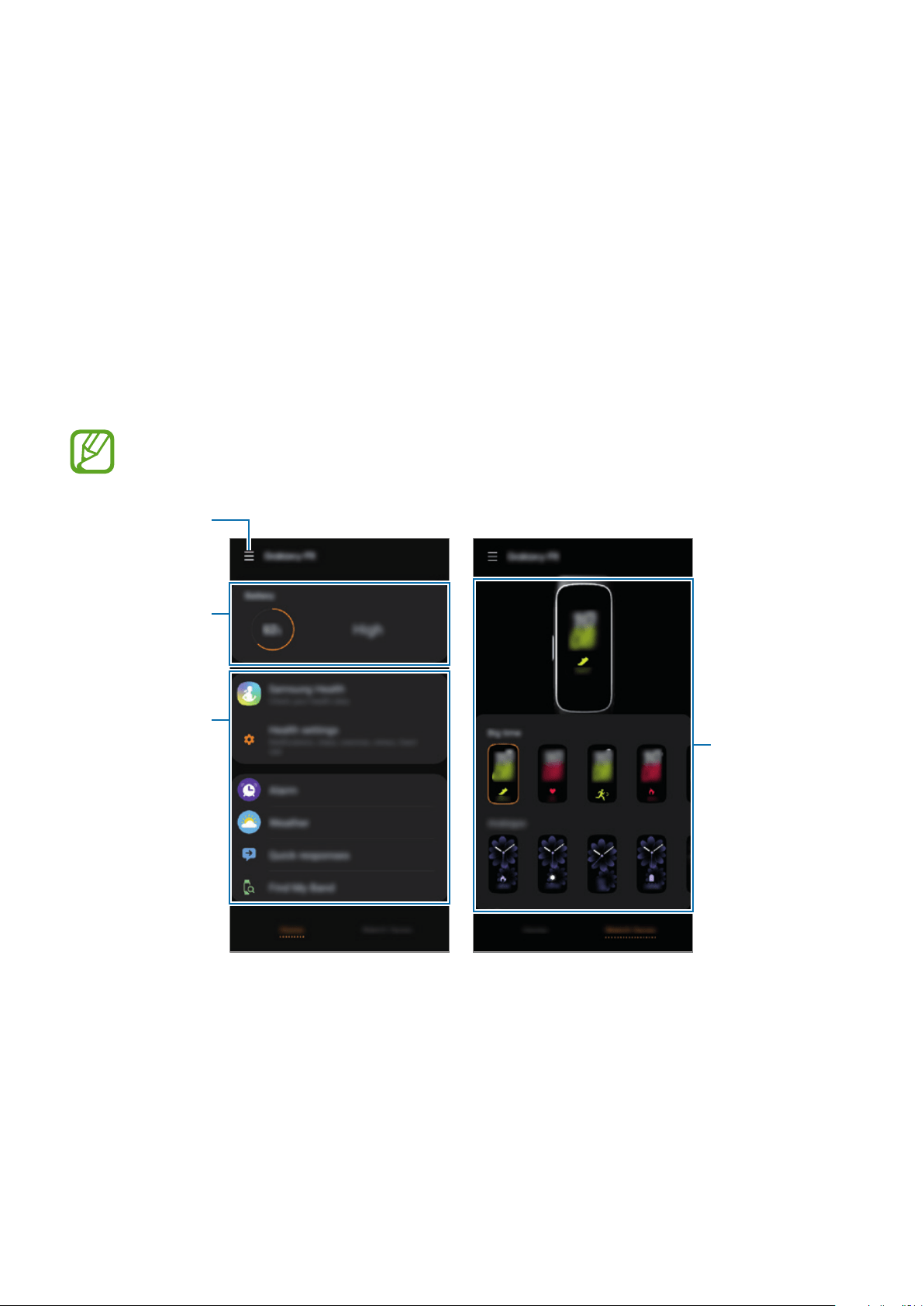
Introduction
To connect your Galaxy Fit to a mobile device, you must install the Galaxy Wearable app on
your mobile device. In the Galaxy Wearable app, you can view the Galaxy Fit’s information and
customize its various settings, such as your notification settings.
Launch the
Galaxy Wearable
app on your mobile device.
Some features may not be available depending on the type of connected mobile
device.
Access
additional
options.
Customize the
watch face.
Home Watch faces
Galaxy Fit’s
battery status
Launch the
Samsung
Health app and
features, which
can be used by
connecting the
Galaxy Fit, and
then customize
your Galaxy Fit
settings.
Galaxy Wearable app
51
Tap to use the following options:
•
Connect new device
: Disconnect your device from the currently connected mobile
device and connect a new device. Select your device on the screen or tap
Mine’s not here
if you cannot find your device, and then follow the on-screen instructions to connect to
the new device.
•
Disconnect
: Disconnect your Galaxy Fit from the currently connected mobile device.
•
Auto switch
: The Galaxy Fit will still automatically connect to your mobile device if you
wear it on your wrist.
This option is displayed only when more than two devices that support the auto
switch feature are paired to your mobile device.
•
App notifications
: Change the various Galaxy Wearable app notification settings on the
mobile device.
•
User manual
: View the user manual to learn how to use your Galaxy Fit.
•
Contact us
:
Samsung Members
offers support services to customers, such as device
problem diagnosis, and lets users submit questions and error reports. You can also share
information with others in the Galaxy users’ community or view the latest Galaxy news
and tips.
Samsung Members
can help you solve any problems you might encounter
while using your device.
This option may not be available depending on the region, service provider or
model that does not support the
Samsung Members
app.

Galaxy Wearable app
52
Home
Introduction
View your Galaxy Fit’s status and customize your Galaxy Fit settings. You can also launch the
Samsung Health app by connecting the Galaxy Fit with your mobile device.
Launch the
Galaxy Wearable
app on your mobile device and tap
Home
.
Battery
View the remaining battery power of your Galaxy Fit.
Samsung Health
View the Galaxy Fit’s data saved in the Samsung Health app.
Launch the
Galaxy Wearable
app on your mobile device and tap
Home
→
Samsung Health
.
Health settings
View and change the health settings of the Galaxy Fit.
Launch the
Galaxy Wearable
app on your mobile device and tap
Home
→
Health settings
.
•
Notifications
: Turn the detecting workout time, inactive time, high heart rate, and step
target achievement notifications on or off.
•
Step target
: View or change the step target you saved to the Samsung Health app.
•
Manage exercise
: Add or remove the exercise type displayed on your Galaxy Fit. You can
select up to ten exercise types.
•
Workout detection
: Set your Galaxy Fit to recognize your workout automatically.
•
Keep screen on during exercise
: Set the Galaxy Fit display the screen shows the exercise
information while working out.
Galaxy Wearable app
53
•
Breathe settings
: Change the breathing exercise settings provided by the Galaxy Fit.
•
Auto heart rate settings
: Set the Galaxy Fit’s auto heart rate measuring frequency.
•
High heart rate alert
: Select the resting heart rate and turn on the notification that alerts
you when your resting heart rate is higher than the selected heart rate while inactive.
This feature is available only when the
Auto heart rate settings
feature is set to
Always
.
Alarm
Set alarms and manage them.
Setting alarms
1
Launch the
Galaxy Wearable
app on your mobile device.
2
Tap
Home
→
Alarm
→
Add alarm
.
If you have a saved alarm, tap on the top of the alarms list.
3
Set the alarm time, select the days for the alarm to repeat, and then tap
SAVE
.
The saved alarm is added to the alarm list and the Galaxy Fit vibrates at the set time.
To activate or deactivate alarms, tap the switch next to the alarm in the alarms list.
Stopping alarms
When the alarm sounds, tap and drag it upwards on your Galaxy Fit.
Deleting alarms
In the alarms list, tap and hold and alarm, and then tap
Delete
. Alternatively, tap at the top
of the screen, select the alarm you want to delete, and then tap
Delete
.
Galaxy Wearable app
54
Weather
Change settings related to the weather information displayed on the weather widget screen
of the Galaxy Fit.
Launch the
Galaxy Wearable
app on your mobile device, tap
Home
→
Weather
→
Settings
to change settings, such as the temperature unit, the weather update interval, or using the
current location.
Quick responses
Edit or add templates used to reply to messages.
1
Launch the
Galaxy Wearable
app on your mobile device.
2
Tap
Home
→
Quick responses
.
3
Select a template to edit.
To add a template, tap .
4
Enter the template and tap
SAVE
.
Find My Band
If you misplace your Galaxy Fit, use the Galaxy Wearable app on your mobile device to find it.
1
Launch the
Galaxy Wearable
app on your mobile device and tap
Home
→
Find My
Band
.
2
Tap .
The Galaxy Fit will vibrate and the screen will turn on. To stop vibrating, tap and drag
it upwards on your Galaxy Fit, or tap on the mobile device.

Galaxy Wearable app
55
Notifications
Change settings for the notification feature. Stay up to date with a variety of events, such as
new messages received on the mobile device.
Launch the
Galaxy Wearable
app on your mobile device, tap
Home
→
Notifications
, tap the
switch to activate it, and then activate items.
•
Manage notifications
: Select apps on the mobile device to send notifications to the
Galaxy Fit.
•
Show only while wearing band
: Set the Galaxy Fit to show notifications only while you
are wearing it.
•
Mute connected phone
: Alert the mobile device on mute when the connected Galaxy Fit
receives a notification.
•
Show while using phone
: Set the Galaxy Fit to show notifications while using your
mobile device.
•
Auto show details
: Set the Galaxy Fit to show details for notifications when they are
received.
•
Notification indicator
: Set the Galaxy Fit to display an orange notification indicator on
the Watch screen to alert you to notifications that you have not checked.
•
Turn on screen
: Set the Galaxy Fit to turn on the screen when the notification is received.
Widgets
Customize the widgets on the Galaxy Fit. You can also rearrange widgets.
Launch the
Galaxy Wearable
app on your mobile device and tap
Home
→
Widgets
.
Adding or removing widgets
Tap next to the widget to remove it or tap next to the widget to add it and tap
SAVE
.
The widget will be added or removed from the Galaxy Fit.
Reordering widgets
Tap next to a widget, drag it to another position, and then tap
SAVE
.
The widget’s order will be changed on the Galaxy Fit.
Galaxy Wearable app
56
Vibration
Change the Galaxy Fit’s vibration settings. Even when vibration is turned off, some
notifications can cause vibrations.
Launch the
Galaxy Wearable
app on your mobile device and tap
Home
→
Vibration
.
•
Vibration
: Turn vibrations on or off.
•
Long vibration
: Set the Galaxy Fit to vibrate longer for incoming calls and notifications.
Display
Change the Galaxy Fit’s display settings.
Launch the
Galaxy Wearable
app on your mobile device and tap
Home
→
Display
.
•
Brightness
: Adjust the brightness for the display.
•
Screen timeout
: Set the length of time the Galaxy Fit waits before turning off the
display’s backlight.
Advanced
Activate the Galaxy Fit’s advanced features and change the control settings.
Launch the
Galaxy Wearable
app on your mobile device and tap
Home
→
Advanced
.
•
Press and hold Side key
: Set a quick exercise by pressing and holding the Side key.
•
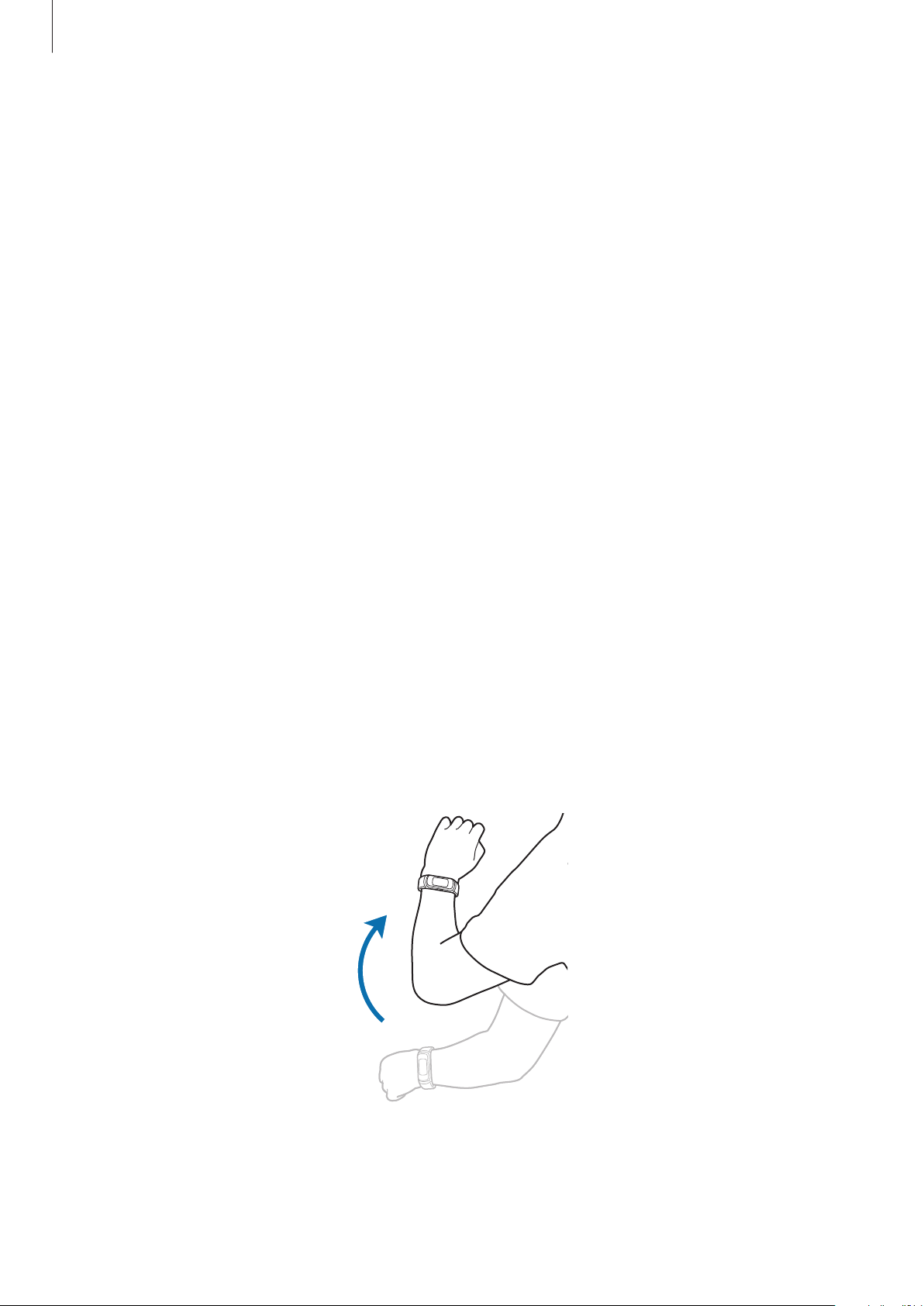
Wake-up gesture
: Set the Galaxy Fit to turn on the screen when you raise your wrist that
is wearing the Galaxy Fit.

Galaxy Wearable app
57
•
Water lock mode
: Activate water lock mode before entering the water. The touchscreen
and the wake-up gesture feature will be deactivated automatically.
•
Do not disturb
: Set the Galaxy Fit to mute all notifications except for alarms and the
screen will not turn on when notifications are received.
•
Sync Do not disturb with phone
: Set the Galaxy Fit to activate do not disturb mode
automatically when it is activated on the connected mobile device.
•
Good night mode
: Activate good night mode for sleeping. All notifications except for
alarms are muted and the screen will not turn on when notifications are received while
sleeping. Also, the wake-up gesture feature will be deactivated automatically.
•
Edit quick settings
: Edit the Galaxy Fit’s quick panel.
•
Status indicator
: Set the indicator icons to appear at the top of the quick panel.
•
Alert
: Set to receive an alert when the Bluetooth connection between the mobile device
and Galaxy Fit is deactivated.
Account and backup
Back up or restore your Galaxy Fit’s data using Samsung Cloud, provided by Samsung. Also,
you can check the Samsung account registered on your connected mobile device and set up
the customization service.
Launch the
Galaxy Wearable
app on your mobile device and tap
Home
→
Account and
backup
.
•
Customization Service
: Set the Galaxy Fit to provide the proper feature depending on
the location and situation after analyzing your lifestyle pattern.
•
Samsung account
: Add your Samsung account to use with your Galaxy Fit.
•
Back up and restore
: Keep your personal information, data, and settings safe on your
Galaxy Fit. You can back up your sensitive information and access it later. You must sign
in to your Samsung account to back up or restore data. Refer to Managing the data in the
Galaxy Fit for more information.
Regularly back up your data to a safe location, such as Samsung Cloud or a computer,
so that you can restore it if the data is corrupted or lost due to an unintended factory
data reset.

Galaxy Wearable app
58
Managing the data in the Galaxy Fit
Keep your personal information, data, and settings safe on your Galaxy Fit. You can back
up your sensitive information and access it later, as well as back up your Galaxy Fit’s data
automatically.
Galaxy Fit data will be automatically saved on the connected mobile device’s
Samsung Health app. Only records from the past 7 days are saved on the Galaxy Fit.
Backing up data
To back up data saved in your Galaxy Fit, launch the
Galaxy Wearable
app on your mobile
device, tap
Home
→
Account and backup
→
Back up and restore
→
Back up data
, select
the item to back up, and then tap
BACK UP
. The data will be saved in Samsung Cloud.
Restoring data
To restore data saved in your Galaxy Fit, launch the
Galaxy Wearable
app on your mobile
device, tap
Home
→
Account and backup
→
Back up and restore
→
Restore data
, select
the item to restore, and then tap
RESTORE
. The latest backup data will be restored.
Backing up data automatically
To automatically back up data saved in your Galaxy Fit with Samsung Cloud and access it
from other devices whenever you want, launch the
Galaxy Wearable
app on your mobile
device, tap
Home
→
Account and backup
→
Back up and restore
→
Back up data
, and
then tap the
Auto back up
switch to activate it.

Galaxy Wearable app
59
About band
View your Galaxy Fit’s status and other information. You can also update the Galaxy Fit’s
software.
Launch the
Galaxy Wearable
app on your mobile device, tap
Home
→
About band
.
•
Update band software
: Update the Galaxy Fit to the latest software.
•
Legal information
: View the legal information for the Galaxy Fit.
•
Report diagnostic info
: Set the Galaxy Fit to automatically send the device’s diagnostic
and usage information to Samsung.
•
Device name
: Change the Galaxy Fit’s name.
•
Device information
: Check the Galaxy Fit’s information, such as the Bluetooth address
and serial number.
•
Reset band
: Delete all data on your Galaxy Fit.
•
Help
: Check how to use the Galaxy Fit and set the supported features for the Galaxy Fit.
Updating software via the Galaxy Wearable app
The Galaxy Fit can be directly updated to the latest software by the firmware over-the-air
(FOTA) service.
1
Launch the
Galaxy Wearable
app on your mobile device.
2
Tap
Home
→
About band
→
Update band software
→
Download and install
.
3
Tap
DOWNLOAD
and install the latest software version on your mobile device.
4
Read the on-screen information, tap
INSTALL
, and then tap
Install now
or
Scheduled
install
.
If you tap
Scheduled install
, the software will be installed automatically at a specified
time.
When the software is installed, the Galaxy Fit will copy the updated software from your
mobile device and restart.
To automatically check for available updates and download them, tap the
Auto
download over Wi-Fi
switch to activate it. Updates will be downloaded only when
the device is connected to a Wi-Fi network.

Galaxy Wearable app
60
About Galaxy Wearable
View version information of the Galaxy Wearable app.
Launch the
Galaxy Wearable
app on your mobile device and tap
Home
→
About Galaxy
Wearable
.
Watch faces
You can change the type of watch to be displayed on the Watch screen.
Launch the
Galaxy Wearable
app on your mobile device, tap
Watch faces
, and then select a
desired watch type. The watch face you selected will be applied on the Watch screen.

61
Appendix
Troubleshooting
Before contacting a Samsung Service Centre, please attempt the following solutions. Some
situations may not apply to your Galaxy Fit.
The Galaxy Fit screen does not turn on
When the battery is completely discharged, your Galaxy Fit will not turn on. Fully charge the
battery before turning on the Galaxy Fit.
The touchscreen responds slowly or improperly
•
If you attach a screen protector or optional accessories to the touchscreen, the
touchscreen may not function properly.
•
If you are wearing gloves, if your hands are not clean while touching the touchscreen,
or if you tap the screen with sharp objects or your fingertips, the touchscreen may
malfunction.
•
The touchscreen may malfunction in humid conditions or when exposed to water.
•
Restart your Galaxy Fit to clear any temporary software bugs.
•
Ensure that your Galaxy Fit software is updated to the latest version.
•
If the screen is scratched or damaged, visit a Samsung Service Centre.

Appendix
62
Your device freezes or encounters an error
Try the following solutions. If the problem is still not resolved, contact a Samsung Service
Centre.
Restarting the Galaxy Fit
If your Galaxy Fit freezes or hangs, you may need to stop using some features or turn off the
Galaxy Fit and turn it on again.
Forcing restart
If your Galaxy Fit is frozen and unresponsive, press and hold the Side key for more than
7 seconds to restart it.
Resetting the Galaxy Fit
If the method above do not solve your problem, perform a factory data reset.
Launch the
Galaxy Wearable
app on your mobile device and tap
Home
→
About band
→
Reset band
. Before performing the factory data reset, remember to make backup copies of
all important data stored in the Galaxy Fit. Back up data from Galaxy Fit through the Galaxy
Wearable app or Samsung cloud.
Another Bluetooth device cannot locate your Galaxy Fit
•
Reset your Galaxy Fit and try again.
•
Ensure that your Galaxy Fit and the other Bluetooth device are within the Bluetooth
connection range (10 m). The distance may vary depending on the environment the
devices are used in.
If the tips above do not solve the problem, contact a Samsung Service Centre.

Appendix
63
A Bluetooth connection is not established or your Galaxy Fit and the
mobile device are disconnected
•
Ensure that the Bluetooth feature on both devices is activated.
•
Ensure there are no obstacles, such as walls or electrical equipment, between the devices.
•
Ensure that the latest version of the Galaxy Wearable app is installed on the mobile
device. If necessary, update the Galaxy Wearable app to the latest version.
•
Ensure that your Galaxy Fit and the other Bluetooth device are within the Bluetooth
connection range (10 m). The distance may vary depending on the environment the
devices are used in.
•
Restart both devices and launch the
Galaxy Wearable
app on the mobile device again.
The Galaxy Fit does not track your heart rate
•
Wear the Galaxy Fit firmly around your lower arm just above the wrist.
•
Launch the
Galaxy Wearable
app on your mobile device, tap
Home
→
Health settings
→
Auto heart rate settings
, and then select
Always
or
Frequent
for how often to
measure your heart rate.
•
Select a watch face that includes heart rate information.
Calls are not connected
•
Ensure that your Galaxy Fit is connected to a mobile device via Bluetooth.
•
Ensure that you have not set call barring for the incoming phone number on the mobile
device.
•
Check if do not disturb mode or good night mode is activated. If one of these modes has
been activated, the touchscreen does not turn on during incoming calls.
The battery icon is empty
Your battery is low. Charge the battery.

Appendix
64
The battery does not charge properly (For Samsung-approved
chargers)
•
Ensure that you connect the Galaxy Fit to the wireless charger and connect the wireless
charger to the charger properly.
•
Visit a Samsung Service Centre and have the battery replaced.
The battery depletes faster than when first purchased
•
When you expose the Galaxy Fit or the battery to very cold or very hot temperatures, the
useful charge may be reduced.
•
When using certain features, battery consumption will increase which can shorten the
usage time.
•
The battery is consumable and the useful charge will get shorter over time.
Your Galaxy Fit is hot to the touch
When using features that require more power or use your Galaxy Fit for an extended period
of time, your Galaxy Fit may feel hot to the touch. This is normal and should not affect your
Galaxy Fit’s lifespan or performance.
If the Galaxy Fit overheats or feels hot for a prolonged period, do not use it for a while. If the
Galaxy Fit continues to overheat, contact a Samsung Service Centre.
Data stored in the Galaxy Fit has been lost
Always make backup copies of all important data stored in the Galaxy Fit.
Otherwise, you cannot restore data if it is corrupted or lost. Back up data from Galaxy Fit
through the Galaxy Wearable app or Samsung cloud. Samsung is not responsible for the loss
of data stored in the Galaxy Fit.
A small gap appears around the outside of the Galaxy Fit case
•
This gap is a necessary manufacturing feature and some minor rocking or vibration of
parts may occur.
•
Over time, friction between parts may cause this gap to expand slightly.

Appendix
65
Removing the battery
•
To remove the battery, contact an authorized service centre.
•
For your safety, you must not attempt to remove the battery. If the battery is not
properly removed, it may lead to damage to the battery and device, cause personal
injury, and/or result in the device being unsafe.
•
Samsung does not accept liability for any damage or loss (whether in contract or tort,
including negligence) which may arise from failure to precisely follow these warnings and
instructions, other than death or personal injury caused by Samsung’s negligence.
66
Health and Safety
Please read this important safety information before you use the device. It contains general
safety information for devices and may include content that does not apply to your device.
Follow the warning and caution information to prevent injury to yourself or others and to
prevent damage to your device.
The term ‘device’ refers to the product and its battery, charger, the items supplied with
the product, and any Samsung-approved accessories used with the product.
Warning: Failure to comply with safety warnings and
regulations can cause serious injury or death.
Do not use damaged power cords or plugs, or loose electrical sockets
Unsecured connections can cause electric shock or fire.
Do not touch the device, power cords, plugs, or the electric socket with wet hands or
other wet body parts
Doing so may cause electric shock.
Do not pull the power cord excessively when disconnecting it
Doing so may cause electric shock or fire.
Do not bend or damage the power cord
Doing so may cause electric shock or fire.
Do not use the device with wet hands while the device is charging
Doing so may cause electric shock.
Do not directly connect together the charger’s positive and negative terminals
Doing so may cause fire or serious injury.
Do not use your device outdoors during a thunderstorm
Doing so may result in electric shock or device malfunction.
Use manufacturer-approved chargers, accessories, and supplies
•
Using generic chargers may shorten the life of your device or cause the device to
malfunction. They may also cause a fire or cause the battery to explode.
•
Use only a Samsung-approved charger specifically designed for your device. An
incompatible charger can cause serious injuries or damage to your device.
•
Samsung cannot be responsible for the user’s safety when using accessories or supplies
that are not approved by Samsung.

Health and Safety
67
Do not carry your device in your back pockets or on your waist
•
The device may be damaged, explode, or result in a fire if too much pressure is applied
to it.
•
You may be injured if you are bumped or fall.
Do not drop or cause an impact to the charger or the device
Handle and dispose of the device and charger with care
•
Never dispose of the device in a fire. Never place the device on or in heating devices,
such as microwave ovens, stoves, or radiators. The device may explode when overheated.
Follow all local regulations when disposing of used battery or device.
•
Never crush or puncture the device.
•
Avoid exposing the device to high external pressure, which can lead to an internal short
circuit and overheating.
Protect the device, battery and charger from damage
•
Avoid exposing your device to very cold or very hot temperatures. Extreme temperatures
can damage the device and reduce the charging capacity and life of your device and
battery.
•
Never use a damaged charger.
Do not store your device near or in heaters, microwaves, hot cooking equipment, or
high pressure containers
•
The battery may leak.
•
Your device may overheat and cause a fire.
Do not use or store your device in areas with high concentrations of dust or airborne
materials
Dust or foreign materials can cause your device to malfunction and may result in fire or
electric shock.
When using the wireless charger, do not place foreign materials, such as metal objects,
magnets, and magnetic stripe cards, between the device and the wireless charger
The device may not charge properly or may overheat.
Do not bite or suck the device or the battery
•
Doing so may damage the device or result in an explosion or fire.
•
Children or animals can choke on small parts.
•
If children use the device, make sure that they use the device properly.
Do not insert the device or supplied accessories into the eyes, ears, or mouth
Doing so may cause suffocation or serious injuries.

Health and Safety
68
Do not handle a damaged or leaking Lithium Ion (Li-Ion) battery
For safe disposal of your Li-Ion battery, contact your nearest authorized service centre.
Caution: Failure to comply with safety cautions and regulations
can cause injury or property damage
Do not use your device near other electronic devices
•
Most electronic devices use radio frequency signals. Your device may interfere with other
electronic devices.
Do not use your device in a hospital, on an aircraft, or in automotive equipment that
can be interfered with by radio frequency
•
Avoid using your device within a 15 cm range of a pacemaker, if possible, as your device
can interfere with the pacemaker.
•
To minimize possible interference with a pacemaker, use your device only on the side of
your body that is opposite the pacemaker.
•
If you use medical equipment, contact the equipment manufacturer before using your
device to determine whether or not the equipment will be affected by radio frequencies
emitted by the device.
•
On an aircraft, using electronic devices can interfere with the aircraft’s electronic
navigational instruments. Make sure the device is turned off during takeoff and landing.
After takeoff, you can use the device in flight mode if allowed by aircraft personnel.
•
Electronic devices in your car may malfunction, due to radio interference from your
device. Contact the manufacturer for more information.
Do not expose the device to heavy smoke or fumes
•
Doing so may damage the outside of the device or cause it to malfunction.
If you use a hearing aid, contact the manufacturer for information about radio
interference
The radio frequency emitted by your device may interfere with some hearing aids. Before
using your device, contact the manufacturer to determine whether or not your hearing aid
will be affected by radio frequencies emitted by the device.
Do not use your device near devices or apparatuses that emit radio frequencies, such as
sound systems or radio towers
Radio frequencies may cause your device to malfunction.

Health and Safety
69
Turn off the device in potentially explosive environments
•
Always comply with regulations, instructions and signs in potentially explosive environments.
•
Do not use your device at refuelling points (gas stations), near fuels or chemicals, or in
blasting areas.
•
Do not store or carry flammable liquids, gases, or explosive materials in the same
compartment as the device, its parts, or accessories.
If you notice strange smells or sounds coming from your device or the battery, or if
you see smoke or liquids leaking from the device or battery, stop using the device
immediately and take it to a Samsung Service Centre
Failure to do so may result in fire or explosion.
Comply with all safety warnings and regulations regarding mobile device usage while
operating a vehicle
While driving, safely operating the vehicle is your first responsibility. Never use your mobile
device while driving if it is prohibited by law. For your safety and the safety of others, use your
common sense.
Care for and use your mobile device properly
Store your device only on flat surfaces
•
If your device falls, it may be damaged.
The device can be used in locations with an ambient temperature of 0°C to 35°C. You
can store the device at an ambient temperature of -20°C to 50°C. Using or storing the
device outside of the recommended temperature ranges may damage the device or
reduce the battery’s lifespan
•
Do not store your device in very hot areas such as inside a car in the summer. Doing so
may cause the screen to malfunction, result in damage to the device, or cause the battery
to explode.
•
Do not expose your device to direct sunlight for extended periods of time (on the
dashboard of a car, for example).
Do not store your device with metal objects, such as coins, keys, and necklaces
•
Your device may be scratched or may malfunction.
Do not store your device near magnetic fields
•
Your device may malfunction or the battery may discharge from exposure to magnetic
fields.
•
Magnetic stripe cards, including credit cards, phone cards, passbooks, and boarding
passes, may be damaged by magnetic fields.

Health and Safety
70
Prolonged exposure of your skin to an overheated device may cause low temperature
burn symptoms, such as red spots and pigmentation
Reduce the risk of repetitive motion injuries
When you repetitively perform actions, such as pressing keys, drawing characters on a touch
screen with your fingers, or playing games, you may experience occasional discomfort in your
hands, neck, shoulders, or other parts of your body. When using your device for extended
periods, hold the device with a relaxed grip, press the keys lightly, and take frequent breaks. If
you continue to have discomfort during or after such use, stop using the device and consult a
physician.
Use caution when using the device while walking or moving
•
Always be aware of your surroundings to avoid injury to yourself or others.
•
Make sure the headset cable does not become entangled in your arms or on nearby
objects.
Do not paint or put stickers on your device
•
Paint and stickers can clog moving parts and prevent proper operation.
•
If you are allergic to paint or metal parts of the device, you may experience itching,
eczema, or swelling of the skin. When this happens, stop using the device and consult
your physician.
Do not use the device if the screen is cracked or broken
•
Broken glass or acrylic could cause injury to your hands and face. Take the device to a
Samsung Service Centre to have it repaired.
•
Do not drop your device or cause impacts to your device
•
Your device may be damaged or may malfunction.
•
If bent or deformed, your device may be damaged or parts may malfunction.

Health and Safety
71
Ensure maximum battery and charger life
•
Batteries may malfunction if they are not used for extended periods.
•
Over time, unused device will discharge and must be recharged before use.
•
Disconnect the charger from power sources when not in use.
•
Follow all instructions in this manual to ensure the longest lifespan of your device
and battery. Damage or poor performance caused by failure to follow warnings and
instructions can void your manufacturer’s warranty.
•
Your device may wear out over time. Some parts and repairs are covered by the warranty
within the validity period, but damages or deterioration caused by using unapproved
accessories are not.
Do not disassemble, modify, or repair your device
•
Any changes or modifications to your device can void your manufacturer’s warranty. If
your device needs servicing, take your device to a Samsung Service Centre.
When cleaning your device, mind the following
•
Wipe your device or charger with a towel or an eraser.
•
Do not use chemicals or detergents. Doing so may discolour or corrode the outside the
device or may result in electric shock or fire.
Do not use the device for anything other than its intended use
•
Your device may malfunction.
Avoid disturbing others when using the device in public
Allow only qualified personnel to service your device
•
Allowing unqualified personnel to service your device may result in damage to your
device and will void your manufacturer’s warranty.
Protect your personal data and prevent leakage or misuse of sensitive information
•
While using your device, be sure to back up important data. Samsung is not responsible
for the loss of any data.
•
When disposing of your device, back up all data and then reset your device to prevent
misuse of your personal information.
•
Carefully read the permissions screen when downloading applications. Be particularly
cautious with applications that have access to many functions or to a significant amount
of your personal information.

Health and Safety
72
•
Check your accounts regularly for unapproved or suspicious use. If you find any sign of
misuse of your personal information, contact your service provider to delete or change
your account information.
•
In the event your device is lost or stolen, change the passwords on your accounts to
protect your personal information.
•
Avoid using applications from unknown sources and lock your device with a pattern,
password, or PIN.
Do not distribute copyright-protected material
Do not distribute copyright-protected material without the permission of the content
owners. Doing this may violate copyright laws. The manufacturer is not liable for any legal
issues caused by the user’s illegal use of copyrighted material.
Health and Safety
73
Acknowledging Special Precautions and ISED (Innovation, Science
and Economic Development Canada) Notice
Cautions
Any changes or modifications to your device not expressly approved in this document could
void your warranty for this equipment, and void your authority to operate this equipment.
Only use approved batteries, antennas, and chargers. The use of any unauthorized accessories
may be dangerous and void the phone warranty if they cause damage or a defect to the
device.
Although your device is quite sturdy, it is a complex piece of equipment and can be broken.
Avoid dropping, hitting, bending, or sitting on it.
Information to User
This equipment has been tested and found to comply with the limits of a Class B digital
device. These limits are designed to provide reasonable protection against harmful
interference in a residential installation. This equipment generates, uses, and can radiate
radio frequency energy and, if not installed and used in accordance with the instructions,
may cause harmful interference to radio communications. However, there is no guarantee
that interference will not occur in a particular installation; if this equipment does cause
harmful interference to radio or television reception, which can be determined by turning
the equipment off and on, the user is encouraged to try to correct the interference by one or
more of the following measures:
•
Reorient/relocate the receiving antenna.
•
Increase the separation between the equipment and receiver.
•
Connect the equipment into an outlet on a circuit different from that to which the
receiver is connected.
•
Consult the dealer or an experienced radio/TV technician for help.
Warning: At very high volumes, prolonged listening to a headset can damage your
hearing.
IC RF Radiation Exposure Statement:
This equipment complies with IC RF Radiation exposure limits set forth for an uncontrolled
environment.
This device and its antenna must not be co-located or operating in conjunction with any
other antenna or transmitter.
Health and Safety
74
Correct disposal of this product
(Waste Electrical & Electronic Equipment)
This marking on the product, accessories or literature indicates that the product
and its electronic accessories (e.g., charger, headset, USB cable) should not be
disposed of with other household waste.
To prevent possible harm to the environment or human health from
uncontrolled waste disposal, please separate these items from other types of
waste and recycle them responsibly to promote the sustainable reuse of material
resources.
Household users should contact either the retailer where they purchased this product, or
their local government office, for details of where and how they can take these items for
environmentally safe recycling.
Business users should contact their supplier and check the terms and conditions of the
purchase contract. This product and its electronic accessories should not be mixed with other
commercial wastes for disposal.
This product is RoHS compliant.
Correct disposal of batteries in this product
This marking on the battery, manual or packaging indicates that the batteries in
this product should not be disposed of with other household waste at the end
of their working life. Where marked, the chemical symbols Hg, Cd or Pb indicate
that the battery contains mercury, cadmium or lead above the reference levels in
EC Directive 2006/66.

Health and Safety
75
Disclaimer
Some content and services accessible through this device belong to third parties and are
protected by copyright, patent, trademark and/or other intellectual property laws. Such
content and services are provided solely for your personal non-commercial use. You may
not use any content or services in a manner that has not been authorized by the content
owner or service provider. Without limiting the foregoing, unless expressly authorized by the
applicable content owner or service provider, you may not modify, copy, republish, upload,
post, transmit, translate, sell, create derivative works, exploit, or distribute in any manner or
medium any content or services displayed through this device.
“THIRD PARTY CONTENT AND SERVICES ARE PROVIDED “AS IS.” SAMSUNG DOES NOT
WARRANT CONTENT OR SERVICES SO PROVIDED, EITHER EXPRESSLY OR IMPLIED, FOR ANY
PURPOSE. SAMSUNG EXPRESSLY DISCLAIMS ANY IMPLIED WARRANTIES, INCLUDING BUT NOT
LIMITED TO, WARRANTIES OF MERCHANTABILITY OR FITNESS FOR A PARTICULAR PURPOSE.
SAMSUNG DOES NOT GUARANTEE THE ACCURACY, VALIDITY, TIMELINESS, LEGALITY, OR
COMPLETENESS OF ANY CONTENT OR SERVICE MADE AVAILABLE THROUGH THIS DEVICE
AND UNDER NO CIRCUMSTANCES, INCLUDING NEGLIGENCE, SHALL SAMSUNG BE LIABLE,
WHETHER IN CONTRACT OR TORT, FOR ANY DIRECT, INDIRECT, INCIDENTAL, SPECIAL OR
CONSEQUENTIAL DAMAGES, ATTORNEY FEES, EXPENSES, OR ANY OTHER DAMAGES ARISING
OUT OF, OR IN CONNECTION WITH, ANY INFORMATION CONTAINED IN, OR AS A RESULT OF
THE USE OF ANY CONTENT OR SERVICE BY YOU OR ANY THIRD PARTY, EVEN IF ADVISED OF
THE POSSIBILITY OF SUCH DAMAGES.”
Third party services may be terminated or interrupted at any time, and Samsung makes no
representation or warranty that any content or service will remain available for any period
of time. Content and services are transmitted by third parties by means of networks and
transmission facilities over which Samsung has no control. Without limiting the generality of
this disclaimer, Samsung expressly disclaims any responsibility or liability for any interruption
or suspension of any content or service made available through this device.
Samsung is neither responsible nor liable for customer service related to the content and
services. Any question or request for service relating to the content or services should be
made directly to the respective content and service providers.

Copyright
Copyright © 2019 Samsung Electronics
This manual is protected under international copyright laws.
No part of this manual may be reproduced, distributed, translated, or transmitted in any form
or by any means, electronic or mechanical, including photocopying, recording, or storing
in any information storage and retrieval system, without the prior written permission of
Samsung Electronics.
Trademarks
•
SAMSUNG and the SAMSUNG logo are registered trademarks of Samsung Electronics.
•
Bluetooth
®
is a registered trademark of Bluetooth SIG, Inc. worldwide.
•
All other trademarks and copyrights are the property of their respective owners.
ISED Notice
This Class B digital apparatus complies with Canadian ICES-003.
This device complies with Innovation, Science and Economic Development Canada licence-
exempt RSS standard(s). Operation is subject to the following two conditions:
(1) this device may not cause interference, and
(2) this device must accept any interference, including interference that may cause undesired
operation of the device.