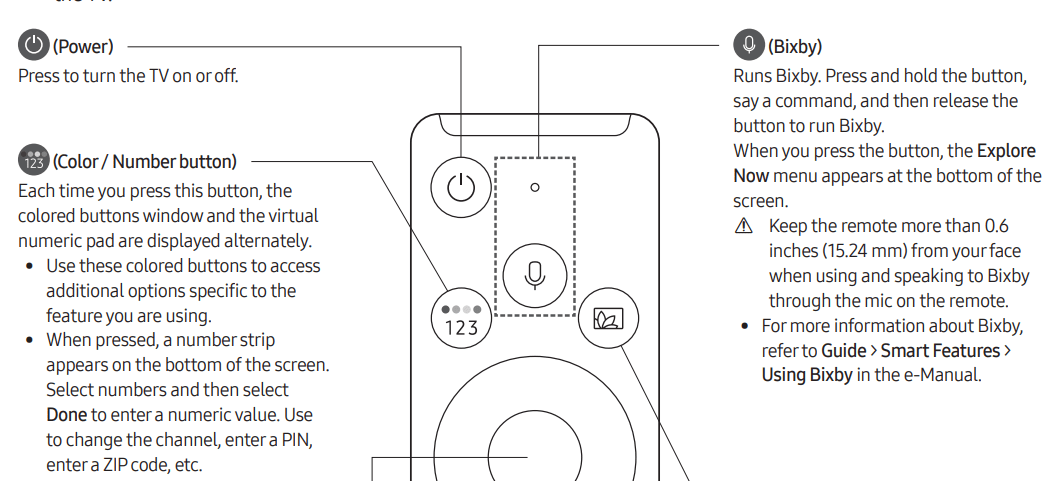
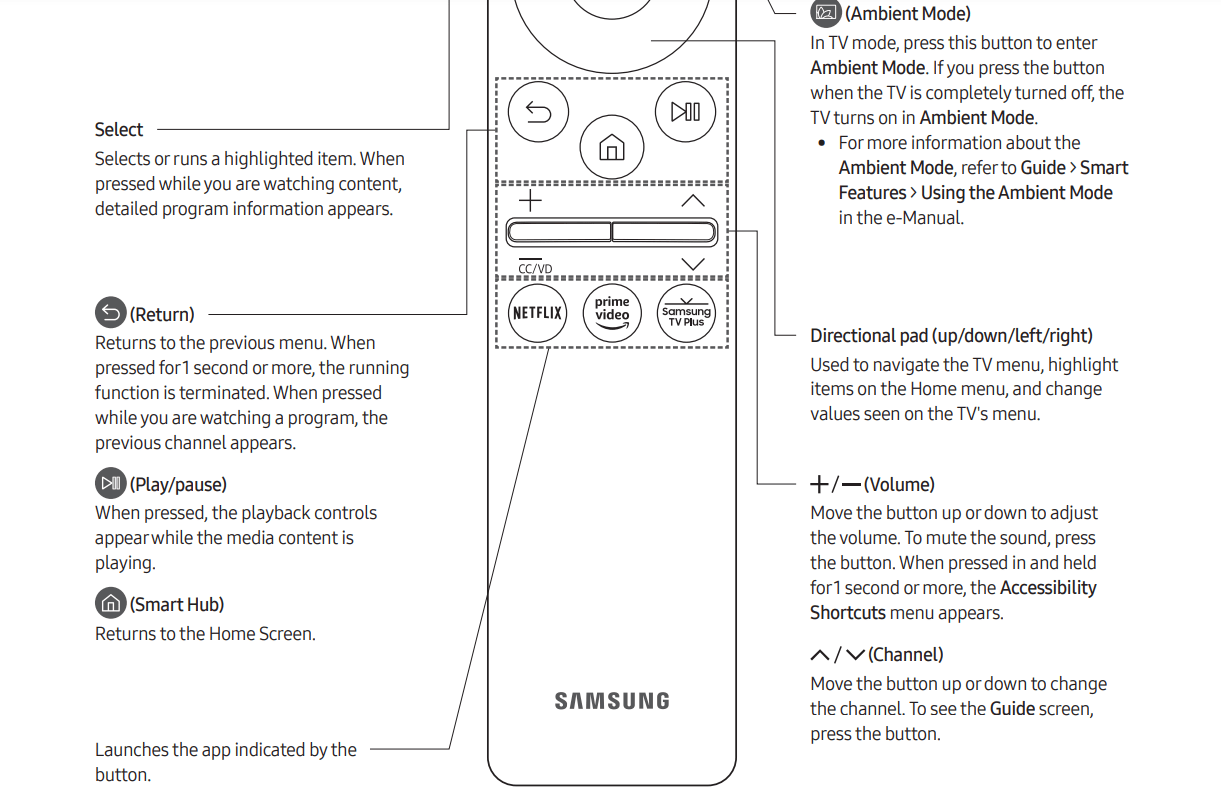
The images, buttons, and functions of the Samsung Smart Remote may differ depending on the model.
The Universal Remote function operates normally only when you use the Samsung Smart Remote that comes with the TV.
Pairing the TV to the Samsung Smart Remote
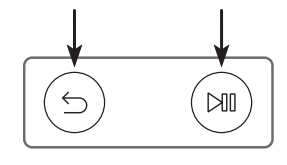
When you turn on the TV for the first time, the Samsung Smart Remote pairs to the TV automatically. If the Samsung Smart Remote does not pair to the TV automatically, point it at the remote control sensor of the TV, and then press and hold the buttons labeled and as shown in the figure on the left simultaneously for 3 seconds or more.
Installing batteries into the Samsung Smart Remote
To install the batteries, push the rear cover open in the direction of the arrow at the bottom of the illustration, and then insert the batteries as shown in the figure. Make sure that the positive and negative ends are facing in the correct direction. Close the rear cover as shown.
Alkaline batteries are recommended for longer battery life
Initial Setup
When you turn on your TV for the first time, it immediately starts the Initial Setup. Follow the instructions displayed on the screen and configure the TV's basic settings to suit your viewing environment.
To perform the Initial Setup using the SmartThings app, you must connect your mobile device via Wi-Fi.
If the pop-up for setup does not appear automatically in the SmartThings app on your mobile device, manually add the TV using Add Device on the dashboard of the SmartThings app, and then continue with the set up process.
The SmartThings app is available for mobile devices running Android 6.0 or higher or iOS 10 or higher.
Noise may occur temporarily when the TV communicates with mobile devices.
Using the TV Controller
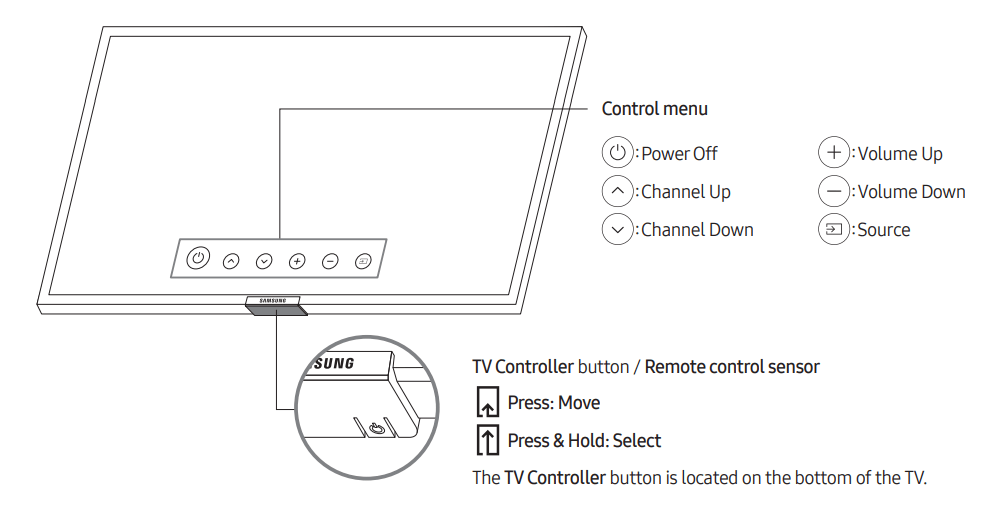
You can turn on the TV with the TV Controller button at the bottom of the TV, and then use the Control menu. The Control menu appears when the TV Controller button is pressed while the TV is On. For more information about its usage, refer to the figure below.
The screen may dim if the protective film on the SAMSUNG logo or the bottom of the TV is not removed. Please remove the protective film.
Setting the sound sensor
This function is supported only in Q70T, Q80T models.
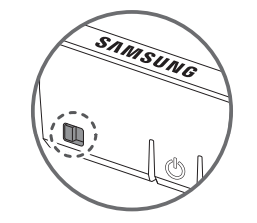
You can turn on or off the sound sensor by using its button at the bottom of the TV. With the TV on, you can push the button to the left (or backward) to turn on the sound sensor or to the right (or forward) to turn off it.
See the pop-up window on the TV to check whether the sound sensor is turned on or off.
The position and shape of the sound sensor may differ depending on the model.
During analysis using data from the sound sensor, the data is not saved.
Troubleshooting and Maintenance
Troubleshooting
If the TV seems to have a problem, first review this list of possible problems and solutions. Alternatively, review the Troubleshooting or FAQ Section in the e-Manual. If none of the troubleshooting tips apply, please visit "www.samsung. com" and click Support or contact the Samsung service center listed on the back cover of this manual.
For detailed information on troubleshooting, watch the troubleshooting videos at www.samsung.com/spsn.
This TFT LED panel is made up of sub pixels which require sophisticated technology to produce. There may be, however, a few bright or dark pixels on the screen. These pixels will have no impact on the performance of the product.
To keep your TV in optimum condition, upgrade to the latest software. Use the Update Now or Auto Update functions on the TV's menu ( > Settings > Support > Software Update > Update Now or Auto Update)
The TV won’t turn on
Make sure that the AC power cord is securely plugged in to the TV and the wall outlet.
Make sure that the wall outlet is working and the power indicator at the bottom of the TV is lit and glowing a solid red.
Try pressing the button at the bottom of the TV to make sure that the problem is not with the remote control. If the TV turns on, refer to “The remote control does not work” below.
There is no picture/video/sound, or a distorted picture/video/sound from an external device, or “Weak or No Signal” is displayed on the TV, or you cannot find a channel.
Perform a TV self diagnosis to determine if the problem is caused by the TV or the device ( > Settings > Support > Device Care > Self Diagnosis > Picture Test or Sound Test)
If the test results are normal, make sure the connection to the device is correct and that all cables are fully inserted.
Remove and reconnect all cables connected to the TV and the external devices. Try new cables if possible and confirm that the correct input source has been selected ( > Source).
Reboot the connected devices by unplugging each device's power cord and then plugging it in again. If the issue persists, refer to the connection guide in the user manual of the connected device
If you are not using a cable box or satellite box, and your TV is receiving TV signals from an antenna or a cable wall connector, run Auto Program to search for channels ( > Settings > Broadcasting > Auto Program).
The remote control does not work
Check if the power indicator at the bottom of the TV blinks when you press the remote's Power button. If it does not, replace the remote control's batteries.
Make sure that the batteries are installed with their poles (+/–) in the correct direction.
Try pointing the remote directly at the TV from 5 ft. to 6 ft. (1.5-1.8 m) away.
If your TV came with a Samsung Smart Remote (Bluetooth Remote), make sure to pair the remote to the TV.
The cable box or satellite box remote control doesn’t turn the TV on or off or adjust the volume
Program the cable box or satellite box remote control to operate the TV. Refer to the cable box or satellite box user manual for the SAMSUNG TV code
The TV settings are lost after 5 minutes.
The TV is in the Retail Mode. Change the Usage Mode in the System Manager Menu to Home Mode ( > Settings > General > System Manager > Usage Mode > Home Mode).
Intermittent Wi-Fi
Make sure the TV has a network connection ( > Settings > General > Network > Network Status).
Make sure the Wi-Fi password is entered correctly.
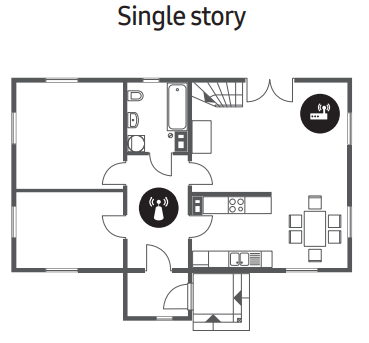
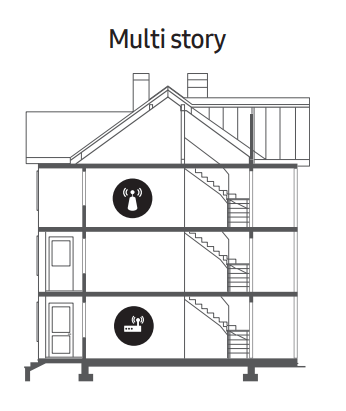
Check the distance between the TV and the modem or access point. The distance should not exceed 50 ft (15.2 m).
Reduce interference by not using or turning off wireless devices. Also, verify that there are no obstacles between the TV and the modem or access point. (The Wi-Fi strength can be decreased by appliances, cordless phones, stone walls/fireplaces, etc.)
Contact your Internet Service Provider (ISP) and ask them to reset your network circuit to re-register the MAC addresses of your new modem or access point and the TV.
Video Apps problems (Youtube etc)
Change the DNS to 8.8.8.8. Select > Settings > General > Network > Network Status > IP Settings > DNS Setting > Enter manually > DNS Server > Enter 8.8.8.8 > OK.
Reset by selecting > Settings > Support > Device Care > Self Diagnosis > Reset Smart Hub.
What is Remote Support?
Samsung Remote Support service offers you one-on-one support with a Samsung Technician who can remotely:
Diagnose your TV
Adjust the TV settings for you
Perform a factory reset on your TV
Install recommended firmware updates
How does Remote Support work?
You can easily get Samsung Remote Support service for your TV
Call the Samsung service center and ask for remote support.
Open the menu on your TV, and then go to the Support menu. ( > Settings > Support)
Select Remote Management, then read and agree to the service agreements. When the PIN screen appears, provide the PIN number to the technician.
The technician will then access your TV.
Eco Sensor and screen brightness
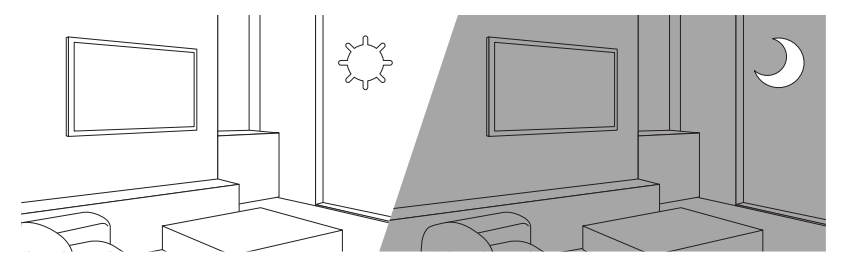
Eco Sensor adjusts the brightness of the TV automatically. This feature measures the light in your room and optimizes the brightness of the TV automatically to reduce power consumption. If you want to turn this off, go to > Settings > General > Eco Solution > Ambient Light Detection
If the screen is too dark while you are watching TV in a dark environment, it may be due to the Ambient Light Detection function.
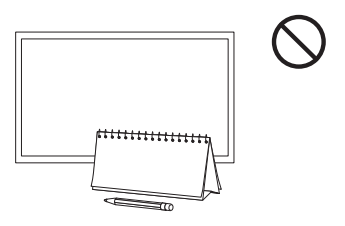
The eco sensor is located at the bottom of the TV. Do not block the sensor with any object. This can decrease picture brightness.
Caring for the TV
If a sticker was attached to the TV screen, some debris can remain after you remove the sticker. Please clean the debris off before watching TV.
The exterior and screen of the TV can get scratched during cleaning. Be sure to wipe the exterior and screen carefully using a soft cloth to prevent scratches.
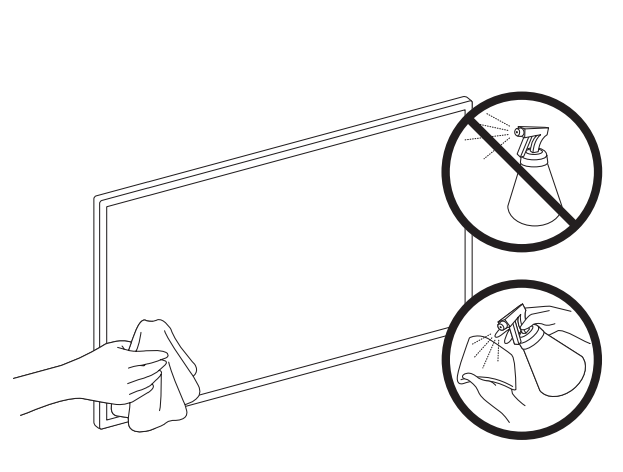
Do not spray water or any liquid directly onto the TV. Any liquid that goes into the product may cause a failure, fire, or electric shock.
To clean the screen, turn off the TV, then gently wipe away smudges and fingerprints on the panel with a micro-fiber cloth. Clean the body or panel of the TV with a micro-fiber cloth dampened with a small amount of water. After that, remove the moisture with a dry cloth. While cleaning, do not apply strong force to the surface of the panel because it can damage the panel. Never use flammable liquids (benzene, thinner, etc.) or a cleaning agent. For stubborn smudges, spray a small amount of screen cleaner on a micro-fiber cloth, and then use the cloth to wipe away the smudges.
Specifications and Other Information
Specifications
Model Name
QN43Q60T / QN43Q6DT
QN50Q60T / QN50Q6DT
Display Resolution
3840 x 2160
3840 x 2160
Screen Size
Diagonal
Measured Diagonally
43˝ Class
42.5 inches
50˝ Class
49.5 inches
Sound (Output)
20 W
20 W
Dimensions (W x H x D) Body
With Stand
37.9 x 22.0 x 2.2 inches
(963.5 x 557.7 x 56.8 mm)
37.9 x 24.8 x 7.7 inches
(963.5 x 629.4 x 195.2 mm)
44.0 x 25.3 x 2.2 inches
(1116.4 x 642.9 x 57.1 mm)
44.0 x 28.4 x 9.6 inches
(1116.4 x 720.5 x 243.3 mm)
Weight
Without Stand
With Stand
19.8 lbs (9.0 kg)
20.3 lbs (9.2 kg)
28.4 lbs (12.9 kg)
28.9 lbs (13.1 kg)
Model Name
QN55Q60T / QN55Q6DT /
QN55Q70T
QN55Q7DT
Display Resolution
3840 x 2160
3840 x 2160
Screen Size
Diagonal
Measured Diagonally
55˝ Class
54.6 inches
55˝ Class
54.6 inches
Sound (Output)
20 W
20 W
Dimensions (W x H x D) Body
With Stand
48.4 x 27.8 x 2.3 inches
(1230.1 x 705.9 x 57.4 mm)
48.4 x 30.9 x 9.6 inches
(1230.1 x 783.7 x 243.3 mm)
48.4 x 27.8 x 2.3 inches
(1230.1 x 705.9 x 57.4 mm)
48.4 x 31.1 x 10.4 inches
(1230.1 x 788.8 x 264.1 mm)
Weight
Without Stand
With Stand
37.9 lbs (17.2 kg)
38.4 lbs (17.4 kg)
37.9 lbs (17.2 kg)
42.3 lbs (19.2 kg)
Model Name
QN58Q60T / QN58Q6DT
QN65Q60T / QN65Q6DT /
QN65Q70T
Display Resolution
3840 x 2160
3840 x 2160
Screen Size
Diagonal
Measured Diagonally
58˝ Class
57.5 inches
65˝ Class
64.5 inches
Sound (Output)
20 W
20 W
Dimensions (W x H x D) Body
With Stand
50.8 x 29.4 x 2.3 inches
(1290.6 x 748.0 x 57.5 mm)
50.8 x 32.5 x 9.6 inches
(1290.6 x 826.4 x 243.3 mm)
57.1 x 32.6 x 2.3 inches
(1449.6 x 829.3 x 57.6 mm)
57.1 x 35.7 x 11.4 inches
(1449.6 x 907.7 x 289.1 mm)
Weight
Without Stand
With Stand
40.6 lbs (18.4 kg)
41.0 lbs (18.6 kg)
49.2 lbs (22.3 kg)
49.8 lbs (22.6 kg)
Model Name
QN65Q7DT
QN75Q60T / QN75Q6DT / QN75Q70T
Display Resolution
3840 x 2160
3840 x 2160
Screen Size
Diagonal
Measured Diagonally
65˝ Class
64.5 inches
75˝ Class
74.5 inches
Sound (Output)
20 W
20 W
Dimensions (W x H x D) Body
With Stand
57.1 x 32.6 x 2.3 inches
(1449.6 x 829.3 x 57.6 mm)
57.1 x 35.9 x 12.1 inches
(1449.6 x 911.9 x 307.2 mm)
66.0 x 37.8 x 2.4 inches
(1675.4 x 959.6 x 60.4 mm)
66.0 x 41.3 x 13.9 inches
(1675.4 x 1049.4 x 352.3 mm)
Weight
Without Stand
With Stand
49.2 lbs (22.3 kg)
54.7 lbs (24.8 kg)
79.4 lbs (36.0 kg)
80.0 lbs (36.3 kg)
Model Name
QN75Q7DT
QN82Q6DT / QN82Q70T /
QN82Q7DT
Display Resolution
3840 x 2160
3840 x 2160
Screen Size
Diagonal
Measured Diagonally
75˝ Class
74.5 inches
82˝ Class
81.5 inches
Sound (Output)
20 W
20 W
Dimensions (W x H x D) Body
With Stand
66.0 x 37.8 x 2.4 inches
(1675.4 x 959.6 x 60.4 mm)
66.0 x 41.0 x 12.7 inches
(1675.4 x 1040.6 x 323.0 mm)
72.1 x 41.1 x 2.4 inches
(1830.6 x 1044.2 x 60.7 mm)
72.1 x 45.3 x 15.4 inches
(1830.6 x 1149.8 x 392.1 mm)
Weight
Without Stand
With Stand
79.4 lbs (36.0 kg)
87.1 lbs (39.5 kg)
96.3 lbs (43.7 kg)
99.0 lbs (44.9 kg)
Model Name
QN85Q60T / QN85Q6DT /
QN85Q70T / QN85Q7DT
QN49Q80T / QN49Q8DT
Display Resolution
3840 x 2160
3840 x 2160
Screen Size
Diagonal
Measured Diagonally
85˝ Class
84.5 inches
49˝ Class
48.5 inches
Sound (Output)
20 W
40 W
Dimensions (W x H x D) Body
With Stand
74.7 x 42.6 x 2.4 inches
(1896.3 x 1082.5 x 59.9 mm)
74.7 x 46.7 x 15.4 inches
(1896.3 x 1186.4 x 392.1 mm)
43.1 x 25.0 x 2.2 inches
(1094.8 x 634.4 x 54.9 mm)
43.1 x 28.0 x 9.4 inches
(1094.8 x 711.4 x 239.8 mm)
Weight
Without Stand
With Stand
104.7 lbs (47.5 kg)
107.4 lbs (48.7 kg)
28.9 lbs (13.1 kg)
38.6 lbs (17.5 kg)
Model Name
QN55Q80T / QN55Q8DT
QN65Q80T / QN65Q8DT
Display Resolution
3840 x 2160
3840 x 2160
Screen Size
Diagonal
Measured Diagonally
55˝ Class
54.6 inches
65˝ Class
64.5 inches
Sound (Output)
60 W
60 W
Dimensions (W x H x D) Body
With Stand
48.3 x 27.8 x 2.1 inches
(1227.6 x 706.7 x 53.9 mm)
48.3 x 30.8 x 10.1 inches
(1227.6 x 783.4 x 255.8 mm)
56.9 x 32.7 x 2.1 inches
(1446.5 x 829.8 x 53.9 mm)
56.9 x 35.7 x 11.4 inches
(1446.5 x 905.7 x 289.1 mm)
Weight
Without Stand
With Stand
39.5 lbs (17.9 kg)
46.3 lbs (21.0 kg)
53.1 lbs (24.1 kg)
61.3 lbs (27.8 kg)
Model Name
QN75Q80T / QN75Q8DT
QN85Q80T / QN85Q8DT
Display Resolution
3840 x 2160
3840 x 2160
Screen Size
Diagonal
Measured Diagonally
75˝ Class
74.5 inches
85˝ Class
84.5 inches
Sound (Output)
60 W
60 W
Dimensions (W x H x D) Body
With Stand
65.8 x 37.7 x 2.1 inches
(1670.6 x 958.7 x 53.9 mm)
65.8 x 40.8 x 12.5 inches
(1670.6 x 1036.2 x 316.8 mm)
74.5 x 42.6 x 2.2 inches
(1892.8 x 1083.2 x 54.9 mm)
74.5 x 45.8 x 13.3 inches
(1892.8 x 1163.1 x 338.8 mm)
Weight
Without Stand
With Stand
75.8 lbs (34.4 kg)
88.8 lbs (40.3 kg)
95.5 lbs (43.3 kg)
110.5 lbs (50.1 kg)
Environmental Considerations
Operating Temperature
Operating Humidity
Storage Temperature
Storage Humidity
50°F to 104°F (10°C to 40°C)
10% to 80%, non-condensing
-4°F to 113°F (-20°C to 45°C)
5% to 95%, non-condensing
Notes
Design and specifications are subject to change without prior notice.
This device is a Class B digital apparatus.
For information about the power supply, and more information about power consumption, refer to the information on the label attached to the product.
– On most models, the label is attached to the back of the TV. (On some models, the label is inside the cover terminal.)
Your TV and its accessories may look different than the product images presented in this manual, depending on the model.
All drawings are not necessarily to scale. Some dimensions are subject to change without prior notice. Refer to the dimensions before installing your TV. Not responsible for typographical or printed errors.
To connect a LAN cable, use a CAT 7 (*STP type) cable for the connection. * Shielded Twisted Pair
Decreasing power consumption
When you shut the TV off, it enters Standby mode. In Standby mode, it continues to draw a small amount of power. To decrease power consumption, unplug the power cord when you don't intend to use the TV for a long time
Dimensions
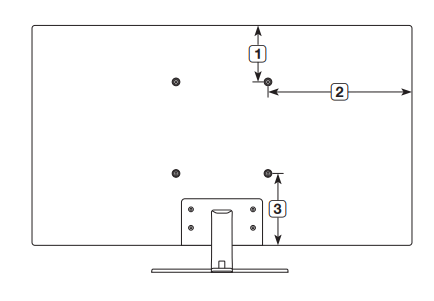
Back panel detail / Rear view
The displayed image may differ from your TV, depending on the model.
#1 What Samsung TVs and monitors are AirPlay compatible?
With AirPlay support, Samsung customers can stream videos, photos, music, podcasts, and more from Apple devices to select Samsung Smart TVs and Smart Monitors.
What Samsung TVs and monitors are AirPlay compatible?
The AirPlay feature is available on specific Samsung TVs and monitors produced from 2018. You can also check if your device is compatible in the settings menu. Navigate to Settings, select General, if there is an option for Apple AirPlay Settings then your device is compatible. If there is no option for AirPlay, then your device is not supported.
Tune into any of Samsung TV Plus channels, then press Down on your remote. If you see an "On Demand" button the channel provided single VODs. Click "One Demand" and you will be able to browse single VODs from the channel page. In future, you will be also able to find single VODs directly from the TV Plus homepage.
Using AirPlay you can easily stream photos and videos captured on your device to you your Samsung TV. Before starting, make sure that your TV and Apple device are connected to the same Wi-Fi network. 1.Open the Photos app 2.Select the photo or video that you want to share 3.Tap the share icon at the bottom left of the screen 4.Tap the AirPlay icon 5.Tap the TV that you want to stream to
Samsung TV Plus is a pre-installed app on every Samsung Smart TVs from 2017. However, if you do not want to use this service at all, you can disable Samsung TV Plus. Simply highlight it, press the down directional button on your TV remote, and then select Remove > Disable. Then, you will not see Samsung TV Plus from the app launcher and all Samsung TV Plus channels will be deleted at once.
 and
and as shown in the figure on the left simultaneously for 3 seconds or more.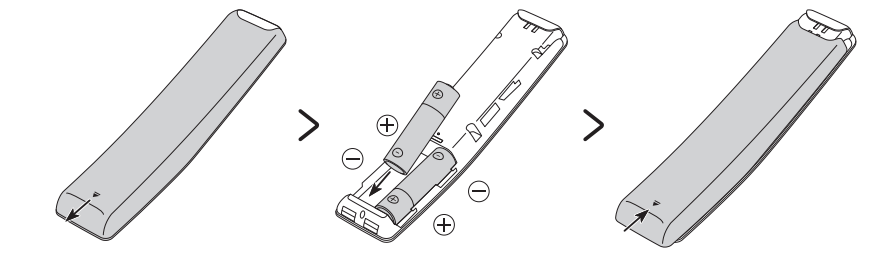
 >
>  Settings > Support > Software Update > Update Now or Auto Update)
 the button at the bottom of the TV to make sure that the problem is not with the remote control. If the TV turns on, refer to “The remote control does not work” below.
 Source).