UX4750 1
Important Safety Precautions
Read these simple guidelines. Breaking the rules may be dangerous or illegal. Further detailed information is given in this
user guide.
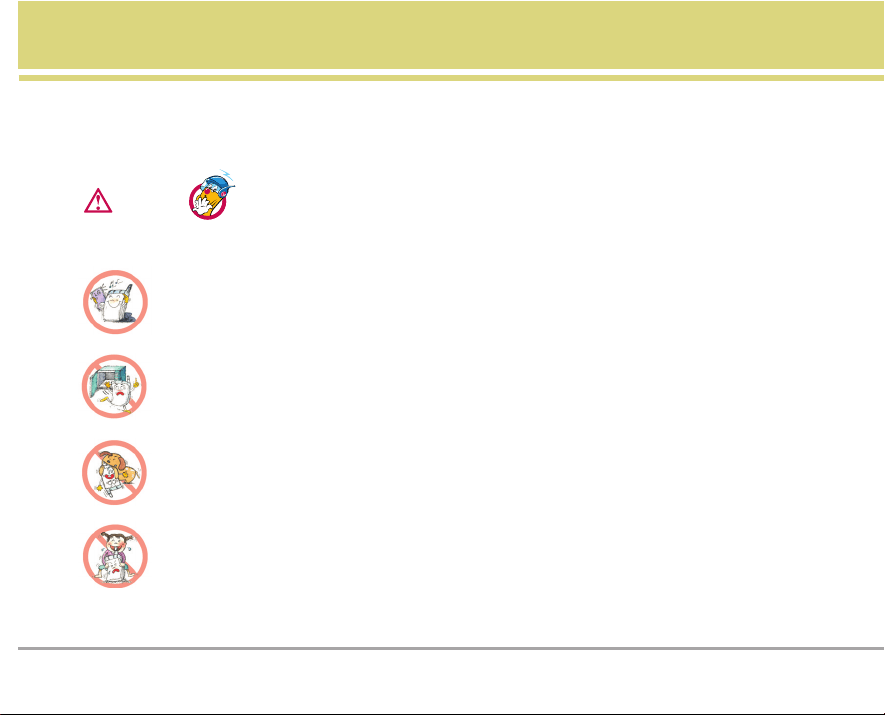
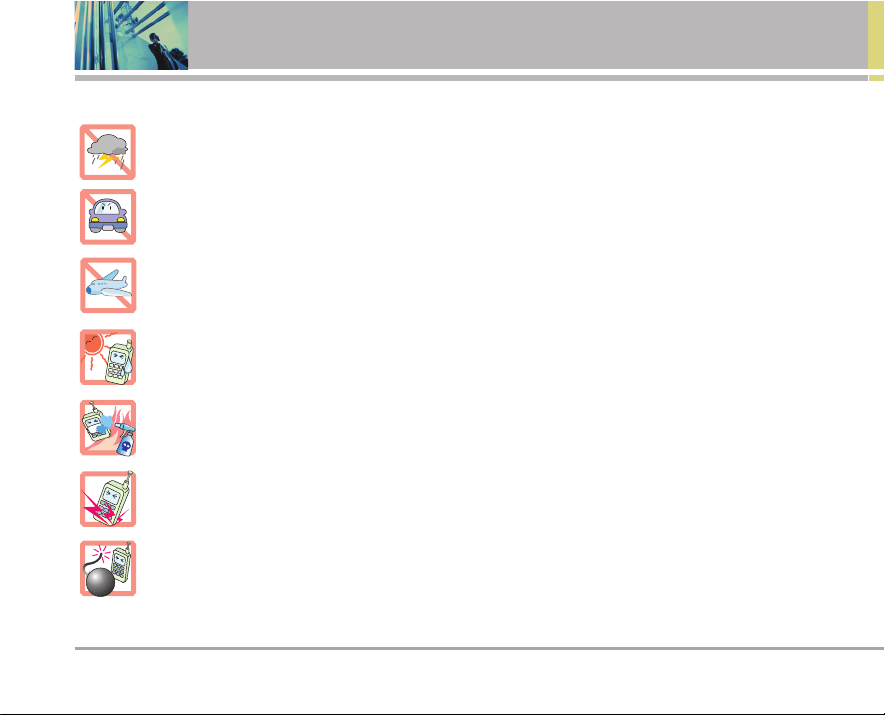
Violation of the instructions may cause serious injury or death.
●
Never use an unapproved battery since this could damage the phone and/or battery and could cause
the battery to explode.
●
Never place your phone in a microwave oven as it will cause the battery to explode.
●
Do not dispose of your battery by fire or with hazardous or flammable materials.
●
Make sure that no sharp-edged items such as animal’s teeth, nails, come into contact with the
battery. There is a risk of this causing a fire.
●
Store the battery in a place out of reach of children.
●
Be careful that children do not swallow any parts such as rubber plugs (earphone, connection parts of
the phone, etc.). This could cause asphyxiation or suffocation.
Warning
2 UX4750
Important Safety Precautions
●
Unplug the power cord and charger during lightning storms to avoid electric shock or fire.
●
When riding in a car, do not leave your phone or set up the hands-free kit near to the air bag. If
wireless equipment is improperly installed and the air bag is activated, you may be seriously injured.
●
Do not use a hand-held phone while driving.
●
Do not use the phone in areas where its use is prohibited. (For example: aircraft).
●
Do not expose the battery charger or adapter to direct sunlight or use it in places with high humidity,
such as a bathroom.
●
Never store your phone in temperatures less than -4°F or greater than 122°F.
●
Do not use harsh chemicals(such as alcohol, benzene, thinners, etc.) or detergents to clean your
phone. There is a risk of this causing a fire.
●
Do not drop, strike, or shake your phone severely. Such actions may harm the internal circuit boards
of the phone.
●
Do not use your phone in high explosive areas as the phone may generate sparks.

UX4750 3
●
Do not damage the power cord by bending, twisting, pulling, or heating. Do not use the plug if it is loose
as it may cause a fire or electric shock.
●
Do not place any heavy items on the power cord. Do not allow the power cord to be crimped as it may
cause fire or electric shock.
●
Do not handle the phone with wet hands while it is being charged. It may cause an electric shock or
seriously damage your phone.
●
Do not disassemble the phone.
●
Do not place or answer calls while charging the phone as it may short-circuit the phone and/or cause
electric shock or fire.
●
Only use the batteries, antennas, and chargers provided by LG. The warranty will not be applied to
products provided by other suppliers.
●
Only authorized personnel should service the phone and its accessories. Faulty installation or
service may result in accidents and consequently invalidate the warranty.
●
Do not hold or let the antenna come in contact with your body during a call.
●
An emergency call can be made only within a service area. For an emergency call, make sure that you
are within a service area and that the phone is turned on.
4 UX4750
Contents
Important Safety Precautions . . . . .1
Welcome . . . . . . . . . . . . . . . . . . . . . . .7
Important Information . . . . . . . . . . . .7
FCC RF Exposure Information . . . . . .9
Phone Overview . . . . . . . . . . . . . . . .10
Menus Overview . . . . . . . . . . . . . . . .11
Getting Started with Your Phone . .13
The Battery . . . . . . . . . . . . . . . . . . .13
Installing the Battery . . . . . . . . . . . .13
Charging the Battery . . . . . . . . . . . .13
Battery Charge Level . . . . . . . . . . . .13
Turning the Phone On and Off . . . .14
Signal Strength . . . . . . . . . . . . . . . .14
Screen Icons . . . . . . . . . . . . . . . . . .15
Making Calls . . . . . . . . . . . . . . . . . .16
Redialing Calls . . . . . . . . . . . . . . . . .16
Receiving Calls . . . . . . . . . . . . . . . .16
Quick Access to Convenient
Features . . . . . . . . . . . . . . . . . . . . . . .17
Manner Mode . . . . . . . . . . . . . . . . . .17
Lock Mode . . . . . . . . . . . . . . . . . . . . .17
Mute Function . . . . . . . . . . . . . . . . . .17
Volume Quick Adjustment . . . . . . . .17
Adjusting Speaker On . . . . . . . . . . .18
Call Waiting . . . . . . . . . . . . . . . . . . . .18
Caller ID . . . . . . . . . . . . . . . . . . . . . . .18
Speed Dialing . . . . . . . . . . . . . . . . . .18
Voice Command Dialing . . . . . . . . . .19
Entering and Editing Information . .20
Text Input . . . . . . . . . . . . . . . . . . . . . .20
Text Input Examples . . . . . . . . . . . . .21
Contacts in Your Phone’s Memory .23
The Basics of Storing Contacts
Entries . . . . . . . . . . . . . . . . . . . . . . . . .23
Options to Customize Your
Contacts . . . . . . . . . . . . . . . . . . . . . . .24
Editing Contacts Entries . . . . . . . . . .26
Deleting . . . . . . . . . . . . . . . . . . . . . . .28
Phone Numbers With Pauses . . . .30
Searching Your Phone’s Memory .31
Making a Call From Your Phone’s
Memory . . . . . . . . . . . . . . . . . . . . . . .32
Using Phone Menus . . . . . . . . . . . . .33
Menu Access . . . . . . . . . . . . . . . . . .33
Contacts . . . . . . . . . . . . . . . . . . . . .34
Access and Options . . . . . . . . . . . .34
1. List Contacts . . . . . . . . . . . . . . . . .34
2. New Number . . . . . . . . . . . . . . . . .35
3. New E-mail . . . . . . . . . . . . . . . . . . .35
4. Groups . . . . . . . . . . . . . . . . . . . . . .35
5. Speed Dials . . . . . . . . . . . . . . . . . .36
6. My Contact Info . . . . . . . . . . . . . . .36
Recent Calls . . . . . . . . . . . . . . . . . .37
Access and Options . . . . . . . . . . . .37
1. Dialed Calls . . . . . . . . . . . . . . . . . .37
2. Received Calls . . . . . . . . . . . . . . .38
3. Missed Calls . . . . . . . . . . . . . . . . .38
4. Erase Calls . . . . . . . . . . . . . . . . . . .38
5. Call Timer . . . . . . . . . . . . . . . . . . . .38
6. KB Counter . . . . . . . . . . . . . . . . . . .38
Messages . . . . . . . . . . . . . . . . . . . .39
Access and Options . . . . . . . . . . . .39
1. Voice Mail . . . . . . . . . . . . . . . . . . .40
2. New Message . . . . . . . . . . . . . . . .40
Message Icon Reference . . . . . . . .42
3. Inbox . . . . . . . . . . . . . . . . . . . . . . .43
4. Outbox . . . . . . . . . . . . . . . . . . . . . . .44
5. Saved . . . . . . . . . . . . . . . . . . . . . . .45
6. Msg Settings . . . . . . . . . . . . . . . . .45
Message Settings Sub-Menu
Descriptions . . . . . . . . . . . . . . . . . . .45
6.1 Auto Save . . . . . . . . . . . . . . . . .45
6.2 Auto Erase . . . . . . . . . . . . . . . . .45
6.3 Callback # . . . . . . . . . . . . . . . . .45
6.4 Signature . . . . . . . . . . . . . . . . . .46
UX4750 5
6.5 Voice Mail # . . . . . . . . . . . . . . .46
6.6 Auto View . . . . . . . . . . . . . . . . .46
6.7 Entry Mode . . . . . . . . . . . . . . . .46
6.8 Insert Quick-Text . . . . . . . . . . . .46
6.9 Auto Play . . . . . . . . . . . . . . . . . .46
7. Erase All . . . . . . . . . . . . . . . . . . . .46
SpeedTalk
SM
. . . . . . . . . . . . . . . . . . .47
Access and Options . . . . . . . . . . . .47
Call from ST Contact List (Barge) . .47
Call from ST Contact List (Alert) . . .48
Call from ST Contact List (Group) . .48
Call from Keypad (Barge) . . . . . . . .49
Incoming ST (Barge) . . . . . . . . . . . .49
Incoming ST (Alert) . . . . . . . . . . . . . .49
Incoming ST (Group) . . . . . . . . . . . .50
Making a ST call when the folder
is closed . . . . . . . . . . . . . . . . . . . . . .50
1. ST Contacts . . . . . . . . . . . . . . . . . .50
2. New ST Contact . . . . . . . . . . . . . .50
3. New ST Group . . . . . . . . . . . . . . .51
4. Recent ST . . . . . . . . . . . . . . . . . . . .51
5. ST Settings . . . . . . . . . . . . . . . . . . .51
5.1 ST On/Off . . . . . . . . . . . . . . . . .51
5.2 Speaker On/Off . . . . . . . . . . . . .51
5.3 ST Alert Tone . . . . . . . . . . . . . .51
easyedge
SM
Phone Download
Service . . . . . . . . . . . . . . . . . . . . . . .52
Access and Options . . . . . . . . . . . .52
1. easyedge
SM
Phone Download
Service . . . . . . . . . . . . . . . . . . . . . . . . .53
2. Help . . . . . . . . . . . . . . . . . . . . . . . .53
Media . . . . . . . . . . . . . . . . . . . . . . . .54
Access and Options . . . . . . . . . . . .54
1. Images . . . . . . . . . . . . . . . . . . . . . .54
2. Sounds . . . . . . . . . . . . . . . . . . . . . .54
Tools . . . . . . . . . . . . . . . . . . . . . . . . .55
Access and Options . . . . . . . . . . . .55
1. Schedule . . . . . . . . . . . . . . . . . . . .55
2. Alarm Clock . . . . . . . . . . . . . . . . . .56
3. Voice Memo . . . . . . . . . . . . . . . . . .56
4. My Shortcut . . . . . . . . . . . . . . . . . .57
5. Notepad . . . . . . . . . . . . . . . . . . . . .57
6. Ez Tip Calc . . . . . . . . . . . . . . . . . . .57
7. Calculator . . . . . . . . . . . . . . . . . . .58
8. World Clock . . . . . . . . . . . . . . . . . .58
Settings . . . . . . . . . . . . . . . . . . . . . .59
Access and Options . . . . . . . . . . . .59
1. Sounds . . . . . . . . . . . . . . . . . . . . . .59
1.1 Ringers . . . . . . . . . . . . . . . . . . .59
1.2 Key Tone . . . . . . . . . . . . . . . . . .59
1.3 Volume . . . . . . . . . . . . . . . . . . .60
1.4 Message Alerts . . . . . . . . . . . . .60
1.5 Service Alerts . . . . . . . . . . . . . .60
1.5.1 Service Change . . . . . . . . . .60
1.5.2 Minute Beep . . . . . . . . . . . .60
1.5.3 Call Connect . . . . . . . . . . . .60
1.5.4 Back To Top . . . . . . . . . . . . .60
1.6 Power On/Off Tone . . . . . . . . . .60
1.7 DTMF Length . . . . . . . . . . . . . .61
2. Display . . . . . . . . . . . . . . . . . . . . . .61
2.1 Banner . . . . . . . . . . . . . . . . . . .61
2.2 Backlight . . . . . . . . . . . . . . . . . .61
2.2.1 LCD . . . . . . . . . . . . . . . . . . .61
2.2.2 Key Light Timer . . . . . . . . . .62
2.3 Screens . . . . . . . . . . . . . . . . . . .62
2.4 Menu Style . . . . . . . . . . . . . . . .62
2.5 Clocks . . . . . . . . . . . . . . . . . . . .62
2.6 Theme Colors . . . . . . . . . . . . . .62
2.7 Contrast . . . . . . . . . . . . . . . . . . .62
2.8 Fonts . . . . . . . . . . . . . . . . . . . . .63
2.8.1 Calling Digits . . . . . . . . . . . .63
2.8.2 Text Editor . . . . . . . . . . . . . .63
2.9 Language . . . . . . . . . . . . . . . . . .63
2.0 Power Saver . . . . . . . . . . . . . . .63
2.* Status Light . . . . . . . . . . . . . . . .63
3. System . . . . . . . . . . . . . . . . . . . . . .64
6 UX4750
Contents
3.1 Select System . . . . . . . . . . . . . .64
3.2 Set NAM . . . . . . . . . . . . . . . . . .64
3.3 Auto NAM . . . . . . . . . . . . . . . . .64
3.4 Serving System . . . . . . . . . . . . .64
4. Security . . . . . . . . . . . . . . . . . . . . .65
4.1 Lock Phone . . . . . . . . . . . . . . . .65
4.2 Restrict Calls . . . . . . . . . . . . . . .65
4.3 Emergency #s . . . . . . . . . . . . .65
4.4 Change Lock . . . . . . . . . . . . . . .66
4.5 Erase Contacts . . . . . . . . . . . . .66
4.6 Reset Default . . . . . . . . . . . . . . .66
5. Call Setup . . . . . . . . . . . . . . . . . . . .66
5.1 Auto Retry . . . . . . . . . . . . . . . . .66
5.2 Answer Call . . . . . . . . . . . . . . . .67
5.3 Auto Answer . . . . . . . . . . . . . . .67
5.4 One-Touch Dial . . . . . . . . . . . . .67
5.5 Voice Privacy . . . . . . . . . . . . . . .67
5.6 Auto Volume . . . . . . . . . . . . . . .68
5.7 TTY Mode . . . . . . . . . . . . . . . . .68
6. Data Settings . . . . . . . . . . . . . . . . .68
6.1 Data/Fax . . . . . . . . . . . . . . . . . . .68
6.2 PC Connection . . . . . . . . . . . . . .69
7. Voice Services . . . . . . . . . . . . . . . .69
7.1 Voice Commands . . . . . . . . . . .69
7.2 Sound Modes . . . . . . . . . . . . . .69
7.3 Announce Alerts . . . . . . . . . . . .70
7.4 Best Match . . . . . . . . . . . . . . . .70
7.5 Train Words . . . . . . . . . . . . . . . .71
7.6 Help . . . . . . . . . . . . . . . . . . . . . .71
8. Location . . . . . . . . . . . . . . . . . . . . .71
Phone Info . . . . . . . . . . . . . . . . . . .72
Access and Options . . . . . . . . . . . .72
1. My Phone Number . . . . . . . . . . .72
2. S/W Version . . . . . . . . . . . . . . . .72
3. Icon Glossary . . . . . . . . . . . . . . . .72
4. Shortcut Help . . . . . . . . . . . . . . .72
Safety . . . . . . . . . . . . . . . . . . . . . . . . .73
TIA Safety Information . . . . . . . . .73
Exposure to Radio Frequency Signal 73
Antenna Care . . . . . . . . . . . . . . . . . .73
Phone Operation . . . . . . . . . . . . . . .73
Tips on Efficient Operation . . . . . . .73
Driving . . . . . . . . . . . . . . . . . . . . . . .74
Electronic Devices . . . . . . . . . . . . . .74
Pacemakers . . . . . . . . . . . . . . . . . . .74
Hearing Aids . . . . . . . . . . . . . . . . . .74
Other Medical Devices . . . . . . . . . .74
Health Care Facilities . . . . . . . . . . . .75
Vehicles . . . . . . . . . . . . . . . . . . . . . .75
Posted Facilities . . . . . . . . . . . . . . . .75
Aircraft . . . . . . . . . . . . . . . . . . . . . . .75
Blasting Areas . . . . . . . . . . . . . . . . .75
Potentially Explosive Atmosphere . .75
For Vehicles Equipped with an Air
Bag . . . . . . . . . . . . . . . . . . . . . . . . .75
Safety Information . . . . . . . . . . . . .76
Charger and Adapter Safety . . . . . .76
Battery Information and Care . . . . .76
Explosion, Shock, and Fire
Hazards . . . . . . . . . . . . . . . . . . . . . . . .76
General Notice . . . . . . . . . . . . . . . . .77
FDA Consumer Update . . . . . . . . .78
10 Driver Safety Tips . . . . . . . . . . .84
Consumer Information on SAR . .86
Accessories . . . . . . . . . . . . . . . . . . . .88
Warranty Information . . . . . . . . . . . .89
Index . . . . . . . . . . . . . . . . . . . . . . . . . .91
UX4750 7
Welcome
Thank you for choosing the advanced and compact UX4750
cellular phone, designed to operate with the latest digital
mobile communication technology, Code Division Multiple
Access (CDMA) and Advanced Mobile Phone Service
(AMPS). Along with the many advanced features of the
CDMA system, such as greatly enhanced voice clarity, this
phone offers:
● Large, easy-to-read, 7-line backlight LCD with status
icons.
● Paging, messaging, Voice Mail, and Caller ID.
● 18-key keypad.
● Speaker phone feature.
● Menu-driven interface with prompts for easy operation
and configuration.
● Any key answer, auto answer, auto retry, one-touch and
speed dialing with 99 memory locations.
● Bilingual (English and Spanish) capabilities.
● SpeedTalk
SM
function.
Important Information
This user’s guide provides important information on the use
and operation of your phone. Please read all the information
carefully prior to using the phone for the best performance
and to prevent any damage to or misuse of the phone. Any
unapproved changes or modifications will void your warranty.
FCC Part 15 Class B Compliance
This device and its accessories comply with part 15 of FCC
rules. Operation is subject to the following two conditions:
(1) This device and its accessories may not cause harmful
interference, and (2) this device and its accessories must
accept any interference received, including interference
that causes undesired operation.
Technical Details
The UX4750 is an all digital phone that operates on both
Code Division Multiple Access (CDMA) frequencies:
cellular services at 800 MHz and Personal Communication
Services (PCS) at 1.9 GHz. Also, the UX4750 works on
Advanced Mobile Phone Service (AMPS). We call it a tri-
mode phone. Since the phone operates on Cellular, PCS
and AMPS, the call fail rate is less than on a conventional
dual-mode or singlemode phone.
CDMA technology uses a feature called DSSS (Direct
Sequence Spread Spectrum) that enables the phone to
keep communication from being crossed and to use one
frequency channel by multiple users in the same specific
area. This results in a 10-fold capacity increase when
8 UX4750
Welcome
compared with analog mode. In addition, features such as
soft / softer handoff, hard Handoff, and dynamic RF power
control technologies combine to reduce call interruptions.
The Cellular and PCS CDMA networks consist of MSO
(Mobile Switching Office), BSC (Base Station Controller),
BTS (Base Station Transmission System), and MS (Mobile
Station). The following table lists some major CDMA
standards.
*
TSB -74: Protocol between an IS-95A system and ANSI
J-STD-008
1xRTT system receives twice as many subscribers in the
wireless section as IS-95. Its battery life is twice as long as
IS-95. High-speed data transmission is also possible.
CDMA
Standard
Basic Air
Interface
TIA/EIA-95A
TSB-74
ANSI J-STD-008
TIA/EIA-IS2000
ANSI TIA/EIA
553A
CDMA Dual-Mode Air Interface
14.4kbps radio link protocol and
inter-band operations
IS-95 adapted for PCS frequency
band cdma2000 1xRTT
AirInterface
Advanced Mobile Phone Service
MAS-BS
PCSC-RS
Intersystem operations
Nom-signaling data comm.
Cellular base station
Cellular mobile station
PCS personal station
PCS base station
Speech CODEC
TIA/EIA/IS-634
TIA/EIA/IS/651
TIA/EIA/IS-41-C
TIA/EIA/IS-124
TIA/EIA/IS-97
TIA/EIA/IS-98
ANSI J-STD-018
ANSI J-STD-019
TIA/EIA/IS-125
TIA/EIA/IS-96-B
TIA/EIA/IS-99
TIA/EIA/IS-637
TIA/EIA/IS-657
IS-801
TIA/EIA/IS-707-A
Speech CODEC
Async Data and Fax
Short message service
Packet Data
Position Determination
Service (gpsOne)
High Speed Packet Data
Network
Service
Performance
Designator Description
UX4750 9
FCC RF Exposure Information
WARNING! Read this information before operating the
phone.
In August 1996, the Federal Communications Commission
(FCC) of the United States, with its action in Report and
Order FCC 96-326, adopted an updated safety standard for
human exposure to Radio Frequency (RF) electromagnetic
energy emitted by FCC regulated transmitters. Those
guidelines are consistent with the safety standard
previously set by both U.S. and international standards
bodies.
The design of this phone complies with the FCC guidelines
and these international standards.
Bodily Contact During Operation
This device was tested for typical use with the back of the
phone kept 3/4 inches (2 cm) from the body. To comply with
FCC RF exposure requirements, a minimum separation
distance of 3/4 inches (2 cm) must be maintained between
the user’s body and the back of the phone, including the
antenna, whether extended or retracted. Third-party belt-
clips, holsters, and similar accessories containing metallic
components should not be used. Avoid the use of
accessories that cannot maintain 3/4 inches (2 cm)
distance between the user’s body and the back of the
phone and have not been tested for compliance with FCC
RF exposure limits.
Vehicle-Mounted External Antenna
(Optional, if available.)
A minimum distance of 8 inches (20 cm) must be
maintained between the user / bystander and the vehicle-
mounted external antenna to satisfy FCC RF exposure
requirements. For more information about RF exposure,
visit the FCC website at www.fcc.gov.
Caution
Use only the supplied and approved antenna. Use of
unauthorized antennas or modifications could impair call
quality, damage the phone, void your warranty and/or
result in violation of FCC regulations.
Do not use the phone with a damaged antenna. If a
damaged antenna comes into contact with the skin a
minor burn may result. Contact your local dealer for a
replacement antenna.
10 UX4750
Phone Overview
1
2
3
4
5
6
9
18
17
8
7
10
11
12
13
14
15
16
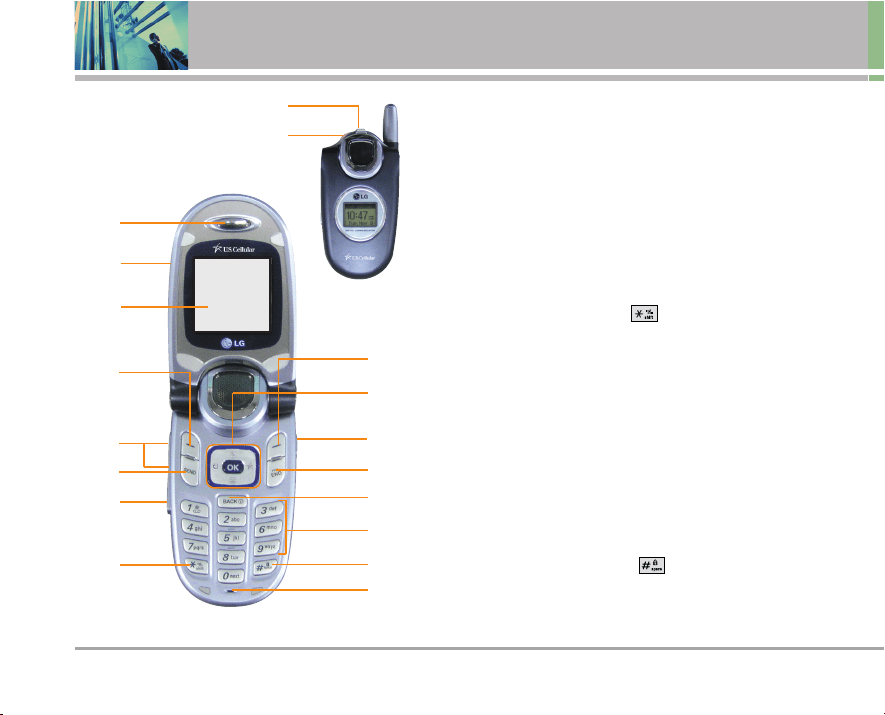
1. Earpiece
2. Flip Flip open the case to answer an incoming call and close
to end the call.
3. LCD Screen Displays messages and indicator icons.
4. Left Soft Key Use to display the function setting menu.
5. Side Keys Use to adjust the ringer volume in Main Menu
Screen and the earpiece volume during a call.
6. Send Key Use to place or answer calls.
7. Voice Command Key Use for access to Voice Commands and
Driving Mode.
8. Manner Mode Key Use to set the Manner Mode (from Main
Menu Screen press and hold for about 3 seconds).
9. Right Soft Key Use to select an action within a menu.
10. Navigation Key Use for quick access to Messages, My
Schedule, easyedge
SM
and Recent Calls.
11. Speakerphone Key Use to set the Speaker Phone Mode.
12. End/Power Key Use to turn the power on/off and to end a call.
Also use to return to the main menu display screen.
13. Back Key Press to delete a single space or character. Press
and hold to delete entire words. Press this key once in a menu
to go back one level.
14. Alphanumeric Keypad Use to enter numbers and characters
and select menu items.
15. Lock Mode Key Use in Main Menu Screen to set the lock function
by pressing and holding the key for about 3 seconds.
16. Microphone
17. SpeedTalk
SM
Key Press to use the SpeedTalk
SM
function.
18. Headset Jack

UX4750 11
Menus Overview
Contacts
1. List Contacts
2. New Number
3. New E-mail
4. Groups
5. Speed Dials
6. My Contact Info
Recent Calls
1. Dialed Calls
2. Received Calls
3. Missed Calls
4. Erase Calls
1. Dialed Calls
2. Received Calls
3. Missed Calls
4. All Calls
5. Call Timer
1. Last Call
2. Home Calls
3. Roam Calls
4. All Calls
6. KB Counter
1. Received
2. Transmitted
3. Total
Messages
1. Voice Mail
2. New Message
3. Inbox
4. Outbox
5. Saved
6. Msg Settings
1. Auto Save
2. Auto Erase
3. Callback #
4. Signature
5. Voice Mail #
6. Auto View
7. Entry Mode
8. Insert Quick-Text
9. Auto Play
7. Erase All
1. Inbox
2. Outbox
3. Saved
4. All
SpeedTalk
SM
1. ST Contacts
2. New ST Contact
3. New ST Group
4. Recent ST
5. ST Settings
1. ST On/Off
2. Speaker On/Off
3. ST Alert Tone
easyedge
SM
Phone
Download Service
1. easyedge
SM
Phone Download
Service
2. Help
Media
1. Images
2. Sounds
12 UX4750
Menus Overview
Tools
1. Schedule
2. Alarm Clock
1. Alarm 1
2. Alarm 2
3. Alarm 3
4. Quick Alarm
3. Voice Memo
4. My Shortcut
5. Notepad
6. Ez Tip Calc
7. Calculator
8. World Clock
Settings
1. Sounds
1. Ringers
2. Key Tone
3. Volume
4. Message Alerts
5. Service Alerts
6. Power On/Off Tone
7. DTMF Length
2. Display
1. Banner
2. Backlight
3. Screens
4. Menu Style
5. Clocks
6. Theme Colors
7. Contrast
8. Fonts
9. Language
0. Power Saver
*. Status Light
3. System
1. Select System
2. Set NAM
3. Auto NAM
4. Serving System
4. Security
1. Lock Phone
2. Restrict Calls
3. Emergency #s
4. Change Lock
5. Erase Contacts
6. Reset Default
5. Call Setup
1. Auto Retry
2. Answer Call
3. Auto Answer
4. One-Touch Dial
5. Voice Privacy
6. Auto Volume
7. TTY Mode
6. Data Settings
1. Data/Fax
2. PC Connection
7. Voice Services
1. Voice Commands
2. Sound Modes
3. Announce Alerts
4. Best Match
5. Train Words
6. Help
8. Location
Phone Info
1. My Phone Number
2. S/W Version
3. Icon Glossary
4. Shortcut Help
UX4750 13
Getting Started with Your Phone
The Battery
NNOOTTEE
It is important to fully charge the battery before initial
use of the phone.
The phone comes with a rechargeable battery. Keep the
battery charged while not in use in order to maximize talk
and standby time. The battery charge level is shown at the
top of the LCD screen.
Installing the Battery
To install the battery, insert the battery into the opening on
the back of the phone. Put the battery cover on the battery
and push it slightly upwards.
Removing the Battery
Turn the power off. While pressing the PUSH button on the
back of the phone, pull the battery cover downward and
remove it. Then remove the battery by pressing the upper
area of it.
Charging the Battery
To use the charger provided with your phone:
Warning! Use only the charger provided with the phone.
Using any charger other than the one included with the
UX4750 may damage your phone or battery.
1. Plug the round end of the adapter into the phone’s
charger jack and the other end into an electrical outlet.
2. The charge time varies depending upon the battery
level. The maximum charge time for a fully discharged
battery is 3.5 hours.
Battery Charge Level
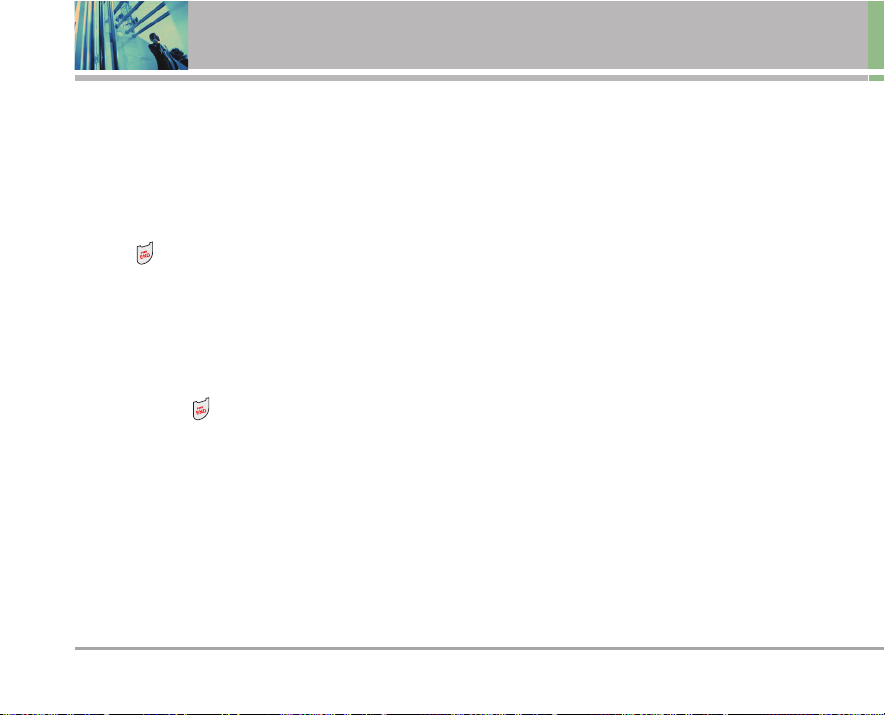
The battery charge level is shown at the top right of the
LCD screen. When the battery charge level becomes low,
the low battery sensor alerts you in three ways: sounding
an audible tone, blinking the battery icon, and displaying
Low Battery If the battery charge level becomes
exceedingly low, the phone automatically switches off and
any function in progress is not saved.
Fully DischargedFully Charged
14 UX4750
Getting Started with Your Phone
Turning the Phone On and Off
Turning the Phone On
1. Install a charged battery or connect the phone to an
external power source such as a vehicle power
charger or hands-free car kit.
2. Press for a few seconds until the LCD screen lights
up.
NNOOTTEE
Like any other radio device, avoid any unnecessary
contact with the antenna while your phone is on.
Turning the Phone Off
1. Press and hold until the display turns off.
Signal Strength
Call quality depends on the signal strength in your area.
The signal strength is indicated on the screen as the
number of bars next to the signal strength icon: The more
bars, the better the signal strength. If the signal quality is
poor, move to an open area. If you are in a building, the
reception may be better near a window.
UX4750 15
Screen Icons
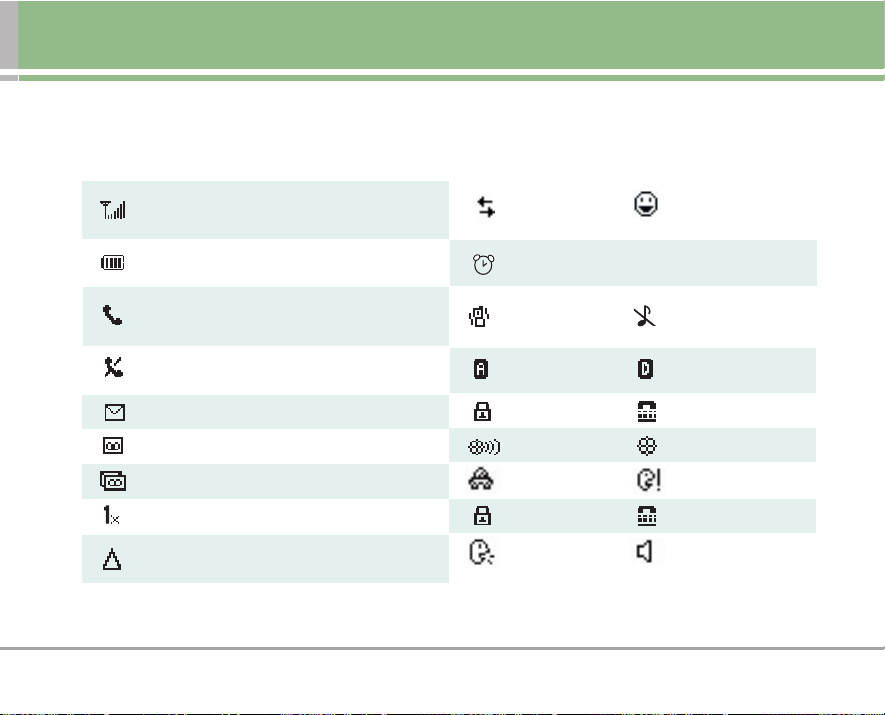
When the phone is powered on, the top line of the LCD screen displays icons indicating the status of the phone.
Signal strength indicator. The strength of the signal
received by the phone is indicaed by the number of
bars displayed.
Battery indicator. Indicates battery charge level.
In use indicator. A call is in progress.
* No icon indicates the phone is in
Main Menu Screen.
No service indicator. The phone is not receiving a
system signal.
New text message indicator.
New Voice Mail indicator.
New text and voice message indicator.
Roaming indicator. The phone is outside of the
home service area.
Data Session SpeedTalk
SM
On
1x service indicator.
Alarm
Manner Mode Silence All
Analog indicator. Digital indicator.
SSL TTY
Location on mode. E911 only mode.
SSL TTY
Driving mode. Announce mode.
SSL TTY
Announce alerts. Speaker On.
16 UX4750
Getting Started with Your Phone
Making Calls
1. Make sure the phone is turned on. If not, press for
about 3 seconds.
2. Enter the phone number (include the area code if
needed).
3. Press .
lf the phone is locked, enter the lock code.
Call Failed - indicates the call did not go through.
Restricted - indicates outgoing calls are in restricted
mode.
NNOOTTEE
If the phone is restricted, you can only dial phone
numbers saved in the Emergency Numbers or your
Contacts. To turn off this function:
Menu -> Settings -> Security -> Enter
Lock Code -> Restrict Calls -> Off -> OK
4. Press to end the call.
Correcting Dialing Mistakes
If you make a mistake while dialing a number, press
once to erase the last digit entered, or hold down
for at least 2 seconds to delete all digits.
Redialing Calls
1. Press twice to redial the last number you dialed.
The last 30 numbers are stored in the call history list and
you can also select one of these to redial.
Receiving Calls
1. When the phone rings or vibrates, press to answer.
NNOOTTEE
If you press or (the side keys) while the phone
is ringing, the ringing or vibration is muted for that call.
2. Press to end the call.
UX4750 17
Quick Access to Convenient Features
Manner Mode
Use Manner Mode in public places. When Manner Mode
is set, is displayed on the screen, the key tones are
silent, and the phone is set to vibrate.
Manner Mode Quick Activation
1. From Main Menu Screen press for 3 seconds.
Manner Mode Quick Cancellation
1. Press to switch to Normal Mode.
Lock Mode
Use Lock Mode to prevent others from using your phone.
When Lock Mode is set, your 4-digit password is required
to use the phone.
NNOOTTEE
The lock code/password is the last 4 digits of your
phone number. You can change to a new password
using the Security menu.
Lock Mode Quick Activation
1. From Main Menu Screen press for 3 seconds.
Lock Mode Quick Cancellation
1. Press Right Soft Key Unlock then enter your 4-digit
password.
Mute Function
The Mute Function prevents the other party from hearing
your voice, but allows you to hear the other party.
Mute Quick Activation
1. Press Left Soft Key Mute during a call.
Mute Quick Cancellation
1. Press Left Soft Key Unmute again.
Volume Quick Adjustment
Use the side keys to adjust the earpiece and ringer
volumes. The upper key increases the volume and the
lower key decreases the volume.
● Earpiece volume can be adjusted during a call.
Ringer volume can be adjusted during a call.
NNOOTTEE
Key beep volume is adjusted through the Sounds
Volume (Menu -> 8 -> 1 -> 3 -> 3).
18 UX4750
Quick Access to Convenient Features
Adjusting Speaker On
During a call, press the Speakerphone key to quickly
activate Speaker On allowing your phone to function as a
speaker box.
NNOOTTEE
To cancel Speaker On, press Speakerphone Key again.
Call Waiting
Your cellular service may offer call waiting. While a call is
in progress, two beeps indicate another incoming call.
When call waiting is enabled, you may put the active call
on hold while you answer the other incoming call. Check
with your cellular service provider for information about
this function.
1. Press to receive a waiting call.
2. Press again to switch between calls.
Caller ID
Caller ID displays the phone number or name of the
incoming call. If the caller’s identity is stored in Contacts,
the name appears with the number. Check with your
service provider to ensure they offer this feature.
Speed Dialing
Speed Dialing is a convenient feature that allows you to
make phone calls quickly and easily with a few keystrokes.
Your phone recalls the number from your Contacts,
displays it briefly, and then dials it. Speed Dial Number 1 is
assigned to Voice Mail by default, but you can change it.
Dialing Single Digit Speed Dials (from 1 to 9)
Press and hold the Speed Dial number.
OR
Enter the Speed Dial number and press .
Dialing Double Digit Speed Dials (from 10 to 99)
Press the first digit and then press and hold the key of
the last digit.
OR
Enter the first and second digits and press .
UX4750 19
Voice Command Dialing
Voice Command is a convenient feature that allows you to
activate certain feature quickly and easily by verbal
command. Using this Voice Commands, you can make
phone calls, confirm Voice Mail and missed calls, set
driving/announce mode, edit the contact entries and so on.
1. Press the Voice Command key ( ).
2. When prompted, say "Call Someone."
3. When prompted, say the name entered in your
contacts. The phone will ask you to confirm the name,
then dial the number associated with the Contact name.
NNOOTTEE
Another way to activate Voice Command is to set
Announce Mode/Driving Mode to on. When the flip is
opened you will be asked to say a command.
20 UX4750
Entering and Editing Information
Text Input
You can input and edit your Banner, Schedule, Contacts,
and Messages.
Key Functions
Right Soft Key (Left Soft Key): Press to scroll
through the following text input modes:
T9Word -> Abc -> 123 -> Symbols -> Smileys
Shift: Press to change case.
T9 text : T9Word -> T9WORD -> T9word
Abc text : Abc -> ABC -> abc
Next : In T9 mode, press to display other
matching words.
Space : Press to complete a word and insert a
space.
Clear : Press to delete a single space or
character. Hold to delete words.
Punctuation : In T9 mode, press to insert
punctuation in a word and complete a
sentence.
NNOOTTEE
When Key Tone is changed from Beep to English or
Spanish (Menu -> 8 -> 1 -> 2), the phone announces
the numbers pressed on the keypad.
Text Input Modes
There are five modes for entering text, numbers, special
characters, and punctuation. In a text entry field, pressing
Right Soft Key (or Left Soft Key ) displays a
pop-up list of text modes.
T9Word (T9) Mode
Use to type text using one keystroke per letter. The phone
translates keystrokes into common words by using the
letters on each key and a compressed database.
Abc (Multi-tap) Mode
Use to add words to the T9 database.
123 (Numbers) Mode
Use to type numbers using one keystroke per number.
Symbols Mode
Use to insert special characters or punctuation. There are
39 special characters including “SP” which inserts a
space and “LF” which forces the text to the next line.
Smileys Mode
Use to insert smiley graphics. There are 40 smiley
characters.
( )
UX4750 21
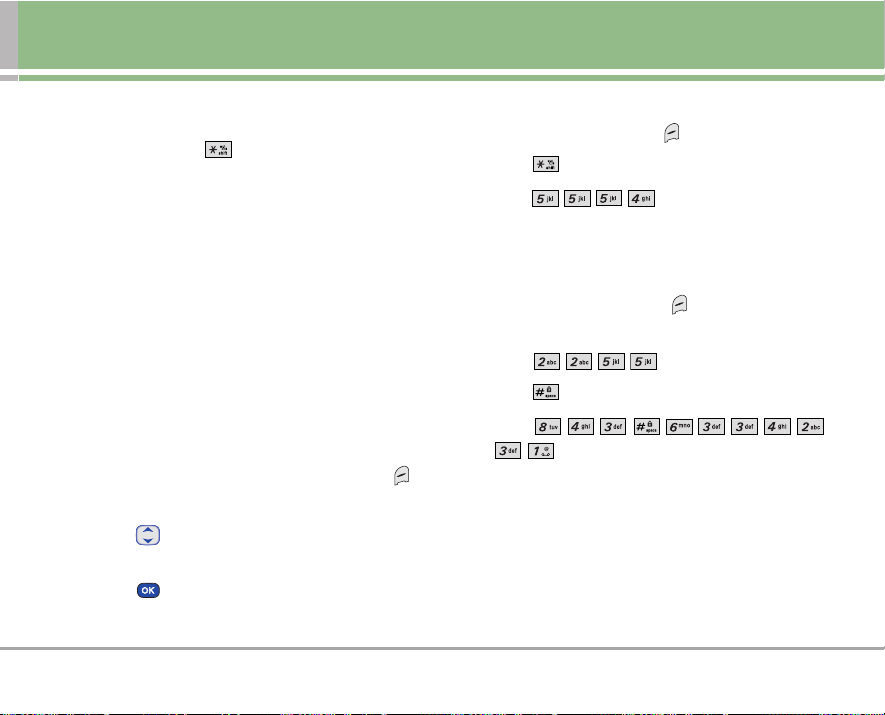
Changing Letter Case
Using T9 and Abc text input modes you can set the
capitalization. Press to reach the following:
Initial Cap (T9Word / Abc)
Only the first letter is capitalized and subsequent letters
are lower case.
Caps Lock (T9WORD / ABC)
All letters are capitalized.
Lower Case (T9word / abc)
All letters are in lower case.
Text Input Examples
Display the text modes and select a text mode:
1. In a text entry field, press Right (or Left) Soft Key to
display text modes.
2. Press to highlight the text input mode you want to
use.
3. Press to select the highlighted text input mode.
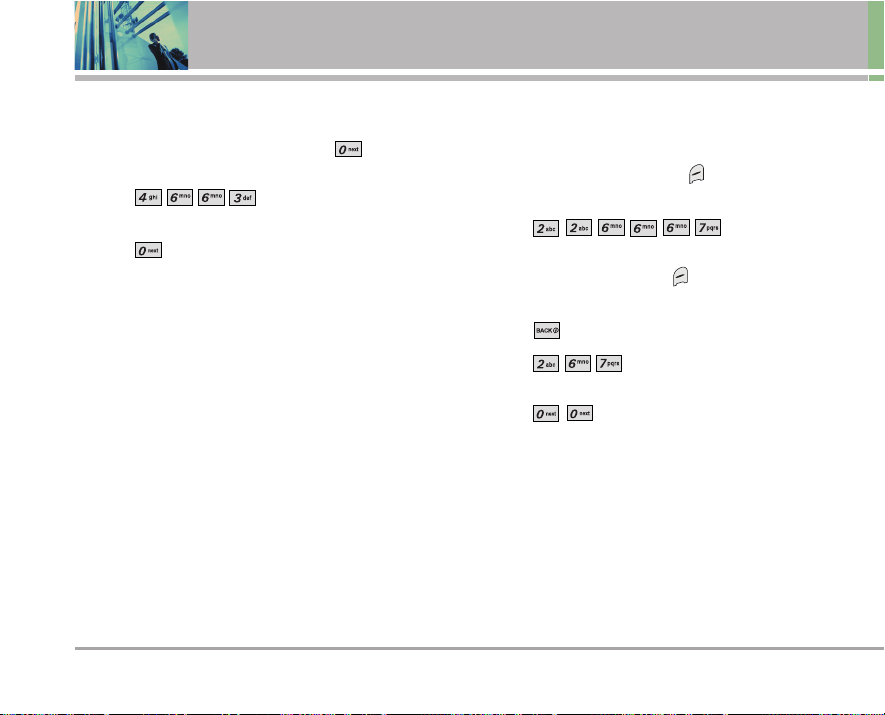
Using Abc (Multi-tap) Text Input
1. Press Right (or Left) Soft Key to change to Abc mode.
2. Press to change to ABC Caps Lock.
3. Press .
LG is displayed.
Using T9 Mode Text Input
1. Press Right (or Left) Soft Key to change to T9Word
mode.
2. Press .
3. Press to complete the word and add a space.
4. Press
.
Call the office. is displayed.
22 UX4750
Entering and Editing Information
Using the NEXT Key
After you have finished entering a word, if the word
displayed is not the one you want, press to display
additional choices of words from the database.
1. Press .
Good is displayed.
2. Press .
The display gives you additional choices such as:
Home, Gone, Hood, etc.
Adding Words to the T9 Database
If a word is not in the T9 database, add it using Abc (Multi-
tap) mode text entry.
1. Press Right (or Left) Soft Key to change to Abc
(Multi-tap) mode.
2. Press .
Bop is displayed.
3. Press Right (or Left) Soft Key to change to T9 mode
to add the word Bop to the T9 database.
4. Press to erase the existing word.
5. Press .
cop is displayed.
6. Press .
bop is displayed.
UX4750 23
Contacts in Your Phone’s Memory
Contacts Entries
This allows you to have easy access to your most frequently
dialed phone numbers. You may store up to 500 entries with
up to 5 phone numbers each. Each entry may be up to 22
characters. Each phone number may be up to 48 digits.
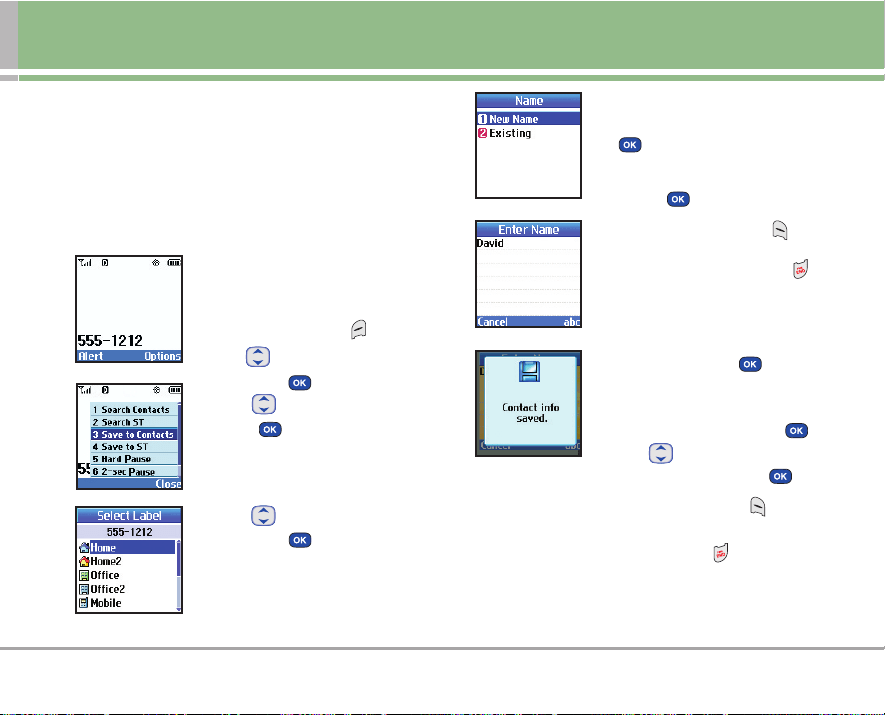
The Basics of Storing Contacts Entries
1. From Main Menu Screen, enter the
phone number you want to save
(up to 48 digits).
2. Press Right Soft Key Options.
3. Use to select Save to Contacts,
then press .
4. Use to select a Label, then
press .
Home / Home2 / Office / Office2 /
Mobile / Mobile2 / Pager / Fax /
Fax2 / None
5. Use to select Name entry,
then press .
New Name / Existing
NNOOTTEE
Use Existing to add another
phone number to a contact
already stored in memory.
6. Enter a name for the phone number
(up to 22 characters), then press
.
NNOOTTEE
To skip name entry, press
to go to the next step.
NNOOTTEE
Press Left Soft Key
Done
to further customize the
Contact entry or press to
return to the Main Menu
Screen.
7. Continue saving the entry as a
Speed Dial, press to select
Speed Dial.
8. Enter a Speed Dial digit (e.g., 2).
Use the keypad, then press or
use to highlight the Speed
Dial location, then press .
9. Press Left Soft Key Done to
further customize the Contact
entry or press to return to the
Main Menu Screen.
24 UX4750
Contacts in Your Phone’s Memory
Options to Customize Your Contacts
Once the basic phone number and name information is
stored in your Contacts, you can edit and customize each
entry.
1. Press Right Soft Key Contacts and use to
highlight the contact entry you want to edit, then
press .
2. Press Left Soft Key Edit to access the Edit Contact
screen.
3. Use to highlight the information you want to
customize, then press .
Adding or Changing the Group
Allows you to manage your Contacts entries by organizing
them into groups.
1. Press Right Soft Key Contacts and use to
highlight an entry, then press .
2. Press Left Soft Key Edit.
3. Use to highlight No Group, then press .
4. Use to select the Group, then press .
No Group / Family / Friends / Colleagues / Business /
School
5. Press Left Soft Key Done to save the change.
NNOOTTEE
Use Menu -> 1 -> 4 to change the name of a group,
add a group, and delete a group.
Changing the Call Ringer
Allows you to identify who is calling, by setting different
ringers for different phone numbers in your Contacts. It is
automatically set to the default ringer when the Contact is
saved.
1. Press Right Soft Key Contacts and use to
highlight an entry, then press .
2. Press Left Soft Key Edit.
3. Use to highlight Default Ringer, then press .
4. Use to select the Ringer Type, then press .
5. Press Left Soft Key Done to save the change.
UX4750 25
Changing the Message Ringer
Allows you to identify who is sending you a message, by
setting different ringers for different phone numbers in
your Contacts. It is automatically set to the default ringer
when the Contact is saved.
1. Press Right Soft Key Contacts and use to
highlight an entry, then press .
2. Press Left Soft Key Edit.
3. Use to highlight Default Text Msg Ringer, then
press .
4. Use to select the Ringer Type, then press .
5. Press Left Soft Key Done to save the change.
Adding or Changing the Memo
Allows you to enter up to 32 characters as a memo to the
Contact entry.
1. Press Right Soft Key Contacts and use to
highlight an entry, then press .
2. Press Left Soft Key Edit.
3. Use to highlight Memo, then press .
4. Enter text, then press .
5. Press Left Soft Key Done to save the change.
Adding or Changing the Picture ID
Allows the phone to display an image to identify the caller.
1. Press Right Soft Key Contacts and use to
highlight an entry, then press .
2. Press Left Soft Key Edit.
3. Use to highlight Default, then press .
4. Press Left Soft Key Select.
5. Press Left Soft Key Done to save the change.
26 UX4750
Contacts in Your Phone’s Memory
Adding Speed Dial
1. Press Right Soft Key Contacts and use to
highlight an entry, then press .
2. Press Left Soft Key Edit.
3. Use to highlight the phone number you want to set
with a Speed Dial, then press .
4. Press to select Speed Dial, then press .
5. Enter a Speed Dial digit. Use the Keypad, then press
, or use to highlight the Speed Dial digit, then
press .
6. Press Left Soft Key Done to save the change.
Editing Contacts Entries
Adding Another Phone Number
From the Main Menu Screen
1. From Main Menu Screen enter the phone number you
want to save (up to 48 digits).
2. Press Right Soft Key Options and select Save to
Contacts.
3. Use to highlight a Label, then press .
Home / Home2 / Office / Office2 / Mobile / Mobile2 /
Pager / Fax / Fax2 / None
4. Use to highlight Existing, then press .
5. Use to highlight the existing Contact entry, then
press .
A confirmation message is displayed.
Through Contacts
1. From Main Menu Screen press Right Soft Key
Contacts. Your Contacts display alphabetically.
2. Use to highlight the Contact entry you want to edit,
then press .
UX4750 27
3. Press Left Soft Key Edit.
4. Use to highlight Add Number, then press .
5. Enter the number, then press .
6. Use to highlight a Label, then press .
A confirmation message is displayed.
Default Numbers
The phone number saved when a Contact is created is the
Default Number. If more than one number is saved in a
Contact entry, another number can be designated as the
Default Number.
Changing the Default Number
1. Press Right Soft Key Contacts to display your
Contacts alphabetically.
2. Use to highlight the Contact entry you want to edit,
then press .
3. Press Left Soft Key Edit.
4. Use to highlight the phone number you want to set
as the Default Number, then press Right Soft Key
Options.
5. Press Set as Default #.
A confirmation message is displayed.
Editing Stored Phone Numbers
1. Press Right Soft Key Contacts to display your
Contacts alphabetically.
2. Use to highlight the Contact entry you want to edit,
then press .
3. Press Left Soft Key Edit.
4. Use to highlight the phone number, then press
twice.
5. Edit the phone number as necessary, then press .
6. Use to confirm the Label, then press .
A confirmation message is displayed.
Editing Stored Names
1. Press Right Soft Key Contacts to display your
Contacts alphabetically.
2. Use to highlight the Contact entry you want to edit,
then press .
3. Press Left Soft Key Edit.
28 UX4750
Contacts in Your Phone’s Memory
4. Use to highlight the name, then press .
5. Edit the name as necessary, then press .
6. Press Left Soft Key Done to save the change.
Editing Customized Options
Edit any of the Contacts options in the same manner as
when the Contact is created.
1. Press Right Soft Key Contacts to display your
Contacts alphabetically.
2. Use to highlight the Contact entry you want to edit,
then press .
3. Press Left Soft Key Edit.
4. Use to highlight the information you want to
customize, then press .
5. Edit the information as necessary, then press .
6. Press Left Soft Key Done to save the change.
Deleting
Deleting a Phone Number from a Contact
1. Press Right Soft Key Contacts to display your
Contacts alphabetically.
2. Use to highlight the Contact entry, then press
.
3. Press Left Soft Key Edit.
4. Use to highlight the phone number to be deleted.
5. Press Right Soft Key Options.
6. Press Erase Number.
7. Press Erase Number.
A confirmation message is displayed.
Deleting a Contact Entry
1. Press Right Soft Key Contacts to display your
Contacts alphabetically.
2. Use to highlight the Contact entry to be deleted,
then press .
3. Press Left Soft Key Edit.
4. Press Right Soft Key Options.
UX4750 29
5. Press Erase Contact.
6. Press Erase.
A confirmation message is displayed.
Additional Ways to Delete a Contact
At any time when your Contacts are displayed, the Right
Soft Key Options allows you to erase the highlighted
entry.
Deleting a Speed Dial
1. Press Right Soft Key Contacts to display your
Contacts alphabetically.
2. Use to highlight the Contact entry, then press
.
3. Press Left Soft Key Edit.
4. Use to highlight the number, then press .
5. Use to highlight the Speed Dial entry, then press
.
6. Use to highlight the existing Speed Dial location.
7. Press Right Soft Key Options.
8. Press Remove.
9. Press Remove.
A confirmation message is displayed.
30 UX4750
Contacts in Your Phone’s Memory
Phone Numbers With Pauses
When you call automated systems such as Voice Mail or
credit billing numbers, you often have to enter a series of
numbers. Instead of entering these numbers by hand, you
can store the numbers in your Contacts separated by
special pause characters (P, T). There are two different
types of pauses you can use when storing a number:
Hard Pause (P)
The phone stops dialing until you press Left Soft Key
Release to advance to the next number.
2-sec Pause (T)
The phone waits 2 seconds before sending the next string
of digits.
Storing a Number with Pauses
1. Press Left Soft Key Menu.
2. Press Contacts.
3. Press New Number.
4. Enter the number.
5. Press Right Soft Key Pause.
6. Use to select pause type, then press .
Hard pause / 2-sec pause
7. Enter additional number(s) (e.g., pin number or credit
card number), then press .
8. Use to select a Label, then press .
9. Enter a name (up to 22 characters).
A confirmation message is displayed.
Adding a Pause to an Existing Number
1. Press Right Soft Key Contacts to display your
Contacts alphabetically.
2. Use to highlight the Contact entry to edit, then
press .
3. Press Left Soft Key Edit.
4. Use to highlight the number then press 2
times.
5. Press Right Soft Key Pause.
6. Press Hard pause or 2-sec pause.
7. Enter additional number(s), then press .
8. Use to confirm the Label, then press .
A confirmation message is displayed.
UX4750 31
Searching Your Phone’s Memory
The UX4750 phone is able to perform a dynamic search of
the contents in your phone’s memory. A dynamic search
compares entered letters or numbers against the entries in
your Contacts. A matching list is displayed in descending
order. You can then select a number from the list to call or
edit. There are several ways to search:
● Scrolling Alphabetically
● Searching by Letter
● Searching by Options
- Find Name - Find Number
- Find Speed Dial - Find Group
- Find E-mail
Scrolling Through Your Contacts
1. Press Right Soft Key Contacts to display your
Contacts alphabetically.
2. Use to scroll through the list.
Searching by Letter
1. Press Right Soft Key Contacts to display your
Contacts alphabetically.
2. Press (or press repeatedly) the key on the keypad that
corresponds with the search letter.
Searching Options
1. Press Right Soft Key Contacts.
2. Press Right Soft Key Options.
3. Select the search criteria (use then press , or
press the corresponding number on the keypad):
Find Name - Enter the character(s) to search for
(such as the first letter(s) of the name).
Find Number - Enter the number(s) to search.
Find Speed Dial - Enter the speed dial number(s)
to search.
Find Group - Use to highlight the group to
search for, then press .
Find E-mail - Enter the e-mail address to search.
4. When the list of matches is displayed, use to
highlight a matched entry.
5. Press to see more information or press to
place a call.
32 UX4750
Contacts in Your Phone’s Memory
Making a Call From Your Phone’s Memory
Once you have stored phone numbers in your Contacts,
you can place calls to those numbers quickly and easily.
● By pressing after searching for a phone number in
Contacts or Recent Calls and highlighting it.
● Use Speed Dialing
● Use Voice Command Dialing
From Contacts
1. Press Right Soft Key Contacts to display your
Contacts alphabetically.
2. Use to select the Contact entry, then press .
3. Use to select the phone number.
4. Press to place the call.
From Recent Calls
1. Press Left Soft Key Menu.
2. Press Recent Calls.
3. Use to select the type of recent call, then press .
Dialed Calls/Received Calls/Missed Calls
4. Use to select the phone number.
5. Press to place the call.
Speed Dialing
NNoottee
This is not SpeedTalk
SM
's walkie
talkie like services.
For a single-digit Speed Dial, press and hold the digit or
press the digit, then press . For a double-digit Speed
Dial, press the first digit and hold the second digit or press
the first and second digits, then press .
Prepending a Stored Number
Prepend can be used if you are out of your home system
area and need to add the area code to an existing number
in your phone's memory. When a Contacts entry or
message callback number is displayed, you can add to the
beginning of the original number. However, you cannot edit
the original number.
1. Recall a number in your Recent Calls (Dialed, Received,
or Missed).
2. Press Right Soft Key Options.
3. Press Prepend.
4. Enter the prepend digits to the phone number.
5. Press to place the call.
UX4750 33
Using Phone Menus
Menu Access
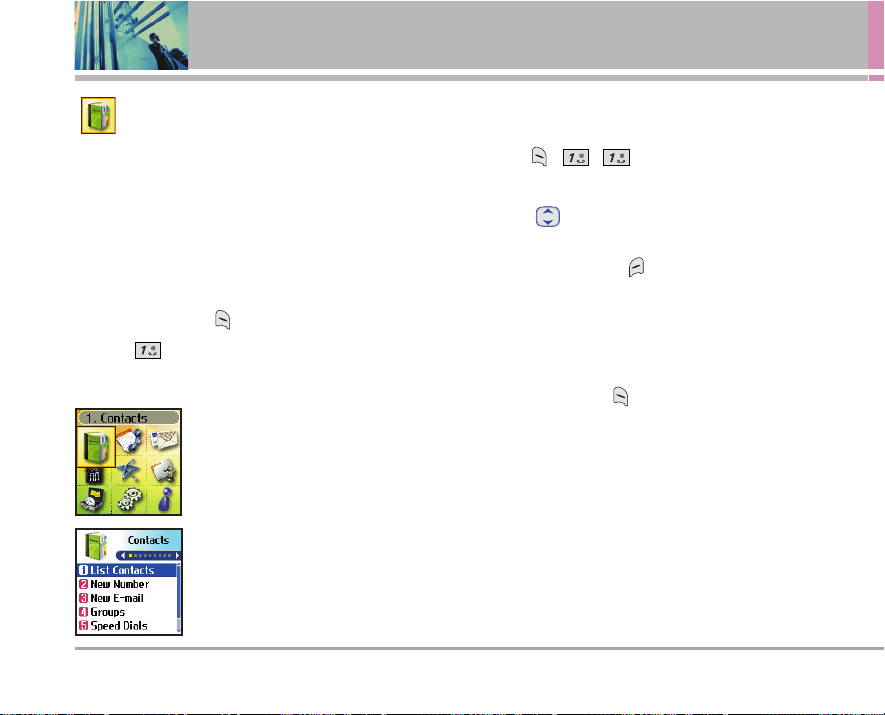
Press Left Soft Key Menu to access nine phone
menus. There are two methods of accessing menus and
submenus:
●
Use the navigation key to highlight and select, or
●
Press the number key that corresponds to the menu (or
submenu).
For example:
1. Press Left Soft Key Menu to display nine menu
items.
Use to scroll through the list of menus.
2. Press the appropriate number key corresponding to the
menu item you want to select.
The sub-menu list will be displayed.
3. Press the appropriate number key corresponding to the
sub-menu you want to access.
4. Use to highlight your preferred setting, then press
to select it.
NNOOTTEE
Press to go back one step (while accessing
a menu or selecting a setting). Changes to settings
will not be saved.
34 UX4750
Using Phone Menus
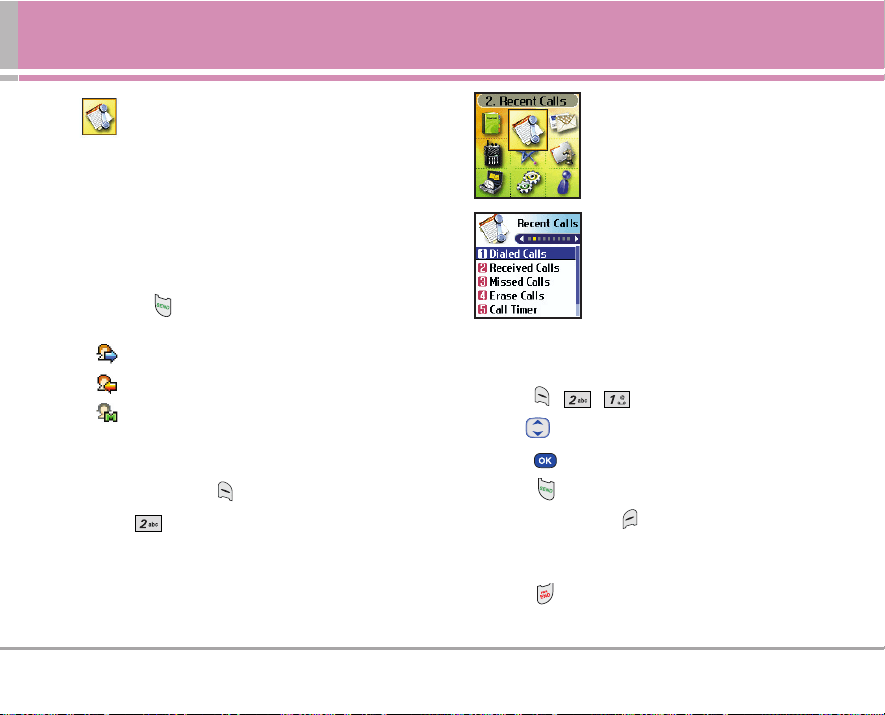
Contacts
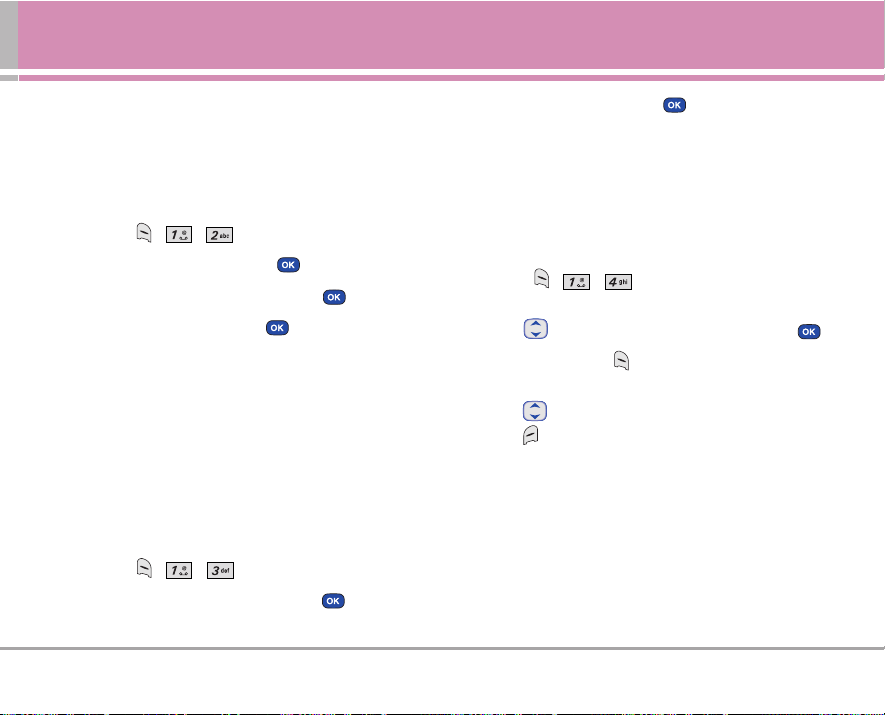
The Contacts Menu allows you to store names, phone
numbers and other information in your phone’s memory.
When you access your Contacts, the number in
parentheses represents the number of entries you have
stored (up to 500).
Access and Options
1. Press Left Soft Key Menu.
2. Press Contacts.
3. Select a sub-menu.
1. List Contacts
2. New Number
3. New E-mail
4. Groups
5. Speed Dials
6. My Contact Info
1. List Contacts
Allows you to view your Contacts list.
1. Press , , .
2. Options from here:
●
Press to scroll through your Contacts
alphabetically.
●
Press Right Soft Key Options to select one of the
following:
New Number / New E-mail / Find Name /
Find Number / Find Speed Dial / Find Group /
Find E-mail / Send Message / Erase / Copy to ST
●
Press Left Soft Key Alert.
Press and release SpeedTalk
SM
Key to alert.
• Receiver hears alerting tone.
• Sender hears connecting tone.
UX4750 35
Contacts
2. New Number
Allows you to add a new number to your Contacts
NNOOTTEE
Using this sub-menu, the number is saved as a new
Contact. To save the number into an existing
Contact, edit the Contact entry.
1. Press , , .
2. Enter the number, then press .
3. Select the Label you want and press .
4. Enter the name, then press .
5. Continue saving the entry as necessary.
3. New E-mail
Allows you to save a new e-mail address.
NNOOTTEE
Using this sub-menu, the e-mail is saved as a new
Contact. To save the e-mail into an existing Contact,
edit the Contact entry.
1. Press , , .
2. Enter the e-mail address, then press .
3. Enter the name, then press .
4. Continue saving the entry as necessary.
4. Groups
Allows you to view your grouped Contacts, add a new
group, change the name of a group, or delete a whole
group.
1. Press , , .
2. Options from here:
●
Use to highlight a group to view, then press .
●
Press Left Soft Key Add to add a new group to the
list.
●
Use to highlight a group, then press Right Soft
Key Options to change the name of the group or
delete the group.
36 UX4750
Using Phone Menus
5. Speed Dials
Allows you to view your Speed Dials list, designate new
Speed Dials, or remove Speed Dial designations entered in
your Contacts.
1. Press , , .
2. Use to highlight the Speed Dial position (or enter
the Speed Dial digit), then press .
3. Use to highlight the Contact, then press .
4. Use to highlight the number, then press .
A confirmation message is displayed.
6. My Contact Info
Allows you to enter your own virtual business card to be
used in text messages.
1. Press , , .
2. Use to select the feature you want to edit, then
press .
3. Edit the information as necessary.
NNOOTTEE
You cannot edit phone number, but you can add an
additional phone number.
UX4750 37
Recent Calls
Recent Calls
The Recent Calls Menu is a list of the last phone numbers
or Contact entries for calls you placed, accepted, or
missed. It is continually updated as new numbers are
added to the beginning of the list and the oldest entries
are removed from the bottom of the list.
NNOOTTEE
To view a quick list of all your recent calls, press
from the Main Menu.
●
indicates a dialed call.
●
indicates a received call.
●
indicates a missed call.
Access and Options
1. Press Left Soft Key Menu.
2. Press Recent Calls.
3. Select a sub-menu.
1. Dialed Calls
2. Received Calls
3. Missed Calls
4. Erase Calls
5. Call Timer
6. KB Counter
1. Dialed Calls
Allows you to view the list of outgoing calls; up to 30 entries.
1. Press , , .
2. Use to highlight an entry.
●
Press to view the entry.
●
Press to place a call to the number.
●
Press Right Soft Key Options (for call lists) to select
Save to Contacts / Save to ST / Send Message /
Prepend / Erase / Erase All
●
Press to return to the Main Menu Screen.
*
ST refers to SpeedTalk
SM
38 UX4750
Using Phone Menus
2. Received Calls
Allows you to view the list of incoming calls; up to 30
entries.
1. Press , , .
2. Use to highlight an entry.
3. Missed Calls
Allows you to view the list of missed calls; up to 30 entries.
1. Press , , .
2. Use to highlight an entry.
4. Erase Calls
Allows you to erase selected call list(s).
1. Press , , .
2. Use to highlight the list of calls to erase, then press
.
Dialed Calls / Received Calls / Missed Calls / All Calls
3. Press Erase or Cancel.
5. Call Timer
Allows you to view the duration of selected calls.
1. Press , , .
2. Use to highlight a call list, then press .
Last Call / Home Calls / Roam Calls / All Calls
6. KB Counter
Allows you to view the list of received and transmitted data
calls.
1. Press , , .
2. Use to highlight a data call list, then press .
Received / Transmitted / Total
UX4750 39
Messages
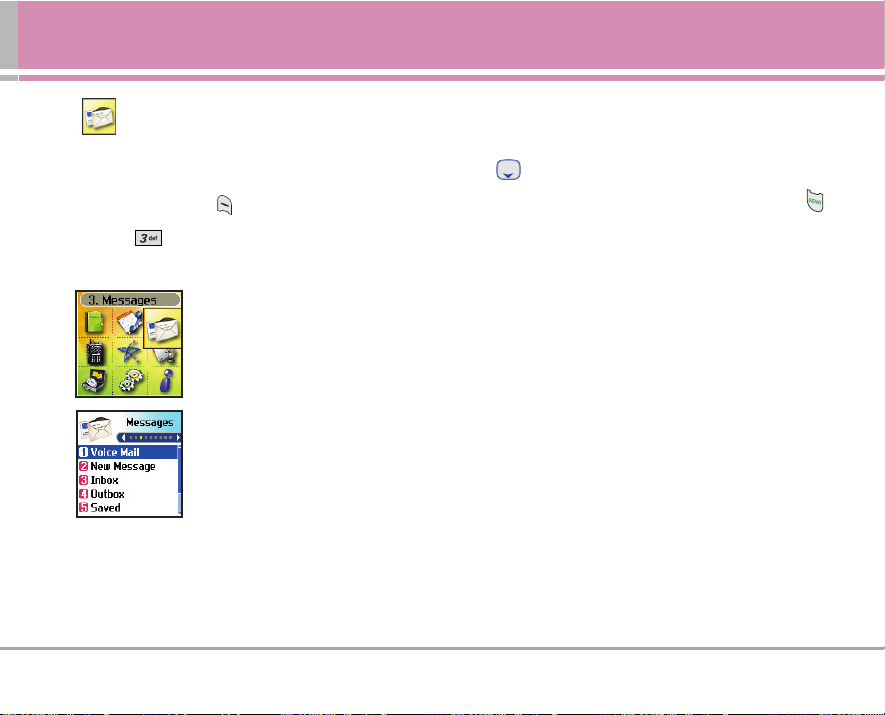
Messages
Access and Options
1. Press Left Soft Key Menu.
2. Press Messages.
3. Select a sub-menu.
1. Voice Mail: Shows the number of
messages in Voice Mail box.
2. New Message: Sends a message.
3. Inbox: Shows the list of received
messages.
4. Outbox: Shows the list of sent
messages.
5. Saved: Shows the list of saved and
draft messages.
6. Msg Settings: Selects alert type for
new messages.
7. Erase All: Deletes all stored
messages.
Text messages, pages, and the Voice Mail box become
available as soon as the phone is powered on.
●
Check types of messages by pressing the message key
.
●
Make a call to the callback number by pressing
during an Inbox message check.
●
Read and edit messages saved in the outbox after
transmission and resend them.
The phone can store up to 116 messages (1 voice
message, 50 inbox text messages, 50 outbox text
messages, 15 saved text messages). The UX4750 supports
up to 160 characters per message including header
information. The information stored in the message is
determined by phone mode and service capability. Other
limits to available characters per message may exist.
Please check with your service provider for system
features and capabilities.
40 UX4750
Using Phone Menus
New Message Alert
There are three ways your phone alerts you to new
messages.
1. The phone displays a message on the screen.
2. One of eight ring types is heard, if selected.
3. The message icon ( ) is displayed on the screen. In
the case of an urgent message, the icon will flash and
Urgent message is displayed.
NNOOTTEE
If you receive the same message twice, your phone deletes
the older one and the new one is stored as a Duplicate.
1. Voice Mail
Allows you to view new voice messages recorded in the
Voice Mail box. Your phone will alert you when you receive
a new voice message.
Checking Your Voice Mail Box
1. Press , , .
2. Options from here:
●
Press Left Soft Key Clear to delete information, then
select Clear Count.
●
Press to listen to the message(s).
2. New Message
Allows you to send text messages, EMS messages, pages,
and e-mail transmissions. Each message has a destination
(Address 1) and information (Message). These are
dependent upon the type of message you want to send.
The Basics of Sending a Text Message
1. Press , , .
2. With the highlight on Address 1, press .
3. Enter the recipient's address, then press .
NNOOTTEE
To send a page, press Left Soft Key Send.
4. Press to access the message screen.
5. Type your message (text or e-mail), then press .
6. Press Left Soft Key Send.
A confirmation message is displayed.
UX4750 41
Messages
Customizing the Text Message Using Options
1. Create a new message, and press .
2. Press Right Soft Key Options.
3. Select the option(s) to customize.
Send Sends the message.
Priority Gives priority to the message.
Normal / Urgent.
Callback # Inserts a pre-programmed callback
number with your message.
On / Off / Edit
Delivery Notice Informs you that the message has been
successfully delivered to the recipient.
Enhanced / Normal
Save Message Saves the message into the saved
folder.
Erase Field Deletes address or contents of message
field.
4. Complete and send the message.
Using Contacts to Send a Text Message
You can designate an entry saved in your Contacts as
Address 1 instead of manually entering the destination.
1. Press , , .
2. Press Left Soft Key Contacts.
3. Select Contacts / Recent Calls / Recent Addresses.
then press .
4. Use to highlight the Contact entry containing the
destination, then press .
5. Use to highlight the text message phone number or
e-mail address, then press .
NNOOTTEE
The Address 1 feature allows multi-sending of up to
10 addresses.
6. Complete the message as necessary.
42 UX4750
Using Phone Menus
Text Options
While you are composing the text of a message you can
insert customized text.
1. Create a new message.
2. Use to highlight Message then press .
3. Press Right Soft Key Options.
4. Select the option(s) to customize.
Insert Quick-Text Inserts 11 predefined phrases.
Save Quick-Text Allows you to define phrases to
insert as Insert Quick Text.
Insert Signature Inserts a predefined signature.
5. Complete and send or save the message.
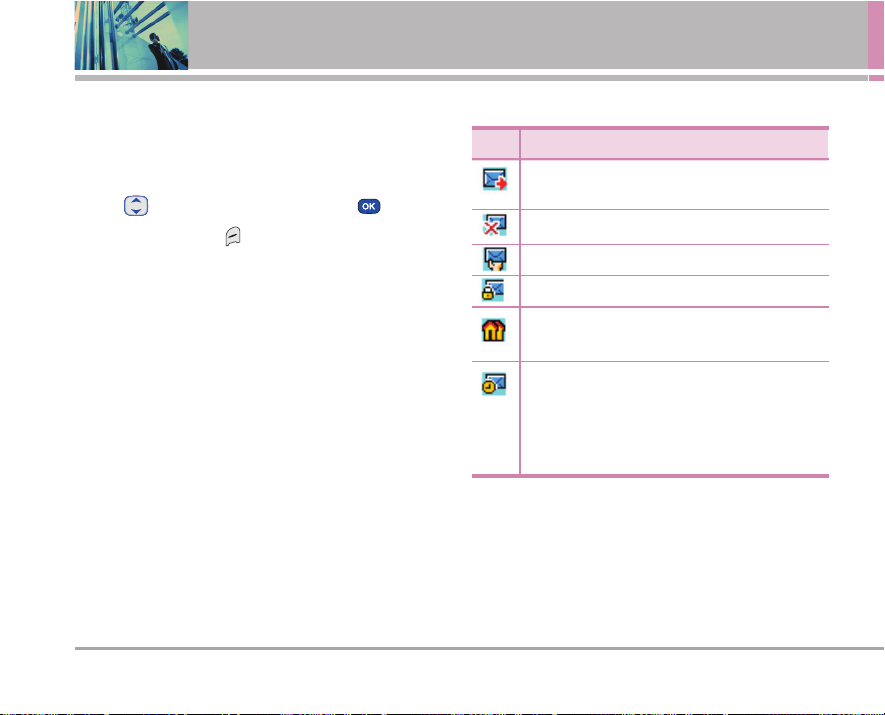
Message Icon Reference
Icons Descriptions
Sent : Messages sent in Short Message Center (SMC)
have been transmitted.
Fail : Indicates a failed message transmission.
Delivery : Message has been delivered.
Lock : Indicates that messages are locked.
Multi-sending : Indicates more than one designated
recipient.
Pending : Transmission is unavailable in a no service
area or in an analog service area. Messages are
pending transmission. Pending messages are
transmitted automatically when digital mode becomes
available.

UX4750 43
Messages
3. Inbox
The phone alerts you in 3 ways when you receive a new
message by:
●
Displaying a message notification on the screen.
●
Sounding a beep, vibrating or sound, if set.
●
Displaying the message icon . It blinks when the
message is urgent.
Received text messages, page messages, and e-mail lists
may be searched and the contents viewed. Received
messages are displayed from newest to oldest.
Out of Memory Warning
If the memory is full, no more messages can be received
until enough memory space becomes available. The
message Unable to rcv.Please erase message. is displayed
and new messages are not accepted.
Viewing Your Inbox
Up to 50 received messages can be stored in the Inbox.
1. Press , , .
2. Use to highlight an Inbox message.
●
Left Soft Key Reply.
●
Right Soft Key Options.
Erase Deletes the selected message from the
Inbox.
Lock/UnLock Locks a message so that it is not erased
if the Erase Inbox or Erase All feature
are used.
3. Use to highlight an Inbox message, then press
.
4. While viewing the selected message, press Left Soft
Key Reply or Right Soft Key Options.
Options from here:
Reply w Copy Replies to the text message with the
original message attached.
Forward Forwards a received message to other
destination address(es).
Erase Deletes the selected message from the
Inbox.
Save Address Stores the callback number, e-mail
address, and numbers in user data
included in the received message into
your Contacts.
Save Object Saves animations and sounds to be

44 UX4750
Using Phone Menus
used as wallpaper or ring tone.
Save Quick-Text Saves the message into the Quick-Text
list.
Save Message Saves Inbox message into the Saved
Folder.
Lock/UnLock Locks or unlocks the selected message.
Locked messages can not be deleted by
the Erase Inbox or Erase All functions.
4. Outbox
Up to 50 sent messages can be stored in the Outbox. View
lists and contents of sent messages and verify whether the
transmission was successful or not.
1. Press , , .
2. Use to highlight an Outbox message.
●
Press Left Soft Key Resend.
●
Press Right Soft Key Options.
Erase Deletes the selected message from the
Outbox.
Lock/Unlock Locks a message so that it is not erased if the
Erase Outbox or Erase All feature is used.
3. Use to highlight an Outbox message, then press
. While viewing the selected Outbox message,
press Left Soft Key Send to or press Right Soft Key
Options.
Send to Retransmits the selected message.
Erase Deletes the selected message.
Save Address Stores the callback number, e-mail
address, and numbers in user data
included in the received message into
your Contacts.
Save Quick-Text Saves the message into the Quick-Text
list.
Save Message Saves Outbox message into the Saved
Folder.
Lock/Unlock Locks or unlocks the selected message.
Locked messages can not be deleted
by the Erase Outbox and Erase All
functions.
Message Info Shows the message type priority and
status.
UX4750 45
Messages
5. Saved
Displays saved messages and draft messages.
1. Press , , .
2. Use to highlight a Saved message.
●
Press Left Soft Key Resume.
●
Press Right Soft Key Options.
Erase Deletes the selected message.
Lock/Unlock Locks a message so that it is not erased if
the Erase Saved or Erase All feature is used.
6. Msg Settings
Allows you to configure 9 settings for received messages.
1. Press , , .
2. Use to highlight one of the settings and press
to select it.
Auto Save Auto Save / Prompt / Do Not Save
Auto Erase On / Off
Callback # Edit Callback #
Signature None / Custom
Voice Mail # Edit Voicemail #
Auto View On / Off
Entry Mode T9Word / Abc / 123
Insert Quick-Text Inserts 11 predefined phrases.
Auto Play On / Off
Message Settings Sub-Menu Descriptions
6.1 Auto Save
Allows you to automatically save sent messages in your
Outbox. You can choose Auto Save, Prompt, or Do Not
Save.
6.2 Auto Erase
With this feature on, read messages(except locked
messages) are automatically deleted when you exceed
the storage limit.
6.3 Callback #
Allows you to automatically send a designated callback
number when you send a message. Allows you to
manually enter the number.
46 UX4750
Using Phone Menus
6.4 Signature
Allows you designate a signature to automatically send
with your messages. You can create a custom signature
line.
6.5 Voice Mail #
Allows you to manually enter the number for Voice Mail
Service. This number should be only used when a VMS
access number is not provided from the network.
6.6 Auto View
Allows you to directly display the content when receiving
a message.
6.7 Entry Mode
Allows you to select the default input method.
6.8 Insert Quick-Text
Allows you to display, edit, and add text phrases. These
text strings allow you to reduce manual text input into
messages.
6.9 Auto Play
With this feature on, the display automatically scrolls
down while viewing messages.
7. Erase All
Allows you to erase all text messages stored in your Inbox,
Outbox, or Saved messages folders. You can also erase all
messages at the same time.
1. Press , , .
●
Press Inbox to erase all messages stored in the
Inbox.
●
Press Outbox to erase all messages stored in the
Outbox.
●
Press Saved to erase all messages stored in the
Saved messages folder.
●
Press All to erase all messages stored in the
Inbox, Outbox, and Saved messages folder.
2. Press Erase All.
A confirmation message is displayed.
UX4750 47
SpeedTalk
SM
SpeedTalk
SM
SpeedTalk
SM
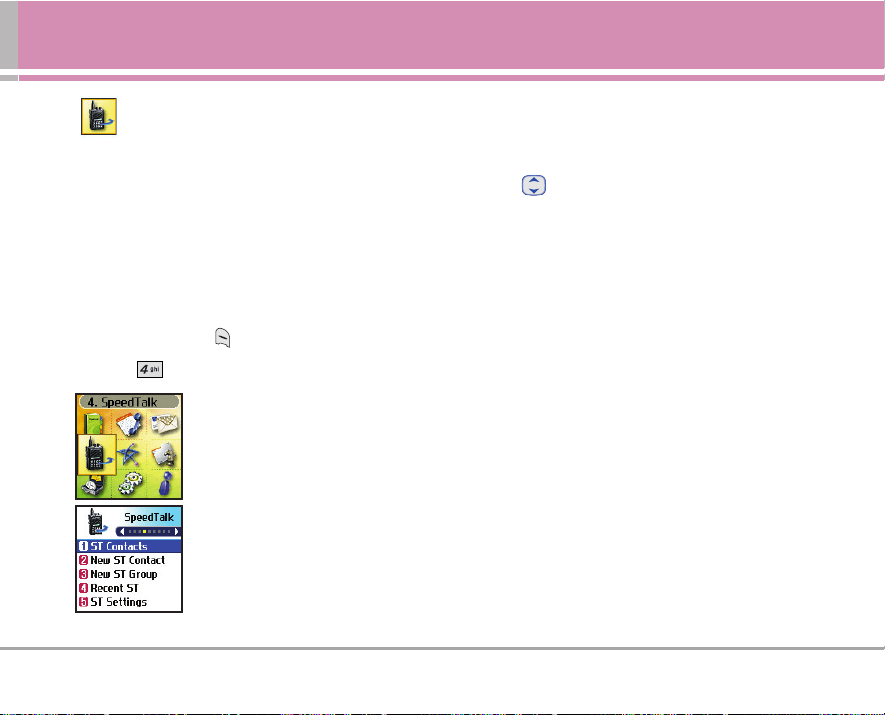
allows you to make a Barge call or send an
Alert message. The receiving party does not have the
option to ignore the barge call.
When an Alert message is sent to the receiving party, the
receiving party has the option to place a ST call or ignore
the alert.
Access and Options
1. Press Left Soft Key Menu.
2. Press SpeedTalk
SM
.
1. ST Contacts
2. New ST Contact
3. New ST Group
4. Recent ST
5. ST Settings
NNOOTTEE
SpeedTalk
SM
Key is the
button on top of the
phone.
Call from ST Contact List (Barge)
1. From Idle Screen, press and hold SpeedTalk
SM
key to
access your ST Contact List.
2. Use to highlight the SpeedTalk
SM
Contact entry you
wish to call.
3. Press and hold SpeedTalk
SM
key.
●
Sender hears SpeedTalk
SM
talk tone and can begin
speaking.
4. Release SpeedTalk
SM
Key.
●
Receiver hears incoming barge tone.
●
Receiver hears sender’s voice followed by the floor
available tone.
●
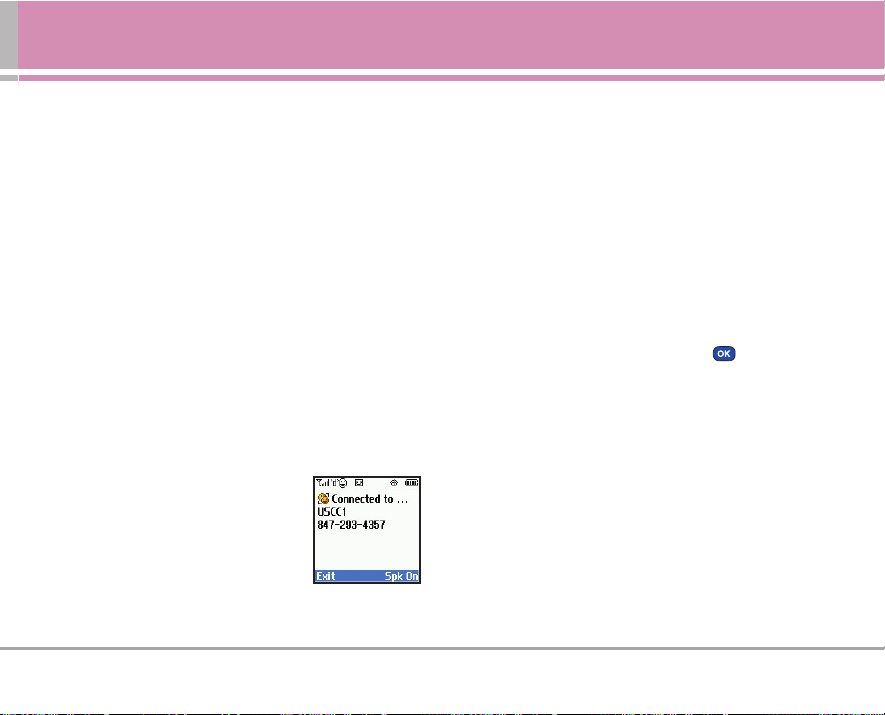
Sender’s device displays connected screen.
5. Press and hold SpeedTalk
SM
key to speak.
6. Release SpeedTalk
SM
key to listen.
*
ST refers to SpeedTalk
SM
48 UX4750
Using Phone Menus
Call from ST Contact List (Alert)
1. From Idle Screen press and hold the SpeedTalk
SM
key to
access your ST Contact List.
2. Use to highlight the ST Contact entry you wish to alert.
3. Press Left Soft Key Alert.
Press SpeedTalk
SM
key.
●
Receiver hears alerting tone and receives alert
message.
4. If receiver accepts the alert and places a SpeedTalk
SM
call to the sender,
●
Sender hears incoming barge tone.
●
Sender hears receiver’s voice followed by the floor
available tone.
●
Receiver’s device displays connected screen.
5. Press and hold SpeedTalk
SM
key and speak.
6. Release SpeedTalk
SM
key to listen.
NNOOTTEE
When someone else sends you a
ST
Alert, a Buddy
Alert Message appears. You can select either
Answer or Ignore. When you select Answer, ‘Push
ST
button to make
ST
call to (Contact name)’
message appears. You can place a
ST
call to the
sender by pressing the
SpeedTalk
SM
key.
Call from ST Contact List (Group)
Allows you to make a multiparty call with all or selected
members of a ST Group. ST Group list allows you to view
all the Contacts’ name in the group, and you can select one
or more contacts to make a ST call. You can also send an
alert message to one of the contact in your Group.
1. Press and hold SpeedTalk
SM
Key to access ST Contact
list.
2. Use to highlight the ST group.
3. To make a ST Group call to all members in the Group,
- Press and hold SpeedTalk
SM
Key
●
Sender hears ST talk tone and can begin speaking.
4. Release SpeedTalk
SM
key.
●
All members of Group hear incoming barge tone.
●
All members of Group hear sender’s voice followed
by the floor available tone.
●
Sender’s device displays connected screen.
UX4750 49
SpeedTalk
SM
Call from Keypad (Barge)
1. From Idle Screen, enter the number.
2. Press and hold SpeedTalk
SM
Key.
●
If the phone number is in the ST contact list, screen
shows the Contact name.
●
Sender hears ST talk tone and can begin speaking.
3. Release SpeedTalk
SM
key.
●
Receiver hears incoming barge tone.
●
Receiver hears sender’s voice followed by the floor
available tone.
●
Sender’s device displays connected screen.
Incoming ST (Barge)
1. Listening screen is shown with the phone number. If
the number is stored in ST Contact List, the sender’s
name is shown.
2. Press and hold SpeedTalk
SM
key.
●
Sender Hears ST talk tone
and can begin speaking.
3. Release SpeedTalk
SM
key.
●
Receiver hears incoming
barge tone.
●
Receiver hears callers voice followed by the floor
available tone.
●
Sender’s device displays connected screen.
NNOOTTEE
All Incoming ST calls come through the Speaker
Phone, unless you have the Speaker Phone turned
off. If you have the Speaker Phone turned off, calls
will come through the earpiece.
Incoming ST (Alert)
1. Buddy Alert Message appears.
2. Select Answer or Ignore and press .
3. If Answer is selected, ‘Press and Hold ST key to Talk’ is
shown.
4. Press and hold SpeedTalk
SM
key to place a ST call.
●
Sender Hears ST talk tone and can begin speaking.
5. Release SpeedTalk
SM
key.
●
Receiver hears incoming barge tone.
●
Receiver hears callers voice followed by the floor
available tone.
●
Sender’s device displays connected screen.
*
ST refers to SpeedTalk
SM
50 UX4750
Using Phone Menus
Incoming ST (Group)
1. The name of the Group will be displayed. One person
can speak at a time.
2. If floor control released, press and hold SpeedTalk
SM
key, speak after the talk tone is heard.
NNOOTTEE
During a voice call, ST calls will not come through.
The sender of the call will get a message that you
are unavailable. The missed call will appear in your
received call file.
Making a ST call when the phone is closed
When the phone is closed, you can place a ST call by
holding down the SpeedTalk
SM
key. Your Recent ST Call
history will come up on the outer LCD screen. You may
scroll through the list using the side rocker keys. To place
a call, highlight a number then press the SpeedTalk
SM
key.
When the call is connected, you will see icon in the
status bar of your outer LCD screen.
1. ST Contacts
Allows you to view your ST Contacts list. ST Contacts
consists of individual and Group Contacts. For an individual,
a single phone number is saved. For a Group, multiple
individuals can be saved. A individual can be saved in
multiple ST Groups.
1. Press , , .
2. Press to scroll through your SpeedTalk
SM
Contacts
alphabetically.
3. Press Right Soft Key Options to select one of the
following:
Find Name / Find Number / Find Group / New Contact /
New Group / Erase / Copy to Contacts ( It shows only
when the highlighted entry is individual.)
2. New ST Contact
NNOOTTEE
Adding a new contact or a new group is permission
based. This means users can choose to block you
or allow you to add them to your SpeedTalk
SM
contacts list by changing their preferences at
www.uscellular.com/speedtalk
.
Allows you to add a new individual to ST Contacts.
1. Press , , .
2. Enter the number, then press .
*
ST refers to SpeedTalk
SM
UX4750 51
SpeedTalk
SM
3. Enter the name, then press .
4. Connect to server and update Contact information.
A confirmation message is displayed briefly.
3. New ST Group
Allows you to add a new ST group.
1. Press , , .
2. Enter the SpeedTalk
SM
Group name, then press .
3. Select the individuals with to add to the group,
then press Left Softkey .
A confirmation message is displayed briefly.
NNOOTTEE
Adding a new contact or new group is permission
based. This means users can choose to block you
or allow you to add them to your SpeedTalk
SM
contacts list by changing their preferences at
www.uscellular.com/speedtalk
.
4. Recent ST
Allows you to view the list of the Recent ST calls (up to 10).
1. Press , , .
5. ST Settings
Allows you to adjust your ST settings.
5.1 ST On/Off
Allows you to disable your ST.
1. Press , , , .
2. Set On / Off with then press .
NNOOTTEE
You will NOT be able to place or receive ST calls
when your ST setting is set to OFF.
5.2 Speaker On/Off
Allows you to set ST speaker On/Off.
1. Press , , , .
2. Set On / Off with then press .
5.3 ST Alert Tone
Allows you to select ST Alert Tone.
1. Press , , , .
2. Select a alert tone, then press .
*
ST refers to SpeedTalk
SM
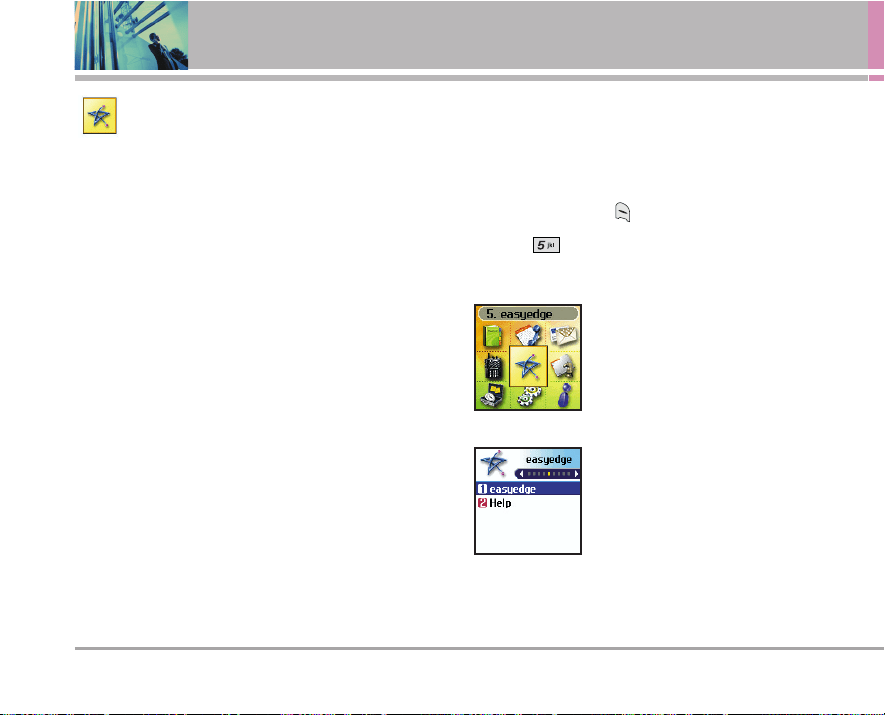
52 UX4750
Using Phone Menus
easyedge
SM
Phone
Download Service
easyedge
SM
allows you to do more than just talk on your
phone. easyedge
SM
is a technology and service that allows
you to download and use applications on your phone. With
easyedge
SM
, it is quick and easy to personalize your phone
to your lifestyle and tastes. Just download the applications
that appeal to you. With a wide range of software available,
from ringtones to games to productivity tools, you can be
assured that you can find something useful, practical, or
down right entertaining.
Downloading Applications
You can download applications and use easyedge
SM
where
service is available, see map for details.
Incoming Calls
While downloading an application, incoming calls will
automatically be sent to your Voice Mail, if available. If you
do not have Voice Mail, downloading will not be
interrupted by an incoming call, and the caller will receive
a busy signal.
When using applications, an incoming call will automatically
pause the application and allow you to answer the call.
When you complete your call, you can resume using the
application.
Access and Options
1. Press Left Soft Key Menu.
2. Press easyedge
SM
Phone Download Service.
3. Options from here:
1. easyedge
SM
Phone Download
Service: To add, delete, or disable
easyedge
SM
applications.
2. Help: To view information about
easyedge
SM
applications.
UX4750 53
easyedge
SM
Phone Download Service
1. easyedge
SM
Phone Download Service
Allows you to download selected applications while
displaying the easyedge
SM
application list relayed from the
easyedge
SM
server connection.
1. Press , , .
2. Press .
SShhoorrtt CCuutt
Pressing the right arrow key will start
easyedge
SM
.
NNOOTTEE
When the file memory is full, the message "File
Memory Full. To make enough storage space to install
this app, the following app(s) will be temporarily
disabled : You can restore disabled apps by simply
starting them, at no additional purchase cost.
Proceed?" will be displayed. If you select Yes, the
app(s) will be disabled.
2. Help
Gives you information about the easyedge
SM
selection key.
1. Press , , .
2. Press .
Managing Your easyedge
SM
Applications
Add new applications and remove old ones at any time.
Removing Applications
Only removing an application deletes it completely from
the memory of the phone. To add an application once it has
been removed will require that you pay and download it
again.
1. Access easyedge
SM
.
2. Use to select Settings, then press .
3. Use to highlight Manage Apps, then press .
4. Use to highlight the application to be deleted,
then press .
5. Use to select Remove, then press .
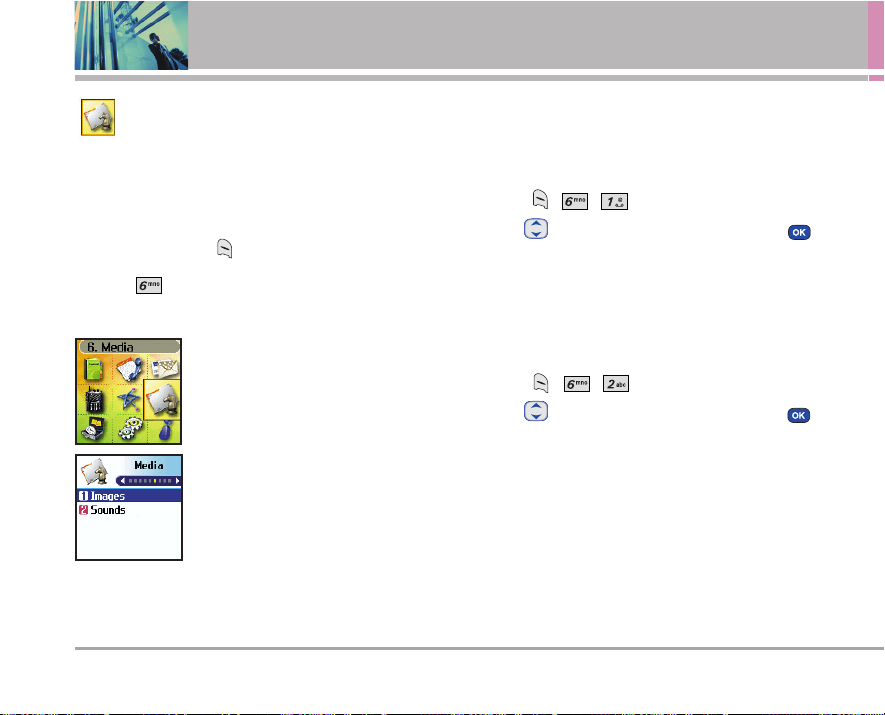
54 UX4750
Using Phone Menus
Media
This menu allows you to use a wide variety of images,
sounds, and more.
Access and Options
1. Press Left Soft Key Menu.
2. Press Media.
3. Select a sub-menu.
1. Images
2. Sounds
1. Images
Allows you to choose an image downloaded to your phone
to display as the background image displayed on the
phone.
1. Press , , .
2. Use to highlight your selection, then press to
select.
2. Sounds
Allows you to choose the downloaded ring tones heard for
incoming calls.
1. Press , , .
2. Use to highlight your selection, then press to
select.
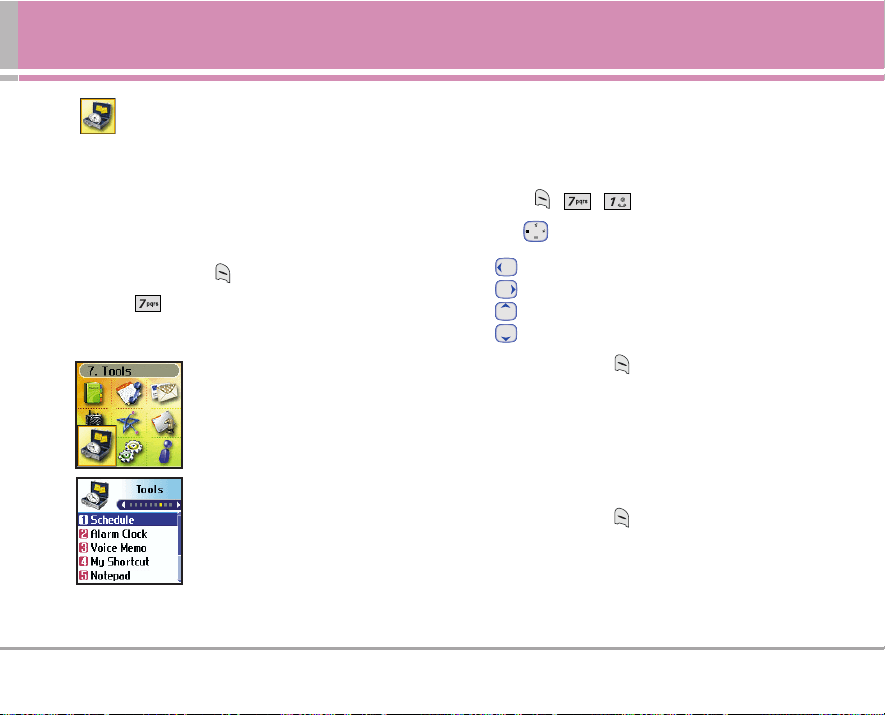
UX4750 55
Tools
Tools
Your phone tools include a Schedule, Alarm Clock, Voice
Memo, My Shortcut, Notepad, Ez Tip Calc, Calculator, and
World Clock.
Access and Options
1. Press Left Soft Key Menu.
2. Press Tools.
3. Select a sub-menu.
1. Schedule
2. Alarm Clock
3. Voice Memo
4. My Shortcut
5. Notepad
6. Ez Tip Calc
7. Calculator
8. World Clock
1. Schedule
Allows you to conveniently keep and access your
agenda(s). Simply store your appointments and your
phone will alert you with a reminder of your appointment.
1. Press , , .
2. Use to highlight the scheduled day.
Moves cursor to the left.
Moves cursor to the right.
Moves to the previous week.
Moves to the next week.
3. Press Left Soft Key Add.
4. Enter your schedule information including:
●
Date
●
Time
●
Title/Information
●
Voice
●
Recurring event
●
When to ring the alarm reminder
●
Which ring alarm to sound
5. Press Left Soft Key Save.
NNOOTTEE
Scheduler will not alert you during a call, when
transmitting text message, or when connecting up.
After exiting, it will sound the reminder.
56 UX4750
Using Phone Menus
2. Alarm Clock
Allows you to set one of four alarms. The current time is
displayed at the top of the screen when you select an
alarm to set. At the alarm time, Alarm 1 (or 2 or 3, as
applicable) will be displayed on the LCD screen and the
alarm will sound.
1. Press , , .
2. Select the alarm you want to edit.
Alarm 1 / Alarm 2 / Alarm 3 /
Quick Alarm
3. Use to highlight the alarm time then press .
4. Set the time for alarm and press .
5. Use to highlight Once (recurring setting) and press
.
6. Press to select one of the following and press .
Once / Daily / Mon - Fri / Weekends
7. Use to highlight Ring (ring type setting) and press
.
8. Use to select one of the available alarm ring types
and press .
9. Press Left Soft Key Save.
3. Voice Memo
Allows you to add, listen to, and erase short verbal
reminders.
1. Press , , .
2. Press Left Soft Key New to record a new voice
memo.
3. Talk into the microphone, then press Left Soft Key
Done or . The default memo title is the date and
time of recording.
4. While the highlight is still on the recording, press Right
Soft Key Options to access the following:
●
Edit Title
●
Memory Info
●
Set As
●
Erase
●
Erase All
To Playback a Voice Memo
1. Access Voice Memo, highlight the Voice Memo you
want to hear, then press .
2. Press Left Soft Key Play.
UX4750 57
Tools
4. My Shortcut
Allows you to set a shortcut to Recent Calls, Contacts,
Tools, or Settings using the Up Navigation key.
1. Press , , .
An explanation message is displayed.
2. Press to continue.
3. Select the shortcut you want to set (press the
corresponding number or highlight it and press ).
5. Notepad
Allows you to add, read, edit, and erase notes to yourself.
1. Press , , .
2. Press Left Soft Key Add to write a new note.
3. Type the note, then press .
A confirmation message displays briefly, then displays
your list of notes.
Viewing a Notepad Entry
1. Access Notepad and highlight the entry.
2. To erase, press Right Soft Key Options.
●
Erase
●
Erase All
To edit, highlight the entry, press then press Left
Soft Key Edit.
6. Ez Tip Calc
Allows you to quickly and easily calculate the amounts for
a bill with the amount of the bill, the amount of the tip, and
the number of people as variables.
1. Press , , .
58 UX4750
Using Phone Menus
7. Calculator
Allows you to perform simple mathematical calculations.
You can enter numbers up to the second decimal place.
1. Press , , .
2. Enter data.
●
Use keypad to enter numbers.
●
Use to enter decimals.
●
Use to enter plus/minus change.
●
Press Left Soft Key to clear the entry.
●
Press Right Soft Key to enter algebraic operators.
●
Use Navigation Key to enter operators.
●
Press to complete equation.
NNOOTTEE
Calculations can be made with up to 35 characters
at one time (e.g., 63+78-21 would be 8 characters).
8. World Clock
Allows you to determine the current time in another time
zone or country.
1. Press , , .
2. Press Right Soft Key Cities to move the time bar
across the world map and display the date/time in that
location.
NNOOTTEE
Press Left Soft Key Set DST to display Daylight
Savings Time in the selected location.
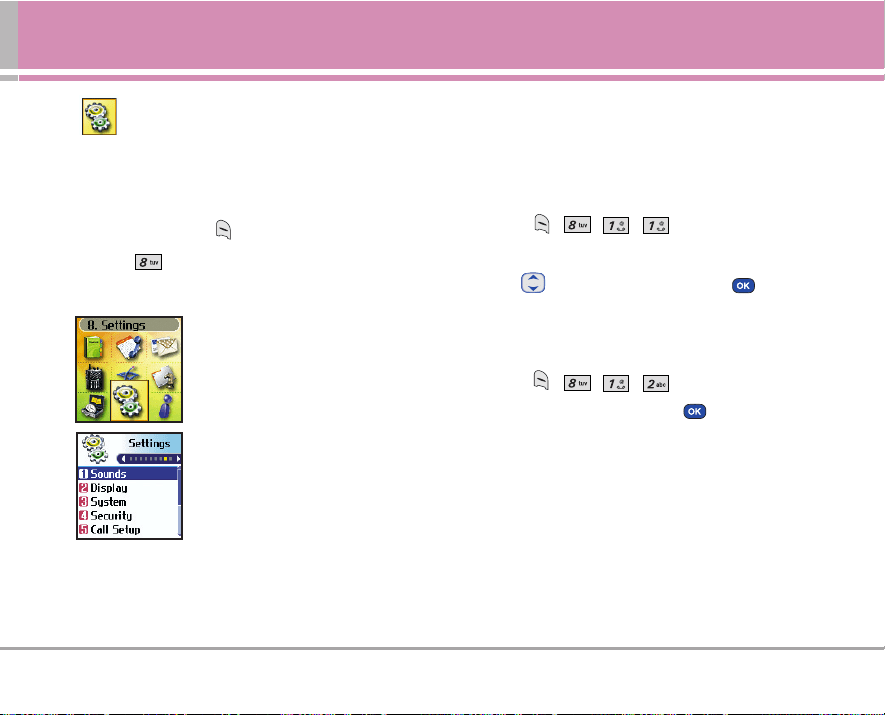
UX4750 59
Settings
Settings
The Settings menu has options to customize your phone.
Access and Options
1. Press Left Soft Key Menu.
2. Press Settings.
3. Select a sub-menu.
1. Sounds
2. Display
3. System
4. Security
5. Call Setup
6. Data Settings
7. Voice Services
8. Location
1. Sounds
Options to customize the phone’s sounds.
1.1 Ringers
Allows you to assign ring tones for incoming calls.
1. Press , , , .
2. Select Caller ID / No Caller ID / Restricted Calls.
3. Use to select a ringer, then press .
1.2 Key Tone
Allows you to select the Key Tone type.
1. Press , , , .
2. Select a tone style, then press .
Beep Sends out a beep sound, when you press the
keys.
English Sends out a voice (English), when you press
the keys.
Spanish Sends out a voice (Spanish), when you press
the keys.

60 UX4750
Using Phone Menus
1.3 Volume
Allows you to set various volume settings.
1. Press , , , .
2. Select Ringer / Earpiece / Key Beep / Speaker Phone.
3. Use to adjust the volume of the ringer, then
press .
1.4 Message Alerts
Allows you to select the alert type for a new message.
1. Press , , , .
2. Select Voice Mail / Text Message / E-mail / 2-Min
Reminder.
3. Use to select a setting, then press .
1.5 Service Alerts
Allows you to set any of the 4 Alert options to On or Off.
1. Press , , , .
2. Select an alert option.
1.5.1 Service Change
Alerts you when service changes. Displays Entering
Service Area or Leaving Service Area message.
1.5.2 Minute Beep
Alerts you 10 seconds before the end of every minute
during a call.
1.5.3 Call Connect
Alerts you when the call is connected.
1.5.4 Back To Top
Alerts you when you scroll through the end of a menu
list.
3. Use to set On or Off, then press .
1.6 Power On/Off Tone
Allows you to set the phone to sound a tone when the
phone is powered on and off.
1. Press , , , .
2. Use to set to On or Off, then press .
UX4750 61
Settings
1.7 DTMF Length
Allows you to set the Key tone length and touch tone
playback speed.
1. Press , , , .
2. Select an option, then press .
Normal Sends out a tone for a fixed period of time
even if you keep the key pressed.
Long Sends out a continuous tone for as long as
you keep the key pressed.
NNOOTTEE
Dual-Tone Multi Frequency (DTMF) Signaling by the
simultaneous transmission of two tones, one from a
group of low frequencies and another from a group
of high frequencies. Each group of frequencies
consists of four frequencies. Setting the Key Beep
length to Long will extend the DTMF tone.
2. Display
Options to customize the phone’s display screen.
2.1 Banner
Allows you to enter a string of up to 16 characters which
display on the LCD screen.
1. Press , , , .
2. Enter your banner text, then press .
2.2 Backlight
Allows you to set the duration for illuminating the backlight.
LCD and Key Light Timer are set separately.
NNOOTTEE
If an amount of time is set for the timer option, the
time starts after the last key was pressed.
2.2.1 LCD
1. Press , , , , .
2. Choose a sub-menu, then press .
Timer / Brightness
62 UX4750
Using Phone Menus
2.2.2 Key Light Timer
1. Press , , , , .
2. Choose a setting, then press .
2.3 Screens
Allows you to choose the kind of background to be
displayed on the phone.
1. Press , , , .
2. Select Wallpaper / Power On / Power Off, then press
.
3. Select from different screens, then press .
4. Left Soft Key Save.
NNOOTTEE
Right Soft Key More, provides access to
additional choices.
2.4 Menu Style
Allows you to view the Menu as an Icon or List display.
1. Press , , , .
2. Select Icon or List and press .
2.5 Clocks
Allows you to choose the kind of clock to be displayed on
the LCD screen.
1. Press , , , .
2. Select Normal / Analog / Digital, then press .
3. Press Left Soft Key Save.
2.6 Theme Colors
Allows you to choose the color of the background screen.
1. Press , , , .
2. Select Default / Green / Violet / Orange, then press .
2.7 Contrast
Allows you to set the level of contrast for your LCD screen.
1. Press , , , .
2. Choose a Contrast sub-menu and press .
Main LCD / Front LCD
3. Use to adjust the contrast level, then press .
UX4750 63
Settings
2.8 Fonts
Allows you to set the size and color of the font for calling
digits and text editor.
2.8.1 Calling Digits
1. Press , , , , .
2. Select Size or Color.
3. Press to choose a setting, then press to
save.
Size : Normal / Large
Color : Black / Blue / Red / Green / Pink
2.8.2 Text Editor
1. Press , , , , .
2. Select Size or Color.
3. Press to choose a setting, then press to
save.
Size : Normal / Large
Color : Black / Blue / Red / Green / Pink
2.9 Language
Allows you to set the bilingual feature according to your
preference. Choose between English and Spanish.
1. Press , , , .
2. Use to select English or Spanish, then press .
2.0 Power Saver
Display and buttons are lighted for a designated length of
time, allowing you the convenience to use your mobile
phone in the dark.
1. Press , , , .
2. Use to select 2 min / 10 min / 30 min / Off, then
press .
2.
*
Status Light
Shows the status on your phone by blinking the light.
1. Press , , , .
2. Use to set to On or Off, then press .
64 UX4750
Using Phone Menus
3. System
The System menu allows you to designate specific system
network settings.
3.1 Select System
Allows you to set up the phone producer’s management
environment. Leave this setting as the default unless you
want to alter system selection as instructed by your
service provider.
1. Press , , , .
2. Use to select Home Only, Automatic A, Automatic
B, then press .
3.2 Set NAM
Allows you to select the phone’s NAM (Number
Assignment Module) if the phone is registered with
multiple service providers.
1. Press , , , .
2. Use to select NAM1 or NAM2, then press .
3.3 Auto NAM
Allows the phone to automatically switch between
programmed telephone numbers corresponding to the
service provider area.
1. Press , , , .
2. Use to select On or Off, then press .
3.4 Serving System
Identifies the channel number of a system that is served as
a SID Number. This information should only be used for
technical support.
1. Press , , , .
UX4750 65
Settings
4. Security
The Security menu allows you to secure the phone
electronically.
4.1 Lock Phone
Keeps your phone from unauthorized use. Once the phone
is locked, it is in restricted mode until the lock code is
entered. You can receive phone calls and still make
emergency calls.
You can modify the lock code using the New Lock code
within the Security menu.
1. Press , , .
2. Enter the four-digit lock code.
The default lock code is commonly the last 4 digits of
your phone number.
3. Press Lock Phone.
4. Use to select an option, then press .
Unlock The phone is never locked (Lock mode can
be used).
Lock The phone is always locked. When locked,
you can receive incoming calls and make
only emergency calls.
On Power Up The phone is locked when it is turned on.
4.2 Restrict Calls
Allows you to restrict outgoing calls. If you set this feature
to On, you can only place calls to emergency numbers and
phone numbers stored in your Contacts. You can still
receive calls in restrict mode.
1. Press , , .
2. Enter the four-digit lock code.
3. Press Restrict Calls.
4. Use to select On or Off, then press .
4.3 Emergency #s
Allows you to enter 3 emergency numbers. You can call
these emergency numbers and 911, even when the phone
is locked or restricted.
1. Press , , .
2. Enter the four-digit lock code.
3. Press Emergency #s.
4. Use to select the emergency number position,
then press .
5. Enter an emergency phone number, then press .
66 UX4750
Using Phone Menus
4.4 Change Lock
Allows you to enter a new four-digit lock code.
1. Press , , .
2. Enter the four-digit lock code.
3. Press Change Lock.
4. Enter a new 4-digit lock code.
5. For confirmation, it will ask you to enter the new lock
code again.
4.5 Erase Contacts
Allows you to erase all of your Contacts at once.
1. Press , , .
2. Enter the four-digit lock code.
3. Press Erase Contacts.
4. Select Erase all #s then press .
4.6 Reset Default
Allows you to reset your phone to the factory default
settings.
1. Press , , .
2. Enter the four-digit lock code.
3. Press Reset Default.
4. Press .
5. Press Revert.
5. Call Setup
The Call Setup menu allows you to designate how the
phone handles both incoming and outgoing calls.
5.1 Auto Retry
Allows you to set the length of time the phone waits before
automatically redialing a number when the attempted call
fails.
1. Press , , , .
2. Use to select a setting, then press .
Off / Every 10 seconds / Every 30 seconds /
Every 60 seconds
UX4750 67
Settings
5.2 Answer Call
Allows you to determine how to handle an answered call.
1. Press , , , .
2. Use to select a setting, then press .
Flip Open / Any Key / SEND Only
5.3 Auto Answer
Allows you to select the number of rings before the phone
automatically answers a call. This feature is intended for
use with hands free devices, but is an independent feature
of the phone and must be manually turned on/off when
connected or disconnected from the device.
1. Press , , , .
2. Use to select a setting, then press .
●
Off
●
After 5 seconds When you have an incoming call,
the phone automatically responds after 5 seconds
with the flip opened.
5.4 One-Touch Dial
Allows you to initiate a speed dial call by pressing and
holding the speed dial digit. If set to Disable, Speed Dial
numbers designated in your Contacts will not function.
1. Press , , , .
2. Use to select a setting, then press .
Enable / Disable
5.5 Voice Privacy
Allows you to set the voice privacy feature for CDMA calls
as Enhanced or Standard. CDMA offers inherent voice
privacy. Check with your service provider for availability.
1. Press , , , .
2. Use to select a setting, then press .
Enhanced / Standard

68 UX4750
Using Phone Menus
5.6 Auto Volume
Provides a better audio experience by enabling the Auto
Volume feature to control the dynamic range and volume
of the sending and receiving voice across different levels
of speaker and environments.
1. Press , , , .
2. Use to select a setting, then press .
On / Off
5.7 TTY Mode
Allows you to attach a TTY device enabling you to
communicate with parties also using a TTY device. A
phone with TTY support is able to translate typed
characters to voice. Voice can also be translated into
characters and then displayed on the TTY.
1. Press , , , .
2. Press .
3. Use to select a setting, then press .
TTY Full / TTY + TALK / TTY + HEAR / TTY Off
6. Data Settings
This menu allows you to use wireless data communication
services. Wireless data communication services refers to
the utilization of subscriber terminals for access to the
internet with personal computers or laptops at 19.2 Kbps or
at a maximum of 230.4 Kbps. The connection speed
depends on your carrier’s network and other variables.
Check that communications information specifications
match the network.
6.1 Data/Fax
Allows you to use your phone to transmit data and faxes.
1. Press , , , .
2. Use to select a setting, then press .
Off / Fax In Once / Fax In Always / Data In Once /
Data In Always
NNOOTTEE
The Data Connection Kit allows you to connect your
PC or PDA to your LG wireless phone, freeing you
from having to locate a telephone outlet. You can
send or receive an e-mail, a fax, or access the
Internet anytime, anywhere.
NNOOTTEE
This menu depends on Carriers's availabilty.
UX4750 69
Settings
6.2 PC Connection
Allows you to select the data port.
1. Press , , , .
2. Use to select a setting, then press .
USB / RS-232C(COM Port) / Closed
NNOOTTEE
When using the 1X HSPD data service via an RS-
232C data cable, the port speed is set to 115,200
(230,400 is not supported). When using the 1X
HSPD data service via a USB data cable, you may
get better port speed if the port speed is set to
230,400 rather than 115,200.
70 UX4750
Using Phone Menus
7. Voice Services
Allows you to select options for voice activation, announce
alerts and recognition results; and enables you to adapt
the phone to recognize your way of saying numbers.
7.1 Voice Commands
Allows you to set how you activate voice recognition.
1. Press , , , .
2. Use to select a setting, then press .
●
Flip Open: Activates voice recognition whenever
you flip open the phone. (When the phone is already
open, you activate voice recognition by pressing the
voice command key.)
●
Side Key Only: Activates voice recognition when
you flip open the phone and press the voice
command key.
7.2 Sound Modes
Allows you to set Driving Mode/Announce Mode.
1. Press , , , .
2. Use to select a setting, then press .
●
Driving Mode / Announce Mode / Normal Mode
For example,
1) Press Left Soft Key Menu.
2) Main menu screen appears, phone announces “Main
menu”.
3) Then, phone announces the first menu item that is
highlighted.
4) When the cursor is moved, the highlighted menu item is
announced.
5) Menu readout only to the first sub-level.
7.3 Announce Alerts
Allows you to notify Caller ID and sender of message by
voice.
1. Press , , , .
2. Use to select a setting, then press .
●
On / Off
NNOOTTEE
When Announce Alerts is set, is displayed on
the screen.
UX4750 71
Settings
7.4 Best Match
After you say a name or a number, your phone displays the
recognition results—the name or number that best
matches the one you said—and asks you to confirm.
Select the number of results that you want your phone to
display.
1. Press , , , .
2. Use to select a setting, the press .
●
1 Result: Displays the name or number that best
matches the one you said.
●
4 Results: Displays the four names or numbers that
best match the one you said and asks you if the first
one is correct. If you say "Yes," the phone makes the
call. If you say "No," the phone suggests the second
one in the list, and so on, up to the fourth result.
7.5 Train Words
Command Train is an optional personalization feature that
helps your phone recognize the way you pronounce
commands. If you do not get consistently good results with
the commands, perform this brief, one-time session.
1. Press , , , .
2. Select a sub-menu, then press .
●
Commands/Digits/Yes, No/Contacts/Phone Label
3. Use to select a setting, then press .
●
Training On / Training Off
7.6 Help
Helps you to use the Voice menu.
1. Press , , , .
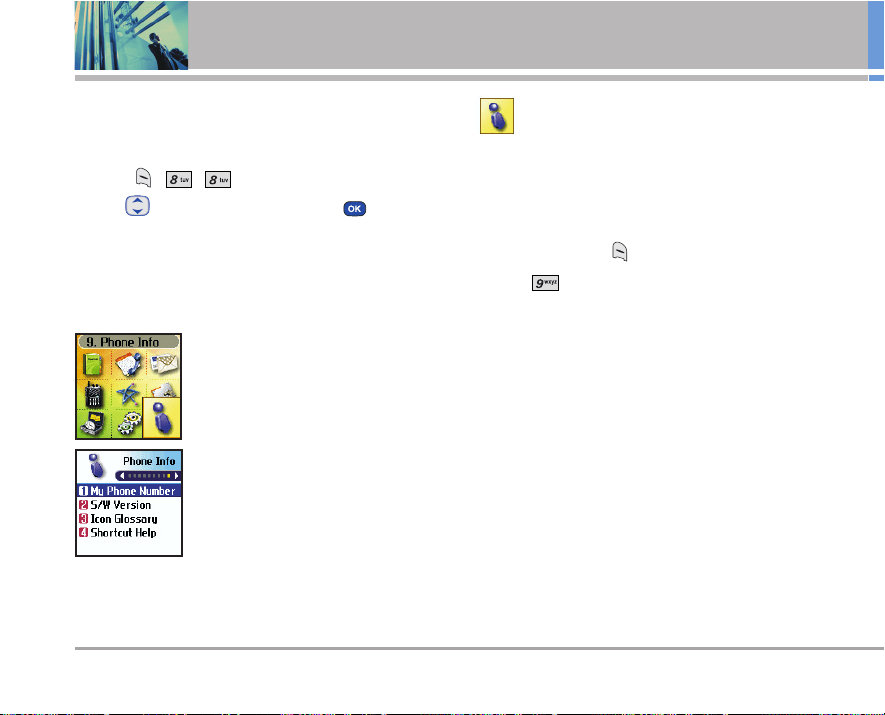
72 UX4750
Using Phone Menus
8. Location
Menu for GPS (Global Positioning System: Satellite
assisted location information system) mode.
1. Press , , .
2. Use to select a setting, then press .
●
Location On / E911 Only
NNOOTTEE
GPS satellite signals are not always transmitted,
especially under bad atmospheric and environmental
conditions, indoors etc.
Phone Info
Provides you with specific information pertaining to your
phone model.
Access and Options
1. Press Left Soft Key Menu.
2. Press Phone Info.
3. Select a sub-menu.
1. My Phone Number
2. S/W Version
3. Icon Glossary
4. Shortcut Help
UX4750 73
TIA Safety Information
The following is the complete TIA Safety Information for
wireless handheld phones.
Exposure to Radio Frequency Signal
Your wireless handheld portable phone is a low power
radio transmitter and receiver. When it is ON, it receives
and also sends out Radio Frequency (RF) signals.
In August, 1996, the Federal Communications Commissions
(FCC) adopted RF exposure guidelines with safety levels
for handheld wireless phones. Those guidelines are
consistent with the safety standards previously set by both
U.S. and international standards bodies:
ANSI C95.1 (1992) *
NCRP Report 86 (1986)
ICNIRP (1996)
American National Standards Institute; National Council
on Radiation Protection and Measurements; International
Commission on Non-Ionizing Radiation Protection
Those standards were based on comprehensive and
periodic evaluations of the relevant scientific literature. For
example, over 120 scientists, engineers, and physicians
from universities, government health agencies, and
industry reviewed the available body of research to
develop the ANSI Standard (C95.1).
The design of your phone complies with the FCC guidelines
(and those standards).
Antenna Care
Use only the supplied or an approved replacement
antenna. Unauthorized antennas, modifications, or
attachments could damage the phone and may violate FCC
regulations.
Phone Operation
NORMAL POSITION: Hold the phone as you would any
other telephone with the antenna pointed up and over your
shoulder.
Tips on Efficient Operation
For your phone to operate most efficiently:
Do not touch the antenna unnecessarily when the phone
is in use. Contact with the antenna affects call quality and
may cause the phone to operate at a higher power level
than otherwise needed.
Safety
74 UX4750
Safety
Driving
Check the laws and regulations on the use of wireless
phones in the areas where you drive and always obey
them. Also, if using your phone while driving, please
observe the following:
●
Give full attention to driving -- driving safely is your first
responsibility;
●
Use hands-free operation, if available;
●
Pull off the road and park before making or answering
a call if driving conditions or the law so require.
Electronic Devices
Most modern electronic equipment is shielded from RF
signals. However, certain electronic equipment may not be
shielded against the RF signals from your
wireless phone.
Pacemakers
The Health Industry Manufacturers Association
recommends that a minimum separation of six (6) inches
be maintained between a handheld wireless phone and a
pacemaker to avoid potential interference with the
pacemaker. These recommendations are consistent with
the independent research by and recommendations of
Wireless Technology Research.
Persons with pacemakers:
●
Should ALWAYS keep the phone more than six (6)
inches from their pacemaker when the phone is turned
ON;
●
Should not carry the phone in a breast pocket;
●
Should use the ear opposite the pacemaker to
minimize the potential for interference;
●
Should turn the phone OFF immediately if there is any
reason to suspect that interference is taking place.
Hearing Aids
Some digital wireless phones may interfere with some
hearing aids. In the event of such interference, you may
want to consult your service provider (or call the customer
service line to discuss alternatives.) Optional for each
phone manufacturer.
Other Medical Devices
If you use any other personal medical device, consult the
manufacturer of your device to determine if it is adequately
shielded from external RF energy. Your physician may be
able to assist you in obtaining this information.
UX4750 75
Health Care Facilities
Turn your phone OFF in health care facilities when any
regulations posted in these areas instruct you to do so.
Hospitals or health care facilities may use equipment that
could be sensitive to external RF energy.
Vehicles
RF signals may affect improperly installed or inadequately
shielded electronic systems in motor vehicles. Check with
the manufacturer or its representative regarding your
vehicle. You should also consult the manufacturer of any
equipment that has been added to your vehicle.
Posted Facilities
Turn your phone OFF in any facility where posted notices
so require.
Aircraft
FCC regulations prohibit using your phone while in the air.
Switch OFF your phone before boarding an aircraft.
Blasting Areas
To avoid interfering with blasting operations, turn your
phone OFF when in a “blasting area” or in areas posted:
“Turn off two-way radio”. Obey all signs and instructions.
Potentially Explosive Atmosphere
Turn your phone OFF when in any area with a potentially
explosive atmosphere and obey all signs and instructions.
Sparks in such areas could cause an explosion or fire
resulting in bodily injury or even death.
Areas with a potentially explosive atmosphere are often,
but not always marked clearly. Potential areas may
include: fueling areas (such as gasoline stations); below
deck on boats; fuel or chemical transfer or storage
facilities; vehicles using liquefied petroleum gas (such as
propane or butane); areas where the air contains
chemicals or particles (such as grain, dust, or metal
powders); and any other area where you would normally
be advised to turn off your vehicle engine.
For Vehicles Equipped with an Air Bag
An air bag inflates with great force. DO NOT place objects,
including either installed or portable wireless equipment,
in the area over the air bag or in the air bag deployment
area. If in-vehicle wireless equipment is improperly
installed and the air bag inflates, serious injury could
result.
76 UX4750
Safety
Safety Information
Please read and observe the following information for safe
and proper use of your phone and to prevent damage.
Also, keep the user guide in an accessible place at all the
times after reading it.
Violation of the instructions may cause
minor or serious damage to the product.
Charger and Adapter Safety
●
The charger and adapter are intended for indoor use
only.
Battery Information and Care
●
Please dispose of your battery properly or take it to your
local wireless carrier for recycling.
●
The battery does not need to be fully discharged before
recharging.
●
Use only LG-approved chargers specific to your phone
model since they are designed to maximize battery life.
●
Do not disassemble or short-circuit the battery.
●
Keep the battery’s metal contacts clean.
●
Replace the battery when it no longer provides
acceptable performance. The battery can be recharged
several hundred times before replacement.
●
Recharge the battery after long periods of non-use to
maximize battery life.
●
Battery life will vary due to usage patterns and
environmental conditions.
●
Use of extended backlighting, MiniBrowser, and data
connectivity kits affect battery life and talk/standby
times.
●
The self-protection function of the battery cuts the
power of the phone when its operation is in an abnormal
state. In this case, remove the battery from the phone,
reinstall it, and turn the phone on.
Explosion, Shock, and Fire Hazards
●
Do not put your phone in a place subject to excessive
dust and keep the minimum required distance between
the power cord and heat sources.
●
Unplug the power cord prior to cleaning your phone,
and clean the power plug pin when it is dirty.
●
When using the power plug, ensure that it is firmly
connected. If it is not, it may cause excessive heat or
fire.
Caution
UX4750 77
●
If you put your phone in a pocket or bag without
covering the receptacle of the phone (power plug pin),
metallic articles (such as a coin, paperclip or pen) may
short-circuit the phone. Always cover the receptacle
when not in use.
●
Do not short-circuit the battery. Metallic articles such
as a coin, paperclip or pen in your pocket or bag may
short-circuit the + and – terminals of the battery (metal
strips on the battery) upon moving. Short-circuit of the
terminal may damage the battery and cause an
explosion.
General Notice
●
Using a damaged battery or placing a battery in your
mouth may cause serious injury.
●
Do not place items containing magnetic components
such as a credit card, phone card, bank book or subway
ticket near your phone. The magnetism of the phone
may damage the data stored in the magnetic strip.
●
Talking on your phone for a long period of time may
reduce call quality due to heat generated during use.
●
When the phone is not used for a long period time, store
it in a safe place with the power cord unplugged.
●
Using the phone in proximity to receiving equipment
(i.e., TV or radio) may cause interference to the phone.
●
Do not use the phone if the antenna is damaged. If a
damaged antenna contacts skin, it may cause a slight
burn. Please contact an LG Authorized Service Center
to replace the damaged antenna.
●
Do not immerse your phone in water. If this happens,
turn it off immediately and remove the battery. If the
phone does not work, take it to an LG Authorized
Service Center.
●
The power cord on this product will expose you to lead,
a chemical known to the State of California to cause
(cancer) birth defects or other reproductive harm.
Wash hands after handling.
●
Do not paint your phone.
●
The data saved in your phone might be deleted due to
careless use, repair of the phone, or upgrade of the
software. Please backup your important phone
numbers. (Ring tones, text messages, voice messages,
pictures, and videos could also be deleted.) The
manufacturer is not liable for damage due to the loss of
data.
●
When you use the phone in public places, set the ring
tone to vibration so as not to disturb others.
●
Do not turn your phone on or off when putting it in your
ear.
78 UX4750
Safety
FDA Consumer Update
The U.S. Food and Drug Administration’s
Center for Devices and Radiological Health
Consumer Update on Mobile Phones:
1. Do wireless phones pose a health hazard?
The available scientific evidence does not show that any
health problems are associated with using wireless
phones. There is no proof, however, that wireless phones
are absolutely safe. Wireless phones emit low levels of
Radio Frequency (RF) energy in the microwave range
while being used. They also emit very low levels of RF
when in the standby mode. Whereas high levels of RF can
produce health effects (by heating tissue), exposure to low
level RF that does not produce heating effects causes no
known adverse health effects. Many studies of low level
RF exposures have not found any biological effects. Some
studies have suggested that some biological effects may
occur, but such findings have not been confirmed by
additional research. In some cases, other researchers
have had difficulty in reproducing those studies, or in
determining the reasons for inconsistent results.
2. What is the FDA's role concerning the safety of
wireless phones?
Under the law, the FDA does not review the safety of
radiation-emitting consumer products such as wireless
phones before they can be sold, as it does with new drugs
or medical devices. However, the agency has authority to
take action if wireless phones are shown to emit Radio
Frequency (RF) energy at a level that is hazardous to the
user. In such a case, the FDA could require the
manufacturers of wireless phones to notify users of the
health hazard and to repair, replace, or recall the phones
so that the hazard no longer exists.
Although the existing scientific data do not justify FDA
regulatory actions, the FDA has urged the wireless phone
industry to take a number of steps, including the following:
●
Support needed research into possible biological
effects of RF of the type emitted by wireless phones;
●
Design wireless phones in a way that minimizes any RF
exposure to the user that is not necessary for device
function; and
●
Cooperate in providing users of wireless phones with
the best possible information on possible effects of
wireless phone use on human health.
UX4750 79
The FDA belongs to an interagency working group of the
federal agencies that have responsibility for different
aspects of RF safety to ensure coordinated efforts at the
federal level. The following agencies belong to this
working group:
●
National Institute for Occupational Safety and Health
●
Environmental Protection Agency
●
Occupational Safety and Health Administration
●
National Telecommunications and Information
Administration
The National Institutes of Health participates in some
interagency working group activities, as well.
The FDA shares regulatory responsibilities for wireless
phones with the Federal Communications Commission
(FCC). All phones that are sold in the United States must
comply with FCC safety guidelines that limit RF exposure.
The FCC relies on the FDA and other health agencies for
safety questions about wireless phones.
The FCC also regulates the base stations that the wireless
phone networks rely upon. While these base stations
operate at higher power than do the wireless phones
themselves, the RF exposures that people get from these
base stations are typically thousands of times lower than
those they can get from wireless phones. Base stations
are thus not the subject of the safety questions discussed
in this document.
3. What kinds of phones are the subject of this update?
The term “wireless phone” refers here to handheld
wireless phones with built-in antennas, often called “cell”,
“mobile”, or “PCS” phones. These types of wireless
phones can expose the user to measurable Radio
Frequency (RF) energy because of the short distance
between the phone and the user’s head.
These RF exposures are limited by FCC safety guidelines
that were developed with the advice of the FDA and other
federal health and safety agencies. When the phone is
located at greater distances from the user, the exposure to
RF is drastically lower because a person's RF exposure
decreases rapidly with increasing distance from the
source. The so-called “cordless phones,” which have a
base unit connected to the telephone wiring in a house,
typically operate at far lower power levels, and thus
produce RF exposures far below the FCC safety limits.
80 UX4750
Safety
4. What are the results of the research done already?
The research done thus far has produced conflicting
results, and many studies have suffered from flaws in their
research methods. Animal experiments investigating the
effects of Radio Frequency (RF) energy exposures
characteristic of wireless phones have yielded conflicting
results that often cannot be repeated in other laboratories.
A few animal studies, however, have suggested that low
levels of RF could accelerate the development of cancer in
laboratory animals. However, many of the studies that
showed increased tumor development used animals that
had been genetically engineered or treated with cancer-
causing chemicals so as to be pre-disposed to develop
cancer in the absence of RF exposure. Other studies
exposed the animals to RF for up to 22 hours per day. These
conditions are not similar to the conditions under which
people use wireless phones, so we don’t know with
certainty what the results of such studies mean for human
health. Three large epidemiology studies have been
published since December 2000. Between them, the
studies investigated any possible association between the
use of wireless phones and primary brain cancer, glioma,
meningioma, or acoustic neuroma, tumors of the brain or
salivary gland, leukemia, or other cancers. None of the
studies demonstrated the existence of any harmful health
effects from wireless phone RF exposures. However, none
of the studies can answer questions about long-term
exposures, since the average period of phone use in these
studies was around three years.
5. What research is needed to decide whether RF
exposure from wireless phones poses a health risk?
A combination of laboratory studies and epidemiological
studies of people actually using wireless phones would
provide some of the data that are needed. Lifetime animal
exposure studies could be completed in a few years.
However, very large numbers of animals would be needed
to provide reliable proof of a cancer promoting effect if one
exists. Epidemiological studies can provide data that is
directly applicable to human populations, but 10 or more
years follow-up may be needed to provide answers about
some health effects, such as cancer. This is because the
interval between the time of exposure to a cancer-causing
agent and the time tumors develop — if they do — may be
many, many years. The interpretation of epidemiological
studies is hampered by difficulties in measuring actual RF
exposure during day-to-day use of wireless phones. Many
factors affect this measurement, such as the angle at
which the phone is held, or which model of phone is used.
UX4750 81
6. What is the FDA doing to find out more about the
possible health effects of wireless phone RF?
The FDA is working with the U.S. National Toxicology
Program and with groups of investigators around the
world to ensure that high priority animal studies are
conducted to address important questions about the
effects of exposure to Radio Frequency (RF) energy.
The FDA has been a leading participant in the World
Health Organization International Electro Magnetic Fields
(EMF) Project since its inception in 1996. An influential
result of this work has been the development of a detailed
agenda of research needs that has driven the
establishment of new research programs around the
world. The project has also helped develop a series of
public information documents on EMF issues.
The FDA and the Cellular Telecommunications & Internet
Association (CTIA) have a formal Cooperative Research
and Development Agreement (CRADA) to do research on
wireless phone safety. The FDA provides the scientific
oversight, obtaining input from experts in government,
industry, and academic organizations. CTIA-funded
research is conducted through contracts with
independent investigators. The initial research will include
both laboratory studies and studies of wireless phone
users. The CRADA will also include a broad assessment of
additional research needs in the context of the latest
research developments around the world.
7. How can I find out how much Radio Frequency energy
exposure I can get by using my wireless phone?
All phones sold in the United States must comply with
Federal Communications Commission (FCC) guidelines that
limit Radio Frequency (RF) energy exposures. The FCC
established these guidelines in consultation with the FDA
and the other federal health and safety agencies. The FCC
limit for RF exposure from wireless telephones is set at a
Specific Absorption Rate (SAR) of 1.6 watts per kilogram
(1.6 W/kg). The FCC limit is consistent with the safety
standards developed by the Institute of Electrical and
Electronic Engineering (IEEE) and the National Council on
Radiation Protection and Measurement. The exposure
limit takes into consideration the body’s ability to remove
heat from the tissues that absorb energy from the wireless
phone and is set well below levels known to have effects.
Manufacturers of wireless phones must report the RF
exposure level for each model of phone to the FCC. The
FCC website (http://www.fcc.gov/oet/rfsafety) gives
directions for locating the FCC identification number on
your phone so you can find your phone’s RF exposure level
in the online listing.
82 UX4750
Safety
8. What has the FDA done to measure the Radio
Frequency energy coming from wireless phones?
The Institute of Electrical and Electronic Engineers (IEEE)
is developing a technical standard for measuring the Radio
Frequency (RF) energy exposure from wireless phones
and other wireless handsets with the participation and
leadership of FDA scientists and engineers. The standard,
“Recommended Practice for Determining the Spatial-Peak
Specific Absorption Rate (SAR) in the Human Body Due to
Wireless Communications Devices: Experimental
Techniques,” sets forth the first consistent test
methodology for measuring the rate at which RF is
deposited in the heads of wireless phone users. The test
method uses a tissue-simulating model of the human head.
Standardized SAR test methodology is expected to greatly
improve the consistency of measurements made at
different laboratories on the same phone. SAR is the
measurement of the amount of energy absorbed in tissue,
either by the whole body or a small part of the body. It is
measured in watts/kg (or milliwatts/g) of matter. This
measurement is used to determine whether a wireless
phone complies with safety guidelines.
9. What steps can I take to reduce my exposure to Radio
Frequency energy from my wireless phone?
If there is a risk from these products — and at this point we
do not know that there is — it is probably very small. But if
you are concerned about avoiding even potential risks, you
can take a few simple steps to minimize your exposure to
Radio Frequency (RF) energy. Since time is a key factor in
how much exposure a person receives, reducing the
amount of time spent using a wireless phone will reduce
RF exposure. If you must conduct extended conversations
by wireless phone every day, you could place more
distance between your body and the source of the RF,
since the exposure level drops off dramatically with
distance. For example, you could use a headset and carry
the wireless phone away from your body or use a wireless
phone connected to a remote antenna. Again, the
scientific data do not demonstrate that wireless phones
are harmful. But if you are concerned about the RF
exposure from these products, you can use measures like
those described above to reduce your RF exposure from
wireless phone use.
UX4750 83
10. What about children using wireless phones?
The scientific evidence does not show a danger to users of
wireless phones, including children and teenagers. If you
want to take steps to lower exposure to Radio Frequency
(RF) energy, the measures described above would apply to
children and teenagers using wireless phones. Reducing
the time of wireless phone use and increasing the distance
between the user and the RF source will reduce RF
exposure.
Some groups sponsored by other national governments
have advised that children be discouraged from using
wireless phones at all. For example, the government in the
United Kingdom distributed leaflets containing such a
recommendation in December 2000. They noted that no
evidence exists that using a wireless phone causes brain
tumors or other ill effects. Their recommendation to limit
wireless phone use by children was strictly precautionary;
it was not based on scientific evidence that any health
hazard exists.
11. What about wireless phone interference with
medical equipment?
Radio Frequency (RF) energy from wireless phones can
interact with some electronic devices. For this reason, the
FDA helped develop a detailed test method to measure
Electro Magnetic Interference (EMI) of implanted cardiac
pacemakers and defibrillators from wireless telephones.
This test method is now part of a standard sponsored by
the Association for the Advancement of Medical
Instrumentation (AAMI). The final draft, a joint effort by the
FDA, medical device manufacturers, and many other
groups, was completed in late 2000. This standard will
allow manufacturers to ensure that cardiac pacemakers
and defibrillators are safe from wireless phone EMI.
The FDA has tested hearing aids for interference from
handheld wireless phones and helped develop a voluntary
standard sponsored by the Institute of Electrical and
Electronic Engineers (IEEE). This standard specifies test
methods and performance requirements for hearing aids
and wireless phones so that no interference occurs when
a person uses a “compatible” phone and a “compatible”
hearing aid at the same time. This standard was approved
by the IEEE in 2000.
The FDA continues to monitor the use of wireless phones
84 UX4750
Safety
for possible interactions with other medical devices.
Should harmful interference be found to occur, the FDA
will conduct testing to assess the interference and work to
resolve the problem.
12. Where can I find additional information?
For additional information, please refer to the following
resources:
FDA web page on wireless phones
(http://www.fda.gov/cdrh/phones/index.html)
Federal Communications Commission (FCC) RF Safety
Program
(http://www.fcc.gov/oet/rfsafety)
International Commission on Non-lonizing Radiation
Protection
(http://www.icnirp.de)
World Health Organization (WHO) International EMF
Project
(http://www.who.int/emf)
National Radiological Protection Board (UK)
(http://www.nrpb.org.uk/)
10 Driver Safety Tips
Your wireless phone gives you the powerful ability to
communicate by voice almost anywhere, anytime. An
important responsibility accompanies the benefits of
wireless phones, one that every user must uphold.
When operating a car, driving is your first responsibility.
When using your wireless phone behind the wheel of a car,
practice good common sense and remember the following
tips:
1. Get to know your wireless phone and its features such
as speed dial and redial. Carefully read your instruction
manual and learn to take advantage of valuable features
most phones offer, including automatic redial and
memory. Also, work to memorize the phone keypad so
you can use the speed dial function without taking your
attention off the road.
2. When available, use a hands-free device. A number of
hands-free wireless phone accessories are readily
available today. Whether you choose an installed
mounted device for your wireless phone or a speaker
phone accessory, take advantage of these devices if
available to you.
UX4750 85
3. Position your wireless phone within easy reach. Make
sure you place your wireless phone within easy reach
and where you can reach it without removing your eyes
from the road. If you get an incoming call at an
inconvenient time, if possible, let your Voice Mail
answer it for you.
4. Suspend conversations during hazardous driving
conditions or situations. Let the person you are speaking
with know you are driving; if necessary, suspend the call
in heavy traffic or hazardous weather conditions. Rain,
sleet, snow and ice can be hazardous, but so is heavy
traffic. As a driver, your first responsibility is to pay
attention to the road.
5. Do not take notes or look up phone numbers while
driving. If you are reading an address book or business
card, or writing a “to-do” list while driving a car, you are
not watching where you are going. It is common sense.
Don’t get caught in a dangerous situation because you
are reading or writing and not paying attention to the
road or nearby vehicles.
6. Dial sensibly and assess the traffic; if possible, place
calls when you are not moving or before pulling into
traffic. Try to plan your calls before you begin your trip or
attempt to coincide your calls with times you may be
stopped at a stop sign, red light or otherwise stationary.
But if you need to dial while driving, follow this simple tip
-- dial only a few numbers, check the road and your
mirrors, then continue.
7. Do not engage in stressful or emotional conversations
that may be distracting. Stressful or emotional
conversations and driving do not mix; they are
distracting and even dangerous when you are behind
the wheel of a car. Make people you are talking with
aware you are driving and if necessary, suspend
conversations which have the potential to divert your
attention from the road.
8. Use your wireless phone to call for help. Your wireless
phone is one of the greatest tools you can own to protect
yourself and your family in dangerous situations -- with
your phone at your side, help is only three numbers
away. Dial 911 or other local emergency number in the
case of fire, traffic accident, road hazard or medical
emergency. Remember, it is a free call on your wireless
phone!
9. Use your wireless phone to help others in emergencies.
Your wireless phone provides you a perfect opportunity

86 UX4750
Safety
to be a “Good Samaritan” in your community. If you see
an auto accident, crime in progress or other serious
emergency where lives are in danger, call 911 or other
local emergency number, as you would want others to
do for you.
10. Call roadside assistance or a special wireless non-
emergency assistance number when necessary. Certain
situations you encounter while driving may require
attention, but are not urgent enough to merit a call for
emergency services. But you can still use your wireless
phone to lend a hand. If you see a broken-down vehicle
posing no serious hazard, a broken traffic signal, a minor
traffic accident where no one appears injured or a
vehicle you know to be stolen, call roadside assistance
or other special non-emergency wireless number.
For more information, please call to 888-901-SAFE, or visit
our website www.wow-com.com
Consumer Information on SAR
(Specific Absorption Rate)
This Model Phone Meets the Government’s Requirements
for Exposure to Radio Waves. Your wireless phone is a
radio transmitter and receiver. It is designed and
manufactured not to exceed the emission limits for
exposure to Radio Frequency (RF) energy set by the
Federal Communications Commission of the U.S.
Government. These limits are part of comprehensive
guidelines and establish permitted levels of RF energy for
the general population. The guidelines are based on
standards that were developed by independent scientific
organizations through periodic and thorough evaluation of
scientific studies. The standards include a substantial
safety margin designed to assure the safety of all persons,
regardless of age and health.
The exposure standard for wireless mobile phones
employs a unit of measurement known as the Specific
Absorption Rate, or SAR. The SAR limit set by the FCC is 1.6
W/kg. Tests for SAR are conducted using standard
operating positions specified by the FCC with the phone
transmitting at its highest certified power level in all tested
frequency bands. Although SAR is determined at the
UX4750 87
highest certified power level, the actual SAR level of the
phone while operating can be well below the maximum
value. Because the phone is designed to operate at
multiple power levels to use only the power required to
reach the network, in general, the closer you are to a
wireless base station antenna, the lower the power output.
Before a phone model is available for sale to the public, it
must be tested and certified to the FCC that it does not
exceed the limit established by the government-adopted
requirement for safe exposure. The tests are performed in
positions and locations (e.g., at the ear and worn on the
body) as required by the FCC for each model.
The highest SAR value for this model phone when tested
for use at the ear is 1.21 W/kg and when worn on the body,
as described in this user guide, is 1.28 W/kg (body-worn
measurements differ among phone models, depending
upon available accessories and FCC requirements). While
there may be differences between SAR levels of various
phones and at various positions, they all meet the
government requirement for safe exposure.
The FCC has granted an Equipment Authorization for this
model phone with all reported SAR levels evaluated as in
compliance with the FCC RF emission guidelines. SAR
information on this model phone is on file with the FCC and
can be found under the Display Grant section of
http://www.fcc.gov/oet/fccid after searching on FCC ID
BEJVX4700. Additional information on Specific
Absorption Rates (SAR) can be found on the Cellular
Telecommunications Industry Association (CTIA) website
at http://www.wow-com.com.
* In the United States and Canada, the SAR limit for mobile
phones used by the public is 1.6 watts/kg (W/kg)
averaged over one gram of tissue. The standard
incorporates a substantial margin of safety to give
additional protection for the public and to account for
any variations in measurements.
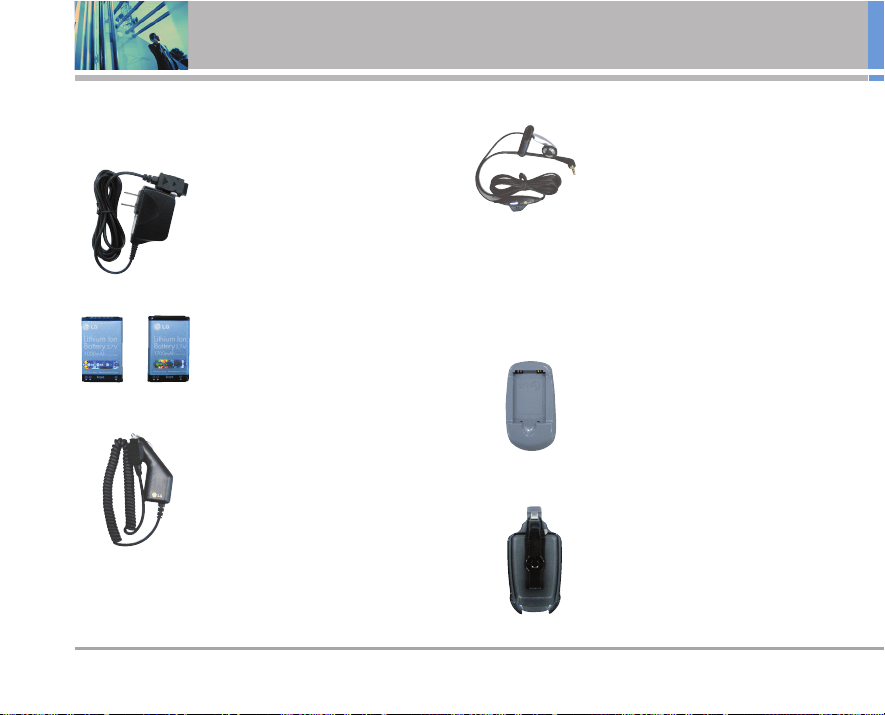
88 UX4750
Accessories
There are a variety of accessories available for your
mobile phone. Consult your local dealer for availability.
Standard Charger
The standard charger allows you to
power your phone.
Input Voltage: 100-240VAC 50-60Hz
Output Voltage: 5.0V, 1000mA
Battery
Two batteries are available. The
standard battery, and the extended
battery.
Cigarette Lighter Charger
The cigarette lighter charger allows
you to operate the phone and trickle
charge the phone’s battery from your
vehicle. It takes 5 hours to charge a
completely discharged battery.
Headset
The headset connects to your phone
allowing hands-free operation.
It includes earpiece, microphone.
NNOOTTEE
It operates in vibration/no sound mode on Manner
Mode/Silence All Mode even when connected to a
headset.
Battery Pack Charger
The battery pack charger allows you
to charge the battery pack itself
without the phone. It can charge a
completely discharged standard
battery in 3.5 hours.
Holster
UX4750 89
Warranty Information
1. WHAT THIS WARRANTY COVERS:
LG offers you a limited warranty that the enclosed
subscriber unit and its enclosed accessories will be free
from defects in material and workmanship, according to
the following terms and conditions:
(1) The limited warranty for the unit and enclosed accessories
shall be a period of one (1) year from the date of original
purchase. The remaining warranty period for the unit being
repaired or replaced shall be determined by presentation of
the original sales receipt for the purchase of the unit.
(2) The limited warranty extends only to the original purchaser
of the product and is not assignable or transferable to any
subsequent purchaser / end user.
(3) The limited warranty is good only to the original purchaser
of the product during the warranty period as long as it is in
the U.S., including Alaska, Hawaii, U.S. Territories, and all
Canadian Provinces.
(4) The external housing and cosmetic parts shall be free of
major defects at the time of shipment and, therefore, shall
not be covered under these limited warranty terms.
(5) Upon request from LG, the consumer must provide
information satisfactory to LG to prove the date of purchase
or exchange.
(6) The customer shall bear the cost of shipping the product to
the Customer Service Department of LG. LG shall bear the
cost of shipping the product back to the consumer after the
completion of service under this limited warranty.
2. WHAT THIS WARRANTY DOES NOT COVER:
(1) Defects or damage resulting from use of the product in
other than its normal and customary manner.
(2) Defect or damage from abnormal use, abnormal conditions,
improper storage, exposure to moisture or dampness,
unauthorized modifications, unauthorized connections,
unauthorized repair, misuse, neglect, abuse, accident,
alteration, improper installation, or other acts which are not
the fault of LG, including damage caused by shipping, blown
fuses, or spills of food or liquid.
(3) Breakage or damage to antennas unless caused directly by
defects in material or workmanship.
(4) Alleged defects or malfunctions of the product if the
Customer Service Department at LG was not notified by the
consumer during the applicable limited warranty period.
(5) Products which have had the serial number removed or
made illegible.
90 UX4750
Warranty Information
(6) This limited warranty is in lieu of all other warranties,
express or implied either in fact or by operations of law,
statutory or otherwise, including but not limited to any
implied warranty of marketability merchantability or fitness
for a particular use.
(7) Damage resulting from use of non-LG approved
accessories.
(8) All plastic surfaces and all other externally exposed parts
that are scratched or damaged due to normal customer
use.
(9) Products operated outside published maximum ratings.
(10) Products used or obtained in a rental program.
(11) Consumables (such as fuses).
3. STATE LAW RIGHTS:
No other express warranty is applicable to this product.
THE DURATION OF ANY IMPLIED WARRANTIES,
INCLUDING THE IMPLIED WARRANTY OF MARKETABILITY
OR MERCHANTABILITY, IS LIMITED TO THE DURATION OF
THE EXPRESS WARRANTY HEREIN. LG INFOCOMM
U.S.A., INC. SHALL NOT BE LIABLE FOR THE LOSS OF THE
USE OF THE PRODUCT, INCONVENIENCE, LOSS OR ANY
OTHER DAMAGES, DIRECT OR CONSEQUENTIAL, ARISING
OUT OF THE USE OF, OR INABILITY TO USE, THIS PRODUCT
OR FOR ANY BREACH OF ANY EXPRESS OR IMPLIED
WARRANTY, INCLUDING THE IMPLIED WARRANTY OF
MARKETABILITY OR MERCHANTABILITY APPLICABLE TO
THIS PRODUCT.
Some states do not allow the exclusive of limitation of
incidental or consequential damages or limitations on how
long an implied warranty lasts; so these limitations or
exclusions may not apply to you. This warranty gives you
specific legal rights and you may also have other rights,
which vary from state to state.
4. HOW TO GET WARRANTY SERVICE:
To obtain warranty service, please call the following
telephone number from anywhere in the continental
United States:
LG Electronics Service
201 James Record Road
Huntsville, AL 35824
Tel. 1-800-793-8896 Email: http://us.lgservice.com
Please call or write for the location of the LGE authorized
service center nearest you and the procedures for
obtaining warranty claims.
10 Driver Safety Tips 84
123 (Numbers) Mode 20
2-sec Pause (T) 30
AA
Abc (Multi-tap) Mode 20
Accessories 88
Adjusting Speaker On 18
Alarm Clock 56
Announce Alerts 70
Answer Call 67
Auto Answer 67
Auto Erase 45
Auto NAM 64
Auto Play 46
Auto Retry 66
Auto Save 45
Auto View 46
Auto Volume 68
BB
Back To Top 60
Backlight 61
Banner 61
Battery 13
Battery Charge Level 13
Best Match 70
CC
Calculator 58
Call Connect 60
Call from ST Contact List
47, 48
Call Setup 66
Call Timer 38
Call Waiting 18
Callback # 45
Caller ID 18
Calling Digits 63
Change Lock 66
Changing Letter Case 21
Charging the Battery 13
Clocks 62
Consumer Information on
SAR 86
Contacts 34
Contacts Entries 23
Contrast 62
DD
Data Settings 68
Data/Fax 68
Default Numbers 27
Deleting 28
Dialed Calls 37
Display 61
DTMF Length 61
EE
easyedge
SM
Phone
Download Service 52, 53
Emergency #s 65
Entry Mode 46
Erase All 46
Erase Calls 38
Erase Contacts 66
Ez Tip Calc 57
FF
FCC RF Exposure
Information 9
FDA Consumer Update 78
Fonts 63
GG
Groups 35
HH
Hard Pause (P) 30
Help 53, 71
II
Icon Glossary 72
Images 54
Important Safety
Precautions 1
Inbox 43
Incoming ST 49, 50
Insert Quick-Text 46
Installing the Battery 13
KK
KB Counter 38
Key Light Timer 62
Key Tone 59
LL
Language 63
LCD 61
List Contacts 34
Location 71
Lock Mode 17
Lock Phone 65
MM
Making Calls 16
Manner Mode 17
Media 54
Menu Access 33
Menu Style 62
Menus Overview 11, 12
Message Alerts 60
Message Icon Reference
42
Messages 39
Minute Beep 60
UX4750
91
Index
Missed Calls 38
Msg Settings 45
Mute Function 17
My Contact Info 36
My Phone Number 72
My Shortcut 57
NN
New E-mail 35
New Message 40
New Number 35
New ST Contact 50
New ST Group 51
Notepad 57
OO
One-Touch Dial 67
Out of Memory Warning 43
Outbox 44
PP
Pauses 30
PC Connection 69
Phone Info 72
Phone Overview 10
Power On/Off Tone 60
Power Saver 63
RR
Received Calls 38
Receiving Calls 16
Recent Calls 37
Recent ST 51
Reset Default 66
Restrict Calls 65
Ringers 59
SS
S/W Version 72
Safety 78
Safety Information 76
Saved 45
Schedule 55
Screen Icons 15
Screens 62
Searching 31
Security 65
Select System 64
Service Alerts 60
Service Change 60
Serving System 64
Set NAM 64
Settings 59
Shortcut Help 72
Signal Strength 14
Signature 46
Sound Modes 69
Sounds 54, 59
Speaker On/Off 51
Speed Dialing 18
Speed Dials 36
SpeedTalk
SM
47
ST Alert Tone 51
ST Contacts 50
ST On/Off 51
ST Settings 51
Status Light 63
Symbols Mode 20
System 64
TT
T9Word (T9) Mode 20
Technical Details 7
Text Editor 63
Text Input 20
Text Options 42
Theme Colors 62
TIA Safety Information 73
Tools 55
Train Words 71
TTY Mode 68
VV
Voice Command Dialing 19
Voice Commands 69
Voice Mail 40
Voice Mail # 46
Voice Memo 56
Voice Privacy 67
Voice Services 69
Volume 60
Volume Quick Adjustment
17
WW
Warranty Information 89
World Clock 58
92 UX4750
Index