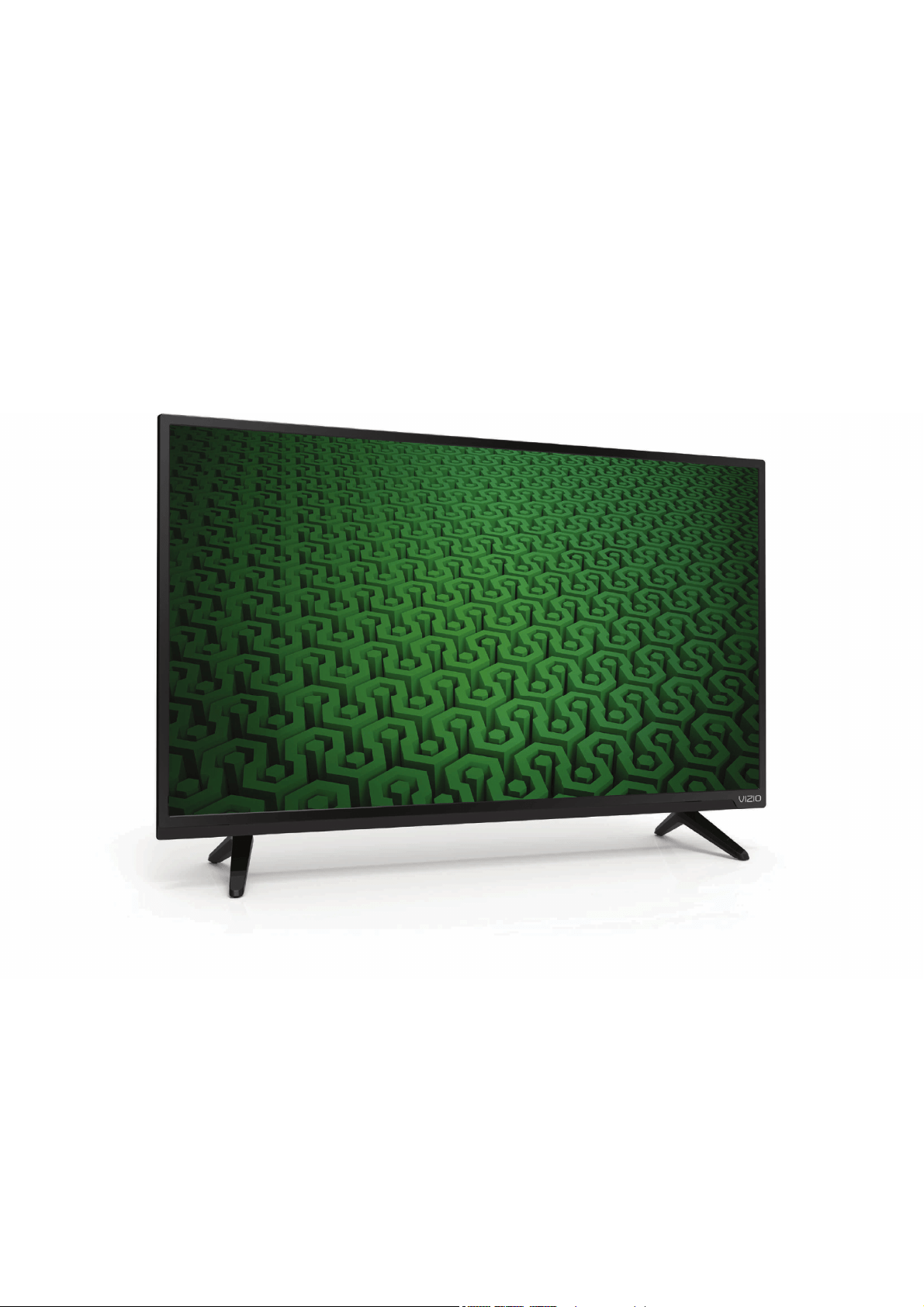
VIZIO
USER MANUAL
Models D32h-C0
7KLVSURGXFWTXDOLȴHVIRU(1(5*<67$5LQWKHȊIDFWRU\GHIDXOWȋ
VHWWLQJ DQG WKLV LV WKH VHWWLQJ LQ ZKLFK SRZHU VDYLQJV ZLOO EH
DFKLHYHG &KDQJLQJ WKH IDFWRU\ GHIDXOW SLFWXUH VHWWLQJV RU
HQDEOLQJ RWKHU IHDWXUHV ZLOO LQFUHDVH SRZHU FRQVXPSWLRQ WKDW
FRXOG H[FHHG WKH OLPLWV QHFHVVDU\ WR TXDOLI\ IRU (1(5*< 67$5
UDWLQJ)RUPRUHLQIRUPDWLRQRQWKH(1(5*<67$5SURJUDPJR
WRHQHUJ\VWDUJRY
+'0ΖWKH+'0ΖORJRDQG+LJK'HȴQLWLRQ0XOWLPHGLDΖQWHUIDFH
DUHWUDGHPDUNVRUUHJLVWHUHGWUDGHPDUNVRI+'0Ζ/LFHQVLQJ//&
0DQXIDFWXUHG XQGHU OLFHQVH IURP 'ROE\ /DERUDWRULHV 'ROE\
DQGWKHGRXEOH'V\PERODUHWUDGHPDUNVRI'ROE\/DERUDWRULHV
)RU'76SDWHQWVVHH
KWWSSDWHQWVGWVFRP
0DQXIDFWXUHG XQGHU OLFHQVH IURP '76 /LFHQVLQJ /LPLWHG
'76 WKH 6\PERO '76 DQG WKH 6\PERO WRJHWKHU DUH
UHJLVWHUHG WUDGHPDUNV DQG 7UX6XUURXQG LV D WUDGHPDUN RI
'76ΖQFk'76ΖQF$OO5LJKWV5HVHUYHG
Welcome
THANK YOU FOR CHOOSING VIZIO
And congratulations on your new VIZIO HDTV.
To get the most out of your new VIZIO product, read these
instructions before using your product and retain them for future
reference. Be sure to inspect the package contents to ensure there
are no missing or damaged parts.
PRODUCT REGISTRATION
To purchase or inquire about accessories and installation services
for your VIZIO product, visit our website at www.VIZIO.com or call
toll free at (877) 698-4946.
We recommend that you either:
• Register your VIZIO product at www.VIZIO.com.
• Complete and mail the enclosed registration card.
Extended Warranties
For peace of mind, and to protect your investment beyond
WKHVWDQGDUGZDUUDQW\9Ζ=Ζ2RHUVRQVLWHH[WHQGHGZDUUDQW\
service plans. These plans provide additional coverage during the
VWDQGDUGZDUUDQW\SHULRGDQGPXVWEHSXUFKDVHGZLWKLQWKHȴUVW
\HDUDIWHUSXUFKDVH7RSXUFKDVHDQH[WHQGHGZDUUDQW\VHUYLFH
plan, visit
http://www.squaretrade.com/vizio-landing1/.
WHEN READING THIS MANUAL
7KLVV\PEROLGHQWLȴHVKHOSIXOWLSV
This symbol alerts you to important warnings or notices
as part of the operating instructions.
IMPORTANT SAFETY INSTRUCTIONS
<RXU79LVGHVLJQHGDQGPDQXIDFWXUHGWRRSHUDWHZLWKLQGHȴQHG
GHVLJQOLPLWV0LVXVHPD\UHVXOWLQHOHFWULFVKRFNRUȴUH7R
prevent your TV from being damaged, the following instructions
should be observed for the installation, use, and maintenance of
your TV. Read the following safety instructions before operating
your TV. Keep these instructions in a safe place for future
reference.
• To reduce the risk of electric shock or component damage,
VZLWFKRWKHSRZHUEHIRUHFRQQHFWLQJRWKHUFRPSRQHQWV
to your TV.
• Read these instructions.
• Keep these instructions.
• Heed all warnings.
• Follow all instructions.
• Do not use this apparatus near water.
• Clean only with dry cloth.
• Do not block any ventilation openings. Install in accordance
with the manufacturer’s instructions.
• Do not install near any heat sources such as radiators, heat
UHJLVWHUVVWRYHVRURWKHUDSSDUDWXVLQFOXGLQJDPSOLȴHUV
that produce heat.
• Do not defeat the safety purpose of the polarized or
grounding-type plug. A polarized plug has two blades with
one wider than the other. A grounding type plug has two
blades and a third grounding prong. The wide blade or the
third prong are provided for your safety. If the provided
SOXJGRHVQRWȴWLQWR\RXURXWOHWFRQVXOWDQHOHFWULFLDQIRU
replacement of the obsolete outlet.
• Protect the power cord from being walked on or pinched
particularly at plugs, convenience receptacles, and the point
ZKHUHWKH\H[LWIURPWKHDSSDUDWXV
• 2QO\XVHDWWDFKPHQWVDFFHVVRULHVVSHFLȴHGE\WKH
manufacturer.
• Do not apply pressure or throw objects at your TV. This may
compromise the integrity of the display. The manufacturer’s
warranty does not cover user abuse or improper
installations.
• 7KHSRZHUFRUGPXVWEHUHSODFHGZKHQXVLQJGLHUHQW
YROWDJHWKDQWKHYROWDJHVSHFLȴHG)RUPRUHLQIRUPDWLRQ
contact your dealer.
• :KHQFRQQHFWHGWRDSRZHURXWOHWSRZHULVDOZD\VȵRZLQJ
into your TV. To totally disconnect power, unplug the power
cord.
• 7KHOLJKWQLQJȵDVKZLWKDUURZKHDGV\PEROZLWKLQDQ
equilateral triangle is intended to alert the user to the
presence of un-isolated, dangerous voltage within the
LQVLGHRI\RXU79WKDWPD\EHRIVXɝFLHQWPDJQLWXGHWR
constitute a risk of electric shock to persons.
• 'RQRWRYHUORDGSRZHUVWULSVDQGH[WHQVLRQFRUGV
2YHUORDGLQJFDQUHVXOWLQȴUHRUHOHFWULFVKRFN
• The wall socket should be installed near your TV and easily
accessible.
• Only power of the marked voltage can be used for your TV.
$Q\RWKHUYROWDJHWKDQWKHVSHFLȴHGYROWDJHPD\FDXVHȴUH
or electric shock.
• Do not touch the power cord during lightning. To avoid
electric shock, avoid handling the power cord during
electrical storms.
• Unplug your TV during a lightning storm or when it will not
be used for long period of time. This will protect your TV
from damage due to power surges.
• Do not attempt to repair or service your TV yourself.
2SHQLQJRUUHPRYLQJWKHEDFNFRYHUPD\H[SRVH\RXWR
high voltages, electric shock, and other hazards. If repair
is required, contact your dealer and refer all servicing to
TXDOLȴHGVHUYLFHSHUVRQQHO
• WARNING: Keep your TV away from moisture. Do not
H[SRVH\RXU79WRUDLQRUPRLVWXUHΖIZDWHUSHQHWUDWHVLQWR
your TV, unplug the power cord and contact your dealer.
• Use only with the cart, stand, tripod, bracket,
RU WDEOH VSHFLȴHG E\ WKH PDQXIDFWXUHU RU
sold with the apparatus. When a cart is used,
use caution when moving the cart/apparatus
combination to avoid injury from tip-over.
• Unplug this apparatus during lightning storms or when
unused for long periods of time.
• 5HIHUDOOVHUYLFLQJWRTXDOLȴHGVHUYLFHSHUVRQQHO6HUYLFLQJ
is required when the apparatus has been damaged in any
way, such as power-supply cord or plug is damaged, liquid
has been spilled or objects have fallen into the apparatus,
WKHDSSDUDWXVKDVEHHQH[SRVHGWRUDLQRUPRLVWXUHGRHV
not operate normally, or has been dropped.
• Unplug the power cord before cleaning your TV.
• When moving your TV from an area of low temperature to
an area of high temperature, condensation may form in the
housing. Wait before turning on your TV to avoid causing
ȴUHHOHFWULFVKRFNRUFRPSRQHQWGDPDJH
• A distance of at least three feet should be maintained
between your TV and any heat source, such as a radiator,
KHDWHURYHQDPSOLȴHUHWF'RQRWLQVWDOO\RXU79FORVHWR
smoke. Operating your TV close to smoke or moisture may
FDXVHȴUHRUHOHFWULFVKRFN
• 6ORWVDQGRSHQLQJVLQWKHEDFNDQGERWWRPRIWKHFDELQHW
are provided for ventilation. To ensure reliable operation of
your TV and to protect it from overheating, be sure these
openings are not blocked or covered. Do not place your
TV in a bookcase or cabinet unless proper ventilation is
provided.
• Never push any object into the slots and openings on your
TV cabinet. Do not place any objects on the top of your TV.
'RLQJVRFRXOGVKRUWFLUFXLWSDUWVFDXVLQJDȴUHRUHOHFWULF
shock. Never spill liquids on your TV.
• Your TV should be operated only from the type of power
source indicated on the label. If you are not sure of the type
of power supplied to your home, consult your dealer or
local power company.

&RQWLQXRXVXVHLQWKLVFDVHPD\UHVXOWLQȴUHRUHOHFWULF
shock.
• Do not use your TV if any abnormality occurs. If any smoke
or odor becomes apparent, unplug the power cord and
contact your dealer immediately. Do not try to repair your
TV yourself.
• Avoid using dropped or damaged appliances. If your TV
is dropped and the housing is damaged, the internal
components may function abnormally. Unplug the power
cord immediately and contact your dealer for repair.
&RQWLQXHGXVHRI\RXU79PD\FDXVHȴUHRUHOHFWULFVKRFN
• Do not install your TV in an area with heavy dust or high
humidity. Operating your TV in environments with heavy
GXVWRUKLJKKXPLGLW\PD\FDXVHȴUHRUHOHFWULFVKRFN
• Follow instructions for moving your TV. Ensure that the
power cord and any other cables are unplugged before
moving your TV.
• When unplugging your TV, hold the AC/DC power adapter,
not the cord. Pulling on the power cord may damage the
ZLUHVLQVLGHWKHFRUGDQGFDXVHȴUHRUHOHFWULFVKRFN:KHQ
\RXU79ZLOOQRWEHXVHGIRUDQH[WHQGHGSHULRGRIWLPH
unplug the power cord.
• To reduce risk of electric shock, do not touch the connector
with wet hands.
• Insert batteries in accordance with instructions. Incorrect
polarities may cause the batteries to leak which can
damage the remote control or injure the operator. Do not
H[SRVHEDWWHULHVWRH[FHVVLYHKHDWVXFKDVVXQVKLQHȴUHRU
the like.
• If any of the following occurs, contact the dealer:
- The power cord fails or frays.
- Liquid sprays or any object drops into your TV.
<RXU79LVH[SRVHGWRUDLQRURWKHUPRLVWXUH
- Your TV is dropped or damaged in any way.
- The performance of your TV changes substantially.
• 7KLVDSSDUDWXVVKDOOQRWEHH[SRVHGWRGULSSLQJRU
VSODVKLQJDQGQRREMHFWVȴOOHGZLWKOLTXLGVVXFKDVYDVHV
shall be placed on the apparatus.
• The mains plug or appliance coupler is used as the
disconnect device, the disconnect device shall remain
readily operable.
• CAUTION - These servicing instructions are for use by
TXDOLȴHGVHUYLFHSHUVRQQHORQO\7RUHGXFHWKHULVNRI
electric shock, do not perform any servicing other than
that contained in the operating instructions unless you are
TXDOLȴHGWRGRVR
7KHOLJKWQLQJȵDVKZLWKDUURZKHDGV\PEROZLWKLQDQ
equilateral triangle is intended to alert the user to the
SUHVHQFHRIXQLQVXODWHG'$1*(528692/7$*(ZLWKLQWKH
SURGXFWȇVHQFORVXUHWKDWPD\EHRIVXɝFLHQWPDJQLWXGHWR
constitute a risk of electrical shock to persons.
h
TELEVISION ANTENNA CONNECTION
PROTECTION
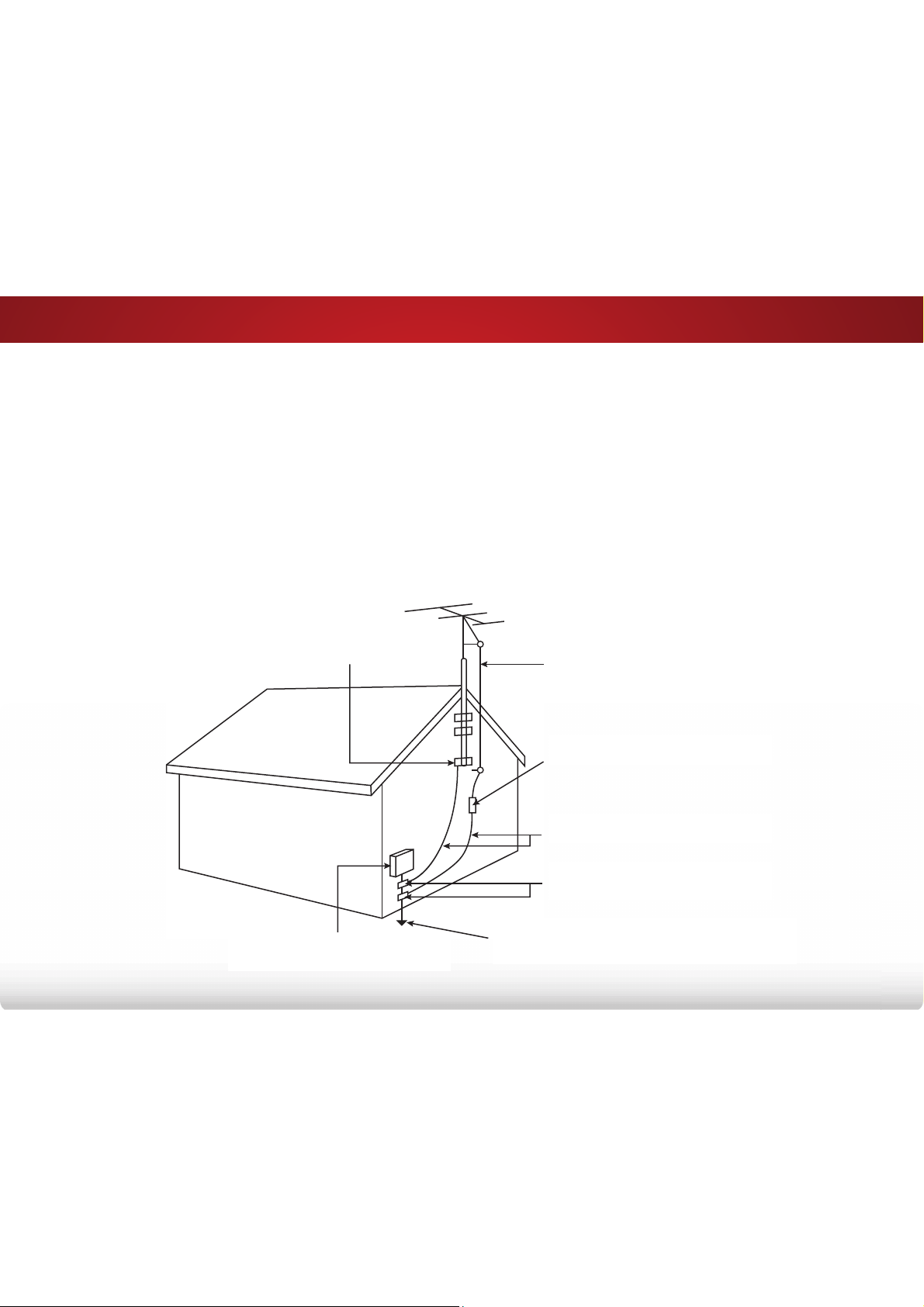
If an outside antenna/satellite dish or cable system is to be
connected to the TV, make sure that the antenna or cable system
is electrically grounded to provide some protection against voltage
surges and static charges.
$UWLFOHRIWKH1DWLRQDO(OHFWULFDO&RGH$16Ζ1)36$SURYLGHV
information with regard to proper grounding of the mast and
supporting structure, grounding of the lead-in wire to an antenna
discharge unit, size of the grounding conductors, location of
antenna discharge unit, connection to grounding electrodes, and
requirements of the grounding electrode.
Lightning Protection
For added protection of the TV during a lightning storm or when it
is left unattended or unused for long periods of time, unplug the TV
from the wall outlet and disconnect the antenna or cable system.
Power Lines
Do not locate the antenna near overhead light or power circuits, or
where it could fall into such power lines or circuits. Remember, the
VFUHHQRIWKHFRD[LDOFDEOHLVLQWHQGHGWREHFRQQHFWHGWRHDUWKLQ
the building installation.
Ground Clamp
Antenna Lead In Wire
Antenna Discharge Unit
1(&6HFWLRQ
Grounding Conductors
1(&6HFWLRQ
Ground Clamps
3RZHU6HUYLFH*URXQGLQJ(OHFWURGH6\VWHP
1(&$57SDUW+
(OHFWULF6HUYLFH(TXLSPHQW

Table of Contents
1
Installing the TV .....................................................3
Inspecting the Package Contents . . . . . . . . . . . . . . . . . . . . . . 3
Installing the TV . . . . . . . . . . . . . . . . . . . . . . . . . . . . . . . . . . . . 4
Installing the TV on the Stands ............................................. 4
Installing the TV on a Wall ..................................................... 6
Controls and Connections .....................................7
Rear Panel . . . . . . . . . . . . . . . . . . . . . . . . . . . . . . . . . . . . . . . . . 7
Side Panel . . . . . . . . . . . . . . . . . . . . . . . . . . . . . . . . . . . . . . . . . 8
Front Panel . . . . . . . . . . . . . . . . . . . . . . . . . . . . . . . . . . . . . . . . 9
Remote Control . . . . . . . . . . . . . . . . . . . . . . . . . . . . . . . . . . . . 10
Replacing the Batteries ........................................................ 11
Connecting Your Devices .....................................12
Connecting a Device . . . . . . . . . . . . . . . . . . . . . . . . . . . . . . . . 12
Connecting an Audio Device . . . . . . . . . . . . . . . . . . . . . . . . . 15
Connecting an Audio Device - ARC . . . . . . . . . . . . . . . . . . . . 17
Completing the First-Time Setup ........................18
Using the On-Screen Menu .................................19
Navigating the On-Screen Menu . . . . . . . . . . . . . . . . . . . . . . 19
Changing the Input Source . . . . . . . . . . . . . . . . . . . . . . . . . . 19
Changing the Screen Aspect Ratio . . . . . . . . . . . . . . . . . . . . 20
Adjusting the Picture Settings . . . . . . . . . . . . . . . . . . . . . . . . 21
Adjusting the More Picture Settings ................................... 22
Adjusting the Color Temperature ....................................... 23
Adjusting the Picture Mode Edit Settings ........................... 23
Saving a Custom Picture Mode ........................................... 24
Locking and Unlocking Custom Picture Modes .................. 24
Deleting a Custom Picture Mode ........................................ 25
Resetting a Preset Picture Mode ......................................... 25
Adjusting the Color Calibration Settings ............................ 26
Adjusting the Color Tuner Settings ..................................... 27
Adjusting the Audio Settings . . . . . . . . . . . . . . . . . . . . . . . . . 30
Changing the Equalizer Settings ......................................... 31
Deleting the Custom Audio Mode ....................................... 31
Setting Timers . . . . . . . . . . . . . . . . . . . . . . . . . . . . . . . . . . . . . 32
Setting the Sleep Timer........................................................ 32
6HWWLQJWKH$XWR3RZHU2)HDWXUH .................................... 32
Setting Up Channels . . . . . . . . . . . . . . . . . . . . . . . . . . . . . . . . 33
Selecting a Channel Source ................................................. 33
Finding Channels .................................................................. 33
Adding New Channels .......................................................... 34
Skipping Channels ................................................................ 35
Changing the Audio Language ............................................ 36
Setting Up Closed Captioning . . . . . . . . . . . . . . . . . . . . . . . . 37
Changing the Appearance of Digital Closed Captions ....... 37
Renaming Inputs (Using the Devices Menu) . . . . . . . . . . . . 39
Changing the TV Settings . . . . . . . . . . . . . . . . . . . . . . . . . . . . 40
Viewing System Information ............................................... 40
Changing the On-Screen Menu Language .......................... 41
Setting the Time and Local Settings .................................... 41
Using the Parental Controls ................................................ 42
Accessing the Parental Controls Menu .......................... 42
Enabling or Disabling Program Ratings .......................... 42
Locking and Unlocking Channels .................................... 42
Blocking and Unblocking Content by Rating .................. 43
Changing the Parental Control Passcode ....................... 43
Resetting the Content Locks ........................................... 43

2
2
Adjusting the Wide Mode (Aspect Ratio) ............................ 44
Controlling Other Devices with CEC .................................... 45
7XUQLQJWKH3RZHUΖQGLFDWRU2QRU2 ............................... 46
Restoring the TV to Factory Default Settings ..................... 46
Using the Guided Setup Menu . . . . . . . . . . . . . . . . . . . . . . . 47
Using the Info Window . . . . . . . . . . . . . . . . . . . . . . . . . . . . . . 48
Using the USB Media Player ................................49
Preparing Your USB Drive to Display USB Media .............. 49
Displaying USB Media .......................................................... 49
Removing the USB Drive from the TV ................................. 49
Troubleshooting & Technical Support ................51
6SHFLȴFDWLRQV .......................................................54
Limited Warranty .................................................56
Legal & Compliance .............................................57
3
1
3
Installing the TV
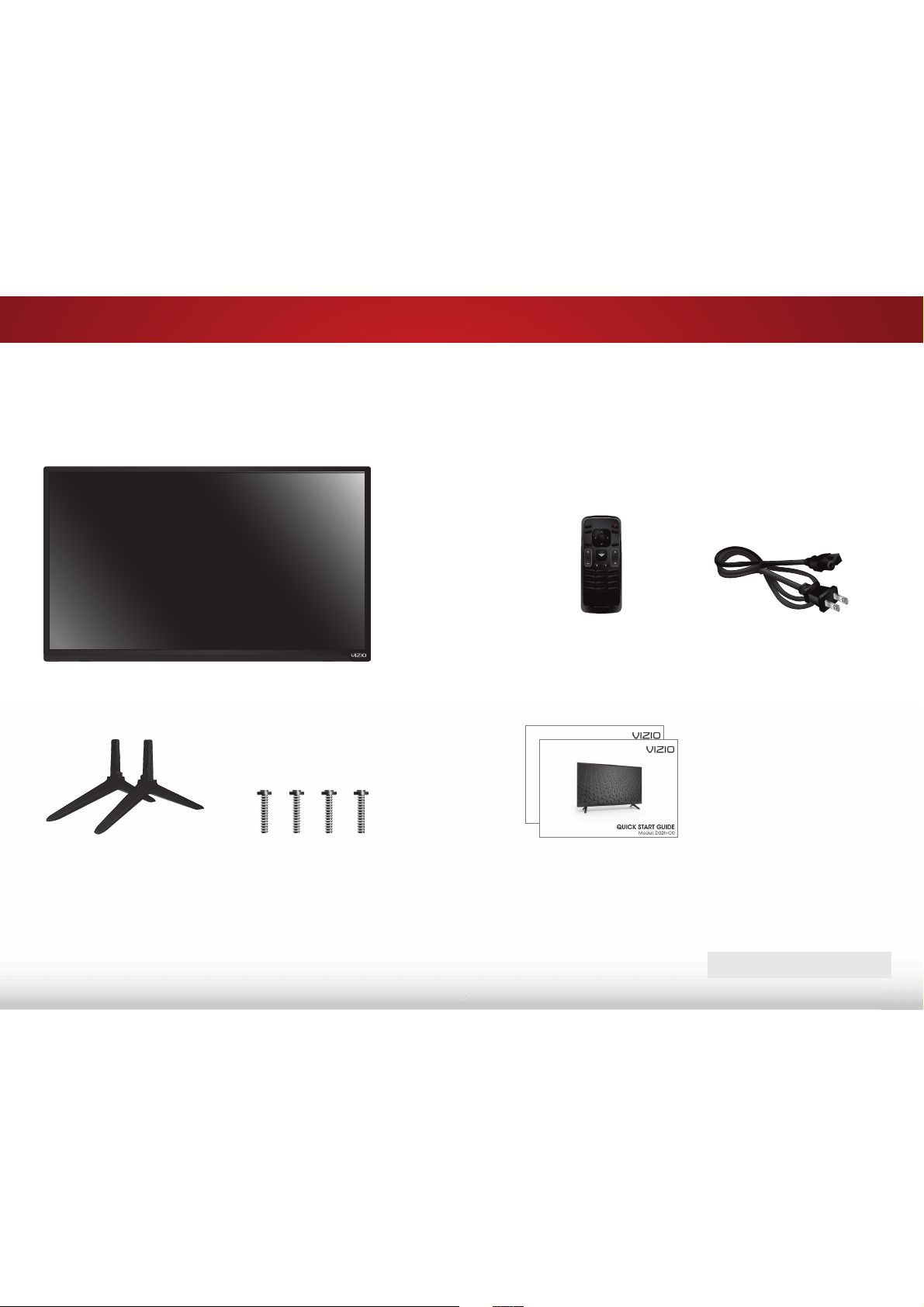
INSPECTING THE PACKAGE CONTENTS
Before installing your new TV, take a moment to inspect the
package contents. Use the images below to ensure nothing is
missing or damaged.
VIZIO LED HDTV
Power Cord
Quick Start Guides
(English and
French/Spanish)
Remote Control
with Batteries
INPUT
EXIT
GUIDE
BACK
1
4
7
WIDE
MENU
OK
VOL
VOL
CH
CH
3
6
9
—
2
5
8
0
PACKAGE CONTENTS
TV Stands
(two identical stands)
[7ɋPP
Phillips Screws
1
4
4
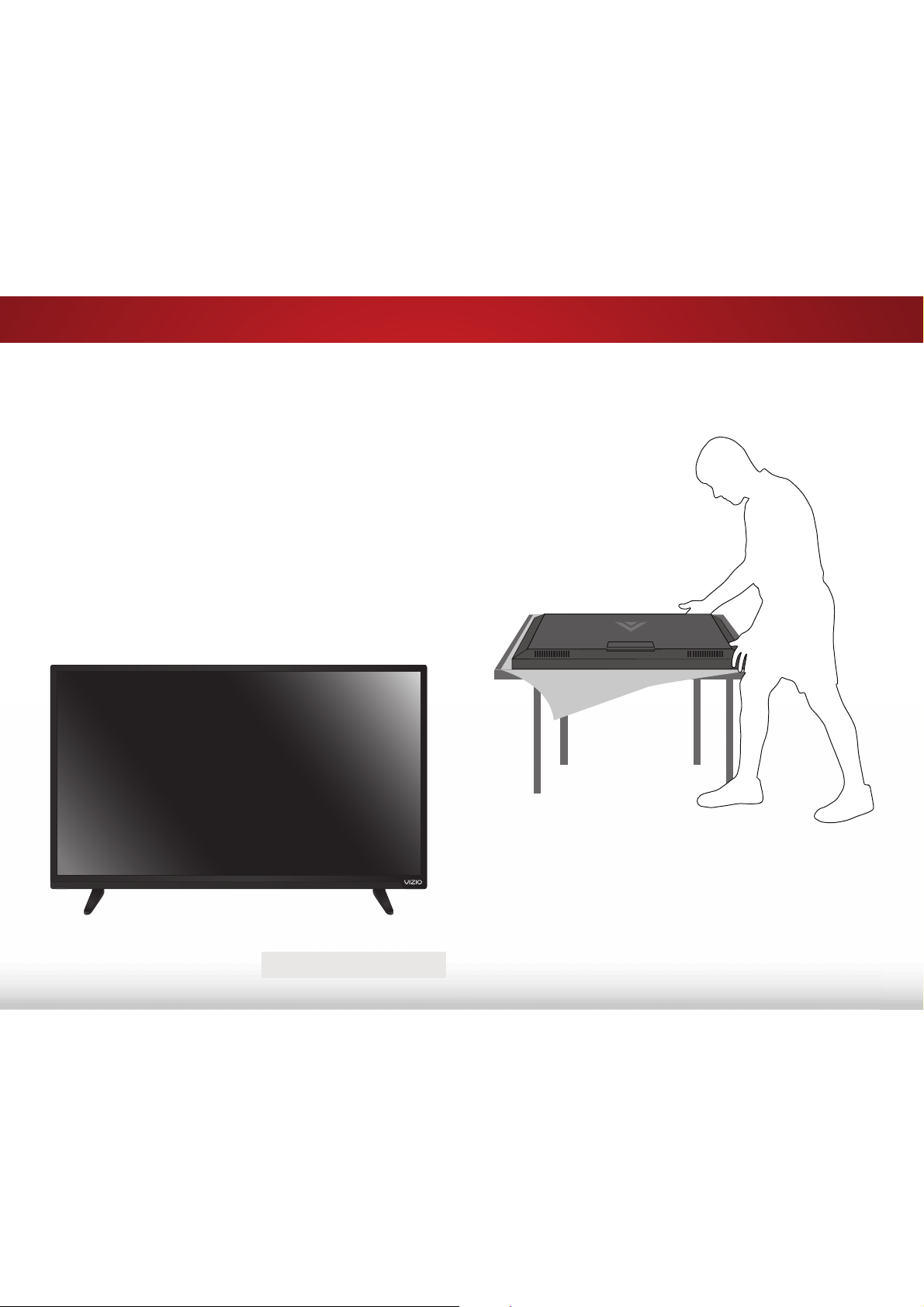
To install the stands:
3ODFHWKH79VFUHHQGRZQRQDFOHDQȵDWVXUIDFH7RSUHYHQW
scratches or damage to the screen, place the TV on a soft
VXUIDFHVXFKDVDEODQNHWDQGDYRLGDQ\VKDUSHGJHV
INSTALLING THE TV
$IWHUUHPRYLQJWKH79IURPWKHER[DQGLQVSHFWLQJWKHSDFNDJH
contents, you can begin installing the TV. Your TV can be installed
in two ways:
• 2QDȵDWVXUIDFHXVLQJWKHLQFOXGHGVWDQG
• On a wall, using a VESA-standard wall mount (not included)
Installing the TV on the Stands
Your TV includes stands designed to support the weight of the TV
DQGNHHSLWIURPIDOOLQJRYHU+RZHYHUWKH79FDQVWLOOIDOORYHULI
• ΖWLVSODFHGRQDQXQHYHQXQVWDEOHRUQRQOHYHOVXUIDFH
• ΖWLVSXVKHGSXOOHGRURWKHUZLVHLPSURSHUO\PRYHG
• If an earthquake occurs and the TV is not properly secured.
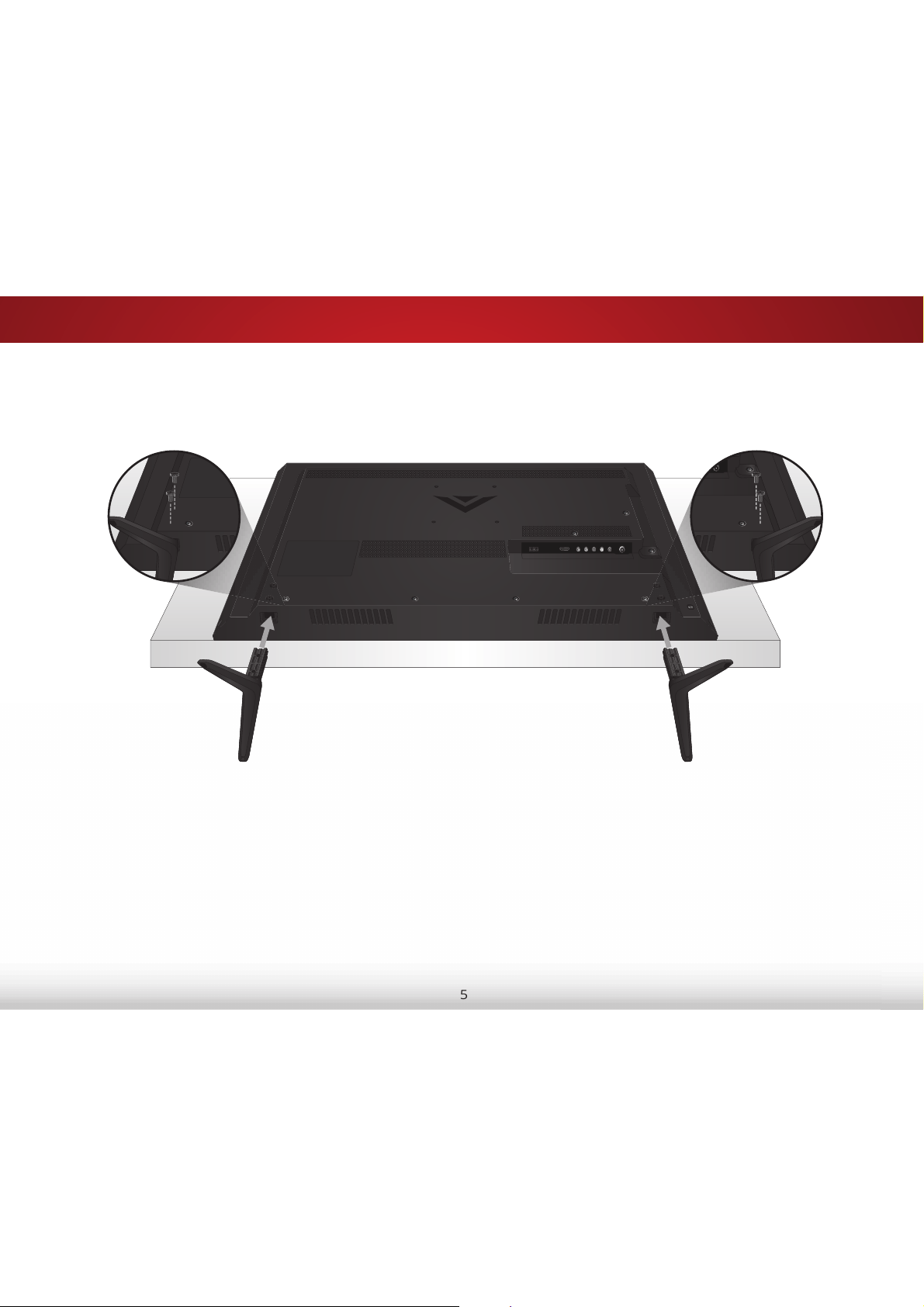
TV ON STAND
1
5
5
Insert the left and right stands into the base of the TV (the stands are identical).
6HFXUHHDFKVWDQGWRWKH79ZLWKWZR7ɋPP3KLOOLSVVFUHZVLQFOXGHGΖQVHUWWKHVFUHZVLQWRWKHEDFNRIWKH79DQGWLJKWHQWKHP
XVLQJD3KLOOLSVVFUHZGULYHU
:KHQ\RXDUHȴQLVKHGSODFHWKH79RQDVWDEOHOHYHOVXUIDFH
1
6
6
Installing the TV on a Wall
To mount your TV on a wall, you will need a wall mount. Consult
WKHLQIRUPDWLRQEHORZWRȴQGWKHDSSURSULDWHPRXQWIRU\RXU79
model:
ΖQVWDOOLQJD79RQDZDOOUHTXLUHVOLIWLQJ7RSUHYHQW
injury or damage to the TV, ask someone to help you.
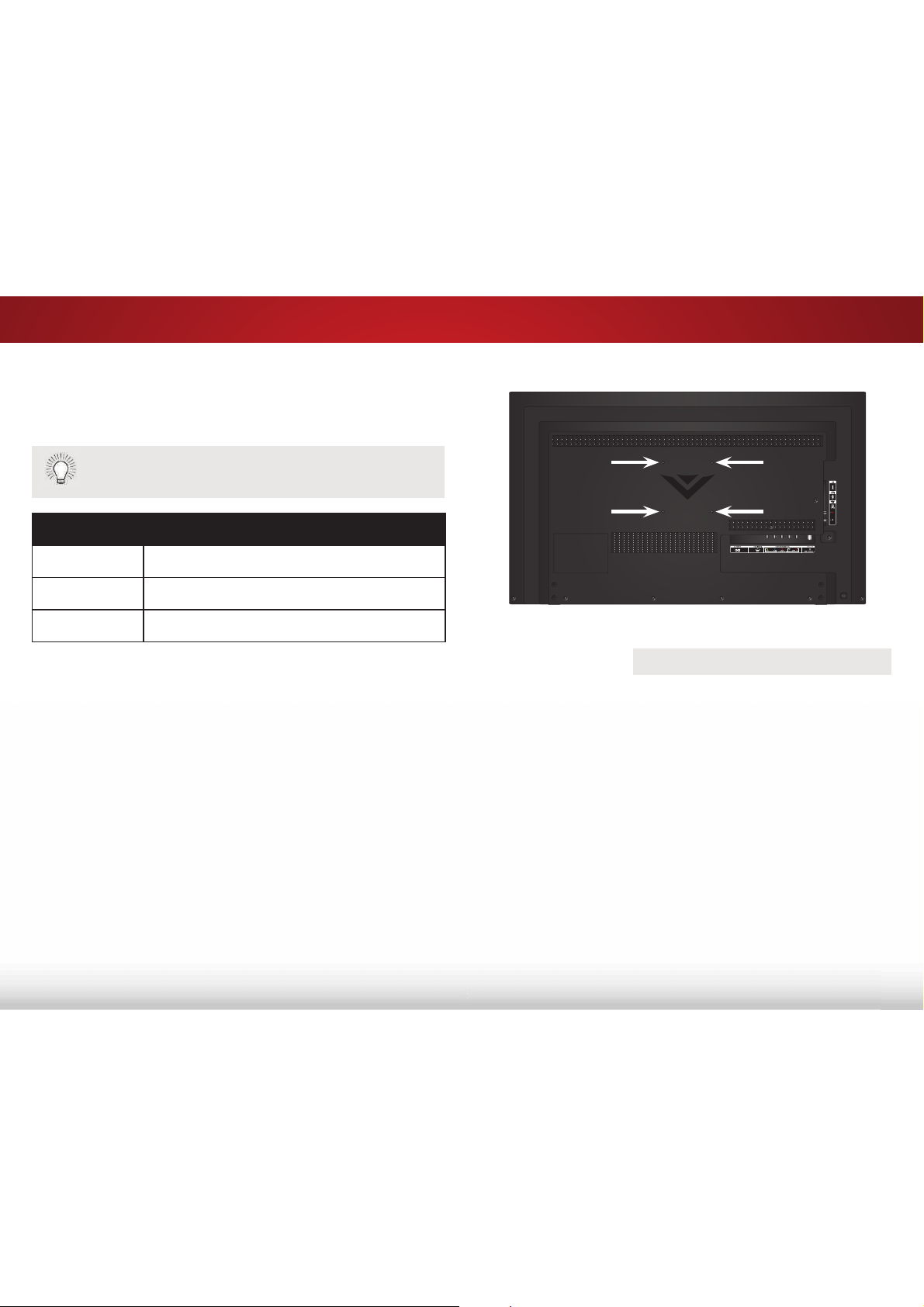
D32h-C0
Screw Size: M4
Hole Pattern: ɋPP9[ɋPP+
Weight w/o Stand: 11.02 lbs
Be sure the mount you choose is capable of supporting the weight
RIWKH79$IWHU\RXKDYHGHWHUPLQHGWKDW\RXKDYHWKHFRUUHFW
mount for your TV, you can begin the installation.
To install your TV on a wall:
1. Disconnect any cables connected to your TV.
2. 3ODFHWKH79IDFHGRZQRQDFOHDQȵDWVWDEOHVXUIDFH%HVXUH
the surface is clear of debris that can scratch or damage the
TV.
3. 5HPRYHWKHEDVHE\ORRVHQLQJDQGUHPRYLQJWKHVFUHZV
4. Attach your TV and wall mount to the wall, carefully following
the instructions that came with your mount.
Use only with a UL-listed wall mount bracket rated for the
weight/load of this TV.
WALL MOUNT SCREW LOCATIONS
2
7
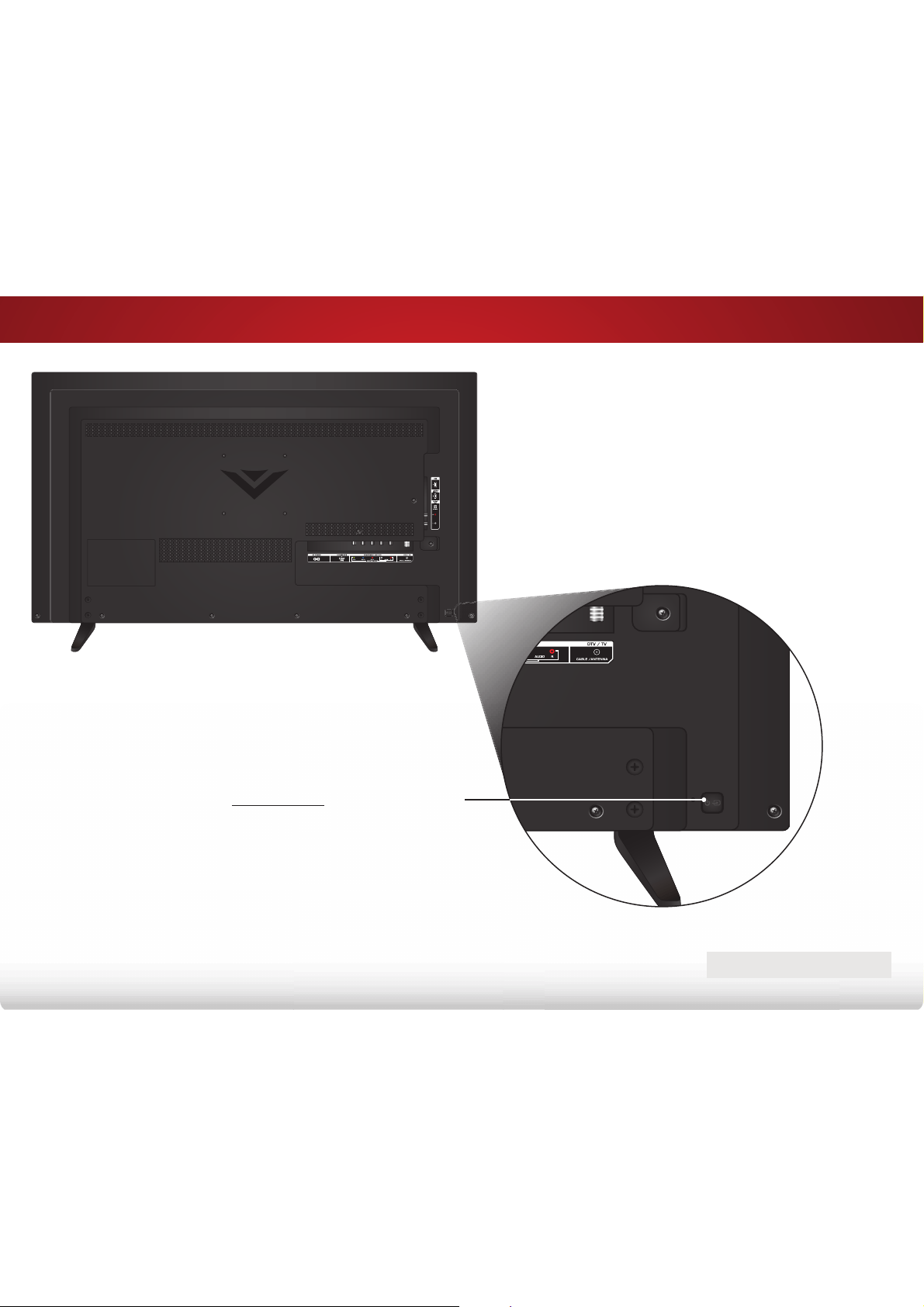
REAR PANEL
Controls and Connections
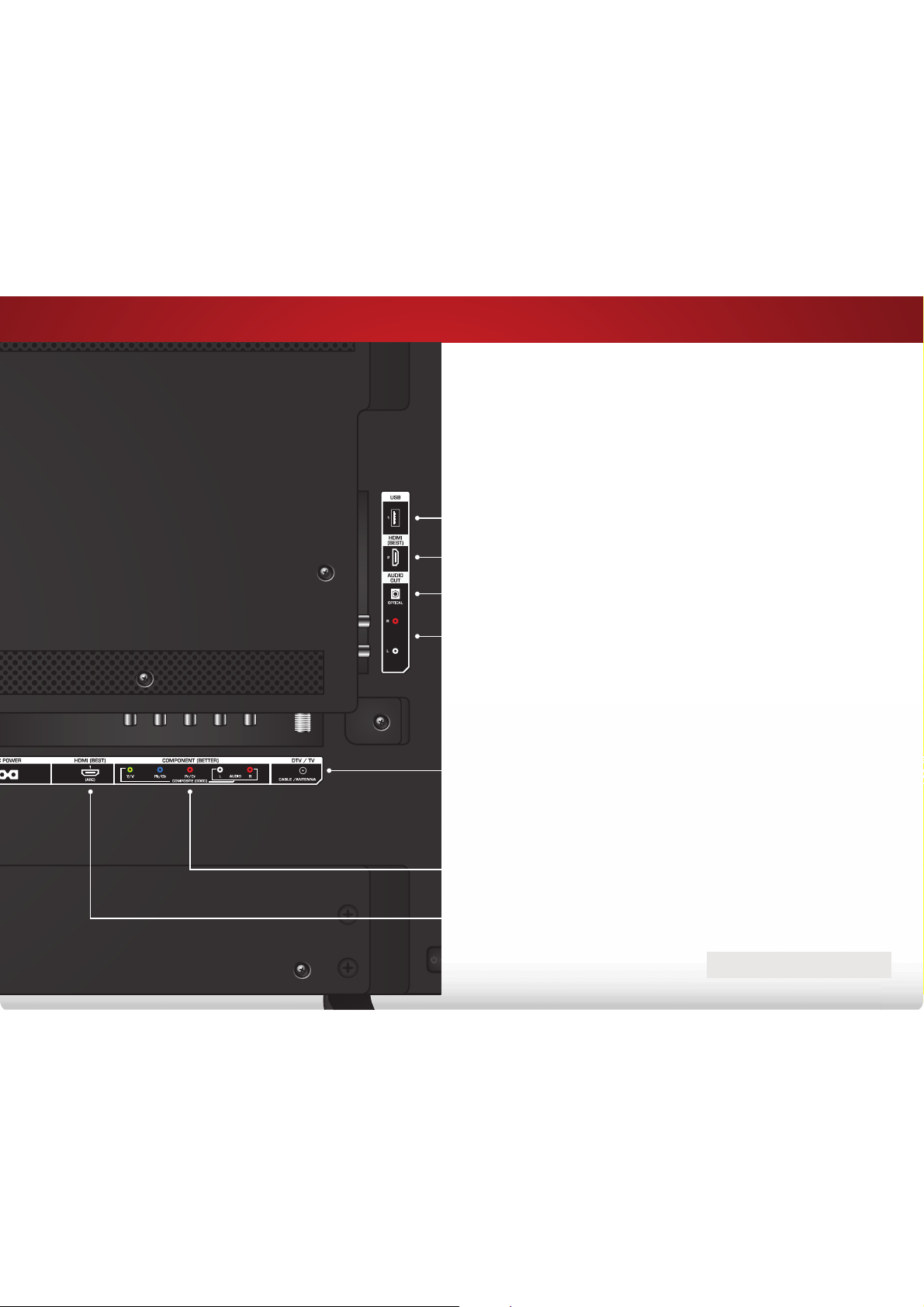
Stereo Audio Out - Connect an RCA audio device, such as sound bar.
Optical Audio Out - Connect an optical/SPDIF audio device, such as
home audio receiver.
REAR PANEL
USB - Connect a USB thumb drive to play photos.
HDMI - Connect an HDMI device.
Component/Composite - Connect a component or composite device.
DTV/TV (Coaxial) - Connect a coaxial cable from a cable or satellite box,
or from an antenna.
HDMI - Connect an HDMI device.
2
8
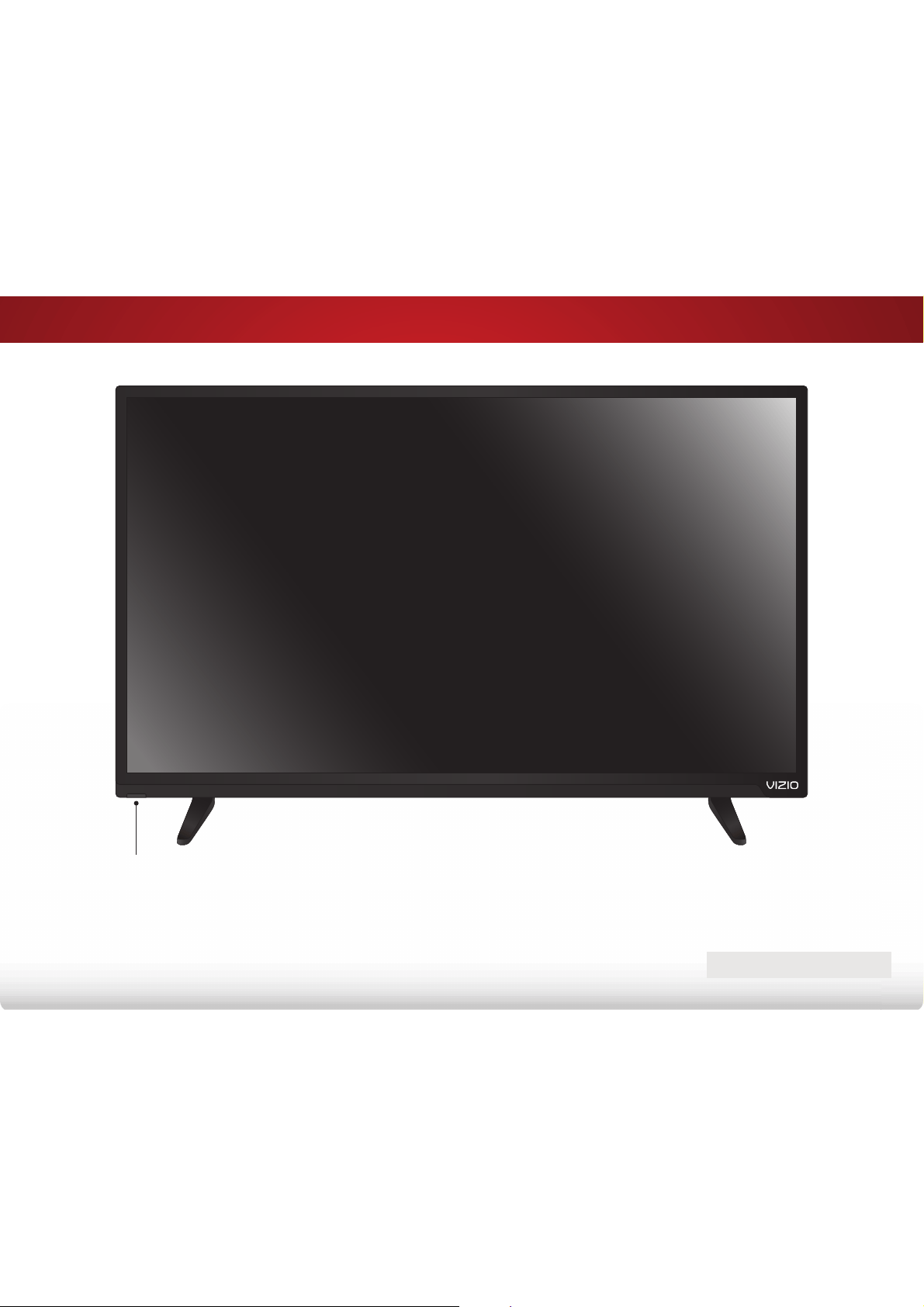
SIDE PANEL
SIDE PANEL
POWER Press to turn the TV on.
Press and holdWRWXUQWKH79R
INPUT Press to change the input source.
2
9
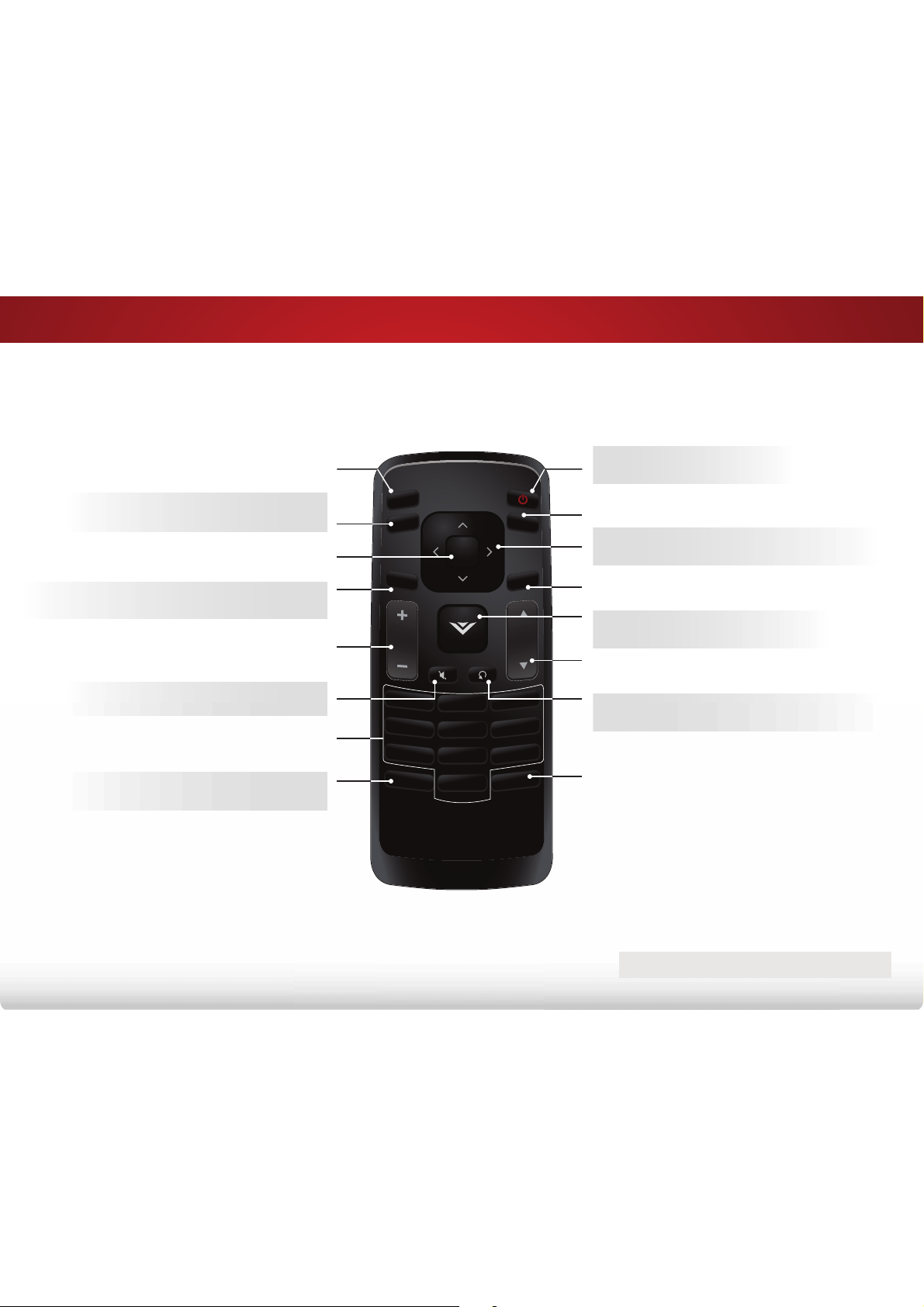
FRONT PANEL
REMOTE SENSOR & POWER INDICATOR
When using the remote, point it directly at this sensor.
7KHSRZHULQGLFDWRUȵDVKHVRQZKHQWKH79WXUQVRQWKHQJRHVRXWDIWHU
several seconds. To keep the power indicator on as long as the TV is on,
see
7XUQLQJWKH3RZHUΖQGLFDWRU2QRU2
on page 46.
FRONT PANEL
2
10
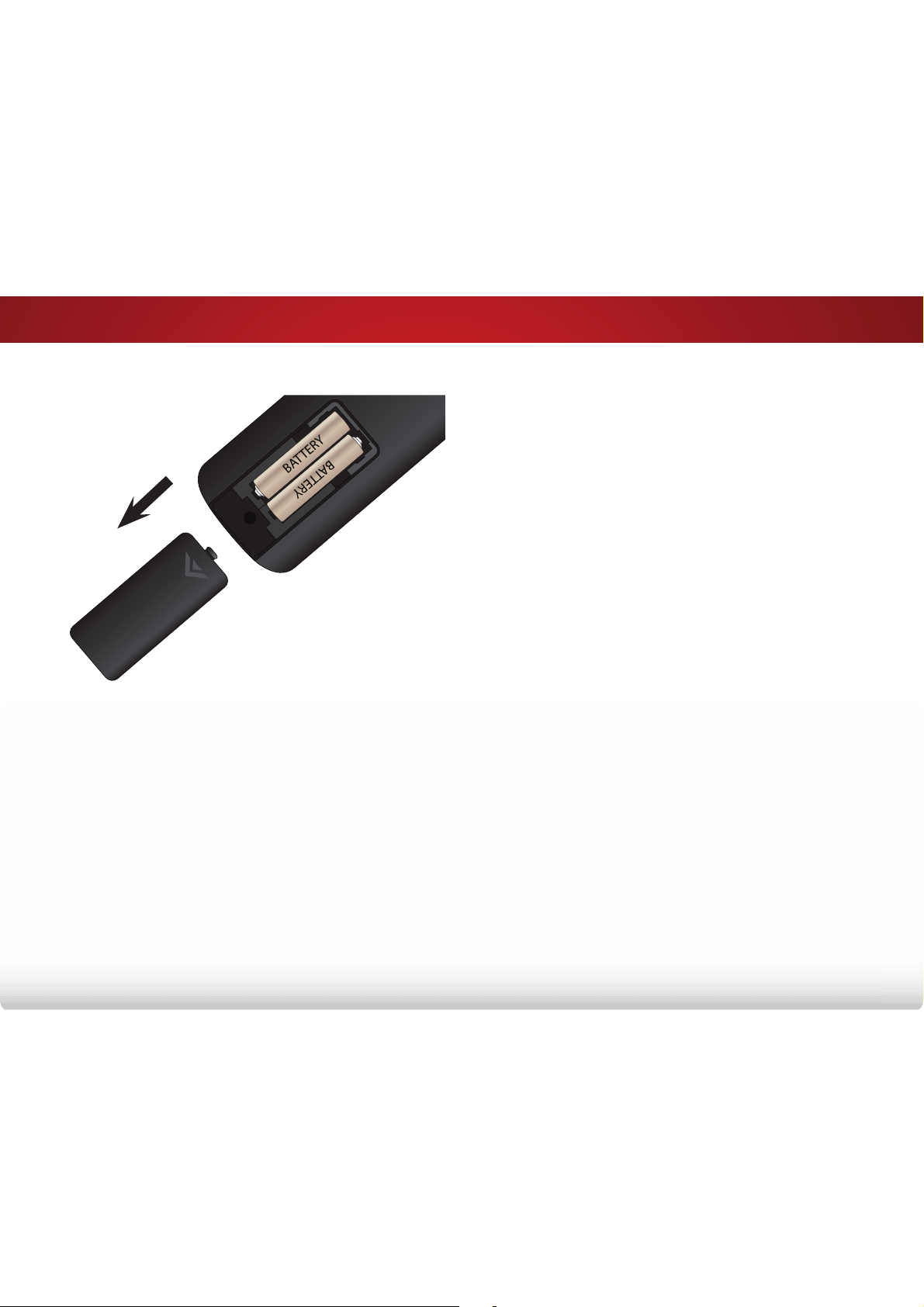
REMOTE CONTROL
INPUT
EXIT
GUIDE
BACK
1
4
7
WIDE
MENU
OK
VOL
VOL
CH
CH
3
6
9
—
2
5
8
0
INPUT
Change the currently-displayed input.
ARROW
Navigate the on-screen menu.
EXIT
Close the on-screen menu.
WIDE
Switch the display mode.
MUTE
7XUQWKHDXGLRRRURQ
BACK
Go to the previous on-screen menu.
MENU
Display the on-screen menu.
DASH
Use with number pad to manually enter a
digital sub-channel.
(For example, 18-4 or 18-5.)
CHANNEL UP/DOWN
Change the channel.
GUIDE
Display the info window.
LAST
Return to the channel last viewed.
NUMBER PAD
Manually enter a channel.
VOLUME UP/DOWN
Increase or decrease loudness of
the audio.
OK
Select the highlighted menu option.
V BUTTON
Open the USB photo viewer.
POWER
7XUQ79RQRUR
2
11
Replacing the Batteries
1. To remove the battery cover, press on the logo and slide the
cover out.
2. Insert two batteries into the remote control. Make sure that
the (+) and (-) symbols on the batteries match the (+) and (-)
symbols inside the battery compartment.
3. Replace the battery cover.
3
12
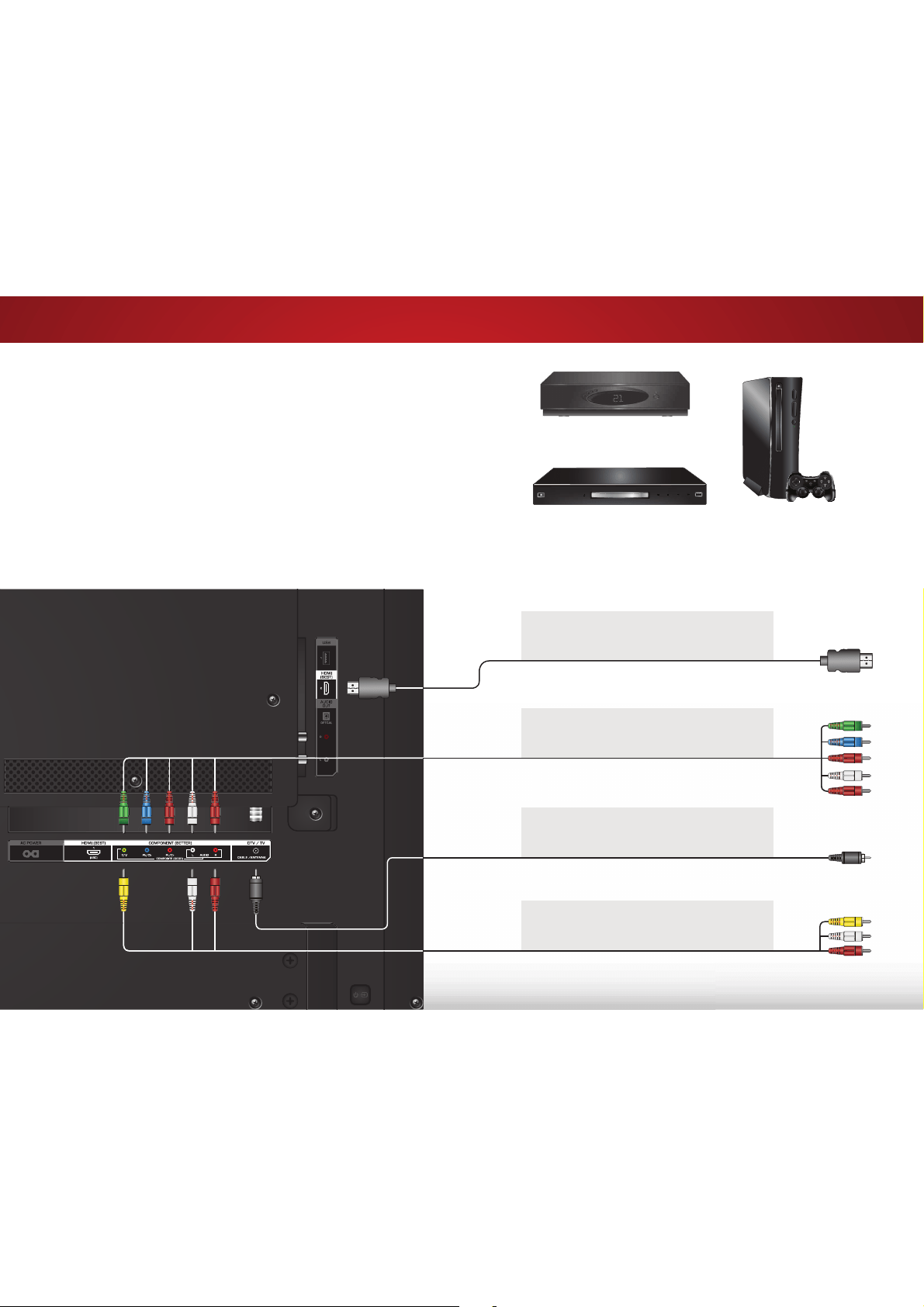
Connecting Your Devices
CONNECTING A DEVICE
Game Console
DVD/Blu-ray Player
Your TV can be used to display output from most devices.
1. Verify that your device has a video port that matches an
available port on the TV (HDMI-1, HDMI-2, Comp, etc.).
2. 7XUQWKH79DQG\RXUGHYLFHR
3. Connect the appropriate cable (not included) to the TV and the
device.
4. Turn the TV and your device on. Set the TV’s input to match the
connection you used (HDMI-1, HDMI-2, Comp, etc.).
BETTER
COMPONENT CABLE
*
• ANALOG
• HD VIDEO (1080p)
**
• STEREO AUDIO
BEST
HDMI CABLE
*
• DIGITAL
• HD VIDEO (1080p)
**
• HD AUDIO
GOOD
AV CABLE
*
• ANALOG
• VIDEO (480i)
**
• STEREO AUDIO
**
Maximum resolution.
BACK OF TV
BETTER
COAXIAL CABLE
*
• ANALOG
• HD VIDEO (1080i)
**
• STEREO AUDIO
Cable/Satellite Box
*
Cables not included.
3
13
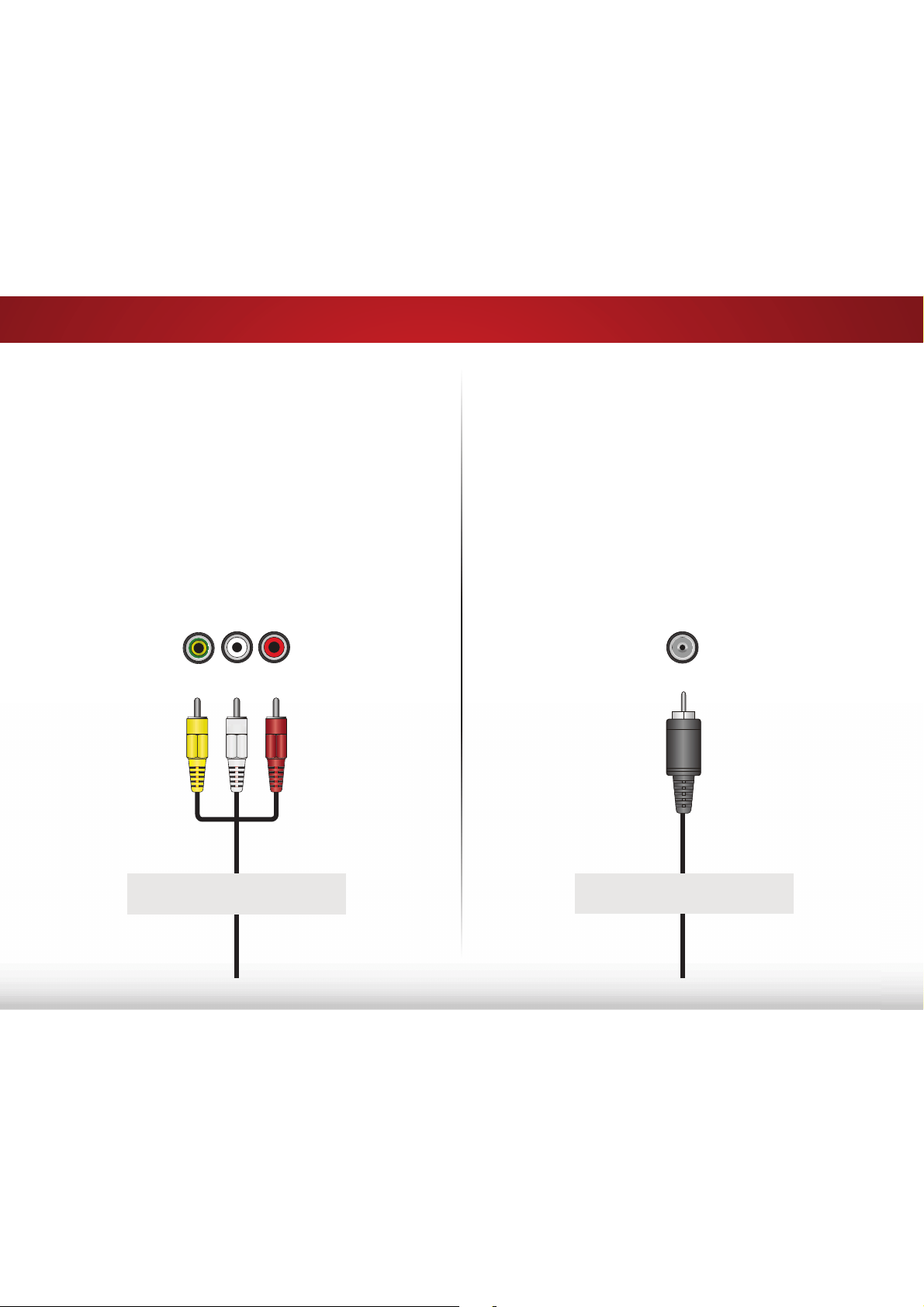
COAXIAL CABLE
Coaxial cables are the traditional way of connecting
antennas and cable television signals to your TV. Coaxial
cables carry both audio and video signals through a
single connector.
AV CABLE
AV cables (or Composite cables) are the traditional way
of connecting your devices to your TV. Video signals are
sent over the yellow connector while audio is sent over
the red and white connectors.
GOOD BETTER
Y/V L R
• HD video resolutions up to 1080i
• Analog connection
• Audio and video signals
• Video resolutions up to 480i
• Analog connection
• Audio and video signals
CONNECTING A DEVICE - AUDIO AND VIDEO CABLE TYPES
Cable/Antenna
3
14
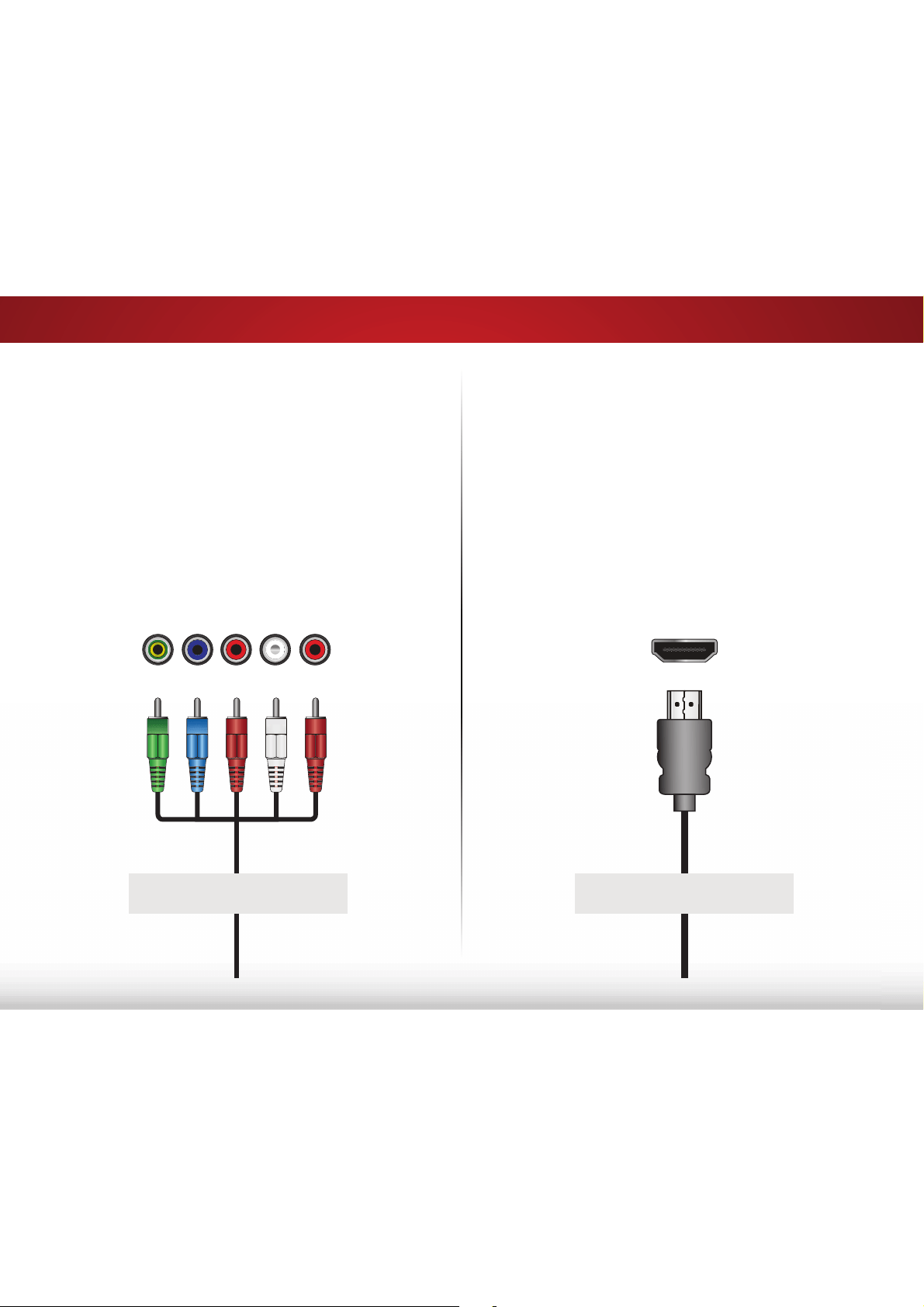
HDMI CABLE
HDMI is the intelligent, all-digital interface that delivers
both dazzling quality and unmatched ease of use. HDMI
technology transmits crystal-clear digital video along with
multi-channel surround audio. HDMI-connected devices
have the ability to automatically adjust themselves for
optimal viewing.
COMPONENT CABLE
Component cables are designed to carry HD (high
GHȴQLWLRQ YLGHR VLJQDOV DORQJ ZLWK DGGLWLRQDO DXGLR
connections. Colors are delivered with color information
over three connectors for video (separated into red,
blue and green signals) and the left and right audio
connectors (red and white).
BETTER
Y/V
Pb/Cb
Pr/Cr
L R
• HD video resolutions up to 1080p
• HD audio
• Digital connection
• Audio and video signals
• HD video resolutions up to 1080p
• Analog connection
• Audio and video signals
BEST
3
15
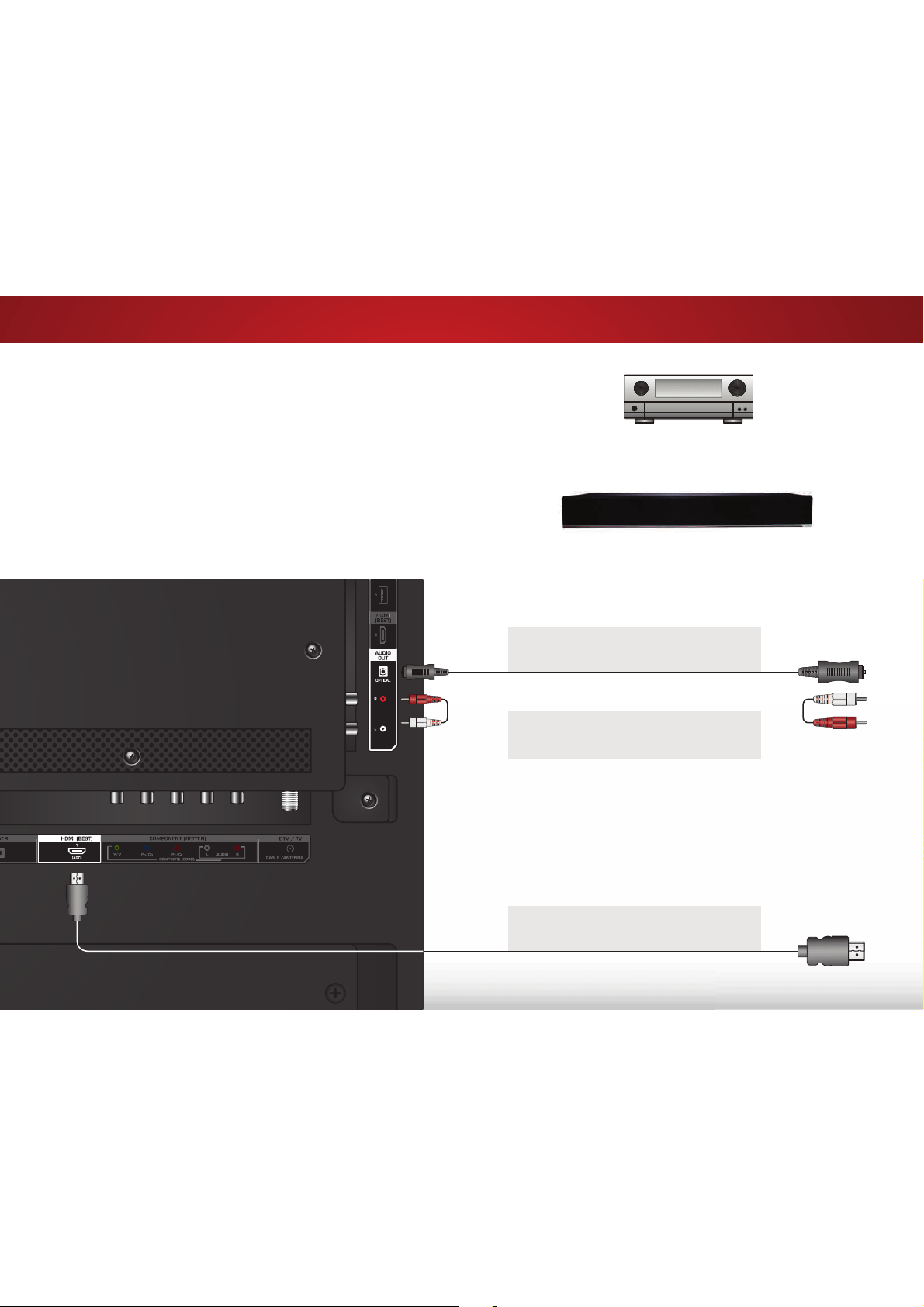
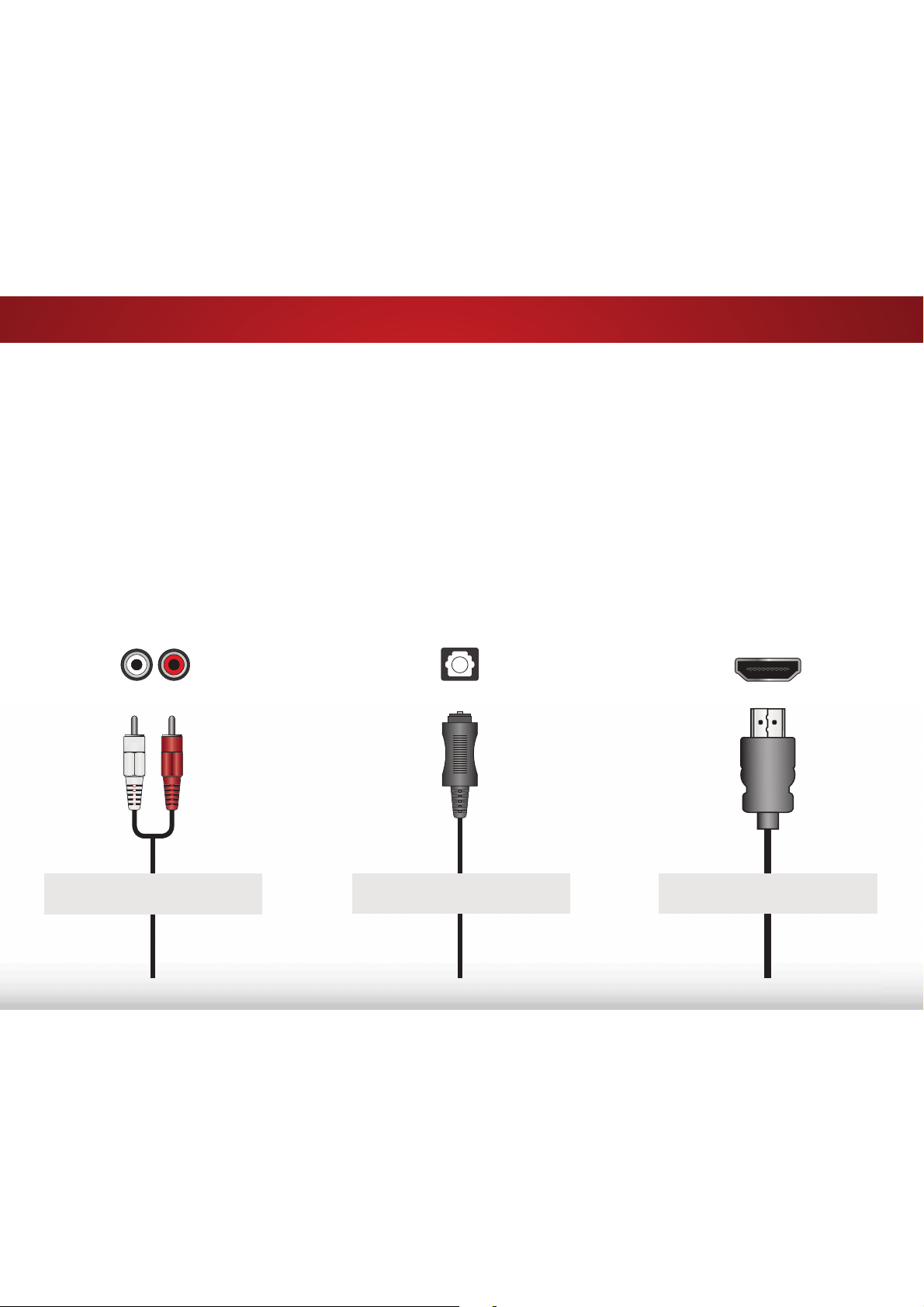
CONNECTING AN AUDIO DEVICE
Home Audio Receiver
VIZIO Sound Bar
Your TV can output sound to an audio device, such as a receiver or
sound bar.
1. Verify that your device has an audio port that matches an
available port on the TV (HDMI, Optical, or RCA).
2. 7XUQWKH79DQG\RXUDXGLRGHYLFHR
3. Connect the appropriate cable to the TV and the device.
4. Turn the TV and your device on.
BEST
HDMI CABLE
*
• ARC 2-WAY COMMUNICATION
• 2.0-5.1 DIGITAL AUDIO
• PCM, DTS, DOLBY DIGITAL
GOOD
RCA CABLE
*
• ANALOG STEREO CONNECTION
• 2.0 CHANNEL
*
Cables not included.
BETTER
OPTICAL/SPDIF CABLE
*
• PCM STREAM
• DOLBY DIGITAL 5.1 CHANNEL
• DTS 5.1 CHANNEL
3
16
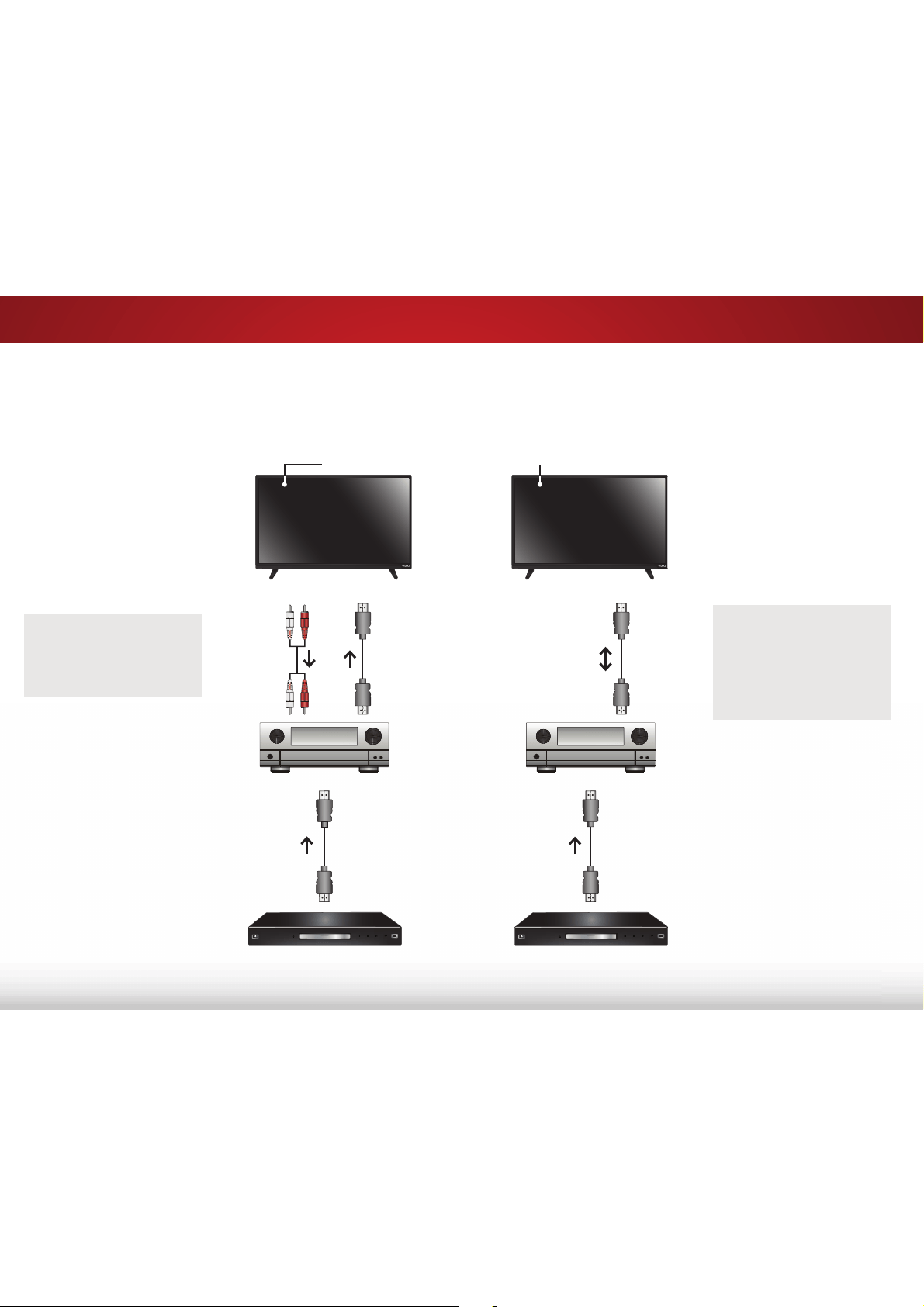
CONNECTING AN AUDIO DEVICE - AUDIO CABLE TYPES
HDMI CABLE
HDMI technology transmits crystal-clear digital
multi-channel surround audio through a single
HDMI cable. Audio Return Channel-enabled
(ARC) TVs allow audio to be sent over an already
connected HDMI cable, eliminating the need for
a separate audio cable. See
Connecting an Audio
Device - ARC
on page 17.
OPTICAL/SPDIF CABLE
Optical/SPDIF cables transmit audio signals as
pulses of light through a cable made of plastic
ȴEHUV $XGLR VLJQDOV DUH GLJLWDOO\ WUDQVPLWWHG
between devices.
RCA CABLE
RCA cables (or composite cables) are the traditional
way of connecting your devices to your audio
device. Audio signals are sent over the red and
white connectors.
GOOD BETTER
• CEC 2-way Communication
(Auto setup)
• PCM, DTS, Dolby Digital
• 2.0 - 5.1 Scaleable Lossless
Digital Audio Connection
• Audio and Video Signals
• PCM Stream (Lossless)
• Dolby Digital 5.1 Channel
• DTS 5.1 Channel
• Digital Connection
• Audio Signal Only
• Quality Stereo Connection
• 2.0 Channel
• Analog Connection
• Audio Signal Only
BEST
L R
Optical/SPDIF
3
17
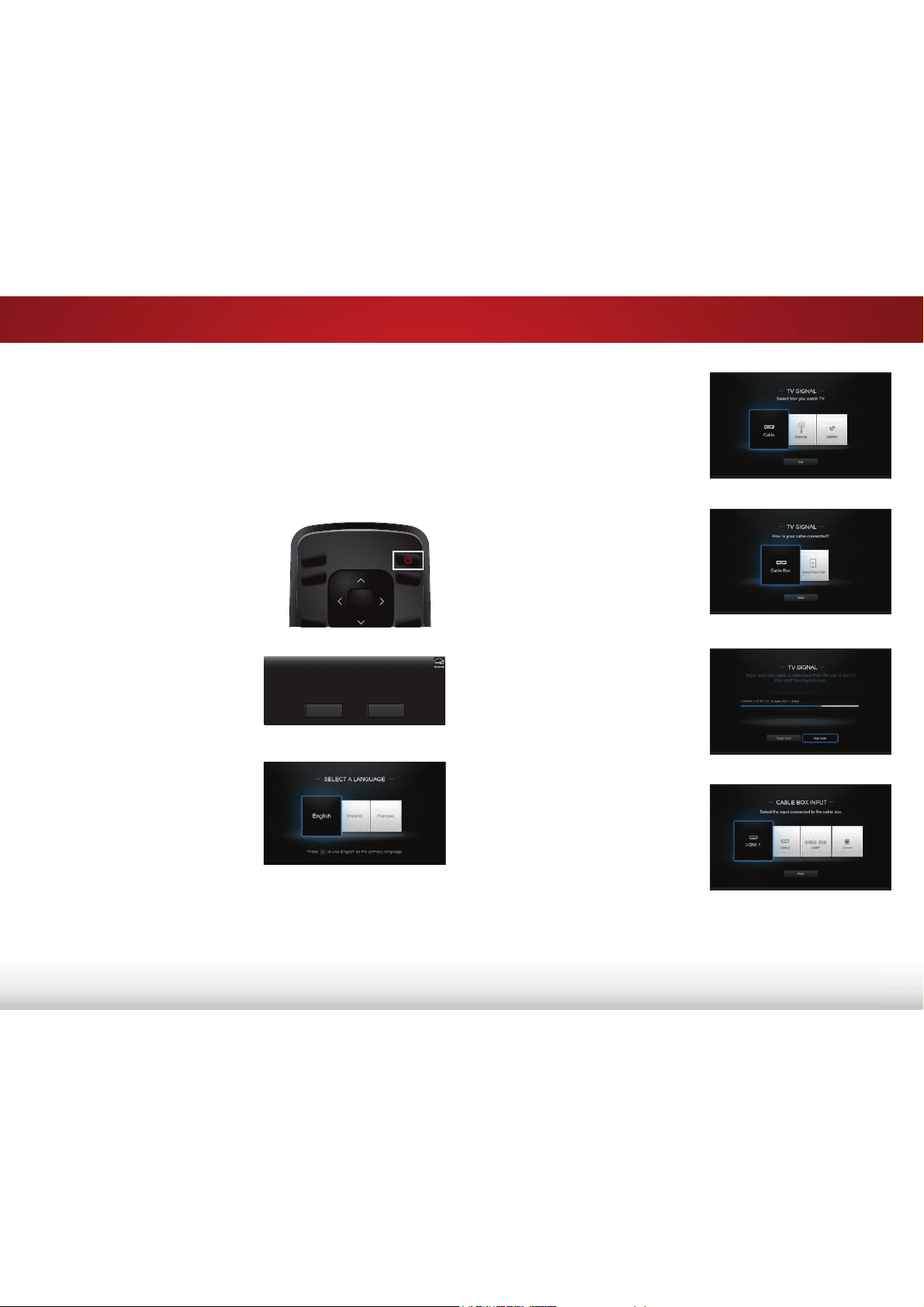
Without HDMI ARC With HDMI ARC
CONNECTING AN AUDIO DEVICE - ARC
HDMI
HDMI
Your Home Audio Receiver
Your Blu-ray Player
Your TV
HDMI
HDMI
Your Home Audio Receiver
Your Blu-ray Player
Built-in Tuner
Built-in Tuner
RCA (Audio)
Your TV
HDMI ARC transmits
all-digital audio from your TV
to your home audio receiver,
with no need for an extra
cable. The single HDMI cable
also carries digital HD (high
GHȴQLWLRQYLGHRWR\RXU79
Without an HDMI ARC setup,
your TV needs an extra cable
to connect it to your home
audio receiver. The audio
signal is analog-only.
4
18
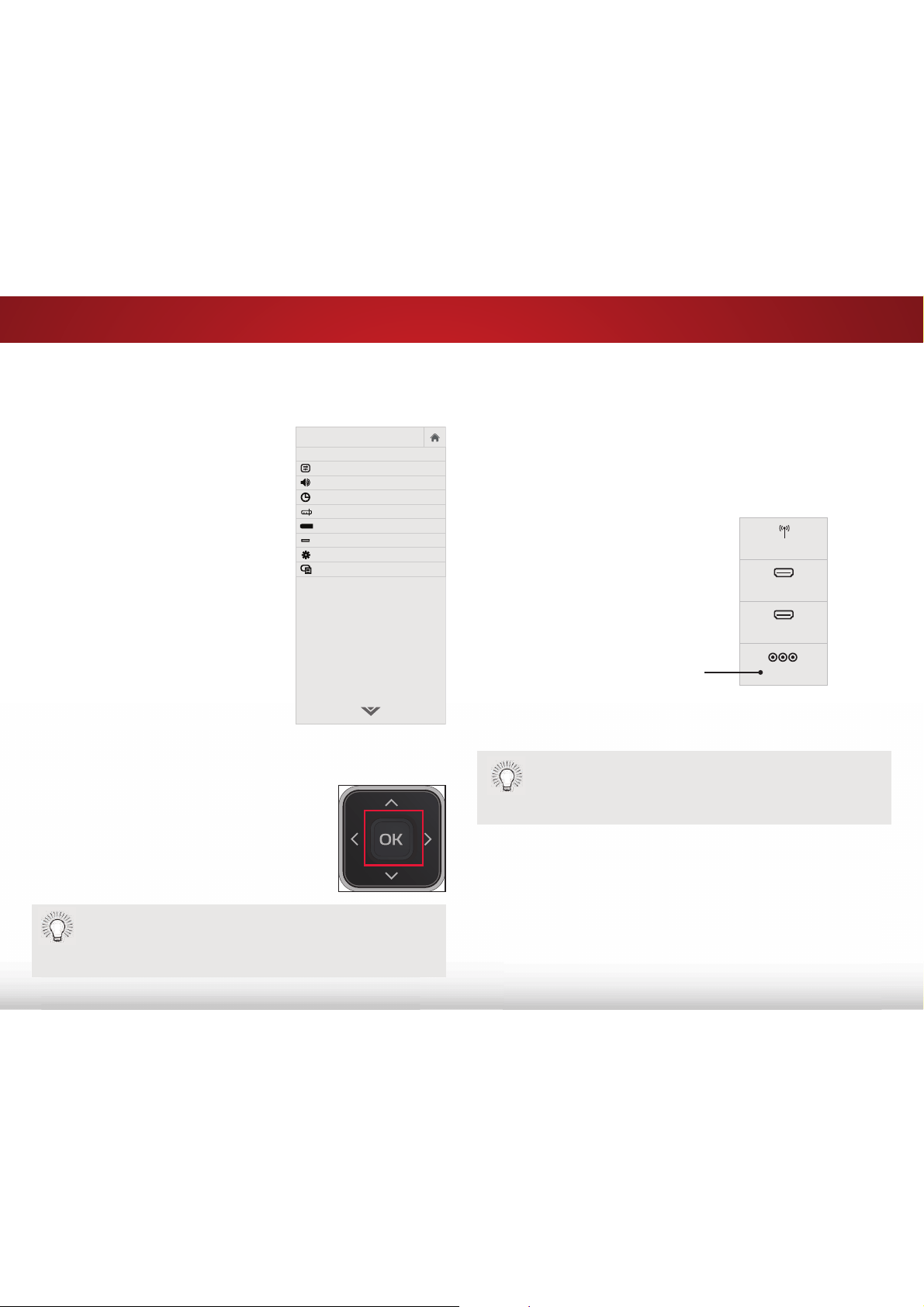
Completing the First-Time Setup
7KHȴUVWWLPH\RXWXUQRQWKH79WKH6HWXS$SSZLOOJXLGH\RX
WKURXJKHDFKRIWKHVWHSVQHFHVVDU\WRJHW\RXU79UHDG\IRUXVH
%HIRUH\RXEHJLQWKHȴUVWWLPHVHWXS
• <RXU79VKRXOGEHLQVWDOOHGDQGWKHSRZHUFRUGVKRXOGEH
FRQQHFWHGWRDQHOHFWULFDORXWOHW
• <RXUGHYLFHVVKRXOGEHFRQQHFWHG
7RFRPSOHWHWKHȴUVWWLPHVHWXS
3UHVVWKHPowerEXWWRQRQWKH
UHPRWH7KH79SRZHUVRQDQG
WKH6HWXS$SSVWDUWV
8VHWKHArrowEXWWRQVRQWKH
UHPRWHWRKLJKOLJKWHome Use
DQGSUHVVOK
8VHWKHArrowEXWWRQVRQ
WKHUHPRWHWRKLJKOLJKW\RXU
SUHIHUUHGODQJXDJHDQGWKHQ
SUHVVWKHOKEXWWRQ
INPUT
EXIT
GUIDE
BACK
MENU
OK
Choose your mode.
Select Store Demo for in-store display.
Select Home Use for in-home use.
Seleccione "Home Use" para Modo de Casa o "Store Demo" para Demostración en la Tienda.
Choisissez "Home Use" pour le Mode Domicile ou "Store Demo" pour la Démo en Magasin.
Store Demo Home Use
8VHWKHArrowEXWWRQVRQWKH
UHPRWHWRKLJKOLJKW\RXU79
VRXUFHDQGSUHVVOK
ΖI\RXKDYHFDEOH79VHOHFW
ZKHWKHU\RXKDYHDFDEOHER[RU
LI\RXFRQQHFWWKH79GLUHFWO\WR
DFDEOHIURPWKHZDOO
ΖIWKH796LJQDOFKDQQHOVFDQ
VFUHHQDSSHDUVWKH79ZLOOVFDQ
IRUFKDQQHOVZKLFKWDNHVVHYHUDO
PLQXWHV8VHWKHDUURZEXWWRQV
RQWKHUHPRWHWRKLJKOLJKWBegin
ScanDQGSUHVVOK
2WKHUZLVHXVHWKHArrowDQG
OKEXWWRQVRQWKHUHPRWHWR
VHOHFWWKHLQSXW\RXU79VRXUFH
LVFRQQHFWHGWR
7KHQXPEHURILQSXWVPD\YDU\
GHSHQGLQJRQ\RXU79
:KHQ\RXDUHȴQLVKHGȊ<RXU9Ζ=Ζ279LVVHWXSȋZLOOEH
GLVSOD\HG
7KHȴUVWWLPHVHWXSLVFRPSOHWH
5
19
Using the On-Screen Menu
Your TV features an easy-to-use on-screen menu.
To open the on-screen menu, press the MENU button on the remote.
From this menu, you can:
• Adjust the Picture settings
• Adjust the Audio settings
• Activate the Sleep Timer
• Find and Set Up Channels
• Set up Closed Captioning
• Name the TV Inputs
• Adjust the TV Settings
• Access the Guided Setup
NAVIGATING THE ON-SCREEN MENU
To open the on-screen menu, press
the MENU button on the remote.
Use the Arrow buttons to highlight
a menu option, and press the OK
button to select that option.
VIZIO
SETTINGS
Picture
Audio
Timers
Channels
Closed Captions
Devices
System
Guided Setup
CC
While navigating the on-screen menu, you can press the
BACK button at any time to return to the previous menu
screen. The EXIT button will close the
on-screen menu.
CHANGING THE INPUT SOURCE
External devices such as DVD players, Blu-ray Players, and video
game consoles can be connected to your TV. To use one of these
GHYLFHVZLWK\RXU79\RXPXVWȴUVWFKDQJHWKHLQSXWVRXUFHLQWKH
on-screen menu.
To change the input device:
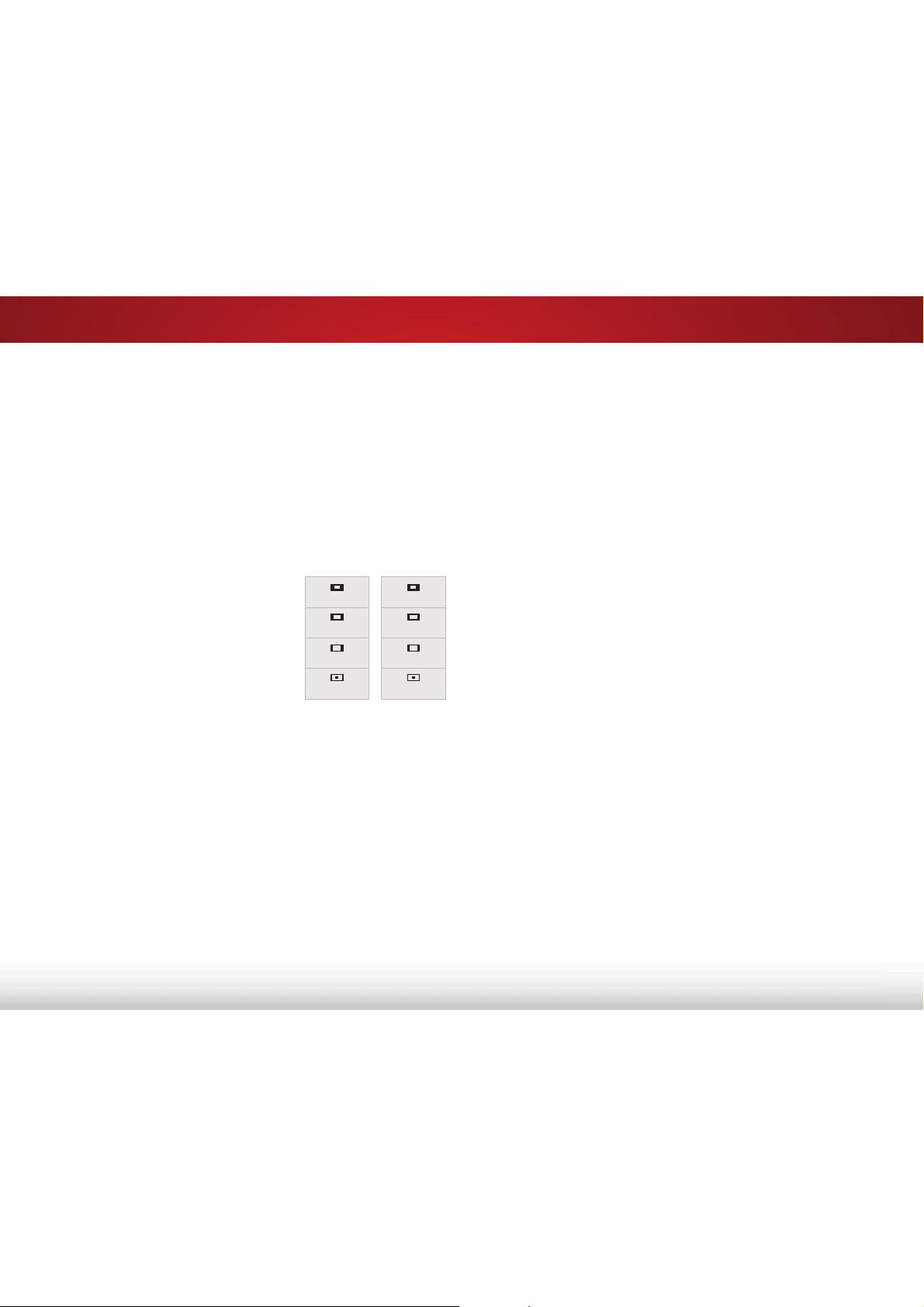
1. Press the INPUT button on
the remote. The input menu is
displayed.
2. Use the Up/Down Arrow
buttons or the INPUT button on
the remote to highlight the input
you wish to view and press OK.
The selected input is displayed.
You can change the input names that appear on the
Input menu to make your devices easy to recognize.
See
Renaming Inputs (Using the Devices Menu)
on page
39 for more information.
Note: Inputs may vary by TV.
Input Name
COMP
HDMI-1
HDMI-2
TV
5
20
CHANGING THE SCREEN ASPECT RATIO
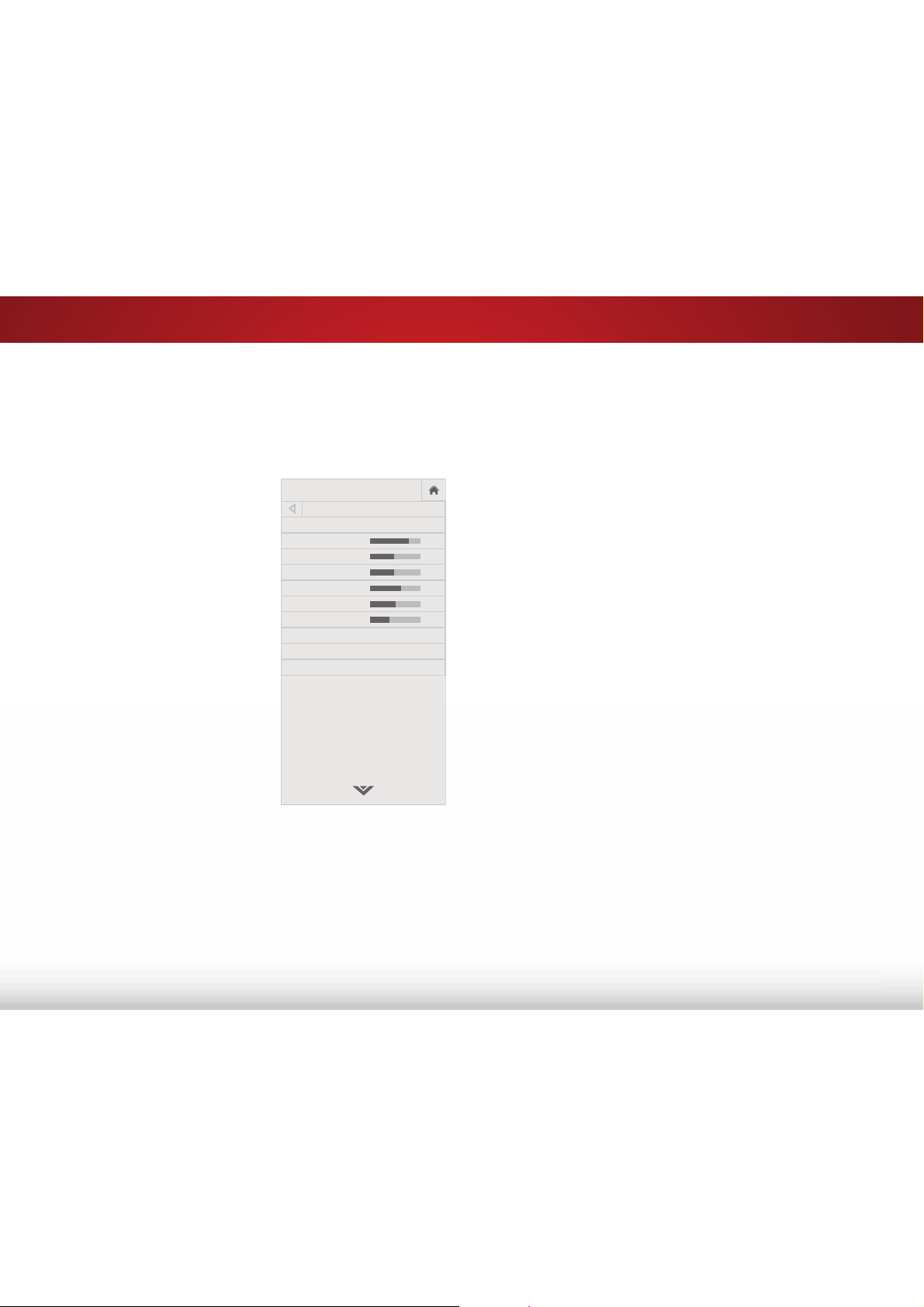
7KH79FDQGLVSOD\LPDJHVLQȴYHGLHUHQWPRGHV1RUPDO6WUHWFK
Panoramic, Wide, and Zoom. Each mode displays the picture
GLHUHQWO\
Some programs have black bars on the top or sides of the picture
so that the picture keeps its original shape. Examples include
wide-screen movies and older television programs.
To change the screen aspect ratio:
1. Press the WIDE button on the
remote.
2. Use the Arrow buttons to
highlight the aspect ratio you
wish to view and press OK.
• Normal preserves the content’s
original aspect ratio and size.
• 6WDQGDUG'HȴQLWLRQ (480i and
480p—old TV programs) - Since
the 4:3 aspect ratio is not large
HQRXJKWRȴOOWKH79ȇVVFUHHQ
black bars are added to the left
and right of the display image.
• SDQGL+' - Fills a 720p or 1080p screen.
• SDQGL+' - Fills a 720p or 1080p screen.
• StretchH[SDQGVDZLGHVFUHHQLPDJHWRȴOOWKHVFUHHQIURP
top to bottom and stretches it half as much from right to
left. Figures appear tall and thin.
• 6WDQGDUG'HȴQLWLRQ - Not available.
• SDQGL+' - If you are watching widescreen
FRQWHQWWKHLPDJHZLOOȴOOWKHVFUHHQ:LWK
ZLGHVFUHHQFRQWHQWRQHVL[WKRIWKHLPDJHLVFXWRE\
the left and right sides of the screen.
• SDQGL - Not available.
Panoramic
Wide
Zoom
Normal
Stretch
Wide
Zoom
Normal
Note: Aspect ratio settings may
vary by Input source.
• 3DQRUDPLF stretches a 4:3 aspect ratio picture to the left
and right edges of the screen. The center of the image is
not stretched, but the sides of the image are extremely
stretched. If you are watching widescreen (1.85:1 or 2.35:1)
content with black bars on the top and bottom, the black
bars will still appear on the top and bottom of the display
image.
• 6WDQGDUG'HȴQLWLRQ (480i and 480p) - Fills the screen
from the left to right edges.
• SDQGL - Not available.
• SDQGL - Not available.
• :LGH stretches a 4:3 aspect ratio picture to the edges of
the screen. Since the picture is being stretched, the display
LPDJHPD\DSSHDUGLVWRUWHGȃȴJXUHVDSSHDUVKRUWDQGIDW
If the program is already formatted for widescreen viewing
(1.85:1 or 2.35:1), then black bars will appear on the top
and bottom of the display image.
• Zoom expands images evenly in all directions (33% taller
DQGZLGHUZLWKEODFNEDUVWRȴWWKHVFUHHQ$S
LPDJHZLOOȴOODSVFUHHQ
• 6WDQGDUG'HȴQLWLRQ - Not available.
• SDQGL+' - Fills a 1080p screen
• SDQGL - Not available.
5
21
ADJUSTING THE PICTURE SETTINGS
Your TV display can be adjusted to suit your preferences and viewing
conditions.
To adjust the picture settings:
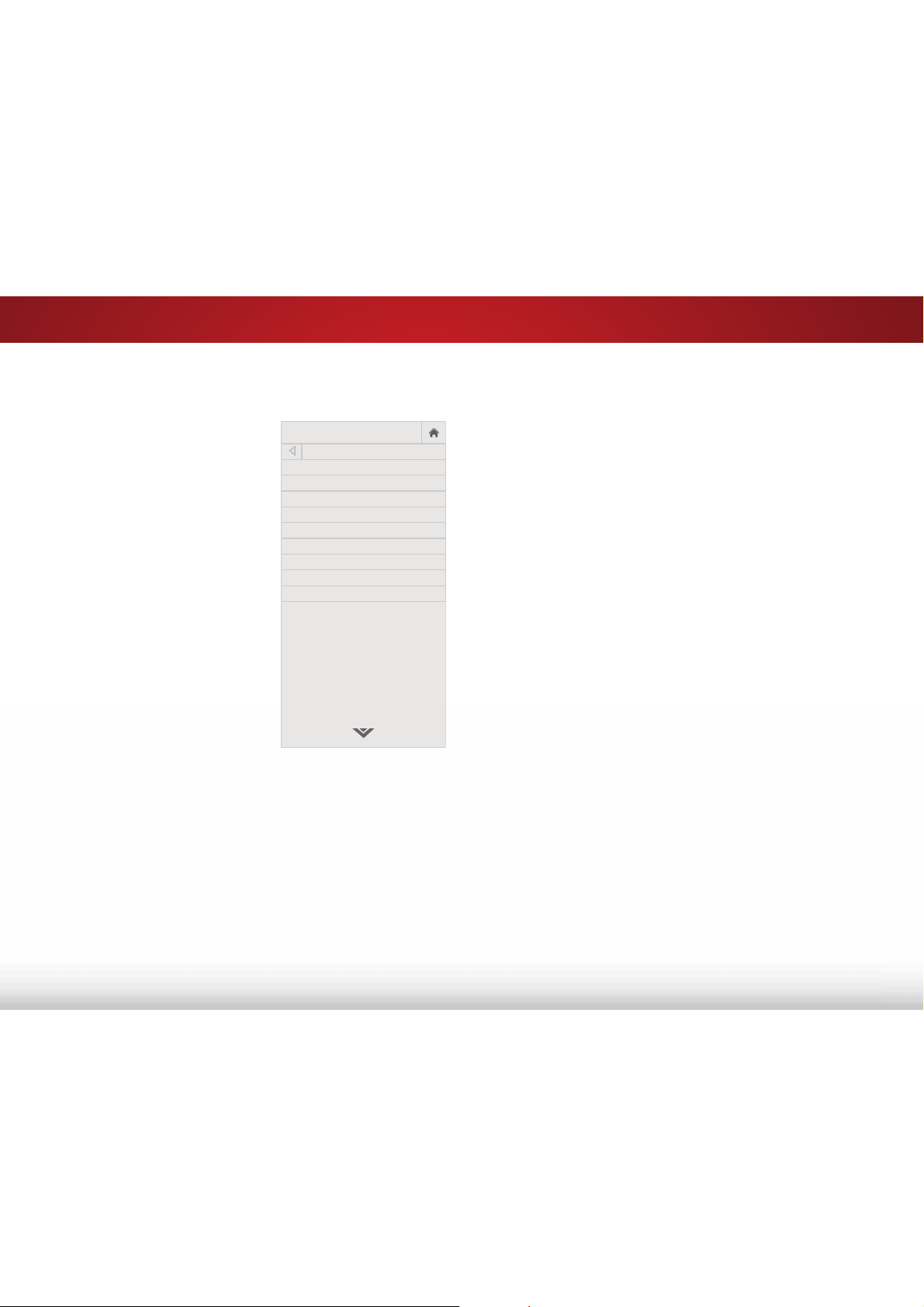
1. Press the MENU button on the
remote. The on-screen menu is
displayed.
2. Use the Arrow buttons on the
remote to highlight 3LFWXUH and
press OK. The PICTURE menu is
displayed.
3. Use the Arrow buttons on the
remote to highlight 3LFWXUH
Mode, then use the /HIW5LJKW
Arrow buttons to change the
picture mode:
• Standard mode sets the
various picture settings to
values that meet
ENERGY STAR
®
requirements.
• &DOLEUDWHGPRGH sets the
picture settings to values
perfect for watching TV in a
brightly-lit room.
• &DOLEUDWHG'DUNPRGHsets the picture settings to values
perfect for watching TV in a dark room.
• 9LYLGPRGHsets the picture settings to values that produce
a brighter, more vivid picture.
• Game mode reduces throughput delays and optimizes the
picture settings for displaying game console output.
• Computer mode optimizes the picture settings for
displaying computer output.
4. To manually change each of the picture settings, use the Up/
Down Arrow buttons on the remote to highlight that picture
setting, then use the /HIW5LJKW$UURZ buttons to adjust the
setting. To return to the PICTURE menu, press the %DFN button
on the remote.
• %DFNOLJKW$GMXVWVWKH/('EULJKWQHVVWRDHFWWKHRYHUDOO
brilliance of the picture. Backlight cannot be adjusted from
some picture modes.
• %ULJKWQHVV - Adjusts the black level of the picture. When
this setting is too low, the picture may be too dark to
distinguish details. When this setting is too high, the picture
may appear faded or washed out.
• &RQWUDVW - Adjusts the white level of the picture. When this
setting is too low, the picture may appear dark. When this
setting is too high, the picture may appear faded or washed
out. If the setting is too high or too low, detail may be
GLɝFXOWWRGLVWLQJXLVKLQGDUNRUEULJKWDUHDVRIWKHSLFWXUH
• Color - Adjusts the intensity of the picture colors.
• 7LQW- Adjusts the hue of the picture. This setting is useful in
DGMXVWLQJWKHȵHVKWRQHVLQWKHSLFWXUHΖIȵHVKDSSHDUVWRR
orange, reduce the level of color before adjusting tint.
• 6KDUSQHVV - Adjusts the edge sharpness of picture
elements. It can be used to sharpen non-HD (high
GHȴQLWLRQFRQWHQWKRZHYHULWZLOOQRWSURGXFHGHWDLOWKDW
does not otherwise exist.
5. :KHQ\RXKDYHȴQLVKHGDGMXVWLQJWKHSLFWXUHVHWWLQJVSUHVV
the EXIT button on the remote.
VIZIO
PICTURE
Picture Mode Standard
Backlight 85
Brightness 50
Contrast 52
Color 60
Tint 0
Sharpness 9
More Picture
Picture Mode Edit
Color Calibration
-
+
+
-
-
+
-
+
-
+
-
+
Select from preset picture modes. Standard
picture mode meets ENERGY STAR
®
requirements. For the best picture, use
Calibrated mode. To reduce video delay
(lag) when gaming, use Game mode.
5
22
$GMXVWLQJWKH0RUH3LFWXUH6HWWLQJV
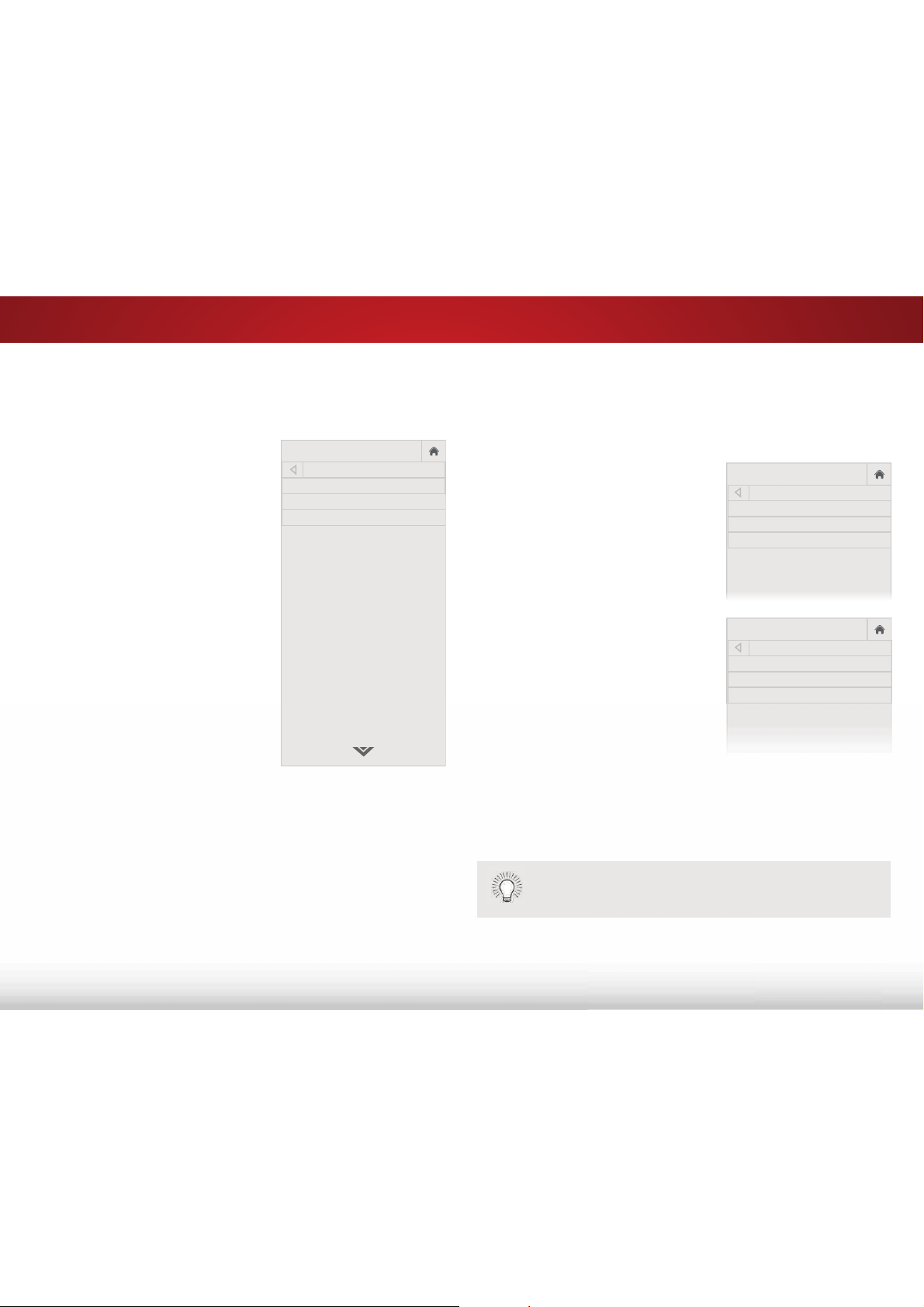
To adjust the More Picture settings:
1. From the PICTURE menu, use the
Arrow buttons on the remote
to highlight 0RUH3LFWXUH and
press OK. The MORE PICTURE
menu is displayed.
2. Use the Arrow buttons to highlight
the setting you wish to adjust, then
press /HIW5LJKW$UURZbuttons to
change
the setting:
• Color Temperature -
See
Adjusting the Color
Temperature
on page 23.
• %ODFN'HWDLO- Adjusts the
average brightness of the
picture to compensate for
large areas of brightness.
Select 2, Low, 0HGLXP, or
+LJK.
• %DFNOLJKW&RQWURO-
Dynamically improves the
contrast ratio of the picture
by adjusting the backlight.
Select On or 2.
• 5HGXFH6LJQDO1RLVH - Reduces background picture noise
when viewing analog sources. The function helps to correct
"speckle" noise with a slight reduction in sharpness. Select
2, Low, 0HGLXP, or +LJK.
• 5HGXFH%ORFN1RLVH - Reduces pixelation and distortion for
PSHJȴOHV6HOHFW2, Low, 0HGLXP, or +LJK.
• Game Low Latency - Reduces video delay (lag) when
gaming. Select On or 2. This option is not available for
devices connected using a coaxial cable.
VIZIO
MORE PICTURE
Color Temperature Cool
Black Detail Low
Backlight Control On
Reduce Signal Noise
Reduce Block Noise
Game Low Latency On
Picture Size & Position
Film Mode Auto
Gamma 2.2
• 3LFWXUH6L]H3RVLWLRQ - Opens a sub-menu with two
options:
• 3LFWXUH6L]H increases or decreases the vertical and
horizontal size of the displayed picture.
• 3LFWXUH3RVLWLRQ adjusts the vertical and horizontal
positions of the picture to ensure the image is centered
DQGFRPSOHWHO\ȴOOVWKHVFUHHQ8VHWKH/HIW5LJKW$UURZ
buttons to adjust the horizontal position of the displayed
picture. Use the Up/Down Arrow buttons to adjust the
vertical position of the displayed picture. Press the OK
EXWWRQZKHQ\RXDUHȴQLVKHG
• )LOP0RGH2SWLPL]HVWKHSLFWXUHIRUZDWFKLQJȴOP6HOHFW
$XWRRU2
• Gamma - Sets the shape of the gamma curve. Use lower
values for bright room conditions and higher values when it
is dark. Select 1.8, 2.0, 2.1, 2.2, or 2.4.
3. :KHQ\RXKDYHȴQLVKHGDGMXVWLQJWKH0RUH3LFWXUH6HWWLQJVSUHVV
the EXIT button on the remote.
5
23
$GMXVWLQJWKH&RORU7HPSHUDWXUH
Adjusting the color temperature changes the white balance of the
picture.
To adjust the color temperature:
1. From the MORE PICTURE menu,
use the Arrow buttons to
highlight Color Temperature,
then press OK.
2. Use the Arrow buttons on
the remote to highlight Color
Temperature, then press OK.
3. Use the /HIW5LJKW$UURZ
buttons to highlight a color
temperature preset and then
press OK:
• Normal is optimized for
television viewing.
• Computer optimizes the
picture for use as a
PC monitor.
• Cool produces a blue-hued
picture.
4. :KHQ\RXKDYHȴQLVKHG
adjusting the color temperature,
press the EXIT button on the
remote.
VIZIO
COLOR TEMPERATURE
Normal
Computer
Cool
$GMXVWLQJWKH3LFWXUH0RGH(GLW6HWWLQJV
Picture Mode Edit allows you to create picture modes to save groups
of picture settings.
To adjust the Picture Mode Edit settings:
1. From the PICTURE menu, use the
Arrow buttons to highlight 3LFWXUH
0RGH(GLW, and then press OK.
The PICTURE MODE EDIT menu is
displayed.
2. Use the Arrow buttons to
highlight an option, then press
OK:
• 6DYH3LFWXUH0RGH
†
- Save
the picture mode settings as
a new custom picture mode.
• /RFN3LFWXUH0RGHPrevent
changes to custom picture
modes.
• 8QORFN3LFWXUH0RGH Allow
changes to custom picture
modes.
• 5HVHW3LFWXUH0RGH
††
- Reset
the picture mode settings to
the factory default values.
• 'HOHWH3LFWXUH0RGHDelete a custom picture mode. Inputs
assigned to that custom picture mode will be set to Calibrated
picture mode.
VIZIO
PICTURE MODE EDIT
-
Calibrated*
Save Picture Mode
Lock Picture Mode
Reset Picture Mode - Calibrated*
†
Only available when the current picture mode is a pre-set mode.
† †
Only available when the current picture mode is a pre-set mode and some of its
settings have been changed.
VIZIO
PICTURE MODE EDIT
-
My Settings
Save Picture Mode
Unlock Picture Mode
Delete Picture Mode - My Settings
If you've changed the settings for a picture mode, an
asterisk appears after its name.
5
24
6DYLQJD&XVWRP3LFWXUH0RGH
Custom picture modes allow you to save a group of custom settings
for various viewing conditions and video sources.
• When changes are made to a preset picture mode, an
asterisk appears after its name(*).
• The custom picture mode is not automatically saved.
To save a custom picture mode:
1. From the PICTURE MODE EDIT
menu, use the Arrow buttons
to highlight 6DYH3LFWXUH
Mode, and then press OK. The
SAVE PICTURE MODE menu is
displayed.
2. Use either the on-screen
keyboard to type a name for
your custom picture mode.
3. Highlight 6DYH and press OK.
4. Press the EXIT button to exit the
menu screens.
VIZIO
SAVE PICTURE MODE
Custom1_
Save
a b c d e f g h i
j k l m n o p q r
s t u v w x y z 0
1 2 3 4 5 6 7 8 9
.@# äêí Space
/RFNLQJDQG8QORFNLQJ&XVWRP3LFWXUH0RGHV
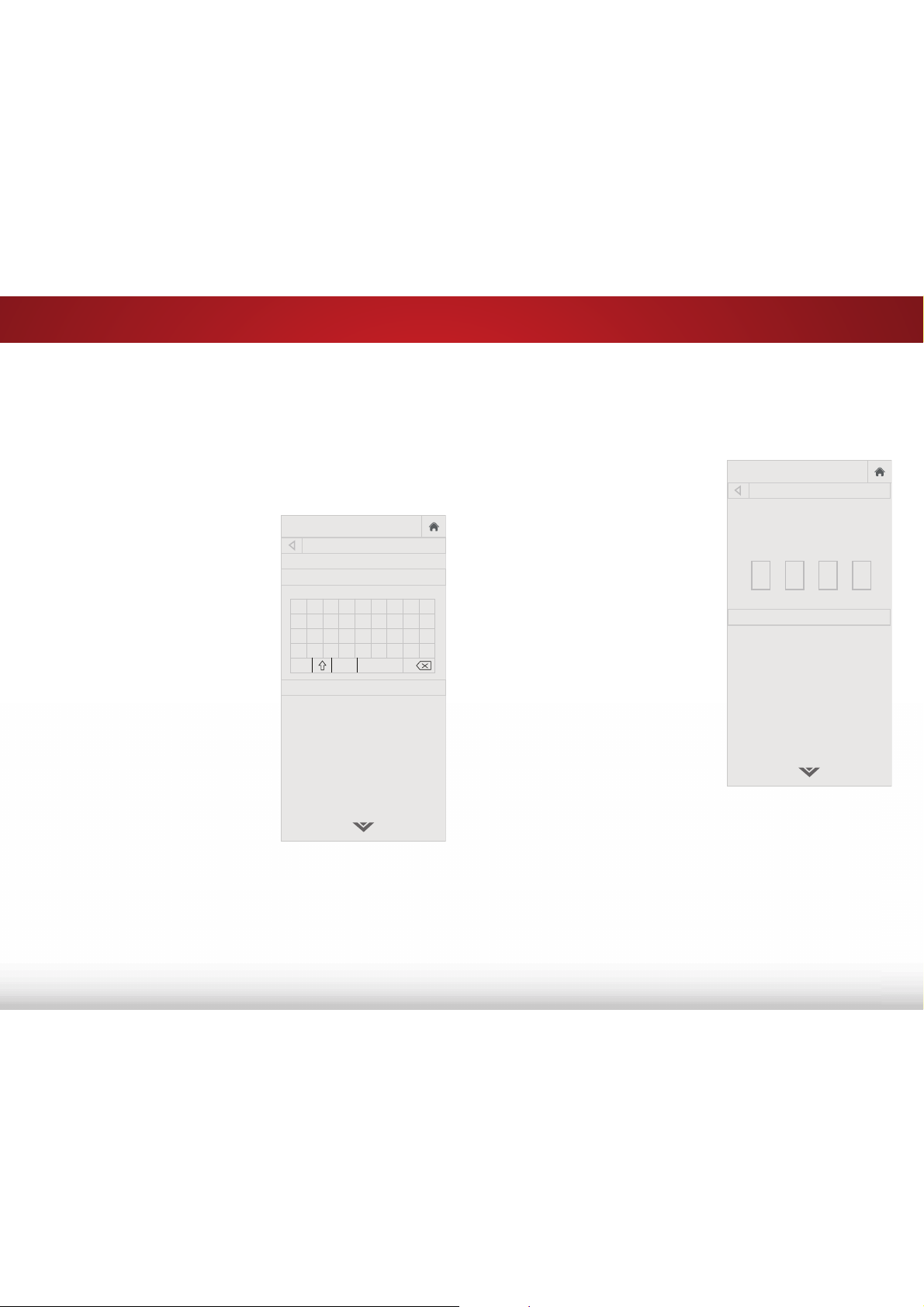
Custom picture modes can be locked/unlocked with a unique PIN to
prevent accidental changes to their settings.
To lock all custom picture modes:
1. From the PICTURE MODE
MANAGEMENT menu, use the
Arrow buttons to highlight /RFN
3LFWXUH0RGH, and then press
OK. The LOCK PICTURE MODE
menu is displayed.
2. Use the 1XPEHU3DG on your
remote to enter a unique 4-digit
PIN.
3. Highlight 6DYH and press OK.
4. Press the EXIT button to exit the
menu screens.
To unlock all custom picture modes:
1. From the PICTURE MODE
MANAGEMENT menu, use the
Arrow buttons to highlight
8QORFN3LFWXUH0RGH, and then
press OK. The UNLOCK PICTURE
MODE menu is displayed.
2. Use the 1XPEHU3DG on your remote to enter your 4-digit PIN.
3. Make any desired changes to the picture modes.
4. Relock the picture modes, if desired. You must create a new
4-digit PIN.
5. Press the EXIT button to exit the menu screens.
VIZIO
LOCK PICTURE MODE
Create a picture control PIN to
prevent change to all custom
picture modes.
Save
Create a 4 digit passcode using the num-
ber keys on the remote.
5
25
'HOHWLQJD&XVWRP3LFWXUH0RGH
Custom picture modes that are no longer needed can be deleted.
To delete a custom picture mode:
1. From the PICTURE MODE
MANAGEMENT menu, use the
Arrow buttons to highlight
'HOHWH3LFWXUH0RGH, and then
press OK. The DELETE PICTURE
MODE window is displayed.
2. Use the Up/Down Arrow buttons to select the custom picture
mode that you want to delete and then press OK.
3. Use the /HIW5LJKW$UURZ buttons to highlight Delete and press
OK.
4. Press the EXIT button to exit the menu screens.
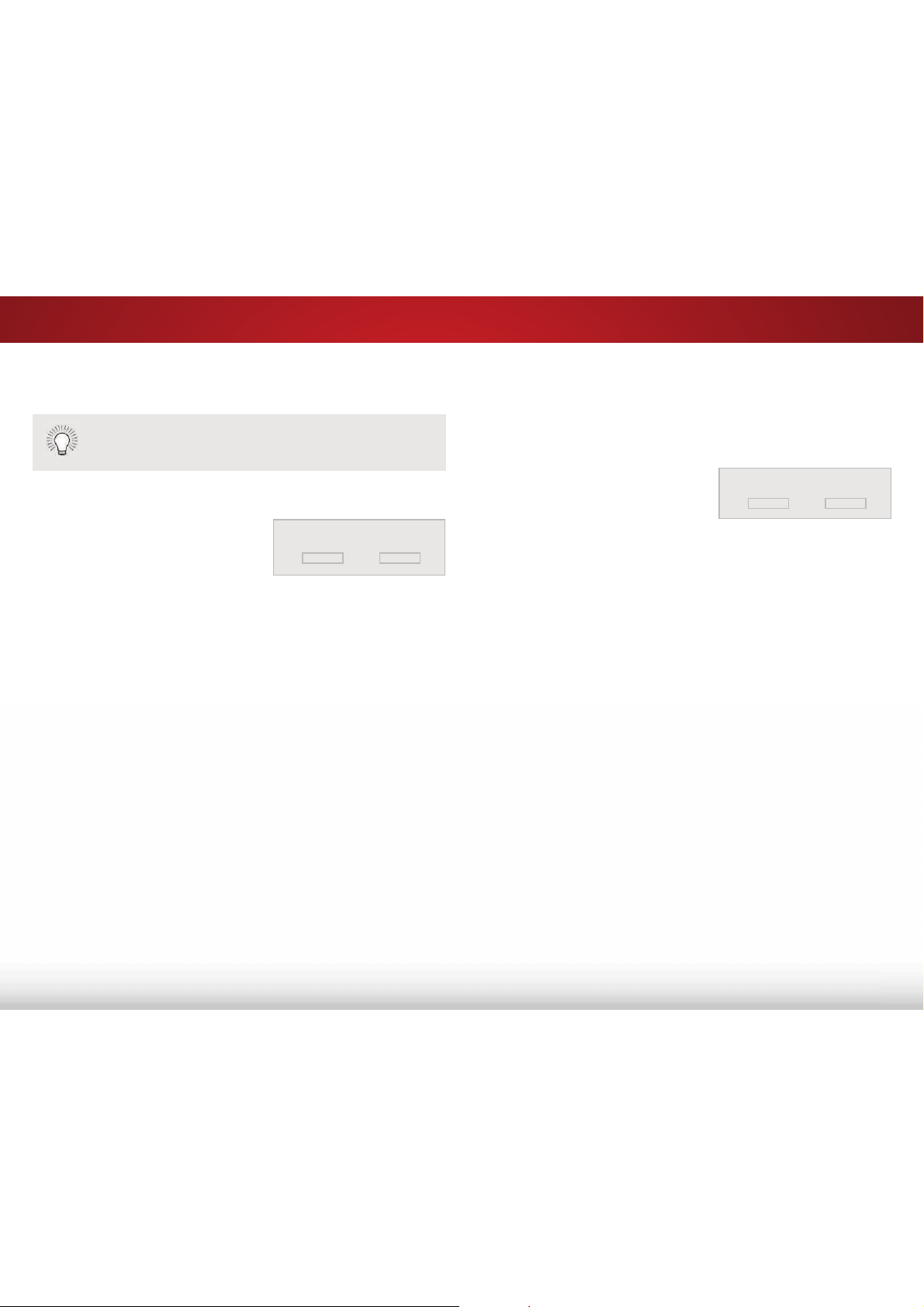
Inputs assigned to a deleted custom picture mode
become assigned to the
Calibrated
picture mode.
To delete the user created Custom 1 picture mode,
select the Delete button.
Delete
Cancel
5HVHWWLQJD3UHVHW3LFWXUH0RGH
Reset the picture mode settings (for a preset picture mode) to the
factory default values.
To reset a customized preset picture mode:
1. From the PICTURE MODE
MANAGEMENT menu, use the
Arrow buttons to highlight 5HVHW
3LFWXUH0RGH, and then press
OK. The RESET PICTURE MODE
window is displayed.
2. Use the Up/Down Arrow buttons to select the customized
preset picture mode that you want to reset and then press OK.
3. Use the /HIW5LJKW$UURZ buttons to highlight 5HVHW and press
OK.
4. Press the EXIT button to exit the menu screens.
Select Reset to restore Standard
picture mode to factory defaults.
Reset
Cancel
5
26
$GMXVWLQJWKH&RORU&DOLEUDWLRQ6HWWLQJV
Color Calibration Settings allow you to make precise adjustments to
the picture and to create picture modes to save groups of picture
settings.
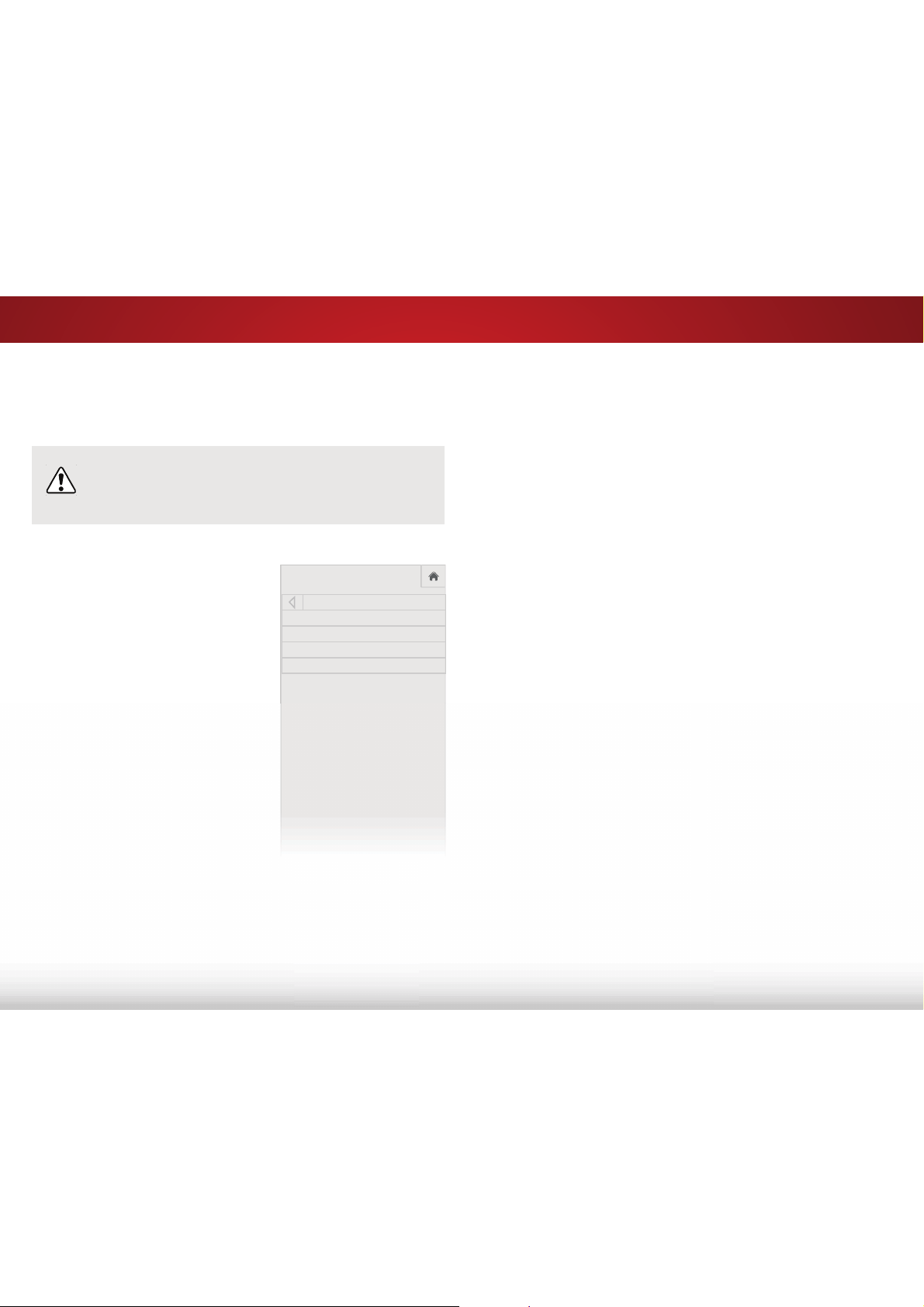
The Color Tuner, 11 Point White Balance, and test
patterns allow technicians to manually calibrate the TV.
Calibration requires specialized training, an input with
precisely set colors, and a specialized light meter.
To adjust the color calibration picture settings:
1. From the PICTURE menu, use
the Arrow buttons to highlight
&RORU&DOLEUDWLRQ and press
the OK button. The COLOR
CALIBRATION menu is displayed.
2. Use the Arrow buttons to
highlight the setting you wish to
adjust, then press the OK button
to change the setting:
• 3LFWXUH0RGH - Not directly
selectable (reference only).
• Color Temperature - Not
directly selectable (reference
only). Changes to Hue,
Saturation, Brightness,
2VHWDQG*DLQDUHVDYHG
here and indicated with an
asterisk (*).
• Color Tuner$GMXVWWKH+6%FRORU5*%RVHWVDQG
11-point white balance, and display calibration test
patterns.
VI
ZI
O
COLOR CALIBRATION
Picture Mode Calibrated
Color Temperature Normal
Color Tuner
Reset Color Tuner
• 5HVHW&RORU7XQHU - Resets the color tuner settings for the
current color temperature mode.
• If the current picture mode is a pre-set, the color
temperature is reset for all pre-set picture modes using
WKHFXUUHQWFRORUWHPSHUDWXUHPRGHΖWGRHVQRWDHFW
saved custom picture modes.
• If the current picture mode is a saved custom picture
mode, the color temperature only reset for that custom
SLFWXUHPRGHVΖWGRHVQRWDHFWSUHVHWSLFWXUHPRGHV
or other custom picture modes.
For example, suppose that:
• You have created two custom picture modes: “My Picture
Settings” and “Oliver.” They both use the Normal color
temperature, but you have adjusted it for each of the
modes.
—and—
• You have changed the Color Tuner settings for the
Normal color temperature while in the Calibrated picture
mode.
6R\RXKDYHȊ0\3LFWXUH6HWWLQJVȋZLWKDPRGLȴHG1RUPDO
FRORUWHPSHUDWXUHȊ2OLYHUȋZLWKGLHUHQWFKDQJHVWRWKH
Normal color temperature, and a third set of changes to the
Normal color temperature that applies to all of the pre-set
picture modes.
The Calibrated and Calibrated Dark picture modes both use
the Normal color temperature. If Calibrated is the current
picture mode when the Normal color temperature is reset,
WKHFKDQJHDHFWVERWKRIWKHVHSLFWXUHPRGHVEXWGRHV
not undo the changes to the color temperature for the “My
Picture Settings” or “Oliver” custom picture modes.
If “My Picture Settings" is the current picture mode when
the Normal color temperature is reset, the change only
DHFWVWKHȊ0\3LFWXUH6HWWLQJVȋSLFWXUHPRGH7KHFRORU
temperature changes to the “Oliver,” Calibrated, and
Calibrated Dark picture modes stay as they are.
5
27
$GMXVWLQJWKH&RORU7XQHU6HWWLQJV
The Color Tuner settings allow you to adjust the Hue, Saturation,
and Brightness (HSB) color and 11 point white balance, turn color
FKDQQHOV RIRU WHVWLQJDQGGLVSOD\FRORUEDUȵDWDQGUDPSWHVW
patterns.
To adjust the HSB color settings:
1. From the PICTURE menu, use the Arrow buttons to highlight
&RORU&DOLEUDWLRQ and press the OK button. The COLOR
CALIBRATION menu is displayed.
2. Use the Arrow buttons to highlight Color Tuner, and press the
OK button. The Color Tuner menu is displayed.
3. Use the Arrow buttons on the remote to highlight the +XH,
6DWXUDWLRQ, %ULJKWQHVV, (these 3 adjust the color) 2VHW, or
*DLQ (these two adjust the color temperature) of the color you
wish to adjust. Press the OK button.
4. Use the /HIW5LJKW$UURZ buttons to adjust the value. When
\RXDUHȴQLVKHGSUHVVWKHOK button to save the setting.
5. :KHQ\RXKDYHȴQLVKHGDGMXVWLQJWKH&RORU7XQHUVHWWLQJV
press the BACK button to adjust additional settings or EXIT.
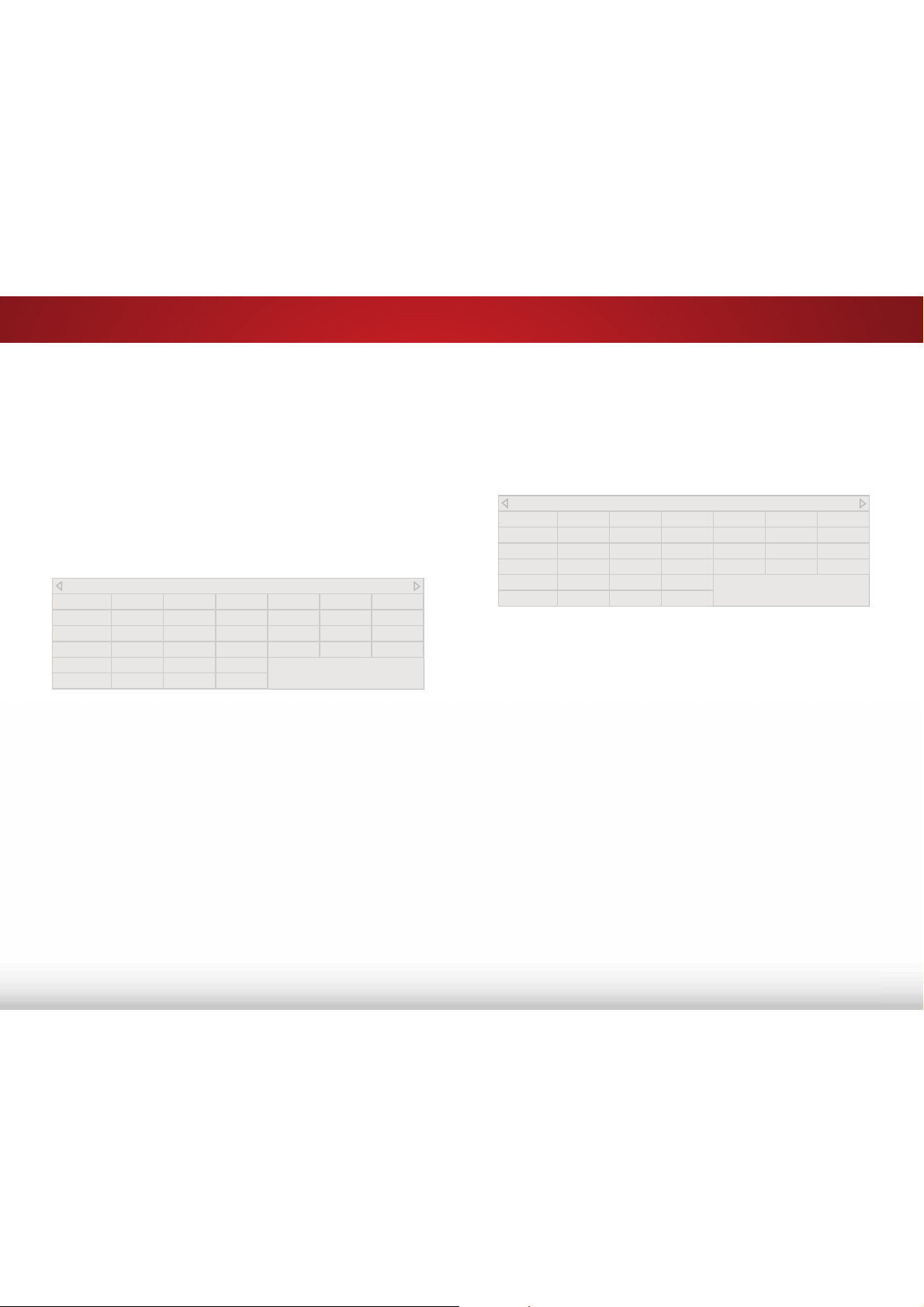
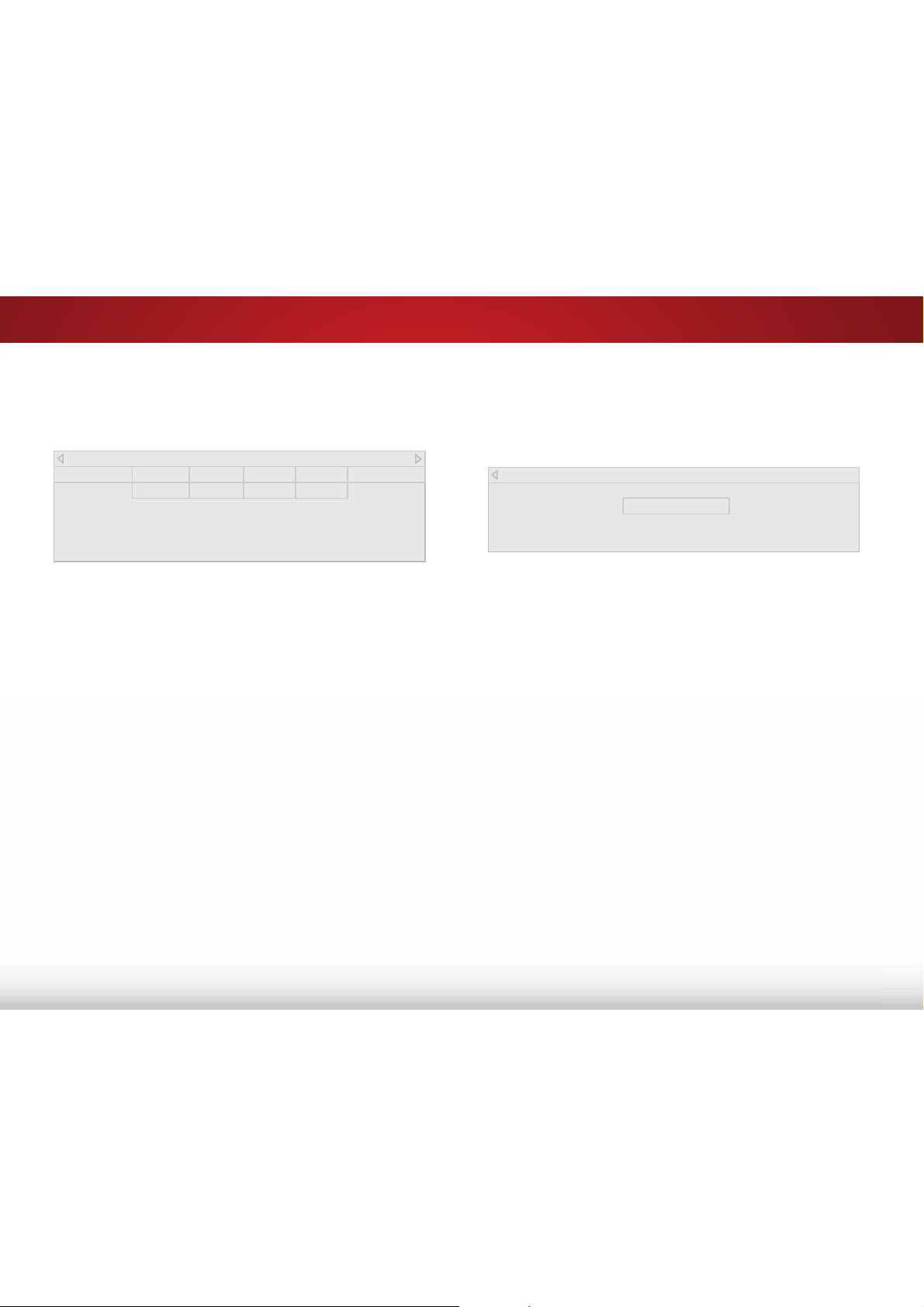
Color Tuner
Red Green Blue Cyan Magenta Yellow
Hue 0 0 0 0 25 -14
Saturation -1 5 -4 0 -2 0
Brightness -24 0 -22 0 0 0
Offset 0 0 0
Gain 0 0 0
7RWXUQFRORUFKDQQHOVRDQGRQ
1. From the PICTURE menu, use the Arrow buttons to highlight
&RORU&DOLEUDWLRQ and press the OK button. The COLOR
CALIBRATION menu is displayed.
2. Use the Arrow buttons to highlight Color Tuner, and then
press the OK button. The Color Tuner menu is displayed ..
3. Use the Arrow buttons on the remote to highlight Red, Green,
or Blue.
4. Press the OKEXWWRQWRWXUQWKHFRORUFKDQQHORRURQ$Q;
DSSHDUVRYHUDFRORUFKDQQHOWKDWKDVEHHQWXUQHGR
5. Use the Arrow buttons to highlight another color channel to
WXUQRRURQ2QO\WZRFRORUFKDQQHOVFDQEHWXUQHGRDWWKH
same time.
6. :KHQ\RXDUHȴQLVKHGZLWKWKHFRORUFKDQQHOVSUHVVWKHBACK
button to adjust additional settings or EXIT.
Color Tuner
Red Green Blue Cyan Magenta Yellow
Hue 0 0 0 0 25 -14
Saturation -1 5 -4 0 -2 0
Brightness -24 0 -22 0 0 0
Offset 0 0 0
Gain 0 0 0
5
28
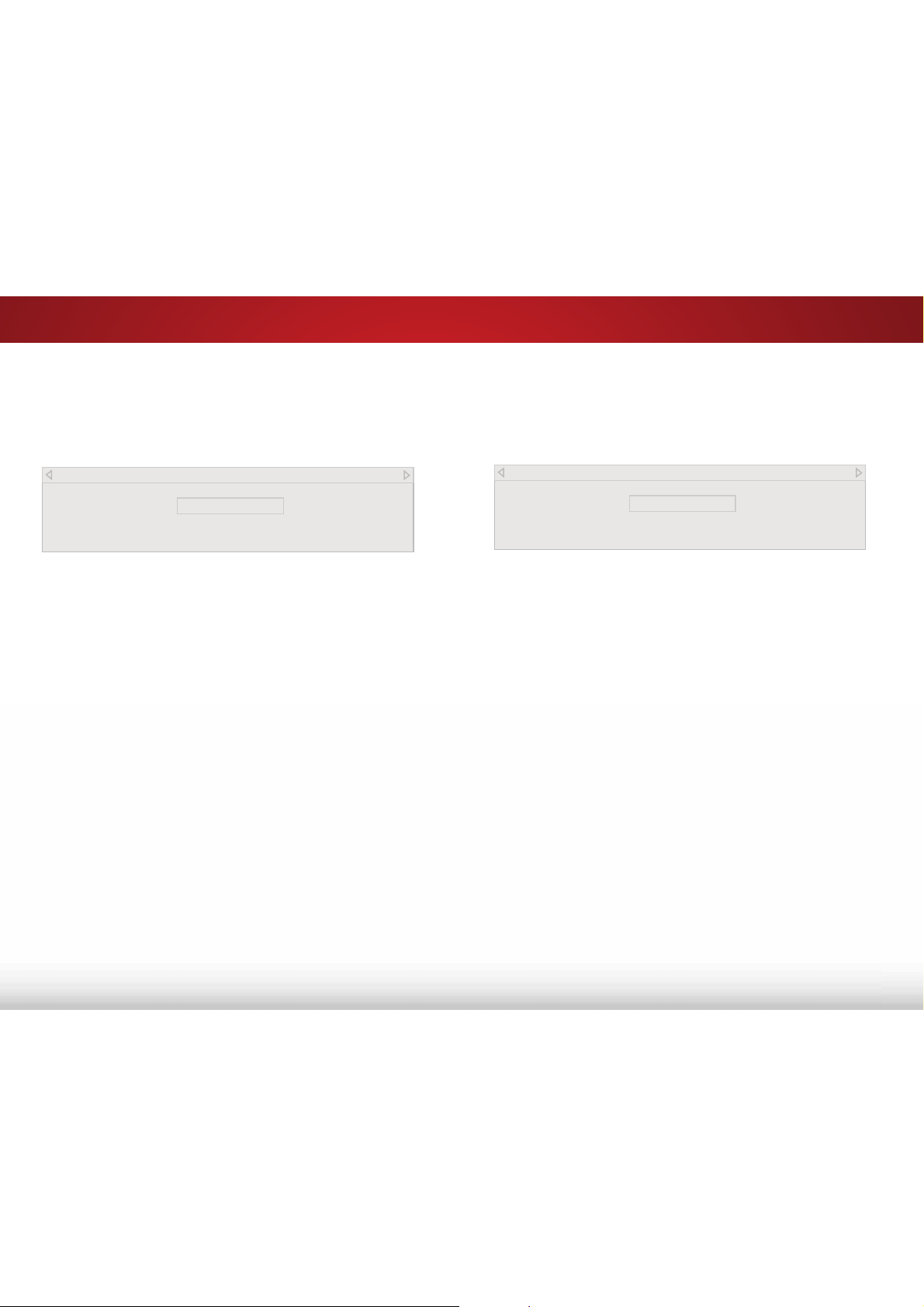
To adjust the 11 Point White Balance settings:
1. From the Color Tuner menu, use the Arrow buttons to
highlight Color Tuner, and then press the /HIW5LJKW Arrow
buttons until the 11 Point White Balance menu is displayed.
2. Use the Arrow buttons on the remote to highlight the *DLQ and
Color values you wish to adjust. Press the OK button and use
the /HIW5LJKW$UURZ buttons to adjust the value. When you
DUHȴQLVKHGSUHVVWKHOK button to save the setting.
3. :KHQ\RXDUHȴQLVKHGSUHVVWKHBACK button to adjust
additional settings or EXIT.
All changes here are saved to Color Temperature.
11 Point White Balance
Gain Red Green Blue
5% 0 0 0
To show or hide the Color Bar Test Pattern:
1. Ensure that you are on an input that is displaying active
content. From the Color Tuner menu, use the Arrow buttons
to highlight Color Tuner, and then press the /HIW5LJKW$UURZ
buttons until the Color Bar Test Pattern menu is displayed.
Color Bar Test Pattern
Off
2. Use the Arrow buttons on the remote to highlight 2. Use the
/HIW5LJKW$UURZ buttons to highlight On to show the Color
Bar.
—or—
To hide the Color Bar Test Pattern, use the /HIW5LJKW$UURZ
buttons to highlight 2.
3. :KHQ\RXDUHȴQLVKHGpress the BACK button to adjust
additional settings or EXIT.
5
29
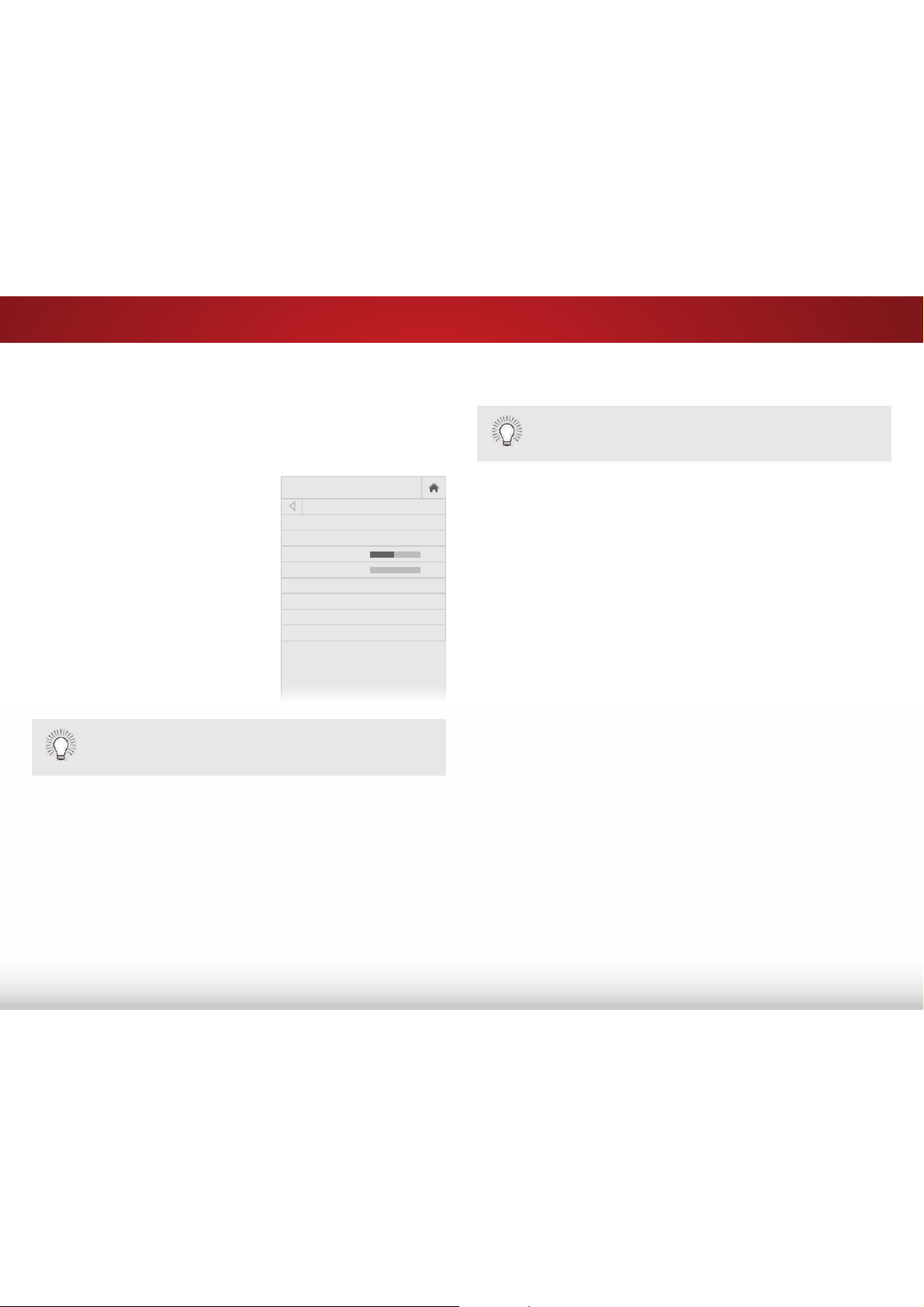
To show or hide the Flat Test Pattern:
1. Ensure that you are on an input that is displaying active
content. From the Color Tuner menu, use the Arrow buttons
to highlight Color Tuner, and then press the /HIW5LJKW$UURZ
buttons until the Flat Test Pattern menu is displayed.
Flat Test Pattern
Off
2. Use the Arrow buttons on the remote to highlight 2. Use the
/HIW5LJKW$UURZ buttons to select the percentage brightness
IRUWKHȵDWWHVWSDWWHUQSelecting a percentage immediately
VKRZVWKHȵDWSDWWHUQDWWKDWbrightness.
—or—
To disable the Flat Test Pattern, use the /HIW5LJKW$UURZ
buttons to highlight 2.
3. :KHQ\RXDUHȴQLVKHGpress the BACK button to adjust
additional settings or EXIT.
To show or hide the Ramp Test Pattern:
1. Ensure that you are on an input that is displaying active
content. From the Color Tuner menu, use the Arrow buttons to
highlight Color Tuner, and then press the /HIW5LJKW$UURZ
buttons until the Ramp Test Pattern menu is displayed.
2. Use the Arrow buttons on the remote to highlight 2. Use the
/HIW5LJKW$UURZ buttons to select the color for the ramp test
pattern. Selecting a color immediately shows that color ramp.
—or—
To hide the Ramp Test Pattern, use the /HIW5LJKW$UURZ
buttons to highlight 2.
3. :KHQ\RXDUHȴQLVKHGSUHVVWKHBACK button to adjust
additional settings or EXIT.
Ramp Test Pattern
Off
5
30
ADJUSTING THE AUDIO SETTINGS
Adjusting audio settings creates a custom audio mode which can be
IXUWKHUPRGLȴHGRUUHVWRUHGWRIDFWRU\GHIDXOWVGHOHWHG
To adjust the audio settings:
1. Press the MENU button on the
remote. The on-screen menu
is displayed.
2. Use the Arrow buttons on the
remote to highlight $XGLR and
press OK. The AUDIO menu
is displayed.
3. Use the Arrow buttons to
highlight the setting you wish
to adjust, then press /HIW5LJKW
Arrow buttons to change
the setting:
• 796SHDNHUV - Turns the
EXLOWLQVSHDNHUVRQRUR
• Surround Sound - Surround sound uses DTS TruSurround
™
to deliver an immersive surround sound experience from
the TV’s internal speakers. TruSurround completes the
entertainment experience by providing deep, rich bass
and by delivering crisp details and clear, intelligible dialog.
Select On or 2.
• Balance - Adjusts the loudness of the audio output from
the left and right speakers.
• /LS6\QF - Adjusts the synchronization between the display
image and the accompanying audio track.
• 'LJLWDO$XGLR2XW - Changes the type of processing for
digital audio out and HDMI ARC output when connected to
VI
ZI
O
AUDIO
TV Speakers On
Surround Sound On
Balance 0
Lip Sync 0
Digital Audio Out PCM
Analog Audio Out Fixed
Equalizer
Delete Audio Mode
-
+
-
+
a home theater audio system or sound bar. Select PCM or
%LWVWUHDP.
• $QDORJ$XGLR2XW - Sets the volume control properties
for the RCA (red & white) connector when connected to a
home theater audio system. Select 9DULDEOH to control the
external speakers’ volume from the TV’s volume controls, or
select )L[HG to control the external speakers’ volume from
your home theater system controls.
• (TXDOL]HU$GMXVWVWKHERRVWRUDWWHQXDWLRQRIGLHUHQW
frequencies using either preset or custom settings. See
Locking and Unlocking Channels
on page 42.
• 'HOHWH$XGLR0RGH - Restores audio equalizer settings
to the factory defaults by deleting the custom mode
previously created. See
Deleting the Custom Audio Mode
on page 31.
4. :KHQ\RXKDYHȴQLVKHGDGMXVWLQJWKHDXGLRVHWWLQJVSUHVVWKH
EXIT button on the remote.
You must select %LWVWUHDP for audio with more than two
channels (3.0, 5.0, or 5.1, for example).
When the TV speakers are set to On, DTS signals cannot
be passed through digital audio outputs.

5
31
'HOHWLQJWKH&XVWRP$XGLR0RGH
To delete the custom audio mode:
1. Press the MENU button on the remote. The on-screen menu is
displayed.
2. Use the Arrow buttons on the remote to highlight $XGLR and
press OK. The AUDIO menu is displayed.
3. Use the Arrow buttons to highlight 'HOHWH$XGLR0RGH and
press OK. The TV displays, “To delete the user created custom
audio mode, select the Delete button."
4. Highlight Delete and press OK.
5. Press the EXIT button on the remote.
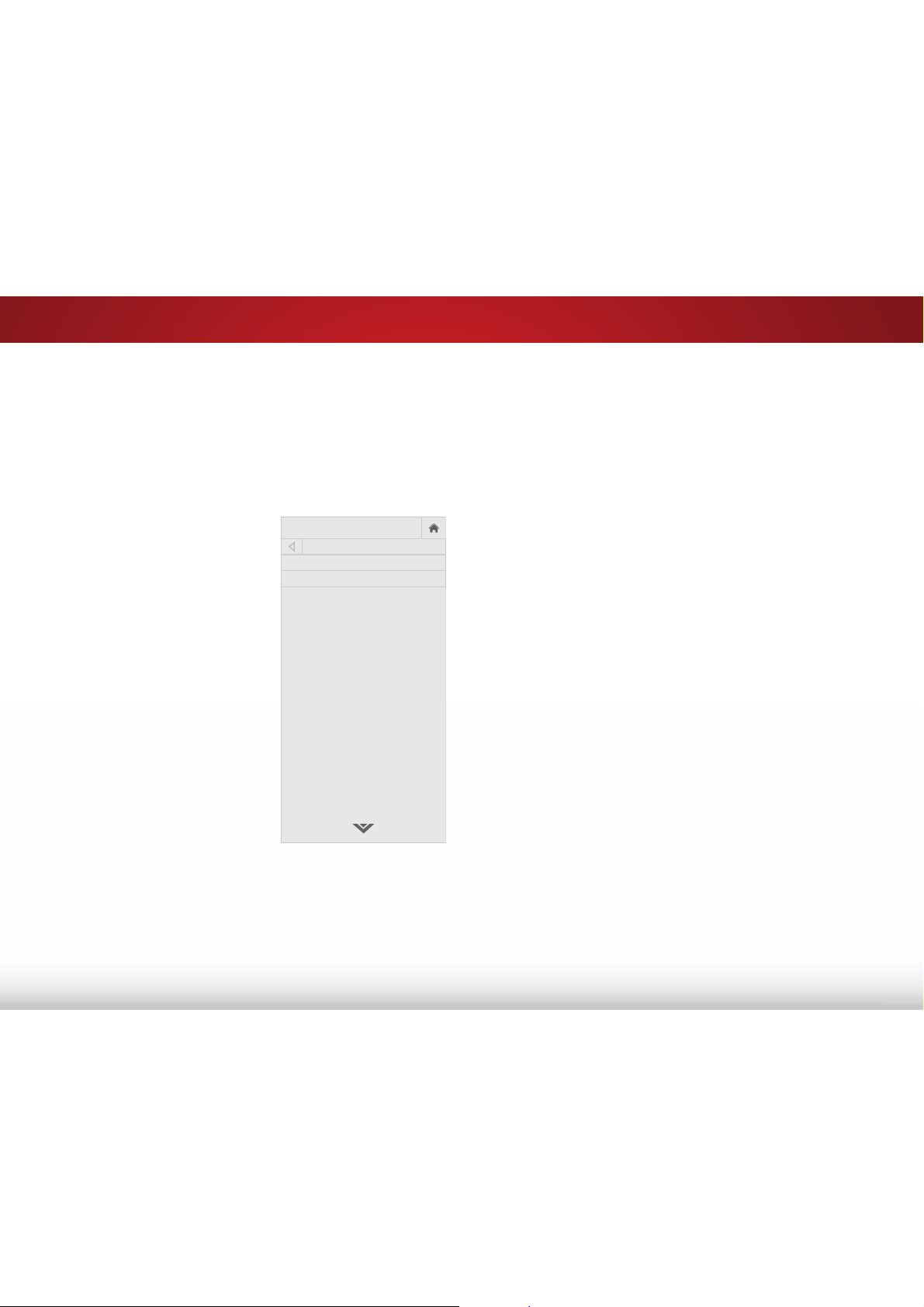
&KDQJLQJWKH(TXDOL]HU6HWWLQJV
To select a pre-set audio mode:
1. Press the MENU button on the remote. The on-screen menu is
displayed.
2. Use the Arrow buttons to highlight $XGLR and press OK. The
AUDIO menu is displayed.
3. Use the Arrow buttons to highlight (TXDOL]HUand press OK.
The AUDIO MODE and equalizer settings screen appears.
4. Use the Left and 5LJKW$UURZ buttons to select an audio mode.
7KHHTXDOL]HUEDUVFKDQJHWRUHȵHFWWKHPRGH
5. Press the EXIT button on the remote.
To customize an equalizer setting:
1. Press the MENU button on the remote. The on-screen menu is
displayed.
2. Use the Arrow buttons to highlight $XGLR and press OK. The
AUDIO menu is displayed.
3. Use the Arrow buttons to highlight (TXDOL]HUand press OK.
The AUDIO MODE and equalizer settings screen appears.
4. Use the Down, Left, and 5LJKW$UURZbuttons to select any
audio mode as a starting point and press OK.
5. Use the Up and Down Arrow buttons to adjust the boost (up)
and attenuation (down) for the frequency.
6. Use the Left and 5LJKW$UURZ buttons to select another
frequency, if desired, and adjust it. A new audio mode called
"Custom" is created.
7. Press the EXIT button on the remote.
5
32
6HWWLQJWKH$XWR3RZHU2)HDWXUH
7R KHOS VDYH HQHUJ\ \RXU 79 LV VHW E\ GHIDXOW WR WXUQ R DIWHU
10 minutes without a video or audio signal. This feature can be
deactivated.
7RVHWWKH$XWR3RZHU2IHDWXUH
1. From the TIMERS menu, use the Up/Down Arrow buttons on
the remote to highlight $XWR3RZHU2.
2. Use the /HIW5LJKW$UURZbuttons on the remote to change
ZKHWKHUWKH79ZLOOWXUQRΖI\RXGRQȇWZDQWWKH79WRWXUQR
when there is no signal, change the setting to 2. Otherwise,
select PLQXWHV
3. :KHQ\RXKDYHȴQLVKHGVHWWLQJWKHDXWRSRZHURWLPHSUHVV
the EXIT button on the remote.
SETTING TIMERS
7KLV79KDVWLPHUVWKDWVDYHHQHUJ\FDQWXUQRWKH79ZKHQ\RXJR
to sleep, and can blank the screen when you stream music.
6HWWLQJWKH6OHHS7LPHU
:KHQDFWLYDWHGWKH79ȇVVOHHSWLPHUZLOOWXUQWKH79RDIWHUDVHW
period of time.
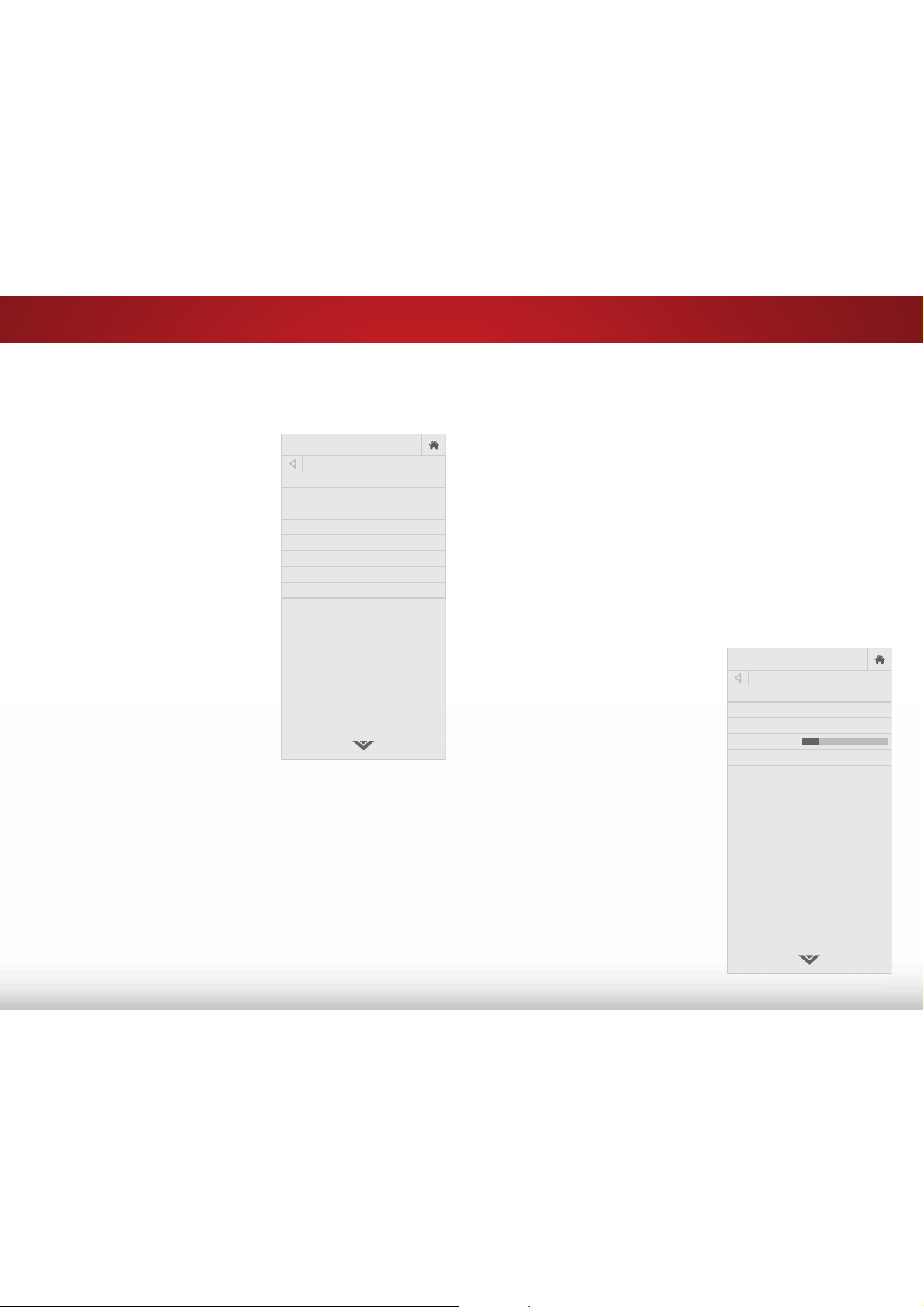
1. Press the MENU button on the
remote. The on-screen menu is
displayed.
2. Use the Arrow buttons on the
remote to highlight 7LPHUV and
press OK. The TIMERS menu is
displayed.
3. From the TIMERS menu, use the
Up/Down Arrow buttons on the
remote to highlight 6OHHS7LPHU.
4. Use the /HIW5LJKW$UURZ
buttons on the remote to
highlight the period of time after
which you want the TV to go to
sleep: 30, 60, 90, 120, or 180
PLQXWHVIf you don’t want the
sleep timer to activate, change
the setting to 2.
5. :KHQ\RXKDYHȴQLVKHGVHWWLQJ
the sleep timer, press the EXIT
button on the remote.
VIZIO
TIMERS
Sleep Timer Off
Auto Power Off 10 minutes
5
33
SETTING UP CHANNELS
You can use the TV’s Tuner menu to:
• Select a channel source
• Find channels
• Perform a partial channel scan
• Manually add channels
• Select channels to skip
• Select language for analog
and digital channels.
VIZIO
CHANNELS
Channels not scanned
Channel Source Cable
Find Channels
Partial Channel Scan
Add Analog Channel
Skip Channel
Analog Audio Stereo
Digital Language English
6HOHFWLQJD&KDQQHO6RXUFH
1. On the remote control, press Input and use the Arrow button
to highlight TV (antenna icon), then press OK.
2. Press the MENU button, select &KDQQHOV and press OK. The
CHANNELS menu is displayed.
3. On the CHANNELS menu, highlight Channel Source and using
the left/right Arrow buttons to select either Antenna or &DEOH.
)LQGLQJ&KDQQHOV
Before the TV can detect and display channels and their associated
information, you must scan for channels. A channel scan may
also be necessary when the TV has been moved to an area where
GLHUHQWIUHHWRDLUEURDGFDVWWHOHYLVLRQFKDQQHOVDUHDYDLODEOH
To perform an Auto Channel Scan:
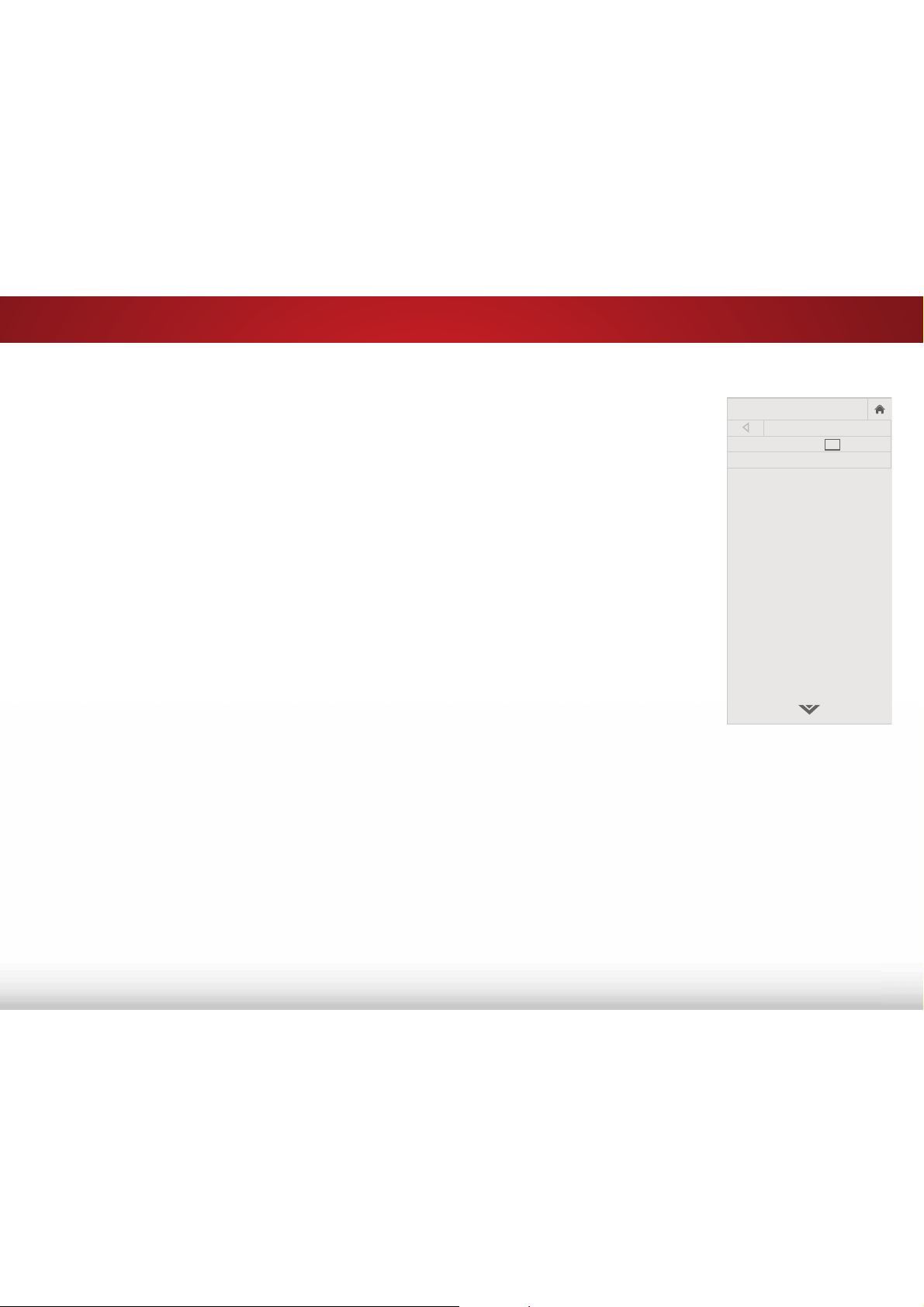
1. From the CHANNELS menu,
highlight )LQG&KDQQHOV, and
press OK. The channel scan
begins.
2. Wait until the channel scan is
100% complete. Highlight Done
and press OK.
3. Press the EXIT button on the
remote.
If the channel scan is cancelled,
only the channels that were
already discovered are saved. A
new channel scan clears all saved
channels.
VIZIO
FIND CHANNELS
Channels Found
Digital: 0
Analog: 0
13% Complete
Cancel
Cancel the channel scan.
5
34
$GGLQJ1HZ&KDQQHOV
Occasionally, you may need to add a new range of channels or add
a new analog channel. You can do this by using the Partial Channel
Search and Add Analog Channel options.
To add a range of new channels:
1. From the CHANNELS menu, highlight 3DUWLDO&KDQQHO6FDQ,
and press OK. The PARTIAL CHANNEL SCAN menu is displayed.
2. Highlight Scan Mode and select the type of channel you are
adding: $QDORJ, 'LJLWDO, or $QDORJ'LJLWDO.
3. Highlight From Channel and enter the channel where you want
to begin the scan. (Use the Left Arrow button to backspace.
Use the 1XPEHU3DG on the remote to enter the channel.)
4. Highlight To Channel and enter the channel where you want
to end the scan. (Use the Left Arrow button to backspace. Use
the 1XPEHU3DG on the remote to enter the channel.)
5. Highlight Start and press OK. The partial channel search
begins.
6. Wait until the partial channel search is 100% complete.
Highlight Done and press OK.
7. Press the EXIT button on the remote.
To add a single new analog channel:
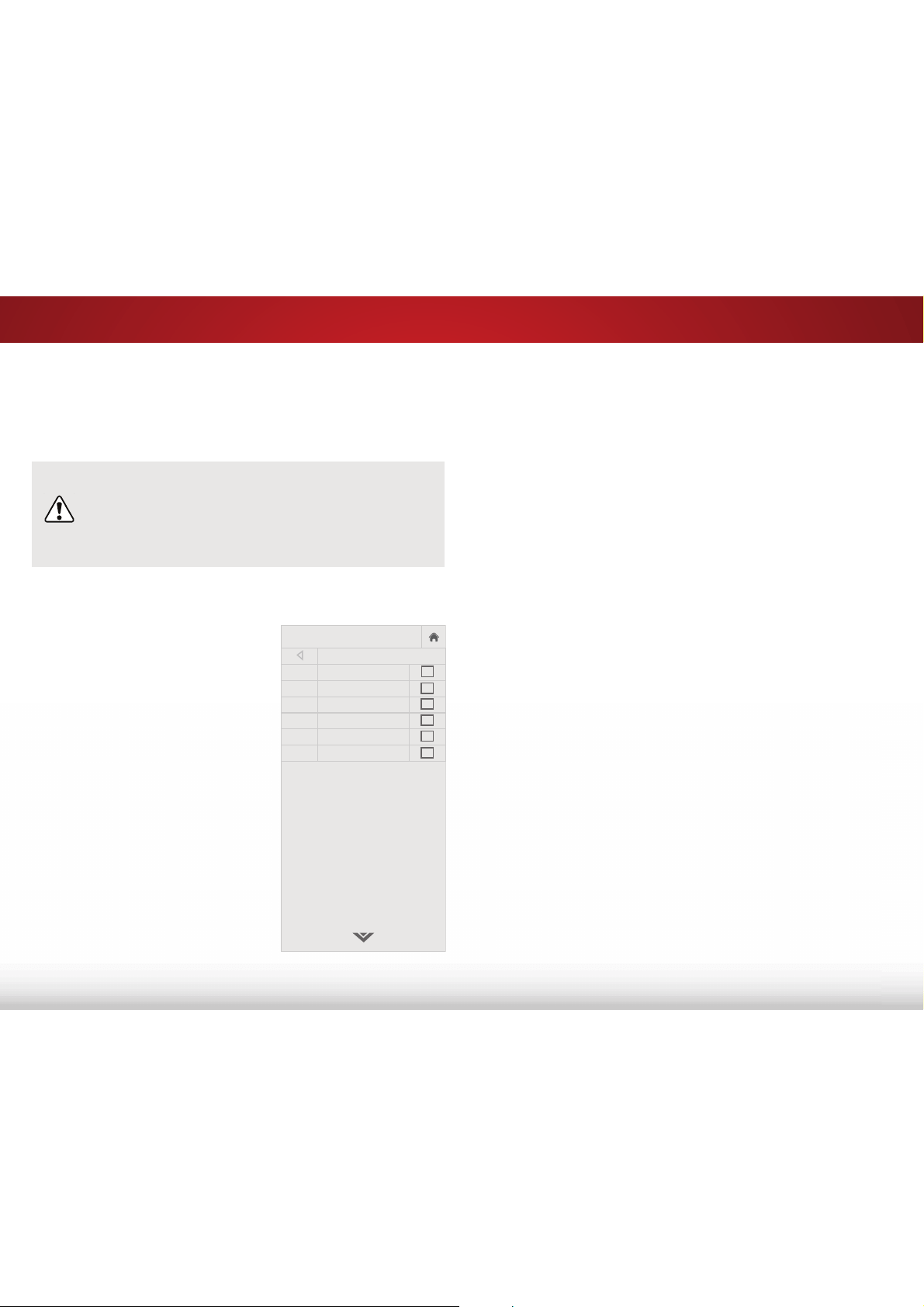
1. From the CHANNELS menu,
highlight $GG$QDORJ&KDQQHO
and press OK. The ADD ANALOG
CHANNEL menu is displayed.
2. Highlight Enter Channel # and
use the 1XPEHU3DG on the
remote to enter the number of
the channel you are adding.
3. Highlight Add Channel and
press OK. The TV scans for the
channel.
4. When the TV is done scanning
for the channel, press the EXIT
button on the remote.
VIZIO
ADD ANALOG CHANNEL
Enter Channel #
Add Channel
5
35
6NLSSLQJ&KDQQHOV
$IWHUDFKDQQHOVFDQLVFRPSOHWHG\RXPD\ȴQGWKDWVRPHFKDQQHOV
are too weak to watch comfortably. There may also be some
channels you do not want to view. You can remove these channels
from the TV’s memory with the Skip Channel feature.
Channels that have been removed with the Skip Channel
feature can still be viewed if the channel is entered
using the Number Pad. If you wish to completely block
a channel from being viewed, use the parental controls.
See
Locking and Unlocking Channels
on page 42.
To remove a channel:
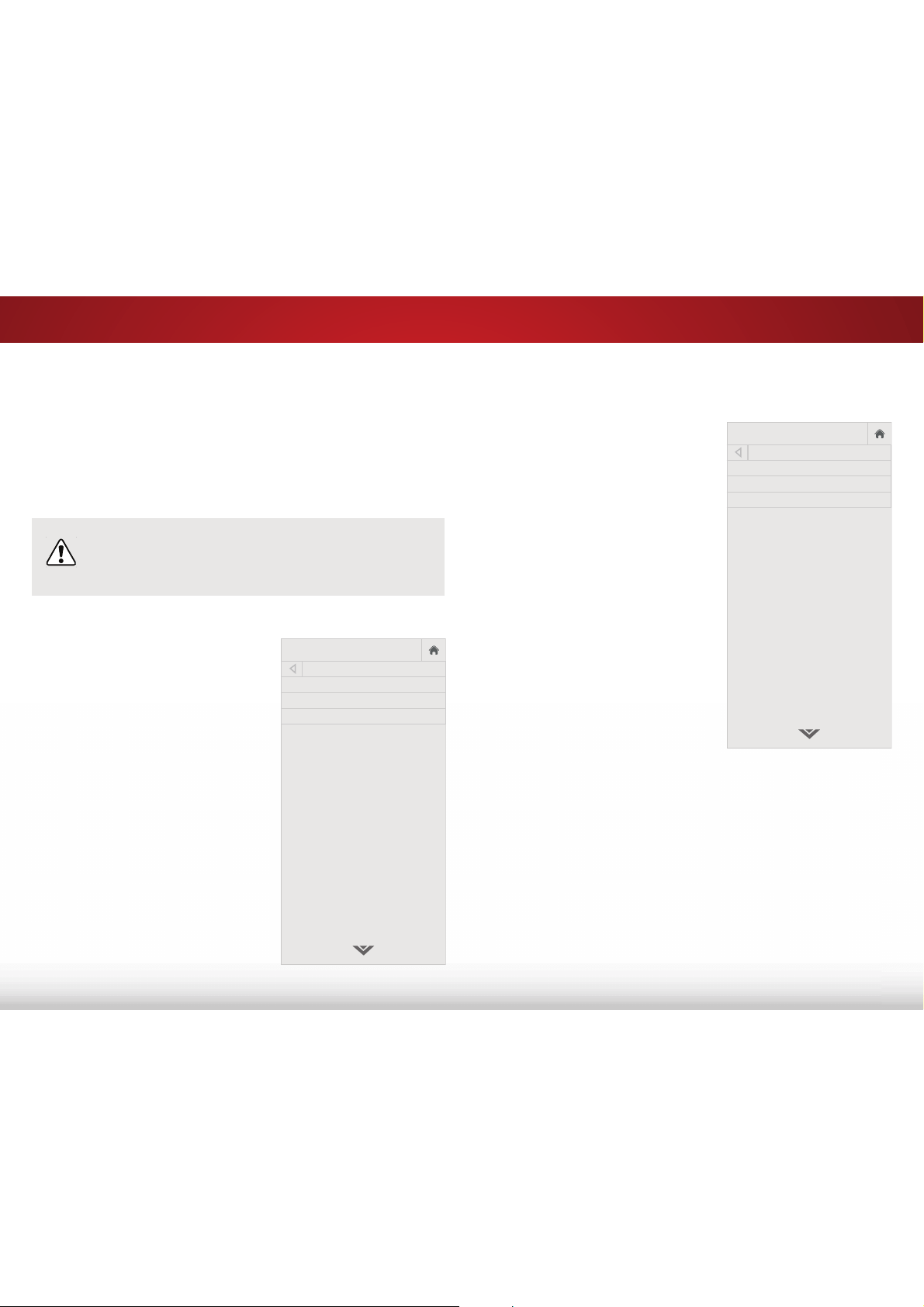
1. From the CHANNELS menu,
highlight 6NLS&KDQQHO, and
press OK. The SKIP CHANNEL
menu is displayed.
2. For each channel you wish
to remove, use the Up/Down
Arrow buttons on the remote to
highlight the channel and press
OK. A
3 appears to the right of
each channel you select.
3. When you have selected all
of the channels you wish to
remove, press the EXIT button
on the remote.
VIZIO
SKIP CHANNEL
1
Test 0
1
Test 1
3
1-2
Test 2
3
2
Test 3
2-2
Test 4
3
2-3
Test 5
5
36
To use the Digital Language feature:
1. From the CHANNELS menu,
highlight 'LJLWDO/DQJXDJH
and press OK. The DIGITAL
LANGUAGE menu is displayed.
2. Select your preferred language:
(QJOLVK, (VSD³RO, or )UDQ©DLV.
Press OK.
3. Press the EXIT button on the
remote.
VIZIO
DIGITAL LANGUAGE
English
Español
Français
&KDQJLQJWKH$XGLR/DQJXDJH
Some free-to-air, cable, and satellite channels broadcast programs
in more than one language. The Analog Audio and Digital Language
features allow you to listen to audio from Secondary Audio
Programming (SAP). SAP allows you to listen to broadcasts in
multiple languages.
• Analog Audio works with analog channels.
• Digital Language works with digital channels.
Not all programs are broadcast in multiple languages.
The Analog Audio and Digital Language features
only work when the program being viewed is being
broadcast in the language you select.
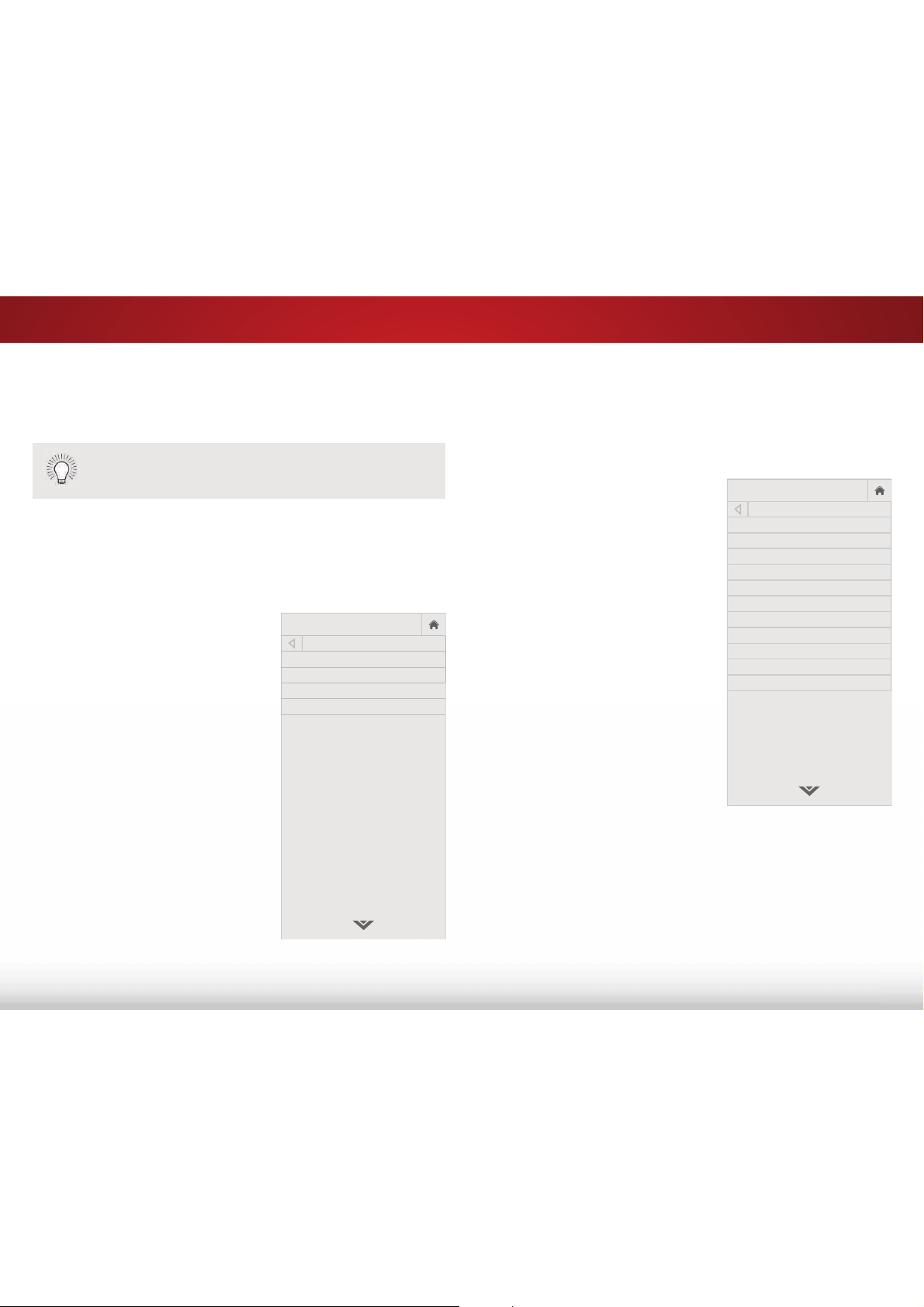
To use the Analog Audio feature:
1. From the CHANNELS menu,
highlight $QDORJ$XGLR and
press OK. The ANALOG AUDIO
menu is displayed.
2. Select Stereo, SAP (Secondary
Audio Programming), or Mono.
Press OK.
3. Press the EXIT button on the
remote.
VIZIO
ANALOG AUDIO
Stereo
SAP
Mono
5
37
SETTING UP CLOSED CAPTIONING
Your TV can display closed captions for programs that include them.
Closed captions display a transcription of a program’s dialogue.
The Closed Captioning menu only appears when the input is an
antenna for Over-the-Air signals, cable TV directly from the wall (no
cable box), or a device with a composite video connection.
To activate or deactivate closed
captions:
1. Press the MENU button on the
remote. The on-screen menu is
displayed.
2. Use the Arrow buttons on the
remote to highlight &ORVHG
&DSWLRQV and press OK. The
CLOSED CAPTIONS menu is
displayed.
3. Use the Arrow buttons on the
remote to highlight the type of
closed captions you wish to see:
• &DSWLRQVturns this option
2QRU2
• $QDORJ&ORVHG&DSWLRQV for
analog (NTSC) TV channels.
• 'LJLWDO&ORVHG&DSWLRQV for
digital (ATSC) TV channels.
4. After highlighting the type of
closed captions you wish to
see, use the /HIW5LJKW$UURZ
buttons on the remote to select
the caption channel you wish to
display, then press EXIT.
If the program you are viewing is not being broadcast
with closed captions, the TV will not display them.
VIZIO
CLOSED CAPTIONS
Captions Off
Analog Closed Captions CC1
Digital Closed Captions CS1
Digital Style Custom
&KDQJLQJWKH$SSHDUDQFHRI'LJLWDO&ORVHG&DSWLRQV
Digital closed captions can be displayed according to your
preference. See the diagram on the next page for an explanation of
the parts of the closed caption area.
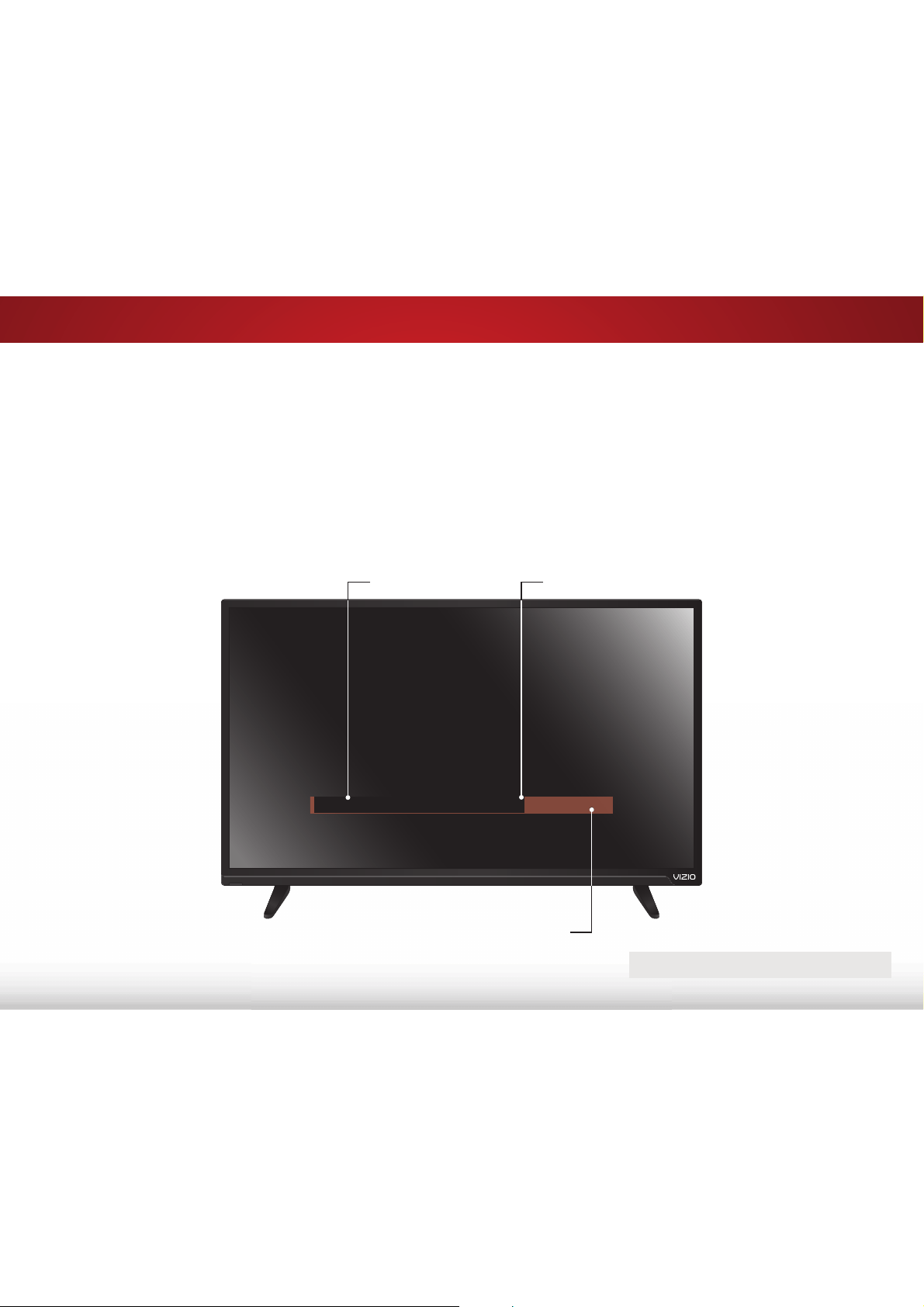
To change the appearance of digital closed captions:
1. From the CLOSED CAPTIONS
menu, use the Arrow buttons to
highlight 'LJLWDO&DSWLRQ6W\OH
and press OK.
2. Use the /HIW5LJKW$UURZ
buttons on the remote to select
'LJLWDO6W\OH!&XVWRP. The
DIGITAL STYLE menu appears as
shown.
3. Use the Up/Down Arrow
buttons on the remote to
highlight the setting you wish to
change, then use the /HIW5LJKW
Arrow buttons to change the
setting:
• &DSWLRQ6W\OH - Choose
$V%URDGFDVW to keep
default settings or &XVWRP
to manually change each
setting.
• 7H[W6W\OH - Changes the
font used for the closed
captioning text.
• 7H[W6L]H - Makes the text larger or smaller.
• 7H[W&RORU - Changes the color of the text.
• 7H[W2SDFLW\ - Changes the transparency of the text.
• 7H[W(GJHV&KDQJHWKHHHFWVDWWKHHGJHVRIWKHWH[W
such as raising the edges or adding drop shadows.
• 7H[W(GJHV&RORU - Change the color at the edges of the text.
VIZIO
DIGITAL STYLE
Caption Style
Custom
Text Style
As Broadcast
Text Size
Large
Text Color
As Broadcast
Text Opacity
As Broadcast
Text Edges
As Broadcast
Text Edges Color
As Broadcast
Background Color
Black
Background Opacity
As Broadcast
Window Color
As Broadcast
Window Opacity
As Broadcast
5
38
• %DFNJURXQG&RORU - Change the color of the background
directly behind the text.
• %DFNJURXQG2SDFLW\ - Change the transparency of the
background directly behind the text.
• :LQGRZ&RORU - Change the color of the closed captioning
box.
• :LQGRZ2SDFLW\ - Change the opacity of the closed
captioning box.
4. :KHQ\RXDUHVDWLVȴHGZLWKWKHDSSHDUDQFHRIWKHFORVHG
captions, press the EXIT button on the remote.
Typical choices include:
• Opaque background, transparent window—Only a strip of
background appears behind the text, expanding as the text
appears. This is the typical "As Broadcast" mode.
• Opaque background and window in the same color—When
WH[WDSSHDUVWKHHQWLUHOLQHȴOOVZLWKFRORUDWRQFH
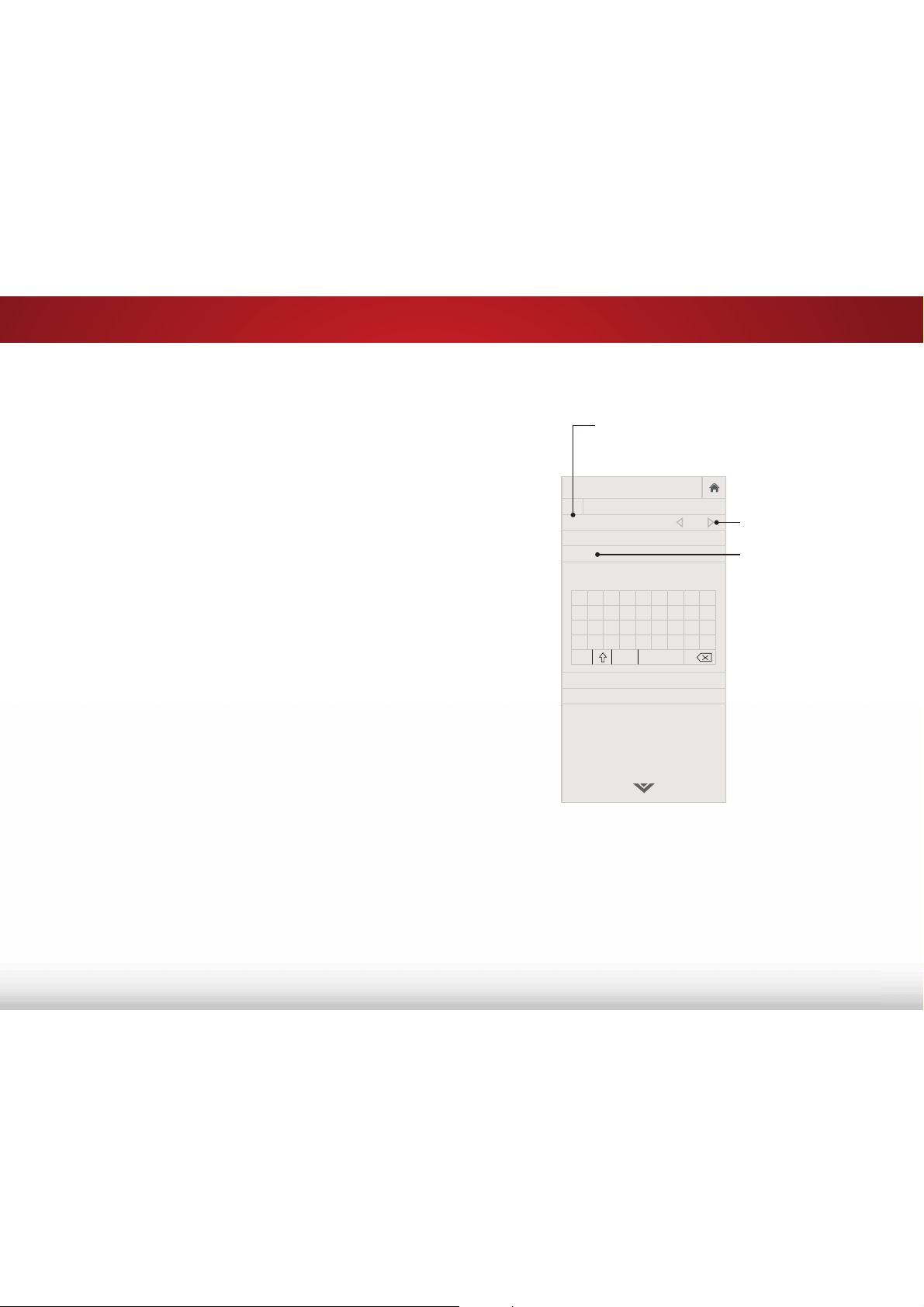
In the example below, the closed caption text is green, the
background is black, and the window is red.
CLOSED CAPTIONS SCREEN
7H[W
:LQGRZ
%DFNJURXQG
CLOSED CAPTION TEXT SAMPLE
5
39
RENAMING INPUTS (USING THE DEVICES MENU)
Inputs can be renamed to make them easier to recognize on the
Input menu (see
Changing the Input Source
on page 19). For
example, if you have a DVD player connected to the Component
input, you can rename that input to display “DVD Player.”
To change the name of an input:
1. Press the MENU button on the remote. The on-screen menu is
displayed.
2. Use the Arrow buttons on the remote to highlight 'HYLFHV and
press OK. The DEVICES menu is displayed.
3. Highlight the input device that you want to rename and press
OK.
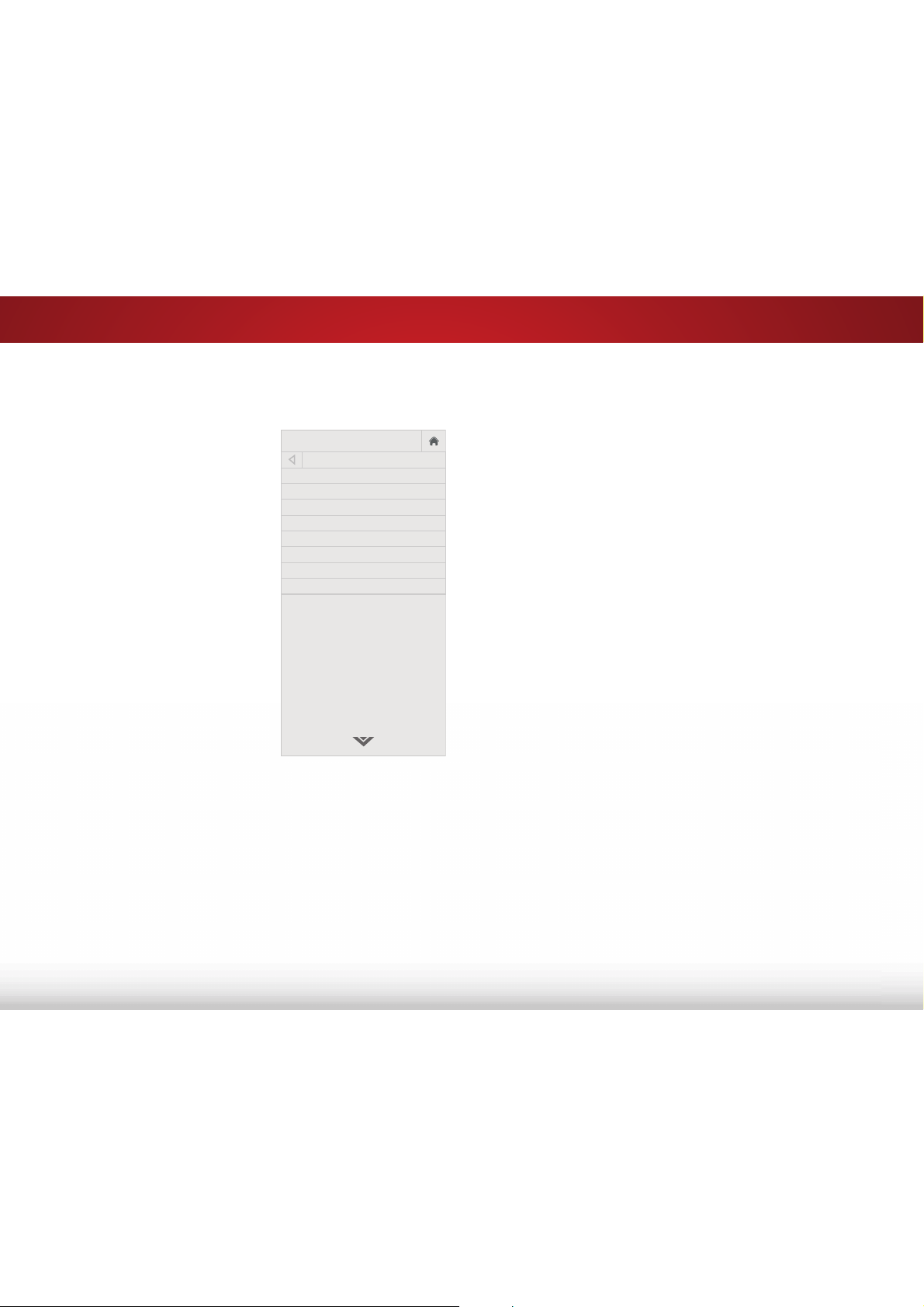
4. To use a preset input name:
a. Highlight the Input Port row and press OK.
b. Highlight the input name you want to use and press OK.
—or—
To enter a custom name:
a. Enter your custom name using the on-screen keyboard.
b. Highlight OK and press OK.
c. The Input Name changes to show the custom name that
you created.
5. :KHQ\RXKDYHȴQLVKHGQDPLQJ\RXULQSXWSUHVVWKHEXIT
button on the remote.
VIZIO
NAME INPUT
HDMI-1 DVD
DVD_
OK
Cancel
Select the input name from a list
of common device names (Blu-ray,
Cable Box, DVD, etc).
a b c d e f g h i
j k l m n o p q r
s t u v w x y z 0
1 2 3 4 5 6 7 8 9
.@# äêí Space
Input Port
&XVWRP1DPH
Input Name
5
40
CHANGING THE TV SETTINGS
Using the system menu, you can:
• View technical system and
networking information
• Change the on-screen menu
language
• Set the time zone and local
setting
• Set up parental controls
• Open the WIDE menu
• Set up CEC devices to control
them with your VIZIO TV
remote
• Control when the power
indicator light is on
• Reset TV settings and control
Smart Interactivity
VIZIO
SYSTEM
System Information
Menu Language English
Time & Local Settings
Parental Controls
Wide
CEC
Power Indicator Off
Reset & Admin
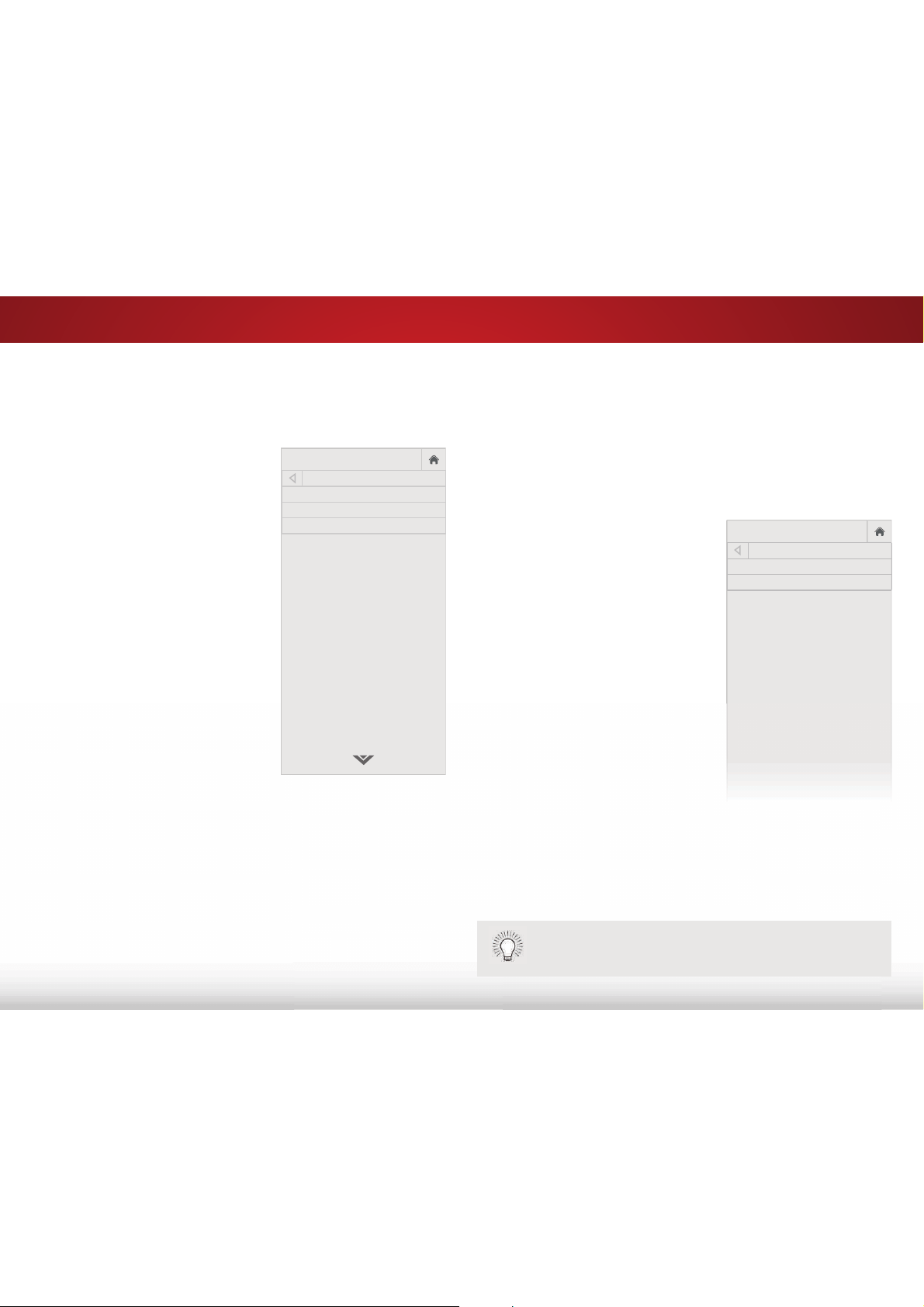
9LHZLQJ6\VWHPΖQIRUPDWLRQ
To view technical data and status information about your TV and
network connection:
1. Press the MENU button on the remote. The on-screen menu is
displayed.
2. Use the Arrow buttons on the remote to highlight 6\VWHP and
press OK. The SYSTEM menu is displayed.
3. Highlight 6\VWHPΖQIRUPDWLRQ and press OK.
4. Use the Up/Down Arrow buttons to scroll through the system
information.
5. :KHQ\RXDUHȴQLVKHGUHYLHZLQJWKHV\VWHPLQIRUPDWLRQSUHVV
the EXIT button on the remote.
5
41
&KDQJLQJWKH2Q6FUHHQ0HQX/DQJXDJH
<RXU79FDQGLVSOD\WKHRQVFUHHQPHQXLQGLHUHQWODQJXDJHV
To change the on-screen menu language:
1. Press the MENU button on the
remote. The on-screen menu is
displayed.
2. Use the Arrow buttons on the
remote to highlight 6\VWHP and
press OK. The SYSTEM menu is
displayed.
3. Use the Arrow buttons on
the remote to highlight Menu
/DQJXDJH and press OK. The
MENU LANGUAGE menu is
displayed.
4. Highlight your preferred
language ((QJOLVK, (VSD³RO, or
)UDQ©DLV) and press OK.
5. Press the EXIT button on the
remote.
VIZIO
MENU LANGUAGE
English
Español
Français
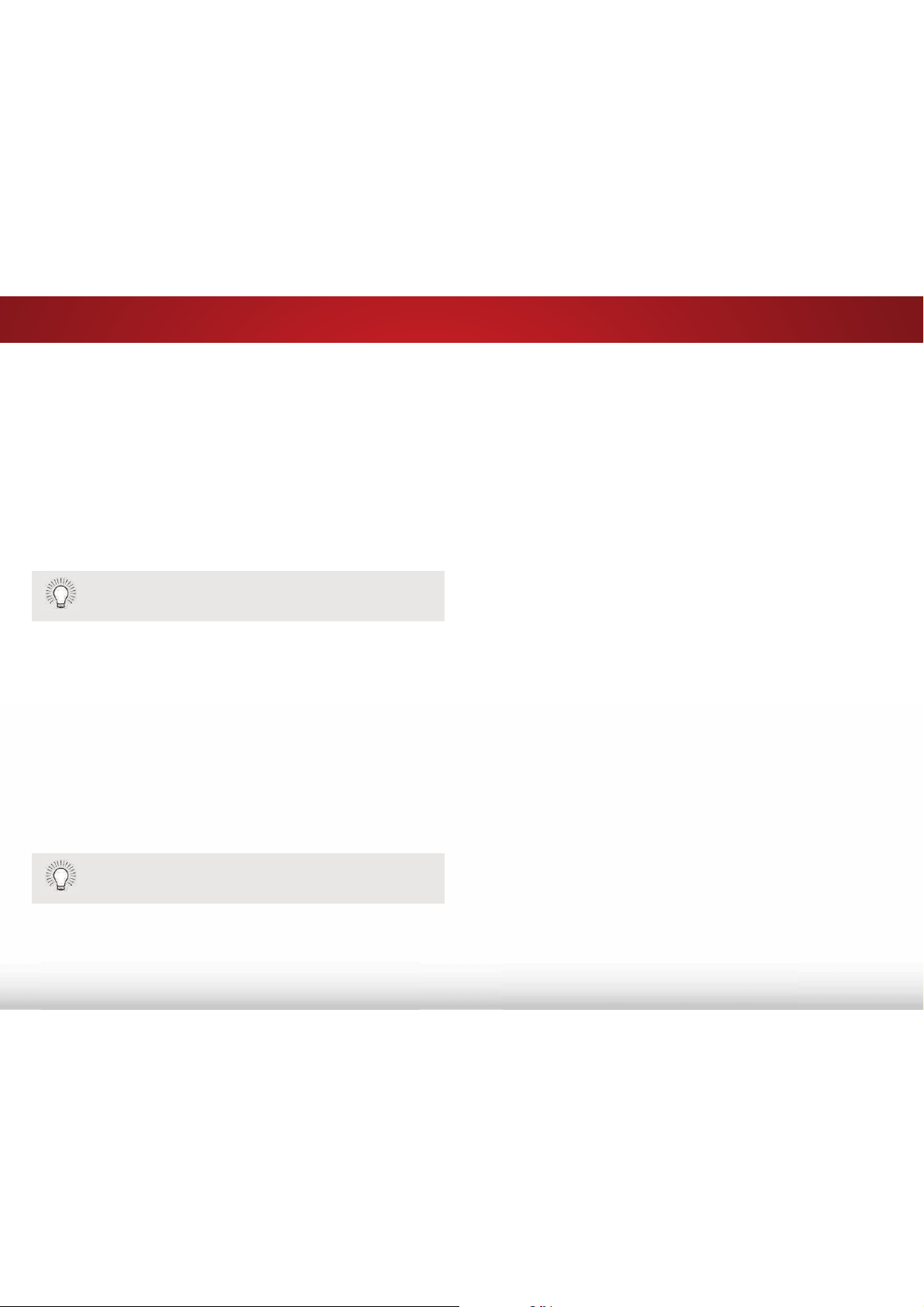
6HWWLQJWKH7LPHDQG/RFDO6HWWLQJV
When your TV signal come from an antenna, your TV receives time
information as part of the broadcast signal. The time is displayed as
part of the information when you press the INFO button. However,
you need to set your time zone and Daylight Saving Time state to
ensure that the correct time is displayed.
To set the TV’s time zone and whether Daylight Saving Time is in
HHFW
1. Press the MENU button on the
remote. The on-screen menu is
displayed.
2. Use the Arrow buttons on the
remote to highlight 6\VWHP and
press OK. The SYSTEM menu is
displayed.
3. Use the Arrow buttons on the
remote to highlight 7LPH/RFDO
6HWWLQJV and press OK. The
menu headed by the local date
and time is displayed.
4. Highlight 7LPH=RQH and press
OK. The TIME ZONE menu is
displayed.
5. Highlight your time zone and press OK.
6. Highlight 'D\OLJKW6DYLQJ7LPH and press OK. The DAYLIGHT
SAVING TIME menu is displayed. Choose On if it is currently
Daylight Saving Time, 2 if it is Standard Time.
7. Press the EXIT button on the remote.
VIZIO
Nov 06, 2014 12:44 PM
Time Zone Pacific
Daylight Saving Time Off
You'll need to change the Daylight Saving Time setting at
the start and end of Daylight Saving time.
5
42
8VLQJWKH3DUHQWDO&RQWUROV
The TV’s parental controls allow you to prevent the TV from
displaying certain channels or programs without a password.
The Parental Controls menu only appears when:
• You are using an the tuner receive your TV signals, such as
when you are using an antenna for Over-the-Air signals or
when connected to cable TV directly from the wall (no cable
box).
• You have a device connected using a composite video cable
or a coaxial cable, such as a VCR, satellite or cable box, or
DVR.
$FFHVVLQJWKH3DUHQWDO&RQWUROV0HQX
To access the Parental Controls menu:
1. Press the MENU button on the remote. The on-screen menu is
displayed.
2. Use the Arrow buttons on the remote to highlight 6\VWHP and
press OK. The SYSTEM menu is displayed.
3. Use the Arrow buttons on the remote to highlight Parental
&RQWUROV and press OK.
4. Enter your parental passcode. If you have not set a passcode,
enter the default, 0000. The PARENTAL CONTROLS menu is
displayed.
To set a custom parental passcode, see
Changing the
Parental Control Passcode
on page 43.
(QDEOLQJRU'LVDEOLQJ3URJUDP5DWLQJV
To manage program content according to its rating, you must
enable the Program Rating feature.
To enable or disable the Program Rating feature:
1. From the PARENTAL CONTROLS menu, highlight /RFNV and
press OK. Type the parental passcode. The LOCKS menu is
displayed.
2. Select On or 2 and press OK.
/RFNLQJDQG8QORFNLQJ&KDQQHOV
When a channel is locked, it will be inaccessible. Locking a channel
is a good way to prevent children from viewing inappropriate
material.
To lock or unlock a channel:
1. From the PARENTAL CONTROLS menu, highlight &KDQQHO/RFNV
and press OK. The CHANNEL LOCKS menu is displayed.
2. Highlight the channel you want to lock or unlock and press OK.
3. When a channel is locked, the /RFN icon appears locked. The
channel is not accessible unless the parental passcode is
entered.
4. When a channel is unlocked, the /RFN icon appears unlocked.
The channel is accessible.
Other devices have their own parental control settings.
5
43
%ORFNLQJDQG8QEORFNLQJ&RQWHQWE\5DWLQJ
A channel may sometimes broadcast programs that are meant for
children, and at other times broadcast programs that are meant
for mature audiences. You may not want to block the channel
completely using a channel lock, but you may wish to block certain
programs from being viewed.
When this is the case, you can use the TV’s Rating Block feature to
block content based on its rating.
)RUDOLVWRIFRQWHQWUDWLQJVDQGWKHLUGHȴQLWLRQVYLVLW
www.tvguidelines.org.
To block or unblock content by its rating:
1. From the PARENTAL CONTROLS menu, highlight the content
type you want to adjust and press OK:
USA TV - USA television program broadcasts.
86$0RYLH - USA movie broadcasts.
&DQDGLDQ(QJOLVK - Canadian English television program
broadcasts.
&DQDGLDQ)UHQFK - Canadian French television program
broadcasts.
2. For each rating type you want to block or unblock, use the Up/
Down and /HIW5LJKW$UURZ buttons on the remote to highlight
the rating type and press OK.
3. When the rating type is blocked, the /RFN icon appears locked.
Content with this rating and all higher ratings cannot be
viewed.
4. When the rating type is unblocked, the /RFN icon appears
unlocked. Content with this rating and all lower ratings can be
viewed.
If you want to block all unrated content, highlight %ORFN
8QUDWHG6KRZV and use the Arrow buttons on the remote to
select On.
5. :KHQ\RXDUHȴQLVKHGDGMXVWLQJWKHUDWLQJOHYHOEORFNVSUHVV
the EXIT button on the remote.
&KDQJLQJWKH3DUHQWDO&RQWURO3DVVFRGH
If you use the parental controls, you should change the passcode to
prevent children from accessing inappropriate material.
To change the parental control passcode:
1. From the PARENTAL CONTROLS menu, highlight &KDQJH3Ζ1
and press OK. The CHANGE PIN menu is displayed.
2. In the New PINȴHOGXVHWKH1XPEHU3DG on the remote to
enter your new 4-digit parental control passcode.
3. In the &RQȴUP3Ζ1ȴHOGXVHWKH1XPEHU3DG on the remote
to re-enter your new 4-digit parental control passcode.
4. Write down your new parental control passcode and save it in
a secure location.
5. Press the EXIT button on the remote.
5HVHWWLQJWKH&RQWHQW/RFNV
To reset the content locks to the factory-default settings:
1. From the PARENTAL CONTROLS menu, highlight RESET LOCKS
and press OK. The TV displays, “Are you sure you want to
RESET ALL LOCKS SETTINGS to the factory defaults?”
2. Highlight <HV and press OK.
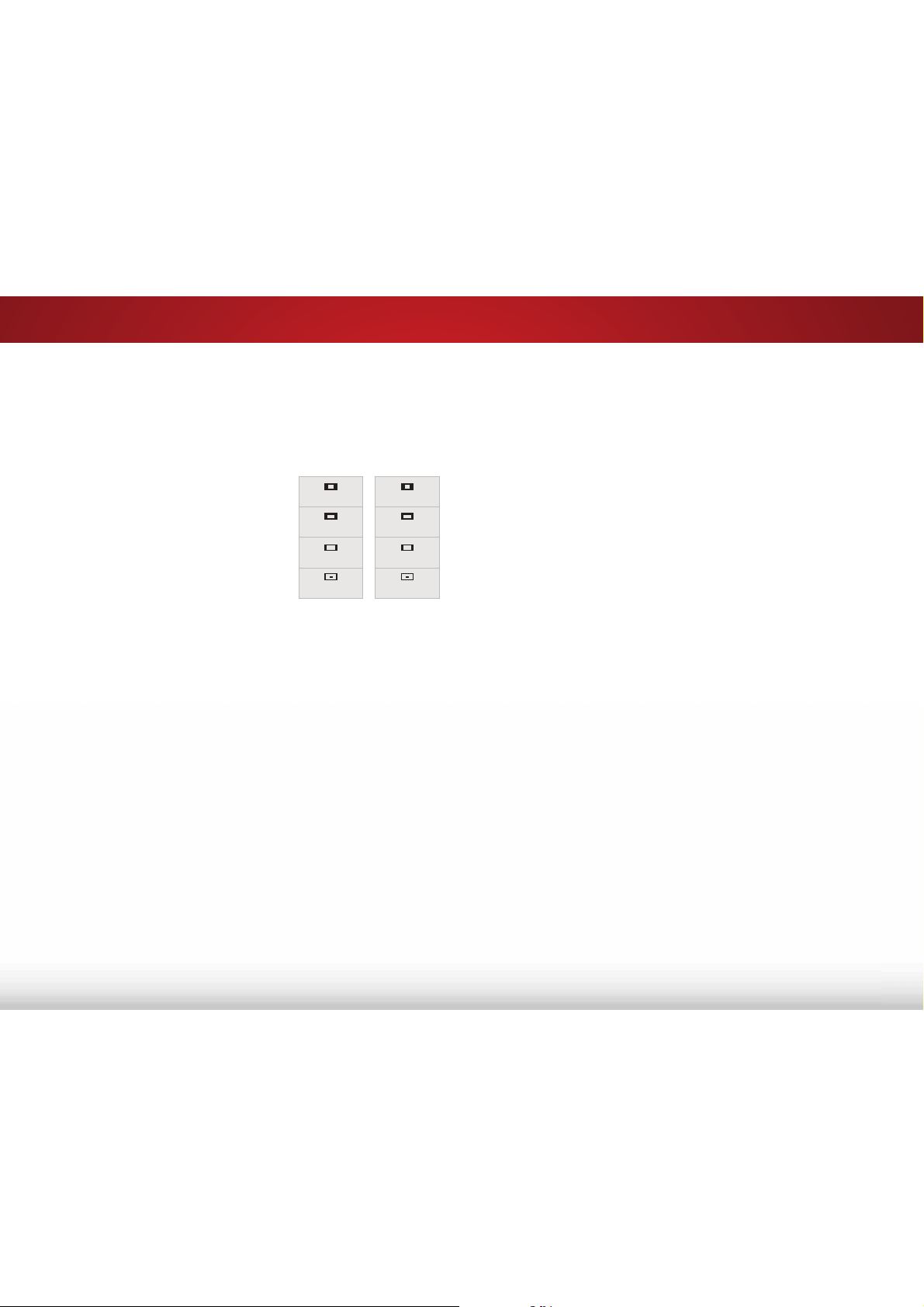
5
44
$GMXVWLQJWKH:LGH0RGH$VSHFW5DWLR
7KH79FDQGLVSOD\LPDJHVLQȴYHGLHUHQWPRGHV1RUPDO6WUHWFK
Panoramic, Wide, and Zoom. Each mode displays the picture
GLHUHQWO\
To change the screen aspect ratio:
1. Press the MENU button on the
remote. The on-screen menu is
displayed.
2. Use the Arrow buttons on the
remote to highlight 6\VWHP and
press OK. The SYSTEM menu is
displayed.
3. Use the Arrow buttons on the
remote to highlight :LGHand
press OK. The wide mode menu
appears at the top of the screen.
4. Use the Arrow buttons to highlight the aspect ratio you wish to
use and the press OK.
• Normal preserves the content’s original aspect ratio. Since
WKHDVSHFWUDWLRLVQRWODUJHHQRXJKWRȴOOWKH79ȇV
screen, black bars are added to the left and right of the
display image.
• StretchH[SDQGVWKHGLVSOD\LPDJHWRȴOOWKHVFUHHQΖPDJHV
may appear wider than intended. If you are watching
widescreen (1.85:1 or 2.35:1) content, black bars will still
appear on the top and bottom of the display image. 7KLV
RSWLRQLVRQO\DYDLODEOHZKHQWKH79LVGLVSOD\LQJD
SLVRXUFH
• 3DQRUDPLFH[SDQGVWKHGLVSOD\LPDJHWRȴOOWKHZLGWKRI
the screen. Images may appear wider than intended. If
you are watching widescreen (1.85:1 or 2.35:1) content,
black bars will still appear on the top and bottom of the
display image. 7KLVRSWLRQLVRQO\DYDLODEOHZKHQWKH79LV
GLVSOD\LQJDLSVRXUFH
Panoramic
Wide
Zoom
Normal
Stretch
Wide
Zoom
Normal
Note: Aspect ratio settings may
vary by Input source.
• :LGH stretches a 4:3 aspect ratio picture to the edges of
the screen. Since the picture is being stretched, the display
image may appear distorted. If the program is already
formatted for widescreen viewing (1.85:1 or 2.35:1), then
black bars will appear on the top and bottom of the display
image.
• ZoomH[SDQGVLPDJHVZLWKEODFNEDUVWRȴWWKHVFUHHQ
5
45
To begin device discovery:
• From the CEC menu, highlight 'HYLFH'LVFRYHU\ and press
OK.
Your TV begins looking for CEC devices connected to all of its
HDMI inputs. When discovery is complete:
• The CEC-compatible devices are listed below 'HYLFH
'LVFRYHU\.
• The names of these devices now appear on the Input
menu.
• If an audio device was discovered, the TV's speakers are
WXUQHGR
• The VIZIO TV remote controls an attached VIZIO sound
bar or other audio system.
&RQWUROOLQJ2WKHU'HYLFHVZLWK&(&
The CEC function on your TV enables you to control devices
connected to the HDMI (ARC) input with the included remote,
without any programming. Using CEC, your VIZIO TV remote can
control:
• 3RZHURQR
• Volume
• Mute
Not all HDMI devices support CEC. See your device’s
user manual for details.
To enable, disable, or adjust CEC settings:
1. Set up your audio device and connect it to the HDMI-1 (HDMI
ARC) input on the TV.
2. On your audio device, select the HDMI ARC input.
3. Press the MENU button on the remote. The on-screen menu is
displayed.
4. Use the Arrow buttons on the remote to highlight 6\VWHP and
press OK. The SYSTEM menu is displayed.
5. Use the Arrow buttons on the remote to highlight CEC and
press OK. The CEC Settings menu is displayed.
6. Highlight CEC and press OK. Select a setting and then press OK.
• CEC - To use CEC, you must select On.
• 6\VWHP$XGLR&RQWURO To control your device’s audio
using the TV’s remote control, select On.
• 'HYLFH'LVFRYHU\ To determine if your device is connected
and supports CEC, select 'HYLFH'LVFRYHU\ and then press
OK.
7. Press the EXIT button on the remote.
5
46
5HVWRULQJWKH79WR)DFWRU\'HIDXOW6HWWLQJV
You can use the TV’s Reset & Admin menu to restore the TV to its
factory default settings.
All of the on-screen menu settings can be reset to the factory
defaults.
If you restore the TV to the factory default settings, all
changes you have made to the settings will be lost!
To restore the TV to its factory default settings:
1. Press the MENU button. The on-screen menu is displayed.
2. Use the Arrow buttons on the remote to highlight 6\VWHP and
press OK. The SYSTEM menu is displayed.
3. Highlight 5HVHW$GPLQ and press OK. The RESET & ADMIN
menu is displayed.
4. Highlight 5HVHW79WR)DFWRU\'HIDXOWV and press OK.
5. Enter your parental control passcode. If you have not yet set
up a parental passcode, enter the default, 0000.
The TV displays, "Select Reset to restore all TV settings to
factory defaults."
6. Highlight 5HVHW and press OK.
7. :DLWIRUWKH79WRWXUQR7KH79ZLOOWXUQEDFNRQVKRUWO\
afterward and the Setup App will begin.
7XUQLQJWKH3RZHUΖQGLFDWRU2QRU2
The Power Indicator on the front of your TV normally does not glow
when the TV is on. You can change this setting if you prefer the light
to be on.
7RWXUQWKH3RZHUΖQGLFDWRU/LJKWRQRUR
1. Press the MENU button on the remote. The on-screen menu is
displayed.
2. Use the Arrow buttons on the remote to highlight 6\VWHP and
press OK. The SYSTEM menu is displayed.
3. Highlight 3RZHUΖQGLFDWRU and press OK.
4. Use the Up/Down Arrow buttons to select On or 2, then
press OK.
5
47
USING THE GUIDED SETUP MENU
The TV’s Setup App can be used to easily set up channels on the TV.
To use guided setup:
1. Press the MENU button on the
remote. The on-screen menu is
displayed.
2. Highlight *XLGHG6HWXS and
press OK. The GUIDED SETUP
menu is displayed.
3. Highlight Channel Setup and
press OK.
4. Follow the on-screen
LQVWUXFWLRQV:KHQȴQLVKHG
press the EXIT button on the
remote.
VIZIO
GUIDED SETUP
Channel Setup

5
48
USING THE INFO WINDOW
The Info Window can be displayed by pressing the GUIDE or INFO
buttons on the remote:
• Press the GUIDE or INFO button once to display channel,
input, and display information.
• Press the GUIDE or INFO button twice to display the
program title, program rating, audio information, and the
start and end times of the program.
DIGITAL EPISODE GUIDE WINDOW
2OLYHUȇV+ROLGD\6XUSULVH
1080p 6:15pm
11:00AM - 12:00PM
793*9
'ROE\'LJLWDO6WHUHR
Oliver wakes up one morning only to discover that his pals are missing. In this hour-long
holiday special, Oliver goes on a journey in search of his pals. Who knows what he’ll en-
counter on the way?
3URJUDP'HVFULSWLRQ
3URJUDP7LWOH
28-1
.&(7+'
Normal
&KDQQHOΖQSXWΖQIRUPDWLRQ
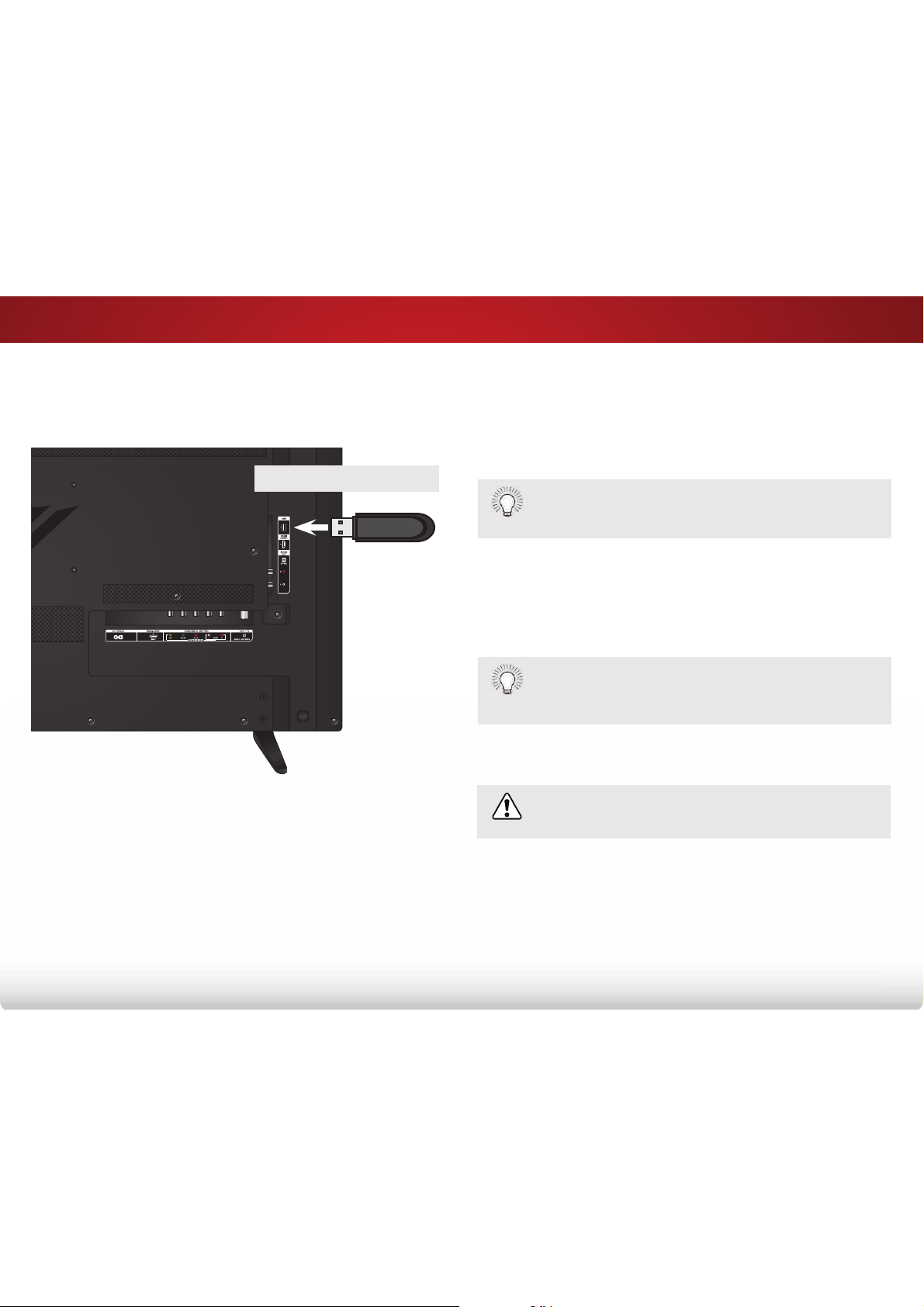
6
49
Using the USB Media Player
USING THE USB MEDIA PLAYER
The USB media player allows you to connect a USB thumb drive to
your TV and view photos.
Preparing Your USB Drive to Display USB Media
7RGLVSOD\86%PHGLD\RXPXVWȴUVWVDYH\RXUSKRWRVRQWRD86%
thumb drive:
• The USB thumb drive must be formatted as FAT32.
• )LOHVRQWKH86%WKXPEGULYHPXVWHQGLQDVXSSRUWHGȴOH
extension (.jpg or .jpeg.).
• The USB media player is not designed to play media
from external hard drives, MP3 players, cameras, or
smartphones.
Displaying USB Media
To display your USB media:
1. Connect your USB thumb drive to the USB port on the side of
the TV.
2. Use the Arrow buttons to highlight Yes and press the OK.
3.
If the dialog box disappears, press the V button on the
remote to go the next step.
Use the Arrow buttons to highlight your USB device in the list
and press OK.
4. Use the Arrow buttons to highlight Photo and press OK.
5. Use the Arrow buttons to highlight the photo you want to
display. Press OK. The photo displays.
You can display your photos in fullscreen. Select the
photo, press OK, then highlight Fullscreen and press
OK.
Removing the USB Drive from the TV
Do not remove the USB thumb drive while the TV is on.
Doing so may damage the drive.
To safely remove your USB drive from the TV:
1. 7XUQRWKH79
2. Disconnect your USB thumb drive from the USB port on the
side of the TV.
USB PORT
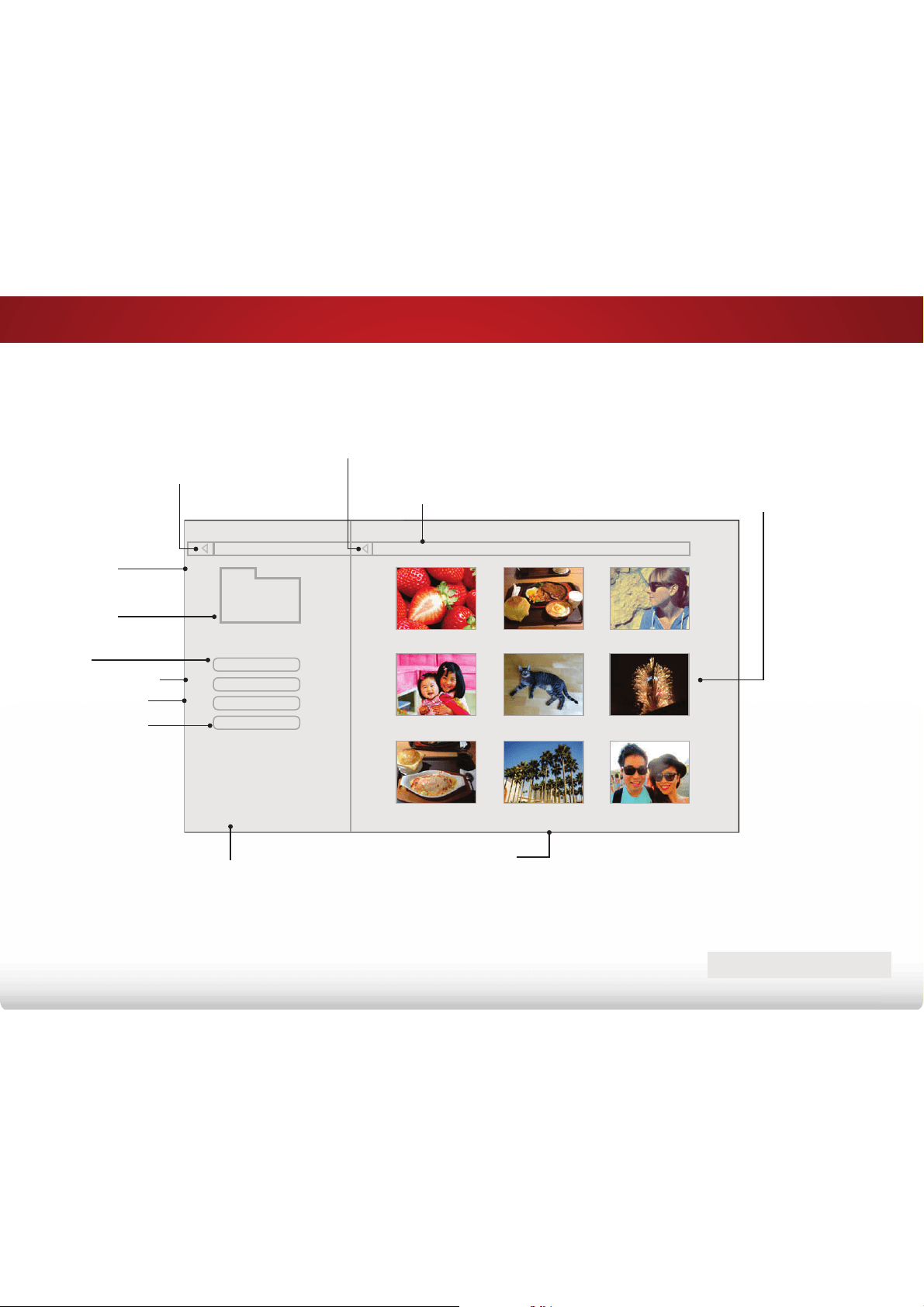
6
50
Start Slideshow
Name A-Z
Folders
Settings
View:
Sort:
Photo
VIZIO_2GB\Photo\root
File Name: D 1920x1080
Resolution: 1920x1080
Size: 1607270KB
USB1:
A.jpg
root
B.jpg C.jpg
D.jpg
E.jpg F.jpg
G.jpg
H.jpg I.jpg
Page 1 of 1
Current Folder
Displays the folder path.
Page Information
If your USB thumb drive has more
ȴOHVWKDQFDQEHGLVSOD\HGRQD
single screen, the page information is
displayed here.
Back Button
Highlight and press OK to return to left column.
Connected
Sources
Displays
connected USB
devices. To
change source,
highlight it and
press OK.
Current Folder
Sort by Name or Date
View Thumbnails or
Folders
Adjust Slideshow
Settings
Start Fullscreen
Slideshow
Photo
Information
Displays name,
UHVROXWLRQDQGȴOH
size for currently
selected photo.
PHOTO VIEWER
Back Button
Highlight this button and
press OK to return to the
previous screen.
Folder Contents
This area displays the contents of
the currently selected folder. You
FDQEURZVHȴOHVDQGIROGHUVXVLQJ
the Arrow and OK buttons on the
remote.
VIZIO
A
51
Troubleshooting & Technical Support
Find help with:
• New product setup
• Connecting your devices
• Technical problems
• Product updates and more
You can also contact our
award-winning support team at:
Phone:
Email:
(877) 698-4946 (toll-free)
techsupport@VIZIO.com
Hours of Operation:
Monday - Friday: 7
AM TO 11 PM (PST)
Saturday - Sunday: 9
AM TO 6 PM (PST)
Live chat
support available
Do you have questions? Find answers at
SUPPORT.VIZIO.COM
Se habla Español • Nous parlons Français

A
52
The TV displays “No Signal.”
• Press the INPUT button on the remote control to select a
GLHUHQWLQSXWVRXUFH
• If you are using cable TV, satellite, or an antenna
connected directly to the TV, scan for channels. See
Finding Channels
on page 33.
There is no power.
• Ensure the TV is plugged into a working electrical outlet.
• Ensure the power cable is securely attached to the TV.
• Press the Power/Standby button on the remote or on the
side of the TV to turn the TV on.
The power is on, but there is no image on the screen.
• Ensure all cables are securely attached to the TV.
• (QVXUHDOOGHYLFHVDUHFRQQHFWHGFRUUHFWO\'HYLFHVGLHU
see your device’s user manual for details.
• Adjust Brightness, Contrast, or Backlight. See
Adjusting
the Picture Settings
on page 21.
• Press the INPUTEXWWRQRQWKHUHPRWHWRVHOHFWDGLHUHQW
input source.
There is no sound.
• Press Volume Up on the remote control.
• Press the MUTE button on the remote to ensure mute is
R
• Check the audio settings. See
Adjusting the Audio Settings
on page 30. Ensure that the speakers are set to On.
• Ensure no headphones are connected to the TV.
• Check the audio connections of external devices (Blu-ray
player, game console, cable/satellite box) that are
connected to the TV.
• If you are using an antenna, the signal strength of the
channel may be low. Ensure your antenna is connected
securely to the TV and move the antenna around the
room or close to a window for the best signal.
The colors on the TV don’t look right.
• Adjust the Color and Tint settings in the Picture menu. See
Adjusting the Picture Settings
on page 21.
• Select a pre-set picture mode. See
Adjusting the Picture
Settings
on page 21. VIZIO recommends selecting the
Calibrated mode.
• Check all cables to ensure they are securely attached.
The buttons on the remote aren’t working.
• Ensure you are only pressing one button at a time.
• Point the remote directly at the TV when pressing a
button.
• Replace the remote batteries with new ones. See
Replacing the Batteries
on page 11.

A
53
The image quality is not good.
• )RUWKHEHVWLPDJHTXDOLW\YLHZKLJKGHȴQLWLRQSURJUDPV
using digital sources. Connect your devices with HDMI
cables.
• If you are using an antenna, the signal strength of the
channel may be low. Ensure your antenna is connected
securely to the TV and move the antenna around the
room or close to a window for the best signal.
The picture is distorted.
• Nearby electrical devices may be interfering with the
TV. Separate the TV from electrical appliances, cars, or
ȵXRUHVFHQWOLJKWV
• Ensure all cables are securely attached.
The display image does not cover the entire screen.
• If you are using TV, AV, or Component with 480i input,
press the WIDE button on the remote to change the
screen mode.
The TV has pixels (dots) that are always dark.
• Your HDTV is precision-manufactured using an extremely
high level of technology. However, sometimes pixels may
not display correctly. These types of occurrences are
inherent to this type of product and do not constitute a
defective product.
I see “noise” or static on the screen.
• When your TV’s digital capabilities exceed a digital
broadcast signal, the signal is up-converted (improved) to
match your TV’s display capabilities. This up-converting
can sometimes cause irregularities in the image.
• If you are using an antenna, the signal strength of the
channel may be low. Ensure your antenna is connected
securely to the TV and move the antenna around the
room or close to a window for the best signal.
When I change input source, the volume changes.
• The TV remembers the volume level on each input source.
If the volume level on the new input source is higher or
lower than the level on the source you switch from, the
GLHUHQFHPD\EHQRWLFHDEOH
• Use the Volume Up/Down buttons on the remote to
adjust the volume.
When I change input source, the display image changes size.
• The TV remembers the viewing mode on each input
source. If the viewing mode on the new input source
GLHUVIURPWKHRQHRQWKHLQSXWVRXUFH\RXVZLWFKIURP
WKHGLHUHQFHPD\EHQRWLFHDEOH
• See
Changing the Screen Aspect Ratio
on page 20..
B
54
6SHFLȴFDWLRQV
D32h-C0
Screen Size: 32" Class
Viewable Area: 31.50"
Dimensions w/ Stand:
w/o Stand:
28.71" x 19.08" x 7.87"
28.71" x 17.11" x 2.91"
Weight w/ Stand:
w/o Stand:
10.36 lbs
9.48 lbs
TV Type: Full-Array LED
Refresh Rate: ɋ+]
Maximum Resolution: 1366 x 768 (720p)
Pixel Pitch: ɋPP+;ɋPP9
Viewing Angle: r+r9
HDMI Inputs: 2
Component Video Inputs: 1
Composite Inputs: 6KDUHGZLWK&RPSRQHQW
RF Antenna Input: 1
USB 2.0 Ports: 1
Audio Outputs: 2SWLFDO'LJLWDO5&$$QDORJ6WHUHR
OSD Language: (QJOLVK6SDQLVK)UHQFK
Remote Control Model: ;57
&HUWLȴFDWLRQV &6$86&6$&DQDGD%(7Ζ&(6&ODVV%120)&&&ODVV%'ROE\'LJLWDO+'0Ζ&(&$5&
Compliance: (QHUJ\6WDU15&DQ&218((120
Voltage Range: ɋ9#ɋ+]
Power Consumption: ɋ:

B
55
D32h-C0
Standby Power: ɋɋ:
Zero Bright Pixel Guarantee: Yes

C
56
Limited Warranty
ON PARTS AND LABOR
Covers units purchased as new in United States and Puerto Rico Only. VIZIO
provides a warranty to the original purchaser of a new Product against defects
in materials and workmanship for a period of one (1) year of non-commercial
usage and ninety (90) days of commercial use. If a Product covered by this
warranty is determined to be defective within the warranty period, VIZIO will
either repair or replace the Product at its sole option and discretion.
To obtain warranty service, contact VIZIO Technical Support via e-mail:
from 7:00AM to 11:00PM Monday through Friday and 9:00AM to
30 6DWXUGD\ DQG 6XQGD\ 3DFLȴF 7LPH RU YLVLW ZZZ9Ζ=Ζ2FRP
PRE-AUTHORIZATION MUST BE OBTAINED BEFORE SENDING ANY PRODUCT
TO A VIZIO SERVICE CENTER. Proof of purchase in the form of a purchase
receipt or copy thereof is required to show that a Product is within the
warranty period.
Parts and Labor
There will be no charge for parts or labor during the warranty period.
5HSODFHPHQWSDUWVDQG3URGXFWVPD\EHQHZRUUHFHUWLȴHGDW9Ζ=Ζ2ȇVRSWLRQ
and sole discretion. Replacement parts and Products are warranted for
the remaining portion of the original warranty or for ninety (90) days from
warranty service or replacement, whichever is greater.
Type of Service
Defective Products must be sent to a VIZIO service center to obtain
warranty service. VIZIO is not responsible for transportation costs to
the service center, but VIZIO will cover return shipping to the customer.
PRE-AUTHORIZATION IS REQUIRED BEFORE SENDING ANY PRODUCT TO A
VIZIO SERVICE CENTER FOR WARRANTY SERVICE.
3URGXFW UHWXUQV WR 9Ζ=Ζ2ȇV VHUYLFH FHQWHUV PXVW XWLOL]H HLWKHU WKH RULJLQDO
FDUWRQER[DQGVKLSSLQJPDWHULDORUSDFNDJLQJWKDWDRUGVDQHTXDOGHJUHH
of protection. VIZIO Technical Support will provide instructions for packing
and shipping the covered Product to the VIZIO service center.
Limitations and Exclusions
9Ζ=Ζ2ȇV RQH\HDU OLPLWHG ZDUUDQW\ RQO\ FRYHUV GHIHFWV LQ PDWHULDOV DQG
workmanship. This warranty does not cover, for example: cosmetic damage,
normal wear and tear, improper operation, improper voltage supply or
power surges, signal issues, damages from shipping, acts of God, any type
RI FXVWRPHU PLVXVH PRGLȴFDWLRQV RU DGMXVWPHQWV DV ZHOO DV LQVWDOODWLRQ
and set-up issues or any repairs attempted by anyone other than by a VIZIO
DXWKRUL]HG VHUYLFH FHQWHU 3URGXFWV ZLWK XQUHDGDEOH RU UHPRYHG VHULDO
numbers, or requiring routine maintenance are not covered. This one year
limited warranty does not cover Products sold “AS IS”, “FACTORY RECERTIFIED”,
RUE\DQRQDXWKRUL]HGUHVHOOHU
THERE ARE NO EXPRESS WARRANTIES OTHER THAN THOSE LISTED OR
DESCRIBED ABOVE. ANY IMPLIED WARRANTIES, INCLUDING ANY IMPLIED
WARRANTY OF MERCHANTABILITY AND FITNESS FOR A PARTICULAR
PURPOSE, SHALL BE LIMITED IN DURATION TO THE PERIOD OF TIME SET
)257+ $%29( 9Ζ=Ζ2ȇ6 727$/ /Ζ$%Ζ/Ζ7< )25 $1< $1' $// /266(6 $1'
'$0$*(65(68/7Ζ1* )520$1< &$86(:+$762(9(5 Ζ1&/8'Ζ1*9Ζ=Ζ2ȇ6
NEGLIGENCE, ALLEGED DAMAGE, OR DEFECTIVE GOODS, WHETHER SUCH
DEFECTS ARE DISCOVERABLE OR LATENT, SHALL IN NO EVENT EXCEED THE
PURCHASE PRICE OF THE PRODUCT. VIZIO SHALL NOT BE RESPONSIBLE FOR
LOSS OF USE, LOSS OF INFORMATION OR DATA, COMMERCIAL LOSS, LOST
REVENUE OR LOST PROFITS, OR OTHER INCIDENTAL OR CONSEQUENTIAL
DAMAGES. SOME STATES DO NOT ALLOW LIMITATIONS ON HOW LONG
AN IMPLIED WARRANTY LASTS OR THE EXCLUSION OF INCIDENTAL OR
CONSEQUENTIAL DAMAGES, SO THE ABOVE LIMITATIONS OR EXCLUSIONS
MAY NOT APPLY TO YOU. THIS WARRANTY GIVES YOU SPECIFIC LEGAL
RIGHTS, AND YOU MAY ALSO HAVE OTHER RIGHTS, WHICH VARY FROM STATE
TO STATE. THIS WARRANTY IS SUBJECT TO CHANGE WITHOUT NOTICE.
CHECK WWW.VIZIO.COM FOR THE MOST CURRENT VERSION.
Personal Data
If your VIZIO product is capable of storing personal data and other information,
ALL CONTENTS AND INFORMATION WILL BE DELETED IN THE COURSE OF
SOME IN-HOME AND ALL SHIP-IN WARRANTY SERVICE. If this occurs, your
SURGXFWZLOOEHUHVWRUHGWR\RXFRQȴJXUHGDVRULJLQDOO\SXUFKDVHG<RXZLOO
be responsible for restoring all applicable data and passwords. Recovery
and reinstallation of user data is not covered under this Limited Warranty.
In order to protect your personal information, VIZIO recommends that you
always clear all personal information from the unit before it is serviced,
regardless of the servicer.
Zero Bright Pixel Defect Guarantee
7KLVSROLF\FRYHUVȊ]HUREULJKWSL[HOȋGHIHFWVIRUWKHGXUDWLRQRIWKHOLPLWHG
“ONE YEAR WARRANTY” on select new product purchases. To determine if this
JXDUDQWHHDSSOLHVWR\RXUSURGXFWUHIHUWRWKHȊ'(7$Ζ/6ȋWDERIWKHPRGHOȇV
SURGXFWLQIRUPDWLRQSDJHZZZ9Ζ=Ζ2FRPRUORRNIRUWKHȊ]HUREULJKWSL[HOȋ
guarantee on the box.

D
57
Legal & Compliance
FCC Class B Radio Interference Statement
NOTE: This equipment has been tested and found to comply with the limits
for a Class B digital device, pursuant to Part 15 of the FCC Rules. These limits
are designed to provide reasonable protection against harmful interference
in a residential installation. This equipment generates, uses and can radiate
radio frequency energy, and if not installed and used in accordance with
the instructions, may cause harmful interference to radio communications.
However, there is no guarantee that interference will not occur in a particular
installation. If this equipment does cause harmful interference to radio or
WHOHYLVLRQUHFHSWLRQZKLFKFDQEHGHWHUPLQHGE\WXUQLQJWKHHTXLSPHQWR
and on, the user is encouraged to try to correct the interference by one or
more of the following measures:
1. Reorient or relocate the receiving antenna.
2. Increase the separation between the equipment and receiver.
3. &RQQHFWWKHHTXLSPHQWLQWRDQRXWOHWRQDFLUFXLWGLHUHQWIURPWKDW
to which the receiver is connected.
4. Consult the dealer or an experienced radio/TV technician for help.
This device complies with Part 15 of the FCC Rules. Operation is subject to the
following two conditions: (1) this device may not cause harmful interference,
and (2) this device must accept any interference received, including interference
that may cause undesired operation.
Notice
1. 7KHFKDQJHVRUPRGLȴFDWLRQVQRWH[SUHVVO\DSSURYHGE\WKHSDUW\
responsible for compliance could void the user’s authority to operate
the equipment.
2. Shielded interface cables and AC power cord, if any, must be used in
order to comply with the emission limits.
3. The manufacturer is not responsible for any radio or TV interference
FDXVHGE\XQDXWKRUL]HGPRGLȴFDWLRQWRWKLVHTXLSPHQWΖWLVWKH
responsibilities of the user to correct such interference.
FCC Warning
&KDQJHVRUPRGLȴFDWLRQVQRWH[SUHVVO\DSSURYHGE\WKHSDUW\UHVSRQVLEOHIRU
compliance with the FCC Rules could void the user’s authority to operate this
equipment.
Other
Image(s) used under license from Shutterstock.com

© 2015 VIZIO INC. ALL RIGHTS RESERVED.
140224EM-US-NC