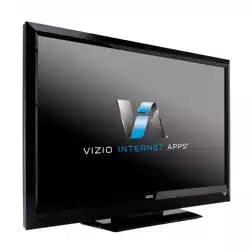
E370VP / E420VP - user manual
EDGE LIT RAZOR LED
™
LCD HDTV
Manufactured under license from Dolby Laboratories.
Dolby and the double-D symbol are trademarks of Dolby
Laboratories.
This product qualies for ENERGY STAR in the “factory
default” setting and this is the setting in which power
savings will be achieved. Changing the factory default
picture settings or enabling other features will increase
power consumption that could exceed the limits necessary
to qualify for ENERGY STAR rating.
HDMI, the HDMI logo and High-Denition Multimedia
Interface are trademarks or registered trademarks of HDMI
Licensing LLC.
®
SRS StudioSound HD is a trademark of SRS Labs, Inc.
StudioSound HD technology is incorporated under license
from SRS Labs, Inc.
Welcome
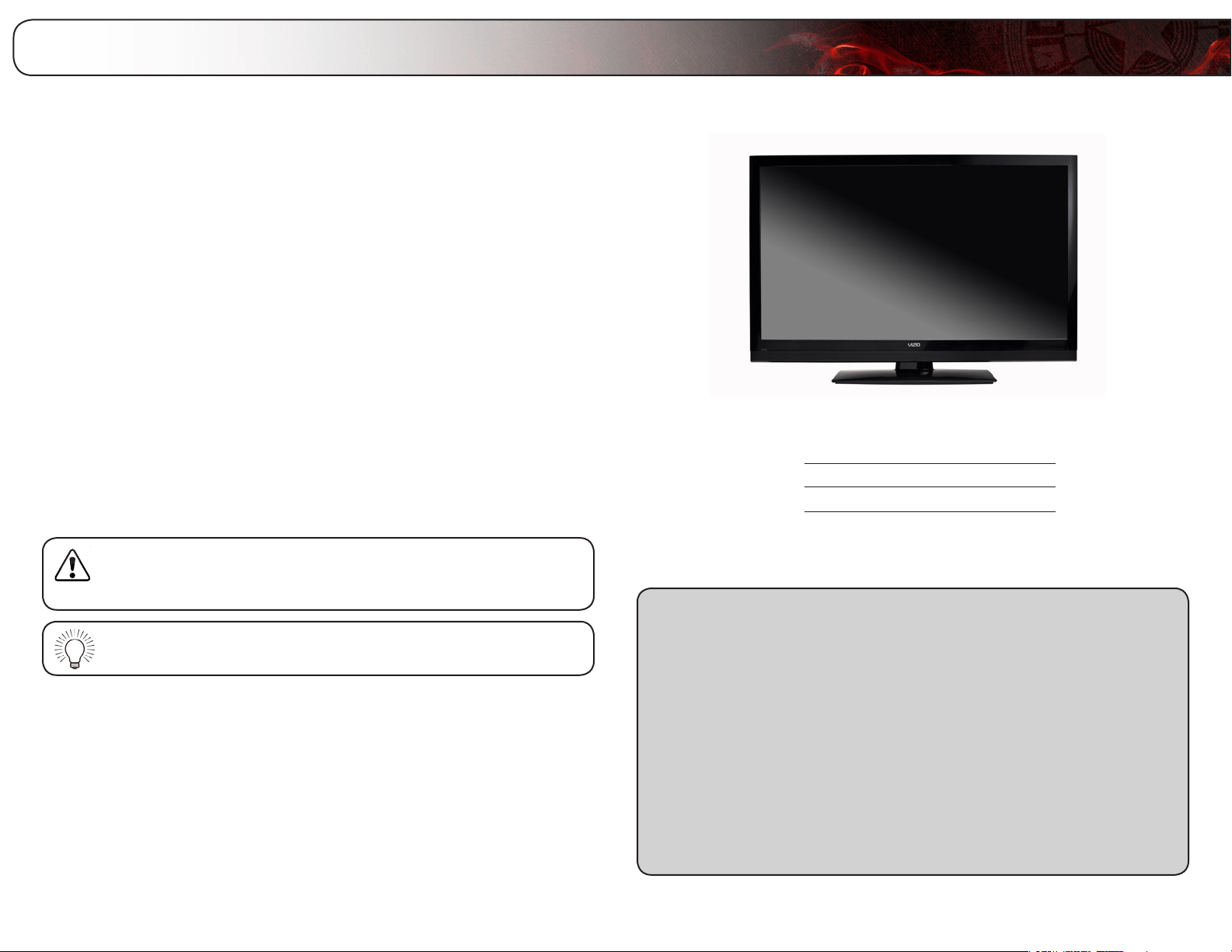
Thank You for Choosing VIZIO
And congratulations on your new VIZIO HDTV.
To get the most out of your new VIZIO product, read these instructions before
using your product and retain them for future reference. Be sure to inspect the
package contents to ensure there are no missing or damaged parts.
Product Registration
To purchase or inquire about accessories and installation services for your VIZIO
product, visit our website at www.VIZIO.com or call toll free at 1-888-849-4623.
We recommend that you either:
• RegisteryourVIZIOproductatwww.VIZIO.com
• Completeandmailtheenclosedregistrationcard
Extended Warranties
For peace of mind, and to protect your investment beyond the standard warranty,
VIZIO offers on-site extended warranty service plans. These plans provide
additional coverage during the standard warranty period. To purchase an extended
warranty service plan, visit www.VIZIO.com.
When Reading this Manual
When you see this symbol, please read the accompanying important
warning or notice. It is intended to alert you to the presence of
important operating instructions.
When you see this symbol, please read the accompanying helpful
tip.
My Product Information
Enter your product information here for easy reference:
ModelNumber:
SerialNumber:
DateofPurchase:
VIZIO recommends you attach your sales receipt to this manual for safekeeping.
AttachSalesReceiptHere

E370VP/E420VP
torainormoisture,doesnotoperatenormallyorhasbeendropped.
• UnplugthepowercordbeforecleaningyourTV.
• WhenmovingyourTVfromanareaoflowtemperaturetoanareaof
hightemperature,condensationmayforminthehousing.Waitbefore
turningonyourTVtoavoidcausingre,electricshock,orcomponent
damage.
• AdistanceofatleastthreefeetshouldbemaintainedbetweenyourTV
andanyheatsource,suchasaradiator,heater,oven,amplieretc.Do
notinstallyourTVclosetosmoke.OperatingyourTVclosetosmoke
ormoisturemaycausereorelectricshock.
• Slotsandopeningsinthebackandbottomofthecabinetareprovided
forventilation.ToensurereliableoperationofyourTVandtoprotectit
fromoverheating,besuretheseopeningsarenotblockedorcovered.
DonotplaceyourTVinabookcaseorcabinetunlessproperventilation
isprovided.
• NeverpushanyobjectintotheslotsandopeningsonyourTVcabinet.
DonotplaceanyobjectsonthetopofyourTV.Doingsocouldshort
circuitpartscausingareorelectricshock.Neverspillliquidsonyour
T V.
• YourTVshouldbeoperatedonlyfromthetypeofpowersource
indicatedonthelabel.Ifyouarenotsureofthetypeofpowersupplied
toyourhome,consultyourdealerorlocalpowercompany.
• DonotapplypressureorthrowobjectsatyourTV.Thismay
compromisetheintegrityofthedisplay.Themanufacturer’swarranty
doesnotcoveruserabuseorimproperinstallations.
• Thepowercordmustbereplacedwhenusingdifferentvoltagethanthe
voltagespecied.Formoreinformation,contactyourdealer.
• YourTVisequippedwithathree-prongedgroundedplug(aplugwith
athirdgroundingpin).Thisplugwilltonlyintoagroundedpower
outlet.Thisisasafetyfeature.Ifyouroutletdoesnotaccommodatethe
three-pronged,haveanelectricianinstallthecorrectoutlet,orusean
adaptertogroundyourTVsafely.Donotdefeatthesafetypurposeof
thegroundedplug.
• Whenconnectedtoapoweroutlet,powerisalwaysowingintoyour
TV.Tototallydisconnectpower,unplugthepowercord.
• Thelightningashwitharrowheadsymbolwithinanequilateraltriangle
isintendedtoalerttheusertothepresenceofun-isolated,dangerous
voltagewithintheinsideofyourTVthatmaybeofsufcientmagnitude
toconstituteariskofelectricshocktopersons.
Important Safety Instructions
Your TV is designed and manufactured to operate within defined design limits.
Misuse may result in electric shock or fire. To prevent your TV from being
damaged, the following instructions should be observed for the installation,
use, and maintenance of your TV. Read the following safety instructions before
operating your TV. Keep these instructions in a safe place for future reference.
• Toreducetheriskofelectricshockorcomponentdamage,switchoff
thepowerbeforeconnectingothercomponentstoyourTV.
• Readtheseinstructions.
• Keeptheseinstructions.
• Heedallwarnings.
• Followallinstructions.
• Donotusethisapparatusnearwater.
• Cleanonlywithadrycloth.
• Donotblockanyventilationopenings.Installinaccordancewiththe
manufacturer’sinstructions.
• Donotinstallnearanyheatsourcessuchasradiators,heatregisters,
stoves,orotherapparatus(includingampliers)thatproduceheat.
• Donotdefeatthesafetypurposeofthepolarizedorgrounding-type
plug.Apolarizedplughastwobladesandathirdgroundingprong.
Thewidebladeorthethirdprongareprovidedforyoursafety.Ifthe
providedplugdoesnottintoyouroutlet,consultanelectricianfor
replacementoftheobsoleteoutlet.
• Protectthepowercordfrombeingwalkedonorpinched,particularlyat
plugs,conveniencereceptacles,andthepointwheretheyexitfromthe
apparatus.
• Onlyuseattachments/accessoriesspeciedbythemanufacturer.
• Use onlywiththe cart,stand,tripod, bracket,ortable
speciedbythemanufacturer,orsoldwiththeapparatus.
Whenacartisused,usecautionwhenmovingthecart/
apparatuscombinationtoavoidinjuryfromtip-over.
• Unplugthisapparatusduringlightningstormsorwhenunusedforlong
periodsoftime.
• Referallservicingtoqualiedservicepersonnel.Servicingisrequired
whentheapparatushasbeendamagedinanyway,suchaswhen
thepower-supplycordorplugisdamaged,liquidhasbeenspilledor
objectshavefallenintotheapparatus,theapparatushasbeenexposed

E370VP/E420VP
• Donotoverloadpowerstripsandextensioncords.Overloadingcan
resultinreorelectricshock.
• ThewallsocketshouldbeinstallednearyourTVandeasilyaccessible.
• OnlypowerofthemarkedvoltagecanbeusedforyourTV.Anyother
voltagethanthespeciedvoltagemaycausereorelectricshock.
• Donottouchthepowercordduringlightning.Toavoidelectricshock,
avoidhandlingthepowercordduringelectricalstorms.
• UnplugyourTVduringalightningstormorwhenitwillnotbeused
forlongperiodoftime.ThiswillprotectyourTVfromdamagedueto
powersurges.
• DonotattempttorepairorserviceyourTVyourself.Openingor
removingthebackcovermayexposeyoutohighvoltages,electric
shock,andotherhazards.Ifrepairisrequired,contactyourdealerand
referallservicingtoqualiedservicepersonnel.
• WARNING:KeepyourTVawayfrommoisture.DonotexposeyourTV
torainormoisture.IfwaterpenetratesintoyourTV,unplugthepower
cordandcontactyourdealer.Continuoususeinthiscasemayresultin
reorelectricshock.
• DonotuseyourTVifanyabnormalityoccurs.Ifanysmokeorodor
becomesapparent,unplugthepowercordandcontactyourdealer
immediately.DonottrytorepairyourTVyourself.
• Avoidusingdroppedordamagedappliances.IfyourTVisdropped
andthehousingisdamaged,theinternalcomponentsmayfunction
abnormally.Unplugthepowercordimmediatelyandcontactyour
dealerforrepair.ContinueduseofyourTVmaycausereorelectric
shock.
• DonotinstallyourTVinanareawithheavydustorhighhumidity.
OperatingyourTVinenvironmentswithheavydustorhighhumidity
maycausereorelectricshock.
• FollowinstructionsformovingyourTV.Ensurethatthepowercordand
anyothercablesareunpluggedbeforemovingyourTV.
• WhenunpluggingyourTV,holdtheAC/DCpoweradapter,notthe
cord.Pullingonthepowercordmaydamagethewiresinsidethecord
andcausereorelectricshock.WhenyourTVwillnotbeusedforan
extendedperiodoftime,unplugthepowercord.
• Toreduceriskofelectricshock,donottouchtheconnectorwithwet
hands.
• Insertbatteriesinaccordancewithinstructions.Incorrectpolaritiesmay
causethebatteriestoleakwhichcandamagetheremotecontrolor
injuretheoperator.Donotexposebatteriestoexcessiveheatsuchas
sunshine,reorthelike.
• Ifanyofthefollowingoccurs,contactthedealer:
-Thepowercordfailsorfrays.
-LiquidspraysoranyobjectdropsintoyourTV.
-YourTVisexposedtorainorothermoisture.
-YourTVisdroppedordamagedinanyway.
-TheperformanceofyourTVchangessubstantially.
• Thisapparatusshallnotbeexposedtodrippingorsplashingand
noobjectsllwithliquids,suchasvases,shallbeplacedonthe
apparatus.
• Themainsplugorappliancecouplerisusedasthedisconnectdevice,
thedisconnectdeviceshallremainreadilyoperable.
• CAUTION-Theseservicinginstructionsareforusebyqualiedservice
personnelonly.Toreducetheriskofelectricshock,donotperformany
servicingotherthanthatcontainedintheoperatinginstructionsunless
youarequaliedtodoso.
The lightning flash with arrowhead symbol within an equilateral triangle is
intended to alert the user to the presence of uninsulated DANGEROUS
VOLTAGE within the product’s enclosure that may be of sufficient
magnitude to constitute a risk of electrical shock to persons.
h
E370VP/E420VP
Television Antenna Connection Protection
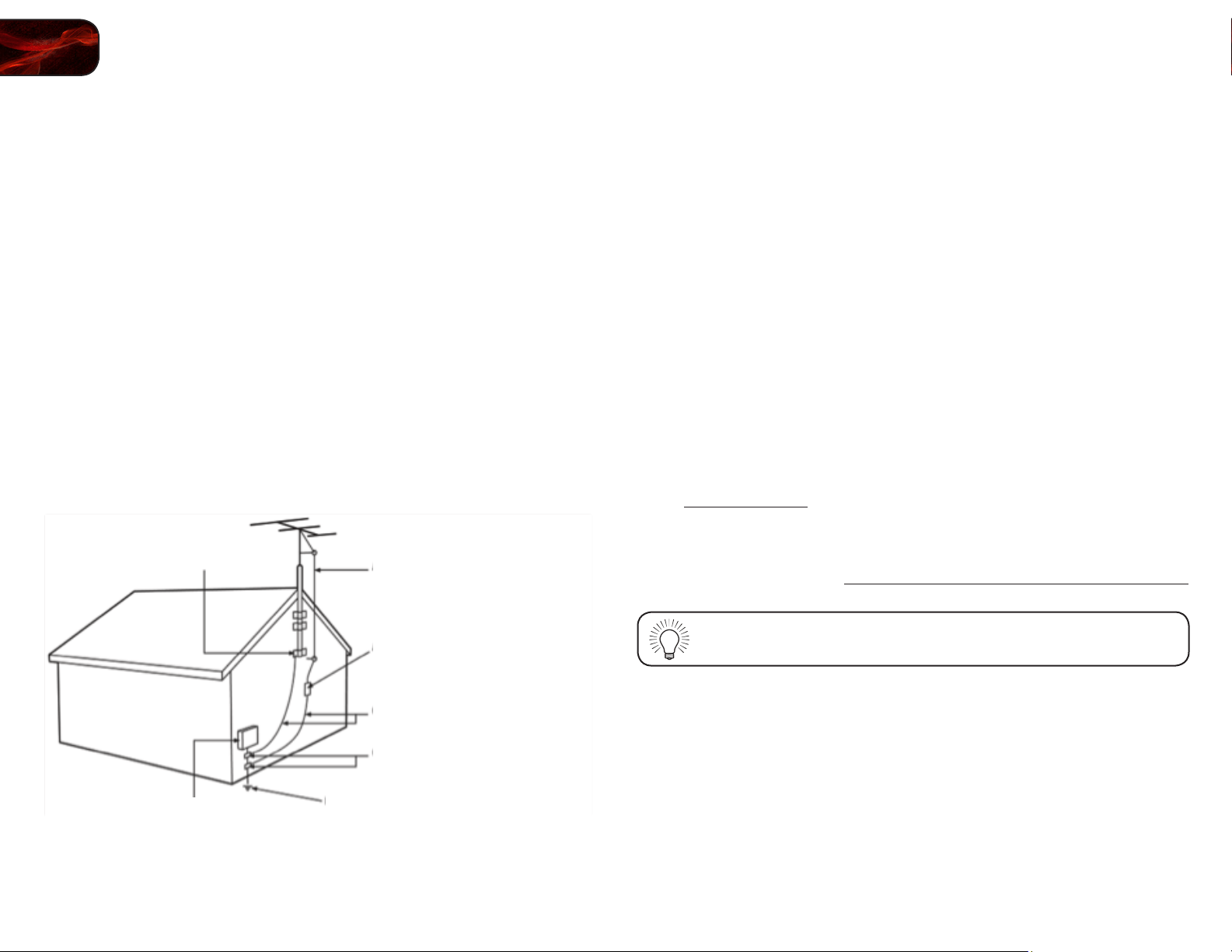
If an outside antenna/satellite dish or cable system is to be connected to the TV,
make sure that the antenna or cable system is electrically grounded to provide
some protection against voltage surges and static charges.
Article 810 of the National Electrical Code, ANSI/NFPSA 70, provides information
with regard to proper grounding of the mast and supporting structure, grounding
of the lead-in wire to an antenna discharge unit, size of the grounding conductors,
location of antenna discharge unit, connection to grounding electrodes, and
requirements of the grounding electrode.
Lightning Protection
For added protection of the TV during a lightning storm or when it is left
unattended or unused for long periods of time, unplug the TV from the wall outlet
and disconnect the antenna or cable system.
Power Lines
Do not locate the antenna near overhead light or power circuits, or where it could
fall into such power lines or circuits. Remember, the screen of the coaxial cable is
intended to be connected to earth in the building installation.
DTV Transition Advisory
The nationwide switch to digital television broadcasting was complete on June
12, 2009. Analog-only television sets that receive TV programming through an
antenna now need a converter box to continue to receive over-the-air TV. Watch
your local stations to find out when they will turn off their analog signal and switch
to digital-only broadcasting. Analog-only TVs should continue to work as before
to receive low power, Class A or translator television stations and with cable and
satellite TV services, gaming consoles, VCRs, DVD players, and similar products.
For additional information, please contact the parties listed below, as appropriate:
FCC (US Federal Communications Commission)
Web: www.fcc.gov
Phone: 1-888-CALL-FCC (1-888-225-5322)
TTY: 1-888-TELL-FCC (1-888-835-5322)
Fax: 1-866-418-0232
E-mail: [email protected]
NTIA (National Telecommunications and Information Administration)
Web: www.ntia.doc.gov
Phone: 1-888-DTV-2009 (1-888-388-2009)
List of US Television Stations: www.high-techproductions.com/usTVstations.htm
Your TV comes with a built-in tuner capable of processing digital
broadcasts. No extra converter box is needed.
Ground Clamp
Antenna Lead In Wire
Antenna Discharge Unit
(NEC Section 810-20)
Grounding Conductors
(NEC Section 810-21)
Ground Clamps
Power Service Grounding Electrode System
(NEC ART 250, part H)
Electric Service Equipment
Table of Contents
Installing the TV .......................................................................1
Inspecting the Package Contents ........................................................... 1
Installing the TV ....................................................................................... 1
Installing the TV Base .......................................................................... 1
Installing the TV on a Wall .................................................................... 2
Controls and Connections ........................................................3
Rear Panel Inputs .................................................................................... 3
Rear Panel Buttons ................................................................................. 4
Front Panel .............................................................................................. 4
Remote Control ....................................................................................... 5
Replacing the Batteries ........................................................................ 6
Connecting Your Devices ..........................................................7
Before You Begin .................................................................................... 7
Connecting Your Devices ........................................................................ 7
Completing the First-Time Setup ..............................................9
Using the On-Screen Menu ...................................................... 10
Navigating the On-Screen Menu ............................................................. 10
Changing the Input Source ..................................................................... 10
Setting the Screen Aspect Ratio ............................................................. 11
Changing the Screen Aspect Ratio ...................................................... 12
Setting Up Closed Captioning ................................................................ 12
Changing the Appearance of Digital Closed Captions ........................ 13
Activating the Sleep Timer ...................................................................... 13
Adjusting the Picture Settings ................................................................. 14
Adjusting the Advanced Picture Settings ............................................ 15
Adjusting the Color Temperature ......................................................... 15
Adjusting the Picture Size and Position ............................................... 16
Resetting the Picture Settings ............................................................ 16
Adjusting the Audio Settings ................................................................... 16
Adjusting the Advanced Audio Settings .............................................. 17
Resetting the Audio Settings ............................................................... 17
Changing the TV Settings ....................................................................... 18
Setting the Tuner Mode ....................................................................... 18
Scanning for Channels ......................................................................... 18
Adding New Channels ......................................................................... 19
Skipping Channels ............................................................................... 19
Changing the Audio Language ............................................................ 20
Using the Parental Controls .................................................................... 20
Accessing the Parental Controls Menu ................................................ 20
Enabling or Disabling Program Ratings ............................................... 21
Locking and Unlocking Channels ........................................................ 21
Blocking and Unblocking Content by Rating ....................................... 21
Changing the Parental Control Passcode ............................................ 22
Resetting the Content Locks ............................................................... 22
Changing the Names of the Inputs ...................................................... 22
Changing the On-Screen Menu Language .......................................... 23
Setting the Time Zone .......................................................................... 23
Adjusting the CEC Settings ................................................................. 24
Using the Help Menu .............................................................................. 24
Displaying System Information ............................................................ 24
Resetting the TV Settings .................................................................... 24
Restoring the TV to Factory Default Settings ...................................... 25
Using Guided Setup ............................................................................. 25
Using the Digital Episode Guide ............................................................. 26
Using the Info Window ......................................................................... 26
Using the USB Photo Viewer ..................................................... 27
The USB Media Player allows you to connect a USB thumb drive to your TV
and view photos. .................................................................................... 27
Connecting a USB Thumb Drive to the TV ............................................. 27
Viewing Photos ....................................................................................... 27

E370VP / E420VP
Adjusting the Photo Viewer Settings ....................................................... 28
Troubleshooting & Technical Support........................................30
The TV displays “No Signal.” ............................................................... 30
There is no power. ................................................................................ 30
The power is on, but there is no image on the screen. ........................ 30
There is no sound. ............................................................................... 30
The colors on the TV don’t look right. .................................................. 30
The buttons on the remote aren’t working. .......................................... 30
The image quality is not good. ............................................................. 30
The picture is distorted. ....................................................................... 31
The display image does not cover the entire screen. .......................... 31
The TV has pixels (dots) that are always dark or always lit. ................ 31
I see “noise” or static on the screen. ................................................... 31
When I change input source, the volume changes. ............................. 31
When I change input source, the display image changes size. ........... 31
Specifications .......................................................................... 32
Limited Warranty .....................................................................34
ON PARTS AND LABOR ......................................................................... 34
Parts and Labor ................................................................................... 34
Type of Service .................................................................................... 34
Limitations and Exclusions .................................................................. 34
Personal Data ...................................................................................... 34
Zero Bright Pixel Defect Guarantee ..................................................... 34
Legal & Compliance .................................................................35
FCC Class B Radio Interference Statement ........................................ 35
Notice ................................................................................................... 35
FCC warning ........................................................................................ 35
Caution ................................................................................................. 35
Open Source Software Notice ............................................................. 35
1
1
Installing the TV
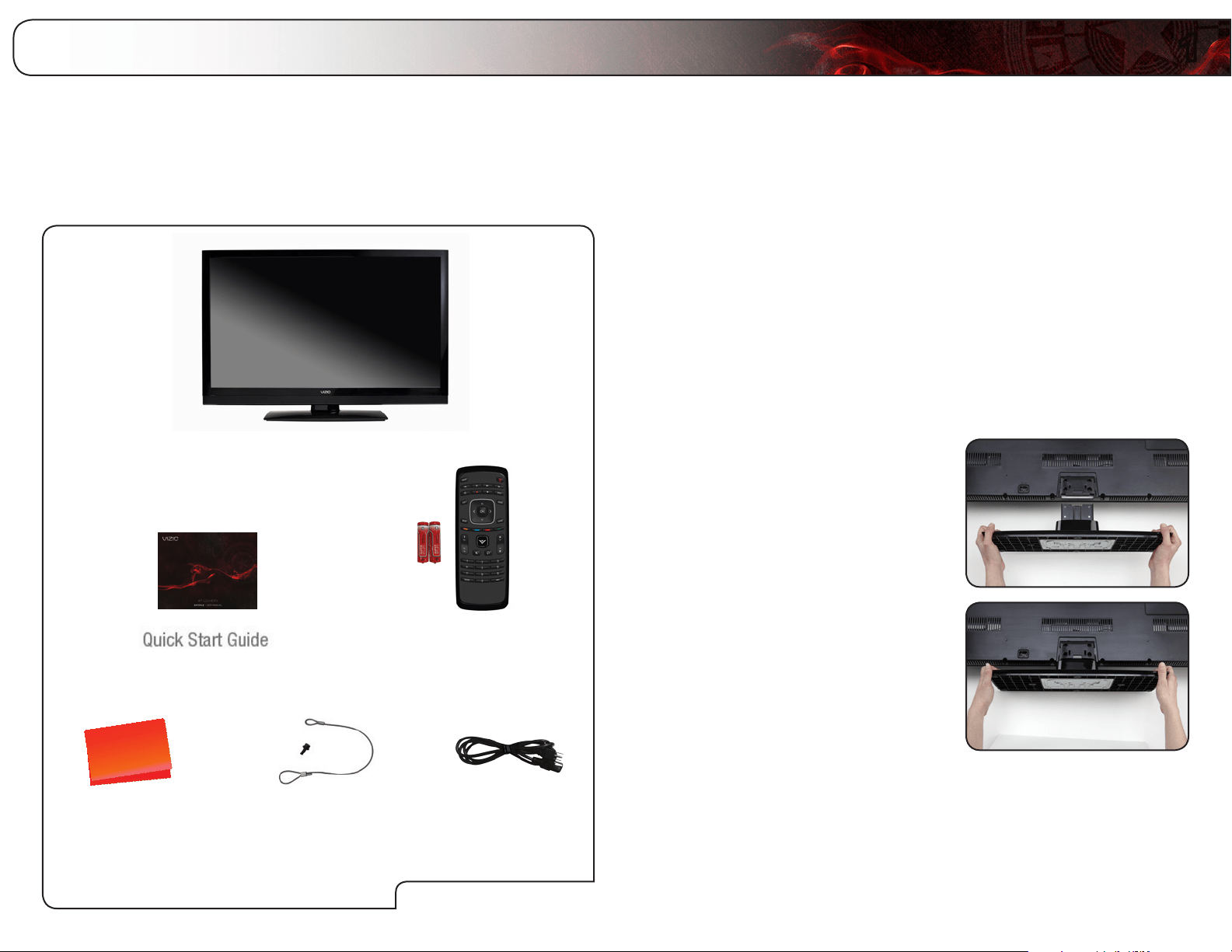
Inspecting the Package Contents
Before installing your new TV, take a moment to inspect the package contents.
Use the images below to ensure nothing is missing or damaged.
When you have completed your inspection, install the TV.
Cleaning Cloth
Remote Control with
Batteries
User Manual and
Quick Start Guide
VIZIO LCD HDTV with Base
Installing the TV
After removing the TV from the box and inspecting the package contents you can
begin installing the TV. Your TV can be installed in two ways:
• Onaatsurface,usingtheincludedstand
• Onawall,usingaVESA-standardwallmount(notincluded)
Installing the TV Base
Your TV includes a base designed to support the weight of the TV and keep it from
falling over. However, the TV can still fall over if:
• Itisplacedonanuneven,unstable,ornon-levelsurface
• Itispushed,pulled,orotherwiseimproperlymoved
• IfanearthquakeoccursandtheTVisnotproperlysecured
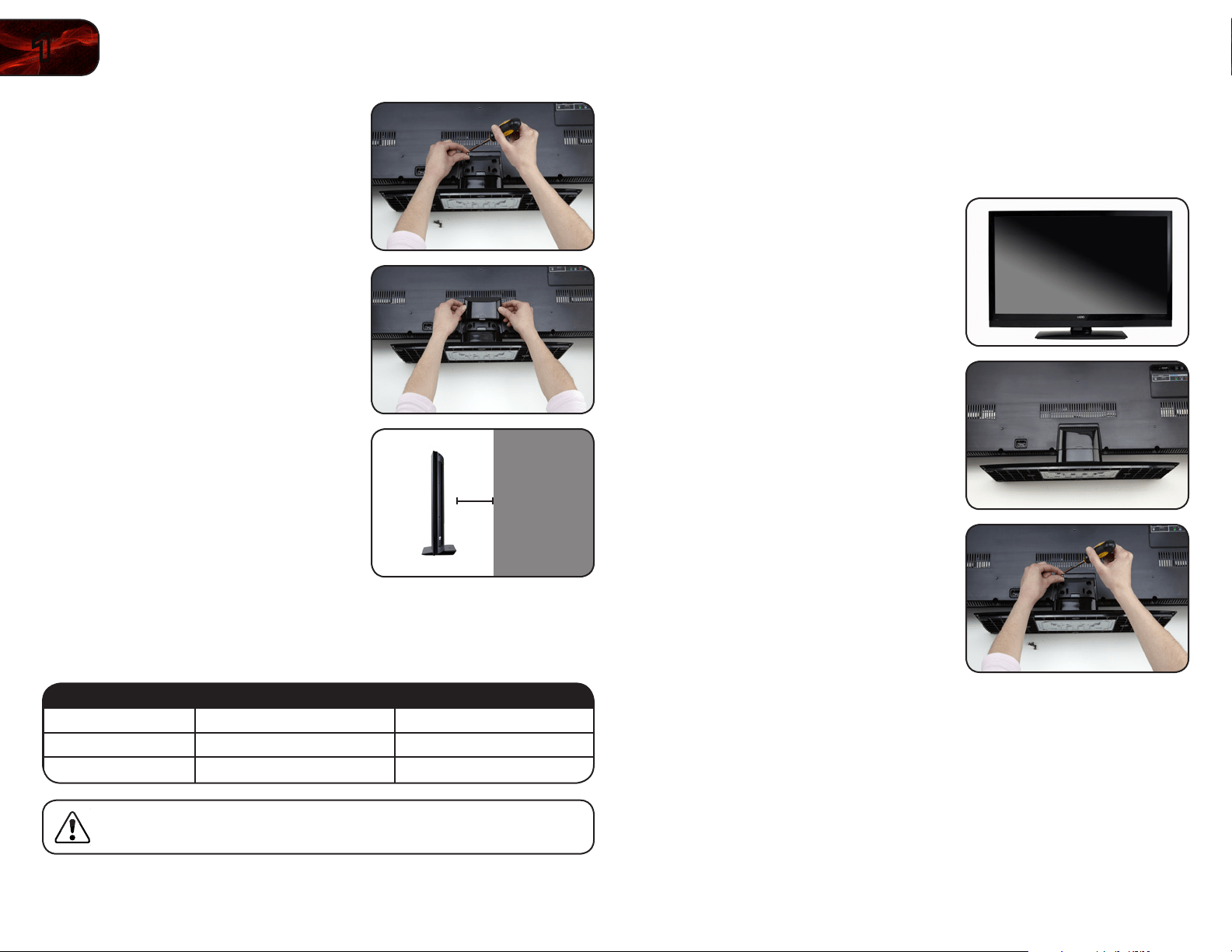
To install the TV stand:
1. Place the TV screen-down on a clean,
flat surface. To prevent scratches or
damage to the screen, place the TV on
a soft surface, such as carpet, rug, or
blanket.
2. Push the base into the slot on the TV.
PackageContents
Power CordSafety Cable
(E420VP Only)
2
1
E370VP/E420VP
Be sure the mount you choose is capable of supporting the weight of the TV. After
you have determined that you have the correct mount for your TV, you can begin
the installation.
To install your TV on a wall:
1. Disconnect any cables connected to
your TV.
2. Place the TV face-down on a clean,
flat, stable surface. Be sure the surface
is clear of debris that can scratch or
damage the TV.
3. Using a Phillips-head screwdriver,
remove the base by loosening and
removing the screws.
4. Attach your TV to the wall, carefully following the instructions that came
with your mount.
Use only with a UL-listed wall mount bracket rated for the weight/load of
this TV. See
Appendix A - Specifications
for the weight of this TV.
3. Using a Phillips-head screwdriver,
attach the base to the TV by inserting
and tightening the included screws.
4. Attach the plastic cover.
5. Move the TV with attached stand into
an upright position and place on a flat,
level, and stable surface.
To ensure proper ventilation, leave at
least 1” of space between the back of
the TV and any other objects (walls,
etc).
Installing the TV on a Wall
To mount your TV on a wall, you will need a wall mount. Consult the information
below to find the appropriate mount for your TV model:
E370VP E420VP
Screw Size: M4 M6
Screw Pitch: 0.7mm 1.0mm
Hole Pattern: 200mm (V) x 200mm (H) 200mm (V) x 400mm (H)
Installing a TV on a wall requires lifting. To prevent injury or damage
to the TV, ask someone to help you.
1”
2
3
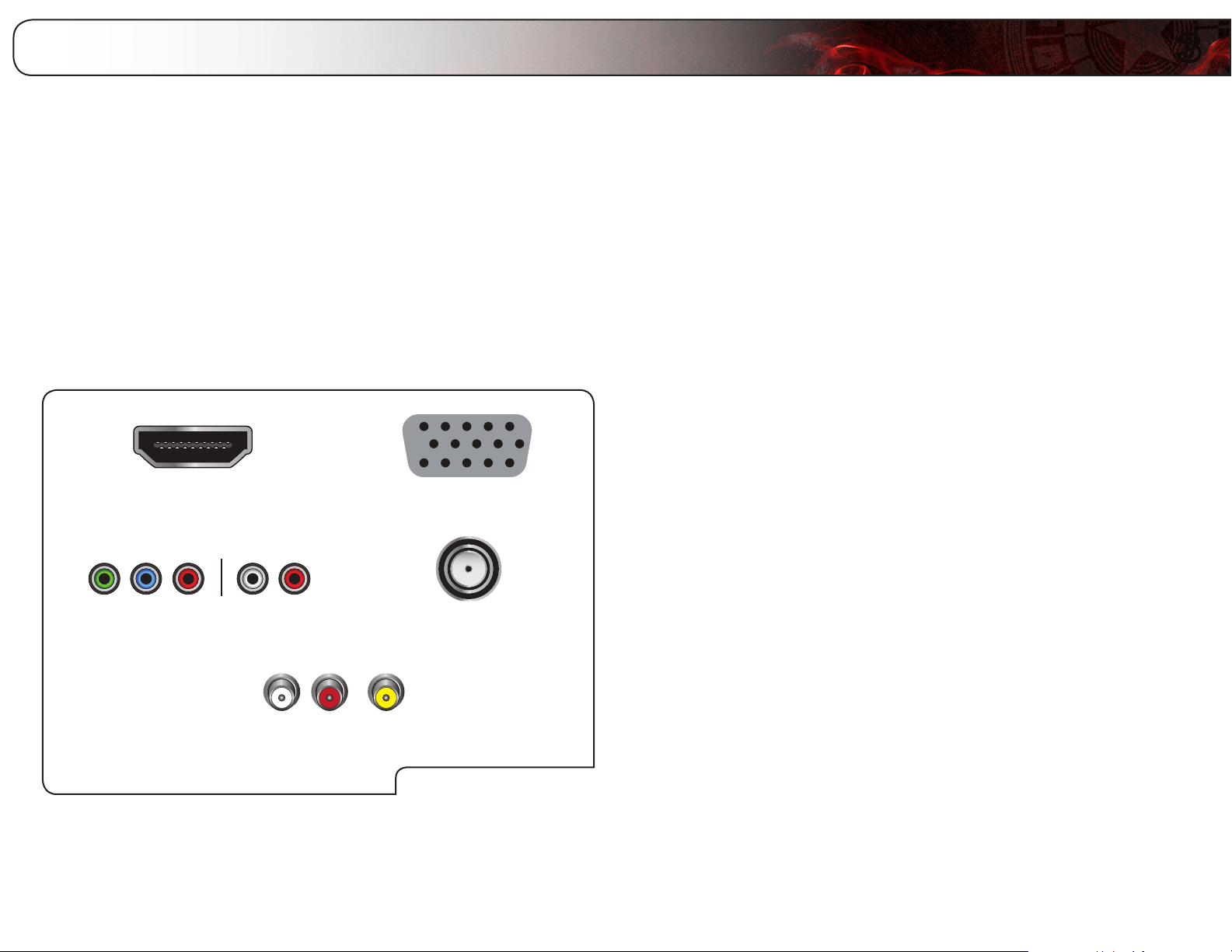
Controls and Connections
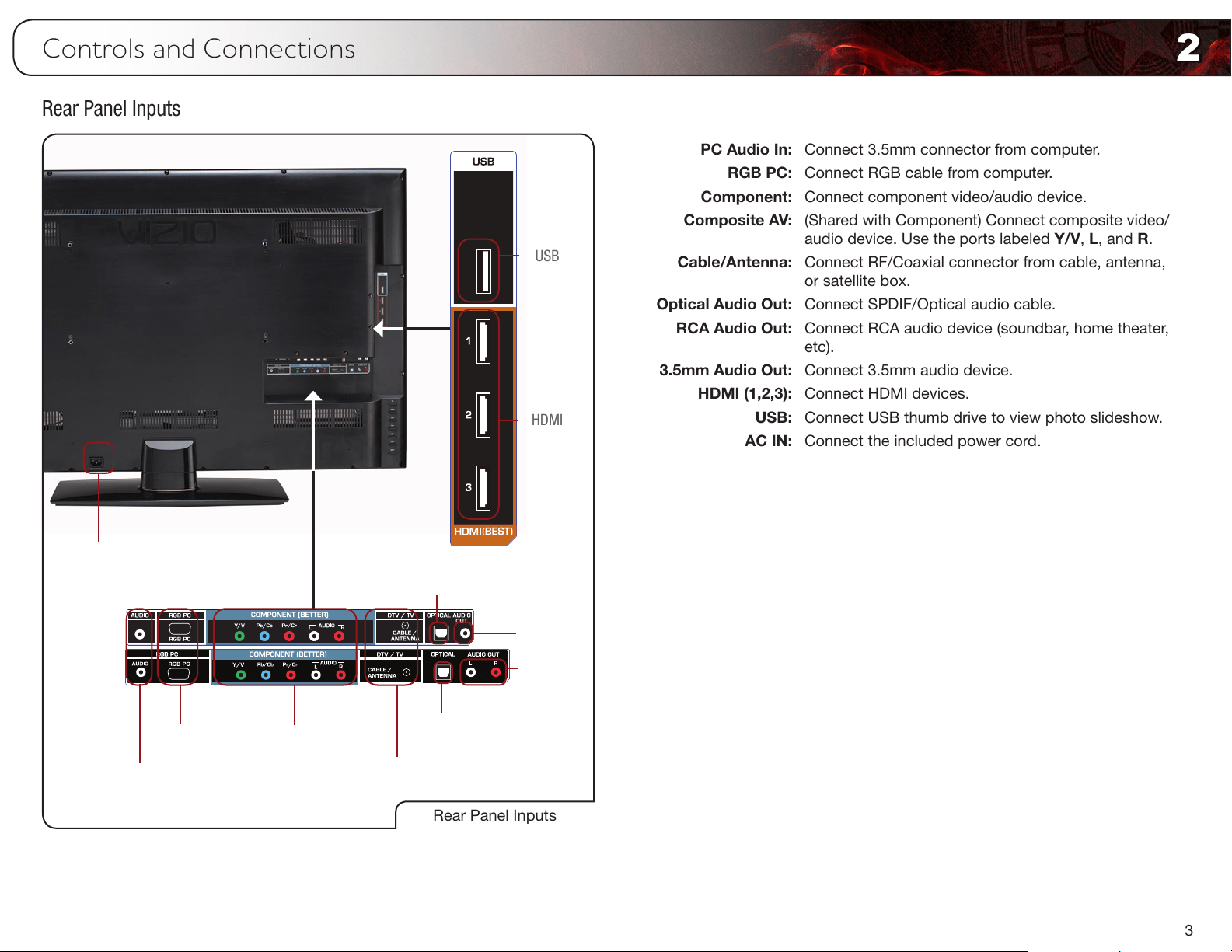
PC Audio In: Connect 3.5mm connector from computer.
RGB PC: Connect RGB cable from computer.
Component: Connect component video/audio device.
Composite AV: (Shared with Component) Connect composite video/
audio device. Use the ports labeled Y/V, L, and R.
Cable/Antenna: Connect RF/Coaxial connector from cable, antenna,
or satellite box.
Optical Audio Out: Connect SPDIF/Optical audio cable.
RCA Audio Out: Connect RCA audio device (soundbar, home theater,
etc).
3.5mm Audio Out: Connect 3.5mm audio device.
HDMI (1,2,3): Connect HDMI devices.
USB: Connect USB thumb drive to view photo slideshow.
AC IN: Connect the included power cord.
Rear Panel Inputs
Rear Panel Inputs
HDMI
USB
AC IN
Component/
Composite AV
Cable/
Antenna
RGB PC
Optical Audio
Out
RCA
Audio Out
PC Audio In
3.5mm
Audio Out
Optical Audio Out
E370VP u
E420VP u
4
2
E370VP / E420VP
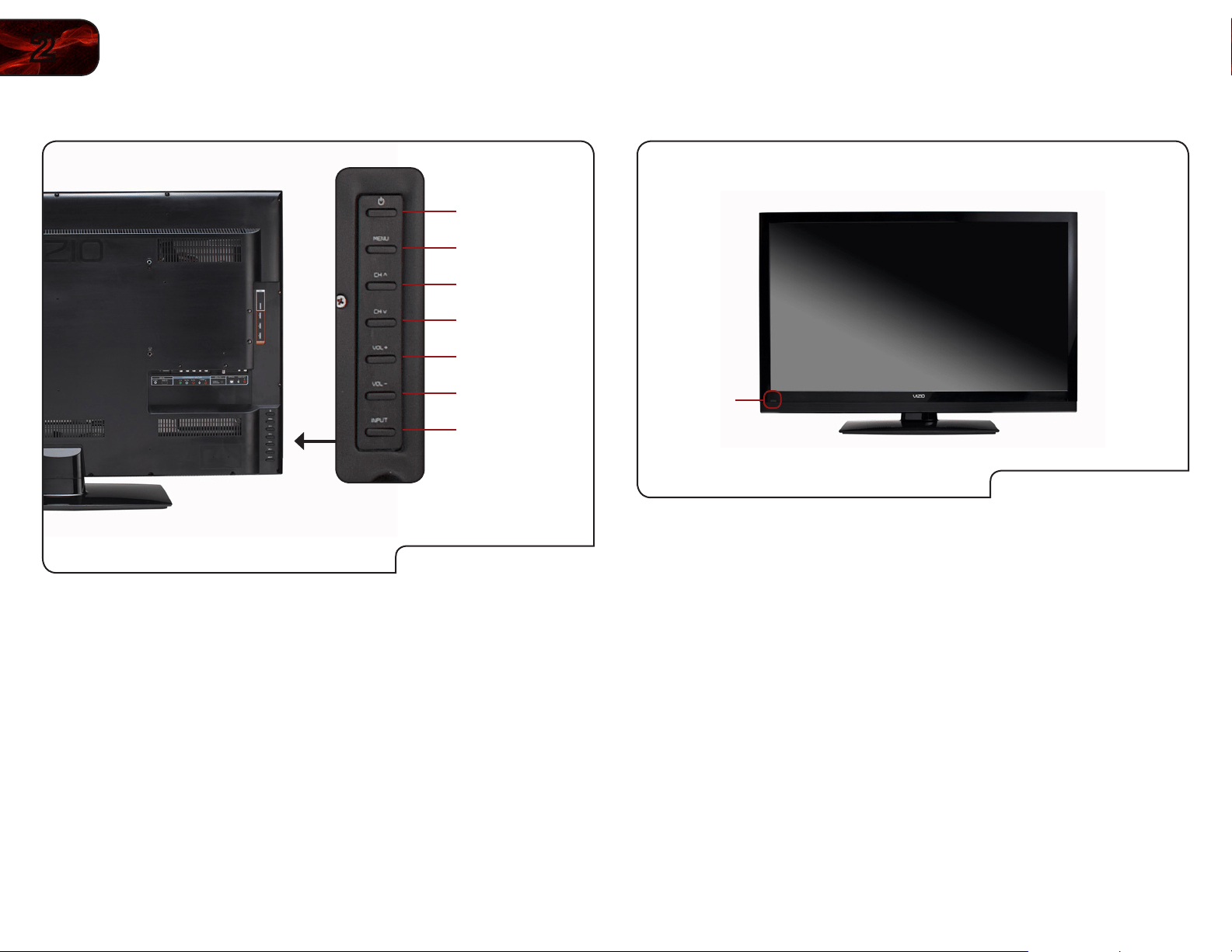
Rear Panel Buttons
Rear Panel Buttons
Power
Menu
Channel Up
Channel Down
Volume Up
Volume Down
Input
Power: Turn the TV on or off.
Menu: Display on-screen menu.
Channel Up/Down: Change the channel.
Volume Up/Down: Increase or decrease the loudness of the TVs audio.
Input: Change the input device.
Front Panel
Front Panel
Remote Control
Sensor
Remote Control Sensor: When using the remote, point it directly at this
sensor.
2
5
E370VP / E420VP
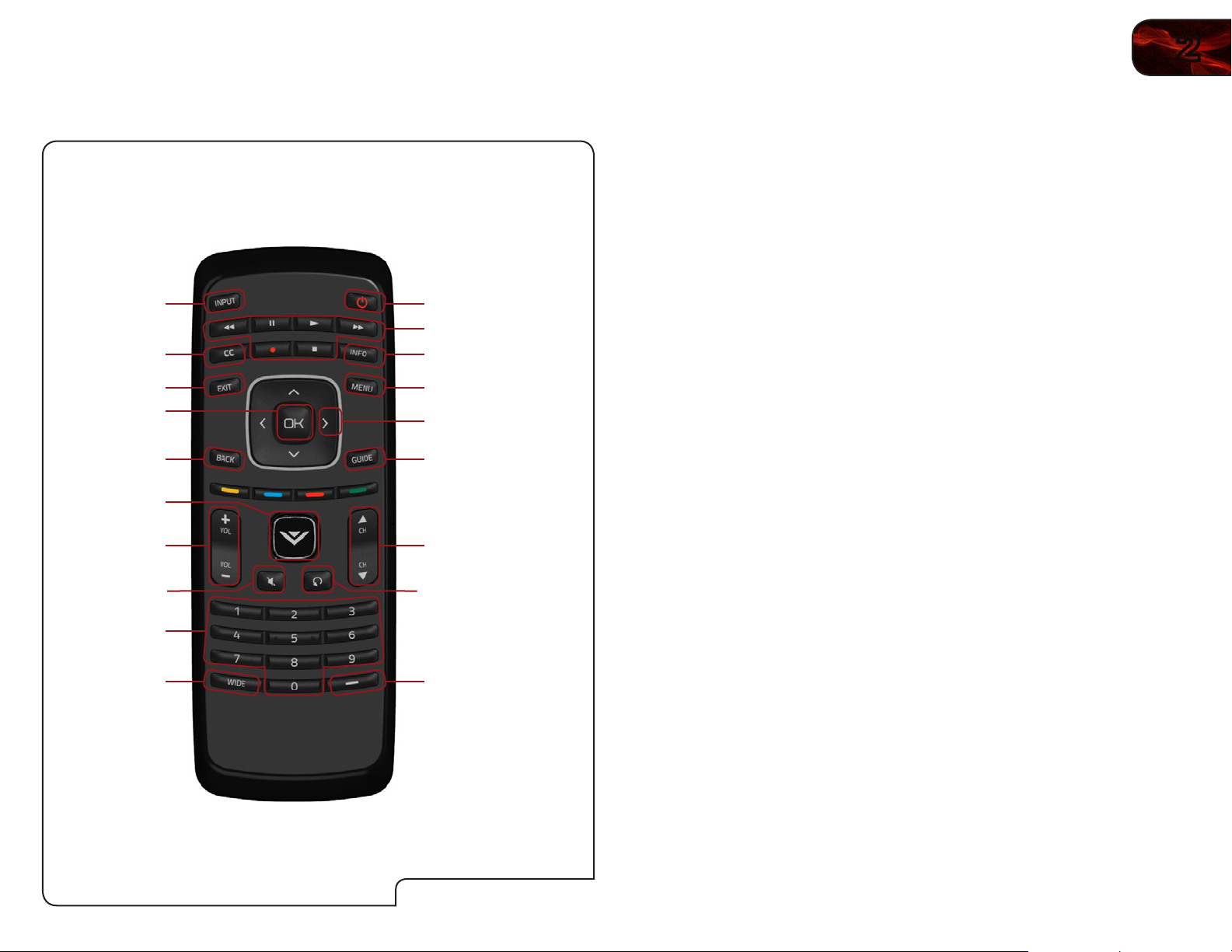
Remote Control
Power/Standby
A/V Controls
Info
Menu
Arrow
Channel
Up/Down
Last
Number Pad
Wide
Mute
Volume
Up/Down
OK
Exit
Input
GuideBack
Dash (-)
CC
Remote Control
V Button
Power/Standby: Turn the TV on or off.
Input: Change the input device.
A/V Controls: Control external device (CEC-enabled devices only).
Info: Display the Info Window.
CC: Open the Closed Captioning menu.
Menu: Display the on-screen menu.
Exit: Close the on-screen menu.
Arrow: Navigate the on-screen menu and episode guide.
OK: Select highlighted menu option.
Guide: Display the episode guide (digital channels only).
Back: Go to the previous on-screen menu options.
V Button: Launch the USB photo viewer.
Channel Up/Down: Change the channel. With each press of the button,
the channel will increase or decrease by one.
Volume Up/Down: Increase or decrease the loudness of the TV’s audio.
Mute: Turn the sound off or on. When mute is activated, the
TV’s audio is turned off.
Last: Return to the channel last viewed.
Number Pad: Use the number pad to manually enter a channel.
Dash (-): Use with number pad to manually enter a digital
sub-channel. (For example, 18-4 or 18-5.)
Wide: Switch between display modes.
6
2
E370VP / E420VP
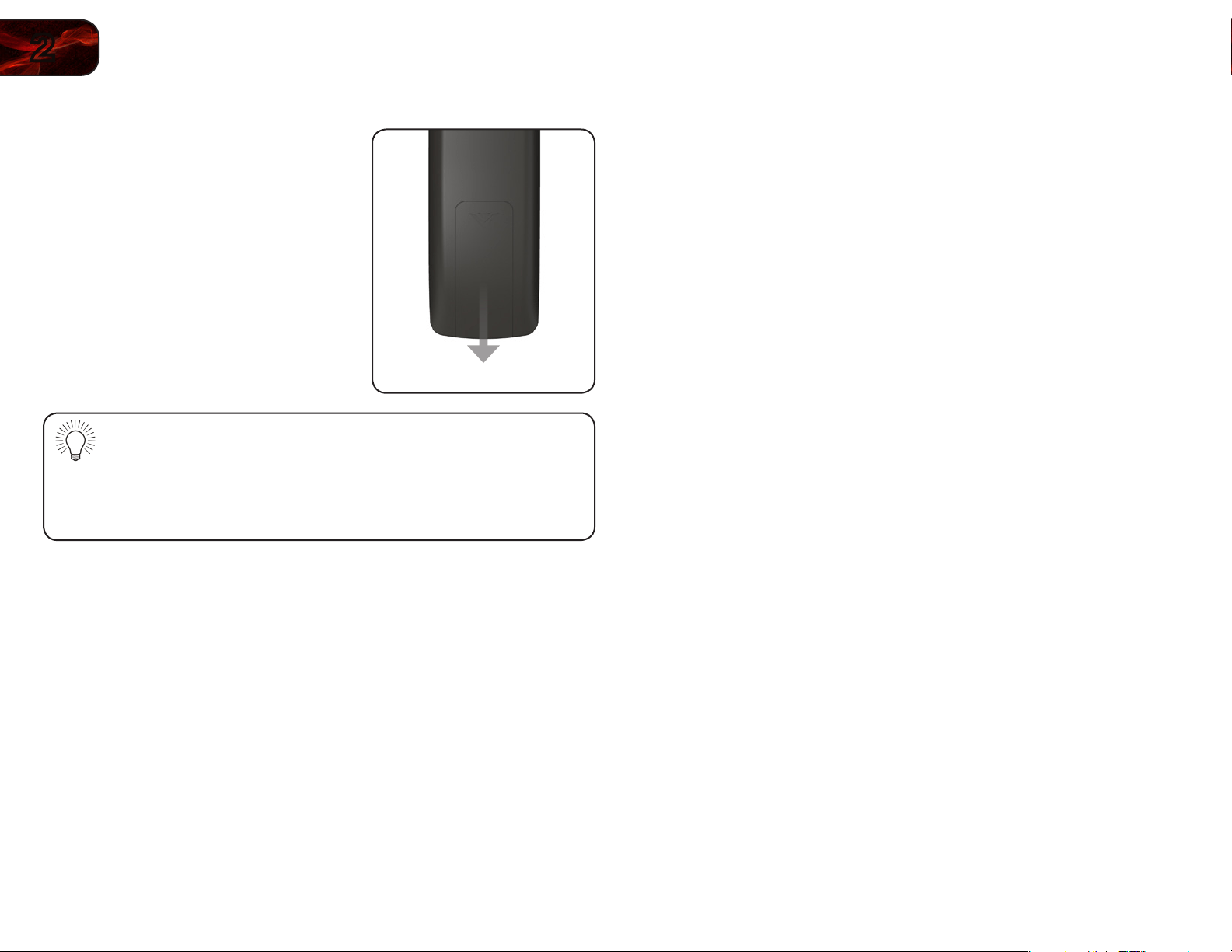
Replacing the Batteries
1. Remove the battery cover.
2. Insert two AAA batteries into the
remote control. Make sure that the (+)
and (-) symbols on the batteries match
the (+) and (-) symbols inside the
battery compartment.
3. Replace the battery cover.
• Use only good quality batteries.
• Inserting the batteries incorrectly may result in cracking or leakage
that may cause a fire or result in injury.
• Dispose of old or dead batteries in accordance with local hazardous
waste regulations.
• Keep batteries away from children and pets.
3
7
Connecting Your Devices
Your HDTV can be easily connected to an external device:
• DVDorBlu-Rayplayer
• Videogameconsole
• Cablebox
• Externalantenna
• Orotherdevice
Before You Begin
To connect a device to the HDTV:
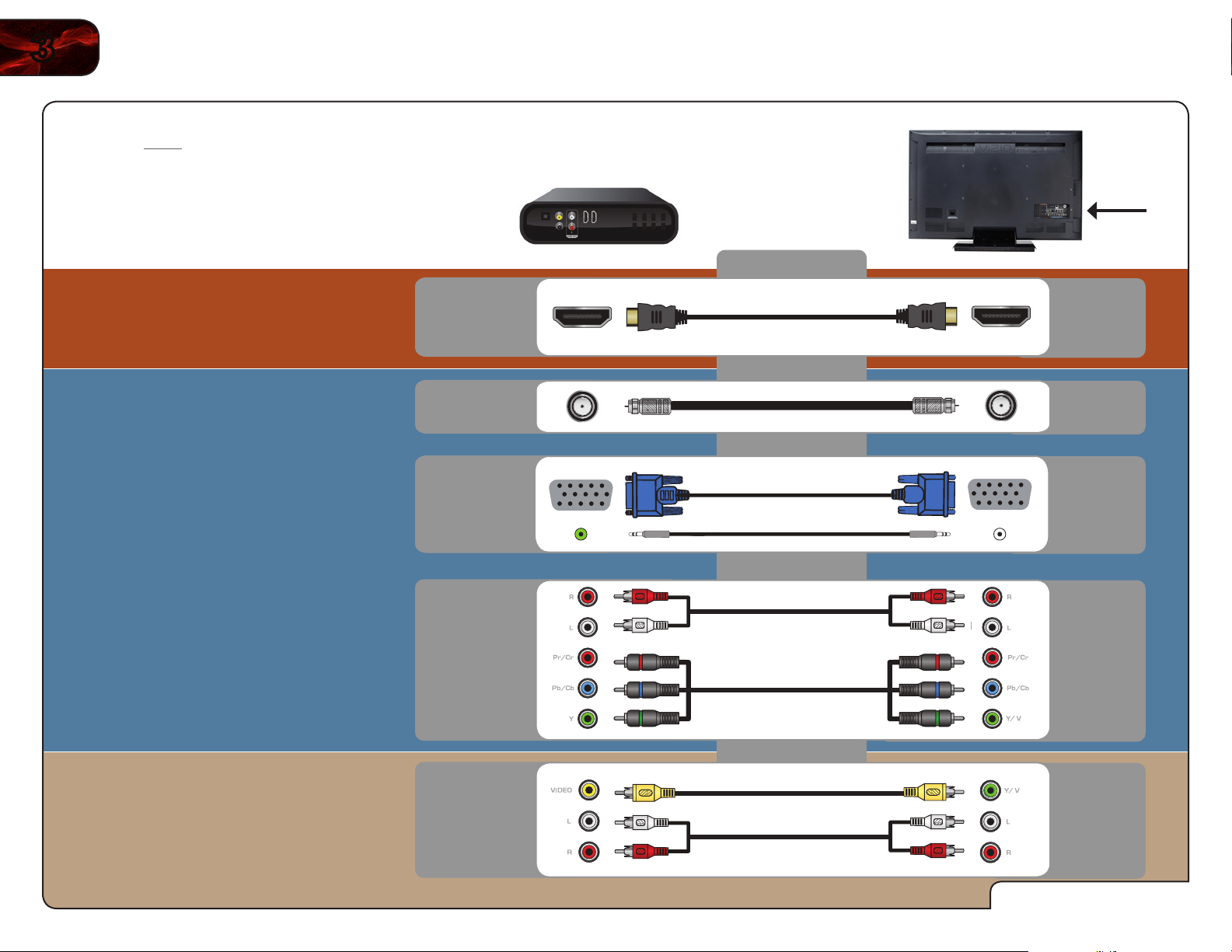
1. Verify that the device has one of the following types of video ports
available:
RequiredDevicePorts
HDMI RGB
RF/AntennaComponent
CompositeAV
2. Ensure the TV has a matching port available.
3. Ensure you have a cable that matches the available port. For example, if
you are connecting a Blu-ray player with an HDMI port, be sure you have
an HDMI cable.
Connecting Your Devices
Once you have determined the best available connection type on both your
device and the TV, ensure you have the corresponding cable.
To connect a device to the TV:
1. Ensure both the TV and your device are off.
2. Connect the device and the TV. Use the best available connection. See the
Device Connection Chart on the next page.
Ensure each end of the cable is securely connected.
3. Turn the TV on by pressing the Power/Standby button on the remote.
4. Turn your device on.
5. When you are ready to use your newly connected device, press the INPUT
button on the remote and select the connection type (HDMI, RGB, etc) from
the on-screen menu. Press OK.
6. Check the list of devices/connection types below for special instructions:
• CableTV(withoutcablebox/directlyfromwall)
Performachannelscan.
ScanningforChannels
onpage18.
• RGB
MakesurethedesktopresolutiononthePCissetto1920x1080.Set
theScreenModetoNormal.
• DVDPlayerwithDVI
Connectleft(white)andright(red)audiocablestotheLandRports
nexttotheHDMIportsontheTV.
8
3
E370VP/E420VP
Select One:
OR
OR
OR
OR
BETTER
GOOD
BEST
HDMI
RF/
COAXIAL
RGB
COMPONENT
COMPOSITE
AV
DIGITAL
DIGITAL /
ANALOG
ANALOG
ANALOG
ANALOG
DeviceConnectionChart
Selectoneoftheconnectiontypes.
Usethecable(s)showntoconnect
theTVtoyourdevice.
4
9
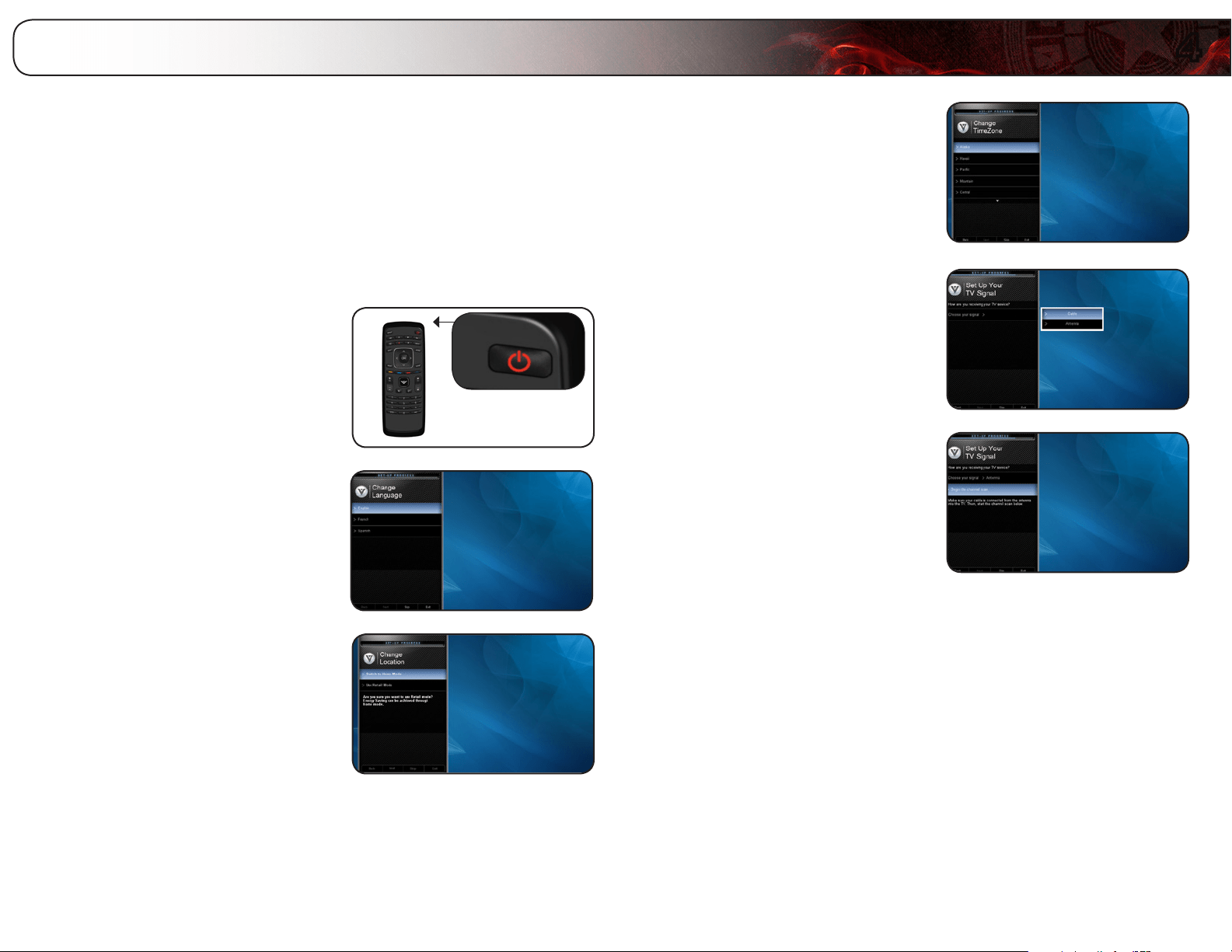
The first time you turn on the TV, the Setup App will guide you through each of the
steps necessary to get your TV ready for use.
Before you begin the first-time setup:
• YourTVshouldbeinstalledandthepowercordshouldbeconnected
toanelectricaloutlet.See
InstallingtheTV
onpage1.
• Yourdevicesshouldbeconnected.See
ConnectingYourDevices
on
page7.
To complete the first-time setup:
1. Press the Power/Standby button on
the remote. The TV powers on and the
Setup App starts.
2. Use the Up/Down Arrow buttons on
the remote to highlight your language
and press OK.
3. Use the Arrow Up/Down buttons on
the remote to highlight Home Mode
Setup and press OK.
4. Use the Up/Down Arrow buttons on
the remote to highlight your time zone
and press OK.
5. Answer the on-screen questions about
your TV connection using the
Up/Down Arrow and OK buttons on
the remote.
6. Use the Arrow buttons to highlight
Begin the Channel Scan and press OK.
7. When you have finished the channel
scan, highlight Exit to Live TV and
press OK.
The First-Time Setup is complete.
Completing the First-Time Setup
5
10
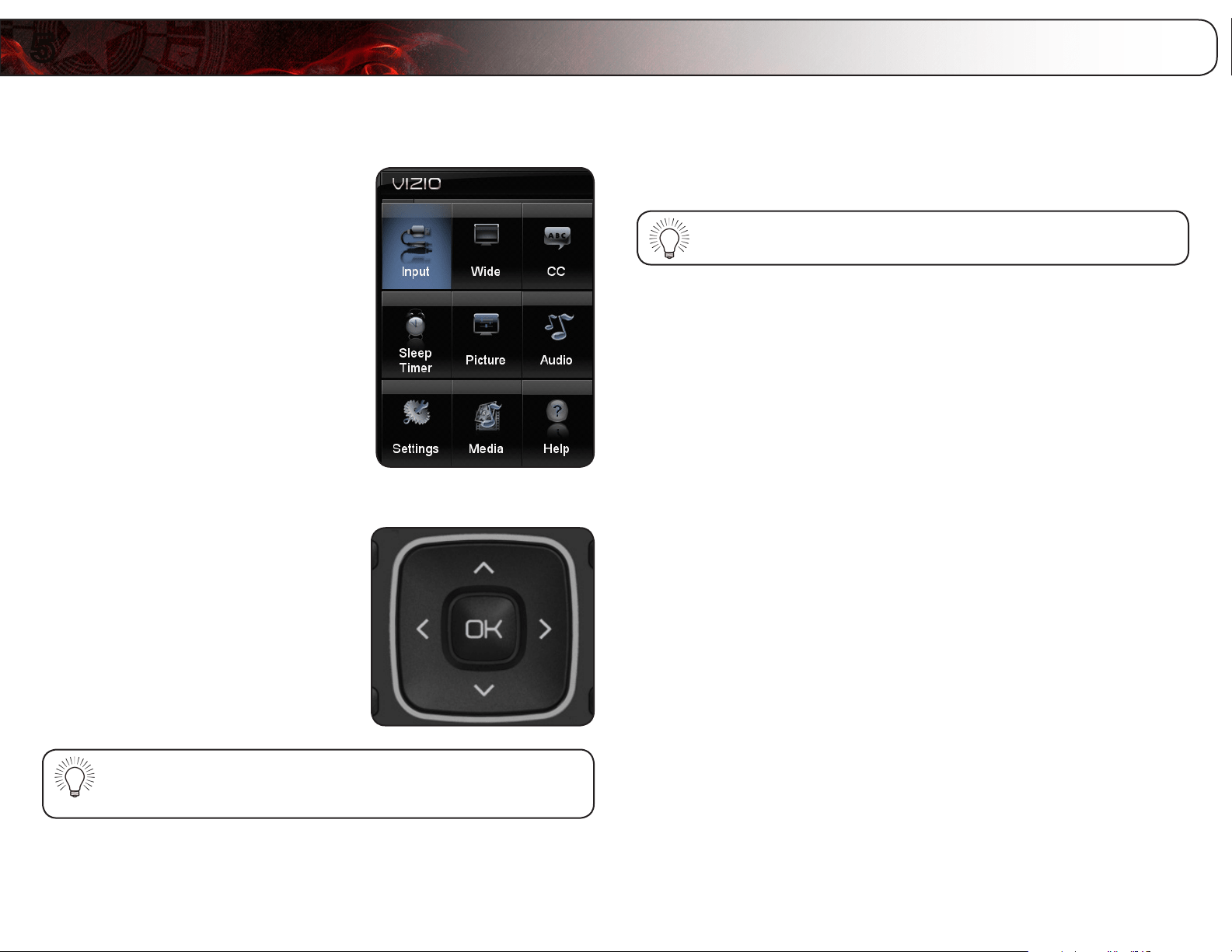
Your TV features an easy-to-use on-screen menu.
To open the on-screen menu, press the MENU button on the remote.
From this menu, you can:
• Changetheinputsource
• Changethescreenaspectradio
• Setupclosedcaptioning
• Activatethesleeptimer
• Adjustthepicturesettings
• Adjusttheaudiosettings
• ChangeTVsettings
• Accessthehelpmenu
Navigating the On-Screen Menu
To open the on-screen menu, press the
MENU button on the remote.
Use the Arrow buttons to highlight a menu
option, and press the OK button to select
that option.
While navigating the on-screen menu, you can press the BACK
button at any time to return to the previous menu screen. The EXIT
button will close the on-screen menu.
Changing the Input Source
External devices such as DVD players, Blu-Ray Players, and video game consoles
can be connected to your TV. To use one of these devices with your TV, you must
first change the input source in the on-screen menu.
To open the Input menu quickly, press the INPUT button on the
remote control.
For instructions on connecting external devices, see
Connecting Your Devices on
page 7
.
To change the input device:
1. Press the MENU button on the remote. The on-screen menu is displayed.
2. Use the Arrow buttons on the remote to highlight the Input icon and press
OK. The Input menu is displayed.
3. Use the Up/Down Arrow buttons on the remote to highlight the input
source you wish to display. Press OK, then press EXIT.
Using the On-Screen Menu
5
11
E370VP/E420VP
Setting the Screen Aspect Ratio
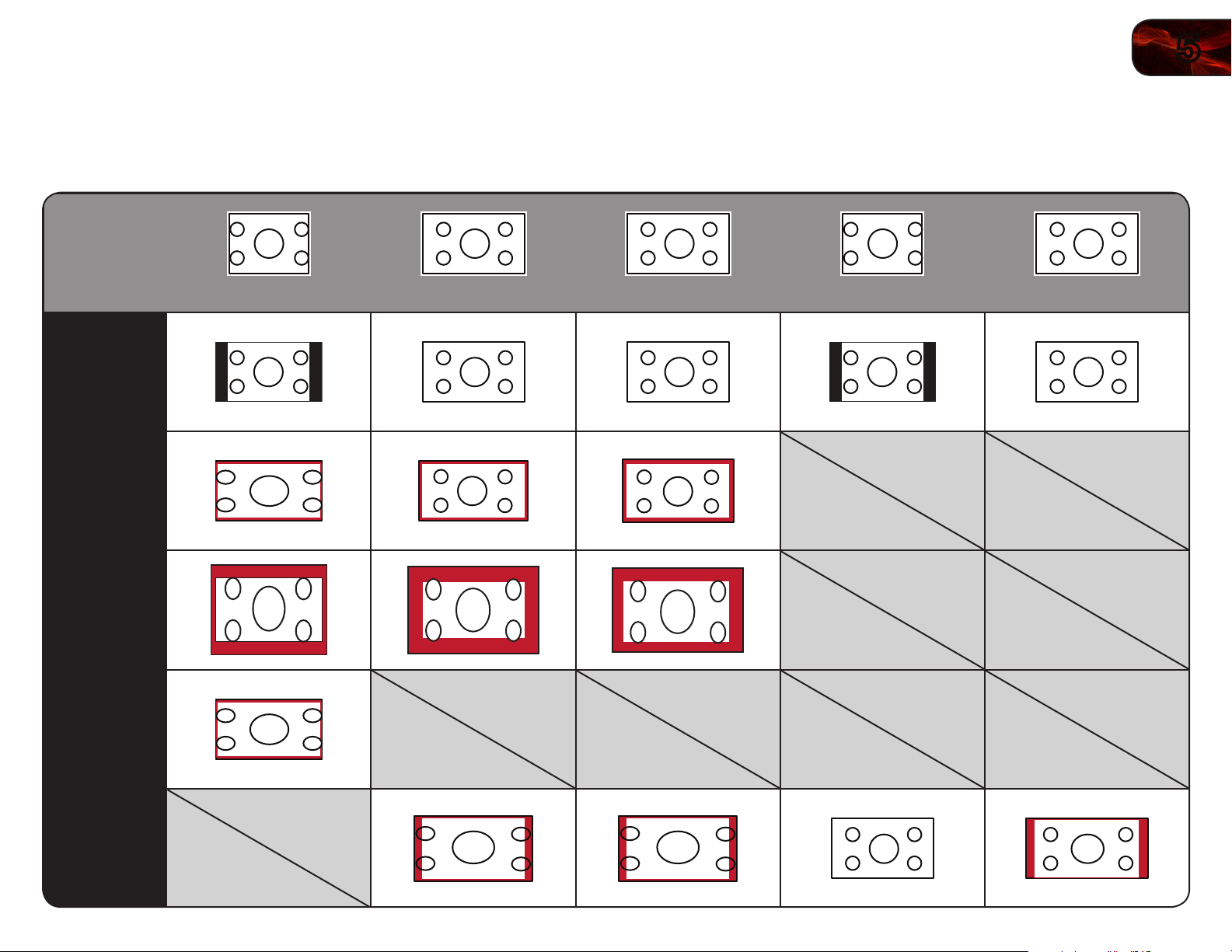
The TV can display images in five different modes: Normal, Wide, Zoom, Panoramic,
and Stretch. Each mode displays content according to the content’s original format.
Original
Content
Format
480p/480i(4:3)
720p(16:9)
1080p/1080i(16:9)
RGB(4:3)
RGB(16:9)
Normal
Wide
Zoom
Panoramic
Stretch
Use the table below to determine the best aspect ratio for your content type.
Areas in red will not be visible on your TV screen.
12
5
E370VP/E420VP
Changing the Screen Aspect Ratio
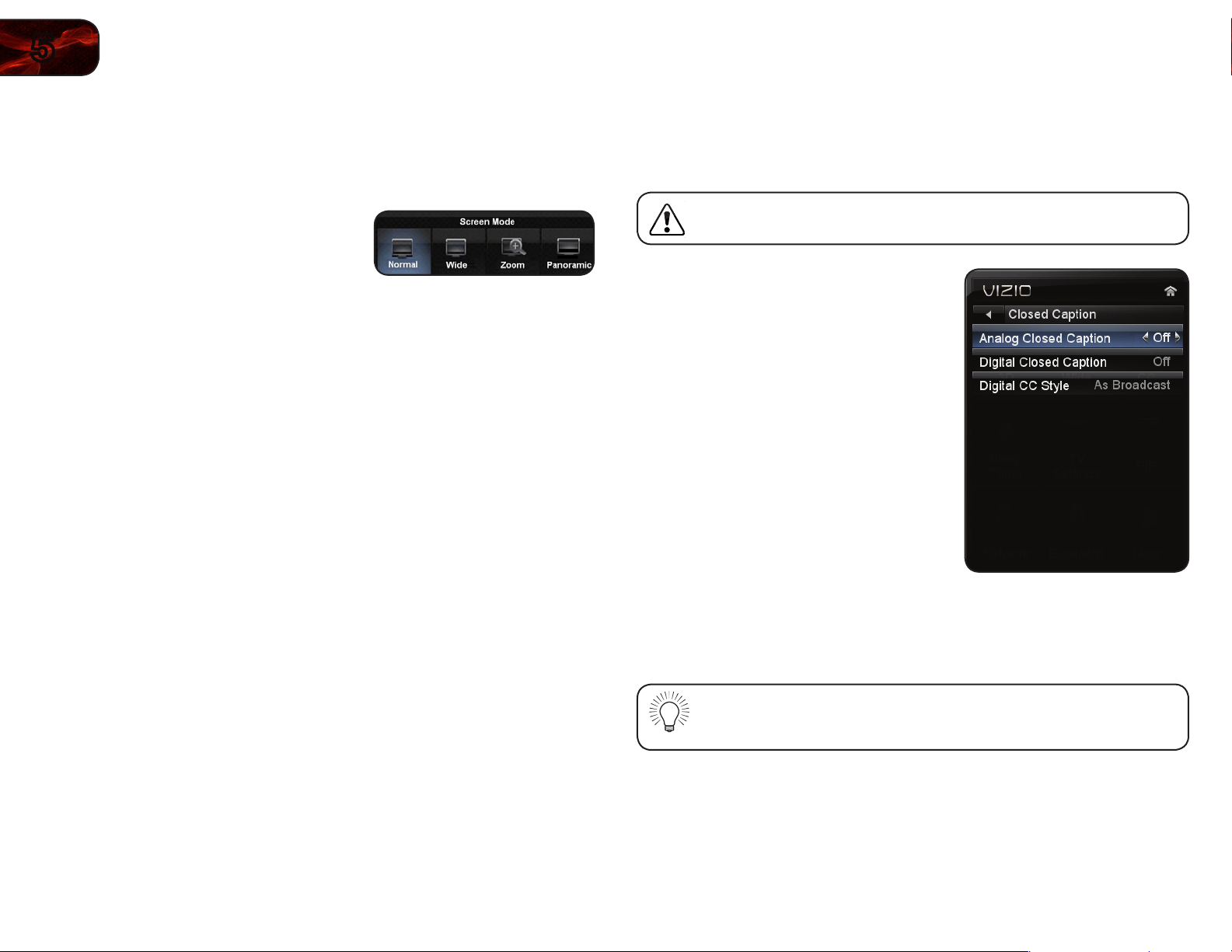
The TV can display images in four different modes: Normal, Wide, Zoom, and
Panoramic. Each mode displays the picture differently.
To change the screen aspect ratio:
1. Press the MENU button on the remote.
2. Use the Arrow buttons to highlight the
Wide icon. Press OK.
3. Use the Arrow buttons to highlight your desired screen mode and press
OK:
• Normal preservesthecontent’soriginalaspectratio.Sincethe4:3
aspectratioisnotlargeenoughtolltheTV’sscreen,blackbarsare
addedtotheleftandrightofthedisplayimage.
• Wide stretchesa4:3aspectratiopicturetotheedgesofthescreen.
Sincethepictureisbeingstretched,thedisplayimagemayappear
distorted.Iftheprogramisalreadyformattedforwidescreenviewing
(1.85:1or2.35:1),thenblackbarswillappearonthetopandbottomof
thedisplayimage.
• Zoom expandsimageswithblackbarstotthescreen.
• Panoramic expandsthedisplayimagetollthescreen.Imagesmay
appearwiderthanintended.Ifyouarewatchingwidescreen(1.85:1
or2.35:1)content,blackbarswillstillappearonthetopandbottom
ofthedisplayimage.This option is only available when the TV is
displaying a 480i/480p source.
• Stretchexpandsthedisplayimagetollthescreen.Imagesmay
appearwiderthanintended.Ifyouarewatchingwidescreen(1.85:1
or2.35:1)content,blackbarswillstillappearonthetopandbottom
ofthedisplayimage.This option is only available when the TV is
displaying a 720p/1080i/1080p source.
Setting Up Closed Captioning
Your TV can display closed captions for programs that include them. Closed
captions display a transcription of a program’s dialogue.
If the program you are viewing is not being broadcast with closed
captions, the TV will not display them.
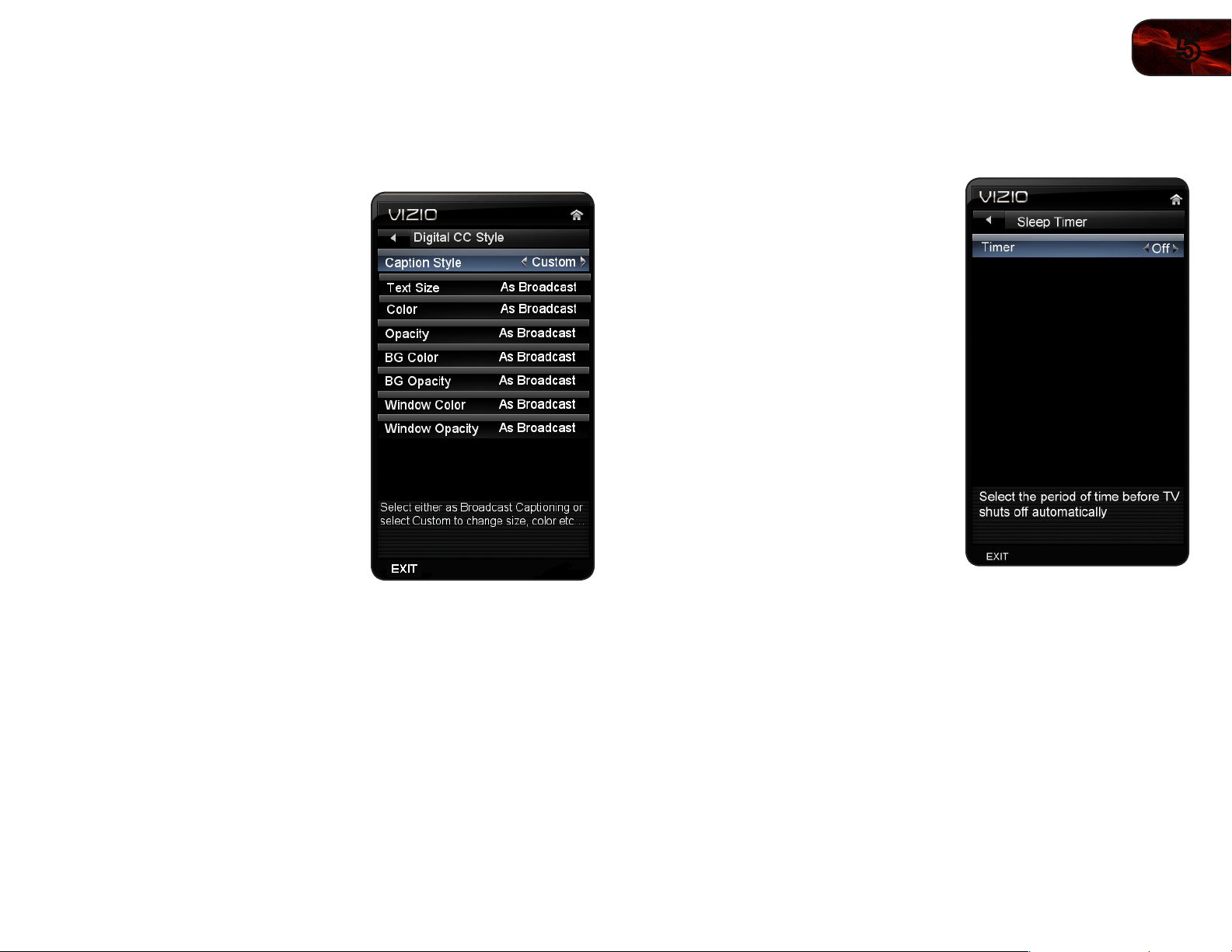
To activate or deactivate closed captions:
1. Press the MENU button on the remote.
The on-screen menu is displayed.
2. Use the Arrow buttons on the remote
to highlight the CC icon and press OK.
The Closed Caption menu is displayed.
3. Use the Arrow buttons on the remote
to highlight the type of closed captions
you wish to see:
• Analog Closed Captionfor
analog(NTSC)TVchannels.
• Digital Closed Captionfor
digital(ATSC)TVchannels.
4. After highlighting the type of closed
captions you wish to see, use the Left/
Right Arrow buttons on the remote to
select the caption channel you wish to
display, then press EXIT.
Caption channels usually display different languages. For example,
CC1 may display English captions and CC2 may display Spanish
captions.
5
13
E370VP/E420VP
Changing the Appearance of Digital Closed Captions
Digital closed captions can be displayed according to your preference.
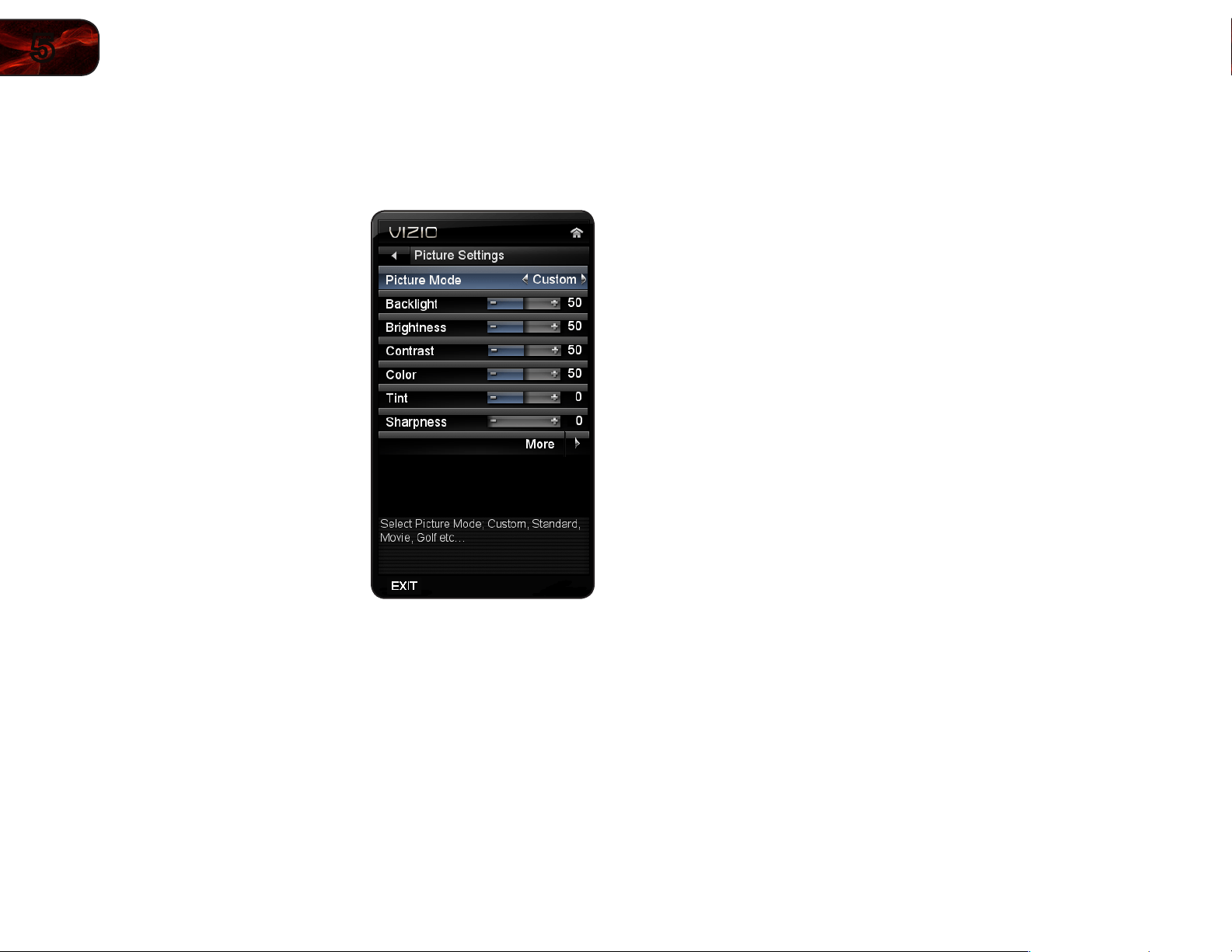
To change the appearance of digital closed captions:
1. From the Closed Caption menu, use
the Arrow buttons to highlight Digital
CC Style.
2. Use the Left/Right Arrow buttons on
the remote to select Custom, then
press OK. The Digital CC Style menu
appears.
3. Use the Up/Down Arrow buttons on
the remote to highlight the setting you
wish to change, then use the Left/
Right Arrow buttons to change the
setting:
• Caption Style-ChooseAutoto
keepdefaultsettingsorCustomto
manuallychangeeachsetting.
• Text Size-Adjustthesizeofthe
text.
• Color-Changethecolorofthe
text.
• Opacity-Changethetransparencyofthetext.
• BG Color-Changethebackgroundcolor.
• BG Opacity-Changethetransparencyofthebackground.
• Window Color-Changetheedgecolor.
• Window Opacity-Changetheedgetype.
4. When you are satisfied with the appearance of the closed
captions, press the EXIT button on the remote.
Activating the Sleep Timer
When activated, the TV’s sleep timer will turn the TV off after a set period of time.
To use the sleep timer:
1. Press the MENU button on the remote.
The on-screen menu is displayed.
2. Use the Arrow buttons on the remote
to highlight the Sleep Timer icon and
press OK. The Sleep Timer menu is
displayed.
3. Use the Up/Down Arrow buttons
on the remote to highlight Timer
and press OK. The Timers menu is
displayed.
4. Use the Up/Down Arrow buttons
on the remote to highlight the period
of time after which you want the TV
to turn off: 30, 60, 90, 120, or 180
minutes.
5. Press OK, then press EXIT.
14
5
E370VP/E420VP
Adjusting the Picture Settings
Your TV display can be adjusted to suit your preferences and viewing conditions.
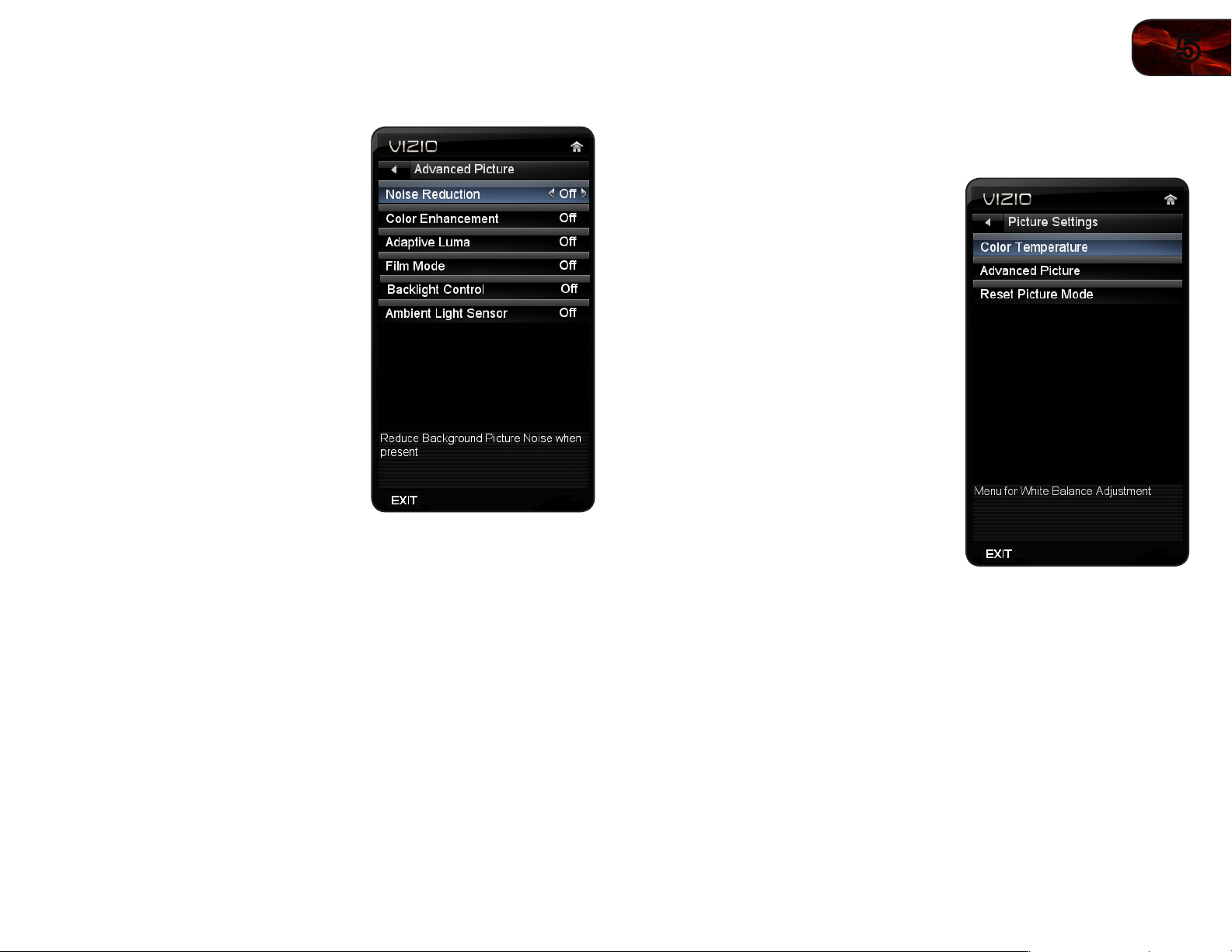
To adjust the picture settings:
1. Press the MENU button on the remote.
The on-screen menu is displayed.
2. Use the Up/Down Arrow buttons on
the remote to highlight Picture and
press OK. The Picture Settings menu
is displayed.
3. Use the Arrow buttons on the remote
to highlight Picture Mode, then use
the Left/Right Arrow buttons to
change the picture mode:
• Standard modesetsthevarious
picturesettingstovaluesthat
willproducethebestpicture
inthemostcases.Thisisthe
recommendedsetting.
• Movie modesetsthepicture
settingstovaluesperfectfor
watchingamovieinadarkroom.
• Game modeoptimizesthepicture
settingsfordisplayinggame
consoleoutput.
• Vivid modesetsthepicturesettingstovaluesthatproduceabrighter,
morevividpicture.
• Football,Golf,Basketball,andBaseballmodesoptimizethepicture
settingsfortheirrespectivesports.Alsotrythesemodesforother
sports.
• Custompicturemodeallowsyoutomanuallychangeeachofthe
picturesettings:
Backlight - Adjusts the LED brightness to affect the overall
brilliance of the picture. This option is not available unless Ambient
Light Sensor is set to OFF. See
Adjusting the Advanced Picture
Settings on page 15
.
Brightness - Adjusts the black level of the picture. When this
setting is too low, the picture may be too dark to distinguish details.
When this setting is too high, the picture may appear faded or
washed out.
Contrast - Adjusts the white level of the picture. When this setting
is too high, the picture may appear dark. When this setting is too
low, the picture may appear faded or washed out. If the setting is
too high or too low, detail may be difficult to distinguish in dark or
bright areas of the picture.
Color - Adjusts the intensity of the picture colors.
Tint - Adjusts the hue of the picture. This setting is useful in
adjusting the flesh tones in the picture. If flesh appears too orange,
reduce the level of color before adjusting tint.
Sharpness - Adjusts the edge sharpness of picture elements. It can
be used to sharpen non-HD (high definition) content; however, it will
not produce detail that does not otherwise exist.
5
15
E370VP/E420VP
Adjusting the Advanced Picture Settings
To adjust the advanced picture settings:
1. From the Picture Settings menu, use
the Arrow buttons on the remote to
highlight More, then press OK.
2. Use the Arrow buttons on the remote
to highlight Advanced Picture, then
press OK. The Advanced Picture menu
is displayed.
3. Use the Arrow buttons to highlight
the setting you wish to adjust, then
press Left/Right Arrow to change the
setting:
• Noise Reduction-Diminishes
artifactsintheimagecausedby
thedigitizingofimagemotion
content.SelectOff,Low,Medium,
orHigh.
• Color Enhancement-Reduces
oversaturationofsomecolorsand
improveseshtones.SelectOff,
Normal,RichColor,Green/Flesh,
andGreen/Blue.
• Adaptive Luma-Adjuststheaveragebrightnessofthepictureto
compensateforlargeareasofbrightness.SelectOff,Low,Medium,
Strong,orExtend.
• Film Mode-Optimizesthepictureforwatchinglm.SelectAutoorOff.
• Backlight Control-SelectOff,DCR(DynamicContrastRatio),orOPC.
• Ambient Light Sensor-Theambientlightsensordetectsthelight
levelsintheroomandautomaticallyadjuststhebacklightforthebest
picture.SelectOff,Low,Medium,orHigh.
4. When you have finished adjusting the Advanced Picture Settings, press the
EXIT button on the remote.
Adjusting the Color Temperature
Adjusting the color temperature will change the “warmness” or “coolness” of the
white areas of the picture.
To adjust the color temperature:
1. From the Picture Settings Menu, use
the Arrow buttons to highlight More,
then press OK.
2. Use the Arrow buttons on the remote
to highlight Color Temperature, then
press OK. The Color Temperature
menu is displayed.
3. Use the Arrow buttons on the remote
to highlight Color Temperature, then
use the Left/Right Arrow buttons to
change the color temperature preset:
• Normalisoptimizedfortelevision
viewing.
• Coolproducesablue-hued
picture.
• Computeroptimizesthepicture
foruseasaPCmonitor.
• Customallowsyoutomanually
changeeachofthecolor
temperaturesettings:
Red/Green/Blue Gain - Adjusts the amount of each color in the
display.
Red/Green/Blue Offset - Adjusts the position of each color in the
display.
4. If you want to reset the color temperatures to the factory default settings,
highlight Reset Color Temperature and press OK.
5. When you have finished adjusting the color temperature, press the EXIT
button on the remote.
16
5
E370VP/E420VP
Adjusting the Picture Size and Position
When displaying an image from the HDMI or RGB input, the size and position of
the display image can be adjusted.
To adjust the picture size and position:
1. Ensure the input is set to HDMI or RGB.
2. From the Picture Settings menu, use the Arrow buttons on the remote to
highlight More, then press OK.
3. Use the Arrow buttons on the remote to highlight Size & Position, then
press OK. The Size & Position menu is displayed.
4. Use the Arrow buttons to highlight the setting you wish to adjust, then
press Left/Right Arrow to change the setting:
• Auto Adjust-Automaticallyadjustsdisplayimagetooptimalsizeand
position.(RGBinputonly.)
• Horiz. Position-Adjuststhehorizontal(left/right)positionofthe
displayimage.
• Vertical Position-Adjuststhevertical(up/down)positionofthe
displayimage.
• Horizontal Size-Adjuststhewidthofthedisplayimage.
• Fine Tune-Adjuststheheightofthedisplayimage.(RGBinputonly.)
5. When you have finished adjusting the color temperature, press the EXIT
button on the remote.
Resetting the Picture Settings
To reset the picture settings to the factory default settings:
1. From the Picture Settings menu, use the Arrow buttons to highlight More,
then press OK.
2. Use the Arrow buttons on the remote to highlight Reset Picture Mode,
then press OK. The TV displays, “Are you sure you want to RESET Picture
Settings to the factory defaults?”
3. Highlight Yes and press OK.
4. Press the EXIT button on the remote.
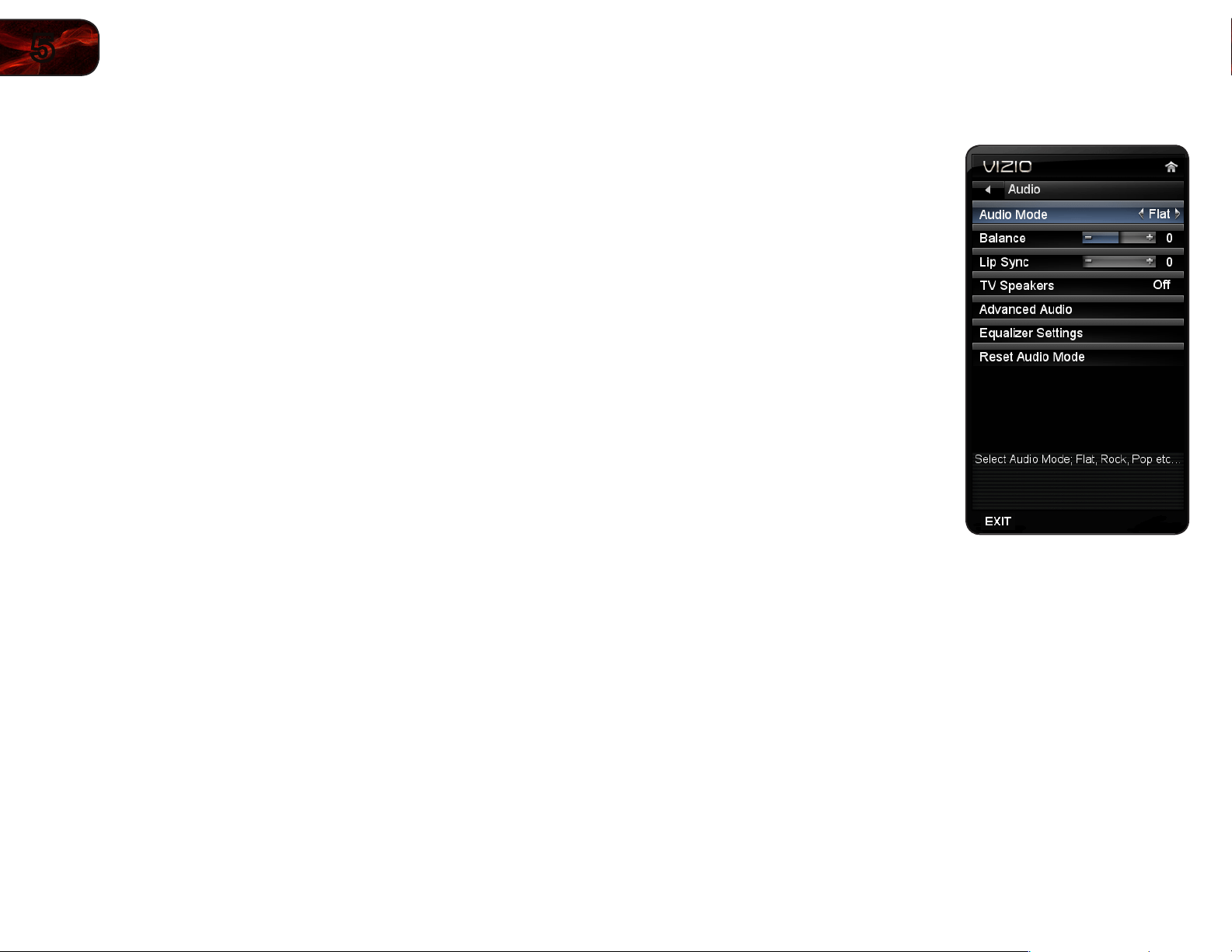
Adjusting the Audio Settings
To adjust the audio settings:
1. Press the MENU button on the remote.
The on-screen menu is displayed.
2. Use the Arrow buttons on the remote
to highlight Audio and press OK. The
Audio Settings menu is displayed.
3. Use the Arrow buttons to highlight
the setting you wish to adjust, then
press Left/Right Arrow to change the
setting:
• Balance-Adjuststheloudnessof
theaudiooutputfromtheleftand
rightspeakers.
• Lip Sync-Adjuststhesynchroni-
zationbetweenthedisplayimage
andtheaccompanyingaudio
track.
• TV Speakers-Turnsthebuilt-in
speakersonoroff.
• Advanced Audio-See
AdjustingtheAdvancedAudioSettings
on
page17.
• Equalizer Settings-Adjuststheboostorattenuationofdifferent
frequencies.(ThissettingisonlyavailablewhenSRSTruSurroundHDis
settoOff.)ChangetheequalizerpresetsbyselectingFlat,Rock,Pop,
Classical,orJazz.Tochangetheequalizersettingsyourself,highlight
EQ ModeandpressOK.
• Reset Audio Mode-Restorestheaudiosettingstothefactory
defaults.See
ResettingtheAudioSettings
onpage17.
4. When you have finished adjusting the audio settings, press the EXIT button
on the remote.
5
17
E370VP/E420VP
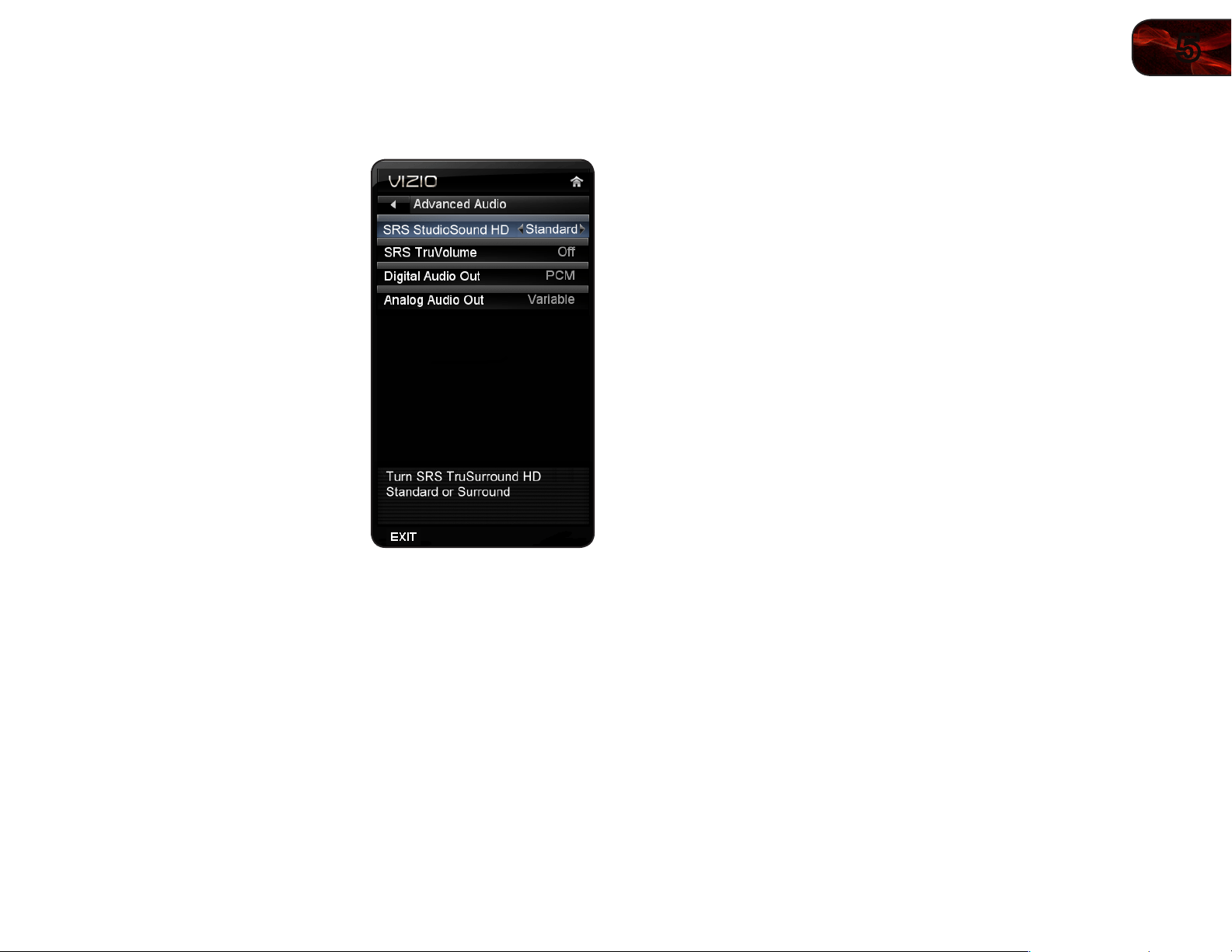
Adjusting the Advanced Audio Settings
To adjust the advanced audio settings:
1. From the Audio Settings Menu, use the
Arrow buttons to highlight Advanced
Audio, then press OK. The Advanced
Audio menu is displayed.
2. Use the Arrow buttons to highlight
the setting you wish to adjust, then
press Left/Right Arrow to change the
setting:
• SRS StudioSound HD-
StudioSoundHD™isafeature-rich
surroundsoundsolutionwhich
deliversanimmersivesurround
soundexperiencefromtheTV’s
internalspeakers.Additionally,
StudioSoundHDcompletesthe
entertainmentexperienceby
maintainingasteadyvolume
whilewatchingprogrammingand
movies,providingdeep,richbass,
anddeliveringcrispdetailsand
clear,intelligibledialog.Select
SurroundorStandard.
• SRS TruVolume-TruVolume™
intelligentlynormalizesvolume
uctuationsduetotelevision
commercialsorchannelchanges.
SelectOnorOff.
• Digital Audio Out-ChangesthetypeofprocessingfortheOptical
outputwhenconnectedtoahometheateraudiosystem.SelectDolby
Digital,PCM,orOff.
• Analog Audio Out-Setsthevolumecontrolpropertiesfortheanalog
RCA(red/white)connectorswhenconnectedtoahometheateraudio
system.SelectVariabletocontroltheexternalspeakers’volume
fromtheTV’svolumecontrols,orselectFixedtocontroltheexternal
speakers’volumefromyourhometheatersystemcontrols.
3. When you have finished adjusting the advanced audio settings, press the
EXIT button on the remote.
Resetting the Audio Settings
To reset the audio settings to the factory default settings:
1. Press the MENU button on the remote. The on-screen menu is displayed.
2. Use the Arrow buttons on the remote to highlight Audio and press OK. The
Audio Settings menu is displayed.
3. Use the Arrow buttons to highlight Reset Audio Mode and press OK. The
TV displays, “Are you sure you want to RESET Audio Settings to the factory
defaults?”
4. Highlight Yes and press OK.
5. Press the EXIT button on the remote.
18
5
E370VP/E420VP
Changing the TV Settings
Using the TV settings menu, you can:
• SetuptheTVtuner
• NametheTVinputs
• Setupparentalcontrols
• Changetheon-screenmenulanguage
• Setthetime
• AdjusttheCECsettings
Setting the Tuner Mode
If you are using a device that is connected to the RF input, such as an external
antenna or cable TV connection, you must set the tuner mode.
This setting is only available when viewing the TV input.
1. Press the MENU button on the remote. The on-screen menu is displayed.
2. Use the Arrow buttons on the remote to highlight the TV Settings icon and
press OK. The TV Settings menu is displayed.
3. Use the Arrow buttons on the remote to highlight Tuner Settings and
press OK. The Tuner Settings menu is displayed.
4. Highlight Tuner Mode and press OK. The Tuner Mode menu is displayed.
5. Highlight Antenna or Cable and press OK.
6. Press the EXIT button on the remote.
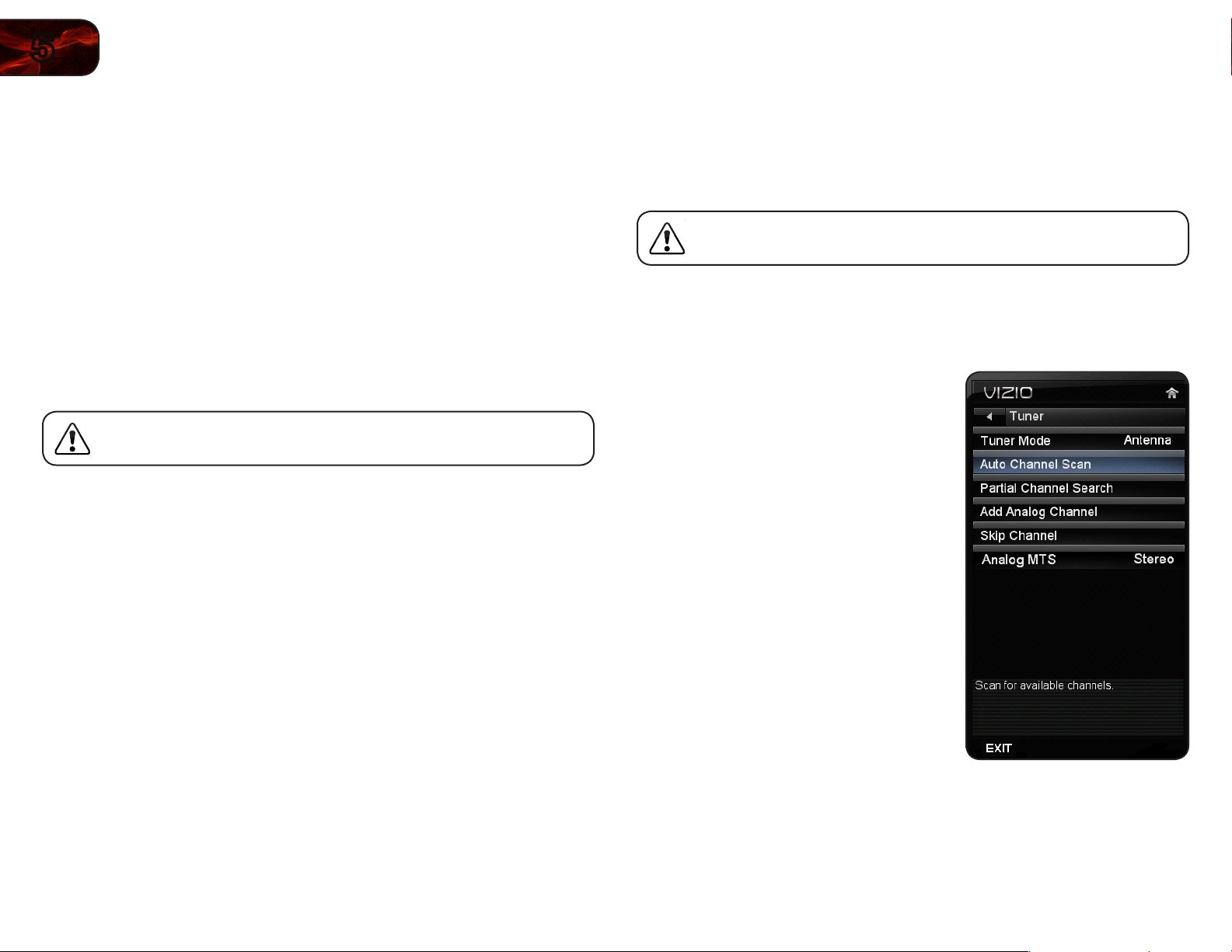
Scanning for Channels
Before the TV can detect and display channels and their associated information,
you must scan for channels. A channel scan may also be necessary when the
TV has been moved to an area where different free-to-air broadcast television
channels are available.
This setting is only available when viewing the TV input.
1. Press the MENU button on the remote. The on-screen menu is displayed.
2. Use the Arrow buttons on the remote to highlight the Settings icon and
press OK. The TV Settings menu is displayed.
3. Highlight Auto Channel Scan and
press OK. The auto channel scan
begins.
4. Wait until the channel scan is 100%
complete. Highlight Done and press
OK.
5. Press the EXIT button on the remote.
5
19
E370VP/E420VP
Adding New Channels
Occasionally, you may need to add a new analog channel or add a new range of
channels. You can do this by using the Partial Channel Search and Add Analog
Channel options.
This setting is only available when viewing the TV input.
To add a range of new channels:
1. From the Settings menu, highlight Partial Channel Search. The Partial
Channel Search menu is displayed.
2. Highlight Scan Mode and select the type of channel you are adding:
Analog, Digital, or Analog/Digital.
3. Highlight From Channel and enter the channel from which you want to
begin the scan. (Use the Number Pad on the remote to enter the channel.)
4. Highlight To Channel and enter the channel to which you want to end the
scan. (Use the Number Pad on the remote to enter the channel.)
5. Highlight Start and press OK. The partial channel search begins.
6. Wait until the partial channel search is 100% complete. Highlight Done and
press OK.
7. Press the EXIT button on the remote.
To add a single new analog channel:
1. From the Settings menu, highlight Add Analog Channel. The Add Analog
Channel menu is displayed.
2. Highlight Enter Channel # and use the Number Pad on the remote to
enter the number of the channel you are adding.
3. Highlight Add Channel and press OK. The TV scans for the channel.
4. When the TV is done scanning for the channel, press the EXIT button on
the remote.
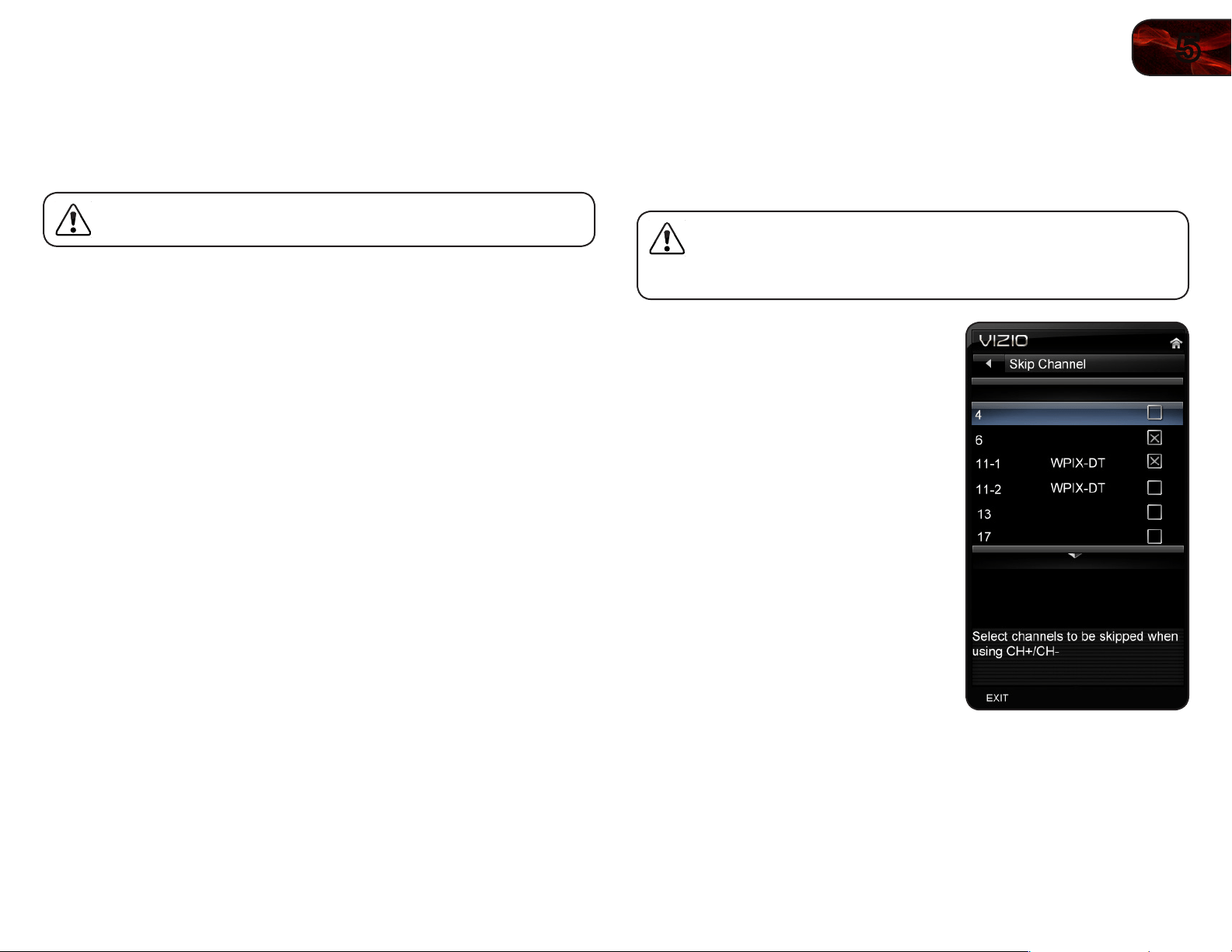
Skipping Channels
After a channel scan is completed, you may find that some channels are too weak
to watch comfortably. There may also be some channels you do not want to view.
You can remove these channels from the TV’s memory with the Skip Channel
feature.
Channels that have been removed with the Skip Channel feature can
still be viewed if the channel is entered using the Number Pad. If
you wish to completely block a channel from being viewed, use the
parental controls. See
Using the Parental Controls
on page 20.
To remove a channel:
1. From the Settings menu, highlight Skip
Channel. The Skip Channel menu is
displayed.
2. For each channel you wish to remove,
use the Up/Down Arrow buttons on
the remote to highlight the channel and
press OK. An X appears to the right of
each channel you select.
3. When you have selected all of the
channels you wish to remove, press
the EXIT button on the remote.
20
5
E370VP/E420VP
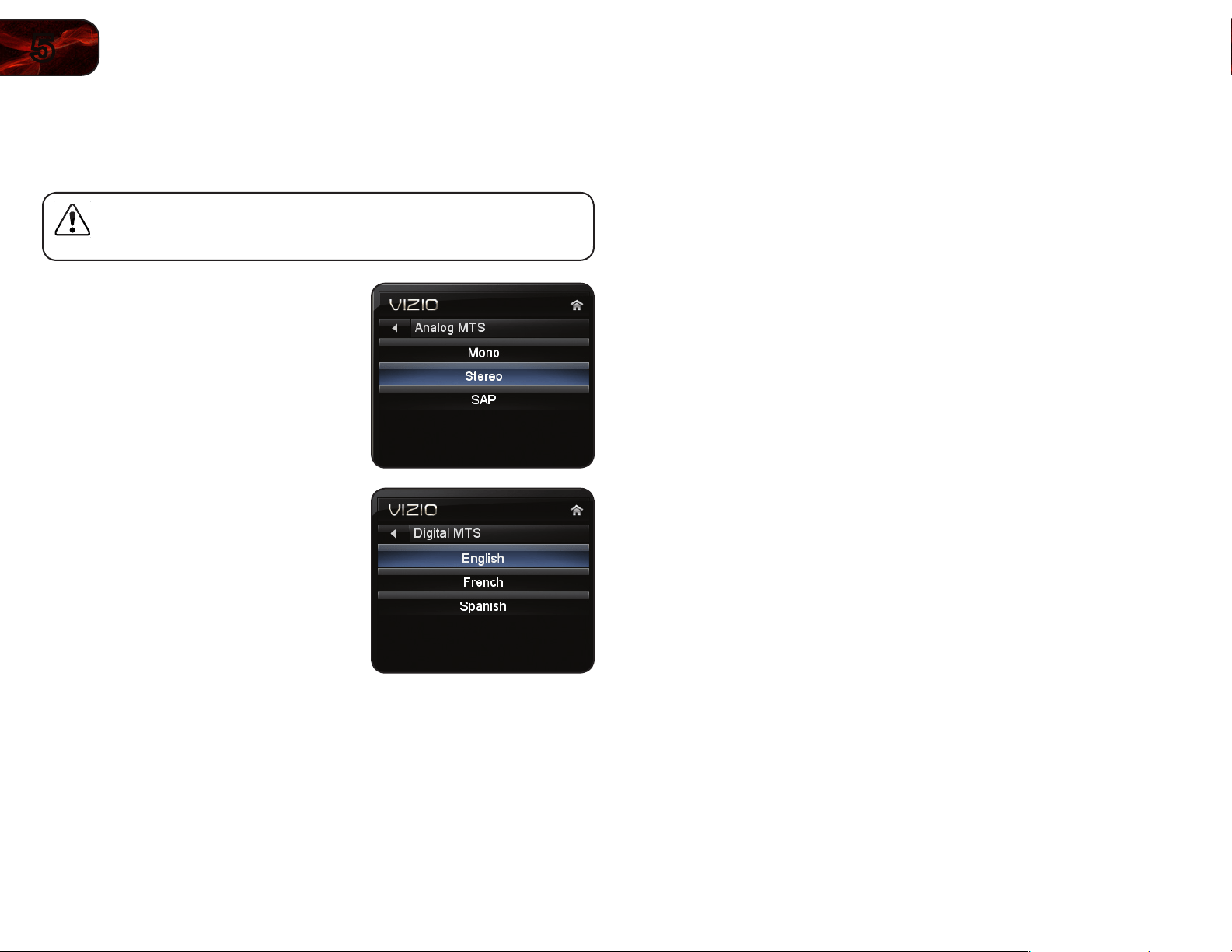
Changing the Audio Language
Some digital free-to-air and cable channels broadcast programs in more than one
language. The TV’s MTS (Multichannel Television Sound) feature allows you to
listen to audio in your preferred language.
Not all programs are broadcast in multiple languages. The MTS
feature only works when the program being viewed is being
broadcast in the language you select.
To use the Analog MTS feature:
1. From the Settings menu, highlight
Analog MTS and press OK. The
Analog MTS menu is displayed.
2. Select Mono, Stereo, or SAP
(secondary audio programming). Press
OK.
3. Press the EXIT button on the remote.
To use the Digital MTS feature:
1. From the Tuner Settings menu,
highlight Digital MTS and press OK.
The Digital MTS menu is displayed.
2. Select your preferred language:
English, French, or Spanish. Press
OK.
3. Press the EXIT button on the remote.
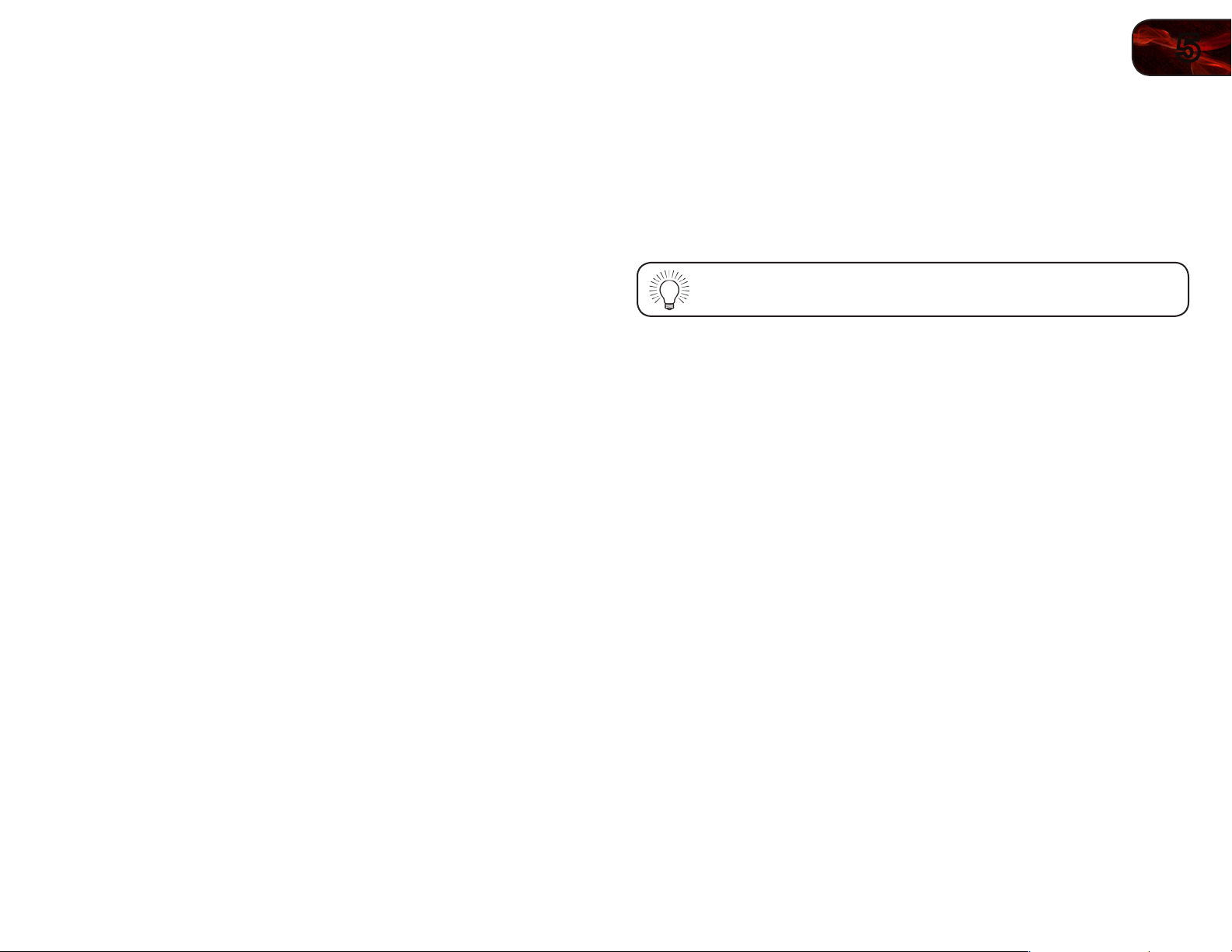
Using the Parental Controls
The TV’s parental controls allow you to prevent the TV from displaying certain
channels or programs without a password.
Accessing the Parental Controls Menu
To access the Parental Controls menu:
1. Press the MENU button on the remote. The on-screen menu is displayed.
2. Use the Arrow buttons on the remote to highlight the Settings icon and
press OK. The TV Settings menu is displayed.
3. Use the Arrow buttons on the remote to highlight Parental Controls and
press OK.
4. Enter your parental passcode. If you have not set a passcode, enter the
default, 0000. The Parental Controls menu is displayed.
5
21
E370VP/E420VP
Enabling or Disabling Program Ratings
To manage program content according to its rating, you must enable the Program
Rating feature.
To enable or disable the Program Rating feature:
1. From the Parental Controls menu, highlight Rating Enable and press OK.
The Rating Enable menu is displayed.
2. Select On or Off and press OK.
Locking and Unlocking Channels
When a channel is locked, it will be inaccessible. Locking a channel is a good way
to prevent children from viewing inappropriate material.
To lock or unlock a channel:
1. From the Parental Controls menu, highlight Channel Locks and press OK.
The Channel Locks menu is displayed.
2. Highlight the channel you want to lock or unlock and press OK.
3. When a channel is locked, the Lock icon appears locked. The channel is
not accessible unless the parental passcode is entered.
4. When a channel is unlocked, the Lock icon appears unlocked. The
channel is accessible.
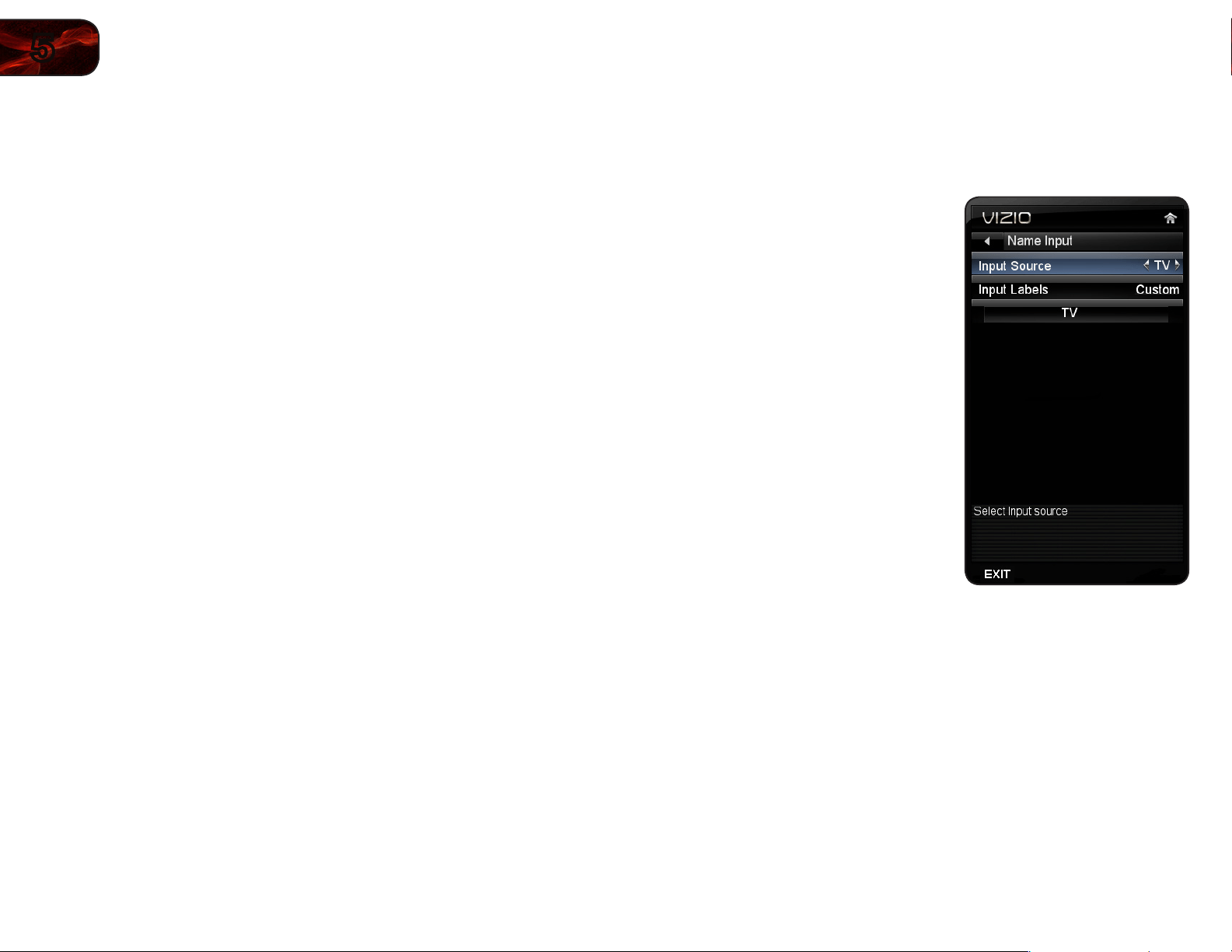
Blocking and Unblocking Content by Rating
A channel may sometimes broadcast programs that are meant for children, and
at other times broadcast programs that are meant for mature audiences. You may
not want to block the channel completely using a channel lock, but you may wish
to block certain programs from being viewed.
When this is the case, you can use the TV’s Rating Block feature to block content
based on its rating.
For a list of content ratings and their definitions, visit
www.tvguidelines.org.
To block or unblock content by its rating:
1. From the Parental Controls menu, highlight the content type you want to
adjust and press OK:
USA - TV - USA television program broadcasts.
USA - Movie - USA movie broadcasts.
CAN - English - Canadian English television program broadcasts.
CAN - French - Canadian French television program broadcasts.
2. For each rating type you want to block or unblock, use the Up/Down and
Left/Right Arrow buttons on the remote to highlight the rating type and
press OK.
3. When the rating type is blocked, the Lock icon appears locked. Content
with this rating cannot be viewed.
4. When the rating type is unblocked, the Lock icon appears unlocked.
Content with this rating can be viewed.
5. If you want to block all unrated content, highlight Block Unrated Shows
and use the Arrow buttons on the remote to select On.
6. When you are finished adjusting the rating level blocks, press the EXIT
button on the remote.
22
5
E370VP/E420VP
Changing the Parental Control Passcode
If you use the parental controls, you should change the passcode to prevent
children from accessing inappropriate material.
1. From the Parental Controls menu, highlight Change PIN and press OK. The
Change PIN menu is displayed.
2. In the New Pin field, use the Number Pad on the remote to enter your new
4-digit parental control passcode.
3. In the Confirm Pin field, use the Number Pad on the remote to re-enter
your new 4-digit parental control passcode.
4. Write down your new parental control passcode and save it in a secure
location.
5. Press the EXIT button on the remote.
Resetting the Content Locks
To reset the content locks to the factory-default settings:
1. From the Parental Controls menu, highlight RESET LOCKS and press OK.
The TV displays, “Are you sure you want to RESET ALL LOCKS SETTINGS
to the factory defaults?”
2. Highlight Yes and press OK.
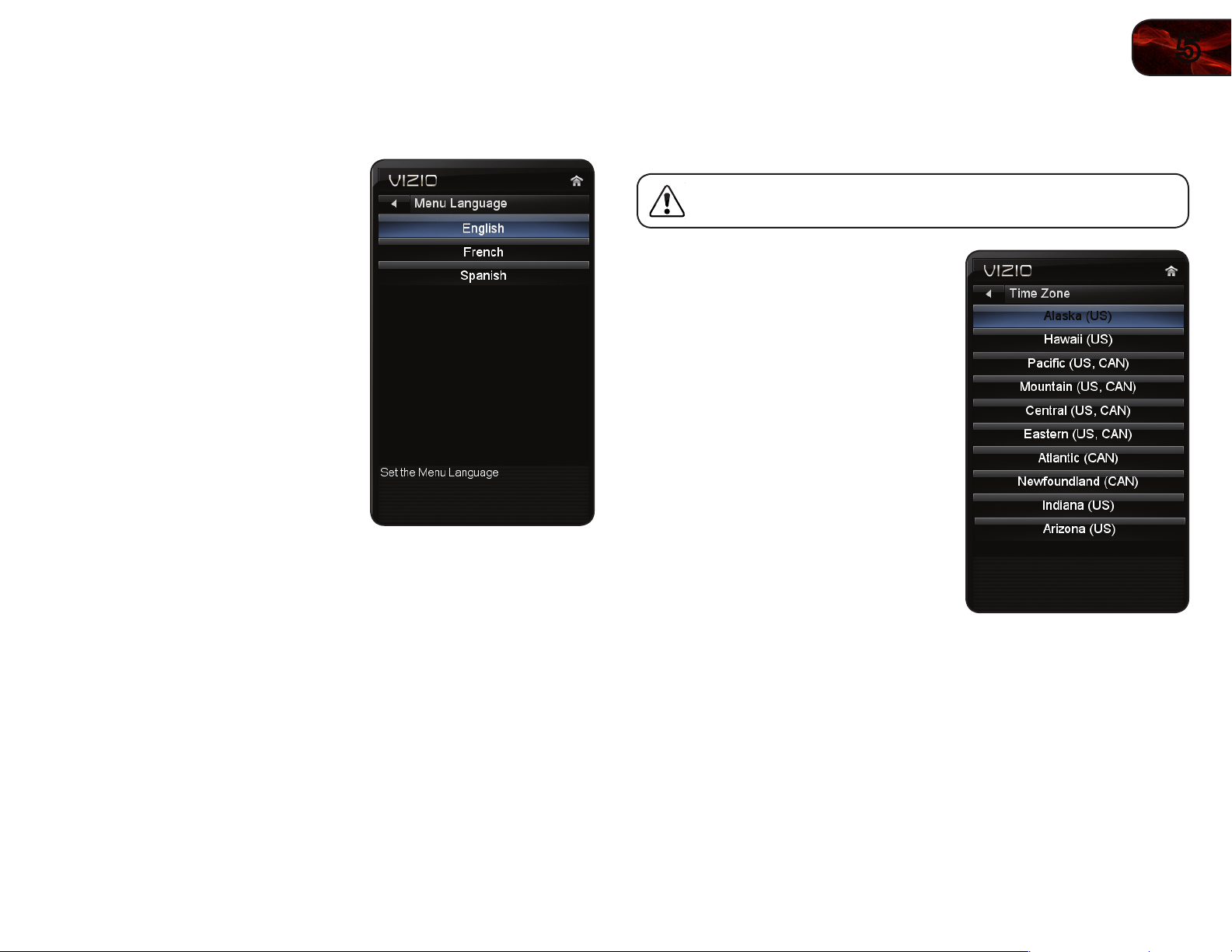
Changing the Names of the Inputs
To make it easier to recognize the different devices attached to the inputs on your
TV, you can rename the inputs. For example, if you have a DVD player connected
to the Component input, you can rename that input to display “DVD Player”.
To change the name of an input:
1. Press the MENU button on the remote.
The on-screen menu is displayed.
2. Use the Arrow buttons on the remote
to highlight the Settings icon and
press OK. The TV Settings menu is
displayed.
3. Use the Arrow buttons on the remote
to highlight Name Input and press OK.
The Name Input menu is displayed.
4. Highlight Input Source and press OK.
Highlight the input you want to rename
and press OK.
5. If you would like to use a preset input
label, highlight Input Labels and press
OK. Highlight the input label you want
to use and press OK.
If you would like to name the input
yourself, highlight the field below Input
Labels and enter your custom label
using the on-screen keyboard and
press OK. (If you would like to use the
on-screen keyboard instead, highlight
Show Keyboard and press OK.)
6. When you have finished naming your input, press the EXIT button on the
remote.
5
23
E370VP/E420VP
Changing the On-Screen Menu Language
Your TV can display the on-screen menu in different languages.
To change the on-screen menu language:
1. Press the MENU button on the remote.
The on-screen menu is displayed.
2. Use the Arrow buttons on the remote
to highlight the Settings icon and
press OK. The Settings menu is
displayed.
3. Use the Arrow buttons on the remote
to highlight Menu Language and
press OK. The Menu Language menu
is displayed.
4. Highlight your preferred language
(English, French, or Spanish) and
press OK.
5. Press the EXIT button on the remote.
Setting the Time Zone
To ensure the correct time is displayed when you press the INFO button, set the
TV’s time zone:
To have the TV display the correct time, you must be connected to
the internet via an Ethernet cable or a wireless network.
1. Press the MENU button on the remote.
The on-screen menu is displayed.
2. Use the Arrow buttons on the remote
to highlight the Settings icon and
press OK. The Settings menu is
displayed.
3. Use the Arrow buttons on the remote
to highlight Time & Local Settings
and press OK. The Time & Local
Settings menu is displayed.
4. Highlight Time Zone and press OK.
The Time Zone menu is displayed.
5. Highlight your time zone and press OK.
6. Highlight Daylight Savings and press
OK. The Daylight Savings menu is
displayed. Choose On if daylight
savings is in effect, or Off if it is not.
7. Highlight Postal Code. Enter your ZIP code using the keypad on the
remote, then press OK. The ZIP code information is often used by VIA
Apps to give you the most accurate location-based information, such as
weather or news.
8. Press the EXIT button on the remote.
24
5
E370VP/E420VP
Adjusting the CEC Settings
The CEC function on your TV enables you to control HDMI-connected devices
with the included remote without any additional programming.
Not all HDMI devices support CEC. See your device’s user manual
for details.
To enable, disable, or adjust CEC settings:
1. Press the MENU button on the remote. The on-screen menu is displayed.
2. Use the Arrow buttons on the remote to highlight the Settings icon and
press OK. The Settings menu is displayed.
3. Use the Arrow buttons on the remote to highlight CEC Settings and press
OK. The CEC Settings menu is displayed.
4. Use the Arrow and OK buttons to adjust each setting:
• CEC Function-TouseCEC,youmustselectEnable.
• System Audio Control-Whensystemaudiocontrolison,youcan
controlyourdevice’saudiousingtheTV’sremotecontrol.
• Device Discovery-Usethisfunctiontodetermineifyourdeviceis
connectedandsupportsCEC.
5. Press the EXIT button on the remote.
Using the Help Menu
You can use the TV’s Help menu to:
• Displaysysteminformation
• ResettheTVsettings
• RestoretheTVtoitsfactory
defaultsettings
• Getguidedsetuphelpforthetuner
andnetwork
Displaying System Information
To display a summary of the TV settings:
1. Press the MENU button on the remote.
The on-screen menu is displayed.
2. Use the Arrow buttons on the remote
to highlight the Help icon and press
OK. The Help menu is displayed.
3. Highlight System Info and press OK.
4. Use the Up/Down Arrow buttons to
scroll through the system information.
5. When you are finished reviewing the system information, press the EXIT
button on the remote.
Resetting the TV Settings
To reset the TV’s picture and audio settings:
1. Press the MENU button on the remote. The on-screen menu is displayed.
2. Use the Arrow buttons on the remote to highlight the Help icon and press
OK. The Help menu is displayed.
3. Highlight Reset TV Settings and press OK. The TV displays, “Are you sure
you would like to Restore Defaults? This will erase any custom settings.”
4. Highlight Yes and press OK.
5. Press the EXIT button on the remote.
5
25
E370VP/E420VP
Restoring the TV to Factory Default Settings
All of the on-screen menu settings can be reset to the factory defaults.
If you restore the TV to the factory default settings, all changes you
have made to the settings will be lost!
To restore the TV to its factory default settings:
1. Press the MENU button on the remote. The on-screen menu is displayed.
2. Use the Arrow buttons on the remote to highlight the Help icon and press
OK. The Help menu is displayed.
3. Highlight Clear Memory (Factory Default) and press OK.
4. Enter your parental control passcode. If you have not yet set up a parental
passcode, enter the default, 0000.
The TV displays, “Are you sure you would like to Restore Defaults? This will
erase any custom settings.”
5. Highlight Yes and press OK. The TV displays “Memory is being cleared.
The TV will reset shortly.”
6. Wait for the TV to turn off. The TV will turn back on shortly afterward and
the Setup App will begin.
Using Guided Setup
The TV’s Setup App can be used to easily set up the TV tuner or to connect the
TV with your network.
To access guided setup:
1. Press the MENU button on the remote. The on-screen menu is displayed.
2. Use the Arrow buttons on the remote to highlight the Help icon and press
OK. The Help menu is displayed.
3. Highlight Start Setup Wizard and press OK.
4. Follow the on-screen instructions. When finished, press the EXIT button on
the remote.
26
5
E370VP/E420VP
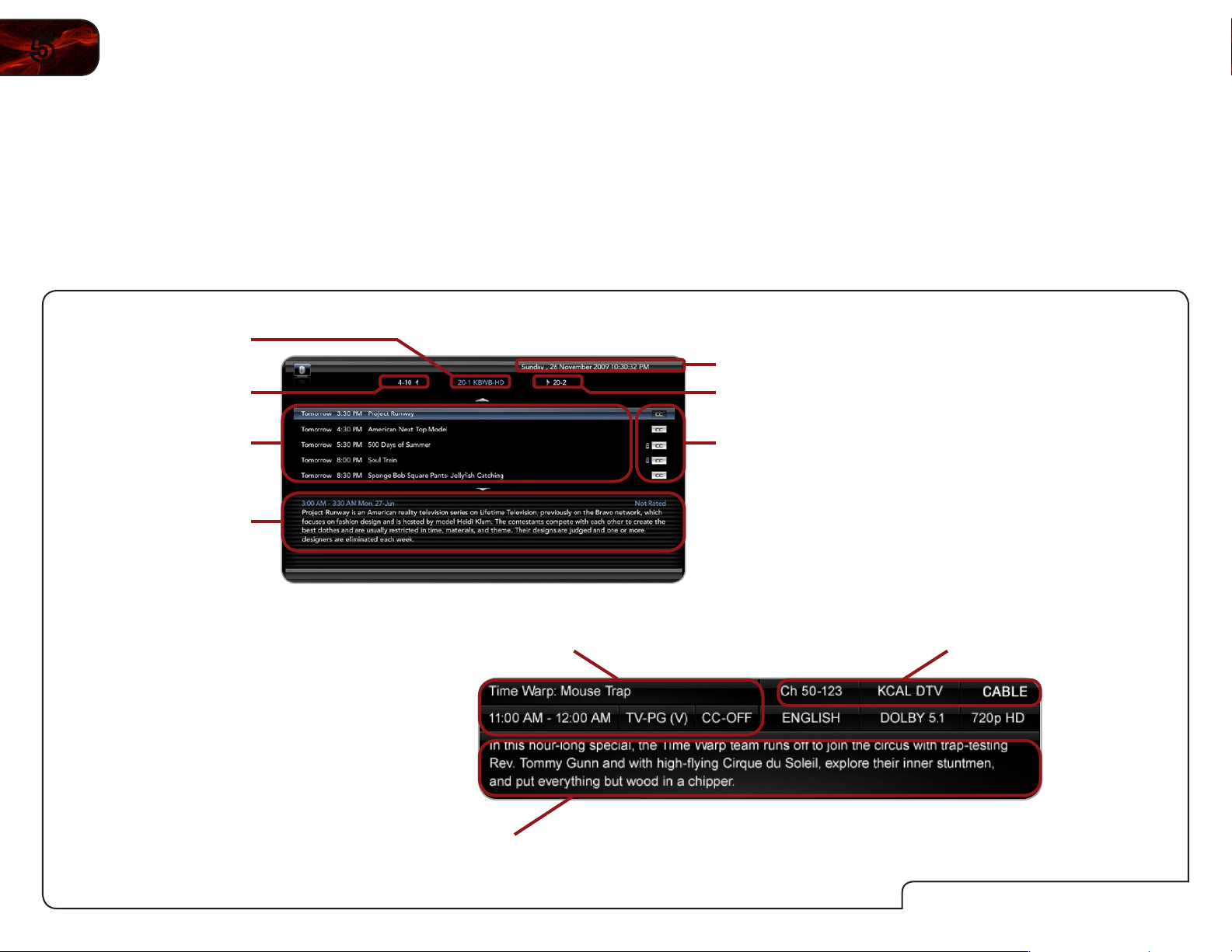
Using the Digital Episode Guide
Your TV features an on-screen digital episode guide. This guide displays program
information broadcast by over-the-air digital television stations as well as the
current time and date.
To use the digital episode guide, press the GUIDE button on the remote.
While viewing the digital episode guide, use the Left/Right Arrow buttons to
change the channel.
Using the Info Window
The Info Window can be displayed by pressing the INFO button on the remote:
• PresstheINFObuttononetimetodisplaychannelandinput
information.
• PresstheINFObuttontwotimestodisplaytheprogramtitleand
closedcaptioninginformation.
• PresstheINFObuttonthreetimestodisplaytheprogramdescription.
DigitalEpisodeGuide&InfoWindow
ProgramDescription
UpcomingPrograms
ClosedCaptioning/
ChannelLock
Information
Date/Time
NextChannel
PreviousChannel
CurrentChannel
ProgramDescription
ProgramTitle/CCInformation
Channel/InputInformation
6
27
Using the USB Photo Viewer
The USB Media Player allows you to connect a USB thumb drive to your TV and
view photos.
USB Media Player
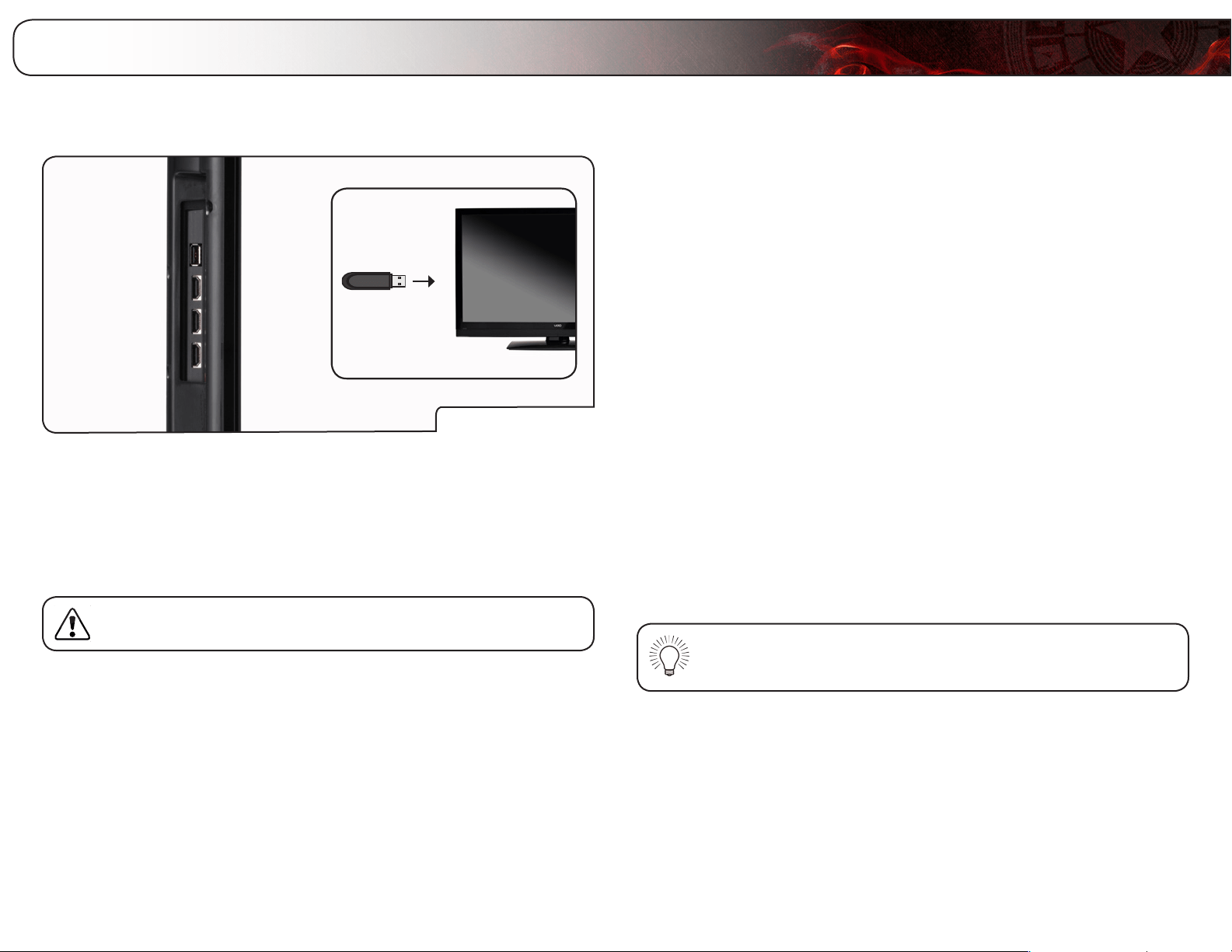
Connecting a USB Thumb Drive to the TV
1. Turn the TV off. Connect your USB thumb drive to the USB port on the side
of the TV.
2. Press the Power/Standby button on the remote or touch the Power
control on the side of the TV to turn it on.
Do not remove the USB thumb drive while the TV is on. Doing so
may damage the drive.
Viewing Photos
To view USB photos on the TV, you must first save your images onto a USB
thumb drive.
Remember:
• The USB thumb drive must be formatted as FAT32.
• Photos must be saved to the thumb drive in .jpg format.
• The player is not designed to play media from external hard drives or
mp3 players.
To play your USB media:
1. Connect your USB thumb drive to the USB port on the side of the TV.
2. Press the MENU button on the remote.
3. Highlight Media and press OK. The Media Player launches.
4. Use the Arrow buttons to highlight the Photo folder and press OK.
5. Use the Arrow buttons to highlight the file you want to display. Press OK.
If you have the Slideshow setting on Sequence or Shuffle, a slideshow will
begin.
6. When you are finished viewing photos, press the INPUT button to display a
different source.
If the TV is on when you connect your USB thumb drive, the TV will
display, “Do you want to play multimedia content?” Highlight OK
and press OK to start the USB Photo Viewer.
28
6
E370VP / E420VP
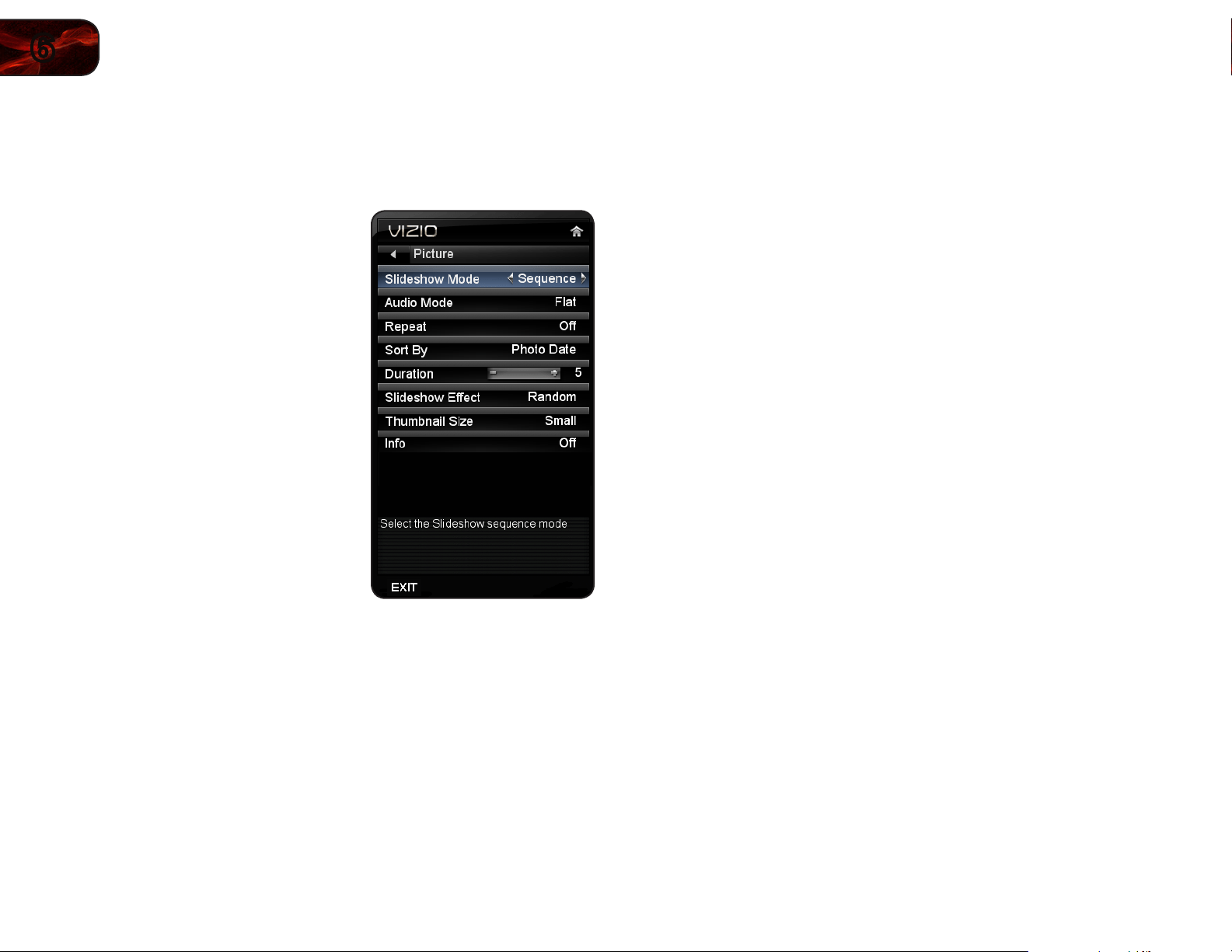
Adjusting the Photo Viewer Settings
The photo viewer can be adjusted according to your preferences.
To adjust the photo viewer settings:
1. While the photo viewer is on screen,
press the MENU button. The settings
menu is displayed.
2. Highlight the menu setting you wish to
adjust and press OK.
• SlideshowMode - Determines
the order in which your photos are
displayed during the slideshow.
Select Single, Shufe, or
Sequence.
• Repeat- When Repeat is set
to On, the slideshow will play
continuously. Select Off or On.
• SortBy- Determines the order in
which photos are displayed in the
thumbnail view. Select Photo Date,
File Date, or File A-Z.
• Duration - Determines the interval
between slide transitions. Select a
value between 5 seconds and 32
seconds.
• SlideshowEffect- Determines the effect applied to a photo as the
show transitions to the next slide. Select Random, Dissolve, Wipe
Right, Wipe Left, Wipe Up, Wipe Down, Box In, Box Out.
• ThumbnailSize - Determines the size of thumbnails in the photo
viewer. Select Small, Medium, or Large.
• Info - When Info is set to On, the photo’s date, time, size, shutter, and
aperature will be displayed on-screen. Select On or Off.
3. When you have finished adjusting the settings, press the BACK button on
the remote.
6
29
E370VP / E420VP
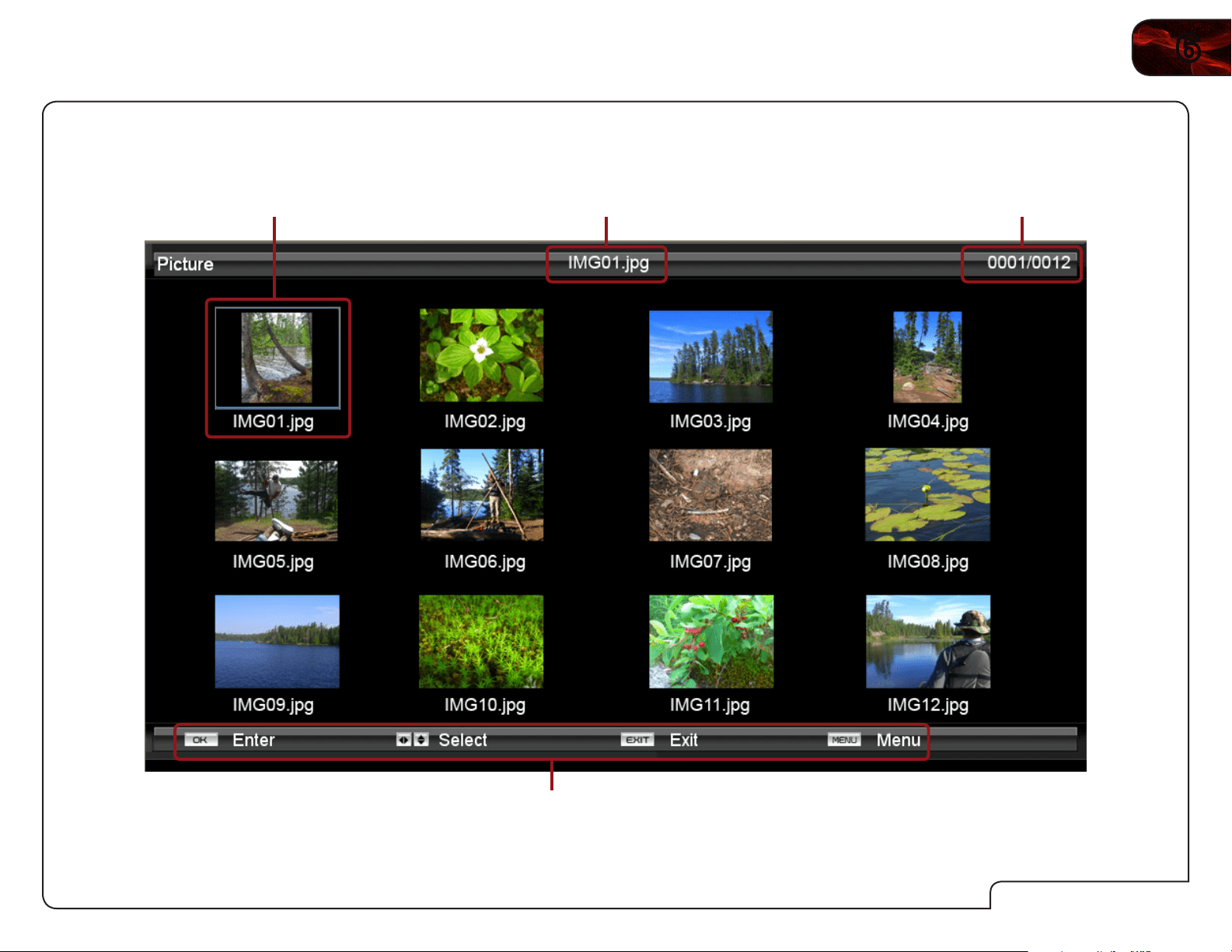
Photo Viewer Screen
Current File
Displays the currently
selected photo file name.
Counter
Displays the currently
selected photo number.
(ex. Number 1 of 12.)
Shortcut Reminders
Use these remote buttons to
navigate the Photo Viewer.
Selected Photo
The currently selected
photo is highlighted by a
blue frame.
A
30
Products are often returned due to a technical problem rather than due to a
defect. If you are experiencing a problem when using your TV, try to x the issue
using this troubleshooting guide.
If, after using this troubleshooting guide, you are still experiencing an issue with
your TV, contact VIZIO’s Support Department. Quality customer support and
service are integral parts of VIZIO’s commitment to service excellence.
The TV displays “No Signal.”
• Press the INPUT button on the remote control to select a different
input source.
• If you are using cable TV, satellite, or antenna connected directly to
the TV, scan for channels. See
Connecting Your Devices
on page
7.
There is no power.
• Ensure the TV is plugged into a working electrical outlet.
• Ensure the power cable is securely attached to the TV.
• Press the Power/Standby button on the remote or press the Power/
Standby button on the side of the TV to turn the TV on.
The power is on, but there is no image on the screen.
• Ensure all cables are securely attached to the TV.
• Ensure all devices are connected correctly. Devices differ; see your
device’s user manual for details.
• Adjust Brightness, Contrast, or Backlight. See
Adjusting the Picture
Settings
on page 14.
• Press the INPUT button on the remote to select a different input
source.
There is no sound.
• Press Volume Up on the remote control.
• Press the MUTE button on the remote to ensure mute is off.
• Check the audio settings. See
Adjusting the Audio Settings
on page
16. Ensure the speakers are set to On.
• Ensure no headphones are connected to the TV.
• Check the audio connections of external devices (Blu-ray player,
game console, cable/satellite box) that are connected to the TV.
• If you are using an antenna, the signal strength of the channel may be
low. Ensure your antenna is connected securely to the TV and move
the antenna around the room or close to a window for the best signal.
The colors on the TV don’t look right.
• Adust the Color and Tint settings in the Picture menu. See
Adjusting
the Picture Settings
on page 14.
• Reset the picture settings. See
Resetting the Picture Settings
on
page 16.
• Check all cables to ensure they are securely attached.
The buttons on the remote aren’t working.
• Ensure you are only pressing one button at a time.
• Point the remote directly at the TV when pressing a button.
• Replace the remote batteries with new ones. See
Replacing the
Batteries
on page 5.
The image quality is not good.
• For the best image quality, view high-denition programs using digital
sources. Connect your devices with HDMI cables.
• If you are using an antenna, the signal strength of the channel may be
low. Ensure your antenna is connected securely to the TV and move
the antenna around the room or close to a window for the best signal.
Phone: (877) 698-4946
Fax: (949) 585-9563
Email: [email protected]
Web: www.VIZIO.com
Hours of operation:
Monday - Friday: 6 am to 9 pm (PST)
Saturday - Sunday: 8 am to 4pm (PST)
Troubleshooting & Technical Support

A
31
E370VP / E420VP
The picture is distorted.
• Nearby electrical devices may be interfering with the TV. Separate the
TV from electrical appliances, cars, or ourescent lights.
• Ensure all cables are securely attached.
The display image does not cover the entire screen.
• If you are in RGB mode (computer), ensure that H-Size and V-Position
in the on-screen menu are set correctly.
• If you are using TV, AV1, AV2, or Component with 480i input, press
the WIDE button on the remote to change the screen mode.
The TV has pixels (dots) that are always dark or always lit.
• Your HDTV is precision-manufactured using an extremely high level
of technology. However, sometimes pixels may not display correctly.
These types of occurences are inherent to this type of product and do
not constitute a defective product.
I see “noise” or static on the screen.
• When your TV’s digital capabilities exceed a digital broadcast signal,
the signal is up-converted (improved) to match your TV’s display
capabilities. This up-converting can sometimes cause irregularities in
the image.
• If you are using an antenna, the signal strength of the channel may be
low. Ensure your antenna is connected securely to the TV and move
the antenna around the room or close to a window for the best signal.
When I change input source, the volume changes.
• The TV remembers the volume level on each input source. If the
volume level on the new input source is higher or lower than the level
on the source you switch from, the difference may be noticable.
• Use the Volume Up/Down buttons on the remote to adjust the
volume.
When I change input source, the display image changes size.
• The TV remembers the viewing mode on each input source. If the
viewing mode on the new input source differs from the one on the
input source you switch from, the difference may be noticable.
• See
Setting the Screen Aspect Ratio on page 11
.
B
32
E370VP E420VP
Screen Size: 37” Class 42” Class
Diagonal Viewable: 37.00” 42.02”
Dimensions w/ Stand:
w/o Stand:
35.13” x 24.54” x 8.33”
35.13” x 22.50” x 1.93”
39.53” x 27.00” x 8.60”
39.53” x 24.98” x 1.93”
Weight w/ Stand:
w/o Stand:
21.40 lbs
20.10 lbs
26.24 lbs
24.03 lbs
TV Type: Edge Lit LED Edge Lit LED
Refresh Rate: 60 Hz 60 Hz
Maximum Resolution: 1920 x 1080 1920 x 1080
Pixel Pitch: 0.4268 x 0.4268 0.4845 x 0.4845
Dynamic Contrast Ratio: 200,000:1 200,000:1
Response Time: 9 ms 8 ms
Brightness: 400 nits 400 nits
HDMI Inputs: 3 3
Component Inputs: 1 1
Composite Inputs:
1
(Shared with Component)
1
(Shared with Component)
RF/Coaxial Input: 1 1
USB Ports: 1 1
RGB Inputs:
1
(with 3.5mm PC Audio In)
1
(with 3.5mm PC Audio In)
OSD Language: English, Spanish, French English, Spanish, French
Audio Outputs: Optical Digital (SPDIF), 3.5mm Optical Digital (SPDIF), Stereo RCA
Number of Speakers 2 2
Watts/Channel 10W 10W
Specifications

B
33
E370VP / E420VP
E370VP E420VP
Simulated Surround: SRS StudioSound HD SRS StudioSound HD
Sound Leveler: SRS TruVolume SRS TruVolume
Ambient Light Sensor: Yes Yes
Certification & Compliance:
CSA, CSA-US, FCC Class B
Energy Star, ATSC A/65, EIA/CEA-766-A
CSA, CSA-US, FCC Class B
Energy Star, ATSC A/65, EIA/CEA-766-A
Voltage Range:
100~240 VAC
@ 50/60Hz
100~240 VAC
@ 50/60Hz
Power Consumption:
63.2W (Average)
131W (Maximum)
63.4W (Average)
133W (Maximum)
Standby Power: <1W <1W
Operating Temperature: 32° to 95° F 32° to 95° F
Non-Operating Temperature: -4° to 140° F -4° to 140° F
Operating Humidity: 10 - 90% (Relative, Non-condensing) 10 - 90% (Relative, Non-condensing)
Non-Operating Humidity: 10 - 70% (Relative, Non-condensing) 10 - 70% (Relative, Non-condensing)
C
34
ON PARTS AND LABOR
Covers units purchased as new in United States and Puerto Rico Only.
VIZIO provides a warranty to the original purchaser of a new Product against defects
in materials and workmanship for a period of one (1) year of non-commercial usage
and ninety (90) days of commercial use. If a Product covered by this warranty is
determined to be defective within the warranty period, VIZIO will either repair or
replace the Product at its sole option and discretion.
To obtain warranty service, contact VIZIO Technical Support via e-mail:
T[email protected] or via phone at 877 MY VIZIO (877.698.4946) from
6:00AM to 9:00PM Monday through Friday and 8:00AM to 4:00PM Saturday and
Sunday, Pacific Time, or visit www.VIZIO.com. PRE-AUTHORIZATION MUST BE
OBTAINED BEFORE SENDING ANY PRODUCT TO A VIZIO SERVICE CENTER.
Proof of purchase in the form of a purchase receipt or copy thereof is required to
show that a Product is within the warranty period.
Parts and Labor
There will be no charge for parts or labor during the warranty period. Replacement
parts and Products may be new or recertified at VIZIO’s option and sole discretion.
Replacement parts and Products are warranted for the remaining portion of the
original warranty or for ninety (90) days from warranty service or replacement,
whichever is greater.
Type of Service
Defective Products must be sent to a VIZIO service center to obtain warranty
service. VIZIO is not responsible for transportation costs to the service center,
but VIZIO will cover return shipping to the customer. PRE-AUTHORIZATION IS
REQUIRED BEFORE SENDING ANY PRODUCT TO A VIZIO SERVICE CENTER
FOR WARRANTY SERVICE.
Product returns to VIZIO’s service centers must utilize either the original carton
box and shipping material or packaging that affords an equal degree of protection.
VIZIO Technical Support will provide instructions for packing and shipping the
covered Product to the VIZIO service center.
Limitations and Exclusions
VIZIO’s one-year limited warranty only covers defects in materials and
workmanship. This warranty does not cover, for example: cosmetic damage,
normal wear and tear, improper operation, improper voltage supply or power
surges, signal issues, damages from shipping, acts of God, any type of customer
misuse, modifications or adjustments, as well as installation and set-up issues
or any repairs attempted by anyone other than by a VIZIO authorized service
center. Products with unreadable or removed serial numbers, or requiring routine
maintenance are not covered. This one year limited warranty does not cover
Products sold “AS IS”, “FACTORY RECERTIFIED”, or by a non-authorized reseller.
THERE ARE NO EXPRESS WARRANTIES OTHER THAN THOSE LISTED OR
DESCRIBED ABOVE. ANY IMPLIED WARRANTIES, INCLUDING ANY IMPLIED
WARRANTY OF MERCHANTABILITY AND FITNESS FOR A PARTICULAR
PURPOSE, SHALL BE LIMITED IN DURATION TO THE PERIOD OF TIME SET
FORTH ABOVE. VIZIO’S TOTAL LIABILITY FOR ANY AND ALL LOSSES AND
DAMAGES RESULTING FROM ANY CAUSE WHATSOEVER INCLUDING VIZIO’S
NEGLIGENCE, ALLEGED DAMAGE, OR DEFECTIVE GOODS, WHETHER SUCH
DEFECTS ARE DISCOVERABLE OR LATENT, SHALL IN NO EVENT EXCEED THE
PURCHASE PRICE OF THE PRODUCT. VIZIO SHALL NOT BE RESPONSIBLE
FOR LOSS OF USE, LOSS OF INFORMATION OR DATA, COMMERCIAL
LOSS, LOST REVENUE OR LOST PROFITS, OR OTHER INCIDENTAL OR
CONSEQUENTIAL DAMAGES. SOME STATES DO NOT ALLOW LIMITATIONS
ON HOW LONG AN IMPLIED WARRANTY LASTS OR THE EXCLUSION OF
INCIDENTAL OR CONSEQUENTIAL DAMAGES, SO THE ABOVE LIMITATIONS
OR EXCLUSIONS MAY NOT APPLY TO YOU. THIS WARRANTY GIVES YOU
SPECIFIC LEGAL RIGHTS, AND YOU MAY ALSO HAVE OTHER RIGHTS, WHICH
VARY FROM STATE TO STATE. THIS WARRANTY IS SUBJECT TO CHANGE
WITHOUT NOTICE.
CHECK WWW.VIZIO.COM FOR THE MOST CURRENT VERSION.
Personal Data
If your VIZIO product is capable of storing personal data and other information, ALL
CONTENTS AND INFORMATION WILL BE DELETED IN THE COURSE OF SOME
IN-HOME AND ALL SHIP-IN WARANTY SERVICE. If this occurs, your product will
be restored to you configured as originally purchased. You will be responsible for
restoring all applicable data and passwords. Recovery and reinstallation of user
data is not covered under this Limited Warranty. In order to protect your personal
information, VIZIO recommends that you always clear all personal information
from the unit before it is serviced, regardless of the servicer.
Zero Bright Pixel Defect Guarantee
This policy covers “zero bright pixel” defects for the duration of the limited
“ONE YEAR WARRANTY” on select new product purchases. To determine if
this guarantee applies to your product, refer to the “DETAILS” tab of the model’s
product information page (www.VIZIO.com) or look for the “zero bright pixel”
guarantee on the box.
Limited Warranty
D
35
FCC Class B Radio Interference Statement
NOTE: This equipment has been tested and found to comply with the limits
for a Class B digital device, pursuant to Part 15 of the FCC Rules. These limits
are designed to provide reasonable protection against harmful interference in
a residential installation. This equipment generates, uses and can radiate radio
frequency energy, and if not installed and used in accordance with the instructions,
may cause harmful interference to radio communications. However, there is
no guarantee that interference will not occur in a particular installation. If this
equipment does cause harmful interference to radio or television reception, which
can be determined by turning the equipment off and on, the user is encouraged to
try to correct the interference by one or more of the following measures:
1. Reorient or relocate the receiving antenna.
2. Increase the separation between the equipment and receiver.
3. Connect the equipment into an outlet on a circuit different from that to
which the receiver is connected.
4. Consult the dealer or an experienced radio/TV technician for help.
This device complies with Part 15 of the FCC Rules. Operation is subject to the
following two conditions: (1) this device may not cause harmful interference, and
(2) this device must accept any interference received, including interference that
may cause undesired operation.
Notice
1. The changes or modications not expressly approved by the party
responsible for compliance could void the user’s authority to operate
the equipment.
2. Shielded interface cables and AC power cord, if any, must be used in
order to comply with the emission limits.
3. The manufacturer is not responsible for any radio or TV interference
caused by unauthorized modication to this equipment. It is the
responsibilities of the user to correct such interference.
FCC warning
Changes or modifications not expressly approved by the party responsible for
compliance with the FCC Rules could void the user’s authority to operate this
equipment.
Caution
Always use an AC/DC power adapter that is properly grounded. Use the AC cords
listed below for each area.
USA: UL
Canada: CSA
Germany: VDE
UK: BASE/BS
Japan: Electric Appliance Control Act
Open Source Software Notice
Your VIA device may contain GPL executables and LGPL libraries that are subject
to the PL2.0/LGPL2.1 License Agreements. VIZIO offers to provide source code
to you on CD-ROM for a processing fee covering the cost of performing such
distribution, such as the cost of media, shipping and handling upon request made
to VIZIO at www.VIZIO.com.
This offer is valid for a period of three (3) years from the date of the distribution of
this VIA device by VIZIO.
You can obtain a copy of the GPL, LGPL licenses from:
http://www.gnu.org/licenses/old-licenses/gpl-2.0.html
and
http://www.gnu.org/licenses/oldlicenses/lgpl-2.1.html
You can also obtain a copy of gSOAP public license from:
http://www.cs.fsu.edu/~engelen/license.html
Please visit www.VIZIO.com for attribution of copyrights to any open source
software on your VIZIO VIA device.
Permission is hereby granted, free of charge, to any person obtaining a copy of any
such software and associated documentation files (the “Open Source Software”),
to deal in the Open Source Software without restriction, including without limitation
the rights to use, copy, modify, merge, publish, distribute, sublicense, and/or sell
copies of the Open Source Software, and to permit persons to whom the Open
Source Software is furnished to do so, subject to the following conditions:
THE SOFTWARE IS PROVIDED “AS IS”, WITHOUT WARRANTY OF ANY KIND,
EXPRESS OR IMPLIED, INCLUDING BUT NOT LIMITED TO THE WARRANTIES
OF ERCHANTABILITY, FITNESS FOR A PARTICULAR PURPOSE AND NONIN-
FRINGEMENT. IN NO EVENT SHALL THE AUTHORS OR COPYRIGHT HOLDERS
BE LIABLE FOR ANY CLAIM, DAMAGES OR OTHER LIABILITY, WHETHER IN AN
ACTION OF CONTRACT, TORT OR OTHERWISE, ARISING FROM, OUT OF OR
IN CONNECTION WITH THE SOFTWARE OR THE USE OR OTHER DEALINGS
IN THE SOFTWARE.
Legal & Compliance


TRADEMARKS SHOWN ARE THE PROPERTY OF THEIR RESPECTIVE OWNERS. IMAGES USED ARE FOR ILLUSTRATION PURPOSES ONLY. VIZIO,
THE V LOGO, WHERE VISION MEETS VALUE, AND OTHER VIZIO TRADEMARKS ARE THE INTELLECTUAL PROPERTY OF VIZIO INC. PRODUCT
FEATURES AND SPECIFICATIONS ARE SUBJECT TO CHANGE WITHOUT NOTICE. © 2011 VIZIO INC. ALL RIGHTS RESERVED.
110201ST-NC