evohome
User Guide
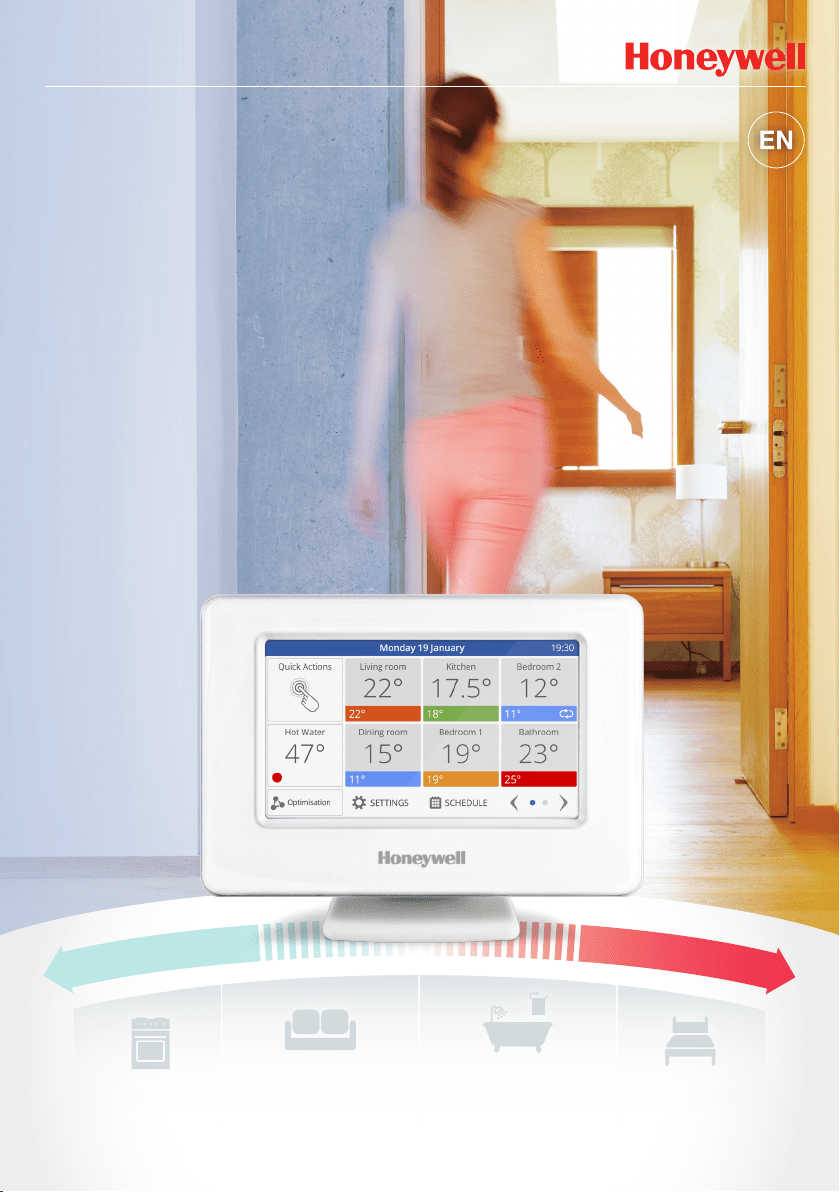
The connected heating controller
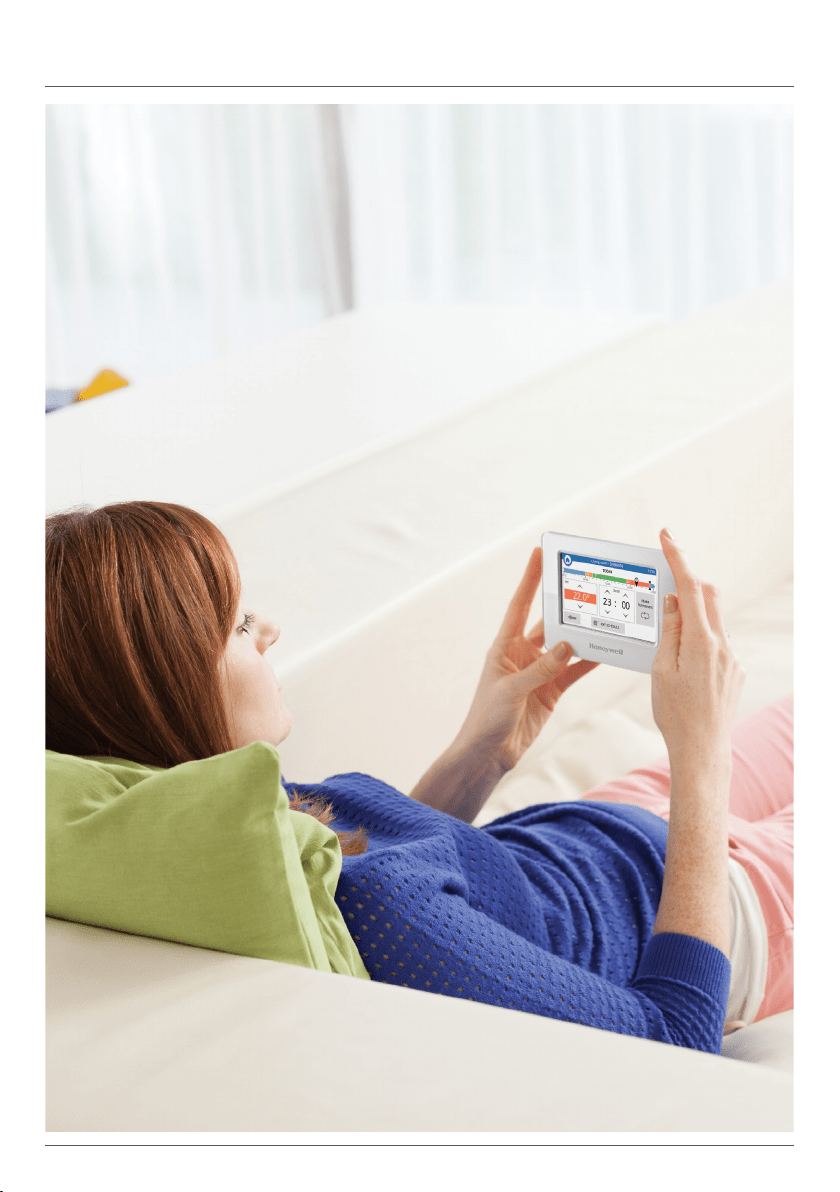
Getting the most from evohome
It’s simple to make permanent
or temporary changes to your
heating schedule, and to
make other adjustments.
Explore your evohome to find out
what you can do, and use this simple
guide to help you master some
of the more common actions.
1evohome User Guide
evohome is easy
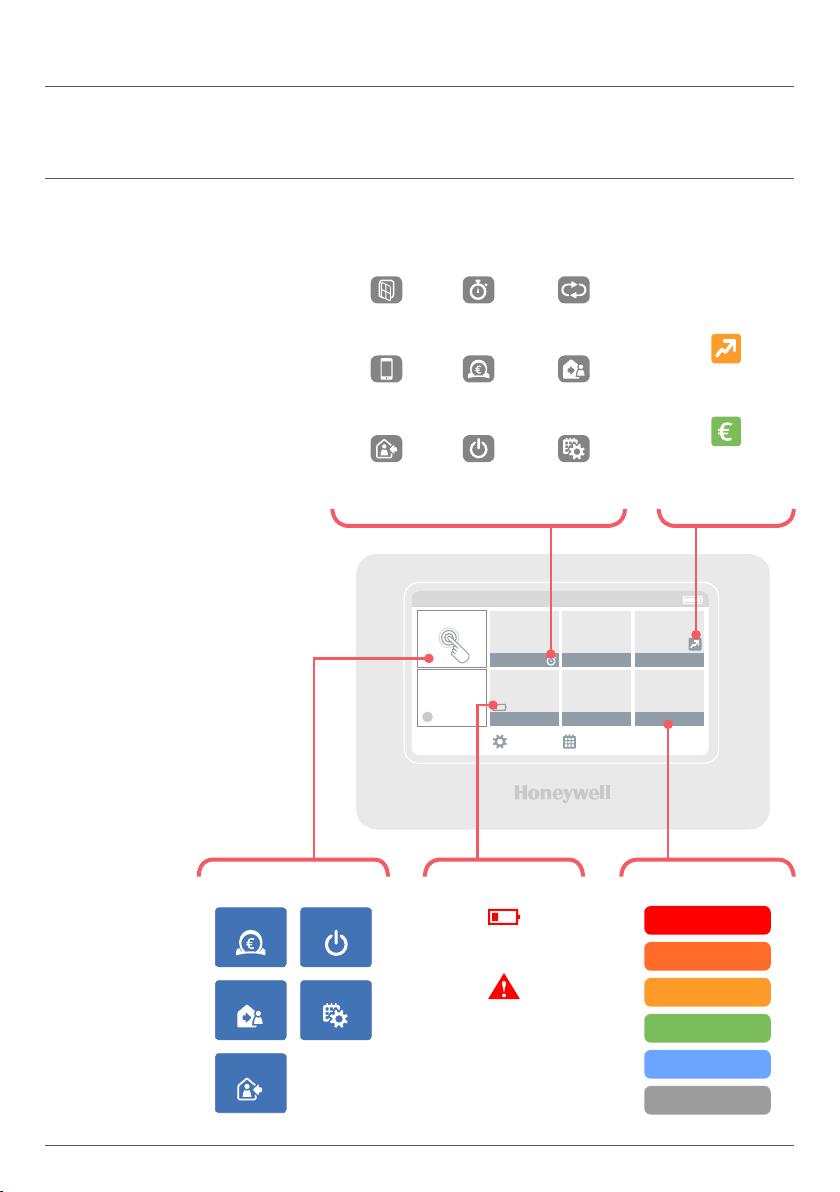
Icon guide
Monday 27 April
Living room
21˚ 18˚ 15˚
18˚ 17˚ 23˚
Quick Actions
21˚ 18˚ 17˚
19˚45˚ 17˚ 23˚
Kitchen Bedroom 2
Dining roomHot Water Bedroom 1 Bathroom
12:03
SETTINGS SCHEDULE
OptimisationZone Override indicators
Optimum
Stop
Optimum
Start
Remote
Override
Open
Window
Low Battery
Fault
Permanent
Override
Temporary
Override
Economy Away
Day Off CustomHeating Off
Set TemperatureZone AlertsQuick Actions
25 - 35°
19 - 21.5°
5 - 15.5°
22 - 24.5°
16 - 18.5°
OFF (
frost protect
)
Economy
Day O
Away Custom
Heating O
2 Getting the most from evohome
3evohome User Guide
Working with zones
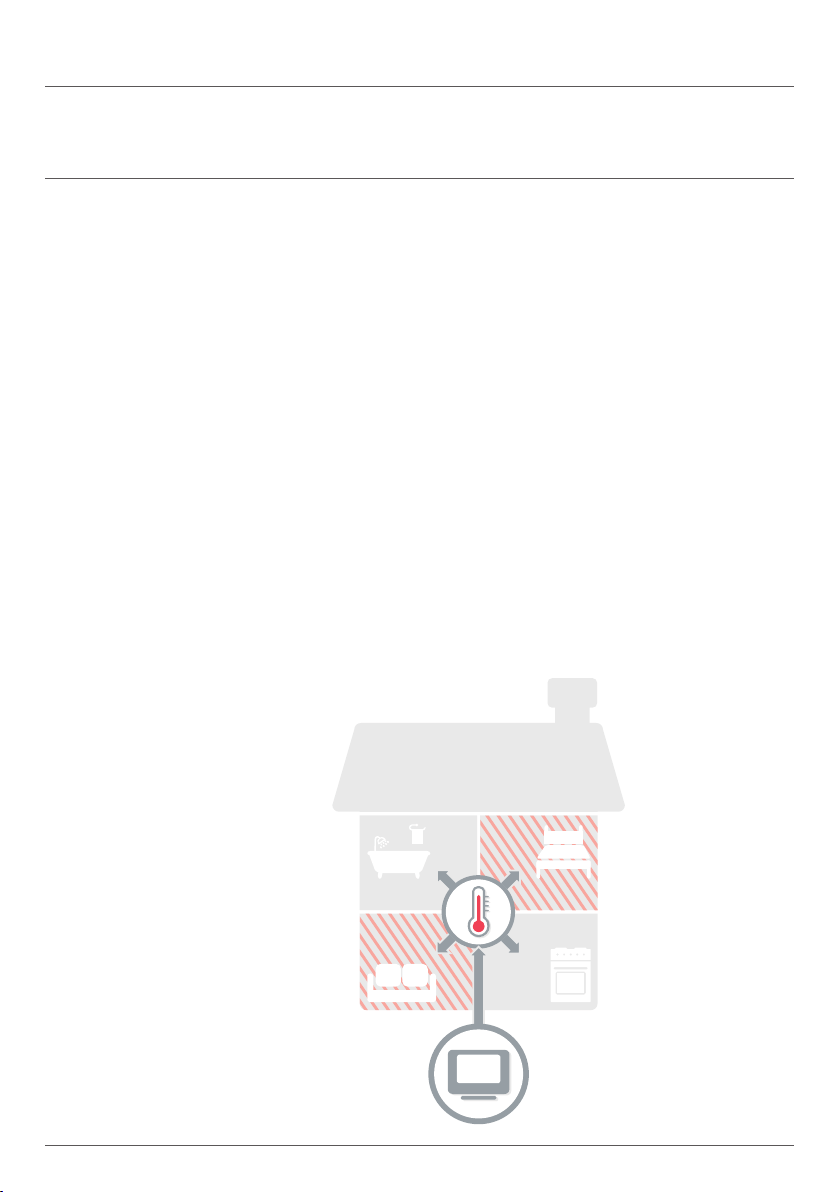
Heating the whole house based on
the temperature in one room (often a
hallway) is not very efficient. evohome
measures and controls the temperature
of individual zones, letting you choose
the right comfort levels for each room.
A zone can be one room or a number
of rooms. For example you might
want to group all of your bedrooms
and control them as one zone. Or
if you have several radiators in one
room or open space, they can be
grouped into a single zone so you don’t
need to control them individually.
evohome is efficient

4 Getting the most from evohome

5evohome User Guide
Heat intelligently with Optimisation
By learning and adapting to the
temperature changes in your home,
evohome can heat your rooms to the
set temperature right at the time you
want, or it can save some energy by
gently reducing the temperature as the
schedule approaches a cooler setting.
Although Optimisation isn’t enabled
initially it’s easily accessed from the
home screen* or the settings menu.
If you choose an optimisation setting,
one of the icons below will appear
next to the zone temperature while
optimisation is active. This lets you know
that evohome is busy doing something
smart with your heating system.
* When optimisation has been enabled the button will no
longer be displayed on the home screen and can be
accessed from the Settings menu. You can also remove
the button from the homescreen by pressing it and
selecting “Please do not show this message again”.
evohome is intelligent
Optimum
Start
Optimum
Stop

6 Getting the most from evohome
7evohome User Guide
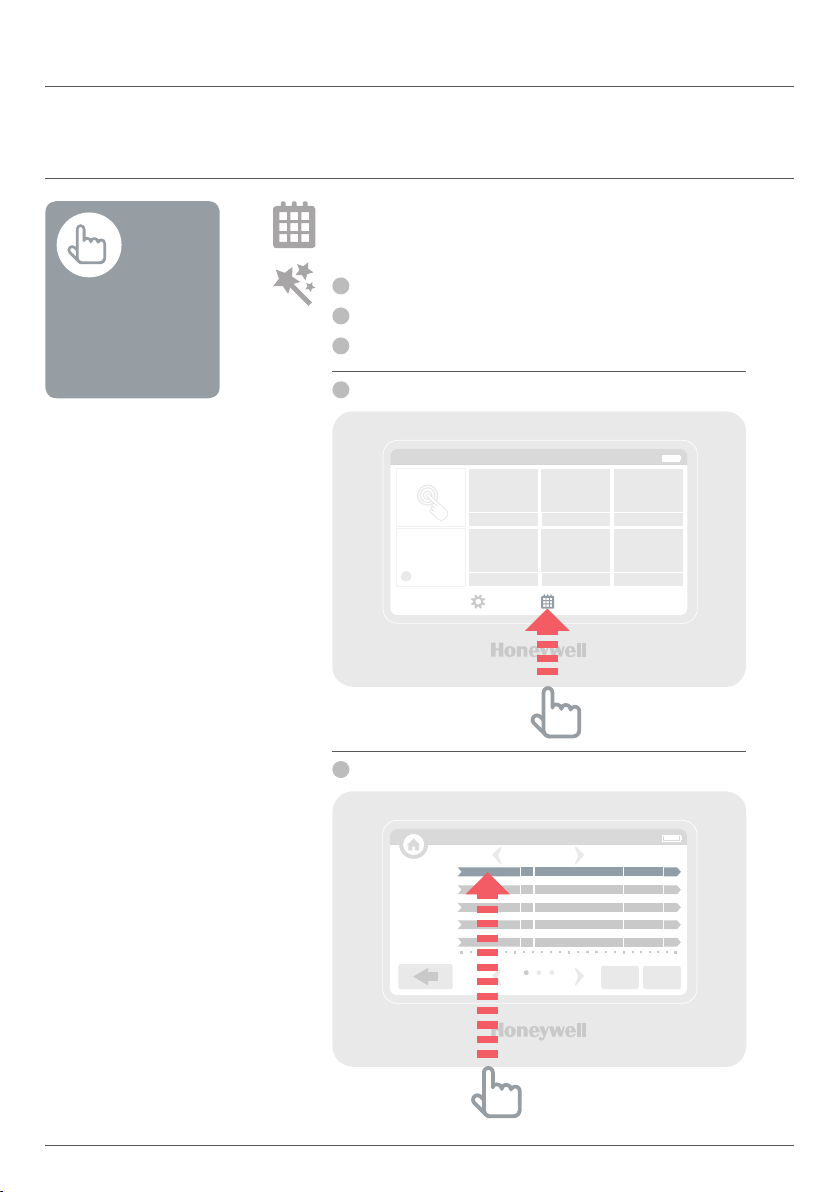
You will need the MAC ID and CRC
which can be found:
On a label behind the front cover
of the evohome Controller
On screen during the WiFi set-up
In the SETTINGS > WiFi SETTINGS menu
after set-up has been completed
Access evohome from Anywhere
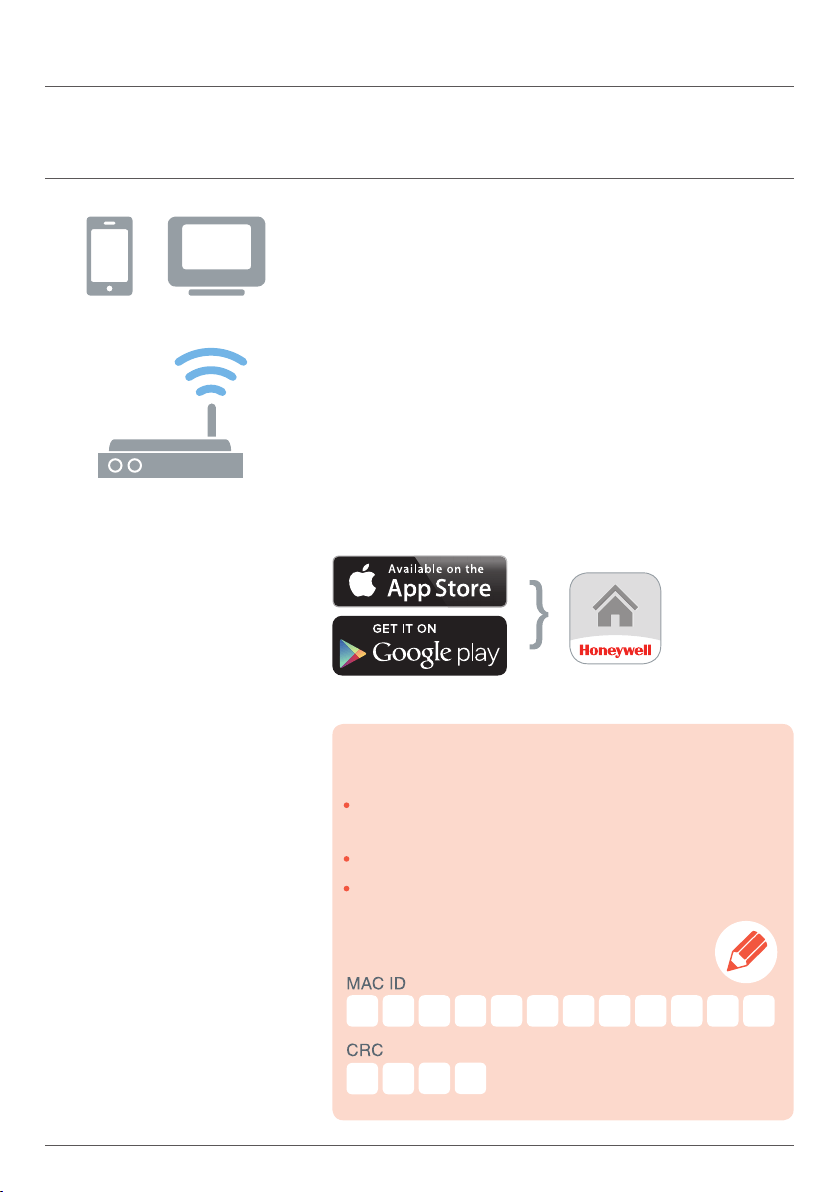
Connect evohome directly to your WiFi
network and the smartphone or tablet app
lets you control your heating wherever
you are. So, if you’re away from home
and need to turn your heating off or on,
or up or down, you are always in control.
Visit www.mytotalconnectcomfort.com
to create an account, register the
evohome Controller and download the
‘Total Connect Comfort Europe’ app.
evohome is connected
Select your store Get the App
8
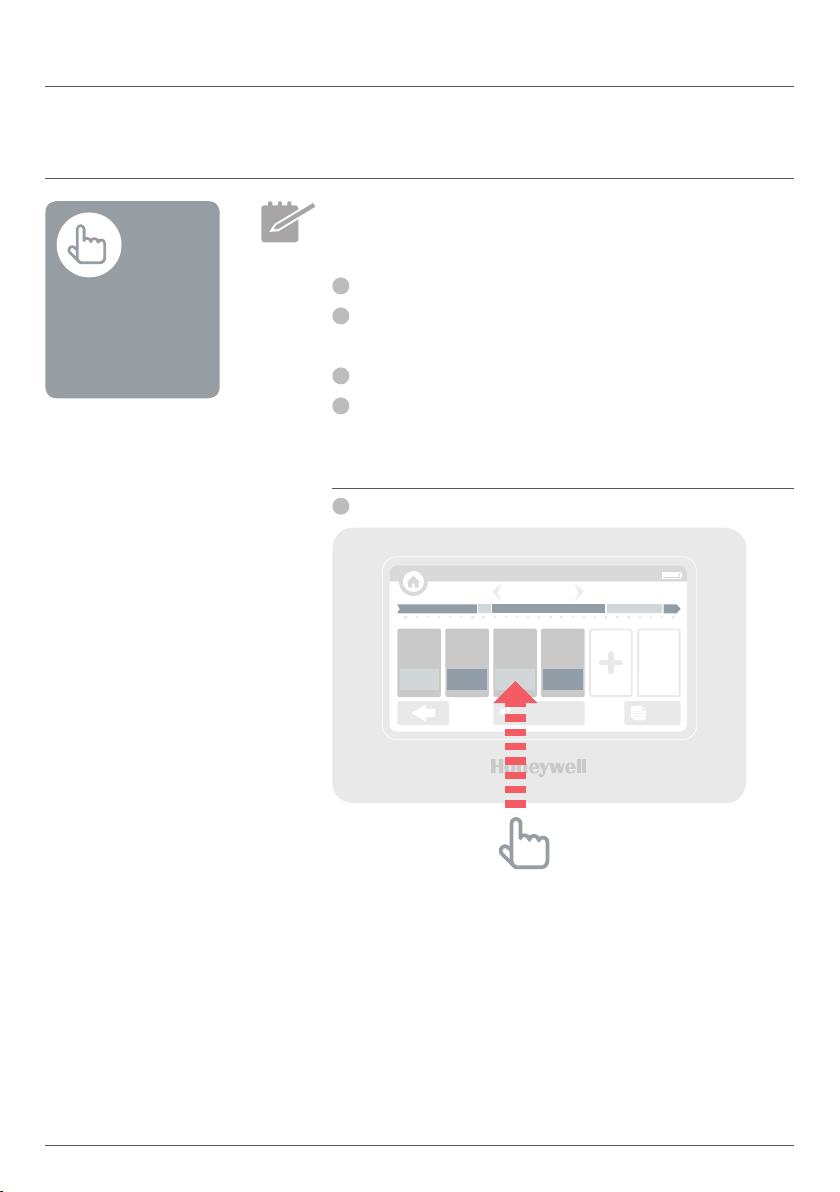
I want to set up a new heating
schedule for the first time
1
Press SCHEDULE
2
Press any of the zone names
3
Use the Wizard
You can also
press the EDIT
SCHEDULE button
in any of the zone
override screens
Living with evohome
Living with evohome
SCHEDULE
MONDAY
Living room
18˚ 21˚
18˚ 21˚
18˚ 21˚
18˚ 21˚
18˚ 21˚
Dining room
Kitchen
Bedroom 1
Bedroom 2
00:00 06:00 12:00 18:00 00:00
more rooms
DAY S WEEKS
12:03
Monday 27 April
Living room
21˚ 18˚ 15˚
18˚ 17˚ 23˚
Quick Actions
21˚ 18˚ 17˚
19˚45˚ 17˚ 23˚
Kitchen Bedroom 2
Dining roomHot Water Bedroom 1 Bathroom
12:03
SETTINGS SCHEDULE
1
2
9evohome User Guide
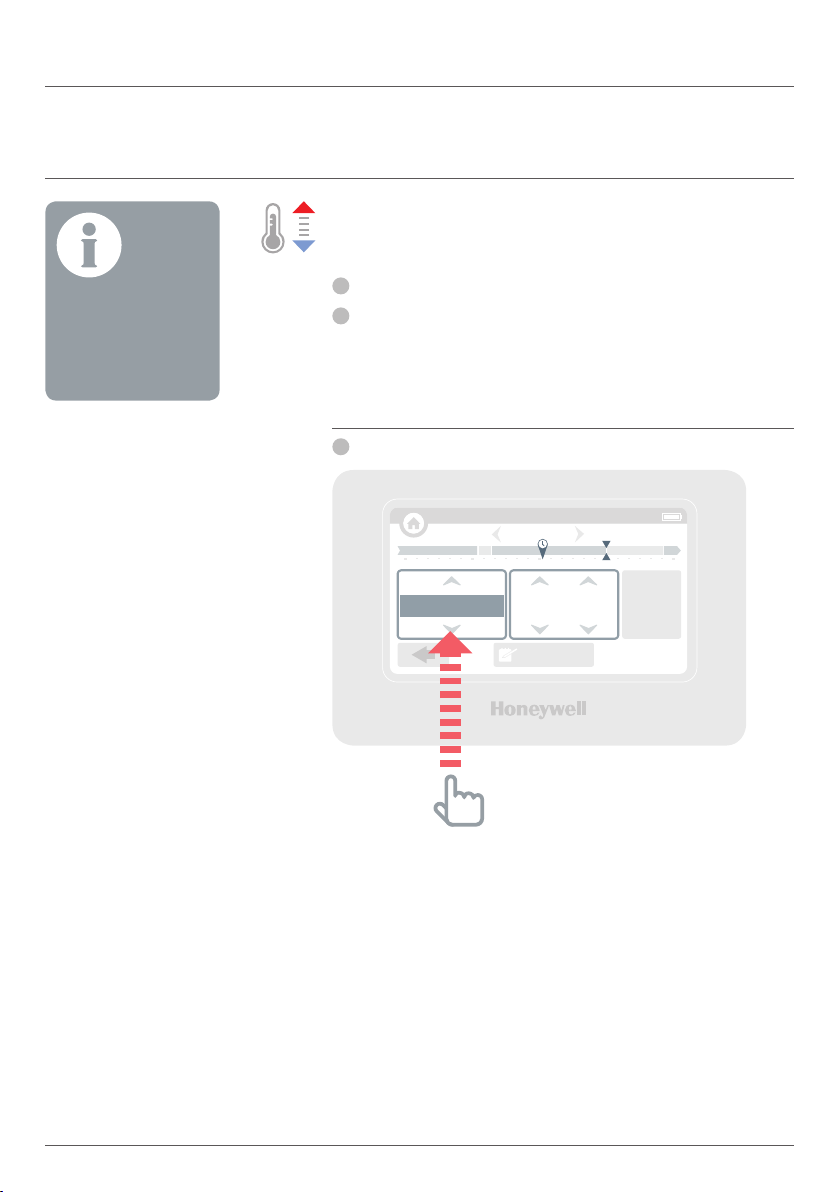
I want to change the heating
schedule for a room or zone
1
Press SCHEDULE
2
Press the name of the zone
you want to change
3
Press Edit manually
4
Press the part of the schedule you want
to change then use the up and down
arrows to change the time or temperature
You can also
press the EDIT
SCHEDULE button
in any of the zone
override screens
SCHEDULE
MONDAY
12:03
06:30
21.0˚
08:00
18.0˚
18:00
21.0˚
22:30
16.0˚
COPYWIZARD
18˚ 21˚
00:00 06:00 12:00 18:00 24:00
4
10
I want to increase or reduce the
temperature for a zone
1
On the home screen press the ‘tile’ for that zone
2
Use the up and down arrows to
change the time or temperature
If you want, you can make these new
settings permanent for that zone.
To cancel the
override press the
zone tile again and
press CANCEL
OVERRIDE
Living with evohome
Living with evohome
LIVINGROOM – OVERRIDE
MONDAY
12:03
EDIT SCHEDULE
Set
MAKE
PERMANENT
18˚ 21˚
00:00 06:00 12:00 18:00 24:00
Until
18.0˚ 18 00:
2
11evohome User Guide
I want to turn the temperature
down a little throughout my home
1
Press Quick Actions
2
Press ECONOMY
This lowers the temperature in all zones by 3°C.
You can also set the
ECONOMY Quick
Action for between
1 and 24 hours
by pressing and
holding the button to
set the timer
To cancel the Quick
Action press the
cancel button on the
home screen
QUICK ACTIONS
Touch once to quickly enable an Action
Touch & hold to enable with a timed duration
12:03
ECONOMY
Reduce all room temps by 3˚
AWAY
All rooms set to 15˚
DAY OFF
Use Saturday’s schedule today
HEATING OFF
All rooms set to OFF
CUSTOM
Use custom heating schedule
Monday 27 April
Quick Actions
12:03
Living room
21˚ 18˚ 15˚
18˚ 17˚ 23˚
21˚ 18˚ 17˚
19˚45˚ 17˚ 23˚
Kitchen Bedroom 2
Dining roomHot Water Bedroom 1 Bathroom
SETTINGS SCHEDULE
2
1
12
You can also set the
AWAY Quick Action
for between 1 and
99 days by pressing
and holding the
button to set the
timer
To cancel the Quick
Action press the
cancel button on the
home screen
Living with evohome
Living with evohome
QUICK ACTIONS
Touch once to quickly enable an Action
Touch & hold to enable with a timed duration
12:03
ECONOMY
Reduce all room temps by 3˚
AWAY
All rooms set to 15˚
DAY OFF
Use Saturday’s schedule today
HEATING OFF
All rooms set to OFF
CUSTOM
Use custom heating schedule
I want to turn the heating down
while I am away from home for
more than a day
1
Press Quick Actions
2
Press AWAY
This lowers the temperature in all zones to 15°C.
2
13evohome User Guide
I have a day off and stay at home
1
Press Quick Actions
2
Press DAY OFF
This action is useful if you’re staying at home
on a day when you would normally be out.
You can also set
the DAY OFF Quick
Action for between
1 and 99 days
by pressing and
holding the button to
set the timer
To cancel the Quick
Action press the
cancel button on the
home screen
QUICK ACTIONS
Touch once to quickly enable an Action
Touch & hold to enable with a timed duration
12:03
ECONOMY
Reduce all room temps by 3˚
AWAY
All rooms set to 15˚
DAY OFF
Use Saturday’s schedule today
HEATING OFF
All rooms set to OFF
CUSTOM
Use custom heating schedule
2
14
I want to turn the heating off in
every zone
1
Press Quick Actions
2
Press HEATING OFF
To cancel the Quick
Action press the
cancel button on the
home screen
Living with evohome
Living with evohome
QUICK ACTIONS
Touch once to quickly enable an Action
Touch & hold to enable with a timed duration
12:03
ECONOMY
Reduce all room temps by 3˚
AWAY
All rooms set to 15˚
DAY OFF
Use Saturday’s schedule today
HEATING OFF
All rooms set to OFF
CUSTOM
Use custom heating schedule
2
15evohome User Guide
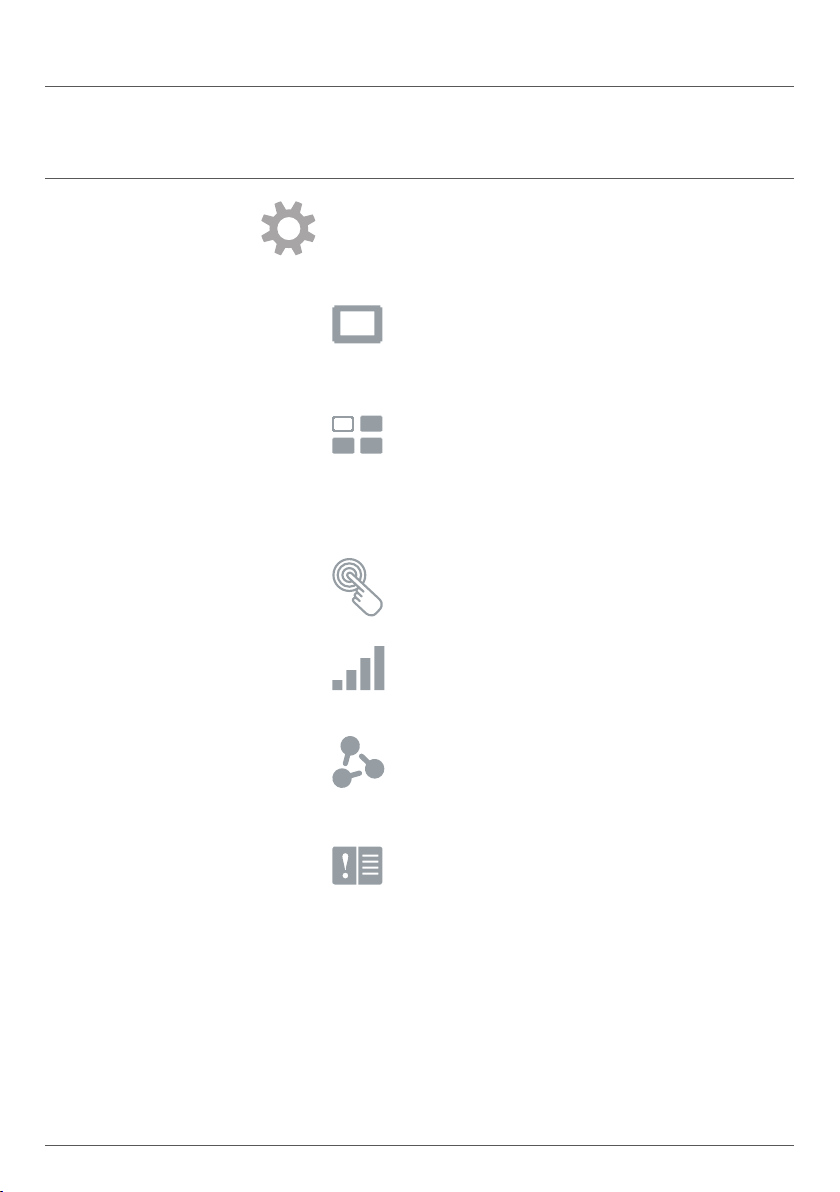
The settings menu lets you
manage your evohome Controller
and personalise your settings
DEVICE SETTINGS – change the date, time
and language, control your display settings
and set a security passcode (default 0000)
ROOM SETTINGS – change the name
of a room, display order of rooms on
the home screen, or reset a room
schedule to the original settings
QUICK ACTIONS – personalise the settings
used by some of the quick action functions
WiFi SETTINGS – view, change or
configure your WiFi network settings
OPTIMISATION – view or change
the optimisation settings for
your heating schedule
FAULT LOGBOOK – displays warnings or
issues detected in your heating system.
The logbook will only appear in the menu
when it contains at least one item - if
you clear the list it will not be displayed
again until another issue is detected.
The settings menu
16
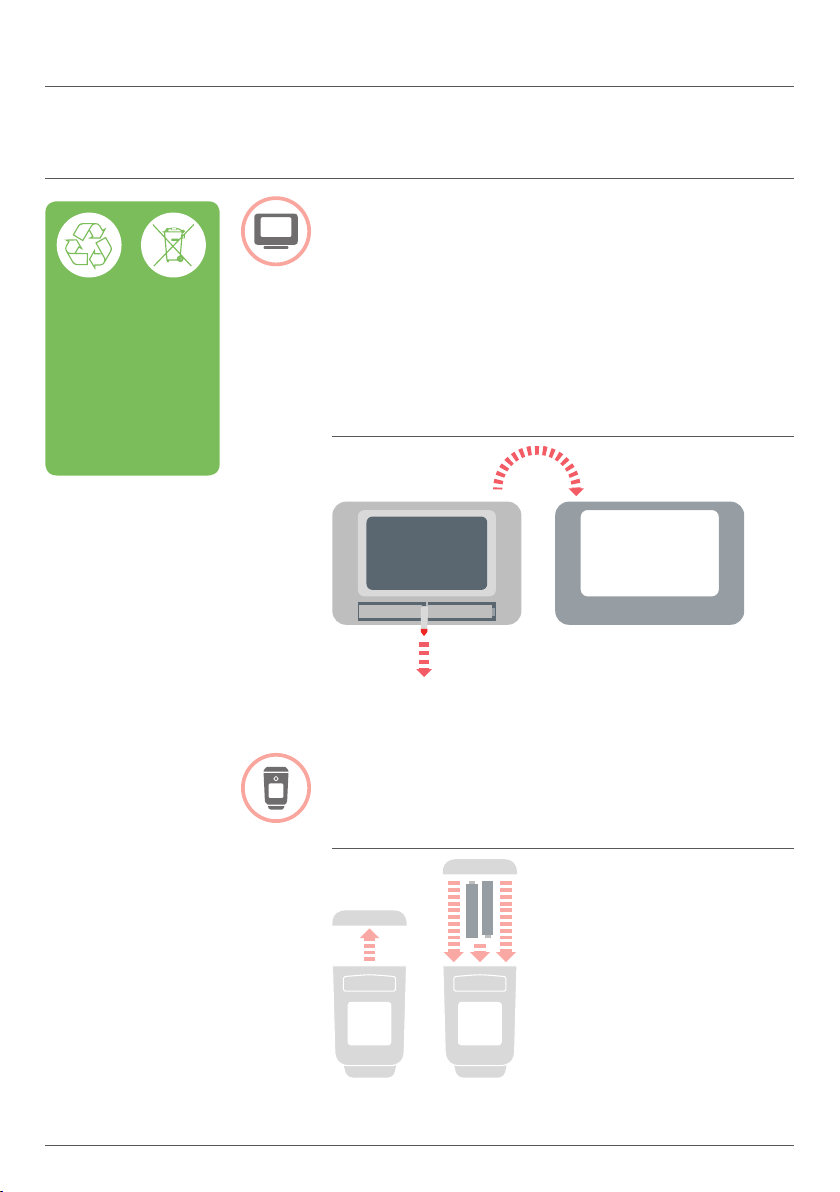
evohome Controller batteries
The evohome Controller uses rechargeable
batteries which should’t need to be
replaced. If the batteries need to be charged
place the evohome Controller back on a
powered Table Stand or Wall Bracket.
If necessary, replace with AA 1.2V Ni-MH 2000-
2400mAh batteries only.
Replacing the Radiator
Controller (HR92) batteries
FACEPLATEMAIN UNIT
Batteries
Please help
to protect the
environment
by recycling
old batteries in
accordance with
local regulations
Living with evohome
evohome User Guide

evohome
Honeywell Control Systems Ltd.
Skimped Hill Lane,
Bracknell
Berkshire
RG12 1EB
www.honeywelluk.com
evohome is designed to convert a system with single zone
pipework into a multi zone system, resulting in optimal control
and comfort combined with maximum energy saving.
For more information on Smart Heat Zoning for your home, visit:
www.evohome.honeywell.com
32303496-001 A
© 2014 Honeywell International Inc.
Manufactured for and on behalf of the Environmental and Combustion Controls Division of Honeywell Technologies Sàrl,
ACS-ECC EMEA, Z.A. La Pièce 16, 1180 Rolle, Switzerland by its Authorised Representative Honeywell Inc.