

TRENDnetUser’sGuide TV‐IP312PI
©Copyright2017TRENDnet.AllRightsReserved. 2
Contents
ProductOverview...........................................................................................4
Features......................................................................................................4
Hardware....................................................................................................4
AdjustableBracket..................................................................................4
PoE..........................................................................................................4
PowerPort..............................................................................................4
OutdoorReady........................................................................................4
SunVisor.................................................................................................4
Performance...............................................................................................4
3Megapixel.............................................................................................4
NightVision.............................................................................................4
SmartIR...................................................................................................4
DigitalZoom............................................................................................4
IPv6..........................................................................................................4
AdvancedPlayback.................................................................................5
D‐WDR.....................................................................................................5
Storage....................................................................................................5
FreeApps................................................................................................5
ComplimentarySoftware........................................................................5
PackageContents........................................................................................5
CameraOverview.......................................................................................6
Warnings.....................................................................................................6
Cautions......................................................................................................7
InstallationProcedure.....................................................................................7
Planforinstallationlocation...........................................................................7
Viewingangle..............................................................................................7
WeatherConditions....................................................................................8
HardwareInstallation......................................................................................8
Cabling.........................................................................................................8
Waterproofcap...........................................................................................8
Mountyourcamera....................................................................................9
SetupYourCamerawithCD..........................................................................10
AccessyourCamerawiththeWebBrowser.................................................12
Logging‐intotheCamerafortheFirstTime(Windows)...........................12
Logging‐i
ntotheCamerafortheFirstTime(OSX)..................................14
LiveView...................................................................................................19
Playback....................................................................................................20
Searchforvideorecordings..................................................................20
TimeLine...............................................................................................20
Playback................................................................................................21
Sliceimagesfromvideoplayback.........................................................21
Downloadsectionsofvideo..................................................................22
Downloadsnapshots.............................................................................22
Log.............................................................................................................23
Searchforlogs.......................................................................................23
SystemInformation...................................................................................24
SystemConfiguration....................................................................................26

TRENDnetUser’sGuide TV‐IP312PI
©Copyright2017TRENDnet.AllRightsReserved. 3
DeviceSettings..........................................................................................26
UserAccounts...........................................................................................27
TimeSettings.............................................................................................27
DaylightSavings........................................................................................28
LiveViewSettings.....................................................................................29
Maintenance.............................................................................................30
NetworkSettings...........................................................................................31
TCP/IP........................................................................................................31
Port............................................................................................................32
DDNS.........................................................................................................32
PPPoE........................................................................................................33
SNMP.........................................................................................................33
802.1X.......................................................................................................35
IPAddressFilter........................................................................................35
QualityofService(QoS)............................................................................36
UPnP..........................................................................................................36
VideoSettings...............................................................................................37
VideoFormat............................................................................................37
DisplaySettings.........................................................................................38
OnScreenDisplaySettings........................................................................40
TextOverlay..............................................................................................41
PrivacyMask.............................................................................................41
VideoRecording........................................................................................42
Events............................................................................................................43
MotionDetection......................................................................................43
VideoTamper............................................................................................45
Exception...................................................................................................46
Snapshot....................................................................................................47
Email..........................................................................................................48
NetworkStorage...........................................................................................49
NetworkStorage.......................................................................................49
StorageManagement...............................................................................50
FTPServer.................................................................................................51
Regulations....................................................................................................
52
FederalCommunicationCommissionInterferenceStatement....................52
RoHS..........................................................................................................52
Europe–EUDeclarationofConformity....................................................53
LimitedWarranty..........................................................................................54

TRENDnetUser’sGuide TV‐IP312PI
©Copyright2017TRENDnet.AllRightsReserved. 4
ProductOverview
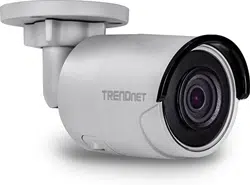
TV‐IP312PI
Features
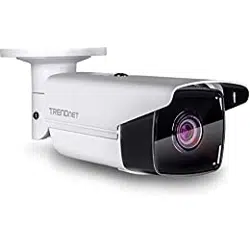
TRENDnet’sOutdoor3MPFullHD1080pPoEIRNetworkCamera,model
TV‐IP312PI,offersnightvisionupto50meters(164ft.),anIP66weather
rating,andanintegratedmountingbracket.Ultraenergyefficientadvanced
infraredcreatesamorebalancednightvisionilluminationfieldandreduces
closeobjectoverexposure.Record3MegapixelHDvideo(2048x1536)at
20fpsinaspacesavingH.264compressionformat.Manageupto32
TRENDnetcameraswithincludedcomplimentarysoftwareandmobileapps.
Hardware
AdjustableBracket
Fullyadjustableintegratedmountingbracketprovidesinstallationflexibility
PoE
SaveinstallationcostswithPoweroverEthernet(PoE)
PowerPort
Optionalpowerportfornon‐PoEinstallation
OutdoorReady
OutdoorIP66weatherrated
SunVisor
Sunvisorincreasesimagequalitythroughouttheday
Performance
3Megapixel
Record2048x1538pixelvideoat15fpsinH.264compression
NightVision
Nightvisionupto30meters(100ft.)incompletedarkness
SmartIR
DynamicIRadjustmentoptimizesnightvisibility
DigitalZoom
Digitallyzoomanywherewithintheviewingfield
IPv6
IPv6support
TRENDnetUser’sGuide TV‐IP312PI
©Copyright2017TRENDnet.AllRightsReserved. 5
AdvancedPlayback
Advancedin‐cameraarchivedvideoreviewfunctionality
D‐WDR
DigitalWideDynamicRangeimprovesvideoqualityinhighcontrastlighting
environments
Storage
Sambavideosupportwithnotificationifstoragedriveisfull
FreeApps
SeelivevideoonamobiledevicewithfreeApple®andAndroid™apps
ComplimentarySoftware
Complimentarypro‐gradesoftwaretomanageupto32TRENDnetcameras
PackageContents
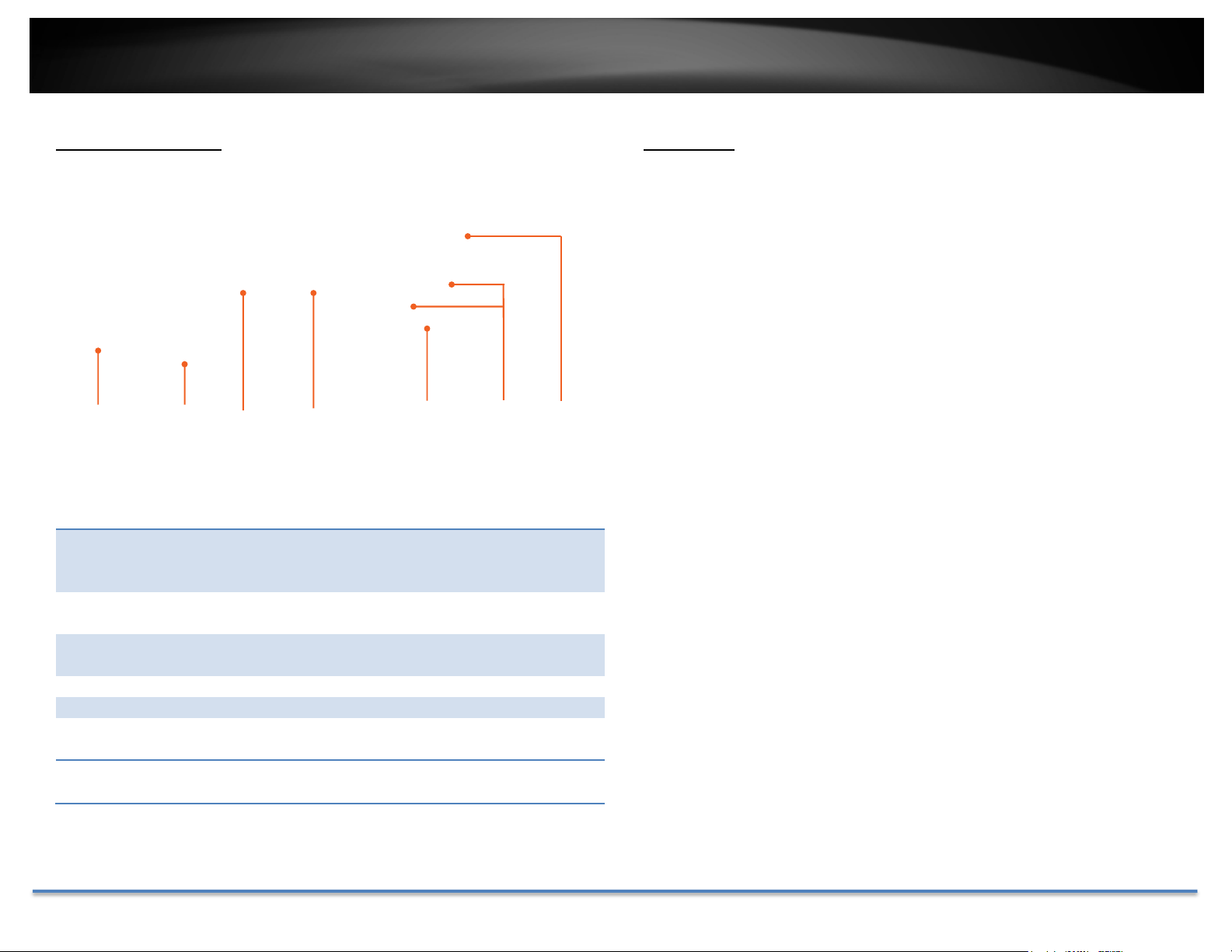
TV‐IP312PIpackageincludes:
TV‐IP312PI
QuickInstallationGuide
CD‐ROM(Utility,Software&User'sguide)
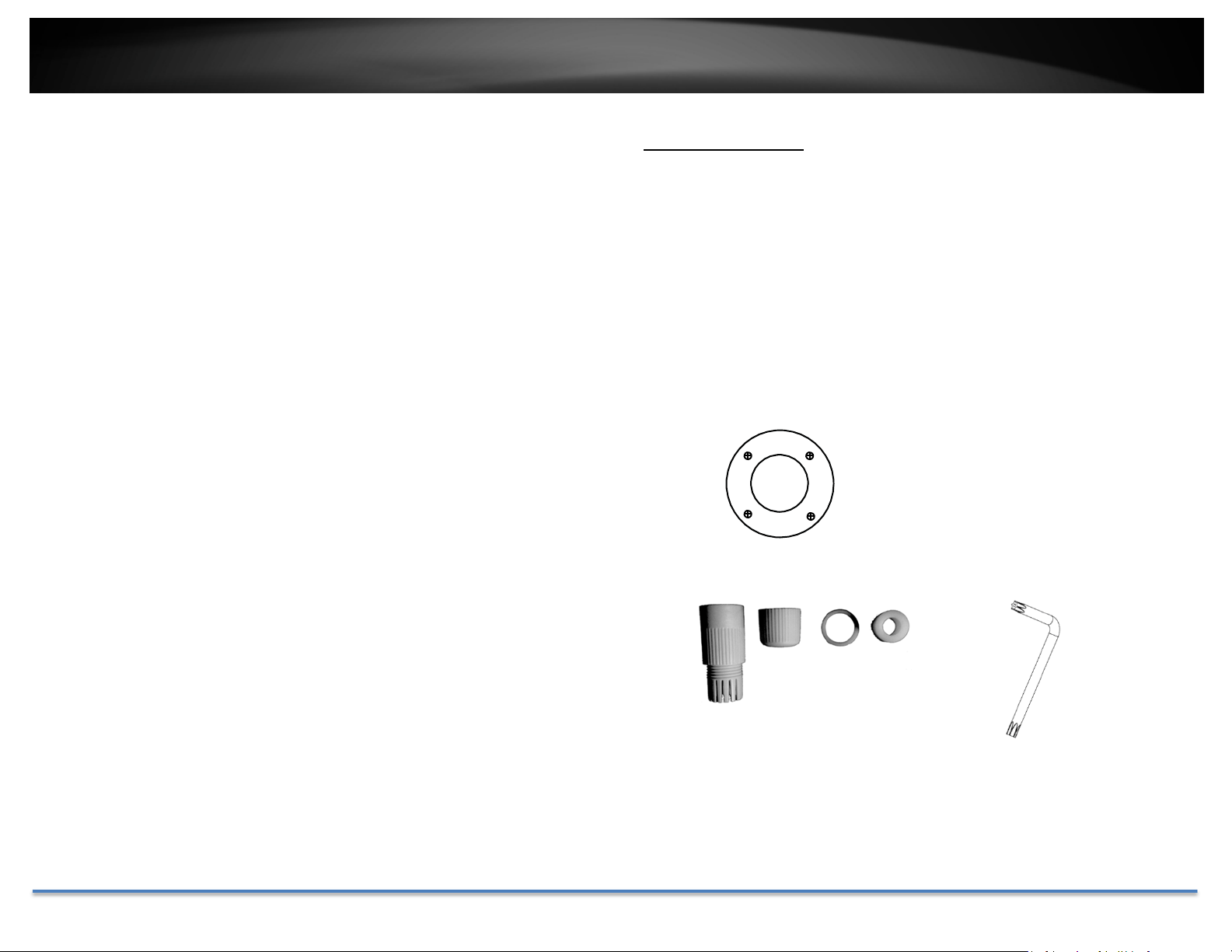
CameraMountinghardware
(Drilltemplate,mountingscrews,waterproofcap,torxscrewdriver)
(Optionalpoweradapternotincluded)
Ifanypackagecontentismissingordamaged,pleasecontacttheretailstore,online
retailer,orreseller/distributorfromwhichtheproductwaspurchased.
DrillingTemplate MountingScrews
NetworkCable
WaterproofAccessories
TorxScrewDriver
TRENDnetUser’sGuide TV‐IP312PI
©Copyright2017TRENDnet.AllRightsReserved. 6
CameraOverview
OptionalPower
Connector
ThismodelisdesignedtopowerbyPoE.Fornon‐PoEuser,
please connects the power adapter (12VDC1A sold
separately)tocamera.
Ethernet/PoE
Port
Plugthenetworkcabletoconnecttosupplypowertothe
cameraifusingnon‐PoEconnection.
Mounting
Hardware
Adjustthescrewstofitthemountingposition
IP66Housing HousingisratedwithIP66.
IRSensor Detectthelightsource.
IRLEDs TheIRLEDswillbeonwhenthesensordetectlowlight
source.
Adjustable Sun
Visor
Adjustablesunvisortopreventdirectsuntothecamera.
Warnings
Seriousinjuryordeathmaybecausedifanyofthesewarningsareneglected.
Followthesesafetyguardstopreventseriousinjuryordeath.
• If using the power adapter, please choose the power adapter that
meetsthesafetyextralowvoltage(SELV)standardorIEC60950‐1and
LimitedPowerSourcestandard.
• Iftheproductdoesnotworkproperly,pleasecontactyourdealeror
thenearestservicecenter.Neverattempttodisassemblethecamera
yourself. Disassembling the product will void the warranty and may
causeharmorinjury.
• Toreducetheriskoffireorelectricalshock,donotexposethisproduct
torainorwater.
• The installation should be done by a qualified service person and
shouldconformtoallconstructionandelectricregulationsandother
localcodes.
IR
Sensor
IR
LEDs
Adjustable
Sun Visor
IP66
Housing
Mounting
Hardware
Optional
Power
Connector
Ethernet/PoE
Port

TRENDnetUser’sGuide TV‐IP312PI
©Copyright2017TRENDnet.AllRightsReserved. 7
Cautions
Injuryorequipmentdamagemaybecausedifanyofthesecautions are
neglected.Followtheseprecautionstopreventpotentialinjuryormaterial
damage.
• MakesurethepowersupplyvoltageiscorrectbeforeusingtheCamera.
• Donotdropthecameraorsubjecttophysicalshock.
• Donottouchsensormoduleswithfingers.Ifcleaningisnecessary,use
acleanclothwithabitofethanolandwipeitgently.Ifthecamerawill
notbe usedfor anextendedperiod oftime, puton thelens capto
protectthesensorfromdirt.
• DonotaimthecameralensatthestronglightsuchastheSunoran
incandescentlamp.Stronglightcandamagethecamerasensor.
• Thesensormaybeburnedoutbyalaserbeam,sowhenanylaser
equipmentisbeingused,makesurethatthesurfaceofthesensorwill
notbeexposedtothelaserbeam.
• Donotplacethecamerainextremelyhot,coldtemperatures(the
operating temperature should be between ‐10°C to 60°C), dusty or
damp environment, and do not expose it to high electromagnetic
radiation.
• Toavoidheataccumulation,goodventilationisrequiredforaproper
operatingenvironment.
• Keepoutofwaterandanyliquid.
• Whileshipping,thecamerashouldbepackedinitsoriginalpacking.
InstallationProcedure
There are number of factors involved in a successful camera installation.
Followthesuggestedinstallationstepsandgothroughthechecklists.This
guidewillhelpyoumakeyourcamerainstallationsmoothlyandeasily.
Planforinstallationlocation
Viewingangle
TheTV‐IP312PIisabulletcamerawithafocusedviewingangle(70horizontal)
thatprovidesnon‐distortedanddetailedimages.Choosethelocationwhere
hasgoodangletoshoottheimageyouexpecttosee.Themotiondetection
areashouldalsobeconsideredwheninstallingthecamera.

TRENDnetUser’sGuide TV‐IP312PI
©Copyright2017TRENDnet.AllRightsReserved. 8
WeatherConditions
TheTV‐IP312PIisasmallbulletcamera,whichfitsmostinstallationsindoor
andoutdoor. Thecameracanworkunderawiderangeofweatherconditions.
Forsevereweatherconditions,acamerahousingwithtemperature and
moisture control is recommended. Using the camera in milder weather
conditionswillhelpextendthecamera’sproductlifeandpreservethequality
ofthevideoimage.
• Moisture:Avoiddampormoistenvironmentswheneveryoucan.The
TV‐IP312PIis an IP66grade water proof camera, and it will work in
moist environments. However, rain may affect the picture quality,
especiallyatnight,watermayreflectthelightfromtheinfra‐red
illuminationanddegradepicturequality.
• Temperature:TV‐IP312PIworkswithinaspecifiedtemperaturerange.
Areaswithseveretemperaturesshouldbeavoidedwheninstallingthe
camera.It’srecommendedthatyouuseanenclosurewithaheaterand
blower if you plan on using this camera outside of the specified
temperaturerange.
• Sunlight:Avoiddirectsunlightexposure.Directsunlightwilldamage
theimagesensor.Ifsunlightisnecessaryforyourviewingpurposes,
provideprotectionfortheimagesensor.
• Lighting:Considerinstallingyourcamerafacesthesamedirectionof
thelightsources.Shootingimageswithtop‐downpositionoutdooror
nexttotheexistinglightsourcearegoodchoices.Avoidthelightsource
ifitcreatesashadethatdarkenstheviewingarea.
HardwareInstallation
Cabling
It’s recommended that the wiring the cable in your home or office by a
professional.Ifyoualreadyhavethecabledeployed,makesurethecableand
theconnectorsmeetthecategory5Ethernetcablestandards.Atleast2pairs
oftwistedlinesarerequiredforpoweranddata.Poorcablequalitymaycause
unexpectedproblems.Testingyourcableorrunninganewcableissuggested
fornewcamerainstallation.
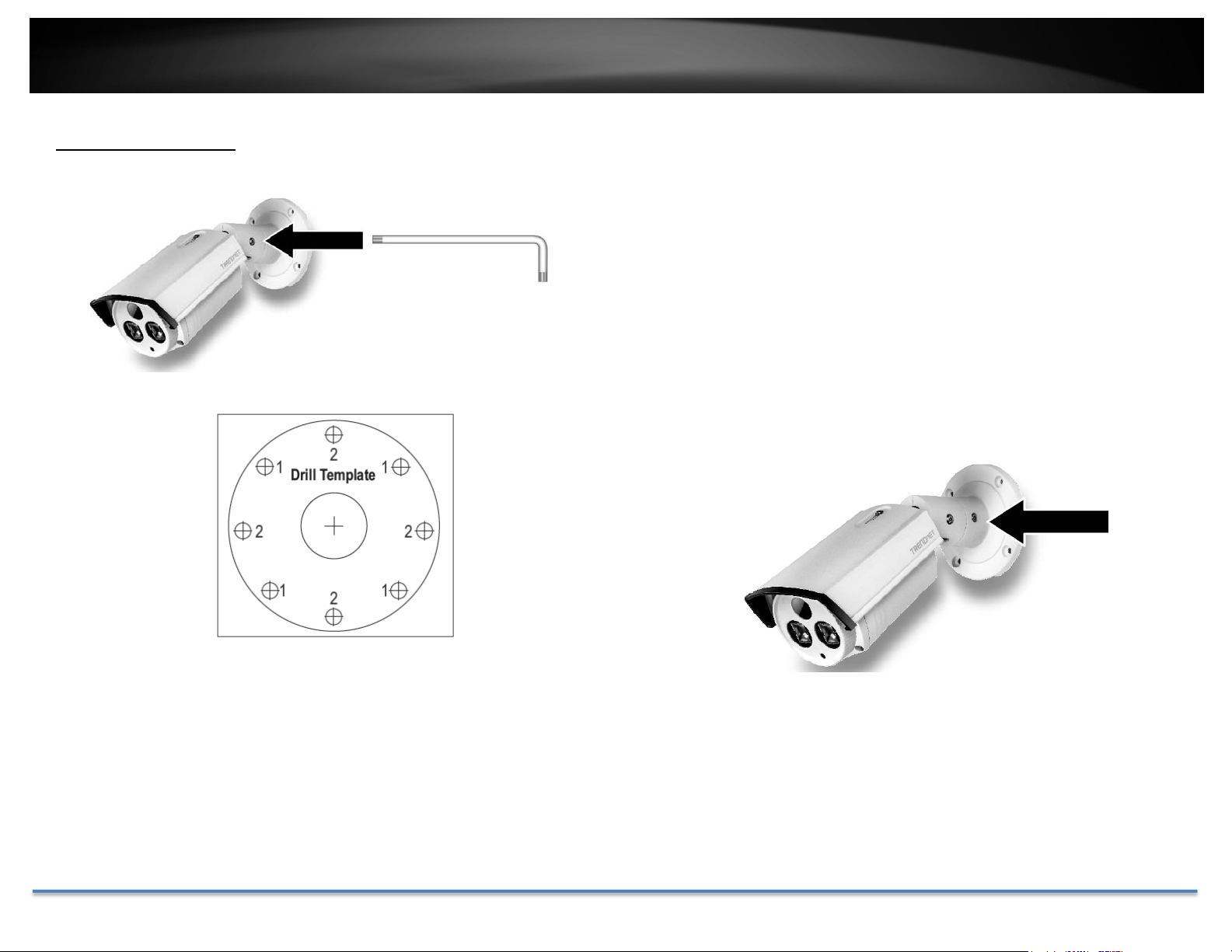
Waterproofcap
TheTV‐IP312PIitselfisIP66gradewater anddustproof.Thereisasetof
networkcablewaterproofcapsthatcomeswiththepackageaswell.Run
yourcablegoingthroughtheaccessories,andthencrimpthecablewithan
RJ45module.Pluginthenetworkcableandthentightenthewaterproofcap
topreventwaterrunningintocamerathroughthecable.
TRENDnetUser’sGuide TV‐IP312PI
©Copyright2017TRENDnet.AllRightsReserved. 9
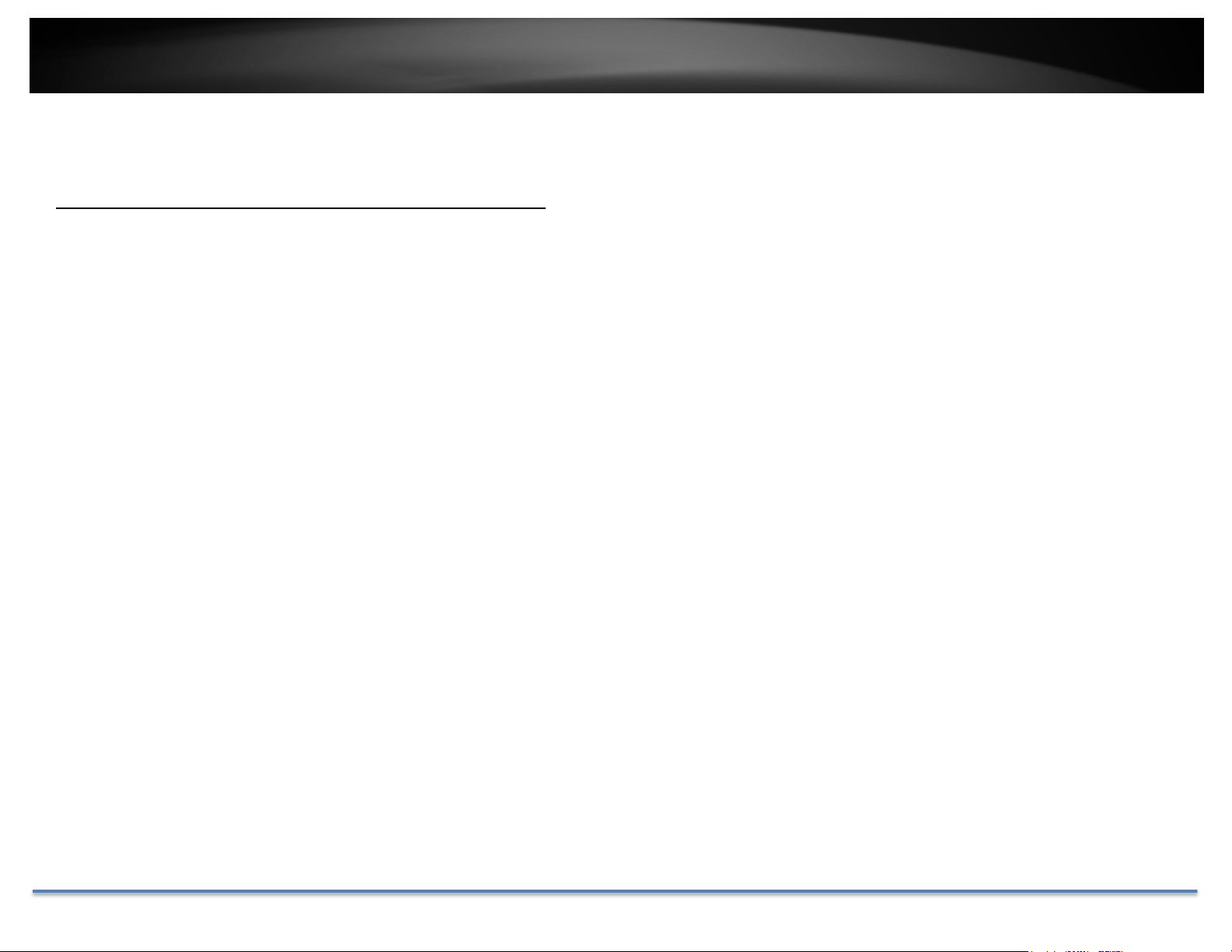
Mountyourcamera
1. Loosenthelockingboltsandmanuallypositionthecameraasdesired.
2. Placetheprovideddrilltemplateonthewallorceiling.
3. Drillholesfortheprovidedscrewanchorsateachmarkedpositiononthe
template.Makesurethedrillbitmatchesthesizeoftheprovidedscrew
anchors.
4. Ifthecamerawirewillbeinstalledthroughthebasedplateoftheunit,skipto
step6.Ifthewiringwillberoutedthoughthewall,drillaholeforthecable.
5. Passthecamera’scablesthroughthehole.
6. Connectthenetworkcabletothecamera.
7. Inserttheprovidedscrewanchorsintothepilotholes.
8. Alignthemountingbracketwiththescrewanchors,andthenusethe
providedscrewstosecurethecameratothemountingsurface.
9. PowerupthecamerabyconnectingtheotherendofthecabletoaPoE
switchorinjectoronyournetwork.
10. Loosenthescrewsandrotatethecollartofinalangle,thenthescrews.

TRENDnetUser’sGuide TV‐IP312PI
©Copyright2017TRENDnet.AllRightsReserved. 10
SetupYourCamerawithCD
1. InserttheInstallationCD‐ROMintoyourcomputer’sCD‐ROMdriveto
initiatetheAuto‐Runprogram.Chooseyourpreferredlanguageandthen
clicktheInstallCameraUtility.
2. InstalltheCameraUtilityasinstructed
3. Last,clickNexttofinishtheinstallation.
4. ThiswillalsorequireyoutoInstallWinPcapprogramifyoudon’thave
thisinstalledbefore,pleasefollowtheonscreenInstructionstoInstallIt.

TRENDnetUser’sGuide TV‐IP312PI
©Copyright2017TRENDnet.AllRightsReserved. 11
5. RestartthecomputeraftertheInstallation.
6. Afterthecomputerhasrestarted,doubleclickontheCameraUtilityicon
tolaunchtheprogram.
7. Findthecamerayouwouldliketoaccessandconfigurethendoubleclick
ontheIPaddress.
8. ContinuetothenextsectionAccessyourCamerawiththeWeb
Browserfordetailconfigurationsofthecamera.
TRENDnetUser’sGuide TV‐IP312PI
©Copyright2017TRENDnet.AllRightsReserved. 12
AccessyourCamerawiththeWebBrowser
Logging‐intotheCamerafortheFirstTime(Windows)
1. FindthecamerafromtheUtilityanddoubleclickontheIPaddressto
openthebrowser.
2. ActivatetheadminUserAccountbyenteringyourdesiredpassword,and
thenclickOK.
3. The camera management page will detect if you installed the camera
videostreamingplug‐inornot.Clickthelinktodownloadtheplug‐infrom
thecamera.

TRENDnetUser’sGuide TV‐IP312PI
©Copyright2017TRENDnet.AllRightsReserved. 13
4. Downloadtheplug‐intoyourcomputerandthenandcloseyourbrowser.
Launchtheplug‐ininstallationtoinstalltheplug‐in.
5. Permission request may show up depends on the Internet security
settingsonyourcomputer.ClickYestoinstalltheplug‐in.
6. ClickNexttoinstalltheplug‐in.
7. ClickFinishtofinishtheinstallation.

TRENDnetUser’sGuide TV‐IP312PI
©Copyright2017TRENDnet.AllRightsReserved. 14
8. Openthebrowserandloginagain.Entertheusernameadminandnew
passwordagaintostartsecuredsession.
9. Refresh the browser and the Live View page will show up and begin
streamingvideo.
Logging‐intotheCamerafortheFirstTime(OSX)
1. Openthewebbrowseronyourcomputer.Intheaddressbar,enterthe
default IP address of the camera 192.168.10.30. If the camera is
connectedtoarouter/network,pleaseusetheWindowsCameraUtility
tofindtheexactIPaddress.
2. ActivatetheadminUserAccountbyenteringyourdesiredpassword,and
thenclickOK.

TRENDnetUser’sGuide TV‐IP312PI
©Copyright2017TRENDnet.AllRightsReserved. 15
3. The camera management page will detect if you installed the camera
videostreamingplug‐inornot.Clickthelinktodownloadtheplug‐infrom
theTV‐IP312PIcamera.
Note:Internetconnectionisrequiredtodownloadtheplug‐in.Ifyoudonothave
Internetaccess,youcanfindtheplug‐inontheCDcomeswiththepackageunder
/Macfolder.
4. Quityour browsercompletely bycommand‐Click onthe browsericon
andthenclickQuitbeforeinstallingtheplug‐in.
5. GototheFinderandnavigatetotheDownloadfolder.Command‐Click
theWebComponents.pkgandthenclickOpen.(Ifyouareinstalltheplug‐
infromtheCD,justbrowseto/Macfolderanddoubleclickthe
WebComponents.pkgfile.)

TRENDnetUser’sGuide TV‐IP312PI
©Copyright2017TRENDnet.AllRightsReserved. 16
6. ClickOpentostartinstallation.
7. ClickContinuetoinstalltheplug‐in.
8. Selectadestinationtoinstalltheplug‐in.ThenclickContinue.
9. UsethedefaultlocationandclickInstall.

TRENDnetUser’sGuide TV‐IP312PI
©Copyright2017TRENDnet.AllRightsReserved. 17
10. EnteryourpasswordandclickInstallSoftware
11. Installationwillprocessautomatically.
12. ClickClosetoexittheinstallation.
13. OpenthebrowserandloginagainwiththedefaultIP192.168.10.30or
theIPthatwasdynamicallyassignedbyyourrouter.
14. Enteryourusernameandpassword,thenclickLogin

TRENDnetUser’sGuide TV‐IP312PI
©Copyright2017TRENDnet.AllRightsReserved. 18
15. ClickTrust(You’llhavetodothisagainwhenyourcamerachangestoa
newIPaddress.)
16. TheLiveViewpageshowsupandthevideostartstostream.

TRENDnetUser’sGuide TV‐IP312PI
©Copyright2017TRENDnet.AllRightsReserved. 19
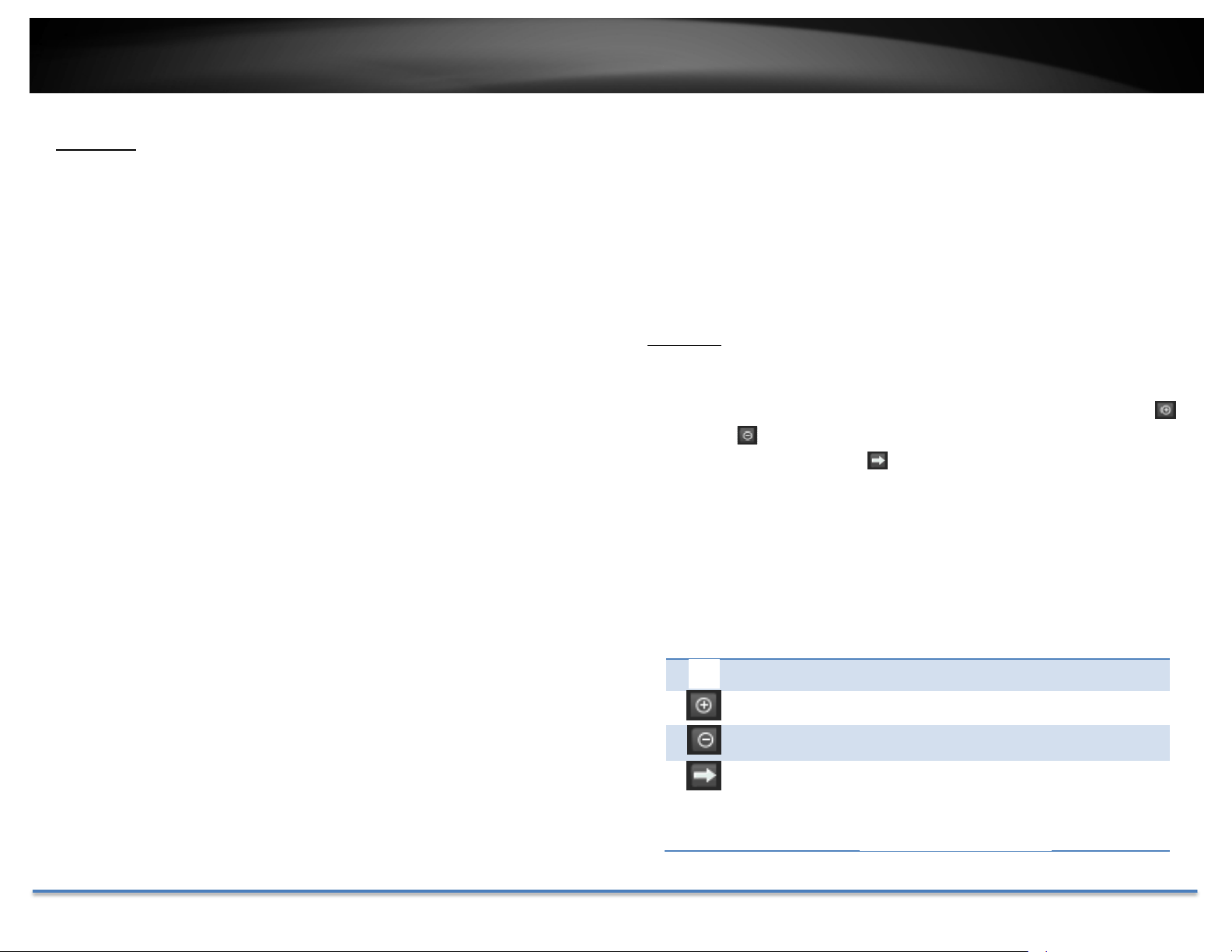
LiveView
Snapshot
Clickthisicontotakeavideosnapshot.
Afteryoulog‐inintothecameramanagementpage,you’llseetheLiveViewpage.
Zoom
Clickoncetoenablezoom.When
enabled,clickanddragtheareaonthe
picture to zoom in. Right click to
resume 100% zoom. Click the icon
again to disable zoom. The zoom
functionworks
infullscreenmodeas
well.
Recording
Click once to start recording. Click it
againtostoprecording.Thestatusbar
willindicateifitisinrecordingstateor
not.
VideoStream
TV‐IP312PI has two video streams:
H.264andMJPEG.Switchtoviewthe
differentvideostreamsbyclickingthis
icon.
FullScreenMode
Clickthepicturetoviewinfullscreen
mode. Double click again or press
escapekeyonyourkeyboardtoexit
fullscreenmode.
StatusBar
Thestatusbarshowsthestatusyou
are at, including enabled the zoom,
recording video, and successfully
takingasnapshot.
WherecanIfindsavedfiles?
Videos and snapshots captured from
LiveViewwillsavetoyourcomputer.
SeeLiveViewSettingsonpage29for
details.
TRENDnetUser’sGuide TV‐IP312PI
©Copyright2017TRENDnet.AllRightsReserved. 20
Playback
Youcanplaybackthevideorecordingonthenetworkstorageanddownload
thevideoclipandsnapshotstoyourlocalcomputer.(See
NetworkStorageonpage48tosetupthestorage.)
Searchforvideorecordings
Clickthedateselection,andthenchooseadateasthedaterangeofsearching.
ClickSearchtostartsearching.
TimeLine
Thereisaplaybackheadinthecenterofthetimelinerepresentedinayellow
verticalline. Tolook for aspecificvideo recording,move thetime line by
clickinganddragging it. If therecordingis short, zoom in by clicking
button.Click
tozoomoutthetimescale.Ifyouknowtheexacttimeof
thedayyouarelookingfor,click
thenenterthetimeyouwanttoplayback.
Different types of recordings are identified differently. The scheduled
recordingsaremarkedinblue,andtherecordingstriggeredbymotion
detectionaremarkedinred.
Clickanddragthetimelinetomoveyourtimemanually.
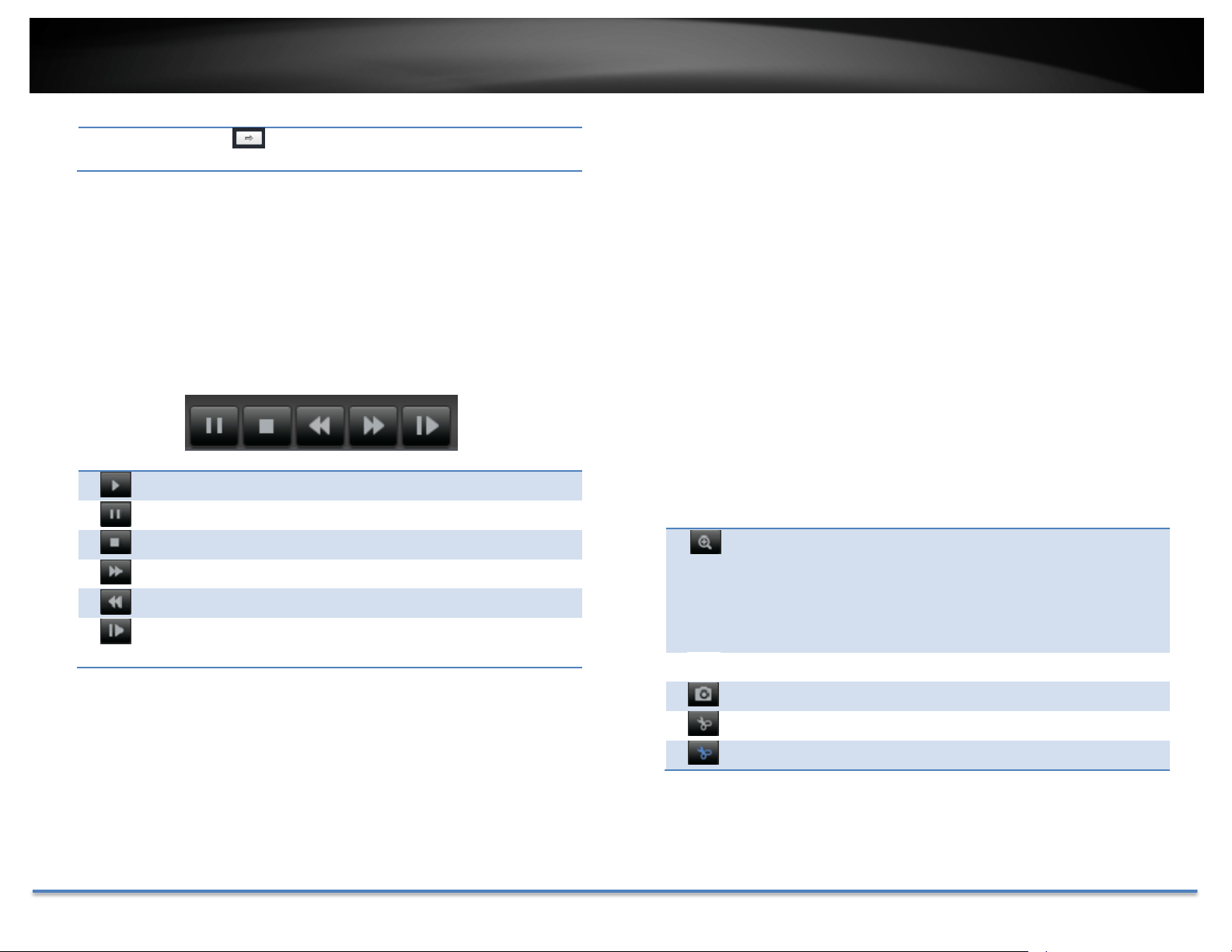
Clickthisbuttontozoominthescale
Clickthisbuttontozoomoutofthescale
Clickthisbuttontospecifyaspecifictimeoftheday.
TRENDnetUser’sGuide TV‐IP312PI
©Copyright2017TRENDnet.AllRightsReserved. 21
thenclick toconfirmselectionandthenclickXtoclose
thisdialogbox.
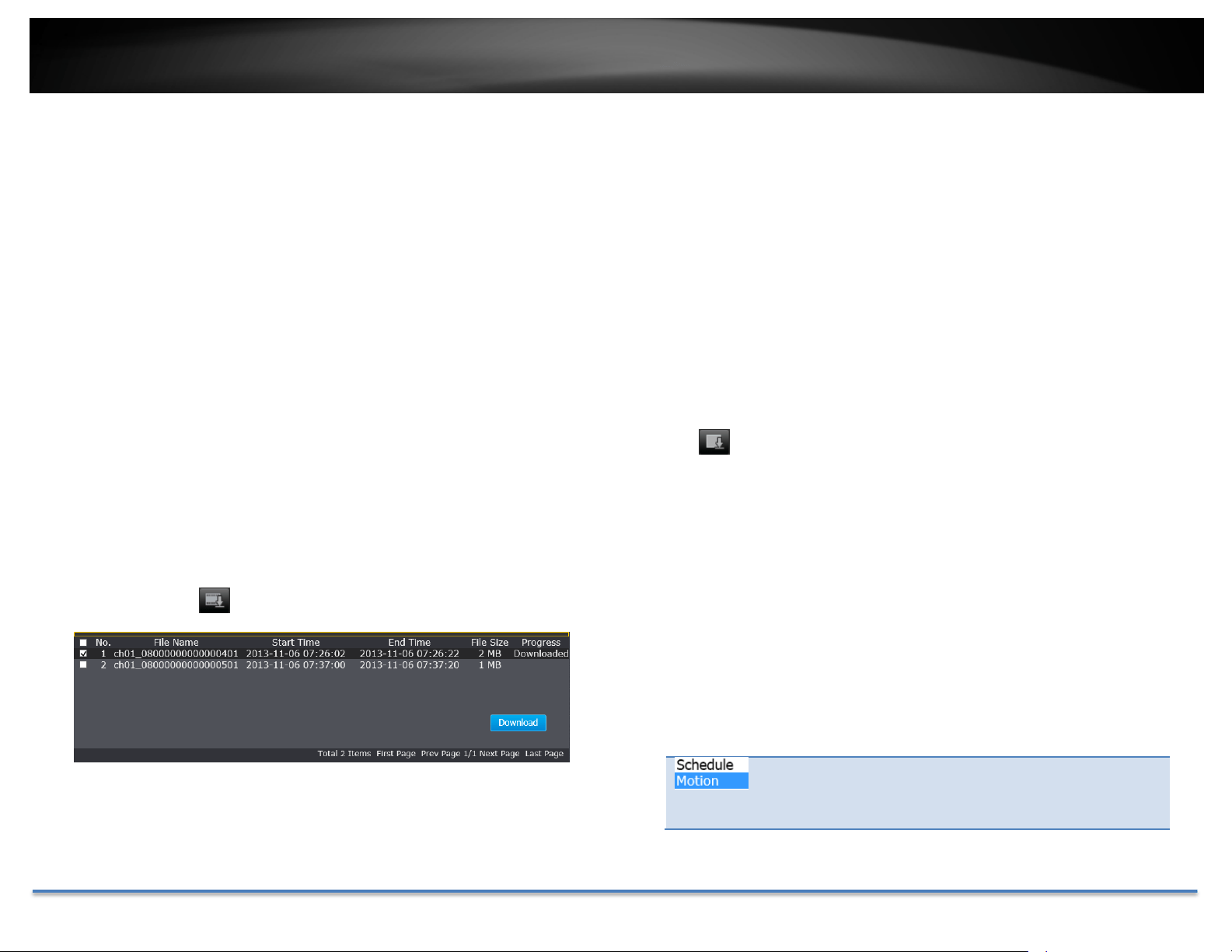
Playback
Useplaybackcontrolstoplaybackthevideorecording.
Clickthisbuttontoplaythevideo.
Clickthisbuttontopausevideoplayback.
Clickthisbuttontostopplayback.
Clickthisbuttonincreaseplaybackspeed*.
Clickthisbuttondecreaseplaybackspeed*.
Clicktoplaybackvideoframebyframe.Clickagainfor
thenext
fr
ame
�
*Note:Thereare5stepsofplaybackspeedyoucanchoosefrom:1/4,1/2,1,2,and
4timesoforiginalspeed.
Sliceimagesfromvideoplayback
Youcantakesnapshotsfromplaybackvideoormakenewvideoclipsfrom
thevideoyouareplayingback.
Clickthisbuttontoenablezoom.Thenclickanddragon
thevideotodefinetheareayouwanttozoomin.Click
againtogetbackto100%zoom.
Doubleclicktoshowvideoinfullscreenandpress
ES
C
onkeyboardtoexitfullscreenmode.
Clickthisbuttontodisablezoom.
Clickthisbuttontotakeasnapshotofcurrentplayback.
Clickthisbuttontostartclippingavideofromplayback.
Clickthisbuttontostopclippingavideofromplayback.
WherecanIfindsavedfiles?
TRENDnetUser’sGuide TV‐IP312PI
©Copyright2017TRENDnet.AllRightsReserved. 22
VideosandsnapshotscapturedfromPlaybackwillbesavedtoyourcomputer
.
See
LiveViewSettingsonpage29fordetails.
Downloadsectionsofvideo
Tosavecompletevideosectionsorsnapshots,youcandownloadthefiles
directly.
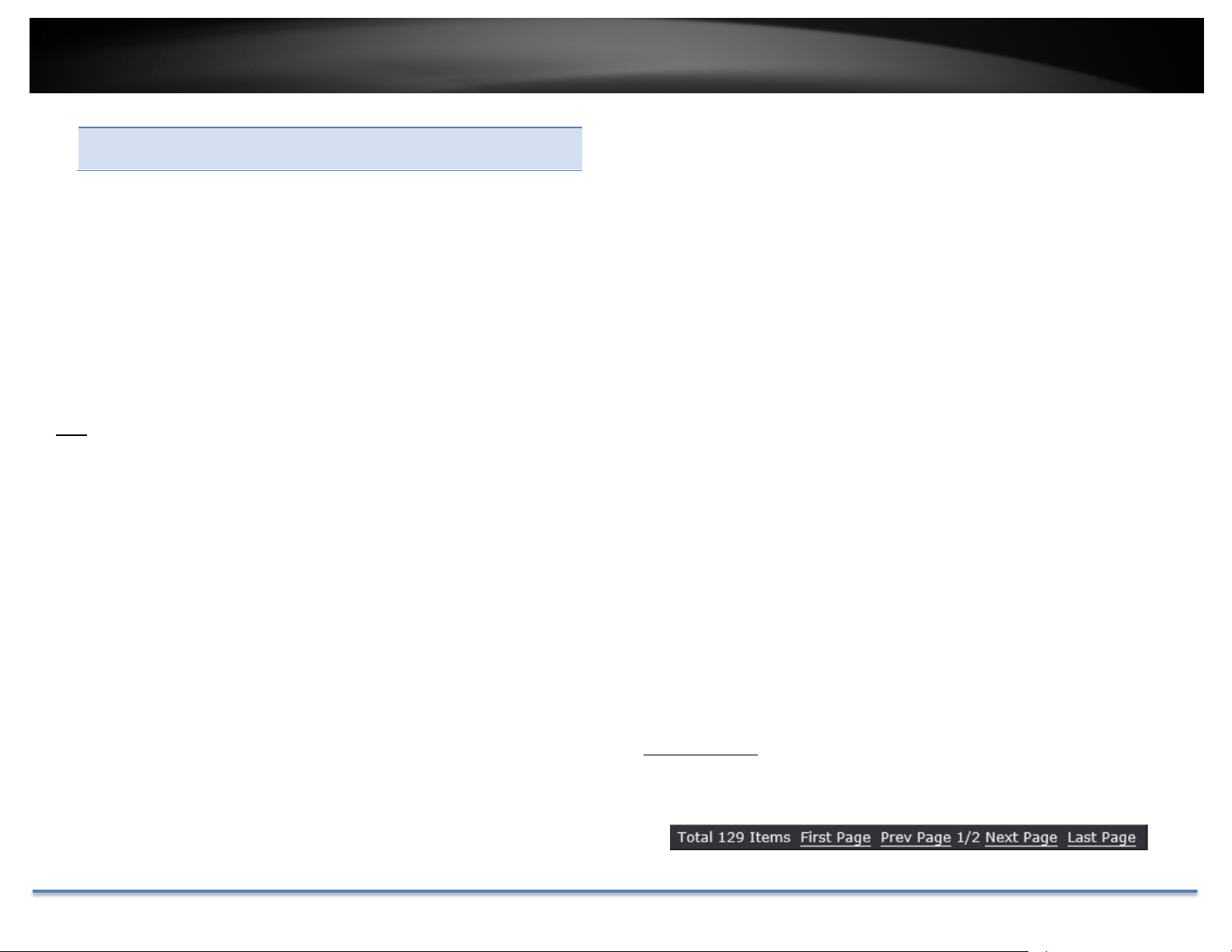
Click buttontodownloadvideosections.
Checkthetimeoftherecording,selectthevideosyouwanttodownload,and
thenclickDownload.
Downloadsnapshots
Click buttontolistsnapshotstodownload
Select the type of event that triggered the snapshots.
ChoosetheStartTimeandEndTime.Then,clickSearch
tofindthesnapshotlist.Checkthetimeofthesnapshot,
TRENDnetUser’sGuide TV‐IP312PI
©Copyright2017TRENDnet.AllRightsReserved. 23
and then select the snapshots you want to download,
thenclickDownload.
WherecanIfindsavedfiles?
VideosandsnapshotscapturedfromPlaybackwillbesavedtoyourcomputer
.
See
LiveViewSettingsonpage29fordetails.
Log
The log of the TV‐IP312PI will be saved on the network storage.Youcan
searchtherelevantrecordsandsavetoyourlocalcomputer.(See
NetworkStorageonpage48tosetupthestorage.)
Searchforlogs
ClickthetypeoflogandthentheStartTimeandEndTime.ClickSearchto
startsearching.
TRENDnetUser’sGuide TV‐IP312PI
©Copyright2017TRENDnet.AllRightsReserved. 24
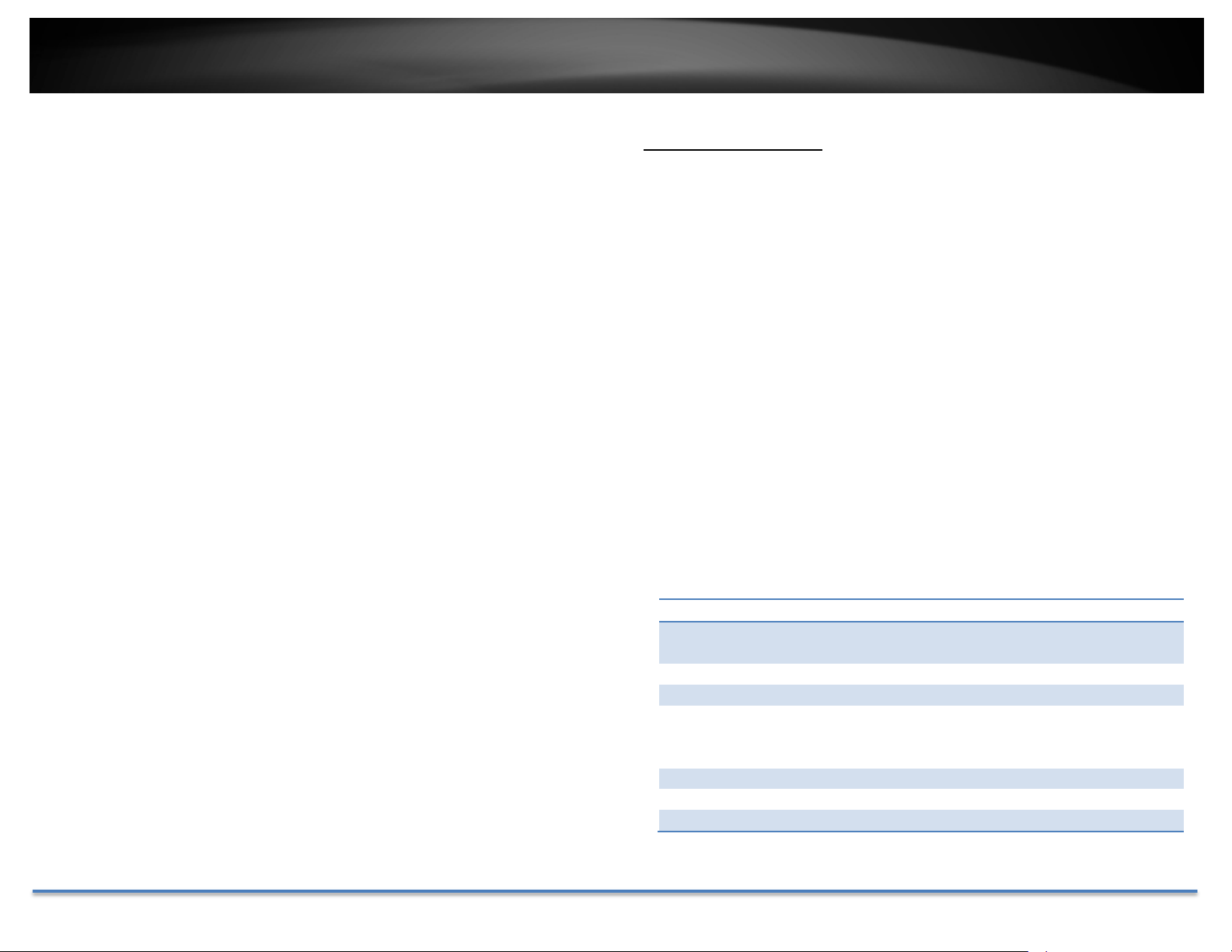
ClickFirstPage,PrevPage,NextPage,andLastPagetoshowthelogs.Click
SaveLogtosavethelogstoyourcomputer.
WherecanIfindsavedfiles?
VideosandsnapshotscapturedfromPlaybackwillbesavedtoyourcomputer
.
See
LiveViewSettingsonpage29fordetails.
SystemInformation
System Information page shows the TV‐IP312PI’s basic information. Click
SystemthenclickSystemInfotoshowthepage.
BasicInformation
DeviceName: Humanreadabledevicenameforeasy
identification.
FirmwareVersion: Firmwareversion
MACAddress: TheMACaddressofEthernetInterface
SystemTime: Thesystemtimesetupinthecamera.Keepingthis
timecorrectisimportantforrecording,scheduled
controlandloggingaccurately.
NetworkInformation
IPAddress: IPaddressoftheTV‐IP312PI
SubnetMask: NetworkrangeofIPaddress
TRENDnetUser’sGuide TV‐IP312PI
©Copyright2017TRENDnet.AllRightsReserved. 25
DefaultGateway: ThedefaultroutegoingfromtheTV‐IP312PI
subnet.
PrimaryDNS: PrimaryDNSserveraddress
SecondaryDNS: SecondaryDNSserveraddress
TRENDnetUser’sGuide TV‐IP312PI
©Copyright2017TRENDnet.AllRightsReserved. 26
SystemConfiguration
DeviceSettings
Setupyourcameranameandlocationforeasyidentification.This camera
namewillalsoberecognizedbyothernetworkcamerasoftwareasthename
ofthiscamera.OSD,OnScreenDisplay,cameranameisreferring to this
settingaswell.
Names
CameraName:
Nameofthecamera. Thecameranamesetup
herecanbediscoveredbyothernetworkcamera
softwareandOSD,OnScreenDisplay.Thedefault
cameranameisthemodelnumber:TV‐IP312PI
Location: Labelwhereyouinstalledthiscameraforreference
Authentication
RTSP: TV‐IP312PI’svideostreamcanbeaccessedwith
RTSP,RealTimeStreamingProtocol.Onlythe
administratoranduserscanviewthisvideostream
Un‐checkingthisboxwillalloweveryoneaccesstothisvideo
streamwithoutauthentication.Default:Checked.
HTTP: TV‐IP312PIcanbeaccessedviapasswordprotectedweb
managementinterface. Un‐checkingthisboxwillallow
anyonetoaccessthiscameraandchangeitssettings.
Service
Enable
SSH:
TV‐IP312PIembeddedSSHserviceformultiplecamera
controlforsystemdeveloper.Default:disabled.
TRENDnetUser’sGuide TV‐IP312PI
©Copyright2017TRENDnet.AllRightsReserved. 27
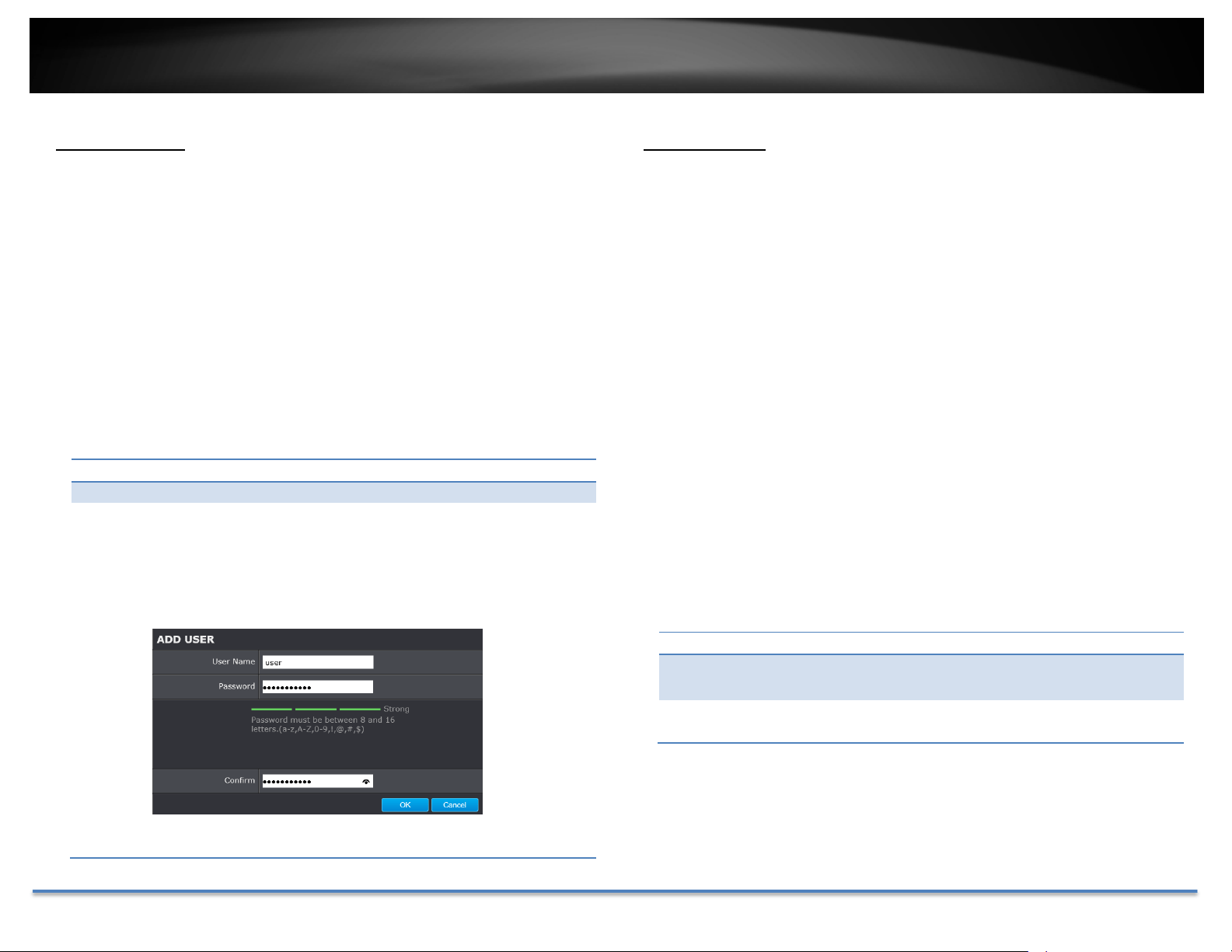
UserAccounts
Youcansetupupto16useraccountstoaccessthecamera’svideostream
withawebbrowserorrealtimevideostream(RTSP).Onlyoneadministrator
accountcanbesetuptoconfiguretheTV‐IP312PIandcannotbedeleted.
UserAccounts
Add: ClickAddbuttontoaddoneuseraccount
Modify: Tochangeauser’snameandpassword,highlighttheuserby
clickingonit.Then,clickModifybutton.Youcanchangethe
user’snameandpassword.Youcanalsochangethe
administrator’spasswordhere.But,theadministrator’sname
isfixed,youcannotchangethat.
ClickOKtosavethechanges.
TimeSettings
Theaccuracyofthesystemclockisimportantforschedulingandaccurate
logging. You can synchronize the system time with your computer, or
automaticallycheckthetimeaccuracywithanetworktimeserver (NTP
server).
AutomaticUpdate
NTP
Server:
Specifyatimeserver(NTPserver)tosynchronizewith.
(e.g.pool.ntp.org)
Interval: ThetimeintervalthattheTV‐IP312PIwillsynchronizethetime
withNTPserver.Default:1440minutes(24hours)
ClickSavetosavethechanges

TRENDnetUser’sGuide TV‐IP312PI
©Copyright2017TRENDnet.AllRightsReserved. 28
ManualTimeSync
DeviceTime: Thesystemtimeofthiscamera.
SetTime: Click the calendar icon and manually select the date.
Check the Sync. with computer timetocopythetime
fromyourcomputer.
ClickSavetosavethechanges
DaylightSavings
Setupdaylightsavings.
AutomaticUpdate
EnableDST: Checkthisboxifyourtimezonehasdaylightsavings.
StartTime: Enterthedatethatdaylightsavingsstarts
EndTime: Enterthedatethatdaylightsavingsends
DSTBias Enter how much time the daylight saving adjusted by
daylightsavings.
ClickSavetosavethechanges
TRENDnetUser’sGuide TV‐IP312PI
©Copyright2017TRENDnet.AllRightsReserved. 29
LiveViewSettings
Setuptheliveviewvideoquality,filesizeandfilesavingdirectories.
LiveViewParameters
LiveView
Buffer:
Configurethebuffersizeforliveviewvideostream.With
low buffer size setting, you can get real‐time video
stream,butthevideomaybestopandgoifthenetwork
iscongested.Withhighbuffersetting,youcanhave
smoothvideostreaming,but the videoisdelayedfrom
the time happening. Medium size can have moderate
videostreamsmoothnessandtimedelay.
RecordFileSettings
Recordfilesize: Thissizeofliveviewvideorecording.Youcanchoose
256MB,512MB,or1GBafile.Smallerfilesizeisgood
formanyshortrecordings.
Saverecord
filesto:
By default, files will be saved under the folder with
your user name, under the subdirectory
TRENDnet/RecordFiles.ClickBrowseandthenchoose
a new destination if you want to save the file
somewhereelse.
Save
downloaded
filesto:
By default, files will be saved under the folder with
your user name, under the subdirectory
TRENDnet/DownloadFiles. Click Browse and then
chooseanewdestinationifyouwanttosavethefile
somewhereelse.
PictureandClipSettings
Savesnapshots
in
liveviewto:
By default, files will be saved under the folder with
your user name, under the subdirectory
TRENDnet/SnapshotFiles. Click Browse and then
chooseanewdestinationifyouwanttosavethefile
somewhereelse.
Savesnapshots
whenplayback
to:
By default, files will be saved under the folder with
your user name, under the subdirectory
TRENDnet/PlaybackPics. Click Browse and then
chooseanewdestinationifyouwanttosavethefile
somewhereelse.
Saveclipsto: Bydefault, files will be saved under the folder with
your user name, under the subdirectory
TRENDnet/PlaybackFiles. Click Browse and then
chooseanewdestinationifyouwanttosavethefile
somewhereelse.
ClickSavetosavethechanges
TRENDnetUser’sGuide TV‐IP312PI
©Copyright2017TRENDnet.AllRightsReserved. 30
Maintenance
Youcanrestart,loadcamerasettingsandupgradethecamerafirmwareon
thispage.
Reboot
Reboot: Clickthisbuttontorebootthiscamera.
Reset
Reset: Resetallcameraparameters,excepttheIPparameters
anduserinformation.
Default: Loadcompletefactorydefaulttothecamera.
ImportConfig.File
ConfigFile: Toloadpreviouslysavedsettings,clickBrowsetofindthe
configurationfileandthenclickImport.
Status: Showsthestatusinloadingconfigurationfile.
ExportConfig.File
Export: ClickExporttodownloadconfigurationfile.Thefilewill
bedownloadedtotheDownloadfolderbydefault.
RemoteUpgrade
Firmware: Click Browse to find the latest firmware and then click
Upgrade.
Status: Showsthestatusinfirmwareupgrade.
TRENDnet may periodically release firmware upgrades that might add
featuresorfixproblemsassociatedwithyourTRENDnetmodelandversion.
Tofindoutifthereisafirmwareupgradeavailableforyourdevice,please
checkyourTRENDnetmodelandversionusingthelink.
http://www.trendnet.com/downloads/
1. Ifafirmwareupgradeisavailable,downloadthefirmwaretoyour
computer.
2. Unzipthefiletoafolderonyourcomputer.
3. Readthefirmwareupgradeinstructionforspecificversionupdate
information.
4. LogintotheTV‐IP312PI.
5. GettingtothisMaintenancepagetoupgradefirmware.
TRENDnetUser’sGuide TV‐IP312PI
©Copyright2017TRENDnet.AllRightsReserved. 31
NetworkSettings
TCP/IP
SetupyourbasicIPv4andIPv6networksettingsonthispage.
NetworkInterface
MACAddress: Clickthisbuttontorebootthiscamera.
Duplexand
Speed:
Choose one of the Ethernet duplex and speed to
matchyournetwork.Default:auto.
MTU:
Maximumtransmissionunit.Themaximumfieldsize
intheEthernetpacket.
PrimaryDNS: EnteryourfirstIPv4orIPv6DNSserveraddress
SecondaryDNS: EnteryoursecondIPv4orIPv6DNSserveraddress
IPv4
DHCP: CheckthisboxiftheIPaddressisassignedbyDHCP
server.
IPv4Address: TheIPv4dynamicorstaticaddress
SubnetMask: Networkrangeofthesubnet
DefaultGateway: ThedefaultroutegoingfurtherfromTV‐IP312PIIPv4
subnet
IPv6
IPv6Mode: ChooseManual,DHCP,orRouteAdvertisement.Click
View Route Advertisement to find a route
advertisement.
IPv6Address: IPv6addressofTV‐IP312PI
PrefixLength: Lengthofnetworkprefix
Default
Gateway:
ThedefaultroutegoingfurtherfromTV‐IP312PIIPv6
subnet
TRENDnetUser’sGuide TV‐IP312PI
©Copyright2017TRENDnet.AllRightsReserved. 32
Port
YoucanchangetheserviceportnumbersofTV‐IP312PIandenable/disable
RTSPorHTTPSservices.
PortNumbers
HTTPPort: Thedefaultwebaccessport.Youcanchangetheport
number. However, you cannot disable the web
service.Thedefaultportnumberis80.
RTSPPort: The Real‐Time Streaming Protocol port for video
streaming. You can change the port number or
disabletheservicebyuncheckthebox.Thedefault
portnumberis554.
HTTPSPort: Thesecured webservice port. Youcan change the
port number, or you can disable the service by
uncheckthebox.Thedefaultportnumberis443.
ClickSavetosavethechanges
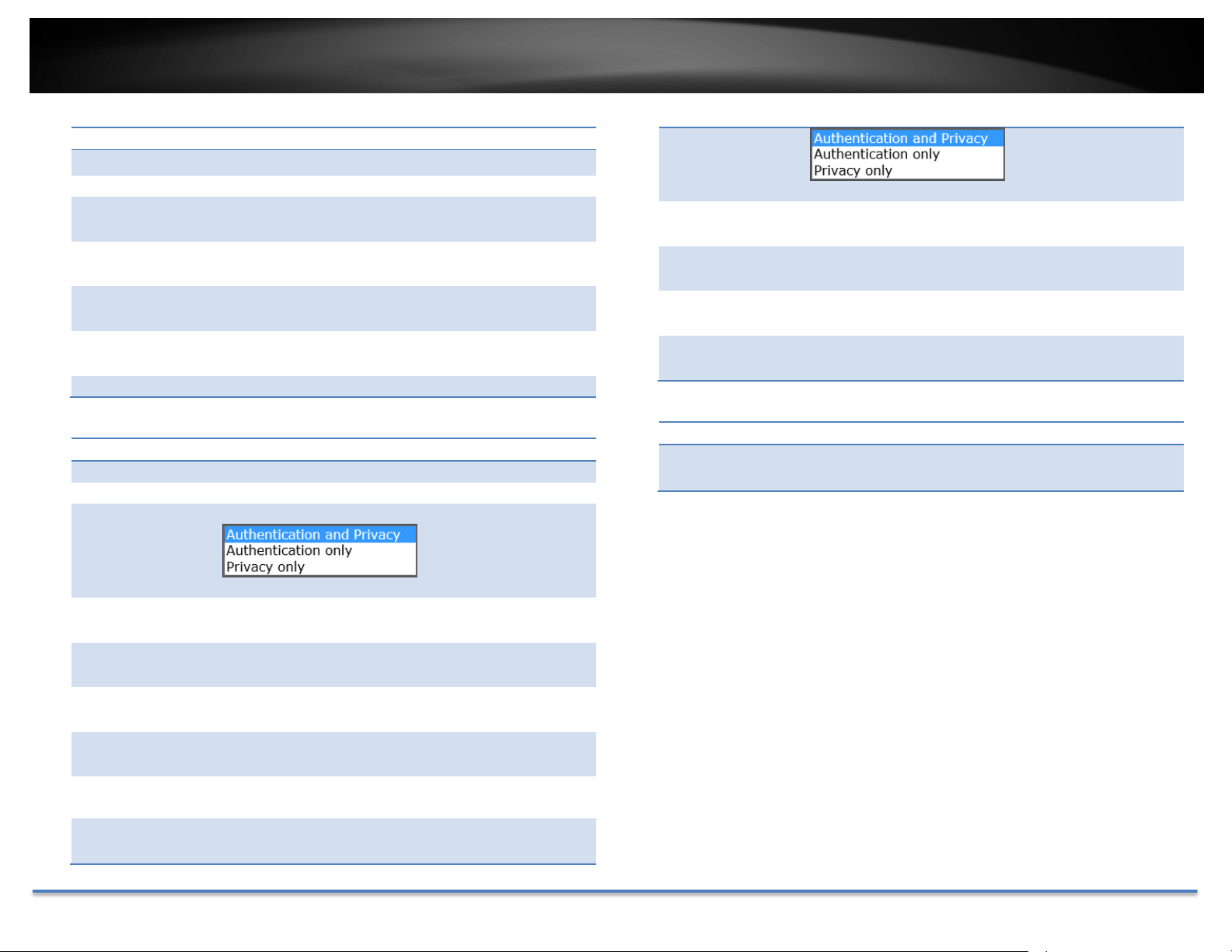
DDNS
DynamicDomainNameService,DDNS,allowsyoutofindyourcamerafrom
theInternetwithaneasytorememberdomainname.
DDNS
EnableDDNS: CheckthisboxtoenableDDNSService.
DDNSType: SelectaDDNSserviceprovider.
ServerAddress:
EntertheDDNSserveraddress.
Domain: Enteryourregistereddomain/hostnameonselected
DDNSservice.
UserName:
Entertheaccountname.
Password: Enterthepassword.
Confirm: Enterthepasswordagain.
ClickSavetosavethechanges

TRENDnetUser’sGuide TV‐IP312PI
©Copyright2017TRENDnet.AllRightsReserved. 33
PPPoE
Setup PPPoE (ADSL) connection to connect your camera with your ISP,
InternetServiceProvider.
PPPoE(ADSL)
EnablePPPoE: CheckthisboxtoenablePPPoEconnection.
DynamicIP: TheIPaddressassignedbyISP
UserName:
Entertheaccountname.
Password:
Enterthepassword.
Confirm:
Enterthepasswordagain.
ClickSavetosavethechanges
SNMP
SNMPSettingsallowsyoutoassignthecontactdetails,location,community
nameandtrapsettingsofSNMP.Thisisanetworkingmanagementprotocol
usedto monitornetwork‐attached devices.SNMPallows messages(called
protocoldataunits)tobesenttovariouspartsofanetwork.Uponreceiving
thesemessages,SNMPcompatibledevices(calledagents)returndatastored
intheirManagementInformationBases.
TRENDnetUser’sGuide TV‐IP312PI
©Copyright2017TRENDnet.AllRightsReserved. 34
SNMPV1/V2
EnableSNMPv1: CheckthisboxtoenableSNMPv1management.
EnableSNMPv2c: CheckthisboxtoenableSNMPv2cmanagement.
ReadSNMP
Community:
SpecifythepasswordtoaccesstheSNMP
communityforreadonlyaccess.
WriteSNMP
Community:
SpecifythepasswordforaccesstotheSNMP
communitywithread/writeaccess.
TrapAddress: SpecifytheIPaddressfortheSNMPtrap
community.
TrapPort: SpecifytheportnumberfortheSNMPtrap
community.
TrapCommunity: SpecifythenameofSNMPtrapcommunity.
SNMPV3
EnableSNMPv3: CheckthisboxtoenableSNMPv3management.
ReadUserName: SNMPv3memberusername.
SecurityLevel: Chooseoneofthesecuritylevels.
Authentication
Algorithm:
Choosetheauthenticationmethodtoverifythe
sourceofinformation:MD5orSHA.
Authentication
Password:
Specifytheauthenticationpasswordbetween8to
32letters.
Private‐key
Algorithm:
ChoosetheprivacykeytoencryptSNMPmessages:
DESorAES.
Private‐key
Password:
Specifytheprivacykeybetween8to32letters.
WriteUser
Name:
SNMPv3managerusername.
SecurityLevel: Chooseoneofthesecuritylevels.
Authentication
Algorithm:
Choose the authentication method to verify the
sourceofinformation:MD5orSHA.
Authentication
Password:
Specifytheauthenticationpasswordbetween8to32
letters.
Private‐key
Algorithm:
ChoosetheprivacykeytoencryptSNMPmessages:
DESorAES.
Private‐key
Password:
Specifytheprivacykeybetween8to32letters.
SNMPOtherSettings
SNMPPort: SNMPserviceportnumber.
ClickSavetosavethechanges
TRENDnetUser’sGuide TV‐IP312PI
©Copyright2017TRENDnet.AllRightsReserved. 35
802.1X
Setup802.1Xforremoteauthenticationservice.
802.1XAuthentication
EnableIEEE
802.1X:
Check this box to enable 802.1X authentication
service.
EAPOLversion: Extensible Authentication Protocol (EAP) over LAN
(EAPoL).Chooseversion1or2.Thisversionnumber
hastomatchtoyour802.1XserviceEAPOLversion.
UserName:
Entertheaccountname.
Password:
Enterthepassword.
Confirm:
Enterthepasswordagain.
ClickSavetosavethechanges
IPAddressFilter
Setupalistofclientsallowonlytheclientsonthelisttoaccessthiscamera
ortorejectclientsonthelistfromaccessthiscamera.
IPAddressFilter
EnableIP
AddressFilter:
CheckthisboxtoenableIPaddressfilteringservice.
IPAddressFilter
Type:
Choose Deny to ban the listed IP addresses or
Allowedtoallowlistedhosttoaccessthiscamera.
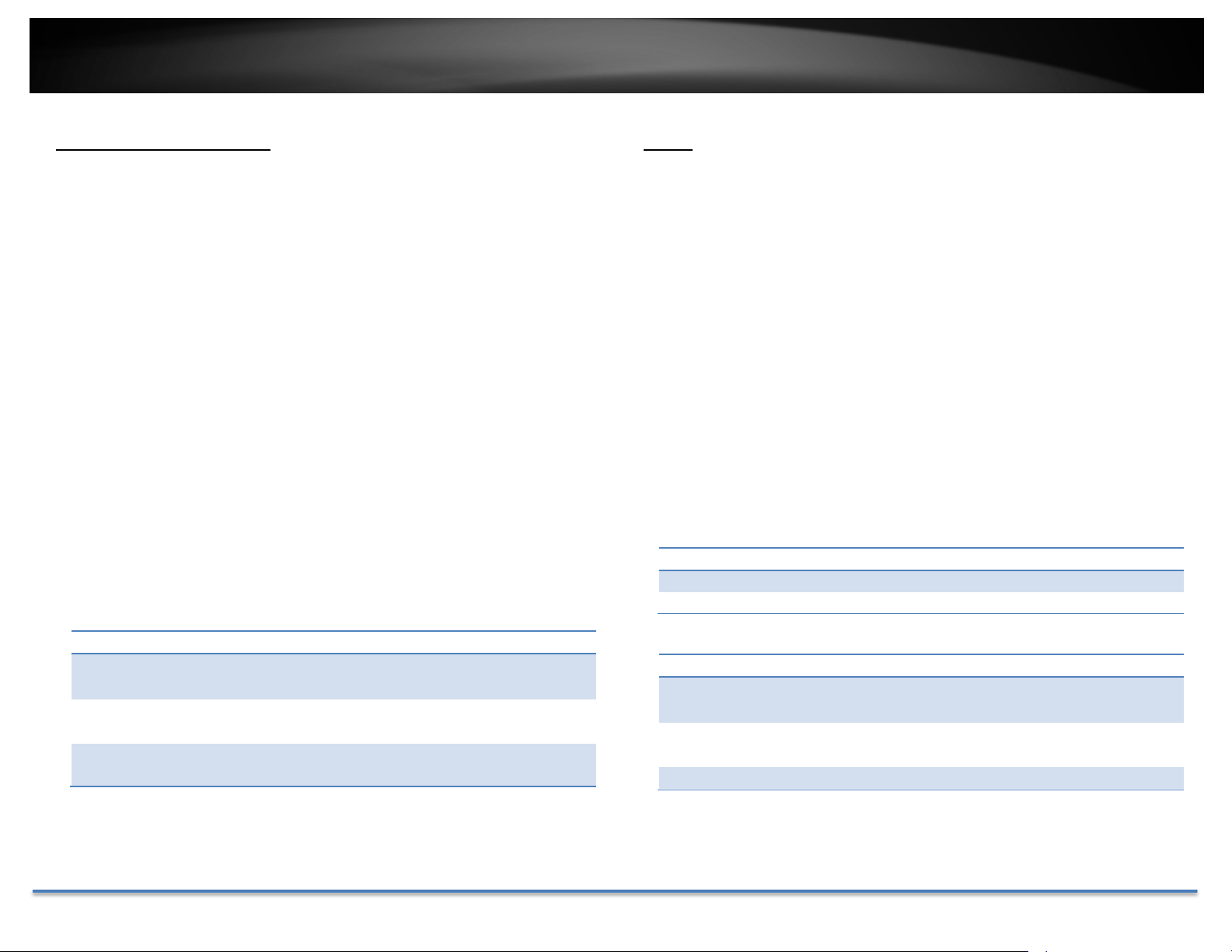
Add: ClickAddtoaddauseraccount
Modify: Tomodifyanentryonthelist,highlighttheentryby
clickingonit.Then,clicktheModifybutton.
EntertheIPaddressthenclickOK
Delete: Todeleteanentryonthelist,highlighttheentryby
clickingonit.Then,clickDelete
Clear: Toclearallentries,clickClear
ClickSavetosavethechanges
TRENDnetUser’sGuide TV‐IP312PI
©Copyright2017TRENDnet.AllRightsReserved. 36
QualityofService(QoS)
Setup traffic prioritization tags the video packets to go through network
switchesandrouterswithassignedpriority.YoucansettheDifferentiated
ServicesCodePoint(DSCP)bitsonoutgoingdatastreams.TheQoScapable
networkdevicewillforwarddifferentdataindifferentpriorities.Themeaning
ofthevalueisdifferentindifferentDiffServdomains.Consultyournetwork
managerforthesetupdetails.
IPAddressFilter
Video/Audio
DSCP:
EnterVideo/AudioDSCP.Default:0.
Event/Alarm
DSCP:
EnterEvent/AlarmDSCP.Default:0.
Management
DSCP:
EnterManagementDSCP.Default:0.
ClickSavetosavethechanges
UPnP
Universal Plug‐and‐Play is a device discovery protocol set. It allows your
cameratoeasilybefound,forexample,onaWindowsoperationsystem.
UPnP
EnableUPnP: CheckthisboxtoenableUPnPconnection.
FriendlyName: Thenamethatwillbeappearedwhensearched.
PortMapping
EnablePort
Mapping:
CheckthisboxtoenableUPnPconnection.
PortMapping
Mode:
ChooseManualorAutoportmapping.
ExternalPort:
Choosetheportnumberformapping.
ClickSavetosavethechanges
TRENDnetUser’sGuide TV‐IP312PI
©Copyright2017TRENDnet.AllRightsReserved. 37
VideoSettings
VideoFormat
Adjusttheformatofvideo.
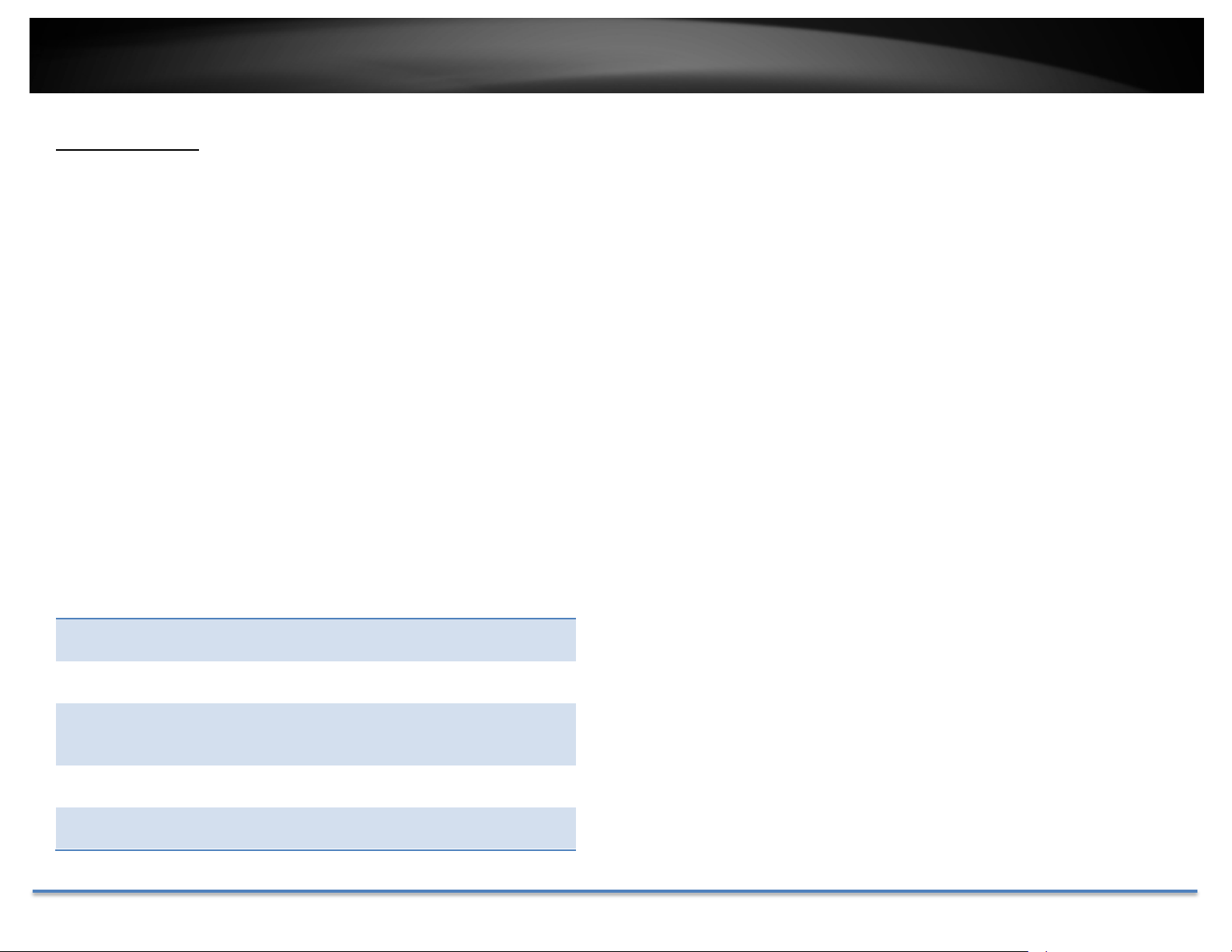
VideoEncoding: Choosethevideostreamyouwanttomodify.
H.264andMJPEGvideosarealwaysstreamingand
canbeconfiguredseparately
.
Resolution: H.264
MJPEG
BitrateType: Choosebetweenvariablebitrateorconstantbit
rateforvideocompression.Thedefaultisvariable
rate.
VideoQuality: Choosethevideoquality.Thedefaultismedium
quality.
FrameRate: Choosethecapturingframerate.Thedefaultvalue
is30framespersecond.Reducetheframerateto
reducethecapturefilesize.
Max.Bitrate: Choosethemaximumvideosamplingbitrate.
Default:4096
IFrameInterval AnIFrameisaframethatrecordsacomplete
picture.FramesbetweenIframes,(PframeorB
frame)onlyrecordstheimagedifferencesbetween
twoframes.ChoosetheIFrameIntervalhere.The
defaultis60.
ClickSavetosavethechanges
TRENDnetUser’sGuide TV‐IP312PI
©Copyright2017TRENDnet.AllRightsReserved. 38
DisplaySettings
Adjustvideoimagequality,lightness,andcolorsettingshere.
Brightness: Usethesliderorenteranumber(0‐100)toadjustthe
imagebrightness.Default:50
Contrast: Usethesliderorenteranumber(0‐100)toadjustthe
imagecontrast.Default:50
Saturation: Usethesliderorenteranumber(0‐100)toadjustthe
colorsaturation.Thegreaternumbermeansthecolor
willbemoresaturated.Default:50
Hue: Usethesliderorenteranumber(0‐100)toadjustthe
colorshade.Default:50
Sharpness: Usethesliderorenteranumber(0‐100)toadjustthe
imagesharpness.Default:50
TRENDnetUser’sGuide TV‐IP312PI
©Copyright2017TRENDnet.AllRightsReserved. 39
Lightsensitivities
SmartIR: SmartIRcanadjustthestrengthofinfraredlightsat
nightdependingonthedistanceofanobjectto
maintainthemaximumIRlightdistanceandwhile
maintainingaclearpicturewhenobjectiscloseby.
Default:On.
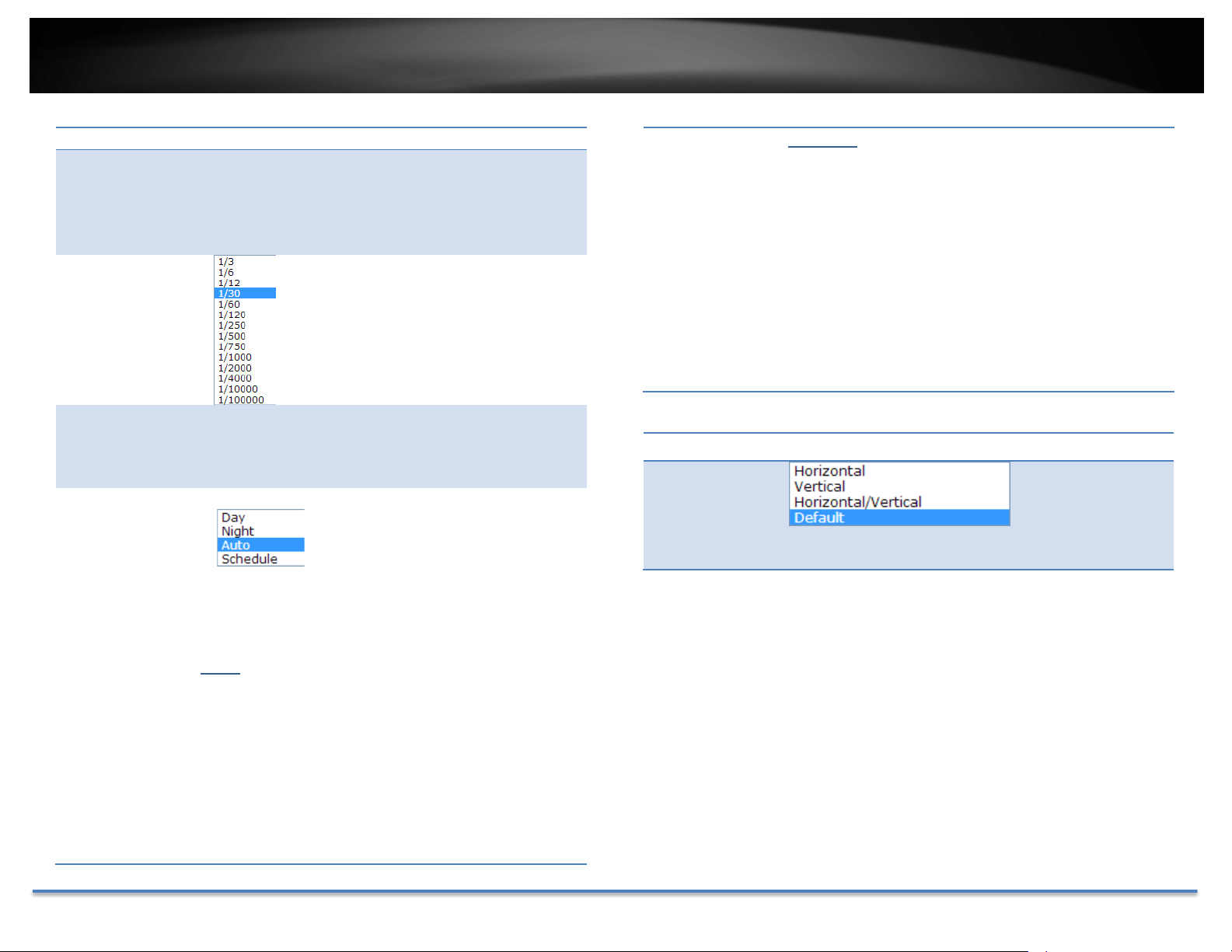
Max.Exposure
Time:
Adjustthisvalueforexposuretimefor
eachpicture.Youcanchooseavalue
between1/3secondto1/100,000
second.Thedefaultvalueis1/30second
exposuretimeforeachpicture.
VideoStandard: Thisisthebasefrequencyforthevideorefreshrate.It
isrecommendedtosettothesamefrequencyofyour
localvideostandard(NTSC:60,PAL:50).Default:
60Hz.
Day/Night
Switch:
Choosewhetheryouwantthe
cameratobesettothedaymode
(colorvideo)ornightmode(IR
enhancedblack/whitevideo).You
canmanuallysetittodaymodeor
nightmode,adjustbylighting
(Auto),orpre‐defineschedule.
Auto:
SwitchTime:Thetimedelayedtoswitchbetween
modes.Longerswitchtimecanpreventunnecessary
modeflippingifanobjectisblockingthelightsource
temporarily.Range:5‐120seconds,default:5
seconds.
Schedule:
Usequickselectionorenterthetimedownbelow.
ClickOKtoconfirmthetimeyouwanttoset.
StartTime:Thestarttimefordaymode.
StopTime:Thestarttimefordaymode.
Positionadjustments
Mirror:
Choosehorizontal,verticalorbothtoadapttothe
physicalpositionofinstallation.
TRENDnetUser’sGuide TV‐IP312PI
©Copyright2017TRENDnet.AllRightsReserved. 40
Imageadjustments
BackLight
Compensation
and
DigitalWide‐
Dynamic‐Range:
Back light compensation:Setupafixedlightsource
positiontocompensateandadjusttheimageinthe
dark.
Choosetheareathatyouwanttoenhance(darkarea,
notlightsource).
Note:Bydefault,theD‐WDRisenabled.PleasedisableD‐
WDRtosetupbacklightcompensation.
D‐WDR:DigitalWideDynamicRangecompensatesfor
thedarkareadynamically.
D‐WDRLevel:Thelevelofcompensation.Range:
0‐100%,default:20%.
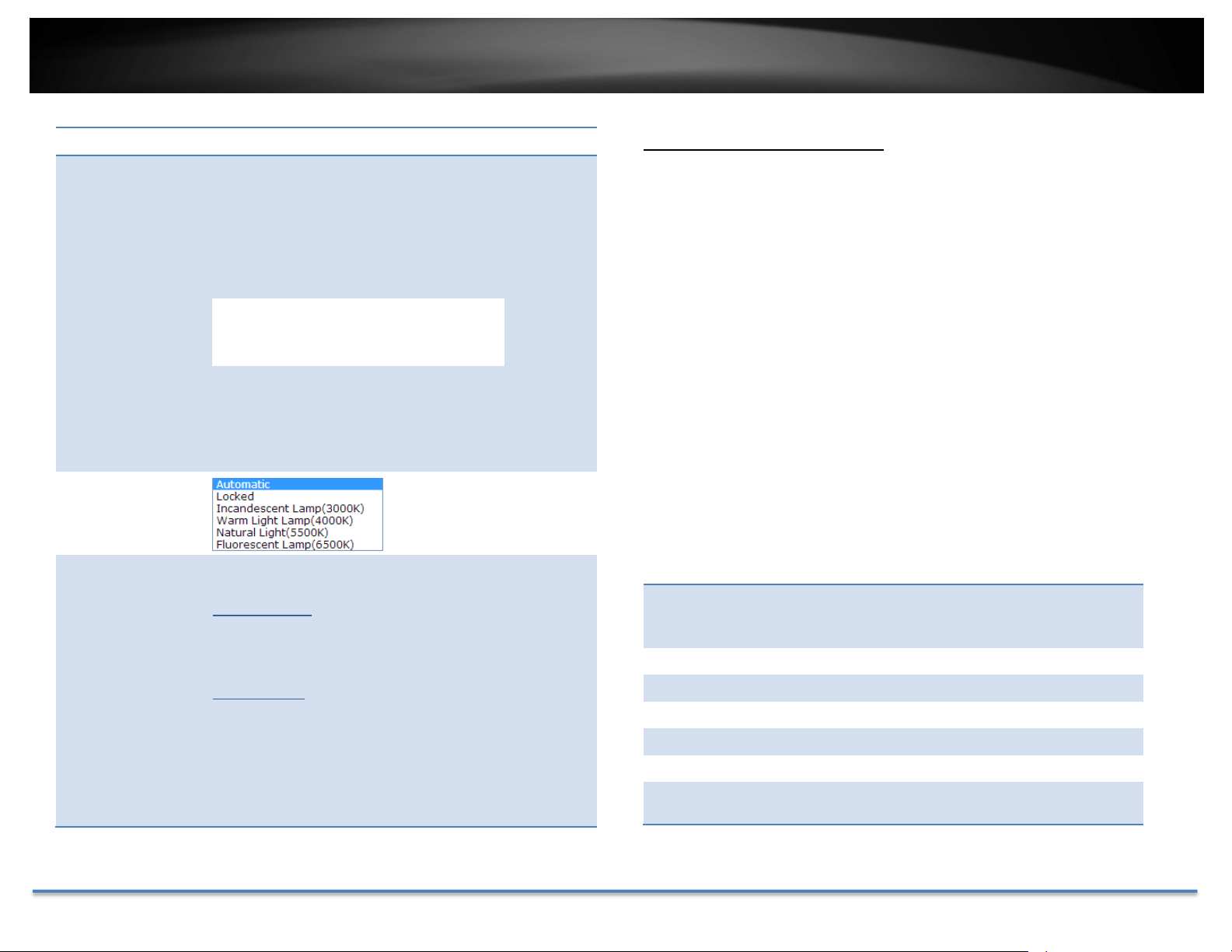
WhiteBalance: Chooseacolor
temperatureasthewhite
colorandcompensatethe
coloronthewholeimage.
DigitalNoise
Reduction:
Choosethemodeofnoisereduction.
NormalMode
Noise Reduction Level: Adjust the effect of digital
noisereduction.Range:0‐100%,default:100%
ExpertMode
Space DNR Level: Adjust the special digital noise
reductionwithadjacentpixels.Changetherange (0‐
100%)tochangetheadjacencyeffect,default:50%
TimeDNRLevel:Adjustthe3Ddigitalnoisereduction.
Compare and reduce noise between video frames.
Range:0‐100%,default:100%
ClickResettoresetthedisplayadjustments
OnScreenDisplaySettings
Displaythecameranameandthetimethevideoisshootingonthescreen
Display
Name:
Checkthisboxtodisplaytheproductnamethatwas
setupinthedevicesettings(refertopage26Device
Settingstochangethedevicename.)
DisplayDate: Checkthisboxtodisplaysystemtime.
DisplayWeek: Checkthisboxtodisplaytimeoftheweek.
TimeFormat: Select12or24‐hourtimeformat.
DateFormat: Selectthedateformat
DisplayMode: Choosehowthetextwillshowonthescreen.
OSDSize: Select the text size from 16 to 64 or adjusted by
screensizeautomatically.
Movetheredboxtopositionthetext.ClickSavetosavethechanges.

TRENDnetUser’sGuide TV‐IP312PI
©Copyright2017TRENDnet.AllRightsReserved. 41
TextOverlay
Displayextrainformationonthescreenovertheimage.
CheckBox: Checkthisboxtoenabletextoverlay.
TextField: Enterthetextyouwanttodisplay.Youcanenteryour
local language if you want. The text field allows
maximum 44 English letters or 20 non‐English
characters.
Movetheredboxtopositionthetext.
ClickSavetosavethechanges
PrivacyMask
Createamaskingareatokeepyourprivacy.Youcancreateuptofour
independentmaskingareasbyclickinganddraggingonthescreen.
EnablePrivacyMask: Checkthisboxtoenableprivacymasking.
StopDrawing: Clickthisbuttontostopdrawing.
ClearAll: Clickthisbuttontoclearallthemaskingareas.
ClickSavetosavethechanges

TRENDnetUser’sGuide TV‐IP312PI
©Copyright2017TRENDnet.AllRightsReserved. 42
VideoRecording
Pre‐record: Recordingtimebeforetriggerevent.
Post‐record: Recordingtimeaftertriggerevent.
Overwrite: SelectYestoallowolderrecordingstobe
overwritten.
EnableRecord
Schedule:
CheckthisboxandthenclickSavetoenablevideo
recording.
ClickSavetosavethechanges
Edit: ClickEdittoedittherecordingschedule.TheEdit
Schedulewindowwillpopup.
1. Selectdayoftheweekyouwanttoedit.
2. SelectAllDayorCustomizedscheduleof
theday.
3. Setthetimeperiodandtheeventyou
wanttotriggerthevideorecording
continuous(alwaysrecording)ormotion
detection.
4. ClickSelectAllortheweekdayyouwant
tohavethesamescheduleondifferent
day.
5. Clickanotherdayoftheweekbyclicking
onitstabtosetthenextschedule.Click
OKwhenyouhavefinishedyoursettings.

TRENDnetUser’sGuide TV‐IP312PI
©Copyright2017TRENDnet.AllRightsReserved. 43
Events
MotionDetection
Setuphowthemotiondetectioneventwillbetriggeredandwhatactionswill
betriggered.
Enable
Motion
Detection:
Checkthisboxtoenablemotiondetection.ClickSave
tosavethechoice.
Enable
Motion
Tracking:
Checkthisboxtoenablemotiontracking.Motion
trackingis adynamic displaythat showsthe current
status of motion detection. The motion tracking is
displayedwithgridsingreen.Thegridarearepresents
thecameramotionishappening.ClickSavetosavethe
choices.
DrawArea: Click Draw Areabuttontostartdrawing.Clickand
dragontheareayouwanttosetupthemotion
detection.Youcandrawupto8differentareas.Click
Stop Drawing to stop drawing motion detection
areas.
Theredgridsrepresentthemotiondetectionarea.
TRENDnetUser’sGuide TV‐IP312PI
©Copyright2017TRENDnet.AllRightsReserved. 44
Sensitivity: Movetheslidertoadjustdetectionsensitivity.
ClearAll: Clickthisbuttontoclearallthesetupareas.
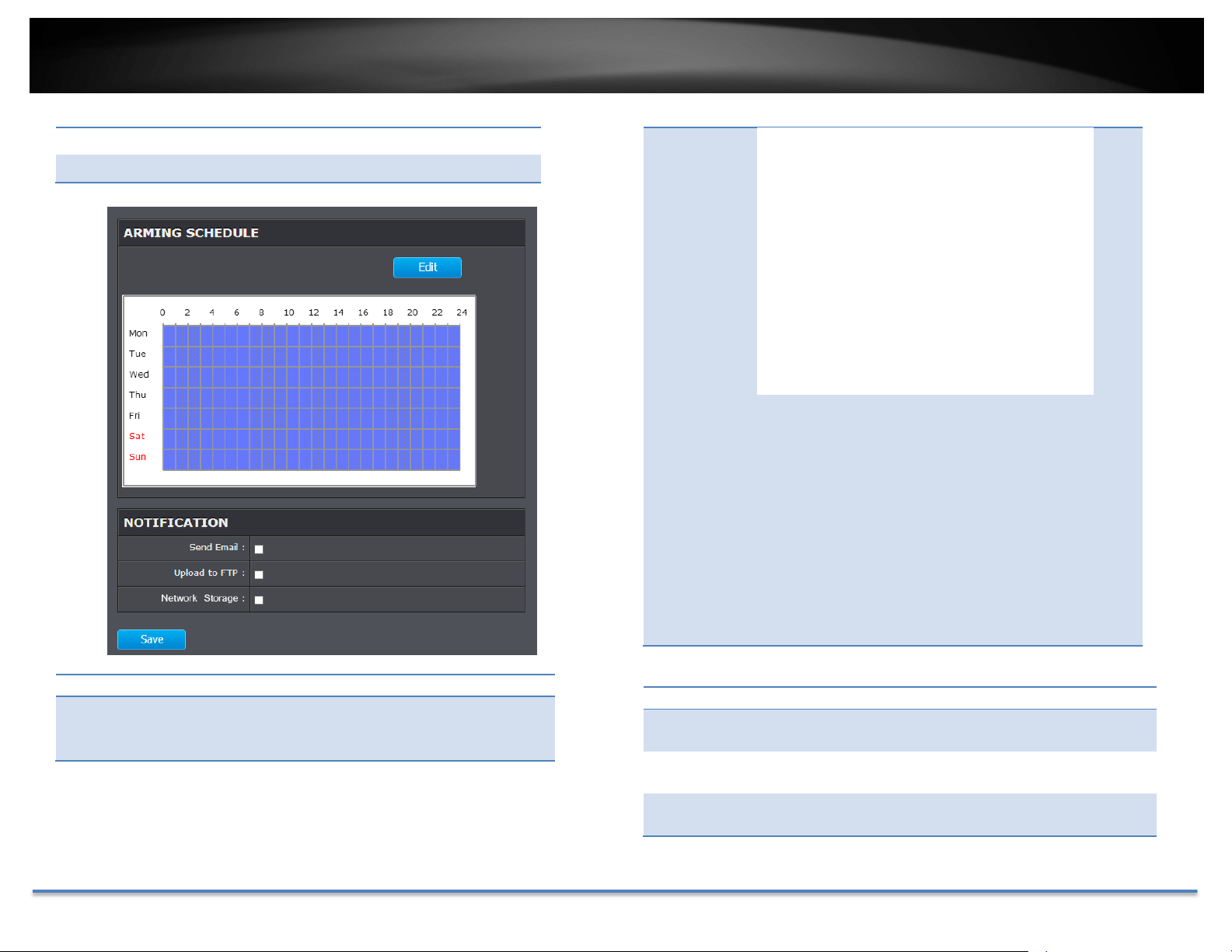
ArmingSchedule
Edit: Click Edittoedittherecordingschedule.TheEdit
Schedulewindowwillpopup.
1. Selectdayoftheweekyouwanttoedit.
2. SelectAllDayorCustomizedscheduleofthe
day.
3. Setthetimeperiodandtheeventyouwant
totriggerthevideorecordingcontinuous
(alwaysrecording)ormotiondetection.
4. ClickSelectAllortheweekdayyouwantto
havethesamescheduleondifferentday.
5. Clickanotherdayoftheweekbyclickingon
itstabtosetthenextschedule.ClickOK
whenyouhavefinishedyoursettings.
Actions
SendEmail: Checkthisboxtosendane‐mailnotificationwhen
motionisdetected.
Network
Storage:
Checkthisboxtorecordvideotonetworkstorage
whenmotionisdetected.
UploadtoFTP: CheckthisboxtosendsnapshotstoanFTPserver
whenmotionisdetected.
ClickSavetosavethechanges
TRENDnetUser’sGuide TV‐IP312PI
©Copyright2017TRENDnet.AllRightsReserved. 45
VideoTamper
Thisistodetectifthecamerahasbeentamperedwithandsurveillanceis
compromised.Youcansetuptamperproofnotificationstoalertthesystem
managertocheckthecamera.
Enable
Tamper
Detection:
Checkthisboxtoenabletamperdetection.ClickSave
tosavethesettings.
DrawArea: ClickDrawAreabuttontostartdrawing.Clickanddrag
ontheareayouwanttosetupthetamperdetection.
You can setup only one area for tamper detection.
ClickStopDrawingtostopdrawingmotiondetection
areas.Thegrayblockrepresentsthedetectionarea.
Sensitivity: Movetheslidertoadjustdetectionsensitivity.
ClearAll: Clickthisbuttontoclearallthesetupareas.
TRENDnetUser’sGuide TV‐IP312PI
©Copyright2017TRENDnet.AllRightsReserved. 46
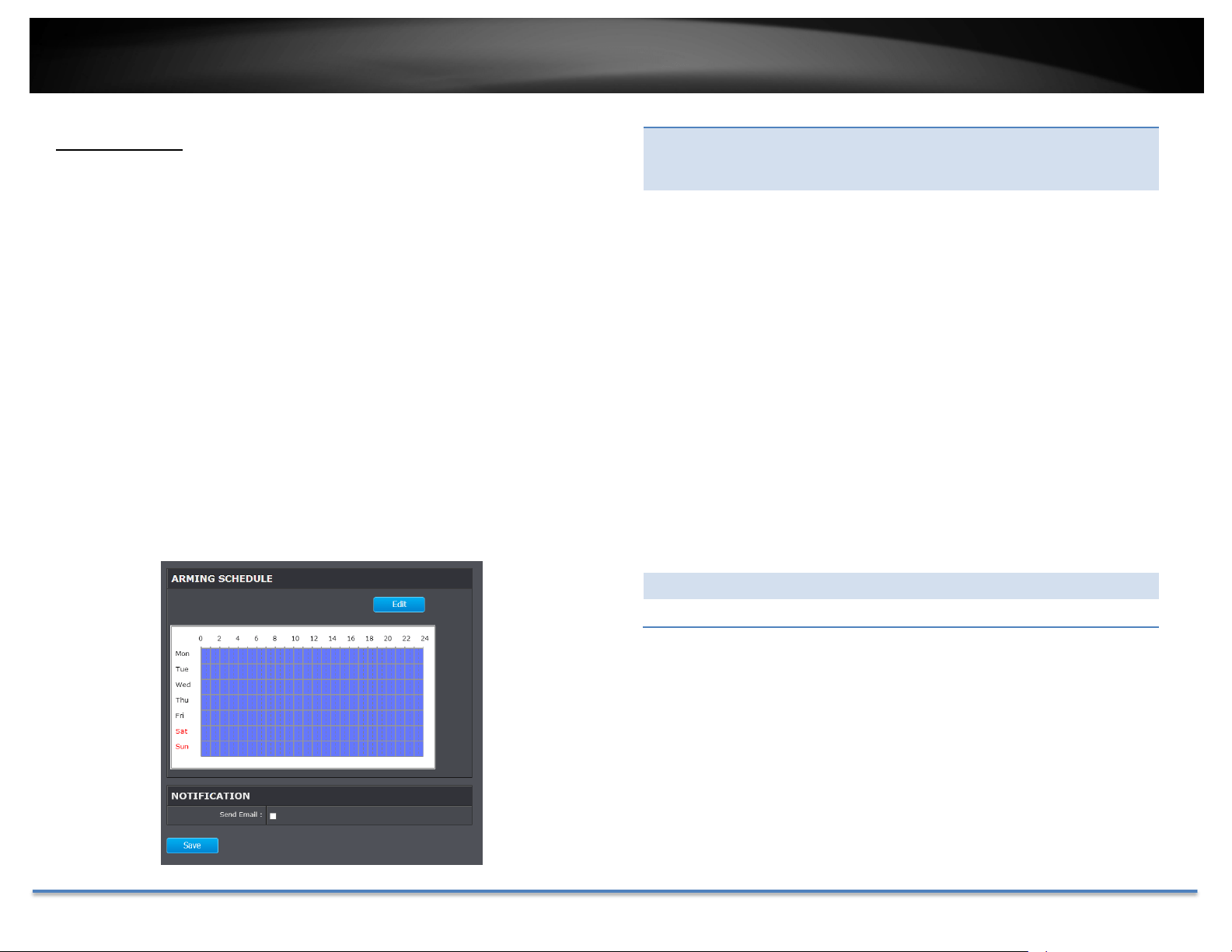
ArmingSchedule
Edit: Click Edittoedittherecordingschedule.TheEdit
Schedulewindowwillpopup.
1. Selectdayoftheweekyouwanttoedit.
2. SelectAllDayorCustomizedscheduleofthe
day.
3. Setthetimeperiodandtheeventyouwant
totriggerthevideorecordingcontinuous
(alwaysrecording)ormotiondetection.
4. ClickSelectAllortheweekdayyouwantto
havethesamescheduleondifferentday.
5. Clickanotherdayoftheweekbyclickingon
itstabtosetthenextschedule.ClickOK
whenyouhavefinishedyoursettings.
Notification
SendEmail: Checkthisboxtosendane‐mailnotificationwhen
motionisdetected.
ClickSavetosavethechanges
Exception
Providenotificationsforothersystemevents,setupyournotificationshere.
Notification
ExceptionType: First,choosetheexceptiontype,andthenchoose
thecorrespondingaction.
SendEmail: Checkthisboxtosendane‐mailnotificationwhen
motionisdetected.
ClickSavetosavethechanges
TRENDnetUser’sGuide TV‐IP312PI
©Copyright2017TRENDnet.AllRightsReserved. 47
Snapshot
You can set up your camera to continuously taking snapshots or taking
snapshotsonlywheneventshappening.
Continuous
Enable: Checkthisboxtotakesnapshotscontinuously.
Format: SavesnapshotsinJPEGformat
Resolution: UsesthesameresolutionsetinVideoFormatforthe
snapshotresolution.
Quality: Chooseacompressionqualityforsnapshots.
Interval: Statethetimeintervalbetweensnapshots.Thedefault
intervalis10seconds.
Eventtriggered
Enable: Checkthisboxtotakesnapshotswhenaneventis
occurred.
Format: SavesnapshotsinJPEGformat
Resolution: UsesthesameresolutionsetinVideoFormatforthe
snapshotresolution.
Quality: Chooseacompressionqualityforsnapshot.
Interval: State the time interval between this series of
snapshots.Thedefaultintervalis1second.
Capture
Number:
Statehowmanysnapshotsyouwanttotakeinasingle
triggeredevent.Default:3pictures.
ClickSavetosavethechanges
TRENDnetUser’sGuide TV‐IP312PI
©Copyright2017TRENDnet.AllRightsReserved. 48
Email
Setupemailaccountsfornotifications.
Sender
Sender: Enterthenametobeappearedastheemailsender.
Sender’s
Address:
Entersender’semailaddress.
SMTPServer: SimpleMailTransportationProtocolServeraddress,
theoutgoingemailserveraddress.Itmaybehas
addressasyourincomingemailserver,maybenot.
Pleaseaskyouremailserviceproviderfordetail.
SMTPPort: Serviceportnumberforoutgoingemail.*
EnableSSL: CheckthisboxifyourserviceproviderrequiresaSSL
securedconnection.
Attach
Image/Interval:
CheckAttachImageifyouwanttosendasnapshot
image with the email notification and select the
intervalofsnapshotsinseconds.
Authentication: Checkthisboxifyourserverrequiresapasswordin
order to send email. Most email servers require
authenticationwhensendinganemail.
Username: Entertheusernameofoutgoingemailaccount
Password: Enterthepassword
Confirm: Enter the password again to confirm that the
passwordwasenteredcorrectly.
ClickSavetosavethechanges
Receiver
Receiver1: Thefirstreceiver’sname.
TestButton: SendtestemailtoReceiver1
Receiver1’s
Address:
Thefirstreceiver’semailaddress.
Receiver2: Thesecondreceiver’sname.
Receiver2’s
Address:
Thesecondreceiver’semailaddress.
Receiver3: Thethirdreceiver’sname.
Receiver3’s
Address:
Thethirdreceiver’semailaddress.
ClickSavetosavethechanges
*Note:ManyISPsdoesnotallowserviceport25goingthroughtheirnetwork.Other
popularportsare587and465.PleaseconsultyouremailserviceproviderandISPfor
detail.
TRENDnetUser’sGuide TV‐IP312PI
©Copyright2017TRENDnet.AllRightsReserved. 49
NetworkStorage
NetworkStorage
NetworkStoragemustbesetupbeforeitcanbemanaged. For storage
management,pleaserefertothenextsection.
TheTV‐IP312PIsupportstwoformatsofnetworkstoragefilesystems:NFS
andCIFS.NFS,NetworkFileSystem,isnativelysupportedbyLinuxcomputers
and most NAS, Network Attached Storage. CIFS, Common Internet File
System, is natively supported by Windows® systemsand nowis generally
supported by Linux. (OS X® file sharing is not standard SMB andnot
compatibleasanetworkstoragediskhere.)
Youcanaddupto8networkstoragesforyourcamera.Therecordingswill
subsequentlybestoredinthesespaces.Savevideofromthefirststorageand
thenthenextwhenthefirstoneisfull.Clickontheentryto change the
settingsandclickSavetosavethesettings.
No: Thesequentialnumberofthenetworkstorage.
Type: Thetypeofstorage.
Server
Address:
EntertheIPaddressofyournetworkstorage.
FilePath: Enterthesharedfolderasfilepathfornetworkstorage.You
cancreatea folder underthesharedfolderand makeita
networkvolumehere.Justcreatethefolderandenterthe
correctpathnamehere.
Capacity: Enterthesizeofthediskspaceyouwanttoassignforthis
storage.Theminimumdiskspacerequirementis8GB.Ifyou
donotwanttolimitthesizeandusethefullphysicaldisk
space,putnumber0inthisfield.
FileSystem: ChoosebetweenNFSorCIFSforfilesystem.Ifyouassignthe
networkstorageonaWindows®computer,setittoCIFS.
UserName: Enter the user name if the network storage requires user
name and password. Enter any non‐blank letters if no
authenticationisrequired.
Password: Enterthepasswordtoaccessthenetworkstorage.Enterany
non‐blanklettersifnoauthenticationisrequired.
ClickSavetosavethechanges.Thecameramayreboottomakethe
networkstorageavailable.Gotothenextsectiontoformatandmanage
yournetworkstorage.
Tip:TocreateanetworkstorageonyourWindows®basedsystem,create
asharedfolderandthentestyoursetupwithanothercomputer.Enter
theIPaddressofthecomputerhereandenterthesharedfoldername
withaleadingforwardslash.Forexample,ifyouhaveasharedfolder
named“SMB”,enter“/SMB”intheFilePath.

TRENDnetUser’sGuide TV‐IP312PI
©Copyright2017TRENDnet.AllRightsReserved. 50
StorageManagement
NetworkStoragemustbesetupbeforeitcanbemanaged.Tosetupstorage,
pleaserefertotheprevioussection.
Format: SelectanetworkstoragevolumeandthenclickFormatto
format your network storage.Thisactionwillformatthe
networkvolume(sharedfolder)forvideorecording.
Placeholderfiles (formattingfiles)willbe createdtomake
surediskallocationisappropriateandthefilesearchingis
optimized.
Thevolumeformatisaproprietaryuserspacestorage
format.Meaningthatyouvisitthesharedfolderandsee
some structured files. Please do not modify these files
manually. Modifying these files may cause recording and
playbackproblems.Accessyourrecordingandsystemlogvia
the web management user interface to download the
recordingandsnapshots.
Capacity: Thetotalcapacitythisnetworkstoragecanuse.
FreeSpace: Thefreespaceleftforvideorecording,snapshotandlog.
Status: Theconnectionstatustothenetworkstorage.
Property: Thisnetworkstorageisreadonlyorcanbereadandwrite.
Progress: Theprogressofongoingtask.
Note:Theformattingprogressdependsonthesizeofthestorage
andthenetworkbandwidth.Ittakesawhileifyouareformatting
abigvolumeorthenetworkconnectionisnotstable.
TRENDnetUser’sGuide TV‐IP312PI
©Copyright2017TRENDnet.AllRightsReserved. 51
FTPServer
EnableSnapshot
toFTP:
Checkthisboxifyouwanttostoresnapshotsonthe
FTP.
ServerAddress: EntertheFTPserverIPaddress.
Port: EntertheserviceportnumberoftheFTPserver.
User
Name/Anonymous
:
CheckAnonymousiftheFTPserverdoesnotrequire
authentication.EntertheUserNameiftheFTP
serverrequiresauthentication.
Password: EnterthepasswordoftheFTPaccount.
Confirm: Enterthepasswordagaintomakesurethepassword
wasenteredcorrectly.
Directory
Structure:
WhensavingsnapshotsonanFTPserver,theycan
besavedinasingleplaceororganizedwith
meaningfuldirectorynames.
Saveinrootdirectory:Youcanchoosetostore
allfilesinthesamefolderofFTPlogin.
Saveindirectory:Structureyourfolderswith
cameranameorIPaddress.
Directory:
UseCameraName:Usethecameranameto
organizethesavedfiles.
UseCameraIP:UsethecameraIPaddressto
organizethesavedfiles.
ClickSavetosavethechanges
TRENDnetUser’sGuide TV‐IP312PI
©Copyright2017TRENDnet.AllRightsReserved. 52
Regulations
FederalCommunicationCommissionInterferenceStatement
Thisequipmenthasbeentestedandfoundtocomplywiththelimitsfora
ClassBdigitaldevice,pursuanttoPart15oftheFCCRules.Theselimitsare
designedtoprovidereasonableprotectionagainstharmfulinterferenceina
residentialinstallation.Thisequipmentgeneratesusesandcanradiateradio
frequency energy and, if not installed and used in accordance with the
instructions, may cause harmful interference to radio communications.
However,thereisnoguaranteethatinterferencewillnotoccurinaparticular
installation.If thisequipment doescauseharmful interference toradioor
televisionreception,whichcanbedeterminedbyturningtheequipmentoff
andon,theuserisencouragedtotrytocorrecttheinterferencebyoneof
thefollowingmeasures:
• Reorientorrelocatethereceivingantenna.
• Increasetheseparationbetweentheequipmentandreceiver.
• Connecttheequipmentintoanoutletonacircuitdifferentfrom
thattowhichthereceiverisconnected.
• Consultthedealeroranexperiencedradio/TVtechnicianforhelp.
FCCCaution: Anychanges ormodifications notexpressly approvedby the
partyresponsibleforcompliancecouldvoidtheuser’sauthoritytooperate
thisequipment.
ThisdevicecomplieswithPart15oftheFCCRules.Operationissubjecttothe
followingtwoconditions:(1)Thisdevicemaynotcauseharmfulinterference,
and (2) this device must accept any interference received, including
interferencethatmaycauseundesiredoperation.
IMPORTANTNOTE:
FCCRadiationExposureStatement:
ThisequipmentcomplieswithFCCradiationexposurelimitssetforthforan
uncontrolledenvironment.Thisequipmentshouldbeinstalledandoperated
withminimumdistance20cmbetweentheradiator&yourbody.
Thistransmittermustnotbeco‐locatedoroperatinginconjunctionwithany
otherantennaortransmitter.
The availability of some specific channels and/or operational frequency
bandsarecountrydependentandarefirmwareprogrammedatthefactory
tomatchtheintendeddestination.Thefirmwaresettingisnotaccessibleby
theenduser.
RoHS
ThisproductisRoHScompliant.
TRENDnetUser’sGuide TV‐IP312PI
©Copyright2017TRENDnet.AllRightsReserved. 53
Europe–EUDeclarationofConformity
This device complies with the essential requirements of the Directive
2004/108/ECand2006/95/EC.Thefollowingtestmethodshavebeenapplied
inordertoprovepresumptionofconformitywiththeessentialrequirements
oftheDirective2004/108/ECand2006/95/EC:
• EN60950‐1:2006+A11:2009+A1:2010+A12:2011
• IEC60950‐1:2005(2ndEdition)Am1:2009
SafetyofInformationTechnologyEquipment
• EN55022:2010ClassA
• EN61000‐3‐2:2006+A1:2009+A2:2009
• EN61000‐3‐3:2008
• EN50130‐4:2011
Česky[Czech] TRENDnettímtoprohlašuje,žetentoTV‐IP312PIjeveshoděse
základnímipožadavkyadalšímipříslušnýmiustanoveními
směrnice2004/108/ESa2006/95/ES.
Dansk[Danish] UndertegnedeTRENDneterklærerherved,atfølgendeudstyr
TV‐IP312PIoverholderdevæsentligekravogøvrigerelevante
kravidirektiv2004/108/EFog2006/95/EF.
Deutsch[German] HiermiterklärtTRENDnet,dasssichdasGerätTV‐IP312PIin
ÜbereinstimmungmitdengrundlegendenAnforderungenund
denübrigeneinschlägigenBestimmungenderRichtlinie
2004/108/EGund2006/95/EGbefindet.
Eesti[Estonian] KäesolevagakinnitabTRENDnetseadmeTV‐IP312PIvastavust
direktiivi2004/108/EÜja2006/95/EÜpõhinõueteleja
nimetatuddirektiivisttulenevateleteisteleasjakohastele
sätetele.
English Hereby,TRENDnet,declaresthatthisTV‐IP312PIisin
compliancewiththeessentialrequirementsandotherrelevant
provisionsofDirective2004/108/ECand2006/95/EC.
Español[Spanish] PormediodelapresenteTRENDnetdeclaraqueelTV‐IP312PI
cumpleconlosrequisitosesencialesycualesquieraotras
disposicionesaplicablesoexigiblesdelaDirectiva2004/108/CE
y2006/95/CE.
Ελληνική[Greek] ΜΕΤΗΝΠΑΡΟΥΣΑTRENDnetΔΗΛΩΝΕΙΟΤΙTV‐IP312PI
ΣΥΜΜΟΡΦΩΝΕΤΑΙΠΡΟΣΤΙΣΟΥΣΙΩΔΕΙΣΑΠΑΙΤΗΣΕΙΣΚΑΙΤΙΣ
ΛΟΙΠΕΣΣΧΕΤΙΚΕΣΔΙΑΤΑΞΕΙΣΤΗΣΟΔΗΓΙΑΣ2004/108/EK,
2006/95/ΕΚκαι.
Français[French] ParlaprésenteTRENDnetdéclarequel'appareilTV‐IP312PIest
conformeauxexigencesessentiellesetauxautresdispositions
pertinentesdeladirective2004/108/CE,2006/95/CEet.
Italiano[Italian] ConlapresenteTRENDnetdichiarachequestoTV‐IP312PIè
conformeairequisitiessenzialiedallealtredisposizioni
pertinentistabilitedalladirettiva2004/108/CEe2006/95/CE.
Latviski[Latvian] AršoTRENDnetdeklarē,kaTV‐IP312PIatbilstDirektīvas
2004/108/EKun2006/95/EKbūtiskajāmprasībāmuncitiemar
tosaistītajiemnoteikumiem.
Lietuvių
[Lithuanian]
ŠiuoTRENDnetdeklaruoja,kadšisTV‐IP312PIatitinkaesminius
reikalavimusirkitas2004/108/EBir2006/95/EBDirektyvos
nuostatas.
Nederlands
[Dutch]
HierbijverklaartTRENDnetdathettoestelTV‐IP312PIin
overeenstemmingismetdeessentiëleeisenendeandere
relevantebepalingenvanrichtlijn2004/108/EGen2006/95/EG.
Malti[Maltese] Hawnhekk,TRENDnet,jiddikjaralidanTV‐IP312PIjikkonforma
mal‐ħtiġijietessenzjaliumaprovvedimentioħrajnrelevantili
hemmfid‐Dirrettiva2004/108/KEu2006/95/KE.
Magyar
[Hungarian]
Alulírott,TRENDnetnyilatkozom,hogyaTV‐IP312PImegfelela
vonatkozóalapvetõkövetelményeknekésaz2004/108/EKésa
2006/95/EKirányelvegyébelõírásainak.
Polski[Polish] NiniejszymTRENDnetoświadcza,żeTV‐IP312PIjestzgodnyz
zasadniczymiwymogamiorazpozostałymistosownymi
postanowieniamiDyrektywy2004/108/WEi2006/95/.
Português
[Portuguese]
TRENDnetdeclaraqueesteTV‐IP312PIestáconformecomos
requisitosessenciaiseoutrasdisposiçõesda
Directiva2004/108/CEe2006/95/CE.
Slovensko
[Slovenian]
TRENDnetizjavlja,dajetaTV‐IP312PIvskladuzbistvenimi
zahtevamiinostalimirelevantnimidoločili
direktive2004/108/ESin2006/95/ES.
Slovensky[Slovak] TRENDnettýmtovyhlasuje,žeTV‐IP312PI
spĺňazákladnépožiadavkya
všetkypríslušnéustanoveniaSmernice2004/108/ESa
2006/95/ES.
Suomi[Finnish] TRENDnetvakuuttaatätenettäTV‐IP312PItyyppinenlaiteon
direktiivin2004/108/EYja2006/95/EYoleellistenvaatimustenja
sitäkoskeviendirektiivinmuidenehtojenmukainen.
Svenska[Swedish] HärmedintygarTRENDnetattdennaTV‐IP312PIstårI
överensstämmelsemeddeväsentligaegenskapskravochövriga
relevantabestämmelsersomframgåravdirektiv2004/108/EG
och2006/95/EG.

TRENDnetUser’sGuide TV‐IP312PI
©Copyright2017TRENDnet.AllRightsReserved. 54
LimitedWarranty
TRENDnetwarrantsitsproductsagainstdefectsinmaterialandworkmanship,under
normaluseandservice,forthefollowinglengthsoftimefromthedateofpurchase.
• TV‐IP312PI–3YearsWarranty
Ifaproductdoesnotoperateaswarrantedduringtheapplicablewarrantyperiod,
TRENDnetshallreservetheright,atitsexpense,torepairorreplacethedefective
product or part and deliver an equivalent product or part to the customer. The
repair/replacementunit’swarrantycontinuesfromtheoriginaldateofpurchase.All
productsthatarereplacedbecomethepropertyofTRENDnet.Replacementproducts
maybeneworreconditioned.TRENDnetdoesnotissuerefundsorcredit.Please
contactthepoint‐ofpurchasefortheirreturnpolicies.
TRENDnetshallnotberesponsibleforanysoftware,firmware,information, or
memorydataofcustomercontainedin,storedon,orintegratedwithanyproducts
returnedtoTRENDnetpursuanttoanywarranty.
Therearenouserserviceablepartsinsidetheproduct.Donotremoveorattemptto
servicetheproductbyanyunauthorizedservicecenter.Thiswarrantyisvoidedif(i)
theproducthasbeenmodifiedorrepairedbyanyunauthorizedservicecenter,(ii)
theproductwassubjecttoaccident,abuse,orimproperuse(iii)theproductwas
subjecttoconditionsmoreseverethanthosespecifiedinthemanual.
Warranty service may be obtained by contacting TRENDnet within theapplicable
warrantyperiodandprovidingacopyofthedatedproofofthepurchase. Upon
propersubmissionofrequireddocumentationaReturnMaterialAuthorization(RMA)
number will be issued. An RMA number is required in order to initiate warranty
servicesupportforallTRENDnetproducts.ProductsthataresenttoTRENDnetfor
RMAservicemusthavetheRMAnumbermarkedontheoutsideofreturnpackages
andsenttoTRENDnetprepaid,insuredandpackagedappropriatelyforsafeshipment.
CustomersshippingfromoutsideoftheUSAandCanadaareresponsibleforreturn
shippingfees.CustomersshippingfromoutsideoftheUSAareresponsible for
customcharges,includingbutnotlimitedto,duty,tax,andotherfees.
WARRANTIES EXCLUSIVE: IF THE TRENDNET PRODUCT DOES NOT OPERATE AS
WARRANTEDABOVE,THECUSTOMER’SSOLEREMEDYSHALL BE, AT TRENDNET’S
OPTION, REPAIR ORREPLACE. THE FOREGOINGWARRANTIES ANDREMEDIESARE
EXCLUSIVEANDAREINLIEUOFALLOTHERWARRANTIES,EXPRESSEDORIMPLIED,
EITHERINFACTORBYOPERATIONOFLAW,STATUTORYOROTHERWISE,INCLUDING
WARRANTIESOFMERCHANTABILITYANDFITNESSFORAPARTICULARPURPOSE.
TRENDNETNEITHERASSUMESNORAUTHORIZESANYOTHERPERSONTOASSUME
FOR IT ANY OTHER LIABILITY IN CONNECTIONWITHTHESALE,INSTALLATION
MAINTENANCEORUSEOFTRENDNET’SPRODUCTS.
TRENDNET SHALL NOT BE LIABLE UNDER THIS WARRANTY IF ITS TESTINGAND
EXAMINATIONDISCLOSETHATTHEALLEGEDDEFECTINTHEPRODUCTDOESNOT
EXISTORWASCAUSEDBYCUSTOMER’SORANYTHIRDPERSON’SMISUSE,NEGLECT,
IMPROPERINSTALLATIONOR TESTING, UNAUTHORIZEDATTEMPTS TO REPAIROR
MODIFY,ORANYOTHERCAUSEBEYONDTHERANGEOFTHEINTENDEDUSE,ORBY
ACCIDENT,FIRE,LIGHTNING,OROTHERHAZARD.
LIMITATIONOFLIABILITY:TOTHEFULLEXTENTALLOWEDBYLAWTRENDNETALSO
EXCLUDESFORITSELFANDITSSUPPLIERSANYLIABILITY,WHETHERBASED IN
CONTRACTORTORT(INCLUDINGNEGLIGENCE),FORINCIDENTAL,CONSEQUENTIAL,
INDIRECT,SPECIAL,ORPUNITIVEDAMAGESOFANYKIND,ORFORLOSS
OFREVENUE
OR
PROFITS, LOSS OF BUSINESS, LOSS OF INFORMATION OR DATE, OR OTHER
FINANCIALLOSSARISINGOUTOFORINCONNECTIONWITHTHESALE,INSTALLATION,
MAINTENANCE, USE, PERFORMANCE, FAILURE, OR INTERRUPTION OF THE
POSSIBILITYOFSUCHDAMAGES,ANDLIMITSITSLIABILITYTOREPAIR,REPLACEMENT,
ORREFUNDOFTHEPURCHASEPRICEPAID,ATTRENDNET’SOPTION.THIS
DISCLAIMEROFLIABILITYFORDAMAGESWILLNOTBEAFFECTEDIFANYREMEDY
PROVIDEDHEREINSHALLFAILOFITSESSENTIALPURPOSE.
GoverningLaw:ThisLimitedWarrantyshallbegovernedbythelawsofthestateof
California.
SomeTRENDnetproductsincludesoftwarecodewrittenbythirdpartydevelopers.
ThesecodesaresubjecttotheGNUGeneralPublicLicense(“GPL”)orGNULesser
GeneralPublicLicense(“LGPL”).
Gotohttp://www.trendnet.com/gplorhttp://www.trendnet.comDownloadsection
andlookforthedesiredTRENDnetproducttoaccesstotheGPLCodeorLGPLCode.
ThesecodesaredistributedWITHOUTWARRANTYandaresubjecttothecopyrights
ofthedevelopers.TRENDnetdoesnotprovidetechnicalsupportforthesecodes.
Pleasegotohttp://www.gnu.org/licenses/gpl.txtorhttp://www.gnu.org/licenses/
lgpl.txtforspecifictermsofeachlicense.
12.23.2016 TV‐IP312PIUser’sGuide