

©Copyright2017TRENDnet.AllRightsReserved.
TRENDnetUser’sGuide
TableofContents
i
Contents
Contents.................................................................................................i
ProductOverview..................................................................................3
PackageContents................................................................................................................3
Features..............................................................................................................................3
Cables..................................................................................................................................4
Warnings:............................................................................................................................4
Cautions:.............................................................................................................................5
PlanforInstallation...............................................................................5
SetupCamerawithCD...........................................................................6
AccessCamerathroughtheWebBrowser.............................................8
Logging‐intotheCamerafortheFirstTime(Windows).....................................................8
Logging‐intotheCamerafortheFirstTime(OSX).........................................................10
BasicSettings.......................................................................................14
LiveView..........................................................................................................................14
Presets.............................................................................................................................................15
Patrols.............................................................................................................................................16
Pattern.............................................................................................................................................17
Playback...........................................................................................................................18
Log....................................................................................................................................21
System..............................................................................................................................22
AdvancedSettings................................................................................22
System.................................................................................................22
DeviceSettings................................................................................................................................22
UserAccounts..................................................................................................................................23
TimeSettings...................................................................................................................................24
DaylightSavings...............................................................................................................................24
LiveViewSettings............................................................................................................................25
Maintenance....................................................................................................................................26
Network...............................................................................................27
TCP/IP..............................................................................................................................................27
Port..................................................................................................................................................28
DDNS................................................................................................................................................28
PPPoE...............................................................................................................................................29
SNMP...............................................................................................................................................29
802.1X..............................................................................................................................................30
IPAddressFilter...............................................................................................................................31
QoS,QualityofService....................................................................................................................31
UPnP................................................................................................................................................32
Video...................................................................................................32
VideoFormat...................................................................................................................................32
Audio................................................................................................................................................33
DisplaySettings................................................................................................................................34
TextOverlay.....................................................................................................................................38
VideoRecording...............................................................................................................................39
Events..................................................................................................40
MotionDetection............................................................................................................................40
VideoTamper..................................................................................................................................42
Exception.........................................................................................................................................44
Snapshot..........................................................................................................................................44
Email................................................................................................................................................45
Storage................................................................................................46
StorageManagement......................................................................................................................46
NetworkStorage..............................................................................................................................47

©Copyright2017TRENDnet.AllRightsReserved.
TRENDnetUser’sGuide
TableofContents
ii
FTPServer........................................................................................................................................48
PTZ(Pan/Tilt/Zoom)............................................................................49
Basic................................................................................................................................................49
Limit.................................................................................................................................................50
InitialPosition..................................................................................................................................51
ParkAction......................................................................................................................................51
PrivateMask....................................................................................................................................52
ScheduleTasks.................................................................................................................................52
ClearConfig......................................................................................................................................53
RestoreDefaultPassword....................................................................54
Troubleshooting...................................................................................55

©Copyright2017TRENDnet.AllRightsReserved.
3
TRENDnetUser’sGuide
TV‐IP440PI
ProductOverview
TV‐IP440PI
PackageContents
TV‐IP440PI
CD‐ROM(Software&User’sGuide)
QuickInstallationGuide
Accessories
Ifanypackagecontentsaremissingordamaged,pleasecontacttheretailstore,online
retailer,orreseller/distributorthattheitemwaspurchasedfrom.
Features
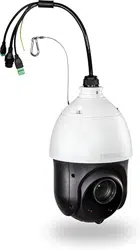
TRENDnet’sIndoor/Outdoor2MP1080pPoE+IRPTZSpeedDomeNetwork Camera,
modelTV‐IP440PI,providesdayandnightsurveillancewithanightvisionrangeofupto
100meters(328ft.)Thisspeeddomenetworkcameradeliversyear‐roundsurveillance
withanIP66weatherratedhousingtowithstandharshenvironments. A built‐in 20x
opticalzoomlensallowsyoutoadjustthefieldofviewtomeetyourinstallationneeds.
Record1080pvideo(1920x1080)at30fpsinaspacesavingH.264compressionformat.
Manage TRENDnet cameras with included complimentary software and mobile apps.
OpticalZoomLens
Abuilt‐in20xopticalzoomlensallowsyoutomanuallyadjustthefieldofviewfrom
58.3°–3.2°toachievetheperfectviewingfieldforyourinstallation.
2Megapixel
Record1080p(1920x1080)HDvideoat30fpsinthespacesavingH.264compression
format
SmartIRNightVision
SmartIRdynamicallyadjuststheIRLEDsbyloweringtheIRintensitywhenobjectsare
near,andincreasingIRintensitywhenobjectsarefartheraway.Nightvisionupto100
meters(328ft.).
ContinuousPTZ
Endless360°variablespeedpanand90°tiltwithauto‐flip
PoE+
SaveinstallationcostswithPoweroverEthernet(PoE)
IP66Rating
OutdoorIP66weatherratedhousing
AdditionalMountingBracketRequired
Separatemountingbracketrequired—installwithTRENDnet’sTV‐HC400,TV‐HW400,
TV‐HP400,orTV‐HN400
Storage
RecordvideotoanetworkstoragedeviceortoaMicroSDcard(upto128GBsold
separately).

©Copyright2017TRENDnet.AllRightsReserved.
4
TRENDnetUser’sGuide
TV‐IP440PI
AdvancedPlayback
Advancedin‐cameraarchivedvideoreviewfunctionality
MotionDetection
Createcustommotiondetectionzonestorecordvideoandsendemailnotifications
whenazoneistriggered.
TamperDetection
Createcustomtamperdetectionzonestosendanemailnotificationwhenthecamera
viewhasbeenobstructed.
DigitalWideDynamicRange(D‐WDR)
AdjustableD‐WDRsettingimprovesimagequalityandfocusingwhenacamerais
exposedtohighcontrastlightingenvironmentsbyenhancingthedarkareasofthe
imagetomakethemmorevisible.
RecordingFlexibility
Definecustomschedulesusingcontinuous(24/7)and/oreventbasedrecordingmodes.
AudioSupport
Audioinput/outputforthirdpartymicrophoneandspeaker(soldseparately)
IPv6
IPv6support
ONVIF
ONVIFProfileS
ComplimentarySoftware
Complimentarypro‐gradesoftwaretomanageTRENDnetcameras
ComplimentaryApps
LivevideotoamobiledevicewithfreeiOS
®
andAndroid
™
apps
Cables
Warnings:
ItisrecommendedtousethePoE+injectororanIEEE802.3atcompliantPoE+
switch.
Iftheproductdoesnotworkproperly,pleasecontactyourdealerorthenearest
servicecenter.Neverattempttodisassemblethecamerayourself.Disassembling
theproductwillvoidthewarrantyandmaycauseharmorinjury.
Theinstallationshouldbedonebyaqualifiedservicepersonandshouldconform
toallconstructionandelectricregulationsandotherlocalcodes.
RE
D
AC
2
4
V
YE
LL
OW/
G
R
E
E
N
B
L
A
CK
A
C2
4
V
BLUE/WHITE AUDIO_OUT
RED/WHITE AUDIO_IN
GREEN/WHITE AUDIO_GND
AudioLinein,lineout,
andgroundingwires
Linein/outforDC12V
power
Networkcable
connection

©Copyright2017TRENDnet.AllRightsReserved.
5
TRENDnetUser’sGuide
TV‐IP440PI
Cautions:
Makesurethepowersupplyvoltageiscorrectbeforeusingthecamera.
Donotdropthecameraorsubjecttophysicalshock.
Donottouchsensormoduleswithfingers.Ifcleaningisnecessary,useaclean
clothwithabitofethanolandwipeitgently.Ifthecamerawillnotbeusedforan
extendedperiodoftime,putonthelenscaptoprotectthesensorfromdirt.
DonotaimthecameralensatthestronglightsuchastheSunoranincandescent
lamp.Stronglightcandamagethecamerasensor.
Thesensormaybeburnedoutbyalaserbeam.Whenanylaserequipmentis
beingused,makesurethatthesurfaceofthesensorwillnotbeexposedtothe
laserbeam.
Donotplacethecamerainextremelyhot,coldtemperatures(theoperating
temperatureshouldbebetween‐30°Cto65°C),dustyordampenvironment,and
donotexposeittohighelectromagneticradiation.
Toavoidheataccumulation,goodventilationisrequiredforaproperoperating
environment.
Whileshipping,thecamerashouldbepackedinitsoriginalpacking.
Usewaterprooftapetocoverallthewires,cableswhichwillbeexposedoutdoor
afterthecamerainstallation.
PlanforInstallation
Viewingangle
Thecamerahasawideviewingrangethatprovidesnon‐distortedanddetailed
images.Choosethelocationwherehasgoodangletoshoottheimage you
expect to see. The motion detection area should also be considered when
installingthecamera.
WeatherConditions
Thecameraisanoutdoordomecamera,whichfitsmostinstallationsindoorand
outdoor.Thecameracanworkunderawiderangeofweatherconditions.For
severeweatherconditions.Usingthecamerainmilderweatherconditionswill
helpextendthecamera’slifeandpreservethequalityofthecameraimage.
Moisture:Avoiddampormoistenvironmentswheneveryoucan.Thecamerais
an IP66 grade water proof camera, and it will work in moist environments.
However, rain may affect the picture quality, especially at night, water may
reflectthelightfromtheinfra‐redilluminationanddegradepicturequality.
Temperature:Cameraworkswithinaspecifiedtemperaturerange.Areaswith
severe temperatures should be avoided when installing the camera. It’s
recommendedthatyouuseanenclosurewithaheaterandblowerifyouplan
onusingthiscameraoutsideofthespecifiedtemperaturerange.
Sunlight:Avoiddirectsunlightexposure.Directsunlightwilldamagetheimage
sensor.Ifsunlightisnecessaryforyourviewingpurposes,provideprotectionfor
theimagesensor.
Lighting:Considerinstallingyourcamerafacesthesamedirectionofthelight
sources.Shootingimageswithtop‐downpositionoutdoorornexttotheexisting
lightsourcearegoodchoices.Avoidthelightsourceifitcreatesashadethat
darkenstheviewingarea.

©Copyright2017TRENDnet.AllRightsReserved.
6
TRENDnetUser’sGuide
TV‐IP440PI
SetupCamerawithCD
1. InserttheInstallationCD‐ROMintoyourcomputer’sCD‐ROMdrivetoinitiatethe
Auto‐Runprogram.ChooseyourpreferredlanguageandthenclicktheInstallCamera
Utility.
2. InstalltheCameraUtilityasinstructed.
3. Last,clickNexttofinishtheinstallation
4. ThiswillalsorequireyoutoinstallWinPcapprogramifyoudon’thavethisinstalled
before,pleasefollowtheonscreeninstructiontoinstallit.

©Copyright2017TRENDnet.AllRightsReserved.
7
TRENDnetUser’sGuide
TV‐IP440PI
5. Restartthecomputeraftertheinstallations.
6. Aftercomputerisrestarted,doubleclickontheCameraUtilityicontolaunch the
program.
7. FindthecamerayouwouldliketoaccessandconfigurethendoubleclickontheIP
address.
8. ContinuetothenextsectionAccessyourCamerawiththeWebBrowserfordetail
configurationsofthecamera.

©Copyright2017TRENDnet.AllRightsReserved.
8
TRENDnetUser’sGuide
TV‐IP440PI
AccessCamerathroughtheWebBrowser
Logging‐intotheCamerafortheFirstTime(Windows)
1. Find the camerafrom the Utility anddouble click on the IP address to open the
browser.
2. ActivatetheadminUserAccountbyenteringyourdesiredpassword,andthenclick
OK.
3. Thecameramanagementpagewilldetectifyouinstalledthecameravideostreaming
plug‐inornot.Clickthelinktodownloadtheplug‐infromthecamera.
4. Downloadtheplug‐intoyourcomputerandthenandcloseyourbrowser.Launchthe
plug‐ininstallationtoinstalltheplug‐in.

©Copyright2017TRENDnet.AllRightsReserved.
9
TRENDnetUser’sGuide
TV‐IP440PI
5. PermissionrequestmayshowupdependsontheInternetsecuritysettingsonyour
computer.ClickYestoinstalltheplug‐in.
6. ClickNexttoinstalltheplug‐in.
7. ClickFinishtofinishtheinstallation.
8. Openthebrowserandloginagain.Entertheusernameadminandnewpassword
againtostartsecuredsession.

©Copyright2017TRENDnet.AllRightsReserved.
10
TRENDnetUser’sGuide
TV‐IP440PI
9. TheLiveViewpagewillshowupandbeginstreamingvideo.
Logging‐intotheCamerafortheFirstTime(OSX)
1. Openthewebbrowseronyourcomputer.Intheaddressbar,enterthedefaultIP
address of the camera 192.168.10.30. If the camera is connected to a
router/network,pleaseusetheWindowsCameraUtilitytofindtheexactIPaddress.
2. ActivatetheadminUserAccountbyenteringyourdesiredpassword,andthenclick
OK.

©Copyright2017TRENDnet.AllRightsReserved.
11
TRENDnetUser’sGuide
TV‐IP440PI
3. Thecameramanagementpagewilldetectifyouinstalledthecameravideostreaming
plug‐inornot.Clickthelinktodownloadtheplug‐infromtheTV‐IP340PIcamera.
4. Quityourbrowsercompletelybycommand‐Clickonthebrowsericonandthenclick
Quitbeforeinstallingtheplug‐in.
5. Go to the Finder and navigate to the Downloadfolder.Command‐Clickthe
WebComponents.pkgandthenclickOpen.(Ifyouareinstalltheplug‐infromtheCD,
justbrowseto/MacfolderanddoubleclicktheWebComponents.pkgfile.)
6. ClickOpentostartinstallation.

©Copyright2017TRENDnet.AllRightsReserved.
12
TRENDnetUser’sGuide
TV‐IP440PI
7. ClickContinuetoinstalltheplug‐in.
8. Selectadestinationtoinstalltheplug‐in.ThenclickContinue.
9. UsethedefaultlocationandclickInstall.
10. EnteryourpasswordandclickInstallSoftware

©Copyright2017TRENDnet.AllRightsReserved.
13
TRENDnetUser’sGuide
TV‐IP440PI
11. Installationwillprocessautomatically.
12. ClickClosetoexittheinstallation.
13. OpenthebrowserandloginagainwiththedefaultIP192.168.10.30ortheIPthat
wasdynamicallyassignedbyyourrouter.
14. Enteryourusernameandpassword,thenclickLogin
15. Click Trust(You’llhavetodothisagainwhenyourcamerachangestoanew IP
address.)
16. TheLiveViewpageshowsupandthevideostartstostream.

©Copyright2017TRENDnet.AllRightsReserved.
14
TRENDnetUser’sGuide
TV‐IP440PI
BasicSettings
LiveView
Afteryoulog‐inintothecameramanagementpage,you’llseetheLiveViewpage.
Multi‐Language
Changeyourpreferredlanguageanytime
Snapshot
Clickthisicontotakeavideosnapshot
Recording
Clickoncetostartrecording.Clickitagaintostop
recording.Thestatusbarwillindicateifitisinrecording
stateornot
Zoom
Clickoncetoenablezoom.Then,clickanddragthearea
onthepicturetozoomin.Clickonceonpicturefor100%
zoom.Clicktheiconagaintodisablezoom.Thezoom
functionworksinfullscreenmodeaswell
VideoStream
Thecamerahastwovideostreams:H.264andMJPEG.
Switchtoviewthedifferentvideostreamsbyclicking
thisicon
3DZoom
Clickthepositionofthelivevideo,thecorresponding
positionwillbemovedtothecenterofthelivefeed.
Clickandholdthemouseforadesireportionofthelive
image,thenthatpositionwillbemovedtothecenterof
thelivefeed
2‐wayAudio
Clicktoenable2‐wayaudio
FullScreenMode
Doubleclickthepicturetoviewinfullscreenmode.
Doubleclickagainorpressescapekeyonyourkeyboard
toexitfullscreenmode
StatusBar
Thestatusbarshowsthestatusyouareat,including
enabledthezoom,recordingvideo,andsuccessfully
takingasnapshot
TheiconexpandsthePTZcontrolpanel
Pan/Tilt/Zoomcontrolpanel
Zoomin/out
Focusclose/far
Irisopen/close

©Copyright2017TRENDnet.AllRightsReserved.
15
TRENDnetUser’sGuide
TV‐IP440PI
Speedofpan/tilemovement
Presets
Usethepresetspaneltomovetopreviouslysaved
locations
Presets
ConfigureaPresetposition
Apresetisapredefinedimageposition.Forthedefinedpreset,youcanclicktheCall
buttontoquicklyviewthedesiredimageposition.
1. InthePTZcontrolpanel,selectapresetnumberfromthepresetlist.
2. UsethePTZcontrolbuttonstomovethelenstothedesiredposition.
•Panthespeeddometotherightorleft.
•Tiltthespeeddomeupordown.
•Zoominorout.
•Refocusthelens.
3. Click tofinishthesettingofthecurrentpreset.
4. Youcanclick todeletethepreset.Youcanconfigureupto256presets.
CallingaPresetposition
InthePTZcontrolpanel,selectadefinedpresetfromthelistandclick tocallthe
preset.
Thefollowingpresetsarepredefinedwithspecialcommands.Youcanonlycallthem
butnotconfigurethem.Forinstance,preset99is“Startautoscan”.Ifyoucallpreset
99,thespeeddomestartsautoscanfunction.
Special
Preset
Function
Special
Preset
Function
33 Autoflip 93 Setlimitstopsmanually
34 Backtoinitialposition 94 Remotereboot
35 Callpatrol1 96 Stopascan
36 Callpatrol2 97 Startrandomscan
37 Callpatrol3 98 Startframescan
38 Callpatrol4 99 Startautoscan
39 IRcutfilterin 100 Starttiltscan
40 IRcutfilterout 101 Startpanoramascan
41 Callpattern1 102 Callpatrol5

©Copyright2017TRENDnet.AllRightsReserved.
16
TRENDnetUser’sGuide
TV‐IP440PI
42 Callpattern2 103 Callpatrol6
43 Callpattern3 104 Callpatrol7
44 Callpattern4 105 Callpatrol8
45 One‐touchpatrol
92 Starttosetlimitstops
Note: When you call preset 45 (one‐touch patrol), the speed dome patrols from
presets1to32.Beforeyouenablethisfunction,pleasesetpresets1to32first.
Patrols
Apatrolisamemorizedseriesofpresetfunctions.Itcanbeconfiguredandcalledonthe
patrolsettingsinterface.Thereareupto8patrolavailableforcustomization.Apatrol
canbeconfiguredwith32presets.
ConfigureaPatrolroute
1. InthePTZcontrolpanel,click toenterthepatrolsettingsinterface.
2. Selectapatrolnumberfrom .
Click toaddapresettoapatrolpath.
3. Configurethepresetnumber,patroltimeandpatrolspeed.
Name Description
Patrol
Time
Thisisthedurationthecamerastaysononepatrolpoint.Thespeed
domemovestoanotherpatrolpointafterthepatroltime.
Patrol
Speed
Thisisthespeedthatthecameramovesinbetweenpatrolpoints.

©Copyright2017TRENDnet.AllRightsReserved.
17
TRENDnetUser’sGuide
TV‐IP440PI
4. Click tosaveapresetintothepatrol.
5. Repeatthestepsfrom3to5toaddmorepresets.
6. Click tosaveallthepatrolsettings.
CallingaPatrolroute
InthePTZcontrolpanel,selectadefinedpatrolfrom andclick
tocallthepatrol.
ButtonsonthePatrolinterface:
Buttons Description
Saveapatrol
Callapatrol
Stopapatrol
Addapresettoapatrolpath
Modifyapreset
Deleteapreset
Deleteallthepresetsintheselectedpatrolpath
Pattern
Apatternisamemorizedseriesofpan,tilt,zoom,andpresetfunctions.Apatterncan
becalledinthepatternsettingsinterface.Thereareupto4patternsavailablefor
customization.
ConfigureaPattern
1. InthePTZcontrolpanel,click toenterthepatternsettingsinterface.
2. SelectapatternnumberfromthelistasshowninError!Referencesourcenot
found..
3. Click toenablerecordingthepanning,tiltingandzoomingactions.
4. UsethePTZcontrolbuttonstomovethelenstothedesiredpositionafterthe
informationofPROGRAMPATTERNREMAINNINGMENORY(%).
•Panthespeeddometotherightorleft.
•Tiltthespeeddomeupordown.
•Zoominorout.
•Refocusthelens.

©Copyright2017TRENDnet.AllRightsReserved.
18
TRENDnetUser’sGuide
TV‐IP440PI
5. Click tosavethepatternsettings.
ButtonsonthePatternsinterface:
Buttons Description
Startrecordingapattern.
Stoprecordingapattern.
Callthecurrentpattern.
Stopthecurrentpattern.
Deletethecurrentpattern.
These4patternscanbeoperatedseparatelyandwithnoprioritylevel.
Whenconfiguringandcallingthepattern,proportionalpanisvalid;thelimitstops
andautoflipwillbeinvalid;andthe3Dpositioningoperationisnotsupported.
Playback
Youcanplaybackthevideorecordingonthenetworkstorageanddownloadthevideo
clipandsnapshotstoyourlocalcomputer.

©Copyright2017TRENDnet.AllRightsReserved.
19
TRENDnetUser’sGuide
TV‐IP440PI
Searchforvideorecordings
Clickthedateselection,andthenchooseadateforthedaterangeofyourrecording.
ClickSearchtostartsearching.
Timeline
Thereisaplaybackheadinthecenterofthetimelinerepresentedbyayellowvertical
line.Tolookforaspecificvideorecording,movethetimelinebyclickinganddraggingit.
Iftherecordingisshort,zoominbyclicking
button.Click
tozoomoutthetime
scale.Ifyouknowtheexacttimeofthedayyouarelookingfor,click
thenenterthe
timeyouwanttoplayback.
Different types of recordings are identified differently. The scheduled recordings are
markedinblue,andtherecordingstriggeredbymotiondetectionaremarkedinred.
Clickanddragthetimelinetomoveyourtimemanually
Clickthisbuttontozoominthescale
Clickthisbuttontozoomoutofthescale
Clickthisbuttontospecifyaspecifictimeoftheday.
thenclick toconfirmselectionandthenclickXtoclose
thisdialogbox.
Playvideo
Useplaybackcontrolstoplaybackthevideorecordings.
Clickthisbuttontoplaythevideo
Clickthisbuttontopausevideoplayback
Clickthisbuttontostopplayback
Clickthisbuttontoincreaseplaybackspeed*
Clickthisbuttontodecreaseplaybackspeed*
Clicktoplaybackvideoframebyframe.Clickagainforthenext
frame.
*Thereare5stepsofplaybackspeeds.Youcanchoosefrom¼,½,1,
2,and4timesoforiginalspeed.

©Copyright2017TRENDnet.AllRightsReserved.
20
TRENDnetUser’sGuide
TV‐IP440PI
TakeImagesfromavideoplayback
Youcantakesnapshotsfromplaybackvideoormakenewvideoclipsfromthevideoyou
areplayingback.
Clickthisbuttontoenablezoom.Thenclickanddragonthevideoto
definetheareayouwanttozoomin.Clickagaintogetbackto100%
zoom.
DoubleclicktoshowvideoinfullscreenandpressESConkeyboard
toexitfullscreenmode
Clickthisbuttontodisablezoom
Clickthisbuttontotakeasnapshotofcurrentplayback
Clickthisbuttontostartclippingavideofromplayback
Clickthisbuttontostopclippingavideofromplayback
Downloadsectionsofavideo
Tosavecompletevideosectionsorsnapshots,youcandownloadthefilesdirectly.
Clickthisbuttontodownloadvideosections

©Copyright2017TRENDnet.AllRightsReserved.
21
TRENDnetUser’sGuide
TV‐IP440PI
Downloadsnapshots
Clickthisbuttontodownload
snapshots
Selectthetypeofeventthattriggeredthesnapshots.ChoosetheStartTimeandEnd
Time.Then,clickSearchtofindthesnapshotlist.Checkthetimeofthesnapshot,and
thenselectthesnapshotsyouwanttodownload,thenclickDownload.
Note:WherecanIfindsavedfiles?
VideosandsnapshotscapturedfromPlaybackwillsavetoyourcomputer.
Log
ThelogoftheTV‐IP440PIwillbesavedonthenetworkstorage.Youcansearchthe
relevantrecordsandsavetoyourlocalcomputer.
Searchforlogs
ClickthetypeoflogandthentheStartTimeandEndTime.ClickSearchtostart
searching.
ClickFirstPage,PrevPage,NextPage,andLastPagetoshowthelogs.ClickSaveLogto
savethelogstoyourcomputer.

©Copyright2017TRENDnet.AllRightsReserved.
22
TRENDnetUser’sGuide
TV‐IP440PI
System
SystemInformationpageshowsthecamerabasicinformation.ClickSystemthenclick
SystemInfotoshowthepage.
BasicInformation
DeviceName: Userdefineddevicename
FirmwareVersion: FirmwareVersion
MACAddress: MACaddressofthecamera
SystemTime: Displaythesystemtime
NetworkInformation
IPAddress: IPaddressofthecamera
SubnetMask: NetworkrangeofIPaddress
DefaultGateway: Gatewayforthecamera
PrimaryDNS: PrimaryDNSserveraddress
SecondaryDNS: SecondaryDNSserveraddress
AdvancedSettings
System
DeviceSettings
Setupyourcameranameandlocationforeasyidentification.Thiscameranamewillalso
berecognizedbyothernetworkcamerasoftwareasthenameofthiscamera.
OSD,OnScreenDisplay,thecameranameissettinguphereaswell.
Names
CameraName:
Nameofthecamera.Thecameranamesetupherecan
bediscoveredbyothernetworkcamerasoftwareand

©Copyright2017TRENDnet.AllRightsReserved.
23
TRENDnetUser’sGuide
TV‐IP440PI
OSD,OnScreenDisplay.Thedefaultisthecamera’s
modelname:
Location:
Labelwhereyouinstalledthiscamera
Authentication
RTSP:
Camera’svideostreamcanbeaccessedwithRTSP,Real
TimeStreamingProtocol.Onlytheadministratorand
userscanviewthisvideostream.Un‐checkingthisbox
willalloweveryoneaccesstothisvideostreamwithout
authentication.Default:checked.
HTTP:
Cameracanbeaccessedviapasswordprotectedweb
managementinterface.Un‐checkingthisboxwillallow
anyonetoaccessthiscameraandchangeitssettings.
Default:checked.
Service
EnableTelnet
CameraembeddedTelnetservice formultiplecamera
controlforsystemdeveloper.Default:disable.
UserAccounts
Youcansetupupto32useraccountstoaccessthecamera’svideostreamwithaweb
browserorrealtimevideostream(RTSP).Onlyoneadministratoraccountcanbesetup
toconfigurethecameraandcannotbedeleted.
UserAccounts
Add:
ClickAdd buttontoaddoneuseraccount.Select
userlevelasOperatoraccountoruseraccount.
Operatorcouldconfiguresettings.Useraccount
couldviewbutcouldnotchangeanysetting.
Modify: Tochangeauser’snameandpassword,highlight
theuserbyclickingonit.Then,clickModify
button.Administratorcanchangeuser’sname,
levelandpassword.Theadministrator’snameis
fixed,youcannotchangeit.ClickOKtosavethe
changes.

©Copyright2017TRENDnet.AllRightsReserved.
24
TRENDnetUser’sGuide
TV‐IP440PI
TimeSettings
Theaccuracyofthesystemclockisimportantforschedulingandaccuratelogging.You
cansynchronizethesystemtimewithyourcomputer,orautomaticallycheckthetime
accuracywithanetworktimeserver(NTPserver).
AutomaticUpdate
NTPServer:
Specifyatimeserver(NTPserver)tosynchronize
with.(e.g.time.windows.com)
Interval:
Thetimeintervalthatthecamera willsynchronize
thetimewithNTPserver.Default:1440minutes
(24hours).
ClickSavetosavethechanges
ManualTimeSync.
DeviceTime:
Thesystemtimeofthiscamera.
SetTime:
Clickthecalendariconandmanuallyselectthe
date.
ChecktheSync.withcomputertimetocopythe
timefromyourcomputer.
ClickSavetosavethechanges
DaylightSavings
Setupdaylightsettingsforthecamera.

©Copyright2017TRENDnet.AllRightsReserved.
25
TRENDnetUser’sGuide
TV‐IP440PI
DaylightSaving
EnableDST:
Checkthisboxifyourtimezonehasdaylight
savings
StartTime:
EntertheMonthandDate thatdaylightsavings
starts
EndTime:
EntertheMonthandDatethatdaylightsavings
ends
DSTBias:
Enterhowmuchtimethedaylightsavingadjusted
bydaylightsavings
ClickSavetosavethechanges
LiveViewSettings
SetuptheLiveViewbufferandthedestinationofrecordfileorsnapshot.
LiveViewParameters
LiveViewBuffer:
Configurethebuffersizeforliveviewvideo
stream.Withlowbuffersizesetting,youcanget
real‐timevideostream,butthevideomaybestop
andgoifthenetworkiscongested.Withhigh
buffersetting,youcanhavesmoothvideo
streaming,butthevideoisdelayedfromthetime
happening.Mediumsizecanhavemoderatevideo
streamsmoothnessandtimedelay.
RecordFileSettings
RecordFileSize:
Thissizeofliveviewvideorecording.Youcan
choose256MB,512MB,or1GBafile.Smallerfile
sizeisgoodformanyshortrecordings.
SaveRecordFilesto:
Bydefault,fileswillbesavedunderyouruser
name,andundertheTRENDnet/RecordFiles.Click
Browseandchooseanewdestinationifyouwant
tosavethefilesomewhereelse.
SaveDownloadFilesto:
Bydefault,fileswillbesavedunderyouruser
name,andundertheTRENDnet/DownloadFiles.
ClickBrowseandchooseanewdestinationifyou
wanttosavethefilesomewhereelse.
PictureandClipSettings
SaveSnapshotsinliveview
to:
Bydefault,fileswillbesavedunderyouruser
name,andundertheTRENDnet/SnapshotFiles.
ClickBrowseandchooseanewdestinationifyou
wanttosavethefilesomewhereelse.
Savesnapshotswhen
playbackto:
Bydefault,fileswillbesavedunderyouruser
name,andundertheTRENDnet/PlaybackPics.Click
Browseandchooseanewdestinationifyouwant
tosavethefilesomewhereelse.

©Copyright2017TRENDnet.AllRightsReserved.
26
TRENDnetUser’sGuide
TV‐IP440PI
SaveClipsto:
Bydefault,fileswillbesavedunderyouruser
name,andundertheTRENDnet/PlaybackFiles.
ClickBrowseandchooseanewdestinationifyou
wanttosavethefilesomewhereelse.
ClickSavetosavethechanges
Maintenance
Youcandothecamerasystemmaintenanceonthispage.
Reboot
Reboot:
Clickthisbuttontorebootthiscamera.
Reset
Reset:
ResetallcameraparametersexcepttheIP
parametersanduserinformation.
Default:
Loadcompletefactorydefaultsettingstothe
camera.
ImportConfig.File
ConfigFile:
Toloadpreviouslysavedconfigurations,click
Browsetofindtheconfigurationfileandthenclick
Import.
Status:
Showsthestatusinloadingconfigurationfile.
ExportConfig.File
Export:
ClickExport todownloadconfigurationfile.Thefile
willbedownloadedtotheDownloadfolderby
default.
RemoteUpgrade
Firmware:
ClickBrowse tofindthelatestfirmwareandthen
clickUpgrade*.
Status:
Showsthestatusinfirmwareupgrade.
ClickSavetosavethechanges
* TRENDnet may periodically release firmwareupgrades that mightadd
featuresorfixproblemsassociatedwithyourTRENDnetmodeland
version. To find out if there is a firmware upgrade available for your
device,pleasecheckyourTRENDnetmodelandversionusingthelink.
http://www.trendnet.com/downloads/

©Copyright2017TRENDnet.AllRightsReserved.
27
TRENDnetUser’sGuide
TV‐IP440PI
Network
TCP/IP
SetupyourbasicIPv4andIPv6networksettingsonthispage.
Networkinterface
MACAddress:
Clickthisbuttontorebootthiscamera.
DuplexandSpeed:
ChooseoneoftheEthernetduplexandspeedto
matchyournetwork.Default:auto.
MTU:
Maximumtransmissionunit.Themaximumbyte
sizeEthernetdatafield.
PrimaryDNS:
EnteryourfirstIPv4orIPv6DNSserveraddress
SecondaryDNS:
EnteryoursecondIPv4orIPv6DNSserveraddress
IPv4
DHCP: CheckthisboxiftheIPaddressisassignedbyDHCP
server.
IPv4Address: Loadcompletefactorydefaulttothecamera.
SubnetMask: Networkrangeofthesubnet
DefaultGateway: Thedefaultroutegoingfurtherfromcamera IPv4
subnet.
MulticastAddress: Multicastaddressforvideostreaming.
IPv6
IPv6Mode:
ChooseManual,DHCP,orRouteAdvertisement.
ClickViewRouteAdvertisementtofindaroute
advertisement.
IPv6Address: IPv6addressofthecamera.
PrefixLength: Lengthofnetworkprefix
DefaultGateway: Thedefaultroutegoingfurtherfromcamera IPv6
subnet.
ClickSavetosavethechanges

©Copyright2017TRENDnet.AllRightsReserved.
28
TRENDnetUser’sGuide
TV‐IP440PI
Port
YoucanchangetheserviceportsnumberofthecameraordisableRTSP
orHTTPSservices.
PortNumbers
HTTPPort: Thedefaultwebaccessport.Youcanchangethe
portnumber.However,youcannotdisablethe
webservice.Thedefaultportnumberis80.
RTSPPort: TheReal‐TimeStreamingProtocolportforvideo
streaming.Youcanchangetheportnumberor
disabletheservicebyuncheckthebox.Thedefault
portnumberis554.
HTTPSPort: Thesecuredwebserviceport.Youcanchangethe
portnumber,oryoucandisabletheserviceby
uncheckthebox.Thedefaultportnumberis443.
ClickSavetosavethechanges
DDNS
DynamicDomainNameService,DDNS,allowsyoutofindyourcamerafromtheInternet
withaneasytorememberdomainname.
DDNS
EnableDDNS: CheckthisboxtoenableDDNSService.
DDNSType: SelectaDDNSserviceprovider.
ServerAddress: EntertheDDNSserveraddress.

©Copyright2017TRENDnet.AllRightsReserved.
29
TRENDnetUser’sGuide
TV‐IP440PI
Domain: Enteryourregistereddomainnameonselected
DDNSservice.
UserName: Entertheaccountname.
Password: Enterthepassword.
ClickSavetosavethechanges
PPPoE
SetupPPPoE(ADSL)connectiontoconnectyourcamerawithyourISP,InternetService
Provider.
PPPoE(ADSL)
EnablePPPoE: CheckthisboxtoenablePPPoEconnection.
DynamicIP: TheIPaddressprovidedbyISP
UserName: Entertheaccountname.
Password: Enterthepassword.
Confirm: Enterthepasswordagain.
ClickSavetosavethechanges
SNMP
SNMPSettingsallowsyoutoassignthecontactdetails,location,communitynameand
trap settings for SNMP. This is a networking management protocol used to monitor
network‐attacheddevices.SNMPallowsmessages(calledprotocoldataunits)tobesent
tovariouspartsofanetwork.Uponreceivingthesemessages,SNMPcompatibledevices
(calledagents)returndatastoredintheirManagementInformationBases.

©Copyright2017TRENDnet.AllRightsReserved.
30
TRENDnetUser’sGuide
TV‐IP440PI
SNMPV1/V2
EnableSNMPv1: CheckthisboxtoenableSNMPv1management.
EnableSNMPv2c: CheckthisboxtoenableSNMPv2cmanagement.
ReadSNMPCommunity: SpecifythepasswordforaccesstheSNMP
communityforreadonlyaccess
WriteSNMPCommunity: SpecifythepasswordforaccesstotheSNMP
communitywithread/writeaccess
TrapAddress: SpecifytheIPaddressfortheSNMPtrap
community
TrapPort: SpecifytheportnumberfortheSNMPtrap
community
TrapCommunity: SpecifythenameofSNMPtrapcommunity
SNMPV3
EnableSNMPv3: CheckthisboxtoenableSNMPv3management.
ReadUserName: SNMPv3memberusername
SecurityLevel: Chooseoneofthesecuritylevels.
AuthenticationAlgorithm: Choosetheauthenticationmethodtoverifythe
sourceofinformation:MD5orSHA.
AuthenticationPassword: Specifytheauthenticationpasswordbetween8to
32letters.
Private‐keyAlgorithm: ChoosetheprivacykeytoencryptSNMPmessages:
DESorAES.
Private‐keyPassword: Specifytheprivacykeybetween8to32letters.
WriteUserName: SNMPv3managerusername
SecurityLevel: Chooseoneofthesecuritylevels.
AuthenticationAlgorithm: Choosetheauthenticationmethodtoverifythe
sourceofinformation:MD5orSHA.
AuthenticationPassword: Specifytheauthenticationpasswordbetween8to
32letters.
Private‐keyAlgorithm: ChoosetheprivacykeytoencryptSNMPmessages:
DESorAES.
Private‐keyPassword: Specifytheprivacykeybetween8to32letters.
SNMPOtherSettings
SNMPPort: SNMPserviceportnumber.
ClickSavetosavethechanges
802.1X
Setup802.1Xforremoteauthenticationservice.
802.1XAuthentication
EnableIEEE802.1X: Checkthisboxtoenable 802.1Xauthentication
service.

©Copyright2017TRENDnet.AllRightsReserved.
31
TRENDnetUser’sGuide
TV‐IP440PI
EAPOLversion: ExtensibleAuthenticationProtocol(EAP)overLAN
(EAPoL).Chooseversion1or2.Thisversionnumber
mustmatchestoyour802.1XserviceEAPOL
version.
UserName: Entertheaccountname.
Password: Enterthepassword.
Confirm: Enterthepasswordagain.
ClickSavetosavethechanges
IPAddressFilter
Setupalistofclientsallowonlytheclientsonthelisttoaccessthiscameraortoreject
clientsonthelistfromaccessthiscamera.
IPAddressFilter
EnableIPAddressFilter: CheckthisboxtoenableIPaddressfilteringservice.
IPAddressFilterType: ChoosedenytobanthelistedIPaddressesorAllow
toallowlistedhosttoaccessthiscamera.
Add: ClickAddtoaddauseraccount
Modify: Tomodifyanentryonthelist,highlighttheentryby
clickingonit.Then,clicktheModifybutton.
EntertheIPaddressthenclickOK.
Delete: Todeleteanentryonthelist,highlighttheentryby
clickingonit.Then,clickDelete.
ClickSavetosavethechanges
QoS,QualityofService
Setup traffic prioritization to help smooth out the video stream.Youcansetthe
DifferentiatedServicesCode Point
(DSCP)bits on outgoing datastreams. The QoS
capablenetworkdevicewillforwarddifferentdataindifferentpriorities.Themeaningof
thevalueisdifferentindifferentDiffServdomains.Consultyournetworkmanagerfor
thesetupdetails.

©Copyright2017TRENDnet.AllRightsReserved.
32
TRENDnetUser’sGuide
TV‐IP440PI
QoS
Video/AudioDSCP: EnterVideo/AudioDSCP.Default:0.
Event/AlarmDSCP: EnterEvent/AlarmDSCP.Default:0.
ManagementDSCP: EnterManagementDSCP.Default:0.
ClickSavetosavethechanges
UPnP
UniversalPlug‐and‐Playisadevicediscoveryprotocolset.Itallowsyourcameratoeasily
befound,forexample,onaWindowsoperationsystem.
UPnP
EnableUPnP: CheckthisboxtoenableUPnPconnection.
FriendlyName: Thenamethatwillbeappearedwhensearched.
PortMapping
EnablePortMapping: CheckthisboxtoenableUPnPconnection.
PortMappingMode: ChooseManualorAutoportmapping.
ExternalPort: Choosetheportnumberformapping.
ClickSavetosavethechanges
Video
VideoFormat
Adjusttheformatofvideo.
VideoFormat
StreamType: SelectMainStream(Normal),Sub Stream orThirdSteam(live
viewonChrome/Firefix)
VideoEncoding:
Choosethevideostreamyouwanttomodify.Mainstream
supportsH.264only.SubStreamsupportsH.264andMJPEG.

©Copyright2017TRENDnet.AllRightsReserved.
33
TRENDnetUser’sGuide
TV‐IP440PI
Resolution: H.264
H.264/MJPEG
BitrateType: Choosebetweenvariablebitrateor constantbitratefor
videocompression.Thedefaultisvariablerate.
VideoQuality: Choosethevideoquality.Thedefaultismediumquality.
FrameRate:
Choosethecapturingframerate.Thedefaultvalueis30
framespersecond.Reducetheframeratetoreducethe
capturefilesize.
Max.Bitrate: Choosethemaximumvideosamplingbitrate.Default:3072
IFrameInterval AnIFrameisaframethatrecordsacompletepicture.Frames
betweenIframes,(PframeorBframe)onlyrecordsthe
imagedifferencesbetweentwoframes.ChoosetheIFrame
Intervalhere.Thedefaultis60.
ClickSavetosavethechanges
Audio
Adjusttheaudiosettingsforthecamera.
Audio
AudioEncoding: G.711ulaw,G.711alaw,MP2L2andG.726
selectable.
AudioInput: SelectLine InorMic Intoadjustvolume.
InputVolume:
Slidthebartoturnup/downthevolume.The
valuerangesfrom0to100.
ClickSavetosavethechanges

©Copyright2017TRENDnet.AllRightsReserved.
34
TRENDnetUser’sGuide
TV‐IP440PI
DisplaySettings
Adjustvideoimagequality,lightness,andcolorsettingshere.
DisplaySettings
Brightness: Usethesliderorenteranumber(0‐100)toadjustthe
imagebrightness.Default:50
Contrast: Usethesliderorenteranumber(0‐100)toadjustthe
imagecontrast.Default:50
Saturation: Usethesliderorenteranumber(0‐100)toadjustthe
colorsaturation.Thegreaternumbermeansthecolor
willbemoresaturated.Default:50
LimitGain: Usethesliderorenteranumber(0‐100)toadjustthe
colorshade.Default:50

©Copyright2017TRENDnet.AllRightsReserved.
35
TRENDnetUser’sGuide
TV‐IP440PI
DisplaySettings
Sharpness: Usethesliderorenteranumber(0‐100)toadjust
theimagesharpness.Default:50
FocusMode:
Auto:allowsthecameratofocusautomaticallyatany
time.
Manual:usethe iconintheliveview
pagetocontrolfocusmanually.
Semi‐auto:camerasfocusesonlyonceafter
pan/tilt/zoom.
MinimumFocusing:
Thisfunctionisusedtolimittheminimumfocus
distance.Thevaluecanbesetto1.5m,3m,6m,10cm
and50cm.
ExposureMode:
Iris
ShutterSpeed
Manual:Onceselected,youcanadjusttheIrisand
shutterspeedfromtheextendedoptionsmenu.
Auto: The iris and shutter values will be adjusted
automatically according to the brightness of the
environment.
IrisPriority:
Thevalueofirisneedstobeadjustedmanually.The
shutter values will be adjusted automatically
accordingtothebrightnessoftheenvironment.
ShutterPriority:
Thevalueofshutterneedstobeadjustedmanually.
The iris values will be adjusted automatically
accordingtothebrightnessoftheenvironment.

©Copyright2017TRENDnet.AllRightsReserved.
36
TRENDnetUser’sGuide
TV‐IP440PI
SmartIR
VideoStandard: Thisisthebasefrequencyforthevideorefreshrate.
Itisrecommendedtosettothesamefrequencyof
yourlocalvideostandard(NTSC:60,PAL:50).Default:
60Hz.
Day/NightSwitch:
Choosewhetheryouwantthecameratobesettothe
daymode(colorvideo)ornightmode(IRenhanced
black/white video). You can manually set it to day
modeornightmode,adjustbylighting(Auto),orpre‐
defineschedule.
Day:
Thespeeddomedisplayscolorimage.Itisusedfor
normallightingconditions.
Night:
Theimagewillbeblackandwhite.Nightmodecan
increasethesensitivityinlowlightconditions.
Auto:
In Automode,thedaymodeandnightmodecan
switchautomaticallyaccordingtothelightcondition
ofenvironment.
Sensitivity Adjustthelightsensorsensitivity.
Mirror:
Select from OFF or ON option to set the correct
directionofthecameraview.
SlowShutter:
This function can be used in underexposure
condition.Itlengthenstheshuttertimetoensurefull
exposure.TheslowshuttervaluecanbesettoLow,
NormalandHigh.
D‐WDR:
This Digital Wide Dynamic Range feature helps to
improvetheimagequalityunderlimitedlightsource.
Highervaluebringsbrighterimages.
LensInitialization:
The lens operates the movements for initialization
whenyoucheckthecheckbox.
BacklightControl
Ifthere’sabrightbacklight,thesubjectinfrontofthe
backlight appears silhouetted or dark. Enabling
BacklightControlfunctioncancorrecttheexposure
of the subject. But the backlight environment is
washedouttowhite.
WhiteBalance:
Manual:
In Manual mode, you can adjust the color
temperature manually to meet your own demand.
Outdoor:
You canselect this modewhen the speed dome is
installedinoutdoorenvironment.
Indoor:
You canselect this modewhen the speed dome is
installedinindoorenvironment.
FluorescentLamp:
Youcanselectthismodewhentherearefluorescent
lampsinstallednearthespeeddome.
SodiumLamp:
You can select this mode when there are sodium
lampsinstallednearthespeeddome.
Auto‐Track:
Whitebalanceiscontinuouslybeingadjustedinreal‐
timeaccordingtothecolortemperatureofthescene
illumination.
Auto:

©Copyright2017TRENDnet.AllRightsReserved.
37
TRENDnetUser’sGuide
TV‐IP440PI
The camera retains color balance automatically
accordingtothecurrentcolortemperature.
DigitalNoiseReduction
:
Enableordisablenoisereduction.
NoiseReductionLevel:Adjusttheeffectofdigital
noisereduction.Range:0‐100%,default:100%
DefogMode SelectdefogmodeONfor a foggyenvironment.The
defaultisOFF.
ZoomLimit
:
YoucansetZoomLimitvaluetolimitthemaximum
valueofzooming.Thevaluecanbesetto20,40,80,
160and320.
HLC:
HLC (High Light Compensation) makes the camera
identify and suppress the strong light sources that
usuallyflareacrossascene.Thismakesitpossibleto
seethedetailoftheimagethatwouldnormallybe
hidden.
IRLightMode: Auto: The brightness of the infrared light will be
adjustedautomatically.
Manual:youneedtoadjustthebrightnessvalueof
infrared light manually. IR Light Sensitivity value
rangesfrom0to100.
BrightnessLimit: Theimagebrightnessisadjustedautomatically.You
canspecifythebrightnesslimitrangefrom0to100.
Note:
WhenIRLightModeissettoauto,theday/nightmodeisadjusted
automaticallyaccordingtotheIRLightMode.Manuallysettingtheday/night
modeisinvalid.
WhenIRLightModeissettomanualandtheIRLightBrightis0,youcanset
theday/nightmodemanually.
WhenIRLightModeissettomanualandtheIRLightBrightisnot0,night
modeissetasthedefaultmode.Manuallysettingtheday/nightmodeis
invalid.
OnScreenDisplay(OSD)Settings
Youcandisplaythecameranameandthetimethevideoisshootingonthescreen.

©Copyright2017TRENDnet.AllRightsReserved.
38
TRENDnetUser’sGuide
TV‐IP440PI
OSDDisplay
DisplayName: Checkthisboxtodisplaytheproductnamethat
wassetupinthedevicesettings(refertopage25
tochangethedevicename.)
DisplayDate: Checkthisboxtodisplaysystemtime.
DisplayWeek: Checkthisboxtodisplaytimeoftheweek.
TimeFormat: Select12or24hours’timeformat.
DataFormat: Selectdifferentdateformat.
DisplayMode: Selecttransparent/flashingformat.
OSDSize: Selectdifferentsizeformat. (Auto,16*16,32*32,
48*48,64*64)
ClickSavetosavethechanges
Substreamcanbeusedforlowerresolutionneededapplication,forexamplemobile
appstreamingorNVRstreaming.
ThirdstreamisusedforLiveviewonly,ithasresolutionlimitationonChrome,Firefox
andSafari.MaxresolutioncanbesupportedunderInternetExplorer.
Note:WhenH.264+/H.265+isenabled,LiveviewonChromeorFirefoxwillbe
disabledduetobrowserlimitation,youcancontinuetouseInternetExplorerorSafari
toviewthecameraotherwisedisabletheH.264+andH.265+option.
TextOverlay
Displayextrainformationonthescreenovertheimage.
TextOverlay
CheckBox: Checkthisboxtoenabletextoverlay.
TextField: Enterthetextyouwanttodisplay.Youcanenter
yourlocallanguageifyouwant.Thetextfield
allowsmaximum44Englishlettersor20non‐
Englishcharacters.
ClickSavetosavethechanges

©Copyright2017TRENDnet.AllRightsReserved.
39
TRENDnetUser’sGuide
TV‐IP440PI
VideoRecording
VideoRecording
Pre‐record: Recordingtimebeforetriggerevent.
Post‐record: Recordingtimeaftertriggerevent.
Overwrite: SelectYestoallowolderrecordingstobe
overwritten.
EnableRecordSchedule: CheckthisboxandthenclickSave toenablevideo
recording.
Edit: ClickEdit toedittherecordingschedule.
1. Selectdayoftheweekyouwanttoeditthe
schedule.
2. SelectAllDayorCustomizedscheduleofthe
day.
3. Setthetimeperiodandtheeventyouwant
to trigger the video recording continuous
(alwaysrecording)ormotiondetection.
4. Click Copy to Week if you want the same
dailyscheduleeveryday.Or,youcanselect
otherdayoftheweekandclickCopytocopy
thescheduleofthedaytootherdays.
5. Clickanotherdayoftheweekbyclickingon
its tab to set the next schedule. Click OK
whenyouhavefinishedyoursettings.
ClickSavetosavethechanges

©Copyright2017TRENDnet.AllRightsReserved.
40
TRENDnetUser’sGuide
TV‐IP440PI
Events
MotionDetection
Setuphowthemotiondetectioneventwillbetriggeredandwhatactionswillbe
triggered.
MotionDetection
EnableMotionDetection: Checkthisboxtoenablemotiondetection.Click
Savetosavethechoice.
EnableMotionTracking: Checkthisboxtoenablemotiontracking.Motion
trackingisadynamicdisplaythatshowsthe
currentstatusofmotiondetection.Themotion
trackingisdisplayedbyagreengrid.Thegridarea
representsthatthecameradetectsmotioninthis
area.ClickSavetosavethechoices.

©Copyright2017TRENDnet.AllRightsReserved.
41
TRENDnetUser’sGuide
TV‐IP440PI
DrawArea: ClickDrawAreabuttontostartdrawing.Clickand
dragontheareayouwanttosetupthemotion
detection.Youcandrawupto8differentareas.
ClickStopDrawingtostopdrawingmotion
detectionareas.
Theredgridsrepresentthedetectionarea.
Sensitivity: Movetheslidertoadjustdetectionsensitivity.
ClearAll: Clickthisbuttontoclearallthesetupareas.
ArmingSchedule
Edit: ClickEdit todefinewhenyouwantthemotion
detectionworks.
1. Selectdayoftheweekyouwanttoeditthe
schedule.
2. Set the time period you want to enable
motiondetection.(Defaultis0‐24hours,all
day).
3. ClickCopytoWeekifyouwantthesamedaily
schedule every day or you can select other
dayoftheweekandclickCopytocopythe
scheduleofthedaytootherdays.
4. Selectanotherdayoftheweekbyclickingon
its tabto set nextschedule. Click OK when
youfinishedyoursetting.
Notification
SendEmail: Checkthisboxtosendane‐mailnotificationwhen
motionisdetected.GotoEvents/Emailtosetup
emailaccountinformation.

©Copyright2017TRENDnet.AllRightsReserved.
42
TRENDnetUser’sGuide
TV‐IP440PI
UploadSnapshot: CheckthisboxtosendsnapshotstoanFTPserveror
configuredNetworkStoragewhenmotionis
detected.GotoNetworkStorageorFTPtosetup
serverinformation
NetworkStorage Checkthisboxtosendvideocliptonetworkstorage
whenmotionisdetected.GotoStorage>Network
StoragetosetupStorageserverinformation
ClickSavetosavethechanges
VideoTamper
Thisistodetectifthecamerahasbeentamperedwithandsurveillanceiscompromised.
You can set up tamper proof notifications to alert the system manager to check the
camera.
Tamper‐proof
EnableTamperDetection: Checkthisboxtoenabletamperdetection.ClickSave
tosavethesettings.
DrawArea: Click Draw Area button to start drawing. Click and
dragontheareayouwanttosetupthetamper
detection.Youcansetuponlyoneareafortamper
detection.ClickStopDrawingtostopdrawingmotion
detection areas. The gray block represent the
detectionarea.
Sensitivity: Movetheslidertoadjustdetectionsensitivity.
ClearAll: Clickthisbuttontoclearallthesetupareas.
EnableTamperDetection: Checkthisboxtoenabletamperdetection.ClickSave
tosavethesettings.

©Copyright2017TRENDnet.AllRightsReserved.
43
TRENDnetUser’sGuide
TV‐IP440PI
ArmingSchedule
Edit: Click Edit to define when you want the tamper
detectionworks.
1. Selectthedayoftheweekyouwanttoedit
theschedule.
2. Set the time period you want to enable
tamperdetection.(Defaultis0‐24hours,all
day).
3. Click Copy to Week if you want the same
dailyscheduleeveryday.Or,youcanselect
otherdayoftheweekandclickCopytocopy
thescheduleofthedaytootherdays.
4. Selectanotherdayoftheweekbyclickingon
itstabtosetthenextschedule.ClickOK
whenyouhavefinishedyoursettings.
Notification
SendEmail: Checkthisboxtosendane‐mailnotificationwhen
motionisdetected.GotoEvents/Emailtosetup
emailaccountinformation.
ClickSavetosavethechanges

©Copyright2017TRENDnet.AllRightsReserved.
44
TRENDnetUser’sGuide
TV‐IP440PI
Exception
Providesnotificationsforothersystemevents,setupyournotificationshere.
Notification
ExceptionType:
Firstchoosetheexceptiontype,thenchoosethe
correspondingaction.
SendEmail: Checkthisboxtosendane‐mailnotificationwhen
motionisdetected.GotoEvents/Emailtosetup
emailaccountinformation.
ClickSavetosavethechanges
Snapshot
Youcansetupyourcameratocontinuouslytakesnapshotsortakesnapshotswhenan
eventhappens.
Continuous
Enable: Checkthisboxtocontinuously takesnapshots.
Format: SavesnapshotsinJPEGformat
Resolution: UsesthesameresolutionsetinVideoFormat forthe
snapshotresolution.
Quality: Chooseacompressionqualityforsnapshots.
Interval:
State the time interval between snapshots. The
defaultintervalis10seconds.

©Copyright2017TRENDnet.AllRightsReserved.
45
TRENDnetUser’sGuide
TV‐IP440PI
ClickSavetosavethechanges
EventTriggered
Enable: Checkthisboxtotakesnapshotswhenaneventis
occurred.
Format: SavesnapshotsinJPEGformat
Resolution: UsesthesameresolutionsetinVideoFormat forthe
snapshotresolution.
Quality: Chooseacompressionqualityforsnapshot.
Interval:
State the time interval between this series of
snapshots.Thedefaultintervalis1second.
CaptureNumber: State how many snapshots you want to take in a
singletriggeredevent.Default:3pictures.
ClickSavetosavethechanges
Email
Setupemailaccountsfornotifications.
Sender
Sender: Enterthenametoappear astheemailsender.
Sender’sAddress: Entersender’semailaddress.

©Copyright2017TRENDnet.AllRightsReserved.
46
TRENDnetUser’sGuide
TV‐IP440PI
SMTPServer: SimpleMailTransportationProtocolServer
address,theoutgoingemailserveraddress.Please
askyouremailserviceproviderfordetails.
SMTPPort: Serviceportnumberforoutgoingemail.*
EnableSSL:
Checkthisboxifyourserviceproviderrequiresa
SSLsecuredconnection.
AttachImage/Interval: CheckAttachImageifyouwanttosenda
snapshotimagewiththeemailnotificationand
selecttheintervalofsnapshotsinseconds.
Authentication: Checkthisboxifyourserverrequiresapassword
inordertosendemail.Mostemailserversrequire
authenticationwhensendinganemail.
Username: Entertheusernameofoutgoingemailaccount
Password: Enterthepassword
Confirm: Enterthepasswordagaintoconfirmthatthe
passwordwasenteredcorrectly.
ClickSavetosavethechanges
Receiver
Receiver1: Thefirstreceiver’sname.
Receiver1’sAddress: Thefirstreceiver’semailaddress.
Receiver2: Thesecondreceiver’sname.
Receiver2’sAddress: Thesecondreceiver’semailaddress.
Receiver3: Thethirdreceiver’sname.
ClickTesttotesttheemailsettings.AtextemailwillsendtoReceiver’semail
address.
ClickSavetosavethechanges
*ManyISPsdonotallowserviceport25goingthroughtheirnetwork.Otherpopular
portsare587and465.PleaseconsultyouremailserviceproviderandISPfordetails.
Storage
StorageManagement
*MicroSDcardorNetworkstoragedevicemustbesetup/formattedbeforeitcanbe
managed/stored.CamerawillsavetoSDcardonlywhenthereisnoadditionalNAS
devicesetup.
*MicroSDslotislocatedonthebackofthecamera.Usingascrewdrivertoloosenthe
screwsandremovethecover.Pleasemakesuretheenvironmentisdryandcleanwhen
openingthedomecover.

©Copyright2017TRENDnet.AllRightsReserved.
47
TRENDnetUser’sGuide
TV‐IP440PI
NetworkStorage
*NetworkStoragemustbesetupbeforeitcanbemanaged.Forstoragemanagement,
pleaserefertothenextsection.
Thecamerasupportstwoformatsofnetworkstoragefilesystems:NFSandSMB/CIFS.
NFS,NetworkFileSystem,isnativelysupportedbyLinuxcomputers and most NAS,
Network Attached Storage. SMB/CIFS, Common Internet File System, is natively
supportedbyWindows®systemsandnowisgenerallysupportedbyLinuxandOSX®.
Youcanaddupto8networkstoragesforyourcamera.Therecordingswillsubsequently
bestoredinthesespaces.Savevideofromthefirststorageandthenthenextwhenthe
firstoneisfull.ClickontheentrytochangethesettingsandclickSavetosavethesettings.
NetworkStorage
No: Thesequentialnumberofthenetworkstorage.
Type: Thetypeofstorage.
ServerAddress: EntertheIPaddressofyournetworkstorage.
FilePath: Enterthefilepathontheserverfornetwork
storage.
Capacity: Enterthesizeofthediskspaceyouwanttoassign
forthisstorage.Theminimumdiskspace
requirementis8GB.Ifyoudonotwanttolimitthe
sizeandusethefullphysicaldiskspace,enter0in
thisfield.

©Copyright2017TRENDnet.AllRightsReserved.
48
TRENDnetUser’sGuide
TV‐IP440PI
FileSystem:
ChoosebetweenNFSorCIFSforfilesystem.Ifyou
assignthenetworkstorageonaWindows®
computer,setittoSMB/CIFS.(ifyouusean
anonymousaccount,pleasestillenterarandom
userIDandpasswordbeforesaving)
UserName: Entertheusernameifthenetworkstorage
requiresauthentication.Leaveitblankifno
authenticationisrequired.
Password: Enterthepasswordtoaccessthenetwork
storage.
Tip:Tocreatenetwork storageonyourWindows®
basedsystem,createasharedfolderandthentest
yourset upwithanother computer.Enterthe IP
addressofthecomputerhereandentertheshared
foldernamewithaleadingforwardslash.For
example,ifyouhaveasharedfoldernamed“SMB”,
enter“\SMB”intheFilePath.
ClickSavetosavethechanges
FTPServer
FTP
EnableSnapshottoFTP: Checkthisboxifyouwanttostoresnapshotson
theFTP.
ServerAddress: EntertheFTPserverIPaddress.
Port: EntertheserviceportnumberoftheFTPserver.
UserName/Anonymous: CheckAnonymousiftheFTPserverdoesnot
requireauthentication.EntertheUserNameif
theFTPserverrequiresauthentication.
Password: EnterthepasswordoftheFTPaccount.
Confirm: Enterthepasswordagaintomakesurethe
passwordwasenteredcorrectly.
DirectoryStructure:
WhensavingsnapshotsonanFTPserver,theycan
besavedinasingleplaceororganizedwith
meaningfuldirectorynames.

©Copyright2017TRENDnet.AllRightsReserved.
49
TRENDnetUser’sGuide
TV‐IP440PI
Saveinrootdirectory:Youcanchoosetostoreall
filesinthesamefolderofFTPlogin.
Saveindirectory:Structureyourfolderswith
cameranameorIPaddress.
Directory: UseCameraName:Usethecameranameto
organizethesavedfiles.
UseCameraIP:UsethecameraIPaddressto
organizethesavedfiles.
ClickSavetosavethechanges
PTZ(Pan/Tilt/Zoom)
Basic
BasicParameters
EnableProportionalPan: Ifyouenablethisfunction,thepan/tiltspeeds
changeaccordingtotheamountofzoom.
PresetSpeed: Youcansetthespeedofdefinedpresetfrom1to8.
KeyboardControl Speed: DefinethespeedofPTZcontrolbyakeyboardas
Low,NormalorHigh.

©Copyright2017TRENDnet.AllRightsReserved.
50
TRENDnetUser’sGuide
TV‐IP440PI
AutoScanSpeed: Thecameraprovides5scanmodes:autoscan,tilt
scan,framescan,randomscanandpanoramascan.
Thescanspeedcanbesetfromlevel1to40.
Max.Tilt‐angle: Themaximumanglethatthecameracanrevolvein
thetiltdirectionisadjustable.Thevaluesrange
from(0‐90)to(‐5‐90)
AutoFlip: Youcanenable/disabletheautoflipfunction
PTZOSD
ZoomStatus:
SettheOSDdurationofzoomingstatusas2
secondsto10seconds,alwaysonoroff.
PTStatus: Settheangledisplaydurationwhitepanningand
tiltingas2secondsto10seconds,alwaysonor
off.
PresetStatus:
Setthepresetnamedisplaydurationas2seconds
to10seconds,alwaysonoroff.
POWEROFFMEMORY
SetResumeTimePoint:
ThecameracanresumeitspreviousPTZstatusor
actionsafteritisrestartedfromapower‐off.You
cansetthetimepointofwhichthecameraresumes
itsPTZstatusfrom30secondsupto600seconds
beforepower‐off.
ClickSavetosavethechanges
Limit
Thecameracanbeprogrammedtomovewithintheconfiguredstops.(left,right,upordown)
Steps
1. ChecktheEnableLimitboxandselectManualStopsorScanStopsfromtheLimit
Typelist.
a. Whenmanuallimitstopsreset,youcanoperatethePTZcontrolpanel
manuallyonlyinthelimitedarea.
b. Whenscanlimitstopsareset,allthescanactionsareperformedonlyin
thelimitedarea.
2. ClickthePTLcontrolbuttonstofindtheleft/right/up/downstoplimits,youcanalso
callthepresetsandsetthemasthelimitsforthecamera.
3. ClickSettosavethelimitsandCleartoclearthelimits.

©Copyright2017TRENDnet.AllRightsReserved.
51
TRENDnetUser’sGuide
TV‐IP440PI
InitialPosition
Setthecamerainitialposition,youcanalsocallapresetfortheposition.ClickSetto
savethepositionandCleartocleartheposition.
ParkAction
Thefeatureallowsthecameratostartatapredefinedparkaction.(scan,preset,pattern)
automaticallyafteraperiodofinactivity(parktime).
ScheduledTasksfunctionhashigherpriorityoverParkActionfunctionthereforewhen
twofunctionsaresetatthesametime,ScheduledTasksfunctiontakeseffect.

©Copyright2017TRENDnet.AllRightsReserved.
52
TRENDnetUser’sGuide
TV‐IP440PI
PrivateMask
Createmaskingareatokeepyourprivacy.Youcancreateuptofourindependent
maskingareasbyclickinganddraggingonthescreen.
PrivateMask
EnablePrivacyMask: Checkthisboxtoenableprivacymasking.
DrawArea: Clickthisbuttontostartdrawing.
StopDrawing: Clickthisbuttontostopdrawing.
ClearAll: Clickthisbuttontoclearallthemaskingareas.
Add: Clickthisbuttontoaddthemask.
Delete: Clickthisbuttontodeletethemask.
ClickSavetosavethechanges
ScheduleTasks
Youcanconfigurethecameratoperformacertainactionautomaticallyinauser‐
definedtimeperiod.
EnabletheScheduledTask,definetheParkTimeandEdittheTasksthatyouwouldlike
toperformatcertaintime.

©Copyright2017TRENDnet.AllRightsReserved.
53
TRENDnetUser’sGuide
TV‐IP440PI
1. Choosethedayyouwouldliketosetthetaskschedule
2. ClickAllDayorCustomizetoentertheStartTimeandEndTimeforeachtask.
3. Choosethetasktypefromthedropdownlist.
4. ClickOKtosavethesettings.
Note:Thetimeforeachtaskcannotbeoverlapped,upto10taskscanbeconfiguredfor
eachday.
ClearConfig
YoucanclearPTZconfigurationsallatonceinthissection,selectthedesirefunctionandclick
Savetoclear.

©Copyright2017TRENDnet.AllRightsReserved.
54
TRENDnetUser’sGuide
TV‐IP440PI
RestoreDefaultPassword
Forsecuritypurpose,ifyoufindyourselfinneedofrestoringthecameratofactory
defaultsetting,youwillneedtocontacttechnicalsupport.
TollFreeEnglishTechnicalSupport
USA/Canada:855‐373‐4741
Monday–Friday(Exceptholidays)
7:00AM–5:30PMPacificStandardTime
Afterhours:866‐845‐6373
GlobalSupport:
Findthesupportnumberforyourcountryat:www.trendnet.com/contat
OnlineSupport:www.trendnet.com/support/helpdesk

©Copyright2017TRENDnet.AllRightsReserved.
55
TRENDnetUser’sGuide
TV‐IP440PI
Troubleshooting
1. Thecameraisnotworkproperlywithstandard802.3afPOE
Thiscameraisan802.3atPoE+compatibleappliance.Ifpoweredbyan802.3af
powersourcingequipment,itwillnotdrawenoughpowerforcamera’sIRLEDs.
Topreventthis,pleaseensureitisbeingpoweredbyan802.3atpowersourcing
equipment.
2. Thecameracan’tbeaccessedoraccessisslow
Theremightbeaproblemwiththenetworkcable.Toconfirmthatthecables
areworking,pingtheaddressofaknowndeviceonthenetwork.Ifthecabling
isOKandyournetworkisreachable,youshouldreceiveareplysimilartothe
following(…bytes=32time=2ms).
Anotherpossible problem may be that the network device such as a hub or
switch utilized by the Network Camera is not functioning properly. Please
confirmthepowerforthedevicesarewellconnectedandfunctioningproperly.
3. Thecameracanbeaccessedlocallybutnotremotely
Thismightbecausedbyafirewall.ChecktheInternetfirewallwithyoursystem
administrator.Thefirewallmayneedtohavesomesettingschangedinorderfor
the Network Camera to be accessible outside your local LAN. Formore
information,pleaserefertothesectionaboutinstallingyourcamerabehinda
router.
MakesurethattheNetworkCameraisn’tconflictingwithanyWebserveryou
mayhaverunningonyournetwork.
The default router setting might be a possible reason. Check that the
configurationoftheroutersettingsallowtheNetworkCameratobeaccessed
outsideyourlocalLAN.
4. Whiteverticallinesappearontheimagefromthecamera
ItcouldbethattheCMOSsensor(asquarepanelsituatedbehindthelensthat
measuresthelightsignalsandchangesitintoadigitalformatsoyourcomputer
canpresentitintoanimagethatyouarefamiliarwith)hasbecomeoverloaded
whenithasbeenexposedtobrightlightssuchasdirectexposuretosunlightor
halogen lights. Reposition the Network Camera into a more shaded area
immediately as prolonged exposure to bright lights will damage the CMOS
sensor.
5. Thecameraimagesare‘noisy’
Oftenifthecameraisinalow‐lightenvironment,theimagescancontainalotof
noise. Try enabling Night mode and see if that improves the image quality.
Otherwise,trytousethecamerainalocationwherethereisabitmorelight
source.
6. Videocan’tbeviewedthroughthewebbrowserinterface.
ActiveXmightbedisabled.IfyouareviewingtheimagesfromInternetExplorer
makesureActiveXhasbeenenabledintheInternetOptionsmenu.Youmayalso
needtochangethesecuritysettingsonyourbrowsertoallowtheActiveXplug‐
intobeinstalled.
IfyouareusingInternetExplorerwithaversionnumberlowerthan6,thenyou
willneedtoupgradeyourWebbrowsersoftwareinordertoviewthestreaming
videotransmittedbytheNetworkCamera.TryalsoviewingthevideousingJava.
EnsurethatyouhavethelatestversionofJavainstalledbefore
youdo.Goto
www.java.comformoreinformation.
7. Thecameraisn’tsendingemailnotificationsfrommygmailaccount.
Google’ssecuritysettingsmaypreventtheTV‐IP440PIfromaccessingyourgmail
account to send notifications. To change the security settings,logintoyour
account,thenclickonyouraccountsettings.UndertheSigninginsection,locate
theAccessforlesssecureappssetting,andclickonit.Undertheoptions,select
Turn on. Thisshould allowthe camera to send notifications fromyour gmail
account.

©Copyright2017TRENDnet.AllRightsReserved.
56
TRENDnetUser’sGuide
TV‐IP440PI
FederalCommunicationCommissionInterferenceStatement
ThisequipmenthasbeentestedandfoundtocomplywiththelimitsforaClassBdigitaldevice,
pursuanttoPart15oftheFCCRules.Theselimitsaredesigned to provide reasonable
protectionagainstharmfulinterferenceinaresidentialinstallation.Thisequipmentgenerates,
usesandcanradiateradiofrequencyenergyand,ifnotinstalledandusedinaccordancewith
theinstructions,maycauseharmfulinterferencetoradiocommunications.However,thereis
noguaranteethatinterferencewillnotoccurinaparticularinstallation.Ifthisequipmentdoes
cause harmful interference to radio or television reception, which can be determined by
turningtheequipmentoffandon,theuserisencouragedtotrytocorrecttheinterferenceby
oneofthefollowingmeasures:
Reorientorrelocatethereceivingantenna.
Increasetheseparationbetweentheequipmentandreceiver.
Connecttheequipmentintoanoutletonacircuitdifferentfromthattowhich
thereceiverisconnected.
Consultthedealeroranexperiencedradio/TVtechnicianforhelp.
FCCCaution:Anychangesormodificationsnotexpresslyapprovedbythepartyresponsible
forcompliancecouldvoidtheuser'sauthoritytooperatethisequipment.
ThisdevicecomplieswithPart15oftheFCCRules.Operationissubjecttothefollowingtwo
conditions:(1)Thisdevicemaynotcauseharmfulinterference,and(2)thisdevicemustaccept
anyinterferencereceived,includinginterferencethatmaycauseundesiredoperation.
IMPORTANTNOTE:
RadiationExposureStatement:
ThisequipmentcomplieswithFCCradiationexposurelimitssetforthforanuncontrolled
environment.Thisequipmentshouldbeinstalledandoperatedwithminimumdistance
20cmbetweentheradiator&yourbody.
Thistransmittermustnotbeco‐locatedoroperatinginconjunctionwithanyotherantenna
ortransmitter.
CountryCodeselectionfeaturetobedisabledforproductsmarketedtotheUS/CANADA
Europe–EUDeclarationofConformity
TRENDnetherebydeclarethattheproductisincompliancewiththeessentialrequirements
andotherrelevantprovisionsunderoursoleresponsibility.
EMC
EN60950‐1:2006+A11:2010+A12:2011+A2:2013
EN55024:2010+A1:2015
EN55032:2015
ThisproductisherewithconfirmedtocomplywiththeDirectives.
Directives
EMCDirective2014/30/EC
RoHSDirective2011/65/EU
WEEEDirective2012/19/EU
REACHRegulation(EC)No.1907/2006
LowVoltageDirective2014/35/EC
R&TTEDirective1999/5/EC

©Copyright2017TRENDnet.AllRightsReserved.
57
TRENDnetUser’sGuide
TV‐IP440PI
Česky[Czech] TRENDnettímtoprohlašuje,žetentoTV‐IP440PIjeveshoděse
základnímipožadavkyadalšímipříslušnýmiustanoveními
směrnice2004/108/ES.
Dansk[Danish] UndertegnedeTRENDneterklærerherved,atfølgendeudstyrTV‐
IP440PIoverholderdevæsentligekravogøvrigerelevantekravi
direktiv2004/108/EF.
Deutsch
[German]
HiermiterklärtTRENDnet,dasssichdasGerätTV‐IP440PIin
ÜbereinstimmungmitdengrundlegendenAnforderungenundden
übrigeneinschlägigenBestimmungenderRichtlinie2004/108/EG.
Eesti[Estonian] KäesolevagakinnitabTRENDnetseadmeTV‐IP440PIvastavust
direktiivi2004/108/EÜpõhinõuetelejanimetatuddirektiivist
tulenevateleteisteleasjakohastelesätetele.
English Hereby,TRENDnet,declaresthatthisTV‐IP440PIisincompliance
withtheessentialrequirementsandotherrelevantprovisionsof
Directive2004/108/.
Español
[Spanish]
PormediodelapresenteTRENDnetdeclaraqueelTV‐IP440PI
cumpleconlosrequisitosesencialesycualesquieraotras
disposicionesaplicablesoexigiblesdelaDirectiva2004/108/CE.
Ελληνική
[Greek]
ΜΕΤΗΝΠΑΡΟΥΣΑTRENDnetΔΗΛΩΝΕΙΟΤΙTV‐IP440PI
ΣΥΜΜΟΡΦΩΝΕΤΑΙΠΡΟΣΤΙΣΟΥΣΙΩΔΕΙΣΑΠΑΙΤΗΣΕΙΣΚΑΙΤΙΣ
ΛΟΙΠΕΣΣΧΕΤΙΚΕΣΔΙΑΤΑΞΕΙΣΤΗΣΟΔΗΓΙΑΣ2004/108/ΕΚ.
Français
[French]
ParlaprésenteTRENDnetdéclarequel'appareilTV‐IP440PIest
conformeauxexigencesessentiellesetauxautresdispositions
pertinentesdeladirective2004/108/CE.
Italiano[Italian] ConlapresenteTRENDnetdichiarachequestoTV‐IP440PIè
conformeairequisitiessenzialiedallealtredisposizionipertinenti
stabilitedalladirettiva2004/108/CE.
Latviski
[Latvian]
AršoTRENDnetdeklarē,kaTV‐IP440PIatbilstDirektīvas
2004/108/EKun2006/95/EKbūtiskajāmprasībāmuncitiemarto
saistītajiemnoteikumiem.
Lietuvių
[Lithuanian]
ŠiuoTRENDnetdeklaruoja,kadšisTV‐IP440PIatitinkaesminius
reikalavimusirkitas2004/108/EBDirektyvosnuostatas.
Nederlands
[Dutch]
HierbijverklaartTRENDnetdathettoestelTV‐IP440PIin
overeenstemmingismetdeessentiëleeisenendeandere
relevantebepalingenvanrichtlijn2004/108/EG.
Malti[Maltese] Hawnhekk,TRENDnet,jiddikjaralidanTV‐IP440PIjikkonforma
mal‐ħtiġijietessenzjaliumaprovvedimentioħrajnrelevantili
hemmfid‐Dirrettiva2004/108/KE.
Magyar
[Hungarian]
Alulírott,TRENDnetnyilatkozom,hogyaTV‐IP440PImegfelela
vonatkozóalapvetõkövetelményeknekésaz2004/108/EK.
Polski[Polish] NiniejszymTRENDnetoświadcza,żeTV‐IP440PIjestzgodnyz
zasadniczymiwymogamiorazpozostałymistosownymi
postanowieniamiDyrektywy2004/108/WE.
Português
[Portuguese]
TRENDnetdeclaraqueesteTV‐IP440PIestáconformecomos
requisitosessenciaiseoutrasdisposiçõesdaDirectiva
2004/108/CE.
Slovensko
[Slovenian]
TRENDnetizjavlja,dajetaTV‐IP440PIvskladuzbistvenimi
zahtevamiinostalimirelevantnimidoločilidirektive2004/108/ES.
Slovensky
[Slovak]
TRENDnettýmtovyhlasuje,žeTV‐IP440PIspĺňazákladnépožiadavky
avšetkypríslušnéustanoveniaSmernice2004/108/ES.
Suomi[Finnish] TRENDnetvakuuttaatätenettäTV‐IP440PItyyppinenlaiteon
direktiivin2004/108/EYoleellistenvaatimustenjasitäkoskevien
direktiivinmuidenehtojenmukainen.
Svenska
[Swedish]
HärmedintygarTRENDnetattdennaTV‐IP440PIstårI
överensstämmelsemeddeväsentligaegenskapskravochövriga
relevantabestämmelsersomframgåravdirektiv2004/108/EG.

©Copyright2017TRENDnet.AllRightsReserved.
58
TRENDnetUser’sGuide
TV‐IP440PI
LimitedWarranty
TRENDnetwarrantsitsproductsagainstdefectsinmaterialandworkmanship,undernormaluse
andservice,forthefollowinglengthsoftimefromthedateofpurchase.
TV‐IP440PI–3YearsLimitedWarranty
AC/DCPowerAdapter,CoolingFan,andPowerSupplycarry1yearwarranty.
Ifaproductdoesnotoperateaswarrantedduringtheapplicablewarrantyperiod,TRENDnetshall
reservetheright,atitsexpense,torepairorreplacethedefectiveproductorpartanddeliveran
equivalentproductorparttothecustomer.Therepair/replacementunit’swarrantycontinuesfrom
theoriginaldateofpurchase.AllproductsthatarereplacedbecomethepropertyofTRENDnet.
Replacementproductsmaybeneworreconditioned.TRENDnetdoesnotissuerefundsorcredit.
Pleasecontactthepoint‐of‐purchasefortheirreturnpolicies.
TRENDnetshallnotberesponsibleforanysoftware,firmware, information,ormemorydataof
customercontainedin,storedon,orintegratedwithanyproductsreturnedtoTRENDnetpursuant
toanywarranty.
Therearenouserserviceablepartsinsidetheproduct.Donotremoveorattempttoservicethe
productbyanyunauthorizedservicecenter.Thiswarrantyisvoidedif(i)theproducthasbeen
modifiedorrepairedbyanyunauthorizedservicecenter,(ii)theproductwassubjecttoaccident,
abuse,orimproperuse(iii)theproductwassubjecttoconditionsmoreseverethanthosespecified
inthemanual.
WarrantyservicemaybeobtainedbycontactingTRENDnetwithintheapplicablewarrantyperiod
and providing a copyofthe dated proof ofthepurchase. Upon proper submission ofrequired
documentationaReturnMaterialAuthorization(RMA)numberwillbeissued.AnRMAnumberis
requiredinordertoinitiatewarrantyservicesupportforallTRENDnetproducts.Productsthatare
senttoTRENDnetforRMAservicemusthavetheRMAnumbermarkedontheoutsideofreturn
packagesandsenttoTRENDnetprepaid,insuredandpackagedappropriatelyforsafeshipment.
CustomersshippingfromoutsideoftheUSAandCanadaareresponsibleforreturnshippingfees.
CustomersshippingfromoutsideoftheUSAareresponsibleforcustomcharges,includingbutnot
limitedto,duty,tax,andotherfees.
WARRANTIES EXCLUSIVE:IFTHETRENDNETPRODUCTDOESNOTOPERATEASWARRANTED
ABOVE,THECUSTOMER’SSOLEREMEDYSHALLBE,ATTRENDNET’SOPTION,REPAIRORREPLACE.
THEFOREGOING WARRANTIESANDREMEDIESAREEXCLUSIVEANDAREINLIEUOFALLOTHER
WARRANTIES,EXPRESSEDORIMPLIED,EITHERINFACTORBYOPERATIONOFLAW,STATUTORYOR
OTHERWISE, INCLUDING WARRANTIES OF MERCHANTABILITY AND FITNESS FOR A PARTICULAR
PURPOSE.TRENDNETNEITHERASSUMESNORAUTHORIZESANYOTHERPERSONTOASSUMEFOR
ITANYOTHERLIABILITYINCONNECTIONWITHTHESALE,INSTALLATIONMAINTENANCEORUSEOF
TRENDNET’SPRODUCTS.
TRENDNET SHALL NOT BE LIABLE UNDER THIS WARRANTY IF ITS TESTING AND EXAMINATION
DISCLOSETHATTHEALLEGEDDEFECTINTHEPRODUCTDOESNOTEXISTOR WAS CAUSED BY
CUSTOMER’SORANYTHIRDPERSON’SMISUSE,NEGLECT,IMPROPERINSTALLATIONORTESTING,
UNAUTHORIZEDATTEMPTSTOREPAIRORMODIFY,ORANYOTHERCAUSEBEYONDTHERANGEOF
THEINTENDEDUSE,ORBYACCIDENT,FIRE,LIGHTNING,OROTHERHAZARD.
LIMITATIONOFLIABILITY:TOTHEFULLEXTENTALLOWEDBYLAWTRENDNETALSOEXCLUDESFOR
ITSELFANDITSSUPPLIERSANYLIABILITY,WHETHERBASEDINCONTRACTORTORT(INCLUDING
NEGLIGENCE),FORINCIDENTAL,CONSEQUENTIAL,INDIRECT,SPECIAL,ORPUNITIVEDAMAGESOF
ANYKIND,ORFORLOSSOFREVENUEORPROFITS,LOSSOFBUSINESS,LOSSOFINFORMATIONOR
DATE, OR OTHER FINANCIAL LOSS ARISING OUT OF OR IN CONNECTION WITH THE SALE,
INSTALLATION, MAINTENANCE, USE, PERFORMANCE, FAILURE, OR INTERRUPTION OF THE
POSSIBILITYOFSUCHDAMAGES,ANDLIMITSITSLIABILITYTOREPAIR,RE
PLACEMENT,ORREFUND
OF THE PURCHASE PRICE PAID, AT TRENDNET’S OPTION. THIS DISCLAIMER OF LIABILITY FOR
DAMAGESWILLNOTBEAFFECTEDIFANYREMEDYPROVIDEDHEREINSHALLFAILOFITSESSENTIAL
PURPOSE.
GoverningLaw:ThisLimitedWarrantyshallbegovernedbythelawsofthestateofCalifornia.
SomeTRENDnetproductsincludesoftwarecodewrittenbythirdpartydevelopers.Thesecodesare
subjecttotheGNUGeneralPublicLicense("GPL")orGNULesserGeneralPublicLicense("LGPL").
Gotohttp://www.trendnet.com/gplorhttp://www.trendnet.comDownloadsectionandlookfor
thedesiredTRENDnetproducttoaccesstotheGPLCodeorLGPLCode.Thesecodesaredistributed
WITHOUT WARRANTY and are subject to the copyrights of the developers. TRENDnet doesnot
provide technical support for these codes. Please go to http://www.gnu.org/licenses/gpl.txtor
http://www.gnu.org/licenses/lgpl.txtforspecifictermsofeachlicense.
V1.0R04.16.2015