Operation Manual Addendum
Embroidery and Sewing Machine
Product Code: 882-W20/W22 Model: XV8550D
Be sure to read this document before using the machine.
We recommend that you keep this document nearby for future reference.

ABOUT THIS MANUAL
1
This manual provides details on the new functions added from My Dream Machine ( Note: This
symbol next to the title denotes a new or enhanced features, within the My Dream Machine ).
Please refer to this manual for the functions of My Design Center.
ABOUT THIS MANUAL

2
CONTENTS
ABOUT THIS MANUAL .......................................................................................................... 1
ABOUT MY DESIGN CENTER................................................................................................. 3
Basics: Creating a Pattern................................................................................................................................ 3
PATTERN DRAWING SCREEN ................................................................................................ 6
■ Key functions....................................................................................................................................................... 7
Before Creating Designs ................................................................................................................................. 8
Drawing Lines ................................................................................................................................................ 8
■ Setting the line types, stitch types and colors ...................................................................................................... 9
Drawing Regions .......................................................................................................................................... 10
■ Setting the brush types and fill colors................................................................................................................ 10
Using the stamp key ..................................................................................................................................... 11
Using the erase key ....................................................................................................................................... 12
Using the select key....................................................................................................................................... 13
STITCH SETTINGS SCREEN................................................................................................... 14
Specifying individual stitch settings .............................................................................................................. 14
■ Line settings....................................................................................................................................................... 14
■ Region settings .................................................................................................................................................. 15
Specifying global stitch settings .................................................................................................................... 16
After specifying the settings generate embroidery pattern ............................................................................ 16
EMBROIDERY IMAGE PREVIEW SCREEN ............................................................................. 17
MY DESIGN CENTER WITH SCAN ...................................................................................... 18
Using the Scanning Frame............................................................................................................................. 18
■ Scanning with an Embroidery Frame ................................................................................................................. 19
Scanning to Trace Background Image .......................................................................................................... 19
■ Importing the Background image ...................................................................................................................... 21
LINE SCAN ........................................................................................................................... 22
Using the Scanning Frame to Create a Pattern with Line Scan ..................................................................... 22
ILLUSTRATION SCAN ......................................................................................................... 25
Using the Scanning Frame to Create a Pattern with Illustration Scan ........................................................... 25
STIPPLING ............................................................................................................................ 28
Basic Stippling with My Design Center.......................................................................................................... 28
Scanning Drawing to Create Stippling Pattern .............................................................................................. 31
Scanning Fabric and Stippling ....................................................................................................................... 35
Decorative stitching around a pattern in embroidery (a quilting function) .................................................. 38
Stippling Without Using My Design Center .......................................................................... 42
Other Useful Functions ........................................................................................................ 43
Additional built-in patterns ........................................................................................................................... 43
Addition of 24 cm × 24 cm frame ................................................................................................................. 43
Specifying individual appliqués ..................................................................................................................... 43
Combining bobbin work patterns.................................................................................................................. 44
Thread color sorting...................................................................................................................................... 44
Adding line feeds and inserting new embroidery character patterns............................................................. 45
■ Line feeding ....................................................................................................................................................... 45
■ Inserting ............................................................................................................................................................ 45
Character alignment...................................................................................................................................... 46
Selecting multiple patterns at the same time ................................................................................................. 46
Grouping multiple selected patterns ............................................................................................................. 47
Saving/deleting multiple patterns.................................................................................................................. 48
CONTENTS
ABOUT MY DESIGN CENTER
3
With My Design Center, you can use the functions listed below:
• Hand-drawn functions - creating embroidery patterns by drawing on the LCD screen
• Scanning functions - creating embroidery patterns by not only scanning object with built-in camera, but also
imported data from USB media, SD card or computer.
You can also combine patterns that you have created with the machine’s built-in patterns.
Start My Design Center by pressing in the home page screen or pressing in the embroidery
pattern selection screen.
Basics: Creating a Pattern
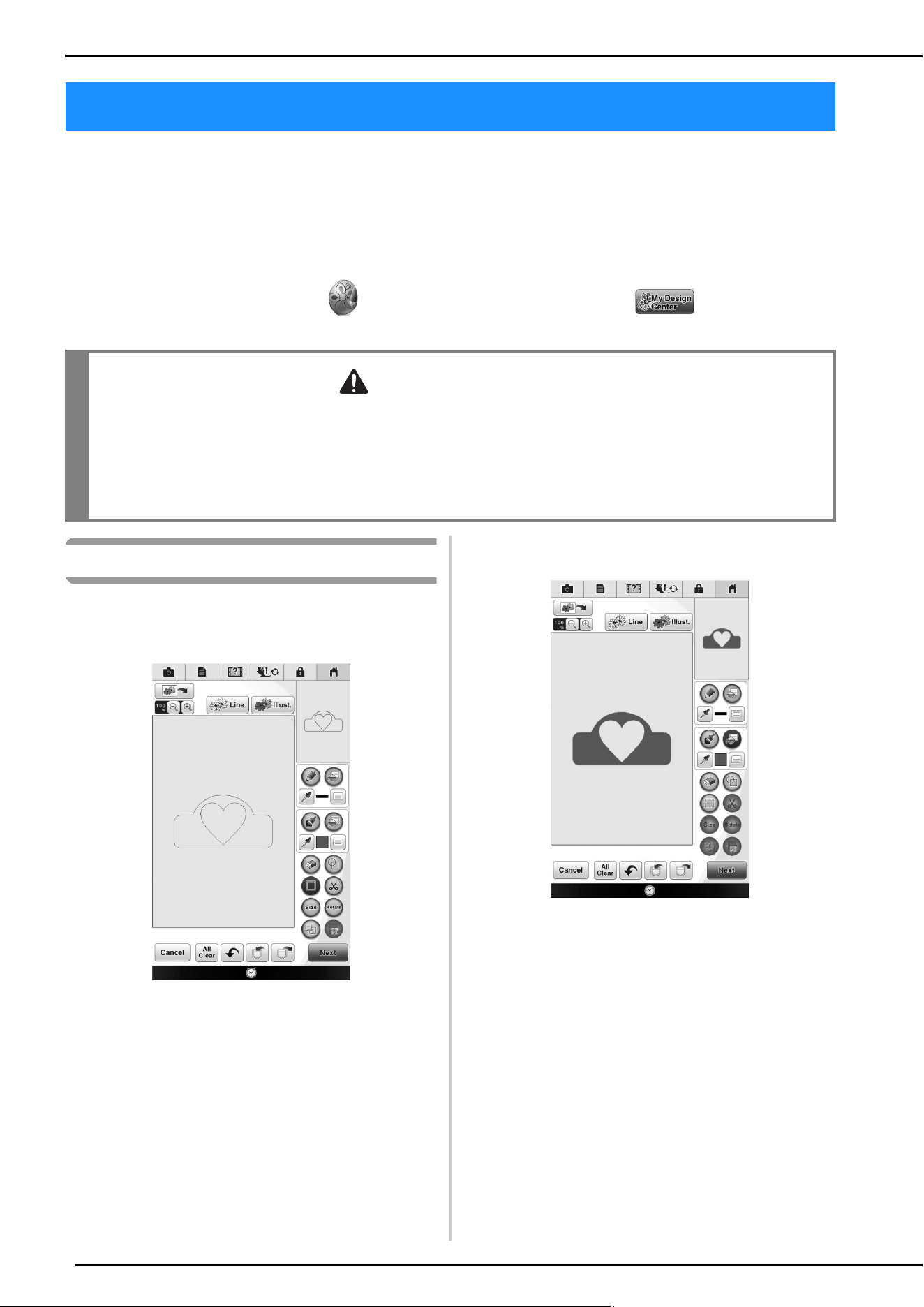
1. Draw a line drawing in the pattern drawing
screen. (page 8)
2. Add color to the pattern.
ABOUT MY DESIGN CENTER
CAUTION
• Only touch the screen with your finger or the pen (stylus) included with the sewing machine. Do not use a
mechanical pencil, screwdriver or any other hard or sharp object. In addition, do not press the screen
with extreme pressure. Otherwise the screen may be damaged.
• All or part of the screen may sometimes become darker or lighter due to changes in the surrounding
temperature or other changes in the environment. This is not a sign of a malfunction. If the screen is
difficult to read, adjust its brightness.
ABOUT MY DESIGN CENTER
4
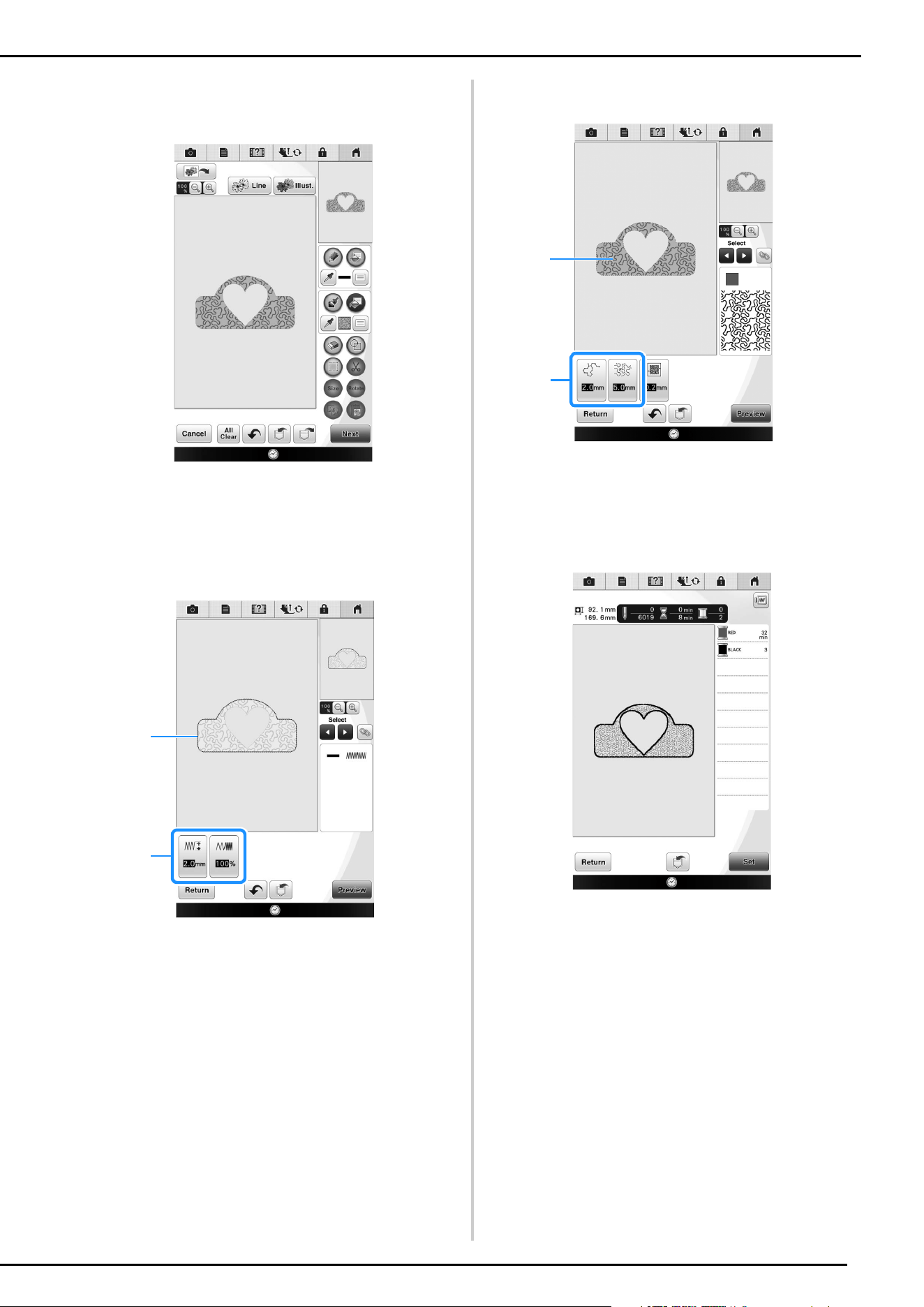
3. Select colors, fill stitches and desired patterns
to complete your design.
4. Specify stitch settings. (page 14)
* Further customize your pattern by specifying
embroidery stitch settings, such as satin stitch width
and density.
a Shows the stitch settings for the selected line.
b Shows the stitch settings for the selected region.
5. Convert image data to embroidery data.
The embroidery image preview screen appears.
(page 17)
a
a
b
b

ABOUT MY DESIGN CENTER
5
6. Edit the pattern in the embroidery edit screen,
for example, by combining it with the machine’s
built-in patterns.
* For details on how to edit the pattern, refer to
“EDITING PATTERNS” in the Operation Manual.
Embroidering begins.
PATTERN DRAWING SCREEN
6
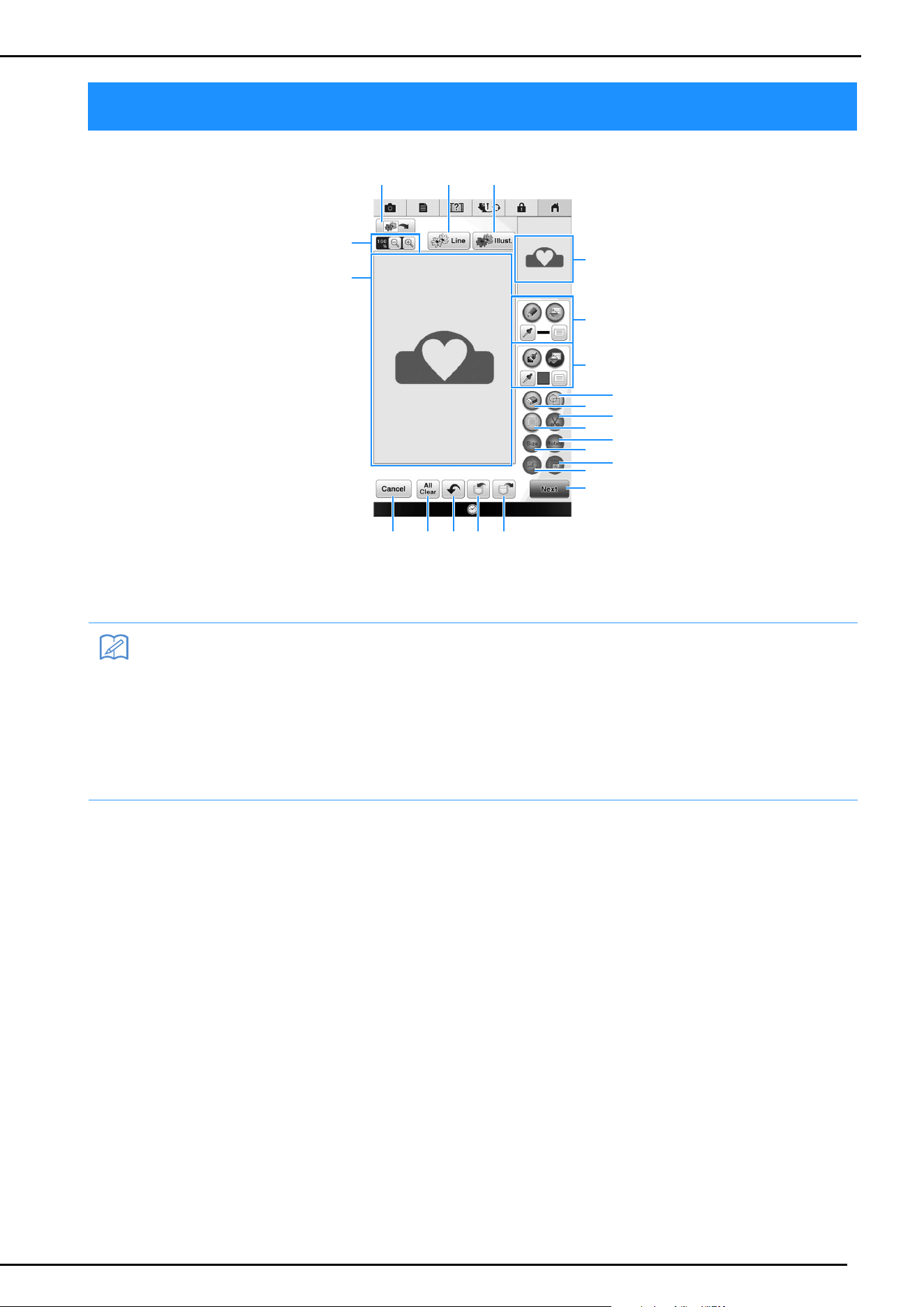
a Pattern drawing area
b Pattern preview area
PATTERN DRAWING SCREEN
Memo
• The actual dimension of the pattern area is the size of the embroidery frame, which is 36 cm × 24 cm
(approx. 14 inches × 9-1/2 inches). The pattern you drew may be bigger than you expected. Please
resize the pattern after converting the design to the embroidery pattern.
• When the pattern is enlarged so that only a part of it appears in the pattern drawing area, the entire
pattern is displayed in the pattern preview area. The red frame in the pattern preview area indicates
the part of the pattern displayed in the pattern drawing area. Move the red frame in the pattern
preview area with the touch pen or your finger to display the corresponding area in the pattern
drawing area.
g
c
v
i
e f
q
h
j
k
l
m
n
u t s r
p
a
d
b
o
PATTERN DRAWING SCREEN
7
■ Key functions
No. Display Key Name Explanation Page
c Magnify key Press this key to magnify the pattern. 10
d Image scan key Press this key to scan the attached frame and display on the screen as
the background while using the My Design Center. You can scan the
fabric as the background or scan the picture as the reference when
creating the pattern.
—
e Line design key Press this key to scan the line drawing to edit and convert to the
embroidery data using the built-in camera. You can also import the line
drawing image from USB media, computer or SD card and create the
embroidery design.
22
f Illustration design key Press this key to scan the illustration to edit and convert to the
embroidery data using the built-in camera. You can also import the
illustration from USB media, computer or SD card and create the
embroidery design.
25
g Line tool key Draw lines and set the color. You can select the line type, stitch type
and color as you need.
Press to pick up the color from a line in the pattern within the
pattern drawing area. The picked up color is shown as the currently
selected line color beside the button and as the selected color in the
Line Property screen.
8
h Brush tool key Paint with brush and set the color. You can select the brush type, fill
type and color as you need. Painted lines and areas will be converted
to the pattern embroidered with fill stitch.
Press to pick up the color from a region in the pattern within the
pattern drawing area. The picked up color is shown as the currently
selected region color beside the button and as the selected color in the
Region Property screen.
10
i Stamp key Press this key to select the stamp shape for pattern drawing. 11
j Erase key Press this key to erase lines and shapes that have been drawn. You
can select the size/shape of the eraser.
12
k Cut key Press this key to cut out the selected section. 13
l Select key Press this key to select a section for moving by finger or pen, copying,
deleting, changing size and rotating lines and shapes that have been
drawn.
13
m Rotate key Press this key to rotate the selected section. 13
n Size key Press this key to change the size of the selected section. 13
o Paste key Press this key to paste in the selected section duplicated with the
duplicate key or a selected section using the cut key.
—
p Duplicate key Press this key to duplicate the selected section. The temporarily
positioned section can immediately be rotated, enlarged, reduced or
moved.
—
q Next key Press this key to continue to the stitch settings screen. —
r Recall key Press this key to recall image data created with My Design Center from
the machine’s memory, USB media, SD card or the computer.
—
s Store key Press this key to store the pattern being created. —
t Undo key Press this key to undo the last operation that was performed and
return to the previous state. Each press of this key will undo one
operation.
—
u All Clear key Press this key to clear all the lines and shapes and start from the
beginning. The background image is also cleared.
—
v Cancel key Press this key to exit from the My Design Center. All lines and shapes
are erased when you press this key.
—
PATTERN DRAWING SCREEN
8
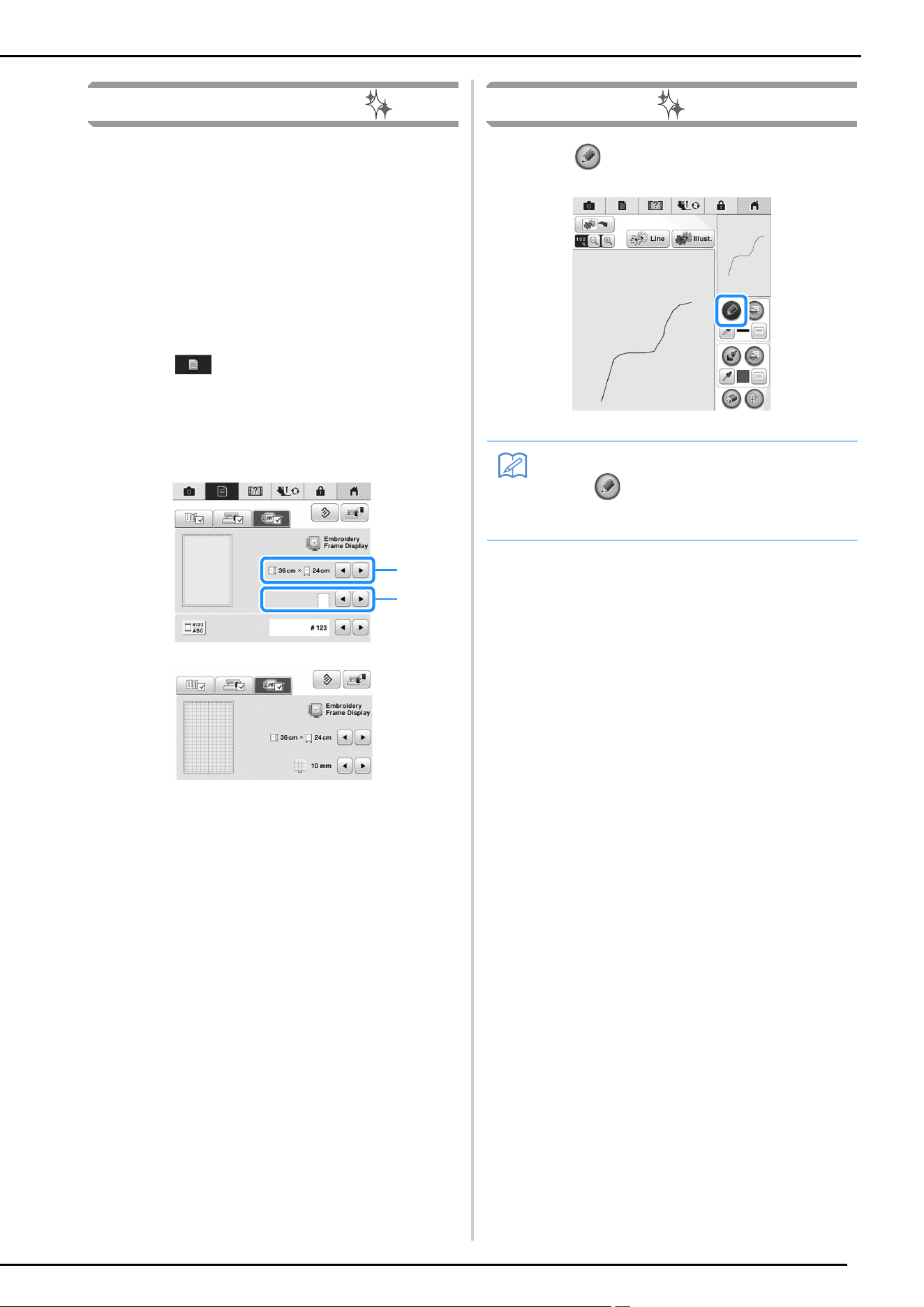
Before Creating Designs
The pattern preview displays the design smaller
than the actual size. You can view the actual
pattern size by setting the “Embroidery Frame
Display”.
With “Embroidery Frame Display” in the settings
screen, the embroidery frame and grid can be
specified separately. For details on the types of
embroidery frames and grids available, refer to
“Changing the Embroidery Frame Display” in the
Operation Manual included with the machine.
a
Press .
b
Select the grid line of the “Embroidery
Frame Display”.
a Embroidery frame types
b Grid types
* Select the grid size 10 mm (3/8 inch) or 25 mm (1
inch).
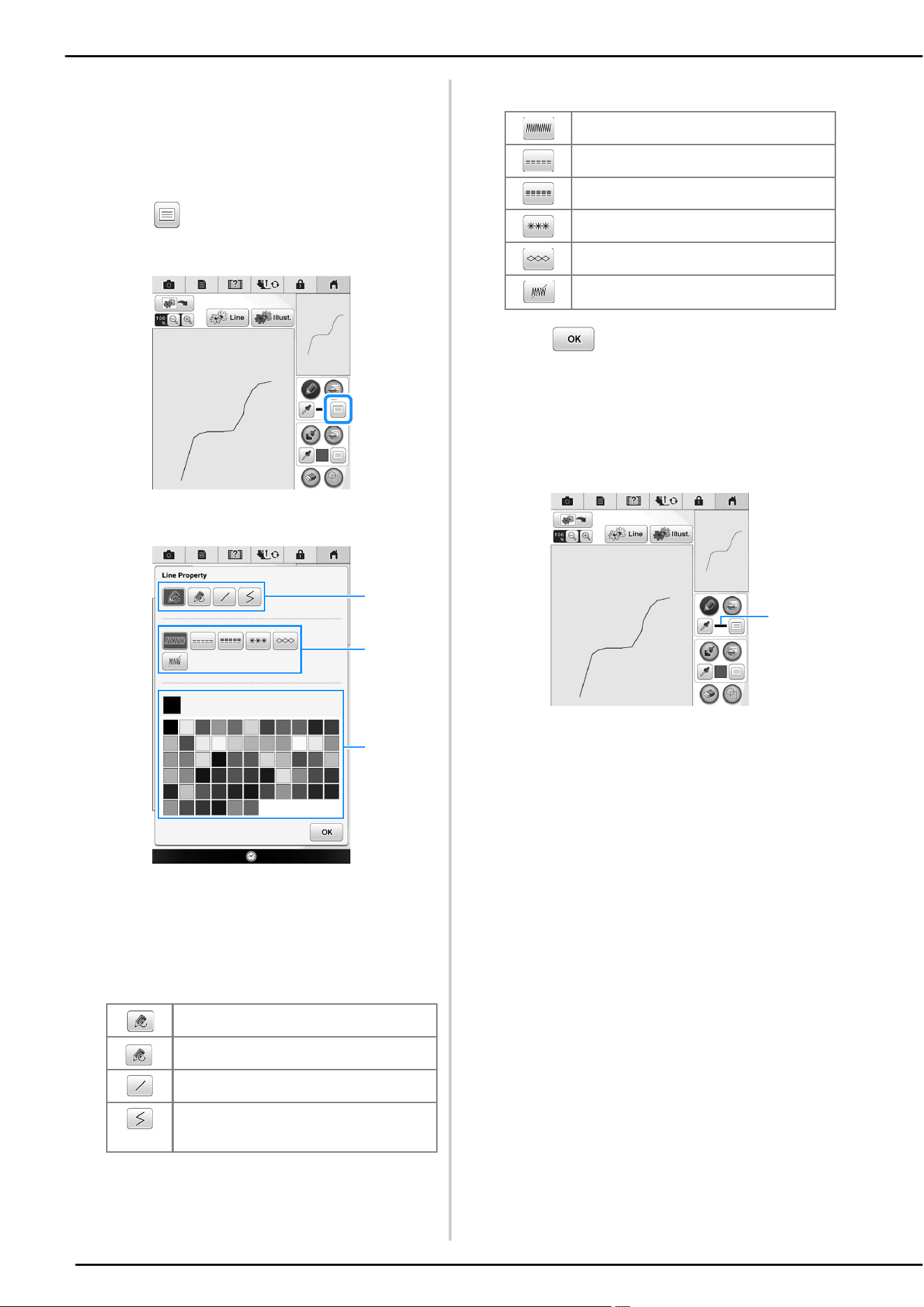
Drawing Lines
a
Press and draw lines.
a
b
Memo
• When is pressed, all regions will be
displayed in the background to clarify the
drawing lines on the screen.
PATTERN DRAWING SCREEN
9
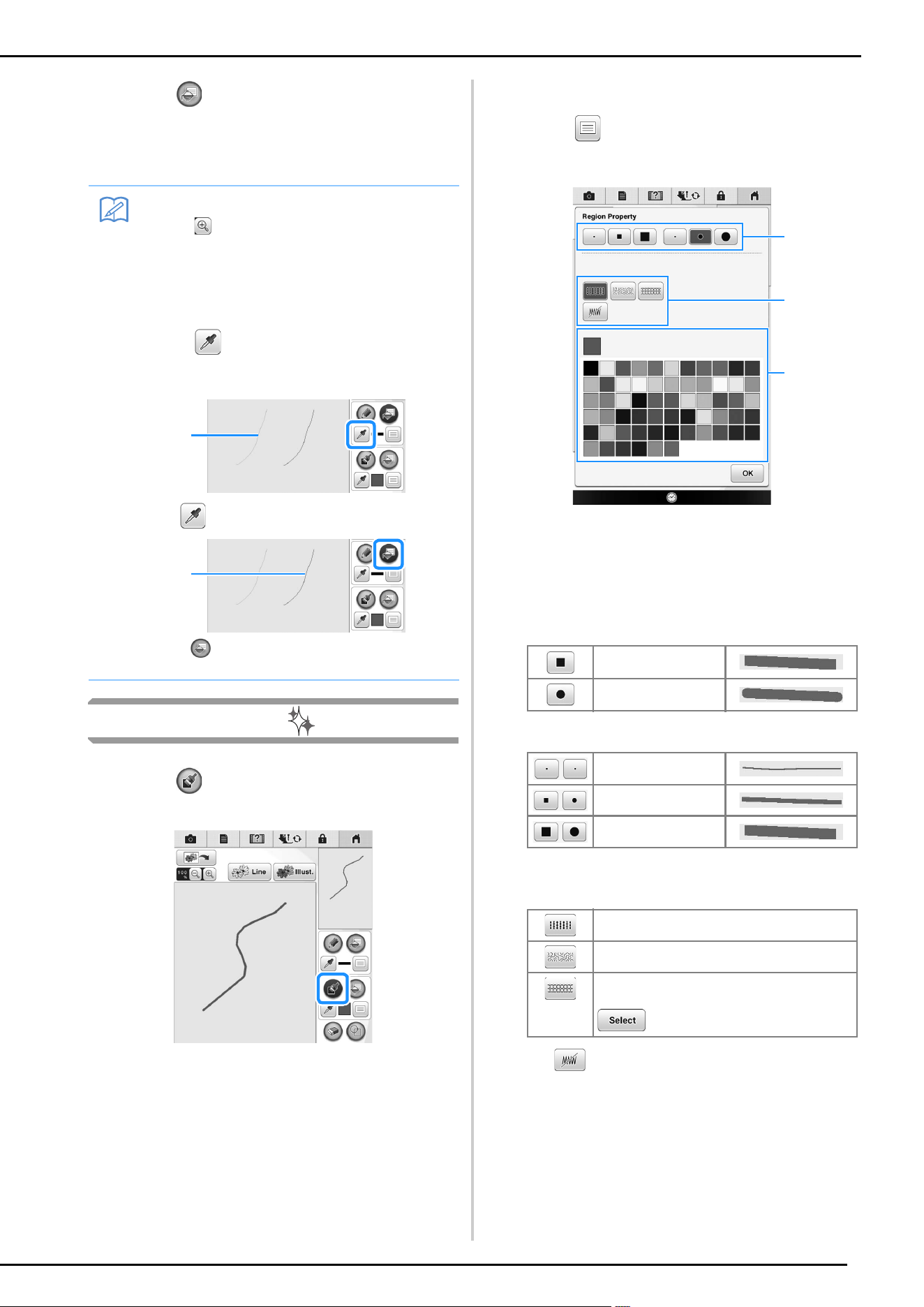
■ Setting the line types, stitch types
and colors
You can set or change the line types, stitch types
and colors anytime. You can also specify the line
types, stitch types and colors before drawing lines.
a
Press to set the line types, stitch types
and colors.
The settings screen appears.
a Line types
b Stitch types
c Line color selection: touch the color palette to
activate the drawing pen color.
Line types
Stitch types
b
Press to return to the pattern
drawing screen.
The color bar on the line tool key is changed to the
selected color.
* The appearance of the line does not change even if
the line type was changed. The specified line type
can be checked in the stitch settings screen.
a Color bar
Freehand line with the end open.
Freehand line closing the end automatically.
Straight line with one stroke
Straight line changing directions to the point
you select. If the end point is created near the
start point, a closed object will be created.
a
c
b
Zigzag stitch
Running stitch
Triple stitch
Candlewicking stitch
Chain stitch
Line without stitch for creating a region.
Created region will be defined by the gray line.
a
PATTERN DRAWING SCREEN
10
c
Press then press on the line to change
its color.
The connected line will be changed to the selected
color.
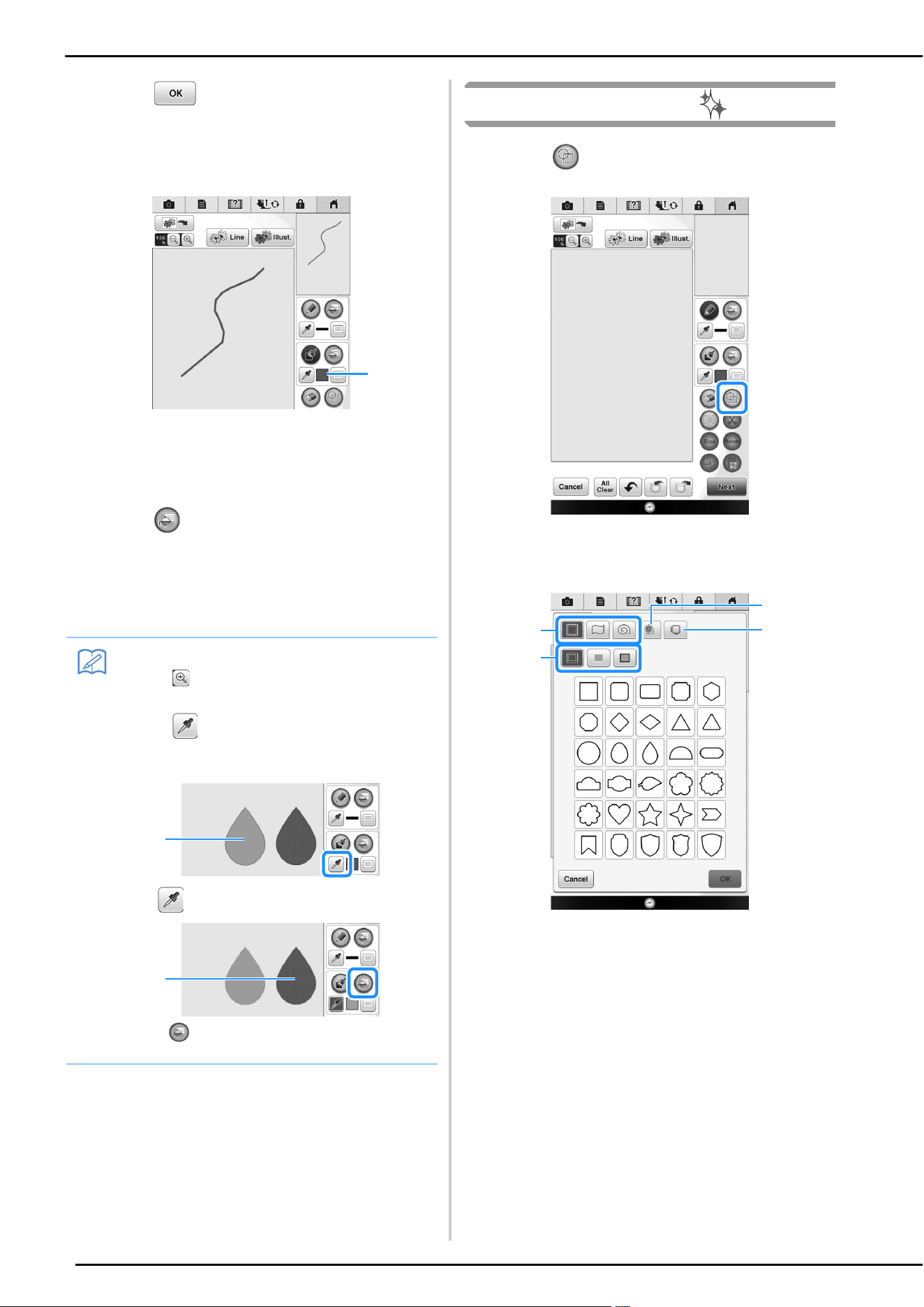
Drawing Regions
a
Press and draw with brush.
■ Setting the brush types and fill colors
a
Press to set the brush types and fill
colors.
a Brush types
b Fill stitch types
c Fill color selection: touch the color palette to
activate the paint brush color.
Brush shapes/sizes
Fill stitch types
Select when you don’t want fill stitch.
Memo
• Press to magnify the image when you
cannot press on the line correctly. For
details on magnify the image, refer to
“Displaying Patterns in the Screen
Magnified” in the Operation Manual
included with the machine.
• Press , and then select a color within
the pattern drawing area to apply the same
color to other lines or parts of the pattern.
a Use to select the line color.
b Press for changing the line color, and then
select the pattern to be changed.
a
b
Square brush
Round brush
Small brush
Medium brush
Large brush
Fill stitch pattern
Stippling pattern
Select decorative fill patterns
Displays a fill pattern selection screen, where
can be pressed to select a pattern.
c
a
b
PATTERN DRAWING SCREEN
11
b
Press to return to the pattern
drawing screen.
The color bar on the brush tool key is changed to the
selected color.
a Color bar
* If a stippling pattern or decorative fill pattern has
been specified, the settings are displayed.
c
Press and press on the brush line to
change color and fill stitch types. You can
also set the fill color, stitch type and fill
pattern of a closed area made of the lines
and brush lines.
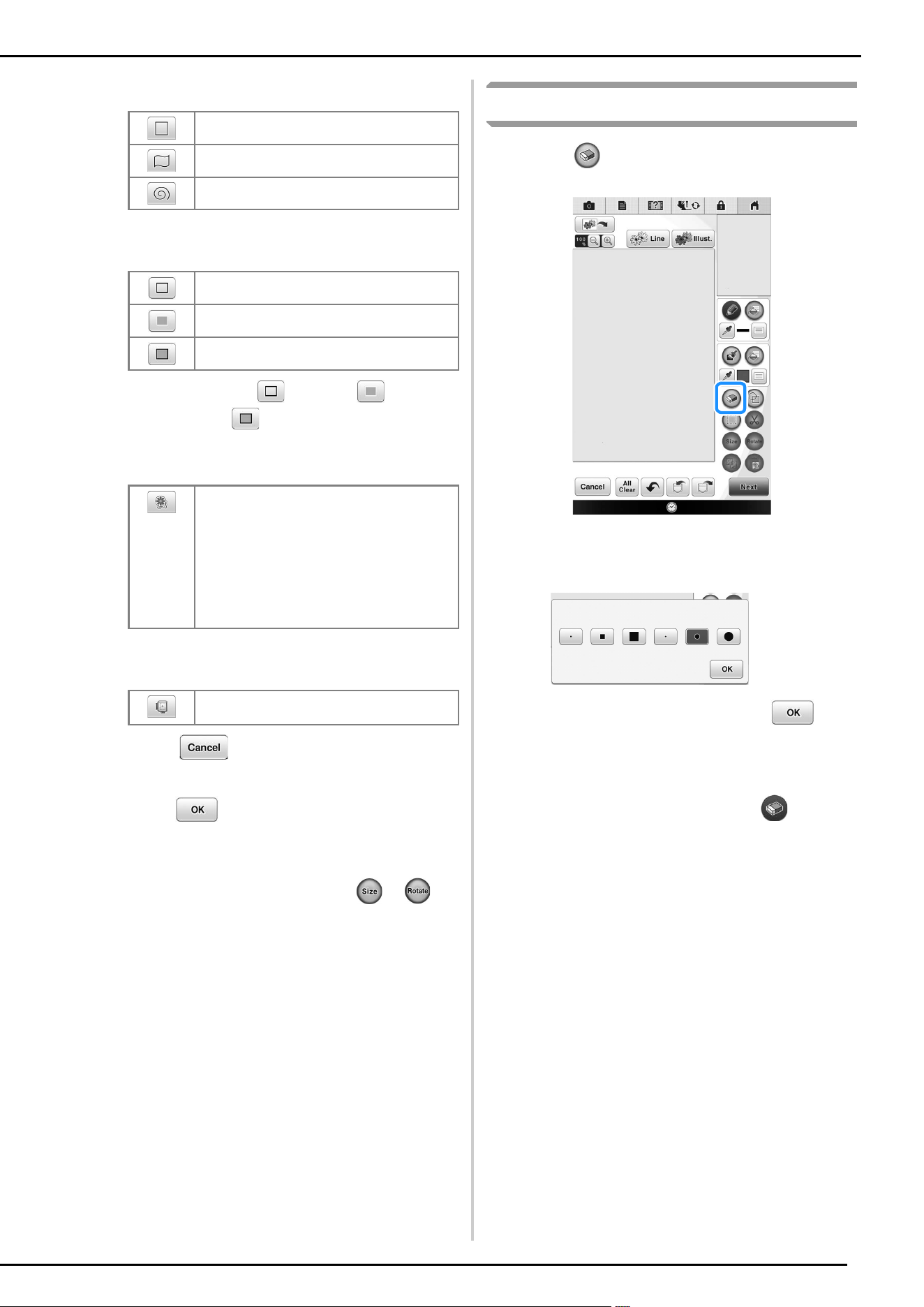
Using the stamp key
a
Press .
b
Select a stamp type and stamp shape.
a Stamp shapes
b Stamp types
c Saved outlines
d Frame embroidering areas
Memo
• Press to magnify the image when you
cannot press on the fill correctly.
• Press , and then select a pattern color in
the pattern drawing area to apply that fill
color to other patterns.
a Use to select the fill color.
b Press for changing the fill color, and then
select the pattern to be changed.
a
a
b
c
b
d
a
PATTERN DRAWING SCREEN
12
Stamp shapes
Stamp types (Only for Basic shapes)
* Select the outline ( ), fill stitch ( ), or outline
and fill stitch ( ) of a basic shape.
Saved outlines
Frame embroidering areas
* Press to return to the pattern drawing
screen.
c
Press to set the selected stamp.
The pattern drawing screen is displayed.
* You can change size of, rotate or move the shape
right after you create it by pressing or .
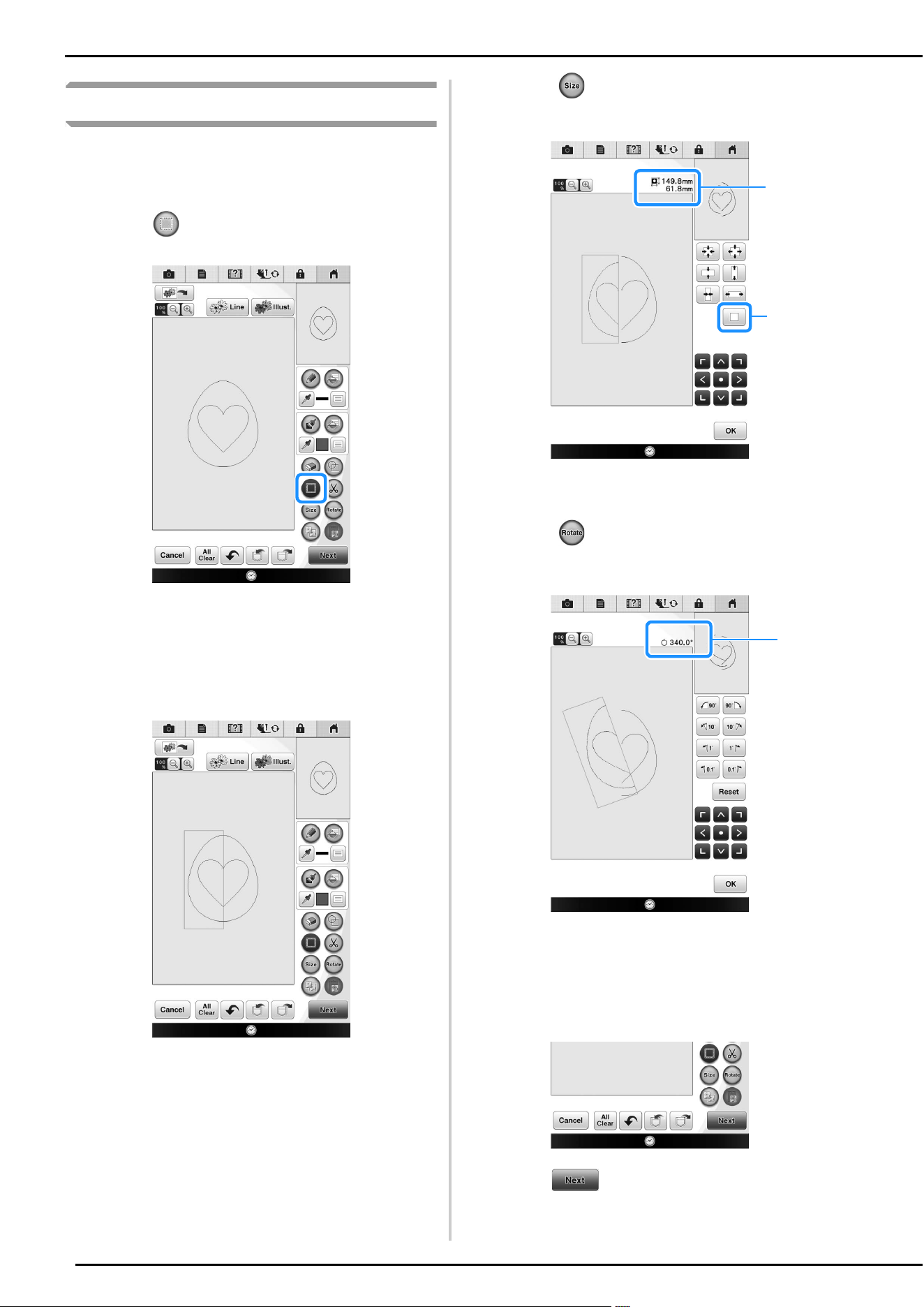
Using the erase key
a
Press .
b
Select the size and shape of the eraser.
* If the selected key will be used, press .
The pattern drawing screen is displayed.
c
Drag along the area or line that you want to
erase while the key appears as .
Basic shapes
Closed shapes
Open shapes
Outline
Fill stitch
Outline and fill stitch
Embroidery pattern outlines can be registered
as stamp shapes. When registering stamp
shapes, select from the last six embroidery
patterns used. If more than six shapes are
registered, the oldest one is automatically
erased. For details on registering a stamp
shape, refer to “Decorative stitching around a
pattern in embroidery (a quilting function)” on
page 38.
Select an embroidering area in order to
arrange the pattern to fit an embroidery frame.
PATTERN DRAWING SCREEN
13
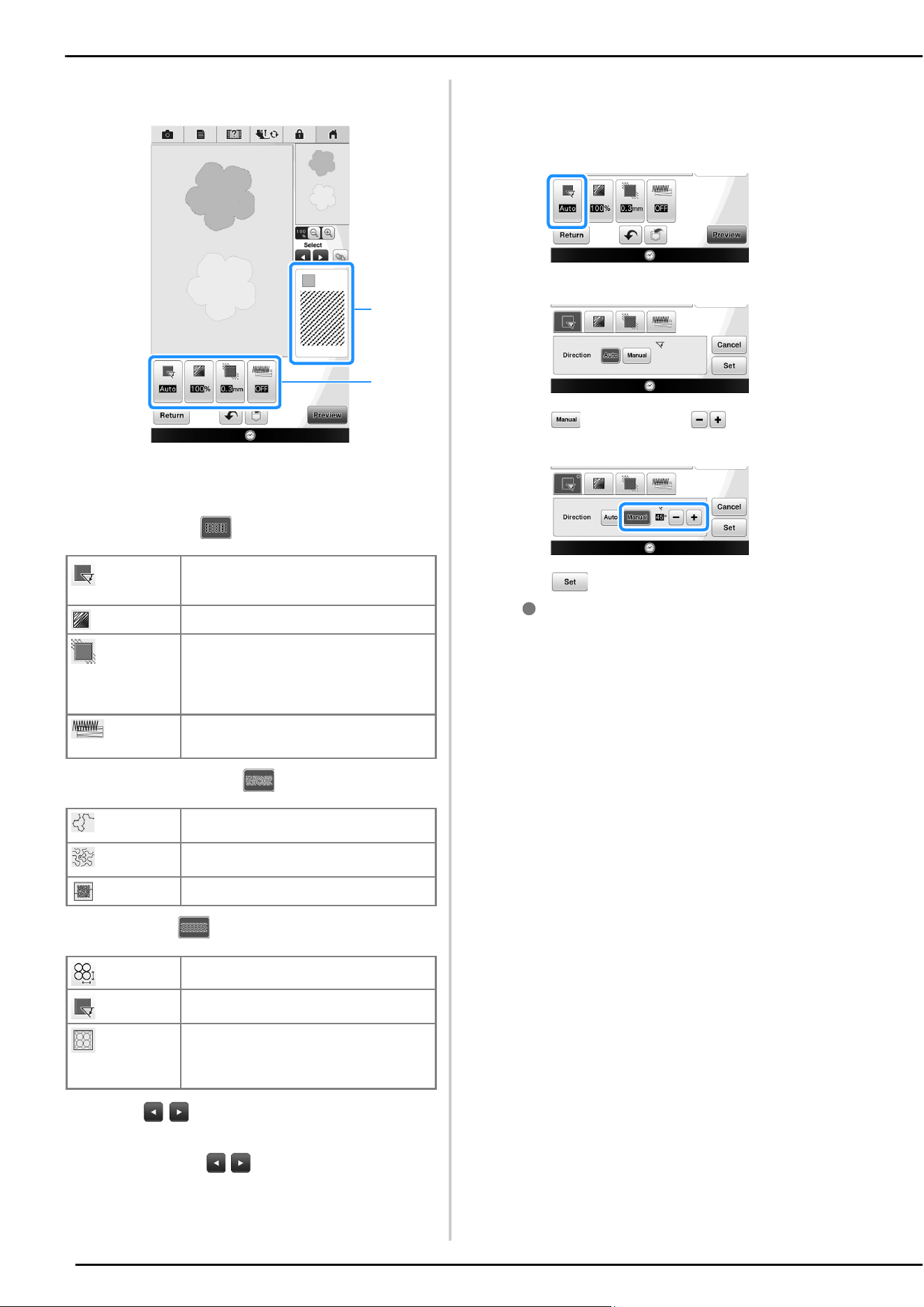
Using the select key
You can select the part of the design to move and/
or edit. Some keys are available only after you
select the part.
a
Press .
b
Select the area you want to edit.
* To select an area you want to edit, hold the stylus at
a point on the screen and drag the stylus to create
the red box around your selected area to be edited.
c
When is pressed, the pattern size is
displayed in the screen.
a Shows the size for the selected the part.
b Reverts to the original size.
d
When is pressed, the pattern rotation
angle is displayed in the screen.
c Shows the angle for the selected part.
e
Edit the design with available keys. (See
“Key functions” on page 7 for the details of
each key function.)
f
Press , and then specify the stitch
setting.
a
b
c

STITCH SETTINGS SCREEN
14
Before creating the embroidery pattern, specify the stitch settings. Lines of the design are sewn with
various stitches and areas are sewn with fill stitches or stippling stitches. Stitching of the areas was already
selected in “Drawing Regions” on page 10, so specify values of detailed settings.
After specifying the settings, press to create the embroidery pattern.
If the design data is saved, the settings can be changed after a trial embroidering.
Specifying individual stitch
settings
Select a pattern in the stitch settings screen to
specify its line and region stitch settings. If multiple
patterns are selected, the settings are applied to
those patterns.
■ Line settings
a Shows the stitch type and color for the selected
line.
b Shows the stitch settings for the selected line.
Line sew stitch settings
Select the type of stitching you want applied to your
line art, from zigzag stitch ( ), running stitch
( ), triple stitch ( ), candlewicking stitch
or chain stitch .
Zigzag stitch
Running stitch /Triple stitch
* Both includes an under sewing.
Candlewicking Stitch
Chain stitch
STITCH SETTINGS SCREEN
a
b
Zigzag width
Specifies the width of the zigzag stitches
used to sew the lines of the design.
Density
Specifies the density of the zigzag stitches
used to sew the lines of the design.
Run pitch
Specifies the length of the straight stitch of
the design.
Size
Increases/reduces the size of the pattern.
Spacing
Specifies the spacing of the candlewicking
stitch.
Size
Increases/reduces the size of the pattern.
Repetition
Sets repeated sewing at the same part.
STITCH SETTINGS SCREEN
15
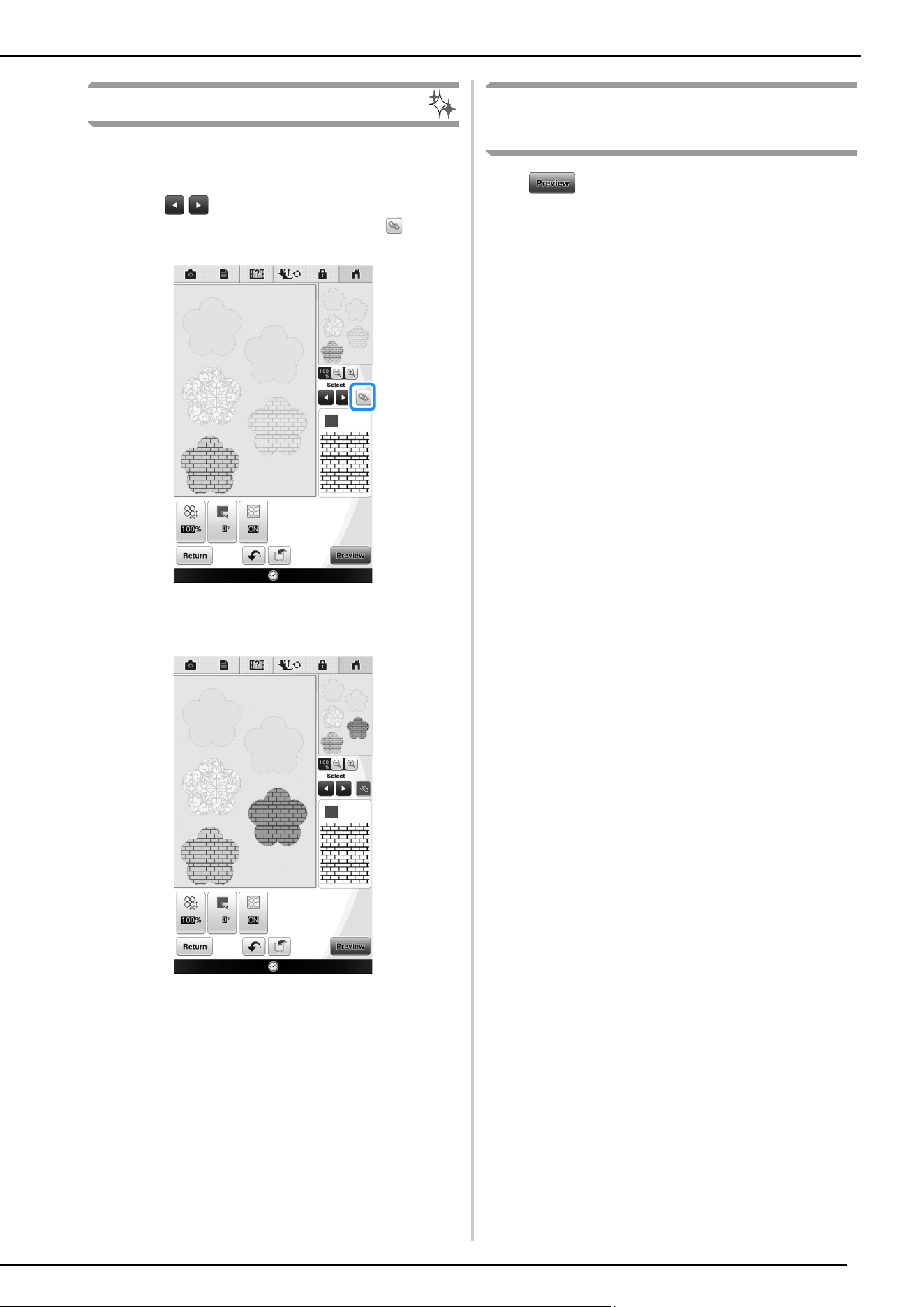
■ Region settings
a Shows the stitch type and color for the selected
region.
b Shows the stitch settings for the selected region.
Fill stitch settings
Stippling stitch settings
Decorative fill
a
Use to select the line or region to be
changed.
Each press of moves the highlighting of the
selected pattern in order.
b
Select the setting to be changed, and then
change the setting in the screen that
appears. (In this example, the sewing
direction will be changed.)
The setting screen appears.
c
Press , and then use to change the
direction.
d
Press to apply the setting.
* appears on the tab for settings that were changed.
* Change other settings in the same way.
Direction
Specifies the sewing direction. Select
“Manual” to change to the desired direction
of fill stitch.
Density
Specifies the stitch density of fill stitch.
Pull
compensation
Specifies to correct the shrinkage of the
pattern by slightly shortening or lengthening
the stitching. Change the setting after you
embroider the pattern and can check the
shrinkage.
Under
sewing
Select if you need or do not need the under
sewing for the stabilized fabric.
Run pitch
Specifies the length of a stitch of the
stippling stitch.
Spacing
Specifies the spacing between the stitches
when embroidering the stippling stitch.
Distance
Specifies the offset from the pattern outline.
Size
Increases/reduces the size of the pattern.
Direction
Specifies the rotation angle of the pattern.
Outline
Select whether (ON) or (OFF) the outline is
also converted to embroidery data. If “ON” is
selected, the number of thread jumps can be
reduced.
a
b
STITCH SETTINGS SCREEN
16
Specifying global stitch settings
The same stitch settings can be changed at the
same time for multiple patterns of the same type.
a
Use
to select the stitch whose settings
are to be changed, and then press .
The same stitch type areas will be selected at the
same time.
b
Follow steps b through d in “Specifying
individual stitch settings” on page 15 to
change the settings.
After specifying the settings
generate embroidery pattern
Press to create the embroidery pattern.
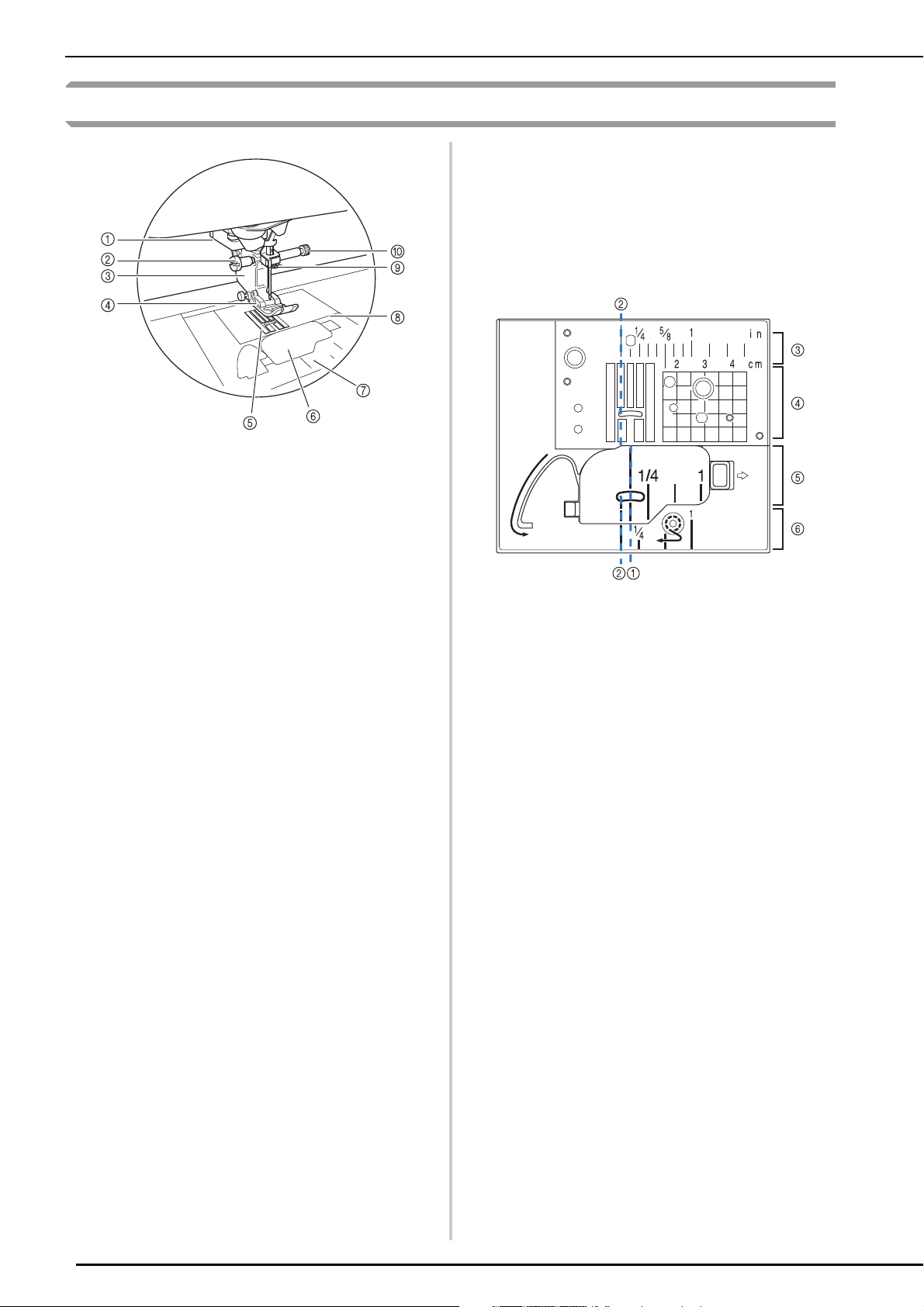
EMBROIDERY IMAGE PREVIEW SCREEN
17
You can check the total stitch number, embroidery time and spool thread color number to embroider the
pattern. Press to check the pattern image within the embroidery frame.
Press to proceed to the embroidery edit screen.
Press to save the pattern as the embroidering data.
Press to return to the stitch settings screen.
EMBROIDERY IMAGE PREVIEW SCREEN
Note
• Once you proceed to the embroidery edit screen, you cannot return to the My Design Center.
MY DESIGN CENTER WITH SCAN
18
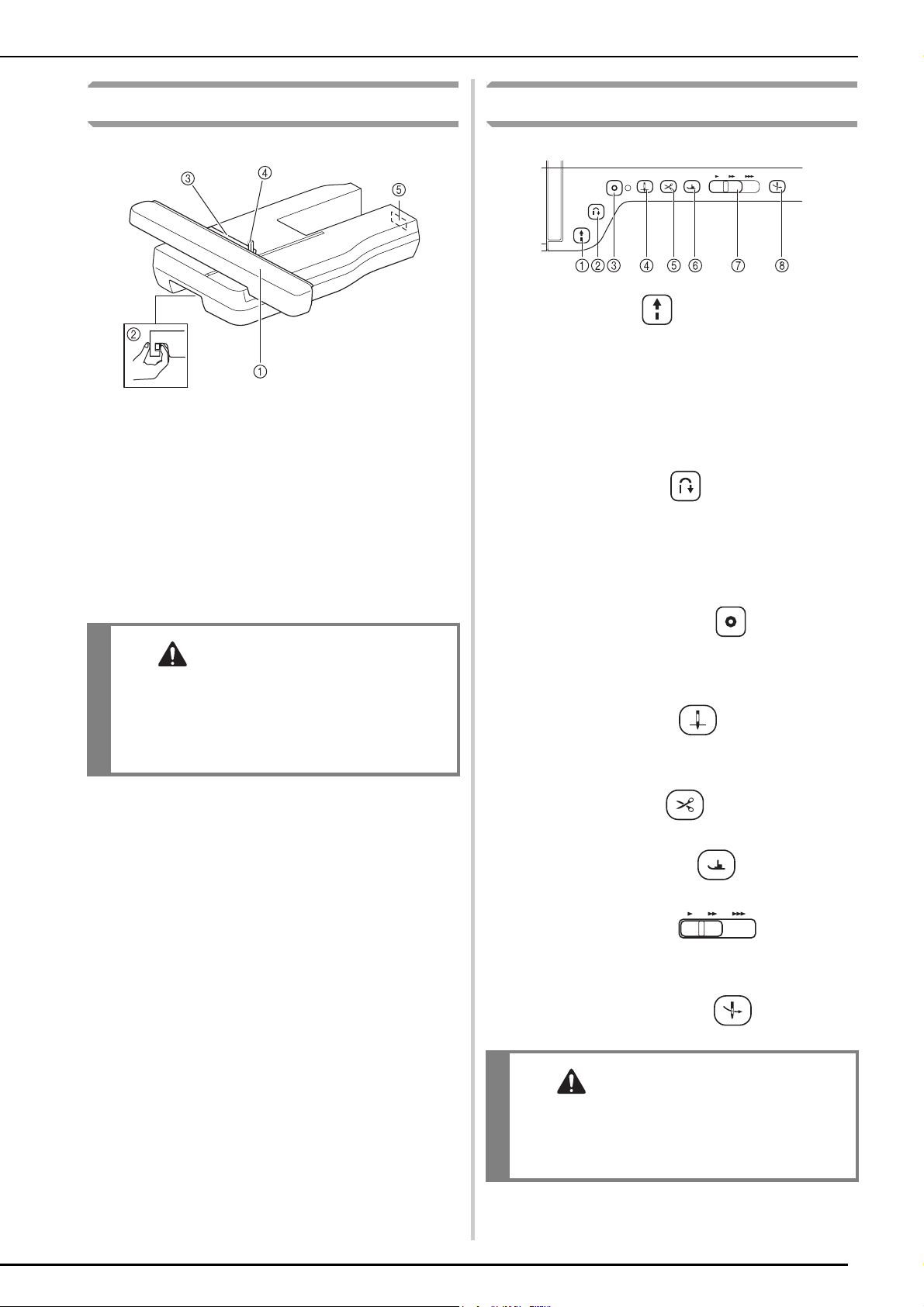
Using the Scanning Frame
a
Prepare the desired drawing/illustration.
b
Place the paper to be scanned in the
scanning frame, and then secure the paper
in place with the magnets.
* Place the magnets at six locations around the paper
to secure it, making sure that the line drawing is not
covered.
MY DESIGN CENTER WITH SCAN
CAUTION
• To avoid having the embroidery foot strike the
frame during the scanning process and
possibly causing injury, check the following:
the thickness of the fabric or paper, creases or
folds in the fabric or paper that may be rolled
up too close to the frame.
Memo
• Only one sheet of paper can be placed in
the scanning frame per scan.
Note
• When placing the paper in the scanning
frame, make sure that the white balance
area is not hidden; otherwise, the drawing
cannot be scanned correctly. At the same
time, be sure to place the scan image within
the scan area. The image out of the scan
area will not be scanned.
a White balance area
b Scan area
• Make sure that the white balance area or
the scan area is not dirty or scratched;
otherwise, the image cannot be scanned
correctly.
• Be sure to use the magnets which are
included with the scanning frame. If any
other magnets are used, they may become
attached to the machine during scanning, or
other problems, such as a misaligned scan
image, may occur.
• Be sure to place the magnets so that they
secure the paper firmly. If the paper is
placed unevenly, the image cannot be
scanned correctly.
• If the scanning frame is dirty, wipe it with a
cloth dampened with a diluted neutral
detergent solution.
Memo
• If you want to scan an image from a small
piece of paper that can't be held with the
magnets, copy that image onto a larger
piece of paper, to then be placed on the
scanning frame.
MY DESIGN CENTER WITH SCAN
19
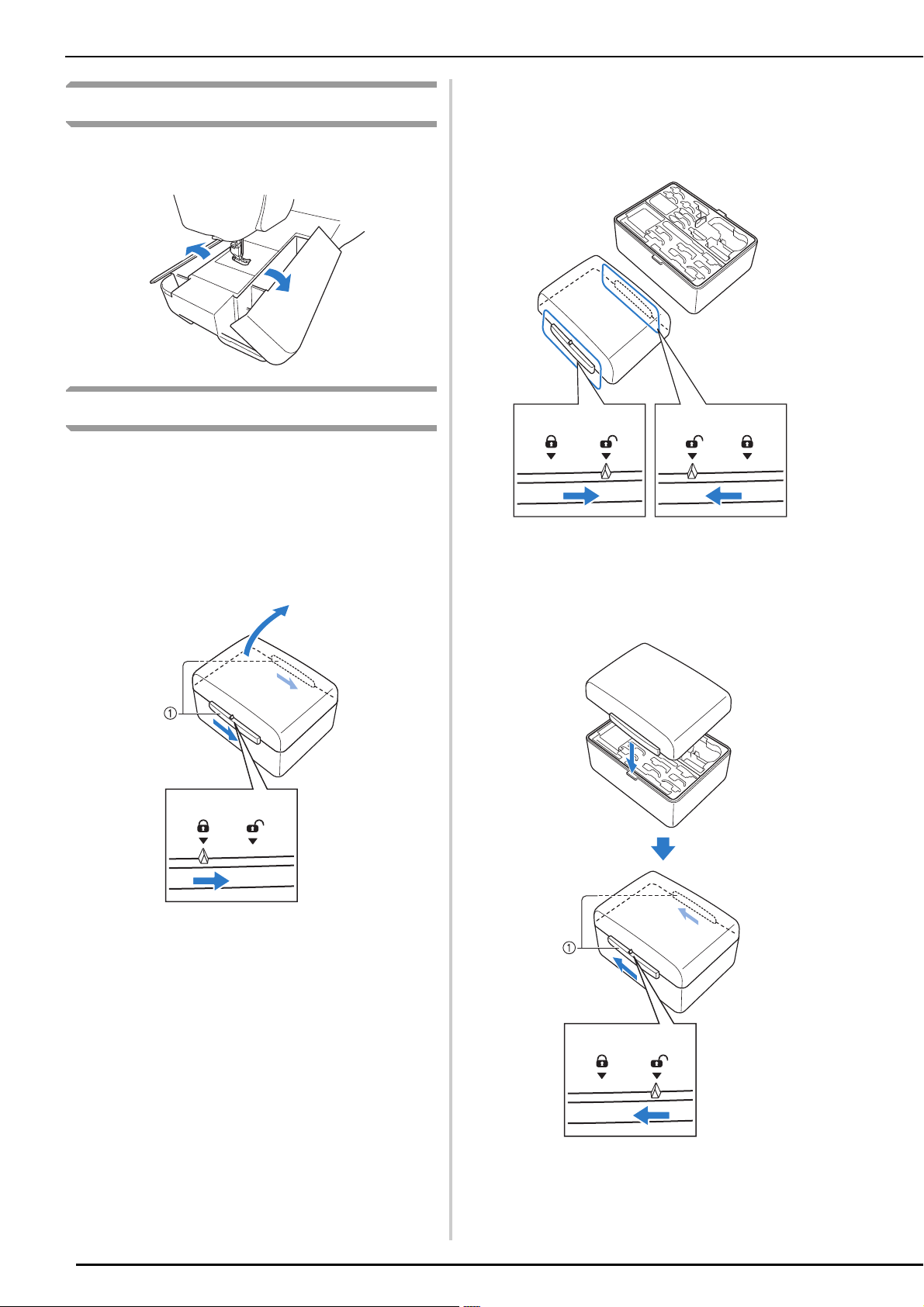
c
Attach the embroidery unit to the machine,
and then turn on the machine.
* Refer to “Attaching the Embroidery Unit” in the
Operation Manual included with the machine.
d
Press the “Presser Foot Lifter” button to
raise the presser foot, and then press the
“Needle Position” button to raise the
needle.
* The presser foot is not raised high enough when
raised with the presser foot lever.
e
After attaching the scanning frame to the
embroidery unit, swing the frame-securing
lever toward you to secure the frame.
* Refer to “ATTACHING THE EMBROIDERY FRAME”
in the Operation Manual included with the
machine.
■ Scanning with an Embroidery Frame
Drawings and illustrations can also be scanned
using an embroidery frame. Hoop the embroidery
frame with fabric larger than the frame. Place the
paper to be scanned on the fabric, and then secure
it, with tape.
a Fabric
b Tape
Scanning to Trace Background
Image
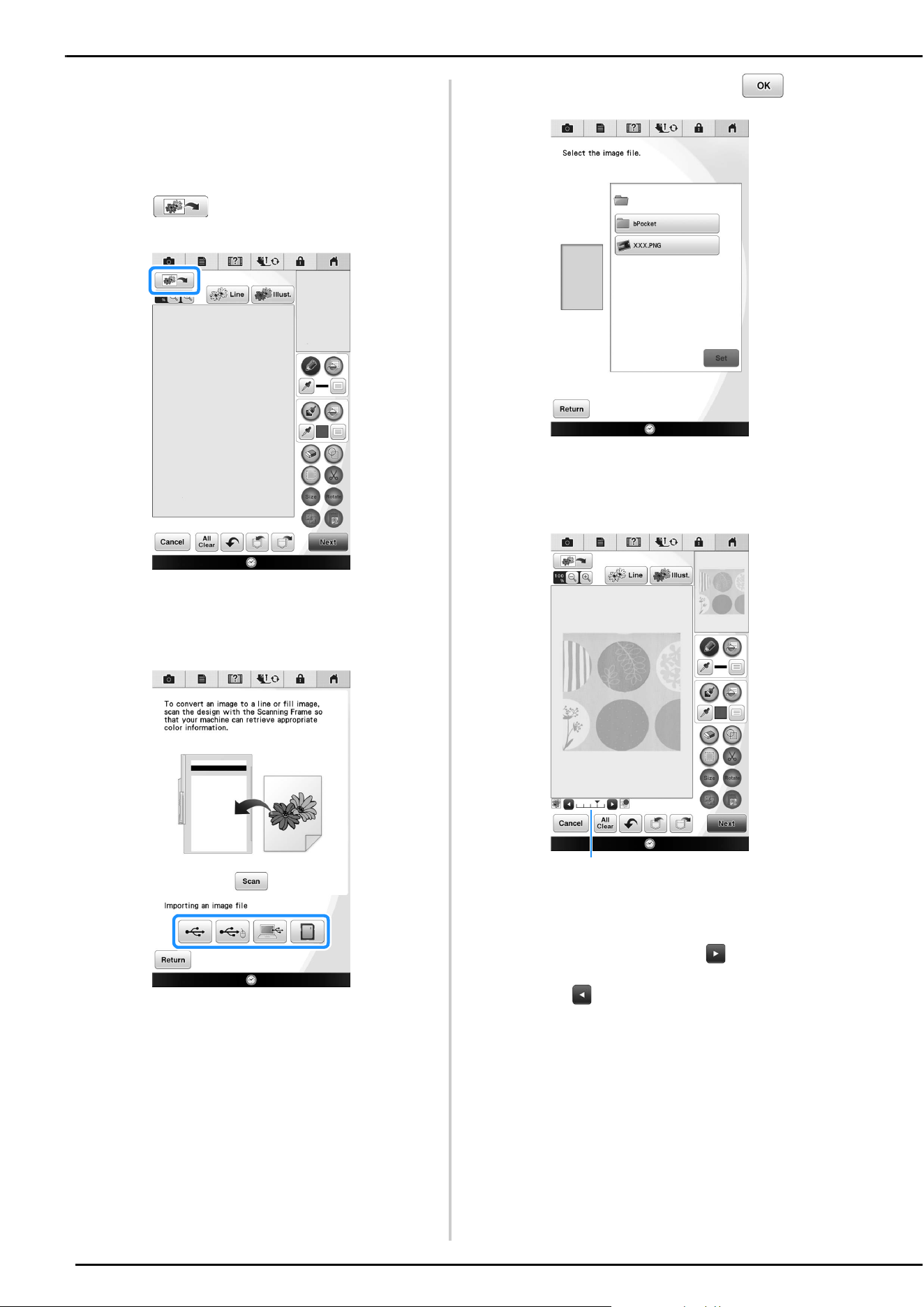
If you have a favorite picture or drawing, it can
easily be traced on the scanned background image
and you can create your own pattern.
a
Press .
The image display screen appears.
Note
• Unthread the machine to avoid having the
thread slipping out of the needle or getting
caught on the embroidery frame.
CAUTION
• Make sure that presser foot and needle are
fully raised. If scanning is started with the
presser foot and needle lowered, the scanning
frame may hit the machine, causing damage.
Note
• Be sure not to attach any presser foot other
than the embroidery foot “W+” or “W”,
otherwise the presser foot will be scanned.
MY DESIGN CENTER WITH SCAN
20
b
Using the magnets, affix a picture to the
scanning frame and attach the frame to the
machine. Refer to “Using the Scanning
Frame” on page 18.
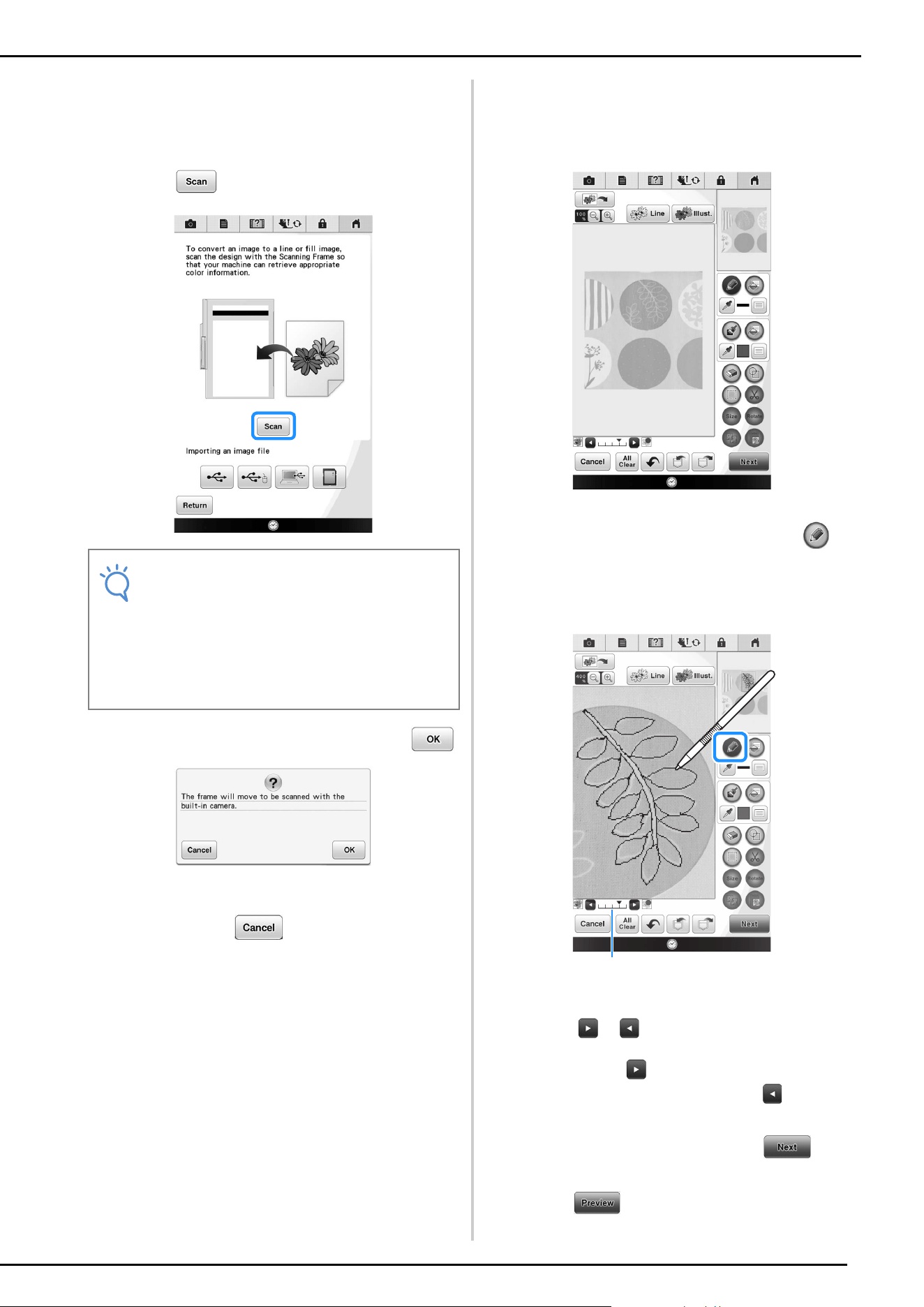
c
Press .
When the following message appears, press .
Scanning begins.
* To stop scanning and return to the screen in
step
c, press .
d
When scanning is finished, scanned image is
displayed transparently in the pattern
drawing area.
e
Using the included touch pen, press ,
and then draw lines to trace the image.
* For details on drawing lines, refer to “Drawing
Lines” on page 8.
a Transparency adjustment
* Press or to adjust the transparency of the
background.
Each press of lightens the background, making
the line pattern darker. Each press of darkens the
background, making the line pattern lighter.
f
After editing the pattern, press to
specify the settings for pattern.
g
Press to create the embroidery
pattern.
Note
• When scanning starts, some of the machine
lights will turn off in certain circumstances,
in order to increase the scan quality. The
machine lights will return to their original
brightness when scanning ends.
• You can import an image of 2 MB or smaller
from USB media, computer or SD card.
a
MY DESIGN CENTER WITH SCAN
21
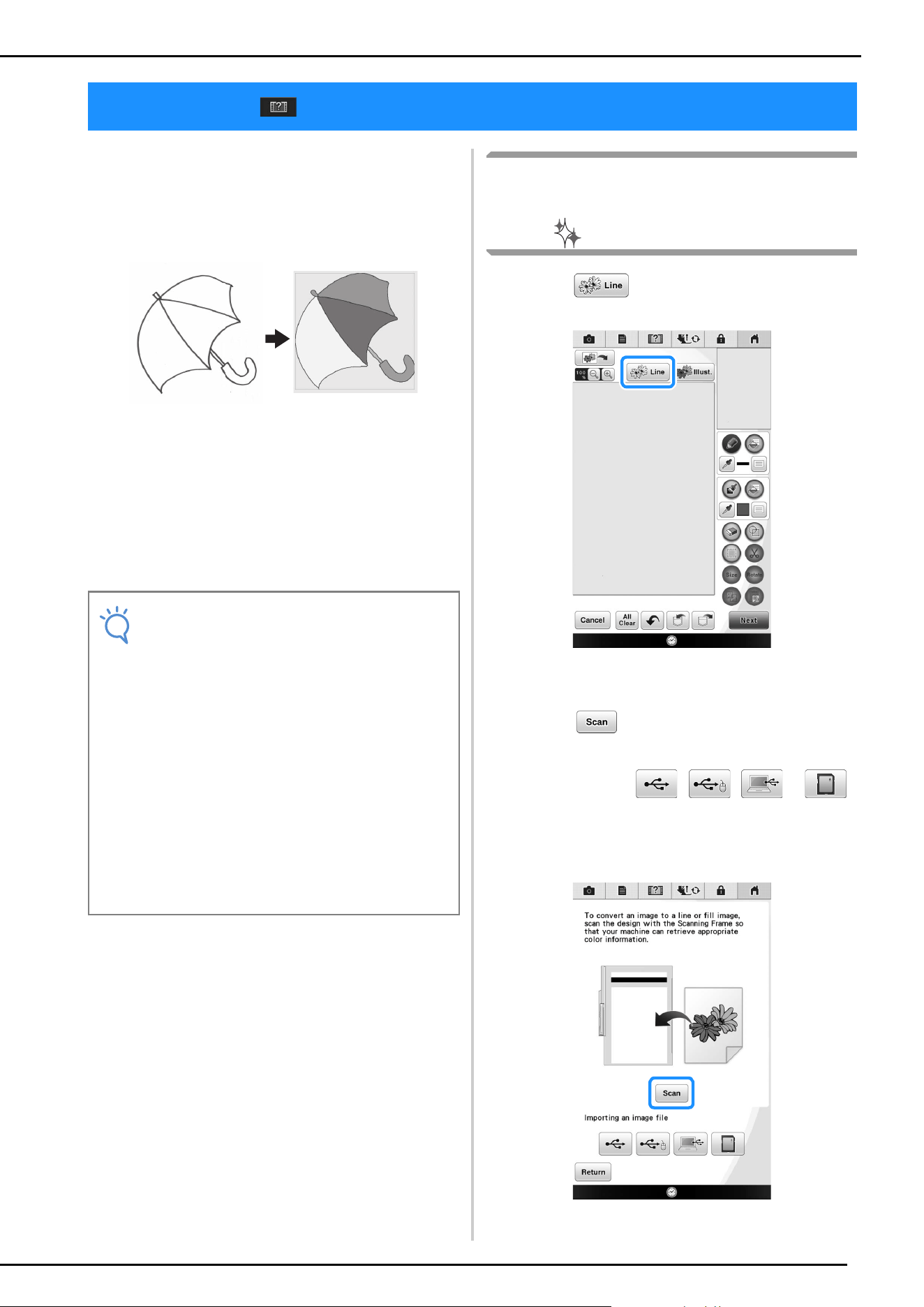
■ Importing the Background image
Prepare the data file of your favorite picture so that
you can create an embroidery pattern. Save data as
a .jpg file type in your computer, on a USB media
stick or SD card.
a
Press .
The image display screen appears.
b
Select the device you saved the data to.
c
Select the data, and then press .
d
The selected image is displayed
transparently in the pattern drawing area.
* After the scanned image is converted to stitching, it
appears as a background in the pattern drawing
screen. Use gauge a to adjust the transparency of
the background. Each press of lightens the
background, making the line pattern darker. Each
press of darkens the background, making the
line pattern lighter.
a
LINE SCAN
22
Custom patterns can be created from drawings.
You can create patterns by scanning your
drawings using the included scanning frame or
importing an image from USB media, computer or
SD card.
Recommended line drawings for Line Scan
• Line drawings must be drawn clearly using lines
with approximately 1 mm thickness.
• Line drawings should be drawn in a strong
contrast.
• If the lines are too short or gathered too densely,
they will not be scanned correctly.
Using the Scanning Frame to
Create a Pattern with Line
Scan
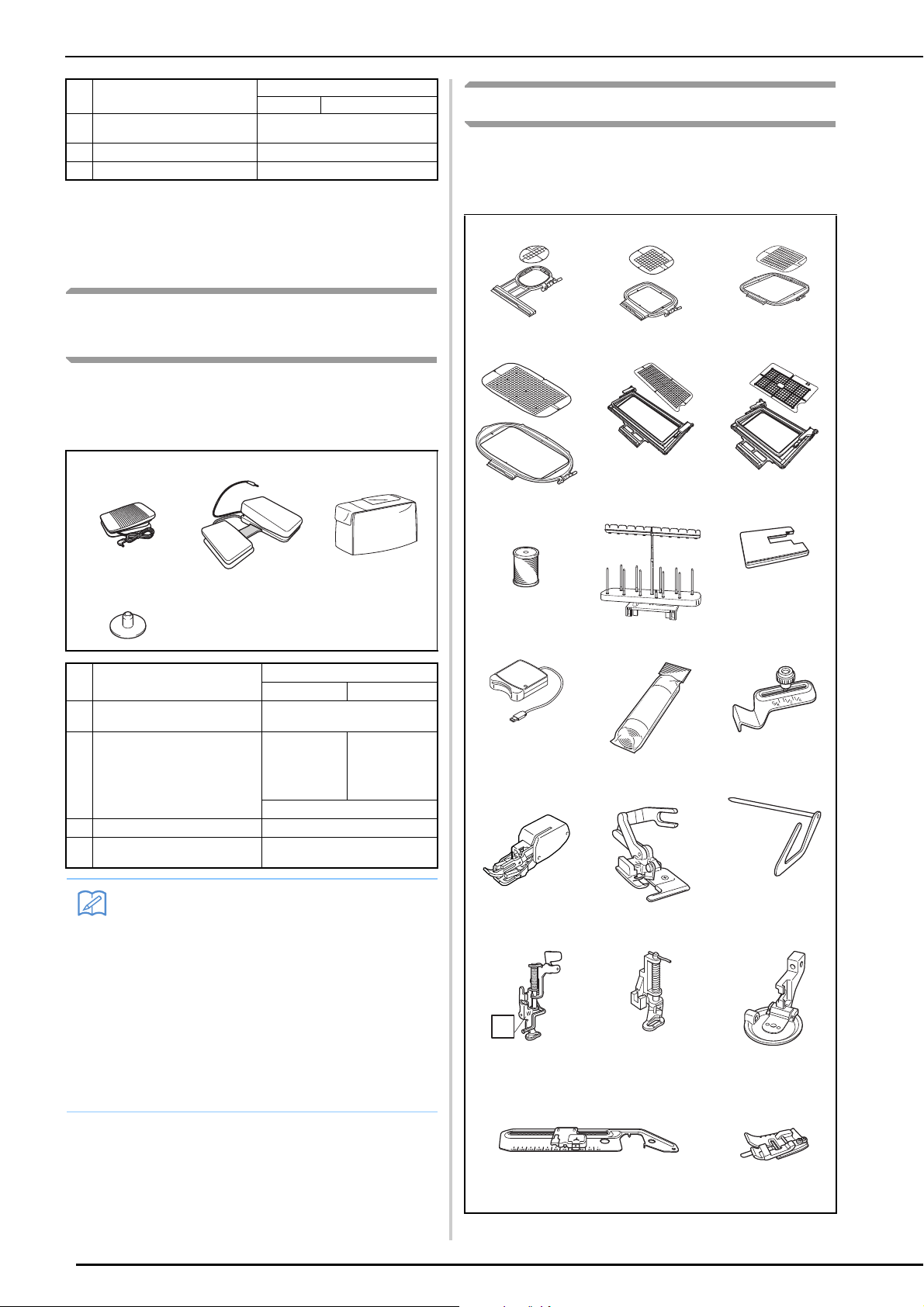
a
Press .
The image display screen appears.
b
Press .
* To import an image from USB media, computer or
SD card, press , , or .
For details, refer to page 21.
* If you scan the image, make sure that the scanning
frame is attached to the machine. Refer to “Using
the Scanning Frame” on page 18.
LINE SCAN
Note
• For details on creating patterns using color
illustrations, refer to “ILLUSTRATION
SCAN” on page 25.
• If you cannot scan the drawings as
expected, you can edit the design in the My
Design Center. Refer to “PATTERN
DRAWING SCREEN” on page 6.
• Line drawings are scanned without
recognizing the thickness of lines. If you
want to change the thickness of lines,
specify in the Settings screen. Refer to
“STITCH SETTINGS SCREEN” on page 14.
• Line drawings are scanned as black lines. If
you want to change the colors, specify in
the My Design Center. Refer to “Drawing
Regions” on page 10.
LINE SCAN
23
When the following message appears, press .
Scanning begins.
* To stop scanning and return to the screen in
step
b, press .
c
When scanning is finished, specify the
“Gray-Scale Detection level” on the screen
if necessary.
The “Gray-Scale Detection level” can change the
black and white threshold for the image.
* If you do not know how the settings should be
changed, first continue the operation without
specifying settings and check the results.
* To stop scanning and return to the screen in
step
b, press . The scanned image will be
deleted when you return to the previous screen.
d
Move to frame the image for the
pattern.
e
Press .
The screen for confirming the converted image
appears.
f
In the screen for confirming the converted
image, you can adjust the “Gray-Scale
Detection level” again, if necessary.
a The settings for the lines to be sewn appear.
* If you do not know how the settings should be
changed, first continue the operation without
specifying settings and check the results.
* To enlarge the image, press .
* To display the image before being converted, press
. Compare the images before and after
being converted, and then change the settings if
necessary.
* To return to the previous screen, press .
After changes to the settings for “Detection level” is
applied, changes to . Press
to check that the image is as desired.
g
Press .
The pattern drawing screen is displayed.
Note
• When scanning starts, some of the machine
lights will turn off in certain circumstances,
in order to increase the scan quality. The
machine lights will return to their original
brightness when scanning ends.
• You can import an image of 2 MB or smaller
from USB media, computer or SD card.
a
LINE SCAN
24
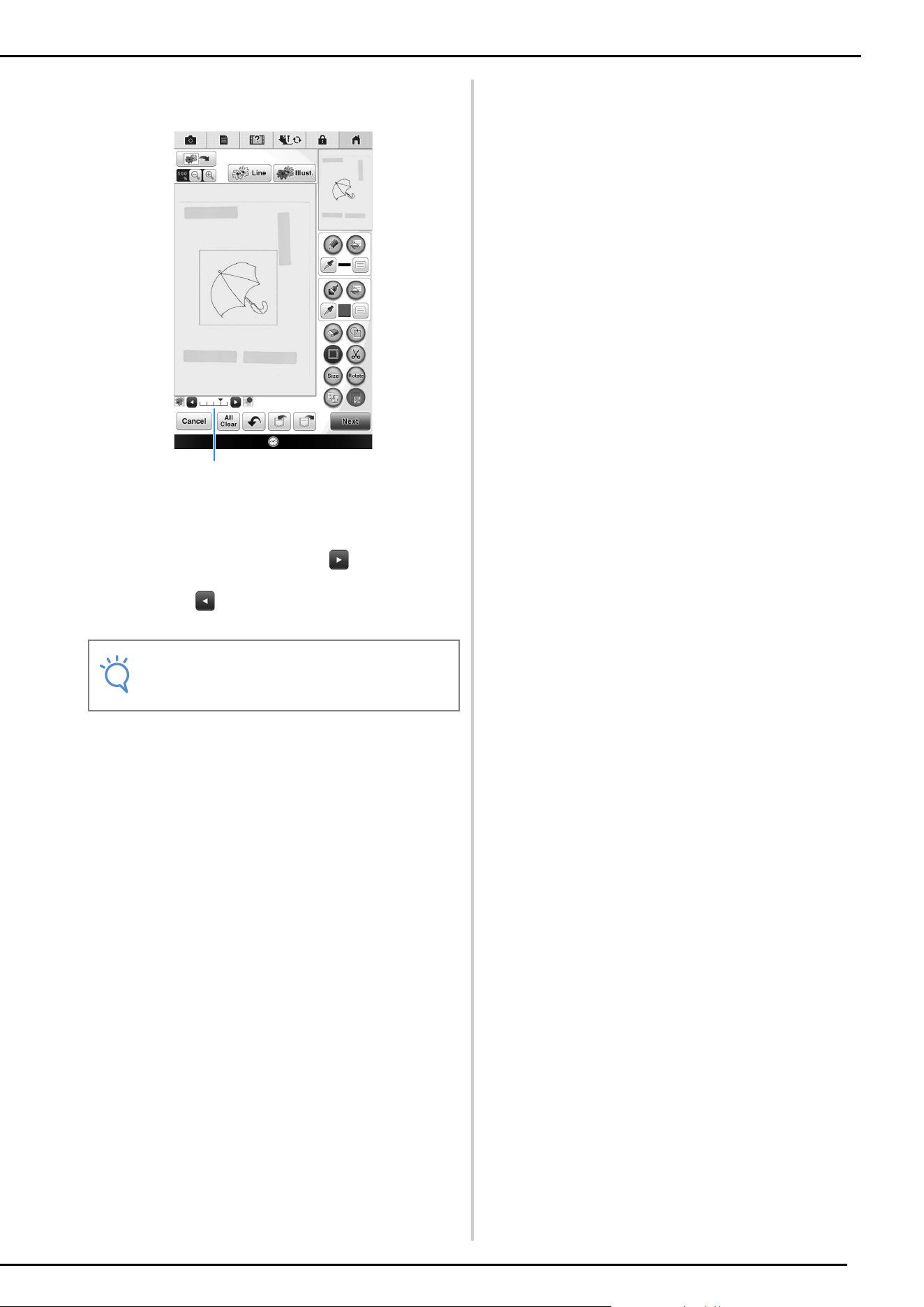
h
If necessary, edit the scanned image.
* After the scanned image is converted to stitching, it
appears as a background in the pattern drawing
screen. Use gauge a to adjust the transparency of
the background. Each press of lightens the
background, making the line pattern darker. Each
press of darkens the background, making the
line pattern lighter.
Note
• During scanning, the small dots that appear
and unnecessary lines can be erased.
a
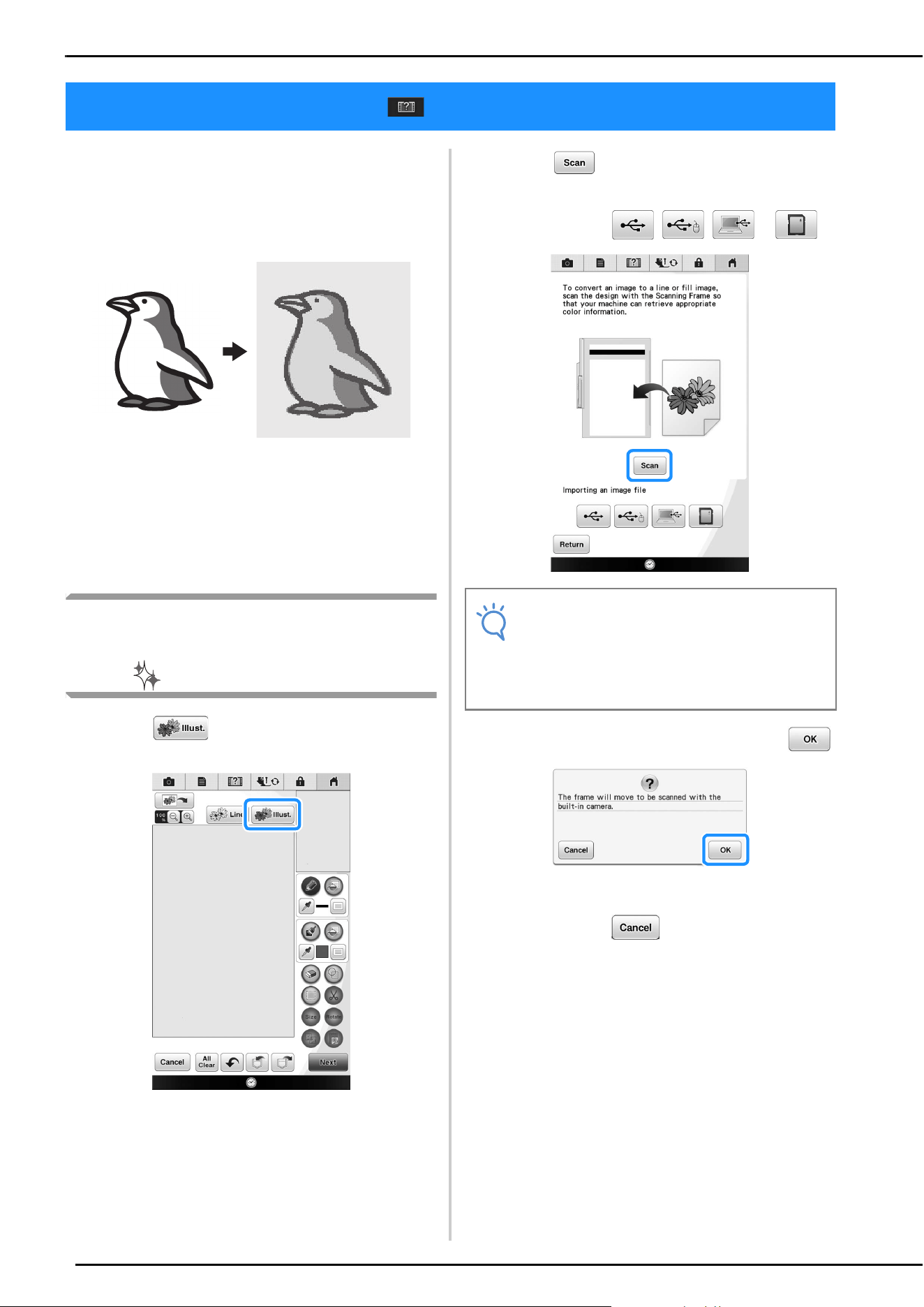
ILLUSTRATION SCAN
25
Custom patterns can be created from color
illustrations. You can create patterns by scanning
an illustration using the included scanning frame
or importing an image from USB media, computer
or SD card.
Recommended illustrations for Illustration Scan
• Patterns that are clearly drawn, with no
gradation, fading or blurriness.
• Patterns that are at least a 5 mm square
• Patterns that are extremely simple images
Using the Scanning Frame to
Create a Pattern with Illustration
Scan
a
Press .
The image display screen appears.
b
Press .
* To import an image from USB media, computer or
SD card, press , , or .
When the following message appears, press .
Scanning begins.
* To stop scanning and return to the screen in
step
b, press .
ILLUSTRATION SCAN
Note
• When scanning starts, some of the machine
lights will turn off in order to increase the
scan quality. The machine lights will return
to their original brightness when scanning
ends.
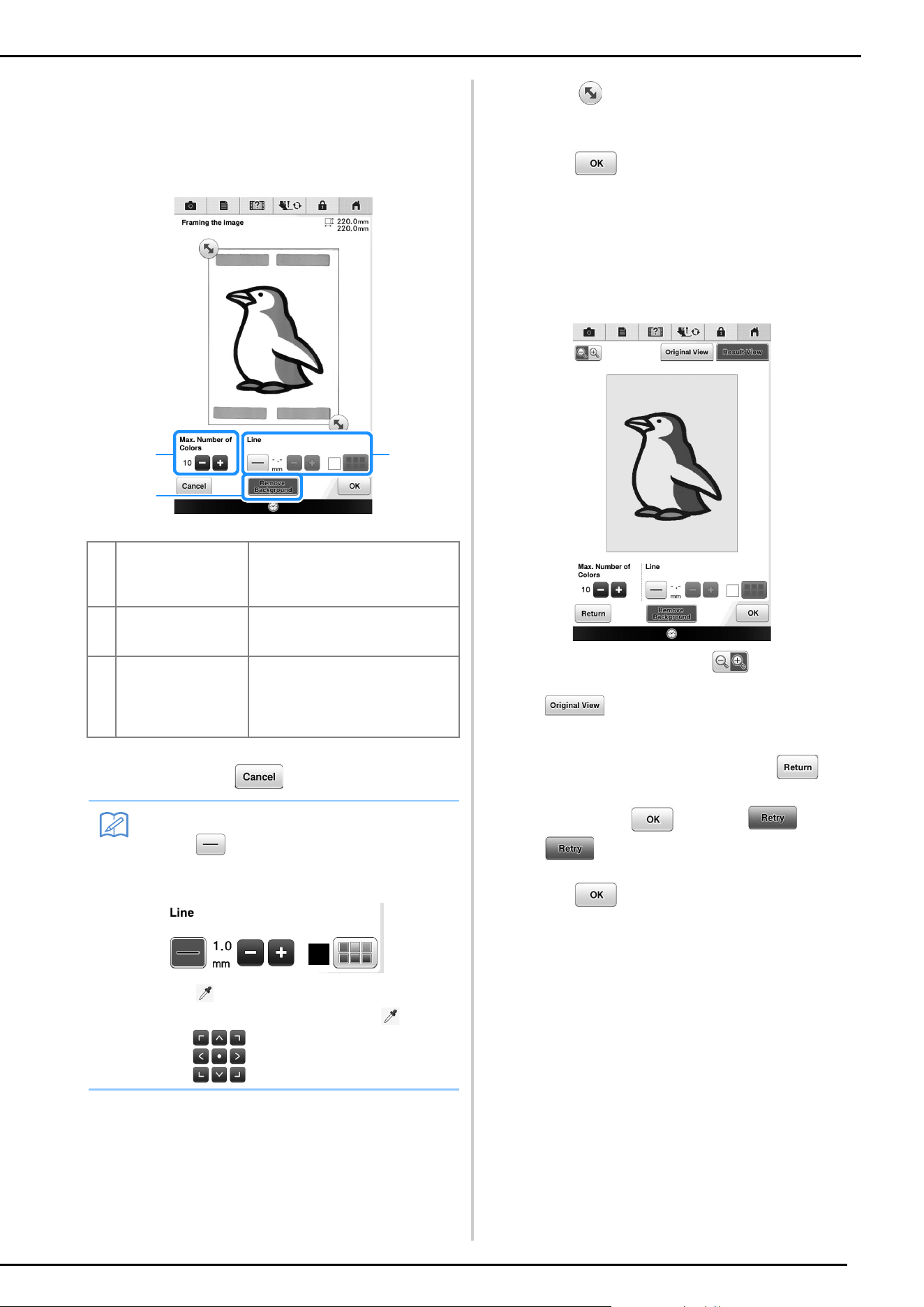
ILLUSTRATION SCAN
26
c
When scanning is finished, specify the
necessary settings in the scan image
confirmation screen.
Change the settings to adjust the image so it can easily
be converted to the desired pattern.
* To stop scanning and return to the screen in
step
b, press .
d
Move to frame the image for the
pattern.
e
Press .
The screen for confirming the converted image
appears.
f
In the screen for confirming the converted
image, adjust the image as necessary as in
step
c.
* To enlarge the image, press .
* To display the image before being converted, press
. Compare the images before and after
being converted, and then change the settings if
necessary.
* To return to the previous screen, press .
After changes to the settings described above have
been applied, changes to . Press
to check that the image is as desired.
g
Press .
The pattern drawing screen is displayed.
a Max. Number of
Colors
The number of colors in an image will
be reduced less than the number
specified here, and then the outline
will be extracted.
b Remove Background Select whether or not the
background color will be included as
one of the colors.
c Line Select whether or not the outline will
be detected as a line. A thick outline
can also be detected as a region.
When detected as a line, the line
thickness and color can be specified.
Memo
• Press to detect the outline.
Line thickness can be specified from 1.0
mm (1/16 inch) to 5.0 mm (3/16 inch).
• Press to select the outline color. Select
by touching the color, or moving icon
using in the color selection screen.
c
b
a
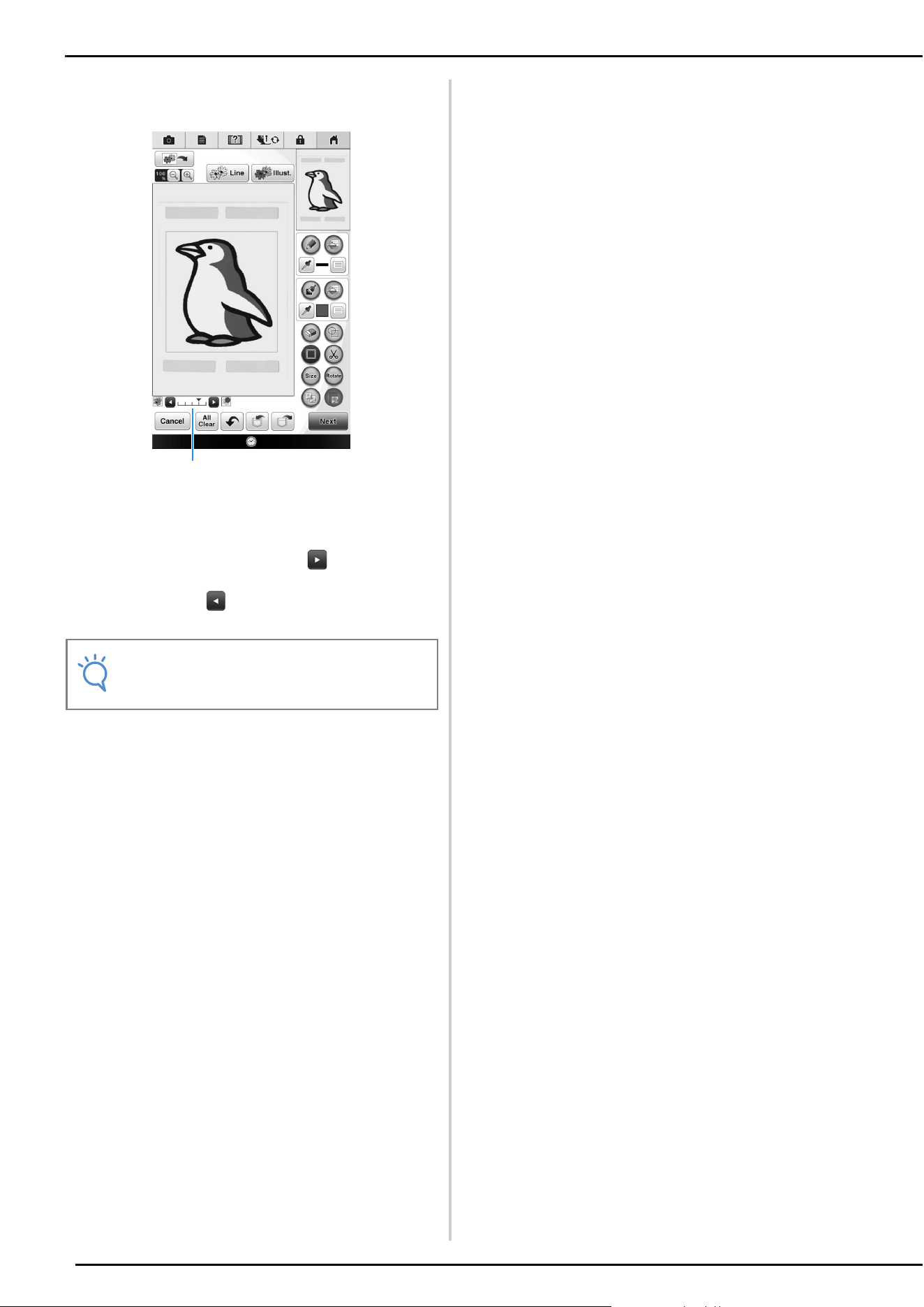
ILLUSTRATION SCAN
27
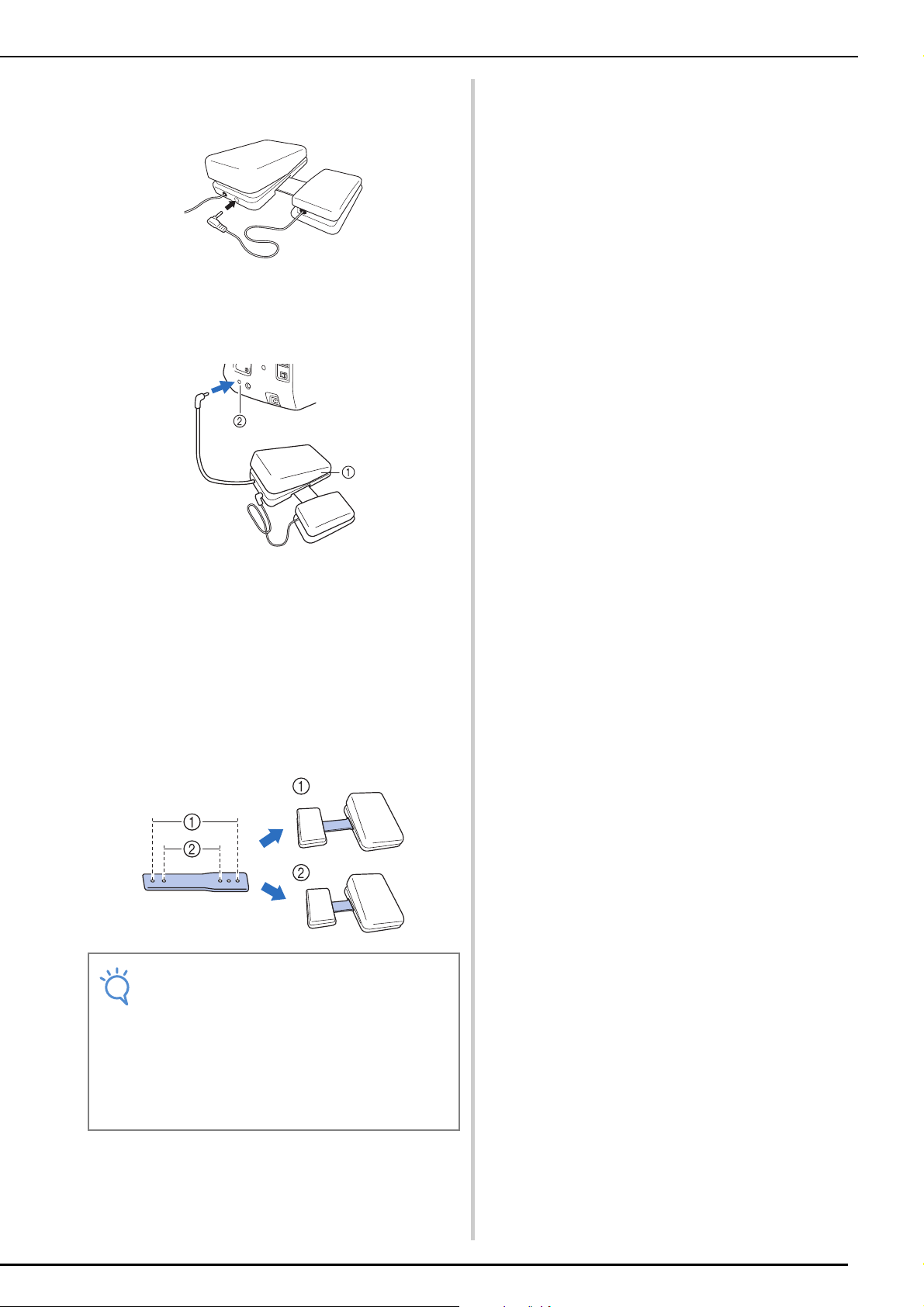
h
If necessary, edit the scanned image.
* After the scanned image is converted to stitching, it
appears as a background in the pattern drawing
screen. Use gauge a to adjust the transparency of
the background. Each press of lightens the
background, making the illustration pattern darker.
Each press of darkens the background, making
the illustration pattern lighter.
Note
• During scanning, the small dots that appear
and unnecessary lines can be erased.
a
STIPPLING
28
Basic Stippling with My Design
Center
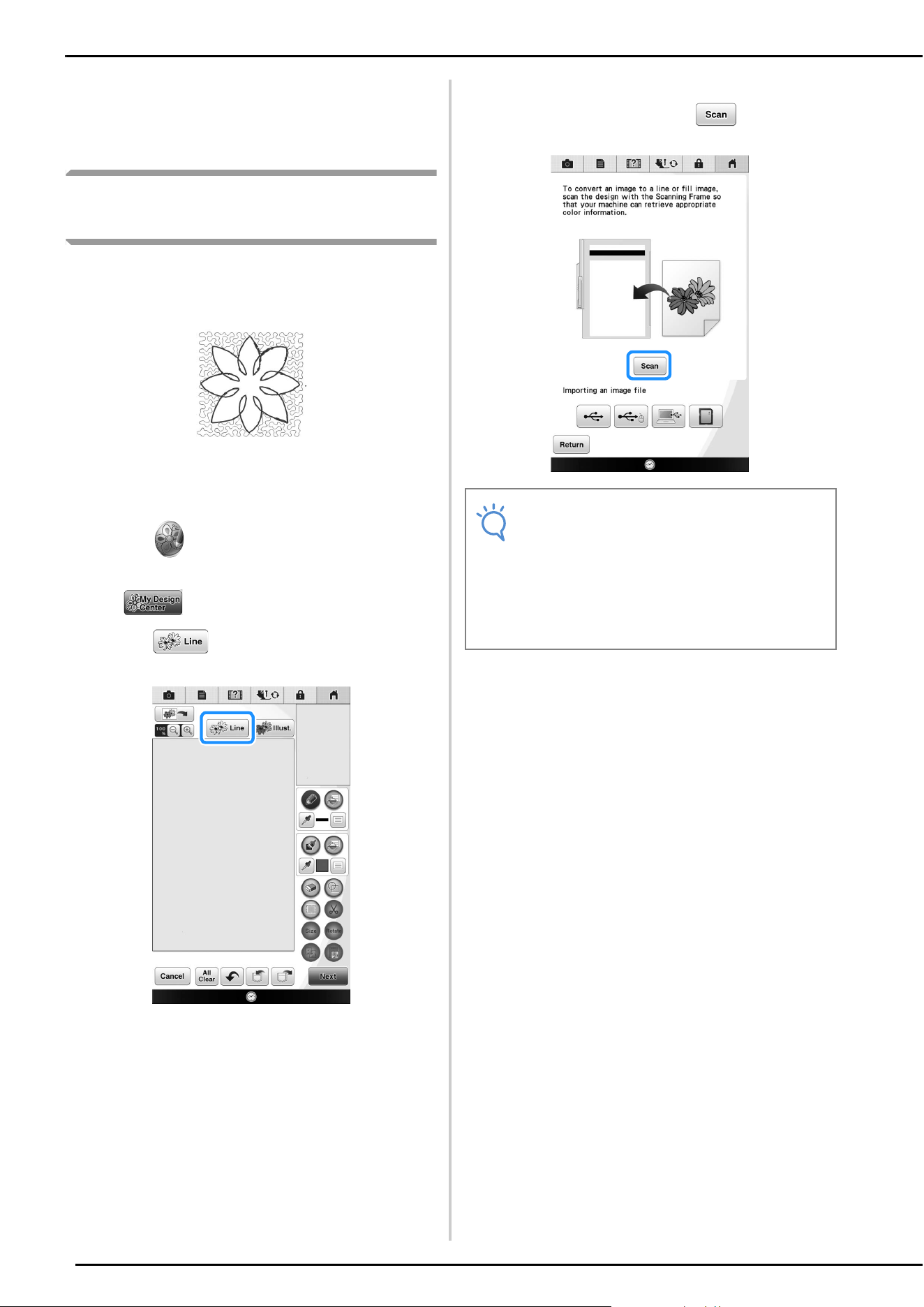
Create a stippling design with the basic procedure.
Example:
a
Press .
* You can also start the function by pressing
in “Embroidery” mode.
b
Press .
c
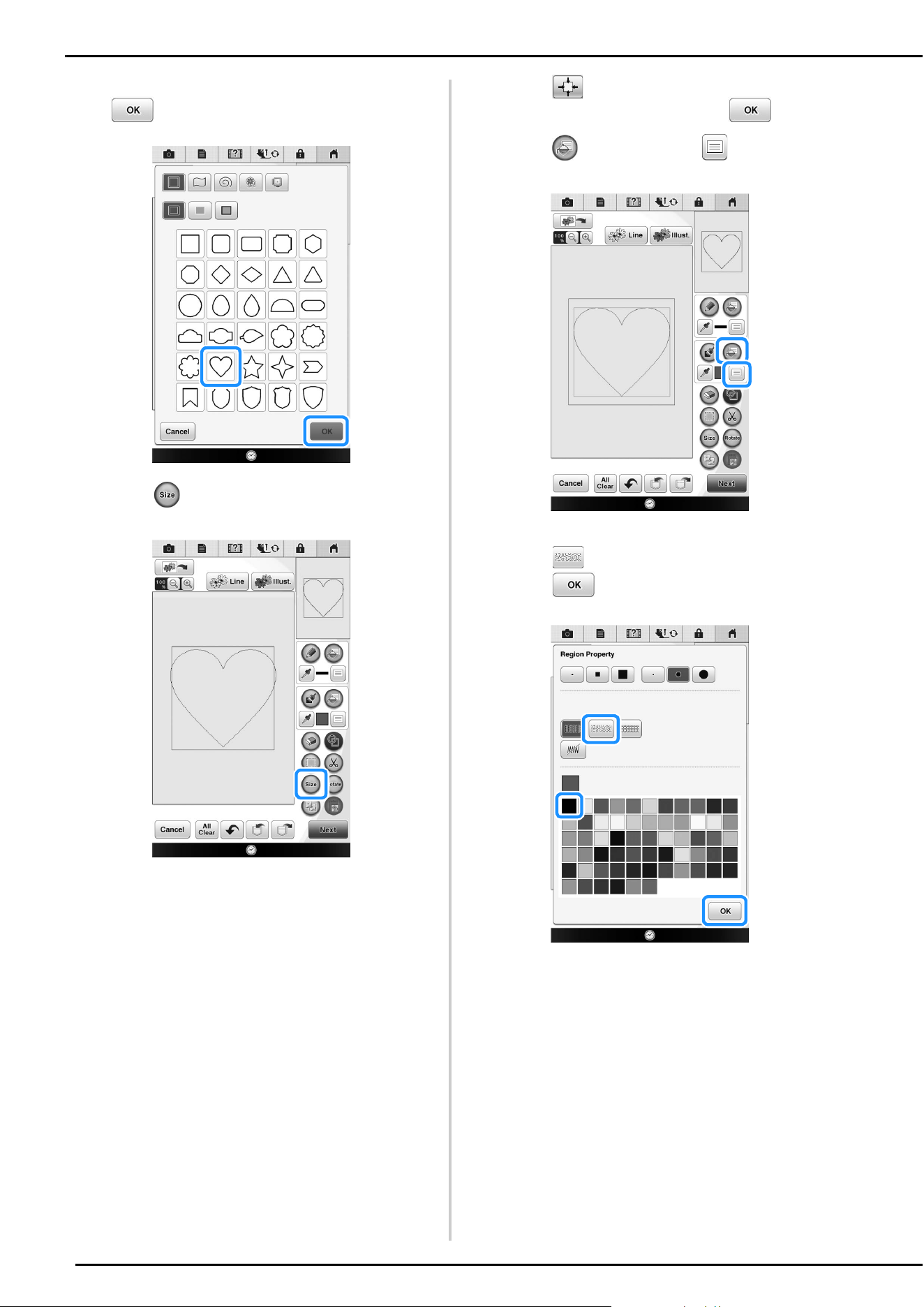
Select the square shape, and then press
.
d
Press .
STIPPLING
STIPPLING
29
e
Select the heart shape, and then press
.
f
Press .
g
Press until the heart shape fits in the
square shape, and then press .
h
Press , and then press .
i
Press , and then select the stitch color.
Press after setting the color.
STIPPLING
30
j
Select the area you want to set stippling
effect.
a Select this area.
k
Press .
l
Adjust the stippling settings to create the
desired effect, and then press .
* For details, refer to “Specifying individual stitch
settings” on page 14.
m
When the following message appears, press
.
n
Press to convert into embroidery.
When the following message appears, press .
a
STIPPLING
31
o
Follow the procedure described on
“EDITING PATTERNS” in the Operation
Manual included with the machine to edit
the pattern as desired.
Scanning Drawing to Create
Stippling Pattern
Create a custom pattern with stippling design.
Example:
a
Place a drawing of your design on the
scanning frame.
b
Press .
* You can also start the function by pressing
in “Embroidery” mode.
c
Press .
The image display screen appears.
d
Position the scanning frame on the
machine, and then press .
Note
• When scanning starts, some of the machine
lights will turn off in certain circumstances,
in order to increase the scan quality. The
machine lights will return to their original
brightness when scanning ends.
• You can import an image of 2 MB or smaller
from USB media, computer or SD card.
STIPPLING
32
When the following message appears, press .
Scanning begins.
* To stop scanning and return to the screen in
step
d, press .
e
When scanning is finished, move to
frame the image for the pattern, and then
press .
f
The screen for confirming the converted
image appears, adjust the image if
necessary and then press .
The pattern drawing screen is displayed.
g
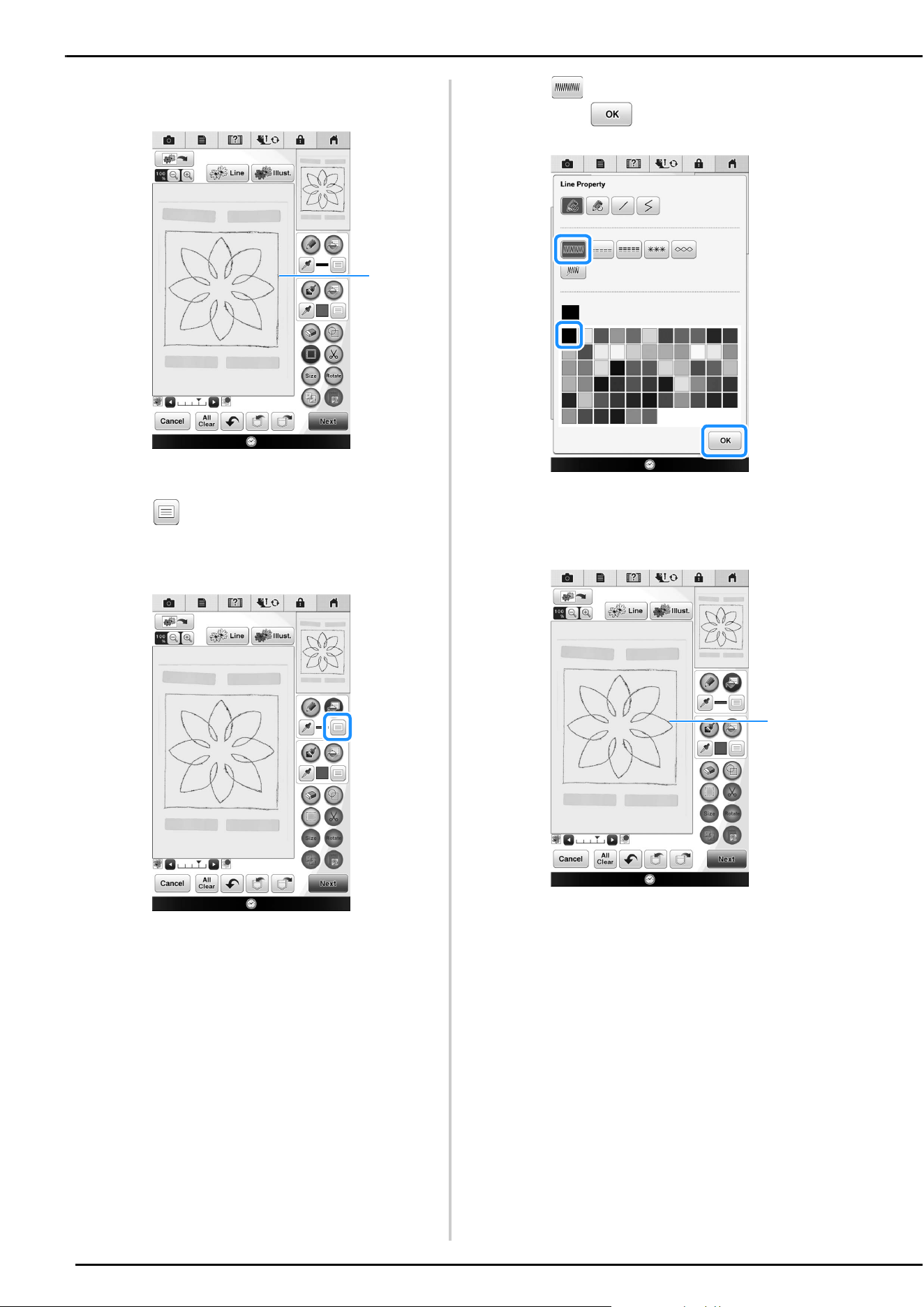
To set the outline of the pattern, press ,
and then .
h
Press and then .
This will set the outline without a stitch.
STIPPLING
33
i
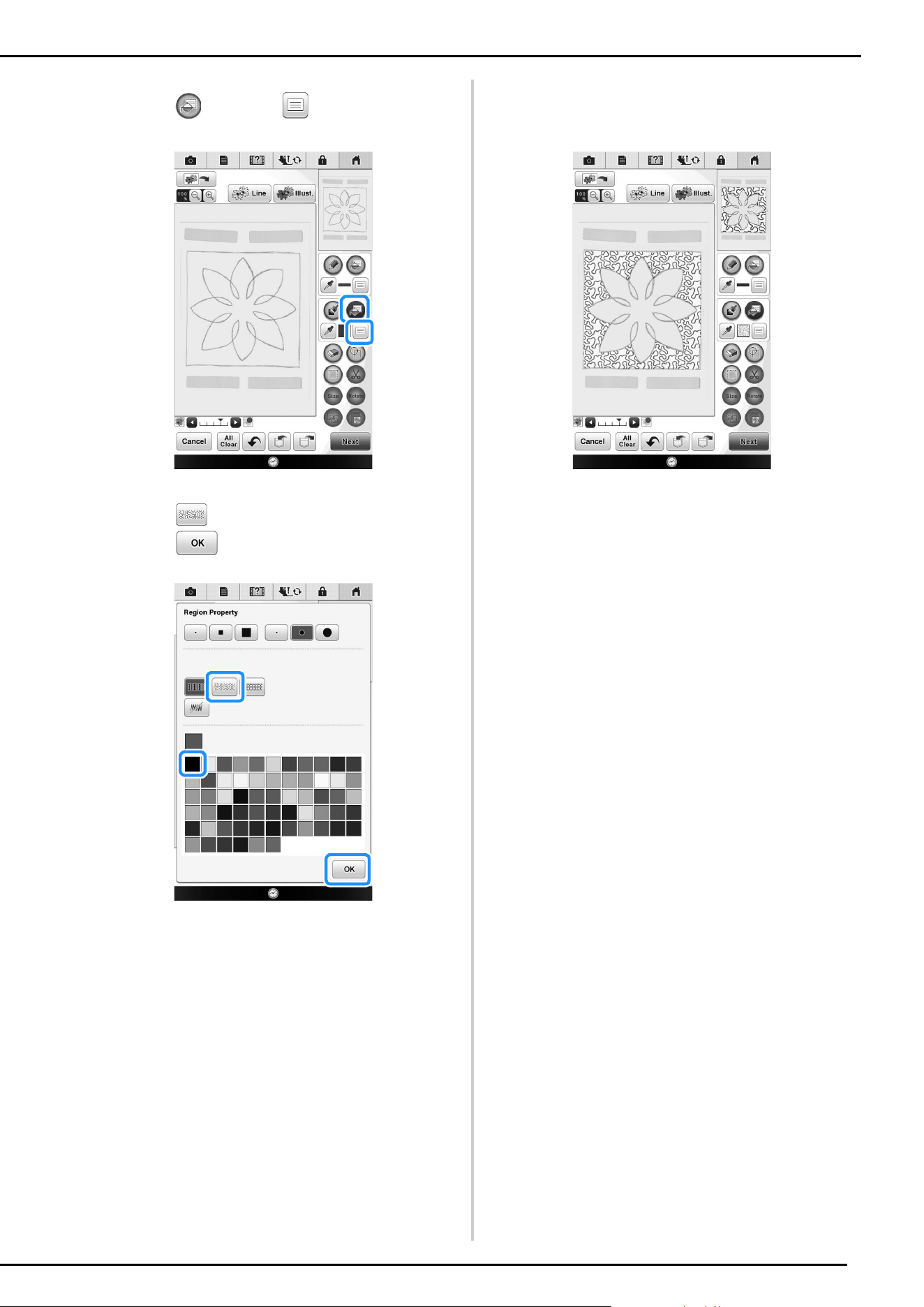
Select the outline of the pattern.
a Outline of the pattern
j
Press to select the color of the stitch
around the stippling effect.
k
Press and select the stitch color, and
then press .
l
Select the stitch line around the stippling
effect.
a Stitch line
a
a
STIPPLING
34
m
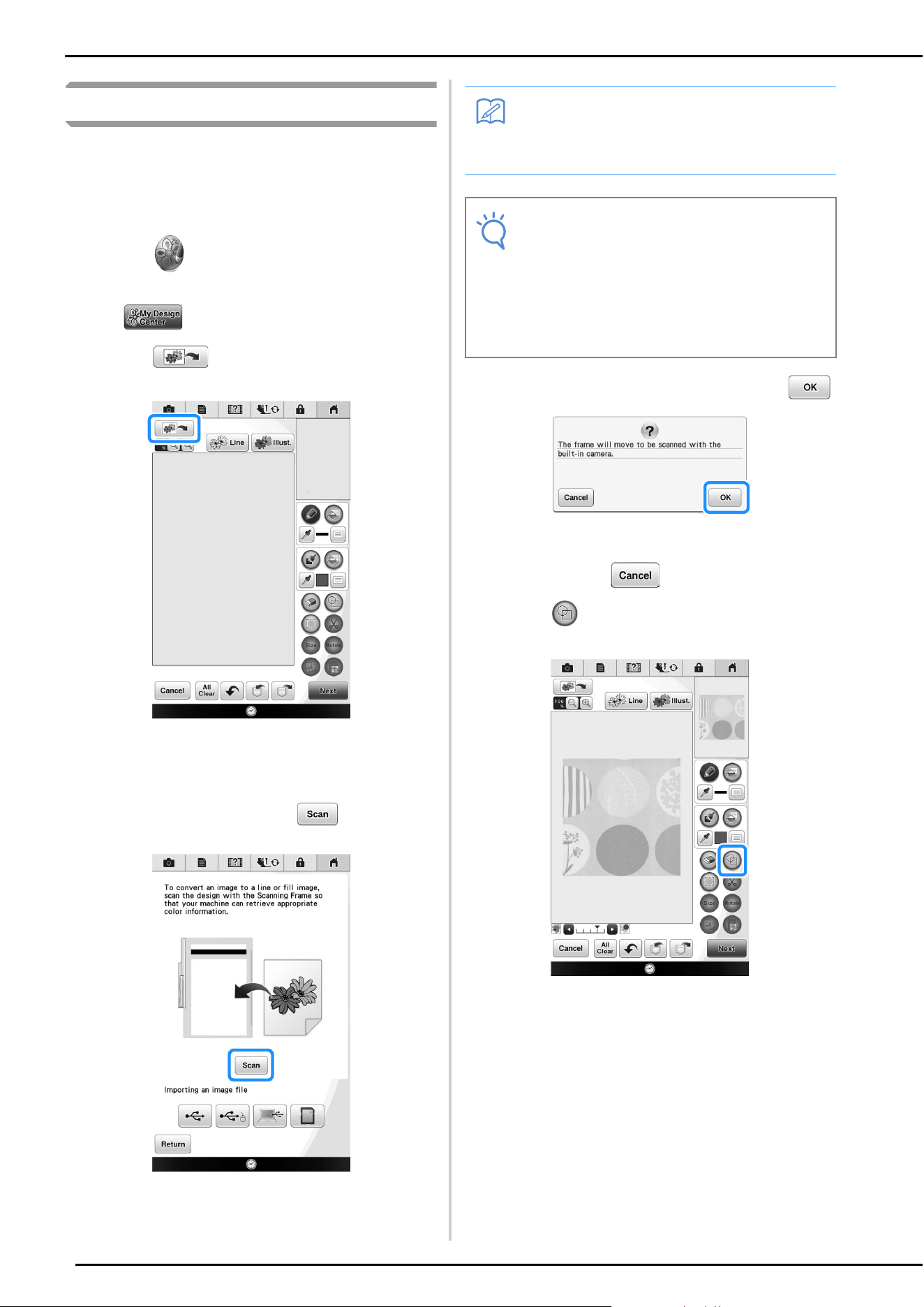
To set the stitch color and fill stitch type,
press , and then .
n
Press , and then select the stitch color.
Press after setting the color.
o
Select the area you want to set stippling
effect.
p
Follow the procedure from step k on
page 28 of “Basic Stippling with My Design
Center”.
STIPPLING
35
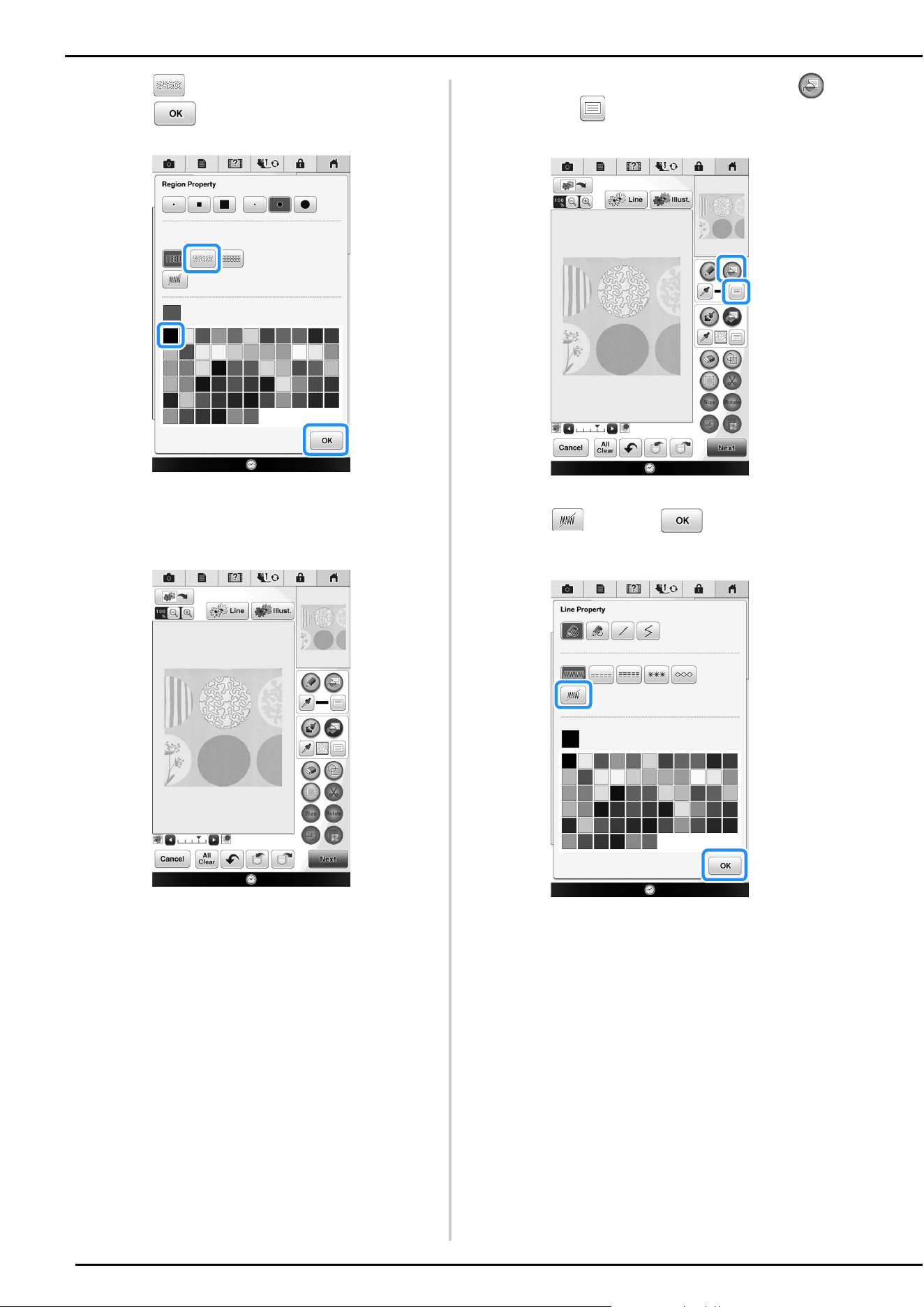
Scanning Fabric and Stippling
Use the fabric pattern to coordinate with the
stippling pattern.
a
Set the fabric to the embroidery frame.
b
Press .
* You can also start the function by pressing
in “Embroidery” mode.
c
Press .
The image display screen appears.
d
Position the embroidery frame on the
machine, and then press .
When the following message appears, press .
Scanning begins.
* To stop scanning and return to the screen in
step
d, press .
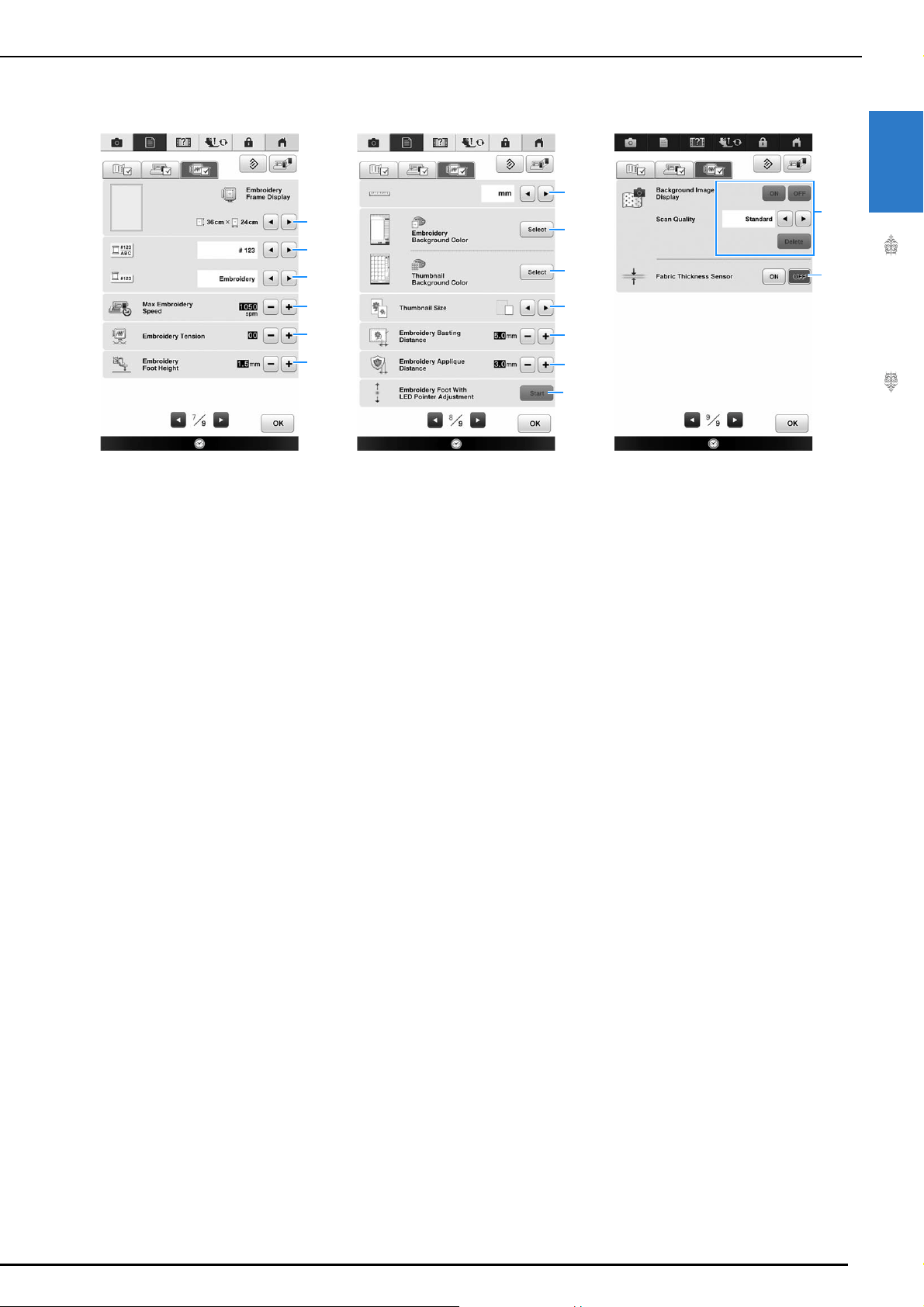
e
Press .
Memo
• Although the instructions in the LCD screen
refer to the scanning frame, this example
uses an embroidery frame for scanning.
Note
• When scanning starts, some of the machine
lights will turn off in certain circumstances,
in order to increase the scan quality. The
machine lights will return to their original
brightness when scanning ends.
• You can import an image of 2 MB or smaller
from USB media, computer or SD card.
STIPPLING
36
f
Select the circle shape, and then press
.
g
Press to increase or decrease the size of
the circle.
h
Press until the size of circle fits the
pattern on the fabric, and then press .
* Use to align the position of the circle to
the pattern on the fabric.
i
To set the stitch color and fill stitch type,
press , and then .
STIPPLING
37
j
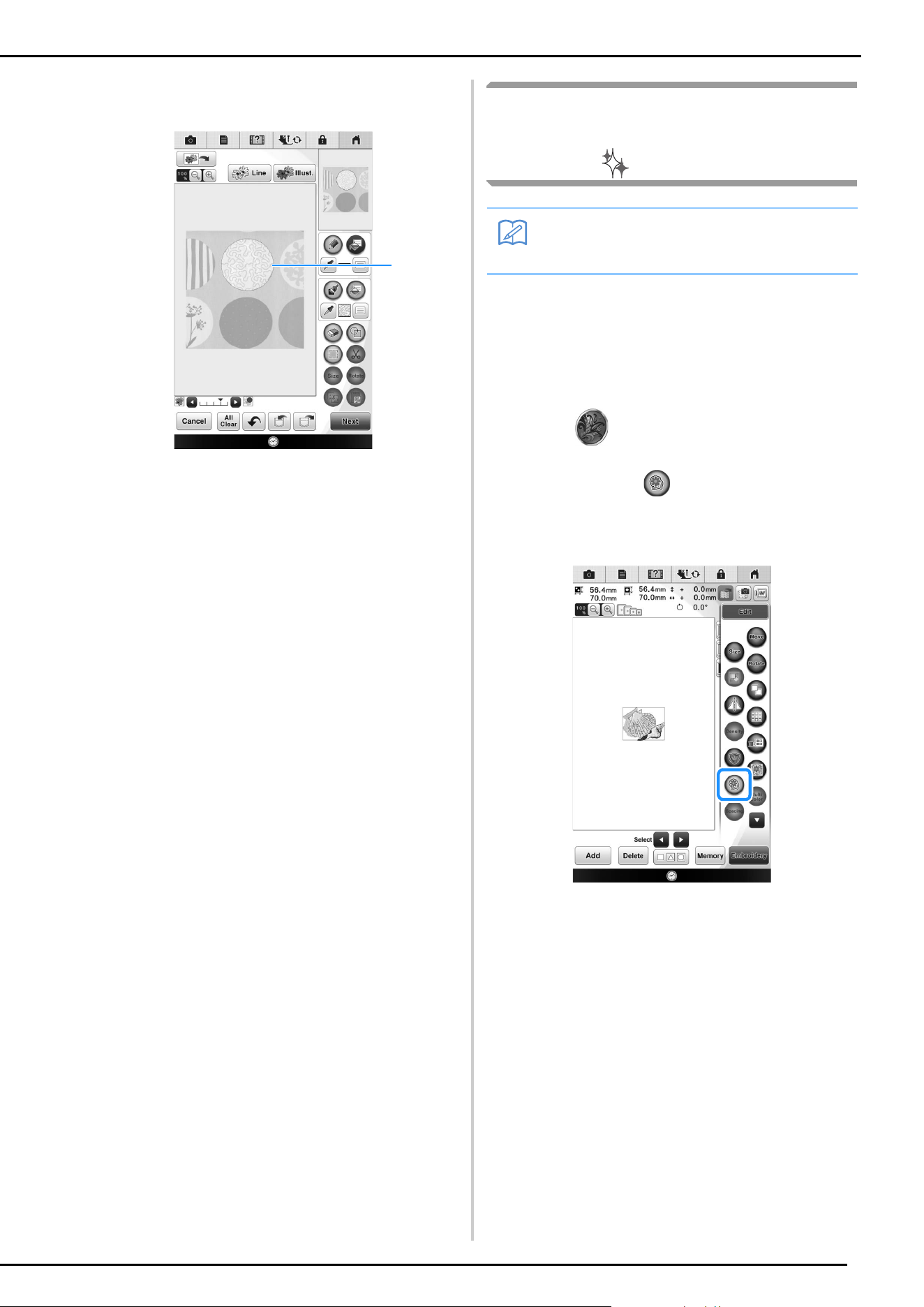
Press , and then select the stitch color.
Press after setting the color.
k
Select the area you want to set stippling
effect.
l
To set the outline of the pattern, press ,
and then .
m
Press and then . This will set the
outline without a stitch.
STIPPLING
38
n
Select the outline of the pattern.
a Outline of the pattern
o
Follow the procedure from step k on
page 28 of “Basic Stippling with My Design
Center”.
Start embroidering on the fabric that you scanned at
first.
Decorative stitching around a
pattern in embroidery (a quilting
function)
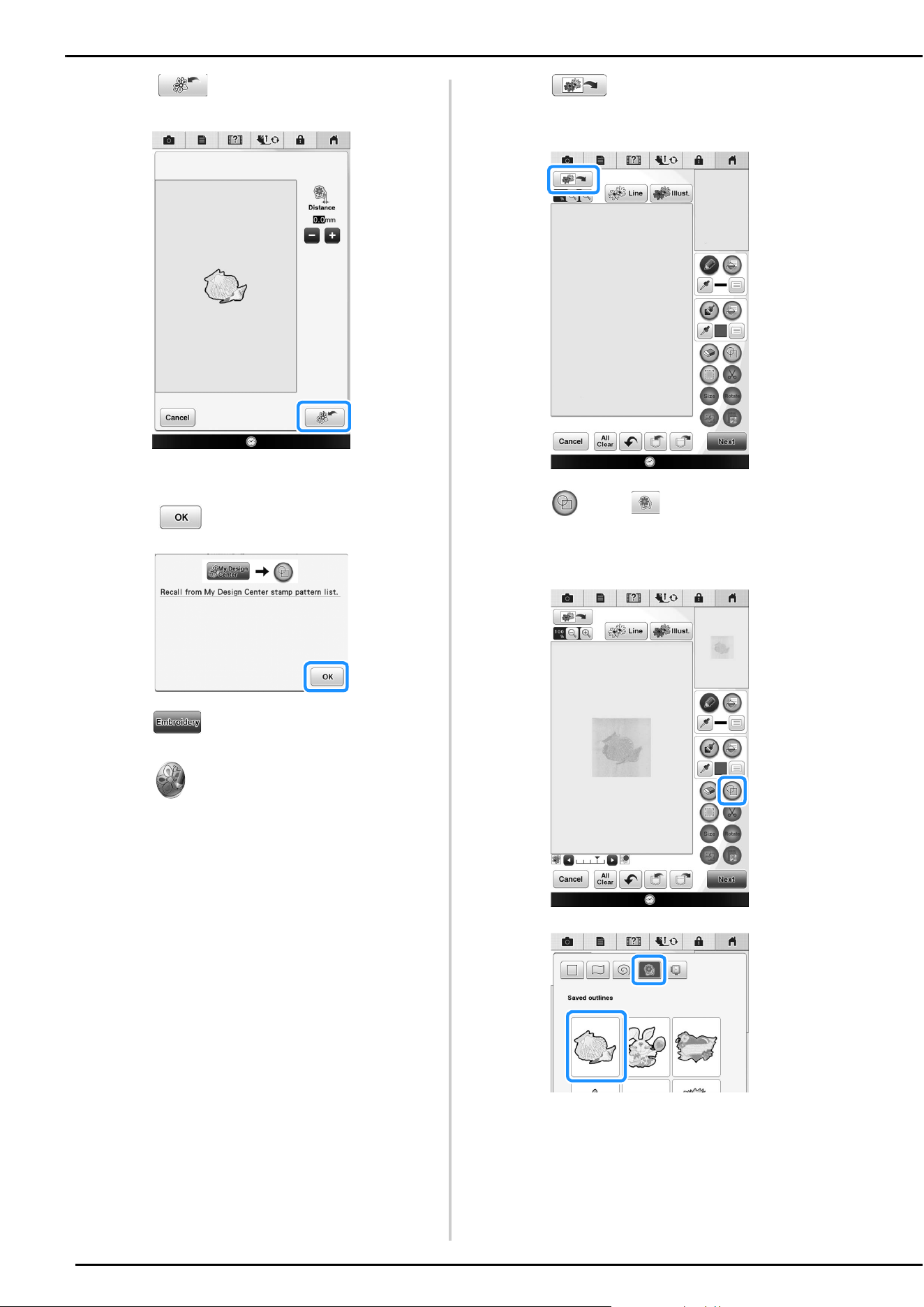
A quilt can be created with stippling around an
embroidery pattern.
a
Hoop the embroidery frame with batting
sandwiched between two layers of fabric,
and then attach the frame to the machine.
b
Press and select the pattern that
decorative stitching will be added around,
and then press in the embroidery edit
screen.
The outline of the pattern is displayed.
a
Memo
• For best results, reduce the sewing speed.
STIPPLING
39
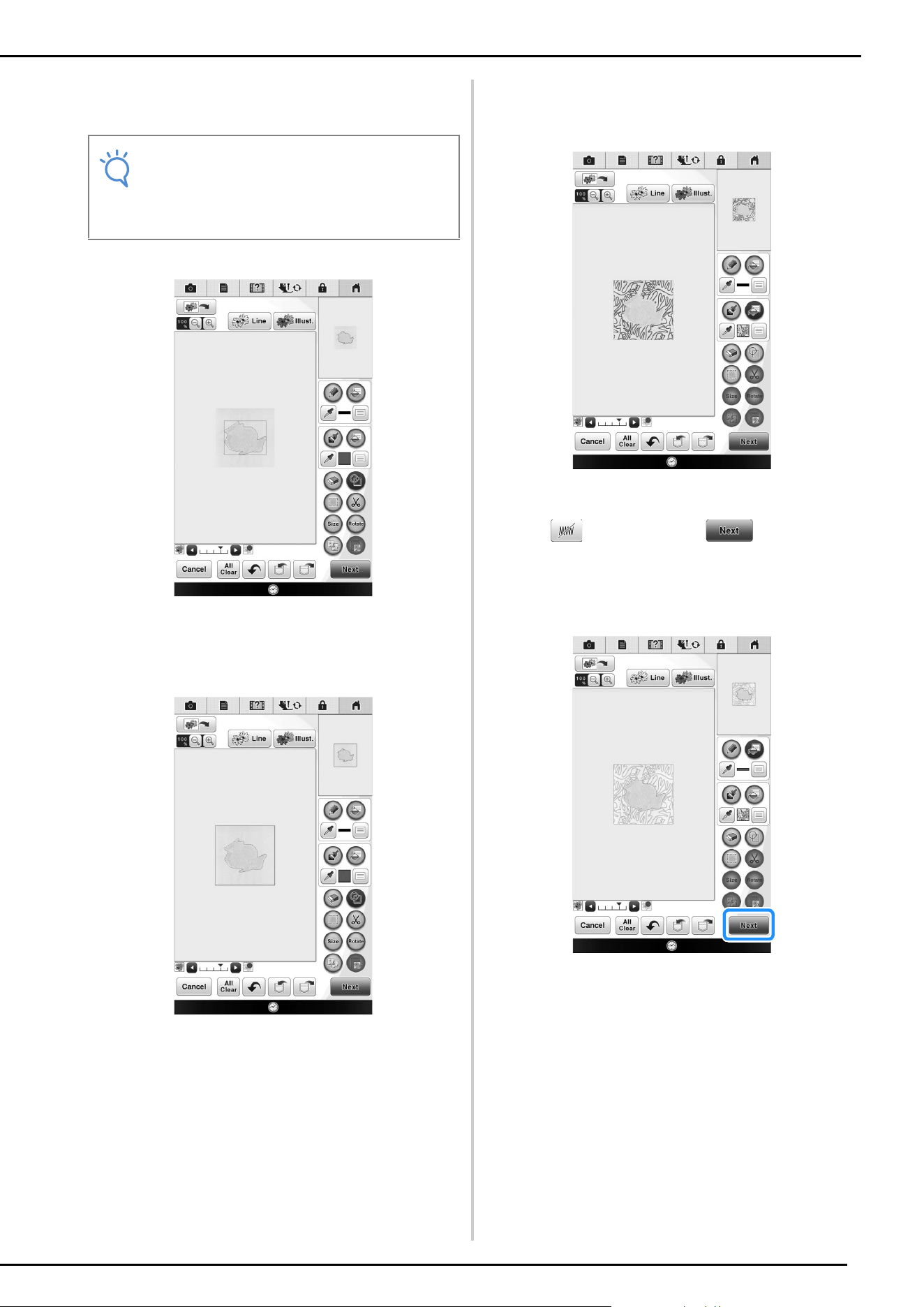
c
Press .
A message appears, and the pattern outline is
registered as a stamp shape in My Design Center.
Press .
d
Press to continue to the embroidery
screen, and then embroider the pattern.
e
Press in the home page screen to start
the My Design Center.
f
Press to scan the embroidered
fabric.
g
Press , press to recall the stamp
shape registered in step
c, and then
arrange it over the scanned pattern.
STIPPLING
40
h
Use a stamp or rectangular frame to
determine the area to be stitched.
i
Use the brush tool keys to select the pattern
and color of the decorative stitching.
j
Fill the area to be stitched outside of the
stamp shape outline.
k
Set the line type for the frame and pattern
to , and then press .
* Stitch settings can be adjusted in the stitch settings
screen. For details, refer to “STITCH SETTINGS
SCREEN” on page 14.
Note
• If the area is to be drawn by hand, be sure
to draw a completely closed shape. If the
area is not closed, it cannot be correctly
filled with the decorating.
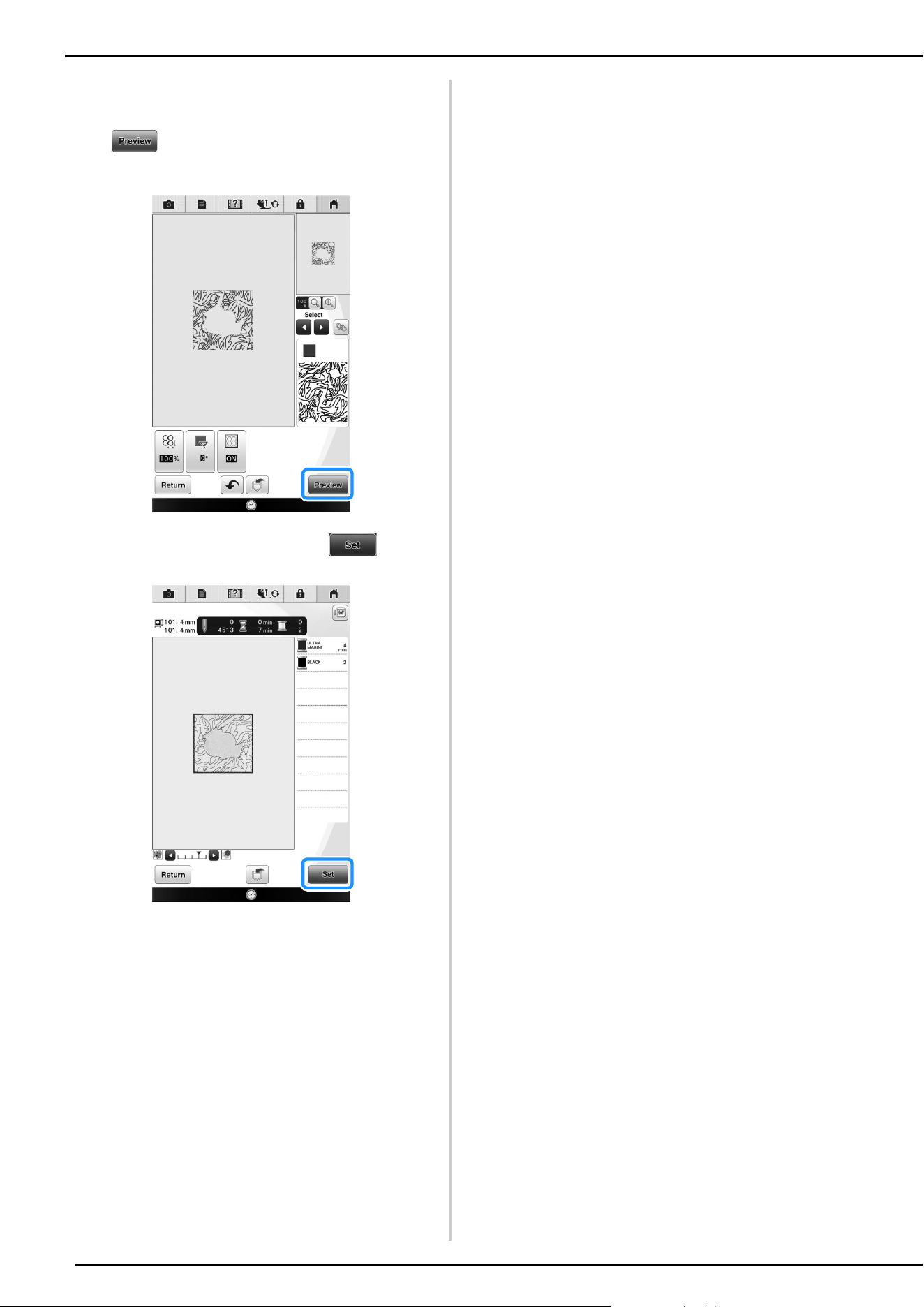
STIPPLING
41
l
Specify the stitch spacing and length in the
stitch settings screen, and then press
.
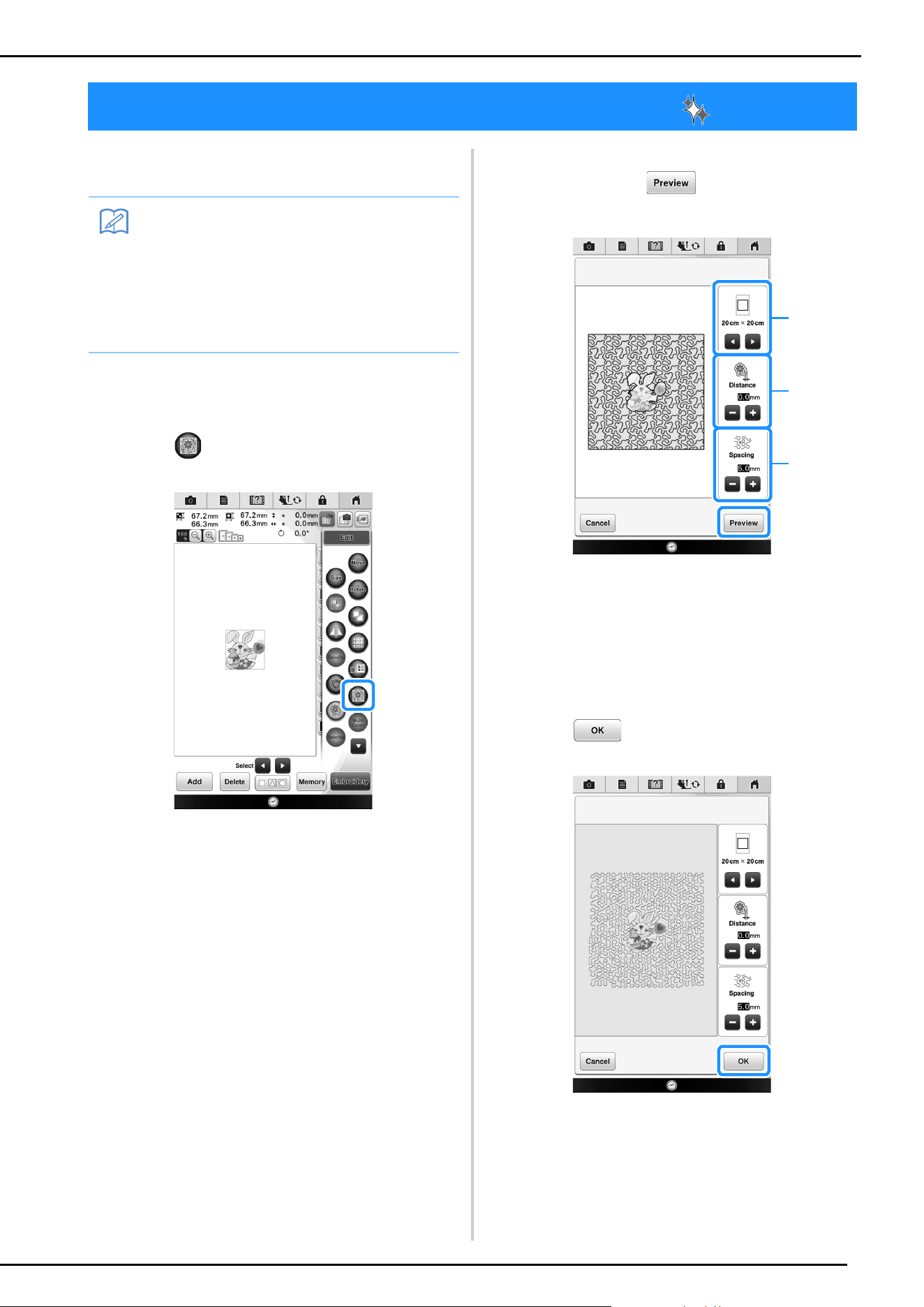
Check the pattern, and then press .
m
Embroider the stippling around the
embroidery pattern.
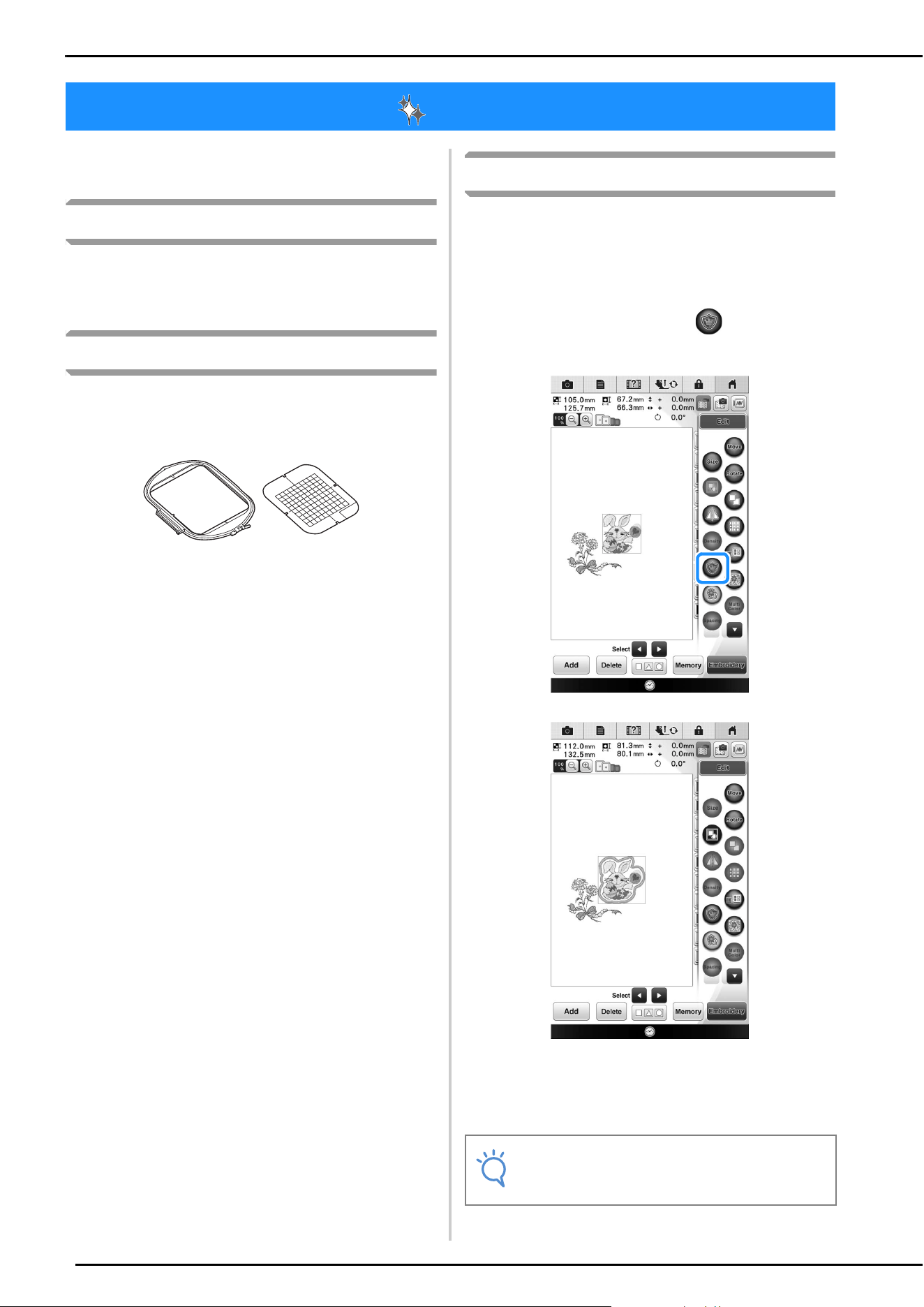
Stippling Without Using My Design Center
42
Stippling can easily be sewn around an
embroidery pattern.
a
Select the pattern that stippling will be
added around.
b
Press in the embroidery edit screen.
Stippling is automatically applied around the
selected pattern.
To select multiple patterns, refer to “Selecting
multiple patterns at the same time” on page 46.
c
After specifying the stitch settings for the
stippling, press .
a If an embroidery frame size is selected, the
stippling is added within the area of the selected
frame size. If the pattern is larger than the selected
frame size, the area indicating the frame size will
appear in gray.
b Specify the distance from the outline of the pattern
to the stippling.
c Specify the spacing for the stippling.
d
Press .
Stippling Without Using My Design Center
Memo
• If this simple stippling operation is used
with batting sandwiched between two
layers of fabric, the embroidery pattern and
stippling may become misaligned. For
quilting, refer to “Decorative stitching
around a pattern in embroidery (a quilting
function)” on page 38.
a
b
c
Other Useful Functions
43
Various pattern editing functions have been
improved for easier use.
Additional built-in patterns
20 Exclusive and 30 “Vine” Alphabet built-in
patterns have been added. For details, refer to the
Embroidery Design Guide.
Addition of 24 cm × 24 cm frame
The machine has been upgraded to be compatible
with the embroidery frame (quilt) H 24 cm ×
W 24 cm (H 9-1/2 inches × W 9-1/2 inches).
For details on how to insert the fabric into the
embroidery frame, refer to “PREPARING THE
FABRIC” in the Operation Manual included with
the machine.
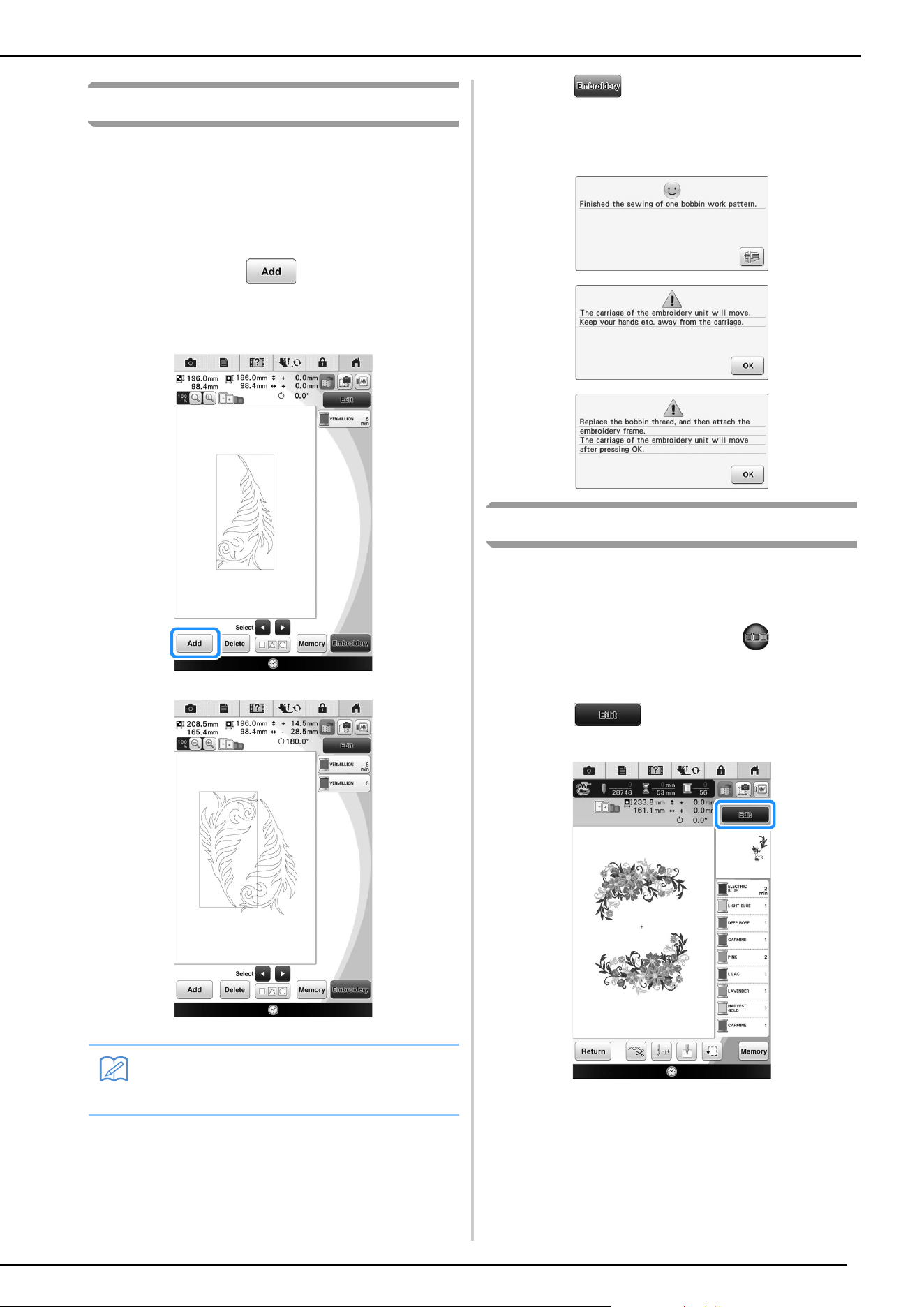
Specifying individual appliqués
When multiple patterns are arranged in the
embroidery edit screen, you can select the pattern
that will be used to create the appliqué.
a
Select the pattern to be used for the
appliqué, and then press .
The appliqué setting is applied only to the selected
pattern.
To select multiple patterns, refer to “Selecting
multiple patterns at the same time” on page 46.
Other Useful Functions
Note
• At this time, the pattern and outline will be
grouped.
Other Useful Functions
44
Combining bobbin work patterns
Bobbin work patterns can be combined and sewn
together. For details on creating bobbin work, refer
to “How to Create Bobbin Work” in the Operation
Manual included with the machine.
a
After the first bobbin work pattern has been
selected, press , and then add the
second bobbin work pattern.
b
Press .
A message appears after sewing is finished for each
pattern. Complete the operation according to the
instructions in the message.
Thread color sorting
This function allows you to embroider while
replacing the thread spool a minimal number of
times.
Before starting to embroider, press in the
embroidery screen to rearrange the embroidery
order and sort it by thread colors.
a
Press in the embroidery screen.
Memo
• Bobbin work patterns cannot be combined
with a different category of pattern.
Other Useful Functions
45
b
Press .
* Press again to check the sorted thread
colors.
The embroidery color order is rearranged and
sorted by thread colors.
Press , then to cancel color sorting
and embroider with the original embroidery color
order.
Adding line feeds and inserting
new embroidery character
patterns
■ Line feeding
When a line feed is added, the line feed code
appears in the text box on the right side of the
screen.
■ Inserting
Even after text has been entered, characters can be
selected and edited (resized, etc.).
a Directly select a character.
b Press and to move the cursor and select a
character.
Note
• This function does not work on overlapping
designs.
a
b
Other Useful Functions
46
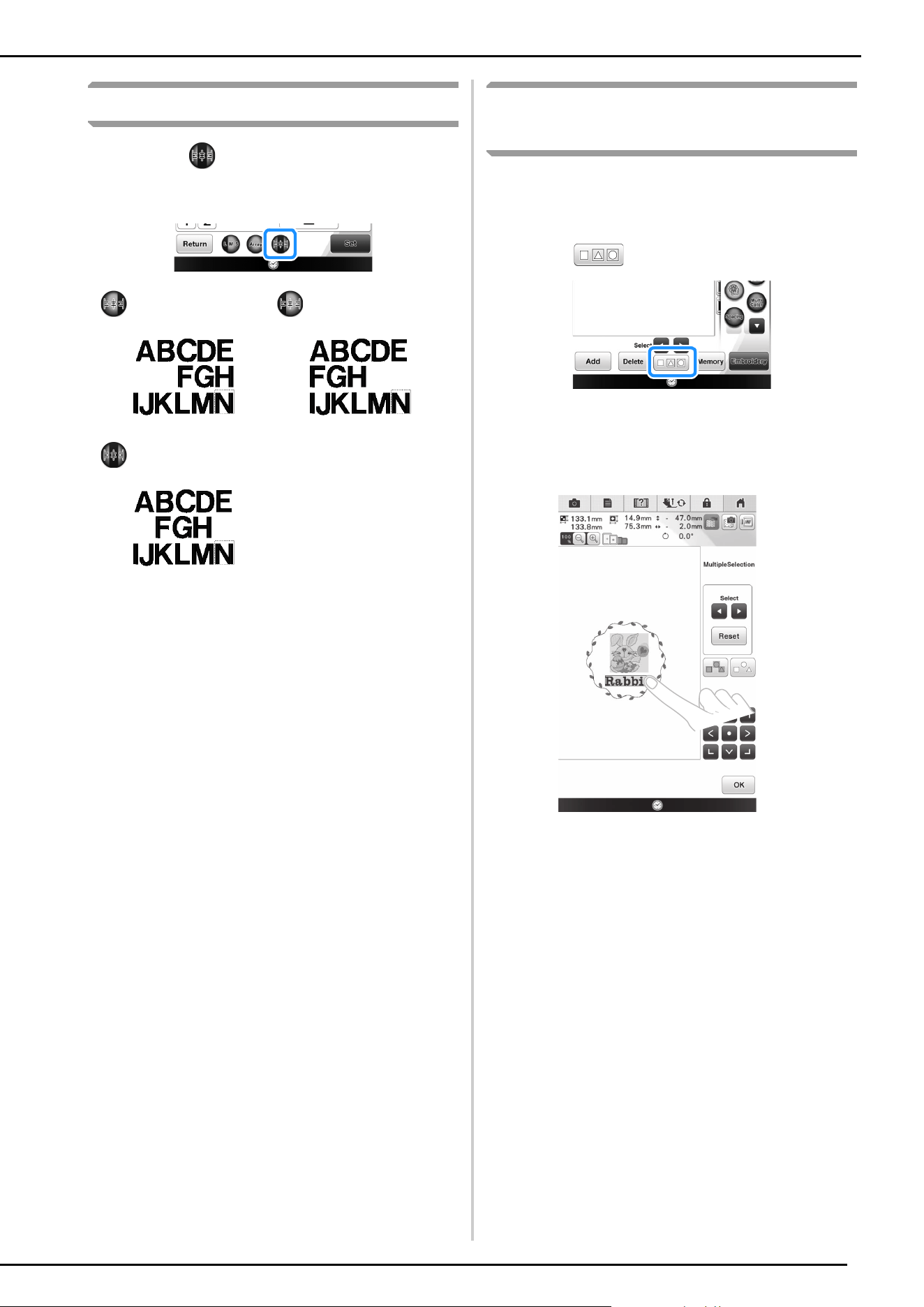
Character alignment
Each press of switches between right
alignment, left alignment and center alignment, in
that order.
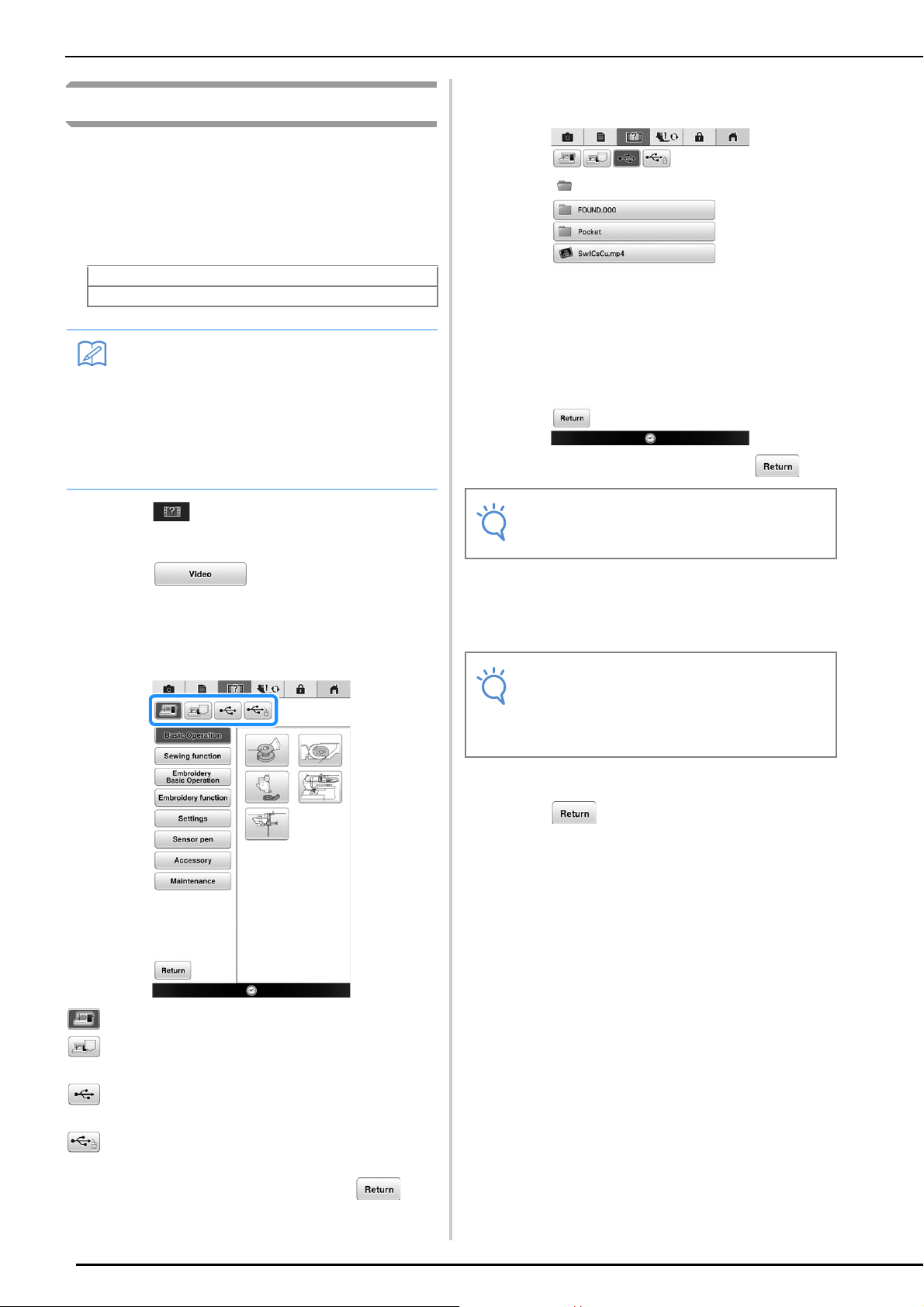
Selecting multiple patterns at the
same time
Multiple patterns can easily be edited, for
example, when moving patterns that are
combined, if they are all selected together.
a
Press .
The Multiple Selection screen appears.
b
Touch each pattern to select multiple
patterns.
Right alignment Left alignment
Center alignment
Other Useful Functions
47
c
Press to return to the embroidery
edit screen.
* Each selected pattern is surrounded with a red box.
Grouping multiple selected
patterns
If the multiple patterns selected in “Selecting
multiple patterns at the same time” on page 46 are
grouped, they can be edited as a single pattern.
a
Press so that it changes to .
The selected patterns are grouped.
* Press to ungroup the patterns. If there are
multiple grouped patterns, the selected pattern
group is ungrouped.
Memo
• Multiple patterns can also be selected by
dragging your finger in the screen.
• Multiple patterns can be selected or
deselected from the Multiple Selection
screen. Press or to check the
patterns to be selected, and then press
.
The selected patterns are surrounded with a
red box.
• Press to select all patterns in the
pattern display area.
• Press to deselect all selected patterns.
• The patterns can also be selected by
touching them directly in the screen.
• While the Multiple Selection screen is
displayed, patterns can be moved with
.
• The following functions cannot be used
while multiple patterns are selected.
-Resizing
-Rotating
- Appliqué
-Border
- Thread color changing
Memo
• When patterns are grouped, the following
functions are applied to all patterns in the
pattern group.
-Moving
-Rotating
- Appliqué
-Border
- Extracting pattern outlines
- Simple stippling
- Thread color changing
Other Useful Functions
48
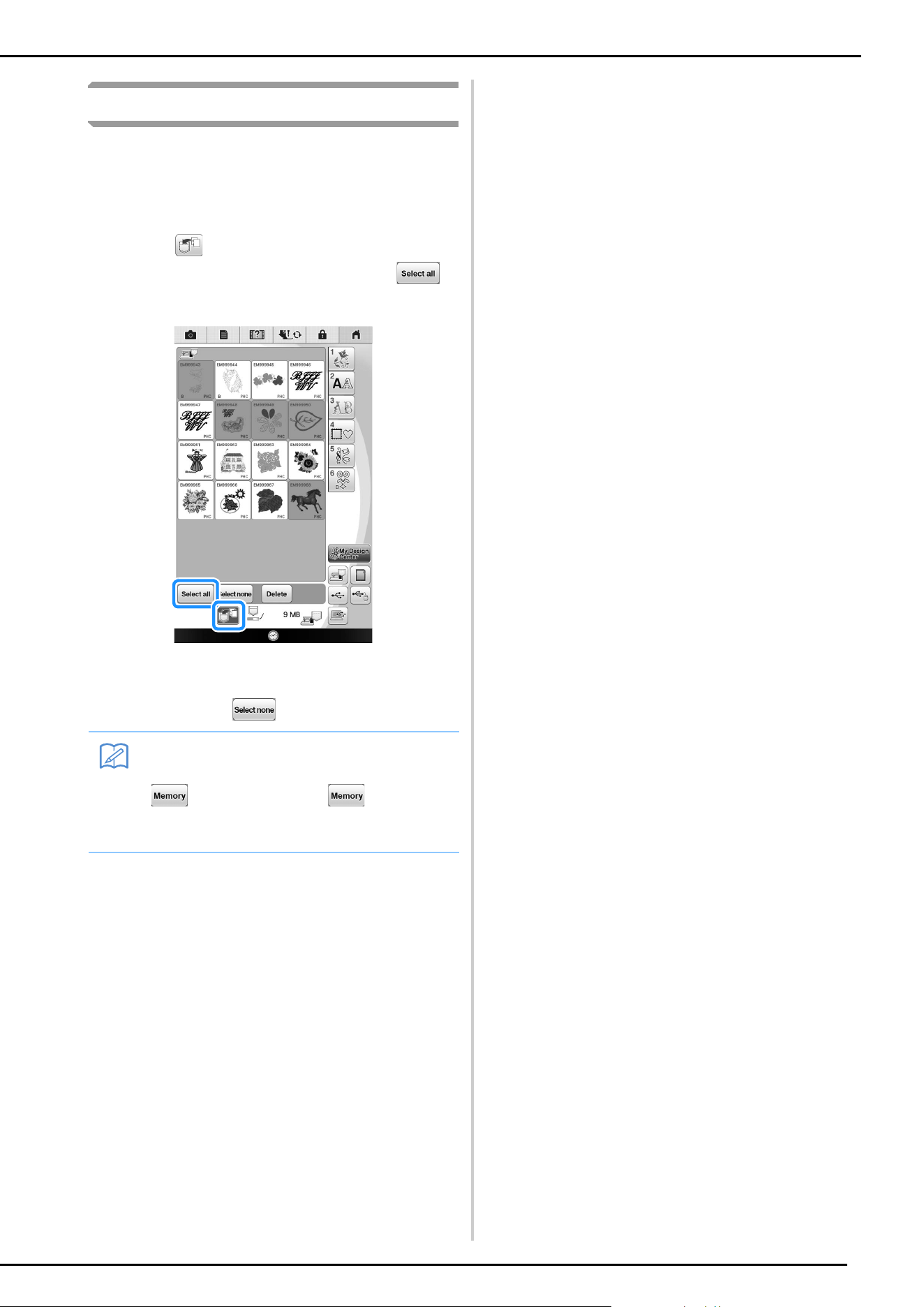
Saving/deleting multiple patterns
It may be useful to save all or multiple data from
USB media, for example, to the machine. The data
can only be saved to the machine’s memory
(pocket).
a
Press , and then either select the
thumbnails of the patterns or press .
The thumbnails of selected patterns appear in blue.
To deselect the pattern, either press the thumbnail
again or press .
Memo
• When selecting USB media or SD card,
is displayed. When is selected,
all the selected files are saved to the
machine's memory.

English
882-W20/W22
Printed in Taiwan
Please visit us at http://support.brother.com/ where you can get
product support and answers to frequently asked questions (FAQs).
XG6969-001