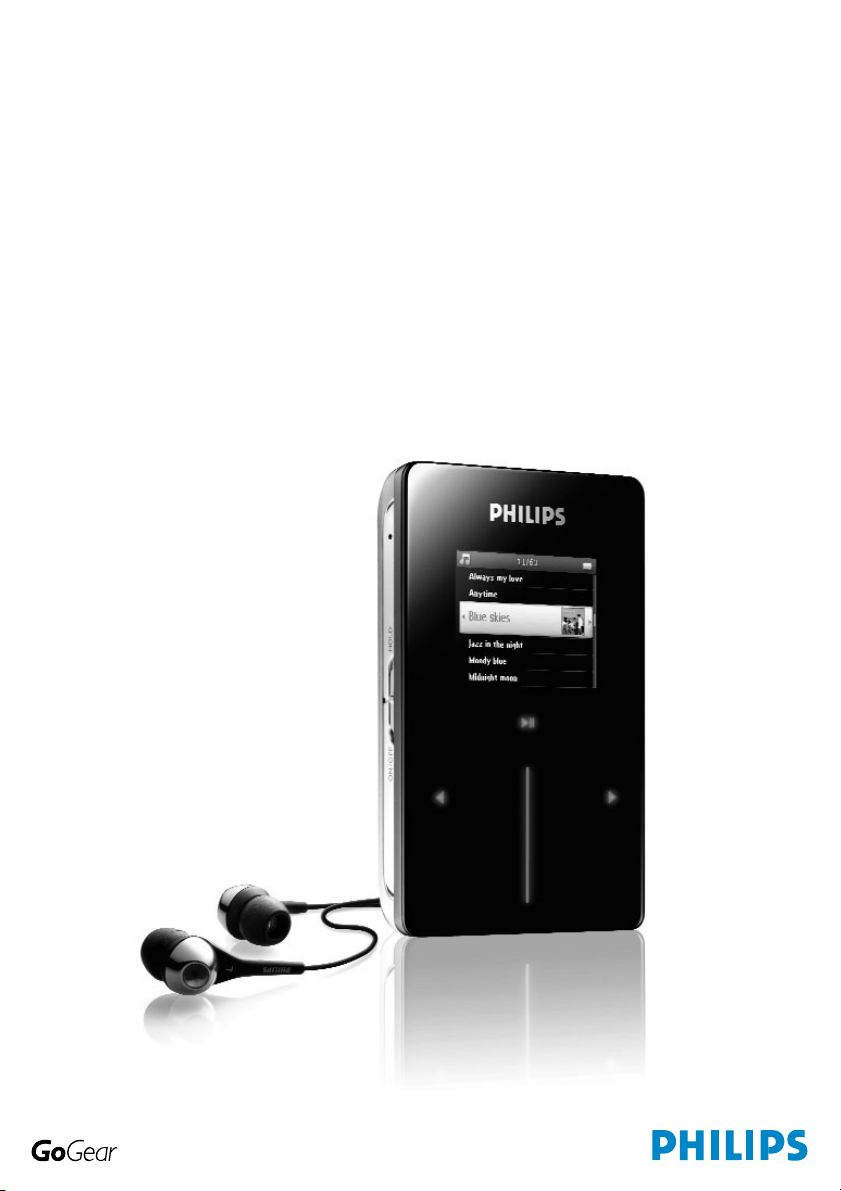
User manual
Manuel d’utilisation | Benutzerhandbuch | Manual del usuario
Gebruikershandleiding | Manuale per l'utente | Manual do usuário
Användar-handbok
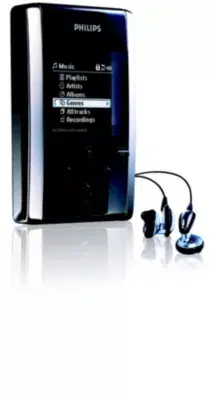
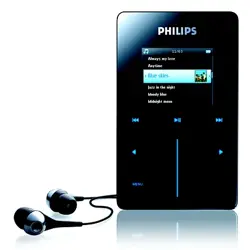
Jukebox HDD6320
HDD6330
HDD6335

Country Helpdesk Tariff / min Keep ready
Europe
Belgique 070 253 010
€
0.17 La date d’achat la référence et le numéro de série du produit
Danmark 3525 8761 Local tariff Forbrugeren’s indkøbsdato, type/model-og serienummer
Deutschland 0180 5 007 532
€
0.12 Das Kaufdatum. Modellnummer und Serial nummer
Españal 902 888 785 €0.15 Fecha de compra e número del modelo e número de serie
E 0 0800 3122 1223 dxqe-m
France 08 9165 0006 €0.23 La date d’achat la référence et le numéro de série du produit
Ireland 01 601 1161 Local tariff Date of Purchase. Model number and Serial number
Italia 199 404 042 €0.25 La data di acquisto, numero di modello e numero di serie
Luxembourg 40 6661 5645 Local tariff La date d’achat, la référence et le numéro de série du produit
Nederland 0900 0400 063 €0.20 De datum van aankoop, modelnummer en serienummeret
Norge 2270 8250 Local tariff Datoen da du kjøpte produktet & modellnummer & serienummeret
Portugal 2 1359 1440 Local tariff A data de compra, número do modelo e número de série
Schweiz 02 2310 2116 Local tariff Das Kaufdatum und Modellnummer und Seriennummer
Suomi 09 2290 1908 Paikallinen hinta Ostopäivä ja tarkka mallinumero ja sarjanumero
Sweden 08 632 0016 Local tariff Inköpsdatum, modellnummer och serienummer
UK 0906 1010 017 £0.15 Date of Purchase, Model number and Serial number
Österreich 0820 901115 €0.20 Das Kaufdatum. Mocellnummer und Seriennummer
North America
Canada 1-800-661-6162 Free Date of Purchase. Model number
(Francophone) and Serial number
1-888-744-5477
(English / Spanish)
USA 1-888-744-5477 Free Date of Purchase, Model number and Serial number
Asia
China 4008 800 008 Local tariff Date of Purchase, Model number and Serial number
Hong Kong 2619 9663 Local tariff Date of Purchase, Model number and Serial number
Korea (02) 5961195/1196 Local tariff Date of Purchase, Model number and Serial number

i
Contents EN
Welcome ......................................................... 1
About your new player ..........................................................................................1
Accessories ....................................................................................................................1
Optional accessories ................................................................................................2
Register your product .............................................................................................3
More information .......................................................................................................3
Connect and Charge ...................................... 4
Battery level indication ............................................................................................4
Install ................................................................ 4
Transfer ........................................................... 5
Enjoy ................................................................. 5
Powering on and off .................................................................................................5
Reset .................................................................................................................................5
Using your GoGear player ............................. 6
Overview of controls and connections .........................................................6
Main menu .....................................................................................................................7
Navigation ......................................................................................................................7
Organise and synchronise pictures and music
with Windows Media Player .......................... 9
Music .................................................................................................................................9
Pictures .........................................................................................................................17
Detailed operation ........................................ 23
Music mode ................................................................................................................23
Pictures .........................................................................................................................29
Radio* ...........................................................................................................................32
Recordings ..................................................................................................................35
Settings ..........................................................................................................................37
Using your player to store and carry data files ......................................39
Updating your player .................................... 40
Manually check whether your firmware is up to date .......................40
Troubleshooting ............................................ 42
My player skips tracks ...........................................................................................42
My Player is not recognised by Windows ................................................42
My player cannot power ON ..........................................................................42
There is no Music on my player after transfer .......................................44
There are no pictures on my player after transfer ..............................44
My GoGear player hangs ...................................................................................45
My player is full and I have less songs on my player than I expected ...45
Poor radio reception* ..........................................................................................45

ii
Safety and Maintenance ............................... 46
Notice for the USA ....................................... 48
Notice for Canada ........................................ 48
Notice for the European Union ................... 48
Technical data ............................................... 49
Cameras supported ...................................... 50
Welcome
About your new product
With your newly purchased product, you can enjoy the following:
- MP3 and WMA playback
- Picture viewing
- FM radio*
- Recording:Voice, FM*, line-in
* For more information on any of the above features, see "Detailed operation" on page 23 of this manual.
Accessories
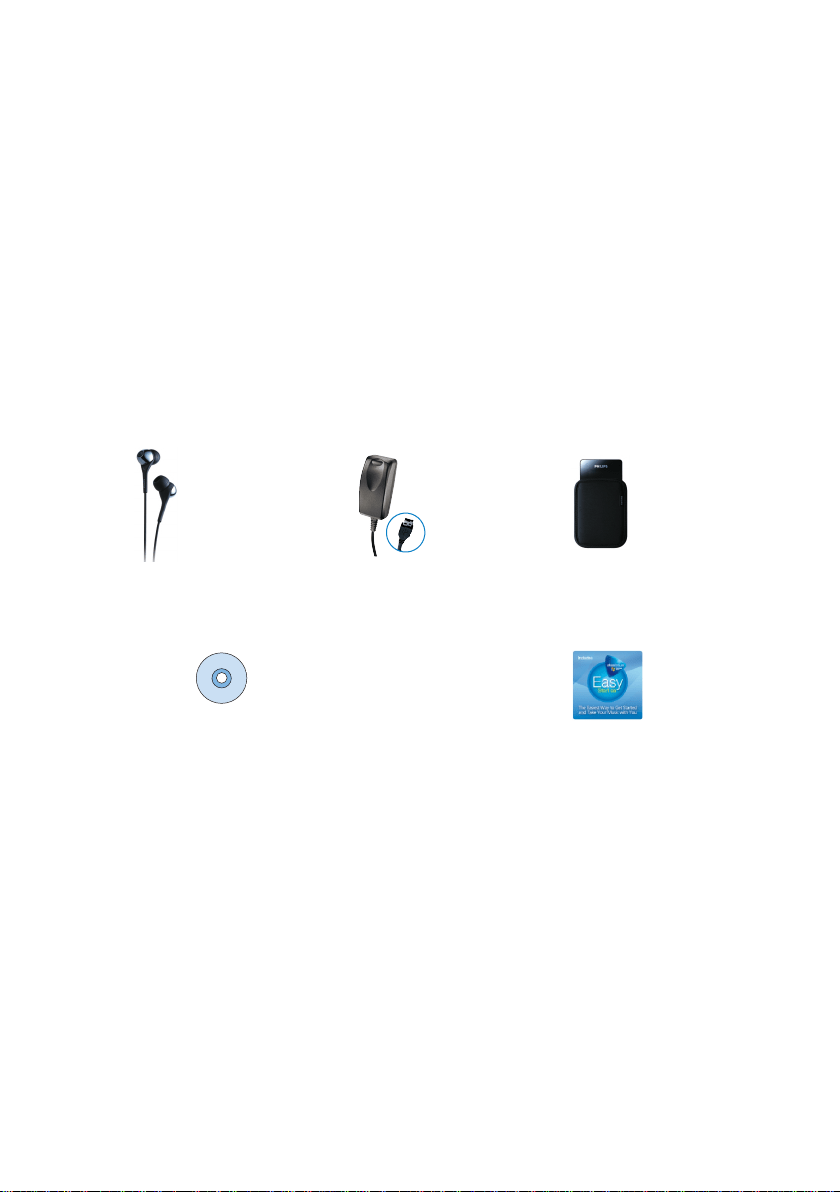
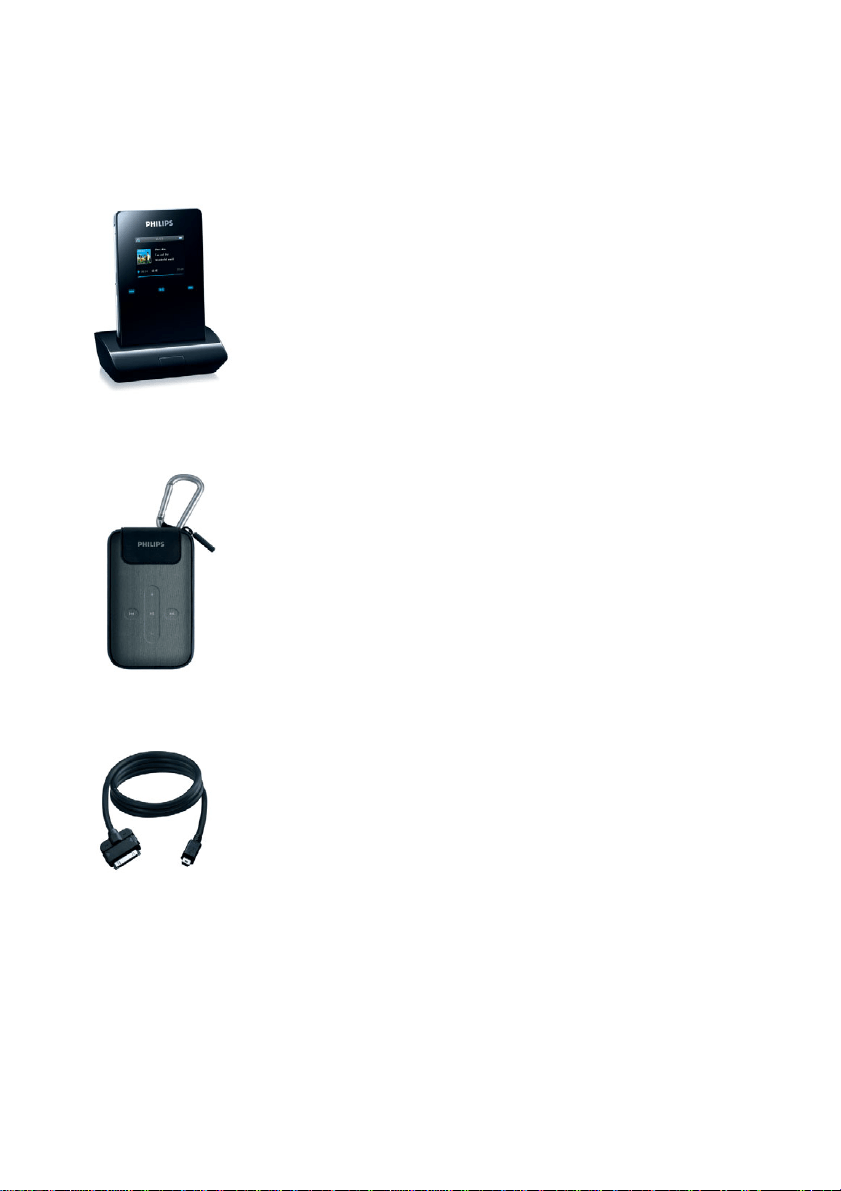
The following accessories are included with your player:
* FM radio is only available for certain regions. It is not available for Europe.
Headphones
(provided with 3
different sizes of
rubber caps)
Combined charger /
USB cable
Protective pouch
For Europe and other regions:
CD-ROM with Windows Media Player.
Philips Device Manager, Philips Device
Plug-in, User manuals,Tutorials and
Frequently Asked Questions
For US:
Easy start CD 1 and 2 with Windows
Media Player, Philips Device Manager, Philips
Device Plug-in, User Manual,Tutorials and
Frequently Asked Questions
P&A_eng_IFU 1/16/06 5:11 PM Page 1
1
2
Optional accessories
The following accessories are not included with your player, but can be bought separately. You can find them
at www.philips.com/GoGearshop (Europe) or www.store.philips.com (US).
Docking cradle
Dock and connect the player to your stereo system or TV for music sharing or viewing of slideshows
GoGear control case
Protect your player and control your music
Digicam connection cable
Transfer your digicam pictures to the player and free up memory space of your digital camera.
*
*See page 50 for a list of supported cameras.
(PAC004)
(PAC002)
(PAC006)

3
Register your product
We strongly recommend that you register your product in order to gain access to free upgrades. To register
your product, please log on to www.philips.com/register so that we can inform you as soon as new updates
become available.
More information
Please visit www.philips.com/support or www.usasupport.philips.com (for U.S. residents)
Enter your product model number to view:
- FAQ, Frequently Asked Questions
- Latest User Manuals
- Tutorials
- Latest PC software downloads
- Firmware upgrade files
The model and production numbers can be found on the label at the back of your product.
4
Connect and Charge
1. Connect the supplied multi-voltage adaptor/charger to your player by plugging it into the DC-In connector
at the bottom of the player and then plug the other end into a standard AC outlet.
2. The battery will be fully charged in 4 hours when charging it for the first time and 70% charged in 1 hour
for quick charge.
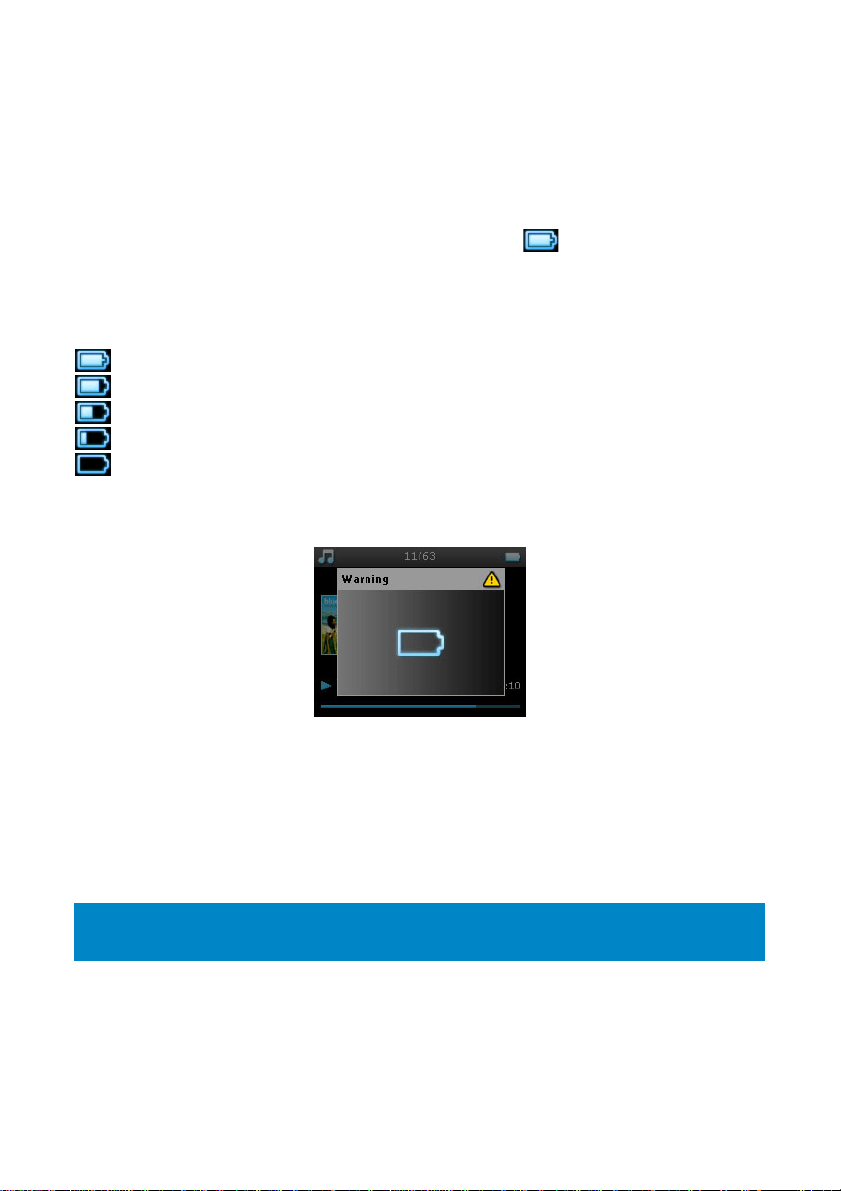
3. The player is fully charged when the charging animation stops and is displayed.
Battery level indication
The approximate power levels of your battery are indicated as follows:
Battery is full
Battery is two-thirds full
Battery is half full
Battery is low
Battery is empty
When the battery is nearly empty, the following power low warning screen will blink and emit a beep tone.
When you hear a double beep, your player will power down in less than 60 seconds. All settings and un-
finished recordings will be saved before the player shuts down.
Install
1. Insert the CD supplied with your product into the CD ROM drive of your PC.
2. Follow the onscreen instructions to complete the installation of
Windows Media Player
(including
necessary plug-ins) and
Philips Device Manager
.
3. You may need to restart your PC after software installation.
4. If the installation program does not start automatically, browse the CD contents via
Windows Explorer
and run the program by double clicking on the file ending with
.exe
.
IMPORTANT!
For US: There are two CDs and both are required for installation.

5
5. System requirements:
- Windows® XP (SP1 or above)
- Pentium Class 300 MHz processor or higher
-128 MB RAM
- 500 MB hard disk space
- Internet connection
- Microsoft Internet Explorer 6.0 or higher
-USB port
Lost your CD? Don’t worry, you can download the CD contents from www.philips.com/support or
www.usasupport.philips.com (for U.S. residents).
Transfer
You can transfer music and pictures to your player using
Windows Media Player
. See "Organise and
synchronise pictures and music with Windows Media Player" on page 9 for more details.
Enjoy
Powering on and off
To power on, push and hold down
ON
/
OFF HOLD
slider to
ON
/
OFF
position for 3 seconds until the player
powers on.
To power off, push and hold down
ON
/
OFF HOLD
slider to
ON
/
OFF
position for 3 seconds until the player
powers off.
Reset
In the unlikely event that your player hangs, do not panic. Simply push and hold down
ON
/
OFF HOLD
slider to
ON
/
OFF
position and press
VOLUME
+
at the same time. Hold until the player shuts down.
NOTE!
Your player automatically powers off if there is no operation nor music played for 10 minutes. The last
playback status and screen will be resumed the next time it is powered on unless the player has been
powered off for a long period of time or the battery level was low when the player was powered off.
TIP
The existing contents on your player will not be erased when you reset your player.
6
Using your GoGear player
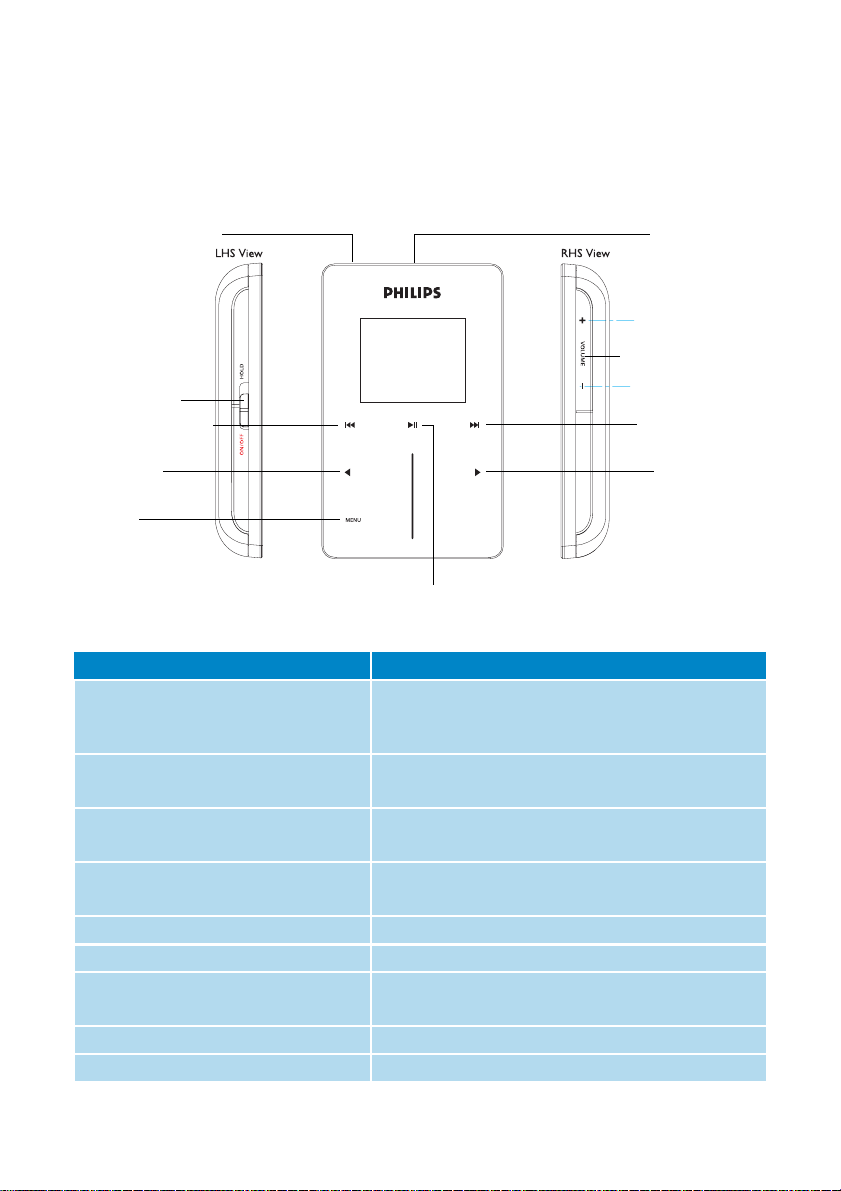
Overview of controls and connections
Press To
ON
/
OFF HOLD
(slide down and hold for
about 3 seconds)
ON
/
OFF HOLD
(slide up)
Power on/off
Lock all touch control keys
2; Play/Pause songs
Stop radio playback
J( Move back to previous song
Fast rewind
§ Jump to next song
Fast forward
+
VOLUME
-
Control volume
1 Return to previous menu/option
2 Select option
Go to next option
VERTICAL TOUCH STRIP
Scroll through lists
MENU
Access list of menu options
Recording Microphone
On/Off/Hold
(key lock) slider
Left/Back key
Right/Select key
Menu key
Headphone plug
Volume up/down bar
Play/Pause key
Forward/Next key
Rewind/Previous key
7
Main menu
The following are available from the main menu of your player:
Navigation
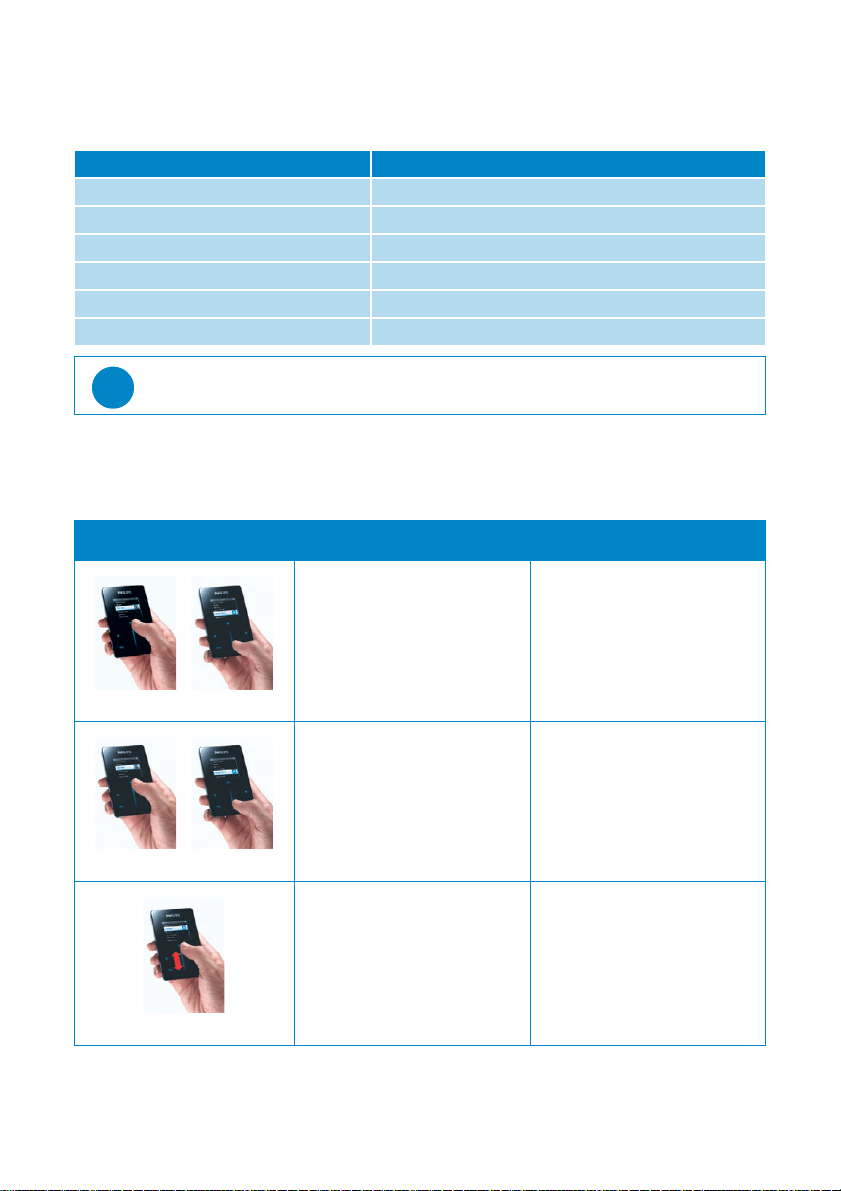
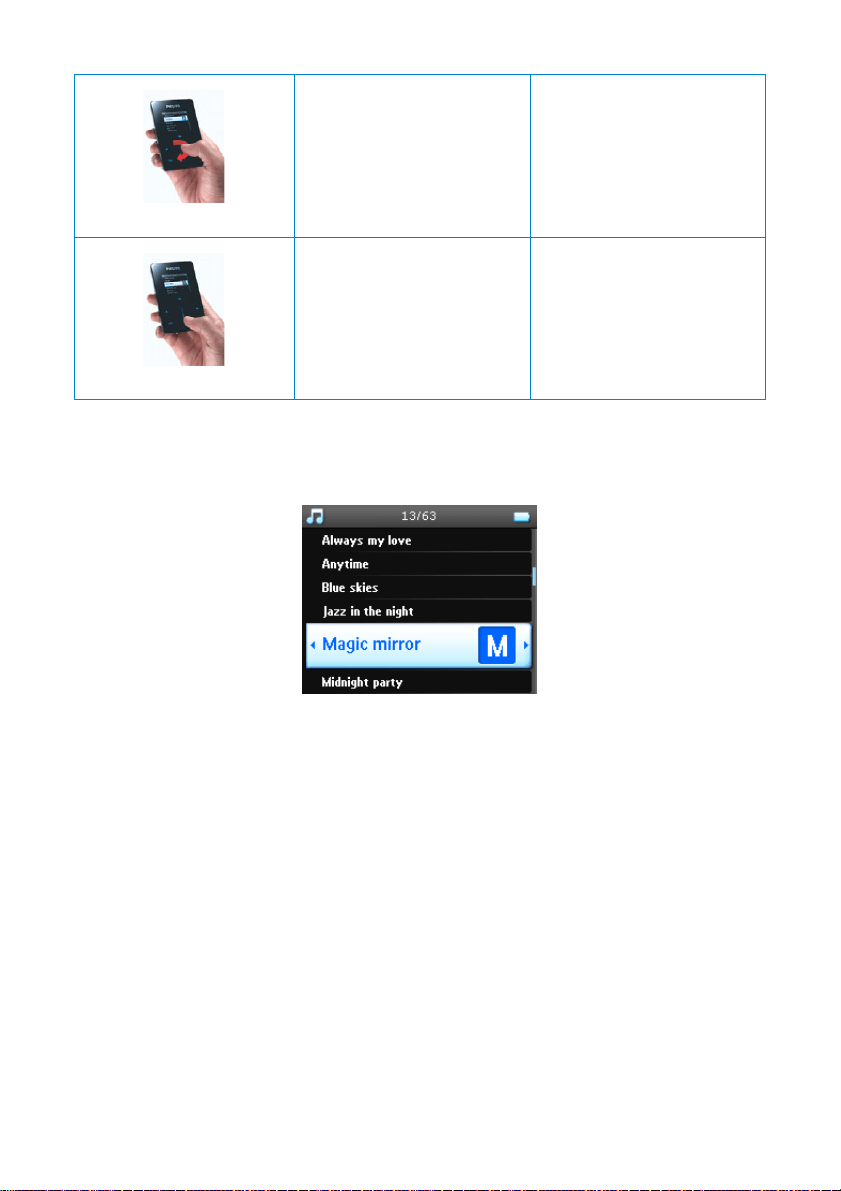
Your player has touch sensitive controls that respond to the touch of your fingers. The
VERTICAL TOUCH STRIP
(see picture) is used to scroll through lists. It responds to the following finger movements:
*
FM radio is only available for certain regions. It is not available for Europe.
Menu To
M
USIC
Play your digital music tracks
P
ICTURES
View pictures
R
ADIO
*
Listen to radio
R
ECORDINGS
Create or listen to recordings
S
ETTINGS
Customise the settings of your player
N
OW PLAYING
Go to the play screen
TIP
Press and hold
1
to return to main menu.
Action Description Function
Tap
Lightly touch the top or bottom
end of the touch strip
Move up or down step by step
Hold
Press and hold finger on the top
or bottom end of the touchstrip
Scroll through a list at increasing
speed (SuperScroll)
Stroke
Move finger from top to bottom
or bottom to top
Scroll through list
8
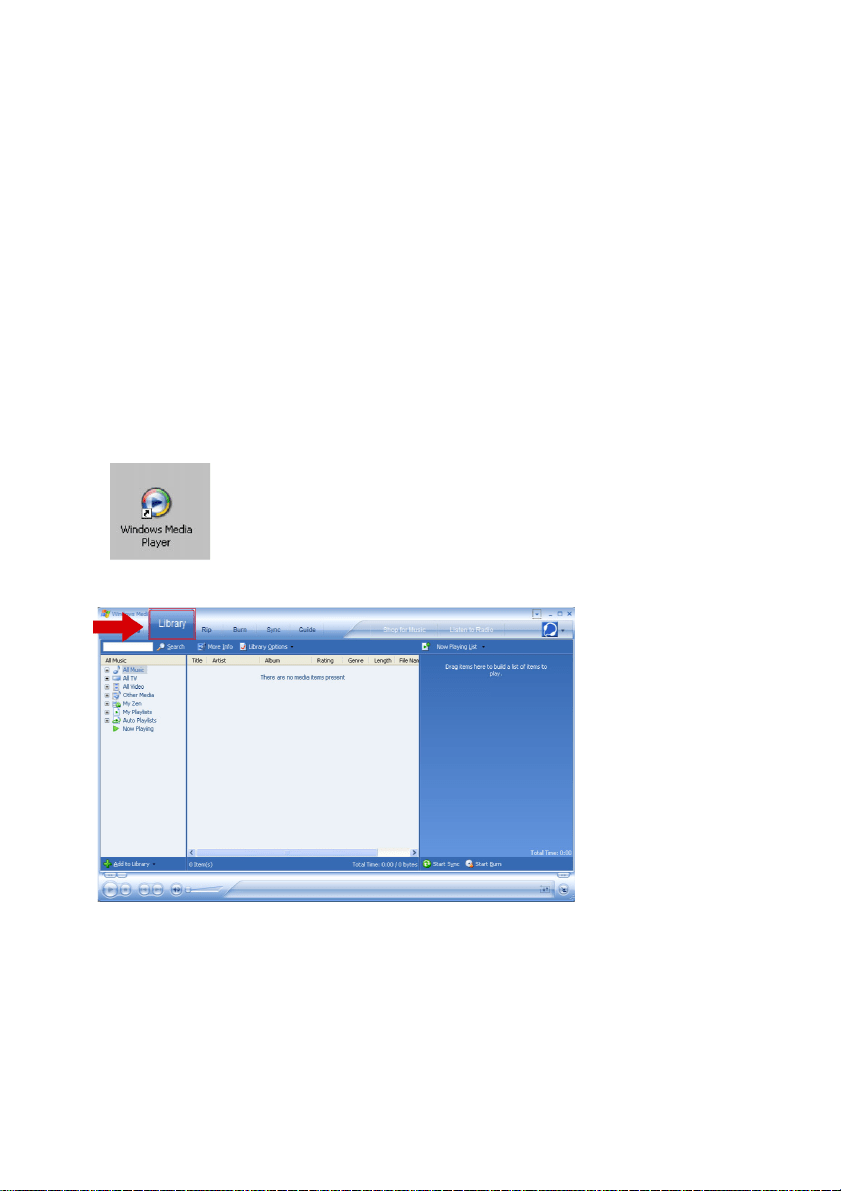
SuperScroll
Superscroll enables you to find your favorite songs quickly. When scrolling quickly through a list of songs,
artists, albums or genres, a Superscroll letter (the first alphabet of the song, artist, album or genre) will be
displayed in highlight to give you information about where you are in the list.
Swipe
Fast swipe up or down List will scroll quickly like a wheel
(Fly wheel) and then slow down
gradually
Tap
Tap in the middle To stop list from spinning
9
Organise and synchronise
pictures and music with Windows
Media Player
This chapter describes the basic operations and steps that you need to follow to successfully transfer music and
pictures to your player. For more information, please refer to
Windows Media Player Help
on your computer.
Music
Add songs to Windows Media Player Library
Songs that are already on your computer
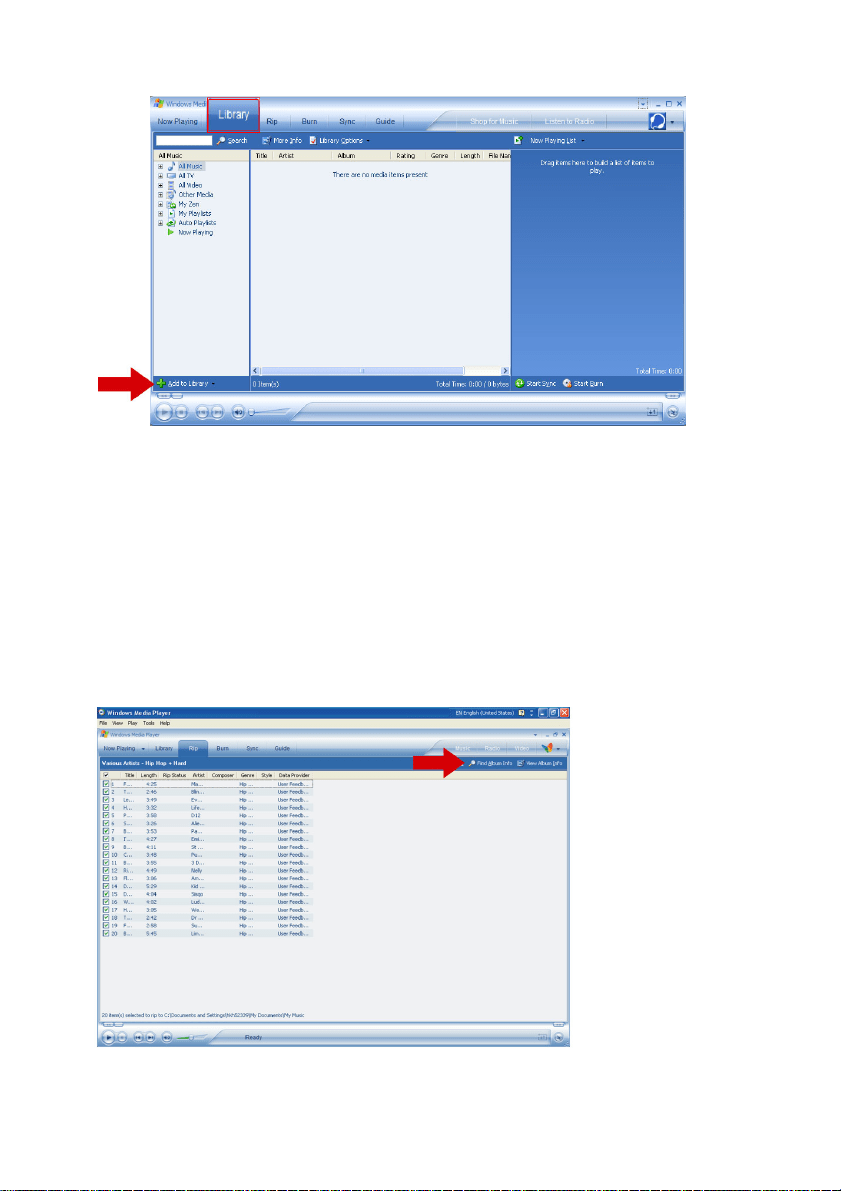
1. Start
Windows Media Player
by clicking the following icon on your desktop.
2. Select
Library
tab to access media library.
10
3. Click
Add to Library
on the bottom left of the screen.
4. You can choose to add files from folder, URL, by searching your computer, etc.
Ripping songs from a CD
If you want to transfer music from a CD to your player, you need to create a digital copy of the music on your
PC first. This is called ripping.
1. Start
Windows Media Player
.
2. Insert the Audio CD.
3. Select
Rip
tab to display a list of music tracks on your CD.
4. If your computer is connected to the Internet, the album information will be automatically obtained so
that you don’t have to enter the song titles and other information manually.
5. If this does not happen, check that you are connected to the Internet and click
Find Album Info
.
11
6. Select the music tracks you would like to rip and click
Rip Music
on the top menu bar.
7. The music tracks will be converted into digital copies and added to
Windows Media Player
library.
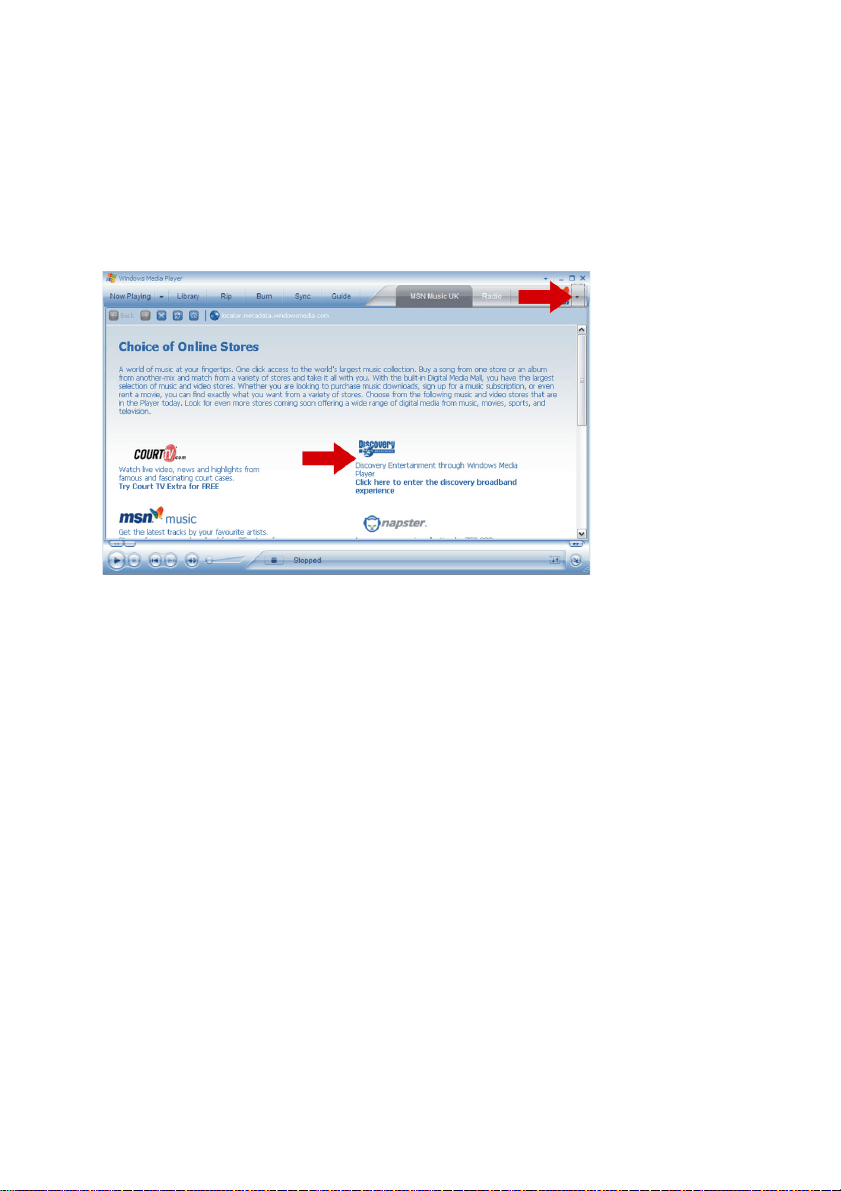
Buying songs online
If you want to buy music online, you need to select a music store.
1. Click the little triangle on the top right of the screen and select
Browse all Online Stores
.
2. Choose a store and follow the onscreen instructions.
3. After you have bought a song or an album, it will appear in
Windows Media Player
library.
Synchronising Windows Media Library contents with
your player
When you connect the player to your computer for the first time,
Windows Media Player
will start
Device
Setup Wizard
. You can choose to synchronise your player with
Windows Media Player
library automatically
or manually.
Automatic synchronisation
When you start
Windows Media Player
and connect your player to the computer, the contents on your
player will be updated automatically according to the sync settings you have specified.
Manual synchronisation
When you start
Windows Media Player
and connect your player to the computer, updating of contents will
not start until you have selected the contents and specified the order in which they will be synchronised.
12
Setting up automatic synchronisation
1. Start
Windows Media Player
.
2. Connect the player to your computer using the supplied USB cable.
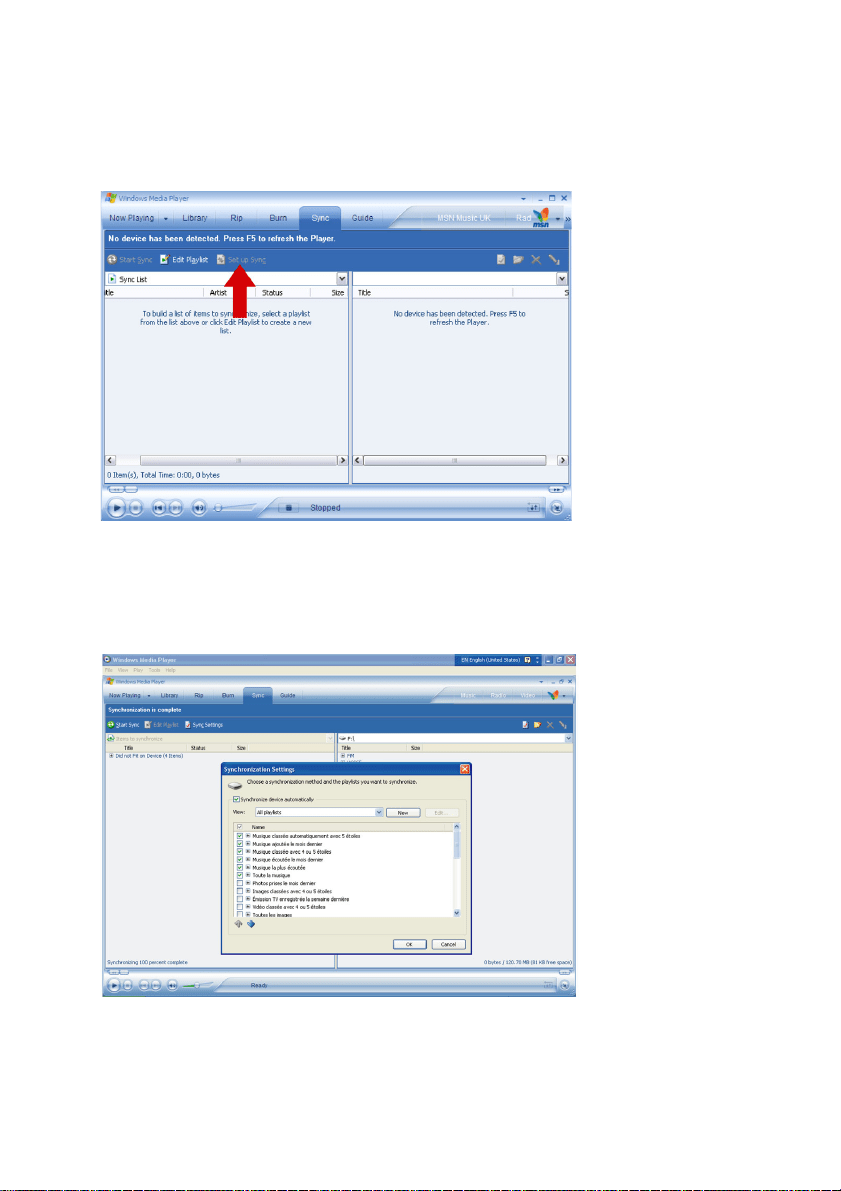
3. Select
Sync
tab and click
Sync settings
or
Set up Sync
.
4.
Synchronisation settings
dialog box will be displayed.
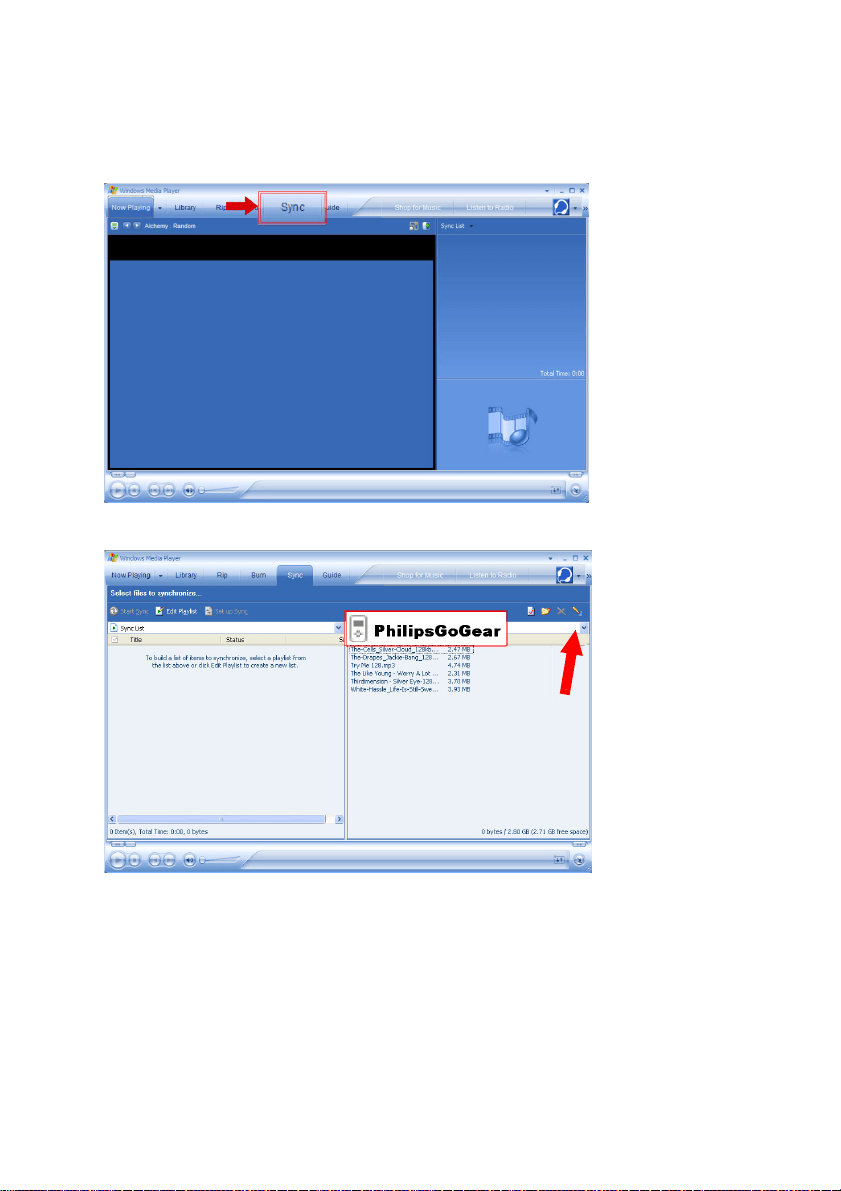
5. Select
Synchronise device automatically
check box.
6. Select the check boxes that correspond to the playlists you want to synchronise.
7. Click
OK
.
13
Setting up manual synchronisation
1. Start
Windows Media Player
.
2. Connect the player to your computer using the supplied USB cable.
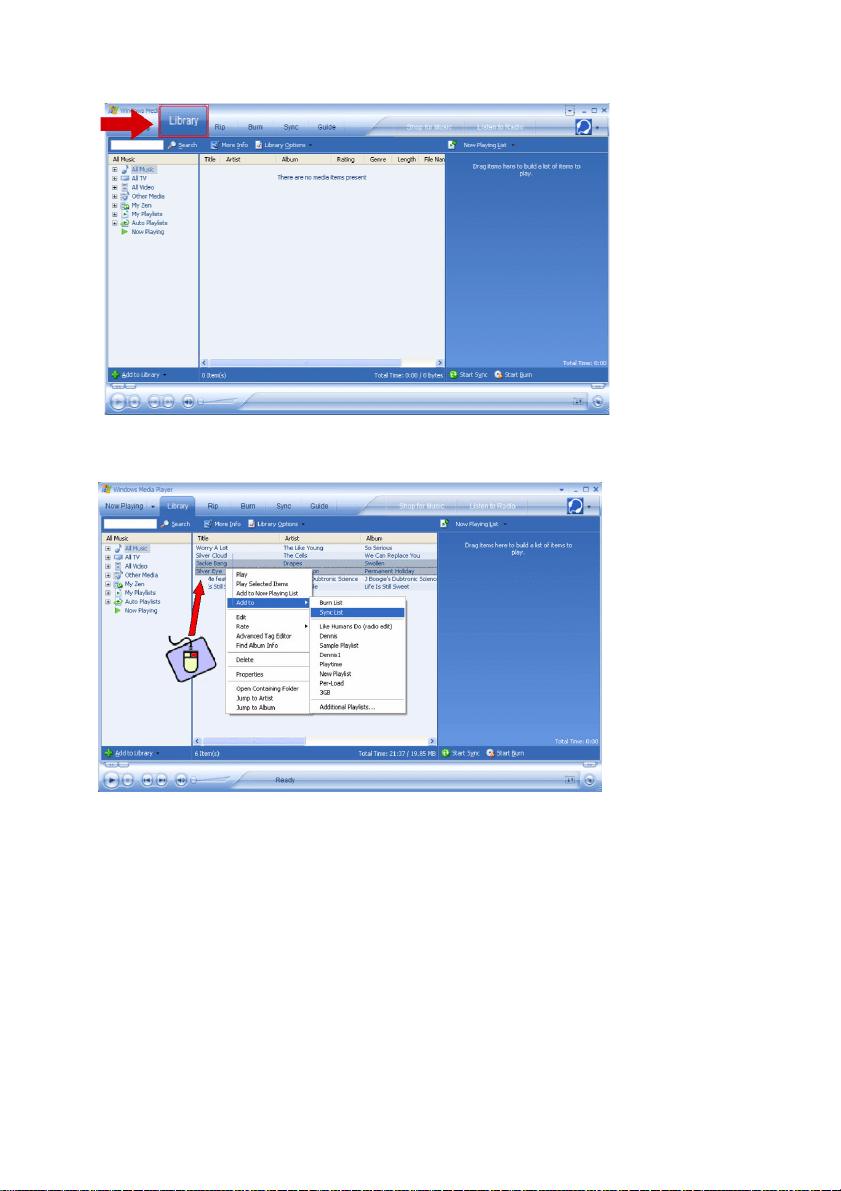
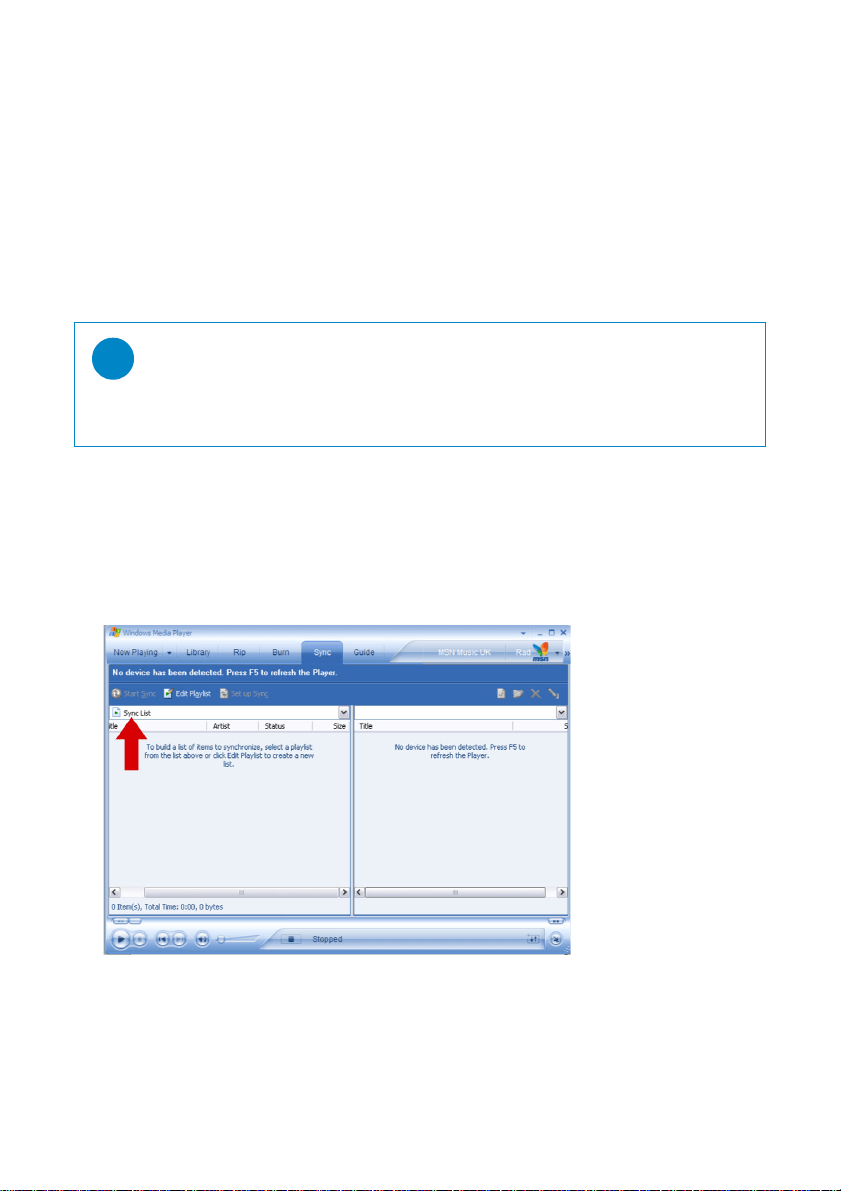
3. Select
Sync
tab.
4. In the pull-down menu on the right pane, select
Philips
or
Philips GoGear
as the destination.
5. If they are not in the list, click
F5
to refresh and try again.
14
6. Select
Library
tab to access media library.
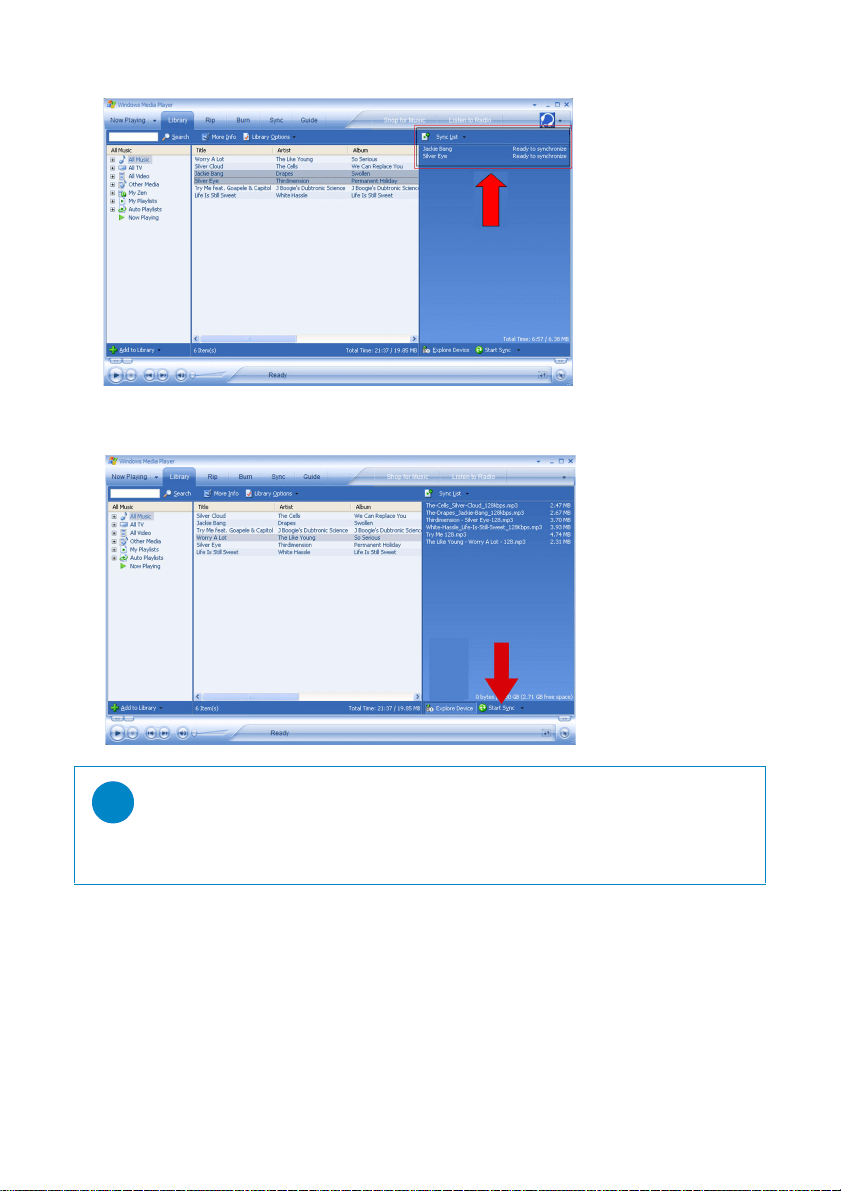
7. Click to highlight the song you want to copy.
8. Right click on the song and select
Add to
>
Sync List
.
15
9. Or drag and drop the song into the
Sync List
on the right pane.
10. Click
Start Sync
button at the bottom of the screen to start synchronisation. The progress will be
displayed just above the
Start Sync
button.
TIP
We recommend that you always use
Windows Media Player
to transfer music to your
player. However, if you prefer to use
Windows Explorer
, always make sure to copy your
music into the Media/ Music folder, otherwise the songs will neither show nor play on your
player.
16
Windows Media Player Playlist
Creating a Playlist
1. Start
Windows Media Player
.
2. Select
Library
tab to access media library.
3. Click to highlight a track.
4. Right click on the track and select
Add to
>
Additional Playlist...
5. In the
Add to Playlist
dialog box, select an existing playlist or click
New
to add a new playlist.
6. The track you have selected will be added to the playlist.
Transfer playlists
You can transfer playlists to your player via the automatic synchronisation option of
Windows Media Player
.
(See "Setting up automatic synchronisation" on page 12 for step by step instructions)
1. Select
Sync
tab.
2. Click
Sync settings
or
Setup Sync
, select
Synchronise device automatically
check box and select the
playlists to be synchronised with the player.
TIP
To select more than one track, press and hold the
<Ctrl>
key of your keyboard, then click
to select any number of tracks.
To select consecutive tracks in a list, click the first track, then press and hold the
<Shift>
key
of your keyboard and click the last track in the list you want to select.

Managing your tracks and playlists in Windows Media Player
Delete Tracks from Windows Media Player library
1. Click to highlight an item.
2. Right click and select Delete to delete the item.
Delete tracks from your player through Windows Media Player
1. Connect your player to the computer.
2. Select the songs that you would like to delete from your player in the items on device pane.
3. Press Delete key on your computer keyboard.
Edit Track Information via Windows Media Player
1. Select Library tab.
2. Highlight the track you want to edit, right click and select Edit.
3. Edit on the text box directly.
Search for Tracks via Windows Media Player
1. Select Library tab.
2.Type a search string in the search field.
3. Click Search to start searching.
4. A list of tracks containing the search string will be displayed.
5. You can play, transfer, delete, add to sync list, etc.
Pictures
Enable picture support
1. Start Windows Media Player.
2. Go to Tools > Options > Player.
3. Make sure Enable picture support for devices check box is selected.
TIP
It is not possible to delete playlists that are on your GoGear player via Windows Media
Player.You can only delete the playlist via the device itself.
✔
IMPORTANT!
Make sure Philips Device Plug-in has been installed on your computer. This Plug-in is crucial to enable
image support on your player. It is automatically installed from the supplied CD when you click Install in
the Install software dialog box.
To check whether this Plug-in has been installed, go to Control Panel > Add or Remove Programs and
check if Philips Device Plug-in is listed.
P&A_eng_IFU 1/16/06 5:11 PM Page 2
17
18
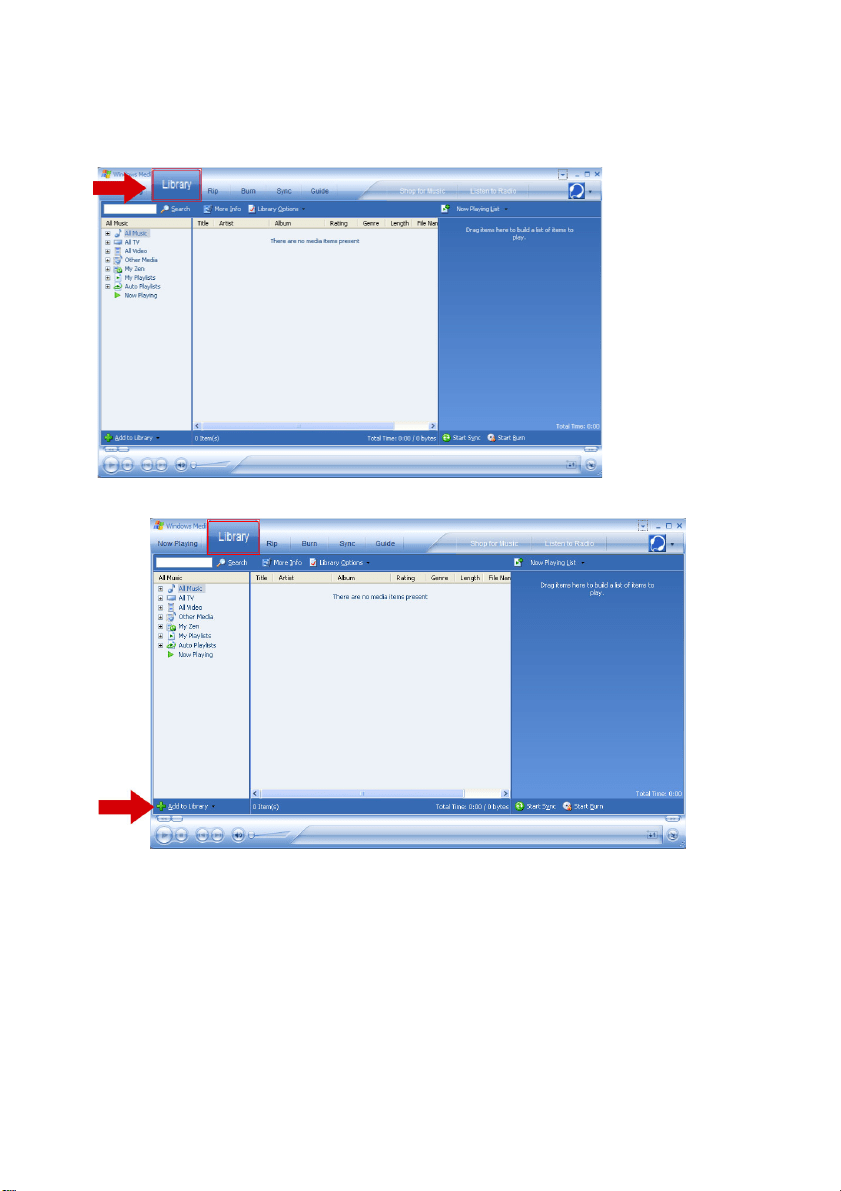
Add pictures to Windows Media Player Library
1. Start
Windows Media Player
.
2. Select
Library
tab to access media library.
3. Click
Add to Library
on the bottom left corner of the screen.
4. Choose
Add Folder...
.
5. Select the folder in which you have kept your pictures and press
OK
.
19
Transfer pictures to your player
1. Connect the player to your computer.
2. Start
Windows Media Player
.
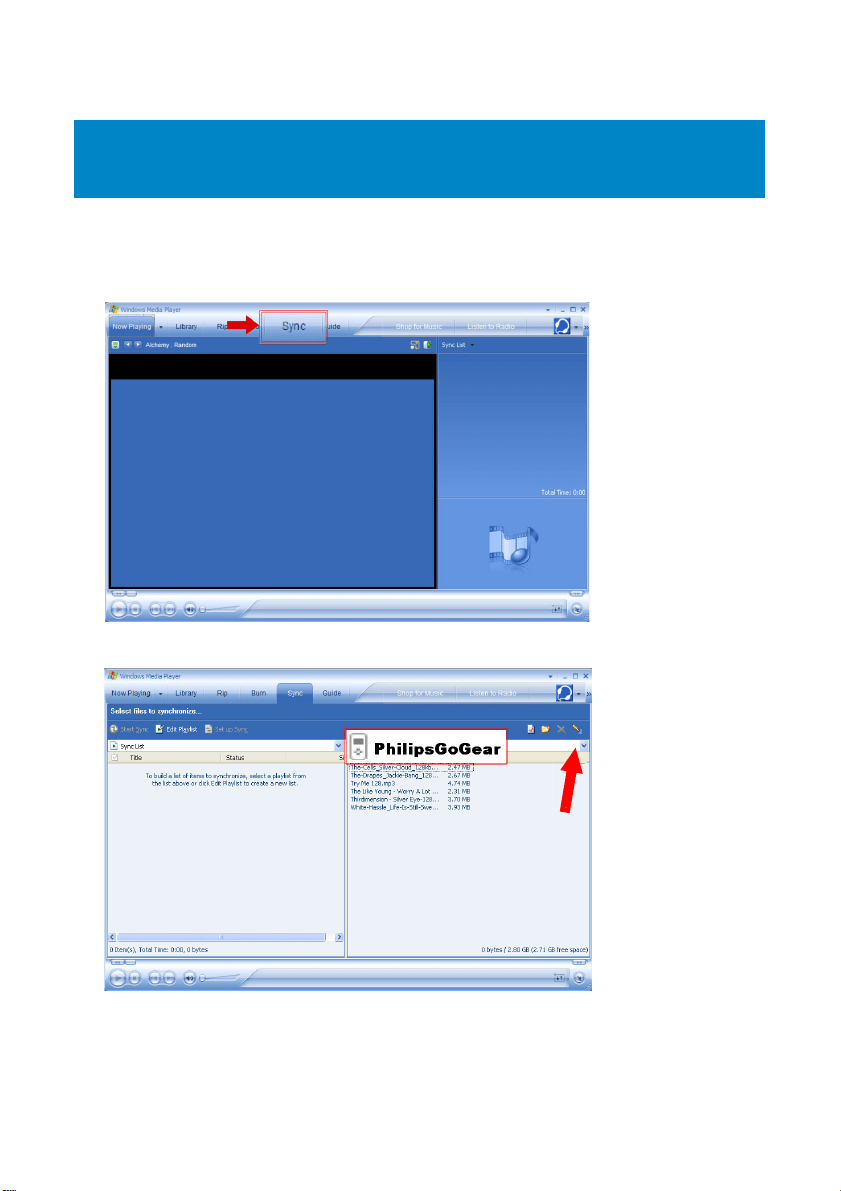
3. Select
Sync
tab.
4. In the pull-down menu on the right pane, select
Philips
or
Philips GoGear
as the destination.
5. If they are not in the list, click
F5
to refresh and try again.
IMPORTANT!
Pictures can only be transferred using
Windows Media Player
. If they were dragged and dropped using
Windows Explorer
, they will not show on your device.
20
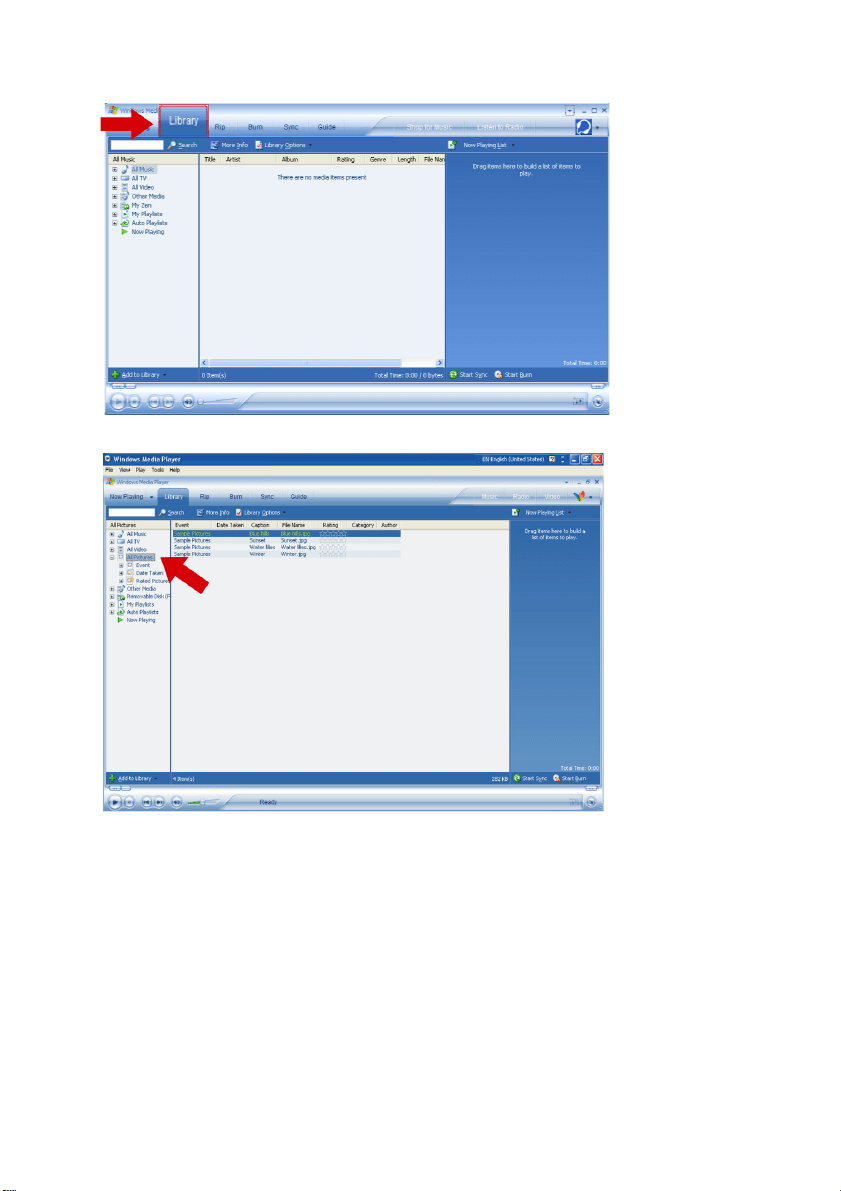
6. Select
Library
tab to access media library.
7. Click
All Pictures
on the left pane to display the list of pictures.
8. Click to highlight a picture you want to copy to your player.
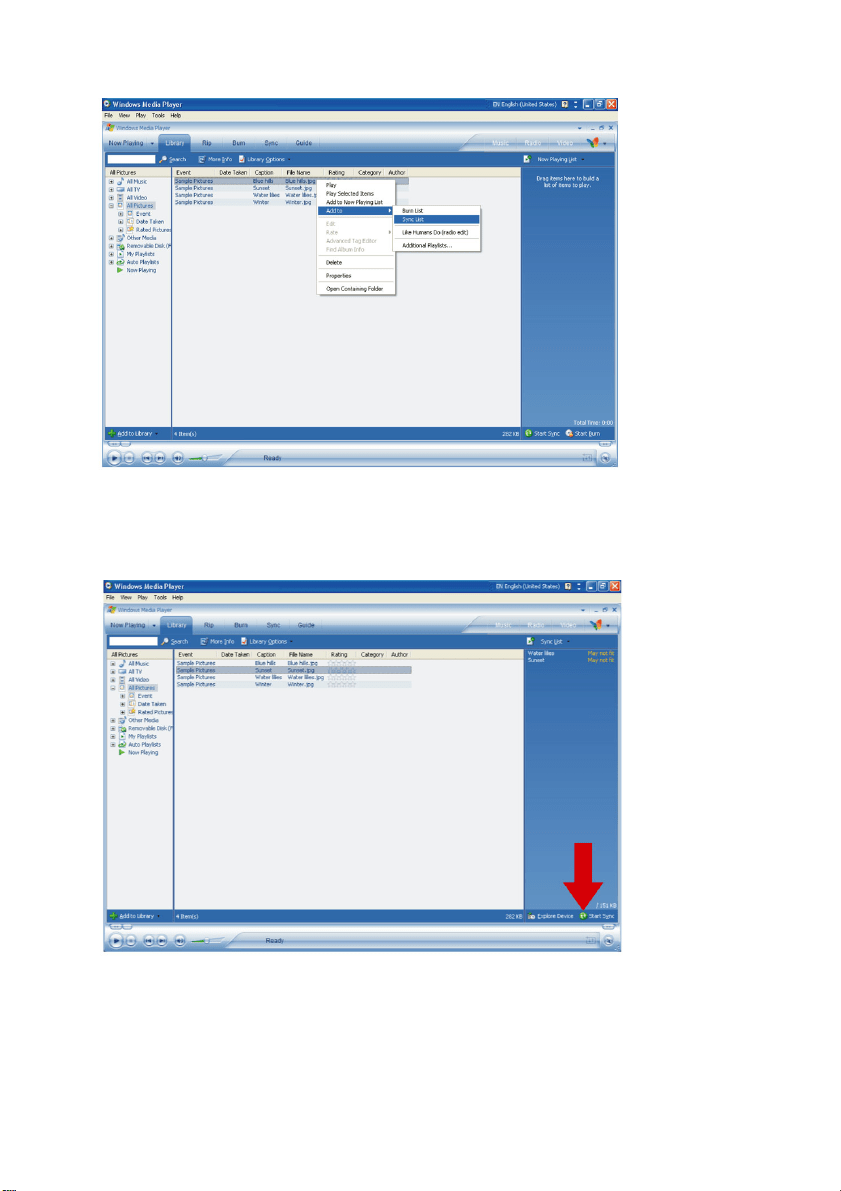
21
9. Right click on the picture and select
Add to
>
Sync List
.
10. Or drag and drop the picture into the
Sync List
on the right pane.
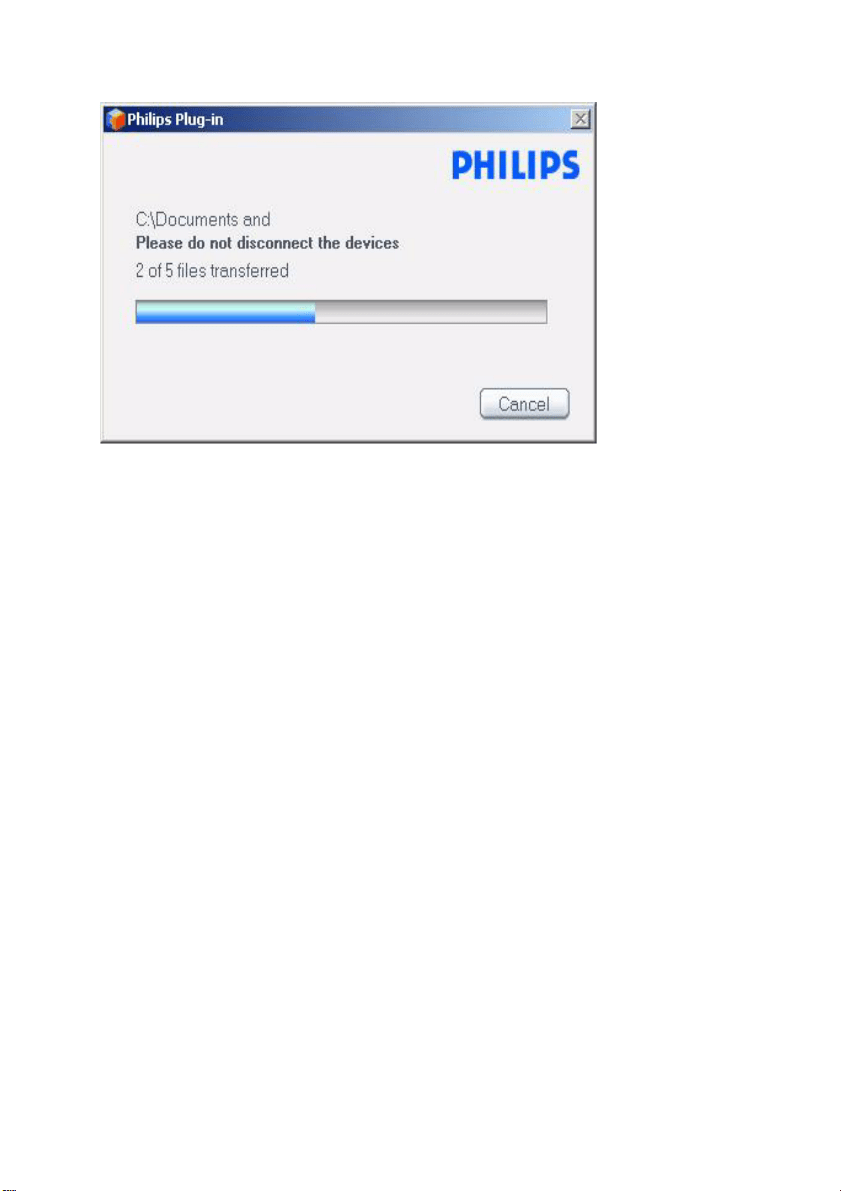
11. Click
Start Sync
button at the bottom of the screen to start synchronisation. The progress will be
displayed just above the
Start Sync
button.
22
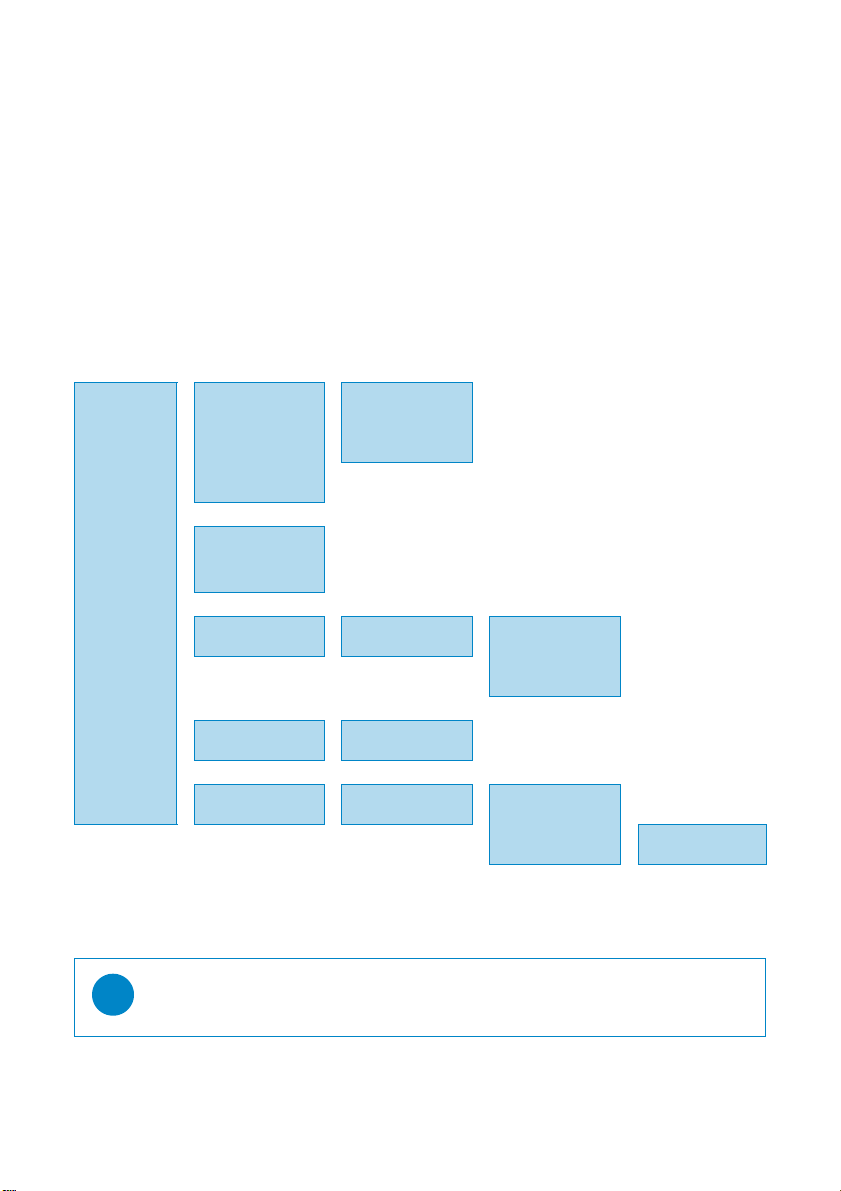
12. A pop-up message will be displayed, notifying you of the synchronisation progress.
13. When the pop-up disappears, the transfer is completed and you can disconnect your player.
23
Detailed operation
Music mode
Your player is preloaded with some music tracks. You can transfer your digital music and picture collection
from your computer to your player using
Windows Media Player
. More information on music transfer can be
found on page 9.
Finding your music
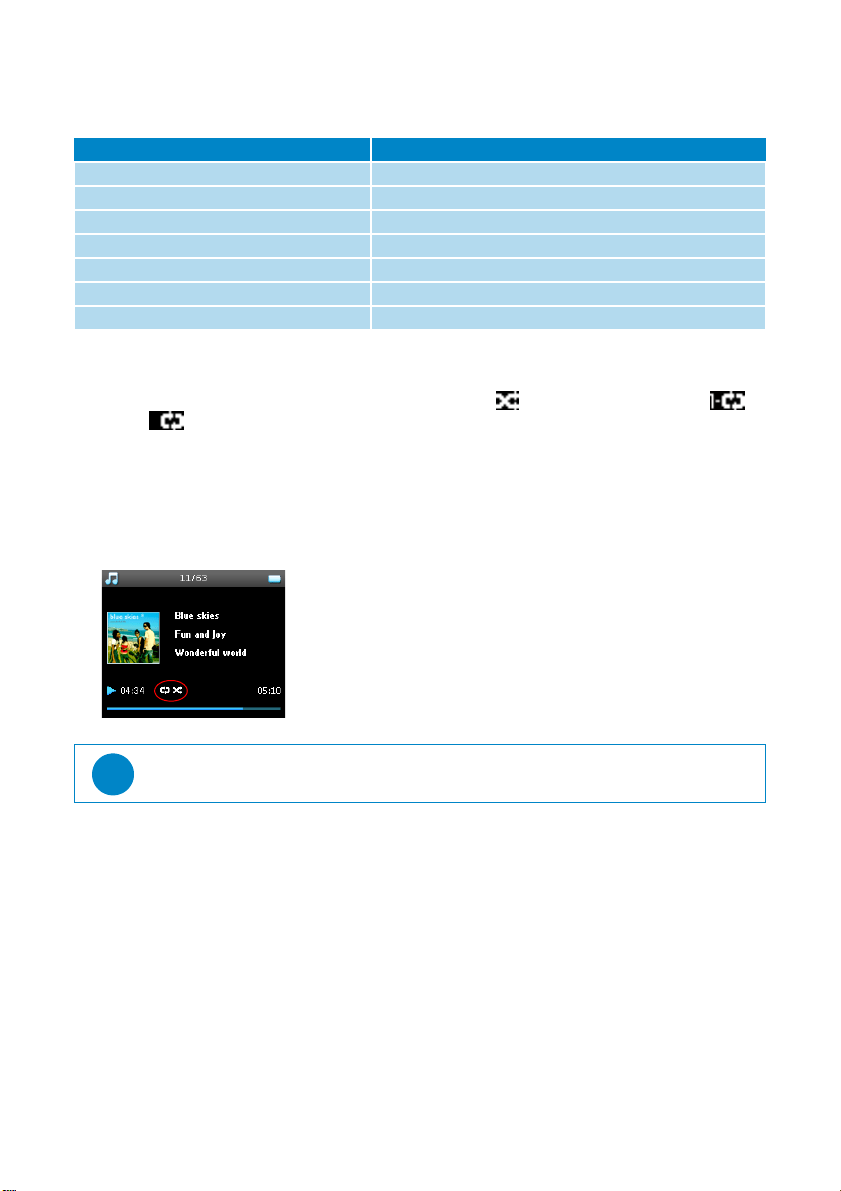
1. From the main menu, select
MUSIC
to enter music mode. You can search from the following music
options:
Music
2. Use the
VERTICAL TOUCH STRIP
to scroll up or down the options.
3. Press
2
to select or press
1
to return to previous level.
4. Press
2;
to play your selection.
Playlists
2
Playlist on the go
2
Tracks listed in play
order
Most played Tracks listed in most
played order
Playlists in
alphabetical order
All tracks
2
Shuffle All
Alphabetically listed
tracks
Artists
2
Alphabetically listed
artists
2
All tracks
2
Tracks in album order
Albums in
alphabetical order
Albums
2
Alphabetically listed
albums
2
Tracks listed in album
order
Genres
2
Alphabetically listed
genres
2
Alphabetically listed
artists
2
All tracks
Artists’ albums in
alphabetical order
2
Tracks in album
order
TIP
Superplay™
allows you to playback the selected music or album immediately at any point by
pressing
2;
on the selection.
24
Controls
During music playback, you can do the following:
Play mode
You can set your player to play music tracks randomly (
Shuffle All
)
or repeatedly (
Repeat
One
or
Repeat All
).
1. From the main menu, select
Settings
>
Play mode
.
2. Use the
VERTICAL TOUCH STRIP
to scroll up or down the options.
3. Press
2
to select an option.
4. Press
2
again to deselect an option.
While you are playing music you can see the following active play mode screen.
To Do this
Play / Pause music Press
2;
Go to next track Press
§
Go to previous track Press
J(
Forward search Press and hold
§
Backward search Press and hold
J(
Access options menu Press
MENU
Return to browsing Press
1
TIP
You can also access the above play mode while you are playing music by pressing
MENU
.
25
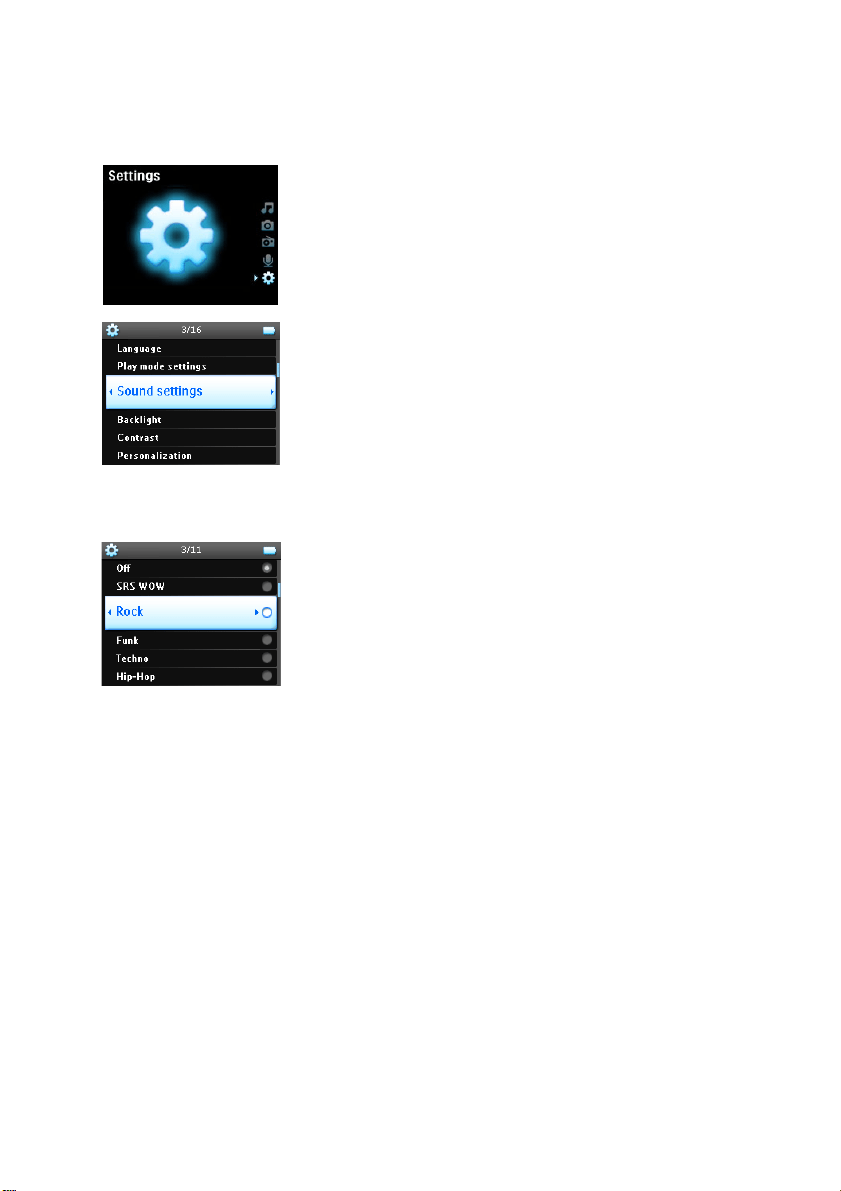
Sound settings
You can set your player to play music tracks with different EQ (equalizers) settings.
1. From the main menu, select
Settings
>
Sound Settings
.
2. Use the
VERTICAL TOUCH STRIP
to scroll through the list of options:
SRS WOW
,
Rock
,
Funk
,
Techno
,
HipHop
,
Classical
,
Jazz
,
Spoken Word
,
Custom
, or
Off
.
3. Press
2
to select.
4.
Custom
settings allow you specify your desired equalizer setting by adjusting the individual settings for
bass (
B
), low (
L
), mid (
M
), high (
H
) and treble (
T
).
Playlist on the go
Playlist on the go
is a playlist that can be created on the player while on the move.
All songs will be displayed and listed in play order in the playlist. New songs are automatically added to the end
of the playlist.
Adding songs to playlist on the go
You can add your favorite songs, albums, artists and genres to
Playlist on the go
during music playback.
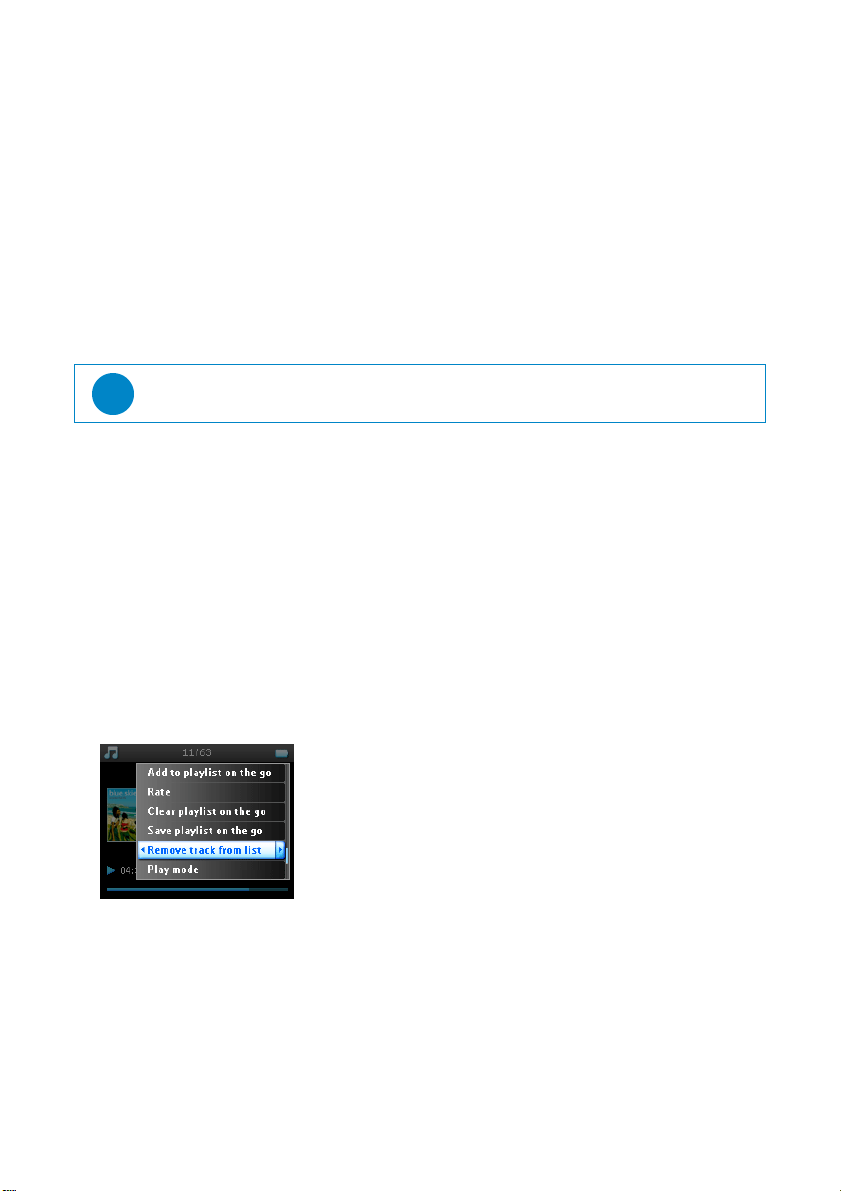
1. Press
MENU
.
2. Select
Add to Playlist on the go
.
3. A message
[item name] added to playlist on the go
will be displayed.
26
Alternatively, you can add songs, albums, artists and genres to
Playlist on the go
from the music library.
1. Press
MENU
and select
Add to Playlist on the go
.
2. A message
[item name] added to playlist on the go
will be displayed.
Playback of playlist on the go
1. Select
Music
>
Playlists
>
Playlist on the go
.
2. Select your playlist and press
2;
.
Clear Playlist on the go
You can clear all the songs in
Playlist on the go
.
1. Select
Music
>
Playlists
>
Playlist on the go
,
2. Press
MENU
and select
Clear
Playlist on the go
.
Save Playlist on the go
You can save
Playlist on the go
. It will be saved under a different name and
Playlist on the go
will be emptied.
1. During music playback, press
MENU
.
2. Select
Save playlist on the go
.
3. A message
Save playlist on the go?
will be displayed.
4. Select
Save
to confirm.
5. A message
Playlist-on-the-go saved as: Playlist-on-the-go
YYYY-MM-DD-XX
will be displayed.
Delete songs from Playlist on the go
You can delete specific songs from
Playlist on the go
.
1. Select the song from
Music
>
Playlists
>
Playlist on the go
.
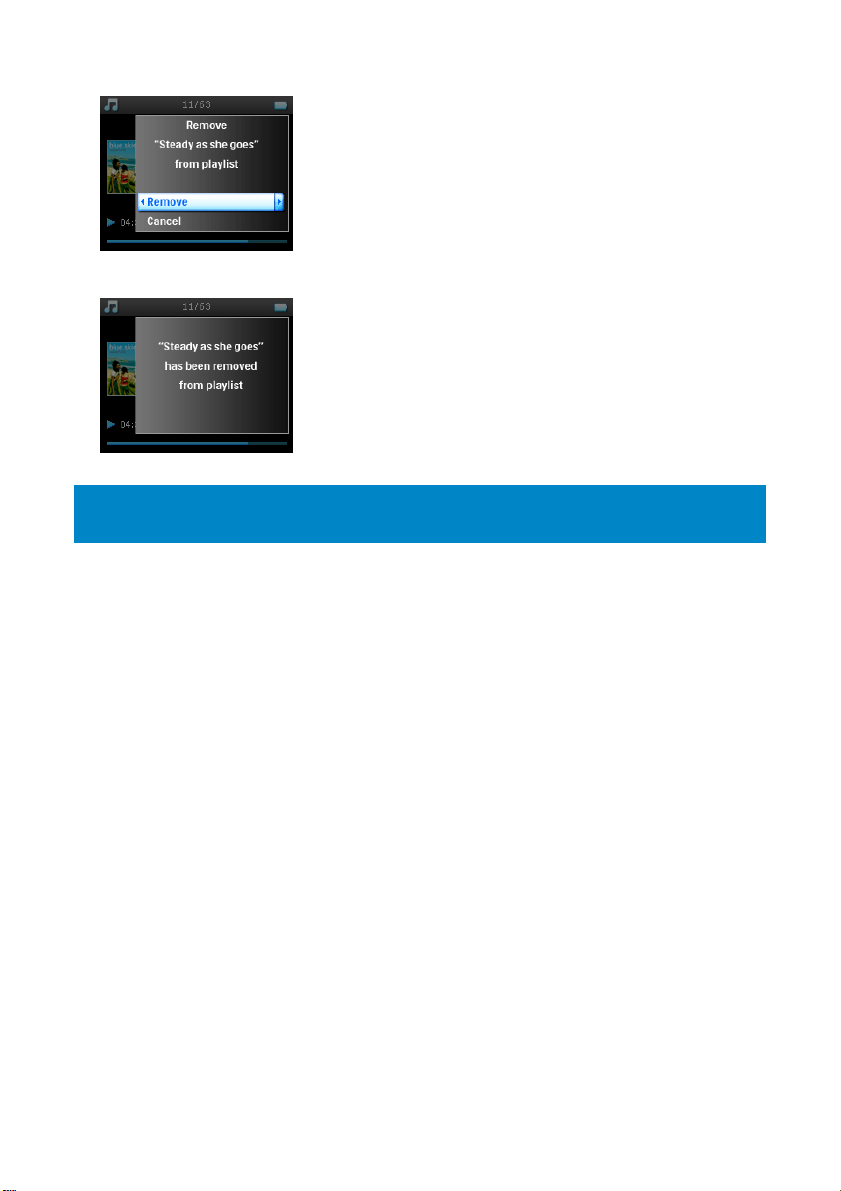
2. Press
MENU
and select
Remove track from list
.
3. A message
Remove [song name] from playlist?
will be displayed.
TIP
This will empty
Playlist on the go
but will not delete those tracks from your player.
27
4. Select
Remove
to delete the song from
Playlist on the go
.
5. A message
[song name] has been removed from playlist
will be displayed.
Most played
You can playback your top 100 most played songs by selecting this playlist.
1. From the main menu, select
Music
>
Playlists
>
Most played
.
2. The list shows the 100 most played songs on your player. The first song in the list is the most played song.
3. You can reset the play count to 0 via
Settings
>
Music library settings
>
Reset play count
.
Other playlists
You can transfer playlists to the player using
Windows Media Player
. Please refer to "Transfer playlists" on page
16 for details.
Delete playlist from your player
You cannot delete the playlist on your player via
Windows Media Player
. We recommend that you do it via
the player itself.
1. Play the playlist you want to delete.
2. Press
MENU
.
3. Select
Delete playlist
.
4. A message
Delete [playlist name]?
will be displayed.
5. Select
Delete
.
6. A message
[playlist name] deleted!
will be displayed.
NOTE!
The song is removed from the playlist only, it will not be deleted from the player.
28
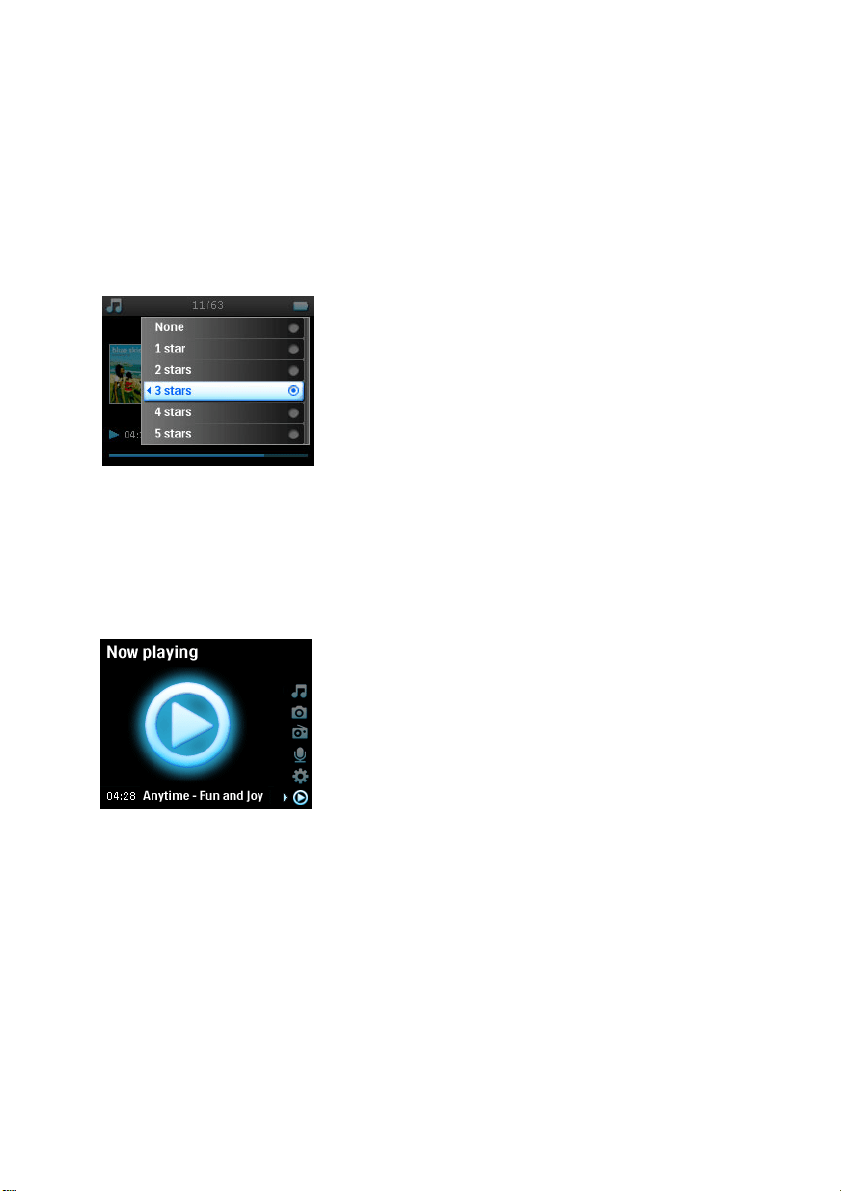
Rating your tracks
You can rate a track with 1 to 5 stars.
If you want to rate the track currently playing, press
MENU
and select
Rate
. Then rate the track from 1 star to 5
stars.
You can also rate a song that is not currently playing.
1. Select the song from the music library.
2. Press
MENU
and select
Rate
.
3. You can then rate the track from 1 star to 5 stars.
4. The next time that you connect your player to your computer and start
Windows Media Player
, the
rating of your songs in
Windows Media Player
will be updated with the information from your player.
Now Playing
You can browse your music library or pictures while you are listening to music.
To go back to the play screen, press
1
to navigate back to the main menu and select
Now Playing
.
29
Pictures
You can view your favorite pictures on your player. While you are browsing your pictures, you can listen to
music or radio at the same time.
Transferring pictures to your player
From PC
You can transfer pictures from your PC to your player using
Windows Media Player
. See "Organise and
synchronise pictures and music with Windows Media Player" on page 9 for details.
From Camera
Your player can serve as an image storage device. You can connect it to your digital camera
*
and transfer your
pictures from your camera to your player.
1. Connect your camera to your player with the digicam connection cable. (this is an optional accessory
which is not supplied with your player. See "Optional accessories" on page 2 for details)
2. Connect the smaller end of the cable to the camera and the bigger end to your player.
3. Power on both the camera and your player.
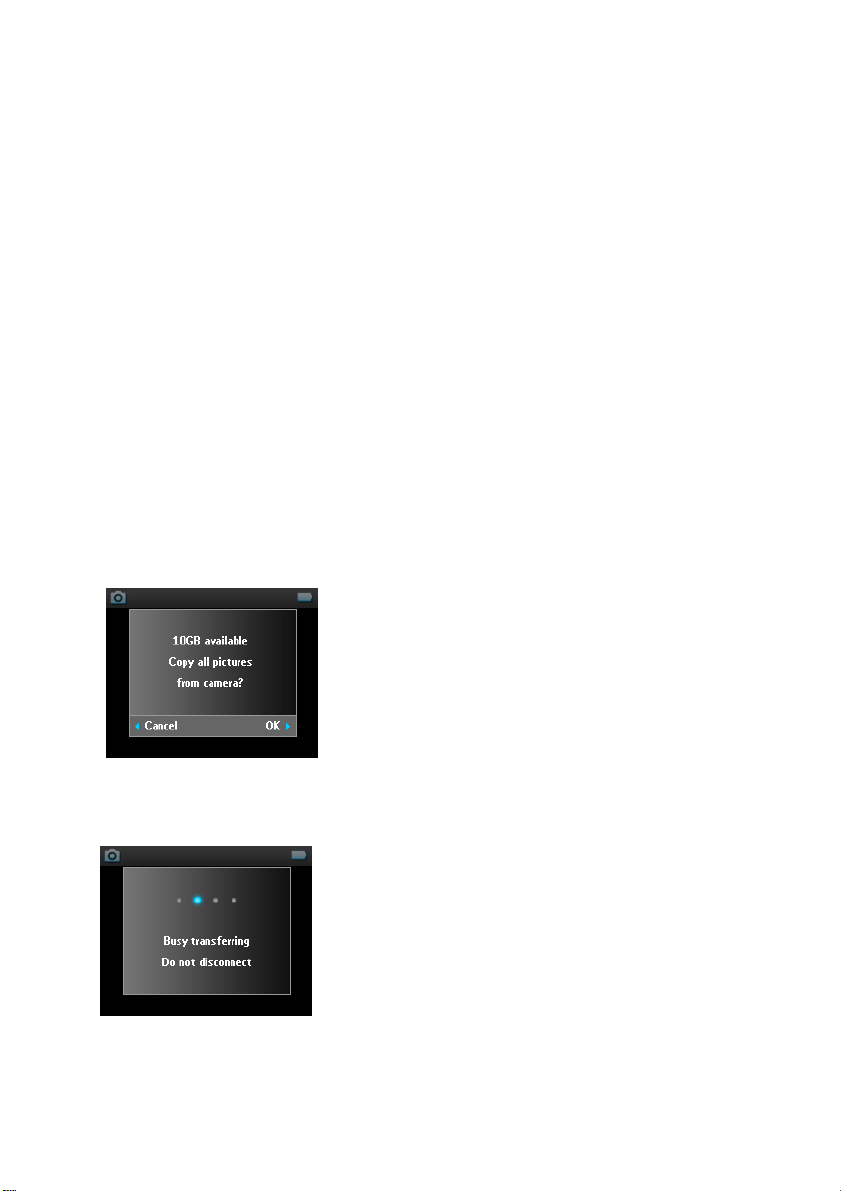
4. When the camera is recognised, the player will stop its current activities and switch to camera connected
mode.
5. A message [
XX]GB available. Copy all pictures from camera?
is displayed.
6. Press
2
to confirm.
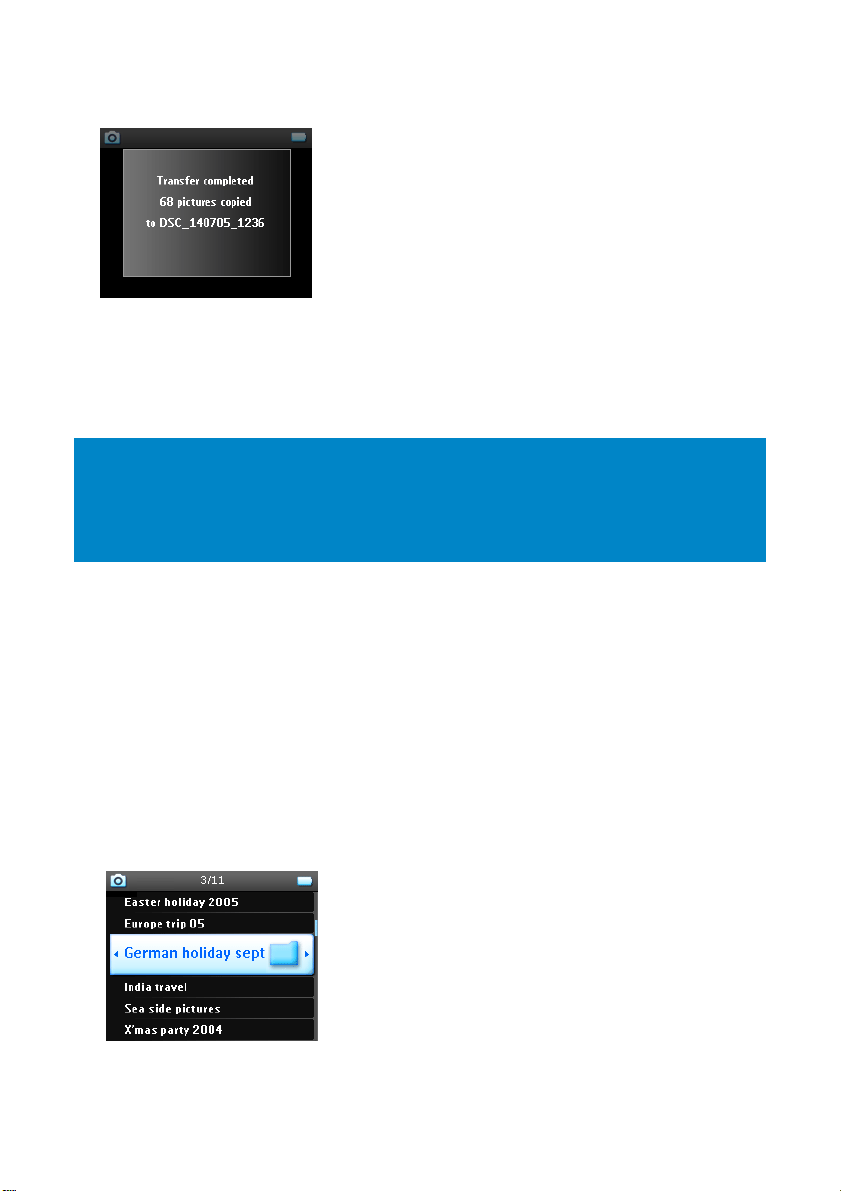
7. A message
Busy transferring. Do not disconnect
is displayed.
*See page 50 for a list of supported cameras.
30
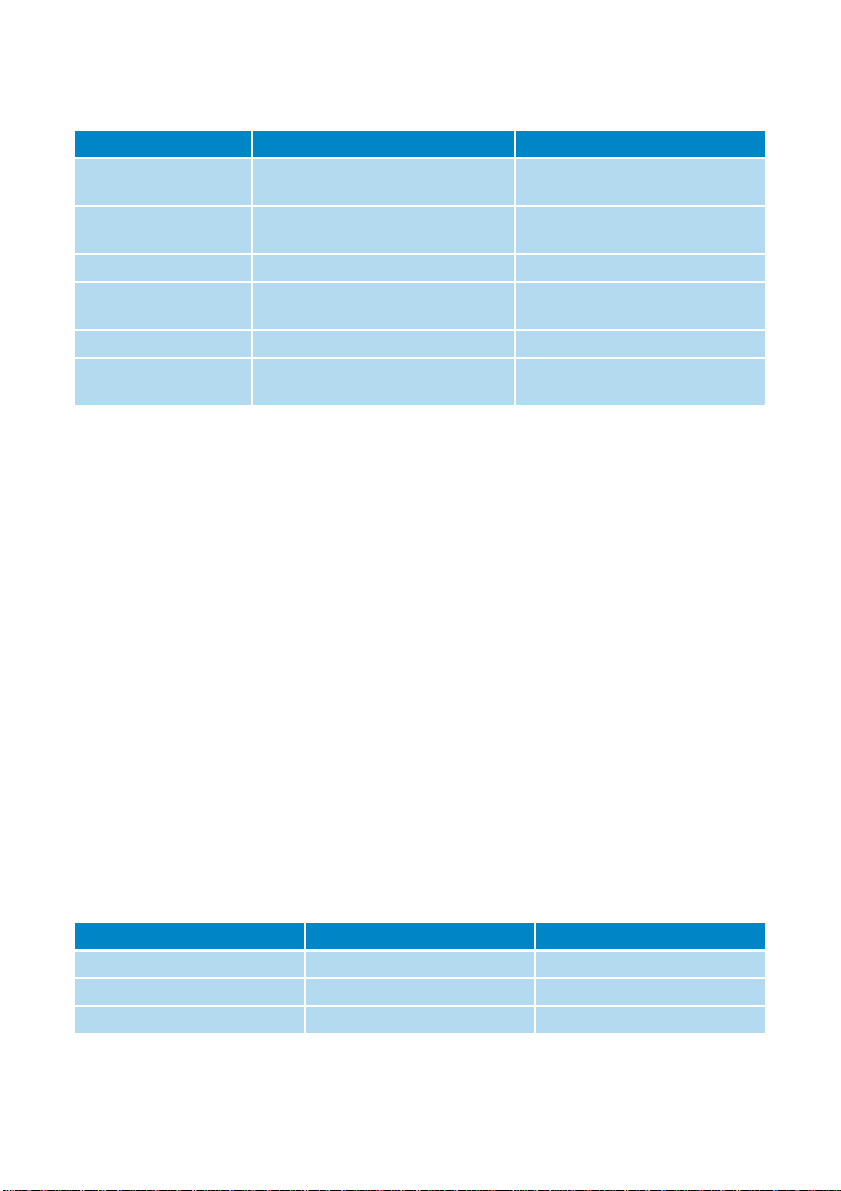
8. This will be followed by a pop-up message:
Transfer completed. [number] pictures copied to <new folder name>.
9. Safely disconnect your camera from the player. The player will return to
Pictures
menu.
10. A new picture album will be created each time pictures are transferred from your camera to the player.
To find this album, select
Pictures
from the main menu.
11. Select
From camera
album to view the pictures which you have transferred from your camera.
Uploading pictures from the player to your PC
1. Connect the player to your computer.
2. Your player will be identified as Philips or Philips GoGear in
Windows Explorer
.
3. Go to
Media
>
Pictures
>
From camera
.
4. Drag and drop your pictures to any desired location on your PC.
Finding pictures on your player
Pictures on your player are organised in albums which are similar to the way they are organised in
Windows
Media Player
.
1. When you select
Pictures
from the main menu you will see a list of all picture albums.
NOTE!
When images from the camera are displayed as a TV slideshow on TV, the minimum time interval
between slides is 10 seconds.
The full view images for pictures transferred from the camera are slightly smaller than those transferred
from PC.

31
2. Select the picture album you wish to view. You will see a thumbnail view of all pictures in that album.
3. Use the
VERTICAL TOUCH STRIP
to scroll and select a picture to see its full view.
4. You can also browse through your pictures in full view mode by tapping on the top or bottom of the
VERTICAL TOUCH STRIP
to go to the next or previous picture.
Slideshow
A slideshow will display all pictures inside an album in full view. It will automatically go to the next picture at a
specified interval. Background music can be played from a specified playlist during a slideshow.
Start a slideshow
1. From the main menu, select
Pictures
.
2. Select the picture album you wish to view.
3. You can start slideshow in album list, thumbnail view or full picture view.
4. Press
MENU
and select
Start slide show
.
5. You can stop the slideshow by pressing
1
.
Slideshow music
You can play background music during a slideshow by assigning a playlist in
Slide show settings
. You can
choose to play any playlist during a slideshow.
1. From the main menu, select
Pictures
.
2. Press
MENU
and select
Slide show settings
>
Slideshow music
and choose one of the playlists.
NOTE!
During a slideshow you cannot pause, skip or fast forward / rewind your music.
32
Customising slideshow settings
You can customise slideshow settings using
Slide show settings
menu.
TV slideshow
Your player supports TV slideshow.
1. Connect your player to the TV via the docking cradle. (this is an optional accessory which is not supplied
with your player)
2. Select the A/V channel on your TV.
3. On your player, select
Pictures
from the main menu.
4. Select the album you want to view.
5. Press
MENU
, select
Slide show settings
>
TV settings
and choose between
NTSC
or
PAL
depending on
which your TV supports. TVs in Europe generally support PAL and TVs in US generally support NTSC.
6. Select
Start slide show
.
7. The images will be displayed on your TV screen.
Radio*
Connect the headphone
The headphone serves as a radio antenna. Make sure it is properly connected to ensure optimal reception.
Select your FM region
From the main menu, select
Settings
>
Radio settings
.
*
FM radio is only available for certain regions. It is not available for Europe.
Settings Options Descriptions
Slideshow music Alphabetical playlists / None Choose which playlist to play in the
background while playing slide show
Transitions Off / Vertical Wipe / Fade Choose the transition effect
between slides
Time per slide 4 Sec / 6 Sec / 8 Sec / 10 Sec / 20 Sec Choose to set time between slides
Shuffle slideshow On / Off Choose to show slides at random
or in album order
Repeat slideshow On / Off Choose to repeat slides
TV settings NTSC (USA) / PAL (Europe) Choose the TV setting that works
with your TV
Region Frequency range Tuning steps
Europe 87.5 – 108 MHz 0.05 MHzU
USA 87.5 – 108 MHz 0.1 MHz
Asia 87.5 – 108 MHz 0.05 MHz
33
Auto tune
From the main menu, select
Radio
to enter radio mode.
The radio will start playing from the last played station.
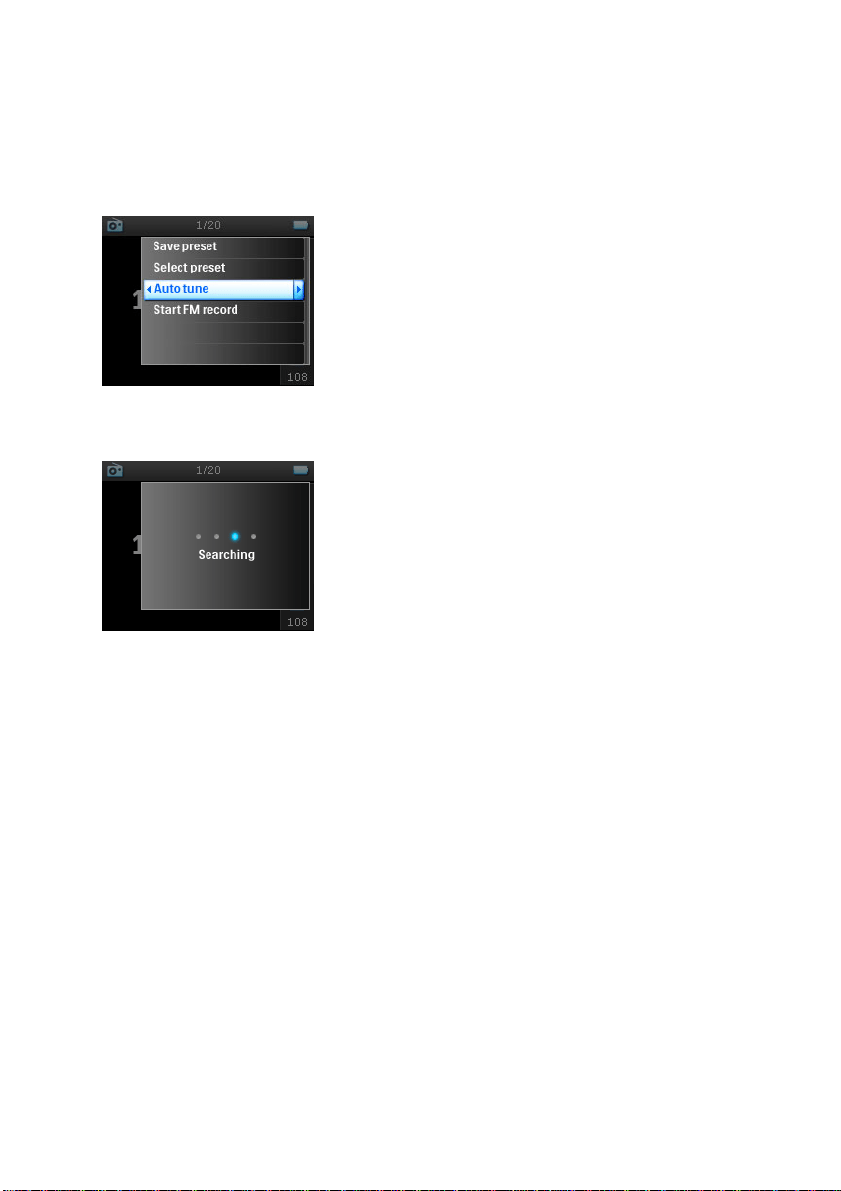
1. To find the radio stations with the strongest signals available in your area, press
MENU
and select
Auto
tune
.
2. The player will search for the stations with the strongest signals and save them as presets. You can preset
a maximum of 20 radio stations.
Playing a preset radio station
1. From the main menu, select
Radio
to enter radio mode.
2. Press
J(
or
§
to browse your preset stations.
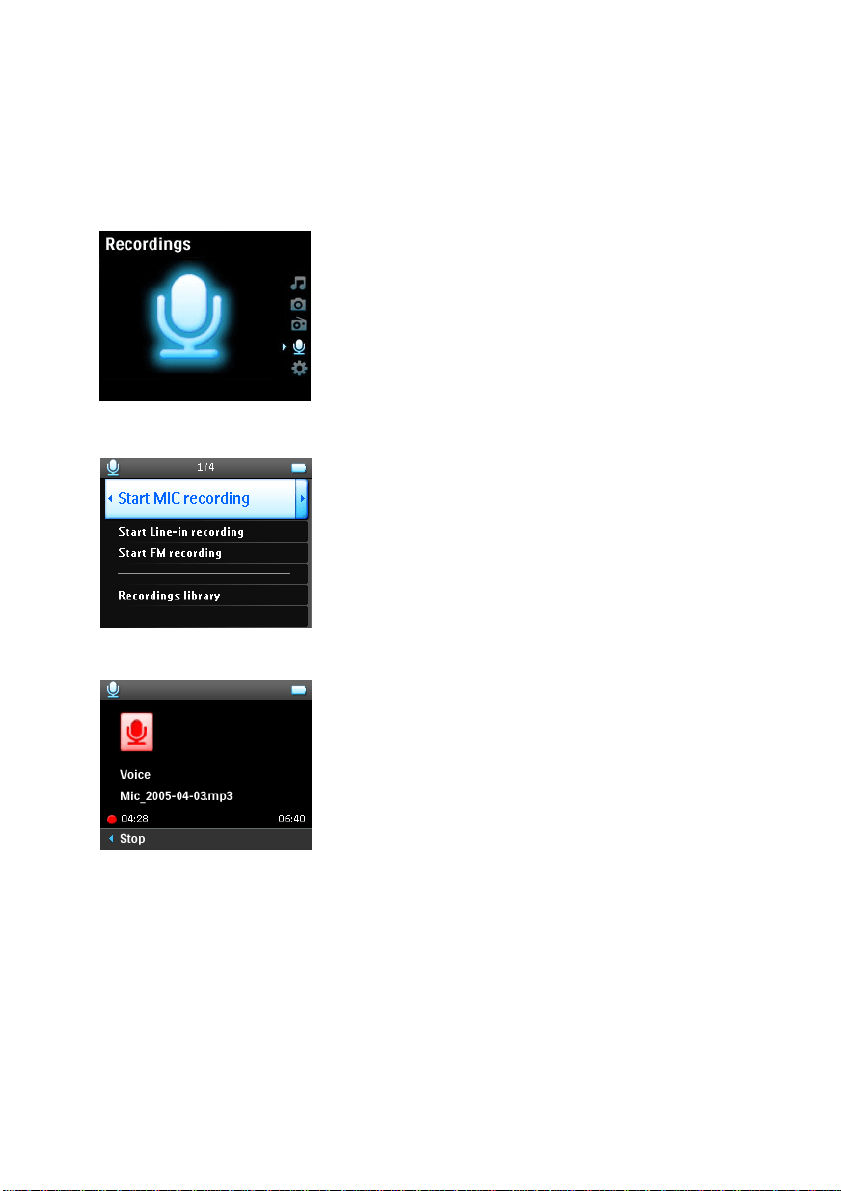
For quick access to a certain preset station, press
MENU
, select
Select preset
and select your desired station
from the list.
34
Manual tuning
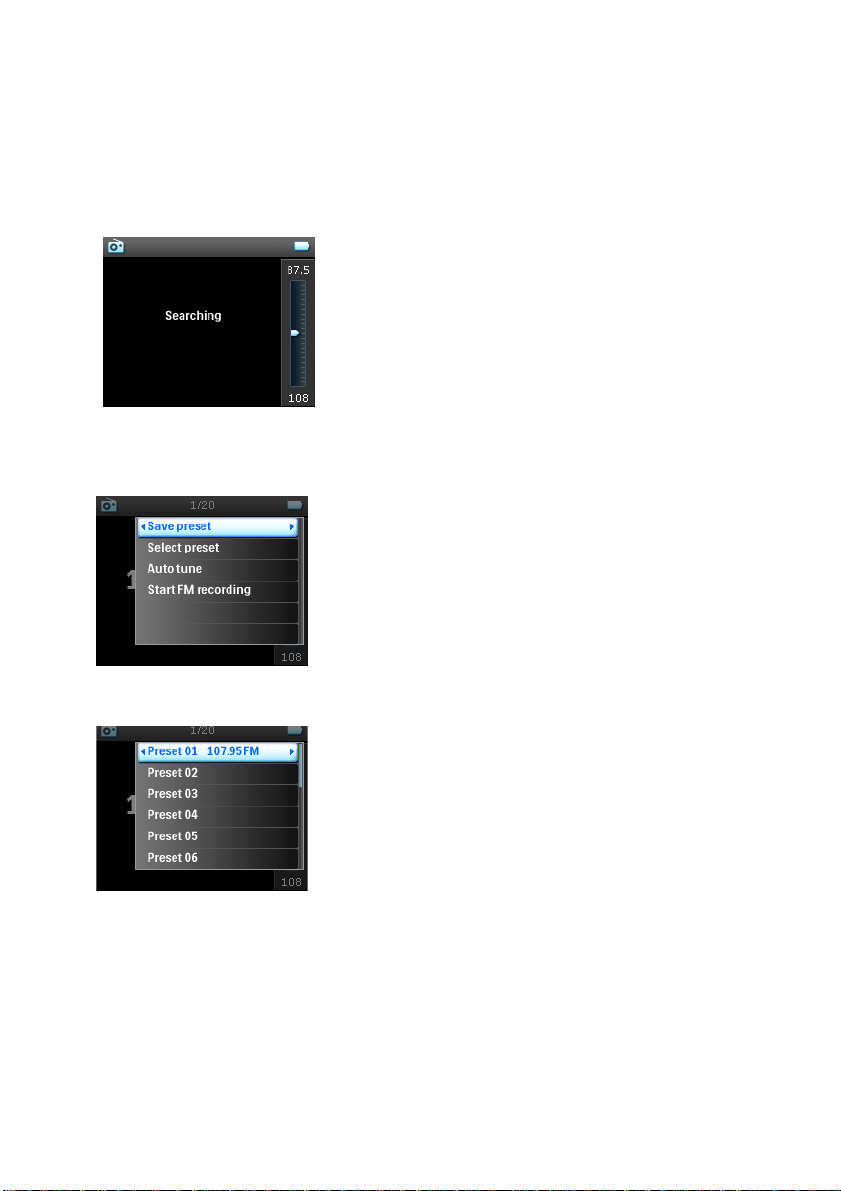
1. Tap on the bottom or top of the
VERTICAL TOUCH STRIP
to tune step by step.
2. The frequency bar indicates the change in frequency.
3. Press and hold the top/ bottom end of the
VERTICAL TOUCH STRIP
to search for the previous/ next
available station.
4. A message
Searching
will be displayed and stops when a station with strong signal is found.
Saving a station as preset
1. In radio mode, press
MENU
and select
Save preset
.
2. Select the preset number at which you want to save the station.
3. Press
2
to save the station.
35
Recordings
You can make voice, radio* or line-in recordings using your player.
Making MIC recordings
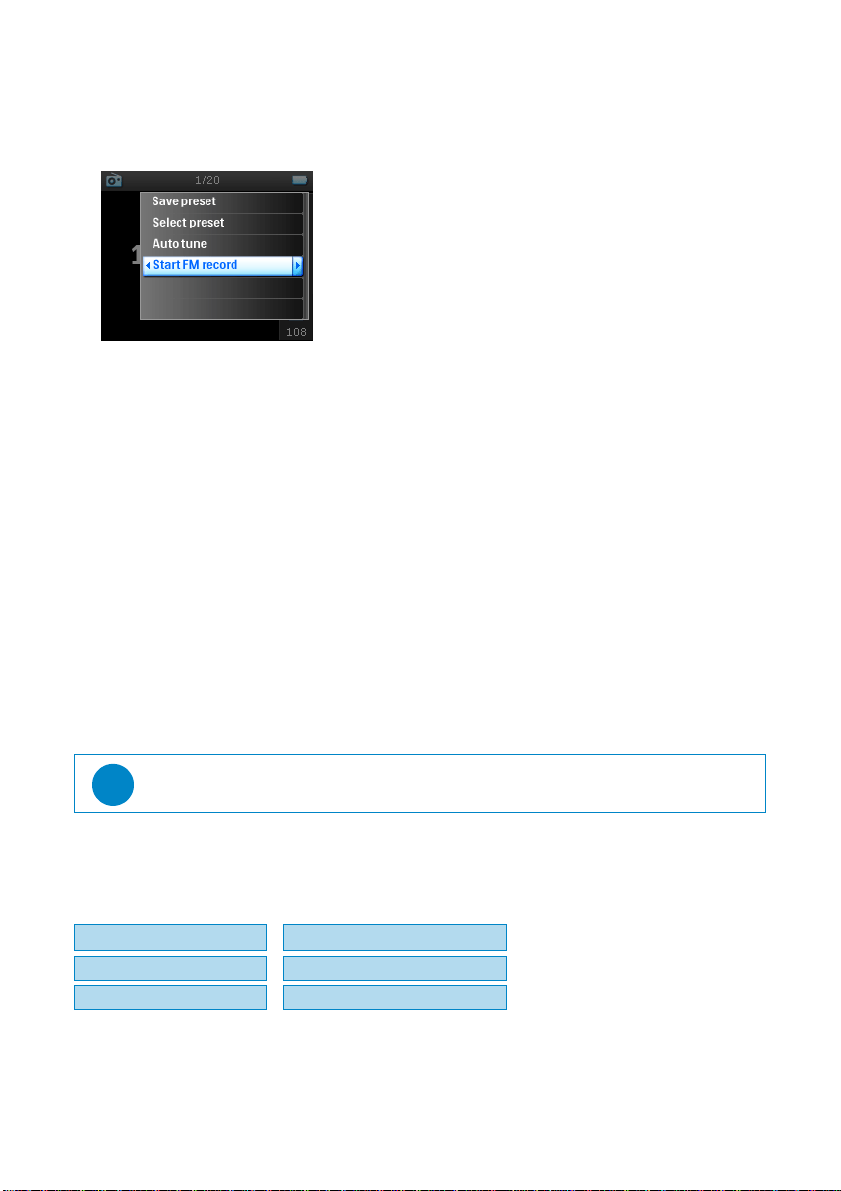
1. From the main menu, select
Recordings
.
2. Select
Start MIC recording
to start a voice recording.
3. Your player will display the following recording screen.
4. Press
1
to stop and save the voice recording.
5. The player will display the saving progress.
6. Your voice recording will be saved on your player as a PCM file (.wav extension). You can find this file
under
Recordings
>
Recordings Library
>
MIC recordings
.
*
FM radio is only available for certain regions. It is not available for Europe.
36
Making FM recordings
*
1. While listening to the radio, press
MENU
.
2. Choose
Start FM recording
.
3. Press
1
to stop and save the FM recording.
4. Your FM recording will be saved on your player as a PCM file (.wav extension). You can find this file under
Recordings
>
Recordings library
>
FM recordings
.
Making LINE-IN recordings
Line-in recordings are used to record music tracks in digital format directly from an external player.
1. Connect an external player (like a portable CD player or a stereo system) to your player via the docking
cradle. (this is an optional accessory which is not supplied with your player)
2. Insert one end of the audio cable to the line-out connection on the cradle and the other end to the device
you want to record from.
3. Go to the main menu of your player and select
Recordings
>
Start LINE-IN recording
.
4. A message
Connect line-in
will be displayed.
5. Press
2
to start line-in recording, at the same time, start the playback on the device you want to record from.
6. Press
1
to stop recording.
7. Your line-in recording will be saved on your player as a PCM file (.wav extension). You can find this file
under
Recordings
>
Recordings library
>
Line-in recordings
.
Play your recording
From the main menu, select
Recordings
>
Recordings library
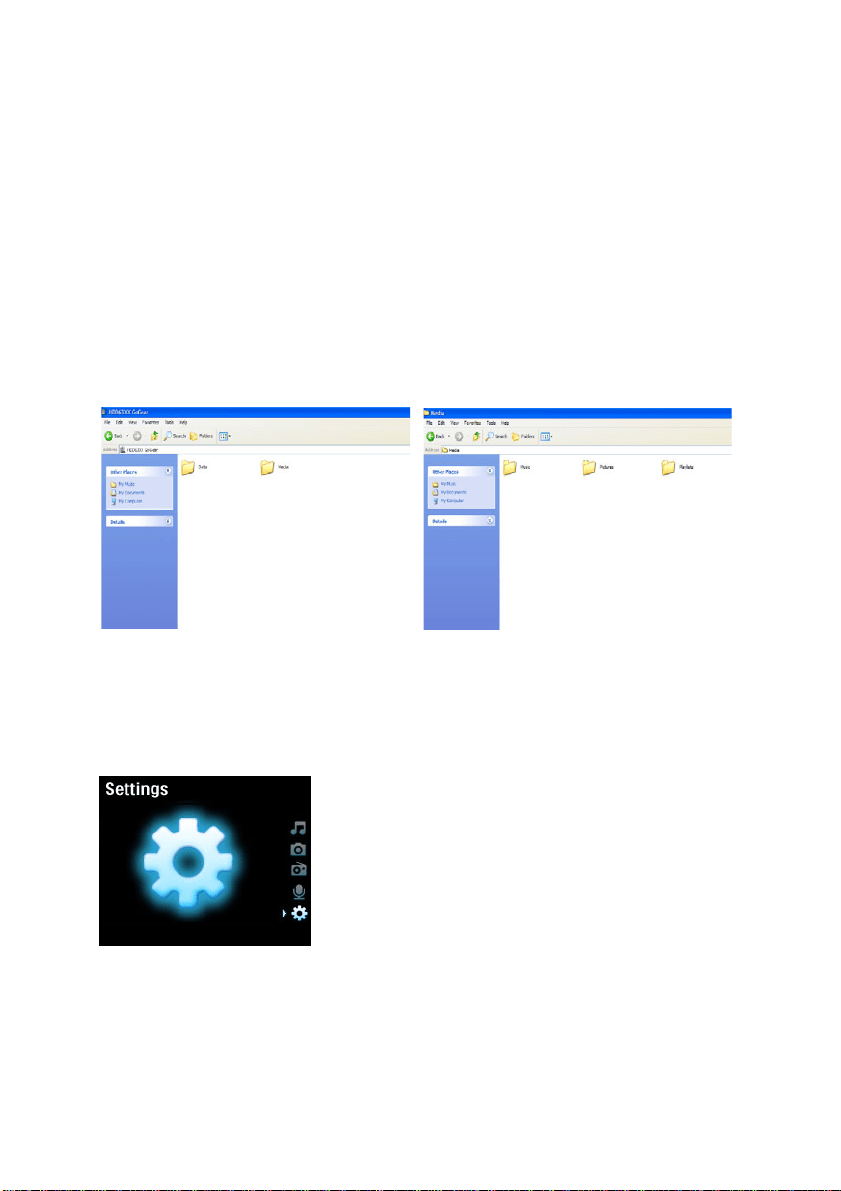
. The following options are available:
Recordings
1. Select the recording you want to hear.
2. Press
2;
to play the recording of your choice.
*
FM radio is only available for certain regions. It is not available for Europe.
TIP
You can listen to the recording with your headphone while the recording is being made.
MIC recordings
2
Recordings listed in TIME order
Line-in recordings
2
Recordings listed in TIME order
FM recordings*
2
Recordings listed in TIME order
37
Delete your recording
1. While playing back a recording, press
MENU
.
2. Select
Delete recording
.
3. A message
Delete [recording name]?
will be displayed.
4. Press
2
to confirm.
5. A message
Recording [recording name] deleted
will be displayed.
Upload your recordings to the computer
1. Connect the player to your computer.
2. Your player will be identified as
Philips GoGear
in
Windows Explorer
.
3. Go to
Media
>
Recordings
. Y
ou will find
FM recordings
,
Line-in recordings
and
Voice recordings
folders.
4. Drag and drop your files to any desired location on your computer.
Settings
1. From the main menu, select
Settings
.
2. Use the
VERTICAL TOUCH STRIP
to select an option.
3. Press
2
to go to the next level or
1
to return to previous level.
4. Press
2
to confirm your selection.
5. Press
1
to exit the
Settings
menu.
Data
38
The following options are available:
Settings Options Description
Language English, French, Italian,
German, Spanish, Dutch,
Swedish, Portuguese,
Simplified Chinese,
Traditional Chinese,
Korean, Japanese
Choose the language for display
on screen
Play mode Shuffle All On / Off Choose shuffle On to play
selected tracks at random
Repeat No Repeat / Repeat
One / Repeat All
Choose Repeat One or Repeat
All to keep looping selected
tracks
Sound Settings SRS WOW, Rock, Funk,
Techno, HipHop,
Classical, Jazz, Spoken
Word, Custom, Off
Choose the equalizer for best
music experience
Backlight Timer 10 Sec / 30 Sec / 45 Sec /
60 Sec
Choose the time for backlight
display
Contrast Levels 1 – 6 Choose contrast level to adjust
brightness.
Skins Skin one
Skin two
Personalise your player with
your favorite skin
Album Art On / Off Select ON to display album art
for the song that you are playing
Sleep timer 15 Min / 30 Min / 60 Min /
90 Min/ 120 Min / Off
Choose sleep timer to turn off
your player automatically after
15, 30, 60, 90, or 120 minutes
Time and date Set time
Set date
Show time in header
AM / PM
On / Off
Set your player’s date and time
and choose whether to display
it
Clicker sound Device On / Off Choose to hear a clicker sound
from the player when you touch
the touchpad or buttons
Headphones On / Off Choose to hear a clicker sound
via the headphones when you
touch the touchpad or buttons
Information Information summary
Call center number
Capacity /
Available space /
Firmware version /
Support site
Displays information about your
player

39
Using your player to store and carry data files
You can use your player to store and carry data files by copying data files into the
Data
folder of your player via
Windows Explorer
.
Music library
settings
Reset play count Reset play count for “My most
played” playlist to zero
Recording
settings
Silence detection On/ Off Silence detection during Line-in
recording will split the recording
into various separate tracks
Radio settings Europe / Americas / Asia Choose the region in which you
operate the FM
Demo mode Start Start demo mode (press power
for 4 seconds to exit this mode)
Factory settings Restore Factory settings Restore to default factory
settings
40
Updating your player
;QWT RNC[GT KU EQPVTQNNGF D[ CP KPVGTPCN RTQITCO ECNNGF HKTOYCTG 0GY XGTUKQPU QH VJG HKTOYCTG OC[ DG
TGNGCUGFCHVGT[QWJCXGRWTEJCUGF[QWTRNC[GT
#UQHVYCTGRTQITCOECNNGF2JKNKRU&GXKEG/CPCIGTYKNNOQPKVQTVJGHKTOYCTGUVCVWUQH[QWTRNC[GTCPFPQVKH[
[QWKHCPGYHKTOYCTGKUCXCKNCDNG;QWPGGFCPKPVGTPGVEQPPGEVKQPHQTVJKU
+PUVCNN2JKNKRU&GXKEG/CPCIGTHTQOVJGUWRRNKGF%&QTFQYPNQCFVJGNCVGUVXGTUKQPHTQOYYYRJKNKRUEQO
UWRRQTVQTYYYWUCUWRRQTVRJKNKRUEQOHQT75TGUKFGPVU
'XGT[VKOG[QWEQPPGEV[QWTRNC[GTVQ[QWTEQORWVGT
Philips Device Manager
YKNNCWVQOCVKECNN[EQPPGEVVQ
VJG+PVGTPGVCPFEJGEMHQTWRFCVGU
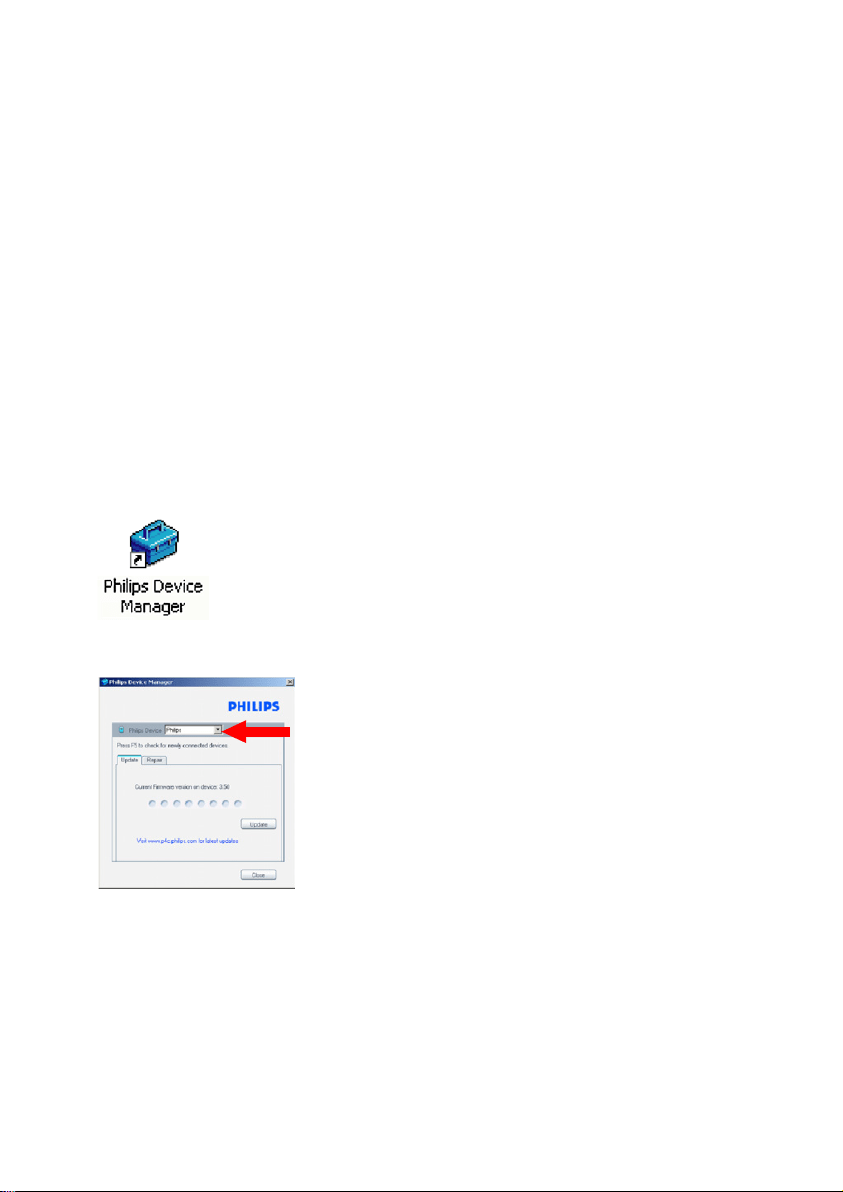
Manually check whether your firmware is
up to date
2QYGT[QWTRNC[GTYKVJVJGUWRRNKGF#%&%CFCRVGT
%QPPGEV[QWTRNC[GTVQVJGEQORWVGT
.CWPEJ
Philips Device Manager
HTQO
Start
Programs
Philips Device Manager
5GNGEV[QWTFGXKEG
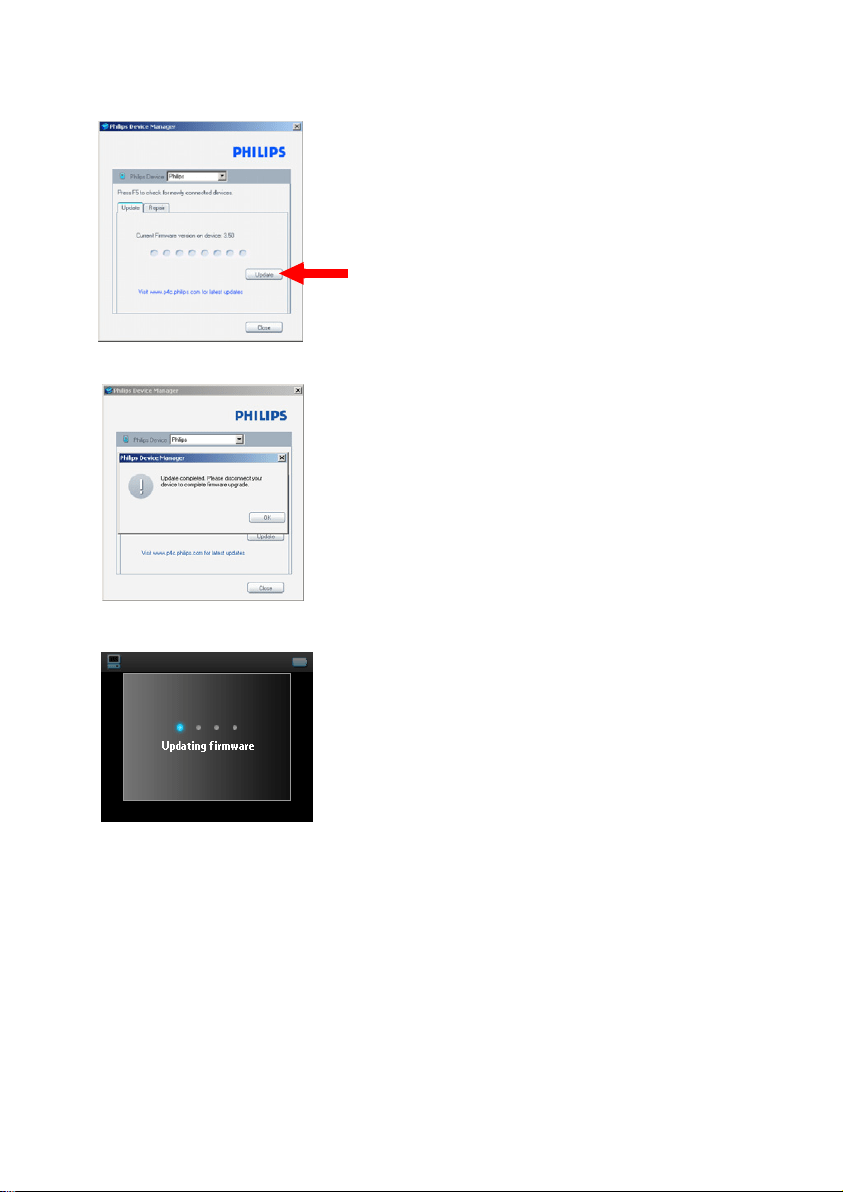
%NKEM
Update
41
Philips Device Manager
YKNNEJGEMYJGVJGTCPGYHKTOYCTGKUCXCKNCDNGQPVJGKPVGTPGVCPFKPUVCNNKVQP
[QWTRNC[GT
9JGP
Update completed
CRRGCTUQPVJGUETGGPENKEM
OK
CPFFKUEQPPGEVVJGRNC[GT
#OGUUCIG
Updating firmware
YKNNDGFKURNC[GF
;QWTRNC[GTKUTGCF[HQTWUGCICKPCHVGTTGUVCTV
42
Troubleshooting
My player skips tracks
6JGUMKRRGFVTCEM OC[ DGRTQVGEVGF;QWOC[PQV JCXGUWHHKEKGPV TKIJVUVQRNC[VJG UMKRRGF VTCEMQP[QWT
RNC[GT%JGEMVJGOWUKETKIJVUYKVJVJGUQPIRTQXKFGT
My Player is not recognised by Windows
/CMGUWTG[QWT2%KUTWPPKPI9KPFQYU:2
My player cannot power ON
;QWTFGXKEGDCVVGT[OC[DGQWVQHRQYGTFWGVQNQPIRGTKQFQHPQPWUCIG
%JCTIG[QWTRNC[GT
+PECUGQHFGXKEGGTTQTEQPPGEV[QWTRNC[GTVQVJGEQORWVGTCPFWUG
Philips Device Manager
VQTGUVQTG[QWT
RNC[GT
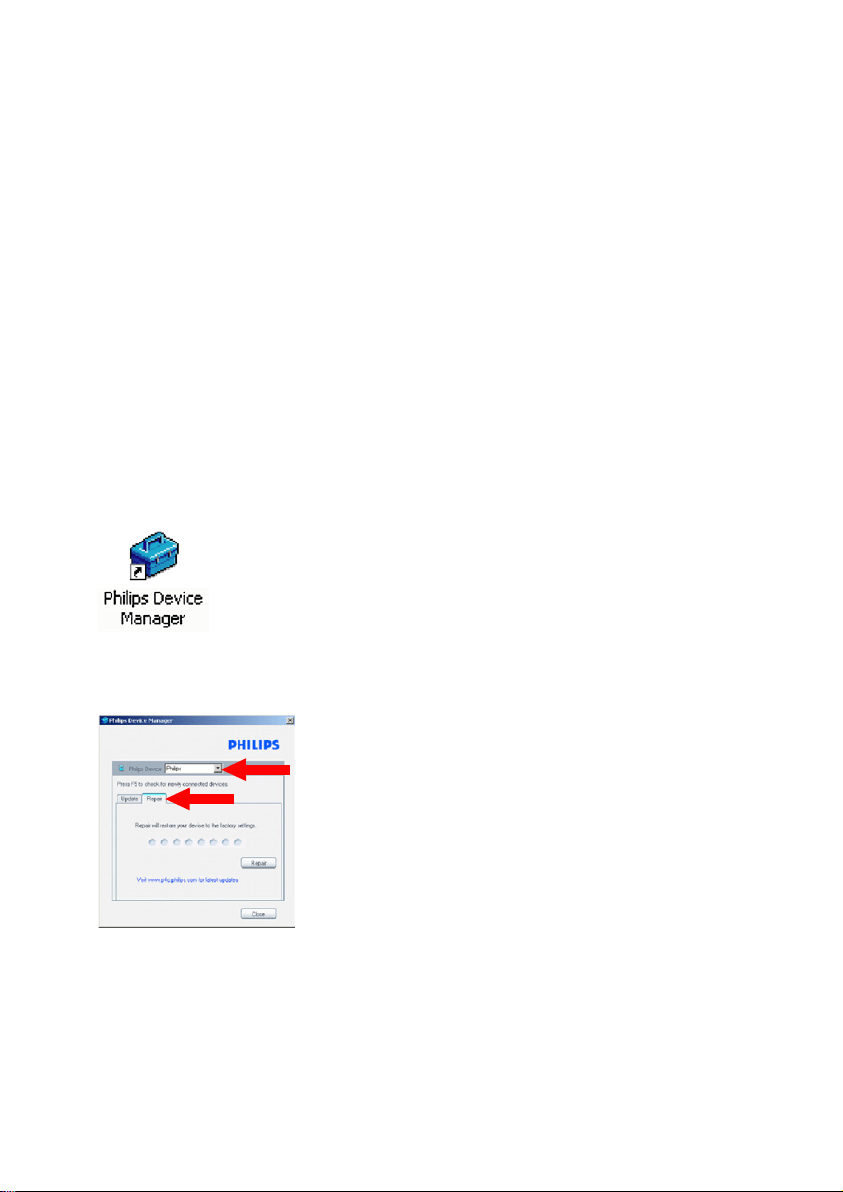
.CWPEJ
Philips Device Manager
HTQO
Start
Programs
Philips Device Manager
5GNGEV[QWTFGXKEG
5GNGEV
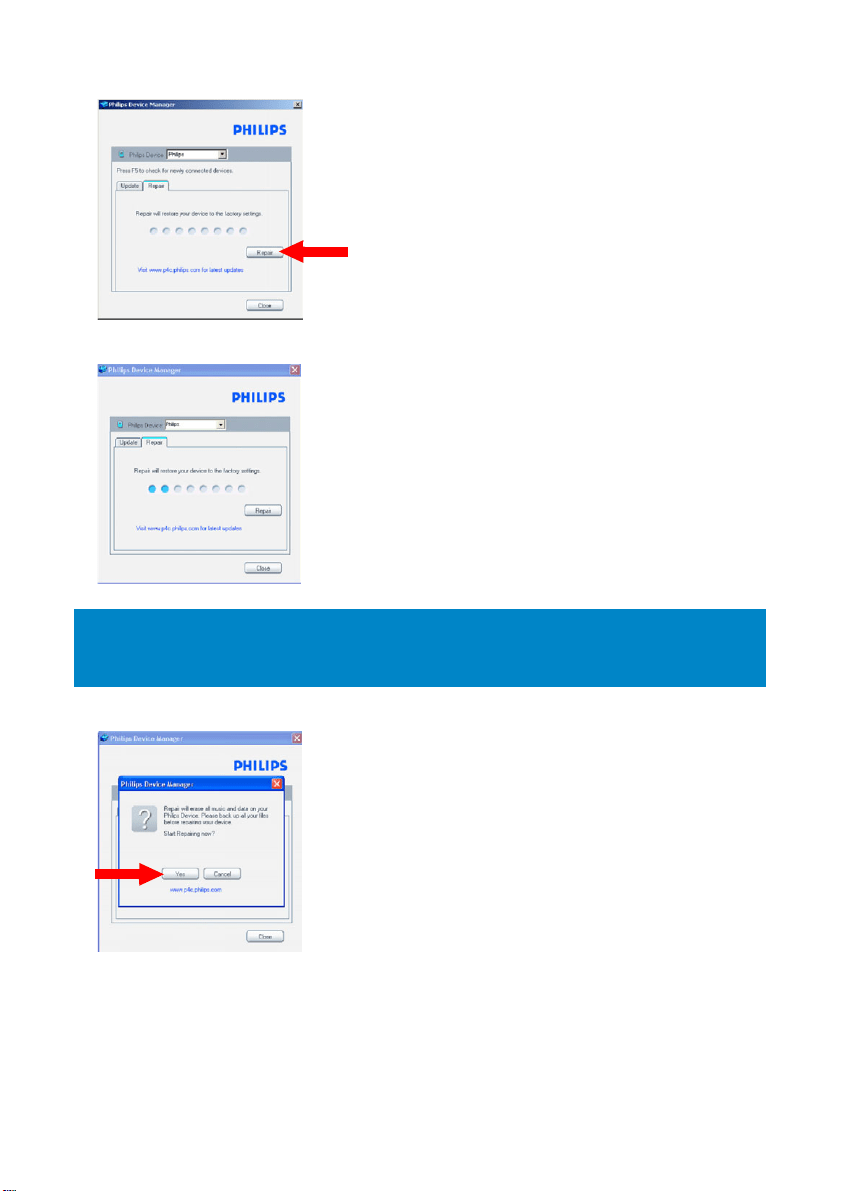
Repair
VCD
43
4. Click
Repair
.
5. The repair process will start.
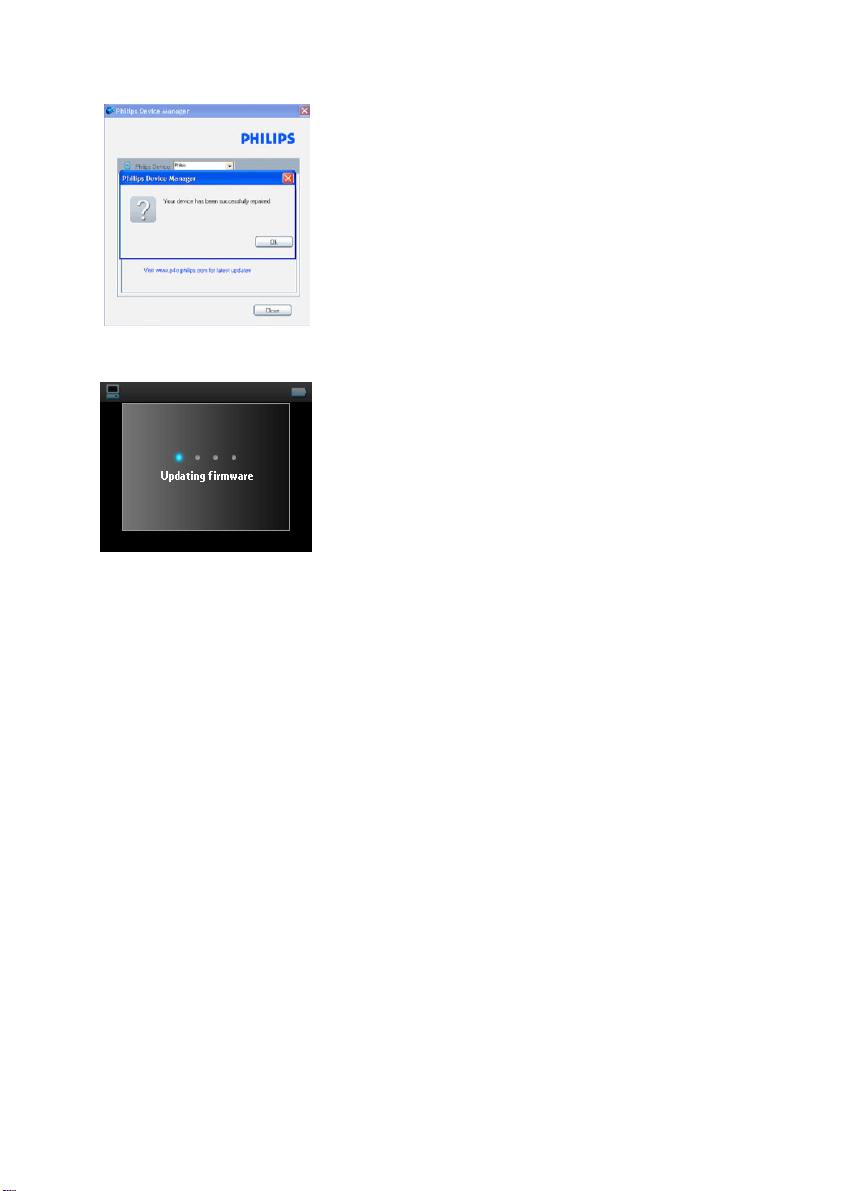
6. Click
Yes
to proceed.
IMPORTANT!
All your contents will be erased from your player. Therefore, please back up your files before repairing.
After repair, simply synchronise your player again to transfer music to your player.
44
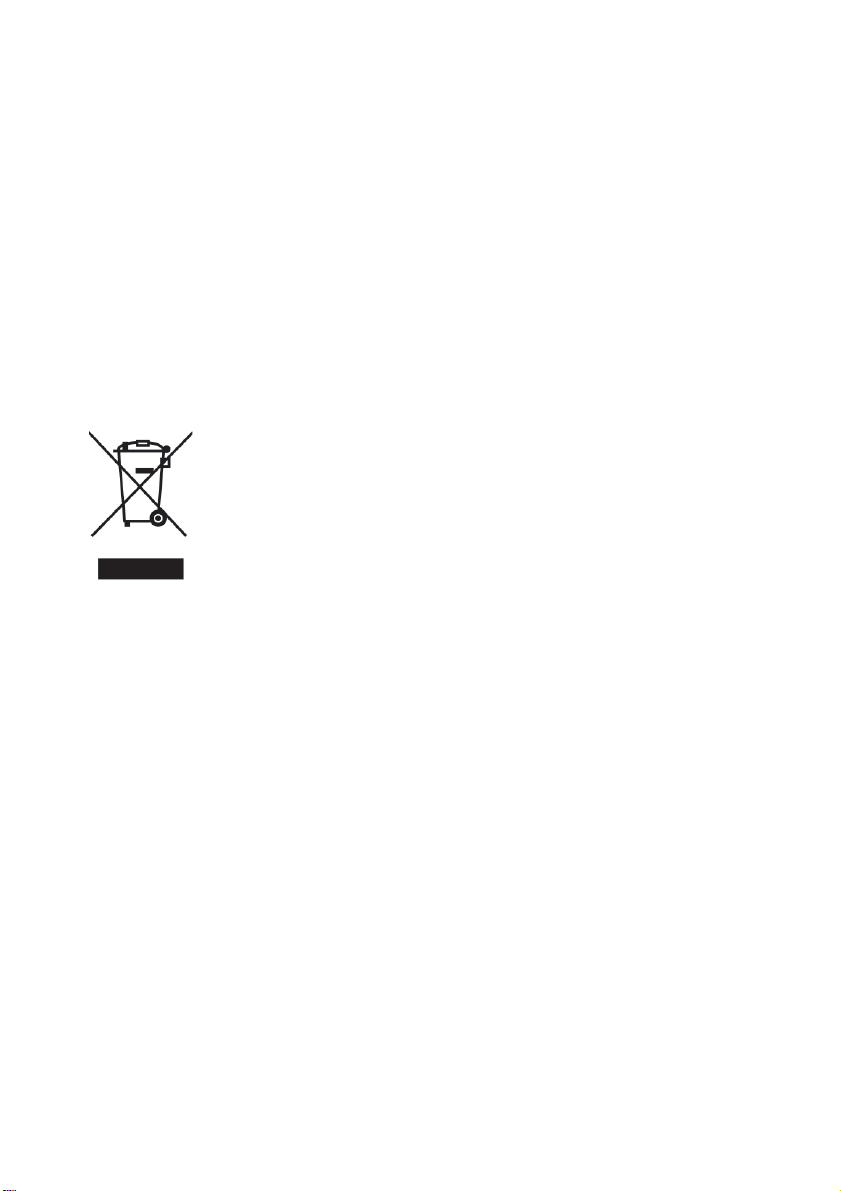
7. After the repair process is completed, click
OK
and disconnect your player.
8. A message
Updating firmware
will be displayed.
9. Your player is ready for use again after restart.
There is no Music on my player after transfer
If you cannot find the songs that you have transferred to your player, check the following:
1. Did you transfer using
Windows Media Player
? Files transferred via other means will only be recognised as
data files. They will neither appear in the music library of your player nor can the songs be played.
2. Are your songs in MP3 or WMA format? Other formats will not playback on the player.
There are no pictures on my player after
transfer
If you cannot find the pictures that you have transferred to your player, check the following:
1. Did you transfer your pictures using
Windows Media Player
? Files transferred via other means will not
appear on your device.
2. Is the
Philips Device Plug-in
installed on your computer? Immediately after you have transferred your
pictures in
Windows Media Player
, you should see a Philips screen pop-up. If it does not appear, then the
Plug-in is probably missing. To check whether this Plug-in is available on your computer, go to
Control
Panel
>
Add or Remove Programs
and check if
Philips Device Plug-in
is listed. If not, re-install the
software from the supplied CD.

45
3. You may have disconnected your device too soon after the picture transfer in
Windows Media Player
was finished. Always wait for the Philips pop-up message to show and disappear before you disconnect
your device.
4. Are your pictures in JPEG format? Pictures in other formats cannot be transferred to your player.
My GoGear player hangs
1. In the unlikely event that your player hangs, do not panic. Simply push and hold down
ON
/
OFF HOLD
slider
to
ON
/
OFF
position and press
VOLUME
+
at the same time. Hold until the player shuts down.
2. The existing contents on your player will not be erased.
3. If nothing happens, recharge the battery for at least 4 hours and try to power on or reset again. If this does
not work, you might have to repair your player with
Philips Device Manager
. (see page 42)
My player is full and I have less songs on
my player than I expected
Your player has a hard disk memory to store songs. Check your model number to see the actual hard disk size.
You will be able to store more songs on your player if you use WMA formatted songs in 64 kbs with variable
bitrate.
Poor radio reception
*
If you cannot achieve a good reception from your
GoGear
radio, check the following:
1. Make sure you have plugged the original headphone into your
GoGear
player correctly.
2. The radio signal might be poor when you are indoors. We suggest that you use your player outdoors.
*
FM radio is only available for certain regions. It is not available for Europe.

Safety and Maintenance
General maintenance
To avoid damage or malfunction:
- Handle your hard disk Digital Audio Player with care. Please use the protective pouch for optimal
shock protection.
- Do not expose the player to excessive heat caused by heating equipment or direct sunlight.
- Do not drop your player or allow objects to fall on your player.
- Do not allow your player to be submersed in water. Do not expose headphone socket or battery
compartment to water, as water entering the set may cause major damage.
- Do not use any cleaning agents containing alcohol, ammonia, benzene, or abrasives as these may
harm the set.
- Active mobile phones in the vicinity may cause interference.
- Backup your files. Please ensure that you retain the original files you have downloaded to your device.
Philips is not responsible for any loss of data if the product becomes damaged or not readable /
legible.
- Manage (transfer, delete, etc.) your music files only with the supplied music software to avoid
problems!
About operating and storage temperatures
- Operate in a place where temperature is always between 0 and 35º C (32 to 95º F).
- Store in a place where temperature is always between -20 and 45º C (-4 to 113º F).
- Battery life may be shortened in low temperature conditions.
Hearing safety
Listen at a moderate volume. Using the headphone at high volume can impair your hearing. We
recommend headphone no. SHE9500 for this product.
Important (for models supplied eadphones):
Philips guarantees that its audio players comply with the maximum sound power as determined by the
relevant regulatory bodies only when used with the original headphones supplied with this product. In case
the headphone needs to be replaced, we recommend that you contact your retailer to order a model
identical to that of the original headphone provided by Philips.
Traffic safety
Do not use the headphone while driving or cycling as you may cause an accident.
Copyright information
- All other brands and product names are trademarks of their respective companies or organizations.
- Unauthorised duplication of any recordings whether downloaded from the internet or made from
audio CDs is a violation of copyright laws and international treaties.
- The making of unauthorised copies of copy-protected material, including computer programmes, files,
broadcasts and sound recordings, may be an infringement of copyrights and constitute a criminal
offence.This equipment should not be used for such purposes.
46
47
Data logging
Philips is committed to improving the quality of your product and enhancing the Philips user experience. To
understand the usage profile of this device, this device logs some info/data to the non-volatile memory region
of the device. These data are used to identify and detect any failures or problems you as a user may
experience while using the device. The data stored, for example, will be the duration of playback in music
mode, duration of playback in tuner mode, how many times battery low was encountered, etc. The data
stored do not reveal the content or media used on the device or the source of downloads. The data stored on
the device are retrieved and used ONLY if the user returns the device to the Philips service centre and ONLY
to simplify error detection and prevention.The data stored shall be made available to user on user's first
request.
Disposal of your old product
Your product is designed and manufactured with high quality materials and components, which can be recycled
and reused.
When this crossed-out wheeled bin symbol is attached to a product, it means the
product is covered by the European Directive 2002/96/EC.
Please be informed about the local separate collection system for electrical and
electronic products.
Please act according to your local rules and do not dispose of your old products with
your normal household waste. The correct disposal of your old product will help
prevent potential negative consequences to the environment and human health.
Modifications
Modifications not authorised by the manufacturer may void user authority to operate this device.
Notice for the USA
Note:
This equipment has been tested and found to comply with the limits for a Class B digital device, pursuant to
part 15 of the FCC Rules.These limits are designed to provide reasonable protection against harmful
interference in a residential installation.This equipment generates, uses, and can radiate radio frequency energy
and, if not installed and used in accordance with the instruction manual, may cause harmful interference to radio
communications.
However, there is no guarantee that interference will not occur in a particular installation.
If this equipment does cause harmful interference to radio or television reception, which can be
determined by turning the equipment off and on, the user is encouraged to try to correct the interference by
one or more of the following measures:
- Relocate the receiving antenna.
- Increase the separation between the equipment and receiver.
- Connect the equipment into an outlet on a circuit different from that to which the receiver
is connected.
- Consult the dealer or an experienced radio/ TV technician for help.
Notice for Canada
This Class B digital apparaatus complies with Canadian ICES-003.
The set complies with the FCC-Rules, Part 15 and with 21 CFR 1040.10.
Operation is subject to the following two conditions:
1.This device may not cause harmful interference, and
2.This device must accept any interference received, including interference that may cause undesired
operation.
Notice for the European Union
This product complies with the radio interference requirements of the European Union.
Philips
HDD082
HDD084
HDD085
HDD6320
HDD6330
HDD6335
48
fcc 9/13/05 11:25 AM Page 1

49
Technical data
* Battery life varies according to usage.
** Note that some operating systems display capacity in units of “GB” where 1.0 GB = 2
30
= 1,073,741,824 bytes.
The resulting “GB” capacity displayed by the OS will be smaller because of using this base-2 defiinition for “Gigabyte”.
*** FM radio is only available for certain regions. It is not available for Europe.
PHILIPS reserves the right to make design and specification changes for product improvement without prior
notice.
Power supply 830 mAh Li-ion internal rechargeable battery
Multi-voltage charger / adaptor: 4 hours full charge; 1 hour fast charge
Dimensions 64 x 104 x 16.8 mm
Weight 180 g
Picture / Display White backlight LCD, 220 x 176 pixels, 65K colours
Sound Channel separation
Equalizer settings
Frequency response
Signal to noise ratio
Output Power (RMS)
50 dB
Rock, Pop, Jazz, Classical, Dance,
Electronica, Lounge, RnB, Hip Hop,
Spoken Word
20 - 16 000 Hz
> 82 dB
2 x 5 mW
Audio Playback
Play time 15 hours*
Compression format MP3 (8-320 kbps and VBR )
WAV
WMA (32-192 kbps; Sample rates: 8, 11.025, 16, 22.050, 24, 32, 44.1, 48 kHz)
ID3-tag support Album title, Genre title, Track title and artist name
Audio Capturing Built-in microphone Mono
Storage Media
Built-in memory capacity 30GB** micro hdd
Tuner / Reception / Transmission Tuner band: FM***
Connectivity Headphone 3.5 mm, USB 2.0, Philips dock connector, 5V DC
Music and picture transfer via Windows Media Player 10
Data transfer via Windows Explorer
System Requirements Windows® XP (SP1 or above)
Pentium II or better
64 MB RAM
100 MB hard disk space
Internet connection
Microsoft Internet Explorer 5.5 or later
Video display card
Soundcard
USB port

50
Cameras supported
- Aiptek Pocket DV-4500
- Canon DIGITAL IXUS II
-Canon DIGITAL IXUS 400
-Canon IXY DIGITAL 500
-Canon PowerShot G3
-Canon PowerShot G5
-Canon PowerShot G6
-Canon PowerShot SD500
- Casio Exilim EX-Z55
- DigiLife 660
- FujiFilm FinePix 420
- FujiFilm FinePix A340
- FujiFilm FinePix F610
- FujiFilm FinePix F700
- FujiFilm FinePix S5000
- Gateway DC-M42
- Gateway DC T-50
- Hewlett-Packard Photosmart M407
- Hewlett-Packard Photosmart R507
- Hewlett-Packard Photosmart R707
- Hewlett-Packard Photosmart 945
- Kodak EasyShare DX4530
- Kodak EasyShare DX7590
- Kodak EasyShare DX7630
- Konica/Minolta DiMAGE F100
- Konica/Minolta DiMAGE Xt
- Konica/Minolta DiMAGE Z1
- Nikon Coolpix 2200
- Nikon Coolpix 3100
- Nikon Coolpix 4300
- Nikon Coolpix E2500
- Olympus CAMEDIA AZ-1
- Olympus C-7000 Zoom
- Olympus Stylus 300 Digital
- Olympus µ-mini Digital
- ORite VC2110
- Panasonic Lumix DMC-FZ10K
- Pentax Optio S40
- Samsung Digimax 360
- Samsung Digimax 370
- Sony Cyber-shotÆ DSC-P10
- Sony Cyber-shot DSC-P93
- Sony Cyber-shot DSC-T1
- Sony Cyber-shot DSC-T1
- Sony Cyber-shot DSC-V1
- Sony Cyber-shot U DSC-U10
- Vivitar Vivicam 3345

EEnnggeellssee vveerrssiiee ((EEnngglliisshh))
“This product is protected by certain intellectual property rights of Microsoft Corporation. Use or distribu-
tion of such technology outside of this product is prohibited without a license from Microsoft or an author-
ized Microsoft subsidiary.
Content providers are using the digital rights management technology for Windows Media contained in this
device (“WM-DRM”) to protect the integrity of their content ("Secure Content") so that their intellectual
property, including copyright, in such content is not misappropriated. This device uses WM-DRM software
to play Secure Content (“WM-DRM Software”). If the security of the WM-DRM Software in this device has
been compromised, Microsoft may revoke (either on its own or upon the request of the owners of Secure
Content ("Secure Content Owners")) the WM-DRM Software’s right to acquire new licenses to copy, dis-
play and/or play Secure Content. Revocation may also prevent your device’s ability to transfer, store, copy,
display and/or play Secure Content which you have previously stored on your Device. Revocation does not
alter the WM-DRM Software’s ability to play unprotected content. A list of revoked WM-DRM Software is
sent to your device whenever you download a license for Secure Content from the Internet or from a PC.
Microsoft may, in conjunction with such license, also download revocation lists onto your device on behalf of
Secure Content Owners, which may disable your device’s ability to copy, display and/or play Secure
Content.
In the event of revocation, Philips will attempt to make available software updates to restore some or all of
your device’s ability to transfer, store, access, copy, display and/or play Secure Content. However, the abili-
ty to make such updates available does not rest solely with Philips. Philips does not guarantee that, after
revocation, such software updates will be available. If such updates are not available, your device will not
have the ability to transfer, store, copy, display and/or play Secure Content – even Secure Content which
you have previously stored on your device.
In addition, even if such software updates are available, they may not enable your Device to transfer, store,
copy, display, and/or play Secure Content which was previously stored on your Device. In some cases you
may be able to transfer the content from the PC . In other cases, you may have to repurchase previously
obtained Secure Content.
To summarize – Microsoft, Secure Content Owners, and Secure Content distributors may deny you access,
or restrict your access, to Secure Content. They may also disable your device’s ability to transfer, store,
copy, display and/or play Secure Content even after you have paid for and obtained it. Neither your con-
sent nor the consent or approval of Philips is necessary for any of them to deny, withhold or otherwise
restrict your access to Secure Content or to disable your device’s ability to transfer, store, access, copy, dis-
play, and/or play Secure Content. Philips does not guaranty that you will be able to transfer, store, access,
copy, display, and/or play Secure Content.”
A5 DRM.qxd 2006-01-25 17:56 Page 10
Specifications are subject to change without notice.
Trademarks are the property of Koninklijke Philips Electronics N.V.
or their respective owners
2005 © Koninklijke Philips Electronics N.V. All rights reserved.
www.philips.com
Printed in China