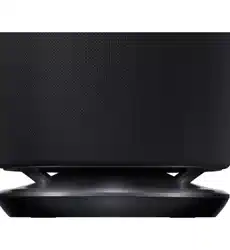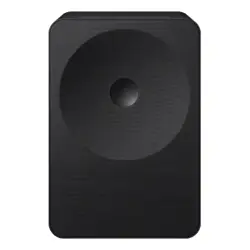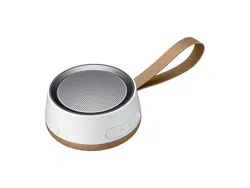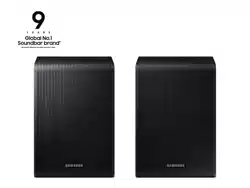

Samsung Multiroom
User Manual
imagine the possibilities
Thank you for purchasing this Samsung speaker.
To receive more complete service,
please register your speaker at
www.samsung.com/register

Contents
CONNECTING TO THE
WI-FI NETWORK
Preparing connection ....................... 4
Installing the Samsung Multiroom App ... 4
Accessing the Samsung Multiroom App . 4
Connecting to Wi-Fi .......................... 5
Connecting to Wi-Fi automatically
(Android/iOS) ......................................... 5
Connecting to Wi-Fi manually (Android) .. 7
Connecting to Wi-Fi manually (iOS) ........ 9
Connecting with a LAN Cable
(Soundbar only) .............................. 12
Connecting with a HUB (Not Included)
.. 12
Adding a HUB ...................................... 15
Adding additional speaker(s) ........... 16
USING THE SAMSUNG
MULTIROOM APP
App at a glance .............................. 18
Playing Music ................................. 19
Playing a music file stored in the smart
device .................................................. 19
Listen to the music through the phone
speaker ................................................ 20
Listening to streaming music ................ 21
Listening to the internet radio ......... 22
Following a station ............................... 23
Setting Presets .................................... 24
Connecting to Bluetooth Devices ... 25
Connecting TV to the speaker ........ 25
Connecting to TV via bluetooth (TV
SoundConnect) .................................... 25
Connecting to TV via Wi-Fi ................... 26
Listening to music from other devices in
network ............................................... 26
Using playback menu ..................... 27
Adjusting Equaliser and DRC ............... 27
Managing a queue ............................... 29
Managing a playlist .............................. 31
Using the Settings menu ................ 33
Add Speaker ........................................ 33
Guide ................................................... 34
Services ............................................... 34
Device Settings .................................... 35
Clock ................................................... 37
Support ............................................... 39
Information ........................................... 39
2
4

CONNECTING MULTIPLES
SPEAKERS
Setting Groups ............................... 40
Setting the Surround Sound Mode
... 42
USING MISCELLANEOUS
FUNCTIONS
Playing Media Content Saved in a PC
... 44
Samsung Link ...................................... 44
Wireless Audio - Multiroom for Desktop
... 45
APPENDIX
Troubleshooting .............................. 47
Compatible speakers ........................... 47
3
4
A
Preparing connection
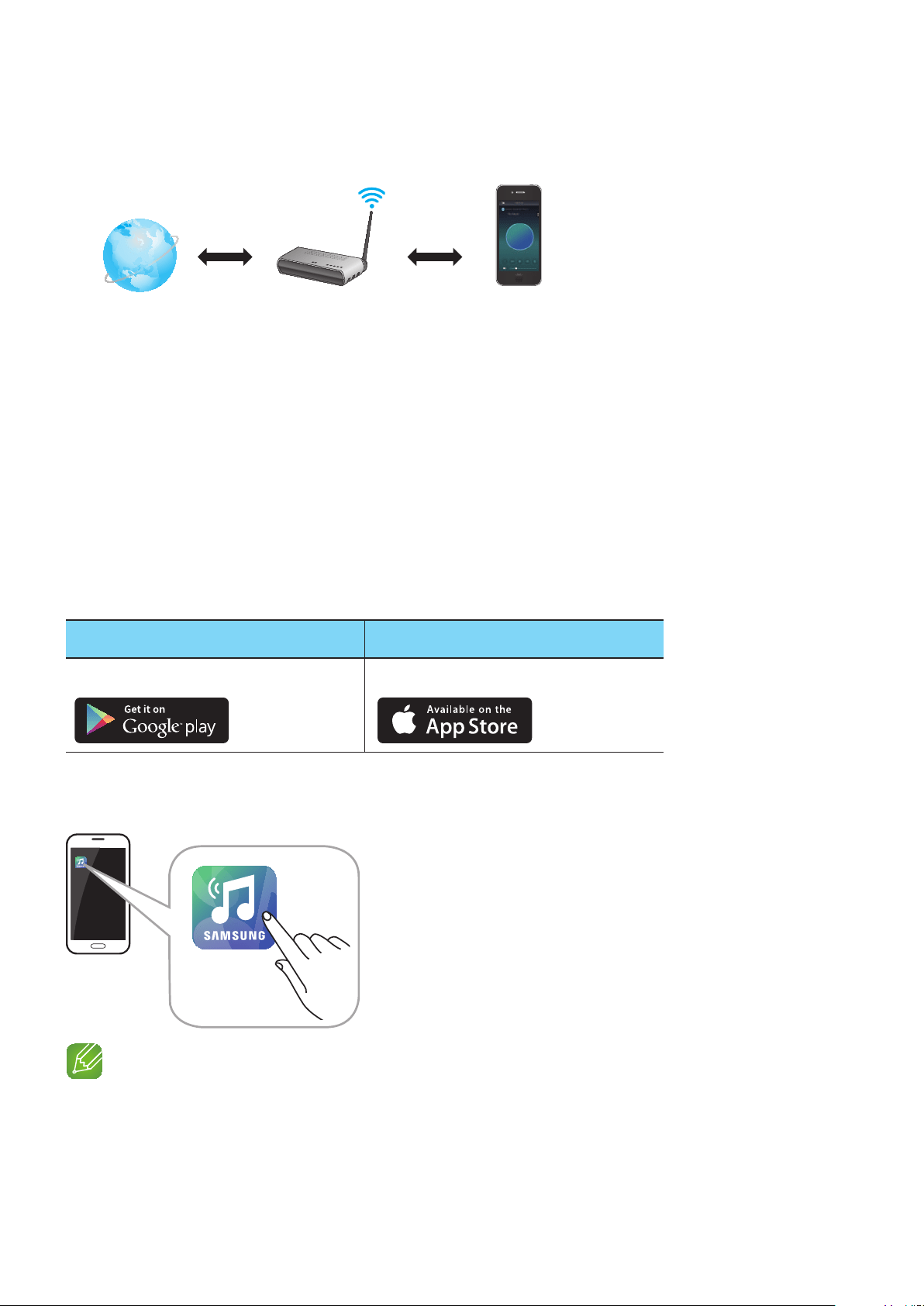
1 Requirements: Wireless Router, Smart Device
2 The wireless router should be connected to the Internet.
3 The smart device should be connected to the router via a Wi-Fi connection.
❚
Installing the Samsung Multiroom App
To use the speaker, you must download and then install the Samsung Multiroom App by
accessing the app through Google play or App Store.
With the Samsung Multiroom App installed, you can play music stored in your smart device,
from connected devices and other content providers, and from Internet radio stations through
the speaker.
Android iOS
Market search : Samsung Multiroom Market search : Samsung Multiroom
❚
Accessing the Samsung Multiroom App
NOTE
9
Please terminate the Samsung Multiroom App when speaker are not used because the battery of your
smart device can be consumed quickly if the app is working.
Connecting to the Wi-Fi network
Wireless RouterInternet Smart Device
4
4
Samsung
Multiroom
A
Connecting to Wi-Fi
❚
Connecting to Wi-Fi automatically (Android/iOS)
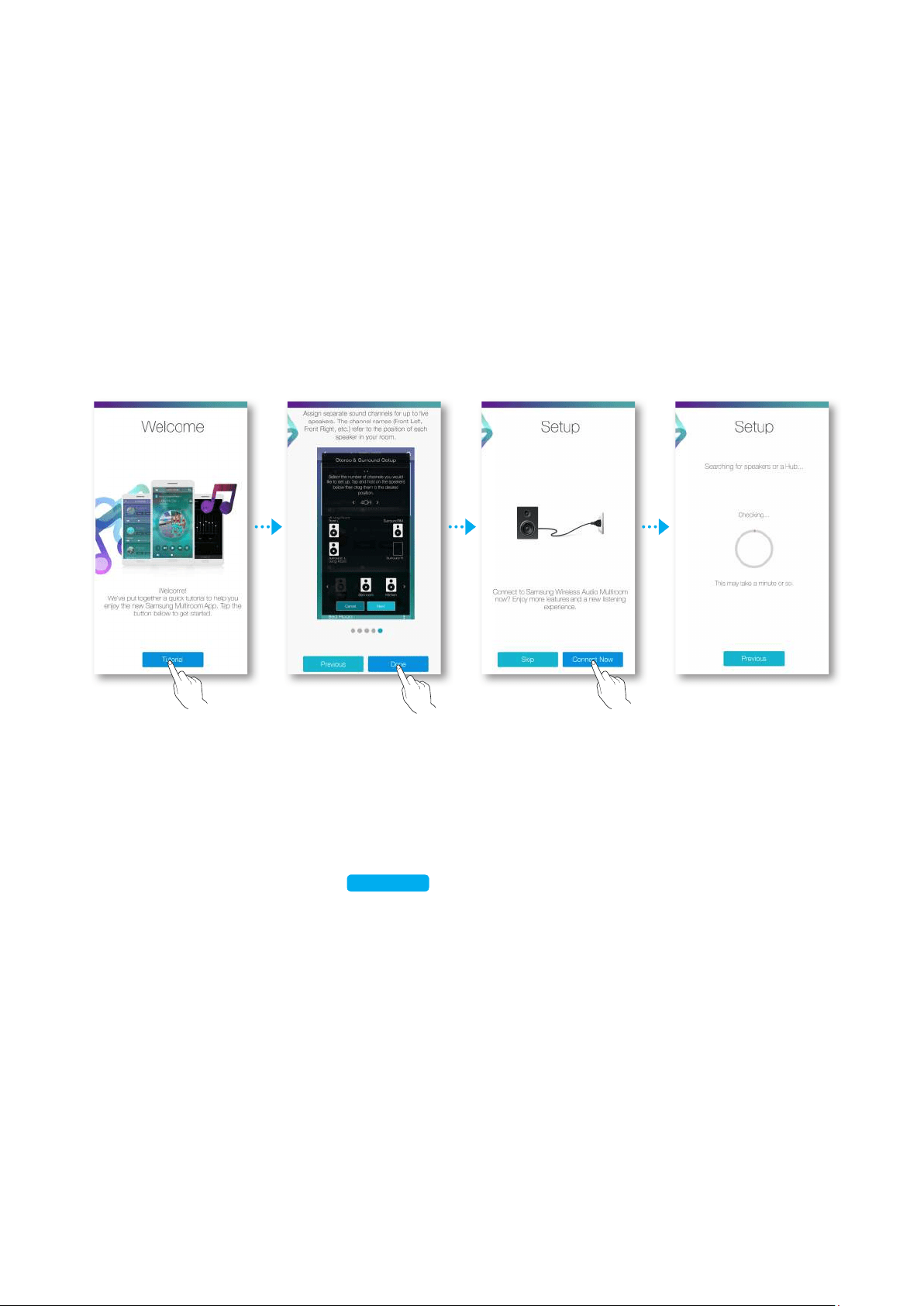
1 Plug the speaker into an electrical outlet.
2 On your Smart device, select the Samsung Multiroom app.
3 Run the Tutorial and then touch Done.
4 Touch Connect Now.
• It searches for the device available for pairing.
5 Once an available device is found, it attempts to connect to the wireless network.
In case of secure network, the password prompt appears on the smart device screen.
Use the on-screen keyboard to enter the password.
• Depending on the network environments, the speaker(s) may not be automatically
connected. In such cases, select the Manual, and then proceed the next steps by
referring to pages 7~11.
Click here.
5
4
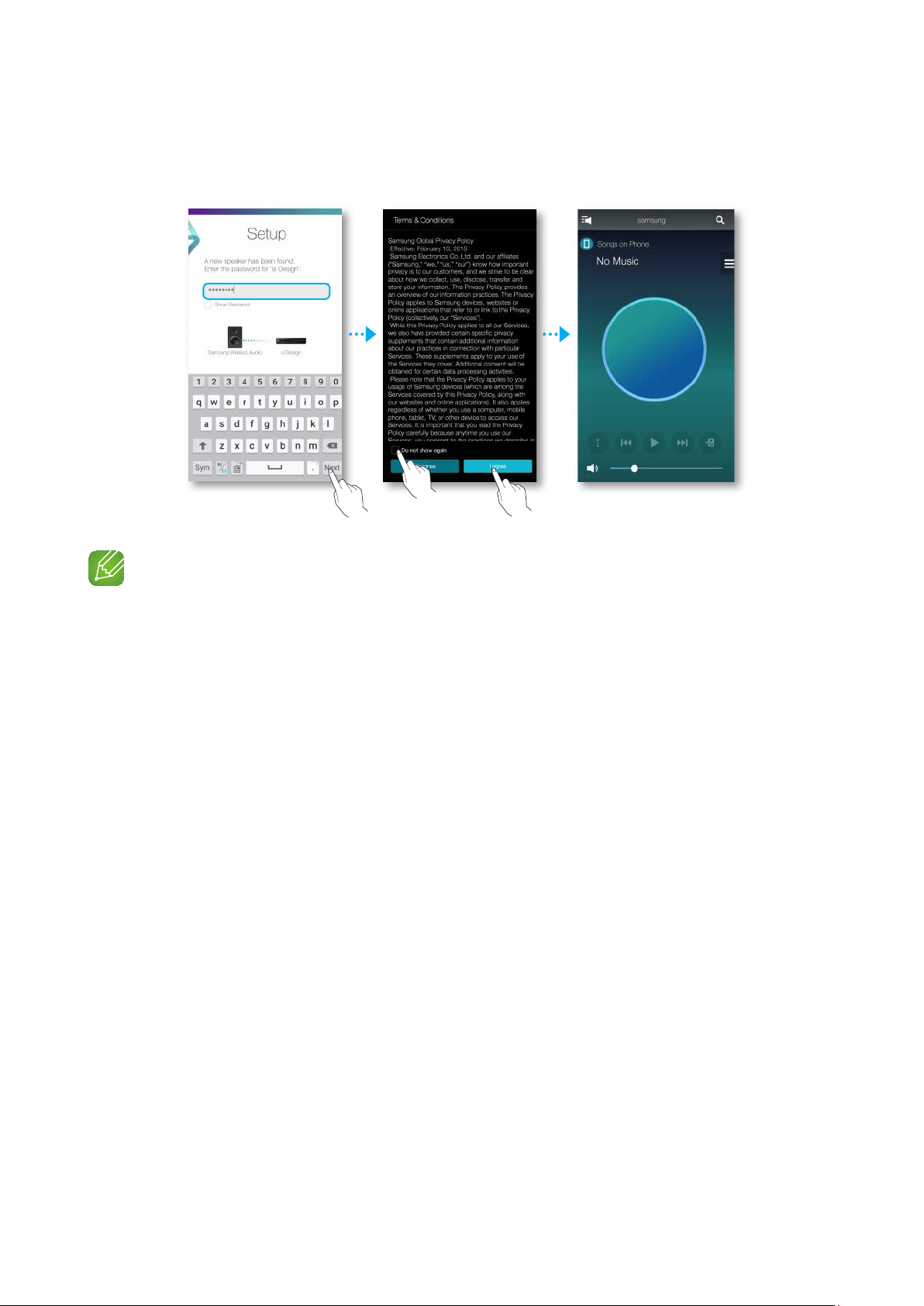
6 Touch Next.
• Network connection is completed.
NOTES
9
To connect to your wireless network safely, you must enter the valid password.
- For connecting to the home or work wireless network, consult your service provider or the network
administrator.
9
If the speaker fails to connect to a network or the network connection does not work normally, move the
speaker closer to the hub or router, and then try again.
9
The distance between devices or obstruction and interference from other wireless devices may
influence communication between the speaker and network.
9
This speaker may be found by some other Wi-Fi devices. However, they are not allowed to connect to
this speaker.
9
Once the Wi-Fi connection is established initially, it is maintained unless the wireless router is replaced
or its network settings are changed.
9
In case of mobile device that supports Quick Connect function, connection with the Speaker can be
easily done by the pop-up screen on your mobile device.
6
4
❚
Connecting to Wi-Fi manually (Android)
Depending on the network environments, the speaker(s) may not be automatically connected.
In that case, you can set up the speaker manually to connect to the network.
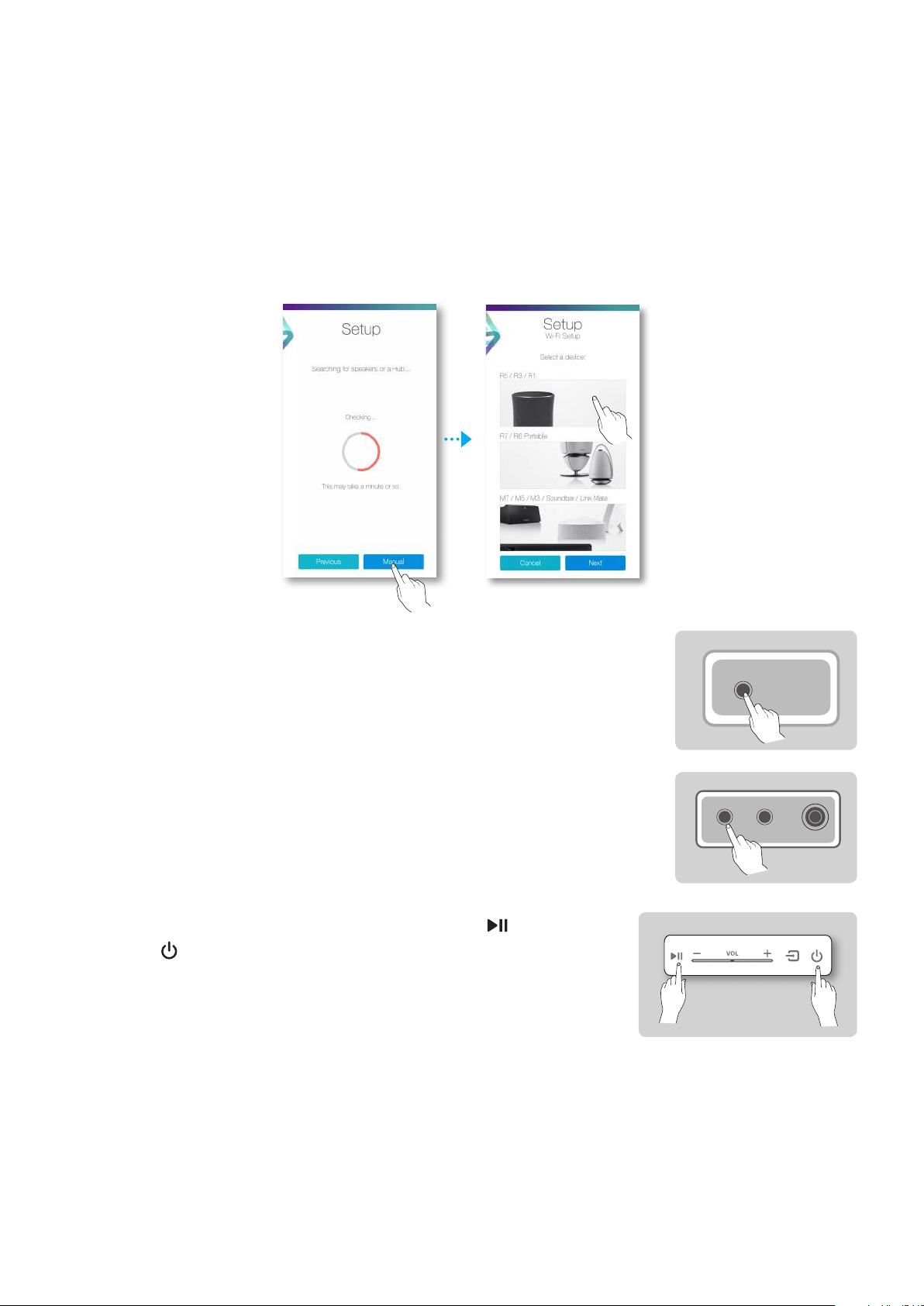
1 If the automatic setup fails, select the Manual.
2 Touch a device that you want to connect to.
3 WAM5500/WAM3500/WAM1500 : Press and hold the
SPK ADD/Wi-Fi SETUP button on the bottom of the speaker for
more than 5 seconds to begin Wi-Fi Setup.
Soundbar : After turning the speaker on, press and hold the
Wi-Fi SETUP button located at the back for 5 seconds.
WAM7500/WAM6500 : Press and hold the Play/Pause
and Standby buttons on the speaker simultaneously for
more than 5 seconds to initiate Wi-Fi Setup.
• The speaker can wait for 2 minutes in its standby mode
until the Wi-Fi connection is established.
SPK ADD/Wi-Fi SETUP
SPK ADDWi-Fi SETUP
DC 24V
7
4
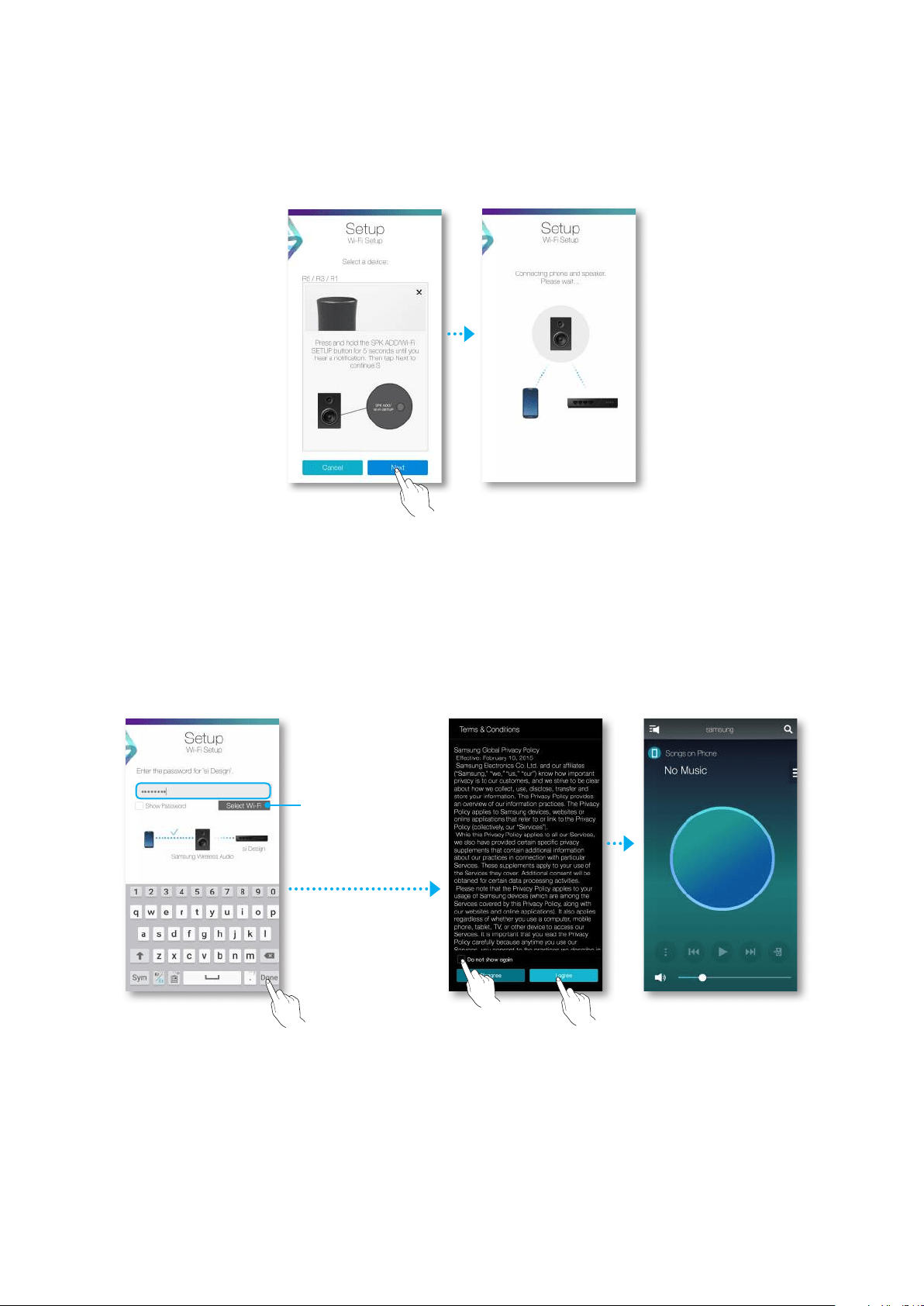
4 On your smart device, touch Next.
• It searches for the device available for pairing.
5 Once an available device is found, the speaker tries to connect to the newly found smart
device first, then it attempts to connect to the wireless network.
In case of secure network, the password prompt appears on the smart device screen.
Use the on-screen keyboard to enter the password.
6 Touch Done.
• Network connection is completed.
If you need to
connect to a
different wireless
network, touch
Select Wi-Fi.
8
4
❚
Connecting to Wi-Fi manually (iOS)
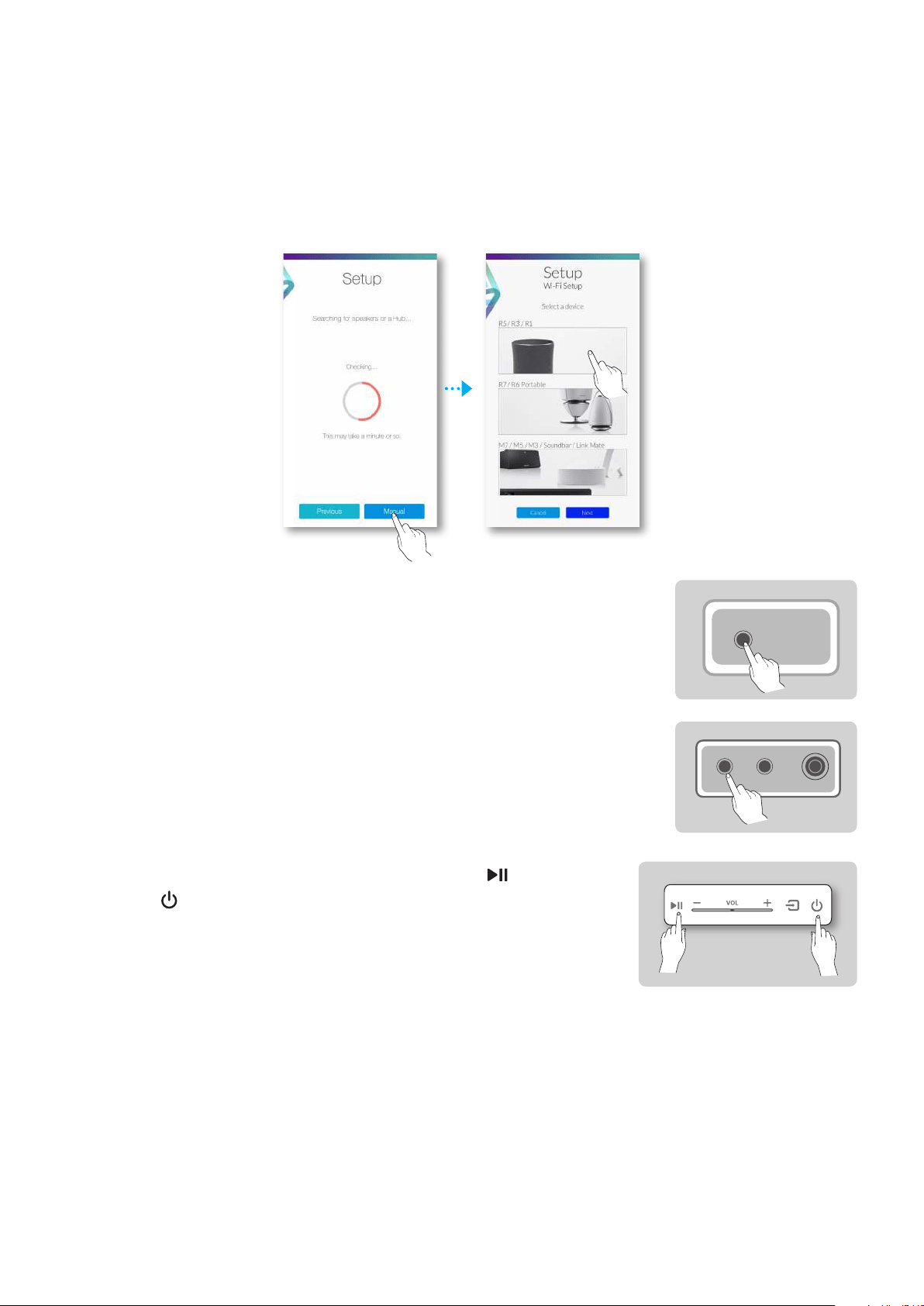
1 If the automatic setup fails, select the Manual.
2 Touch a device that you want to connect to.
3 WAM5500/WAM3500/WAM1500 : Press and hold the
SPK ADD/Wi-Fi SETUP button on the bottom of the speaker for
more than 5 seconds to begin Wi-Fi Setup.
Soundbar : After turning the speaker on, press and hold the
Wi-Fi SETUP button located at the back for 5 seconds.
WAM7500/WAM6500 : Press and hold the Play/Pause
and Standby buttons on the speaker simultaneously for
more than 5 seconds to initiate Wi-Fi Setup.
• The speaker can wait for 2 minutes in its standby mode
until the Wi-Fi connection is established.
SPK ADD/Wi-Fi SETUP
SPK ADDWi-Fi SETUP
DC 24V
9
4
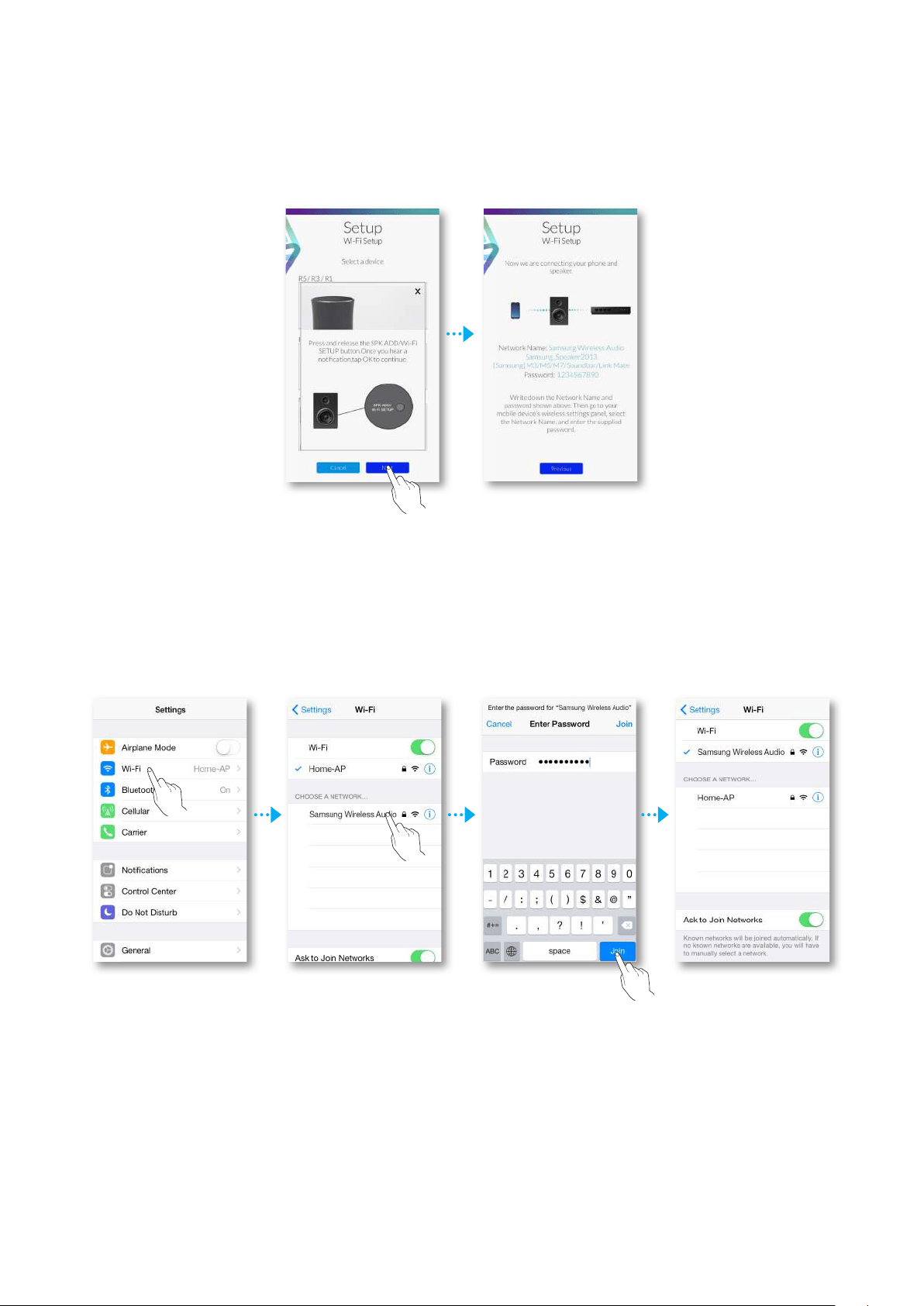
4 On your smart device, touch Next.
• It searches for the device available for pairing.
5 Go to Settings
;
Wi-Fi in iOS, and then select the Samsung Wireless Audio.
6 To connect your smart device to the speaker, use the keyboard that appears to enter
your password.
• The default password is 1234567890.
• The speaker and the smart device are connected to each other.
10
44
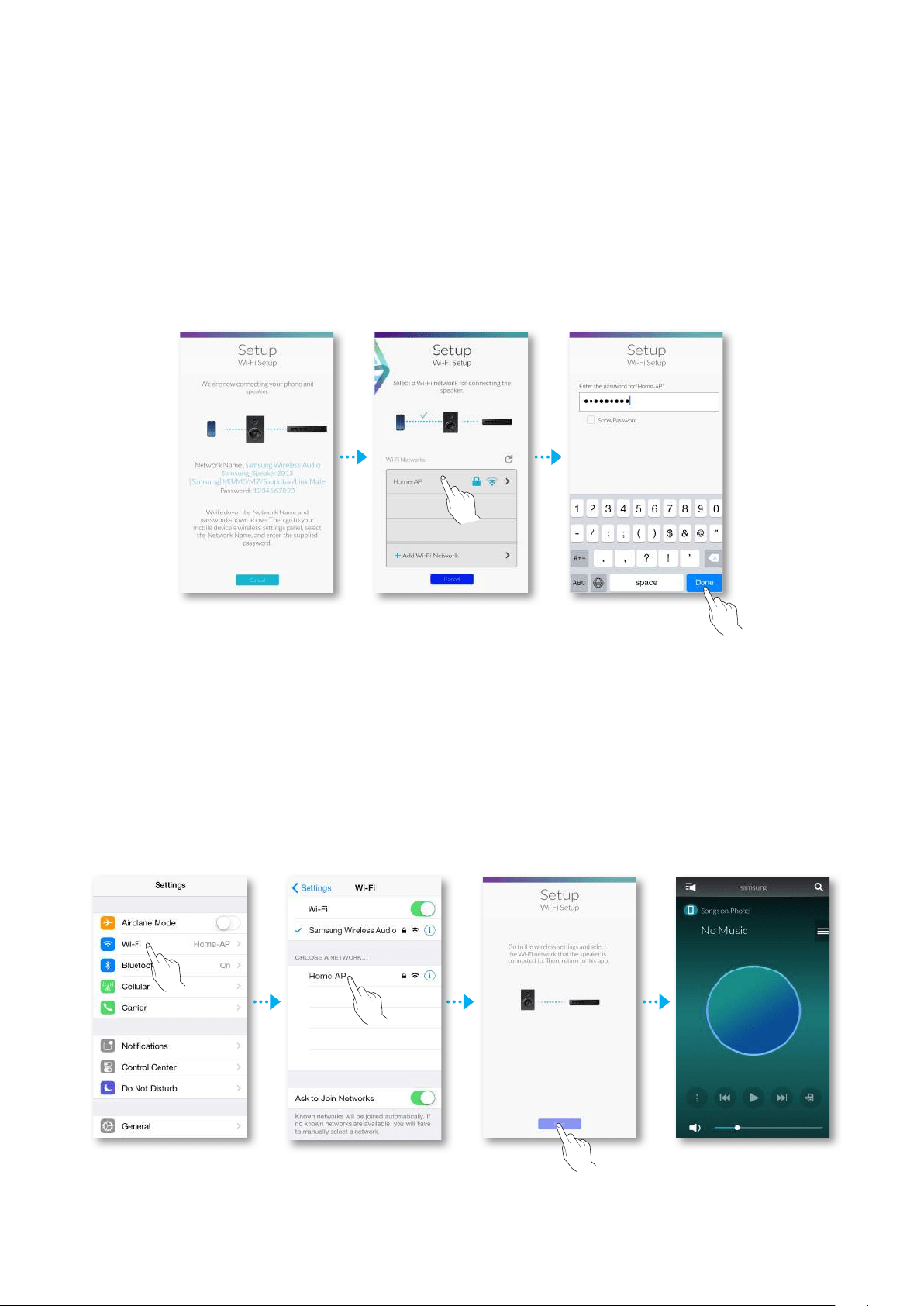
7 Go back to the Samsung Multiroom app.
8 Select Next.
9 From the wireless network list, select the desired one for speaker connection.
10 In case of secure network, the password prompt appears on the smart device screen.
Use the on-screen keyboard to enter the password.
• Once you finish entering, touch Done. The speaker connects to the network.
11 Go to Settings
;
Wi-Fi in iOS, and then select the network which the speaker is
connected to.
(The speaker and the smart device must be connected to the same network.)
• The smart device connects to the network.
12 When the speaker is completely connected, touch Next.
13 Go back to the Samsung Multiroom app.
• All network connections are finished.
11
44
A
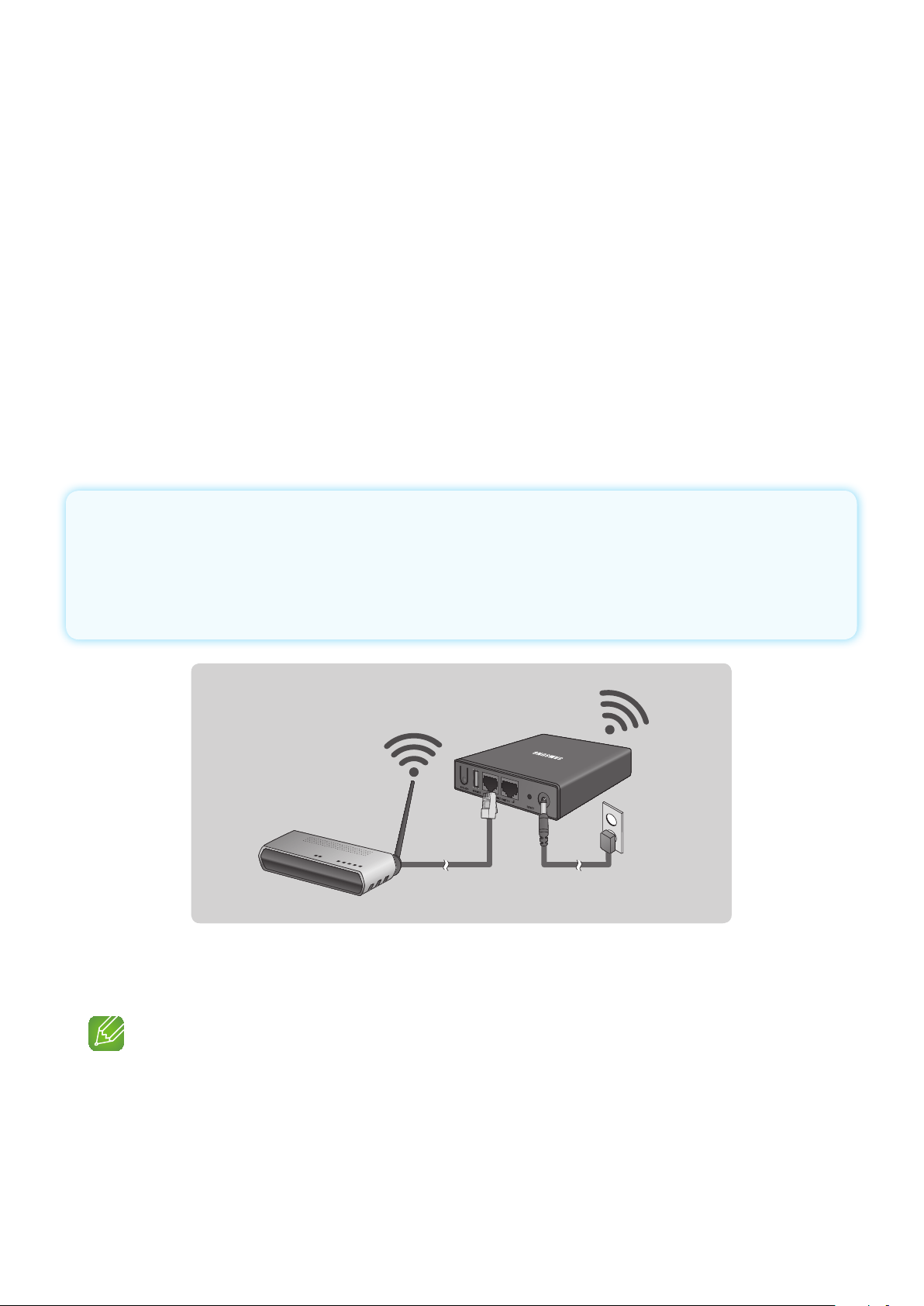
Connecting with a LAN Cable (Soundbar only)
1
Connect one end of the LAN cable to the speaker’s LAN port and the other end
to the wireless router.
(The speaker and smart device must be connected to the same wireless router.)
2
Plug the speaker into an electrical outlet.
3
Launch the Samsung Multiroom app from your smart device. Proceed with
connecting your speaker.
A
Connecting with a HUB (Not Included)
• If the speaker fails to connect to your network or its network connection operates
abnormally, place the speaker closer to the HUB or your router and try again.
• The speaker is a wireless network device. Its communications with your network may
be disrupted because of the distance between it and other devices on the network,
obstructions, or interference from other wireless devices.
Wireless Router
LAN Plug In
HUB
1 Connect a LAN cable to the router and the ETHERNET SWITCH on the back of the
HUB.
NOTE
9
You can connect the LAN cable to any ETHERNET SWITCH Port on the HUB.
12
44
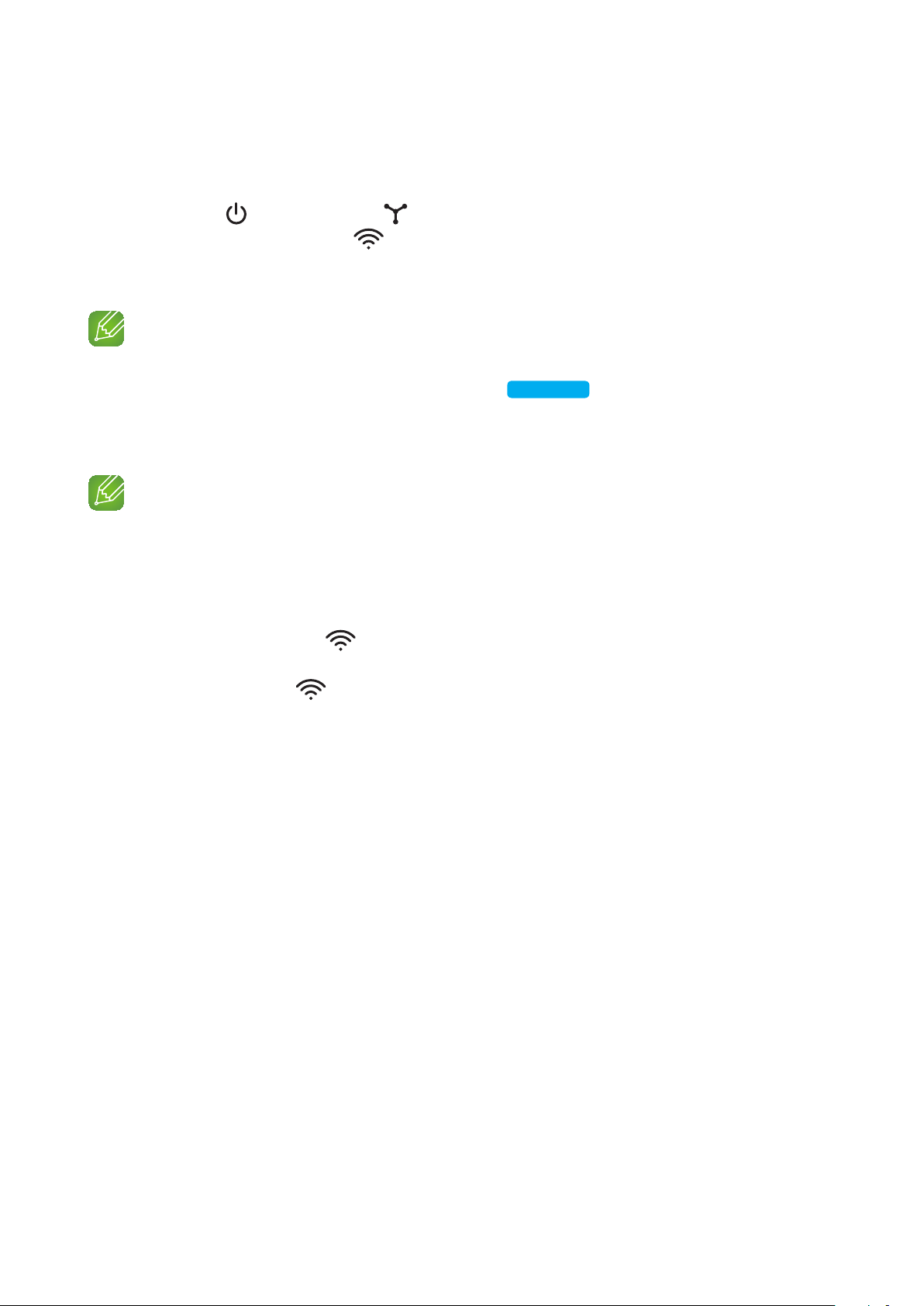
2 Attach the HUB's power cord to the power port on the rear of the HUB, and then plug
the power cord into an electrical outlet.
3 The power ( ) and the HUB ( ) indicators on the HUB's front turn on.
When the pairing indicator ( ) begins to flash, plug the speaker(s) into an outlet.
If the HUB's pairing indicator does not flash, press the SPK ADD button on the rear of
the HUB.
NOTE
9
If you are adding multiple Speakers, connect all the Speaker's to electrical outlets. If you are not
connecting all the Speakers, refer to pages 16~17.
Click here.
4 The pairing is completed if you hear the voice, "Connection is complete."
Otherwise, check if the volume is mute.
NOTES
9
Place each Speaker at least 20 inches (50 cm) from the HUB when connecting them to the HUB.
9
Your smart device cannot connect to the Speaker or the HUB if there is no wireless router.
9
To confirm you have a proper connection, check the pairing indicator on the front of the HUB.
- When you turn on the HUB for the first time, there is a 20 minute pairing period.
The pairing indicator ( ) will blink for these 20 minutes or until pairing occurs. When you press
the SPK ADD button to pair additional Speakers, the pairing period is reduced to 10 minutes. The
pairing indicator ( ) flashes for 10 minutes or until pairing occurs. Turn on the Speaker you want
to pair while the pairing indicator is flashing.
- If pairing mode is turned off, start pairing mode again by pressing the SPK ADD button on the rear
side of the hub and restart the speaker, or press and hold the SPK ADD/Wi-Fi SETUP button for 1
second.
9
For a proper connection, connect the HUB to your router before turning on the Speaker.
- Connecting the Speaker to the HUB may take a few minutes.
- There will be a brief sound when the connection is established.
5 Connect your smart device to your Wi-Fi network. (The HUB and the smart device should
be connected to the same router.)
13
44
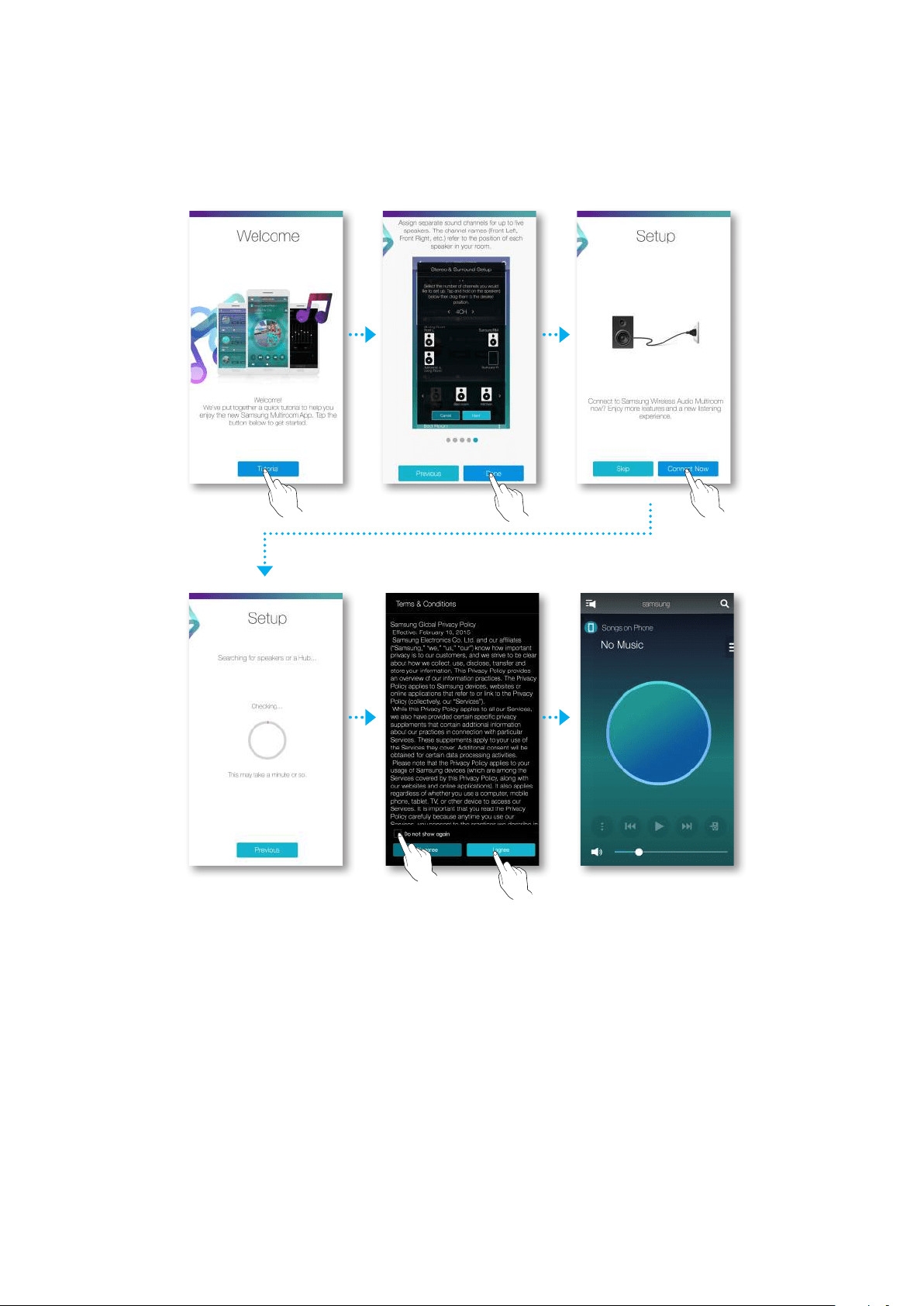
6 Download the Samsung Multiroom app from Google Play or the App Store.
7 On your smart device, select the Samsung Multiroom app. Setup starts.
8 If the automatic setup fails, run the App again.
14
44
❚
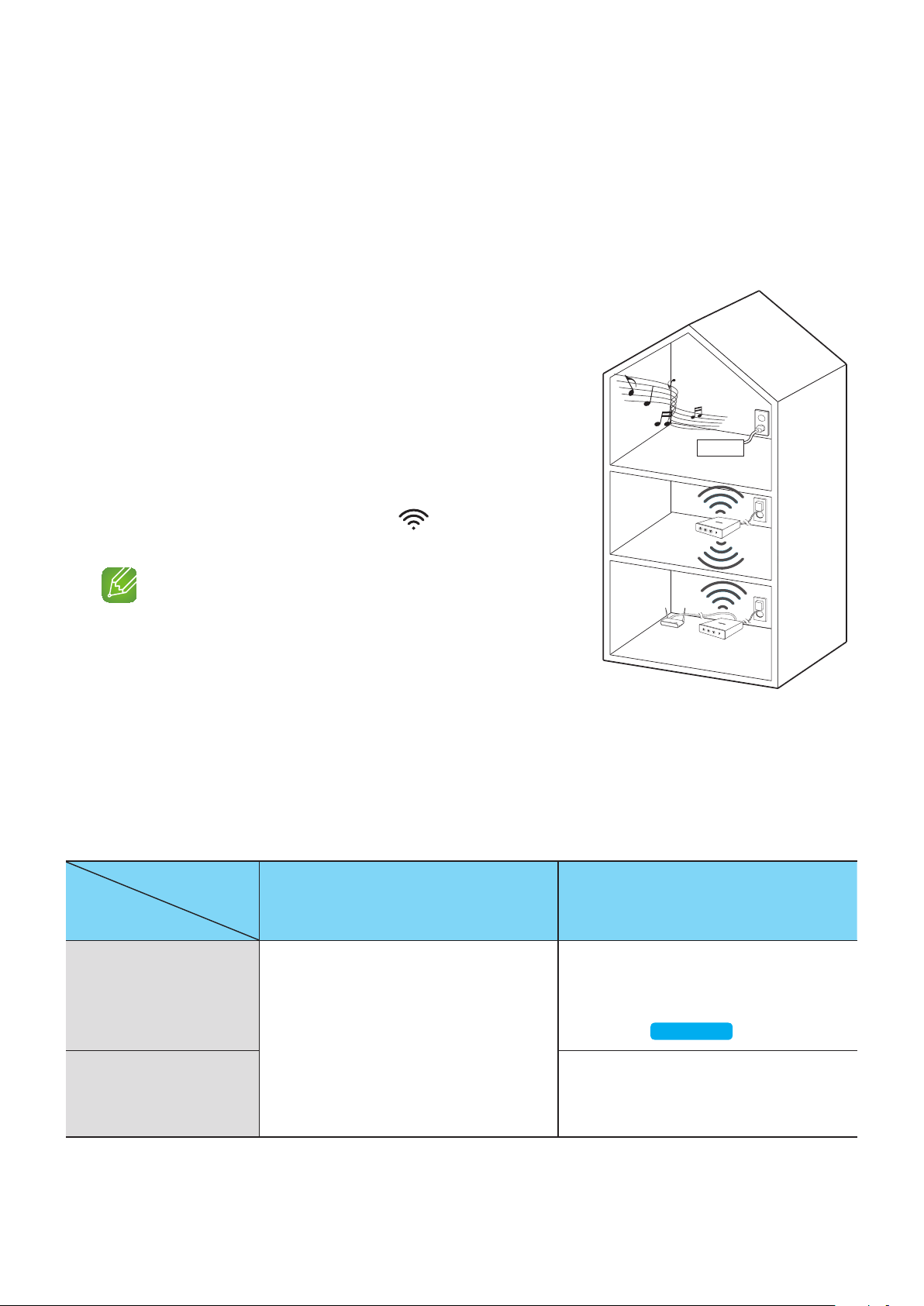
Adding a HUB
An speaker and a HUB may not pair successfully if the speaker and HUB are too far apart or are
on different floors.
In such cases, you can link two HUBs together by setting the second HUB to Repeater mode.
The additional HUB amplifies the signal and lets you pair the speaker to the closest HUB.
1 Set the HUB that is connected to the wireless router
to Pairing mode by pressing its SPK ADD button for 1
second.
2 Plug in the new HUB you are using as an extender,
and then press its SPK ADD button for 10 seconds.
3 The newly added HUB's LED indicators turn off and
on, and it switches to Repeater mode.
4 Once the connection between the two HUBs has been
established, the added HUB's ( ) indicator stops
blinking.
NOTES
9
If your smart device is not connected to the wireless router
with a Wi-Fi connection, the speaker will not appear on the
Samsung Multiroom app.
9
Place the HUB that is in Repeater mode in an appropriate
location between the speaker and the HUB that is connected to the wireless router.
9
You can set only one HUB to Repeater mode.
Relocating the speaker
When relocating your speaker, refer to the below table.
Wireless router
HUB
If you want to connect your speaker to
the current wireless router.
If you want to connect your speaker to
a different wireless router.
Without a HUB
Turn off the speaker, relocate it and then
turn it on.
Turn off the speaker, relocate it, then
establish the new connection as described
in the installation instructions on pages 5
through 11.
Click here.
With a HUB
Connect a LAN cable between the HUB
and the new wireless router, turn on the
HUB, and then turn on the speaker.
Speaker
HUB
Used as a
extender
15
44
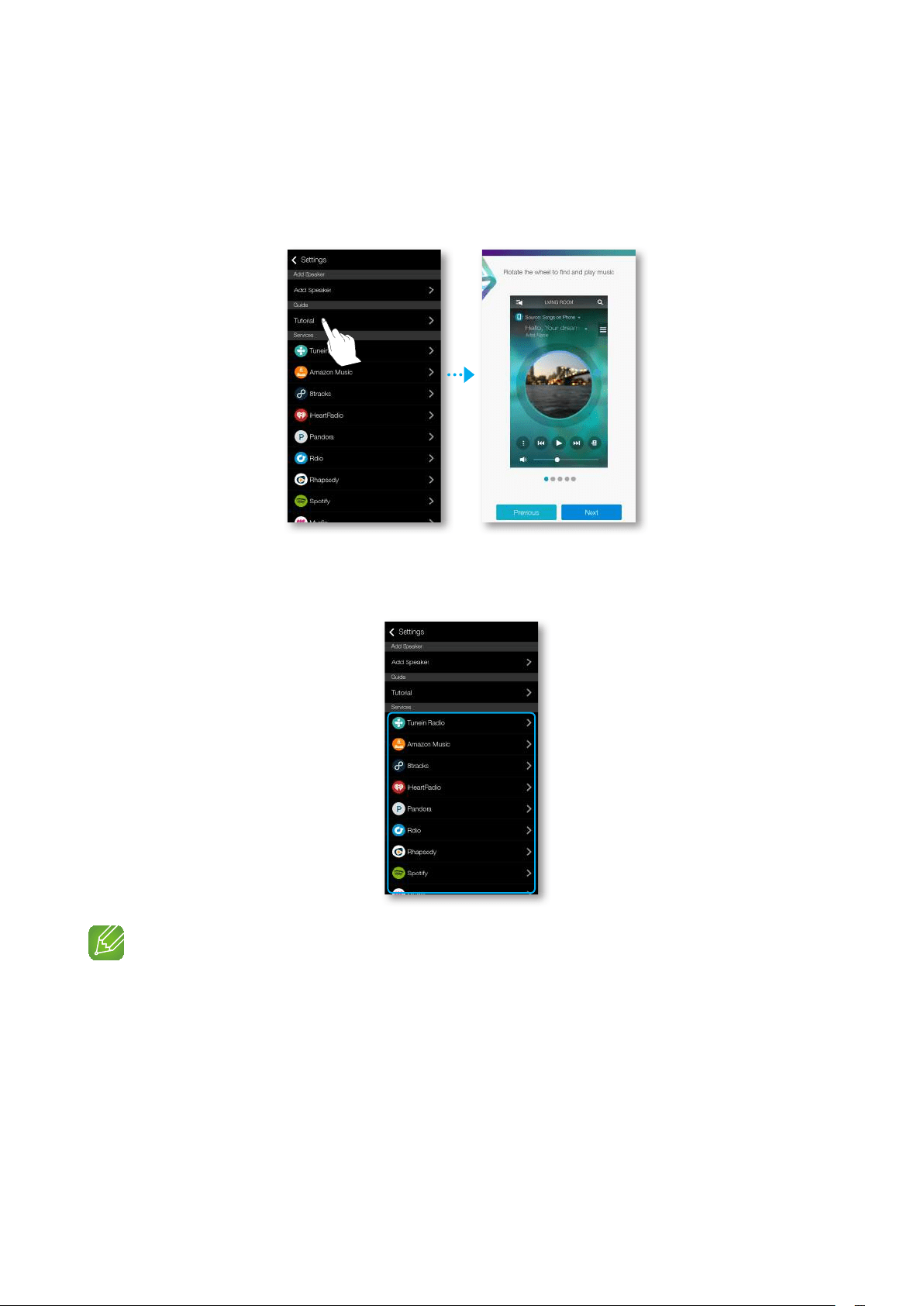
A
Adding additional speaker(s)
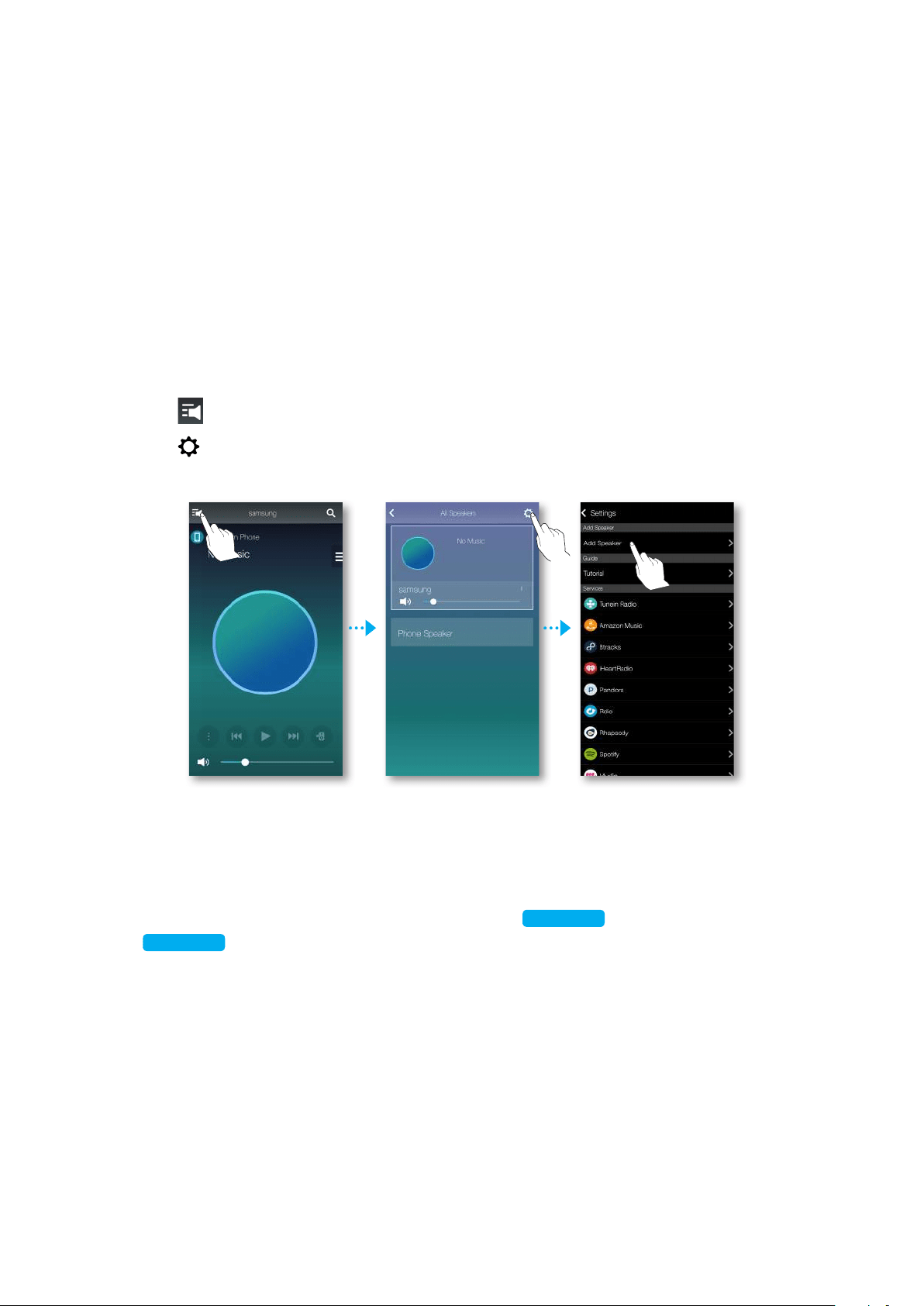
To add additional speaker(s) to an existing speaker connection, use Add Speaker function.
1 Connect the power cable of the speaker to be added to a wall outlet.
• If connecting the power cable of the speaker to a wall outlet, the Wi-Fi is automatically
switched into standby mode.
• The speaker can wait for 2 minutes in its standby mode until the Wi-Fi connection is
established.
2 Run the Samsung Multiroom app on your smart device.
3 Touch to view the list of all speakers.
4 Touch .
5 Touch Add Speaker.
6 Once an available device is found, it attempts to connect to the wireless network.
In case of secure network, the password prompt appears on the smart device screen.
Use the onscreen keyboard to enter the password.
• Depending on the network environments, the speaker(s) may not be automatically
connected. In such cases, refer to pages 7~8
Click here.
for Android, or pages 9~11
Click here.
for iOS devices to continue.
16
44
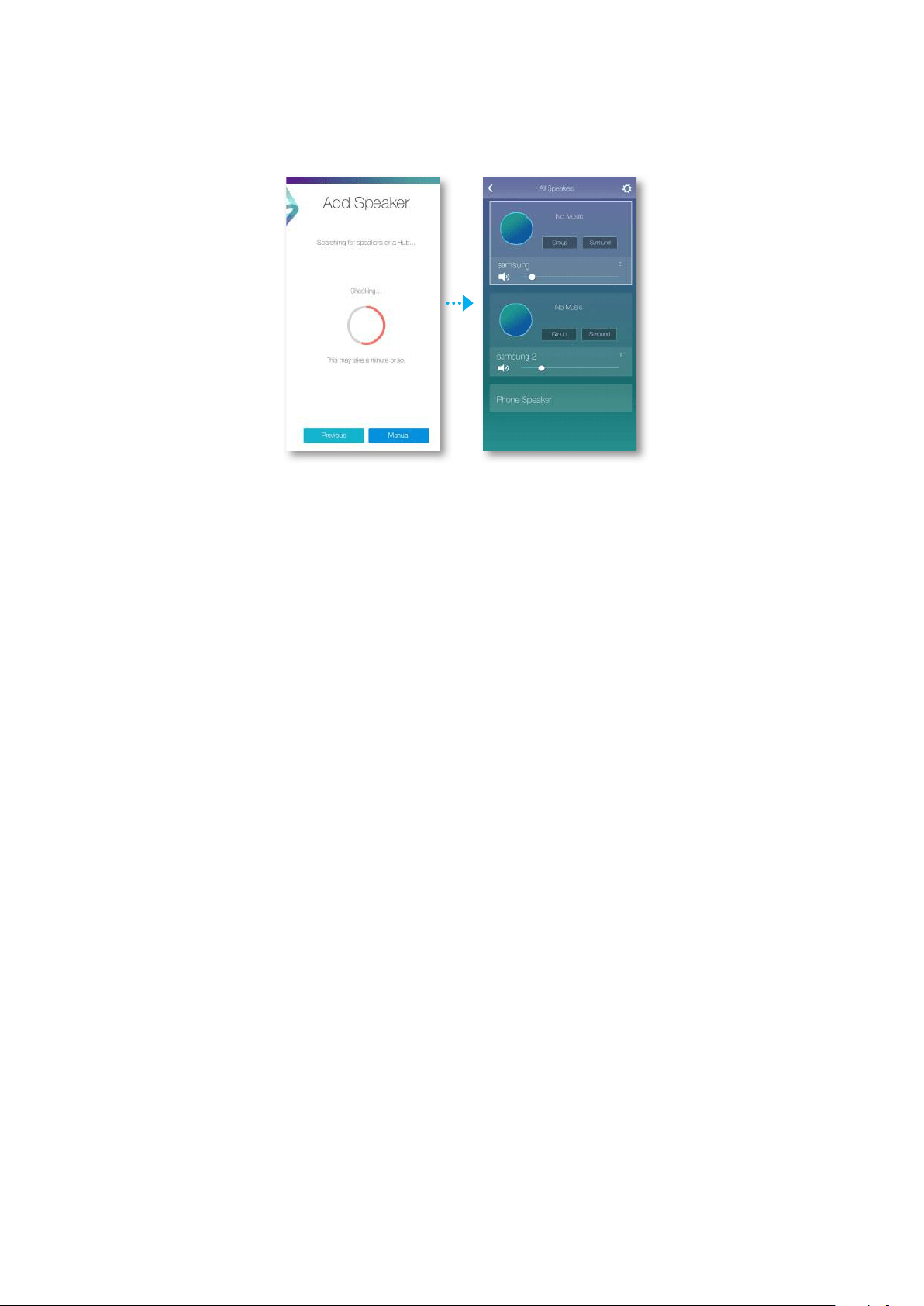
7 The additional new speaker is completely added.
17
44
Using the Samsung Multiroom App
A
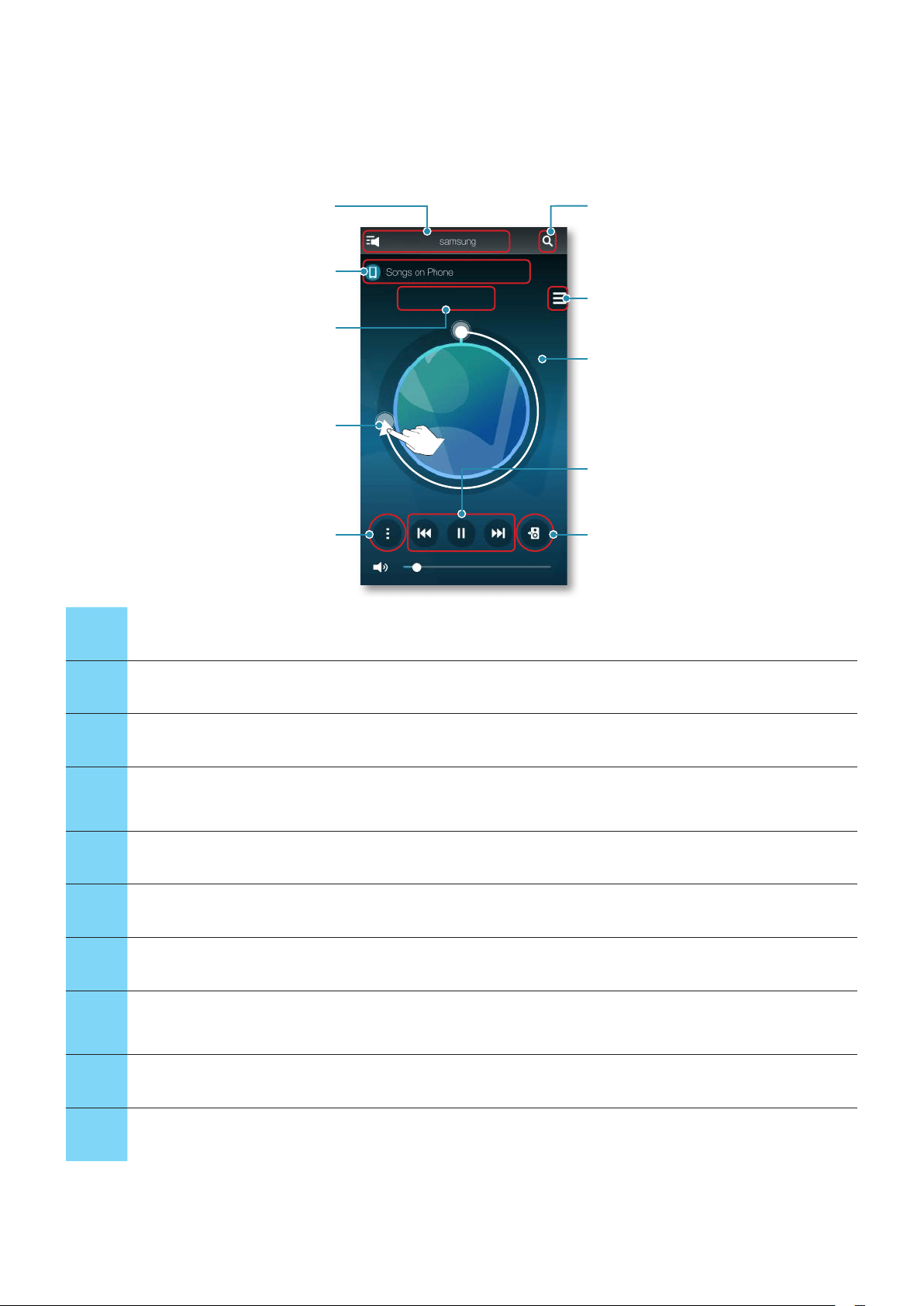
App at a glance
a
f
b
g
h
c
d
i
j
e
Spring
1
Check the full list of connected speakers to either change or setup.
2
Displays the current source.
3
Either check the queue or edit the playlist.
4
Rotate while dragging the wheel to select a music from the queue. Release the wheel to play the music.
- You can select a music by turning the inside of the wheel.
5
Play menu
6
Enter a keyword to search for the music desired.
7
Change the sound source. Browse a list of songs.
8
If you slightly touch the outside of the wheel on screen, you can go to the playback bar screen to check
total playback time for all the music pieces.
9
Play, Pause, or Previous/Next Song.
10
To change only the speaker of the music currently playing.
18
44
A
Playing Music
❚
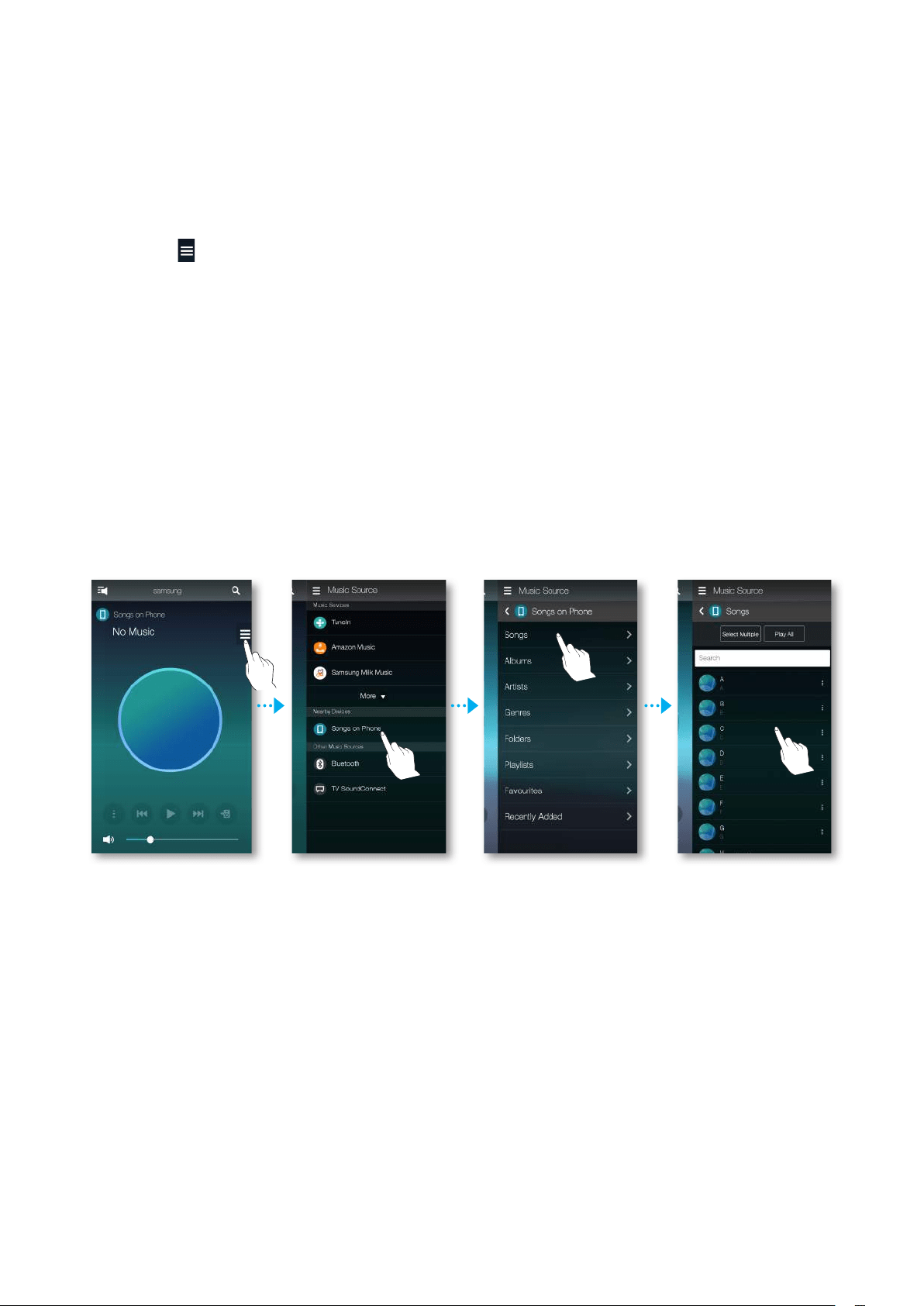
Playing a music file stored in the smart device
1 Touch on the home screen, and then select Songs on Phone (files stored on the
smart device).
2 Select a category.
• Songs : Lists all the music files by name.
• Albums : Lists all the music files by album.
• Artists : Lists all the music files by artist.
• Genres : Lists all the music files by genre.
• Folders : Lists all the music files by stored folder.
• Playlists : Lists all the music files by playlist.
• Favourites : Lists all the music files marked as favourites.
3 After selecting a category, find and select your desired music.
19
44
❚
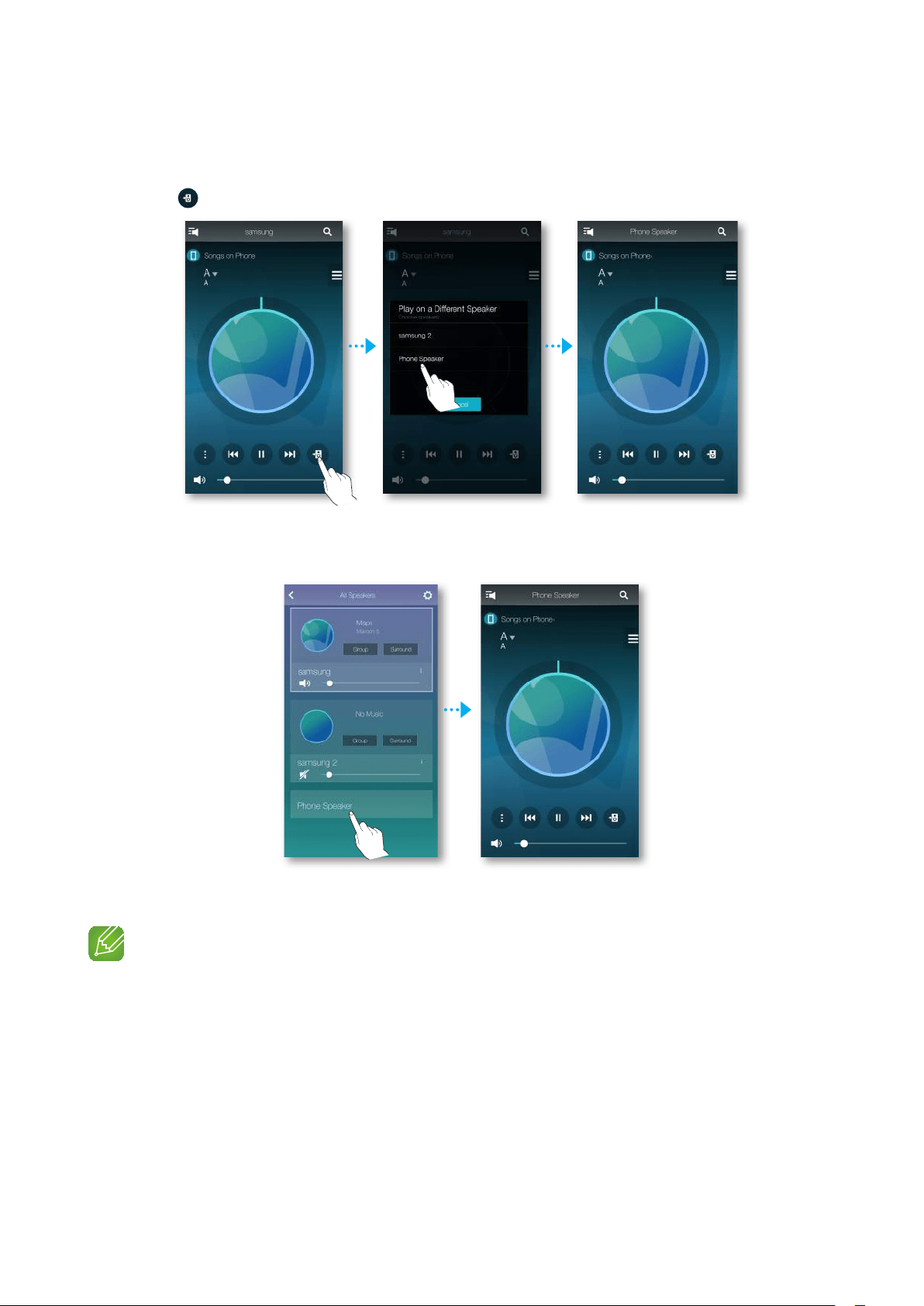
Listen to the music through the phone speaker
1 Touch in the home screen, and the select Phone Speaker.
Or
1
-1
Select Phone Speaker from the list of All Speakers.
2 You can listen to the music stored in your mobile phone through the Phone Speaker.
NOTES
9
If Wi-Fi connection is not established, enjoy music through your Phone Speaker.
9
You can enjoy only the music stored in your mobile phone through the Phone Speaker.
20
44
❚
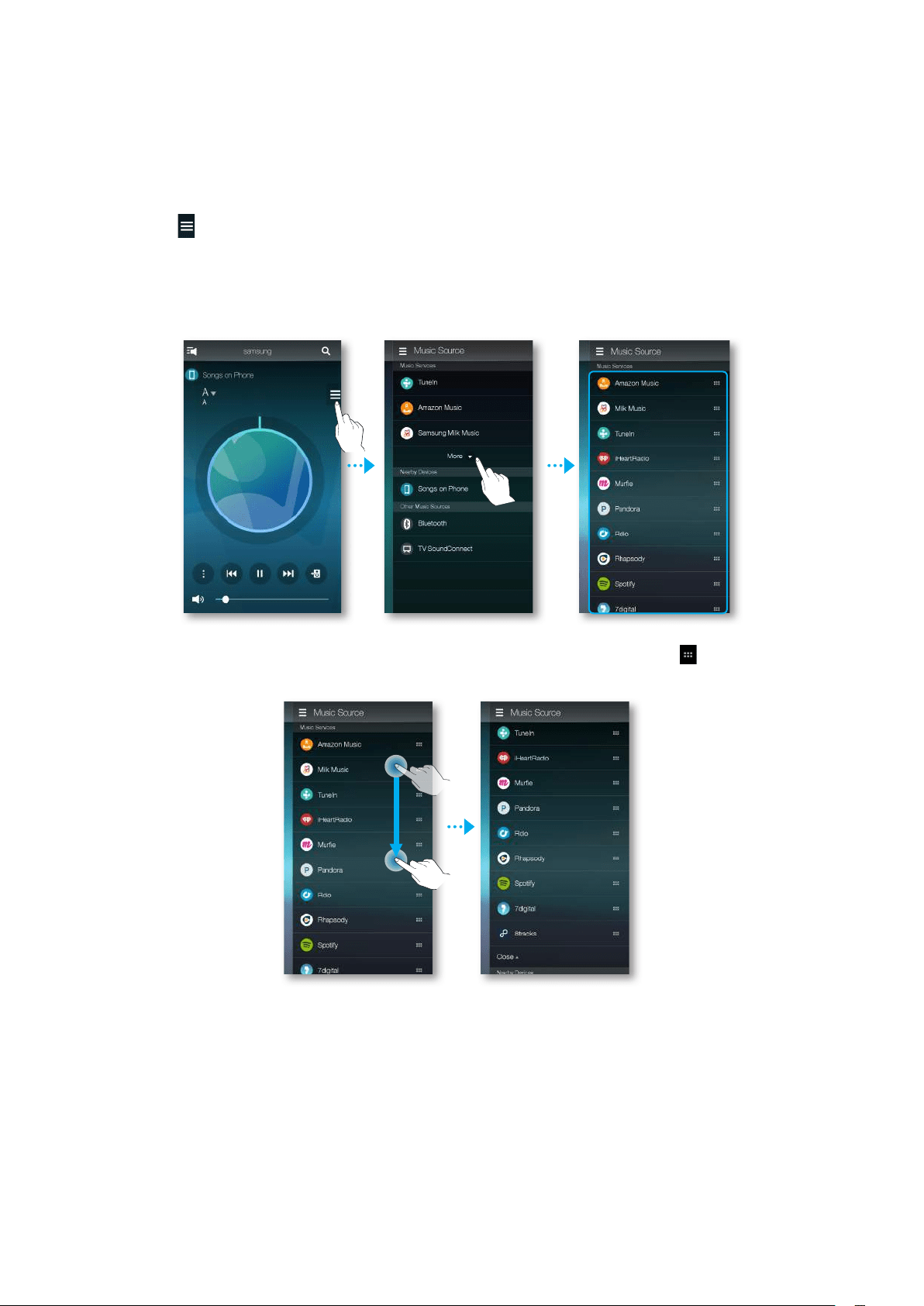
Listening to streaming music
You can select your desired contents service to listen to music.
1 Touch on the home screen.
2 Select More.
The entire list of Music Services is displayed.
3 From the Music Services, select your desired service.
4 To change the order of your streaming services, touch and hold the icon to the right of
a service, and then drag it up or down to change its position.
21
44
NOTES
9
Depending on your region or manufacturer, supported content services may differ.
9
Some music services may require you to sign up for a membership or log in.
9
You may not subscribe to a service using your smart device.
To use a for-pay service, first subscribe to the service through your computer.
9
Some TuneIn radio channels may be restricted according to their site policy.
9
Supported music service may be added or deleted according to corresponding policy.
A
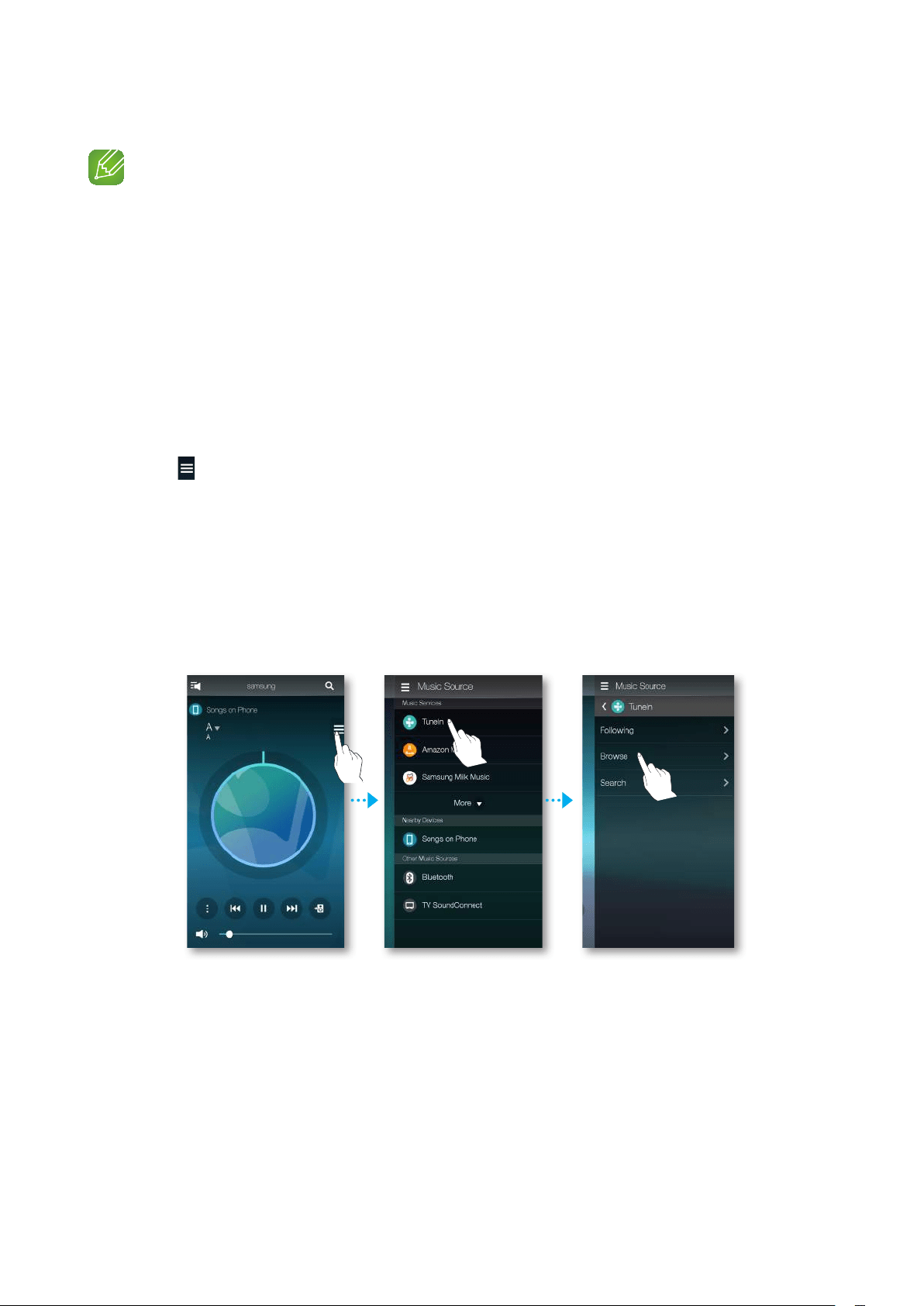
Listening to the internet radio
1 Touch on the home screen.
2 Select TuneIn.
3 Select your desired category.
• Following : Shows the list of stations added to the preset list or marked as you are
following. By default, 3 radio stations are displayed in the preset list.
• Browse : Lists all supported Internet radio stations.
• Search : Allows you to search for a desired internet radio station using keypad input.
22
44
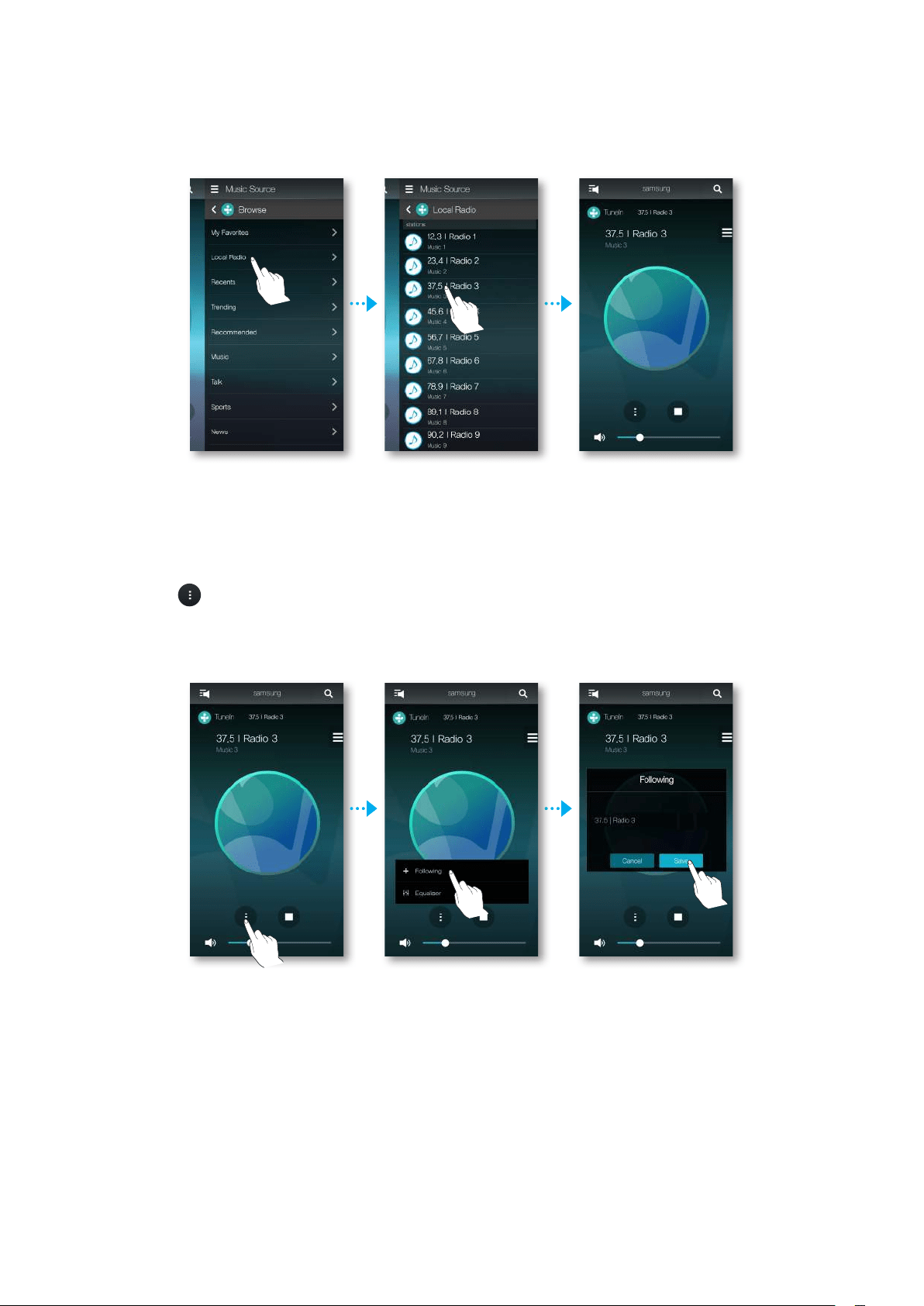
4 Find and select a station.
❚
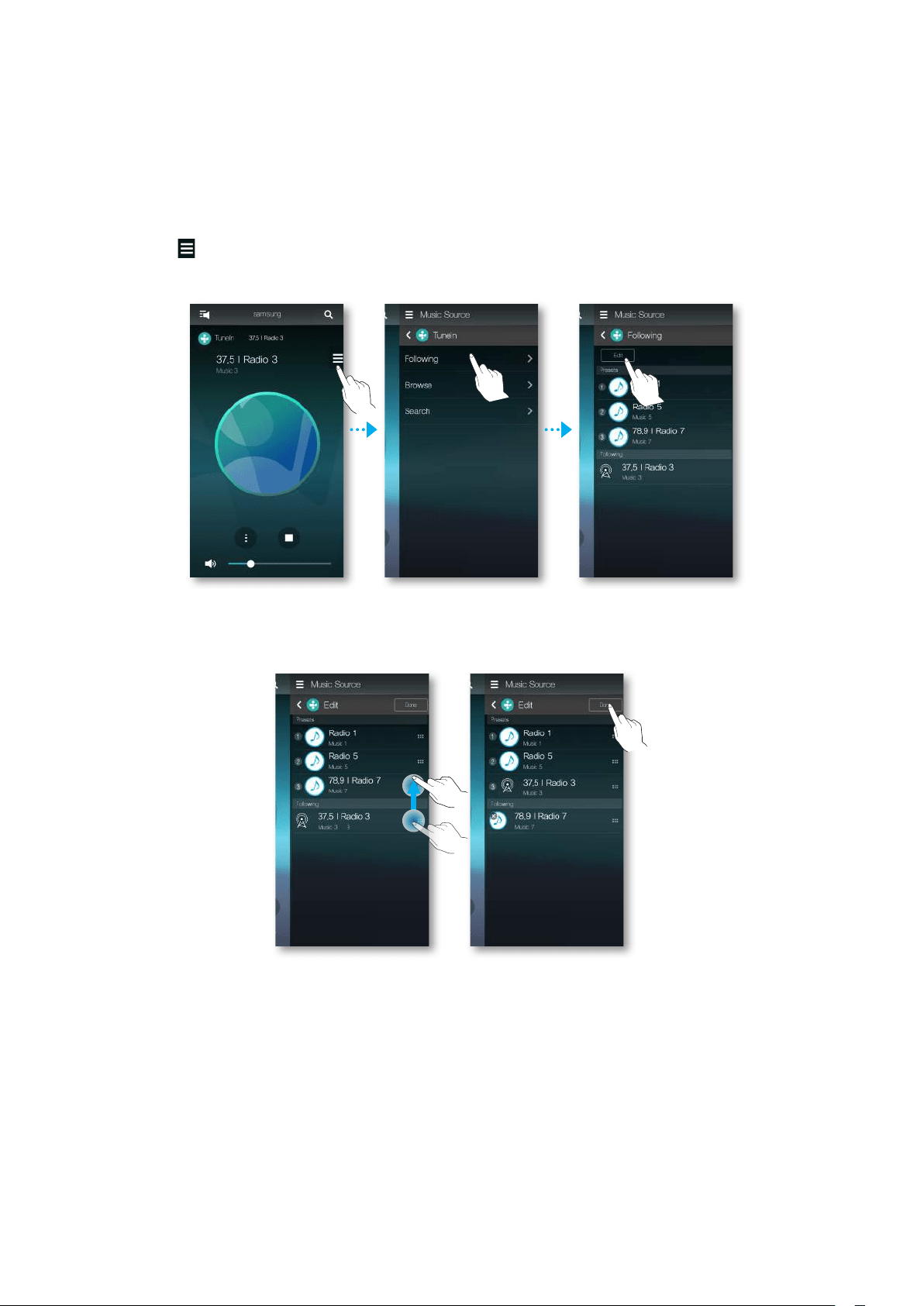
Following a station
You can add a channel to the Following list.
1 Select the desired channel.
2 Touch to display a popup menu, and then select + Following.
3 Touch Save.
• The channel you are currently listening to is added to the Following list.
23
44
❚
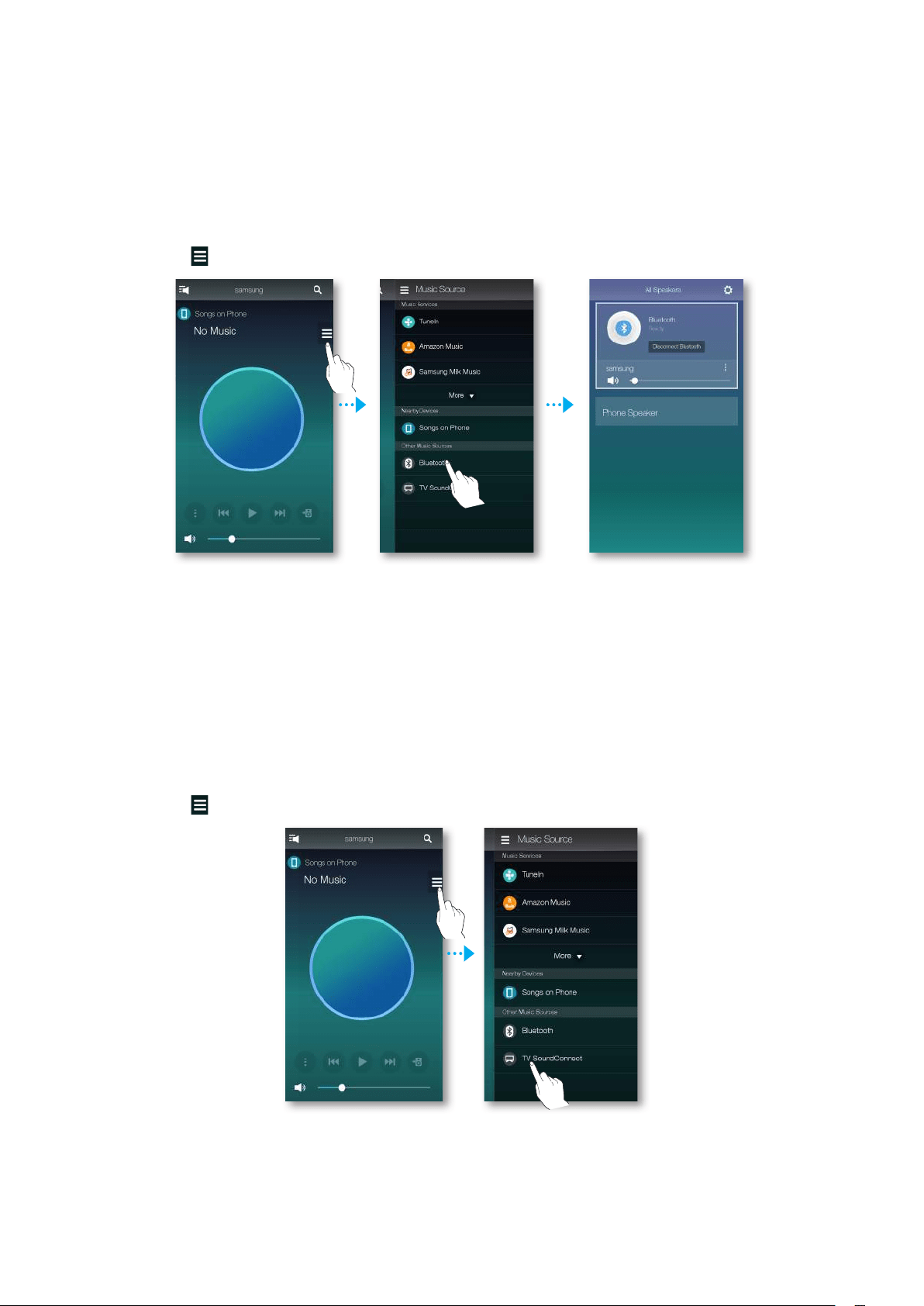
Setting Presets
You can add the internet radio channel you are following into the preset list, or rearrange the
displaying order in the list.
1 Touch , and then touch Following.
2 Touch Edit.
3 Drag the desired channel from the Following to the Presets.
4 To finish editing, touch Done.
24
44
A
Connecting to Bluetooth Devices
You can connect the speaker to a Bluetooth device to enjoy the music stored in your Bluetooth
device.
1 Touch on the home screen, and then select Bluetooth.
2 The Bluetooth connection between the smart device and the Speaker is made.
A
Connecting TV to the speaker
❚
Connecting to TV via bluetooth (TV SoundConnect)
TV SoundConnect function allows you to conveniently connect Samsung TV to external
speaker(s) wirelessly and enjoy the TV sound.
1 Touch on the home screen, and then select TV SoundConnect.
25
44
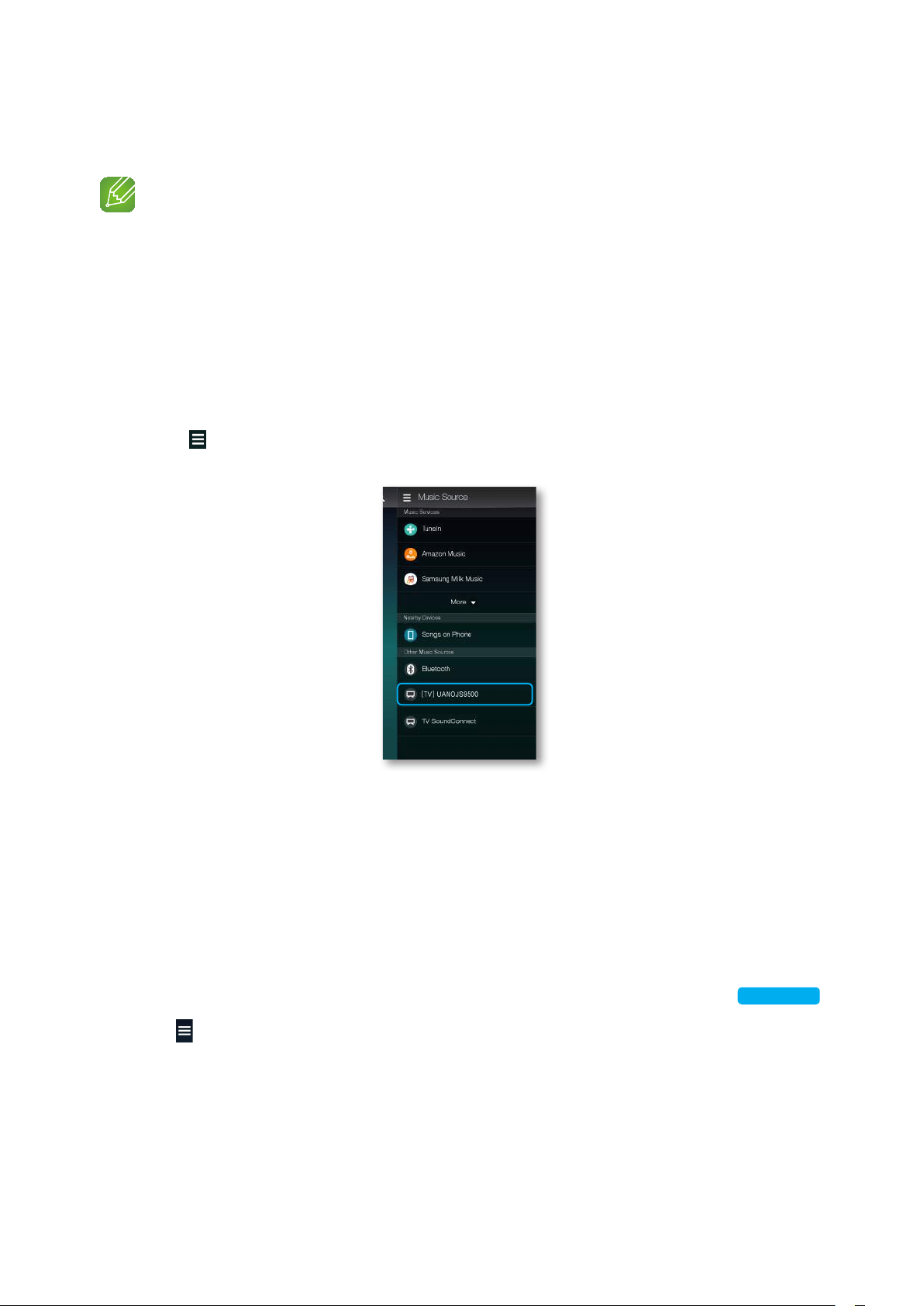
2 A message asking whether to proceed with Bluetooth pairing appears.
NOTE
9
Set Add New Device to On in the TV's TV SoundConnect Settings menu. (Refer to the TV's user
manual for details.)
3 When a message appears to check whether to establish Bluetooth pairing or not, select
Yes. The speaker is paired to the TV.
❚
Connecting to TV via Wi-Fi
1 Set the TV and speaker to the same Wi-Fi network.
2 Touch on the app's Home screen, and then select the TV you want to connect to
from the Other Music Sources list.
3 A message appears to ask if you want to perform network pairing process to TV.
4 Select Yes to connect TV to the speaker.
5 You can enjoy music on TV through the speaker.
❚
Listening to music from other devices in network
You can listen to music stored on another device that is connected to the same network.
You can share music stored in your PC connected smart devices.
For details, refer to "Wireless Audio - Multiroom for Desktop" on pages 45~46.
Click here.
1 Touch on the home screen.
2 From the Nearby Devices, select the desired device.
3 You can play music files stored in your selected device through the speaker.
26
44
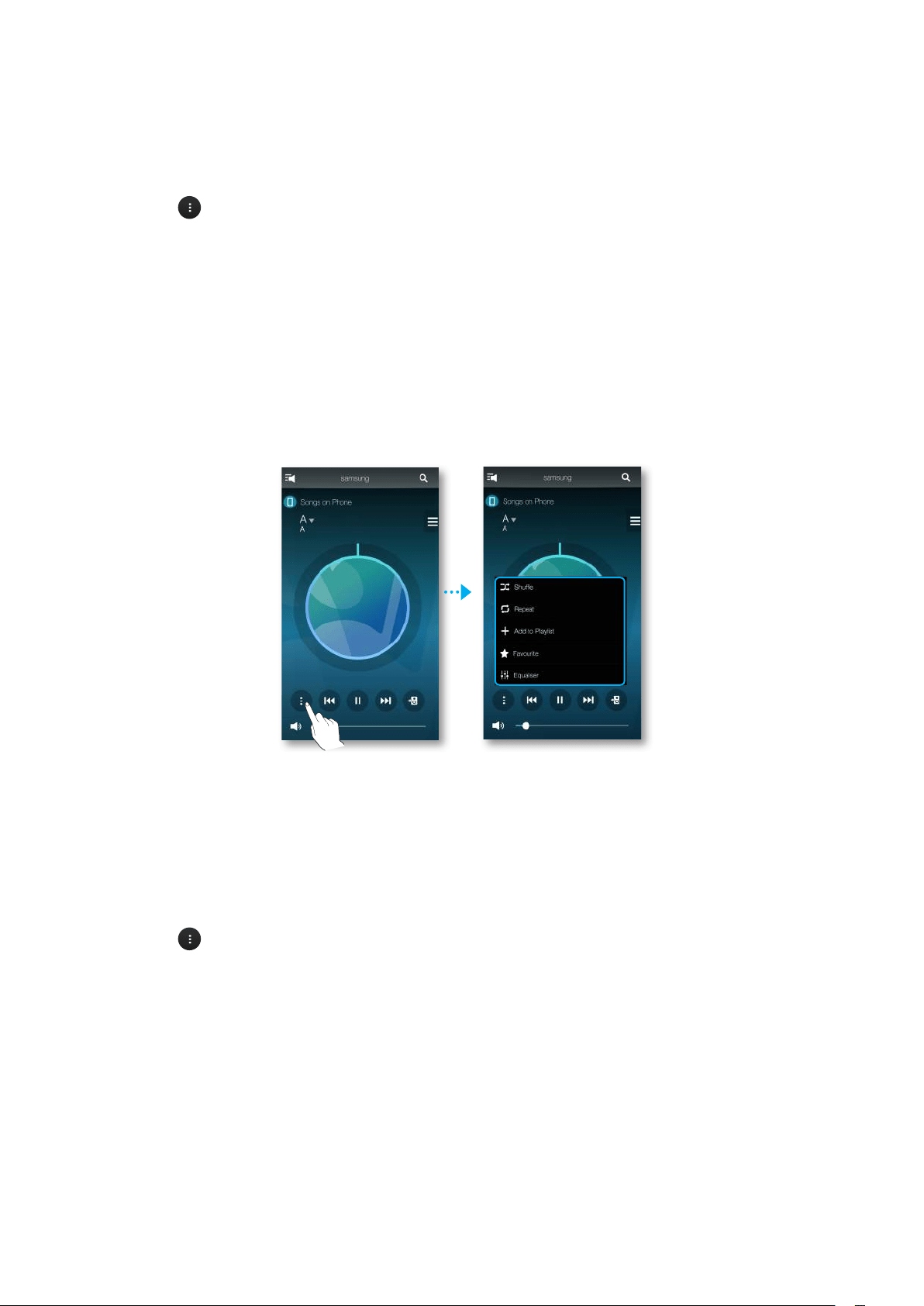
A
Using playback menu
1 Touch .
2 When a popup menu appears, select your desired function.
• Shuffle : It randomly plays back music files from the standby list.
• Repeat : It repeats the current music file or all the music files from the standby list.
• Add to Playlist : Creates a new playlist or adds currently playing music into the current
playlist.
• Favourite : Adds the currently playing music file to the favourites list.
• Equaliser : You can suitably adjust the volume of music currently playing by frequency
depending on the genre, preference and place.
❚
Adjusting Equaliser and DRC
You can select one of the presets provided by default in the Equaliser option or create your own
settings by adjusting the frequencies manually.
In addition, set DRC to On to change volume smoothly. If the volume is turned down, you can
listen to the quiet and gentle voice clearly.
1 Touch .
2 When a popup menu appears, touch Equaliser.
3 To adjust the bass or treble frequency ranges, drag the slider up or down.
Set DRC, and then touch Save.
27
44
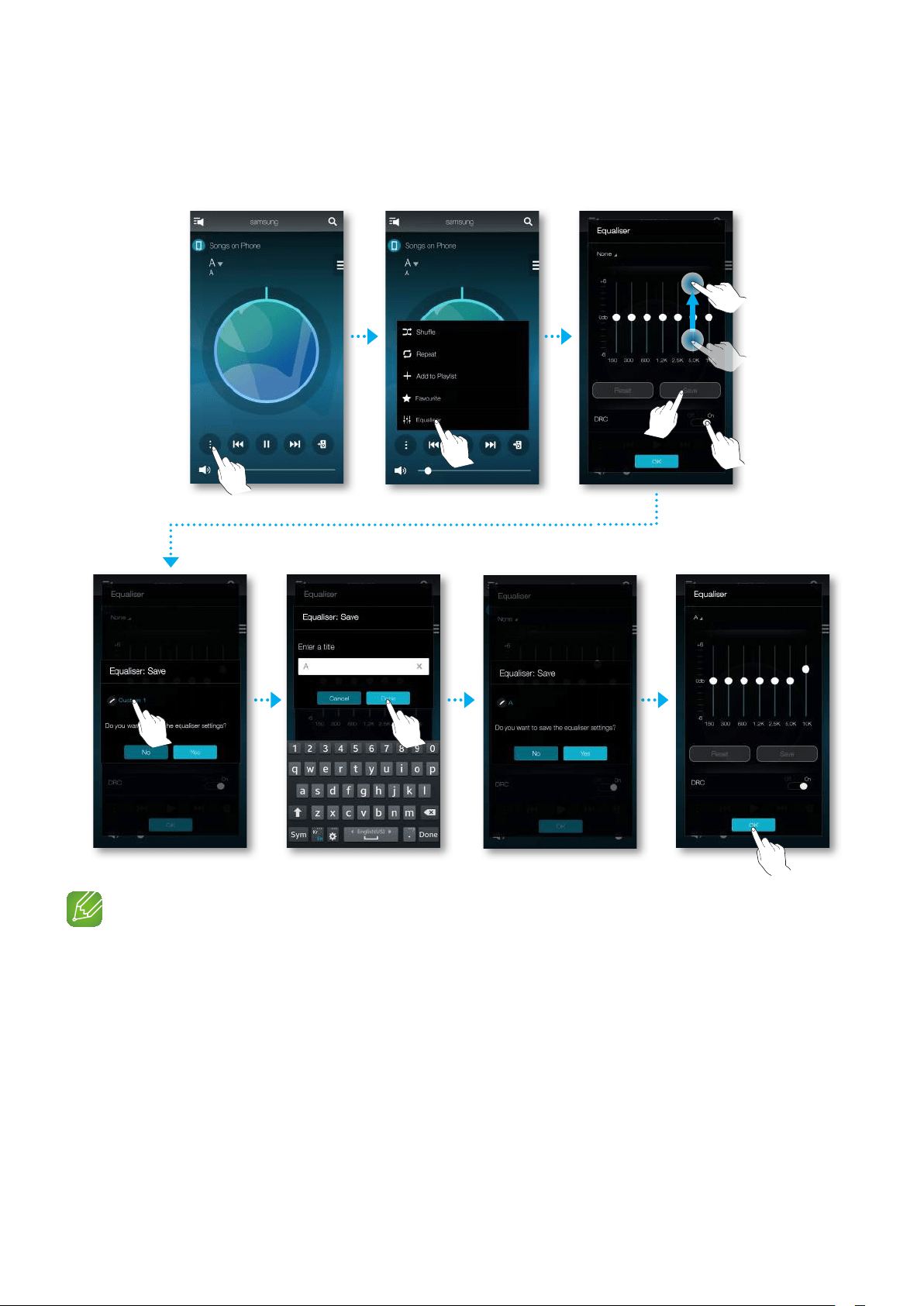
4 Touch Custom, and then enter a name. Touch Done.
5 Touch Yes, and then select OK.
NOTE
9
The function is not available in the Surround mode.
28
44

❚
Managing a queue
`
Adding music to the queue
You can add new music to the current music list or edit the music list.
1 Touch , and then select Songs.
2 Select of the music to add, and then select Add to Queue.
(Select Select Multiple to save multiple music pieces in the Queue at the same time.)
3 Select the music title at Home screen to check the saved Queue.
NOTES
9
You can save up to 360 pieces of music in the queue.
9
You cannot save music played by station-based music providers such as TuneIn, Pandora, etc. in the
queue.
29
44
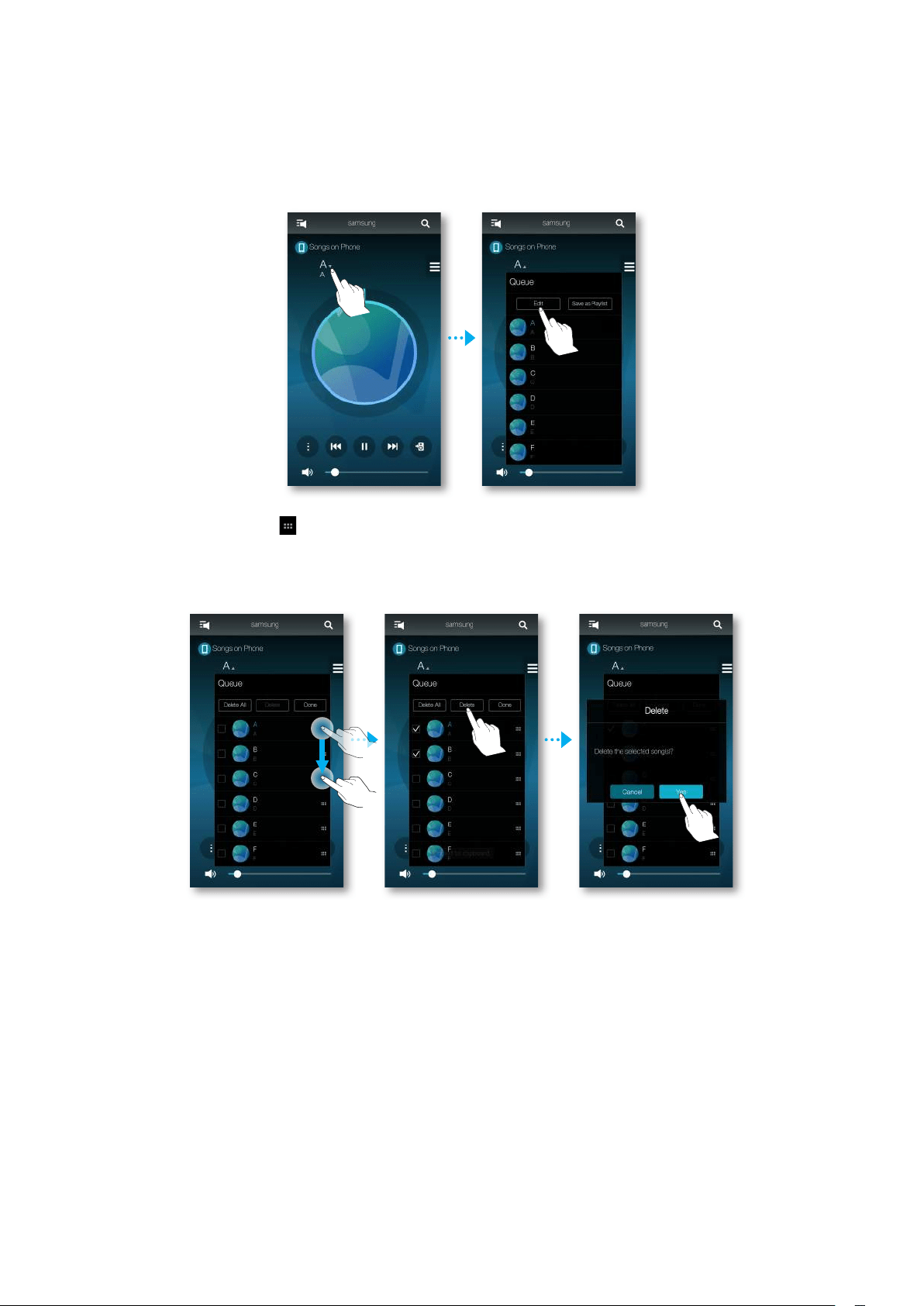
`
Editing the queue
1 Select the music title at Home screen, and then touch Edit.
2 Touch and hold and then drag to change the order of the music files, files.
3 Select files you want to delete (if any).
4 Touch Done, and then touch Yes.
30
44
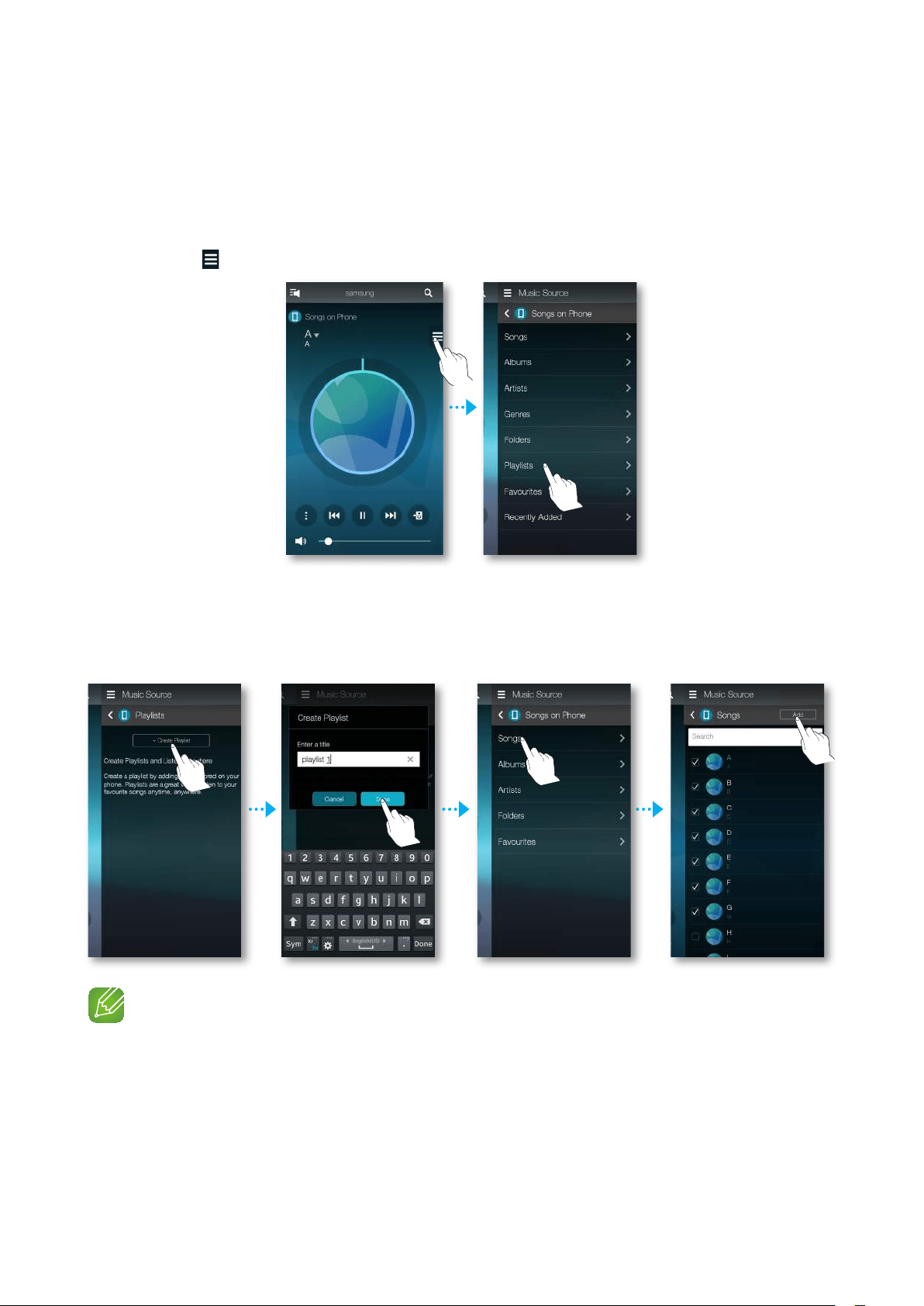
❚
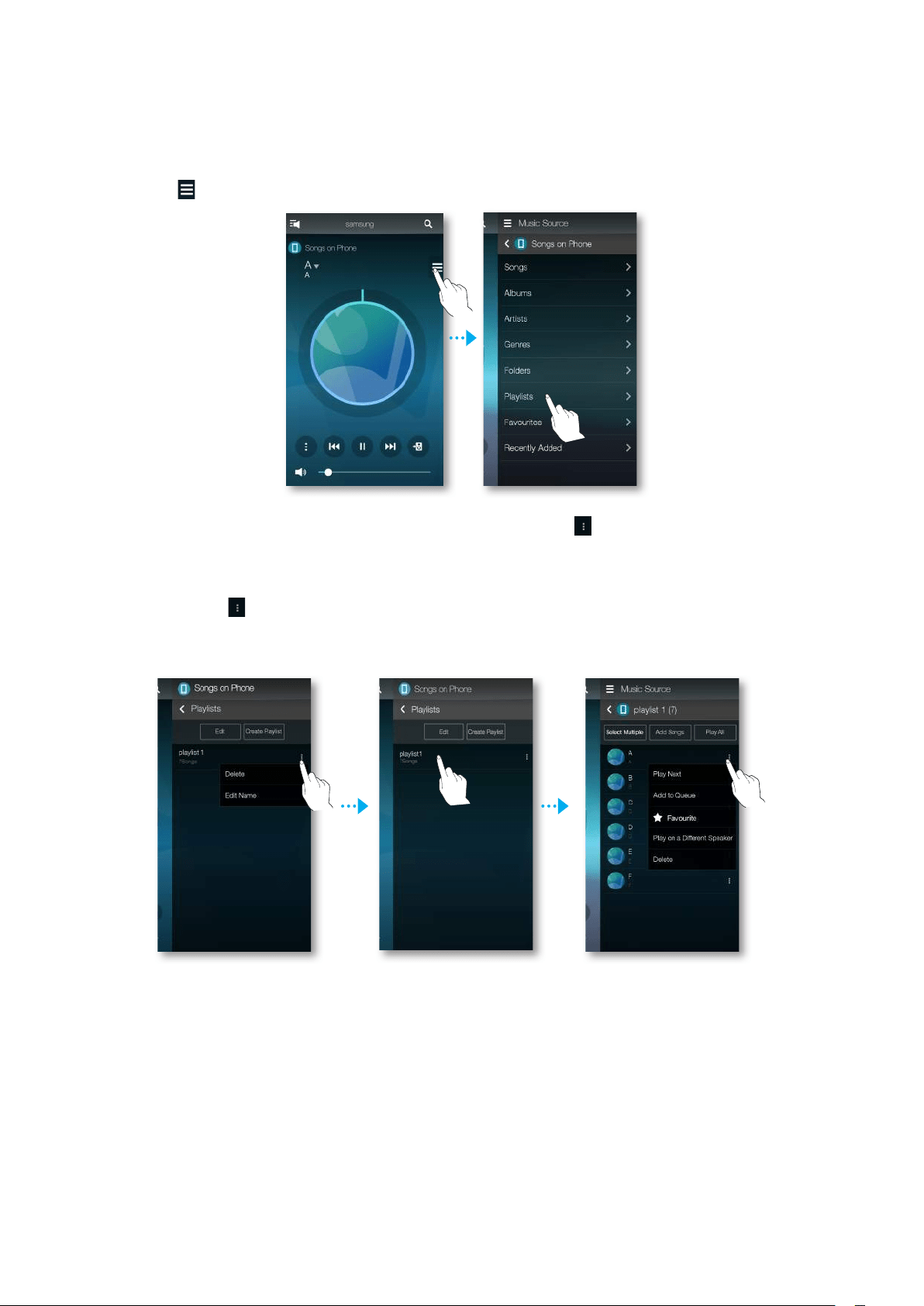
Managing a playlist
`
Creating a Playlist
You can create your own playlist to save or edit.
1 Touch , and then select Playlists.
2 Select Create Playlist, and then enter a name for the playlist. Touch Done.
3 Touch Songs.
4 Select the music you want to save in playlist, and then touch Add.
NOTE
9
You can save up to 360 pieces of music in the playlist.
31
44
`
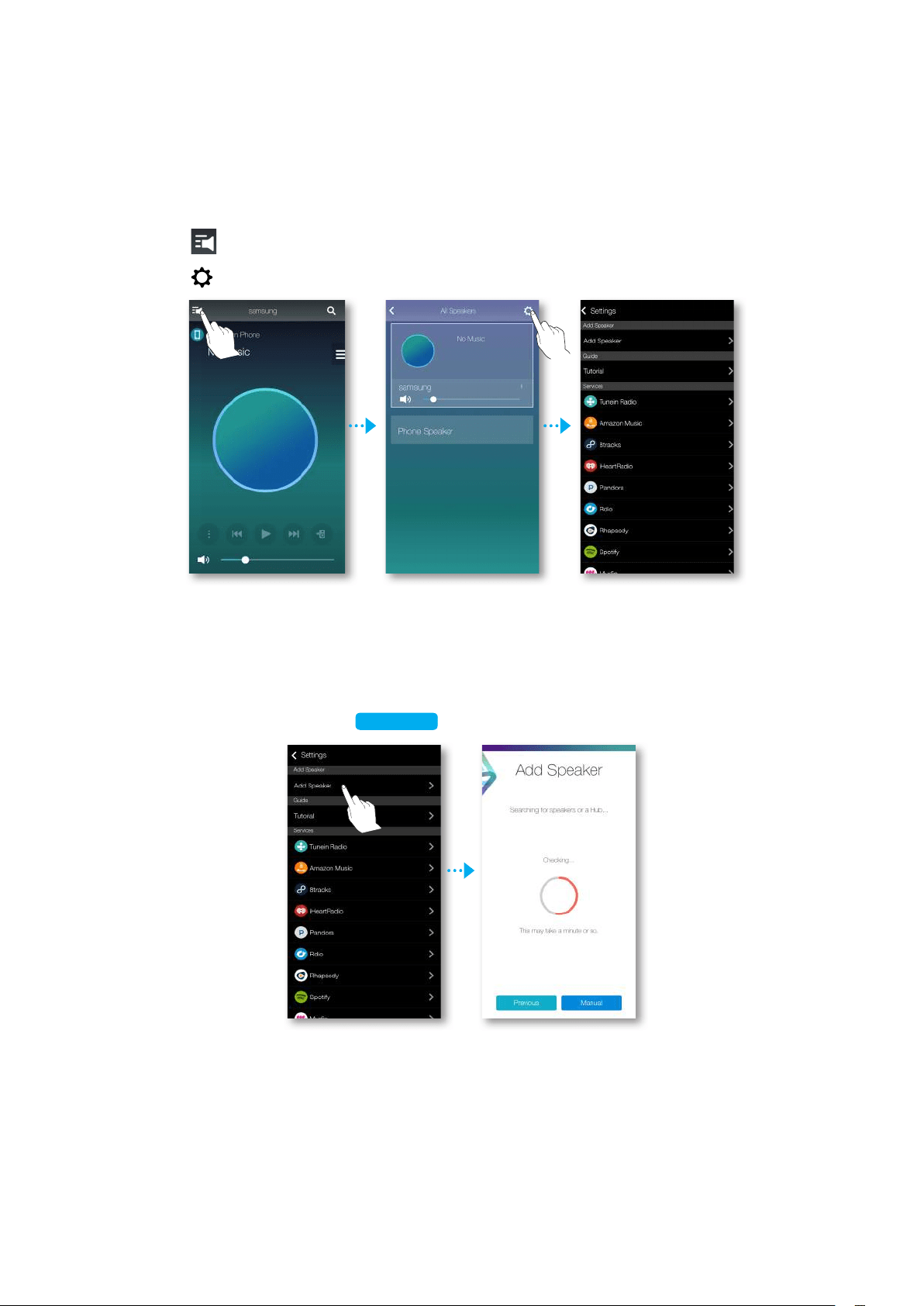
Editing a Playlist
1 Touch , and then select Playlists.
2 To delete a playlist or edit the name of a playlist, select to the right of the playlist, and
then select Delete or Edit Name.
3 To access additional options, touch the name of the playlist to bring up the list of songs.
Then, select to the right of a music file. On the screen that appears, select an option.
You can select Play Next, Add to Queue, Favourite, Play on a Different Speaker, or
Delete.
32
44
❚
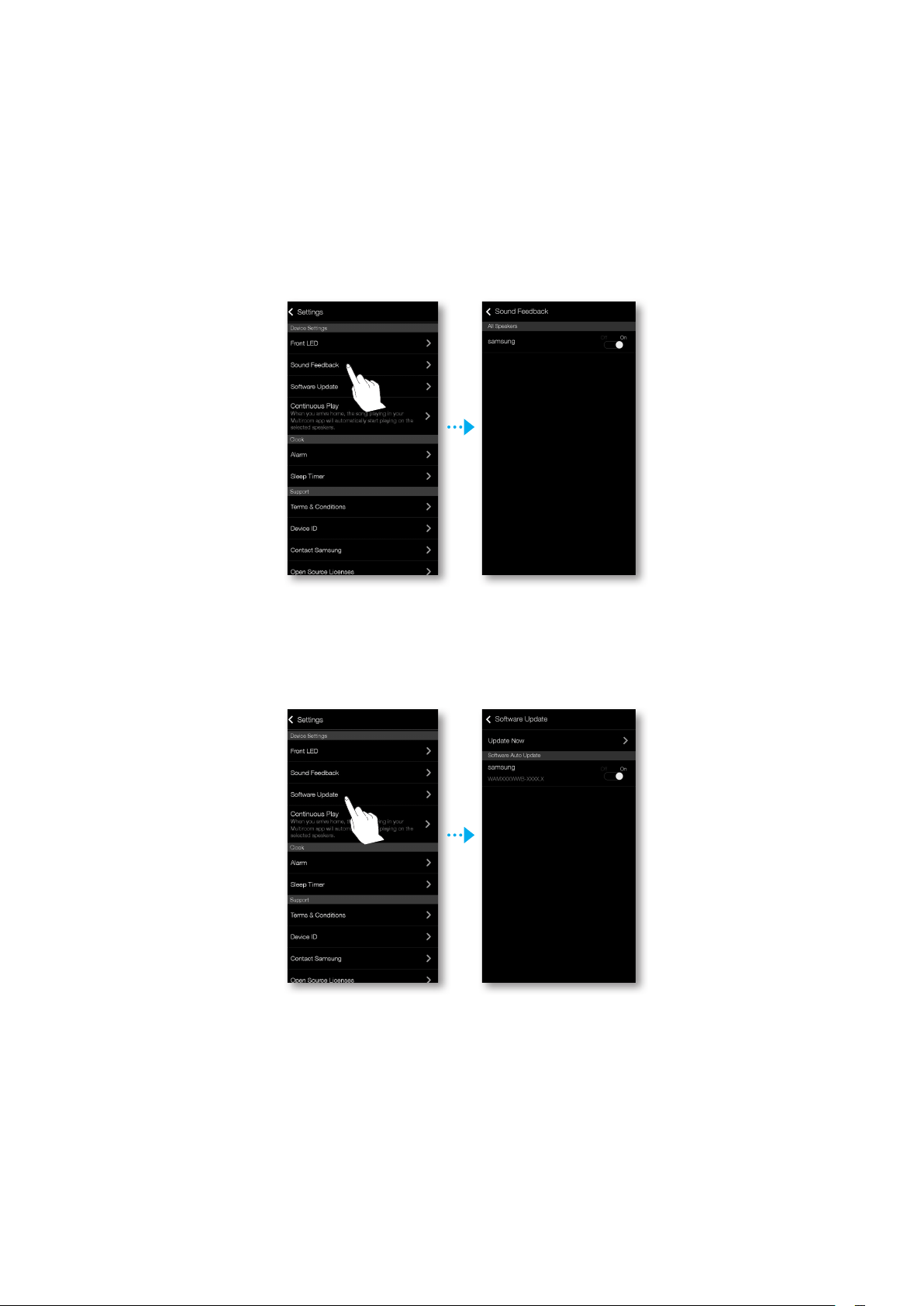
Guide
`
Tutorial
Select the Tutorial to learn how to use the app.
❚
Services
Displays a list of available services.
NOTES
9
Depending on your region or manufacturer, supported content services may differ.
9
Some music services may require you to sign up for a membership or log in.
9
You may not subscribe to a service using your smart device.
To use a for-pay service, first subscribe to the service through your computer.
9
Some TuneIn radio channels may be restricted according to their site policy.
9
Supported music service may be added or deleted according to corresponding policy.
34
44
❚
Device Settings
`
Sound Feedback
Sound Feedback is a function to indicate current status of speaker through the sound.
• Off : Turns off the Sound Feedback.
• On : Turns on the Sound Feedback.
`
Software Update
Shows the speaker's current software version, and lets you turn auto update on or off.
• On : When on, automatically updates the software when new firmware is released.
• Off : Turns off the auto update function.
35
44
NOTES
9
Auto update is available when your speaker is connected to a network and the Software Auto
Update function is set to On.
9
It is strongly recommended that Software Auto Update settings on all the speakers used are set to
On. Problems with networked functions may otherwise occur due to incompatibility issues when a
variety of speaker software versions is used on linked speakers.
9
Software Auto Update will only update the speaker when the speaker is in Standby mode.
To manually place the speaker in Standby mode:
1) Set Software Auto Update to On.
2) Touch and hold a touch area for 5 seconds. Touch to wake up.
Update Now
You can update your speaker's software manually using Update Now.
1 Touch .
2 Select Software Update.
3 Select Update Now.
4 Update Now searches for a current software update. If an update is available, it will
download and install the update on your speaker. If you already have the most current
software on you speaker, Update Now displays "Latest version already installed.".
`
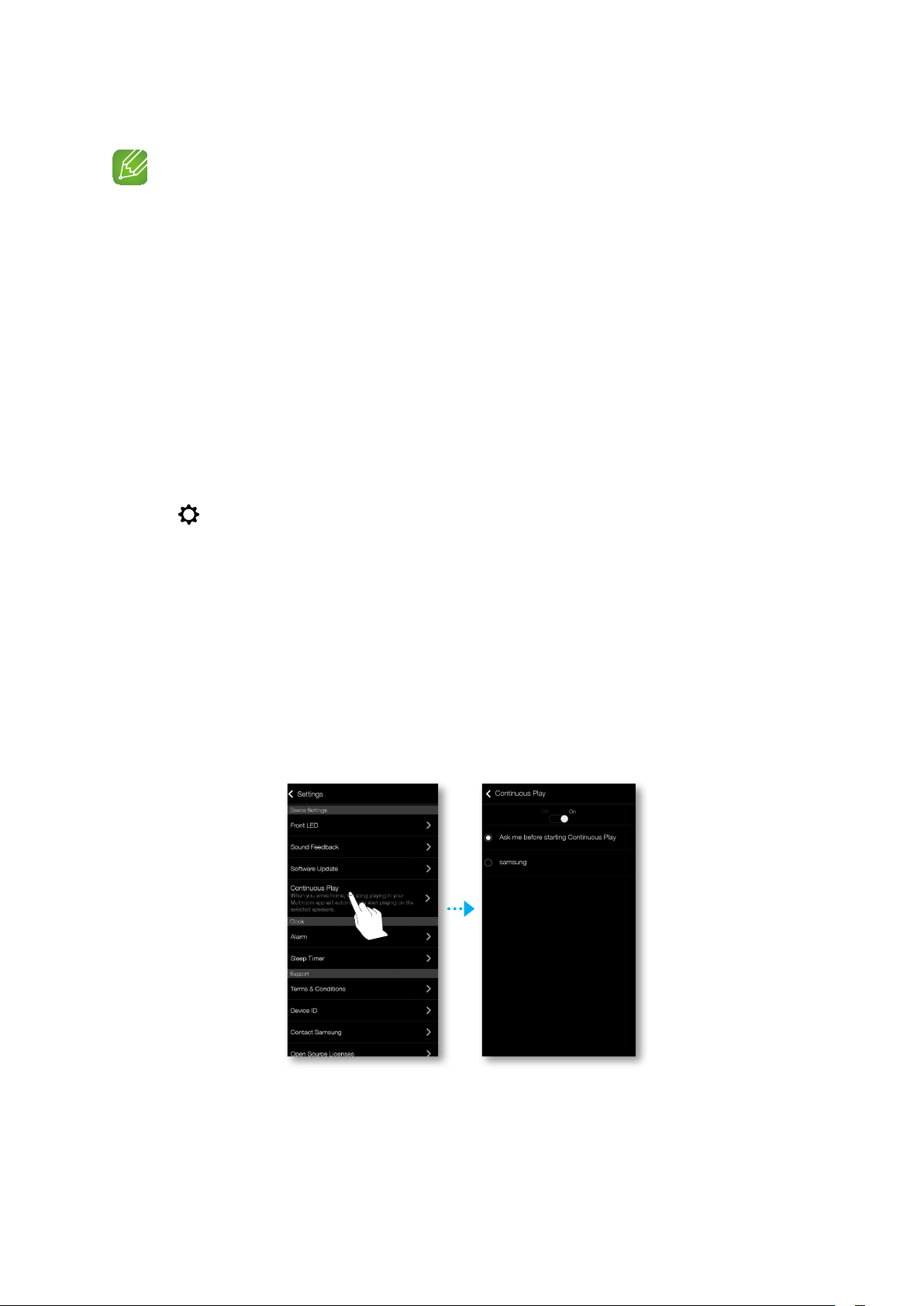
Continuous Play
Since this function allows you to switch the sound output from your mobile device into the
speaker automatically, you can just enjoy the music seamlessly.
36
44
❚
Clock
`
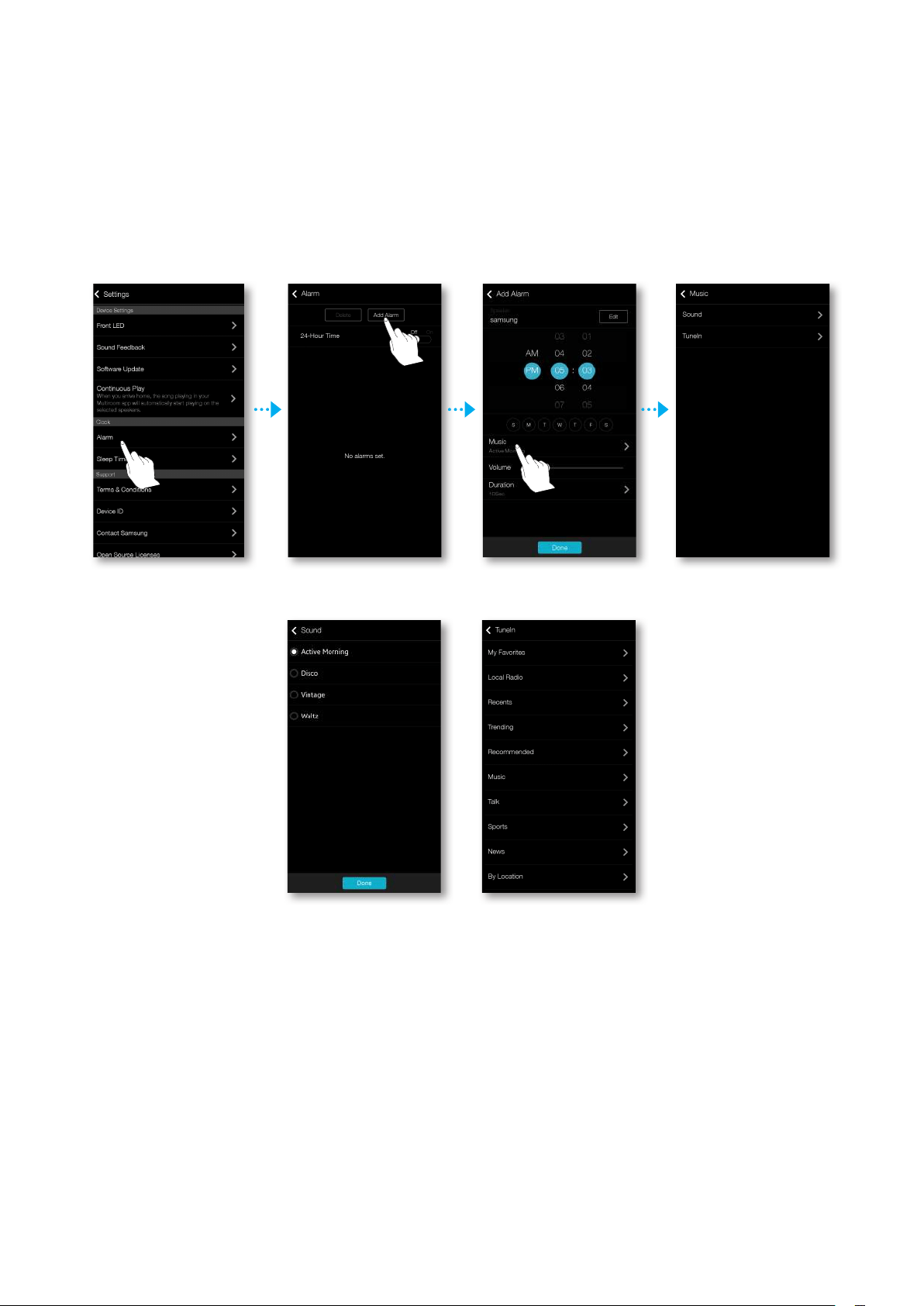
Alarm
1 Touch Alarm, and then touch Add Alarm.
2 Select the alarm date, time, day of the week, alarm volume and duration.
3 Touch Music, select Sound or TuneIn to select your desired alarm sound.
37
44
`
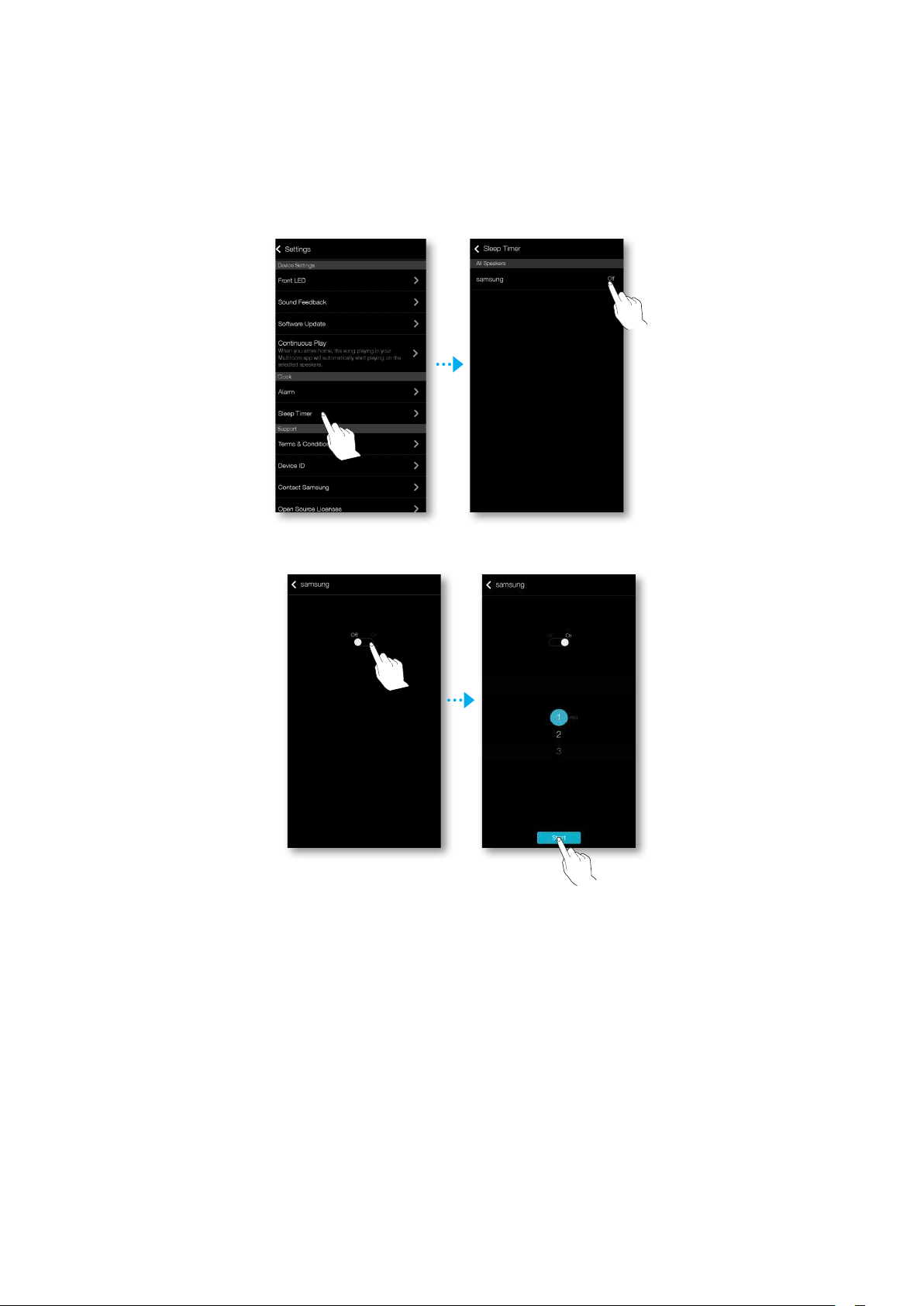
Sleep Timer
You can turn off the speaker by setting sleep time.
1
Touch Sleep Timer, and then touch Off.
2 Drag to On, set your desired time, and then select Start.
38
44

❚
Support
`
Term & Conditions
Lets you check the Term & Conditions.
`
Device ID
Lets you check the Device ID.
`
Contact Samsung
Provides a link to the Samsung website.
`
Open Source Licenses
Lets you view the Open Source Licences.
Support
Information
❚
Information
`
Samsung Multiroom
Allows you to check the software version number of the speaker.
`
App Version
Allows you to check the Samsung Multiroom app version.
39
44
A
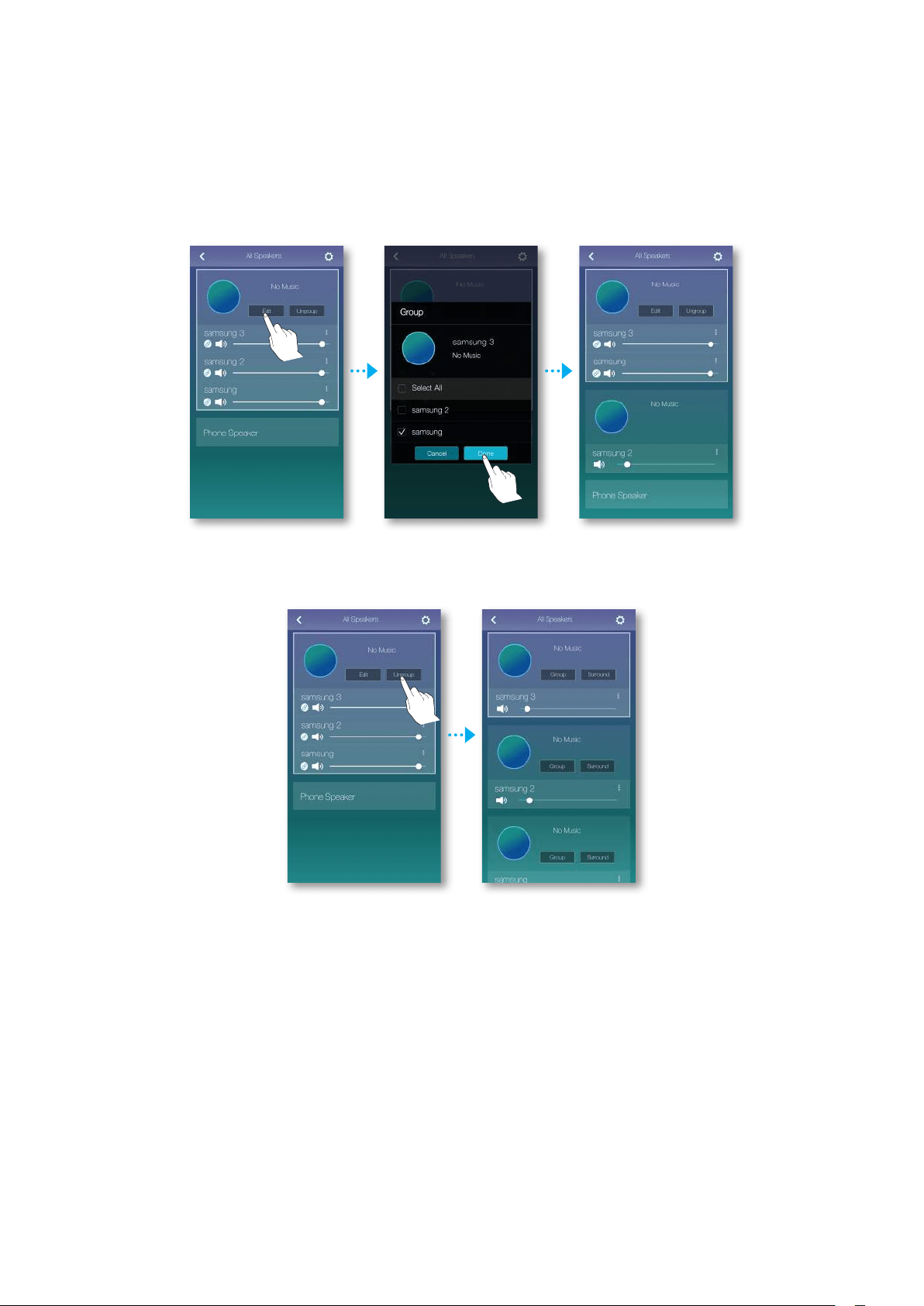
Setting Groups
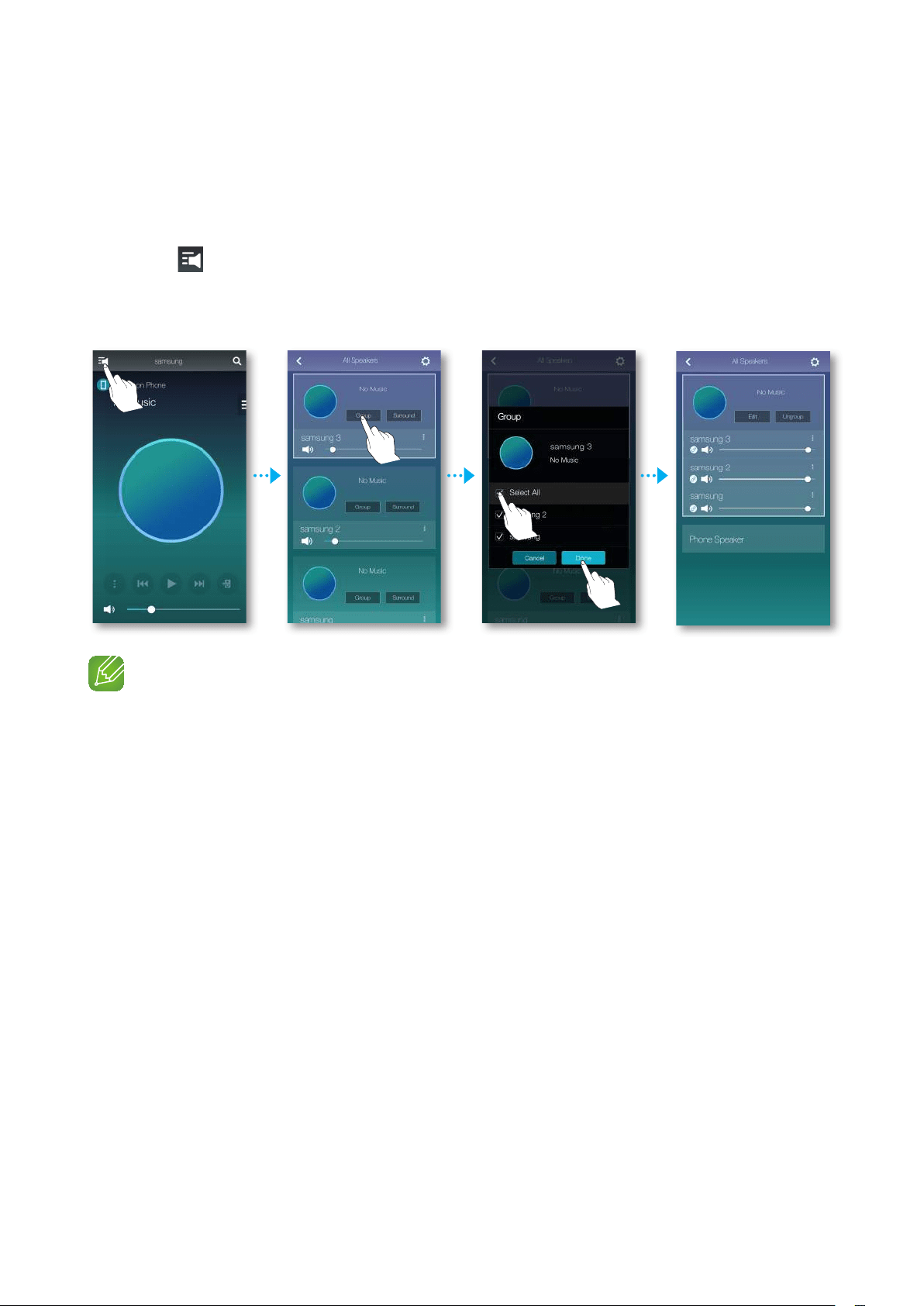
You can group multiple speakers into one group that plays the same music.
Grouping is available only when multiple speakers are connected to the same network.
1 Touch to go to the list of all speakers.
2 Touch Group.
3 Select other speakers to add into the group, and then touch Done.
NOTES
9
Group playback is not available for Bluetooth and TV SoundConnect connections.
Connecting multiples speakers
40
44
`
Editing group
1 Touch Edit.
2 Select the speaker to edit and touch Done.
`
Ungrouping
Touch Ungroup.
41
44
A
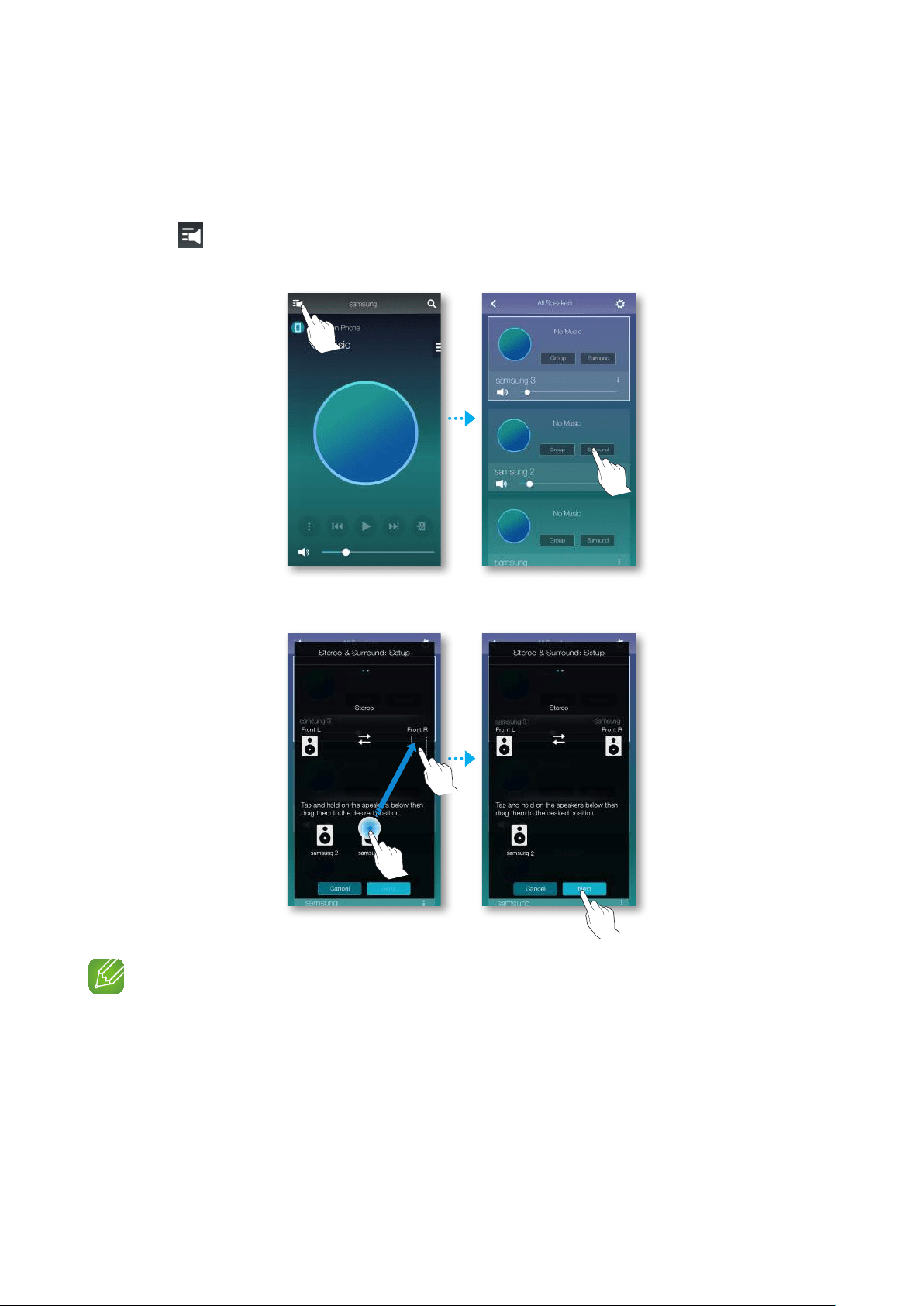
Setting the Surround Sound Mode
You can configure multiple speakers for surround sound effect.
1 Touch to go to the list of all speakers.
2 Touch Surround.
3 Touch and hold a speaker, and drag it to the desired place and then select Next.
1
2
NOTE
9
If just 2 speakers are connected, press Surround to configure surround sound system automatically.
42
44
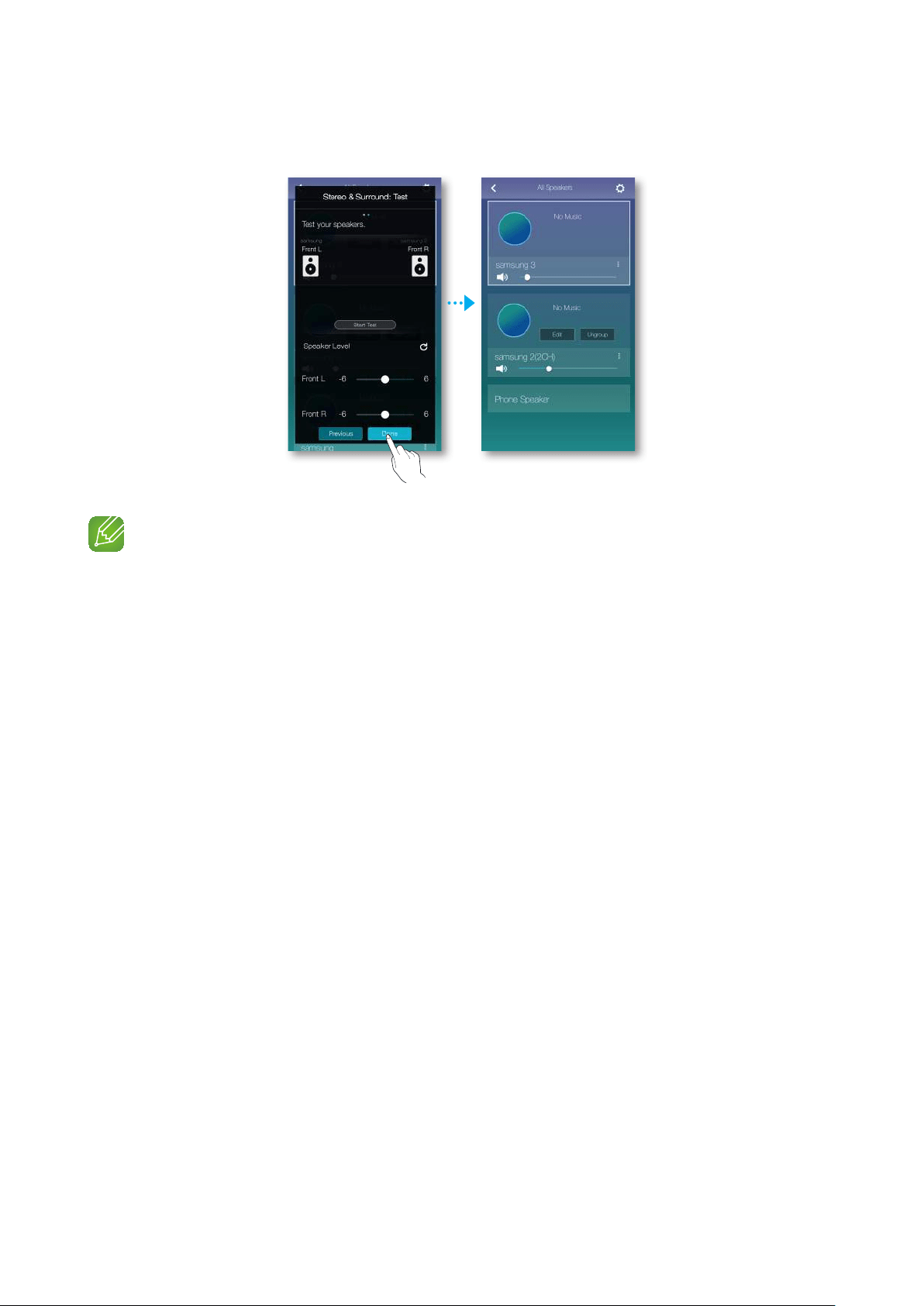
4 Test speakers and adjust speaker volume, and then touch Done.
NOTES
9
When enabling the Surround Sound mode, it is recommended to set the same speakers you assign to
Front L and Front R.
9
You can configure 4.1 channel surround sound system with a soundbar and 2 speakers.
9
You cannot configure Surround sound system with a soundbar and one speaker.
43
44
Using miscellaneous functions
A
Playing Media Content Saved in a PC
❚
Samsung Link
Install the Samsung Link program for easier playback of music stored in your PC through M5.
Visit http://link.samsung.com and download the Samsung Link application and finish installing it.
1 Visit http://link.samsung.com and login with your Samsung account.
Follow the instructions shown to install the program.
2 Select the folder to be shared.
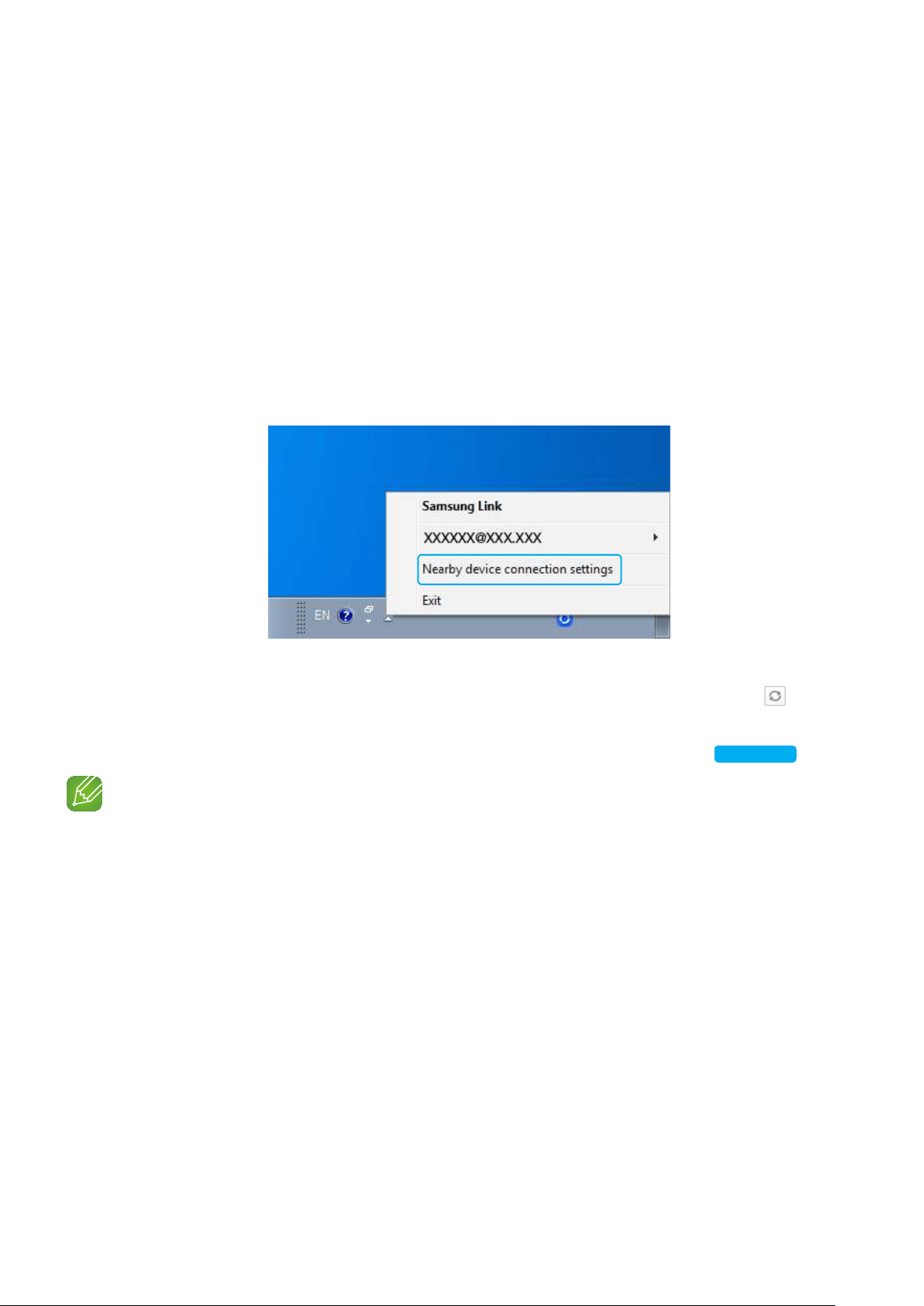
1) Move the mouse pointer over the Samsung Link icon from the icons tray, right click
on it and select "
1
".
2) On the screen displayed, you can add or delete shared folders.
After adding or changing contents of shared folders, make sure to press the button.
3 Select the Devices from the Samsung Multiroom app to select PC. Shared PC folders
and music files will be displayed. (For further details, refer to page 26.)
Click here.
NOTES
9
Note that the PC containing the shared folders and your M5 must be connected to the same wireless
router.
9
Samsung Link software should have been installed on the computer. The mobile device should support
Samsung Link. For more information, visit Samsung's content and service portal at http://link.samsung.
com.
9
You may experience compatibility issues when attempting to play media files via a third-party DLNA server.
9
However, the content shared by a computer device may not play depending on the encoding type and file
format of the content. In addition, some functions may not be available.
9
The media content may not smoothly play depending on the network status. If this is the case, use a USB
storage device.
44
44
1
❚
Wireless Audio - Multiroom for Desktop
To play iTunes system and shared PC music files through speaker, install the Wireless Audio -
Multiroom for Desktop program.
Visit www.samsung.com to download the Wireless Audio - Multiroom for Desktop program
and install it.
NOTES
9
Note that the PC containing the shared folders and your speaker must be connected to the same wireless
router.
9
If the connected Windows PC or the Mac switches to off-display mode, power saving or hibernation mode,
the App will stop.
9
If the firewall of the Windows computer is activated, the App may not work. In such a case, deactivate the
firewall of Windows or other vaccine firewall.
9
The *.pkg file is for Mac while *.msi is for Windows installation. Download the appropriate file for your
computer and install it.
9
Supported OS: Windows 7 or higher, Mac OS X 10.7 or later.
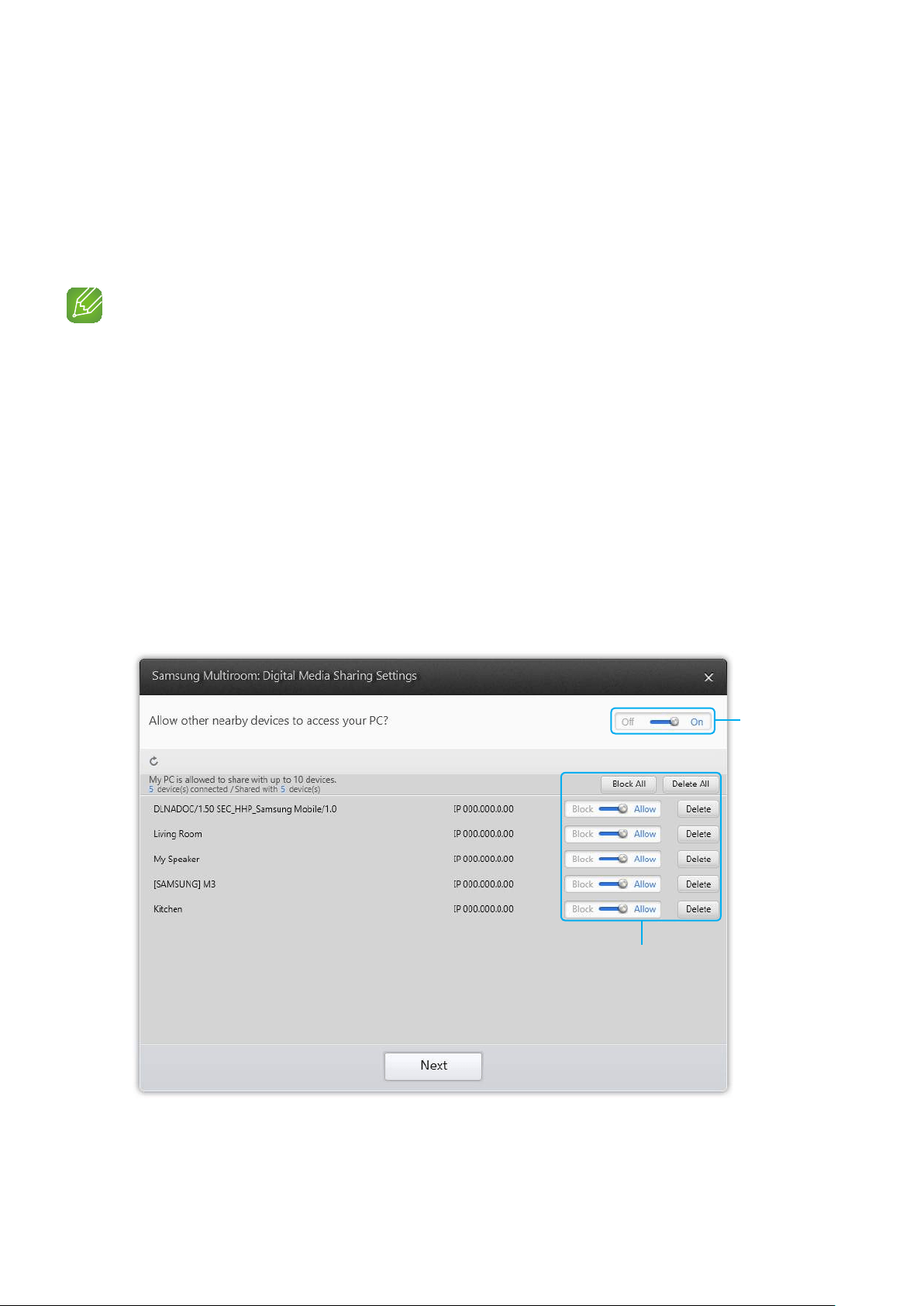
1 Double click the icon created on the PC's desktop.
2 Select Next to set the shared folders.
Wireless Audio
- Multiroom for
Desktop: Off, On
You can set the app
to allow or block an
external device's access
to your PC.
45
44
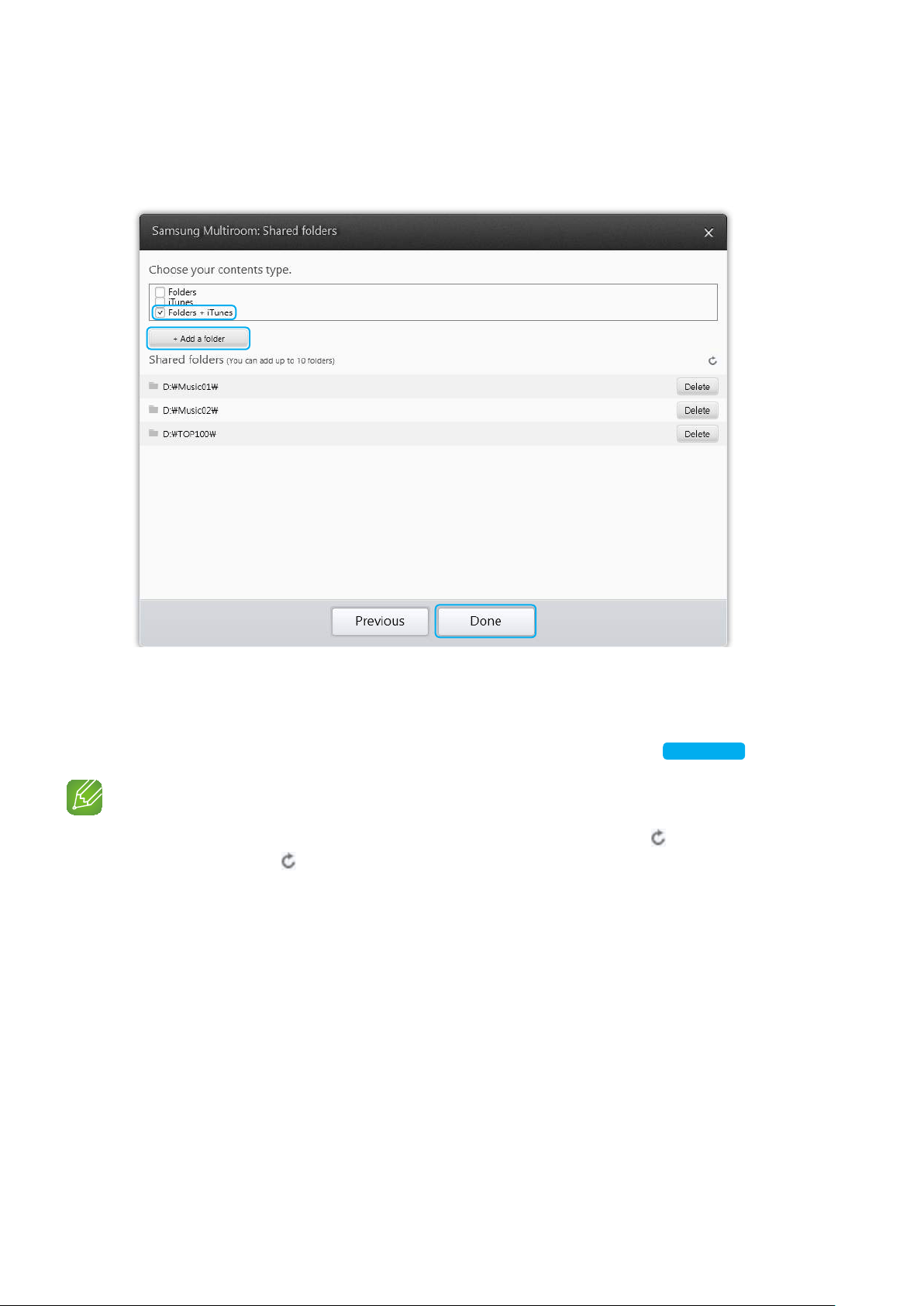
3 Select the content type and add the selected folder to the shared folders list.
After sharing folders, make sure to press the Done button.
1
2
3
4 On your Smart device, select the Samsung Multiroom app.
5 Select desired PC on the Samsung Multiroom app, and shared folders and files stored
in the PC will be displayed. (For further details, refer to page 26)
Click here.
NOTE
9
After adding or changing contents of shared folders, make sure to press the button.
If you don't press the button, the files shared by a computer device may not displayed in the Samsung
Multiroom app.
46
44
Appendix
A
Troubleshooting
Before requesting service, please check the following.
Symptom Check Remedy
I cannot group speakers. • Is the speaker connected to the
network via Wi-Fi?
• If the speaker is connected to
the network via Bluetooth or TV
SoundConnect, you cannot use the
group speakers function.
App doesn't work properly • Does an error occur when
accessing the app?
• Make sure your smart device is
compatible with the app.
• Make sure the app is the latest
version.
• If used with a HUB
- Make sure the HUB and the
smart device are connected to
same router.
- Make sure the HUB's indicator
LED's show that it is working
correctly. (See page 12, item 3.)
Click here.
- If you experience troubles
with connecting the HUB and
speaker, try relocating the
speaker so that the speaker is
closer to the wireless router or
HUB.
NOTE
9
If the problem persists, consult the service centre for troubleshooting.
❚
Compatible speakers
• Mobile : Android 2.3.3 (Gingerbread) or above, iOS (6.0) or above
NOTES
9
Some devices may not be compatible with the speaker.
9
Note that a speaker of an older version may not be supported.
47
44