Operation Manual
Smartphone Receiver
SPH-DA120
Notice to all users:
This software requires that the product is properly
connected to your vehicle’s parking brake and
depending on your vehicle, additional installation may
be required. For more information, please contact your
Authorized Pioneer Electronics retailer or call us at
(800) 421-1404.
Be sure to read Important Information for the User
first!
Important Information for the User includes the
important information that you must understand before
using this product.
English
Thank you for buying this Pioneer product.
Please read through these instructions so you will know how to operate your model
properly. After you have finished reading the instructions, keep this document in a
safe place for future reference.
Important
The screens shown in the examples may differ
from actual screens, which may be changed
without notice for performance and function
improvements.
Introduction
Manual overview 7
– How to use this manual 7
– Conventions used in this manual 7
– Terms used in this manual 7
Notes on internal memory 7
– Before removing the vehicle battery 7
– Data subject to erasure 7
Basic operation
Checking part names and functions 8
Connecting media 8
– Connecting and disconnecting an
iPod 8
– Plugging and unplugging a USB
storage device 8
Startup and termination 9
On first-time startup 9
Regular startup 9
Turning off the display 9
– When the application screen is
available 9
– When the application screen is not
available 9
How to use the screens 10
– Switching screens using the touch
panel keys 10
– Switching screens using the
buttons 11
Supported AV source 11
Displaying the AV operation screen 12
– Selecting a front source on the AV
source selection screen 12
– Selecting a front source on the source
list 12
– Selecting a rear source 13
Turning off the AV source 13
Changing the display order of source
icons 13
Changing the display order of source
keys 13
Using the touch panel 14
– Using the common touch panel
keys 14
– Operating list screens 14
– Operating the time bar 14
– Operating the on-screen keyboard 15
Registering and connecting a Bluetooth
device
Preparing communication devices 16
Registering your Bluetooth devices 16
– Searching for nearby Bluetooth
devices 16
– Pairing from your Bluetooth
devices 17
– Connecting to a Bluetooth device
automatically 18
– Deleting a registered device 18
Connecting a registered Bluetooth device
manually 19
Switching visibility 19
Entering the PIN code for Bluetooth wireless
connection 19
Displaying the Bluetooth device address 19
Clearing the Bluetooth memory 20
Updating Bluetooth software 20
Displaying the Bluetooth software
version 20
Contents
En
2

Using hands-free phoning
Displaying the phone menu 21
– Touch panel keys 21
– Reading the screen 21
Making a phone call 21
– Direct dialing 22
– Calling a number in the phone
book 22
– Dialing from the history 23
– Using the preset dial lists 23
Receiving a phone call 24
– Answering an incoming call 24
Minimizing the dial confirmation screen 25
Changing the phone settings 25
– Answering a call automatically 25
– Switching the ring tone 25
– Inverting names in the phone book 25
– Setting the private mode 26
– Adjusting the other party’s listening
volume 26
Using the voice recognition function (for
iPhone) 26
Notes for hands-free phoning 26
iPod / iPhone or smartphone setup
operation
The basic flow of iPod / iPhone or
smartphone setup 28
Setting the device connection method 28
iPod compatibility 28
Android
™
device compatibility 29
Apple CarPlay compatibility 29
MirrorLink device compatibility 29
Information on the connections and
functions for each device 30
Using the radio
Using the touch panel keys 32
Reading the screen 32
Starting procedure 33
Selecting a band 33
Manual tuning 33
Seek tuning 33
Selecting a preset channel from the preset
channel list 34
Storing broadcast frequencies 34
Storing the strongest broadcast
frequencies 34
Tuning into strong frequencies 34
Storing song information to an iPod (iTunes
Tagging) 35
Operating with the buttons 35
Playing compressed audio files
Using the touch panel keys 36
Reading the screen 37
Starting procedure 37
Switching the browse mode 38
Selecting files from the file name list 38
Selecting a file from the list related to the
song currently playing (link search) 38
Displaying the album list 39
Playing files in random order 39
Setting a repeat play range 39
Switching the media file type 39
Operating with the buttons 40
Playing compressed video files
Using the touch panel keys 41
Reading the screen 41
Starting procedure 42
Selecting files from the file name list 42
Setting a repeat play range 42
Slow motion playback 42
Switching the media file type 43
Operating with the buttons 43
Playing compressed still image files
Using the touch panel keys 44
Reading the screen 44
En
3
Contents

Starting procedure 45
Selecting files from the file name list 45
Playing files in random order 45
Setting a repeat play range 45
Switching the media file type 45
Setting the slideshow interval 46
Operating with the buttons 46
Using an iPod
Using the touch panel keys (for audio) 47
Using the touch panel keys (for video) 47
Reading the screen (for audio) 48
Reading the screen (for video) 48
Starting procedure 49
Setting the shuffle play 50
Setting a repeat play range 50
Selecting song or video sources from the
playlist screen 50
Using this product’s iPod function from your
iPod 51
Changing the speed of audiobook
playback 52
Displaying lists related to the song currently
playing (link search) 52
Operating with the buttons 52
Playing back music from a music app other
than iPod music, as the iPod source 52
– Using the touch panel keys 52
– Reading the screen 53
Using your iPhone or smartphone
applications
Using AppRadio Mode 54
– Using the touch panel keys (App
control side bar) 54
– Starting procedure 55
– Using the keyboard 56
– Adjusting the image size (For
smartphone users) 57
– Displaying the image of your
application (iPhone with 30-pin
connector) 57
– Displaying the image of your
application (iPhone with Lightning
connector) 58
– Displaying the image of your
application (smartphone) 58
Using Apple CarPlay 59
– Using the touch panel keys 59
– Starting procedure 60
– Setting the driving position 60
– Adjusting the volume 60
Using MirrorLink 61
– Using the touch panel keys (App
control side bar) 61
– Starting procedure 61
Using the audio mix function 61
Streaming Pandora
®
Pandora operations 63
Using the touch panel keys 63
Reading the screen 64
Starting procedure 64
– For iPhone with a 30-pin connector
users 64
– For iPhone with a Lightning connector
users 65
– For smartphone users 65
Selecting a Pandora station from the list 65
Add station 66
Operating with the buttons 66
Using a Bluetooth audio player
Using the touch panel keys 67
Reading the screen 68
Starting procedure 68
Selecting files from the file name list 69
Playing files in random order 69
Setting a repeat play range 69
Contents
En
4

Operating with the buttons 69
Using an HDMI source
Using the touch panel keys 70
Reading the screen 70
Starting procedure 70
Using an AUX source
Using the touch panel keys 71
Reading the screen 71
Starting procedure 71
Setting the video signal 72
Switching the operation screen 72
Using AV input
Using the touch panel keys 73
Reading the screen 73
Starting procedure 73
Setting the video signal 74
Using MIXTRAX
Touch panel keys 75
Selecting an item to play songs 75
Selecting songs not to be played 75
Specifying the playback portion 76
Setting the flash pattern 76
System settings
Activating the Bluetooth audio source 77
Setting the ever scroll 77
Setting AV input 77
Setting the rear view camera 77
– Setting rear view camera
activation 78
– Setting the polarity of the rear view
camera 78
Setting the camera for Camera View
mode 79
Displaying the parking assist guidelines 79
Setting guidelines on the rear view
image 79
Turning off the demo screen 80
Selecting the system language 80
Setting the keyboard language with the
application for iPhone 81
Setting the beep sound 81
Adjusting the picture 81
Displaying the firmware version 83
Updating firmware 83
Checking the connections of leads 83
Audio adjustments
Using fader/balance adjustment 85
Using balance adjustment 85
Switching sound muting/attenuation 86
Adjusting source levels 86
Adjusting the filter 88
– Adjusting the front and rear speaker
output 88
– Using the subwoofer output 88
Selecting the listening position 89
Adjusting the speaker output levels
finely 89
Adjusting the time alignment 90
Using the equalizer 92
– Recalling equalizer curves 92
– Customizing the equalizer curves 92
– Using the auto-adjusted equalizer 93
Adjusting the equalizer curve automatically
(Auto EQ) 93
– Before operating the Auto EQ
function 93
– Performing Auto EQ 94
Theme menu
Selecting the background display 96
– Changing to the background display
image stored on the USB storage
device 96
Setting the illumination color 97
En
5
Contents

– Selecting the color from the preset
colors 97
– Creating a user-defined color 97
Selecting the theme color 98
Selecting the clock image 98
Changing the preinstalled splash screen 98
– Changing to the splash screen stored
on the USB storage device 98
Setting up the video player
Displaying your DivX VOD registration
code 100
Displaying your DivX VOD deregistration
code 100
Setting the video signal for the rear view
camera 100
Favorite menu
Creating a shortcut 102
Selecting a shortcut 102
Removing a shortcut 102
Common operations
Setting the time and date 103
Storing song information to an iPod (iTunes
Tagging) 103
Setting the “Sound Retriever” function 104
Changing the wide screen mode 104
Other functions
Selecting the video for the rear display 106
Setting the anti-theft function 106
– Setting the password 106
– Entering the password 107
– Deleting the password 107
– Forgotten password 108
Restoring this product to the default
settings 108
– Restoring the default settings 108
Appendix
Troubleshooting 109
Error messages 110
Positioning technology 115
– Positioning by GPS 115
Handling large errors 115
– When positioning by GPS is
impossible 115
– Conditions likely to cause noticeable
positioning errors 115
Detailed information for playable media 117
– Compatibility 117
– Media compatibility chart 120
Display information 125
– Phone menu 125
– System menu 125
– Theme menu 126
– Audio menu 127
– Video Setup menu 127
– Bluetooth menu 128
Contents
En
6
Manual overview
Before using this product, be sure to read Im-
portant Information for the User (a separate
manual) which contains warnings, cautions,
and other important information that you
should note.
How to use this manual
Finding the operation procedure for
what you want to do
When you have decided what you want to do,
you can find the page you need from the Con-
tents.
Finding the operation procedure from
a menu name
If you want to check the meaning of an item
displayed on screen, you will find the neces-
sary page from the Display information at the
end of this manual.
Conventions used in this manual
Before moving on, take a few minutes to read
the following information about the conven-
tions used in this manual. Familiarity with
these conventions will help you greatly as you
learn how to use your new equipment.
! Buttons on this product are described in
ALL CAPITALS, BOLD lettering:
e.g.)
HOME button, MODE button.
! Menu items, screen titles, and functional
components are described in bold with
double quotation marks “”:
e.g.)
“System” screen or “Audio” screen
! Touch panel keys that are available on the
screen are described in bold in brackets [ ]:
e.g.)
[Radio], [AV Source Settings].
! Extra information, alternatives and other
notes are presented in the following for-
mat:
e.g.)
p If the home location has not been stored
yet, set the location first.
! Functions of other keys on the same screen
are indicated with # at the beginning of the
description:
e.g.)
# If you touch [OK], the entry is deleted.
! References are indicated like this:
e.g.)
= For details of the operations, refer to
How to use the screens on page 10.
Terms used in this manual
“Front display” and “Rear display”
In this manual, the screen that is attached to
the body of this product will be referred to as
the “Front display”. Any additional screen that
is commercially available and can be con-
nected to this product will be referred to as the
“Rear display”.
“Video image”
“Video image” in this manual indicates mov-
ing images of DivX
®
, iPod, and any equipment
that is connected to this system with an RCA
cable, such as general-purpose AV equipment.
“iPod”
In this manual, iPod and iPhone will be re-
ferred to as “iPod”.
Notes on inter nal memory
Before removing the vehicle
battery
If the battery is disconnected or discharged,
the memory will be erased and must be repro-
grammed.
p Some of the settings and recorded con-
tents will not be reset.
Data subject to erasure
The information is erased by disconnecting
the yellow lead from the battery (or removing
the battery itself).
p Some of the settings and recorded con-
tents will not be reset.
En
7
Chapter
01
Introduction
Introduction
Checking part names and
functions
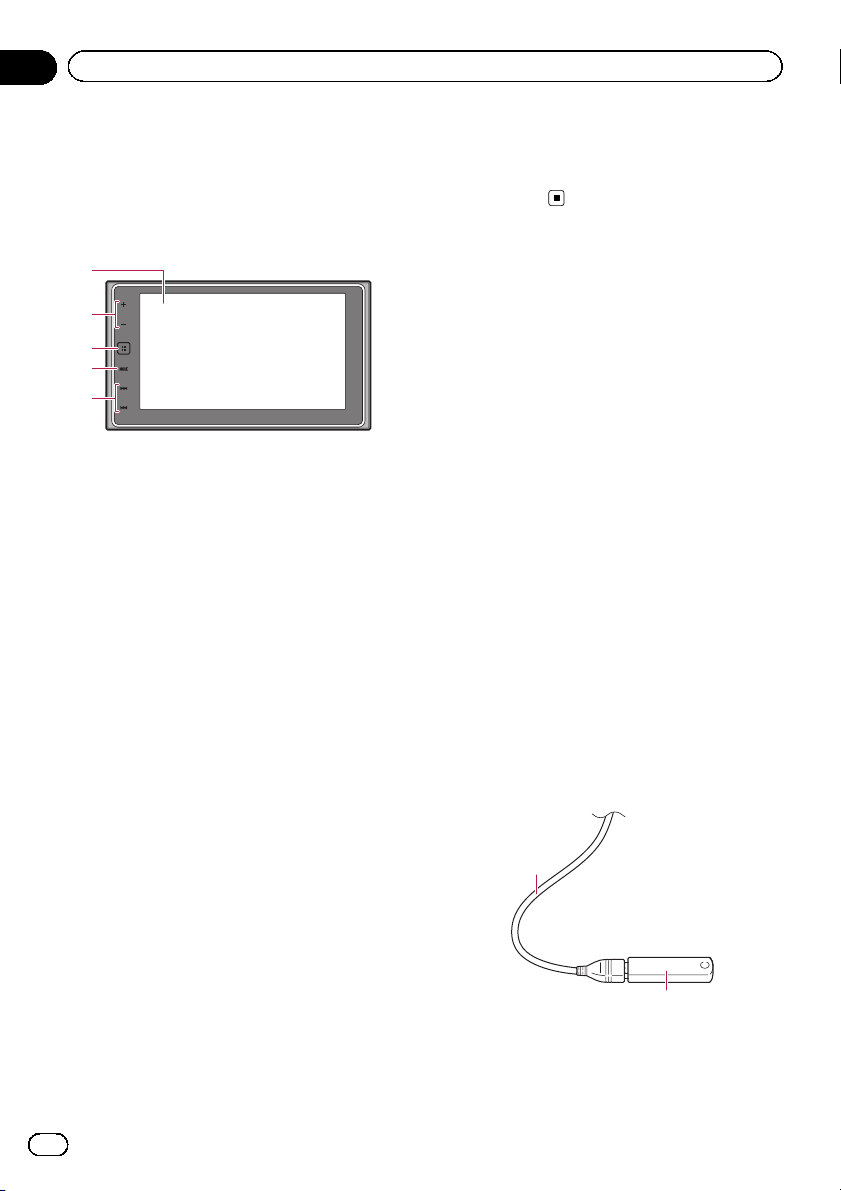
This chapter gives information about the names
of the parts and the main features using the but-
tons.
1
5
2
3
4
1 LCD screen
2 VOL (+/–) button
Touch to adjust the AV (Audio and Video)
source volume.
3 HOME button
! Touch to display the Top menu screen.
= For details of the operations, refer to
How to use the screens on page 10.
! Touch and hold to activate the voice re-
cognition function.
= For details, refer to Using the voice re-
cognition function (for iPhone) on
page 26 and Using the touch panel
keys on page 59.
4 MODE button
! Touch to switch between the Application
screen and the AV operation screen.
p If the display cannot switch from the
AV operation screen to the Applica-
tion screen when the MODE button is
touched, the display will turn off.
= For details of the operations, refer to
How to use the screens on page 10.
! Touch and hold to turn the display off.
= For details, refer to Turning off the dis-
play on page 9.
5 TRK button
! Touch to perform manual seek tuning,
fast forward, reverse and track search
controls.
Connecting media
Connecting and disconnecting
an iPod
Connecting your iPod
= For details of the connections, refer to the
Installation Manual.
Disconnecting your iPod
% Pull out the cables after confirming
that no data is being accessed.
Plugging and unplugging a USB
storage device
p This product may not achieve optimum per-
formance with some USB storage devices.
p Connection via a USB hub is not possible.
p A USB cable is required for connection.
Plugging in a USB storage device
% Plug a USB storage device into the USB
cable.
2
1
1 USB cable
2 USB storage device
En
8
Chapter
02
Basic operation
Unplugging a USB storage device
% Pull out the USB storage device after
checking that no data is being accessed.
Startup and termination
1 Start the engine to boot up the system.
After a short pause, the splash screen comes
on for a few seconds.
2 Turn off the vehicle engine to termi-
nate the system.
This product is also turned off.
On first-time startup
When you use this product for the first time,
select the language that you want to use.
1 Start the engine to boot up the system.
After a short pause, the splash screen comes
on for a few seconds.
The “Select Program Language” screen ap-
pears.
2 Touch the language that you want to
use on screen.
3 Touch the following key.
Displays the “Smartphone Setup”
screen.
4 Touch the item you want to set.
= For details, refer to Information on the con-
nections and functions for each device on
page 30.
5 Touch the following key.
Displays the Top menu screen.
# If you touch , the display returns to the pre-
vious screen.
Regular startup
% Start the engine to boot up the system.
After a short pause, the splash screen comes
on for a few seconds.
p The screen shown will differ depending on
the previous conditions.
p If the anti-theft function is activated, you
must enter your password.
Turning off the display
You can turn off the display at night or when
the screen is too bright.
When the application screen is
available
% Touch and hold the MODE button.
The display turns off.
When the application screen is
not available
% Touch the MODE button.
The display turns off.
p If you touch the screen when the display is
off, it reverts to the original screen.
En
9
Chapter
02
Basic operation
Basic operation
How to use the screens
Switching screens using the touch panel keys
1
2
3
4
7
8
9
5
6
En
10
Chapter
02
Basic operation
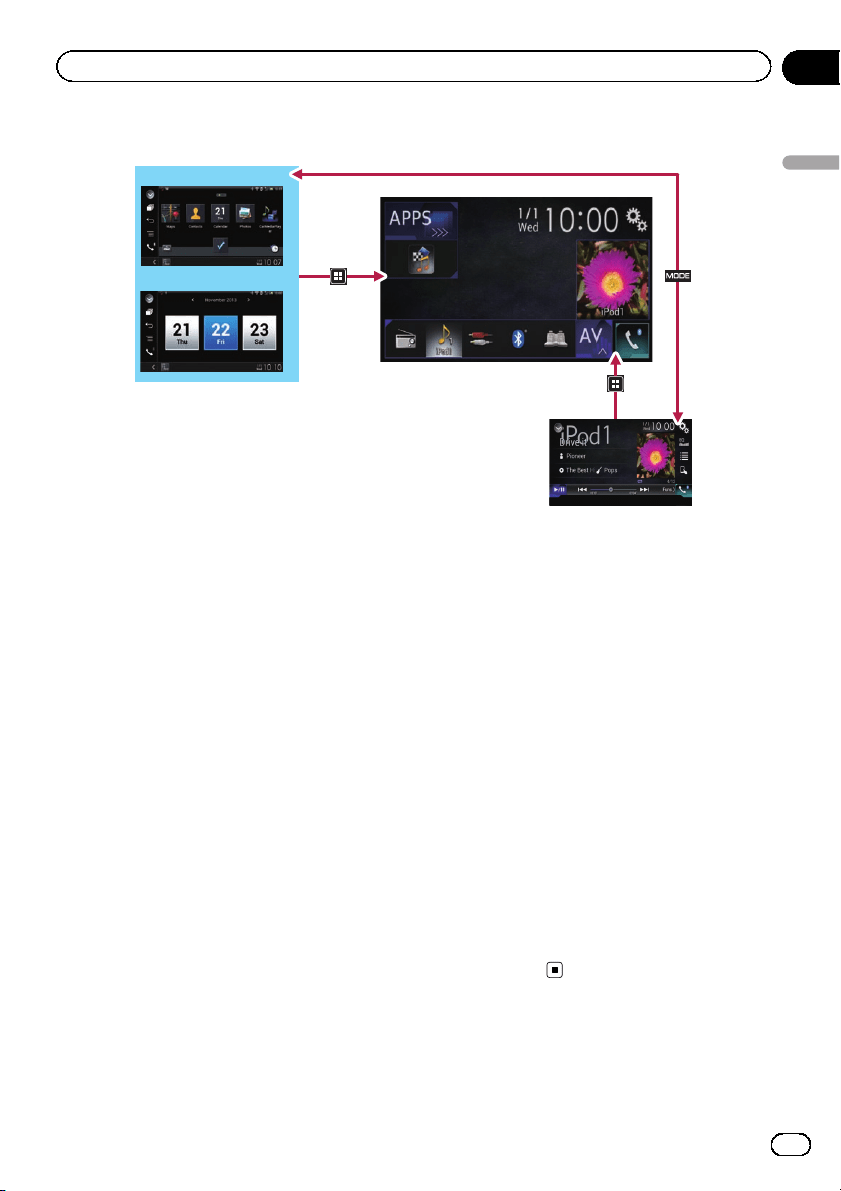
Switching screens using the buttons
8
9
1
7
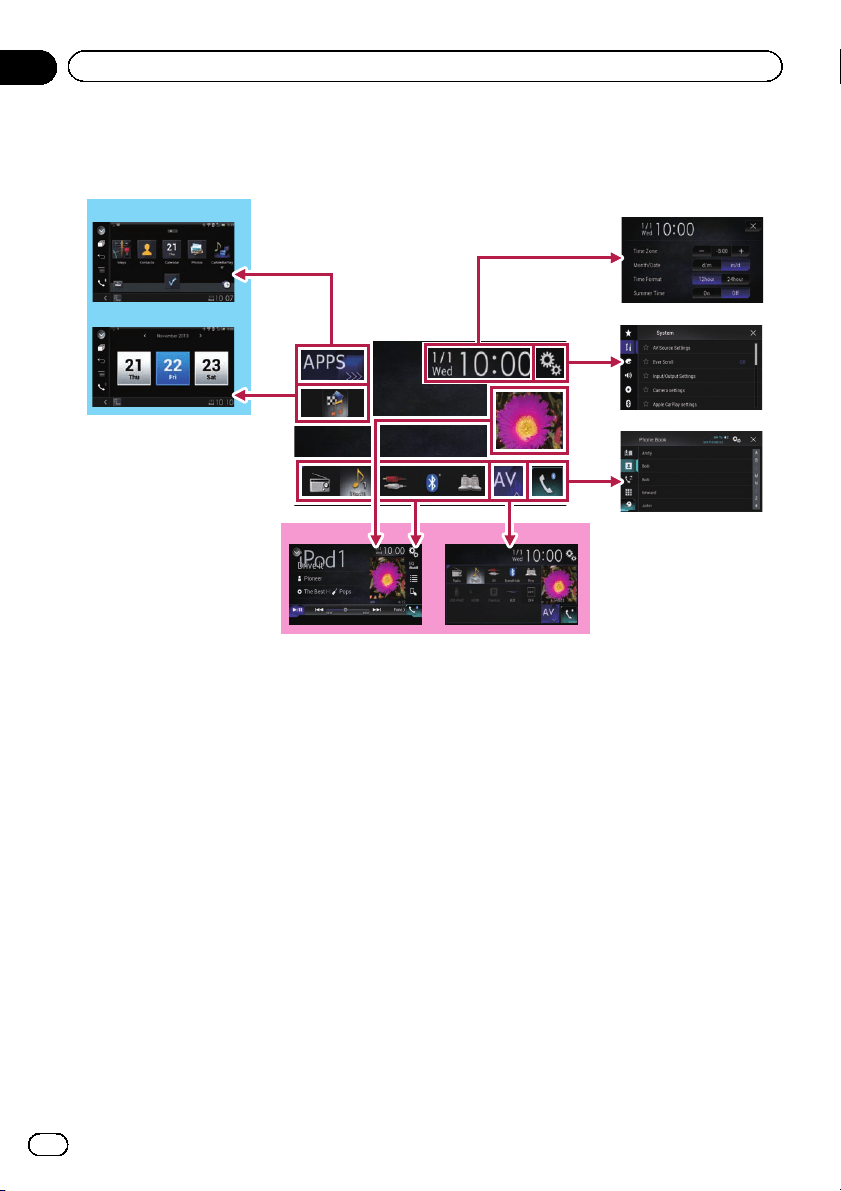
1 Top menu screen
This is the starting menu to access the de-
sired screens and operate the various func-
tions.
p If you touch the HOME button, the Top
menu screen is displayed.
p [APPS] is displayed when AppRadio
Mode or MirrorLink is on.
p [Apple CarPlay] is displayed when
Apple CarPlay is on.
2 Time and date setting screen
You can set the time and date settings.
3 Setting menu screen
You can customize the system and audio
settings, etc.
4 Phone menu screen
You can access the screen that is related to
hands-free phoning.
5 AV source selection screen
You can select the AV source.
6 Favorite source icons
You can display the icons of frequently used
sources by dragging the icons to the display
area.
= For details of the operation, refer to
Changing the display order of source
icons on page 13.
7 AV operation screen
You can customize the settings for each
source.
8 Application operation screen
You can control the iPhone or smartphone
applications directly on this product.
p If applications are not available, the Ap-
plication operation screen will not be dis-
played.
9 Application menu screen
This product can switch to the application
menu, on which you can display and oper-
ate the application for an iPhone or a smart-
phone on the screen.
p If application menus are not available,
the Application menu screen will not be
displayed.
Supported AV source
You can play or use the following sources with
this product.
En
11
Chapter
02
Basic operation
Basic operation
! Radio (FM, AM)
The following sources can be played back or
used by connecting an auxiliary device.
! USB
! iPod
! Pandora
®
! Bluetooth audio
! AV input (AV)
! AUX
! HDMI
Displaying the AV
operation screen
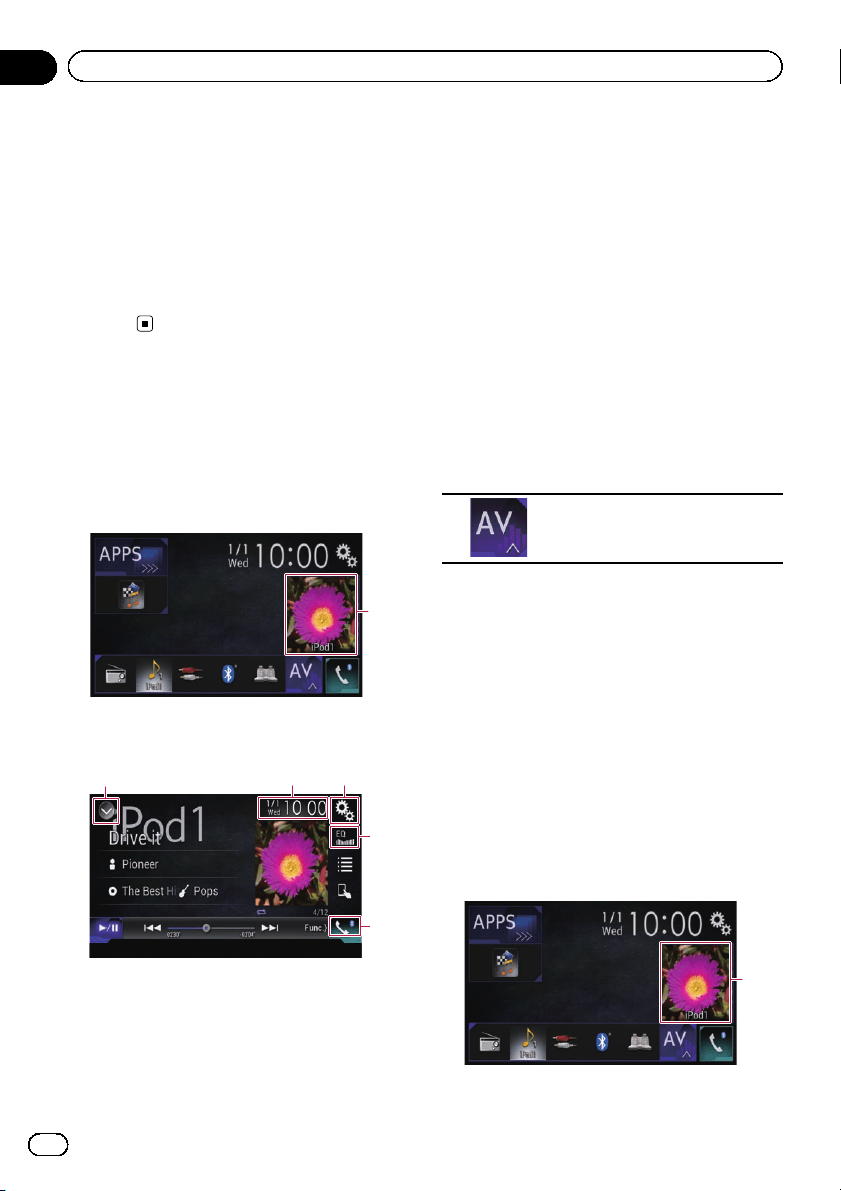
1 Touch the HOME button to display the
Top menu screen.
2 Touch the AV operation key.
1
1 AV operation key
The AV operation screen appears.
132
4
5
1 Displays the source list.
= For details, refer to Selecting a front
source on the source list on page 12.
2 Displays the Time and date setting
screen.
= For details, refer to Setting the time and
date on page 103.
3 Displays the Setting menu screen.
4 Recalls equalizer curves.
= For details, refer to Using the equalizer
on page 92.
5 Displays the Phone menu screen.
= For details, refer to Displaying the phone
menu on page 21.
Selecting a front source on the
AV source selection screen
1 Touch the HOME button to display the
Top menu screen.
2 Touch the following key.
Displays the AV source selection
screen.
3 Touch the source icon you want to se-
lect.
The AV operation screen of the selected
source appears.
Selecting a front source on the
source list
p This function is not available during a call
in Apple CarPlay.
1 Touch the HOME button to display the
Top menu screen.
2 Touch the AV operation key.
1
1 AV operation key
En
12
Chapter
02
Basic operation
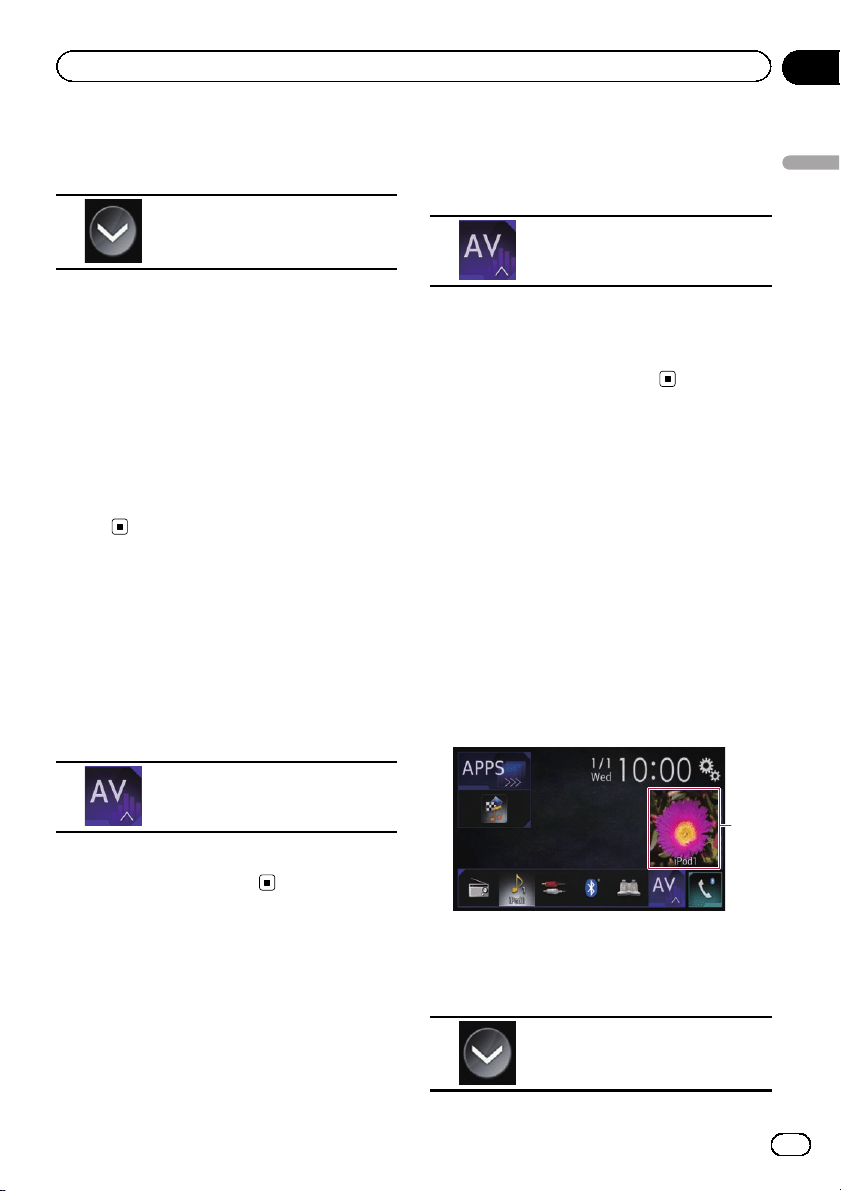
The AV operation screen appears.
3 Touch the following key.
Displays the source list.
4 Touch the source key you want to se-
lect.
The AV operation screen of the selected
source appears.
Selecting a rear source
You can select a source output to the rear dis-
play.
= For details of the operations, refer to Select-
ing the video for the rear display on page
106.
Turning off the AV source
Turn off the AV source to stop playing or re-
ceiving the AV source.
1 Touch the HOME button to display the
Top menu screen.
2 Touch the following key.
Displays the AV source selection
screen.
3 Touch [OFF].
The AV source is turned off.
Changing the display order
of source icons
You can change the display order of source
icons on the AV source selection screen.
p This function is available only when you
stop your vehicle in a safe place and apply
the parking brake.
1 Touch the HOME button to display the
Top menu screen.
2 Touch the following key.
Displays the AV source selection
screen.
3 Touch and hold a source icon, and drag
the icon to the desired position.
p If the source icon is moved, the order of the
source list is also changed.
Changing the display order
of source keys
You can change the display order of source
keys on the source list.
p This function is available only when you
stop your vehicle in a safe place and apply
the parking brake.
p This function is not available during a call
in Apple CarPlay.
1 Touch the HOME button to display the
Top menu screen.
2 Touch the AV operation key.
1
1 AV operation key
The AV operation screen appears.
3 Touch the following key.
Displays the source list.
En
13
Chapter
02
Basic operation
Basic operation
4 Touch the following key.
The source keys can be moved.
5 Drag the source key to the desired posi-
tion.
6 Touch the following key.
Returns to the previous screen.
p If the source key is moved, the source icons
displayed on the Top menu screen and the
AV source screen are also moved.
Using the touch panel
You can operate this product by touching the
marks and items (touch panel keys) displayed
on the screen directly with your fingers.
p To protect the LCD screen from damage, be
sure to touch the touch panel keys only
with your finger and do so gently.
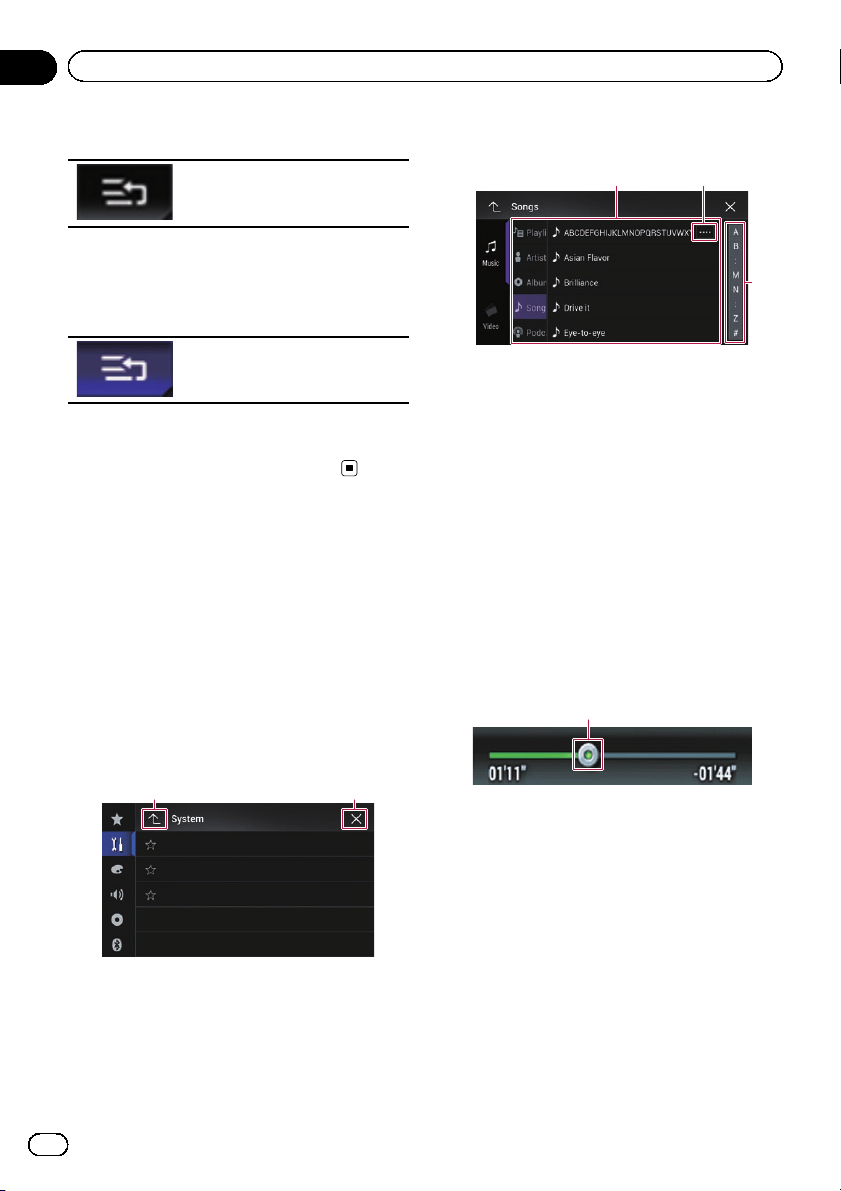
Using the common touch panel
keys
1 2
1 Returns to the previous screen.
2 Closes the screen.
Operating list screens
3
1
2
1 Touching an item on the list allows you to nar-
row down the options and proceed to the next
operation.
2 Appears when all characters are not displayed
on the display area.
If you touch the key, the rest of the characters
are scrolled for display.
3 Appears when items cannot be displayed on a
single page only.
Drag the scrubber bar to view any hidden
items.
Also, you can drag the list to view any hidden
items.
Operating the time bar
1
1 You can change the playback point by drag-
ging the key.
p Playback time corresponding to the po-
sition of the key is displayed while drag-
ging the key.
p This function is not available when
using iPod function with an iPhone 5s,
iPhone 5c, iPhone 5, or iPod touch (5th
generation).
p This function is not available while play-
ing iTunes Radio.
En
14
Chapter
02
Basic operation
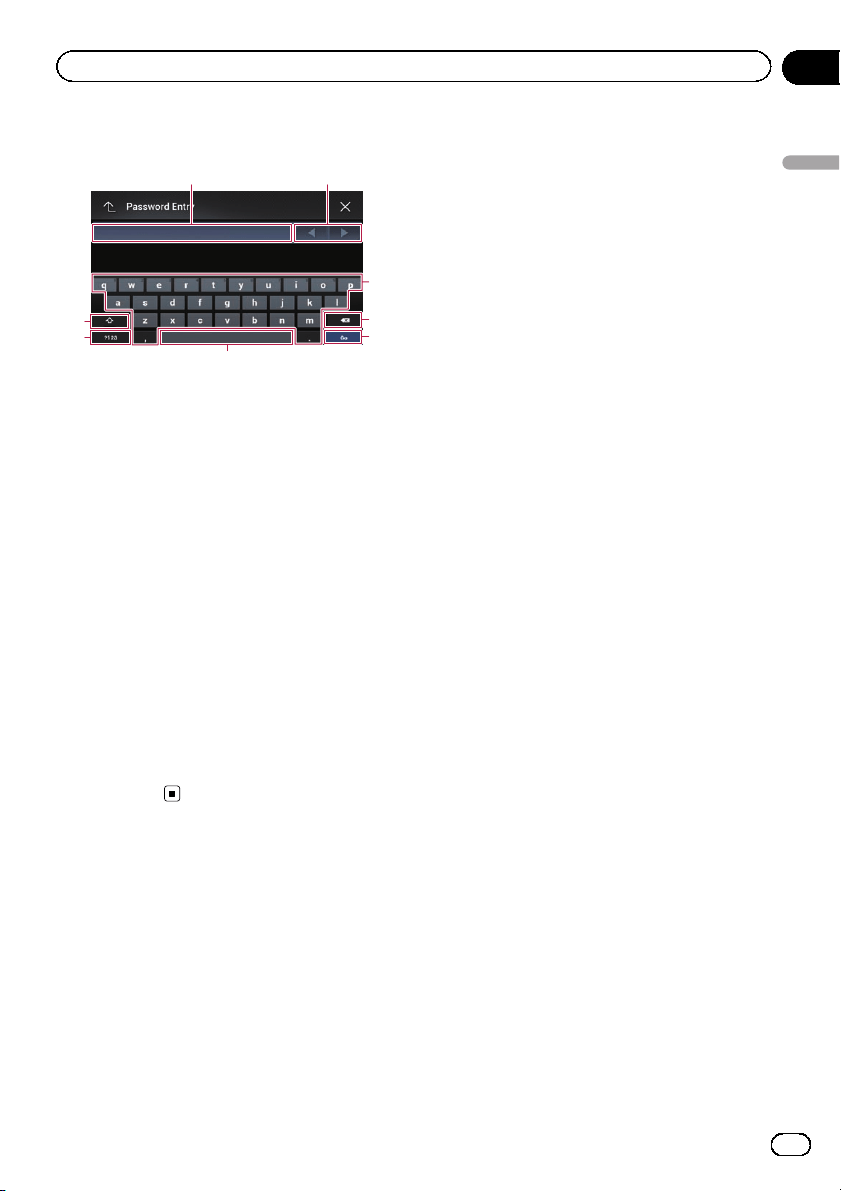
Operating the on-screen keyboard
6
5
4
3
8
7
21
1 Displays the characters that are entered. If
there is no text in the box, an informative
guide with text appears.
2 Allows you to move the cursor to the right or
left for a number of characters equivalent to
the number of touches.
3 Touching the keys enters the characters in the
text box.
4 Deletes the input text one letter at a time, be-
ginning at the end of the text. Continuing to
touch the key deletes all of the text.
5 Confirms the entry and allows you to proceed
to the next step.
6 You can leave spaces.
A space equivalent to the number of touches
is inserted.
7 Switches between alphabet and numbers/
symbols.
8 You can switch between capital and lower
case letters.
En
15
Chapter
02
Basic operation
Basic operation
If your devices feature Bluetooth
®
technology,
this product can be connected to your devices
wirelessly. This section describes how to set
up a Bluetooth connection.
For details about connectivity with the devices
featuring Bluetooth wireless technology, refer
to the information on our website.
p The “Bluetooth” menu is available only
when you stop your vehicle in a safe place
and apply the parking brake.
Preparing communication
devices
This product has a built-in function that en-
ables to use devices featuring Bluetooth wire-
less technology.
= For details, refer to Notes for hands-free
phoning on page 26.
You can register and use devices that feature
the following profiles with this product.
! HFP (Hands-Free Profile)
! A2DP (Advanced Audio Distribution Pro-
file)
! SPP (Serial Port Profile)
p When this product is turned off, the
Bluetooth connection is also disconnected.
When the system restarts, the system auto-
matically attempts to reconnect the pre-
viously-connected device. Even when the
connection is severed for some reason, the
system automatically reconnects the speci-
fied device (except when the connection is
severed due to device operation).
p The Bluetooth connection will be termi-
nated if Apple CarPlay is turned on.
Registering your Bluetooth
devices
You need to register your devices featuring
Bluetooth wireless technology when you con-
nect it to this product for the first time. A total
of three devices can be registered. Two regis-
tration methods are available:
! Searching for nearby Bluetooth devices
! Pairing from your Bluetooth devices
p If three devices are already paired, “Mem-
ory Full” is displayed and pairing cannot
be performed. In such cases, delete a
paired device first.
= For details, refer to Deleting a registered
device on page 18.
Searching for nearby Bluetooth
devices
The system searches for available Bluetooth
devices near this product, displays them in a
list, and registers them for connection.
p When the device is already connected, this
function is inactive.
1 Activate the Bluetooth wireless tech-
nology on your devices.
p For some Bluetooth devices, no specific ac-
tion is necessary to activate Bluetooth wire-
less technology. For details, refer to the
instruction manual of your devices.
2 Touch the HOME button to display the
Top menu screen.
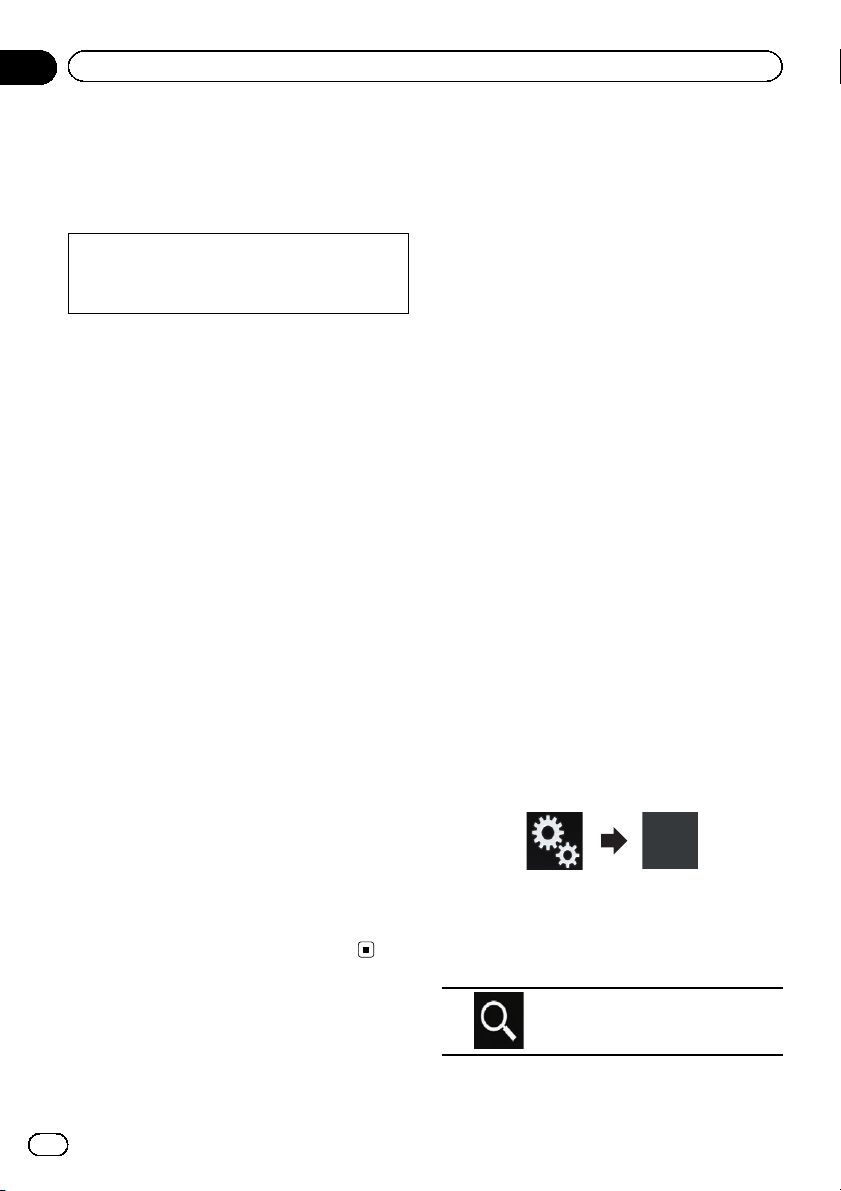
3 Touch the following keys in the follow-
ing order.
The “Bluetooth” screen appears.
4 Touch [Connection].
5 Touch the following key.
Starts searching.
En
16
Chapter
03
Registering and connecting a Bluetooth device
The system searches for Bluetooth devices
waiting for a connection and displays them in
the list if a device is found.
p Up to 30 devices will be listed in the order
that the devices are found.
6 Wait until your Bluetooth device ap-
pears in the list.
p If you cannot find the Bluetooth device that
you want to connect, check that the device
is waiting for a Bluetooth wireless technol-
ogy connection.
7 Touch the Bluetooth device name you
want to register.
While connecting, “Pairing… Please wait.” is
displayed. If the connection is established,
“Paired.” is displayed.
p If your device supports SSP (Secure Simple
Pairing), a six-digit number appears on the
display of this product. Touch [ Yes] to pair-
ing the device.
p If the connection fails, “Error” is displayed.
In such cases, try again from the begin-
ning.
p The PIN code is set to “0000” as the default,
but can be changed.
= For details, refer to Entering the PIN code
for Bluetooth wireless connection on
page 19.
p Once the connection is established, the de-
vice name is displayed. Touch the device
name to disconnect.
After the device is successfully registered, a
Bluetooth connection is established from the
system.
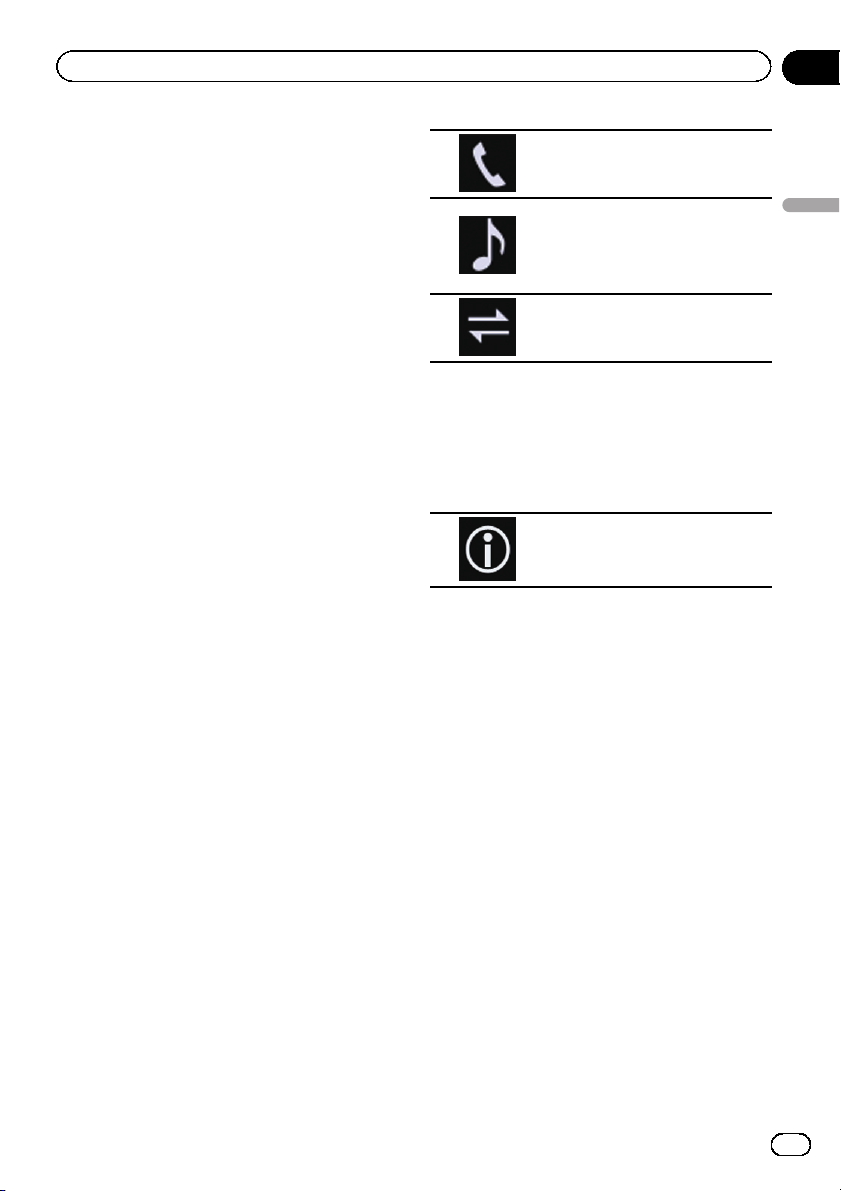
The profile icons in the registered device list
screen are displayed and illuminated as fol-
lows.
Illuminates when your mobile de-
vice is successfully connected with
the HFP (Hands-Free Profile).
Illuminates when your audio de-
vice is successfully connected with
the A2DP (Advanced Audio Distri-
bution Profile)/AVRCP (Audio/
Video Remote Control Profile).
Illuminates when the Bluetooth
connection is established with the
SPP (Serial Port Profile).
p After pairing, the phone book registered in
the device may be automatically trans-
mitted to this product.
# If you touch the following key, you can switch
the display between the device names and
Bluetooth device addresses.
Switches between the device
names and Bluetooth device ad-
dresses.
Pairing from your Bluetooth
devices
You can register a Bluetooth device by setting
this product to standby mode and requesting
a connection from the Bluetooth device.
p Before registration, make sure that “Visibi-
lity” in the “Bluetooth” menu is set to
“On”.
= For details, refer to Switching visibility on
page 19.
1 Activate the Bluetooth wireless tech-
nology on your devices.
p For some Bluetooth devices, no specific ac-
tion is necessary to activate Bluetooth wire-
less technology. For details, refer to the
instruction manual of your devices.
2 Use the Bluetooth setting in the device
to pair this product with the device.
p If a PIN code input is required, enter a PIN
code. (The default PIN code is “0000”.)
En
17
Chapter
03
Registering and connecting a Bluetooth device
Registering and connecting a Bluetooth device

When the device is successfully registered,
the connection settings are made from the
device.
p If registration fails, repeat the procedure
from the beginning.
Connecting to a Bluetooth
device automatically
If this function is set to on, a connection be-
tween your Bluetooth device and this product
will take place automatically as soon as the
two devices are less than a few meters apart.
p If this function is set to on, a connection
with the last connected Bluetooth device
will be established automatically when the
ignition switch is turned on.
1 Touch the HOME button to display the
Top menu screen.
2 Touch the following keys in the follow-
ing order.
The “Bluetooth” screen appears.
3 Touch [Auto Connect] repeatedly until
the desired setting appears.
! On (default):
Turns the automatic connection on.
! Off:
Turns the automatic connection off.
If your Bluetooth device is ready for a
Bluetooth wireless connection, a connection
to this product will automatically be estab-
lished.
If connection fails, “Auto connection failed.
Retry?” appears.
Touch [Yes] to reconnect.
# To turn automatic connection off, touch [Auto
Connect] again.
p Once the connection is established for the
first time, the connection with the device
will be established automatically when the
ignition switch is turned on from the next
time.
Deleting a registered device
When you have already registered three
Bluetooth devices and you want to add an-
other one, you must first delete one of the re-
gistered devices.
p If a registered phone is deleted, all the
phone book entries and call history lists
that correspond to the phone will be also
cleared.
CAUTION
Never turn this product off while the paired
Bluetooth device is being deleted.
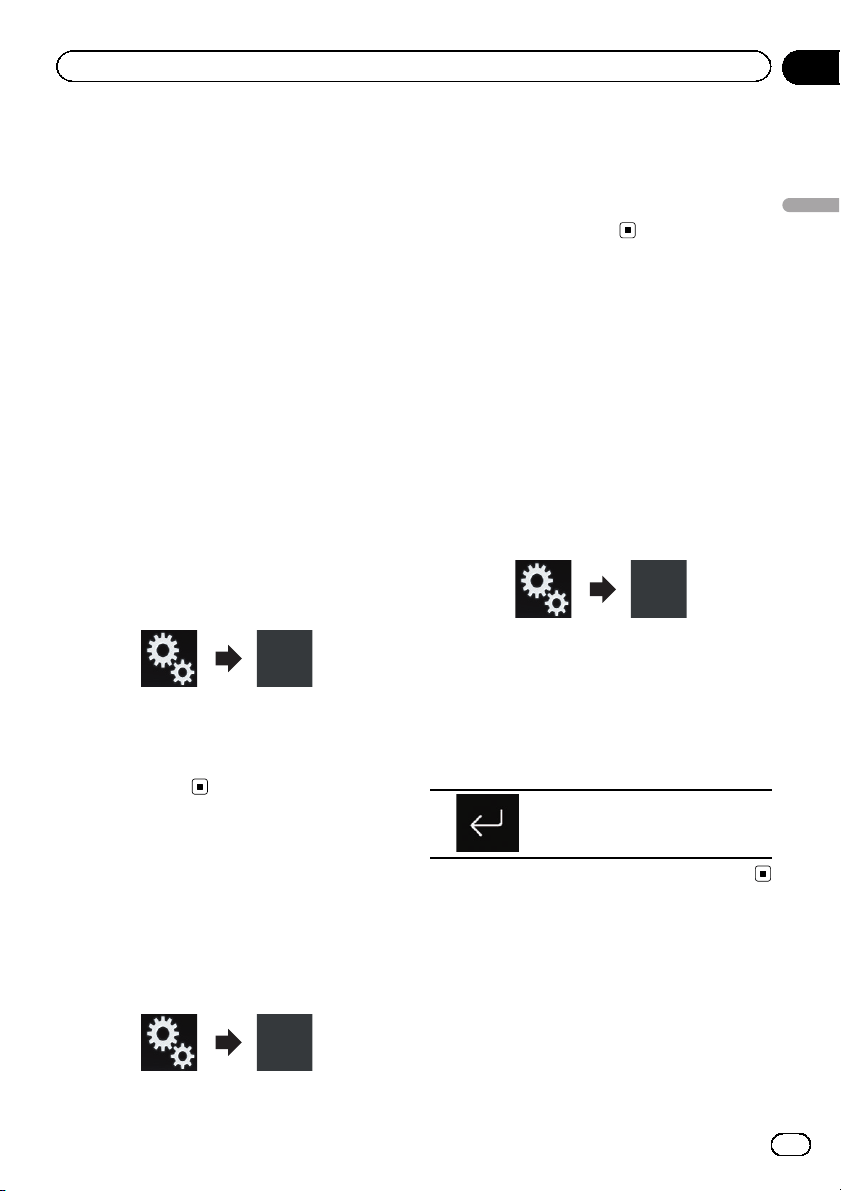
1 Touch the HOME button to display the
Top menu screen.
2 Touch the following keys in the follow-
ing order.
The “Bluetooth” screen appears.
3 Touch [Connection].
4 Touch the following key.
Deletes a paired device.
A message prompting you to delete a regis-
tered device appears.
5 Touch [Yes].
The device is deleted.
En
18
Chapter
03
Registering and connecting a Bluetooth device
Connecting a registered
Bluetooth device manually
Connect the Bluetooth device manually in the
following cases:
! Two or more Bluetooth devices are regis-
tered, and you want to manually select the
device to be used.
! You want to reconnect a disconnected
Bluetooth device.
! Connection cannot be established automa-
tically for some reason.
If you wish to start the connection manually,
carry out the following procedure.
1 Activate the Bluetooth wireless tech-
nology on your devices.
p For some Bluetooth devices, no specific ac-
tion is necessary to activate Bluetooth wire-
less technology. For details, refer to the
instruction manual of your devices.
2 Touch the HOME button to display the
Top menu screen.
3 Touch the following keys in the follow-
ing order.
The “Bluetooth” screen appears.
4 Touch [Connection].
5 Touch the name of the device that you
want to connect.
Switching visibility
This function sets whether or not to make this
product visible to the other device.
1 Touch the HOME button to display the
Top menu screen.
2 Touch the following keys in the follow-
ing order.
The “Bluetooth” screen appears.
3 Touch [Visibility] repeatedly until the
desired setting appears.
! On (default):
Turns the visibility on.
! Off:
Turns the visibility off.
Entering the PIN code for
Bluetooth wireless connection
To connect your Bluetooth device to this pro-
duct via Bluetooth wireless technology, you
need to enter a PIN code on your Bluetooth
device to verify the connection.
The default code is “0000”, but you can change
it with this function.
1 Touch the HOME button to display the
Top menu screen.
2 Touch the following keys in the follow-
ing order.
The “Bluetooth” screen appears.
3 Touch [PIN Code Input].
The “PIN Code” screen appears.
4 Touch [0] to [9] to input pin code (up to
8 digits).
5 Touch the following key.
Stores the PIN code in this pro-
duct.
Displaying the Bluetooth
device address
This product can display its Bluetooth device
address.
1 Touch the HOME button to display the
Top menu screen.
En
19
Chapter
03
Registering and connecting a Bluetooth device
Registering and connecting a Bluetooth device
2 Touch the following keys in the follow-
ing order.
The “Bluetooth” screen appears.
3 Touch [Device Information].
The Bluetooth device address is displayed.
Clearing the Bluetooth
memory
CAUTION
Never turn this product off while the Bluetooth
memory is being cleared.
1 Touch the HOME button to display the
Top menu screen.
2 Touch the following keys in the follow-
ing order.
The “Bluetooth” screen appears.
3 Touch [Bluetooth Memory Clear].
4 Touch [Clear].
The confirmation screen appears.
5 Touch [OK].
The Bluetooth memory is cleared.
# If you do not want to clear the memory, touch
[Cancel].
Updating Bluetooth software
This function is used to update this product
with the latest Bluetooth software. For details
on Bluetooth software and updating, refer to
our website.
p The source is turned off and the Bluetooth
connection is disconnected before the pro-
cess starts.
CAUTION
Never turn this product off and never disconnect
the phone while the software is being updated.
1 Touch the HOME button to display the
Top menu screen.
2 Touch the following keys in the follow-
ing order.
The “Bluetooth” screen appears.
3 Touch [BT Software Update].
4 Touch [Start].
The data transfer screen is displayed.
p Follow the on-screen instructions to finish
updating the Bluetooth software.
Displaying the Bluetooth
software version
If this product fails to operate properly, you
may need to consult your dealer for repair.
In such cases, you may be asked to specify the
software version. Perform the following proce-
dure to check the version on this unit.
1 Touch the HOME button to display the
Top menu screen.
2 Touch the following keys in the follow-
ing order.
The “Bluetooth” screen appears.
3 Touch [Bluetooth Version Information].
The version of this product’s Bluetooth mod-
ule appears.
En
20
Chapter
03
Registering and connecting a Bluetooth device
CAUTION
For your safety, avoid talking on the phone as
much as possible while driving.
If your cellular phone features Bluetooth tech-
nology, this product can be connected to your
cellular phone wirelessly. Using this hands-
free function, you can operate this product to
make or receive phone calls. This section de-
scribes how to set up a Bluetooth connection
and how to operate a cellular phone featuring
Bluetooth technology on this product.
p Hands-free phoning via Bluetooth wireless
technology is not available when Apple
CarPlay is on.
For details about connectivity with the devices
featuring Bluetooth wireless technology, refer
to the information on our website.
Displaying the phone menu
Use the Phone icon if you wish to connect a
cellular phone to this product for utilization.
= For details, refer to Chapter 3.
p The Phone icon is displayed on the follow-
ing screens.
— Top menu screen
— AV operation screen
— On the App control side bar on the
AppRadio Mode and MirrorLink
screens
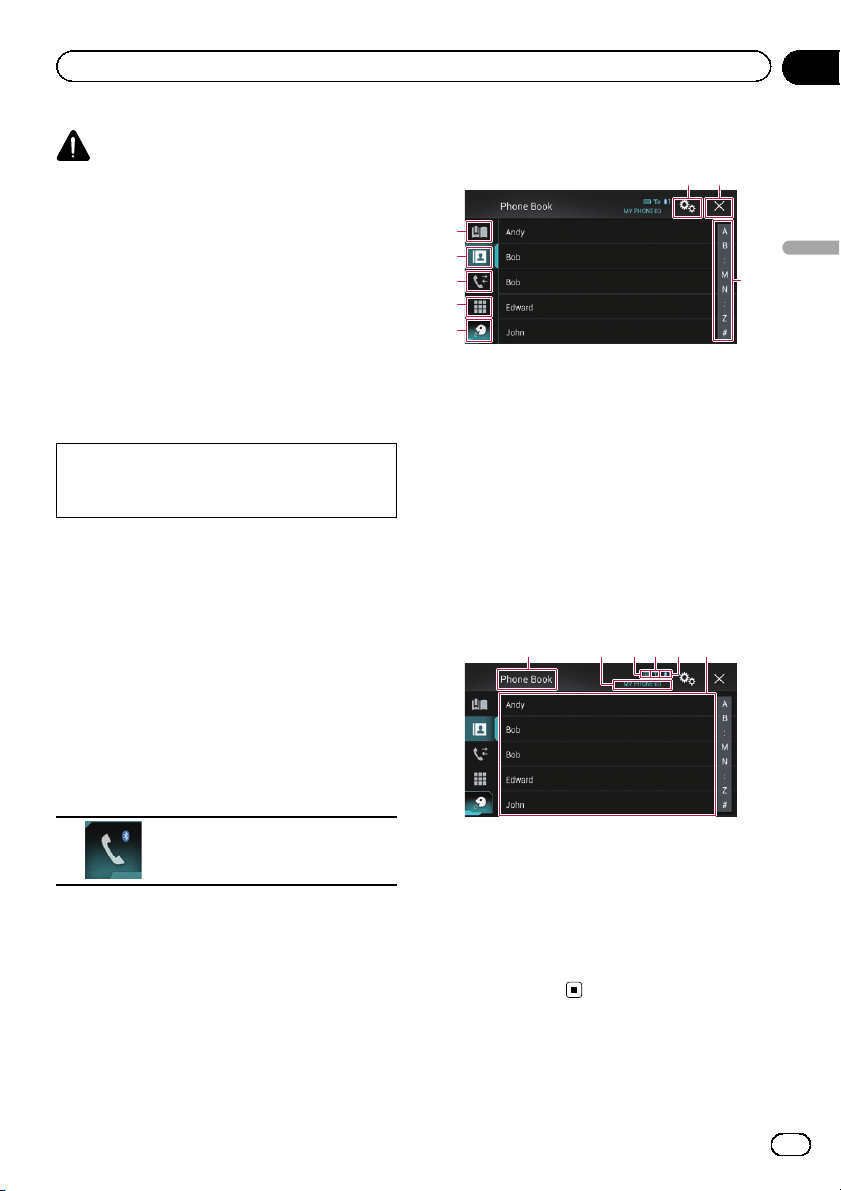
% Touch the following key.
Displays the Phone menu screen.
p The “Phone Book” screen appears when
using this function for the first time. The
screen of the last-used function appears
from the next time.
p The Bluetooth icon on the key is not dis-
played when Apple CarPlay is on. If touch-
ing the key when Apple CarPlay is on, the
phone screen for Apple CarPlay will be dis-
played.
For details of Apple CarPlay, refer to Using
Apple CarPlay on page 59.
Touch panel keys
4
2
3
5
1
6 7
8
1 Displays the preset dial screen.
2 Switches to the phone book list.
3 Switches to the missed, received and dialed
call lists.
4 Switches the mode to enter the phone num-
ber directly.
5 Switches to the voice recognition function (for
iPhone).
6 Displays the Setting menu screen.
7 Closes the screen.
8 Displays the alphabet search screen.
Reading the screen
1 32456
1 Menu title
2 Name of the connected cellular phone
3 Battery status of the cellular phone
4 Reception status of the cellular phone
5 Indicates that a Bluetooth telephone is con-
nected.
The device number of the connected device is
displayed.
6 List display area
Making a phone call
You can make a phone call in many different
ways.
En
21
Chapter
04
Using hands-free phoning
Using hands-free phoning
Direct dialing
p This function is available only when you
stop your vehicle in a safe place and apply
the parking brake.
1 Touch the HOME button to display the
Top menu screen.
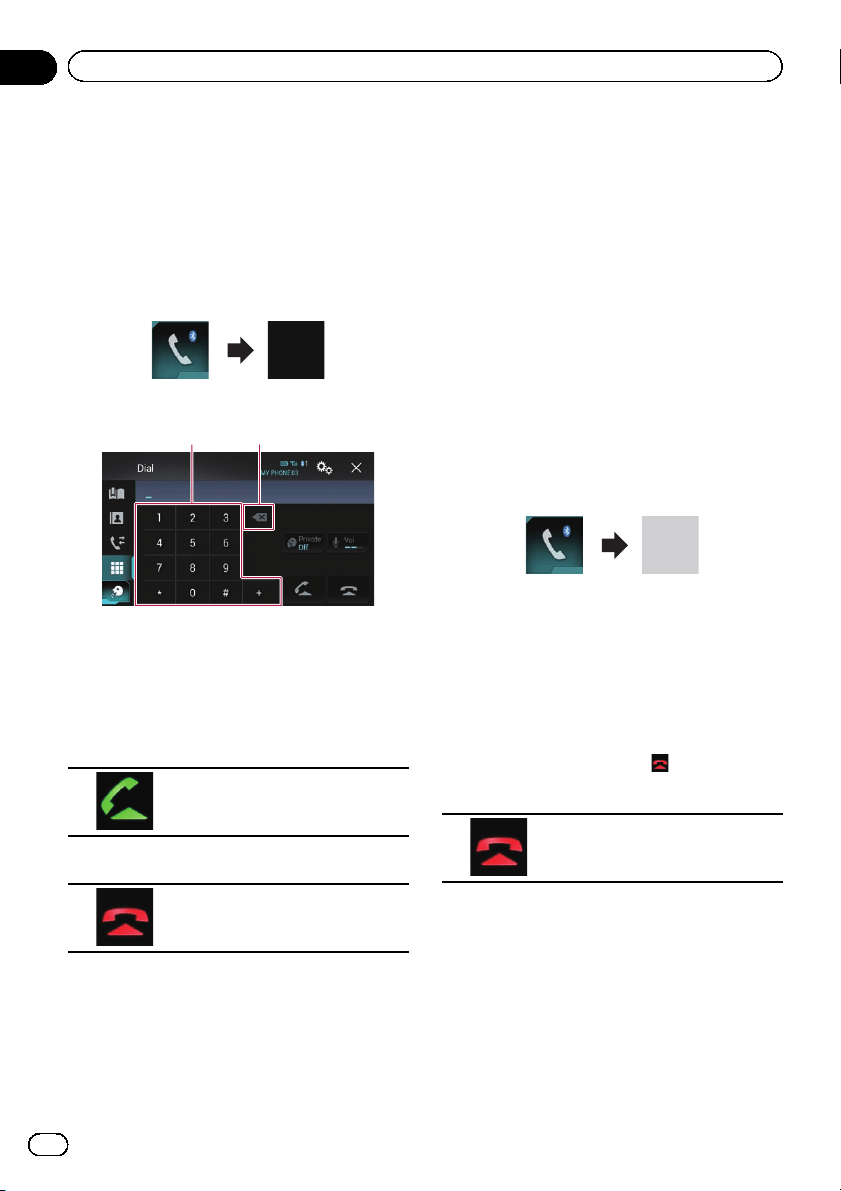
2 Touch the following keys in the follow-
ing order.
The “Dial” screen appears.
1 2
1 Dial pad
2 Deletes one digit. Touch and hold to delete
all digits.
3 Touch the number keys to enter the
phone number.
4 Touch the following key.
Makes a call.
5 Touch the following key.
Ends the call.
The call ends.
p You may hear a noise when you hang up
the phone.
Calling a number in the phone
book
After finding the number you want to call in
the phone book, you can select the entry and
make the call.
p The contacts on your phone will normally
be transferred to this product automatically
when the phone is connected.
If it is not, use your phone menu to transfer
the contacts.
The visibility of this product should be on
when you use the “Bluetooth” menu.
= For details, refer to Switching visibility
on page 19.
1 Touch the HOME button to display the
Top menu screen.
2 Touch the following keys in the follow-
ing order.
The “Phone Book” screen appears.
3 Touch the desired name on the list.
The details screen of the phone book appears.
4 Touch the phone number you want to
dial.
The dial screen appears.
5 Dialing starts.
p To cancel the call, touch .
6 Touch the following key.
Ends the call.
The call ends.
Selecting a number by alphabet
search mode
If a lot of numbers are registered in the phone
book, you can search for the phone number by
alphabet search mode.
1 Touch the HOME button to display the
Top menu screen.
En
22
Chapter
04
Using hands-free phoning
2 Touch the following keys in the follow-
ing order.
The “Phone Book” screen appears.
3 Touch the Initial Search Bar to display
the alphabet search screen.
4 Touch the first letter of the entry you
are looking for.
The “Phone Book” entries starting with that
letter (e.g. “Ben”, “Brian” and “Burt” when “B”
is selected) will be displayed.
5 Touch the list to display the phone
number list of the selected entry.
The details screen of the phone book appears.
# If several phone numbers are included in an
entry, select one by touching the list.
6 Touch the phone number you want to
dial.
The dial screen appears.
7 Dialing starts.
p To cancel the call, touch .
8 Touch the following key.
Ends the call.
The call ends.
Dialing from the history
The most recent calls made (dialed, received
and missed) are stored in the call history list.
You can browse the call history list and call
numbers from it.
1 Touch the HOME button to display the
Top menu screen.
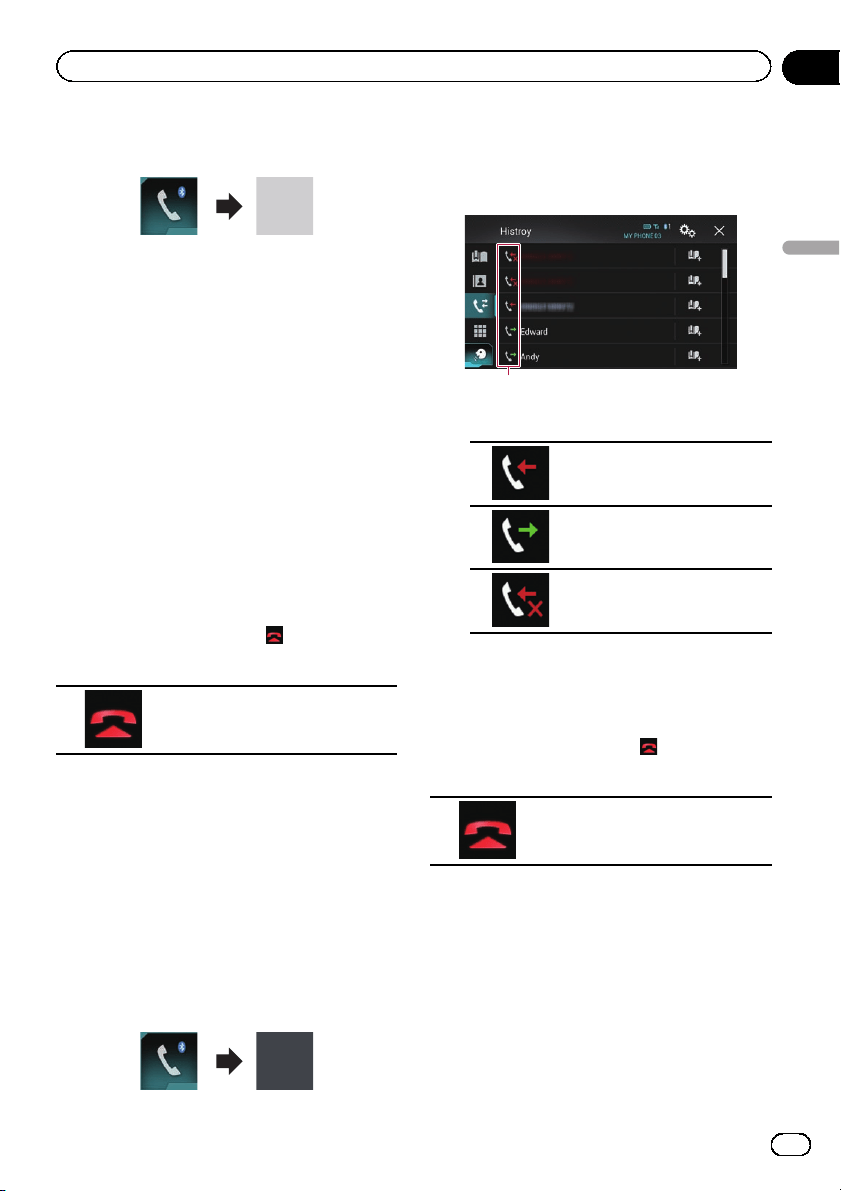
2 Touch the following keys in the follow-
ing order.
The “History” screen appears.
p Depending on the type of cellular phone,
some calls may not be displayed in the call
history.
1
1 Type of call history
Received calls.
Dialed calls.
Missed calls.
3 Touch the desired entry on the list to
make a call.
The dial screen appears.
4 Dialing starts.
p To cancel the call, touch .
5 Touch the following key.
Ends the call.
The call ends.
Using the preset dial lists
You can dial a number from the preset dial
list.
Registering a phone number
You can easily store up to six phone numbers
per device as presets.
En
23
Chapter
04
Using hands-free phoning
Using hands-free phoning
1 Touch the HOME button to display the
Top menu screen.
2 Touch the following keys in the follow-
ing order.
The “Phone Book” or “History” screen ap-
pears.
3 Touch the following key.
Registers the phone number to the
“Preset Dial” list.
Dialling from the preset dial list
1 Touch the HOME button to display the
Top menu screen.
2 Touch the following keys in the follow-
ing order.
The “Preset Dial” screen appears.
3 Touch the desired entry on the list to
make a call.
The dial screen appears.
4 Dialing starts.
p To cancel the call, touch .
5 Touch the following key.
Ends the call.
The call ends.
Deleting a phone number
1 Touch the HOME button to display the
Top menu screen.
2 Touch the following keys in the follow-
ing order.
The “Preset Dial” screen appears.
3 Touch the following key.
Deletes the phone number.
Receiving a phone call
You can perform hands-free answering by
using this product.
Answering an incoming call
This product informs you that it is receiving a
call by displaying a message and producing a
ring sound.
p You can set the system to automatically an-
swer incoming calls. If this product is not
set to automatically answer incoming calls,
you will have to answer the calls manually.
= For details, refer to Answering a call
automatically on page 25.
p The registered name appears if the phone
number of the received call is already regis-
tered in “Phone Book”.
1 Touch the following key.
Answers an incoming call.
Rejects an incoming call.
The rejected call is recorded in the missed call
history list.
= For details, refer to Dialing from the history
on page 23.
En
24
Chapter
04
Using hands-free phoning
2 Touch the following key.
Ends the call.
The call ends.
Minimizing the dial
confirmation screen
p The dial confirmation screen cannot be
minimized on the AV operation screen.
p AV sources cannot be selected even if the
dial confirm screen is minimized while talk-
ing on the phone.
1 Touch the following key.
The dial confirmation screen is
minimized.
2 Touch the following key.
Displays the dial confirmation
screen again.
Changing the phone settings
Answering a call automatically
This product automatically answers incoming
calls to the connected cellular phone, so you
can answer calls while driving without taking
your hands off the steering wheel.
When “Auto Answer” is set to “On”, an in-
coming call will be automatically answered in
5 seconds.
1 Touch the HOME button to display the
Top menu screen.
2 Touch the following keys in the follow-
ing order.
The “Bluetooth” screen appears.
3 Touch [Auto Answer] repeatedly until
the desired setting appears.
! Off (default):
Turns the automatic answering off.
! On:
Turns the automatic answering on.
Switching the ring tone
You can select whether or not to use this pro-
duct’s ring tone. If this function is set to on,
the ring tone for this product will sound.
1 Touch the HOME button to display the
Top menu screen.
2 Touch the following keys in the follow-
ing order.
The “Bluetooth” screen appears.
3 Touch [Ring Tone] repeatedly until the
desired setting appears.
! On (default):
Turns the ring tone on.
! Off:
Turns the ring tone off.
Inverting names in the phone book
When your device is connected to this pro-
duct, the first and last names of your contacts
may be registered to the phone book in reverse
order.
You can use this function to change the order
back. (Inverting the names in the phone book)
1 Touch the HOME button to display the
Top menu screen.
2 Touch the following keys in the follow-
ing order.
The “Bluetooth” screen appears.
En
25
Chapter
04
Using hands-free phoning
Using hands-free phoning
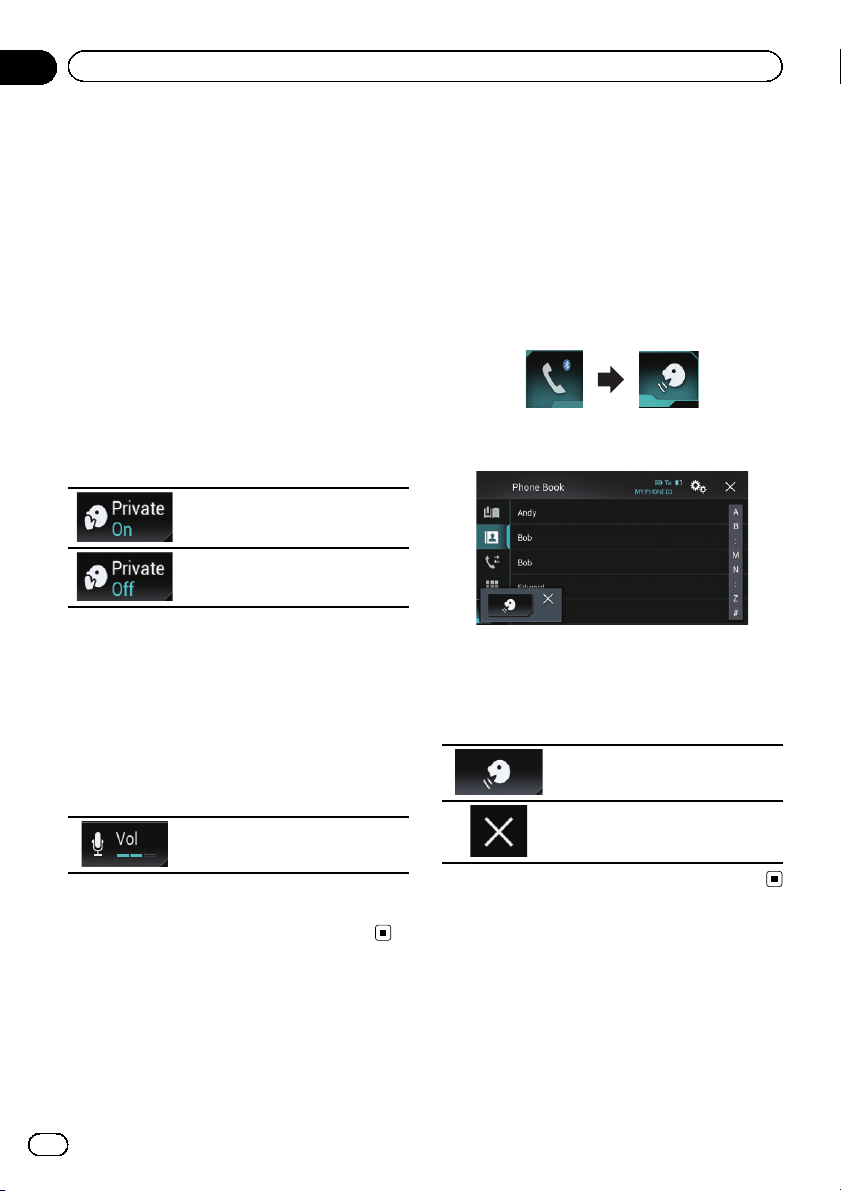
3 Touch [Invert Name].
The confirmation screen appears.
4 Touch [Yes].
p If the inversion fails, “Invert Name Error”
appears. In such cases, try again from the
beginning.
p Inverting the names of your contacts from
this product does not affect the data on
your Bluetooth device.
Setting the private mode
During a conversation, you can switch to pri-
vate mode (talk directly on your cellular
phone).
% Touch the following keys to turn pri-
vate mode on or off.
Talk directly on your mobile device
Hands-free phoning
Adjusting the other party’s
listening volume
To maintain good sound quality, this product
can adjust the other party’s listening volume.
If the volume is not loud enough for the other
party, use this function.
% Touch the following key.
Switches between the three vo-
lume levels.
p This function can be performed even while
talking on the phone.
p Settings can be stored for each device.
Using the voice recognition
function (for iPhone)
You can use the voice recognition function of
iPhone.
p When an iPhone running iOS 6.1 or higher
is used, Siri Eyes Free Mode is available
with this product.
p For using the voice recognition function in
Apple CarPlay, refer to Using Apple CarPlay
on page 59.
1 Touch the HOME button to display the
Top menu screen.
2 Touch the following keys to start voice
control.
The voice recognition function launches and
the voice control screen appears.
You can use the voice recognition function in
the same way as using it on the iPhone.
p You can also launch the voice recognition
function by touching and holding the
HOME button.
Indicates that this product is on
standby for your voice commands.
Cancels the voice recognition
function.
Notes for hands-free phoning
General notes
! Connection to all cellular phones featuring
Bluetooth wireless technology is not guar-
anteed.
En
26
Chapter
04
Using hands-free phoning

! The line-of-sight distance between this pro-
duct and your cellular phone must be
10 meters or less when sending and receiv-
ing voice and data via Bluetooth technol-
ogy. However, the actual transmission
distance may be shorter than the estimated
distance, depending on the usage environ-
ment.
! With some cellular phones, the ring sound
may not be output from the speakers.
! If private mode is selected on the cellular
phone, hands-free phoning may be dis-
abled.
Registration and connection
! Cellular phone operations vary depending
on the type of cellular phone. Refer to the
instruction manual that came with your cel-
lular phone for detailed instructions.
! With cellular phones, phone book transfer
may not work even though your phone is
paired with this product. In that case, dis-
connect your phone, and then perform
pairing again from your phone to this pro-
duct.
! The Bluetooth connection will be termi-
nated if Apple CarPlay is turned on.
! If Apple CarPlay is turned on during a call
on a cellular phone other than the iPhone
connected to use Apple CarPlay, the
Bluetooth connection will be terminated
after the call ends.
Making and receiving calls
! You may hear a noise in the following situa-
tions:
— When you answer the phone using the
button on the phone.
— When the person on the other end of
the line hangs up the phone.
! If the person on the other end of the line
cannot hear the conversation due to an
echo, decrease the volume level for hands-
free phoning. This may reduce the echo.
! With some cellular phones, even if you
press the accept button on the cellular
phone when a call comes in, hands-free
phoning may not be performed.
! The registered name appears if the phone
number of the received call is already regis-
tered in the phone book. When one phone
number is registered under different
names, only the phone number is dis-
played.
! If the phone number of the received call is
not registered in the phone book, the
phone number of the received call appears.
The received call and the dialed
number histories
! You cannot make a call to the entry of an
unknown user (no phone number) in the re-
ceived call history.
! If calls are made by operating your cellular
phone, no history data will be recorded in
this product.
Phone book transfers
! If there are more than 800 phone book en-
tries on your cellular phone, not all entries
may download completely.
! With some cellular phones, it may not be
possible to transfer all items in the phone
book at one time. In this case, transfer
items one by one from your cellular phone.
! Depending on the cellular phone, this pro-
duct may not display the phone book cor-
rectly. (Some characters may be garbled, or
the order of first and last names may be re-
versed.)
! If the phone book in the cellular phone con-
tains image data, the phone book may not
be transferred correctly. (Image data can-
not be transferred from the cellular phone.)
! Depending on the cellular phone, phone
book transfer may not be available.
En
27
Chapter
04
Using hands-free phoning
Using hands-free phoning
When using an iPod / iPhone or a smartphone
with this product, configure the settings of
this product according to the device to be con-
nected.
This section describes the settings required
for each device.
The basic flow of iPod /
iPhone or smartphone setup
1 Select the method for connecting your de-
vice.
= For details, refer to Setting the device
connection method on page 28.
2 Connect your device to this product.
= For details of the connections, refer to
the Installation Manual.
3 If necessary, connect your device to this
product via Bluetooth connection.
= For details of the Bluetooth connection,
refer to Chapter 3.
Setting the device
connection method
If you want to use the application for iPhone
or smartphone on this product, you must se-
lect the method for connecting your device.
Settings are required according to the con-
nected device.
1 Touch the HOME button to display the
Top menu screen.
2 Touch the following keys in the follow-
ing order.
The “System” screen appears.
3 Touch [Input/Output Settings].
4 Touch [Smartphone Setup].
The “Smartphone Setup” screen appears.
5 Touch the following settings.
! Device: Select the device to be connected.
! Connection: Select the connection meth-
od.
! Apple CarPlay: Set to “On” to use Apple
CarPlay.
p Configure the settings correctly according
to the device to be connected and the con-
nection method to be used.
= For details, refer to Information on the
connections and functions for each de-
vice on page 30.
p If you change the setting, the confirmation
screen appears.
Touch [OK].
The setting will change after the following
processes are automatically executed.
— The source is turned off.
— AppRadio Mode and MirrorLink mode
are exited.
— The smartphone connection (USB and
Bluetooth) is disconnected.
To cancel, touch [Cancel].
iPod compatibility
This product supports only the following iPod
models and iPod software versions. Others
may not work correctly.
Made for
! iPhone 5s: iOS 7.0.3
! iPhone 5c: iOS 7.0.3
! iPhone 5: iOS 7.0.3
! iPhone 4s: iOS 7.0.3
! iPhone 4: iOS 7.0.3
! iPhone 3GS: iOS 6.0.1
! iPod touch (5th generation): iOS 6.0.1
! iPod touch (4th generation): iOS 6.0.1
! iPod touch (3rd generation): iOS 5.1.1
! iPod touch (2nd generation): iOS 4.2.1
! iPod classic 160GB (2009): Ver. 2.0.4
! iPod classic 160GB (2008): Ver. 2.0.1
! iPod classic 80GB: Ver. 1.1.2
! iPod nano (7th generation)
! iPod nano (6th generation): Ver. 1.2
! iPod nano (5th generation): Ver. 1.0.2
! iPod nano (4th generation): Ver. 1.0.4
! iPod nano (3rd generation): Ver. 1.1.3
p You can connect and control an iPod com-
patible with this product by using sepa-
rately sold connector cables.
En
28
Chapter
05
iPod / iPhone or smartphone setup operation

p Operation methods may var y depending on
the iPod model and the software version of
the iPod.
p Depending on the software version of the
iPod, it may not be compatible with this
product.
For details about iPod compatibility with
this product, refer to the information on our
website.
This manual applies to the following iPod
models.
iPod with 30-pin connector
! iPhone 4s
! iPhone 4
! iPhone 3GS
! iPod touch 4th generation
! iPod touch 3rd generation
! iPod touch 2nd generation
! iPod classic 160GB
! iPod classic 80GB
! iPod nano 6th generation
! iPod nano 5th generation
! iPod nano 4th generation
! iPod nano 3rd generation
iPod with Lightning connector
! iPhone 5s
! iPhone 5c
! iPhone 5
! iPod touch 5th generation
! iPod nano 7th generation
Android
™
device compatibility
p Operation methods may var y depending on
the Android device and the software ver-
sion of the Android OS.
p Depending on the version of the Android
OS, it may not be compatible with this pro-
duct.
p Compatibility with all Android devices is
not guaranteed.
For details about Android device compatibility
with this product, refer to the information on
our website.
Apple CarPlay compatibility
Apple CarPlay is available for the following
iPhone models.
! iPhone 5s: iOS 7.1 or later
! iPhone 5c: iOS 7.1 or later
! iPhone 5: iOS 7.1 or later
MirrorLink device
compatibility
p This product is compatible with MirrorLink
version 1.1.
p Compatibility with all MirrorLink devices is
not guaranteed.
For details about MirrorLink device compat-
ibility with this product, refer to the informa-
tion on our website.
En
29
Chapter
05
iPod / iPhone or smartphone setup operation
iPod / iPhone or smartphone setup operation
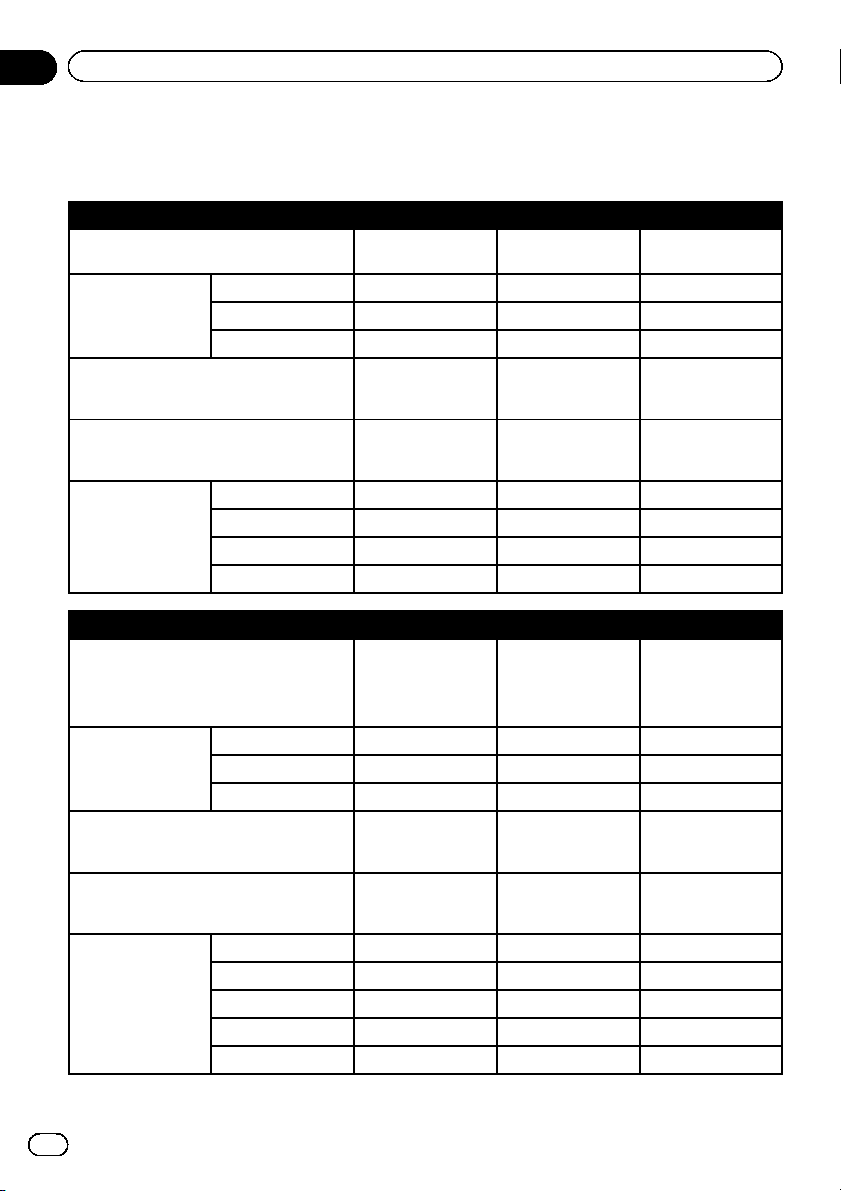
Information on the connections and functions for each device
The settings and cables required for connecting each device, and the available sources are as follows.
iPod / iPhone with a 30-pin connector
Required cable (sold separately)
Cable connection is
not required.
CD-IU201V CD-IU201S
Smartphone Setup
Device iPhone/iPod iPhone/iPod iPhone/iPod
Connection Wireless via BT USB USB
Apple CarPlay — On/Off On/Off
Bluetooth connection
Bluetooth connec-
tion is required for
using Pandora.
——
Connection requirement —
Connect to USB
port 1 for using
Pandora.
Connect to USB
port 1 for using
AppRadio Mode.
Available source
iPod (audio) — 11
iPod (video) — 11
Pandora 111
AppRadio Mode ——1
iPod / iPhone with a Lightning connector
Required cable (sold separately)
Cable connection is
not required.
CD-IU52
! CD-IH202
! CD-IU52
! Lightning Digital
AV Adapter
Smartphone Setup
Device iPhone/iPod iPhone/iPod iPhone/iPod
Connection Wireless via BT USB Digital AV adapter
Apple CarPlay — On/Off —
Bluetooth connection
Bluetooth connec-
tion is required for
using Pandora.
Bluetooth connec-
tion is required for
using Pandora.
Bluetooth connec-
tion is required.
Connection requirement —
Connect to USB
port 1 for using
Apple CarPlay.
Connect to USB
port 1 for using
AppRadio Mode.
Available source
iPod (audio) — 1 —
iPod (video) ———
Pandora 11(*1) 1
AppRadio Mode ——1
Apple CarPlay — 1 (*2) —
En
30
Chapter
05
iPod / iPhone or smartphone setup operation
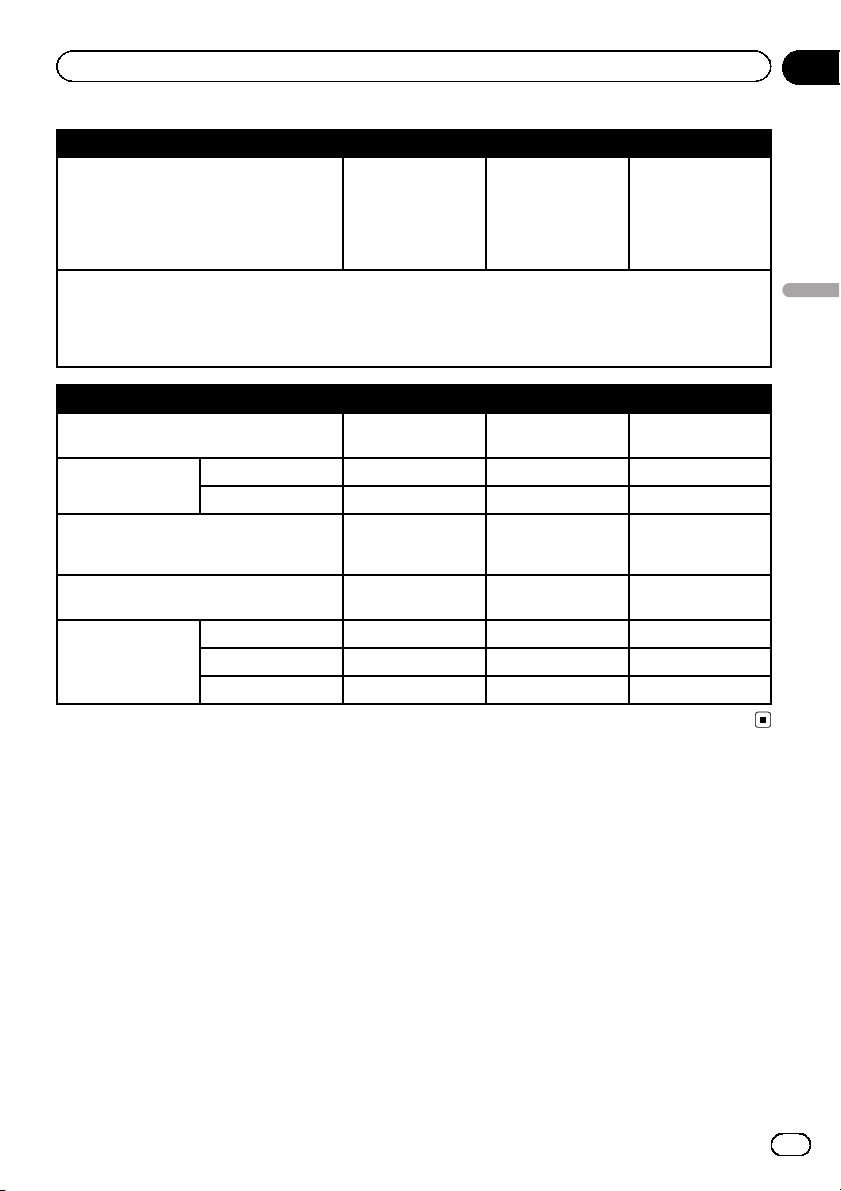
iPod / iPhone with a Lightning connector
Remarks —
Set “Apple CarPlay”
to “On” for using
Apple CarPlay.
iPod is not available.
Please use the Car-
MediaPlayer to play
music or videos in
AppRadio Mode.
(*3)
(*1) Not available when Apple CarPlay is on.
(*2) Available only when an Apple CarPlay-compatible device is connected.
(*3) Install the CarMediaPlayer app on your iPod or iPhone.
= For details about the CarMediaPlayer, refer to the information on our website.
= Refer to the CarMediaPlayer manual for more information.
Android, MirrorLink device
Required cable (sold separately)
Cable connection is
not required.
CD-MU200 CD-AH200
Smartphone Setup
Device Others Others Others
Connection Wireless via BT USB HDMI
Bluetooth connection
Bluetooth connec-
tion is required for
using Pandora.
Bluetooth connec-
tion is required for
using Pandora.
Bluetooth connec-
tion is required.
Connection requirement —
Connect to USB
port 2.
Connect to USB
port 2.
Available source
Pandora 111
AppRadio Mode ——1
MirrorLink — 1 —
En
31
Chapter
05
iPod / iPhone or smartphone setup operation
iPod / iPhone or smartphone setup operation
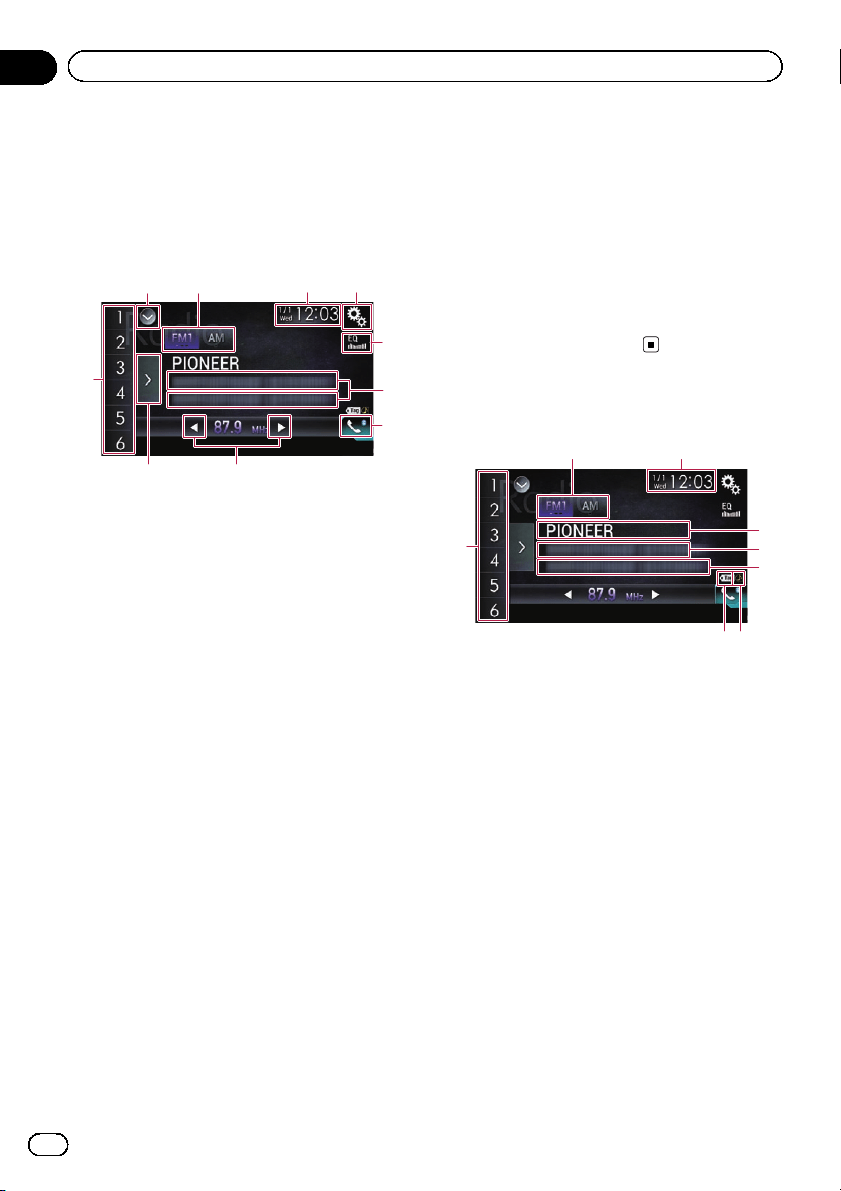
You can listen to the radio using this product.
This section describes operations for the
radio.
Using the touch panel keys
12 43
5
7
9
8
a
6
1 Displays the source list.
= For details, refer to Selecting a front
source on the source list on page 12.
2 Selects a band.
= For details, refer to Selecting a band on
page 33.
3 Displays the Time and date setting
screen.
= For details, refer to Setting the time and
date on page 103.
4 Displays the Setting menu screen.
5 Recalls equalizer curves.
= For details, refer to Using the equalizer
on page 92.
6 Stores song information to an iPod.
= For details, refer to Storing song informa-
tion to an iPod (iTunes Tagging) on page
103.
7 Displays the Phone menu screen.
= For details, refer to Displaying the phone
menu on page 21.
8 Performs manual tuning or seek tuning.
= For details, refer to Manual tuning on
page 33.
= For details, refer to Seek tuning on page
33.
9 Displays the preset channels.
= For details, refer to Selecting a preset
channel from the preset channel list on
page 34.
a Recalls the preset channel stored to a key
from memory with a single touch of the
key.
Stores the current broadcast frequency to
a key for later recall by continuing to
touch the key.
= For details, refer to Storing broadcast fre-
quencies on page 34.
Reading the screen
8
3
2
4
5
1
76
1 Band indicator
Shows the tuned band: FM1, FM2, FM3 or AM.
2 Current time and date
3 Program service name indicator
Shows the program service name (station
name) of the current station.
4 Song title
Shows the title of the current song (when
available).
5 Artist name
Shows the artist name for the current song
(when available).
6 iTunes
®
tagging song status indicator
Shows the status of the song information
stored in this product.
p The icon is displayed on all operation
screens of AV sources.
En
32
Chapter
06
Using the radio
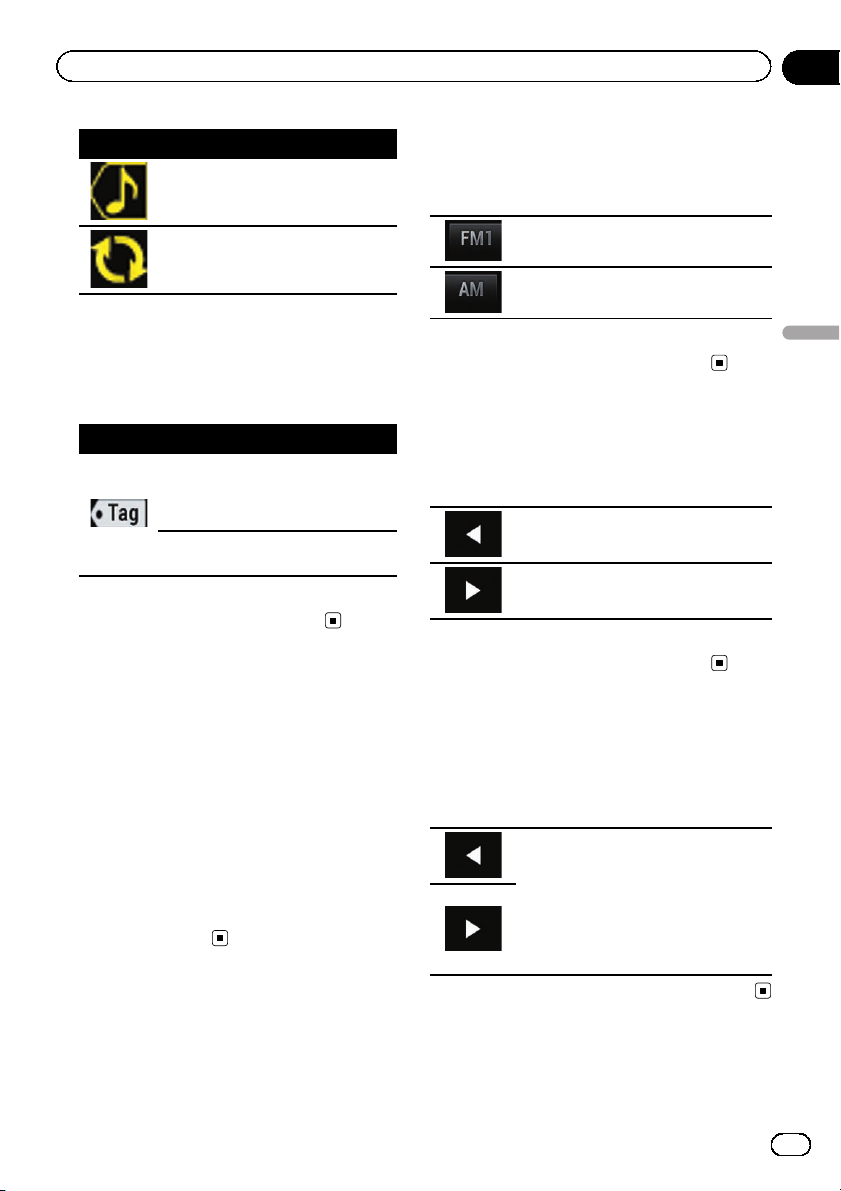
Indicator Meaning
Appears when the song information
tag is stored in this product.
Appears when the song information
tag is being transferred to an iPod.
7 iTunes
®
tagging indicator
Indicates songs that are capable of iTunes tag-
ging.
p The icon is displayed on all operation
screens of AV sources.
Indicator Meaning
Appears when this product receives
an iTunes song tag that can be
stored and then downloaded to an
iPod for later purchase.
Flashes when this product is storing
song tag information.
8 Preset number indicator
Highlights the selected preset item.
Starting procedure
1 Display the AV source selection screen.
= For details of the operations, refer to Dis-
playing the AV operation screen on page 12.
2 Touch [Radio] on the AV source selec-
tion screen.
The “Radio” screen appears.
3 Use the touch panel keys on the screen
to control the radio.
= For details, refer to Using the touch panel
keys on page 32.
Selecting a band
% Touch the following key repeatedly
until the desired band appears.
Switches between the following FM
bands: FM1, FM2 and FM3.
Switches to AM band.
p This function is convenient for preparing
different preset lists for each band.
Manual tuning
% Touch the following keys to tune manu-
ally.
Moves down one step at a time.
Moves up one step at a time.
p This function is convenient for preparing
different preset lists for each band.
Seek tuning
% Touch and hold one of the following
keys for about one second and then re-
lease.
Scans frequencies until it finds a broad-
cast strong enough for good reception.
You can cancel seek tuning by touching
either key briefly.
If you keep holding either key, you can
skip broadcasting frequencies. Seek
tuning will start when you release the
key.
En
33
Chapter
06
Using the radio
Using the radio
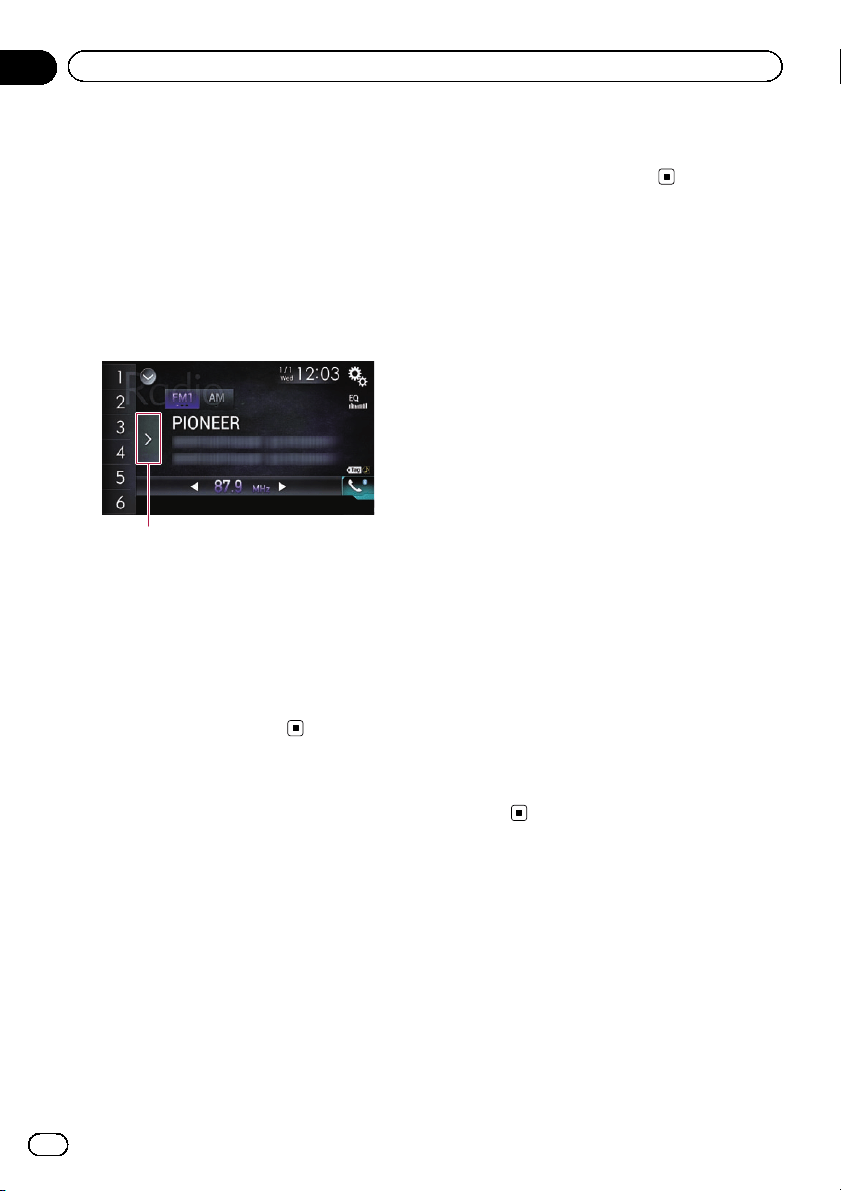
Selecting a preset channe l
from the preset channel list
Once you have stored broadcast channels,
you can easily recall preset channels from
memory with a single touch of a key.
= For details, refer to Storing broadcast fre-
quencies on page 34.
1 Touch the preset channel list display
key.
1
1 Preset channel list display key
2 Touch the item on the list (“1” to “ 6”)to
switch to a channel registered as a preset
channel.
p If you touch the preset channel list display
key while the preset channel list is dis-
played, the list disappears and the preset
tuning keys are displayed.
Storing broadcast frequencies
With a touch of any of the preset tuning keys
(“1” to “6”), you can easily store up to six
broadcast channels for later recall (also with
the touch of a key).
1 Select a frequency that you want to
store in memory.
2 Touch and hold a preset tuning key [1]
to [6].
The selected radio station is stored in memory.
The next time you touch the same preset tun-
ing key “1” to “6”, the service component is re-
called from memory.
p Up to 18 FM stations, six for each of the
three FM bands, as well as six AM stations,
can be stored in memor y.
Storing the strongest
broadcast frequencies
BSM (best stations memory) function automa-
tically stores the six strongest broadcast fre-
quencies under the preset tuning keys “1” to
“6” and, once stored there, you can tune into
them with the touch of a key.
p Storing broadcast frequencies with BSM
may replace broadcast frequencies you
have already saved.
p Previously stored broadcast frequencies
may remain stored if the number of strong
broadcast frequencies stored has not
reached the limit.
1 Touch the preset channel list display
key.
The preset channel list appears.
2 Touch [BSM] to begin a search.
A message appears. While the message is dis-
played, the six strongest broadcast frequen-
cies will be stored under the preset tuning
keys “1” to “6” in order of their signal strength.
When this is complete, the message disap-
pears.
# If you touch [Cancel], the storage process is
canceled.
Tuning into strong frequencies
p This setting is available only when “Radio”
is selected as the source.
Local seek tuning allows you to only tune into
those radio stations with sufficiently strong
signals for good reception.
1 Touch the HOME button to display the
Top menu screen.
En
34
Chapter
06
Using the radio
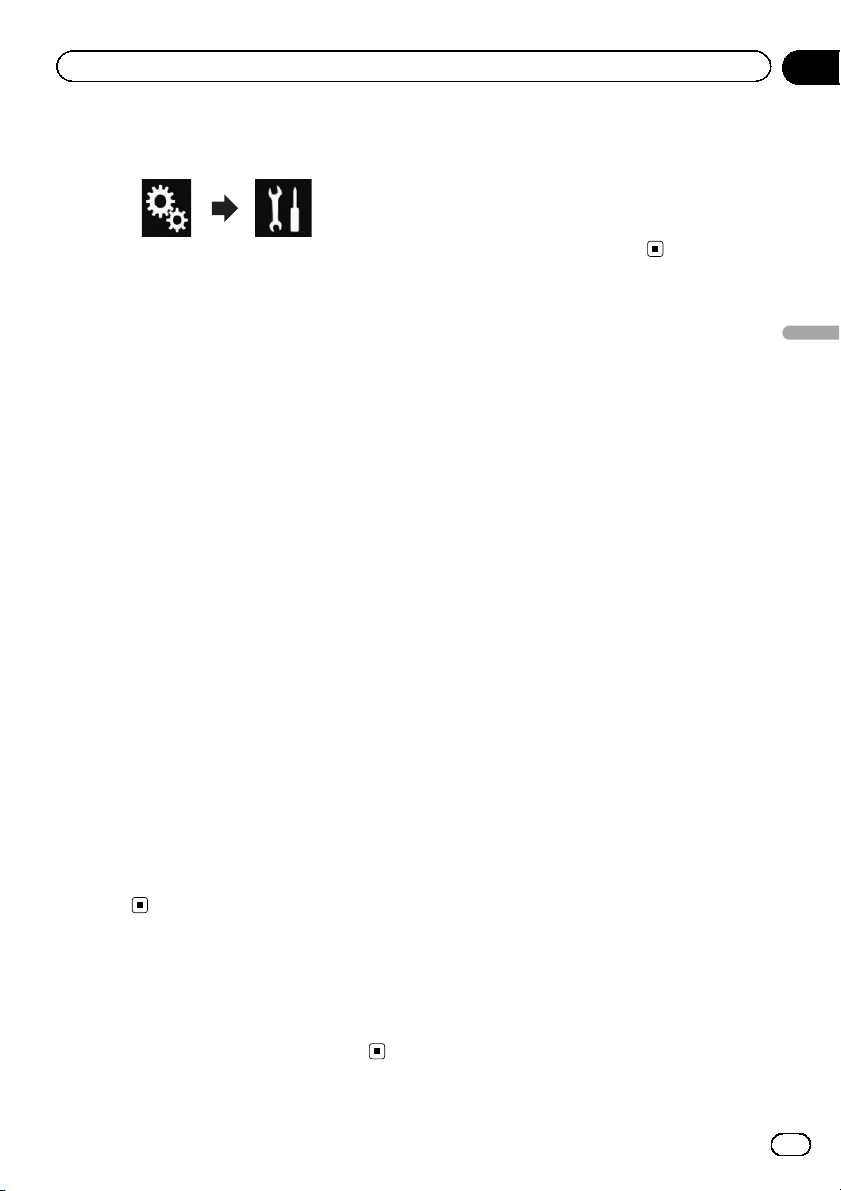
2 Touch the following keys in the follow-
ing order.
The “System” screen appears.
3 Touch [AV Source Settings].
4 Touch [Radio Settings].
5 Touch [Local].
The pop-up menu appears.
6 Touch the item you want to set.
FM
! Off (default):
Turns the seek tuning setting off.
! Level1:
Sets the level of sensitivity for FM to level 1.
! Level2:
Sets the level of sensitivity for FM to level 2.
! Level3:
Sets the level of sensitivity for FM to level 3.
! Level4:
Sets the level of sensitivity for FM to level 4.
AM
! Off (default):
Turns the seek tuning setting off.
! Level1:
Sets the level of sensitivity for AM to level 1.
! Level2:
Sets the level of sensitivity for AM to level 2.
p The FM “Level4” (AM “Level2”) setting al-
lows reception of only stations with the
strongest signals, while lower settings
allow reception of those with weaker sig-
nals.
Storing song information
to an iPod (iTunes Tagging)
p For details, refer to Storing song information
to an iPod (iTunes Tagging) on page 103.
Operating with the buttons
Touch the TRK button
You can move the preset channels up or down.
Touch and hold the TRK button
You can perform seek tuning.
En
35
Chapter
06
Using the radio
Using the radio
You can play compressed audio files stored in
a USB storage device.
= For details, refer to Media compatibility
chart on page 120.
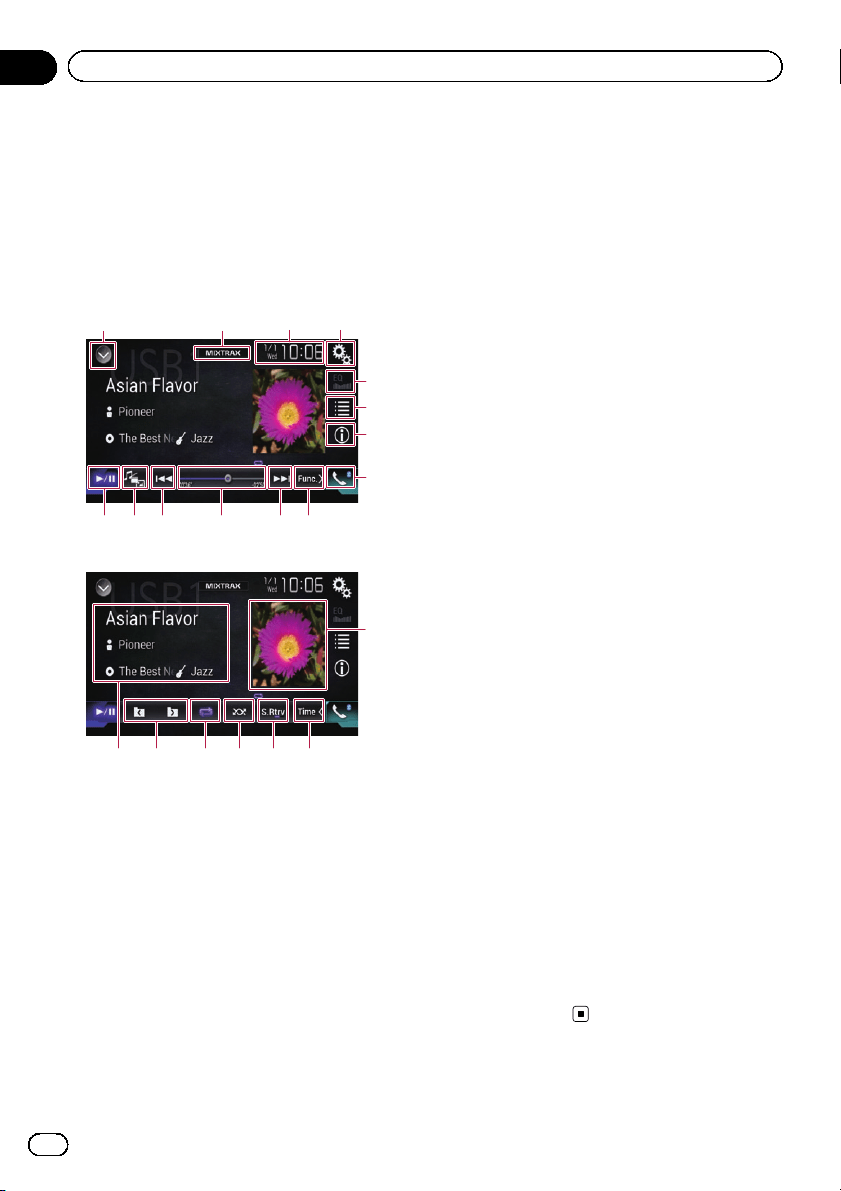
Using the touch panel keys
Playback screen (page 1)
1243
9
5
6
7
8
d c aba
Playback screen (page 2)
9fghi
e
j
1 Displays the source list.
= For details, refer to Selecting a front
source on the source list on page 12.
2 Displays the MIXTRAX screen.
= For details, refer to Chapter 17.
3 Displays the Time and date setting
screen.
= For details, refer to Setting the time and
date on page 103.
4 Displays the Setting menu screen.
5 Recalls equalizer curves.
= For details, refer to Using the equalizer
on page 92.
6 Selects a file from the list.
= For details, refer to Selecting files from
the file name list on page 38.
Displays a list related to the song cur-
rently playing (link search).
= For details, refer to Selecting a file from
the list related to the song currently play-
ing (link search) on page 38.
7 Switches the text display between tag in-
formation and file/folder information.
= For details, refer to Reading the screen
on page 37.
= For details, refer to Switching the browse
mode on page 38.
8 Displays the Phone menu screen.
= For details, refer to Displaying the phone
menu on page 21.
9 Switches to the next or previous page of
touch panel keys.
a Skips files forward or backward.
b Changes the playback point by dragging
the key.
= For details, refer to Operating the time
bar on page 14.
c Switches the media file type.
= For details, refer to Switching the media
file type on page 39.
d Switches between playback and pause.
e Displays the album list.
= For details, refer to Displaying the album
list on page 39.
f Uses “Sound Retriever” function.
= For details, refer to Setting the “Sound
Retriever” function on page 104.
g Plays files in random order.
= For details, refer to Playing files in ran-
dom order on page 39.
h Sets a repeat play range.
= For details, refer to Setting a repeat play
range on page 39.
i Selects the previous folder or the next
folder.
j Displays the category list including the
selected item.
En
36
Chapter
07
Playing compressed audio files
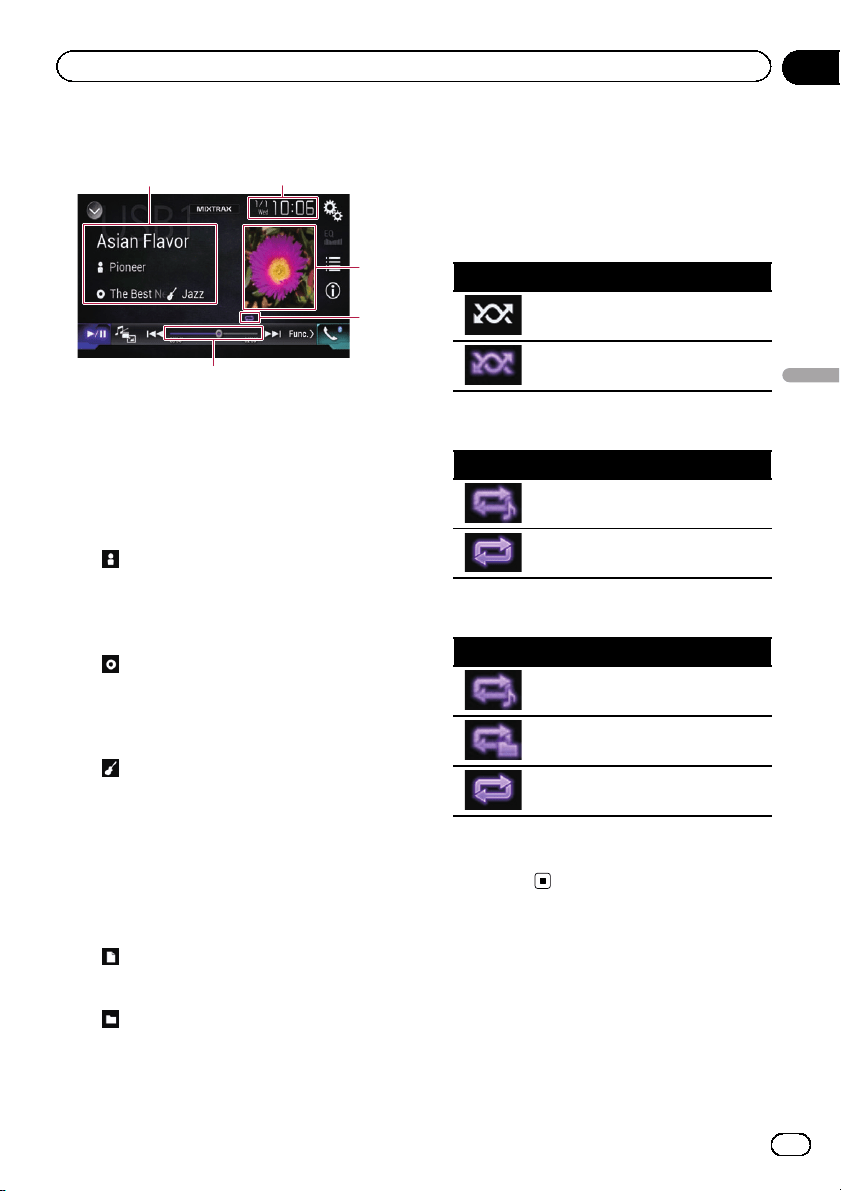
Reading the screen
5
2
4
3
1
1 Current file information
Music Browse mode
! Song title/File name
Shows the title of the song currently
playing (when available). If the title of a
song is not available, the file name ap-
pears.
!
: Artist name
Shows the artist name for the song cur-
rently playing (when available). “No
Name” is displayed if there is no corre-
sponding information.
!
: Album title/Folder name
Shows the title of the album of the cur-
rent file (when available). If the title of
the album is not available, the folder
name appears.
!
: Genre
Shows the genre of the current file
(when available). “No Genre” is dis-
played if there is no corresponding infor-
mation.
p Nothing is displayed if the song cur-
rently playing is in a format which does
not support these functions.
Folder Browse mode
! : File name
Shows the name of the file currently
playing.
!
: Folder name
Shows the name of the folder contain-
ing the file currently playing.
2 Current time and date
3 Album artwork
Album art of the current song is displayed if it
is available.
4 Playback condition indicator
Indicates the current playback condition.
Playing files in random order
Indicator Meaning
Does not play files in random order.
Plays all files within the repeat range
in random order.
Setting a repeat play range (for Music
Browse mode)
Indicator Meaning
Repeats just the current file.
Repeats all compressed audio files.
Setting a repeat play range (for Folder
Browse mode)
Indicator Meaning
Repeats just the current file.
Repeats just the current folder.
Repeats all compressed audio files.
5 Play time indicator
Shows the elapsed playing time within the
current file.
Starting procedure
1 Display the AV source selection screen.
= For details of the operations, refer to Dis-
playing the AV operation screen on page 12.
En
37
Chapter
07
Playing compressed audio files
Playing compressed audio files
2 Plug the USB storage device into the
USB connector.
= For details, refer to Plugging in a USB sto-
rage device on page 8.
3 Touch [USB] on the AV source selection
screen.
The image is displayed on the screen.
4 Use the touch panel keys on the screen
to control the USB storage device.
= For details, refer to Using the touch panel
keys on page 36.
p Playback is performed in order of folder
numbers. Folders are skipped if they con-
tain no playable files. If there are no play-
able files in folder 01 (root folder), playback
starts from folder 02.
Switching the browse mode
This product supports two types of browse
modes: Folder Browse mode and Music
Browse mode.
Music Browse mode
Displays a song title, artist name, album name
and genre in the current file information dis-
play area on the AV operation screen. Select
when you want to play music files narrowed
down by a category of song title, artist name,
album name or genre.
If connecting a USB storage device, this pro-
duct accesses the database of music files with
tag information and switches to the Music
Browse mode automatically.
Folder Browse mode
Displays a folder name and file name in the
current file information display area on the AV
operation screen. Select when you want to
search for music files in the list screen or
folders on the list screen.
p You can switch between the browse modes
for file search by touching the tabs on the
list screen.
% Touch the following key repeatedly
until the desired setting appears.
Switches the display between
Music Browse mode and Folder
Browse mode.
Selecting files from the file
name list
You can find files or folders to play back using
the file name or folder name list which is a list
of the files or folders stored in the USB storage
device.
1 Touch the following key.
Displays the list of the files or
folders stored in the USB storage
device.
2 Touch a file on the list to play back.
p Files are played back in file number order.
p Touching a folder on the list shows its con-
tents. You can play a file on the list by
touching it.
Selecting a file from the list
related to the song currently
playing (link search)
You can select files to play back using the file
list which is a list of the files recorded in the
USB storage device.
1 Display the Music Browse mode.
= For details, refer to Switching the browse
mode on page 38.
2 Touch the following key.
Displays the list of the files or
folders stored in the USB storage
device.
En
38
Chapter
07
Playing compressed audio files
3 Touch the desired category to display
the file list.
The list screen appears.
4 Touch the item that you want to refine.
Refine the item until the desired song title or
file name is displayed on the list.
p Touching [All] on the list includes all op-
tions in the current list. For example, if you
touch [All] after touching [Artists], you can
proceed to the next screen with all artists in
the list selected.
p After you select “Artists”, “Albums” or
“Genres”, go on to touch one of the lists to
start playing the first song in the selected
list and display the next options.
5 Touch the desired song title or file
name to play back.
Displaying the album list
1 Touch the artwork to open a list of the
albums stored on the USB storage device.
2 Touch the desired album.
3 Touch the name of the song you want
to play to start playing that song.
p If part of the recorded information is not
displayed, a scroll key appears on the right
side of list. Touch the scroll key to scroll.
Playing files in random order
All files in the USB storage device can be
played at random by only touching a single
key.
% Touch the following key repeatedly
until the desired setting appears.
Turns random play on or off.
! (default):
Does not play files in random order.
!
:
Plays all audio files in the current repeat
play range in random order.
p If you turn random play on when the re-
peat play range is set to the current file,
the repeat play range changes to the
whole of the USB storage device auto-
matically.
Setting a repeat play range
The repeat play range can be changed by only
touching a single key.
% Touch the following key repeatedly
until the desired setting appears.
Changes the repeat play range.
Music Browse mode
! (default):
Repeats all files.
!
:
Repeats just the current file.
Folder Browse mode
! (default):
Repeats all files.
!
:
Repeats the current folder.
!
:
Repeats just the current file.
Switching the media file type
When playing a digital media containing a
mixture of various media file types you can
switch between media file types to play.
1 Touch the following key.
Displays the pop-up menu for selecting
a media file type to play in the USB sto-
rage device.
En
39
Chapter
07
Playing compressed audio files
Playing compressed audio files

2 Touch the item you want to set.
! Music:
Switches the media file type to music (com-
pressed audio).
! Video:
Switches the media file type to video.
! Photo:
Switches the media file type to still image
(JPEG data).
Operating with the buttons
Touch the TRK button
You can skip files forward or backward.
Touch and hold the TRK button
You can perform fast reverse or fast for-
ward.
En
40
Chapter
07
Playing compressed audio files
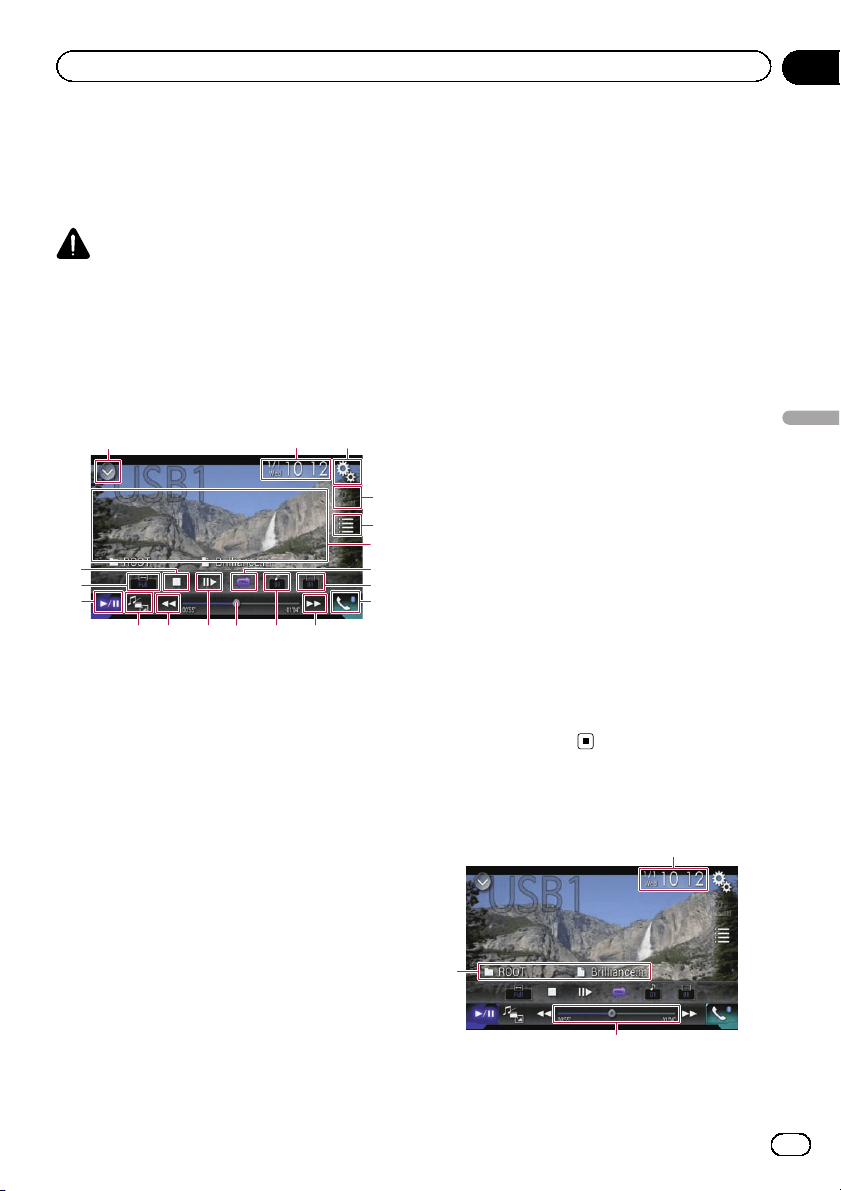
You can play compressed video files stored in
a USB storage device.
= For details, refer to Media compatibility
chart on page 120.
CAUTION
For safety reasons, video images cannot be
viewed while your vehicle is in motion. To view
video images, you must stop in a safe place and
apply the parking brake.
Using the touch panel keys
132
4
5
9
ce
f
g
h
a bda
6
7
8
1 Displays the source list.
= For details, refer to Selecting a front
source on the source list on page 12.
2 Displays the Time and date setting
screen.
= For details, refer to Setting the time and
date on page 103.
3 Displays the Setting menu screen.
4 Recalls equalizer curves.
= For details, refer to Using the equalizer
on page 92.
5 Selects a file from the list.
= For details, refer to Selecting files from
the file name list on page 42.
6 Hides the touch panel keys.
Touching this area hides the touch panel keys.
p Touch anywhere on the LCD screen to
display the touch panel keys again.
7 Sets a repeat play range.
= For details, refer to Setting a repeat play
range on page 42.
8 Switches the subtitle language.
With DivX featuring multi-subtitle recordings,
you can switch between subtitle languages
during playback.
9 Displays the Phone menu screen.
= For details, refer to Displaying the phone
menu on page 21.
a Skips files forward or backward.
b Switches the audio language.
With DivX files that provide audio playback in
different languages and different audio sys-
tems (Dolby Digital, DTS, etc.), you can switch
between languages or audio systems during
playback.
c Changes the playback point by dragging
the key.
= For details, refer to Operating the time
bar on page 14.
d Slows down playback speed (slow-mo-
tion playback).
= For details, refer to Slow motion playback
on page 42.
e Switches the media file type.
= For details, refer to Switching the media
file type on page 43.
f Switches between playback and pause.
g Changes the wide screen mode.
= For details, refer to Changing the wide
screen mode on page 104.
h Stops playback.
Reading the screen
3
2
1
1 Current time and date
En
41
Chapter
08
Playing compressed video files
Playing compressed video files
2 Play time indicator
Shows the elapsed playing time within the
current file.
3 Current file information
! : File name
Shows the name of the file currently
playing.
!
: Folder name
Shows the name of the folder contain-
ing the file currently playing.
Starting procedure
1 Display the AV source selection screen.
= For details of the operations, refer to Dis-
playing the AV operation screen on page 12.
2 Plug the USB storage device into the
USB connector.
= For details, refer to Plugging in a USB sto-
rage device on page 8.
3 Touch [USB] on the AV source selection
screen.
The image is displayed on the screen.
4 Use the touch panel keys on the screen
to control the USB storage device.
= For details, refer to Using the touch panel
keys on page 41.
p Playback is performed in order of folder
numbers. Folders are skipped if they con-
tain no playable files. If there are no play-
able files in folder 01 (root folder), playback
starts from folder 02.
Selecting files from the file
name list
You can select files to view using the file name
list which is a list of the files stored in the USB
storage device.
1 Touch the following key.
Displays the list of the files or
folders stored in the USB storage
device.
2 Touch a file on the list to play back.
p Files are played back in file number order
and folders are skipped if they contain no
files. (If folder 01 (root folder) contains no
files, playback commences with folder 02.)
p Touching a folder on the list shows its con-
tents. You can play a file on the list by
touching it.
# Touch the playback sign of the thumbnail to
preview the file.
Setting a repeat play range
The repeat play range can be changed by only
touching a single key.
% Touch the following key repeatedly
until the desired setting appears.
Changes the repeat play range.
! (default):
Repeats all files.
!
:
Repeats just the current folder.
!
:
Repeats just the current file.
Slow motion playback
This lets you slow down the playback speed.
1 Touch and hold [r] until an arrow icon
is displayed during playback.
The arrow icon is displayed, and forward slow
motion playback begins.
p To return to normal playback, touch [d/e].
En
42
Chapter
08
Playing compressed video files
2 Touch [r] to adjust playback speed
during slow motion playback.
p There is no sound during slow motion play-
back.
p With some USB storage devices, images
may be unclear during slow motion play-
back.
p Reversed slow motion playback is not possi-
ble.
Switching the media file type
When playing a digital media containing a
mixture of various media file types you can
switch between media file types to play.
1 Touch the following key.
Displays the pop-up menu for selecting
a media file type to play in the USB sto-
rage device.
2 Touch the item you want to set.
! Music:
Switches the media file type to music (com-
pressed audio).
! Video:
Switches the media file type to video.
! Photo:
Switches the media file type to still image
(JPEG data).
Operating with the buttons
Touch the TRK button
You can skip files forward or backward.
Touch and hold the TRK button
You can perform fast reverse or fast for-
ward.
En
43
Chapter
08
Playing compressed video files
Playing compressed video files
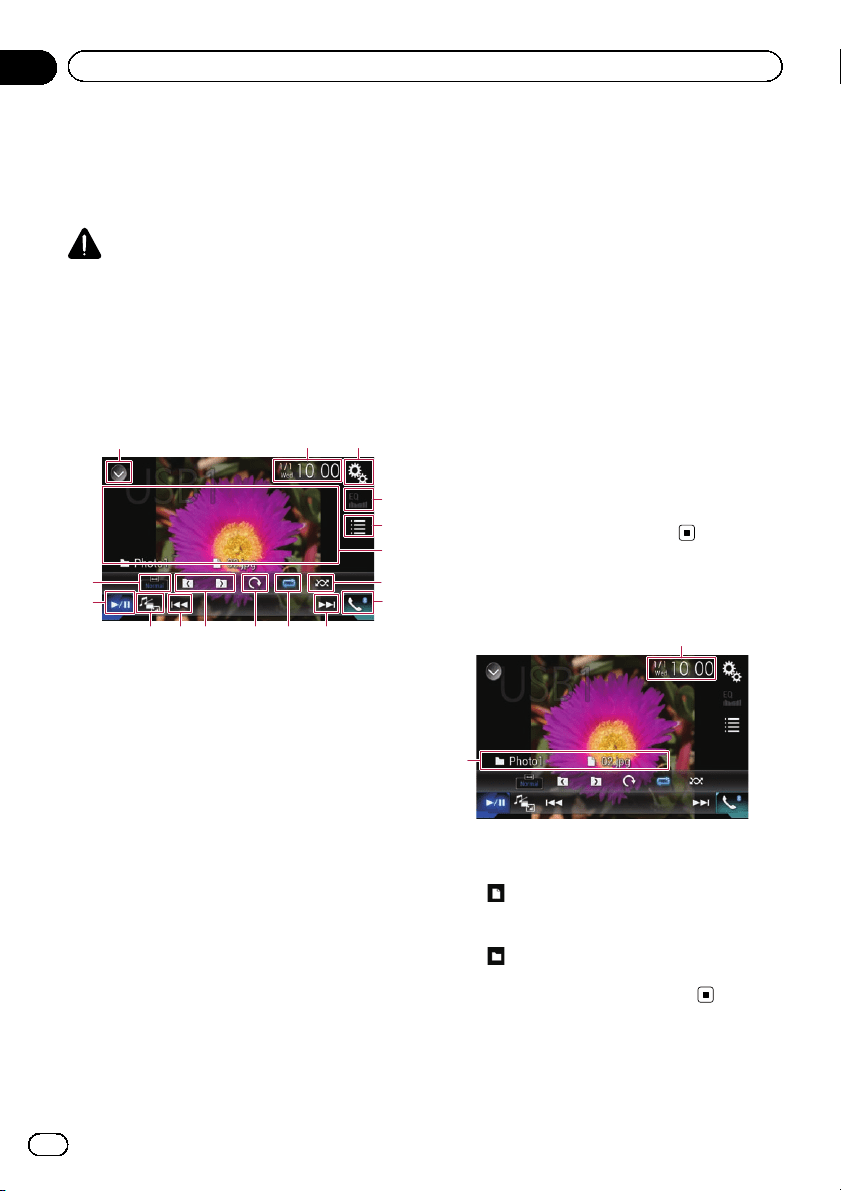
You can view still images stored in a USB de-
vice.
= For details, refer to Media compatibility
chart on page 120.
CAUTION
For safety reasons, still images cannot be viewed
while your vehicle is in motion. To view still
images, you must stop in a safe place and apply
the parking brake.
Using the touch panel keys
132
4
5
8
abcd
e
f
9 9
6
7
1 Displays the source list.
= For details, refer to Selecting a front
source on the source list on page 12.
2 Displays the Time and date setting
screen.
= For details, refer to Setting the time and
date on page 103.
3 Displays the Setting menu screen.
4 Recalls equalizer curves.
p This key is not available while you are
viewing still images stored in a USB sto-
rage device.
5 Selects a file from the list.
= For details, refer to Selecting files from
the file name list on page 45.
6 Hides the touch panel keys.
Touching this area hides the touch panel keys.
p Touch anywhere on the LCD screen to
display the touch panel keys again.
7 Plays files in random order.
= For details, refer to Playing files in ran-
dom order on page 45.
8 Displays the Phone menu screen.
= For details, refer to Displaying the phone
menu on page 21.
9 Skips files forward or backward.
a Sets a repeat play range.
= For details, refer to Setting a repeat play
range on page 45.
b Rotates the displayed picture 90° clock-
wise.
c Selects the previous folder or the next
folder.
d Switches the media file type.
= For details, refer to Switching the media
file type on page 45.
e Switches between playback and pause.
f Changes the wide screen mode.
= For details, refer to Changing the wide
screen mode on page 104.
Reading the screen
2
1
1 Current time and date
2 Current file information
! : File name
Shows the name of the file currently
playing.
!
: Folder name
Shows the name of the folder contain-
ing the file currently playing.
En
44
Chapter
09
Playing compressed still image files
Starting procedure
1 Display the AV source selection screen.
= For details of the operations, refer to Dis-
playing the AV operation screen on page 12.
2 Plug the USB storage device into the
USB connector.
= For details, refer to Plugging in a USB sto-
rage device on page 8.
p Playback is performed in order of folder
numbers. Folders are skipped if they con-
tain no playable files. If there are no play-
able files in folder 01 (root folder), playback
starts from folder 02.
3 Touch [USB] on the AV source selection
screen.
The image is displayed on the screen.
4 Use the touch panel keys on the screen
to control the USB storage device.
= For details, refer to Using the touch panel
keys on page 44.
Selecting files from the file
name list
You can select files to view using the file name
list which is a list of the files stored in the USB
storage device.
1 Touch the following key.
Displays the list of the files stored
in the USB storage device.
2 Touch a file on the list to play back.
p Files are played back in file number order
and folders are skipped if they contain no
files. (If folder 01 (root folder) contains no
files, playback commences with folder 02.)
p Touching a folder on the list shows its con-
tents. You can play a file on the list by
touching it.
Playing files in random order
All files in the USB storage device can be
played at random by only touching a single
key.
% Touch the following key repeatedly
until the desired setting appears.
Turns random play on or off.
! (default):
Does not play files in random order.
!
:
Plays all files in the current repeat play
range in random order.
p If you turn random play on when the re-
peat play range is set to the current file,
the repeat play range changes to the
whole of the USB storage device auto-
matically.
Setting a repeat play range
The repeat play range can be changed by only
touching a single key.
% Touch the following key repeatedly
until the desired setting appears.
Changes the repeat play range.
! (default):
Repeats all files.
!
:
Repeats the current folder.
Switching the media file type
When playing a digital media containing a
mixture of various media file types you can
switch between media file types to play.
1 Touch the following key.
Displays the pop-up menu for selecting
a media file type to play in the USB sto-
rage device.
En
45
Chapter
09
Playing compressed still image files
Playing compressed still image files
2 Touch the item you want to set.
! Music:
Switches the media file type to music (com-
pressed audio).
! Video:
Switches the media file type to video.
! Photo:
Switches the media file type to still image
(JPEG data).
Setting the slideshow interval
JPEG files can be viewed as a slideshow on
this product. In this setting, the interval be-
tween each image can be set.
p This setting is available during playback of
the JPEG files.
1 Touch the HOME button to display the
Top menu screen.
2 Touch the following keys in the follow-
ing order.
The “Video Setup” screen appears.
3 Touch [Time Per Photo Slide].
The pop-up menu appears.
4 Touch the item you want to set.
! 10sec (default):
JPEG images switch at intervals of 10 sec-
onds.
! 5sec:
JPEG images switch at intervals of 5 sec-
onds.
! 15sec:
JPEG images switch at intervals of 15 sec-
onds.
! Manual:
JPEG images can be switched manually.
Operating with the buttons
Touch the TRK button
You can skip files forward or backward.
Touch and hold the TRK button
You can search 10 JPEG files at a time.
p If the number of files in the folder (from the
file currently being played to the first or last
file) is fewer than 10, the first or last file in
the folder is automatically played.
p If the file currently being played is the first
or last file in the folder, the search is not
performed.
En
46
Chapter
09
Playing compressed still image files
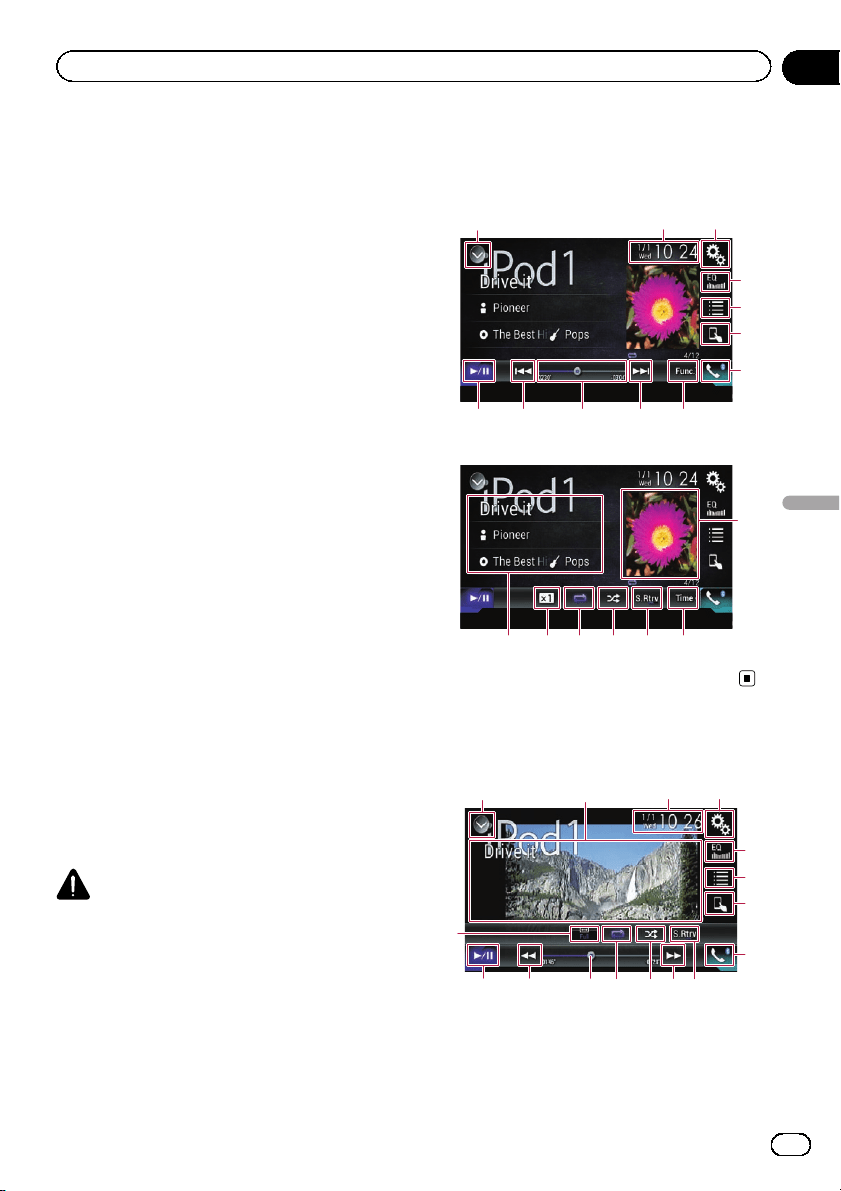
For iPod with a 30-pin connector users
p Depending on your iPod, there may not be
any output unless you use a USB interface
cable for iPod / iPhone (CD-IU201S/CD-
IU201V) (sold separately). Be sure to use a
USB interface cable for iPod / iPhone (CD-
IU201S/CD-IU201V) (sold separately) to
connect your iPod.
iPod audio and/or video sources are en-
abled if either of the cables is connected.
= For details of the connections, refer to
the Installation Manual.
For iPod / iPhone with a Lightning con-
nector users
p To use iPod audio source, you must con-
nect your iPod to this product using a USB
interface cable for iPod / iPhone (CD-IU52)
(sold separately).
However, functions related to iPod video
files and AppRadio Mode are not avail-
able.
p iPod audio and/or video sources are not
available when an iPod with a Lightning
connector is connected to this product
with a interface cable (CD-IH202) (sold se-
parately).
= For details of the connections, refer to
the Installation Manual.
When you want to play audio and/or video
files on your iPod with a Lightning connec-
tor, first install CarMediaPlayer on your
iPod with a Lightning connector and then
launch CarMediaPlayer while in
AppRadio Mode.
For details about the CarMediaPlayer,
refer to the information on our website.
CAUTION
For safety reasons, video images cannot be
viewed while your vehicle is in motion. To view
video images, you must stop in a safe place and
apply the parking brake.
Using the touch panel keys
(for audio)
Playback screen (page 1)
132
8
4
5
6
7
b 9a9
Playback screen (page 2)
8defg
c
h
Using the touch panel keys
(for video)
132
4
5
6
7
b
9a
9
j
c
de
i
1 Displays the source list.
= For details, refer to Selecting a front
source on the source list on page 12.
En
47
Chapter
10
Using an iPod
Using an iPod
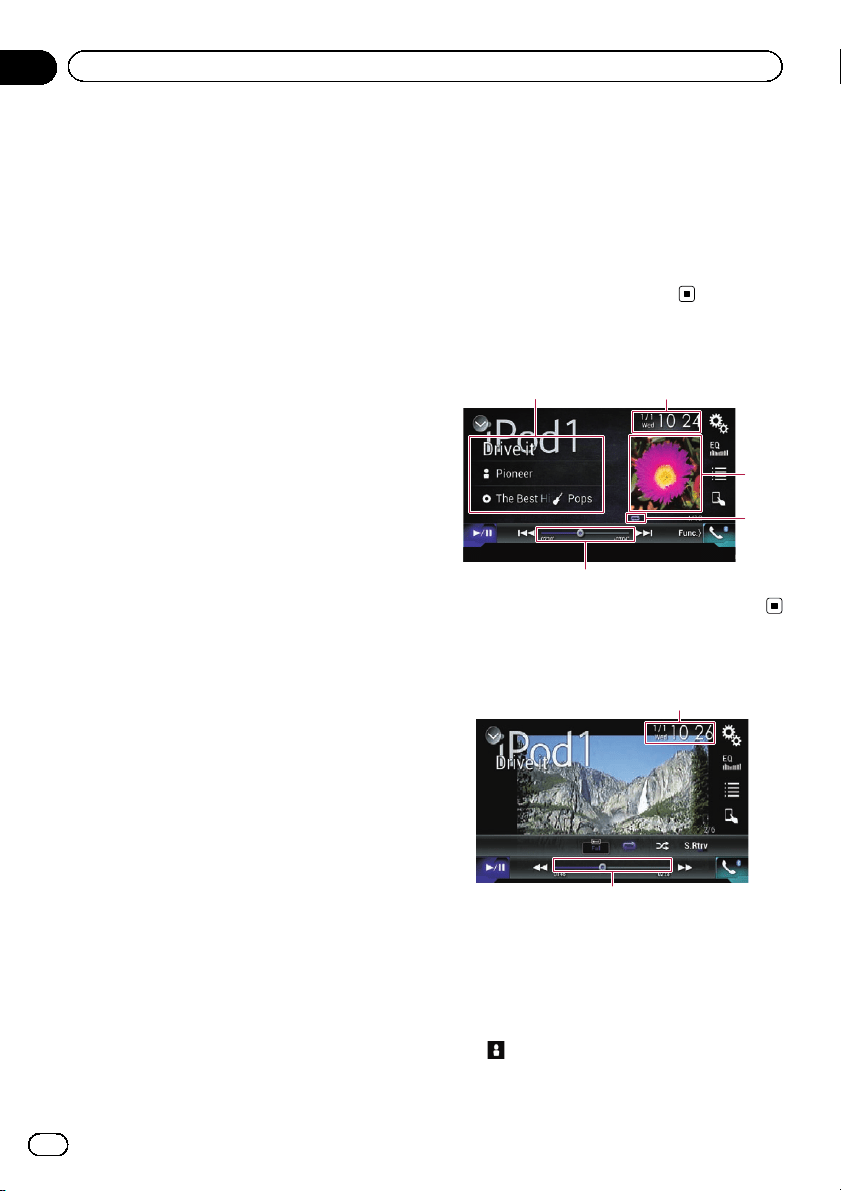
2 Displays the Time and date setting
screen.
= For details, refer to Setting the time and
date on page 103.
3 Displays the Setting menu screen.
4 Recalls equalizer curves.
= For details, refer to Using the equalizer
on page 92.
5 Selects a track from the list.
= For details, refer to Selecting song or
video sources from the playlist screen on
page 50.
6 Switches the control mode to “App
Mode”.
= For details, refer to Using this product’s
iPod function from your iPod on page 51.
7 Displays the Phone menu screen.
= For details, refer to Displaying the phone
menu on page 21.
8 Switches to the next or previous page of
touch panel keys.
9 Skips files forward or backward.
p Availability of the skip-forward function
while playing iTunes Radio depends on
the iPod.
p The skip-back key is not available while
playing iTunes Radio.
a Changes the playback point by dragging
the key.
= For details, refer to Operating the time
bar on page 14.
b Switches between playback and pause.
c Displays the song list of the album cur-
rently playing.
= For details, refer to Displaying lists re-
lated to the song curr ently playing (link
search) on page 52.
d Uses “Sound Retriever” function.
= For details, refer to Setting the “Sound
Retriever” function on page 104.
e Plays files in random order.
= For details, refer to Setting the shuffle
play on page 50.
f Sets a repeat play range.
= For details, refer to Setting a repeat play
range on page 50.
g Changes the audiobook speed.
= For details, refer to Changing the speed
of audiobook playback on page 52.
h Displays the category list including the
selected item.
i Hides the touch panel keys.
Touching this area hides the touch panel keys.
p Touch anywhere on the LCD screen to
display the touch panel keys again.
j Changes the wide screen mode.
= For details, refer to Changing the wide
screen mode on page 104.
Reading the screen (for audio)
5
2
4
3
1
Reading the screen (for video)
5
2
1 Current track information
! Song title
Shows the title of the song currently
playing (when available). “No Title” is
displayed if there is no corresponding
information.
!
: Artist name
En
48
Chapter
10
Using an iPod
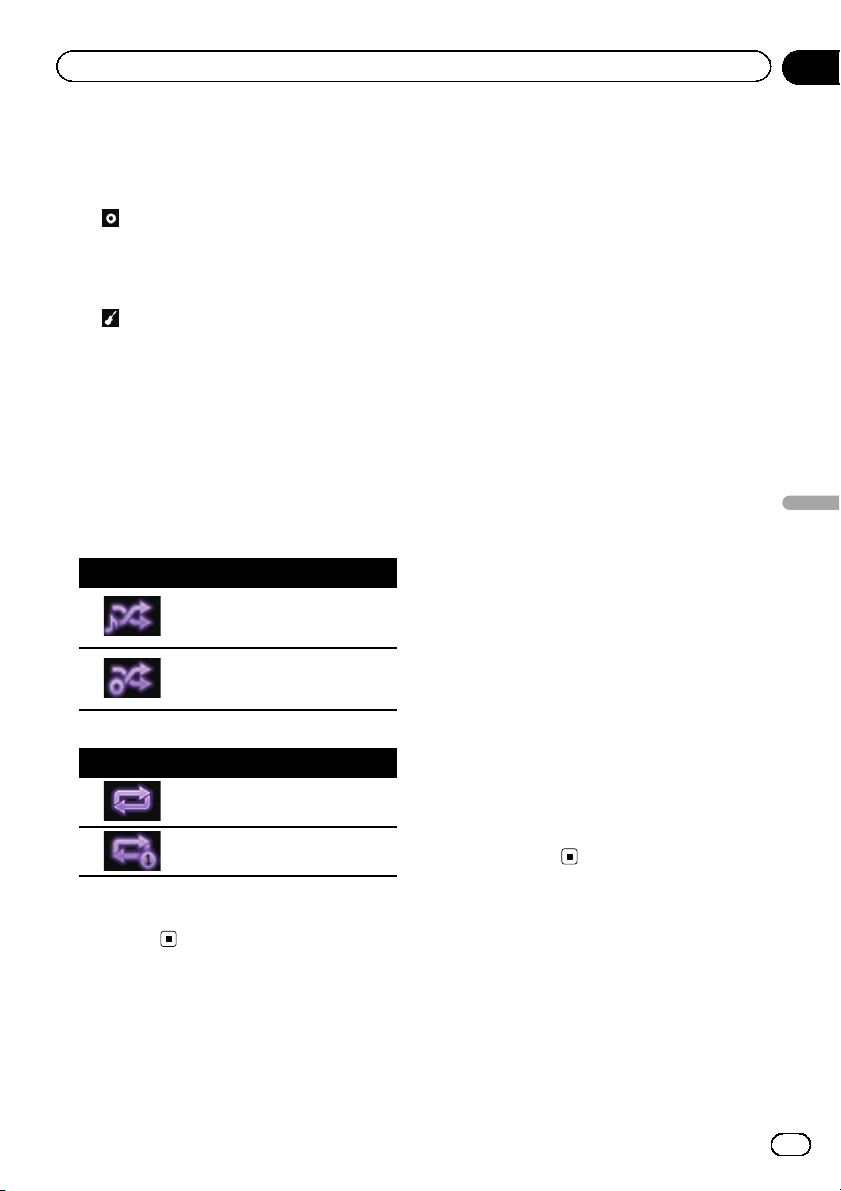
Shows the artist name for the song cur-
rently playing (when available). “No
Name” is displayed if there is no corre-
sponding information.
!
: Album title
Shows the title of the album of the cur-
rent file (when available). “No Title” is
displayed if there is no corresponding
information.
!
: Genre
Shows the genre of the current file
(when available). “No Genre” is dis-
played if there is no corresponding infor-
mation.
2 Current time and date
3 Album artwork
Album art of the current song is displayed if it
is available.
4 Playback condition indicator
Indicates the current playback condition.
Setting the shuffle play
Indicator Meaning
Plays back songs or videos in
random order within the se-
lected list.
Selects an album randomly, and
then plays back all songs in that
album in order.
Setting a repeat play range
Indicator Meaning
Repeats all songs or videos in
the selected list.
Repeats just the current song or
video.
5 Play time indicator
Shows the elapsed playing time within the
current file.
Starting procedure
When connecting an iPod to this product, you
must select the method for connecting your
device. Settings are required according to the
connected device.
= For details, refer to Chapter 5.
1 Display the AV source selection screen.
= For details of the operations, refer to Dis-
playing the AV operation screen on page 12.
2 Connect your iPod.
p If the iPod is already connected, touch
[iPod] on the AV source selection screen.
p If connecting an iPhone or iPod touch, quit
applications before connecting.
p If an iPhone 5s, iPhone 5c, iPhone 5, or
iPod touch (5th generation) is connected,
the media library (song information) will be
imported from the connected device and
saved to this product. Wait until the process
completes.
The media library will not be imported if an
updated media library of the connected de-
vice has been imported or the memory of
this product is full.
3 Touch [iPod] on the AV source selection
screen.
4 Use the touch panel keys on the screen
to control your iPod.
= For details, refer to Using the touch panel
keys (for audio) on page 47.
= For details, refer to Using the touch panel
keys (for video) on page 47.
p The video image of the iPod may have noise
if the rear display outputs the video image.
When noise is produced in the video image
of the iPod, turn off the output setting of the
rear display.
= For details of the operations, refer to Se-
lecting the video for the rear display on
page 106.
En
49
Chapter
10
Using an iPod
Using an iPod
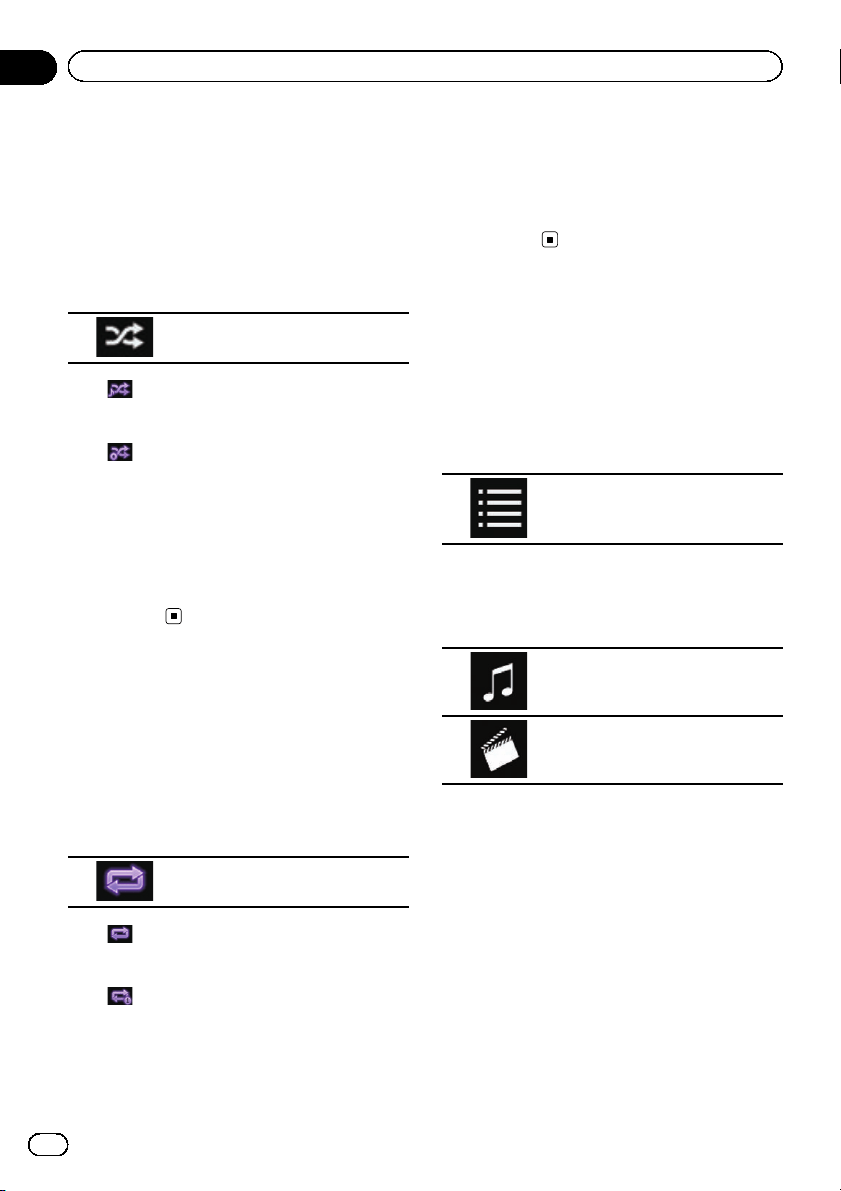
Setting the shuffle play
This function shuffles songs, albums or videos
and plays them in random order.
p This function is not available while playing
iTunes Radio.
% Touch the following key repeatedly
until the desired setting appears.
Turns random play on or off.
! :
Plays back songs or videos in random order
within the selected list.
!
:
Selects an album randomly, and then plays
back all songs in that album in order.
p The icon does not change when using this
function with an iPhone 5s, iPhone 5c,
iPhone 5, or iPod touch (5th generation).
The setting changes when the icon is
touched even though the icon does not
change.
Setting a repeat play range
The repeat play range can be changed by only
touching a single key.
p This function is not available while playing
iTunes Radio.
% Touch the following key repeatedly
until the desired setting appears.
Changes the repeat play range.
! :
Repeats all songs or videos in the selected
list.
!
:
Repeats just the current song or video.
p The icon does not change when using this
function with an iPhone 5s, iPhone 5c,
iPhone 5, or iPod touch (5th generation).
The setting changes when the icon is
touched even though the icon does not
change.
p The no-repeat setting is available only when
an iPhone 5s, iPhone 5c, iPhone 5, or iPod
touch (5th generation) is connected to this
product.
Selecting song or video
sources from the playlist
screen
You can search for the song or video you want
to play from the playlist screen.
1 Touch the following key.
Displays the list of the category.
The “ROOT” screen appears.
2 Touch the following keys to switch the
music or video category list.
Switches to the music category
list.
Switches to the video category list.
3 Touch the category you want to search
for.
Category lists (for music):
! Radio (iTunes Radio)
! Playlists
! Artists
! Albums
! Songs
! Podcasts
! Genres
! Composers
! Audiobooks
Category lists (for video):
! Video Playlists
En
50
Chapter
10
Using an iPod
! Movies
! Music Videos
! TV Shows
! Video Podcasts
p Category items that do not correspond to
the connected iPod are not displayed.
p “Radio” is displayed only if iTunes Radio is
available when using iPod function with an
iPhone 5s, iPhone 5c, iPhone 5, or iPod
touch (5th generation).
4 Touch the Initial Search Bar to display
the alphabet search screen.
p The Initial Search Bar is not displayed in
the top category list or the song list.
5 Touch the first letter of the title of the
song or video you are looking for.
While searching, touch panel key operation is
not available.
p To refine the search with a different letter,
touch [Cancel].
6 Touch the title of the list that you want
to play.
Repeat this operation until you find the de-
sired song or video.
7 Start playback of the selected list.
p Depending on the generation or version of
the iPod, some functions may not be avail-
able.
p You can play playlists created with the
MusicSphere application. The application
is available on our website.
p Playlists that you created with the
MusicSphere application are displayed in
abbreviated form.
Using this product’s iPod
function from your iPod
You can control this product’s iPod function
from the connected iPod if the control mode is
set to “App Mode”. The application screen of
the iPod can be displayed on this product, and
the music files and video files in the iPod can
be played back with this product.
p This function is not available when using
iPod function with an iPhone 5s, iPhone
5c, iPhone 5, or iPod touch (5th genera-
tion).
p While this function is in use, the iPod will
not turn off even if the ignition key is turned
off. Operate the iPod to turn off the power.
1 Touch the following key.
Switches the control mode.
p The control mode switches to “App Mode”.
The icon changes to
.
2 Operate the connected iPod to select a
video or song and play.
p The following functions are still accessible
from this product even if the control mode
is set to “App Mode”. However, the opera-
tion will depend on your applications.
— Playing/pausing
— Fast forwarding/reversing
— Tracking up/down
— Moving up/down to a chapter
3 Touch the following key.
Switches the control mode, to con-
trol iPod functions from this pro-
duct.
En
51
Chapter
10
Using an iPod
Using an iPod
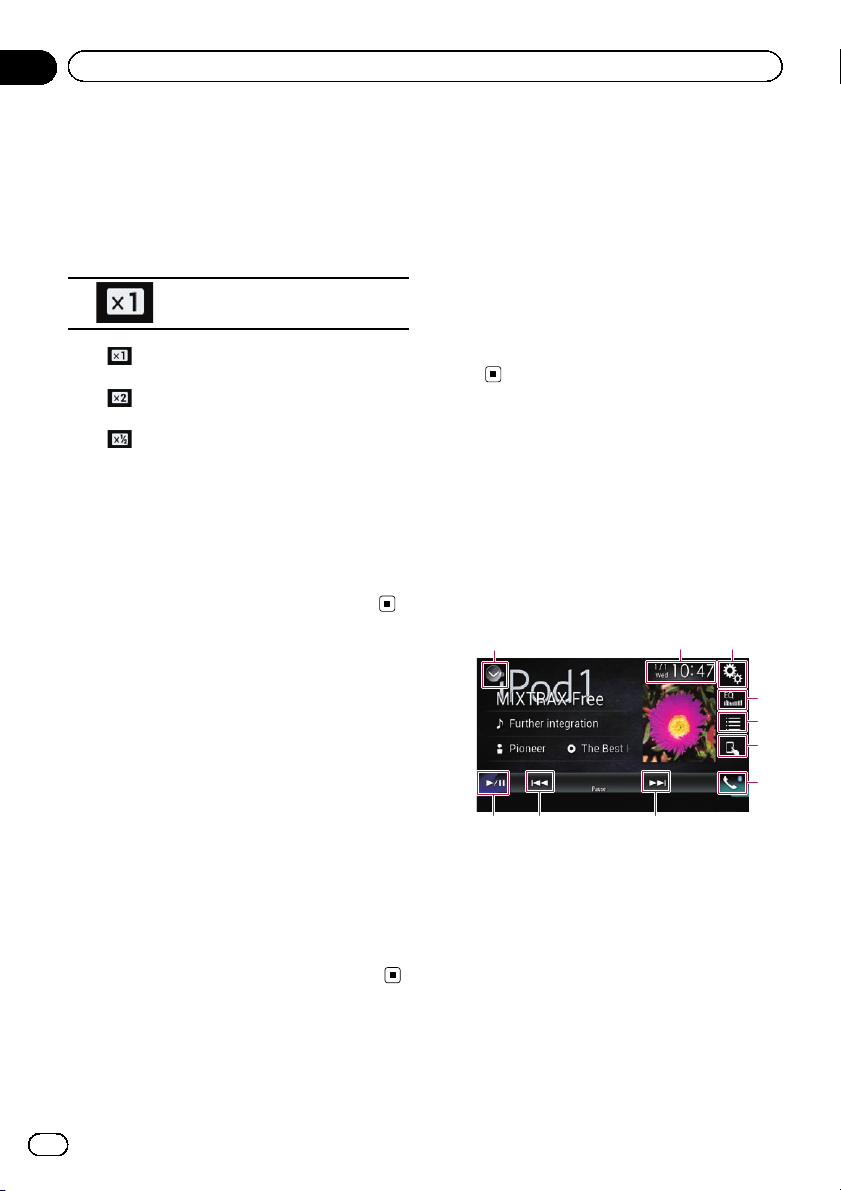
Changing the speed of
audiobook playback
The playback speed can be changed while
playing an audiobook.
% Touch the following key.
Changes the playback speed.
! (default):
Plays back in normal speed.
!
:
Plays back faster than normal speed.
!
:
Plays back slower than normal speed.
p The icon does not change when using this
function with an iPhone 5s, iPhone 5c,
iPhone 5, or iPod touch (5th generation).
The setting changes as follows when the
icon is touched, even though the icon does
not change.
Faster d Slower d Normal d Faster...
Displaying lists related to
the song currently playing
(link search)
p This function is not available while playing
iTunes Radio.
1 Touch the artwork to open a list of the
names of songs on the album currently
playing.
2 Touch the name of the song you want
to play to start playing that song.
p If part of the recorded information is not
displayed, a scroll key appears on the right
side of list. Touch the scroll key to scroll.
Operating with the buttons
Touch the TRK button
You can skip songs or videos forward or back-
ward.
p The skip-back key is not available while
playing iTunes Radio.
When a song or video with chapters is played,
you can skip a chapter forward or backward.
Touch and hold the TRK button
You can perform fast reverse or fast for-
ward.
Playing back music from a
music app other than iPod
music, as the iPod source
The app name and the song information are
also displayed.
Using the touch panel keys
9 8 8
132
4
5
6
7
1 Displays the source list.
= For details, refer to Selecting a front
source on the source list on page 12.
2 Displays the Time and date setting
screen.
= For details, refer to Setting the time and
date on page 103.
3 Displays the Setting menu screen.
4 Recalls equalizer curves.
= For details, refer to Using the equalizer
on page 92.
5 Selects a track from the list.
En
52
Chapter
10
Using an iPod
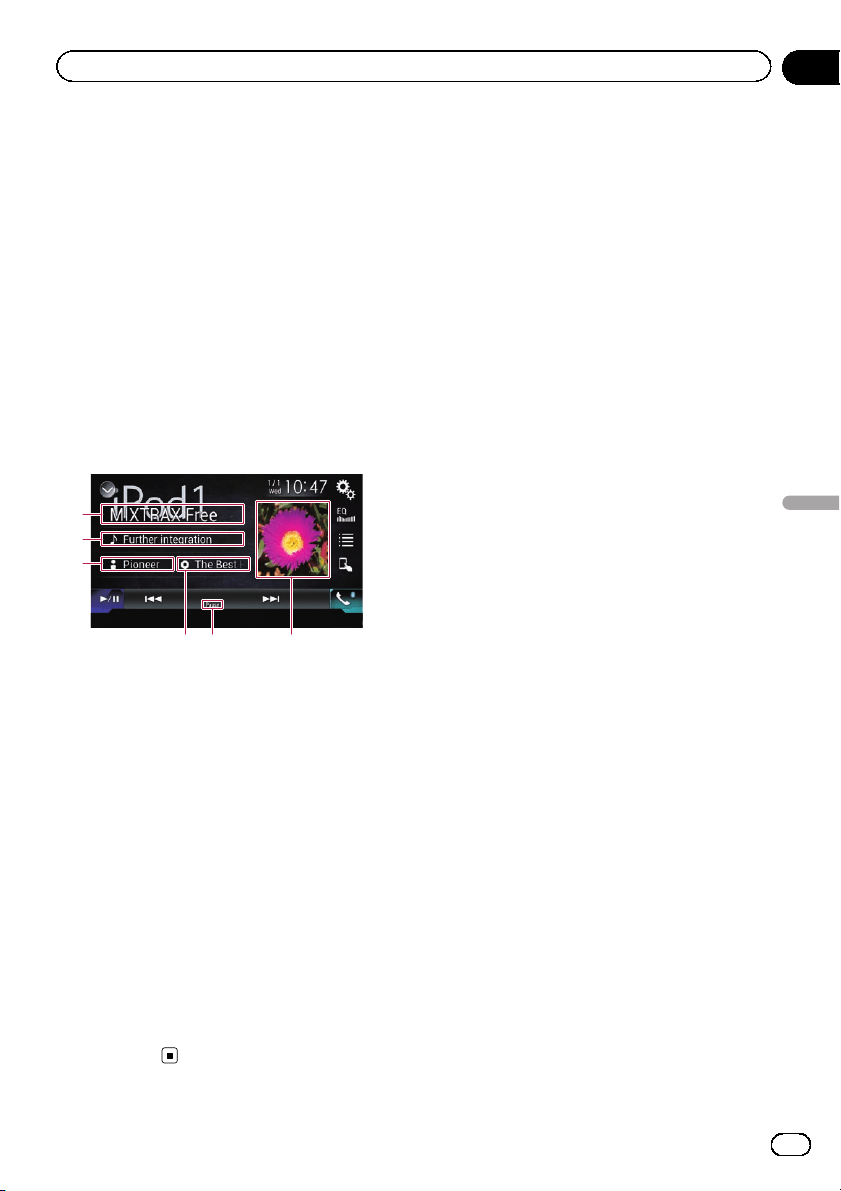
= For details, refer to Selecting song or
video sources from the playlist screen on
page 50.
6 Switches the control mode to “App
Mode”.
= For details, refer to Using this product’s
iPod function from your iPod on page 51.
7 Displays the Phone menu screen.
= For details, refer to Displaying the phone
menu on page 21.
8 Skips files forward or backward.
9 Switches between playback and pause.
Reading the screen
1
2
3
45 6
1 App name
Shows the App name of the currently playing.
2 Song title
Shows the title of the song currently playing
(when available). “No Title” is displayed if
there is no corresponding information.
3 Artist name
Shows the artist name for the song currently
playing (when available). “No Name” is dis-
played if there is no corresponding informa-
tion.
4 Album title
Shows the title of the album of the current file
(when available). “No Title” is displayed if
there is no corresponding information.
5 Pause indicator
6 Album artwork
Album art of the current song is displayed if it
is available.
En
53
Chapter
10
Using an iPod
Using an iPod
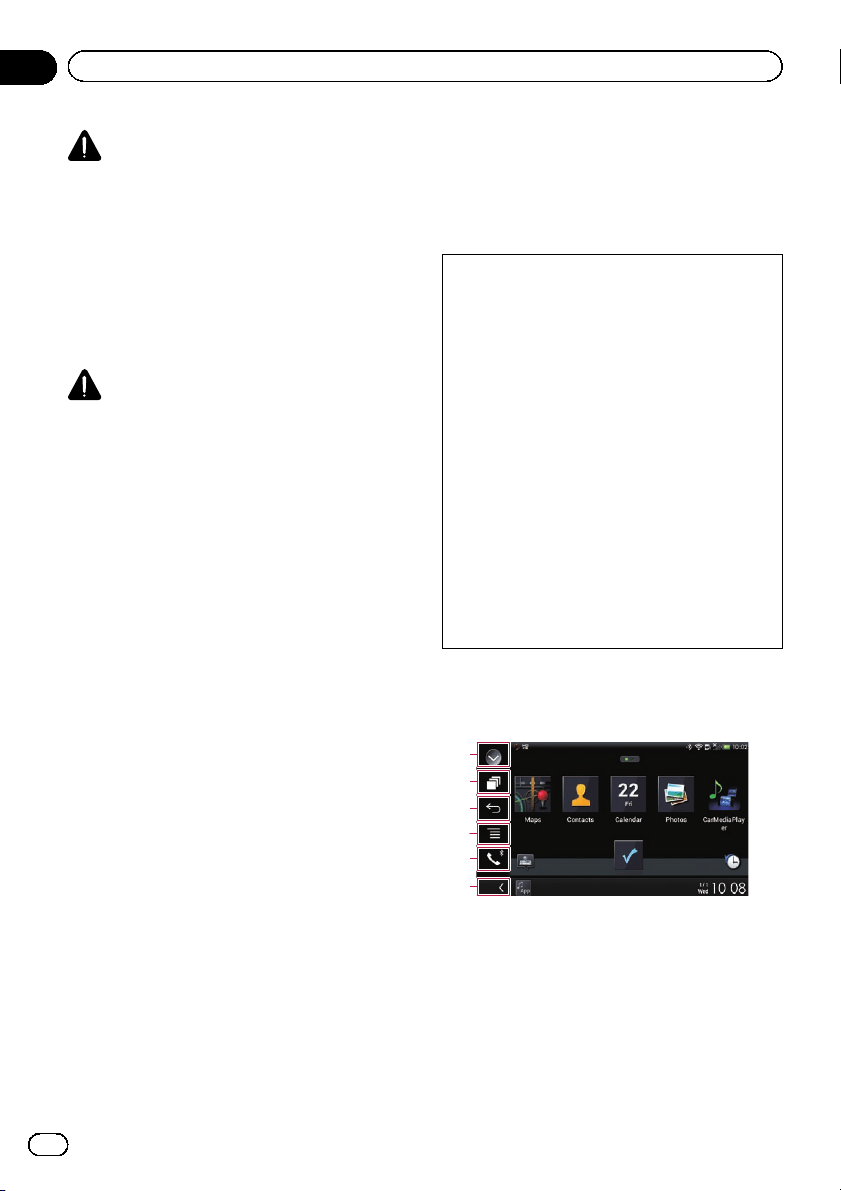
WARNING
Certain uses of an iPhone or a smartphone
may not be legal while driving in your juris-
diction, so you must be aware of and obey
any such restrictions.
If in doubt as to a particular function, only
perform it while the car is parked.
No feature should be used unless it is safe to
do so under the driving conditions you are
experiencing.
CAUTION
For safety reasons, video images cannot be
viewed while your vehicle is in motion. To view
video images, you must stop in a safe place and
apply the parking brake.
Using AppRadio Mode
You can control applications for an iPhone or
a smartphone directly from the screen
(AppRadio Mode).
In AppRadio Mode, you can operate applica-
tions with finger gestures such as tapping,
dragging, scrolling or flicking on the screen of
this product.
p The compatible finger gestures vary de-
pending on the application for an iPhone
or a smartphone.
p When an application not compatible with
AppRadio Mode is started, depending on
the application, you can see an image of
the application on the screen of this pro-
duct. However, you will not be able to oper-
ate the application.
To use AppRadio Mode, install the AppRadio
app on the iPhone or smartphone beforehand
to enable launching of the application on this
product. For details about the AppRadio app,
visit the following site:
For U.S.A.
http://www.pioneerelectronics.com/
AppRadioMode
For Canada
http://www.pioneerelectronics.ca/
AppRadioMode
p Be sure to read Important Information for
the User (a separate manual) before you
perform this operation.
! Pioneer is not liable for any issues that may
arise from incorrect or flawed app-based
content.
! The content and functionality of the sup-
ported applications are the responsibility of
the App providers.
! In AppRadio Mode, functionality through
the product is limited while driving, with
available functions determined by the App
providers.
! Availability of AppRadio Mode functional-
ity is determined by the App provider, and
not determined by Pioneer.
! AppRadio Mode allows access to applica-
tions other than those listed (subject to lim-
itations while driving), but the extent to
which content can be used is determined
by the App providers.
Using the touch panel keys
(App control side bar)
1
2
3
4
5
6
1 Displays the source list.
= For details, refer to Selecting a front
source on the source list on page 12.
2 Displays the launcher application screen.
3 Displays the previous screen.
p When you use an iPhone, this key is not
available.
4 Displays the menu screen.
En
54
Chapter
11
Using your iPhone or smartphone applications

p When you use an iPhone, this key is not
available.
5 Displays the Phone menu screen.
= For details, refer to Displaying the phone
menu on page 21.
6 Displays the current source.
p In AppRadio Mode, App control side bar
will appear.
p If you touch the HOME button twice, the
App control side bar will disappear. Touch
the HOME button twice again, and the App
control side bar will appear.
Starting procedure
When connecting an iPhone or smartphone to
this product, you must select the method for
connecting your device. Settings are required
according to the connected device.
= For details, refer to Chapter 5.
The procedure varies depending on the type of
device.
For iPhone with a 30-pin connector users
1 Connect your iPhone.
= For details of the connections, refer to the
Installation Manual.
2 Touch the HOME button to display the
Top menu screen.
3 Touch [APPS].
A message, which notifies you that your
iPhone can launch the application, appears
on the screen.
A message, which asks you whether you want
to launch your application, appears on your
iPhone.
4 Use your iPhone to launch the applica-
tion.
The AppRadio app is launched.
5 Touch [OK] on the screen of this pro-
duct.
The AppRadio Mode screen (Application
menu screen) appears.
p If you connect your device while an
AppRadio Mode-compatible application is
already running, the application operation
screen will appear on this product.
6 Touch the desired application icon.
The desired application is launched, and the
application operation screen appears.
7 Operate the application.
8 Touch the HOME button to return to
the Top menu screen.
For iPhone with a Lightning
connector users
1 Register your iPhone and connect it to
this product via Bluetooth wireless technol-
ogy.
p The registered device must be selected as
the priority device.
= For details, refer to Registering your
Bluetooth devices on page 16.
2 Unlock your iPhone.
3 Connect your iPhone.
p The cable connection method varies de-
pending on your device.
= For details of the connections, refer to the
Installation Manual.
4 Touch the HOME button to display the
Top menu screen.
5 Touch [APPS].
The AppRadio app is launched, and the
AppRadio Mode screen (Application menu
screen) appears.
p If you connect your device while an
AppRadio Mode-compatible application is
already running, the application operation
screen will appear on this product.
6 Touch the desired application icon.
The desired application is launched, and the
application operation screen appears.
En
55
Chapter
11
Using your iPhone or smartphone applications
Using your iPhone or smartphone applications
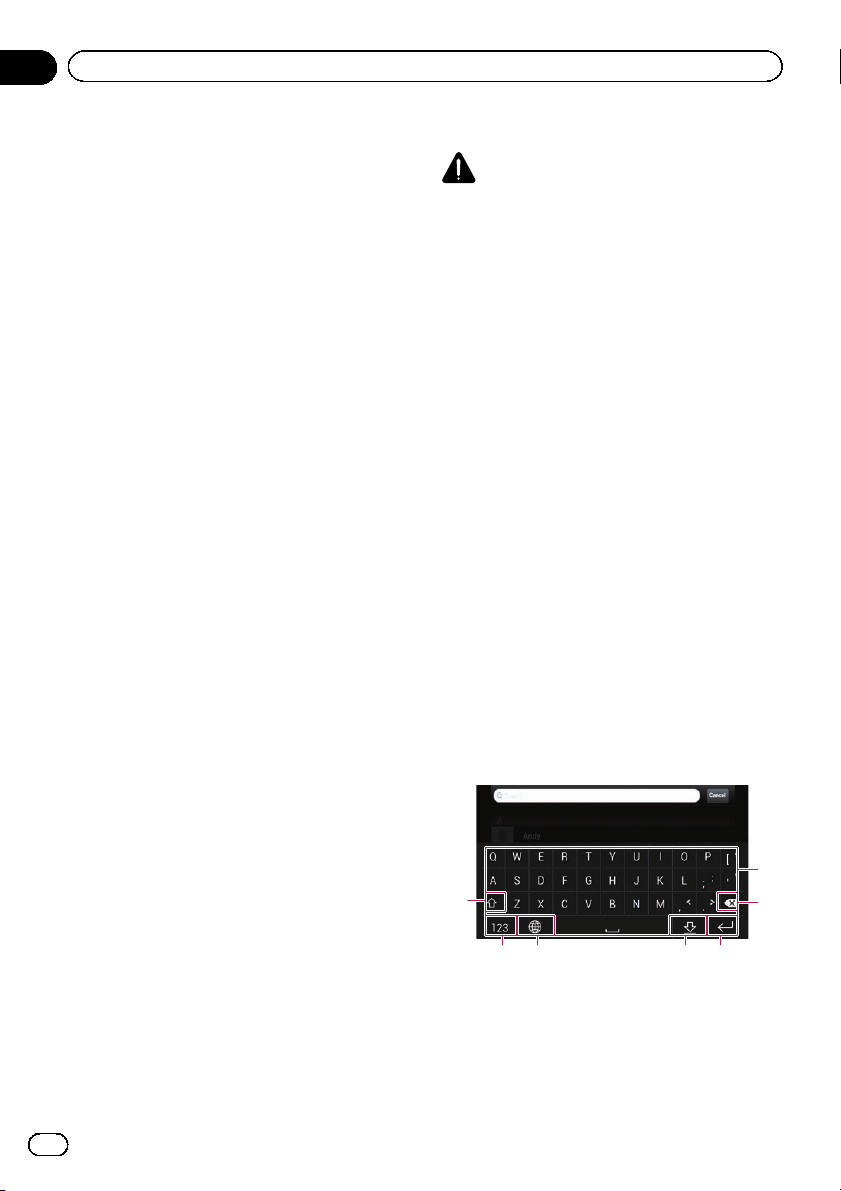
7 Operate the application.
8 Touch the HOME button to return to
the Top menu screen.
For smartphone users
1 Register your smartphone and connect
it to this product via Bluetooth wireless
technology.
p The registered device must be selected as
the priority device.
= For details, refer to Registering your
Bluetooth devices on page 16.
2 Unlock your smartphone.
3 Connect your smartphone to this pro-
duct via the separately sold App Connectiv-
ity Kit (CD-AH200).
p The cable connection method varies de-
pending on your device.
= For details of the connections, refer to the
Installation Manual.
4 Touch the HOME button to display the
Top menu screen.
5 Touch [APPS].
The AppRadio app is launched, and the
AppRadio Mode screen (Application menu
screen) appears.
p If you connect your device while an
AppRadio Mode-compatible application is
already running, the application operation
screen will appear on this product.
6 Touch the desired application icon.
The desired application is launched, and the
application operation screen appears.
7 Operate the application.
8 Touch the HOME button to return to
the Top menu screen.
Using the keyboard
CAUTION
For your safety, the keyboard functionality is only
available when the vehicle is stopped and the
parking brake is engaged.
p This function is only available in AppRadio
Mode on the iPhone.
When you tap the text input area of an applica-
tion for iPhone, a keyboard will be displayed
on the screen. You can input the desired text
directly from this product.
p The language preference for the keyboard
of this product should be same as the set-
ting on your iPhone.
If the settings for this product and the
iPhone are different, you may be unable to
enter characters properly.
1 Set the keyboard language.
= For details of the operations, refer to Setting
the keyboard language with the application
for iPhone on page 81.
2 Start up the AppRadio Mode.
= For details, refer to Starting procedure on
page 55.
3 Touch the text input area on the appli-
cation operation screen.
A keyboard for entering text appears.
1
2
3456
7
1 Enters the characters.
2 Deletes the entered text one letter at a time,
beginning at the end of the text.
3 Confirms the entry and allows you to pro-
ceed to the next step.
En
56
Chapter
11
Using your iPhone or smartphone applications
4 Hides the keyboard and the text can now be
entered using the keyboard of the iPhone.
5 Changes the iPhone keyboard layout.
p The iPhone keyboard layouts that can be
selected by tapping
depends on the
setting for Hardware Keyboard Layout
set on your iPhone.
6 Switches to a keyboard offering numeric
characters and symbols.
7 Converts the case of the keyboard charac-
ters.
Adjusting the image size (For
smartphone users)
Black dots may appear on the screen when
using AppRadio Mode with an Android de-
vice connected to this product.
CAUTION
This setting is available only when you stop your
vehicle in a safe place and apply the parking
brake.
p This function can be set under the follow-
ing conditions:
— When an Android device is connected
to this product using the CD-AH200
(sold separately), and when AppRadio
Mode is available after a Bluetooth con-
nection using SPP (Serial Port Profile)
has been established.
p If this setting has not been set, the setting
screen automatically appears in the follow-
ing cases:
— When entering AppRadio Mode after a
Bluetooth connection using SPP (Serial
Port Profile) has been established.
— When a Bluetooth connection using
SPP (Serial Port Profile) has been estab-
lished in AppRadio Mode.
1 Touch the HOME button to display the
Top menu screen.
2 Touch the following keys in the follow-
ing order.
The “System” screen appears.
3 Touch [Input/Output Settings].
4 Touch [AppRadio Video Adjustment].
The confirmation screen appears.
5 Touch [OK].
6 Touch the following keys to adjust the
line to fit smartphone image size.
Moves the line to the left.
Moves the line to the right.
Moves the line upward.
Moves the line downward.
7 Touch [Preview].
p Confirm that the whole image fills the
screen.
8 Touch [OK].
p If you want to adjust the setting again from
the beginning, touch [RESET].
Displaying the image of your
application (iPhone with 30-pin
connector)
You can set an image of an application for
iPhone, which is not compatible with
AppRadio Mode, to be shown on the screen.
p Depending on the type of application, you
may not be able to see the image on the
screen.
En
57
Chapter
11
Using your iPhone or smartphone applications
Using your iPhone or smartphone applications

p You can only control the application on the
connected device.
p When you touch the display in this func-
tion, “Don’t Touch” mark appears on the
upper right corner of the screen.
1 Connect your iPhone.
= For details of the connections, refer to the
Installation Manual.
2 Touch the HOME button to display the
Top menu screen.
3 Touch [APPS].
A message, which notifies you that your
iPhone can launch the application, appears
on the screen.
A message, which asks you whether you want
to launch your application, appears on your
iPhone.
4 Use your iPhone to refuse to launch the
application.
5 Touch [OK] on the screen of this pro-
duct.
The black screen appears.
6 Launch an application on your iPhone.
An image of the application appears on the
screen.
7 Touch the HOME button to return to
the Top menu screen.
Displaying the image of your
application (iPhone with
Lightning connector)
You can set an image of an application for
smartphone, which is not compatible with
AppRadio Mode, to be shown on the screen.
p Depending on the type of application, you
may not be able to see the image on the
screen.
p When you use this function, do not connect
other devices via Bluetooth wireless tech-
nology. Be sure to disconnect your
Bluetooth device before using this func-
tion.
p You can only control the application on the
connected device.
p When you touch the display in this func-
tion, “Don’t Touch” mark appears on the
upper right corner of the screen.
1 Connect your iPhone.
p The cable connection method varies de-
pending on your device.
= For details of the connections, refer to the
Installation Manual.
2 Touch the HOME button to display the
Top menu screen.
3 Touch [APPS].
The image in your iPhone appears on the
screen.
4 Launch an application on your iPhone.
An image of the application appears on the
screen.
5 Touch the HOME button to return to
the Top menu screen.
Displaying the image of your
application (smartphone)
You can set an image of an application for
smartphone, which is not compatible with
AppRadio Mode, to be shown on the screen.
p Compatibility with all smartphones is not
guaranteed.
p When you use this function, do not connect
other devices via Bluetooth wireless tech-
nology. Be sure to disconnect your
Bluetooth device before using this func-
tion.
p You can only control the application on the
connected device.
p When you touch the display in this func-
tion, “Don’t Touch” mark appears on the
upper right corner of the screen.
En
58
Chapter
11
Using your iPhone or smartphone applications
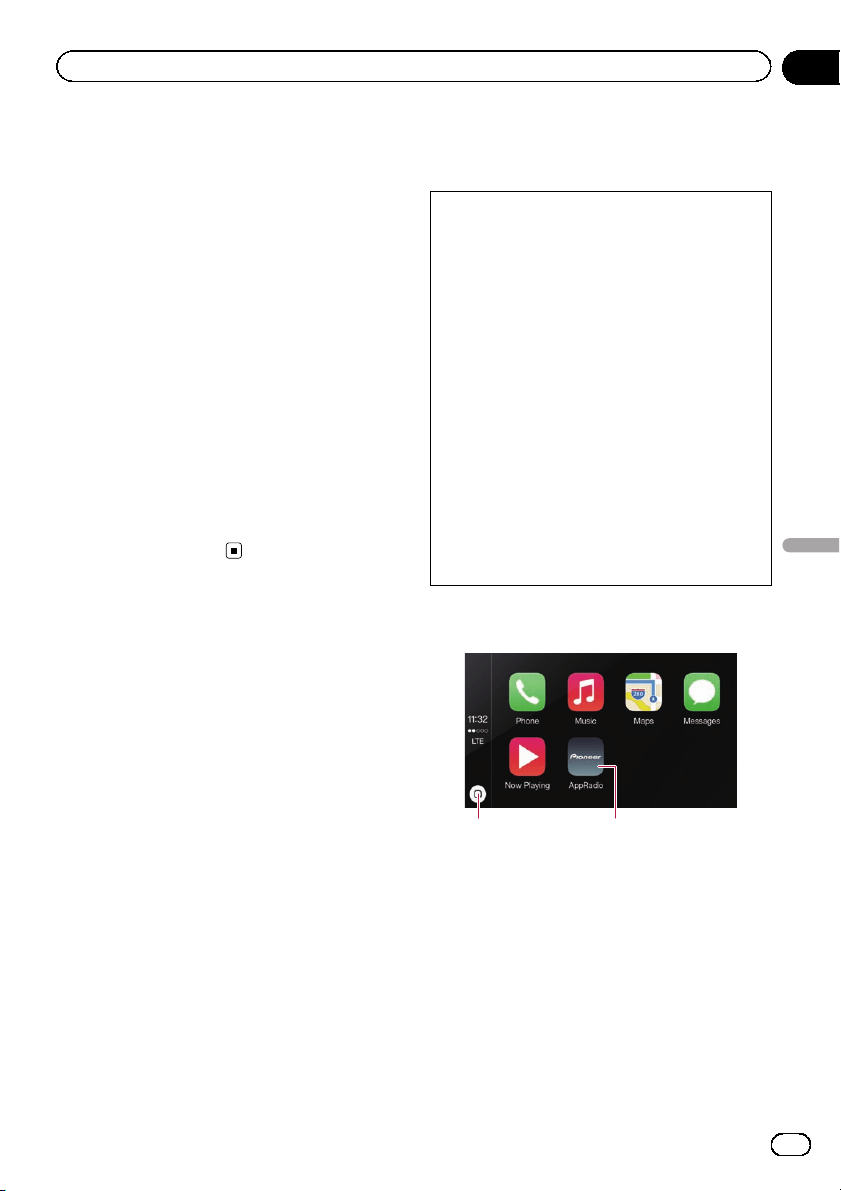
1 Connect your smartphone to this pro-
duct via the separately sold App Connectiv-
ity Kit (CD-AH200).
p The cable connection method varies de-
pending on your device.
= For details of the connections, refer to the
Installation Manual.
2 Touch the HOME button to display the
Top menu screen.
3 Touch [APPS].
The image in your smartphone appears on the
screen.
4 Launch an application on your smart-
phone.
An image of the application appears on the
screen.
5 Touch the HOME button to return to
the Top menu screen.
Using Apple CarPlay
You can control applications for an iPhone di-
rectly from the screen (Apple CarPlay ).
In Apple CarPlay, you can operate applica-
tions with finger gestures such as tapping,
dragging, scrolling or flicking on the screen of
this product.
p Apple CarPlay may not be available in your
country or region.
For details about Apple CarPlay, visit the
following site:
http://www.apple.com/
p In this chapter, the iPhone compatible with
Apple CarPlay is referred to as “iPhone”.
= For details of Apple CarPlay compatible
devices, refer to Using the touch panel
keys (for audio) on page 47.
p The compatible finger gestures vary de-
pending on the application for an iPhone
or a smartphone.
To use Apple CarPlay, set “Apple CarPlay” in
“Smartphone Setup” to “On” beforehand.
= For details, refer to Setting the device con-
nection method on page 28.
! Pioneer is not liable for any issues that may
arise from incorrect or flawed app-based
content.
! The content and functionality of the sup-
ported applications are the responsibility of
the App providers.
! In Apple CarPlay, functionality through the
product is limited while driving, with avail-
able functions determined by the App provi-
ders.
! Availability of Apple CarPlay functionality
is determined by the App provider, and not
determined by Pioneer.
! Apple CarPlay allows access to applica-
tions other than those listed (subject to lim-
itations while driving), but the extent to
which content can be used is determined
by the App providers.
Using the touch panel keys
1 2
1 Displays the Application menu screen
with a single touch of the key.
Launches the voice recognition function if
touching and holding the key.
p You can also launch the voice recogni-
tion function by touching and holding
the HOME button.
2 Displays the Top menu screen of this pro-
duct.
p You can also display the Top menu
screen of this product by touching the
HOME button.
En
59
Chapter
11
Using your iPhone or smartphone applications
Using your iPhone or smartphone applications
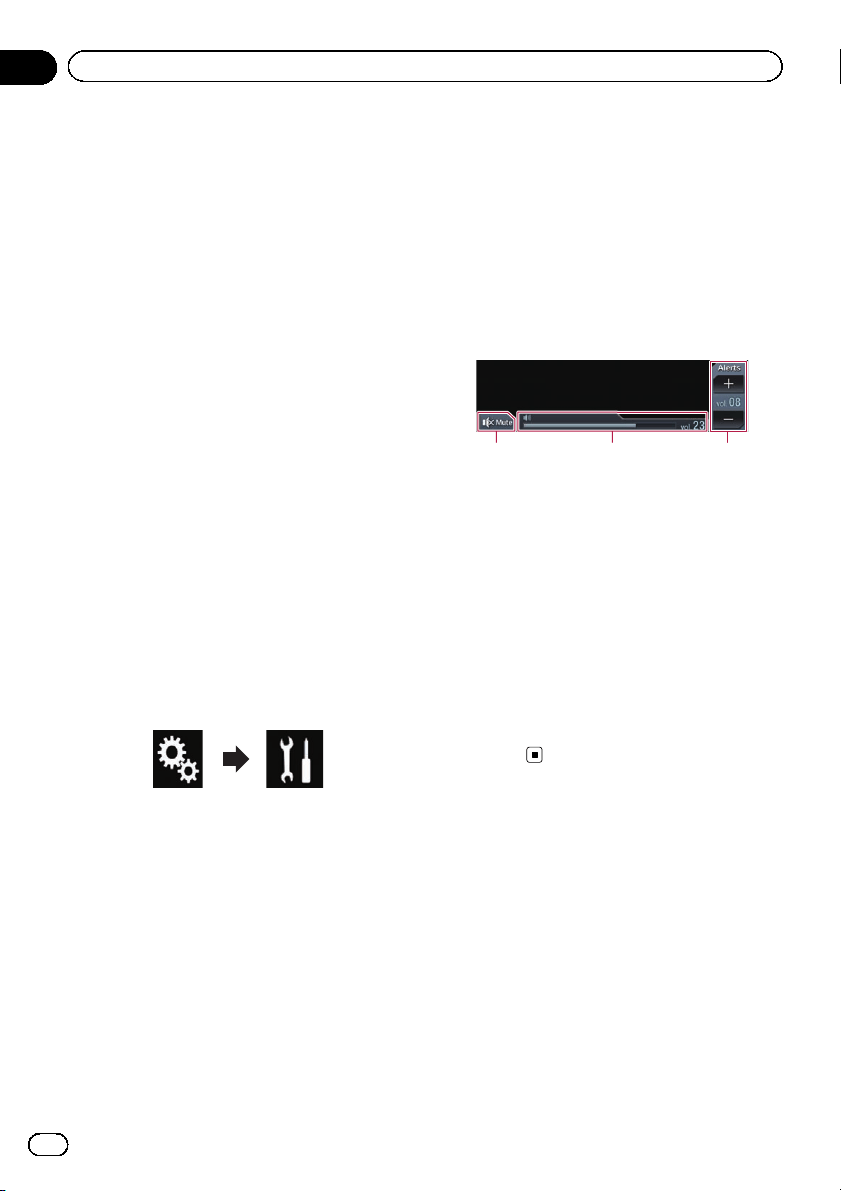
Starting procedure
1 Connect an iPhone to this product via
the separately sold USB interface cable for
iPod / iPhone (CD-IU52).
The Application menu screen appears.
p If an iPhone has been connected and an-
other screen is displayed, touch [Apple
CarPlay] on the Top menu screen to display
the Application menu screen.
= For details of the connections, refer to the
Installation Manual.
2 Touch the desired application icon.
The desired application is launched, and the
application operation screen appears.
3 Operate the application.
Setting the driving position
You can change the display position of the
side bar on the Application menu screen ac-
cording to the driving position.
1 Touch the HOME button to display the
Top menu screen.
2 Touch the following keys in the follow-
ing order.
The “System” screen appears.
3 Touch [Apple CarPlay settings].
4 Touch [Driving Position].
5 Touch the item you want to set.
! Left (default):
Select for a left-hand drive vehicle. The side
bar on the application menu is displayed on
the left-hand side of the screen.
! Right:
Select for a right-hand drive vehicle. The
side bar on the application menu is dis-
played on the right-hand side of the screen.
The setting will be applied when the Apple
CarPlay-compatible device is connected to
this product next time.
Adjusting the volume
You can adjust the guidance volume/alert
sound volume separately from the main sound
volume.
% Touch the VOL (+/–) button.
1 2 3
Apple CarPlay
1 Touch to mute. Touch again to unmute.
2 Displays the main sound volume.
3 Adjusts the guidance volume/alert sound
volume.
Each touch of [+]or[–] increases or de-
creases the volume level.
p You cannot adjust the volume of the main
sound on the screen. Touch the VOL (+/–)
button to adjust the volume of the main
sound.
p The volume menu is displayed for four sec-
onds. If the screen disappears, touch the
VOL (+/–) button again. The screen reap-
pears.
En
60
Chapter
11
Using your iPhone or smartphone applications
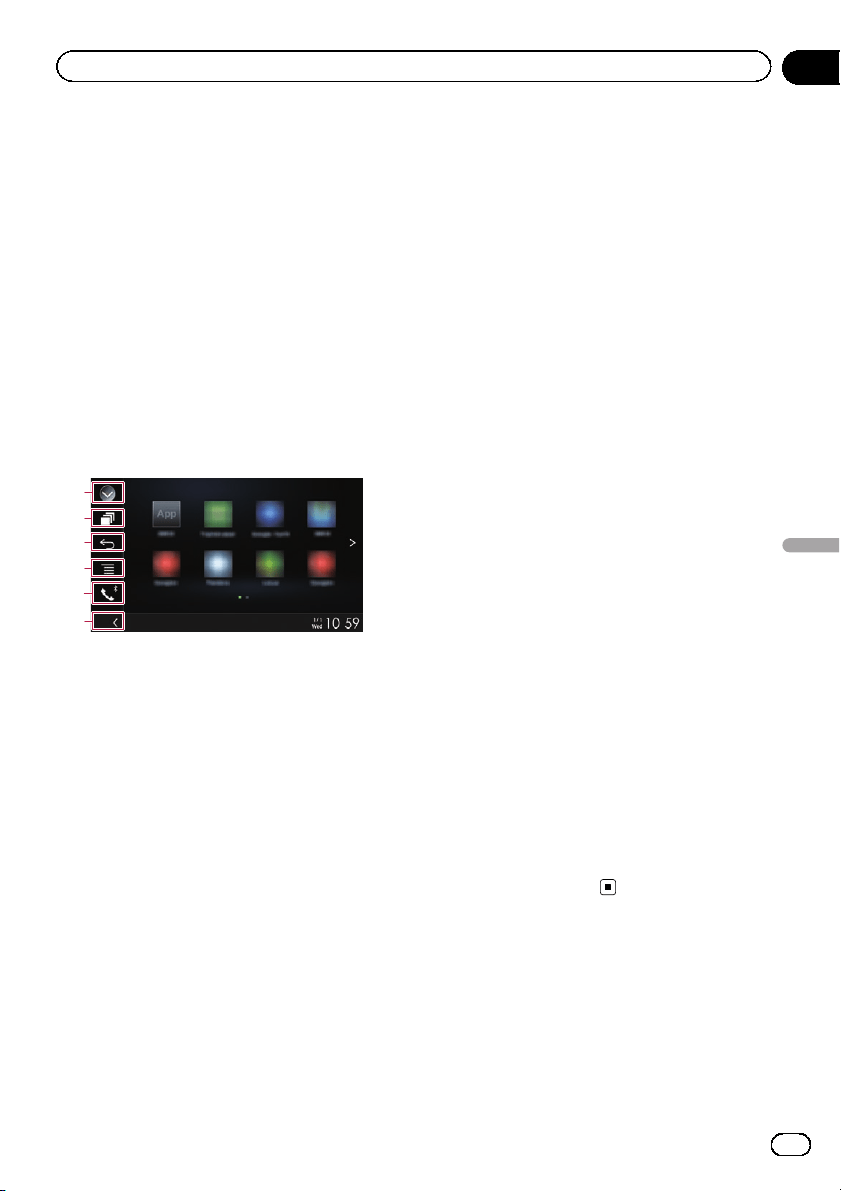
Using MirrorLink
When you connect a MirrorLink device with
compatible applications installed, you can
control the applications for the mobile device
directly from this product (MirrorLink mode).
You can view and operate the compatible ap-
plications via the display with multi-touch ges-
tures like tapping, dragging, scrolling, and
flicking.
p Multi-touch gestures may be disabled de-
pending on the MirrorLink device model
that is connected.
Using the touch panel keys
(App control side bar)
1
3
2
4
5
6
1 Displays the source list.
= For details, refer to Selecting a front
source on the source list on page 12.
2 Displays the launcher application screen.
3 Displays the previous screen.
p Depending on the type of MirrorLink
device, this key is not available.
4 Displays the menu screen.
p Depending on the type of MirrorLink
device, this key is not available.
5 Displays the Phone menu screen.
= For details, refer to Displaying the phone
menu on page 21.
6 Displays the current source.
p In MirrorLink mode, App control side bar
will appear.
p If you touch the HOME button twice, the
App control side bar will disappear. Touch
the HOME button twice again, and the App
control side bar will appear.
Starting procedure
When connecting a MirrorLink device to this
product, you must select the method for con-
necting your device. Settings are required ac-
cording to the connected device.
= For details, refer to Chapter 5.
1 Unlock your MirrorLink device.
2 Connect your MirrorLink device to this
product via the separately sold USB inter-
face cable for use with MirrorLink devices
(CD-MU200).
p The cable connection method varies de-
pending on your device.
= For details of the connections, refer to the
Installation Manual.
3 Touch the HOME button to display the
Top menu screen.
4 Touch [APPS].
If the launcher application is installed in the
MirrorLink device, the application launches.
If not, the Application menu screen will ap-
pear.
5 Touch the desired application icon.
The desired application is launched, and the
application operation screen appears.
p Some applications may not launch depend-
ing on the state of the connected device. If
it does not launch, launch the application
according to the application startup mes-
sage.
6 Operate the application.
7 Touch the HOME button to return to
the Top menu screen.
Using the audio mix function
You can output audio mixing AV source and
an application for iPhone or smartphone
when the AppRadio Mode or MirrorLink
mode is used.
1 Start up the AppRadio Mode or
MirrorLink mode.
En
61
Chapter
11
Using your iPhone or smartphone applications
Using your iPhone or smartphone applications
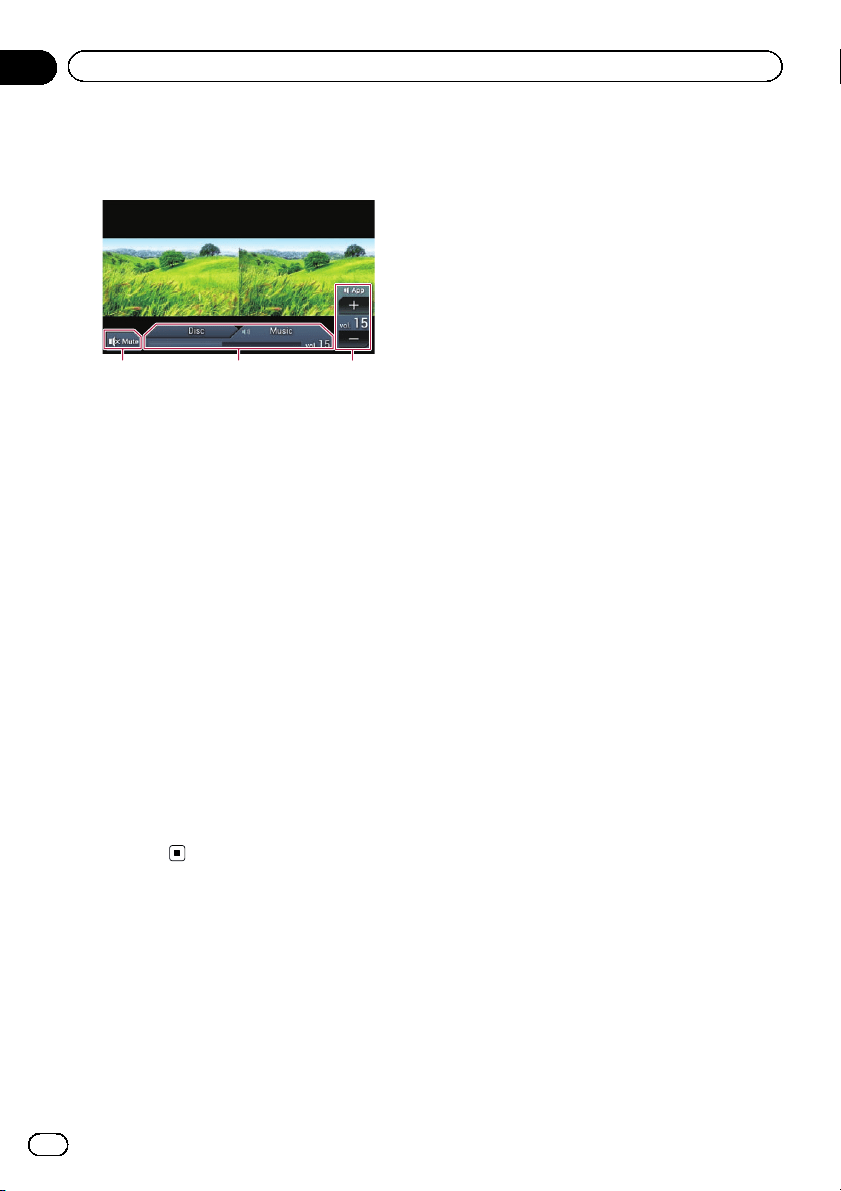
2 Touch the VOL (+/–) button.
The audio mix menu will be displayed on the
screen.
1 2 3
1 Touch to mute. Touch again to unmute.
2 Sets whether to switch the sound mix func-
tion on or off.
! Left tab: The audio mix function is en-
abled (mix on). The App volume is dis-
played. If you touch the App volume, the
volume keys will be displayed.
! Right tab: The audio mix function is dis-
abled (mix off).
3 Adjusts the application audio volume.
Each touch of [+]or[–] increases or de-
creases the volume level.
p The AV operation screen and the Applica-
tion screen can be switched by touching
the MODE button.
p You cannot adjust the volume of the main
sound on the screen. Touch the VOL (+/–)
button to adjust the volume of the main
sound.
p The audio mix menu is displayed for four
seconds. If the screen disappears, touch
the VOL (+/–) button again. The screen re-
appears.
En
62
Chapter
11
Using your iPhone or smartphone applications
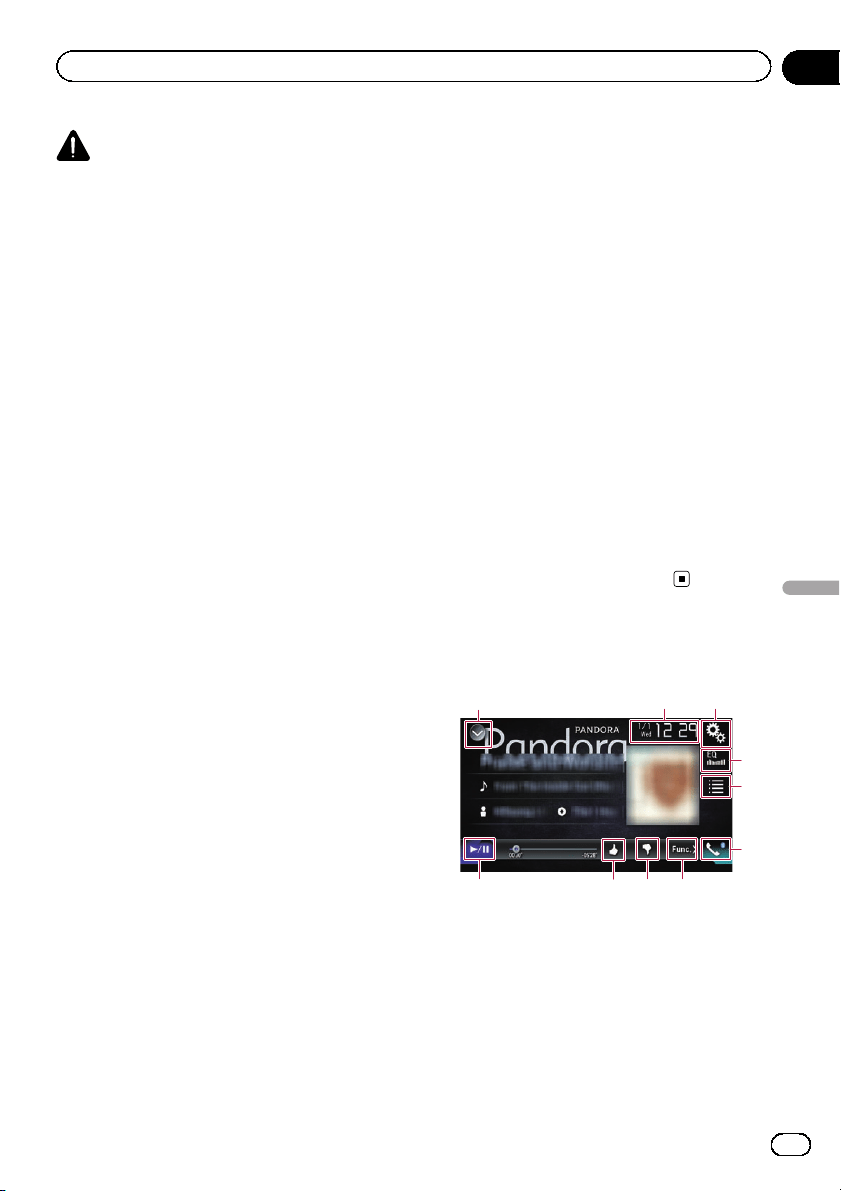
WARNING
Certain uses of an iPhone or a smartphone
may not be legal while driving in your juris-
diction, so you must be aware of and obey
any such restrictions.
If in doubt as to a particular function, only
perform it while the car is parked.
No feature should be used unless it is safe to
do so under the driving conditions you are
experiencing.
Pandora operations
You can enjoy Pandora by connecting an
iPhone or a smartphone that has the Pandora
application installed.
p This function is not available when Apple
CarPlay is on.
Important
! Requirements to access Pandora using
Pioneer car audio/video products:
= For details, refer to Chapter 5.
! Please update the firmware of the Pandora ap-
plication to the latest version before use.
! The latest version of the Pandora application
can be downloaded from the iTunes App Store
or Google Play.
! Create a free or a paid account online. You
can create the account in the Pandora appli-
cation from your iPhone or from the website
(http://www.pandora.com/register).
! If the Data Plan for your iPhone does not pro-
vide for unlimited data usage, additional
charges from your carrier may apply for acces-
sing the Pandora service via 3G, EDGE and/or
LTE (4G) networks.
! You need to connect to the Internet via 3G,
EDGE, LTE (4G) or Wi-Fi network to use the
Pandora service.
Limitations:
! Depending on the availability of the Internet,
you may not be able to receive the Pandora
service.
! The Pandora service is subject to change with-
out notice.
The service could be affected by any of the fol-
lowing: firmware version of the iPhone, firm-
ware version of the Pandora application,
changes to the Pandora music service.
! Certain functions of the Pandora service are
not available when accessing the service
through Pioneer car audio/video products.
They include, but are not limited to the follow-
ing: creating new stations, deleting stations,
sending information about current stations,
buying tracks from iTunes, viewing additional
text information, logging in to Pandora, adjust-
ing Cell Network Audio Quality.
Notes
! Pandora internet radio is a music service not
affiliated with Pioneer. More information is
available at
http://www.pandora.com
! The Pandora mobile application is available
for most iPhone and smartphone, please visit
www.pandora.com/everywhere/mobile for the
latest compatibility information.
Using the touch panel keys
Playback screen (page 1)
132
7
4
5
6
a 8
9
En
63
Chapter
12
Streaming Pandora
®
Streaming Pandora
®
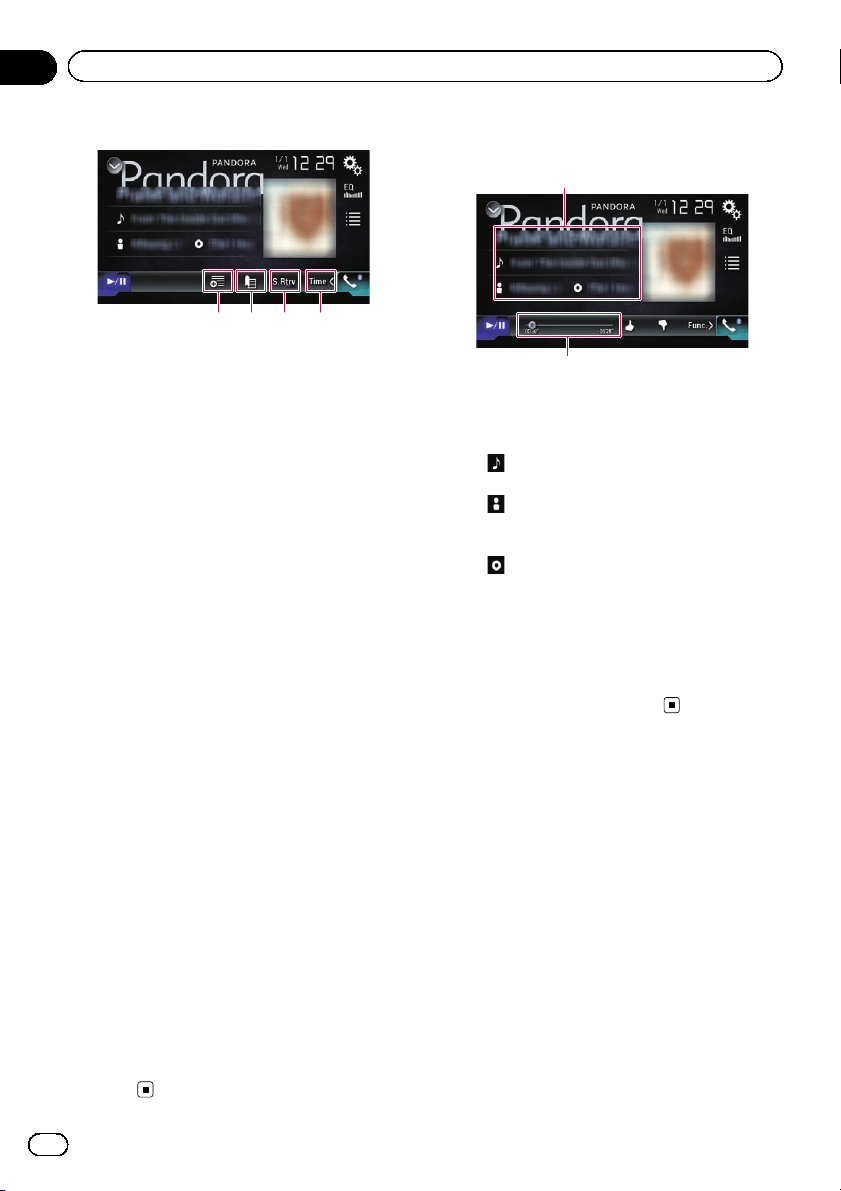
Playback screen (page 2)
bcd
7
1 Displays the source list.
= For details, refer to Selecting a front
source on the source list on page 12.
2 Displays the Time and date setting
screen.
= For details, refer to Setting the time and
date on page 103.
3 Displays the Setting menu screen.
4 Recalls equalizer curves.
= For details, refer to Using the equalizer
on page 92.
5 Touching the key displays the list of your
Pandora stations so you can select one of
them to play.
6 Displays the Phone menu screen.
= For details, refer to Displaying the phone
menu on page 21.
7 Switches to the next or previous page of
touch panel keys.
8 Touching the key gives a “Thumbs Down”
to the track currently playing and skips to
the next track.
p This function is not available when
using a shared station.
9 Touching the key gives a “Thumbs Up” to
the track currently playing.
p This function is not available when
using a shared station.
a Switches between playback and pause.
b Uses “Sound Retriever” function.
= For details, refer to Setting the “Sound
Retriever” function on page 104.
c Adds information for the track currently
playing to bookmarks.
d Creates a new station.
= For details, refer to Add station on page
66.
Reading the screen
2
1
1 Current track information
! Shows the Pandora station name the
tuner is currently tuned in to.
!
: Track title
Shows the title of the current track.
!
: Artist name
Shows the artist name for the track cur-
rently playing.
!
: Album title
Shows the title of the album of the cur-
rent track.
p “-------” is displayed if there is no corre-
sponding information.
2 Play time indicator
Shows the elapsed time, remaining time and
time bar of the current track.
Starting procedure
When connecting an iPhone or smartphone to
this product, you must select the method for
connecting your device. Settings are required
according to the connected device.
= For details, refer to Chapter 5.
For iPhone with a 30-pin
connector users
1 Unlock your iPhone.
2 Connect your iPhone.
p Connect via USB or Bluetooth.
En
64
Chapter
12
Streaming Pandora
®
= For details of the Bluetooth connection,
refer to Registering your Bluetooth de-
vices on page 16.
3 Display the AV source selection screen.
= For details of the operations, refer to Dis-
playing the AV operation screen on page 12.
4 Touch [Pandora] on the AV source selec-
tion screen.
5 Use the touch panel keys on the screen
to control the Pandora application.
= For details, refer to Using the touch panel
keys on page 63.
For iPhone with a Lightning
connector users
1 Unlock your iPhone.
2 Connect your iPhone.
p Connect via USB, Bluetooth, or HDMI and
Bluetooth.
= For details of the Bluetooth connection,
refer to Registering your Bluetooth de-
vices on page 16.
p The cable connection method varies de-
pending on your device.
= For details of the connections, refer to
the Installation Manual.
3 Display the AV source selection screen.
= For details of the operations, refer to Dis-
playing the AV operation screen on page 12.
4 Touch [Pandora] on the AV source selec-
tion screen.
When you touch [Pandora], this product will
start establishing a Bluetooth connection.
After the connection is successfully estab-
lished, the touch panel key on the “Pandora”
screen is activated.
5 Use the touch panel keys on the screen
to control the Pandora application.
= For details, refer to Using the touch panel
keys on page 63.
For smartphone users
1 Unlock your smartphone.
2 Connect your smartphone.
p Connect via USB, Bluetooth, or HDMI and
Bluetooth.
= For details of the Bluetooth connection,
refer to Registering your Bluetooth de-
vices on page 16.
p The cable connection method varies de-
pending on your device.
= For details of the connections, refer to
the Installation Manual.
3 Display the AV source selection screen.
= For details of the operations, refer to Dis-
playing the AV operation screen on page 12.
4 Touch [Pandora] on the AV source selec-
tion screen.
When you touch [Pandora], this product will
start establishing a Bluetooth connection.
After the connection is successfully estab-
lished, the touch panel key on the “Pandora”
screen is activated.
5 Use the touch panel keys on the screen
to control the Pandora application.
= For details, refer to Using the touch panel
keys on page 63.
Selecting a Pandora station
from the list
% Touch the following key.
Displays the list of Pandora sta-
tions.
The following screen appears.
p Touch to switch to the station list.
p Touch
to switch to the genre list.
p Touching
plays only one track based on
particular musical characteristics, one at a
time, from several shuffled stations.
p Stations indicated by
are shared sta-
tions.
En
65
Chapter
12
Streaming Pandora
®
Streaming Pandora
®
p When you touch [A-Z]or[Date], the list
items can be sorted.
A-Z: You can sort the items in the list alpha-
betically.
Date: You can sort the items in the list in
the order of the dates the items were cre-
ated.
p If you touch
, the station will be deleted.
A message prompting you to delete the sta-
tion appears.
Touch [Yes]. The station will be deleted.
To cancel, touch [No].
Add station
1 Touch the following key.
Displays the selection screen.
2 Touch [Track] (from track) or [Artist]
(from artist).
A new station is created.
# To cancel adding a new station, touch
[Cancel].
Operating with the buttons
Touch the TRK button
You can skip songs forward.
En
66
Chapter
12
Streaming Pandora
®
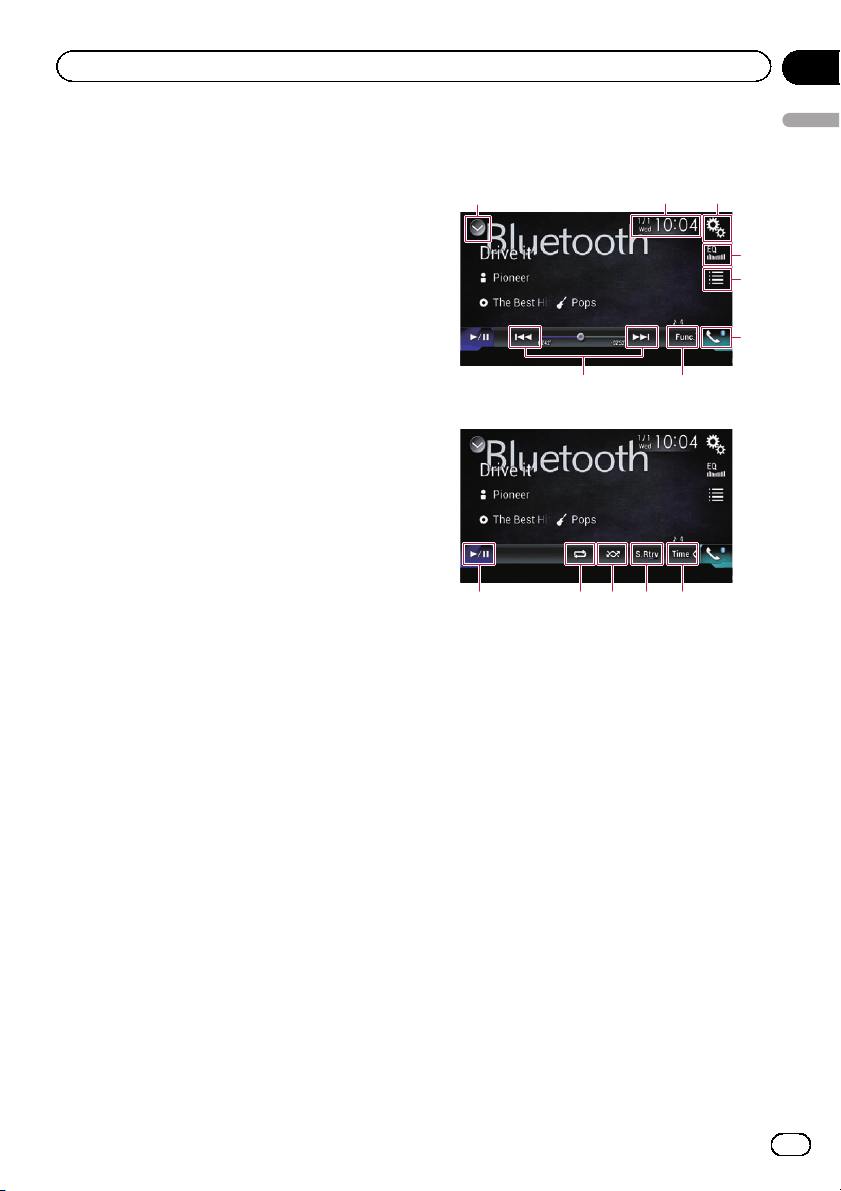
You can control a Bluetooth audio player.
p Before using the Bluetooth audio player,
you must register and connect the device
to this product.
= For details, refer to Registering your
Bluetooth devices on page 16.
p Operations may vary depending on the
Bluetooth audio player.
p Depending on the Bluetooth audio player
connected to this product, the available op-
erations with this product may be limited to
the following two levels:
— A2DP (Advanced Audio Distribution
Profile): Only playing back songs on
your audio player is possible.
— A2DP and AVRCP (Audio/Video Remote
Control Profile): Playing back, pausing,
selecting songs, etc., are possible.
p Since a number of Bluetooth audio players
are available on the market, operations
with your Bluetooth audio player using this
product vary considerably in range. Please
refer to the instruction manual that came
with your Bluetooth audio player as well as
this manual while operating your player on
this product.
p While you are listening to songs on your
Bluetooth audio player, please refrain from
operating your cellular phone as much as
possible. If you try operating your cellular
phone, the signal may cause noise for song
playback.
p Even if you switch to another source while
listening to a song on your Bluetooth audio
player, song playback may continues.
p Depending on the Bluetooth audio player
you connected to this product, operations
on this product to control the player may
differ from those explained in this manual.
p When you are talking on a cellular phone
connected to this product via Bluetooth
wireless technology, song playback from
your Bluetooth audio player connected to
this product may be paused.
p This function is not available when Apple
CarPlay is on.
Using the touch panel keys
Playback screen (page 1)
87
13
2
4
5
6
Playback screen (page 2)
79abc
1 Displays the source list.
= For details, refer to Selecting a front
source on the source list on page 12.
2 Displays the Time and date setting
screen.
= For details, refer to Setting the time and
date on page 103.
3 Displays the Setting menu screen.
4 Recalls equalizer curves.
= For details, refer to Using the equalizer
on page 92.
5 Selects a file from the list.
= For details, refer to Selecting files from
the file name list on page 69.
6 Displays the Phone menu screen.
= For details, refer to Displaying the phone
menu on page 21.
7 Switches to the next or previous page of
touch panel keys.
8 Skips files forward or backward.
9 Uses “Sound Retriever” function.
= For details, refer to Setting the “Sound
Retriever” function on page 104.
En
67
Chapter
13
Using a Bluetooth audio player
Using a Bluetooth audio player
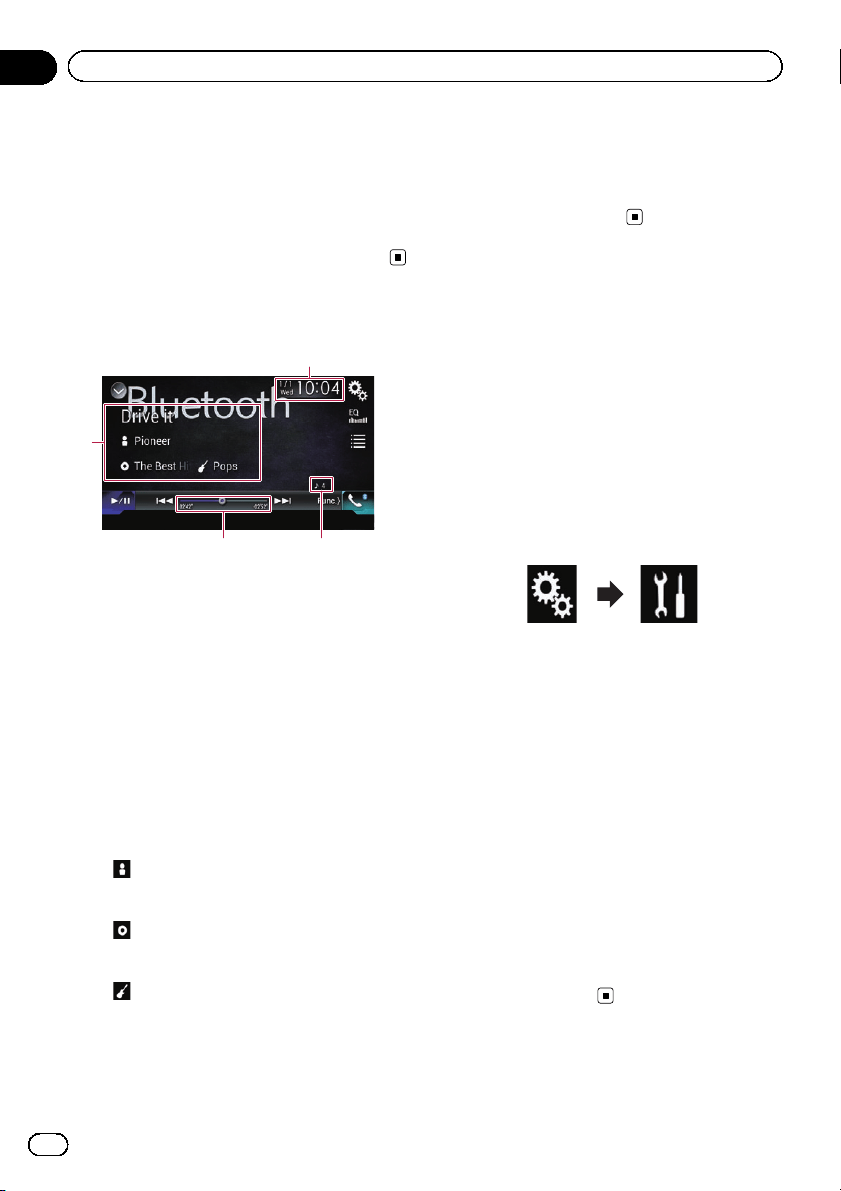
a Plays files in random order.
= For details, refer to Playing files in ran-
dom order on page 69.
b Sets a repeat play range.
= For details, refer to Setting a repeat play
range on page 69.
c Switches between playback and pause.
Reading the screen
4
1
23
1 Current time and date
2 File number indicator
Shows the file number currently playing
(when available).
3 Play time indicator
Shows the elapsed playing time within the
current file (when available).
4 Current file information
If the connected Bluetooth audio player fea-
tures AVRCP 1.3, the following file information
will be displayed.
! Track title
Shows the title of the track currently
playing (when available).
!
: Artist name
Shows the name of the artist for the
track currently playing (when available).
!
: Album title
Shows the title of the album of the cur-
rent file (when available).
!
: Genre
Shows the genre of the current file
(when available).
p In the following cases, file information
will only be displayed after a file starts
or resumes playing:
— You connect a Bluetooth audio player
compatible with AVRCP1.3, and op-
erate the player to start playing.
— You select another file when play-
back is paused.
Starting procedure
1 Pull out the connecting cable for using
AppRadio Mode.
p You cannot use Bluetooth audio player
when the connecting cable for using
AppRadio Mode is connected.
p You cannot use Bluetooth audio player
when Apple CarPlay is on.
2 Touch the HOME button to display the
Top menu screen.
3 Touch the following keys in the follow-
ing order.
The “System” screen appears.
4 Touch [AV Source Settings].
5 Confirm that “Bluetooth Audio” is
turned on.
p The default setting is “On”.
6 Display the AV source selection screen.
= For details of the operations, refer to Dis-
playing the AV operation screen on page 12.
7 Touch [Bluetooth Audio] on the AV
source selection screen.
The “Bluetooth Audio” screen appears.
8 Use the touch panel keys on the screen
to control the Bluetooth audio player.
= For details, refer to Using the touch panel
keys on page 67.
En
68
Chapter
13
Using a Bluetooth audio player
Selecting files from the file
name list
The file name list lets you see the list of track
titles for the Bluetooth audio player and lets
you select one of them to play back.
p This function is only available when the
connected Bluetooth audio player supports
AVRCP 1.4.
1 Touch the following key.
Displays the file name list.
2 Touch a file on the list to play back.
p Touching a folder on the list shows its con-
tents. You can play a file on the list by
touching it.
Playing files in random order
All of the files within the repeat play range can
be played at random by only touching a single
key.
p This function is only available when the
connected Bluetooth audio player supports
AVRCP 1.3.
% Touch the following key repeatedly
until the desired setting appears.
Turns random play on or off.
Setting a repeat play range
The repeat play range can be changed by only
touching a single key.
p This function is only available when the
connected Bluetooth audio player supports
AVRCP 1.3.
% Touch the following key repeatedly
until the desired setting appears.
Changes the repeat play range be-
tween the current file and all audio
files in the Bluetooth audio player.
Operating with the buttons
Touch the TRK button
You can skip files forward or backward.
Touch and hold the TRK button
You can perform fast reverse or fast for-
ward.
En
69
Chapter
13
Using a Bluetooth audio player
Using a Bluetooth audio player
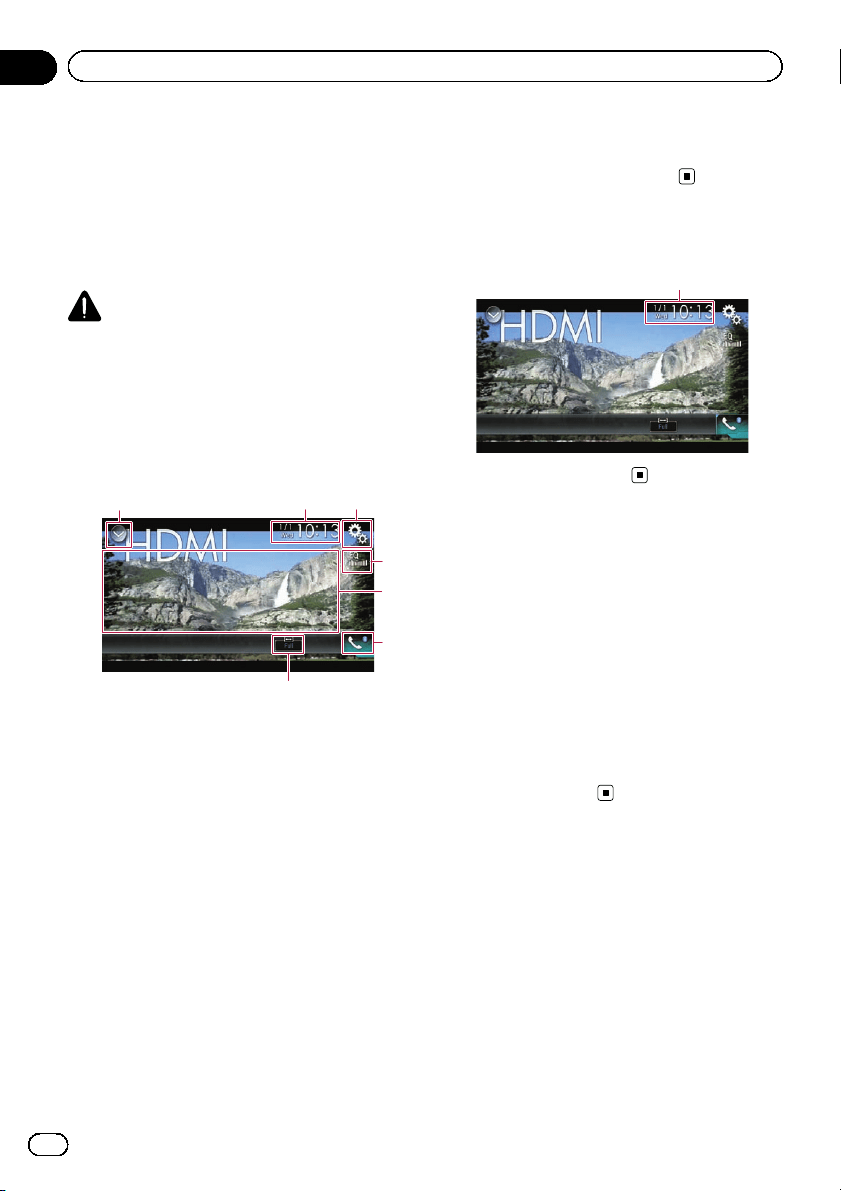
You can display the video image output by the
device connected to this product. This section
describes operations for an HDMI source.
p A High Speed HDMI
®
Cable (sold sepa-
rately) is required for connection.
= For details of the connection method,
refer to the Installation Manual.
CAUTION
For safety reasons, video images cannot be
viewed while your vehicle is in motion. To view
video images, you must stop in a safe place and
apply the parking brake.
Using the touch panel keys
132
7
5
4
6
1 Displays the source list.
= For details, refer to Selecting a front
source on the source list on page 12.
2 Displays the Time and date setting
screen.
= For details, refer to Setting the time and
date on page 103.
3 Displays the Setting menu screen.
4 Recalls equalizer curves.
= For details, refer to Using the equalizer
on page 92.
5 Hides the touch panel keys.
Touching this area hides the touch panel keys.
p Touch anywhere on the LCD screen to
display the touch panel keys again.
6 Displays the Phone menu screen.
= For details, refer to Displaying the phone
menu on page 21.
7 Changes the wide screen mode.
= For details, refer to Changing the wide
screen mode on page 104.
Reading the screen
1
1 Current time and date
Starting procedure
1 Display the AV source selection screen.
= For details of the operations, refer to Dis-
playing the AV operation screen on page 12.
2 Touch [HDMI] on the AV source selec-
tion screen.
The image is displayed on the screen.
3 Use the touch panel keys on the screen
to control the external unit.
= For details, refer to Using the touch panel
keys on page 70.
En
70
Chapter
14
Using an HDMI source
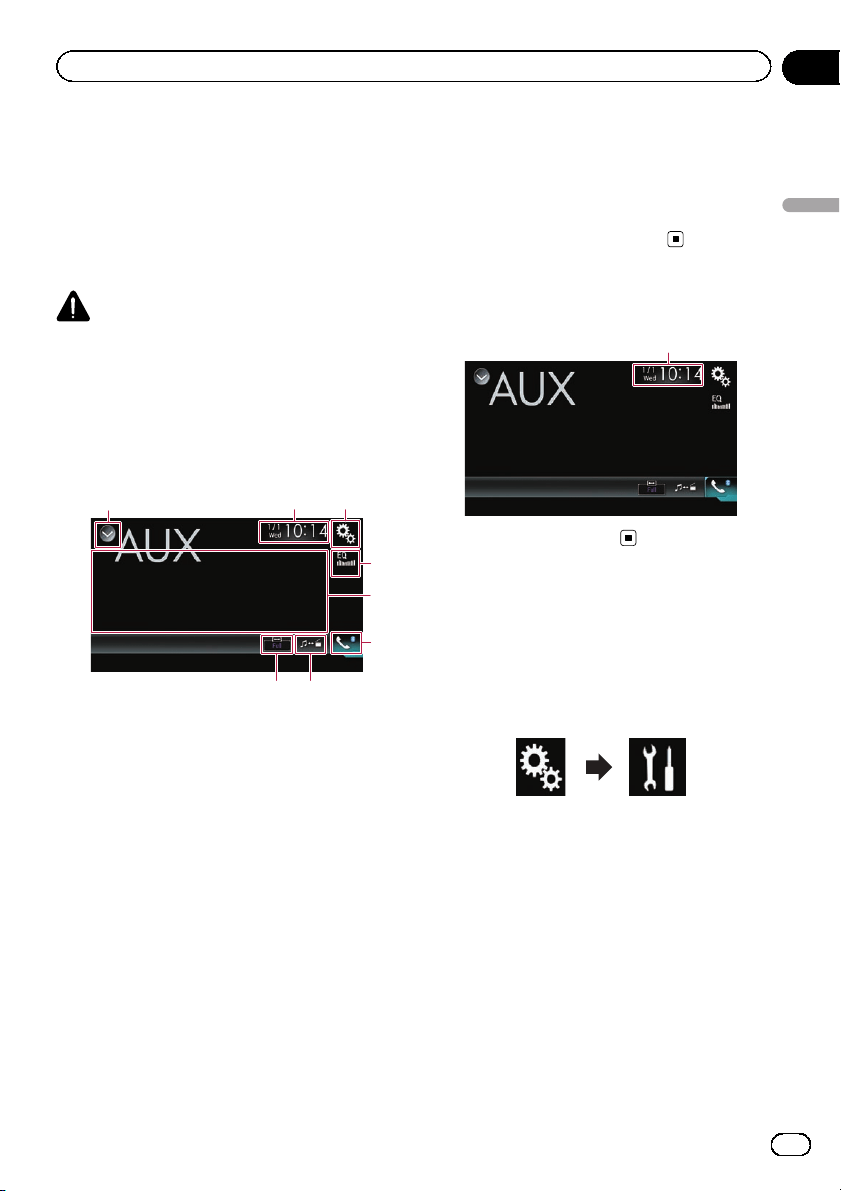
You can display the video image output by the
device connected to this product. This section
describes operations for an AUX source.
p A Mini-jack AV cable (CD-RM10) (sold sepa-
rately) is required for connection.
= For details of the connection method,
refer to the Installation Manual.
CAUTION
For safety reasons, video images cannot be
viewed while your vehicle is in motion. To view
video images, you must stop in a safe place and
apply the parking brake.
Using the touch panel keys
132
8
5
4
6
7
1 Displays the source list.
= For details, refer to Selecting a front
source on the source list on page 12.
2 Displays the Time and date setting
screen.
= For details, refer to Setting the time and
date on page 103.
3 Displays the Setting menu screen.
4 Recalls equalizer curves.
= For details, refer to Using the equalizer
on page 92.
5 Hides the touch panel keys.
Touching this area hides the touch panel keys.
p Touch anywhere on the LCD screen to
display the touch panel keys again.
6 Displays the Phone menu screen.
= For details, refer to Displaying the phone
menu on page 21.
7 Switches the operation screen.
= For details, refer to Switching the opera-
tion screen on page 72.
8 Changes the wide screen mode.
= For details, refer to Changing the wide
screen mode on page 104.
Reading the screen
1
1 Current time and date
Starting procedure
1 Touch the HOME button to display the
Top menu screen.
2 Touch the following keys in the follow-
ing order.
The “System” screen appears.
3 Touch [Input/Output Settings].
4 Confirm that “AUX Input” is turned on.
p The default setting is “On”.
5 Display the AV source selection screen.
= For details of the operations, refer to Dis-
playing the AV operation screen on page 12.
6 Touch [AUX] on the AV source selection
screen.
The image is displayed on the screen.
En
71
Chapter
15
Using an AUX source
Using an AUX source

7 Use the touch panel keys on the screen
to control the external unit.
= For details, refer to Using the touch panel
keys on page 71.
Setting the video signal
When you connect this product to an AUX
equipment, select the suitable video signal
setting.
p You can operate this function only for the
video signal input into the AUX input.
1 Touch the HOME button to display the
Top menu screen.
2 Touch the following keys in the follow-
ing order.
The “Video Setup” screen appears.
3 Touch [Video Signal Setting].
4 Touch [AUX].
The pop-up menu appears.
5 Touch the item you want to set.
! Auto (default):
Adjusts the video signal setting automati-
cally.
! PAL:
Sets the video signal to PAL.
! NTSC:
Sets the video signal to NTSC.
! PAL-M:
Sets the video signal to PAL-M.
! PAL-N:
Sets the video signal to PAL-N.
! SECAM:
Sets the video signal to SECAM.
Switching the operation
screen
You can switch between the screen to operate
music files and that to operate video files.
p This touch panel key is only available when
there are both audio and video files on the
auxiliary equipment.
% Touch the following key.
Switches between the screen to
operate video files and that to oper-
ate music files.
En
72
Chapter
15
Using an AUX source
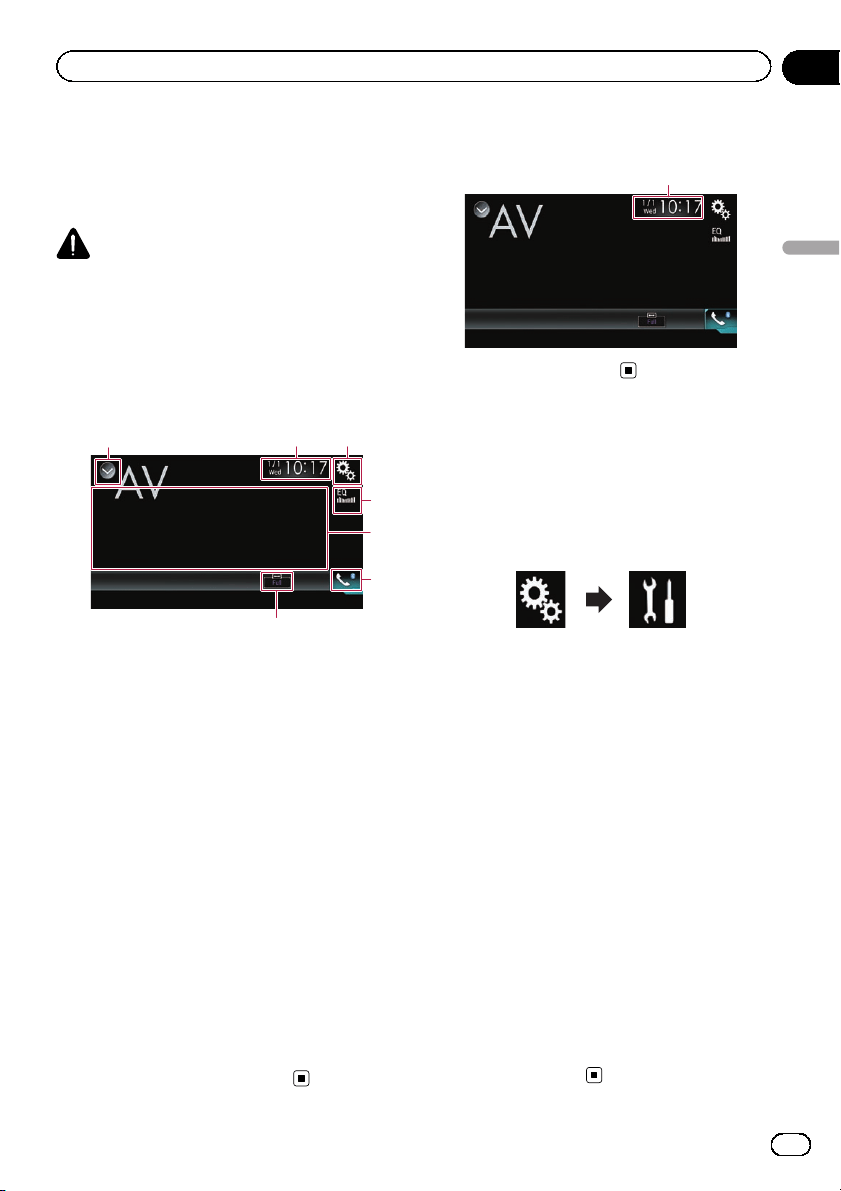
You can display the video image output by the
device connected to this product.
= For details of the connection method, refer
to the Installation Manual.
CAUTION
For safety reasons, video images cannot be
viewed while your vehicle is in motion. To view
video images, you must stop in a safe place and
apply the parking brake.
Using the touch panel keys
132
7
5
4
6
1 Displays the source list.
= For details, refer to Selecting a front
source on the source list on page 12.
2 Displays the Time and date setting
screen.
= For details, refer to Setting the time and
date on page 103.
3 Displays the Setting menu screen.
4 Recalls equalizer curves.
= For details, refer to Using the equalizer
on page 92.
5 Hides the touch panel keys.
Touching this area hides the touch panel keys.
p Touch anywhere on the LCD screen to
display the touch panel keys again.
6 Displays the Phone menu screen.
= For details, refer to Displaying the phone
menu on page 21.
7 Changes the wide screen mode.
= For details, refer to Changing the wide
screen mode on page 104.
Reading the screen
1
1 Current time and date
Starting procedure
1 Touch the HOME button to display the
Top menu screen.
2 Touch the following keys in the follow-
ing order.
The “System” screen appears.
3 Touch [Input/Output Settings].
4 Touch [AV Input].
The pop-up menu appears.
5 Touch [On].
The video image output by the connected ex-
ternal device can be displayed.
6 Display the AV source selection screen.
= For details of the operations, refer to Dis-
playing the AV operation screen on page 12.
7 Touch [AV] on the AV source selection
screen.
The image is displayed on the screen.
8 Use the touch panel keys on the screen
to control the external unit.
= For details, refer to Using the touch panel
keys on page 73.
En
73
Chapter
16
Using AV input
Using AV input
Setting the video signal
When you connect this product to an AV
equipment, select the suitable video signal
setting.
p You can operate this function only for the
video signal input into the AV input.
1 Touch the HOME button to display the
Top menu screen.
2 Touch the following keys in the follow-
ing order.
The “Video Setup” screen appears.
3 Touch [Video Signal Setting].
4 Touch [AV].
The pop-up menu appears.
5 Touch the item you want to set.
! Auto (default):
Adjusts the video signal setting automati-
cally.
! PAL:
Sets the video signal to PAL.
! NTSC:
Sets the video signal to NTSC.
! PAL-M:
Sets the video signal to PAL-M.
! PAL-N:
Sets the video signal to PAL-N.
! SECAM:
Sets the video signal to SECAM.
En
74
Chapter
16
Using AV input
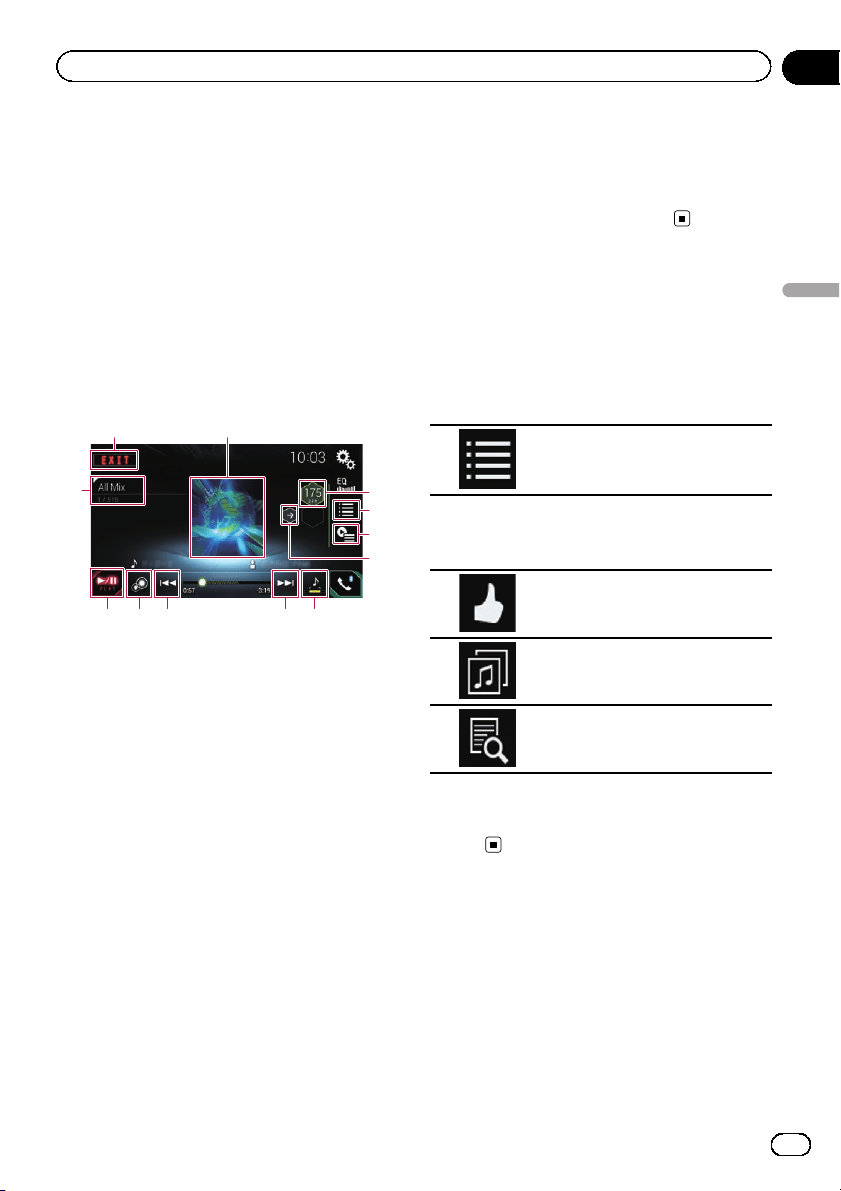
MIXTRAX is original technology for creating
non-stop mixes of selections from your audio
library, complete with DJ effects that make
them sound as if a DJ is right there with you
playing the music.
p You can turn MIXTRAX on by touching
[MIXTRAX] on the playback screen of com-
pressed audio files.
= For details, refer to Using the touch
panel keys on page 36.
Touch panel keys
1
4
6
5
7
b
2
9
3
a8 8
1 Exits the MIXTRAX screen.
2 Displays the LinkGate screen.
Touch the desired item. Songs related to the
selected item are played.
3 Specifies the BPM.
The original BPM is not displayed during play-
back.
4 Displays the item selection screen.
= For details of the operations, refer to Se-
lecting an item to play songs on page 75.
5 Displays the playback list screen.
= For details of the operations, refer to Se-
lecting songs not to be played on page
75.
6 Sets to the original BPM (Beats Per Minute).
7 Specifies the playback portion.
= For details of the operations, refer to
Specifying the playback portion on page
76.
8 Touch to select a track.
Touch and hold to fast forward or rewind.
9 Turns on or off the MIXTRAX original visual
display.
a Pauses and starts playback.
b Displays the item selected on the LinkGate
screen or item selection screen.
Selecting an item to play
songs
You can specify an item to play songs related
to it.
1 Touch the following key.
Displays the item selection screen.
2 Touch the following keys to select the
item.
Displays the MIX pattern list.
Displays the tag list.
Displays the file list.
3 Select an item in the list.
Songs related to the selected item are
played.
Selecting songs not to be
played
You can select items or songs not to be
played.
En
75
Chapter
17
Using MIXTRAX
Using MIXTRAX
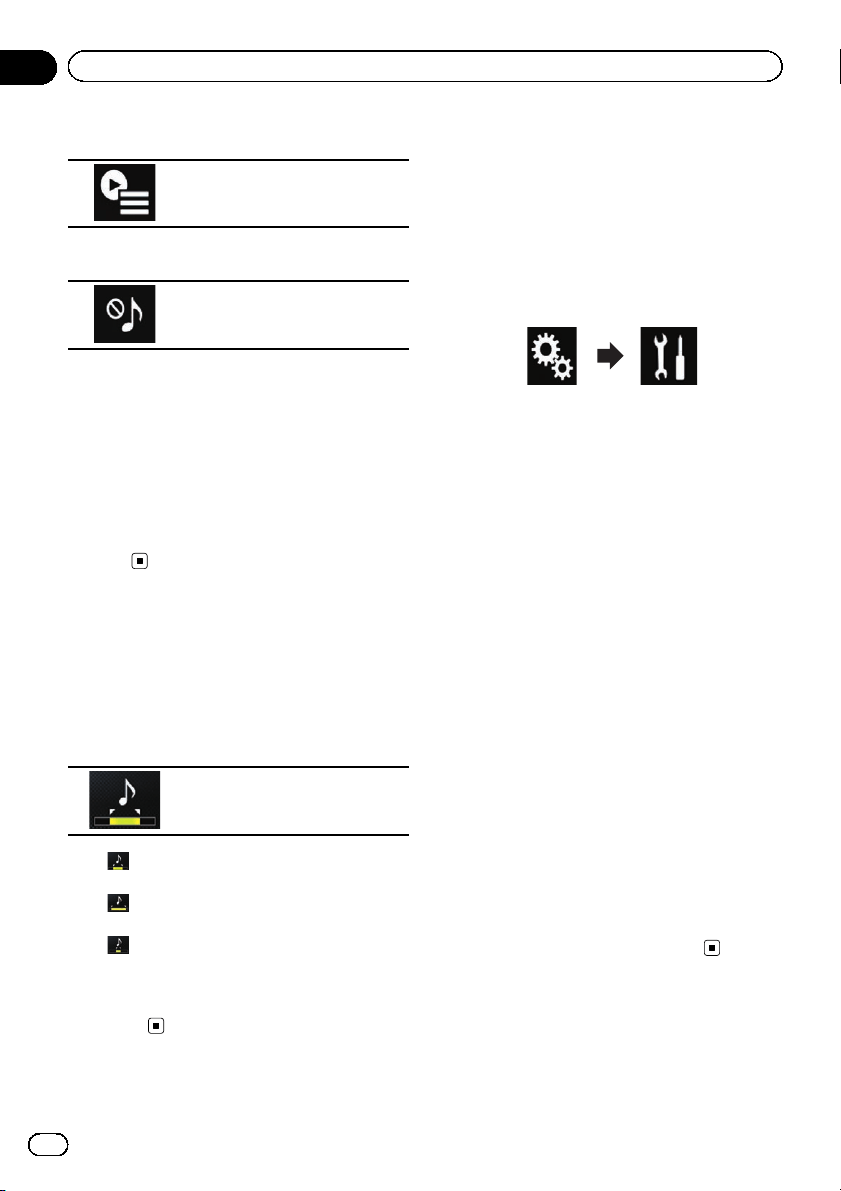
1 Touch the following key.
Displays the playback list screen.
2 Touch the following key.
Displays the “Playback not al-
lowed” screen.
3 Touch [Songs], [Artists] or [Albums].
4 Touch the box on the left of the item or
song that you do not want to play.
An icon is displayed. Items displayed with the
icon will not be played.
# If you touch [Unselect All], all the selections
are canceled.
# If you touch [Select All], all the items are
selected.
Specifying the playback
portion
You can specify the playback portion.
% Touch the following key repeatedly
until the desired setting appears.
Changes the playback portion.
! (default):
Plays back a middle portion.
!
:
Plays back a long portion.
!
:
Plays back a short portion.
p The most suitable sound effect is automati-
cally applied when switching to the next
song.
Setting the flash pattern
The flashing color changes with the changes
in the sound and bass levels.
1 Touch the HOME button to display the
Top menu screen.
2 Touch the following keys in the follow-
ing order.
The “System” screen appears.
3 Touch [AV Source Settings].
4 Touch [MIXTRAX Settings].
5 Touch [Flash Pattern].
The pop-up menu appears.
6 Touch the item you want to set.
! Sound1 (default) to Sound6:
The flash pattern changes according to the
sound level. Select a desired mode.
! L-Pass1 to L-Pass6:
The flash pattern changes according to the
bass level. Select a desired mode.
! Random1:
The flash pattern changes randomly ac-
cording to the sound level mode and low
pass mode.
! Random2:
The flash pattern changes randomly ac-
cording to the sound level mode.
! Random3:
The flash pattern changes randomly ac-
cording to the low pass mode.
! Off:
The flash pattern does not flash.
En
76
Chapter
17
Using MIXTRAX
Activating the Bluetooth
audio source
You need to activate the Bluetooth audio
source in order to use a Bluetooth audio
player.
1 Touch the HOME button to display the
Top menu screen.
2 Touch the following keys in the follow-
ing order.
The “System” screen appears.
3 Touch [AV Source Settings].
4 Touch [Bluetooth Audio] repeatedly
until the desired setting appears.
! On (default):
Activates the Bluetooth audio source.
! Off:
Deactivates the Bluetooth audio source.
Setting the ever scroll
When “Ever Scroll” is set to “On”, recorded
text information scrolls continuously in the
display. Set to “Off” if you prefer the informa-
tion to scroll just once.
1 Touch the HOME button to display the
Top menu screen.
2 Touch the following keys in the follow-
ing order.
The “System” screen appears.
3 Touch [Ever Scroll] repeatedly until the
desired setting appears.
! Off (default):
Turns the ever scroll setting off.
! On:
Turns the ever scroll setting on.
Setting AV input
You can use external video equipment such as
portable players connected to this product
with this setting.
1 Touch the HOME button to display the
Top menu screen.
2 Touch the following keys in the follow-
ing order.
The “System” screen appears.
3 Touch [Input/Output Settings].
4 Touch [AV Input].
The pop-up menu appears.
! Off (default):
Deactivates the AV source.
! On:
Displays the video image output by the con-
nected external device.
Setting the rear view camera
The following two functions are available. A se-
parately sold rear view camera (e.g. ND -BC6)
is required for utilizing the rear view camera
function. (For details, consult your dealer.)
Rear view camera
This product features a function that automati-
cally switches to the full-screen image of the
rear view camera installed on your vehicle.
When the shift lever is in the REVERSE (R) po-
sition, the screen automatically switches to
full-screen rear view camera image.
En
77
Chapter
18
System settings
System settings
p If the shift lever is aligned to the REVERSE
(R) position immediately after the system of
this product is started up, only the camera
image will be displayed and the parking as-
sist guidelines and the message, “The
video may appear reversed” will not be
displayed. The parking assist guidelines
and the message will be displayed on the
camera image after a little while. Be sure to
check the conditions around the vehicle
even before the guidelines and the mes-
sage are displayed.
Camera for Camera View mode
Camera View can be displayed at all times
(e.g. when monitoring an attached trailer,
etc.). Please note that with this setting, the
camera image is not resized to fit, and that a
portion of what is seen by the camera is not
viewable.
CAUTION
Pioneer recommends the use of a camera which
outputs mirror reversed images, otherwise the
screen image may appear reversed.
p Immediately verify whether the display
changes to a rear view camera image when
the shift lever is moved to REVERSE (R)
from another position.
p When the screen changes to full-screen
rear view camera image during normal
driving, switch to the opposite setting in
“Camera Polarity”.
Setting rear view camera
activation
1 Touch the HOME button to display the
Top menu screen.
2 Touch the following keys in the follow-
ing order.
The “System” screen appears.
3 Touch [Camera settings].
4 Touch [Back Camera Input] repeatedly
until the desired setting appears.
! Off (default):
Turns the back camera input setting off.
! On:
Turns the back camera input setting on.
Setting the polarity of the rear
view camera
p This function is available when “Back Cam-
era Input” is “ On”.
= For details, refer to Setting rear view camera
activation on page 78.
1 Touch the HOME button to display the
Top menu screen.
2 Touch the following keys in the follow-
ing order.
The “System” screen appears.
3 Touch [Camera settings].
4 Touch [Camera Polarity] repeatedly
until the desired setting appears.
! Battery (default):
When the polarity of the connected lead is
positive while the shift lever is in the RE-
VERSE (R) position.
! Ground:
When the polarity of the connected lead is
negative while the shift lever is in the RE-
VERSE (R) position.
When the shift lever is moved to the REVERSE
(R) position after setting the rear view camera,
the rear view image appears.
En
78
Chapter
18
System settings
Setting the camera for
Camera View mode
To display Camera View at all times, “Camera
View” needs to be set to “On”.
p To set the rear view camera for Camera
View mode, “Back Camera Input” needs
to be set to “On”.
= For details, refer to Setting rear view camera
activation on page 78.
1 Touch the HOME button to display the
Top menu screen.
2 Touch the following keys in the follow-
ing order.
The “System” screen appears.
3 Touch [Camera settings].
4 Touch [Camera View] repeatedly until
the desired setting appears.
! Off (default):
Turns the camera view setting off.
! On:
Turns the camera view setting on.
If no operations are performed for seven sec-
onds after the AV operation screen is dis-
played, the camera view will appear
automatically.
p If you touch the screen while the camera
view is displayed, the displayed image will
turn off temporarily.
Displaying the parking
assist guidelines
1 Touch the HOME button to display the
Top menu screen.
2 Touch the following keys in the follow-
ing order.
The “System” screen appears.
3 Touch [Camera settings].
4 Touch [Parking Assist Guide] repeatedly
until the desired setting appears.
! Off (default):
Hides the guidelines.
! On:
Displays the guidelines.
When the shift lever is moved to the REVERSE
(R) position after setting the rear view camera,
the rear view image appears.
Setting guidelines on the
rear view image
CAUTION
! When adjusting the guidelines, be sure to
park the vehicle in a safe place and apply the
parking brake.
! Before getting out of the car to place the
markings, be sure to turn the ignition switch
off (ACC OFF).
! The range projected by the rear view camera
is limited. Also, the vehicle width and distance
guidelines displayed on the rear view camera
image may differ from the actual vehicle
width and distance. (The guidelines are
straight lines.)
! The image quality may deteriorate depending
on the usage environment, such as at night or
in dark surroundings.
1 Park your vehicle in a safe place and
apply the parking brake.
En
79
Chapter
18
System settings
System settings
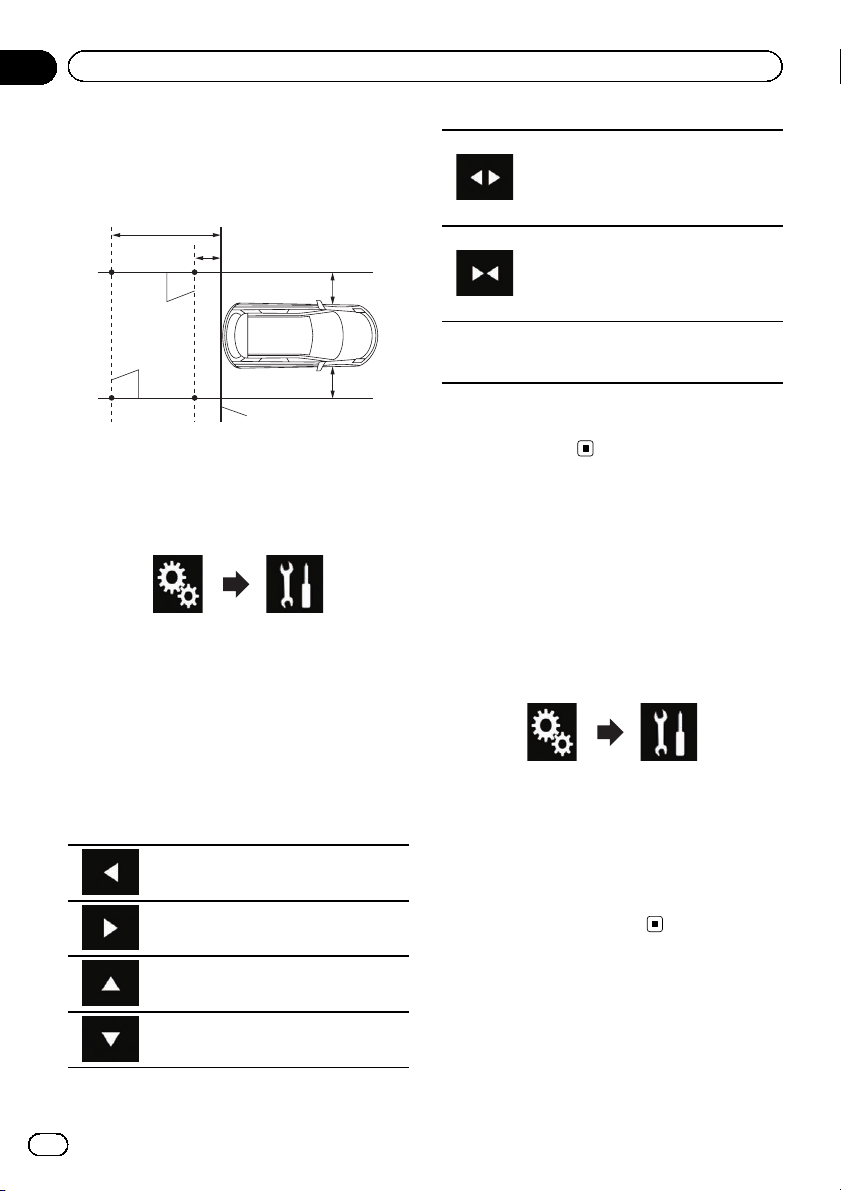
2 Using packing tape or similar, place
markings approximately 25 cm from each
side of the vehicle, and approximately
50 cm and 2 m from the rear bumper.
Rear bumper
25 cm
(9-7/8 in.)
25 cm
(9-7/8 in.)
50 cm (1 ft. 8 in.)
2 m (6 ft. 7 in.)
Markings
Markings
3 Touch the HOME button to display the
Top menu screen.
4 Touch the following keys in the follow-
ing order.
The “System” screen appears.
5 Touch [Camera settings].
6 Touch [Parking Assist Guide Adjust].
7 Set the guidelines by dragging the four
points.
8 Touch the following keys to adjust the
position of the point if necessary.
Moves the point to the left.
Moves the point to the right.
Moves the point upward.
Moves the point downward.
Extends the line to the left and right
from the current center point of the dis-
tance guideline. The adjustment points
on the lateral coordinates at both ends
will also move.
Shortens the line from the left and right
to the current center point of the dis-
tance guideline. The adjustment points
on the lateral coordinates at both ends
will also move.
Default
Resets the settings of the distance and
vehicle width guidelines and adjust-
ment points to the default.
p When a point is moved, the distance from
the initial value is displayed at the bottom
of the screen.
Turning off the demo screen
If the demo screen appears, perform the fol-
lowing procedure to turn off the demo screen.
1 Touch the HOME button to display the
Top menu screen.
2 Touch the following keys in the follow-
ing order.
The “System” screen appears.
3 Touch [Demo Mode] repeatedly until
the desired setting appears.
! On (default):
Displays the demo screen.
! Off:
Hides the demo screen.
Selecting the system language
The system language can be selected.
! The language can be changed for the fol-
lowing:
— The “Audio” screen
En
80
Chapter
18
System settings
— The “System” screen
— The “Video Setup” screen
— The “Bluetooth” screen
— Language for messages
Some operations on this product are
prohibited from use while driving or re-
quire careful attention when operated.
In such cases, a caution message will
appear on the display. You can change
the language for caution messages with
this setting.
! If the embedded language and the selected
language setting are not the same, text in-
formation may not display properly.
! Some characters may not be displayed
properly.
1 Touch the HOME button to display the
Top menu screen.
2 Touch the following keys in the follow-
ing order.
The “System” screen appears.
3 Touch [System Language].
The pop-up menu appears.
4 Touch the desired language.
After the language is selected, the previous
screen returns.
Setting the keyboard
language with the
application for iPhone
You can use the keyboard in AppRadio Mode
by setting the language of the keyboard for
iPhone.
p This function is only available in AppRadio
Mode on the iPhone.
1 Touch the HOME button to display the
Top menu screen.
2 Touch the following keys in the follow-
ing order.
The “System” screen appears.
3 Touch [Keyboard].
The pop-up menu appears.
4 Touch the desired language.
After the language is selected, the previous
screen returns.
Setting the beep sound
1 Touch the HOME button to display the
Top menu screen.
2 Touch the following keys in the follow-
ing order.
The “System” screen appears.
3 Touch [Beep Tone] repeatedly until the
desired setting appears.
! On (default):
Sounds a beep.
! Off:
Does not sound a beep.
Adjusting the picture
You can adjust the picture for each source and
rear view camera.
En
81
Chapter
18
System settings
System settings
CAUTION
For safety reasons, you cannot use some of these
functions while your vehicle is in motion. To en-
able these functions, you must stop in a safe
place and apply the parking brake. Refer to Im-
portant Information for the User (a separate man-
ual).
1 Display the screen you wish to adjust.
2 Touch the HOME button to display the
Top menu screen.
3 Touch the following keys in the follow-
ing order.
The “System” screen appears.
4 Touch [Picture Adjustment].
5 Touch any of the following keys to se-
lect the function to be adjusted.
Picture adjustment items are displayed.
! Brightness:
Adjusts the black intensity.
! Contrast:
Adjusts the contrast.
! Color:
Adjusts the color saturation.
! Hue:
Adjusts the tone of color (which color is em-
phasized, red or green).
! Dimmer:
Adjusts the brightness of the display.
! Temperature:
Adjusts the color temperature, resulting in
a better white balance.
p You can adjust Hue only when the color
system is set to NTSC.
# If you touch [Rear View], the mode changes
to the rear view camera mode. By touching
[Source]or[Apps], you can return to the selected
mode.
6 Touch the following keys to adjust the
selected item.
Decreases the level of the selected
item.
Increases the level of the selected item.
Selects the adjus table previous item.
Selects the adjustable next item.
Each time you touch the key, the level of the
selected item increases or decreases.
p “Brightness”, “Contrast”, “Color” and
“Hue” can be adjusted from “-24” to “+24”.
p “Dimmer” can be adjusted from “+1” to
“+48”.
p “Temperature” can be adjusted from “+3”
to “-3”.
p The adjustments of “Brightness” and “Con-
trast” are stored separately when your vehi-
cle’s headlights are off (daytime) and when
your vehicle’s headlights are on (nighttime).
These are switched automatically depend-
ing on whether the vehicle’s headlights are
on or off.
p The adjustment of “Dimmer” is stored se-
parately when your vehicle’s headlights are
off (daytime) and when your vehicle’s head-
lights are on (nighttime). “Dimmer” is
switched automatically only when the value
of nighttime is lower than that of daytime.
p The picture adjustment may not be avail-
able with some rear view cameras.
p The setting contents can be memorized se-
parately for the following screens and video
images.
— AV and external camera
— USB (Video), USB (JPEG) and
MirrorLink
— HDMI and AppRadio Mode (HDMI)
— MIXTRAX, images output from the exter-
nal device
En
82
Chapter
18
System settings
Displaying the firmware
version
1 Touch the HOME button to display the
Top menu screen.
2 Touch the following keys in the follow-
ing order.
The “System” screen appears.
3 Touch [System Information].
4 Touch [Firmware Information].
The “Firmware Information” screen appear-
s.
Updating firmware
CAUTION
! The only USB port that supports the firmware
update is USB port 1.
! Never turn this product off or disconnect the
USB storage device while the firmware is
being updated.
! You can only update the firmware when the ve-
hicle is stopped and the parking brake is en-
gaged.
1 Download the firmware update files.
2 Connect a USB storage device to your
computer, and then locate the correct up-
date file and copy it onto the USB storage
device.
3 Turn the source off.
= For details, refer to Turning off the AV source
on page 13.
4 Touch the HOME button to display the
Top menu screen.
5 Touch the following keys in the follow-
ing order.
The “System” screen appears.
6 Touch [System Information].
7 Touch [Firmware Update].
The “Firmware Update” screen appears.
8 Touch [Continue] to display the data
transfer mode.
p Follow the on-screen instructions to finish
updating the firmware.
p This product will reset automatically after
the firmware update is completed if the up-
date is successful.
p When the firmware update starts, the
source is turned off and the Bluetooth con-
nection is disconnected.
p If an error message appears on the screen,
touch [Continue] to proceed and start the
recovery sequence.
Checking the connections
of leads
Check that the leads are properly connected
between this product and vehicle.
1 Touch the HOME button to display the
Top menu screen.
2 Touch the following keys in the follow-
ing order.
The “System” screen appears.
3 Touch [System Information].
4 Touch [Connection Status].
The “Connection Status” screen appears.
En
83
Chapter
18
System settings
System settings

! GPS Antenna
Indicates the connection status of the GPS
antenna, the reception sensitivity, and from
how many satellites the signal is received.
Color
Signal com-
munication
Used in posi-
tioning
Orange Yes Yes
Yellow Yes No
p When the GPS antenna is connected to
this product, “OK” is displayed. When
the GPS antenna is not connected to
this product, “NOK” is displayed.
p If reception is poor, please change the
installation position of the GPS antenna.
! Positioning Status
Displays the positioning status (3D posi-
tioning, 2D positioning, or no positioning),
the number of satellites used for position-
ing (orange), and the number of satellites
whose signal has been received (yellow). If
signals from more than three satellites are
received, the current location can be mea-
sured.
= For details, refer to Positioning technol-
ogy on page 115.
! Illumination
When the headlights or small lamps of the
vehicle are on, “ON” is displayed. When the
small lamps of the vehicle are off, “OFF” is
displayed. (If the orange/white lead is not
connected, “OFF” appears.)
! Back Signal
When the shift lever is shifted to “R”, the
signal switches to “High” or “Low”. (One of
these is displayed depending on the
vehicle.)
En
84
Chapter
18
System settings
Using fader/balance
adjustment
You can select a fader/balance setting that
provides an ideal listening environment in all
occupied seats.
p This function is available when “Rear
Speaker” is set to “On”.
1 Touch the HOME button to display the
Top menu screen.
2 Touch the following keys in the follow-
ing order.
The “Audio” screen appears.
3 Touch [Fader/Balance].
The “Fader/Balance” screen appears.
4 Touch the following keys to adjust the
front/rear speaker balance.
Moves towards the front.
Moves towards the rear.
Each time you touch the keys, the front/rear
speaker balance moves towards the front or
rear.
p “Front25” to “Rear25” is displayed as the
front/rear speaker balance moves from the
front to rear.
p The default setting is “F/R 0 L/R 0”.
p Set “Front” and “Rear” to “0” when using a
dual speaker system.
5 Touch the following keys to adjust the
left/right speaker balance.
Moves towards the left.
Moves towards the right.
Each time you touch the keys, the left/right
speaker balance moves towards the left or
right.
p “Left25” to “Right25” is displayed as the
left/right speaker balance moves from the
left to right.
p The default setting is “L/R 0”.
p You can also set the fader/balance by drag-
ging the point on the displayed table.
Using balance adjustment
You can adjust the balance between right/left
sound output.
p This function is available when “Rear
Speaker” is set to “Off”.
1 Touch the HOME button to display the
Top menu screen.
2 Touch the following keys in the follow-
ing order.
The “Audio” screen appears.
3 Touch [Balance].
The “Fader/Balance” screen appears.
4 Touch the following keys to adjust the
left/right speaker balance.
Moves towards the left.
Moves towards the right.
En
85
Chapter
19
Audio adjustments
Audio adjustments
Each time you touch the keys, the left/right
speaker balance moves towards the left or
right.
p “Left25” to “Right25” is displayed as the
left/right speaker balance moves from the
left to right.
p The default setting is “L/R 0”.
p You can also set the fader/balance by drag-
ging the point on the displayed table.
Switching sound muting/
attenuation
The AV source volume and the iPhone applica-
tion volume can be automatically muted or at-
tenuated when guidance voice is output from
the connected external device.
1 Touch the HOME button to display the
Top menu screen.
2 Touch the following keys in the follow-
ing order.
The “Audio” screen appears.
3 Touch [Mute Level].
The pop-up menu appears.
4 Touch the item you want to set.
! ATT (default):
The volume becomes 1/10.
! Mute:
The volume becomes 0.
! Off:
The volume does not change.
Adjusting source levels
The SLA (source level adjustment) function ad-
justs the volume level of each source to pre-
vent radical changes in volume when
switching between sources.
p Settings are based on the FM tuner volume
level, which remains unchanged.
p This function is not available when the FM
tuner is selected as the AV source.
1 Compare the FM tuner volume level
with the level of the source you want to
adjust.
2 Touch the HOME button to display the
Top menu screen.
3 Touch the following keys in the follow-
ing order.
The “Audio” screen appears.
4 Touch [Source Level Adjuster].
The “Source Level Adjuster” screen appears.
5 Touch the following keys to adjust the
source volume.
Increases the source volume.
Decreases the source volume.
p If you directly touch the area where the cur-
sor can be moved, the SLA setting will be
changed to the value of the touched point.
p “+4” to “–4” is displayed as the source vo-
lume is increased or decreased.
p The default setting is “0”.
En
86
Chapter
19
Audio adjustments
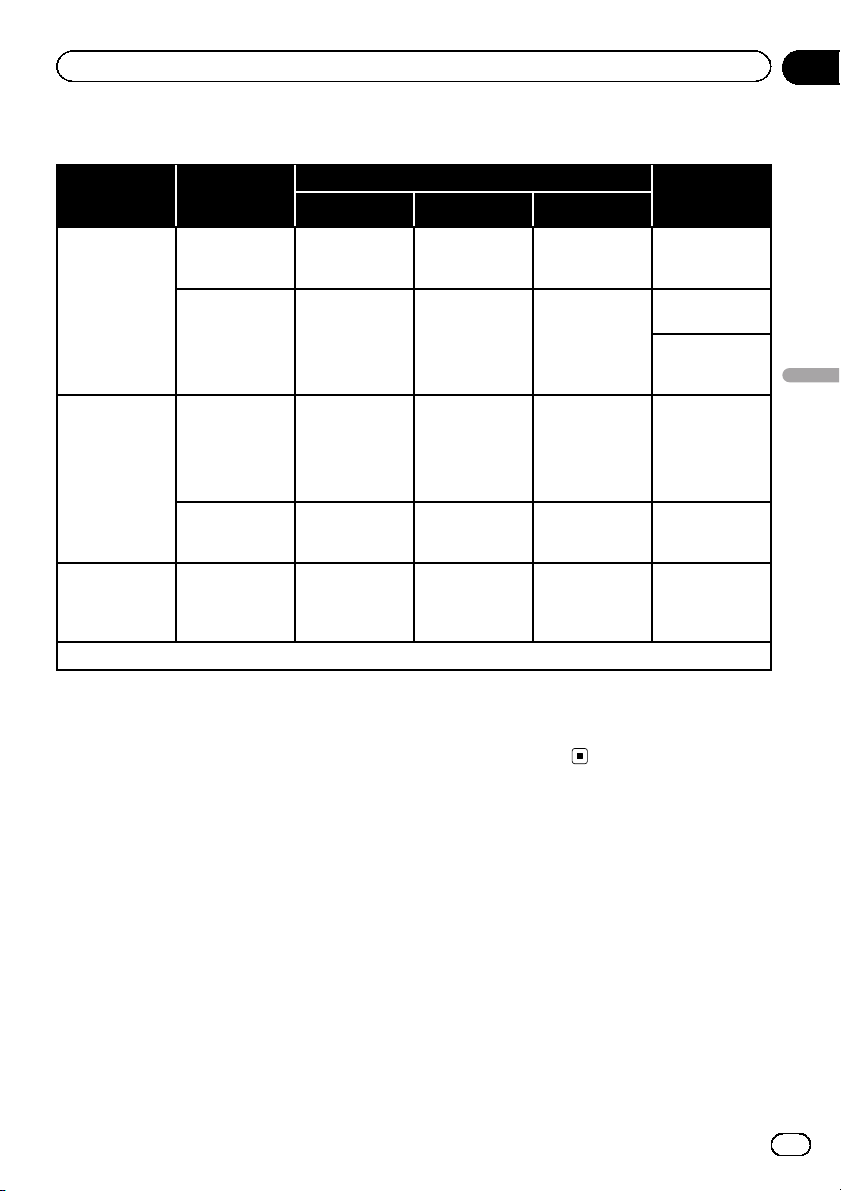
The following AV sources are set to the same source level adjustment volume automatically.
Required cable
(sold sepa-
rately)
Smartphone Setup
AV sources
Device Connection Apple CarPlay
iPod / iPhone
with a 30-pin
connector
CD-IU201V iPhone/iPod USB —
USB1
iPod1
Pandora
CD-IU201S iPhone/iPod USB —
USB1
Pandora
iPod1
AppRadio
Mode
iPod / iPhone
with a Lightning
connector
! CD-IH202
! CD-IU52
! Lightning Di-
gital AV
Adapter
iPhone/iPod
Digital AV
adapter
—
AppRadio
Mode
HDMI
Pandora
CD-IU52 iPhone/iPod USB On
iPod1
Apple CarPlay
(*1)
Android device CD-AH200 Others HDMI —
AppRadio
Mode
HDMI
Pandora
(*1) Excludes the phone volume.
p When a USB storage device is connected to
USB port 1 or USB port 2, the source level
adjustment volume is automatically set to
the same level as the USB port to which the
device is connected. The source level ad-
justment volume that is automatically set
varies depending on whether the device is
connected to USB port 1 or USB port 2.
p When an iPod / iPhone with a Lightning
connector is connected to USB port 1 or
USB port 2 using a USB interface cable for
iPod / iPhone (CD-IU52) (sold separately),
the source level adjustment volume is auto-
matically set to the same level as the USB
port to which the iPod / iPhone with a Light-
ning connector is connected. The source
level adjustment volume that is automati-
cally set varies depending on whether the
iPod / iPhone with a Lightning connector is
connected to USB port 1 or USB port 2.
p When a MirrorLink device is connected to
USB port 2, the source level adjustment vo-
lume is automatically set to the same level
as USB port 2.
En
87
Chapter
19
Audio adjustments
Audio adjustments
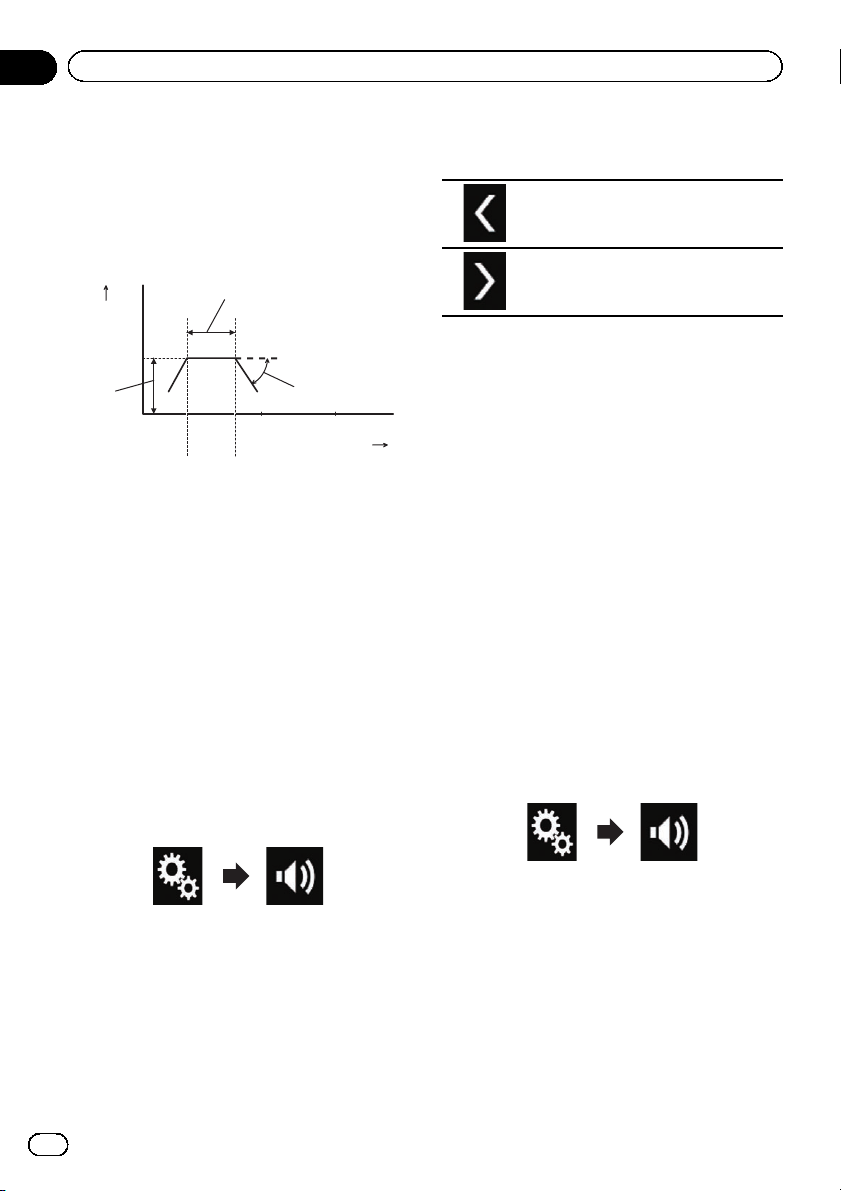
Adjusting the filter
The following adjustments can be made dur-
ing filter adjustments. Make the appropriate
adjustments for the reproduced frequency
band and characteristics of the connected
speaker unit.
20 1 k
0
10 k
Frequency (Hz)
34
5
2
Level (dB)
100
1
1 Reproduced frequency band
2 Slope adjustment
3 Cut-off frequency of the LPF
4 Cut-off frequency of the HPF
5 Level adjustment
Adjusting the front and rear
speaker output
You can set the frequency range for the sound
output from the front and rear speakers.
1 Touch the HOME button to display the
Top menu screen.
2 Touch the following keys in the follow-
ing order.
The “Audio” screen appears.
3 Confirm that “Rear Speaker” is set to
“On”.
p The default setting is “On”.
4 Touch [Crossover].
The “Cutoff” screen appears.
5 Touch the following keys to select
“Front” or “Rear”.
Selects the adjustable previous speak-
er.
Selects the adjustable next speaker.
6 Touch [HPF] to turn on.
7 Drag the line graph horizontally to ad-
just the range of cut-off frequency from
“50” Hz to “200” Hz.
p The default setting is “100” Hz.
8 Drag the tip of the slope to adjust the
range of level between “–6” dB/oct and “
–18” dB/oct.
p The default setting is “–12” dB/oct.
Using the subwoofer output
This product is equipped with a subwoofer out-
put mechanism, which can be turned on or
off.
1 Touch the HOME button to display the
Top menu screen.
2 Touch the following keys in the follow-
ing order.
The “Audio” screen appears.
3 Touch [Subwoofer] to set the subwoo-
fer output “On”.
p The default setting is “Off”.
4 Touch [Subwoofer Settings].
The “Cutoff” screen appears.
En
88
Chapter
19
Audio adjustments
5 Touch the following keys to select
“Subwoofer”.
Selects the adjus table previous speak-
er.
Selects the adjustable next speaker.
6 Touch [LPF] to turn on.
7 Touch the following keys to select the
phase of subwoofer output.
Sets the phase of subwoofer output to
normal.
Sets the phase of subwoofer output to
reverse.
8 Drag the line graph horizontally to ad-
just the range of cut-off frequency from
“50” Hz to “200” Hz.
p The default setting is “100” Hz.
9 Drag the tip of the slope to adjust the
range of level between “–6” dB/oct and “
–18” dB/oct.
p The default setting is “–18” dB/oct.
Selecting the listening
position
You can select a listening position that you
want to make as the center of sound effects.
1 Touch the HOME button to display the
Top menu screen.
2 Touch the following keys in the follow-
ing order.
The “Audio” screen appears.
3 Touch [Listening Position].
The “Listening Position” screen appears.
4 Touch the desired position.
! Off (default):
Changes the listening position setting to
off.
! Front:
Changes the listening position setting to
front.
! Front-L:
Changes the listening position setting to
front left.
! Front-R:
Changes the listening position setting to
front right.
! All:
Changes the listening position setting to
all.
Adjusting the speaker
output levels finely
Fine adjustments of the speaker output level
can be made by listening to audio output.
p This function is available when “Rear
Speaker” is set to “On”.
= For details, refer to Adjusting the front
and rear speaker output on page 88.
p This function is available when “Subwoo-
fer” is set to “On”.
= For details, refer to Using the subwoofer
output on page 88.
1 Touch the HOME button to display the
Top menu screen.
2 Touch the following keys in the follow-
ing order.
The “Audio” screen appears.
3 Touch [Speaker Level].
The “Speaker Level” screen appears.
En
89
Chapter
19
Audio adjustments
Audio adjustments
4 Touch the following keys to select the
listening position if necessary.
Selects the listening position.
! Off:
Changes the listening position setting to
off.
! Front Left:
Changes the listening position setting to
front left.
! Front Right:
Changes the listening position setting to
front right.
! Front:
Changes the listening position setting to
front.
! All:
Changes the listening position setting to
all.
p If you change the listening position setting,
the output levels of all the speakers will
change in conjunction with the setting.
5 Touch the following keys to adjust the
speaker output level.
Decreases the speaker level.
Increases the speaker level.
p “–24” dB to “10” dB is displayed as the dis-
tance to be corrected is increased or de-
creased.
! Front Left:
Changes the speaker level of the front left
speaker.
! Front Right:
Changes the speaker level of the front right
speaker.
! Rear Left:
Changes the speaker level of the rear left
speaker.
! Rear Right:
Changes the speaker level of the rear right
speaker.
! Subwoofer:
Changes the speaker level of the subwoofer
speaker.
# If you touch [Apply Auto EQ], the result of
“A-EQ&TA Measurement” will be applied to the
speaker level setting.
p To use this function, the vehicle’s acoustics
must be measured in advance.
Adjusting the time alignment
By adjusting the distance from each speaker
to the listening position, time alignment is
able to correct the time required for sound to
reach the listening position.
p This function is available when “Rear
Speaker” is set to “On”.
= For details, refer to Adjusting the front
and rear speaker output on page 88.
p This function is available when “Subwoo-
fer” is set to “On”.
= For details, refer to Using the subwoofer
output on page 88.
p This function is available only when the lis-
tening position setting is set to “Front Left”
or “Front Right”.
= For details, refer to Selecting the listen-
ing position on page 89.
1 Measure the distance between the
head of the listener and each speaker unit.
2 Touch the HOME button to display the
Top menu screen.
En
90
Chapter
19
Audio adjustments
3 Touch the following keys in the follow-
ing order.
The “Audio” screen appears.
4 Touch [Time Alignment].
The “Time Alignment” screen appears.
5 Touch the following keys to select the
listening position if necessary.
Selects the listening position.
! Off:
Changes the listening position setting to
off.
! Front Left:
Changes the listening position setting to
front left.
! Front Right:
Changes the listening position setting to
front right.
! Front:
Changes the listening position setting to
front.
! All:
Changes the listening position setting to
all.
p If you change the listening position setting,
the output levels of all the speakers will
change in conjunction with the setting.
6 Touch the following keys to input the
distance between the selected speaker and
the listening position.
Decreases the distance between the se-
lected speaker and the selected listen-
ing position.
Increases the distance between the se-
lected speaker and the selected listen-
ing position.
p “0.0” inch to “200.0” inch is displayed as
the distance to be corrected is increased or
decreased.
! Front Left:
Changes the distance between the front left
speaker and the selected listening position.
! Front Right:
Changes the distance between the front
right speaker and the selected listening po-
sition.
! Rear Left:
Changes the distance between the rear left
speaker and the selected listening position.
! Rear Right:
Changes the distance between the rear
right speaker and the selected listening po-
sition.
! Subwoofer:
Changes the distance between the subwoo-
fer speaker and the selected listening posi-
tion.
# If you touch [TA On], the time alignment is
turned off.
p This function is available only when the lis-
tening position setting is set to “Front Left”
or “Front Right”.
# If you touch [Apply Auto EQ], the result of
“A-EQ&TA Measurement” will be applied to the
time alignment setting.
p To use this function, the vehicle’s acoustics
must be measured in advance.
En
91
Chapter
19
Audio adjustments
Audio adjustments
Using the equalizer
The equalizer lets you adjust equalization to
match the vehicle interior acoustic character-
istics as desired.
Recalling equalizer curves
There are seven stored equalizer curves that
you can easily recall at any time. Here is a list
of the equalizer curves:
Equalizer curve
S.Bass is a curve in which only low-pitched sound is
boosted.
Powerful is a curve in which low- and high-pitched
sounds are boosted.
Natural is a curve in which low- and high-pitched
sounds are slightly boosted.
Vocal is a curve in which the midrange, which is the
human vocal range, is boosted.
Flat is a flat curve in which nothing is boosted.
Custom1 is an adjusted equalizer curve that you cre-
ate. If you select this curve, the effect is applied to all
AV sources.
Custom2 is an adjusted equalizer curve that you cre-
ate. If you select this curve, the effect is applied to all
AV sources.
p The default setting is “Powerful”.
p When “Flat” is selected, no supplement or
correction is made to the sound. This is
useful to check the effect of the equalizer
curves by switching alternatively between
“Flat” and a set equalizer curve.
1 Touch the HOME button to display the
Top menu screen.
2 Touch the following keys in the follow-
ing order.
The “Audio” screen appears.
3 Touch [Graphic EQ].
The “Graphic EQ” screen appears.
4 Touch the equalizer you want.
Customizing the equalizer curves
You can adjust the currently selected equalizer
curve setting as desired. Adjustments can be
made with a 13-band graphic equalizer.
p If you make adjustments when a curve “S.
Bass”, “Powerful”, “Natural”, “Vocal”,or
“Flat” is selected, the equalizer curve set-
tings will be changed to “Custom1” man-
datorily.
p If you make adjustments when the “Cus-
tom2” curve is selected for example, the
“Custom2” curve will be updated.
p “Custom1” and “Custom2” curves can be
created common to all sources.
1 Touch the HOME button to display the
Top menu screen.
2 Touch the following keys in the follow-
ing order.
The “Audio” screen appears.
3 Touch [Graphic EQ].
The “Graphic EQ” screen appears.
4 Touch one of the keys to select a curve
that you want to use as the basis of custo-
mizing.
5 Touch the frequency for which you
want to adjust the level.
p If you trail a finger across the bars of multi-
ple equalizer bands, the equalizer curve set-
tings will be set to the value of the touched
point on each bar.
En
92
Chapter
19
Audio adjustments
Using the auto-adjusted equalizer
You can set the auto-adjusted equalizer to suit
the vehicle’s acoustics. To use this function,
the vehicle’s acoustics must be measured in
advance.
= For details of the operations, refer to Adjust-
ing the equalizer curve automatically (Auto
EQ) on page 93.
p To manually adjust the equalizer curve, set
“Auto EQ&TA” to “Off”.
1 Touch the HOME button to display the
Top menu screen.
2 Touch the following keys in the follow-
ing order.
The “Audio” screen appears.
3 Touch [Auto EQ&TA] repeatedly until
the desired setting appears.
! Off (default):
Turns the Auto EQ&TA setting off.
! On:
Turns the Auto EQ&TA setting on.
Adjusting the equalizer curve
automatically (Auto EQ)
By measuring the vehicle’s acoustics, the
equalizer curve can be adjusted automatically
to suit the vehicle interior.
WARNING
A loud tone (noise) may be emitted from the
speakers when measuring the vehicle’s acous-
tics. Never perform Auto EQ measurement while
driving.
CAUTION
! Thoroughly check the conditions before per-
forming Auto EQ, as the speakers may be da-
maged if this is performed under the following
conditions:
— When the speakers are incorrectly con-
nected. (For example, when a rear speaker
is connected as a subwoofer output.)
— When a speaker is connected to a power
amp delivering output higher than the
speaker’s maximum input power capabil-
ity.
! If a microphone for acoustical measurement
(sold separately) is not placed in an appropri-
ate location, the measurement tone may be-
come loud and measurement may take a long
time, resulting in battery drainage. Be sure to
place the microphone in the specified loca-
tion.
Before operating the Auto EQ
function
! Perform Auto EQ in as quiet a place as pos-
sible, with the vehicle engine and air condi-
tioning switched off. Also, cut power to car
phones or cellular phones in the vehicle, or
remove them from the vehicle before per-
forming Auto EQ. Sounds other than the
measurement tone (surrounding sounds,
engine sound, telephones ringing, etc.)
may prevent correct measurement of the
vehicle’s acoustics.
! Be sure to perform Auto EQ using the mi-
crophone for acoustical measurement
(sold separately). Using another micro-
phone may prevent measurement, or result
in incorrect measurement of the vehicle’s
acoustics.
! To perform Auto EQ, the front speakers
must be connected.
! When this product is connected to a power
amp with input level control, Auto EQ may
be impossible if the power amp’s input
level is set below the standard level.
En
93
Chapter
19
Audio adjustments
Audio adjustments
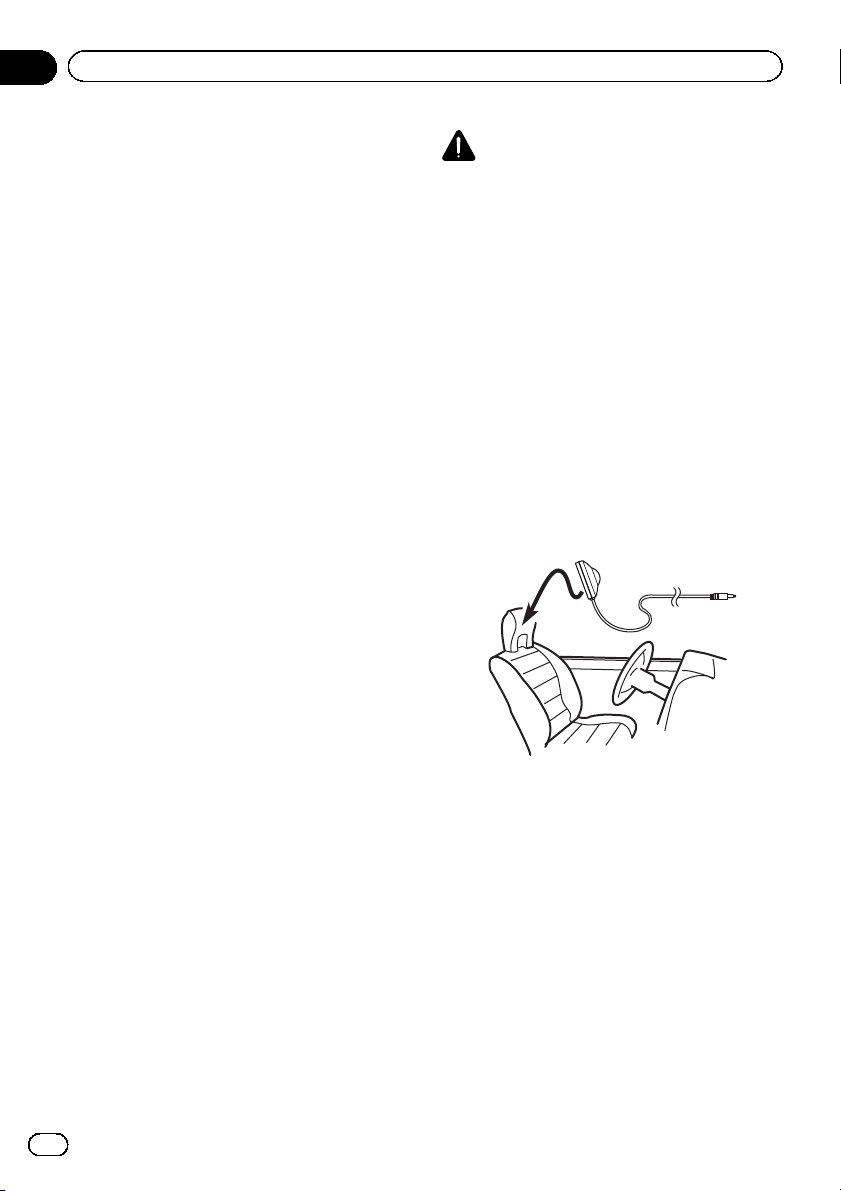
! When this product is connected to a power
amp with an LPF (low pass filter), turn the
LPF off before performing Auto EQ. Also,
set the cut-off frequency for the built-in LPF
of an active subwoofer to the highest fre-
quency.
! The distance has been calculated by a
computer to provide optimum delay to en-
sure accurate results. Do not change this
value.
— The reflected sound within the vehicle is
strong and delays occur.
— The LPF on active subwoofers or exter-
nal amps delay the lower sounds.
! If an error occurs during measurement, a
message appears and measurement is
canceled. Check the following before mea-
suring the vehicle’s acoustics.
— Front speakers (left/right)
— Rear speakers (left/right)
— Noise
— Microphone for acoustical measure-
ment (sold separately)
— Low battery
Performing Auto EQ
p Auto EQ changes the audio settings as fol-
lows:
—“Auto EQ&TA” is set to “On”.
= For details, refer to Using the auto-ad-
justed equalizer on page 93.
— The fader/balance settings return to the
center position.
= For details, refer to Using balance ad-
justment on page 85.
— The equalizer curve switches to “Flat”.
= For details, refer to Using the equali-
zer on page 92.
— The front and rear speakers will automa-
tically be adjusted to a high pass filter
setting.
p Previous settings for Auto EQ will be over-
written.
CAUTION
Do not turn off the engine while the measure-
ment is in progress.
1 Stop the vehicle in a quiet place, close
all the doors, windows and sun roof, and
then turn the engine off.
If the engine is left running, engine noise may
prevent correct Auto EQ.
p If driving restrictions are detected during
measurement, measurement is canceled.
2 Fix the microphone for acoustical mea-
surement (sold separately) in the center of
the headrest of the driver’s seat, facing for-
ward.
The Auto EQ may differ depending on where
you place the microphone. If desired, place
the microphone on the front passenger seat
and perform Auto EQ.
3 Disconnect the iPhone or smartphone
device.
4 Turn on the ignition switch (ACC ON).
If the vehicle’s air condi tioner or heater is
turned on, turn it off. Noise from the fan in the
air conditioner or heater may prevent correct
Auto EQ.
5 Switch the AV source to “OFF”.
= For details of the operations, refer to Dis-
playing the AV operation screen on page 12.
6 Touch the HOME button to display the
Top menu screen.
En
94
Chapter
19
Audio adjustments
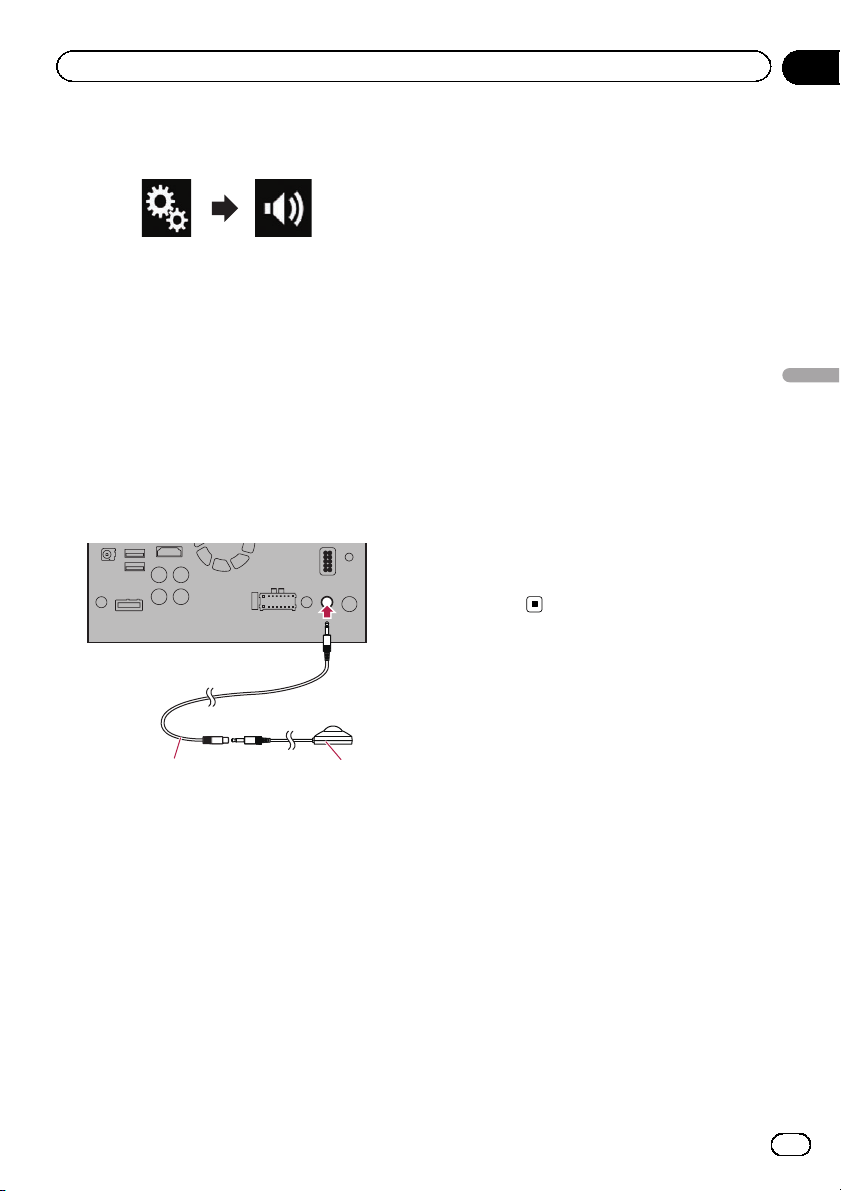
7 Touch the following keys in the follow-
ing order.
The “Audio” screen appears.
8 Touch [A-EQ&TA Measurement].
The “A-EQ&TA Measurement” screen ap-
pears.
9 Connect the microphone for acoustical
measurement (sold separately) with this
product.
Connect the microphone with the mini-jack ex-
tension cable, and then plug it into the auxili-
ary input jack on this product.
= For details of the operations, refer to the In-
stallation Manual.
12
1 Mini-jack extension cable
2 Microphone for acoustical measurement
(sold separately)
10 Touch [Front Left] or [Front Right] to se-
lect the current listening position.
11 Touch [Start].
A 10-second countdown starts.
p The Bluetooth connection is disconnected
before the process starts.
12 Exit the vehicle and keep the doors
closed until the countdown finishes.
When the countdown finishes, a measure-
ment tone (noise) is emitted from the speakers
and the Auto EQ measurement begins.
13 Wait until the measurement is com-
pleted.
When Auto EQ is completed, a message is dis-
played indicating that the measurement is
completed.
p If the vehicle’s acoustics cannot be mea-
sured correctly, an error message will be
displayed.
p The measurement time varies depending
on the type of vehicle.
p To stop the measurement, touch [Stop].
14 Store the microphone carefully in the
glove compartment or another safe place.
If the microphone is subjected to direct sun-
light for an extended period, high tempera-
tures may cause distortion, color change or
malfunction.
En
95
Chapter
19
Audio adjustments
Audio adjustments
Selecting the background
display
The background display can be selected from
8 different preset displays for the AV operation
screen and 5 different preset displays for the
Top menu screen. Furthermore, you can
change the background display to other
images imported from an external device.
1 Touch the HOME button to display the
Top menu screen.
2 Touch the following keys in the follow-
ing order.
The “Theme” screen appears.
3 Touch [Background].
p You can also change the screen for settings
by touching [Illumination], [Theme]or
[Clock] on this screen.
4 Touch [Home] or [AV] to switch the
screen displays.
p The setting contents can be memorized se-
parately for the AV operation screen and the
Top menu screen.
5 Touch the item you want to set.
! Preset displays:
Selects the desired preset background dis-
play.
!
(custom):
Displays the background display image im-
ported from the external device.
= For details, refer to Changing to the back-
ground display image stored on the USB
storage device on page 96.
!
(off):
Hides the background display.
Changing to the background
display image stored on the
USB storage device
You can change the background display
image to an image imported from the USB sto-
rage device.
p Background display image must be used
within the following formats.
— JPEG image files (.jpg or .jpeg)
— Allowable data size is 10 MB or smaller
— Allowable image size is 4 000 ×
4 000 pixel or smaller
CAUTION
Do not turn off the engine while importing an
image from the USB storage device.
1 Touch the HOME button to display the
Top menu screen.
2 Touch the following keys in the follow-
ing order.
The “Theme” screen appears.
3 Touch [Background].
p You can also change the screen for settings
by touching [Illumination], [Theme]or
[Clock] on this screen.
4 Touch the following key.
Displays the list of the background dis-
play images store d on the USB storage
device.
5 Touch the desired external device.
6 Touch the image to use as the back-
ground display from the list.
The image is set as the background display.
En
96
Chapter
20
Theme menu
p You can delete the imported image and re-
store the setting for the background display
to the default by touching and holding the
custom key.
Setting the illumination color
The illumination color can be selected from 5
different colors. Furthermore, the illumination
can be switched between these 5 colors in
order.
Selecting the color from the
preset colors
You can select an illumination color from the
color list.
1 Touch the HOME button to display the
Top menu screen.
2 Touch the following keys in the follow-
ing order.
The “Theme” screen appears.
3 Touch [Illumination].
p You can also change the screen for settings
by touching [Theme], [Background]or
[Clock] on this screen.
4 Touch the color you want.
! Colored keys:
Selects the desired preset color.
!
(custom):
Displays the screen to customize the illumi-
nation color.
= For details, refer to Creating a user-de-
fined color on page 97.
!
(rainbow):
Shifts gradually between the five default
colors in sequence.
p You can preview the Top menu screen or
the AV operation screen by touching
[Home]or[AV] respectively.
Creating a user-defined color
You can create a user-defined color. The cre-
ated color is stored, and you can select the
color when setting the illumination color the
next time.
1 Touch the HOME button to display the
Top menu screen.
2 Touch the following keys in the follow-
ing order.
The “Theme” screen appears.
3 Touch [Illumination].
p You can also change the screen for settings
by touching [Theme], [Background]or
[Clock] on this screen.
4 Touch the following key.
Displays the screen to create a user-de-
fined color and store it to memory.
5 Touch the following keys.
Adjusts the brightness and the level of
red, green and blue to create a favorite
color.
p You can also adjust the color tone by drag-
ging the color bar.
6 Touch and hold [Memo] to store the
customized color in the memory.
The customized color is stored in the memory.
The set color will be recalled from the memory
the next time you touch the same key.
En
97
Chapter
20
Theme menu
Theme menu
Selecting the theme color
A theme color can be selected from 5 different
colors.
1 Touch the HOME button to display the
Top menu screen.
2 Touch the following keys in the follow-
ing order.
The “Theme” screen appears.
3 Touch [Theme].
p You can also change the screen for settings
by touching [Illumination], [Background]
or [Clock] on this screen.
4 Touch the color you want.
p You can preview the Top menu screen or
the AV operation screen by touching
[Home]or[AV] respectively.
Selecting the clock image
The clock on the AV operation screen and the
Top menu screen can be selected from 3 differ-
ent images.
1 Touch the HOME button to display the
Top menu screen.
2 Touch the following keys in the follow-
ing order.
The “Theme” screen appears.
3 Touch [Clock].
p You can also change the screen for settings
by touching [Illumination], [Theme]or
[Background] on this screen.
4 Touch the item you want to set.
! Preset images:
Selects the desired preset clock image.
!
(off):
Hides the clock display.
p You can preview the Top menu screen or
the AV operation screen by touching
[Home]or[AV] respectively.
Changing the preinstalled
splash screen
You can change the splash screen to other
images preinstalled in this product.
1 Touch the HOME button to display the
Top menu screen.
2 Touch the following keys in the follow-
ing order.
The “Theme” screen appears.
3 Touch [Splash Screen].
4 Touch the item you want to set.
! Preset images:
Selects the desired preset splash screen
image.
!
(custom):
Displays the splash screen image imported
from the external device.
= For details, refer to Changing to the splash
screen stored on the USB storage device on
page 98.
Changing to the splash screen
stored on the USB stor age device
You can change the splash screen to other
images imported from the USB storage de-
vice.
En
98
Chapter
20
Theme menu
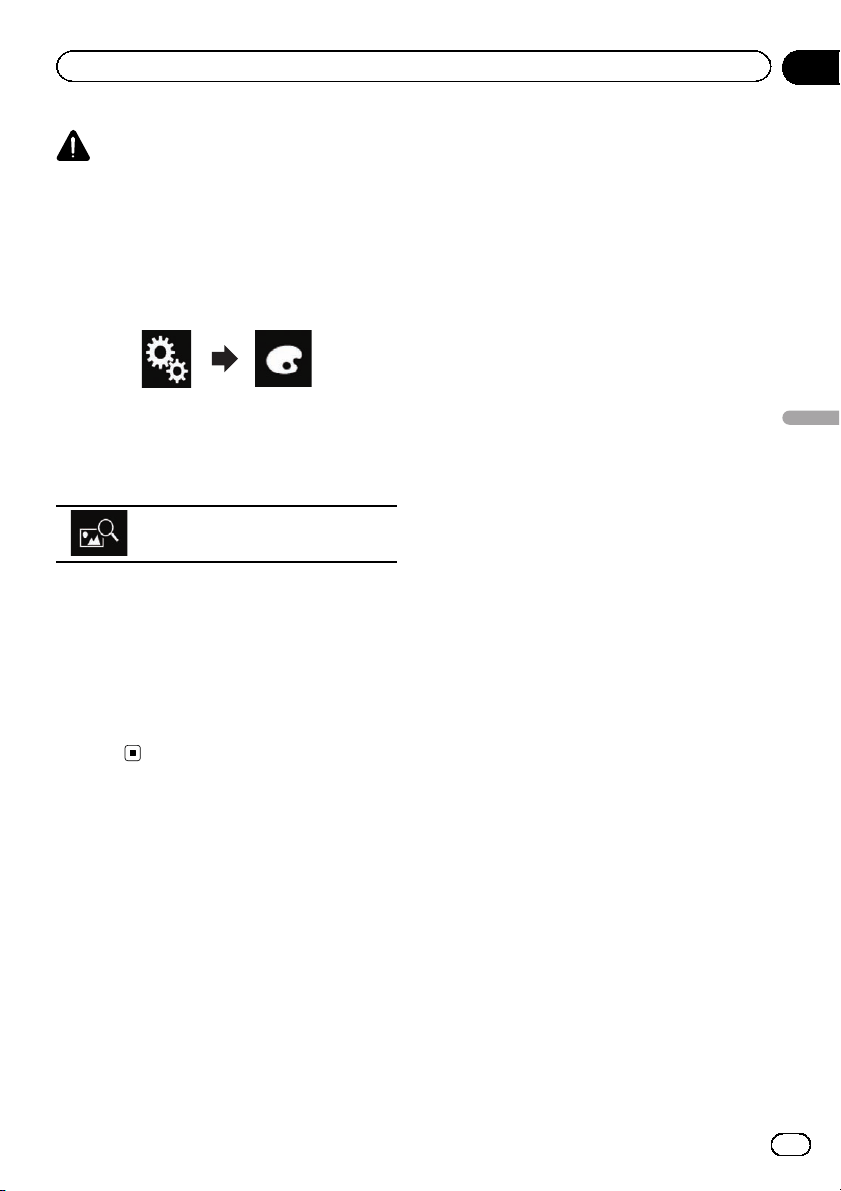
CAUTION
Do not turn off the engine while importing an
image from the USB storage device.
1 Touch the HOME button to display the
Top menu screen.
2 Touch the following keys in the follow-
ing order.
The “Theme” screen appears.
3 Touch [Splash Screen].
4 Touch the following key.
Displays the list of the splash screens
stored on the USB storage device.
5 Touch the desired external device.
6 Touch the image to use as the splash
screen from the list.
The image is set as the splash screen.
p You can delete the imported image and re-
store the setting on the splash screen to the
default by touching and holding the custom
key.
En
99
Chapter
20
Theme menu
Theme menu
Displaying your DivX VOD
registration code
If you want to play DivX VOD (video on de-
mand) content on this product, you must first
register this product with your DivX VOD con-
tent provider. You do this by generating a DivX
VOD registration code, which you submit to
your provider.
p Keep a record of the code as you will need
it when you register this product to the
DivX VOD provider.
1 Touch the HOME button to display the
Top menu screen.
2 Touch the following keys in the follow-
ing order.
The “Video Setup” screen appears.
3 Touch [DivX Setup].
4 Touch [DivX® VOD].
The “DivX® VOD” screen appears.
p If a registration code has already been acti-
vated, it cannot be displayed.
5 Touch [Registration Code].
Your 10-digit registration code is displayed.
p Make a note of the code as you will need it
when you register with a DivX VOD
provider.
Displaying your DivX VOD
deregistration code
A registration code registered with a deregis-
tration code can be deleted.
1 Touch the HOME button to display the
Top menu screen.
2 Touch the following keys in the follow-
ing order.
The “Video Setup” screen appears.
3 Touch [DivX Setup].
4 Touch [DivX® VOD].
The “DivX® VOD” screen appears.
5 Touch [Deregistration Code].
Your eight-digit deregistration code is dis-
played.
p Make a note of the code as you will need it
when you deregister from a DivX VOD
provider.
Setting the video signal for
the rear view camera
When you connect a rear view camera to this
product, select the suitable video signal set-
ting.
p You can operate this function only for the
video signal input into the AV input.
1 Touch the HOME button to display the
Top menu screen.
2 Touch the following keys in the follow-
ing order.
The “Video Setup” screen appears.
3 Touch [Video Signal Setting].
4 Touch [Camera].
The pop-up menu appears.
5 Touch the item you want to set.
! Auto (default):
En
100
Chapter
21
Setting up the video player
Adjusts the video signal setting automati-
cally.
! PAL:
Sets the video signal to PAL.
! NTSC:
Sets the video signal to NTSC.
! PAL-M:
Sets the video signal to PAL-M.
! PAL-N:
Sets the video signal to PAL-N.
! SECAM:
Sets the video signal to SECAM.
En
101
Chapter
21
Setting up the video player
Setting up the video player
Registering your favorite menu items in short-
cuts allows you to quickly jump to the regis-
tered menu screen by a simple touch on the
“Favorites” screen.
p Up to 12 menu items can be registered in
the favorite menu.
Creating a shortcut
1 Touch the HOME button to display the
Top menu screen.
2 Touch the following key.
Displays the Setting menu screen.
3 Touch the star icon of the menu item
that you want to add to the favorite menu.
The star icon for the selected menu is filled in.
# To cancel the registration, touch the star icon
in the menu column again.
Selecting a shortcut
1 Touch the HOME button to display the
Top menu screen.
2 Touch the following key.
The “Favorites” screen appears.
3 Touch the desired item.
Removing a shortcut
1 Touch the HOME button to display the
Top menu screen.
2 Touch the following keys in the follow-
ing order.
The “Favorites” screen appears.
3 Touch and hold the favorite menu you
want to remove.
The selected menu is removed from the “Fa-
vorites” screen.
p You can also remove a shortcut by touching
the star icon of the registered menu
item.
En
102
Chapter
22
Favorite menu
Setting the time and date
You can change the date display format and
the time format.
1 Touch the current time on the screen to
display the Time and date setting screen.
2 Touch the item you want to set.
Time Zone
! +, –
Changes the time zone manually.
Month/Date
! m/d (default):
Changes the date display format to month/
date.
! d/m:
Changes the date display format to date/
month.
Time Format
! 12hour (default):
Changes the display to 12-hour format with
am/pm.
! 24hour:
Changes the display to 24-hour format.
Summer Time
! Off (default):
Turns the summer time setting off.
! On:
Turns the summer time setting on.
Storing song information
to an iPod (iTunes Tagging)
You can store song information to the iPod
when this product receives song information.
The songs will appear in a playlist called
“Tagged playlist” in iTunes the next time you
synchronize your iPod. You can directly buy
the songs via this product.
Depending on when the song information is
stored, information for the previous song or
the song after the current song may also be
stored. Be sure to confirm the song before you
purchase it.
p The iTunes Tagging function is available
while digital broadcasts are being received.
p This function is available for the following
iPod models:
! iPhone 4s
! iPhone 4
! iPhone 3GS
! iPhone 3G
! iPhone
! iPod touch 5th generation
! iPod touch 4th generation
! iPod touch 3rd generation
! iPod touch 2nd generation
! iPod touch 1st generation
! iPod classic
! iPod nano 6th generation
! iPod nano 5th generation
! iPod nano 4th generation
! iPod nano 3rd generation
p The version of iTunes must be 7.4 or higher.
1 Touch the HOME button to display the
Top menu screen.
2 Touch the following keys in the follow-
ing order.
The “System” screen appears.
3 Touch [AV Source Settings].
4 Touch [Tag Forwarding] repeatedly
until the desired setting appears.
! USB1 (default):
Transfers the song information to your iPod
which is connected to USB port 1.
! USB2:
Transfers the song information to your iPod
which is connected to USB port 2.
5 Tune into the digital broadcast station.
When the song information is received,
is displayed while the desired song is being
broadcast, and the touch panel key becomes
active.
En
103
Chapter
23
Common operations
Common operations
= For details, refer to iTunes
®
tagging indi-
cator on page 33.
= For details, refer to Using the touch panel
keys on page 32.
6 Touch the touch panel key on which
song information is displayed.
The information on the song on air is stored in
this product.
While the information is being acquired,
is displayed.
When it is completed,
turns off and is
displayed.
p The song information for up to 50 songs
can be stored in this product.
Depending on when the song information
is stored, information for the previous song
or the song after the current song may also
be stored.
7 Connect your iPod.
The song information is transferred to your
iPod.
p If the iPod is already connected, the song
information will be transferred to your iPod
every time you touch the touch panel key
on which song information is displayed.
When the song information transfer to your
iPod is completed,
disappears.
p When the song information transfer is com-
pleted, the information stored in this pro-
duct will be automatically deleted.
p If you turn off this product or disconnect
the iPod while transferring song informa-
tion, the transfer may not successfully com-
plete.
p While this product is storing song informa-
tion, transfer to an iPod is not possible.
Setting the “Sound
Retriever” function
The “Sound Retriever” function automatically
enhances compressed audio and restores rich
sound.
% Touch the following key repeatedly
until the desired setting appears on the AV
operation screen.
Sets the “Sound Retriever” function.
! (Mode1) (default):
Activates the “Sound Retriever” function.
!
(Mode2):
Activates the “Sound Retriever” function.
!
(Off):
Deactivates the “ Sound Retriever” func-
tion.
p Mode1 has a stronger effect than Mode2.
Changing the wide screen
mode
You can set the screen size for the video and
JPEG images.
p The default setting is “Full”, and for JPEG
images is “Normal”.
1 Touch the following key.
Displays the setting screen to select the
appropriate screen ratio for the play-
back video.
p The appearance of this key changes accord-
ing to the current setting.
2 Touch the desired mode.
! Full
A 4:3 picture is enlarged in the horizontal
direction only, enabling you to enjoy a 4:3
TV picture (normal picture) without any
omissions.
p This setting is for video only.
! Zoom
A 4:3 picture is enlarged in the same pro-
portion both vertically and horizontally;
ideal for a cinema-sized (wide screen) pic-
ture.
p This setting is for video only.
! Normal
En
104
Chapter
23
Common operations

A 4:3 picture is displayed normally, giving
you no sense of disparity since its propor-
tions are the same as those of the normal
picture.
p This setting is for video and JPEG
images.
! Trimming
An image is displayed across the entire
screen with the horizontal-to-vertical ratio
left as is. If the horizontal-to-vertical ratio
differs between the display and the image,
the image may be displayed partly cut off
either at the top/bottom or sides.
p This setting is for JPEG images only.
p You cannot operate this function while driv-
ing.
p Different settings can be stored for each
video source.
p When a video is viewed in a wide screen
mode that does not match its original as-
pect ratio, it may appear different.
p The video image will appear coarser when
viewed in “Zoom” mode.
En
105
Chapter
23
Common operations
Common operations
Selecting the video for the
rear display
You can choose either to show the same
image as the front screen or to show the se-
lected source on the rear display.
p This function is not available during a call
in Apple CarPlay.
p iPod is not available as a source for the
rear display when Apple CarPlay is on.
p Video files on the USB storage device can-
not be played back when Apple CarPlay is
on.
1 Touch the HOME button to display the
Top menu screen.
2 Touch the following key.
Displays the AV source selection
screen.
3 Touch [Rear].
The “Rear” screen appears.
4 Touch the source you want to show on
the rear display.
The source you can select is as follows.
! Mirror
The video on the front screen of this pro-
duct is output to the rear display.
— Not all videos or sounds can be output
to the rear display.
! USB/iPod
The video and sound of the USB storage de-
vice or iPod are output to the rear display.
— The port that supports the rear display
will only be USB port 1.
— Compatible file types are MPEG-4,
H.264, WMV, MKV, and FLV only.
! AV
The video and sound of AV are output to
the rear display.
— The video image and sound are output
only when “AV” has both video and
sound.
— The video image and sound are output
only when the corresponding settings
on “AV Input” is “Source”.
= For details, refer to Setting AV input
on page 77.
! OFF
Nothing is output to the rear display.
# Touch the following key.
Closes the “Rear” screen.
# You can also select [Rear] on the source list.
= For details, refer to Selecting a front source
on the source list on page 12.
Setting the anti-theft function
You can set a password for this product. If the
back-up lead is cut after the password is set,
this product prompts for the password at the
time of next boot up.
Setting the password
1 Touch the HOME button to display the
Top menu screen.
2 Touch the following keys in the follow-
ing order.
The “System” screen appears.
En
106
Chapter
24
Other functions
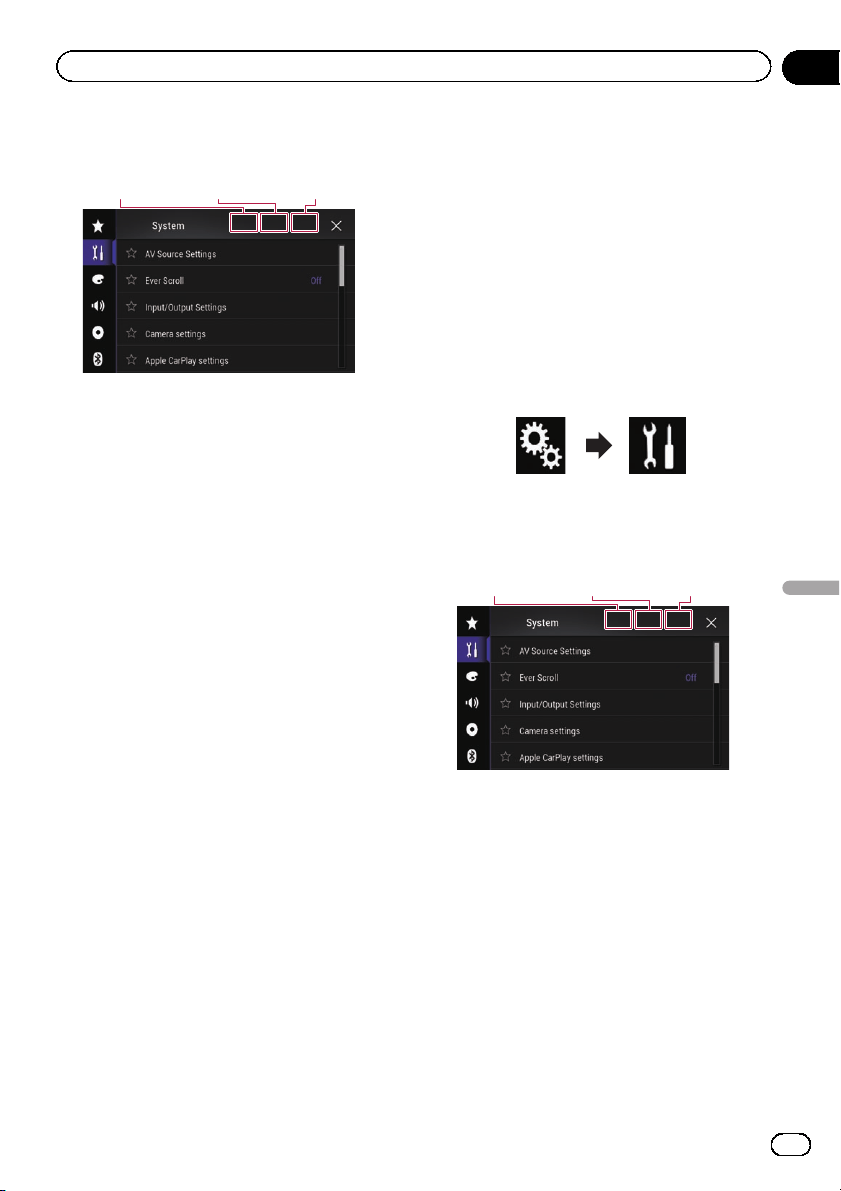
3 Touch Area1, followed by Area2, and
then touch and hold Area3.
Area1 Area2 Area3
The “Anti-theft Setting Menu” screen ap-
pears.
4 Touch [Set Password].
The “Password Entry” screen appears.
5 Enter the password you want to set.
p 5 to 16 characters can be entered for a
password.
6 Touch [Go].
The “Hint Entry” screen appears.
7 Enter a password hint.
p Up to 40 characters can be entered for a
hint.
8 Touch [Go].
The “Password Confirmation” screen ap-
pears.
p If you want to change the password cur-
rently set, enter the current password and
then enter the new one.
9 Check the password, and then touch
[OK].
The “Anti-theft Setting Menu” screen ap-
pears.
Entering the password
On the password input screen, you must enter
the current password.
1 Enter the password.
2 Touch [Go].
When the correct password is entered, this
product will be unlocked.
Deleting the password
The current password and password hint can
be deleted.
1 Touch the HOME button to display the
Top menu screen.
2 Touch the following keys in the follow-
ing order.
The “System” screen appears.
3 Touch Area1, followed by Area2, and
then touch and hold Area3.
Area1 Area2 Area3
The “Anti-theft Setting Menu” screen ap-
pears.
4 Touch [Clear Password].
A message confirming whether to delete the
password appears.
5 Touch [Yes].
The password setting screen appears.
A message confirming a password hint ap-
pears.
6 Touch [OK].
The “Password Entry” screen appears.
7 Enter the current password.
En
107
Chapter
24
Other functions
Other functions
8 Touch [Go].
A message indicating that the security setting
is canceled appears.
Forgotten password
Contact the nearest authorized Pioneer Ser-
vice Station.
Restoring this product to
the default settings
You can restore settings or recorded content
to the default settings. Various methods are
used to clear user data.
Method 1: Remove the vehicle battery
You can reset various settings registered to
this product.
p The settings configured on the “Theme”
screen are not reset.
Method 2: Touch the item you want to
initialize on the “System” screen
= For details, refer to Restoring the default set-
tings on page 108.
Restoring the default settings
You can reset various settings registered to
this product to the default settings.
p This setting is available only when you stop
your vehicle in a safe place and apply the
parking brake.
CAUTION
Do not turn off the engine while restoring the set-
tings.
1 Touch the HOME button to display the
Top menu screen.
2 Touch the following keys in the follow-
ing order.
The “System” screen appears.
3 Touch [Restore Settings].
4 Touch the item you want to initialize.
! All Settings
! Audio Settings
p This setting is available when the se-
lected source is “OFF”.
! Theme Settings
! Bluetooth Settings
A message confirming whether to initialize the
settings appears.
p If you want to return settings or recorded
content to the default, touch [All Settings].
p Some of the settings configured on the
“Theme” setting will not be reset.
5 Touch [Restore].
When the selected item is successfully initia-
lized, a completion message appears.
p The source is turned off and the Bluetooth
connection is disconnected before the pro-
cess starts.
En
108
Chapter
24
Other functions
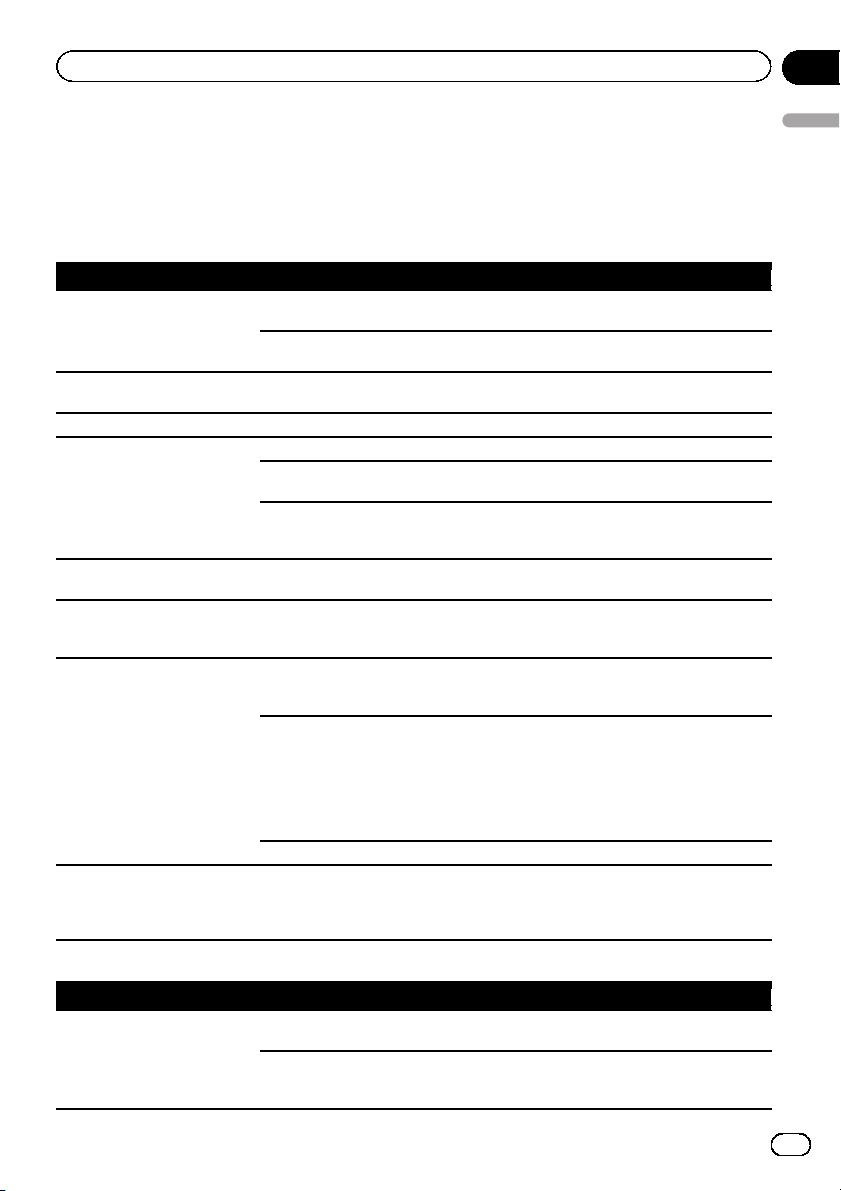
Troubleshooting
If you have problems operating this product, refer to this section. The most common problems are
listed below, along with likely causes and solutions. If a solution to your problem cannot be found
here, contact your dealer or the nearest authorized Pioneer service facility.
Problems with the AV screen
Symptom Cause Action (Reference)
The screen is covered by a cau-
tion message and the video can-
not be shown.
The parking brake lead is not con-
nected or applied.
Connect the parking brake lead correctly, and
apply the parking brake.
The parking brake interlock is acti-
vated.
Park your vehicle in a safe place and apply
the parking brake.
No video output from the con-
nected equipment.
The “AV Input” setting is incorrect. Correct the settings. (Page 77)
The audio or video skips. This product is not firmly secured. Secure this product firmly.
No sounds are produced.
The volume level will not rise.
Cables are not connected correctly. Connect the cables correctly.
The system is performing still or
slow motion playback with Video.
There is no sound during still or slow motion
playback with Video.
The system is paused or performing
fast reverse or fast forward during
playback.
There is no sound on fast reverse or forward.
The icon 9 is displayed, and op-
eration is impossible.
The operation is not available. The operation is not available.
The picture stops (pauses) and
this product cann ot be oper-
ated.
The reading of data is impossible
during playback.
Stop playback once, then restart.
iPod cannot be operated. The iPod is frozen. ! Reconnect the iPod with the USB interface
cable for iPod / iPhone.
! Update the iPod software version.
An error has occurred.
! Reconnect the iPod with the USB interface
cable for iPod / iPhone.
! Park your vehicle in a safe place, and turn
off the engine. Turn the ignition key back to
off (ACC OFF). Then restart the engine, and
turn the power to this product back on.
! Update the iPod software version.
Cables are not connected correctly. Connect the cables correctly.
Sound from the iPod cannot be
heard.
The audio output direction may
switch automatically when the
Bluetooth and USB connections are
used at the same time.
Use the iPod to change the audio output di-
rection.
Problems with the phone screen
Symptom Cause Action
Dialing is impossible because
the touch panel keys for dialing
are inactive.
Your phone is out of range for ser-
vice.
Retry after re-entering the range for service.
The connection between the cellular
phone and this product cannot be
established now.
Perform the connection process.
En
109
Appendix
Appendix
Appendix
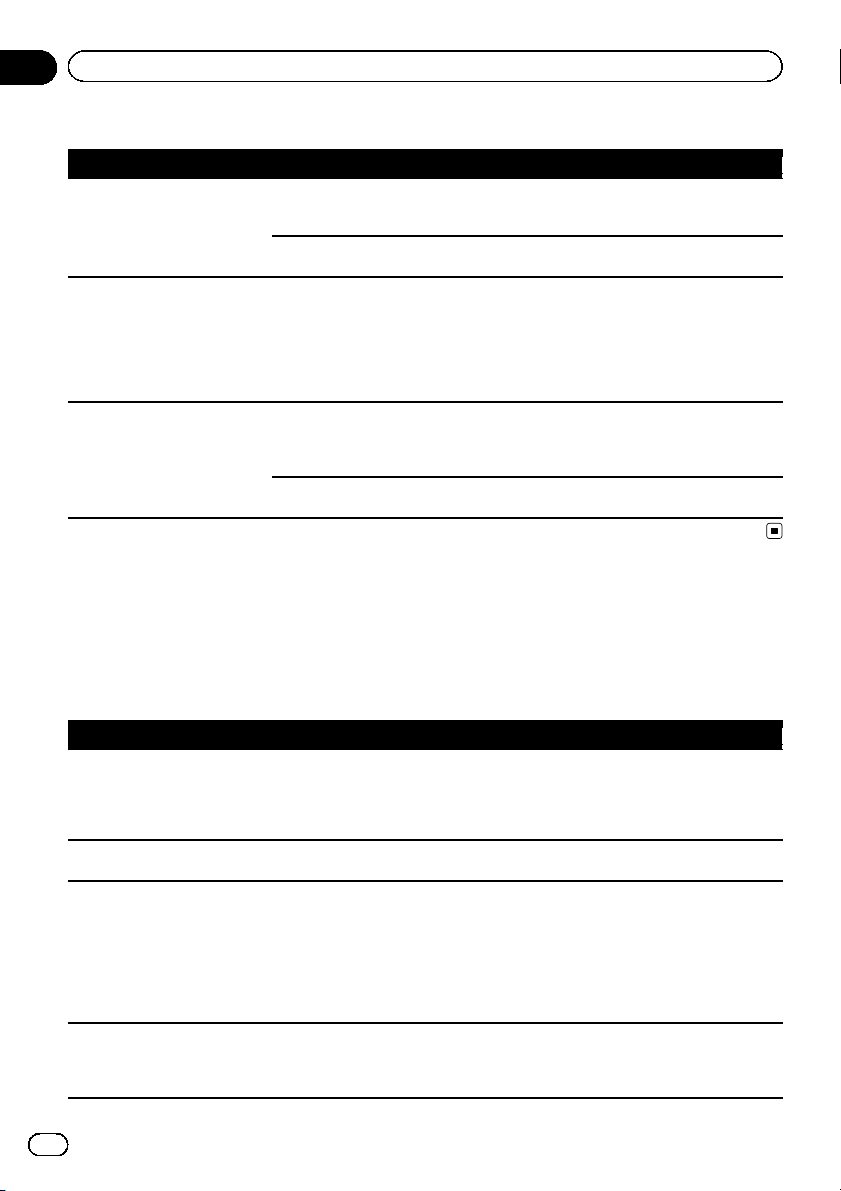
Problems with the Application screen
Symptom Cause Action
A black screen is displayed. While operating an application, the
application was ended on the smart-
phone side.
Touch the HOME button to display the Top
menu screen.
The smartphone OS may be await-
ing screen operation.
Stop the vehicle in a safe place and check the
screen on the smartphone.
The screen is displayed, but op-
eration does not work at all.
An error has occurred. ! Park your vehicle in a safe place, and then
turn off the ignition switch (ACC OFF). Subse-
quently, turn the ignition switch to on (ACC
ON) again.
! When an Android device is connected, dis-
connect the Bluetooth connection from this
product and then reconnect it.
The smartphone was not
charged.
Charging stopped because the tem-
perature of the smartphone rose
due to prolonged use of the smart-
phone during charging.
Disconnect the smartphone from the cable,
and wait until the smartphone cools down.
More battery power was consumed
than was gained from charging.
This problem may be resolved by stopping
any unnecessary services on the smartphone.
Error messages
When problems occur with this product, an error message appears on the display. Refer to the
table below to identify the problem, then take the suggested corrective action. If the error persists,
record the error message and contact your dealer or your nearest Pioneer service center.
Common
Message Cause Action
AMP Error This product fails to operate or the
speaker connection is incorrect; the
protective circuit is activated.
Check the speaker connection. If the mes-
sage fails to disappear even after the engine
is switched off/on, contact your dealer or an
authorized Pioneer Service Station for assis-
tance.
TEMP The temperature of this product is
outside the normal operating range.
Wait until this product returns to a tempera-
ture within the normal operating limits.
Product overheat. System will
be shut down automatically
in 1 minute. Restart the pro-
duct by ACC-Off/On may fix
this problem. If this message
keeps showing up, it is possi-
ble that some problem oc-
cured in the product.
The temperature is too high for this
product to operate.
Follow the instructions displayed on the
screen. If this does not solve the problem,
contact your dealer or an authorized Pioneer
Station for assistance.
Positioning is not possible
due to the hardware. Please
contact your dealer or Pioneer
service center.
The location display is not possible
due to hardware failure.
Contact your dealer or an authorized Pioneer
Station for assistance.
En
110
Appendix
Appendix

Message Cause Action
No GPS antenna. Check con-
nection.
GPS reception is lost. Check the antenna connection. If the mes-
sage fails to disappear even after the engine
is switched off/on, contact your dealer or an
authorized Pioneer Station for assistance.
GPS antenna problem de-
tected. Contact dealer or ser-
vice center.
GPS antenna lead is short-circuited. Contact your dealer or an authorized Pioneer
Station for assistance.
Pandora
Message Cause Action
Error-19 Communication failed. Disconnect the cable from the iPod. Once the
iPod’s main menu is displayed, reconnect the
iPod and reset it.
Skip limit reached. Skip limit reached. ! Do not exceed the skip limit.
! Due to music licensing restrictions,
Pandora limits the total number of skips per
hour.
Check Device Device error message displayed in
Pandora application.
Please check your connected device.
Incompatible USB The connected USB storage device
is not supported by this product.
Disconnect your device and replace it with a
compatible USB storage device.
Check USB The USB connector or USB cable
has short-circuited.
Check that the USB connector or USB cable
is not caught in something or damaged.
The connected USB storage device
consumes more than maximum al-
lowable current.
Disconnect the USB storage device and do
not use it. Turn the ignition switch to OFF,
then to ACC or ON and then connect a com-
pliant USB storage device.
USB storage device
Message Cause Action (Reference)
Error-02-9X/-DX Communication failed. ! Turn the ignition switch OFF and back ON.
! Disconnect the USB storage device.
! Change to a different source. Then, return
to the USB storage device.
Unplayable File This type of file cannot be played on
this product.
Select a file that can be played. (Page 120)
Security for the connected USB sto-
rage device is enabled.
Follow the USB storage device instructions to
disable security.
Skipped The connected USB storage device
contains DRM protected files.
The protected files are skipped.
Protect All the files on the connected USB
storage device are embedded with
DRM.
Replace the USB storage device.
Incompatible USB The connected USB storage device
is not supported by this product.
Disconnect your device and replace it with a
compatible USB storage device.
En
111
Appendix
Appendix
Appendix

Message Cause Action (Reference)
Check USB The USB connector or USB cable is
short-circuited.
Check that the USB connector or USB cable
is not caught in something or damaged.
The connected USB storage device
consumes more than maximum al-
lowable current.
Disconnect the USB storage device and do
not use it. Turn the ignition switch to OFF,
then to ACC or ON and then connect a com-
pliant USB storage device.
This DivX rental has expired. The connected USB storage device
contains expired DivX VOD content.
Select a file that can be played.
Video resolution not sup-
ported
Files that cannot be played on this
product are included in the file.
Select a file that can be played. (Page 120)
It is not possible to write it in
the flash. Unable to write to
flash memory.
The playback history for VOD con-
tents cannot be saved for some rea-
son.
! Retry.
! If the message appears frequently, consult
your dealer.
Your device is not authorized
to play this DivX protected
video.
This product’s DivX registration
code has not been authorized by the
DivX VOD contents provider.
Register this product to the DivX VOD con-
tents provider.
Video frame rate not sup-
ported
DivX file’s frame rate is more than
30 fps.
Select a file that can be played.
USB1 was disconnected for
device protection. Do not re-
insert this USB memory into
the unit.
USB2 was disconnected for
device protection. Do not re-
insert this USB memory into
the unit.
The USB connector or USB cable is
short-circuited.
Check that the USB connector or USB cable
is not caught in something or damaged.
The connected USB storage device
consumes more than maximum al-
lowable current.
Disconnect the USB storage device and do
not use it. Turn the ignition switch to OFF,
then to ACC or ON and then connect a com-
pliant USB storage device.
The USB interface cable for iPod /
iPhone is short-circuited.
Confirm that the USB interface cable for iPod
/ iPhone or USB cable is not caught in some-
thing or damaged.
Audio Format not supported This type of file is not supported on
this product.
Select a file that can be played. (Page 120)
iPod
Message Cause Action
Error-02-6X/-9X/-DX iPod failure. Disconnect the cable from the iPod. Once the
iPod’s main menu is displayed, reconnect the
iPod and reset it.
Error-02-67 The iPod firmware version is old. Update the iPod version.
iTunes tagging
Message Cause Action
Error-8D Built-in FLASH ROM encountered
an error.
Turn the ignition switch to OFF and then to
ON.
Tag store failed. Tag information cannot be stored in
this product.
Try again.
Already stored. This tag information is already
stored in memory.
Tag information can only be saved once for
any given song. Tag information cannot be
saved for the same song more than once.
En
112
Appendix
Appendix

Message Cause Action
Memory full. Connect iPod. The tag information is successfully
stored. The flash memory of this
product has become full.
The tag information on this product is trans-
ferred to the iPod automatically when an iPod
is connected.
Memory full. Tags not stored.
Connect iPod.
This product’s flash memory used
as the temporary storage area is
full.
The tag information on this product is trans-
ferred to the iPod automatically when an iPod
is connected.
iPod full. Tags not transferred. Memory used for tag information on
the iPod is full.
Sync the iPod with iTunes and clean up the
tagged playlist.
Tag transfer failed. Reconnect
your iPod.
This product’s tag information can-
not transfer to the iPod.
Check the iPod and tr y again.
Bluetooth
Message Cause Action
Error-10 The power failed for the Bluetooth
module of this product.
Turn the ignition switch to OFF and then to
ON.
If the error message is still displayed after per-
forming the above action, please contact your
dealer or an authorized Pioneer Service Sta-
tion.
Apple CarPlay
Message Cause Action
Apple CarPlay is currently un-
available.
The session was terminated for
some reason.
! Restart the iPhone.
! Disconnect the cable from the iPhone, and
then connect the iPhone again after a few
seconds.
! Turn the ignition switch to OFF and then to
ON.
If the error message is still displayed after per-
forming the above action, please contact your
dealer or an authorized Pioneer Service Sta-
tion.
MirrorLink
Message Cause Action
The application list could not
be read out.
Failed to load the application list. ! Disconnect the cable from the smartphone,
and then connect the smartphone again after
a few seconds.
! Turn the ignition switch to OFF and then to
ON.
If the error message is still displayed after per-
forming the above action, reset the smart-
phone.
If the error message is still displayed after per-
forming the above action, please contact your
dealer or an authorized Pioneer Service Sta-
tion.
En
113
Appendix
Appendix
Appendix

Message Cause Action
There is no supported applica-
tion on your MirrorLink de-
vice.
No supported applications can be
found.
Install MirrorLink compliant applications to
your MirrorLink device.
Communication error oc-
curred.
There was a communication error. ! Disconnect the cable from the smartphone,
and then connect the smartphone again after
a few seconds.
! Turn the ignition switch to OFF and then to
ON.
If the error message is still displayed after per-
forming the above action, reset the smart-
phone.
If the error message is still displayed after per-
forming the above action, please contact your
dealer or an authorized Pioneer Service Sta-
tion.
Launching the application
failed.
Failed to launch the application. Try again.
Failed to display the screen of
your device because of irregu-
lar resolution.
The image size is too large. The size of the image s transferred from the
device exceeds 800 × 480.
En
114
Appendix
Appendix
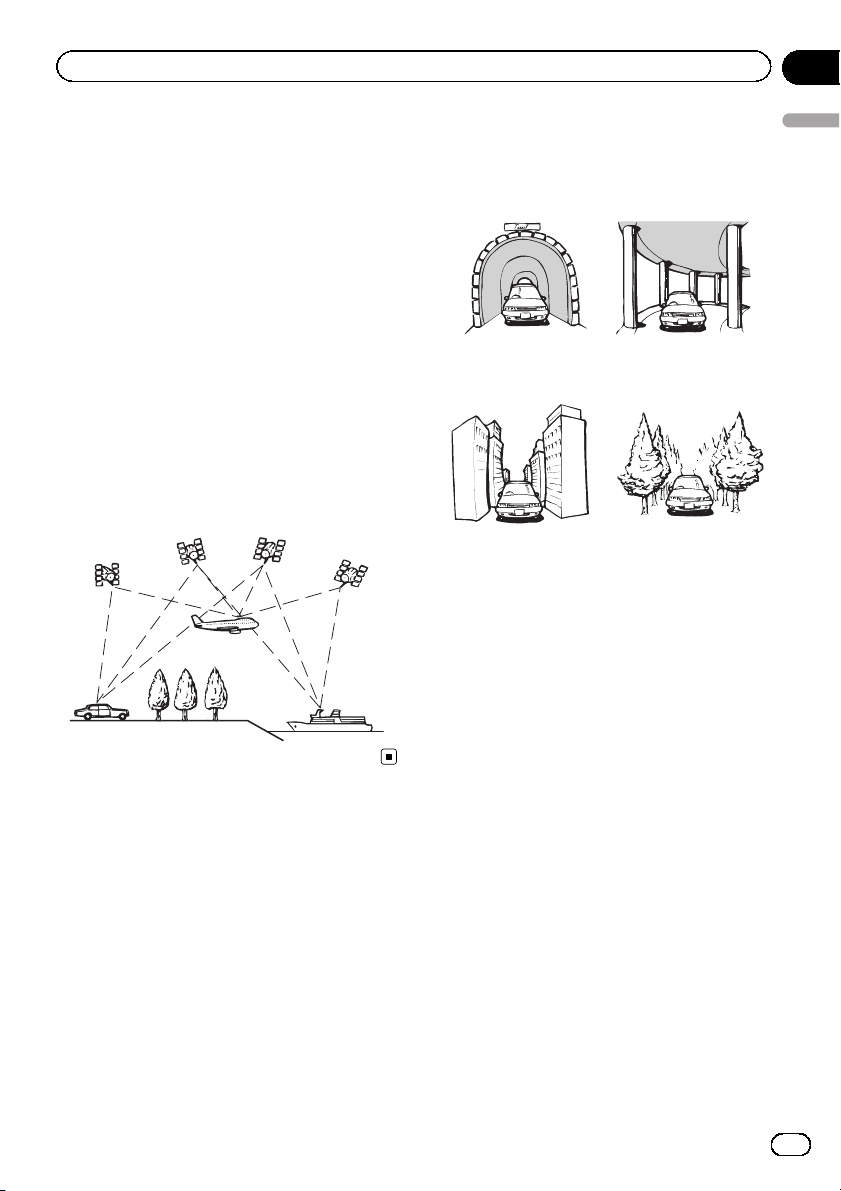
Positioning technology
Positioning by GPS
The Global Positioning System (GPS) uses a
network of satellites orbiting the Earth. Each
of the satellites, which orbit at a height of
68 900 000 feet (21 000 km), continually broad-
casts radio signals giving time and position in-
formation. This ensures that signals from at
least three can be picked up from any open
area on the ground’s surface.
The accuracy of the GPS information depends
on how good the reception is. When the sig-
nals are strong and reception is good, GPS
can determine latitude, longitude and altitude
for accurate positioning in three dimensions.
But if signal quality is poor, only two dimen-
sions, latitude and longitude, can be obtained
and positioning errors are somewhat greater.
Handling large errors
Positioning errors are kept to a minimum by
combining GPS, dead reckoning and map
matching. However, in some situations, these
functions may not work properly, and the error
may become bigger.
When positioning by GPS is
impossible
! GPS positioning is disabled if signals can-
not be received from more than two GPS
satellites.
! In some driving conditions, signals from
GPS satellites may not reach your vehicle.
In this case, it is impossible for the system
to use GPS positioning.
In tunnels or en-
closed parking
garages
Under elevated
roads or similar
structures
When driving
among high build-
ings
When driving through
a dense forest or tall
trees
! If a car phone or cellular phone is used
near the GPS antenna, GPS reception may
be lost temporarily.
! Do not cover the GPS antenna with spray
paint or car wax, because this may block
the reception of GPS signals. Snow buildup
can also degrade the signals, so keep the
antenna clear.
p If a GPS signal has not been received for a
long time, your vehicle’s actual position
and the current position mark on the map
may diverge considerably or may not be up-
dated. In such case, once GPS reception is
restored, accuracy will be recovered.
Conditions likely to cause
noticeable positioning errors
For various reasons, such as the state of the
road you are traveling on and the reception
status of the GPS signal, the actual position of
your vehicle may differ from the position dis-
played on the map screen.
En
115
Appendix
Appendix
Appendix
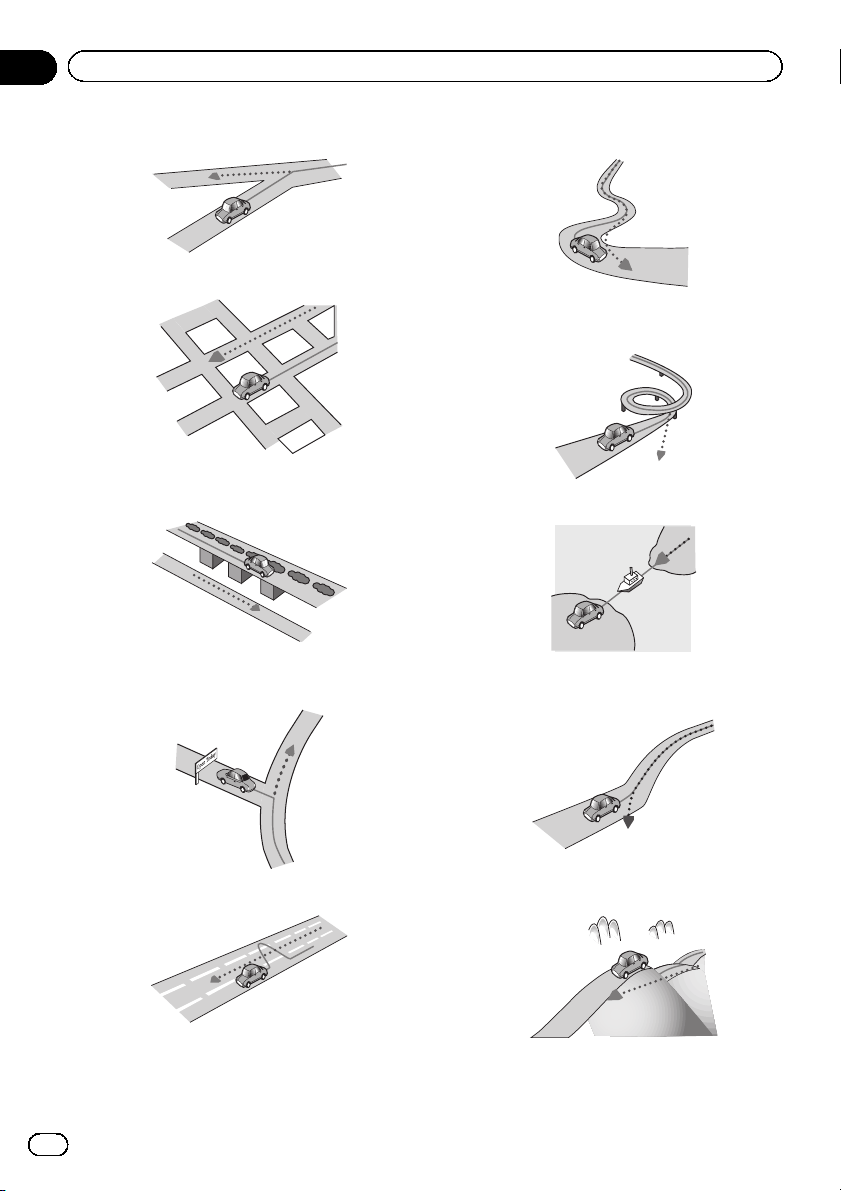
! If you make a slight turn.
! If there is a parallel road.
! If there is another road very nearby, such
as in the case of an elevated freeway.
! If you take a recently opened road that is
not on the map.
! If you drive in zigzags.
! If the road has a series of hairpin bends.
! If there is a loop or similar road configura-
tion.
! If you take a ferry.
! If you are driving on a long, straight road or
a gently curving road.
! If you are on a steep mountain road with
many height changes.
En
116
Appendix
Appendix
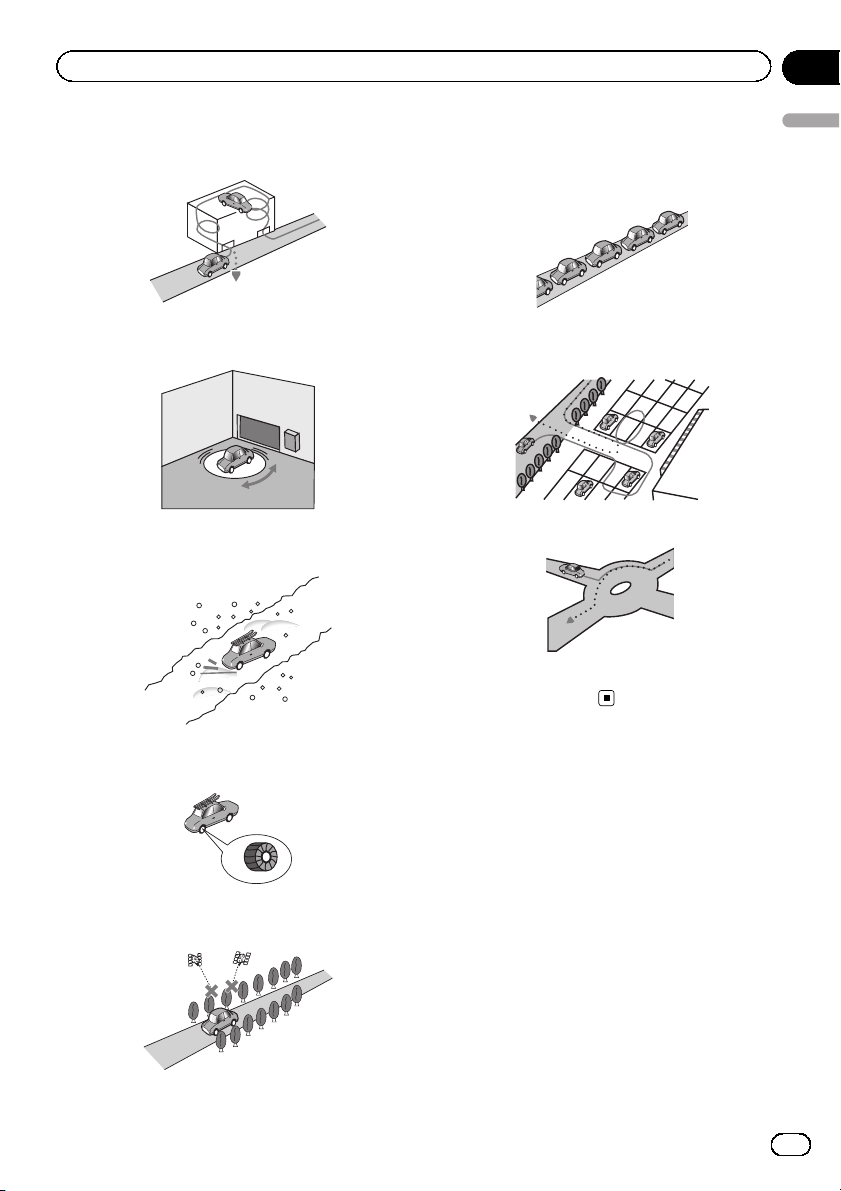
! If you enter or exit a multi-storey parking lot
or similar structure using a spiral ramp.
! If your vehicle is turned on a turntable or si-
milar structure.
! If your vehicle’s wheels spin, such as on a
gravel road or in snow.
! If you put on chains, or change your tires
for ones with a different size.
! If trees or other obstacles block the GPS
signals for a considerable period.
! If you drive very slowly, or in a start-and-
stop manner, as in a traffic congestion.
! If you join the road after driving around a
large parking lot.
! When you drive around a traffic circle.
! When starting driving immediately after
starting the engine.
Detailed information for
playable media
Compatibility
Notes on USB storage device
! Do not leave the USB storage device in any
location with high temperatures.
! Depending on the kind of the USB storage
device you use, this product may not recog-
nize the storage device or files may not be
played back properly.
! The text information of some audio and
video files may not be correctly displayed.
! File extensions must be used properly.
En
117
Appendix
Appendix
Appendix

! There may be a slight delay when starting
playback of files on a USB storage device
with complex folder hierarchies.
! Operations may vary depending on the
kind of a USB storage device.
! It may not be possible to play some music
files from USB because of file characteris-
tics, file format, recorded application, play-
back environment, storage conditions, and
so on.
USB storage device compatibility
= For details about USB storage device com-
patibility with this product, refer to Impor-
tant Information for the User (a separate
manual).
! Protocol: bulk
! You cannot connect a USB storage device
to this product via a USB hub.
! Partitioned USB storage device is not com-
patible with this product.
! Firmly secure the USB storage device when
driving. Do not let the USB storage device
fall onto the floor, where it may become
jammed under the brake or gas pedal.
! There may be a slight delay when starting
playback of audio files encoded with image
data.
! Some USB storage devices connected to
this product may generate noise on the
radio.
! Do not connect anything other than the
USB storage device.
The sequence of audio files on USB sto-
rage device
For USB storage device, the sequence is differ-
ent from that of USB storage device.
Handling guidelines and
supplemental information
! This product is not compatible with the
Multi Media Card (MMC).
! Copyright protected files cannot be played
back.
Notes specific to DivX files
! Only DivX files downloaded from DivX part-
ner sites are guaranteed for proper opera-
tion. Unauthorized DivX files may not
operate properly.
! DRM rental files cannot be operated until
playing back is started.
! This product corresponds to a DivX file dis-
play of up to 1 590 minutes 43 seconds.
Search operations beyond this time limit
are prohibited.
! DivX VOD file playback requires supplying
the ID code of this product to the DivX VOD
provider. Regarding the ID code, refer to
Displaying your DivX VOD reg istration code
on page 100.
! Plays all versions of DivX video, except for
DivX 7 with standard playback of DivX
media files.
! For more details about DivX, visit the follow-
ing site:
http://www.divx.com/
DivX subtitle files
! Srt format subtitle files with the extension
“.srt” can be used.
! Only one subtitle file can be used for each
DivX file. Multiple subtitle files cannot be
associated.
! Subtitle files that are named with the same
character string as the DivX file before the
extension are associated with the DivX file.
The character strings before the extension
must be exactly the same. However, if there
is only one DivX file and one subtitle file in
a single folder, the files are associated even
if the file names are not the same.
! The subtitle file must be stored in the same
folder as the DivX file.
! Up to 255 subtitle files may be used. Any
more subtitle files will not be recognized.
! Up to 64 characters can be used for the
name of the subtitle file, including the ex-
tension. If more than 64 characters are
used for the file name, the subtitle file may
not be recognized.
En
118
Appendix
Appendix

! The character code for the subtitle file
should comply with ISO-8859-1. Using char-
acters other than ISO-8859-1 may cause the
characters to be displayed incorrectly.
! The subtitles may not be displayed correctly
if the displayed characters in the subtitle
file include control code.
! For materials that use a high transfer rate,
the subtitles and video may not be comple-
tely synchronized.
! If multiple subtitles are programed to dis-
play within a very short time frame, such as
0.1 seconds, the subtitles may not be dis-
played at the correct time.
En
119
Appendix
Appendix
Appendix
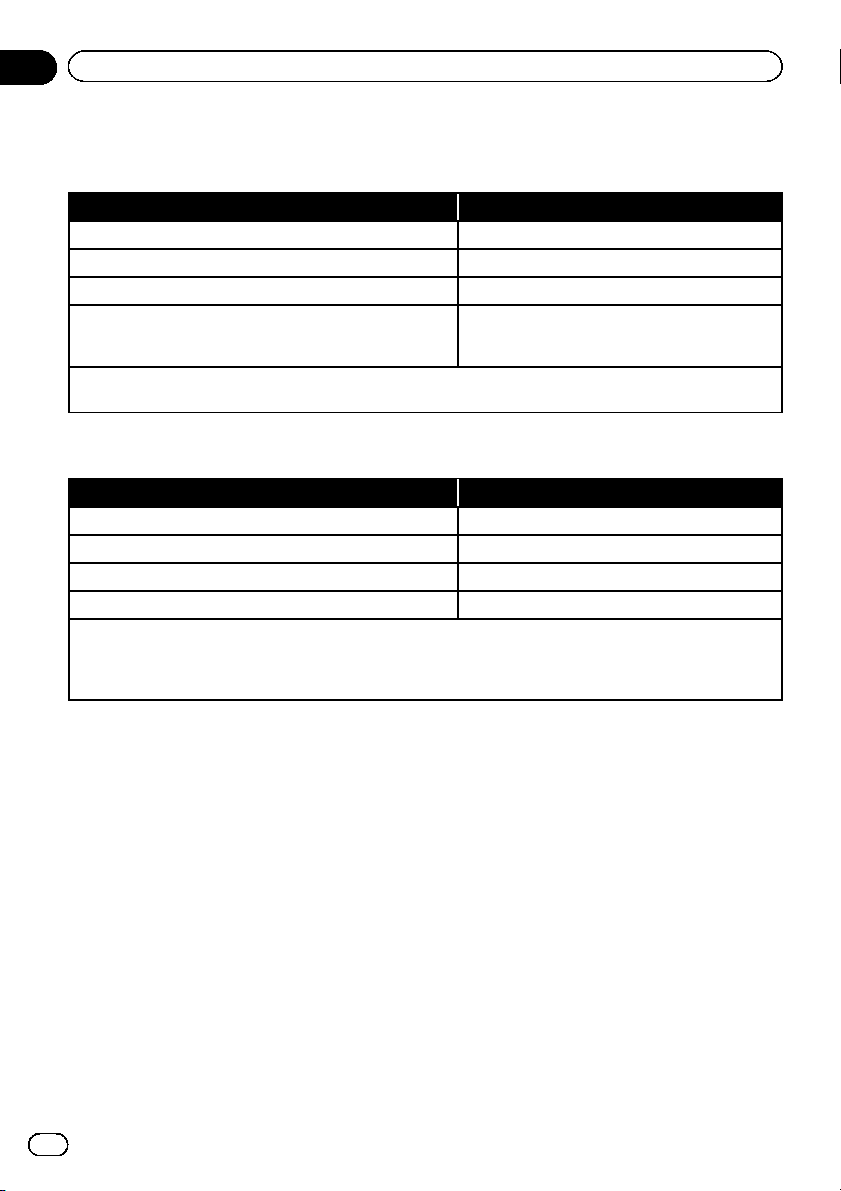
Media compatibility chart
General
Media USB storage device
File system FAT32/NTFS
Maximum number of folders 1 500
Maximum number of files 15 000
Playable file types
MP3, WMA, AAC, WAV, FLAC, DivX (including DivX
HD), H.264, MPEG4, MPEG2, WMV, FLV, MKV,
JPEG
Notes:
! Maximum playback time of audio file stored on a USB storage device: 7.5 h (450 minutes)
MP3 compatibility
Media USB storage device
File extension .mp2, .mp3, .m2a, .mka
Bit rate 8 kb ps to 320 kbps (CBR), VBR
Sampling frequency 8 kHz to 48 kHz
ID3 tag ID3 tag Ver. 1.0, 1.1, 2.2, 2.3, 2.4
Notes:
! Ver. 2.x of ID3 tag is prioritized when both Ver. 1.x and Ver. 2.x exist.
! This product is not compatible with the following:
MP3i (MP3 interactive), mp3 PRO, m3u playlist
En
120
Appendix
Appendix
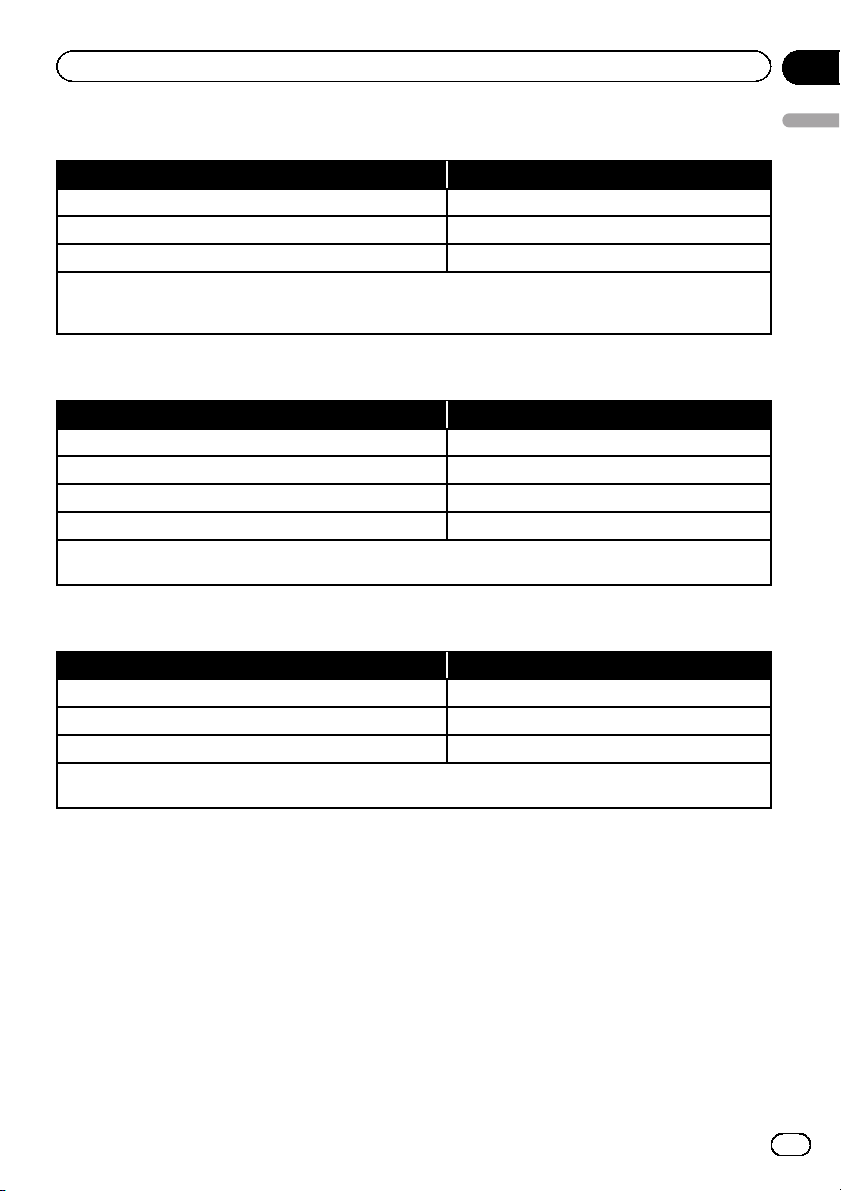
WMA compatibility
Media USB storage device
File extension .wma
Bit rate 5 kb ps to 320 kbps (CBR), VBR
Sampling frequency 8 kHz to 48 kHz
Note:
This product is not compatible with the following:
Windows Media
™
Audio 9 Professional, Lossless, Voice
WAV compatibility
Media USB storage device
File extension .wav
Format Linear PCM (LPCM)
Sampling frequency 16 kHz to 48 kHz
Quantization bits 8 bits and 16 bits
Note:
The sampling frequency shown in the display may be rounded.
AAC compatibility
Media USB storage device
File extension .aac, .adts, .mka, .m4a
Bit rate 8 kb ps to 320 kbps (CBR)
Sampling frequency 8 kHz to 48 kHz
Note:
This product plays back AAC files encoded by iTunes.
En
121
Appendix
Appendix
Appendix
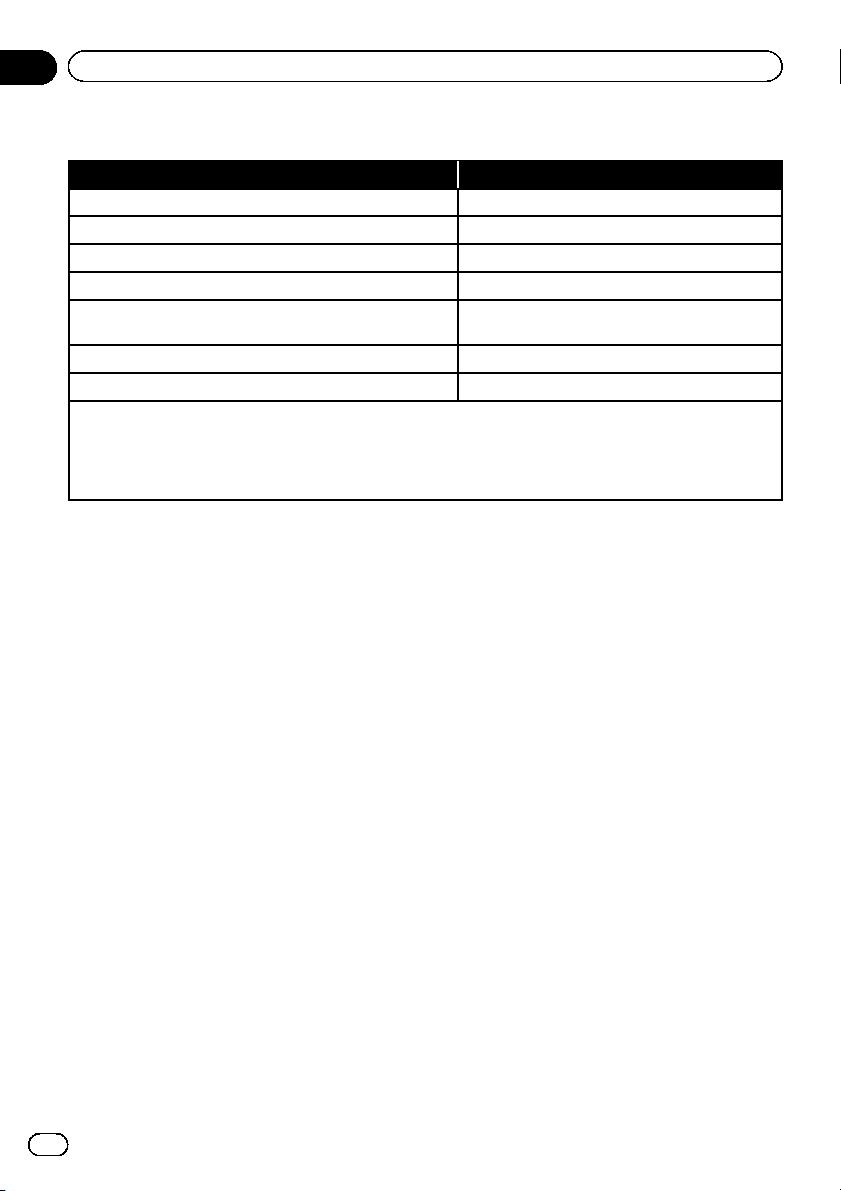
DivX compatibility
Media USB storage device
File extension .avi, .divx
Profile (DivX version) Home Theater Ver. 3.11
Compatible audio codec MP3, Dolby Digital
Bit rate (MP3) 8 kb ps to 320 kbps (CBR), VBR
Sampling frequency (MP3)
16 kHz to 48 kHz (32 kHz, 44.1 kHz, 48 kHz for em -
phasis)
Maximum image size 720 pixels × 576 pixels
Maximum file size 4 GB
Notes:
! This product is not compatible with the following:
DivX Ultra format, DivX files without video data, DivX files encoded with LPCM (Linear PCM) audio codec
! If a file contains more than 4 GB, playback stops before the end.
! Some special operation s may be prohibited because of the composition of DivX files.
En
122
Appendix
Appendix
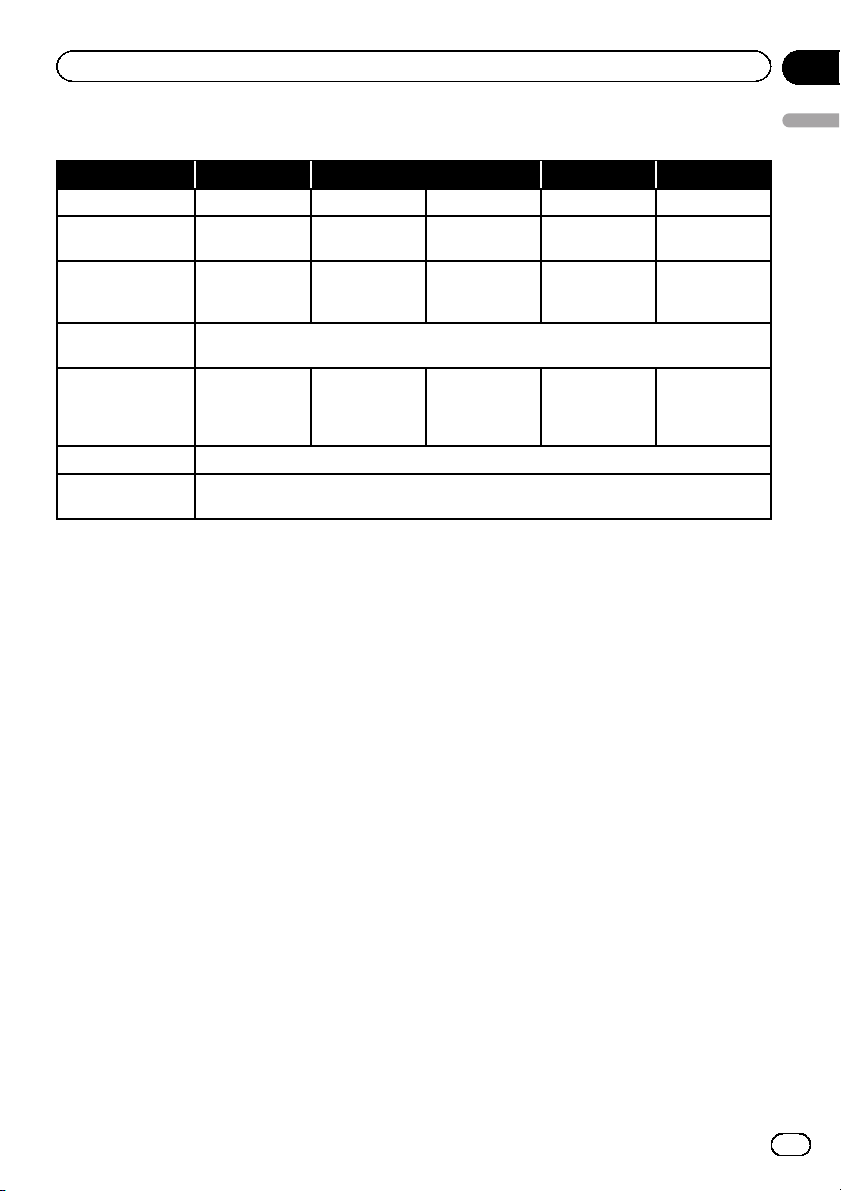
Video files compatibility (USB)
File extension .avi .mp4 .m4v .wmv
Format MPEG-4 MPEG-4 H.264 MPEG-4 WMV
Compatible video
codec
MPEG-4 MPEG-4 H.264 MPEG-4 WMV
Compatible audio
codec
Linear PCM
(LPCM)
MP3
AAC AAC AAC WMA
Maximum resolu-
tion
400 pixels x 240 pixels
Maximum bit rate:
Bit rate:
2.5 Mbps
Frame rate:
30 fps
Bit rate:
2.5 Mbps
Frame rate:
30 fps
Bit rate:
1.5 Mbps
Frame rate:
30 fps
Bit rate:
2.5 Mbps
Frame rate:
30 fps
Bit rate:
768 kbps
Frame rate:
30 fps
Maximum file size 4 GB
Maximum playback
time
150 minutes
Common notes
! Files may not be played back properly de-
pending on the environment in which the
file was created or on the contents of the
file.
! This product may not operate correctly, de-
pending on the application used to encode
WMA files.
! Depending on the version of Windows
Media
™
Player used to encode WMA files,
album names and other text information
may not be correctly displayed.
! There may be a slight delay when starting
playback of audio files encoded with image
data.
! This product is not compatible with packet
write data transfer.
! This product can recognize up to 32 char-
acters, beginning with the first character,
including extension for the file and folder
name. Depending on the display area, this
product may try to display them with a re-
duced font size. However, the maximum
number of the characters that you can dis-
play varies according to the width of each
character, and of the display area.
! Folder selection sequence or other opera-
tions may be altered, depending on the en-
coding or writing software.
En
123
Appendix
Appendix
Appendix
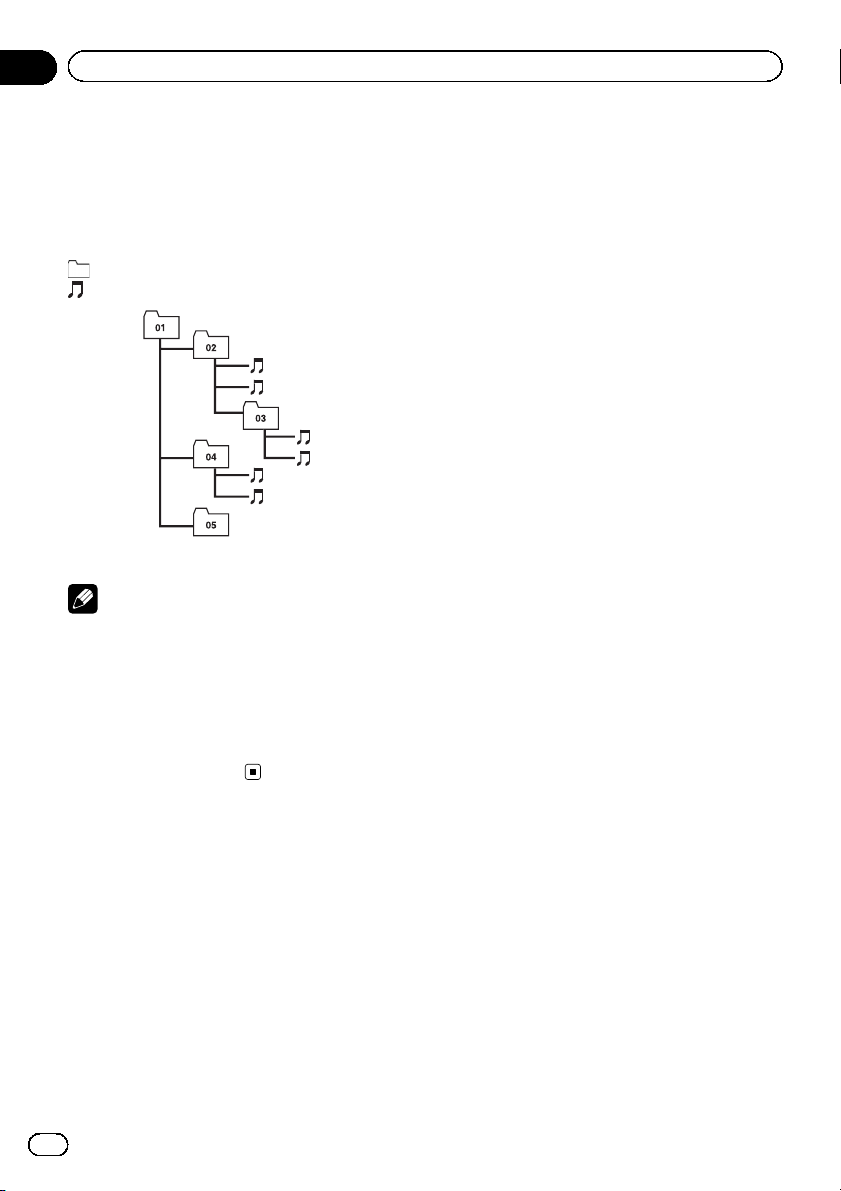
Example of a hierarchy
The following figure is an example of the tier
structure in the external storage device. The
numbers in the figure indicate the order in
which folder numbers are assigned and the
order to be played back.
: Folder
:File
1
2
3
4
5
6
L
e
v
e
l 1 L
e
v
e
l 2 L
e
v
e
l 3 L
e
v
e
l 4
Notes
! This product assigns folder numbers. The user
cannot assign folder numbers.
! If there is a folder that does not contain any
playable file, the folder itself will display in the
folder list but you cannot check any files in
the folder. (A blank list will appear.) Also,
these folders will be skipped without display-
ing the folder number.
En
124
Appendix
Appendix
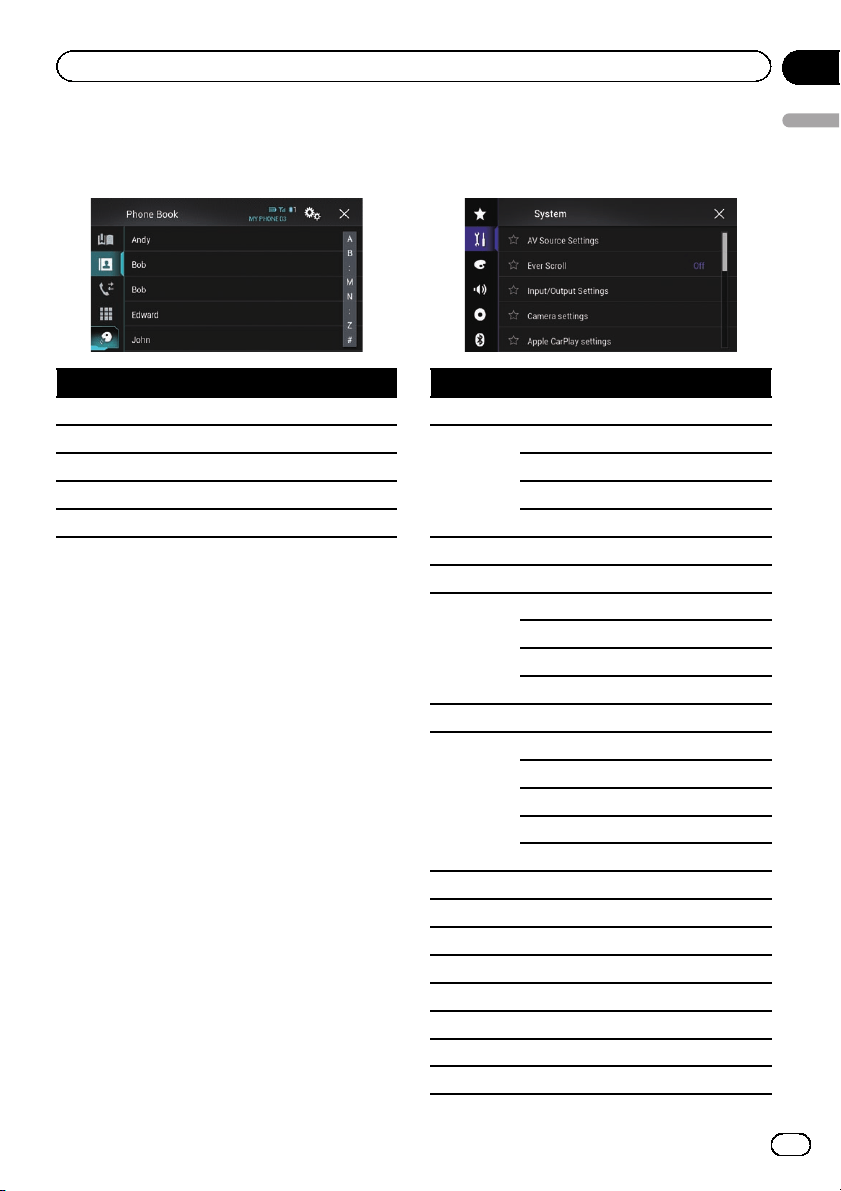
Display information
Phone menu
Page
Preset Dial 23
Phone Book 22
History 23
Dial 21
Voi ce recognition function 26
System menu
Page
AV Source Settings
MIXTRAX Settings 76
Radio Settings 34
Tag Forwarding 103
Bluetooth Audio 77
Ever Scroll 77
Input/Output Settings
Smartphone Setup 28
AV Input 77
AUX Input 71
AppRadio Video Adjustment 57
Camera settings
Camera View 79
Back Camera Input 78
Camera Polarity 78
Parking Assist Guide 79
Parking Assist Guide Adjust 79
Apple CarPlay settings
Driving Position 60
Demo Mode 80
System Language 80
Restore Settings 108
Keyboard 81
Beep Tone 81
Picture Adjustment 81
En
125
Appendix
Appendix
Appendix
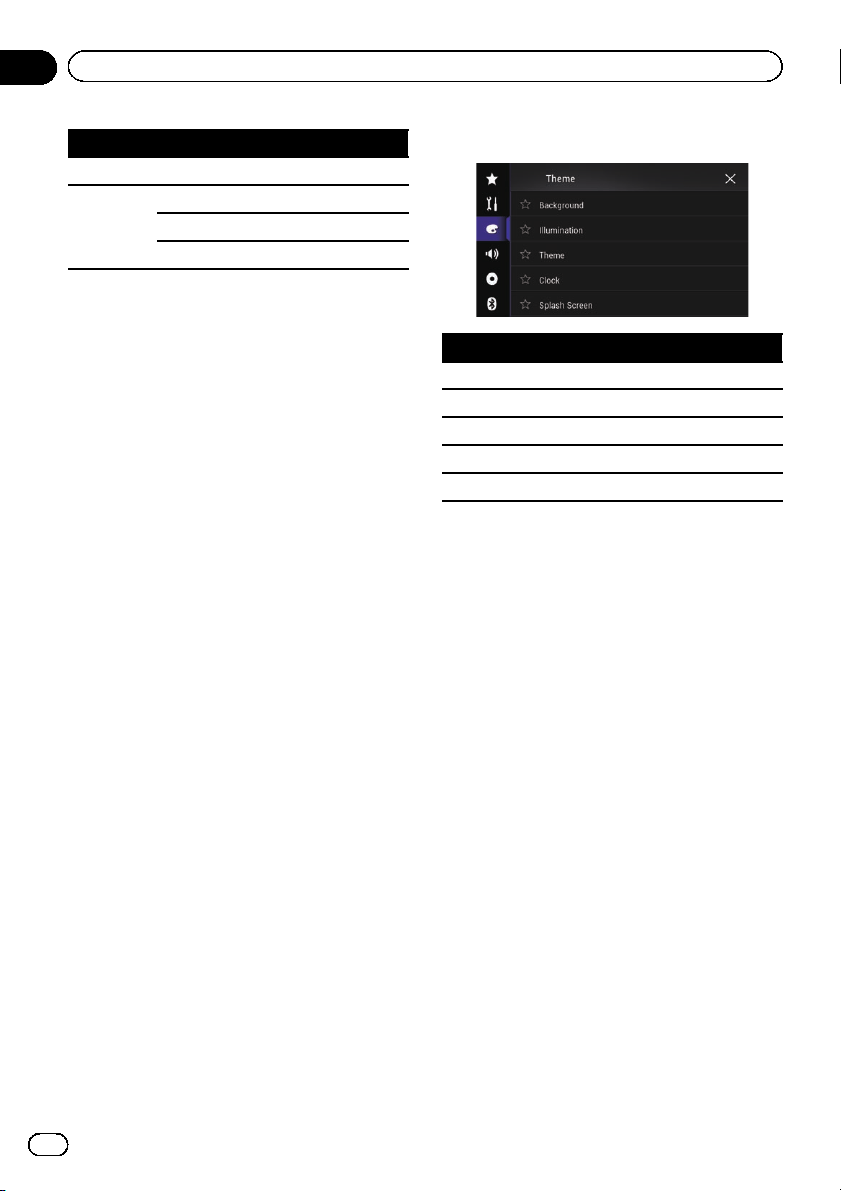
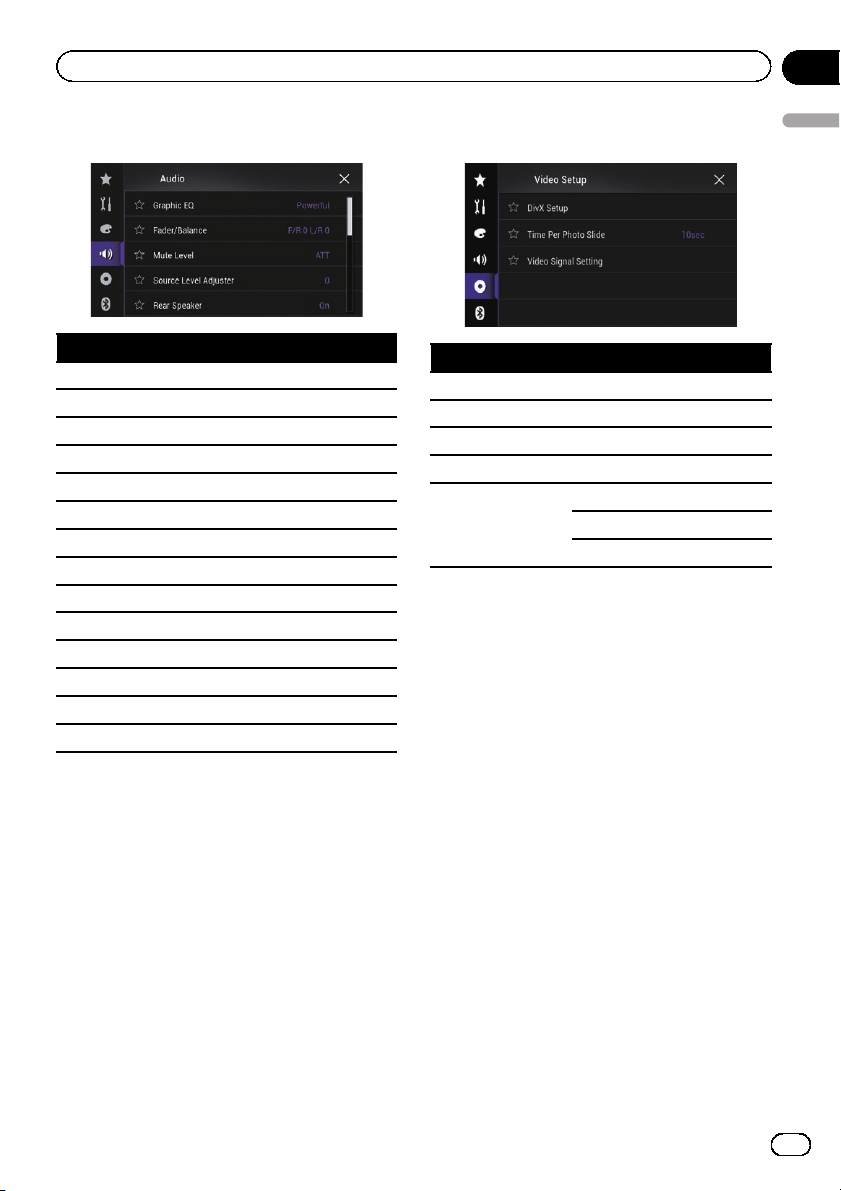
Audio menu
Page
Graphic EQ 92
Fader/Balance 85
Balance 85
Mute Level 86
Source Level Adjuster 86
Rear Speaker 88
Subwoofer 88
Speaker Level 89
Crossover 88
Subwoofer Settings 88
Listening Position 89
Time Alignment 90
Auto EQ&TA 92
A-EQ&TA Measurement 93
Video Setup menu
Page
DivX Setup
DivX® VOD 100
Time Per Photo Slide 46
Video Signal Setting
AV 74
AUX 72
Camera 100
En
127
Appendix
Appendix
Appendix
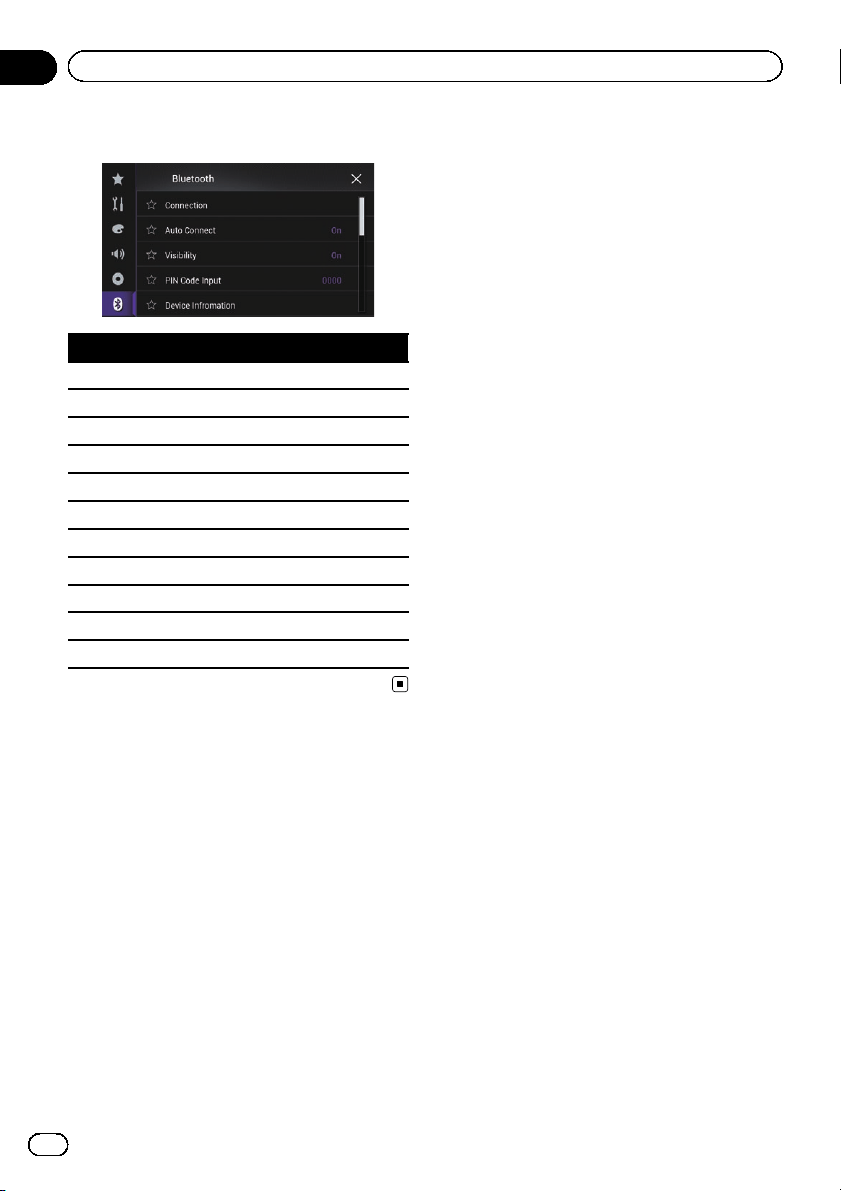

En
129

En
130

En
131

PIONEER CORPORATION
1-1, Shin-ogura, Saiwai-ku, Kawasaki-shi,
Kanagawa 212-0031, JAPAN
PIONEER ELECTRONICS (USA) INC.
P.O. Box 1540, Long Beach, California 90801-1540, U.S.A.
TEL: (800) 421-1404
PIONEER ELECTRONICS OF CANADA, INC.
340 Ferrier Street, Unit 2, Markham, Ontario L3R 2Z5, Canada
TEL: 1-877-283-5901
TEL: 905-479-4411
PIONEER EUROPE NV
Haven 1087, Keetberglaan 1, B-9120 Melsele, Belgium/Belgique
TEL: (0) 3/570.05.11
PIONEER ELECTRONICS ASIACENTRE PTE. LTD.
253 Alexandra Road, #04-01, Singapore 159936
TEL: 65-6472-7555
PIONEER ELECTRONICS AUSTRALIA PTY. LTD.
5 Arco Lane, Heatherton, Victoria, 3202, Australia
TEL: (03) 9586-6300
PIONEER ELECTRONICS DE MEXICO, S.A. de C.V.
Blvd.Manuel Avila Camacho 138 10 piso
Col.Lomas de Chapultepec, Mexico, D.F. 11000
TEL: 55-9178-4270
先鋒股份有限公司
台北市內湖區瑞光路407號8樓
電話 : 886-(0)2-2657-3588
先鋒電子(香港)有限公司
香港九龍長沙灣道909號5樓
電話 : 852-2848-6488
© 2014 PIONEER CORPORATION.
All rights reser ved.
<CWW9018-A> UC
<KOKZ14F>