ENGLISH ESPAÑOL
www.LGSIGNATURE.com
Copyright © 2017 - 2018 LG Electronics. All Rights Reserved.
Read this owner's manual thoroughly before operating
the appliance and keep it handy for reference at all times.
MFL69596002
Owner's Manual
Air Purier & Humidier

ENGLISH

Rev.01_020118
Table of Contents
The images in this owner's manual may be different
from the product's actual components and accessories,
which are subject to change by the manufacturer
without prior notice for product improvement purposes.
Important Safety Instructions ...........04
Unpacking ..........................................07
Parts .................................................................07
Removing Packing Materials ............................ 08
Remote Control Setup ...................................... 08
Installation ..........................................10
Transporting or Moving the Product .................10
Installing the Product ........................................ 10
Operation ............................................11
Product Overview ..............................................11
Purify Mode ...................................................... 16
Humid Purify Mode ........................................... 16
Silent Mode ....................................................... 17
Adjusting the Fan Speed ..................................17
Turbo Mode ...................................................... 17
Checking Air Quality .........................................18
Setting the Humidity ......................................... 20
Off Timer ........................................................... 21
Control Lock ..................................................... 21
Hygiene Drying Function ..................................22
Counter Reset Function .................................... 22
Filling the Water Bucket .................................... 23
Emptying the Water Bucket .............................. 24
Smart Functions ................................25
Installing the Application ................................... 25
Creating an Account .........................................25
Using the Wi-Fi Function ..................................25
Smart Diagnosis™ ............................................ 27
Maintenance .......................................29
Scheduled Maintenance ................................... 29
Cleaning the Exterior ........................................ 30
Cleaning the Top Cover .................................... 30
Cleaning the Watering System ......................... 30
Cleaning the Air Purifier Filters ......................... 33
Cleaning the Dust Sensor ................................. 35
Cleaning the Watering Engine™ ......................36
Storage ............................................................. 36
Before Calling for Service.................38
WARRANTY (USA) .............................42
ENGLISH
04
ENGLISH
Important Safety Instructions
READ AND SAVE THESE INSTRUCTIONS.
This guide contains many important safety messages. Always read and obey all safety messages.
This is the safety alert symbol. It alerts you to safety messages that inform you of hazards that can kill or hurt
you or others, or cause damage to the product.
All safety messages will be preceded by the safety alert symbol and the hazard signal word WARNING or
CAUTION. These words mean:
WARNING
You can be killed or seriously injured if you do not follow instructions.
CAUTION
Indicates an imminently hazardous situation which, if not avoided, may result in minor or
moderate injury, or product damage.
This equipment is home (class B) EMI suitable equipment, which is mainly for home use, and it can be used in all
regions.
Warning
To reduce the risk of re, electric shock, or personal injury when using this product, follow basic safety precautions,
including the following:
INSTALLATION
• Install product so that the plug is easily accessible.
• Install the product on a at, level surface.
• Do not expose the product to splashing water or rain.
• Do not install the product in an area exposed to direct
sunlight or near heat-generating equipment such as
ovens or space heaters.
• Do not install the product in an area prone to combustible
gas leaks, grease, or metal dust.
POWER
• Connect this product to a dedicated, grounded electrical
outlet rated for 115V.
• Do not use an adaptor plug with this product or plug it
into a multi-outlet extension cord.
• Do not, under any circumstances, cut or remove the third
(ground) prong from the power cord.
• NEVER unplug the product by pulling on the power cord.
Grip the plug rmly and pull it straight out from the outlet.
• If the supply cord is damaged, it must be replaced by the
manufacturer or its service agent or a similarly qualied
person in order to avoid a hazard. Do not use a cord that
shows cracks or abrasion damage along its length or at
either the plug or connector end.
• Do not use an uncertied power outlet.
• Unplug the power plug immediately in the event of a
blackout or thunderstorm.
• Plug in the power plug with the power cord facing
downward.
• Unplug the product before cleaning it or replacing the
lters.
• Do not touch the power plug with wet hands.
• Clean dirt or moisture off the power plug before plugging
it in.
• Take care not to pinch the power cord under the product
or any heavy objects.
• Unplug the product when not in use.
• Do not modify or extend the power cable.

05
ENGLISH
USE
• If the product is submerged in water, stop using the
product and contact an LG Electronics Customer
Information Center for service.
• In the event of a gas leak (propane/LPG), ensure
adequate ventilation and contact an authorized service
center before resuming use. Do not touch the product or
the power plug.
• Do not use an abrasive cloth or sponge, or a metal brush
to clean the product.
• Disconnect the power cord immediately if you hear a
noise, smell a strange odor, or detect smoke coming from
the product.
• Do not disassemble, repair or modify the product
yourself.
• Do not use or store ammable or combustible
substances such as ether, benzene, alcohol, drugs, LP
gas, combustible sprays, insecticides, air fresheners,
cosmetics, candles, or lamps near the product.
• Do not place the cord under rugs, carpeting, or mats.
• Do not allow animals or pets to chew on the power cord.
• Do not allow children to hang on or play with the product.
• This appliance is not intended for use by persons
(including children) with reduced physical, sensory, or
mental capabilities, or lack of experience and knowledge,
unless they have been given supervision or instruction
concerning the use of the appliance by a person
responsible for their safety.
• Do not move the product while it is operating.
• Use only the handle to move the product.
• Do not place objects on top of the product.
• Do not insert hands or metal objects into the air inlet or
outlet.
• Product must be properly grounded.
• Avoid pinch points when removing or assembling the
lters.
• Operate the product on a stable surface. If the product
tips over and water spills out during humidication, there
is a risk of electric shock.
• Unplug the product and empty any remaining water
before storing the product or if it will be unused for an
extended period.
• Do not use the product if it is damaged or disassembled.
• Unplug the product before cleaning it.
• Do not put combustible or ammable materials inside the
product.
DISPOSAL
• Dispose of all packaging materials promptly and keep
them out of the reach of children.
06
ENGLISH
INSTALLATION
• Do not tilt the product while moving or cleaning it.
• This product is not designed for use in mobile vehicles,
including RVs or boats.
• Do not place the product within 3 ft. (1 m) of a TV or
stereo equipment. It may cause interference.
• Do not place the product near a window or near the air
intake or outlet of an air conditioner or heater. Doing so
may cause the humidity sensor to malfunction.
USAGE
• Do not use to remove toxic gases such as carbon
monoxide.
• Do not use the product in place of a vent hood. Doing so
will shorten the product's lifespan.
• If used for a long period in an area with unstable voltage,
the product may automatically shut down to protect
product components.
• Do not block the product's air intake or outlet.
• Do not place the product near curtains which can be
blown against it and cause the humidity sensor to
malfunction.
• Use the product for its intended purpose. The product
is not intended for preserving or protecting animals,
precision equipment, or artwork.
• Do not step on the product or place objects on top of the
product.
• Do not operate the product with wet hands.
• Do not allow the moisture from a humidier to directly
contact the product.
• Hold the water bucket with both hands when moving it.
• Do not expose the product to freezing temperatures.
• Replace any remaining water in the product with clean
water every day.
• Do not use the product while it is on its side.
• Do not place the product on or near items that may be
damaged or discolored by heat or humidity.
• Do not store or ship the product with water in it.
• Use clean tap water. Do not use water that is hotter than
104°F (40°C).
• Use the lter only for its intended purpose.
• Do not use detergents, cosmetics, chemicals, air
fresheners, or disinfectants in the product.
• Do not drink the water used in the product or use it to
feed plants or animals. Doing so could cause illness.
• Use a soft cloth to clean the product. Do not use strong
detergents or solvents.
• When cleaning the parts, use proper cleaning method
according to the corresponding manual. Also, when
replacing the parts, install new parts in proper locations
according to the corresponding manual.
Caution
To reduce the risk of re, electric shock, or personal injury when using the product, follow basic safety precautions, including
the following:
07
ENGLISH
Unpacking
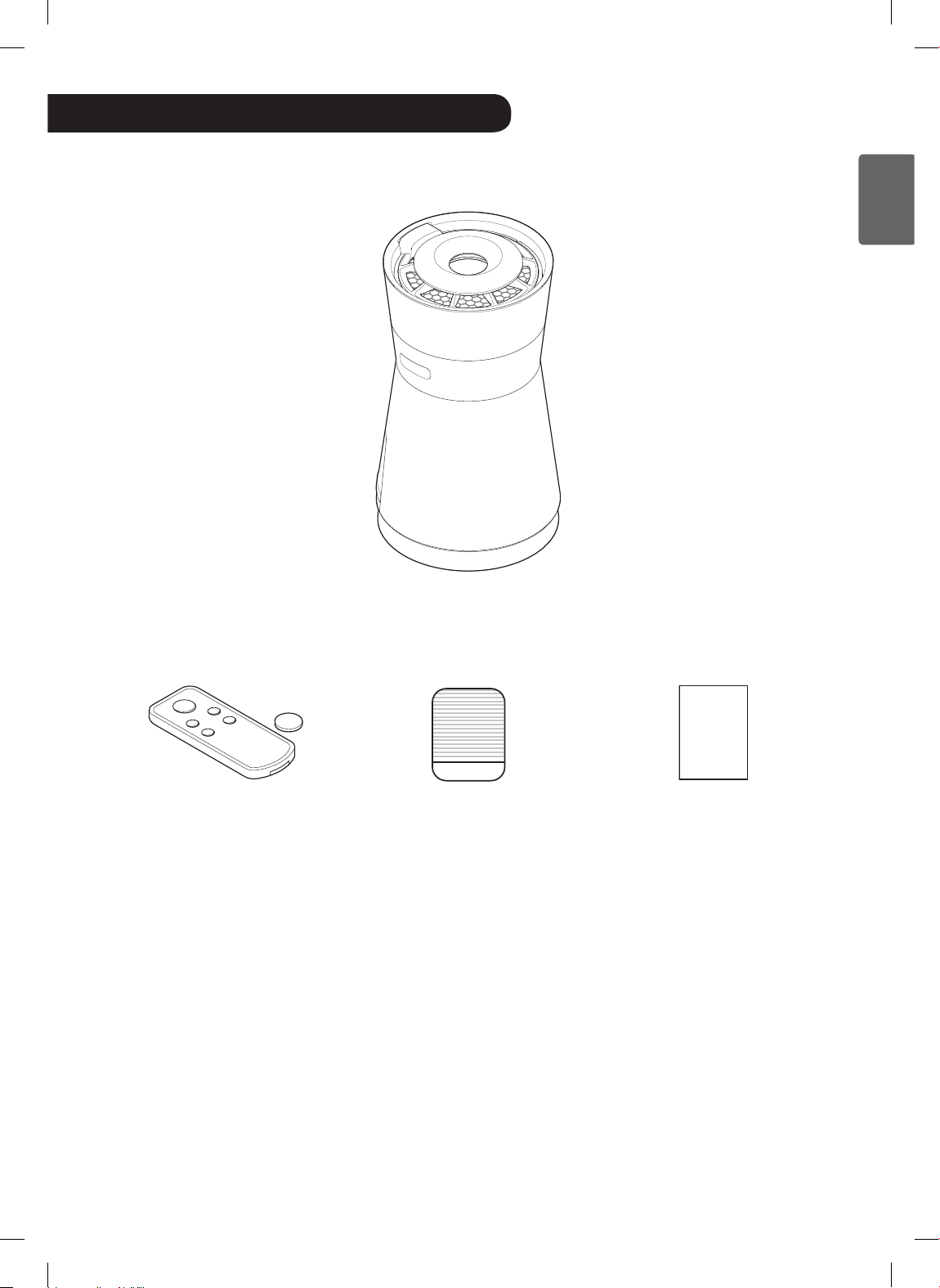
Parts
Air purier and humidier
Owner's Manual
Remote controller /
battery (CR2025, 1 EA)
Ultra-ne cloth Owner's Manual
• The appearance or components of the product may differ depending on the model.
08
ENGLISH
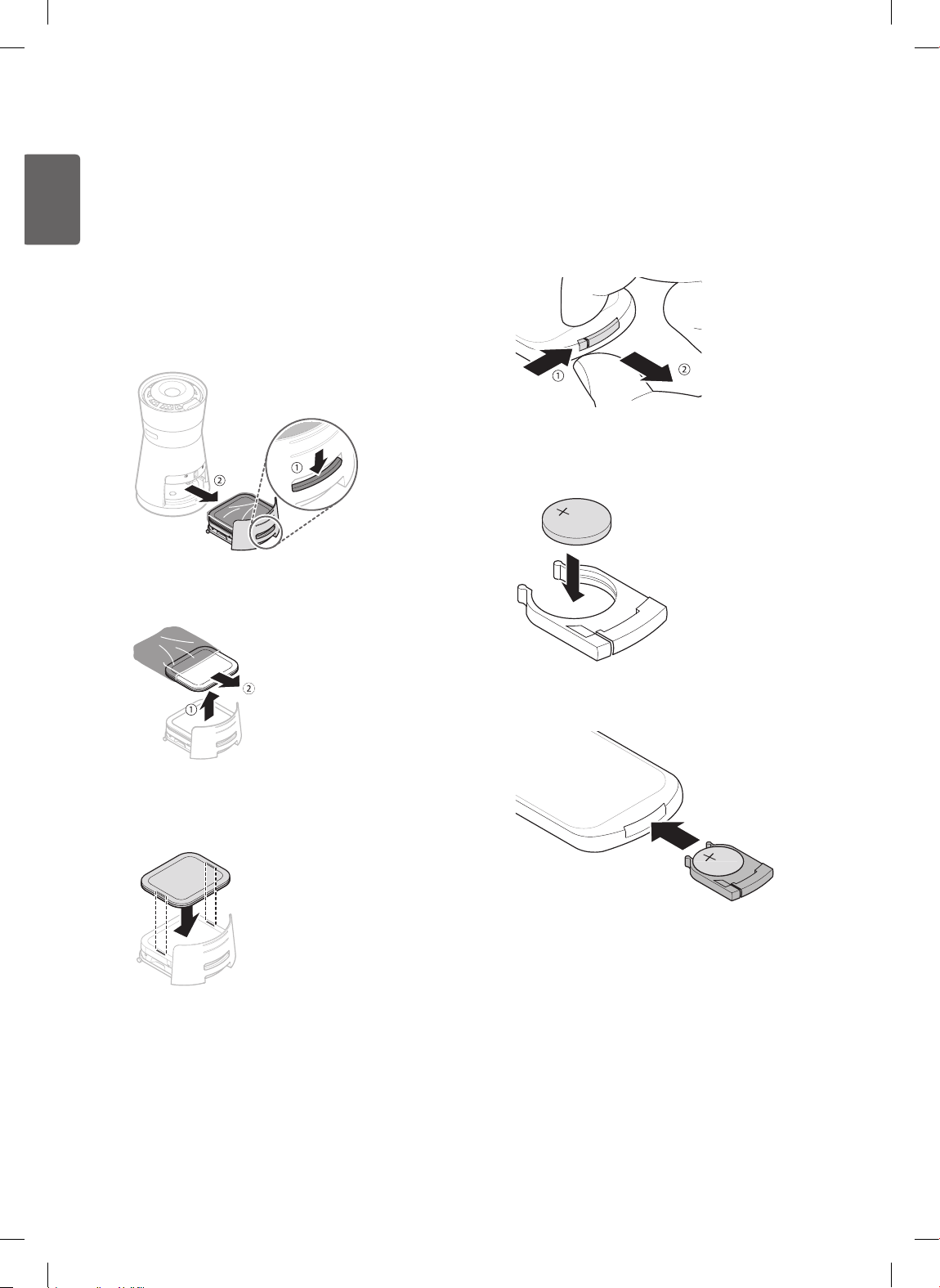
Removing Packing Materials
Unpack the product and remove any packing tape or
protective vinyl before using the product.
1
Take the product out of the box and remove the
packing tape on the product.
2
Press the black button on the lter tray to slide the
tray out. Remove the tray.
3
Disassemble the deodorizing Black Filter and remove
it from its protective vinyl sleeve.
4
Reassemble the deodorizing Black Filter, aligning the
tabs on the bottom of the lter with the slots on the
lter below it.
Remote Control Setup
1
Remove the remote controller's battery tray by
pushing the release on the left of the tray and pulling
out.
2
Insert the included battery into the battery tray with
the + facing up.
3
Slide the battery tray back into the remote controller
until it clicks.
09
ENGLISH
Warning
• A button/Coin-type battery is used in the remote control
of the product.
• Do not swallow the battery. Otherwise, it may cause
serious damage, including damage to your organs.
• If you swallow the battery, you may suffer organ damage
within 2 hours. If serious, it may even cause death.
• Keep the battery out of children’s reach.
• If the battery tray is not xed rmly, stop using the
product and keep the battery tray out of children’s reach.
• If you swallowed the battery, seek immediate medical
help.
Caution
• Do not modify the battery arbitrarily. Otherwise, it may
cause re or product failure.
• If you insert the battery into the product incorrectly, it may
cause an explosion.
• Do not disassemble or recharge the used battery. Do
not throw it in the re or subject it to heat. Doing so may
cause an explosion.
Note
• If the battery runs out of charge, replace it with a new one
(CR2025).
• If the remote control has a problem, try replacing the
battery or changing the poles of the battery before
contacting the service center.
• Dispose of the used battery according to environmental
regulations.
10
ENGLISH
Installation
Transporting or Moving the
Product
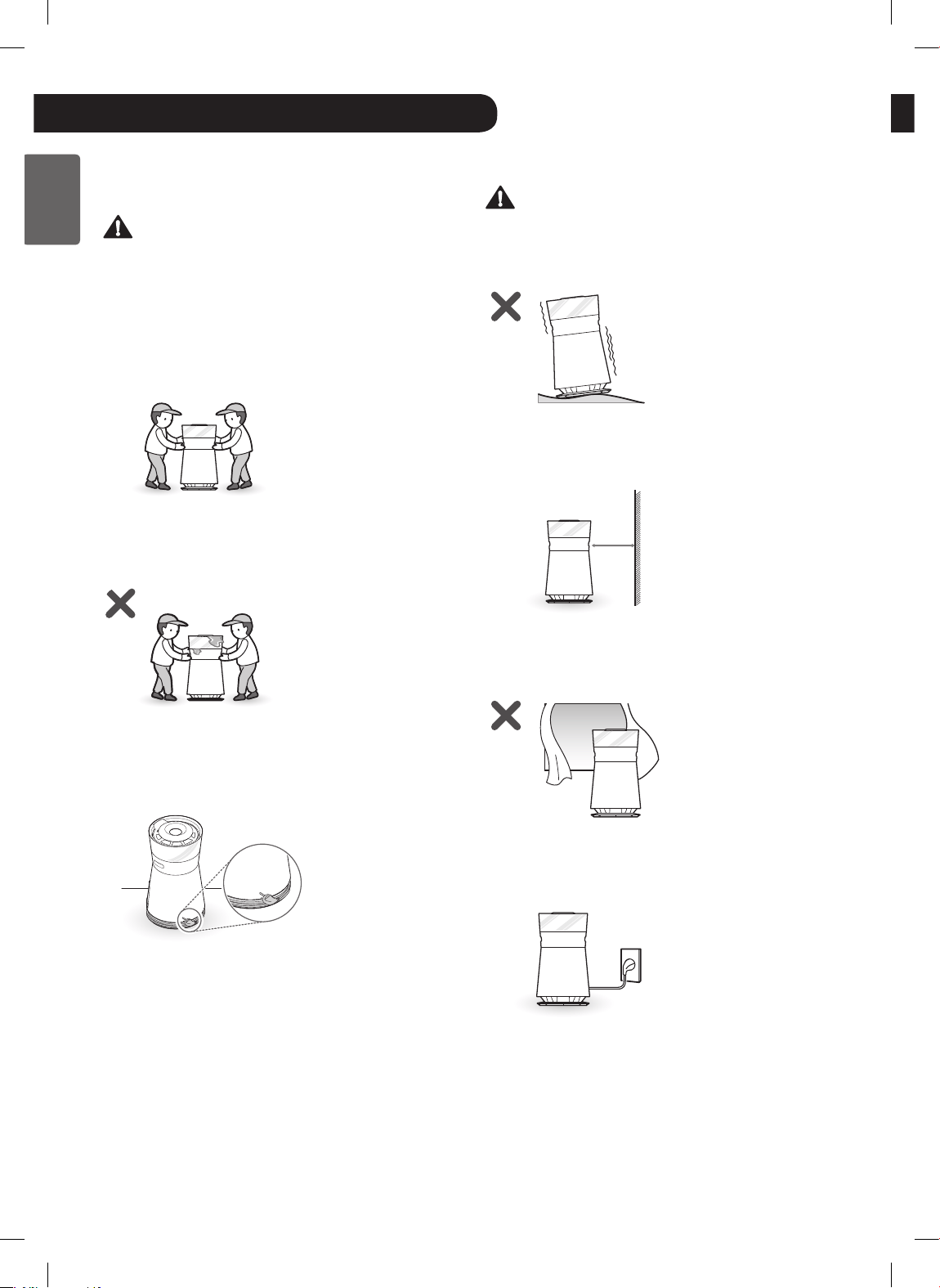
Caution
Transport the product in a well-secured and upright
position. Impacts may cause product damage.
The product is heavy. Use two people when moving it.
Dropping the product may cause personal injury or product
malfunction.
Empty the water bucket before moving the product. Failure
to do so may cause electric shock or re.
When moving or storing the product, wrap the power cord
around the base of the product to prevent personal injury,
damage to the cord, or damage to oors.
Installing the Product
Caution
Install the product on a strong, level surface. Installing the
product on a weak or tilted surface may cause noise and
vibration or tipping, resulting in injury.
Allow a 4 in. (10 cm) clearance between the product and
surrounding surfaces or objects. The air inlet needs space
to function properly.
4 in. (10 cm)
Do not install the product near curtains which could block
the air inlet or outlet. Doing so may result in product
malfunction or failure.
Install the product near an easily accessible electrical
outlet and out of heavy trafc areas to avoid a trip hazard.
Do not cover the cord with a carpet or mat.
To reduce the risk of electric shock, this equipment has a
polarized plug (one blade is wider than the other).
This plug will t in a polarized outlet only one way. If the
plug does not t fully in the outlet, reverse the plug. If it still
does not t, contact qualied personnel to install the proper
outlet. Do not alter the plug in any way.
11
ENGLISH
• Product’s exterior or components may be different for each model.
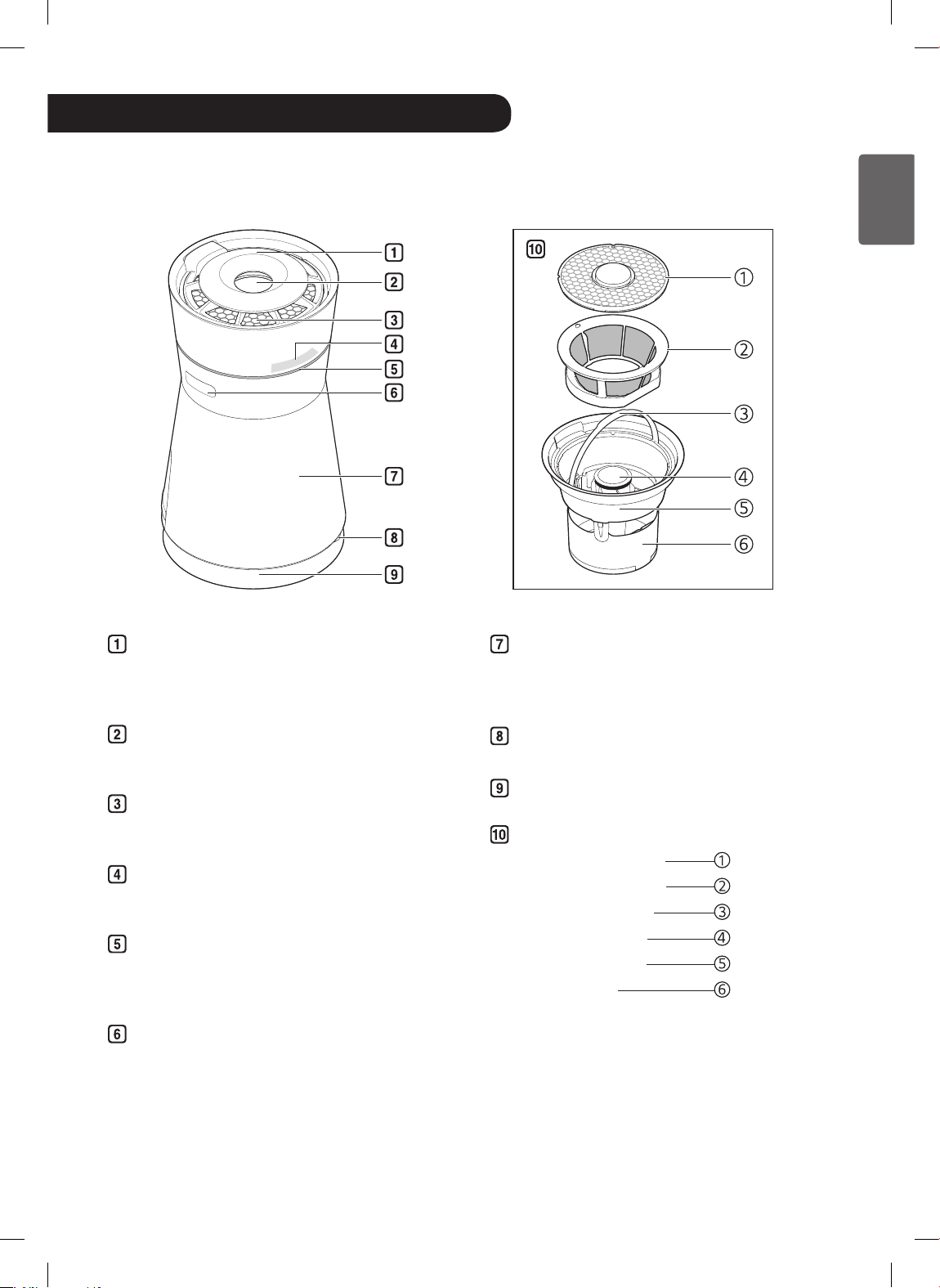
Product Overview
Front View
Operation
Top cover (control panel and water level
indicator light)
Change product settings or check water level.
Easy-ll water bucket inlet
Easily add water to the water bucket.
Air outlet
Vents puried air and moisture.
Status display panel
Check the product's settings and the air quality level.
Air quality indicator light
Displays current overall air quality level using
colored light.
Main unit handles
Use handles to move the product.
Smart Diagnosis™ speaker
Used when troubleshooting product malfunctions or
failures. Refer to Smart Diagnosis™ on page 27.
Remote controller sensor panel
Air inlet
Signature watering system
• Top water bucket lter
• Side water bucket lter
• Water bucket handle
• Watering Engine™
• Air quality window
• Water bucket
12
ENGLISH
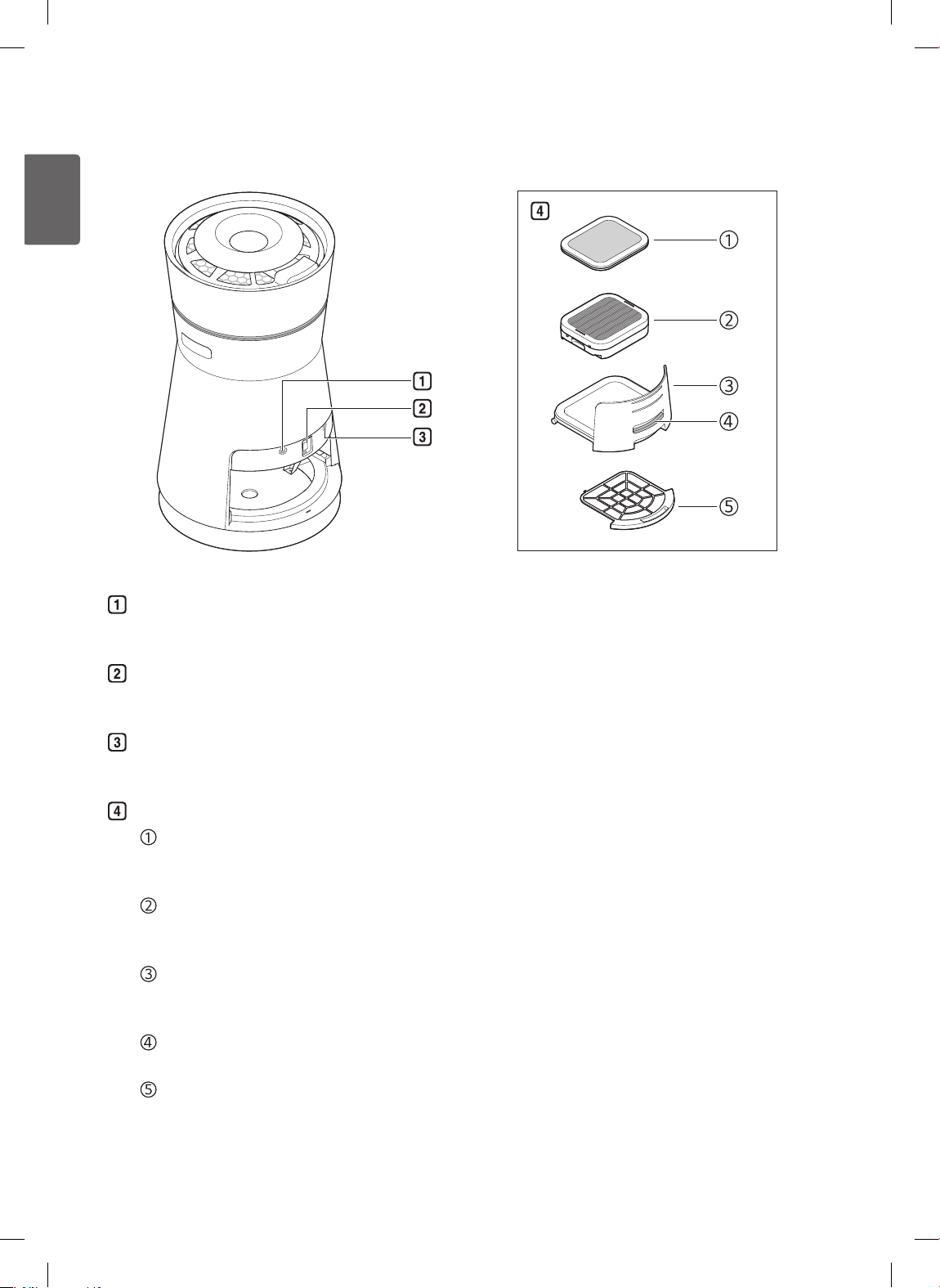
Back View
Humidity sensor
Detects humidity level.
PM1.0 (super ultra-ne dust) sensor
Detects dust density.
Odor sensor
Detects odors in the air.
Signature Black lter system
Deodorizing Black Filter
Filters out unpleasant odors such as strong food
odors or cigarette smoke odor.
PM 1.0 Black Filter
Filters out super ultra-ne dust particles like ne
sand or cigarette ash.
Filter tray
Holds the PM 1.0 Black Filter and the
deodorizing Black Filter.
Filter tray release button
Opens the lter tray.
Ultra ne lter (PRE-FILTER)
Filters out large dust particles like animal hair.
Note
• Product will not work without the lters in place.
• Close outside doors and windows during use, if possible.
To avoid high carbon dioxide levels, do not use for long
periods in a tightly enclosed space.
• The product cannot remove harmful CO (carbon
monoxide) gas from the air.
• The air purier's deodorizing Black Filter is designed to
remove odors from the air.
• If the deodorizing Black Filter is exposed to excessive
odors for long periods, it may need to be replaced more
often. In this case, the lter itself may produce an odor.
• Do not use the air purier in place of a range hood or
vent. To rid indoor air of strong odors, ventilate the area
using a range hood or by opening windows or doors.
Then use the product to remove any odors remaining
after ventilation.
13
ENGLISH
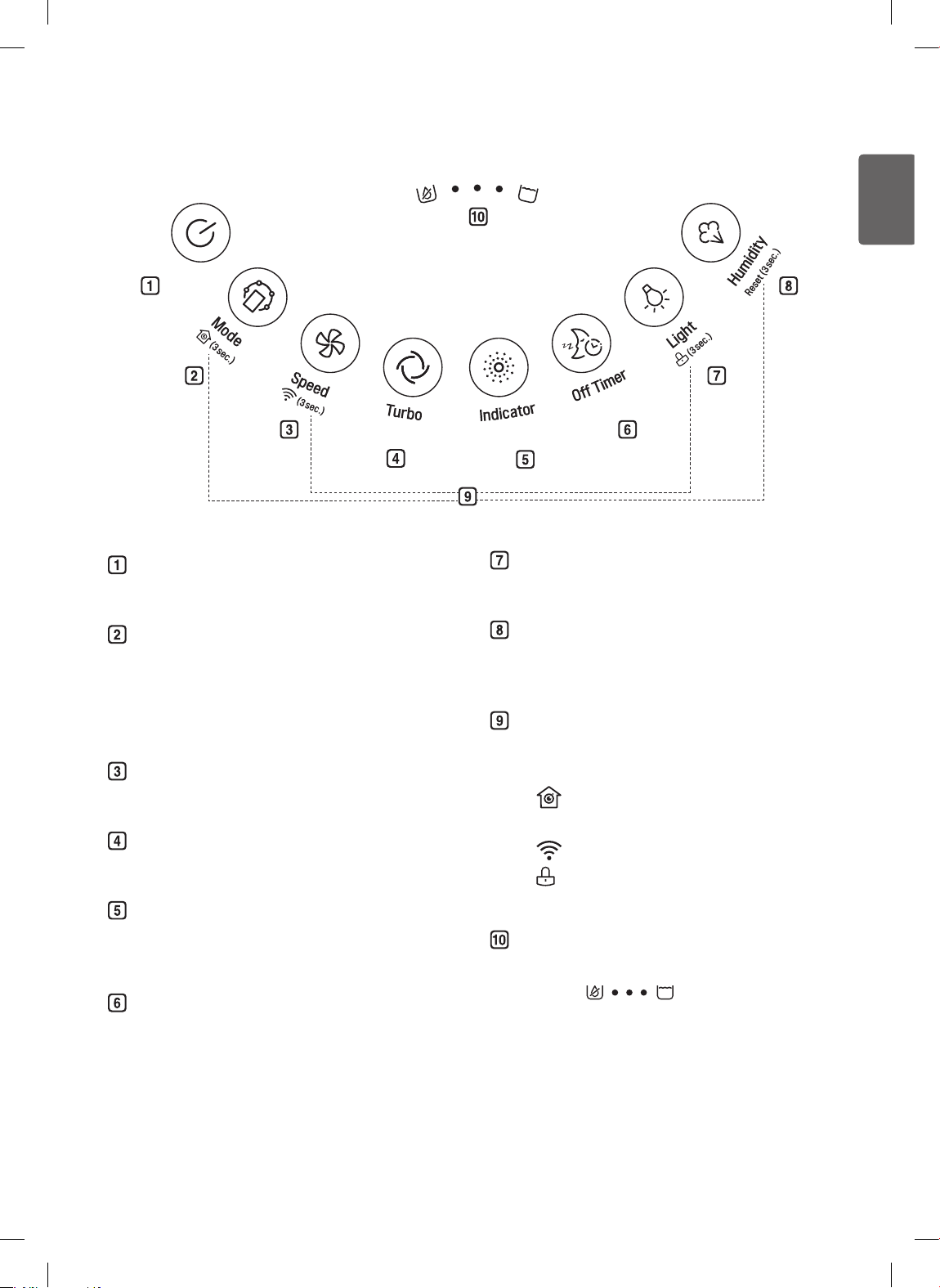
Start/Stop button
Starts or stops operation.
Mode button
Sets the operating mode.
• Press the button repeatedly to cycle through the
operating modes from Purify → Humid Purify →
Silent.
Speed button
Adjusts the fan speed.
Turbo button
Quickly puries the air.
Indicator button
Cycles through the current humidity and dust density
levels.
Off Timer button
Puts product in Sleep mode and sets it to turn off
automatically after 2, 4, 8, or 12 hours.
Light button
Turns the air quality indicator light on/off.
Humidity button
Sets the desired humidity level.
(The humidity level can be set in 5% increments.)
Additional functions
Press and hold each button for about 3 seconds to
start the corresponding function.
•
:
Air Quality Monitoring function
(Refer to page 20.)
• : Wi-Fi function (Refer to page 25.)
•
:
Control Lock function (Refer to page 21.)
• Reset: Counter Reset function
(Refer to page 22.)
Water level indicator lights
Displays the ll level of the water bucket.
• (Empty)
(Full)
Control Panel and Water Level Indicator
14
ENGLISH
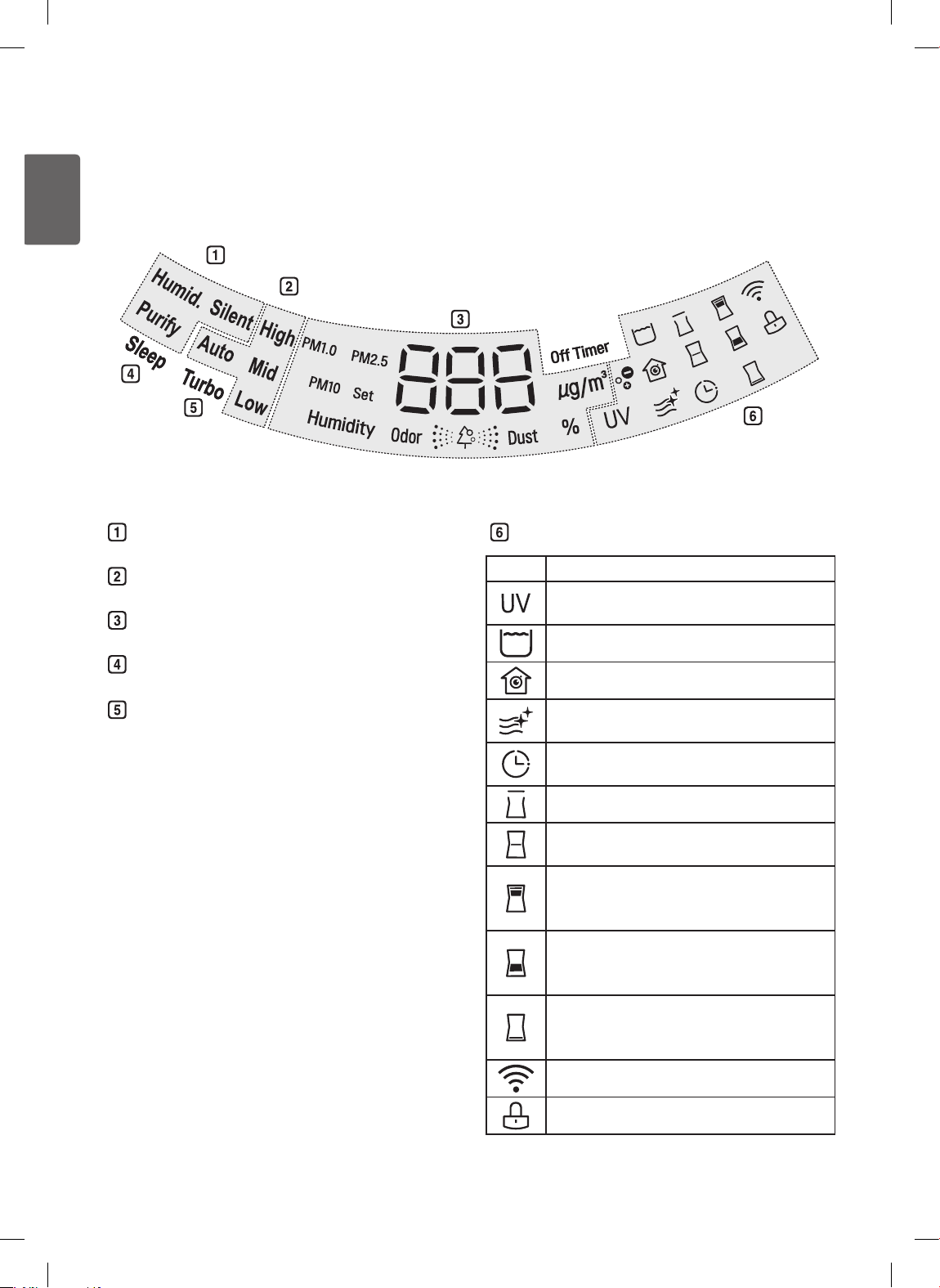
Status Display Panel
Operating mode display
Fan speed display
Air quality display
Sleep timer display
Turbo display
Display Icons
Icon Description
Water bucket's UV LED Lighting Water
Treatment is running.
Water bucket is full.
Air quality monitoring function is ON.
Hygiene drying function is ON.
(Refer to page 22.)
ON/OFF timer is activated using the LG Smart
ThinQ application.
Top cover is not properly mounted.
The deodorizing Black Filter needs to be
replaced.
One or more of water bucket lters are missing,
improperly assembled, or need to be cleaned.
(Refer to page 30.)
PM 1.0 Black Filter or deodorizing Black Filter
are missing, improperly assembled, or need to be
cleaned. (Refer to page 33, 34.)
The ultra ne lter (pre-lter) is missing, improperly
assembled, or needs to be cleaned. (Refer to
page 33.)
Product is connected to a Wi-Fi network.
Control Lock function is ON.
15
ENGLISH
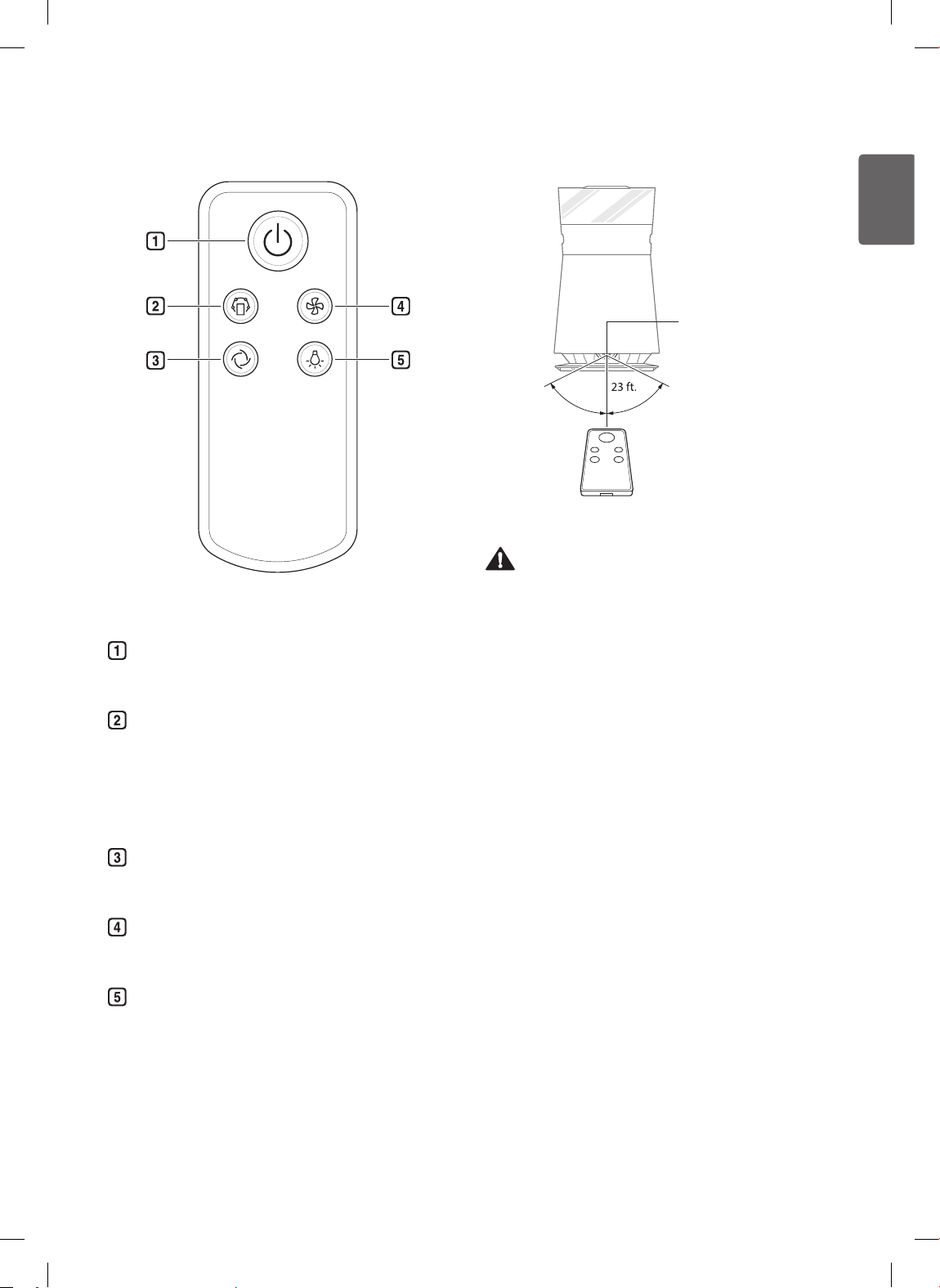
Remote Controller
Mode Speed
Turbo Light
Start/Stop button
Starts or stops operation.
Mode button
Sets the operating mode.
• Press the button repeatedly to cycle through the
operating modes from Purify → Humid Purify →
Silent.
Turbo button
Quickly puries the air.
Speed button
Adjusts the fan speed.
Light button
Turns the air quality indicator light on/off.
Remote Controller Sensor
45˚
45˚
Remote controller
sensor panel
Caution
• Do not step on or apply pressure.
• Do not store or use near water or in high humidity.
• Do not store or use near an open ame or heating
devices such as space heaters or ovens. The battery
could explode.
• Remove the battery before storing to avoid damage from
leaking battery uid.
• Do not disassemble or recharge the battery. Dispose of
the used battery properly to avoid re or explosion.
Note
• To purchase a replacement remote controller, visit a
nearby LG service center.
• Pressing multiple buttons at the same time may cause
the remote to malfunction.
• To use, hold with the remote controller's transmitter
facing the product's sensor.
• The remote works best within 23 ft. (7m) and 45° to the
left or right of the sensor in front of the product.
• If the remote controller does not work after replacing the
battery, call for service.
• The remote controller may not work under very bright
light from three-wave uorescent lamps or neon signs.
16
ENGLISH
Purify Mode
This mode cleans and freshens indoor air.
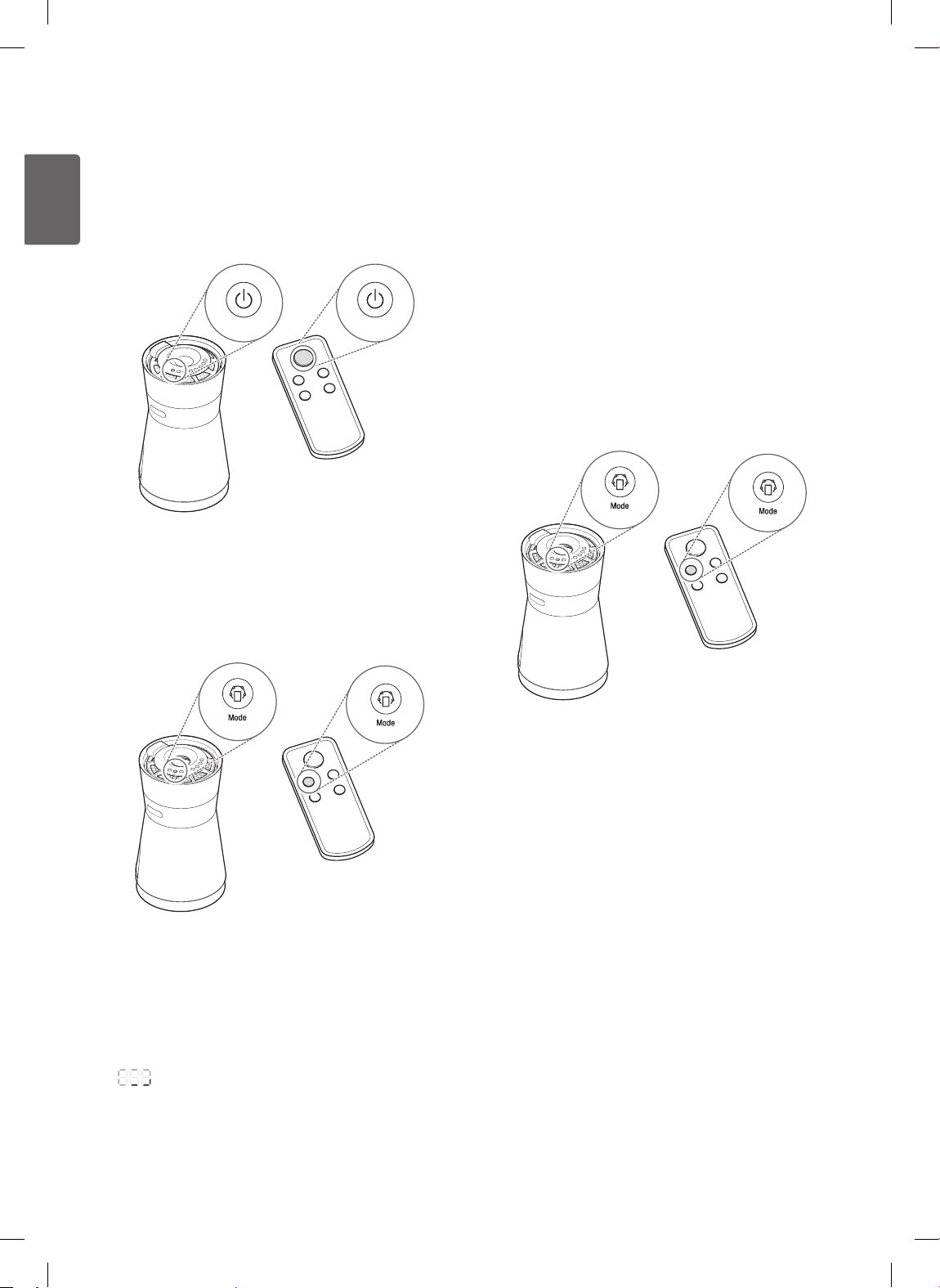
1
Press the Start/Stop button on the machine or the
remote controller.
2
Press the Mode button to select an operating mode.
• Press the button repeatedly to cycle through the
operating modes from Purify → Humid Purify →
Silent.
• The mode shows in the status display panel.
Note
• When the product is turned on for the rst time, the default
operating mode is Purify mode.
• The last operating mode is stored, even after power is lost.
• During the rst 30 seconds after the product is started,
appears in the display to indicate that the sensor is
stabilizing. After the sensor stabilizes, the display shows
the dust concentration level.
Humid Purify Mode
This mode improves indoor air using the humidier and the
air purier.
1
Fill the water bucket before starting Humid Purify mode.
• For details, refer to page 23.
2
Press the Start/Stop button on the machine or the
remote controller.
3
Press the Mode button to select Humid Purify mode.
• Press the button repeatedly to cycle through the
operating modes from Purify → Humid Purify → Silent.
• The mode shows in the status display panel.
Note
• The humidier uses ne particles, so the spray from the
air outlet is not visible.
• The UV LED Lighting Water Treatment will run automatically
for some time during Humid Purify mode to prevent the
buildup of bacteria and mold in the water bucket. When the
UV LED Lighting Water Treatment is running, UV appears in
the display.
• In Humid Purify mode, the current humidity level
appears in the status display panel. To change the
desired humidity level, see page 20.
• If Humid Purify mode is stopped, the Hygiene Drying
function will run automatically for 1 to 1 ½ hours depending
on the humidity level of the indoor air.
• For best results, use the Hygiene Drying function when using
Humid Purify mode. For details, see page 22.
• Leave the product plugged in for at least 1
½
hours after
using Humid Purify mode to allow the Hygiene Drying
function to work.
• Water drops may form on the product window when you
activate Humid Purify mode. Initially, the water drops
may be small but grow bigger and ow down as you use
the product longer. This is the same natural phenomenon
as water drops forming on windows when it rains.
17
ENGLISH
Silent Mode
This mode minimizes noise during air purication.
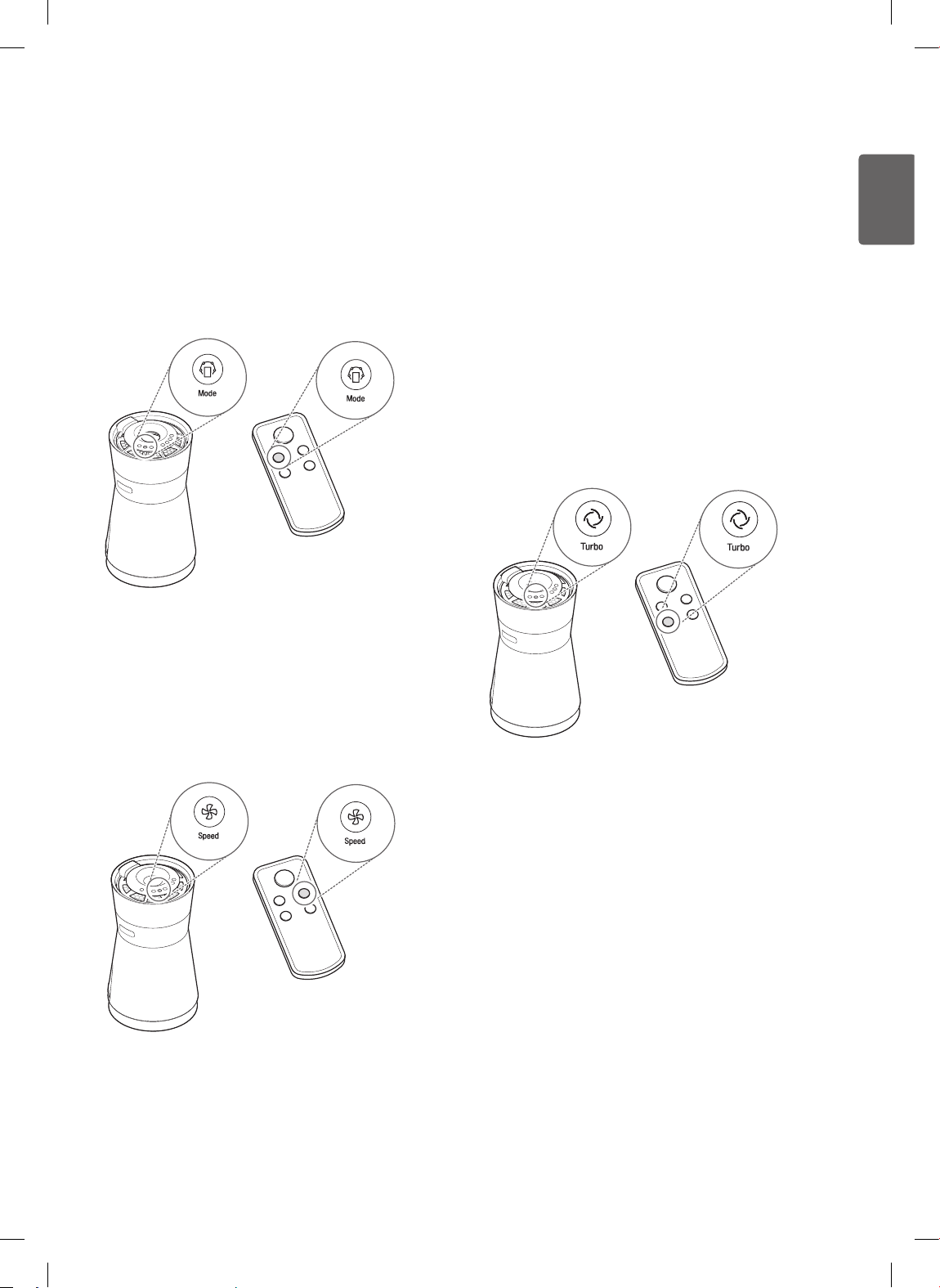
Press Start/Stop to start operating, then press the Mode
button to select Silent mode.
• Press the button repeatedly to cycle through the
operating modes from Purify → Humid Purify → Silent.
• The mode shows in the status display panel.
Adjusting the Fan Speed
Press the Start/Stop button to start operating, then press the
Speed button to select the fan speed.
• Press the button repeatedly to cycle through the fan
speeds from Auto → Low → Mid → High.
• The fan speed shows in the status display panel.
Note
• The default fan speed is Auto. Auto mode automatically
adjusts the fan speed depending on the indoor air quality.
• The current fan speed appears in the status display
panel.
• The fan speed cannot be adjusted in Silent mode.
• If you press the Speed button in Silent mode, the mode
switches to Purify so you can adjust the fan speed.
Turbo Mode
This mode quickly puries indoor air.
Press the Start/Stop button to start operation, then press
the Turbo button.
• Turbo appears in the status display panel.
Note
If the Turbo button is pressed in Silent mode, the operating
mode switches to Purify to allow the Turbo function to run.
18
ENGLISH
Checking Air Quality
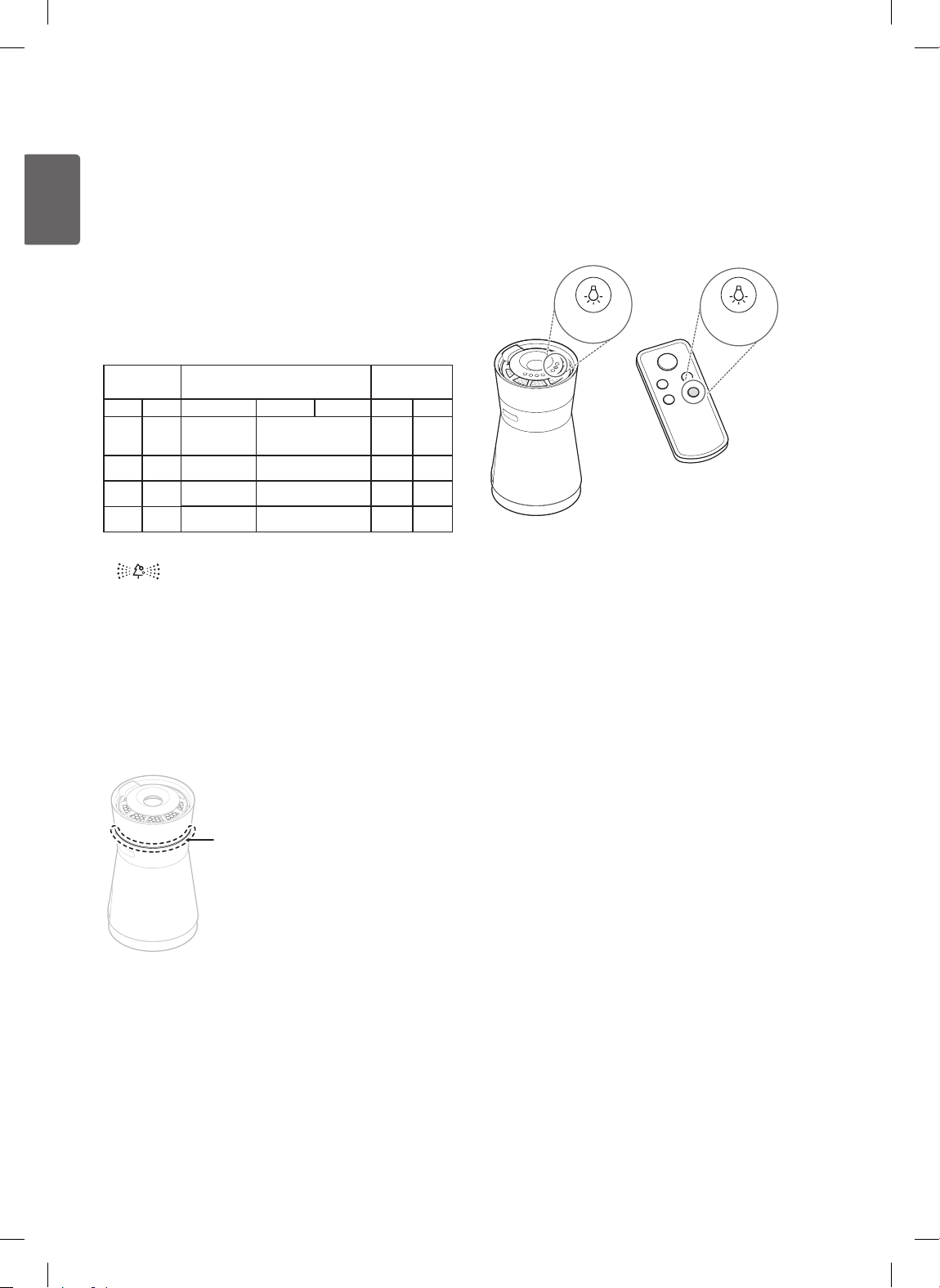
The overall air quality is indicated by color in the status
display panel and the air quality indicator light.
Understanding Overall Air Quality
The overall air quality is indicated using four levels, each
using a different color. The overall air quality depends on
both the dust density and the odor level.
Overall air
quality
Dust density (µg/m3) Odor level
Color
Status
PM 10 PM2.5 PM1.0 Status Level
Red
Very
bad
255 or more 56 or more
Very
strong
4
Orange
Bad
155 ~ 254
36 ~ 55
Strong
3
Yellow
Normal
55 ~ 154 13 ~ 35
Normal
2
Green
Good 54 or less 12 or less Weak 1
• Overall air quality is indicated by the color of the icon
in the status display panel and of the air quality
indicator light.
• The overall air quality color indicates the worst level,
either the dust density or the odor level.
Using the Air Quality Indicator Light
The overall air quality light changes color to green (good),
yellow (normal), orange (bad) or red (very bad) depending on
the dust density and odor level.
Air quality
indicator light
Note
After initial startup, the dust sensor stabilizes for 30 seconds and
the odor sensor stabilizes for two minutes. The air quality light is
white for 30 seconds, then it changes color to indicate the dust
density level. Two minutes after starting, the light may change
again if the odor level is worse than the dust density level.
Turning Air Quality Indicator Light
On/Off
While the product is operating, press the Light button to
turn the overall air quality light on or off.
Light Light
Note
• The air quality indicator light turns off when the Off Timer
is set.
• If the Light button is pressed after the Off Timer is set,
both the air quality indicator light and the display indicator
light are activated.
19
ENGLISH
Checking Air Quality in the Display
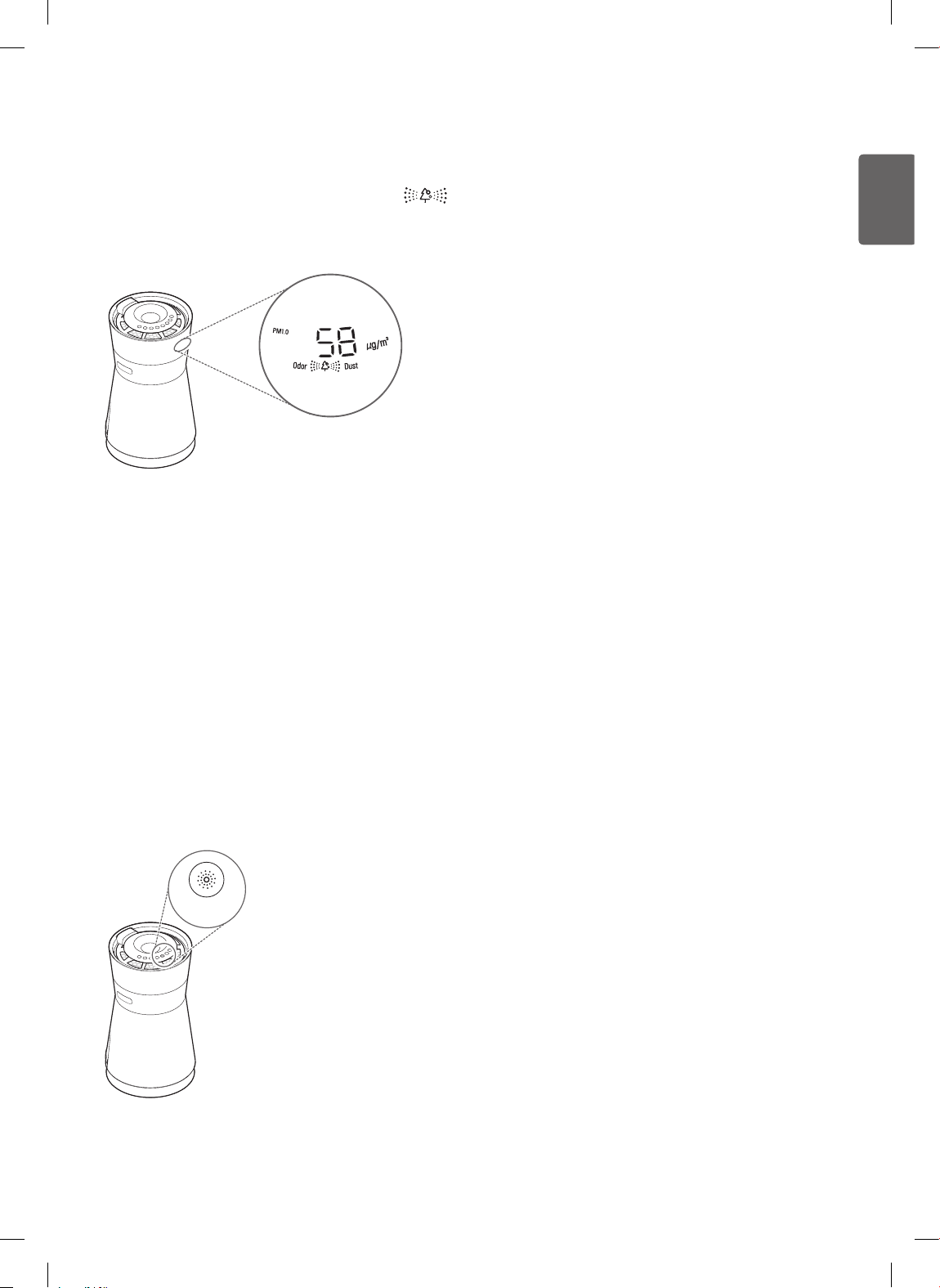
The overall air quality is indicated by the color of the
icon in the display. If the overall air quality is bad (orange) or
very bad (red), the display also shows the cause.
In the example above, the PM1.0 (super ultra-ne dust) density
is shown as 58 micrograms per cubic meter, which is very bad
(red), so it must be higher than the other PM densities. Odor
also appears in the display, so a strong odor is also detected.
Note
If the overall air quality is good (green) or normal (yellow),
the cause is not displayed.
Checking Dust Density and
Humidity
While the product is on, press the Indicator button.
• Press the button repeatedly to quickly scroll through the
sensor results: PM10 → PM2.5 → PM1.0 → humidity.
• After the Indicator button is pressed, the status will
display for about 10 seconds.
Indicator
Note
• PM (particulate matter) density is displayed in increments
of 1 unit, from 8 to 999. PM density values are based on
the data sheet provided by the sensor manufacturer.
• The PM10 and PM2.5 air quality values follow those
provided by the United States EPA (Environmental
Protection Agency) for 2015.
– The overall air quality level displayed on the product
may differ from the level announced by the EPA.
• The PM1.0 density is displayed in the same manner as the
PM2.5 density and is based on LG Electronics standards.
• The PM10 and PM2.5 densities displayed by the product
could differ from the EPA forecast and from densities
measured by other products or devices.
– Differences in PM density values may be the result
of different methods of measuring or differences in
the actual PM density levels.
– The PM density measurement was tested using LG
Electronics' standard test materials.
• Using the product near a humidier, mister, air-conditioner,
or other device which generates steam or micro-particles
could affect the PM densities.
• The overall air quality level is a result of both PM densities
and the odor level. It may differ from the PM10, PM2.5,
and PM1.0 density levels.
• Even two products placed in the same space could
measure the PM10 density differently due to air circulation.
• The chemicals contained in air fresheners, perfumes,
deodorizers, or cosmetics may affect the overall air quality
display.
• The dust density displayed may change with environmental
factors such as the presence of sofas, beds, carpets,
vacuum cleaners, humidity, smoke, bugs, pets, or cooking
oils.
• The PM densities may be affected by changes in the
outside environment such as construction, heavy trafc, or
pollen.
• The micro dust density could be higher near outside doors,
windows, vents, or in areas where outside air enters.
• Use ONLY water to clean the sensor. Using anything else
could cause product failure.
• The ne dust density could be affected by cooking
or using humidiers, sprays, or other products which
generate steam or ne particles.
20
ENGLISH
Using Air Quality Monitoring
Function
Turn on the Air Quality Monitoring function to continuously
measure and display the indoor air quality even when the
product is turned off.
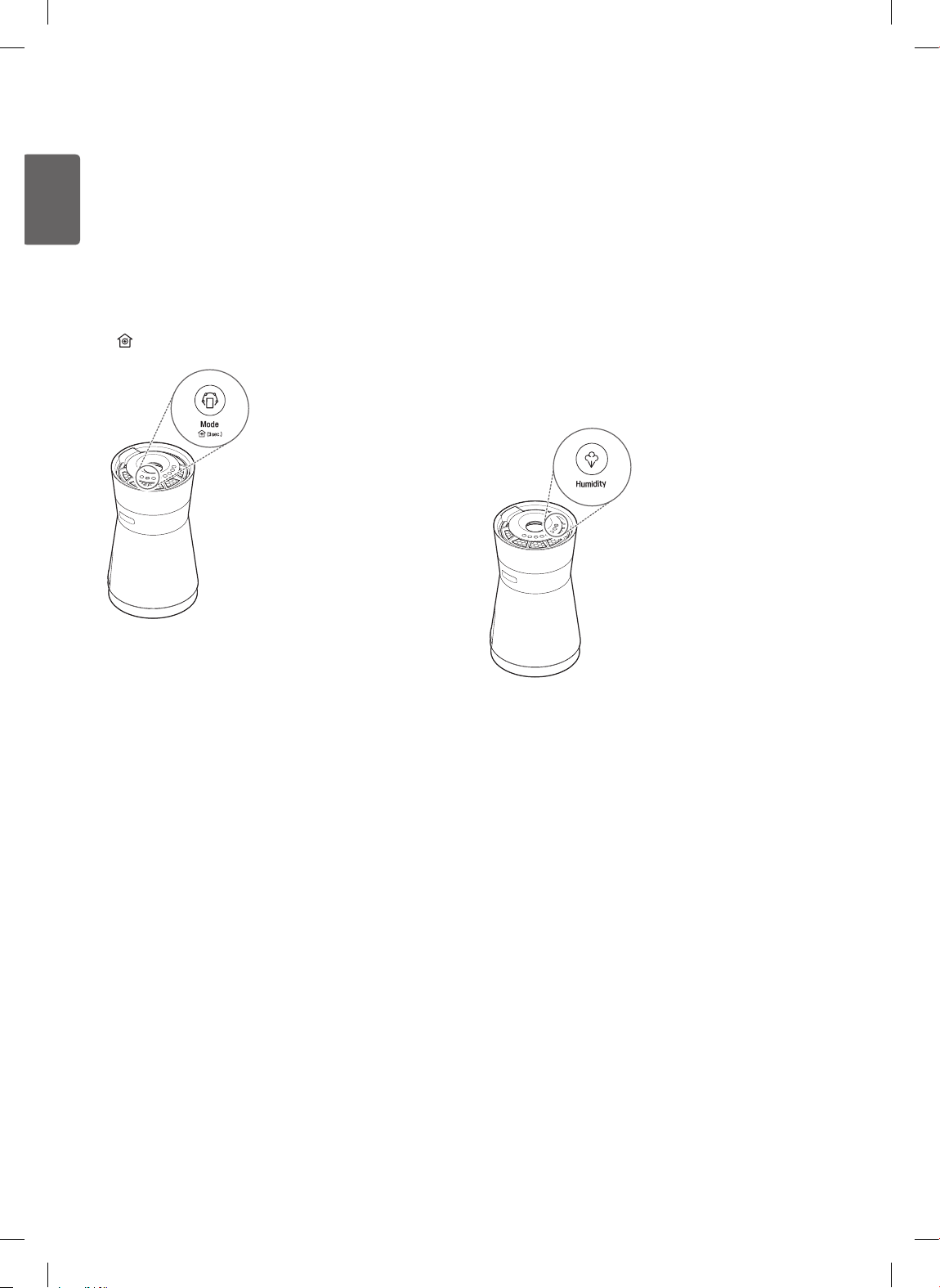
Press and hold the Mode button for about 3 seconds.
•
(monitoring) appears in the status display panel.
Note
• Press and hold the Mode button for 3 seconds to turn off
Air Quality Monitoring.
• As long as the product is plugged in, the Air Quality
Monitoring function can be turned on or off.
• If the Air Quality Monitoring function is on, the Indicator
and Light buttons still work even when the product is
turned off.
• The Air Quality Monitoring function uses minimal power.
Setting the Humidity
You can select the desired humidity level when the product
is operating in Humid Purify mode.
Press the Humidity button while the product is in operation.
• Press the button repeatedly to cycle through the humidity
levels starting at 50% (50% → 55% → 60% → 65% →
70% → 30% → 35% → 40% → 45% → 50%).
• The desired humidity level appears in the status display
panel for 5 seconds before switching back to the current
humidity.
Note
• The Humidity button is only available when the product
is operating in Humid Purify mode.
• The initial target humidity level is set at 50%.
21
ENGLISH
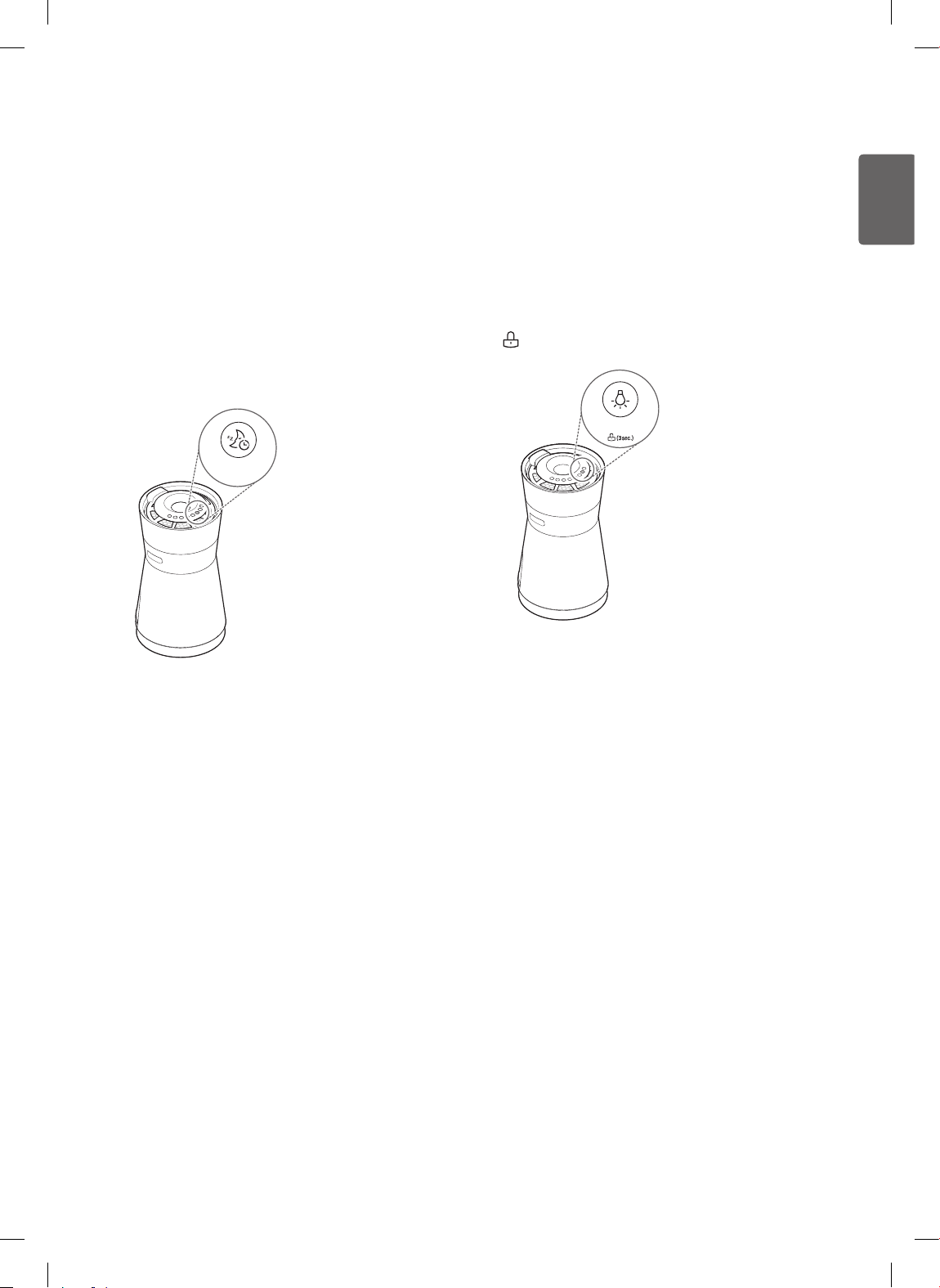
Off Timer
Use the Off Timer button to set the product to Sleep mode
and automatically turn off after a set number of hours.
While the product is on, press the Off Timer button.
• Press the button repeatedly to scroll through the
selections, from 2 Off Timer → 4 Off Timer → 8 Off
Timer → 12 Off Timer → Cancel sleep timer.
• In Sleep mode, only certain notice displays and the
Sleep status text are displayed in the status display panel
and the overall air quality indicator light is turned off.
Off Timer
Note
• To help you sleep, the fan speed is set to Low for the rst
hour and is then set to Auto.
• In Sleep mode, you can adjust the fan speed manually
using the Speed button.
• After setting the product in Sleep mode, pressing the Off
Timer button once will check the set time, and pressing it
repeatedly will cancel the sleep timer.
• The sleep timer setting is maintained even if there is a
temporary loss of power (a blackout, etc.).
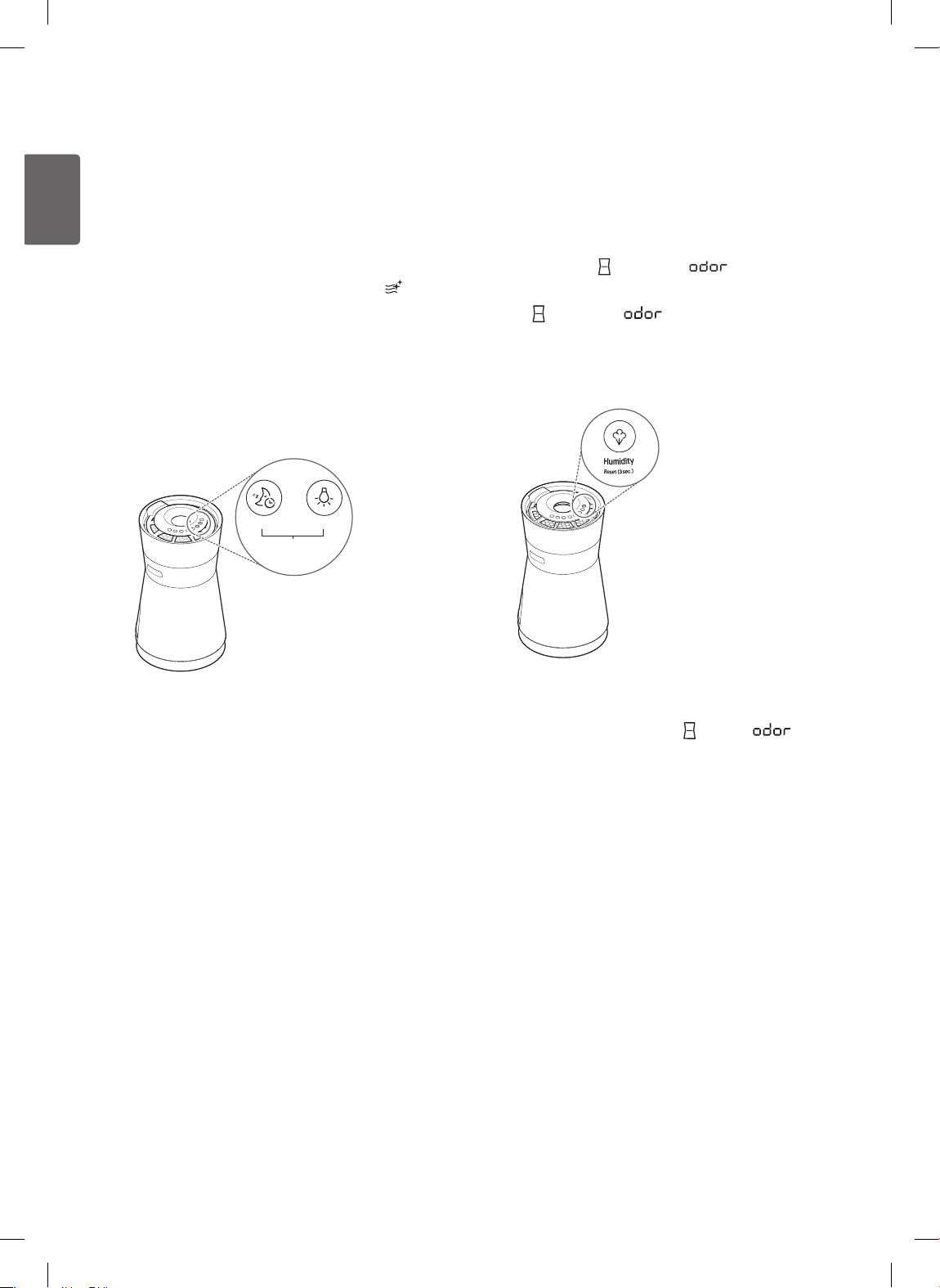
Control Lock
The Control Lock function locks all the control panel
buttons, including the Power button, to prevent accidental
operation by children or others. The controls can be locked
even when the product is off.
Press and hold the Light button for about 3 seconds.
•
(Lock) appears in the status display panel.
Light
Note
When Control Lock is turned on, you will not be able to use
the control panel until Control Lock is turned off. To turn off
Control Lock, press and hold the Light button for about 3
seconds.
22
ENGLISH
Hygiene Drying Function
The Hygiene Drying function is turned on by default. After
Humid Purify mode is used, the Hygiene Drying function
runs the fan for 1 – 1 ½ hours to dry the water bucket lters
and prevent the buildup of mold or bacteria.
• When the Hygiene Drying function is running,
(hygiene
drying) appears in the status display panel.
• To turn off the Hygiene Drying function, press and hold
the Off Timer and Light buttons for about 3 seconds.
• The Hygiene Drying function should not be turned off.
Turning off the Hygiene Drying function may result in a
buildup of mold, bacteria, and odor.
Off Timer Light
At the same time
for about 3 seconds
Note
• The Hygiene Drying function can be turned on or off by
pressing and holding the Off Timer and Light buttons for
3 seconds.
• The product must be running in order to turn the Hygiene
Drying function on or off.
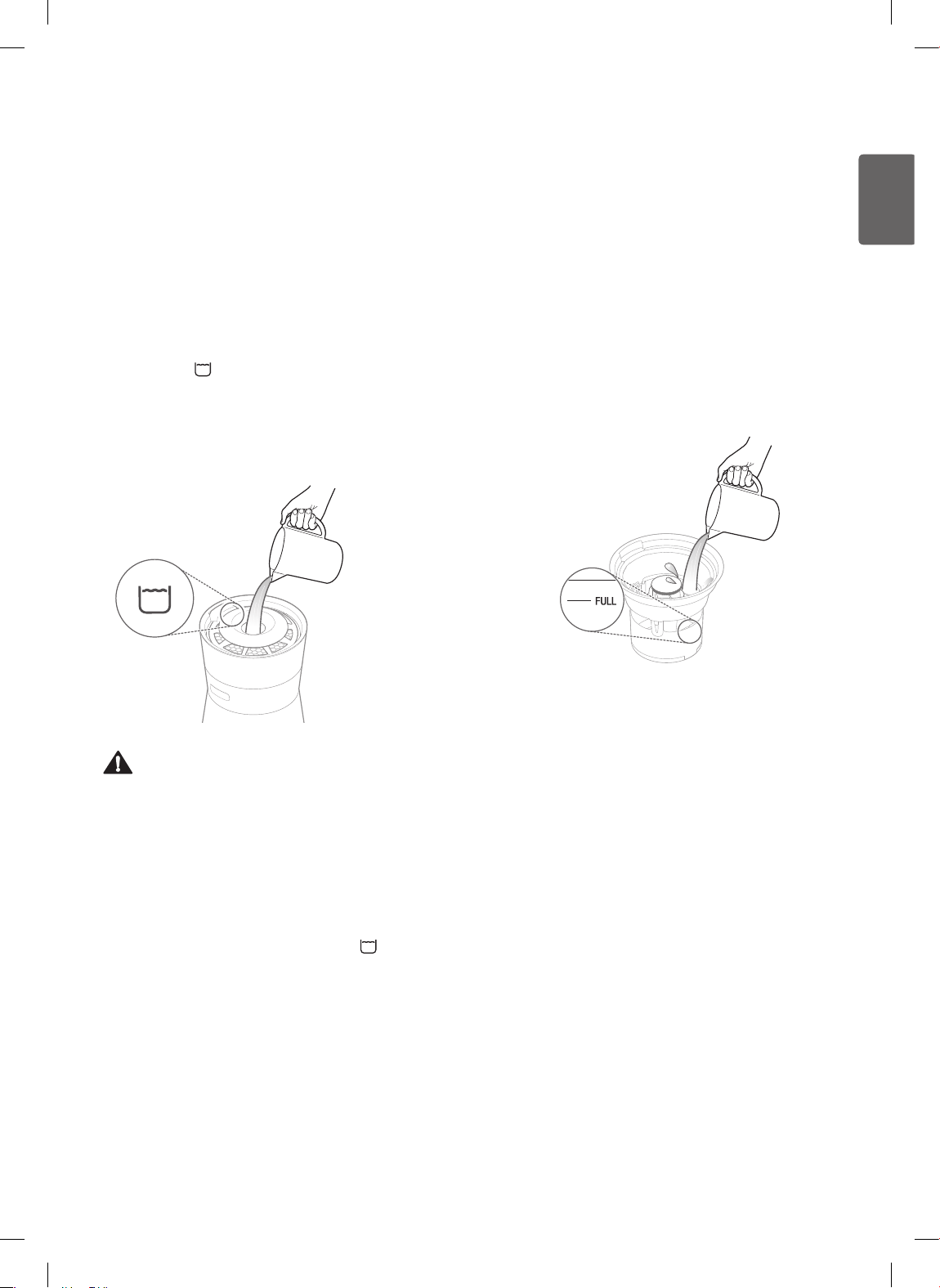
Counter Reset Function
After replacing the deodorizing Black Filter, reset the usage
time counter.
• When the deodorizing Black Filter's counter reaches
4,000 hours, the
icon and the error code appear
in the status display panel.
• If the
icon and the error code appear, replace
the deodorizing Black Filter with a new one.
• After replacing the lter, press and hold the Humidity
button for 3 seconds to reset the total usage time.
Note
• When the counter is reset, the icon and error
code will disappear.
• For details on how to replace the deodorizing Black Filter,
see page 33.
23
ENGLISH
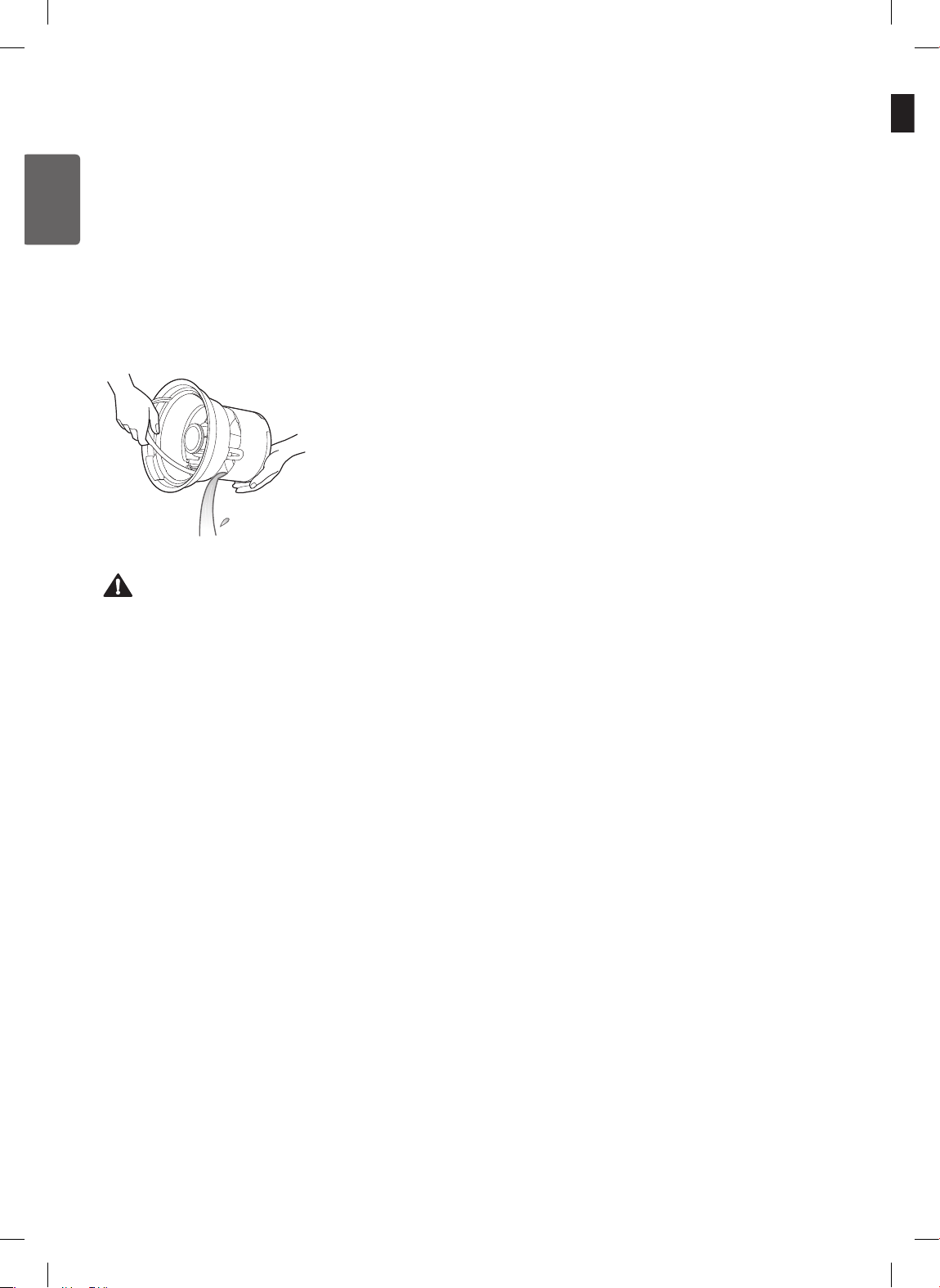
Filling the Water Bucket
You can pour the water into the water bucket directly or
through the Easy Fill Inlet.
Using the Easy Fill Inlet
To use, turn off the product, ll a container with water, and
slowly pour the water into the inlet in the center of the top
cover. Add water gradually until a chime sounds and the
Full Water icon
is lighted in the water level indicator.
• The water level indicators light up and chimes sound
more and more quickly as the bucket gets close to full.
• The capacity of the water bucket is 0.8 gallons (3.2
liters).
Caution
• Plug in and turn OFF the product before using the Easy
Fill inlet.
• Do not ll the water bucket with the top cover ipped
over.
• If water overows the water bucket, there is a risk of
electric shock or property damage. Pour water into the
Easy Fill inlet slowly, paying attention to the chimes. Stop
pouring immediately when the Full Water
indicator
appears.
Pouring Water into the Water
Bucket
If you want to add a large amount of water at once, pour the
water into the water bucket directly.
1
Detach the water bucket from the product and remove
its lter from the water bucket.
• For more information on how to detach the lter
from the water bucket, refer to Maintenance on
page 29 and 31.
2
Fill the water bucket to the FULL line on the inside of
the bucket.
Inside water bucket
3
Mount the water bucket on the product.
• For more information on how to mount the water
bucket, refer to Assembling Water Bucket on
page 32.
24
ENGLISH
Emptying the Water Bucket
To empty the water bucket, turn off and unplug the product.
Remove the top cover and lift out the water bucket. Place
the bucket on a waterproof surface. Remove the top and
side water bucket lters from the bucket. Tilt the bucket to
empty it.
• The bucket empties from the slots midway up the sides.
Make sure the slots are over the sink when emptying the
bucket.
Caution
• Do not allow water to sit for long periods in the water
bucket. Empty and dry out the bucket when not using
Humid Purify mode.
• When operating the product in Humid Purify mode,
empty the bucket at least once a day or after each use.
Rell with clean water once a day or before each use. If
water is left in the bucket, it may contaminate the bucket,
and even relling with clean water will not prevent odor
issues.

25
ENGLISH
Smart Functions
Installing the Application
Install the LG Smart ThinQ application on your smartphone
to access the product's smart functions. The application can
be found through the Google Play Store or Apple App Store.
For more details on using the LG Smart ThinQ application,
see the Help guide in the application.
Installing the Application
Open the Google Play Store or Apple App Store application
on your smartphone, search for the LG Smart ThinQ
application, and download and install the application on
your phone.
Creating an Account
Registering through the LG Smart ThinQ application allows
you access to various LG services. You must create an
account to register and connect Wi-Fi models.
1
Open the LG Smart ThinQ application on your
smartphone and select Create New Account.
2
Follow the directions in the application to enter your
information, then select Conrm.
• An authorization email is sent to the email address
you entered.
3
Open the email, select Authorize, and your LG
account registration is complete.
Note
The email address you enter during registration becomes
your ID.
Using the Wi-Fi Function
These directions apply only to models with Wi-Fi.
Registering the Product
1
Open the LG Smart ThinQ application on your
smartphone and select Product Registration.
2
Select your product from the list and follow the
instructions in the application to connect the product
to your home Wi-Fi network.
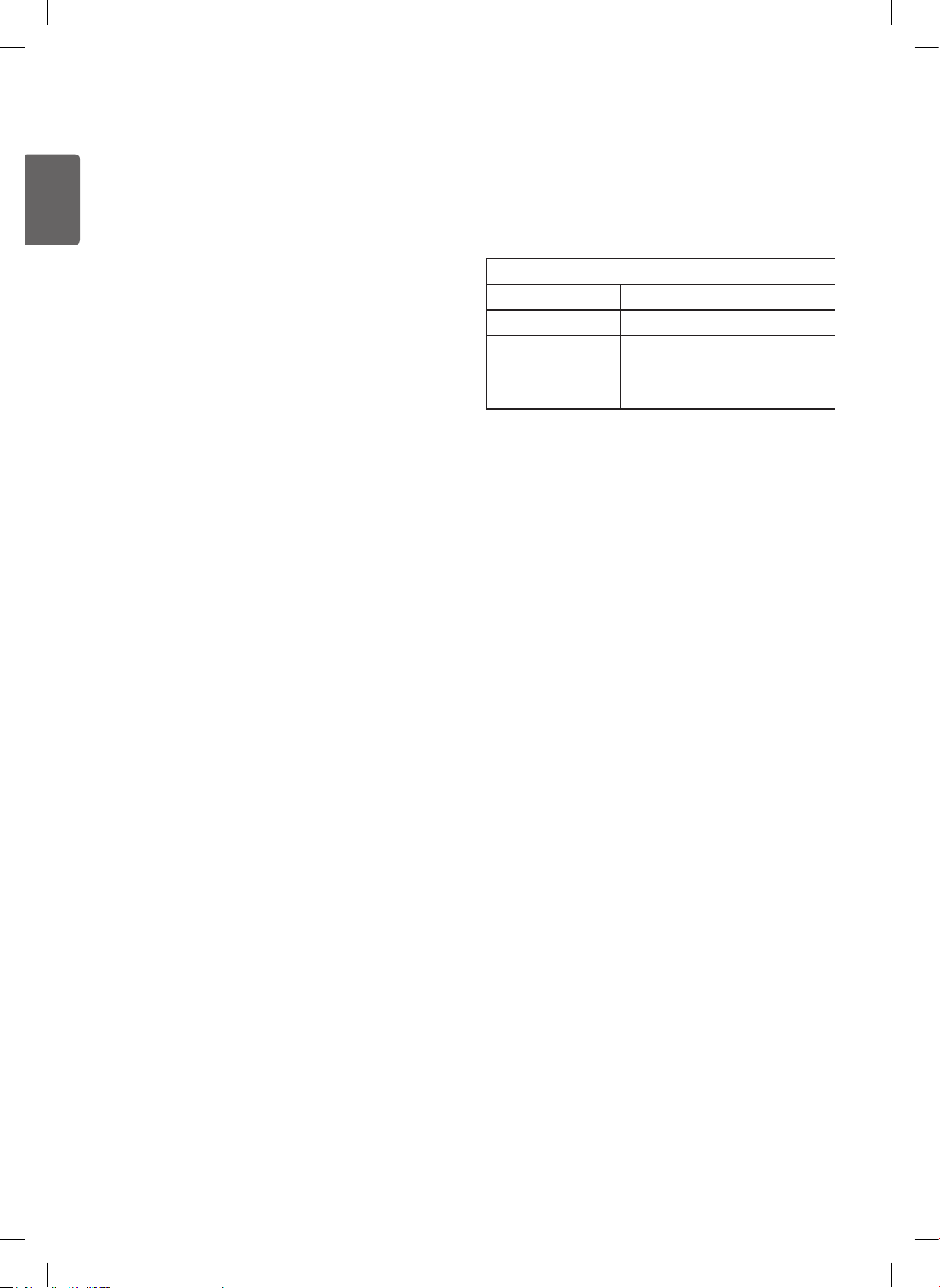
• The Wi-Fi icon
appears in the product's display
panel when the product is connected to a Wi-Fi
network.
Using the Application
You can use various functions through the application.
1
Open the application and select the air purier.
2
Press Menu at the top right side of the smart phone
screen, and select the desired function.
3
Follow the instructions in the application. For more
assistance, see the Help guide in the installation.
Firmware Updates
Update the product's performance.
Smart Diagnosis™
Help troubleshoot product errors and issues using your
product usage information. Diagnosis can be done right
from the application or with the help of the LG Customer
Information Center.
Settings
Change product settings and set up alerts when
settings change.
26
ENGLISH
Note
• Only the 2.4 GHz Wi-Fi frequency is supported.
• The Wi-Fi icon should appear in the product's display
panel during the product registration.
• A wireless AP (access point) or router and internet cable
are not included and must be installed before using the
LG Smart ThinQ application.
• You can contact your ISP (internet service provider)
to purchase and install a wireless AP. If you purchase
and install a wireless AP yourself, follow the installation
instructions included with the wireless AP.
• If the appliance is having trouble connecting to the Wi-Fi
network, it may be too far from the AP or router. Purchase
a Wi-Fi repeater (range extender) to improve the Wi-Fi
signal strength.
• The Wi-Fi connection may not connect or may be
interrupted because of the home network environment.
Contact your service provider for assistance.
• Make sure to set the wireless AP SSID (the name of
the Wi-Fi network) to English letters, numbers, or a
combination of letters and numbers. Do not use special
characters when naming the network or the information
will not be processed correctly by the appliance.
• Be sure to choose your home wireless network and not a
nearby network during setup. Unauthorized use of a Wi-
Fi network is prohibited by law.
• This information is current at the time of publication. The
application is subject to change for product improvement
purposes without notice to users.
Wireless Specications
Radio wave interference may affect the wireless connection.
Do not use for medical or healthcare purposes.
Wi-Fi
Wireless LAN module Specications
Model
LCW-003
Frequency Range 2412 MHz to 2462 MHz
Output Power (max.)
IEEE 802.11b: 17.56 dBm
IEEE 802.11g: 25.53 dBm
IEEE 802.11n: 25.29 dBm
FCC Notice (For transmitter module
contained in this product)
This equipment has been tested and found to comply with
the limits for a Class B digital device, pursuant to Part 15
of the FCC Rules. These limits are designed to provide
reasonable protection against harmful interference in a
residential installation. This equipment generates, uses,
and can radiate radio frequency energy and, if not installed
and used in accordance with the instructions, may cause
harmful interference to radio communications. However,
there is no guarantee that interference will not occur in a
particular installation. If this equipment does cause harmful
interference to radio or television reception, which can be
determined by turning the equipment off and on, the user is
encouraged to try to correct the interference by one or more
of the following measures:
– Reorient or relocate the receiving antenna.
– Increase the separation between the equipment and the
receiver.
– Connect the equipment to an outlet on a circuit different
from that to which the receiver is connected.
– Consult the dealer or an experienced radio/TV technician
for help.
This device complies with part 15 of the FCC Rules.
Operation is subject to the following two conditions:
(1) this device may not cause harmful interference and
(2) this device must accept any interference received,
including interference that may cause undesired operation
of the device.
Any changes or modications in construction of this device
which are not expressly approved by the party responsible
for compliance could void the user’s authority to operate the
equipment.

27
ENGLISH
FCC RF Radiation Exposure
Statement
This equipment complies with FCC radiation exposure limits
set forth for an uncontrolled environment. This transmitter
must not be co-located or operating in conjunction with any
other antenna or transmitter.
This equipment should be installed and operated with
minimum distance 20 cm (7.8 inches) between the antenna
and your body. Users must follow the specic operating
instructions for satisfying RF exposure compliance.
Open Source Software Notice
To obtain the source code contained in this product and
developed under GPL, LGPL, MPL and other open source
licenses, visit http://opensource.lge.com
In addition to the source code, all referred license terms,
warranty disclaimers, and copyright notices are available
for download.
LG Electronics will also provide open source code on CD-
ROM for a charge covering the cost of performing such
distribution (such as the cost of media, shipping, and
handling) upon email request to [email protected]. This
offer is valid for three (3) years from the date on which you
purchased the product.
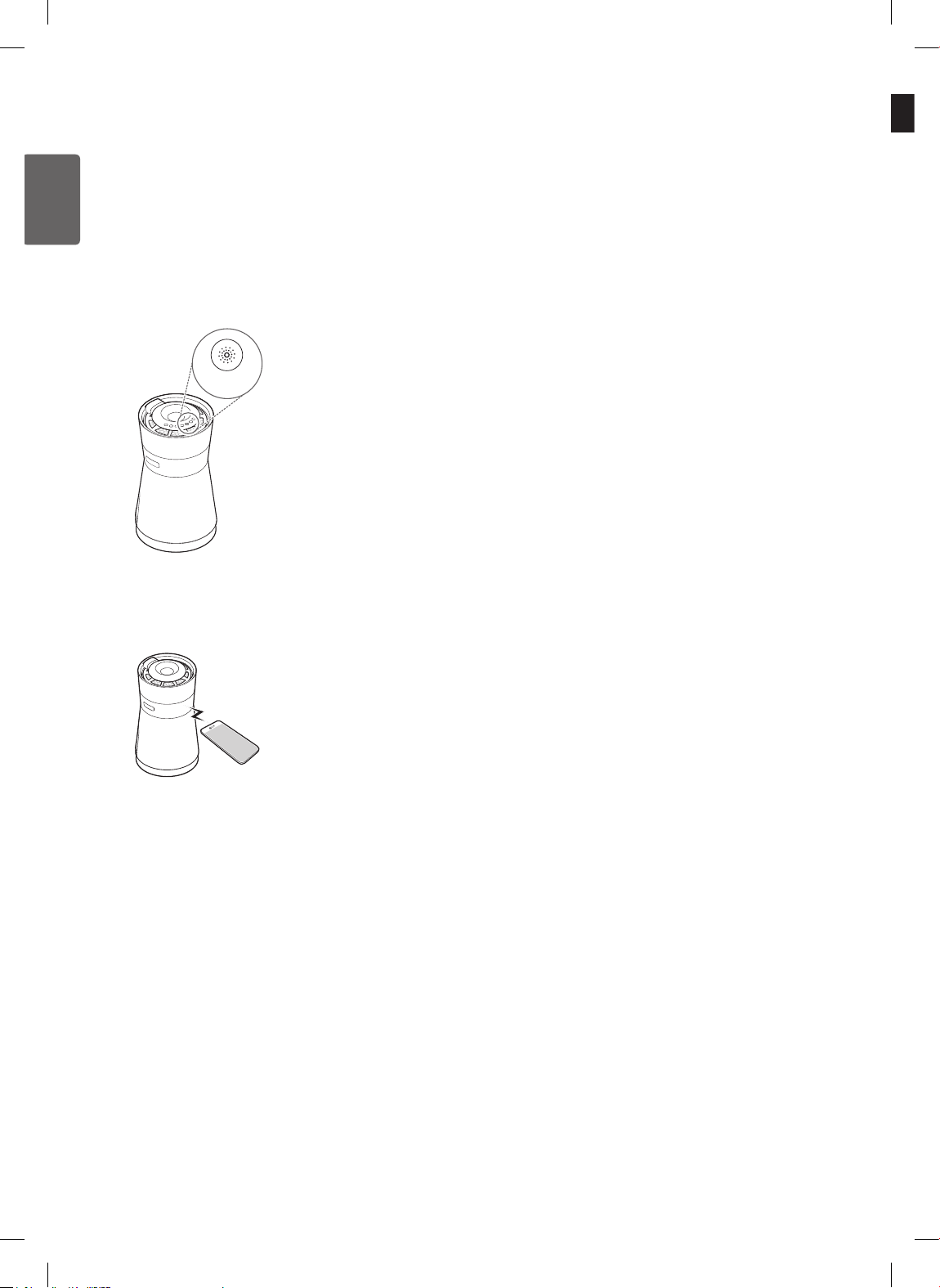
Smart Diagnosis™
Should you experience any problems with your appliance,
it has the capability of transmitting data to your smartphone
using the LG Smart ThinQ application or via your telephone
to the LG Customer Information Center.
Smart Diagnosis™ cannot be activated unless the
appliance can be turned on. If the appliance is unable to
turn on, then troubleshooting must be done without using
Smart Diagnosis™.
Diagnosis with Wi-Fi
1
Make sure the appliance is connected to Wi-Fi.
2
Open the Smart ThinQ application and select the
appliance from the list of registered products. Press
the menu at the top right of the smartphone screen.
3
Select Smart Diagnosis™ in the application and then
select the Smart Diagnosis™ button.
• Check the results in the application.
If Wi-Fi Diagnosis Fails
• Smart Diagnosis™ may not succeed if the network
connection is not good. Select Retry in the application to
try again.
• If the Wi-Fi Smart Diagnosis™ fails again, select Audible
Diagnosis in the application and follow the instructions
to perform an audible diagnosis.
Note
For a more detailed diagnosis, contact an LG Customer
Information Center.
28
ENGLISH
Assistance with Smart Diagnosis™
If you need further assistance in troubleshooting the
appliance, call an LG Customer Information Center at the
number on the back cover of this manual.
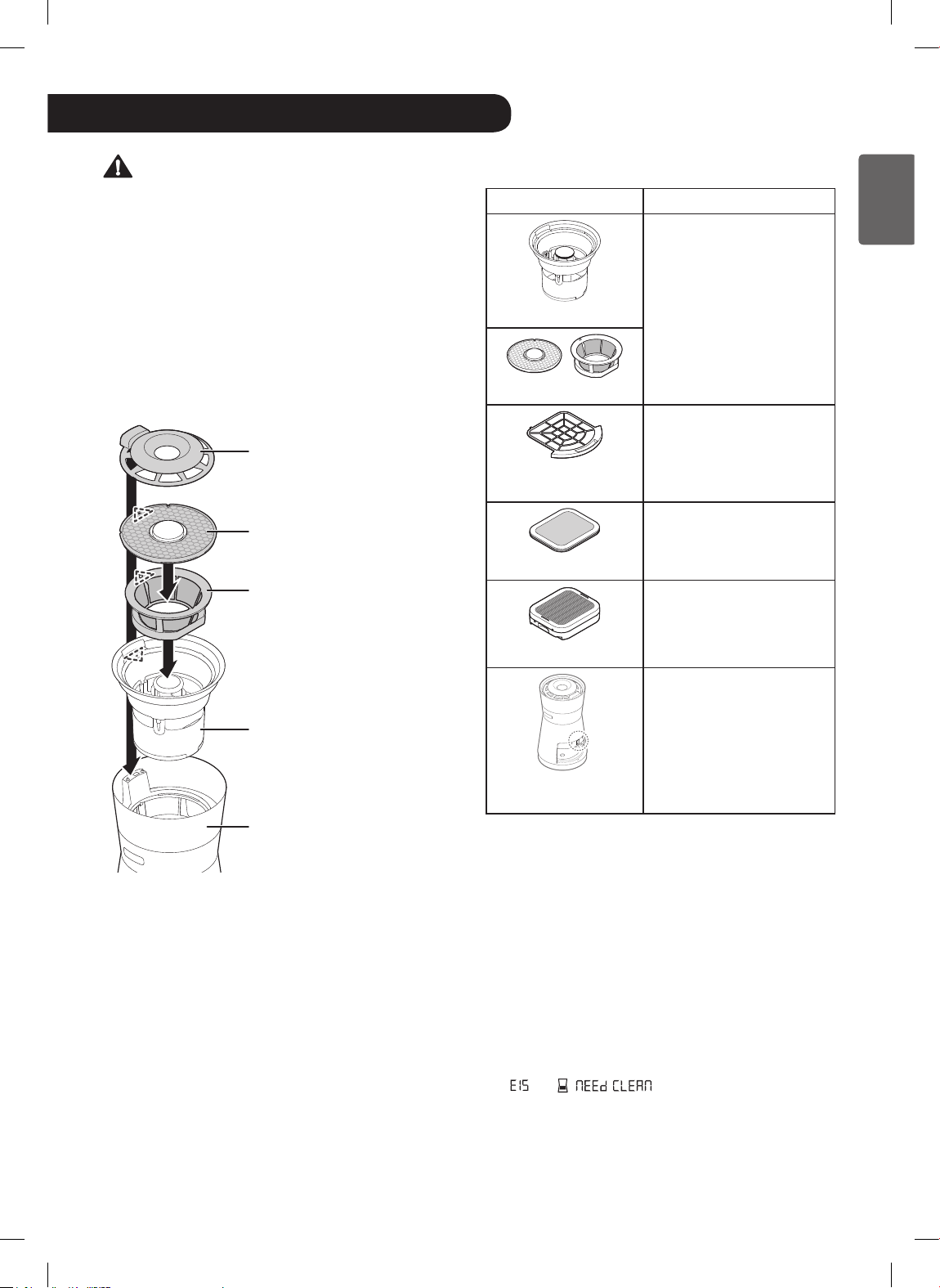
1
When instructed to do so by the call center agent,
press the Indicator button for about 5 seconds to start
the Smart Diagnosis™ function.
Indicator
2
Hold your phone near the product.
Hold the mouthpiece of the phone toward the LG
Signature logo on the front of the appliance.
Keep the phone in place until the tone transmission
has nished.
Note
• For best results, do not move the phone while the
tones are being transmitted.
• If the call center agent is not able to get an accurate
recording of the data, you may be asked to try
again.
3
Once the transmission has nished, resume your
conversation with the call center agent, who will be
able to assist you in using the information transmitted
for analysis.
Note
• The Smart Diagnosis™ function depends on the local call
quality.
• The communication performance will improve and you
may receive better results if you use a land line phone.
• Call quality problems may interfere with the ability to
provide Smart Diagnosis™ service.
• Smart Diagnosis™ will not work if the Control Lock
function is ON. Press and hold the Light button for 3
seconds to unlock the controls.
29
ENGLISH
Caution
• Turn off and unplug the appliance before cleaning it.
Otherwise, it may cause an electric shock.
• Do not spray water directly on the appliance.
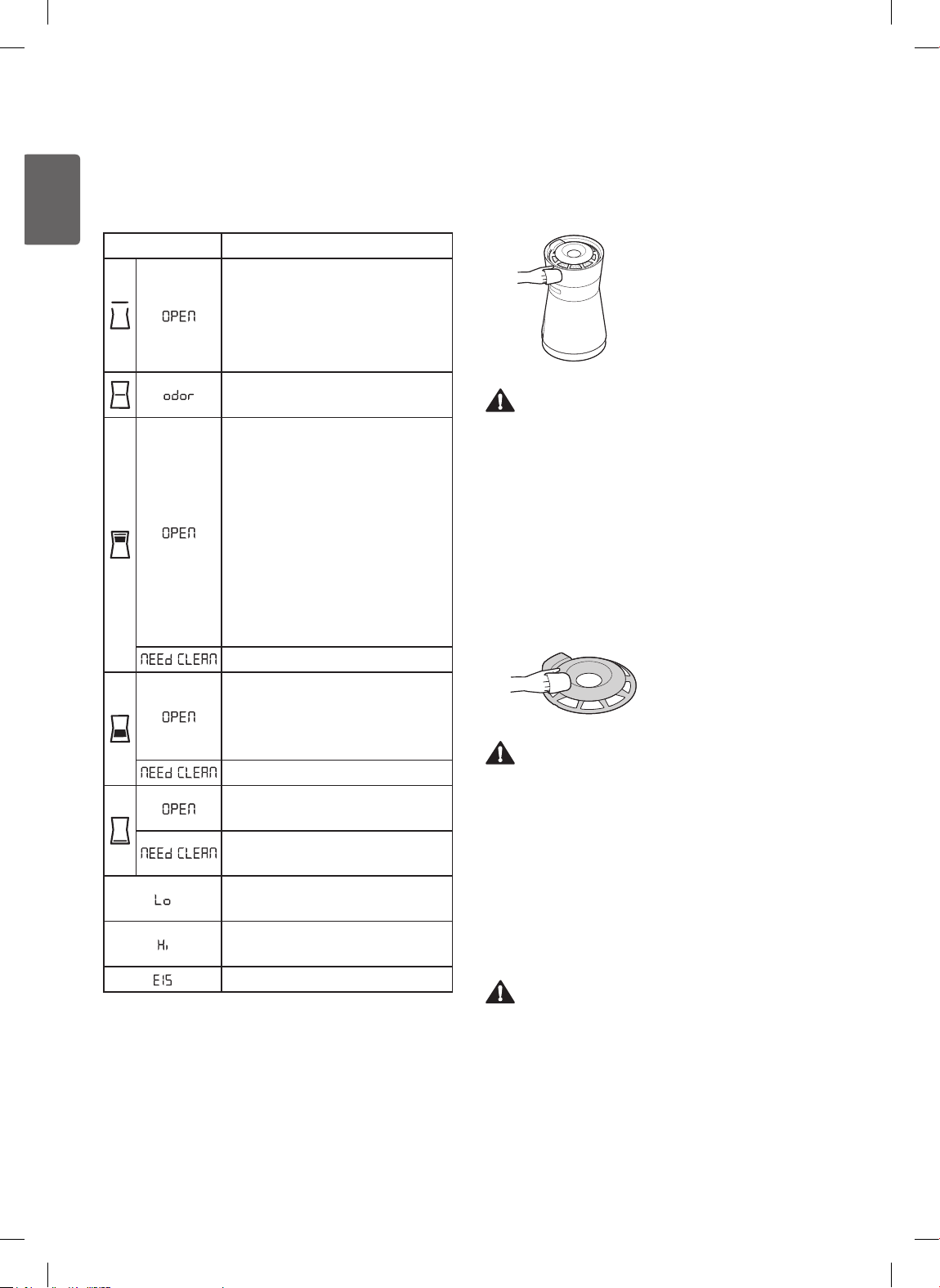
• After cleaning, assemble in the reverse order of
disassembly.
– Assemble the top cover, top water bucket lter, side
water bucket lter, water bucket, and main body in the
order shown.
– Make sure to align the arrows on the top and side
water bucket lters with the arrow on the water bucket.
Top cover
Top water bucket lter
Side water bucket lter
Water bucket
Main body
Scheduled Maintenance
Part Clean/Replace
Clean every week
Water bucket
Water bucket lters
Clean every month
Ultra ne lter
(pre-lter)
Replace after 12 months
Deodorizing Black Filter
Clean every 6 months
PM 1.0 Black Filter
Clean every 2 months
PM1.0 (super ultra-ne
dust) sensor
Note
• The environment and frequency of use will affect how
often maintenance is required. Clean the lters more
often if used in an area with a lot of dust.
• Failure to perform regular maintenance may result in
mold or bacterial growth and odor.
• To replace any of the lters, call an LG Customer
Information Center.
• Calls for service caused by dirty lters are not covered by
the warranty and will be charged to the user.
• If the PM 1.0 black lter is contaminated, it may cause an
abnormal noise. If you hear an abnormal noise, clean the
PM 1.0 black lter.
(Refer to Cleaning the PM 1.0 Black Filter page 34.)
• If
and / are displayed on the status
panel, clean the PM 1.0 black lter.
• If you smell an odor in the water bucket or water bucket
lters, use baking soda to clean them. Clean the water
bucket whenever you pour water directly into it.
Maintenance
30
ENGLISH
Status Display Panel Error Codes
The following error codes may be displayed on the status
display panel.
Error Code Action
• Properly mount the top cover on
the main body.
• Check for foreign objects caught
between top cover and main unit
contact connector.
• Replace deodorizing Black Filter.
• Properly mount the top and side
water bucket lters in the water
bucket.
• Make sure arrow on top and side
water bucket lters is aligned with
arrow on water bucket.
• Properly mount top cover.
• Check for foreign objects caught
between top cover and main unit
contact connector.
• Clean the water bucket lters.
• Properly mount the deodorizing
Black Filter and PM 1.0 Black
Filter and the lter tray in the
main body.
• Clean the PM 1.0 Black Filter.
• Properly mount the ultra ne
lter(pre-lter).
• Clean the ultra ne lter
(pre-lter).
• Ambient humidity level is 30% or
less.
• Ambient humidity level is 90% or
more.
• Clean the PM 1.0 Black Filter.
Cleaning the Exterior
Clean the product's exterior with the ultra-ne cloth
provided as an accessory.
Caution
• Do not use alkaline detergents to clean the product.
• Do not attach stickers or use sulfuric acid, hydrochloric acid,
or organic solvents such as thinners, lamp oil, or acetone on
the product's surface. Doing so may damage the surface.
• Do not allow water inside the main body of the product.
Cleaning the Top Cover
Clean the top cover with the ultra-ne cloth provided as an
accessory.
Caution
Do not spray water on or into product. Doing so will cause
product failure.
Cleaning the Watering
System
The water bucket, water bucket lters, and Watering
Engine™ can easily be separated from the main body for
cleaning using the handle on the water bucket.
Caution
Follow these instructions to prevent odors.
• Empty the water bucket if using only the air purier mode.
• Replace the water in the water bucket daily if using
Humid Purify mode, or before each use.
• Clean the water bucket lters frequently to prevent mold
and bacteria growth.
31
ENGLISH
4
Dry the water bucket with a soft cloth.
• Use the ultra-ne cloth provided to dry the window
on the bucket.
5
Rinse off the top and side water bucket lters with
clean water.
6
To use the product immediately, shake off the
excess water. If storing the product or not using it
immediately, place the lters in a sunny spot and allow
to dry completely.
7
Reassemble the water bucket lters in the water
bucket.
Caution
• Use clean tap water. Do not use water that is hotter than
104°F (40°C) to avoid product deformation or failure.
• The water bucket's window is easily scratched. Clean it
using the ultra-ne cloth provided. Keep the cloth clean
and free of foreign objects.
• Do not use steel wool or abrasive pads to clean the water
bucket.
• A new ultra-ne cloth can be purchased through the LG
Electronics Customer Information Center.
Note
• Remove the top cover before starting the cleaning
process.
• Use the handle to remove the water bucket.
• Follow the Regular Watering System Cleaning
instructions to remove white hard water stains on the
water bucket or water bucket lters.
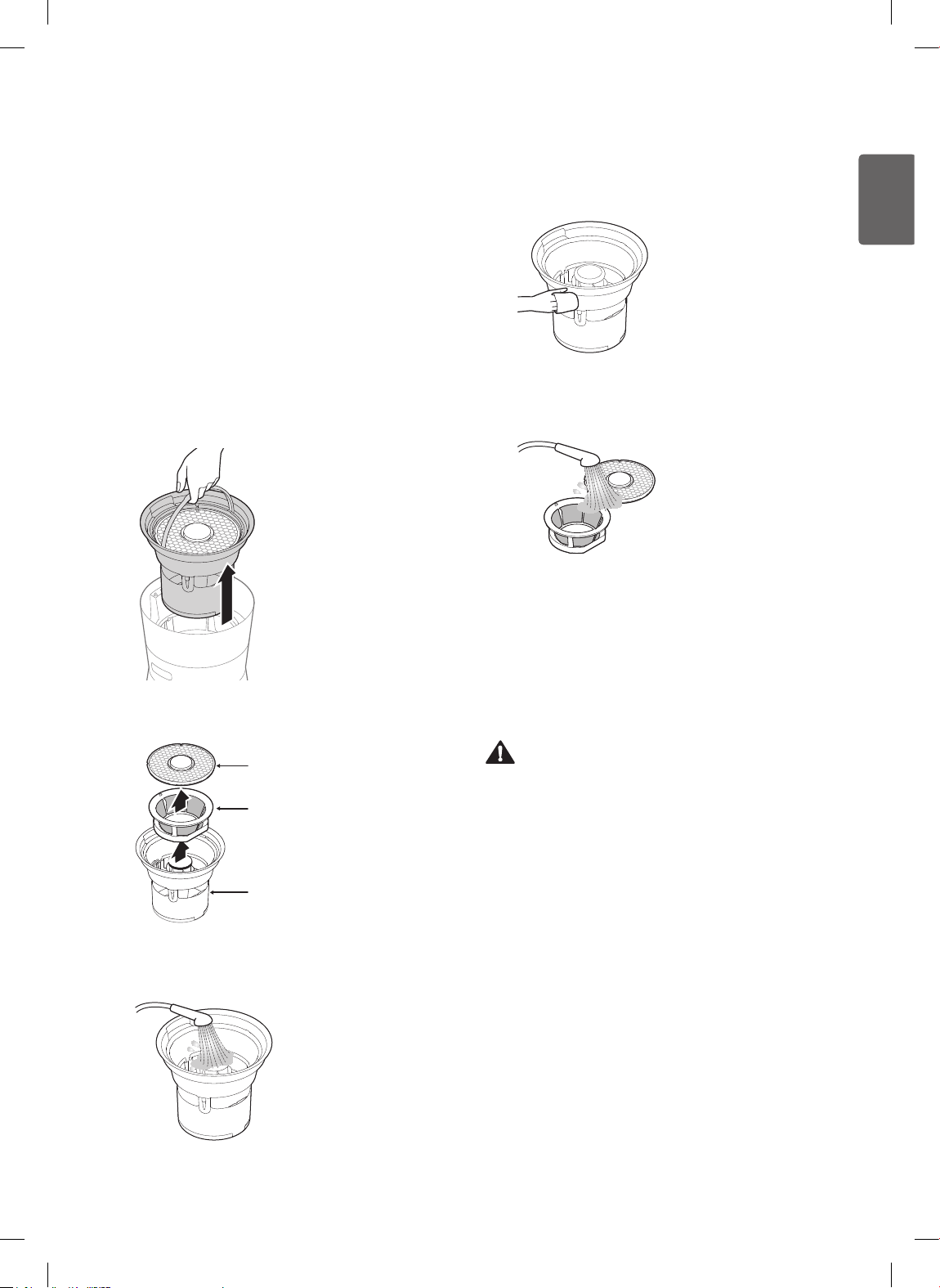
Regular Watering System Cleaning
Clean weekly to prevent mold or bacteria growth and odor.
1
Remove the top cover and lift the water bucket out by
the handle.
2
Lift and remove the top and side water bucket lters.
Top water bucket lter
Side water bucket lter
Water bucket
3
Rinse the inside and outside of the water bucket with
clean water.
32
ENGLISH
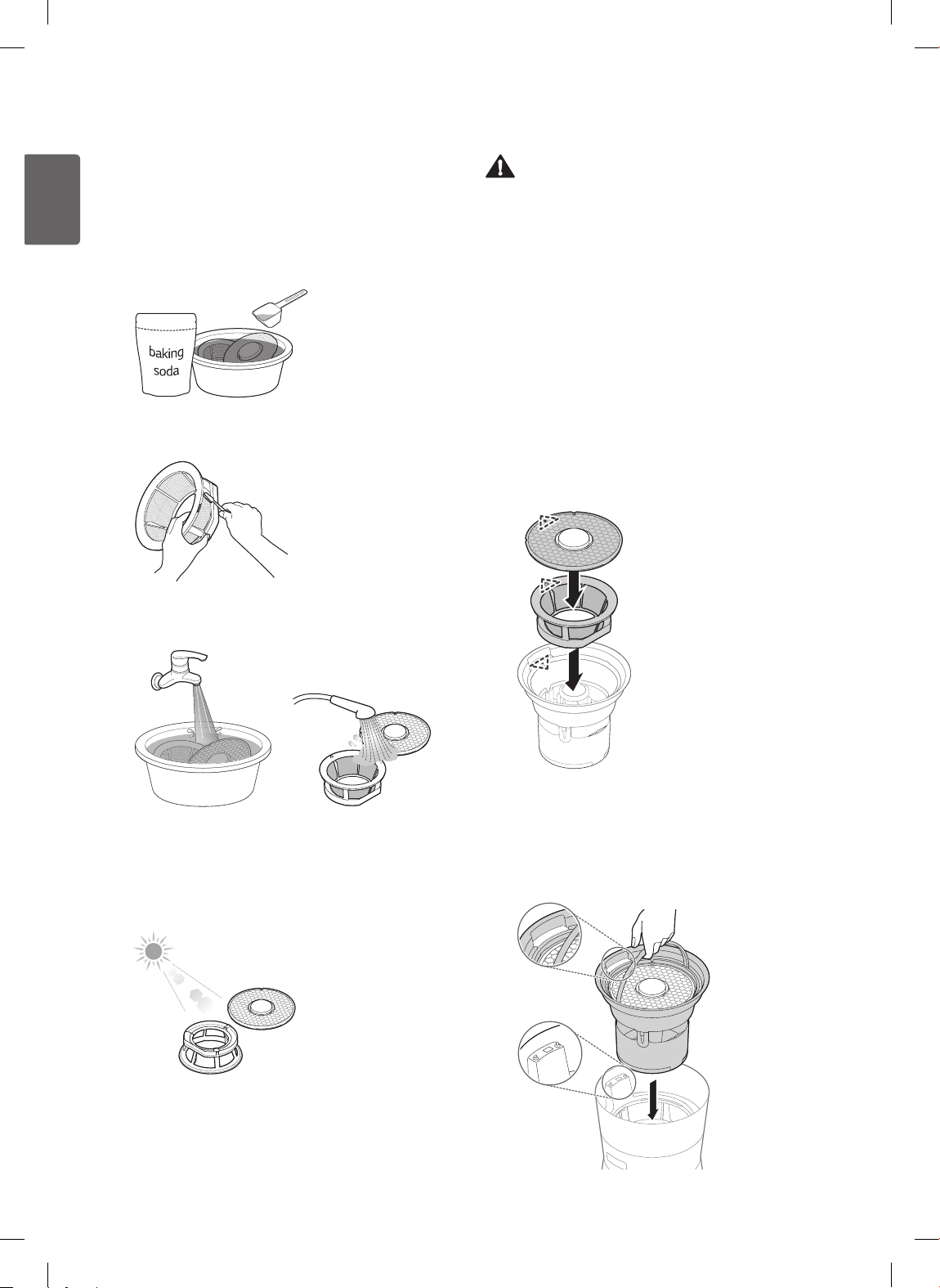
Intensive Cleaning of Water Bucket
Filters
1
Dissolve baking soda in water and soak the water
bucket lters in the solution for 30 minutes.
• Use 6 ½ tbsp. (100 g) baking soda in 2 ½ gal. (10 L)
water.
10L60L
10L (2 ½ gal.)
100 g
(6 ½ tablespoons)
2
Scrub the water bucket lters with a toothbrush or soft
brush to remove any foreign objects.
3
Thoroughly rinse the lters to remove any baking soda
residue.
4
If the lters are to be used immediately, shake off
excess water and reassemble. If storing the product
or not using it immediately, place the lters in a sunny
spot and allow to dry completely.
Caution
• If any detergent residue remains on the lter, it may
cause sudsing or odor during operation.
• Use of neutral detergent may result in severe sudsing.
For this reason, baking soda is preferred.
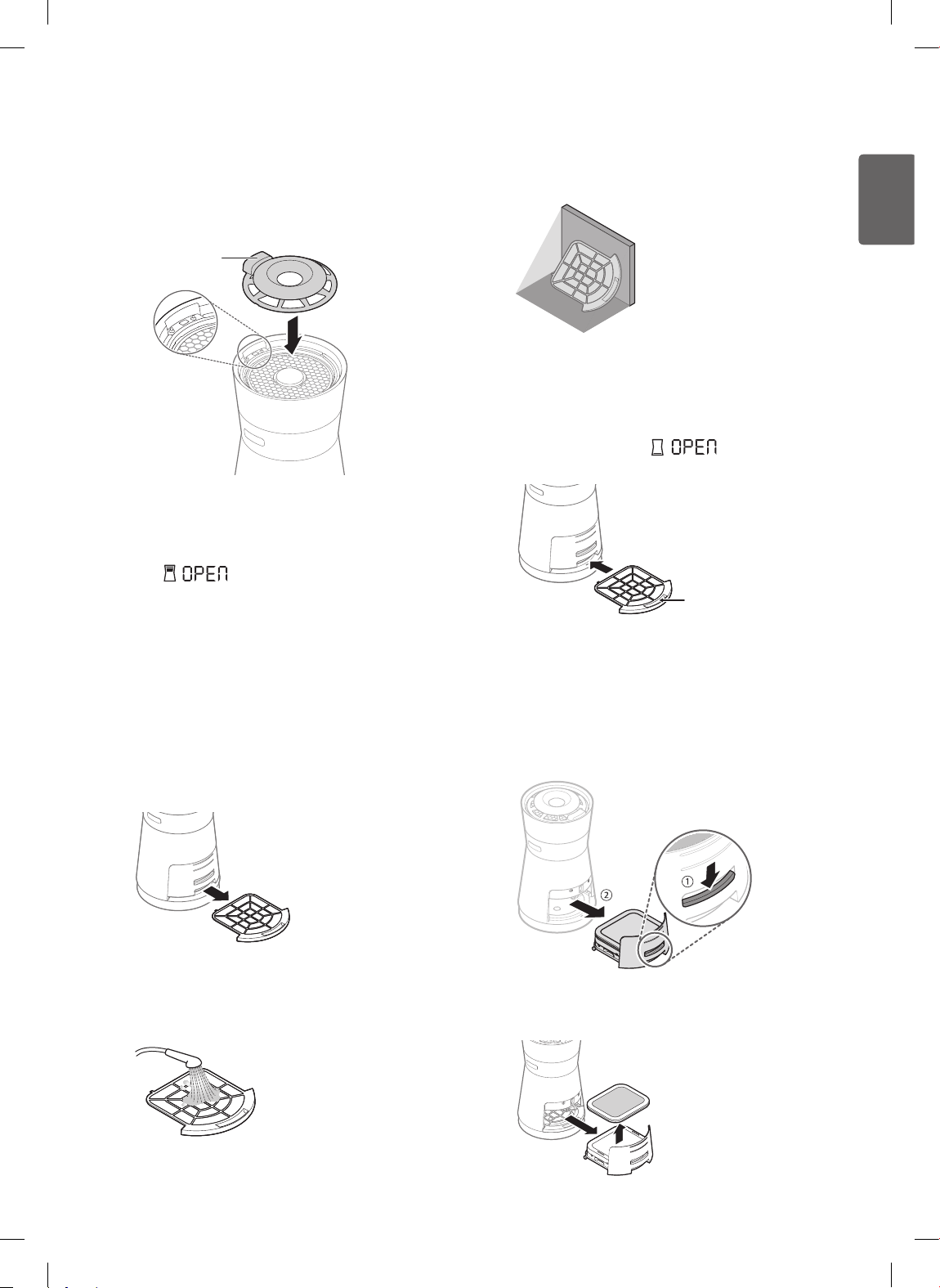
Assembling Water Bucket
After cleaning or lling the water bucket, reassemble it as
follows:
1
Mount the water bucket lters in the water bucket.
• First place the side lter in the bucket, then the top
lter, aligning the arrow on the lter with the arrow
on the water bucket.
• If the lters do not mount easily in the bucket, lift
and realign them until they lower easily into place.
2
Use the handle to carefully lower the water bucket into
the body of the product.
• Make sure the bucket is aligned so that the contact
connectors on the body slide through the slot in the
top of the bucket.
33
ENGLISH
3
Put the top cover back on.
• Align the top cover so that its contact connectors
meet the contact connectors on the body of the
product.
Contact connector
(inside)
Note
If the water bucket and cover are not properly
mounted,
/ appears in the display, and the
Watering Engine™ will not work.
Cleaning the Air Purier
Filters
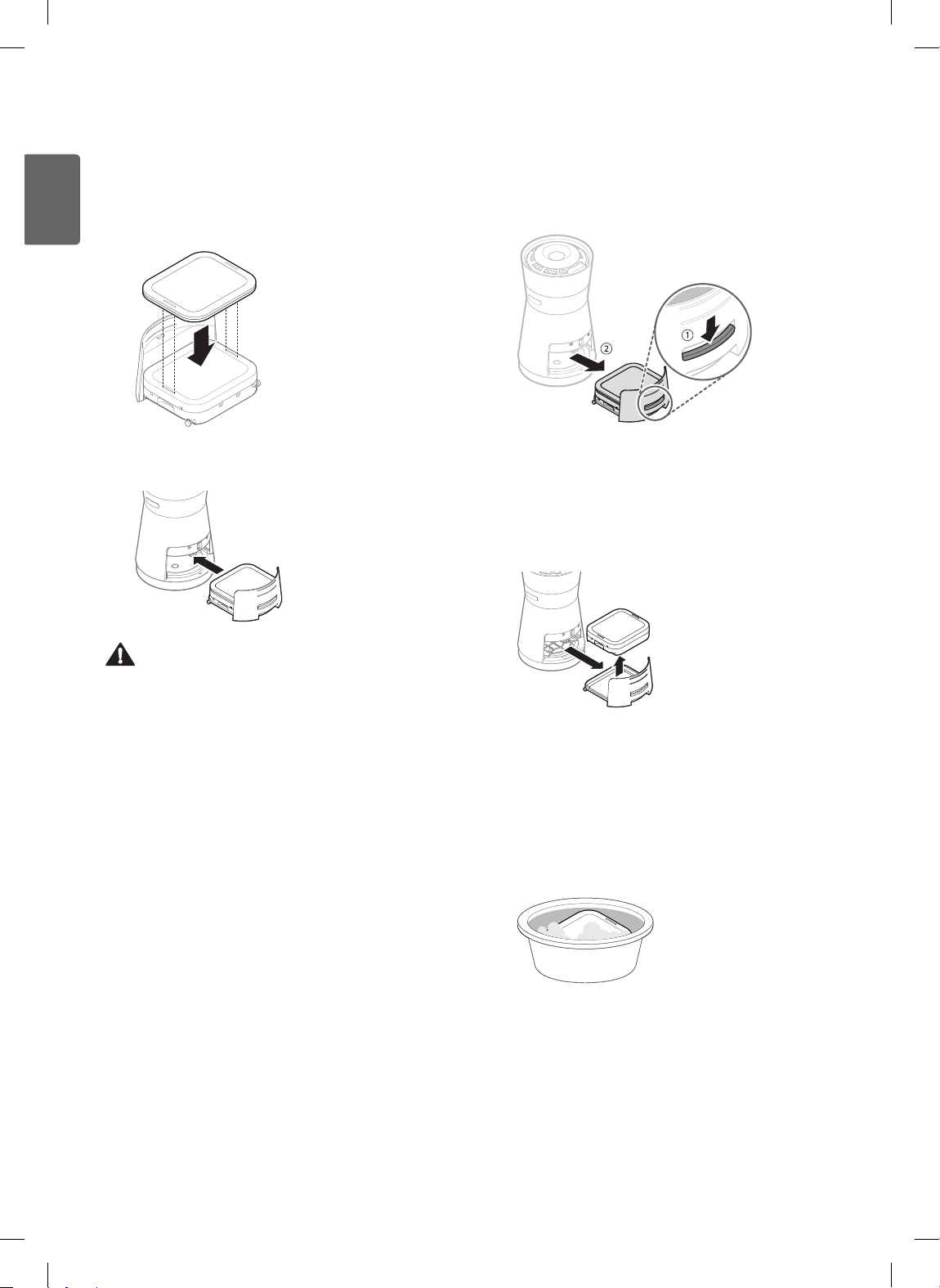
Cleaning the Ultra Fine Filter
(Pre-lter)
1
Pull out the ultra ne lter (pre-lter) located beneath
the lter tray.
2
Rinse the ultra ne lter (pre-lter) under running water.
• If the ultra ne lter (pre-lter) is very dirty, wash in
a solution of water and neutral detergent.
3
Place out of direct sunlight and allow to dry
completely.
4
Reassemble the ultra ne lter (pre-lter) in the lter
tray and insert the tray in the main body.
• Insert the ultra ne lter (pre-lter) in the tray with
the handle facing up. If the lter or the tray are not
assembled properly,
/ will appear in the
status display panel.
Ultra ne lter
(pre-lter) handle
Replacing the Deodorizing Black
Filter
1
Press the lter tray release button to open the lter tray.
2
Open the lter tray and separate the deodorizing
Black Filter.
34
ENGLISH
3
Place a new deodorizing Black Filter in the lter tray.
• Be sure to align the slots on the bottom of the
deodorizing Black Filter with the tabs on the lter
beneath it.
4
Insert the lter tray into the product.
Caution
Do not wash the deodorizing Black Filter with water. It may
shorten the lter lifespan or stain the product.
Cleaning the PM 1.0 Black Filter
1
Press the lter tray release button to open the lter
tray.
2
Slide the lter tray out completely and remove the
PM 1.0 Black Filter from under the deodorizing Black
Filter.
• Do not attempt to separate the two sections of the
PM 1.0 Black Filter.
3
Soak only the PM 1.0 Black Filter in a solution of
water and neutral detergent for about 30 minutes.
(The deodorizing Black Filter cannot be washed.)
• Make sure the neutral detergent is completely
dissolved in warm water (95 – 104°F / 35 – 40°C).
• Fully immerse the PM 1.0 Black Filter in the soapy
water.
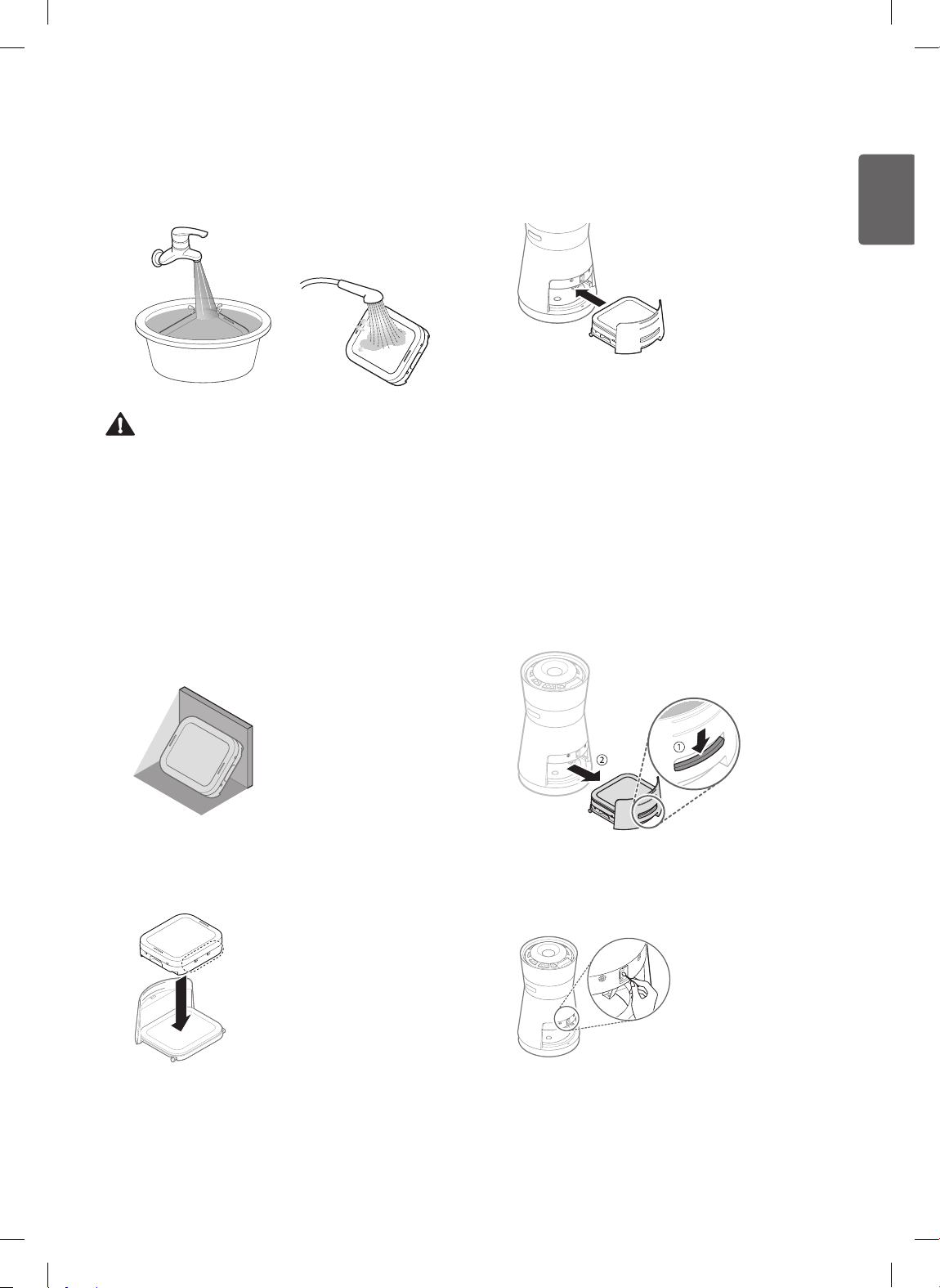
35
ENGLISH
4
Soak the lter in clean water and then rinse under
running water to make sure no detergent residue
remains.
Caution
• Rinse thoroughly after washing until no detergent
bubbles appear. Detergent residue left on the lter may
shorten its lifespan or cause product malfunction.
• Take care not to damage the lm or wires inside the lter
during cleaning. If the lter is damaged, stop using the
product and call for service.
• Do not attempt to disassemble the top and bottom
sections of the PM 1.0 Black Filter.
5
Prop the lter at an angle out of direct sunlight and
allow to dry completely for 12 – 24 hours.
6
Place the PM 1.0 Black Filter back in the lter tray.
• Assemble the lter with the two circles on its side
facing as shown.
7
Place the deodorizing Black Filter on top of the PM 1.0
Black Filter, aligning its slots with the tabs on the top
of the ultra ne lter set.
Note
The PM 1.0 Black Filter is electrically charged. During the
initial startup you may hear a charging sound.
Cleaning the Dust Sensor
The PM1.0 (super ultra-ne dust) sensor is used to
detect dust density levels. Clean it periodically for best
performance.
1
Press the lter tray's release button to slide open the
lter tray. Remove the tray completely.
2
Dampen one end of a cotton swab and use it to clean
the lens. Use the dry end of the cotton swab to wipe
the lens dry. You can also use cotton balls.
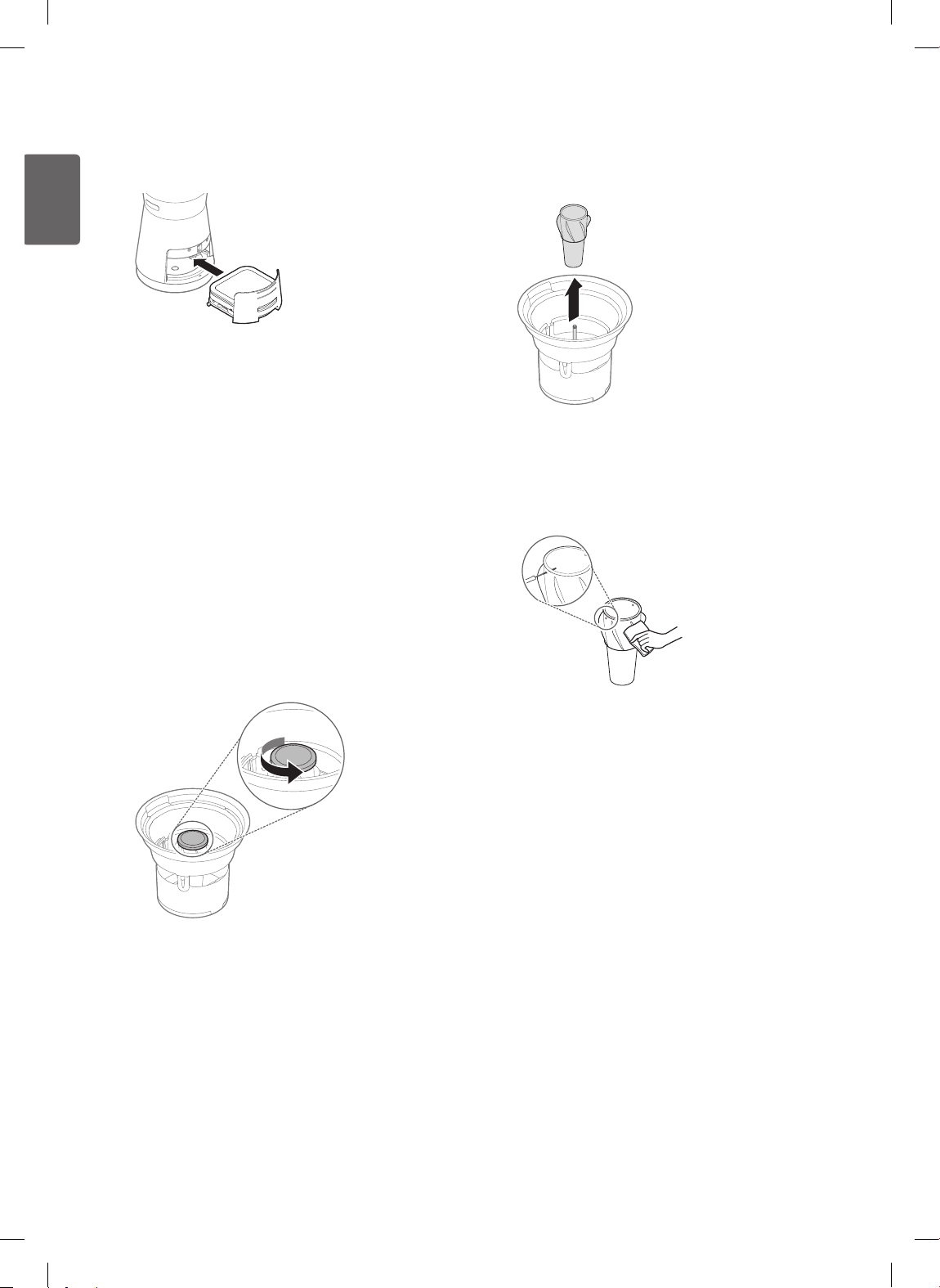
36
ENGLISH
3
Insert the lter tray into the product.
Note
Only use water to clean the sensor. Use of anything else
may cause product failure.
Cleaning the Watering
Engine™
If water is not coming out of the Watering Engine™, it may
need to be cleaned.
1
Remove the top cover and use the handle to lift out
the water bucket. Remove the top and side water
bucket lters to reveal the Watering Engine™.
2
Turn the lid of the Watering Engine™ counterclockwise
to remove it.
3
Lift up and remove the Watering Engine™ from the
water bucket.
4
Clean the Watering Engine™.
• Wipe the interior and exterior with a soft cloth.
• Remove foreign objects in the holes using a paper
clip or small brush.
Storage
If the product will not be used for a long period, allow it to
dry completely and then store it in a dry, shady place.
Note
• Empty the water bucket.
• Clean the water bucket, water bucket lters, Watering
Engine™, etc. before storing.
Follow the instructions to prevent mold and bacteria
growth or odors.
37
ENGLISH
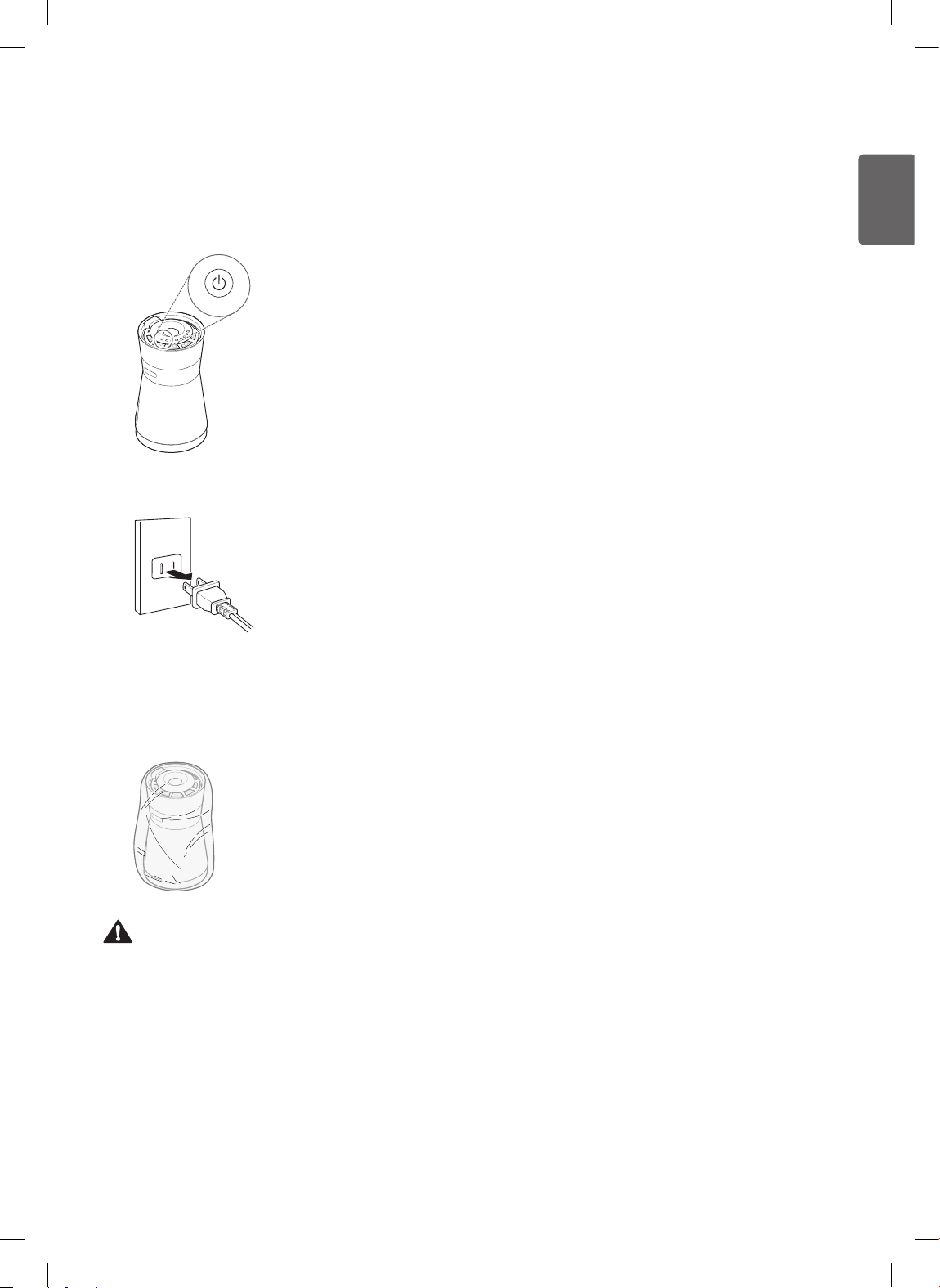
1
Run in air purier mode for an hour or more on a
sunny day.
• This will help to remove moisture and mold from
inside the product.
2
Turn off and unplug the appliance.
3
Cover the appliance with a dust sheet to prevent dust,
bugs, or foreign objects from getting into it, and store
it in a dry, shady spot.
Caution
Do not store the appliance in a wet or humid area, or in
direct sunlight. Doing so may result in product deformation,
malfunction, or mold growth and odor.
38
ENGLISH
Before Calling for Service
If you experience problems with the appliance, checking the following chart before calling for service may save you time and
money.
Problem Possible Causes Solution
Product is not working. Power cord is unplugged.
• Correctly insert plug into outlet.
• Check other appliances to make sure outlet
is working and power is on at main.
Fan is noisy even on
the lowest speed.
Ultra ne lter (pre-lter) is
clogged.
• Thoroughly clean the ultra ne lter
(pre-lter). See page 33.
Dust has built up in the
PM 1.0
Black Filter
.
• Clean the PM 1.0 Black Filter.
See page 34.
Air purication does
not work well.
Indoor air has a strong odor or is
extremely dusty.
• Do not use air purier instead of a range
hood or vent. Ventilate area before using air
purier.
Dust has built up in the ultra ne
lter (pre-lter).
• Clean the ultra ne lter (pre-lter). See
page 33.
Dust has built up in the
PM 1.0
Black Filter
.
• Clean the PM 1.0 Black Filter.
See page 34.
The install location is too large.
• Performance may suffer in areas where
there is a constant inow of outdoor air.
Nearby objects are blocking the
airow.
• Move the objects or relocate the air purier.
Product is installed in a corner.
• Move the air purier away from the corner
so the airow is not restricted.
Product is making
clunking sound.
Water bucket is not properly
mounted.
• Remove and properly reassemble the water
bucket.
The overall air quality
indicator light does
not change color when
there is a strong odor.
The overall air quality indicator
light may already be orange or
red.
• The overall air quality indicator light shows
the odor level or the PM1.0 (super ultra-ne
dust) density, whichever is worse.
• The odor sensor is designed to detect
harmful gases. Strong food odors may not
register as harmful, but the deodorizing
Black Filter will remove them.
39
ENGLISH
Problem Possible Causes Solution
The overall air quality
indicator lamp stays
red.
Try moving the air purier to a
different room.
• If the odor is very strong, the air purier may
not be able to remove it.
• Clean the sensor.
• Unplug the product, wait for 1 minute, then
plug the product in again.
Something was sprayed on or
near the air purier.
• Do not spray hair products, perfume,
cleaners, cooking oil or other products near
the air purier.
Control panel buttons
do not work.
Status display panel shows
Control Lock icon.
• Press and hold the Light button for 3
seconds to deactivate Control Lock.
Fine dust density
indicator does not
change.
The sensor is dirty.
• Clean PM1.0 (super ultra-ne dust) sensor.
Product is in an enclosed space.
• If there is little inow of outside air, the
density levels may not change.
Fine dust density
remains high.
Product is near an outside door
or window.
• If the product is near a constant inow of
outside air, the dust density may remain
high.
Overall air quality and
dust density levels are
different.
"Odor" appears in the status
display panel.
• The overall air quality indicator shows the
combined levels of odor and dust.
See page 18.
• If the dust density is low, but the odor level is
high, the light indicates the worse level.
The EPA's overall air
quality level differs
from the product's.
The EPA and the product
use different measurement
guidelines.
• The EPA guidelines use average values
during a specied time period. The air purier
measures air quality in real time.
Cause for overall air
quality indicator level
(odor or dust) does not
appear in display.
Overall air quality indicator light
is green or yellow.
• The cause for the overall air quality level
only shows in the status display panel when
the dust density or odor level is orange or
red.
40
ENGLISH
Problem Possible Causes Solution
The water bucket level
does not change during
Humid Purify mode.
Water bucket lters are not
assembled properly.
• Properly assemble the top and side water
bucket lters in the water bucket.
The water bucket lters are dirty
or clogged.
• Clean the water bucket lters. See page
30.
The Watering Engine™'s holes
are clogged.
• Clean the Watering Engine™. See page
36.
It is raining or it is cold indoors.
• The humidier uses less water so the
amount of water in the bucket decreases
slowly.
The air quality
window is not clear or
condensation is not
forming during Humid
Purify mode.
The holes in the Watering
Engine™ are clogged.
• Clean the Watering Engine™. See page
36.
The air quality window is dirty.
• Clean the inside and outside of the window
on the water bucket using the ultra-ne
cloth provided. See page 30.
Humidity level does not
rise.
Room is too large.
• Use in a smaller or more enclosed area.
Water bucket is empty.
• Fill the water bucket.
Dirt has built up on the water
bucket lters.
• Clean the water bucket lters. See page
30.
Displayed humidity
level does not agree
with another device.
Different measuring methods, or
air circulation.
• The product measures and displays
the relative humidity according to the
temperature. The humidity measured by
a hygrometer or by two products, even
in the same space, may differ because
of installation height, air circulation, or
temperature difference.
41
ENGLISH
Problem Possible Causes Solution
An odor is coming from
the air outlet or lter.
The product is new and recently
installed.
• This is the smell of activated carbon
(charcoal). It should dissipate after 1 – 2
weeks of use and is not harmful to humans.
Product is used in smoky or
smelly area.
• Product performance may suffer if used
to replace a range hood or vent. Ventilate
smoke or strong odors before using.
Water in water bucket is
contaminated with dirt, mold, or
bacteria.
• Prevent odors by cleaning water bucket and
replacing water regularly. See page 31.
• If water bucket has an unpleasant odor,
clean bucket immediately.
Water bucket lters are
contaminated by dirt, mold, or
bacteria.
• Prevent odors by cleaning the water bucket
lters regularly. See page 31.
• If the lters have an unpleasant odor, clean
them immediately.
The deodorizing Black Filter
smells bad.
• The deodorizing Black Filter may need to be
replaced. See page 33.
• Filters may need to be cleaned/replaced
more frequently, depending on the usage
environment.
The product is installed in an
area with frequent strong odors.
• Product's lifespan may be decreased if
constantly used near where food is fried or
broiled.
• Use a range hood/vent or open windows
or doors to vent smoke, oil, and odors
produced by cooking. Use product only after
ventilation.
42
ENGLISH
WARRANTY (USA)
ARBITRATION NOTICE: THIS LIMITED WARRANTY CONTAINS AN ARBITRATION PROVISION THAT REQUIRES YOU
AND LG TO RESOLVE DISPUTES BY BINDING ARBITRATION INSTEAD OF IN COURT, UNLESS YOU CHOOSE TO
OPT OUT. IN ARBITRATION, CLASS ACTIONS AND JURY TRIALS ARE NOT PERMITTED. PLEASE SEE THE SECTION
TITLED “PROCEDURE FOR RESOLVING DISPUTES” BELOW.
Should the LG Air Purier fail due to a defect in materials or workmanship under normal home use, during the warranty
period set forth below, LG will at its option repair or replace the product. This limited warranty is valid only to the original retail
purchaser of the product and applies only when purchased and used within the United States, including U.S. Territories.
Proof of original retail purchase is required to obtain warranty service under this limited warranty.
Warranty Period Scope of Warranty Remark
One (1) year from date of
original retail purchase
Any internal / functional parts
and labor
LG will provide parts and labor to repair or replace defective parts.
Ten (10) years from date
of original retail purchase
Smart Inverter Motor
Parts Only. Customer will be responsible for any labor or in-home
service to replace defective parts.
• Replacement products and parts are warranted for the remaining portion of the original warranty period or ninety (90) days,
whichever is greater.
• Replacement products and parts may be new or remanufactured.
THIS WARRANTY IS IN LIEU OF ANY OTHER WARRANTY, EXPRESS OR IMPLIED, INCLUDING WITHOUT
LIMITATION, ANY WARRANTY OF MERCHANTABILITY OR FITNESS FOR A PARTICULAR PURPOSE. TO
THE EXTENT ANY IMPLIED WARRANTY IS REQUIRED BY LAW, IT IS LIMITED IN DURATION TO THE
EXPRESS WARRANTY PERIOD ABOVE. NEITHER THE MANUFACTURER NOR ITS U.S. DISTRIBUTOR
SHALL BE LIABLE FOR ANY INCIDENTAL, CONSEQUENTIAL, INDIRECT, SPECIAL, OR PUNITIVE
DAMAGES OF ANY NATURE, INCLUDING WITHOUT LIMITATION, LOST REVENUES OR PROFITS, OR
ANY OTHER DAMAGE WHETHER BASED IN CONTRACT, TORT, OR OTHERWISE.
Some states do not allow the exclusion or limitation of incidental or consequential damages or limitations on how long an
implied warranty lasts, so the above exclusion or limitation may not apply to you. This warranty gives you specic legal rights
and you may also have other rights that vary from state to state.
THIS LIMITED WARRANTY DOES NOT COVER:
• Service trips to deliver, pick up, or install or repair the product; instruction to the customer on operation of the product;
repair or replacement of fuses or correction of wiring or plumbing, or correction of unauthorized repairs/installation.
• Failure of the product to perform during power failures and interrupted or inadequate electrical service.
• Damage caused by leaky or broken water pipes, frozen water pipes, restricted drain lines, inadequate or interrupted water
supply or inadequate supply of air.
• Damage resulting from operating the product in a corrosive atmosphere or contrary to the instructions outlined in the
product’s owner’s manual.
• Damage to the product caused by accidents, pests and vermin, lightning, wind, re, oods, or acts of God.
• Damage or failure caused by unauthorized modication or alteration, or if it is used for other than the intended purpose, or
any water leakage where the unit was not properly installed.
• Damage or failure caused by incorrect electrical current, voltage, or plumbing codes, commercial or industrial use, or use
of accessories, components, or consumable cleaning products that are not approved by LG.

43
ENGLISH
• Damage caused by transportation and handling, including scratches, dents, chips, and/or other damage to the nish of
your product, unless such damage results from defects in materials or workmanship and is reported within one (1) week of
delivery.
• Damage or missing items to any display, open box, discounted, or refurbished product.
• Products with original serial numbers that have been removed, altered, or cannot be readily determined. Model and serial
numbers, along with original retail sales receipts, are required for warranty validation.
• Increases in utility costs and additional utility expenses.
• Repairs when the product is used for other than normal and usual household use (e.g. commercial use, in ofces and
recreational facilities) or contrary to the instructions outlined in the product’s owner’s manual.
• Costs associated with removal of the product from your home for repairs.
• The removal and reinstallation of the product if it is installed in an inaccessible location or is not installed in accordance
with published installation instructions, including LG’s owner’s and installation manuals.
• Damage resulting from misuse, abuse, improper installation, repair, or maintenance. Improper repair includes use of parts
not approved or specied by LG.
The cost of repair or replacement under these excluded circumstances shall be borne by the consumer.
TO OBTAIN WARRANTY SERVICE AND ADDITIONAL INFORMATION
For additional product information, visit the LG website at http://www.lg.com
For assistance using this product or to schedule service, contact LG Electronics at 1-800-243-0000 (US).
For further assistance, write: LG Electronics, 201 James Record Road, Huntsville, Alabama 35813

44
ENGLISH
PROCEDURE FOR RESOLVING DISPUTES:
ALL DISPUTES BETWEEN YOU AND LG ARISING OUT OF OR RELATING IN ANY WAY TO THIS LIMITED WARRANTY
OR THE PRODUCT SHALL BE RESOLVED EXCLUSIVELY THROUGH BINDING ARBITRATION, AND NOT IN A COURT
OF GENERAL JURISDICTION. BINDING ARBITRATION MEANS THAT YOU AND LG ARE EACH WAIVING THE RIGHT
TO A JURY TRIAL AND TO BRING OR PARTICIPATE IN A CLASS ACTION.
Denitions. For the purposes of this section, references to “LG” mean LG Electronics U.S.A., Inc., its parents, subsidiaries
and afliates, and each of their ofcers, directors, employees, agents, beneciaries, predecessors in interest, successors,
assigns and suppliers; references to “dispute” or “claim” shall include any dispute, claim or controversy of any kind
whatsoever (whether based in contract, tort, statute, regulation, ordinance, fraud, misrepresentation or any other legal or
equitable theory) arising out of or relating in any way to the sale, condition or performance of the product or this Limited
Warranty.
Notice of Dispute. In the event you intend to commence an arbitration proceeding, you must rst notify LG in writing at least
30 days in advance of initiating the arbitration by sending a letter to LG at LG Electronics, USA, Inc. Attn: Legal Department-
Arbitration 1000 Sylvan Ave, Englewood Cliffs 07632. You and LG agree to engage in good faith discussions in an attempt to
amicably resolve your claim. The notice must provide your name, address, and telephone number; identify the product that is
the subject of the claim; and describe the nature of the claim and the relief being sought. If you and LG are unable to resolve
the dispute within 30 days, either party may proceed to le a claim for arbitration.
Agreement to Binding Arbitration and Class Action Waiver. Upon failure to resolve the dispute during the 30 day
period after sending written notice to LG, you and LG agree to resolve any claims between us only by binding arbitration
on an individual basis, unless you opt out as provided below. Any dispute between you and LG shall not be combined or
consolidated with a dispute involving any other person’s or entity’s product or claim. More specically, without limitation of the
foregoing, any dispute between you and LG shall not under any circumstances proceed as part of a class or representative
action. Instead of arbitration, either party may bring an individual action in small claims court, but that small claims court
action may not be brought on a class or representative basis.
Arbitration Rules and Procedures. To begin arbitration of a claim, either you or LG must make a written demand for
arbitration. The arbitration will be administered by the American Arbitration Association (“AAA”) and will be conducted before
a single arbitrator under the AAA’s Consumer Arbitration Rules that are in effect at the time the arbitration is initiated (referred
to as the “AAA Rules”) and under the procedures set forth in this section. The AAA Rules are available online at www.adr.org/
consumer. Send a copy of your written demand for arbitration, as well as a copy of this provision, to the AAA in the manner
described in the AAA Rules. You must also send a copy of your written demand to LG at LG Electronics, USA, Inc. Attn: Legal
Department- Arbitration 1000 Sylvan Avenue Englewood Cliffs, NJ 07632. If there is a conict between the AAA Rules and
the rules set forth in this section, the rules set forth in this section will govern. This arbitration provision is governed by the
Federal Arbitration Act. Judgment may be entered on the arbitrator’s award in any court of competent jurisdiction. All issues
are for the arbitrator to decide, except that issues relating to the scope and enforceability of the arbitration provision and to
the arbitrability of the dispute are for the court to decide. The arbitrator is bound by the terms of this provision.
Governing Law. The law of the state of your residence shall govern this Limited Warranty and any disputes between us
except to the extent that such law is preempted by or inconsistent with applicable federal law.

45
ENGLISH
Fees/Costs. You do not need to pay any fee to begin an arbitration. Upon receipt of your written demand for arbitration,
LG will promptly pay all arbitration ling fees to the AAA unless you seek more than $25,000 in damages, in which case the
payment of these fees will be governed by the AAA Rules. Except as otherwise provided for herein, LG will pay all AAA ling,
administration and arbitrator fees for any arbitration initiated in accordance with the AAA Rules and this arbitration provision.
If you prevail in the arbitration, LG will pay your attorneys’ fees and expenses as long as they are reasonable, by considering
factors including, but not limited to, the purchase amount and claim amount. Notwithstanding the foregoing, if applicable law
allows for an award of reasonable attorneys’ fees and expenses, an arbitrator can award them to the same extent that a court
would. If the arbitrator nds either the substance of your claim or the relief sought in the demand is frivolous or brought for an
improper purpose (as measured by the standards set forth in Federal Rule of Civil Procedure 11(b)), then the payment of all
arbitration fees will be governed by the AAA Rules. In such a situation, you agree to reimburse LG for all monies previously
disbursed by it that are otherwise your obligation to pay under the AAA Rules. Except as otherwise provided for, LG waives
any rights it may have to seek attorneys’ fees and expenses from you if LG prevails in the arbitration.
Hearings and Location. If your claim is for $25,000 or less, you may choose to have the arbitration conducted solely on
the basis of (1) documents submitted to the arbitrator, (2) through a telephonic hearing, or (3) by an in-person hearing as
established by the AAA Rules. If your claim exceeds $25,000, the right to a hearing will be determined by the AAA Rules. Any
in-person arbitration hearings will be held at a location within the federal judicial district in which you reside unless we both
agree to another location or we agree to a telephonic arbitration.
Opt Out. You may opt out of this dispute resolution procedure. If you opt out, neither you nor LG can require the other to
participate in an arbitration proceeding. To opt out, you must send notice to LG no later than 30 calendar days from the date
of the rst consumer purchaser’s purchase of the product by either: (i) sending an e-mail to [email protected], with the subject
line: “Arbitration Opt Out” or (ii) calling 1-800-980-2973. You must include in the opt out e-mail or provide by telephone: (a)
your name and address; (b) the date on which the product was purchased; (c) the product model name or model number;
and (d) the serial number (the serial number can be found (i) on the product; or (ii) online by accessing https://www.lg.com/
us/support/repair-service/schedule-repair-continued and clicking on “Find My Model & Serial Number”).
You may only opt out of the dispute resolution procedure in the manner described above (that is, by e-mail or telephone);
no other form of notice will be effective to opt out of this dispute resolution procedure. Opting out of this dispute resolution
procedure will not affect the coverage of the Limited Warranty in any way, and you will continue to enjoy the full benets of
the Limited Warranty. If you keep this product and do not opt out, then you accept all terms and conditions of the arbitration
provision described above.
Memo