
1
IMPORTANT SAFETY INSTRUCTIONS
When using this machine, basic safety precautions should always be taken, including the following:
Read all instructions before using.
DANGER - To reduce the risk of electric shock:
1. The machine should never be left unattended while plugged in. Always unplug the machine from the electrical
outlet immediately after using and before cleaning.
WARNING - To reduce the risk of burns, fire, electric shock, or injury to persons:
1. Do not allow this machine to be used as a toy. Close attention is necessary when the machine is used by or
near children.
2. Use this machine only for its intended use as described in this manual. Use only accessories recommended by
the manufacturer as contained in this manual.
3. Never operate this machine if it has a damaged cord or plug, if it is not working properly, if it has been dropped
or damaged, or dropped into water. Return the machine to the nearest authorized retailer or service center for
examination, repair, electrical or mechanical adjustment.
4. Never operate the machine with any air openings blocked. Keep ventilation openings of the machine and foot
control free from the accumulation of lint, dust, and loose cloth.
5. Never drop or insert any object into any opening.
6. Do not use outdoors.
7. Do not operate where aerosol (spray) products are being used or where oxygen is being administered.
8. To disconnect, turn the main switch to the symbol “ ” position which represents off, then remove plug from
outlet.
9. Do not unplug by pulling on cord. To unplug, grasp the plug, not the cord.
10. Keep fingers away from all moving parts. Special care is required around the machine needle.
11. Always use the proper needle plate. The wrong plate can cause the needle to break.
12. Do not use bent needles.
13. Do not pull or push fabric while stitching. It may deflect the needle causing it to break.
14. Switch the machine to the symbol “ ” position when making any adjustments in the needle area, such as
threading needle, changing needle, threading bobbin, or changing presser foot, and the like.
15. Always unplug the machine from the electrical outlet when removing covers, lubricating, or when making any
other user servicing adjustments mentioned in the instruction manual.
16. This sewing machine is not intended for use by young children or infirm persons without supervision.
17. Young children should be supervised to ensure that they do not play with this machine.
18. If the Light unit is damaged, it must be replaced by authorized dealer.
SAVE THESE INSTRUCTIONS
This machine is intended for household use.

2
FOR USERS IN THE UK, EIRE, MALTA
AND CYPRUS ONLY
If this machine is fitted with a three-pin non-rewireable BS plug then please read the following.
IMPORTANT
If the available socket outlet is not suitable for the plug supplied with this equipment, it should be cut off and an
appropriate three-pin plug fitted. With alternative plugs an approved fuse must be fitted in the plug.
NOTE
The plug served from the main lead must be destroyed as a plug with bared flexible cords is hazardous if engaged in
a live socket outlet. In the event of replacing the plug fuse, use a fuse approved by ASTA to BS 1362, i.e. carrying
the mark, rating as marked on plug.
Always replace the fuse cover, never use plugs with the fuse cover omitted.
WARNING
DO NOT CONNECT EITHER WIRE TO THE EARTH TERMINAL WHICH IS MARKED WITH THE LETTER ‘E’, BY
THE EARTH SYMBOL OR COLOURED GREEN OR GREEN AND YELLOW.
The wires in this main lead are coloured in accordance with the following code:
As the colours of the wiring in the main lead of this appliance may not correspond with the coloured markings iden-
tifying the terminals in your plug, proceed as follows.
The wire which is coloured blue must be connected to the terminal which is marked with the letter ‘N’ or coloured
black or blue.
The wire which is coloured brown must be connected to the terminal which is marked with the letter ‘L’ or coloured
red or brown.
Blue Neutral
Brown Live

3
Federal Communications Commission (FCC)
Declaration of Conformity (For USA Only)
complies with Part 15 of the FCC Rules. Operation is subject to the following two conditions: (1) this device may
not cause harmful interference, and (2) this device must accept any interference received, including interference
that may cause undesired operation.
This equipment has been tested and found to comply with the limits for a Class B digital device, pursuant to Part 15
of the FCC Rules. These limits are designed to provide reasonable protection against harmful interference in a resi-
dential installation. This equipment generates, uses, and can radiate radio frequency energy and, if not installed and
used in accordance with the instructions, may cause harmful interference to radio communications. However, there
is no guarantee that interference will not occur in a particular installation. If this equipment does cause harmful
interference to radio or television reception, which can be determined by turning the equipment off and on, the user
is encouraged to try to correct the interference by one or more of the following measures:
• Reorient or relocate the receiving antenna
• Increase the separation between the equipment and receiver.
• Connect the equipment into an outlet on a circuit different from that to which the receiver is con-
nected.
• Consult the dealer or an experienced radio/TV technician for help.
• The included interface cable should be used in order to ensure compliance with the limits for a Class B
digital device.
• Changes or modifications not expressly approved by Brother Industries, Ltd. could void the user's
authority to operate the equipment.
Responsible Party: Brother International Corporation
100 Somerset Corporate Boulevard
Bridgewater, NJ 08807-0911 USA
TEL : (908) 704-1700
declares that the product
Product Name:
Model Number:
Brother Sewing Machine
NV1500D/NV1500

4
CONGRATULATIONS ON CHOOSING OUR
MACHINE
Your machine is the most advanced computerized household embroidery and sewing machine. To fully enjoy all
the features incorporated, we suggest that you study the manual.
PLEASE READ BEFORE USING THIS MACHINE
For safe operation
1. Be sure to keep your eye on the needle while sewing. Do not touch the handwheel, thread take-up lever, nee-
dle, or other moving parts.
2. Remember to turn off the power switch and unplug the cord when:
• Operation is completed
• Replacing or removing the needle or any other parts
• A power failure occurs during use
• Maintaining the machine
• Leaving the machine unattended.
3. Do not store anything on the foot controller.
4. Plug the machine directly into the wall. Do not use extension cords.
For a longer service life
1. When storing this machine, avoid direct sunlight and high humidity locations. Do not use or store the machine
near a space heater, iron, halogen lamp, or other hot objects.
2. Use only neutral soaps or detergents to clean the case. Benzene, thinner, and scouring powders can damage
the case and machine, and should never be used.
3. Do not drop or hit the machine.
4. Always consult the operation manual when replacing or installing any assemblies, the presser feet, needle, or
other parts to assure correct installation.
For repair or adjustment
In the event a malfunction occurs or adjustment is required, first follow the troubleshooting table in the back of the
operation manual to inspect and adjust the machine yourself. If the problem persists, please consult your local
authorized Brother dealer.
For additional product information and updates, visit our web site at www.brother.com
The contents of this manual and specifications of this product are subject to change without notice.
5
HOW TO USE THIS MANUAL
Chapters 1 and 2 describe to the first-time user the initial operations for using this machine and the basic
sewing operations.
To sew utility stitches
Continue with chapter 3 to learn how to select a stitch and sew using the various stitches.
To sew characters and patterns
Continue with chapter 4 to learn basic operations, from selecting patterns to sewing, in addition to
operations such as combining and editing patterns to rotate or resize them, and storing combined
patterns.
To embroider
Continue with chapter 5 to learn basic embroidering operations, from selecting patterns to sewing, as
well as operations such as editing patterns to rotate or resize them and utilizing more useful functions or
techniques. In chapter 6, you can learn how to edit more advanced embroidery patterns and combine
patterns.
• Parts related to operations described in the procedures are highlighted in blue.
Perform the operations while comparing the screens in the procedures with those that appear on the
machine.
• If, while using the machine, you have questions about an operation or you would like to know more
about a specific function, refer to the index (P.197) and the table of contents to find the section of the
manual to refer to.
Chapter 1
Chapter 2
Chapter 3
Chapter 1
Chapter 2
Chapter 4
Chapter 1
Chapter 2
Chapter 5
Chapter 6

Contents
6
CONTENTS
NAMES OF MACHINE PARTS AND THEIR
FUNCTIONS ...........................................................9
Machine ..................................................................... 9
Needle and Presser Foot Section............................... 10
Embroidery Unit ....................................................... 10
Operation Buttons .................................................... 11
Included Accessories ................................................ 11
Options .................................................................... 14
Chapter 1 Getting Ready 15
TURNING THE MACHINE ON/OFF ....................16
LCD SCREEN .......................................................17
Using the Machine Setting Mode Key ...................... 20
Using the Machine Operation Mode Key ................. 22
Using the Pattern Explanation Key ........................... 23
LOWER/UPPER THREADING ..............................24
Winding the Bobbin ................................................. 24
Setting the Bobbin .................................................... 27
Pulling Up the Bobbin Thread .................................. 27
Upper Threading ...................................................... 28
Using the Twin Needle............................................. 31
CHANGING THE PRESSER FOOT .......................33
Removing the Presser Foot........................................ 33
Attaching the Presser Foot......................................... 33
CHANGING THE NEEDLE...................................34
Chapter 2 Sewing Basics 37
SEWING ..............................................................38
Sewing a Stitch ......................................................... 38
Sewing Reinforcement Stitches ................................. 40
Sewing Curves .......................................................... 40
Changing Sewing Direction ...................................... 40
Sewing Heavyweight Fabric...................................... 41
Sewing Lightweight Fabric........................................ 41
ADJUSTING STITCH SETTINGS...........................42
Adjusting the Stitch Width ........................................ 42
Adjusting the Stitch Length ....................................... 42
Adjusting the Thread Tension ................................... 43
USEFUL FUNCTIONS..........................................43
Automatic Reinforcement Stitching........................... 43
Automatic Thread Cutting......................................... 44
Locking the Screen ................................................... 45
Chapter 3 Utility Stitches 47
SELECTING A UTILITY STITCH............................48
Selecting a Stitch Pattern........................................... 49
Saving Stitch Settings ................................................ 49
Using the Sewing Type Selection Key ...................... 50
SEWING THE STITCHES ......................................51
Straight Stitches ........................................................ 51
Darts Seams.............................................................. 53
Gathering ................................................................. 54
Flat Fell Seams.......................................................... 54
Pintucks.................................................................... 55
Zigzag Stitches.......................................................... 56
Elastic Zigzag Stitches............................................... 57
Overcasting .............................................................. 58
Quilting .................................................................... 62
Blind Hem Stitches ................................................... 66
Appliqués ................................................................. 67
Shell Tuck Stitching .................................................. 68
Scalloping................................................................. 68
Top Stitching ............................................................ 69
Smocking.................................................................. 69
Fagoting.................................................................... 70
Tape or Elastic Attaching........................................... 71
Heirloom Stitching.................................................... 72
Buttonhole Stitches ................................................... 74
Bar Tacks.................................................................. 79
Button Sewing........................................................... 81
Eyelets ...................................................................... 82
Multi-Directional Sewing (Straight Stitch and
Zigzag Stitch)............................................................ 83
Zipper Insertion ........................................................ 84
Chapter 4 Character/Decorative Stitches 87
SELECTING STITCH PATTERNS .......................... 88
Selecting Decorative Stitch Patterns/7 mm
Decorative Stitch Patterns/Satin Stitch Patterns/
7 mm Satin Stitch Patterns/Cross Stitch Patterns/
Utility Decorative Stitch Patterns............................... 89
Alphabet Patterns...................................................... 89
SEWING STITCH PATTERNS............................... 91
Sewing Attractive Finishes......................................... 91
Basic Sewing............................................................. 91
Adjusting Patterns ..................................................... 92
EDITING STITCH PATTERNS .............................. 94
Changing the Pattern Size ......................................... 95
Changing the Pattern Length
(7 mm Satin Stitch Patterns Only).............................. 95
Creating a Vertical Mirror Image............................... 95
Creating a Horizontal Mirror Image .......................... 95
Selecting a Single/Repeating Pattern.......................... 96
Changing the Thread Density
(Satin Stitch Patterns Only)........................................ 96
COMBINING STITCH PATTERNS ....................... 97
Before Combining Patterns........................................ 97
Combining Patterns From Different Categories.......... 97
Combining Stitch Patterns of Different Sizes.............. 98
Combining Stitch Patterns of Different Orientations .. 99
Combining Stitch Patterns of Different Lengths........ 100
Creating Step Patterns (7 mm Satin Stitch Patterns
Only) ...................................................................... 101
USING THE MEMORY FUNCTION................... 103
Stitch Data Precautions........................................... 103
Saving Stitch Patterns in the Machine’s Memory ..... 103
Saving Stitch Patterns to the Computer.................... 105
Retrieving Stitch Patterns from the Machine’s
Memory.................................................................. 106
Retrieving Stitch Patterns from the Computer .......... 107
Chapter 5 Embroidery 109
BEFORE EMBROIDERING................................. 110
Attaching Embroidery Foot “U”............................... 111
Attaching the Embroidery Unit................................ 112
SELECTING EMBROIDERY PATTERNS.............. 114
One-point Patterns/Floral Patterns........................... 115
Alphabet Patterns.................................................... 116
Frame Patterns ........................................................ 117
Embroidery Cards ................................................... 118
Selecting Patterns from the Machine's Memory/
Computer................................................................ 118
VIEWING THE SEWING SCREEN...................... 119
PREPARING THE FABRIC.................................. 120
Attaching Stabilizer to Fabric .................................. 120
Hooping Fabric in the Embroidery Frame................ 121
Contents
7
1
2
3
4
5
6
7
8
Embroidering Small Fabrics and Fabric Edges.......... 123
ATTACHING THE EMBROIDERY FRAME ..........124
EDITING THE PATTERN ....................................125
Changing the Embroidery Frame Display................. 125
Changing the Pattern Position.................................. 125
Rotating the Pattern ................................................. 126
Changing the Pattern Size........................................ 126
Creating a Horizontal Mirror Image......................... 127
Changing the Stitching Density (Alphabet and
Frame Patterns Only)............................................... 128
Changing the Color of Single Characters.................. 128
CHECKING THE PATTERN ................................129
Checking the Embroidering Position........................ 129
Previewing the Pattern............................................. 130
SEWING AN EMBROIDERING PATTERN ..........131
Sewing Attractive Finishes ....................................... 131
Sewing Embroidery Patterns .................................... 132
Embroidering Appliqué Patterns .............................. 133
If the Bobbin Runs Out of Thread ............................ 134
If the Thread Breaks During Sewing
.............................. 135
Restarting from the Beginning.................................. 136
Adjusting the Thread Tension .................................. 136
Automatic Thread Cutting........................................ 137
Changing the Embroidering Speed........................... 138
Changing the Thread Color Display......................... 138
USING THE MEMORY FUNCTION ...................140
Embroidery Data Precautions .................................. 140
Saving Embroidery Patterns in the Machine’s
Memory................................................................... 141
Saving Embroidery Patterns to the Computer ........... 142
Retrieving Patterns from the Machine’s Memory...... 143
Retrieving Patterns from the Computer .................... 144
EMBROIDERY APPLICATIONS ..........................146
Using a Frame Pattern to Make an Appliqué (1)....... 146
Using a Frame Pattern to Make an Appliqué (2)....... 147
Chapter 6 Embroidery Edit 149
AVAILABLE EDITING FUNCTIONS ...................150
SELECTING PATTERNS TO EDIT .......................151
Selecting One-point Patterns/Floral Patterns/
Frame Patterns......................................................... 151
Alphabet Patterns .................................................... 152
EDITING PATTERNS..........................................154
Moving the Pattern .................................................. 155
Rotating the Pattern ................................................. 155
Changing the Size of the Pattern.............................. 156
Deleting the Pattern................................................. 156
Changing the Configuration of Character Patterns.... 157
Changing the Character Spacing.............................. 157
Changing the Color of Each Character in a Pattern .. 158
After Editing............................................................. 158
COMBINING PATTERNS...................................159
Editing Combined Patterns....................................... 159
Sewing Combined Patterns...................................... 162
USING THE MEMORY FUNCTION ...................162
Chapter 7 MY CUSTOM STITCH 163
DESIGNING A STITCH ......................................164
ENTERING STITCH DATA .................................166
USING STORED CUSTOM STITCHES................171
Saving Custom Stitches in the Machine’s Memory... 171
Saving Custom Stitches to the Computer.................. 172
Retrieving Custom Stitches from the Machine’s
Memory................................................................... 173
Retrieving Custom Stitches from the Computer........ 173
Chapter 8 Appendix 175
CARE AND MAINTENANCE .............................176
Cleaning the LCD .................................................... 176
Cleaning the Machine Casing .................................. 176
Cleaning the Race ................................................... 176
ADJUSTING THE SCREEN................................. 178
Screen Visibility Is Low............................................ 178
Touch Panel Is Malfunctioning ................................ 178
TROUBLESHOOTING....................................... 180
ERROR MESSAGES............................................183
SPECIFICATIONS ..............................................188
UPGRADING YOUR MACHINE’S
SOFTWARE .......................................................189
STITCH SETTING CHART..................................191
INDEX ...............................................................197

8
NAMES OF MACHINE PARTS AND THEIR FUNCTIONS
9
NAMES OF MACHINE PARTS AND THEIR FUNCTIONS
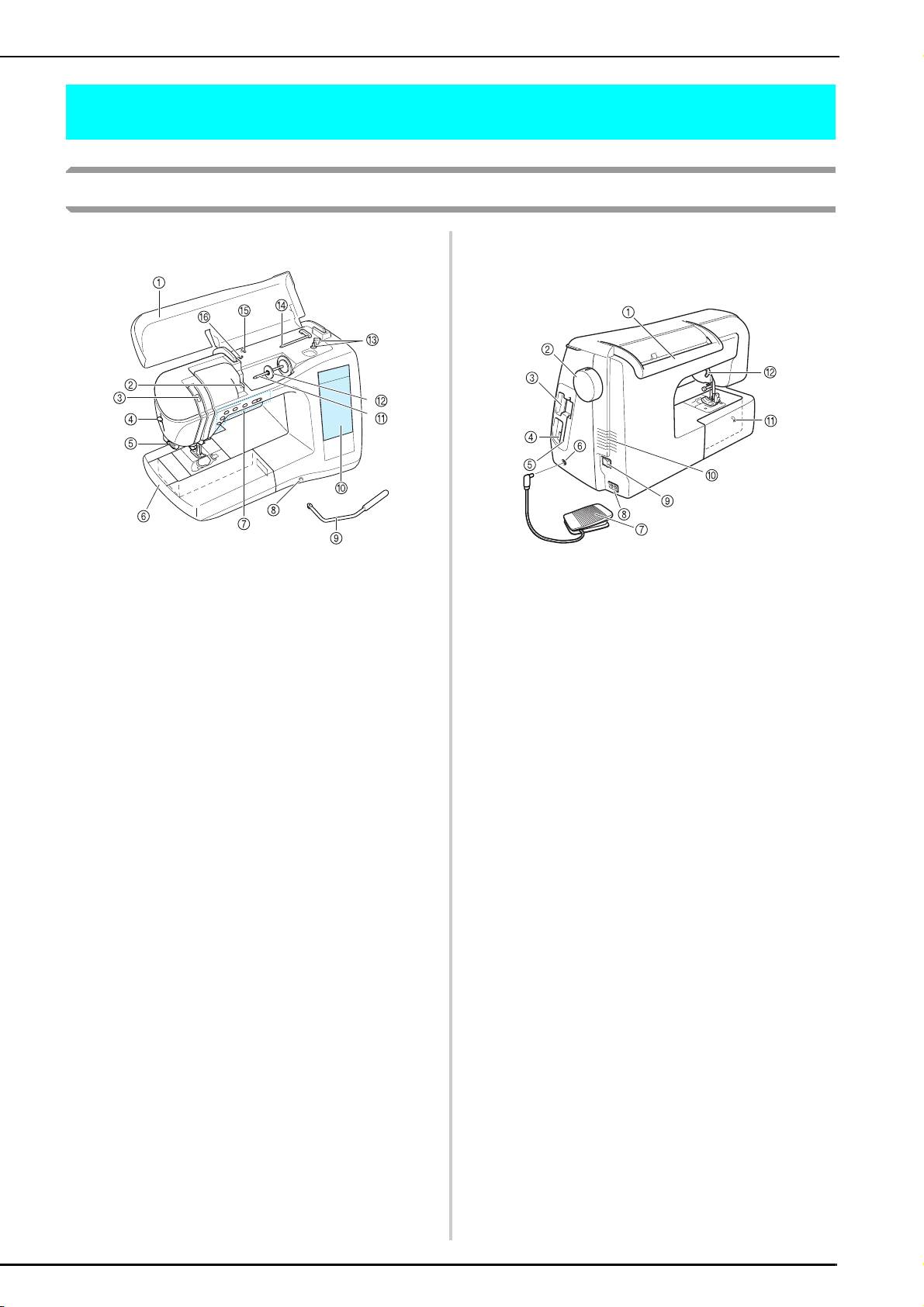
Machine
■ Front View
a Top cover
Open the top cover to thread the machine and wind the bobbin.
b Thread guide plate
Pass the thread around the thread guide plate when threading
the upper thread.
c Thread take-up lever check window
Look through the window to check the position of the take-up lever.
d Needle threader lever
Use the needle threader lever when threading the needle
automatically.
e Thread cutter
Pass the threads through the thread cutter to cut them.
f Flat bed attachment with accessory compartment
Store presser feet and bobbins in the accessory compartment
of the flat bed attachment. Remove the flat bed attachment
when sewing cylindrical pieces such as sleeve cuffs.
g Operation buttons (5 buttons) and sewing speed
controller
Use these buttons to perform various operations, such as
starting sewing and raising or lowering the needle.
Slide the sewing speed controller to adjust the sewing speed
while using utility stitches.
h Knee lifter slot
Insert the knee lifter into the slot.
i Knee lifter
Use the knee lifter to raise and lower the presser foot.
j LCD (liquid crystal display)
Stitch settings can be viewed and edited, and operations for
using the machine can be displayed, and error messages
appear in the LCD.
k Spool pin
Place a spool of thread on the spool pin.
l Spool cap
Use the spool cap to hold the spool in place.
m Bobbin winder
Use the bobbin winder when winding the bobbin.
n Supplemental spool pin
Use this spool pin to wind the bobbin thread while sewing or to
sew with the twin needle.
o Thread guide
Pass the thread around this thread guide when winding the
bobbin thread.
p Bobbin winding thread guide
Pass the thread around this thread guide when winding the
bobbin thread.
■ Right-side/Rear View
a Handle
When transporting the machine, carry it by this handle.
b Handwheel
Turn the handwheel toward you to sew one stitch or to raise or
lower the needle.
c Embroidery card slot
Insert the embroidery cards (sold separately) into the
embroidery card slot.
d USB connector
Plug in a USB cable to connect a computer.
e Touch pen holder
Use the touch pen holder to hold the touch pen when it is not
being used.
f Foot controller jack
Insert the plug on the end of the foot controller cord into the foot
controller jack.
g Foot controller
Press the foot controller to control the speed of the machine.
h Jack connector
Insert the power cord into the connector jack.
i Main power switch
Use the main power switch to turn the machine ON and OFF.
j Air vent
Do not cover the air vent while the sewing machine is being
used.
k Feed dog position switch
Use the feed dog position switch to lower the feed dogs.
l Presser foot lever
Raise and lower the presser foot lever to raise and lower the
presser foot.
NAMES OF MACHINE PARTS AND THEIR FUNCTIONS
10
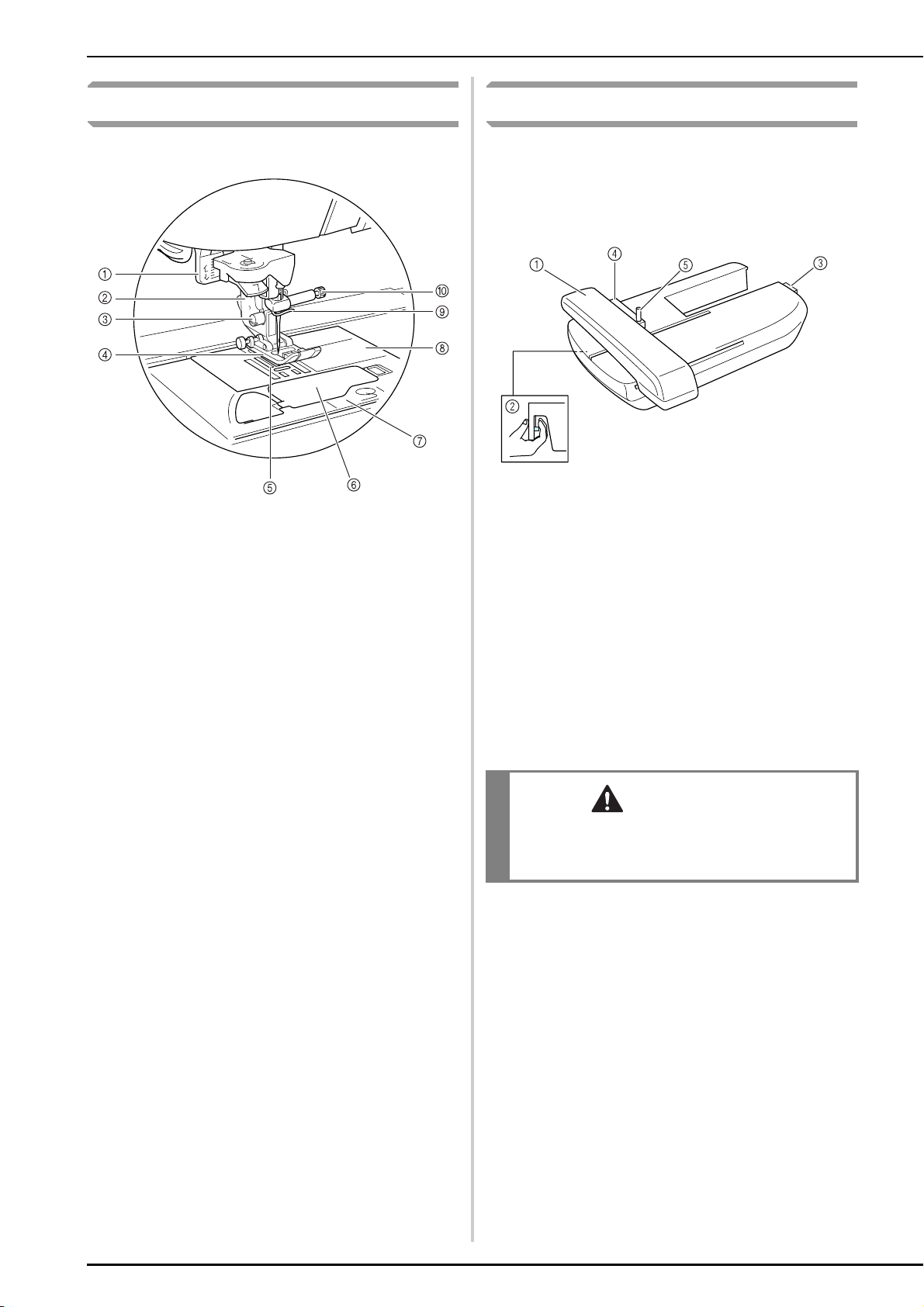
Needle and Presser Foot Section
a Buttonhole lever
Lower the buttonhole lever when sewing buttonholes and bar
tacks.
b Presser foot holder
The presser foot is attached to the presser foot holder.
c Presser foot holder screw
Use the presser foot holder screw to hold the presser foot
holder in place.
d Presser foot
The presser foot consistently applies pressure to the fabric as it
is sewn. Attach the appropriate presser foot for the selected
stitch.
e Feed dogs
The feed dogs feed the fabric in the sewing direction.
f Bobbin cover
Open the bobbin cover to insert the bobbin.
g Needle plate cover
Remove the needle plate cover to clean the bobbin case and
race.
h Needle plate
The needle plate is marked with guides to help sew straight
seams.
i Needle bar thread guide
Pass the upper thread through the needle bar thread guide.
j Needle clamp screw
Use the needle clamp screw to hold the needle in place.
Embroidery Unit
a Carriage
The carriage moves the embroidery frame automatically when
embroidering.
b Release button (located under the embroidery unit)
Press the release button to remove the embroidery unit.
c Embroidery unit connector
Insert the embroidery unit connector into the connection port to
attach the embroidery unit.
d Embroidery frame holder
Attach the embroidery frame to the embroidery frame holder to
hold the frame in place.
e Frame-securing lever
Press down the frame-securing lever to secure the embroidery
frame.
CAUTION
• After the embroidery frame is set in the frame
holder, be sure the frame-securing lever is
correctly lowered.
NAMES OF MACHINE PARTS AND THEIR FUNCTIONS
11
Operation Buttons
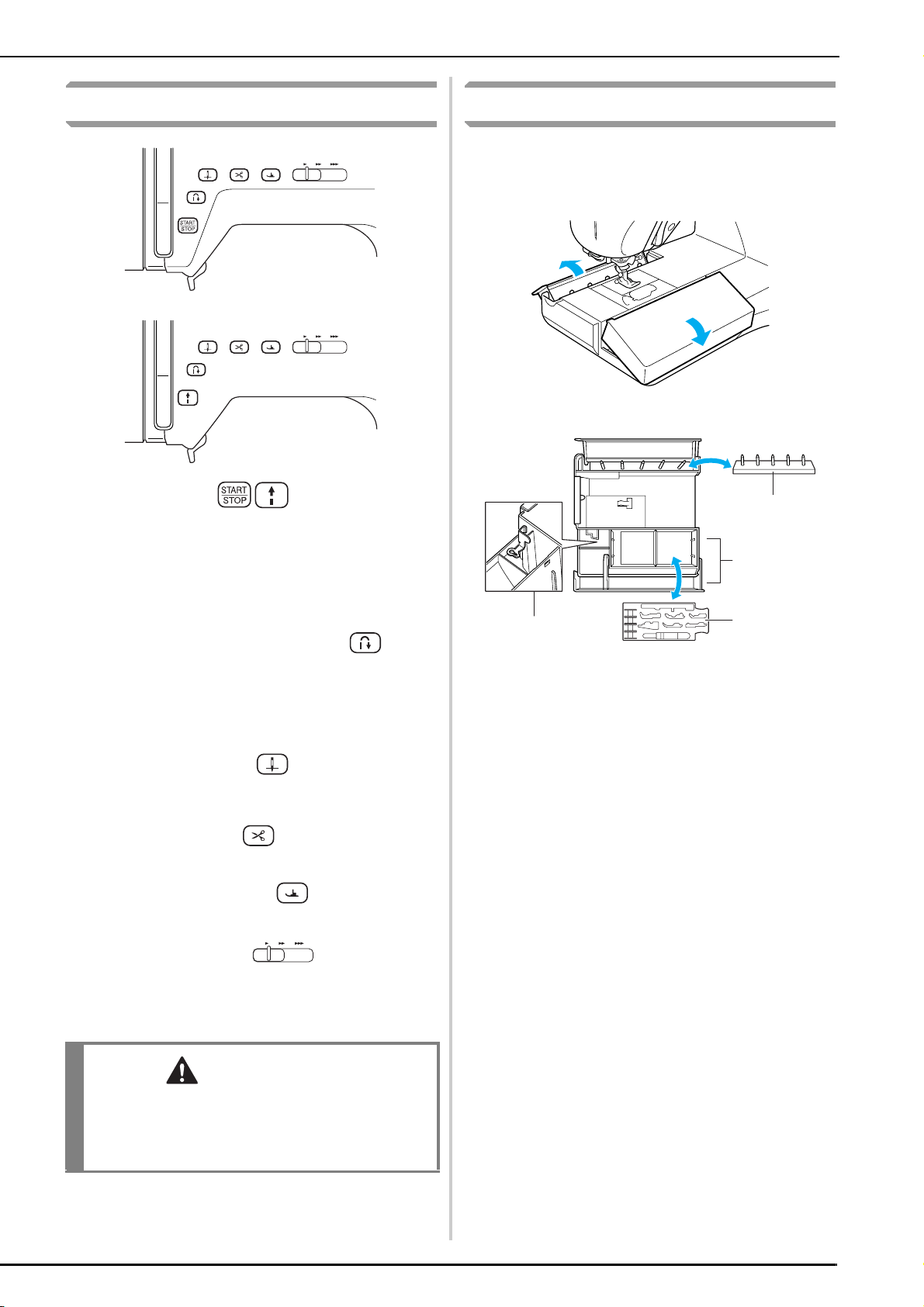
a “Start/Stop” button
When this button is pressed, the machine sews a few stitches at
a low speed, then begins sewing at the speed set by the sewing
speed controller. Press this button again to stop sewing. This
button lights up in a different color depending on the machine’s
operating condition.
b “Reverse/Reinforcement Stitch” button
This button is used to sew reinforcement stitches at the
beginning and end of stitching. When this button is pressed, the
machine sews 3 to 5 stitches in the same spot, then stops
automatically. For straight and zigzag stitch patterns that take
reverse stitches, the machine sews reverse stitches (stitches
sewn in the opposite direction) at low speed only while the
“Reverse/Reinforcement Stitch” button is held down.
c “Needle Position” button
Use this button to change the sewing direction or for detailed
sewing in small areas. Press this button to raise or lower the
needle position. Press this button twice to sew a single stitch.
d “Thread Cutter” button
Press this button after sewing to automatically trim the excess
thread.
e “Presser Foot Lifter” button
Press this button to lower the presser foot and apply pressure to
the fabric. Press this button again to raise the presser foot.
f Sewing speed controller
Slide the sewing speed controller to the left or right to adjust the
sewing speed. Slide the controller to the left to sew at lower
speeds. Slide the controller to the right to sew at higher speeds.
Beginners should sew at a lower speed until they become
familiar with the machine.
Included Accessories
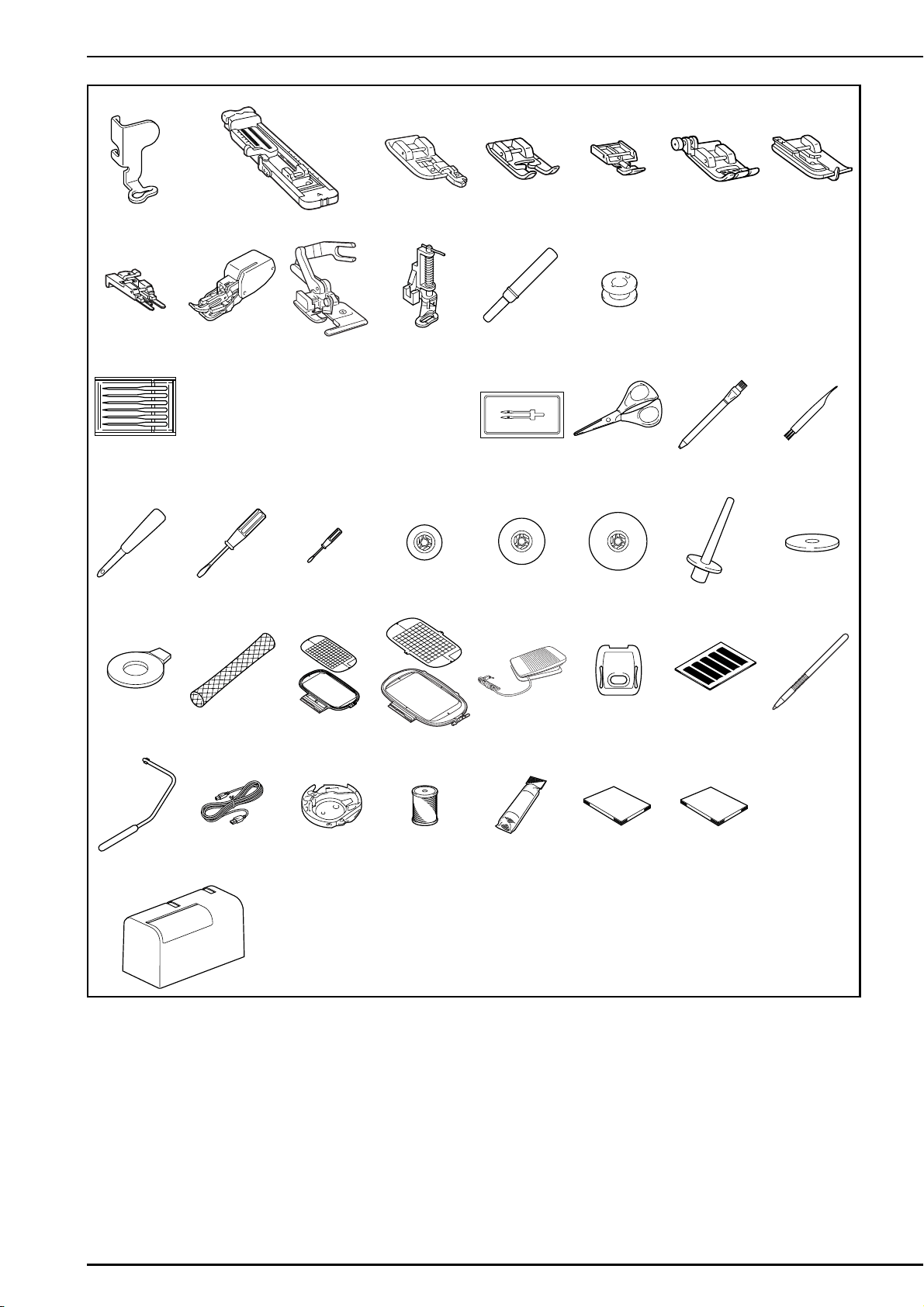
The accessories are stored in the flat bed
attachment. Open the flat bed attachment as
shown below.
a Embroidery foot “U” storage space
b Bobbin stand
(Place the bobbins on the pins to store them.)
c Storage space
d Presser foot storage tray
(Store presser feet marked A, G, I, J, M, N, and R.)
Green: The machine is ready to sew or is sewing.
Red: The machine cannot sew.
CAUTION
• Do not press the “Thread Cutter” button after
the threads have already been cut. Otherwise,
the needle may break, the threads may become
tangled, or damage to the machine may occur.
a
b
c
d
NAMES OF MACHINE PARTS AND THEIR FUNCTIONS
12
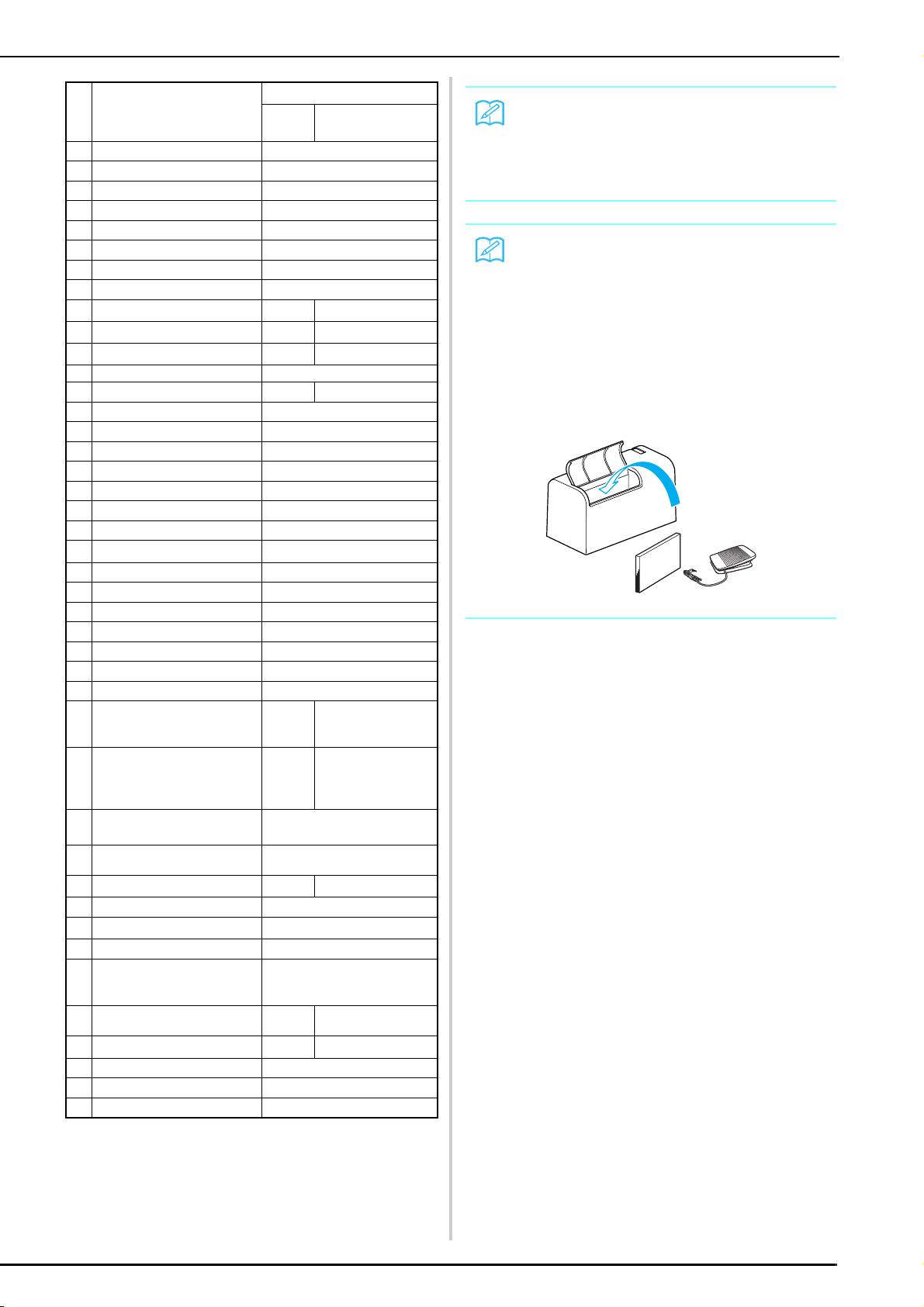
12 34567
8 9 10111213
14 15 16 17 18
19 20 21 22 23 24 25 26
27 28 29 30 31 32 33 34
35 36 37 38 39 40 41
42
75/11 2 needles
90/14 2 needles
90/14 2 needles: Ball point needle
(gold colored)
NAMES OF MACHINE PARTS AND THEIR FUNCTIONS
13
No. Part Name
Part Code
U.S.A./
Canada
Others
1 Embroidery foot “U” XD0313-051
2 Buttonhole foot “A” X57789-151
3 Overcasting foot “G” XC3098-051
4 Monogramming foot “N” X53840-351
5 Zipper foot “I” X59370-051
6 Zigzag foot “J” (on machine) XC3021-051
7 Blind stitch foot “R” X56409-051
8 Button fitting foot “M” 130489-001
9 Walking foot SA140 F033N:XC2214-102
10 Side cutter foot SA177 F054:XC3879-002
11 Free-motion quilting foot SA129 F005N:XC1948-002
12 Seam ripper X54243-051
13 Bobbin × 4 SA156 SFB:XA5539-151
14 Needle set X58358-051
15 Twin Needle X59296-151
16 Scissors XC1807-121
17 Chalk pen 184944-001
18 Cleaning brush X59476-051
19 Eyelet punch 135793-001
20 Screwdriver (large) X55467-051
21 Screwdriver (small) X55468-051
22 Spool cap (small) 130013-154
23 Spool cap (medium) × 2 X55260-153
24 Spool cap (large) 130012-054
25 Vertical spool pin XC8619-051
26 Spool felt X57045-051
27 Disc-shaped screwdriver XC1074-051
28 Spool net XA5523-050
29
Embroidery frame set (large)
18 cm (H) × 13 cm (W)
(7 inches (H) × 5 inches (W))
SA439/
EF75
EF75:XC8481-052
30
Embroidery frame set
(extra large) 26 cm (H) × 16
cm (W) (10-1/4 inches (H) ×
6-1/4 inches (W))
SA441/
EF81
EF81:XC9763-052
31 Foot controller
XD0501-021 (EU area)
XC8816-021 (other area)
32
Embroidery needle plate
cover
XA9939-051
33 Grid sheet set SA507 GS3:X81277-050
34 Touch pen (stylus) XA9940-051
35 Knee lifter XA6941-052
36 USB cable XD0745-051
37
Alternate bobbin case
(pink marking)
(See page 131)
XC8167-151
38 Embroidery bobbin thread SA-EBT
EBT-CEN:
X81164-001
39 Stabilizer material SA519 BM3:X81175-101
40 Operation Manual XD0550-051
41 Quick Reference Guide XD0556-051
42 Hard case XC9640-051
Memo
(For U.S.A. only)
Foot controller: Model T
This foot controller can be used with this
machine model NV1500D/NV1500.
Memo
•Always use accessories recommended for
this machine.
• The screw for the presser foot holder is
available through your authorized dealer
(part code: XA4813-051).
• This operation manual and the foot
controller can be stored in the machine’s
hard case.
NAMES OF MACHINE PARTS AND THEIR FUNCTIONS
14
Options
123
456
789
10 11
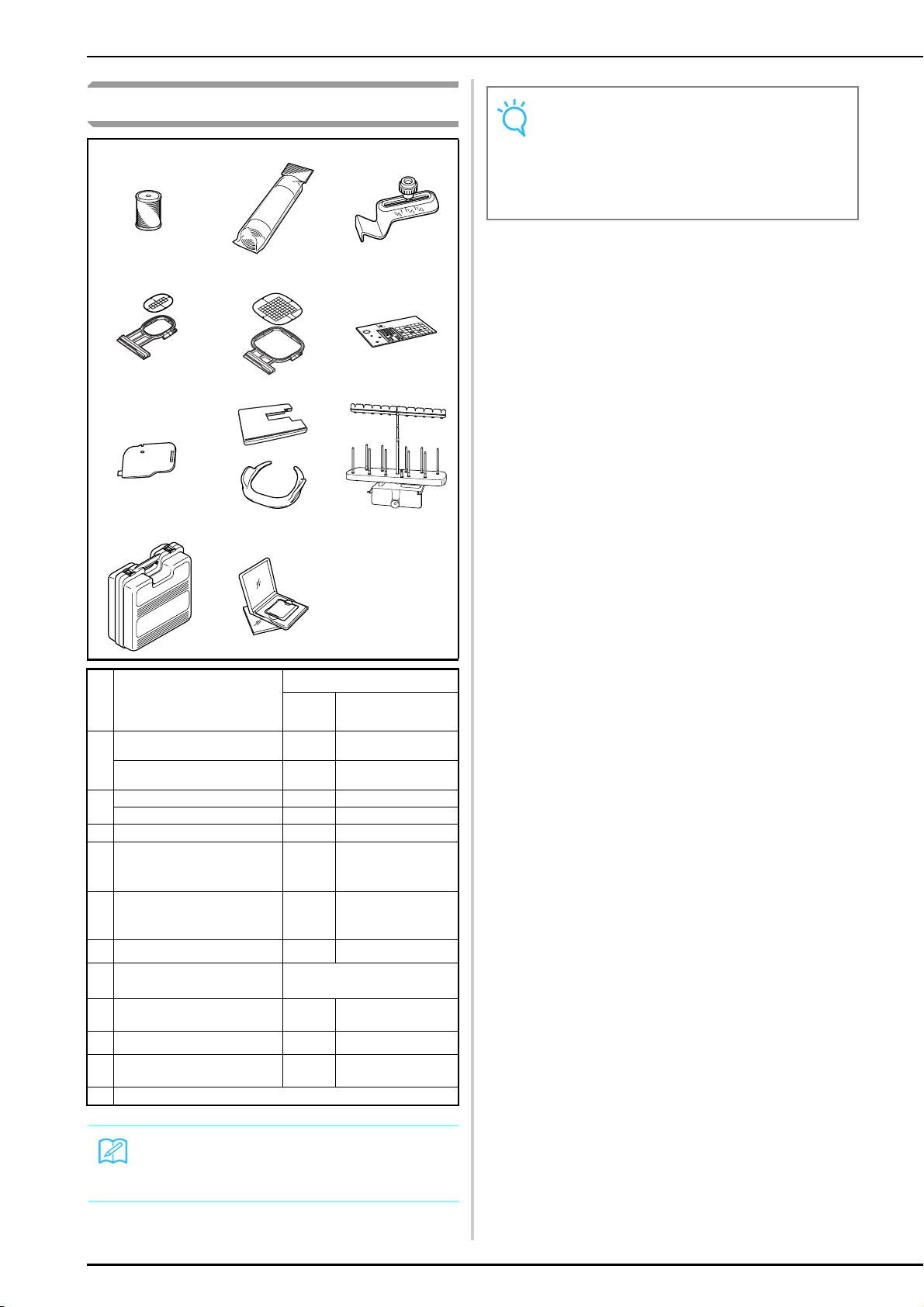
No. Part Name
Part Code
U.S.A./
Canada
Others
1 Embroidery bobbin thread
(White)
SA-EBT
EBT-CEN:X81164-001
Embroidery bobbin thread
(Black)
SAEBT999
EBT-CEBN:XC5520-001
2 Stabilizer material
SA519
BM3:X81175-101
Water soluble stabilizer
SA520
BM4:X81267-101
3 Seam guide SA532
SG1:XC8483-05
4
Embroidery frame set (small)
SA437/
EF73
EF73:XC8479-052
2 cm (H)
×
6 cm (W) (1 inch (H)
×
2-1/2 inches (W))
5
Embroidery frame set (medium)
10 cm (H)
×
10 cm (W) (4 inches
(H)
×
4 inches (W))
SA438/
EF74
EF74:XC8480-052
6
Straight stitch needle plate SA550 SNP01:XD0606-052
7
Cord guide bobbin cover
(with single hole)
XC8449-051
8
Table and free motion grip
SATFM
4000D
TFM2:XC8645-052
9 Spool stand SA539 TS2:XC9655-052
10
Embroidery unit carrying
case
SA529 D6EUC:XC9862-052
11
Embroidery card
Memo
Please be aware that some specifications may
change without notice.
Note
• Embroidery cards purchased in foreign
countries may not work with your machine.
• Visit your authorized dealer for complete
listing of optional accessories available for
your machine.

Chapter 1
Getting Ready
TURNING THE MACHINE ON/OFF....................................................16
LCD SCREEN........................................................................................17
■ Display Precautions.........................................................................................................17
■ Key Functions ..................................................................................................................18
Using the Machine Setting Mode Key......................................................................20
Using the Machine Operation Mode Key ................................................................22
■ Contents of Each Category ..............................................................................................22
Using the Pattern Explanation Key ..........................................................................23
LOWER/UPPER THREADING..............................................................24
Winding the Bobbin ................................................................................................24
■ Using the Supplemental Spool Pin...................................................................................24
■ Winding the Bobbin Using the Spool Pin.........................................................................26
Setting the Bobbin...................................................................................................27
Pulling Up the Bobbin Thread .................................................................................27
Upper Threading .....................................................................................................28
Using the Twin Needle............................................................................................31
CHANGING THE PRESSER FOOT .......................................................33
Removing the Presser Foot ......................................................................................33
Attaching the Presser Foot ......................................................................................33
CHANGING THE NEEDLE...................................................................34
■ Checking the Needle .......................................................................................................34
■ About the Needle ............................................................................................................36
■ Fabric/Thread/Needle Combinations ..............................................................................36

TURNING THE MACHINE ON/OFF
16
TURNING THE MACHINE ON/OFF
a
Insert the power cord into the power cord
jack connector, then insert the plug into a
wall outlet.
a Main power switch
b Power cord
b
Turn the main power switch to “I” to turn on
the machine.
a OFF
b ON
c
Turn the main power switch to “O” to turn
off the machine.
WARNING
• Use only regular household electricity as the power source. Using other power sources may result in fire, electric
shock, or damage to the machine.
• Turn the main power to OFF and remove the plug in the following circumstances:
When you are away from the machine
After using the machine
When the power fails during use
When the machine does not operate correctly due to a bad connection or a disconnection
During electrical storms
CAUTION
• Do not use extension cords or multi-plug adapters with many other appliances plugged in to them. Fire or electric
shock may result.
• Do not touch the plug with wet hands. Electric shock may result.
• When unplugging the machine, always turn the main power to OFF first. Always grasp the plug to remove it from the
outlet. Pulling on the cord may damage the cord, or lead to fire or electric shock.
• Do not allow the power cord to be cut, damaged, modified, forcefully bent, pulled, twisted, or bundled. Do not place
heavy objects on the cord. Do not subject the cord to heat. These things may damage the cord, or cause fire or electric
shock. If the cord or plug is damaged, take the machine to your authorized dealer for repairs before continuing use.
• Unplug the power cord if the machine is not to be used for a long period of time. Otherwise, a fire may result.
• When leaving the machine unattended, either the main switch of the machine should be turned to OFF or the plug
must be removed from the socket-outlet.
• When servicing the machine or when removing covers, either the machine or the electrical set must be unplugged.
• For U.S.A. only
This appliance has a polarized plug (one blade wider than the other). To reduce the risk of electrical shock, this plug is
intended to fit in a polarized outlet only one way.
If the plug does not fit fully in the outlet, reverse the plug. If it still does not fit, contact a qualified electrician to install
the proper outlet. Do not modify the plug in any way.
a
b
a
b
LCD SCREEN
Getting Ready
17
1
LCD SCREEN
■ Display Precautions
• Only touch the display with your finger or the touch pen included with the machine. Do not use a
mechanical pencil, screwdriver or any other hard or sharp objects. In addition, do not press the display with
extreme pressure, otherwise damage to the display may result.
• All or part of the display may sometimes become darker or lighter due to fluctuations in the surrounding
temperature or other changes in the environment. This is not a sign of a malfunction. If the display is difficult
to read, adjust its brightness (see page 21).
• The display may be dark immediately after the machine is turned on. This is a normal characteristic of the
backlight and is not a sign of a malfunction. After approximately 10 minutes, the display should reach its
normal level of brightness.
• If you are not directly facing the display, the colors may be distorted or the screen may be difficult to read.
This is a normal characteristic of the display and is not a malfunction. Be sure to sit in front of the display
while using it.
When the machine is turned on, the opening screen appears. The machine can be set so that the opening screen is
not displayed (see page 21).
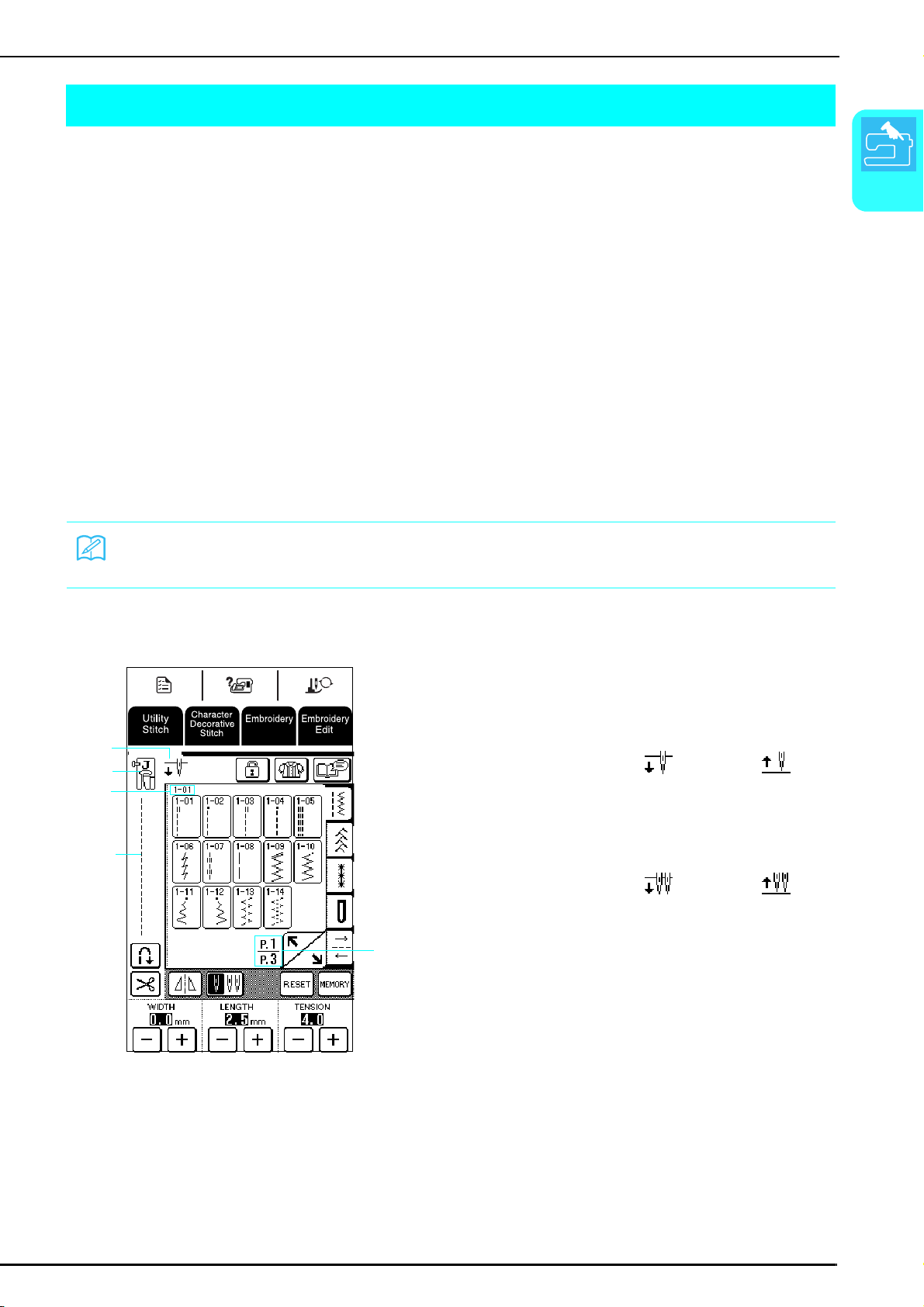
Lightly press the display with your finger. Depending on the setting, either "1-01 Straight stitch (Left)" or "1-03
Straight stitch (Middle)" is automatically selected (see page 20).
a Shows whether the machine is set for a single needle
or twin needle, and the needle position when the
machine is stopped. The desired needle position can
be set (see page 20).
b Presser foot code
Attach the indicated presser foot before sewing.
c Shows the number for the selected stitch (only for
utility stitches).
d Shows a preview of the selected stitch.
e Shows the current page number and the total number
of pages available.
Memo
It may take some time until the opening screen appears. This is not a sign of a malfunction.
d
c
b
e
a
For a single needle
Single needle/down
position
Single needle/up
position
For a twin needle
Twin needle/down
position
Twin needle/up
position
LCD SCREEN
18
■ Key Functions
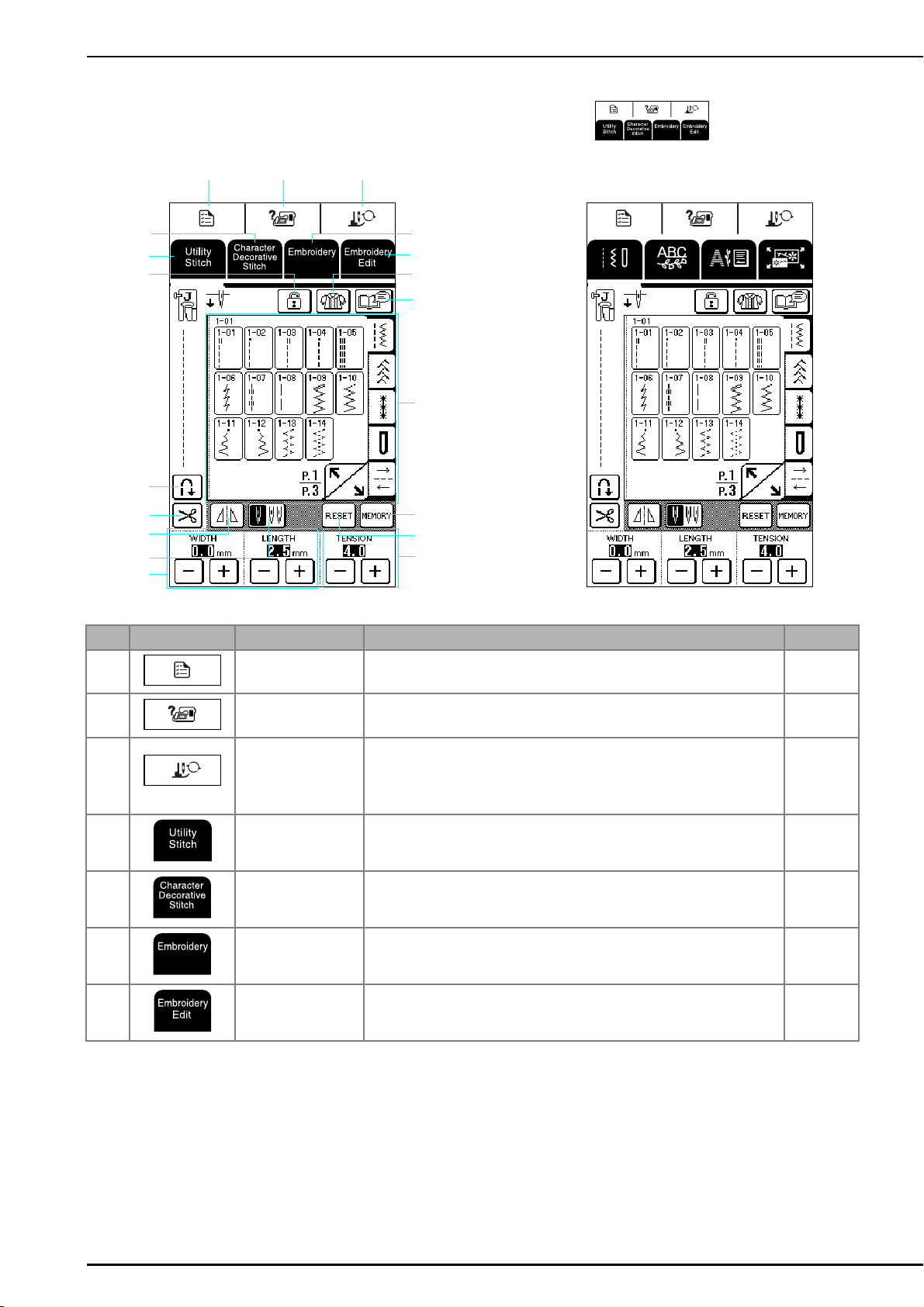
With your finger or the touch pen, press a key at the top of the display (
) to change the
screen that is displayed.
Operation panel
No. Key Name Function Page
1
Machine setting mode
key
Press this key to change the needle stop position, turn the buzzer on/off, adjust
the pattern or screen, and change other machine settings.
20
2
Machine operation
mode key
Press this key to see descriptions for upper threading, winding the bobbin,
changing the presser foot, and other operations for using the machine.
22
3
Presser foot / Needle
exchange key
Press this key when changing the needle or presser foot. Pressing this key locks
all keys and operation buttons so that parts can safely be changed. Press this key
again to unlock the keys and buttons.
When operations are displayed, the screen for the presser foot/needle
replacement mode is not displayed.
33,34
4
Utility stitch key Press this key to select a straight stitch, zigzag stitch, buttonhole, blind hem
stitch, or other stitch (utility stitch) commonly used in garment sewing.
48
5
Character/Decorative
Stitch key
Press this key to select character or decorative stitch patterns. 88
6
Embroidery key Press this key to sew embroidery. 114
7
Embroidery edit key Press this key to combine embroidery patterns. By editing embroidery patterns,
you can create original emblems and name tags.
151
1
j
i
h
k
s
p
q
m
n
o
l
r
2
3
6
7
5
4
LCD SCREEN
Getting Ready
19
1
Screen
No. Key Name Function Page
h
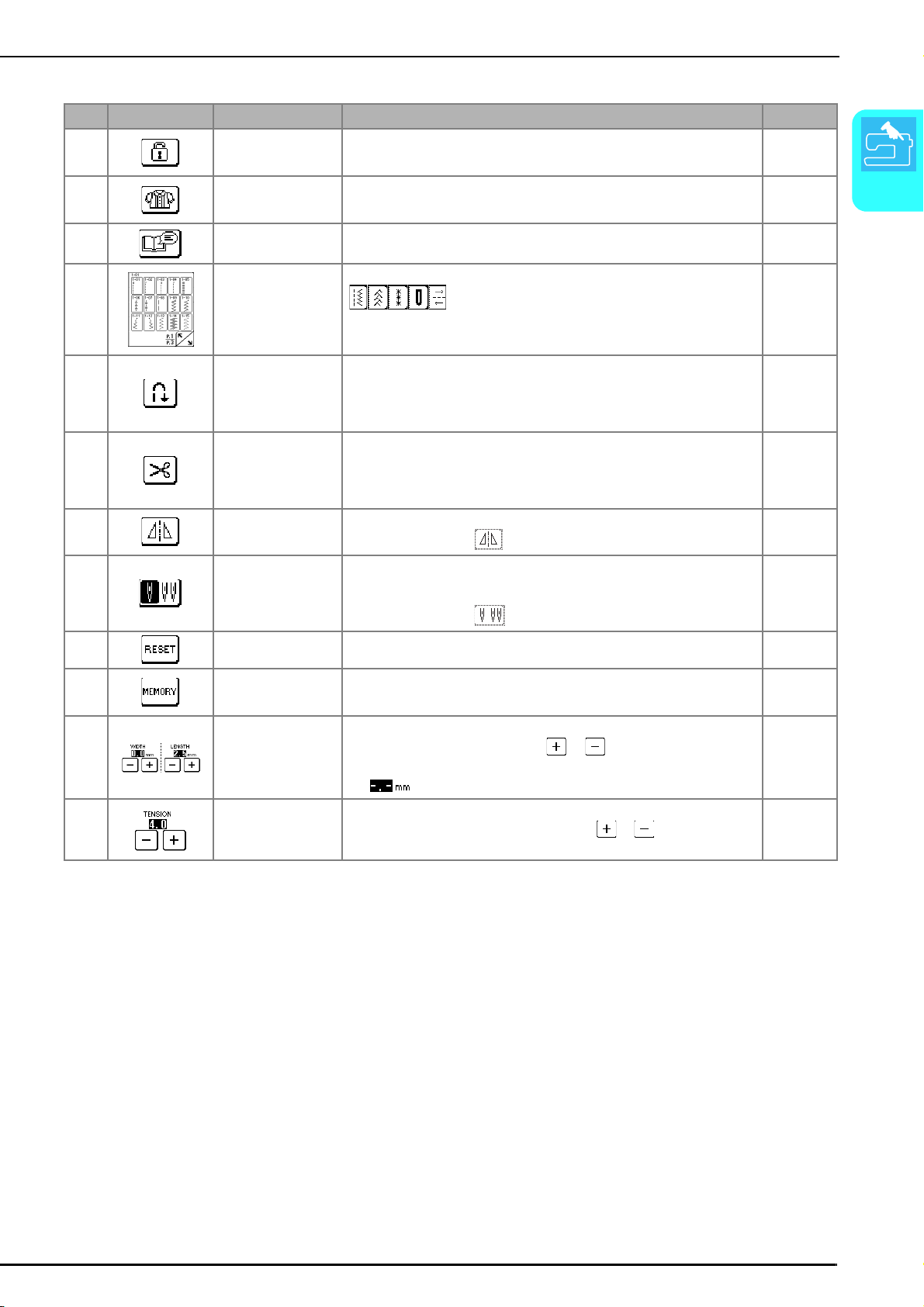
Screen lock key Press this key to lock the screen. When the screen is locked, the various settings,
such as the stitch width and stitch length, are locked and cannot be changed.
Press this key again to unlock the settings.
45
i
Sewing type selection
key
Press this key when you need help selecting the appropriate stitch pattern for the
sewing application and when you need instructions on how to sew the selected
stitch pattern. This key is very helpful for beginners.
50
j
Pattern explanation key Press this key to see how the selected stitch pattern can be used. 23
k
Stitch selection display Press the key for the stitch pattern that you want to sew. Press one of the
keys to change the pattern selection screen.
48
l
Automatic
reinforcement stitch key
Press this key to select the automatic reinforcement stitching (reverse stitching)
setting. If you select this setting before sewing, the machine will automatically
sew reinforcement stitches at the beginning and end of stitching (depending on
the selected stitch pattern, reverse stitches may be sewn). Press this key again to
cancel the setting.
43
m
Automatic thread
cutting key
Press this key to select the automatic thread cutting setting.
If you select this setting before sewing, the machine will automatically sew
reinforcement stitches (or reverse stitches, depending on the selected stitch) and
trim the threads when the “Reverse/Reinforcement Stitch” button is pressed.
Press this key again to cancel the setting.
44
n
Mirror image key Press this key to create a mirror image of the selected stitch pattern.
• If this key appears as , it cannot be used.
49
o
Needle mode selection
key (single/twin)
Before sewing with the twin needle, press this key to select the setting for twin
needle sewing. Each time this key is pressed, the setting switches between that
for single needle sewing and twin needle sewing.
• If this key appears as , it cannot be used.
31
p
Reset key Press this key to return the selected stitch pattern’s saved settings to the original
settings.
49
q
Manual memory key Change the stitch pattern settings (zigzag width and stitch length, thread tension,
automatic thread cutting or automatic reinforcement stitching, etc.), then save
them by pressing this key.
49
r
Stitch width and stitch
length keys
Shows the stitch width (zigzag width) and the stitch length settings of the
currently selected stitch pattern. Press or to adjust the stitch width and
stitch length settings.
• If appears, the setting cannot be adjusted.
42
s
Thread tension keys Shows the thread tension setting of the currently selected stitch pattern. The
thread tension is usually set automatically. Press or to adjust the thread
tension setting.
43
LCD SCREEN
20
Using the Machine Setting Mode Key
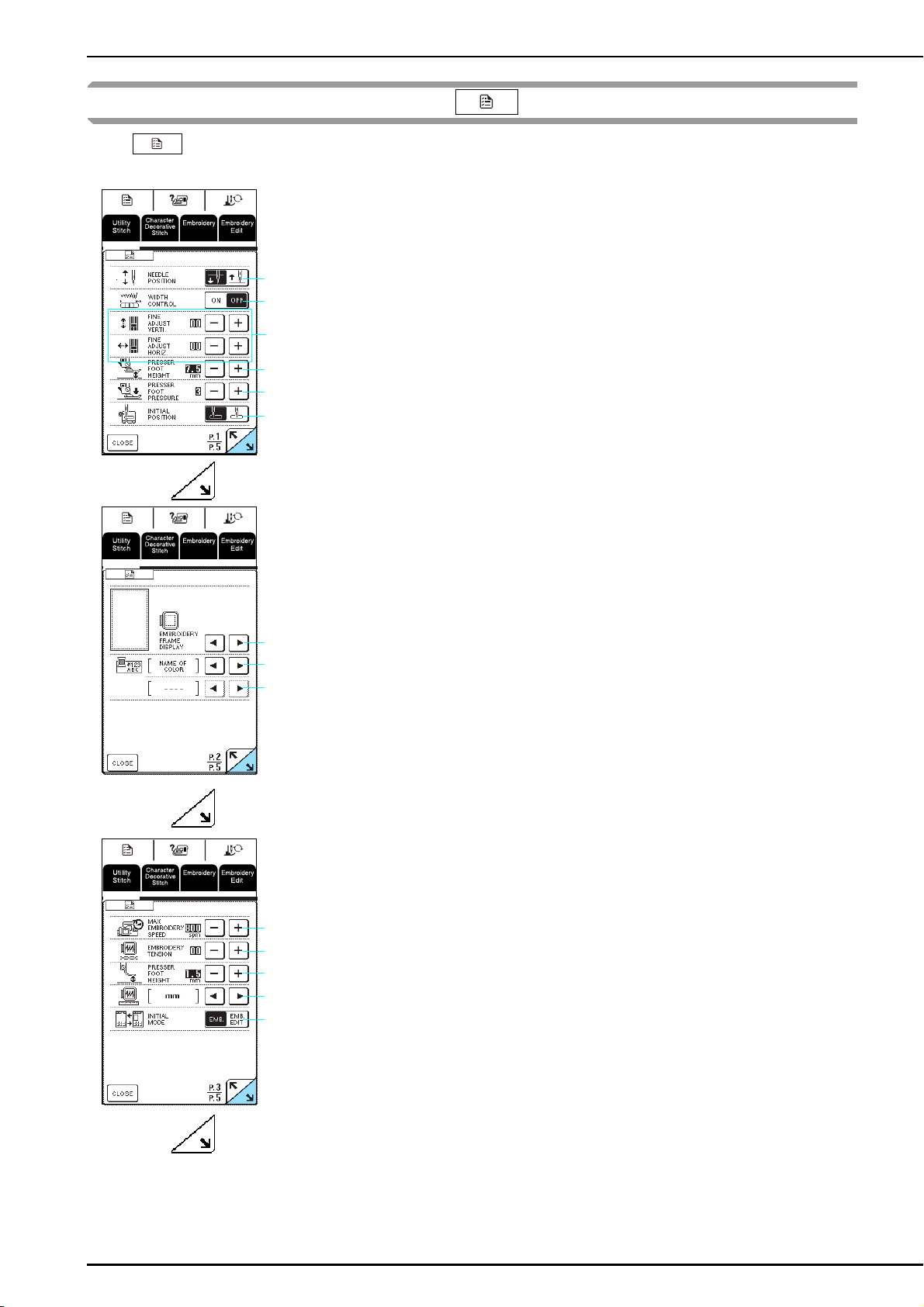
Press to change the needle stop position, turn the buzzer on/off, adjust the pattern or screen, and change
other basic machine settings.
a Select whether the needle stops in the raised or
lowered position when the machine is stopped.
b Select whether to use the sewing speed controller or
to adjust the zigzag width (see page 64).
c Make adjustments to the character and decorative
stitch patterns (see page 92).
d Adjust the presser foot height (select the height of the
presser foot when the presser foot is raised) (see
page 41).
e Adjust the presser foot pressure between 1 (weak)
and 4 (strong).
* The higher the number, the higher the pressure will be. Set
the pressure to 3 for normal sewing.
f Select whether “1-01 Straight stitch (Left)” or “1-03
Straight stitch (Middle)” is the utility stitch that is
automatically selected when the machine is turned
on.
* Press to display the next page.
a Select from among 5 embroidery frame displays (see
page 125).
b Select whether the thread color name, thread color
number or sewing time appears for the thread color
display in the embroidery screen (see page 138).
c Select the thread brand available when selecting a
thread color number in the thread color display of the
embroidery screen (see page 138).
* Press to display the next page.
a Adjust the maximum embroidering speed.
b Adjust the thread tension for embroidering.
c Adjust the height of embroidery foot “U” (see page
120).
d Select the units (mm/inch) for displaying distances
and the sizes of embroidery patterns.
e Select the initial screen (Embroidery/Embroidery Edit)
when the embroidery unit is installed.
* Press to display the next page.
c
b
a
e
d
f
a
b
c
a
b
c
e
d
LCD SCREEN
Getting Ready
21
1
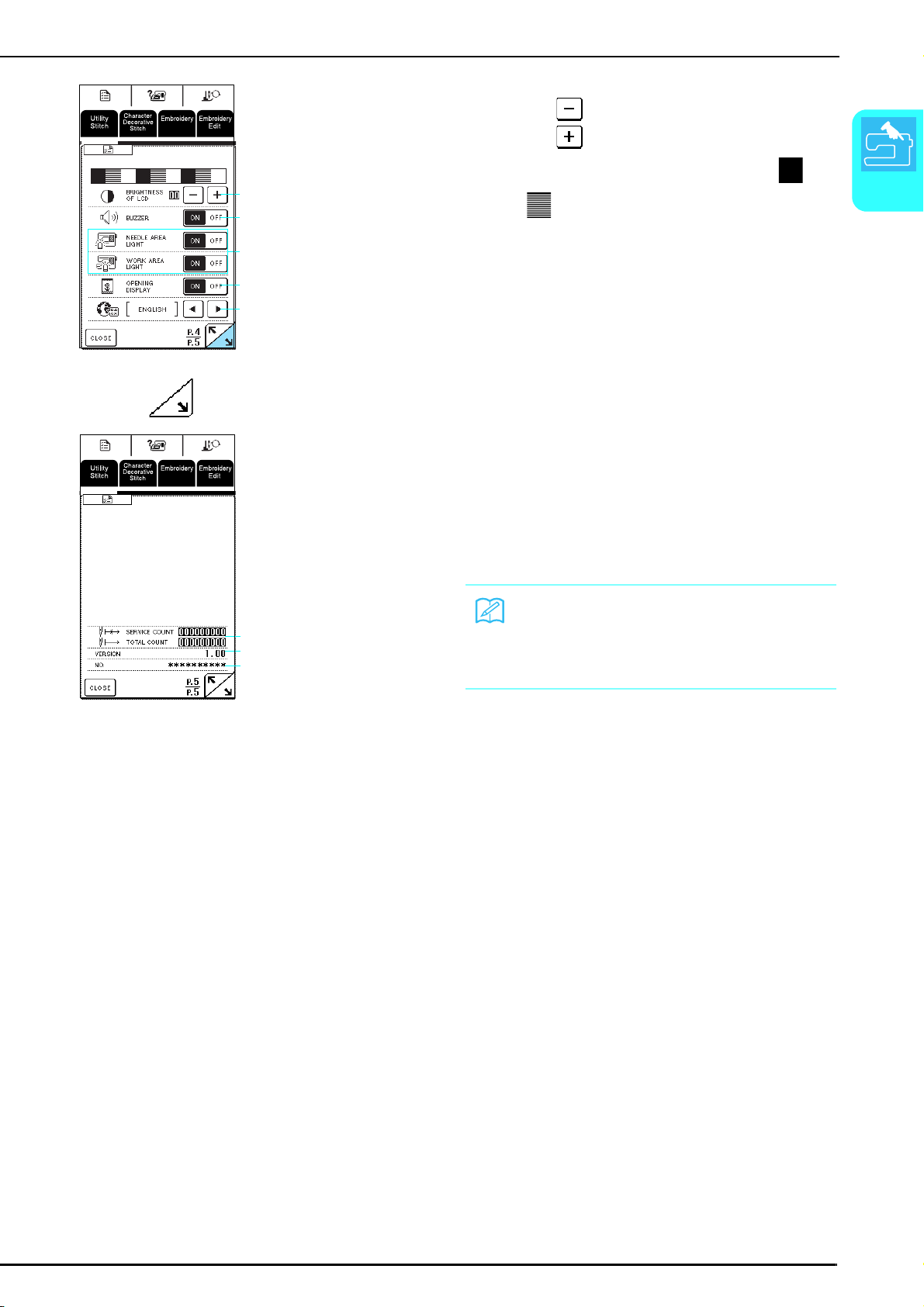
a Adjust the density of the display.
* Press to make the screen lighter.
* Press to make the screen darker.
Adjust the density so that the contrast between and
can be clearly seen.
b Turn on/off the buzzer.
c Turn on/off the needle area and work area lights.
d Select whether or not the opening screen appears
when the machine is turned on.
e Select one of the 13 display languages:
[English], [German], [French], [Italian], [Dutch],
[Spanish], [Japanese], [Danish], [Norwegian],
[Finnish], [Swedish], [Portuguese], [Russian]
* Press to display the next page.
a Display the service count of embroidery stitches. The
service count is a reminder to take your machine in for
regular servicing (Contact your authorized dealer for
details.)
b Shows the version of the software installed on this
machine
c Shows the product identification number for this
machine.
a
b
c
d
e
a
b
c
Memo
The latest version of software is installed in your
machine. Check with your local authorized Brother
dealer or at www.brother.com for notification of
available updates (see page 189).
LCD SCREEN
22
Using the Machine Operation Mode Key
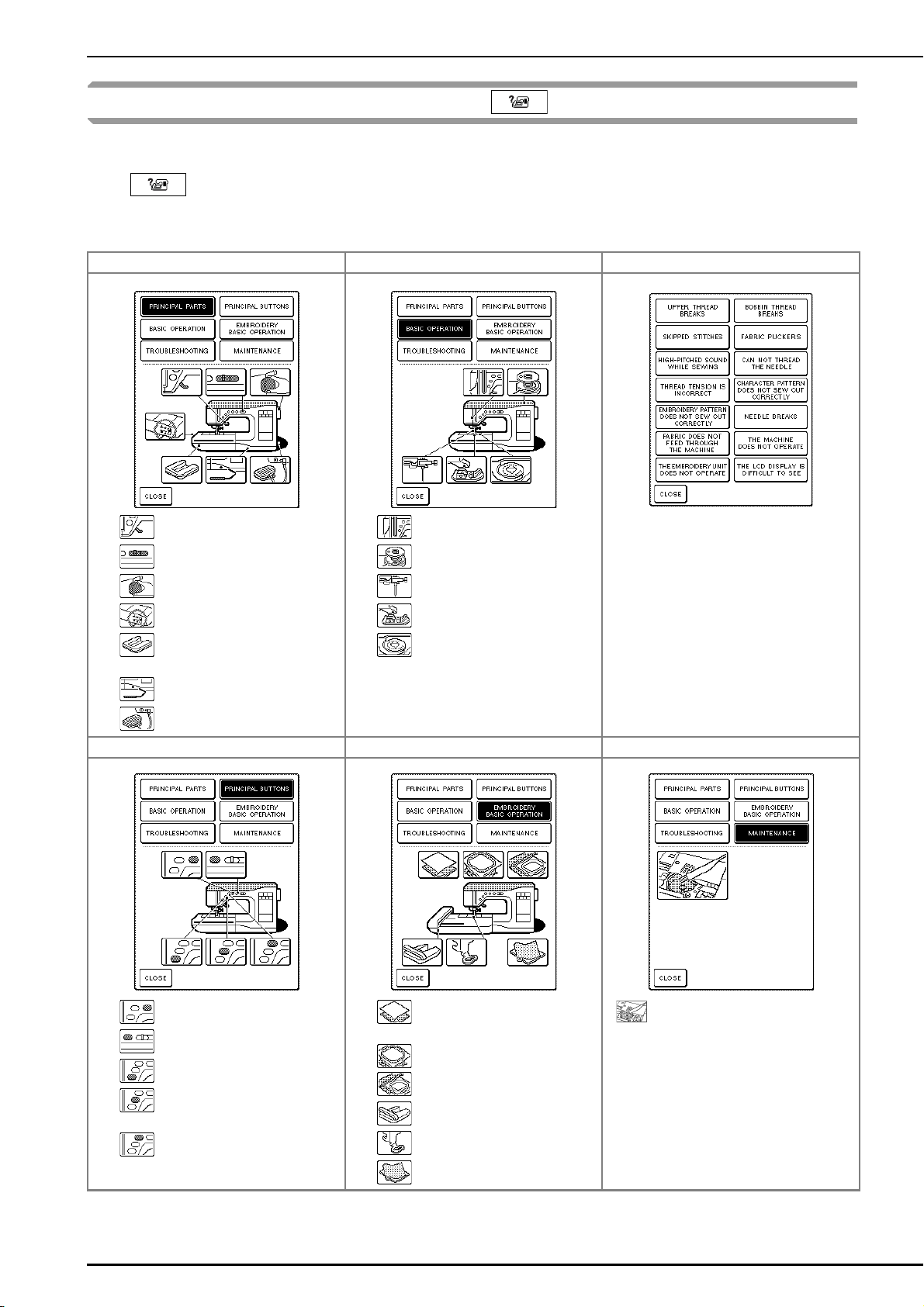
Basic machine operations and other information based on the contents of this Operation Manual are stored in this
machine.
Press to open the screen shown below. Six categories are displayed at the top of the screen. Press a key to
see more information about that category.
■ Contents of Each Category
Names of Machine Parts and Their Functions Sewing Basics Troubleshooting
Presser foot lever
Sewing speed controller
Handwheel
Feed dog position switch
Flat bed attachment with
accessory compartment
Knee lifter
Foot controller
Upper threading
Bobbin winding
Changing the needle
Changing the presser foot
Setting the bobbin
Main Buttons Basic Embroidering Operations Maintenance
“Thread Cutter” button
“Presser Foot Lifter” button
“Start/Stop” button
“Reverse/Reinforcement Stitch”
button
“Needle Position” button
Attaching iron-on stabilizer to the
fabric
Inserting the fabric
Attaching the embroidery frame
Attaching the embroidery unit
Attaching embroidery foot “U”
Correct stabilizer to use
Cleaning the race and bobbin case
LCD SCREEN
Getting Ready
23
1
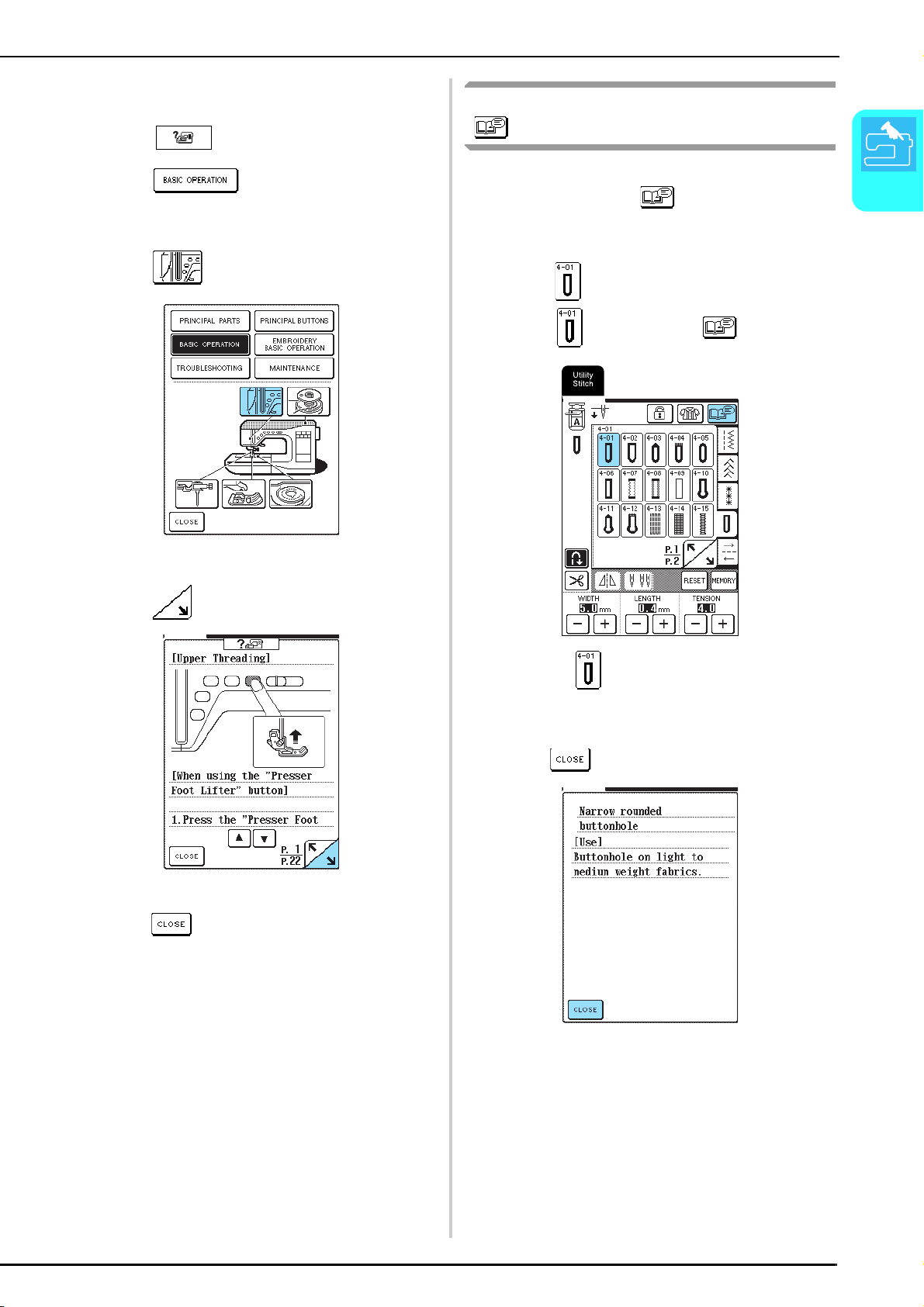
Example: Displaying information about upper
threading
a
Press .
b
Press .
→ A list of basic operations appears in the lower half of
the screen.
c
Press (upper threading).
→ The instructions for threading the machine appear.
d
Press to view the next page.
e
When you are finished with the instructions,
press .
Using the Pattern Explanation Key
To learn more about the uses for a stitch pattern, select
the stitch, and then press to see a description of
the selected stitch.
Example: Displaying information on the use for
.
a
Select , and then press .
→ Uses for appear.
b
When you are finished with the instructions,
press .
LOWER/UPPER THREADING
24
LOWER/UPPER THREADING
Winding the Bobbin
This section describes how to wind thread onto a
bobbin. With this machine, you can use the
supplemental spool pin to wind the bobbin while
sewing using the main spool pin.
■ Using the Supplemental Spool Pin
While sewing embroidery, the bobbin can
conveniently be wound.
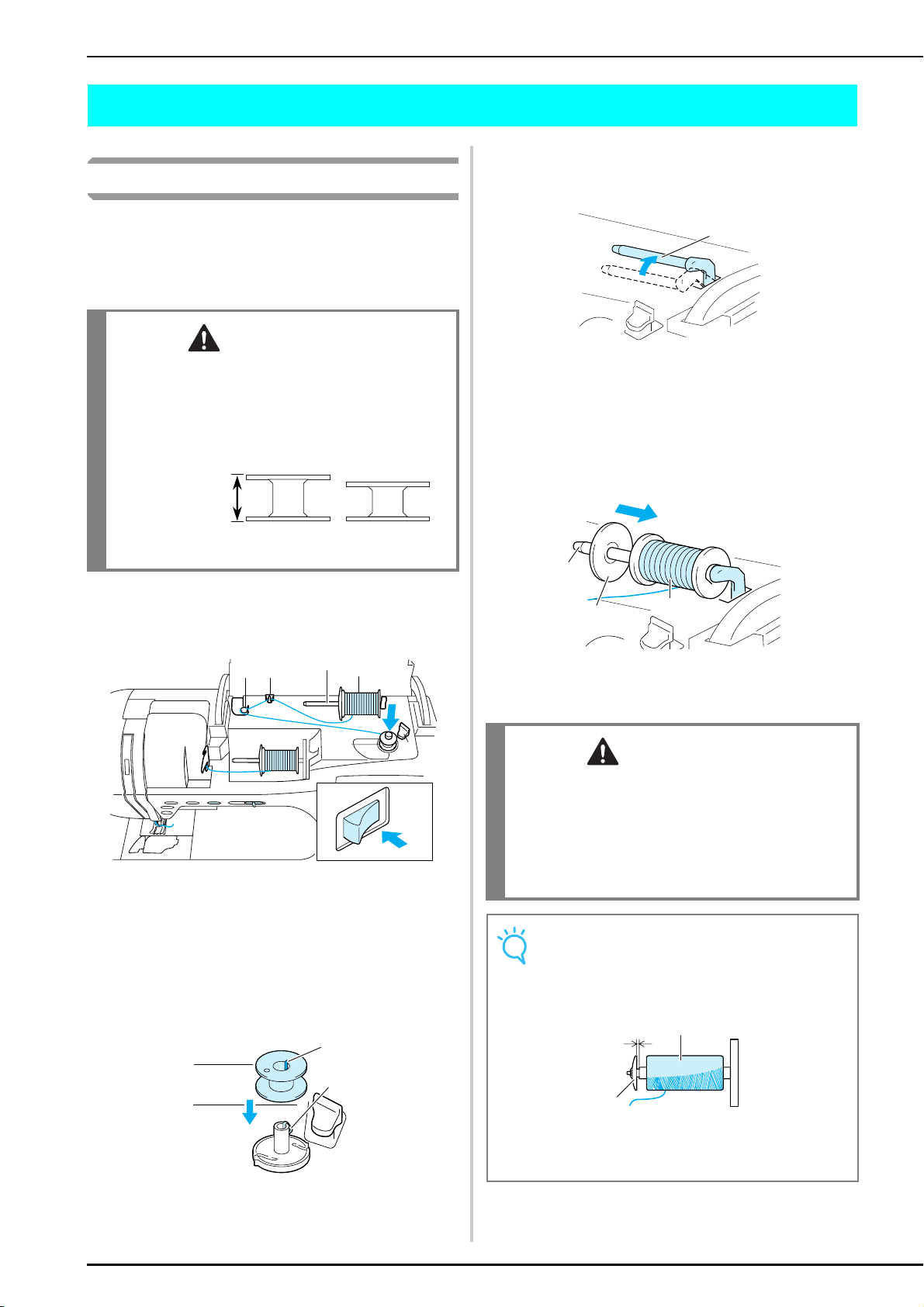
a Supplemental spool pin
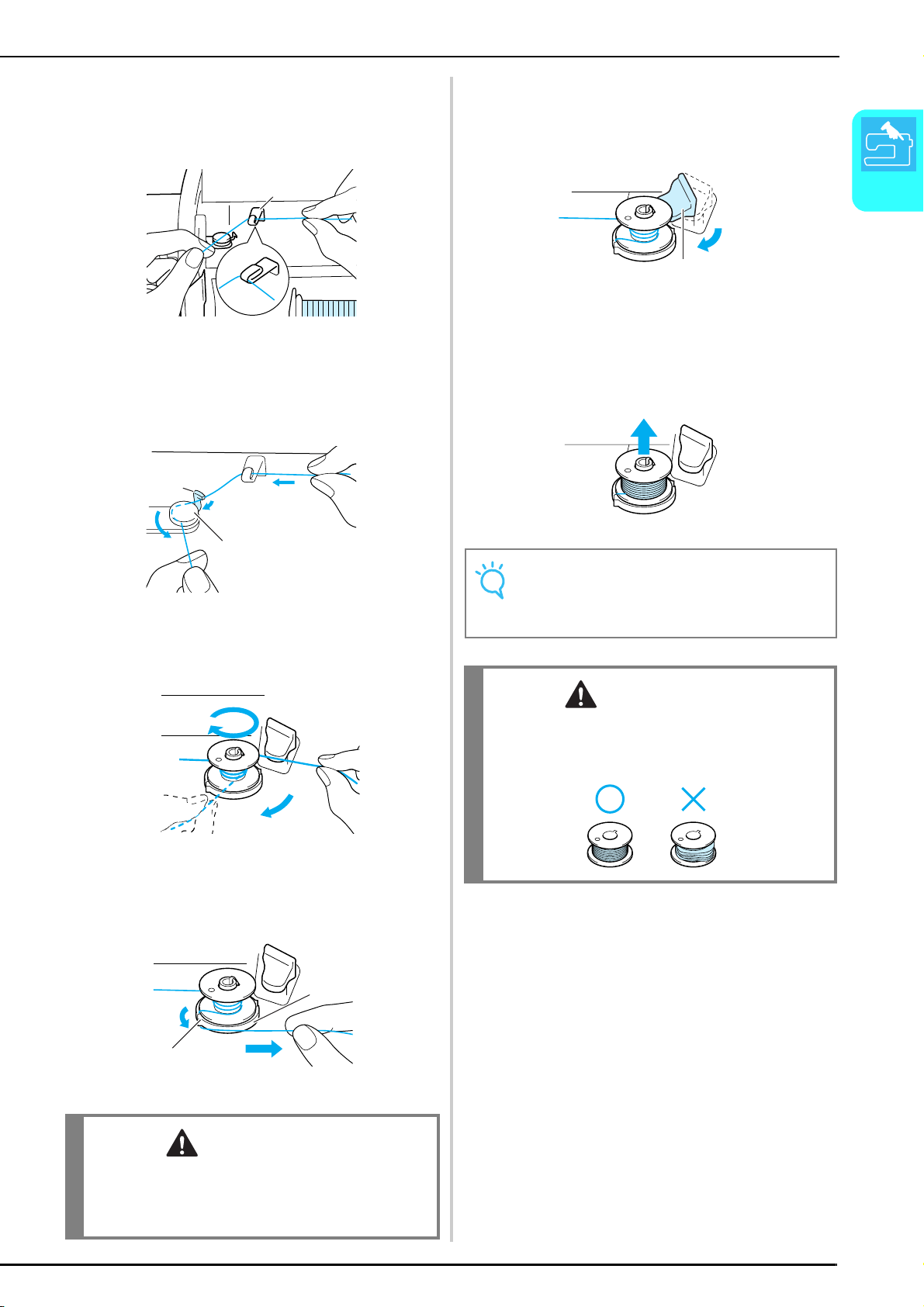
a
Turn on the machine, and then open the top
cover.
b
Align the groove in the bobbin with the spring
on the bobbin winder shaft, and then set the
bobbin on the shaft.
a Groove in bobbin
b Spring on bobbin winder shaft
c
Set the supplemental spool pin in the “up”
position.
a Supplemental spool pin
d
Place the spool of thread on the supplemental
spool pin so that the thread unwinds from the
front. Then, slide the spool cap as far as
possible onto the supplemental spool pin to
secure the thread spool.
a Supplemental spool pin
b Spool cap
c Thread spool
CAUTION
• The included bobbin was designed specifically for
this sewing machine. If bobbins from other models
are used, the machine will not operate correctly.
Use only the included bobbin or bobbins of the same
type (part code: X52800-150).
Actual size
This model Other models
11.5 mm
(approx.
7/16 inch)
7, 8
2
9
1
o
l
56 3, 4
a
a
b
CAUTION
• If the thread spool and/or spool cap are set
incorrectly, the thread may tangle on the spool pin
and cause the needle to break.
• Use the spool cap (large, medium, or small) that is
closest in size to the thread spool. If a spool cap
smaller than the thread spool is used, the thread may
become caught in the slit on the end of the spool.
Note
When using cross-wound thread on a thin spool, use
the small spool cap, and leave a small gap between
the cap and the thread spool.
a Gap
b Cross-wound thread
c Spool cap (small)
a
a
b
c
a
b
c
LOWER/UPPER THREADING
Getting Ready
25
1
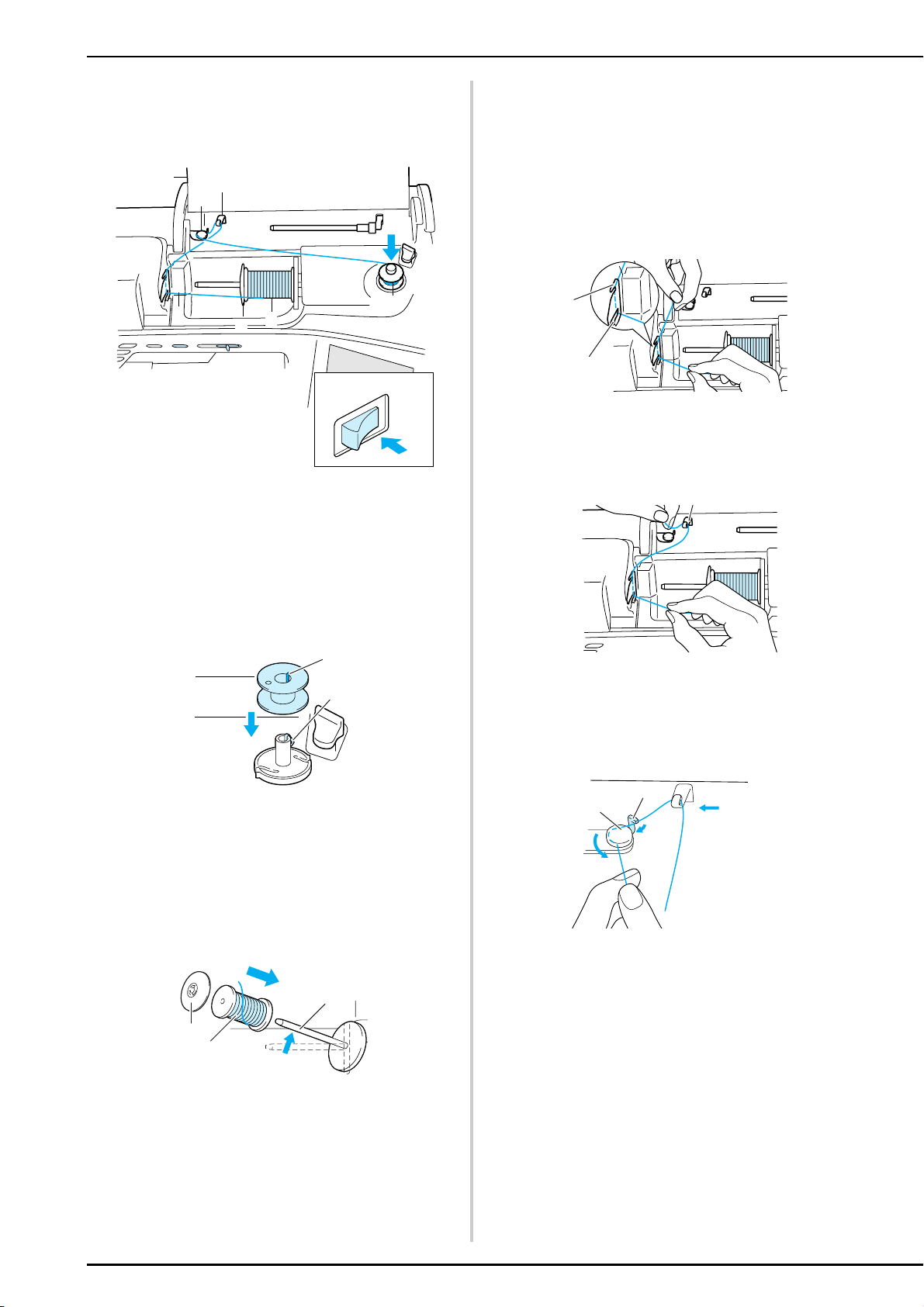
e
While holding the thread from the spool in
your right hand, hold the end of the thread
with your left hand, and then pass the thread
through the thread guide.
a Thread guide
f
Pass the thread under the pin on the bobbin
winding thread guide, and then pass it around
the pretension disk.
* Make sure that the thread passes under the pretension disk.
a Pin
b Pretension disk
g
Wind the thread clockwise around the bobbin
four or five times.
h
Pass the end of the thread through the guide
slit in the bobbin winder seat, and then pull
the thread to the right to cut it with the
cutter.
a Guide slit
b Bobbin winder seat
i
Slide the bobbin holder to the left until it
snaps into place.
* When the bobbin holder is set to the left, it works as a
switch to make the bobbin wind automatically.
a Bobbin holder (switch)
→ The bobbin stops spinning automatically when it is
full, and the bobbin holder returns to its original
position.
j
Cut the thread, and then remove the bobbin.
CAUTION
• Be sure to follow the process described. If the thread
is not cut with the cutter, and the bobbin is wound,
when the thread runs low, it may tangle around the
bobbin.
a
a
b
1
2
3
a
b
Note
When removing the bobbin, pull up only on the bobbin.
Do not pull on the bobbin winder seat, otherwise it may
become loose, resulting in damage to the machine.
CAUTION
• Setting the bobbin improperly may cause the thread
tension to loosen, breaking the needle and possibly
resulting in injury.
a
LOWER/UPPER THREADING
26
■ Winding the Bobbin Using the Spool Pin
The main spool pin cannot be used to wind the
bobbin while sewing. For details, see “Using the
Supplemental Spool Pin” on page 24.
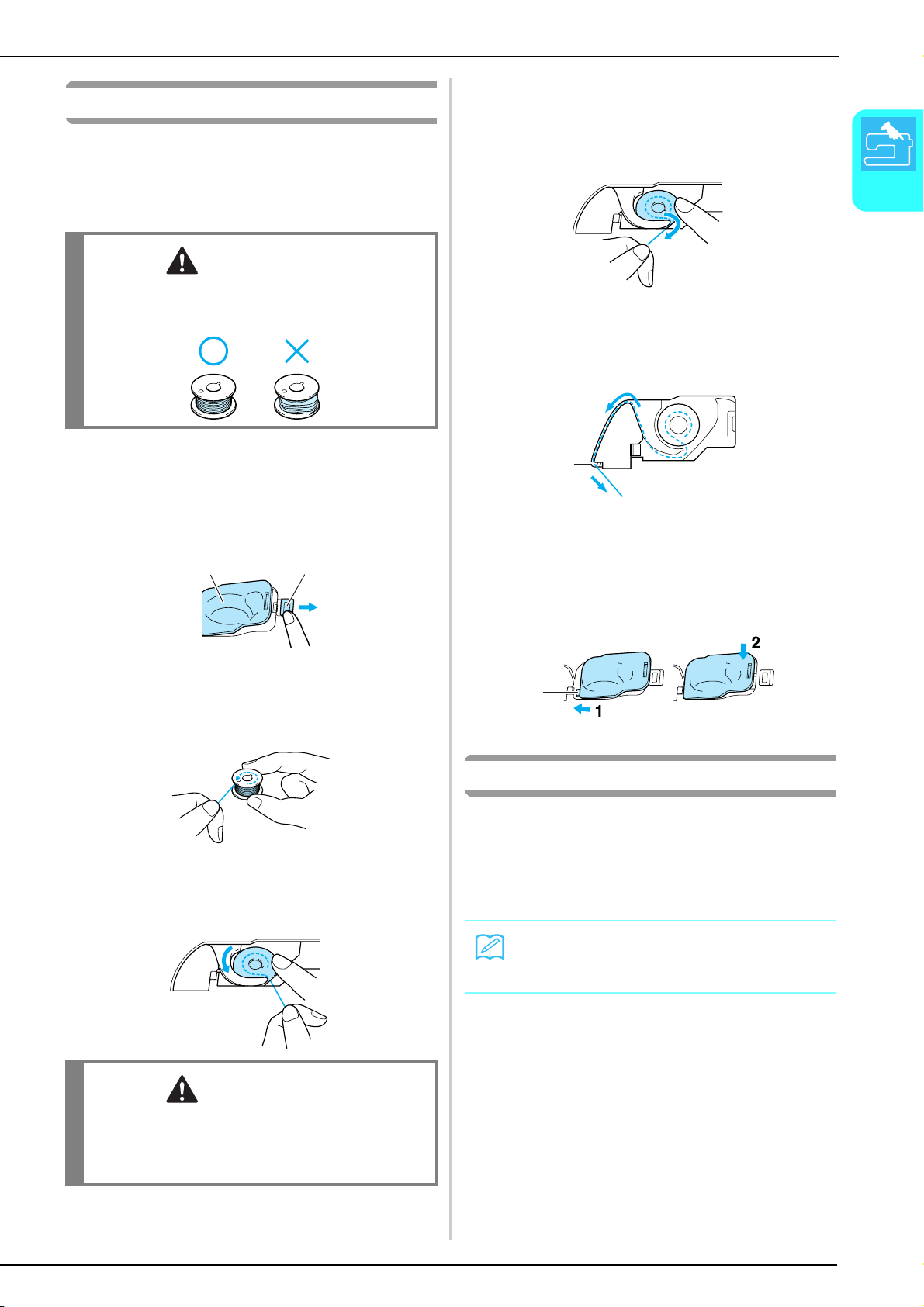
a
Turn on the machine.
b
Open the top cover.
c
Align the groove in the bobbin with the spring
on the bobbin winder shaft, and then slide the
bobbin onto the shaft.
a Groove in bobbin
b Spring on bobbin winder shaft
d
Pivot the spool pin so that it angles upward,
and then place the spool of thread on the
spool pin.
* Make sure that the thread unwinds from the front.
a Spool cap
b Thread spool
c Spool pin
e
Slide the spool cap as far as possible onto the
spool pin, and then return the spool pin to its
original position.
f
While holding the thread from the spool with
both hands, pull the thread through the lower
notch in the thread guide plate, then through
the upper notch.
a Lower notch in the thread guide plate
b Upper notch in the thread guide plate
g
Pass the thread through the thread guide.
a Thread guide
h
Pass the thread under the pin on the bobbin
winding thread guide, and then pass it around
the pretension disk.
* Make sure that the thread passes under the pretension disk.
a Pin
b Pretension disk
i
Follow steps g through j on page 25.
3
4
5
6
7
9
1
o
l
8
2
a
b
a
b
c
a
b
a
a
b
LOWER/UPPER THREADING
Getting Ready
27
1
Setting the Bobbin
This section describes how to set a bobbin wound with
thread into the machine. You can begin sewing without
pulling up the bobbin thread. If you wish to pull up the
bobbin thread, for example, when sewing gathers,
follow the procedure described in the next section.
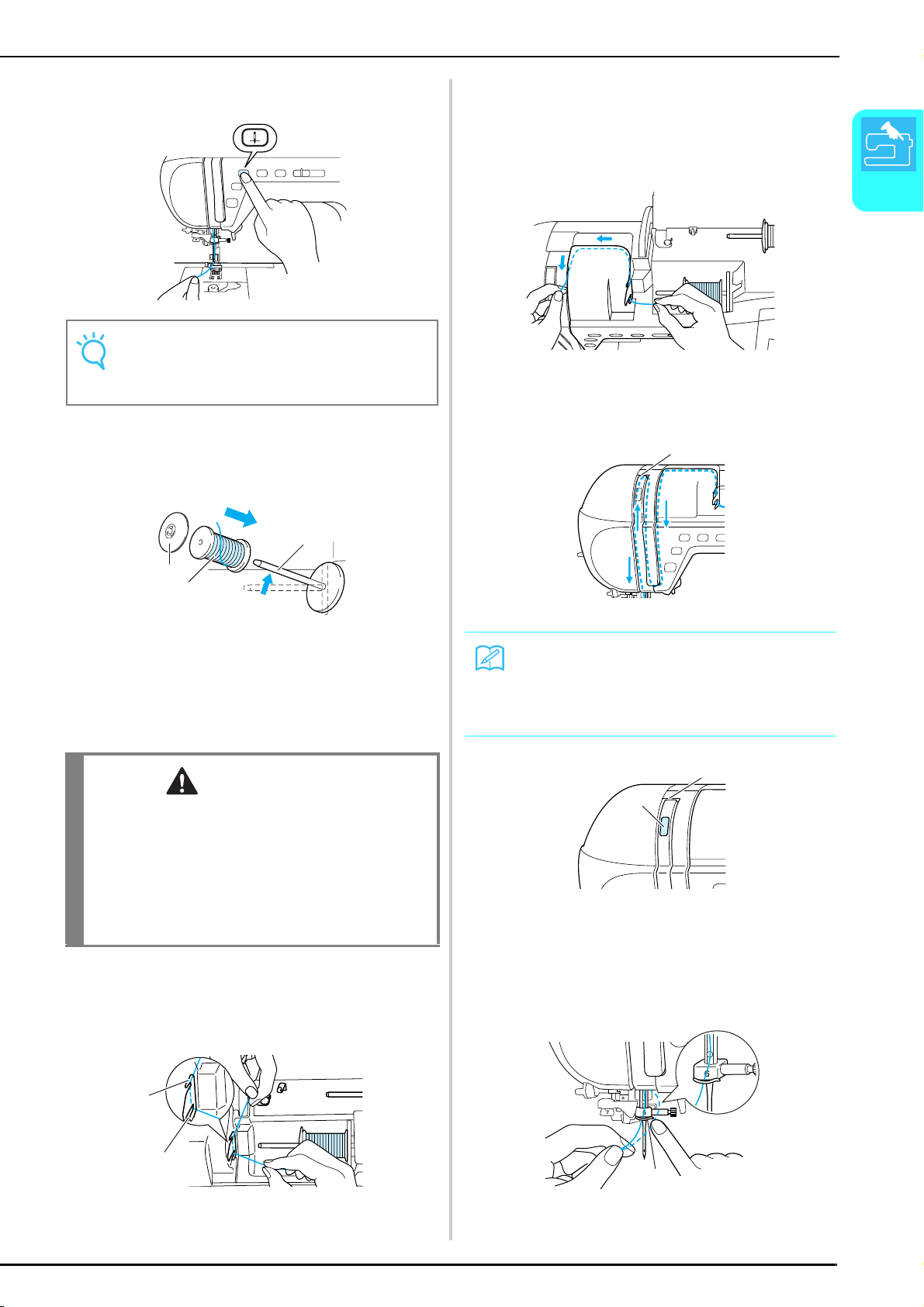
a
Press the “Presser Foot Lifter” button to raise
the presser foot.
b
Slide the bobbin cover latch to the right, and
then remove the bobbin cover.
a Bobbin cover
b Latch
c
Hold the bobbin with your right hand and hold
the end of the thread with your left hand.
d
Insert the wound bobbin into the bobbin case
so that the thread unwinds in the direction of
the arrow.
e
Lightly hold down the bobbin with your right
hand, and then, while slightly pulling the
thread with your left hand, guide it through
the groove.
f
After guiding the thread completely through
the groove, pull it toward you to cut it with
the cutter.
a Cutter
g
Attach the bobbin cover by inserting the tab
in the lower-left corner of the bobbin cover,
then lightly press down on the right side of
the cover until it snaps into place.
a Tab
Pulling Up the Bobbin Thread
There may be some sewing applications where you
may want to pull up the bobbin thread, for example,
when making gathers or with free-motion quilting.
Follow the procedure described below to pull up the
bobbin thread.
a
Follow steps a through d from the previous
section to insert the bobbin into the bobbin
case.
CAUTION
• Use a bobbin thread that has been correctly wound.
Otherwise, the needle may break or the thread
tension will be incorrect.
CAUTION
• Be sure to hold down the bobbin with your finger
and unwind the bobbin thread correctly. Otherwise,
the thread may break or the thread tension will be
incorrect.
a
b
Memo
Thread the upper thread before pulling up the bobbin
thread. For details, see “Upper Threading” on page 28.
a
a

LOWER/UPPER THREADING
28
b
Guide the bobbin thread through the groove,
following the arrow in the illustration.
c
While lightly holding the upper thread, press
the “Needle Position” button twice to lower,
then raise the needle.
d
Gently pull the upper thread to pull up the
bobbin thread.
→ A loop of the bobbin thread comes out from the hole
in the needle plate.
e
Pull out about 100 mm of the bobbin thread,
and then pass it under the presser foot toward
the rear of the machine, making it even with
the upper thread.
a Upper thread
b Bobbin thread
f
Attach the bobbin cover.
Upper Threading
This section describes how to thread the machine and
the needle. The machine is marked with numbers that
indicate the threading order.
a
Turn on the machine.
b
Press the “Presser Foot Lifter” button to raise
the presser foot.
→ The upper thread shutter opens so the machine can
be threaded.
a
Upper thread shutter
Note
• Do not cut the thread with the cutter.
• Do not attach the bobbin cover.
a
b
CAUTION
• Be sure to thread the machine properly. Improper
threading can cause the thread to tangle and break
the needle, leading to injury.
• When using accessories not included with this
machine, attach the accessory to the machine after
threading the machine.
Memo
This machine is equipped with an upper thread
shutter, allowing you to check that the upper threading
is performed correctly.
7
8
10
11
12,13
9
14,15
2,16
3
1
4, 5
6
a
LOWER/UPPER THREADING
Getting Ready
29
1
c
Press the “Needle Position” button to raise
the needle.
d
Pivot the spool pin so that it angles upward,
and then place the spool of thread on the
spool pin.
* Make sure that the thread unwinds from the front.
a Spool cap
b Thread spool
c Spool pin
e
Slide the spool cap as far as possible onto the
spool pin, and then return the spool pin to its
original position.
f
While holding the thread from the spool with
both hands, pull the thread through the lower
notch in the thread guide plate, then through
the upper notch.
a Lower notch in the thread guide plate
b Upper notch in the thread guide plate
g
While holding the thread from the spool in
your right hand, hold the end of the thread
with your left hand, and then guide the thread
through the groove, following the arrows in
the illustration.
h
Guide the thread down, up, then down
through the groove, as shown in the
illustration.
a Upper thread shutter
a Upper thread shutter
b Thread take-up lever check window
i
Pass the thread through the needle bar thread
guide (marked “6”).
* Hold the thread with both hands and guide it as shown in
the illustration.
a Needle bar thread guide
Note
If you try to thread the needle with the needle threader
lever without raising it, damage to the machine may
result.
CAUTION
• If the thread spool and/or spool cap are set
incorrectly, the thread may tangle on the spool pin
and cause the needle to break.
• Use the spool cap (large, medium, or small) that is
closest in size to the thread spool. If a spool cap
smaller than the thread spool is used, the thread may
become caught in the slit on the end of the spool and
cause the needle to break.
a
b
c
a
b
Memo
Look through the take-up lever check window to check
the position of the take-up lever. Before threading the
machine, make sure that the take-up lever is in the
raised position.
a
a
b
a
LOWER/UPPER THREADING
30
j
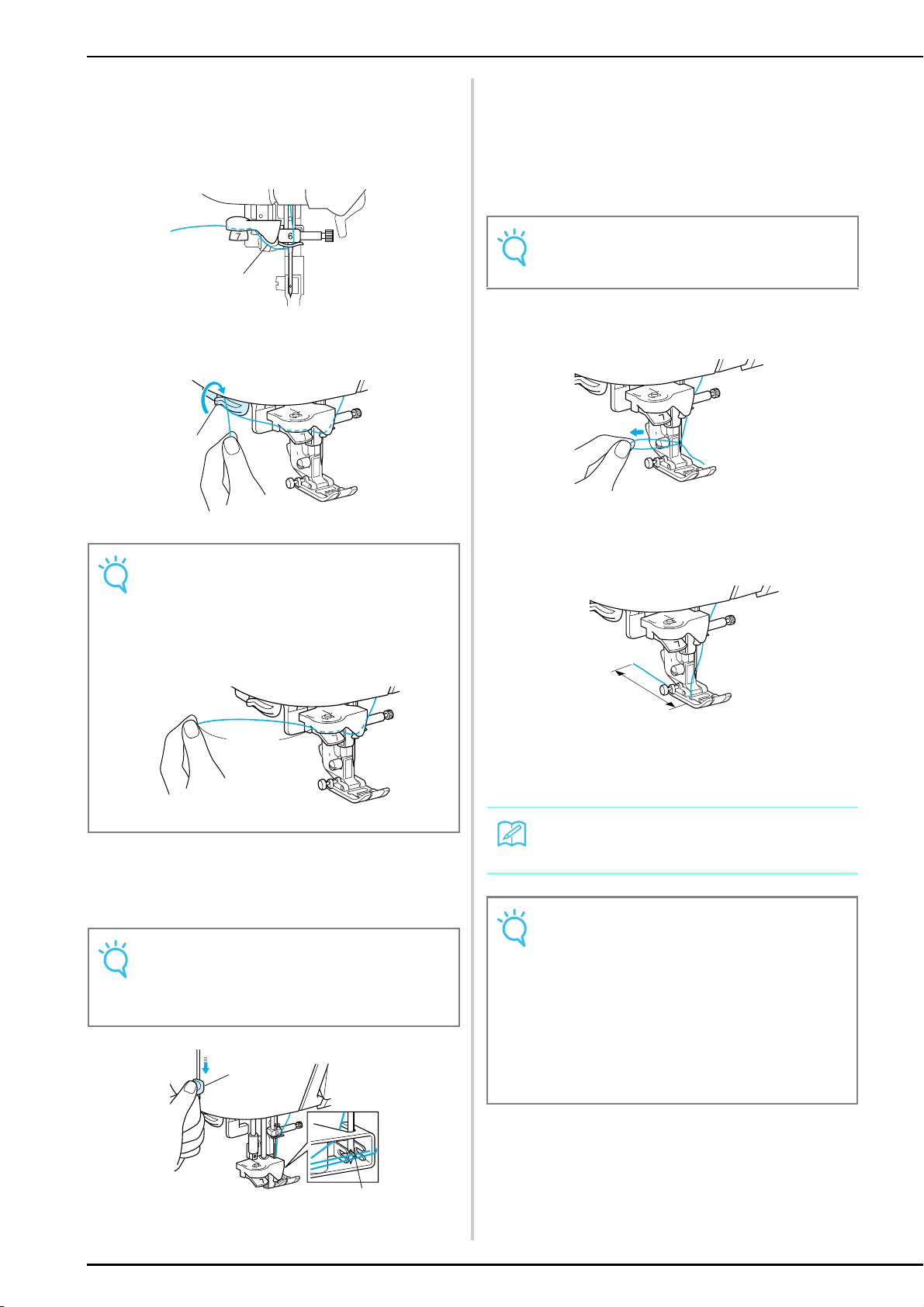
Pass the thread through the thread guide disks
(marked “7”).
* Make sure that the thread passes through the groove in the
thread guide.
* Make sure that the thread securely enters the thread guide
disks, otherwise the needle may not be threaded.
a Groove in thread guide
k
Pull the thread up through the thread cutter
to cut the thread, as shown in the illustration.
a Thread cutter
l
Lower the needle threader lever slowly until it
clicks.
* The hook is rotated and passes through the eye of the
needle.
a Hook
b Needle thread lever
m
Release the needle threader lever.
→ The thread passes through the eye of the needle.
n
Carefully pull the end of thread that was
passed through the eye of the needle.
* If a loop was formed in the thread passed through the eye
of the needle, carefully pull on the loop of thread through
to the back of the needle.
o
Pull out about 100 mm (approx. 3-4 inches) of
the thread, and then pass it under the presser
foot toward the rear of the machine.
a 100 mm
p
Press the “Presser Foot Lifter” button to lower
the presser foot before starting to sew.
Note
When using thread that quickly winds off the spool,
such as metallic thread, it may be difficult to thread the
needle if the thread is cut.
Therefore, instead of using the thread cutter, pull out
about 80 mm (approx. 3 inches) of thread after
passing it through the thread guide disks (marked “7”).
a 80 mm or more
Note
• If the needle threader lever is lowered quickly, the
needle may not be threaded.
• Make sure that no objects, such as the fabric, are
touching the hook.
a
a
a
a
b
Note
Do not pull the thread strongly. Otherwise, the needle
may bend or break.
Memo
This completes the upper threading procedure.
Note
• The needle threader can be used with home sewing
machine needles 75/11 through 100/16. For details
on appropriate needle and thread combinations, see
“Fabric/Thread/Needle Combinations” on page 36.
• If automatic needle threading could not be
completed correctly, repeat the procedure, starting
with the needle bar thread guide (marked “6”).
• Some needles cannot be threaded with the needle
threader. In this case, instead of using the needle
threader after passing the thread through the needle
bar thread guide (marked “6”), manually pass the
thread through the eye of the needle from the front.
a
LOWER/UPPER THREADING
Getting Ready
31
1
Using the Twin Needle
Using the twin needle, you can sew two parallel lines of
the same stitch. Although the same bobbin thread is
used, interesting patterns can be sewn by threading
each needle with a different color of thread. Both upper
threads should have the same thickness and quality.
The twin needle can only be used with patterns where
appears when they are selected. Check the
“STITCH SETTING CHART” at the end of this manual
for patterns that can be used with the twin needle.
a
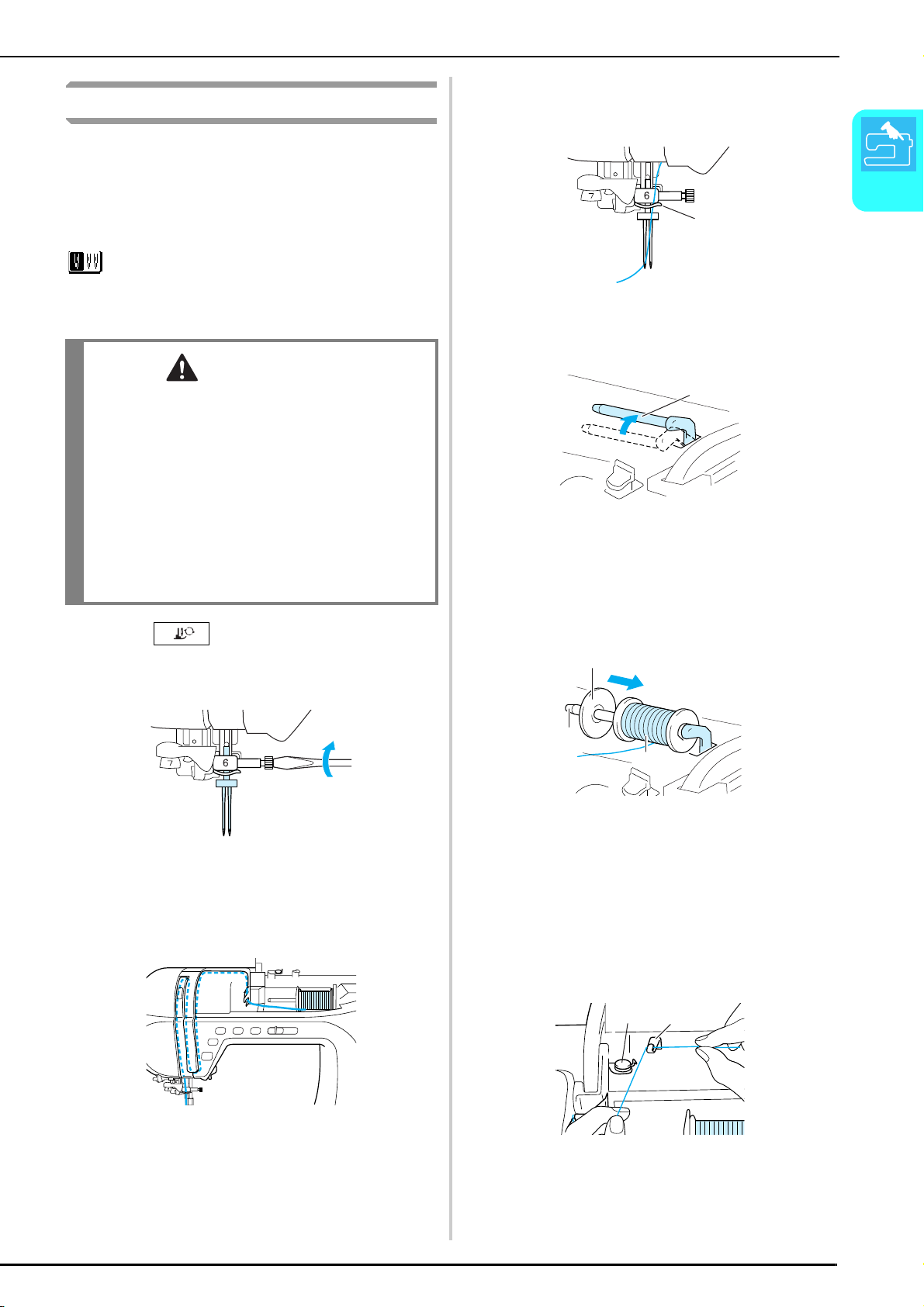
Press , and then install the twin
needle (see “CHANGING THE NEEDLE” on
page 34).
b
Thread the machine for the first needle
according to the procedure for threading a
single needle (see “Upper Threading” on page
28).
c
Pass the thread through the needle bar thread
guide, and then thread the needle on the left
side.
a Needle bar thread guide
d
Set the supplemental spool pin in the “up”
position.
a Supplemental spool pin
e
Place the additional spool of thread on the
supplemental spool pin so that the thread
unwinds from the front. Then, slide the spool
cap as far as possible onto the supplemental
spool pin to secure the thread spool.
a Spool cap
b Supplemental spool pin
c Thread spool
f
While holding the thread from the spool in
your right hand, hold the end of the thread
with your left hand, and then pass the thread
through the thread guide.
* Do not pass the thread through the bobbin winding thread
guide.
a Bobbin winding thread guide
b Thread guide
CAUTION
• Use only twin needles made for this machine (part
code X59296-151). Other needles could break,
resulting in damage.
• Be sure to set the twin needle mode when using the
twin needle. Using the twin needle while the
machine is in single needle mode could cause the
needle to break, resulting in damage.
• Do not sew with bent needles. The needle could
break and cause injury.
• When using the twin needle, be sure to use presser
foot “J”. In case bunched stitches may occur, use the
presser foot “N”.
a
a
a
b
c
a
b
LOWER/UPPER THREADING
32
g
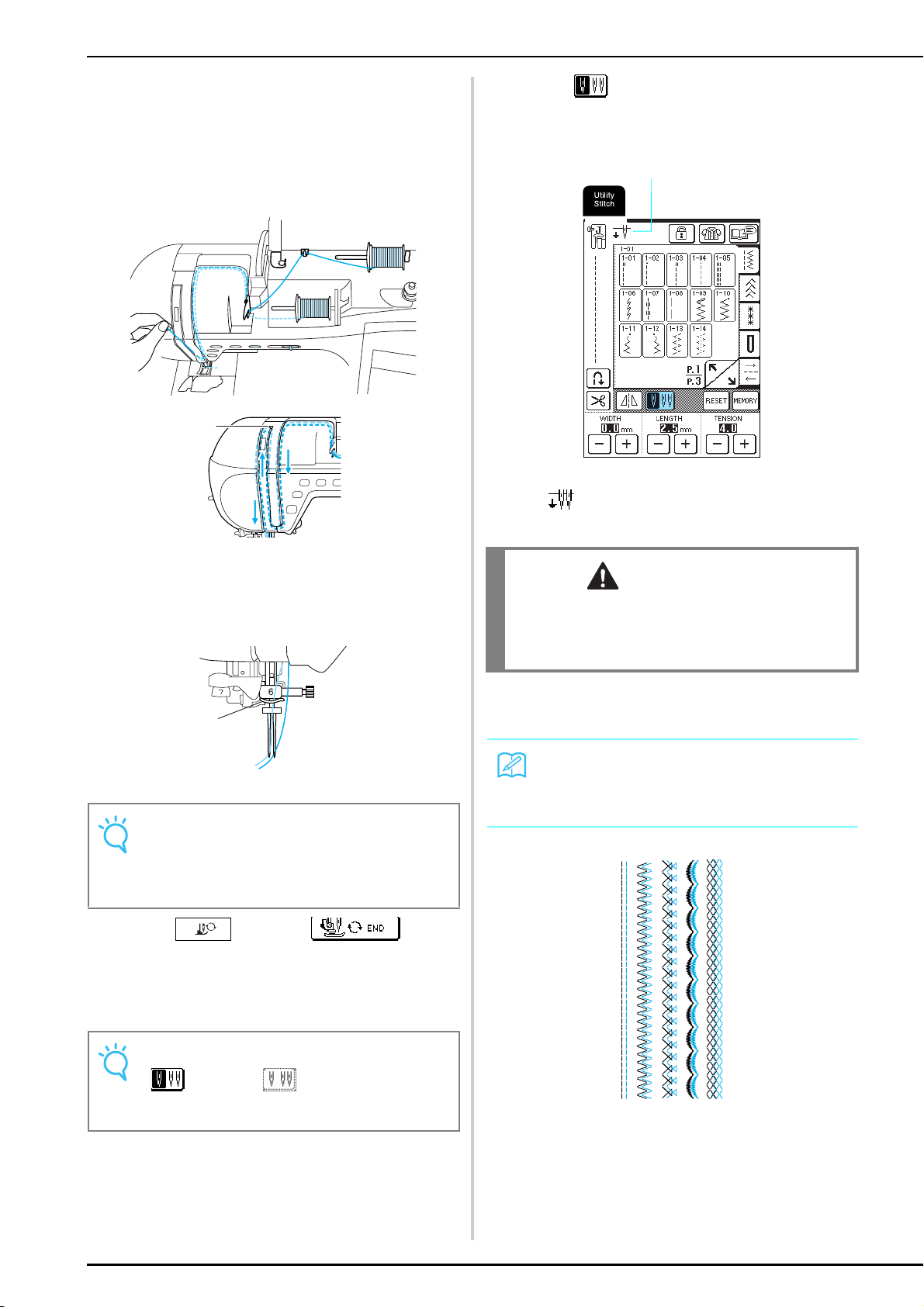
While holding the thread from the spool with
both hands, pull the thread through the lower
notch in the thread guide plate, then through
the upper notch. Hold the end of the thread
with your left hand, and then guide the thread
through the groove, following the arrows in
the illustration.
a Shutter
h
Without passing the thread through the
needle bar thread guide, thread the needle on
the right side.
a Needle bar thread guide
i
Press , or press in the
screen.
j
Select a stitch pattern.
k
Press to select the setting for twin
needle sewing.
* The stitch width becomes narrower than with single needle
sewing.
a Single needle/twin needle setting
→ appears.
l
Press the “Start/Stop” button after lowering
the presser foot lever.
Note
The needle threader cannot be used. Manually pass the
thread through the eye of the needle from the front. If the
needle threader is used, damage to the machine may
result.
Note
If appears as after a stitch is selected,
the twin needle cannot be used with the selected
stitch.
a
a
CAUTION
• Be sure to set the twin needle mode when using the
twin needle. Using the twin needle while the
machine is in single needle mode could cause the
needle to break, resulting in damage.
Memo
To change the sewing direction with the twin needle,
raise the needle from the fabric, raise the presser foot
lever, and then turn the fabric.
a
CHANGING THE PRESSER FOOT
Getting Ready
33
1
CHANGING THE PRESSER FOOT
Removing the Presser Foot
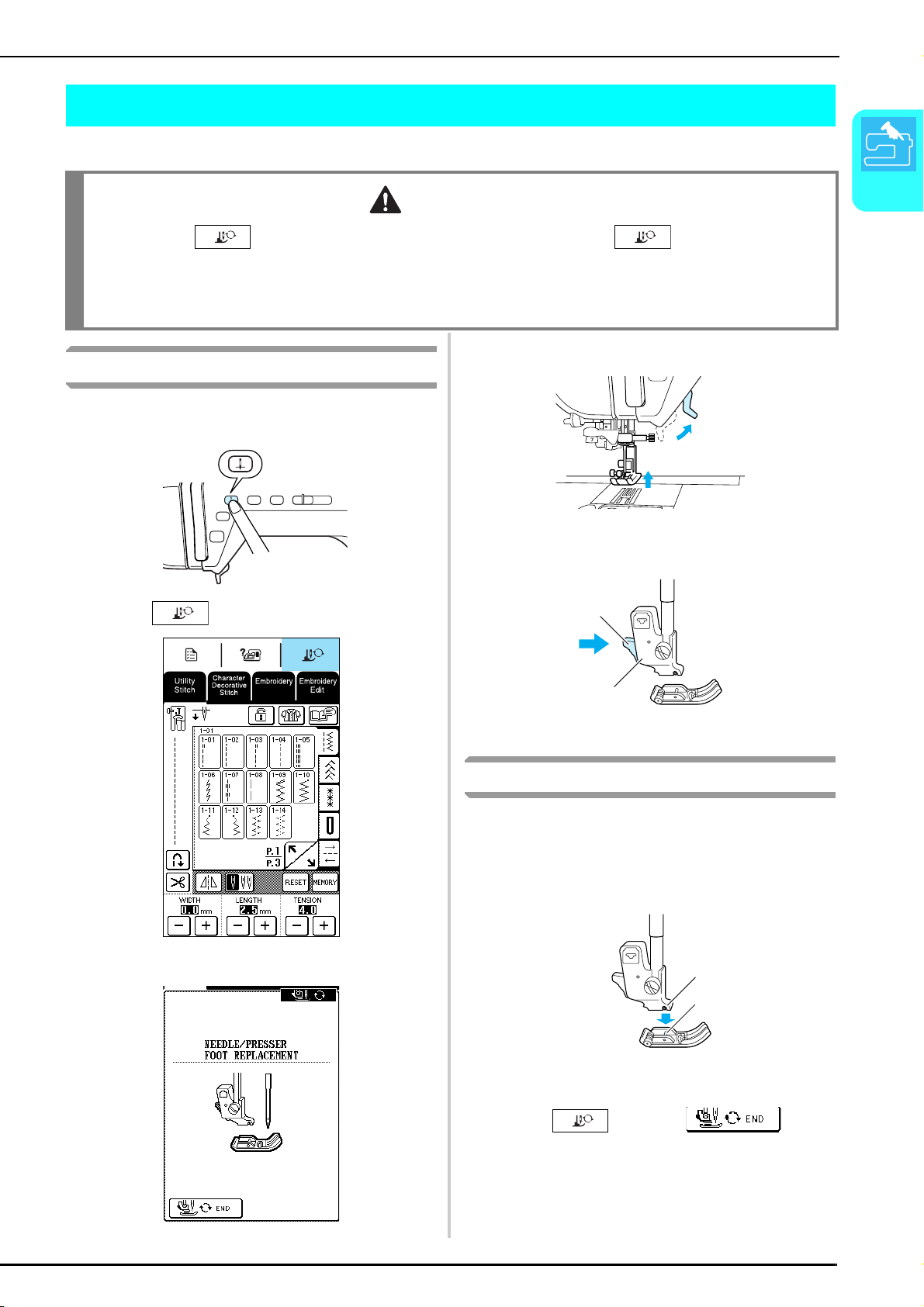
a
Press the “Needle Position” button to raise
the needle.
b
Press .
→ The screen changes, and all keys and operation
buttons are locked.
c
Raise the presser foot lever.
d
Press the black button on the presser foot
holder to remove the presser foot.
a Black button
b Presser foot holder
Attaching the Presser Foot
a
Place the presser foot under the holder,
aligning the pin on the foot with the notch in
the holder, and then lower the presser foot
lever so that the presser foot pin snaps into
the notch in the holder.
a Notch
b Pin
b
Press , or press in the
screen.
→ All keys and operation buttons are unlocked, and
the previous screen is displayed.
c
Raise the presser foot lever.
CAUTION
• Always press in the operation panel before changing the presser foot. If is not pressed and the
“Start/Stop” button or another button is pressed, the machine will start and may cause injury.
• Always use the correct presser foot for the selected stitch pattern. If the wrong presser foot is used, the needle may
strike the presser foot and bend or break, and may cause injury.
• Only use presser feet made for this machine. Using other presser feet may lead to accident or injury.
a
b
a
b
CHANGING THE NEEDLE
34
CHANGING THE NEEDLE
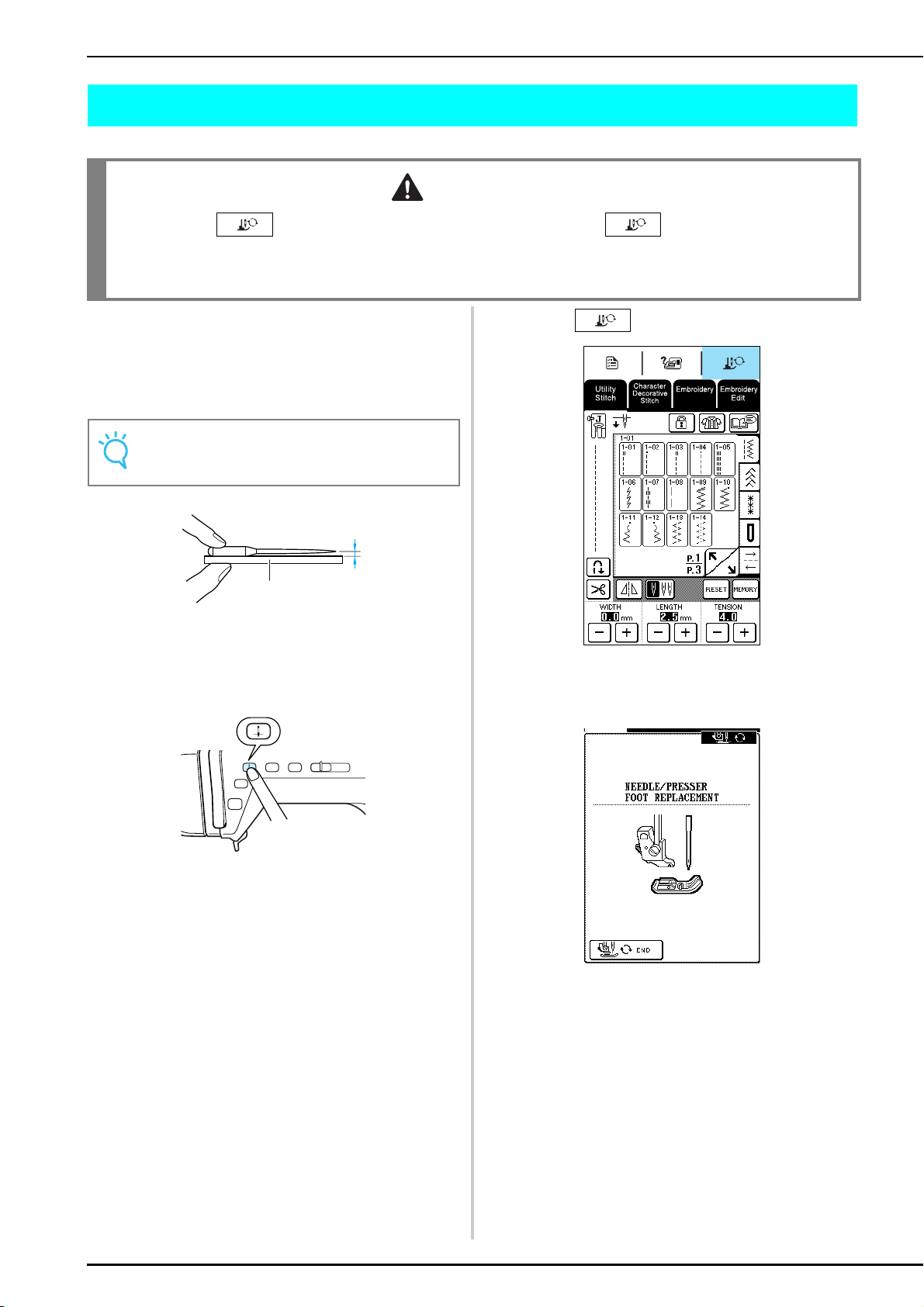
■ Checking the Needle
Place the flat side of the needle on a flat surface
(such as the needle plate or a piece of glass) and
check that the gap between the needle and the flat
surface is even.
a Even gap
b Flat surface (bobbin cover, glass, etc.)
a
Press the “Needle Position” button to raise
the needle.
b
Press .
→ The screen changes, and all keys and operation
buttons are locked.
CAUTION
• Always press in the operation panel before changing the needle. If is not pressed and the “Start/
Stop” button or another operation button is pressed accidentally, the machine will start and injury may result.
• Use only sewing machine needles made for home use. Other needles may bend or break and may cause injury.
• Never sew with a bent needle. A bent needle will easily break and may cause injury.
Note
Never use bent or blunt needles.
a
b
CHANGING THE NEEDLE
Getting Ready
35
1
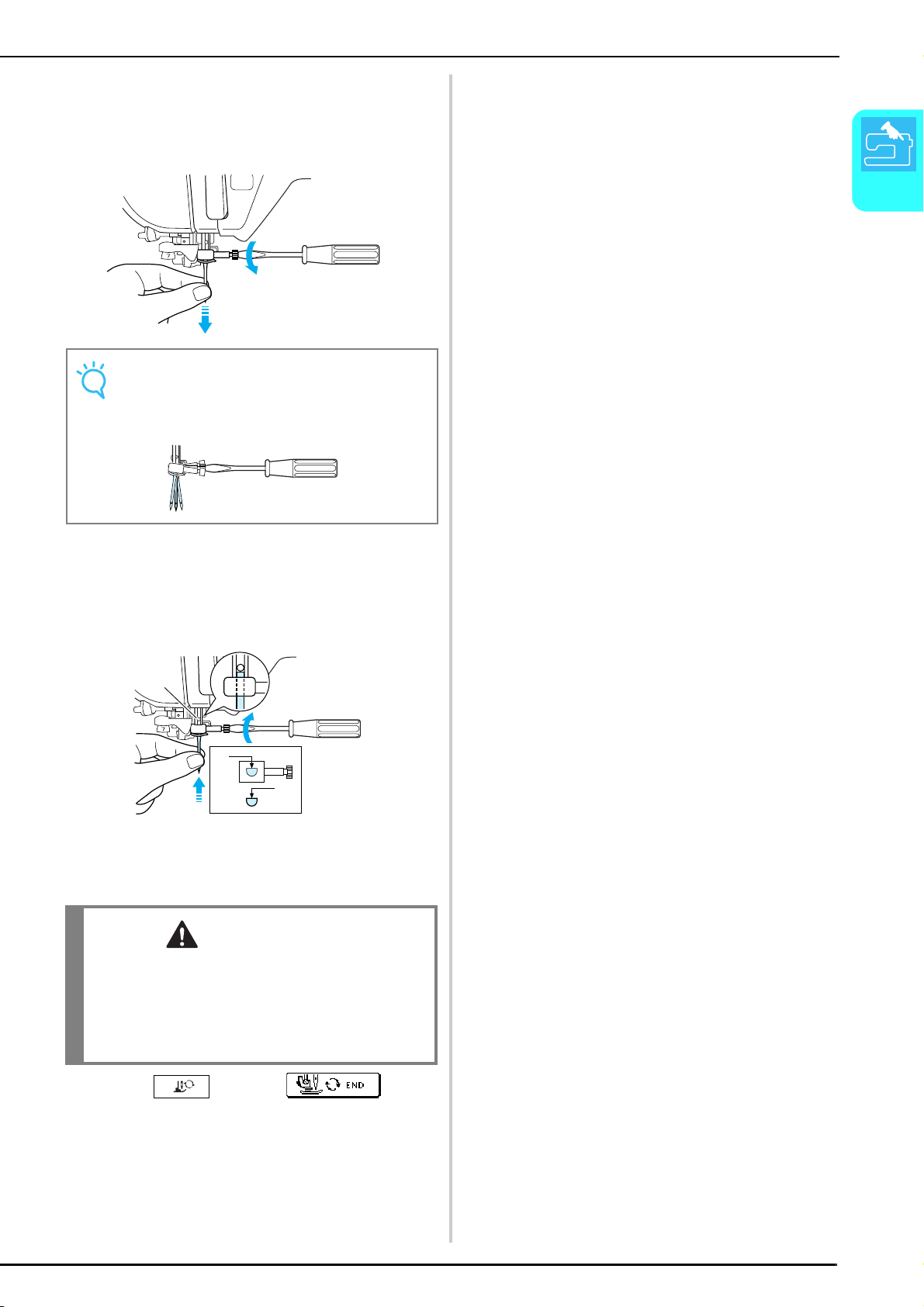
c
Use the included screwdriver to turn the
needle clamp screw toward the front of the
machine to loosen it, and then remove the
needle.
d
With the flat side of the needle facing the
back, insert the new needle until it touches
the needle stopper. Use the screwdriver to
securely tighten the needle clamp screw.
a Needle stopper
b Hole for setting the needle
c Flat side of needle
e
Press , or press in the
screen.
→ All keys and operation buttons are unlocked, and
the previous screen is displayed.
Note
Do not apply extreme force when loosening or
tightening the needle clamp screw, otherwise damage
to the machine may result.
CAUTION
• Be sure to push in the needle until it touches the
stopper, and securely tighten the needle clamp
screw with a screwdriver. If the needle is not
completely inserted or the needle clamp screw is
loose, the needle may break or the machine may be
damaged.
a
b
c
CHANGING THE NEEDLE
36
■ About the Needle
The sewing machine needle is probably the most important part of the sewing machine. Choosing the proper
needle for your sewing project will result in a beautiful finish and fewer problems. Below are some things to keep
in mind about needles.
• The smaller the needle number, the finer the needle. As the numbers increase, the needles get thicker.
• Use fine needles with lightweight fabrics, and thicker needles with heavyweight fabrics.
• To avoid skipped stitches, use ball point needle (gold colored) 90/14 with stretch fabrics.
• To avoid skipped stitches, use ball point needle (gold colored) 90/14 when sewing character or decorative
stitches.
• Use needle 75/11 for embroidery. Ball point needles (gold colored) 90/14 are not recommended for
embroidery, as they may bend or break, causing injury.
• It is recommended that a 90/14 needle should be used when embroidering on heavyweight fabrics or
stabilizing products (for example, denim, puffy foam, etc.). A 75/11 needle may bend or break, which could
result in injury.
• A home sewing machine needle 75/11 is inserted in the sewing machine.
■ Fabric/Thread/Needle Combinations
The following table provides information concerning the appropriate thread and needle for various fabrics.
Please refer to this table when selecting a thread and needle for the fabric you wish to use.
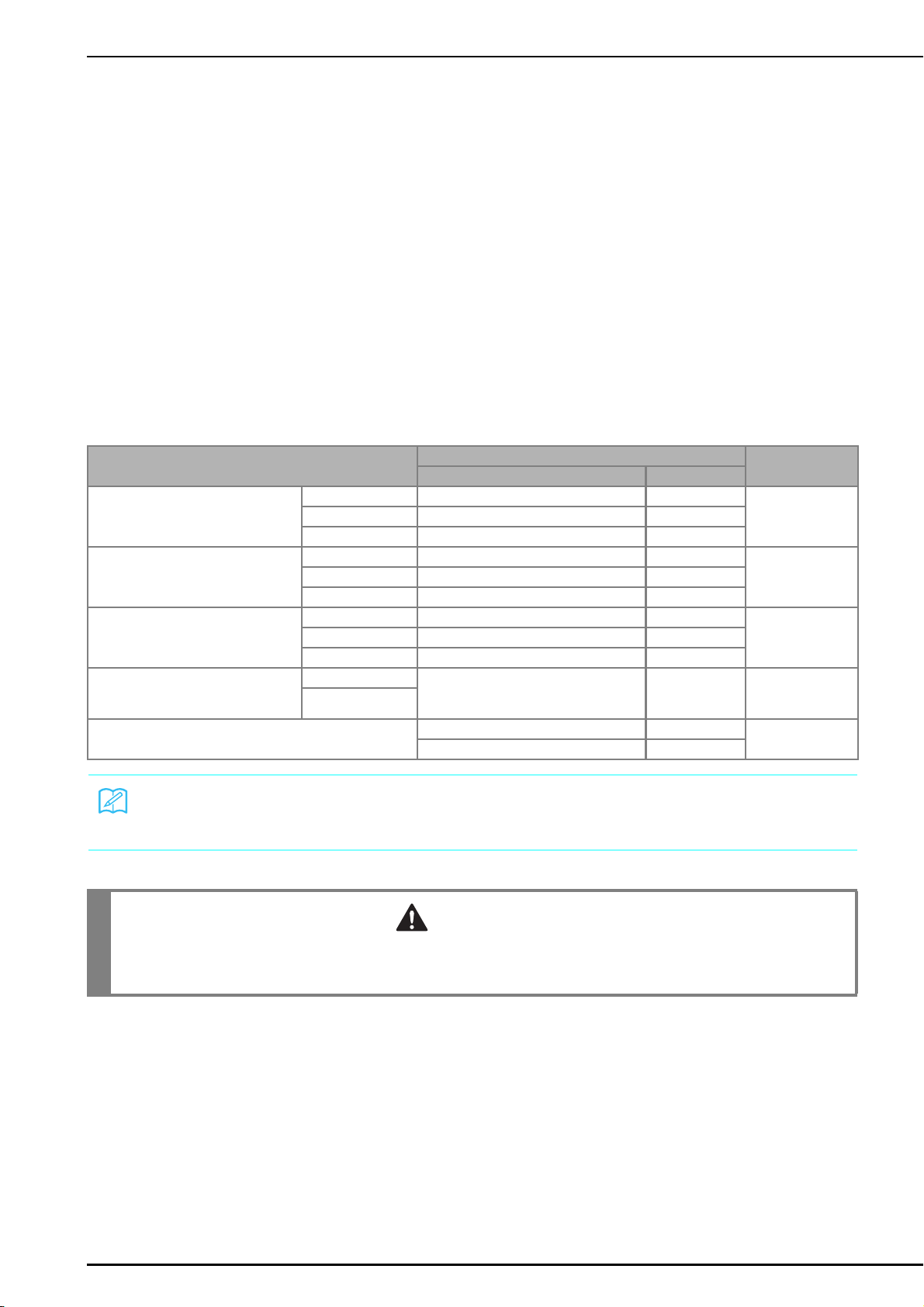
Fabric Thread Size of needle
Type Size
Medium weight fabric Broadcloth Cotton 60 - 80 75/11 - 90/14
Taffeta Synthetic mercerized 60 - 80
Flannel, Gabardine Silk or silk finished 50
Lightweight fabric Lawn, Batiste Cotton 60 - 80 65/9 - 75/11
Georgette Synthetic mercerized 60 - 80
Challis, Satin Silk 50
Heavyweight fabric Denim Cotton 30 - 50 90/14 - 100/16
Corduroy Synthetic mercerized 50
Tweed Silk 50
Stretch fabric Jersey Thread for knits 50 - 60 Ball point needle
(gold colored)
75/11 - 90/14
Tr ico t
For top stitching Synthetic mercerized 30 90/14 - 100/16
Silk 30
Memo
For transparent nylon thread, always use needle 90/14 - 100/16.
The same thread is usually used for the bobbin thread and upper threading.
CAUTION
• Be sure to follow the needle, thread, and fabric combinations listed in the table. Using an improper combination,
especially a heavyweight fabric (i.e., denim) with a small needle (i.e., 65/9 - 75/11), may cause the needle to bend or
break, and lead to injury. Also, the seam may be uneven, the fabric may pucker, or the machine may skip stitches.

Chapter 2
Sewing Basics
SEWING ..............................................................................................38
Sewing a Stitch........................................................................................................38
■ Using the Foot Controller................................................................................................39
■ Using the Knee Lifter.......................................................................................................40
Sewing Reinforcement Stitches ...............................................................................40
Sewing Curves.........................................................................................................40
Changing Sewing Direction.....................................................................................40
■ Sewing a Seam Allowance of 0.5 cm or Less ...................................................................40
Sewing Heavyweight Fabric ....................................................................................41
■ If the Fabric Does Not Fit Under the Presser Foot...........................................................41
■ If the Fabric Does Not Feed ............................................................................................41
Sewing Lightweight Fabric ......................................................................................41
ADJUSTING STITCH SETTINGS ..........................................................42
Adjusting the Stitch Width ......................................................................................42
Adjusting the Stitch Length .....................................................................................42
Adjusting the Thread Tension..................................................................................43
■ Correct Thread Tension...................................................................................................43
■ Upper Thread Is Too Tight ..............................................................................................43
■ Upper Thread Is Too Loose .............................................................................................43
USEFUL FUNCTIONS..........................................................................43
Automatic Reinforcement Stitching ........................................................................43
Automatic Thread Cutting.......................................................................................44
Locking the Screen ..................................................................................................45
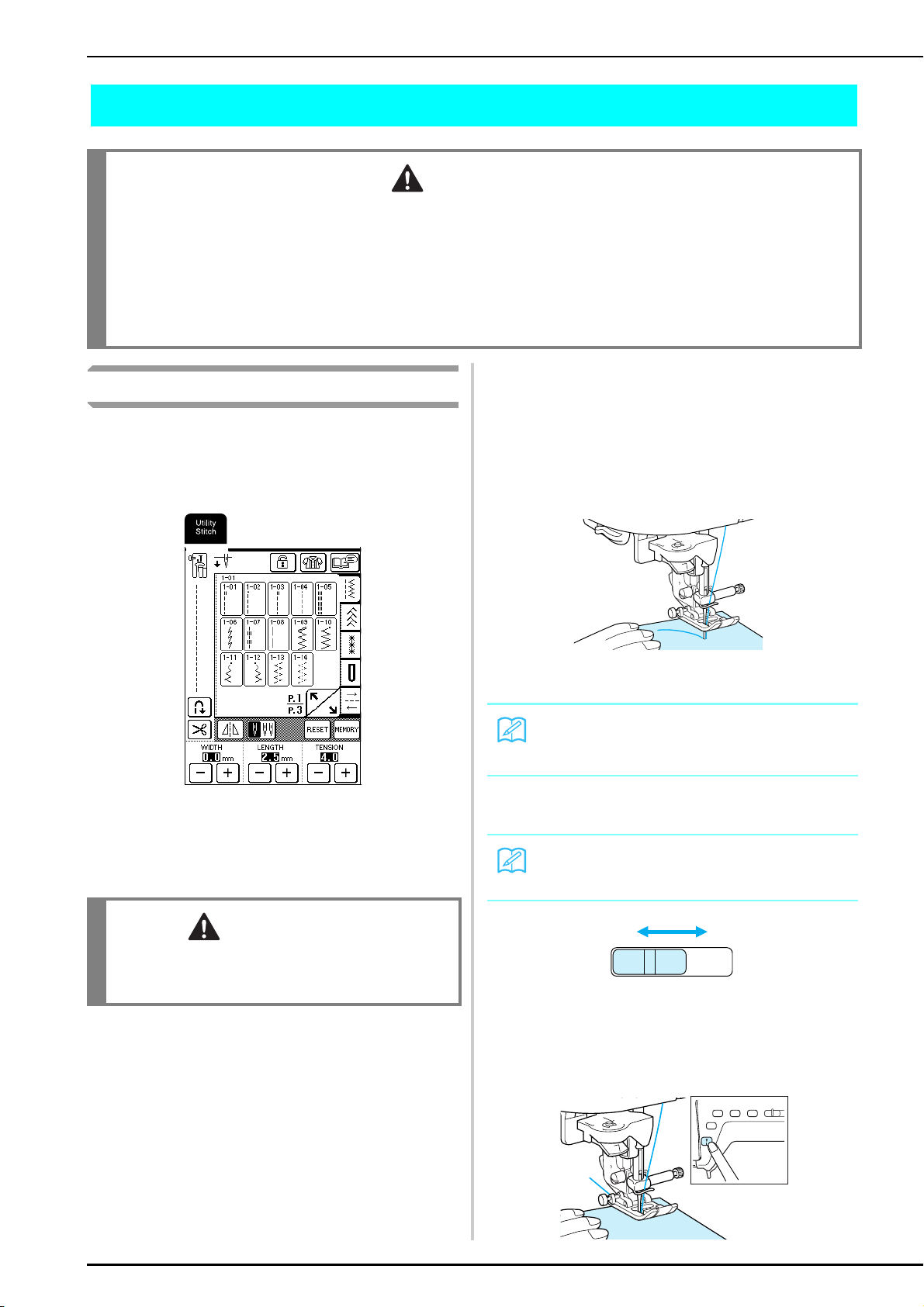
SEWING
38
SEWING
Sewing a Stitch
a
Turn on the machine, and then press the
“Needle Position” button to raise the needle.
b
Select a stitch pattern.
→ The symbol for the correct presser foot appears in
the upper-left corner of the LCD.
c
Install the presser foot (see “CHANGING THE
PRESSER FOOT” on page 33).
d
Place the fabric under the presser foot, hold
the fabric and thread ends with your left
hand, and then turn the handwheel to lower
the needle into the fabric at the starting point
of the stitching.
* The black button on the left side of presser foot “J” should
be pressed only if the fabric does not feed or when sewing
thick seams. Normally, you can sew without pressing the
black button.
e
Lower the presser foot lever.
f
Slide the sewing speed controller to adjust the
sewing speed.
a Slow
b Fast
g
Lightly place your hands on the fabric to
guide it, and then press the “Start/Stop”
button to start sewing.
CAUTION
• To avoid injury, pay special attention to the needle while the machine is in operation. Keep your hands away from
moving parts while the machine is in operation.
• Do not stretch or pull the fabric during sewing. Doing so may lead to injury.
• Do not use bent or broken needles. Doing so may lead to injury.
• Take care that the needle does not strike basting pins or other objects during sewing. Otherwise, the needle may break
and cause injury.
• If stitches become bunched, lengthen the stitch length setting before continuing sewing. Otherwise, the needle may
break and cause injury.
CAUTION
• Always use the correct presser foot. If the wrong
presser foot is used, the needle may strike the presser
foot and bend or break, possibly resulting in injury.
Memo
You can start sewing without pulling up the bobbin
thread.
Memo
The sewing speed can also be adjusted during sewing.
ab
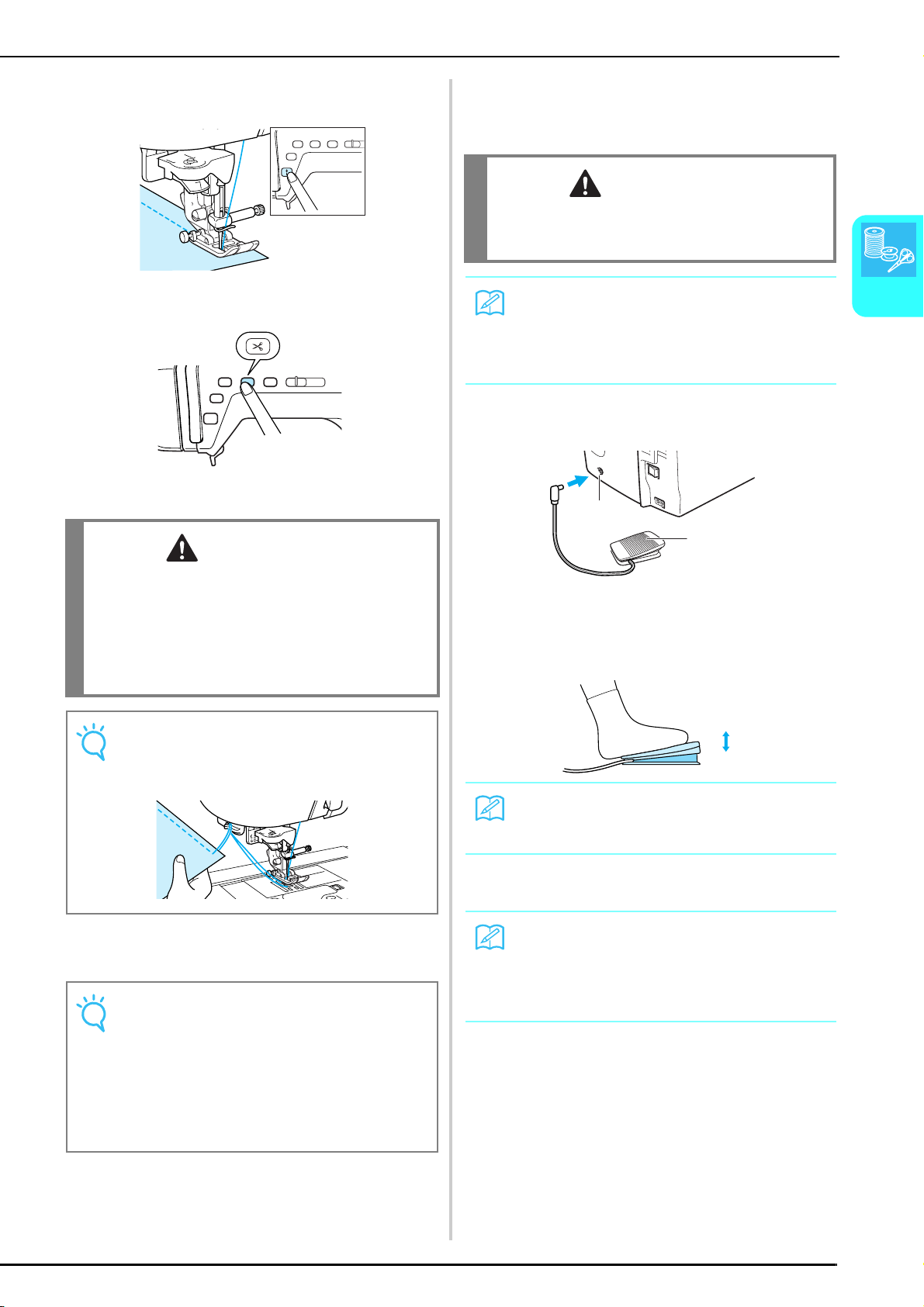
SEWING
Sewing Basics
39
2
h
To stop sewing, press the “Start/Stop” button
again.
i
Press the “Thread Cutter” button to trim the
threads.
→ The needle automatically stops in the raised
position.
j
When the needle has stopped moving, raise
the presser foot and remove the fabric.
■ Using the Foot Controller
You can also use the foot controller to start and stop
sewing.
a
Insert the foot controller plug into its jack on
the machine.
a Foot controller
b Foot controller jack
b
Slowly press the foot controller to start
sewing.
c
Release the foot controller to stop the
machine.
CAUTION
• Do not press the “Thread Cutter” button after the
threads have been cut. Doing so could tangle the
thread or break the needle and damage the machine.
• Do not press the “Thread Cutter” button when there
is no fabric set in the machine or during machine
operation. The thread may tangle, possibly resulting
in damage.
Note
When cutting thread thicker than #30, nylon thread or
other decorative threads, use the thread cutter on the
side of the machine.
Note
This machine is equipped with a bobbin thread sensor
that warns you when the bobbin thread is almost
empty. When the bobbin thread is nearly empty, the
machine stops automatically and a message appears
in the screen. When this message appears, change
the bobbin with one full of thread. However, if the
“Start/Stop” button is pressed, a few stitches can be
sewn.
CAUTION
• Do not allow fabric pieces and dust to collect in the
foot controller. Doing so could cause a fire or an
electric shock.
Memo
• When the foot controller is being used, the “Start/
Stop” button has no effect on sewing.
• The foot controller cannot be used when
embroidering.
Memo
The speed set using the sewing speed controller is the
foot controller’s maximum sewing speed.
Memo
(For U.S.A. only)
Foot controller: Model T
This foot controller can be used with model NV1500D/
NV1500.
b
a
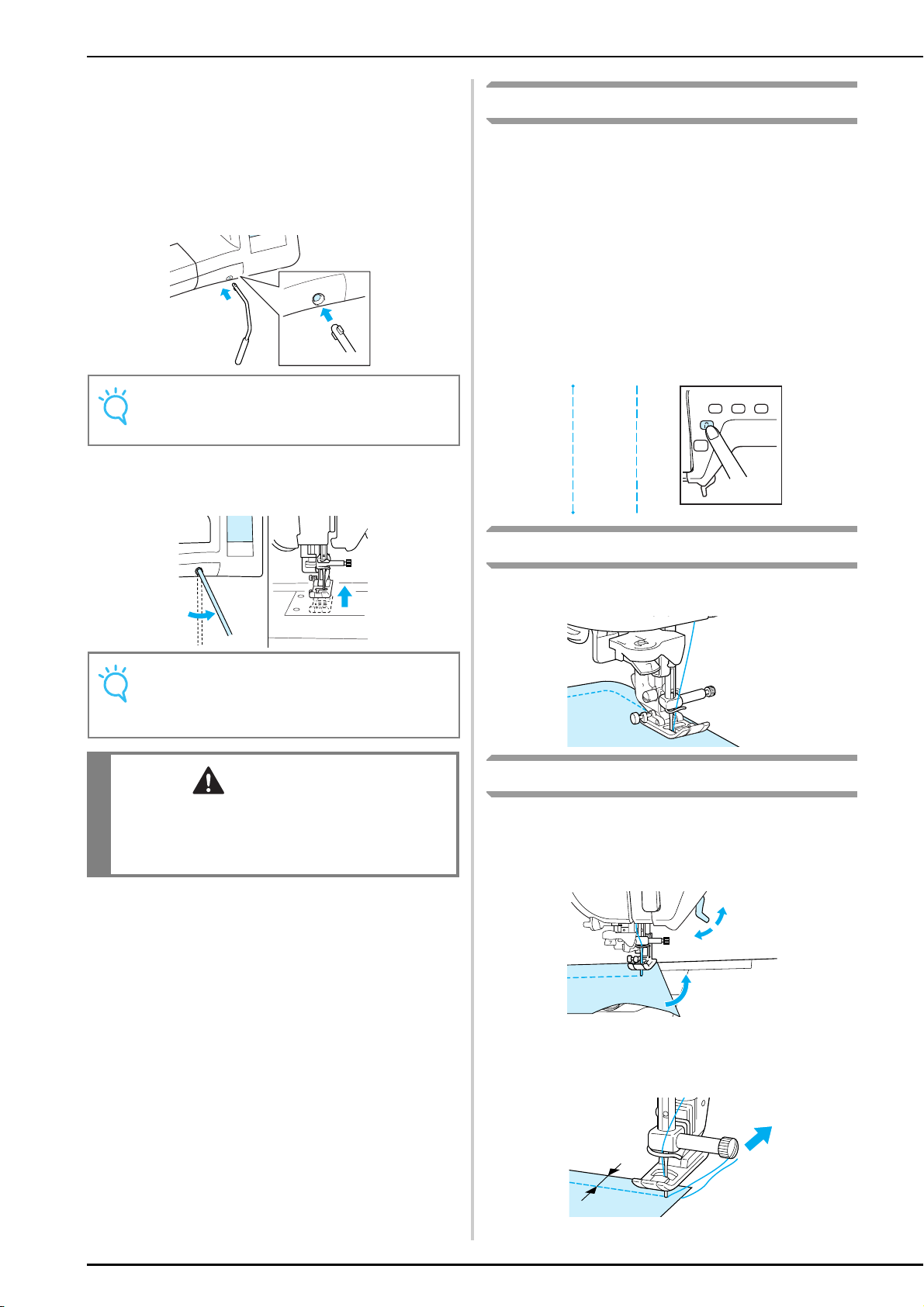
SEWING
40
■ Using the Knee Lifter
Using the knee lifter, you can raise and lower the
presser foot with your knee, leaving both hands free
to handle the fabric.
a
Align the tabs on the knee lifter with the
notches in the jack, and then insert the knee
lifter as far as possible.
b
Use your knee to move the knee lifter to the
right in order to raise the presser foot. Release
the knee lifter to lower the presser foot.
Sewing Reinforcement Stitches
Generally stitching must be secured at the beginning
and end with reverse/reinforcement stitches. Press the
“Reverse/Reinforcement Stitch” button to sew reverse/
reinforcement stitches.
Depending on the selected stitch pattern, reverse or
reinforcement stitches are sewn while the “Reverse/
Reinforcement Stitch” button is kept pressed. With
reinforcement stitches, 3 to 5 stitches are sewn at the
same place. With reverse stitches, the stitching is sewn
at a low speed in the opposite direction.
In addition, this machine can be set to sew
reinforcement stitches (or reverse stitches)
automatically. For details, see “Automatic
Reinforcement Stitching” on page 43.
Sewing Curves
Sew slowly while keeping the seam parallel with the
fabric edge as you guide the fabric around the curve.
Changing Sewing Direction
Stop the machine with the needle in the fabric at the
point where you want to change the sewing direction,
and then raise the presser foot lever. Using the needle
as a pivot, turn the fabric, lower the presser foot lever,
and then continue sewing.
■
Sewing a Seam Allowance of 0.5 cm or Less
Baste the corner before sewing, and then, after
changing the sewing direction at the corner, pull the
basting thread toward the back while sewing.
a 0.5 cm
Note
If the knee lifter is not pushed into the mounting slot as
far as possible, it may come out during use.
Note
When the presser foot is in raised position, move the
knee lifter further to the right for the presser foot to
lower.
CAUTION
• Be sure to keep your knee away from the knee lifter
during sewing. If the knee lifter is pushed during
machine operation, the needle may break or the
thread tension may loosen.
a
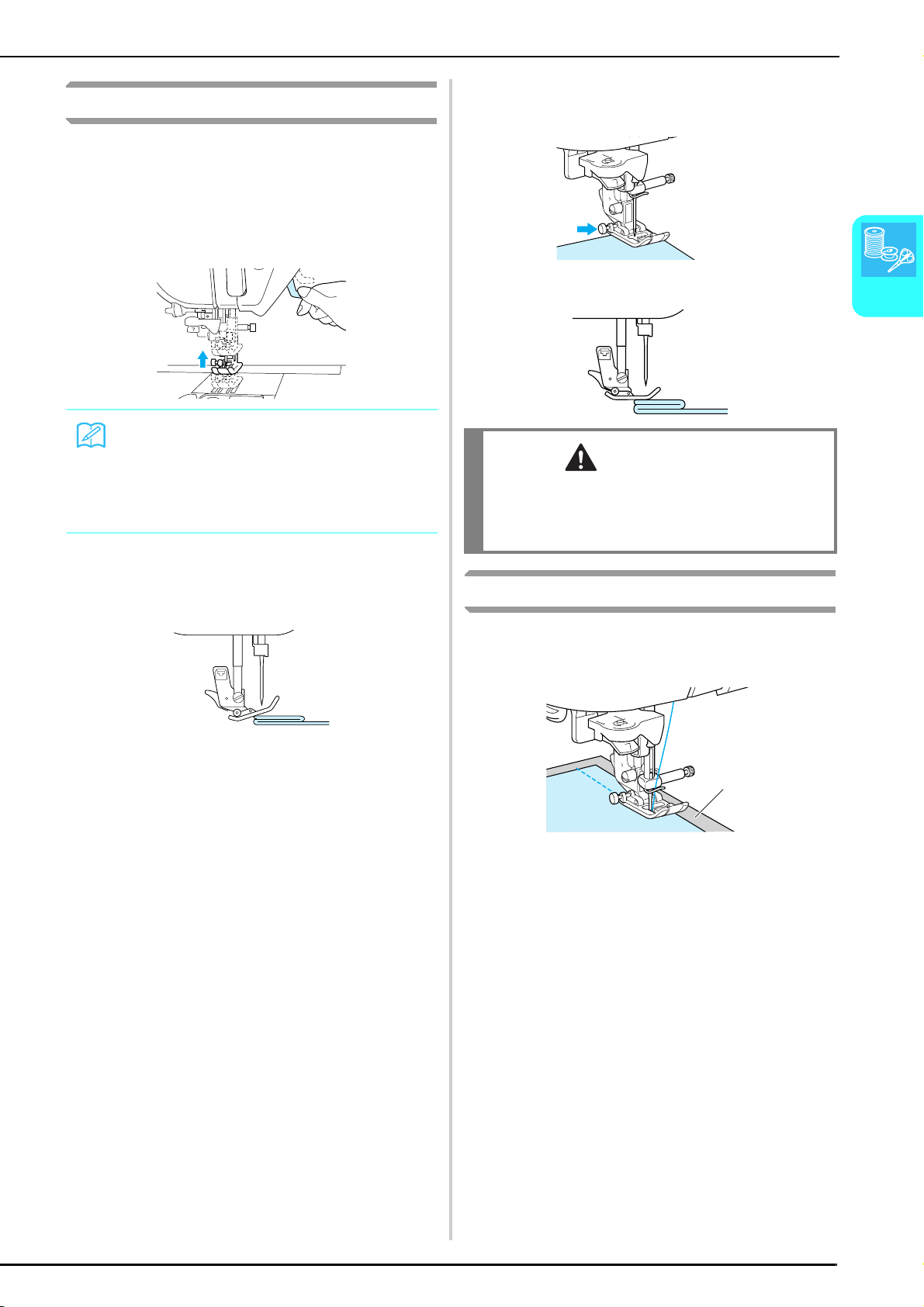
SEWING
Sewing Basics
41
2
Sewing Heavyweight Fabric
■ If the Fabric Does Not Fit Under the Presser
Foot
The presser foot lever can be raised to two different
positions. If the fabric is too thick to fit under the
presser foot, raise the presser foot lever to its highest
position so that the fabric can be placed under the
presser foot.
■ If the Fabric Does Not Feed
If the fabric does not feed when starting to sew or
when sewing thick seams, press the black button on
the left side of presser foot “J”.
a
Raise the presser foot lever.
b
While keeping the black button on the left
side of presser foot “J” pressed in, lower the
presser foot lever.
* The presser foot remains level, enabling the fabric to be
fed. Once the trouble spot has been sewn, the presser foot
will return to its normal operation.
Sewing Lightweight Fabric
Iron the fabric with starch or place thin paper or tear
away embroidery stabilizer under thin fabrics to make
sewing easier. Gently tear off the paper or the stabilizer
after sewing.
a Thin paper
Memo
If the fabric cannot be smoothly placed under the
presser foot, select the presser foot height higher on
the setting screen (see page 20).
The default is 7.5 mm from the needle plate when the
presser foot is raised.
CAUTION
• Do not forcefully push fabrics more than
6 mm (approx. 1/4 inch) thick through the sewing
machine. This may cause the needle to break and
cause injury.
a
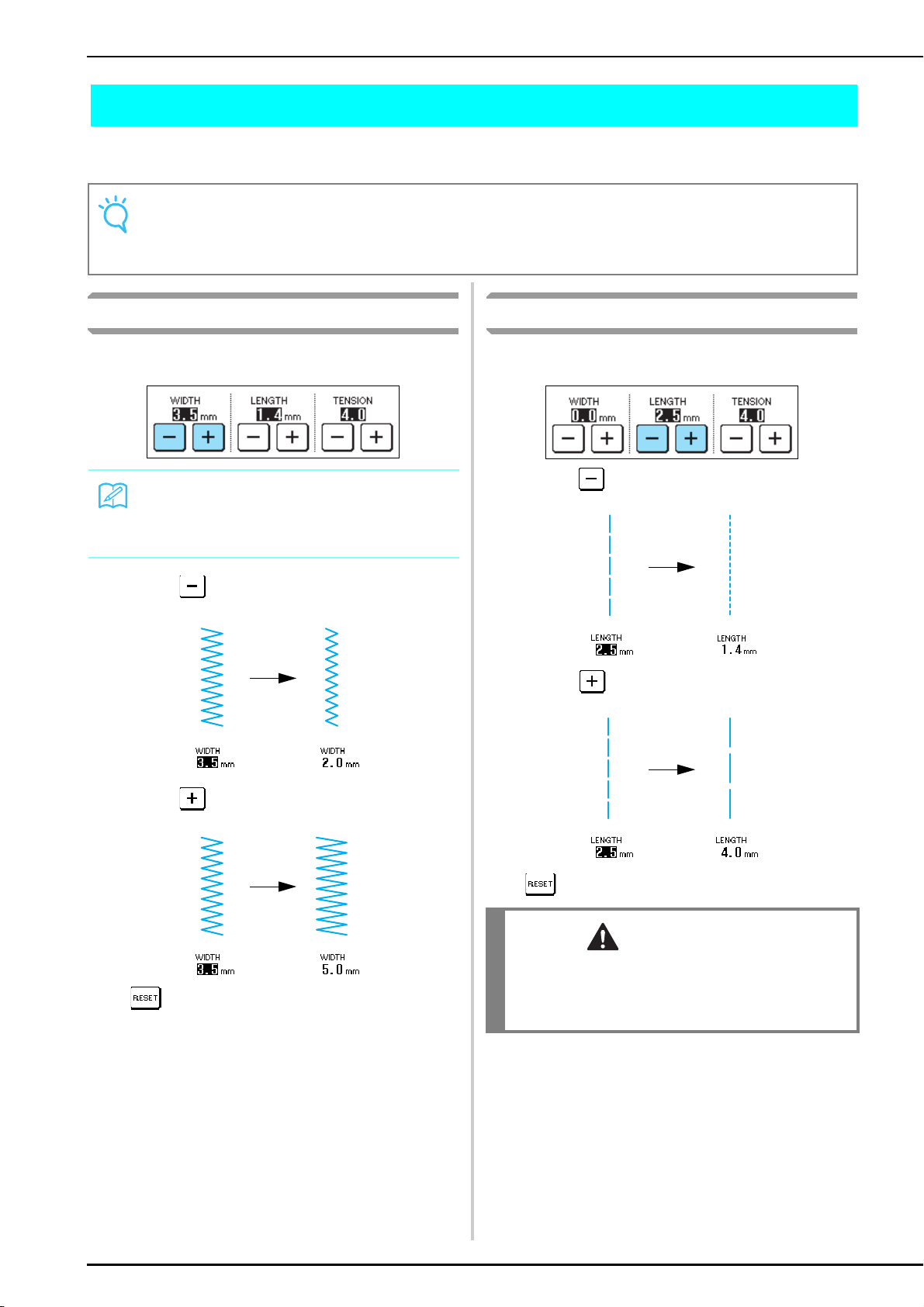
ADJUSTING STITCH SETTINGS
42
ADJUSTING STITCH SETTINGS
When a stitch is selected, the most appropriate stitch width, stitch length, and upper thread tension are
automatically set. However, if needed, you can change any of the settings as described in this section.
Adjusting the Stitch Width
The stitch width (zigzag width) can be adjusted to make
the stitch wider or narrower.
Each press of makes the zigzag stitch narrower.
Each press of makes the zigzag stitch wider.
Press to return the setting to its default.
Adjusting the Stitch Length
The stitch length can be adjusted to make the stitch
coarser or finer.
Each press of makes the stitch finer (shorter).
Each press of makes the stitch coarser (longer).
Press to return the setting to its default.
Note
• Settings for some stitches cannot be changed (See the “STITCH SETTING CHART” at the end of this manual).
• If a stitch setting is changed, but not saved, the stitch setting returns to its default when the machine is turned off or a
different stitch is selected.
Memo
If the foot controller is connected, the sewing speed
controller can be used to adjust the zigzag width (see
page 64).
CAUTION
• If the stitches get bunched together, lengthen the
stitch length and continue sewing. Do not continue
sewing without lengthening the stitch length.
Otherwise, the needle may break and cause injury.
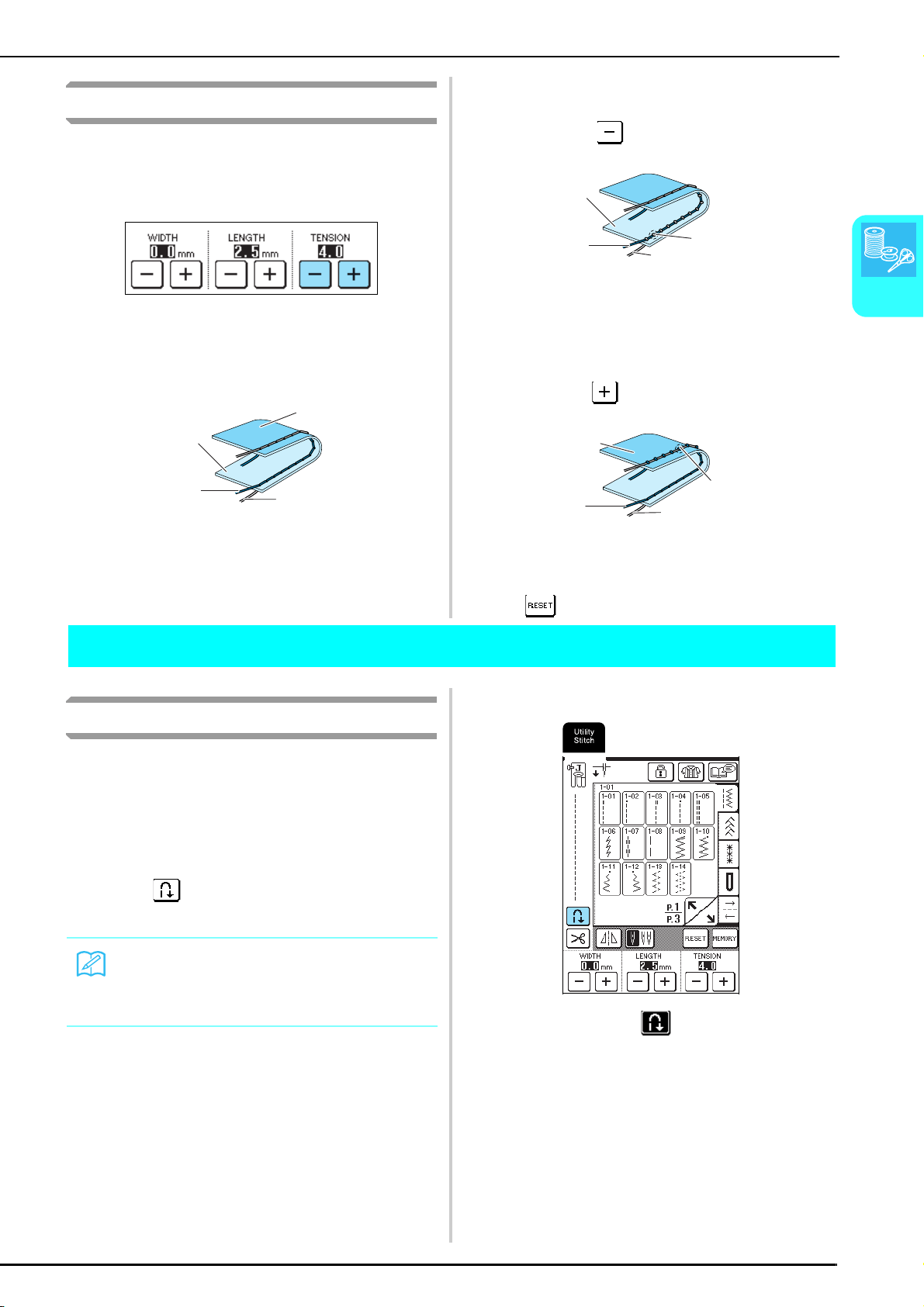
USEFUL FUNCTIONS
Sewing Basics
43
2
Adjusting the Thread Tension
The default thread tension, which is automatically set,
can normally be used regardless of the type of thread or
fabric being sewn. However, with some fabric and
thread combinations, the thread tension may need to be
adjusted.
■ Correct Thread Tension
The upper thread and the bobbin thread should
cross near the center of the fabric. If the thread
tension is incorrectly set, the seam may have a poor
finish or the fabric may pucker.
a Wrong side of fabric
b Surface of fabric
c Upper thread
d Bobbin thread
■ Upper Thread Is Too Tight
If the bobbin thread can be seen on the surface of
the fabric, press . Each press of the key reduces
the setting and makes the thread tension more loose.
a Surface of fabric
b Upper thread
c Bobbin thread
d Locks appear on the surface of the fabric.
■ Upper Thread Is Too Loose
If the upper thread can be seen on the wrong side of
the fabric, press . Each press of the key increases
the setting and makes the thread tension tighter.
a Wrong side of fabric
b Locks appear on the wrong side of the fabric.
c Upper thread
d Bobbin thread
Press to return the setting to its default.
USEFUL FUNCTIONS
Automatic Reinforcement Stitching
After selecting a stitch pattern, turn on the automatic
reinforcement stitching setting before sewing, and the
machine will automatically sew reinforcement stitches
(or reverse stitches, depending on the stitch pattern) at
the beginning and end of sewing.
a
Select a stitch pattern.
b
Press to select the automatic
reinforcement/reverse stitching setting.
→ The key appears as .
a
b
c
d
a
b
c
d
a
b
c
d
Memo
The automatic reinforcement/reverse stitching setting
is already selected with some stitches, such as
buttonholes and bar tacks.
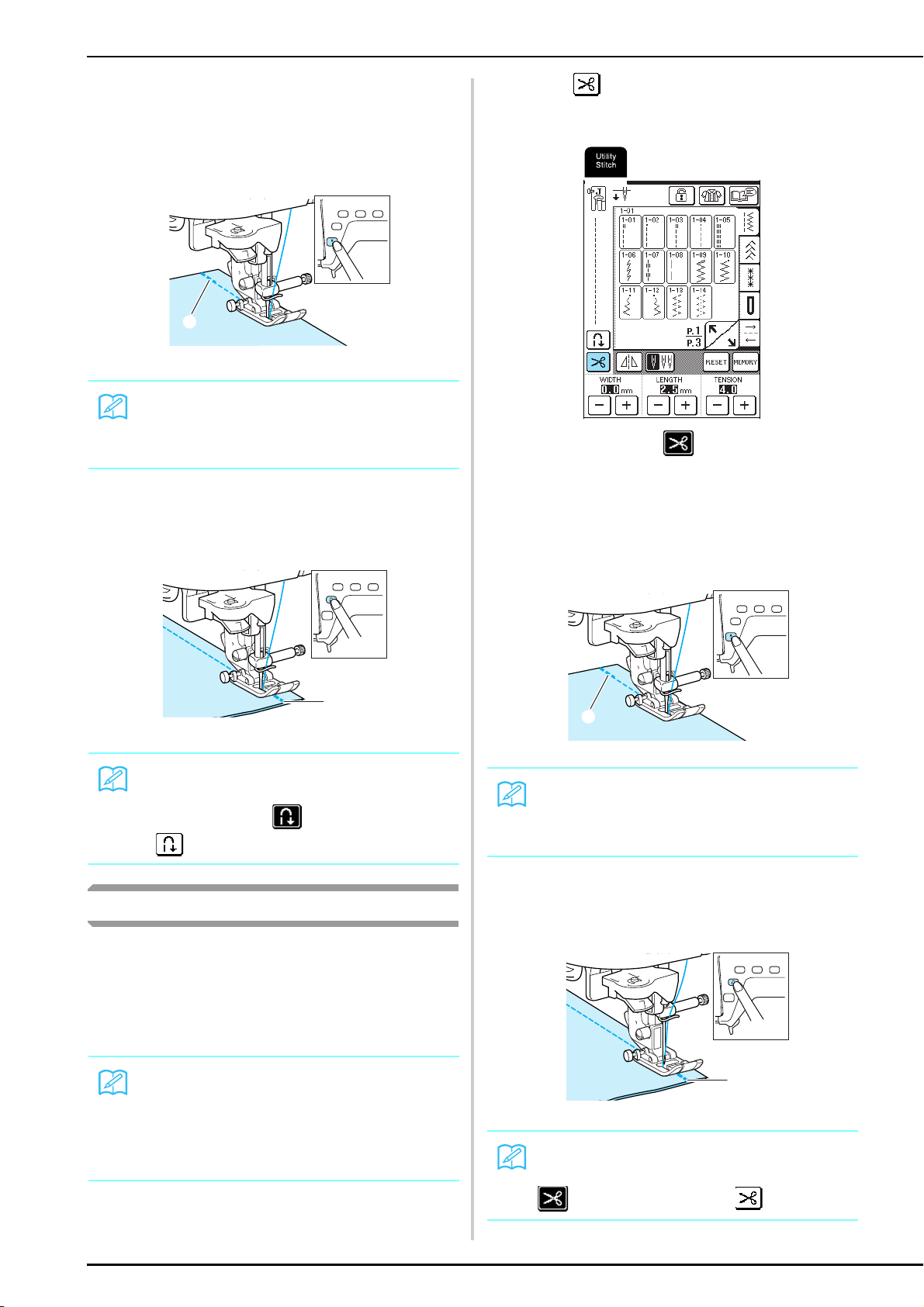
USEFUL FUNCTIONS
44
c
Place the fabric under the presser foot with the
needle at the starting point of the stitching, and
then press the “Start/Stop” button. The
machine will automatically sew reverse stitches
(or reinforcement stitches), and then begin
sewing.
a Reverse stitches (or reinforcement stitches)
d
If the “Reverse/Reinforcement Stitch” button
is pressed, the machine automatically sews
reverse stitches (or reinforcement stitches),
then stops.
a Reverse stitches (or reinforcement stitches)
Automatic Thread Cutting
If the automatic thread cutting setting is selected before
sewing, the machine will automatically sew
reinforcement stitches (or reverse stitches, depending
on the selected stitch pattern) and cut the thread when
the “Reverse/Reinforcement Stitch” button is pressed at
the end of stitching. This is useful when sewing
buttonholes and bar tacks.
a
Select a stitch pattern.
b
Press to select the automatic thread
cutting setting.
→ The key appears as .
c
Place the fabric under the presser foot with the
needle at the starting point of the stitching, and
then press the “Start/Stop” button. The
machine will automatically sew reverse stitches
(or reinforcement stitches), and then begin
sewing.
a Reverse stitches (or reinforcement stitches)
d
If the “Reverse/Reinforcement Stitch” button
is pressed, the machine automatically sews
reverse stitches (or reinforcement stitches),
then cuts the thread.
a Reverse stitches (or reinforcement stitches)
Memo
If you press the “Start/Stop” button to pause sewing,
then press it again to continue, reverse stitches (or
reinforcement stitches) will not be sewn.
Memo
To cancel the automatic reverse/reinforcement
stitching setting, press again so that it appears
as .
Memo
• The automatic thread cutting setting can be selected
when the automatic reinforcement/reverse stitching
setting is selected.
• The automatic thread cutting setting is already
selected with embroidery patterns.
a
a
Memo
If you press the “Start/Stop” button to pause sewing,
then press it again to continue, reverse stitches (or
reinforcement stitches) will not be sewn.
Memo
To cancel the automatic thread cutting setting, press
again so that it appears as .
a
a
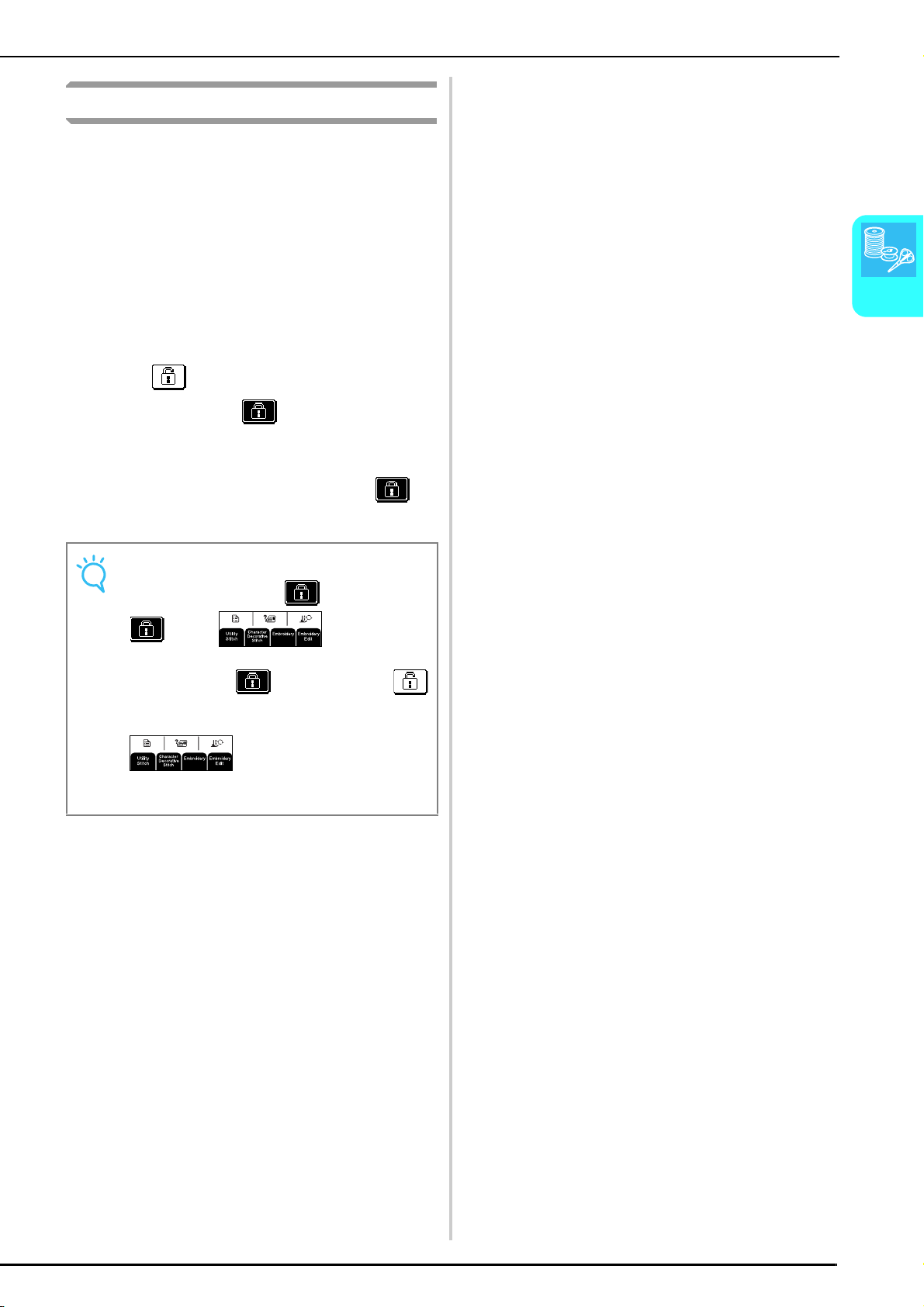
USEFUL FUNCTIONS
Sewing Basics
45
2
Locking the Screen
If the screen is locked before starting to sew, the various
settings, such as the stitch width and stitch length, are
locked and cannot be changed. This prevents screen
settings from accidentally being changed or the
machine from being stopped while large pieces of
fabric or other projects are being sewn. The screen can
be locked while sewing utility stitches and character/
decorative stitches.
a
Select a stitch pattern.
b
If necessary, adjust any settings, such as the
stitch width and stitch length.
c
Press .
→ The key appears as .
d
Sewing begins.
e
When you are finished sewing, press to
unlock the screen.
Note
• When the screen is locked ( ), no key other than
and the keys can be
operated. To select a different stitch pattern or change
the settings, press so that it appears as
to unlock the screen.
• When the screen is locked, pressing any of the
keys
unlocks the screen.
• The screen is unlocked when the machine is turned
off.

USEFUL FUNCTIONS
46

Chapter 3
Utility Stitches
SELECTING A UTILITY STITCH ...........48
■ Stitch Selection Screens ....................................... 48
Selecting a Stitch Pattern.................................. 49
■ Using the Mirror Image Key .................................49
Saving Stitch Settings........................................ 49
Using the Sewing Type Selection Key........................ 50
SEWING THE STITCHES ......................51
Straight Stitches................................................ 51
■ Changing the Needle Position
(Left or Middle Needle Position Stitches Only) ....52
■ Basting .................................................................53
Darts Seams...................................................... 53
Gathering ......................................................... 54
Flat Fell Seams.................................................. 54
Pintucks............................................................ 55
Zigzag Stitches ................................................. 56
■ Overcasting..........................................................56
■ Appliqués .............................................................56
■ Patchwork (Crazy Quilts).....................................57
■ Sewing Curves......................................................57
Elastic Zigzag Stitches ...................................... 57
■ Tape attaching......................................................57
■ Overcasting..........................................................57
Overcasting ...................................................... 58
■ Overcasting Using Presser Foot “G” ....................58
■ Overcasting Using Presser Foot “J”......................59
■ Overcasting Using the Side Cutter .......................60
Quilting ............................................................ 62
■ Piecing ................................................................. 62
■ Quilting................................................................63
■ Appliqués .............................................................63
■ Satin Stitching ......................................................64
■ Free-motion Quilting............................................65
Blind Hem Stitches ........................................... 66
■ If the Needle Does Not Catch the Fold ................67
■ If the Needle Catches Too Much of the Fold........67
Appliqués ......................................................... 67
■ Sewing Sharp Curves............................................68
Shell Tuck Stitching .......................................... 68
Scalloping......................................................... 68
Top Stitching .................................................... 69
Smocking.......................................................... 69
Fagoting............................................................ 70
Tape or Elastic Attaching.................................. 71
Heirloom Stitching ........................................... 72
■ Hemstitching (1) (Daisy Stitch) ............................72
■ Hemstitching (2) (Drawn Work (1)).....................72
■ Hemstitching (3) (Drawn Work (2)) .....................73
Buttonhole Stitches...........................................74
■ Sewing Stretch Fabrics .........................................77
■ Buttons That Do Not Fit into the Button Holder
Plate .....................................................................77
■ Darning ................................................................78
Bar Tacks ..........................................................79
■ Bar Tacks on Thick Fabrics ...................................80
Button Sewing...................................................81
■ Attaching a 4-Hole Button....................................82
■ Attaching a Button with a Shank ..........................82
Eyelets...............................................................82
Multi-Directional Sewing (Straight Stitch and
Zigzag Stitch) ............................................................83
Zipper Insertion ................................................84
■ Centered Zipper ...................................................84
■ Side Zipper ...........................................................85
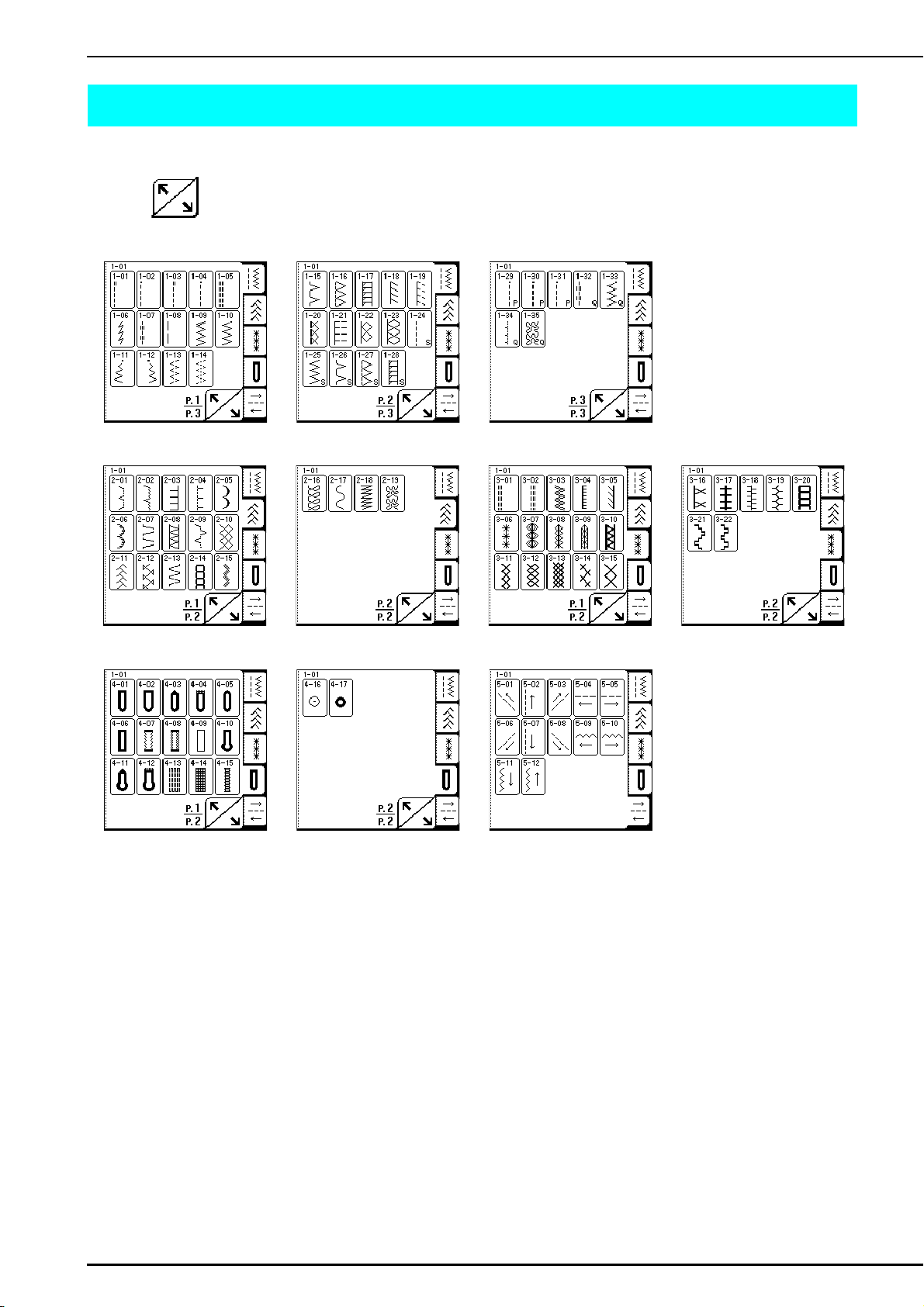
SELECTING A UTILITY STITCH
48
SELECTING A UTILITY STITCH
■ Stitch Selection Screens
Press to display the previous or next page.
Straight/Overcasting/Quilting Stitches
Decorative Stitches
Heirloom Stitches
Buttonholes/Bar tacks Multi-Directional Sewing
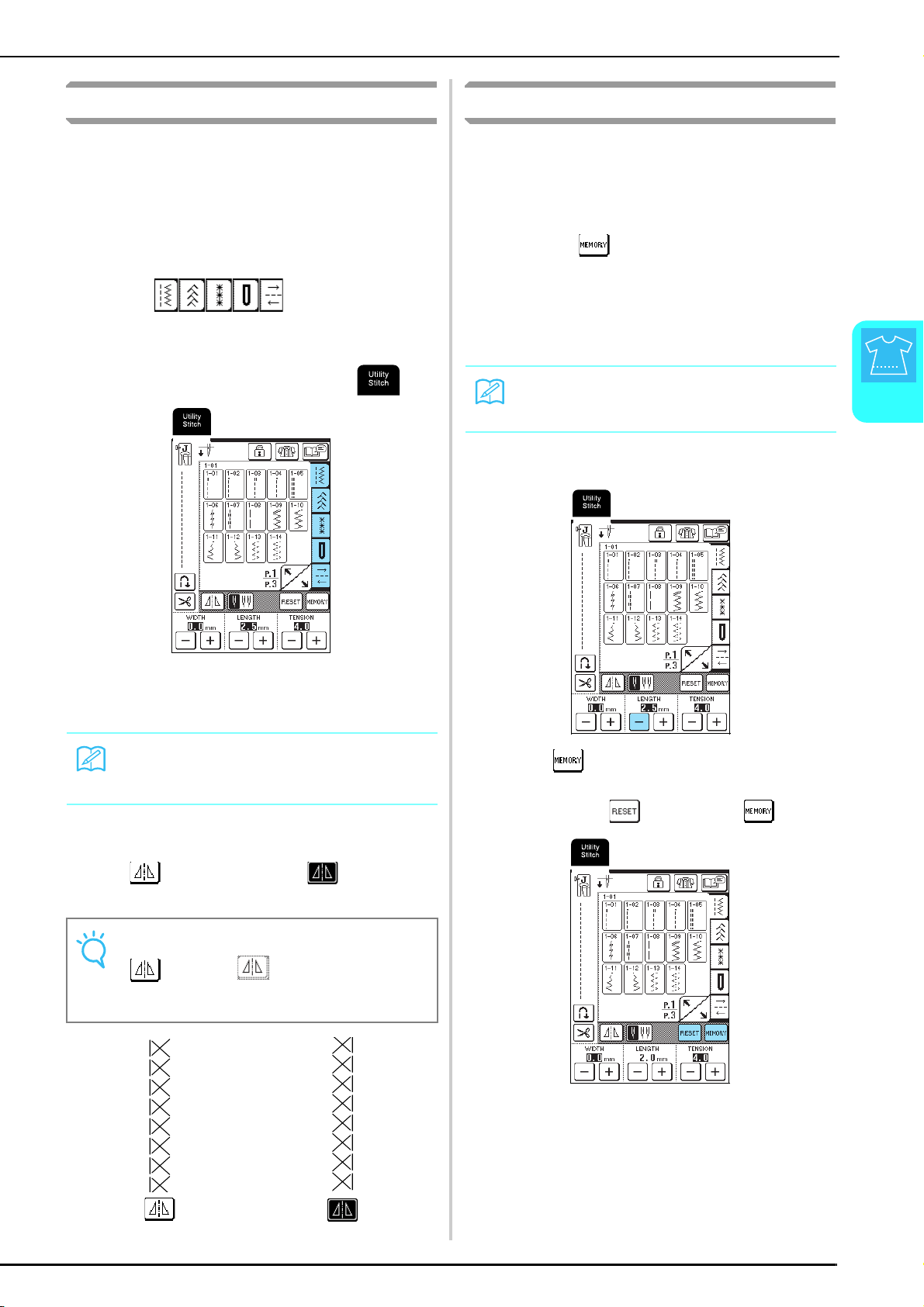
SELECTING A UTILITY STITCH
Utility Stitches
49
3
Selecting a Stitch Pattern
a
Turn on the machine, and then lightly press
the display.
→ Depending on the setting, either "1-01 Straight stitch
(Left)" or "1-03 Straight stitch (Middle)" is
automatically selected.
b
Press to display a screen
of the stitches in the selected category, and
then select a stitch pattern.
* If a different screen is displayed, press .
→ An image of the selected stitch pattern is displayed
below the symbol of the appropriate presser foot.
■ Using the Mirror Image Key
Press so that it appears as . A mirror
image of the selected stitch pattern is created.
Saving Stitch Settings
This machine is preset with the default settings for the
stitch width (zigzag width), stitch length, thread tension,
automatic thread cutting, automatic reverse/
reinforcement stitching, etc. However, if you wish to
save specific settings for a stitch so that they can be
used later, press after changing the settings to
save the new settings with the selected stitch.
Example: Using a stitch length of 2.0 mm for the
straight stitch
a
Select a straight stitch.
b
Set the stitch length to 2.0 mm.
c
Press .
* To reset the selected stitch pattern to its default
settings, press , and then press .
Memo
For details on the stitch patterns, refer to the “STITCH
SETTING CHART” at the end of this manual.
Note
If appears as after a stitch (buttonholes,
multi-directional sewing patterns, etc.) is selected, a
mirror image of the selected stitch cannot be created.
Memo
The default stitch length is 2.5 mm.
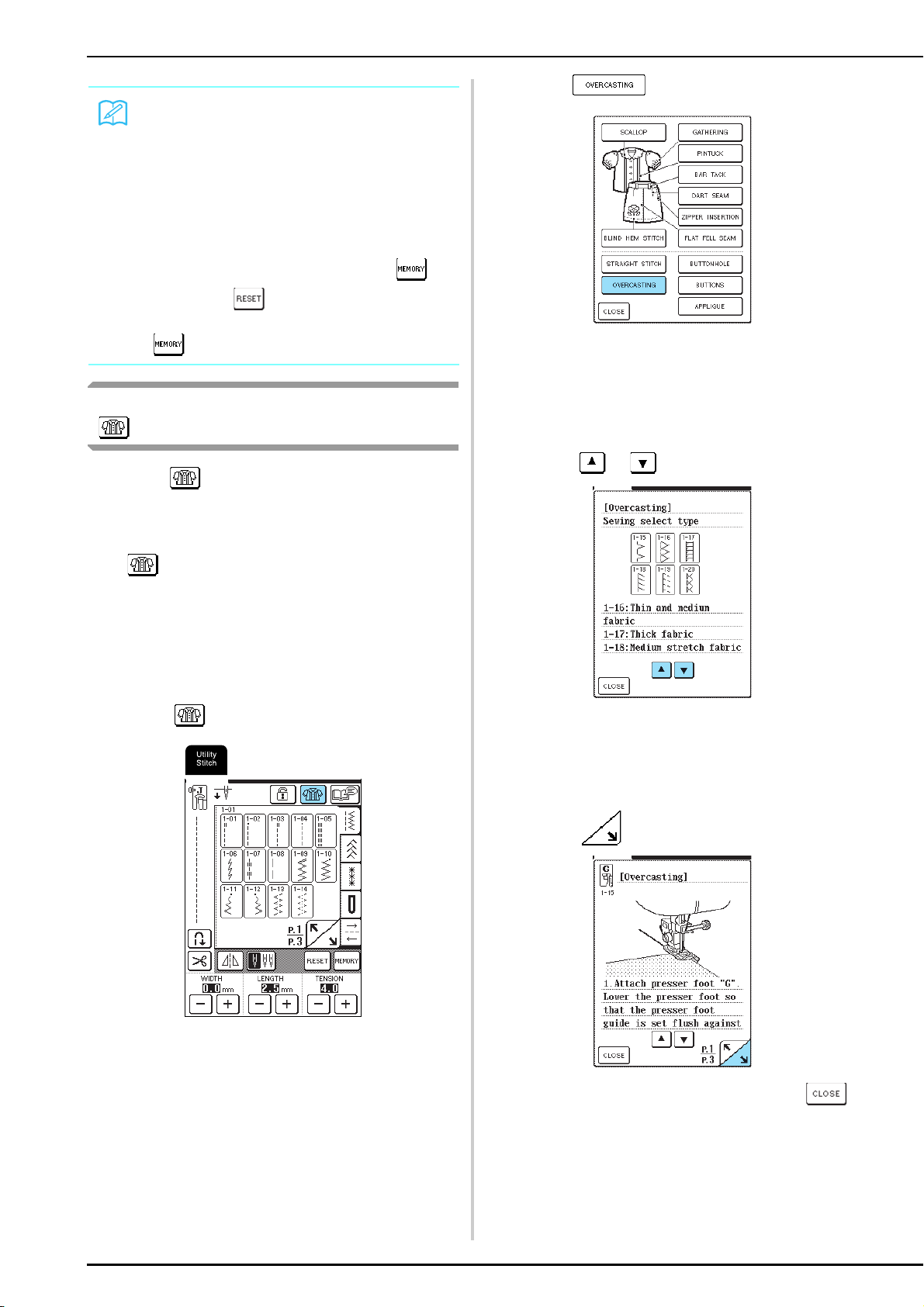
SELECTING A UTILITY STITCH
50
Using the Sewing Type Selection Key
By pressing , a utility stitch can also be selected
according to its desired use. When you are not sure
which stitch to select for your application or when you
need information on how certain stitches are used,
press , select the appropriate stitch for your
project, and then follow the instructions to sew the
selected stitch.
We recommend that beginners use this method to
select stitches.
Example: Displaying information about
overcasting
a
Press .
→ The advice screen is displayed.
b
Press .
→ The upper part of the screen displays a selection of
overcasting stitches with explanations.
c
Read the descriptions, and then select the
appropriate stitch.
* Press or to scroll the page.
→ The screen displays directions for sewing the
selected stitch.
d
Follow the directions to sew the stitch.
* Press to display the next page.
e
When you have finished sewing, press .
Memo
• The next time that the same straight stitch is
selected, the stitch length is set to 2.0 mm.
• All stitch settings (stitch width (zigzag width), stitch
length, thread tension, automatic thread cutting, and
automatic reverse/reinforcement stitching) are
saved, not just the setting that was changed. When
the same stitch pattern is selected, the last settings
saved are displayed even if the machine was turned
off. If the settings are changed again and is
pressed, or if is pressed to reset the setting
to its default, the new settings are not saved unless
is pressed another time.
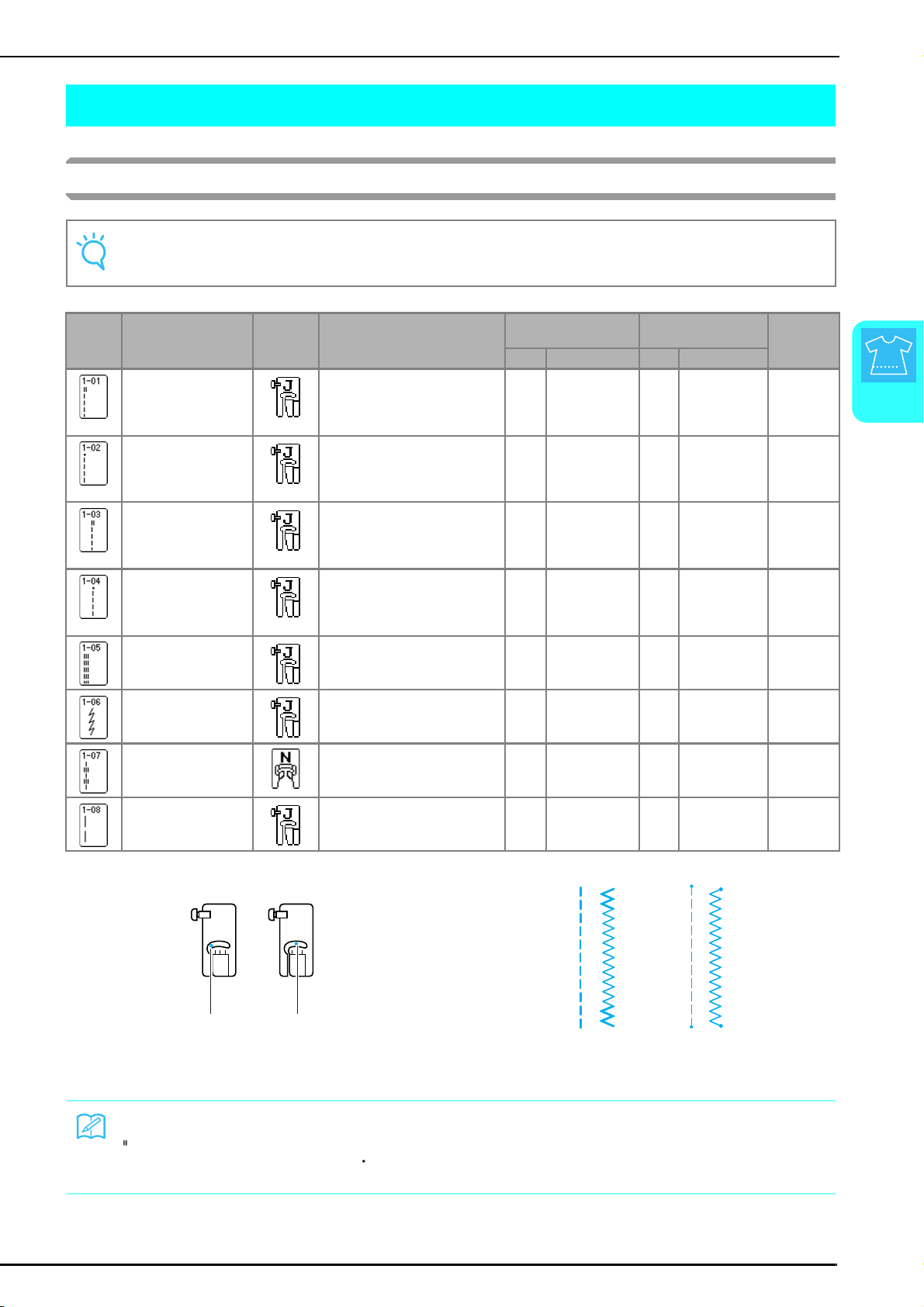
SEWING THE STITCHES
Utility Stitches
51
3
SEWING THE STITCHES
Straight Stitches
.
Note
When using the twin needle (see page 31), be sure to attach presser foot “J”.
Stitch
Key
Stitch Name Presser
Foot
Applications
Stitch width
[mm (inch.)]
Stitch length
[mm (inch.)]
Twin
needle
Auto. Manual Auto. Manual
Straight stitch (Left)
General sewing, gather, pintuck,
etc. Reverse stitch is sewn while
pressing “Reverse/
Reinforcement Stitch” button.
0.0
(0)
0.0 - 7.0
(0 - 1/4)
2.5
(3/32)
0.2 - 5.0
(1/64 - 3/16)
OK
( J )
Straight stitch (Left)
General sewing, gather, pintuck,
etc. Reinforcement stitch is sewn
while pressing “Reverse/
Reinforcement Stitch” button.
0.0
(0)
0.0 - 7.0
(0 - 1/4)
2.5
(3/32)
0.2 - 5.0
(1/64 - 3/16)
OK
( J )
Straight stitch
(Middle)
General sewing, gather, pintuck,
etc. Reverse stitch is sewn while
pressing “Reverse/
Reinforcement Stitch” button.
3.5
(1/8)
0.0 - 7.0
(0 - 1/4)
2.5
(3/32)
0.2 - 5.0
(1/64 - 3/16)
OK
( J )
Straight stitch
(Middle)
General sewing, gather, pintuck,
etc. Reinforcement stitch is sewn
while pressing “Reverse/
Reinforcement Stitch” button.
3.5
(1/8)
0.0 - 7.0
(0 - 1/4)
2.5
(3/32)
0.2 - 5.0
(1/64 - 3/16)
OK
( J )
Triple stretch stitch
General sewing for
reinforcement and decorative
topstitching
0.0
(0)
0.0 - 7.0
(0 - 1/4)
2.5
(3/32)
1.5 - 4.0
(1/16 - 3/16)
OK
( J )
Stretch stitch
Reinforced stitching, sewing and
decorative applications
1.0
(1/16)
1.0 - 3.0
(1/16 - 1/8)
2.5
(3/32)
1.0 - 4.0
(1/16 - 3/16)
OK
( J )
Decorative stitch
Decorative stitching, top
stitching
0.0
(0)
0.0 - 7.0
(0 - 1/4)
2.5
(3/32)
1.0 - 4.0
(1/16 - 3/16)
OK
( J )
Basting stitch
Basting
0.0
(0)
0.0 - 7.0
(0 - 1/4)
20.0
(3/4)
5.0 - 30.0
(3/16 - 1-3/16)
NO
a Left needle position
b Middle needle position
a Reverse stitch
b Reinforcement stitch
Memo
“ ” at the beginning of the stitch shown on the key indicates that reverse stitches are sewn when the “Reverse/
Reinforcement Stitch” button is pressed. “ ” at the beginning of the stitch shown on the key indicates that reinforcement
stitches are sewn when the “Reverse/Reinforcement Stitch” button is pressed.
J J
ab
ab

SEWING THE STITCHES
52
a
Select a stitch pattern.
b
Attach presser foot “J”.
c
Hold the thread ends and the fabric with your
left hand, and turn the handwheel toward you
with your right hand to insert the needle into
the fabric at the starting point of the stitching.
a Starting point of stitching
d
Lower the presser foot lever.
e
Hold the “Reverse/Reinforcement Stitch”
button pressed to sew reverse stitches (or
reinforcement stitches), and then press the
“Start/Stop” button to start sewing slowly.
a Reverse stitches
f
At the end of the stitching, hold the “Reverse/
Reinforcement Stitch” button pressed to sew
reverse stitches (or reinforcement stitches).
g
Press the “Thread Cutter” button to trim the
threads.
* If the automatic thread cutting setting is selected
before sewing, the machine will automatically sew
reverse stitches (or reinforcement stitches) at the
beginning of stitching. When the “Reverse/
Reinforcement Stitch” button is pressed at the end of
stitching, the machine will automatically sew reverse
stitches (or reinforcement stitches) and cut the thread.
■ Changing the Needle Position (Left or
Middle Needle Position Stitches Only)
When you select left or middle needle position
stitches, you can use and in the stitch
width display to change the position of the needle.
Match the distance from the right edge of the presser
foot to the needle with the stitch width, then align
the edge of the presser foot with the edge of the
fabric during sewing for an attractive finish.
a Stitch width
CAUTION
• Be sure the needle does not strike a basting pin, or
any other objects, during sewing. The thread could
tangle or the needle could break, causing injury.
a
a
12.0 mm
(approx.
1/2 inch)
8.5 mm
(approx.
11/32 inch)
6.5 mm
(approx.
1/4 inch)
5.0 mm
(approx.
3/16 inch)
a
J
J
J
J
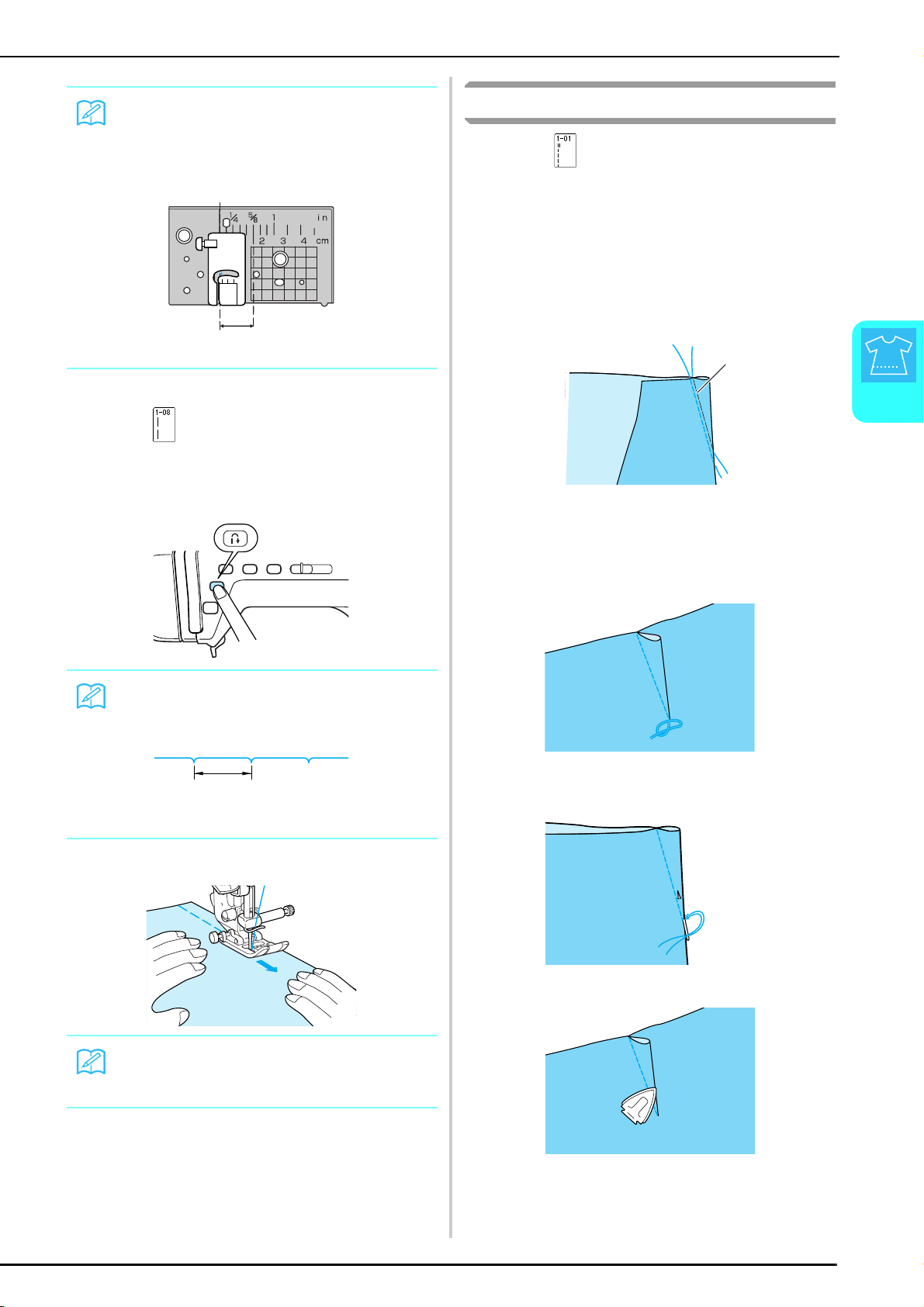
SEWING THE STITCHES
Utility Stitches
53
3
■ Basting
a
Press , and then attach presser foot “J”.
b
Press the “Reverse/Reinforcement Stitch”
button to sew reinforcement stitches at the
beginning of the stitching.
c
Sew while lightly guiding the fabric.
d
End the basting with reinforcement stitches.
Darts Seams
a
Press , and then attach presser foot “J”.
b
Press the “Reverse/Reinforcement Stitch”
button to sew reverse stitches at the
beginning of the stitching, and then sew from
the wide end to the other end without
stretching the fabric.
* If the automatic reverse/reinforcement stitching
setting is selected before sewing, reverse stitches
will be sewn at the beginning of the stitching.
a Basting
c
Without sewing reverse stitches at the end of
the stitching, pull out 50 mm (approx. 1-15/
16 inches) of the threads, cut them, and then
tie the two ends together.
d
Insert the ends of the thread into the dart
with a sewing needle.
e
Iron the dart to one side.
Memo
For a standard 16 mm (approx. 5/8 inch) seam
allowance, set the width to 0 mm on the screen. While
sewing, align the edge of the fabric with the 16mm
(approx. 5/8 inch) mark on the needle plate.
a 16 mm (approx. 5/8 inch)
Memo
The stitch length can be set between 5 mm and 30 mm
(approx. 3/16 and 1-3/16 inches).
a Between 5 mm (approx. 3/16 inch) and 30 mm
(approx. 1-3/16 inches)
Memo
This is easy to do if the foot controller is used
( see page 39).
J
a
a
a
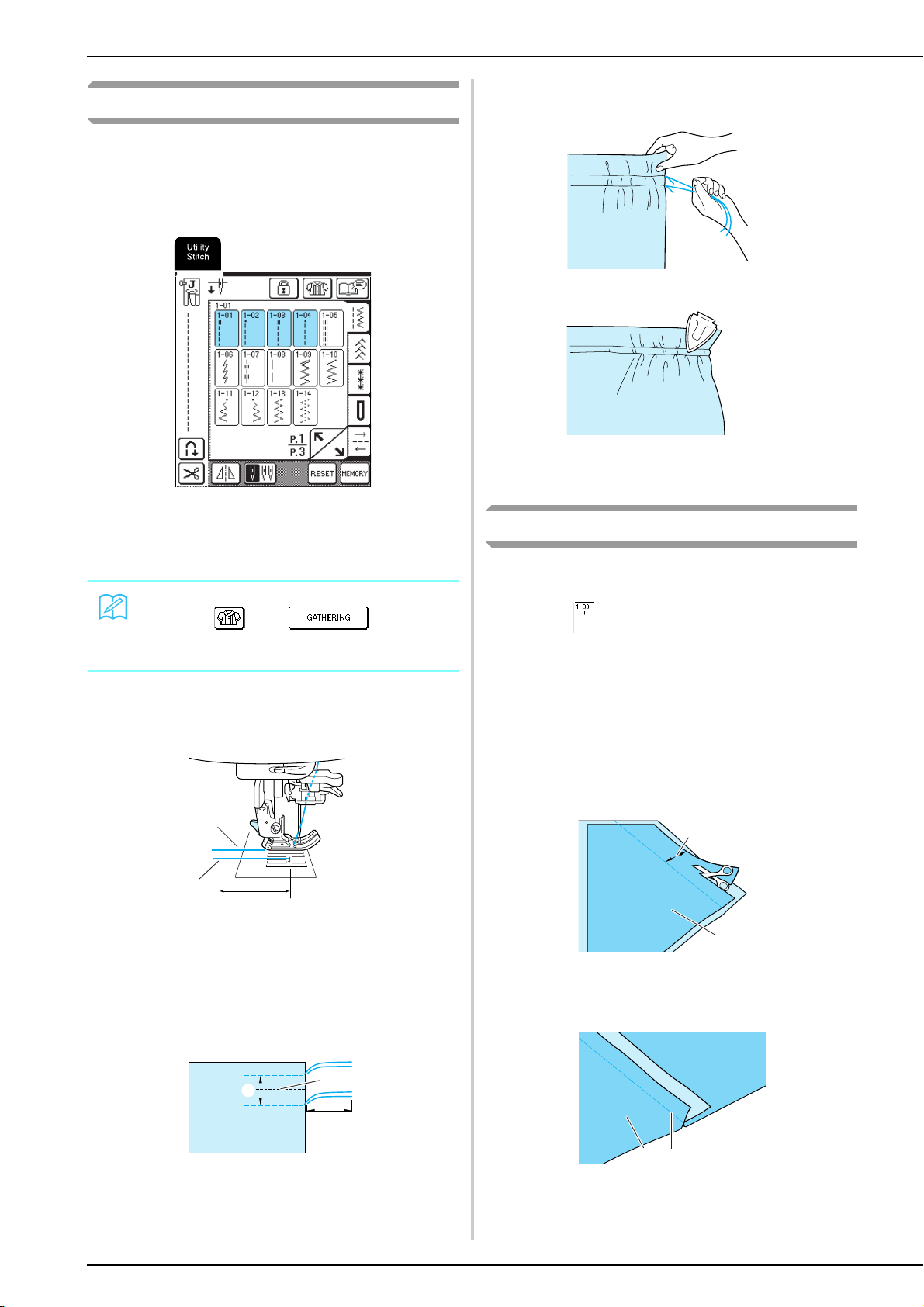
SEWING THE STITCHES
54
Gathering
Sew gathers on sleeves, the waist of a gathered skirt,
etc.
a
Select a straight stitch, and then attach
presser foot “J”.
b
Set the stitch length to 4.0 mm (approx.
3/16 inch) and the thread tension to 2.0
(weaker tension).
c
Pull out 50 mm (approx. 1-15/16 inches) of
both the upper and bobbin threads (see
“Pulling Up the Bobbin Thread” on page 27).
a Upper thread
b Bobbin thread
c 50 mm (approx. 1-15/16 inches)
d
Sew a row of straight stitches along each side
of the seam line, pull out 50 mm
(1-15/16 inches) of the upper and bobbin
threads, and then cut the threads.
a 10 to 15 mm (approx. 3/8 to 9/16 inch)
b Seam line
c 50 mm (approx. 1-15/16 inches)
e
Pull the bobbin threads to create the desired
amount of gathering, and then tie the threads.
f
Smooth the gathers by ironing them.
g
Sew along the seam line, and then remove the
basting stitch.
Flat Fell Seams
Use flat fell seams to reinforce seams and finish edges
neatly.
a
Press , and then attach presser foot “J”.
b
With the surfaces of the two pieces of fabric
facing each other, sew the seam line, and then
cut off half the seam allowance from the side
on which the flat fell seam will lie.
* If the automatic reverse/reinforcement stitching and
automatic thread cutting settings are selected before
sewing, reverse stitches will automatically be sewn
at the beginning and end of the stitching and the
thread will be cut.
a About 12 mm (approx. 1/2 inch)
b Wrong side of fabric
c
Spread out the fabric along the seam line.
a Wrong side of fabric
b Seam line
Memo
If you press , then , the stitch
length is automatically set to 4.0 mm (approx. 3/16
inch) and the thread tension is automatically set to 2.0.
a
b
c
a
b
c
a
b
ba
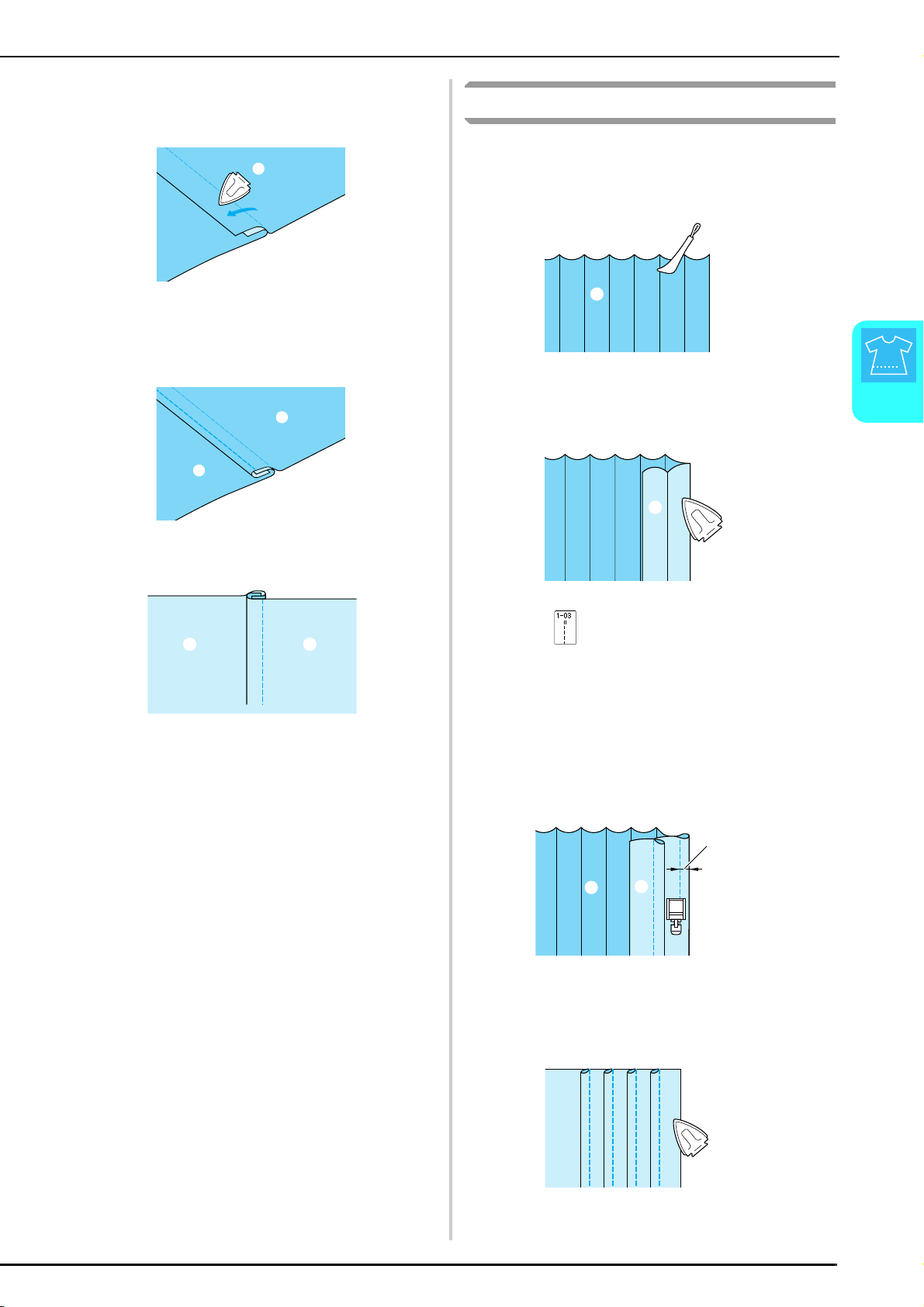
SEWING THE STITCHES
Utility Stitches
55
3
d
Lay both seam allowances on the side of the
shorter one (cut seam allowance) and iron
them flat.
a Wrong side of fabric
e
Fold the longer seam allowance around the
shorter one, and then sew along the edge of
the fold.
a Wrong side of fabric
a Surface of fabric
Pintucks
Use pin tucks to decorate blouses.
a
Mark the positions of the folds on the wrong
side of the fabric.
a Wrong side of fabric
b
Turn the fabric over, and then iron only the
folds with the tip of the iron.
a Surface of fabric
c
Press , and then attach presser foot “I”.
d
Attach the pin on the right side of presser foot
“I” to the presser foot holder, and then sew
along the folds.
* If the automatic reverse/reinforcement stitching and
automatic thread cutting settings are selected before
sewing, reverse stitches will automatically be sewn
at the beginning and end of the stitching and the
thread will be cut.
a Wrong side of fabric
b Surface of fabric
c Width of pin tuck
e
Iron the folds in the same direction.
a
a
a
aa
Finished flat fell seam
a
a
I
c
b
a
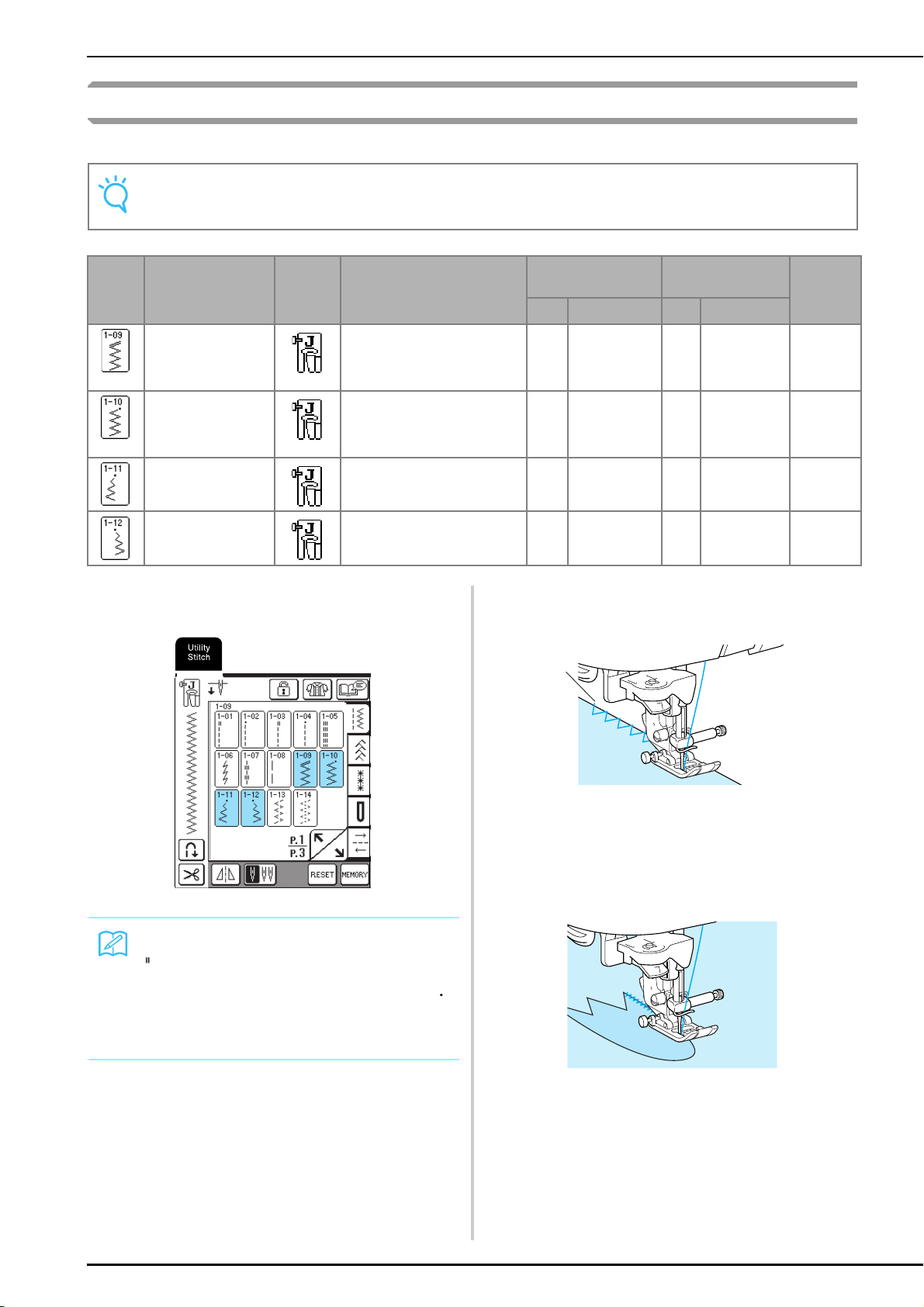
SEWING THE STITCHES
56
Zigzag Stitches
Zigzag stitches are useful for a variety of applications, including overcasting and sewing appliqués and patchwork.
a
Select a stitch, and then attach presser foot
“J”.
■ Overcasting
Sew while making sure that the needle drops slightly
off the edge of the fabric.
a Needle drop point
■ Appliqués
Attach the appliqué using a temporary spray
adhesive or basting, and then sew along the edge of
the appliqué, making sure that the needle drops
slightly off the edge.
Note
When using the twin needle (see page 31), be sure to attach presser foot “J”.
Stitch
Key
Stitch Name
Presser
Foot
Applications
Stitch Width
[mm (inch)]
Stitch Length
[mm (inch)]
Twin
Needle
Auto Manual Auto Manual
Zigzag stitch (Middle)
For overcasting, mending.
Reverse stitch is sewn while
pressing “Reverse/
Reinforcement Stitch” button.
3.5
(1/8)
0.0 - 7.0
(0 - 1/4)
1.4
(1/16)
0.0 - 4.0
(0 - 3/16)
OK
( J )
Zigzag stitch (Middle)
For overcasting, mending.
Reinforcement stitch is sewn
while pressing “Reverse/
Reinforcement Stitch” button.
3.5
(1/8)
0.0 - 7.0
(0 - 1/4)
1.4
(1/16)
0.0 - 4.0
(0 - 3/16)
OK
( J )
Zigzag stitch (Right)
Start from right needle position,
zigzag sew at left.
3.5
(1/8)
2.5 - 5.0
(3/32 - 3/16)
1.4
(1/16)
0.3 - 4.0
(1/64 - 3/16)
OK
( J )
Zigzag stitch (Left)
Start from left needle position,
zigzag sew at right.
3.5
(1/8)
2.5 - 5.0
(3/32 - 3/16)
1.4
(1/16)
0.3 - 4.0
(1/64 - 3/16)
OK
( J )
Memo
“ “ at the beginning of the stitch shown on the key
indicates that reverse stitches are sewn when the
“Reverse/Reinforcement Stitch” button is pressed. “ “
at the beginning of the stitch shown on the key
indicates that reinforcement stitches are sewn when
the “Reverse/Reinforcement Stitch” button is pressed.
a

SEWING THE STITCHES
Utility Stitches
57
3
■ Patchwork (Crazy Quilts)
Turn back the desired width of fabric, place it over a
different piece of fabric, and then sew the two fabric
pieces together so the stitching bridges both pieces.
■ Sewing Curves
Shorten the stitch length setting to obtain a fine
stitch. Sew slowly, keeping the seams parallel with
the fabric edge as you guide the fabric around the
curve.
Elastic Zigzag Stitches
Use elastic zigzag stitches for a wide variety of applications, including overcasting, tape attaching, and darning.
a
Select a stitch, and then attach presser foot
“J”.
■ Tape attaching
Stretch the tape flat. While stretching the tape flat,
sew the tape to the fabric.
a Elastic tape
■ Overcasting
Use this stitch to sew overcasting on the edge of
stretch fabrics. Sew while making sure that the
needle drops slightly off the edge of the fabric.
Stitch
Key
Stitch Name
Presser
Foot
Applications
Stitch Width
[mm (inch)]
Stitch Length
[mm (inch)]
Twin
Needle
Auto Manual Auto Manual
2 step elastic zigzag
Overcasting (medium weight
and stretch fabrics), tape and
elastic
5.0
(3/16)
1.5 - 7.0
(1/16 - 1/4)
1.0
(1/16)
0.2 - 4.0
(1/64 - 1/16)
OK
( J )
3 step elastic zigzag
Overcasting (medium,
heavyweight and stretch fabrics),
tape and elastic
5.0
(3/16)
1.5 - 7.0
(1/16 - 1/4)
1.0
(1/16)
0.2 - 4.0
(1/64 - 1/16)
OK
( J )
a
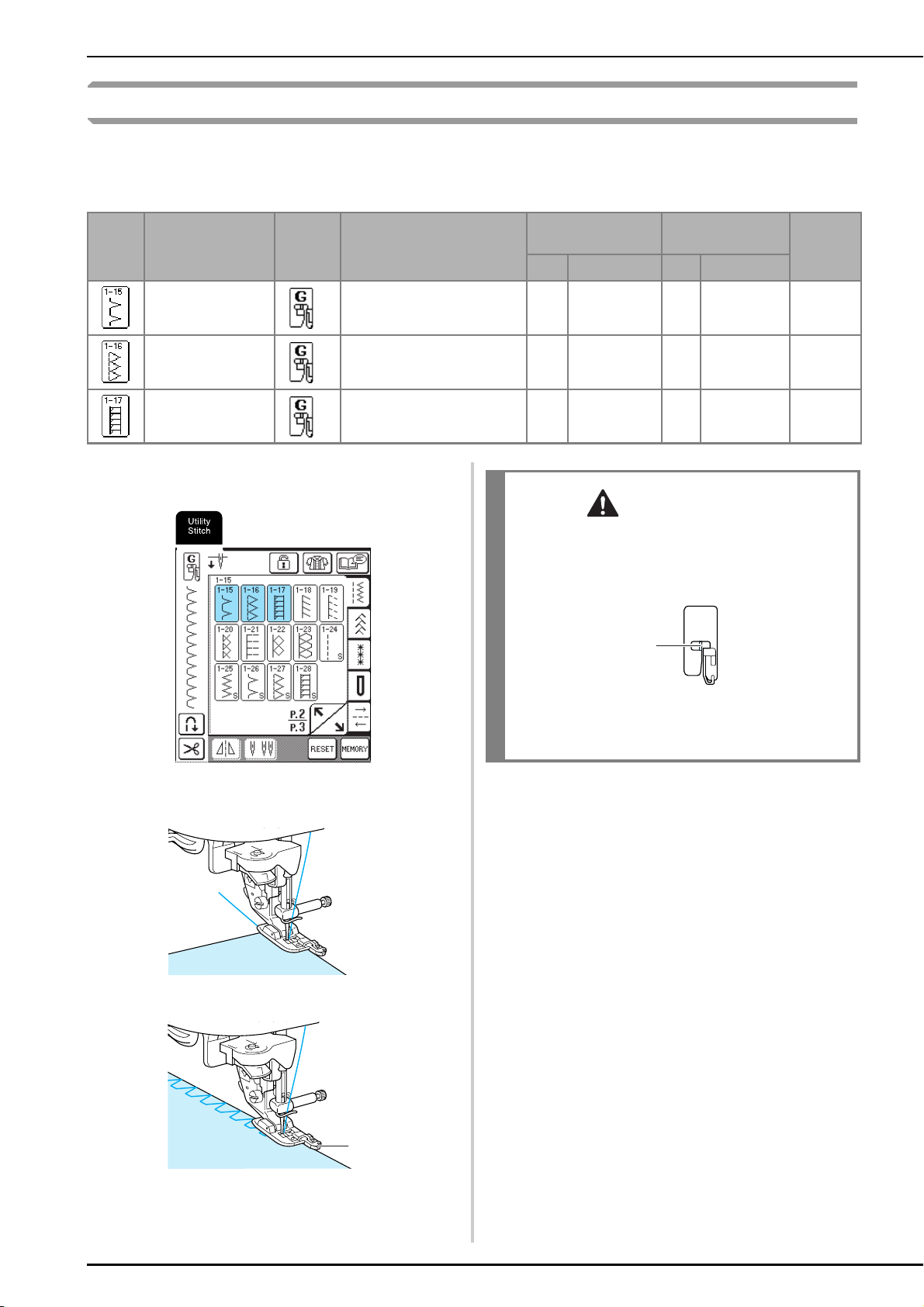
SEWING THE STITCHES
58
Overcasting
Sew overcasting at the beginning and end of seams for skirts or pants, and at the beginning and end of all cuttings.
Depending on the selected stitch, use presser foot “G” or “J” or the side cutter attachment.
■ Overcasting Using Presser Foot “G”
a
Select a stitch, and then attach presser foot
“G”.
b
Lower the presser foot so that the presser foot
guide is flush against the edge of the fabric.
c
Sew along the presser foot guide.
a Presser foot guide
Stitch
Key
Stitch Name
Presser
Foot
Applications
Stitch Width
[mm (inch)]
Stitch Length*
[mm (inch)]
Twin
Needle
Auto Manual Auto Manual
Overcasting stitch
Reinforcing of light and medium
weight fabrics
3.5
(1/8)
2.5 - 5.0
(3/32 - 3/16)
2.0
(1/16)
1.0 - 4.0
(1/16 - 3/16)
NO
Overcasting stitch
Reinforcing of heavyweight
fabric
5.0
(3/16)
2.5 - 5.0
(3/32 - 3/16)
2.5
(3/32)
1.0 - 4.0
(1/16 - 3/16)
NO
Overcasting stitch
Reinforcing of medium,
heavyweight and easily friable
fabrics or decorative stitching.
5.0
(3/16)
3.5 - 5.0
(1/8 - 3/16)
2.5
(3/32)
1.0 - 4.0
(1/16 - 3/16)
NO
a
CAUTION
• After the stitch width is adjusted, turn the handwheel
toward you by hand and check that the needle does
not touch the presser foot. If the needle hits the
presser foot, the needle may break and cause injury.
a The needle should not touch
• If the presser foot is raised to its highest level, the
needle may strike the presser foot.
G
a

SEWING THE STITCHES
Utility Stitches
59
3
■ Overcasting Using Presser Foot “J”
a
Select a stitch, and then attach presser foot
“J”.
b
Sew while making sure that the needle drops
slightly off the edge of the fabric.
a Needle drop point
Stitch
Key
Stitch Name
Presser
Foot
Applications
Stitch width
[mm (inch.)]
Stitch length
[mm (inch.)]
Twin
needle
Auto. Manual Auto. Manual
Overcasting stitch
Reinforced seaming of stretch
fabric
5.0
(3/16)
0.0 - 7.0
(0 - 9/32)
2.5
(3/32)
0.5 - 4.0
(1/32 - 3/16)
OK
( J )
Overcasting stitch
Reinforcing of medium stretch
fabric and heavyweight fabric,
decorative stitching
5.0
(3/16)
0.0 - 7.0
(0 - 9/32)
2.5
(3/32)
0.5 - 4.0
(1/32 - 3/16)
OK
( J )
Overcasting stitch
Reinforcement of stretch fabric
or decorative stitching
4.0
(3/16)
0.0 - 7.0
(0 - 1/4)
4.0
(3/16)
1.0 - 4.0
(1/16 - 3/16)
OK
( J )
Overcasting stitch
Stretch knit seam
5.0
(3/16)
0.0 - 7.0
(0 - 1/4)
4.0
(3/16)
1.0 - 4.0
(1/16 - 3/16)
NO
Single diamond
overcast
Reinforcement and seaming
stretch fabric
6.0
(15/
64)
1.0 - 7.0
(1/16 - 1/4)
3.0
(1/8)
1.0 - 4.0
(1/16 - 3/16)
OK
( J )
Single diamond
overcast
Reinforcement of stretch fabric
6.0
(15/
64)
1.0 - 7.0
(1/16 - 1/4)
1.8
(1/16)
1.0 - 4.0
(1/16 - 3/16)
OK
( J )
Memo
For best results when sewing stretch fabrics, decrease
the pressure of the presser foot.
a
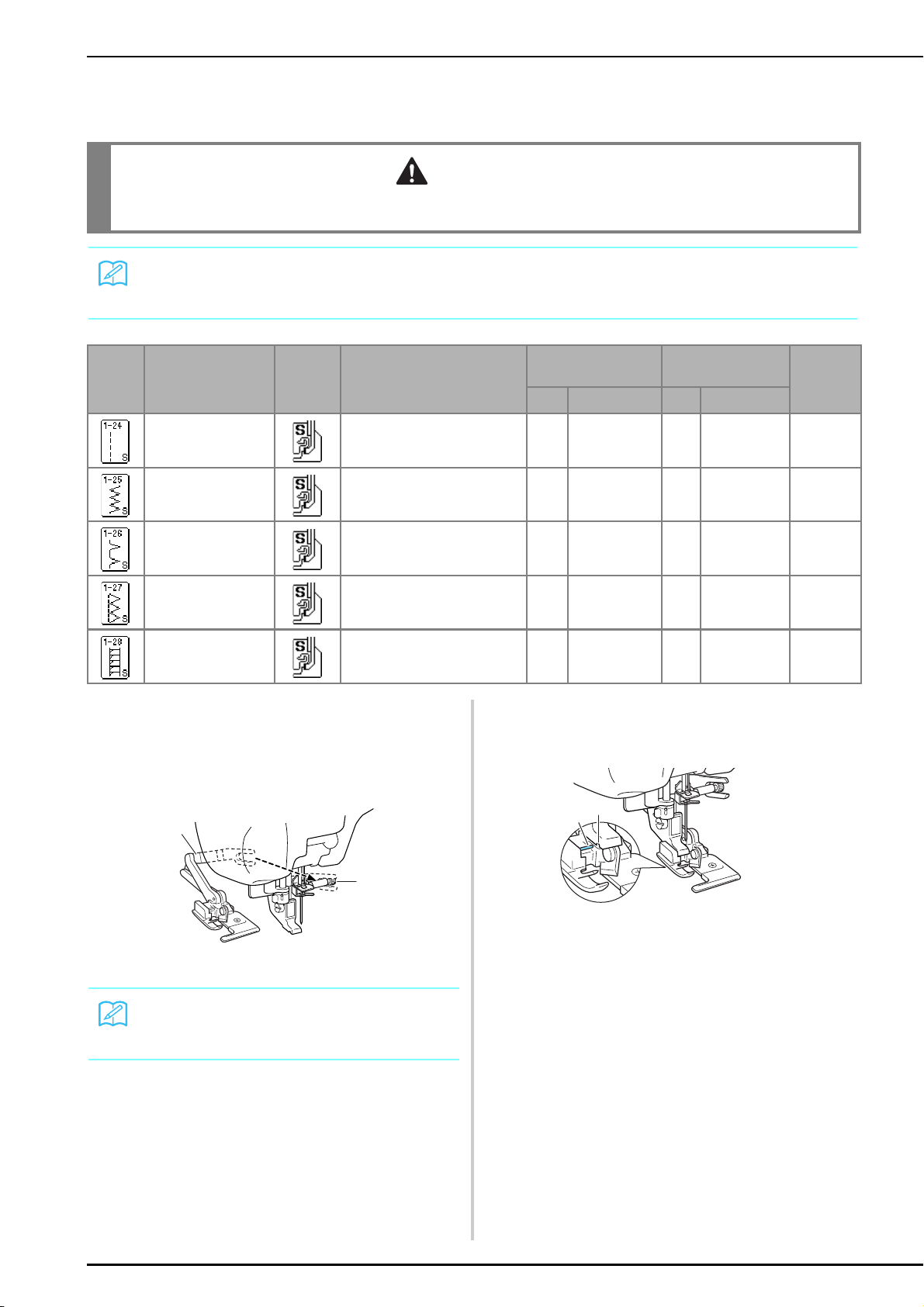
SEWING THE STITCHES
60
■ Overcasting Using the Side Cutter
By using the side cutter, you can do overcasting while cutting the fabric.
a
Follow the steps on page 33 to remove the
presser foot.
b
Position the fork on the side cutter’s
operating lever onto the needle clamp screw.
a Needle clamp screw
b Operating lever
c
Position the side cutter so that the side cutter
pin is aligned with the notch in the presser
foot holder, and then lower the presser foot.
a Notch in presser foot holder
b Pin
→ The side cutter is attached.
CAUTION
• Make sure to only select one of the stitches listed below. Using another stitch may cause the needle to hit the presser
foot and break, possibly causing injury.
Memo
Thread the needle manually when using the side cutter, or only attach the side cutter after threading the needle using the
needle threader.
Stitch Stitch name
Presser
foot
Applications
Stitch width
[mm (inch.)]
Stitch length
[mm (inch.)]
Twin
needle
Auto. Manual Auto. Manual
With side cutter
Straight stitch while cutting
fabrics
0.0
(0)
0.0 - 2.5
(0 - 3/32)
2.5
(3/32)
0.2 - 5.0
(1/64 - 3/16)
NO
With side cutter
Zigzag stitch while cutting fabrics
3.5
(1/8)
3.5 - 5.0
(1/8 - 3/16)
1.4
(1/16)
0.0 - 4.0
(0 - 3/16)
NO
With side cutter
Overcasting stitch while cutting
fabrics
3.5
(1/8)
3.5 - 5.0
(1/8 - 3/16)
2.0
(1/16)
1.0 - 4.0
(1/16 - 3/16)
NO
With side cutter
Overcasting stitch while cutting
fabrics
5.0
(3/16)
3.5 - 5.0
(1/8 - 3/16)
2.5
(3/32)
1.0 - 4.0
(1/16 - 3/16)
NO
With side cutter
Overcasting stitch while cutting
fabrics
5.0
(3/16)
3.5 - 5.0
(1/8 - 3/16)
2.5
(3/32)
1.0 - 4.0
(1/16 - 3/16)
NO
Memo
Make sure that the fork of the operating lever is set
onto the needle clamp screw firmly.
a
b
a
b
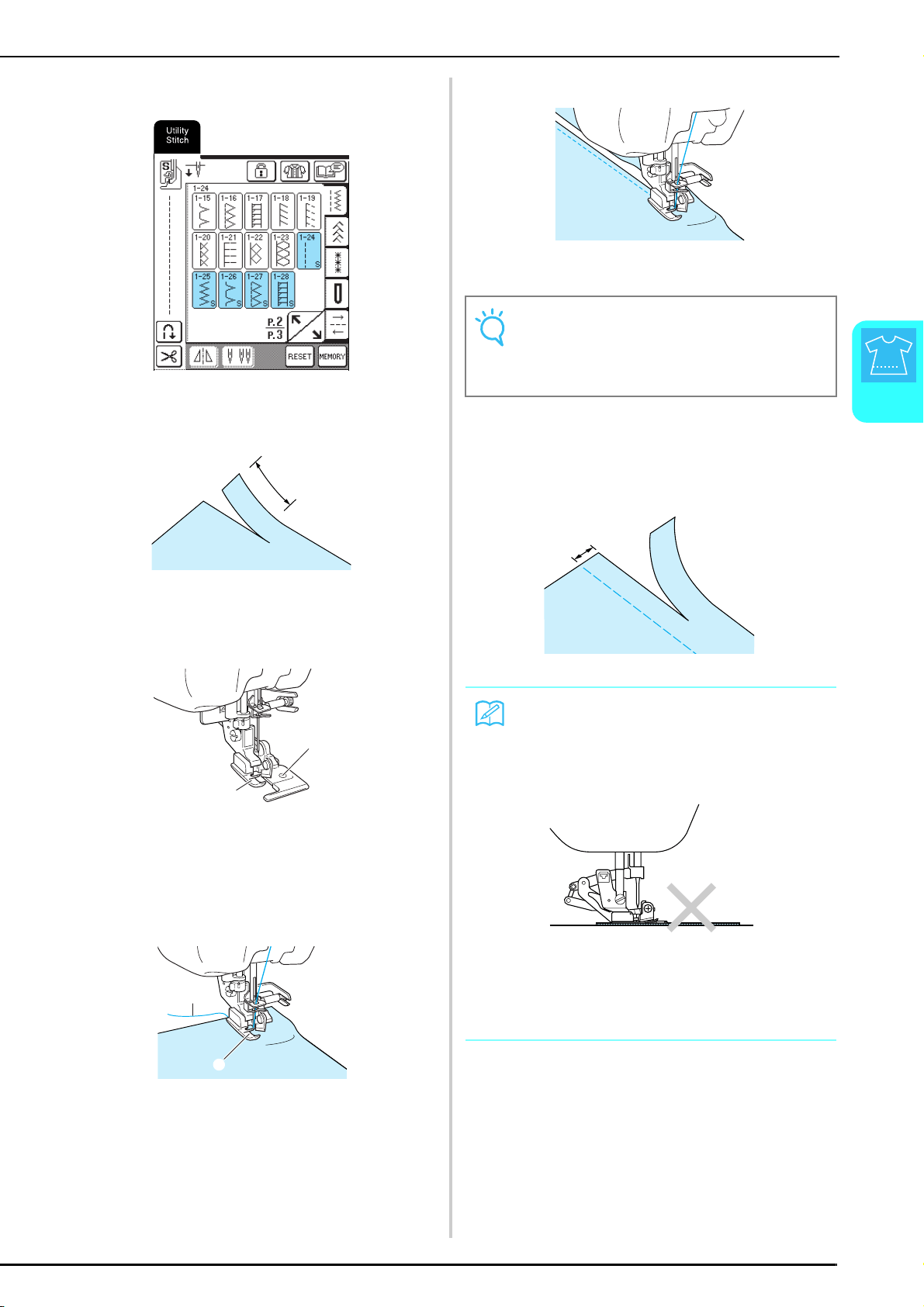
SEWING THE STITCHES
Utility Stitches
61
3
d
Select a stitch.
e
Make a cut of approximately 20 mm (approx.
3/4 inch) in the fabric.
a 20 mm (approx. 3/4 inch)
f
Position the fabric so that the right side of the
cut is on top of the guide plate and the left
side of the cut is underneath the presser foot.
a Guide plate (lower knife)
b Presser foot
g
Thread the needle manually and pull out a
long section of the upper thread. Pass it below
the presser foot and pull it out in the fabric
feed direction.
a Presser foot
b Upper thread
h
Start sewing.
→ A seam allowance is cut while the stitching is sewn.
■ When Sewing Straight Stitches While Using
the Side Cutter
The seam margin should be approximately 5 mm
(approx. 3/16 inch).
a Seam margin
a
a
b
b
a
Note
If the width has been adjusted, turn the handwheel by
hand to check that the needle does not touch the side
cutter. If the needle touches the side cutter, it might
cause the needle to break.
Memo
• The fabric will not be cut if the whole fabric is simply
spread out underneath the presser foot guide plate.
Set the fabric as explained in step
f from the
previous section, and then start sewing.
• One layer of 13 oz. denim can be cut.
• Clean the side cutter after use to avoid having dust
and scraps of thread build up on it.
• Add a small amount of oil as required to the cutting
edge of the cutter.
a
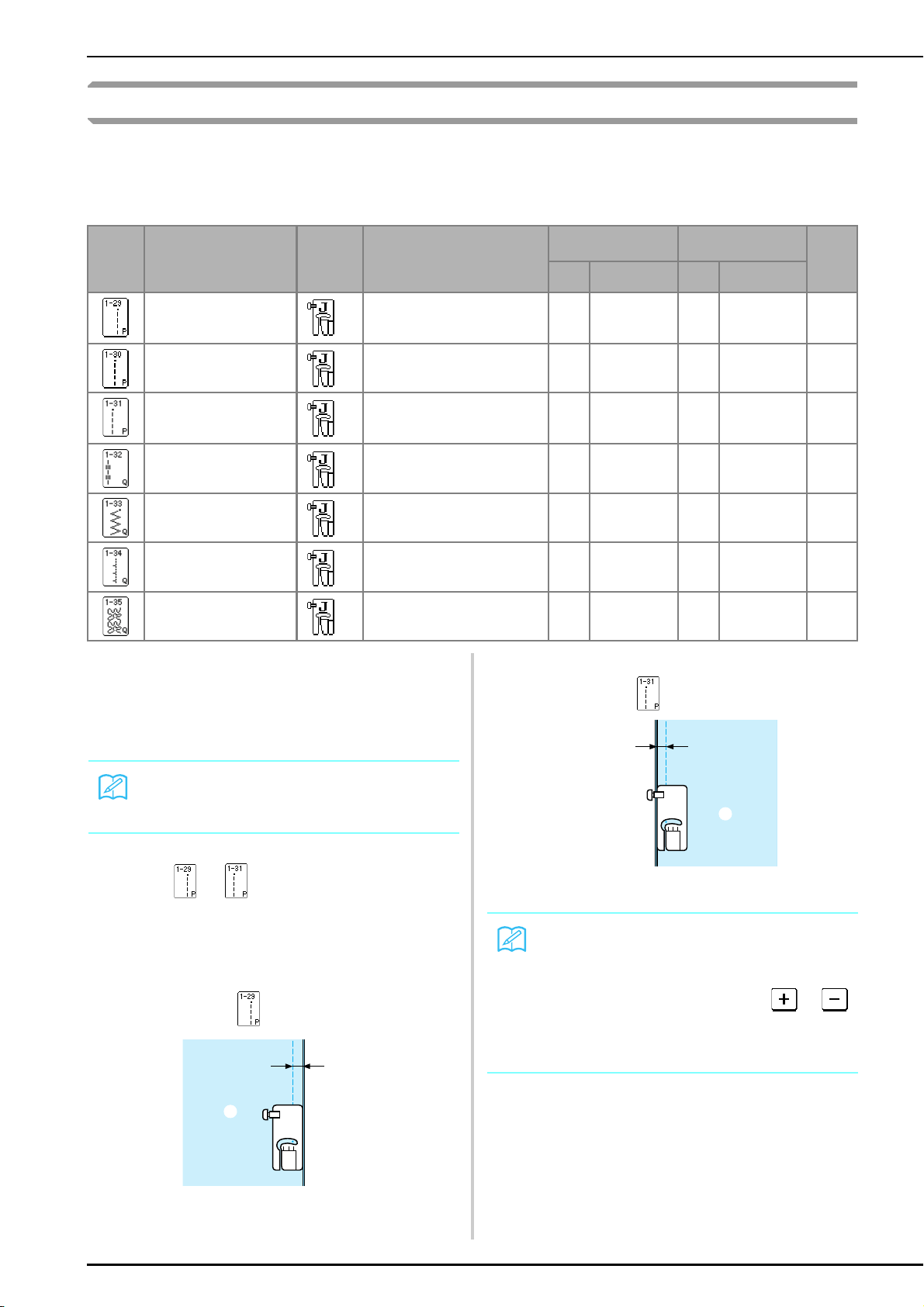
SEWING THE STITCHES
62
Quilting
You can make beautiful quilts quickly and easily with this machine. When making a quilt, you will find it
convenient to use the knee lifter and foot controller to free your hands for other tasks (see “Using the Foot
Controller” on page 39 and/or see “Using the Knee Lifter” on page 40).
Patterns with “P” or “Q” in the lower-right corner of the key are intended for quilting.
■ Piecing
Sewing two pieces of fabric together is called
piecing. When cutting pieces for quilt blocks, make
sure the seam allowance is 6.5 mm (approx.
1/4 inch).
a
Press or , and then attach presser foot
“J”.
b
Sew with the edge of the fabric aligned with
the side of the presser foot.
Stitch width when is selected
a 6.5 mm (approx. 1/4 inch)
b Align with right side of presser foot.
Stitch width when is selected
a 6.5 mm (approx. 1/14 inch)
b Align with left side of presser foot.
Stitch
Key
Stitch Name
Presser
Foot
Applications
Stitch width
[mm (inch.)]
Stitch length
[mm (inch.)]
Twin
needle
possibi
lity
Auto. Manual Auto. Manual
Piecing stitch (Right)
Piecework/patchwork
6.5 mm (approx. 1/4 inch) right
seam allowance
5.5
(7/32)
0.0 - 7.0
(0 - 1/4)
2.0
(1/16)
0.2 - 5.0
(1/64 - 3/16)
NO
Piecing stitch (Middle) Piecework/patchwork
— —
2.0
(1/16)
0.2 - 5.0
(1/64 - 3/16)
NO
Piecing stitch (Left)
Piecework/patchwork
6.5 mm (approx. 1/4 inch) left
seam allowance
1.5
(1/16)
0.0 - 7.0
(0 - 1/4)
2.0
(1/16)
0.2 - 5.0
(1/64 - 3/16)
NO
Hand-look quilting
Quilting stitch made to look like
hand quilting stitch
0.0
(0)
0.0 - 7.0
(0 - 1/4)
2.5
(3/32)
1.0 - 4.0
(1/16 - 3/16)
NO
Quilting appliqué zigzag
stitch
Zigzag stitch for quilting and
sewing on appliqué quilt pieces
3.5
(1/8)
0.0 - 7.0
(0 - 1/4)
1.4
(1/16)
0.0 - 4.0
(0 - 3/16)
NO
Quilting appliqué stitch
Quilting stitch for invisible
appliqué or attaching binding
1.5
(1/16)
0.5 - 5.0
(1/64 - 3/16)
1.8
(1/16)
1.0 - 4.0
(1/16 - 3/16)
NO
Quilting stippling
Background quilting
7.0
(1/4)
1.0 - 7.0
(1/16 - 1/4)
1.6
(1/16)
1.0 - 4.0
(1/16 - 3/16)
NO
Memo
To change the width of the seam allowance, adjust the
stitch width to change the needle position.
J
a
b
Memo
• The stitch width refers to the needle position, not the
width of the seam allowance.
• To change the needle position, press or
in the width display.
• After the stitch length and needle position are set as
desired, the settings can be saved (see page 49).
J
a
b
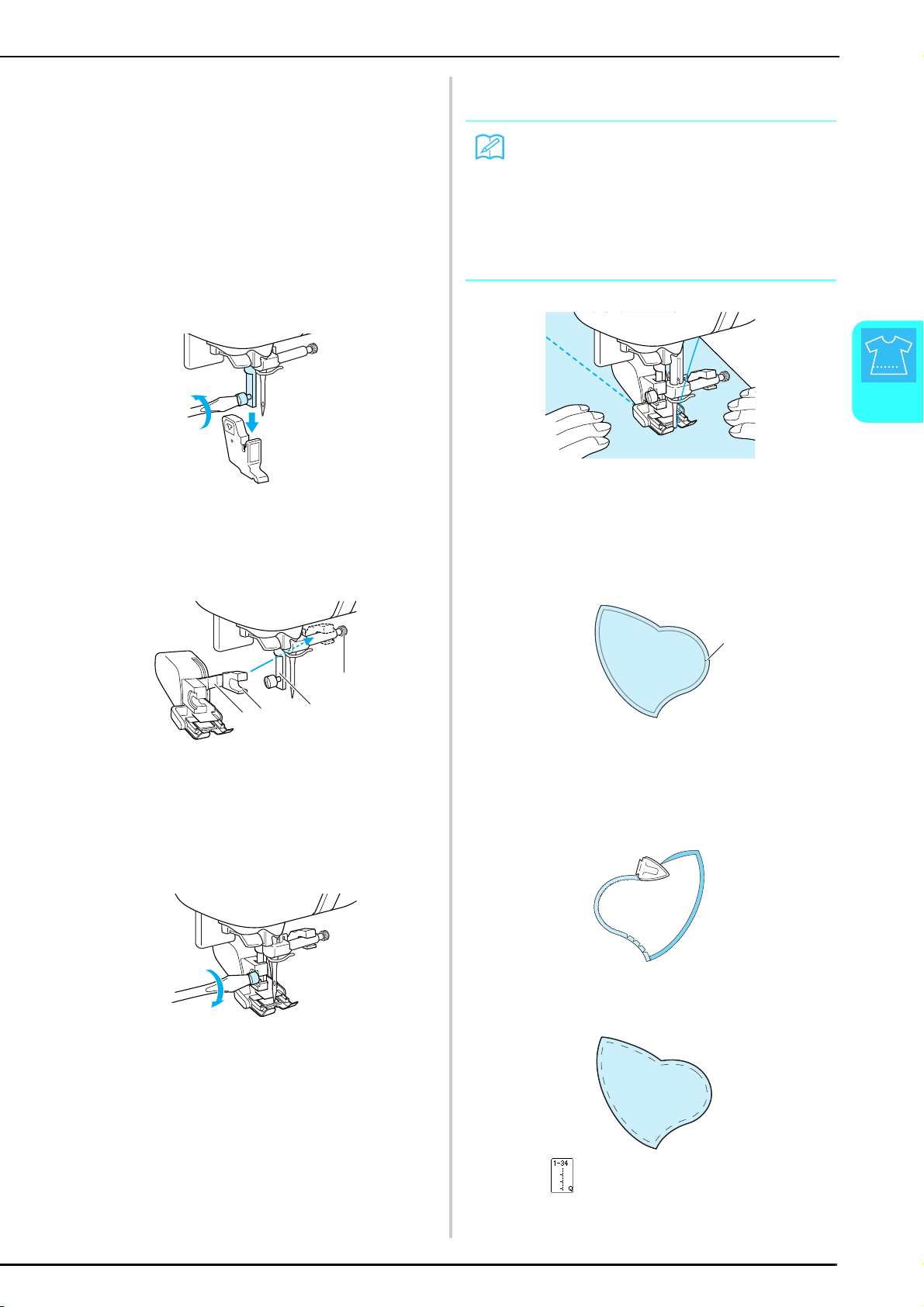
SEWING THE STITCHES
Utility Stitches
63
3
■ Quilting
Sewing together the quilt top, batting, and backing is
called quilting. You can sew the quilt with the
walking foot to keep the quilt top, batting, and
backing from sliding. The walking foot has a set of
feed dogs that move together with the feed dogs in
the needle plate during sewing.
a
Follow the steps on page 33 to remove the
presser foot.
b
Loosen the screw of the presser foot holder to
remove the presser foot holder.
c
Set the operation lever of the walking foot so
that the needle clamp screw is set between
the fork, and position the walking foot on the
presser foot bar.
a Operation lever
b Needle clamp screw
c Fork
d Presser foot bar
d
Lower the presser foot lever. Tighten the
screw securely with the screwdriver.
e
Place one hand on each side of the presser
foot to hold the fabric secure while sewing.
■ Appliqués
The seam will blend in if transparent nylon thread is
used for the upper thread.
a
Trace the pattern onto the appliqué fabric,
and then cut around it.
a Seam allowance: 3 to 5 mm
b
Cut a piece of thick paper or stabilizer to the
finished size of the appliqué design, place it
on the back of the appliqué, and then fold
over the seam allowance using an iron.
c
Turn the appliqué over, and attach the
stabilizer with basting pins or a basting stitch.
d
Press , and then attach presser foot “J”.
b
d
a
c
Memo
• Sew at slow to medium speed.
• Do not sew in reverse or use stitches that require
side ways or reverse feeding.
• Always check to be sure that your quilting surface is
securely basted before beginning to sew. Specialized
machine quilt needles and threads are also available
for machine quilting.
a
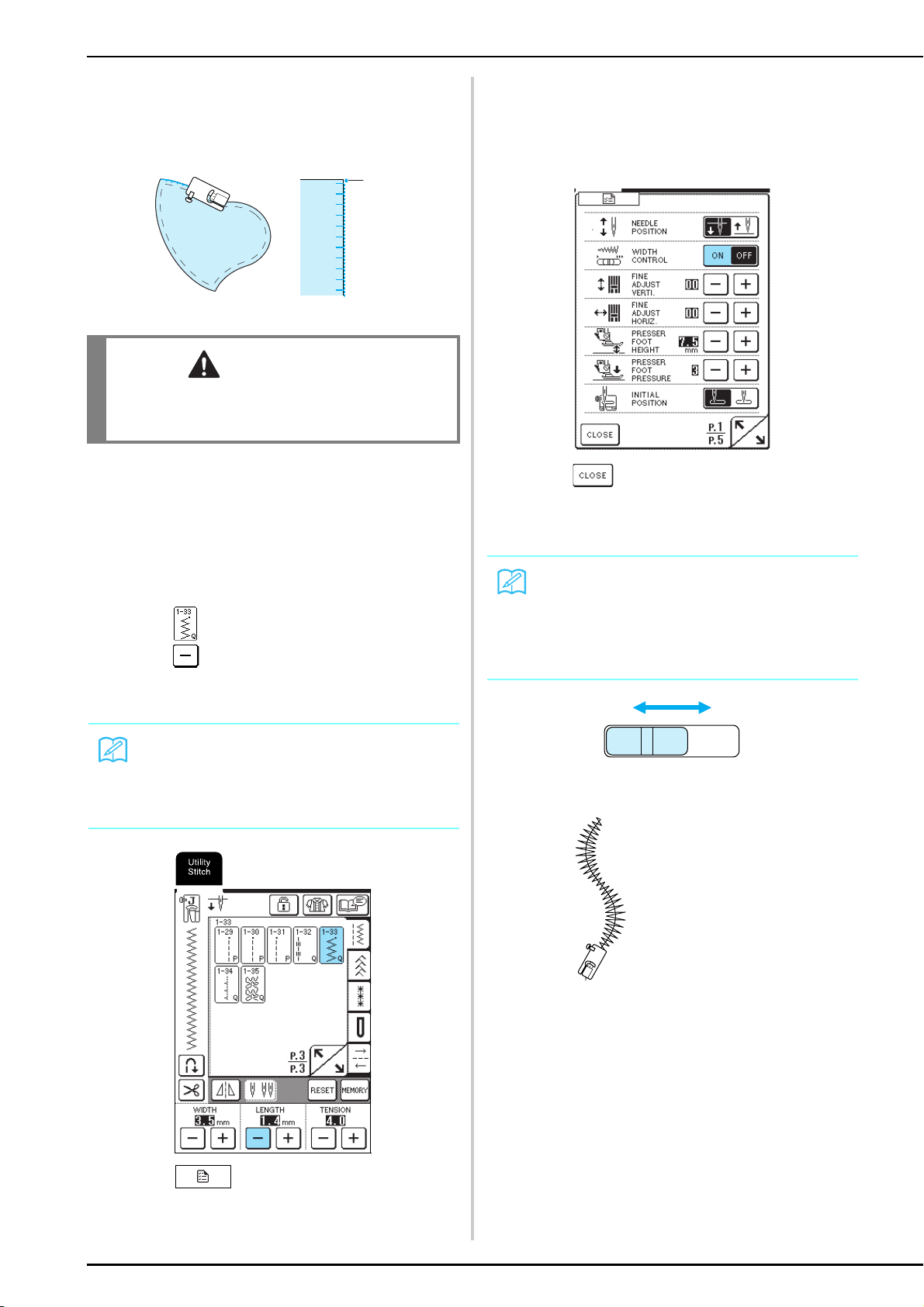
SEWING THE STITCHES
64
e
Check the needle drop point, and then sew
along the edge of the appliqué while making
sure that the needle drops slightly off the edge
of the fabric.
a Needle drop point
■ Satin Stitching
Use the foot controller to sew with satin stitches. If
you set the speed control slide to control the stitch
width, you can make subtle changes in the stitch
width during sewing.
a
Connect the foot controller (see page 39).
b
Press , and then attach presser foot “J”.
c
Press in the length display to shorten the
stitch length.
d
Press .
* Change the sewing speed controller to a stitch width
controller.
e
Set “WIDTH CONTROL” to “ON”. The
sewing speed will be adjusted using the foot
controller.
f
Press .
g
While sewing, slide the sewing speed
controller to adjust the stitch width.
a Narrower
b Wider
h
When you are finished sewing, set “WIDTH
CONTROL” back to “OFF”.
CAUTION
• Be careful that the needle does not strike a basting
pin during sewing. Striking a pin can cause the
needle to break, resulting in injury.
Memo
A stitch length between 0.3 and 0.5 mm (approx. 1/64
and 1/32 inch) is best for satin stitches, although this
range varies depending on the type of fabric and
thickness of thread used.
J
a
Memo
• Slide the controller to the left to make the width
narrower. Slide the controller to the right to make the
width wider.
• The stitch width is adjusted equally from the center
needle position.
ab
J
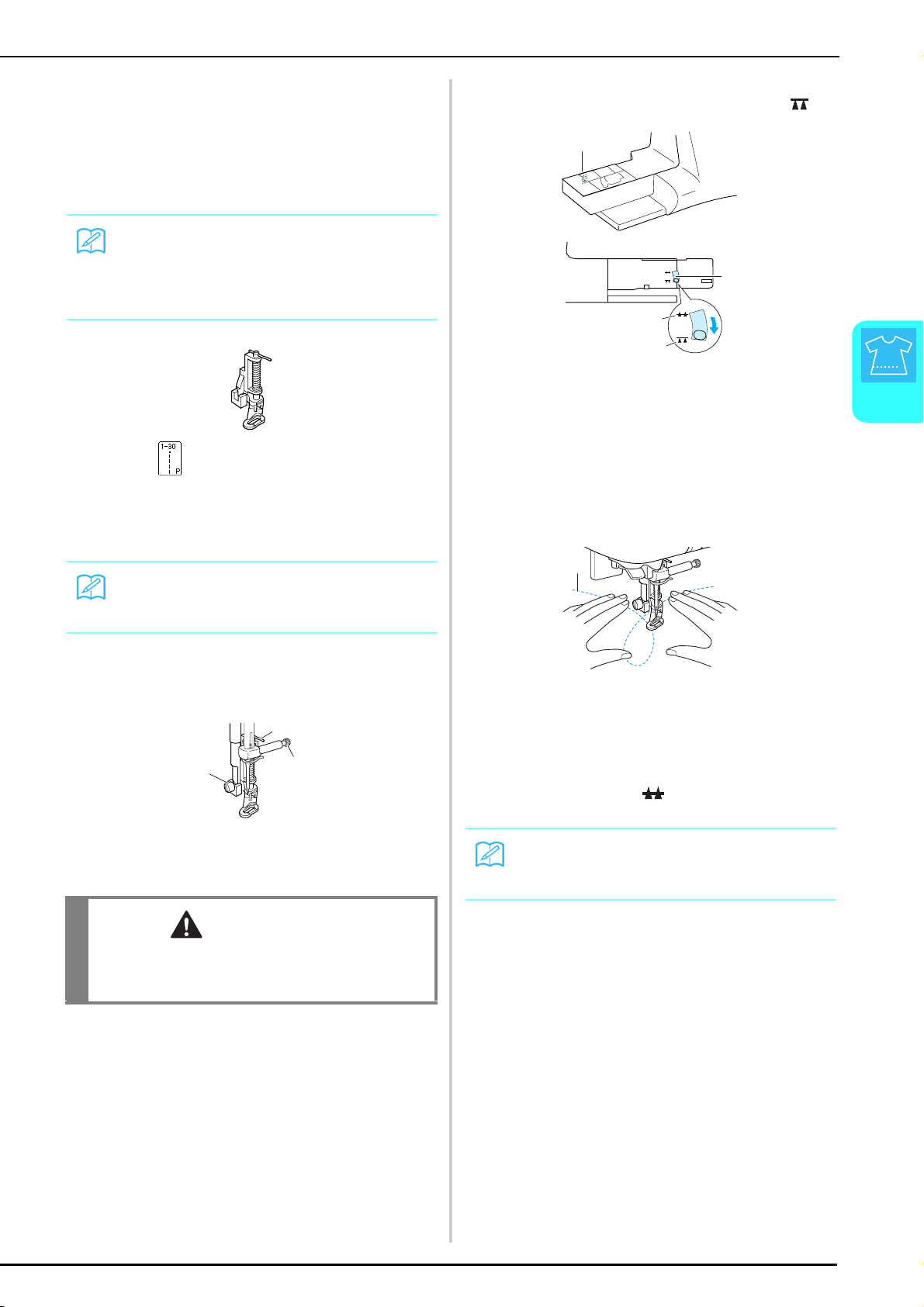
SEWING THE STITCHES
Utility Stitches
65
3
■ Free-motion Quilting
With free-motion quilting, the feed dogs can be
lowered (using the feed dog position switch) so that
the fabric can be moved freely in any direction.
The quilting foot is needed for free-motion quilting.
We recommend attaching the foot controller and
sewing at a consistent speed.
a
Select .
b
Remove the presser foot holder (see page 63).
c
Align the quilting foot with the lower-left side
of the presser bar.
d
Hold the quilting foot in place with your right
hand, and then tighten the presser foot holder
screw using the screwdriver in your left hand.
a Pin on quilting foot
b Presser foot holder screw
c Needle clamp screw
e
Lower the feed dog position switch, located at
the rear of the base of the machine, to .
a Rear of machine
b Feed dog position switch
(as seen from the rear of the machine)
c Up
d Down
f
Use both hands to stretch the fabric taut, and
then move the fabric at a regular pace in
order to sew uniform stitches roughly 2.0-2.5
mm (approx. 1/16 - 3/32 inch) in length.
a Stitch
→ Reinforcement stitches are sewn at the beginning
and end of sewing.
g
After sewing is finished, raise the feed dog
position switch to to raise the feed dogs.
Reset your machine to normal setting.
Memo
In order to sew a balanced stitch, it may be necessary
to lower the upper thread tension (see page 43) or to
loosen the presser foot pressure on the setting screen
(see page 20). Test with a scrapped piece.
Memo
The pin on the quilting foot should be positioned over
the needle clamp screw.
CAUTION
• Be sure to securely tighten the screws with the
screwdriver. Otherwise, the needle may touch the
presser foot, causing it to bend or break.
a
c
b
Memo
Normally, the feed dog position switch is in the up
position.
a
b
c
d
a
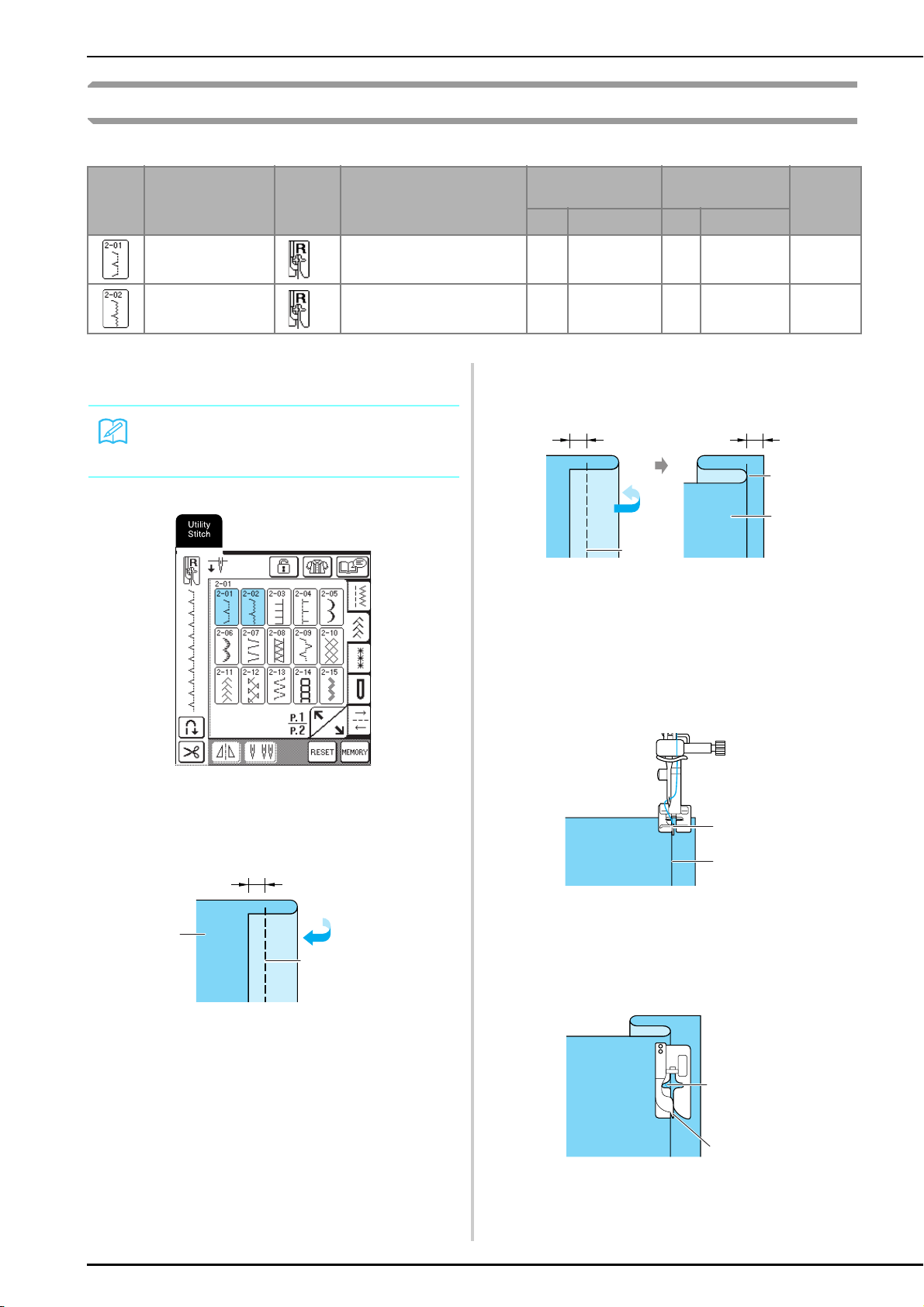
SEWING THE STITCHES
66
Blind Hem Stitches
Select a blind hem stitch to sew the hems or cuffs of dresses, blouses, pants, or skirts.
a
Select a stitch pattern.
b
Place the fabric wrong side up, and then fold
and baste the fabric as shown.
a 5 mm
b Wrong side of fabric
c Basting
c
Fold the fabric again, as shown.
a 5 mm
b 5 mm
c Basting
d Wrong side of fabric
d
Attach presser foot “R”, and then lower the
presser foot so that the presser foot guide is
flush against the fold of the fabric.
a Presser foot guide
b Fold
e
Sew while keeping the fold in the fabric against
the presser foot guide.
a Needle position
b Presser foot guide
Stitch
Key
Stitch Name Presser
Foot
Applications Stitch Width
[mm (inch)]
Stitch Length
[mm (inch)]
Twin
Needle
Auto Manual Auto Manual
Blind hem stitch
Hemming woven fabrics
00 3← − →3
2.0
(1/16)
1.0 - 3.5
(1/16 - 1/8)
NO
Blind hem stitch
Hemming stretch fabric
00 3← − →3
2.0
(1/16)
1.0 - 3.5
(1/16 - 1/8)
NO
Memo
For best results when sewing stretch fabrics,
decrease the pressure of the presser foot.
a
b
c
ab
c
d
a
b
R
a
b
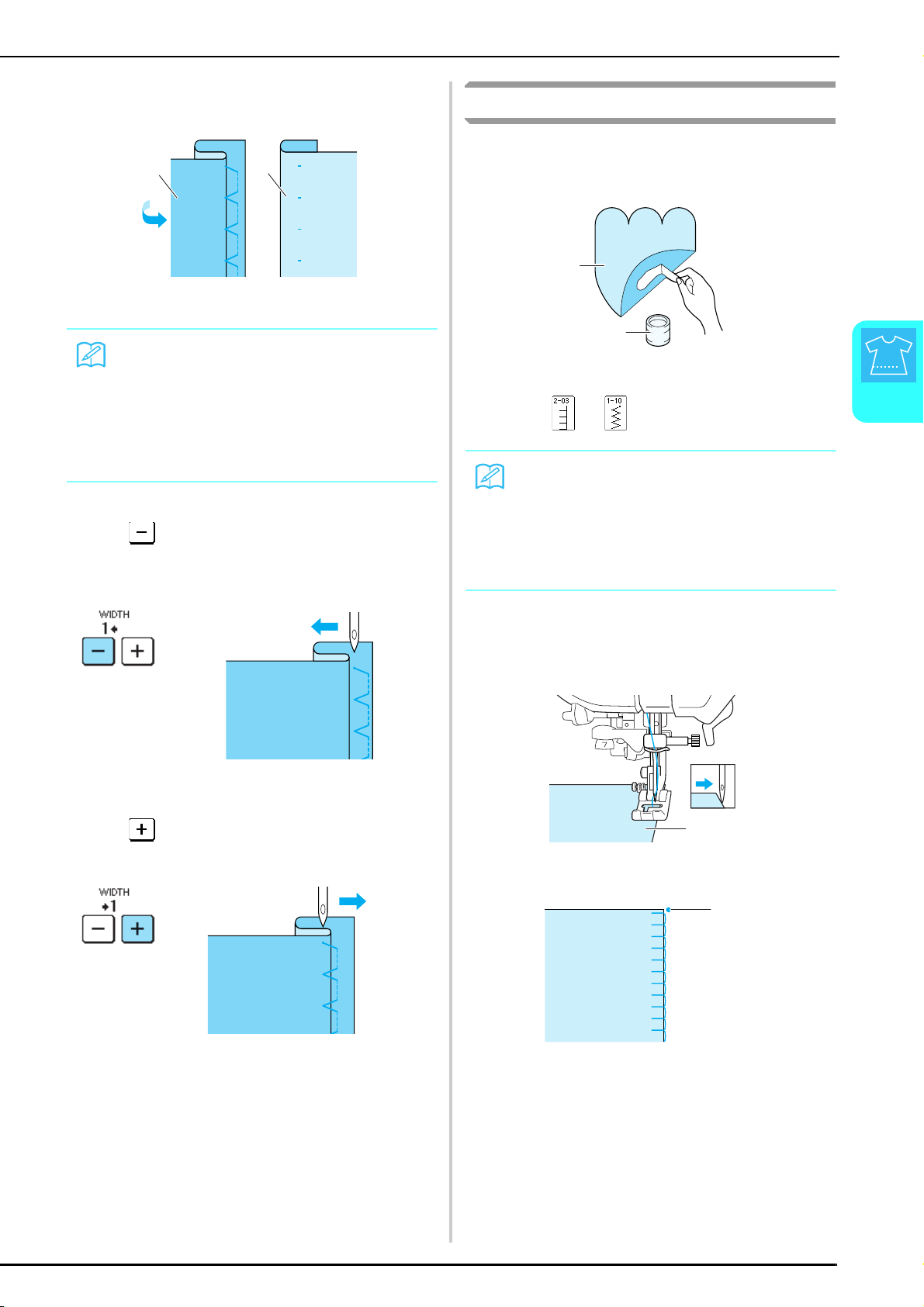
SEWING THE STITCHES
Utility Stitches
67
3
f
Remove the basting, and then turn over the
fabric.
a Wrong side of fabric
b Surface of fabric
■ If the Needle Does Not Catch the Fold
Press in the width display so that the needle
slightly catches the fold.
■ If the Needle Catches Too Much of the Fold
Press in the width display so that the needle
slightly catches the fold.
Appliqués
a
Use a temporary spray adhesive or basting to
attach the appliqué to the fabric.
a Appliqué
b Fabric glue
b
Press or .
c
Attach presser foot “J”, and then sew along
the edge of the appliqué, making sure that the
needle drops slightly off the edge.
a Appliqué
a Needle drop point
Memo
Blind hem stitches cannot be sewn if the needle does
not catch the fold on the left side. However, if the
needle catches too much of the fold, the fabric cannot
be unfolded and too much of the seam will appear on
the surface of the fabric, leaving an unattractive finish.
If either of these occur, follow the instructions below to
correct the problem.
a
b
Memo
• Adjust the stitch width and length according to the
shape, size and fabric quality of the appliqué (see
page 42).
• For details on the stitch patterns, refer to the
“STITCH SETTING CHART” at the end of this
manual.
b
a
a
a
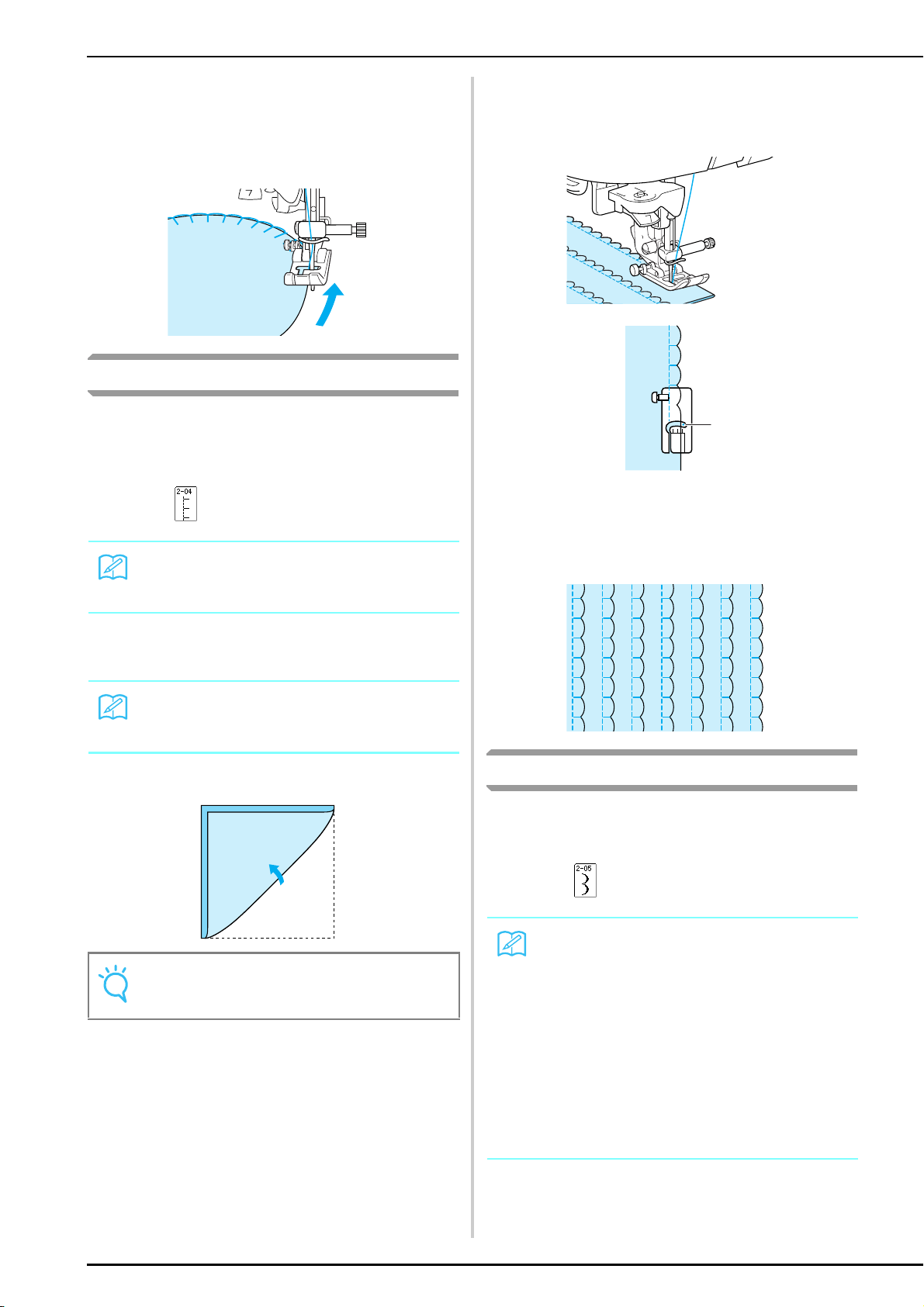
SEWING THE STITCHES
68
■ Sewing Sharp Curves
Stop the machine with the needle in the fabric
outside the appliqué. Raise the presser foot and turn
the fabric a little bit at a time while sewing for an
attractive finish to the seam.
Shell Tuck Stitching
The arched tuck that looks like shells lined up in a row
is called a shell tuck. In addition to edging, this
decorative stitching can be used on the neckline or
sleeves of dresses and blouses.
a
Press .
b
Increase the thread tension for an attractive
scalloped finish to the shell tuck stitching.
c
Fold the fabric in half along the bias.
ÅB
d
Attach presser foot “J”, and then sew along
the edge of the fabric, making sure that the
needle drops slightly off the edge.
a Needle drop point
e
Unfold the fabric, and then iron the tucks
down to one side.
Scalloping
Scallop stitching (wave-shaped running stitching) can
be used to decorate the edges of blouse collars and
handkerchiefs.
a
Press , and then attach presser foot “N”.
Memo
For details on the stitch patterns, refer to the “STITCH
SETTING CHART” at the end of this manual.
Memo
If the thread tension is too loose, the shell tuck
stitching will not scallop.
Note
Use a thin fabric.
Memo
• If the automatic thread cutting setting is selected
before sewing, the machine will automatically sew
reinforcement stitches at the beginning of stitching.
When the “Reverse/Reinforcement Stitch” button is
pressed at the end of stitching, the machine will
automatically sew reinforcement stitches and cut the
thread.
• For best results, apply a temporary spray adhesive
and iron the fabric before sewing.
• For details on the stitch patterns, refer to the
“STITCH SETTING CHART” at the end of this
manual.
a
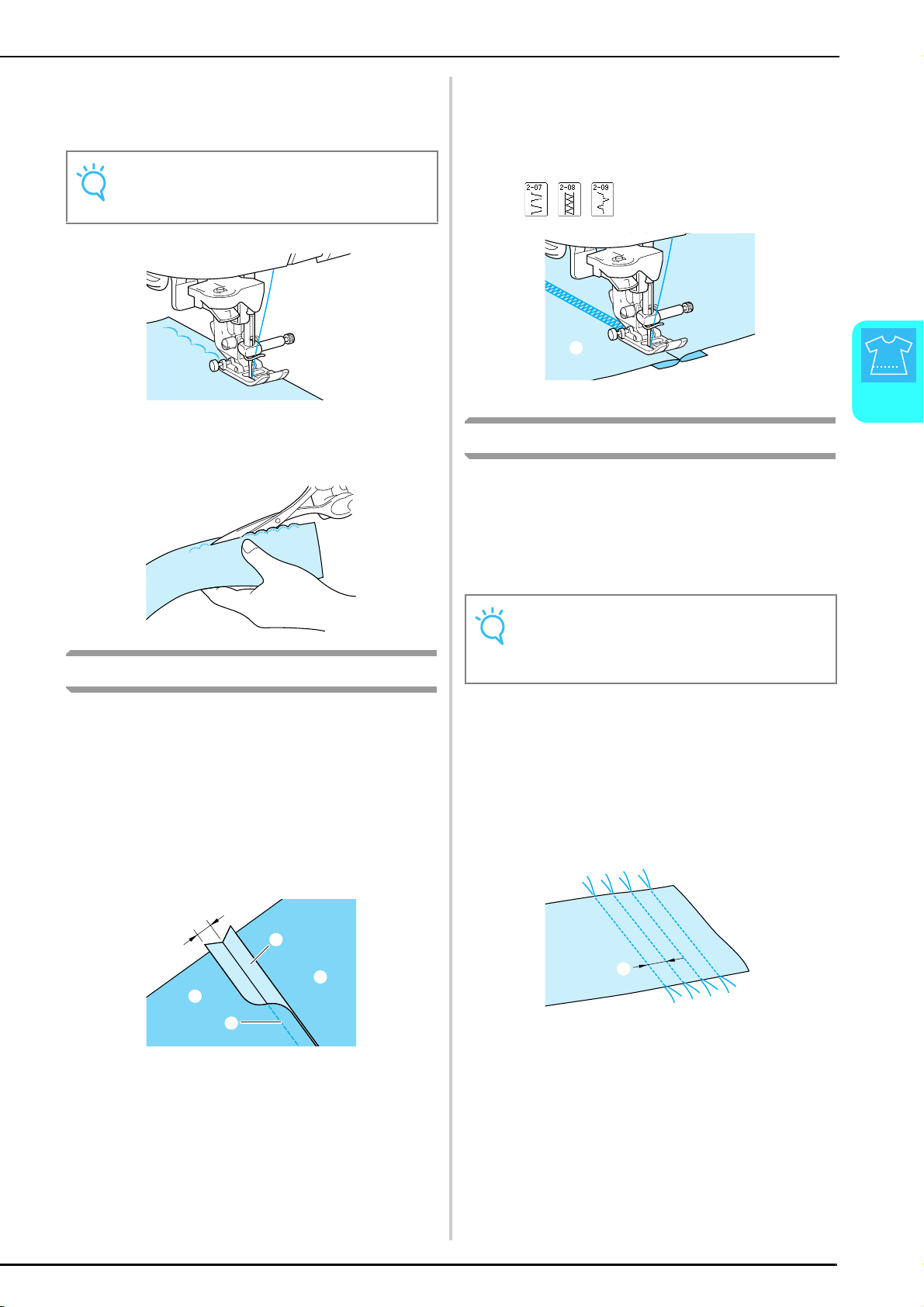
SEWING THE STITCHES
Utility Stitches
69
3
b
Leave a seam when sewing the scallop
stitches so that the pattern is not sewn
directly on the edge of the fabric.
c
Trim along the seam, making sure not to cut
the stitches.
Top Stitching
For a decorative effect in a crazy quilt, stitches can be
sewn over a pressed seam allowance.
a
Select a straight stitch, and then attach
presser foot “J”.
b
Sew together two pieces of fabric with their
surfaces facing each other, and then open the
seam allowances.
a 6.5 mm (1/4inch)
b Wrong side of fabric
c Straight stitch
d Seam allowance
c
Turn the fabric over so that the surface faces
up, and then sew over the seam with the
center of the presser foot aligned with the
seam.
* Select one of the following stitch patterns.
a Surface of fabric
Smocking
The decorative stitching created by sewing or
embroidering over gathers is called smocking. It is used
to decorate the front of blouses or cuffs.
a
Select a straight stitch, and then attach
presser foot “J”.
b
Set the stitch length to 4.0 mm (approx.
3/16 inch) and the thread tension to 2.0
(weaker tension).
c
Pull out 50 mm (approx. 1-15/16 inches) of
both the upper and bobbin threads.
d
Sew stitching 10 mm (approx. 3/8 inch) apart.
a Approximately 10mm (approx. 3/8 inch)
Note
Sew test stitches on the fabric before sewing on your
project.
a
b
b
c
d
Note
Make sure that the automatic reverse/reinforcement
stitching and automatic thread cutting settings are not
selected.
a
a
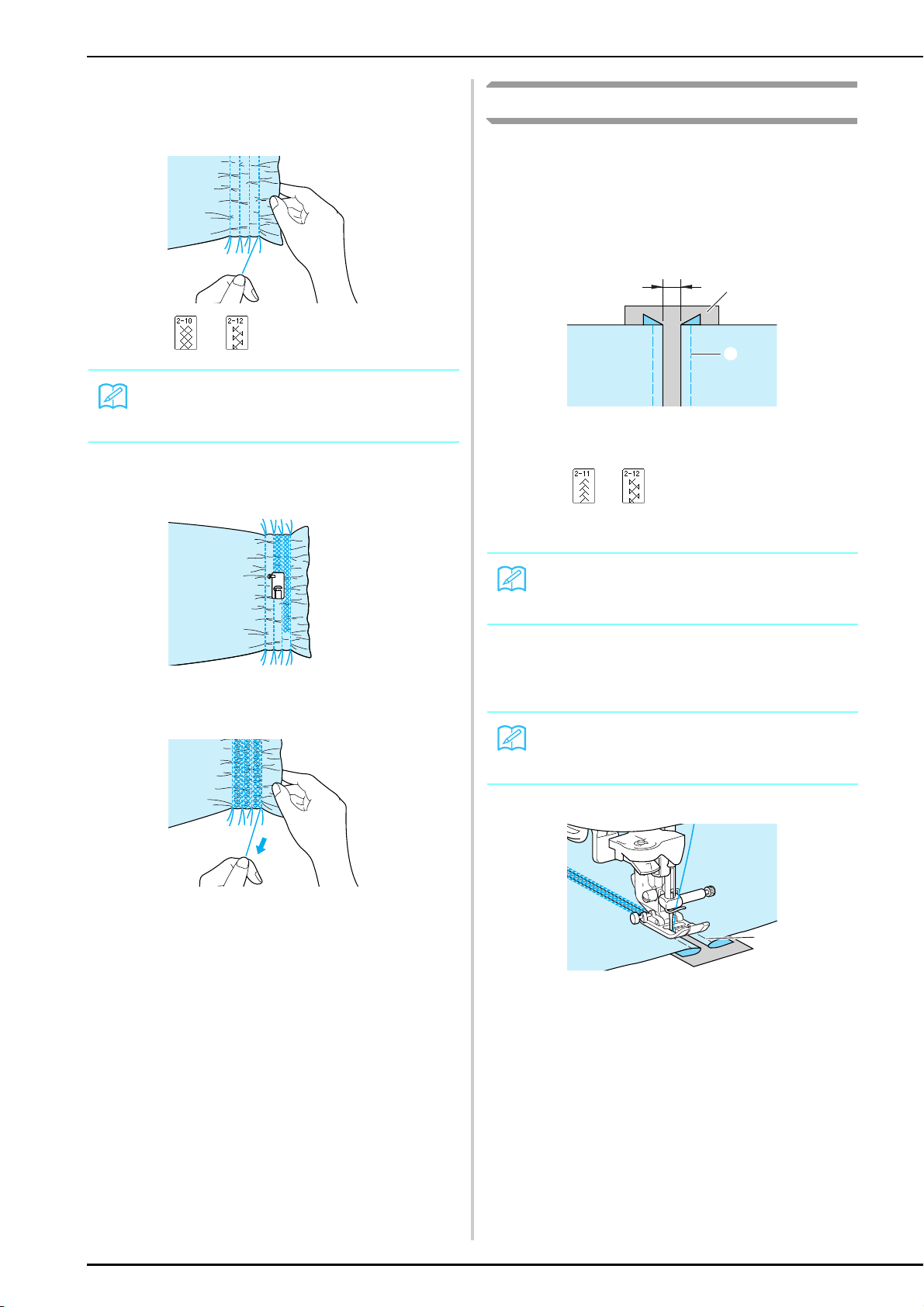
SEWING THE STITCHES
70
e
Pull the bobbin threads to create the desired
amount of gather, and then smooth the
gathers by ironing them.
f
Press or .
g
Sew between the straight stitches.
h
Pull out the straight stitch threads.
Fagoting
Stitching across an open seam is called fagoting. It is
used on blouses and children’s clothing.
a
Separate the two pieces of fabric by about
4 mm (approx. 3/16 inch), and baste them
onto thin paper.
a 4 mm
b Thin paper
c Basting
b
Press or , and then set the stitch width
to the maximum (7.0 mm).
c
Attach presser foot “J”, and then sew with the
presser foot centered between the two pieces
of fabric.
a Basting
d
When you are finished sewing, gently tear off
the paper.
Memo
For details on the stitch patterns, refer to the “STITCH
SETTING CHART” at the end of this manual.
J
Memo
For details on the stitch patterns, refer to the “STITCH
SETTING CHART” at the end of this manual.
Memo
This stitch is more decorative when thicker thread is
used.
a
b
c
a
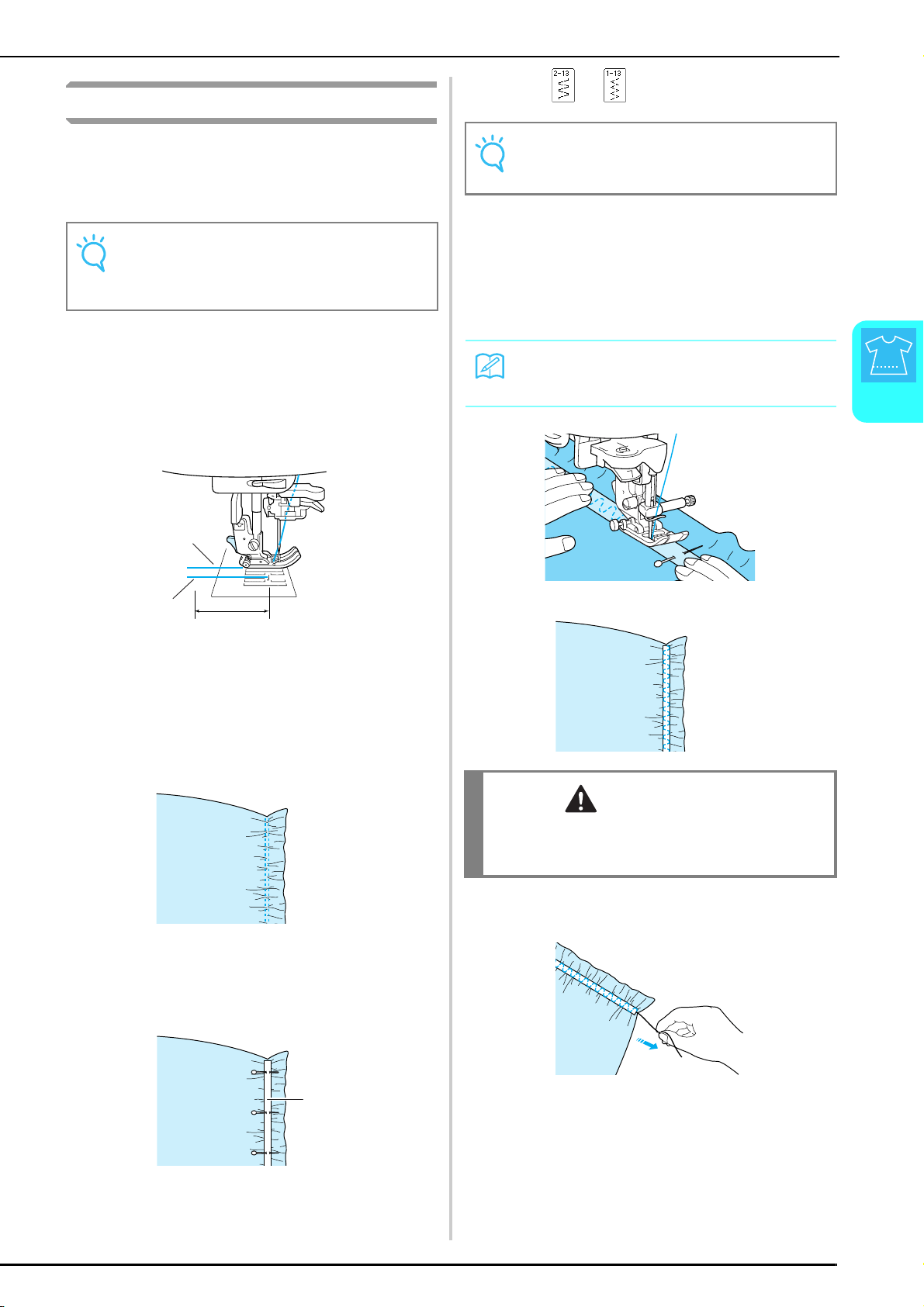
SEWING THE STITCHES
Utility Stitches
71
3
Tape or Elastic Attaching
Elastic tape is sewn onto the fabric unstretched.
a
Select a straight stitch, and then attach
presser foot “J”.
b
Set the stitch length to 4.0 mm (approx.
3/16 inch) and the thread tension to 2.0
(weaker tension).
c
Pull out 50 mm (approx. 1-15/16 inches) of
both the upper and bobbin threads (see
“Pulling Up the Bobbin Thread” on page 27).
a Upper thread
b Bobbin thread
c 50 mm
d
Sew two rows of straight stitches on the
surface of the fabric, and then pull the bobbin
threads to create the desired amount of
gather.
e
Pin the elastic tape to the wrong side of the
fabric with the elastic tape evenly positioned
on the gathers.
a Elastic tape
f
Press or .
g
While pulling the elastic tape so that it is
about the same length as the fabric, pull the
fabric at the pin nearest the front of the
presser foot with your right hand, and feed
the fabric behind the presser foot with your
left hand according to the feeding speed.
h
Pull out the threads for the straight stitches.
Note
Make sure that the automatic reverse/reinforcement
stitching and automatic thread cutting settings are not
selected.
a
b
c
a
Note
For details on the stitch patterns, refer to the “STITCH
SETTING CHART” at the end of this manual.
Memo
This is easy to do if the foot controller is used.
CAUTION
• Be sure the needle does not strike a basting pin, or
any other objects, during sewing. The thread could
tangle or the needle could break, causing injury.
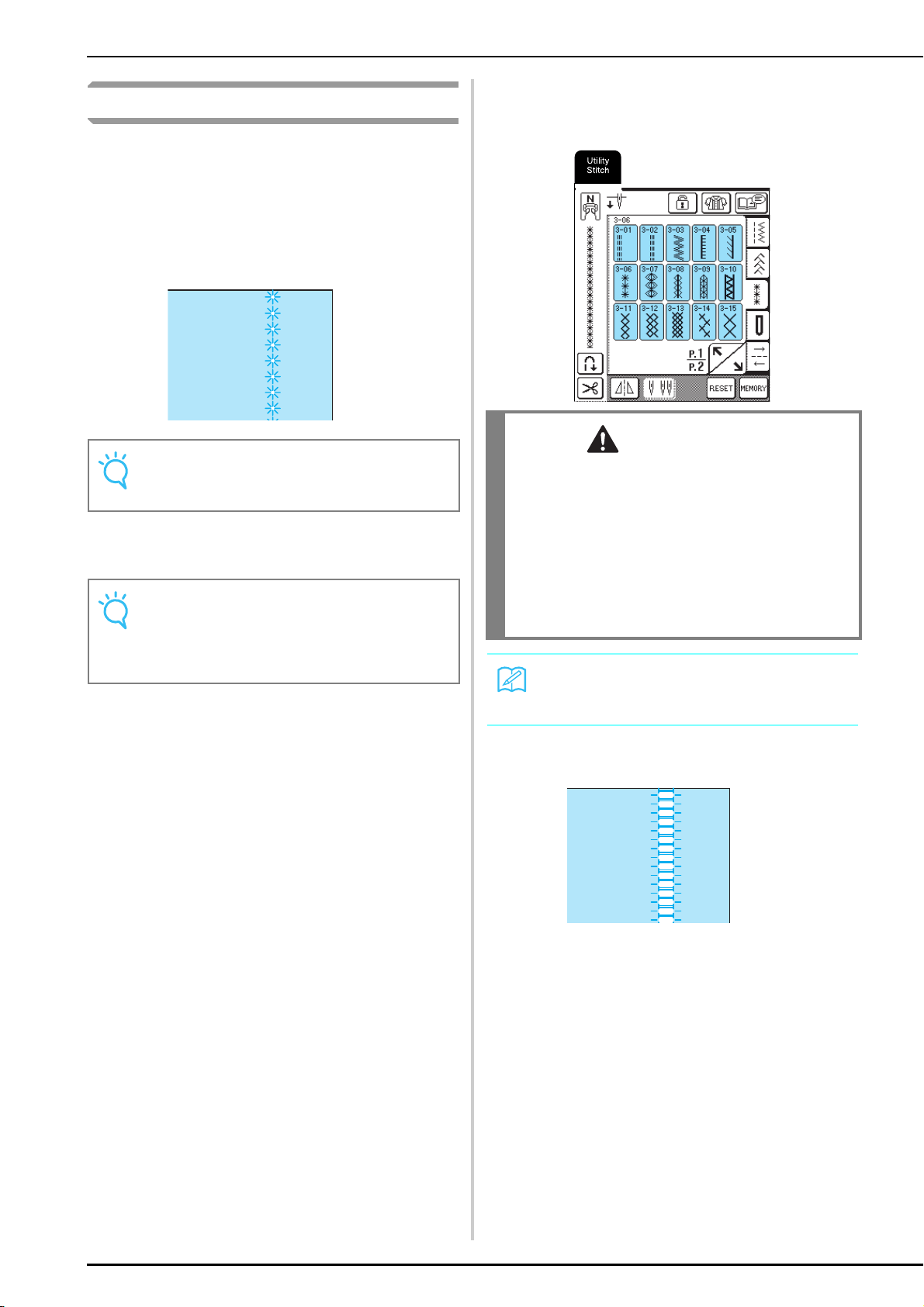
SEWING THE STITCHES
72
Heirloom Stitching
By sewing with the wing needle sold separately, the
needle holes are enlarged, creating a lace-like
decorative stitch.
This stitching is used to decorate tablecloths, hems, and
shirt fronts.
■ Hemstitching (1) (Daisy Stitch)
a
Insert the wing needle (130/705H, size 100/
16).
b
Select a stitch, attach presser foot “N”, and
then start sewing.
* Select a stitch between 3-01 and 3-22.
Drawn Work (1
■ Hemstitching (2) (Drawn Work (1))
Note
For best results, use lightweight to medium weight
homespun fabrics with a slight stretch.
Note
The needle threader cannot be used. Manually pass
the thread through the eye of the needle from the front.
If the needle threader is used, damage to the machine
may result.
CAUTION
• The “Automatic Threading” button cannot be used.
Thread the wing needle by hand, from front to back.
Using the “Automatic Threading” button may result
in damage to the machine.
• A more attractive finish can be obtained if you use a
“130/705H Wing” needle when sewing these
patterns. If using a wing needle and the stitch width
has been set manually, check that the needle will not
touch the presser foot by carefully rotating the
handwheel before starting sewing.
Memo
For details on the stitch patterns, refer to the “STITCH
SETTING CHART” at the end of this manual.
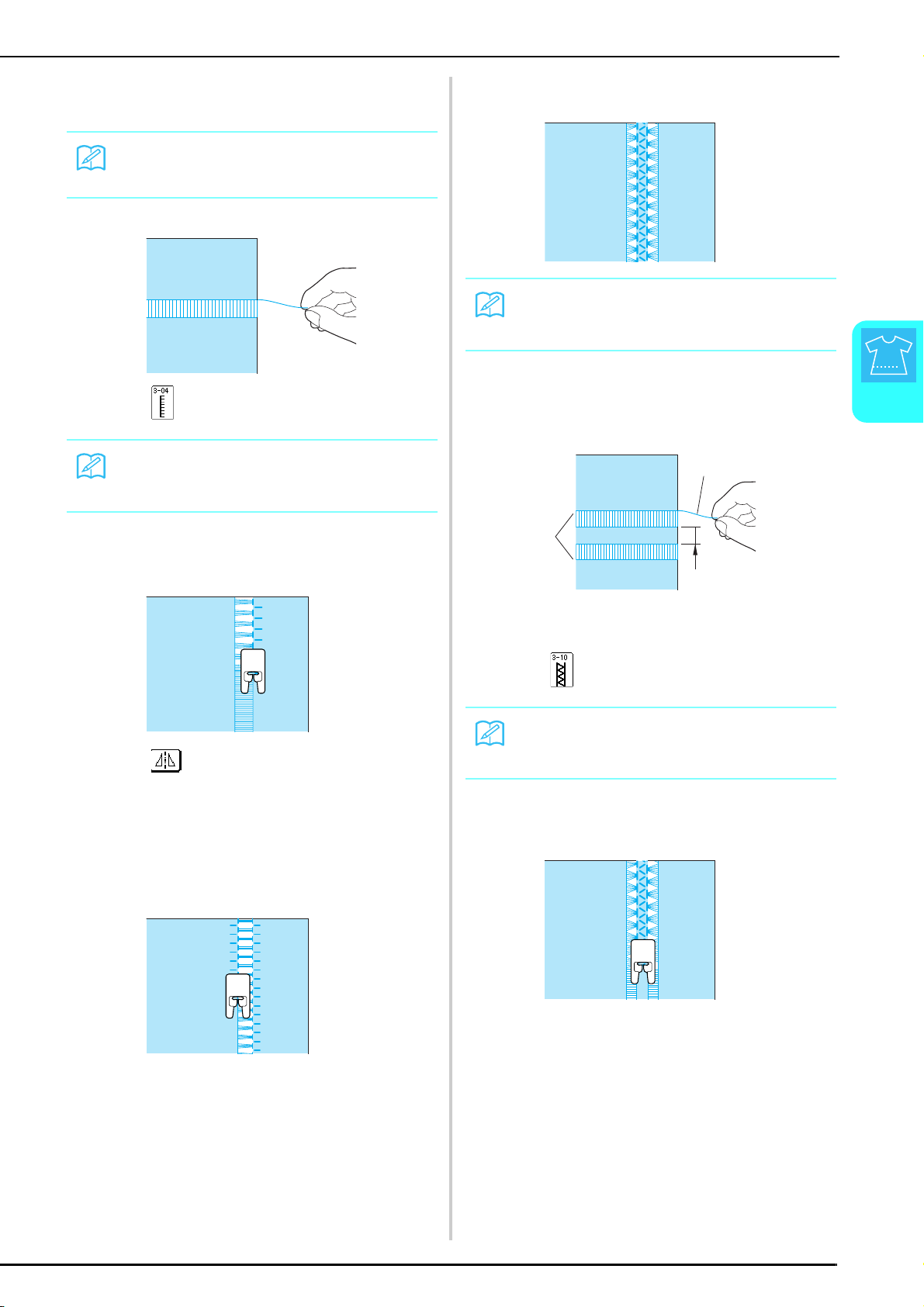
SEWING THE STITCHES
Utility Stitches
73
3
a
Pull out several threads from the fabric to
leave a 3 mm (approx. 1/8 inch) area open.
b
Press , and then attach presser foot “N”.
c
With the surface of the fabric facing up, sew
along the right edge of the open area.
d
Press to create a mirror image of the
stitch.
e
Sew along the left edge of the open area so
that the stitching looks symmetrical.
■ Hemstitching (3) (Drawn Work (2))
a
Pull out several threads from both sides of a 4
mm (approx. 3/16 inch) area left unopened,
as shown in the illustration.
a Pulled out thread
b Pulled out area
c Approximately 4 mm (approx. 3/16 inch) remaining
b
Press .
c
Attach presser foot “N”, and then sew along
the center of the unopened area.
Memo
For best result, use loosely woven fabrics.
Memo
For details on the stitch patterns, refer to the “STITCH
SETTING CHART” at the end of this manual.
N
N
Memo
Drawn work can also be sewn using the wing needle
(sold separately).
Memo
For details on the stitch patterns, refer to the “STITCH
SETTING CHART” at the end of this manual.
a
c
b
N
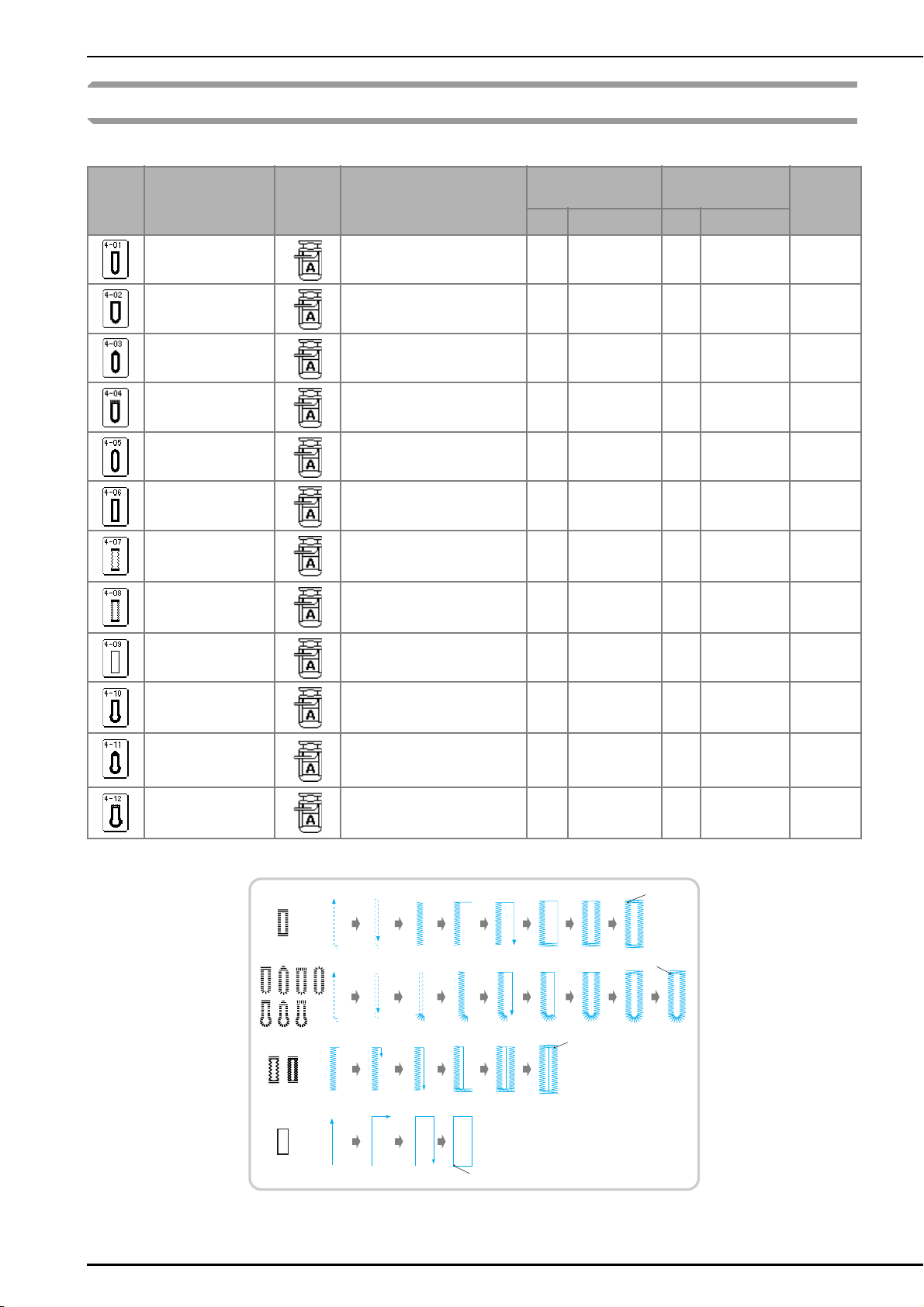
SEWING THE STITCHES
74
Buttonhole Stitches
Select the desired buttonhole stitch according to your application and the size of the button.
Buttonholes are sewn from the front of the presser foot to the back, as shown below.
a Reinforcement stitching
Stitch
Key
Stitch Name
Presser
Foot
Applications
Stitch Width
[mm (inch)]
Stitch Length
[mm (inch)]
Twin
Needle
Auto Manual Auto Manual
Narrow rounded
buttonhole
Buttonhole on light to medium
weight fabrics
5.0
(3/16)
3.0 - 5.0
(1/8 - 3/16)
0.4
(1/64)
0.2 - 1.0
(1/64 - 1/16)
NO
Wide round ended
buttonhole
Buttonholes with extra space for
larger buttons
5.5
(7/32)
3.5 - 5.5
(1/8 - 7/32)
0.4
(1/64)
0.2 - 1.0
(1/64 - 1/16)
NO
Tapered round ended
buttonhole
Reinforced waist tapered
buttonholes
5.0
(3/16)
3.0 - 5.0
(1/8 - 3/16)
0.4
(1/64)
0.2 - 1.0
(1/64 - 1/16)
NO
Round ended
buttonhole
Buttonholes with vertical bar
tack in heavyweight fabrics
5.0
(3/16)
3.0 - 5.0
(1/8 - 3/16)
0.4
(1/64)
0.2 - 1.0
(1/64 - 1/16)
NO
Round double ended
buttonhole
Buttonholes for fine, medium to
heavyweight fabrics
5.0
(3/16)
3.0 - 5.0
(1/8 - 3/16)
0.4
(1/64)
0.2 - 1.0
(1/64 - 1/16)
NO
Narrow squared
buttonhole
Buttonholes for light to medium
weight fabrics
5.0
(3/16)
3.0 - 5.0
(1/8 - 3/16)
0.4
(1/64)
0.2 - 1.0
(1/64 - 1/16)
NO
Stretch buttonhole
Buttonholes for stretch or woven
fabrics
6.0
(15/
64)
3.0 - 6.0
(1/8 - 15/64)
1.0
(1/16)
0.5 - 2.0
(1/32 - 1/16)
NO
Heirloom buttonhole
Buttonholes for heirloom and
stretch fabrics
6.0
(15/
64)
3.0 - 6.0
(1/8 - 15/64)
1.5
(1/16)
1.0 - 3.0
(1/16 - 1/8)
NO
Bound buttonhole
The first step in making bound
buttonholes
5.0
(3/16)
0.0 - 6.0
(0 - 15/64)
2.0
(1/16)
0.2 - 4.0
(1/64 - 3/16)
NO
Keyhole buttonhole
Buttonholes in heavyweight or
thick fabrics for larger flat
buttons
7.0
(1/4)
3.0 - 7.0
(1/8 - 1/4)
0.5
(1/32)
0.3 - 1.0
(1/64 - 1/16)
NO
Tapered keyhole
buttonhole
Buttonholes in medium to heavy
weight fabrics for larger flat
buttons
7.0
(1/4)
3.0 - 7.0
(1/8 - 1/4)
0.5
(1/32)
0.3 - 1.0
(1/64 - 1/16)
NO
Keyhole buttonhole
Buttonholes with vertical bar
tack for reinforcement in
heavyweight or thick fabrics
7.0
(1/4)
3.0 - 7.0
(1/8 - 1/4)
0.5
(1/32)
0.3 - 1.0
(1/64 - 1/16)
NO
a
a
a
a
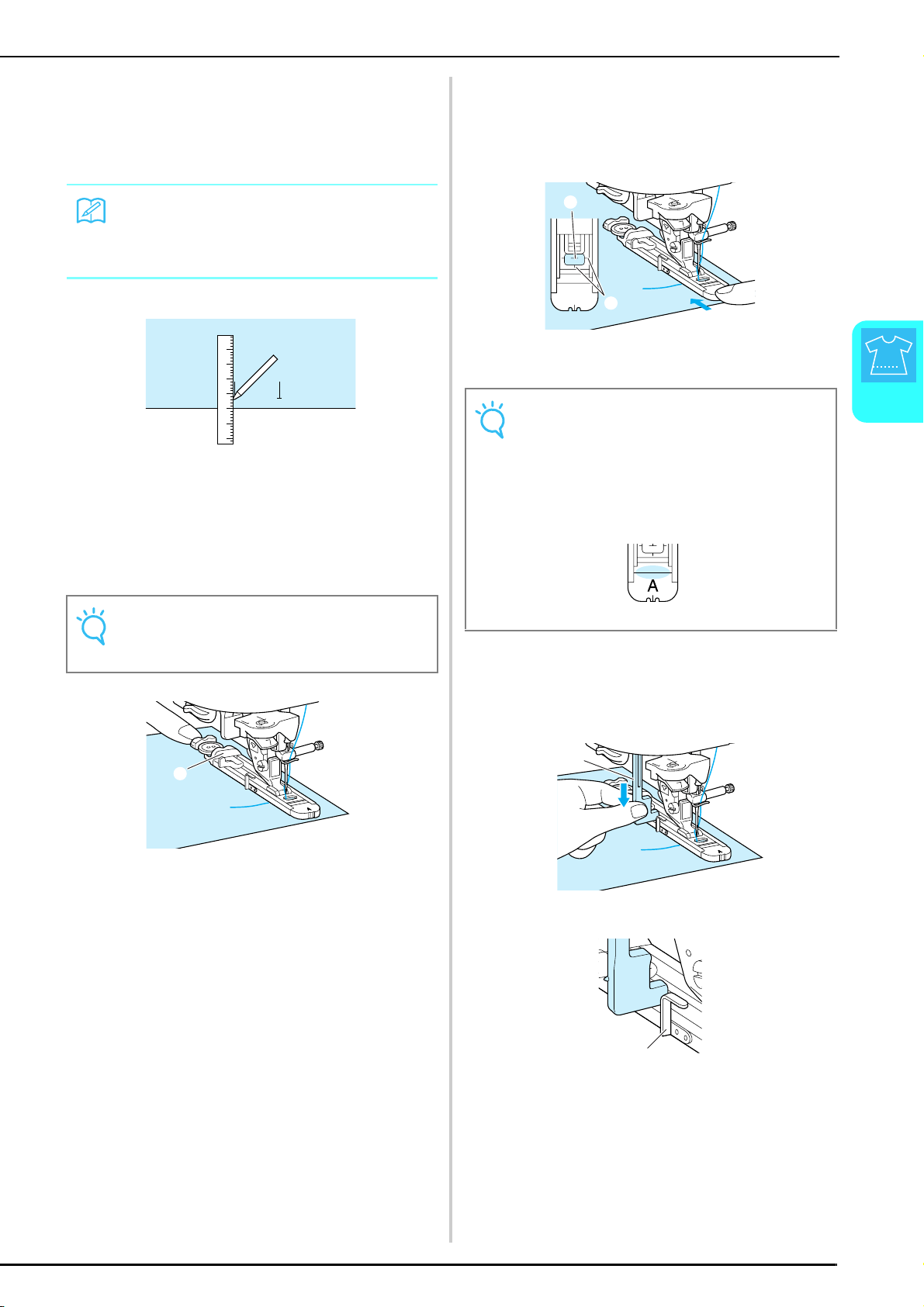
SEWING THE STITCHES
Utility Stitches
75
3
a
Select a stitch, and then attach presser foot
“A”.
b
Mark the position and length of the
buttonhole on the fabric.
c
Pull out the button holder plate on the presser
foot, and then insert the button that will be
put through the buttonhole.
* The size of the buttonhole is set by clamping the
button in the button holder plate.
a Button holder plate
d
Hold the outside frame of the buttonhole foot
toward the back with your finger, and then
lower the presser foot so that the mark on the
fabric aligns with the marks on the buttonhole
foot.
a Mark on fabric
b Marks on presser foot
e
Pull down the buttonhole lever.
* The buttonhole lever should be positioned behind
the metal bracket on the buttonhole foot, as shown
in the illustration.
a Buttonhole lever
a Metal bracket
Memo
The maximum buttonhole length is 28 mm (approx. 1-
1/6 inches) (diameter + thickness of the button).
Note
Pass the thread under the presser foot.
a
Note
• Slide the outside frame of the buttonhole foot
backward as far as possible, making sure that there
is no gap behind the part of the foot marked “A”, as
shown in the illustration. If the buttonhole foot is not
slid back as far as possible, the buttonhole will not
be sewn at the correct size.
• Pass the thread under the presser foot.
A
a
b
a
a
a
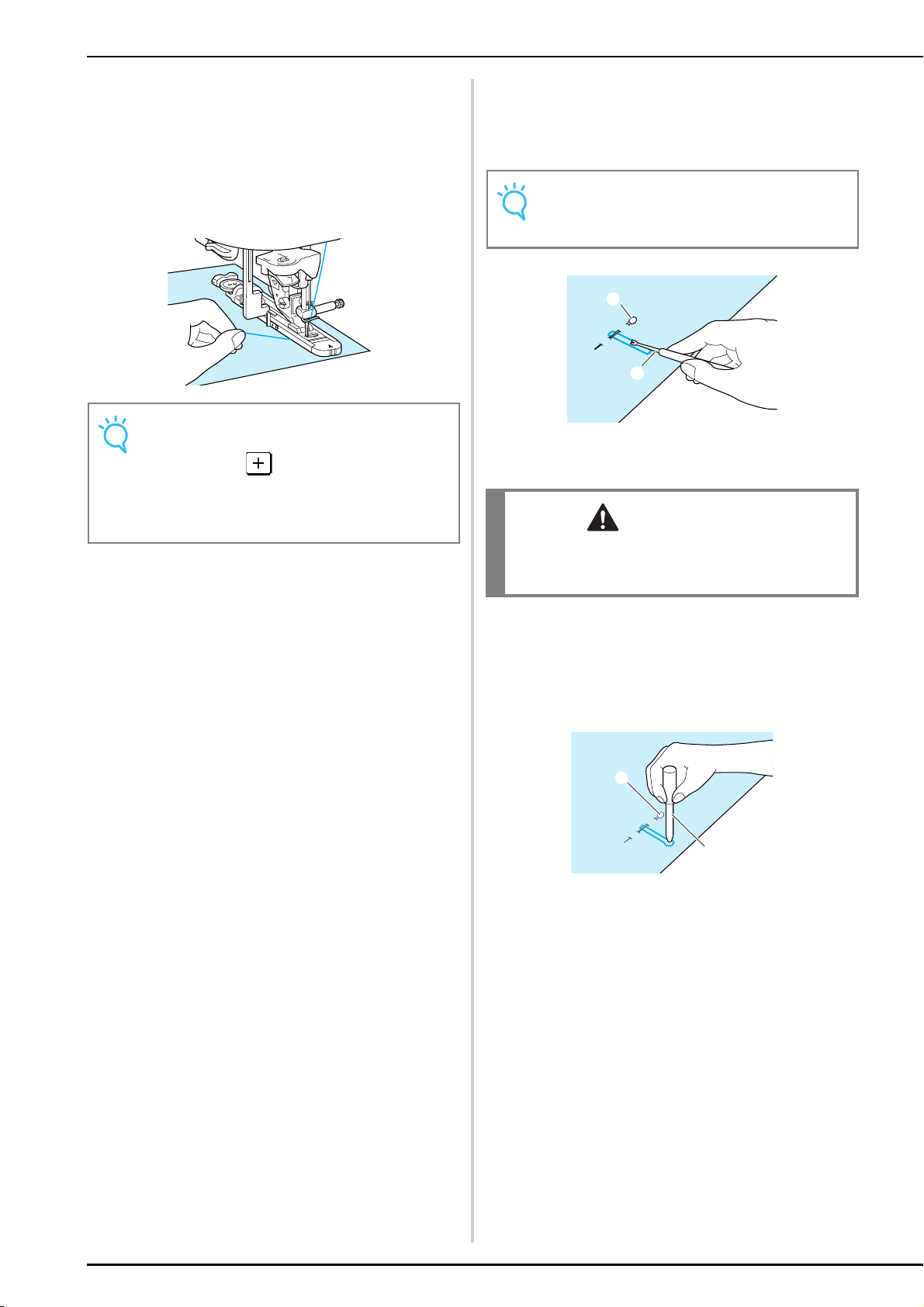
SEWING THE STITCHES
76
f
Gently hold the end of the upper thread, and
then start sewing.
* Once sewing is completed, the machine
automatically sews reinforcement stitches, then
stops.
* If the automatic thread cutting setting is selected
before sewing, the machine will automatically cut
the thread at the end of stitching.
g
Insert a pin along the inside of a bar tack at
the end of the buttonhole, and then insert the
seam ripper into the center of the buttonhole
and cut towards the pin.
a Pin
b Seam ripper
For keyhole buttonholes, use the included eyelet
punch to make a hole in the rounded end of the
buttonhole. Then, insert a pin along the inside of the
bar tack, insert a seam ripper into the hole made
with the eyelet punch, and then cut towards the pin.
a Pin
b Eyelet punch
Note
• If the fabric does not feed, for example, because it is
too thick, press in the length display to
increase the stitch length.
• When sewing is finished, raise the buttonhole lever
to its original position.
Note
Be careful not to cut the stitches with the seam ripper.
CAUTION
• When using the seam ripper to open the buttonhole,
do not put your hand or finger in the path of the
ripper. The ripper may slip and cause injury.
a
b
a
b
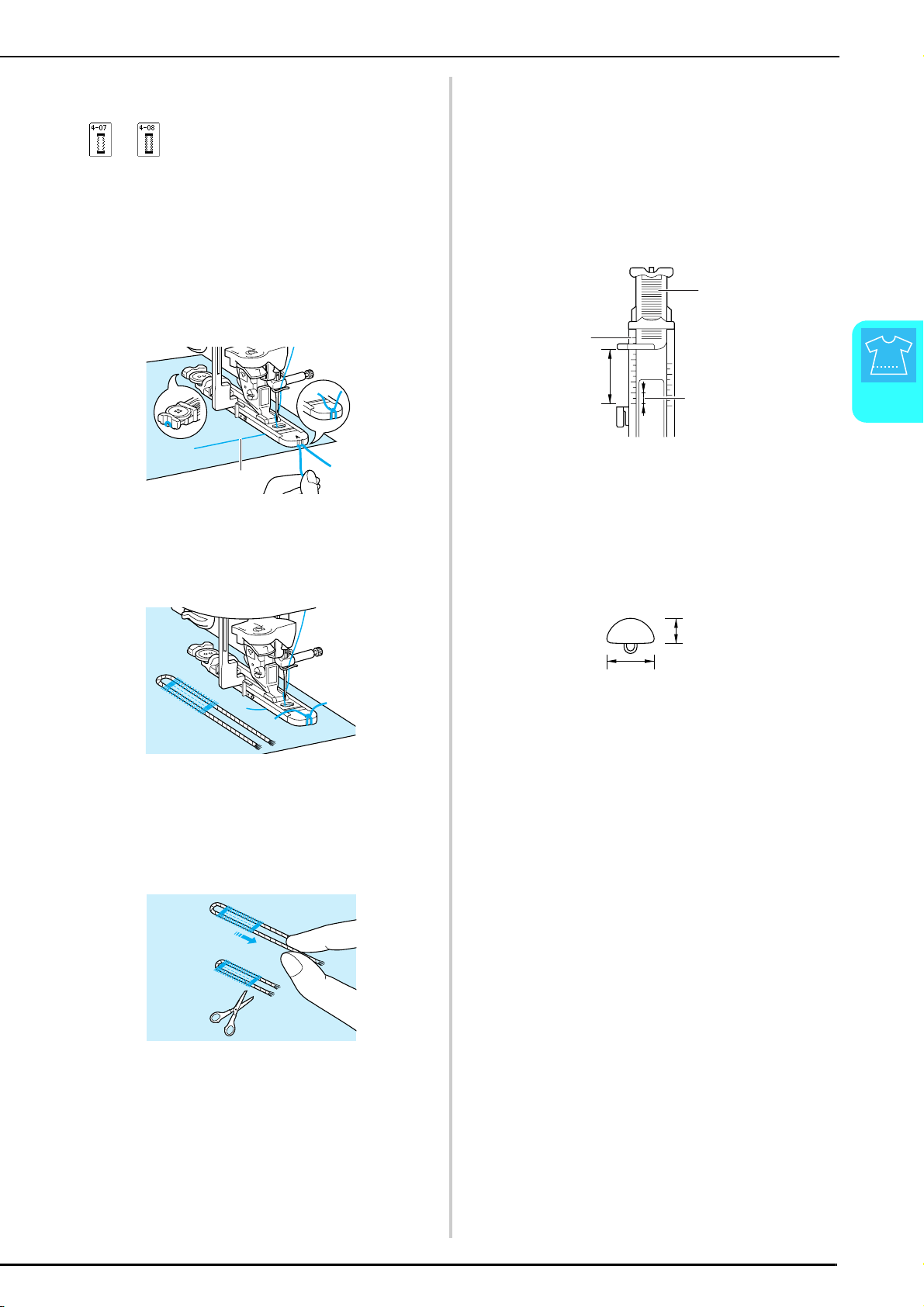
SEWING THE STITCHES
Utility Stitches
77
3
■ Sewing Stretch Fabrics
When sewing a buttonhole on stretch fabrics, press
or , and use a gimp thread.
a
Hook the gimp thread onto the back of
buttonhole foot “A”, and then pull the ends of
the gimp thread under the presser foot. Pass
the thread ends through the grooves at the
front of the presser foot, and then temporarily
tie them.
* Use #5 embroidery thread or lace yarn for the gimp
thread.
a Upper thread
b
Lower the presser foot lever, and then start
sewing.
* Set the stitch width to the width of the gimp thread.
c
When sewing is finished, gently pull the gimp
thread to remove any slack, and then use a
handsewing needle with a large eye to pull
the gimp thread to the wrong side of the
fabric.
d
Tie the ends together, and then trim the
excess.
* After using the seam ripper to cut the threads sewn
over the buttonhole, trim the threads.
■ Buttons That Do Not Fit into the Button
Holder Plate
Use the markings on the presser foot scale to set the
size of the buttonhole. The distance between the
markings on the presser foot scale is 5 mm (approx.
3/16 inch).
Add together the diameter and thickness of the
button, and then set the button holder plate to the
calculated value.
a Button holder plate
b Presser foot scale
c Finished measurement (diameter + thickness)
d 5 mm (approx. 3/16 inch)
Example: For a button with a diameter of 15 mm
(approx. 9/16 inch) and a thickness of
10 mm (approx. 3/8 inch), the scale
should be set at 25 mm (approx. 1 inch).
a Thickness: 10 mm (approx. 3/8 inch)
b Diameter: 15 mm (approx. 9/16 inch)
a
a
b
c
d
a
b
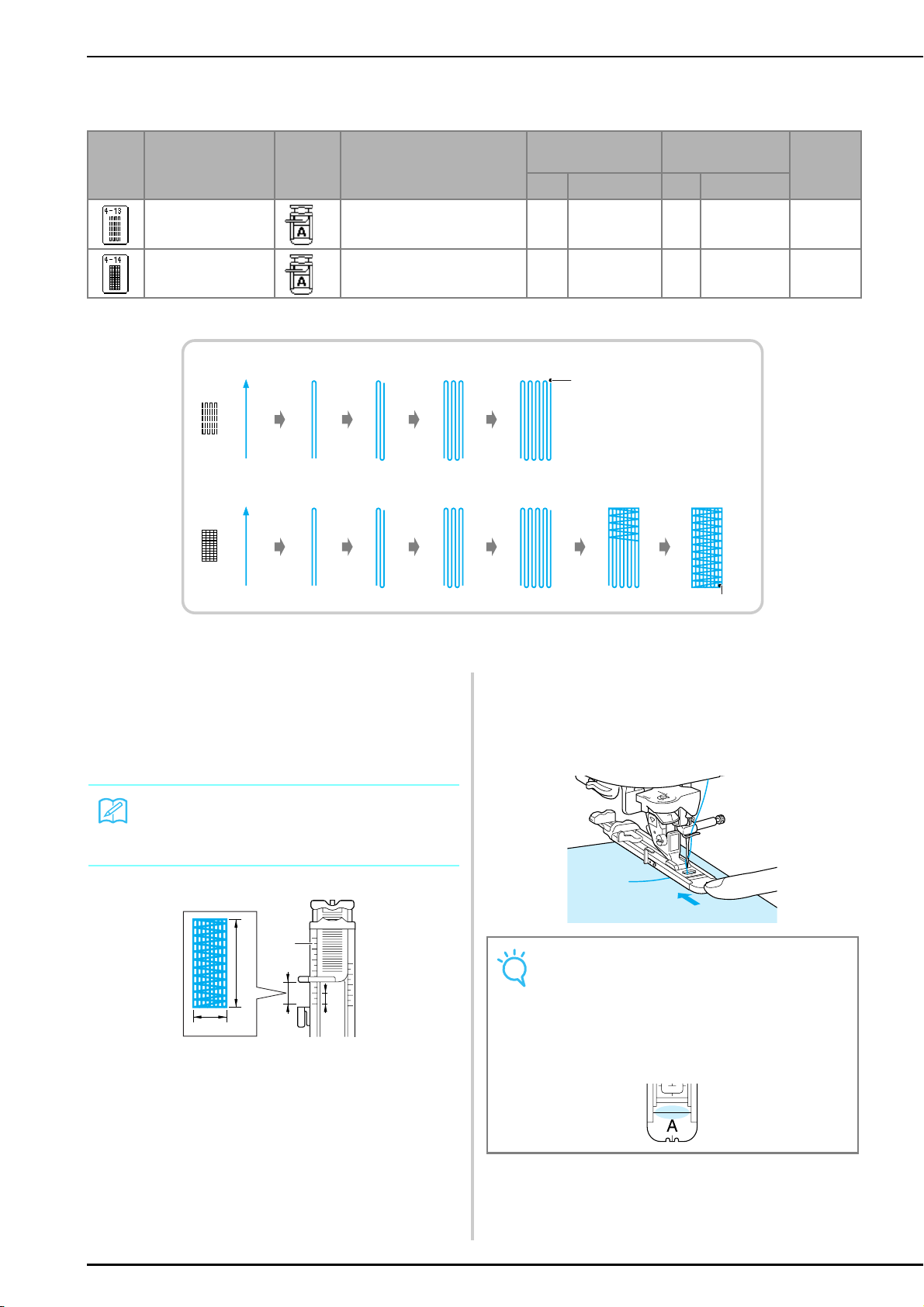
SEWING THE STITCHES
78
■ Darning
Use darning stitches for mending and other applications.
Darning is sewn from the front of the presser foot to the back, as shown below.
a Reinforcement stitching
a
Select a stitch pattern.
b
Set the scale on buttonhole foot “A” to the
desired length of the darning, and then attach
the buttonhole foot.
a Presser foot scale
b Finished measurement
c 7 mm wide (approx. 1/4 inch)
d 5 mm (approx. 3/16 inch)
c
Hold the outside frame of the buttonhole foot
toward the back with your finger, and then
lower the presser foot so that it aligns with
the area to be darned.
Stitch
Key
Stitch Name Presser
Foot
Applications Stitch Width
[mm (inch)]
Stitch Length
[mm (inch)]
Twin
Needle
Auto Manual Auto Manual
Darning
Darning of medium weight fabric
7.0
(1/4)
2.5 - 7.0
(3/32 - 1/4)
2.0
(1/16)
0.4 - 2.5
(1/64 - 1/16)
NO
Darning
Darning of heavyweight fabric
7.0
(1/4)
2.5 - 7.0
(3/32 - 1/4)
2.0
(1/16)
0.4 - 2.5
(1/64 - 1/16)
NO
a
a
Memo
The maximum length for darning is 28 mm (approx. 1-
1/16 inches).
a
b
c
d
Note
• Slide the outside frame of the buttonhole foot
backward as far as possible, making sure that there
is no gap behind the part of the foot marked “A”, as
shown in the illustration. If the buttonhole foot is not
slid back as far as possible, the darning will not be
sewn at the correct size.
• Pass the thread under the presser foot.
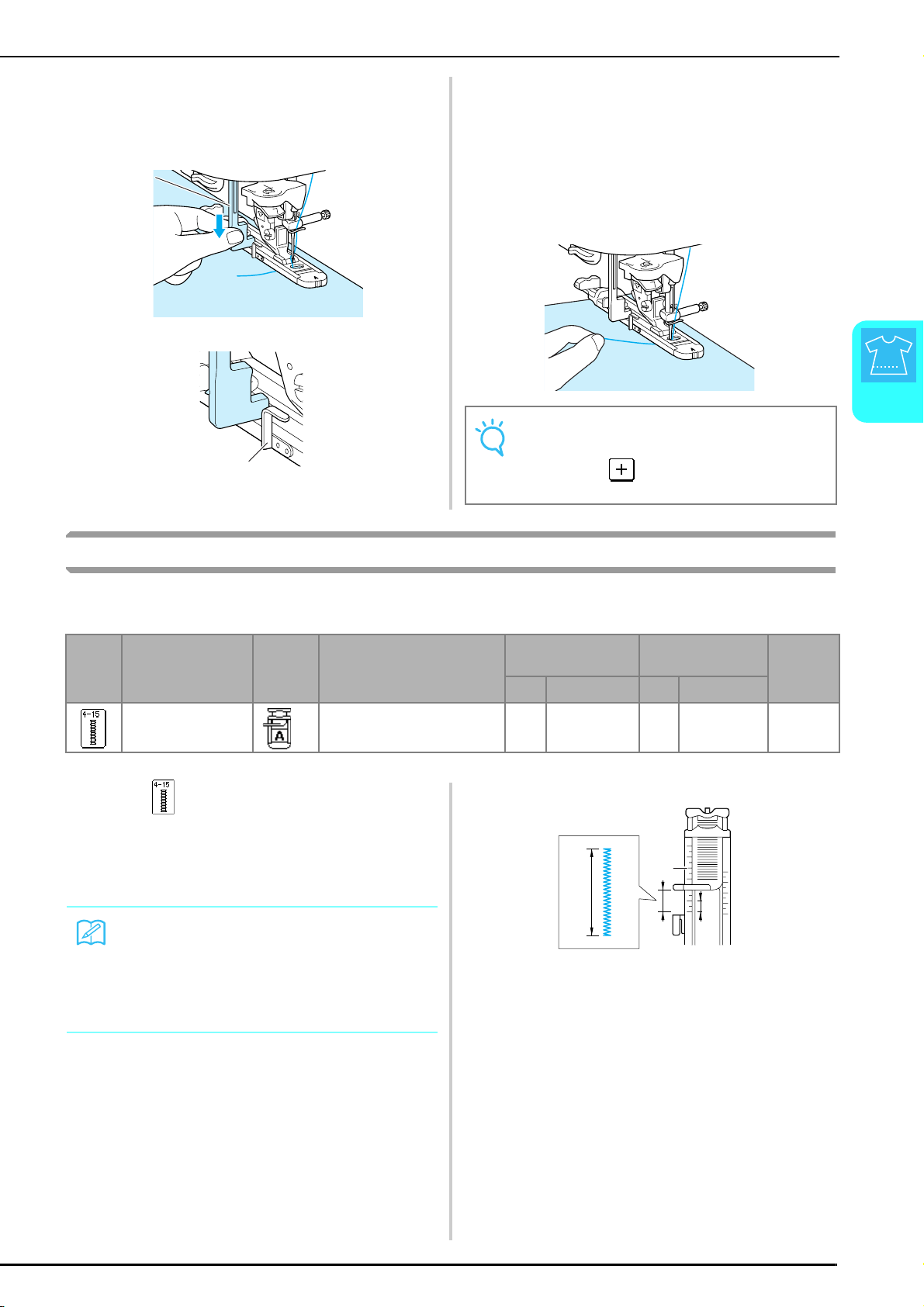
SEWING THE STITCHES
Utility Stitches
79
3
d
Pull down the buttonhole lever.
* The buttonhole lever should be positioned behind
the metal bracket on the buttonhole foot, as shown
in the illustration.
a Buttonhole lever
a Metal bracket
e
Gently hold the end of the upper thread, and
then start sewing.
* Once sewing is completed, the machine
automatically sews reinforcement stitches, then
stops.
* If the automatic thread cutting setting is selected
before sewing, the machine will automatically cut
the thread at the end of stitching.
Bar Tacks
Bar tacks are one type of reinforcement stitching used to strengthen points subject to strain, such as ends of pocket
openings and slits.
a
Press .
b
Set the scale on buttonhole foot “A” to the
desired length of the darning, and then attach
the buttonhole foot.
a Presser foot scale
b Finished measurement
c 5 mm (approx. 3/16 inch)
a
a
a
Note
If the fabric does not feed, for example, because it is
too thick, press in the length display to increase
the stitch length.
Stitch
Key
Stitch Name Presser
Foot
Applications Stitch Width
[mm (inch)]
Stitch Length
[mm (inch)]
Twin
Needle
Auto Manual Auto Manual
Bar tack
Reinforcement at opening of
pocket, etc.
2.0
(1/16)
1.0 - 3.0
(1/16 - 1/8)
0.4
(1/64)
0.3 - 1.0
(1/64 - 1/16)
NO
Memo
The bar tack length can be set between 5 and 28 mm
(approx. 3/16 and 1-1/16 inches). Bar tacks are usually
between 5 and 10 mm (approx. 3/16 and 3/8 inch)
(This differs depending on the application.)
a
c
b
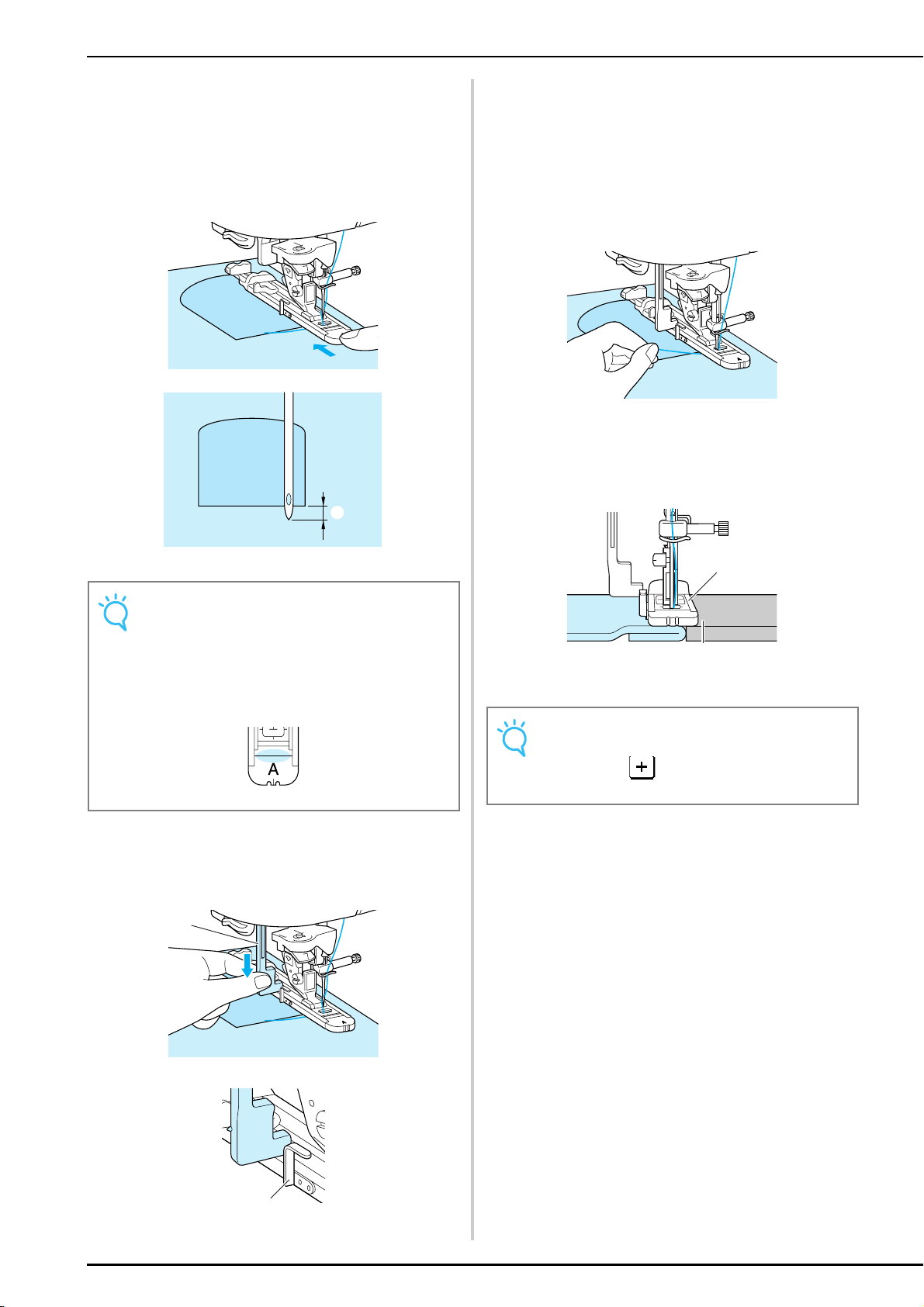
SEWING THE STITCHES
80
c
Position the fabric so that the opening of the
pocket moves toward you during sewing.
Hold the outside frame of the buttonhole foot
toward the back with your finger, check the
first needle drop point, and then lower the
presser foot.
a First needle drop point: 2 mm (approx. 1/16 inch)
d
Pull down the buttonhole lever.
* The buttonhole lever should be positioned behind
the metal bracket on the buttonhole foot, as shown
in the illustration.
a Buttonhole lever
a Metal bracket
e
Gently hold the end of the upper thread, and
then start sewing.
* Once sewing is completed, the machine
automatically sews reinforcement stitches, then
stops.
* If the automatic thread cutting setting is selected
before sewing, the machine will automatically cut
the thread at the end of stitching.
■ Bar Tacks on Thick Fabrics
Place a piece of folded fabric or cardboard beside
the fabric being sewn to level the buttonhole foot
and allow for easier feeding.
a Presser foot
b Thick fabric
Note
• Slide the outside frame of the buttonhole foot
backward as far as possible, making sure that there
is no gap behind the part of the foot marked “A”, as
shown in the illustration. If the buttonhole foot is not
slid back as far as possible, the bar tack will not be
sewn at the correct size.
• Pass the thread under the presser foot.
a
a
a
Note
If the fabric does not feed, for example, because it is
too thick, press in the length display to increase
the stitch length.
a
b
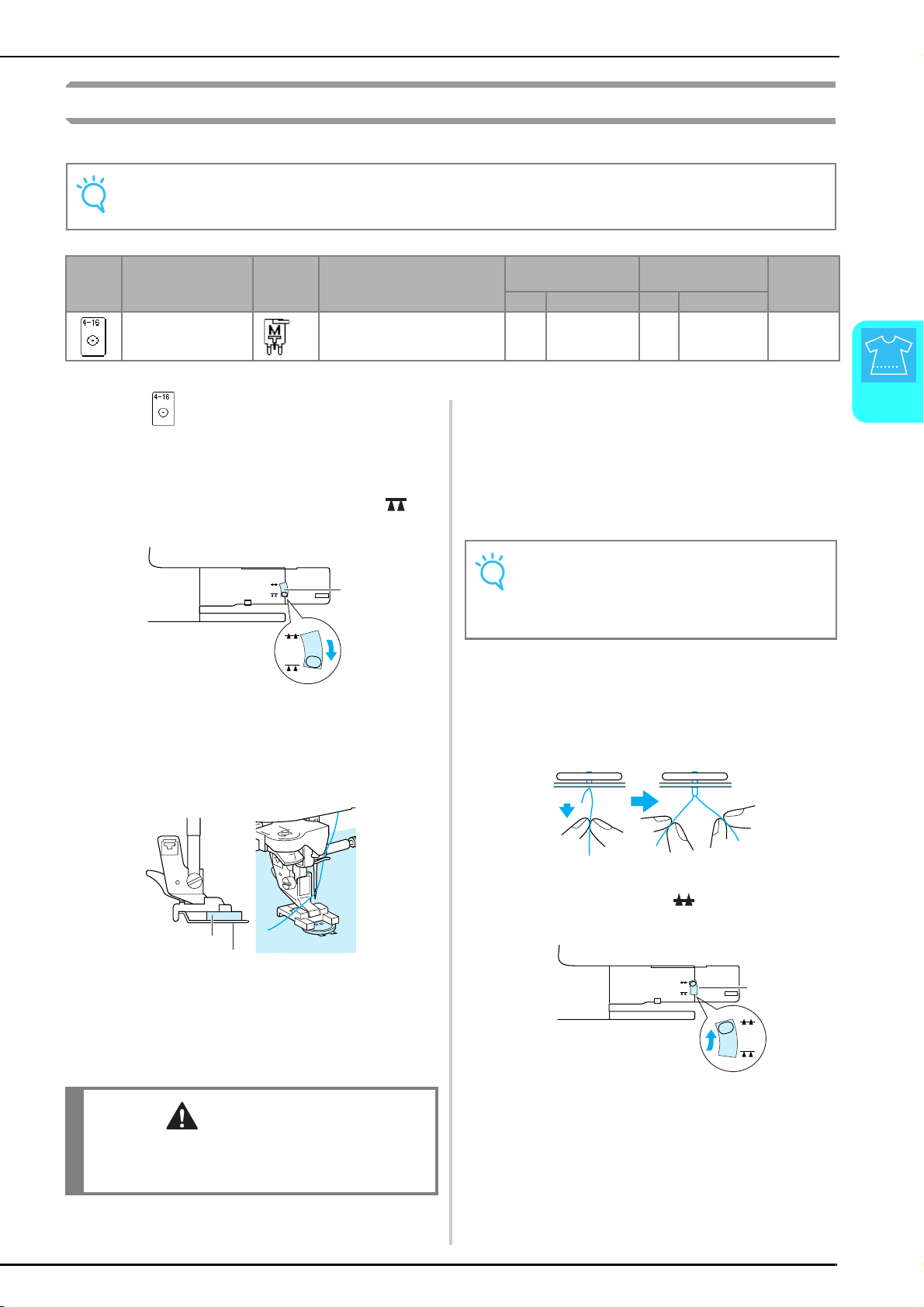
SEWING THE STITCHES
Utility Stitches
81
3
Button Sewing
Buttons with 2 or 4 holes can be sewn on.
a
Press .
b
Raise the presser foot lever, and remove the
flat bed attachment.
c
Lower the feed dog position switch to to
lower the feed dogs.
a Feed dog position switch
d
Attach button fitting foot “M”, slide the
button along the metal plate and into the
presser foot, and then lower the presser foot
lever.
a Button
b Metal plate
e
Turn the handwheel toward you to check that
the needle correctly goes into the holes of the
button without touching it.
f
Gently hold the end of the upper thread, and
then start sewing.
* Once sewing is completed, the machine
automatically sews reinforcement stitches, then stops.
* If the automatic thread cutting setting is selected
before sewing, the machine will automatically cut
the thread at the end of stitching.
g
With scissors, cut the upper and bobbin
threads at the beginning of the stitching, pull
the upper thread at the end of the stitching to
the wrong side of the fabric, and then tie it
with the bobbin thread.
h
When button sewing is finished, raise the feed
dog position switch to to raise the feed
dogs.
a Feed dog position switch
Note
Make sure that the automatic thread cutting setting is not selected when sewing on buttons.
Stitch
Key
Stitch Name
Presser
Foot
Applications
Stitch width
[mm (inch.)]
Stitch length
[mm (inch.)]
Twin
needle
Auto. Manual Auto. Manual
Button sewing
Attaching buttons
3.5
(1/8)
2.5 - 4.5
(3/32 - 3/16)
— —NO
CAUTION
• Make sure the needle does not strike the button
during sewing. The needle may break and cause
injury.
a
a
b
Note
• To attach the button more securely, repeat the
procedure.
• Adjust the stitch width to the distance between the
holes in the button.
a
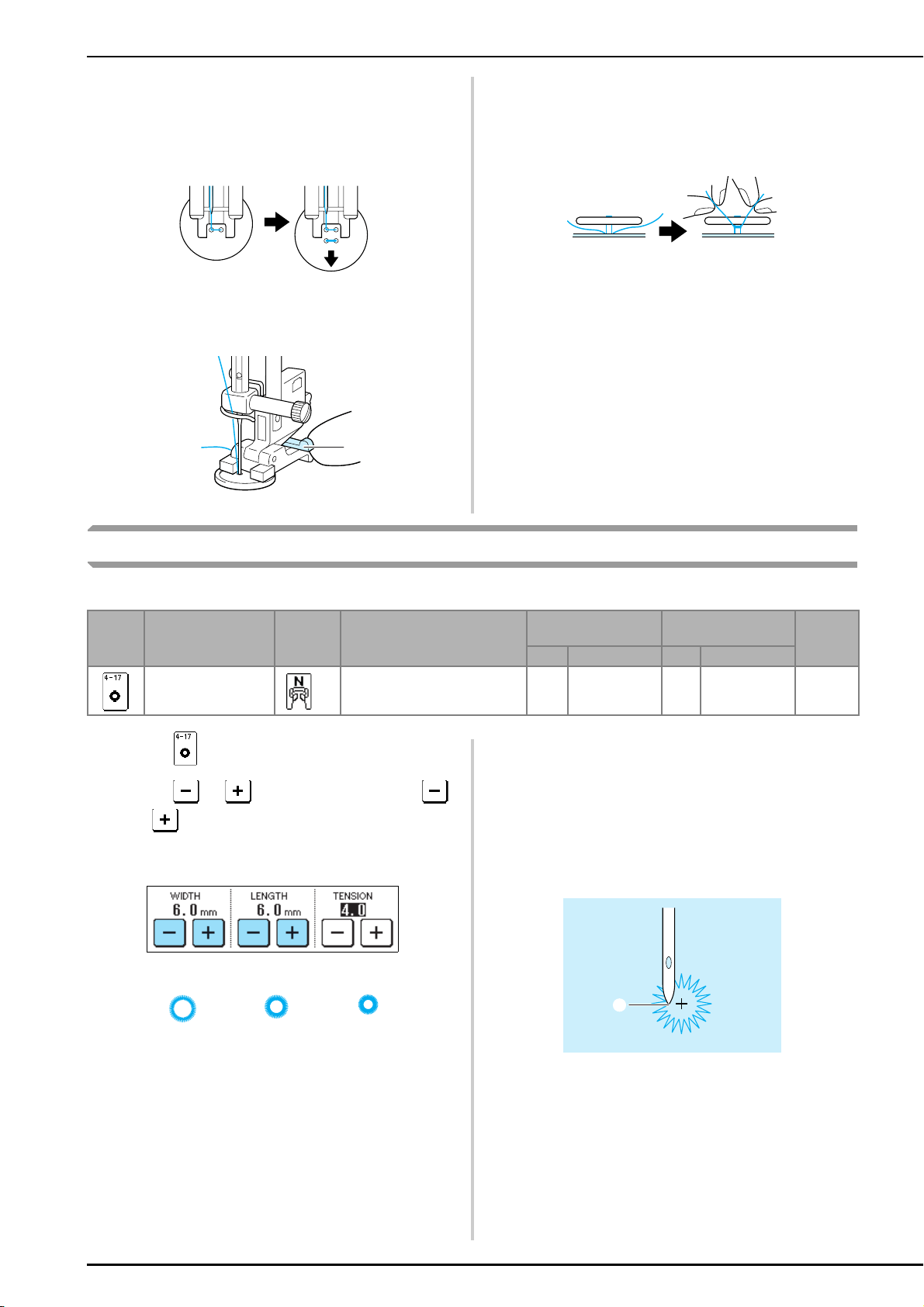
SEWING THE STITCHES
82
■ Attaching a 4-Hole Button
Sew the two holes toward the front. Then, raise the
presser foot, move the fabric so that the needle goes
into the back two holes, and then sew them in the
same way.
■ Attaching a Button with a Shank
a
Pull the shank lever toward you.
a Shank lever
b
When sewing is finished, pull the two ends of
the upper thread between the button and the
fabric, wind them around the shank, and then
tie them together.
c
Tie the ends of the bobbin thread together at
the beginning and end of the stitching on the
wrong side of the fabric
Eyelets
Eyelets can be used for making belt holes and other similar applications.
a
Press , and then attach presser foot “N”.
b
Press or in the width display or
or in the length display to set the size of
the eyelet.
c
Lower the needle into the fabric at the
beginning of the stitching, lower the presser
foot lever, and then start sewing.
* Reinforcement stitches are automatically sewn at the
end of the stitching.
* If the automatic thread cutting setting is selected
before sewing, the machine will automatically cut
the thread at the end of stitching.
a Starting point of stitching
a
Stitch
Key
Stitch Name
Presser
Foot
Applications
Stitch width
[mm (inch.)]
Stitch length
[mm (inch.)]
Twin
needle
Auto. Manual Auto. Manual
Eyelet
For making eyelets, holes on
belts, etc.
7.0
(1/4)
7.0 6.0 5.0
(1/4 15/64 3/16)
7.0
(1/4)
7.0 6.0 5.0
(1/4 15/64 3/16)
NO
7 mm
6 mm 5 mm
a
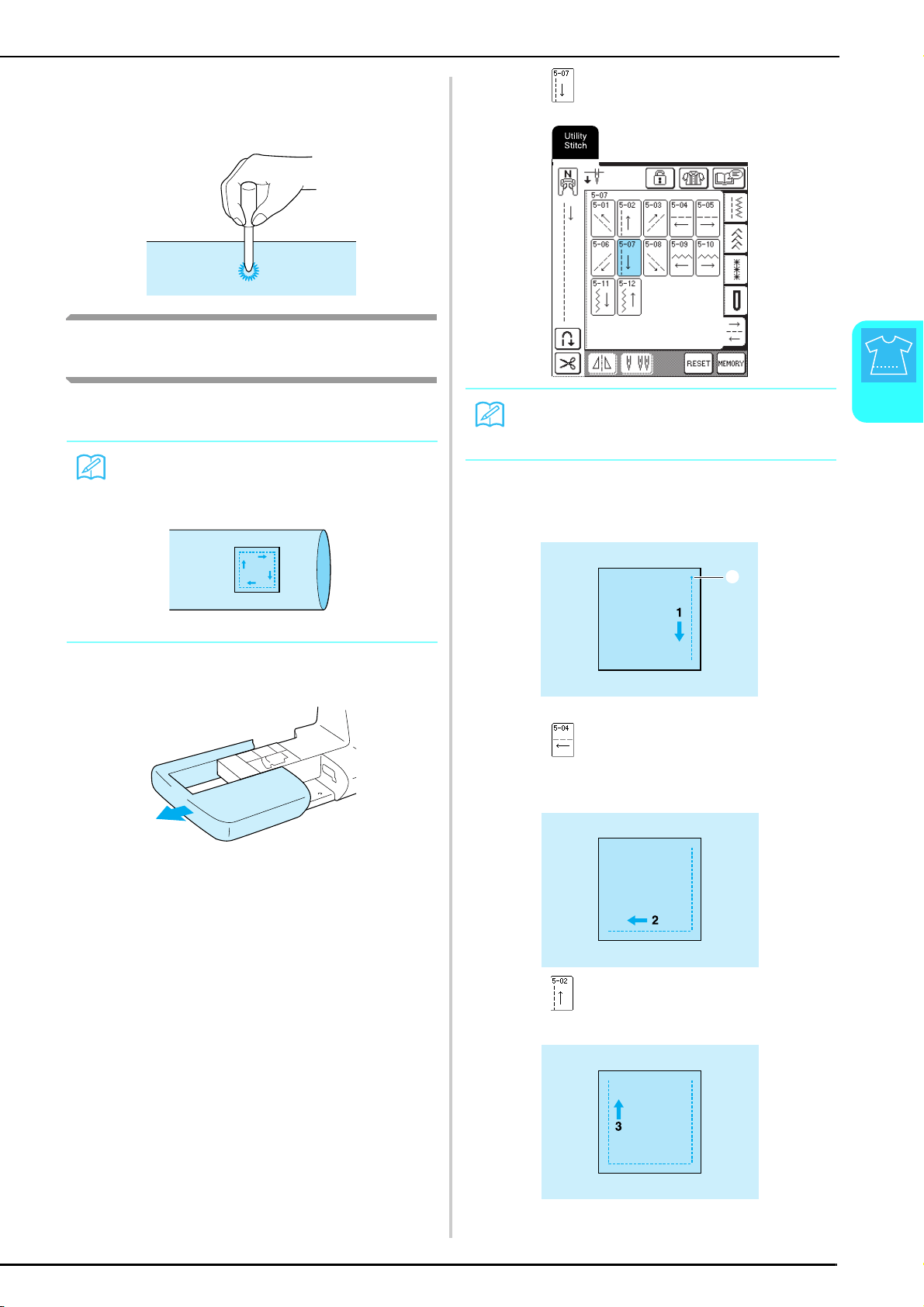
SEWING THE STITCHES
Utility Stitches
83
3
d
Use the eyelet punch to cut a hole in the
center of the stitching.
Multi-Directional Sewing (Straight
Stitch and Zigzag Stitch)
Use these stitch patterns to attach patches or emblems
to pant legs, shirt sleeves, etc.
a
Remove the flat bed attachment to enable
free-arm sewing.
b
Pass the free arm through the fabric.
c
Press , and then attach presser foot “N”.
d
Insert the needle into the fabric at the starting
point of the stitching, and then sew seam 1.
a Starting point of stitching
e
Press , and then sew seam 2.
* The fabric will move sideways, so guide the fabric
with your hands to sew straight.
f
Press , and then sew seam 3.
Memo
Pass the free arm through the tubular piece of fabric,
and then sew in the order shown in the illustration.
13
4
2
Memo
For details on the stitch patterns, refer to the “STITCH
SETTING CHART” at the end of this manual.
a
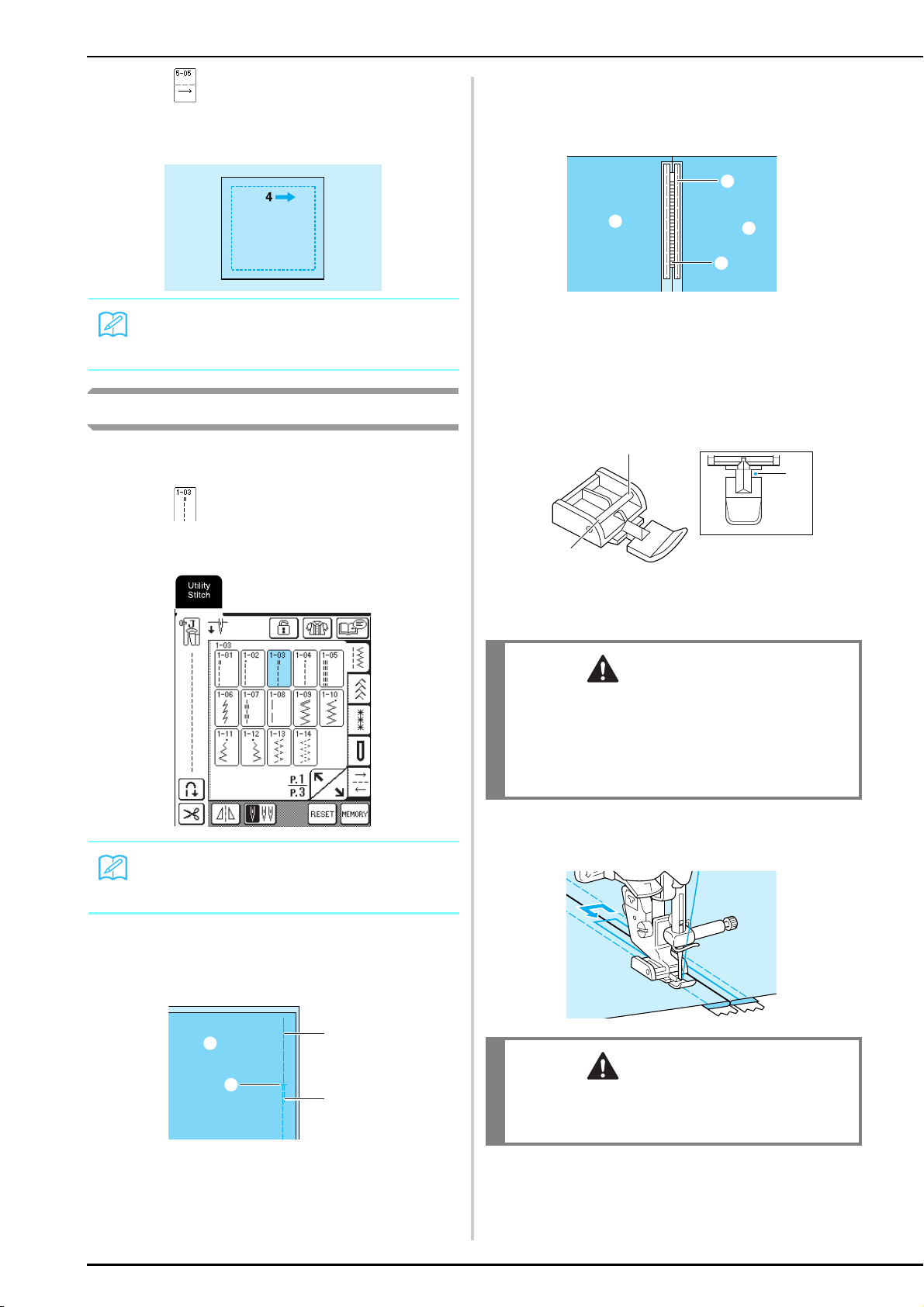
SEWING THE STITCHES
84
g
Press , and then sew seam 4.
* The fabric will move sideways, so guide the fabric
with your hands to sew straight.
Zipper Insertion
■ Centered Zipper
Use for bags and other such applications.
a
Press .
* Be sure to select the straight stitch with the middle
needle position.
b
Attach presser foot “J”, sew straight stitches
up to the zipper opening, and then sew
basting stitches to the top of the fabric.
a Wrong side of fabric
b End of zipper opening
c Basting
d Reverse stitching
c
Press open the seam allowance, align the
seam with the center of the zipper, and then
baste the zipper in place.
a Wrong side of fabric
b Basting
c Zipper teeth
d
Remove presser foot “J”, and then attach the
pin on the right side of zipper foot “I” to the
presser foot holder.
a Right side
b Left side
c Needle drop point
e
Topstitch around the zipper, and then remove
the basting.
Memo
Zigzag stitches can also be used with multi-directional
sewing.
Memo
For details on the stitch patterns, refer to the “STITCH
SETTING CHART” at the end of this manual.
c
d
a
b
CAUTION
• When using zipper foot “I”, make sure the straight
stitch, middle needle position is selected. Turn the
handwheel to make sure the needle does not strike
the presser foot. If another stitch is selected, the
needle will strike the presser foot, causing the needle
to break and possibly causing injury.
CAUTION
• Make sure the needle does not strike the zipper
during sewing. If the needle strikes the zipper, the
needle may break, leading to injury.
a
b
a
c
a
b
c
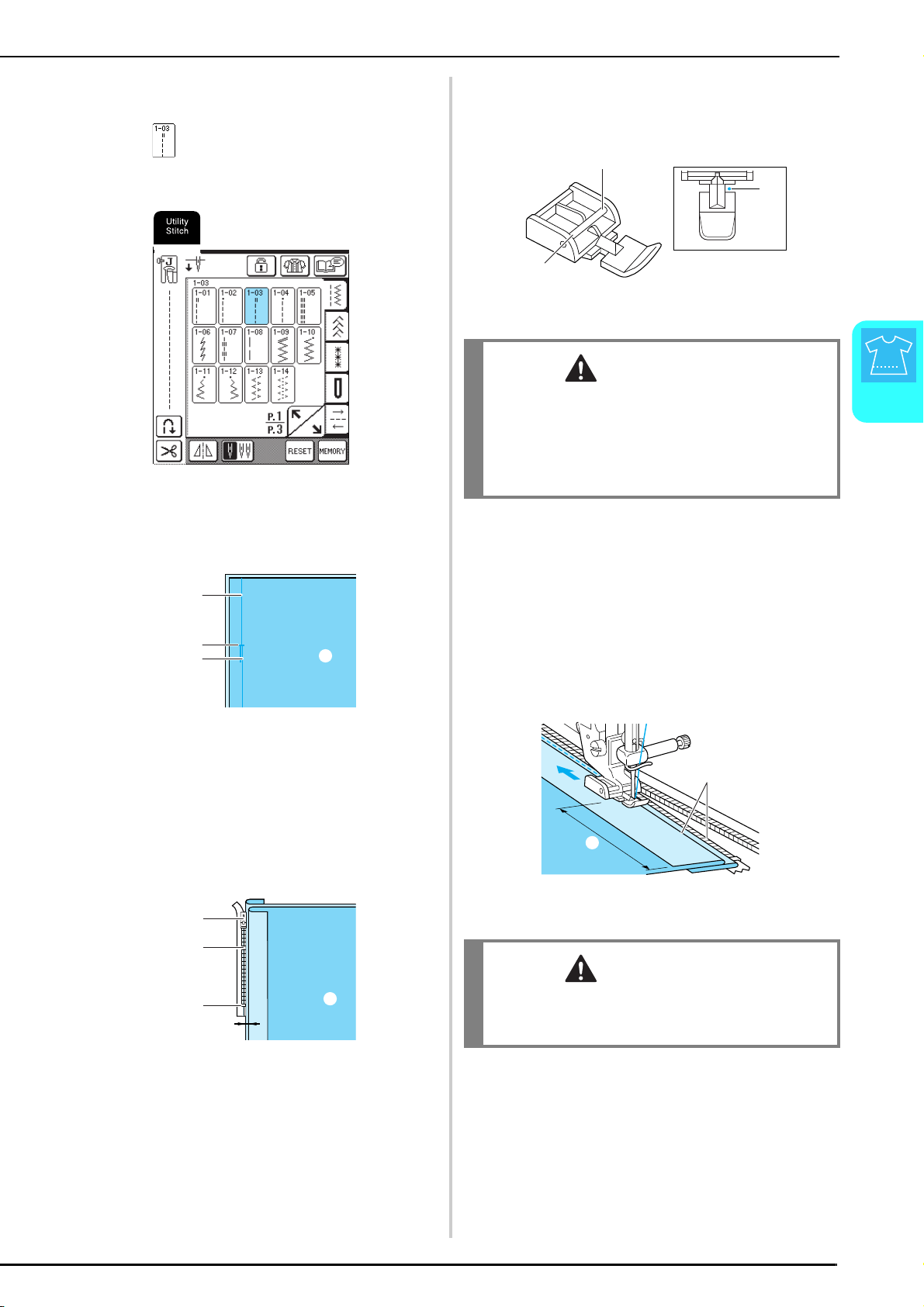
SEWING THE STITCHES
Utility Stitches
85
3
■ Side Zipper
Use for side zippers on skirts or dresses.
a
Press .
* Be sure to select the straight stitch with the middle
needle position.
b
Attach presser foot “J”, sew straight stitches
to the zipper opening, and then sew basting
stitches to the edge of the fabric.
a Basting
b End of zipper opening
c Reverse stitching
d Wrong side of fabric
c
Press the seam allowance open and align the
folded hem along the teeth of the zipper,
while maintaining 3 mm (approx.
1/8 inch) of sewing space.
a Zipper pull tab
b Zipper teeth
c End of zipper opening
d 3 mm (approx. 1/8 inch)
e Wrong side of fabric
d
Remove presser foot “J”, and then attach the
presser foot holder to the pin on the right side
of zipper foot “I”.
a Right side
b Left side
c Needle drop point
e
Set the presser foot in the 3 mm (approx.
1/8 inch) margin.
f
Starting from the end of the zipper opening,
sew to a point about 50 mm (approx.
2 inches) from the edge of the fabric, then
stop the machine.
g
Pull down the zipper slider, then continue
sewing to the edge of the fabric.
a 3 mm (approx. 1/8 inch)
b 50 mm (approx. 2 inch)
a
b
c
d
a
b
c
d
e
CAUTION
• When using zipper foot “I”, make sure the straight
stitch, middle needle position is selected. Turn the
handwheel to make sure the needle does not strike
the presser foot. If another stitch is selected, the
needle will strike the presser foot, causing the needle
to break and possibly causing injury.
CAUTION
• Make sure the needle does not strike the zipper
during sewing. If the needle strikes the zipper, the
needle may break, leading to injury.
a
b
c
a
b
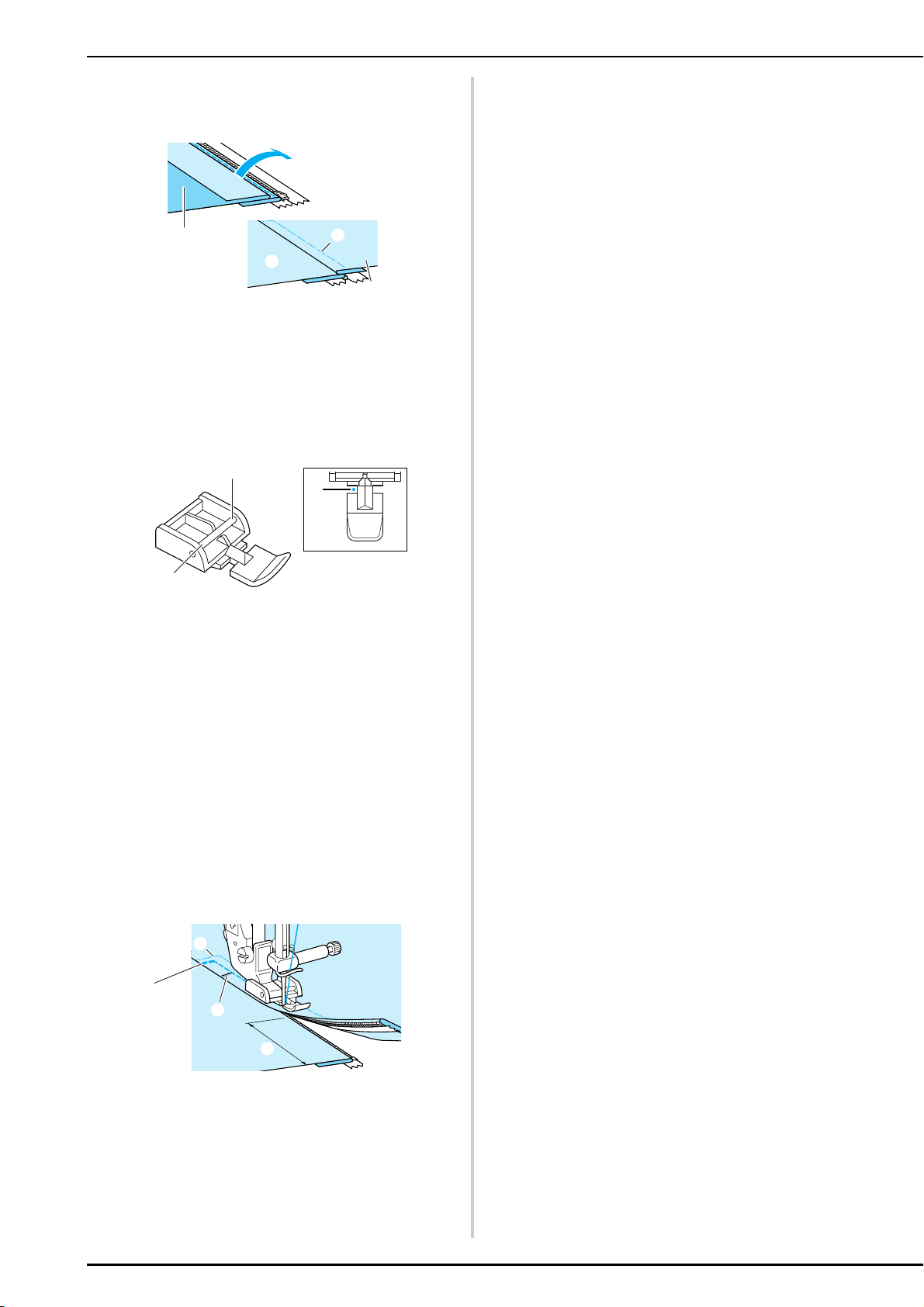
SEWING THE STITCHES
86
h
Close the zipper, turn the fabric over so that
the surface faces up, and then baste the other
side of the zipper to the fabric.
a Front of garment (wrong side of fabric)
b Back of garment (surface of fabric)
c Basting
d Front of garment (surface of fabric)
i
Remove the presser foot, and then attach the
pin on the left side of the zipper foot to the
presser foot holder.
a Right side
b Left side
c Needle drop point
j
Set the fabric so that the left edge of the
presser foot touches the edge of the zipper
teeth.
k
Sew reverse stitches at the top of the zipper,
then continue sewing.
l
Stop sewing about 50 mm (approx.
2 inches) from the edge of the fabric, leave
the needle in the fabric, and remove the
basting stitches.
m
Open the zipper and sew the rest of the seam.
a Basting
b Reverse stitching
c 7 to 10 mm (approx. 1/4 to 3/8 inch)
d 50 mm (approx. 2 inches)
a
d
c
b
a
b
c
b
a
c
d

Chapter 4
Character/
Decorative
Stitches
SELECTING STITCH PATTERNS...........................................................88
■ Stitch Selection Screens .......................................................................................................... 88
Selecting Decorative Stitch Patterns/7 mm Decorative Stitch Patterns/Satin Stitch Patterns/
7 mm Satin Stitch Patterns/Cross Stitch Patterns/Utility Decorative Stitch Patterns..............89
Alphabet Patterns...................................................................................................................89
SEWING STITCH PATTERNS ...............................................................91
Sewing Attractive Finishes......................................................................................................91
Basic Sewing ..........................................................................................................................91
Adjusting Patterns ..................................................................................................................92
EDITING STITCH PATTERNS...............................................................94
■ Key Functions ......................................................................................................................... 94
Changing the Pattern Size ......................................................................................................95
Changing the Pattern Length (7 mm Satin Stitch Patterns Only) ............................................95
Creating a Vertical Mirror Image ...........................................................................................95
Creating a Horizontal Mirror Image.......................................................................................95
Selecting a Single/Repeating Pattern......................................................................................96
Changing the Thread Density (Satin Stitch Patterns Only) .....................................................96
COMBINING STITCH PATTERNS........................................................97
Before Combining Patterns ....................................................................................................97
Combining Patterns From Different Categories......................................................................97
Combining Stitch Patterns of Different Sizes..........................................................................98
Combining Stitch Patterns of Different Orientations..............................................................99
Combining Stitch Patterns of Different Lengths ...................................................................100
Creating Step Patterns (7 mm Satin Stitch Patterns Only) ....................................................101
■ Examples of Pattern Combinations ....................................................................................... 102
USING THE MEMORY FUNCTION...................................................103
Stitch Data Precautions........................................................................................................103
■ Types of Stitch Data That Can Be Used .........................................................................103
■ Computers and Operating Systems with the Following Specifications Can Be Used .....103
■ Precautions on Using the Computer to Create and Save Data.......................................103
■ Trademarks....................................................................................................................103
Saving Stitch Patterns in the Machine’s Memory...................................................103
■ If the Memory Is Full ............................................................................................................ 104
Saving Stitch Patterns to the Computer.................................................................105
Retrieving Stitch Patterns from the Machine’s Memory .......................................................106
Retrieving Stitch Patterns from the Computer......................................................................107
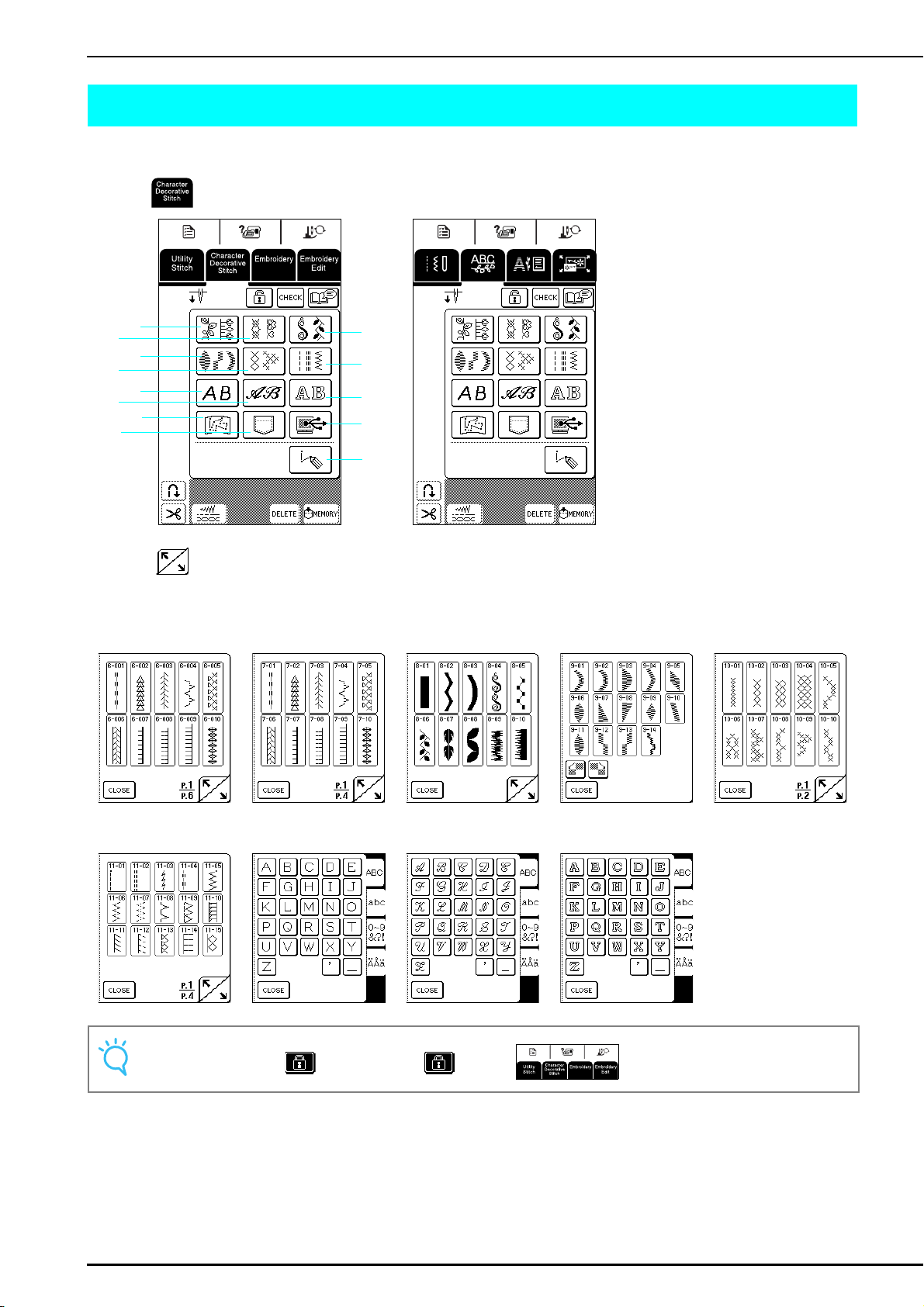
SELECTING STITCH PATTERNS
88
SELECTING STITCH PATTERNS
■ Stitch Selection Screens
Press to display the screen shown below.
Press to display the previous or next page.
* The patterns in screens
b
,
d
and
f
have a stitch width of 7 mm or less. Both the stitch length and width can be adjusted.
a Decorative stitch
patterns
b 7 mm decorative
stitch patterns
c
Satin stitch patterns
d 7 mm satin stitch
patterns
e Cross stitch
patterns
f Utility decorative
stitch patterns
g Alphabet patterns
(gothic font)
h Alphabet patterns
(handwriting font)
i Alphabet patterns
(outline style)
Note
When the screen is locked ( ), no key other than and the keys can be operated.
c
f
i
a
b
d
g
e
h
j
l
a Decorative stitch patterns
b 7 mm decorative stitch patterns
c Satin stitch patterns
d 7 mm satin stitch patterns
e Cross stitch patterns
f Utility decorative stitch patterns
g Alphabet patterns (gothic font)
h Alphabet patterns (handwriting font)
i Alphabet patterns (outline style)
j Patterns stored in “MY CUSTOM
STITCH™” (see page 173)
k Patterns saved in the machine’s
memory (see page 106)
l Patterns saved on the computer
(see page 107)
m Press this key to create your own
stitches with the “MY CUSTOM
STITCH™” function (see page 166).
k
m
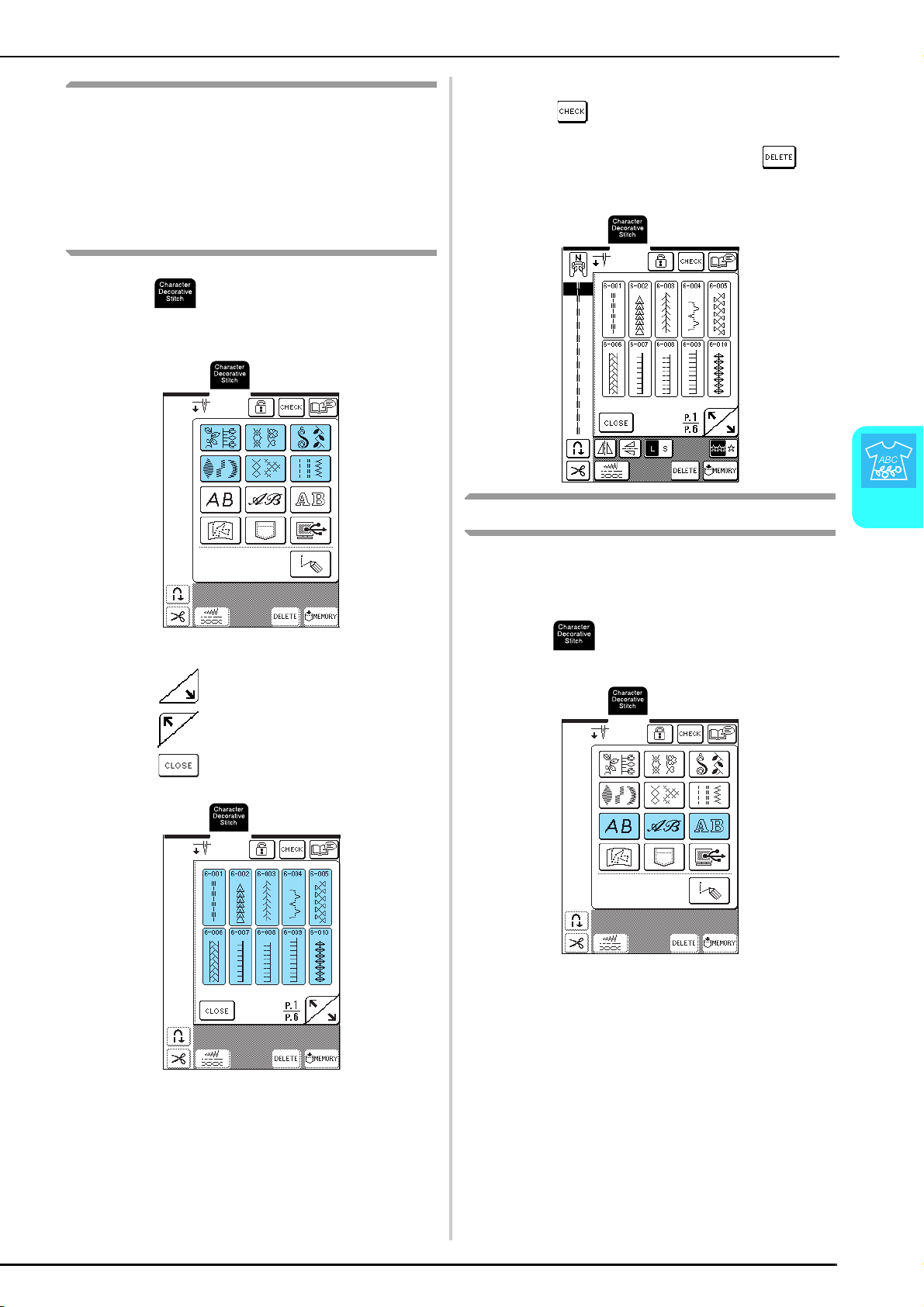
SELECTING STITCH PATTERNS
Character/Decorative Stitches
89
4
Selecting Decorative Stitch Patterns/
7 mm Decorative Stitch Patterns/
Satin Stitch Patterns/
7 mm Satin Stitch Patterns/Cross
Stitch Patterns/Utility Decorative
Stitch Patterns
a
Press , and then press the key for the
category containing the pattern that you want
to sew.
b
Select a stitch pattern that you want to sew.
* Press to display the next page.
* Press to display the previous page.
* Press to return to the screen of pattern
categories.
→ An image of the selected stitch pattern is displayed
below the symbol of the appropriate presser foot.
c
To combine patterns, select the next pattern.
* Press to check the selected pattern
combination.
* If the wrong pattern was selected, press to
erase the pattern, and then select the new stitch
pattern.
Alphabet Patterns
Three alphabet patterns are available in different styles.
The procedure for selecting a character is the same with
all styles.
a
Press , and then press the key for the
character style that you want to sew.
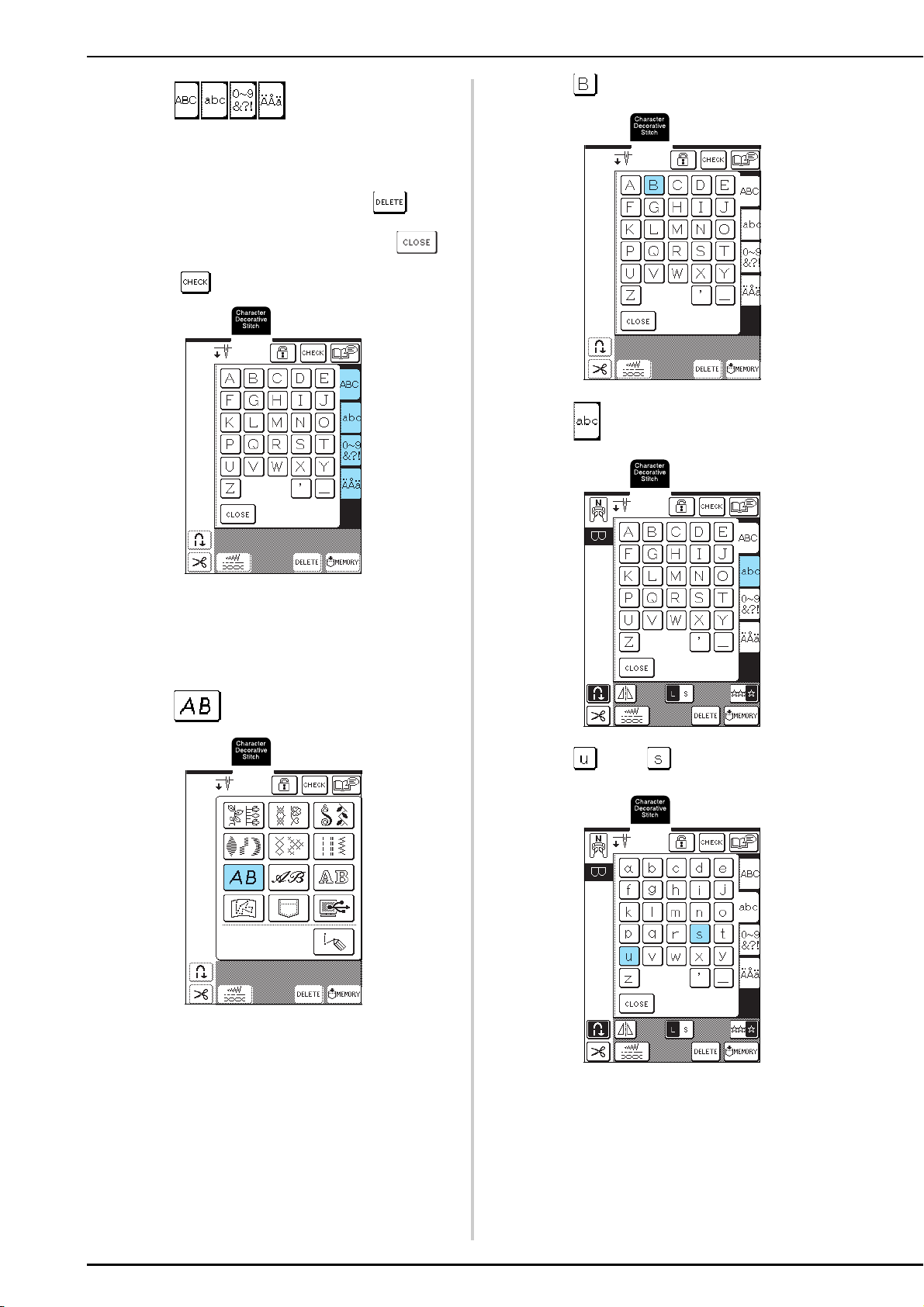
SELECTING STITCH PATTERNS
90
b
Press to display a selection
screen of characters, and then select a
character. Repeat this step until you have
selected all of the characters.
* If a wrong character was selected, press
t
o erase
the character, and then select the new character.
* To select a different character style, press ,
and then select the new character style.
* Press to check the selected characters.
→ An image of the selected characters is displayed
below the symbol of the appropriate presser foot.
Example: To select “Bus”
a
Press .
b
Press .
c
Press .
d
Press , then .
→ “Bus” appears.
* A maximum of 70 characters can be combined.
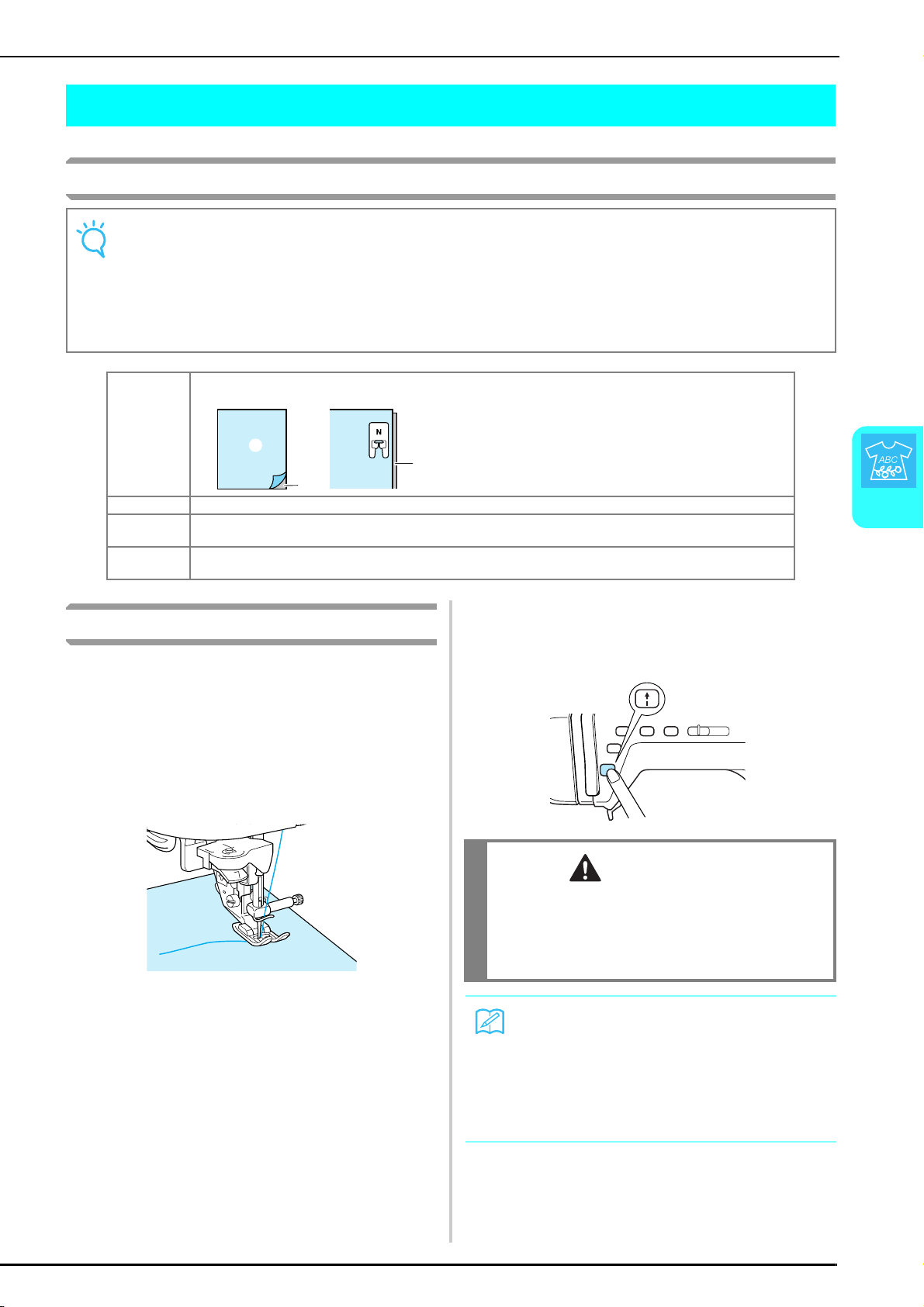
SEWING STITCH PATTERNS
Character/Decorative Stitches
91
4
SEWING STITCH PATTERNS
Sewing Attractive Finishes
Basic Sewing
a
Select a stitch pattern.
b
Attach presser foot “N”.
c
Place the fabric under the presser foot, pull the
upper thread under the presser foot and to the
side, and then lower the presser foot lever.
d
Press the “Reverse/Reinforcement Stitch”
button to sew reinforcement stitches, and
then press the “Start/Stop” button to start
sewing.
Note
• To achieve the best results when sewing character/decorative stitches, check the table below for the proper fabric/
needle/thread combinations.
• Other factors, such as the type or thickness of the fabric being sewn or the type of stabilizer material used, also affect the
stitching. Therefore, be sure to sew a few trial stitches before sewing your project.
• Since shrinkage or bunched stitches may result when satin stitches are sewn, be sure to affix stabilizer material to the
fabric.
• While sewing, guide the fabric with your hands so that it will be fed straight.
Fabric When sewing on stretch fabrics, lightweight fabrics, or fabrics with coarse weaves, attach stabilizer on the wrong side
of the fabric. If you do not wish to do so, place the fabric on a thin paper such as tracing paper.
Thread #50 - #60
Needle With lightweight, regular, or stretch fabrics: Brother ballpoint needle (golden colored)
With heavyweight fabrics: home sewing machine needle 90/14
Presser foot Monogramming foot “N”.
Using another presser foot may give inferior results.
b
c
a
a Fabric
b Stabilizer
c Thin paper
CAUTION
• When sewing 7 mm satin stitch patterns and the
stitches are bunched, lengthen the stitch length. If
you continue sewing when the stitches are
bunched, the needle may bend or break (see
“Adjusting the Stitch Length” on page 42).
Memo
If the fabric is pulled or pushed during sewing,
the pattern may not be sewn correctly. In
addition, depending on the pattern, there may
be movement to the left and right as well as to
the front and back. Therefore, guide the fabric
with your hands so that it will be fed straight.
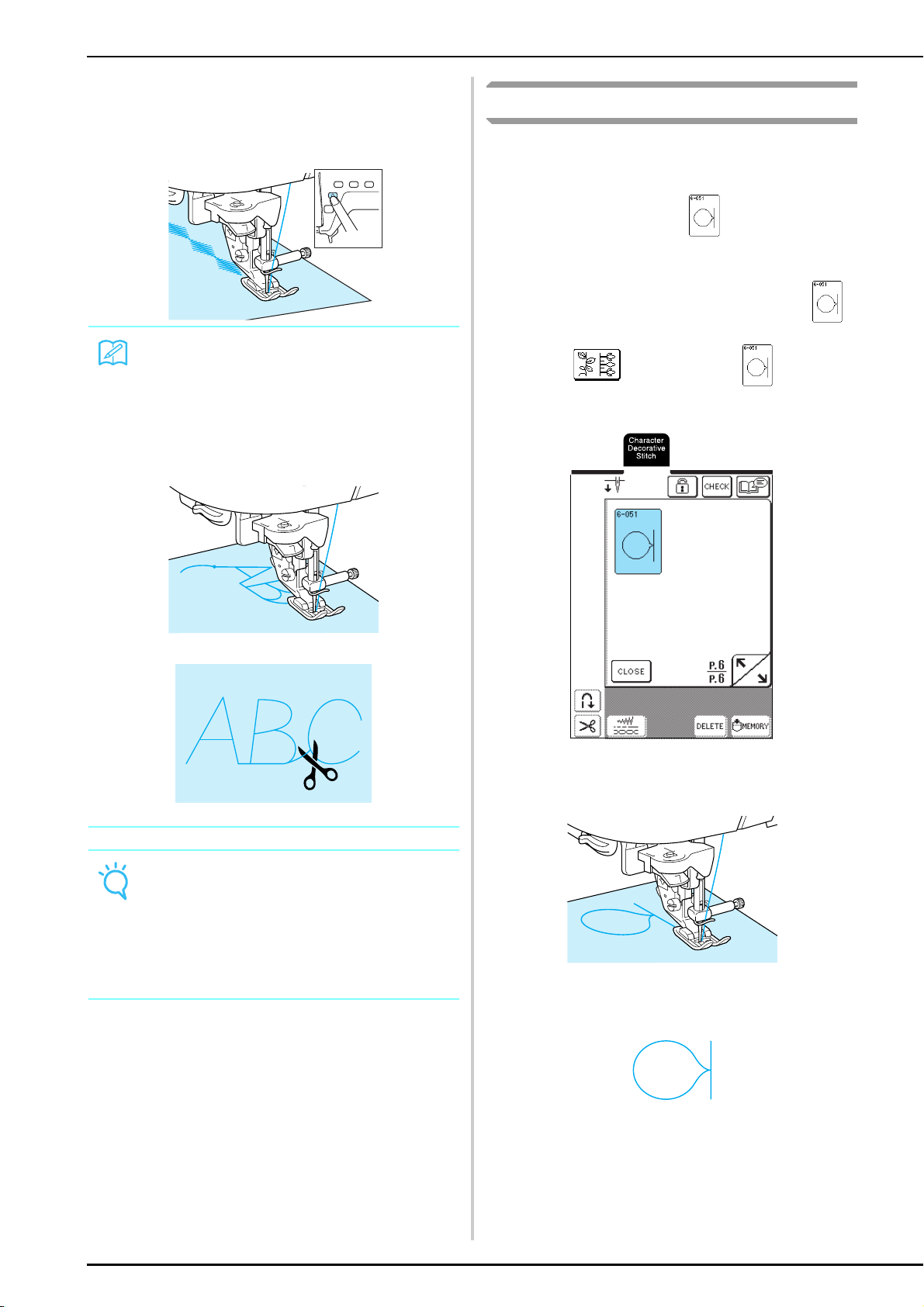
SEWING STITCH PATTERNS
92
e
Press the “Start/Stop” button to stop the
machine, and then press the “Reverse/
Reinforcement Stitch” button to sew
reinforcement stitches.
Adjusting Patterns
Depending on the type and thickness of the fabric being
sewn, the sewing speed, whether or not stabilizer
material is used, etc., the desired result may not be
achieved. If this occurs, press , and then perform
the following adjustment using the same sewing
conditions as those used for your project. If the pattern
is still misaligned after making adjustments with
selected, adjust each pattern separately.
a
Press , and then press on P. 6 of
the screen.
b
Attach presser foot “N”, and then sew the
pattern.
c
Compare the sewn pattern with the following
illustration.
Memo
• When sewing character stitch patterns, the
machine automatically sews reinforcement
stitches at the end of the stitching, then stops
(The machine is automatically set to sew
reinforcement stitches at the beginning and
end of each character.)
• After sewing is finished, trim any excess thread.
Note
When sewing some patterns, the needle will stop in
the raised position while the fabric is fed due to the
operation of the needle bar separation mechanism
which is used in this machine. At such times, a clicking
sound different from the sound generated during
sewing will be heard. This sound is normal and is not
the sign of a malfunction.
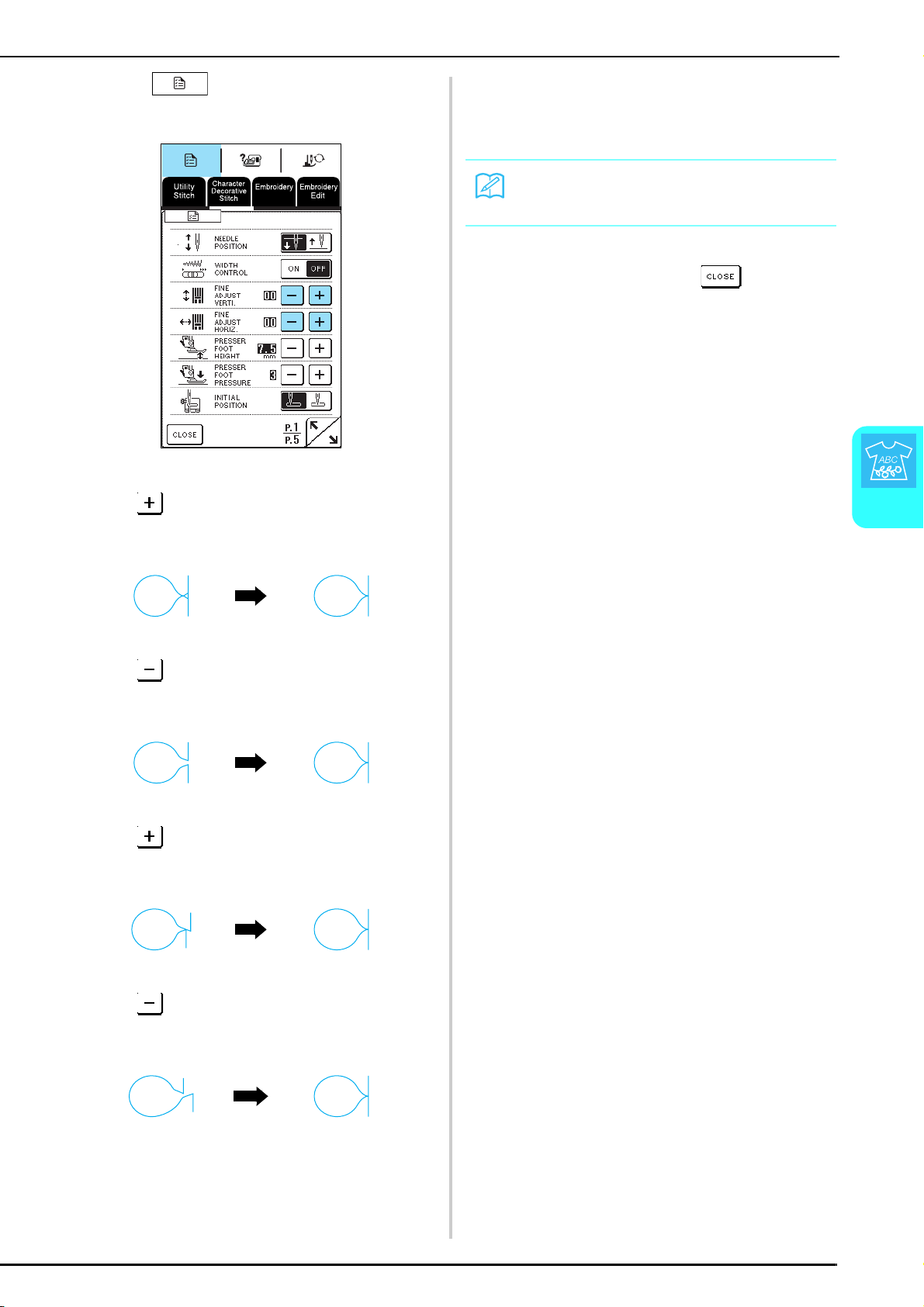
SEWING STITCH PATTERNS
Character/Decorative Stitches
93
4
d
Press .
If the pattern is bunched together:
Press in the FINE ADJUST VERTI. display.
Each press of the key increases the value and lengthens
the pattern.
If the pattern is stretched:
Press in the FINE ADJUST VERTI. display.
Each press of the key decreases the value and shortens
the pattern.
If the pattern is skewed to the left:
Press in the FINE ADJUST HORIZ. display.
Each press of the key increases the value and moves the
pattern to the right.
If the pattern is skewed to the right:
Press in the FINE ADJUST HORIZ. display.
Each press of the key decreases the value and moves the
pattern to the left.
e
Sew the pattern again. If the pattern still is
not sewn correctly, adjust it again. Continue
making adjustments until the pattern is sewn
correctly.
f
After the pattern is sewn correctly, quit
making adjustments. Press to return to
the previous screen.
Memo
You can sew with the setting screen on the display.
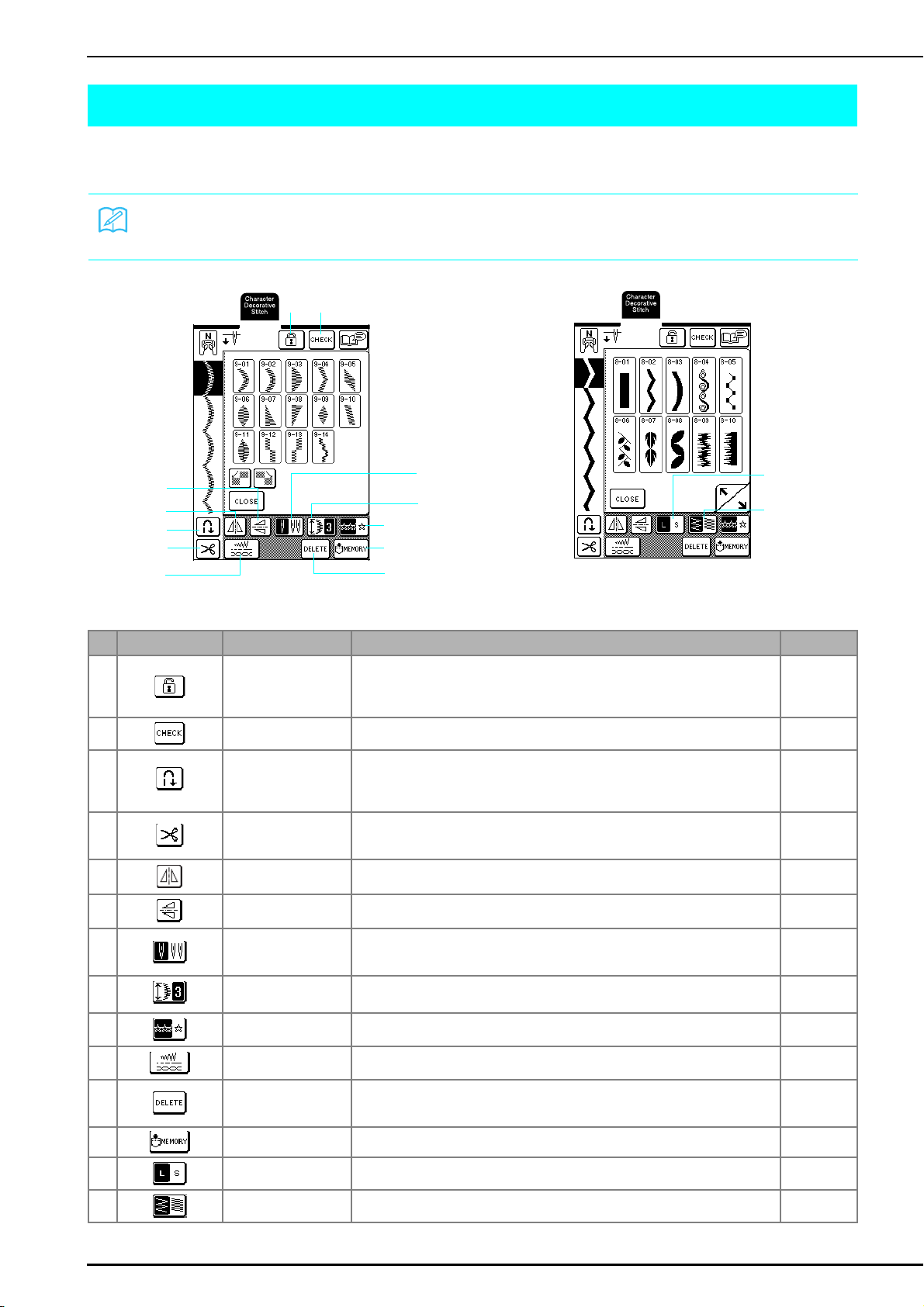
EDITING STITCH PATTERNS
94
EDITING STITCH PATTERNS
Using the editing functions, you can change the patterns in a variety of ways, such as resizing them or flipping them
to create a mirror image.
■ Key Functions
Memo
Depending on the pattern that is selected, some editing functions may not be available.
No. Key Name Function Page
a Screen lock key Press this key to lock the screen.
When the screen is locked, the various settings, such as the stitch width and stitch
length, are locked and cannot be changed. Press this key again to unlock the
settings.
45
b Image check key Press this key to check an image of the selected patterns (characters). 89, 90
c Automatic
reinforcement stitch key
Press this key to select the automatic reinforcement stitching setting. If you select
this setting before sewing, the machine will automatically sew reinforcement
stitches at the beginning and end of stitching. Press this key again to cancel the
setting.
43
d Automatic thread
cutting key
Press this key to select the automatic thread cutting setting. If you select this
setting before sewing, the machine will automatically cut the thread at the end of
stitching. Press this key again to cancel the setting.
44
e Horizontal mirror image
key
Press this key to create a horizontal mirror image of the selected stitch pattern. 95
f Vertical mirror image
key
Press this key to create a vertical mirror image of the selected stitch pattern. 95
g Needle mode selection
key (single/twin)
Press this key to select the setting for twin needle sewing. Each time this key is
pressed, the setting switches between that for single needle sewing and for twin
needle sewing.
31
h Elongation key If a 7 mm satin stitch pattern is selected, press this key to select from five settings
for changing the pattern length without changing the zigzag width or stitch length.
95
i Single/repeat sewing
key
Press this key to switch between sewing the pattern a single time or repeatedly. 96
j Stitch settings key Press this key to change the stitch width, stitch length and thread tension for the
selected pattern. Normally, the machine has default settings.
42
k Delete key If the wrong pattern was accidentally selected, press this key to erase it. If patterns
have been combined, each press of this key erases the last pattern in the
combination.
89, 90
l Memory key Press this key to save the pattern combination. 103
m Size key Press this key after selecting a pattern to change the size of the pattern (large or
small).
95
n Thread density key Press this key after selecting a pattern to change the stitching density of the
pattern.
96
b
c
d
f
e
h
l
j
i
a
k
g
m
n
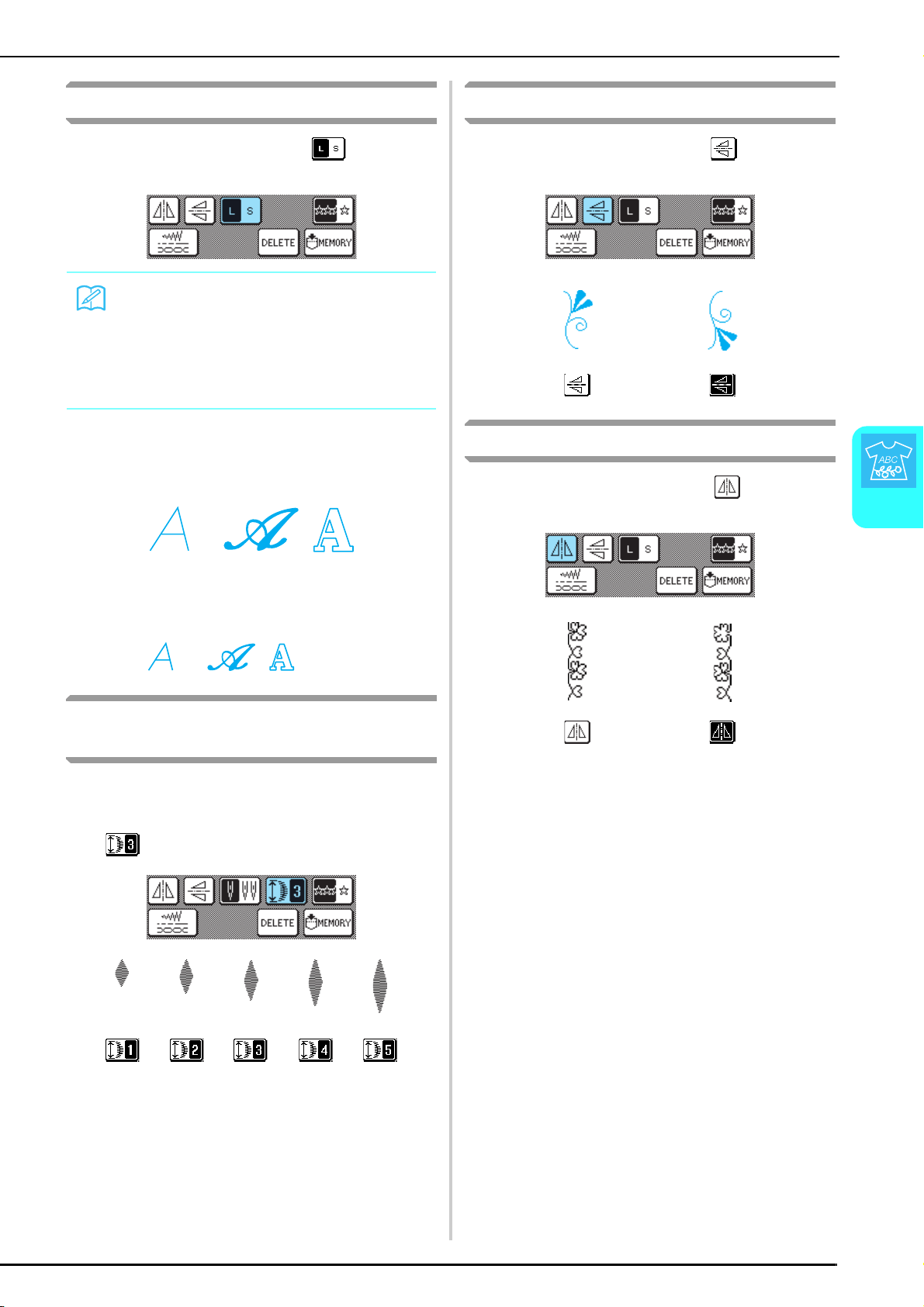
EDITING STITCH PATTERNS
Character/Decorative Stitches
95
4
Changing the Pattern Size
After selecting a stitch pattern, press until the
desired size is selected.
Actual size
Changing the Pattern Length
(7 mm Satin Stitch Patterns Only)
If 7 mm satin stitch patterns are selected, the pattern
length can be changed without changing the zigzag
width or stitch length. After selecting a stitch pattern,
press to select one of the five settings available.
Creating a Vertical Mirror Image
After selecting a stitch pattern, press to flip the
pattern vertically.
Creating a Horizontal Mirror Image
After selecting a stitch pattern, press to flip the
pattern horizontally.
Memo
• Stitch patterns entered after the pattern size
was changed are added at the selected size
until it is changed again.
• You cannot change the size of stitch patterns
once they have been combined.
L
S
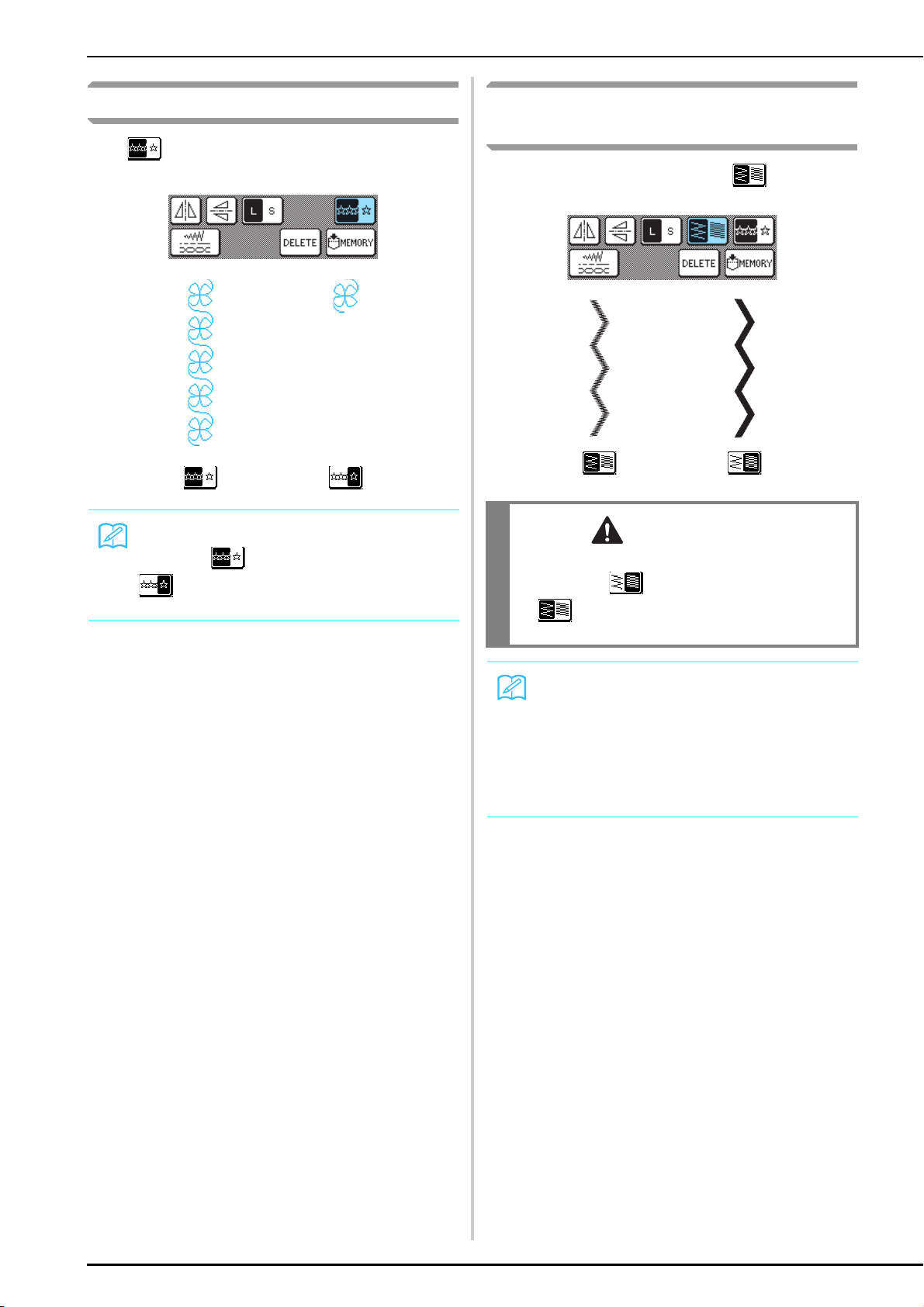
EDITING STITCH PATTERNS
96
Selecting a Single/Repeating Pattern
Press to select whether the pattern is sewn
repeatedly or once.
Changing the Thread Density
(Satin Stitch Patterns Only)
After selecting a stitch pattern, press until the
desired stitching density is selected.
Memo
If you press while sewing, the key changes to
and the machine will sew one copy of the
pattern, then automatically stop.
CAUTION
• If the stitches bunch when thread density is
changed to , return the thread density to
. If you continue sewing when the stitches are
bunched, the needle may bend or break.
Memo
• Stitch patterns entered after the stitching
density was changed are added at the
selected density until it is changed again.
• You cannot change the stitching density of
stitch patterns once they have been
combined.
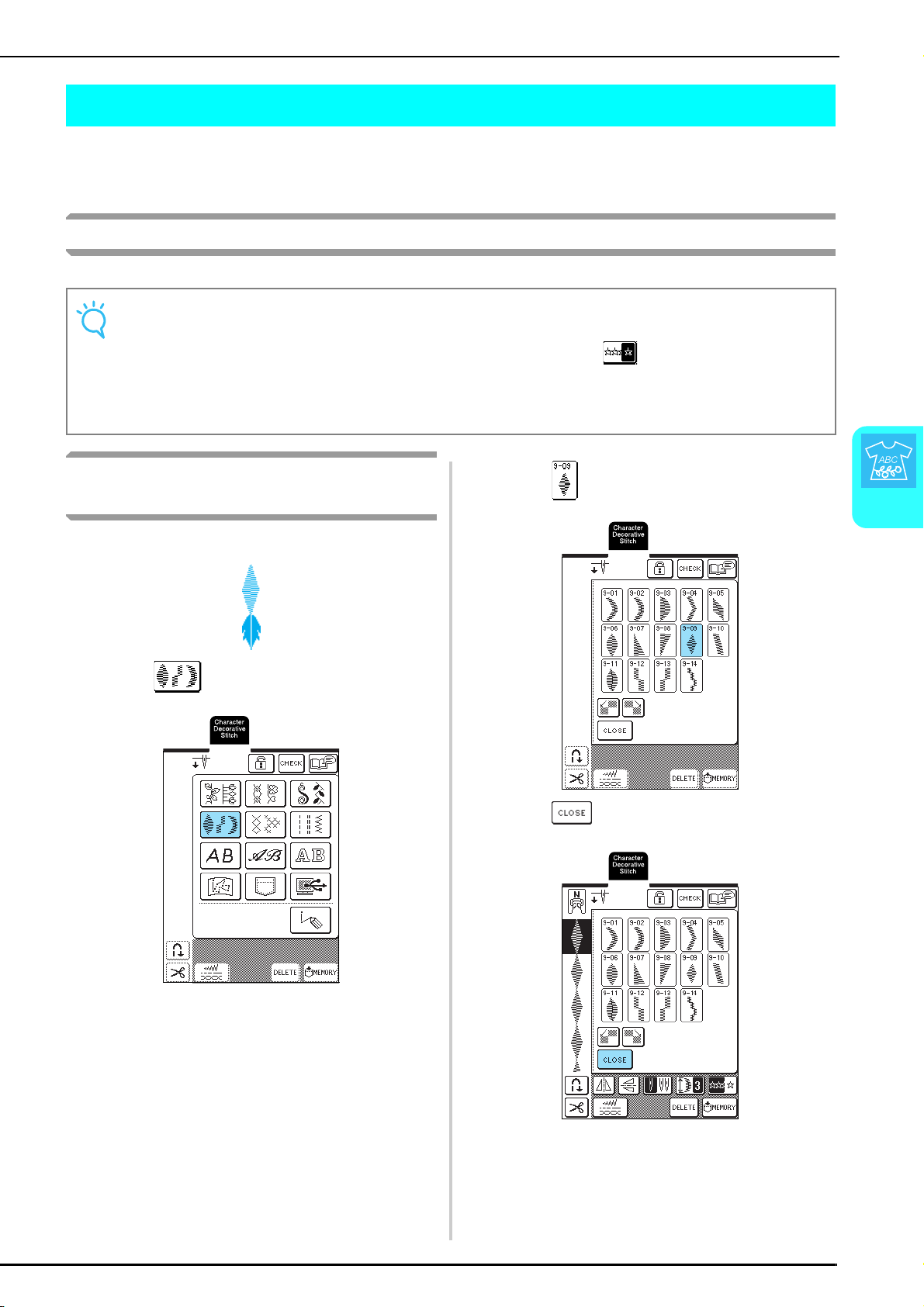
COMBINING STITCH PATTERNS
Character/Decorative Stitches
97
4
COMBINING STITCH PATTERNS
You can combine many varieties of stitch patterns, such as character stitches, cross stitches, satin stitches, or stitches
you design with MY CUSTOM STITCH function (see chapter 7 for information about MY CUSTOM STITCH). You
can also combine stitch patterns of different sizes, mirror image stitch patterns, and others.
Before Combining Patterns
Combining Patterns From Different
Categories
Example:
a
Press .
b
Press .
c
Press .
→ The screen of pattern categories appears.
Note
• When stitch patterns are combined, the machine is automatically set to sew the pattern once. To repeatedly
sew the combined stitch patterns, combine the patterns, and then press .
• You cannot change settings (such as the size and orientation) for stitch patterns once they have been
combined. To resize or reorient the patterns, specify the settings for each pattern as it is added to the
combination.
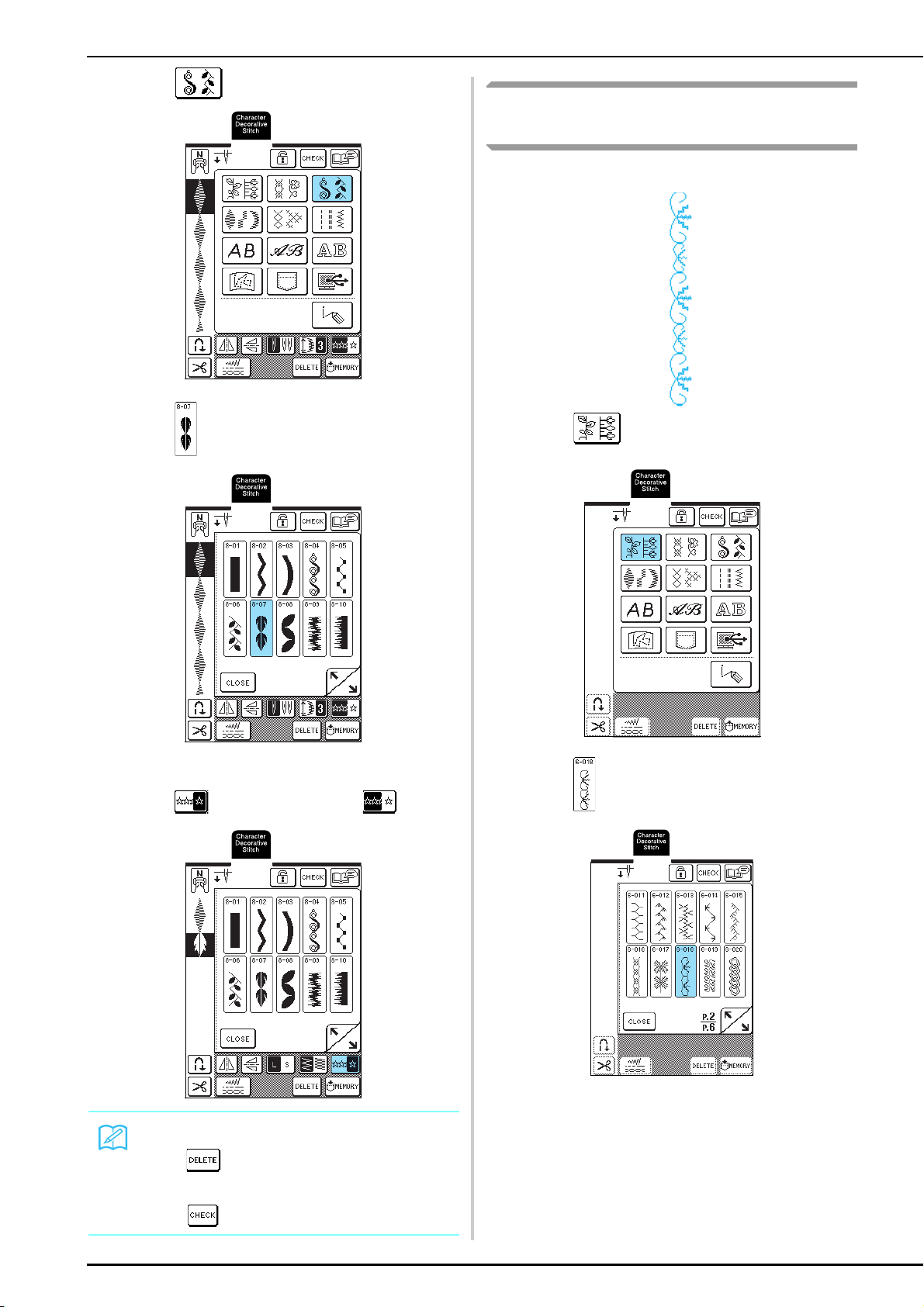
COMBINING STITCH PATTERNS
98
d
Press .
e
Press .
f
To repeatedly sew the pattern combination,
press so that it appears as .
Combining Stitch Patterns of Different
Sizes
Example:
a
Press .
b
Press .
→ The larger size pattern appears.
Memo
• Press to erase the last pattern entered. Patterns
are erased one at a time.
• If the entire combined pattern cannot be displayed,
press
to view an image of the pattern.
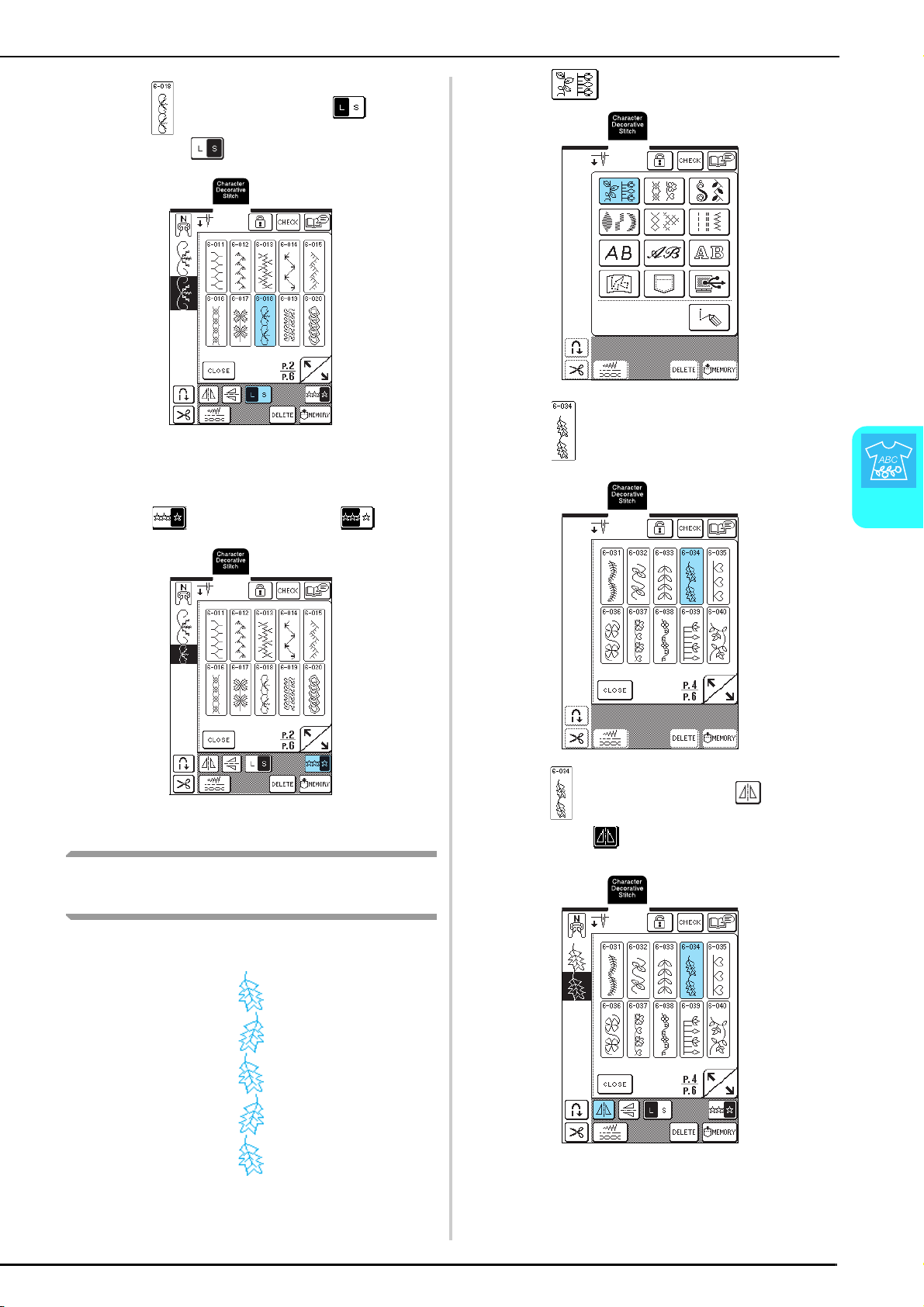
COMBINING STITCH PATTERNS
Character/Decorative Stitches
99
4
c
Press again, and then press so that it
appears as .
→ The second pattern is displayed in the smaller size.
d
To repeatedly sew the pattern combination,
press so that it appears as .
→ The combination appears as a repeating pattern.
Combining Stitch Patterns of Different
Orientations
Example:
a
Press .
b
Press .
c
Press again, and then press so that it
appears as .
→ The second pattern is flipped on a vertical axis.
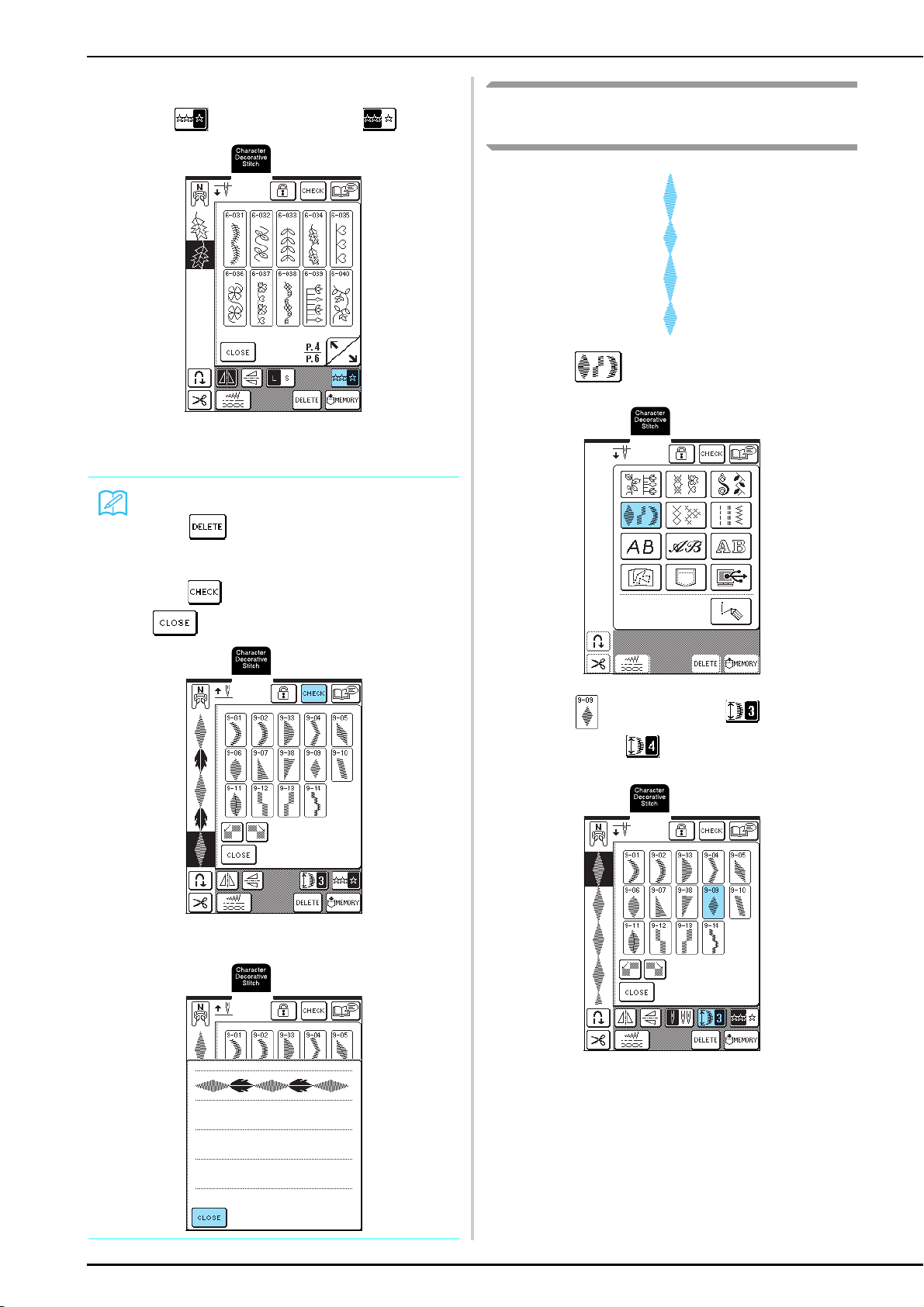
COMBINING STITCH PATTERNS
100
d
To repeatedly sew the pattern combination,
press so that it appears as .
→ The combination appears as a repeating pattern.
Combining Stitch Patterns of Different
Lengths
a
Press .
b
Press , and then press once so that
it appears as .
→ The pattern is displayed with a length of 4.
Memo
• Press to erase the last pattern entered.
Patterns are erased one at a time.
• If the entire combined pattern cannot be displayed,
press
to view an image of the pattern. Press
to return to the previous screen.
→ The image of the pattern appears.
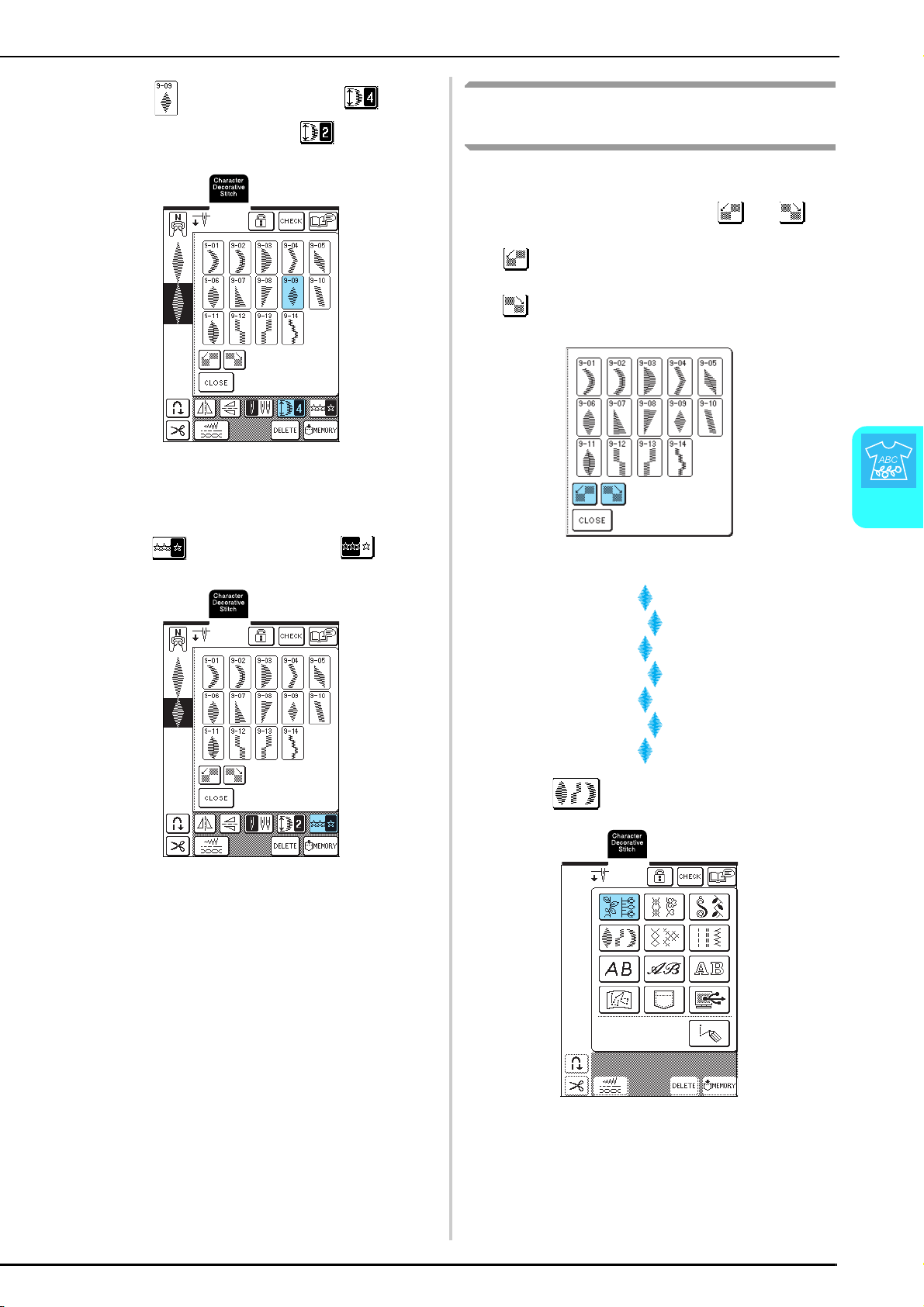
COMBINING STITCH PATTERNS
Character/Decorative Stitches
101
4
c
Press again, and then press three
times so that it appears as .
→ The second pattern is displayed with a length of 2.
d
To repeatedly sew the pattern combination,
press so that it appears as .
→ The combination appears as a repeating pattern.
Creating Step Patterns (7 mm Satin
Stitch Patterns Only)
Stitch patterns that are shifted to create a step-shaped
pattern are called step patterns.
Step patterns can be created by using and to
shift 7 mm satin stitch patterns.
Press once to move the stitch pattern to the left by
half the width of the stitch pattern.
Press once to move the stitch pattern to the right by
half the width of the stitch pattern.
Example:
a
Press .
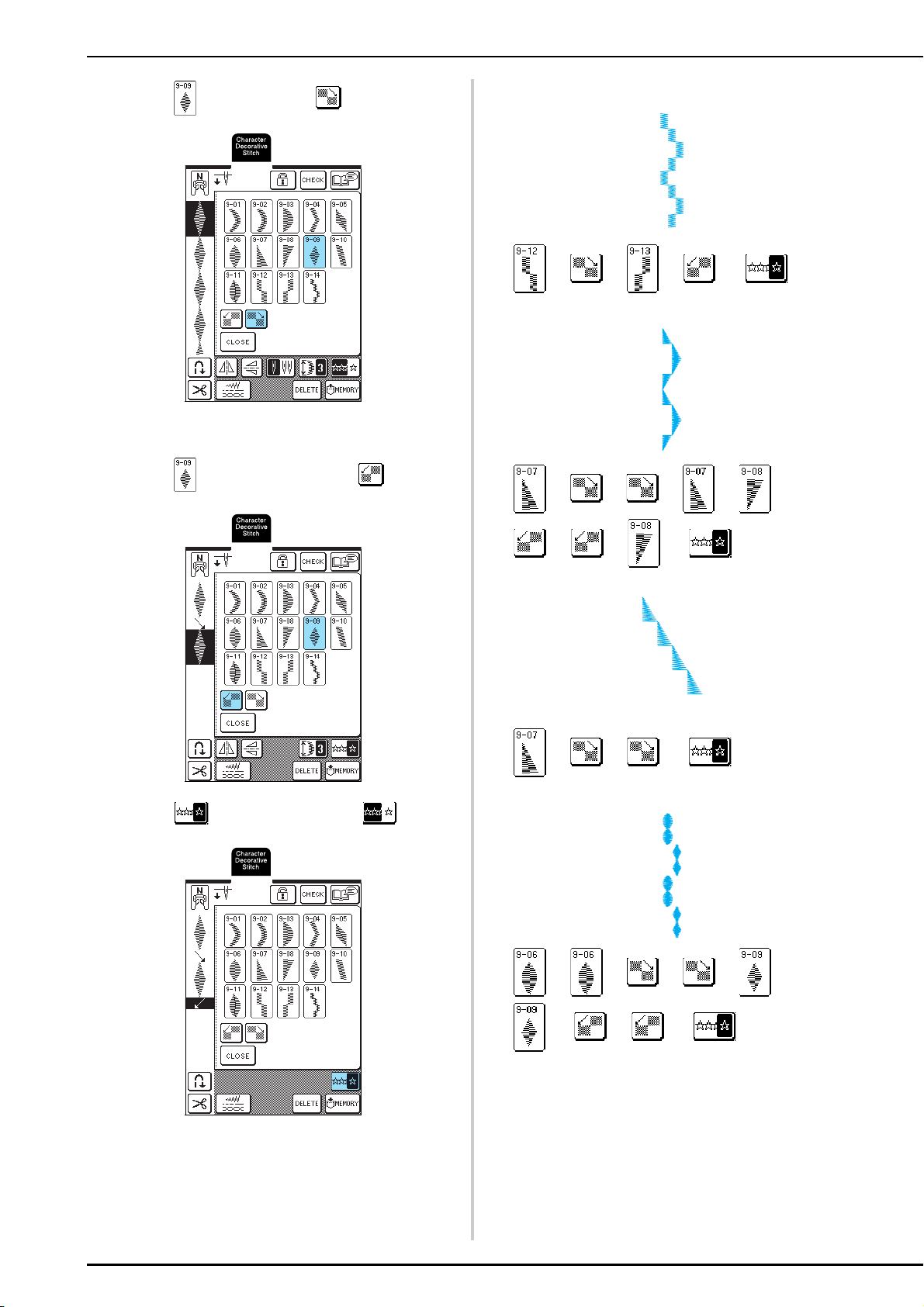
COMBINING STITCH PATTERNS
102
b
Press , and then press .
→ The next pattern is moved to the right.
c
Press again, and then press .
d
Press so that it appears as .
→ The combination appears as a repeating pattern.
■ Examples of Pattern Combinations
→→→→
→→→→→
→→→
→→→
→→→→→
→
→→
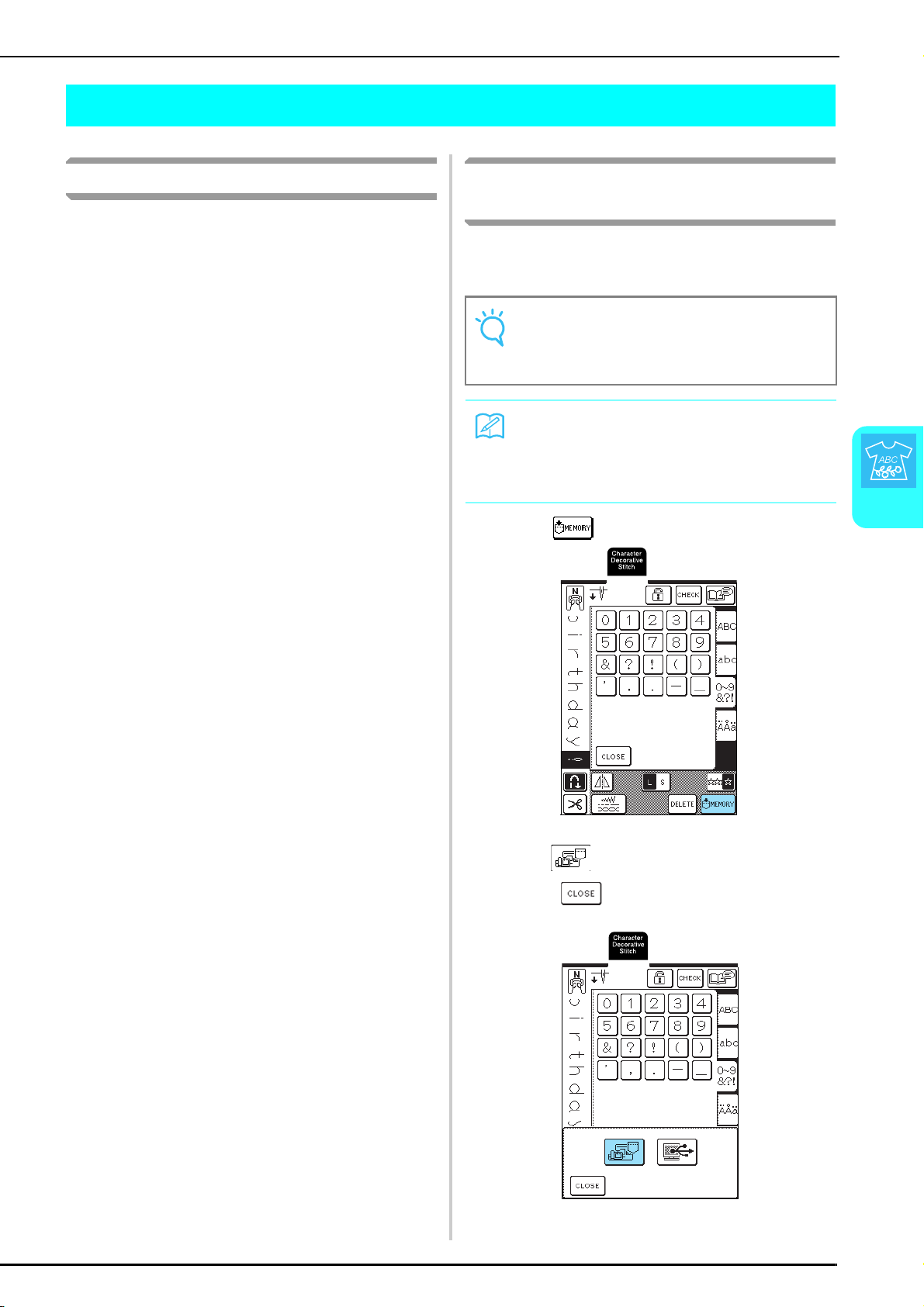
USING THE MEMORY FUNCTION
Character/Decorative Stitches
103
4
USING THE MEMORY FUNCTION
Stitch Data Precautions
Observe the following precautions when using stitch
data other than that created and saved in this machine.
■ Types of Stitch Data That Can Be Used
• Only .pmu stitch data files can be used with this
machine. Using data other than that created
using this machine may cause the machine to
malfunction.
■ Computers and Operating Systems with the
Following Specifications Can Be Used
• Compatible models:
IBM PC with a USB port as standard equipment
IBM PC-compatible computer equipped with a
USB port as standard equipment
• Compatible operating systems:
Microsoft Windows 98SE/Me/2000/XP
(Windows 98SE requires a driver. Download the
driver from our Web site (www.brother.com). In
addition, only Windows 98 Second Edition can
use the driver.)
■ Precautions on Using the Computer to
Create and Save Data
• If the file name of stitch data cannot be
identified, for example, because the name
contains special characters, the file is not
displayed. If this occurs, change the name of the
file.
• Do not create folders in USB media. If stitch data
is stored in a folder, that stitch data cannot be
displayed by the machine.
■ Trademarks
• IBM is a registered trademark or a trademark of
International Business Machines Corporation.
• Microsoft and Windows are registered
trademarks or trademarks of Microsoft
Corporation.
Each company whose software title is mentioned in
this manual has a software license agreement
specific to its proprietary programs.
All other brands and product names mentioned in
this manual are registered trademarks of their
respective companies. However, the explanations
for markings such as
®
and ™ are not clearly
described within the text.
Saving Stitch Patterns in the
Machine’s Memory
You can save often-used stitch patterns in the machine’s
memory. The machine’s memory can hold up to 16
stitch patterns.
a
Press .
b
Press .
* Press to return to the previous screen
without saving the stitch pattern.
→ The “Saving” screen appears. When the pattern is
saved, the previous screen appears automatically.
Note
Do not turn off the machine while the “Saving” screen
is displayed, otherwise you may lose the stitch pattern
that you are saving.
Memo
• It takes a few seconds to save a stitch pattern in the
machine’s memory.
• See page 106 for information on retrieving a saved
stitch pattern.
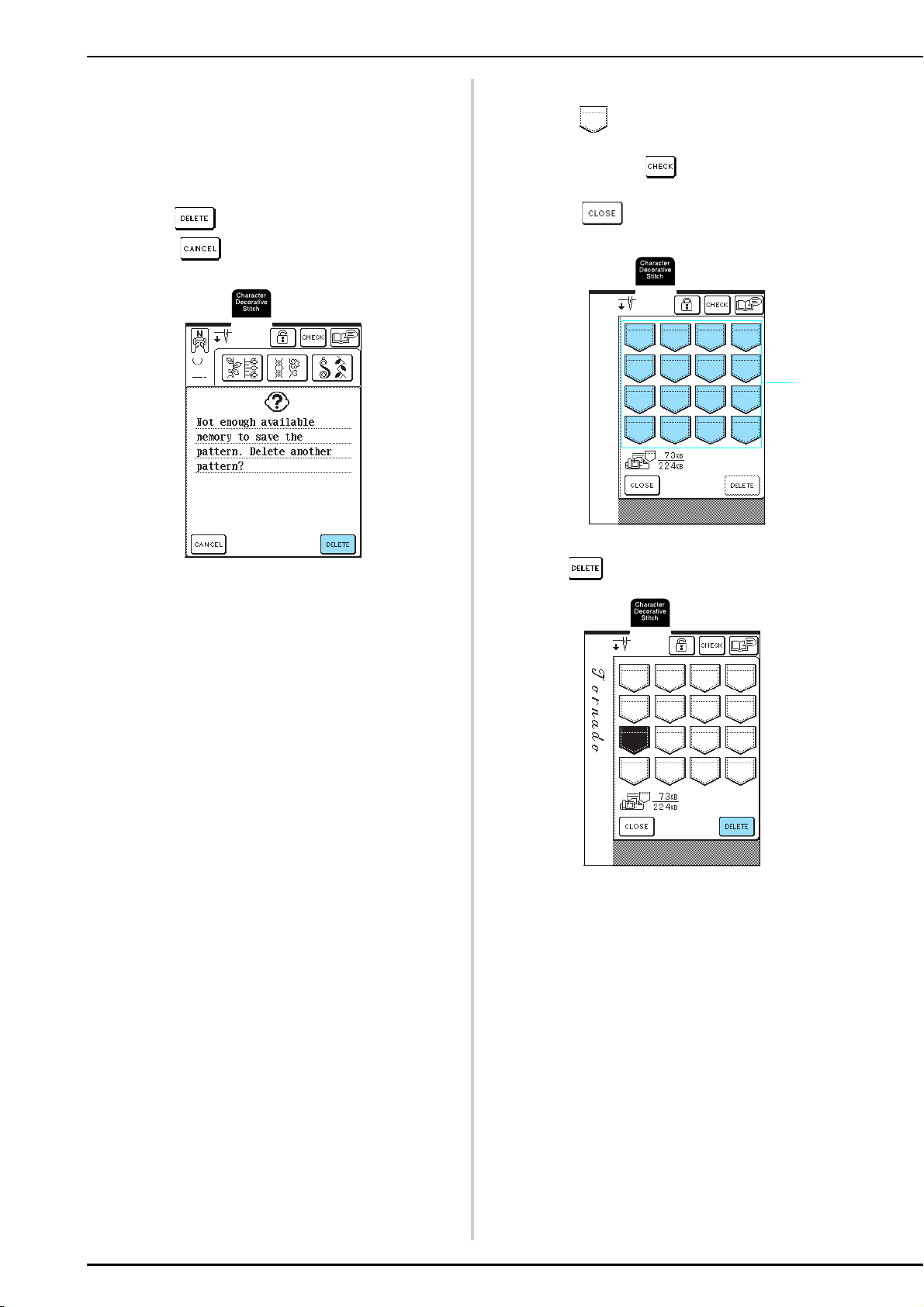
USING THE MEMORY FUNCTION
104
■ If the Memory Is Full
If this screen appears while you are trying to save a
pattern on the machine’s memory, the memory is
too full to hold the currently selected stitch pattern.
To save the stitch pattern in the machine’s memory,
you have to delete a previously saved stitch pattern.
a
Press .
* Press to return to the previous screen
without saving the stitch pattern.
b
Select a stitch pattern to be deleted.
* Press to display the pattern saved in that
pocket. If the entire saved stitch pattern cannot be
displayed, press to view the entire stitch
pattern.
* Press if you do not want to delete the stitch
pattern.
a Pockets holding saved stitch patterns
c
Press .
→ A confirmation message appears.
a
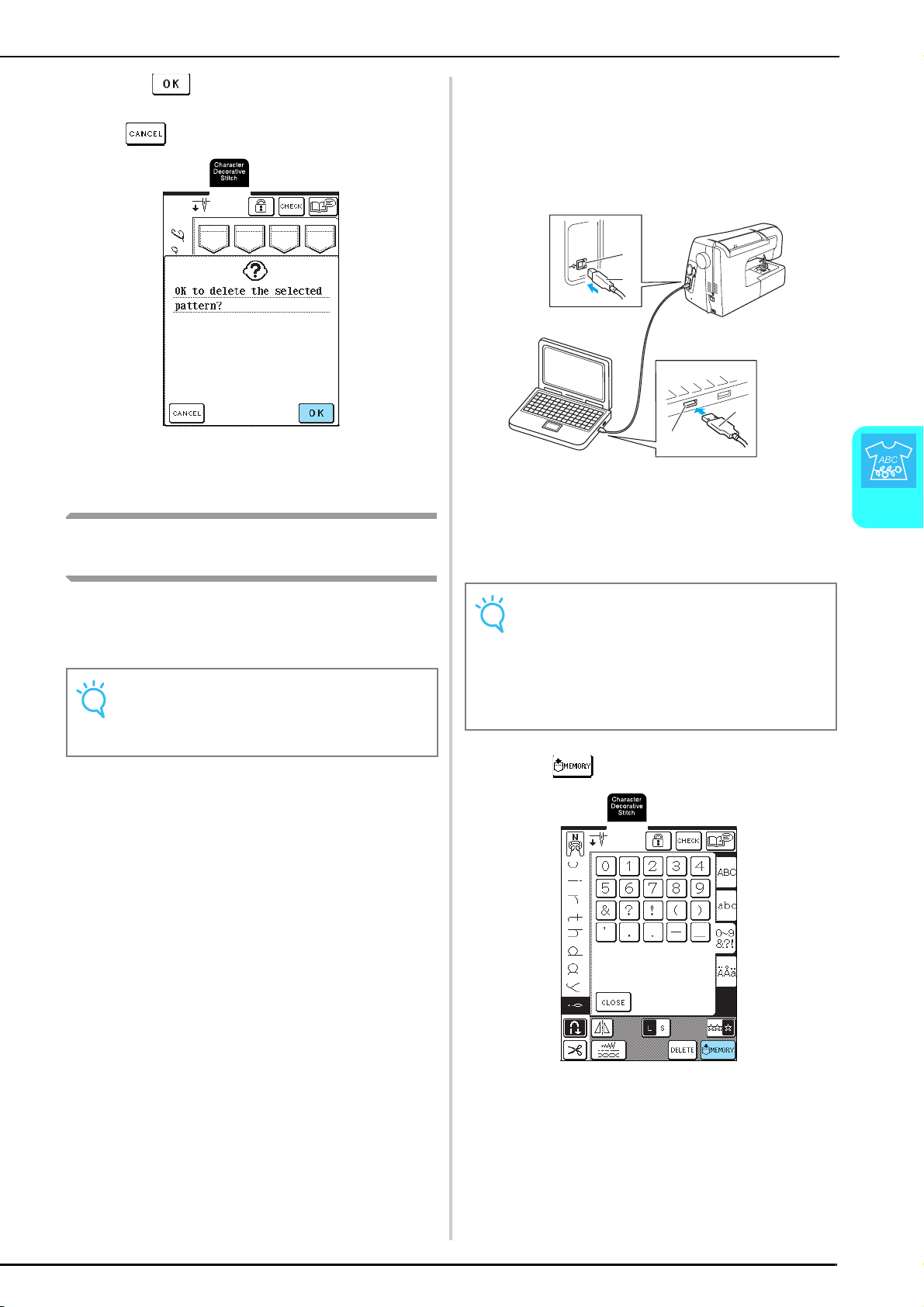
USING THE MEMORY FUNCTION
Character/Decorative Stitches
105
4
d
Press .
* If you decide not to delete the stitch pattern, press
.
→ The old stitch pattern is deleted, and the new stitch
pattern is automatically saved.
Saving Stitch Patterns to the
Computer
Using the included USB cable, connect the sewing
machine to your computer so that stitch patterns can be
retrieved from and saved to your computer.
a
Plug the USB cable connectors into the
corresponding USB ports on the computer
and on the machine.
* The USB cable can be plugged into the USB ports
on the computer and machine whether or not they
are turned on.
a USB port
b USB cable connector
→ The “Removable Disk” icon appears in “My
Computer” on the computer.
b
Press .
Note
Do not turn off the machine while the “Saving” screen
is displayed, otherwise you may lose the stitch pattern
that you are saving.
Note
• The connectors on the USB cable can only be
inserted into a port in one direction. If it is difficult to
insert the connector, do not insert it with force, and
then check the orientation of the connector.
• For details on the position of the USB port on the
computer, refer to the instruction manual for the
corresponding equipment.
a
b
a
b
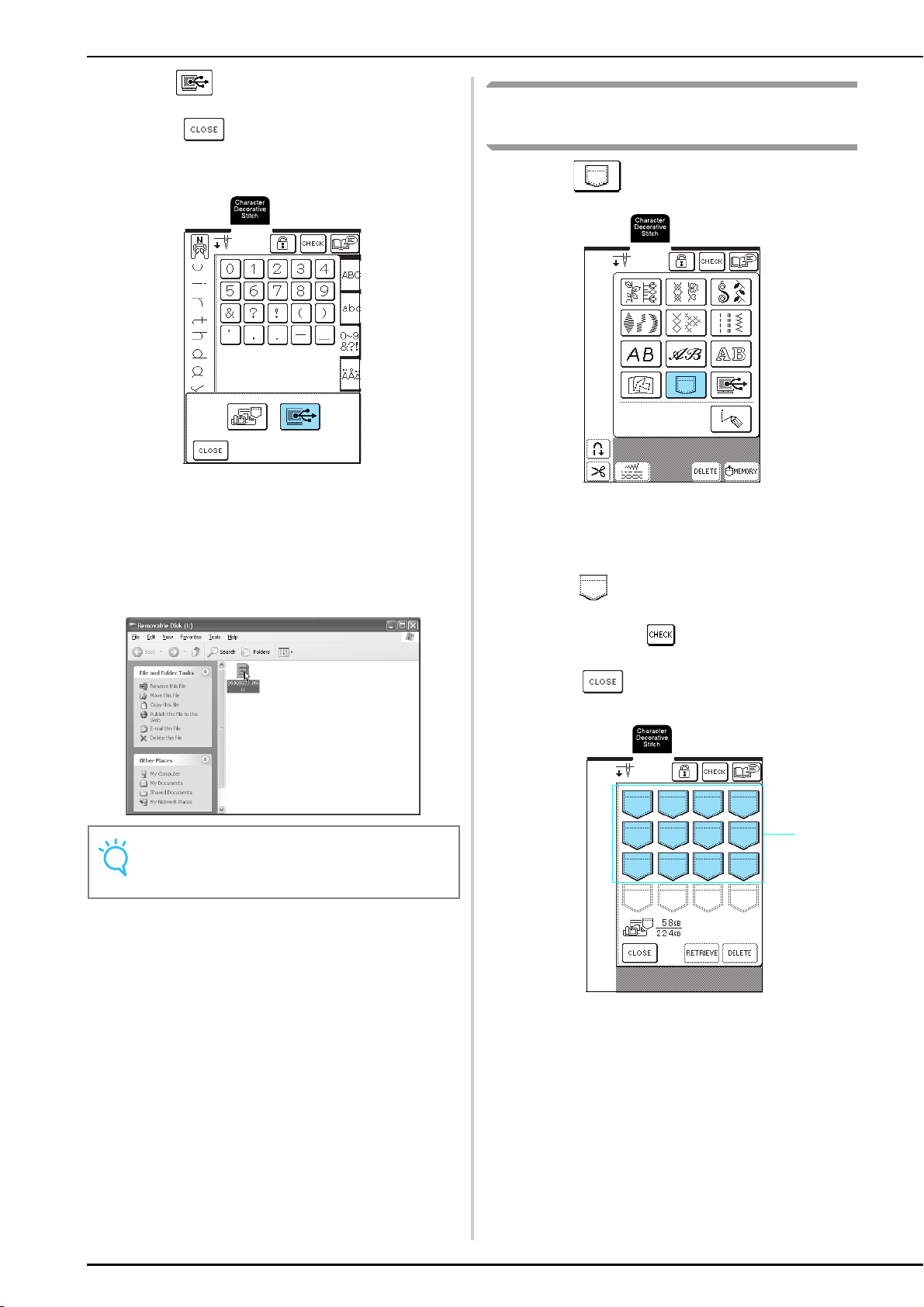
USING THE MEMORY FUNCTION
106
c
Press .
→ Press to return to the previous screen
without saving the stitch pattern.
→ The stitch pattern is temporarily saved to
“Removable Disk” under “My Computer”.
d
Select the stitch pattern’s .pmu file in
“Removable Disk”, and copy the file to the
computer.
Retrieving Stitch Patterns from the
Machine’s Memory
a
Press .
→ The pocket selection screen appears.
b
Select a stitch pattern to be retrieved.
* Press so that the pattern saved in that pocket
appears. If the entire saved stitch pattern cannot be
displayed, press to view the entire stitch
pattern.
* Press to return to the previous screen
without saving the stitch pattern.
a Pockets holding saved stitch patterns
Note
Do not turn off the machine while the “Saving” screen
is displayed, otherwise you may lose the data.
a
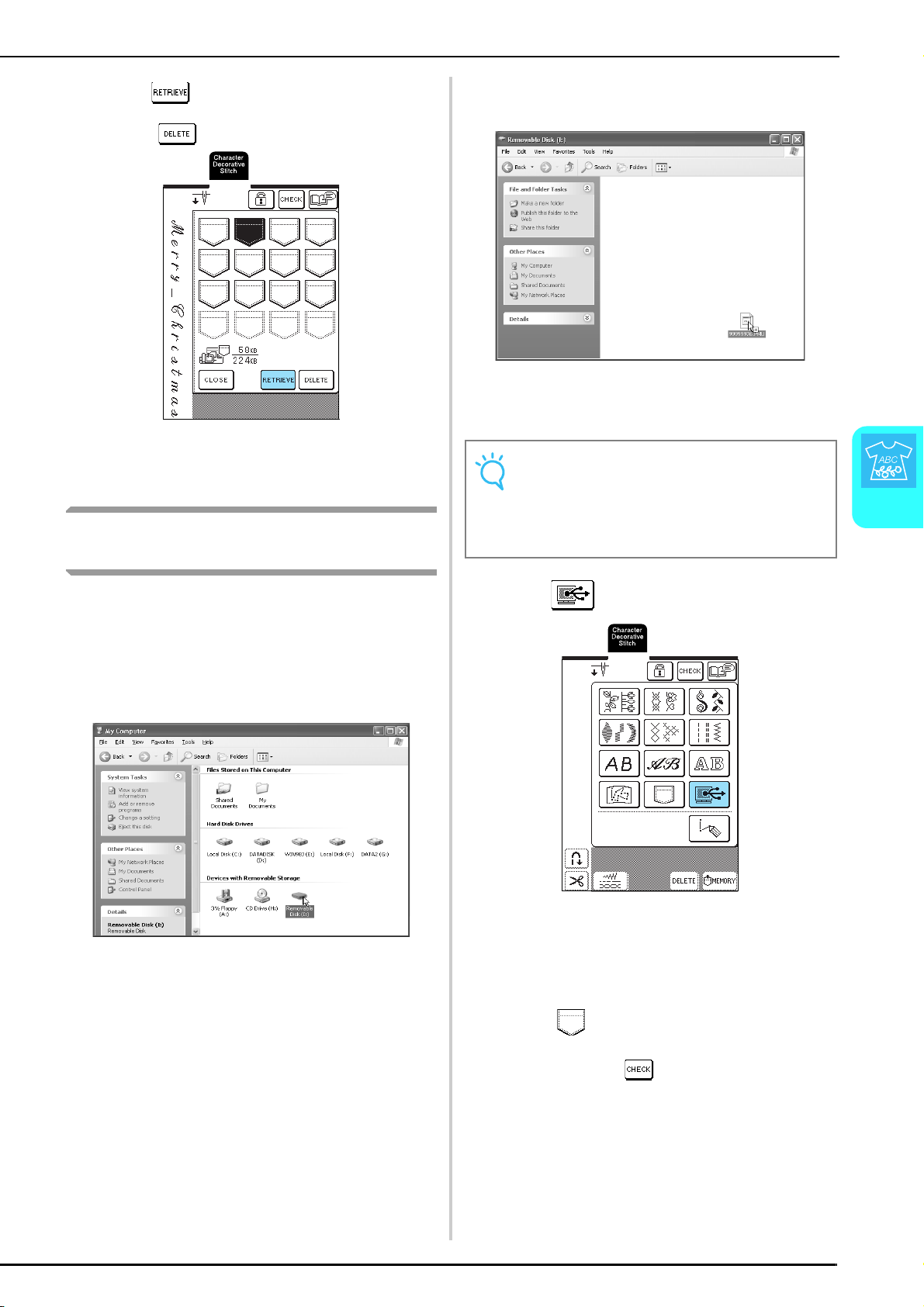
USING THE MEMORY FUNCTION
Character/Decorative Stitches
107
4
c
Press .
* Press to delete the stitch pattern.
→ The selected stitch pattern is retrieved and the
sewing screen appears.
Retrieving Stitch Patterns from the
Computer
a
Plug the USB cable connectors into the
corresponding USB ports on the computer
and on the machine (see page 105).
b
On the computer, open “My Computer”, and
then go to “Removable Disk”.
c
Move/copy the pattern data to “Removable
Disk”.
→ Stitch pattern data in “Removable Disk” is written to
the machine.
d
Press .
→ The stitch patterns in the computer are displayed in
the selection screen.
e
Select a stitch pattern to be retrieved.
* Press so that the pattern saved in that pocket
appears. If the entire saved stitch pattern cannot be
displayed, press to view the entire stitch
pattern.
Note
• While data is being written, do not disconnect the
USB cable.
• Do not create folders within “Removable Disk”.
Since folders are not displayed, stitch pattern data
within folders cannot be retrieved.
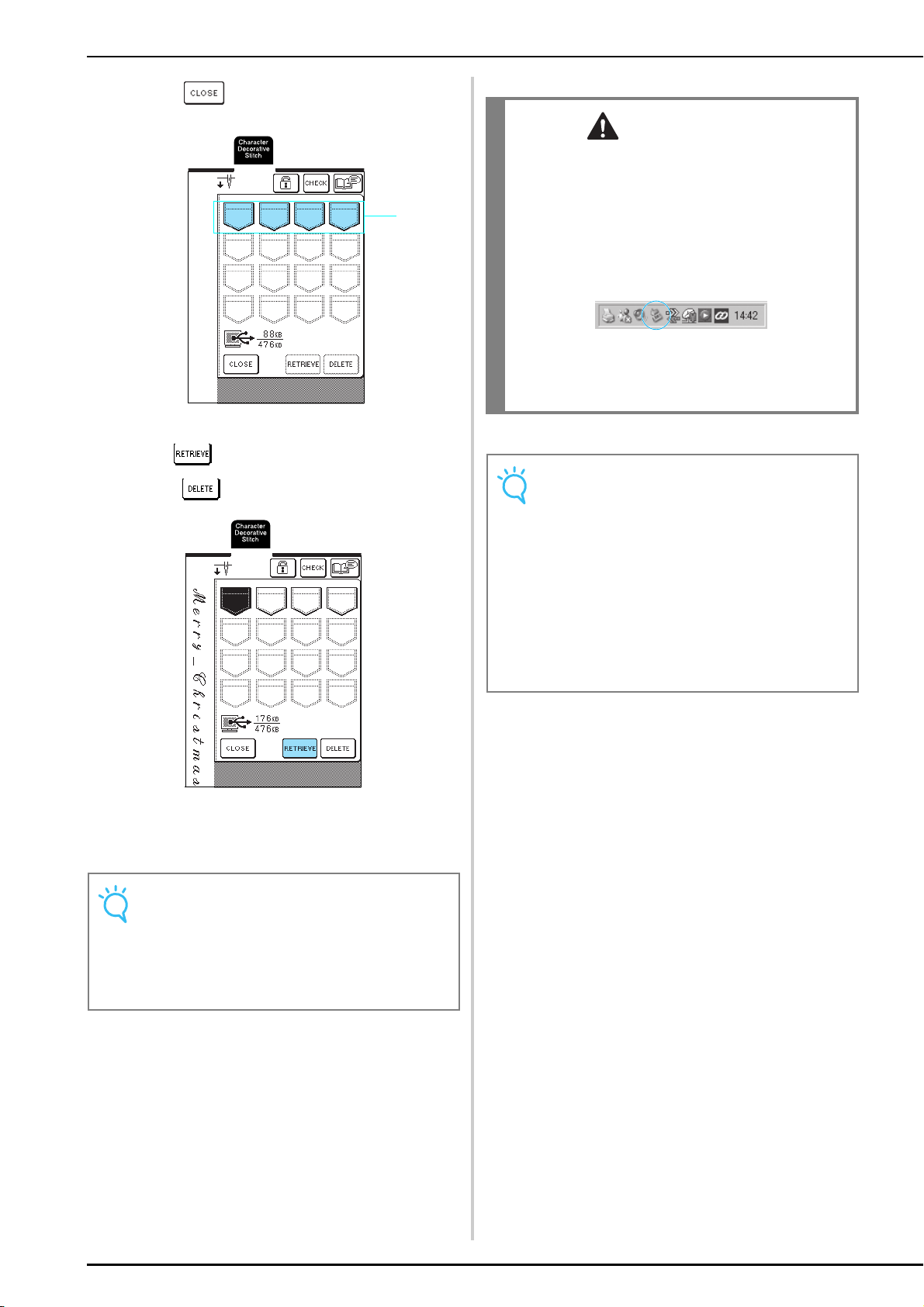
USING THE MEMORY FUNCTION
108
* Press to return to the previous screen
without saving the stitch pattern.
a Pockets holding saved stitch patterns
f
Press .
* Press to delete the stitch pattern.
→ The selected stitch pattern is retrieved and the
sewing screen appears.
Note
The pattern retrieved from the computer is only
temporarily written to the machine. It is erased from
the machine when the machine is turned off. If you
wish to keep the stitch pattern, store it in a pocket on
the machine (see “Saving Stitch Patterns in the
Machine’s Memory” on page 103).
a
CAUTION
• When disconnecting the USB cable:
Before disconnecting the USB cable, click the
"Unplug or Eject Hardware" icon in the taskbar of
Windows
®
Me/2000 or the "Safely Remove
Hardware" icon in the taskbar of Windows
®
XP.
Then, when the removable disk has been removed
safely, disconnect the USB cable from the computer
and the machine.
With Windows 98 SE, check that the Access
lamp is not flashing before disconnecting the
USB cable from the computer and the
machine.
Note
• Be sure to perform the operation described above
before disconnecting the USB cable from the
computer and the machine, otherwise the computer
may malfunction, the data may not be written
correctly, or the data or data writing area on the
machine may be damaged.
• The pattern retrieved from the computer is only
temporarily written to the machine. It is erased from
the machine when the machine is turned off. If you
wish to keep the pattern, store it in the machine (see
“Saving Stitch Patterns in the Machine’s Memory”
on page 103).

Chapter 5
Embroidery
BEFORE EMBROIDERING ............................110
Attaching Embroidery Foot “U”...................................... 111
Attaching the Embroidery Unit ....................................... 112
■ Removing the Embroidery Unit .............................................. 113
SELECTING EMBROIDERY PATTERNS .........114
■ Copyright Information............................................................ 114
■ Pattern Selection Screens ....................................................... 114
One-point Patterns/Floral Patterns ................................. 115
Alphabet Patterns ........................................................... 116
Frame Patterns................................................................ 117
Embroidery Cards ........................................................... 118
■ About Embroidery Cards (Sold Separately)............................. 118
Selecting Patterns from the Machine's Memory/Computer.....118
VIEWING THE SEWING SCREEN .................119
■ Key Functions......................................................................... 119
PREPARING THE FABRIC .............................120
Attaching Stabilizer to Fabric ......................................... 120
Hooping Fabric in the Embroidery Frame....................... 121
■ Types of Embroidery Frames .................................................. 121
■ Inserting the Fabric ................................................................ 122
■ Using the Embroidery Sheet ................................................... 122
Embroidering Small Fabrics and Fabric Edges ................. 123
■ Embroidering Small Fabrics.................................................... 123
■ Embroidering Edges or Corners.............................................. 123
■ Embroidering Ribbons or Tape............................................... 123
ATTACHING THE EMBROIDERY FRAME.....124
■ Removing the Embroidery Frame ........................................... 124
EDITING THE PATTERN...............................125
Changing the Embroidery Frame Display........................ 125
Changing the Pattern Position......................................... 125
Rotating the Pattern........................................................ 126
Changing the Pattern Size............................................... 126
Creating a Horizontal Mirror Image ............................... 127
Changing the Stitching Density (Alphabet and Frame Patterns
Only) .............................................................................. 128
Changing the Color of Single Characters ........................ 128
CHECKING THE PATTERN ...........................129
Checking the Embroidering Position ............................... 129
Previewing the Pattern.................................................... 130
SEWING AN EMBROIDERING PATTERN .... 131
Sewing Attractive Finishes ...............................................131
■ Embroidery Needle Plate Cover..............................................131
Sewing Embroidery Patterns ............................................132
Embroidering Appliqué Patterns ......................................133
If the Bobbin Runs Out of Thread....................................134
If the Thread Breaks During Sewing ................................135
Restarting from the Beginning .........................................136
Adjusting the Thread Tension ..........................................136
■ Correct Thread Tension ..........................................................136
■ If the Upper Thread Is Too Tight.............................................137
■ If the Upper Thread Is Too Loose............................................137
Automatic Thread Cutting (End Color Trim)....................137
Changing the Embroidering Speed...................................138
Changing the Thread Color Display.................................138
USING THE MEMORY FUNCTION ............. 140
Embroidery Data Precautions ..........................................140
■ Types of Embroidery Data That Can Be Used .........................140
■ Computers and Operating Systems
with the Following Specifications Can Be Used ......................140
■ Precautions on Using the Computer to Create and
Save Data................................................................................140
■ Tajima (.dst) Embroidery Data ................................................140
■ Trademarks .............................................................................140
Saving Embroidery Patterns in the Machine’s Memory....141
■ If the Memory Is Full...............................................................141
Saving Embroidery Patterns to the Computer ..................142
Retrieving Patterns from the Machine’s Memory.............143
Retrieving Patterns from the Computer ...........................144
EMBROIDERY APPLICATIONS .................... 146
Using a Frame Pattern to Make an Appliqué (1) ..............146
Using a Frame Pattern to Make an Appliqué (2) ..............147
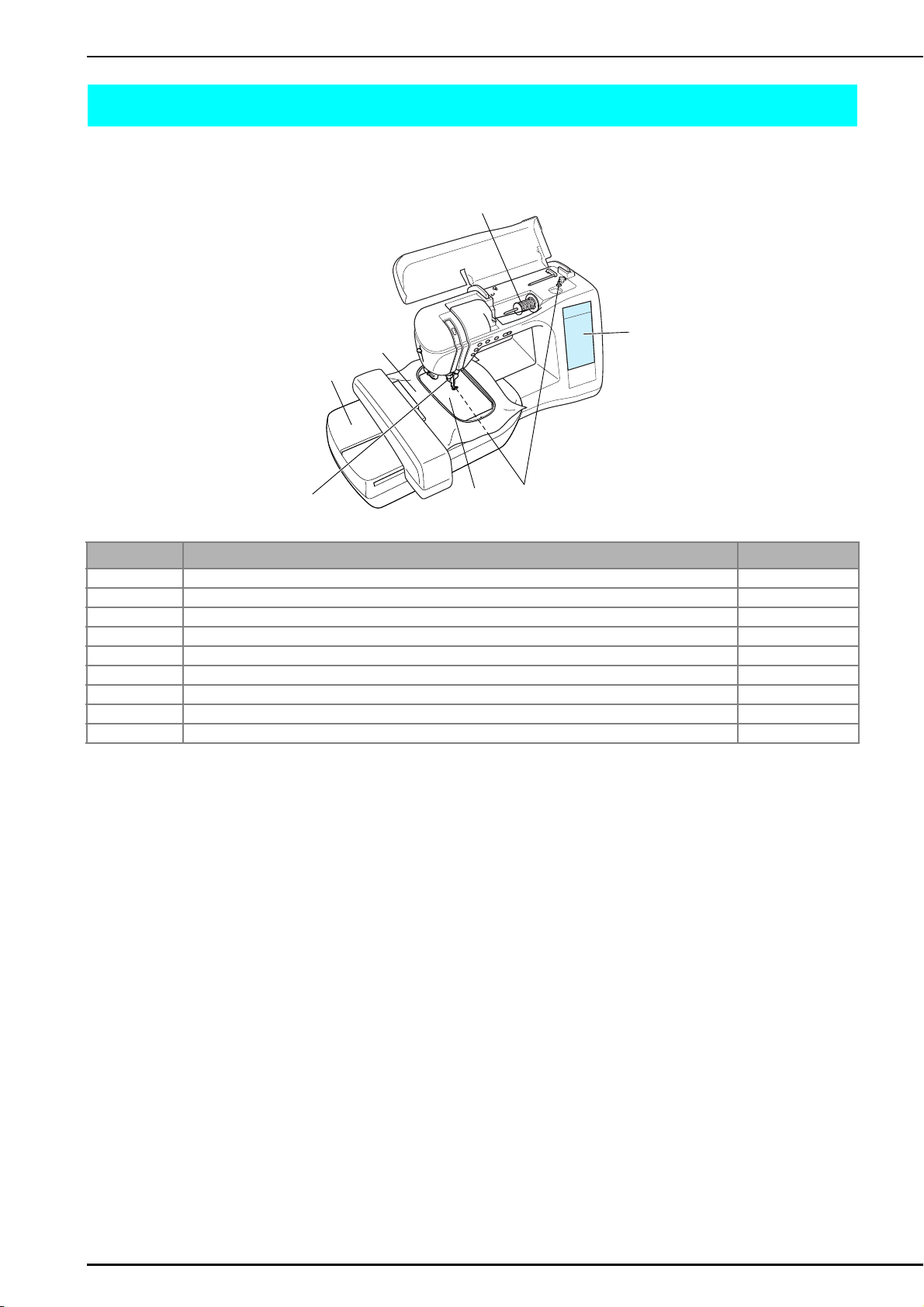
BEFORE EMBROIDERING
110
BEFORE EMBROIDERING
The embroidering procedures are listed below.
Step # Operation Page
1 Attach embroidery foot “U”. 111
2 Insert a 75/11 home sewing machine needle.* 34
3 Attach the embroidery unit. 112
4 Wind the bobbin with embroidery bobbin thread, and then set the bobbin. 24,27
5 Attach stabilizer material to the fabric, and then hoop it in the embroidery frame. 120
6 Turn on the machine, and then select the embroidery pattern. 114
7 Attach the embroidery frame to the embroidery unit. 124
8 Check and adjust the size and position of the embroidery pattern. 129
9 Set up embroidery thread according to the pattern (upper threading). 28
* It is recommended that a 90/14 needle should be used when embroidering on heavy weight fabrics or stabilizing products (for example;
denim, puffy foam, etc.).
6, 8
1, 2
9
5
4
7
3
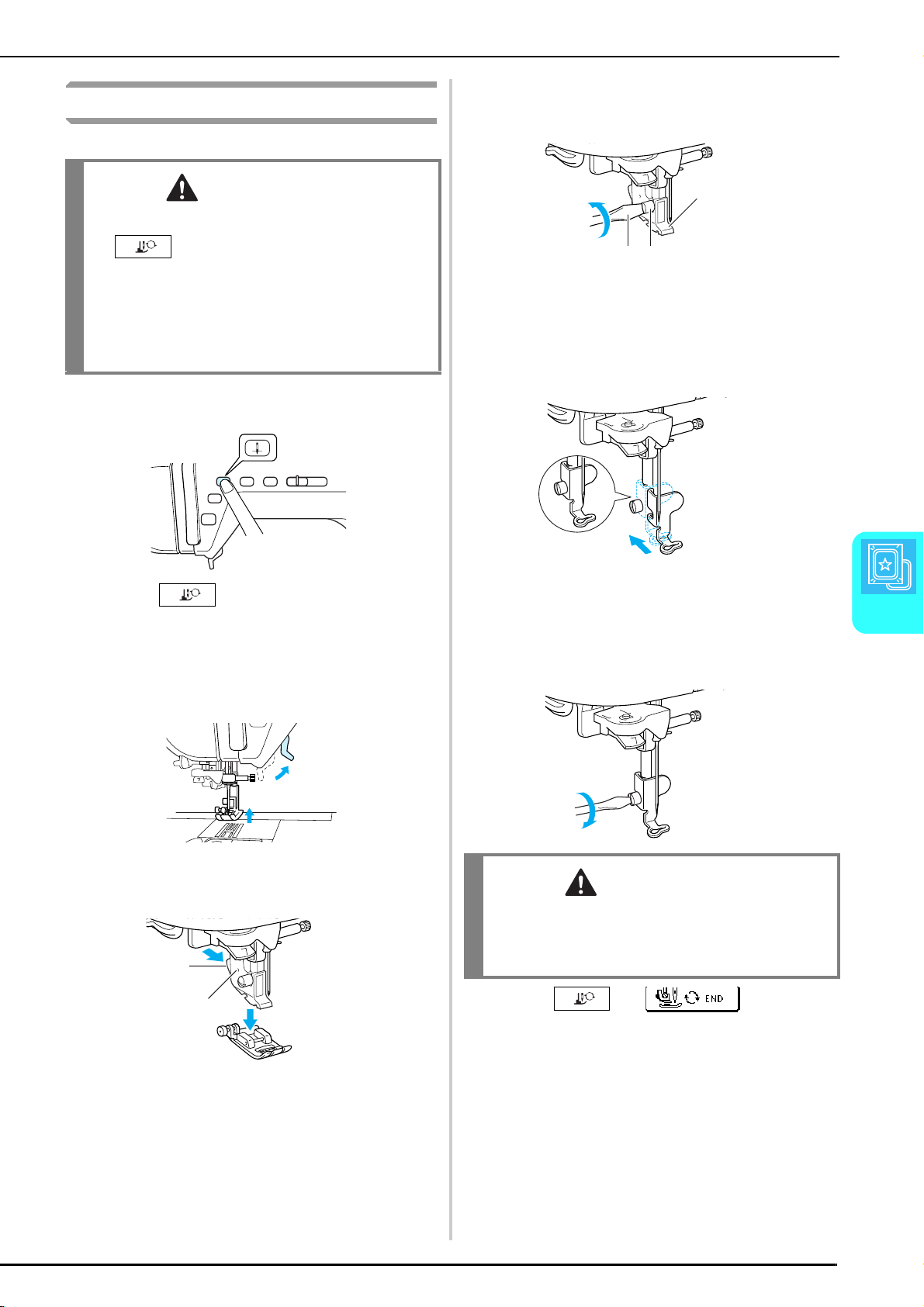
BEFORE EMBROIDERING
Embroidery
111
5
Attaching Embroidery Foot “U”
a
Press the “Needle Position” button to raise
the needle.
b
Press .
→
The Presser foot/Needle exchange screen appears
and all keys and operation buttons are locked.
c
Raise the presser foot lever.
d
Press the black button on the presser foot
holder to remove the presser foot.
a Black button
b Presser foot holder
e
Use the included screwdriver to loosen the
presser foot holder screw, and then remove
the presser foot holder.
a Presser foot holder
b Screwdriver
c Presser foot holder screw
f
Attach embroidery foot “U” so that the
presser foot holder screw fits into the notch in
the foot.
* Make sure that embroidery foot “U” is vertical when
it is installed.
g
Hold the embroidery foot in place with your
right hand, and then use the included
screwdriver to securely tighten the presser
foot holder screw.
h
Press , or in the
screen that appeared.
→
All keys and operation buttons are unlocked, and the
previous screen is displayed.
CAUTION
• When attaching a presser foot, always press
in the operation panel. You may
accidentally press the “Start/Stop” button and
possibly cause injury.
• Be sure to use embroidery foot “U” when doing
embroidery. Using another presser foot may cause
the needle to strike the presser foot, causing the
needle to bend or break and possibly cause injury.
a
b
CAUTION
• Use the included screwdriver to firmly tighten the
screw of the presser foot holder. If the screw is loose,
the needle may strike the presser foot and possibly
cause injury.
a
bc
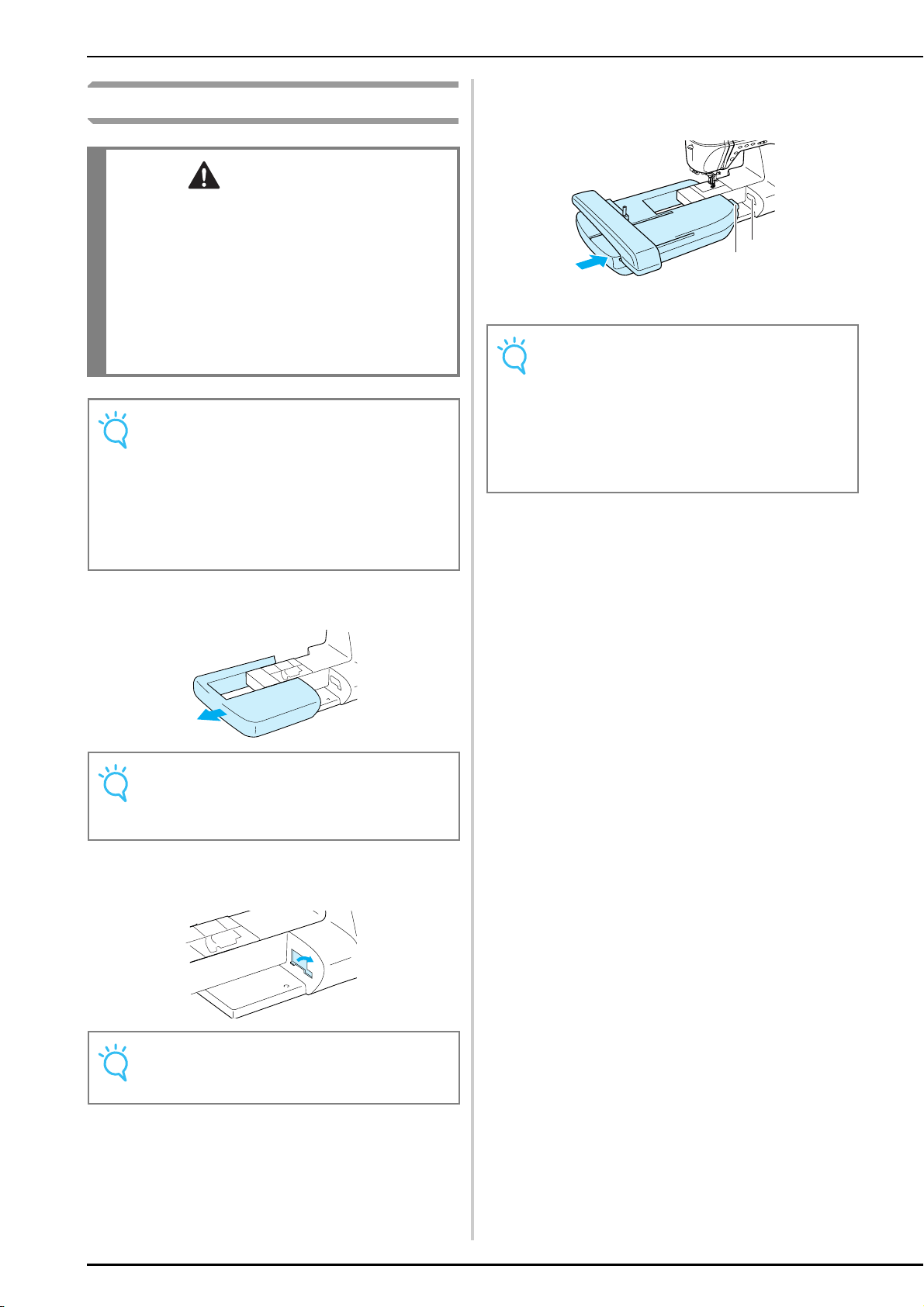
BEFORE EMBROIDERING
112
Attaching
the Embroidery Unit
a
Turn off the machine, and then remove the
flat-bed attachment.
b
Slide the tab on the cover of the connection
port in the direction of the arrow to open the
cover.
c
Insert the embroidery unit connector into the
connection port, and then lightly push in the
embroidery unit until it snaps into place.
a Connection port
b Embroidery unit connector
d
Turn on the machine.
→
A message appears in the screen.
CAUTION
• Do not move the machine with the embroidery unit
attached. The embroidery unit could fall off and
cause injury.
• Keep your hands and foreign objects away from the
embroidery carriage and frame when the machine is
embroidering. Otherwise, injury may result.
• If the embroidery unit could not be initialized
correctly, a buzzer will sound. If this happens, go
through the initialization process again. This is not a
malfunction.
Note
• Do not touch the embroidery unit connector,
otherwise damage to the connector pins or the
machine may result.
• Do not apply extreme force to the embroidery unit
carriage or pick up the unit by the carriage,
otherwise damage to the embroidery unit may
result.
• Store the embroidery unit in its storage box/case.
Note
Be sure to turn off the machine before attaching the
embroidery unit, otherwise damage to the machine
may result.
Note
Be sure to close the cover of the connection port when
the embroidery unit is not being used.
Note
• Make sure that there is no gap between the
embroidery unit and the sewing machine, otherwise
the embroidery pattern may not be sewn correctly.
Be sure to fully insert the connector into the
connection port.
• Do not push on the carriage when attaching the
embroidery unit to the machine, otherwise damage
to the embroidery unit may result.
a
b
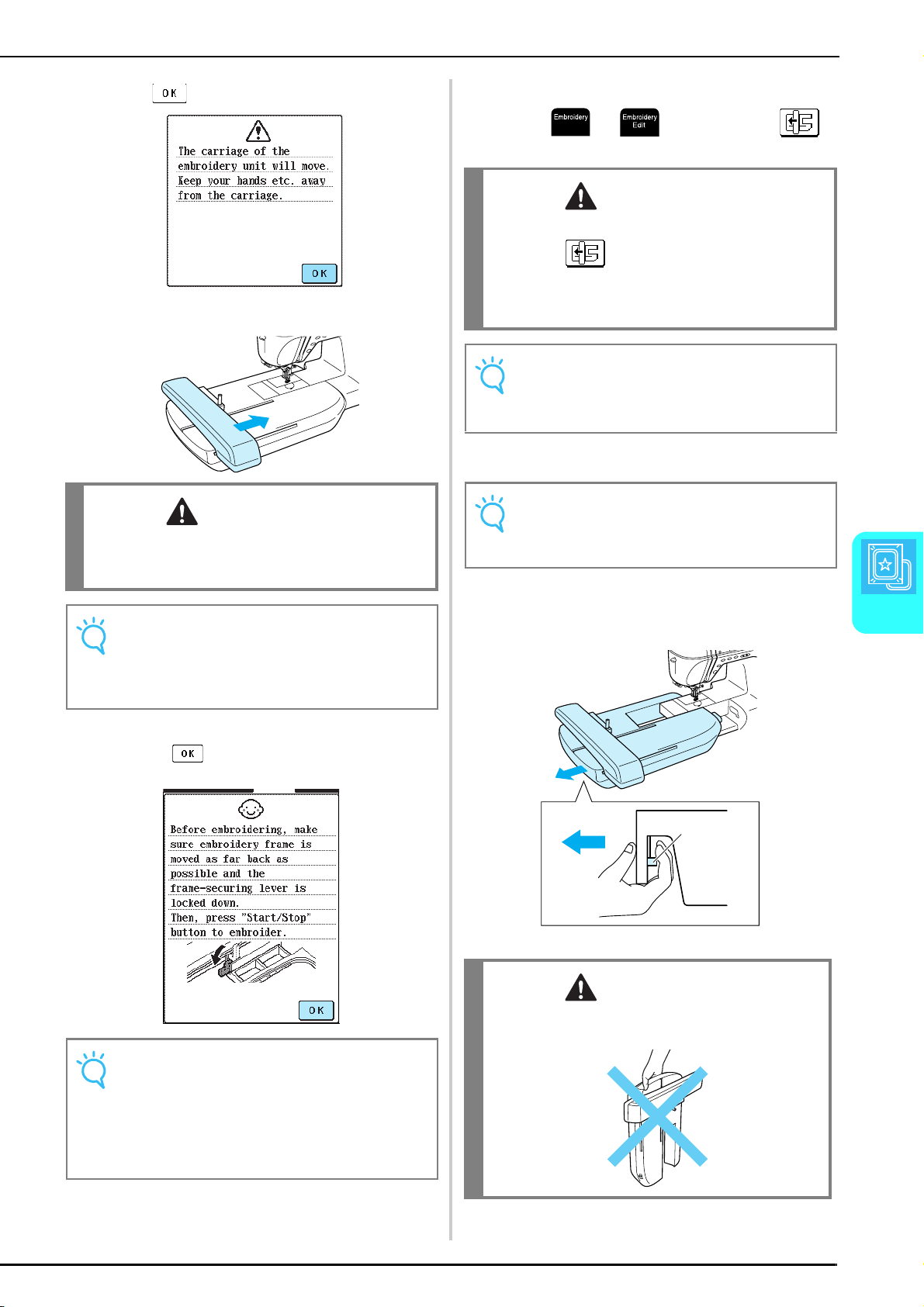
BEFORE EMBROIDERING
Embroidery
113
5
e
Press .
→
The carriage moves to its initial position.
f
The message will disappear after 15 seconds
or press to move to the next step.
→
Pattern selection screen appears.
■ Removing the Embroidery Unit
a
Press or , and then press .
→
The carriage moves to the storage position.
b
Turn off the machine.
c
Press the release button under the end of the
embroidery unit, and then pull the unit away
from the machine.
a Release button
CAUTION
• Keep your hands and foreign objects away from the
embroidery carriage and frame when the machine is
embroidering. Otherwise, injury may result.
Note
If the machine was not initialized correctly, the initial
screen may not appear. This is not a sign of a
malfunction. If this occurs, turn the machine off, then
on again.
Note
A confirmation message to lower the frame-securing
lever after the carriage moves to its initial position is
displayed.
Continue with pattern selection and remember to lower
the frame-securing lever when the embroidery frame is
attached.
CAUTION
• Always remove the embroidery frame before
pressing . Otherwise, the frame may strike
the embroidery foot, and possibly cause injury.
• The embroidery unit will not fit in the storage
box/case if this step is not done.
Note
If the carriage does not move to the storage position,
the embroidery unit cannot be put into its storage box/
case.
Note
Be sure to turn off the machine before removing the
embroidery unit, otherwise damage to the machine
may result.
CAUTION
• Do not carry the embroidery unit by holding the
release button compartment.
a
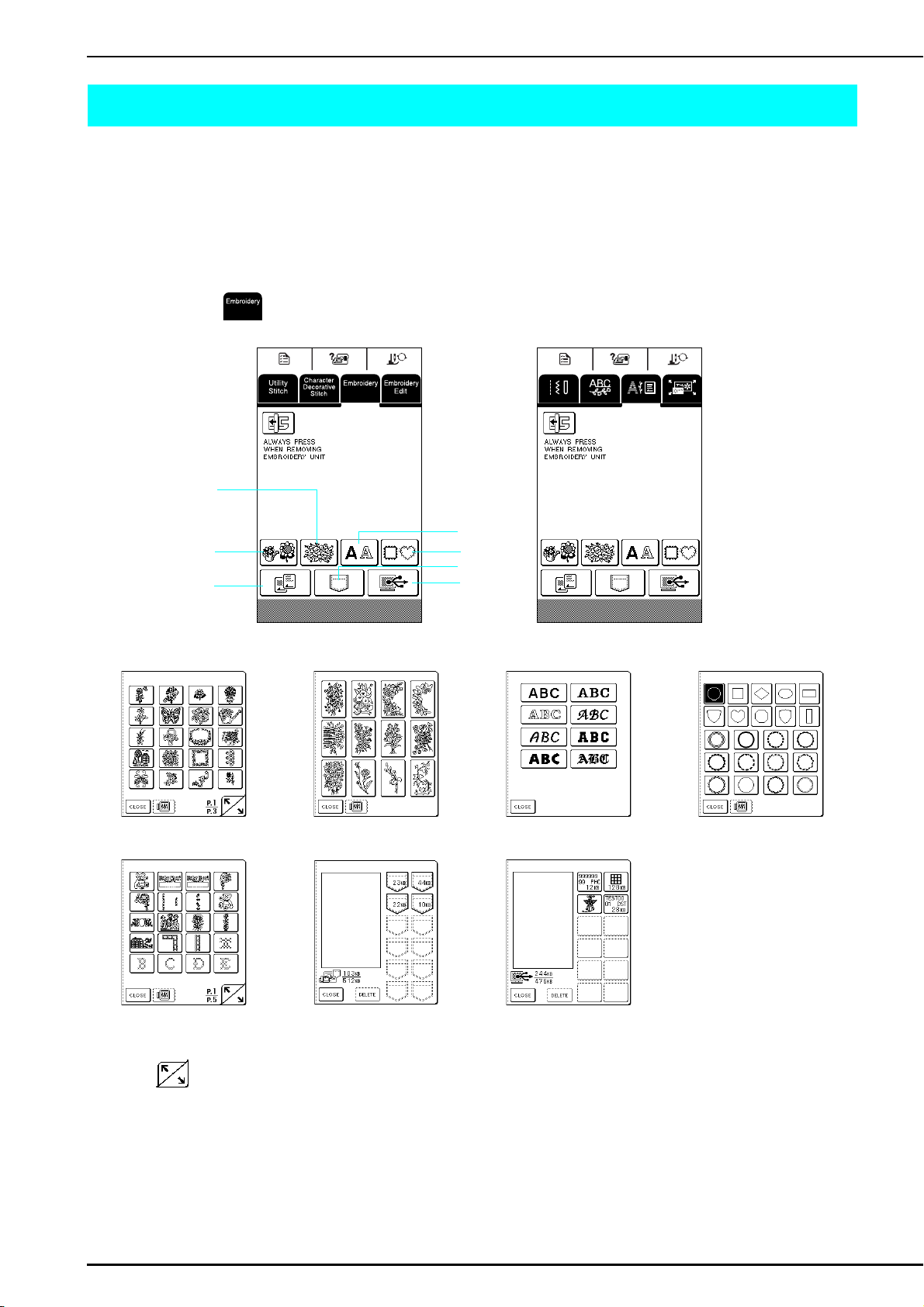
SELECTING EMBROIDERY PATTERNS
114
SELECTING EMBROIDERY PATTERNS
■ Copyright Information
The embroidery patterns stored in the machine and on embroidery cards (sold separately) are intended for
private use only. Any public or commercial use of copyrighted patterns is an infringement of copyright law and is
strictly prohibited.
■ Pattern Selection Screens
There are many character and decorative embroidery patterns stored in the machine’s memory. When the
carriage moves to its initial position, a screen appears so that you can select a pattern. If a different screen is
displayed, press .
Press to display the previous or next page.
a
c
b
d
e
f
g
a One-point patterns b Floral patterns c Alphabet patterns d Frame patterns
e Embroidery cards
(sold separately)
f
Patterns saved in the
machine’s memory
g Patterns saved on the
computer
The screen that appears
differs depending on the
card that is inserted.
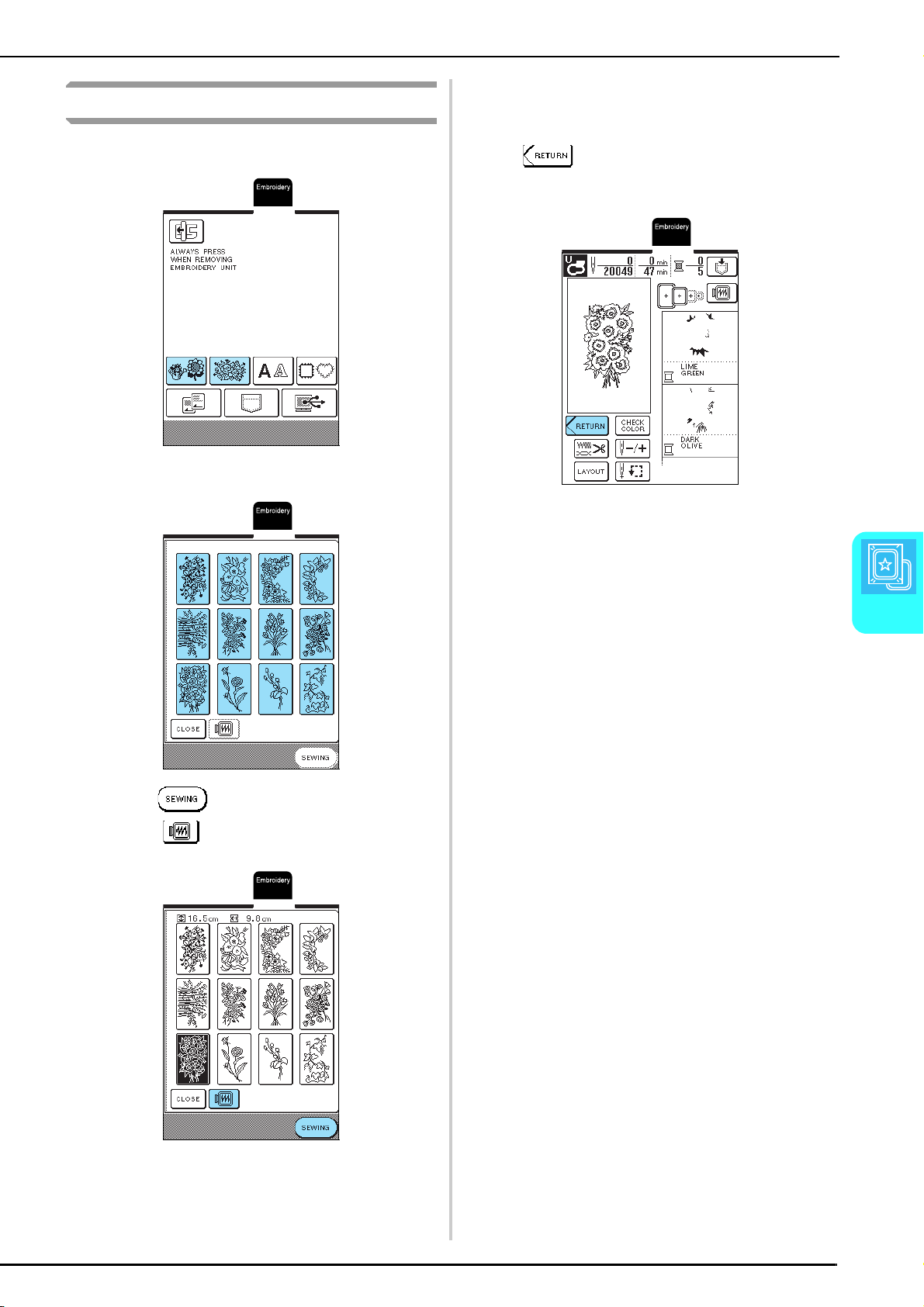
SELECTING EMBROIDERY PATTERNS
Embroidery
115
5
One-point Patterns/Floral Patterns
a
Select a type of embroidery pattern.
b
Select an embroidery pattern.
c
Press .
*Press to view an image of the embroidery
pattern.
→
The sewing screen appears.
d
Continue with “VIEWING THE SEWING
SCREEN” on page 119.
* To select a different embroidery pattern, press
. (After a confirmation message to delete
the selected pattern appears, the pattern selection
screen appears.)
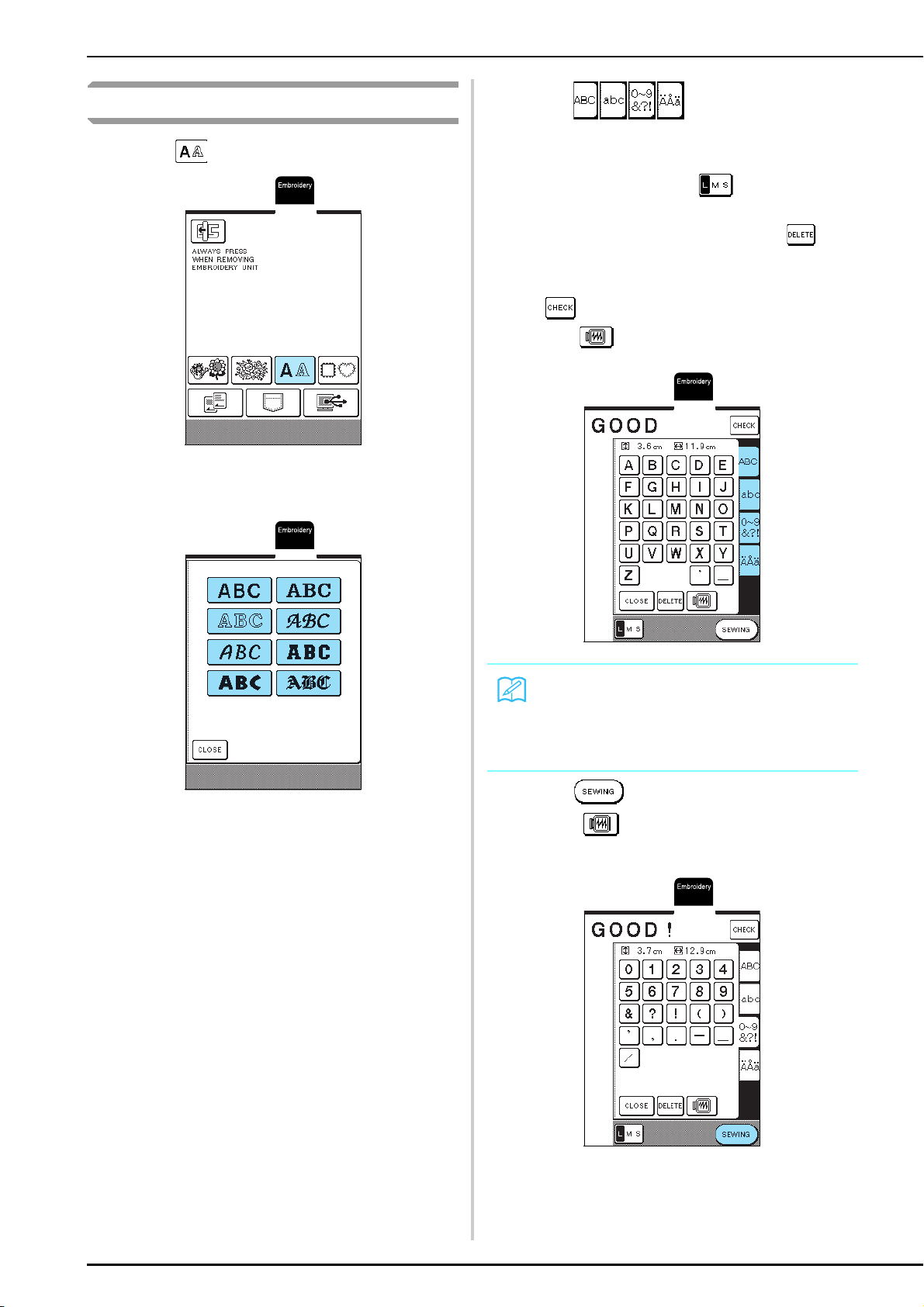
SELECTING EMBROIDERY PATTERNS
116
Alphabet Patterns
a
Press .
b
Select a character style.
c
Press to display a selection
screen of characters, and then select a
character to be embroidered.
* To change the size, press until the desired
size is selected.
* If a wrong character was selected, press to
erase the character.
* If the pattern is too small to see clearly, you can use
key to check it.
* Press to display all entered characters.
d
Press .
* Press to view an image of the embroidery
pattern.
→
The sewing screen appears.
Memo
• The next character that is selected will have the new
character size.
• You cannot change the size of characters once they
have been combined.
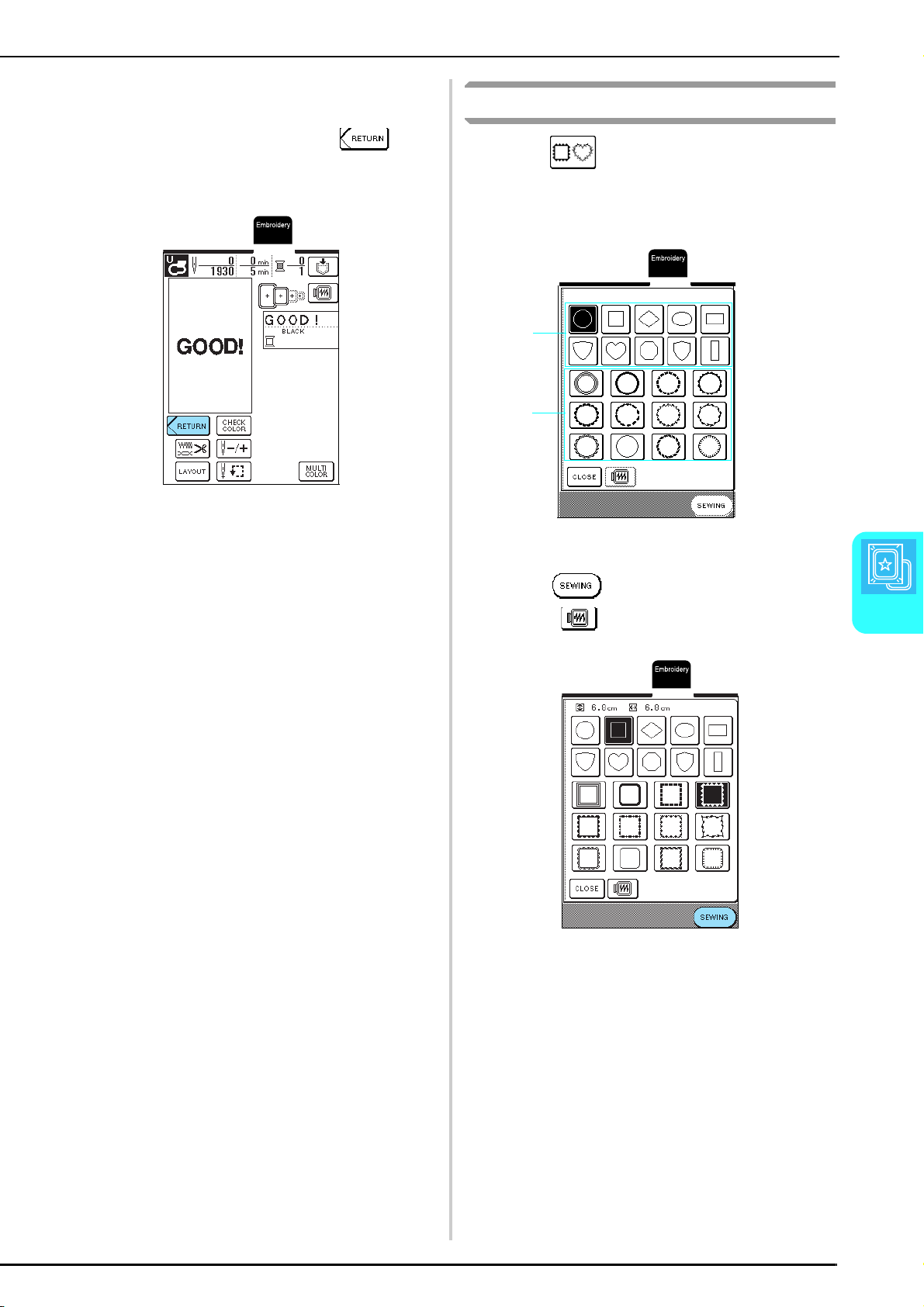
SELECTING EMBROIDERY PATTERNS
Embroidery
117
5
e
Continue with “VIEWING THE SEWING
SCREEN” on page 119.
* To select a different character, press . (After
a confirmation message to delete the selected
pattern appears, the pattern selection screen
appears.)
Frame Patterns
a
Press .
b
In the top part of the screen, select a frame
shape. In the bottom part of the screen, select
a frame pattern.
a Frame shapes
b Frame patterns
c
Press .
* Press to view an image of the embroidery
pattern.
→
The sewing screen appears.
a
b
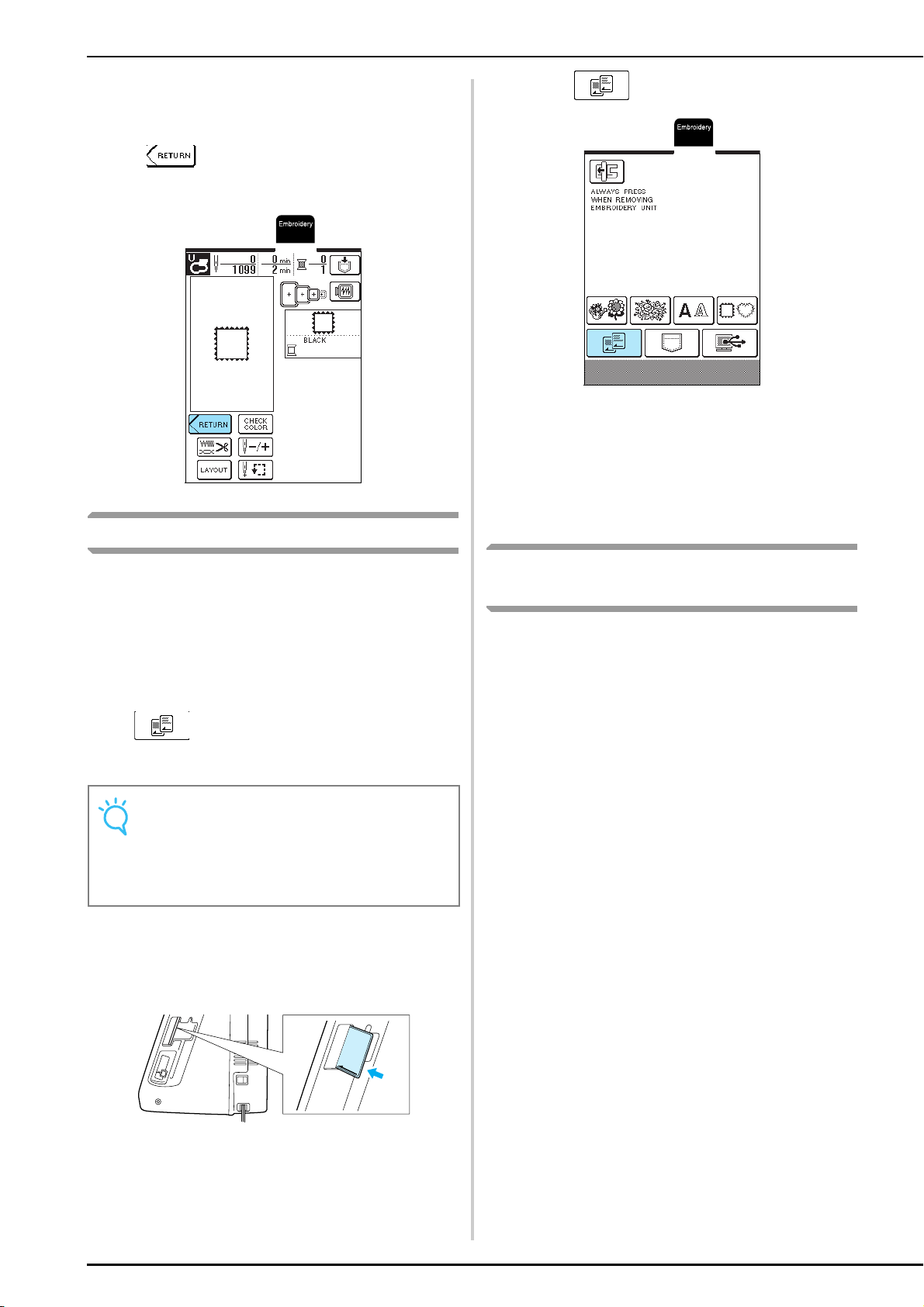
SELECTING EMBROIDERY PATTERNS
118
d
Continue with “VIEWING THE SEWING
SCREEN” on page 119.
* To select a different embroidery pattern, press
. (After a confirmation message to delete
the selected pattern appears, the pattern selection
screen appears.)
Embroidery Cards
■ About Embroidery Cards (Sold Separately)
• If an embroidery card other than our original
embroidery cards is used, the machine may not
operate correctly. Be sure to use only embroidery
cards manufactured for this machine.
• Embroidery cards purchased in foreign countries
may not work with this machine.
• Only insert or remove the embroidery card when
is displayed, or when the machine is
turned off.
• Store embroidery cards in their protective cases.
a
With the side of the embroidery card marked
with an arrow facing toward you, fully insert
the card into the embroidery card slot on the
right side of the machine.
b
Press .
→
The pattern selection screen for the card appears.
c
Follow the procedure described in “One-
point Patterns/Floral Patterns” on page 115 to
select a pattern.
Selecting Patterns from the Machine's
Memory/Computer
To retrieve patterns from the machine's memory or
computer, see pages 143 and 144.
Note
Do not insert the embroidery card in a direction other
than that shown by the arrow on the card, do not insert
the card with extreme force, and do not insert any
object other than embroidery cards into the slot,
otherwise the machine may be damaged.
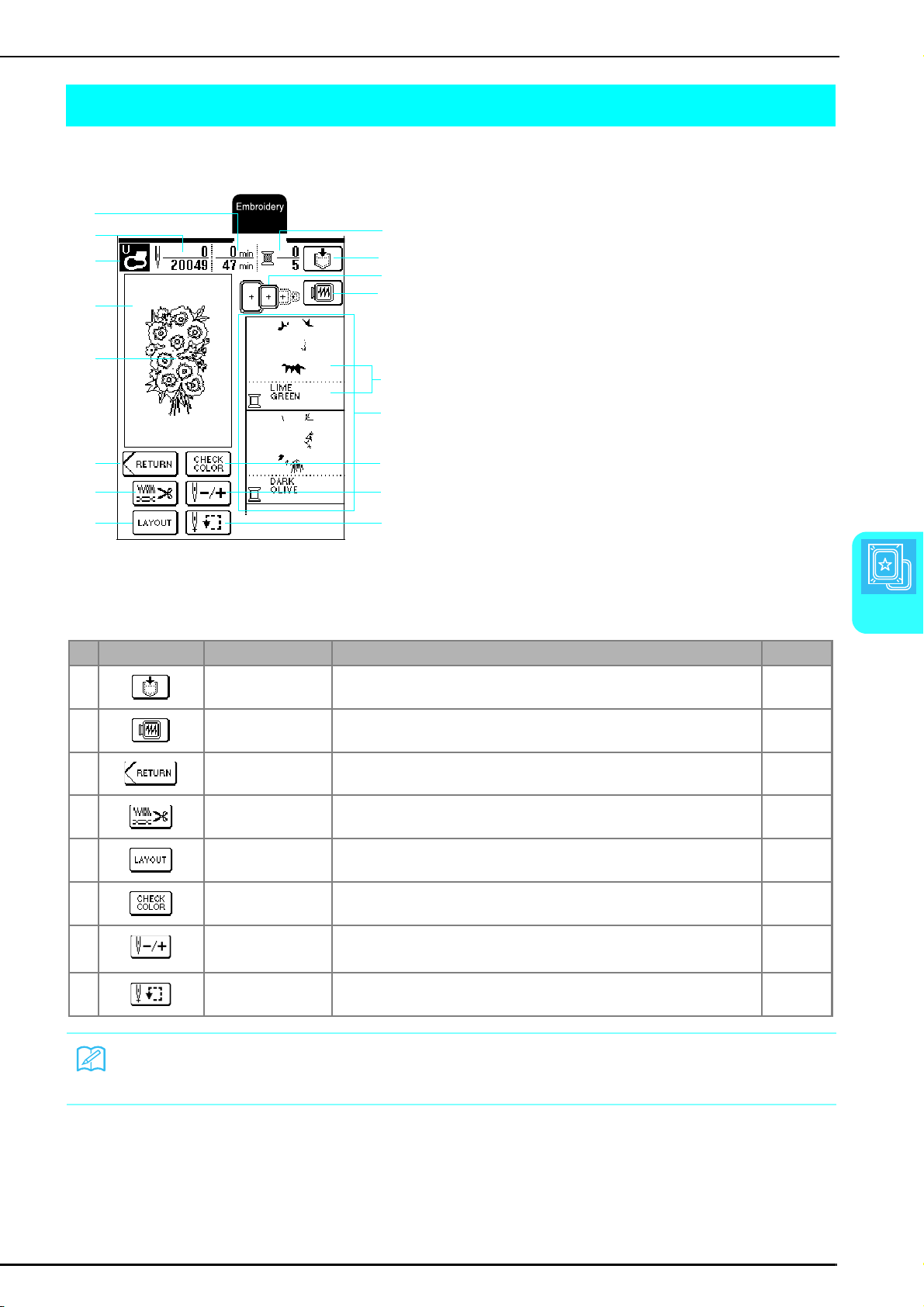
VIEWING THE SEWING SCREEN
Embroidery
119
5
VIEWING THE SEWING SCREEN
Using the editing keys, you can change the patterns in a variety of ways, such as resizing them or rotating them.
a Shows the code for the appropriate presser foot.
When embroidering, be sure to use embroidery foot
“U”.
b Shows the embroidering area for the extra large frame
(26 cm × 16 cm (approx. 10-1/4 inches ×
6-1/4 inches)).
c Shows the selected pattern.
d Shows the total number of stitches in the selected
pattern and the number of stitches that have already
been sewn.
e Shows the total amount of time required to sew the
pattern and the amount of time that has already been
spent sewing (not including the amount of time
required to change threads).
f Shows the number of colors in the selected pattern
and the number of the color currently being sewn.
g Shows the embroidery frames that can be used with
the selected pattern. Be sure to use the correct frame
(see page 121).
h Shows the order in which the colors are sewn.
Embroider in order, starting from the top.
i Shows the thread color (at the bottom) and the part
being sewn (at the top).
■ Key Functions
b
c
d
e
g
h
a
i
l
m
n
o
p
q
j
k
f
No. Key Name Function Page
j Memory key Press this key to save the pattern. 141 −143
k Image key Press this key to display a preview of the embroidery pattern and check the frame
size.
130
l Return key Press this key to display the screen of pattern categories. −
m Thread Settings key Press this key to set trimming at the end of color steps, or to adjust the thread
tension and sewing density.
128,
136−137
n Layout key Press this key to change the pattern layout. 125 −127
o Color Check key Press this key to check the sewing order of the colors. 132
p
Forward/Back key
Press this key to move the needle forward or backward in the pattern. This is useful
if the thread breaks during sewing or if you want to embroider a specific area
again.
135 −136
q Trial key Press this key to move the embroidery frame and check the embroidering position
or to change the needle position before embroidering.
129
Memo
Depending on the pattern that is selected, some editing functions may not be available. Keys that appear in dashed lines
are not available.
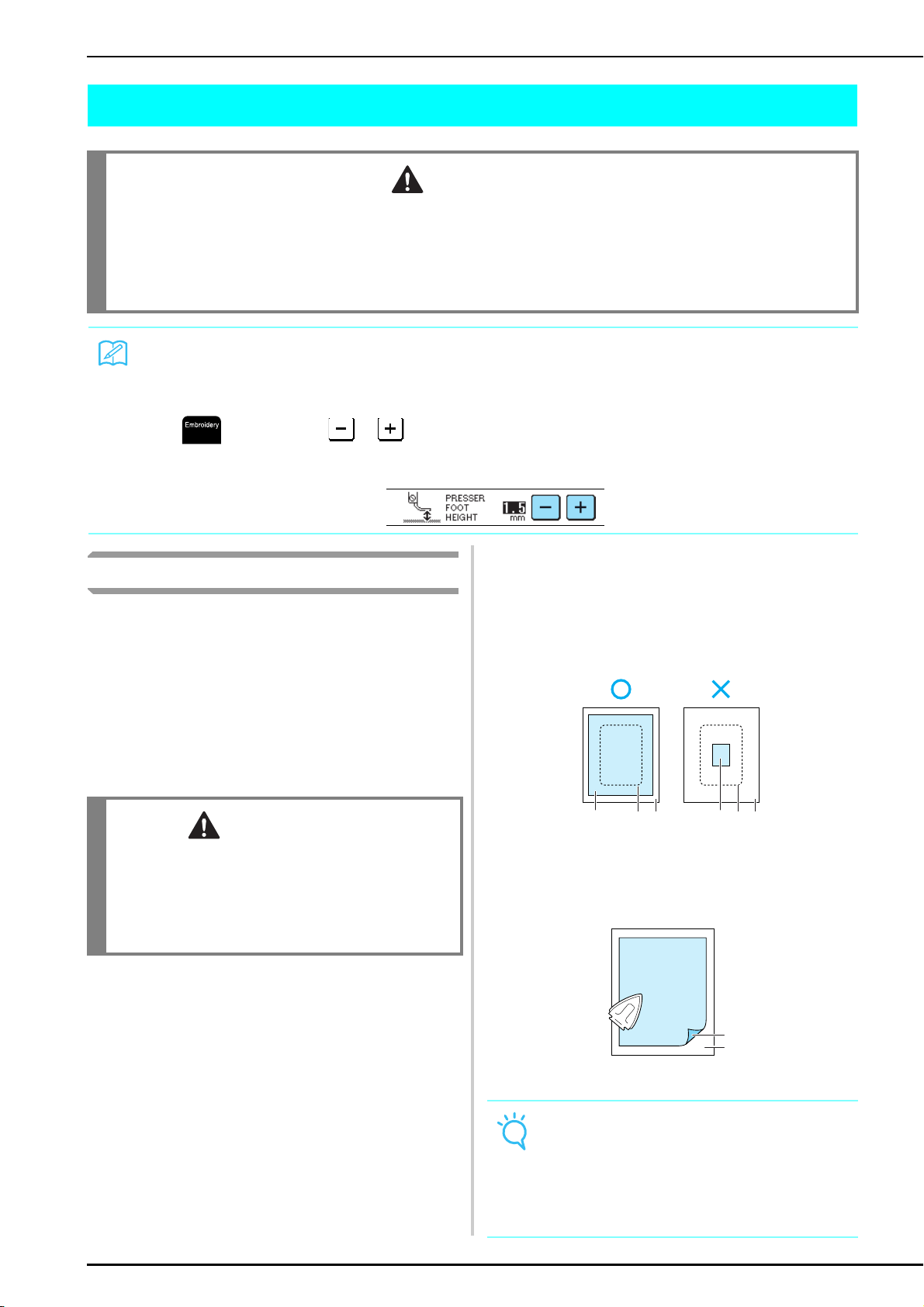
PREPARING THE FABRIC
120
PREPARING THE FABRIC
Attaching Stabilizer to Fabric
For best results, always use stabilizer material for
embroidery. In order to prevent shrinkage of the
stitching or misaligned patterns, observe the following.
When embroidering fabrics that cannot be ironed (such
as towels or fabrics with loops that expand when
ironed) or when embroidering an area that is difficult to
iron, place the stabilizer material under the fabric
without attaching it, and then hoop the fabric and the
stabilizer in the embroidery frame.
a
Prepare the stabilizer material for
embroidering.
* Use a piece of stabilizer material that is larger than
the embroidery frame. When hooping the fabric in
the embroidery frame, be sure that the stabilizer
material is clamped in place on all edges in order to
prevent wrinkles in the fabric.
a Stabilizer
b Size of the embroidery frame
c Fabric
b
Using a steam iron, iron the stabilizer
material to the wrong side of the fabric.
a Fusible side of stabilizer
b Fabric (wrong side)
CAUTION
• Use fabrics with a thickness of less than 3 mm (approx. 1/8 inch). Using fabrics thicker than 3 mm (approx. 1/8 inch)
may cause the needle to break.
• When using layers with thicker batting etc., you can sew more attractive embroidery by adjusting the embroidery
presser foot height in the embroidery settings screen (see below).
• In the case of thick terry cloth towels we recommend that you place a piece of water soluble stabilizer on the top surface of the
towel. This will help to reduce the nap of the toweling and result in more attractive embroidery.
Memo
With this machine, the height of embroidery foot “U” is automatically set according to the thickness of the fabric being
embroidered. When embroidering thicker fabric, for example, fabric filled with batting, adjust the height of the presser foot in
the settings screen.
Press , and then press or in the PRESSER FOOT HEIGHT display on P. 3 of the screen to adjust the
height of the presser foot according to the thickness of the fabric.
To raise the presser foot, increase the setting (see page 20). (Normally, the height is set to 1.5 mm.)
CAUTION
• Always use a stabilizer material for embroidery when
sewing stretch fabrics, lightweight fabrics, fabrics
with a coarse weave, or fabrics which cause pattern
shrinkage. Otherwise, the needle may break and
cause injury. Not using a stabilizer material may
result in a poor finish to your project.
Note
When embroidering lightweight fabrics, such as
organdy or lawn, or when embroidering napped
fabrics, such as towel or corduroy, use water-soluble
stabilizer (sold separately) for best results. The water-
soluble stabilizer material will dissolve completely in
water, giving the embroidery a more attractive finish.
a b c a b c
a
b
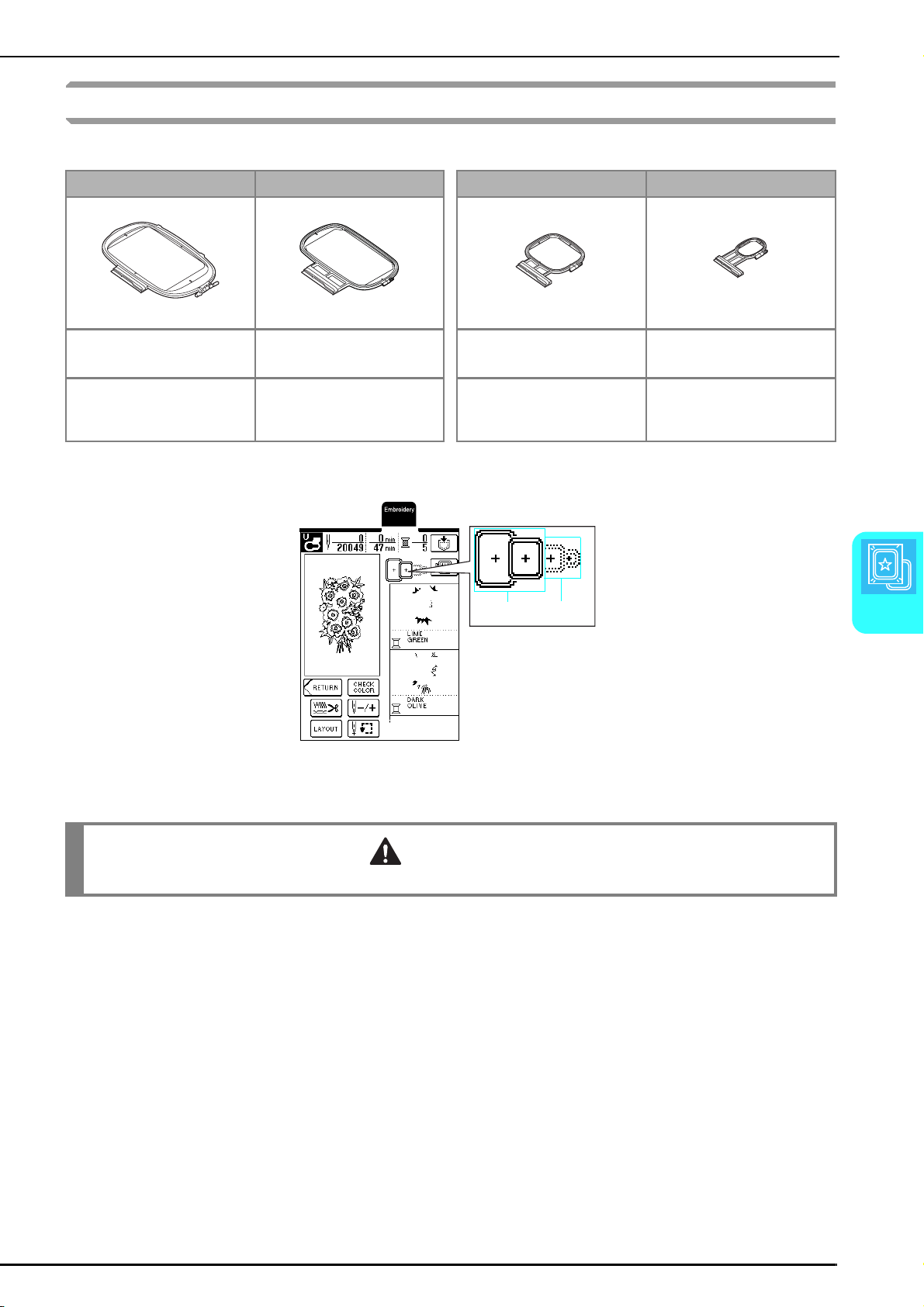
PREPARING THE FABRIC
Embroidery
121
5
Hooping Fabric in the Embroidery Frame
■ Types of Embroidery Frames
Select a frame appropriate for the pattern size. The frame options are displayed in the screen.
a Can be used
b Cannot be used
Extra Large Large Medium (Sold Separately) Small (Sold Separately)
Embroidering area:
26 cm × 16 cm (approx. 10 - 1/4
inches × 6 - 1/4 inches)
Embroidering area:
18 cm × 13 cm (approx. 7 inches ×
5 inches)
Embroidering area:
10 cm × 10 cm (approx. 4 inches ×
4 inches)
Embroidering area:
2 cm × 6 cm (approx. 1 inch ×
2 - 1/2 inches)
Use when embroidering connected
or combined characters or patterns,
or when embroidering large
patterns.
Use when embroidering patterns
with a size less than 18 cm × 13 cm
(approx. 7 inches × 5 inches).
Use when embroidering
pattern with a size less than
10 cm × 10 cm (approx. 4 inches ×
4 inches)
Use when embroidering small-
sized patterns, such as name tags.
a b
CAUTION
• If you use a frame that is too small, the presser foot may strike the frame during sewing and cause injury.
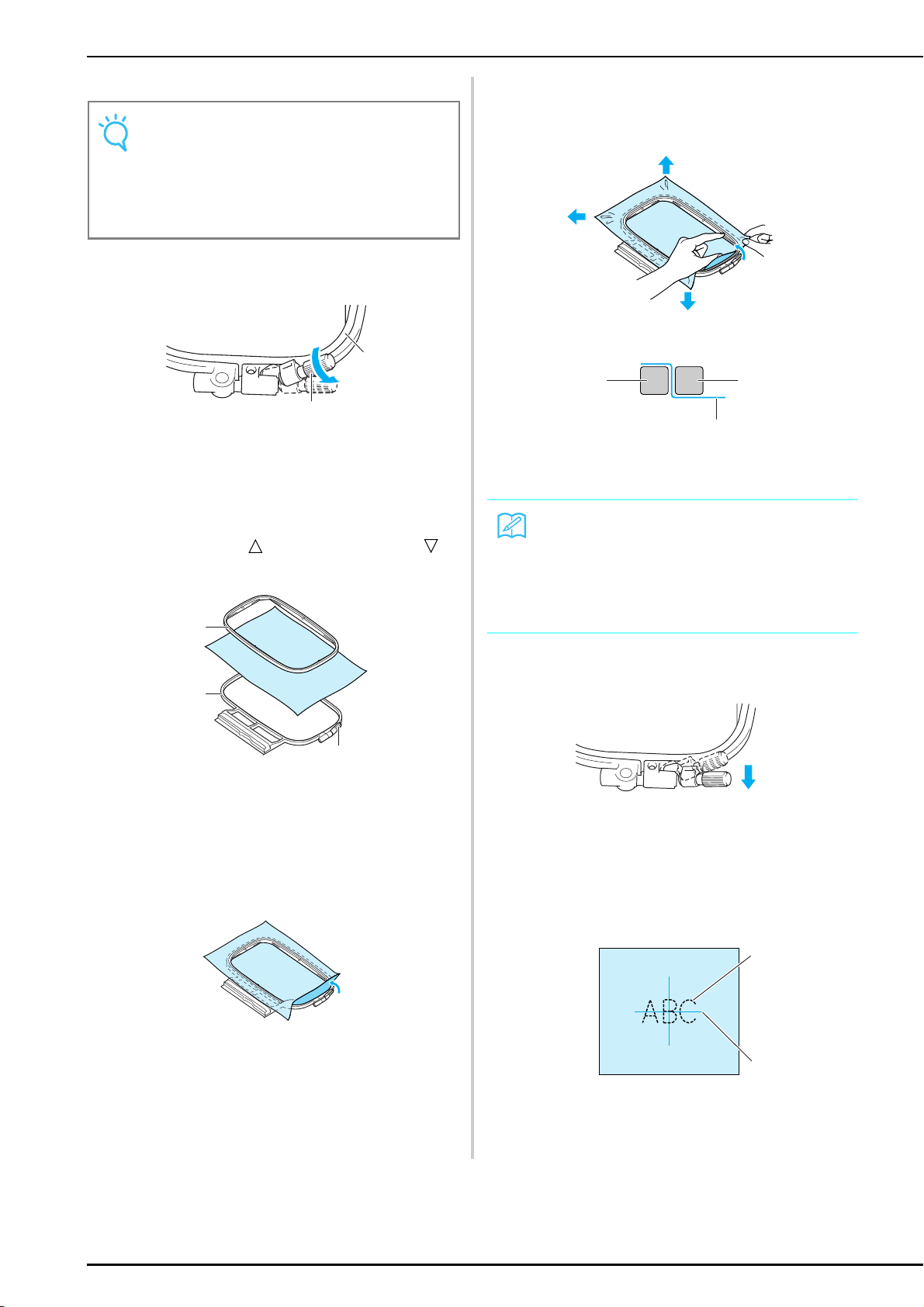
PREPARING THE FABRIC
122
■ Inserting the Fabric
a
Lift up and loosen the frame adjustment
screw, and then remove the inner frame.
a Inner frame
b Frame adjustment screw
b
Lay the fabric right side up on top of the outer
frame, and then place the inner frame on top.
* Be sure to align on the inner frame with
on the outer frame.
a Inner frame
b Outer frame
c Frame adjustment screw
c
Slightly tighten the frame adjustment screw,
and then gently pull the edges of the fabric to
remove any slack.
d
Gently stretch the fabric, and then securely
tighten the frame adjustment screw so that
the fabric remains stretched.
* Make sure that the edges of the inner and outer
frames are aligned.
a Outer frame
b Inner frame
c Wrong side of fabric
e
Return the frame adjustment screw to its
original position.
■ Using the Embroidery Sheet
When you want to embroider the pattern at a
particular location, use the embroidery sheet to
hoop the fabric in the embroidery frame.
a
Mark the area of the fabric to be
embroidered.
a Embroidery pattern
b Mark
Note
If the fabric is not taut, the pattern may be misaligned
or the fabric may pucker. Follow the procedure
described below to gently stretch the fabric in the
embroidery frame so that the fabric is not loose. In
addition, be sure to work on a level surface when
hooping the fabric in the embroidery frame.
a
b
a
b
c
Memo
• After stretching the fabric, lightly tapping it should
produce a drum-like sound.
• While stretching the fabric from all four corners and
all four edges, securely tighten the frame adjustment
screw.
a
b
c
a
b
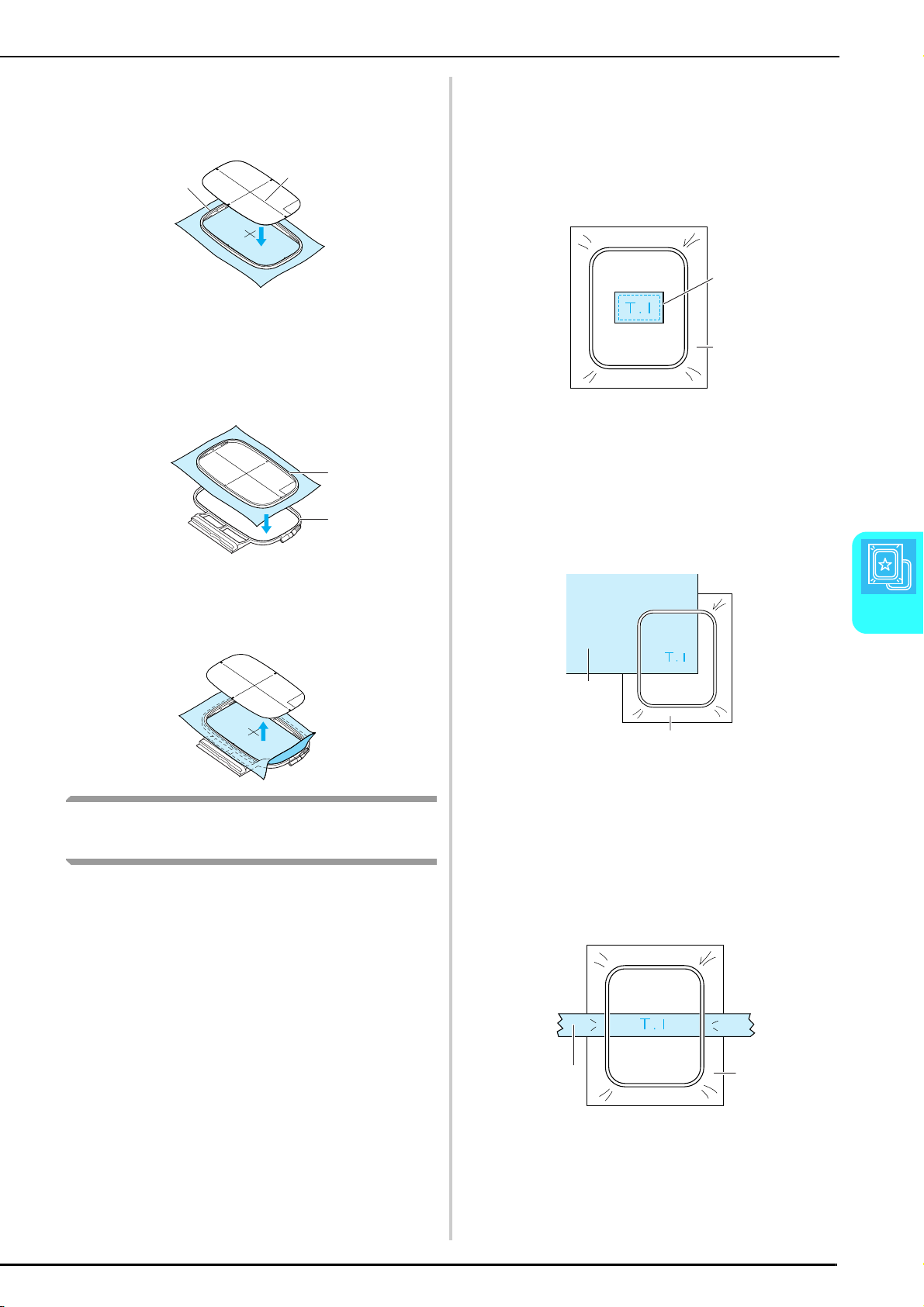
PREPARING THE FABRIC
Embroidery
123
5
b
Place the embroidery sheet in the inner
frame, and then align the guide lines on the
embroidery sheet with the marks on the
fabric.
a Inner frame
b Guide lines
c
Stretch the fabric within the inner and outer
frames so that there are no folds or wrinkles
(see page 122).
a Inner frame
b Outer frame
d
Remove the embroidery sheet.
Embroidering Small Fabrics and Fabric
Edges
Use embroidery stabilizer to provide extra support. After
embroidering, carefully remove the stabilizer.
■ Embroidering Small Fabrics
When embroidering small pieces of fabric, use
temporary spray adhesive to attach the small piece
of the fabric to stabilizer, and then hoop the
stabilizer in the embroidery frame. If you do not
wish to use a temporary spray adhesive, attach the
fabric to the stabilizer with basting stitches.
a Fabric
b Stabilizer
■ Embroidering Edges or Corners
When embroidering corners or edges of fabric, use
temporary spray adhesive to attach the corner or
edge of the fabric to stabilizer, and then hoop the
stabilizer in the embroidery frame. If you do not
wish to use a temporary spray adhesive, attach the
fabric to the stabilizer with basting stitches.
a Fabric
b Stabilizer
■ Embroidering Ribbons or Tape
When embroidering narrow pieces of fabric, use
temporary spray adhesive to attach the ribbon or
tape to stabilizer, and then hoop the stabilizer in the
embroidery frame. If you do not wish to use a
temporary spray adhesive, hoop both ends of the
ribbon or tape together with the stabilizer in the
embroidery frame.
a Ribbon or tape
b Stabilizer
a
b
a
b
a
b
a
b
a
b
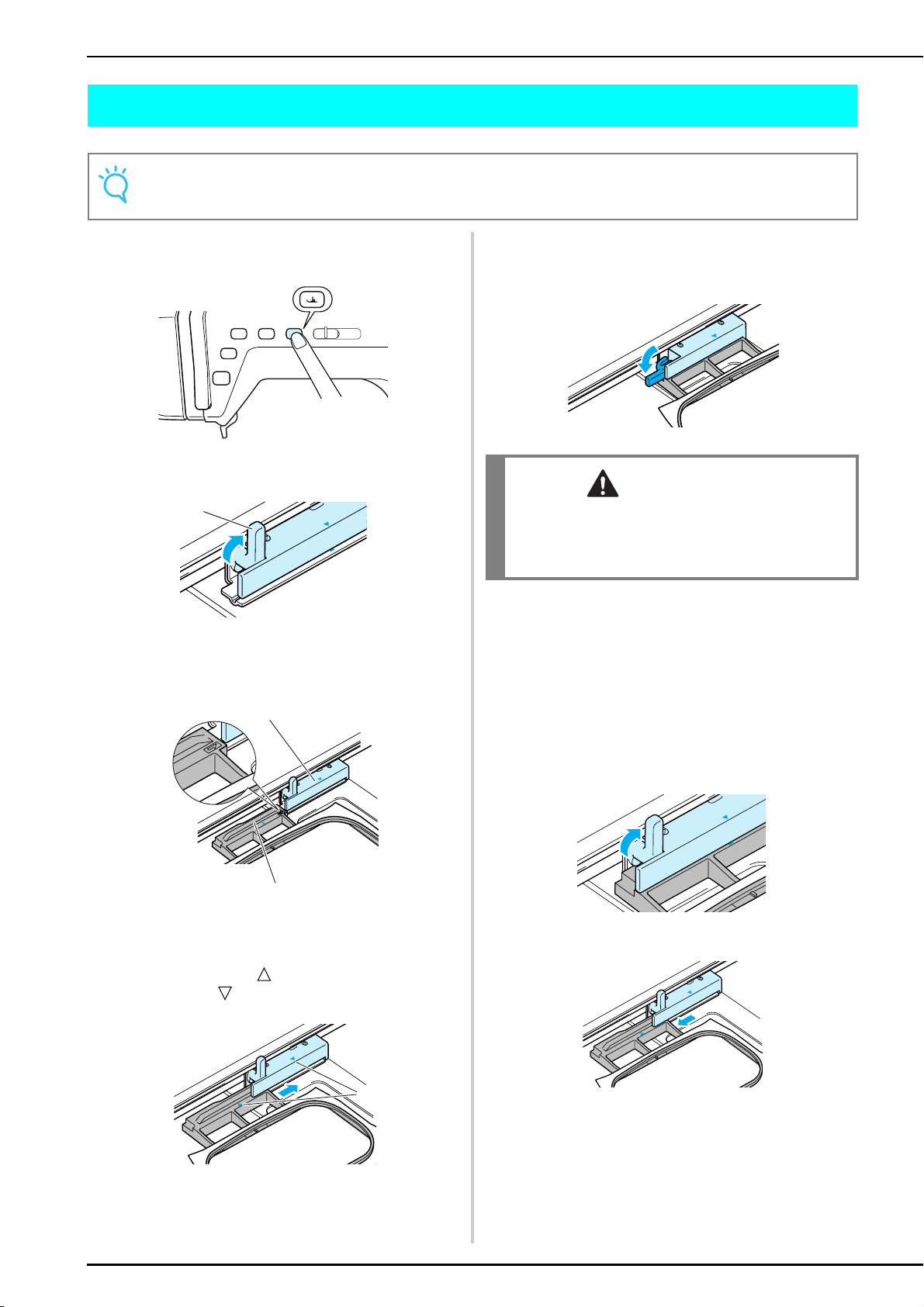
ATTACHING THE EMBROIDERY FRAME
124
ATTACHING THE EMBROIDERY FRAME
a
Press the “Presser Foot Lifter” button to raise
the presser foot.
b
Raise the frame-securing lever.
a Frame-securing lever
c
Align the embroidery frame guide with the
right edge of the embroidery frame holder.
a Embroidery frame holder
b Embroidery frame guide
d
Slide the embroidery frame into the holder,
making sure that on the embroidery frame
aligns with on the holder.
a Arrows
e
Lower the frame-securing lever so that it is level
with the frame to secure the embroidery frame
in the embroidery frame holder.
f
After the embroidery frame is attached, press
the “Presser Foot Lifter” button again to
lower the presser foot.
■ Removing the Embroidery Frame
a
Press the “Presser Foot Lifter” button to raise
the presser foot.
b
Raise the frame-securing lever.
c
Pull off the embroidery frame toward you.
Note
Before attaching the embroidery frame, set the bobbin.
a
a
b
a
CAUTION
• If the frame-securing lever is not lowered, the
embroidery pattern may not sew out correctly or the
presser foot may strike the embroidery frame and
cause injury.
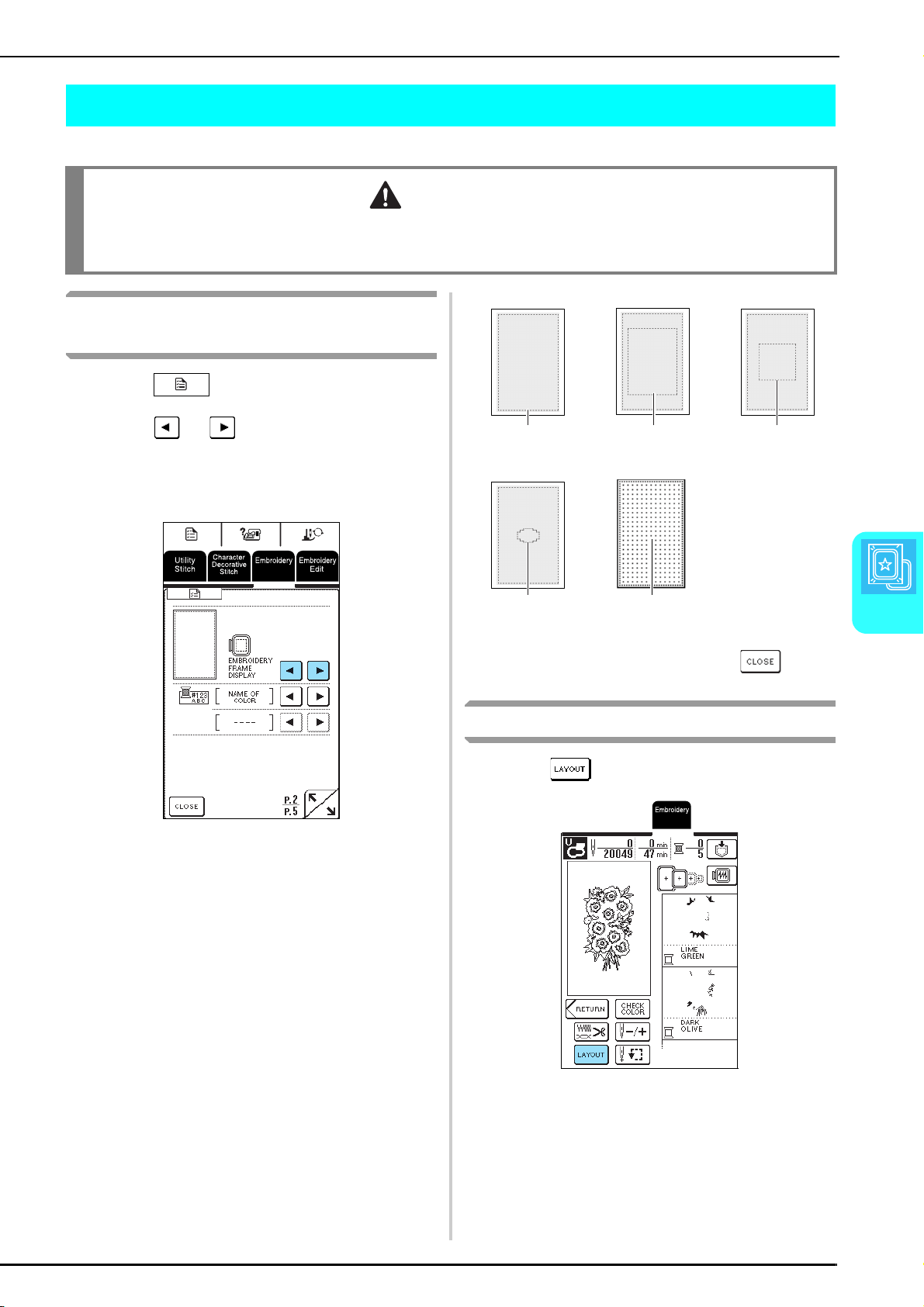
EDITING THE PATTERN
Embroidery
125
5
EDITING THE PATTERN
Changing the Embroidery Frame
Display
a
Press .
b
Press or in the “EMBROIDERY
FRAME DISPLAY” on P. 2 of the screen to
select how the embroidery frame is displayed.
* There are five embroidery frame layouts.
c
After selecting the layout, press .
Changing the Pattern Position
a
Press .
CAUTION
• After the size of the pattern has been changed, check the icons for the embroidery frames that can be used and use
only the indicated frames. If a frame other those indicated is used, the presser foot may strike the embroidery frame,
possibly causing injuries.
a Embroidering area
of the extra large
frame
b Embroidering area
of the large frame
c Embroidering area
of the medium
frame (sold
separately)
d Embroidering area
of the small frame
(sold separately)
e Grid
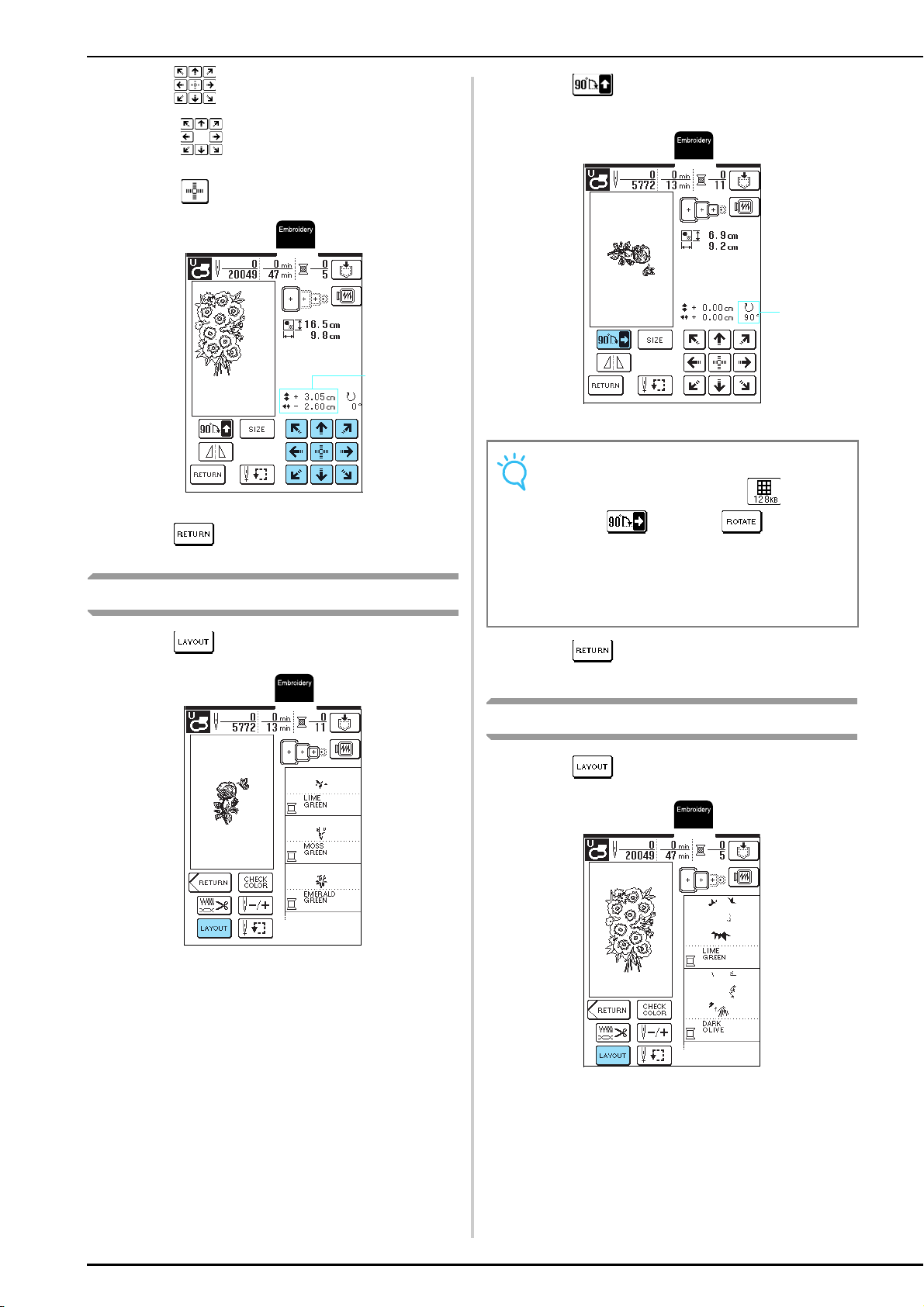
EDITING THE PATTERN
126
b
Press to move the pattern.
* Press to move the pattern in the direction of
the arrow on the key.
* Press to center the pattern.
a Distance from the center
c
Press .
Rotating the Pattern
a
Press .
b
Press .
* Each press of the key rotates the pattern 90 degrees.
a Degree of rotation
c
Press .
Changing the Pattern Size
a
Press .
a
Note
• If a large-size embroidery pattern was
selected, changes to , allowing the
pattern to be rotated in 1 degree increments. The
pattern cannot be rotated more than 90 degrees.
• With large patterns that extend out of the extra-large
embroidery frame when rotated 90 degrees, each
press of this button rotates the pattern 180 degrees.
a
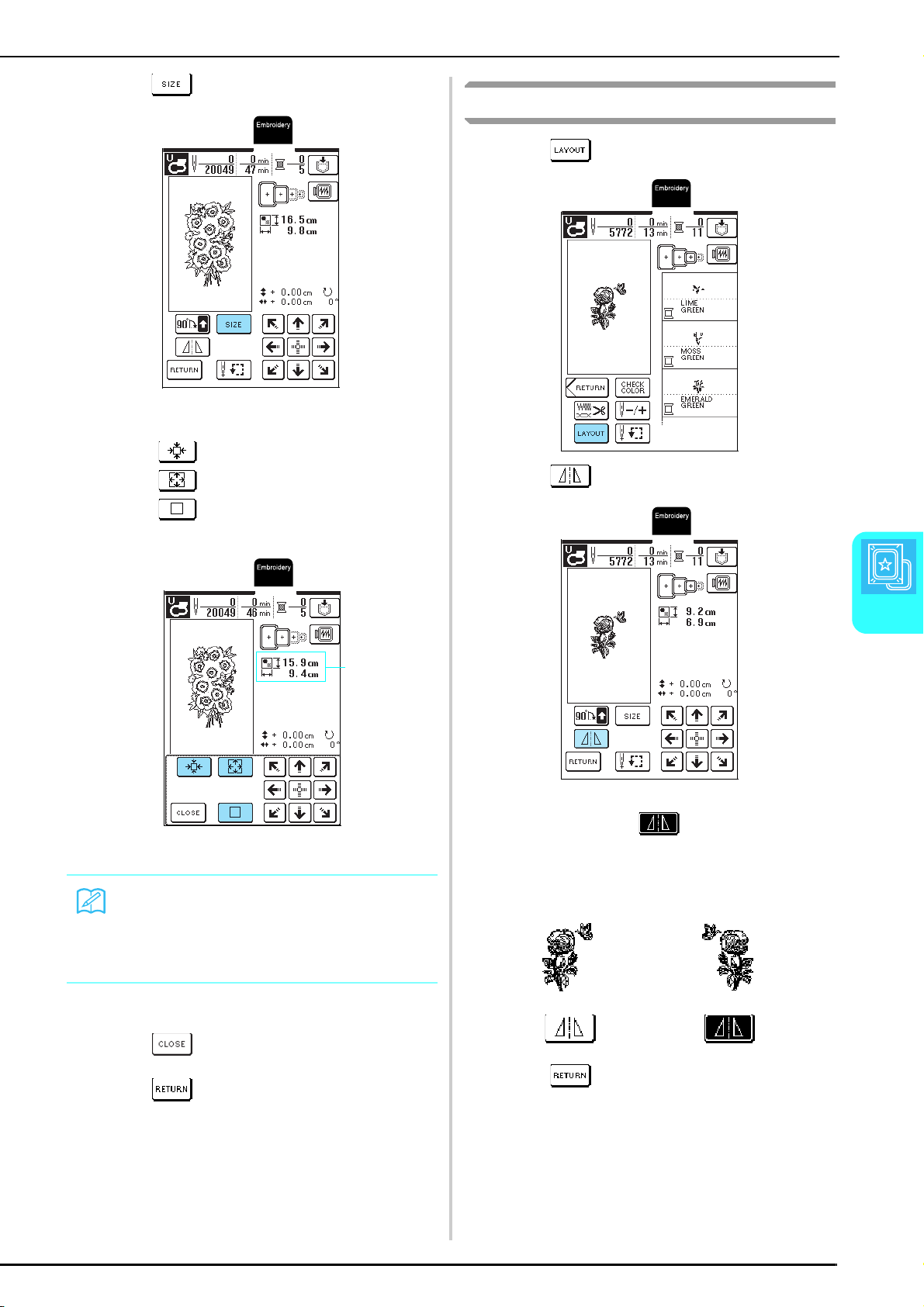
EDITING THE PATTERN
Embroidery
127
5
b
Press .
c
Change the size of the pattern.
* Press to reduce the size of the pattern.
* Press to enlarge the size of the pattern.
* Press to return the pattern to its original size.
a Size of the pattern
d
Press .
e
Press .
Creating a Horizontal Mirror Image
a
Press .
b
Press .
→
The key appears as .
c
Press .
Memo
• Some patterns or characters can be enlarged more
than others.
• Some patterns or characters can be enlarged to a
greater degree if they are rotated 90 degrees.
a
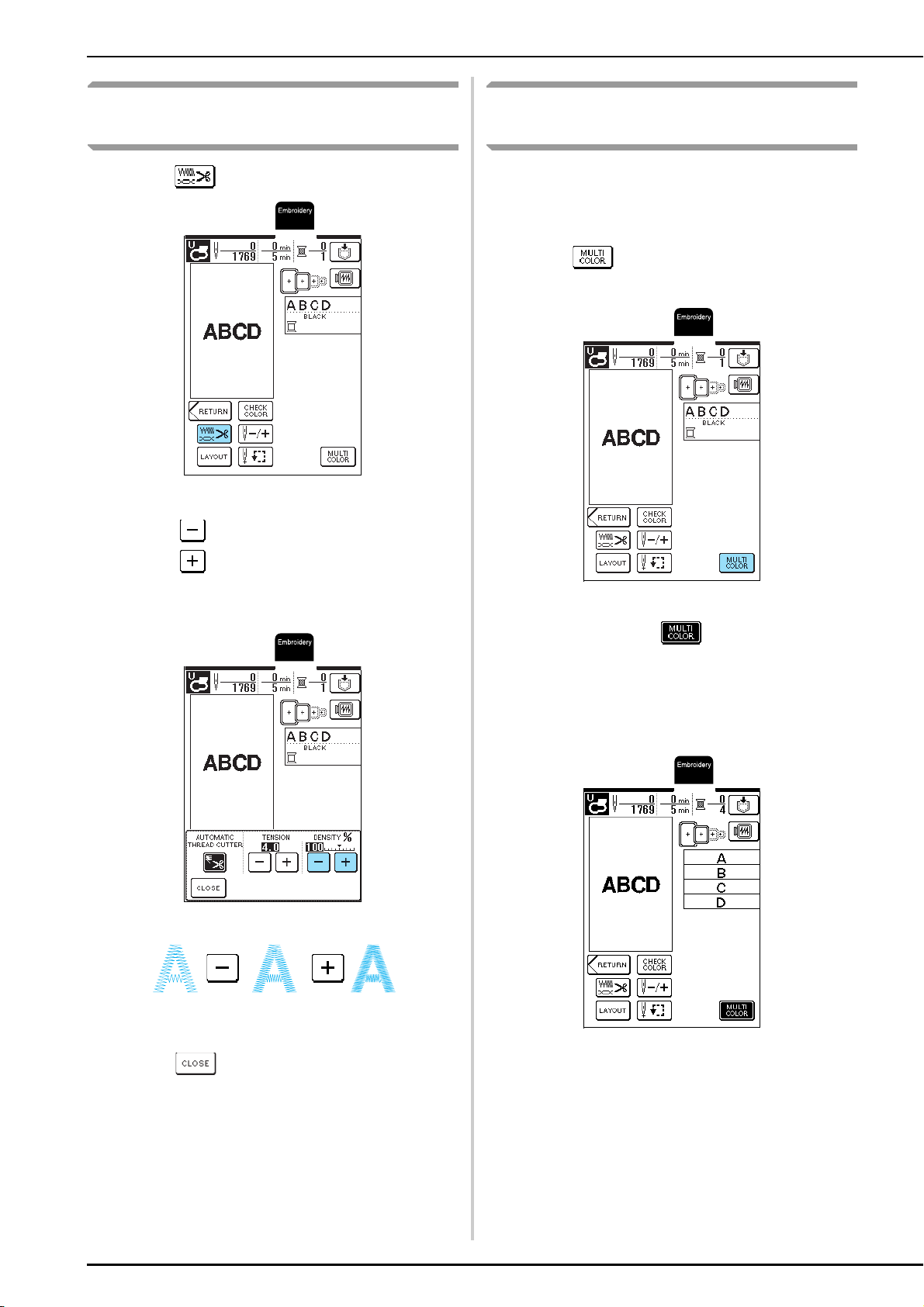
EDITING THE PATTERN
128
Changing the Stitching Density
(Alphabet and Frame Patterns Only)
a
Press .
b
Change the stitching density.
* Press to reduce the stitching density.
* Press to increase the stitching density.
* Each press of the key changes the stitching density
by 5% (The density can be set between 80% and
120%.)
c
Press .
Changing the Color of Single
Characters
Combined alphabet patterns can be sewn with each
letter in a different color. If “MULTI COLOR” is set, the
machine stops after each character is sewn so that the
thread can be changed to one of a different color.
a
Press .
→
The key appears as .
b
After a character is sewn, change the thread
color, and then sew the next character.
Coarse
(stitches farther apart)
Standard
Fine
(stitches closer together)
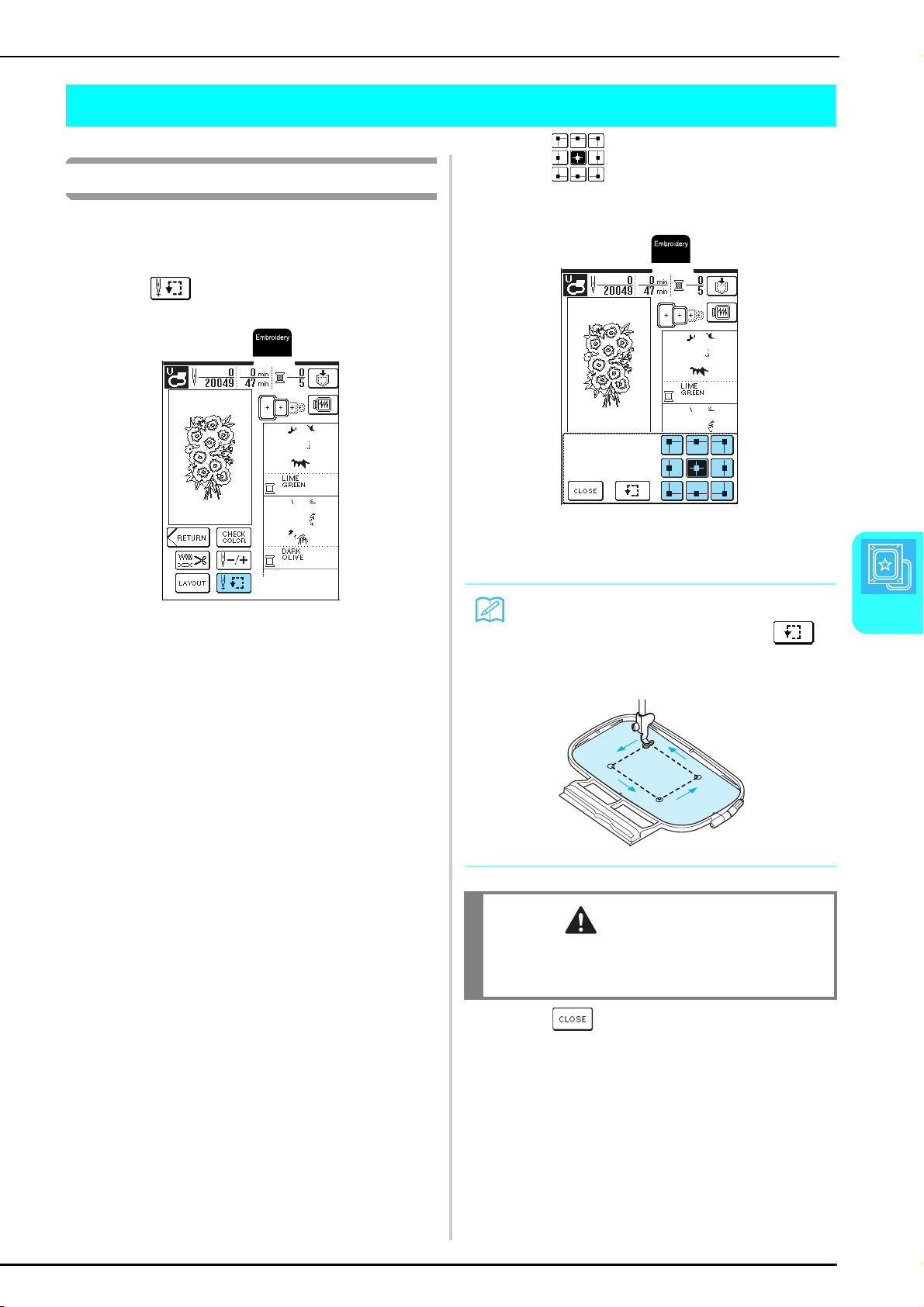
CHECKING THE PATTERN
Embroidery
129
5
CHECKING THE PATTERN
Checking the Embroidering Position
The embroidery frame is moved to indicate the
embroidering position. Closely watch the frame to
check that the pattern will be sewn at the correct place.
a
Press .
b
Press to select the position to be
checked.
→
The frame moves to indicate the selected position.
c
Press .
Memo
To view the entire embroidering area, press .
The frame moves to indicate the entire embroidering
area.
CAUTION
• Make sure the needle is up when the embroidery
frame is moving. If the needle is down, it could break
and result in injury.
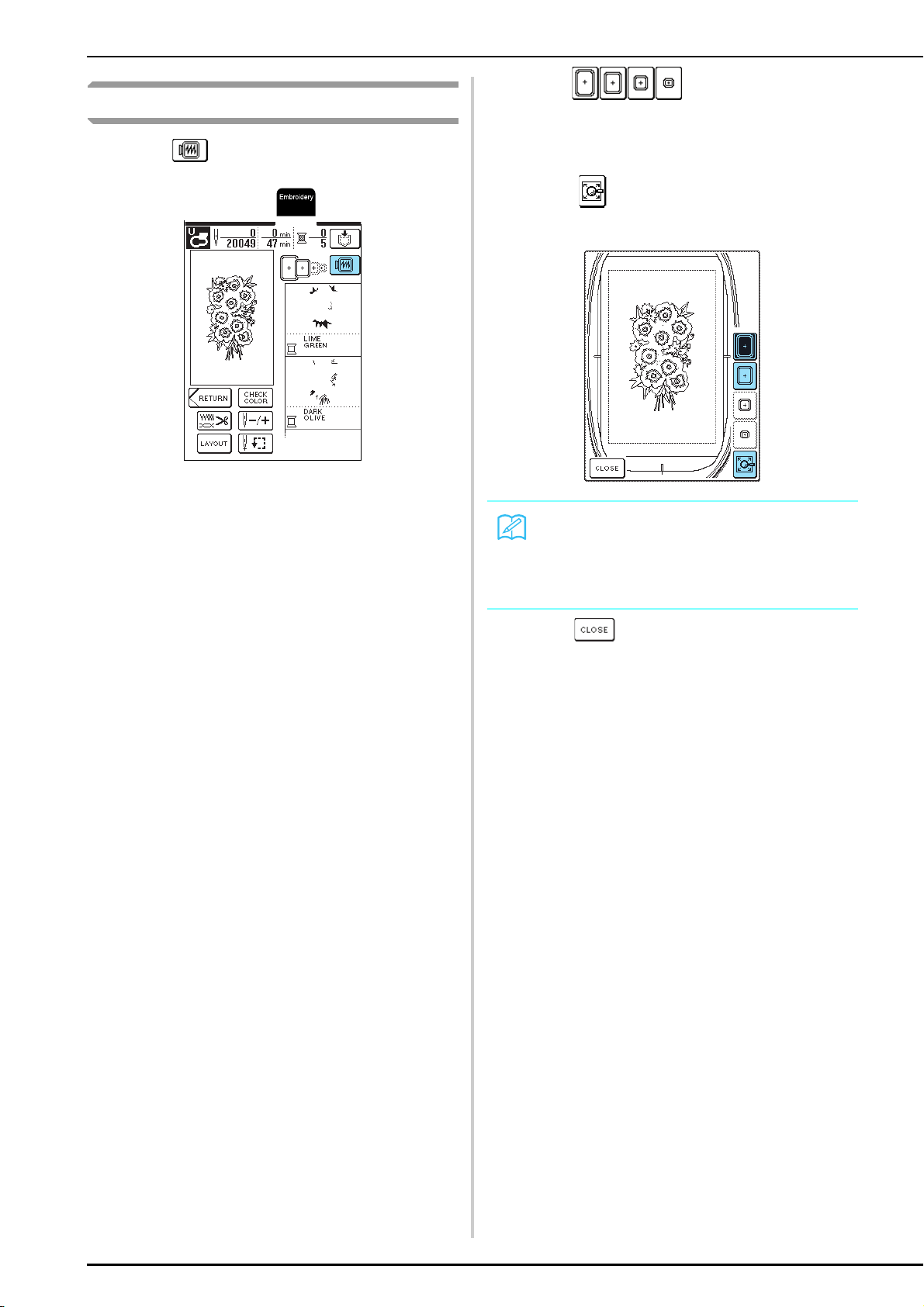
CHECKING THE PATTERN
130
Previewing the Pattern
a
Press .
b
Press to select the frame used
in the preview.
* Embroidery frame icons that appear in dashed line
cannot be selected.
* Press
to enlarge the preview of the embroidery
pattern.
c
Press .
Memo
• Press the “Start/Stop” button to sew the pattern as it
appears in this screen.
• Patterns with many stitches may take some time to
preview.
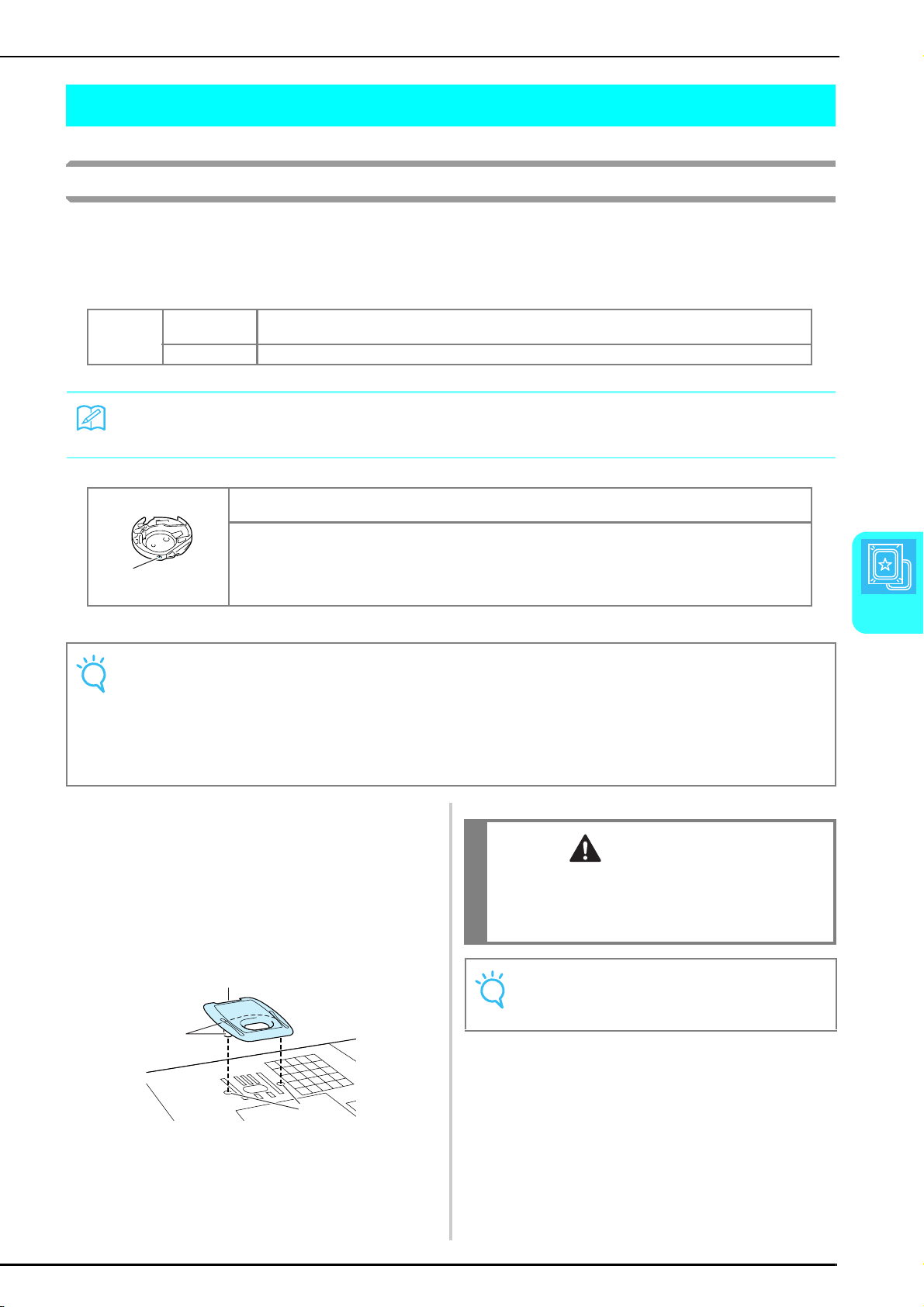
SEWING AN EMBROIDERING PATTERN
Embroidery
131
5
SEWING AN EMBROIDERING PATTERN
Sewing Attractive Finishes
There are many factors that go into sewing beautiful embroidery. Using the appropriate stabilizer (see page 120)
and hooping the fabric in the frame (see page 121) are two important factors mentioned earlier. Another
important point is the appropriateness of the needle and thread being used. See the explanation of threads
below. Included with this machine are two bobbin cases. Follow the explanation below.
See page 176 for how to remove the bobbin case.
■ Embroidery Needle Plate Cover
Under some conditions, based on the type of fabric,
stabilizer, or thread being used, there may be some
looping in the upper thread. In this case, attach the
included embroidery needle plate cover to the
needle plate. Attach the cover by inserting the two
projections on the underside of the cover into the
notches on the needle plate as shown below.
a Groove
b Projections
c Notches
To remove the embroidery needle plate cover, place
your fingernail in the groove and lift the plate out.
Thread Upper thread Use embroidery thread, or country embroidery thread intended for use with this machine.
Other embroidery threads may not yield optimum results.
Bobbin thread
Use embroidery bobbin thread intended for use with this machine.
Memo
If you use threads other than those listed above, the embroidery may not sew out correctly.
Bobbin case
aMarking Green/Pink
Standard bobbin case (green marking on the screw) is in the machine for sewing and embroidery. The bobbin
case originally installed in the machine has a green screw.
Alternate bobbin case (pink marking) is set with tighter tension for embroidery with different weights of
bobbin threads and a variety of embroidery techniques.
Note
• Before embroidering, check that there is enough thread in the bobbin. If you continue sewing without enough thread in
the bobbin, the thread may tangle.
• Do not leave objects in the range of motion of the embroidery frame. The frame may strike the object and cause a poor
finish to the embroidery pattern.
• When embroidering on large garments (especially jackets or other heavy fabrics), do not let the fabric hang over the
table. Otherwise, the embroidery unit cannot move freely, and the pattern may not turn out as planned.
a
a
b
c
CAUTION
• Push the embroidery needle plate cover as far as
possible to attach it. If the embroidery needle plate
cover is not securely attached, it may cause the
needle to break.
Note
Do not use the embroidery needle plate cover for any
applications other than embroidery.
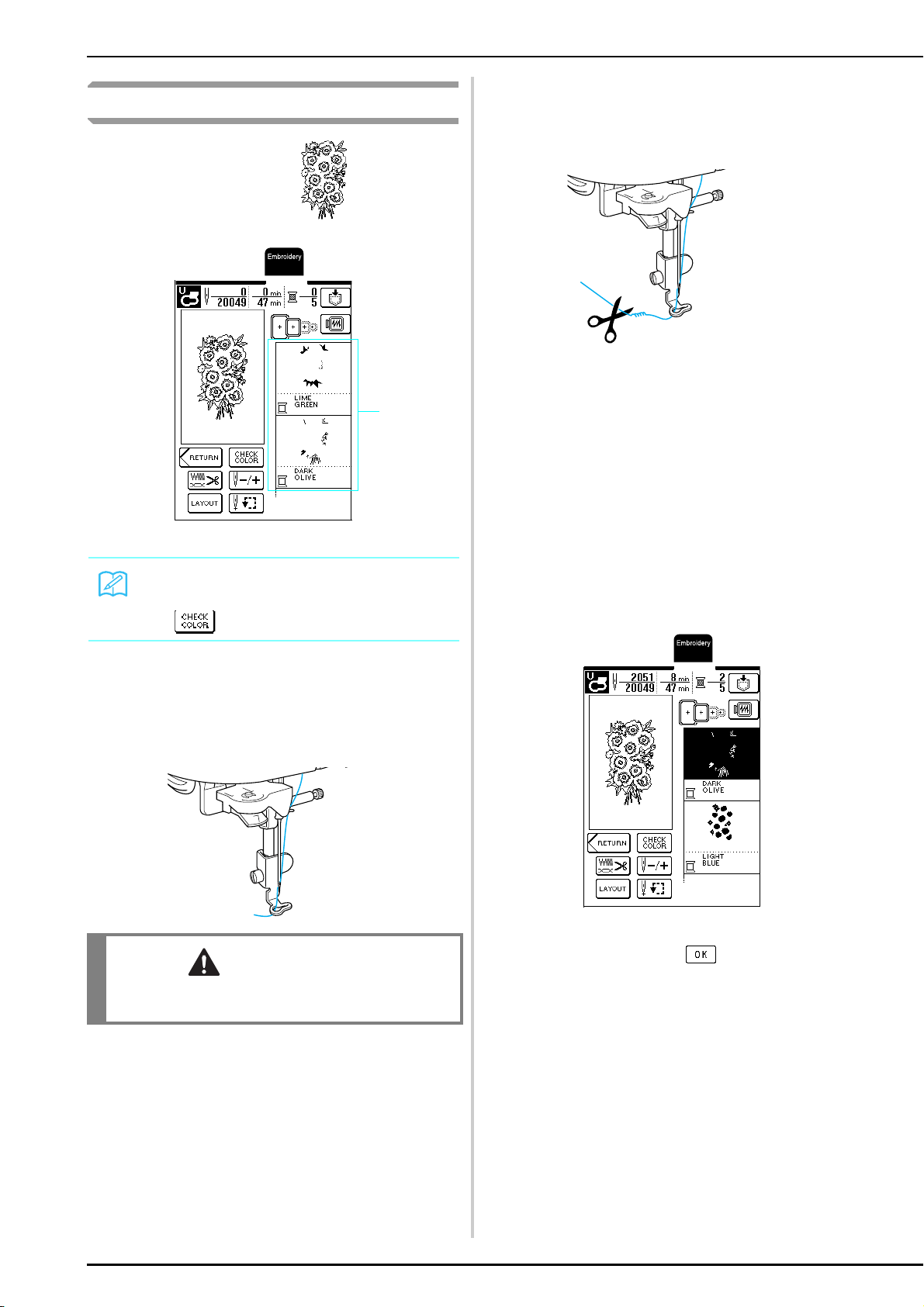
SEWING AN EMBROIDERING PATTERN
132
Sewing Embroidery Patterns
Example: To embroider
a Embroidery color order
a
Thread the machine with thread for the first
color, pass the thread through the hole in
embroidery foot “U”, pull out some thread to
give it some slack, and then lightly hold the
end of the thread in your left hand.
b
Lower the presser foot, and then press the
“Start/Stop” button to start embroidering.
After 5 or 6 stitches are sewn, press the
“Start/Stop” button again to stop the
machine.
c
Trim off the excess thread at the beginning of
the stitching. If the thread is hidden under the
presser foot, raise the presser foot, and then
cut the thread.
d
Press the “Start/Stop” button again to start
embroidering.
→
When the area for the first color has been sewn, the
machine automatically trims the threads, then stops,
and the presser foot is automatically raised.
The next color in the embroidery color order moves
to the top.
e
Remove the thread for the first color from the
machine, and then thread the machine with
the thread for the second color.
f
Repeat these steps to embroider the
remaining colors.
→
After the last stitch is sewn, the message “Finishing
sewing” appears. Press to return to the
previous screen.
* Depending on the pattern, a more attractive finish
can be achieved by trimming the thread jumps after
each color is embroidered.
g
When the pattern is finished, trim the excess
thread jumps (thread linking part of the
pattern, etc.).
Memo
If there are too many thread colors to be displayed,
press to scroll through the thread colors.
CAUTION
• If the thread is too tight, the needle may bend or
break.
a
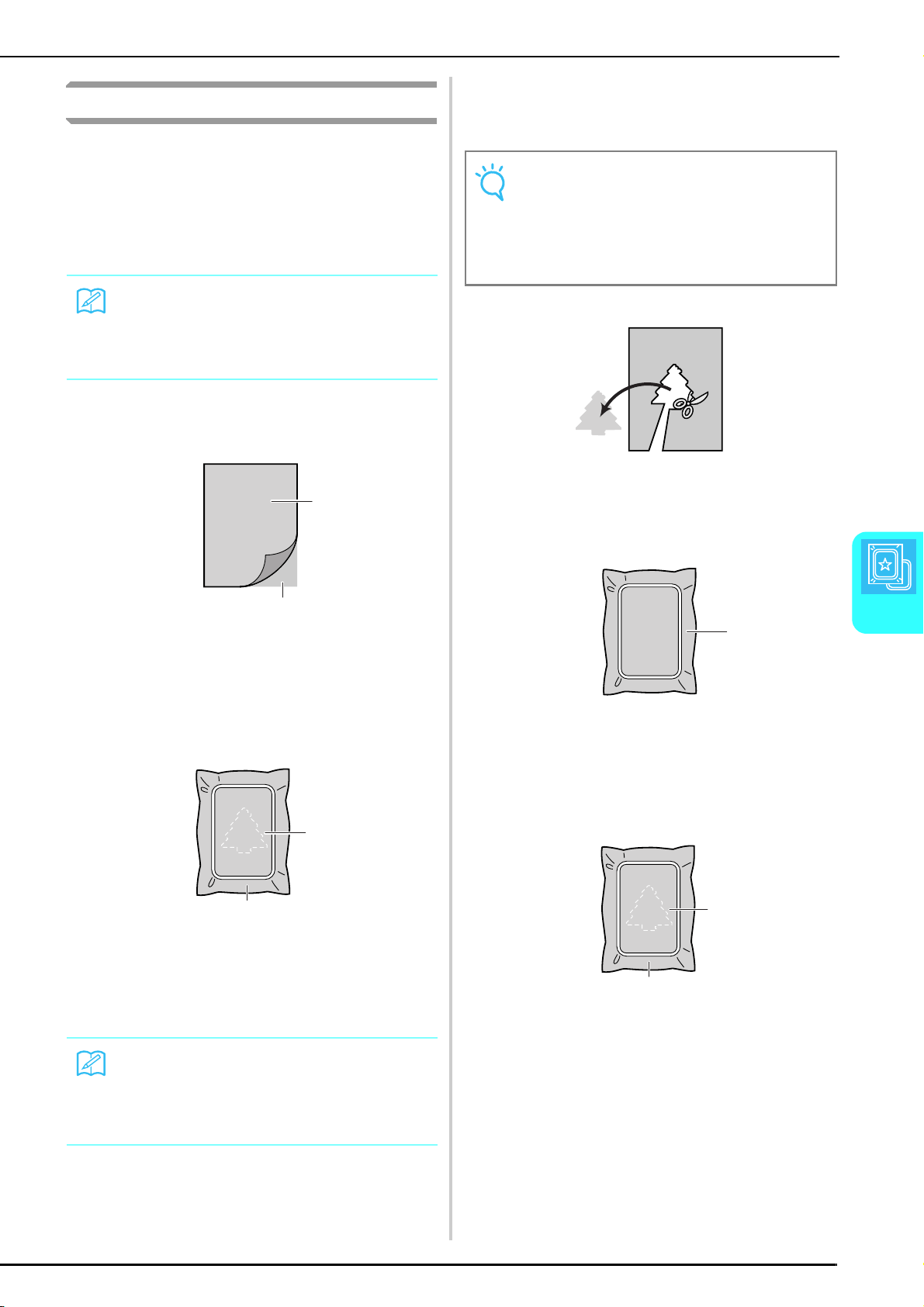
SEWING AN EMBROIDERING PATTERN
Embroidery
133
5
Embroidering Appliqué Patterns
There are some patterns which call for an appliqué
inside the pattern.
When sewing an embroidery pattern with an appliqué,
the color sewing order display shows “Appliqué
Material”, “Appliqué Position”, “Appliqué”, and then
the sewing order of the colors around the appliqué.
a
Attach iron-on stabilizer to the wrong side of
the appliqué fabric.
a Appliqué fabric (cotton, felt, etc.)
b Stabilizer
b
Hoop the appliqué fabric (from step a) in
the embroidery frame, and then press the
“Start/Stop” button to sew material of the
appliqué design.
c Outline of appliqué
d Appliqué fabric
→
The machine sews the outline of the appliqué, then
stops.
c
After sewing is finished, remove the appliqué
fabric from the embroidery frame, and then
carefully cut along the stitching.
d
Hoop the base fabric in the embroidery
frame.
a Base fabric
e
Press the “Start/Stop” button to sew the
position of the appliqué.
* Use the same color of thread to be used to attach the
appliqué.
a Appliqué position
b Base fabric
→
The machine sews around the position of the
appliqué, then stops.
Memo
When “Appliqué Material”, “Appliqué Position” and
“Appliqué” are displayed, a specific color does not
appear. Use a proper color thread to match the
appliqué piece.
Memo
The embroidering procedure is the same as the basic
procedure described in “Sewing Embroidery Patterns”
on page 132.
a
b
a
b
Note
Carefully cut out the appliqué along the outline that
was sewn. If the appliqué is cut out along the inside of
the outline, the appliqué fabric may not be caught by
the stitching. If this step is not performed correctly, the
appliqué will not be sewn correctly. In addition,
carefully remove any excess threads.
a
a
b
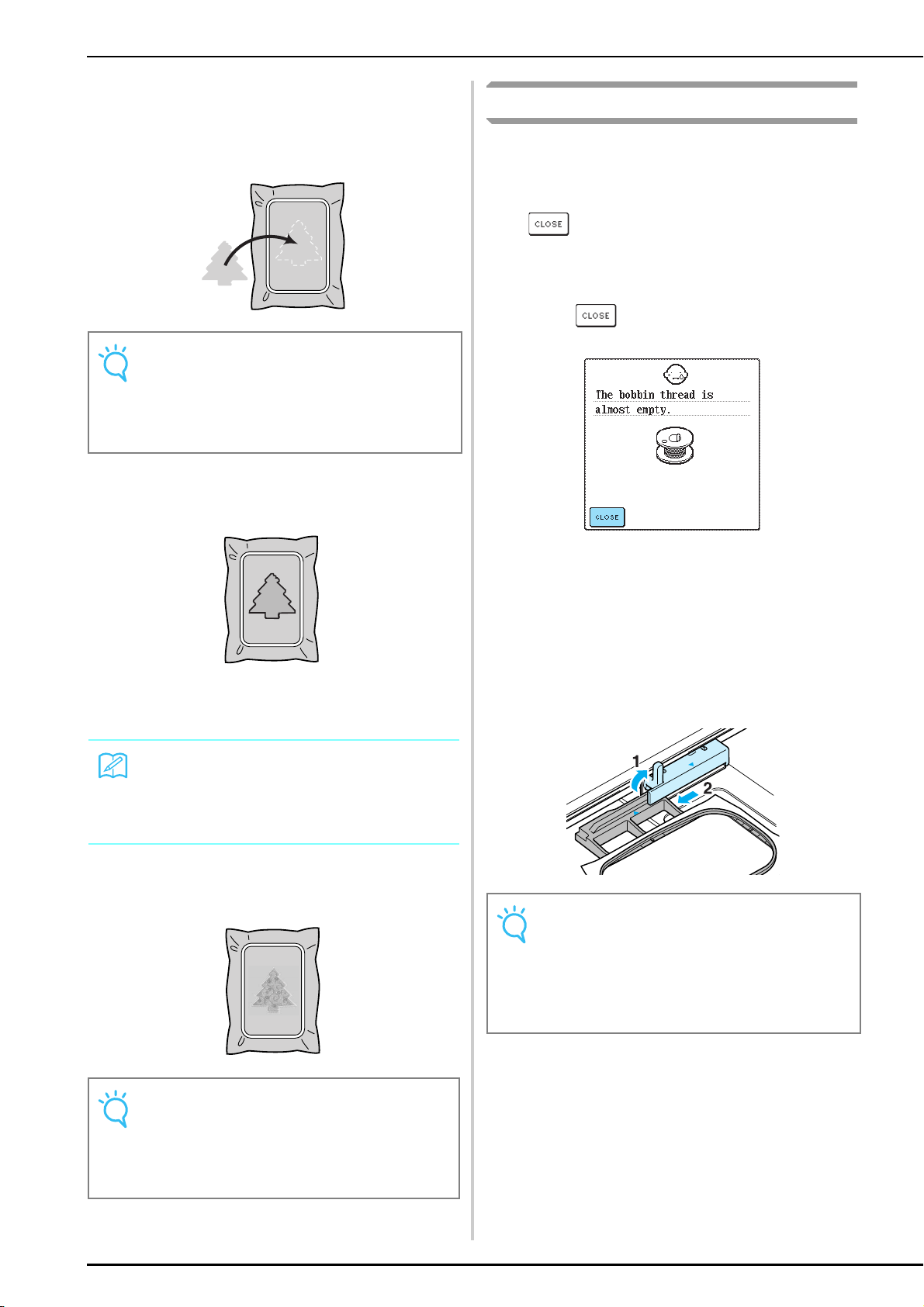
SEWING AN EMBROIDERING PATTERN
134
f
Apply a thin layer of adhesive or spray
adhesive to the back of the appliqué piece,
and then attach it to the base fabric at the
appliqué position sewn in step
e .
g
After the appliqué piece is attached, press the
“Start/Stop” button to sew the appliqué.
→
The appliqué is then completed.
h
Change the upper thread, and then finish
embroidering the remainder of the pattern.
If the Bobbin Runs Out of Thread
If the bobbin begins to run out of thread during
embroidering, the machine stops and the following
message appears. Replace the bobbin thread according
to the following procedure. If very little sewing remains,
press to sew 10 stitches without rethreading the
machine.
The machine stops after sewing the 10 stitches.
a
Press .
b
Press the “Thread Cutter” button to trim the
threads.
c
Press the “Presser Foot Lifter” button to raise
the presser foot.
d
Raise the frame-securing lever, and then
remove the embroidery frame.
e
Replace the bobbin with a full one, and then
reattach the embroidery frame.
Note
If the appliqué fabric is a lightweight fabric, you may
want to use a fusible web to stabilize the fabric and to
attach it to the base fabric. Do not remove the base
fabric from the embroidery frame when ironing on the
appliqué piece.
Memo
Depending on the pattern that is selected, “Appliqué”
may not appear, but instead will appear as a color. If
“Appliqué” appears as a color, embroider using thread
of that color.
Note
• If glue is attached to the presser foot, needle or
needle plate, finish embroidering the appliqué
pattern, and then clean off the glue.
• For best results, trim all excess threads between
pattern parts.
Note
• Be careful not to apply a strong force to the hooped
fabric.
• When removing and reattaching the embroidery
frame, do not allow the frame to hit the carriage or
the presser foot, otherwise the pattern may become
misaligned.
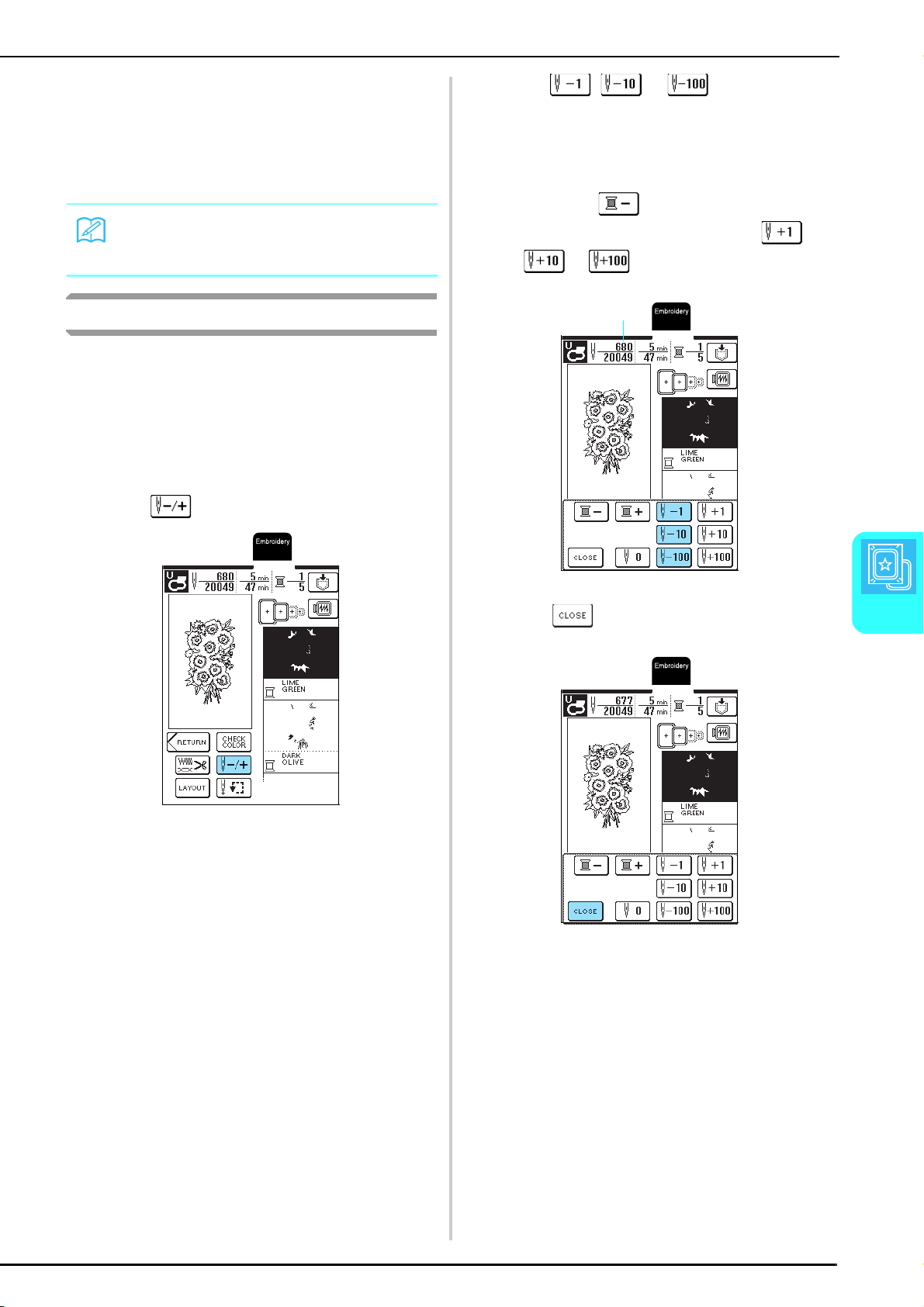
SEWING AN EMBROIDERING PATTERN
Embroidery
135
5
f
Press the “Presser Foot Lifter” button to lower
the presser foot.
g
To return to the point in the pattern where
sewing was stopped, follow steps
c through
f in the next section.
If the Thread Breaks During Sewing
a
Press the “Start/Stop” button to stop the
machine.
b
If the upper thread broke, rethread the
machine. If the bobbin thread broke, follow
the instructions in steps
a through f from
the previous section to reinstall the bobbin.
c
Press .
d
Press , or to move the
needle back 2 or 3 stitches before the point
where the thread broke.
* If you cannot return to the point where the thread
broke, press to select a color and return to
the beginning of that color. Then, press ,
or to move forward slightly before
the point where the thread broke.
a The number of stitches that have already been sewn.
e
Press .
f
Press the “Start/Stop” button to continue
embroidering.
Memo
For best results, return to a point 2 or 3 stitches before
sewing stopped.
a

SEWING AN EMBROIDERING PATTERN
136
Restarting from the Beginning
a
Press .
b
Press .
→
The embroidery frame moves, returning the needle to
the beginning of the pattern.
c
Press .
d
Press the “Start/Stop” button.
Adjusting the Thread Tension
When embroidering, the thread tension should be set so
that the upper thread can be slightly visible from the
wrong side of the fabric. With some fabric and thread
combinations, the thread tension may need to be
adjusted.
■ Correct Thread Tension
The upper thread can be slightly visible from the
wrong side of the fabric. If the thread tension is not
set correctly, the stitching may be uneven, there
may be puckering in the fabric, or the thread may
break.
Follow the procedures described below to adjust the
thread tension according to the current condition.
Right side of fabric Wrong side of fabric
Note
If the thread tension is set so that it is extremely weak, the
machine may stop during sewing. This is not a sign of a
malfunction. Slightly increase the thread tension to begin
sewing again.
Memo
• If the machine is turned off or a different pattern is
selected, the thread tension setting returns to its
default.
• When a saved pattern is retrieved, the thread
tension setting changes to that set when the pattern
was saved.
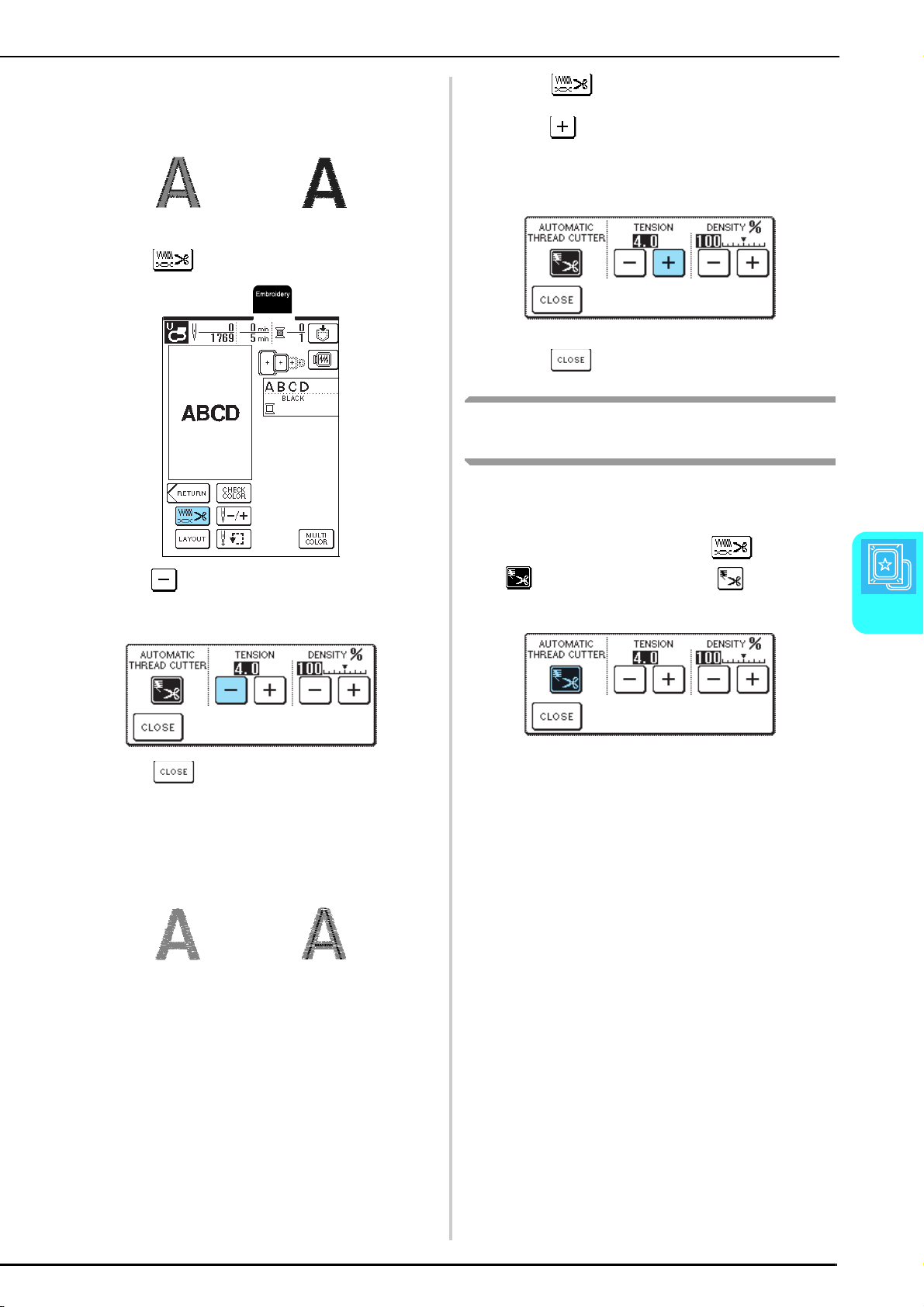
SEWING AN EMBROIDERING PATTERN
Embroidery
137
5
■ If the Upper Thread Is Too Tight
The upper thread is too tight when the bobbin
thread is visible from the right side of the fabric.
a
Press .
b
Press in the tension display.
* Each press of the key decreases the value and
weakens the upper thread tension.
c
Press .
■ If the Upper Thread Is Too Loose
The upper thread is too loose when there are loose
thread locks or when loops appear on the right side
of the fabric.
a
Press .
b
Press in the tension display.
* Each press of the key increases the value and
tightens the upper thread tension.
c
Press .
Automatic Thread Cutting (End Color
Trim)
If the automatic thread cutting setting is selected before
embroidering, the machine will automatically cut the
thread at the end of each color when the machine is
stopped. To cancel the setting, press , and then
press again so that it appears as .
Right side of fabric Wrong side of fabric
Right side of fabric Wrong side of fabric
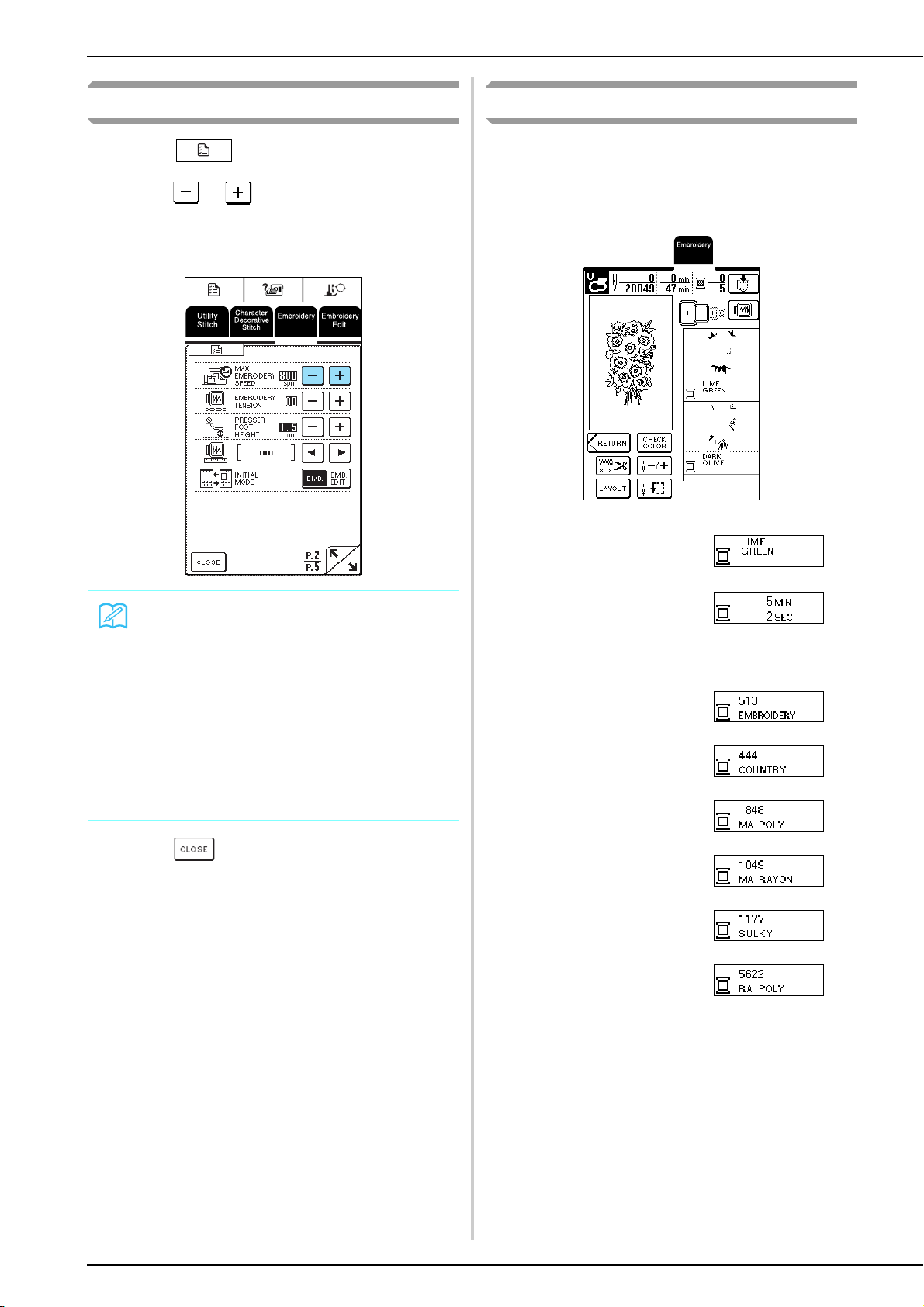
SEWING AN EMBROIDERING PATTERN
138
Changing the Embroidering Speed
a
Press .
b
Press or in the “MAX EMBROIDERY
SPEED” display on P. 2 of the screen.
* You can choose from 3 embroidering speed levels.
c
Press .
Changing the Thread Color Display
From the following, select the thread color that appears
in the embroidery color order display. You can change
the thread color display on embroidery screen, to the
thread color name, each time to embroider or the
thread number.
Memo
• SPM is the number of stitches sewn in one minute.
• Decrease the sewing speed when embroidering on
thin, thick, or heavy fabrics.
• The sewing speed can be changed while
embroidery is being sewn.
• The maximum sewing speed setting does not
change until a new setting is selected. The setting
specified before the machine is turned off remains
selected the next time that the machine is turned on.
• Decrease the sewing speed to 600 spm when using
a specialty thread like a metallic thread.
THREAD COLOR NAME
TIME
THREAD NUMBER
EMBROIDERY/POLYESTER
THREAD#
COUNTRY/COTTON THREAD#
MADEIRA POLY THREAD#
MADEIRA RAYON
SULKY POLY THREAD#
ROBISON-ANTON POLY
THREAD#
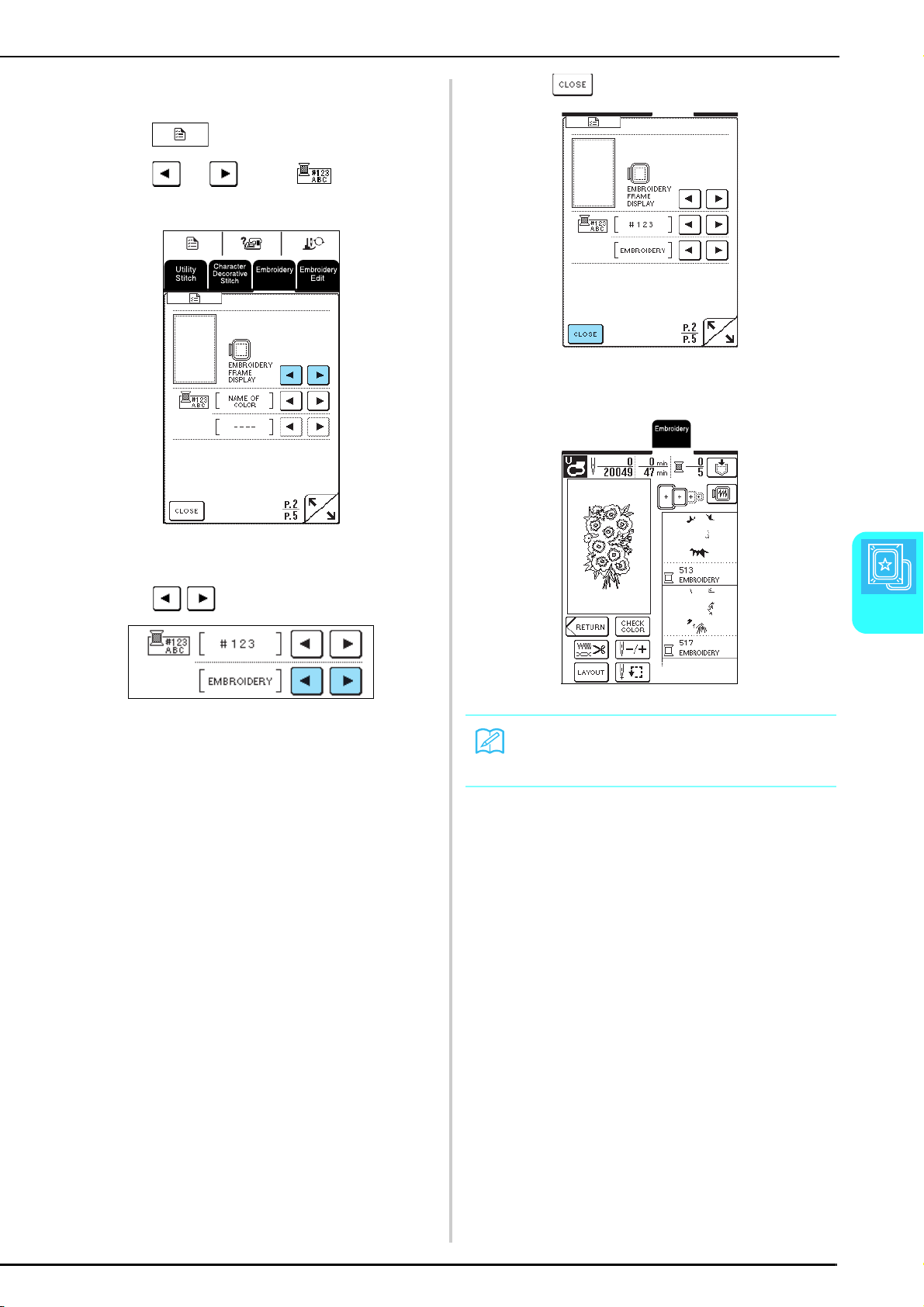
SEWING AN EMBROIDERING PATTERN
Embroidery
139
5
Example: Displaying the thread number of
“EMBROIDERY”
a
Press .
b
Press or beside on P. 2 of the
screen to select the “#123”.
→
“EMBROIDERY” appears at the bottom.
c
Press to select the thread brand.
d
Press .
→
The thread color display is changed.
Memo
Colors on the screen may vary slightly from actual
spool colors.

USING THE MEMORY FUNCTION
140
USING THE MEMORY FUNCTION
Embroidery Data Precautions
Observe the following precautions when using embroidery data other than that created and saved in this machine.
■ Types of Embroidery Data That Can Be Used
• Only .pes, .phc, and .dst embroidery data files can be used with this machine. Using data other than that
saved using our data design systems or sewing machines may cause the embroidery machine to malfunction.
■ Computers and Operating Systems with the Following Specifications Can Be Used
• Compatible models:
IBM PC with a USB port as standard equipment
IBM PC-compatible computer equipped with a USB port as standard equipment
• Compatible operating systems:
Microsoft Windows 98SE/Me/2000/XP
(Windows 98SE requires a driver. Download the driver from our Web site (www.brother.com). In addition,
only Windows 98 Second Edition can use the driver.).
■ Precautions on Using the Computer to Create and Save Data
• If the file name of embroidery data cannot be identified, for example, because the name contains special
characters, the file is not displayed. If this occurs, change the name of the file.
• If .pes embroidery data larger than 26 cm (H) × 16 cm (W) (approx. 10-1/4 inches (H) × 6-1/4 inches (W)) is
selected, a message appears asking if you wish to rotate the pattern 90 degrees.
Embroidery data larger than 26 cm (H) × 16 cm (W) (approx. 10-1/4 inches (H) × 6-1/4 inches (W)), even after
being rotated 90 degrees, cannot be used (All designs must be within the 26 cm (H) × 16 cm (W) (approx. 10-
1/4 inches (H) × 6-1/4 inches (W)) design field size.)
• .pes files saved with the number of stitches or the number of colors exceeding the specified limits cannot be
displayed. Use one of our original data design systems to edit the embroidery pattern so that it meets the
specifications.
• Do not create folders in Removable Disk. If embroidery data is stored in a folder, that embroidery data cannot
be displayed by the embroidery machine.
• Even if the embroidery unit is not attached, the machine will manage embroidery data.
■ Tajima (.dst) Embroidery Data
• .dst data is displayed in the pattern list screen by file name (the actual image cannot be displayed). Only the
first eight characters of the file name can be displayed.
• Since Tajima (.dst) data does not contain specific thread color information, it is displayed with our default
thread color sequence. Check the preview and change the thread colors as desired.
■ Trademarks
• IBM is a registered trademark or a trademark of International Business Machines Corporation.
• Microsoft and Windows are registered trademarks or trademarks of Microsoft Corporation.
Each company whose software title is mentioned in this manual has a Software License Agreement specific to its
proprietary programs.
All other brands and product names mentioned in this manual are registered trademarks of their respective
companies. However, the explanations for markings such as
®
and ™ are not clearly described within the text.
CAUTION
• When using embroidery data other than our original patterns, the thread or needle may break when sewing with a
stitch density that is too fine or when sewing three or more overlapping stitches. In that case, use one of our original
data design systems to edit the embroidery data.
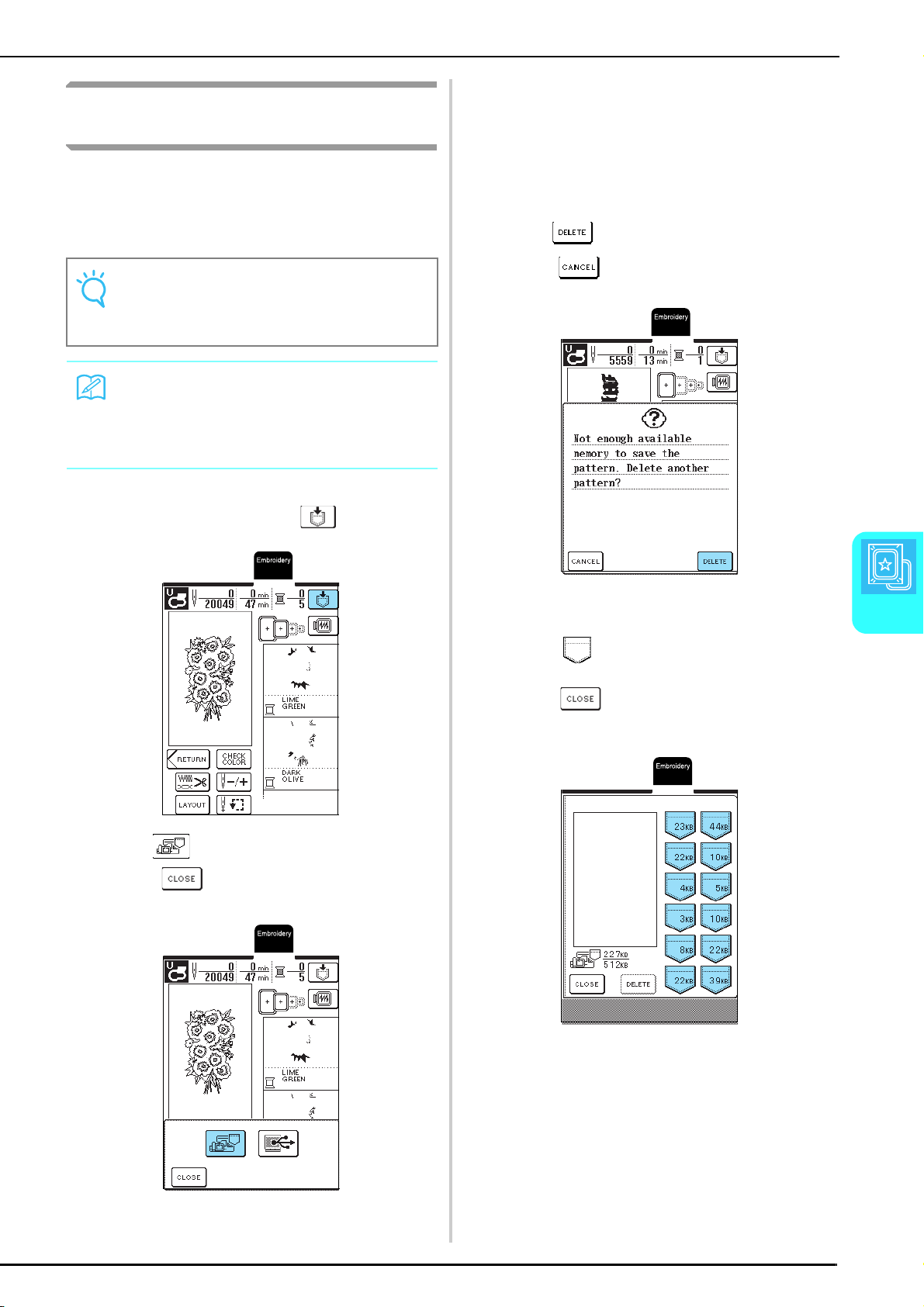
USING THE MEMORY FUNCTION
Embroidery
141
5
Saving Embroidery Patterns in the
Machine’s Memory
You can save embroidery patterns that you have
customized and will use often, for example, your name
or other pattern combinations, patterns that have been
rotated or resized, or patterns that have had their
embroidering position changed.
a
With the pattern that you want to save displayed
in the sewing screen, press
.
b
Press .
* Press to return to the previous screen
without saving the pattern.
→
The “Saving” screen appears. When the pattern is
saved, the previous screen appears automatically.
■ If the Memory Is Full
If the following screen appears, either the maximum
number of patterns have been saved or the pattern
that you want to save takes a lot of memory, and the
machine cannot save it. To save the pattern in the
machine’s memory, you have to delete a previously
saved pattern.
a
Press .
* Press to return to the previous screen
without saving the pattern.
b
Select a pattern to be deleted.
* Press to display the pattern saved in that
pocket.
* Press if you do not want to delete the
pattern.
Note
Do not turn off the machine while the “Saving” screen
is displayed, otherwise you may lose the pattern that
you are saving.
Memo
• It takes a few seconds to save a pattern in the
machine’s memory.
• See page 143 for information on retrieving a saved
pattern.
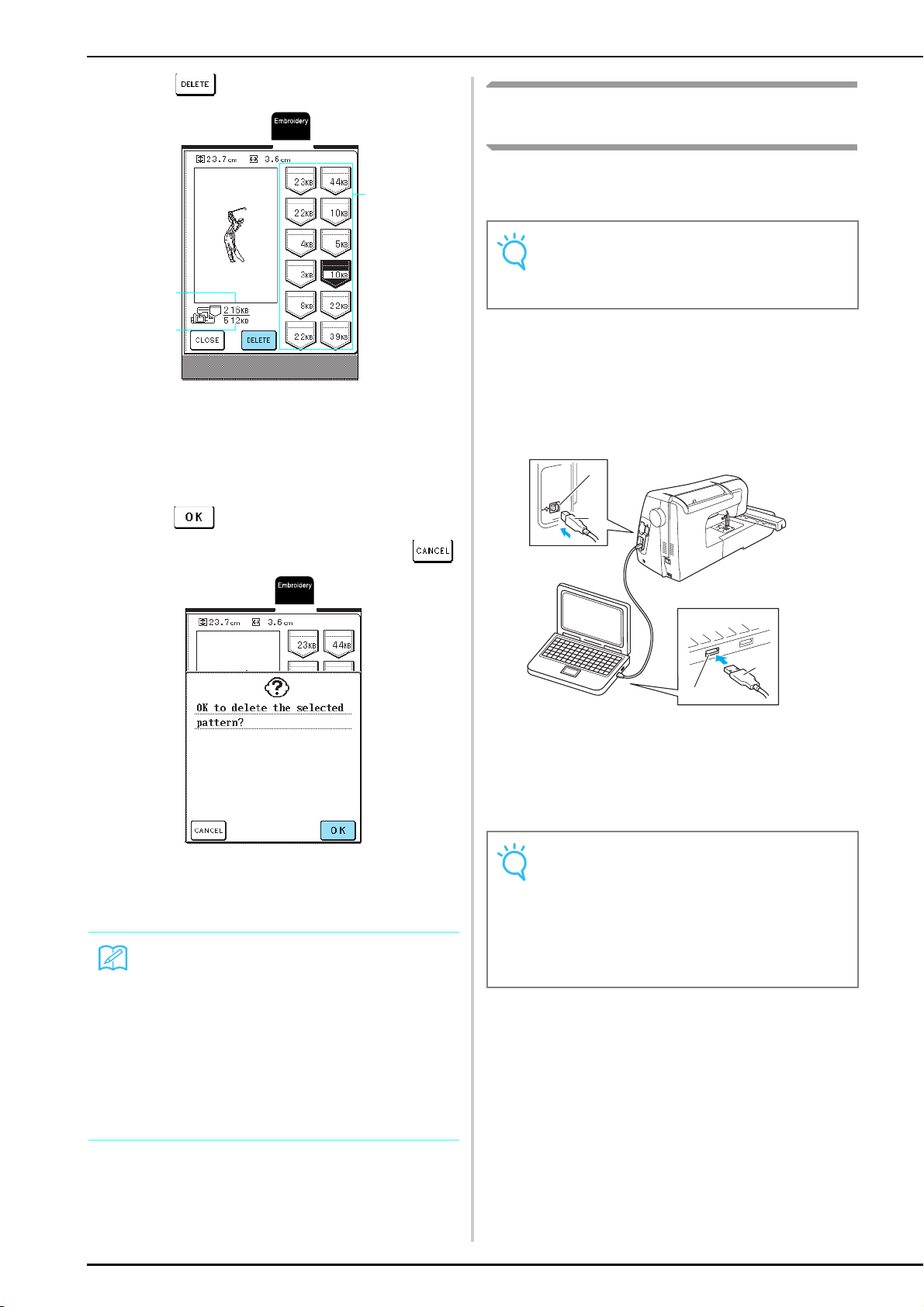
USING THE MEMORY FUNCTION
142
c
Press .
a Amount of memory currently being used
b Total amount of machine memory available for saving
patterns
c Pockets where a pattern is saved (The amount of
memory used by the pattern is indicated on the
pocket.)
d
Press .
* If you decide not to delete the pattern, press .
→
The “Saving” screen appears. When the pattern is
saved, the previous screen appears automatically.
Saving Embroidery Patterns to the
Computer
Using the included USB cable, connect the sewing
machine to your computer so that embroidery patterns
can be retrieved from and saved to your computer.
a
Plug the USB cable connectors into the
corresponding USB ports on the computer
and on the machine.
* The USB cable can be plugged into the USB ports
on the computer and machine whether or not they
are turned on.
a USB port
b USB cable connector
→
The “Removable Disk” icon appears in “My
Computer” on the computer.
Memo
• If there is enough memory available after deleting
the pattern, the pattern that you want to save will be
saved automatically. If there is not enough memory
available after deleting the pattern, repeat the above
procedure to delete another pattern from the
machine’s memory.
• It takes a few seconds to save a pattern in the
machine’s memory.
• See page 143 for more information about retrieving
saved patterns.
a
b
c
Note
Do not turn off the machine while the “Saving” screen
is displayed, otherwise you may lose the pattern that
you are saving.
Note
• The connectors on the USB cable can only be
inserted into a port in one direction. If it is difficult to
insert the connector, do not insert it with force, and
then check the orientation of the connector.
• For details on the position of the USB port on the
computer (or USB hub), refer to the instruction
manual for the corresponding equipment.
a
a
b
b
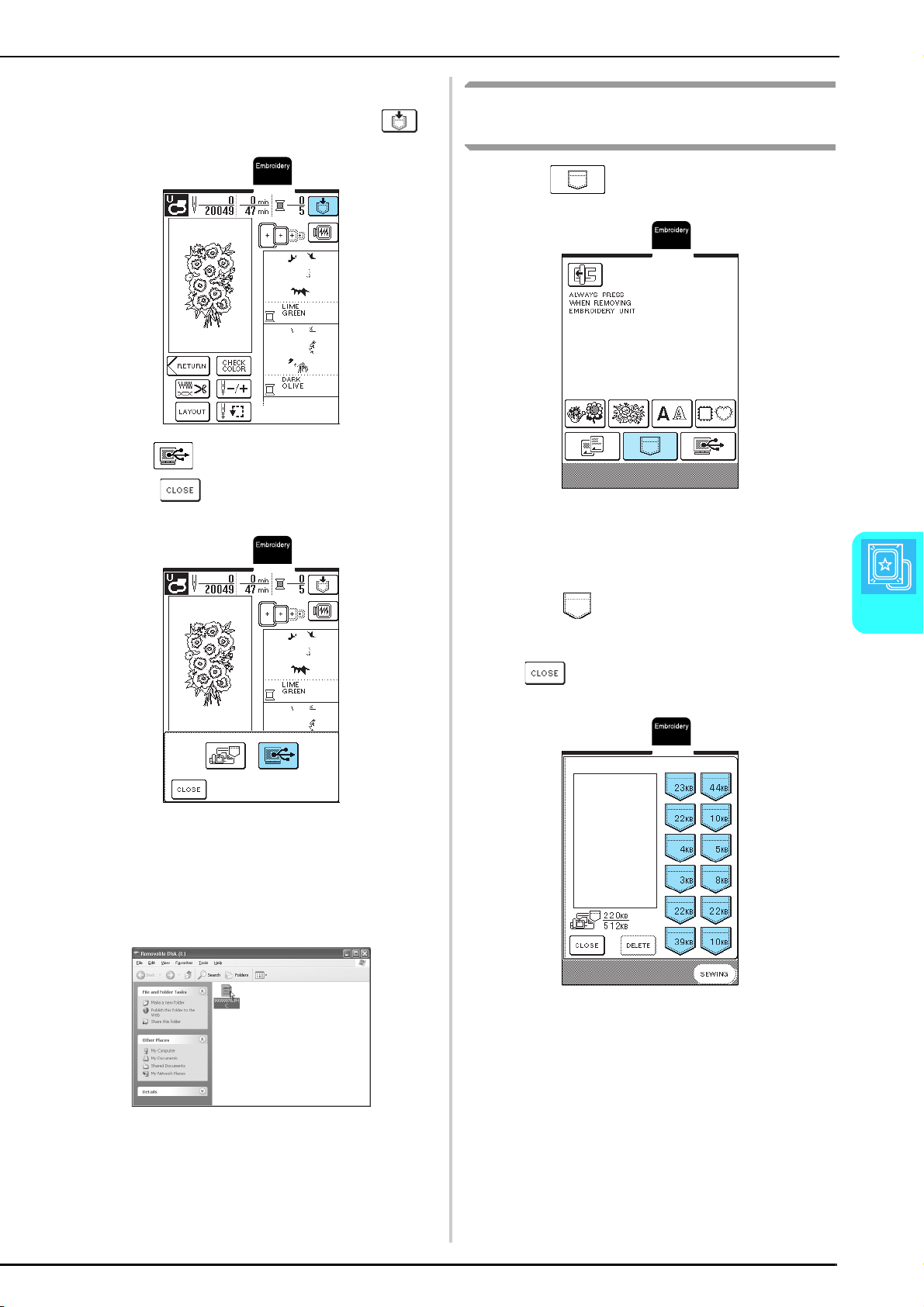
USING THE MEMORY FUNCTION
Embroidery
143
5
b
With the pattern that you want to save
displayed in the sewing screen, press .
c
Press .
* Press to return to the previous screen
without saving the pattern.
→
The pattern is temporarily saved to “Removable Disk”
under “My Computer”.
d
Select the pattern’s .phc file in “Removable
Disk”, and copy the file to the computer.
Retrieving Patterns from the
Machine’s Memory
a
Press .
→
The pocket selection screen appears.
b
Select a pattern to be retrieved.
* Press to display the pattern saved in the
selected pocket.
* If you decide not to retrieve the pattern, press
.
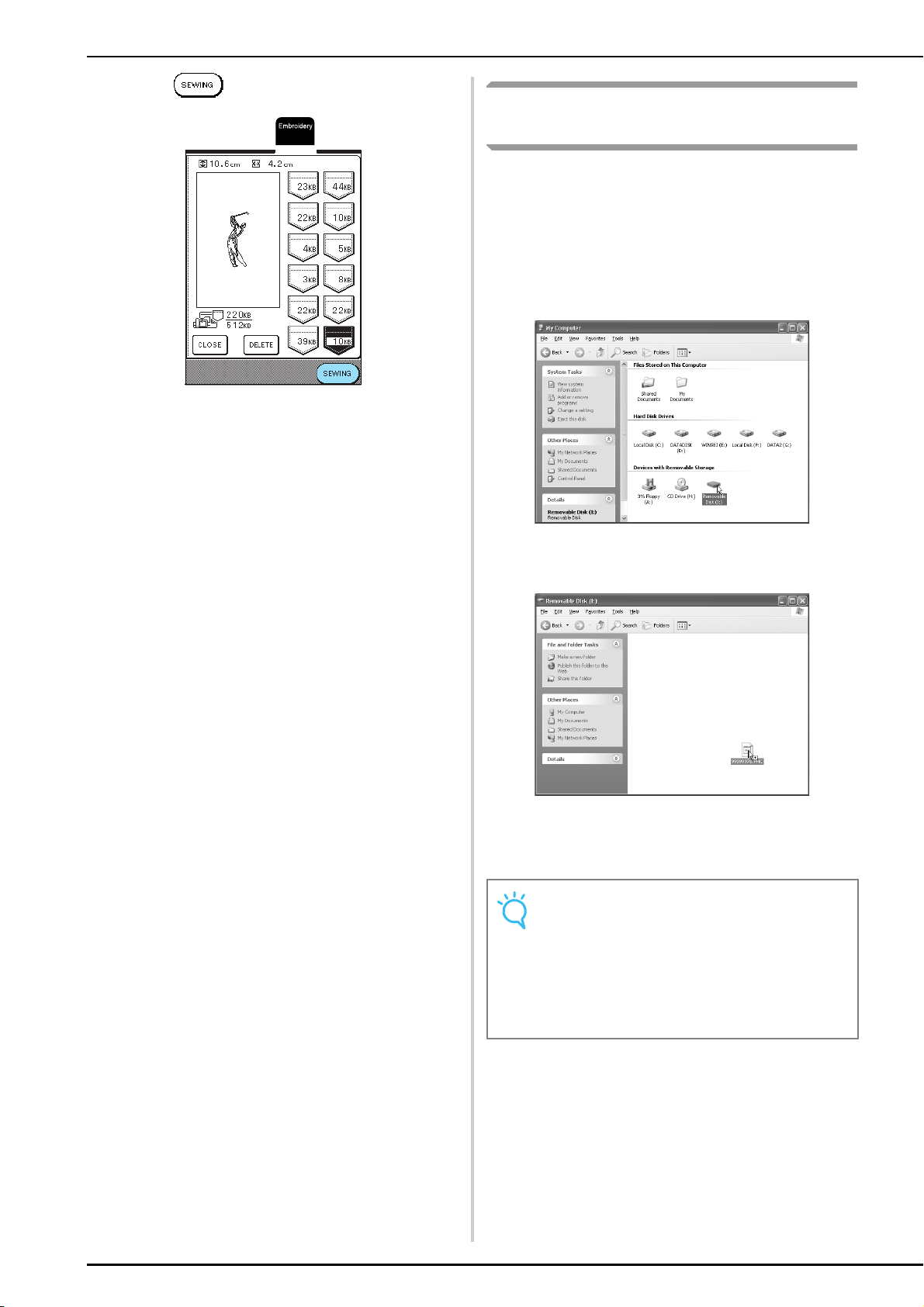
USING THE MEMORY FUNCTION
144
c
Press .
→
The sewing screen appears.
Retrieving Patterns from the
Computer
a
Plug the USB cable connectors into the
corresponding USB ports on the computer
and on the machine (see page 142).
b
The “Removable Disk” icon appears in “My
Computer” on the computer.
c
Copy the pattern data to “Removable Disk”.
→
Pattern data in “Removable Disk” is written to the
machine.
Note
• While data is being written, do not disconnect the
USB cable.
• Do not create folders within “Removable Disk”.
Since folders are not displayed, pattern data within
folders cannot be retrieved.
• While the machine is sewing, do not write data to or
delete data from “Removable Disk”.
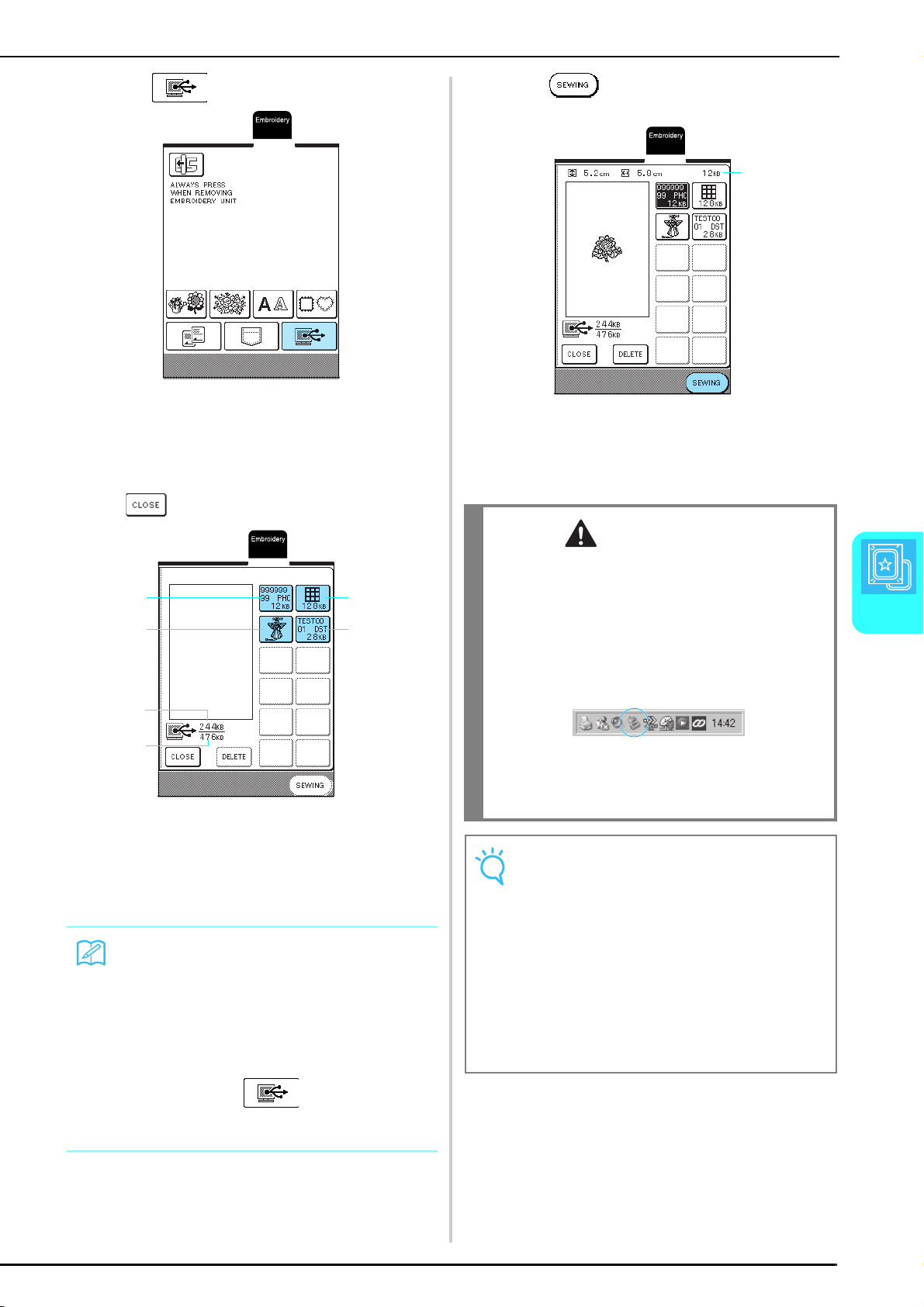
USING THE MEMORY FUNCTION
Embroidery
145
5
d
Press .
→
The pattern selection screen appears.
e
Select an embroidery pattern to be retrieved.
* If you decide not to retrieve the pattern, press
.
a PHC data
b PES data
c Large-size embroidery pattern data
d DST data
e Amount of memory currently being used
f Total amount of “Removable Disk” memory available
for saving patterns
f
Press .
a Amount of memory used by the selected pattern
→
The sewing screen appears.
Β
Memo
• If there are 13 or more patterns saved in
“Removable Disk”, the patterns cannot be displayed.
When the message “Only 12 patterns can be saved.
Reduce the number of patterns.” appears, delete
patterns from “Removable Disk” so that it contains
no more than 12 patterns. Then, close the error
message, repeat the procedure starting from step
d and then press to retrieve the pattern.
• For details on large-size embroidery patterns, refer
to PE-DESIGN Instruction Manual.
e
f
a
b
c
d
CAUTION
• When disconnecting the USB cable:
Before disconnecting the USB cable, click the
"Unplug or Eject Hardware" icon in the taskbar of
Windows
®
Me/2000 or the "Safely Remove
Hardware" icon in the taskbar of Windows
®
XP.
Then, when the removable disk has been removed
safely, disconnect the USB cable from the computer
and the machine.
With Windows 98SE, check that the Access
lamp is not flashing before disconnecting the
USB cable from the computer and the
machine.
Note
• Be sure to perform the operation described above
before disconnecting the USB cable from the
computer and the machine, otherwise the computer
may malfunction, the data may not be written
correctly, or the data or data writing area on the
machine may be damaged.
• The pattern retrieved from the computer is only
temporarily written to the machine. It is erased from
the machine when the machine is turned off. If you
wish to keep the pattern, store it in the machine (see
“Saving Embroidery Patterns in the Machine’s
Memory” on page 141).
a
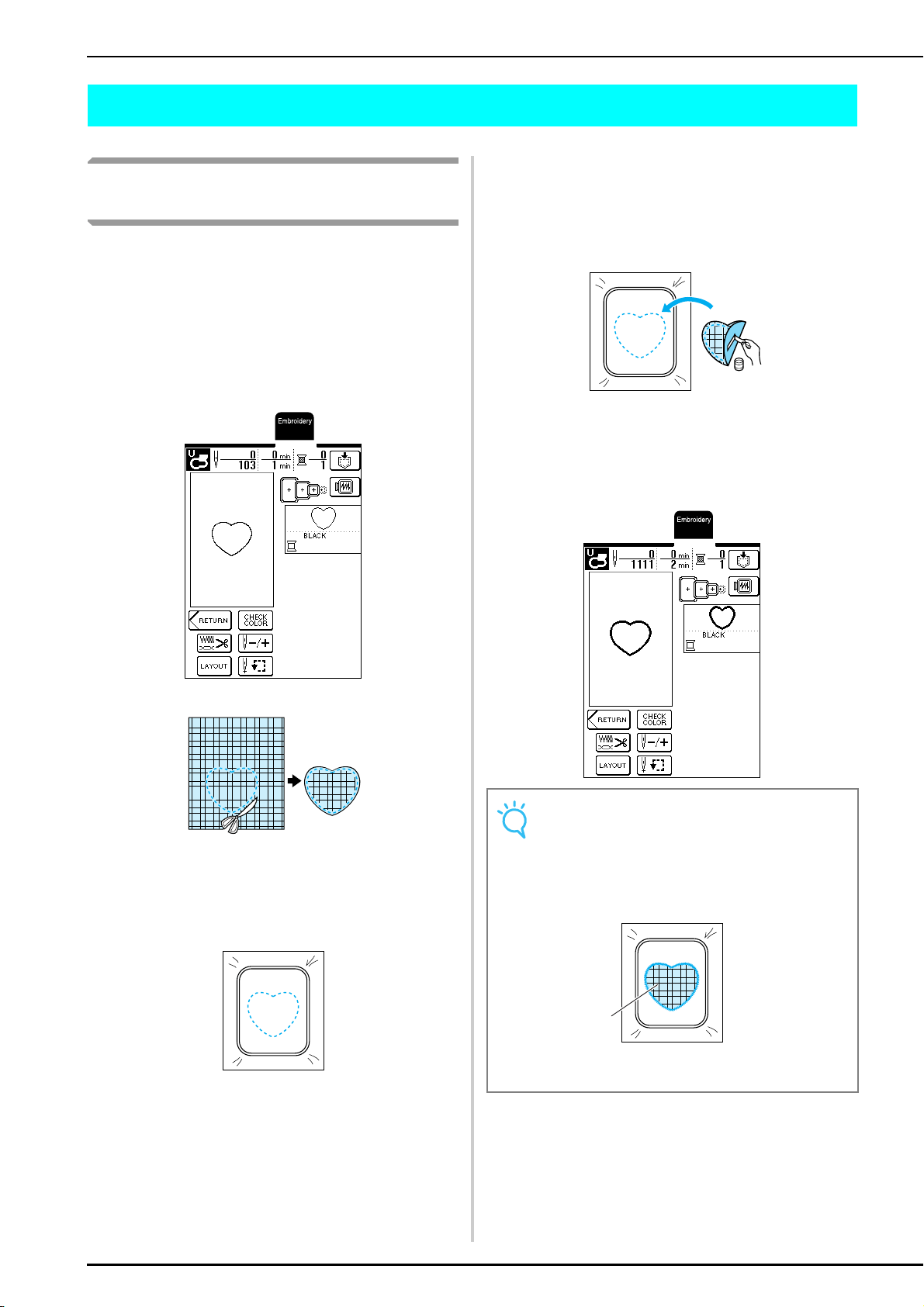
EMBROIDERY APPLICATIONS
146
EMBROIDERY APPLICATIONS
Using a Frame Pattern to Make an
Appliqué (1)
You can use frame patterns of the same size and shape
to create an appliqué. Embroider one pattern with a
straight stitch and the other pattern with a satin stitch.
a
Select a straight stitch frame pattern,
embroider the pattern onto the appliqué
fabric, and then neatly cut around the outside
of the stitching.
b
Embroider the same pattern on the base
fabric.
c
Apply a thin layer of fabric glue or temporary
spray adhesive to the back of the appliqué
piece cut out in step
a, and then attach the
appliqué to the base fabric within the outline.
d
Select the satin stitch frame pattern of the
same shape, and then embroider over the
appliqué and base fabric from step
c.
Note
If the size or embroidering position of the straight stitch
frame pattern was changed, be sure to change the
size or embroidering position of the satin stitch frame
pattern in the same way.
a Appliqué fabric
a
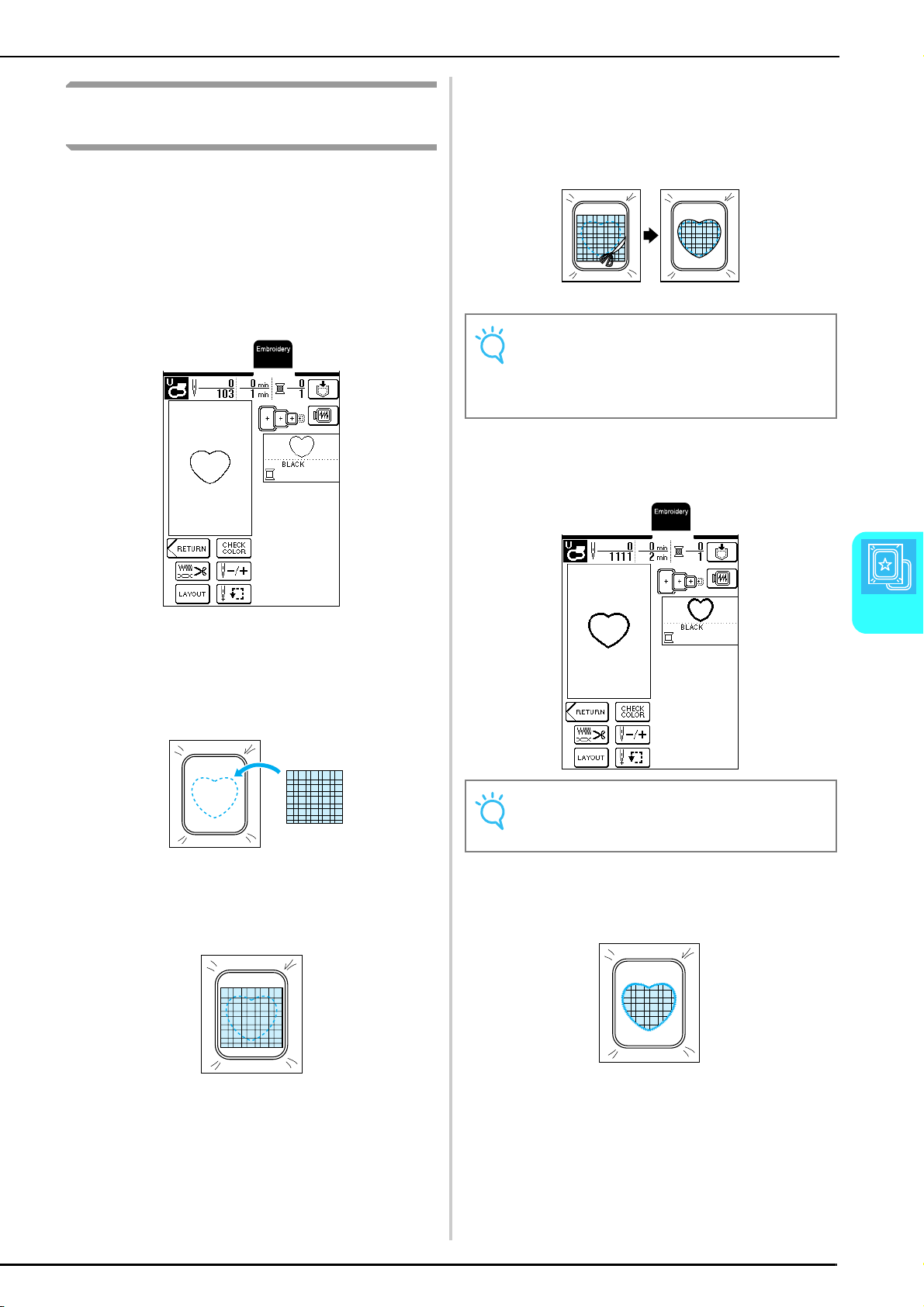
EMBROIDERY APPLICATIONS
Embroidery
147
5
Using a Frame Pattern to Make an
Appliqué (2)
This is a second method for making appliqués using
embroidery patterns. With this method, there is no need
to change the fabric in the embroidery frame. To make
the appliqué, embroider one pattern with a straight
stitch and the other pattern with a satin stitch.
a
Select a straight stitch frame pattern, and then
embroider the pattern onto the base fabric.
b
Place the appliqué fabric over the pattern
embroidered in step
a. Make sure that the
appliqué fabric completely covers the
stitching.
c
Embroider the same pattern on the appliqué
fabric.
d
Remove the embroidery frame from the
machine, and then cut around the outside of
the stitching.
e
Select the satin stitch frame pattern of the
same shape as the appliqué.
f
Attach the embroidery frame removed in step
d, and then embroider the pattern.
Note
Leave the fabric in the embroidery frame when cutting
off the excess appliqué fabric. In addition, do not apply
extreme pressure to the framed fabric, otherwise the
fabric could become loose.
Note
Do not change the size or embroidering position of the
pattern.

EMBROIDERY APPLICATIONS
148

Chapter 6
Embroidery Edit
AVAILABLE EDITING FUNCTIONS...................................................150
■ Combined Patterns ........................................................................................................150
■ Move Patterns ...............................................................................................................150
■ Rotate Patterns ..............................................................................................................150
■ Enlarge or Reduce Patterns............................................................................................150
■ Create Mirror Images ....................................................................................................150
■ Change Character Spacing ............................................................................................150
■ Change Character Appearance/Layout..........................................................................150
SELECTING PATTERNS TO EDIT .......................................................151
Selecting One-point Patterns/Floral Patterns/Frame Patterns ...............................151
Alphabet Patterns..................................................................................................152
EDITING PATTERNS..........................................................................154
■ Key Functions ................................................................................................................154
Moving the Pattern................................................................................................155
Rotating the Pattern ..............................................................................................155
Changing the Size of the Pattern ...........................................................................156
Deleting the Pattern ..............................................................................................156
Changing the Configuration of Character Patterns................................................157
Changing the Character Spacing ...........................................................................157
Changing the Color of Each Character in a Pattern...............................................158
After Editing ..........................................................................................................158
COMBINING PATTERNS...................................................................159
Editing Combined Patterns ....................................................................................159
Sewing Combined Patterns....................................................................................162
USING THE MEMORY FUNCTION...................................................162
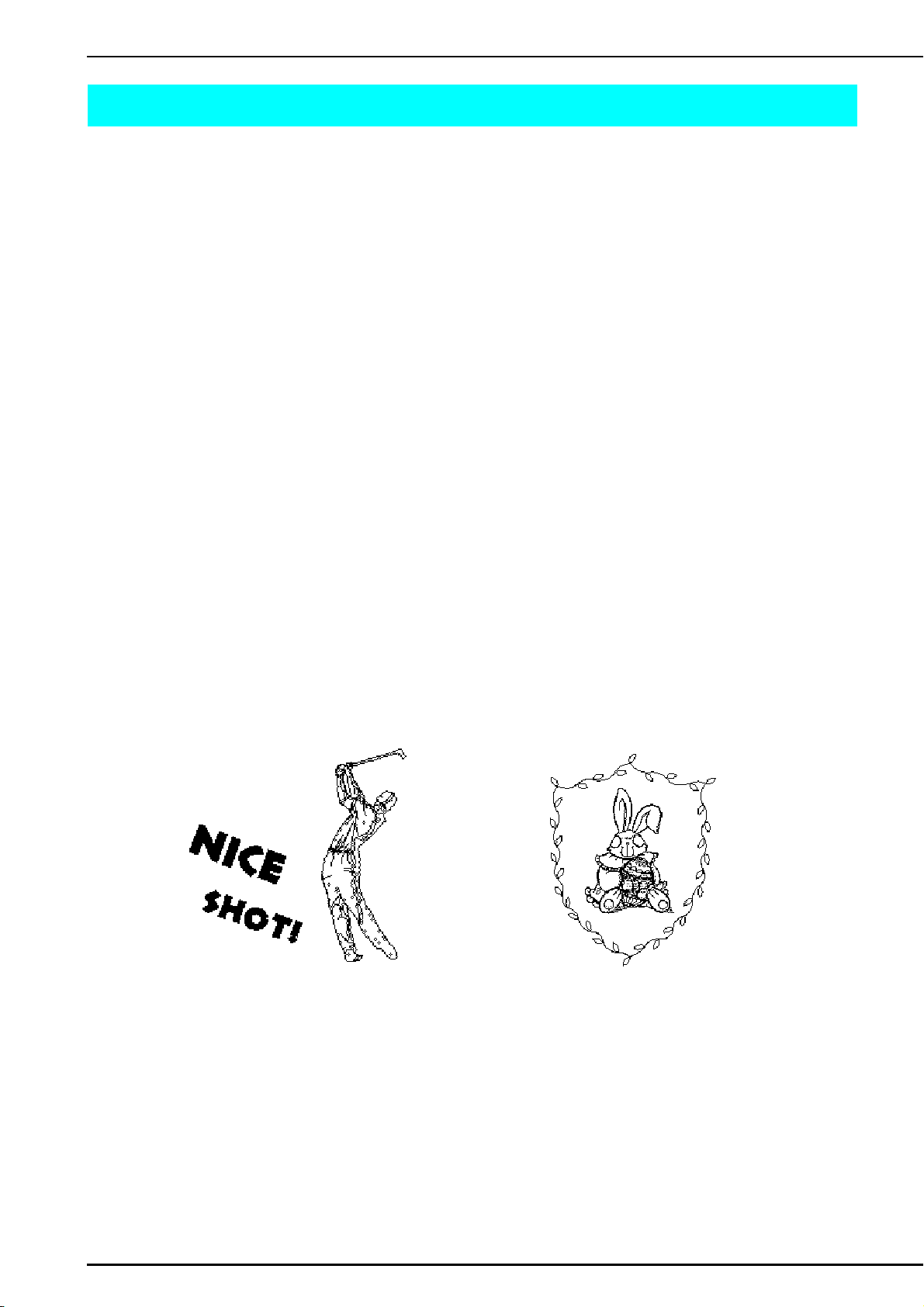
AVAILABLE EDITING FUNCTIONS
150
AVAILABLE EDITING FUNCTIONS
With the Embroidery Edit functions, you can change the size of patterns, rotate patterns, adjust the character spacing
and layout, and perform many other editing operations. In addition, characters and patterns can be combined and
rearranged within the 26 cm × 16 cm (approx. 10 - 1/4 inches × 6 - 1/4 inches) embroidering area. With the
Embroidery Edit functions, you can combine various patterns and characters to create original patches and
embroidery.
■ Combined Patterns
You can easily create combinations of one-point patterns, frame patterns, character patterns, and patterns from separately
sold embroidery cards.
■ Move Patterns
Within the 26 cm × 16 cm (approx. 10 - 1/4 inches × 6 - 1/4 inches) embroidery area, you can change the position of
patterns, and check their position on the LCD.
■ Rotate Patterns
You can rotate patterns one degree, 10 degrees or 90 degrees at a time.
■ Enlarge or Reduce Patterns
You can make patterns larger or smaller.
• This function is not available with some patterns.
■ Create Mirror Images
You can create horizontal mirror images of patterns.
• This function is not available with some patterns.
■ Change Character Spacing
You can increase or decrease the spacing between characters in combined patterns.
■ Change Character Appearance/Layout
You can change the layout of the characters to a curved line, a diagonal line, or any of the 6 choices available.
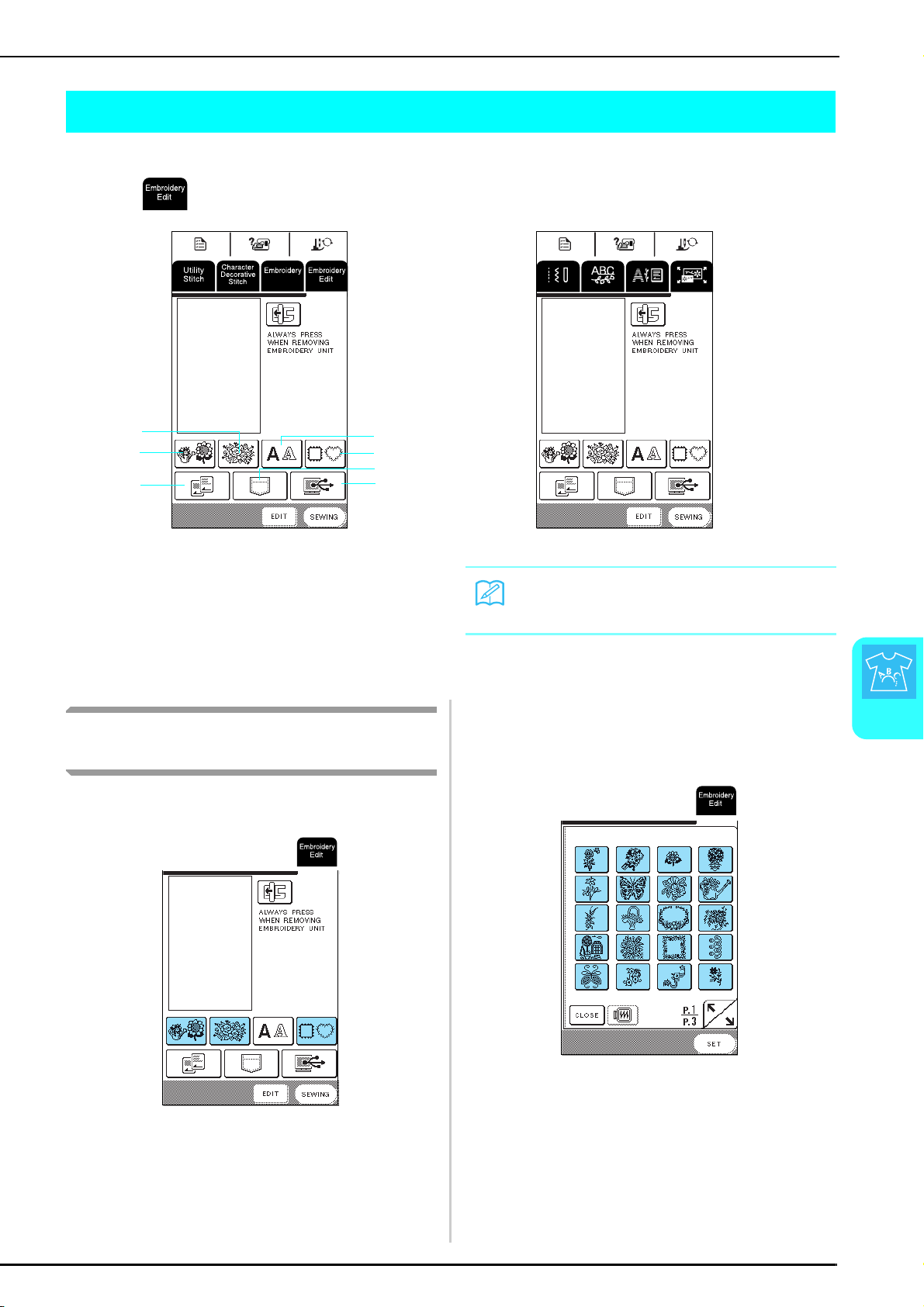
SELECTING PATTERNS TO EDIT
Embroidery Edit
151
6
SELECTING PATTERNS TO EDIT
Attach the embroidery unit, prepare the machine for embroidering according to the instructions on page 110, and
then press to display the screen shown below.
One-point patt
erns
a One-point patterns
b Floral patterns
c Alphabet patterns
d Frame patterns
e Embroidery cards (sold separately)
f Patterns saved in the machine’s memory
g Patterns saved on the computer
Selecting One-point Patterns/Floral
Patterns/Frame Patterns
a
Select the category of the pattern.
b
Select an embroidery pattern.
* For details on selecting patterns, see page 115 and
page 117.
→ The selected pattern is highlighted.
a
e
d
c
g
f
b
Memo
For details on the pattern selection screen, see page
114 or the Quick Reference Guide.
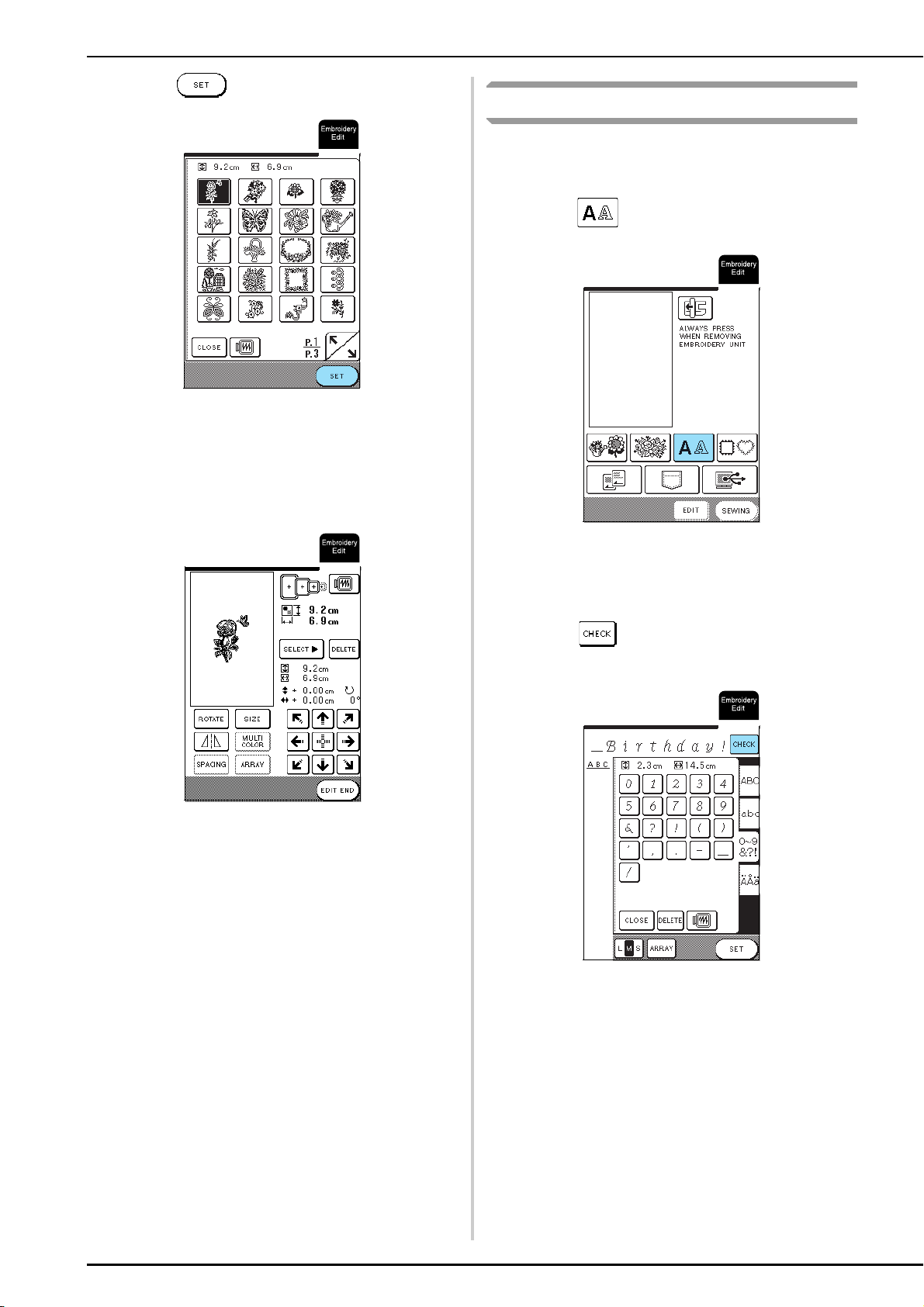
SELECTING PATTERNS TO EDIT
152
c
Press .
→ The selected pattern appears in the screen.
d
Continue with “EDITING PATTERNS” on
page 154.
Alphabet Patterns
With the Embroidery Edit functions, you can edit the
appearance of a character at the same time that you
enter it.
a
Press .
b
Select the character style, and then enter the
characters.
* For details on selecting characters, see page 116.
* Press to view an image of all entered
characters.
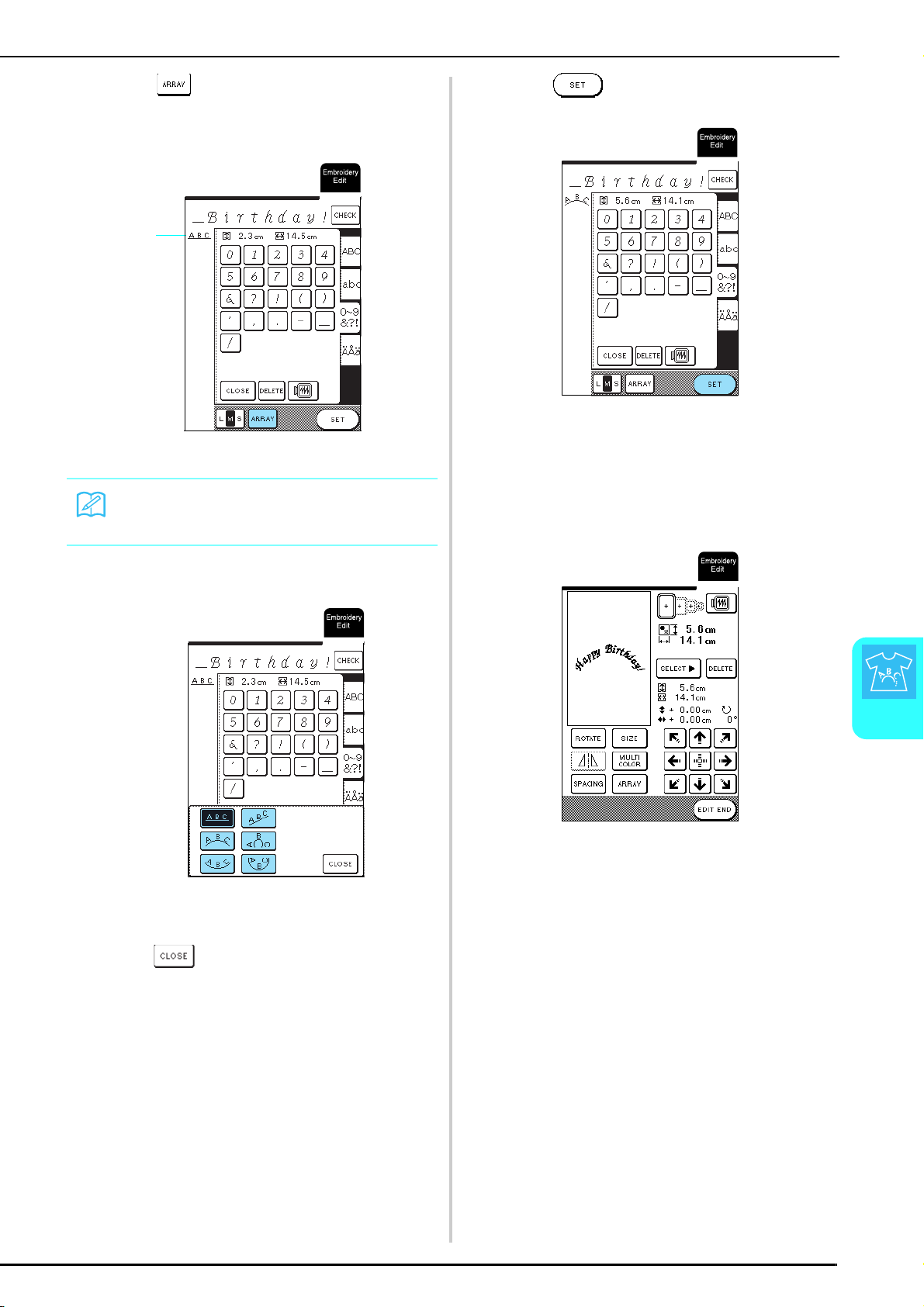
SELECTING PATTERNS TO EDIT
Embroidery Edit
153
6
c
Press to change the layout of the
pattern.
a Layout of characters
d
Select the layout.
→ The displayed character layout changes.
e
Press to return to the previous screen.
f
Press .
→ The embroidery edit screen appears.
g
Continue with see “EDITING PATTERNS” on
page 154.
Memo
The layout of the characters appears in the upper-left
corner of the screen.
a
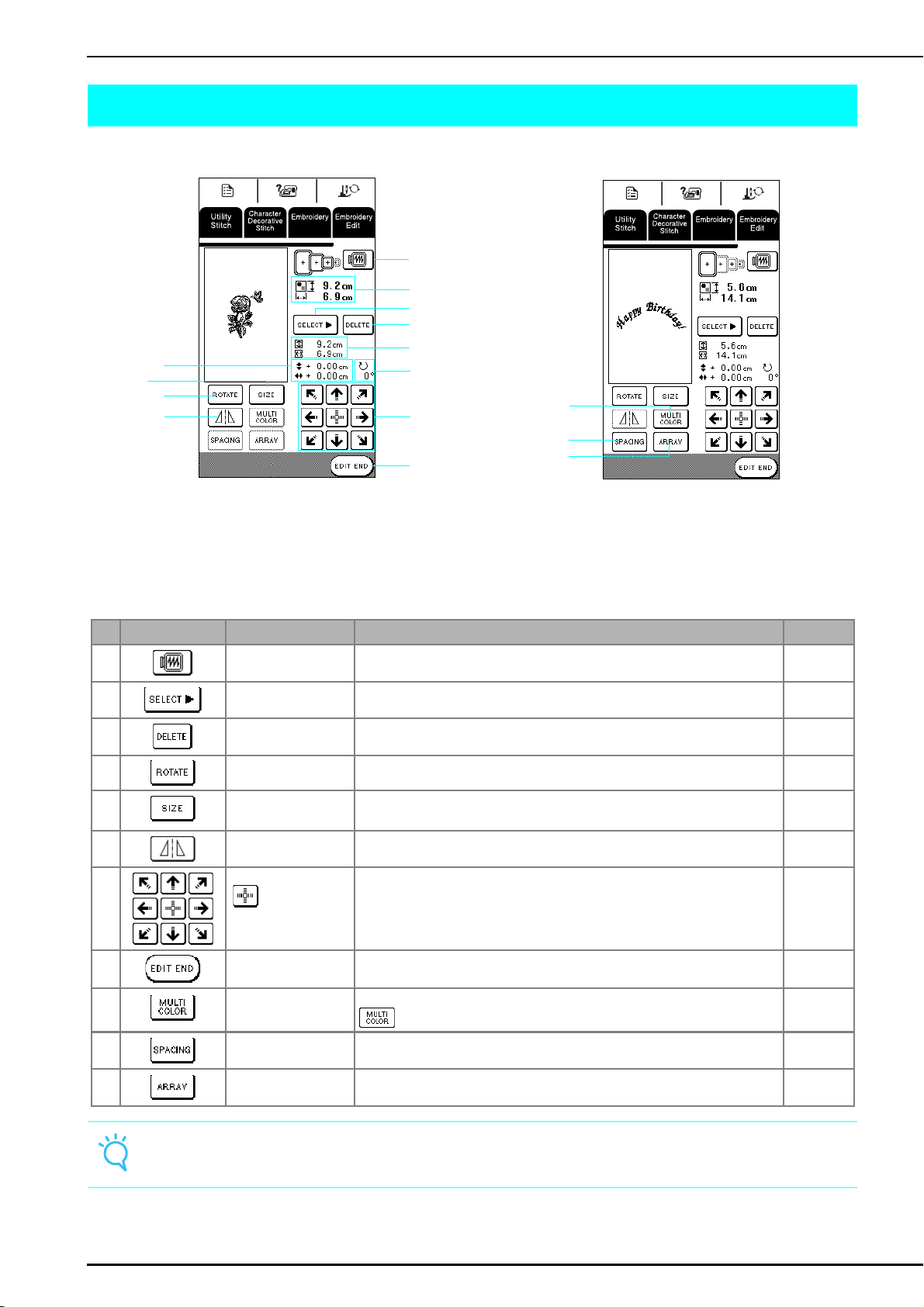
EDITING PATTERNS
154
EDITING PATTERNS
■ Key Functions
a Shows the size of the entire combined pattern.
b Shows the size of the pattern currently selected.
c Shows the distance from the center of frame.
d Shows the degree of rotation for the selected pattern.
No. Key Name Function Page
e
Image key Press this key to display a preview of the embroidery pattern. 130
f
Pattern selection key Press this key to select the pattern to be edited when multiple patterns have been
combined.
156
g
Delete key Press this key to delete the selected pattern (pattern that appears darker). 156
h
Rotate key Press this key to rotate the pattern. You can rotate the pattern one degree, 10
degrees or 90 degrees at a time.
155
i
Size key Press this key to change the size of the pattern. Patterns can be enlarged or
reduced.
156
j
Horizontal mirror image
key
Press this key to create a horizontal mirror image of the selected pattern. 127
k
Arrow keys
( Center key)
Press these keys to move the pattern in the direction indicated by the arrow on the
key.
155
l
Edit end key Press this key to continue to the next step. 158
m
Multi color key
Press this key to change the color of individual characters in a pattern. Press
to embroider each character in a different color.
158
n
Spacing key Press this key to change the spacing of character patterns. 157
o
Array key Press this key to change the configuration of a character pattern. 157
Note
Keys that appear in dashed lines are not available with the selected pattern.
e
a
b
c
d
h
i
j
l
k
f
g
n
m
o
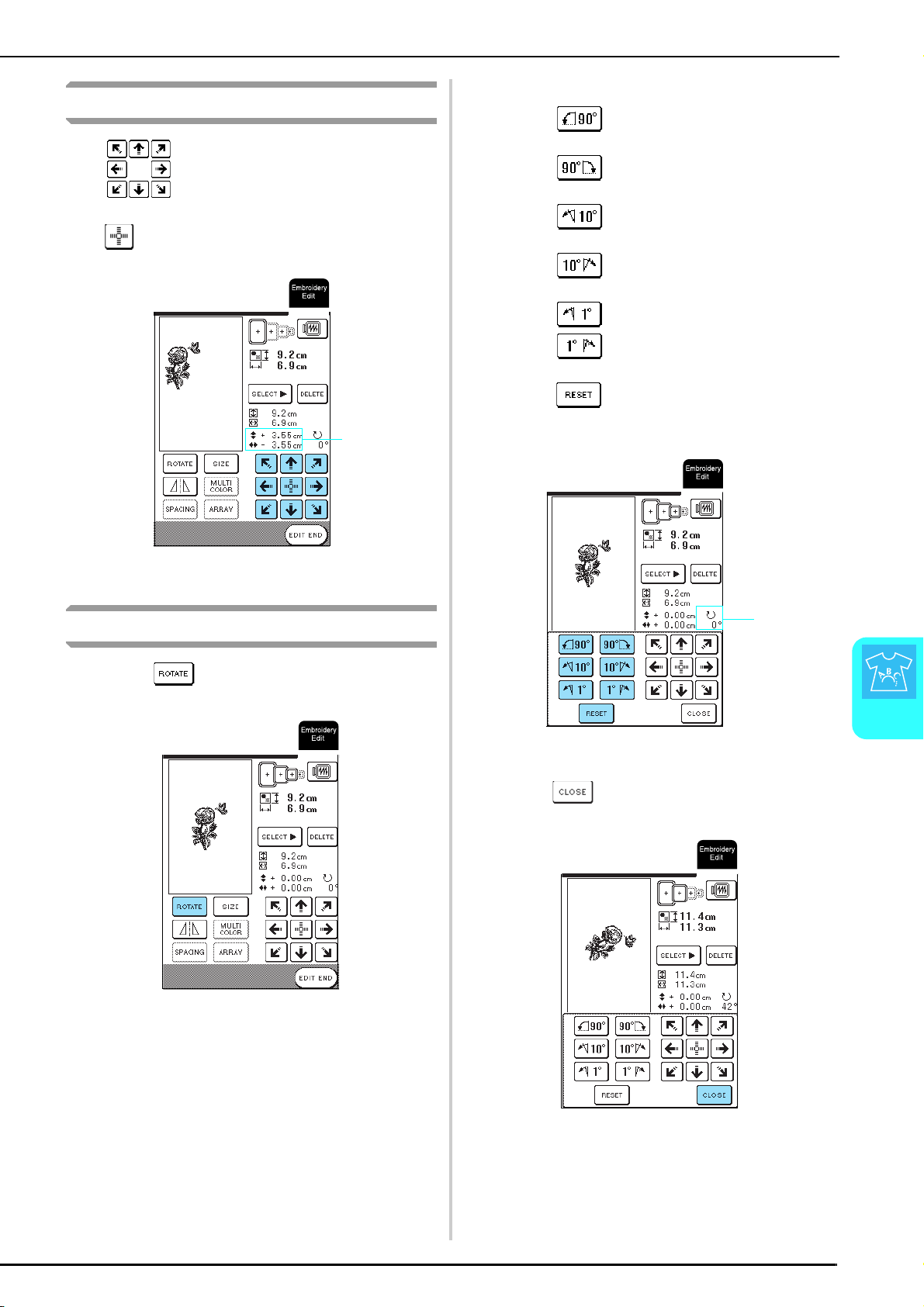
EDITING PATTERNS
Embroidery Edit
155
6
Moving the Pattern
Press to move the pattern in the direction
shown on the key.
Press to center the pattern.
a Distance from the center
Rotating the Pattern
a
Press .
b
Select the angle that the pattern is rotated.
* Press to rotate the pattern 90 degrees to the
left.
* Press to rotate the pattern 90 degrees to the
right.
* Press to rotate the pattern 10 degrees to the
left.
* Press to rotate the pattern 10 degrees to the
right.
* Press to rotate the pattern 1 degree to the left.
* Press to rotate the pattern 1 degree to the
right.
* Press to return the pattern to its original
position.
a Degree of rotation
c
Press .
a
a
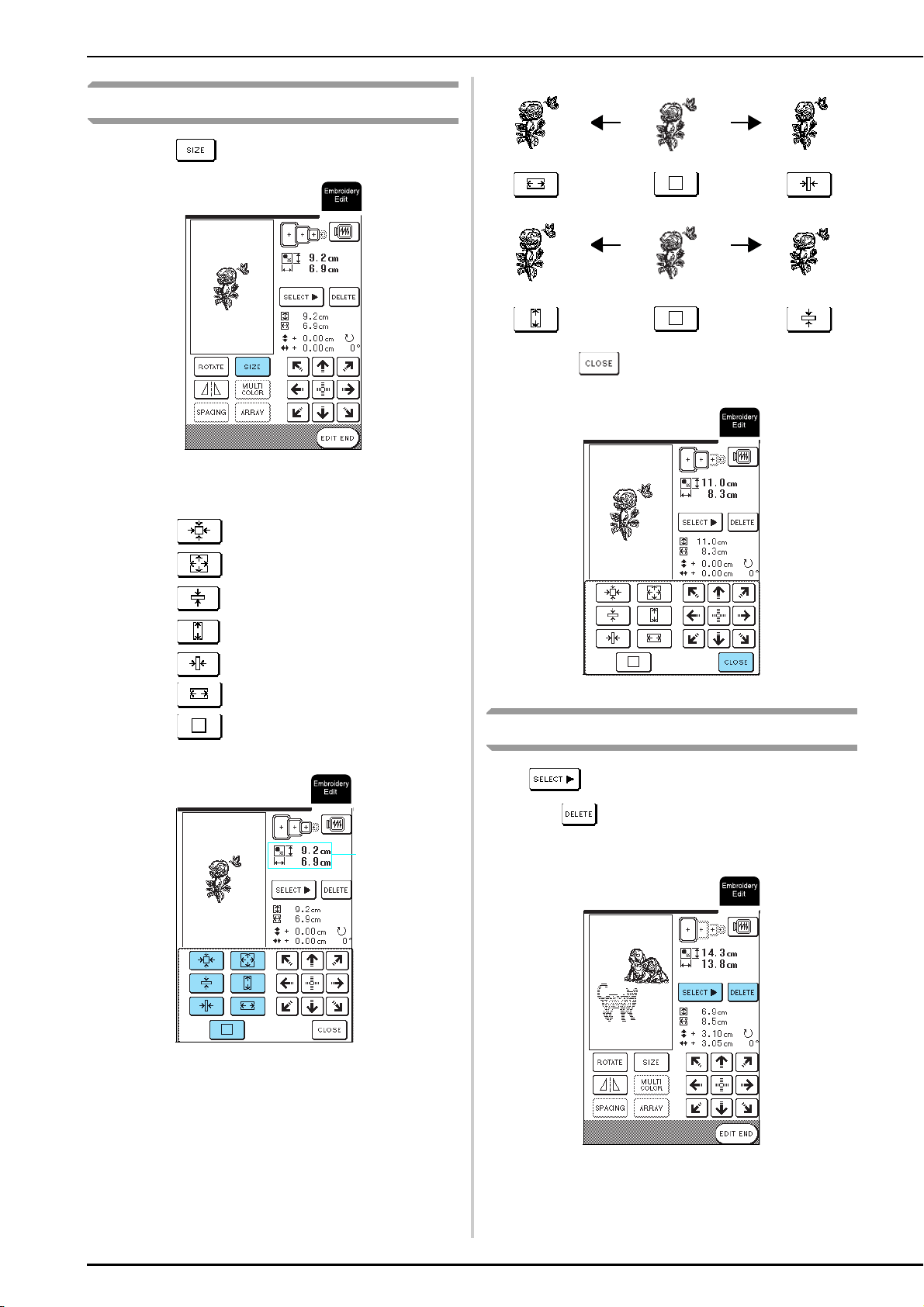
EDITING PATTERNS
156
Changing the Size of the Pattern
a
Press .
b
Select the direction in which the size is
changed.
* Press to reduce the pattern proportionately.
* Press to enlarge the pattern proportionately.
* Press to reduce the pattern vertically.
* Press to enlarge the pattern vertically.
* Press to reduce the pattern horizontally.
* Press to enlarge the pattern horizontally.
* Press to return the pattern to its original size.
a Size of the pattern
c
Press .
Deleting the Pattern
Press to select the pattern to be deleted, and
then press .
* The darker pattern will be deleted.
a
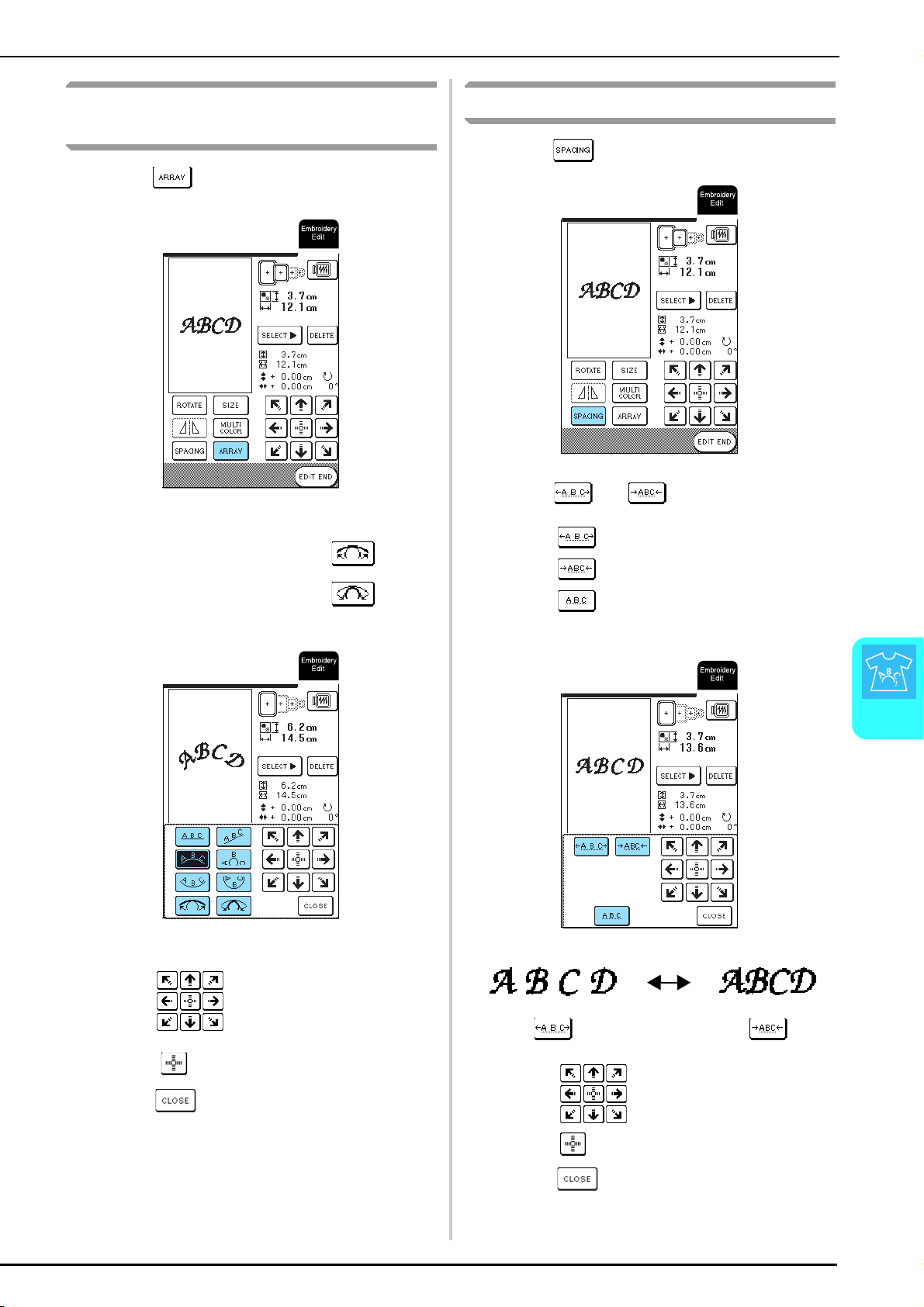
EDITING PATTERNS
Embroidery Edit
157
6
Changing the Configuration of
Character Patterns
a
Press .
b
Select the layout.
* After selecting an arc layout, press to
expand the arc.
* After selecting an arc layout, press to
reduce the arc.
c
Press to adjust the position.
* Press to center the pattern.
d
Press .
Changing the Character Spacing
a
Press .
b
Press or .
* Press to widen the character spacing.
* Press to tighten the character spacing.
* Press to return the pattern to its original
spacing.
c
Press to adjust the position.
* Press to center the pattern.
d
Press .
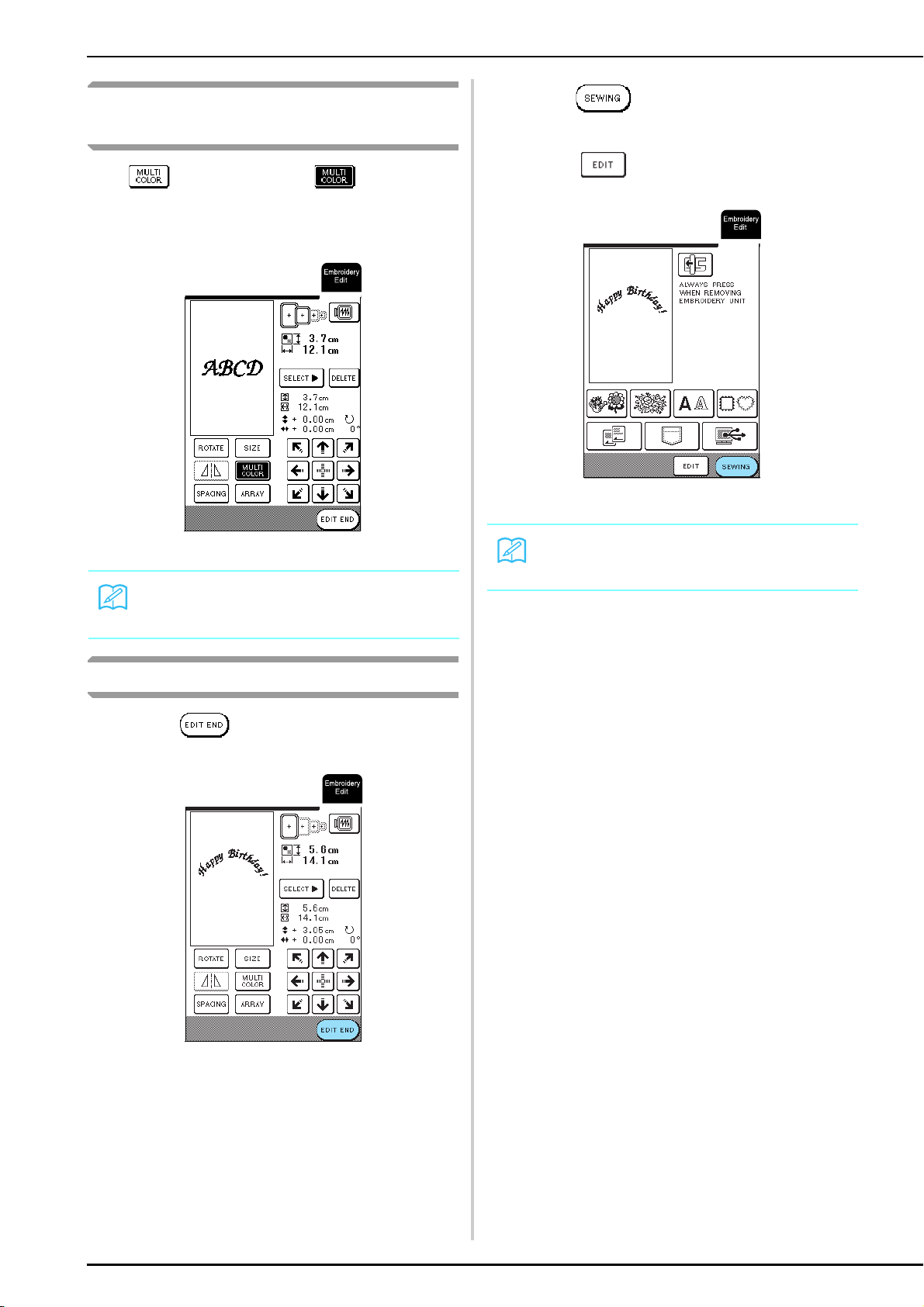
EDITING PATTERNS
158
Changing the Color of Each Character
in a Pattern
Press so that it appears as . The machine
will stop after each character is embroidered so the
thread can be changed.
After Editing
a
Press .
b
Press to embroider the edited
pattern.
* Press to return to the embroidery edit screen.
Memo
The multi color settings can also be set from the
sewing screen. For details, see page 128.
Memo
For details on combining patterns, see page 159.
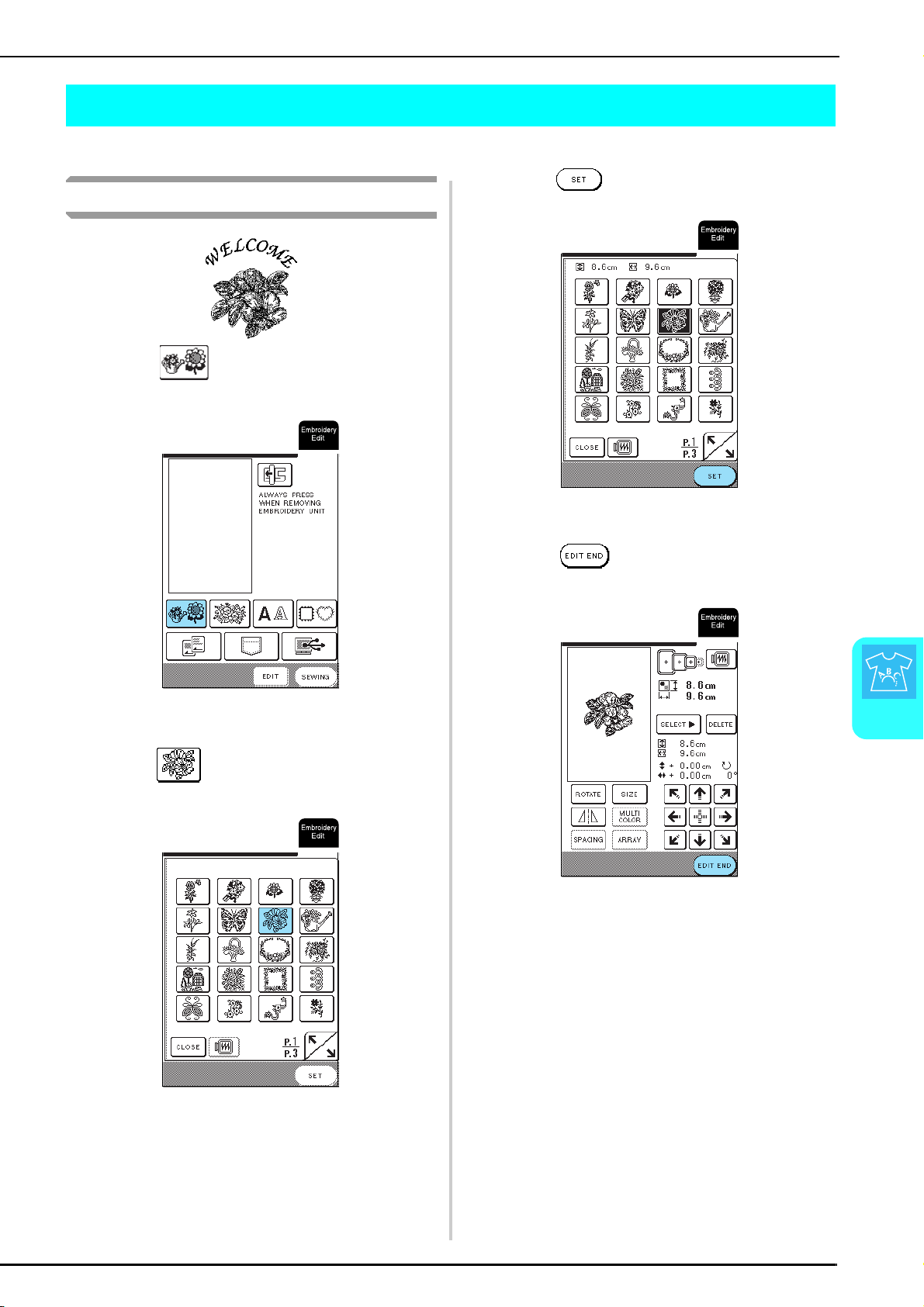
COMBINING PATTERNS
Embroidery Edit
159
6
COMBINING PATTERNS
This section will describe how to combine characters and embroidery patterns.
Editing Combined Patterns
a
Press .
b
Press on P. 1 of the screen.
c
Press .
d
Press .
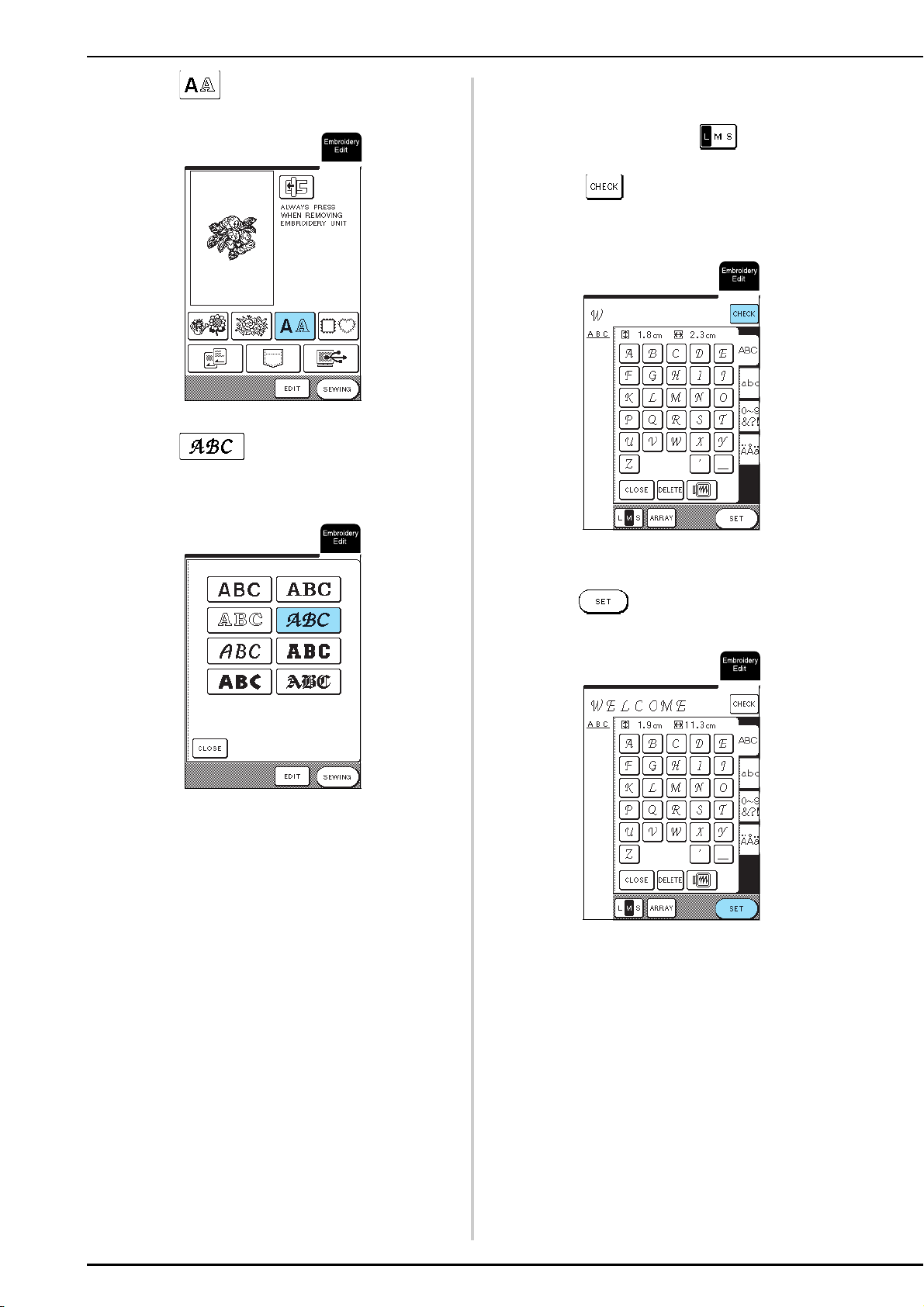
COMBINING PATTERNS
160
e
Press .
f
Press .
g
Enter “WELCOME”.
* For details on selecting characters, see page 116.
* After entering “W“, press to change the size
to M, then enter the remaining characters.
* Press to view an image of all entered
characters.
h
Press .
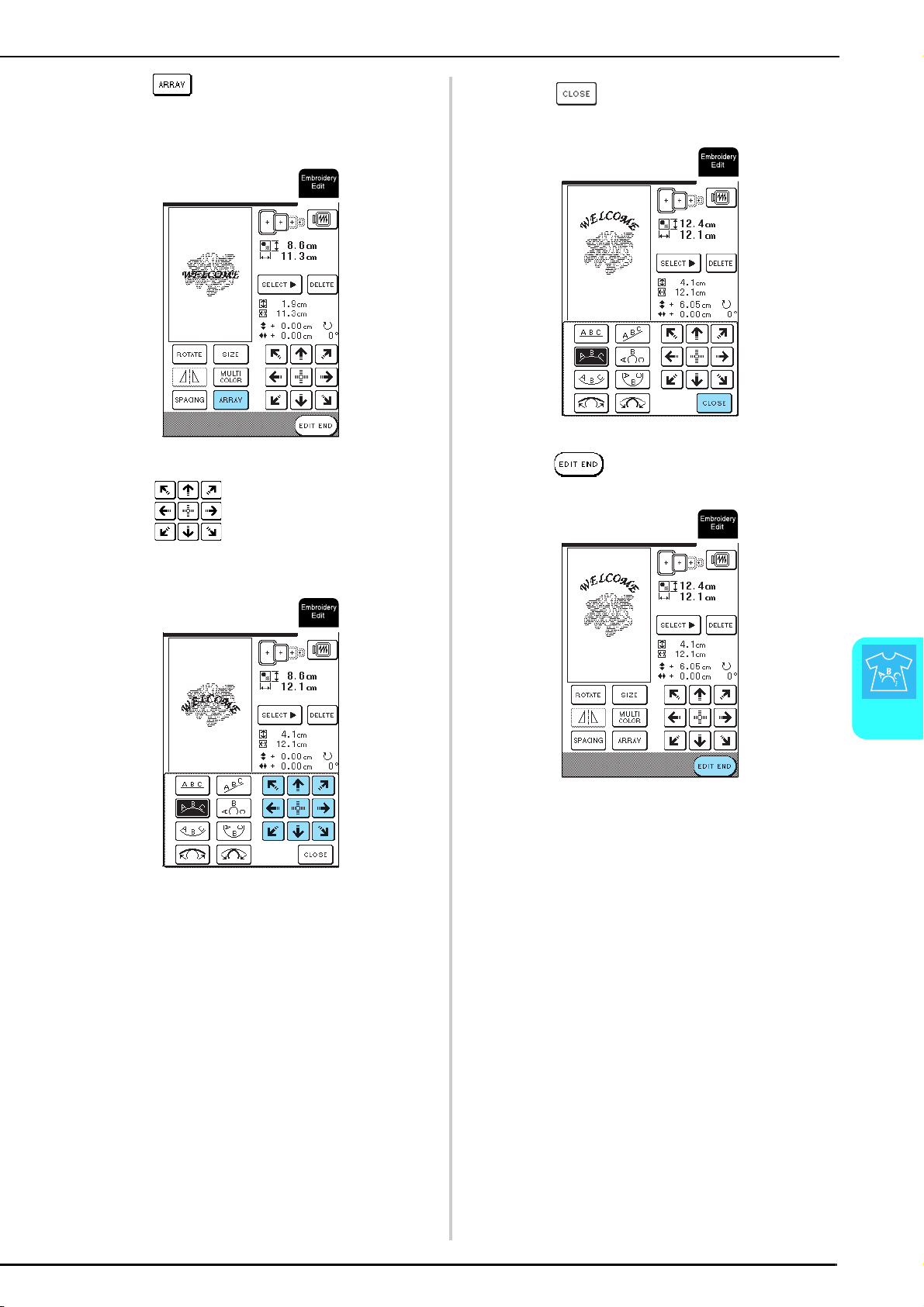
COMBINING PATTERNS
Embroidery Edit
161
6
i
Press to change the layout of the
characters.
* For details, see page 157.
j
Press to adjust the position of the
characters.
k
Press .
l
Press .
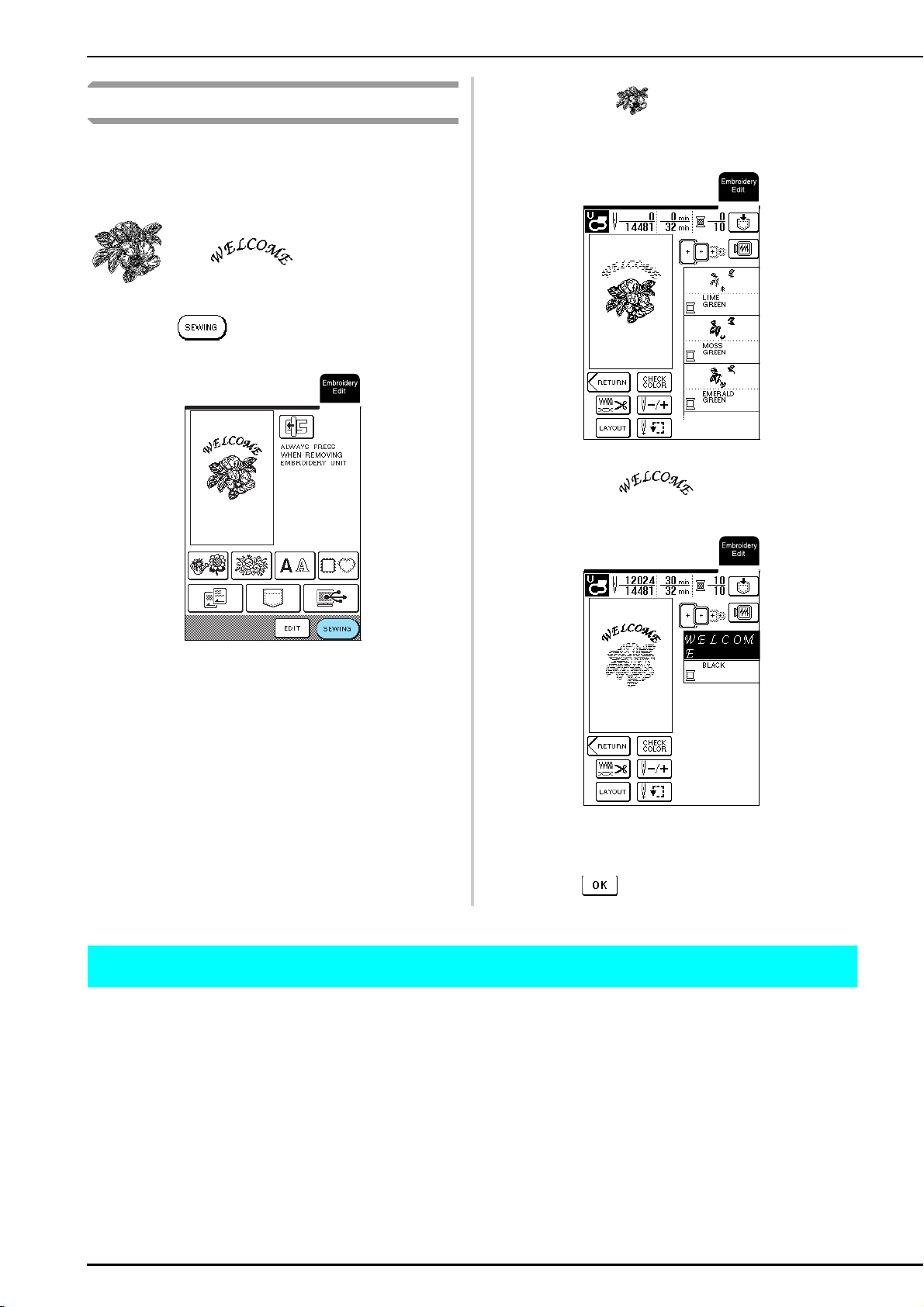
USING THE MEMORY FUNCTION
162
Sewing Combined Patterns
Combined patterns will be embroidered in the order
that they were entered. In this example, the embroider
order will be as follows. For details, see “Sewing
Embroidery Patterns” on page 132.
→
a
Press .
b
Embroider according to the color
order on the right side of the screen.
c
Embroider .
→ When “WELCOME” is completed, the message
“Finished sewing” appears.
Press to return to the previous screen.
USING THE MEMORY FUNCTION
In the same way that embroidery patterns are saved and retrieved in chapter 5, you can save edited embroidery
patterns to the machine’s memory and retrieve them later. In addition, these edited embroidery patterns can be
saved to a computer, and embroidery patterns created and edited using other data design systems can be retrieved
from the computer.
For details on saving and retrieving embroidery patterns, see “USING THE MEMORY FUNCTION” on page 140.

Chapter 7
MY CUSTOM
STITCH
DESIGNING A STITCH......................................................................164
■ Examples of Custom Stitches .........................................................................................165
ENTERING STITCH DATA .................................................................166
■ Key Functions ................................................................................................................166
■ Moving a Point ..............................................................................................................168
■ Moving Part or All of the Design ...................................................................................169
■ Inserting New Points .....................................................................................................170
USING STORED CUSTOM STITCHES ...............................................171
Saving Custom Stitches in the Machine’s Memory ................................................171
■ If the Memory Is Full .....................................................................................................171
Saving Custom Stitches to the Computer ..............................................................172
Retrieving Custom Stitches from the Machine’s Memory......................................173
Retrieving Custom Stitches from the Computer ....................................................173
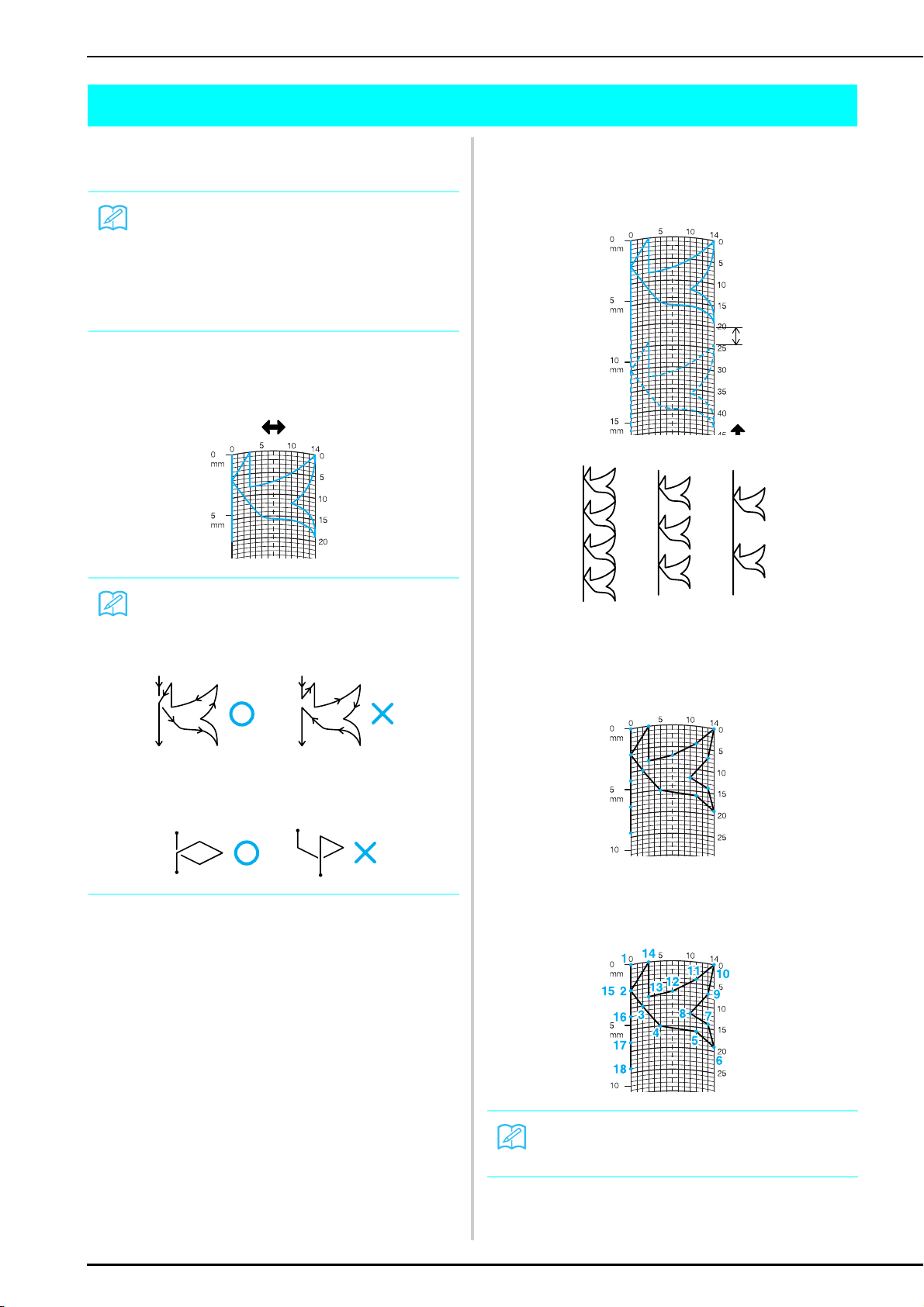
DESIGNING A STITCH
164
DESIGNING A STITCH
By using the MY CUSTOM STITCH
™
function, you can
register stitches you have created yourself.
a
Draw the stitch design on the grid sheet (part
code SA507, X81277-050).
b
Decide the spacing of the stitch.
* By adjusting the spacing of a stitch, you can create various
patterns with one stitch.
c
Place points where the pattern intersects with
the grid, and connect all the points with a
line.
d
Determine the x and y coordinates of each of
the marked points.
Memo
• Stitches that you create with MY CUSTOM
STITCH
™
can be a maximum of 7 mm (approx. 9/32
inch) wide and 37 mm (approx. 1-1/3 inches) long.
• Stitches can be designed more easily with MY
CUSTOM STITCH
™
if you first draw the stitch on
the included grid sheet.
Memo
Simplify the design so that it can be sewn as a
continuous line. For a more attractive stitch, close the
design by intersecting lines.
If the design is to be repeated and linked, the start
point and end point of the design should be at the
same height.
Memo
This will determine the stitch design that will be sewn.
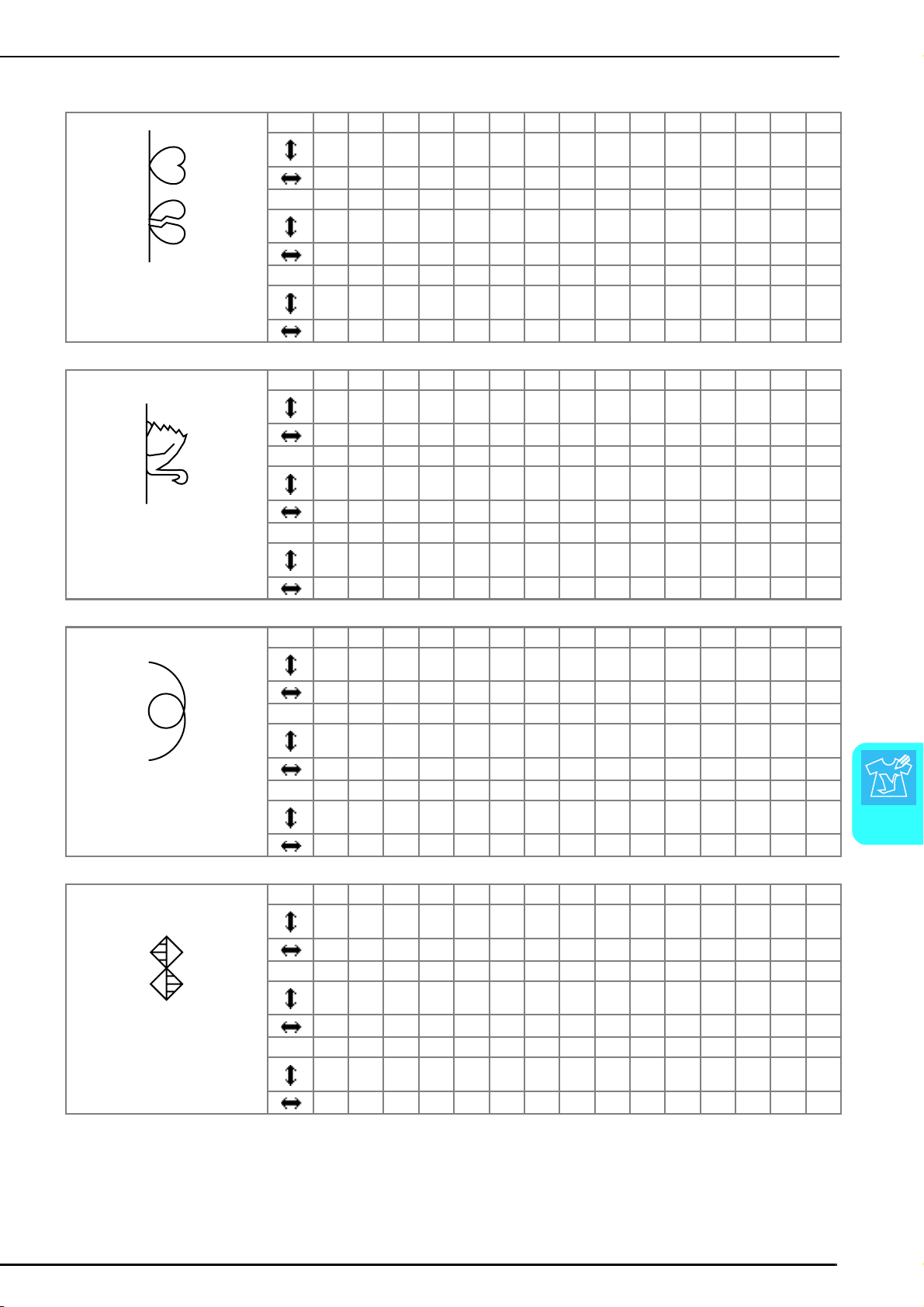
DESIGNING A STITCH
MY CUSTOM STITCH
165
7
■ Examples of Custom Stitches
Stitch123456789101112131415
01218222321171412963136
003610131413111314131063
Stitch 16 17 18 19 20 21 22 23 24 25 26 27 28 29 30
12 41 43 40 41 38 35 32 30 32 35 41 45 47 44
00471113141310630047
Stitch 31 32 33 34 35 36 37 38 39 40 41 42 43 44 45
45 47 50 54 56 55 51 45 70
11131413106300
Stitch123456789101112131415
0 3032323233353537353230302926
0017101211812141411538
Stitch 16 17 18 19 20 21 22 23 24 25 26 27 28 29 30
24 18 13 12 13 10 12 8 12 7 12 6 10 5 10
1013141412111098663202
Stitch 31 32 33 34 35 36 37 38 39 40 41 42 43 44 45
16 19 23 22 17 22 23 19 42
1006106000
Stitch123456789101112131415
03581217202427293132302724
0581113141413121196310
Stitch 16 17 18 19 20 21 22 23 24 25 26 27 28 29 30
21 18 16 15 15 16 18 21 25 28 33 37 41 43 44
0135810121314141311850
Stitch 31 32 33 34 35 36 37 38 39 40 41 42 43 44 45
Stitch123456789101112131415
05458781111111611740
773770773773037
Stitch 16 17 18 19 20 21 22 23 24 25 26 27 28 29 30
4 7 11 16 21 20 21 24 23 24 27 27 27 32 27
11 14 11 7 7 11 7 7 14 7 7 11 7 7 11
Stitch 31 32 33 34 35 36 37 38 39 40 41 42 43 44 45
23 20 16 20 23 27 32
141173037
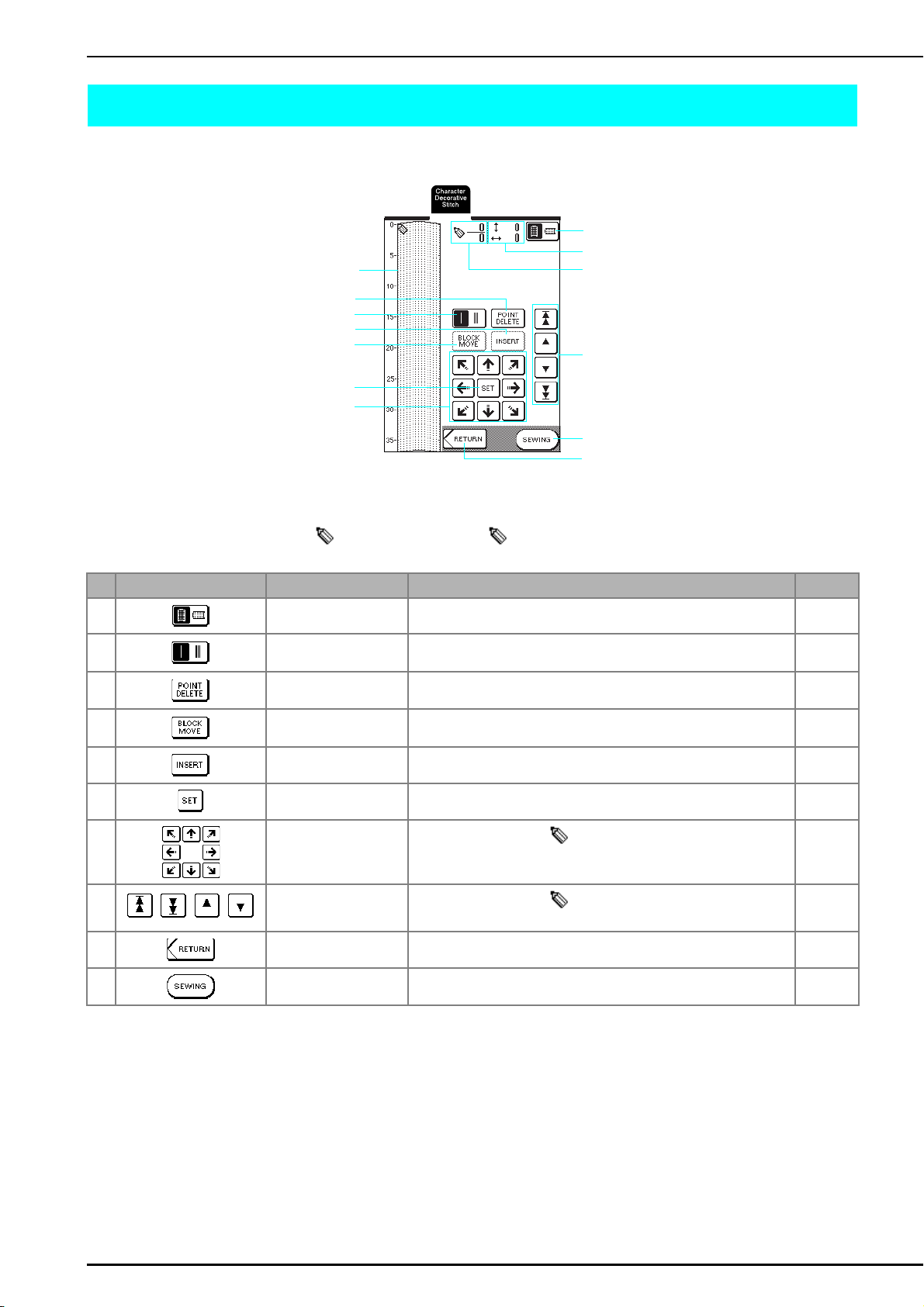
ENTERING STITCH DATA
166
ENTERING STITCH DATA
■ Key Functions
a This area displays the stitch being created.
b Displays the number of the present set point over the total number of points in the stitch.
c Displays the y-coordinate of over the x-coordinate of .
No. Display Key Name Explanation Page
d Grid direction key Press this key to change the direction of the grid sheet. 167
e Single/triple stitching key Press this key to select whether one or three stitches will be sewn
between two points.
167
f Point delete key Press this key to delete a selected point. 167
g Block move key Press this key to group points together and move them together. 169
h Insert key Press this key to insert new points on the stitch design. 170
i Set key Press this key to set a point on the stitch design. 167-168
j
Arrow keys
Use these keys to move over the display area.
167-168
k
Point-to-point key
Use these keys to move from point to point on the stitch, or to
the first or last point entered on the stitch.
168, 170
l Return key Press this key to exit the entering stitch data screen. 168
m Sewing key Press this key to sew the stitch being created. 168
a
i
j
d
b
k
l
m
c
f
e
h
g
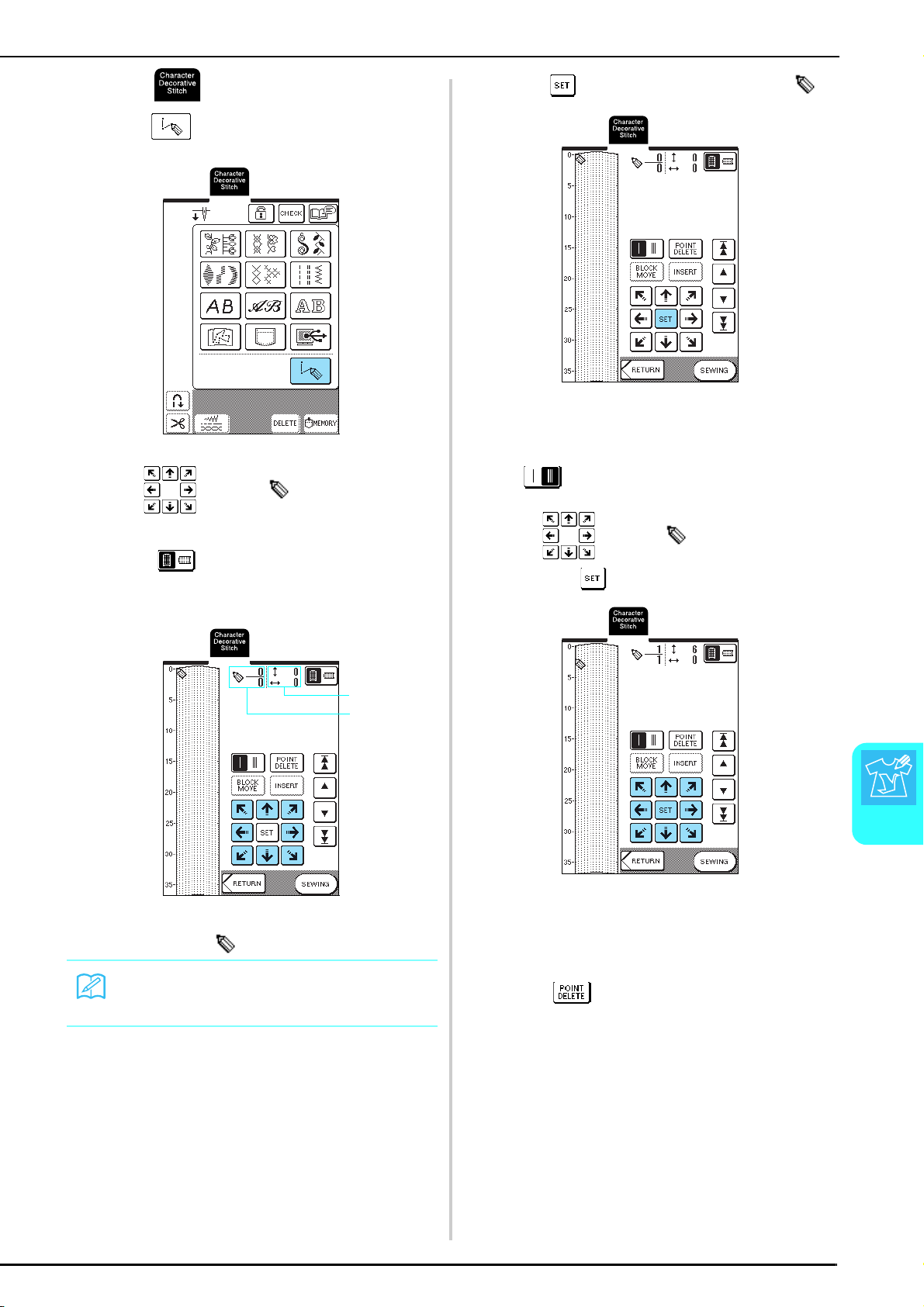
ENTERING STITCH DATA
MY CUSTOM STITCH
167
7
a
Press .
b
Press .
c
Use to move to the coordinates
of the first point on the grid sheet.
→ Press to change the direction of the grid
sheet.
a Currently selected point/Total number of points
b Coordinates of
d
Press to add the point indicated by .
e
Select whether one stitch or three stitches
will be sewn between the first two points.
* To sew three stitches, press the key so that it appears as
.
f
Use to move to the second point
and press .
g
Repeat the steps above for each point that
you have drawn on the grid sheet until the
stitch design is drawn on the screen as a
continuous line.
* Press to delete a selected point entered.
Memo
You can also use the touch pen to enter data.
a
b
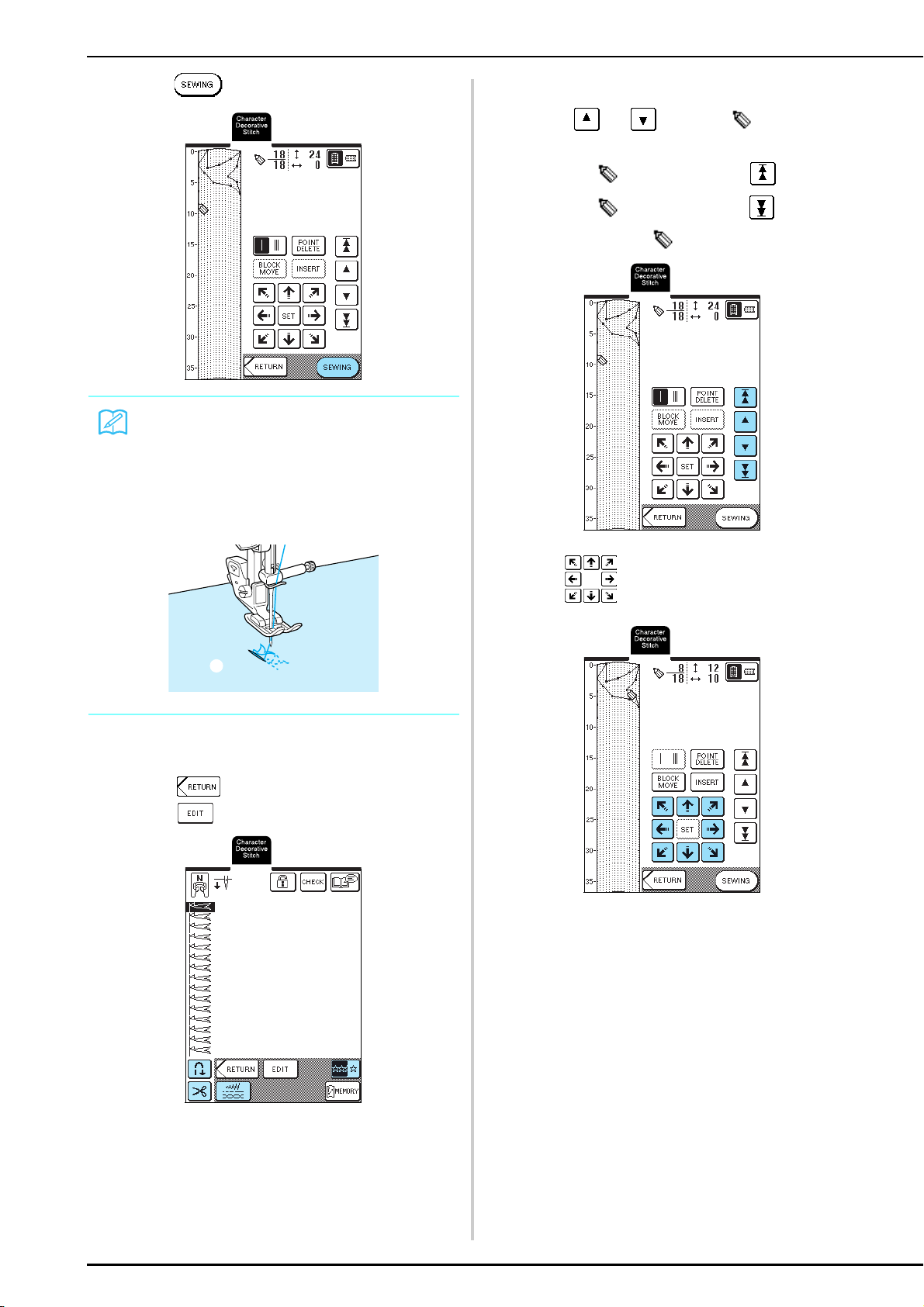
ENTERING STITCH DATA
168
h
Press .
i
If necessary, adjust any settings, such as the
stitch width and stitch length.
* Press to return to the stitch selection screen.
* Press to edit the custom stitch being created.
■ Moving a Point
a
Press or to move to the point
that you want to move.
* To move to the first point, press .
* To move to the last point, press .
* You can also move by using the touch pen.
b
Use to move the point.
Memo
• If you have entered points that are too close
together, the fabric may not feed properly. Edit the
stitch data to leave a larger space between points.
• If the stitch design is to be repeated and linked,
make sure that linking stitches are added so that the
stitch designs will not overlap.
a Linking stitches
a
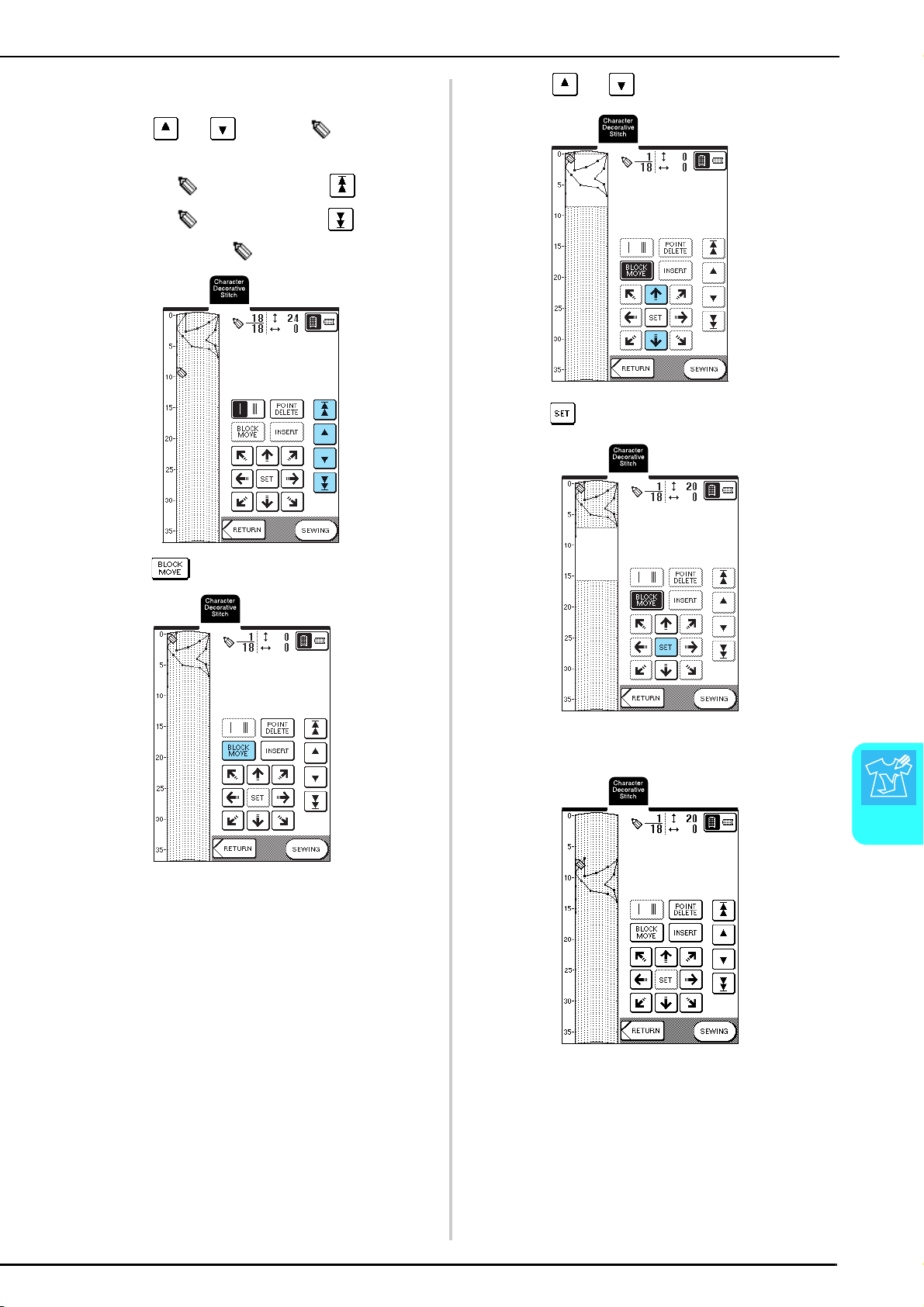
ENTERING STITCH DATA
MY CUSTOM STITCH
169
7
■ Moving Part or All of the Design
a
Press or to move to the first
point of the section that you want to move.
* To move to the first point, press .
* To move to the last point, press .
* You can also move by using the touch pen.
b
Press .
→ The selected point and all points that were entered
after it are selected.
c
Press or to move the section.
d
Press .
→ The section will be moved.
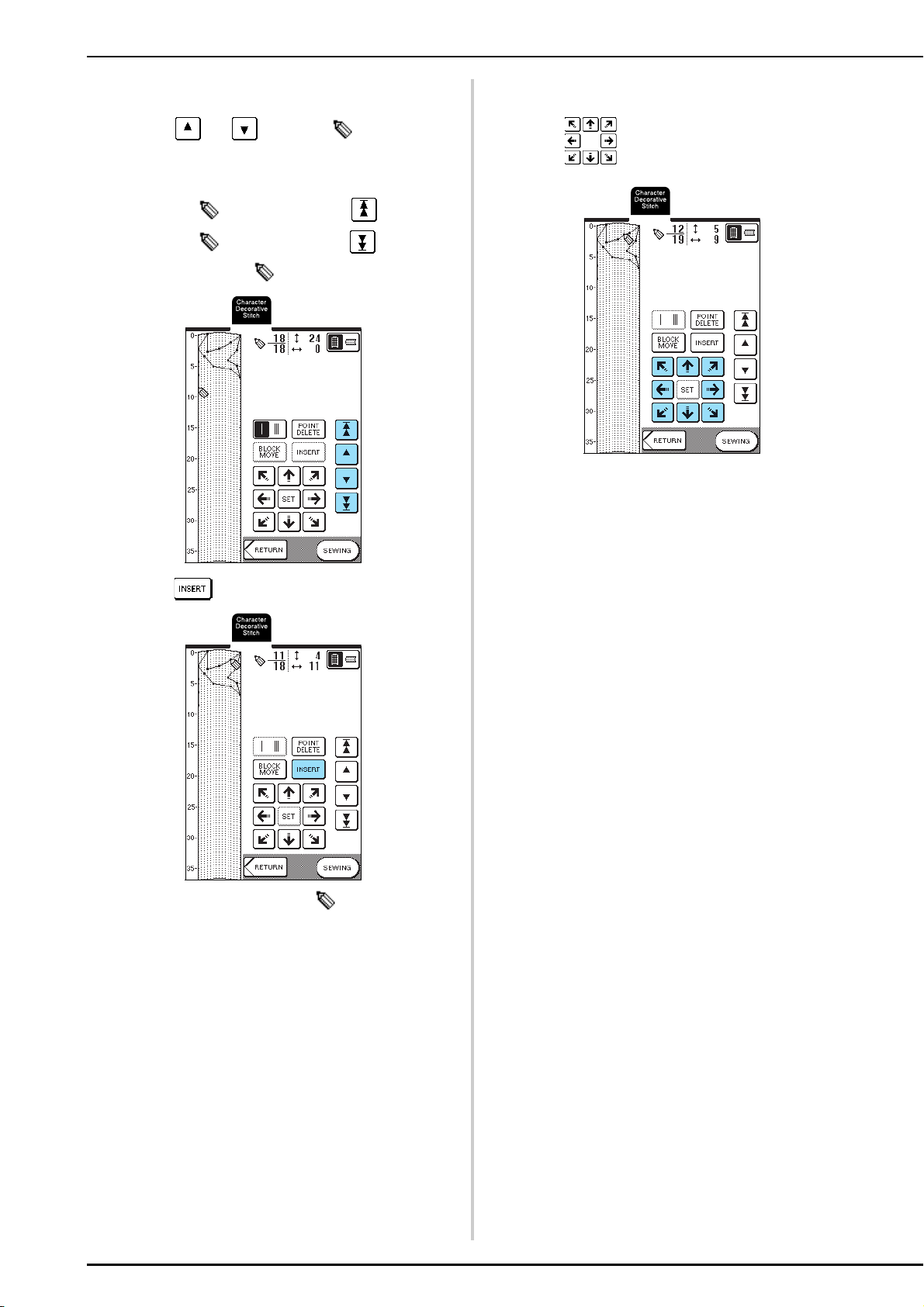
ENTERING STITCH DATA
170
■ Inserting New Points
a
Press or to move to a place on
the design where you want to add a new
point.
* To move to the first point, press .
* To move to the last point, press .
* You can also move by using the touch pen.
b
Press .
→ A new point is entered and moves to it.
c
Use to move the point.
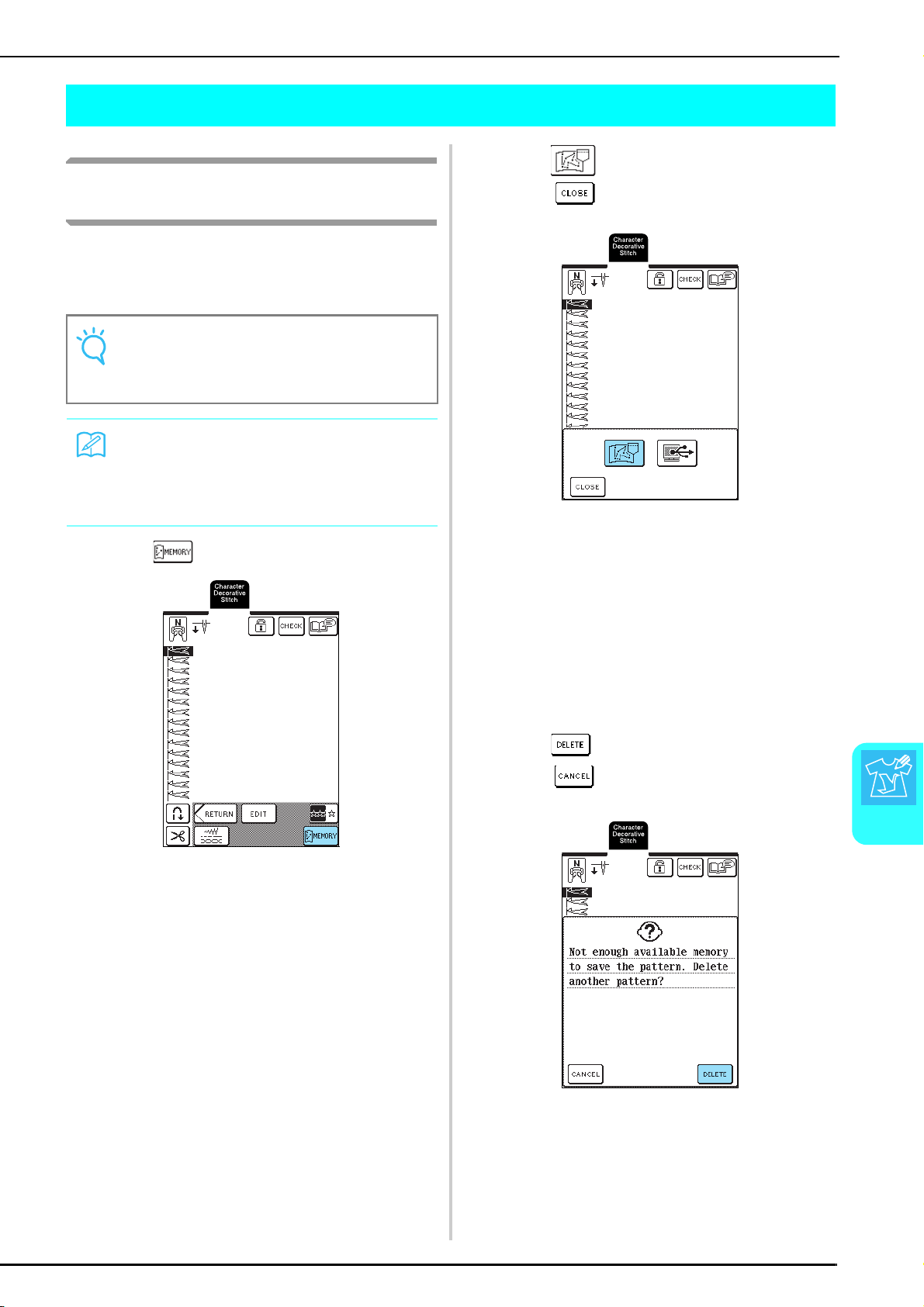
USING STORED CUSTOM STITCHES
MY CUSTOM STITCH
171
7
USING STORED CUSTOM STITCHES
Saving Custom Stitches in the
Machine’s Memory
Stitch patterns created using the MY CUSTOM
STITCH™ function can be saved for later use.
The machine’s memory can hold up to 16 custom
stitches.
a
Press .
b
Press .
* Press to return to the previous screen without
saving the custom stitch.
→ The “Saving” screen appears. When the custom
stitch is saved, the previous screen appears
automatically.
■ If the Memory Is Full
If this screen appears while you are trying to save a
custom stitch on the machine’s memory, the
memory is too full to hold the currently selected
custom stitch. To save the custom stitch in the
machine’s memory, you have to delete a previously
saved custom stitch.
a
Press .
* Press to return to the previous screen without
saving the custom stitch.
Note
Do not turn off the machine while the “Saving” screen
is displayed, otherwise you may lose the custom
stitches that you are saving.
Memo
• It takes a few seconds to save a custom stitch in the
machine’s memory.
• See page 173 for information on retrieving a saved
stitch pattern.
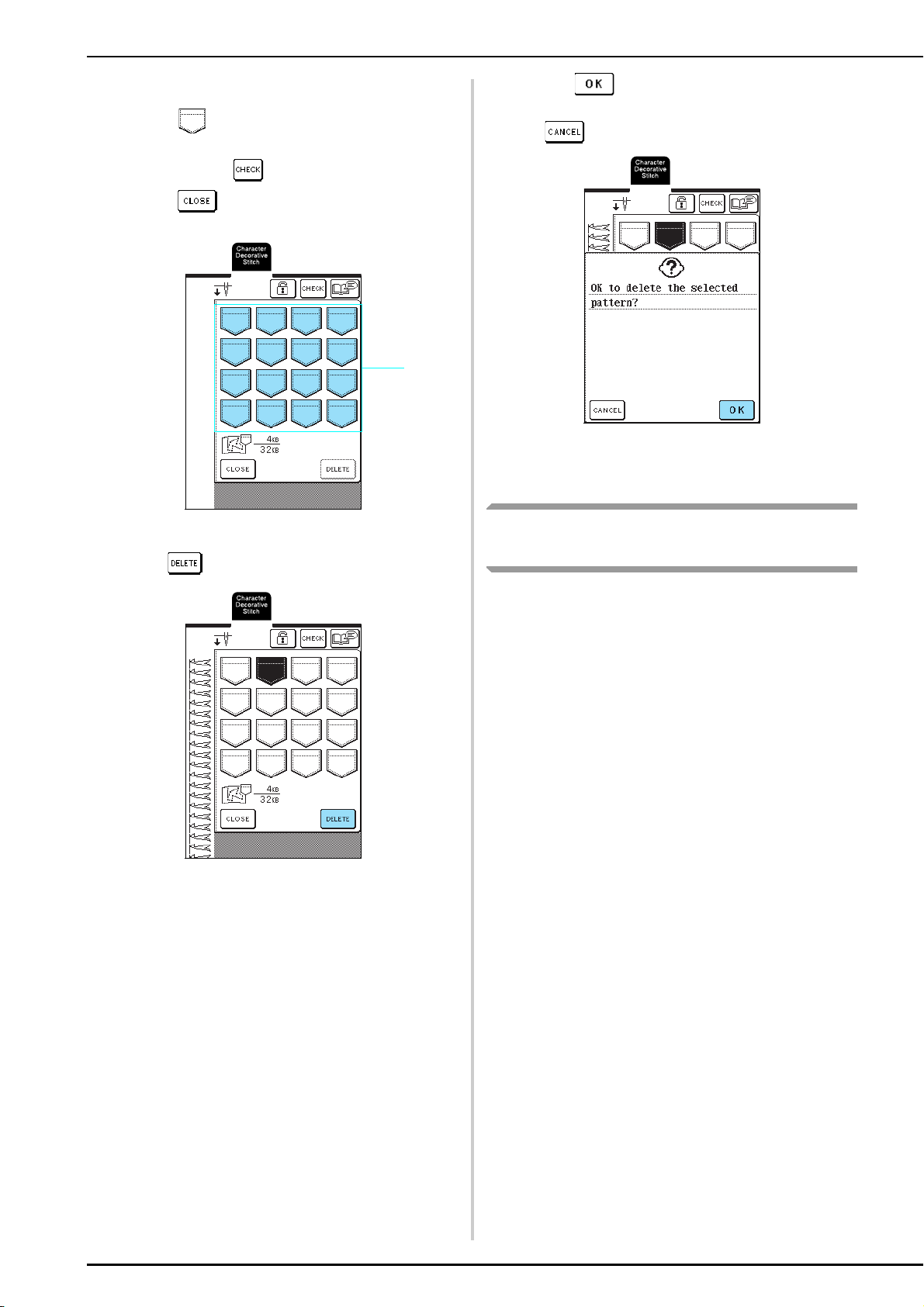
USING STORED CUSTOM STITCHES
172
b
Select a custom stitch to be deleted.
* Press to display the custom stitch saved in that
pocket. If the entire saved custom stitch cannot be
displayed, press to view the entire custom stitch.
* Press if you do not want to delete the custom
stitch.
a Pockets holding saved custom stitches
c
Press .
→ A confirmation message appears.
d
Press .
* If you decide not to delete the custom stitch, press
.
→ The old custom stitch is deleted, and the new
custom stitch is automatically saved.
Saving Custom Stitches to the
Computer
Using the included USB cable, connect the sewing
machine to your computer so that custom stitches can
be saved to your computer.
For details on saving custom stitches, see “Saving Stitch
Patterns to the Computer” on page 105.
a
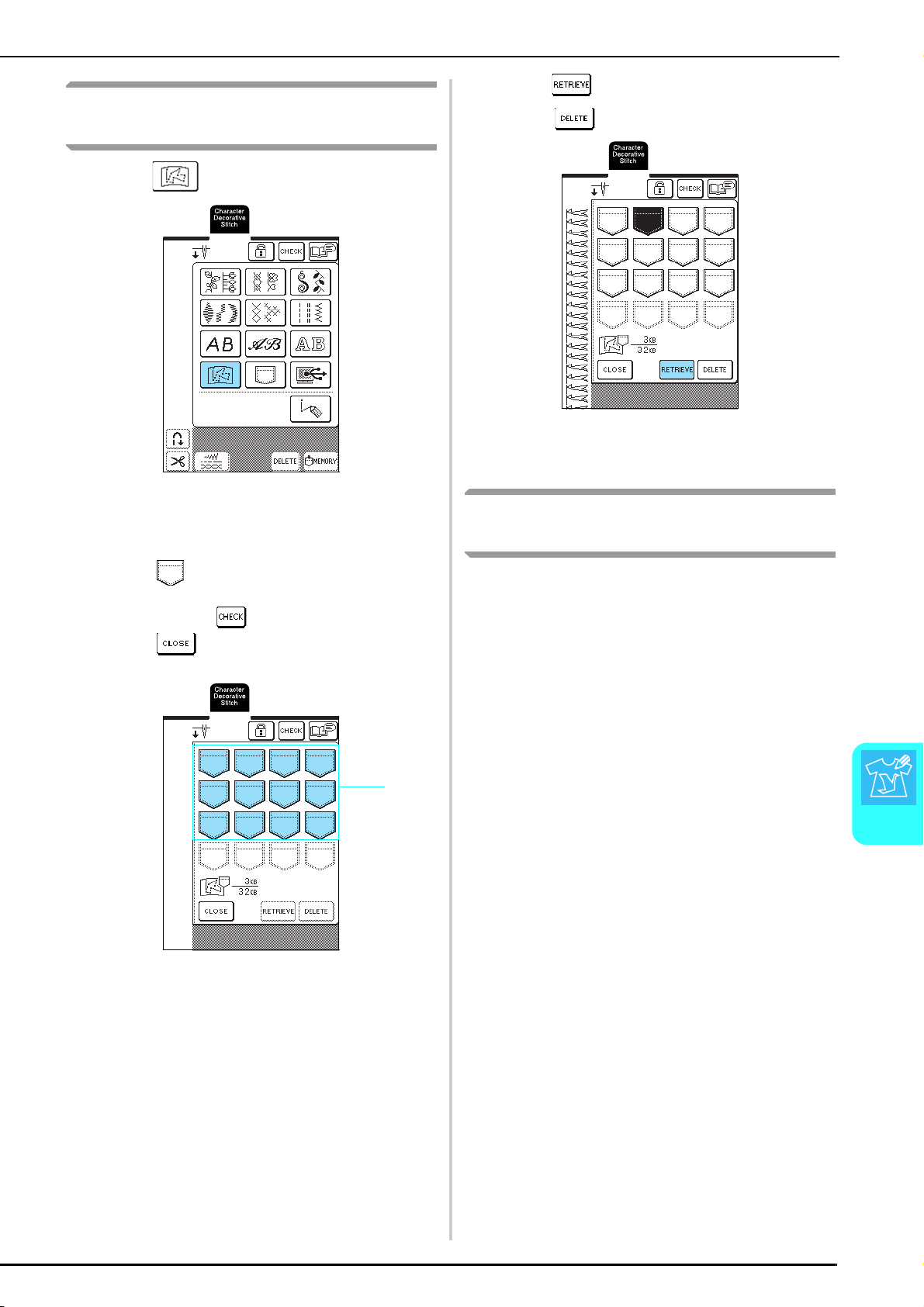
USING STORED CUSTOM STITCHES
MY CUSTOM STITCH
173
7
Retrieving Custom Stitches from the
Machine’s Memory
a
Press .
→ The pocket selection screen appears.
b
Select a custom stitch to be retrieved.
* Press so that the custom stitch saved in that pocket
appears. If the entire saved custom stitch cannot be
displayed, press to view the entire custom stitch.
* Press to return to the previous screen without
saving the custom stitch.
a Pockets holding saved custom stitches
c
Press .
* Press to delete the custom stitch.
→ The selected custom stitch is retrieved and the
sewing screen appears.
Retrieving Custom Stitches from the
Computer
Using the included USB cable, connect the sewing
machine to your computer so that custom stitches can
be retrieved from your computer.
For details on retrieving custom stitches, see “Retrieving
Stitch Patterns from the Computer” on page 107.
a

USING STORED CUSTOM STITCHES
174

Chapter 8
Appendix
CARE AND MAINTENANCE..............................................................176
Cleaning the LCD ..................................................................................................176
Cleaning the Machine Casing ................................................................................176
Cleaning the Race .................................................................................................176
ADJUSTING THE SCREEN .................................................................178
Screen Visibility Is Low .........................................................................................178
Touch Panel Is Malfunctioning..............................................................................178
TROUBLESHOOTING .......................................................................180
ERROR MESSAGES.............................................................................183
■ Alarm ............................................................................................................................187
SPECIFICATIONS...............................................................................188
UPGRADING YOUR MACHINE’S SOFTWARE .................................189
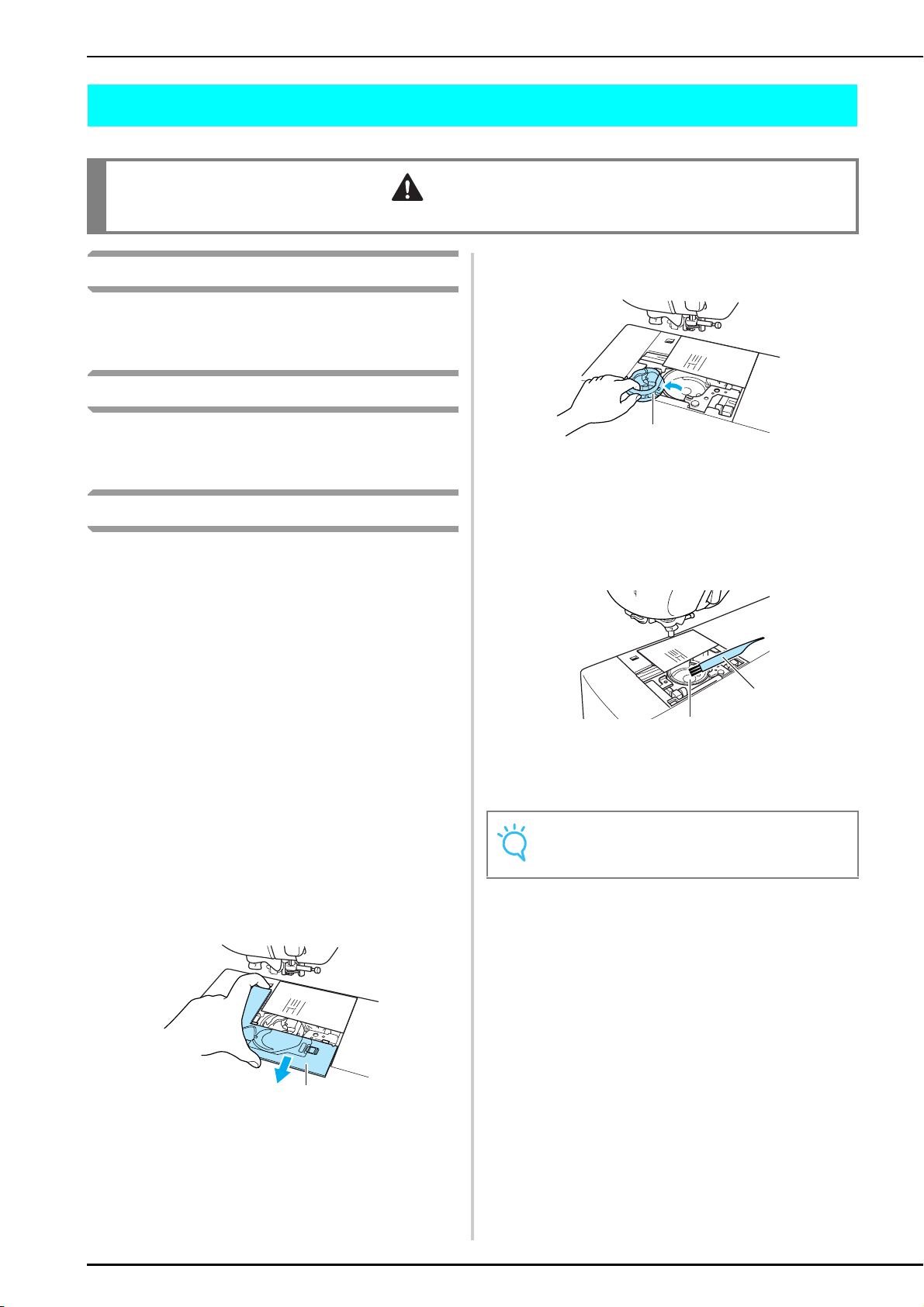
CARE AND MAINTENANCE
176
CARE AND MAINTENANCE
Cleaning the LCD
If the surface of the LCD is dirty, lightly wipe it with a
soft dry cloth. Do not use organic solvents or
detergents.
Cleaning the Machine Casing
If the surface of the machine is dirty, dampen a cloth
with a neutral detergent, wring it out firmly, and then
wipe the surface. Then, wipe again with a dry cloth.
Cleaning the Race
If dust or dirt collects in the race or bobbin case, the
machine will not run well, and the bobbin thread
detection function may not operate.
Keep the machine clean for best results.
a
Press the “Needle Position” button to raise
the needle.
b
Lower the presser foot.
c
Turn off the machine.
d
Remove the needle and the presser foot
holder (see page 33 through 35).
e
Remove the flat bed attachment or the
embroidery unit if either is attached.
f
Grasp both sides of the needle plate cover,
and then slide it toward you.
a Needle plate cover
g
Grasp the bobbin case, and then pull it out.
a Bobbin case
h
Use the included cleaning brush or a vacuum
cleaner to remove any lint and dust from the
race and its surrounding area.
a Cleaning brush
b Race
CAUTION
• Be sure to unplug the machine before cleaning it. Otherwise, electric shock or injury may result.
a
Note
Do not apply oil to the race.
a
a
b
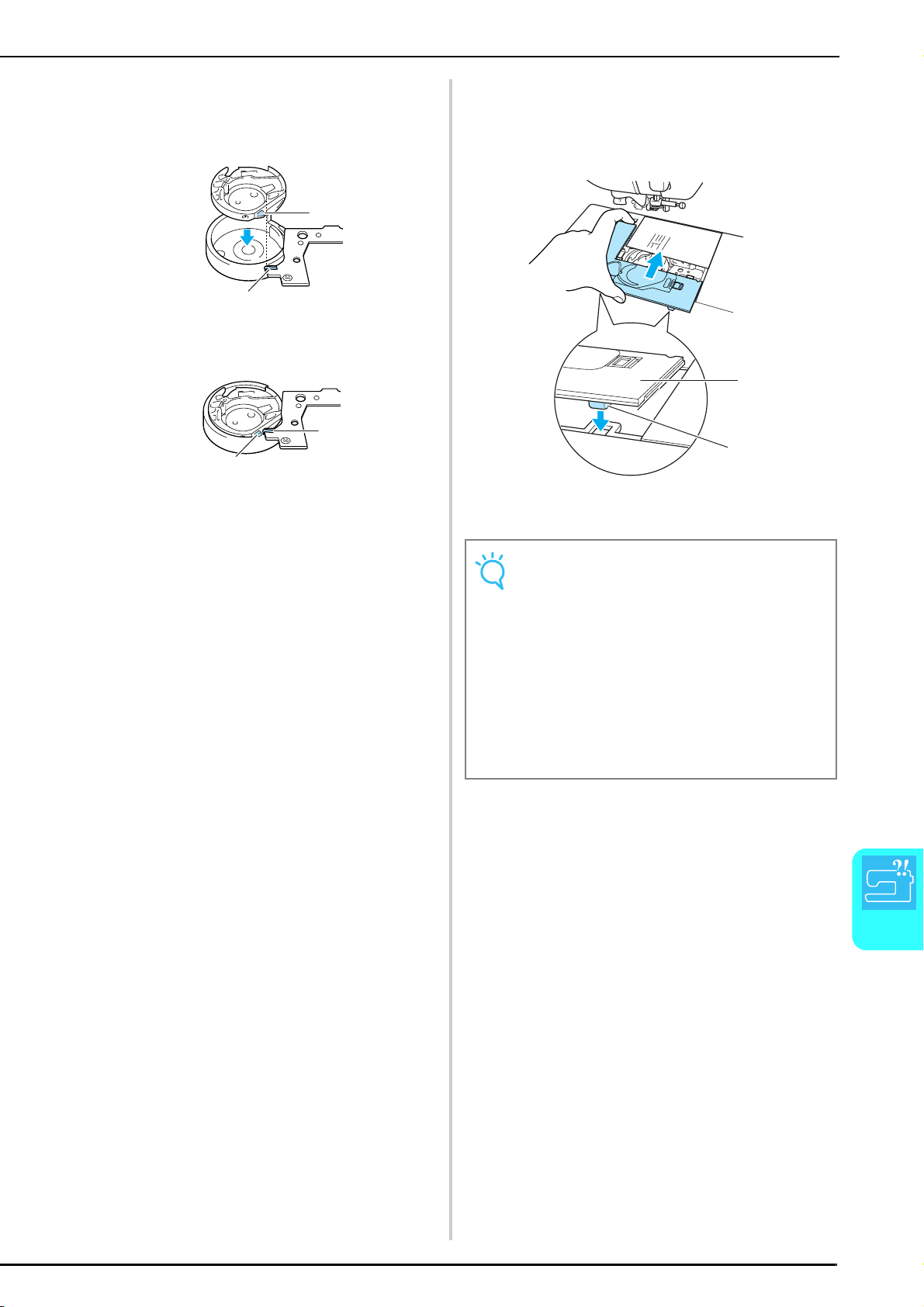
CARE AND MAINTENANCE
Appendix
177
8
i
Insert the bobbin case so that the projection
on the bobbin case aligns with the spring.
a Projection
b Spring
j
Insert the tabs on the needle plate cover into
the needle plate, and then slide the cover
back into place.
a Needle plate cover
b Tabs
a
b
b
a
Note
• Never use a bobbin case that is scratched;
otherwise, the upper thread may become tangled,
the needle may break, or sewing performance may
suffer.
• For a new bobbin case (part code: XC3153-
151(green marking on the screw) (for sewing and
embroidering with bobbin thread recommended by
Brother) or XC8167-151 (pink marking on the screw)
(for embroidering with bobbin threads from other
manufacturers)), contact your nearest authorized
dealer (see page 131).
• Be sure that the bobbin case is correctly installed.
Otherwise, the needle may break.
a
b
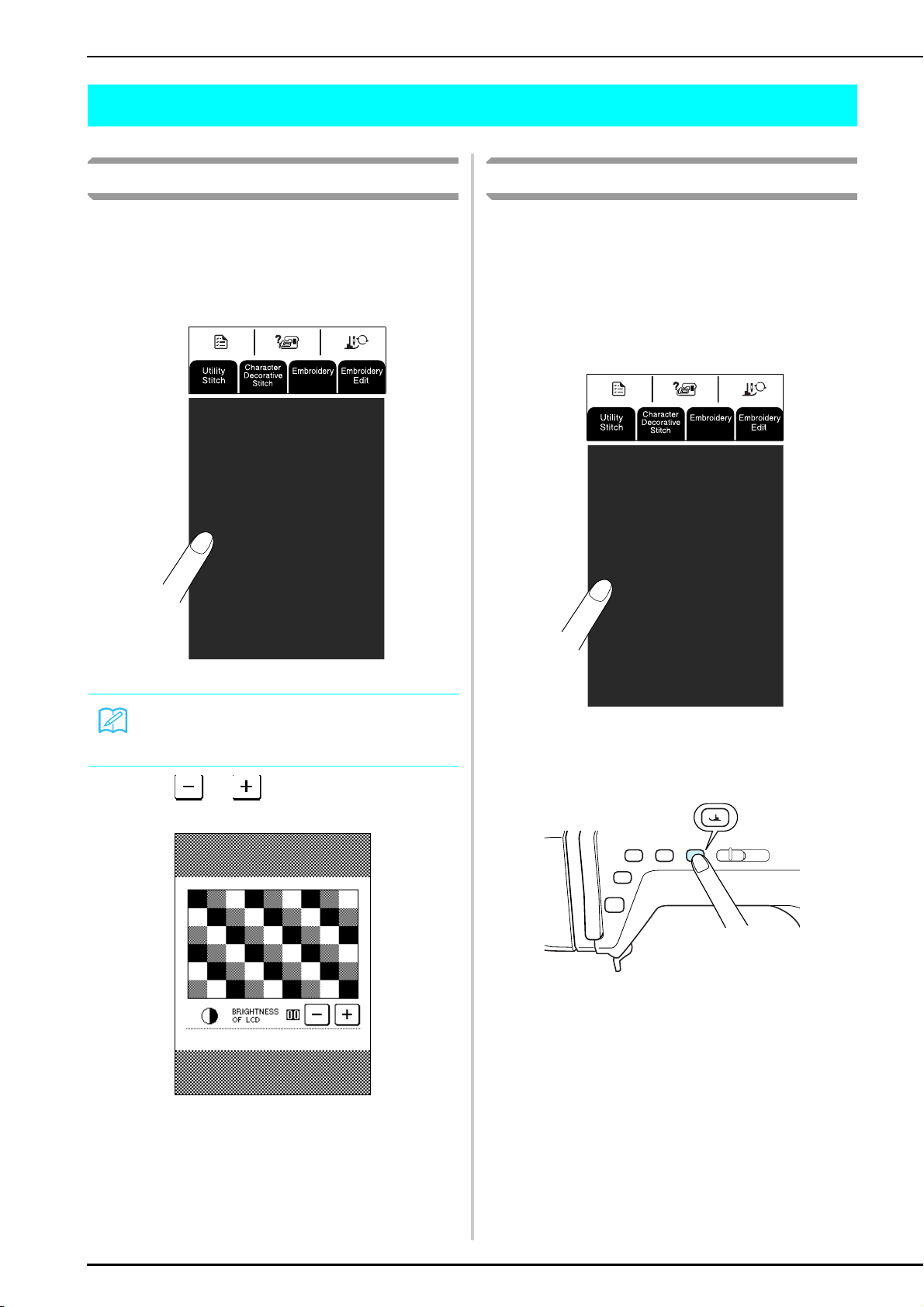
ADJUSTING THE SCREEN
178
ADJUSTING THE SCREEN
Screen Visibility Is Low
If the screen is difficult to read when the machine is
turned on, follow the procedure described below.
a
Turn off the machine, hold your finger
anywhere on the screen, and then turn the
machine on.
→ The BRIGHTNESS OF LCD screen appears.
b
Press or to adjust the brightness of
the screen.
c
Turn the machine off, then on again.
Touch Panel Is Malfunctioning
If the screen does not respond correctly when a key is
pressed (the machine does not perform the operation or
performs a different operation), follow the procedure
described below to make the proper adjustments.
a
Turn off the machine, hold your finger
anywhere on the screen, and then turn the
machine on.
→ The BRIGHTNESS OF LCD screen appears.
b
Press the “Presser Foot Lifter” button.
→ The touch panel adjustment screen appears.
Memo
Continue touching the LCD until the screen shown
below appears.
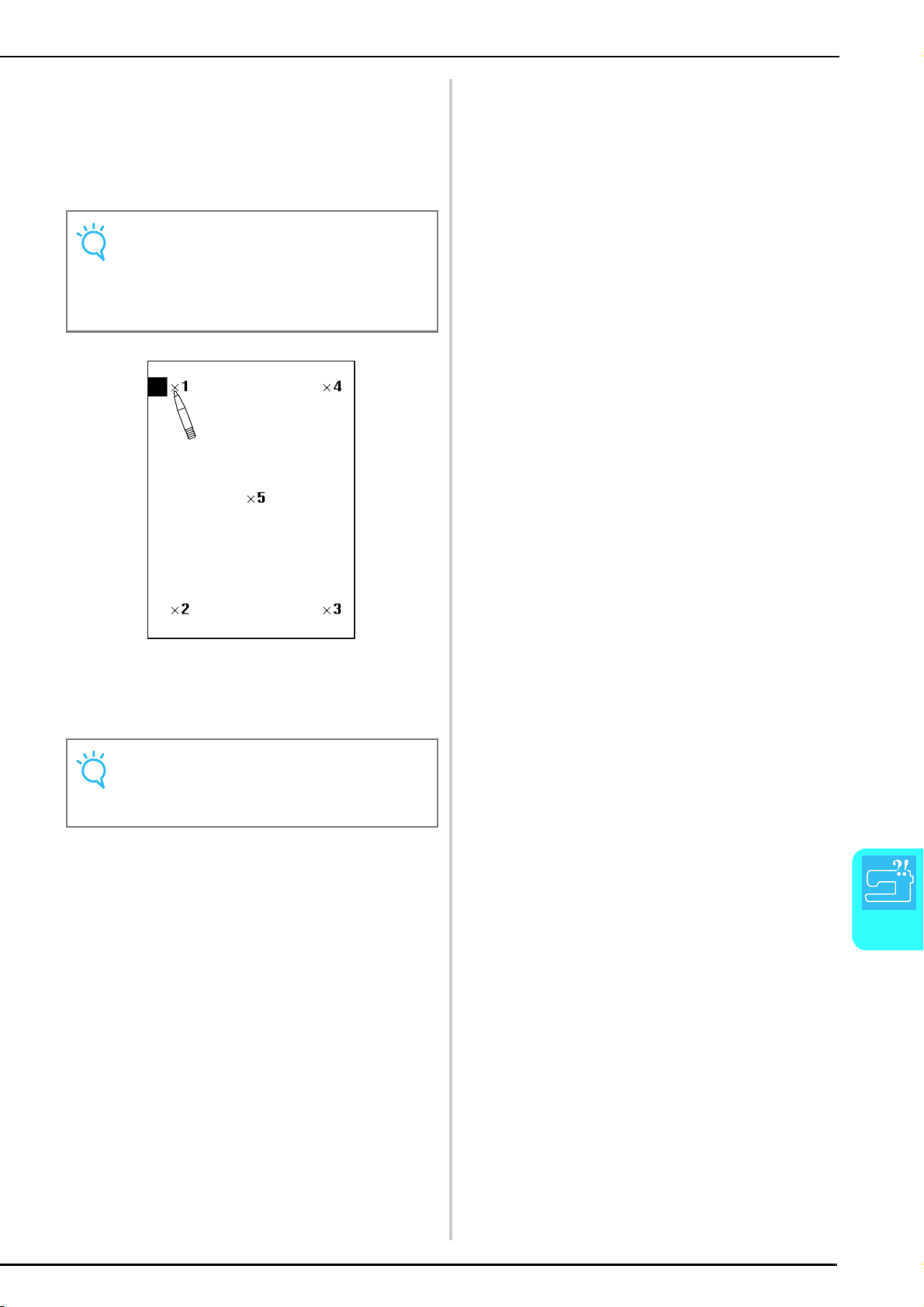
ADJUSTING THE SCREEN
Appendix
179
8
c
Using the included touch pen, lightly touch
the center of each
×, in order from 1 to 5.
* If the buzzer sounds one time after you press
number 5, the operation is finished, and “SUCESS”
appears on the screen.
If the buzzer sounds twice, there was an error. In
this case, repeat the steps above.
d
After making the necessary touch panel
adjustment, turn the machine off, then on
again.
Note
Only use the included touch pen to touch the screen.
Do not use a mechanical pencil, screwdriver or any
other hard or sharp object. Do not apply a strong force
to the display, otherwise damage to the display may
result.
Note
If you finish the touch panel adjustment and the screen
still does not respond, or if you cannot complete the
adjustment, contact your authorized dealer.
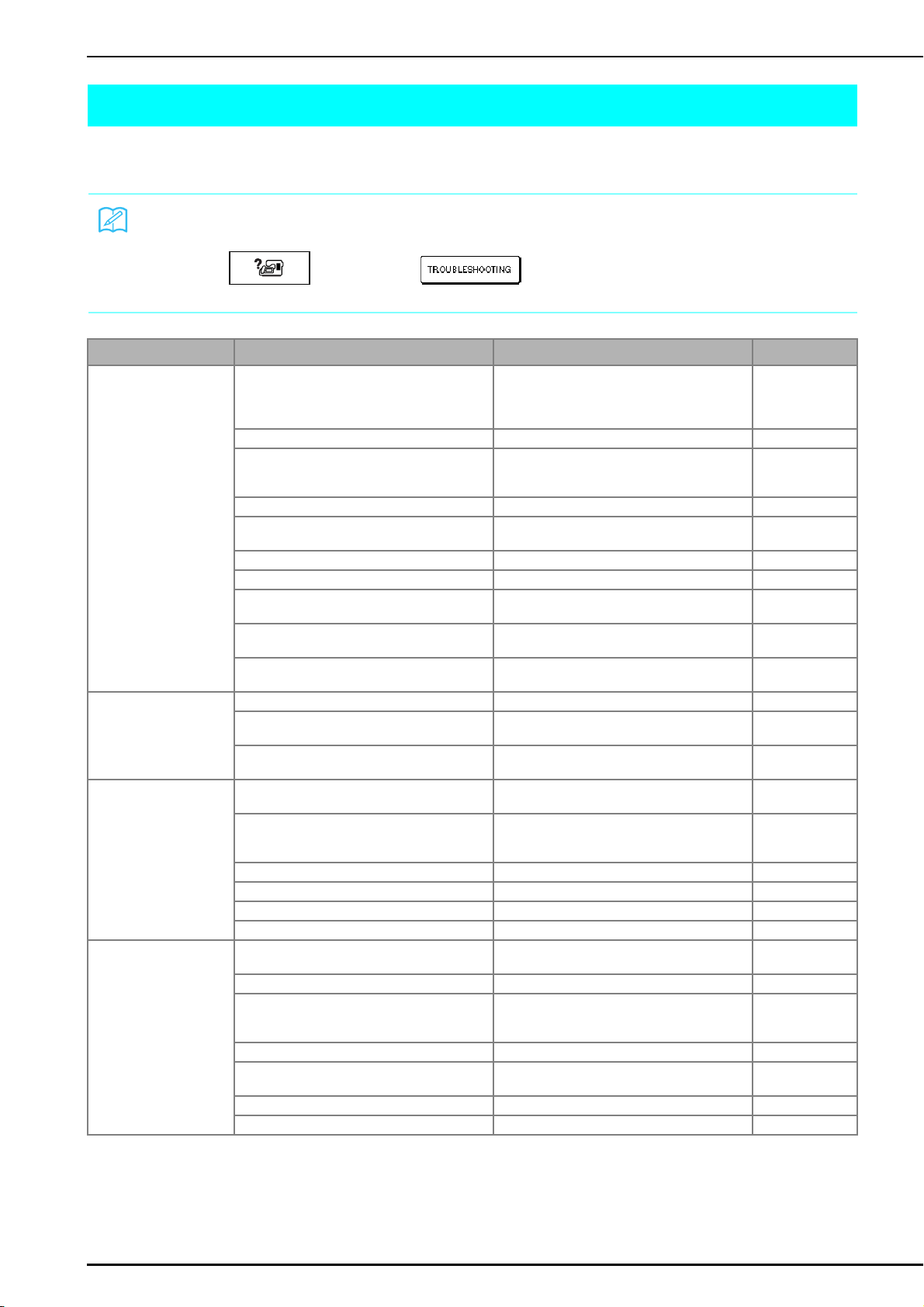
TROUBLESHOOTING
180
TROUBLESHOOTING
If you have a minor problem with your sewing machine, check the following solutions. If the solutions suggested do
not correct the problem, contact your authorized dealer.
Memo
This machine is equipped with a simple troubleshooting feature that can be used in case minor problems occur during
sewing. Press , and then press to display a list of problems. Press the key for the
appropriate problem, and then check for the causes that are displayed.
Problem Cause Solution Page
Upper thread breaks The machine was threaded incorrectly (the spool
is installed incorrectly, the wrong spool cap was
used, the needle bar thread guide did not catch
the thread, etc.).
Rethread the machine correctly. 28
The thread is knotted or tangled. Remove the knots and tangles. −
The thread is too thick for the needle. Check the table of fabric, thread and needle
combinations, and select the appropriate
combination.
36
The upper thread tension is too strong. Adjust the thread tension. 43
The thread is tangled. Use scissors, etc., to cut the tangled thread and
remove it from the race, etc.
−
The needle is bent or blunt. Replace the needle with a new one. 34
The needle is installed incorrectly. Reinstall the needle correctly. 34
There are scratches around the hole in the
needle plate.
Replace the needle plate, or consult your
authorized dealer.
−
There are scratches around the hole in the
presser foot.
Replace the presser foot, or consult your
authorized dealer.
−
There are scratches on the race. Replace the race, or consult your authorized
dealer.
−
Bobbin thread breaks Bobbin is set incorrectly. Reset the bobbin correctly. 27
There are scratches on the bobbin or it doesn’t
rotate properly.
Replace the bobbin. −
The thread is tangled. Use scissors etc., to cut the tangled thread and
remove it from the race, etc.
−
Skipped stitches The machine is threaded incorrectly. Check the procedure for threading the machine
and rethread it correctly.
28
The thread or needle is not suitable for the type
of fabric being sewn.
Check the table of fabric, thread and needle
combinations, and select the appropriate
combination.
36
The needle is bent or blunt. Replace the needle with a new one. 34
The needle is installed incorrectly. Reinstall the needle correctly. 34
The needle is defective. Replace the needle. 34
Dust or lint has collected under the needle plate. Remove the dust or lint with the brush. 176
Fabric puckers The upper or bobbin threading is incorrect. Check the procedure for threading the machine
and rethread it correctly.
27, 28
The spool is installed incorrectly. Reinstall the spool correctly. 28
The thread or needle is not suitable for the type
of fabric being sewn.
Check the table of fabric, thread and needle
combinations, and select the appropriate
combination.
36
The needle is bent or blunt. Replace the needle with a new one. 34
The stitches are too long for sewing lightweight
fabrics.
Shorten the stitch length. 42
The thread tension is set incorrectly. Adjust the thread tension. 43
The wrong presser foot was used. Attach the correct presser foot. 191
TROUBLESHOOTING
Appendix
181
8
High-pitched sound while
sewing
Dust or lint is caught in the feed dogs. Remove the dust or lint. 176
Pieces of thread are caught in the race. Clean the race. 176
The upper threading is incorrect. Check the procedure for threading the machine
and rethread it correctly.
28
There are scratches on the race. Replace the race, or consult your authorized
dealer.
−
Cannot thread the needle The needle is not in the correct position. Press the “Needle Position” button to raise the
needle.
11
The threading hook does not pass through the
eye of the needle.
Press the “Needle Position” button to raise the
needle.
11
The needle is installed incorrectly. Reinstall the needle correctly. 34
Thread tension is incorrect The upper threading is incorrect. Check the procedure for threading the machine
and rethread it correctly.
28
Bobbin is set incorrectly. Reset the bobbin thread correctly.
27
The thread or needle is not suitable for the type
of fabric being sewn.
Check the table of fabric, thread and needle
combinations, and select the appropriate
combination.
36
The presser foot holder is not attached
correctly.
Reattach the presser foot holder correctly.
63
The thread tension is set incorrectly. Adjust the thread tension. 43
Character pattern does not
sew out correctly
The wrong presser foot was used. Attach the correct presser foot. 191
Pattern adjustment settings were set incorrectly. Correct the pattern adjustment settings. 92
A stabilizer material was not used on lightweight
fabrics or stretch fabrics.
Attach a stabilizer material. 120
The thread tension is set incorrectly. Adjust the thread tension. 43
Embroidery pattern does
not sew out correctly
The thread is tangled. Use scissors, etc., to cut the tangled thread and
remove it from the race, etc.
−
The fabric is incorrectly hooped in the embroidery
frame (fabric was loose, etc.).
If the fabric is not stretched tight in the frame, the
pattern may be sewn incorrectly or there may be
shrinkage of the pattern. Hoop the fabric correctly
in the frame.
122
A stabilizer material was not attached. Always use stabilizer material, especially with
stretch fabrics, lightweight fabrics, fabrics with a
coarse weave, or fabrics that often cause pattern
shrinkage. Contact your authorized retailer for
the proper stabilizer.
120
There was an object placed near the machine,
and the carriage or embroidery frame hit the
object during sewing.
If the frame bumps something during sewing, the
pattern will turn out poorly. Do not place anything
in the area where the frame may bump it during
sewing.
−
Fabric outside of the frame edges interferes with
the sewing arm, so the embroidery unit cannot
move.
Rehoop the fabric in the embroidery frame so
that excess fabric is away from the sewing arm,
and rotate the pattern 180 degrees.
122
The fabric is too heavy, so the embroidery unit
cannot move freely.
Place a thick book or similar object under the arm
head to lightly lift the heavy side and keep it level.
−
Fabric is hanging off the table. If fabric is hanging off the table while
embroidering, the embroidery unit will not move
freely. Position the fabric so that it does not hang
off the table or hold the fabric to keep it from
dragging.
131
The fabric is snagged or caught on something. Stop the machine, and then correctly position the
fabric so that it does not get caught or snagged.
−
Embroidery frame was removed during sewing
(for example, to reset the bobbin). The presser
foot was bumped or moved while removing or
attaching the embroidery frame, or the
embroidery unit was moved.
If the presser foot is bumped or the embroidery
unit is moved during sewing, the pattern will not
turn out correctly. Be careful when removing or
reattaching the embroidery frame during sewing.
134
Problem Cause Solution Page
TROUBLESHOOTING
182
Needle breaks The needle is installed incorrectly. Reinstall the needle correctly. 34
The needle clamp screw is not tightened. Tighten the needle clamp screw. 35
The needle is bent or blunt. Replace the needle with a new one. 34
The thread or needle is not suitable for the type
of fabric being sewn.
Check the table of fabric, thread and needle
combinations, and select the appropriate
combination.
36
The wrong presser foot was used. Attach the correct presser foot. 191
The upper thread tension is too strong. Adjust the thread tension. 43
The fabric is pulled during sewing. Do not pull the fabric during sewing. −
The spool is installed incorrectly. Reinstall the spool correctly. 29
There are scratches around the hole in the
needle plate.
Replace the needle plate, or consult your
authorized retailer.
−
There are scratches around the hole(s) in the
presser foot.
Replace the presser foot, or consult your
authorized retailer.
−
There are scratches on the race. Replace the race, or consult your authorized
retailer.
−
The needle is defective. Replace the needle. 34
Fabric does not feed
through the machine
The feed dogs are lowered. Use the feed dog position switch to raise the feed
dogs.
81
The stitches are too close together. Lengthen the stitch length. 42
The wrong presser foot was used. Attach the correct presser foot. 191
The needle is bent or blunt. Replace the needle with a new one. 34
The thread is tangled. Use scissors, etc., to cut the tangled thread and
remove it from the race, etc.
−
Machine does not operate There is no pattern selected. Select a pattern. 48, 88, 114, 151
The “Start/Stop” button was not pressed. Press the “Start/Stop” button. 38
The main power switch is not turned on. Turn the main power to on. 16
The presser foot is not lowered. Lower the presser foot. 38
The “Start/Stop” button was pressed while the
foot controller is connected.
Remove the foot controller, or use the foot
controller to operate the machine.
11,39
The foot controller was pressed to begin
embroidering.
Remove the foot controller and use the “Start/
Stop” button to operate the machine.
11
Embroidery unit does not
operate
There is no pattern selected. Select a pattern. 48, 88, 114, 151
The main power switch is not turned on. Turn the main power to on. 16
The embroidery unit is not attached correctly. Reattach the embroidery unit correctly. 112
The embroidery frame was attached before the
unit was initialized.
Perform the initialization process correctly. 113
LCD cannot be read The LCD contrast is not properly adjusted. Adjust the LCD contrast. 21, 178
Problem Cause Solution Page
CAUTION
• This machine is equipped with a thread detection device. If the “Start/Stop” button is pushed before the upper
threading is done, the machine will not operate properly. Also, depending on the pattern selected, the machine may
feed the fabric even if the needle is raised. This is due to the needle bar release mechanism. At these times, the
machine will make a sound different from that made during normal sewing. This is not the sign of a malfunction.
• If the power is disconnected during sewing:
Turn the main power to OFF and unplug the machine.
If you restart the machine, follow the instructions for operating the machine correctly.
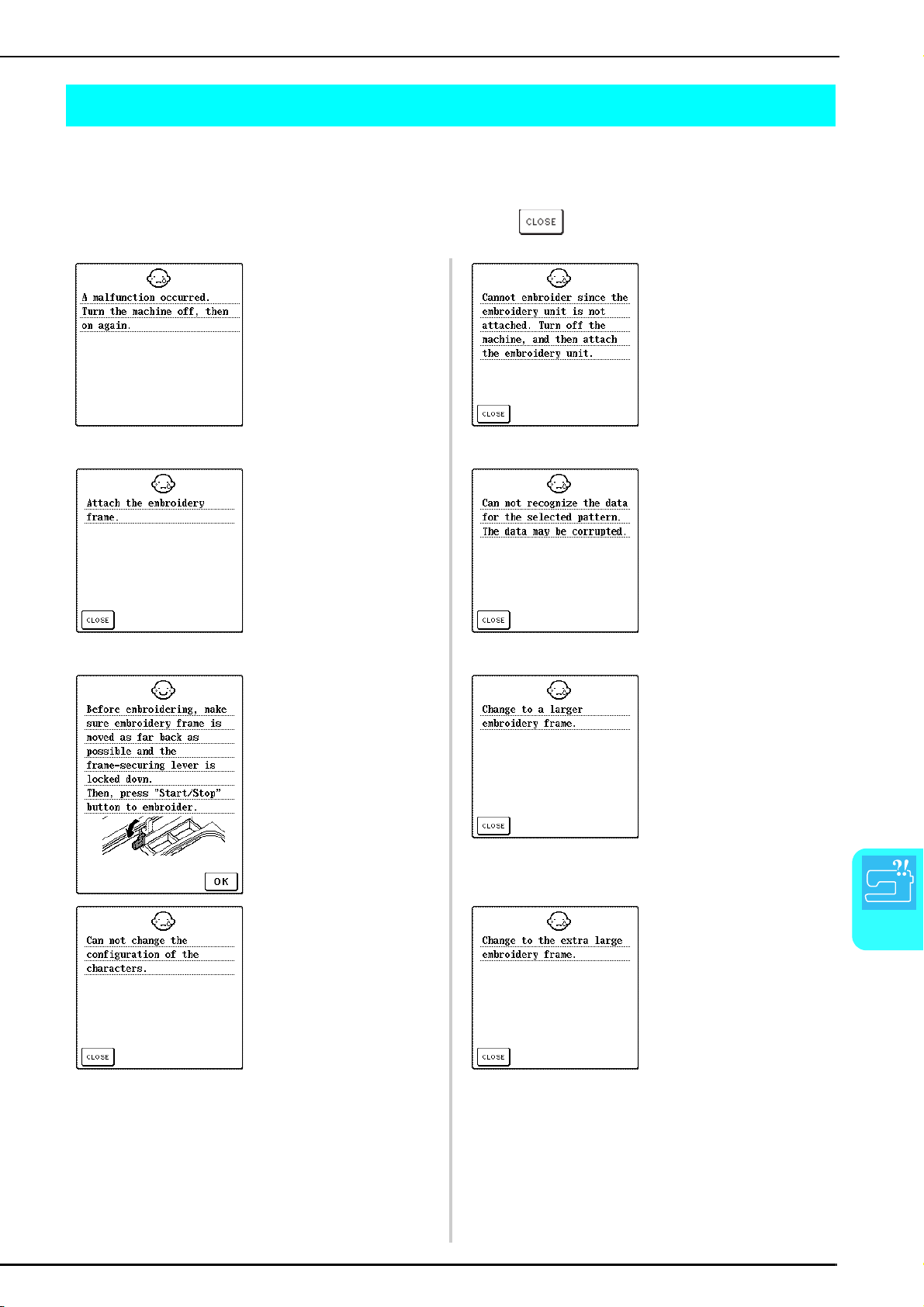
ERROR MESSAGES
Appendix
183
8
ERROR MESSAGES
If the “Start/Stop button” or the “Reverse/Reinforcement Stitch” button is pressed before the machine is correctly set
up or if an incorrect operation is performed, the machine stops and informs you of the error with an alarm and an
error message. If an error message appears, correct the problem according to the instructions in the message.
(The message that is displayed can be cancelled either by pressing or performing the operation correctly.)
This message is displayed if a
malfunction occurred.
This message is displayed when
the “Start/Stop” button is pressed,
but the embroidery unit is not
attached.
This message is displayed when
the “Start/Stop” button is pressed
in embroidery mode, but the
embroidery frame is not attached.
This message is displayed when
there is a possibility that the data
for the selected pattern is
corrupted.
This confirmation message
appears after the machine is
turned on and the carriage of the
embroidery unit has moved to its
initial position.
This message is displayed when
the pattern selected in embroidery
mode is larger than the
embroidering area of the small
embroidery frame while the small
embroidery frame is attached.
This message is displayed when
there are too many characters to
be arranged in the curved
character configuration.
This message is displayed when
the pattern selected in embroidery
mode is larger than the
embroidering area of the large
embroidery frame while the small,
medium or large embroidery frame
is attached.
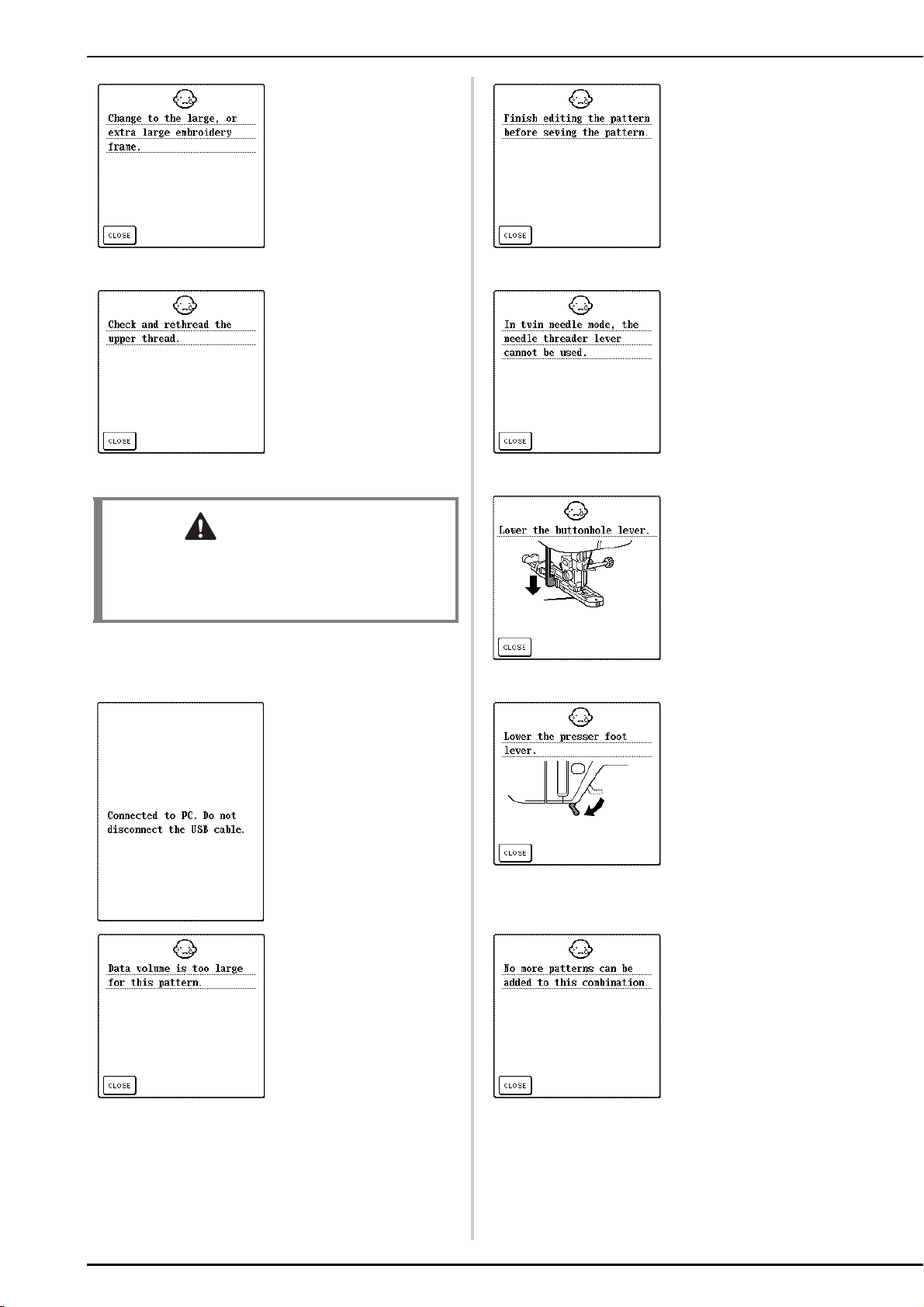
ERROR MESSAGES
184
This message is displayed when
the pattern selected in embroidery
mode is larger than the
embroidering area of the medium
embroidery frame while the small
or medium embroidery frame is
attached.
This message is displayed when
the “Start/Stop” button is pressed
while a pattern is being edited in
embroidery edit mode.
This message is displayed when
the upper thread is broken or not
threaded correctly, and the “Start/
Stop” button or the “Reverse/
Reinforcement Stitch” button is
pressed.
This message is displayed when you
try to use the needle threader lever
while twin needle sewing is set.
This message is displayed when a
buttonhole stitch is selected and
the “Start/Stop” button or the
“Reverse/Reinforcement Stitch”
button is pressed while the
buttonhole lever is raised.
This message is displayed when
using USB cable to download
information from PC to machine.
This message is displayed when
the “Start/Stop” button, “Reverse/
Reinforcement Stitch” button,
“Thread Cutter” button or “Presser
Foot Lifter” button is pressed while
the presser foot lever is raised/the
needle is lowered.
This message is displayed when
the patterns you are editing take up
too much memory, or if you are
editing too many patterns for the
memory.
This message is displayed when you
try to combine more than 70 patterns.
CAUTION
• Be sure to rethread the machine. If you press the
“Start/Stop” button without rethreading the
machine, the thread tension may be wrong or the
needle may break and cause injury.
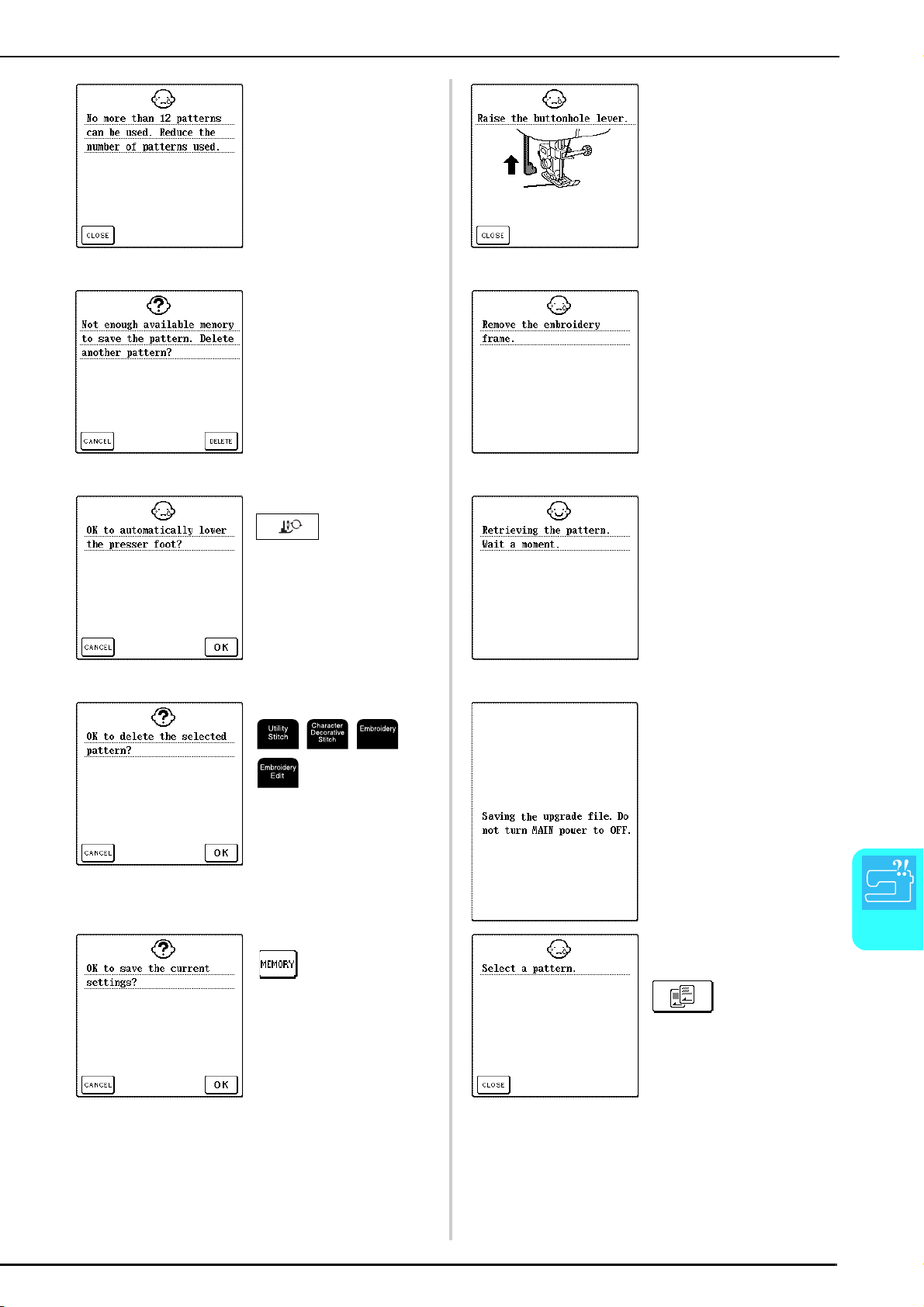
ERROR MESSAGES
Appendix
185
8
This message is displayed when
more than 12 patterns have been
saved in “Removable Disk”.
This message is displayed when a
stitch other than a buttonhole stitch
is selected and the “Start/Stop”
button or the “Reverse/
Reinforcement Stitch” button is
pressed while the buttonhole lever
is lowered.
This message is displayed when
the memory is full and the stitch or
pattern cannot be saved.
This message is displayed when
the embroidery unit tries to
initialize in embroidery mode while
an embroidery frame is attached.
This message is displayed when
is pressed while the
presser foot is raised.
This message is displayed when a
previously saved pattern is being
retrieved in embroidery edit mode.
This message is displayed when
, , , or
is pressed after a pattern is
selected.
This message is displayed while
upgrade file is being downloaded
to machine.
This message is displayed when
is pressed while a utility
stitch is selected.
This message is displayed when
the “Start/Stop” button, “Reverse/
Reinforcement Stitch” button or
is pressed while no
pattern is selected.
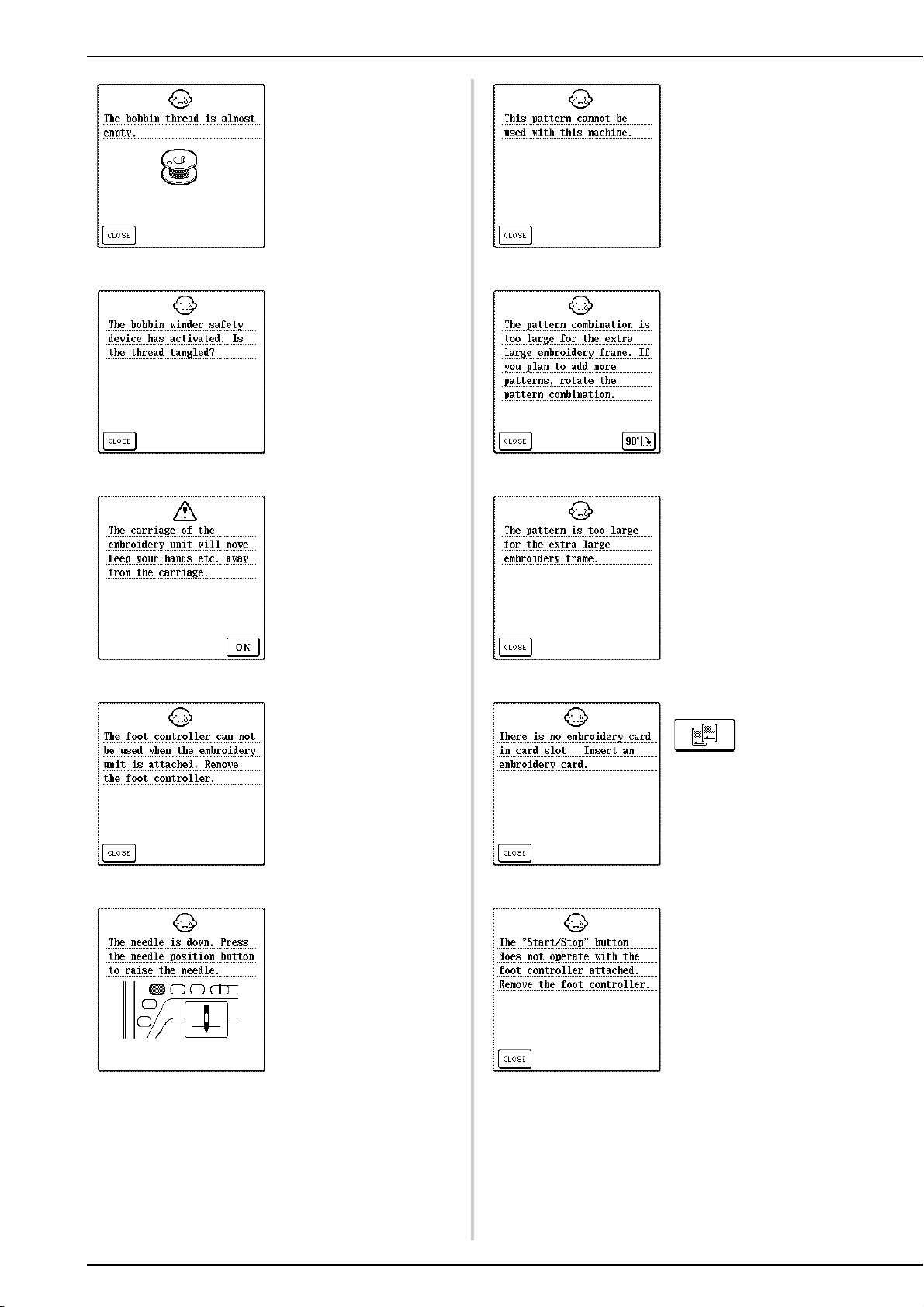
ERROR MESSAGES
186
This message is displayed when
the bobbin thread is running out.
This message is displayed when
you try to retrieve a pattern
downloaded as one for a different
machine.
This message is displayed when
the bobbin is being wound, and the
motor locks because the thread is
tangled, etc.
This message is displayed when
the combined character pattern in
embroidery mode is too large for
the embroidery frame. You can
rotate the pattern 90 degrees to
continue combining characters.
This message is displayed when
the embroidery unit is initializing.
This message is displayed when
the combined character pattern in
embroidery mode is too large for
the embroidery frame.
This message is displayed when
the foot controller is pressed while
the embroidery unit is attached.
This message is displayed when
is pressed without an
embroidery card inserted.
This message is displayed when
the machine is turned on while the
needle is lowered and the
embroidery unit is attached.
This message is displayed when
the “Start/Stop” button is pressed
while the foot controller is
connected.
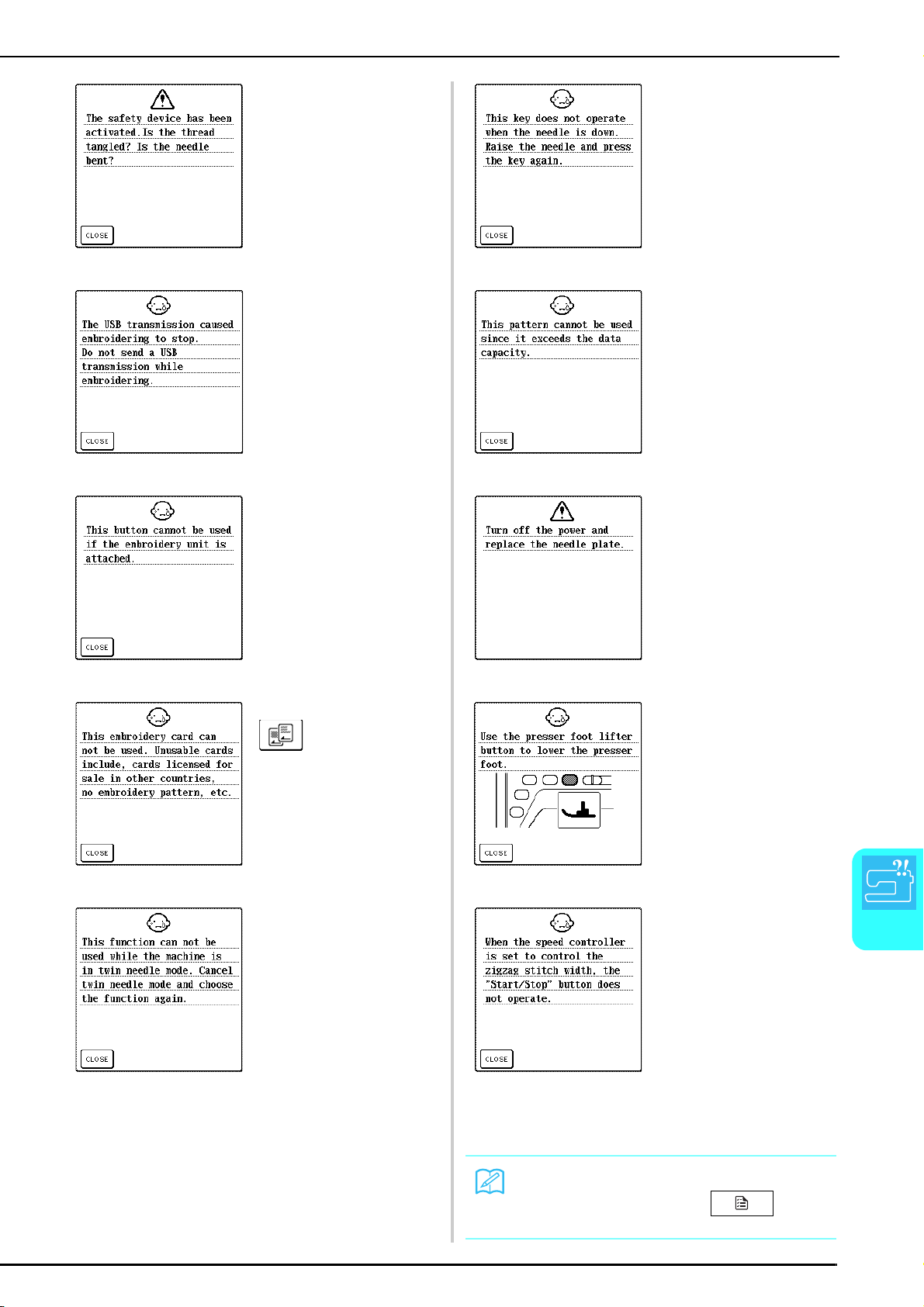
ERROR MESSAGES
Appendix
187
8
■ Alarm
If an incorrect operation is performed, the machine
beeps two or four times.
This message is displayed when
the motor locks up due to tangled
thread or for other reasons related
to thread delivery.
If data is being written to or deleted
from “Removable Disk” on the
connected computer during
sewing, the machine stops and this
message is displayed.
When the USB transmission is
completed, press the “Start/Stop”
button to continue sewing.
This message is displayed when
the “Reverse/Reinforcement Stitch”
button is pressed while the
embroidery unit is attached.
This message is displayed when
is pressed while an
incompatible embroidery card is
inserted.
This message is displayed when
the machine is set for twin needle
sewing and a pattern that cannot
be sewn with the twin needle is
selected.
This message is displayed when a
button on the screen is pressed
while the needle is lowered.
This message is displayed when
you try to retrieve a pattern saved
with the number of stitches or the
number of colors exceeding the
specified limits.
This message is displayed when
you try to sew with a stitch other
than a middle needle position stitch
while the single-hole needle plate
is installed.
This message is displayed when
the needle plate is removed with
the machine on or when the
machine is turned on in the
embroidery or embroidery edit
mode.
This message is displayed when
the “Start/Stop” button, “Reverse/
Reinforcement Stitch” button, or
the “Thread Cutter” button is
pressed while the presser foot is
raised.
This message is displayed when
the “Start/Stop” button is pressed
while the sewing speed controller
is set to control the zigzag stitch
width.
Memo
To turn the alarm on or off, press . For
details, see page 21.

SPECIFICATIONS
188
SPECIFICATIONS
Item Specification
Sewing Machine Dimensions 51.1 cm (W) × 30.5 cm (H) × 25.8 cm (D) (approx. 20-1/8 inches
(W) × 12 inches (H) × 10-1/8 inches (D))
Case dimensions 58.2 cm (W) × 31.9 cm (H) × 28.4 cm (D) (approx. 22-7/8 inches
(W) × 12-1/2 inches (H) × 11-1/8 inches (D))
Weight 11.2 kg (24.7 lb.) (with case: 13.5 kg (29.8 lb.))
Sewing speed 70 to 1000 stitches per minute
Needle Home sewing machine needles (HA × 130)
Embroidery Unit Dimensions 45.8 cm (W) × 13.1 cm (H) × 42.3 cm (D) (approx. 18 inches (W)
× 5-1/8 inches (H) × 16-3/4 inches (D))
Dimension of machine with embroidery
unit attached
72.4 cm (W) × 30.5 cm (H) × 42.3 cm (D) (approx. 28-1/2 inches
(W) × 12 inches (H) × 16-3/4 inches (D))
Weight 3.5 kg (7.7 lb.)
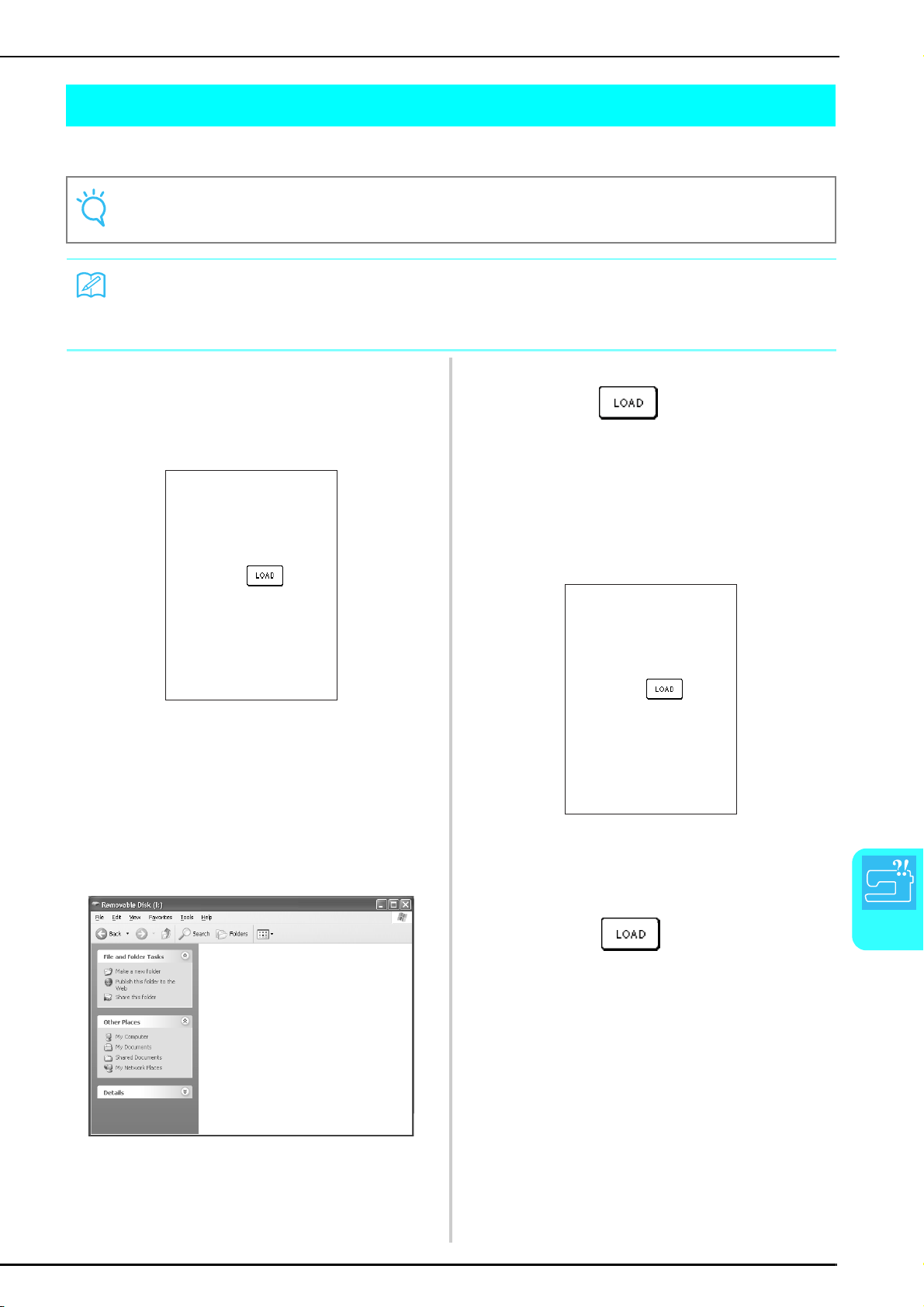
UPGRADING YOUR MACHINE’S SOFTWARE
Appendix
189
8
UPGRADING YOUR MACHINE’S SOFTWARE
You can use a computer to download software upgrades for your sewing machine.
a
While holding the “Presser Foot Lifter” button
pressed, turn on the machine.
→ The following screen appears.
b
Plug the USB cable connectors into the
corresponding USB ports on the computer
and on the machine.
→ The “Removable Disk” icon appears in “My
Computer” on the computer.
c
Copy the upgrade file to “Removable Disk”.
→ The message “Connected to PC. Do not disconnect
the USB cable.” appears.
d
When the screen shown in step a appears
again, press .
→ The message “Saving the upgrade file. Do not turn
main power to OFF.”appears. The download takes
about 3 minutes.
e
When the following screen appears, the first
upgrade file is downloaded.
f
Copy the second upgrade file to “Removable
Disk”.
g
When the screen shown in step a appears
again, press .
→ The message “Saving the upgrade file. Do not turn
main power to OFF.”appears. The download takes
about 3 minutes.
Note
There are two upgrade files. Be sure to download both files successively.
Memo
• When the machine’s software is upgraded, saved combinations of character and decorative stitches are erased.
However, saved embroidery patterns are not erased.
• While the software is being upgraded, the buzzer will not sound when a key is pressed.
Press LOAD after saving the
upgrade file in the
machine.
Press LOAD after saving the
upgrade file in the
machine.
UPGRADING YOUR MACHINE’S SOFTWARE
190
h
When the following screen appears,
upgrading is completed.
i
Disconnect the USB cable, and turn the
machine off, then on again.
Note
If an error occurred, an error message appears in red.
At this time, turn the machine off, and then start the
procedure again from step
a.
Press LOAD after saving the
upgrade file in the
machine.
Upgrade complete.
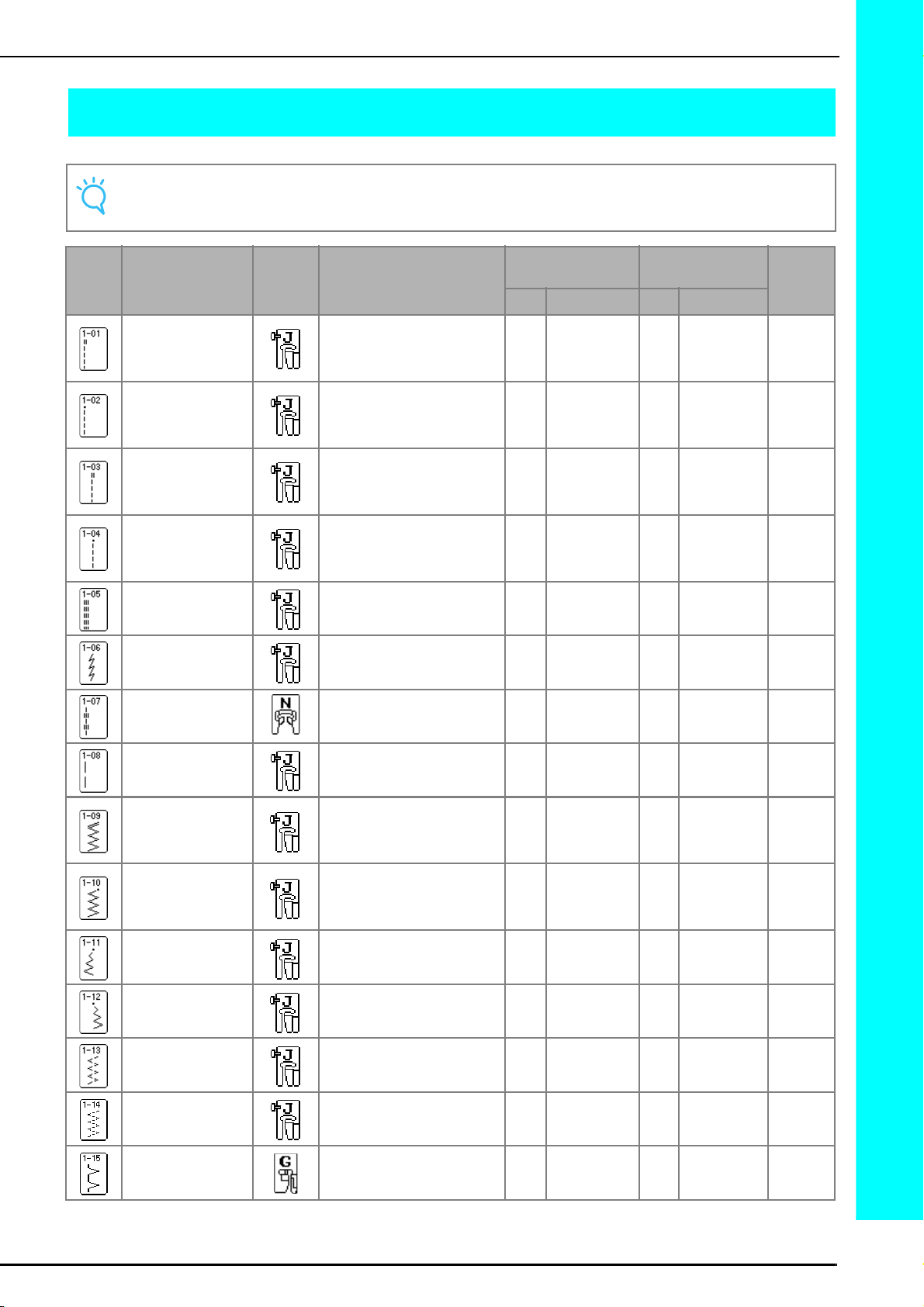
191
Stitch Setting Chart
STITCH SETTING CHART
Note
When using the twin needle (see page 31), be sure to attach presser foot “J”.
Stitch
Key
Stitch Name
Presser
Foot
Applications
Stitch Width
[mm (inch)]
Stitch Length
[mm (inch)]
Twin
Needle
Auto Manual Auto Manual
Straight stitch (Left) General sewing, gather, pintuck,
etc. Reverse stitch is sewn while
pressing “Reverse/
Reinforcement Stitch” button.
0.0
(0)
0.0 - 7.0
(0 - 1/4)
2.5
(3/32)
0.2 - 5.0
(1/64 - 3/16)
OK
( J )
Straight stitch (Left) General sewing, gather, pintuck,
etc. Reinforcement stitch is sewn
while pressing “Reverse/
Reinforcement Stitch” button.
0.0
(0)
0.0 - 7.0
(0 - 1/4)
2.5
(3/32)
0.2 - 5.0
(1/64 - 3/16)
OK
( J )
Straight stitch
(Middle)
General sewing, gather, pintuck,
etc. Reverse stitch is sewn while
pressing “Reverse/
Reinforcement Stitch” button.
3.5
(1/8)
0.0 - 7.0
(0 - 1/4)
2.5
(3/32)
0.2 - 5.0
(1/64 - 3/16)
OK
( J )
Straight stitch
(Middle)
General sewing, gather, pintuck,
etc. Reinforcement stitch is sewn
while pressing “Reverse/
Reinforcement Stitch” button.
3.5
(1/8)
0.0 - 7.0
(0 - 1/4)
2.5
(3/32)
0.2 - 5.0
(1/64 - 3/16)
OK
( J )
Triple stretch stitch General sewing for
reinforcement and decorative
topstitching
0.0
(0)
0.0 - 7.0
(0 - 1/4)
2.5
(3/32)
1.5 - 4.0
(1/16 - 3/16)
OK
( J )
Stem stitch Reinforced stitching, sewing and
decorative applications
1.0
(1/16)
1.0 - 3.0
(1/16 - 1/8)
2.5
(3/32)
1.0 - 4.0
(1/16 - 3/16)
OK
( J )
Decorative stitch Decorative stitching, top
stitching
0.0
(0)
0.0 - 7.0
(0 - 1/4)
2.5
(3/32)
1.0 - 4.0
(1/16 - 3/16)
OK
( J )
Basting stitch Basting
0.0
(0)
0.0 - 7.0
(0 - 1/4)
20.0
(3/4)
5.0 - 30.0
(3/16 - 1-3/16)
NO
Zigzag stitch
(Middle)
For overcasting, mending.
Reverse stitch is sewn while
pressing “Reverse/
Reinforcement Stitch” button.
3.5
(1/8)
0.0 - 7.0
(0 - 1/4)
1.4
(1/16)
0.0 - 4.0
(0 - 3/16)
OK
( J )
Zigzag stitch
(Middle)
For overcasting, mending.
Reinforcement stitch is sewn
while pressing “Reverse/
Reinforcement Stitch” button.
3.5
(1/8)
0.0 - 7.0
(0 - 1/4)
1.4
(1/16)
0.0 - 4.0
(0 - 3/16)
OK
( J )
Zigzag stitch (Right) Start from right needle position,
zigzag sew at left.
3.5
(1/8)
2.5 - 5.0
(3/32 - 3/16)
1.4
(1/16)
0.3 - 4.0
(1/64 - 3/16)
OK
( J )
Zigzag stitch (Left) Start from left needle position,
zigzag sew at right.
3.5
(1/8)
2.5 - 5.0
(3/32 - 3/16)
1.4
(1/16)
0.3 - 4.0
(1/64 - 3/16)
OK
( J )
2 step elastic zigzag Overcasting (medium weight
and stretch fabrics), tape and
elastic
5.0
(3/16)
1.5 - 7.0
(1/16 - 1/4)
1.0
(1/16)
0.2 - 4.0
(1/64 - 1/16)
OK
( J )
3 step elastic zigzag Overcasting (medium,
heavyweight and stretch fabrics),
tape and elastic
5.0
(3/16)
1.5 - 7.0
(1/16 - 1/4)
1.0
(1/16)
0.2 - 4.0
(1/64 - 1/16)
OK
( J )
Overcasting stitch Reinforcing of light and medium
weight fabrics
3.5
(1/8)
2.5 - 5.0
(3/32 - 3/16)
2.0
(1/16)
1.0 - 4.0
(1/16 - 3/16)
NO
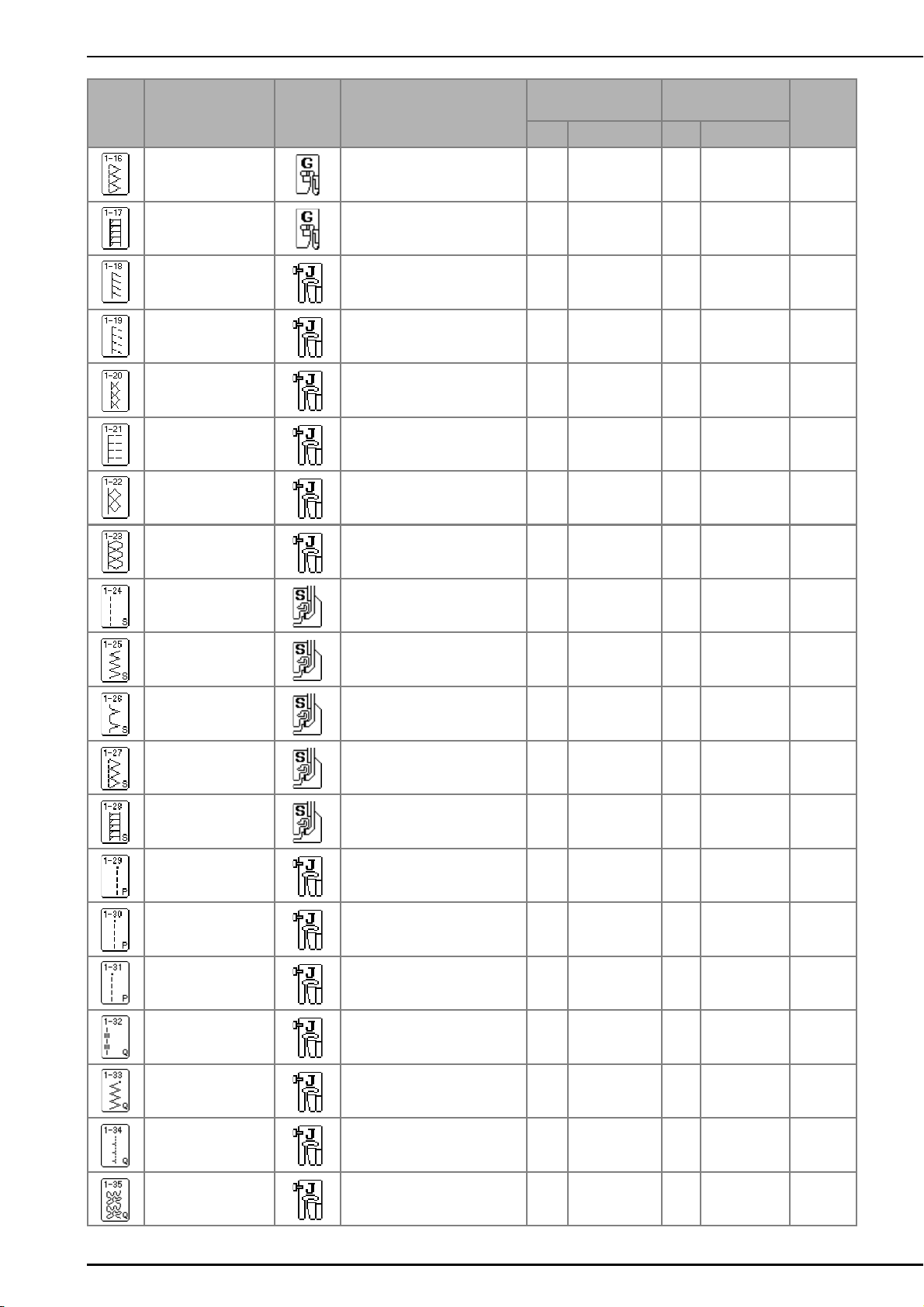
192
Stitch Setting Chart
Overcasting stitch Reinforcing of heavyweight
fabric
5.0
(3/16)
2.5 - 5.0
(3/32 - 3/16)
2.5
(3/32)
1.0 - 4.0
(1/16 - 3/16)
NO
Overcasting stitch Reinforcing of medium,
heavyweight and easily friable
fabrics or decorative stitching.
5.0
(3/16)
3.5 - 5.0
(1/8 - 3/16)
2.5
(3/32)
1.0 - 4.0
(1/16 - 3/16)
NO
Overcasting stitch Reinforced seaming of stretch
fabric
5.0
(3/16)
0.0 - 7.0
(0 - 9/32)
2.5
(3/32)
0.5 - 4.0
(1/32 - 3/16)
OK
( J )
Overcasting stitch Reinforcing of medium stretch
fabric and heavyweight fabric,
decorative stitching
5.0
(3/16)
0.0 - 7.0
(0 - 9/32)
2.5
(3/32)
0.5 - 4.0
(1/32 - 3/16)
OK
( J )
Overcasting stitch Reinforcement of stretch fabric
or decorative stitching
4.0
(3/16)
0.0 - 7.0
(0 - 1/4)
4.0
(3/16)
1.0 - 4.0
(1/16 - 3/16)
OK
( J )
Overcasting stitch Stretch knit seam
5.0
(3/16)
0.0 - 7.0
(0 - 1/4)
4.0
(3/16)
1.0 - 4.0
(1/16 - 3/16)
NO
Single diamond
overcast
Reinforcement and seaming
stretch fabric
6.0
(15/
64)
1.0 - 7.0
(1/16 - 1/4)
3.0
(1/8)
1.0 - 4.0
(1/16 - 3/16)
OK
( J )
Single diamond
overcast
Reinforcement of stretch fabric
6.0
(15/
64)
1.0 - 7.0
(1/16 - 1/4)
1.8
(1/16)
1.0 - 4.0
(1/16 - 3/16)
OK
( J )
With side cutter Straight stitch while cutting
fabrics
0.0
(0)
0.0 - 2.5
(0 - 3/32)
2.5
(3/32)
0.2 - 5.0
(1/64 - 3/16)
NO
With side cutter Zigzag stitch while cutting fabrics
3.5
(1/8)
3.5 - 5.0
(1/8 - 3/16)
1.4
(1/16)
0.0 - 4.0
(0 - 3/16)
NO
With side cutter Overcasting stitch while cutting
fabrics
3.5
(1/8)
3.5 - 5.0
(1/8 - 3/16)
2.0
(1/16)
1.0 - 4.0
(1/16 - 3/16)
NO
With side cutter Overcasting stitch while cutting
fabrics
5.0
(3/16)
3.5 - 5.0
(1/8 - 3/16)
2.5
(3/32)
1.0 - 4.0
(1/16 - 3/16)
NO
With side cutter Overcasting stitch while cutting
fabrics
5.0
(3/16)
3.5 - 5.0
(1/8 - 3/16)
2.5
(3/32)
1.0 - 4.0
(1/16 - 3/16)
NO
Piecing stitch (Right) Piecework/patchwork
6.5 mm (approx. 1/4 inch) right
seam allowance
5.5
(7/32)
0.0 - 7.0
(0 - 1/4)
2.0
(1/16)
0.2 - 5.0
(1/64 - 3/16)
NO
Piecing stitch
(Middle)
Piecework/patchwork
— —
2.0
(1/16)
0.2 - 5.0
(1/64 - 3/16)
NO
Piecing stitch (Left) Piecework/patchwork
6.5 mm (approx. 1/4 inch) left
seam allowance
1.5
(1/16)
0.0 - 7.0
(0 - 1/4)
2.0
(1/16)
0.2 - 5.0
(1/64 - 3/16)
NO
Hand-look quilting Quilting stitch made to look like
hand quilting stitch
0.0
(0)
0.0 - 7.0
(0 - 1/4)
2.5
(3/32)
1.0 - 4.0
(1/16 - 3/16)
NO
Quilting appliqué
zigzag stitch
Zigzag stitch for quilting and
sewing on appliqué quilt pieces
3.5
(1/8)
0.0 - 7.0
(0 - 1/4)
1.4
(1/16)
0.0 - 4.0
(0 - 3/16)
NO
Quilting appliqué
stitch
Quilting stitch for invisible
appliqué or attaching binding
1.5
(1/16)
0.5 - 5.0
(1/64 - 3/16)
1.8
(1/16)
1.0 - 4.0
(1/16 - 3/16)
NO
Quilting stippling Background quilting
7.0
(1/4)
1.0 - 7.0
(1/16 - 1/4)
1.6
(1/16)
1.0 - 4.0
(1/16 - 3/16)
NO
Stitch
Key
Stitch Name
Presser
Foot
Applications
Stitch Width
[mm (inch)]
Stitch Length
[mm (inch)]
Twin
Needle
Auto Manual Auto Manual
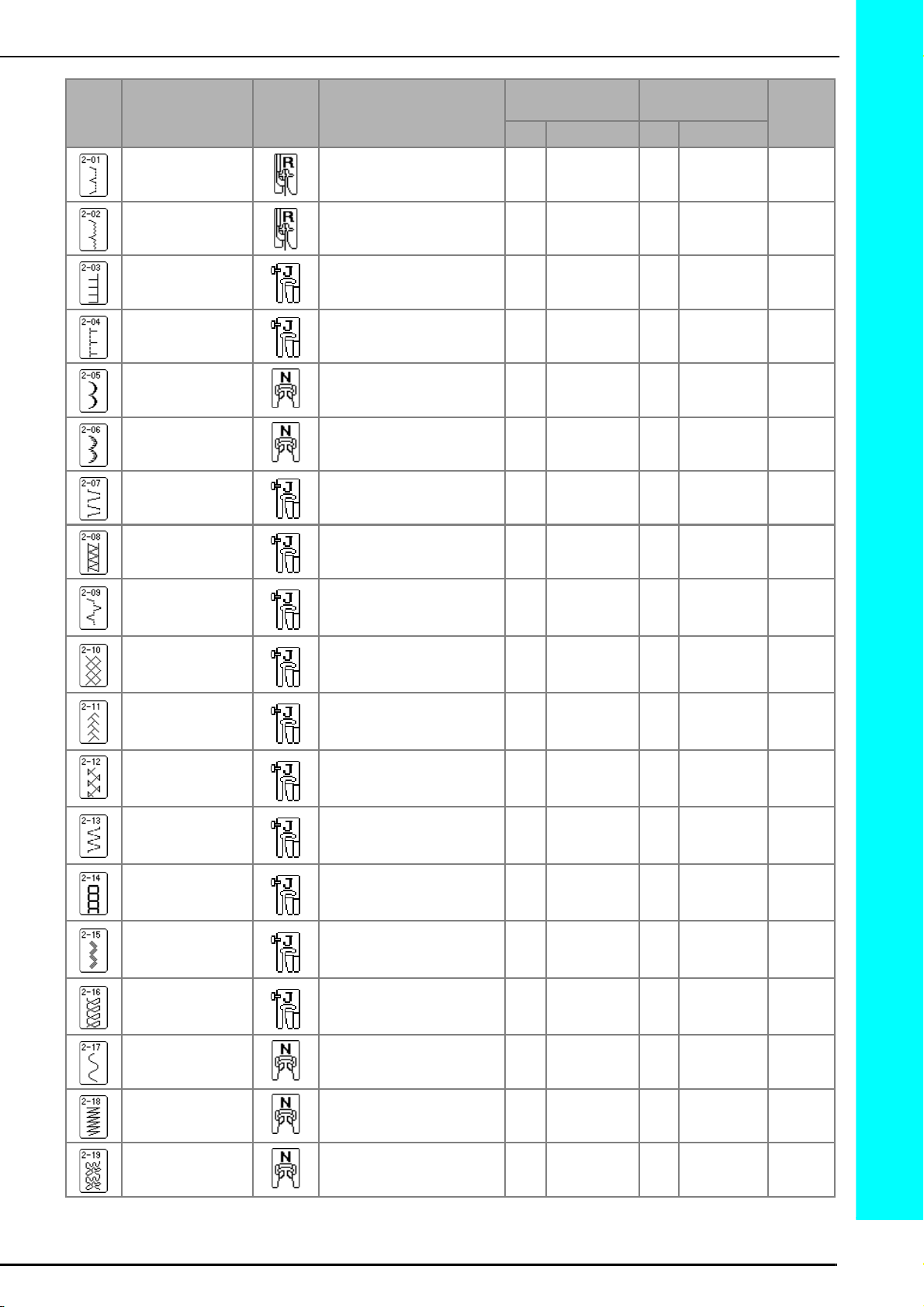
193
Stitch Setting Chart
Blind hem stitch Hemming woven fabrics
00 3← − →3
2.0
(1/16)
1.0 - 3.5
(1/16 - 1/8)
NO
Blind hem stitch Hemming stretch fabric
00 3← − →3
2.0
(1/16)
1.0 - 3.5
(1/16 - 1/8)
NO
Blanket stitch Appliqués, decorative blanket
stitch
3.5
(1/8)
2.5 - 7.0
(3/32 - 1/4)
2.5
(3/32)
1.6 - 4.0
(1/16 - 3/16)
OK
( J )
Shell tuck edge Shell tuck edge finish on fabrics
4.0
(3/16)
0.0 - 7.0
(0 - 1/4)
2.5
(3/32)
0.2 - 4.0
(1/64 - 1/16)
OK
( J )
Satin scallop stitch Decorating collar of blouse, edge
of handkerchief
5.0
(3/16)
2.5 - 7.0
(3/32 - 1/4)
0.5
(1/32)
0.1 - 1.0
(1/64 - 1/16)
OK
( J )
Scallop stitch Decorating collar of blouse, edge
of handkerchief
7.0
(1/4)
0.0 - 7.0
(0 - 1/4)
1.4
(1/16)
1.0 - 4.0
(1/16 - 3/16)
NO
Patchwork join stitch Patchwork stitches, decorative
stitching
4.0
(1/16)
0.0 - 7.0
(0 - 1/4)
1.2
(1/16)
0.2 - 4.0
(1/64 - 1/16)
OK
( J )
Patchwork double
overlock stitch
Patchwork stitches, decorative
stitching
5.0
(3/16)
2.5 - 7.0
(3/32 - 1/4)
2.5
(3/32)
1.0 - 4.0
(1/16 - 3/16)
OK
( J )
Couching stitch Decorative stitching, attaching
cord and couching
5.0
(3/16)
0.0 - 7.0
(0 - 1/4)
1.2
(1/16)
0.2 - 4.0
(1/64 - 1/16)
OK
( J )
Smocking stitch Smocking, decorative stitching
5.0
(3/16)
0.0 - 7.0
(0 - 1/4)
1.6
(1/16)
1.0 - 4.0
(1/16 - 3/16)
OK
( J )
Feather stitch Fagoting, decorative stitching
5.0
(3/16)
0.0 - 7.0
(0 - 1/4)
2.5
(3/32)
1.0 - 4.0
(1/16 - 3/16)
OK
( J )
Fagoting cross stitch Fagoting, bridging and
decorative stitching
5.0
(3/16)
2.5 - 7.0
(3/32 - 1/4)
2.5
(3/32)
1.0 - 4.0
(1/16 - 3/16)
OK
( J )
Tape attaching Attaching tape to seam in stretch
fabric
4.0
(3/16)
0.0 - 7.0
(0 - 1/4)
1.0
(1/16)
0.2 - 4.0
(1/61 - 3/16)
OK
( J )
Ladder stitch Decorative stitching
4.0
(3/16)
0.0 - 7.0
(0 - 1/4)
3.0
(1/8)
2.0 - 4.0
(1/16 - 3/16)
NO
Rick-rack stitch Decorative top stitching
4.0
(3/16)
0.0 - 7.0
(0 - 1/4)
2.5
(3/32)
1.0 - 4.0
(1/16 - 3/16)
OK
( J )
Decorative stitch Decorative stitching
5.5
(3/16)
0.0 - 7.0
(0 - 1/4)
1.6
(1/16)
1.0 - 4.0
(1/16 - 3/16)
OK
( J )
Serpentine stitch Decorative stitching and
attaching elastic
5.0
(3/16)
1.5 - 7.0
(1/16 - 1/4)
1.0
(1/16)
0.2 - 4.0
(1/64 - 3/16)
OK
( J )
Decorative stitch Decorative stitching and
appliqué
6.0
(15/
64)
1.0 - 7.0
(1/16 - 1/4)
1.0
(1/16)
0.2 - 4.0
(1/64 - 3/16)
OK
( J )
Decorative stippling
stitch
Decorative stitching
7.0
(1/4)
1.0 - 7.0
(1/16 - 1/4)
1.6
(1/16)
1.0 - 4.0
(1/16 - 3/16)
NO
Stitch
Key
Stitch Name
Presser
Foot
Applications
Stitch Width
[mm (inch)]
Stitch Length
[mm (inch)]
Twin
Needle
Auto Manual Auto Manual
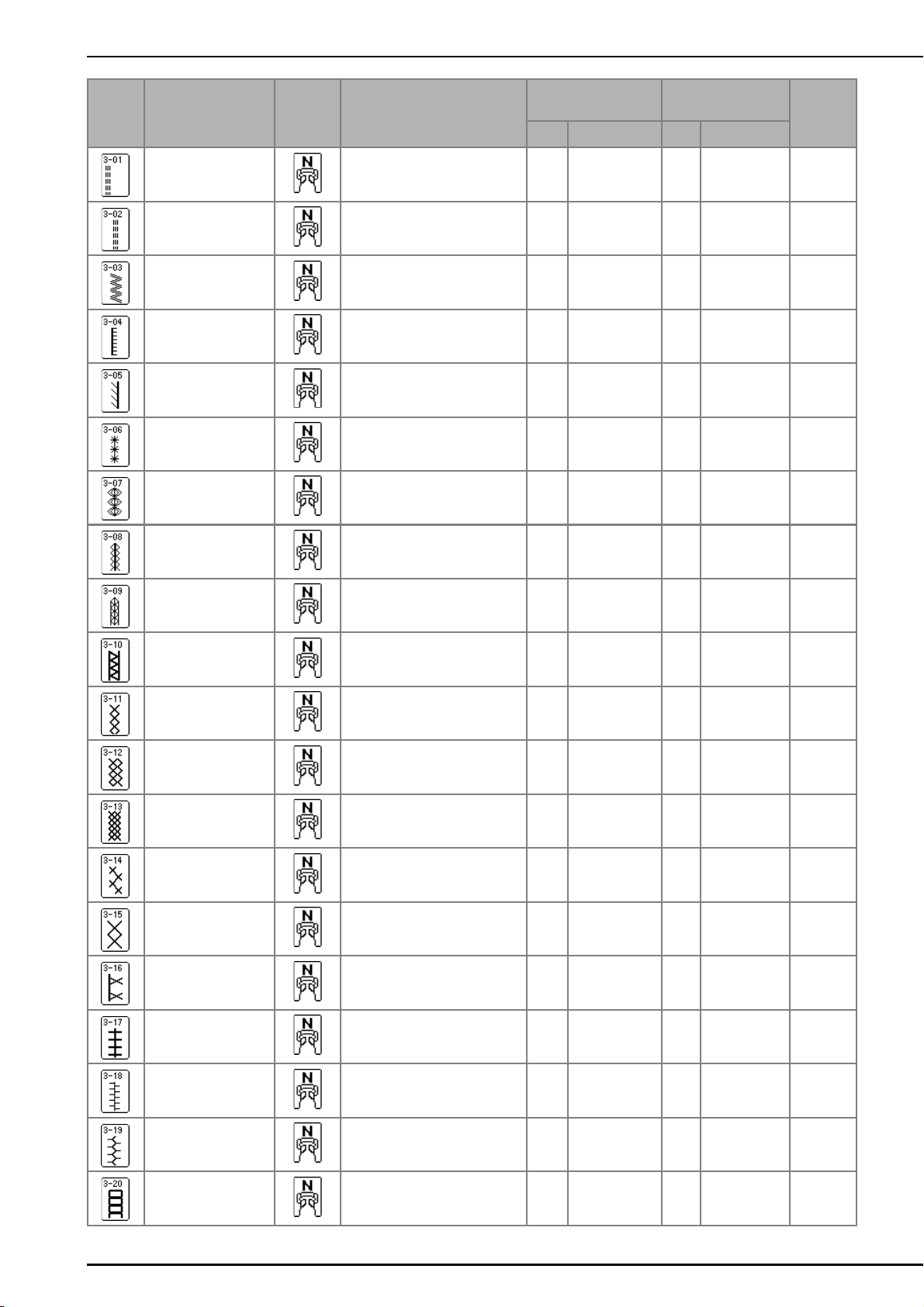
194
Stitch Setting Chart
Hemstitching Decorative hems, triple straight
at left
1.0
(1/16)
1.0 - 7.0
(1/16 - 1/4)
2.5
(3/32)
1.5 - 4.0
(1/16 - 3/16)
OK
( J )
Hemstitching Decorative hems, triple straight
at center
3.5
(1/8)
1.0 - 7.0
(1/16 - 1/4)
2.5
(3/32)
1.5 - 4.0
(1/16 - 3/16)
OK
( J )
Hemstitching zigzag Decorative hems, top stitching
6.0
(15/
64)
1.5 - 7.0
(1/16 - 1/4)
3.0
(1/8)
1.0 - 4.0
(1/16 - 3/16)
OK
( J )
Hemstitching Decorative hems, lace attaching
pin stitch
3.5
(1/8)
1.5 - 7.0
(1/16 - 1/4)
2.5
(3/32)
1.6 - 4.0
(1/16 - 3/16)
NO
Hemstitching Decorative hems
3.0
(1/8)
1.5 - 7.0
(1/16 - 1/4)
3.5
(1/8)
1.6 - 4.0
(1/16 - 3/16)
NO
Hemstitching Decorative hems daisy stitch
6.0
(15/
64)
1.5 - 7.0
(1/16 - 1/4)
3.0
(1/8)
1.5 - 4.0
(1/16 - 3/16)
NO
Hemstitching Heirloom, decorative hems
5.0
(3/16)
1.5 - 7.0
(1/16 - 1/4)
3.5
(1/8)
1.6 - 4.0
(1/16 - 3/16)
NO
Hemstitching Heirloom, decorative hems
5.0
(3/16)
1.5 - 7.0
(1/16 - 1/4)
3.5
(1/8)
1.5 - 4.0
(1/16 - 3/16)
NO
Hemstitching Heirloom, decorative hems
5.0
(3/16)
1.5 - 7.0
(1/16 - 1/4)
3.5
(1/8)
1.6 - 4.0
(1/16 - 3/16)
OK
( J )
Hemstitching Heirloom, decorative hems
5.0
(3/16)
1.5 - 7.0
(1/16 - 1/4)
4.0
(3/16)
1.5 - 4.0
(1/16 - 3/16)
OK
( J )
Hemstitching Heirloom, decorative hems
4.0
(3/16)
1.5 - 7.0
(1/16 - 1/4)
2.5
(3/32)
1.5 - 4.0
(1/16 - 3/16)
OK
( J )
Honeycomb stitch Heirloom, decorative hems
5.0
(3/64)
1.5 - 7.0
(1/16 - 1/4)
2.5
(3/32)
1.5 - 4.0
(1/16 - 3/16)
OK
( J )
Honeycomb stitch Heirloom, decorative hems
6.0
(15/
64)
1.5 - 7.0
(1/16 - 1/4)
3.5
(1/8)
1.5 - 4.0
(1/16 - 3/16)
OK
( J )
Hemstitching Heirloom, decorative hems
6.0
(15/
64)
1.5 - 7.0
(1/16 - 1/4)
1.6
(1/16)
1.0 - 4.0
(1/16 - 3/16)
OK
( J )
Hemstitching Heirloom, decorative hems
6.0
(15/
64)
1.5 - 7.0
(1/16 - 1/4)
3.0
(1/8)
1.5 - 4.0
(1/16 - 3/16)
NO
Hemstitching Heirloom, decorative hems
6.0
(15/
64)
1.5 - 7.0
(1/16 - 1/4)
4.0
(3/16)
1.5 - 4.0
(1/16 - 3/16)
OK
( J )
Hemstitching Heirloom, decorative hems
4.0
(3/16)
1.5 - 7.0
(1/16 - 1/4)
2.5
(3/32)
1.6 - 4.0
(1/16 - 3/16)
NO
Hemstitching Heirloom, decorative hems
5.0
(3/16)
1.5 - 7.0
(1/16 - 1/4)
2.0
(1/16)
1.5 - 4.0
(1/16 - 3/16)
OK
( J )
Hemstitching Decorative hems and bridging
stitch
6.0
(15/
64)
1.5 - 7.0
(1/16 - 1/4)
2.0
(1/16)
1.5 - 4.0
(1/16 - 3/16)
OK
( J )
Hemstitching Decorative hems. Fagoting,
attaching ribbon
5.0
(3/16)
1.5 - 7.0
(1/16 - 1/4)
3.0
(1/8)
1.5 - 4.0
(1/16 - 3/16)
OK
( J )
Stitch
Key
Stitch Name
Presser
Foot
Applications
Stitch Width
[mm (inch)]
Stitch Length
[mm (inch)]
Twin
Needle
Auto Manual Auto Manual
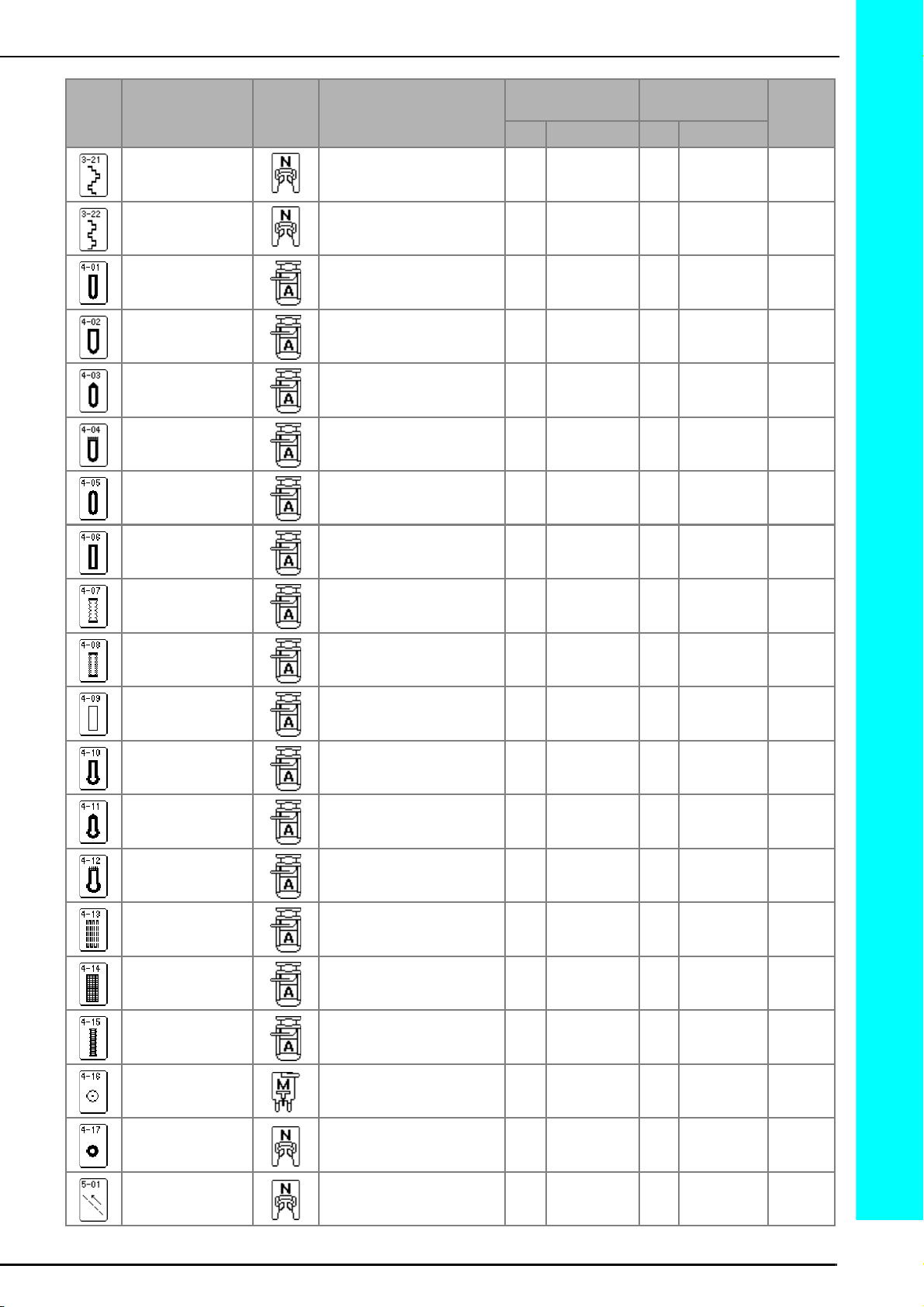
195
Stitch Setting Chart
Hemstitching Decorative hems, smocking
6.0
(15/
64)
1.5 - 7.0
(1/16 - 1/4)
1.6
(1/16)
1.0 - 4.0
(1/16 - 3/16)
NO
Hemstitching Decorative hems, smocking
5.0
(3/16)
1.5 - 7.0
(1/16 - 1/4)
1.6
(1/16)
1.0 - 4.0
(1/16 - 3/16)
NO
Narrow rounded
buttonhole
Buttonhole on light to medium
weight fabrics
5.0
(3/16)
3.0 - 5.0
(1/8 - 3/16)
0.4
(1/64)
0.2 - 1.0
(1/64 - 1/16)
NO
Wide round ended
buttonhole
Buttonholes with extra space for
larger buttons
5.5
(7/32)
3.5 - 5.5
(1/8 - 7/32)
0.4
(1/64)
0.2 - 1.0
(1/64 - 1/16)
NO
Tapered round
ended buttonhole
Reinforced waist tapered
buttonholes
5.0
(3/16)
3.0 - 5.0
(1/8 - 3/16)
0.4
(1/64)
0.2 - 1.0
(1/64 - 1/16)
NO
Round ended
buttonhole
Buttonholes with vertical bar
tack in heavyweight fabrics
5.0
(3/16)
3.0 - 5.0
(1/8 - 3/16)
0.4
(1/64)
0.2 - 1.0
(1/64 - 1/16)
NO
Round double ended
buttonhole
Buttonholes for fine, medium to
heavyweight fabrics
5.0
(3/16)
3.0 - 5.0
(1/8 - 3/16)
0.4
(1/64)
0.2 - 1.0
(1/64 - 1/16)
NO
Narrow squared
buttonhole
Buttonholes for light to medium
weight fabrics
5.0
(3/16)
3.0 - 5.0
(1/8 - 3/16)
0.4
(1/64)
0.2 - 1.0
(1/64 - 1/16)
NO
Stretch buttonhole Buttonholes for stretch or woven
fabrics
6.0
(15/
64)
3.0 - 6.0
(1/8 - 15/64)
1.0
(1/16)
0.5 - 2.0
(1/32 - 1/16)
NO
Heirloom buttonhole Buttonholes for heirloom and
stretch fabrics
6.0
(15/
64)
3.0 - 6.0
(1/8 - 15/64)
1.5
(1/16)
1.0 - 3.0
(1/16 - 1/8)
NO
Bound buttonhole The first step in making bound
buttonholes
5.0
(3/16)
0.0 - 6.0
(0 - 15/64)
2.0
(1/16)
0.2 - 4.0
(1/64 - 3/16)
NO
Keyhole buttonhole Buttonholes in heavyweight or
thick fabrics for larger flat
buttons
7.0
(1/4)
3.0 - 7.0
(1/8 - 1/4)
0.5
(1/32)
0.3 - 1.0
(1/64 - 1/16)
NO
Tapered keyhole
buttonhole
Buttonholes in medium to heavy
weight fabrics for larger flat
buttons
7.0
(1/4)
3.0 - 7.0
(1/8 - 1/4)
0.5
(1/32)
0.3 - 1.0
(1/64 - 1/16)
NO
Keyhole buttonhole Buttonholes with vertical bar
tack for reinforcement in
heavyweight or thick fabrics
7.0
(1/4)
3.0 - 7.0
(1/8 - 1/4)
0.5
(1/32)
0.3 - 1.0
(1/64 - 1/16)
NO
Darning Darning of medium weight fabric
7.0
(1/4)
2.5 - 7.0
(3/32 - 1/4)
2.0
(1/16)
0.4 - 2.5
(1/64 - 1/16)
NO
Darning Darning of heavyweight fabric
7.0
(1/4)
2.5 - 7.0
(3/32 - 1/4)
2.0
(1/16)
0.4 - 2.5
(1/64 - 1/16)
NO
Bar tack Reinforcement at opening of
pocket, etc.
2.0
(1/16)
1.0 - 3.0
(1/16 - 1/8)
0.4
(1/64)
0.3 - 1.0
(1/64 - 1/16)
NO
Button sewing Attaching buttons
3.5
(1/8)
2.5 - 4.5
(3/32 - 3/16)
— —NO
Eyelet For making eyelets, holes on
belts, etc.
7.0
(1/4)
7.0 6.0 5.0
(1/4 15/64 3/16)
7.0
(1/4)
7.0 6.0 5.0
(1/4 15/64 3/
16)
NO
Diagonally left up
(Straight)
For attaching appliqué on tubular
pieces of fabric and mitering
corners
— — — —NO
Stitch
Key
Stitch Name
Presser
Foot
Applications
Stitch Width
[mm (inch)]
Stitch Length
[mm (inch)]
Twin
Needle
Auto Manual Auto Manual

196
Stitch Setting Chart
Reverse (Straight) For attaching appliqué on tubular
pieces of fabric and mitering
corners
— — — —NO
Diagonally right up
(Straight)
For attaching appliqué on tubular
pieces of fabric and mitering
corners
— — — —NO
Sideways to left
(Straight)
For attaching appliqué on tubular
pieces of fabric
— — — —NO
Sideways to right
(Straight)
For attaching appliqué on tubular
pieces of fabric
— — — —NO
Diagonally left down
(Straight)
For attaching appliqué on tubular
pieces of fabric and mitering
corners
— — — —NO
Forward (Straight) For attaching appliqué on tubular
pieces of fabric and mitering
corners
— — — —NO
Diagonally right
down (Straight)
For attaching appliqué on tubular
pieces of fabric and mitering
corners
— — — —NO
Sideways to left
(Zigzag)
For attaching appliqué on tubular
pieces of fabric
— — — —NO
Sideways to right
(Zigzag)
For attaching appliqué on tubular
pieces of fabric
— — — —NO
Forward (Zigzag) For attaching appliqué on tubular
pieces of fabric and mitering
corners
— — — —NO
Reverse (Zigzag) For attaching appliqué on tubular
pieces of fabric and mitering
corners
— — — —NO
Stitch
Key
Stitch Name
Presser
Foot
Applications
Stitch Width
[mm (inch)]
Stitch Length
[mm (inch)]
Twin
Needle
Auto Manual Auto Manual

Index
197
INDEX
A
accessories ....................................................................................11
air vent
...........................................................................................9
alarm
..........................................................................................187
alphabet patterns
character/decorative stitches
.....................................................89
appliqués
................................................................56, 63, 67, 146
array key
.....................................................................................157
arrow keys
........................................................126, 155, 161, 167
attaching elastic tape
............................................................. 57, 71
automatic reverse/reinforcement stitching
.....................................43
automatic thread cutting key
.........................................................44
B
bar tacks .......................................................................................79
basting
..........................................................................................53
blind hem stitch
............................................................................66
block move key
..........................................................................169
bobbin
................................................................................... 24, 27
bobbin cover
......................................................................... 10, 27
bobbin holder
...............................................................................25
bobbin thread
inserting
....................................................................................27
pulling up
.................................................................................27
replacing
.................................................................................134
winding
.....................................................................................24
bobbin winder
................................................................................9
bobbin winding thread guide
............................................ 9, 25, 26
button sewing
...............................................................................81
buttonhole lever
.............................................................. 10, 75, 79
buttonhole stitches
........................................................................74
C
carriage .........................................................................................10
character/decorative stitches
adjusting
...................................................................................92
combining
.................................................................................97
editing
.......................................................................................94
key functions
.............................................................................94
retrieving
............................................................... 106, 107, 173
saving
................................................................... 103, 105, 172
selecting
....................................................................................88
sewing
......................................................................................91
stitch selection screens
..............................................................88
cleaning
......................................................................................176
color check key
..........................................................................132
combining
character/decorative stitches
.....................................................97
embroidery edit
.......................................................................159
crazy quilts
...................................................................................57
D
daisy stitch ....................................................................................72
darning
.........................................................................................78
darts
..............................................................................................53
delete key
...................................................................................156
drawn work
........................................................................... 72, 73
E
edit end key ................................................................................158
editing
character/decorative stitches
.....................................................94
embroidery
.............................................................................125
embroidery edit
.......................................................................154
MY CUSTOM STITCH
.............................................................166
elastic zigzag stitches
................................................................... 57
elongation key
.............................................................................. 95
embroidery
corners
................................................................................... 123
automatic thread cutting
......................................................... 137
key functions
.......................................................................... 119
restarting from the beginning
.................................................. 136
ribbons
................................................................................... 123
selecting patterns
.................................................................... 114
sewing speed
.......................................................................... 138
small fabrics
........................................................................... 123
thread color display
................................................................ 138
embroidery card slot
..............................................................9, 118
embroidery cards
.................................................................14, 118
embroidery edit
combining
......................................................................159, 162
function descriptions
.............................................................. 150
embroidery foot "U"
....................................................11, 111, 112
embroidery foot height
............................................................... 120
embroidery frame
attaching/removing
................................................................. 124
hooping
.................................................................................. 122
type
........................................................................................ 121
using the embroidery sheet
..................................................... 122
embroidery frame display
........................................................... 125
embroidery needle plate cover
................................................... 131
embroidery patterns
appliqués from frame patterns
................................................ 146
checking embroidering position
............................................. 129
combining
.............................................................................. 159
deleting
.................................................................................. 156
editing
.................................................................................... 154
pattern selection screens
......................................................... 114
retrieving
........................................................................143, 144
saving
..................................................................................... 141
selecting
.........................................................................114, 151
sewing
.................................................................................... 131
embroidery sheet
........................................................................ 122
embroidery speed
......................................................................... 20
embroidery unit
.......................................................................... 112
carriage
............................................................................10, 112
error messages
............................................................................ 183
eyelets
.......................................................................................... 82
F
fabrics
fabric/thread/needle combinations
............................................ 36
sewing heavyweight fabric
....................................................... 41
sewing lightweight fabric
.......................................................... 41
sewing stretch fabrics
............................................................... 77
fagoting
........................................................................................ 70
feed dog position switch
.................................................... 9, 65, 81
feed dogs
......................................................................... 10, 65, 81
flat fell seams
............................................................................... 54
flatbed attachment with accessory compartment
.............9, 11, 112
Foot controller
.............................................................................. 39
foot controller jack
......................................................................... 9
forward/back key
........................................................................ 135
G
Grid direction key ...................................................................... 167
H
handle ............................................................................................ 9
handwheel
..................................................................................... 9
hard case
...................................................................................... 13
heirloom stitching
........................................................................ 72

Index
198
horizontal mirror image key ................................................ 95, 127
I
image key .......................................................................... 130, 168
insert key
.................................................................................... 170
K
key functions
character/decorative stitches
..................................................... 94
embroidering
.......................................................................... 119
utility stitches
............................................................................ 18
knee lifter
................................................................................ 9, 40
knee lifter slot
................................................................................. 9
L
languages ..................................................................................... 21
LCD
......................................................................................... 9, 17
M
machine operation mode key ....................................................... 22
machine setting mode key
................................................... 20, 139
machine settings mode key
......................................................... 138
main power switch
.................................................................. 9, 16
maintenance
............................................................................... 176
memory
character/decorative stitches
.......................................... 103, 105
embroidery
............................................................................. 140
utility
........................................................................................ 49
mirror image key
.......................................................................... 49
multi color key
.................................................................. 128, 158
multi-directional sewing
............................................................... 83
MY CUSTOM STITCH
designing
................................................................................ 164
entering data
........................................................................... 166
key functions
.......................................................................... 166
N
needle
changing the position
............................................................... 52
fabric/thread/needle combinations
............................................ 36
replacing
.................................................................................. 34
settings
..................................................................................... 17
twin needle
............................................................................... 31
needle bar thread guide
...................................................10, 29, 31
needle clamp screw
...................................................................... 10
needle mode selection key (single/twin)
................................ 31, 32
needle plate
.................................................................................. 10
needle plate cover
............................................................... 10, 176
needle position
............................................................................. 52
needle position button
.................................................................. 11
needle threader lever
............................................................... 9, 30
O
operation buttons .................................................................... 9, 11
options
......................................................................................... 14
overcasting
......................................................................56, 57, 58
P
patchwork .................................................................................... 57
pattern explanation key
................................................................ 23
pattern selection key
................................................................... 156
pattern selection screen
.............................................................. 151
piecing
......................................................................................... 62
pin tucks
....................................................................................... 55
point delete key
.......................................................................... 167
power cord
................................................................................... 16
presser foot
................................................................................... 10
replacing
.................................................................................. 33
presser foot code
.................................................................. 17, 119
presser foot holder
................................................................. 10, 33
presser foot lever
...................................................................... 9, 41
presser foot lifter button
....................................................... 11, 124
presser foot/needle exchange key
............................31, 33, 34, 111
pretension disk
....................................................................... 25, 26
prewound bobbins
......................................................................131
Q
quilting .........................................................................................62
free-motion
...............................................................................65
R
reinforcement stitching .......................................................... 40, 43
retrieving
character/decorative stitches
.......................................... 106, 173
computer
....................................................................... 107, 173
embroidery patterns
....................................................... 143, 144
from computer
........................................................................144
from machine
..........................................................................143
reverse stitching
.............................................................. 40, 43, 51
reverse/reinforcement stitch button
........................................ 11, 40
rotate key
........................................................................... 126, 155
S
satin stitching ................................................................................64
saving
character/decorative stitches
...................................................103
computer
.............................................................. 105, 142, 172
embroidery patterns
................................................................141
machine’s memory
......................................................... 103, 141
utility stitches
............................................................................49
scalloping
.....................................................................................68
screen
adjusting
.................................................................................178
locking
......................................................................................45
securing stitching
..........................................................................40
set key
........................................................................................167
settings
automatic reverse/reinforcement stitching
.................................43
automatic thread cutting
.................................................. 44, 137
LCD density
..................................................................... 21, 178
stitch length
..............................................................................42
thread tension
.................................................................. 43, 136
zigzag width
.............................................................................42
sewing speed controller
.................................................... 9, 11, 38
sewing type selection key
.............................................................50
shell tuck stitching
........................................................................68
side cutter
.....................................................................................60
single/repeat sewing key
...............................................................96
single/triple stitching key
.............................................................167
size key
....................................................................... 95, 127, 156
smocking
......................................................................................69
spacing key
.................................................................................157
specifications
..............................................................................188
spool cap
........................................................................................9
Spool net
......................................................................................13
spool pin
.........................................................................................9
stabilizer
.....................................................................................120
start/stop button
..................................................................... 11, 38
step patterns
................................................................................101
stitch length
..................................................................................42
stitch width
...................................................................................42
stitching density
................................................................... 96, 128
straight stitch
.................................................................................51
supplemental spool pin
..................................................... 9, 24, 31
T
thread
fabric/thread/needle combinations
............................................36
thread color display
....................................................................138

Index
199
thread cutter ............................................................................ 9, 30
thread cutter button
........................................................ 11, 39, 44
thread density key
..................................................... 128, 136, 137
thread guide
................................................................9, 25, 26, 31
thread guide plate
............................................................. 9, 26, 29
thread take-up lever check window
.................................. 9, 29, 30
thread tension
...................................................................... 43, 136
top cover
........................................................................................9
topstitching
...................................................................................69
touch pen
............................................................................ 13, 179
holder
.........................................................................................9
trial key
.......................................................................................129
U
upgrading ...................................................................................189
upper threading
............................................................................28
twin needle
...............................................................................31
USB connector
................................................................................9
USB port
.....................................................................................144
for computer
.................................................................. 105, 172
utility stitches
......................................................................... 23, 50
key functions
.............................................................................18
saving
.......................................................................................49
selecting a stitch pattern
............................................................49
sewing
......................................................................................38
sewing type selection key
..........................................................50
stitch selection screens
..............................................................48
V
vertical mirror image key ..............................................................95
W
walking foot ..................................................................................63
Z
zigzag stitch ..................................................................................56
stitch width
...............................................................................42
zipper insertion
.............................................................................84