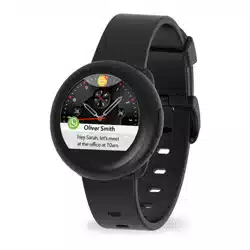
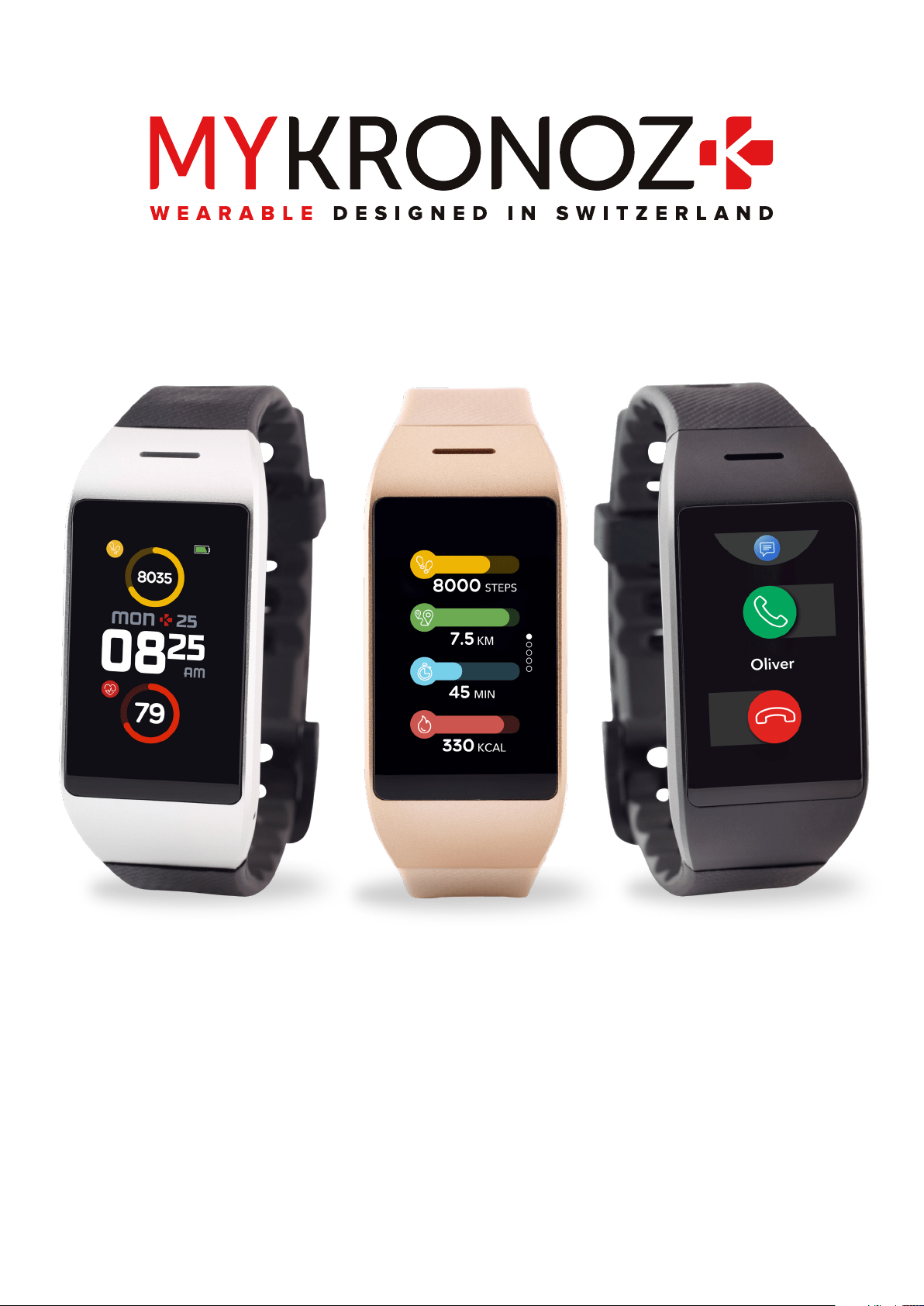
USER GUIDE
ZeNeo
- 2 -
GET STARTED
1. What’s in the box
2. Overview
3. Charging
4. Basic operations
5. Wearing
6. Shortcuts
PAIRING
7. Pairing
8. Firmware update
ACTIVITY TRACKING
9. Activity
10. Goals
11. Heart rate
12. Sleep
13. Stopwatch
14. Timer
CONNECTED FEATURES
15. Calls
16. Voice command
17. Notifications
18. SMS
19. Weather
20. Find my phone
21. Camera remote
22. Music control
23. Anti-lost
24. Apps
CLOCK
25. Alarm
26. Reminders
27. Settings
MAINTENANCE
28. Unpair/update/reset/delete
29. Tech specs
REGULATORY & SAFETY NOTICES
03
03
04
05
06
06
07
09
09
10
11
13
13
14
14
15
16
17
17
18
18
19
19
20
20
21
22
23
24
25
TABLE OF CONTENTS
- 3 -
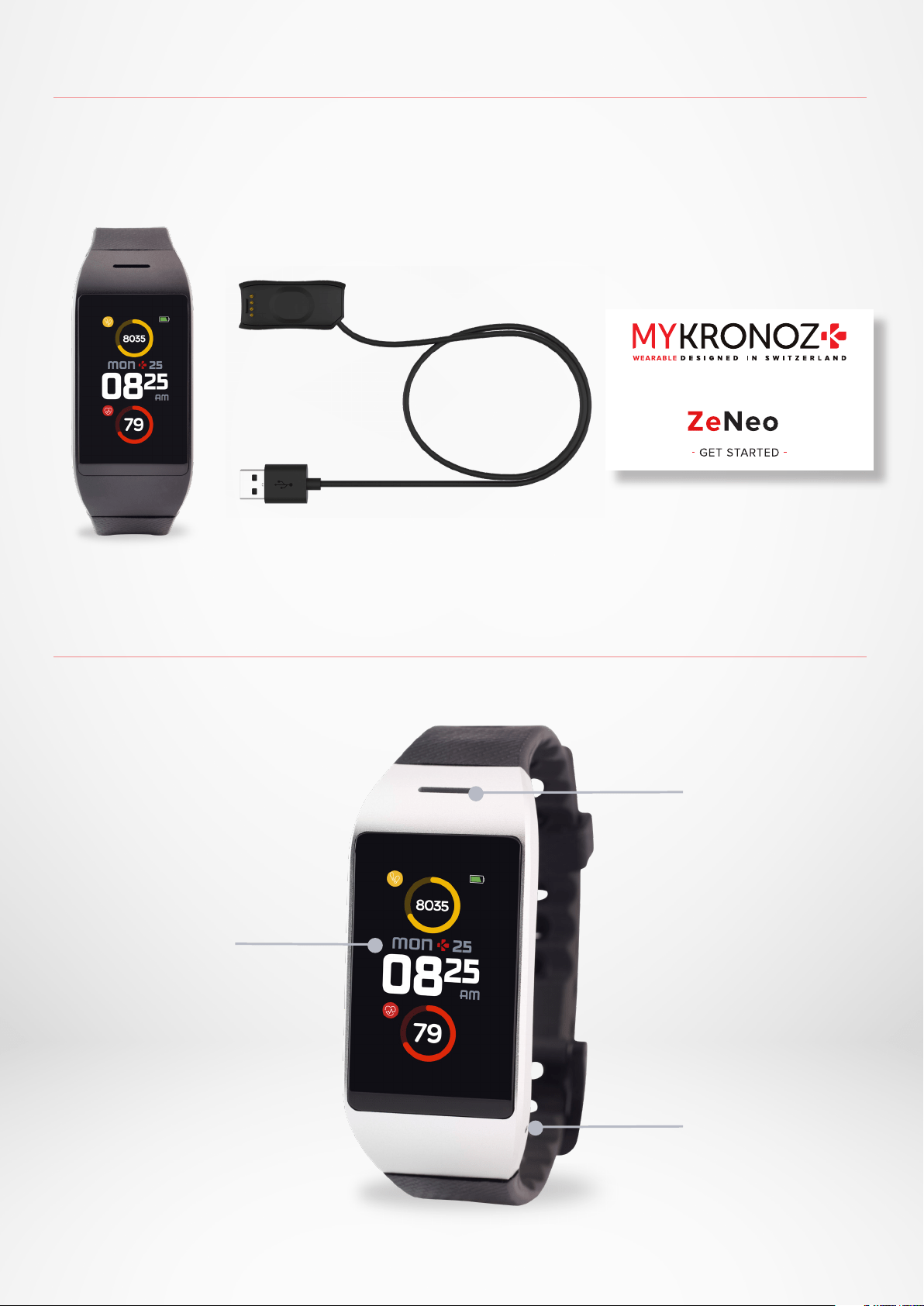
1. WHAT’S IN THE BOX
2. OVERVIEW
ZENEO CHARGER + USB CABLE GET STARTED GUIDE
Speaker
Microphone
Touchscreen

- 4 -
3. CHARGING
Charge ZeNeo for one hour and a half before your first use.
1. Plug the charging cable into the USB port on your computer or a
certified USB wall charger.
2. Place ZeNeo in the charging cradle.
3. A battery indicator will fill to indicate charging is in progress.
While the watch charges, double tap the screen to check the
battery level.
4. Once ZeNeo is fully charged, the battery indicator will be full.
It takes about 1 hour and a half to fully charge ZeNeo. When
the battery level gets low, a battery indicator will appear.
Check ZeNeo battery level at any time from the shortcuts
interface or by going to the Watch Settings menu > Select
Device icon > Click on Battery level icon.
A fully charged ZeNeo has a battery life of 3/4 days. Please
note that battery life depends on usage and the features you
enable.
i
i
i
- 5 -
4. BASIC OPERATIONS
I TURN ON/OFF THE DEVICE
Double tap the screen
I MOVE BETWEEN SCREENS
Slide to the right for activity menu
Slide to the left for main menus
Slide up for notifications
Slide down for shortcuts
I ENTER A MENU/SELECT/CONFIRM
Tap with one finger to open or select a menu item
I EXIT A MENU/GO BACK TO PREVIOUS SCREEN
Double tap the screen
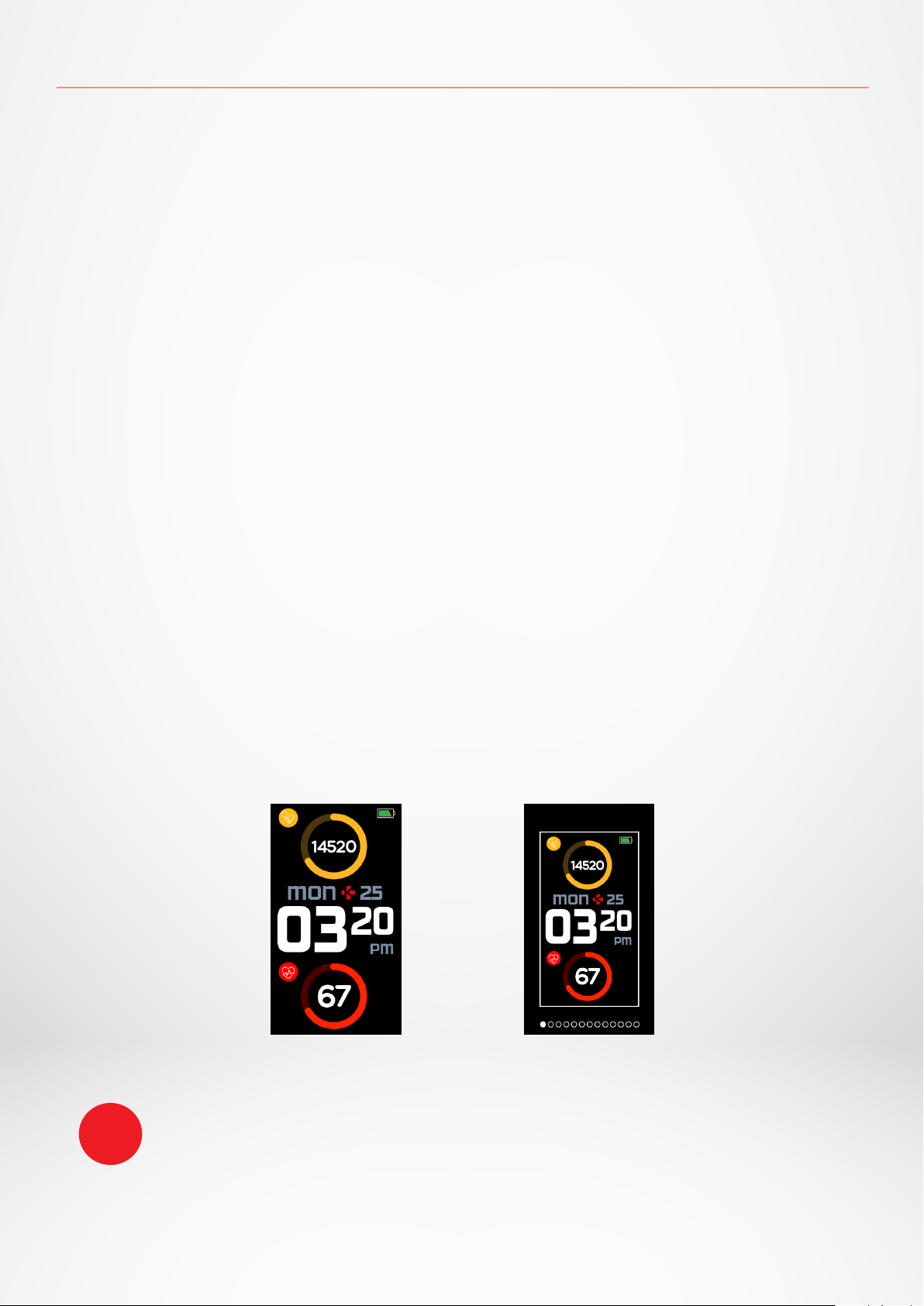
I CHANGE THE WATCH FACE
To change your ZeNeo watch face, press firmly on the current watch face, swipe left or right to go
through the dierent watch faces available and tap on the one you want to select and use.
To ensure ZeNeo is responding accurately to your taps, we recommend using your finger
-
tip and not your nail.
i
- 6 -
5.WEARING
6.SHORTCUTS
I DAILY WEAR
For all-day wear, we recommend you to wear ZeNeo a finger’s width above your wrist bone.
I EXERCISE & WORKOUT
During our workout, we suggest you to wear ZeNeo higher on your wrist for recording more
accurate heart-rate reading.
•
Make sure ZeNeo is in contact with your skin.
•
Wear ZeNeo on your non-dominant hand.
•
Do not fasten the wristband too tight for better comfort and not to restrict bloodstream.
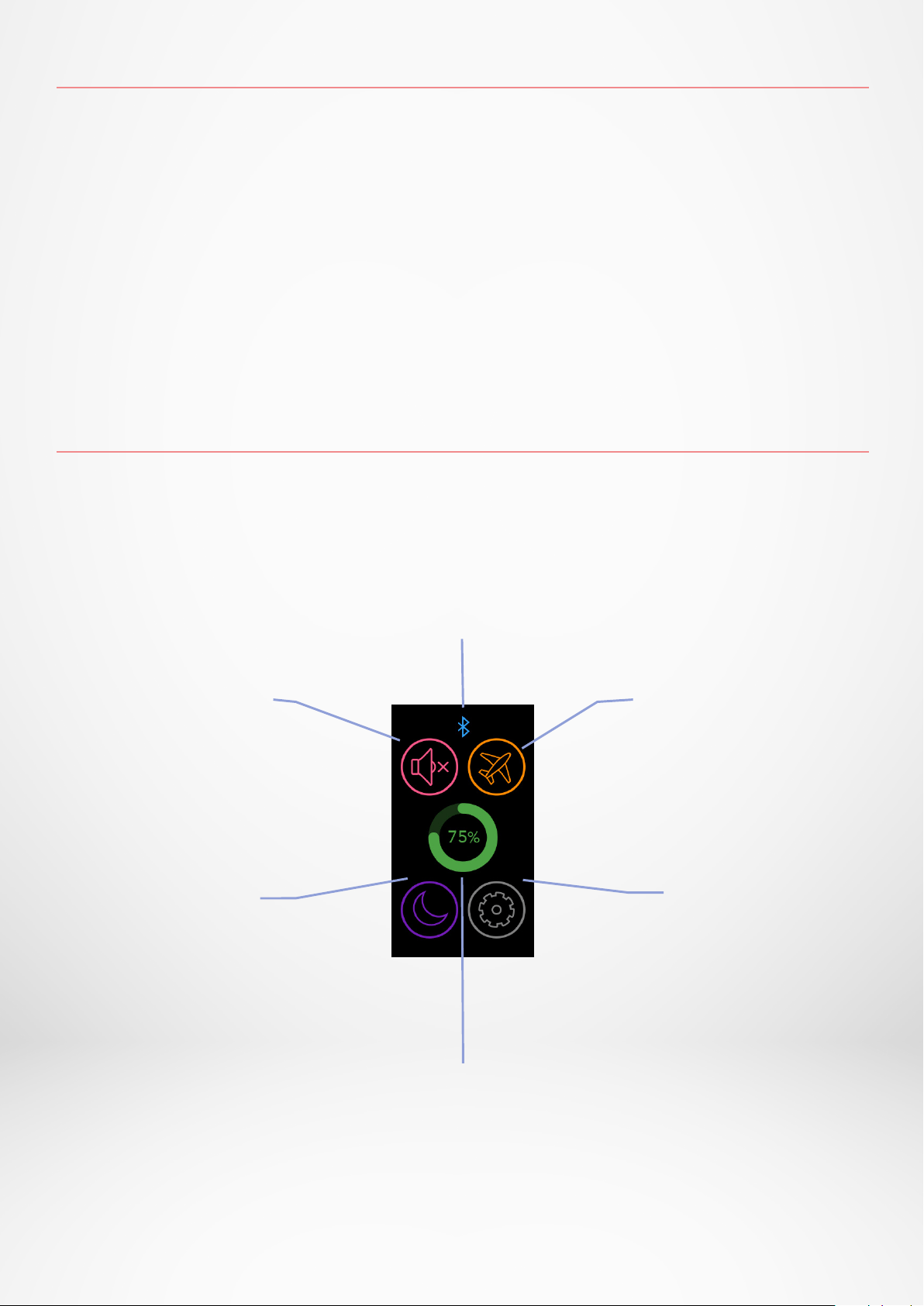
Swipe down from the main watch face to access ZeNeo shortcuts.
BLUETOOTH® STATUS
Shows BT 3.0 for audio features and BLE
for synchronization and connected features
VIBRATION/BUZZER
Turn on vibration (default)
Turn on vibration & buzzer
Turn on buzzer
Mute
SETTINGS
Quick access
to the Settings menu
BATTERY LEVEL
Shows the remaining battery
level of your watch
DO NOT DISTURB
Stops notifications, alerts
and calls from making any
noise, vibration or lighting
up the phone screen
when the screen is locked
FLIGHT MODE
Prevents the device from
sending or receiving calls and
text messages
- 7 -
Visit mykronoz.com to get the latest compatibility list.
-
iOS
-
iOS9+ devices with Bluetooth
®
4.0 BLE
iPhone 4s, 5, 5c, 5s, 6, 6 Plus, 7, 7 Plus,
8, 8 Plus, X, XR, XS, XS Max
-
ANDROID
-
Select Android 6.0+ devices
that support Bluetooth
®
4.0 BLE
Get the MyKronoz App
When turning On your ZeNeo for the first time, you’ll be prompted to download the
MyKronoz mobile app on your smartphone in order to proceed to its initial set up.
7. PAIRING
I 1
ST
PAIRING BLE
Pair through the MyKronoz App to sync your data and receive notifications
1. Ensure the Bluetooth
®
is enabled on your mobile smartphone.
2. Search for the MyKronoz App in the App store or Google Play store, download and install the App on
your mobile device.
3. Open the MyKronoz App on your mobile device. Sign up if you are a new member or login with your
existing account. After entering your personal information, tap Set up.
4. Make sure ZeNeo is nearby and select ZeNeo model.
5. To connect the first Bluetooth
®
antenna, follow the on-screen instructions.
- 8 -
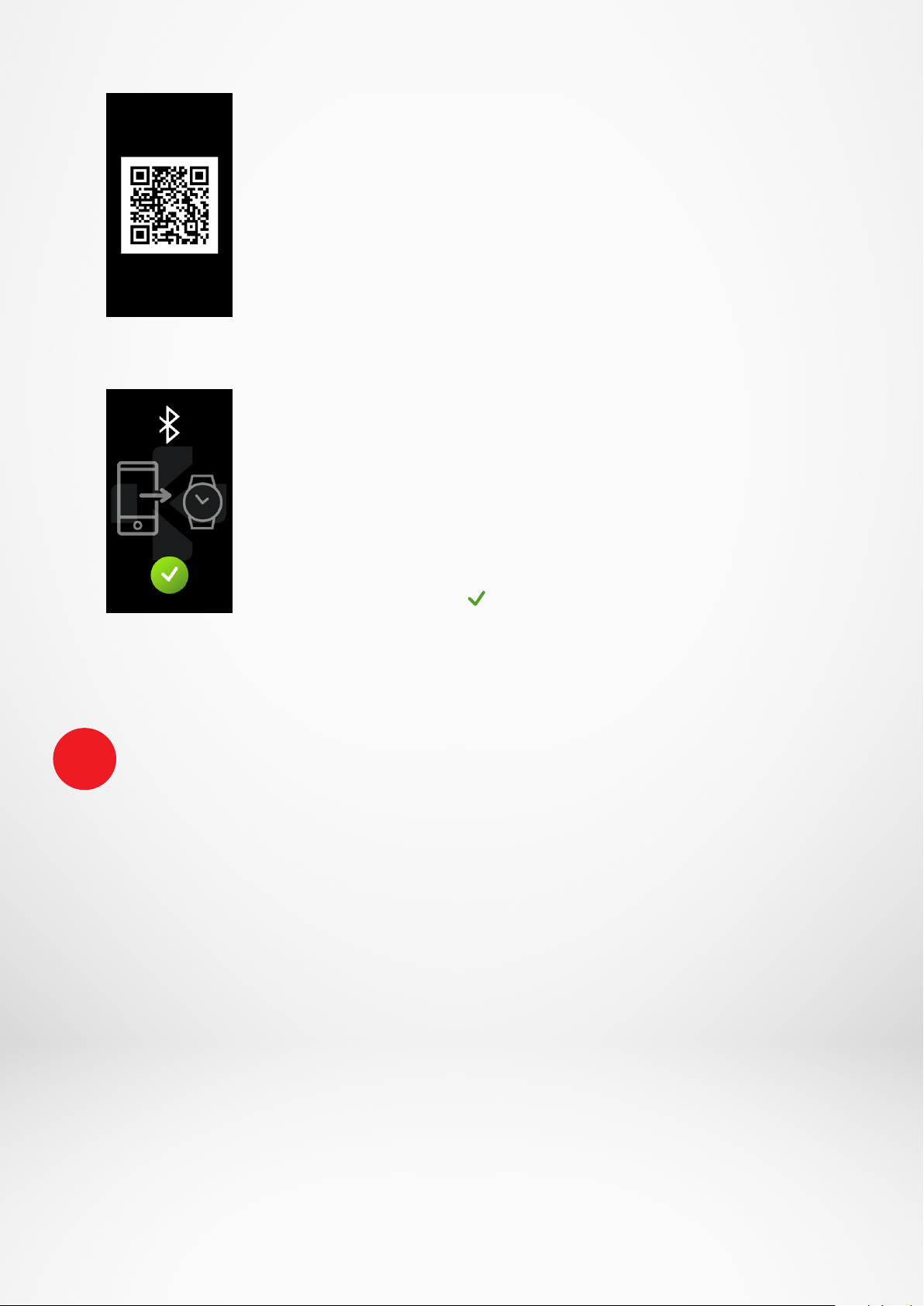
QR code pairing
• During the first setup, a QR code will appear on the
watch screen
• To pair your device with your phone, put the QR code
on ZeNeo into the viewfinder (MyKronoz App)
• When ZeNeo is successfully paired, you will be
notified on your mobile phone’s screen.
Tips & tricks
Normal pairing: Tap on the center of the watch face
screen 3 times to reveal the QR code on the watch
screen.
Alternative pairing (Manual mode)
• Make sure ZeNeo is nearby, select
ZeNeo in the list of devices and confirm
• A pairing request will prompt up on your mobile
device
• Tap on to accept the pairing
• When ZeNeo is successfully paired, you will be
notified on your mobile device’s screen
I 2
ND
PAIRING BT 3.0
Pair from your mobile phone Bluetooth
®
settings to receive and make calls
6. To connect the second antenna, open the Bluetooth
®
settings of your phone and select ZeNeo.
At the end of the setup process, a firmware update may start automatically. This will ensure that
you have the most up to date software on your device and benefit from all the latest features.
i
- 9 -
8. FIRMWARE UPDATE
9.ACTIVITY TRACKING
MyKronoz will provide regular firmware updates which you will need to install in order
to access our latest upgrades and features for your watch.
With ZeNeo, all these updates need to be done by OTA (Over The Air) and through
the mobile app. Updates are performed over the air using the mobile app.
Before updating, make sure your phone and your watch have more than 30% battery.
Your watch has a built-in 3-axis accelerometer that allows you to track your daily
activity based on your movements. This, together with your profile information, allows
your tracker to calculate your steps, walking distance and calories burned.
In order to get the most accurate results we recommend you to wear your watch on
your left wrist if you’re remove a right handed and on your right one if you are remove
a left handed.
I IN ORDER TO UPDATE YOUR WATCH
• Connect your ZeNeo to the mobile app
• If a new update is available you will be prompted from the mobile app home page or
the Paired watches section.
• You must click on the banner and confirm in order to start the updating process
During the whole update process you must keep your watch near to your smartphone and
your application must be open. Avoid using your phone during the update process.
After a successful update, the watch will shut down for 1 minute and restart automatically.
Do not turn o the device manually during this time.
i

- 10 -
I VIEW YOUR STATS
ZeNeo tracks throughout the day:
• Number of steps taken
• Distance travelled
• Calories burned
• Active minutes
You can view your daily activity in real-
time from your device.
You can also monitor your activity data
and history from the MyKronoz Mobile
App. On the main activity screen, you can
check your performance level against
your daily goals. Click on any activity
bar to get a detailed graph of your daily,
weekly and monthly performance.
The activity tracker resets at midnight.
To save your latest activity, go to the Activity tab of the MyKronoz App. Your activity will sync
automatically as soon as you open this page.
To sync your data manually, slide your finger down the screen.
ZeNeo has the ability to store up to 7 days of your activity data. Then, you will have to synchronize
your ZeNeo with your mobile app in order to avoid loss of data.
i
ZeNeo
I SET GOAL FROM THE MOBILE APP
• Go to the Settings tab
• Select the Goals section
Set daily goals for steps taken, distance travelled, calories burned, active minutes and
hours slept.
10.GOALS
- 11 -
I SET GOALS FROM THE WATCH
• Go to the Activity interfaces
• Long press the screen data for which you want to adjust your goal and confirm
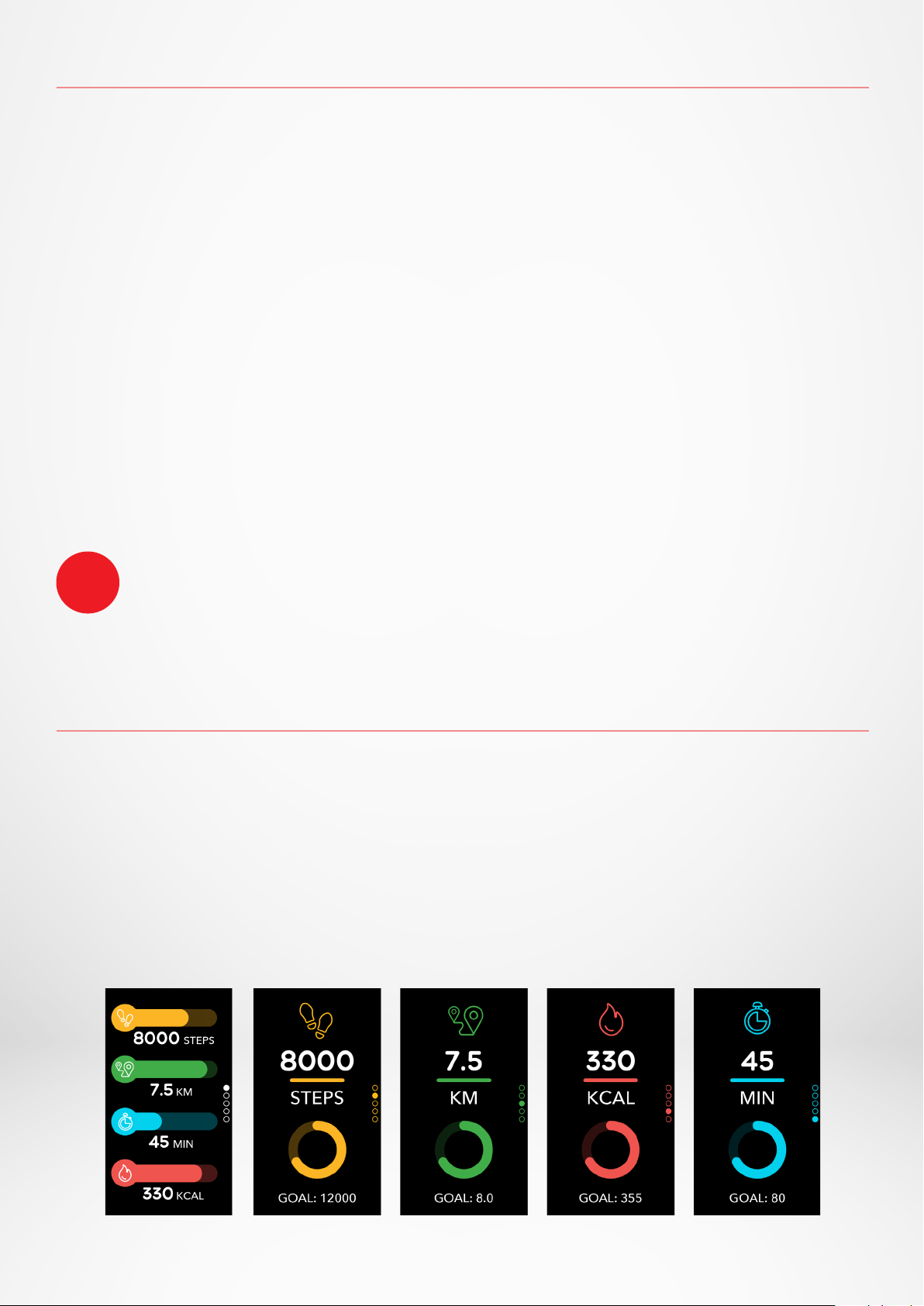
On each activity screen of your ZeNeo, a progress bar will show how close you are to
your daily goal.
Once you hit one of your daily goals, ZeNeo will gently vibrate and display a Goal achieved
interface.
We recommend you to set ambitious but realistic goals in order to keep a healthy daily activity.
You can obviously raise your goals over time to increase your performance. On average it is
recommended to have at least 30 minutes of physical activity per day.
i
11.HEART RATE
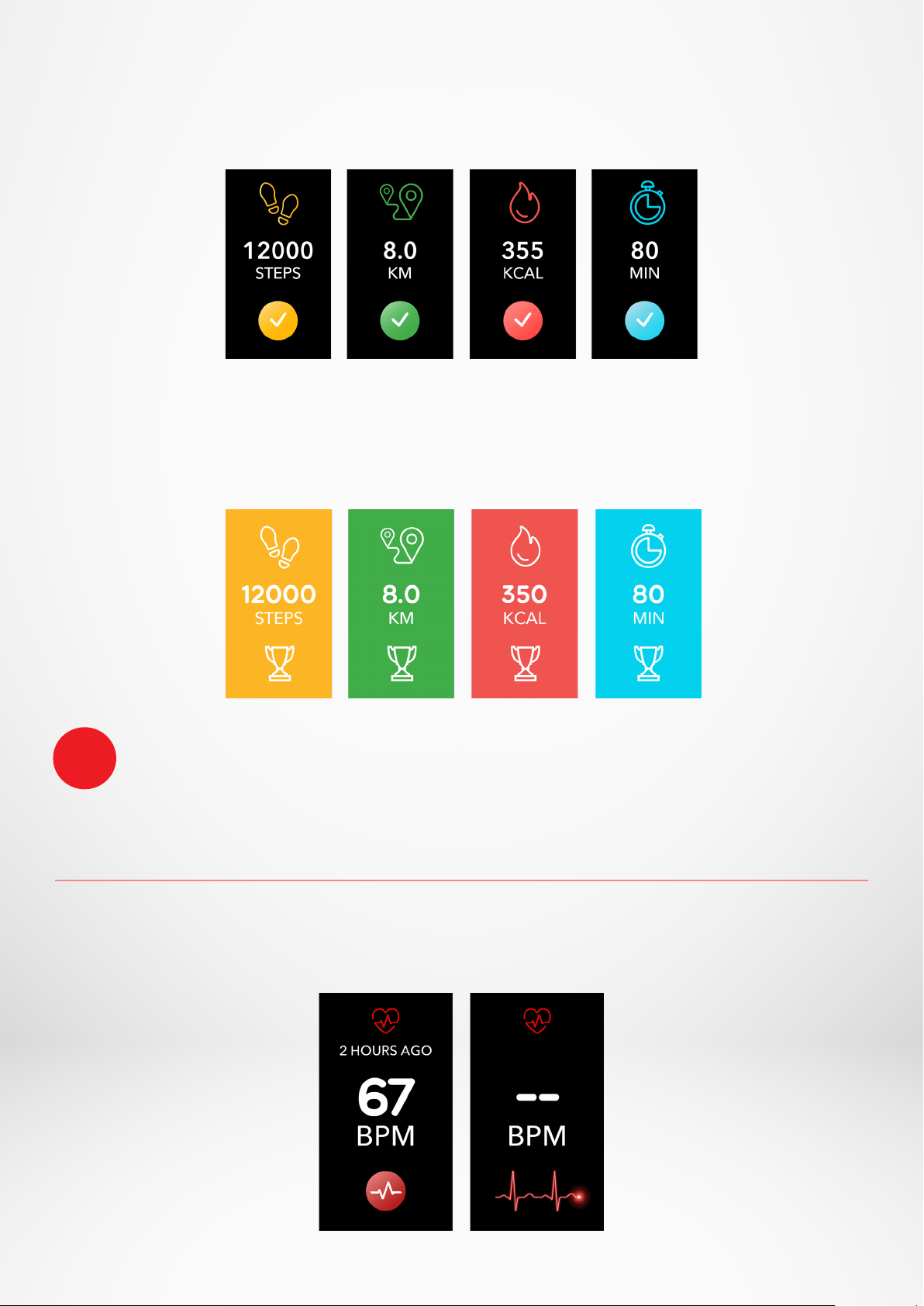
Equipped with an optical heart rate sensor, ZeNeo measures manually or automatically
your heart rate frequency throughout the day.
- 12 -
Setting automatic HR monitoring on a very regular basis will impact the battery life.
i
I MANUAL MODE
• Securely attach your ZeNeo around your wrist.
• Go to the Heart rate menu of your watch.
• Touch the red button to start measuring your heart rate.
It will take about 10 seconds to get the results displayed on your watch screen.
I AUTO HEART RATE TRACKING
• Go to the Settings tab of your mobile App
• Click on Heart rate
• Enable Auto track and set the frequency
Once activated, two green LED lights will start flashing on the back of the device.
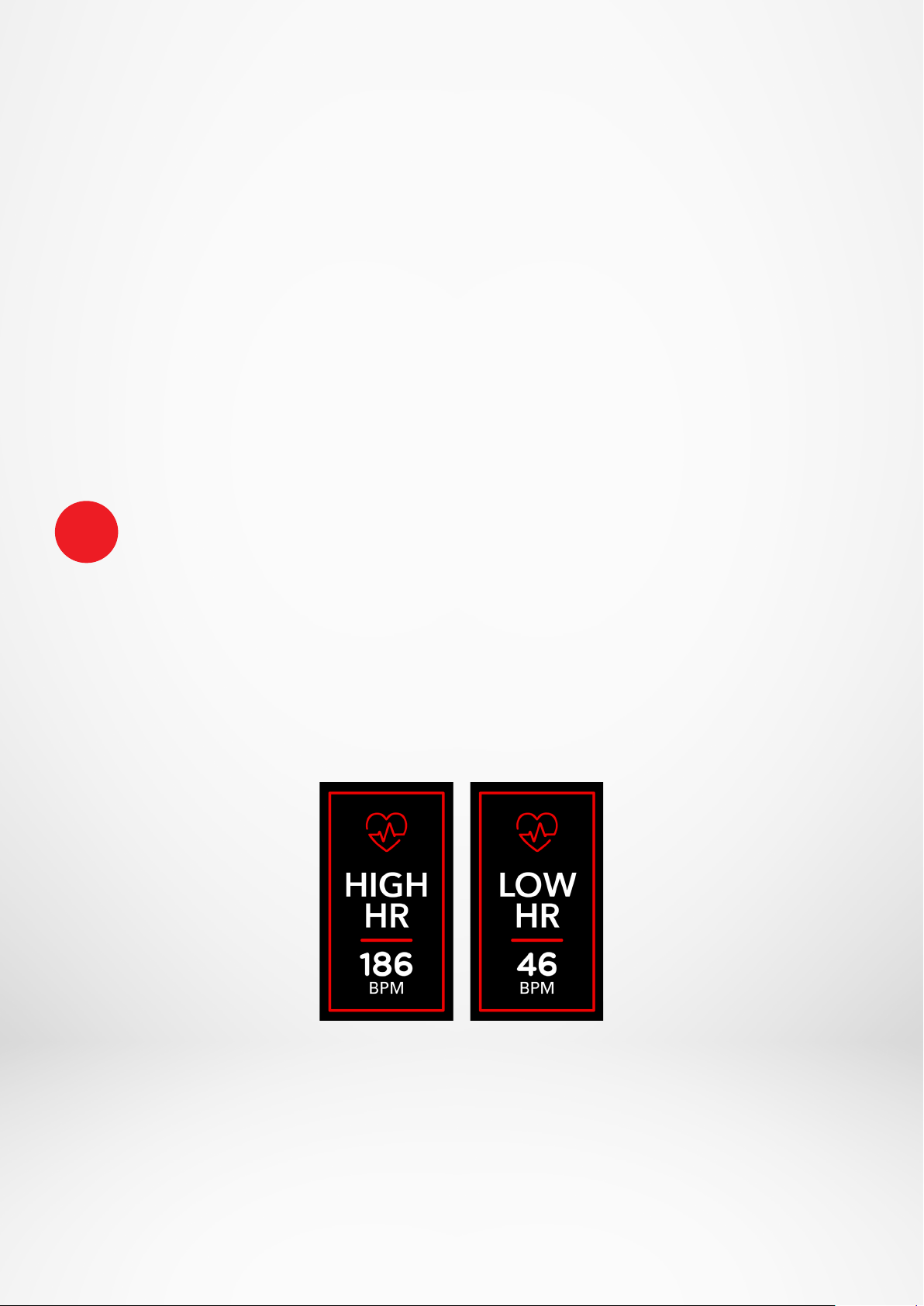
I HEART RATE ALERT
ZeNeo can also alert you when your heart rate is going above or below preset limits. You
can customize those limits directly from the watch > Go to the Settings menu > Click on
Activity > Select Heart rate or in the mobile app settings.
- 13 -
12.SLEEP
13.STOPWATCH
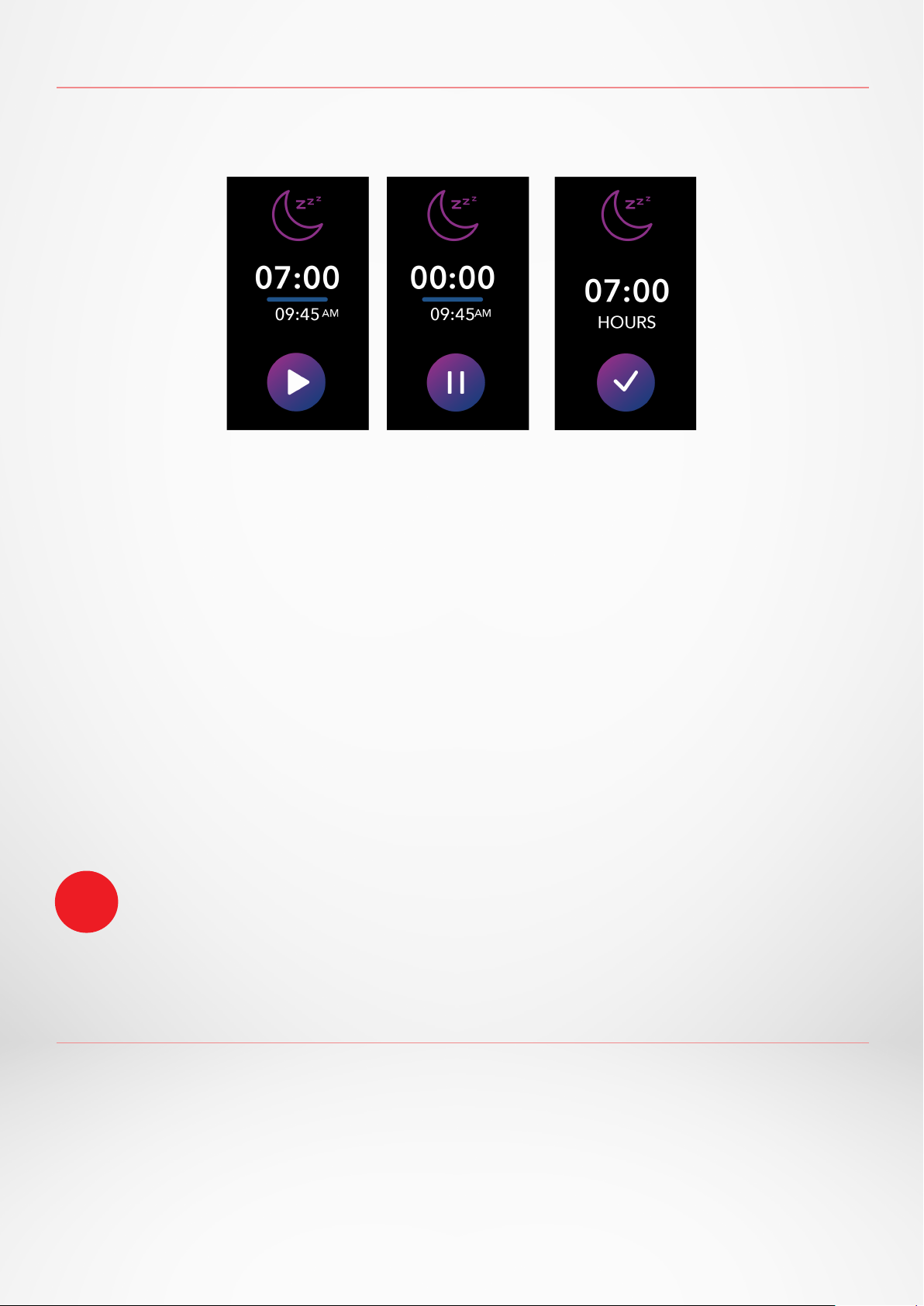
ZeNeo tracks the hours slept and the quality of your sleep.
I TO USE THE STOPWATCH
• Open the Stopwatch app
• Start counting by pressing the Play icon
• To stop counting, press the Pause icon
• Click on the Reset icon to set the counter to 0
I START/EXIT SLEEP MODE MANUALLY
• Press the sleep app icon of the ZeNeo main menu
• Press on the Start icon to enable sleep monitoring
• Press on the End icon to stop sleep monitoring
I SLEEP GOALS FROM YOUR WATCH
• The sleep goal is 8 hours by default
• Long press the screen to set up your daily sleep goals to your most suitable length
• Set the hour first. Then validate.
• Set the minute and confirm.
I ENABLE PRESET SLEEP MODE
• Open the MyKronoz App
• Go to the Settings menu
• Click on Advanced Settings
• Select or Click on Sleep to enter your desired bed and wake up times.
By default, ZeNeo will track your sleep from 11pm until 7am.
You can also view your last saved data directly from the device
i
- 14 -
14.TIMER
15.CALLS
I TO USE THE TIMER
• Open the Timer app
• Set the countdown length by tapping on the hours, minutes or/and seconds area.
The selected area will turn purple
• Swipe up and down to adjust the countdown. Then press the start button to start
the timer.
• At the end of countdown, your watch will alert you with sound and vibration.
The ZeNeo calls features allow you to dial a number, see the caller ID & calls history,
answer and reject an incoming call directly from your wrist.
In order to enjoy all these features, you must ensure that the BT 3.0 is connected with
your smartphone (refer to 6. Pairing section for more details).
Once it is paired, you will be able to enjoy the following features
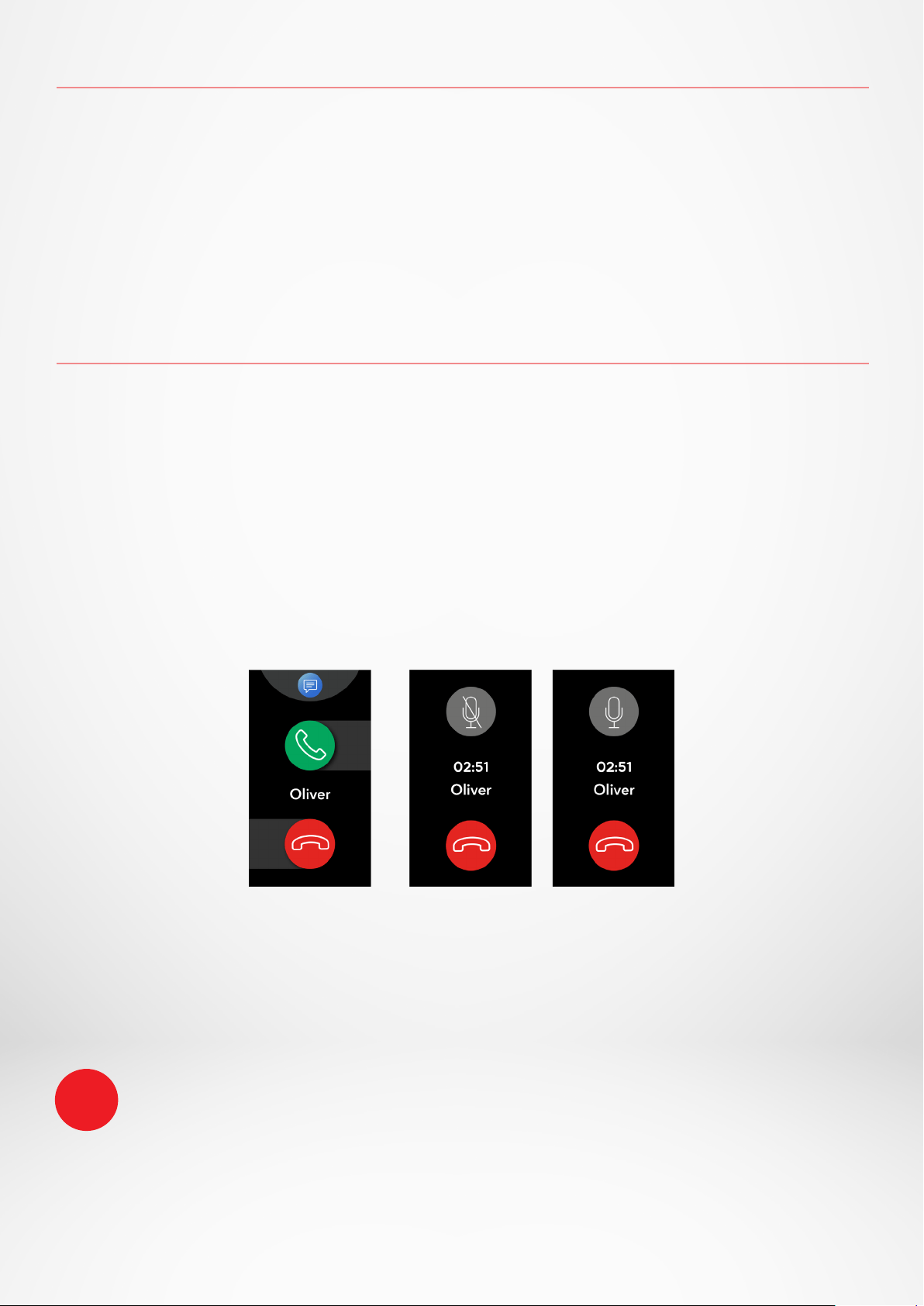
I ANSWER / REJECT / REPLY PHONE CALLS ON ZENEO
When you hear or see the call notification, raise your wrist to see who’s calling:
• Reset a call and send to voice mail: Tap the red Reject button in the incoming call
notification
• Answer on your ZeNeo: Tap the green answer button in the incoming call
notification
• Send a text message (Android only): Tap on the top area to select one of the
predefined replies
While you’re on a call:
• Adjust the call volume: Tap on the - or + buttons
• Hang up a call: Tap on the red Hang up button
• Mute the mic: Tap on the Mute button
To see the caller ID, make sure that the contact is saved on your phone.
i
- 15 -
16. VOICE COMMAND
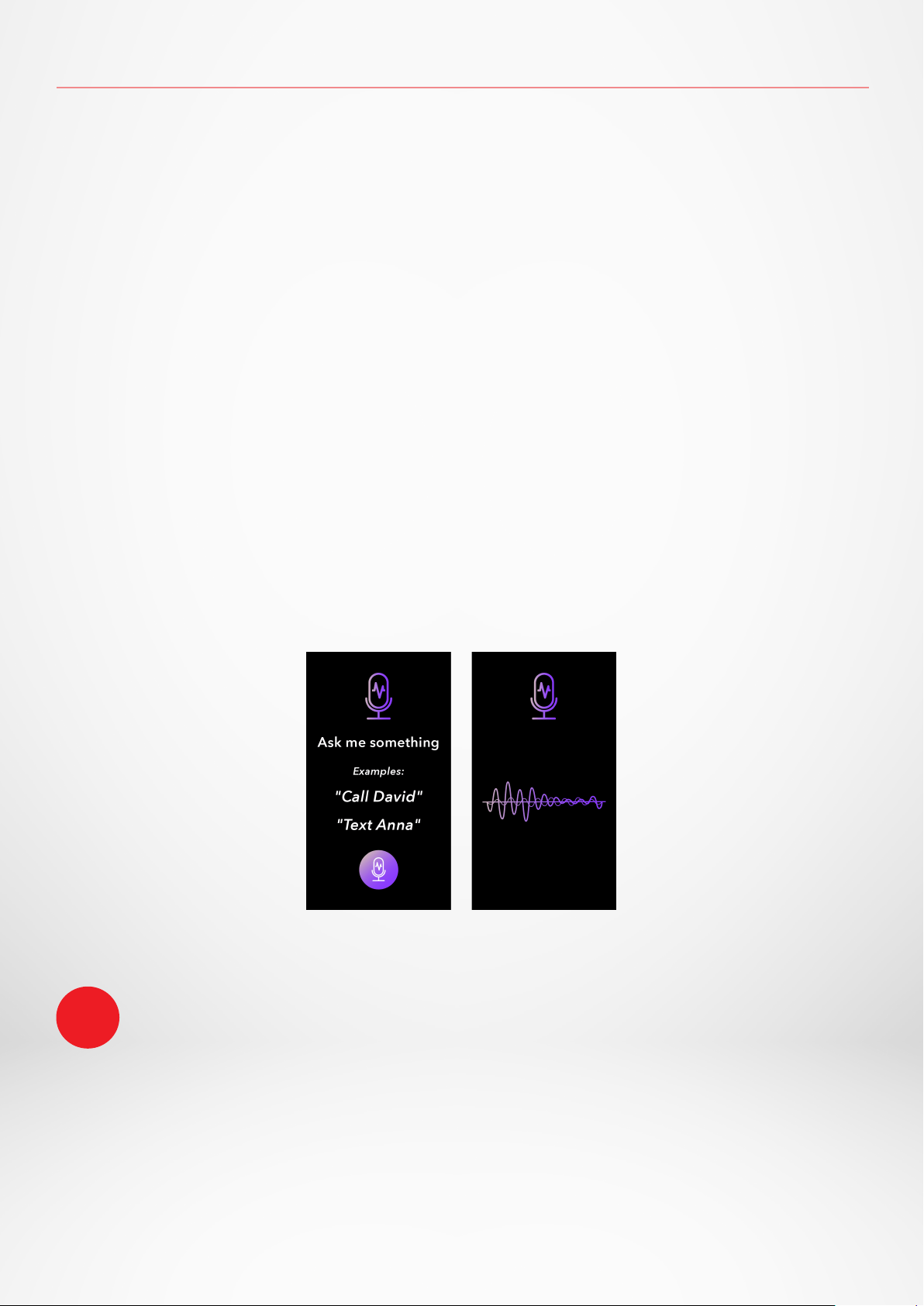
The voice command allows you to remotely control your phone, search for information
or send a quick command.
To enjoy this feature, make sure that the BT 3.0 is connected with your smartphone
(refer to 6. Pairing section for more details).
I SEND A VOICE COMMAND
• Open the Voice command app
• Tap on the Voice control button to enable the function
• Ask to Google now or Siri something
• Press the Voice control button to speak or send another command
Examples of what you can ask or do:
• Check the weather
• Set an alarm (on your phone)
• Send a text message
This feature is only functional with iOS 9+ devices compatible with Siri and some Android 6.0+ devices
compatible with Google Now. To enjoy this feature, ensure that your smartphone has access to the
internet (4G or Wi-Fi).
i
- 16 -
17. NOTIFICATIONS
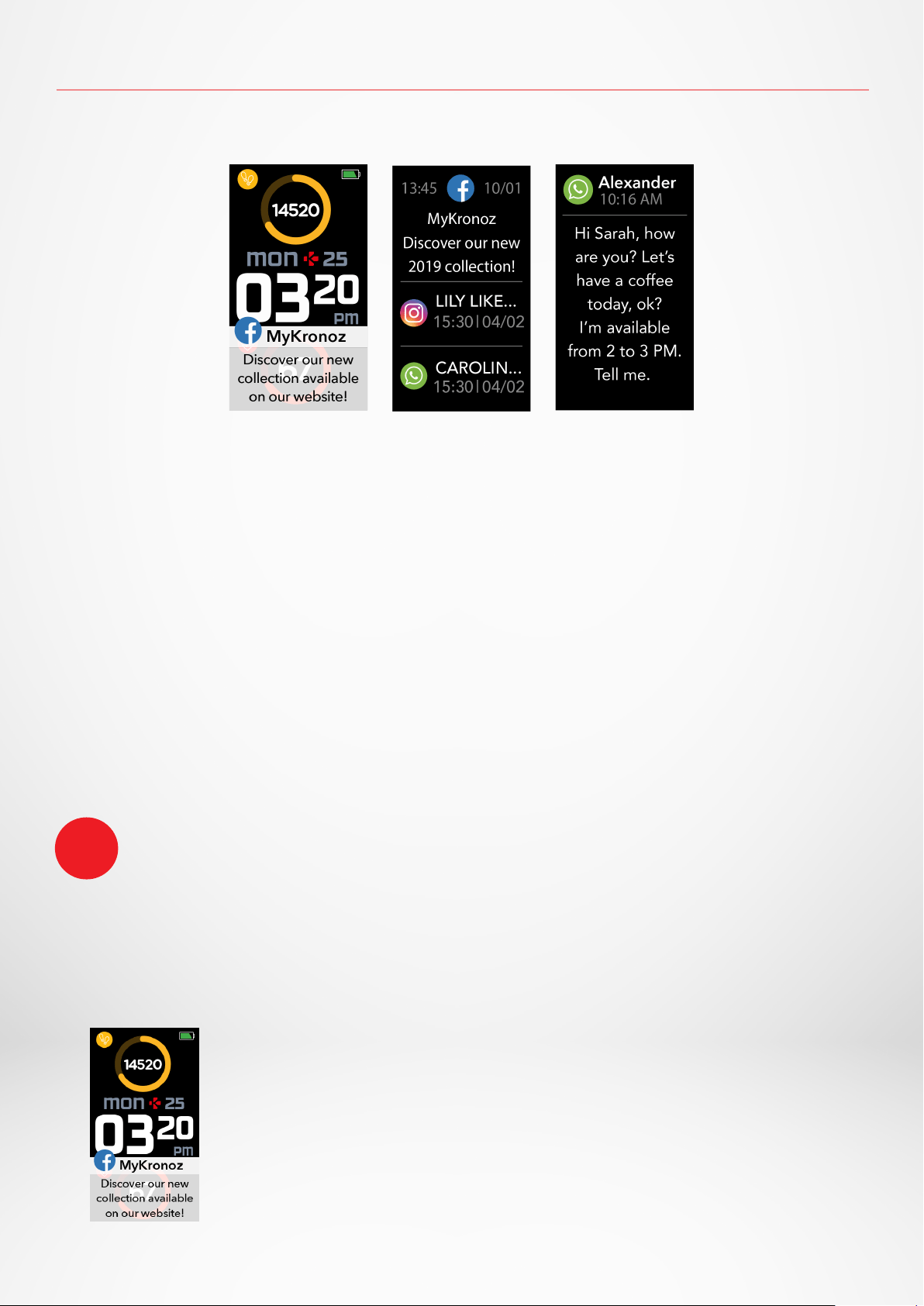
ZeNeo shows notifications of incoming calls, SMS, email, social media activity &
emails.
I SETTING UP NOTIFICATIONS FOR ANDROID USERS
• Open the MyKronoz App
• Tap on the Settings tab
• Select Notifications to select the notifications you want to receive onto your
ZeNeo. If you wish to disable certain notifications types, swipe the selection
button to the left.
I SETTING UP NOTIFICATIONS FOR iOS USERS
• Go to the Settings of your iOS device
• Tap on Notification Center
• Select which type of notifications you wish to receive on ZeNeo.
• Enable ”Show in Notification Centre” to receive the notification on ZeNeo.
I POP UP NOTIFICATIONS
As soon as you receive a notification, you will be notified on
your watch.
• Tap on the notification preview to open it
• Slide left to discard a notification
• Slide right to read it later
To ensure that you do not miss any notifications, the last
notification received will remain on the screen until you perform
one of these actions above.
ZeNeo shows the 20 most recent notifications and 3 screens of detailed information for each
notification.
For some very popular applications, ZeNeo
displays the original application icon. For other
applications, ZeNeo displays a generic icon.
i
- 17 -
18.SMS
From the Messages menu, you can easily read and reply to your SMS.
I QUICK REPLY ANDROID ONLY
ZeNeo allows you to reply using emojis or preset short answers directly
from your watch. The reply button appears at the end of the SMS. To delete
all your SMS notifications, go on the SMS list and long press the screen.
To erase a specific SMS, select the message and slide it to the left with your finger
To change the temperature unit, go in the Watch settings > click on Activity > select Units or
from the mobile app, go to the Settings menu > Change your weight or height unit.
If the weather condition for your current location seems wrong or doesn’t appear, make sure
that the location services for the MyKronoz App are switched ON.
i
19.WEATHER
To check the current weather, go to the Weather interface on your ZeNeo or swipe
down from the home screen and click on the weather widget at the top .
By default, the weather screen shows your current location.
I SET UP THE WEATHER FEATURE
• Go to the Advanced settings of the mobile app
• Tap on Weather
• Select Auto track mode to get weather forecasts based on your GPS position
or
• Select Manual mode to choose your location
Following this procedure, your ZeNeo will display the weather forecast of your select
location.
ZeNeo will display the weather forecasts of the present day and upcoming 3 days on a
second page.
- 18 -
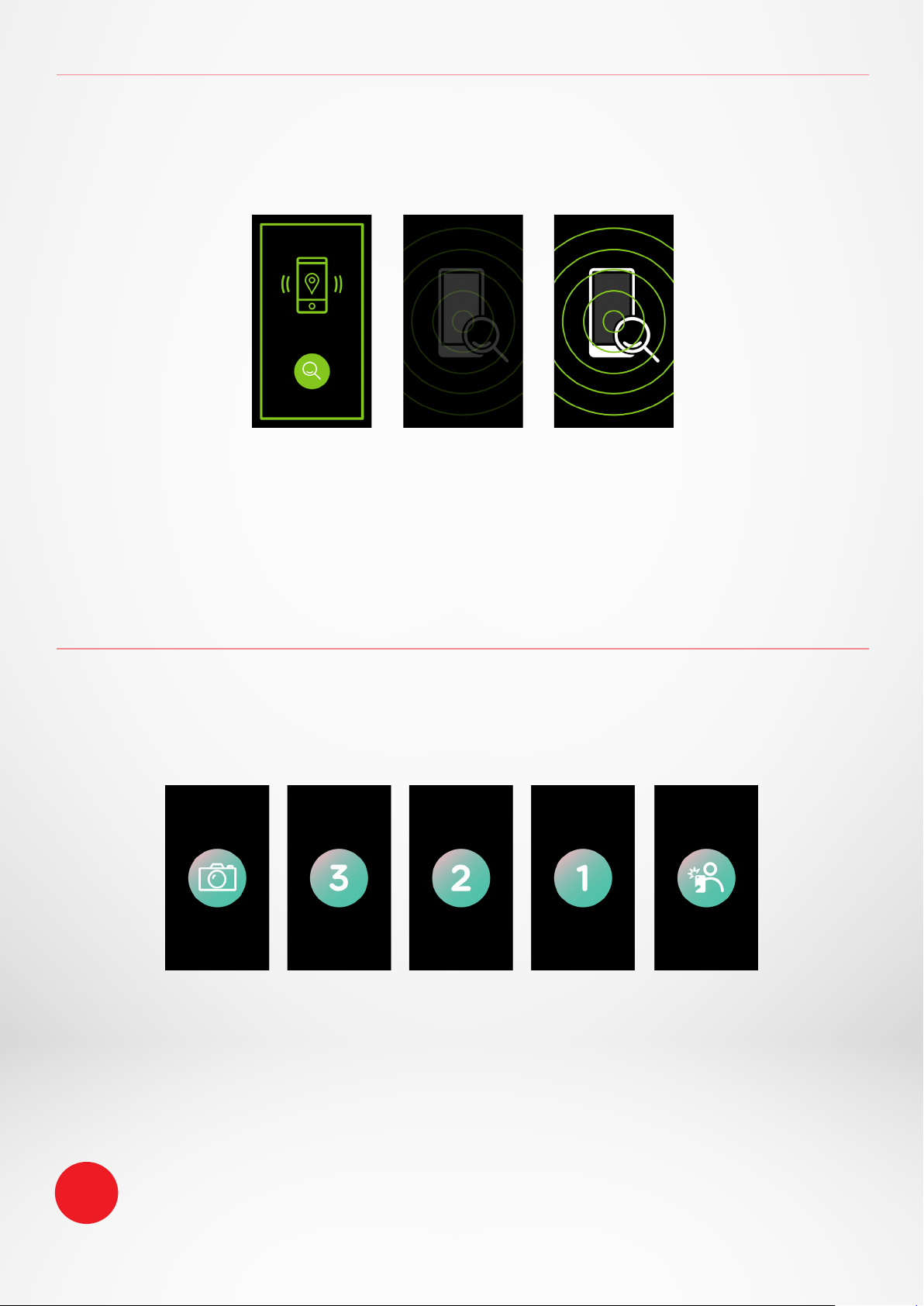
ZeNeo can be used as a remote control to take pictures and selfies from your
smartphone. This feature is useful when you want to take a group picture or when
you want to take a selfie.
I TO USE ZENEO AS A CAMERA REMOTE
• Open the native camera of your smartphone
• Click on the Camera app icon on your watch
• You can then, tap the camera icon displayed on your watch screen to start the
countdown and take photos
20.FIND MY PHONE
21.CAMERA REMOTE
If you misplace your phone, the Find my phone function will make your phone ring
or/and vibrate so you can easily find it. To use this feature, ensure your phone and
watch are within range of each other (10m).
I TO ENABLE THIS FEATURE
• Press the find my phone app icon in the watch shortcuts or in the main menu page
(or Apps menu), select Find my phone app and click on the screen to enable or
disable it.
This feature only works with your native camera.
Each picture taken from your ZeNeo will appear in the image gallery of your smartphone.
i
- 19 -
22. MUSIC CONTROL
23. ANTILOST
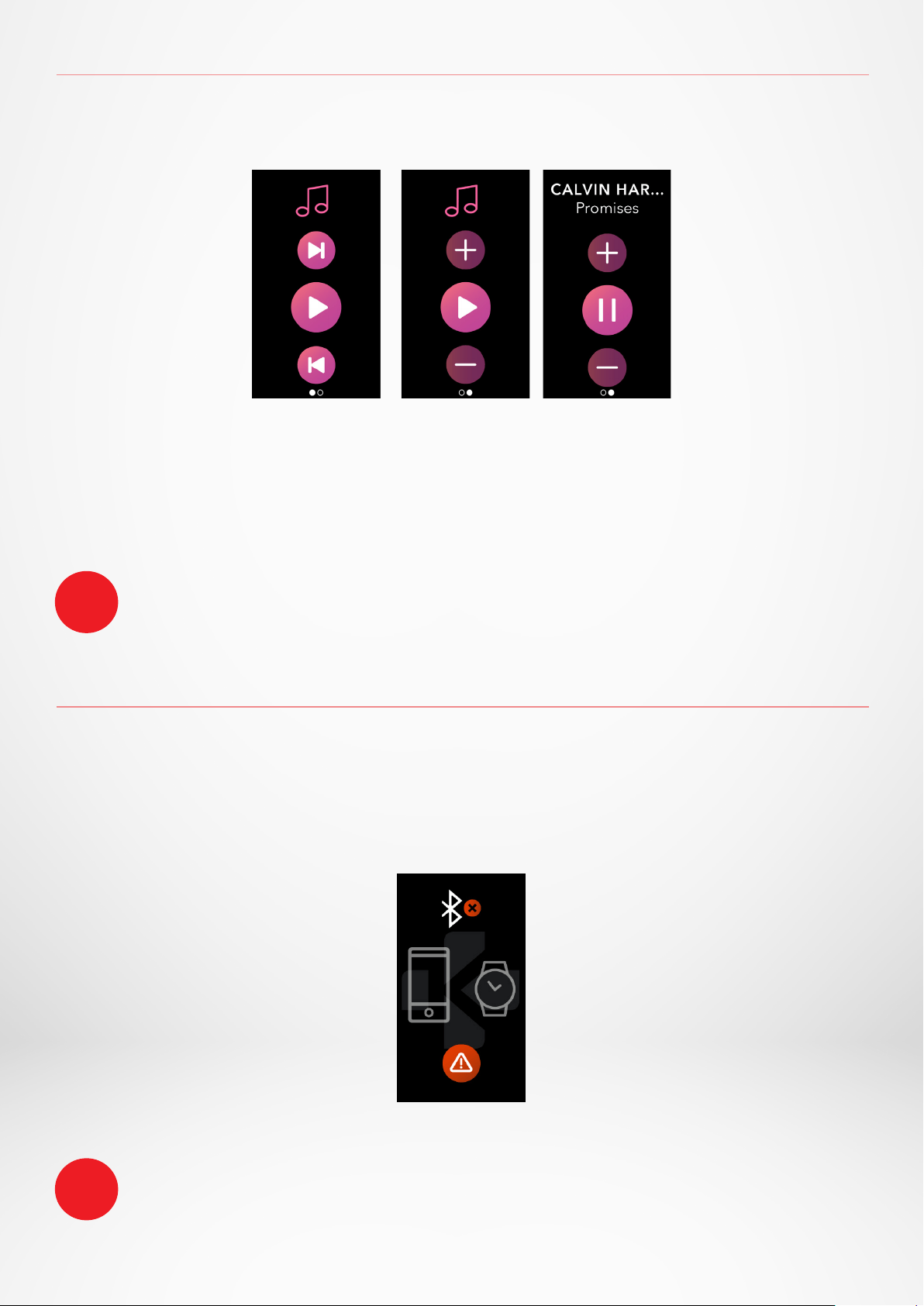
On your ZeNeo, you can see information about the track currently playing, like the artist or
track name (Android only).
By default, the anti-lost alert is O.
i
i
With ZeNeo you can take control of your favorite music player like Deezer, Spotify
and YouTube on your smartphone.
I TO CONTROL MUSIC
• First start the player on your phone
• Go into the Music app on your ZeNeo
• Play, pause, skip tracks and adjust volume straight from your wrist
This alert notifies you with a vibration or a sound (depending on your watch settings)
when your ZeNeo is going out of range (BT range 10 m) of your phone.
Note that you can turn this function o by disabling the Anti-lost alert in the Watch
Settings > Select Device > Click on Anti-lost.
- 20 -
24. APPS
25. ALARM
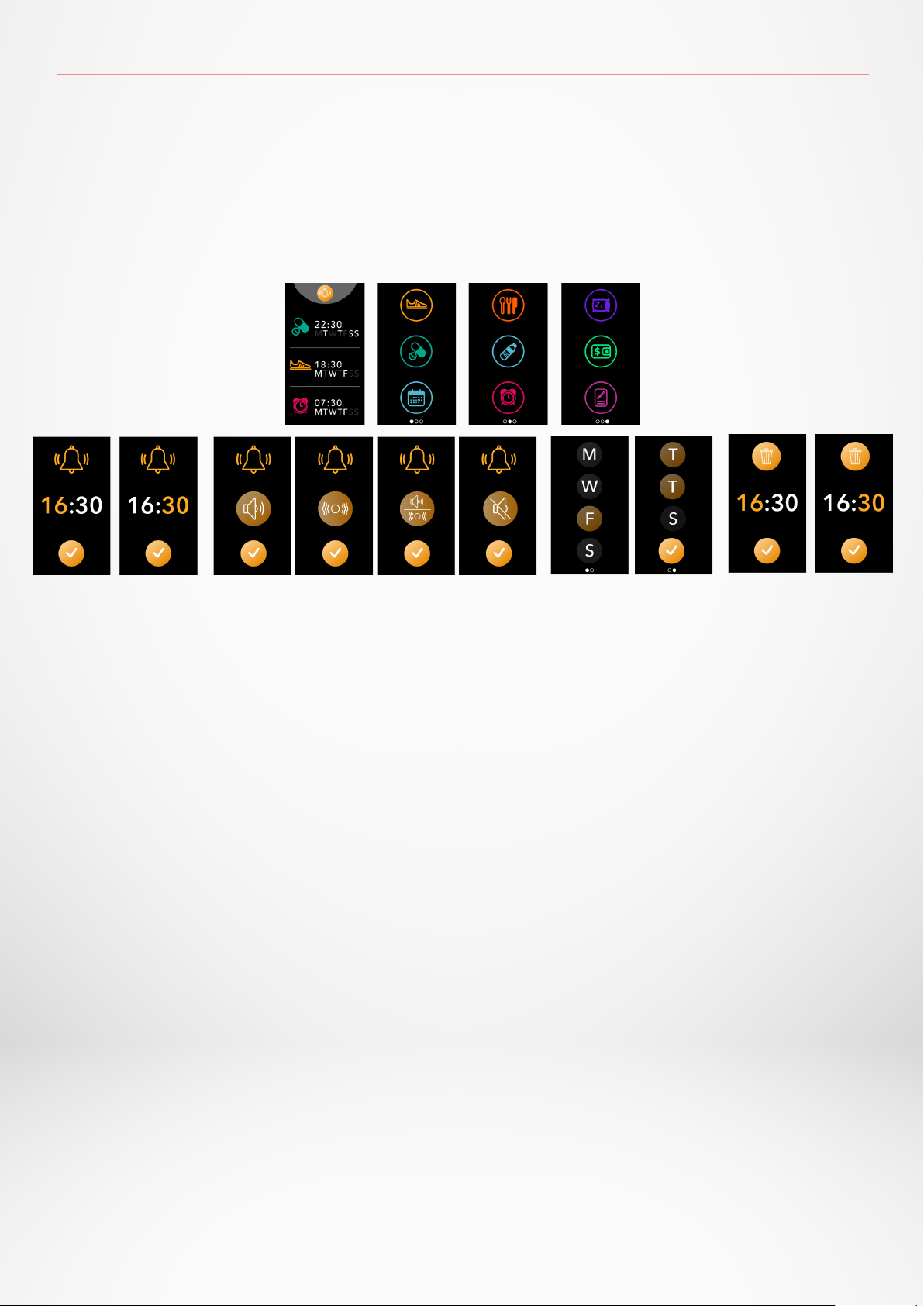
For each alarm, ZeNeo will vibrate and ring continuously for 1 minute. You can snooze your
wake up alarms several times.
The snooze length can be set in the advanced settings from the mobile app or in the watch
settings.
i
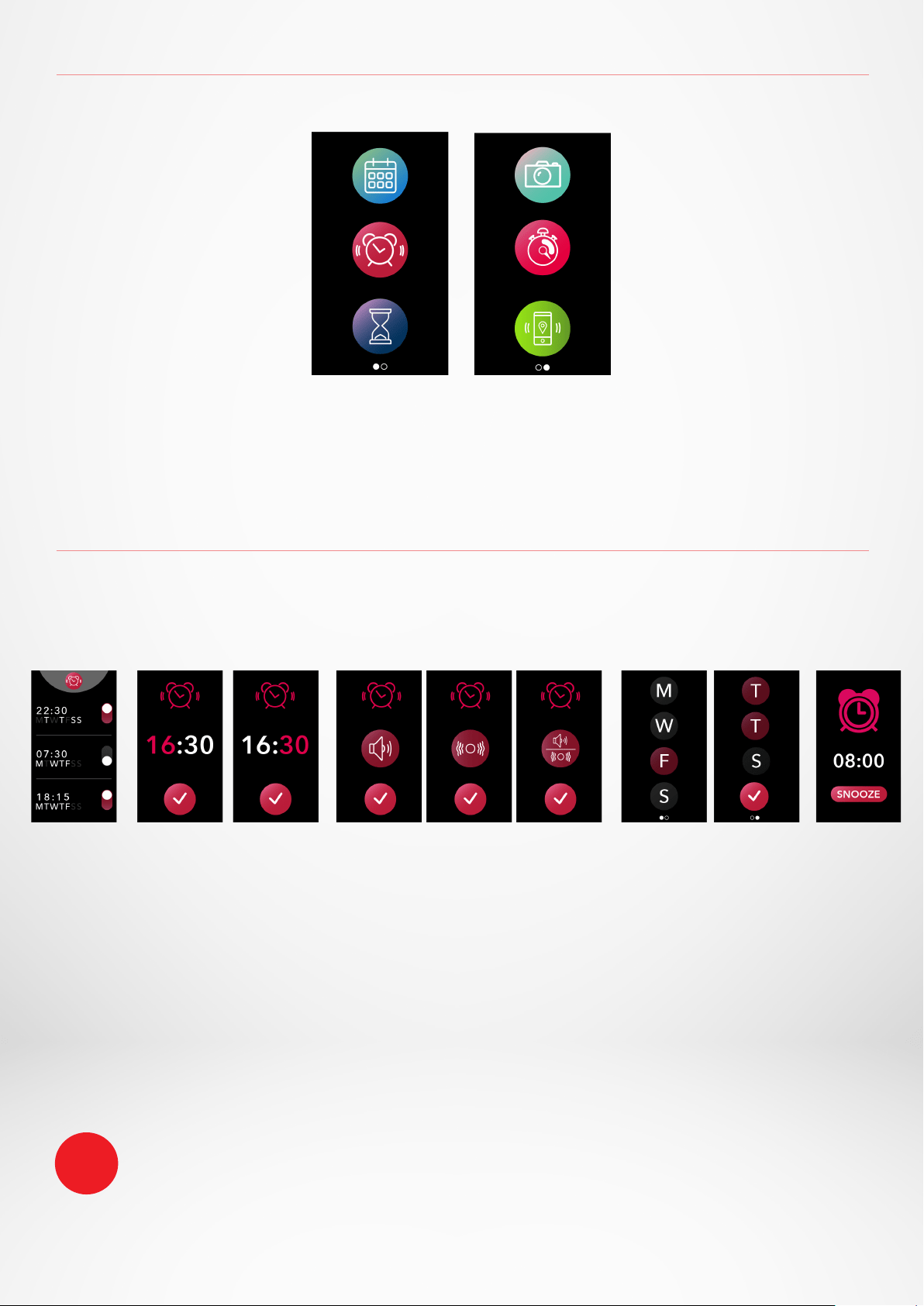
Several applications can be found in this menu:
• Reminder • Stopwatch • Timer
• Calendar • Camera remote • Find my phone
To wake you up in the morning, or alert you at a certain time of the day, you can set
up alarms that gently vibrate and ring at the chosen time.
I TO SET AN ALARM FROM THE WATCH
• Go to the Alarm app icon
• Click on the top area to edit a new alarm
• Set the alarm time, sound and day
• Then confirm
To dismiss the alarm, press the button.
- 21 -
26.REMINDERS
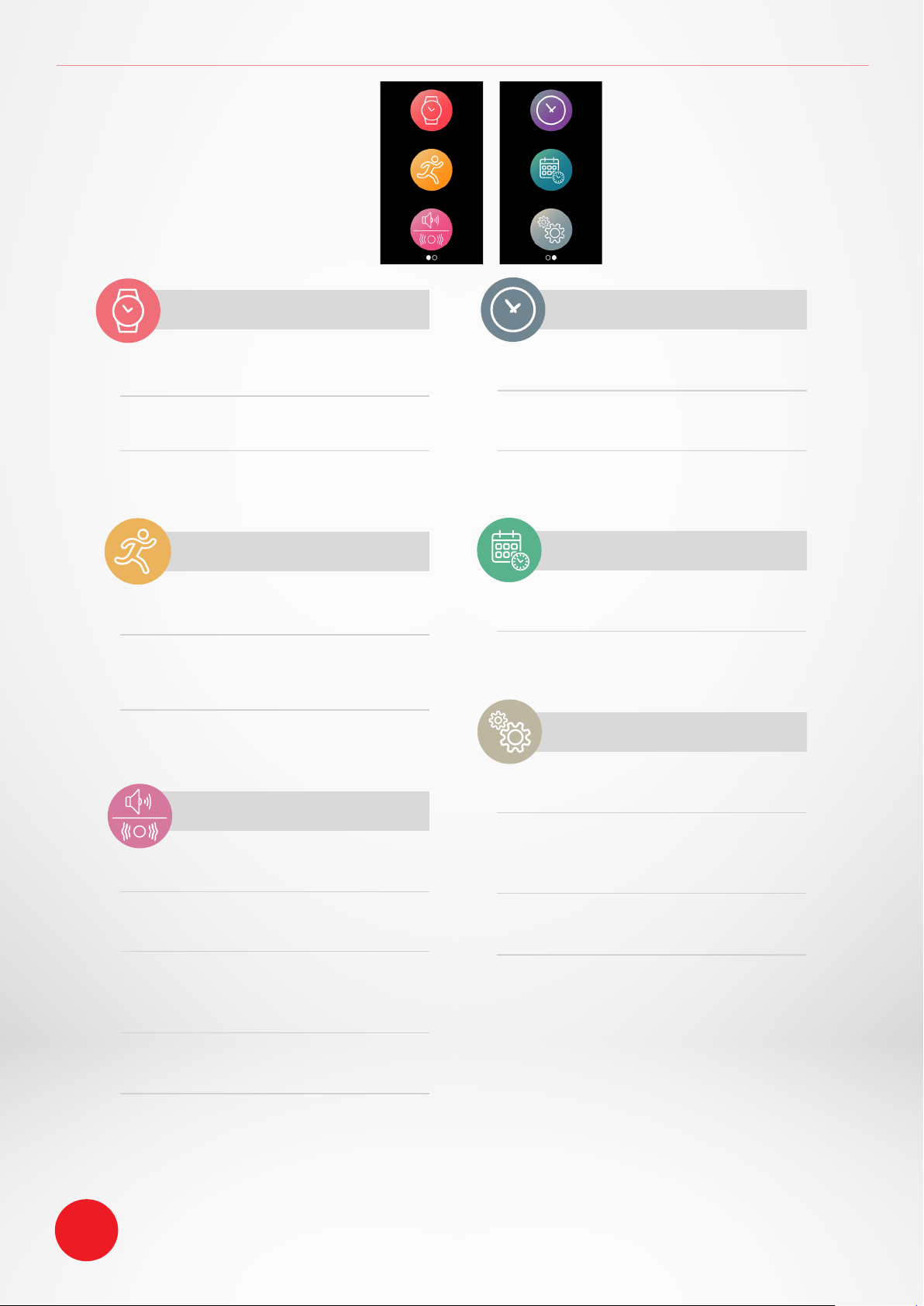
Several applications can be found in this menu:
I TO SET A REMINDER FROM THE WATCH
• Go to the Reminder app icon
• Click on the top area to edit a new reminder
• Set the reminder time, type, sound and day
• Then confirm
To dismiss the reminder, press the button.
ZeNeo will gently vibrate and display the corresponding reminder icon to alert you.
A single press on the ZeNeo button helps dismisses the reminder. If not dismissed, the
same alert will repeat every 2 minutes.
For each reminder, ZeNeo will vibrate and/or ring.
I TO SET A REMINDER FROM THE APP
• Tap on the Reminders tab of MyKronoz App to add daily life reminders
• Set up reminders, and choose the type of reminder and preferred time and day.
- 22 -
28.SETTINGS
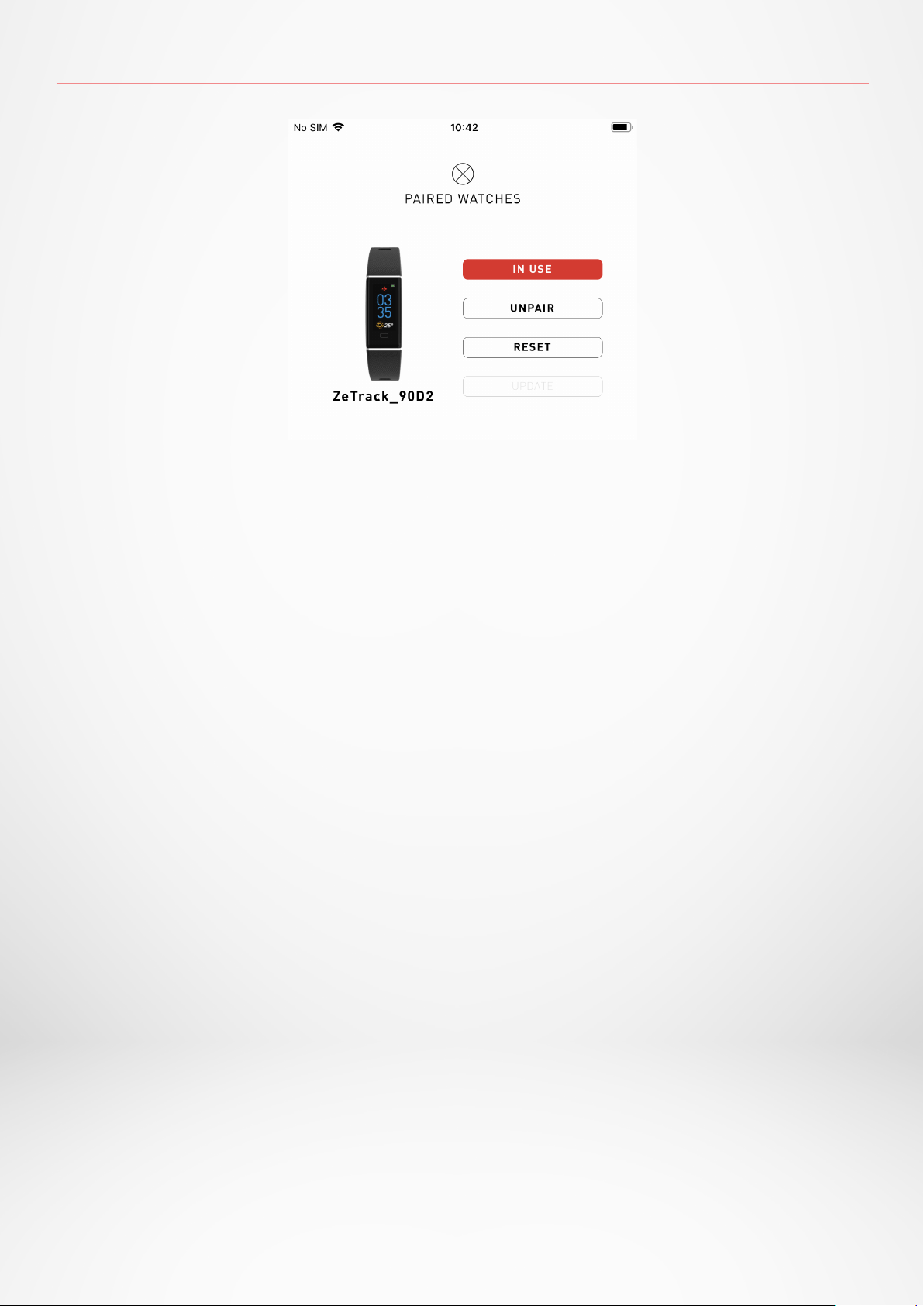
DEVICE
Bluetooth
®
Enable or disable it
Battery level
Check the battery level
Anti-lost
Enable or disable it
ACTIVITY
Goals
Set your goals
Units
Metric or Imperial
Heart rate
Set your heart rate frequency
SOUNDS & VIBRATIONS
Sound
Set your sound mode
Vibration
Set your vibration mode
Do not disturb
Set a time frame when you don’t
want to be disturbed
Snooze
Adjust the snooze time
Ringtone
Set the ringtone (Android only)
Several settings can be
found and set in this menu:
DISPLAY
Brightness
Adjust the screen brightness
Watch face
Set your watch face
Menu style
Select a menu style
TIME & DATE
Time format
Change time format
Date format
Change date format
SYSTEM
Languages
Set your language
Watch info View the firmware
version and serial number of the
device
Regulatory
View the watch certification
Reset
Reset your watch to its default
settings
You can also find other settings such as do not disturb mode, inactivity alert and time format
setting in the MyKronoz App.
i
- 23 -
29.UNPAIR, RESET, UPDATE & DELETE
I UNPAIR
If you want to pair your ZeNeo with another smartphone, pair another MyKronoz device,
give it to another person or return it, go to the MyKronoz App > Settings menu > Click on
Paired watches > Click on Unpair.
For iOS users, make sure to forget the device from the Bluetooth
®
settings of your phone.
I UPDATE
Make sure to update your ZeNeo to get the latest improvements and device updates.
When a new update is available, a notification appears in the MyKronoz App and the
paired watches section. After starting an update, a progress bar appears in the MyKronoz
App as well as an Upgrading message on ZeNeo until the update is fully complete.
To avoid any issue, make sure to keep your tracker and smartphone close to each other
during the process.
I RESET
Hard reset from the mobile app
To reset your device from the MyKronoz App > Click on the Settings menu > Select Paired
Watches > Click on Reset
Hard reset from the watch
To reset your watch directly from the device > Go to the Settings menu > Click on System
> Select Reset
This procedure will erase all content, data and settings on your watch and set your watch
back to the setup mode.
I DELETE
To erase a device from your list of paired watches, go to the MyKronoz App > Click on the
Settings menu > Click on Paired Watches > Click on Delete.
- 24 -
Dimensions 52,6 x 23,8 x 12,3 mm
Weight 26 g
Display size and resolution IPS-LCD 1.14” / 134 x 240 px
Material Polycarbonate, aluminium, silicone
Battery type Lithium polymer 220 mAh
Battery life Up to 4 days
Bluetooth® BT 3.0 + BLE 4.2
Memory 7 days of activity
Sensors 3-axis accelerometer & Optical Heart rate
Water resistance IP56
Operating temperature -10°C to + 60°C
Compatibility iOS & Android
Accessories included Charging cradle - Quick start guide
International warranty 1 year
30. TECH SPECS
- 25 -
WARNING
I
Connecting the built-in USB port improperly may cause serious damage to
the device. Any damage caused by misuse is not covered by the warranty.
Unplug ZeNeo when it is fully charged.
I
ZeNeo unit and charging dock contain strong magnets that may interfere
with pacemakers, credit cards, watches and other magnet-sensitive objects.
If you use a pacemaker or any other electronic medical device, please
consult your physician before wearing or handling ZeNeo.
I
This product is not a medical device and should not be used to diagnose
or treat any medical condition.
I
This device is not waterproof so keep it away from all sources of heat or
humidity. Do not use it near sink or other wet areas. Do not place it in water.
ZeNeo only conforms to IP56 protection.
ABOUT THIS MANUAL
SUPPORT
The features of
ZeNeo
and the contents of the user manual are subject
to change.
To get the latest instructions on how to use this product, please refer to
the online user manual available on www.mykronoz.com
If you have any question or require assistance regarding our product,
please visit www.mykronoz.com/support/ submit a request at
https://support.mykronoz.com/hc/en-us/requests/new
- 26 -
• This device has a recording function. Please be sure to comply with the relevant
laws and regulations on the use of these features. In accordance with relevant
regulations, without permissions any personal characteristic sound recording being
copied and disseminated may be seen as an invasion of privacy. Inappropriate use
of photography, video and photo, audio recording function records could violate the
copyright owner’s right. For this, the user must assume full responsibility. KRONOZ
LLC is not responsible for any damage caused by improper use of the device.
• This device is not waterproof. Do not immerse the device in water or any other liquids.
Before using the device, read these instructions carefully.
• ZeNeo has built-in batteries. Do not disassemble the battery on your own. KRONOZ
LLC is not responsible for any damage or personal injury caused by the removal
of the battery or any component.
• Do not expose your product to extremely high or low temperatures. Excessive
temperature during charging could cause heat, smoke, fire or deformation of the
battery or even explosion. Do not expose the battery in the sun, excessive smoke or
dust. Charge the battery in a cool, ventilated room.
• Do not open, crush, bend, deform, puncture or shred secondary cells or batteries. In
the event of a battery break or leak, prevent battery liquid contact with skin or eyes.
If this happens, immediately flush the areas with water (do not rub the eye) or seek
medical help.
• Do not short-circuit. Short-circuiting can occur when a metallic object, such as coins,
causes direct connection of positive and negative terminals of the battery. Short-
circuiting may damage the battery.
• Do not use batteries that have been damaged or have been exhausted.
• Keep the batteries out of children’s reach and in a safe place to prevent danger.
• Do not place the batteries in the water. Do not expose your product to water at high
pressure, such as ocean waves or waterfall. Do not use your product in a sauna or
steam room.
• Do not dispose of batteries in fire as they may cause explosion. Dispose of used
batteries in accordance with your local regulations (such as recycling). Do not dispose
as household waste.
• Use only the USB cable supplied to charge this battery. Do not charge for more than
24 hours.
• Do not attempt to repair or maintain the watch by yourself, service and maintenance
should be performed by authorized technicians.
• Risk of explosion if battery is replaced by an incorrect type.
• Dispose of used batteries according to these instructions.
SAFETY INSTRUCTIONS
CAUTION
- 27 -
USA
FCC STATEMENT
This device complies with Part 15 of the FCC Rules. Operation is subject to the following two
conditions : (1) this device may not cause harmful interference, and (2) this device must accept any
interference received, including interference that may cause undesired operation.
CAUTIONS
Changes or modifications not expressly approved by the party responsible for compliance could void
the user’s authority to operate this equipment.
FCC NOTICE
This equipment complies within the limits of a Class B digital device, pursuant to part 15 of the FCC
Rules. These limits are designed to provide reasonable protections against radio and TV interference
in residential areas. However, even during normal operation, this equipment may cause TV or radio
interference. If the equipment does cause harmful interference to radio or television reception, which
can be determined by turning the equipment o and on, the user is encouraged to try one or more of
the following corrective measures:
• Reposition the receiving antenna.
• Increase the distance between the equipment and receiver.
• Connect the equipment into an outlet on a circuit dierent from which the receiver is connected.
• Consult the dealer or an experienced radio/TV technician for help.
RF EXPOSURE STATEMENTS
This equipment complies with FCC radiation exposure requirement set forth for an uncontrolled
environment. End users must follow the specific operating instructions for satisfying RF exposure
compliance.
CANADA
INDUSTRY CANADA IC STATEMENT
This device complies with Industry Canada license-exempt RSS standard(s). Operation is subject
to the following two conditions : (1) this device may not cause interference, and (2) this device must
accept any interference, including interference that may cause undesired operation of the device.
Cet appareil est conforme à la norme CNR d’Industrie Canada applicable aux appareils radio exempts de
licence. Son utilisation est soumise aux deux conditions suivantes: (1) cet appareil ne doit pas provoquer
d’interférences et (2) cet appareil doit accepter toute interférence, y compris les interférences qui
peuvent causer un fonctionnement indésirable du dispositif.
REGULARY NOTICE
FCC ID: 2AA7DZNEO
IC: 12131AZNEO
- 28 -
RF EXPOSURE STATEMENTS
This device complies with the ISED RSS-102 RF exposure requirement set forth for an uncontrolled
environment and are safe for intended operation as described in this manual.
Cet appareil est conforme aux exigences d’exposition RF de l‘ISED RSS-102 définies pour un
environnement non contrôlé et est sûr pour le fonctionnement prévu comme décrit dans ce manuel.
EUROPEAN UNION
CE DIRECTIVE
Declaration of conformity with regard to the EU Directive 2014/53/EU.
Kronoz LLC hereby declares that this device is in compliance with the essential requirements and
other relevant provisions of the RE Directive 2014/53/EU. The complete declaration of conformity is
available at: www.mykronoz.com/assets/certifications-ce-zeneo.pdf
Déclaration de conformité à l’égard de la directive européenne 2014/53/EU.
Kronoz LLC déclare que cet appareil est conforme aux exigences essentielles et aux autres dispositions
pertinentes de la directive RE 2014/53/EU. La déclaration de conformité complète est disponible sur:
www.mykronoz.com/assets/certifications-ce-zeneo.pdf
RUSSIA
CUSTOMS UNION CERTIFICATION
視力保護注意事項:
(1)使用30 分鐘請休息10 分鐘。
(2)未滿2歲幼兒不看螢幕,2歲以上每天看螢幕不要超過1 小時。
依據低功率電波輻射性電機管理辦法
第十二條
※經型式認證合格之低功率射頻電機,非經許可,公司、商號或使用者均不得擅自變更頻率、加大
功率或變更原設計之特性及功能。
第十四條
※低功率射頻電機之使用不得影響飛航安全及干擾合法通信;經發現有干擾現象時,應立即停用,
並改善至無干擾時方得繼續使用。
-前項合法通信,指依電信法規定作業之無線電通信。
-低功率射頻電機須忍受合法通信或工業、科學及醫療用電波輻射性電機設備之干擾。
ACCESS TO THE REQUIRED INFORMATION ON THE ELABEL
Users can access the E-Label screen on ZeNeo by going to Settings > General > Regulatory.
No special access codes or permissions are required to go through the above steps beyond
entering a user-defined password to protect against unauthorized access to the device. Additional
regulatory information are in « Regulatory notices » of this document. The information is stored on
the device, no special accessories or supplemental plug-ins (e.g., a SIM/USIM card) are required to
access the information.
- 29 -
DISPOSAL AND RECYCLING INFORMATION
After the implementation of the European Directive 2012/19/EU in the national legal system, the
following applies : electrical and electronic devices may not be disposed of with domestic waste.
Consumers are obliged by law to return electrical and electronic device at the end of their service
lives to the public collecting points set up for this purpose or point of sale. Details to this are defined
by the national law of the respective country. This symbol on the product, the instruction manual
or the package indicates that a product is subject to these regulations. By recycling, reusing
the materials or other forms of utilizing old devices, you are making an important contribution to
protecting our environment.
©2019 Kronoz LLC, all rights reserved.
Kronoz LLC, Avenue Louis-Casai 18 - 1209 Geneva - Switzerland
All brands or product names are or may be trademarks of their respective owners.
Pictures and specifications are not contractual. Les marques citées sont des marques
déposées par leur fabricant respectif. Photos et caractéristiques non contractuelles.
Designed in Switzerland - Assembled in China.
mykronoz.com
JOIN US @ MYKRONOZ