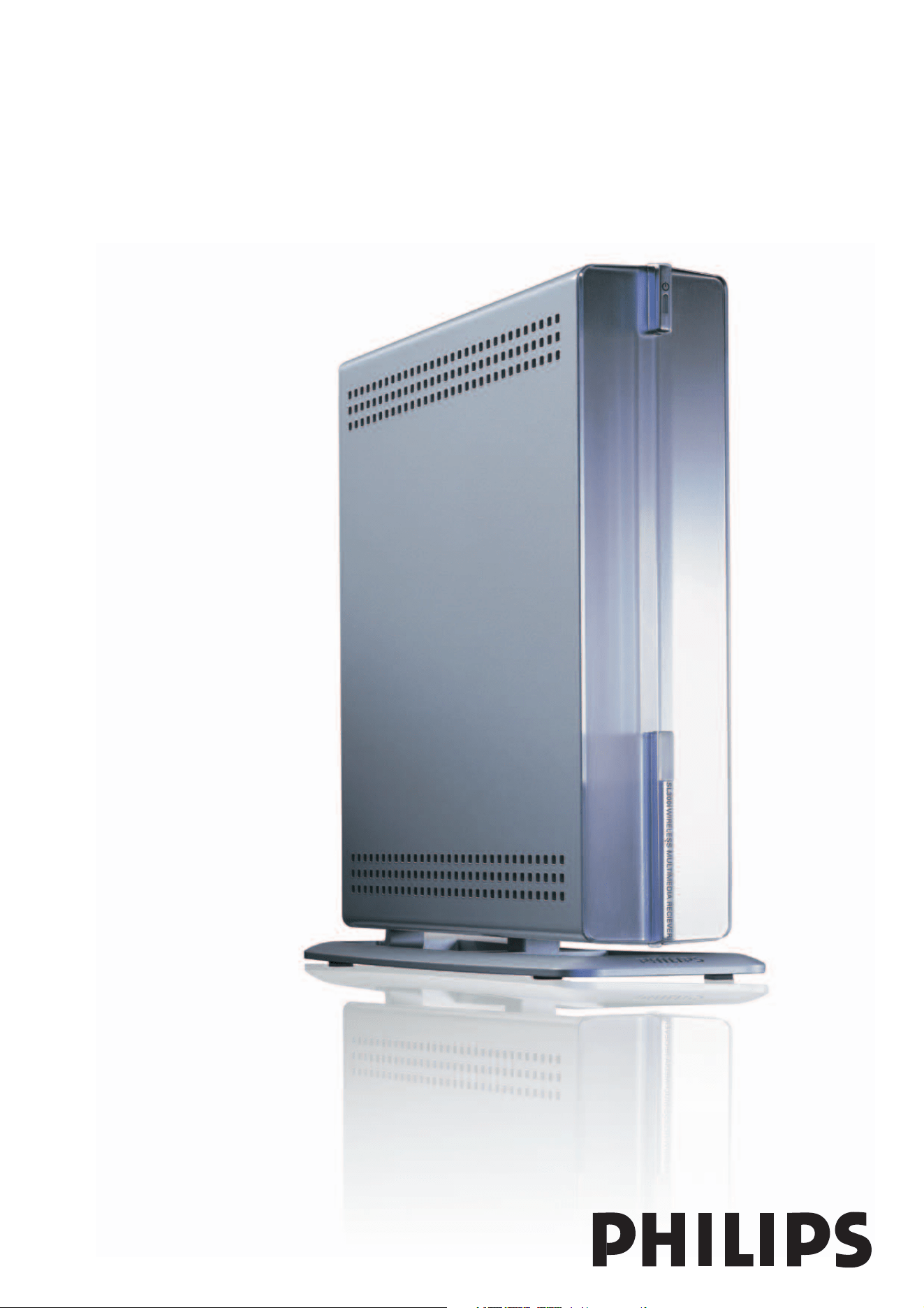
Instructions for use
English 4
Wifi Wireless Multimedia Link SL300i
1
2
3
4
5
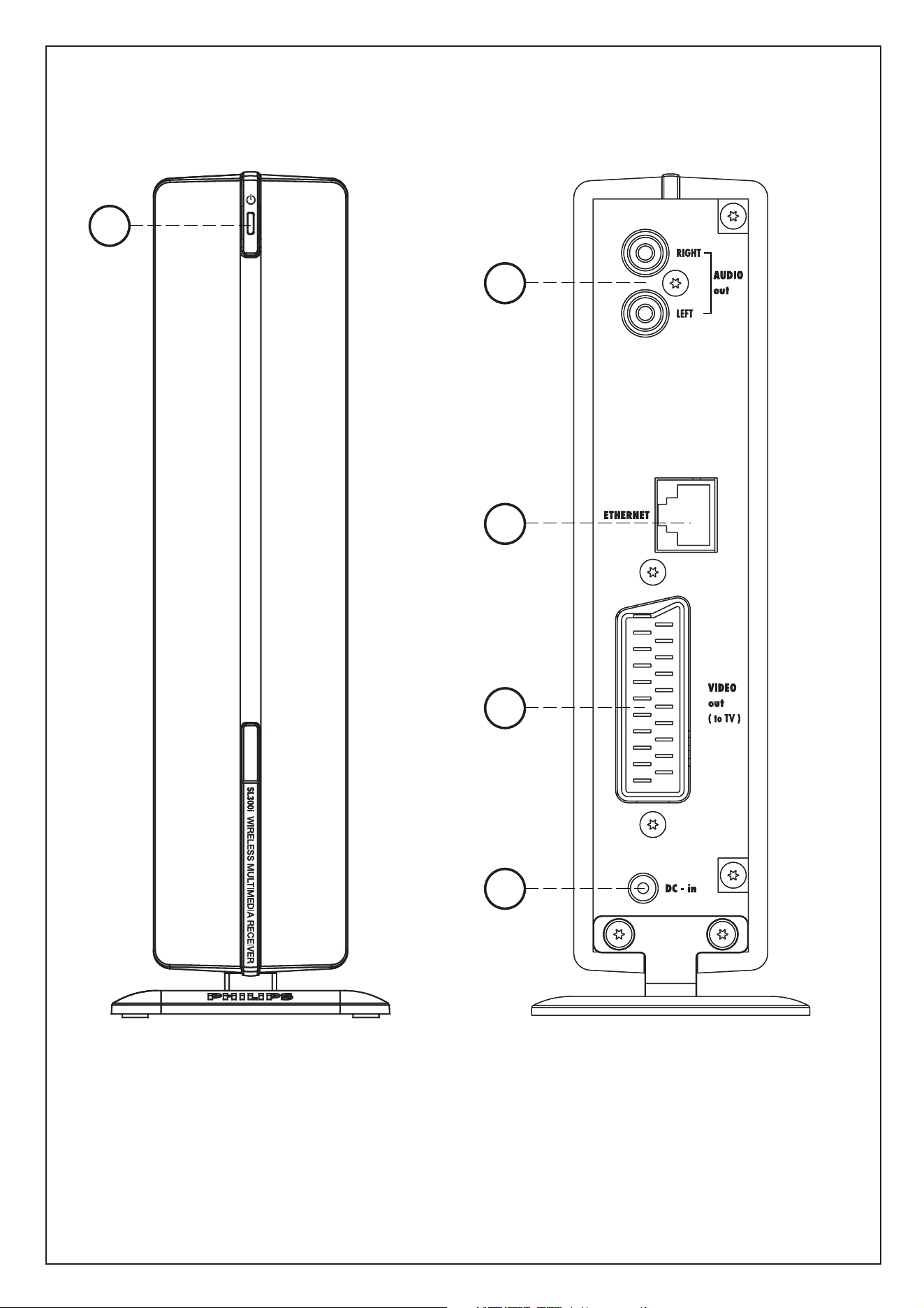
A) Front view B) Rear view
1
2
3
4
5
A) Front view B) Rear view

☎
Helpline
SL 300i/00
B ✔ DK ✔ E ✔ GR ✔ F ✘
IRL ✘ I ✔ L ✔ NL ✔ A ✔
P ✔ SU ✔ S ✔ UK ✘ N ✔
D ✔ CH ✔
SL 300i/05
B ✘ DK ✘ E ✘ GR ✘ F ✘
IRL ✔ I ✘ L ✘ NL ✘ A ✘
P ✘ SU ✘ S ✘ UK ✔ N ✘
D ✘ CH ✘
SL 300i/19
B ✘ DK ✘ E ✘ GR ✘ F ✔
IRL ✘ I ✘ L ✘ NL ✘ A ✘
P ✘ SU ✘ S ✘ UK ✘ N ✘
D ✘ CH ✘
België/Belgique/Belgien/
02 275 0701
Luxemburg/Luxembourg
26 84 3000
Danmark
35 25 87 61
Deutschland
0696 698 4712
España
9 17 45 62 46
France
03 8717 0033
00800 3122 1223
Ireland
01 601 1161
Italia
02 48 27 11 53
Cyprus
800 92256
Nederland
053 482 9800
Norge
22 70 82 50
Österreich
01 546 575 603
Portugal
800 831 363
Schweiz/ Suisse/ Svizzera
02 23 10 21 16
Suomi
09 2290 1908
Sverige
08 632 0016
UK (United Kingdom)
0207 949 0069
www.philips.com/streamium
European Regulations
This product has been designed, tested and manufactured according to the European R&TTE Directive
1999/5/EC.
Under this Directive, this product can be put into service in the following states:
4 ENGLISH
Introduction
SL300i
Your SL300i gives you wireless access to multimedia content stored on PCs and brings live
streaming Internet entertainment to your existing TV set and/or audio system.
This is what this manual will help you to do:
• Install the Philips Media Manager software.
• Connect your SL300i and prepare it for use.
• Learn how to use the basic functions of your SL300i.
The most recent information on this product will be available through our website
www.philips.com/streamium
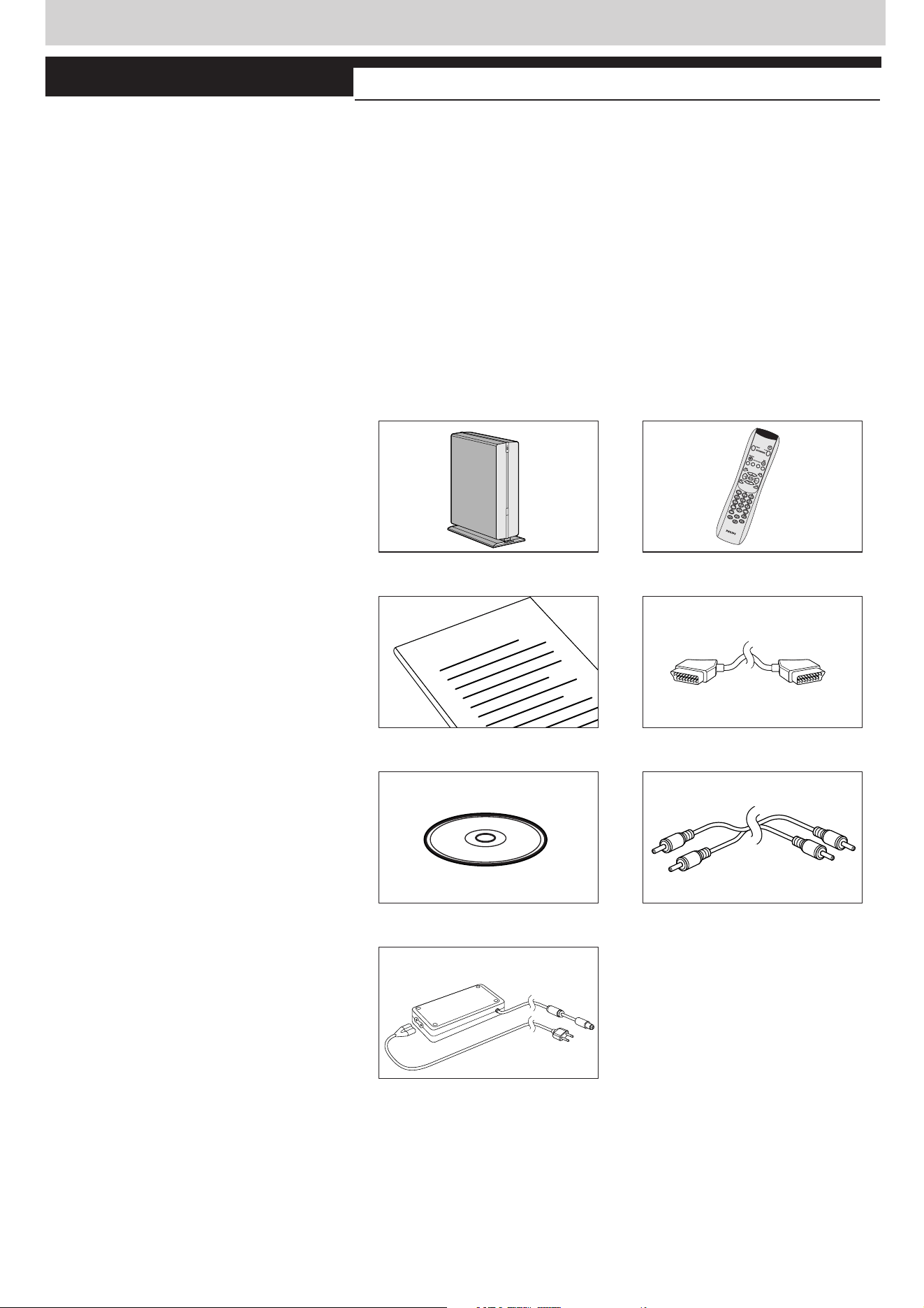
Packaging contents
Please check whether the following items are present in the box of the WiFi Wireless
Multimedia Link.
They are provided to help you set up and use your SL300i.
SL300i Remote control
(including batteries)
User Manual SCART cable
(Audio/Video)
Philips Media Manager Stereo audio cable
Installation CD
Power adapter
Please contact your Philips retailer if any items are missing from the box.
I
n
s
t
a
l
l
a
t
i
o
n
C
D
User Manual

ENGLISH 5
Legend of illustration (inside flap)
A) Front view
1 Power/standby button
Switches the SL300i off (to standby) and on.
– The indicator in the Power button lights up blue if the SL300i is on standby.
B) Rear view
2
Audio L/R output (stereo)
To connect the SL300i to the left and right audio inputs of your Audio system.
3
Ethernet connector RJ-45
Optional Ethernet connection for a wired home network.
Use a CAT.5 shielded Ethernet cable (STP).
4 SCART (EURO) audio/video output to TV
Connects the SL300i to your TV set.
5 DC - in
For connecting the SL300i's power adapter.
– The indicator in the Power button lights up blue when the SL300i is connected to the
mains.

6 ENGLISH
Chapter 7 – Remote Control..........................................................................................................................27-28
Chapter 8 – Entering or editing numeric and text information
.....................................................29
Chapter 9 – Advanced navigation and advanced SL300i functions
.......................................30-32
Chapter 10 – Advanced Philips Media Manager uses
................................................................................33
Chapter 11 – Overview of SL300i connections
............................................................................................34
Chapter 12 – Options menu
................................................................................................................................35-39
Chapter 13 – What you need to know about networks
................................................................40-41
Chapter 14 – Advanced wireless network information
...................................................................42-43
Chapter 15 – Entering an encryption key
..................................................................................................44-45
Chapter 16 – Internet Connection Sharing
..............................................................................................46-50
Chapter 17 – Advanced (network) problemsolving
...................................................................................51
Chapter 18 – Glossary
.....................................................................................................................................................52
Chapter 19 – Technical specifications
....................................................................................................................53
Index
Introduction .........................................................................................................4-7
WiFi Wireless Multimedia Link....................................................................................................................................4
Legend of illustration.........................................................................................................................................................5
Index...........................................................................................................................................................................................6
Important information......................................................................................................................................................7
Chapter 1 – Installing the software ......................................................................................................8
Chapter 2 – Connecting the SL300i...............................................................................................9-17
2.1 If you do not have a wireless computer network. .....................................................................10-11
2.2 If you already have a wireless computer network......................................................................12-14
2.3 If you want to make a wired connection.........................................................................................15-17
Chapter 3 – Enabling broadband Internet entertainment.......................................................18-20
3.1 How does your computer connect to the Internet?........................................................................18
3.2 Pressing the INTERNET button for the first time..............................................................................19
3.3 Registration. .......................................................................................................................................................19-20
Chapter 4 – Using the SL300i..............................................................................................................21
4.1 INTERNET.................................................................................................................................................................21
4.2 PC LINK ......................................................................................................................................................................21
Chapter 5 – Basic navigation................................................................................................................22
Additional information...................................................................................................................................................23
Chapter 6 – Problem solving. ........................................................................................................24-26
The next chapters are only available in the extended User Manual version
on the CD-ROM.

ENGLISH 7
Important information
• Please install and connect the product in the order as described in this manual only.
This assures best installation results with the least technical hassles.
• Please read this guide carefully before using the SL300i; and keep it for future reference.
• The most recent downloads and information on this product will be available through our
website www.philips.com/streamium.
• Broadband Internet access (min. 256 kbps) is required if you want to use the Internet
functions of the SL300i.
• Please check whether your Internet service provider charges extra fees for exceeding a
certain limit of transferred data.
When using Internet media services on a daily basis, you may exceed such a limit.
For example:When you listen to Internet radio (at 64 kbps) for about 36 hours,
1 GB (gigabyte) of data will be transferred to your streamium system.
Watching Internet video at 700 kbps exceeds a 1 GB limit in 3 hours.
• During set-up and installation, it may be helpful to have the instructions for your TV set,
audio system and wireless base station or other wireless network components
(if appropriate) at hand.
Safety Precautions
• NEVER MAKE OR CHANGE CONNECTIONS WITH THE POWER SWITCHED ON.
• Before operating the system, check that the operating voltage indicated on the nameplate
(or the voltage indication beside the voltage selector) of your system is identical with the
voltage of your local power supply. If not, please consult your dealer.
• Radio equipment for wireless applications is not protected against disturbance from other
radio services.
• The product should not be exposed to dripping or splashing.
No object filled with liquids, such as vases, should be placed on the product.
• Do not expose the system to excessive moisture, rain, sand or heat sources caused by
heating equipment or direct sunlight.
• Allow a sufficient amount of free space all around the SL300i for adequate ventilation.
• Do not open this product. Contact your Philips retailer if you experience technical
difficulties.
• Place the system on a flat, hard and stable surface. When the system is switched to
standby mode, it is still consuming some power.To disconnect the system from the power
supply completely, remove the AC power plug from the wall socket.
• Make sure the air around the SL300i can circulate to prevent the SL300i from overheating
internally. Also, avoid putting any heat sources (e.g. a power amplifier) underneath.
The SL300i has a thermal shutdown that shuts down the set when the internal
temperature exceeds a certain threshold. If this happens, the set switches to standby with
the Power-LED flashing on and off.To remedy this situation: disconnect the mains, let the
set cool down, improve ventilation, and reconnect the set to the mains.
8 ENGLISH
Chapter 1 - Installing the software
Start by installing Philips Media Manager
This software makes the music, photo, and movie files on your computer available for transfer
from your computer to your television.
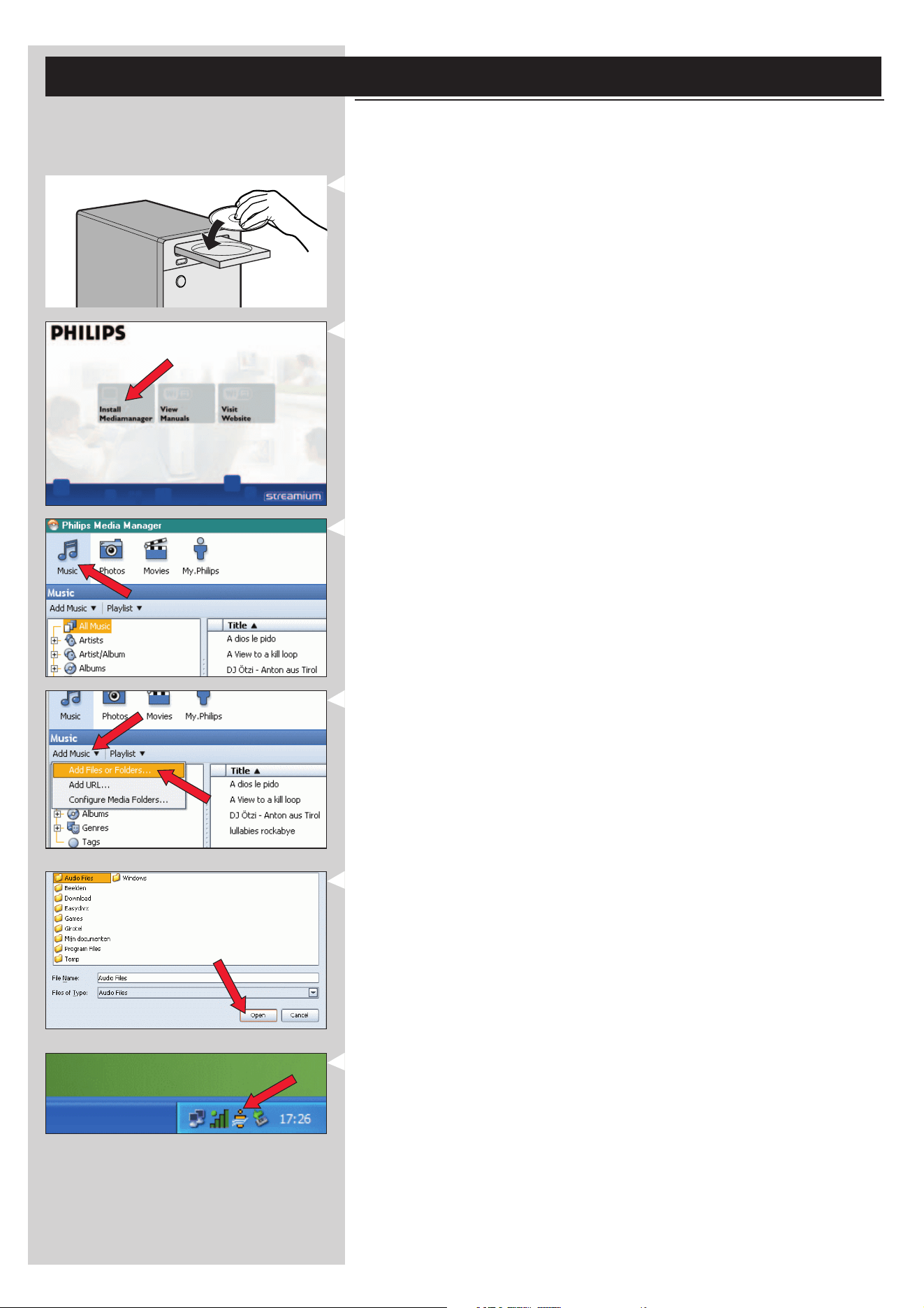
1 Place the Philips Media Manager CD in your CD or DVD’s drive and install the Philips
Media Manager software.
The CD starts automatically. If it does not, double-click ‘My Computer’,
then the CD-ROM drive icon and finally ‘Setup.exe’ to start the CD.
2 In the menu that appears on your computer screen, click on ‘Install Philips Media Manager’,
and follow the on-screen instructions.
Start the program by clicking Start > Programs > Philips Media Manager.
When opening the Philips Media Manager for the first time, you will be asked if you want
to add a folder and scan for media files. Open a drive or a folder with music, photos, or
movies in it. (For example: the My Documents folder, if you have stored media files there.)
– You can always add more files and folders at a later time.
3 Adding files to the Media Manager.
Only the files that you see in the Media Manager will be accessible from the SL300i.
A) Click one of the media categories: Music, Photos, or Movies.
In this example, click 'Music'.
B) First, click the 'Add Music' button below the media categories,
then click 'Add Files or Folders...'.
C) Select a folder or one or more media files and click the 'Open' button to add the
selected folder or files to the Media Manager window.
> From now on, the media files you added may be accessed from the SL300i.
4 Opening and closing the Media Manager window.
You can close the Media Manager window, but its icon will remain active in the lower right
corner of your computer monitor.This icon needs to remain visible, otherwise the SL300i
will not be able to access the media files on that computer.
Double-clicking the icon opens the Media Manager window.
ENGLISH 9
Chapter 2 – Connecting the SL300i
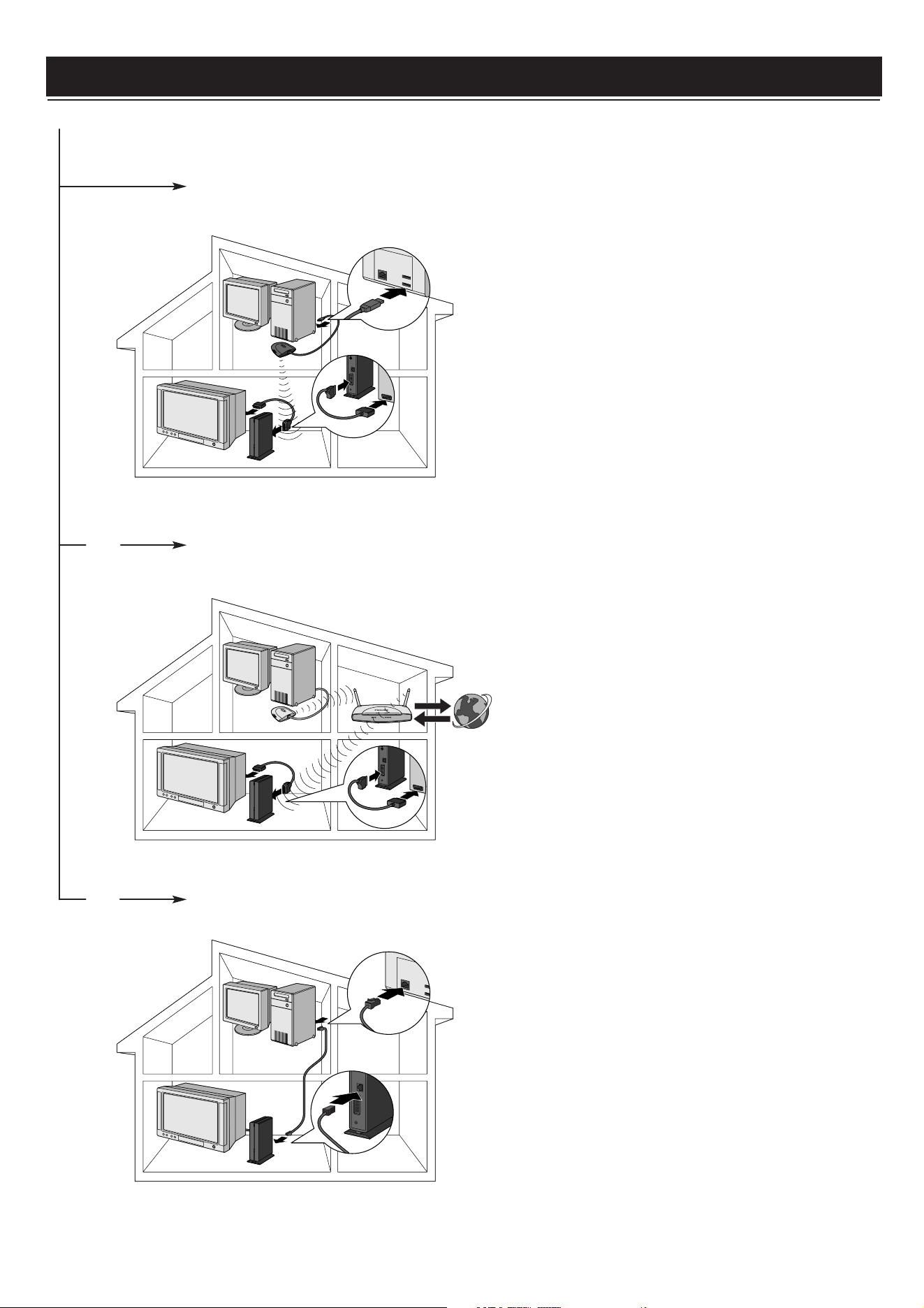
Choose the scenario that best fits your situation for installing the SL300i.
Option A: If you do not have a wireless computer network:
In this configuration you only have a computer and a TV.
•You will install a Wireless Network Adapter on your
computer.
•You will connect the SL300i to the TV.
➜ Go to chapter 2.1 on page 10-11.
or Option B:
If you already have a wireless computer network:
In this configuration you already have a wireless computer
network, and a TV.
•You will check the settings of your existing wireless
computer network.
•You will connect the SL300i to the TV and adapt its
settings to match your network.
➜ Go to chapter 2.2 on page 12-14.
or Option C: If you want to connect a network cable between the SL300i and
your PC or wired network:
In this configuration you already have a TV, and a computer
with a free ethernet connector (or a wired network with a
free ethernet connector).
•You will be connecting an Ethernet network cable
between the SL300i and your computer or wired network.
•You will connect the SL300i to the TV.
➜ Go to chapter 2.3 on page 15-17.
10 ENGLISH
Installing
2.1 If you do not have a wireless computer network
Option A
In this configuration you only have a computer and a TV.
•You will install a Wireless Network Adapter on your computer.
•You will connect the SL300i to the TV.
At the end, you will be able to send music, movies, and pictures from your computer to
your TV or stereo.
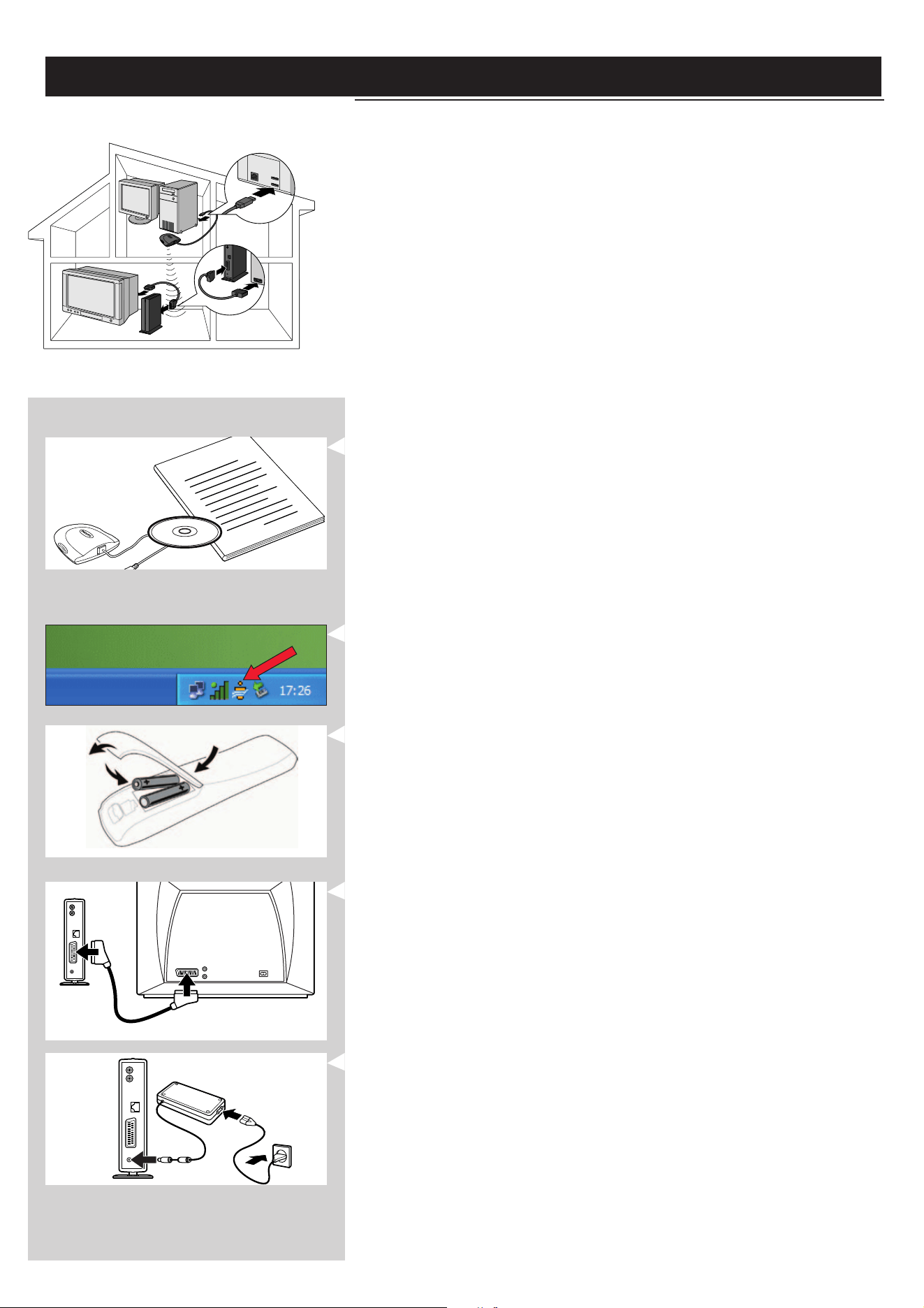
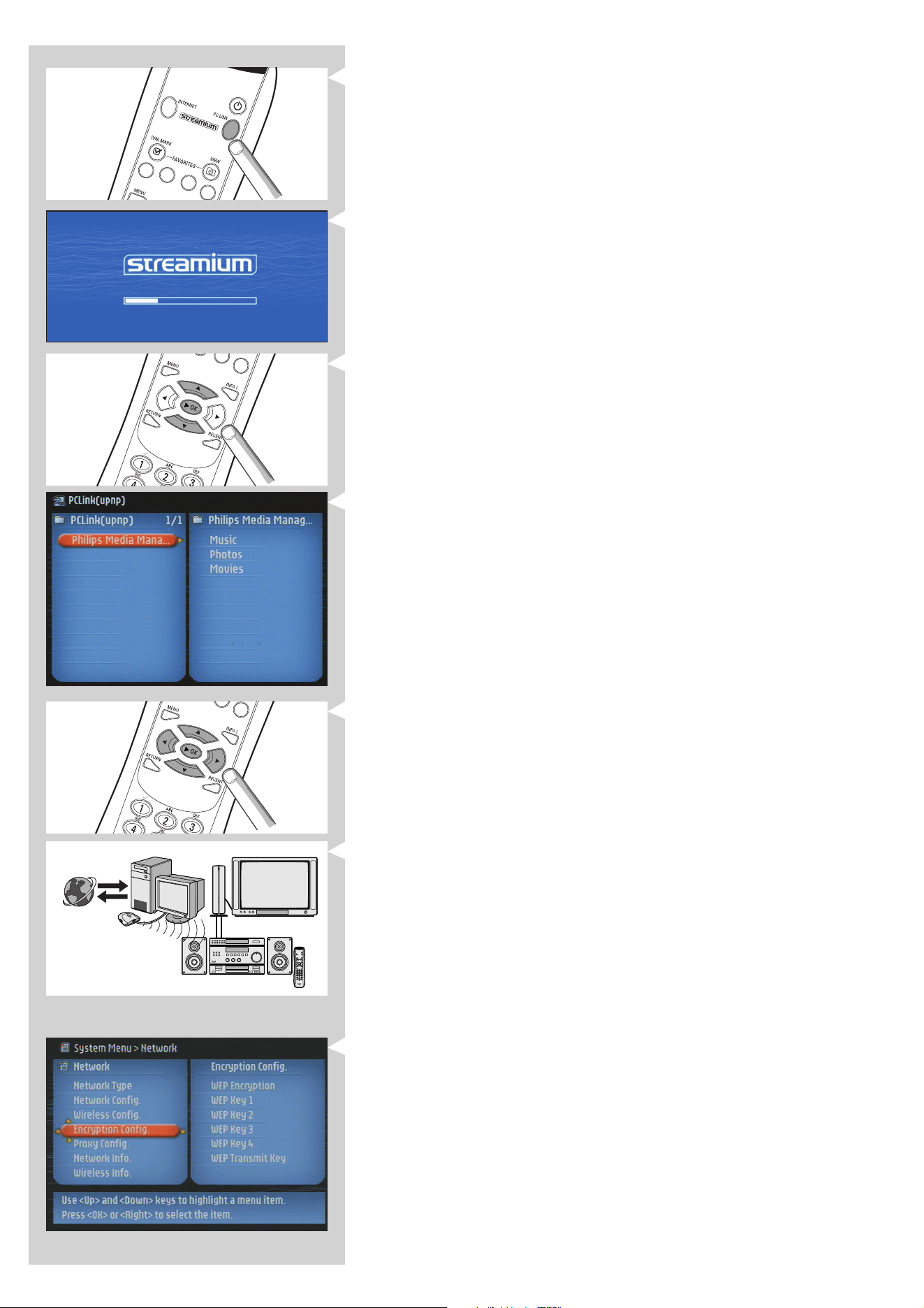
1 Install a Wireless Network Adapter (not included, you will have to buy one separately.
E.g. the Philips CPWUA054.)
See the separate instructions of the Wireless Network Adapter on how to
install the adapter on your PC.
Note: Choose ‘Ad-Hoc’ as your network type during installation, and set "philips" as your wireless
network name (SSID).
After the Wireless Network Adapter has been installed successfully, continue below.
2 Make sure the Philips Media Manager you installed in chapter 1 is active.
Double-click the Media Manager icon in the lower right corner of your monitor.
Or click Start / Programs / Philips Media Manager.
Leave the Media Manager window open to be sure it is active.
3 Put the batteries into the remote control.
See ‘Remote Control - Placing batteries’ on page 28 in the extended User Manual on
CD-ROM if you need more information on how to do this.
4 Connect the SCART (EURO) cable between the SCART AV-output 4 of the SL300i
and your TV.
> This will enable you to view the user menus and multimedia content on the television
screen.
Option: connect the SL300i to an audio set using the audio outputs 2.
5 Connect the power adapter between the DC-in input 5 of the SL300i and a mains
socket.
> The indicator in the Power button lights up blue when the SL300i is connected to the
mains.
How to use...
I
n
s
t
a
l
l
a
t
i
o
n
C
D
ENGLISH 11
6 Switch on the SL300i by pressing the PC LINK button on the remote control.
Do not press the INTERNET button at this time, only the PC LINK button.
> After about five seconds, a ‘Streamium’ welcoming message appears on the television
screen.
If you do not see any messages on the TV screen:
– make sure the SCART connectors are firmly connected, and
– that you have selected the correct external input on your TV.
7 If asked, select ‘philips’ from the list of wireless network names (SSID) presented to you
on the TV screen.
Use the navigation buttons (34) on the remote control to select ‘philips’ as the network
name to use and press OK to confirm.
Note: If there is only one wireless network available, it will be selected for you and you will not
be asked to select one.
> After about 30 seconds, you will see the PC Link menu appear on your TV screen.
If you see the text ‘Philips Media Manager’ appear on your TV screen, the installation has
succeeded. Should the PC Link menu stay empty, see the ‘Problem solving’ section on page
24-26.
8 Explore the PC Link menu on the TV screen.
Use the navigation buttons (3412) and the OK button on the remote control to
explore the multimedia content you made available on your PC.
For example: press the 2 button on the remote control several times until you have selected a
music track, a photo or a movie, and press OK to play it on your television...
Have fun!
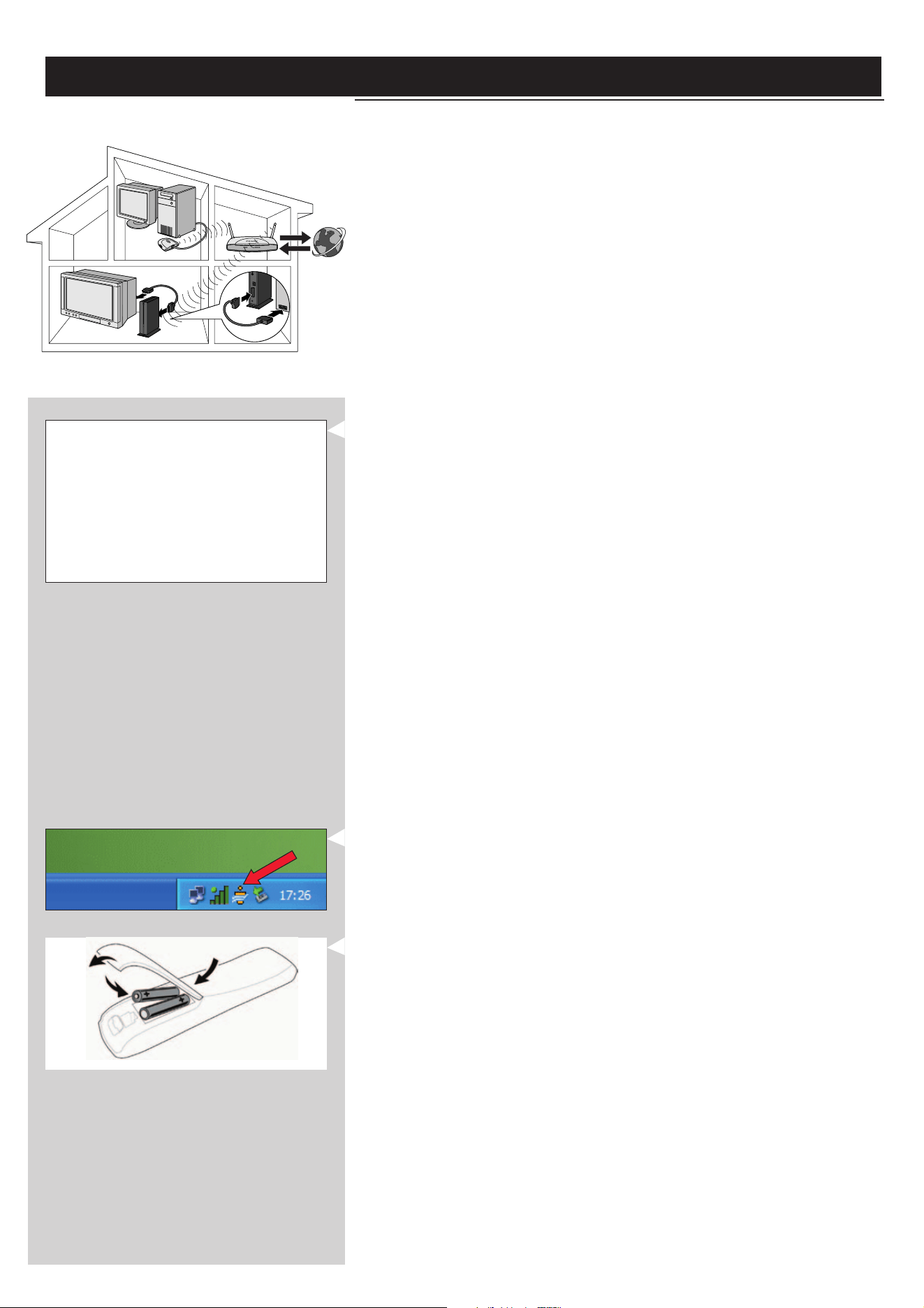
9 How to enable INTERNET for the SL300i. (For playing Internet Radio, Movie Trailers,
etc., on your TV.)
See the section on ‘Enabling broadband Internet entertainment’ on page 18-20 for
information on how to make your broadband Internet connection (provided you have
one) available to the SL300i.
If you encounter problems during installation or should you need additional help, then:
a) see Problem solving on page 24-26, or
b) visit our website www.philips.com/streamium, and click on Support and FAQs, or
c) contact our help-line.
Tip: Enable the encryption key to secure your wireless computer network from intruders.
Philips advises you to set an encryption key to secure your wireless network.
Please, read the text on ‘Securing your wireless network’ on page 42 in the extended
version of the User Manual on the CD-ROM.
INTERNET
12 ENGLISH
Installing
2.2 If you already have a wireless computer network
Option B
In this configuration you already have a wireless computer network, and a TV.
•You will check the settings of your existing wireless computer network.
•You will connect the SL300i to the TV and adapt its settings to match your network.
At the end, you will be able to send music, photos, and movies from your computer to your TV.
Check the:
NETWORK NAME (SSID)
...............
and
ENCRYPTION KEY
...............
of your wireless network
1 Check your existing wireless network settings so you are able to enter them in STEP 7
of this procedure.
Find out the wireless network name (SSID) and the encryption key you used for securing
your wireless network.
Wireless Network Name (SSID):
Usually, you can find the wireless network name in the options menu of your Wireless
Network Adapter or Wireless Base Station.To check this, open the program that came
with your network adapter.
Encryption key:
The wireless encryption key is a 64 or 128 bit WEP code that secures your wireless
network communications.
– 64-bit: 5 characters ASCII, or 10 characters HEX, or
– 128 bit: 13 characters ASCII, or 26 characters HEX.
Note:The encryption key is case sensitive, meaning that ‘ABC’ is not the same as ‘aBc’. Always
input characters in the correct case to avoid problems.
Basically, you will have to try and remember what you set it to. If you cannot remember
the encryption key, you will either have to disable it completely for your entire wireless
network, or set a new one that you can remember.
2 Make sure the Philips Media Manager you installed in chapter 1 is active.
Double-click the Media Manager icon in the lower right corner of your monitor or click
Start / Programs / Philips Media Manager.
Leave the Media Manager window open to be sure it is active.
3 Put the batteries into the remote control.
See ‘Remote Control - Placing batteries’ on page 28 in the extended User Manual on
CD-ROM if you need more information on how to do this.
ENGLISH 13
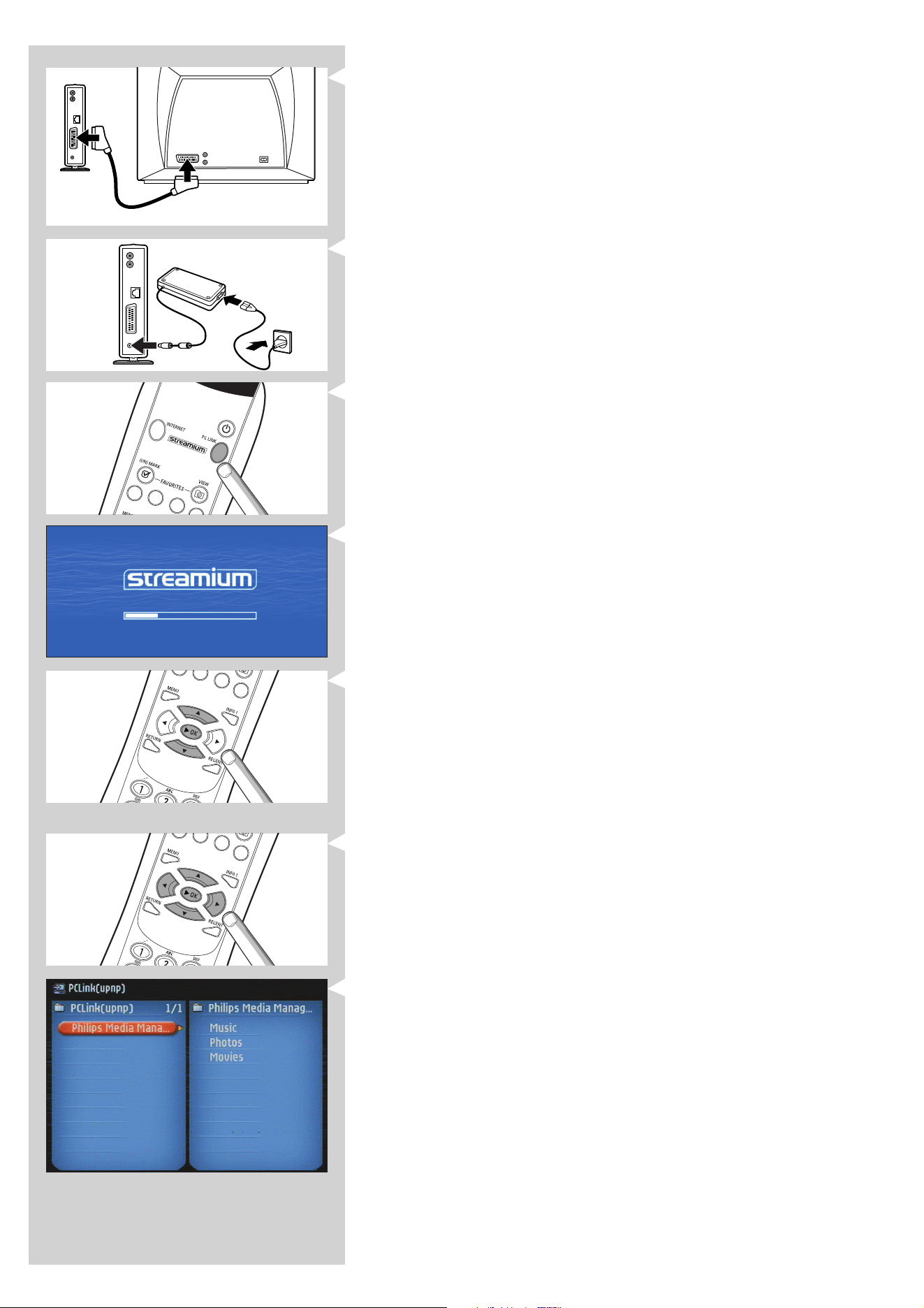
4 Connect the SCART (EURO) cable between the SCART AV-output 4 of the SL300i
and your TV.
> This will enable you to view the user menus and multimedia content on the television
screen.
Option: connect the SL300i to an audio set using the audio outputs 2.
5 Connect the power adapter between the DC-in input 5 of the SL300i and a mains
socket.
> The indicator in the Power button lights up blue after connecting the SL300i to the
mains.
6 Switch on the SL300i by pressing the PC LINK button on the remote control.
Do not press the INTERNET button at this time, only the PC LINK button.
> After about five seconds, a ‘Streamium’ welcoming message appears on the television
screen.
If you do not see any messages on the TV screen:
– make sure the SCART connectors are firmly connected, and
– that you have selected the correct external input on your TV.
7 Select your wireless network name, and input the encryption key you found in step 1.
A) If asked, select the wireless network name from the list of wireless network names (SSID)
presented to you on the TV screen.
Use the navigation buttons (34) on the remote control to select the correct network
name and press OK to confirm.
Note: If there is only one wireless network, it will be selected for you and you will not be asked
to select one.
B) If asked, also input the encryption key.
Use the navigation buttons (3412) on the remote control to choose your type of
encryption and to input the key itself. Press OK to confirm.
Please remember that the encryption key is case sensitive, meaning that ‘ABC’ is not the
same as ‘aBc’. Always input characters in the correct case to avoid problems.
Note: If the wireless network is not encrypted, you will not be asked to input an encryption key.
> After about 30 seconds, you will see the PC Link menu appear on your TV screen.
If you see the text ‘Philips Media Manager’ appear on your TV screen, the installation has
succeeded.
14 ENGLISH
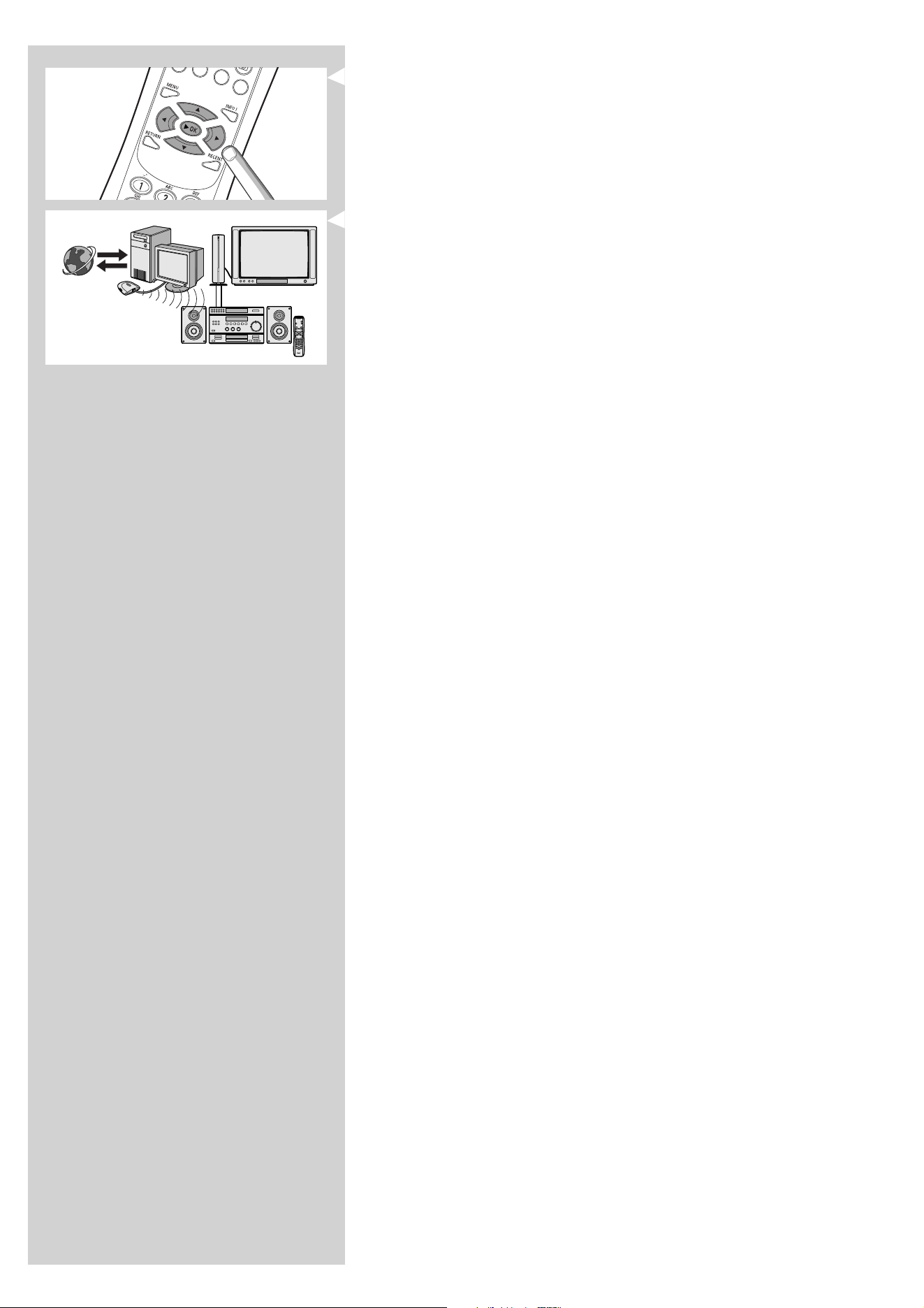
8 Explore the PC Link menu on the TV screen.
Use the navigation buttons (3412) and the OK button on the remote control to
explore the multimedia content you made available on your PC.
For example: press the 2 button on the remote control several times until you have selected a
music track, a photo or a movie, and press OK to play it on your television...
Have fun!
9 How to enable INTERNET for the SL300i.
(For playing Internet Radio, Movie Trailers, etc., on your TV.)
See the section on ‘Enabling broadband Internet entertainment’ on
page 18-20 for information on how to make your broadband Internet connection
(provided you have one) available to the SL300i.
If you encounter problems during installation or should you need additional help, then:
a) see Problem solving on page 24-26, or
b) visit our website www.philips.com/streamium, and click on Support and FAQs, or
c) contact our help-line.
INTERNET
ENGLISH 15
Installing
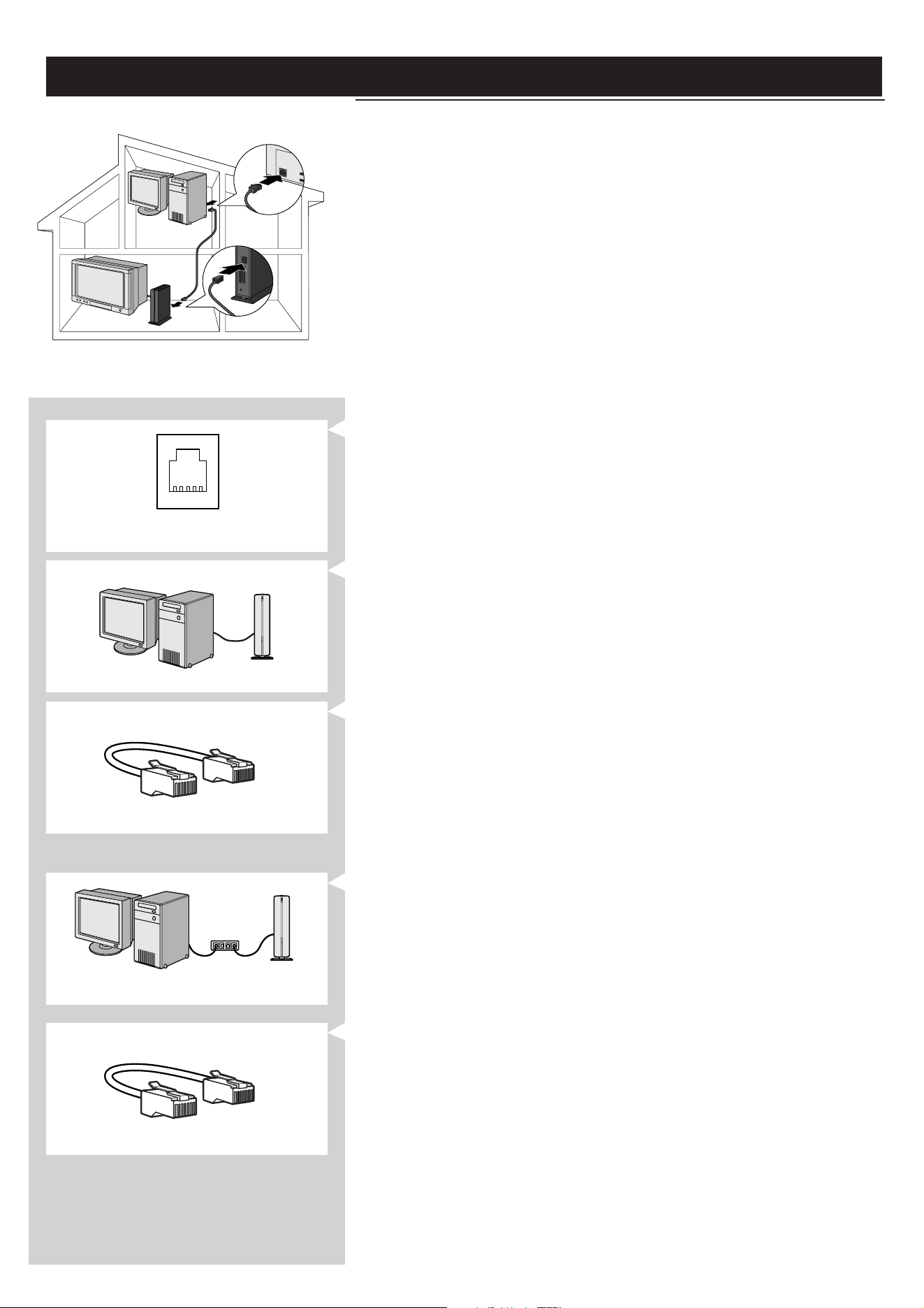
2.3 If you want to make a wired connection
Option C
In this configuration you already have a TV, and a computer with a free ethernet connector (or
a wired network with a free ethernet connector).
•You will be connecting an Ethernet network cable between the SL300i and your computer
or network.
•You will connect the SL300i to the TV.
At the end, you will be able to send music, photos, and movies from your computer to your TV.
Ethernet port required
Ethernet ports and cables look just like telephone connections and lines, but are thicker and
wider. Ethernet (RJ-45) connectors have eight contacts, whereas standard telephone line (RJ-11)
connectors have four or six.
Important: only use CAT.5 shielded Ethernet cable (STP).
OR
1a Use a crossover Ethernet cable if you want to connect the SL300i directly to your
computer.
In a crossover Ethernet cable, the arrangement of the coloured wires changes between
the two ends.
– Push one end of the Ethernet cable into the connector marked 'Ethernet' on the back
of the SL300i.
– Push the other end into the Ethernet connector of your computer.
Note:Your computer needs to have an Ethernet connector available.
OR
1b Use a straight-through Ethernet cable if you want to connect the SL300i to an existing
computer network.
Network hub
In a straight-through Ethernet cable, both ends have the same arrangement of coloured
wires.
– Push one end of the Ethernet cable into the connector marked 'Ethernet' on the back
of the SL300i.
– Push the other end into a free Ethernet connector on your central network device, like
a hub, switch or router.
Note:Your network needs to have an Ethernet connector available.
16 ENGLISH
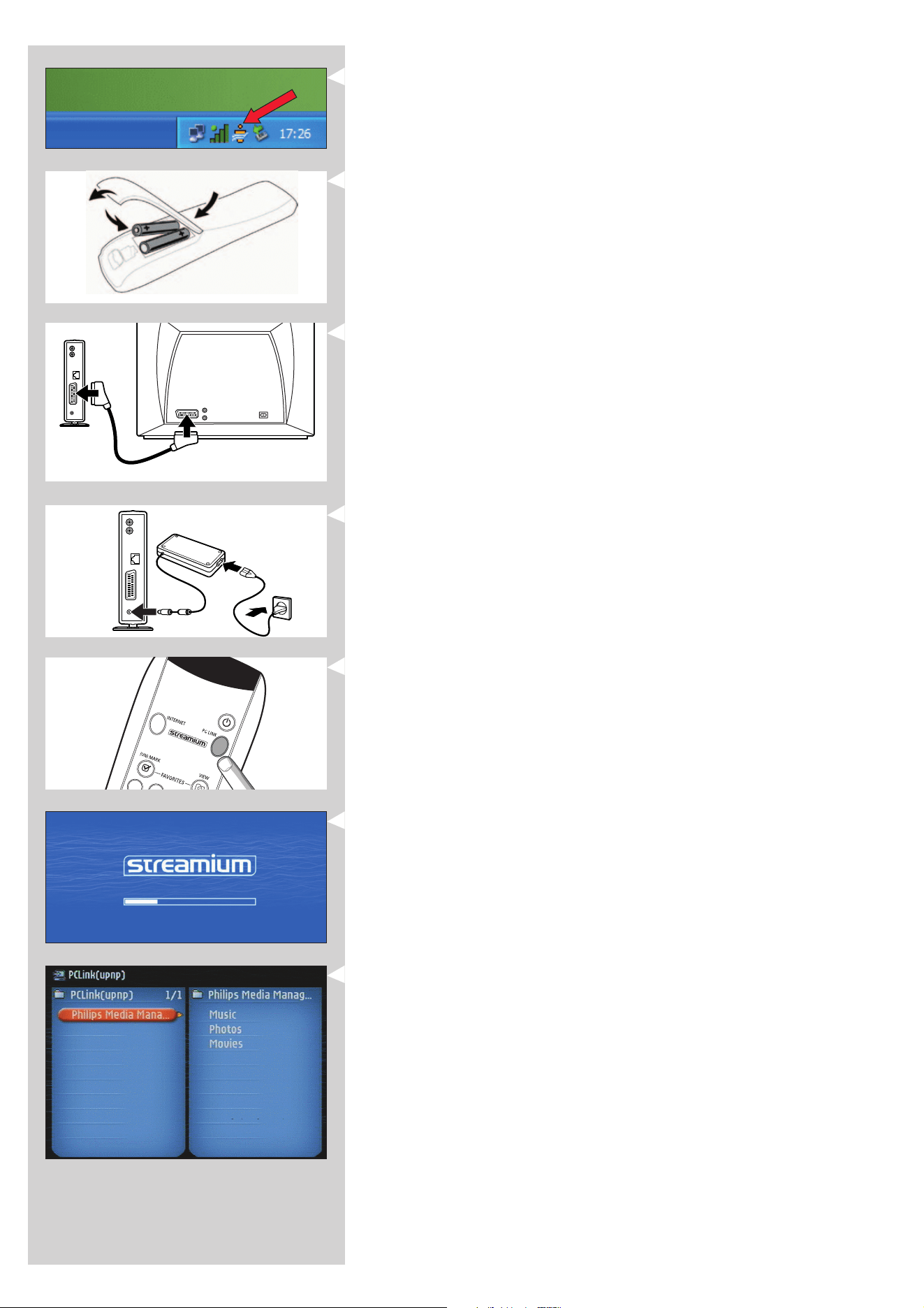
2 Make sure the Philips Media Manager you installed in chapter 1 is active.
Double-click the Media Manager icon in the lower right corner of your screen.
Or click Start / Programs / Philips Media Manager.
Leave the Media Manager window open to be sure it is active.
3 Put the batteries into the remote control.
See ‘Remote Control - Placing batteries’ on page 28 in the extended User Manual on
CD-ROM if you need more information on how to do this.
4 Connect the SCART (EURO) cable between the SCART AV-output 4 of the SL300i
and your TV.
> This will enable you to view the user menus and multimedia content on the television
screen.
Option: connect the SL300i to an audio set using the audio outputs 2.
5 Connect the power adapter between the DC-in input 5 of the SL300i and a mains
socket.
> The indicator in the Power button lights up blue when the SL300i is connected to the
mains.
6 Switch on the SL300i by pressing the PC LINK button on the remote control.
Please, do not press the INTERNET button at this time,
only the PC LINK button.
> After about five seconds, a ‘Streamium’ welcoming message appears on the television
screen.
If you do not see any messages on the TV screen:
– make sure the video connectors are firmly connected, and
– that you have selected the correct external input on your TV.
> After about 30 seconds, you will see the PC Link menu appear on your
TV screen.
If you see the text ‘Philips Media Manager’ appear on your TV screen,
the installation has succeeded.
ENGLISH 17
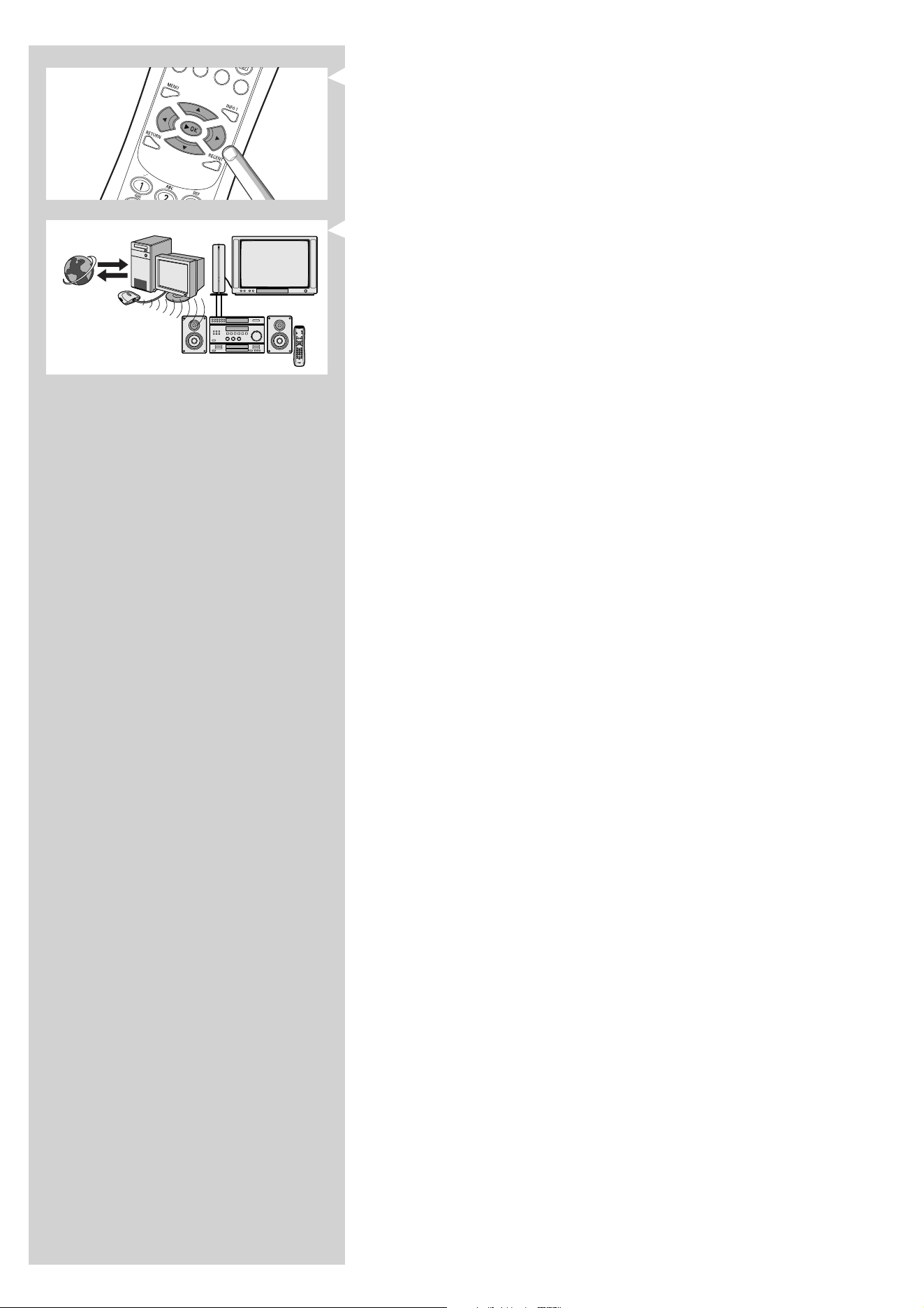
7 Explore the PC Link menu on the TV screen.
Use the navigation buttons (1234) and the OK button on the remote control to
explore the multimedia content you made available on your PC.
For example: press the 2 button on the remote control several times until you have selected a
music track, a photo or a movie, and press OK to play it on your television...
Have fun!
8 How to enable INTERNET for the SL300i. (For playing Internet Radio,
Movie Trailers, etc., on your TV.)
See the section on ‘Enabling broadband Internet entertainment’ on
page 18-20 for information on how to make your broadband Internet connection (if you
have one) available to the SL300i.
If you encounter problems during installation or should you need additional help, then:
a) see Problem solving on page 24-26, or
b) visit our website www.philips.com/streamium, and click on Support and FAQs, or
c) contact our help-line.
INTERNET
18 ENGLISH
Chapter 3 - Enabling broadband Internet entertainment
If you have a broadband Internet connection (min. 256 kbps), you can stream Internet radio stations and movie trailers live from the Internet to the
SL300i for free. Broadband internet also provides the on-line upgrades for the SL300i.
The Internet entertainment offering is constantly being improved and new functions are added.
Visit www.philips.com/streamium for the latest possibilities.
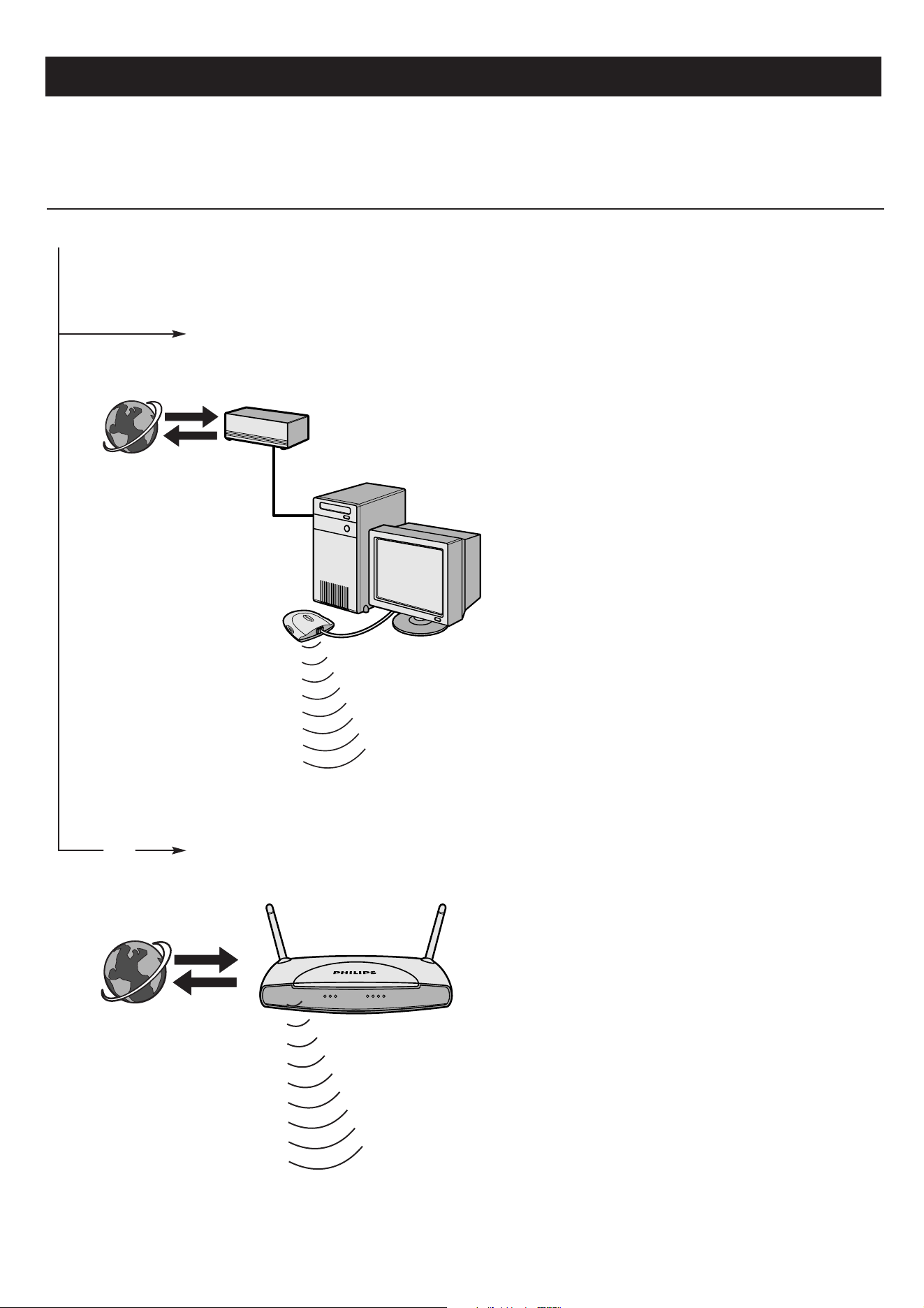
3.1 How does your computer connect to the Internet?
If you have a PC with a wired broadband Internet
connection,you will have to make that Internet connection
available to the wireless (or wired) network that connects to
the SL300i.
To do this, install router/gateway software on the PC for
bridging the broadband Internet connection to the wireless or
wired network.
As an example we have included a chapter on page 46-50 of
the extended User Manual on the Philips Media Manager CD
on how to enable Internet Connection Sharing from your
Microsoft
®
Windows
®
operating system. For Microsoft
®
and
other operating systems, third party router/gateway software is
readily available on the market.
For more information on sharing an Internet connection, read
the documentation that came with the software or with your
operating system.
> After bridging the internet connection to your wireless
(or wired) network, you will be able to use the SL300i to
access the Internet just like your computer.
Wireless base stations (and wired internet gateway routers)
share their broadband Internet access automatically within the
network.
> The SL300i will be able to access the Internet just like your
other wireless or wired network computer(s).
INTERNET
INTERNET
This applies to both a
wired and a wireless
connection between
your PC and the SL300i.
This also applies to a wired
connection between your
internet gateway router
and the SL300i.
Option A: With a wired broadband Internet connection:
Option B: Through a wireless base station:
or
ENGLISH 19
3.2 Pressing the INTERNET button for the
first time
1 First, check whether PC LINK functions correctly. Start the Philips Media Manager
program on your computer, and press the PC LINK button on the remote control.
See if the text ‘Philips Media Manager’ appears on your television screen.
2 Then, check whether the PC on which you are running Philips Media Manager has
Internet access by opening a website on the Internet with your Internet browser
program (e.g. www.philips.com).
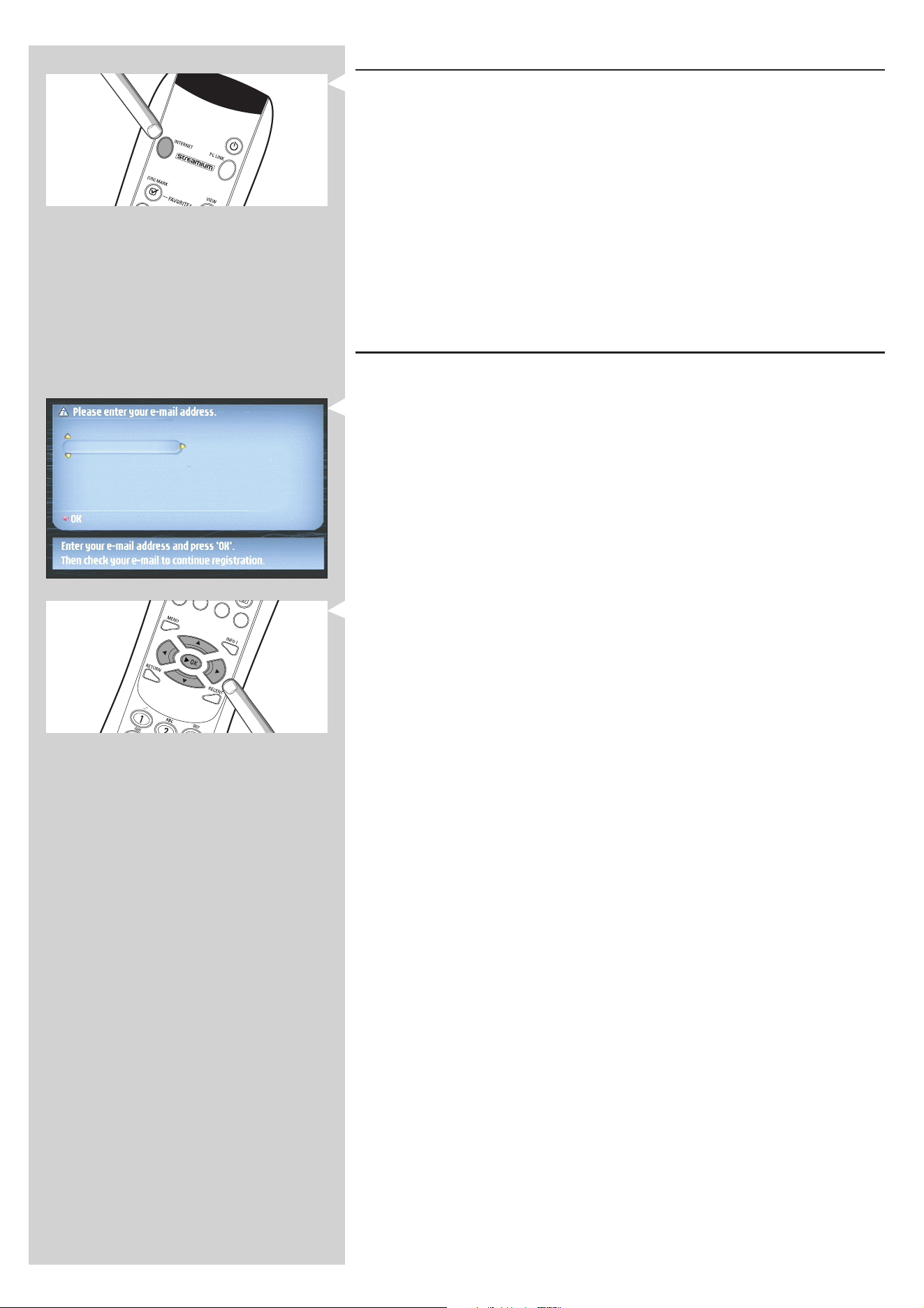
3 Next, press the INTERNET button to start streaming audio and video from the
Internet to your SL300i.
> You will be asked to register for the free Internet services. See next chapter on how to
register.
Note: Internet services will only be available if you register.
3.3 Registration (for free Internet services)
When the SL300i connects to the Internet for the first time, or after you have reset all menu
settings, the SL300i will ask you to register your email address.
Also, each new user you add will have to register an email address.
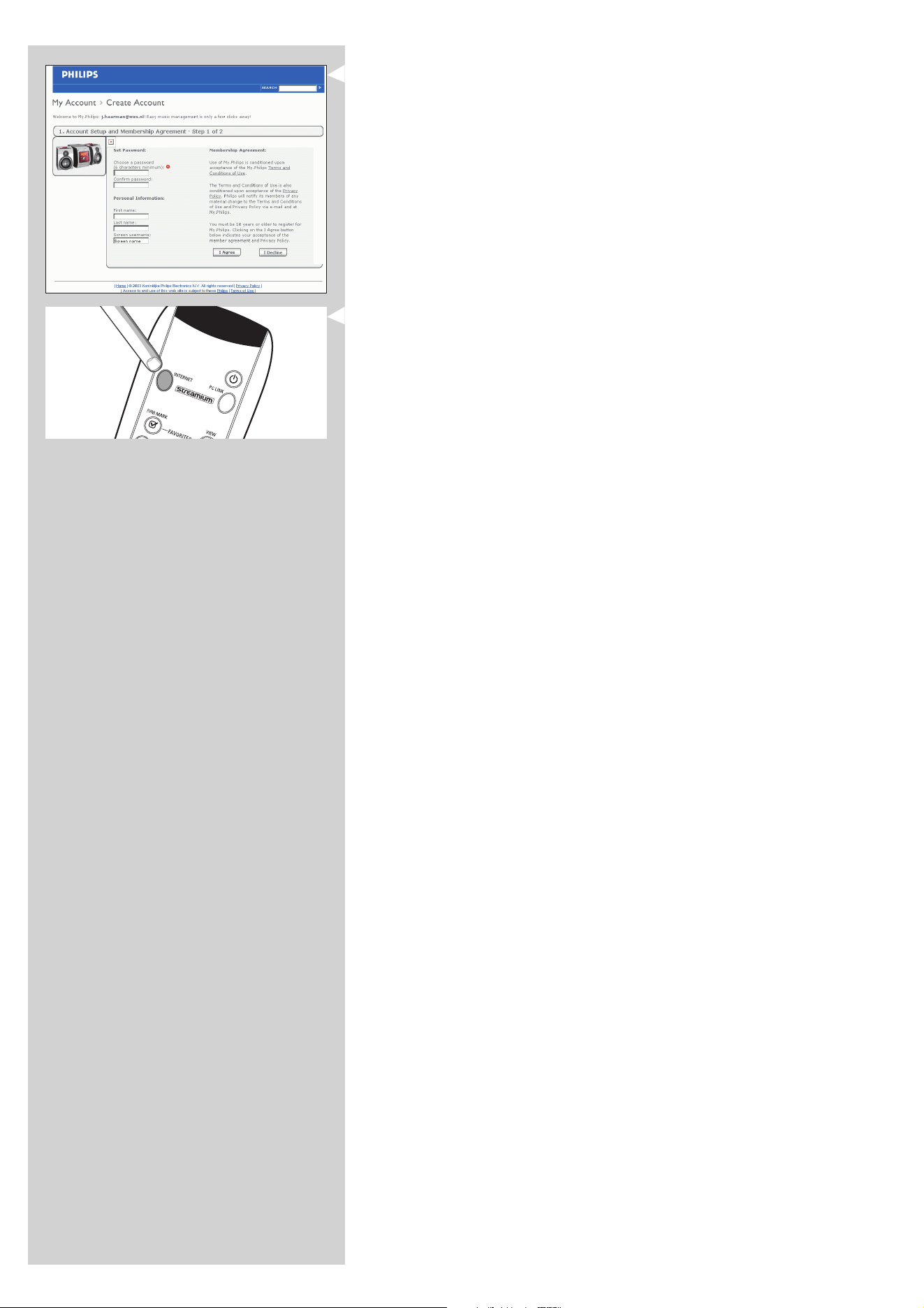
1 Use the 3, 4 and 2 keys on your remote control to enter your email address.
If you mistyped, press 1 to delete the character you have entered.
Next, press OK to send your email address to My.Philips.
(See also: Chapter 8 - Entering or editing information in the extended user manual on the
CD-ROM.)
Alternatively, use SMS TEXT-style keys for inputting your email address. SMS TEXT-style entry
can be used to enter alphanumeric information. In this mode, text is entered by a method
similar to that used for entering text messages on a cellular telephone.
For example: pressing the ‘2’ key several times will cycle through the following characters:
a – b – c – A – B – C – 2... etc
RC Key SMS-style alphanumeric entry order
1_ - 1 _ - 1 (etc.)
2a b c A B C 2 a b c (etc.)
3d e f D E F 3 d e f (etc.)
4g h i G H I 4 g h i (etc.)
5j k l J K L 5 j k l (etc.)
6m n o M N O 6 m n o (etc.)
7p q r s P Q R S 7 p q r s (etc.)
8t u v T U V 8 t u v (etc.)
9w x y z W X Y Z 9 w x y z (etc.)
0.@ 0 . @ 0 (etc.)
Tip:The dot, and the @ sign, are under the 0 key.
The space, hyphen, and underscore, are under the 1 key.
> Within a short time, you will receive an email with instructions on how to create an
account at my.philips.com.
20 ENGLISH
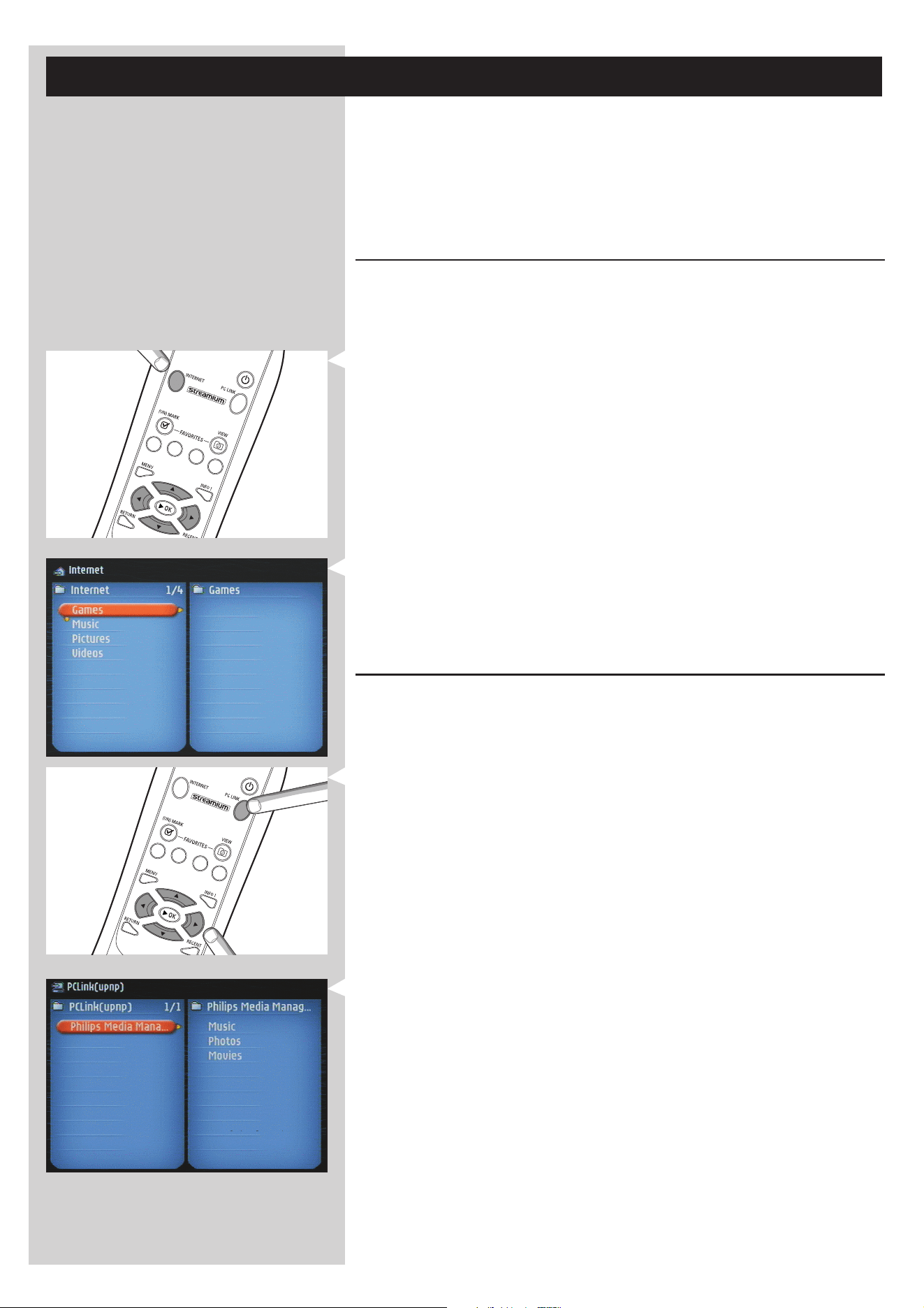
2 Double-click the website address that is in the email.
3 Fill in the requested data to create an account.
4 After registration you can access the INTERNET service of the SL300i, and you can
manage your user account at ‘my.philips.com’ by opening this website in your Internet
browser program or by clicking the My.Philips button in Philips Media Manager.
Please make note of your password, as you will need it if you want to re-register after resetting
the SL300i.
5 After creating a My.Philips account, press the INTERNET button again.
> The SL300i will now have access to the Internet services of your My.Philips account. ...
Have fun!
ENGLISH 21
Chapter 4 - Using the SL300i
This SL300i either connects to your wireless home network (PC LINK) and plays music,
photos, and movies stored on your PC(s), or to the Internet (INTERNET) for accessing various
Internet Entertainment services (e.g. internet radio, movie trailers…).
Note: Install the Philips Media Manager software, the Wireless Network Adapter (or wired
connection), and the SL300i before you attempt to use the SL300i. Also, make sure the Philips
Media Manager icon is present in the lower right corner of your computer screen. Internet
services require a broadband Internet connection.
4.1 Internet
With INTERNET you can make the SL300i play media files (music, photos, movies…) and start
other services from the Internet.
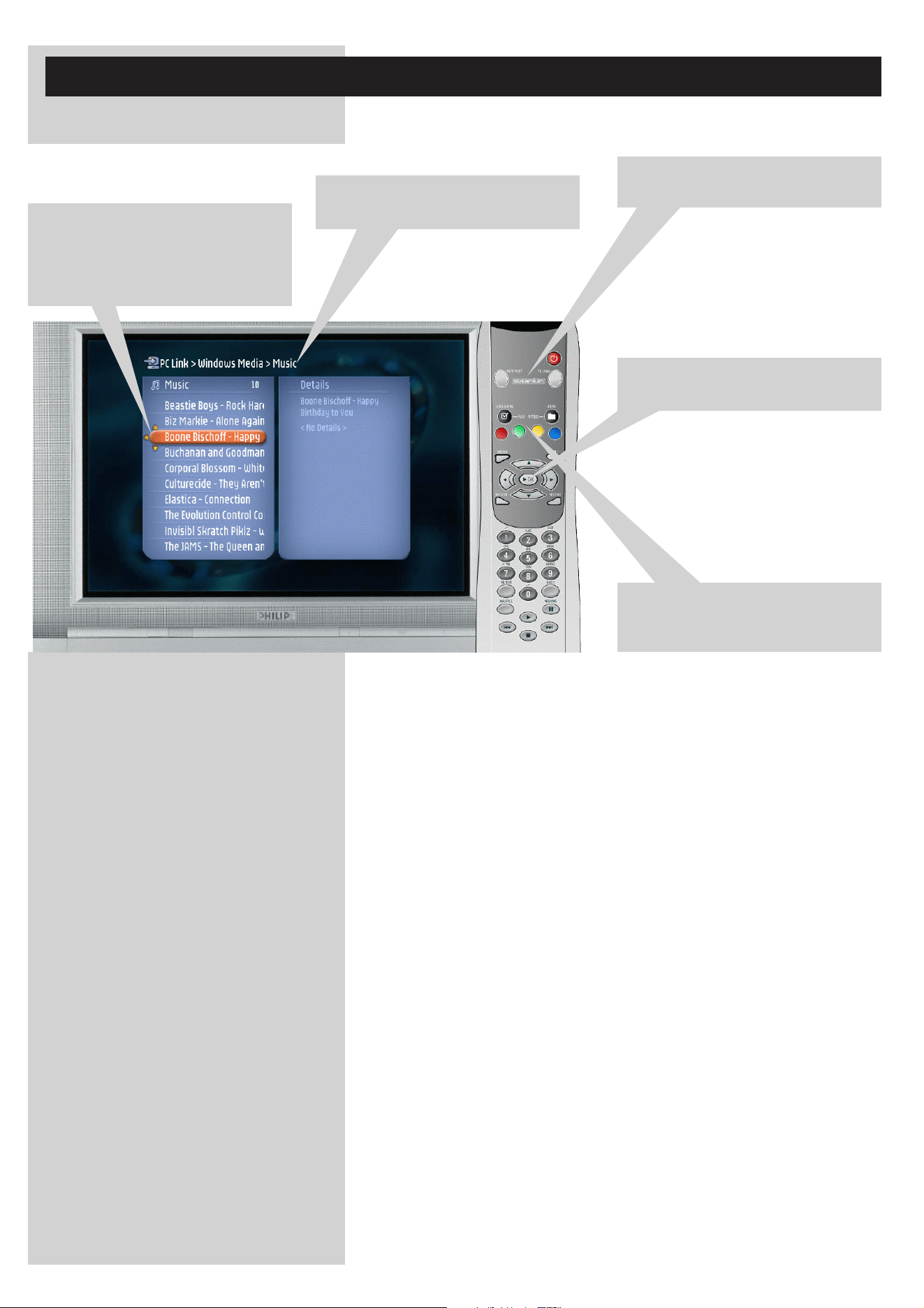
1 Press the INTERNET button* on the remote control to open the Navigation View on
your TV screen.
*) When the SL300i connects to the Internet for the first time, and after resetting, the SL300i
will ask you to register. See the chapter ‘Enabling broadband Internet entertainment’ on
pages 18-20.
Use the navigation buttons (3412) and the OK button on the remote control to
explore the available Internet services.
For example: press the 2 button on the remote control several times until you have selected a music
track, a photo or a movie, and press OK to play it on your television...
Please, see Basic navigation on page 22 for an explanation of the navigation and control
functions.
4.2 PC Link
With PC LINK you can make the SL300i play media files (music, photos, movies…) that are
stored on your PC(s).
1 Press the PC LINK button on the remote control to open the Navigation View on your
TV screen.
Use the navigation buttons (3412) and the OK button on the remote control to
explore the multimedia content you made available on your PC.
For example: press the 2 button on the remote control several times until you have selected a music
track, a photo or a movie, and press OK to play it on your television...
Please, see Basic navigation on page 22 for an explanation of the navigation and control
functions.
22 ENGLISH
Chapter 5 - Basic navigation
> This is the basic way of navigating through all the menus.
1 Press INTERNET or PC LINK on the
remote control.
2 The available media sources and
services will appear on the TV screen.
3 The little yellow arrows around the
highlighted bar indicate which arrow
buttons you can press to navigate
through the menus on the television
screen.
4 Press 3 or 4 to make a selection.
Next, press 2 or OK to confirm.
5 If colour coded user options appear on
the TV screen, press the matching
colour button to use that option.
To go back to a previous menu, press 1.
– After a set time, a screen saver will become active to prevent images being burnt into the
TV screen.

ENGLISH 23
Additional information
Environmental information
All redundant packing material has been omitted. We have done our utmost to make the
packaging easily separable into three mono materials: cardboard (box), polystyrene foam
(buffer) and polyethylene (bags, protective foam sheet).
Your set consists of materials that can be recycled if disassembled by a specialised company.
Please observe the local regulations regarding the disposal of packing materials, exhausted
batteries and old equipment.
Disclaimer
This product is provided by Philips ‘as is’ and without any express or implied warranty of any
kind of warranties, including, but not limited to, the implied warranties of merchantability and
fitness for a particular purpose are disclaimed.
In no event shall Philips be liable for any direct, indirect, incidental, special, exemplary,
or consequential damages (including, but not limited to, procurement of substitute goods or
services; loss of information, data, or profits; or business interruption) howsoever caused and on
any theory of liability, whether in contract, strict liability, or tort (including negligence or otherwise)
arising in any way out of the use or inability to use this product, even if the possibility of such
damages has been mentioned.
Philips further does not warrant the accuracy or completeness of the information, text,
graphics, links or other items transmitted by this product.
Upgradeability
Both the SL300i and the Philips Media Manager software are upgradeable through your
broadband Internet connection. From time to time, new features will be available and the
functionality of this system will change.Therefore, this manual can only offer a rough overview
of the internet and PC Link functionality. Please visit www.philips.com/streamium for the latest
information on the availability of services and new functions.
Trademarks
All trademarks acknowledged. Microsoft and Windows are trademarks, or registered trademarks
of Microsoft Corporation in the United States and/or other countries. Mac OS is a trademark
of Apple Computer, Inc., registered in the U.S. and other countries. DivX
®
is a registered
trademark of DivXNetworks, Inc.
All other brands and product names are registered trademarks of their respective owners.
24 ENGLISH
Chapter 6 - Problem solving
6.1 Audio/video problems
Check the Support section on www.philips.com/streamium for the latest information on
problem solving.
Problem Possible cause Solution
Power light does not light up and/or the No connection to mains power. Connect the power adapter to the SL300i and to a
SL300i cannot be switched on. mains outlet that provides electrical power.
No display on the TV screen. TV is switched off. Switch on your TV.
Wrong cable connections. Check your cable connections, see the ‘Overview..’ on
page 34 in the extended User Manual on the CD.
Wrong external audio/video channel On your TV, select the external (AV) channel
selected. you connected the SL300i to.
No sound from the audio system. Audio system is switched off. Switch on your audio system.
Volume too low. Increase volume or switch off mute of your audio set.
Wrong cable connections. Check your cable connections, see the ‘Overview..’ on
page 34 in the extended User Manual on the CD.
Wrong audio input. On your audio system, select the audio input
you connected the SL300i to.
Intermittent video play. Not enough bandwidth available Select a lower video quality by pressing the green
for the requested video quality button on the remote control one or more times.
Lower video quality requires less bandwidth and should
play without interruptions.
No photo, music, or video play or in poor Incompatible codec (media format). Comply with the supported codecs. Go to
quality only. www.philips.com/streamium to see which codecs are
currently supported.
Correct codec, but still low quality Most PC media formats use heavy data compression
video/audio. techniques that lower the video/audio quality, e.g.
compared to DVD/CD. Lower quality display is normal.
Firewall software blocks streaming. Disable firewall software to test whether it interferes
with streaming video and audio. Go to
www.philips.com/streamium to see what ports you
need to open for streaming (42951 TCP and
42591 UDP)
Digital recording may be You are still able to do analogue recording. Recording
copy protected. is permissible insofar as copyright or other rights of
third parties are not infringed upon.
The menu displayed on the television screen After a set amount of time, a screen Press the MENU button on the remote control, select
disappears after a few minutes. saver will become active to prevent Preferences > Screen Saver, and set a longer time-out
TV screens from burning in. for the screen saver.
The remote control does not function properly. Out of range. Move closer to the SL300i and point the remote
control directly at the IR sensor on the front of the
SL300i.
Batteries low. Replace the batteries.
ENGLISH 25
Problem Possible cause Solution
The SL300i does not respond to any of the Internal error. Unplug the mains and wait at least 10 seconds
buttons including the standby button. before reconnecting it.
The SL300i switches to standby with the The SL300i has a thermal shutdown Disconnect the mains, let the set cool down, improve
Power-LED flashing on and off. that shuts down the set when ventilation, and reconnect the set to the mains.
the internal temperature (If the problem persists, return the set to your dealer.)
exceeds a certain threshold.
6.2 PC / Network problems
Check the Support section on www.philips.com/streamium for the latest information on
problem solving.
Problem Possible cause Solution
The Installation CD will not start. Autorun disabled for your drive. Double-click ‘My Computer’, then the CD-ROM
drive icon and finally ‘Setup.exe’ to start the CD.
The software will not install. Wrong operating system. Go to www.philips.com/streamium to see which
operating systems are supported.
No wireless connection or intermittent drop-out Wireless signal range, speed, and Switch off wireless devices that interfere with your
of the wireless connection. strength can be affected by wireless network connection.
interference from neighbouring
wireless networks and devices.
Electro-magnetic devices such as
televisions, radios, microwave ovens,
and cordless telephones, especially
those with frequencies in the
2.4 GHz range, may also interfere
with wireless transmission.
Pressing the PC LINK button produces an empty PC is switched off. Switch on your PC.
content screen on your television.
The Media Manager software is not Start the Media Manager software.
running.
No wireless network adapter Connect the wireless network adapter to your PC or
connected or range too long reposition your Wireless adapter.You may check
(weak radio signal). the link quality by pressing the MENU button and
selecting Network > Wireless Info > Signal Level.
Network host (PC) or wireless base Make sure your home network is operational before you
station is switched off. try to contact a networked computer with the SL300i.
Your Wireless Base Station/network Add the SL300i MAC address to the list of devices that
router employs MAC filtering and may connect to your Base Station/Gateway router. (See
prevents the SL300i from connecting its user manual for how to do this.) Press the MENU
to your network. button and select: Network > Wireless Info > NIC
MAC Address to see the wireless MAC address.
Not enough USB bandwidth available If you share the USB bandwidth with other heavy
for a wireless USB adapter. USB bandwidth users (like USB cameras, scanners or
ReWritable drives, etc.), the remaining bandwidth may
not be enough.
Radio interference from other Check whether a wireless connection can be
(wireless) devices. established with other devices switched off.
(e.g. microwave ovens, other wireless devices, etc.)
(Wireless) network problems. See advanced network problem solving on page
51-52 of the extended User Manual on CD-ROM.
26 ENGLISH
Problem Possible cause Solution
Pressing the INTERNET button produces an Check whether the SL300i can First, please check whether the SL300i can connect
empty content screen on your television. connect to your PC. to a PC by pressing the PC LINK button.
If not, see above.
No broadband Internet connection Broadband Internet means at least a 256 kbps always-on
available. Internet connection. Dial-up ISDN/ telephone
connections will not work.
Not enough broadband Internet If you share the broadband bandwidth with other users,
bandwidth available. it may fall below the minimum requirements.
Network host (PC) or wireless base Make sure your home network is operational before
station is switched off. you try to contact a networked computer with the
SL300i.
Internet access not working. Make sure you can access the Internet from your
computer.
Internet Connection Sharing (ICS) is In this manual, read the chapters on networking.
not working. Go to Windows Help. Alternatively, visit
www.microsoft.com, click Support, and search on ‘ICS’.
Internet or network problems. See advanced network problem solving on page 51-52
of the extended User Manual on CD-ROM.
New features as advertised on the Internet You are using an older software Upgrade the SL300i and the software.
are not available. version that does not have those Upgrade the SL300i by pressing the MENU button.
features. Then select Online Upgrade.
Go to www.philips.com/streamium for the latest
version of the Media Manager software.
Internet radio/video services are slow or do Your Internet bandwidth might be Check for Internet congestion. Do not download
not respond. (temporarily) too low. large files while listening to Internet radio or viewing
movies.
Firewall software and Anti-Virus software may diminish
the bandwidth effectively available to your PC.You may
test whether this is the case by disabling the software
temporarily.
It says ‘System Recovery’ on the content The internal memory of the SL300i Press the red button on the remote control to
screen on my TV screen, and I am asked to has been corrupted e.g. during start the emergency bootloader.
press 'Continue'.What's wrong? dowloading new software from
the Internet and it needs to start 1. It will try to recover as many of the existing settings
the emergency bootloader program as possible for to your wireless network and the
that connects to the Internet Internet.
to restore the SL300i to a 2. If it cannot recover any wireless settings, you will
working state automatically. be asked to connect the SL300i with an Ethernet
cable to your Internet gateway router or PC with
Internet access.
3. It will ask you for any additional settings it needs to
connect to the Internet. See the chapter about the
Options menu on page 35-39 for reference.
4. Once the emergency bootloader has been able to
connect to the Internet and has downloaded a valid
software version, it will display ‘Restarting system...’.
The SL300i should be working again.
If not, check your settings by pressing the MENU
button.
ENGLISH 27
1
4
7
8
5
6
3
9
2
15
12
14
11
10
16
13
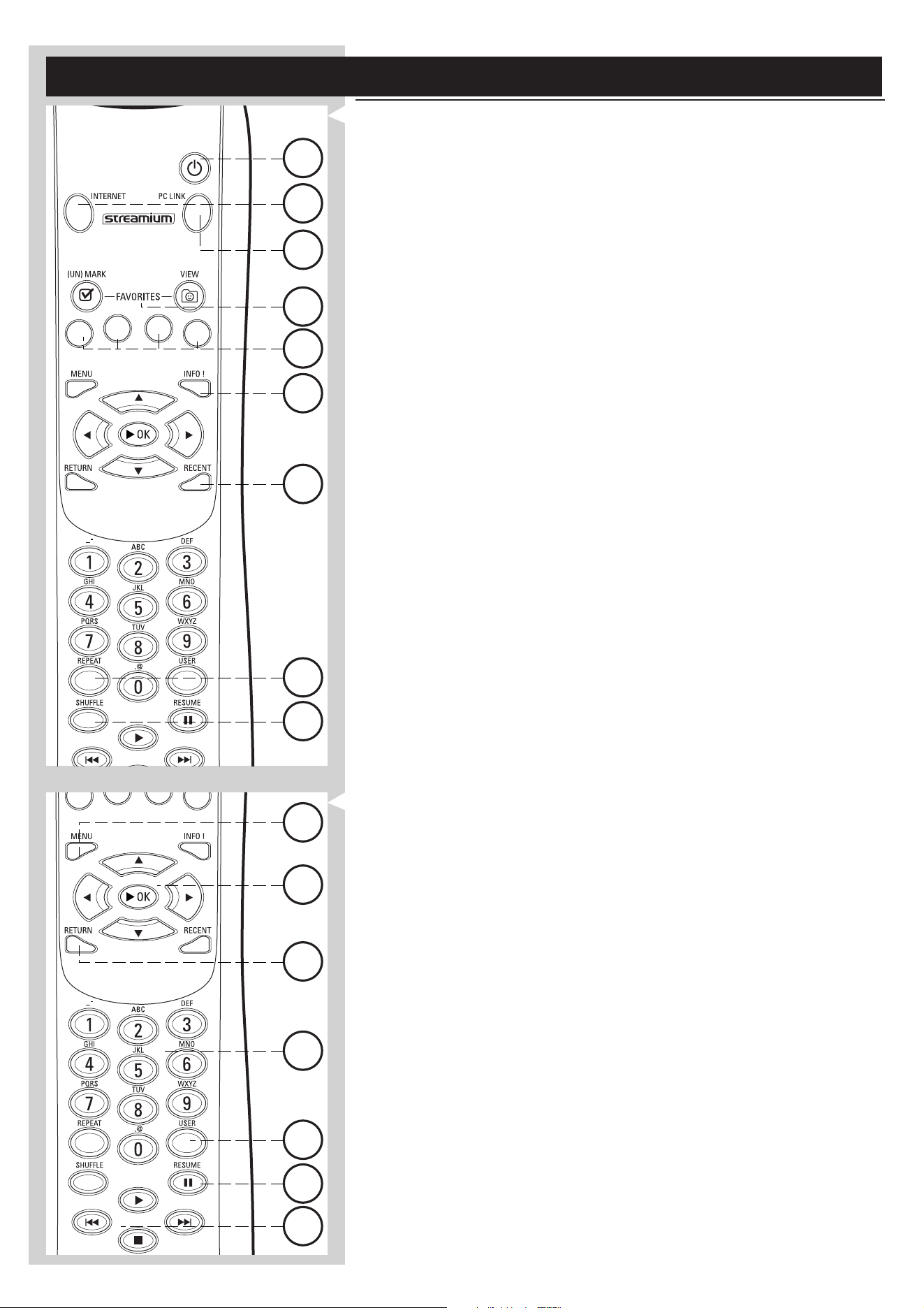
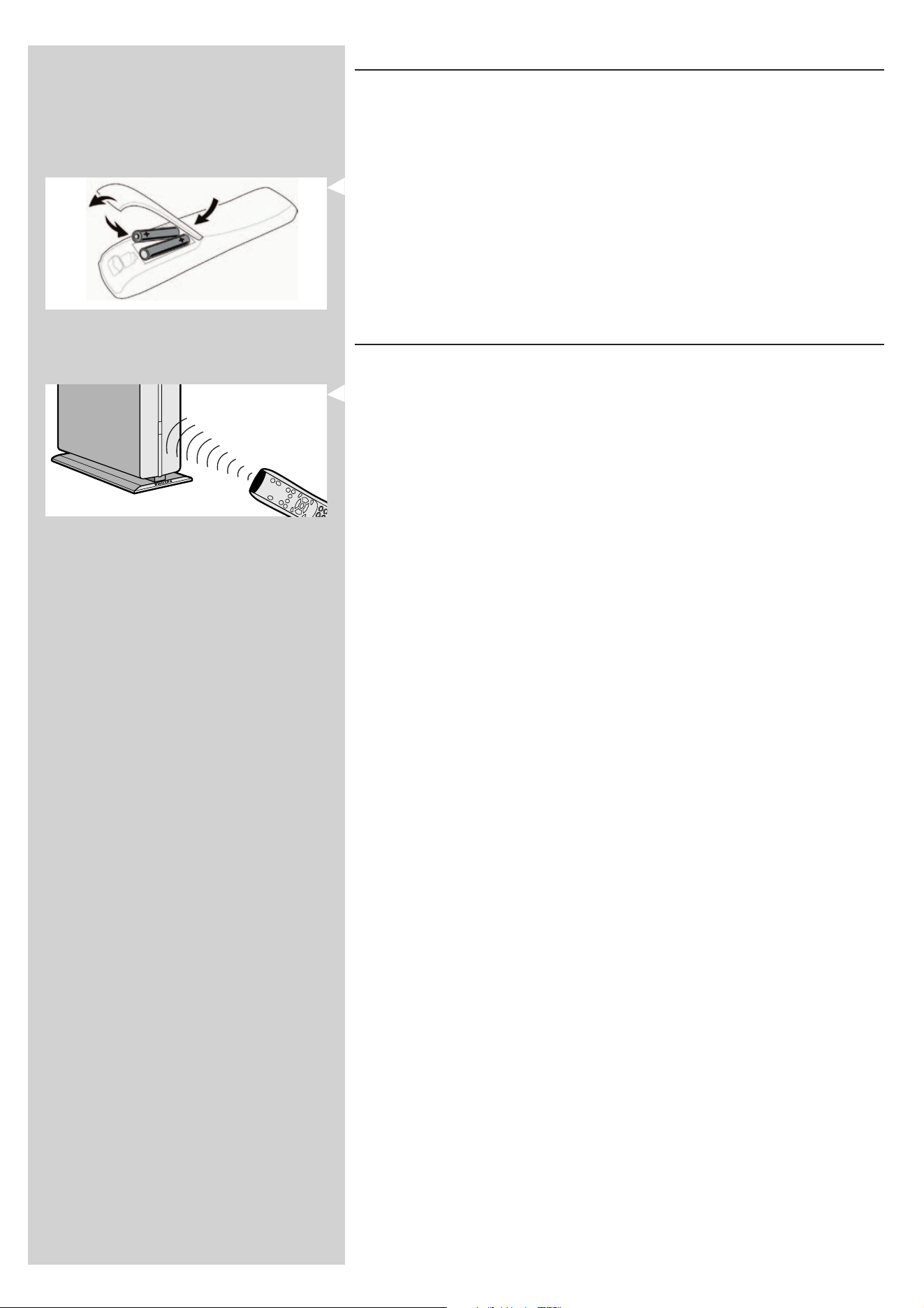
Chapter 7 - Remote Control
7.1 Remote control buttons
1 Power/standby button
Switches SL300i off (to standby).
– Switch on the SL300i with the INTERNET or PC LINK source button
2 INTERNET source button
Selects the Internet as your source of multimedia content.
– Requires a broadband Internet access of min. 256 kbps, higher recommended
3 FAVORITES (Internet only)
Buttons for (un)marking and viewing your favourites.
4 RECENT (Internet only)
Overview of recently played content.
5 INFO! (some Internet services only)
Request information on content.
6 PC LINK source button
Selects PC Link as your source of multimedia content.
7 REPEAT (PC Link only)
Selects the repeat mode.
8 SHUFFLE (PC Link only)
Selects the shuffle mode.
9 Coloured menu buttons
For selecting or activating the colour-coded option from the on-screen menu.
10 MENU
Accesses the SL300i settings.
11 RETURN
For switching from Play view to Navigation view and vice versa.
12 Number/Text buttons
For inputting numbers and SMS-style TEXT.
13 Playback control buttons: Play/Pause, Previous/Next and Stop
Playback control functions for multimedia content.
14 Menu navigation buttons: up/down/left/right/OK
Used for navigating through menus and for making choices.
15 USER
Selects one of the available users.
16 RESUME
For resuming paused playback.
28 ENGLISH
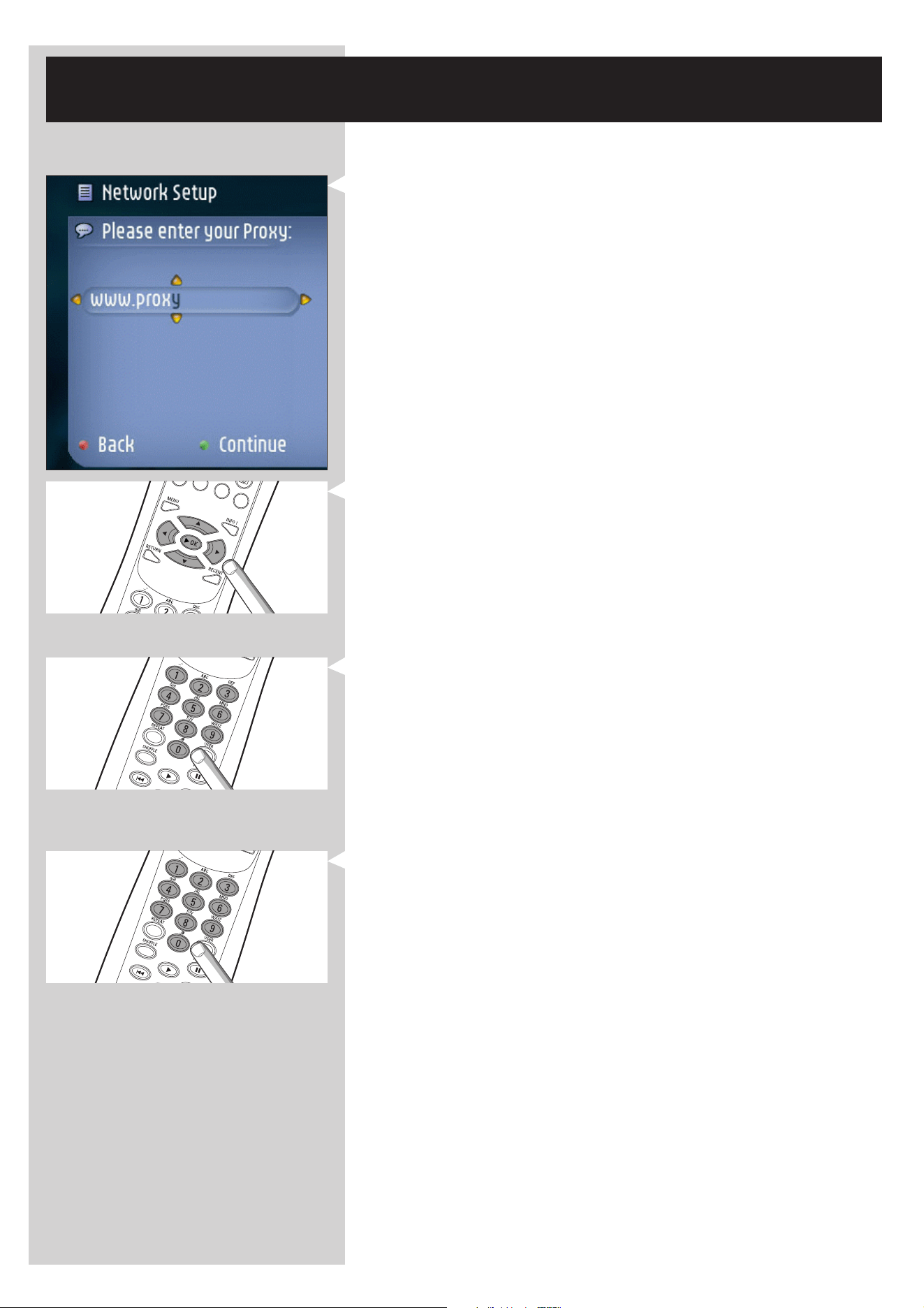
7.2 Placing batteries
• Use 2 x 1.5 V batteries, type R03, UM4 or AA.
• Do not mix old and new batteries.
• Never mix different types of battery (standard, alkaline, etc.).
This may reduce the life of the batteries.
1 Remove battery cover.
Lift tag on back of remote control upwards.
2 Position batteries
Place batteries as shown inside battery compartment.
3 Close battery cover.
7.3 Using the remote control
• Be sure to place fresh batteries in the remote control before use.
•Always point the remote control directly at the infrared receiver eye on the front of the
player; making sure there are no obstructions in the path of the infrared beam.
• The distance between the remote control and the infrared receiver eye should be no
more than 7 metres directly in front of the player and no more than 5 metres at
30 degree angles to either side
ENGLISH 29
Chapter 8 - Entering or editing numeric and
text information
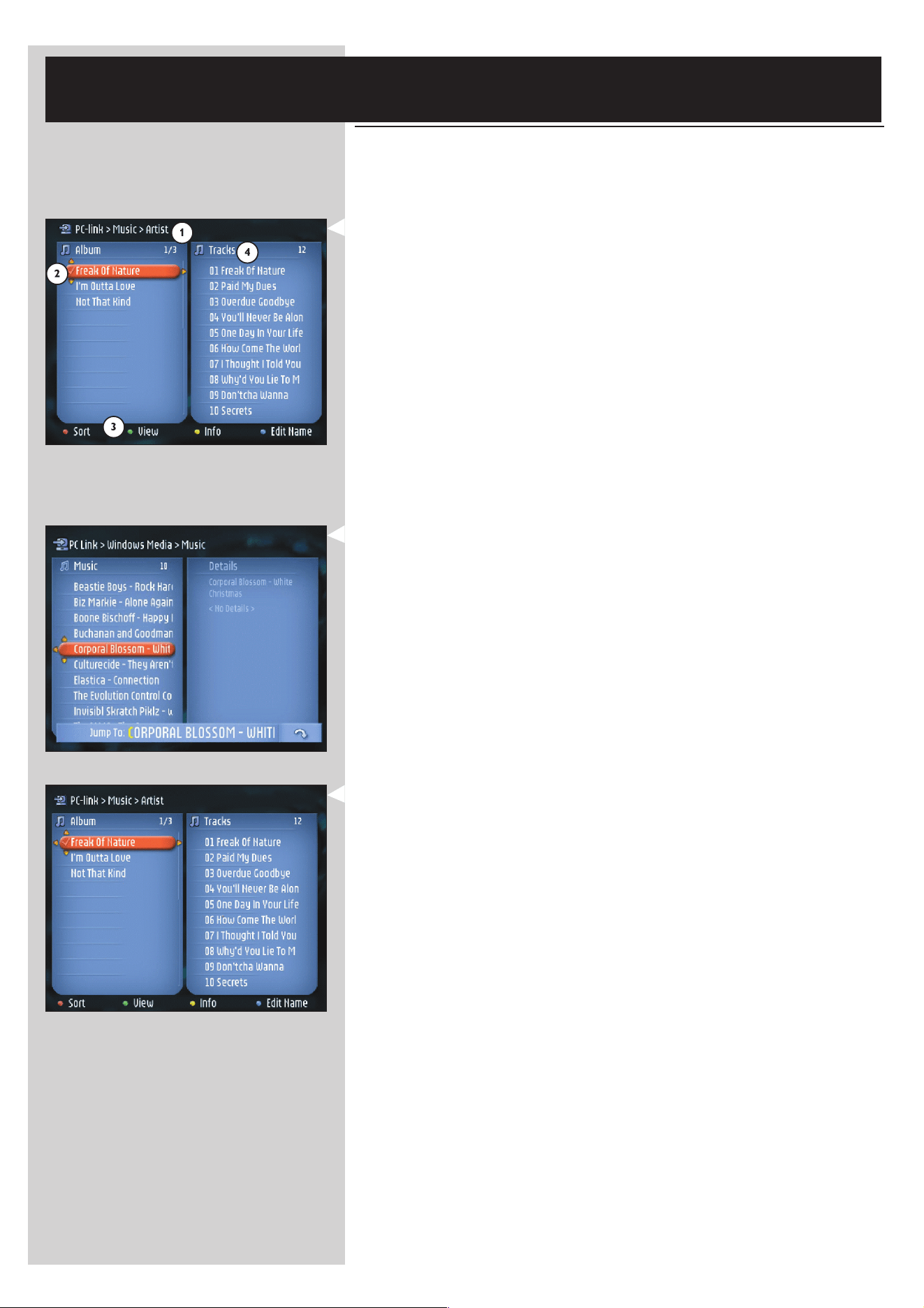
You can enter numbers and text into the SL300i in several ways:
Navigation keys
On the TV screen, arrows are displayed above and below the character being entered or
edited and that character is shown in a different colour.
1 Press 4 or 3 to browse through the characters available.
Note that there are two sets of characters to browse through, uppercase and lowercase
characters.
2 Press 1 or 2 to go to the next or previous character.
3 Press OK or the green colour key to accept the entry.
Press 9 or the red colour key to cancel the entry and go back to the previous menu
screen.
Direct number key entry
You may input numbers by direct key input from the remote control.
Just press the number keys for the number you need.
SMS TEXT-style keys
SMS TEXT-style entry can be used to enter alphanumeric information.
In this mode, text is entered by a method similar to that used for entering text messages on a
cellular telephone.
For example: pressing the ‘2’ key several times will cycle through the following characters:
a – b – c – A – B – C – 2... etc
RC Key SMS-style alphanumeric entry order
1_ - 1 _ - 1 (etc.)
2a b c A B C 2 a b c (etc.)
3d e f D E F 3 d e f (etc.)
4g h i G H I 4 g h i (etc.)
5j k l J K L 5 j k l (etc.)
6m n o M N O 6 m n o (etc.)
7p q r s P Q R S 7 p q r s (etc.)
8t u v T U V 8 t u v (etc.)
9w x y z W X Y Z 9 w x y z (etc.)
0.@ 0 . @ 0 (etc.)
Notes:
– Some text input is case sensitive, meaning that ‘ABC’ is not the same as ‘aBc’. Always input
characters in the correct case to avoid problems.
30 ENGLISH
Chapter 9 - Advanced navigation and advanced
SL300i functions
9.1 Navigation view
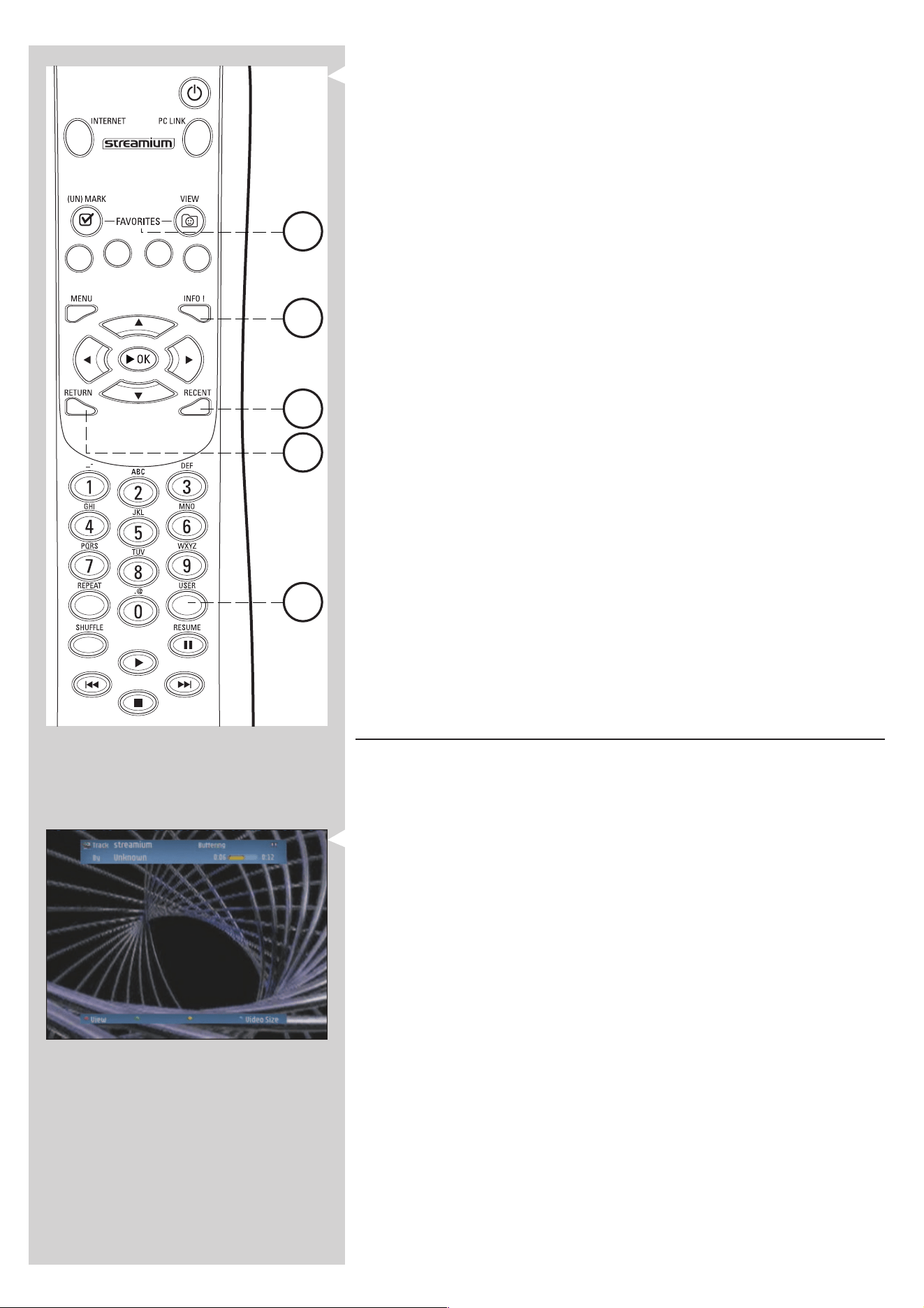
The view displayed on the TV screen while navigating the media menus, is called the
'Navigation View'. It works as follows:
1 Path
This shows you the menu choices you have made in getting to the current screen.
A useful tool for Smart Navigation (see below).
2 Favourites check mark (√)
Shows you whether or not the item is marked as a Favourite (see below).
3 Colour buttons bar
The colour button bar shows you the user actions available for each screen. Pressing a
colour button on the remote control will perform the corresponding action as mentioned
on the screen.
4 Details view
Shows you the available items for the highlighted menu bar on the left, or the details and a
preview of individual items if possible.
9.1.1 Jump To (number keys on the remote control)
Use the remote control number buttons to access an item in a list directly by entering the first
letter(s) or number(s) of the desired item.
If the list is sorted alphabetically, you do this by pressing the number buttons on the remote
control in SMS TEXT style.
For example: pressing the ‘2’ key several times will cycle through the following characters:
A – B – C – 2... etc.
If the list is sorted numerically, items can be selected by entering a numbers directly (not in
SMS TEXT style). Press OK to confirm your selection.
9.1.2 Smart Navigation
Smart Navigation helps you to navigate 'intelligently' through the menus by remembering the
menu path(s) you have taken previously (during the same session).
If you have backed out of a menu path by pressing the 1 button repeatedly, Smart Navigation
will remember that path for the duration of the current session.
By pressing 2 repeatedly, you will follow the same path through the menus.
At any time, you may deviate from your path and follow a new one (this new branch will also
be remembered by the Smart Navigation feature).
Switch Smart Navigation off (see Options menu on page 35-39) to always select the first menu
item on a new page.
If you would like to quickly access content you previously visited, the Favourites and Recent
features (see below) are better suited for this purpose.
ENGLISH 31
9.1.3 FAVORITES, RETURN, INFO!, RECENT
FAVORITES (for INTERNET only) 3
Press the FAVORITES VIEW button to open an overview of the items you marked as your
favourites.
Use the FAVORITES (UN)MARK button to mark and unmark an item as a favourite
RETURN button !
Press the RETURN button to toggle between Play view and Navigation view.
INFO! button 5
If an item is currently playing, press INFO! to receive an email with information about the item
playing, or to collect the information at your My.Philips Streamium account.
RECENT (for INTERNET only) 4
Press the RECENT button to go directly to the items you have opened recently.
The overview of recent items will be cleared every time if you switch the SL300i to stand-by.
USER button %
For selecting and editing users.
Every user has his/her own Favourites list & access to Internet services.
Press MENU for setting-up users.
9.2 Play View
The view displayed on the TV screen while playing a movie, picture or music, is called the
'Play View'.
It gives different information and user actions for each type of media.
9.2.1 For movies
It works as follows:
Track info.
This shows you information on the track currently playing.
Colour buttons bar.
The colour button bar shows you the user actions available for each screen.
Pressing a colour button on the remote control will perform the corresponding action as
mentioned on the screen.
0 Press the red button once or several times to determine the amount of information you
see on the TV screen.
0 Press the green button once or several times to choose a bandwidth and determine the
video quality.
Note: If there is not enough bandwidth available, the movie will play intermittently.
Switch to a lower value.
0 Not used.
0 Press the blue button once or several times to determine the image size.
If the colour button bar has disappeared from the screen, pressing any of the colour buttons on
the remote control will bring it back.
Next, press the colour button for the action you want.
4
15
5
3
11
32 ENGLISH
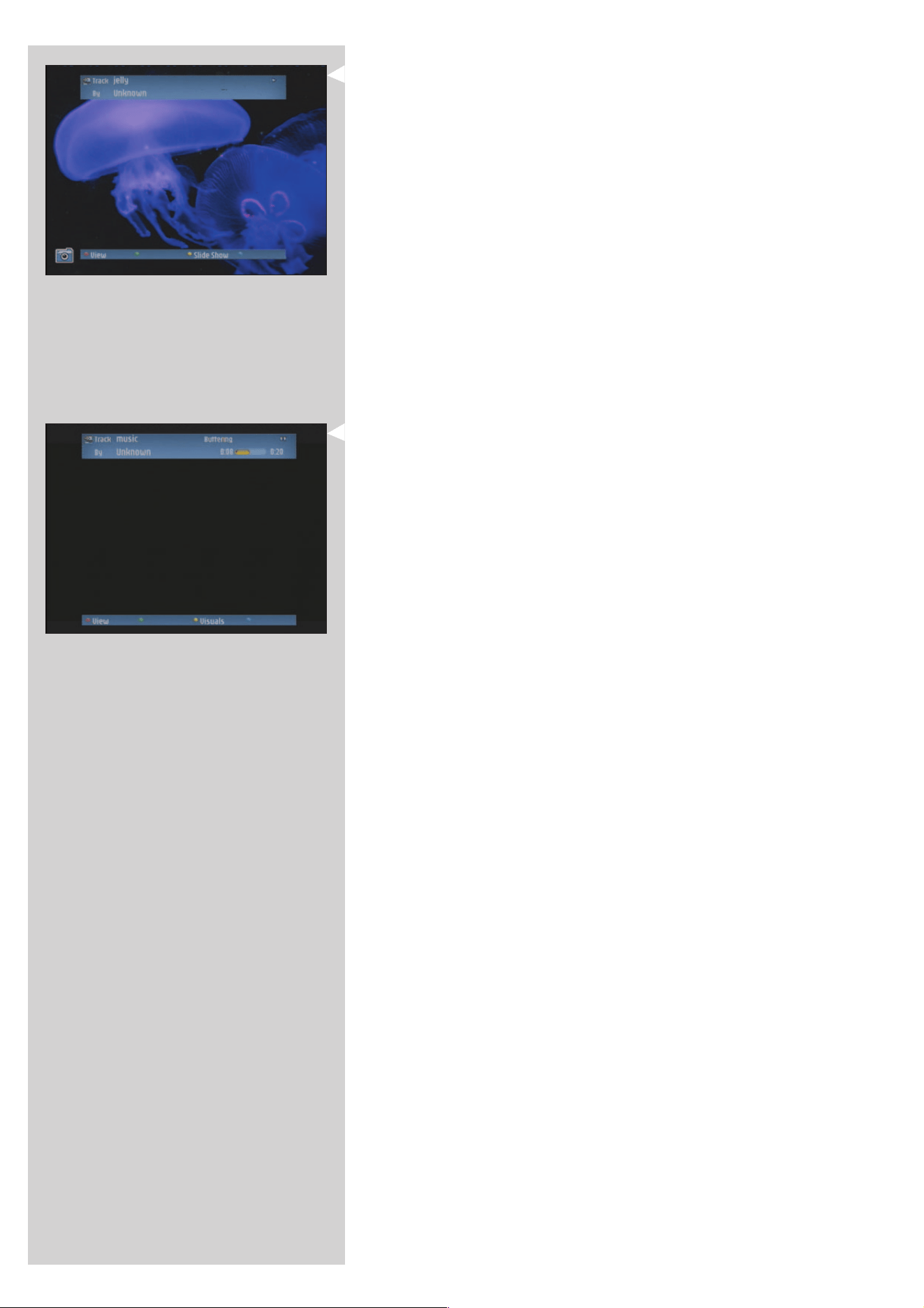
9.2.2 For photos
It works as follows:
Picture info.
This shows you information on the image currently being displayed.
Colour buttons bar.
The colour button bar shows you the user actions available for each screen.
Pressing a colour button on the remote control will perform the corresponding action as
mentioned on the screen.
0 Press the red button once or several times to determine the amount of information you
see on the TV screen.
0 Not used.
0 Press to start a slide show by selecting the time for each photo to be displayed.
0 Not used.
If the colour button bar has disappeared from the screen, pressing any of the colour buttons on
the remote control will bring it back.
Next, press the colour button for the action you want.
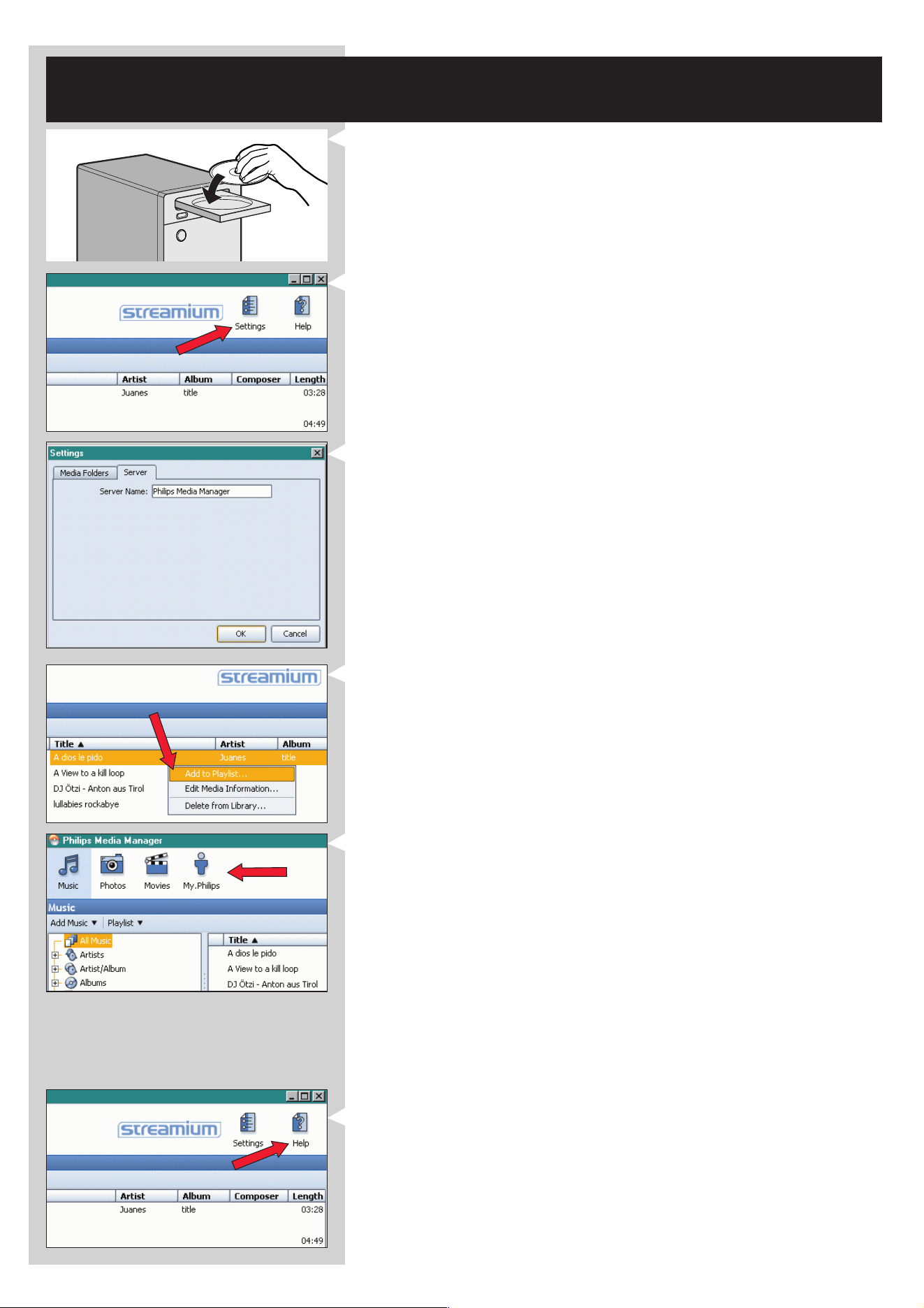
9.2.3 For music
It works as follows:
Track info.
This shows you information on the track currently playing.
Colour buttons bar.
The colour button bar shows you the user actions available for each screen.
Pressing a colour button on the remote control will perform the corresponding action as
mentioned on the screen.
0 Press the red button once or several times to determine the amount of information you
see on the TV screen.
0 Not used.
0 Press the yellow button and select one of the visuals for adding a visual dimension to the
listening experience.
0 Not used.
If the colour button bar has disappeared from the screen, pressing any of the colour buttons on
the remote control will bring it back. Next, press the colour button for the action you want.
ENGLISH 33
Chapter 10 - Advanced Philips Media Manager
uses
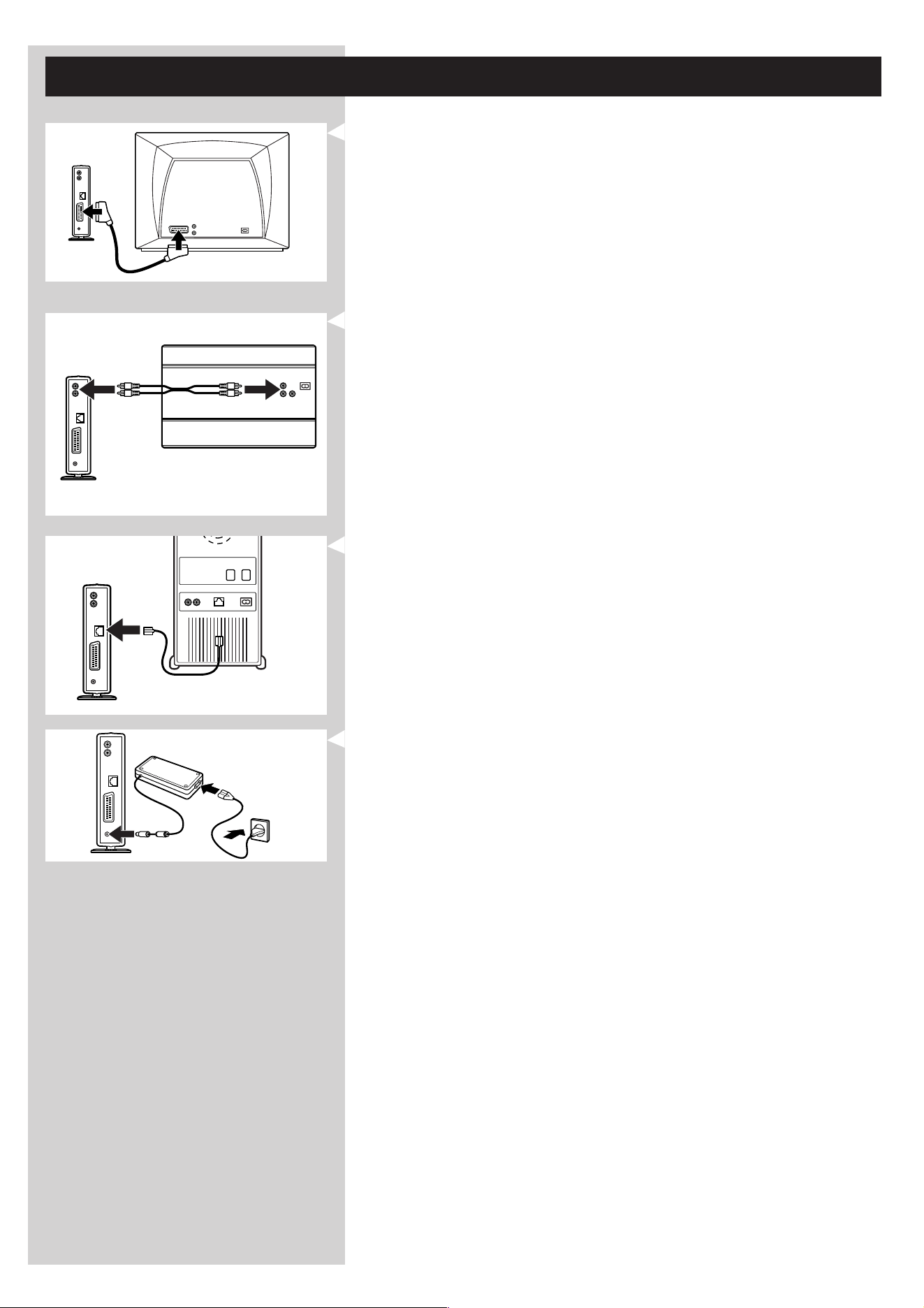
1 Running the Philips Media Manager program on more than one computer at the same
time.
– If more than one computer has access to the wireless network, you can also run Media
Manager on more than one computer at the same time to make the media files on that
computer available to the SL300i.
A) Install the Philips Media Manager in the same way as you did for the first computer
(see on page 8, steps 1 - 4).
B) In the Media Manager window, click 'Settings'.
C) Click the 'Server' tab, and change the Server Name.
(e.g. to 'My laptop')
> This 'Server Name' will be shown in the top-level menu on your television screen.
That way you can keep apart all the computers in the network that are running the
Philips Media Manager at the same time.
2 Editing media information and creating playlists.
Right-click a music track, photo or movie to open a context menu.
In this menu:
– edit media information which will help you organise and sort your media files,
or
– add the media file to an existing or new playlist.
3 Managing your Streamium account.
After installing the SL300i and connecting it to the Internet, you may click 'My.Philips' to
open your personal Streamium account, or... open the website ‘my.philips.com’ in your
Internet browser.
Use the Streamium account window to manage your Internet settings and preferences.
About ‘My.Philips.com’
‘My.Philips.com’ lets you organise your media services online.
For example:
–Personalise and manage media and preferences
(e.g. music, favourites, user info)
– Subscribe to PREMIUM Internet services
– Add internet radio stations which are not available yet
(currently only for MP3/pro radio streams).
– Get additional information and links about artists and music tracks by pressing the INFO! key.
4 Learning more about the Media Manager program.
Click 'Help' to find out more on how to use and configure Media Manager.
34 ENGLISH
Chapter 11 - Overview of SL300i connections
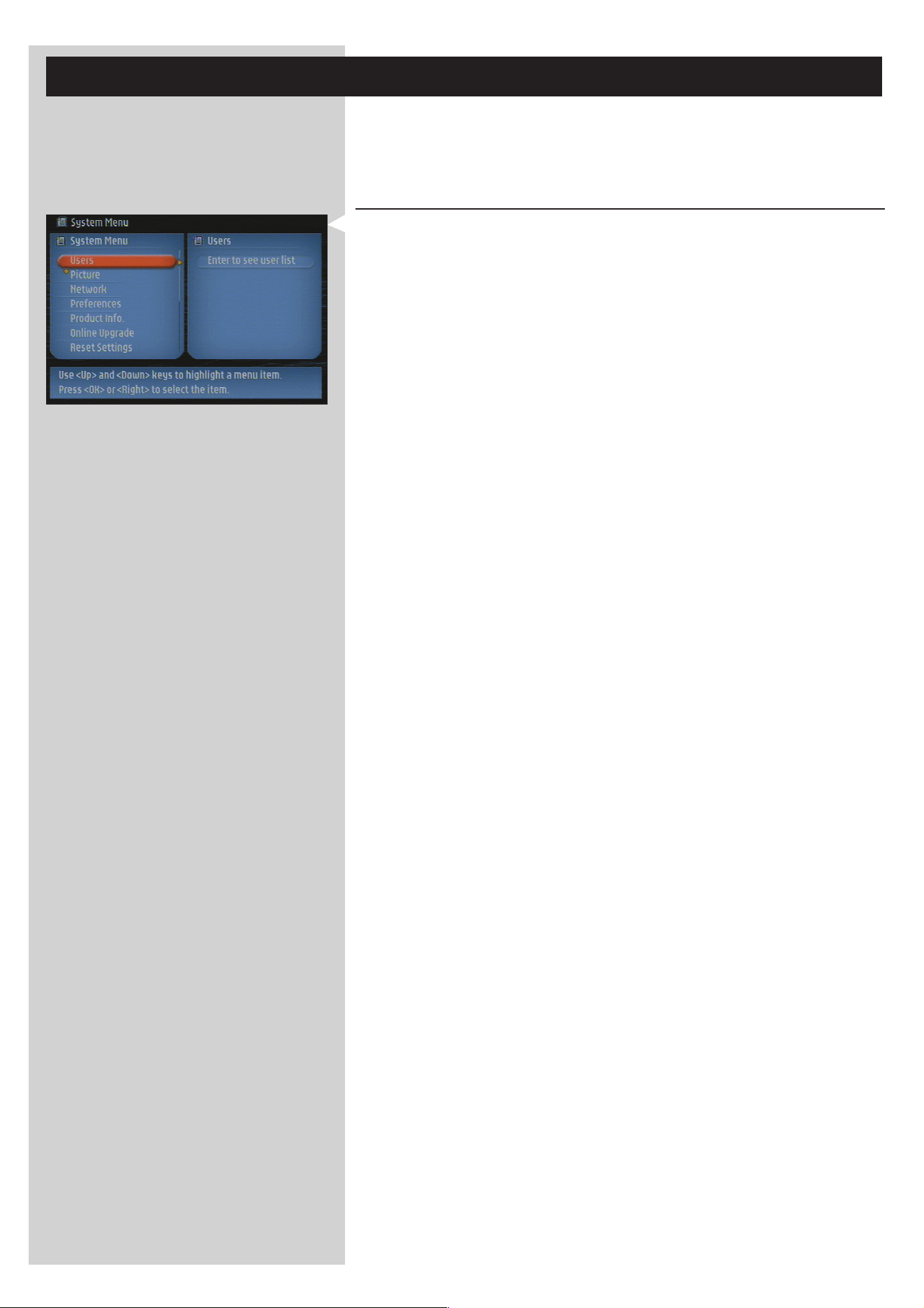
Connect the SL300i directly to the TV.
1 Connect a SCART (EURO) cable between the SCART audio/video connection 4 of the
SL300i and your TV.
> This will enable you to view the user menus and multimedia content on the television
screen.The television will also provide audio playback.
See the chapter ‘Options menu’ on page 35-39 of the extended User Manual on
CD-ROM for choosing the connection type (RGB or CVBS): For best video performance,
select RGB (check the manual of your TV).
If your TV goes blank after switching to RGB mode, then your TV does not support RGB.
In this case, select CVBS by keeping the GREEN key pressed for at least 4 seconds to
activate the default video output settings. (SL300i needs to be switched on.)
2 Connect a stereo audio cable between the Audio L/R output (stereo) 2 of the SL300i
and the audio input of your sound system.
> Making this connection enables you to listen to audio playback through your sound
system.
3 If you want to use the Ethernet port 3 on the SL300i, see the chapter on making a
wired network connection on page 15-17.
4 Connect the power adapter between the DC-in input 5 of the SL300i and a mains
socket that provides electrical power.
> The indicator in the Power button lights up after connecting the SL300i to the mains.
Audio
PC
ENGLISH 35
Chapter 12 - Options menu
In the Options menu you can view and edit the settings of the SL300i. On the remote control,
press the MENU button to enter the Options menu. Select a menu item by pressing
1, 2, 3, or 4, and select by pressing OK or 2.
Close the Options menu by pressing the MENU button again on the remote control.
12.1 Main Menu (System Menu)
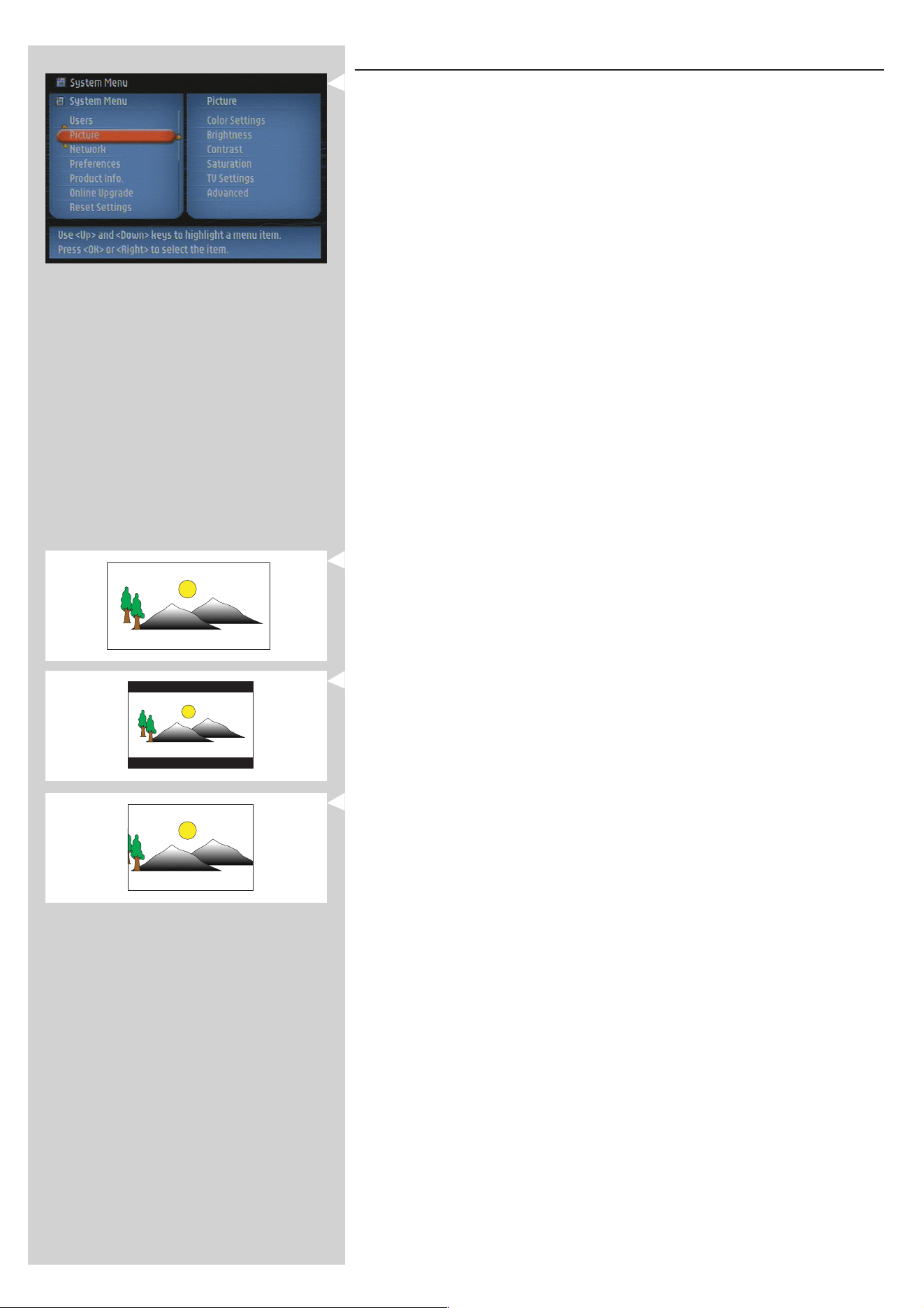
The System Menu is the top-level menu via which all settings are accessible. It is divided into
sub-menus that address different categories of settings, see below for an overview.
Users For selecting a user from the list of existing users. Also, for adding
or removing users from the list.
Add user: You will be asked to enter a new user's email address.
Remove user: To remove a user the primary user must enter his
or her password.
Picture see 12.2 for details
For changing: Colour Settings, TV Settings,
and Advanced (TV Settings)
Network see 12.3 for details
For information on and changing:
Network, Wireless, Encryption and Proxy Settings
Preferences see 12.4 for details
For setting and changing: Access Control, Bandwidth preference,
Dim Level, Smart Power-off, Screen Saver, Smart Navigation,
Interface Animations, Buffer Size and the Menu Language.
Product Info Gives you information on product type, product ID, and version
numbers.
Online Upgrade For checking the availability of firmware upgrades.You need a
broadband Internet connection for this to work.
Reset Settings For resetting all Options menu settings to their default values.
After resetting, the SL300i will restart, and you will be asked to
reconnect to your network and to re-enter your primary user
name and password.
About Provides you with general information.
36 ENGLISH
12.2 Picture Menu
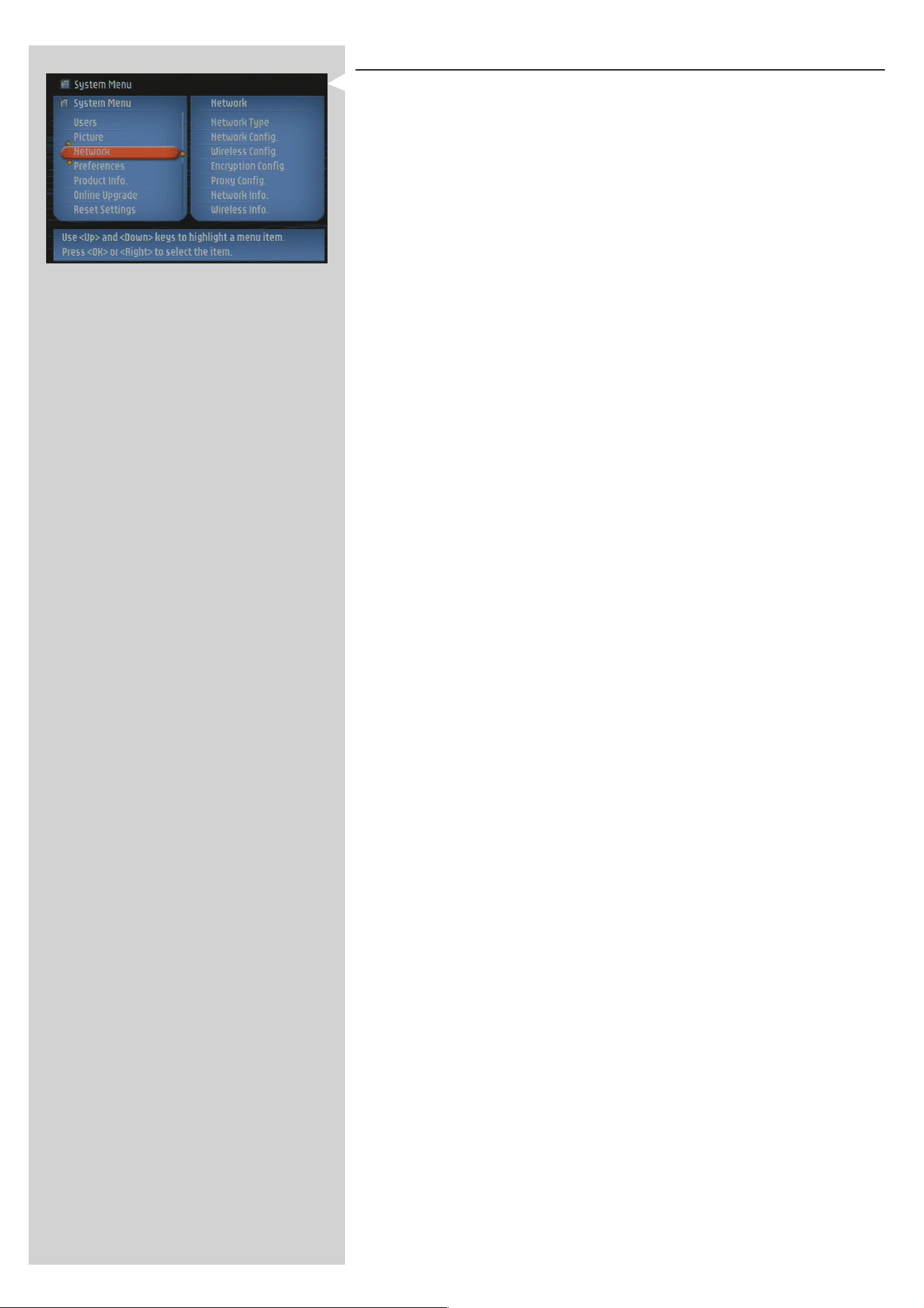
The Picture Menu gives you access to display settings. See below for an overview.
Color Settings Select a colour setting from the list (Personal, Soft, Animation, Rich,
Natural).
Brightness Adjusts the Brightness for the ‘Personal’ colour setting.
Contrast Adjusts the Contrast for the ‘Personal’ colour setting.
Saturation Adjusts the Saturation for the ‘Personal’ colour setting.
TV Settings TV Shape The TV Shape you select must be supported by
movie. If not, the TV Shape settings will not affect
the picture.
Choose 4:3 pan-scan, 4:3 letterbox or
16:9 widescreen. (see below for an explanation)
Video Output If your TV has an RGB enabled external input,
choose Scart (RGB) for highest picture quality.
Else, choose Video (CVBS).
Advanced (TV Settings) For adjusting advanced settings like Horizontal and Vertical
position, Gamma, Chroma Delay and Black Level. See the
Glossary on page 53 for an explanation.
Leave these settings at their default values, unless you have an
explicit reason for changing them.
TV Shape
Choose 16:9 Widescreen
– if you have a widescreen TV.
Choose 4:3 Letterbox
– if you have a standard TV, and if you select to have black bars at the top and bottom of
the screen.
Choose 4:3 Pan-Scan
– if you have a standard TV and if you select to have both sides of the picture trimmed to fit
your TV screen.
ENGLISH 37
12.3 Network menu
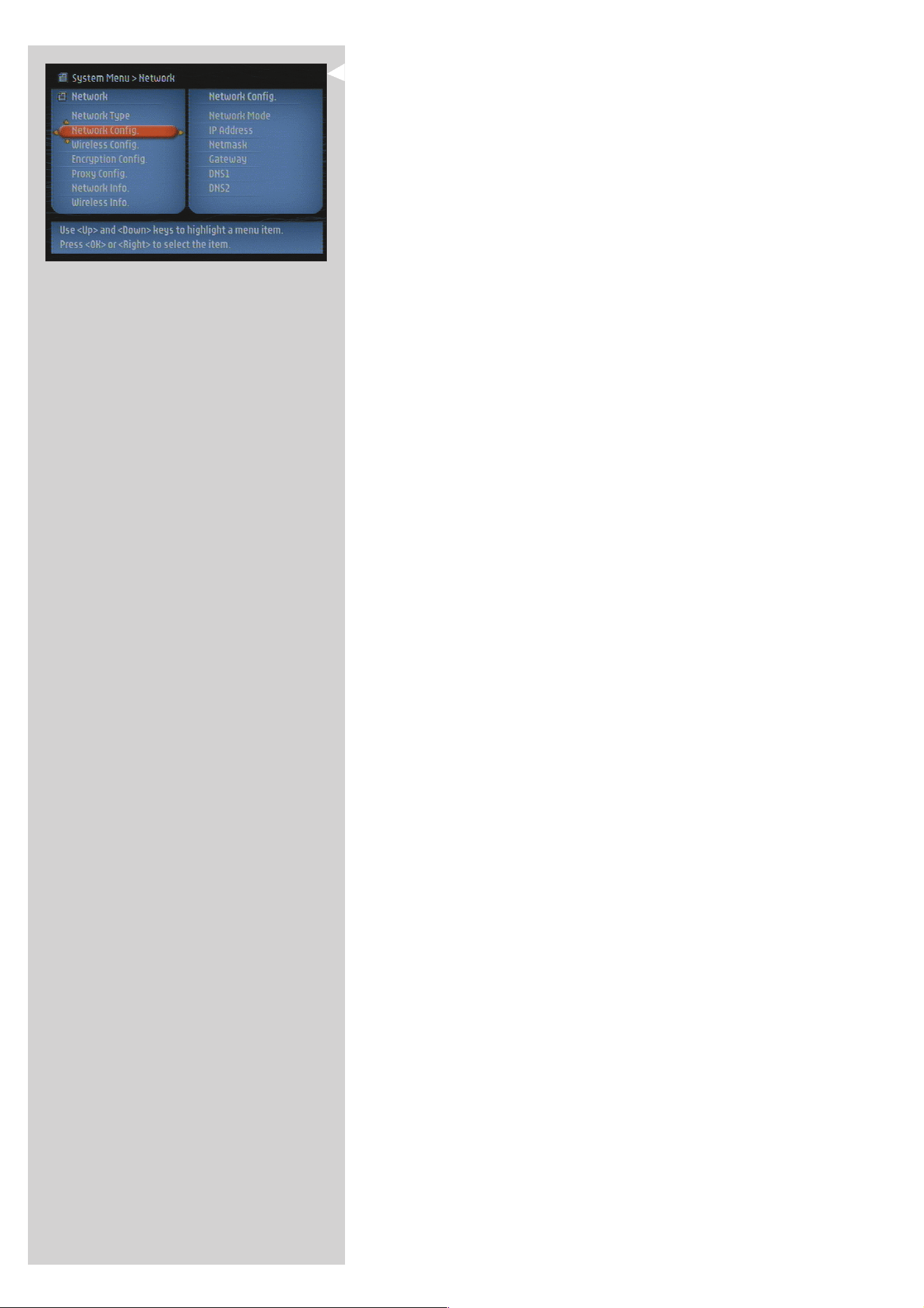
The Network menu gives you access to network and wireless settings. See below for an
overview.
Note: If you just want to see what the settings are, open the Network/Wireless Info items and not
the Config items.
Network Type Select whether you want to connect to a
Wireless network or to a Wired network.
Network Config. Network Mode Choose DHCP for automatic network
configuration by your network host.
(preferred)
Choose Static IP for manually entering a
static network configuration.
Choose Auto IP for automatic network
configuration without a network host.
IP Address, Netmask, Only Static IP requires you to fill in values
Gateway, DNS 1 and for IP Address, Netmask, Gateway, DNS 1
DNS 2 and DNS 2. See below for an explanation.
Wireless Config. Wireless Mode Choose whether your wireless network has
an Access Point (Wireless Base Station) or
is an Ad-Hoc Network (Peer-to-peer).
Network Name (SSID)Enter the name (SSID) of the wireless
network you want to join.
Note: the SSID is case-sensitive, meaning that ‘philips’ is not the same
as ‘PHILIPS’ or ‘Philips’.
Channel Number Choose one of the available WiFi channels
in your region. (Select 0 for automatic
channel assignment.)
Encryption Config. First, select whether or not to use wireless network encryption:
WEP Encryption Off/On.Then, you may enter up to 4 WEP Keys
to choose from. Enter 5 ASCII or 10 HEX characters to use a
64-bit WEP-key; enter 13 ASCII or 26 HEX characters to use a
128-bit WEP-key.The number of characters determines the type of
key you use. Finally, choose which of the four keys to use:
WEP Transmit Key.
Important: You must use the same encryption key throughout your
wireless network.
Proxy Config. Your Internet Service Provider (ISP) may have provided you with
Proxy Settings for HTTP (Internet) and/or for RTSP (used for
video streaming (MPEG-4)).
If this is the case, enter the proxy name(s) and port(s) your ISP
provided you with.
Network Info For viewing the Network settings, including the physical
Ethernet MAC Address you may sometimes need for identifying
the Wired network adapter of the SL300i.
Wireless Info For viewing the Wireless settings, including the physical
NIC MAC Address you may sometimes need for identifying the
Wireless network adapter of the SL300i. Go to Signal Level to
check the wireless signal quality.
38 ENGLISH
12.3.1 Static IP settings
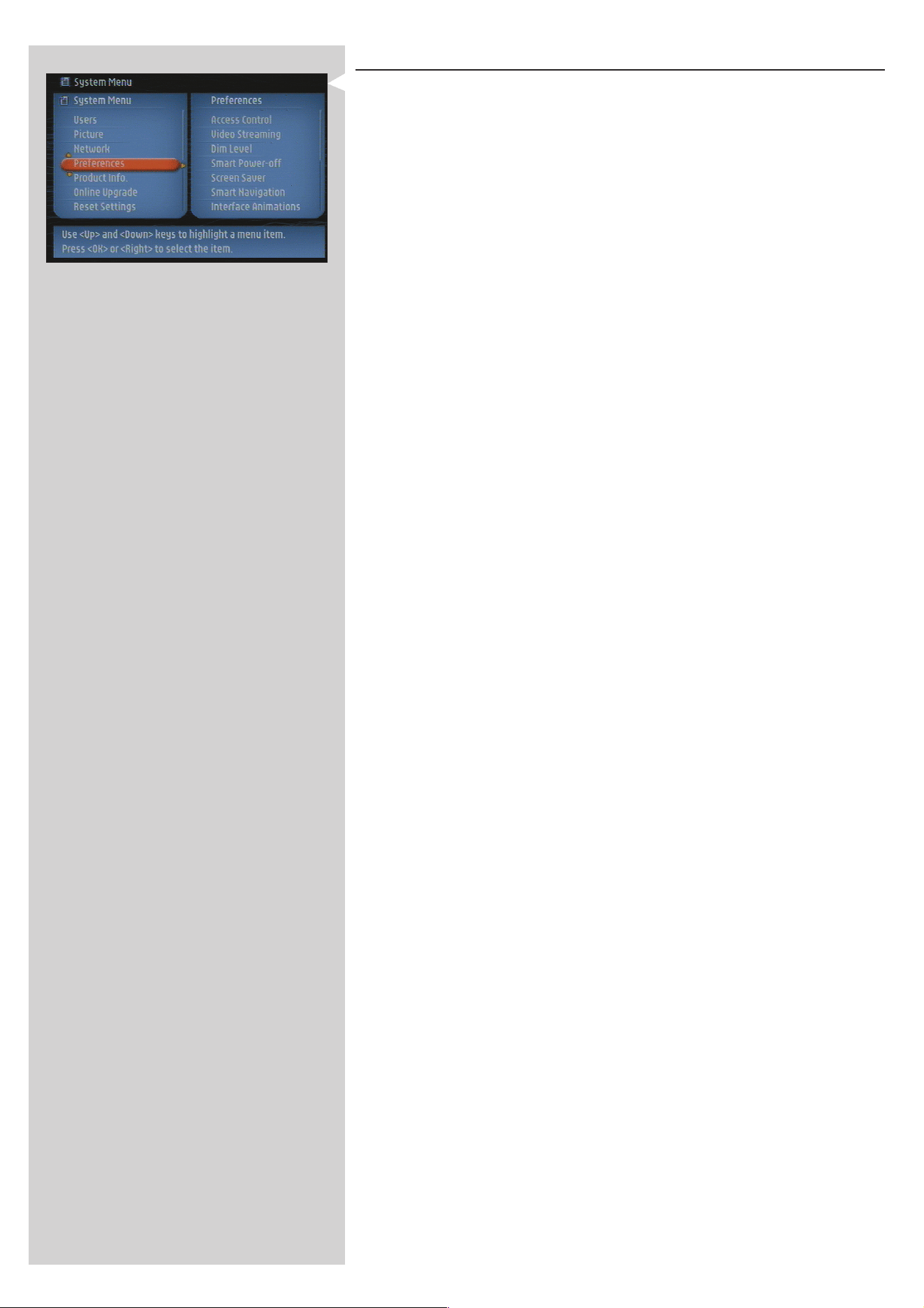
If you select Static IP as your Network Mode in Network > Network Config > Network
Mode, you will need to provide the SL300i with the following manual settings for its wireless
network:
IP Address This is the fixed IP Address you want the SL300i to have in your
network. Preferably, choose one from the range 192.168.xxx.xxx.
Netmask Enter the same netmask throughout your network. E.g.:
255.255.255.000
Gateway Enter the IP Address of your Internet gateway router,Wireless Base
Station, or network host computer. (E.g.: 192.168.0.1 for the host
computer that provides Internet Connection Sharing.)
DNS 1 Usually, this would be the same address as the Gateway Address
above. However, some Internet Service Providers (ISP) provide you
with separate Dynamic Name Server addresses you need to use.
This should be a valid IP Address, like xxx.xxx.xxx.xxx
DNS 2 See DNS 1.
ENGLISH 39
12.4 Preferences menu
The Preferences menu gives you access to preferred settings. See below for an overview.
Access Control Parental Level Set a Parental Level up to which playback will
be allowed for all content. If you try to play
content that has a parental level above the
selected one, you will be asked to enter a PIN
code before playback.
Please, see below for the disclaimer.
Change PIN Set the code needed for playback of parental
level protected content.
Video Streaming Choose Low Bandwidth (150 kbps) if video streaming does not
work properly.
High Bandwidth requires an Internet connection of 300 kbps or
more.
Dim Level Select the level of illumination of the blue LED at the foot of the
SL300i.
Smart Power-off Enable this feature to switch off the SL300i after 20 minutes of
inactivity.
Screen Saver Select the period of inactivity before you want the screen saver to
appear.
Smart Navigation For turning on/off Smart Navigation.
See Advanced Navigation on page 30-32.
Interface Animations Turning off Interface Animations will minimise the on-screen
animations.
Buffer Size For choosing the Buffer Size you want to use for Internet content
streaming. A larger buffer size takes longer to fill before starting
streaming display, but minimises interruptions during content
streaming.
Menu Language For choosing the on-screen language of the menus.
Currently, only English is available.
Parental Level Disclaimer
The SL300i features the PARENTAL LEVEL control system, which is intended to activate when
playing media files and streams that have certain software coding.This is according to technical
standards adopted by the set maker and media content industries. Please note that the
PARENTAL LEVEL system will not operate on files/streams that do not have the appropriate
software coding. Also, note that at the time of release of this SL300i certain aspects of the
technical standards had not been settled between set makers and the media content industries.
On this basis Philips cannot guarantee the functioning of PARENTAL LEVEL system and
declines any liability associated with unintended watching of media content. If in doubt, please
make sure the media plays according to your PARENTAL LEVEL settings before you allow
children access to the SL300i.
40 ENGLISH
Chapter 13 - What you need to know about
networks
Important note:The SL300i has a built-in wireless network adapter and is a wireless
network device exactly like the PCs with a wireless network adapter
in the illustrations below.
A network provides a means of communication between two or more computers (and other
devices) that are connected to each other through wired or wireless means.
WIRED
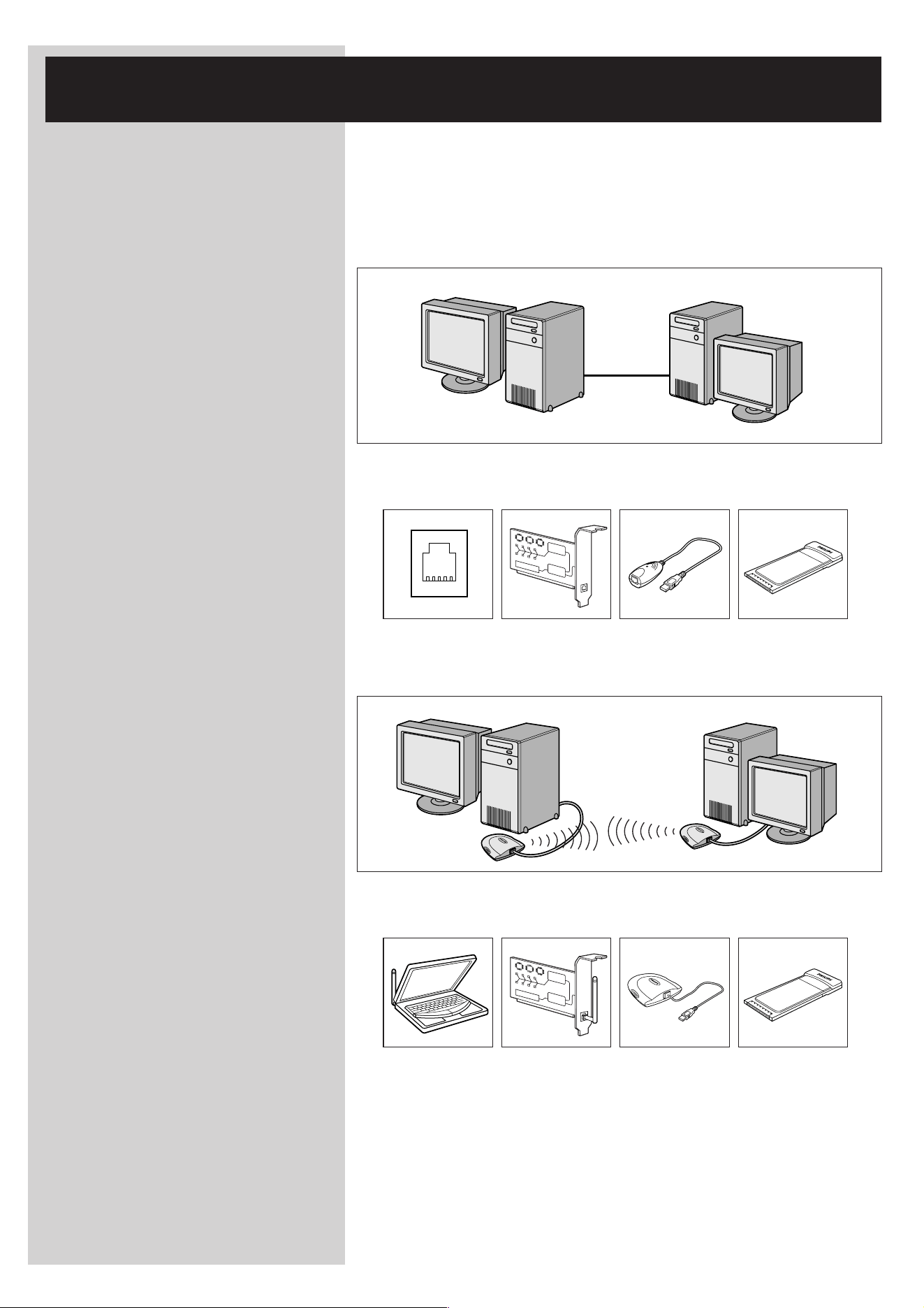
At each computer, you will need a network adapter or Network Interface Card (NIC) to be
able to connect the computer to the network cable. Examples are:
Already built-in PCI expansion card USB/Ethernet cable Ethernet notebook
adapter
WIRELESS
At each computer, you will need to install a WiFi wireless network adapter to be able to
connect to another wireless network device. Examples are:
Already built-in Wireless PCI Wireless USB Wireless notebook
expansion card adapter adapter
You do not need to open your PC to connect a wireless USB/notebook adapter (available
from Philips) or USB/Ethernet cable to your PC.
Ethernet
ENGLISH 41
In a network, the computers need to be able to connect to each other physically.Therefore,
another important network property is how the computers connect to each other, either
directly or through a central device.
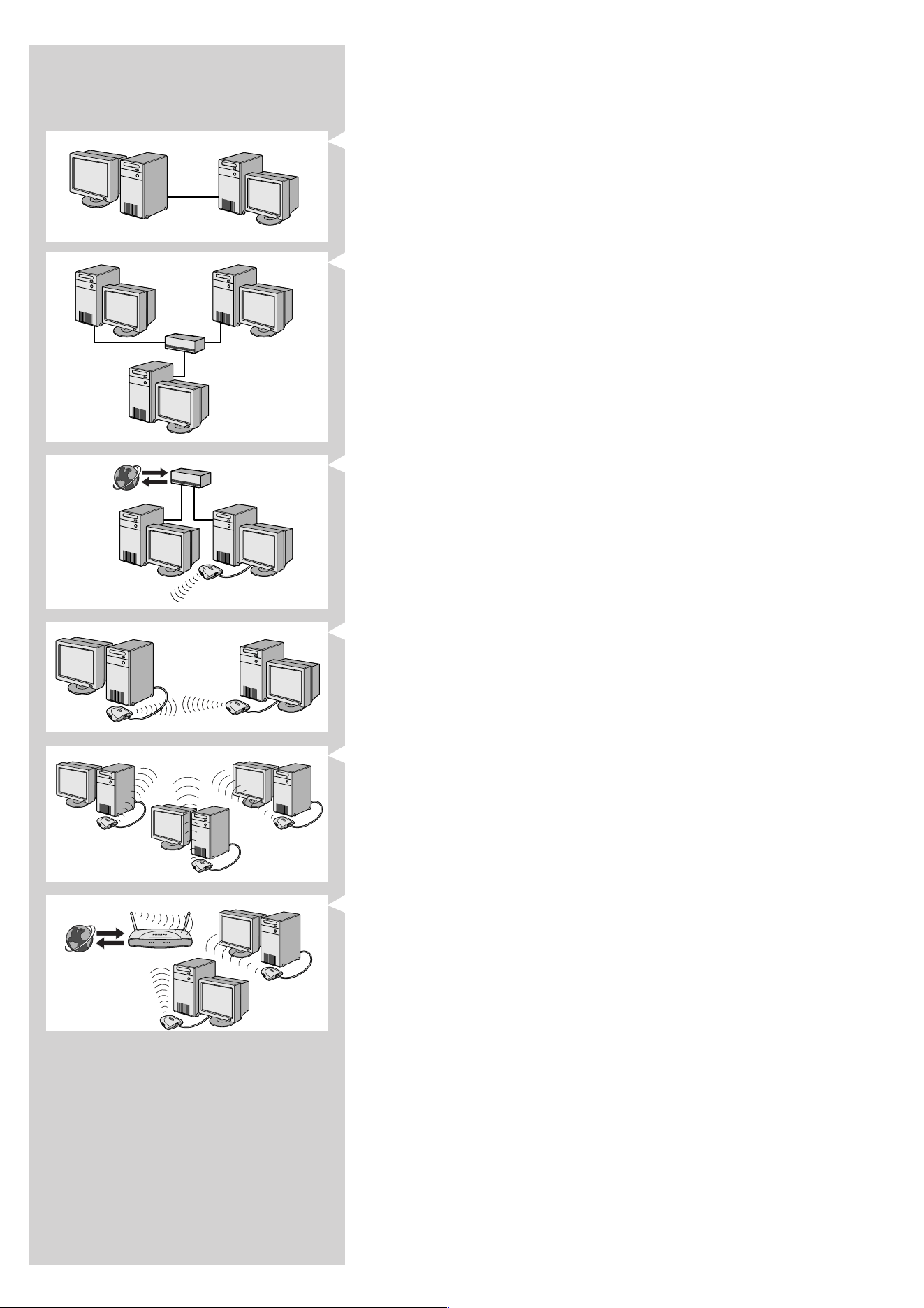
ONE-ON-ONE WIRED NETWORK
also known as: Direct connection network (max. two PCs)
Note: Use a crossover Ethernet cable to connect two computers directly to each other.
WIRED NETWORK WITH MORE THAN TWO PCs
Use a hub or switch to connect more than two PCs to each other.
Note: Use straight-through Ethernet cables to connect the computers to the central device
(hub/switch).
HOW TO INTERCONNECT WIRED NETWORKS
Use a gateway router to connect one network to another (e.g. to the Internet,
also known as WAN).
ONE-ON-ONE WIRELESS NETWORK
also known as: ad-hoc / peer-to-peer
WIRELESS NETWORK WITH MORE THAN TWO PCs
The wireless medium forms a hub in and of itself.
No hardware hub is needed.
Note: For very small networks only.
BRIDGING WIRELESS NETWORKS TO THE INTERNET
(e.g. the Internet, also known as WAN) also known as: infrastructure / access point.
Use a wireless access point or base station.
Central devices, like a hub, switch, router or wireless base station may be stand-alone devices
or built into a computer.
•A hub has multiple ports and serves as a central connection point for communication lines
from all computers on a wired network. It copies all data arriving at one port to the other
ports. A switch is similar to a hub, but is able to handle different network speeds at each
port.
• Gateway routers and wireless base stations route network traffic from one network to
another (e.g. from a wired network to the Internet, or from a wireless network to a wired
network or to the Internet).
Important: Wired and Wireless components may be linked together to provide a variety of network
layouts/topologies.
INTERNET
INTERNET

42 ENGLISH
Chapter 14 - Advanced wireless network
information
What are wireless network connections?
Your wireless network adapter uses a wireless protocol (called IEEE 802.11b/g or WiFi) to
communicate with the SL300i by means of radio transmissions. WiFi radio waves travel
outwards from the antenna in all directions, and can transmit through walls and floors. WiFi can
theoretically reach up to 200 meters in an open environment and reach speeds of up to 11 (b)
or 54 (g) megabits per second (Mbps) at close range. However, the actual network range and
data throughput rate will always be less, depending on the wireless signal quality.
Factors determining your network range and network speed
• Wireless signals travel farther outside of buildings, and when the wireless components are
in direct line of sight to one another. Putting wireless components high up helps avoid
physical obstacles and provides better coverage.
• Building construction such as metal framing and concrete or masonry walls and floors will
reduce radio signal strength. Avoid putting wireless components next to walls and other
large, solid objects; or next to large metal objects such as computers, monitors, and
appliances.
• Wireless signal range, speed, and strength can be affected by interference from
neighbouring wireless networks and devices. Electromagnetic devices such as televisions,
radios, microwave ovens, and cordless telephones, especially those with frequencies in the
2.4 GHz range, may also interfere with wireless transmission.
• Standing or sitting too close to wireless equipment can also affect radio signal quality.
• Adjusting the antennas: Certain areas, such as directly below the antenna, get relatively
poor reception. Moving the antenna slightly may improve your reception.
Note: Pointing the antenna toward another wireless component will not improve reception.
Securing your wireless network
Since wireless computer networks use radio signals, it is possible for other wireless network
devices outside your immediate area to pick up the wireless signals and either connect to your
network or to capture the network traffic.Therefore, you should always enable the Wired
Equivalent Privacy (WEP) network encryption key to help prevent unauthorised connections or
the possibility of eavesdroppers listening in on your network traffic.
What is WEP?
WEP is a 64-bit or 128 bit encryption key for securing your wireless network communication.
Preferably, you should use the highest encryption strength available. Always enter the same key
with the same length for all your home network computers and for the SL300i.
Securing your network from Internet access
Check in the documentation of your Wireless Base Station or gateway router whether it
provides you with a built-in firewall and network address translation (NAT), providing security
for an ‘always-on’ broadband Internet connection that is being shared among the computers
and devices on your home network.
Computers on an ad-hoc network may share an Internet connection that is set up on one of
the computers (ICS). However, a firewall is usually not built-in and you should install one on the
computer that is sharing the Internet connection.
What is a firewall?
A firewall acts as a barrier that helps protect your network from outside intruders.The firewall
specifies what information can be communicated from the computers on your network to the
Internet, and from the Internet to the computers on your network.

ENGLISH 43
The DOs and DON'Ts of securing your wireless network
DO
Enable the highest WEP key level that your hardware provides for. Upgrade your hardware, if
possible. If you do not protect your wireless network, all data from your PC might be accessible
by,for example, your neighbours or passers-by.
Use a wireless base station or router with Network Address Translation (NAT) and firewall
enabled for sharing your Internet connection.
Change the default passwords for your network devices. Leaving these at default makes it easy
for an outsider to gain access.
Position wireless access points away from windows and toward the centre of your home.
This decreases the strength of the signal outside your home.
Some wireless access points allow you to control access based on the unique Media Access
Control (MAC) address of the network adapter trying to associate with it. If a MAC address
has not been registered in the wireless access point, it will not associate with it. If your access
point has this feature, enable it and add the MAC addresses of the network adapters including
the one from the SL300i.
The Wireless MAC address of the SL300i can be found in the Options menu by pressing the
MENU button on the remote control.Then select Network > Wireless Info.
Just use common sense: Install an anti-virus program on each computer on your network and
use it regularly to check your computers for viruses. Remember to update the anti-virus
program on a regular basis.
DON'T
Do not rely on radio transmission range limitations to secure your network. Enable wireless
security (WEP) to protect your network from unwanted access.
Do not use WEP keys and passwords that are easy to guess. Do not change passwords to
reflect your name, address, or anything that would be easy to guess.
Never open attachments to email messages that you are not expecting. In addition, scan all
diskettes and homemade CDs for viruses before opening files from them, or before starting
your computer from them.
Do not load a program from an unknown source onto one of your network computers.
Do not ignore the common signs of viruses: unusual messages that appear on your screen,
decreased system performance, missing data, and inability to access your hard drive. If you
notice any of these problems on your computer, run your anti-virus program immediately to
minimise the chances of losing data.
Do not connect your home network to broadband Internet without taking security measures:
If you do not have a wireless base station installed on your network and you are sharing
Internet access through one of the computers, you may want to consider installing firewall
software.

44 ENGLISH
ASCII HEX
030
131
232
333
434
535
636
737
838
939
A41
B42
C43
D44
E 45
F46
G47
H48
I49
J4A
K4B
ASCII HEX
L4C
M4D
N4E
O4F
P50
Q51
R52
S53
T 54
U55
V56
W57
X58
Y59
Z5A
a61
b62
c63
d64
e65
f66
ASCII HEX
g67
h68
i 69
j6A
k6B
l6C
m6D
n6E
o6F
p70
q71
r72
s73
t74
u75
v76
w77
x78
y79
z7A
Chapter 15 - Entering an encryption key
A WEP encryption key protects your wireless network against intrusion by encrypting the data
sent through your network. Its setting must be the same for all PCs and devices in your
wireless network. (Default: Disabled.)
WEP key conversion table
The WEP (Wired Equivalent Privacy) implemented in this SL300i is based on the RC4
encryption algorithm. Please, enter the key in either Hex or ASCII.
– If the key type is Hex, the security keys are four 10 digit keys for the 64-bit WEP setting
and four 26-digit keys for the 128-bit WEP setting. (The hexadecimal digits can be 0~9 &
A~F, e.g. D7 0A 9C 7F E5.)
– If the key type is ASCII, the security keys are four 5-digit keys for the 64-bit WEP setting
and four 13-digit keys for the 128-bit WEP setting.
– Consult the ASCII/HEX conversion table if you need to translate a (case-sensitive) ASCII
key into HEX notation. Example: MNode (ASCII) = 4D 4E 6F 64 65 (HEX).
Note: Some wireless network devices allow you to type in a passphrase instead of an encryption key.
Do not use passphrases with the SL300i, since passphrases are not supported.
Tip: Enable the encryption key to secure your wireless computer network from intruders.
Use an encryption key to secure your wireless network.The encryption key is like a
password that you have to set for your Wireless Network Adapter and for the SL300i.
a) Setting the encryption key for the SL300i:
1 Press the MENU button on the remote control, then
2 select ‘Network’, and
3 select ‘Encryption Config’.
4 Enable WEP Encryption, and enter a 5, 10, 13 or 26 character password (see above) and
press the OK button.
> The SL300i will try to reconnect to the wireless network and will lose its connection
with your computer.
Note that the encryption key is case sensitive, meaning that ‘HELLO’ is not the same password
as ‘hello’ or ‘Hello’.
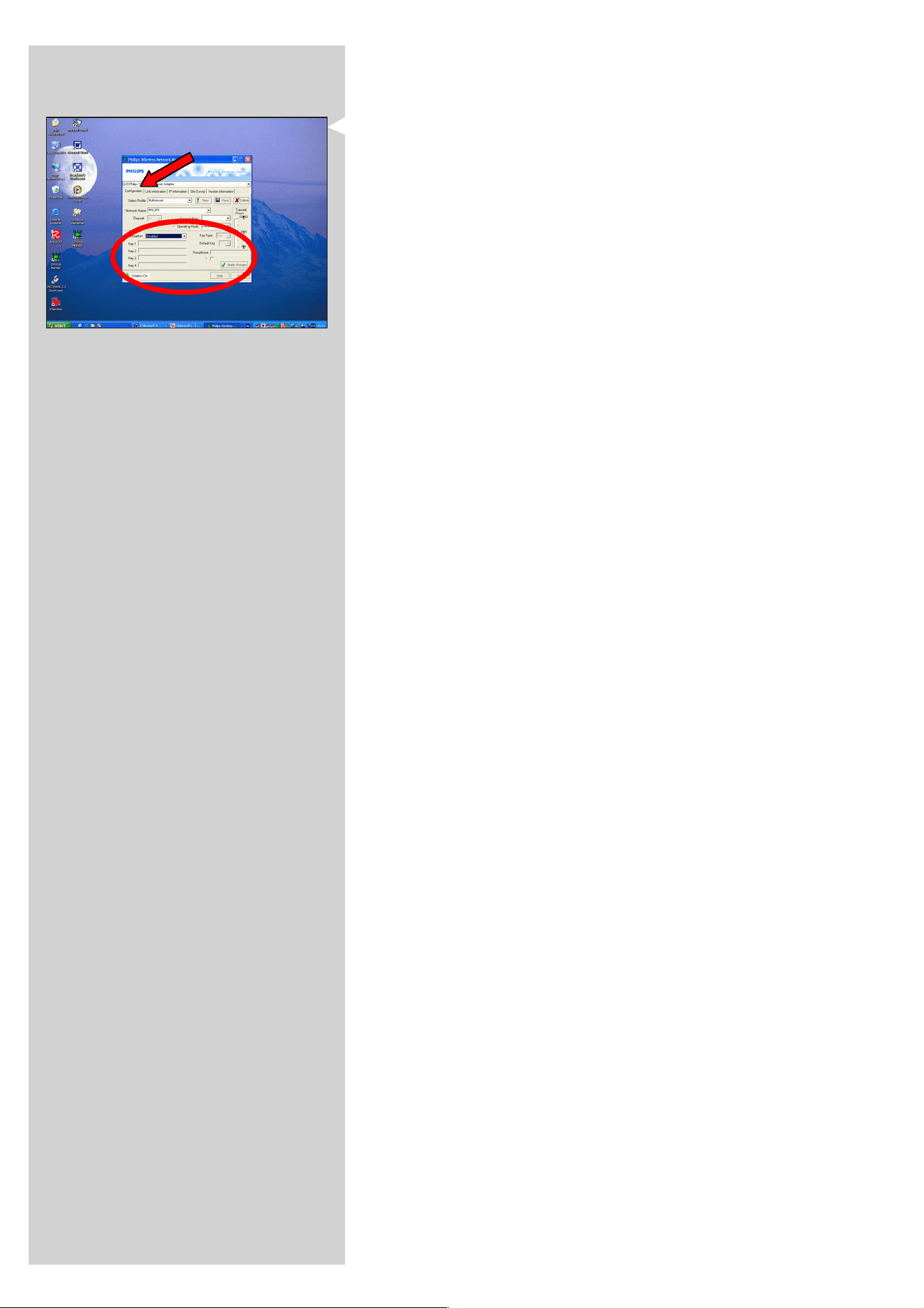
ENGLISH 45
b) Setting the encryption key for your Wireless Network Adapter:
Enter the same encryption key for the Wireless Network Adapter.
See the User Manual of the Wireless Network Adapter on how to do this.
> Once you have activated the same encryption key for the Wireless Network Adapter,
the connection between the SL300i and your computer will be re-established.
Example, for the Philips Wireless USB Adapter:
1 Double-click the CPWUA Monitor icon in the lower right corner of your computer
monitor.
2 Click the 'Configuration' tab.
3 Adapt the 'Encryption' settings in the lower part of this window to match the
encryption settings of the SL300i.
4 Click 'Apply' and 'Save' to finish.
> The connection will be re-established.
Note: If you have forgotten your encryption key, switch off encryption or set a new encryption key for
your entire wireless network and for the SL300i.
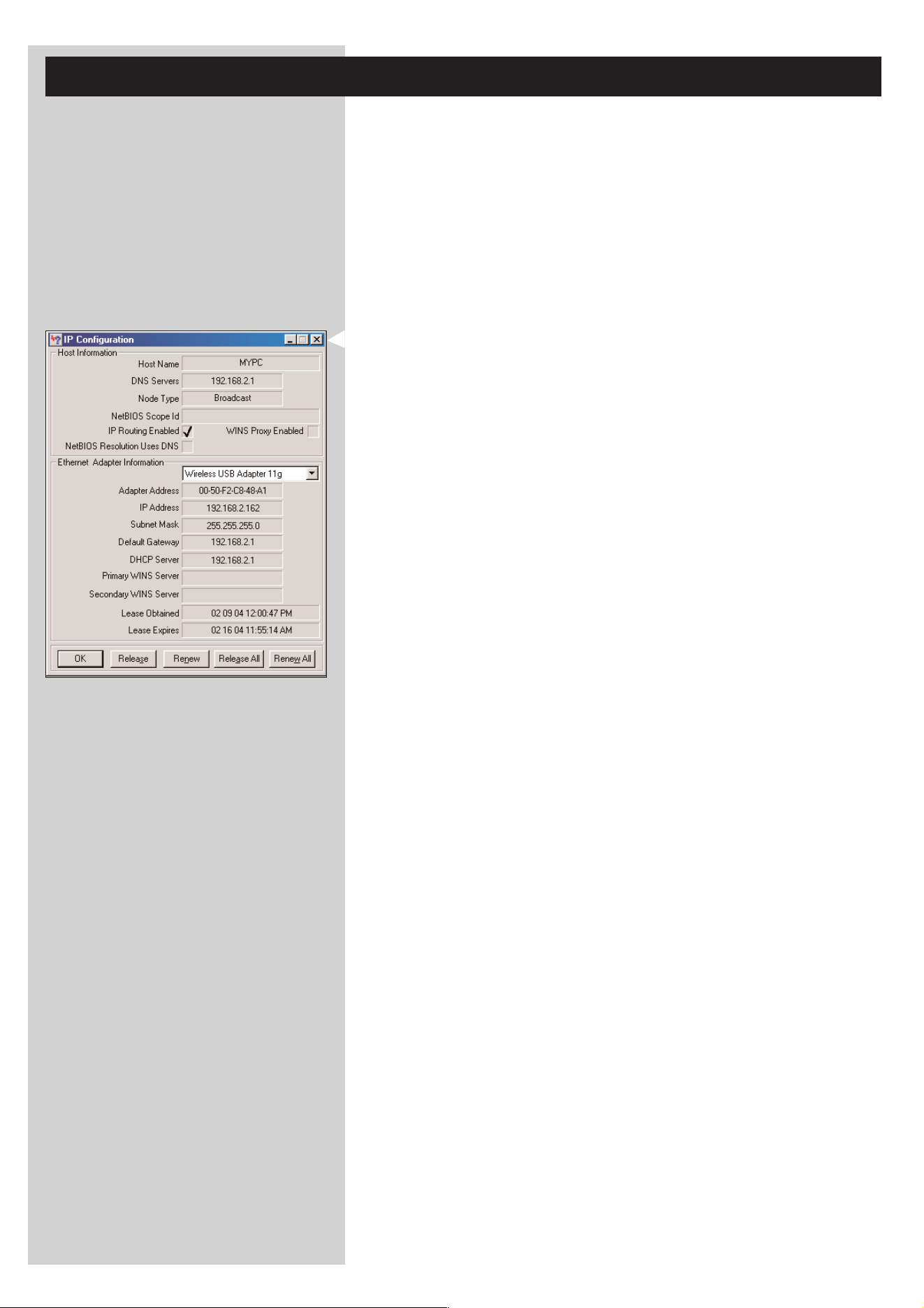
46 ENGLISH
Chapter 16 - Internet Connection Sharing
Before you press the INTERNET button for the first time, you need to make sure that the
SL300i has Internet access. Either directly through a wireless base station, or indirectly through a
PC with Internet access and router/gateway software (e.g. ICS from the Windows OS) installed
and running.
If you connect (either wired or wireless) the SL300i to an existing network host with
Internet access:
Prefered solution:
If you have an existing home network with centrally shared broadband Internet access for all
connected computers, you can connect the SL300i directly to your central network device: the
router/gateway.That way, the SL300i can access the Internet just like your other computers and
you do not need to install ICS to make Internet access available to your SL300i.
If you connect the SL300i (by wires or wireless) to a stand-alone or client PC with Internet
access:
If you connect the Wireless Network adapter to a stand-alone or client PC with an existing
broadband Internet connection, you will need to bridge - within that PC - the wireless or wired
connection that connects to the SL300i, to the existing network adapter that connects to the
Internet.You do this by enabling Internet Connection Sharing (ICS) from your
Microsoft
®
Windows
®
operating system for that PC.This makes the PC share its existing
broadband Internet connection with the SL300i.
ICS configuration and usage issues
ICS is intended for use in small networks in which the network configuration and the Internet
connection are managed by the Windows-based computer on which the shared connection
resides (the ‘host’ computer). It is assumed that on its network, this computer is the only
Internet connection, it is the only gateway to the Internet, and that it sets up all internal
network addresses (this means it is the DHCP server for the network).
If a network has a central host computer or router that acts as a DHCP server, this server
automatically allocates IP addresses, netmasks, and the gateway address to all DHCP client
computers and devices in the network.
Important notes:
– Only Microsoft Windows98 SE (Second Edition) or higher provides ICS, other operating systems
are not supported.You may try to use other router/gateway software at your own discretion.
–You should only install Internet Connection Sharing on the computer that you use to connect to
the Internet.
– The host computer must remain switched on during Internet access sharing.
– ICS is router/gateway software with Dynamic Host Control Protocol server (DHCP) functionality.
The ICS host computer must be the only DHCP server on the network.
Before installing ICS, first disable any DHCP services that are provided on the network
(e.g. by a hardware router/gateway or base station).
Refer to the router/gateway manufacturer's instructions on how to disable its DHCP services.
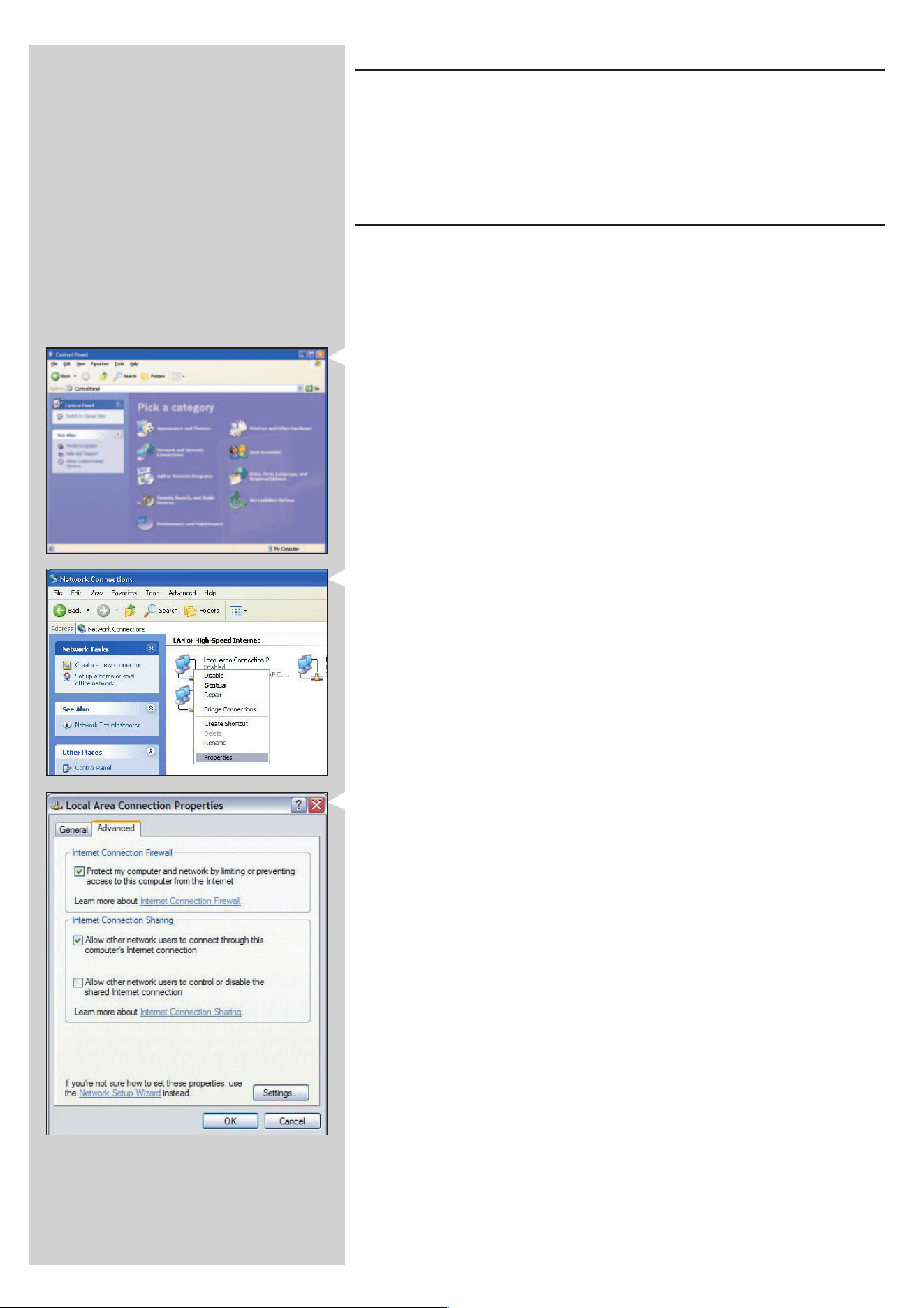
ENGLISH 47
Enabling Internet Connection Sharing (ICS)
Though ICS works similarly for all operating systems, each version of Microsoft
®
Windows
®
activates Internet Connection Sharing in its own way. Please see below for the operating
system you are using.
In case of trouble, check Windows Help and the Microsoft website for information on Internet
Connection Sharing.
Enabling Internet Connection Sharing for Windows XP
You must have administrative rights to enable ICS in Windows XP.
1 Before you begin, check if you have a working Internet connection and if your home
network is working properly (if you have one)
• Check the Internet connection by opening a web page with your browser.
2 Click Start, Settings, and Control Panel.Then double-click 'Network and Internet
Connections'. Finally, click 'Network Connections'.
> This will open an overview of your network connections.
3 In this overview of network connections, right-click on the network connection with
which your computer connects to broadband Internet.
> This will open the context menu of that network connection.
Note: Do not right-click the wireless network connection that connects to your Streamium product
(e.g. the Philips Wireless USB adapter 11g).
Right-click the network connection that provides you with broadband Internet access.
4 Click 'Properties' at the bottom of this context menu.
> This will open the connection properties menu.
5 In the connection properties menu, click the 'Advanced' tab.
> This will give you access to the options for sharing your Internet Connection.
Next:
a) In the 'Internet Connection Sharing' section: Place a check mark to allow other users to
connect through this computer's Internet connection.
b) Remove the check mark that allows other network users to control or disable the shared
Internet connection.
Note: For extra security: Enable the Internet Connection Firewall at the top of this menu to protect
your computer and your network from malicious access through the Internet.
Click 'OK' to accept the changed settings.
> This will share your Internet connection with other network connections,
including the one that connects your computer to your Streamium system.
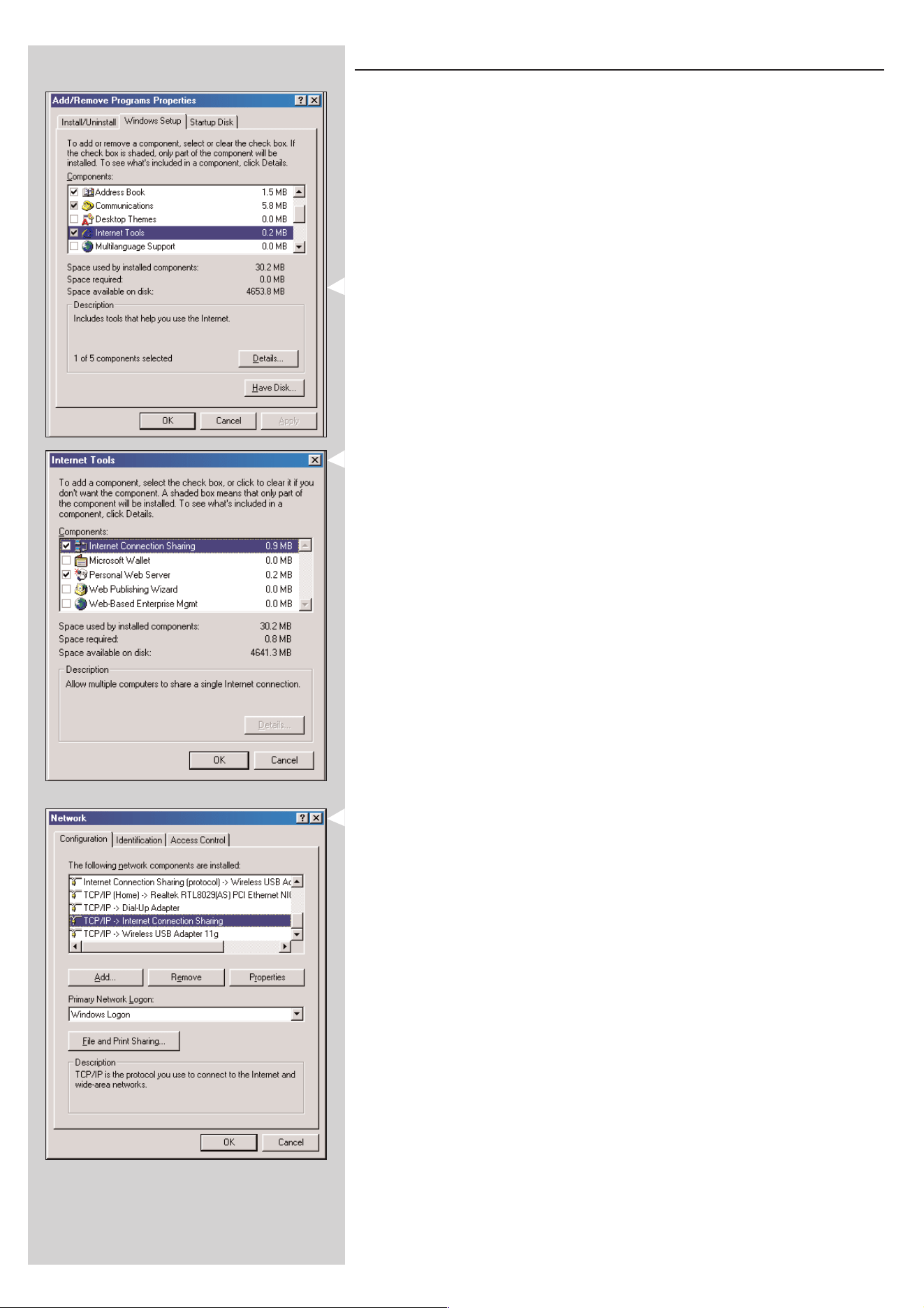
48 ENGLISH
Enabling Internet Connection Sharing for Windows 98SE
While installing, you may be asked for the Windows Installation CD.
Please, keep it at hand.
1 Before you begin, check if you have a working Internet connection and if your home
network is working properly (if you have one).
• Check the Internet connection by opening a web page with your browser.
2 Click Start, Settings, and Control Panel.
Then double-click Add/Remove Programs and click the Windows Setup tab.
> The window to the left will appear.
3 Double-click on Internet Tools
> The next window will appear.
4 In this window, put a mark in the check box for Internet Connection Sharing and click OK.
Then click OK again.
> The Internet Connection Sharing wizard will appear.
5 Follow the instructions on the screen, in each screen click Next to continue the wizard
until it is finished. In the wizard you need to:
- Select 'High-speed connection' for your type of connection to the Internet.
- Choose the network adapter that provides you with Internet access to the PC.
- Choose the network adapter that connects your PC to the SL300i.
- You may click 'Cancel' when asked if you want to make a Client Configuration disk.
> This concludes the wizard.
6 Next, check your Network properties as follows:
a) Click Start, Settings, Control Panel, and then double-click Network.
b) On the Configuration tab, browse the 'The following network components are installed'
box. It should now include 'Internet Connection Sharing adapter' and 'TCP/IP->Internet
Connection Sharing adapter'.
c) Double-click 'TCP/IP->Internet Connection Sharing adapter'.
d) In the IP Address tab, select 'Obtain an IP Address automatically'.
e) In the WINS Configuration tab, select 'Use DHCP for WINS resolution'.
f) In the Gateway tab, remove all gateways if any are listed.
g) In the DNS Configuration tab, select 'Disable DNS'.
h) In the Bindings tab, for security reasons you must de-select all bindings.
(Please, do the same for 'TCP/IP (Shared)->External access network adapter'.)
i) Click OK to accept the new TCP/IP settings.
j) Select 'Windows Logon' as the Primary Network Logon.
Any changes to the network configuration will require a restart of the computer.
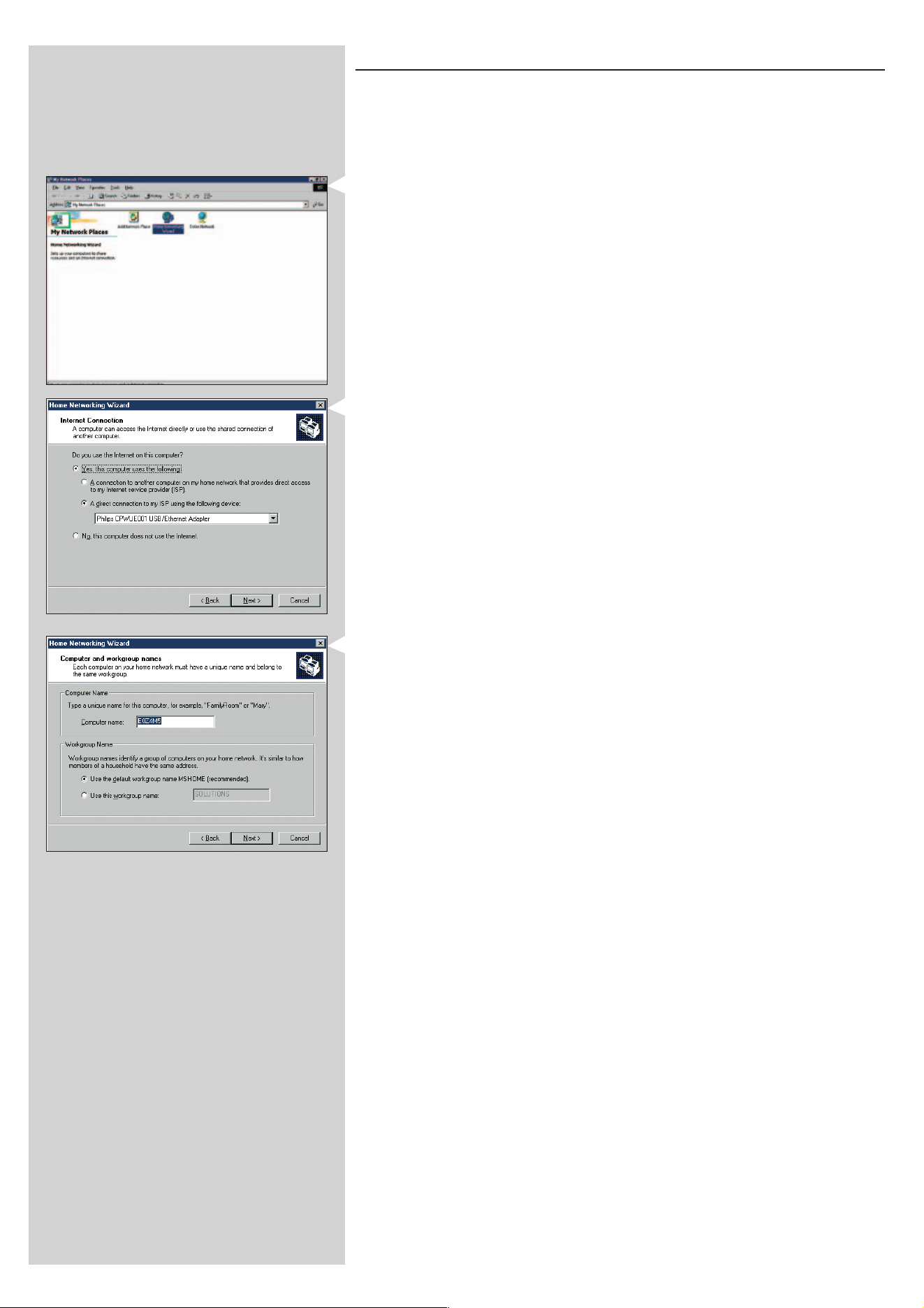
ENGLISH 49
Enabling Internet Connection Sharing for Windows Me
1
Before you begin, check if you have a working Internet connection and if your home
network is working properly (if you have one)
• Check the Internet connection by opening a web page with your browser.
2 On the desktop, double-click 'My Network Places' and then double-click
'Home Networking Wizard'.
> The Home Networking wizard will appear.
3 In each screen, click Next to continue the wizard until it is finished.
In the wizard you need to select 'Yes' (you are using Internet on this computer) and select
'A direct connection to my ISP using the following device:' and choose the network
adapter you use to make contact with the Internet from the list.
4 In the next screen, select 'Yes' when asked 'if you want other computers on your home
network to use the Internet connection on this computer'.
Choose the network adapter that connects your PC to the SL300i.
5 Follow the instructions on the screen, and enter:
- a computer name (unique for each computer, e.g. STUDY or MOM)
- a workgroup name
(the same for all computers in the network, e.g. HOMENET)
Note: these names are not the SSID or network name.
You do not need to share your files and printers
You do not have to make a Home Networking Setup disk.
> This concludes the wizard.
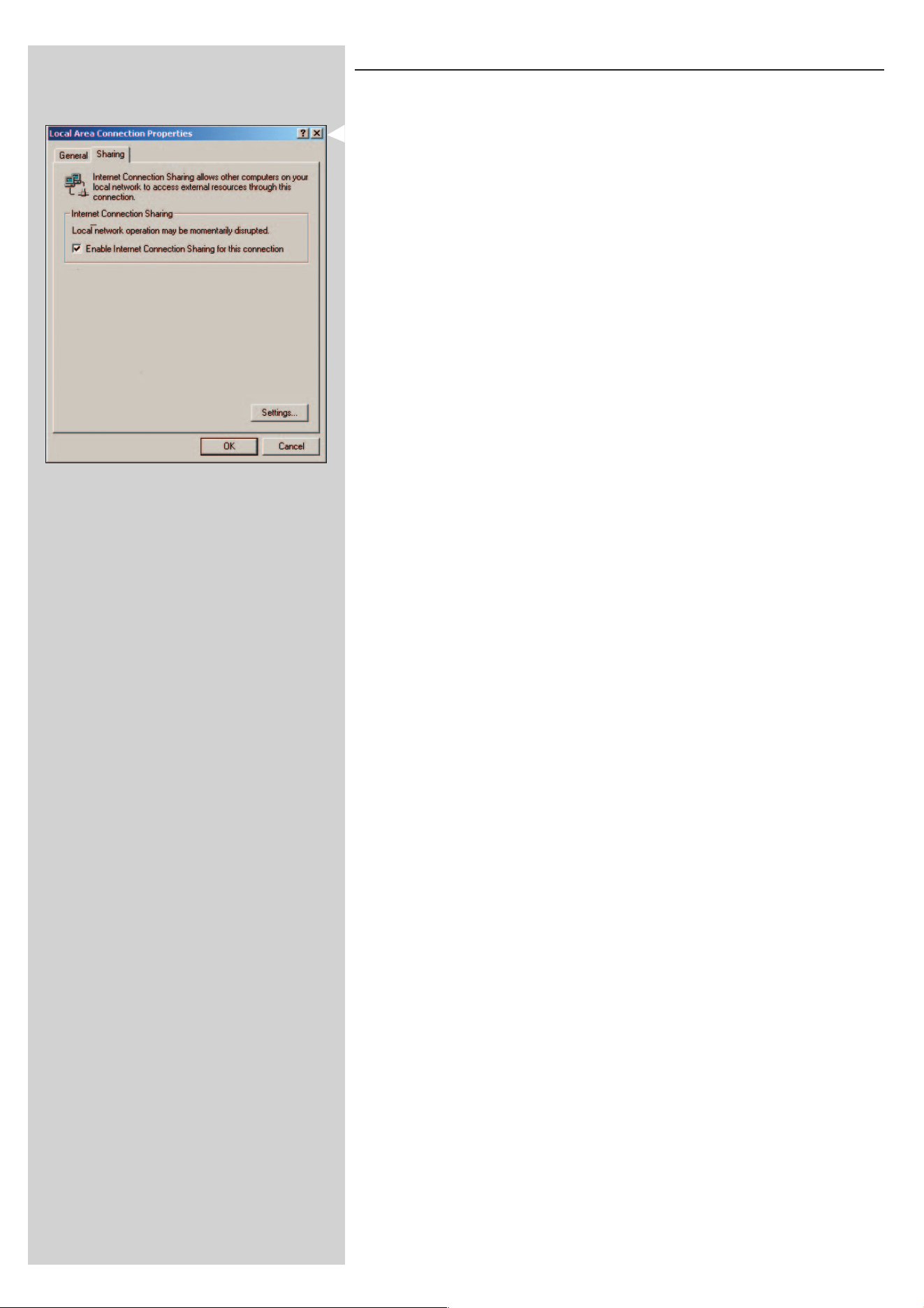
50 ENGLISH
Enabling Internet Connection Sharing for Windows 2000
You must have administrative rights to enable ICS in Windows 2000.
1 Before you begin, check if you have a working Internet connection and if your home
network is working properly (if you have one)
• Check the Internet connection by opening a web page with your browser.
2 Click Start, Settings, and Control Panel.Then double-click 'Network and Dial-Up
Connections' and then double-click 'Home Networking Wizard'.
3 Right-click the connection you want to share.
Then, click Properties.
> The Properties window for this network connection will appear.
4 Click the Sharing tab, and then select 'Enable Internet Connection Sharing for this
connection'.
> This enables the ICS feature.
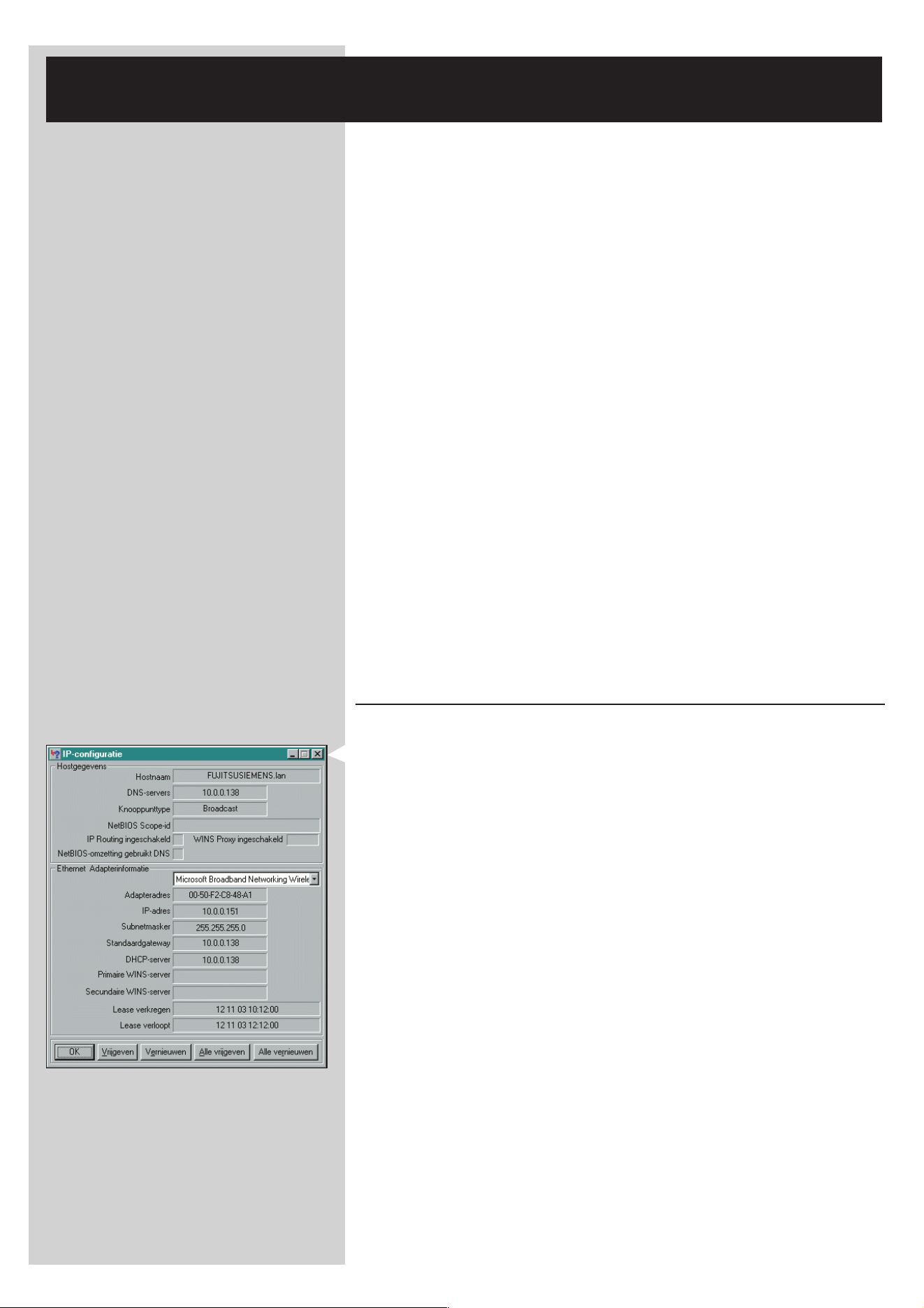
ENGLISH 51
Chapter 17 - Advanced (Network) Problem
solving
Go to www.philips.com/streamium for the latest information on problem solving.
Movies will not play:
The bit rate might be too high. Convert the movie to a lower bit rate.
Check your broadband Internet speed
At www.2wire.com/meter/bm.html you can check your broadband Internet speed.
This should be more than 240 kbps for the SL300i's Internet function to work.
Check with your Internet Service Provider:
– Whether you may connect more than one device (computers and the Streamium system) to
the internet connection.
–
Whether your ISP allows only devices with registered MAC addresses to connect to the Internet.
– Whether or not you need to set-up proxy servers for HTTP and/or RTSP.
Check whether you have activated the same wireless encryption key
throughout your wireless network:
If you have forgotten your Encryption key, switch off encryption or set a new encryption key
for your entire wireless network and for the SL300i.
If you are using a firewall, check whether you have opened the ports
42951 TCP and 42591 UDP:
Some ports need to be opened, check at www.philips.com/streamium for the latest information
on which ports need to be open.
Check your network's IP configuration:
Check the Options menu of the SL300i. In the Network > Network Info menu a gateway
address should be present.This should be the IP address of the PC or network device that
connects to the Internet.You can check the network gateway address through your network
adapter program or with IPCONFIG (see below).
Note: Philips Wireless USB/Notebook Adapter users may click the 'Link information' tab in the
CPWUA/CPWNA Monitor program.
Check your computer's IP configuration as follows:
For Windows 98SE / Windows Me:
1 Click 'Start', 'Run...', and enter ‘winipcfg’.
2 Click 'OK' to view the IP settings.
3 In this window, select your wireless network adapter.
4 Click 'More Info>>' to expand.
For Windows XP / Windows 2000:
1 Click 'Start', 'Run...', and enter ‘command’.
2 In the DOS box, type ‘ipconfig /all’ and press Enter.
3 For each network adapter, you will see results similar to the window on the left.
• If your network uses static IP addressing that you have set manually, then you will also
need to choose a unique IP address for the SL300i in the same range as the network's IP
addresses (e.g. 192.168.2.xxx). Use the same subnet mask as your network
(e.g. 255.255.255.000), and write down the IP address of the network device that
connects you to the Internet (the Gateway IP address).
• Sometimes your Internet Service Provider requires you to use a proxy address. Check this
with your Internet Service Provider. Alternatively, check the proxy settings of your Internet
browser software for more information.

52 ENGLISH
Chapter 18 - Glossary
Ad-Hoc Network A direct network connection between two devices (two computers, or a PC and the SL300i).
Access Point (Infrastructure network) A network connection between two or more devices (computers, or PCs and the SL300i)
with a central network host (router, base station or PC).
Black Level Black level shift improves the reproduction of the dark (black) portions of the picture and the
colour contrast for NTSC (US). Black level shift has no effect for PAL (EU).
Broadband The Internet bandwidth determines the speed of your Internet connection. Broadband Internet
is everything above 256 kbps.
Chroma Delay Colour fine-tuning for different types of TV screens.
Codec A software format for compressing and de-compressing media.
DHCP If a network has a central host computer, wireless base station or router that acts as a
DHCP server, this server allocates IP addresses, netmasks, and the gateway address to all
DHCP client computers and devices in the network automatically.
Ethernet The most popular type of wired home network.
Firewall A firewall acts as a barrier that helps protect your network from intruders from the Internet.
The firewall specifies what information can be communicated from the computers on your
network to the Internet, and from the Internet to the computers on your network.
Gamma Display intensity setting for different types of TV screens.
Gateway The computer or network device that provides access to the Internet.
Horizontal position (Advanced TV Setting) Shifts the horizontal position of the display on the TV screen.
Infrastructure Network See Access Point.
MAC Address The unique 12-character hardware address of the (wireless) network adapter.
Sometimes used for identifying network hardware.
NAT (Network Address Translation) A security feature implemented in most Internet gateway routers and Wireless Base Stations
to keep your home network safe from intrusions from the Internet.
Peer-to-peer See Ad-Hoc Network
Philips Media Manager The software you need to install and have active on your computer to be able to use PC Link
for sending music, photo and movie files from the PC to the SL300i.
Proxy address The address of an intermediate computer, provided to you by your Internet Service Provider.
Sometimes needed for accessing the Internet.
SSID The wireless network name (this is not the same as your computer network name).
STP Shielded Twisted Pair.The type of network cable you need to use.
Streaming Playing media content from the Internet while it is downloading is called 'streaming'.
Streamium The Philips range of Internet enabled products.
Vertical position (Advanced TV Setting) Shifts the vertical position of the display on the TV screen.
WEP Designates a type of wireless encryption.
Wireless Base Station (wireless gateway router) A hardware device that interconnects your wireless home network to the Internet.
Wireless USB Adapter (wireless network adapter) The hardware device that you need to connect to your PC to be able to make wireless
contact with the SL300i.

ENGLISH 53
Chapter 19 - Technical specifications
Check for the product specifications of the latest upgrade on www.philips.com/streamium.
Dimensions (h x w x d): • 198 x 45x 180 mm (incl. foot)
Power supply: • 110-240V, 50-60 Hz
Power consumption / standby power: • Approx. 10 watts / less than 2 watts
Weight: • Approx. 0,82 kg
Supported codecs: • Audio: MP3, MP3pro, PCM
Video: • MPEG1, MPEG2, MPEG4, playback DivX, XviD
Picture: • JPEG, BMP, GIF
Upgradeability for new codecs
Output connectors: • Video: SCART / EURO-AV
Audio: 2 x L/R stereo (cinch)
Wireless: • 802.11g
Networking: • Universal Plug & Play
Certificat de garantie
Certificado de garantia
Garantibevis
Certificat de garantie
Certificado de garantia
Garantibevis
Garantieschein
Certificato di garanzia
Garanticertifikat
Takuutodistus
11
0682
www.philips.com
This document is printed on chlorine free produced paper
Data subject to change without notice
Printed in The Netherlands
3103 605 20951.1
Type: SL300i
Serial nr: _____________________________________________________________________
Date of purchase - Date de la vente - Verkaufsdatum - Aankoopdatum - Fecha de compra - Date d’acquisito -
Data da adquirição - G - Inköpsdatum - Anskaffelsesdato - Kjøpedato - Oatopäivä -
year warranty
année garantie
Jahr Garantie
jaar garantie
año garantia
anno garanzia
år garanti
år garanti
år garanti
vuosi takuu
año garantia
Dealer’s name, address and signature
Nom, adresse et signature du revendeur
Name,Anschrift und Unterschrift des Händlers
Naam, adres en handtekening v.d. handelaar
Nombre, direccion y firma del distribudor
Nome, indirizzo e firma del fornitore
, .
Återförsäljarens namn, adress och signatur
Forhandlerens navn, adresse og unterskrift
Forhandlerens navn, adresse og unterskrift
Jälleenmyyjän nimi, osoite ja allekirjoitus
Nome, morada e assinature da loja