User Manual
CONTROL PANEL AND FEATURES
Not all features and cycles are available on all models.
NOTE: The control panel features a sensitive surface that responds to a light touch of your finger. To ensure your selections are registered, touch the control panel with your fingertip, not your fingernail. When selecting a setting or option, simply touch its name.
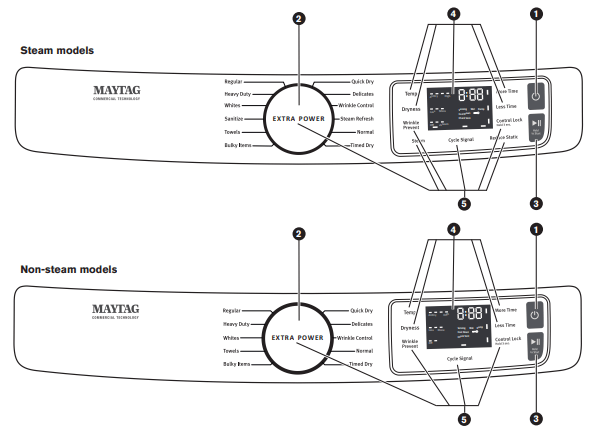
1 POWER/CANCEL
Touch to turn the dryer on and off. Touch to stop/cancel a cycle at any time.
2 CYCLE CONTROL KNOB
Turn the knob to select a cycle for your laundry load. Sensor Cycles are Bulky Items, Towels, Sanitize (steam models only), Whites, Heavy Duty, Regular, Delicates, Wrinkle Control, and Normal. Timed Cycles are Timed Dry and Quick Dry.
The Steam Cycle (on some models) is Steam Refresh. See “Cycle Guide” for detailed descriptions of cycles. The Cycle Control Knob can also be pressed to activate the Extra Power option for harder-to-dry loads. See the “Options” section for more information.
3 START/PAUSE
Touch and hold until the LED counts down “3-2-1” and the dryer starts, or touch once while a cycle is in process to pause it.
4 LED DISPLAY AND SETTINGS
When you select a cycle, its settings will light up and the Estimated Cycle Time (for Sensor Cycles) or actual time remaining (for Timed Cycles) will be displayed. See “Cycle Guide” for available settings on each cycle. Not all settings are available with all cycles.
More Time/Less Time
Touch MORE TIME or LESS TIME with Timed Cycles to increase or decrease the length of a Timed Dry or Quick Dry cycle.
Temp
When using any cycle except Sanitize, you may select a dry temperature based on the type of load you are drying. Use the warmest setting safe for the garments in the load. Follow garment label instructions.
Dryness
When using Sensor Cycles (except for the Sanitize cycle), you may select a Dryness level based on the type of load you are drying.
NOTE: Dryness is for use with Sensor Cycles only.
5 OPTIONS
Use to select available options for your dryer. Not all cycles and options are available on all models.
Wrinkle Prevent
If you will be unable to remove a load immediately, touch WRINKLE PREVENT to add up to 150 minutes of periodic tumbling to help reduce wrinkling. On steam models, on some cycles, you may select the “+Steam” setting to add a short steam cycle after 60 minutes to help smooth out wrinkles.
Reduce Static (steam models only)
Touch to add the Reduce Static option to selected Sensor Cycles (see “Cycle Guide”). The dryer will automatically tumble, pause, and introduce a small amount of moisture into the load to help reduce static. This option adds approximately 3 minutes to the total cycle time.
Steam (steam models only)
Steam adds steam to the end of certain Sensor Cycles to help smooth wrinkles. It is not available on Sanitize, Delicates, Steam Refresh, or Timed Cycles (Timed Dry, Quick Dry). Steam can be used with High or Medium heat settings. This option adds approximately 15 minutes to the total cycle time.
Cycle Signal
Use this to turn the signal indicating the end of a drying cycle on or off. Touch CYCLE SIGNAL to turn sounds on or off.
Control Lock
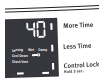
Use to lock the controls of the dryer and avoid an accidental change in cycle options or preferences during a drying cycle. Touch and hold CONTROL LOCK for 3 seconds to lock or unlock the controls of the dryer. During this time, the LED Display will count down “3-2-1.” Once the controls are locked, the Control Lock icon will illuminate.
NOTE: The Control Lock function may be enabled when recovering from a power failure. To unlock the control, touch and hold CONTROL LOCK for at least 3 seconds.
Extra Power
The Extra Power option can be used with both Sensor and Timed Dry Cycles. Press the Cycle Control Knob to activate the Extra Power option, which provides an additional 10 minutes of cycle time (including additional heat and tumbling, where applicable). When Extra Power is activated, the Cycle Control Knob will illuminate and the estimated time remaining on the display will show an additional 10 minutes.
6 CYCLE STATUS INDICATORS
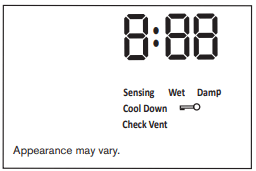
The Cycle Status Indicators show the progress of a cycle. Not all indicators are available on all models.
Sensing
The Sensing indicator will light during Sensor Cycles to indicate that the moisture sensor on the dryer is operating. This indicator will not light during Timed Cycles or options such as Wrinkle Prevent.
Wet
The load is still wet and/or the cycle just started.
Damp
The load still has moisture remaining, a good point in the cycle to remove a garment to air dry or iron.
Cool Down
The dryer has finished drying with heat and is now tumbling the load without heat to cool it down and reduce wrinkling.
Check Vent
The Check Vent indicator is a feature available for Sensor Cycles only. This indicator will show the status of airflow through the dryer and the dryer vent system for the dryer’s life. During the sensing phase at the beginning of the cycle, the Check Vent light will come on if a blocked vent or low airflow issue is detected. This light will stay on for the entire cycle. Should the Check Vent light illuminate, refer to the “Troubleshooting” section for potential solutions to the issue.
The light will be cleared upon completion of the cycle, touching Power, or opening the door. It will continue to illuminate during the cycle unless the root cause is resolved.
NOTE: The dryer will continue to operate even while the indicator is lit, but poor airflow can impact dry times and overall performance. For more information on maintaining good airflow, see “Check Your Vent System for Good Airflow.” If there are other error issues during a cycle, the Check Vent indicator will not light up. See the “Troubleshooting” section.

This will indicate that the selected cycle has ended and the load may be removed from the dryer. If Wrinkle Prevent has been selected, the dryer may continue to tumble the load, even if “End” is showing in the display.
Control Lock 
This will illuminate when the controls are locked.
NOTE: The Control Lock function may be enabled when recovering from a power failure. To unlock the control, touch and hold CONTROL LOCK for at least 3 seconds.
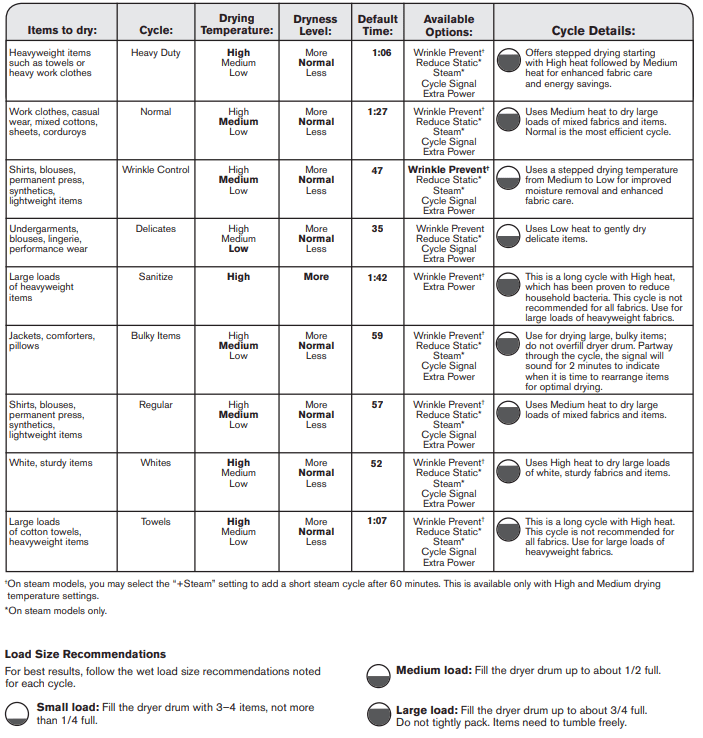
CYCLE GUIDE — SENSOR CYCLES
Settings and options shown in bold are default settings for that cycle. If settings are changed, the new settings will be remembered. If there is a power failure, settings will return to the default. Not all features and cycles are available on all models. Not all settings and options are available on each cycle
Use Sensor Cycles for better fabric care and energy savings
The dryer senses moisture in the load or air temperature and shuts off when the load reaches the selected dryness level. The default times mentioned below are for reference only. The exact cycle times will vary, depending on the load size and type
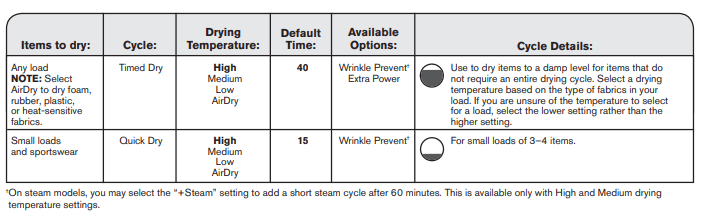
CYCLE GUIDE — TIMED CYCLES
Settings and options shown in bold are default settings for that cycle. If settings are changed, the new settings will be remembered (except on Quick Dry). If there is a power failure, settings will return to the default. Not all features and cycles are available on all models. Not all settings and options are available on each cycle.
Adjusting drying time on Timed Cycles
When you select a Timed Cycle, the time appears in the display. Use More Time and Less Time to increase or decrease the time in 5-minute increments. The maximum dry time is 150 minutes
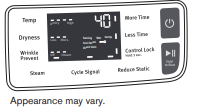
Selecting the Drying Temperature
A High heat setting may be used for drying heavyweight items such as towels and work clothes. A Low to Medium heat setting may be used for drying mediumweight items such as sheets, blouses, dresses, underwear, permanent press fabrics, and some knits. Use a no heat (AirDry) setting for foam, rubber, plastic, or heat-sensitive fabrics. Line dry bonded or laminated fabrics.
NOTE: If you have questions about drying temperatures for various loads, refer to the care label directions.
CYCLE GUIDE — STEAM CYCLE (on some models)
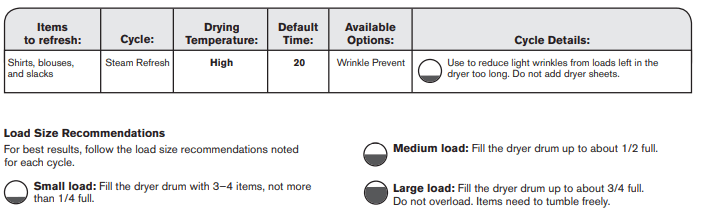
Settings and options shown in bold are default settings for that cycle. Not all settings and options are available on each cycle. Steam cycles are designed for use with dry loads to loosen wrinkles, reduce odors, and refresh fabrics.
NOTE: Government energy certifications for this model were based on the Normal Cycle, Highest Temperature Setting, Normal Dryness Level. The as-shipped defaults were the same as the Government Energy Certification Settings except the Default Temperature Setting of Medium was adjusted to the Highest Temperature Setting.
USING YOUR DRYER
1. Clean the lint screen
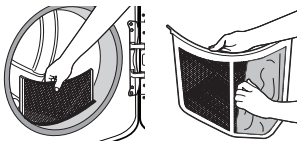
Clean the lint screen before each load. Pull the lint screen straight up. Roll lint off the screen with your fingers. Do not rinse or wash screen to remove lint. Wet lint is hard to remove. Push the lint screen firmly back into place.
For additional cleaning information, see “Dryer Care.”
2. Load the dryer
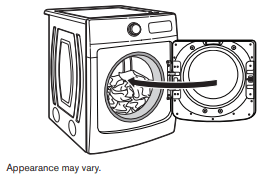
Open the door by pulling on the handle. Place laundry in the dryer. Add a dryer sheet to wet load if desired. Close the door.
IMPORTANT: Do not tightly pack the dryer. Items need to tumble freely. Tightly packing can lead to poor drying performance and may increase wrinkling and tangling.
3. Touch POWER/CANCEL

Touch POWER/CANCEL to turn on the dryer.
4. Select the desired cycle
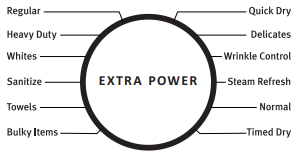
Select the desired cycle for your load. See the “Cycle Guide” for more information about each cycle. Not all cycles are on all models. Press the Cycle Control Knob to activate the Extra Power option, which provides an additional 10 minutes of cycle time (including additional heat and tumbling, where applicable).
5. Adjust cycle settings, if desired
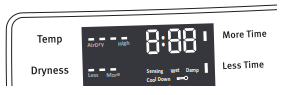
You may adjust different settings, depending on whether you have selected a Sensor Cycle, Timed Cycle, or Steam Cycle (on some models). See the “Cycle Guide” for detailed information.
NOTE: Not all options and settings are available with all cycles. Not all cycles are on all models.
Sensor Cycles:
The temperature may be changed by touching Temp until the desired dry temperature is lit. Once a cycle has started, the temperature can be changed within the first 5–8 minutes.
You can select a different dryness level, depending on your load. Touch DRYNESS to scroll from Less to More to automatically adjust the dryness level at which the dryer will shut off. Once a dryness level is set, it cannot be changed without stopping the cycle.
Sensor Cycles give the best drying in the shortest time. Drying time varies based on fabric type, load size, and dryness setting. Drying time is estimated and may change throughout the cycle. Drying time cannot be changed on Sensor Cycles.
Timed Cycles:
When you select a Timed Cycle, the time appears in the display. Touch MORE TIME or LESS TIME to increase or decrease the time in 5-minute increments.
The temperature may be changed by touching Temp until the desired dry temperature is lit. Once a cycle has started, the temperature can be changed at any time unless AirDry is selected; if Air Dry is selected, touch POWER/CANCEL to cancel the cycle, reselect the desired cycle settings, and touch START/PAUSE.
Steam Cycles (on some models):
Select Steam Refresh to reduce odors and light wrinkles in dry loads. Do not add dryer sheets. Cycle time is estimated and may change throughout the cycle. Cycle time cannot be changed on Steam Cycles.
6. Select any additional options
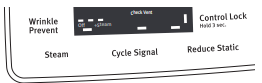
Add additional options by touching that option. If you will be unable to remove the load promptly, select the Wrinkle Prevent option before touching Start/Pause.
NOTE: Not all options and settings are available with all cycles.
7. Touch and hold START/PAUSE to begin cycle

Touch and hold START/PAUSE until the display counts down “3-2-1” and the dryer starts.
8. Remove garments promptly after cycle is finished
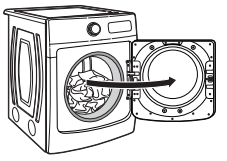
Promptly remove garments after cycle has completed to reduce wrinkling. If you will be unable to remove the load promptly, select the Wrinkle Prevent option
ADDITIONAL FEATURES
USING THE DRYING RACK
To purchase a drying rack for your dryer, see “Accessories” for more information. You will need your model and serial number and the purchase date. Remove and discard any packing material before use. Use the drying rack for items that you do not want to tumble dry, such as sweaters and tennis shoes. When you use the drying rack, the drum continues to turn, but the rack remains stationary. The drying rack is intended for use with the Timed Dry cycle only. The drying rack cannot be used with Sensor Cycles.
To use the drying rack:
IMPORTANT: Do not remove the lint screen.
1. Open dryer door.
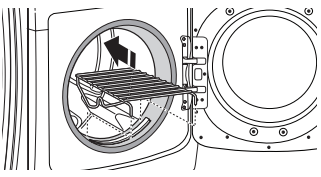
2. Align the two hooks on the front of the drying rack with the holes in the dryer door opening and press down fully into holes. Rest the rear support on the dryer back ledge.
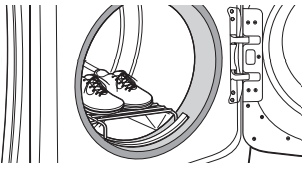
3. Place wet items on top of the drying rack. Allow space around items for air to circulate. The drying rack does not move, but the drum will rotate; be sure to leave adequate clearance between items and the inside of the dryer drum. Make sure items do not hang over the edges or between drying rack grille.
4. Close the door.
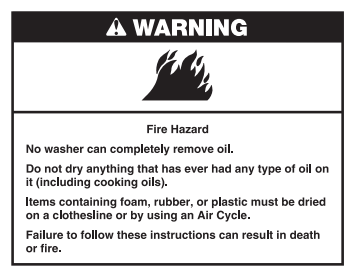
5. Select a Timed Dry cycle. Items containing foam, rubber, or plastic must be dried on a clothesline or by using the Air Only setting or AirDry cycle, depending on model.
6. When the cycle is selected, the display shows the default time. You can change the actual time in the cycle by increasing or decreasing the cycle time.
7. Start the dryer.
NOTE: Check the lint screen and remove any lint accumulated from items dried on the drying rack after the cycle is finished.
DRYER CARE
CLEANING THE DRYER LOCATION
Keep dryer area clear and free from items that would block the airflow for proper dryer operation. This includes clearing piles of laundry in front of the dryer.
CLEANING THE DRYER INTERIOR
To clean dryer drum:
- Use a mild hand dish detergent mixed at a low concentration with very warm water, and rub with a soft cloth.
- Rinse well with a wet sponge or towel.
- Tumble a load of clean clothes or towels to dry drum
OR
Use a microfiber cloth and hot water in a spray bottle to clean the drum and a second microfiber towel to dry.
NOTE: Garments that contain unstable dyes, such as denim blue jeans or brightly colored cotton items, may discolor the rear of the dryer interior. These stains are not harmful to your dryer and will not stain future loads of clothes. Dry unstable dye items inside out to avoid transfer of dye.
REMOVING ACCUMULATED LINT
From inside the dryer cabinet
Lint should be removed every 2 years, or more often, depending on dryer usage. Cleaning should be done by a qualified appliance servicer.
From the exhaust vent
Lint should be removed every 2 years, or more often, depending on dryer usage.
CLEANING THE LINT SCREEN
Every-load cleaning
The lint screen is located in the door opening of the dryer. Clean the lint screen before each load. A screen blocked by lint can increase drying time.
To clean:
1. Pull the lint screen straight up. Roll lint off the screen with your fingers. Do not rinse or wash screen to remove lint. Wet lint is hard to remove.
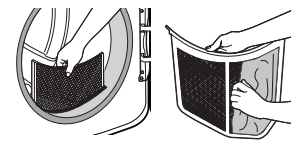
2. Push the lint screen firmly back into place.
IMPORTANT:
- Do not run the dryer with the lint screen loose, damaged, blocked, or missing. Doing so can cause overheating and damage to both the dryer and fabrics.
- If lint falls off the screen into the dryer during removal, check the exhaust hood and remove the lint. See “Venting Requirements” in the Installation Instructions.
AS NEEDED CLEANING
Laundry detergent and fabric softener residue can build up on the lint screen. This buildup can cause longer drying times for your clothes, or cause the dryer to stop before your load is completely dry. The screen is probably clogged if lint falls off while the screen is in the dryer.
Clean the lint screen with a nylon brush every 6 months, or more frequently, if it becomes clogged due to a residue buildup.
To wash:
1. Roll lint off the screen with your fingers.
2. Wet both sides of lint screen with hot water.
3. Wet a nylon brush with hot water and liquid detergent. Scrub lint screen with the brush to remove residue buildup.
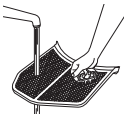
4. Rinse screen with hot water.
5. Thoroughly dry lint screen with a clean towel. Reinstall screen in dryer.
TROUBLESHOOTING
Dryer Operation
Dryer will not run
- Door not closed completely.
- Make sure the dryer door is closed completely.
- Start/Pause not touched firmly or held long enough.
- Touch and hold START/PAUSE until the display counts down “3-2-1” and the dryer starts.
- Household fuse is blown or circuit breaker has tripped.
- There may be two household fuses or circuit breakers for the dryer. Check that both fuses are intact and tight, or that both circuit breakers have not tripped. Replace the fuses or reset the circuit breaker. If the problem continues, call an electrician.
- Incorrect power supply.
- Electric dryers require 240 volt power supply. Check with a qualified electrician.
- Wrong type of fuse.
Dryer will not heat
- Household fuse is blown or circuit breaker has tripped.
- The drum may be turning, but you may not have heat. Electric dryers use two household fuses or circuit breakers. Replace the fuses or reset the circuit breaker. If the problem continues, call an electrician.
- Incorrect power supply.
- Electric dryers require 240 volt power supply. Check with a qualified electrician.
- Supply line valve not open.
- For gas dryers, make sure that the valve on the gas supply line is open.
Unusual Noise
Humming or whining noise with Steam cycle selected (on some models)
- Water pump or water inlet valve (depending on model) on dryer is running.
- The water pump or water inlet valve on the dryer is used during the Steam function. If the dryer has just been installed or unused for an extended period, the pump or valve may be louder and run longer. This is normal.
NOTE: The valve may make this noise even with no water line connected.
Thumping noise
- Dryer hasn't been used in a while.
- This is due to temporary flat spots on the drum rollers. The thumping sound will diminish after a few minutes.
Rattling or vibrating noise
- A small object caught between the edges of dryer drum.
- Check the front and rear edges of the drum for small objects. Clean out pockets before laundering.
- Dryer isn’t properly leveled.
- The dryer may vibrate if not properly installed. See the Installation Instructions. All four dryer feet should be in firm contact with the floor.
- Clothing is balled up in dryer.
- When balled up, the load will bounce, causing the dryer to vibrate. Separate the load items and restart the dryer.
Clicking noise
- Gas valve operating.
- On gas dryers, you may hear the gas valve clicking as it opens and closes. This is normal.
Loud humming or increased noise during cycle
- Load is packed tightly or exhaust vent is blocked.
- Reduce load size to recommended load size in “Cycle Guide?’ Run the dryer for 5-10 minutes. Hold your hand under the outside exhaust hood to check air movement. If you do not feel air movement or air movement is minimal, clean exhaust system of lint or replace exhaust vent with heavy metal or flexible metal vent. See the Installation Instructions.
Dryer Results
Clothes are not drying satisfactorily or drying times are too long
- Using Normal cycle.
- For optimal drying times, use Regular cycle. For optimal energy savings, use Normal cycle.
- Lint screen is clogged with lint.
- Clean lint screen before each load.
- The exhaust vent or outside exhaust hood is clogged with lint, restricting air movement.
- Run the dryer for 5-10 minutes. Hold your hand under the outside exhaust hood to check air movement. If you do not feel air movement or air movement is minimal, clean exhaust system of lint or replace exhaust vent with heavy metal or flexible metal vent. See the Installation Instructions.
- The exhaust vent is not the correct length.
- Check that the exhaust vent is not too long or has too many turns. Long venting will increase drying times. See the Installation Instructions.
- The exhaust vent diameter is not the correct size.
- Use 4" (102 mm) diameter vent material.
- The dryer is not level.
- Clothes not contacting the moisture sensors during Sensor Cycles. See “Level Dryer” in the Installation Instructions.
- The AirDry temperature setting has been selected.
- Select the correct temperature for the types of garments being dried. See “Cycle Guide.’
- The load is too large and heavy to dry quickly.
- Separate the load to tumble freely.
- Fabric softener sheets are blocking the grille.
- The air outlet grille is just inside the door, behind the lint screen. Check that it is not blocked by a fabric softener sheet. Use only one fabric softener sheet, and use it only once.
- The dryer is located in a room with temperature below 45°F (7°C).
- Proper operation of dryer cycles requires temperatures above 45°F (7°C).
- The dryer is located in a closet.
- Closet doors must have ventilation openings at the top and bottom of the door. The front of the dryer requires a minimum of 1" (25 mm) of airspace and, for most installations, the rear of the dryer requires 5" (127 mm). See the Installation Instructions.
Cycle time is too short
- The load may not be contacting the sensor strips on Sensor Cycles.
- Level the dryer. See the Installation Instructions. All four dryer feet should be in firm contact with the floor.
- Steam models only: Clothes are coming out of the Steam Refresh cycle with damp or wet spots.
- Under certain environmental or installation conditions, you may experience underdrying. Select the Timed Dry cycle, medium drying temperature, for 5 to 10 minutes.
- The Sensor Cycle is ending early.
- Change the dryness level setting on Sensor Cycles. Increasing or decreasing the dryness level will change the amount of drying time in a cycle.
Lint on load
- Lint screen is clogged with lint.
- Clean lint screen before each load.
Stains on load
- Improper use of fabric softener.
- Add dryer fabric softener sheets at the beginning of the cycle. Fabric softener sheets added to a partially dried load can stain your garments. Do not use fabric softener sheets with steam cycles.
Stains on drum
- Loose dyes in clothes.
- Drum stains are caused by dyes in clothing (usually blue jeans). These will not transfer to other clothing.
Loads are wrinkled
- The load was not removed from dryer at the end of the cycle.
- Steam models only: Select Steam Refresh cycle to tumble the load with water and heat. This cycle is best for reducing wrinkles from loads left in the dryer too long.
NOTE: Refer to garment care label instructions. Dry-clean-only garments are not recommended.
- The dryer was tightly packed.
- Dry smaller loads that can tumble freely.
- Steam models only: For steam cycles, the water is not properly connected with the dryer.
- Make sure water is connected to the dryer. Check that water inlet hose is connected to both the faucet and dryer’s water inlet valve. Check that the water supply is turned on.
Odors
- Recent painting, staining, or varnishing in the area where your dryer is located.
- Ventilate the area. When the odors or fumes are gone from the area, rewash and dry the clothing.
- Steam models only: For steam cycles, the water is not properly connected with the dryer.
- Make sure water is connected to the dryer. Check that water inlet hose is connected to both the faucet and dryer’s water inlet valve. Check that the water supply is turned on.
- Odors are left in garments after wearing.
- Steam models only: To remove odors left in garments after wearing, select Steam Refresh. The Steam Refresh cycle is best for reducing wrinkles from loads left in the dryer too long.
Load too hot
- Load removed before cooldown portion of cycle complete.
- Allow the dryer to complete the cooldown portion of the cycle before removing the load.
- Using Timed Dry cycle with a high temperature setting.
- Select a Sensor cycle with a lower heat setting to avoid overdrying the load.
Dryer Displaying Code M essage or Cycle Status Indicator Lights Up
“PF” (power failure)
- The drying cycle has been interrupted by a power failure.
- Touch and hold START/PAUSE to restart the dryer. NOTE: The Control Lock function may be enabled when recovering from a power failure. To unlock the control, touch and hold CONTROL LOCK for at least 3 seconds.
“L’ or “L2” Diagnostic Code (low or no line voltage condition)
- There may be a problem with your home power supply, keeping the dryer's heater from turning on.
- The dryer will continue to run when this diagnostic code is present. Touch any setting or option name to clear the code from the display and return to the estimated time remaining.
Try the following:
Check to see if a household fuse has blown or circuit breaker has tripped. Electric dryers use two household fuses or breakers. Replace the fuse or reset the circuit breaker.
Confirm that the power cord is properly installed. Refer to the Installation Instructions for details.
Select a Timed Dry heated cycle, and restart the dryer.
If the message persists, consult a qualified electrician.
Check Vent indicator is lit.
- The lint screen or vent is clogged; the vent is crushed or kinked or has too many turns.
- The dryer will continue to run when this diagnostic code is present. Touch any setting or option name to clear the code from the display and return to the estimated time remaining.
Try the following:
- Clean lint screen.
- Check to see if the vent run from the dryer to the wall is crushed or kinked.
- Confirm that the vent run from the dryer to the wall is free of lint and debris.
- Confirm that the exterior vent exhaust hood is free of lint and debris.
- Confirm that your vent system falls within the recommended run length and number of elbows for the type of vent you are using. Refer to “Plan Vent System” in the Installaton Instructions for details.
- Select a Timed Dry heated cycle, and restart the dryer.
- If the message persists, have your entire home venting run cleaned.
“F# E#” (F1 E1, F3 E1, etc.) variable service codes
- The dryer is in need of service.
- If a code beginning with an “F” appears in the display, alternating between F# and E#, the dryer control has detected a problem that requires service. Call for service.
“Loc”
- The Control Lock is enabled.
- Touch and hold CONTROL LOCK for 3 seconds to unlock the controls of the dryer. During this time, the LED Display will count down “3-2-1.” When the Control Lock is disabled, the LED Display will clear.