2
INTRODUCTION
CONTENTS
Page
ACCESSORIES . . . . . . . . . . . . . . . . . . . . . . . . . . . . . . . . 2
PRECAUTIONS . . . . . . . . . . . . . . . . . . . . . . . . . . . . . . . . 3
NAMES OF CONTROLS AND INDICATORS . . . . . . . . 4-6
PREPARATION FOR USE . . . . . . . . . . . . . . . . . . . . . . . 6-9
SETTING THE CLOCK . . . . . . . . . . . . . . . . . . . . . . . . . 10
SOUND CONTROL . . . . . . . . . . . . . . . . . . . . . . . . . . . . 11
COMPACT DISC OPERATION . . . . . . . . . . . . . . . . . 12-15
RADIO OPERATION . . . . . . . . . . . . . . . . . . . . . . . . . 16-17
RDS (Radio Data System) OPERATION . . . . . . . . . . 18-26
Page
CASSETTE OPERATION . . . . . . . . . . . . . . . . . . . . . . . . 27
RECORDING . . . . . . . . . . . . . . . . . . . . . . . . . . . . . . 28-29
HOW TO USE THE BUILT-IN TIMER . . . . . . . . . . . . 30-32
USING EXTERNAL UNITS . . . . . . . . . . . . . . . . . . . . . . . 33
RESETTING THE MICROCOMPUTER . . . . . . . . . . . . . 34
TRANSPORTING THE UNIT . . . . . . . . . . . . . . . . . . . . . 34
MAINTENANCE . . . . . . . . . . . . . . . . . . . . . . . . . . . . . . . 34
SPECIFICATIONS . . . . . . . . . . . . . . . . . . . . . . . . . . . . . . 35
TERMS OF GUARANTEE . . . . . . . . . . . . . . . .Back cover
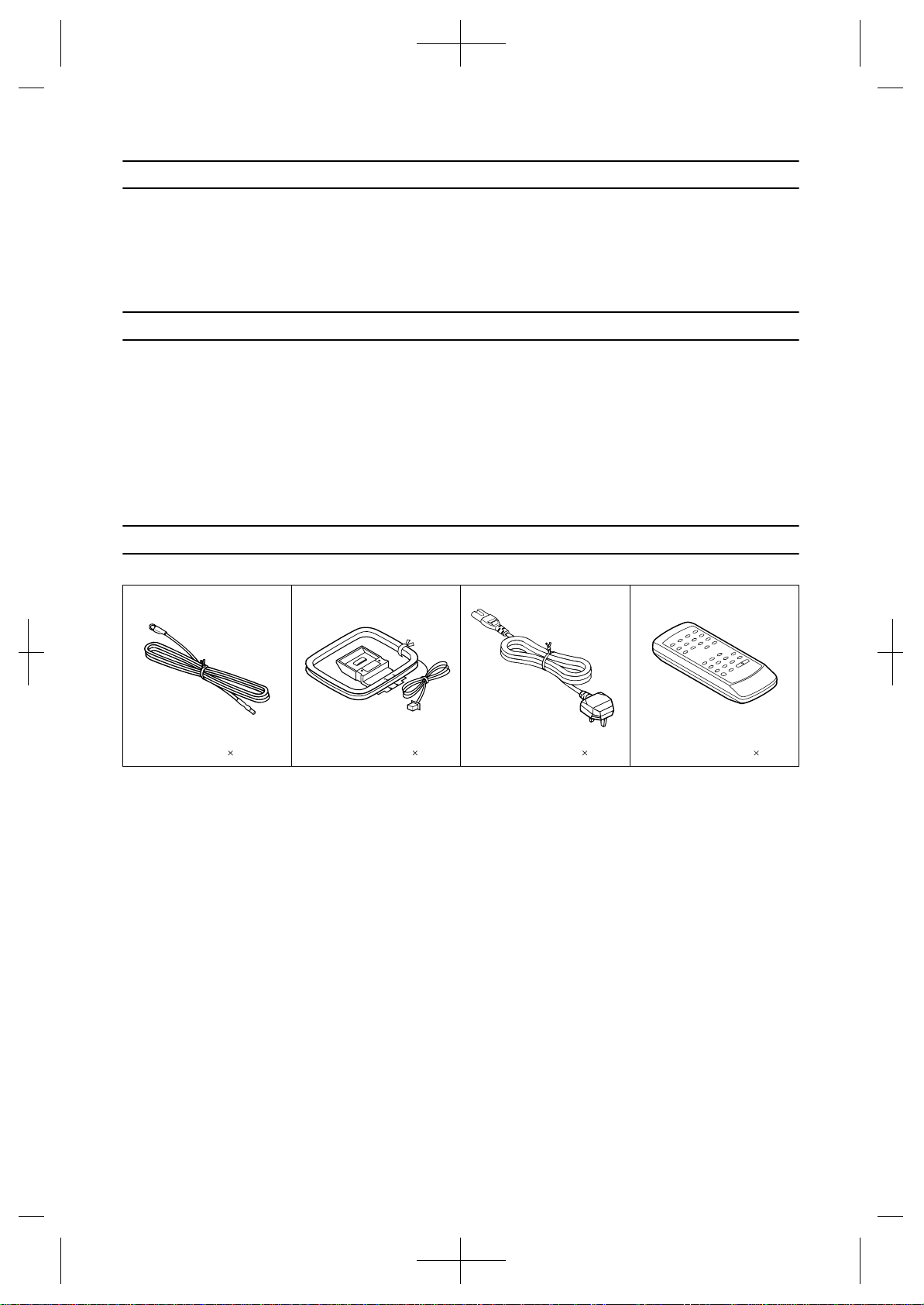
ACCESSORIES
Note:
Parts and accessories mentioned in this operation manual
other than those in the drawing are not included.
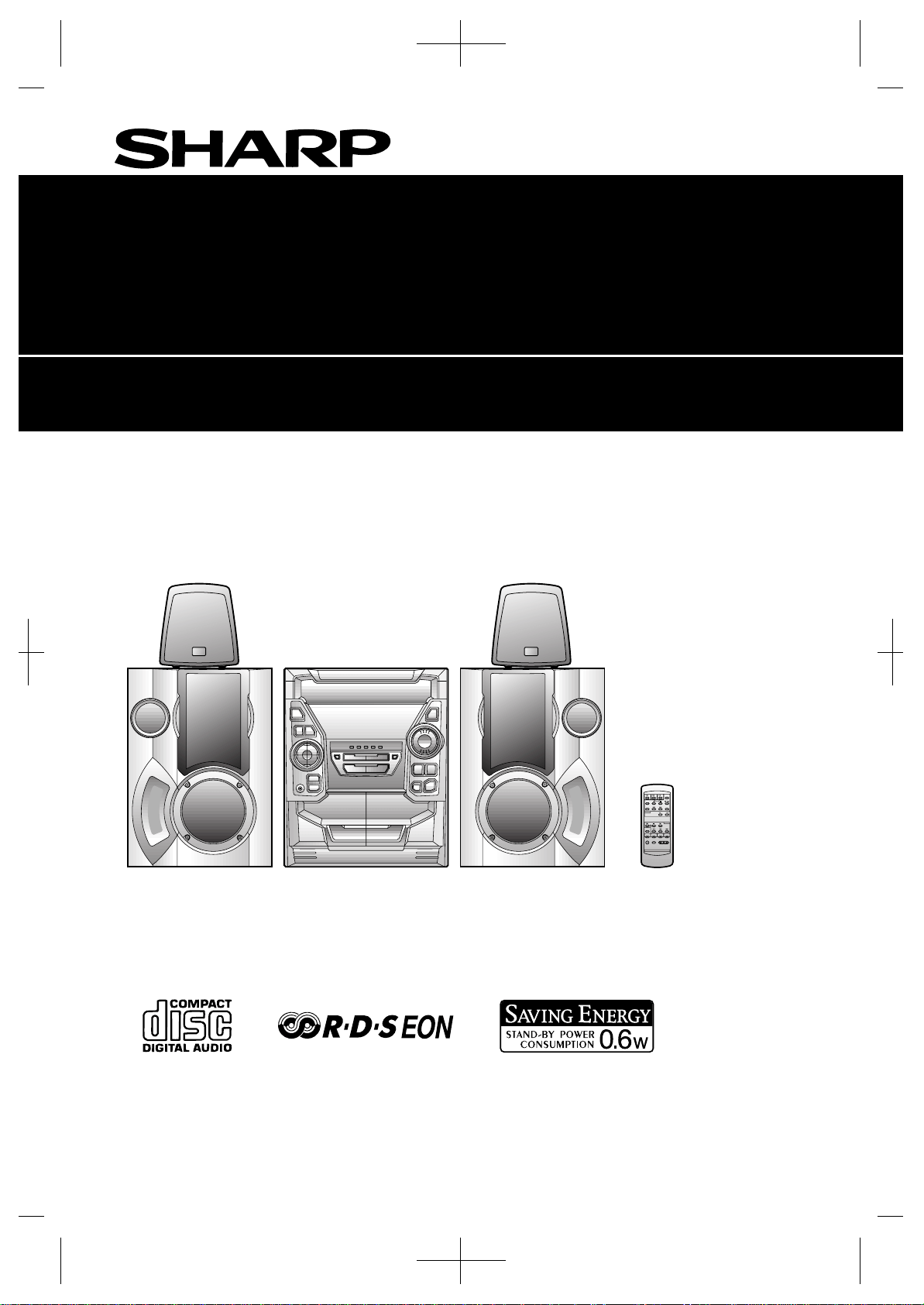
Thank you for purchasing this SHARP product. To obtain
the best performance from this product, please read this
manual carefully. It will guide you in operating your SHARP
product.
FM aerial 1 AM loop aerial 1 AC power lead 1 Remote control 1
Downloaded from: http://www.usersmanualguide.com/

3
PRECAUTIONS
General
Please ensure that the equipment is positioned in a well
ventilated area and ensure that there is at least 10 cm
(4") of free space along the sides, top and back of the
equipment.
Do not use oil, solvents, petrol, paint thinners or insecti-
cides on the unit.
Do not expose the unit to moisture, to temperatures
higher than 60°C (140°F) or to extreme low tempera-
tures.
Keep the unit away from direct sunlight, strong magnetic
fields, excessive dust, humidity and electronic/electrical
equipment (home computers, facsimiles, etc.) which gen-
erates electrical noise.
Hold the AC power plug by the head when removing it
from the AC socket, as pulling the lead can damage inter-
nal wires.
When cleaning the heads, pinch rollers, etc., remove the
AC power plug from the wall socket as the unit contains
high voltages. Do not remove the outer cover, as this may
result in electric shock. Refer internal service to your
local SHARP service facility.
Use the unit on a firm, level surface free from vibration,
and do not place anything on the top of the unit.
If the unit does not work properly whilst in use, discon-
nect the AC power lead from the AC socket. Plug the AC
power lead back in, and then press the ON/STAND-BY
button to turn the power on.
If an electrical storm is taking place near you, it is sug-
gested that you disconnect the AC power lead from the
AC socket for safety.
The ventilation should not be impeded by covering the
ventilation openings with items, such as newspapers,
tablecloths, curtains, etc.
No naked flame sources, such as lighted candles, should
be placed on the apparatus.
Attention should be drawn to the environmental aspects
of battery disposal.
The apparatus is designed for use in moderate climate.
Warning:
The voltage used must be the same as that specified on this
unit. Using this product with a higher voltage other than that
which is specified is dangerous and may result in a fire or
other type of accident causing damage. SHARP will not be
held responsible for any damage resulting from use of this
unit with a voltage other than that which is specified.
Volume control
The sound level at a given volume setting depends on a
combination of speaker efficiency, location and various
other factors. It is advisable to avoid exposure to high vol-
ume levels, which occur whilst turning the unit on with the
volume control setting up high, or whilst continually listening
at high volumes.
Condensation
Sudden temperature changes, storage or operation in an
extremely humid environment may cause condensation
inside the cabinet (CD pickup, tape heads, etc.) or on the
transmitter LED on the remote control.
Condensation can cause the unit to malfunction. If this hap-
pens, leave the power on with no disc (or cassette) in the
unit until normal playback is possible (about 1 hour). Wipe
off any condensation on the transmitter LED with a soft cloth
before operating the unit.
Care of compact discs
Compact discs are fairly resistant to damage, however mis-
tracking can occur due to an accumulation of dirt on the disc
surface. Follow the guidelines below for maximum enjoy-
ment from your discs and unit.
Do not write on either side of the disc, particularly the
non-label side. Signals are read from the non-label side.
Do not mark this surface.
Keep your discs away from direct sunlight, heat, and
excessive moisture.
Always hold the CDs by the edges. Fingerprints, dirt, or
water on the CDs can cause noise or mistracking. If a CD
is dirty or does not play properly, clean it with a soft, dry
cloth, wiping straight out from the centre, along the
radius.
Cassette tape
For playback, use normal or low-noise tape for the best
sound. (Metal or CrO tape is not recommended.) For
recording, use only normal tape.
Do not use C-120 tapes, tapes with large diameter reels,
or poor-quality tapes, as they may cause malfunctions.
Before loading a tape into the cassette compartment,
tighten the slack with a pen or pencil.
Cassettes have removable tabs which prevent accidental
recording or erasing from taking place. Removing the tab
will protect the corresponding side from being erased.
Cover the tab holes with adhesive tape to erase or record
again.
TAPE 1: Playback only. TAPE 2: Playback or record.
NO
YES
Correct
Side A (1)
Tab for side B (2) Tab for side A (1)
Downloaded from: http://www.usersmanualguide.com/
4
NAMES OF CONTROLS AND INDICATORS
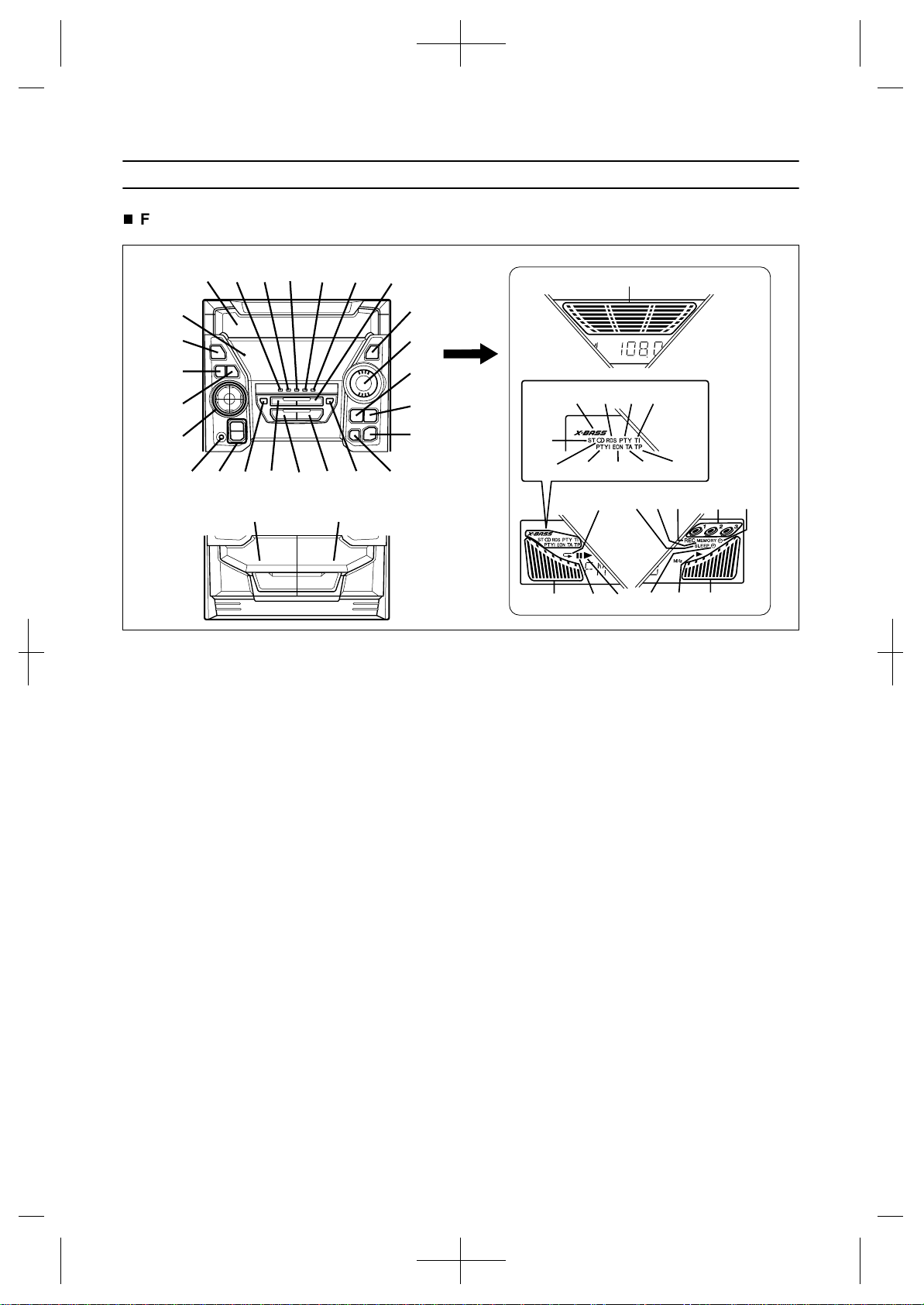
Front panel
1. (CD) Disc Tray
2. (TUNER) Programme Type/Traffic Information
Search Button
3. EON Button
4. ASPM Button
5. Display Mode Selector Button
6. Station Selector Button
7. (CD) Track Up/Cue Button
(TUNER) Preset Up Button
(TAPE 2) Fast Forward Button
8. Timer Set Indicator
9. On/Stand-by Button
10. Clock Button
11. Timer/Sleep Button
12. Function Selector Buttons
13. Dimmer Button
14. Volume Up/Down Buttons
15. Equalizer Mode Selector Button
16. Extra Bass/Demo Mode Button
17. (CD) Open/Close Button
18. Headphone Socket
19. Tuning and Time Up/Down Buttons
20. Memory/Set Button
21. (CD) Track Down/Review Button
(TUNER) Preset Down Button
(TAPE 2) Rewind Button
22. (CD/TAPE) Stop Button
23. (CD) Play/Repeat Button
(TAPE) Play Button
24. (TAPE 2) Record Pause Button
25. (CD) Disc Skip Button
26. (TAPE 1) Cassette Compartment
27. (TAPE 2) Cassette Compartment
28. Spectrum Analyzer/Volume Level Indicator
29. Extra Bass Indicator
30. RDS Indicator
31. Programme Type Indicator
32. Traffic Information Indicator
33. FM Stereo Mode Indicator
34. FM Stereo Indicator
35. Dynamic PTY Indicator
36. EON Indicator
37. Traffic Announcement Indicator
38. Traffic Programme Indicator
39. (CD) Repeat Indicator
40. Sleep Indicator
41. (CD/TUNER) Memory Indicator
42. Record Indicator
43. (CD) Disc Number Indicators
44. Timer Play Indicator
45. (CD) Pause Indicator
46. (CD) Play Indicator
47. Timer Record Indicator
48. (TAPE) Play Indicator
33
34
36
47
28
3029
35
40
38
28
48
44
31 32
37
4645
39
41
42
43
28
27
26
15
67
8
9
10
11
12
14
16
18
22
23
24 25
19 20 21
21
543
13
17
Downloaded from: http://www.usersmanualguide.com/
5
(Continued)
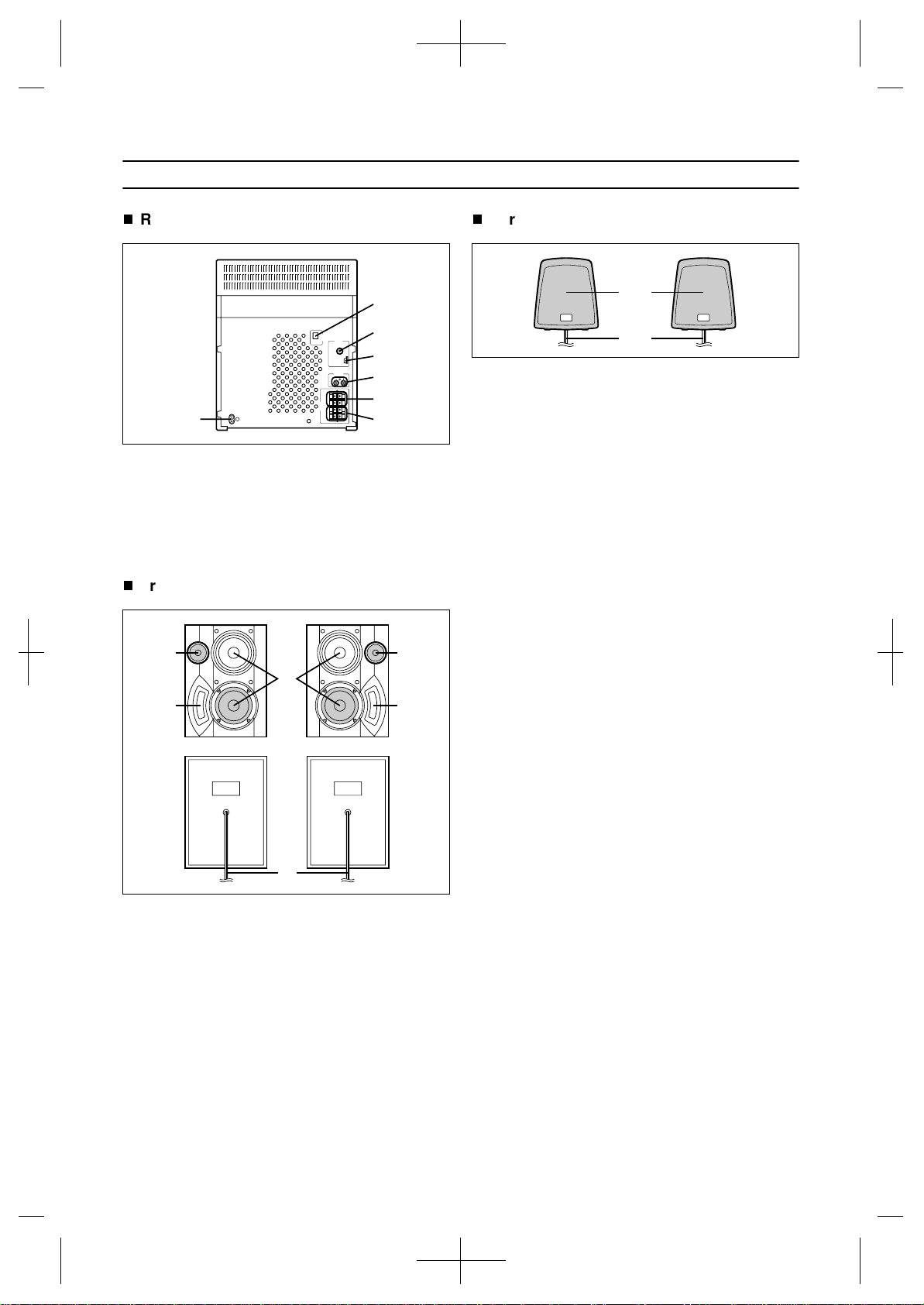
Rear panel
1. AC Power Input Socket
2. CD Digital Output Socket
3. FM 75 Ohms Aerial Socket
4. AM Loop Aerial Socket
5. Video/Auxiliary (Audio Signal) Input Sockets
6. Front Speaker Terminals
7. Surround Speaker Terminals
Front speaker
1. Tweeter
2. Bass Reflex Duct
3. Woofer
4. Speaker Wire
Surround speaker
1. Full-Range Speaker
2. Speaker Wire
1
2
3
4
5
6
7
1
2
1
2
4
3
1
2
Downloaded from: http://www.usersmanualguide.com/
6
(Continued)
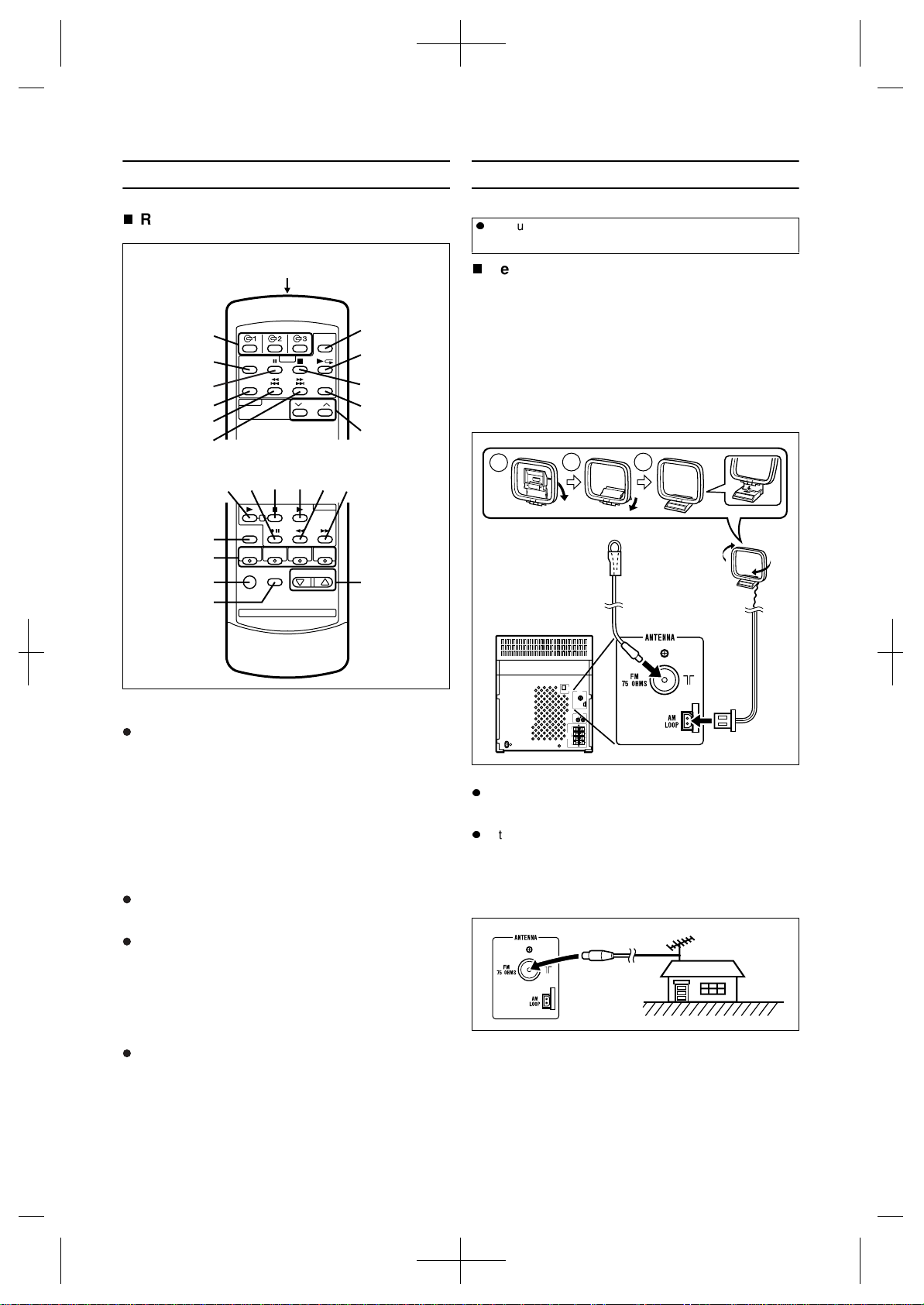
Remote control
1. Remote Control Transmitter LED
CD control section
2. Disc Number Select Buttons
3. Memory Button
4. Pause Button
5. Clear Button
6. Track Down/Review Button
7. Track Up/Cue Button
8. Disc Skip Button
9. Play/Repeat Button
10. Stop Button
11. Random Button
Tuner control section
12. Preset Up/Down Buttons
Tape control section
13. (TAPE 1) Play Button
14. (TAPE 2) Record Pause Button
15. (TAPE 1/2) Stop Button
16. (TAPE 2) Play Button
17. (TAPE 2) Rewind Button
18. (TAPE 2) Fast Forward Button
Common section
19. Equalizer Mode Selector Button
20. Function Selector Buttons
21. On/Stand-by Button
22. Extra Bass Button
23. Volume Up/Down Buttons
PREPARATION FOR USE
Aerial connection
Supplied FM aerial
Connect the FM aerial wire to the FM 75 OHMS socket and
position the FM aerial wire in the direction where the stron-
gest signal can be received.
Supplied AM loop aerial
Connect the AM loop aerial to the AM LOOP socket. Posi-
tion the AM loop aerial for optimum reception. Place the AM
loop aerial on a shelf, etc., or attach it to a stand or a wall
with screws (not supplied).
Notes:
Do not place the aerial on the main unit as it may result in
noise pickup from the internal digital electronics. Place
the aerial away from the unit for better reception.
If the AM loop aerial and the FM aerial wire are placed
near the AC power lead, interference may result.
External FM aerial
Use an external FM aerial if you require better reception.
Consult your dealer.
1
2
3
4
5
6
7
8
9
10
11
12
13 14 15 16 17 18
19
20
21
22
23
Unplug the AC power lead from the AC socket before
connecting or disconnecting any component.
1
2
3
AM loop
aerial
FM aerial
External
FM aerial
Downloaded from: http://www.usersmanualguide.com/
7
(Continued)
Speaker connection
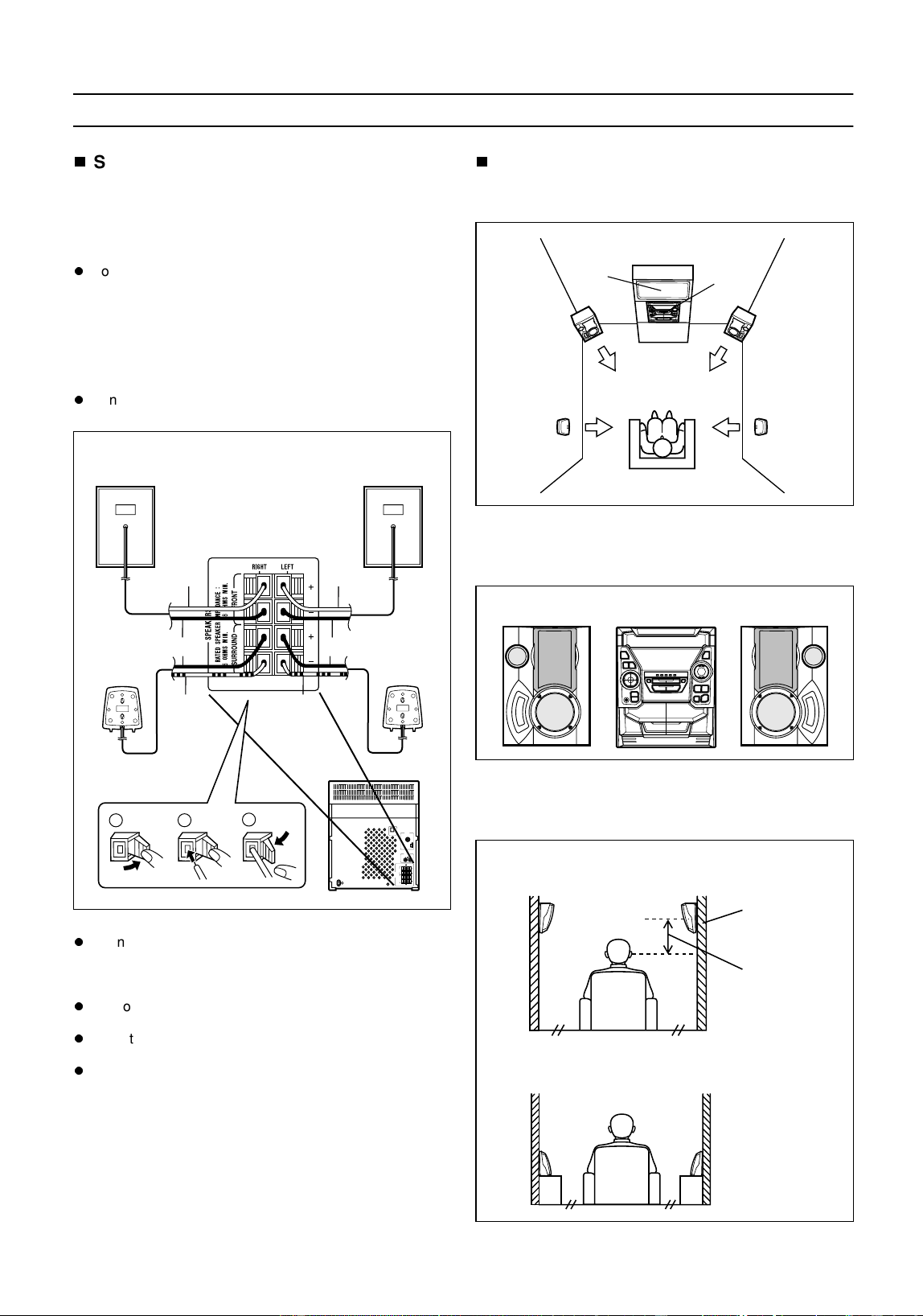
Front speakers
Connect each speaker wire to the FRONT SPEAKER termi-
nals as shown.
Use speakers with an impedance of 8 ohms or more, as
lower impedance speakers can damage the unit.
Connect the black wire to the minus (-) terminal, and the
red wire to the plus (+) terminal.
Surround speakers
Connect each speaker wire to the SURROUND SPEAKER
terminals as shown.
Use speakers with an impedance of 16 ohms or more, as
lower impedance speakers can damage the unit.
Connect the wire with the white line to the minus (-) ter-
minal and the plain wire to the plus (+) terminal.
Caution:
Do not mistake the right channel for the left channel
when connecting the speakers to the unit. The right
speaker is the one on the right side when you are facing
the front of the unit.
Do not let bare speaker wires touch each other as this
may damage the amplifier and/or speakers.
Do not allow any objects to fall into or to be placed in the
bass reflex ducts.
Do not stand or sit on the speakers. If the speakers fall or
collapse, you may be injured.
Placing the speaker system
To enjoy the surround effect, we recommend that you place
each speaker as shown below.
Placing the front speakers:
The left and right speakers have individual shapes. For best
performance, place the speakers according to the diagram
below.
Installation of the surround speakers:
If possible, mount the surround speakers on the wall. Install
them 60 - 90 cm (23" - 35") above the height of your ears
when you are seated.
2
1
3
Front speaker
(Left)
Surround
speaker
(Left)
Surround
speaker
(Right)
Front speaker
(Right)
Red
Black
With
white
line
With
white
line
Black
Red
Left speaker Right speaker
Example: When installed on the wall
Example: When installed vertically
TV
Main
unit
Front
speaker
(Left)
Surround
speaker
(Left)
Surround
speaker
(Right)
Front
speaker
(Right)
Wall
60 - 90 cm
(23" - 35")
Downloaded from: http://www.usersmanualguide.com/
8
(Continued)
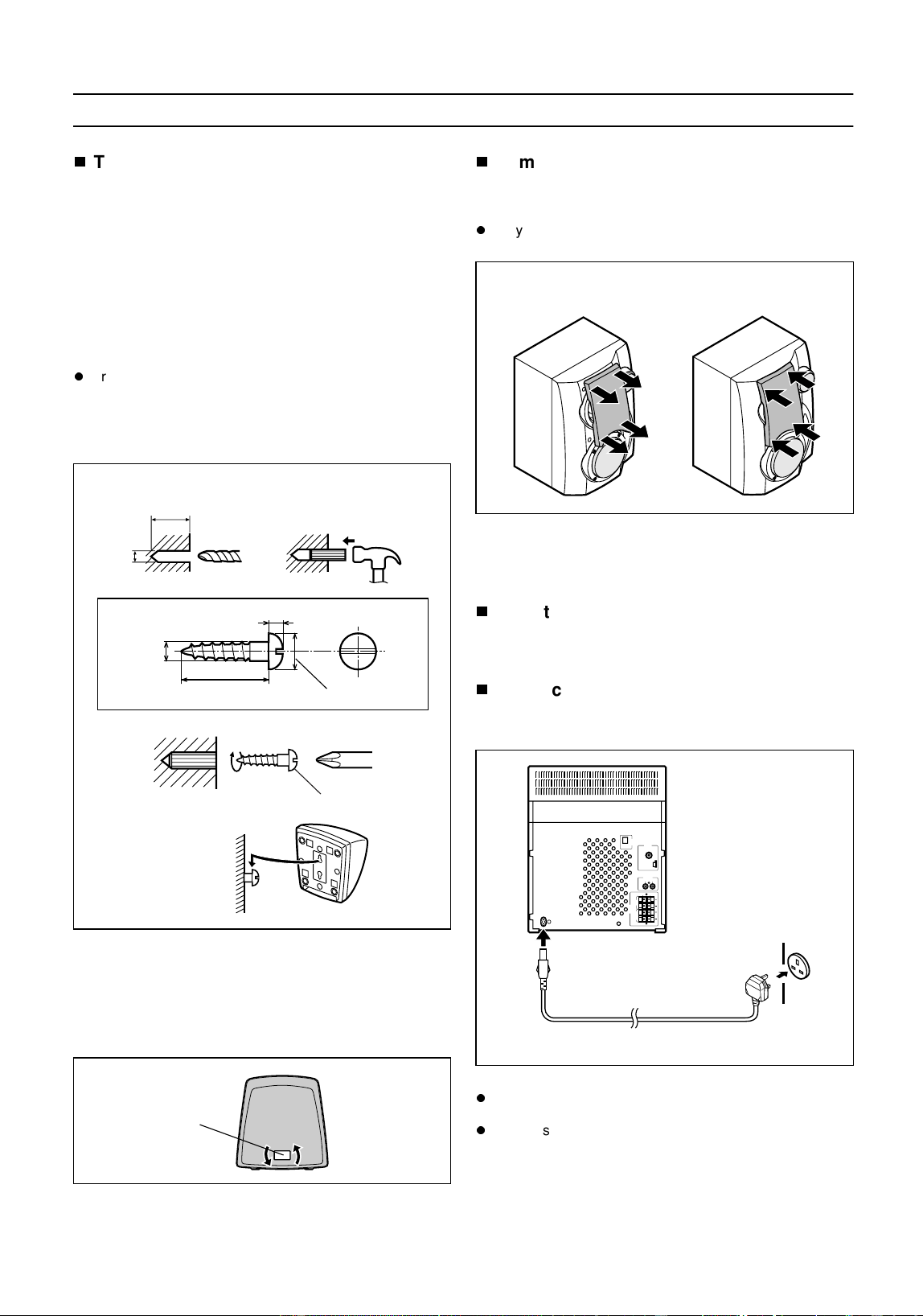
To mount the surround speakers on the
wall
The design of the surround speakers allows them to be
hung on the wall. Be sure to use the type and size of screw
that is shown below.
1
Make a hole in the wall using a drill.
2
Drive a wall mount plug into the hole using a ham-
mer. Drive the wall mount plug in until it is flush with
the wall surface.
3
Drive one screw into the wall mount plug for each
speaker as shown in the illustration.
Drive the screws, so there is about a 5 mm (3/16") space
between the wall and the head of the screw.
4
Mount the surround speaker on the wall so that the
screw head is inserted into the slot on the surround
speaker.
Note:
When the surround speakers are installed vertically, the
speaker badge will be upside down. In this case, you can
adjust the badge to face the proper direction. Just turn it by
hand.
Removing the speaker grilles
1
Remove the lower part of the speaker grille first.
2
Remove the upper part of the speaker grille.
Only the grilles on the upper woofers are removable.
Caution:
When the speaker grilles are removed, the speaker dia-
phragms are exposed. Make sure nothing comes into con-
tact with the speaker diaphragms.
Mounting the speaker grilles
Fit the four posts on the speaker grille into the mounting
holes and push them lightly with your palm to secure.
Connecting the AC power lead
Connect the AC power lead to the AC INPUT socket, then
connect the AC power lead plug to an AC socket.
Notes:
Unplug the AC power lead from the AC socket if the unit
will not be in use for a prolonged period of time.
Never use a power lead other than the one supplied. Use
of a power lead other than the one supplied may cause
an electric shock or fire.
32 mm
(1-1/4")
8-9 mm (3/8")
1
2
3.2 mm (1/8")
9 mm (3/8")
5 mm
(3/16")
Min.22 mm (7/8")
3
Wall surface
Wall mounting screw
4
Wall surface
Badge
(Front speakers only)
To AC INPUT To an AC socket
AC 230 V, 50 Hz
Downloaded from: http://www.usersmanualguide.com/
9
(Continued)
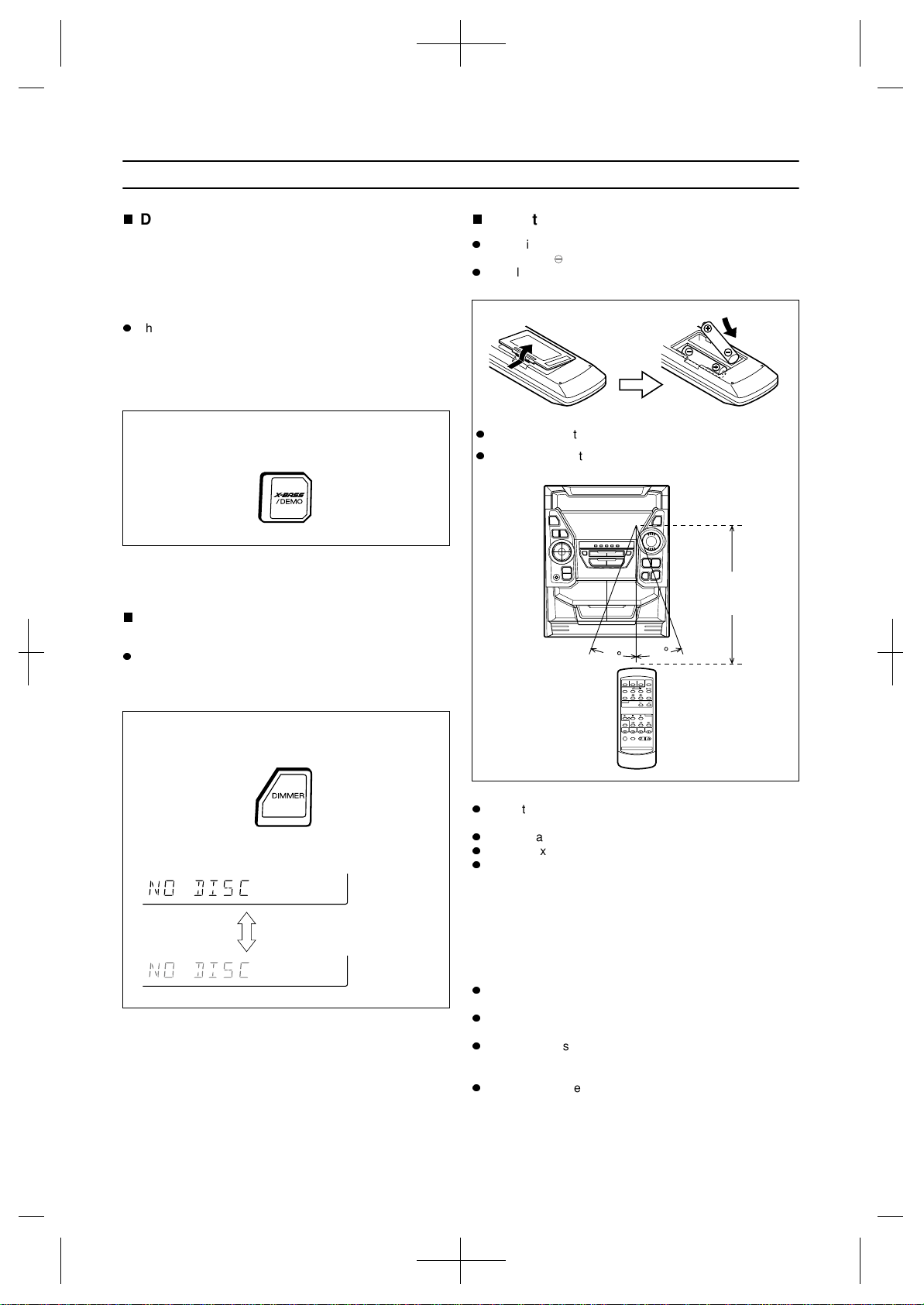
Demo mode
When the AC power lead is first connected, the unit will
enter the demonstration mode.
To cancel the demonstration mode:
When the unit is in the stand-by mode (demonstration
mode), press the X-BASS/DEMO button.
The demonstration mode will be cancelled and the unit
will enter the low power consumption mode.
To return to the demonstration mode:
When the unit is in the stand-by mode, press the X-BASS/
DEMO button again.
Note:
When the power is on, the X-BASS/DEMO button can be
used to select the extra bass mode.
To change the brightness of the display
Press the DIMMER button.
The display will be made dimmer.
To return to the original brightness:
Press the DIMMER button again.
Remote control
When inserting or removing the batteries, push them
towards the battery terminals.
Installing the batteries incorrectly may cause the unit to
malfunction.
Precautions for battery use:
Insert the batteries according to the direction indicated in
the battery compartment.
Replace all old batteries with new ones at the same time.
Do not mix old and new batteries.
Remove the batteries if they are weak or if the unit will
not be used for long periods of time. This will prevent
potential damage due to battery leakage.
Caution:
Do not use rechargeable batteries (nickel-cadmium battery,
etc.).
Notes concerning use:
Replace the batteries if the operating distance is reduced
or if the operation becomes erratic.
Periodically clean the transmitter LED on the remote con-
trol and the sensor on the main unit with a soft cloth.
Exposing the sensor on the main unit to strong light may
interfere with operation. Change the lighting or the direc-
tion of the unit.
Keep the remote control away from moisture, excessive
heat, shock, and vibrations.
(Main unit operation)
(Main unit operation)
When bright
When dark
2 "AA" size batteries (UM/SUM-3, R6, HP-7 or similar)
Batteries are not included.
15
15
0.2 m - 6 m
(8" - 20')
Downloaded from: http://www.usersmanualguide.com/
10
SETTING THE CLOCK
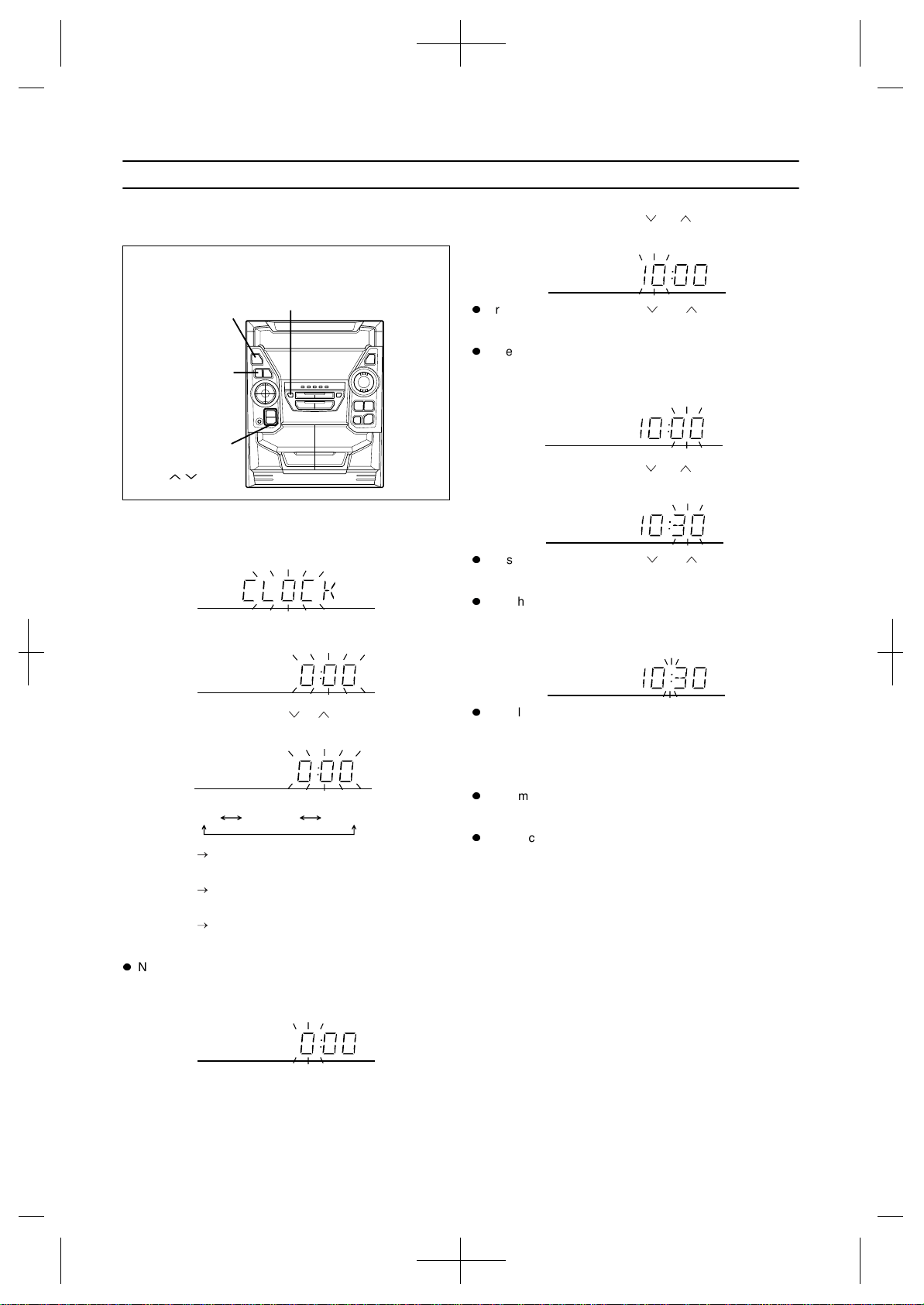
In this example, the clock is set for the 24-hour (0:00) sys-
tem.
1
Press the ON/STAND-BY button to enter the stand-
by mode.
2
Press the CLOCK button.
3
Within 5 seconds, press the MEMORY/SET button.
4
Press the TUNING/TIME ( or ) button to select the
time display mode.
Note that this can only be set when the unit is first
installed or it has been reset (see page 34).
5
Press the MEMORY/SET button.
6
Press the TUNING/TIME ( or ) button to adjust
the hour.
Press the TUNING/TIME ( or ) button once to
advance the time by 1 hour. Hold it down to advance con-
tinuously.
When the 12-hour display is selected, "AM" will change
automatically to "PM".
7
Press the MEMORY/SET button.
8
Press the TUNING/TIME ( or ) button to adjust
the minutes.
Press the TUNING/TIME ( or ) button once to
advance the time by 1 minute. Hold it down to change the
time in 5-minute intervals.
The hour setting will not advance even if minutes
advance from "59" to "00".
9
Press the MEMORY/SET button.
The clock starts operating from "0" second. (Seconds are
not displayed.) And then the clock display will disappear
after a few seconds.
To see the time display:
Press the CLOCK button.
The time display will appear for about 5 seconds.
Note:
The clock display will flash on and off at the push of the
CLOCK button when the AC power supply is restored
after a power failure occurs or after the AC power lead is
disconnected. If this happens, follow the procedure below
to change the clock time.
To change the clock time:
1 Press the CLOCK button.
2 Within 5 seconds, press the MEMORY/SET button.
3 Perform steps 6 - 9 above.
To change the time display mode:
1 Perform steps 1 - 2 in "RESETTING THE MICROCOM-
PUTER", on page 34.
2 Perform steps 1 - 9 above.
(Main unit operation)
"0:00" The 24-hour display will appear. (0:00 -
23:59)
"AM 0:00" The 12-hour display will appear. (AM 0:00
- PM 11:59)
"AM 12:00" The 12-hour display will appear. (AM
12:00 - PM 11:59)
ON/
STAND-BY
CLOCK
MEMORY/SET
TUNING/
TIME
( )
AM 12:00AM 0:000:00
Downloaded from: http://www.usersmanualguide.com/
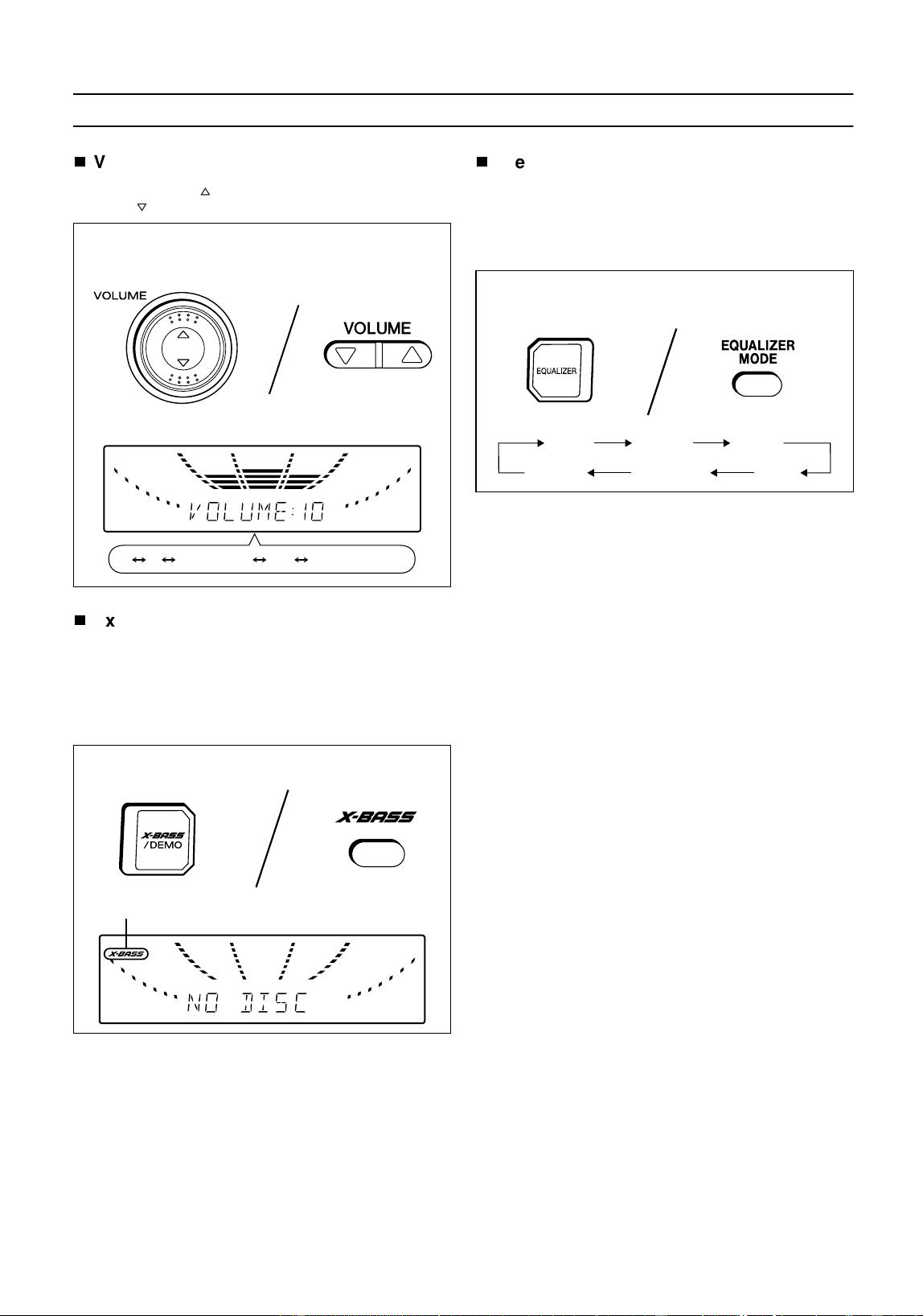
11
SOUND CONTROL
Volume
Press the VOLUME button to increase the volume and the
VOLUME button to decrease the volume.
Extra bass (X-BASS)
When the power is first turned on, the unit will enter the
extra bass mode which emphasises the bass frequencies,
and "X-BASS" will appear. To cancel the extra bass mode,
press the X-BASS/DEMO(X-BASS) button. "X-BASS" will
disappear.
Pre-programmed equalizer
When the EQUALIZER (EQUALIZER MODE) button is
pressed, the current mode setting will be displayed. To
change to a different mode, press the EQUALIZER
(EQUALIZER MODE) button repeatedly.
(Main unit) (Remote control)
(Main unit) (Remote control)
X-BASS indicator
012 29 30 MAXIMUM
.....
(Main unit) (Remote control)
FLAT:
The sound is not modified.
ROCK:
Bass and treble are emphasised.
POPS:
Bass and treble are slightly emphasised.
JAZZ:
Treble is cut a little.
CLASSIC:
Treble is reduced a lot.
VOCAL:
Vocals (midrange tones) are emphasised.
FLAT ROCK
POPS
JAZZCLASSIC
VOCAL
Downloaded from: http://www.usersmanualguide.com/
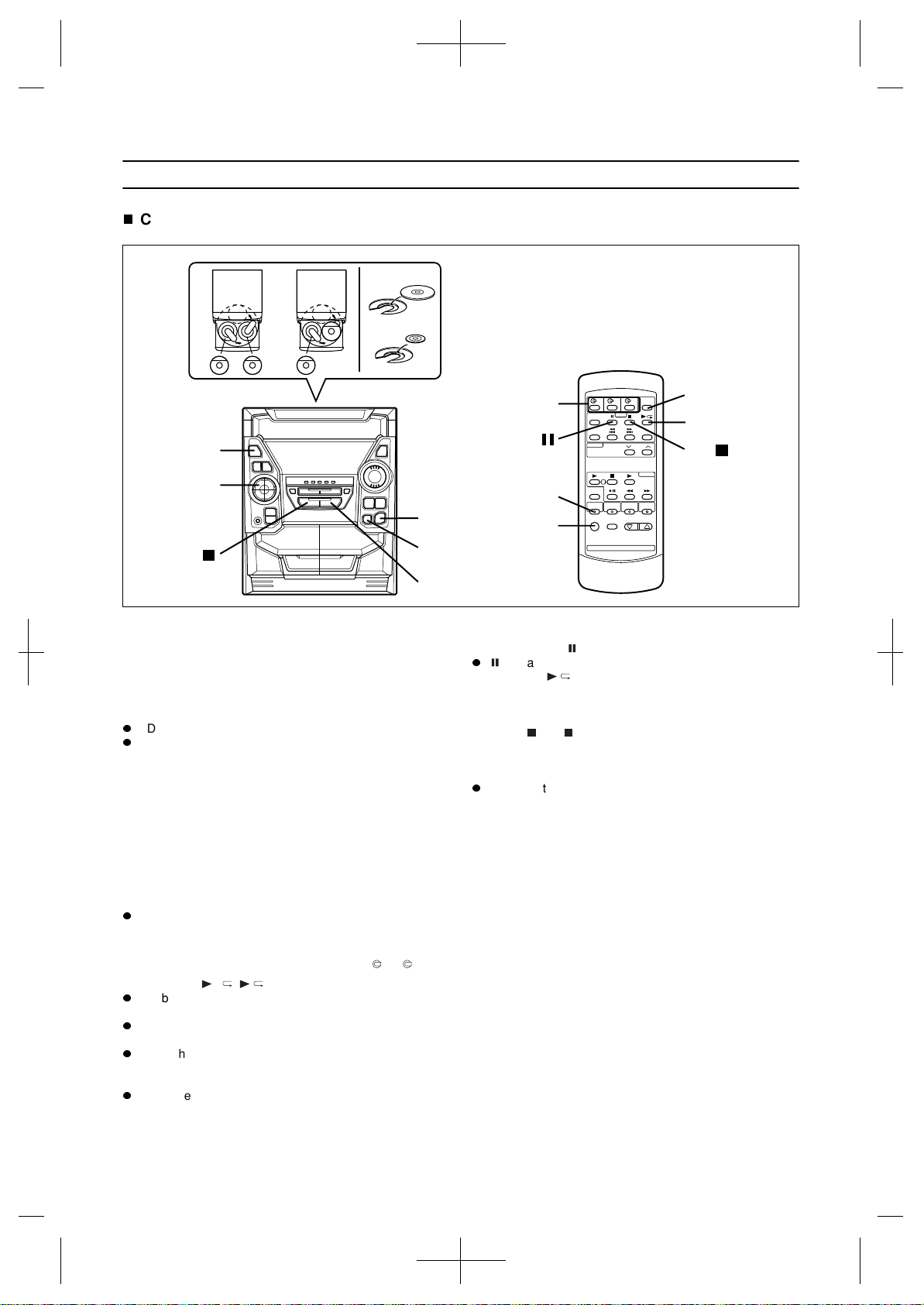
12
COMPACT DISC OPERATION
CD playback
1
Press the ON/STAND-BY button to turn the power
on.
2
Press the CD button.
3
Press the OPEN/CLOSE button to open the disc tray.
4
Place the CD(s) on the disc tray, label side up.
CDs can be placed on any open position on the disc tray.
Be sure to place 8 cm (3") CD(s) in the middle of the disc
trays.
Caution:
Do not stack CDs in the tray. This can damage the player
and the CDs.
5
When loading a third disc, press the DISC SKIP but-
ton to turn the disc tray, then place the CD in the
open position.
6
Press the OPEN/CLOSE button to close the disc
tray.
The total number of tracks and the total playing time for
one disc will be displayed. At this time, the disc number
indicator is flashing.
7
Press the desired disc number button ( 1 - 3).
8
Press the / ( ) button.
Playback will begin from track 1 on the disc you have
selected to play.
After the disc finishes playing, the next disc will automati-
cally play.
When there is no CD in one of the disc 1 - 3 positions,
that position will be skipped and the next CD will be
played.
When the last track on the third disc has finished playing,
the unit will stop automatically.
To interrupt playback:
1 Press the CD button on the remote control.
" " will appear.
2 Press the button to resume playback from the same
point.
To stop playback:
Press the (CD ) button.
To remove the CDs:
Whilst in the stop mode, press the OPEN/CLOSE button.
The disc tray will open. Remove the two discs. Then,
press the DISC SKIP button to rotate the disc tray and
remove the remaining disc.
After use:
Press the ON/STAND-BY button to enter the stand-by
mode.
4
5
1
2
3,6
5
8
12 cm (5")
8 cm (3")
CD
CD
7
2
1
5
8
Downloaded from: http://www.usersmanualguide.com/
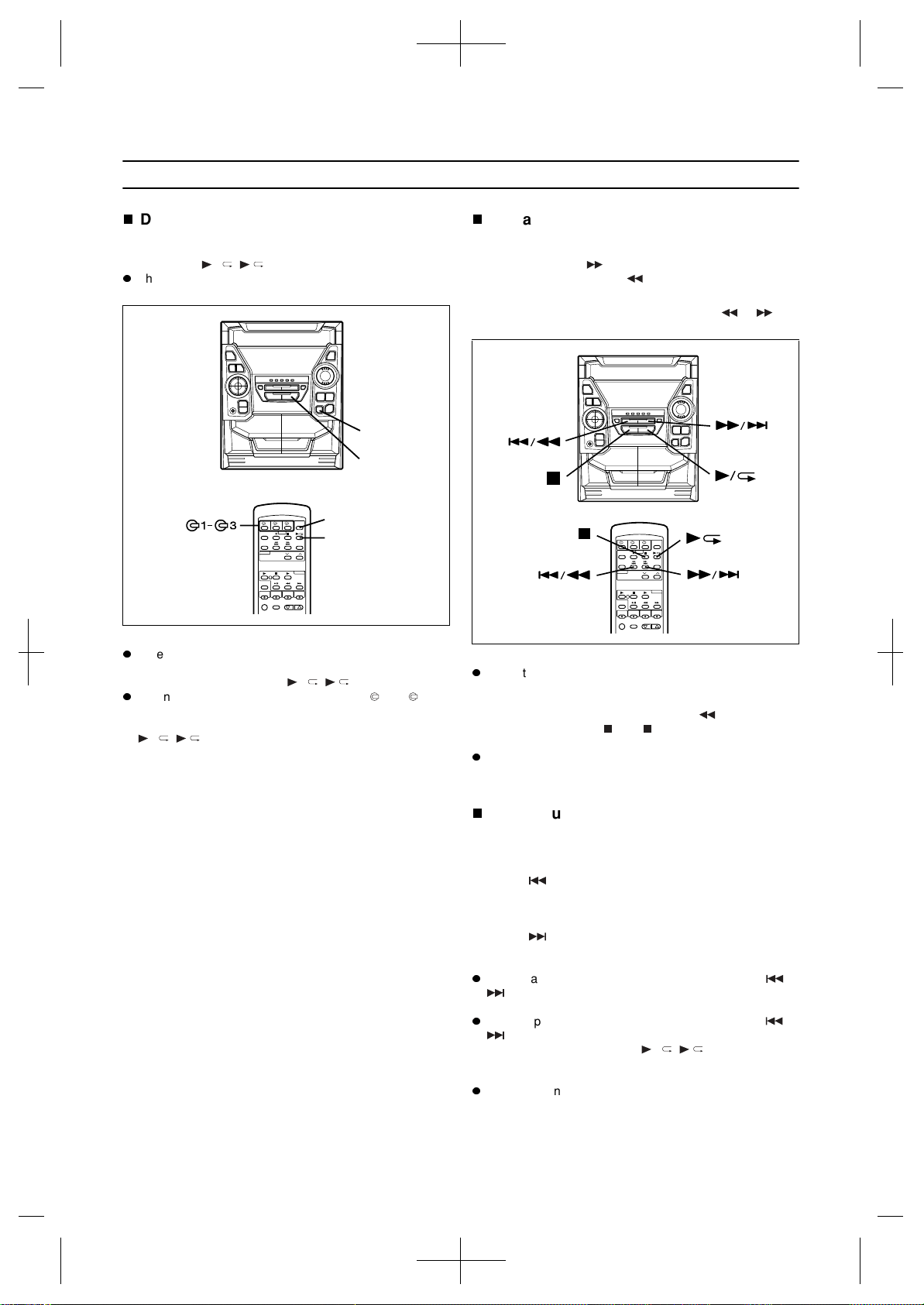
13
(Continued)
Disc number selection
1
When stopped, press the DISC SKIP button.
2
Press the / ( ) button.
The next disc playback will begin, after which each fol-
lowing disc will be played sequentially.
Notes:
When the DISC SKIP button is pressed during playback,
playback will begin automatically from the next disc. (It is
not necessary to press the / ( ) button.)
When one of the disc number buttons ( 1 - 3) is
pressed during playback, playback of the selected disc
will begin automatically. (It is not necessary to press the
/ ( ) button.)
Cue and review
1
Load a disc and begin playback.
2
Hold down the button for audible fast forward,
and hold down the button for audible fast
reverse.
3
Normal playback will resume when the or but-
ton is released.
Notes:
When the end of the disc is reached whilst cueing, "END"
will appear in the display and CD operation will be
paused. (Even though the next disc has been loaded, the
disc will not be switched.) Press the button for fast
reverse or press the (CD ) button to stop CD opera-
tion.
If the beginning of the disc is reached whilst reviewing,
the mode will automatically switch to normal playback at
that point.
APSS (Auto Program Search System)
APSS automatically locates the beginning of any track.
To listen again to the track being played:
Press the button for less than 0.5 seconds during play-
back.
To move to the beginning of the next track:
Press the button for less than 0.5 seconds during play-
back.
To skip a number of tracks at one time, press the or
button repeatedly until the desired track number is
shown.
To start playback from a desired track, press the or
button whilst in the stop mode to select the track
number, and then press the / ( ) button.
Note:
APSS can only search for music on a single disc.
1
2
1
2
CD
Downloaded from: http://www.usersmanualguide.com/
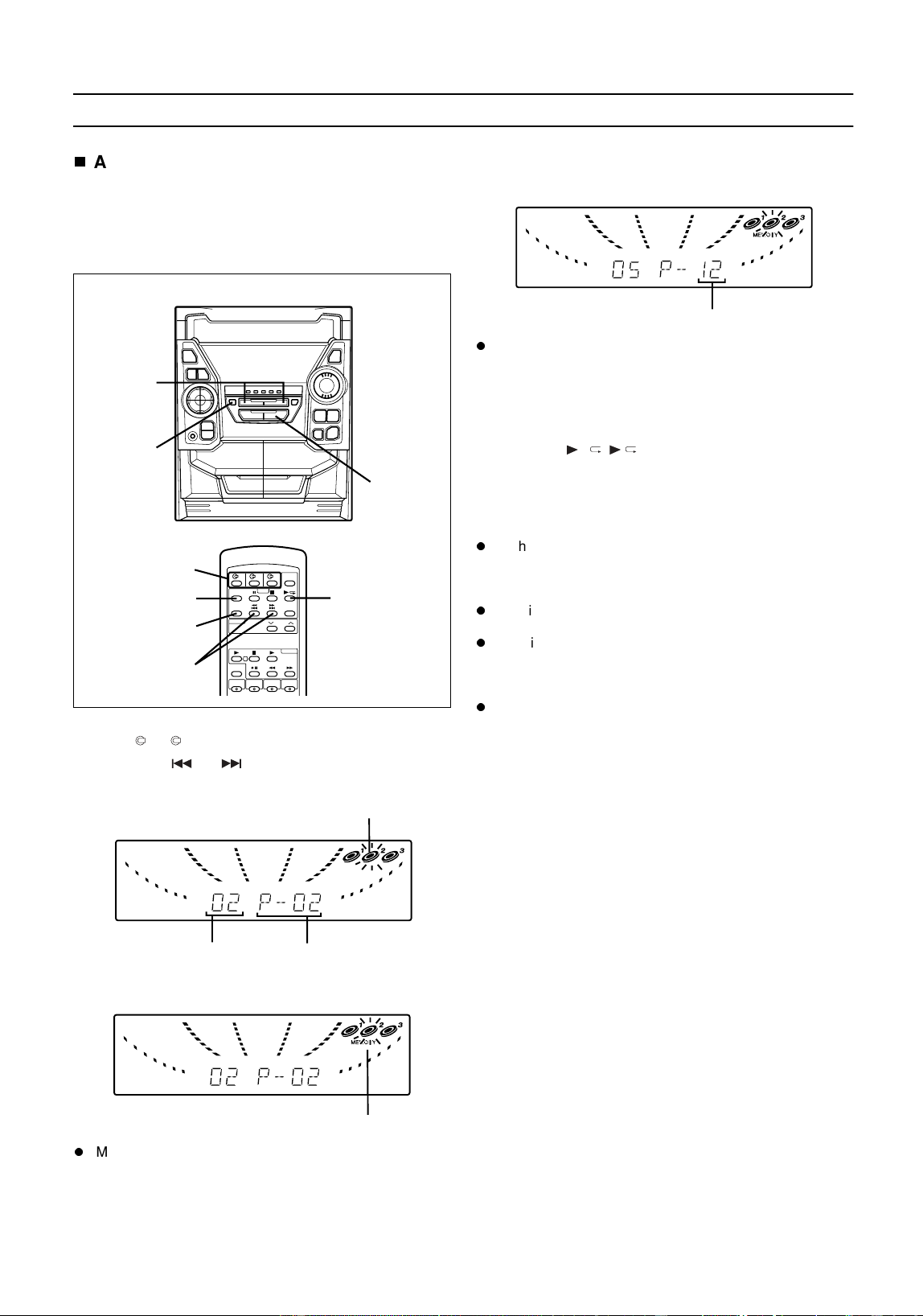
14
(Continued)
APMS (Automatic Programmable Music
Selector)
You can playback the tracks on the CDs in the disc 1 - 3
positions in any order. By specifying the disc numbers from
1 to 3, and the track numbers from 1 to 99, you can choose
up to 32 selections for playback in the order you like.
1
When in the stop mode, use the disc number but-
tons ( 1 - 3) to select the desired disc number.
2
Press the or button to select the desired
track.
3
Press the MEMORY/SET (MEMORY) button.
"MEMORY" will appear to show that the programmed
sequence is being entered into memory.
4
Repeat steps 1 - 3 for any other tracks. Up to 32
tracks can be programmed.
If you make a mistake whilst in the programming mode
("MEMORY" will appear) or if you wish to change your
selections, the programmed tracks can be cleared by
pressing the CLEAR button on the remote control. The
tracks will be cleared sequentially, starting with the last
track entered.
5
Press the / ( ) button to start playback of pro-
grammed selections.
To clear the programmed selections:
Press the CLEAR button on the remote control whilst the
disc is stopped.
Each time the button is pressed, one track will be
cleared, beginning with the last track programmed.
Notes:
Opening the disc tray automatically cancels the pro-
grammed sequence.
Even if you press the ON/STAND-BY button to enter the
stand-by mode or the function is changed from CD to
some other function, the programmed selections will not
be cleared.
During APMS operation, random play is not possible.
Selected disc number
Selected track number Playback order
MEMORY
2
3
5
CLEAR
1
3
5
2
Total number of tracks
Downloaded from: http://www.usersmanualguide.com/
15
(Continued)
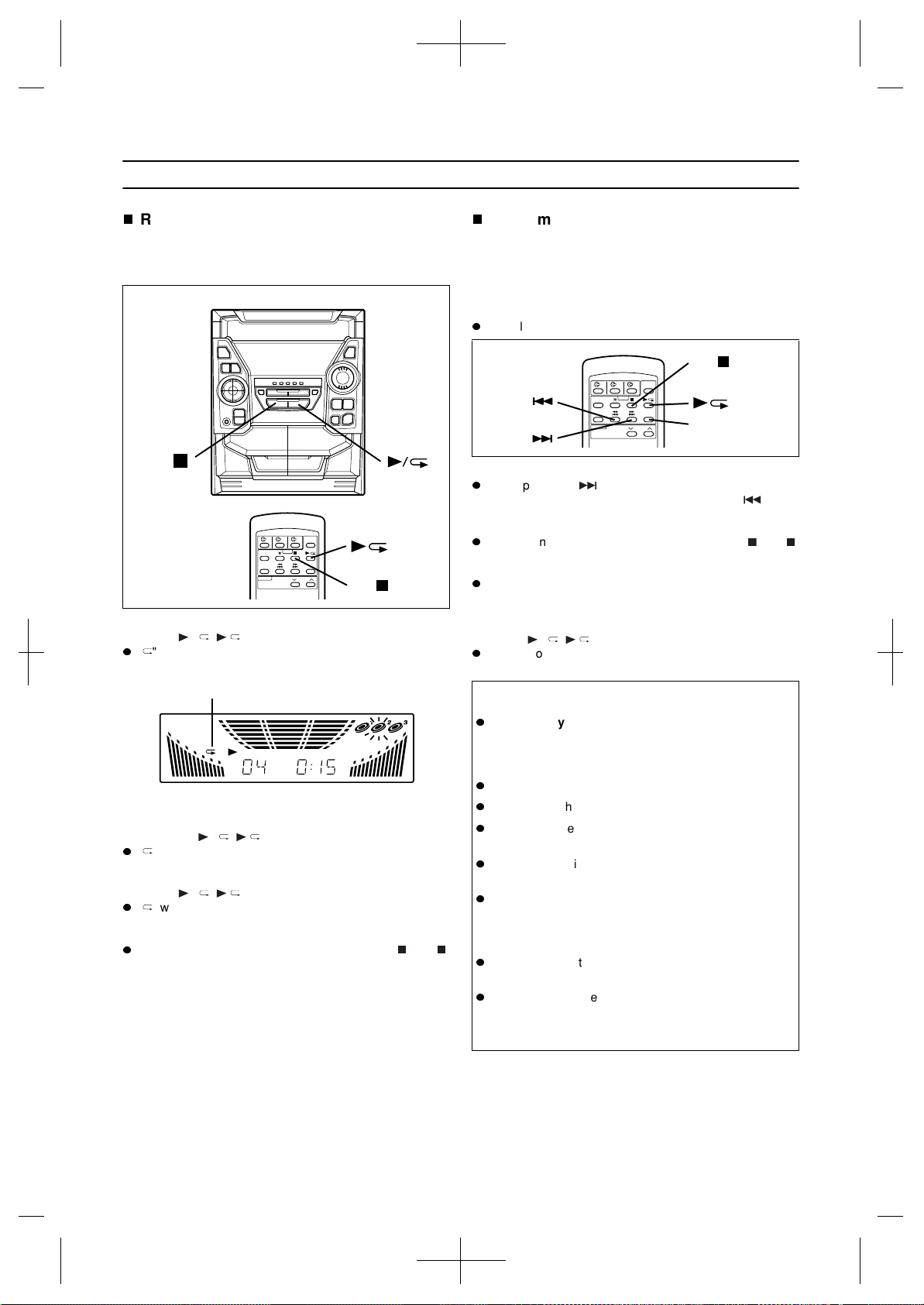
Repeat play
All tracks on up to 3 discs, or a programmed sequence can
be continuously repeated.
To repeat all tracks on up to 3 discs:
Press the / ( ) button twice.
" " will appear.
To repeat a programmed sequence:
1 Programme a sequence of up to 32 tracks.
2 Press the / ( ) button twice.
" " will appear.
To cancel repeat play:
Press the / ( ) button again.
" " will go out.
Note:
When using repeat play, be sure to press the (CD )
button after you are through listening. Otherwise, the
CD(s) will play continuously.
Random play
(Remote control operation)
The tracks on the disc(s) can be played in random order
automatically.
1
Load a disc(s) and close the disc tray.
2
Press the RANDOM button to begin random play.
"R" will appear.
Notes:
If you press the button during random play, you can
move to the next track. On the other hand, the button
does not allow you to move to the previous track. The
beginning of the track being played will be located.
When using random play, be sure to press the (CD )
button after you are through listening. Otherwise, the
disc(s) will play continuously.
In random play, the unit will select and play tracks auto-
matically. (You cannot select the order of the tracks.)
To cancel random play:
Press the / ( ) button.
"R" will go out.
Repeat play indicator
CD
Caution:
Do not carry the unit with discs left in the disc tray.
The discs may come loose inside the unit and they
may be damaged or cause damage to the unit. This
may also cause malfunctions.
Do not place two CDs in one disc position.
Do not push the disc tray whilst it is moving.
Do not turn the disc tray by hand. This may cause mal-
functions.
If the power fails whilst the tray is open, wait until the
power is restored.
If the disc tray is stopped forcibly, "ERR" will appear in
the display and the unit will not function. If this occurs,
press the ON/STAND-BY button to enter the stand-by
mode and then turn the power on again.
If TV or radio interference occurs during CD operation,
move the unit away from the TV or radio.
If a disc is damaged, dirty, or loaded upside down, the
disc will be skipped and the next disc will automatically
play.
RANDOM
CD
Downloaded from: http://www.usersmanualguide.com/
16
RADIO OPERATION
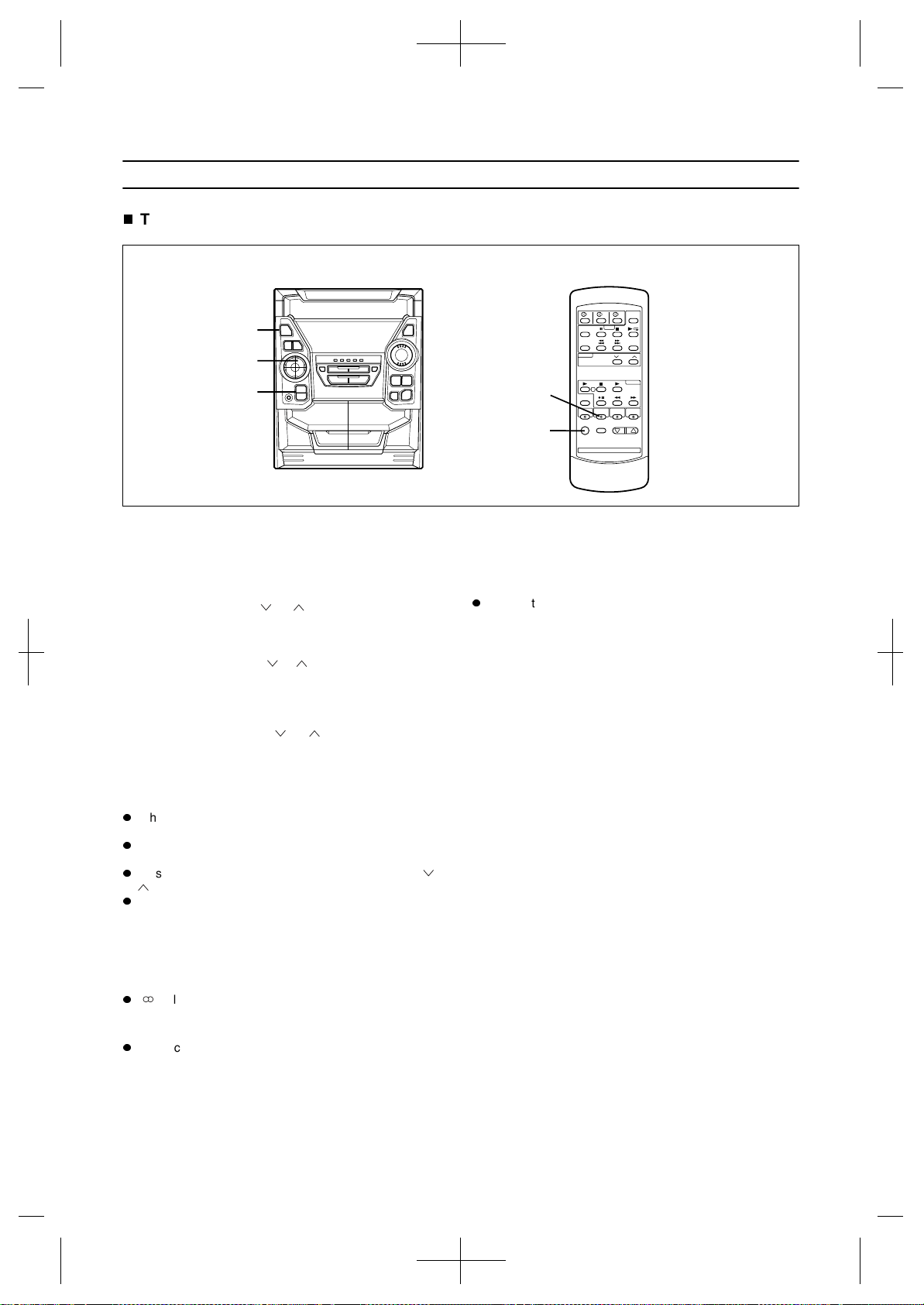
Tuning
1
Press the ON/STAND-BY button to turn the power
on.
2
Press the TUNER (BAND) button to select the
desired frequency band (FM ST, FM or AM).
3
Press the TUNING ( or ) button to tune into the
desired station.
Manual tuning:
Press the TUNING/TIME ( or ) button as many times as
required to adjust the frequency shown on the display to the
frequency of the desired station.
Auto tuning:
When the TUNING/TIME ( or ) button is pressed for
more than 0.5 seconds, scanning will start automatically
and the tuner will stop at the first receivable broadcast sta-
tion.
Notes:
When radio interference occurs during auto scan tuning,
auto scan tuning may stop automatically at that point.
If a weak station signal is found during auto scan tuning,
the station will be skipped.
To stop the auto tuning, press the TUNING/TIME ( or
) button again.
When an RDS (Radio Data System) station is tuned in,
the frequency will be displayed first, and then the RDS
indicator will light. Finally, the station name will appear.
4
To receive an FM stereo transmission, press the
TUNER (BAND) button so that the "ST" indicator on
the display lights up.
" " will appear when an FM broadcast is in stereo.
5
If the FM reception is weak, press the TUNER
(BAND) button so that the "ST" indicator goes out.
The reception changes to monaural, the sound becomes
clearer.
After use:
Press the ON/STAND-BY button to enter the stand-by
mode.
Note:
The last station tuned in will be recalled, even after
changing the tuning band or the function, or after switch-
ing the unit to the stand-by mode.
2,4,5
1
3
1
2,4,5
Downloaded from: http://www.usersmanualguide.com/
17
(Continued)
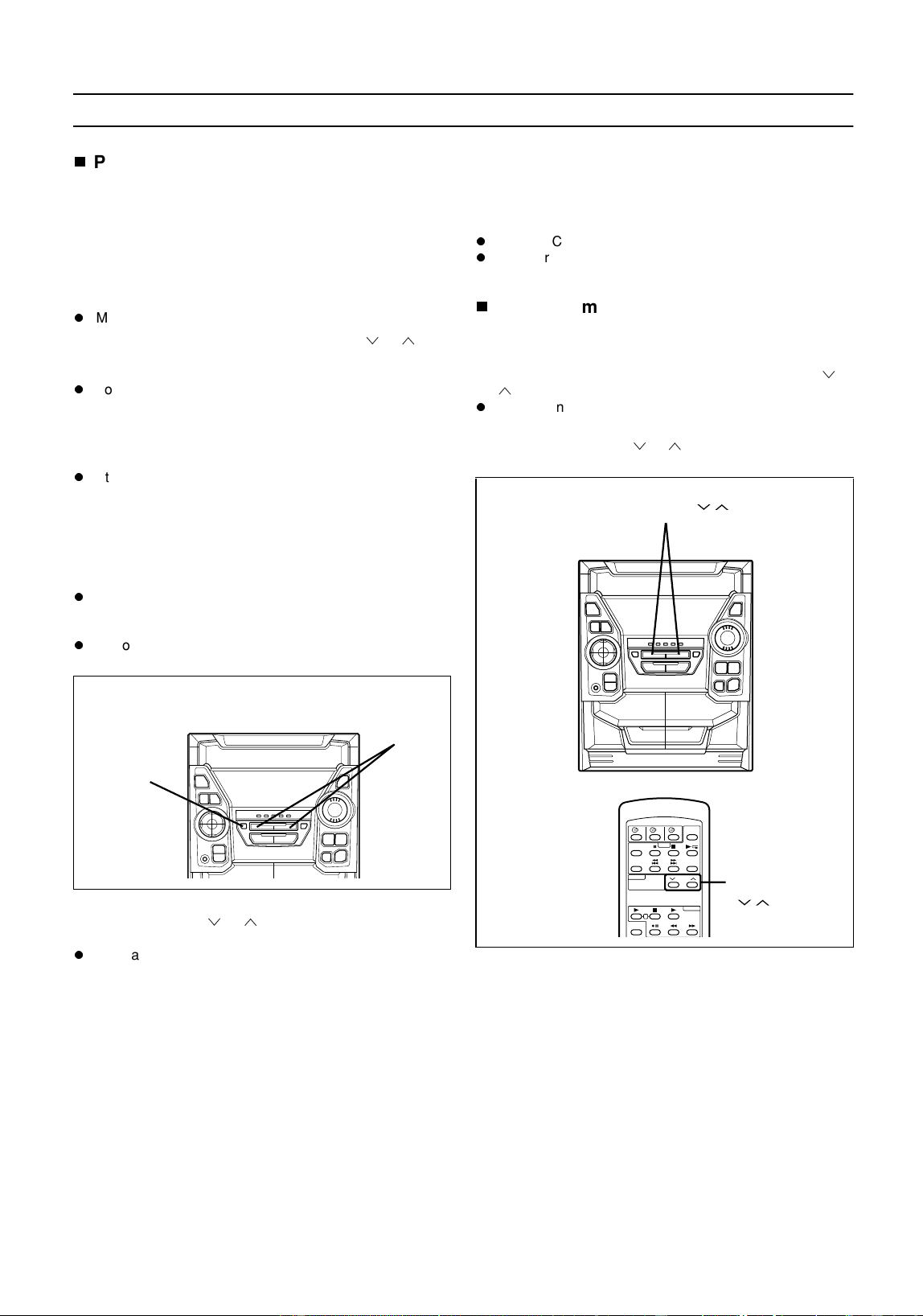
Preset tuning
You can store up to 40 stations in memory (40 stations con-
sisting of any combination of FM and AM stations) and
recall them at the push of a button.
To enter stations into memory:
1
Perform steps 1 - 5 in the "Tuning" section.
2
Press the MEMORY/SET button.
"MEMORY" and the preset channel number will flash.
3
Within 30 seconds, press the PRESET ( or ) but-
ton to make the preset channel number flash in the
display.
Store the stations in memory, in order, starting with pre-
set channel 1.
4
Within 30 seconds, press the MEMORY/SET button
to store that station in the selected station preset
number memory.
If the "MEMORY" and preset number indicators go out
before the station is memorised, repeat the operation
from step 2.
5
Repeat steps 1 - 4 to set other preset stations, or to
change a preset station.
Notes:
When a new station is stored in the selected station pre-
set number memory, the contents previously memorised
will be erased.
To store an RDS station in memory, perform steps 2 - 4
whilst the RDS station name is displayed.
To recall a memorised station:
Press the PRESET ( or ) button for less than 0.5 sec-
onds to select the desired station.
The stations (preset channel number, frequency and fre-
quency band) which have been stored in memory will
appear in the display in numerical order, irrespective of
the frequency bands.
Note:
When searching for a memorised station, do not press the
PRESET button for more than 0.5 seconds. When the PRE-
SET button is pressed for more than 0.5 seconds, the unit
will enter the preset memory scan mode.
Backup function:
The backup function protects all station presets for a few
hours should there be a power failure or the AC power lead
is removed from the AC socket.
To erase all the contents in the preset memory:
1 Press the ON/STAND-BY button to enter the stand-by
mode.
2 Press the ON/STAND-BY button whilst holding down the
TUNER (BAND) button and the X-BASS/DEMO button.
"TUNER CL" will appear.
After performing this operation, all of the preset memory
information will be erased.
Preset memory scan
The stations saved in the preset memory can be scanned
automatically.
1
To scan the preset stations, press the PRESET ( or
) button for more than 0.5 seconds.
The station preset number will flash and the programmed
stations will be tuned in sequentially, for 5 seconds each.
2
Press the PRESET ( or ) button again to stop the
memory scan at the desired station.
Note:
When the preset memory does not have any stations stored
in it, the preset memory scan will not function.
(Main unit operation)
2,4
3
PRESET( )
PRESET
( )
Downloaded from: http://www.usersmanualguide.com/
18
RDS (Radio Data System) OPERATION
RDS is a broadcasting service which a growing number of
FM stations are now providing. It allows these FM stations
to send additional signals along with their regular pro-
gramme signals. For example, the stations send their station
names, and information about what type of programme they
broadcast, such as sports or music, etc.
When tuned to an FM station which provides the RDS ser-
vice, the RDS will appear, and the station frequency (and
then the station name if sent) will be displayed.
"TP" (Traffic Programme) will appear on the display when
the received broadcast carries traffic announcements, and
"TA" (Traffic Announcement) will appear whilst a traffic
announcement is received.
"EON" will appear whilst the EON (Enhanced Other Net-
works information) data is broadcast.
"PTYI" (Dynamic PTY Indicator) will appear whilst the
Dynamic PTY station is received.
Note:
"TP" and "TA" appear at the same time during an announce-
ment. When only "TA" appears, an announcement is not
made. (See page 26.)
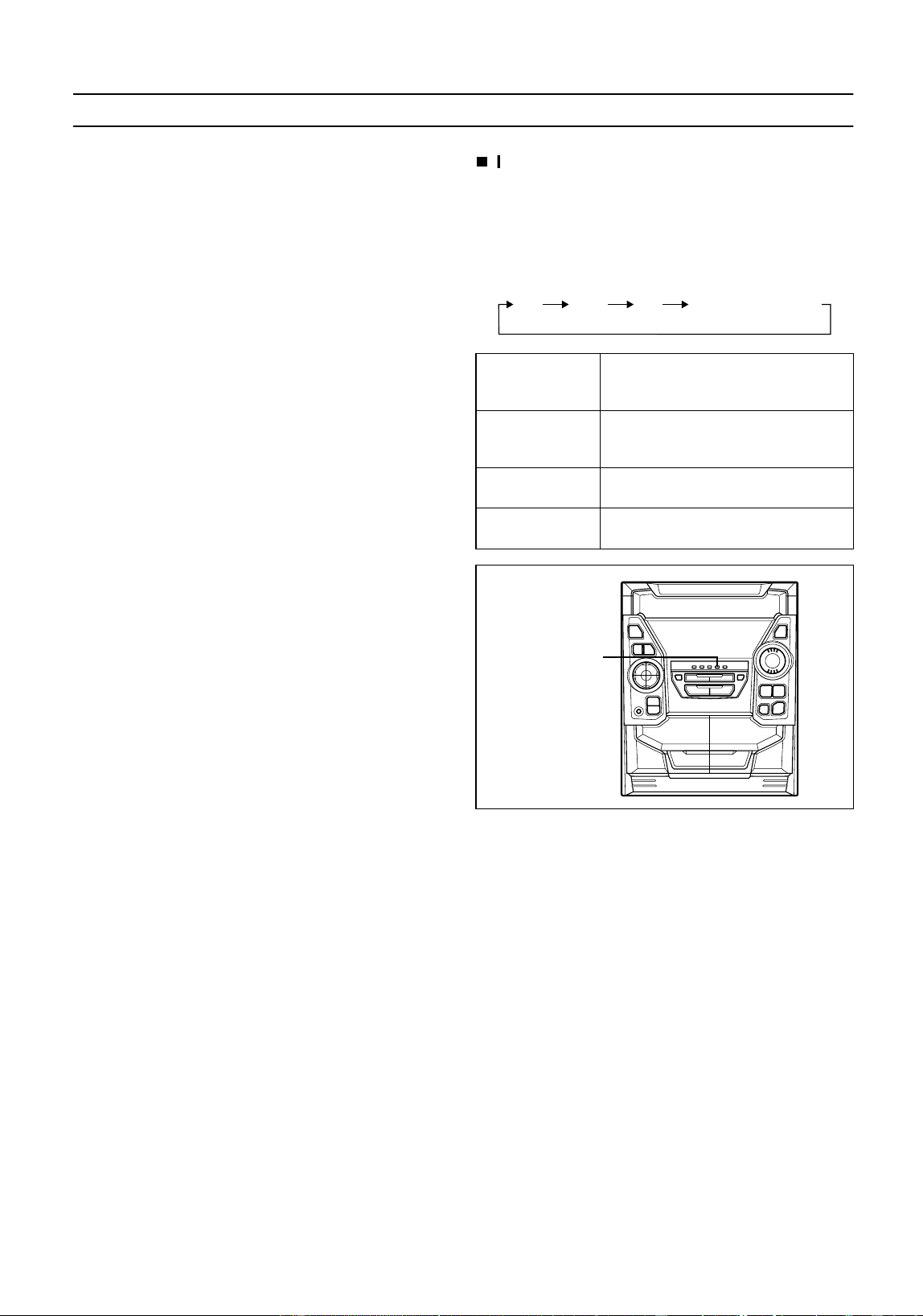
Information Provided by RDS
With the CD-BA1700H, you can display three types of RDS
service. To show them in the display, press the DISPLAY
MODE button. Each time you press the DISPLAY MODE
button, the display will change to show the following infor-
mation.
PS (Programme
Service)
Station names commonly known will
be displayed. "NO PS" appears if no
signal is received.
PTY (Program
Type)
Programme type will be displayed.
"NO PTY" appears if no signal is re-
ceived.
RT (Radio Text)
Radio text will be displayed. "NO RT"
appears if no signal is received.
Station
Frequency
Station frequencies.
PS RTPTY
Station Frequency
DISPLAY
MODE
Downloaded from: http://www.usersmanualguide.com/

19
(Continued)
Descriptions of the PTY (Programme Type) codes, TP (Traf-
fic Programme) and TA (Traffic Announcement).
With the CD-BA1700H, you can search for and receive the
following PTY, TP and TA signals.
Note:
When the unit is in the EON stand-by mode and a pro-
gramme is selected, the unit will display "TI" instead of
"TA".
NEWS:
Short accounts of facts, events and public-
ly expressed views, reportage and actuali-
ty.
AFFAIRS:
Topical programme expanding or enlarg-
ing upon the news, generally in different
presentation style or concept, including
debate, or analysis.
INFO:
Programmes whose purpose is to impart
advice in the widest sense.
SPORT:
Programme concerned with any aspect of
sport.
EDUCATE:
Programme intended primarily to educate,
of which the formal element is fundamen-
tal.
DRAMA:
All radio plays and serials.
CULTURE:
Programmes concerned with any aspect
of national or regional culture, including
language, theatre, etc.
SCIENCE:
Programmes about the natural sciences
and technology.
VARIED:
Used for mainly speech-based pro-
grammes usually of light-entertainment
nature, not covered by other categories.
Examples include: quizzes, panel games,
personality interviews.
POP M:
Commercial music, which would generally
be considered to be of current popular ap-
peal, often featuring in current or recent
record sales charts.
ROCK M:
Contemporary modern music, usually writ-
ten and performed by young musicians.
EASY M:
Current contemporary music considered
to be "easy-listening", as opposed to Pop,
Rock or Classical, or one of the special-
ised music styles, Jazz, Folk or Country.
Music in this category is often but not al-
ways, vocal, and usually of short duration.
LIGHT M:
Classical music for general, rather than
specialist appreciation. Examples of music
in this category are instrumental music,
and vocal or choral works.
CLASSICS:
Performances of major orchestral works,
symphonies, chamber music, etc., and in-
cluding Grand Opera.
OTHER M:
Musical styles not fitting into any of the oth-
er categories. Particularly used for special-
ist music of which Rhythm & Blues and
Reggae are examples.
WEATHER:
Weather reports and forecasts and meteo-
rological information.
FINANCE:
Stock Market reports, commerce, trading,
etc.
CHILDREN:
For programmes targeted at a young audi-
ence, primarily for entertainment and inter-
est, rather than where the objective is to
educate.
SOCIAL:
Programmes about people and things that
influence them individually or in groups. In-
cludes: sociology, history, geography, psy-
chology and society.
RELIGION:
Any aspect of beliefs and faiths, involving
a God or Gods, the nature of existence
and ethics.
PHONE IN:
Involving members of the public express-
ing their views either by phone or at a pub-
lic forum.
TRAVEL:
Features and programmes concerned with
travel to near and far destinations, pack-
age tours and travel ideas and opportuni-
ties. Not for use for announcements about
problems, delays, or roadworks affecting
immediate travel where TP/TA should be
used.
LEISURE:
Programmes concerned with recreational
activities in which the listener might partic-
ipate. Examples include, Gardening, Fish-
ing, Antique collecting, Cooking, Food &
Wine, etc.
JAZZ:
Polyphonic, syncopated music character-
ised by improvisation.
COUNTRY:
Songs which originate from, or continue
the musical tradition of the American
Southern States. Characterised by a
straightforward melody and narrative story
line.
NATION M:
Current Popular Music of the Nation or Re-
gion in that country's language, as op-
posed to International 'Pop' which is
usually US or UK inspired and in English.
OLDIES:
Music from the so-called "golden age" of
popular music.
FOLK M:
Music which has its roots in the musical
culture of a particular nation, usually
played on acoustic instruments. The nar-
rative or story may be based on historical
events or people.
DOCUMENT:
Programme concerned with factual mat-
ters, presented in an investigative style.
TEST:
Broadcast when testing emergency broad-
cast equipment or receivers.
ALARM !:
Emergency announcement made under
exceptional circumstances to give warning
of events causing danger of a general na-
ture.
NONE:
No programme type (receive only).
TP:
Broadcasts which carry traffic announce-
ments.
TA:
Traffic announcements are currently on
air.
Downloaded from: http://www.usersmanualguide.com/
20
(Continued)
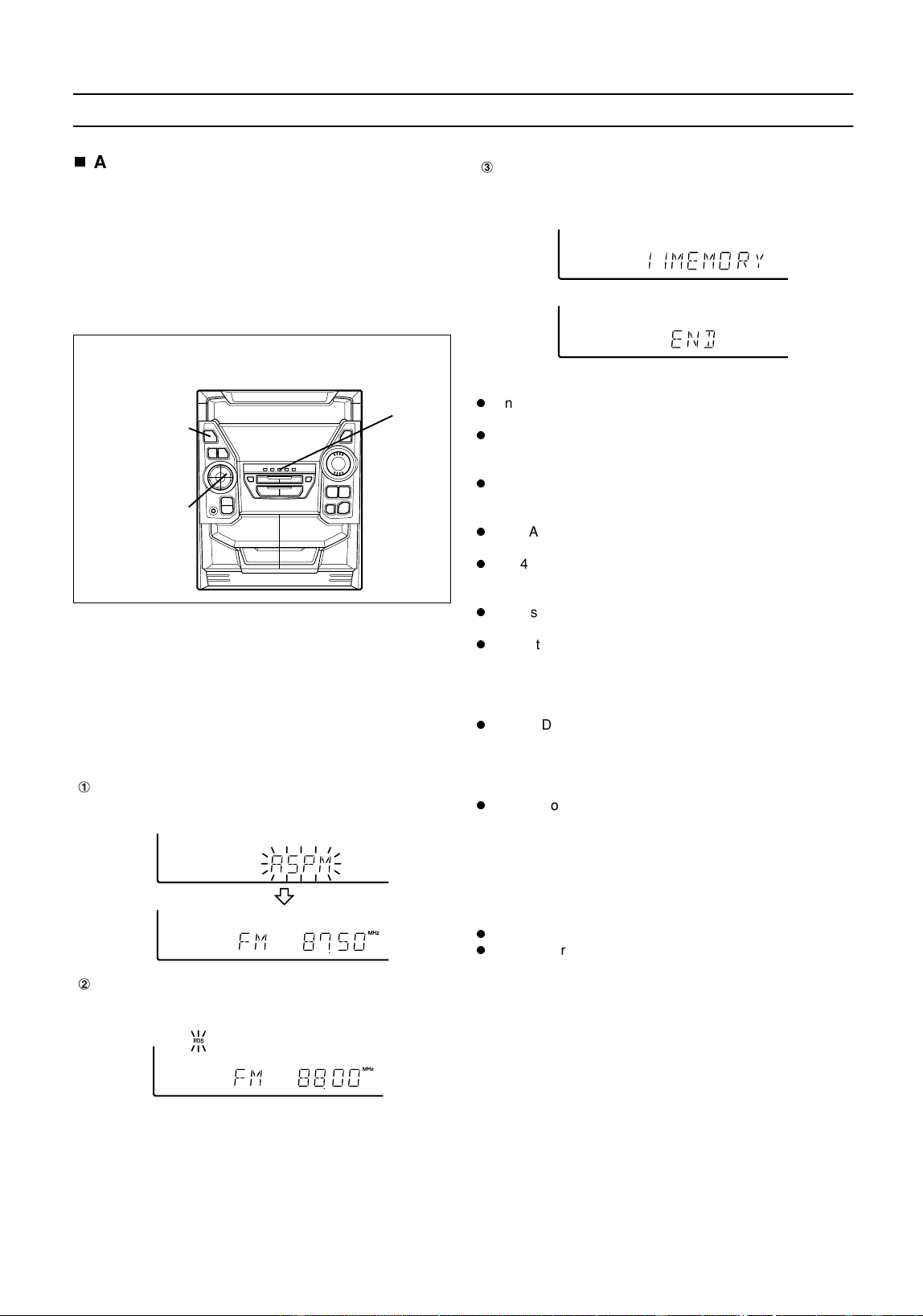
ASPM (Auto Station Program Memory)
It is recommended that you store stations in memory using
ASPM. (This memory can be used for PTY searches, sta-
tion select and EON switching.)
When the ASPM button is pressed whilst tuned to the FM
band, the RDS (Radio Data System) function will automati-
cally search for new RDS stations. Up to 40 stations can be
stored in memory. (If you have already stored some stations
in memory, the number of new stations you can store will be
less.)
1
Press the ON/STAND-BY button to turn the power
on.
2
Press the TUNER (BAND) button.
3
Press the TUNER (BAND) button to select the FM ST
or FM band.
4
Press and hold down the ASPM button for at least 3
seconds.
Notes:
Only RDS stations will be stored in memory in numerical
order.
If the same station is broadcasting on different frequen-
cies, the transmission with the strongest broadcast fre-
quency will be stored in memory.
Any station which has the same frequency as one which
has been already stored in memory will not be stored
again.
The ASPM operation can be repeated until "END"
appears.
If a 40th station is stored in memory during a scan, the
scanning will stop at that station. The number of stations
and "END" will each be displayed for 4 seconds.
If no stations have been stored in memory, "END" will
appear for about 4 seconds.
If 40 stations have already been stored in memory and
the ASPM button is pressed, "END" will appear immedi-
ately and the scan will be aborted. If you want to redo the
ASPM operation from the beginning, erase the preset
memory, and then perform steps 1 - 4.
If the RDS station broadcast signals are very weak, sta-
tion names may not be stored in memory.
To stop the ASPM operation before it is complete:
Press the ASPM button whilst it is scanning for stations.
The stations that have already been stored in memory
will be kept there.
To erase all the contents in the preset memory:
1 Press the ON/STAND-BY button to enter the stand-by
mode.
2 Press the ON/STAND-BY button whilst holding down the
TUNER (BAND) button and the X-BASS/DEMO button.
"TUNER CL" will appear.
After performing this operation, all of the preset memory
information will be erased.
(Main unit operation)
After "ASPM" has flashed for about 4 seconds, scanning
will start (87.50 - 108.00 MHz).
When an RDS station is found, the RDS will appear for
a short time and the station will be stored in memory.
2,3
1
4
After scanning, the number of stations that have been
automatically stored in memory will be displayed for 4
seconds, and then "END" will appear for 4 seconds.
Downloaded from: http://www.usersmanualguide.com/
21
(Continued)
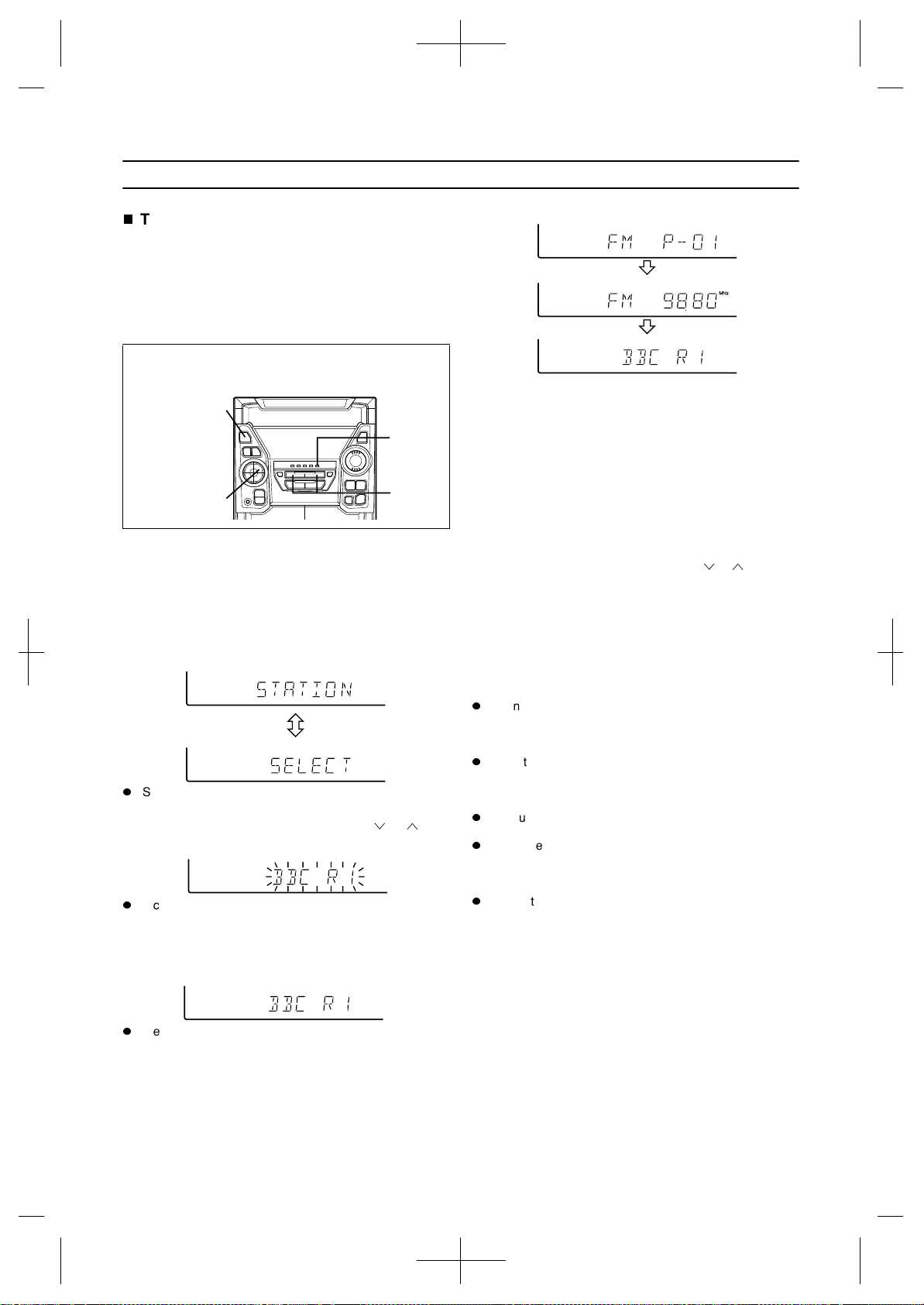
To specify station names and select sta-
tions manually (station select)
You can receive a desired station by specifying the station
name (BBC R1, BBC R2, etc.) from among the stations that
have been stored in memory. (ASPM is convenient for stor-
ing stations in memory.)
Before starting this operation, you must store one or more
station names in memory.
1
Press the ON/STAND-BY button to turn the power
on.
2
Press the TUNER (BAND) button.
3
Press the TUNER (BAND) button to select the FM ST
or FM band.
4
Press the STATION button.
"STATION" and "SELECT" will appear alternately for
about 6 seconds.
5
Within 6 seconds, press the PRESET ( or ) but-
ton to select a desired station name.
Each time the button is pressed, the station name will
appear. If the button is held down for more than 0.5 sec-
onds, the station name will continuously change.
6
Whilst the selected station name is flashing (within
6 seconds), press the STATION button again.
After the selected station name has been lit for 1 second,
the preset station which corresponds to the selected sta-
tion name will be recalled.
To cancel the station select operation:
Press the STATION button whilst "STATION" and "SELECT"
appear alternately.
To store a station name again, if the wrong name was
stored in memory by mistake:
When you store station names in memory using the ASPM
function, the correct station names may not actually be
stored if there is lots of noise or if the RDS station signal is
too weak. In this case, store station names in memory using
the following procedure.
1 Press the STATION button.
2 Within 6 seconds, press the PRESET ( or ) button to
check whether the station names are correct.
3 If you find a station name that is wrong, press the STA-
TION button again within 6 seconds to recall the preset
station, which corresponds to the station name.
4 After the preset station has been received and the cor-
rect station name has been displayed, press the MEM-
ORY/SET button.
5 Within 30 seconds, press the MEMORY/SET button
whilst the preset channel number is flashing.
The new station name has been stored in memory cor-
rectly.
Notes:
When there are no station names stored in memory, you
cannot use this function. In this case, when the STATION
button is pressed, "NOTHING" will flash for 5 seconds,
and the unit will return to the original display.
This function can only be used when the FM band has
been selected.
The same station name can be stored in different preset
channels. Therefore, when you are choosing a station
name from the presets, the same station name may be
encountered more than once.
In a certain area or during certain time periods, the sta-
tion names selected using the station select function may
temporarily be different from the name of the station you
are actually receiving.
(Main unit operation)
1
4,6
2,3
5
Downloaded from: http://www.usersmanualguide.com/
22
(Continued)
To recall stations that have been stored in
memory (PTY search)
You can search for desired stations by specifying the pro-
gramme type (news, sports, traffic programme, etc. ... see
page 19) from among the stations that have been stored in
memory. (ASPM is convenient for storing stations in mem-
ory.)
1
Press the ON/STAND-BY button to turn the power
on.
2
Press the TUNER (BAND) button.
3
Press the TUNER (BAND) button to select the FM ST
or FM band.
4
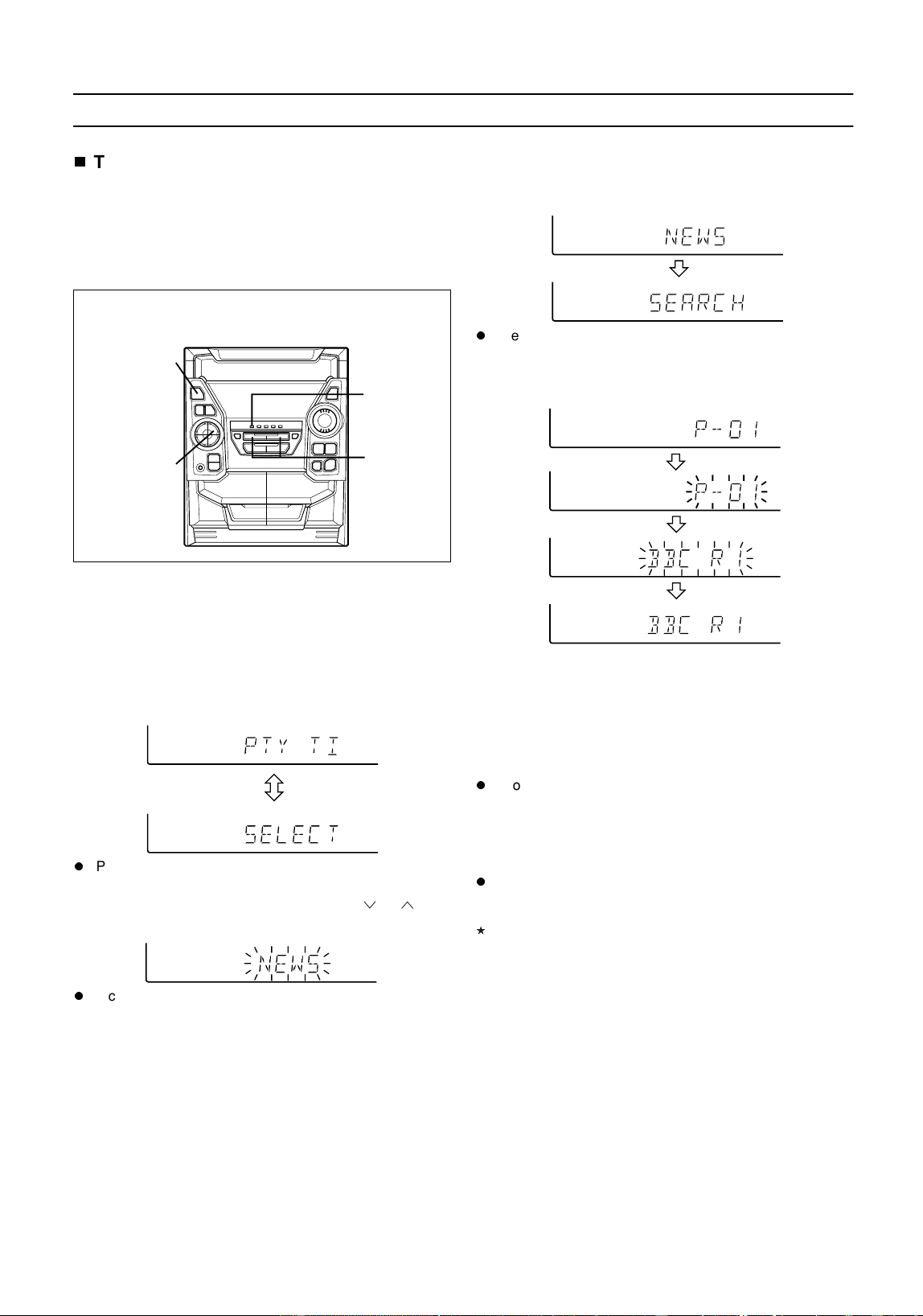
Press the PTY.TI SEARCH button.
"PTY TI" and "SELECT" will appear alternately for about
6 seconds.
5
Within 6 seconds, press the PRESET ( or ) but-
ton to select the programme type you want.
Each time the button is pressed, the programme type will
appear. If the button is held down for more than 0.5 sec-
onds, the programme type will appear continuously.
6
Whilst the selected programme type is flashing
(within 4 seconds), press the PTY.TI SEARCH button
again.
After the name of the selected programme type has been
lit for 2 seconds, "SEARCH" will appear, and the search
operation will start.
Note:
If the programme type has changed from flashing to steadily
lit and the PTY.TI SEARCH button is pressed, nothing will
happen. In this case, start again from step 4.
Each time a station of the programme type you want is
encountered, you will be able to listen to the broadcast.
The channel number will flash for about 3 seconds. The sta-
tion name will flash for 7 seconds, and then remain lit.
If you want to listen to another station of that programme
type, press the PTY.TI SEARCH button whilst the chan-
nel number or station name is flashing. The unit will look
for the next station of that type.
Note:
If no station of the programme type you want can be
found, "NOT FOUND" will appear for 4 seconds.
If you have selected the traffic programme:
If you select traffic programme (TP) as the programme type
in step 5 to receive only radio stations which broadcast traf-
fic programmes, "TP" will appear. (However, this does not
necessarily mean that you will hear any traffic announce-
ments at that time.) During a traffic announcement, "TA" will
appear. (Both "TP" and "TA" will appear during an
announcement.)
(Main unit operation)
4,6
2,3
1
5
Downloaded from: http://www.usersmanualguide.com/
23
(Continued)
To manually recall the stations stored in
memory
Press the PRESET ( or ) button.
Each time the button is pressed, the channel number will
change.
After the channel number has been displayed for 2 sec-
onds, the frequency for that channel will appear for 2 sec-
onds, and then the station name will appear.
Notes for Radio text
The radio text for 8 characters will be displayed steadily
for 4 seconds and then it will scroll across the display.
In the radio text position, "NO RT" will appear if the RDS
station is not broadcasting any radio text.
Whilst radio text data is received or when the text con-
tents change, "RT" will be displayed.
Notes for RDS operation
If any of the following events occur, it does not mean that the
unit is faulty.
"PS", "NO PS" and a station name appear alternately,
and the unit does not operate properly.
If a particular station is not broadcasting properly or a
station is conducting tests, the RDS reception function
may not work properly.
When you receive an RDS station whose signal is too
weak, information like the station name may not be dis-
played, even if "RDS" is lit.
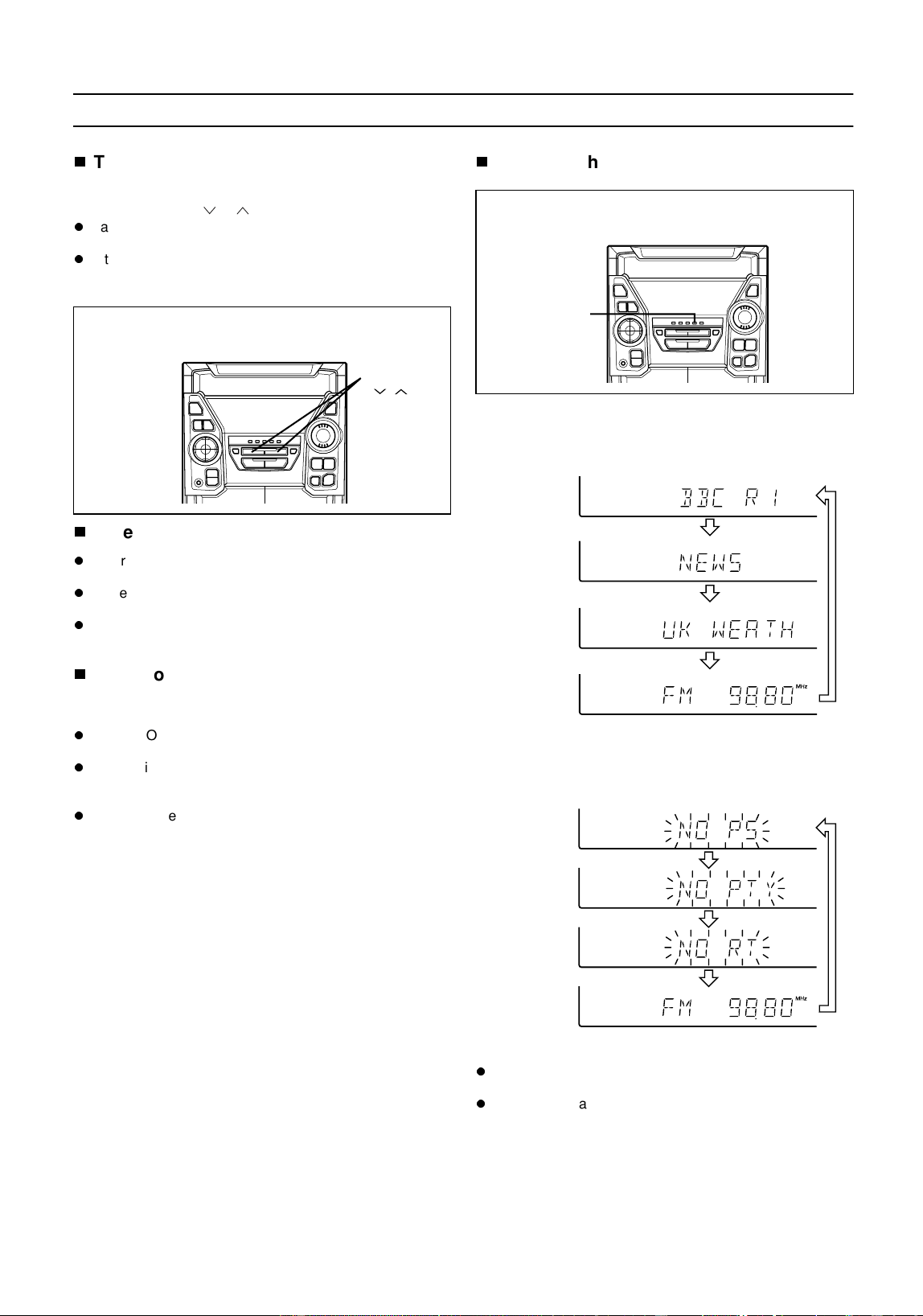
To switch the display
Each time the DISPLAY MODE button is pressed whilst an
FM station is tuned in, the display will switch as follows:
When the station you are tuning in is not an RDS station or
even if it is an RDS station but it is very weak signal, the dis-
play will change in the following order:
Notes:
"NO PS", "NO PTY" or "NO RT" will flash for about 5 sec-
onds, and then the frequency will be displayed.
The display can only be switched whilst tuned to the FM
band.
(Main unit operation)
PRESET
( )
(Main unit operation)
DISPLAY
MODE
Station
name (PS)
Programme
type (PTY)
Radio text
(RT)
Frequency
"NO PS"
"NO PTY"
"NO RT"
Frequency
Downloaded from: http://www.usersmanualguide.com/
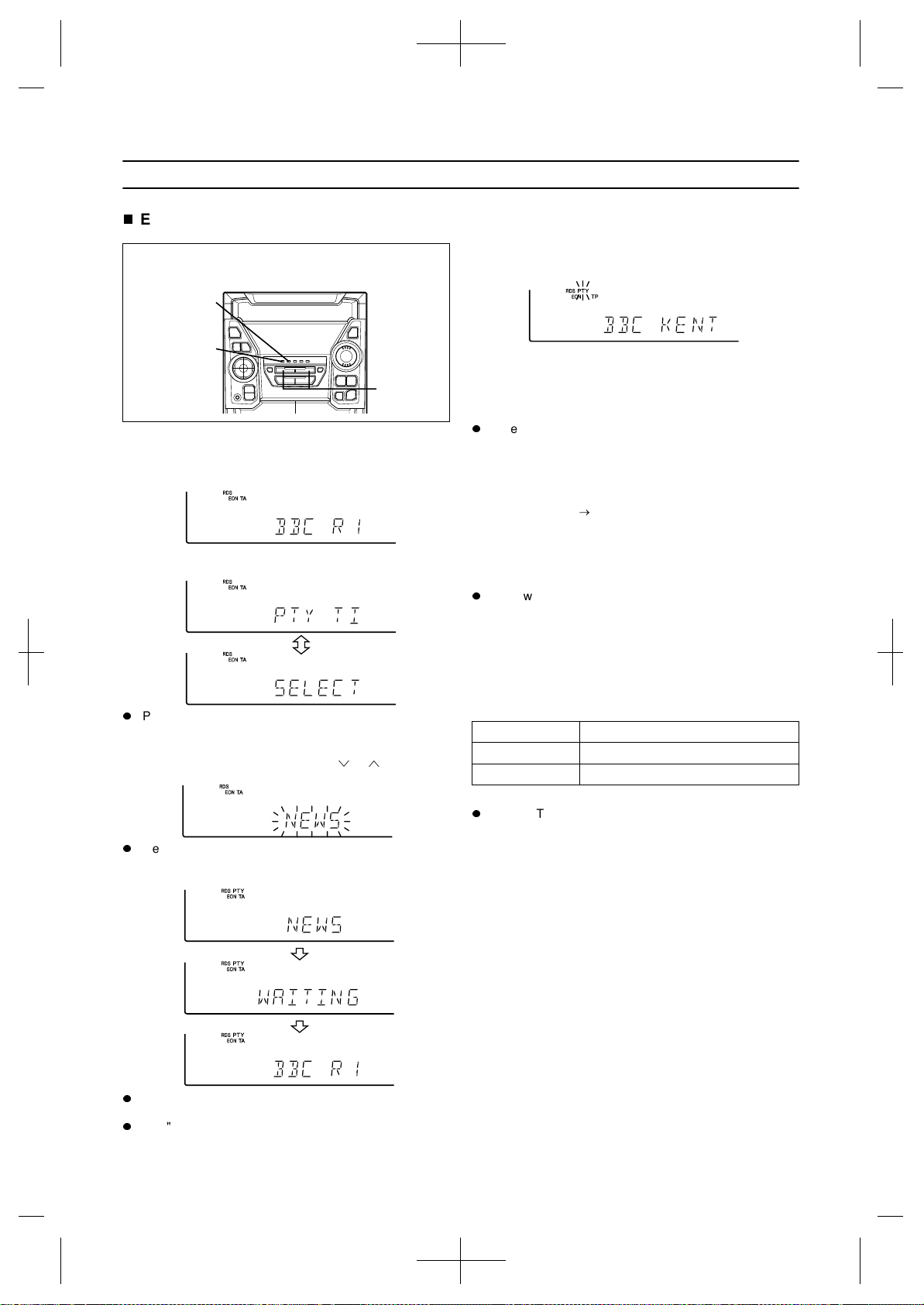
24
(Continued)
EON-PTY
1
Tune in the desired RDS station (whilst a station
name is displayed).
2
Press the EON button when "EON" appears.
"PTY TI" and "SELECT" will appear alternately for about
6 seconds.
3
Whilst they are displayed, select the desired pro-
gramme type using the PRESET ( or ) button.
The selected programme type will flash.
4
Within 4 seconds, press the PTY.TI SEARCH button.
The selected programme type and "WAITING" will be dis-
played for 2 seconds each.
"PTY" will appear, and the unit will enter the EON-PTY
stand-by mode.
5
When a programme of the type specified starts on
an ON (other network) station, the unit will automati-
cally switch to the station broadcasting the selected
programme type, and "PTY" will flash.
6
When the programme specified for the ON station is
over, the unit will automatically return to the original
station you were tuned to.
Note:
If the EON button is pressed when "EON" is not dis-
played, "NO EON" will appear for 5 seconds to indicate
that the unit cannot enter the EON stand-by mode.
Checking the stand-by mode setting:
When in the EON stand-by mode, press the EON button.
("Programme type" "WAITING")
To cancel the EON stand-by mode:
When in the EON stand-by mode, press the EON button.
Within 4 seconds, press it again. The EON stand-by mode
will be cancelled.
"PTY" will go out.
About the PTYI (Dynamic PTY Indicator):
PTYI (Dynamic PTY Indicator) will appear whilst the
Dynamic PTY station is received. Dynamic PTY indicates
that the PTY for the station tuned in, or the PTY referenced
in the EON data, is assessed whenever the programme
changes and may be changed.
Note:
When "PTYI" appears, if you press the DISPLAY MODE
button to display the programme type, you can check the
type of programme you are actually receiving.
(Main unit operation)
2
3
4
PTYI Meaning
Lights up Tuned into a dynamic PTY station.
Goes out Tuned into a static PTY.
Downloaded from: http://www.usersmanualguide.com/
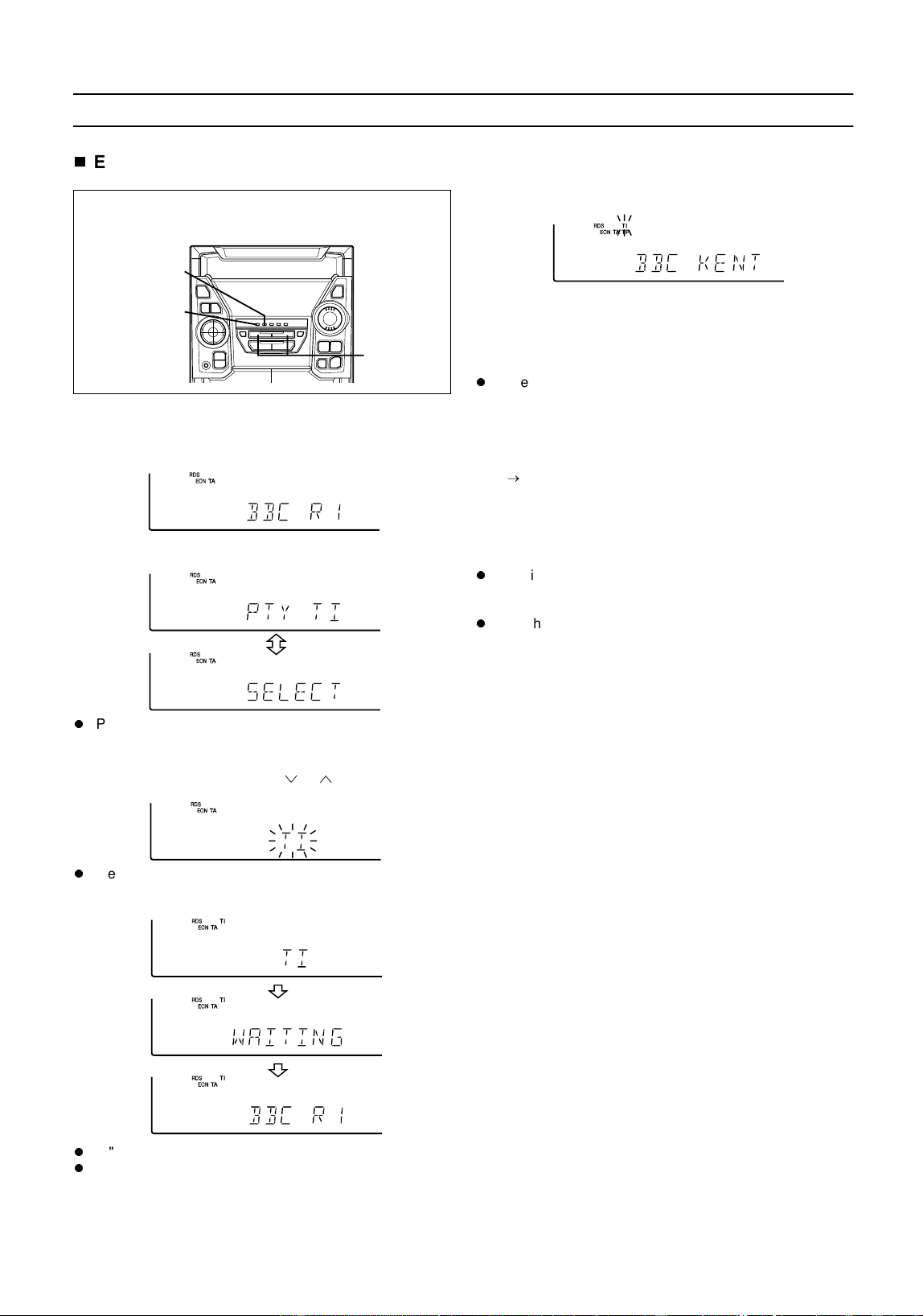
25
(Continued)
EON-TI
1
Tune in the desired RDS station (whilst a station
name is displayed).
2
Press the EON button when "EON" appears.
"PTY TI" and "SELECT" will appear alternately for about
6 seconds.
3
Whilst they are displayed, select the TI (Traffic Infor-
mation) using the PRESET ( or ) button.
The selected "TI" will flash.
4
Within 4 seconds, press the PTY.TI SEARCH button.
"TI" and "WAITING" will appear for 2 seconds each.
"TI" will appear, and the unit will enter the EON-TI stand-
by mode.
5
When a TA specified starts on an ON (other network)
station, the unit will automatically switch to that sta-
tion, and "TI" will flash.
6
When the traffic announcement is over, the unit will
automatically return to the original station you were
tuned to.
Note:
If the EON button is pressed when "EON" is not dis-
played, "NO EON" will appear for 5 seconds to indicate
that the unit cannot enter the EON stand-by mode.
Checking the stand-by mode setting:
When in the EON stand-by mode, press the EON button.
("TI" "WAITING")
To cancel the EON stand-by mode:
When in the EON stand-by mode, press the EON button.
Within 4 seconds, press it again. The EON stand-by mode
will be cancelled.
"TI" will go out.
Note:
If neither "TP" nor "TA" appear, then even if "EON"
appears, the unit cannot enter the EON-TI stand-by
mode. In this condition, if the PTY.TI SEARCH button is
pressed after TI is selected, "NO TI" will flash for 4 sec-
onds.
(Main unit operation)
2
3
4
Downloaded from: http://www.usersmanualguide.com/
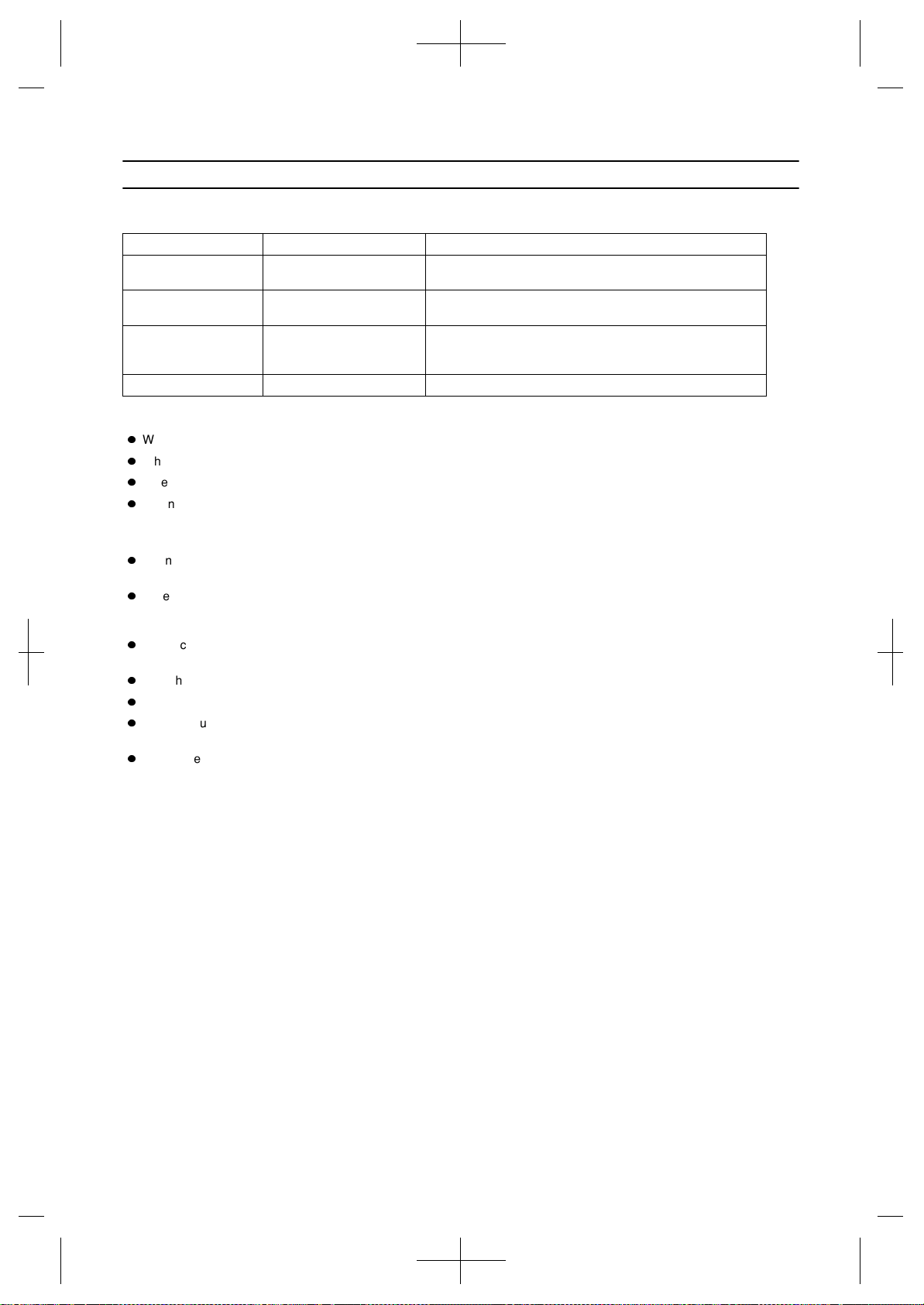
26
(Continued)
About the TP and TA indicators
TP indicator TA indicator Meaning
Not lit Not lit This programme does not carry traffic announcements nor
does it refer, via EON, to a programme that does.
Not lit Lit This programme carries EON information about another pro-
gramme which gives traffic information.
Lit Not lit This programme carries traffic announcements but none are
currently on air and may also carry EON information about
other traffic announcements.
Lit Lit A traffic announcement is currently on air on this programme.
In the following cases, the EON stand-by mode will be cancelled.
When the unit is set in the stand-by mode.
When the unit is switched to another band in the EON stand-by mode.
When you change the FM station whilst in the EON stand-by mode.
When a preset call is made.
Notes:
During the same programme as the specified PTY (or TA) is being broadcast on the station you are receiving, the unit
will not switch to other network station.
If there are more than two other network stations you want to listen to, compare the strength of each station's signal and
tune in the station with the strongest signal. (EON-AF) However, if the frequency of other network station has been stored
in the preset channel memory, the unit will switch to that preset channel.
To cancel the ON (other network) station tuned in by the EON system and to return to the original station, press the EON
button.
After the unit returns to the original station, the stand-by mode will still be active. (The "TI" or "PTY" will remain lit.)
The unit will not switch from the ON station to another network station. The unit returns to the original station.
When the unit switches automatically to "other network" station, "WEAK SIG" will appear and the unit will return to the
original station if there is any problem with this station or the station cannot be received properly.
Even if the unit switches from the station you are listening to directly to some "other network" station, the unit will search
for the station with the strongest signal and switch to it if the signals from the other network stations are very weak. How-
ever, if the signals from all the other network stations are very weak, or if the tuning conditions are very bad (due to elec-
trical noise), the unit will stop searching, "WEAK SIG" will be displayed, and the unit will return to the original station you
were receiving.
Downloaded from: http://www.usersmanualguide.com/
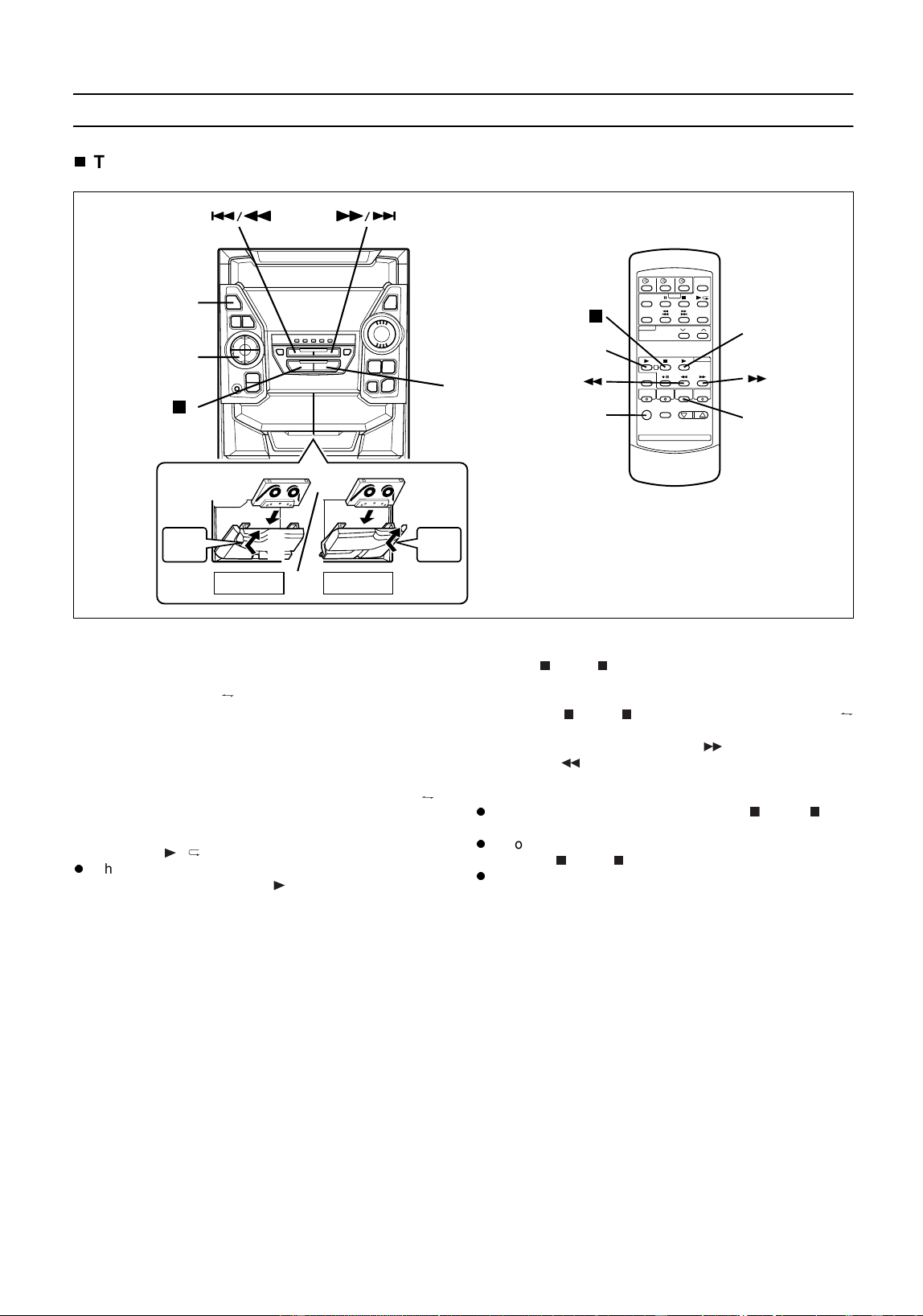
27
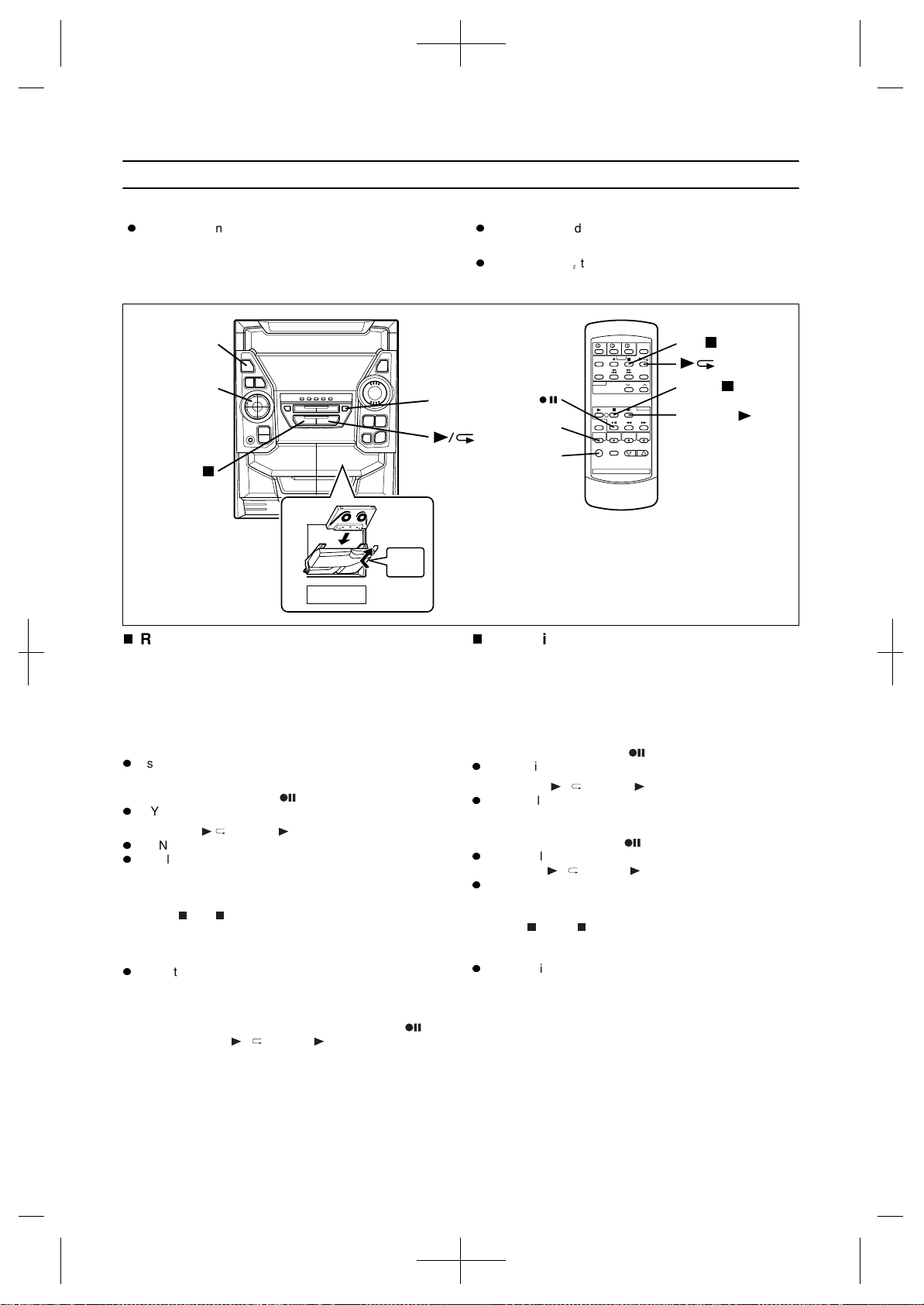
CASSETTE OPERATION
TAPE 1 or TAPE 2 playback
1
Press the ON/STAND-BY button to turn the power
on.
2
Press the TAPE (1 2) button.
3
Open the cassette door by pushing the area marked
"PUSH EJECT".
4
Load the cassette into the TAPE 1 or TAPE 2 cas-
sette compartment.
5
With cassettes in both decks, press the TAPE (1 2)
button to switch operation from one deck to the
other.
6
Press the / button to start playback.
When playback is performed using the remote control,
press the TAPE 1 or TAPE 2 button.
To stop playback:
Press the (TAPE ) button.
Fast forward/rewind: (TAPE 2 only)
1 Press the (TAPE ) button, then press the TAPE (1
2) button to select TAPE 2.
2 To advance the tape, press the button. To rewind it,
press the button.
Caution:
To remove the cassette tape, press the (TAPE ) but-
ton, and then open the cassette compartment.
Before changing from one tape operation to another,
press the (TAPE ) button.
If a power failure occurs during tape operation, the tape
head will remain engaged with the tape and the cassette
door will not open. In this case, wait until power is
restored.
1
2,5
6
TAPE 1 TAPE 2
PUSH
EJECT
PUSH
EJECT
4
3
3
4
TAPE
1
6
6
2,5
Downloaded from: http://www.usersmanualguide.com/
28
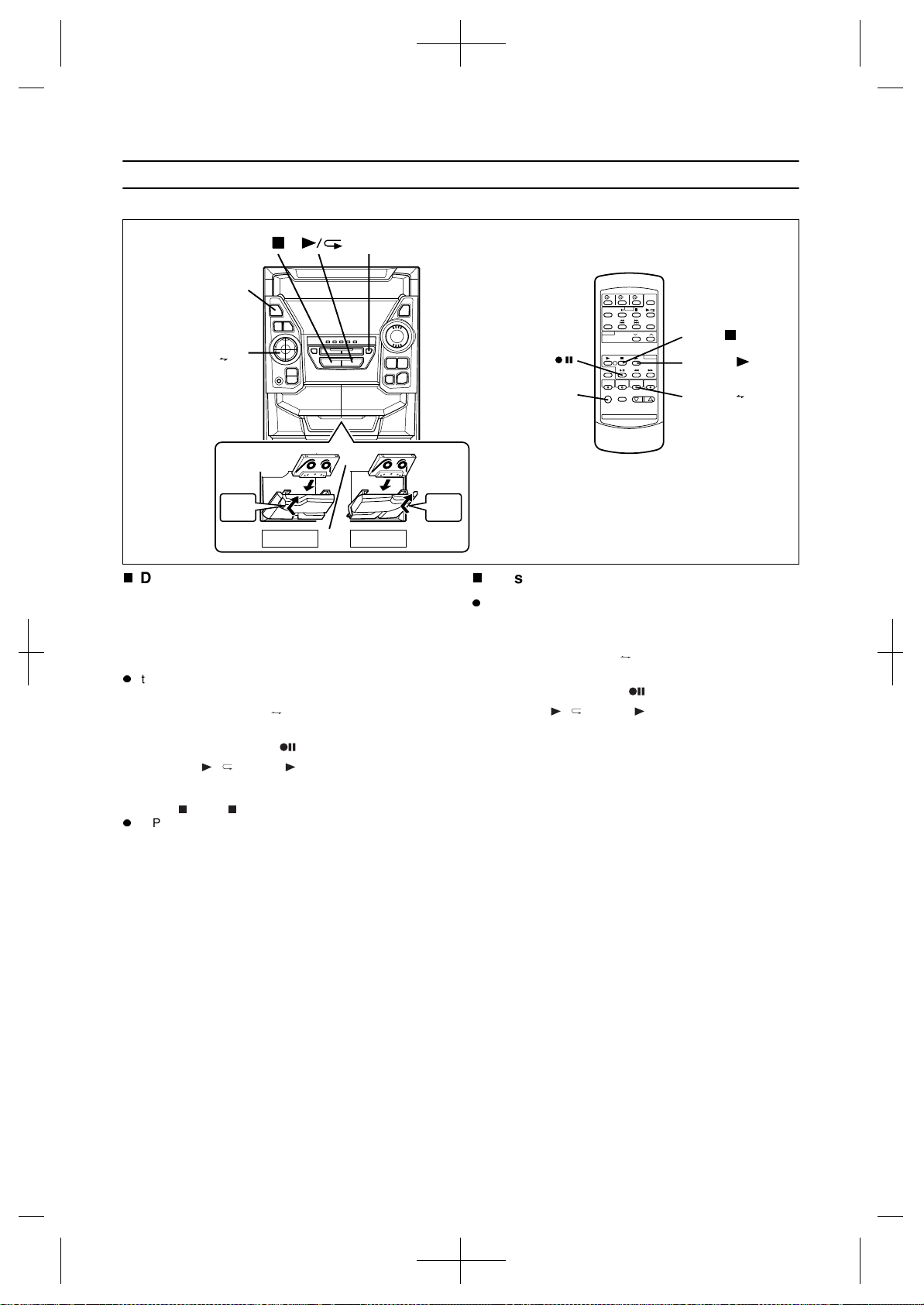
RECORDING
Recording from the built-in CD player (CD
Synchronised Recording System)
1
Press the ON/STAND-BY button to turn the power
on.
2
Load a cassette into the TAPE 2 cassette compart-
ment.
3
Press the CD button and load the desired disc.
Use the APMS function to store the tracks you want to
record in memory. (See page 14.)
4
Press the REC PAUSE ( ) button.
"SYNC" and "REC" will flash.
5
Press the / (TAPE 2 ) button.
"SYNC" will disappear and "REC" will light up.
CD playback will start approximately 5 seconds after the
tape starts.
To stop recording:
Press the (CD ) button.
The CD and tape will stop.
Note:
When the end of the tape is reached whilst recording, the
CD player will display the track number which was being
played at that time, and stop automatically. If you want to
restart recording from the beginning of the interrupted
track, turn over the tape, press the REC PAUSE ( ) but-
ton and then the / (TAPE 2 ) button. (If tracks have
been stored in memory using the APMS function, record-
ing will restart from the first track stored in memory.)
Recording from the built-in radio
1
Press the ON/STAND-BY button to turn the power
on.
2
Load a cassette into the TAPE 2 cassette compart-
ment.
3
Tune in to the desired station (pages 16 - 17).
4
Press the REC PAUSE ( ) button.
"REC" will flash.
5
Press the / (TAPE 2 ) button.
"REC" will appear.
To interrupt recording:
1 Press the REC PAUSE ( ) button.
"REC" will flash.
2 Press the / (TAPE 2 ) button.
"REC" will appear.
To stop recording:
Press the (TAPE ) button.
Note:
If a whistling noise is heard whilst recording from an AM
station, move the AM loop aerial to a position where
noise is no longer heard from the unit.
When recording important selections, be sure to make a
preliminary test to ensure that the desired material is be-
ing properly recorded.
The volume and sound quality can be adjusted with no
effect on the recorded signal (Variable Sound Monitor).
Metal and CrO tapes should not be used for recording
or dubbing.
TAPE
CD
TAPE 2
PUSH
EJECT
ON/
STAND-BY
CD
REC PAUSE
CD
ON/
STAND-BY
TAPE 2
Downloaded from: http://www.usersmanualguide.com/
29
(Continued)
Dubbing from tape to tape
1
Press the ON/STAND-BY button to turn the power
on.
2
Load a prerecorded cassette into the TAPE 1 cas-
sette compartment. Insert a blank tape into the
TAPE 2 cassette compartment.
It is recommended that the recording tape is the same
length as the master tape.
3
Press the TAPE (1 2) button until "TAPE 1"
appears in the display.
4
Press the REC PAUSE ( ) button.
5
Press the / (TAPE 2 ) button.
To stop dubbing:
Press the (TAPE ) button.
TAPE 1 and TAPE 2 will simultaneously stop.
Erasing recorded tapes
Make sure that TAPE 1 is not in use.
1
Load the tape to be erased into the TAPE 2 cassette
compartment.
2
Press the TAPE (1 2) button until "TAPE 2"
appears in the display.
3
Press the REC PAUSE ( ) button.
4
Press the / (TAPE 2 ) button.
TAPE
TAPE 2
ON/
STAND-BY
TAPE(1 2)
REC PAUSE
TAPE
(1 2)
ON/
STAND-BY
TAPE 1 TAPE 2
PUSH
EJECT
PUSH
EJECT
Downloaded from: http://www.usersmanualguide.com/
30
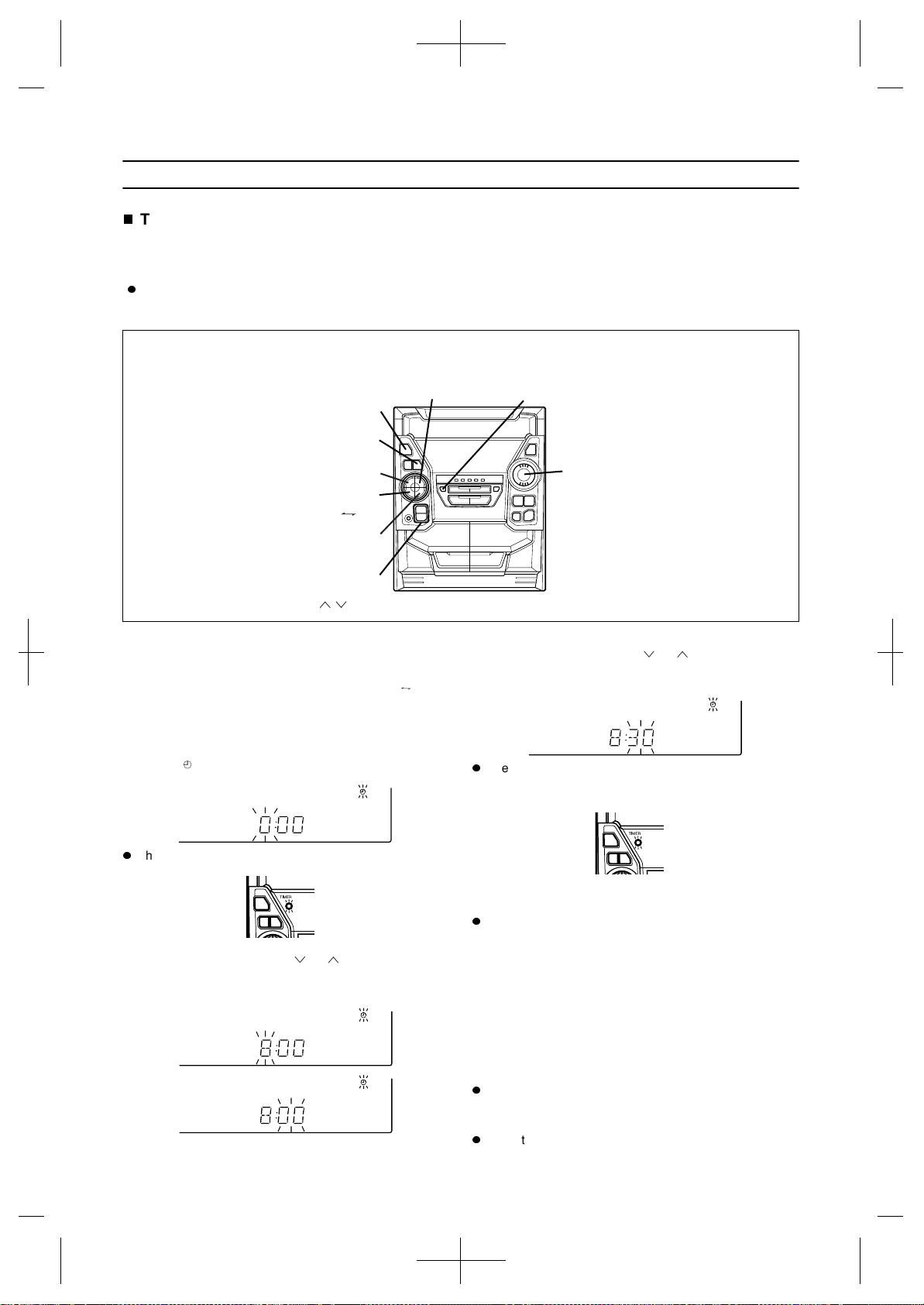
HOW TO USE THE BUILT-IN TIMER
Timer playback
1
Press the ON/STAND-BY button to turn the power
on.
2
Press the CD, TUNER (BAND), TAPE (1 2) or
VIDEO/AUX button to select the desired function,
and then adjust the sound volume using the VOL-
UME buttons.
3
Press the TIMER/SLEEP button repeatedly until a
white " " is displayed.
The timer set indicator will flash.
4
Press the TUNING/TIME ( or ) button to set the
hour start time, then press the MEMORY/SET but-
ton.
5
Press the TUNING/TIME ( or ) button to set the
minute start time, then press the MEMORY/SET but-
ton.
The unit will enter the stand-by mode automatically, and
the timer set indicator will light up.
6
When the preset time is reached, the timer playback
will start.
The volume will increase gradually.
7
If you select CD or TAPE, the unit will enter the
stand-by mode after the playback. If you select
TUNER or VIDEO/AUX, it will enter the stand-by
mode one hour after the timer playback starts.
To cancel timer operation:
Press the ON/STAND-BY button to turn the power on.
To change the programmed contents:
Start again from step 1.
Notes:
When performing timer playback using an external unit
connected to the VIDEO/AUX sockets, only the power of
the main unit will enter the stand-by mode automatically.
(The power of the external unit will not be turned off.)
Once the time is set, the setting will be retained until a
new time is entered.
The unit will turn on and play the selected source at the pre-
set time.
Before setting the timer, make sure that the clock setting
is correct (page 10).
(Main unit operation)
ON/
STAND-BY
TIMER/
SLEEP
CD
TUNER/(BAND)
TAPE
(1
2)
VIDEO
/AUX
MEMORY/SET
VOLUME
TUNING/
TIME
(
)
Downloaded from: http://www.usersmanualguide.com/
31
(Continued)
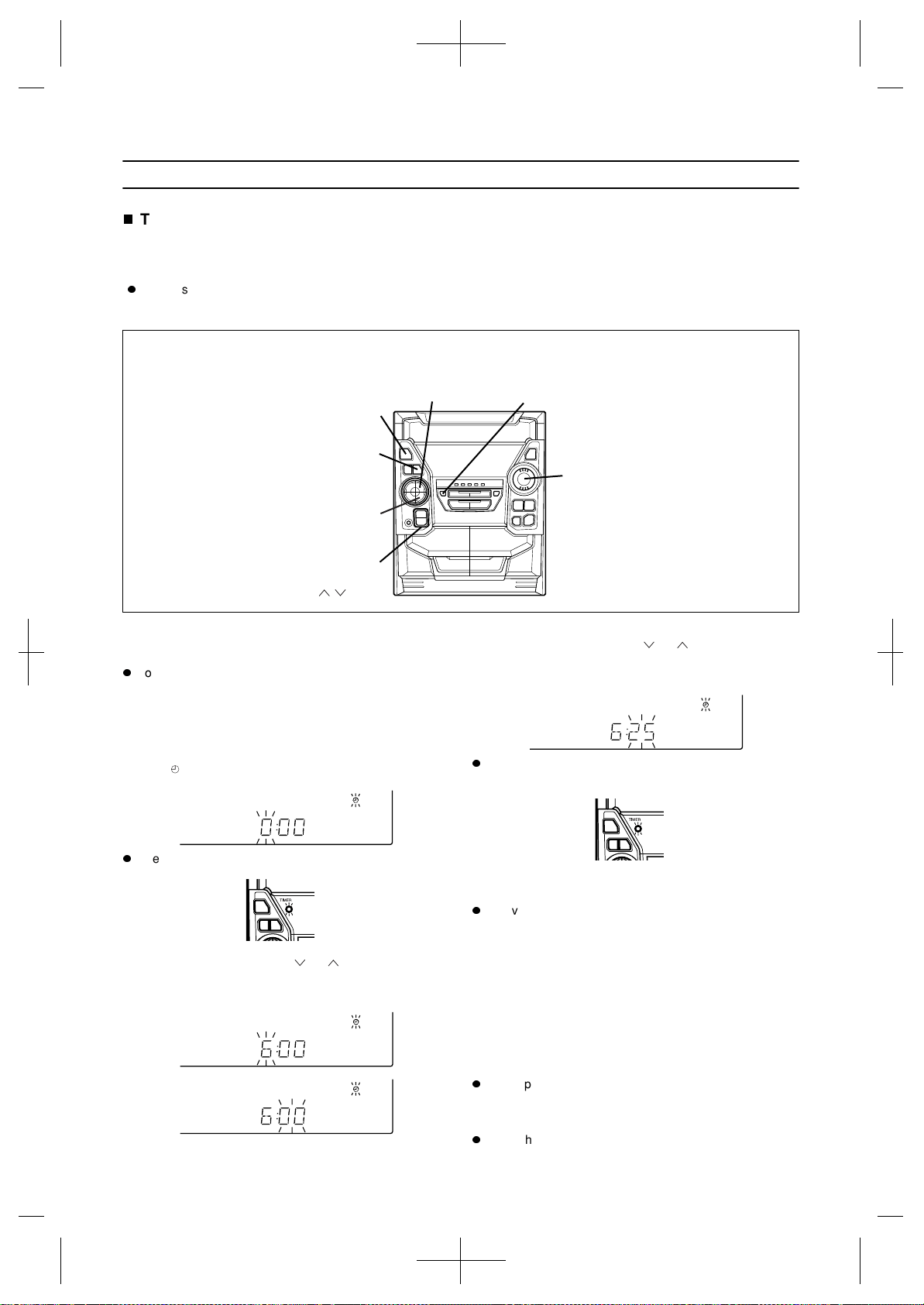
Timer recording
1
Press the ON/STAND-BY button to turn the power
on.
Load a cassette for recording into the TAPE 2 cassette
compartment.
2
Press the TUNER (BAND) or VIDEO/AUX button to
select the desired function, and then adjust the
sound volume using the VOLUME buttons.
3
Press the TIMER/SLEEP button repeatedly until a
red " " is displayed.
The timer set indicator will flash.
4
Press the TUNING/TIME ( or ) button to set the
hour start time, then press the MEMORY/SET but-
ton.
5
Press the TUNING/TIME ( or ) button to set the
minute start time, then press the MEMORY/SET but-
ton.
The unit will enter the stand-by mode automatically, and
the timer set indicator will light up.
6
When the preset time is reached, the timer recording
will start.
The volume will increase gradually.
7
When the recording tape reaches its end, the timer
recording will end, and the unit will enter the stand-
by mode.
To cancel timer operation:
Press the ON/STAND-BY button to turn the power on.
To change the programmed contents:
Start again from step 1.
Notes:
When performing timer recording using an external unit
connected to the VIDEO/AUX sockets, only the power of
the main unit will enter the stand-by mode automatically.
(The power of the external unit will not be turned off.)
Once the time is set, the setting will be retained until a
new time is entered.
The unit will turn on and start recording from the radio at the
preset time.
Before setting the timer, make sure that the clock setting
is correct (page 10).
(Main unit operation)
ON/
STAND-BY
TIMER/
SLEEP
TUNER/(BAND)
VIDEO
/AUX
MEMORY/SET
VOLUME
TUNING/
TIME
(
)
Downloaded from: http://www.usersmanualguide.com/
32
(Continued)
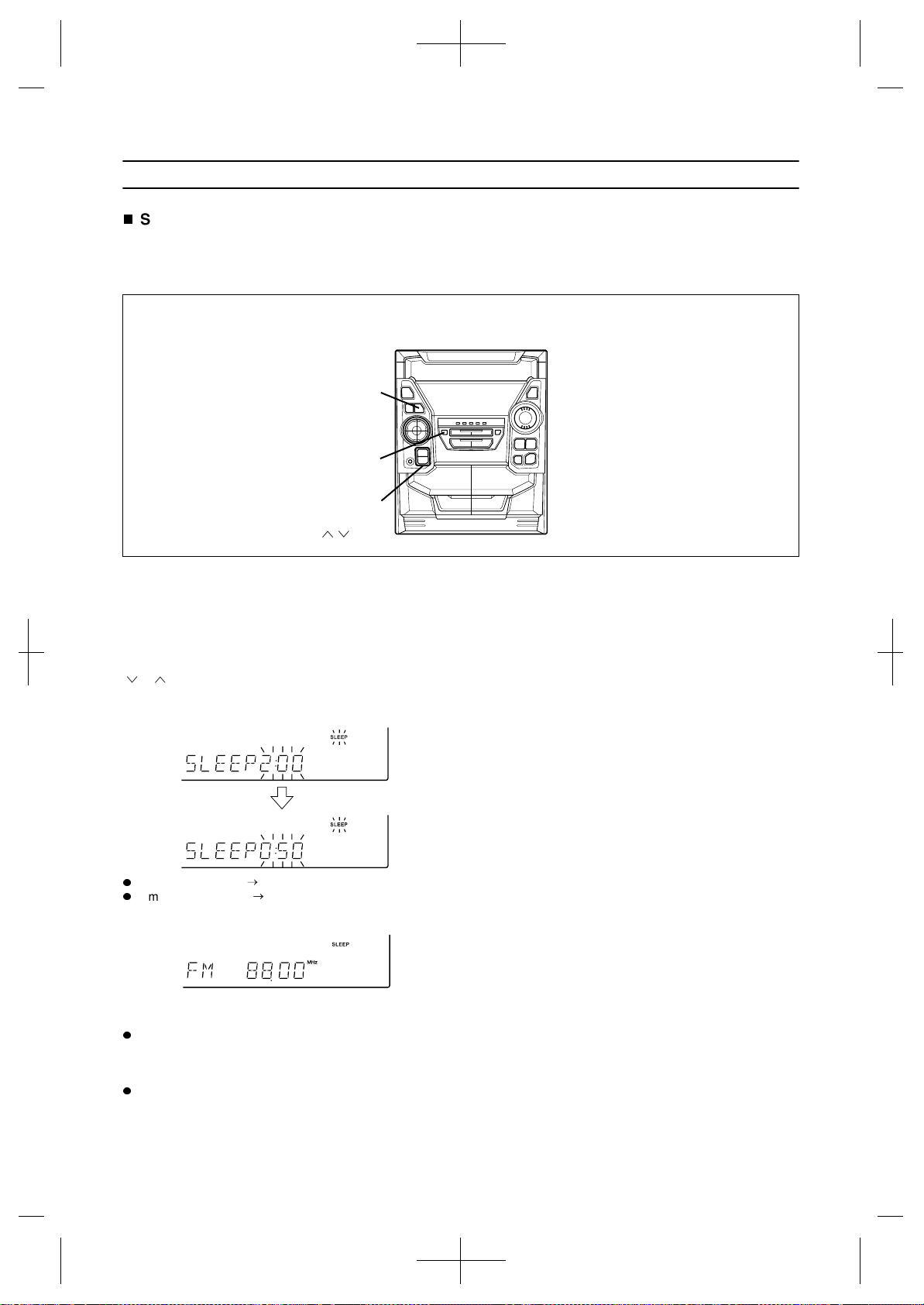
Sleep operation
1
Play back the desired sound source.
2
Press the TIMER/SLEEP button repeatedly until
"SLEEP" is displayed.
To change the sleep time:
Whilst the sleep time is displayed, press the TUNING/TIME
( or ) button to adjust the time. (Maximum: 3 hours - Min-
imum: 1 minute) The amount of sleep time can also be
changed during the sleep operation.
3 hours - 5 minutes 5-minute intervals
5 minutes - 1 minute 1-minute intervals
3
Press the MEMORY/SET button.
4
The unit will enter the stand-by mode automatically
after the preset sleep time has elapsed.
The volume will be turned down 1 minute before the
sleep operation finishes.
Note:
Once the sleep time is set, it will remain the same dura-
tion until the setting is changed.
To confirm the remaining sleep time:
Press the TIMER/SLEEP button.
To cancel the sleep operation:
Press the ON/STAND-BY button to enter the stand-by
mode.
The radio, compact disc and cassette deck can all be
turned off automatically.
(Main unit operation)
TIMER/
SLEEP
TUNING/
TIME
(
MEMORY/
SET
)
Downloaded from: http://www.usersmanualguide.com/
33
USING EXTERNAL UNITS
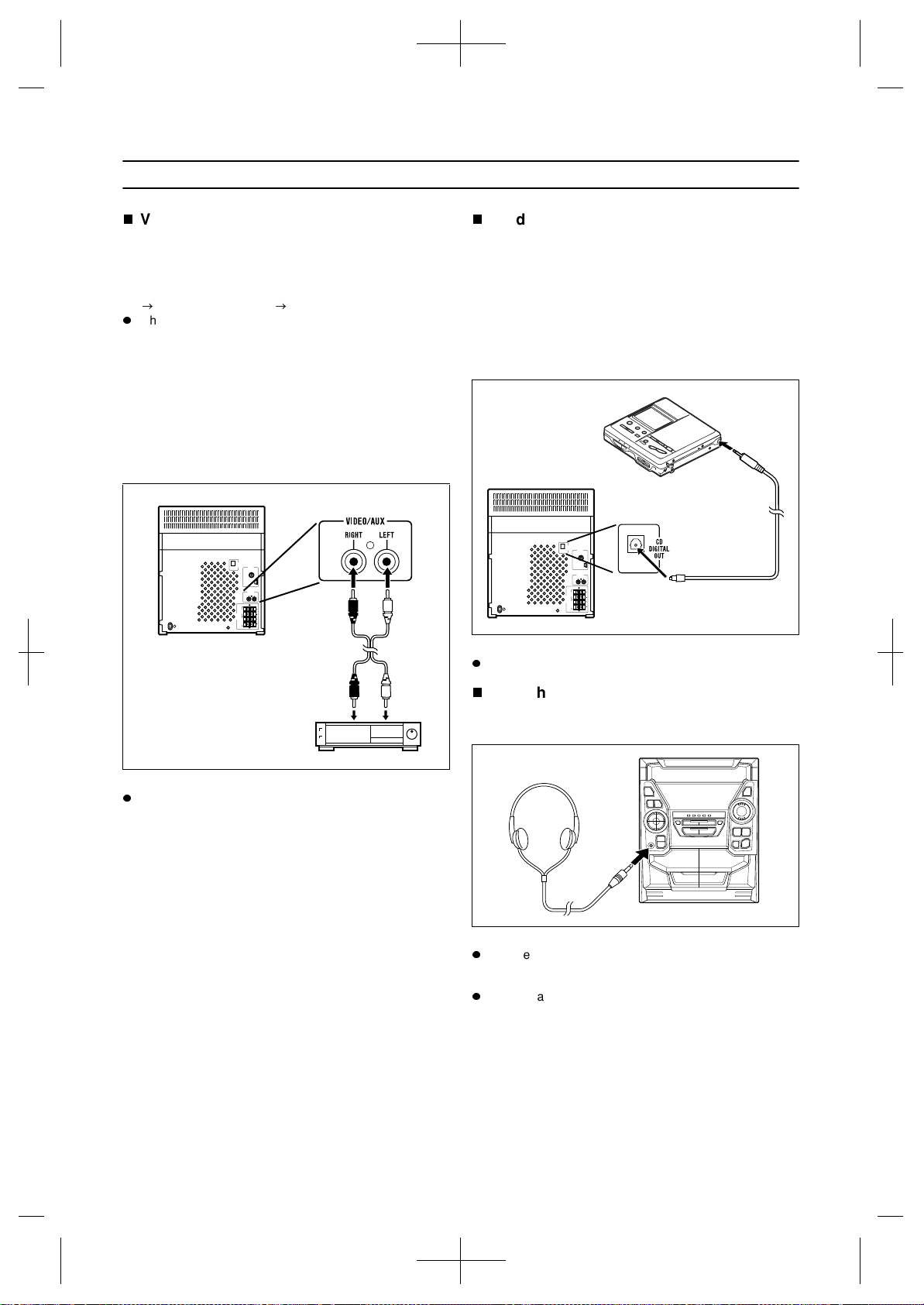
Video/Auxiliary (Audio signal) input
To listen to or record signals from external sources
through this unit:
1
Use a separately available RCA lead to connect the
desired external unit to the VIDEO/AUX sockets. (red
right channel, white left channel)
When using video equipment (Laser Disc player or VCR),
be sure to connect the audio output to this unit and the
video output to a television.
2
Press the ON/STAND-BY button to turn the power
on.
3
Press the VIDEO/AUX button.
4
Operate the external unit.
5
To record the sound from the external unit, perform
steps 2 - 5 of the "Recording from the built-in radio"
section on page 28.
Note:
To prevent hum interference, do not place this unit near
television receivers.
CD digital output (optical)
The CD digital signal from this unit can be recorded by
other DAT or MiniDisc recorders.
1
Remove the CD DIGITAL OUT socket cover.
2
Use a commercially available digital cable to con-
nect the unit to the OPTICAL IN socket of a MiniDisc
recorder or a DAT.
3
Put the external unit in the recording mode.
4
Play a CD on this unit.
Note:
Only CD signals can be output.
Headphones
Before plugging in or unplugging the headphones, make
sure the volume level is reduced.
Notes:
Be sure your headphones have a 3.5 mm (1/8") diameter
plug and are between 16 ohms and 50 ohms impedance.
The recommended impedance is 32 ohms.
When headphones are connected, the speakers are dis-
abled automatically. Adjust the VOLUME buttons for the
desired volume.
Downloaded from: http://www.usersmanualguide.com/
34
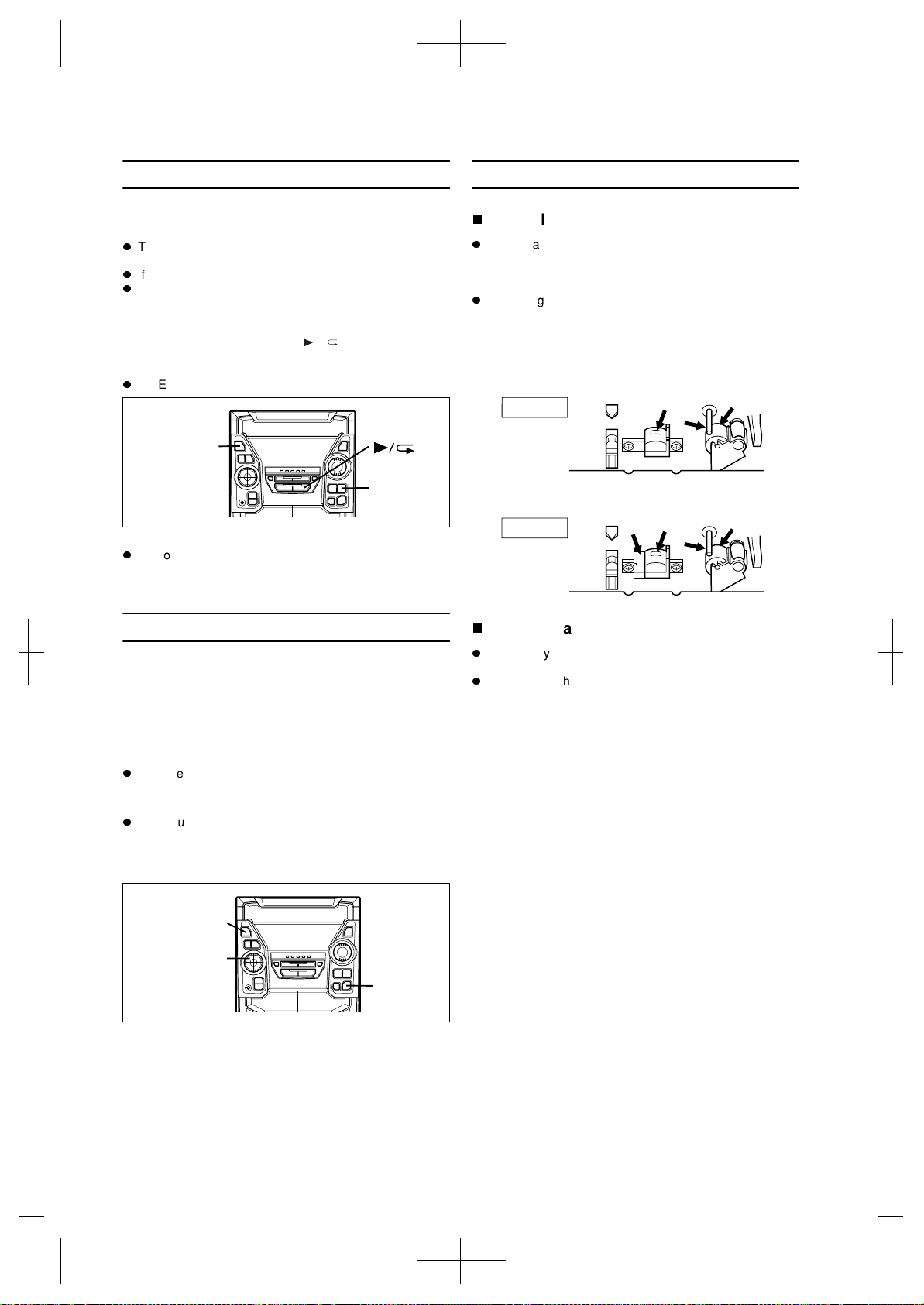
RESETTING THE MICROCOMPUTER
Reset the microcomputer under the following condi-
tions:
To erase all of the stored memory contents (clock and
timer settings, and tuner and CD presets).
If the display is not correct.
If the operation is not correct.
1
Press the ON/STAND-BY button to enter the stand-
by mode.
2
Whilst pressing down the / button and the X-
BASS/DEMO button, hold down the ON/STAND-BY
button for at least 1 second.
"CLEAR AL" will appear.
Caution:
The operation explained above will erase all data stored
in memory including clock and timer settings, and tuner
and CD presets.
TRANSPORTING THE UNIT
Before you move this product to a new location, pro-
ceed as follows:
1
Press the ON/STAND-BY button to turn the power
on.
2
Press the CD button.
3
Press the OPEN/CLOSE button to open the disc tray.
Remove all CDs inserted in the unit.
4
Press the OPEN/CLOSE button to close the disc
tray.
Make sure that "NO DISC" is displayed.
5
Press the ON/STAND-BY button to enter the stand-
by mode, and then unplug the AC power lead from
the AC socket.
MAINTENANCE
Internal care
Dirty heads, capstans or pinch rollers can cause poor
sound and tape jams. Clean these parts with a cotton
swab moistened with commercial head/pinch roller
cleaner or isopropyl alcohol.
After long use, the deck's heads and capstans may
become magnetised, causing poor sound. Demagnetise
these parts once every 30 hours of playing/recording
time by using a commercial tape head demagnetiser.
Read the demagnetiser's instructions carefully before
use.
External care
Periodically wipe the cabinet with a soft cloth and a
diluted soap solution, then wipe with a dry cloth.
Do not use chemically treated cleaning cloths or other
chemicals.
X-BASS/
DEMO
ON/
STAND-BY
CD
OPEN/
CLOSE
ON/
STAND-BY
TAPE 1
TAPE 2
Downloaded from: http://www.usersmanualguide.com/
35
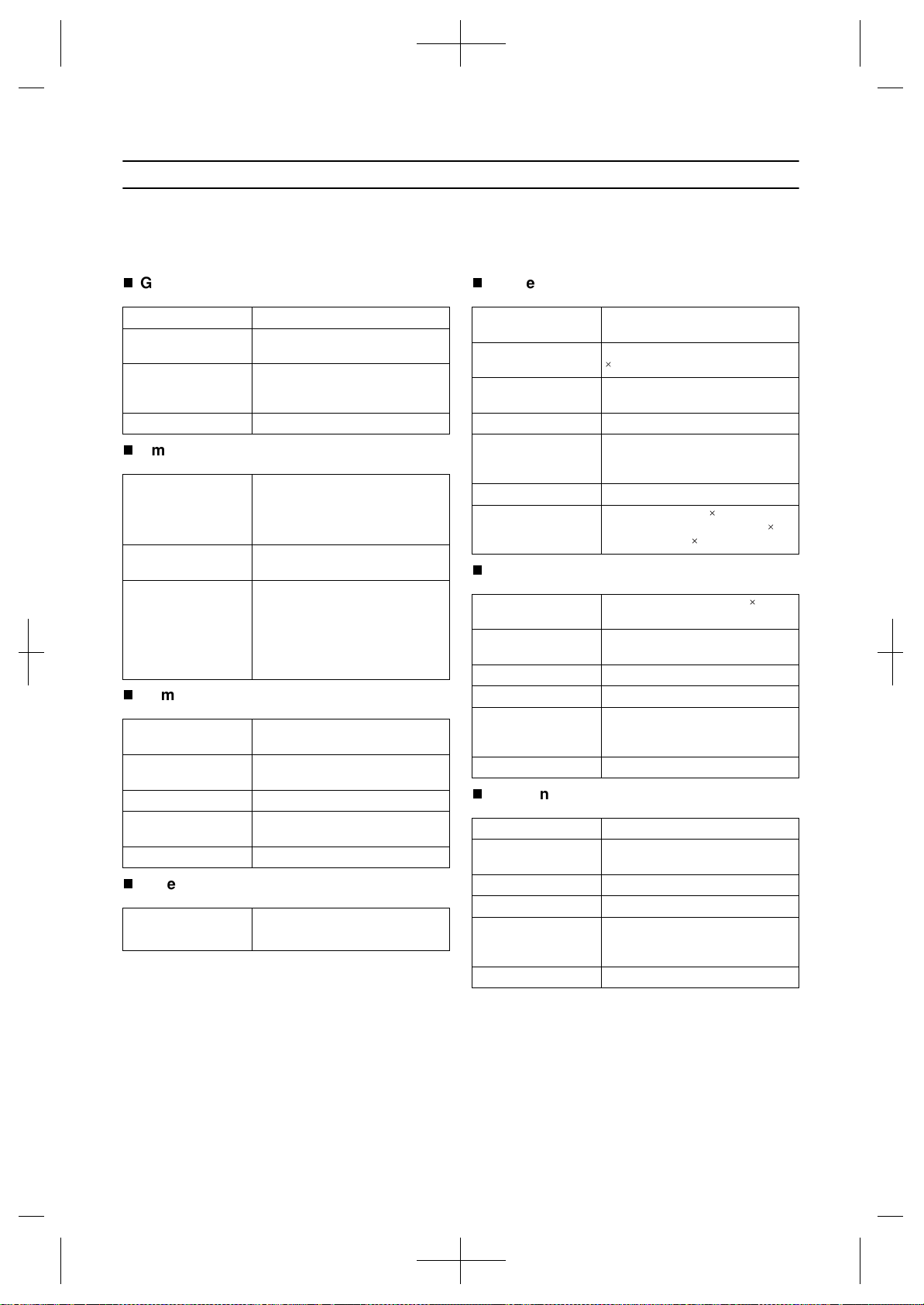
SPECIFICATIONS
General
Amplifier section
Compact disc player section
Tuner section
Cassette deck section
Front speaker section
Surround speaker section
As part of our policy of continuous improvement, SHARP reserves the right to make design and specification changes for
product improvement without prior notice. The performance specification figures indicated are nominal values of production
units. There may be some deviations from these values in individual units.
Power source:
AC 230 V, 50 Hz
Power
consumption:
95 W
Dimensions:
Width; 270 mm (10-5/8")
Height; 330 mm (13")
Depth; 375 mm (14-6/8")
Weight:
6.4 kg (14.0 lbs.)
Output power:
RMS; 100 W (50 W + 50 W) (10 %
T.H.D.)
RMS; 74 W (37 W + 37 W) (0.9 %
T.H.D.)
Input terminals:
Video/Auxiliary (audio signal); 500
mV/47 kohms
Output terminals:
Front speakers; 8 ohms
Surround speakers; 16 ohms
Headphones; 16-50 ohms (recom-
mended; 32 ohms)
CD digital output (optical)
Type:
3-disc multi-play compact disc
player
Signal readout:
Non-contact, 3-beam semi-con-
ductor laser pickup
D/A converter:
1-bit D/A converter
Frequency
response:
20 - 20,000 Hz
Dynamic range:
90 dB (1 kHz)
Frequency range:
FM; 87.5 - 108 MHz
AM; 522 - 1,620 kHz
Frequency
response:
50 - 14,000 Hz (Normal tape)
Motor:
DC motor with electronic governor
1
Bias and erasure
system:
AC
Tape speed:
4.76 cm/sec. (1-7/8 ips.)
Signal/noise ratio:
55 dB (TAPE 1, playback)
50 dB (TAPE 2, recording/play-
back)
Wow and flutter:
0.3 % (WRMS)
Heads:
TAPE-1: Playback 1
TAPE-2: Recording/playback 1
Erase 1
Type:
3-way [10 cm (4") woofer 2 and
5 cm (2") tweeter]
Maximum input
power:
80 W
Rated input power:
40 W
Impedance:
8 ohms
Dimensions:
Width; 220 mm (8-11/16")
Height; 330 mm (13")
Depth; 227 mm (8-15/16")
Weight:
3.0 kg (6.6 lbs.)/each
Type:
10 cm (4") full-range speaker
Maximum input
power:
30 W
Rated input power:
15 W
Impedance:
16 ohms
Dimensions:
Width; 170 mm (6-3/4")
Height; 170 mm (6-3/4")
Depth; 88 mm (3-1/2")
Weight:
0.5 kg (1.0 lbs.)/each
Downloaded from: http://www.usersmanualguide.com/
TERMS OF GUARANTEE
Sharp Electronics (UK) Ltd. (“Sharp”) guarantees to provide for the repair, or at its option the replace-
ment, of this product subject to the conditions listed below:-
1. This guarantee shall only apply to faults which are due to inferior workmanship or materials. It does
not cover faults or damage caused by accident, misuse, fair wear and tear, neglect, tampering with
the product, or repair other than by a Service Facility appointed by Sharp.
2. As this product is intended for private domestic use only, the guarantee will not apply if the product
is used in the course of a business, trade or profession.
3. To benefit from this guarantee, any fault which occurs must be notified to Sharp, or its appointed
Service Facility within one year from the date this product was purchased. Proof of purchase must
be provided.
4. The guarantee does not cover carriage costs, jewelled styli, audio tapes, compact discs or batter-
ies.
5. In the unlikely event of this product requiring repair, please contact the supplier from whom it was
purchased. Where this is not possible, please contact the Sharp Customer Information Centre on
the telephone number given below.
6. No person has any authority to vary the terms or conditions of this guarantee.
7. This guarantee is offered as an additional benefit to your statutory rights, and does not affect these
rights in any way.
If you have any difficulty operating this product, or would like information on other Sharp products,
please telephone the Sharp Customer Information Centre on the number given below.
Sharp Customer Information Centre - Telephone 0990 274277
0003
SHARP ELECTRONICS (U.K.) LTD.
Sharp House, Thorp Road, Newton Heath, Manchester, M40 5BE
SHARP CORPORATION
9906
TINSE0312AWZZ A0003.HK
Downloaded from: http://www.usersmanualguide.com/

This file has been downloaded from:
www.UsersManualGuide.com
User Manual and User Guide for many equipments like mobile phones, photo cameras, monther board, monitors, software, tv, dvd, and othes..
Manual users, user manuals, user guide manual, owners manual, instruction manual, manual owner, manual owner's, manual guide,
manual operation, operating manual, user's manual, operating instructions, manual operators, manual operator, manual product,
documentation manual, user maintenance, brochure, user reference, pdf manual
Downloaded from: http://www.usersmanualguide.com/